
PERFECT Operating and Installation Manual
|
|
|
- Branden Lang
- 10 years ago
- Views:
Transcription
1 PERFECT 2005 Operating and Installation Manual

2

3 PERFECT 2005 Time recorder Manual for the operation and installation of the time recorder. Copyright 2009 ISGUS GmbH The company ISGUS GmbH claims copyright protection for this documentation. No part of this documentation may be amended, extended, reproduced or by any means of infringement on other legitimate interests without the prior written permission of ISGUS. With the exception of component parts changes, ISGUS has made every effort to keep the contents of this manual current and correct at the time of publication. However, we cannot guarantee the documentation to be 100% accurate. Should you find any errors in this document, please let us know. We are always grateful for suggestions and comments from our customers. Edition 006CA BA 3O Printed in Federal Republic of Germany Ref. No ISGUS GmbH Oberdorfstraße DE Villingen-Schwenningen [email protected]

4 WARNING This Equipment has been tested and found to comply with the limits for a Class B digital device, pursuant to Part 15 of the FCC Rules. These limits are designed to provide reasonable protection against harmful interference in a residential installation. This equipment generates, uses and can radiate radio frequency energy and, if not installed and used in accordance with the instructions, may cause harmful interference to radio communications. Only peripherals certified to comply with the Class B limits may be attached to this equipment. However, there is no guarantee that interference will not occur in a particular installation. If this equipment does cause harmful interference to radio or television reception, which can be determined by tuning the equipment off and on, the user is encouraged to try to correct the interference by one or more of the following measures: Reorient or relocate the receiving antenna. Increase the separation between the equipment and receiver. Connect the equipment into an outlet on a circuit different from that to which the receiver is connected. Consult the dealer or an experienced radio/tv technician for help.

5 Safety instructions Designated use The PERFECT 2005 time recorder is exclusively designed for the printing of time and date information on manufacturer approved time cards, which is the only designated use of this machine, as described in this manual. Using the time recorder for purposes other than that described above is considered contrary to its designated use. The manufacturer cannot be held liable for any damage resulting from such use. The risk of misuse of the time recorder lies entirely with the user. The time recorder has no explosive environment protection. The use of the recorder in an explosive hazardous area is contrary to its designated use. The manufacturer and/or dealer cannot be held liable for any damage resulting from installation and use of the time recorder in such areas. Operating the time recorder within the limits of its designated use requires that you follow the instructions set out in the operating manual. All service work on the time recorder must be done by trained technicians who are familiar with the time recorder and have been instructed in safety precautions. All applicable local and national safety regulations must be observed in the installation, use, and maintenance of the time recorder. Modifications to the time recorder made without the authorization of the manufacturer will negate the manufacturer s responsibility and liability. Hints for the user Before installing and programming the time recorder, the operator must read the operating instructions and safety notes. The time recorder should only be opened by competent and trained personnel. The external power supply must be unplugged during maintenance and repair. The person performing the service must also ensure that all wiring entering or leaving the time recorder is electrical current-free before beginning work. Improper changing of the lithium battery may result in explosion. Do not use batteries other than those specified by the manufacturer. Send the replaced batteries to the recycling process available in your area. Any additional changes or service to the electrical components of the unit must be carried out by a qualified electrical technician. In addition to reading the operating instructions, the user should be instructed in all other generally applicable legal and other mandatory regulations relevant to accident prevention and environment protection.

6 Hints for the recorder's safety The time recorder has been built to the highest standards and conforms to recognized safety rules. Nevertheless, its use may constitute a risk to the user or third parties, or cause damage to the unit and to other property. Operate the time recorder only with the power supply being part of the time recorder package. The time recorder must only be used in a suitable environment, in accordance with its designated use and the instructions set out in this operating manual. Any equipment or functional problems, especially those affecting the safety of the unit and users of the unit, should be repaired immediately. Replacement parts must comply with the technical requirements specified by the manufacturer. This is guaranteed only when you use the manufacturer s original replacement parts. Use of non-conforming parts voids your warranty. Unplug and switch the unit off immediately if a problem occurs in the electrical system. Installation and mounting of the unit must be done by trained personnel. Plug the time recorder power supply into a sufficiently grounded electrical outlet. Ensure that all consumables and replaced parts are disposed of safely and with minimum environmental impact. Warning! This symbol focuses the user's attention to special procedures and in the handling of the time recorder that could cause serious injuries if the instructions are not followed carefully. Attention This symbol indicates that there may be danger to the time recorder if the text is not read or the procedure is not followed. Data may be lost or the recorder may be damaged. Hint This symbol indicates useful information and recommendations for the handling of the time recorder.

7 Table of Contents Product Overview... 2 Time Recorder Specifications... 3 Contents... 4 Selecting a Location... 5 General Conditions... 5 Specific Conditions for the Time Recorder... 5 Time Recorder Installation... 6 Installation for Table Operation... 6 Wall Mounting... 7 Open the Recorder... 8 Close the Recorder... 9 Remove the Metal Back Plate... 9 Wall Mounting Connect the Power Supply Getting Started Switch on the unit Programming panel Setting the Time and Date Showing or Setting the Time of the Internal Quartz Clock Synchronizing the Analogue Clock Setting the Date Punching at the Recorder Punching with Standard Time Cards Standby Operation (Option) Error Messages Adjustment Routine Line change Column change Changing the Ribbon Cleaning the Time Recorder Technical Specifications Local Sales and Service Dealer Table of Contents 1

8 Product Overview The PERFECT 2005 is an electronic time recorder used for the printing of employee time and attendance records. The time recorder can be programmed by the user to suit many different work schedules. Your ISGUS time recorder is equipped with the following features to simplify time recording in your company: Real time clock, quartz controlled with battery back-up Synchronized analogue display clock with power reserve Automatic changing of daylight-saving-time (when programmed) Automatic adjustment for leap year Large selection of pre-defined card formats Large selection of defined print formats The PERFECT 2005 prints the time and day automatically when the employee inserts a time card into the card funnel. The horizontal day-of-the-week line position is done automatically by the time recorder. However, the employee must use the large square position key on the top of the time recorder to position the time and date print in the appropriate In / Out column. Which column the employee selects is dependent on the individual employee work schedule. A number of standard card formats are available and can be selected from the programming routine. The card format is generally determined by the pay period frequency of your company. In order to guarantee the reliability of the time recorder, each unit has been tested thoroughly before leaving the factory. If there are any problems that cannot be resolved using this manual, please contact your local dealer or us at: [email protected] or [email protected] This manual provides step-by-step instructions for the handling of the time recorder. Before using the time recorder, please read the manual carefully and pay close attention to all safety instructions. 2 Product Overview

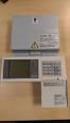
9 Time Recorder Specifications Fig. 1: Total view (1) Analogue clock (2) Digital display (only for programming of time and date) (3) Card funnel (4) Pointer field with card funnel shield and column pointer (5) Programming Panel, concealed by the front cover see section "Getting Started" (6) IN / OUT punch position key (7) Front case cover (8) Rear case cover The name-plate, containing the type of unit and electrical data is attached to the bottom of the cover. The serial-no. is located inside the unit on the bottom. The program release with the date and type of recorder is found on the label on the memory IC of the PC-board. Time Recorder Specification 3

10 Contents The following illustration shows the time recorder box contents without options. Fig. 2: Supply (1) Time recorder PERFECT 2005 (2) Operating manual (3) Warranty Registration Card (4) 2 keys (5) Power supply unit (6) Fixing elements for wall mounting (2 screws, 2 plugs) (7) Set of accessories for table operation (4 rubber feet, 3 cover caps) (8) Set of funnel shields Hint Time cards are not included with your time recorder and must be ordered separately. Please contact your local dealer or us at: [email protected] or [email protected] 4 Contents

11 Selecting a Location Warning! Proper installation of the time recorder is the responsibility of the owner. All work must only be carried out by qualified personnel. The installation must comply with the requirements of the authorities having jurisdiction and all applicable safety codes and regulations that govern the installation of electrical appliances. General Conditions The installation location should have the following characteristics: the time recorder is not exposed to electrical frequency transmissions the time recorder is not exposed to direct sunlight. the location s environment is within the temperature and humidity limits published in this manual. the location is free of airborne particles such as dust, dirt and fine powders and there is no possibility of the time recorder being exposed to direct contact with any kind of liquid or steam. there are no dirty manufacturing processes that could contaminate the location. the location is isolated from electromagnetic noise sources such as motors, electromagnets, and series reactors. Specific Conditions for the Time Recorder The time recorder is designed for continuous operation. The time recorder is designed for indoor mounting only. Outdoor mounting is not supported. Avoid direct sunlight and high humidity Connection only to the mains voltage specified on the name-plate. Cable connections must not be permanently installed. Only use the recorder with the supplied power supply unit, both in table and wall mount installations. In the power supply installation in the building a separator, e.g. fuse, switch, etc. must be integrated to allow a contact opening of at least 3 mm per pole. Installation must be according to NEC requirements. Selecting a Location 5

12 Time Recorder Installation Basically the PERFECT recorder is designed for table operation. No further settings are required for this type of application. Please see the instructions in the following section Installation for table operation. If you have to connect the option standby operation please contact your local dealer or us at: or For wall mounting refer to the corresponding section "Wall mounting". When used as wall-mounted recorder you have to carry out a number of installation steps described in this chapter. The connection of additional options and the programming of the time recorder are carried out with the time recorder s case open. Below the programming panel you will find a power switch and other electrical terminals and components. Please refer to the section "Programming panel". Warning! All work must only be carried out by qualified and authorized personal. Installation for Table Operation When using the time recorder as a table model, the installation effort is reduced to a minimum. Simply connect the power supply to the recorder and then plug it in to the closest receptacle. Switch on the black power switch located on the PC board. For instructions on how to switch the recorder on see section "Getting Started". Fig. 3: Bottom side of the recorder with rubber feet and mains cable socket 6 Time Recorder Installation

13 Select an easily accessible and vibration-free place of installation. The recorder may only be placed on a stable, slip-resistant surface. For the stability of the time recorder use the rubber feet included in the set of accessories. For this purpose clip them on by following the arrow-head indications. Also use the 3 cover caps for the metal back plate in order to seal the cable leadings. The power outlet has to be close to the recorder and easily accessible. Lay the power cable so that access is not obstructed and persons are not endangered. Warning! Only use the time recorder with the enclosed power supply both in case of table operation and of wall mounting. Do not use extension cords. Wall Mounting The PERFECT time recorder is designed for table mounting. However, power connection has been provided to meet the requirements of eventual wall mounting applications. Installation steps: 1. Open the time recorder 2. Remove the metal rear panel 3. Mount the time recorder on the wall 4. Connect the power supply 5. Getting Started The location of the mounting holes can be traced from the metal back plate of the time recorder. The metal back plate can be plugged in with the plastic housing. The installation dimensions shown in the figure on the right are recommendations which can be adjusted to the local conditions. The dimensions apply both for table operation and for wall mounting. Fig. 4: Installation dimensions Time Recorder Installation 7

14 Open the Recorder 1. Insert the key into the slot on the under side of the time recorder. Press the key into the slot until the locking latch releases the front case cover. Fig. 5: Unlock the recorder 2. Swing out the front case cover with the time recorder tilted away from you (step 1) until it can be lifted up and off the time recorder (step 2) Fig. 6: Open the recorder 8 Time Recorder Installation

15 Close the Recorder 1. Align and insert on an angle the two tabs at the top of the rear case cover into the corresponding two slots at the top of the front case cover. 2. Swing the front case cover downwards until it meets the bottom of the rear case cover. Push the bottom of the front case cover until it engages the locking latch on the bottom of the rear case cover. Hint Do not close the time recorder until you have connected the power supply and switched on the unit. Remove the Metal Back Plate 1. To begin removing the metal back plate, press the two locking tabs located on the top left and right hand sides of the rear case cover (step 1). 2. Keep the locking tabs pressed in and push the metal back plate back about ½ of an inch (step 2). 3. Pull the metal back plate away from the unit (step 3). Fig. 7: Rear view of the recorder with metal back plate Time Recorder Installation 9

16 Wall Mounting The location of the mounting holes can be traced from the metal back plate of the time recorder. The metal back plate can be plugged in with the plastic housing. See previous section. The installation dimensions mentioned in this manual are recommendations which have to be adjusted for local conditions. 1. Position the metal back plate in the desired wall location. Make sure the back plate is level by using a carpenter s level 2. Using a pencil, trace the upper and lower mounting holes of the metal back plate on the wall. Drill corresponding holes with a 5/16 drill bit. Insert the wall plugs. 3. Mount the metal back plate starting first with the lower screw and then the top screw. Make sure you do not fully tighten. 4. Using a carpenters level, align the time recorder once more and then tighten both screws. 5. Hang the time recorder mechanism on the wall mounted metal back plate. The four metal tabs (one on each corner of the metal back plate) must be aligned and inserted into the corresponding slots of the rear case cover. When the cover has been inserted correctly on the metal tabs, pull time recorder slightly downwards until the locking mechanism engages. Check your installation for good fits. Connect the Power Supply 1. Make sure that the recorder has been switched off. Fig. 8: PC-board with power switch 10 Time Recorder Installation

17 2. Check the connection of the power cord to the screw-type terminal strip of the CPU. black black Attention The power cord must be connected to the PC board terminals that are electrically compatible with the supply voltage of the electrical outlet that the power cord is plugged into. Incorrect connections can cause the destruction of the time recorder! 3. Connect the power cable of the power supply unit to the bottom side of your PERFECT. Fig. 9: Bottom side of the recorder with power cable socket 4. Insert the plug-in power supply unit into the provided socket. Warning! The power outlet must be close to the recorder and easily accessible. Make sure, that a loose power cable does not cause obstruction or risk to people. Time Recorder Installation 11

18 Getting Started The unit is programmed in the factory for bi-weekly payroll time cards. To set up the time recorder, only three steps are necessary. 1. Open the unit 2. Switch on the unit 3. Close the unit Attention When you switch on the time recorder an internal adjustment routine begins. Please wait until this procedure, which may take a few minutes, is finished. The time recorder is ready for operation when this start-up routine is complete and the automatic setting of the clock reached the correct time. Switch on the unit The recorder is provided with a separate power switch. This power switch is located inside the recorder, on the left hand side of the CPU-board. Proceeding 1. Remove front cover If the recorder is not yet opened, remove the front cover as described in section "Open the recorder". 2. Switch power switch to position "1". Analogue clock is synchronized. Current time is displayed until clock synchronization has finished. Example:. All time recorders have been programmed in the factory with current date and Eastern Standard Time (EST). However, if the recorder was previously switched on, or if your time zone is not Eastern Standard Time, you have to re-set the time and date displayed.. For more details on setting date and time, see section "Setting the Time and Date". 12 Getting Started

19 3. Close the unit and locking it. See section "Close the Recorder". The recorder is now ready for operation. The current time is shown on the analogue clock. In order to learn how to handle the recorder, you should do some sample punches with blank time cards. See also section "Punching at the Recorder". Programming panel :59 D R E S 3 Fig. 10: Programming Panel (1) IN / OUT Column pointer (3) Programming keys R, E and S (2) Programming panel (4) 2-digits display Column pointer Mechanic pointer, marks the current programming symbol and step in programming mode. In normal operation, the column pointer marks the current IN / OUT column in which the time punches will be placed on the time cards. Symbols Chronological order of the programming steps as menu general terms presented as symbols. 23:59 Set time This symbol is not part of the programming routine and is activated by a separate key. See section "Setting Time and Date" D Set date see section "Setting Time and Date" Getting Started 13

20 Program symbols Language identification Daylight saving time change Time card parameters Time recorder print formats The programming of individual customer requirements is carried out by your local dealer. For further information us at: or R E S Change the displayed value A value can be changed when flashing in the display. If the key is pressed once, the value will be increased by one. If the key is pressed continuously the value increases in fast mode. Confirm the values entered. Use this key to switch to the next value or menu item. In programming mode same function as "E" e.g. skip to next parameter or menu item. In normal operation this is the IN/OUT column selection key... In normal operation, the decimal point is always flashing. In programming mode the active digit which can be changed is indicated by a flashing LED. Setting the Time and Date Attention To adjust the analogue clock and/or the internal quartz clock use always the following procedure. It is not sufficient to only set the hands of the analogue clock. Proceeding Press "E" until column pointer marks the symbol for time. Time is displayed. 14 Getting Started

21 2. Example:. Enter current hour using "R". Value range: If you do not want to change the value displayed, continue with step :59 Confirm the value using "E". The unit switches to minutes and the column pointers marks the minutes. 4. Example:. Enter minutes using "R". Value range: The value entered should be set one minute before the desired reference time :59 Press "E" when reference time of an external clock corresponds to the time displayed on the unit. Now clock starts with 00 seconds. The unit switches to "Synchronize analogue clock". The column pointer switches to "Set hands". The current hour entered is still displayed again. 6. Set minute hand on 12 o'clock and hour hand on the full hour entered and displayed. Set minute hand first and then the hour hand. Both hands can be moved forwards and backwards. In our example 9 o'clock 7. Confirm each setting with "E". The synchronization of the analogue clock does not start immediately. After date has been entered, the analogue clock is synchronized. 8. D The column pointer switches to day entry. Day is entered in the format DD-MM-YY. Getting Started 15
22 9.. Enter current date using "R". Value range: 01 to 31 Example: 31. May D Confirm selection using "E". Unit switches to month-entry. Column pointer switches to month display Select current month using "R". Value range: 01 to 12 If the value 31 has been entered for day entry only the months with 31 days are available (January, March, May,...) 12. D Confirm selection using "E". The unit switches to year-entry. 13. Select year using "R" Value range: Confirm selection using "E". After the last date entry has been confirmed with "E", the analogue clock is synchronized. Once synchronization has finished the analogue clock works with the current time. Showing or Setting the Time of the Internal Quartz Clock If you want to check the time of the internal quartz clock, use the procedure "Set Time and Date". The time of the internal quartz clock may differ from the time of the analogue clock. Showing the setting of the internal quartz clock is no manual hand setting. 1. Keep "E" pressed until column pointer marks the symbol for the time. the current hour setting is displayed. 2. Is the hour setting correct? If yes, confirm setting using "E". 16 Getting Started
23 3. Is the minute setting correct? If yes, confirm setting using "S" Date setting is called-up. The column pointer marks the symbol for date. 4. Confirm date display using "E" The unit switches back to the display of the current day. If you want to reset the time you can "R" and "E" instead of "S" (step 3). Use the procedure "Set Time and Date". After you have changed the internal quartz clock and have confirmed the settings by using "E", manually set the hands of the analogue clock and synchronize the internal quartz clock and the analogue clock. Synchronizing the Analogue Clock If the time printed on a time card differs from the time on the analogue clock, the analogue clock needs to be synchronized with the internal quartz clock. Use the procedure "Set Time and Date". Confirm hours and minutes using "E" and set hands of the analogue clock when display shows the symbol "Set hands". Confirm the following date setting using "E". The synchronization starts and the time menu is left. After synchronization has been executed, current date is displayed. Re-check the analogue clock by punching a blank sample time card. Setting the Date Use the procedure "Showing or Setting the Time of the Internal Quartz Clock". Enter the current date values when the column pointer marks the first symbol of the date. Re-check the clock by punching a blank sample time card. Getting Started 17
24 Punching at the Recorder Time card handling With all models of time recorder, the card side on which the clock punch is to be printed must be facing towards the user. 1. Insert the time card into the card funnel until the card comes to a stop. Wait for the time recorder to finish printing. 2. Remove card from the time recorder. If your company uses both sides of the time card, the employees must ensure that they are punching on the correct side of the time card to prevent the over-printing of punches. Hint Do not pull the time card out of the time recorder while it is printing. This could cause the printing on the time card to be unreadable. Requirements for Trouble Free Time Recording Always store time cards in a dry place. Humidity can cause the time cards to expand so that they will not fit into the time recorder. Keep the time cards in good condition and avoid mishandling damage, such as corner bending, folding, and tearing. Protect time cards against contamination from such as dirt, dust, and oil. Do not expose time cards to direct sunlight. Keep new and used time cards in the card box in which they were supplied.. Due to tolerances in the printing of the time cards, the position of the print may be changed. Therefore check the printing on the time card from time to time, and if necessary, adjust the print position by means of the stored adjustment routine. Have your time recorder serviced once a year by your local dealer. 18 Punching at the Recorder
25 Punching with Standard Time Cards Time cards are separated into vertical IN- and OUT columns. The days of the week are arranged in horizontal lines on the time card. The number of horizontal day lines on the time card is determined by the pay period that the time card is designed for. The current punch column is marked by the column pointer in the pointer field. The printer head advances to the next punching column with each pressing of the position key. This is also for the punching of extra times, e.g. interruptions, overtime. The column pointer advances from left to right. Hint The position key is only for column selection and not for print activation. If the right punching column is already marked, you need not press the position key. Proceeding 1. If a point is displayed, the unit is ready for operation. The current date must correspond with the punching line on the time card 2. Position of the column pointer. Does the column pointer mark the correct IN/OUT column? 3. If not, select the correct column with the position key. Press position key until the column pointer marks the desired column. 4. Insert card into card funnel. Press card slightly down until clocking is released. 5. Remove card from unit. Punching at the Recorder 19
26 Standby Operation (Option) In order to maintain the normal operation during power failure the time recorder must be provided with a standby battery pack for the printer head. With this option, the time recorder will print up to 300 registrations over a power outage period of 24 hours. In case of power failure, the time recorder switches automatically to standby operation. Standby operation is indicated by a flashing line in the right segment of the digital display. To save battery capacity all sub-functions, e.g. adjustment, programming, test runs etc. will be disabled. Ribbon changing can be done while the time recorder is in standby power mode. 20 Punching at the Recorder
27 Error Messages Any error at the time recorder is indicated by a combination on the display. If the problem cannot be solved, please contact your local dealer or us at: [email protected] or [email protected] To avoid any confusion with the date, all error messages begin with the letter E. Display Reason What can be done P-Module, Error in resident memory. Punching at the recorder is no longer possible. RTC-module, error in real time clock component. Punching at the recorder is no longer possible. Error in synchronization of the card lift, mechanical error. Punching at the recorder is no longer possible. Printer head is blocked or runs hard. A piece of paper may be pinched in the card guide. Program error can only happen when the recorder is switched on. Switch unit off and on. If the error message is still displayed, the P-Module has to be changed. Please contact service technician. Switch recorder off and on. If the error message is still displayed, the RTC-module has to be changed. Please contact service technician. Switch recorder off and on. If the error message is still displayed Please contact service technician. Switch off recorder. Remove metal rear cover, swing-out programming panel and check card guide, Switch on unit. If the error message is still displayed Please contact service technician. Switch recorder off and on. If the error messages is still displayed, the EPROM has to be changed. Please contact service technician. Error Messages 21
28 Adjustment Routine The position of the punching on the time card is defined when programming the unit. Generally in the factory. But it may happen that the punching is not printed exactly in the right position due to manufacturing tolerance and especially card tolerances. With the adjustment routine the position of the punching on the time card can be adjusted in vertical and horizontal direction and adapted to new card dimensions. The clocking can be adjusted within -5.0 mm and +4.9 mm in both directions, from the left to the right and from top to bottom. The adjustment is executed via the adjustment value which must be between 00 and 99. This adjustment value corresponds with the dimensions of the unit printed on this page. The adjustment value pre-programmed ex factory is 50 and this value means no change in print position. Changes are in steps of 0.1 mm. Minimum dimensions of the card: - left card edge 3.5 mm - bottom line 16.5 mm Line change To check the position, the first punching of a payroll period is printed into the first column and the first line. The position can be changed by pressing "R" (+) and "E" (-) in 0,1 mm steps. Column change The adjustment of the column change resp. the horizontal position of the punching identical to the adjustment of the line change but the left card edge is used as reference line. Proceeding 1. Unit is switched on. 2. Press "E" first, then "S". Keep both keys pressed for about 2 seconds until display shows the adjustment value for card lift. 3 Adjust line change Display = Adjustment value 50 = 0 mm, no correction Value range: Adjustment Routine
29 Shift punching upwards with "R" (+). The distance between bottom line and punching is increased. Shift punching downwards with "E" (-). The distance between bottom line and punching is decreased Insert time card and make a sample punching. Repeat steps 3 and 4 until punching is printed in correct line. Press "S" to confirm and to continue with adjustment of the column change. 6. Adjust column change Display = Adjustment value 50 = 0 mm, no correction Value range: Shift punching to the right with "R" (+). The distance between left card edge and punching is increased. Shift punching to the left with "E" (-). The distance between left card edge and punching is decreased. 7. Repeat adjustment and sample punching until punching is printed in correct column. Press "S" to quit adjustment routine. Changing the Ribbon To change the ribbon the programming panel has to be swung out. The column pointer has to be moved to the park position. + Hint The ribbon used in the unit is a special ribbon. If you want to order further ribbons, please contact your local dealer or us at: [email protected] or [email protected] Change the Ribbon 23
30 Proceeding 1. The time recorder is switched on. 2. Press "R" and "E" simultaneously and keep these keys pressed for 1 second. Column pointer moves to the park position right of the card funnel. 3. Press the locking straps on the left and right side of the card funnel slightly towards the recorder and swing out the programming panel. 4. Lift up and remove the ribbon cassette. Warning! Depending on use, the printer head may be very hot. Touching the printer head could cause burns. 5. Insert new ribbon cassette and push slightly down. Tighten the new ribbon by winding the red ribbon tightening knob in the direction indicated by the arrow on the cassette. Position the free guide of the ribbon in the direction of the printer head. Make sure that the ribbon guide is inserted in front of the printer head and that the ribbon is not twisted or creased. The ribbon cassette must engage into the left and right locking straps. 6. Check that the ribbon fits between the printer head and the ribbon guide. Tighten the ribbon again. 7. Swing in the programming panel. Press "R" and "E" once again, see step 2. The column pointer moves back to initial position. 8. Close the time recorder. Cleaning the Time Recorder The main problem is dust on electronic components. In order to maintain the physical appearance of the time recorder, the cover must be occasionally cleaned. The cleaning intervals depend on the operating conditions and the location. When cleaning the time recorder with cloths, please observe the following recommendations: Use only rags moistened with water or a soap-free detergent. Do not use any detergent spray or wet rags. Use only soft detergents without solvents of any kind. Make sure to thoroughly dry all components after cleaning. 24 Cleaning the Time Recorder
31 Technical Specifications Dimensions Height: 280 mm Width: 220 mm Depth: 195 mm Weight 3 kg Supply voltage 20 V AC +/- 10 % Hz Current consumption Power consumption max. 800 ma max. 45 VA Protection type IP 20 Protection class Ambient temperature Relative humidity Connection Determination of time Printer I 5 C to 40 C (no direct sunlight) max. 80 %, non condensing - Standby operation (Option) Quartz 9 dot-matrix printer Battery pack Nominal voltage 12 V Nominal capacity 600 mah Discharge temperature: -20 to + 60 C Storage temperature: -30 to + 50 C Weight: 300 g Plug-in power supply unit Supply voltage 120 V / 20 V AC +/-10 % Hz Rated output permanent: 16 VA / max. 45 VA Technical Specifications 25
32 Local Sales and Service Dealer Dear Customer, ISGUS would like to thank you for your business and to assure you that you have purchased the world s finest industrial time recorder. If you have any questions or problems with your time recorder, please contact your local dealer or us at: [email protected] or [email protected] Our service advisors will contact you within 48 business hours and assist you in resolving any troubles you may encounter. Should you wish to order further time recording systems, please contact your local dealer or us at [email protected] or [email protected] Please record the following information and store this manual in a safe place. You will require it when contacting your dealer or communicating with ISGUS. Time Recorder Model Number Serial Number Date Purchased Description of Use Number of Employees Type of time cards Local Dealer Company Contact Address Telephone Fax 26 Local Sales and Service Dealer
33
34
35
36 Ahead in Time - ISGUS Time Management ISGUS GmbH Oberdorfstraße DE Villingen-Schwenningen Tel / Fax / [email protected]
4.3-inch Back-Up Camera
 TM 4.-inch Back-Up Camera Model No.: PKC0BU4 Owner s Manual and Warranty Information Read these instructions completely before using this product. Retain this Owner s Manual for future reference. INTRODUCTION
Business Audio System: Music & Messaging MP3 Player. by Grace Digital Audio. User Guide. Model No. GDI-USBM10
 Business Audio System: Music & Messaging MP3 Player by Grace Digital Audio User Guide Model No. GDI-USBM10 User Guide Contents Introduction 2 Safety & General Use Information 2 Features 3 Set Up & Operation
CAUTION RISK OF ELECTRIC SHOCK DO NOT OPEN
 BeoLab 7-6 Guide CAUTION RISK OF ELECTRIC SHOCK DO NOT OPEN CAUTION: To reduce the risk of electric shock, do not remove cover (or back). No User-serviceable parts inside. Refer servicing to qualified
BroadBand PowerShield. User Manual
 BroadBand PowerShield User Manual 990-0375G 12/2006 Chapter 1 General Information The PowerShield provides a power source for broadband telephony and other DC applications. Safety This Safety Guide contains
Daily use. Never use alcohol or other solvents to clean any part of the loudspeakers!
 BeoLab 6002 Guide WARNING: To reduce the risk of fire or electric shock, do not expose this appliance to rain or moisture. Do not expose this equip ment to dripping or splashing and ensure that no objects
BeoLab 7-1 BeoLab 7-2. Guide
 BeoLab 7-1 BeoLab 7-2 Guide CAUTION: To reduce the risk of electric shock, do not remove cover (or back). No User-serviceable parts inside. Refer servicing to qualified service personnel. WARNING: To prevent
SETTING UP YOUR 6000 SERIES TIME RECORDER
 INTRODUCTION The Pyramid 6000 Series Time Recorder is an electronic time recorder designed to make payroll processing easier and more efficient. The 6000 series will meet your business needs whether your
2013 VTech Printed in China 91-009656-000 US
 Rechargeable Power Pack User s Manual 2013 VTech Printed in China 91-009656-000 US INTRODUCTION The Rechargeable Power Pack makes it easier than ever to keep the InnoTab 3 or InnoTab 3S charged and ready
BeoLab 1. User s guide
 BeoLab 1 User s guide Legal notice: CAUTION RISK OF ELECTRIC SHOCK DO NOT OPEN CAUTION: To reduce the risk of electric shock, do not remove cover (or back). No User-serviceable parts inside. Refer servicing
Owner s Manual. Not suitable for mobile applications. Important Safety Instructions 2. Quick Installation 3. Basic Operation 4. Storage & Service 7
 Register online today for a chance to win a FREE Tripp Lite product! www.tripplite.com/warranty Owner s Manual Internet Office & BC Personal UPS Systems Not suitable for mobile applications. Important
Mercury Helios 2 ASSEMBLY MANUAL & USER GUIDE
 Mercury Helios 2 ASSEMBLY MANUAL & USER GUIDE TABLE OF CONTENTS INTRODUCTION...1 1.1 MINIMUM SYSTEM REQUIREMENTS 1.1.1 Apple Mac Requirements 1.1.2 PC Requirements 1.1.3 Supported PCIe Cards 1.2 PACKAGE
CAUTION RISK OF ELECTRIC SHOCK DO NOT OPEN
 BeoLab 4000 Guide CAUTION RISK OF ELECTRIC SHOCK DO NOT OPEN CAUTION: To reduce the risk of electric shock, do not remove cover (or back). No User-serviceable parts inside. Refer servicing to qualified
PIX-10 Electronic Time Recorder User s Guide
 PIX-10 Electronic Time Recorder User s Guide Thank you for purchasing another fine product from Amano Cincinnati, Inc. IMPORTANT The Daylight Saving Time date settings have been preset. DO NOT change the
Wireless Indoor/ Outdoor Thermometer
 Wireless Indoor/ Outdoor Thermometer Owner s Manual Please read before using this equipment. ˆ Contents FCC Information... 3 FCC Declaration of Conformity... 5 Preparation... 5 Installing Batteries...
User Manual. RK-2d / RK-2t. dedicated KVM switch and rackmount screen technology. Designed and manufactured by Austin Hughes
 dedicated KVM switch and rackmount screen technology User Manual RK-2d / RK-2t 1U Short Depth Keyboard Drawer Designed and manufactured by Austin Hughes 751 Legal Information First English printing, October
THE NEW GENERATION IN TECHNOLOGY. NI-3103A Alarm Clock w/fm Radio ipod & iphone Docking. Operating Instructions
 THE NEW GENERATION IN TECHNOLOGY NI-3103A Alarm Clock w/fm Radio ipod & iphone Docking Operating Instructions Table of Contents Important Safeguards... 3 Parts... 6 Controls... 6 To Set Up... 7 ipod/iphone
When you switch off your system, or mute the sound, the red indicator light appears immediately, indicating that the subwoofer is not in use.
 BeoLab 11 Guide WARNING: To reduce the risk of fire or electric shock, do not expose this appliance to rain or moisture. Do not expose this equip ment to dripping or splashing and ensure that no objects
Carpet Washer. vax.co.uk VRS5W. Vax Careline: (UK) 0844 412 8455 (ROI) 1-800 928 308. Vax model number: Version 1.0
 VRS5W Powermax User Guide V1.0.qxd:V1.0 23/7/10 15:35 Page 1 Vax Careline: (UK) 0844 412 8455 (ROI) 1-800 928 308 Carpet Washer Vax model number: VRS5W instruction manual Version 1.0 Please read carefully
This equipment has been tested and found to comply with the limits for a Class B digital device, pursuant to part 15 of the FCC Rules.
 Power Max Level 2 Charging Station en Installation and Operating Instructions This equipment has been tested and found to comply with the limits for a Class B digital device, pursuant to part 15 of the
FCC COMPLIANCE STATEMENT FOR AMERICAN USERS
 FCC COMPLIANCE STATEMENT FOR AMERICAN USERS This equipment has been tested and found to comply with the limits for a CLASS A digital device, pursuant to Part 15 of the FCC Rules. These limits are designed
Wireless Alarm System. Window/Door Sensor. User s Manual. Choice ALERT. Control all Sensors & accessories from one location
 45131 Wireless Alarm System Window/Door Sensor User s Manual Choice ALERT Control all Sensors & accessories from one location Table of Contents Important Safeguards 4 Introduction 5 Installation 6 Assigning
CAUTION RISK OF ELECTRIC SHOCK DO NOT OPEN
 BeoLab 4 Guide CAUTION RISK OF ELECTRIC SHOCK DO NOT OPEN CAUTION: To reduce the risk of electric shock, do not remove cover (or back). No User-serviceable parts inside. Refer servicing to qualified service
aseries A13B Mini Bullet Camera User Manual
 aseries A13B Mini Bullet Camera User Manual Thank you for purchasing our product. If there are any questions, or requests, please do not hesitate to contact the dealer. This manual applies to the MicroView
Ingenico. User Guide 5100M. Secure transaction and payment solutions
 User Guide Ingenico 5100M Secure transaction and payment solutions Ingenico 5100 M Contents 1 Presentation... 5 1.1 Overview of Ingenico 5100... 6 1.2 Keyboard details and functionality... 7 2 Use...
7 High-Resolution Digital Photo Frame
 TM 16-1003 User s Guide 7 High-Resolution Digital Photo Frame One demo photo included, as illustrated Please read this user s guide before using your new photo frame. Package contents Photo Frame AC Adapter
16/32 Channel 1U Rack Mount CCTV Power Supply
 16/32 Channel 1U Rack Mount CCTV Power Supply Manual PH-A3224-GUQ Shown 16-Channel 32-Channel PTC PH-A1612-PUQ PH-A3224-PUQ Glass Fuse PH-A1612-GUQ PH-A3224-GUQ Industrial design 12 Amp 3 Amps per channel
How To Use A U.S. Cell Phone At Home
 U.S. Cellular Home Phone 1 Contents Getting to Know Your Device...5 Appearance... 5 LED Indicators... 6 Device Installation...7 Before You Begin... 7 Installing the Battery... 7 Installing the Power Adapter...
Wiser Panel Meter, Model Number WISERCTPM200 Installer s Guide
 Instruction Bulletin EAV85226 08/2014 Wiser Panel Meter, Model Number WISERCTPM200 Installer s Guide Retain for future use. Product Description Kit Contents The Wiser Panel Meter is for use in energy management
LED Security Spotlight User Manual
 MOT ION-TR ACKING LED Security Spotlight User Manual www.jascoproducts.com 1-800-654-8483 2 TABLE OF CONTENTS Parts List 3 Questions? Missing Parts? 4 Installation (Wall mount) 6-9 Installation (Eave mount)
ScreenLogic Wireless Connection Kit. Installation Guide. pool/spa control system
 pool/spa control system ScreenLogic Wireless Connection Kit Installation Guide P/N 520663 - Rev B 8 Technical Support Contact Technical Support at: Sanford, North Carolina (8 A.M. to 5 P.M.) Phone: (800)
The Third Rail System User Manual
 The Third Rail System User Manual System Contents: Slim Case and Smart Battery for iphone 4 Slim Case for iphone 4 Smart Battery micro-usb Cable USB Adapter Cable User Manual Smart Battery only Smart Battery
StorTrends 3400 Hardware Guide for Onsite Support
 StorTrends 3400 Hardware Guide for Onsite Support MAN-3400-SS 11/21/2012 Copyright 1985-2012 American Megatrends, Inc. All rights reserved. American Megatrends, Inc. 5555 Oakbrook Parkway, Building 200
InnoMedia ESBC 9380-4B. Quick Install Guide. www.innomedia.com 1
 InnoMedia ESBC 9380-4B Quick Install Guide www.innomedia.com 1 Table of Contents Introduction 2 Package Contents 2 CAUTION 2 Installation 3 Wall-Mounting Instructions 5 Troubleshooting 6 Appendix A. LED
Weather Radio Alarm Clock
 1200093 User s Guide Weather Radio Alarm Clock Thank you for purchasing your Weather Radio Alarm Clock from RadioShack. Please read this user s guide before installing, setting up, and using your new weather
ATS Overhead Table Shelf System INSTRUCTION MANUAL
 ATS Overhead Table Shelf System INSTRUCTION MANUAL ATS Overhead Table Shelf System Instruction Manual Warranty Newport Corporation warrants this product to be free of defects in material and workmanship
InnoMedia ESBC 9580-4B. Quick Install Guide. www.innomedia.com 1
 InnoMedia ESBC 9580-4B Quick Install Guide www.innomedia.com 1 Table of Contents Introduction 2 Package Contents 2 CAUTION 2 Installation 3 Wall-Mounting Instructions 5 Troubleshooting 6 Appendix A. LED
Portable Air Conditioner
 Portable Air Conditioner Owner's Manual Model:3 in 1 12,000 Btu/h Series 3 Please read this owner s manual carefully before operation and retain it for future reference. CONTENTS 1. SUMMARY...1 2. PORTABLE
Instruction Manual. Image of SP-3015 & SP-3815. Important Safeguards. Automatic Dispensing Hot Water Pot with Reboil Function
 Important Safeguards READ ALL INSTRUCTIONS BEFORE USE. Instruction Manual Automatic Dispensing Hot Water Pot with Reboil Function Image of SP-3015 & SP-3815 SP-3015: 3.0L SP-3815: 3.8L SP-3017: 3.0L (Stainless
Alarm Clock USER GUIDE
 Alarm Clock USER GUIDE Jazwares, Inc. 2012 CONTENTS Please read the instructions along with the Alarm Clock carefully before you use it, so that you can operate it conveniently. WELCOME & Warnings Page
Operating instructions Platform/floor scales
 KERN & Sohn GmbH Ziegelei 1 D-72336 Balingen email: [email protected] Phone: +49-[0]7433-9933-0 Fax: +49-[0]7433-9933-149 Internet: www.kern-sohn.com Operating instructions Platform/floor scales KERN
FUTURE CALL PICTURE CARE PHONE MODEL: FC-1007 USER MANUAL
 FUTURE CALL PICTURE CARE PHONE MODEL: FC-1007 USER MANUAL Please follow instructions for repairing if any otherwise do not alter or repair any parts of device except specified. IMPORTANT SAFETY INSTRUCTIONS
esata External Storage
 esata External Storage Operation Manual DA-ES110 Before reading this manual This operation manual contains basic instruction on installing and using esata External Storage, an IDIS product. Users who are
ATTENTION RISQUE D ÉLECTROCUTION! NE PAS OUVRIR!
 Quick Start Guide ATTENTION RISQUE D ÉLECTROCUTION! NE PAS OUVRIR! CAUTION: TO REDUCE THE RISK OF ELECTRIC SHOCK, DO NOT REMOVE COVER (OR BACK). NO USER-SERVICEABLE PARTS INSIDE. REFER SER- VICING TO QUALIFIED
reflecta Super 8 Scanner
 reflecta Super 8 Scanner User Manual 1 FEDERAL COMMUNICATIONS COMMISSION (FCC) STATEMENT This Equipment has been tested and found to comply with the limits for a class B digital device, pursuant to Part
MCR1900 Media Converter 19-Slot Chassis
 MCR1900 Media Converter 19-Slot Chassis Installation Guide Part #5500304-11 Copyright Statement This document must not be reproduced in any way whatsoever, either printed or electronically, without the
Power supply unit Model: PAC-SC50KUA
 Building Air Conditioning Control System Power supply unit Model: PAC-SC50KUA Installation Manual Contents 1. Safety precautions... 1 2. Product feature... 2 1. Specification... 2 2. Appearance... 2 3.
HP UPS R1500 Generation 3
 HP UPS R1500 Generation 3 Installation Instructions Part Number 650952-001 NOTE: The rating label on the device provides the class (A or B) of the equipment. Class B devices have a Federal Communications
Single Day Alarm Clock with. Bluetooth and USB Play-through
 Single Day Alarm Clock with Bluetooth and USB Play-through MODEL : BSC 200 READ THIS INSTRUCTION MANUAL BEFORE OPERATING THE APPLIANCE. SAVE THIS MANUAL FOR FUTURE REFERENCE. TABLE OF CONTENTS IMPORTANT
Instruction Manual. Window Wiper AFW900. (Read carefully before use)
 Instruction Manual Window Wiper AFW900 (Read carefully before use) When using electrical appliances, basic precautions should always be followed, including the fact READ ALL INSTRUCTIONS IN THIS MANUAL
Installation and Operating Manual p. 23. Radio push button 2 channel: HM-PB-2-WM55-2
 Installation and Operating Manual p. 23 Radio push button 2 channel: HM-PB-2-WM55-2 1. English edition 10/2013 Documentation 2013 eq-3 Ltd., Hong Kong All rights reserved. No parts of this manual may be
User Guide Nokia Portable Wireless Charging Plate DC-50
 User Guide Nokia Portable Wireless Charging Plate DC-50 Issue 1.1 EN User Guide Nokia Portable Wireless Charging Plate DC-50 Contents For your safety 3 About your accessory 4 Keys and parts 5 Top up your
Dehumidifier Users manual. For Models: DH45S DH65S
 Dehumidifier Users manual For Models: DH45S DH65S 950-0062-revD Jan. 9 2007 FORWARD The appearance of the units that you purchase might be slightly different from the ones described in the Manual, but
Panasonic. Proprietary Telephone for Electronic Modular Switching System MODEL NO. KX-17030. Illustrated Model: White 1
 Panasonic Proprietary Telephone for Electronic Modular Switching System MODEL NO. KX-17030 Illustrated Model: White 1 KX-T7030 is compatible with all of the Panasonic Electronic Modular Switching Systems
USER INSTRUCTIONS FOR GET PORTABLE 12k BTU AIR CONDITIONER MODEL No. GPACU12HR
 USER INSTRUCTIONS FOR GET PORTABLE 12k BTU AIR CONDITIONER MODEL No. GPACU12HR CONTENTS Introduction Safety Notes Identification of parts Installation instructions Operation instructions Maintenance Troubleshooting
IMPORTANT SAFETY RULES TO FOLLOW
 WARNING FLOOR & CARPET CLEANER Any piece of equipment can be dangerous if not operated properly. YOU are responsible for the safe operation of this equipment. The operator must carefully read and follow
Power Supply Guide Version 1.0 for D-Show
 Power Supply Guide Version 1.0 for D-Show Digidesign 2001 Junipero Serra Boulevard Daly City, CA 94014-3886 USA tel: 650 731 6300 fax: 650 731 6399 Technical Support (USA) tel: 650 731 6100 fax: 650 731
Operating Manual Remote Cost Control Monitor
 Operating Manual Remote Cost Control Monitor INTRODUCTION: Congratulations on purchasing the Remote Cost Control. This is a state-of-the-art power monitoring socket that is highly accurate and easy to
How To Use A Power Supply Unit (Upu)
 BRAVER UPS (Uninterruptible Power System) User s Manual Safety CAUTION! This UPS utilizes voltages that may be hazardous. Do not attempt to disassemble the unit. The unit contains no user replaceable parts.
Intelli-Time Alarm Clock model 13027
 Instruction Manual Intelli-Time Alarm Clock model 13027 CONTENTS Unpacking Instructions... 2 Package Contents... 2 Product Registration... 2 Features & Benefits... 3 Clock Setup... 4 Intelli-Time Clock...
NewAir AC-10100E / AC-10100H Portable Air Conditioner Owner s Manual PLEASE READ AND SAVE THESE INSTRUCTIONS
 NewAir AC-10100E / AC-10100H Portable Air Conditioner Owner s Manual PLEASE READ AND SAVE THESE INSTRUCTIONS ELECTRICAL SAFETY This appliance is for indoor use only. Always turn off the unit and unplug
WARNING CANADIAN D.O.C. WARNING
 Each product and program carries a respective written warranty, the only warranty on which the customer can rely. Avery Dennison Corp. reserves the right to make changes in the product, the programs, and
How To Set Up An Ecm Display On A D210 (D210) (D2) (Ecm) (Emc) (Mcd) (Power Supply) (Mm) (Camellom) (Ios)
 English Customer Display DM-D210 Installation Manual 401285101 CAUTIONS This document shall apply only to the product(s) identified herein. No part of this document may be reproduced, stored in a retrieval
ADM1TE 5/30A DIN rail single phase two wire energy meter
 ADMTE 5/30A DIN rail single phase two wire energy meter. Safety instruction.2 Foreword.3 Performance criteria.4 Specifications.5 Basic errors.6 Description.7 Dimensions.8 Installation.9 Operating.0 Troubleshooting.
Time Recorder. User Manual. PDF created with FinePrint pdffactory trial version www.pdffactory.com
 Time Recorder User Manual 1 (1) Specifications: 1. Power supply 100, 110, 200, 220, 230 V AC (as designated), 50/60 Hz, single phase. 2. Power consumption Normal 2W (MAX 30W) 3. Standard time signal Quartz
Jarv Nmotion BTHL-201 Bluetooth Stereo Earbuds Users Guide
 Jarv Nmotion BTHL-201 Bluetooth Stereo Earbuds Users Guide Features: Bluetooth wireless technology Comfortable lightweight in-ear design with detachable sports ear hooks for added support High Definition
Solar Weather Station Model: BAR806 / BAR806A
 Solar Weather Station Model: BAR806 / BAR806A EN CONTENTS USER MANUAL Overview... 2 Front view... 2 Back view... 3 Remote sensor... 3 Getting started... 3 Solar panel... 3 Insert batteries... 4 Remote
MICA HEATER INSTRUCTION MANUAL Model No: UHM-786 230V 50Hz 2200W
 MICA HEATER INSTRUCTION MANUAL Model No: UHM-786 230V 50Hz 2200W Safety Precautions To reduce the risk of personal injury or damage to property, basic safety precautions must be observed including the
Daker DK 1, 2, 3 kva. Manuel d installation Installation manual. Part. LE05334AC-07/13-01 GF
 Daker DK 1, 2, 3 kva Manuel d installation Installation manual Part. LE05334AC-07/13-01 GF Daker DK 1, 2, 3 kva Index 1 Introduction 24 2 Conditions of use 24 3 LCD Panel 25 4 Installation 28 5 UPS communicator
Caller-ID on your TV!
 TM Caller-ID on your TV! User s Manual and Installation Guide Copyright 1998 NetMedia Inc., All rights reserved. Rev. 061898 Thank you for your purchase of Caller-TV! You are now ready to enjoy the convenience
RC8021 Indoor Camera Installation Guide
 RC8021 Indoor Camera Installation Guide P/N: 957YL502GJ Document Version: 1.0 Copyright 2011. All Rights Reserved. All trademarks and trade names are the properties of their respective owners i Package
Aura SSD. for the 2013 Apple Mac Pro INSTALLATION GUIDE
 Aura SSD for the 2013 Apple Mac Pro INSTALLATION GUIDE TABLE OF CONTENTS 1. INTRODUCTION...1 1.1 SYSTEM REQUIREMENTS 1.2 PACKAGE CONTENTS 1.3 ABOUT THIS MANUAL 2. INSTALLATION...2 2.1 PREPARING THE MAC
NFC Communication Tray Model: HHX-IT3-Z
 INSTRUCTION MANUAL NFC Communication Tray Model: HHX-IT3-Z ENGLISH CONTENTS Introduction...3 Important safety information...4 Know your unit...6 Transferring data to the PC...7 Care and maintenance...8
Infrarot-Bewegungsmelder IP44
 Infrarot-Bewegungsmelder IP44 infrared motion sensors IP44 ODA (weiß) slim ODA (schwarz) slim 95174 96000 ODA (weiß) ODA (schwarz) 95175 96001 Betriebsanleitung User s Manual User s Manual infrared motion
Installation and Operation Guide
 Video Intercom System Door Station Installation and Operation Guide Model No. VL-GC002A Thank you for purchasing a Panasonic Door Station. Please read this Installation and Operation Guide before using
UPLIFT Height Adjustable Standing Desk (T-Frame) DIRECTIONS FOR ASSEMBLY AND USE - - ALSO - - Watch our assembly video
 UPLIFT Height Adjustable Standing Desk (T-Frame) DIRECTIONS FOR ASSEMBLY AND USE - - ALSO - - Watch our assembly video http://bit.ly/9ywwh! CAUTION MAKE SURE NO OBSTACLES ARE IN THE DESK S PATH AND ALL
ACTIV board User Guide
 ACTIV board User Guide PC and Mac US Edition TP-1429-US Issue 4 All rights reserved All information contained in this document is subject to change without notice. Any use of the contents of this User
Wireless Alarm System. Alarm Siren. User s Manual. Choice ALERT. Control all Sensors & accessories from one location
 45136 Wireless Alarm System Alarm Siren User s Manual Low Batt On Armed ON/OFF LEARN Choice ALERT Control all Sensors & accessories from one location Table of Contents Important Safeguards 4 Introduction
LevelOne IFE-0500 4-Port PoE + 1-Port TP Industrial Fast Ethernet Switch User Manual
 LevelOne IFE-0500 4-Port PoE + 1-Port TP Industrial Fast Ethernet Switch User Manual Ver. 1.0.0-0711 1 FCC Warning This Equipment has been tested and found to comply with the limits for a Class-A digital
Conference Phone UserÕs Manual. Part No. 54-2070-01R1 Printed in Korea. 2002 Bogen Communications, Inc.
 Part No. 54-2070-01R1 Printed in Korea. 2002 Bogen Communications, Inc. UserÕs Manual Notice Every effort was made to ensure that the information in this guide was complete and accurate at the time of
user s manual Battery Case model #: SPB3200 Battery Case Charger for Samsung Galaxy S 4
 user s manual model #: SPB3200 Charger for Samsung Galaxy S 4 What s Included Unpack the battery case and make sure all accessories are put aside so they will not be lost. hello. USB to Micro USB Cable
PLL2210W LED LCD Monitor
 PLL2210W LED LCD Monitor USER'S GUIDE www.planar.com Content Operation Instructions...1 Safety Precautions...2 First Setup...3 Front View of the Product...4 Rear View of the Product...5 Quick Installation...6
PC Tab Security System INSTRUCTION MANUAL
 PC Tab Security System INSTRUCTION MANUAL This manual is intended as a Quick Start manual covering the basic functions that have been enabled on the alarm panel. The alarm panel is capable of extensive
Micro-computer Electronic Time Clock. User Manual
 Micro-computer Electronic Time Clock User Manual For more information on Acroprint products Acroprint offers a complete line of standard Time Recorders, state-of-the-art Electronic Time Recorders, Document
IMPORTANT SAFETY INSTRUCTIONS
 IMPORTANT SAFETY INSTRUCTIONS Before you install or use the apparatus, you must read and understand these Important Safety Instructions. At all times when using the apparatus you must follow these Important
IMPORTANT INSTRUCTIONS & OPERATING MANUAL. Houston 50 Inch Electric Wall Mounted Fireplace Black / White
 IMPORTANT INSTRUCTIONS & OPERATING MANUAL Houston 50 Inch Electric Wall Mounted Fireplace Black / White Model Number:MFE5050BK Model Number:MFE5050WH Read these instructions carefully before attempting
3.5 mm Audio Jack. Manual innoxplore ix B24 A2DP Stereo Bluetooth Audio Adapter Dongle 3.5mm Audio Jack [ix B24] Contents
![3.5 mm Audio Jack. Manual innoxplore ix B24 A2DP Stereo Bluetooth Audio Adapter Dongle 3.5mm Audio Jack [ix B24] Contents](/thumbs/40/20932712.jpg "3.5 mm Audio Jack. Manual innoxplore ix B24 A2DP Stereo Bluetooth Audio Adapter Dongle 3.5mm Audio Jack [ix B24] Contents") 3.5 mm Audio Jack Manual innoxplore ix B24 A2DP Stereo Bluetooth Audio Adapter Dongle 3.5mm Audio Jack [ix B24] Contents 1 Safety Information.. 2 1.1. Electronic Devices 2 1.2 Aircraft..2 1.3 Medical Instruments..2
3.5 mm Audio Jack Manual innoxplore ix B24 A2DP Stereo Bluetooth Audio Adapter Dongle 3.5mm Audio Jack [ix B24] Contents 1 Safety Information.. 2 1.1. Electronic Devices 2 1.2 Aircraft..2 1.3 Medical Instruments..2
OPERATOR S Manual All specifications are subject to change without notice
 OPERATOR S Manual All specifications are subject to change without notice Warning - U.S. This equipment has been tested and founded to comply with the limits for a Class A digital device pursuant to Part
ReadyNet Easy Jack 2 Voice/Data and Data Only Owner s Manual PX-211d and PX-211v
 ReadyNet Easy Jack 2 Voice/Data and Data Only Owner s Manual PX-211d and PX-211v Phonex Broadband Corporation dba ReadyNet 6952 High Tech Drive Midvale, Utah 84047 801.566.0100 Phone 801.566.0880 Fax www.readynetsolutions.com
110244-003. PrintPAD CN3/4/3e/4e. User Guide
 110244-003 PrintPAD CN3/4/3e/4e User Guide TABLE OF CONTENTS PrintPAD CN3/4 & PrintPAD CN3e/4e Printer Views...1 Open View...1 Closed View...1 Using Batteries: General Guidelines...1 Installing and/or
Square D Clipsal DIN-Rail Four-Channel Auxiliary Input Unit
 Square D Clipsal DIN-Rail Four-Channel Auxiliary Input Unit SLCLE5504AUX for Use with Wired C-Bus Networks Instruction Bulletin Retain for future use. Square D Clipsal DIN-Rail Four-Channel Auxiliary Input
GSM-EXT Cable Assembly Installation Guide
 GSM-EXT Cable Assembly Installation Guide For Documentation and Online Support: http://www.security.honeywell.com/hsc/resources/mywebtech General Information The GSM-EXT cable assembly is used to connect
SP1790JK 900MHz Wireless Indoor/Outdoor Speakers. User Manual INTRODUCTION FEATURES IMPORTANT SAFETY INFORMATION
 SP1790JK 900MHz Wireless Indoor/Outdoor Speakers INTRODUCTION This 900 MHz digital hybrid wireless speaker system uses the latest wireless technology that enables you to enjoy music and TV sound anywhere
RI-215A Operator s Manual. Part Number: 71-0045RK Revision 0 Released: 10/3/05
 RI-215A Operator s Manual Part Number: 71-0045RK Revision 0 Released: 10/3/05 Warranty RKI Instruments, Inc., warrants gas alarm equipment sold by us to be free from defects in materials and workmanship,
AXIS 291 1U Video Server Rack Installation Guide
 AXIS 291 1U Video Server Rack Installation Guide About This Document This document describes how to install Axis blade video servers in the AXIS 291 1U Video Server Rack. Updated versions of this document
Rousseau 10. User Guide
 Rousseau 10 User Guide Base station overview ➀ LED signals White, permanent light: - Base station ready, you can register a handset Slow flashing white light: - Paging call in progress - Active call (you
DRM75A 230V 20/100A DIN rail single phase two wire energy meter
 DRM75A 230V 20/100A DIN rail single phase two wire energy meter 1.1 Safety instruction 1.2 Foreword 1.3 Performance criteria 1.4 Specifications 1.5 Basic errors 1.6 Description 1.7 Dimensions 1.8 Installation
Removable 2.5 SATA HDD Backup System
 Removable 2.5 SATA HDD Backup System SAT2510U3REM SAT2510U3S *actual product may vary from photos DE: Bedienungsanleitung - de.startech.com FR: Guide de l'utilisateur - fr.startech.com ES: Guía del usuario
WARNING: To prevent fire or electric shock, do not expose this appliance to rain or moisture.
 BeoVision 4 1 Guide CAUTION: To reduce the risk of electric shock, do not remove cover (or back). No User-serviceable parts inside. Refer servicing to qualified service personnel. WARNING: To prevent fire
FOR THE FOLLOWING MODELS: EE-8075W EE-8075O EE-8075R EE-8075BK
 FIREPLACE HEATER FOR THE FOLLOWING MODELS: EE-8075W EE-8075O EE-8075R EE-8075BK If you have any questions about the operation of your fireplace heater, please contact Crane Customer Care. Toll Free: 888-599-0992
ADSL Modem Installation Guide. Model # 36R515 Part # 030-300108 Rev. D Revision Date 12/2000. ADSL Modem Installation Guide
 ADSL Modem Installation Guide Model # 36R515 Part # 030-300108 Rev. D Revision Date 12/2000 ADSL Modem Installation Guide Installation Instructions Westell ADSL Modem 1. Package Inspection and Contents...2