
Double-click the EncounterPRO-OS icon on the desktop. The EncounterPRO-OS login screen appears.
|
|
|
- Randall Ryan
- 10 years ago
- Views:
Transcription
1 Test Drive This Test Drive is intended to help you document a simple sick visit. Step-by-step instructions and screen shots are provided so that you can be sure you are on the right track. More information on using EncounterPRO-OS is available on the website: 1 Login 1 Login There are two Test Drive users created in the starter database: Nurse Patty passcode: 0220 Doctor Pedia passcode: 0222 Double-click the EncounterPRO-OS icon on the desktop. The EncounterPRO-OS login screen appears. Start EncounterPRO-OS

2 /1 Login Step 1: Select the login icon in the upper right of the screen (nurse with physician). A number pad appears. Step 2: Enter the access code for the user you wish to log in as. For this example, log in as Nurse Patty: 0220 Login to EncounterPRO-OS The Office View appears. The initial database has one patient in the office in Exam 5. There may not be any patients in the Office View of your installation when you are performing the Test Drive. Note: You may see a message alerting you that a recent backup was not found. This is expected when you first download the application. Your network administrator should make sure that your database is backed up nightly and this alert would need immediate attention, if it appeared at a live practice. Important: Do NOT use the Windows close control to exit any of the EncounterPRO-OS screens. Use the Cancel, OK, I'll Be Back or other EncounterPRO-OS user interface buttons to exit a screen. 2


3 /2 Check in a Patient Patient 2 Check in a Patient 2 Check in a Typically practices integrate EncounterPRO-OS with their billing and scheduling system (PMS). This allows the front desk person to check the patients in through the PMS and they will automatically appear in the EncounterPRO-OS Waiting Room. For the purposes of this test drive we will need to check the patient in manually. Step 1: Select the Charts tab on the right side of the Office View. The Charts screen appears. Step 2: Enter the search criteria for the patient: Search for the patient For this example, enter P in the Last Name field. Step 3: Tab out of the field or select Search. A list of matching patients appears. 3


4 /2 Check in a Patient Select the patient Step 1: Select Warren Phillips1. The Patient Demographics screen appears. Note that the phrase This is a testing/training patient and NOT a real person appears at the top of the screen. You can practice with these test patients to get familiar with the EncounterPRO-OS application. Step 1: Select the New Encounter button (first button on the bottom menu). The Create New Encounter screen appears. Step 2: Select the bar for Encounter Owner. For this example, select Dr. Pedia from the list of users. Create the encounter Accept the remaining default settings (Office Visit Established Patient) then select Finished. Step 3: Select which waiting room the patient is in: Well or Sick. Select Sick. The Patient Demographics screen reappears. Step 4: Select Finished. The Charts screen reappears. Note: This manual check in process is not necessary when EncounterPRO-OS is installed and integrated with a PMS system. 4

5 /3 Clinical Staff Workflow Workflow 3 Clinical Staff Worflow 3 Clinical Staff The first part of the encounter is generally documented by a nurse or other member of the clinical staff. You should be logged in as the nurse, Nurse Patty (0220). We will bring the patient into a treatment room, document the vital signs, any patient-reported allergies, and the chief complaint then turn the encounter over to the provider. Step 1: Select the Office tab on the right side of the screen. The Office View appears. Step 2: Select (click) in an empty examination room. The treatment room screen appears. Get the patient into the examination room Note: If the exam room has "Dirty" under the room name, that notifyies the staff that the room needs cleaning from the previous patient. Select anywhere in that room and select the Cleaned button to make the word "Dirty" disappear. For this example, select (click) anywhere in the space for Exam 1. Step 3: Select the Get Patient button in the lower right of the screen. The Patients Waiting List appears. Step 4: Select the name bar of the patient that you checked in, then select Finished. The Child Vitals screen appears. (There may be a slight delay.) 5


6 /3 Clinical Staff Workflow Step 1: Enter the Chief Complaint. Select the gray bar next for the Chief Complaint. The Chief Complaint screen appears. Step 2: To document symptoms, either type the information in the white text area or select from the pick list on the left. As you select symptoms, they appear in the white text box on the right of the screen. For this example, select the following from the pick list: Fever Cough Congestion Document the Chief Complaint Step 2: To assign a duration or onset to the symptom, select the number, the unit of measure (minutes, hours, days, etc.) then select either the Onset or Duration button For this example, select: 3 Days (may already be darkened) Onset Step 3: To document any pertinent negatives or absent symptoms, select No, next to a symptom on the left. For this example, select No Vomiting Step 3: Select OK. The Child Vitals screen reappears. 6


7 /3 Clinical Staff Workflow Step 1 Enter the vital signs for the patient. You can select each field and type in the data or select the button to the right of a field to display a number keypad for easy data entry. You can enter data in either English or Metric units. Select the button that reads Eng or Met to toggle from one method to the other For this example, enter the following: Document the vitals Wgt: 40 lbs Hgt: 42 inches Temp: 101 F (Axillary) HR: 77 bpm RR: 22 rpm Note: A red! appears next to the Temperature. This is a visual cue to alert you when the data entered for a field is outside the normal range. Step 3: Select Done. The Current Medications screen appears. 7


8 /3 Clinical Staff Workflow Step 1: Any medications previously documented or associated with an open assessment (diagnosis) appear in the list. Step 2: To add a new medicaiton to the list, select the Add Meds button. The Select Prescription drug(s) screen appears. Step 3: Select the prescription medications that the patient/parent reports to you. You can select more than one. As you select medications, they appear in the Selected Items list. Document the current medications For this example, select Multivitimins. The Multivitamins ordering screen appears. A popup prompts you to select the package for this medication. Select Tabs. Step 4:You may not have all the information if this medication was ordered by another provider. If possible, select the Package, the Dose, and the Frequency. Select the gray bar for each field and select from the available options. For this example, select: Dose: 1 Tab Frequency: QD every day Leave the remaining fields blank. 8


9 /3 Clinical Staff Workflow Step 5: Select Finished. A popup prompts you to select how long the patient has been taking the medication. Use the numbers and time periods to enter the appropriate time period, or select Clear if you do not know, then select OK. For this example, select 3, then Months, then OK. The Select prescription drug(s) screen reappears with the medication in the Selected Items list. Step 6: Select Finished, the Current Medications screen reappears with the new medication in the list. Step 7: Select Finished. The Allergy Assessments screen appears. 9


10 /3 Clinical Staff Workflow Step 1: If the patient reports no allergies, select the button for Other Options, then select 1-Touch NKA. This will put a comment in the chart, Patient/parent reports no known allergies. Step 2: If your patient reports an allergy, select the button for New Allergy. A selection screen appears. Document any allergies If the allergen appears on the short list on the left, select it, otherwise select the Description button and search for the name of the allergen, then select OK. A pop-up appears to allow you to select the severity of the allergic reaction. Select Mild, Moderate, or Severe. A screen appears to allow you to document specifics about the allergic reaction. Select from the pick list on the left or type in the reaction, then select OK. The Allergy screen reappears with the new allergy and the reaction. 10

11 /3 Clinical Staff Workflow For this example: Select Penicillin from the short list, then OK Select Moderate as the Reaction title Select Hives and Fever from the pick list to describe the reaction, then OK. Step 3: Select Finished. The Child HPI with ROS screen appears. 11


12 /3 Clinical Staff Workflow Step 1: There are several options for documenting the HPI and ROS. For this example, select the <Drill Down> bar to the right of Sick Questions ROS. On the Sick Questions ROS, select a No for pertinent negatives and Yes for those symptoms that the patient is experiencing today. For this example, select Yes for: Document the history of present illness and review of systems Sore throat Ear pain Runny nose Cough Congestion Abdominal pain Headache Poor appetite Fever Step 2: Select Finished. The Child HPI with ROS screen reappears with the information you entered to the right of Sick Questions ROS. Step 3: Select Finished. The Child PFSH screen appears. 12


13 /3 Clinical Staff Workflow Step 1: The Child PFSH screen is used to document the Past Medical, Family and Social History. If any previous PFSH information was documented for this patient, it will appear here in the white text area. Step 2: Select the Add Info button display the Review/New Results menu: Document the past medical, family and social history Reviewed with No Changes. This gives you credit in the E & M coding for reviewing the history. Reviewed with Changes. This gives you credit in the E & M coding for reviewing the history and opens the data entry screen to allow you to make updates or corrections. New Results. This open the data entry screen to allow you to enter new information. For this example select the Add Info button, then New Results from the menu. Step 3: The PFSH data entry screens are in a format called a Drilldown screen. Categories are listed on the left and each has a corresponding bar on the right with <Drilldown>. To enter information about a category (on the left), select the <Drill Down> bar to the right of that category to go to the next level of that observation. For this example, select <Drilldown> to the right of Birth History. 13


14 /3 Clinical Staff Workflow As you drilldown into each level, you will see other categories and <Drilldown> options. For each of the items below, select the <Drilldown> to the right of Birth Location/Hospital. Select Hospital from the pick list on the left, then type St. Joseph's in the text box. Select OK. 14


15 /3 Clinical Staff Workflow For this example, select <Drilldown> next to Type of delivery/complications. Select Vaginal. Drilldown screens will commonly have a set of four navigation buttons in the lower right to help you move through the drill down screen: Top takes you to the initial observation screen Up takes you up one level Next takes you to the next observation on the same level Prev takes you to the previous observation on the same level Document the past medical, family and social history For this example, select Up. Then select <Drilldown> for Birth complications, select None, then continue selecting Next until you reach Hep B given at birth. Select No, then Up. 15


16 /3 Clinical Staff Workflow You can now review all the information you entered for the Birth History. If you needed to make changes or add additional information to the Birth History you could use the <Drilldown> bars to do so. Step 4: Select Top and review all information entered in the PFSH for all categories. When you have both Top and Finished on a screen always choose Top first so that you can review your information. Step 5: Select Finished. The Child PFSH screen reappears with the information you entered. Document the past medical, family and social history 16

17 /3 Clinical Staff Workflow Documenting the past medical, family and social history Any data considered "abnormal" appears in red on the Child PFSH screen. The PFSH is a "persistent history," that is, it will continue to display all information entered at each subsequent visit. Step 5: Select I'm Finished. The Office View reappears. There is now a green service bar labeled "Preview Encounter" next to the patient's name bar. This is the end of the nurse's part of the workflow and the patient is ready for the provider. Log out as the nurse. Select the Logoff tab at the bottom right of the screen. The login screen reappears. Log out 17


18 /4 Provider Workflow Workflow 4 Provider Workflow 4 Provider The next part of the encounter is generally documented by a physician or extender, such as a nurse practitioner or physician s assistant. You should log in as Dr. Pedia (0222). We will review the data gathered by the Nurse, review the patient s history, perform a physical exam, diagnose a new problem, treat the new problem, and approve the encounter. Step 1: Select the login icon in the upper right of the screen. A number keypad appears. Step 2: Login as Dr. Pedia by entering The Office View appears. Login You can tell at a glance that Dr. Pedia has a patient in Exam 1, because the patient's name is in green (Dr. Pedia's personal color). Also, since there are no pink service bars, this indicates that the nurse is finished with her tasks. The green service bar indicates that the next task is assigned to Dr. Pedia, again because it is in the doctor's personal color (green). 18


19 /4 Provider Workflow Step 1: Select (click) in the area for Exam 1. The treatment room screen appears. There should be a service bar labeled Preview Encounter in green. Step 2: Select the service bar for the Preview Encounter. The Review of Today s Encounter appears. Review today s encounter Step 4: Scroll down and review all the information from today s encounter that was documented by the nurse. Note that the Immunization Status and Health Maintenance Status also appear on this report. Step 5: Select Finished. The Patient Chart appears. 19


20 /4 Provider Workflow Viewing the Patient's Chart The information from today's visit appears in blue text. If there had been information from a previous visit, such as an open assessment, that would appear in black text. Selecting either the text or the small icons to the left of the text will let you navigate to the dashboard screen and data entry screens for those items. Scroll down to find the General Pediatric Physical in blue text. Step 1: Select the small icon to the left of the General Pediatric Physical entry on the chart. The General Pediatric Physical screen appears. This screen presents the user with physical examination data entry screens which encompass 20 body systems. Documenting the physical examination Step 2: The General Pediatric Physical is a drill down screen that allows the user to drill down on the right side of each specific data element to fill in the appropriate information. Select or touch the area marked <Drill Down> to display the next level of results for data entry. You may have to drill down several layers for complex histories. 20


21 /4 Provider Workflow For this example, Select <Drill Down> to the right of Constitution. The next level of the drilldown appears. Select <Drill Down> to the right of General Appearance. A new group of selections appears. Select Ill-appearing Step 3: Use the navigation buttons in the lower right to move through the drill down screen: Top takes you to the initial Physical screen Up takes you up one level Next takes you to the next observation on the same level Prev takes you to the previous observation on the same level For this example, select the Next button to go to the next observation under Constitution, Build & Development and select one or more of the result bars, such as Thin, then select Next. Select one or more results for each of the observations, selecting Next until you reach the end of the observations for Constitution (Ability to Communicate). When the Next button is no longer available, select Up to review your selections. 21

22 /4 Provider Workflow Step 4: Continue to use the <Drill Down> bars and navigation buttons to move to the observations that you want to document for this patient s physical examination. For this example: Select Top to go to the top level of the Physical Select <Drill Down> for Nose, Mouth, Throat Documenting the Physical Exam 22

23 /4 Provider Workflow For this example, <Drill Down> for Nasal Drainage, then select the results: Bilateral Yellow Purulent Step 5: When finished documenting the physical, select the Top button. Step 6: Review your documentation of the physical exam. Select Finished. The Patient Chart reappears. Documenting the Physical Exam 23

24 /4 Provider Workflow Step 1: Select the New Sick DX (Red DX) button on the right side of the Patient Chart. The Select Sick Assessments screen appears. Step 2: If the assessments you need for this patient appears in the short list, select it. (You can select multiple assessments if needed.) Each assessment chosen will appear in the Selected Items box. Order the assessment(s) If the assessment does not appear on the short list, use the Description or ICD code search options to locate the desired assessment. Be sure to note whether the search is using the Begins With or Contains search option. For this example, select Bronchitis, acute and Cough. Step 3: Select OK. The treatment list for the first assessment appears. The assessment name and ICD-9 code appear at the top of the screen. Each assessment (problem) and it s corresponding ICD-9 code has an associated treatment plan in EPRO. Like in other areas of the application, there can be common treatment plans for the practice, and personal treatment plans for each provider. 24

25 /4 Provider Workflow Step 1: Select the treatments which you want to order for the current assessment (named at the top of the screen). The treatment plan can include an almost limitless number of treatment categories, but typically includes treatment groups for: Office Procedures/Injections, Prescription Medications, Labs/Tests, Encounter Instructions, Follow-ups, and Referrals. Step 2: Select the treatment group Prescription Medications to expand the group and see the medications listed. Order the treatment plan Notice that there is a red A next to one of the medications. This is a visual cue letting you know that the patient has an Allergy or other Contraindication for that treatment. (In this case, it s the allergy to Penicillin the nurse recorded.) For this example, select: Cefzil Susp 30 mg/kg/day Ventolin Syrup 0.1 mg/kg/dose Education, bronchitis Follow-up if condition worsens (select the treatment group bar for Follow-up List to view the list of available Follow-ups). Step 4: When you are finished ordering treatments for this assessment, select Finished. Since you ordered a prescription drug the Prescription Ordering screen appears. 25
26 /4 Provider Workflow Step 1: The Prescription Ordering screen allows you to make any adjustments to the prescription for this patient. For this example, leave the Ventolin RX as it defaults, select Finished. You will see an acknolwedgement popup that confirms that the new RX was successfully ordered. Select OK. Complete the Prescriptions For the Cefzil, change the package to Susp 125 mg/5 ml and change the Total Dispense to 220 ml (select the Total Dispense box, then Other Amount and enter 220 ml). Select Finished. You will see an acknolwedgement popup that confirms that the new RX was successfully ordered. Select OK. 26
27 /4 Provider Workflow Step 1: Since you ordered a follow-up for the Bronchitis treatment plan, the Edit Follow-up screen appears. For this example, leave the follow-up instructions as is, select Finished. Complete the Follow-up Since more than one assessment was selected, the treatment list for the next assessment appears. Finish the treatment plan for remaining assessments Step 1: The treatment list for Cough appears. If any other treatments are required specifically for the cough, select it from the treatment list. Select the name of each treatment group to expand the list. For this example, select the Patient Instructions treatment group name, then select: Cool mist humidifier Recommend to try Delsym for cough Step 2: Select Finished. The Patient Chart reappears. 27


28 /4 Provider Workflow Step 1: Select the Exit tab in the lower right of the Patient Chart. The billing information appears. This screen presents the recommended E&M visit code based on the 1997 Documentation Guidelines for Evaluation and Management and ICD-9 and CPT billing codes from the current encounter. Step 2: Review the visit level and associated assessments and any billable items. Approve the encounter Step 3: Select I m Finished to approve the encounter billing. This sends the patient s billing information to the integrated billing and scheduling system. Note: You will notice that the codes appearing in the charges box on the right of the screen are not the official ICD-9 or CPT codes. Those code sets are copyrighted by the American Medical Association and cannot be distributed as part of the EncounterPRO-OS application. If you have purchased the required documents or user licenses from the AMA, you can enter those codes yourself through the EncounterPRO-OS configuration screens, or purchase that service through one of the EncounterPRO-OS Foundation partners. 28
29 /5 Complete the Encounter Encounter 5 Complete the Encounter 5 Complete the The provider has approved the encounter and the clincial staff will complete the remaining services. Select the Logoff tab on the Office View to log out as Dr. Pedia. The login screen reappears. Select the Log in button and log in as Nurse Patty (0220). The Office View appears. There are several serivce bars still waiting for Warren in Exam 1. Log back in as the nurse The service bar in pink is specifically for the clinical staff. The Follow-up is in the color for the Front Desk. There are also documents, in this case prescriptions, that need to be printed. 29
30 /5 Complete the Encounter Step 1: Select in the area for Exam 1. Because the provider ordered two prescriptions, there are documents that need to be dispatched. You can dispatch the documents to the printer. (Electronic prescribing is an add-on module that must be purchased through a thirdparty). Dispatch the Prescriptions Step 2: Select the icon for the documents (red exclamation point.) The Document Manager screen appears. Step 3: Select the Send/Print All button, then Close. 30

31 /5 Complete the Encounter There are two service bars remaining for this patient. One for scheduling the follow-up visit and one for printing the patient educational materials. You must complete all service bars before the patient can move to the Check-out room. Select the service bar for Schedule Follow-up. (You may have to take over the service from the Front Desk role. Select Yes to take ownership of the service.) Schedule the Follow-up Since this follow-up was not ordered for a specific time, only if condition worsened, you will not schedule an appointment. Select Finished. 31

32 /5 Complete the Encounter Select the service bar for Education, bronchitis. A new window opens with the PDF file (you must have Adobe Acrobat Reader installed). You can print this information or simply close the new window. The EncounterPRO OS will prompt you to note if you are finished with the education material. Select I'm Finished. Print the educational materials When there are no pending services for the patient, the encounter is closed and the patient goes to the Checkout Room. We hope you enjoyed your Test Drive of the EncounterPRO-OS Pediatric EMR. More information on using EncounterPRO-OS is available free on the website at EncounterPRO Healthcare Resources, Inc. is happy to provide this Test Drive to anyone interested in learning about the EncounterPRO-OS Pediatric EMR. If you would like information on educational opportunities and other services supporting EncounterPRO-OS, please visit EncounterPRO Healthcare Resources, Inc., at 32
PHYSICIAN USER EMR QUICK REFERENCE MANUAL
 PHYSICIAN USER EMR QUICK REFERENCE MANUAL Epower 4/30/2012 Table of Contents Accessing the system. 3 User Identification Area.. 3 Viewing ED Activity. 4 Accessing patient charts. 4 Documentation Processes.
INSTRUCTIONS: To complete this training you will need to have a printed copy of this packet.
 INSTRUCTIONS: To complete this training you will need to have a printed copy of this packet. To print this packet, click the Printer Icon on the Adobe Toolbar. This packet is a step by step self-guided
Seamless flow. Medical Assistant & Nurse Training Guide. Rachel J. Cohen PhD DOHMH Training Manager [email protected].
 Seamless flow 2 eclinicalworks EMR Medical Assistant & Nurse Training Guide Rachel J. Cohen PhD DOHMH Training Manager [email protected] 212 788 5718 1 Contents Introduction... 3 Log In to eclinicalworks...
At the top of the page there are links and sub-links which allow you to perform tasks or view information in different display options.
 APPOINTMENTS TAB P r a c t i c e M a t e M a n u a l 38 OVERVIEW The Appointments Tab is used to set up appointments, reschedule or edit existing appointment information, check patients in and out, and
Health epractice Electronic Medical Record Physician Companion
 Health epractice Electronic Medical Record Physician Companion 1 TABLE OF CONTENTS Section I: How Do I Access 1. St. John HealthPartner Website 4 2. Web Based Training (WBT) Modules.5 3. eclinicalworks
CyberMed Electronic Health Record (EHR)
 CyberMed EHR v1.00 CyberMed Electronic Health Record (EHR) Version 1.00 August 2010 Office of Information Technology (OIT) Joseph P. Addabbo Family Health Center CyberMed EHR v1.00 DOCUMENT REVISION HISTORY
B. WORKING WITH SCHEDULES...6 1. Daily Schedule... 6 2. Clinical Toolbar...7 3. Personalize...8 4. Multiple Provider Schedules...8
 A. OVERVIEW OF JUP EMR...2 1. Logging in and Logging out...2 2. Vertical Toolbar...3 3. Horizontal Toolbar...3 4. Site Selector VTB...4 5. Locking the Session...5 6. Toolplace...5 B. WORKING WITH SCHEDULES...6
Harris CareTracker Training Tasks Workbook Clinical Today eprescribing Clinical Tool Bar Health History Panes Progress Notes
 Harris CareTracker Training Tasks Workbook Clinical Today eprescribing Clinical Tool Bar Health History Panes Progress Notes Practice Name: Name: / Date Started: Date : Clinical Implementation Specialist:
Sunrise Acute Care (SAC) Module 1 New Provider Basic Course
 Sunrise Acute Care (SAC) Module 1 New Provider Basic Course May 2013 Sunrise Acute Care Training Consists of 5 modules To gain access to Acute Care you will need to: Complete all 5 modules Pass the Acute
Electronic Medical Records (EMR) Centricity EMR 2005. ---------------- Updating the Patient Record
 Electronic Medical Records (EMR) Centricity EMR 2005 ---------------- Updating the Patient Record Table of Contents Introduction...1 The Chart Update...1 The Process...1 Accessing a Chart Update via your
Medical Records Training Manual for EMR
 Medical Records Training Manual for EMR ENTERPRISE MEDICAL RECORD (EMR) The MEDITECH Enterprise Medical Record (EMR) collects, stores, and displays clinical data such as lab results, transcribed reports,
Patient Progress Note & Dictation Standard
 Objective: The patient progress note serves as a basis for planning patient care, documenting communication between the health care provider and any other health professional contributing to the patient's
Affiliated Provider Billing/Coding
 Affiliated Provider Billing/Coding ED BILLING USING FIRSTNET Table of Contents Affiliated Provider ED Billing...2 icentra FirstNet...2 Accessing FirstNet...2 To access FirstNet:...2 Checking In as a Provider...2
EHR Version 7.1 New Features
 EHR Version 7.1 New Features New Colors The color scheme has changed. There is now a combination of Green and Blue throughout the product. Login Page You can now enter your signoff password in the second
Patient Portal Users Guide
 e-mds Solution Series Patient Portal Users Guide Version 7.0 How to Use the Patient Portal CHARTING THE FUTURE OF HEALTHCARE e-mds 9900 Spectrum Drive. Austin, TX 78717 Phone 512.257.5200 Fax 512.335.4375
Optum Patient Portal. 70 Royal Little Drive. Providence, RI 02904. Copyright 2002-2013 Optum. All rights reserved. Updated: 3/7/13
 Optum Patient Portal 70 Royal Little Drive Providence, RI 02904 Copyright 2002-2013 Optum. All rights reserved. Updated: 3/7/13 Table of Contents 1 Patient Portal Activation...1 1.1 Pre-register a Patient...1
EMR DOCUMENTATION LYNX. Instructor Script
 EMR DOCUMENTATION LYNX Instructor Script Table of Contents TABLE OF CONTENTS INFORMATION SECURITY AND CONFIDENTIALITY... 4 OVERVIEW... 5 LEARNING OBJECTIVES... 5 TIPS AND TRICKS... 5 SOLUTION ICONS...
Inpatient Cerner Navigation and Documentation For Nursing Students
 Inpatient Cerner Navigation and Documentation For Nursing Students Audience Note: Purpose: Objectives: Cerner PowerChart training is for all students in the following inpatient areas Med/Surg, OSNO, Oncology,
1 CoverMyMeds User s Guide User s Guide
 1 CoverMyMeds User s Guide User s Guide 2 CoverMyMeds User s Guide TABLE OF CONTENTS Overview 3 Starting a Request 3 Using a Key 4 Completing the Request 5 Address Books 5 Required and Important Tags 5
DarwiNet Client Level
 DarwiNet Client Level Table Of Contents Welcome to the Help area for your online payroll system.... 1 Getting Started... 3 Welcome to the Help area for your online payroll system.... 3 Logging In... 4
NoteSwift for Amazing Charts Manual
 NoteSwift for Amazing Charts Manual Tips and Tricks to get the Most out of Your EHR NoteSwift 4989 Peachtree Parkway Peachtree Corners, GA 300092 www.noteswift.com 1/15/2013 NoteSwift for Amazing Charts
PowerChart Doctor Office Staff Participant Guide
 PowerChart Doctor Office Staff Participant Guide Universal Health Services 367 South Gulph Road King of Prussia, PA 19406-0958 2010 All Rights Reserved Revision History Date Version Description Author
Lesson 2: Basic Phone Note
 Lesson 2: Basic Phone Note Contents By the End of This Lesson, You Will Be Able to... 3 Phone Note Fundamentals... 4 Phone Note Workflow Diagram... 4 Phone Note Medication Renewal Request... 5 Create Phone
Virtual Office Remote Installation Guide
 Virtual Office Remote Installation Guide Table of Contents VIRTUAL OFFICE REMOTE INSTALLATION GUIDE... 3 UNIVERSAL PRINTER CONFIGURATION INSTRUCTIONS... 12 CHANGING DEFAULT PRINTERS ON LOCAL SYSTEM...
DAISY 4.2. New features. Electronic prescribing with erx Integrated credit card processing with DAISY InCharge
 DAISY 4.2 New features Electronic prescribing with erx Integrated credit card processing with DAISY InCharge DAISY 4.2 Update Release Notes 1 What s New in DAISY 4.2... 1 New Features... 1 Other Enhancements
Now part of ALLSCRIPTS. HealthMatics EMR Application Reference Manual
 Now part of ALLSCRIPTS HealthMatics EMR Application Reference Manual May 9, 2006 Statement of Confidentiality The information contained herein is proprietary and confidential to A 4 HEALTH SYSTEMS. No
Appointment List. 70 Royal Little Drive. Providence, RI 02904. Copyright 2002-2013 Optum. All rights reserved. Updated: 3/13
 Appointment List 70 Royal Little Drive Providence, RI 02904 Copyright 2002-2013 Optum. All rights reserved. Updated: 3/13 Table of Contents 1 Appointment List Overview...1 1.1 Appointment List Actions...1
eprescribe FAQs General Application FAQs
 Allscripts eprescribe eprescribe FAQs General Application FAQs What does eprescribe allow me to do? Based on Allscripts' award winning EMR technology, eprescribe enables physicians to improve patient care
Workflow a.k.a. Avoiding Paralysis (& Bankruptcy)
 Workflow a.k.a. Avoiding Paralysis (& Bankruptcy) James McCulley MD,FACS,FRCOphth(UK) Department of Ophthalmology The University of Texas Southwestern Medical Center And EMR s EMR s are here to stay! Effective
DocuTAP Training Checklist
 DocuTAP Training Checklist (many checked only after I saw here that it could be done and tried it; wish I d had this when I first trained on the EMR) Login Screen Able to successfully log in Answer Yes
BE SURE. BE SAFE. VACCINATE.
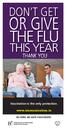 DON T GET OR GIVE THE FLU THIS YEAR THANK YOU Vaccination is the only protection. www.immunisation.ie BE SURE. BE SAFE. VACCINATE. FLU VACCINE 2013-2014 Healthcare workers prevent the spread of flu and
HealthOffice Anywhere Program Startup s
 HealthOffice Anywhere Program Startup s The following list of suggested procedures help get you started now that you have had your HealthOffice Anywhere Training. If you need help, please contact Healthmaster
INTER TRIBAL HEALTH AUTHORITY ELECTRONIC MEDICAL RECORD (EMR) CASE MANAGEMENT TRAINING MANUAL
 EMR CLINICAL TRAINING MANUAL INTER TRIBAL HEALTH AUTHORITY ELECTRONIC MEDICAL RECORD (EMR) CASE MANAGEMENT TRAINING MANUAL PROFILE VERSION 7 July 1, 2014 TABLE OF CONTENTS Module 1: Case Management - Administration
(You will use the login ID and password below to login through the first two websites.)
 (You will use the login ID and password below to login through the first two websites.) https://providers.cvch.com Citrix Logon: Password: Press the SKIP TO LOG ON selection after
How To Print An Encounter Form In Acedo
 Encounter Forms 70 Royal Little Drive Providence, RI 02904 Copyright 2002-2013 Optum. All rights reserved. Updated: 3/8/13 Table of Contents 1 Encounter Form Setup...1 1.1 Overview...1 1.2 Building an
elearning 5.6 Education Plan Guide >> EHR CGT
 elearning 5.6 Education Plan Guide >> EHR CGT Table of Contents This document is for informational purposes only. You cannot launch elearning courses from this page. EHR Application Basics v5.6... 4 v5.6
EHR Demo Scenarios - Pediatrics. Female child 18 months old, here with mother for well child exam, including immunizations.
 1. Well child scenario with complication Female child 18 months old, here with mother for well child exam, including immunizations. The patient s mother tells the front desk that there is a court order
E-Z Frame-MaximEyes EHR Integration Users Guide For E-Z Frame Versions 3.0.2.0 and Higher
 E-Z Frame-MaximEyes EHR Integration Users Guide For E-Z Frame Versions 3.0.2.0 and Higher This guide will explain the workflow and interactions between E-Z Frame and MaximEyes EHR once the two systems
Patient Guide v1.5. 2012 Jardogs, LLC. All rights reserved. This document and all contents are protected by the copyright laws as an unpublished work.
 Patient Guide v1.5 2012 Jardogs, LLC. All rights reserved. This document and all contents are protected by the copyright laws as an unpublished work. 1 Contents FollowMyHealth Requirements... 5 Log in
EMERALD EMR. Arun B. Rajan, M.D.
 EMERALD EMR Arun B. Rajan, M.D. Introduction: I have been using an EMR since 2001. Back then, there were not too many EMRs. I chose an EMR that was cost-effective and something that I would be able to
Patient Portal Training Manual
 Patient Portal Training Manual The Patient Portal is a secure website that will allow patients to access medical information from the Electronic Medical Record (EMR), send messages to their providers or
Intergy EHR. Version 9.10. New System Features
 Intergy EHR Version 9.10 New System Features General Redesigned Interface Redesigned Interface Intergy EHR has been enhanced with a completely updated, redesigned graphical interface. A fresh, new color
INSTRUCTOR BRIEF USER GUIDE TO e-medsys Version 2
 INSTRUCTOR BRIEF USER GUIDE TO e-medsys Version 2 Contents Introduction 2 Getting Started with e-medsys Version 2 3 Practicing Management Interface: Main Screen Menu Bar 11 EHR Interface: Menu Bar 14 Features
EHR Software Feature Comparison
 EHR Comparison ELECTRONIC MEDICAL RECORDS Patient demographics Manages the input and maintenance of patient information including demographics, insurance, contacts, referrals, notes and more. Consents
Meditech EMR Introduction and Physician Training Tool James W Langley MD MS Director of MHS Medical Informatics October 2006
 Meditech EMR Introduction and Physician Training Tool James W Langley MD MS Director of MHS Medical Informatics October 2006 October 2006 1 Methodist Dallas Medical Center Methodist Charlton Medical Center
User Guide for Evolve Simulation Learning System: Electronic Medical Record (Fundamentals)
 User Guide for Evolve Simulation Learning System: Electronic Medical Record (Fundamentals) Introduction The Simulation Learning System s Electronic Medical Record (EMR) allows you to document the treatment
MicroMD EMR version 7.5. update GUIDE
 MicroMD EMR version 7.5 update GUIDE THIS PAGE INTENTIONALLY LEFT BLANK MICROMD EMR UPDATE GUIDE VERSION 7.5 TRADEMARKS Because of the nature of the material, numerous hardware and software products are
Transactions Module. 70 Royal Little Drive. Providence, RI 02904. Copyright 2002-2014 Optum. All rights reserved. Updated: 3/1/14
 70 Royal Little Drive Providence, RI 02904 Copyright 2002-2014 Optum. All rights reserved. Updated: 3/1/14 Table of Contents 1 Transactions Module...1 2 Charge Overview...3 2.1.1 Explosion Codes...3 2.1.2
Database Program Instructions
 Database Program Instructions 1) Start your Comparative Rating software by double-clicking the icon on your desktop. 2) Click on the button on the Comparative Rating Software Main Menu. 3) A message Loading
esd Mobile Student User Guide v. 4.2.0
 esd Mobile Student User Guide v. 4.2.0 Copyright 2002-2014 eschooldata, LLC All rights reserved. TABLE OF CONTENTS Overview... 3 Logging In... 3 Navigating esd Mobile Student... 5 Home Tab... 7 Students
10.3.1.6 Lab - Data Backup and Recovery in Windows XP
 5.0 10.3.1.6 Lab - Data Backup and Recovery in Windows XP Introduction Print and complete this lab. In this lab, you will back up data. You will also perform a recovery of the data. Recommended Equipment
QuickBooks Business Accounting Software 2013-2006 for Windows
 QuickBooks Business Accounting Software 2013-2006 for Windows Account Conversion Instructions for Web Connect to Direct Connect QuickBooks Business Accounting Software 2008 2010 for Windows Account Connect
Guidance and Instructions on Configuring Access and Auditing. NYC Dept. of Health and Mental Hygiene. Primary Care Information Project
 Guidance and Instructions on Configuring Access and Auditing NYC Dept. of Health and Mental Hygiene Primary Care Information Project Privacy and Security Guidelines for PCIP Participating Practices Purpose:
MEDGEN EHR Release Notes: Version 6.2 Build 106.6.20
 10/18/2013 MEDGEN EHR Release Notes: Version 6.2 Build 106.6.20 Special Note: Comtron is excited to announce that over the next few weeks all of our Medgen products will be going through a rebranding process.
Resident Training Manual Allscripts Version 10.2
 Resident Training Manual Allscripts Version 10.2 Allscripts Resident Training Manual 1 Table of Contents Table of Contents... 1 Acknowledgments... 3 Document History... 3 Accessing Allscripts EMR... 4
CONTRACT MANAGEMENT SYSTEM USER S GUIDE VERSION 2.7 (REVISED JULY 2012)
 CONTRACT MANAGEMENT SYSTEM USER S GUIDE VERSION 2.7 (REVISED JULY 2012) VERSION 2.6 (REVISED APRIL 2012)... I INTRODUCTION... 5 Helpful Hints... 5 Pop-Up Blockers... 5 Users... 6 CPUC Staff Administrator...
Allscripts Wand for TouchWorks EHR Version 2.2 User Guide
 Allscripts Wand for TouchWorks EHR Version 2.2 User Guide Copyright 2014 Allscripts Healthcare, LLC and/or its affiliates. All Rights Reserved. www.allscripts.com Published Date: November 06, 2014 for
Optum Physician EMR v 8.0 Release Notes
 Optum Physician EMR v 8.0 Release Notes OptumInsight 70 Royal Little Drive Providence, RI 02904 Copyright 2002-2014 OptumInsight. All rights reserved. Document Information Author(s) Release Date G.Caldera
Care360 Guide for CMS Meaningful Use Audit
 Care360 Guide for CMS Meaningful Use Audit The Centers for Medicare and Medicaid Services (CMS) has contracted with third parties to conduct Meaningful Use audits of certified Electronic Health Record
Creating and Using Links and Bookmarks in PDF Documents
 Creating and Using Links and Bookmarks in PDF Documents After making a document into a PDF, there may be times when you will need to make links or bookmarks within that PDF to aid navigation through the
elearning 5.6 Education Plan Guide >> EHR End User
 elearning 5.6 Education Plan Guide >> EHR End User Table of Contents This document is for informational purposes only. You cannot launch elearning courses from this page. Application Overviews - EHR Only
Telemedicine User Guide
 Telemedicine User Guide If you have questions, please call 417-269-TMED (8633) or 1-888-805-8956 Thank you & welcome! Thank you for choosing CoxHealth Telemedicine services! We hope you find this guide
Payco, Inc. Evolution and Employee Portal. Payco Services, Inc.., 2013. 1 Home
 Payco, Inc. Evolution and Employee Portal Payco Services, Inc.., 2013 1 Table of Contents Payco Services, Inc.., 2013 Table of Contents Installing Evolution... 4 Commonly Used Buttons... 5 Employee Information...
EMR Tutorial. Helpful Tips:
 EMR Tutorial Electronic Medical Records are currently used at two HOP clinic sites, Eliza Shirley and Salvation Army. By transitioning to EMR, we hope to improve patient care and help prepare pre-clinical
SNOMED CT... 42 Patient Diagnosis... 44 Map inoperative codes to the operative codes with the crosswalk parameter off... 49 Map inoperative codes to
 IMS 08242015 Build September 2015 Contents ICD-10 User Guide for EMR... 1 Introduction... 5 Parameters... 5 Set up the Crosswalk parameter... 5 Set the ICD-10 compliance date... 6 Set the default ICD search
Dayforce HCM Employee Access Employee Guide
 Dayforce HCM Employee Access Employee Guide Contents Employee Tasks... 2 Dayforce HCM Login... 2 Tool Bar Buttons... 3 Time Entry 4 Time Clock Entry 4 Hours Entry..6 Time In/Out Manually Entered..7 Salaried
Workflow Redesign Templates
 Workflow Redesign Templates Provided By: The National Learning Consortium (NLC) Developed By: Health Information Technology Research Center (HITRC) Practice and Workflow Redesign Community of Practice
GE Centricity Practice Solution Screen Shots. Calendar Appointments View (Multiple Providers/Resources)
 GE Centricity Practice Solution Screen Shots Calendar Appointments View (Multiple Providers/Resources) This view shows 3 providers and the in-house lab. It shows examples of double/triple booking. Red
e-medsys Student User Guide
 e-medsys Student User Guide Welcome to e-medsys Student User Guide! This guide will help you get started with e-medsys by providing in depth, step-by-step instructions, created specifically for the student
How to Achieve Meaningful Use with ICANotes
 How to Achieve Meaningful Use with ICANotes Meaningful use involves using an EHR in a way that the government has defined as meaningful to collect incentive payments. but do not participate. Note: If you
Centricity 9.8 Electronic Medical Record Training Manual
 Centricity 9.8 Electronic Medical Record Training Manual CENTRICITY TRAINING INDEX CENTRICITY TRAINING INDEX... 2 DESKTOP... 5 Logging In To Centricity... 6 Desktop... 7 Viewing Schedules... 9 Alerts/Flags
Universal Health Record Patient Access v2.2.4 User Guide
 Allscripts FollowMyHealth Universal Health Record Patient Access v2.2.4 User Guide Copyright 2015 Allscripts Healthcare, LLC and/or its affiliates. All Rights Reserved. www.allscripts.com Published Date:
CRMS Quick Training Guide
 CRMS Quick Training Guide What is CRMS? CRMS stands for Corporate Records Management System. It is used to help manage your physical paper folders effectively for in-office use, offsite storage, and destruction.
CareAware Capacity Management - Patient Flow Patient List Gadget
 CareAware Capacity Management - Patient Flow Patient List Gadget When using the Patient List gadget in CareAware Patient Flow, the following tasks can be completed: Launch PowerChart Modify Patient Attributes
Meaningful Use Cheat Sheet CORE MEASURES: ALL REQUIRED # Measure Exclusions How to Meet in WEBeDoctor
 Meaningful Use Cheat Sheet CORE MEASURES: ALL REQUIRED # Measure Exclusions How to Meet in WEBeDoctor 1 CPOE (Computerized Physician Order Entry) More than 30 percent of all unique patients with at least
Care360 EHR Frequently Asked Questions
 Care360 EHR Frequently Asked Questions Table of Contents Care360 EHR... 4 What is Care360 EHR?... 4 What are the current capabilities of Care 360 EHR?... 4 Is Care 360 EHR an EMR?... 5 Can I have Care360
Current Procedural Terminology (CPT) Code Changes for 2013
 Current Procedural Terminology (CPT) Code Changes for 2013 For 2013 there have been major changes to the codes in the Psychiatry section of the AMA s Current Procedural Terminology, the codes that must
Titanium Schedule Center Management Software USER MANUAL. Sales and Customer Service Technical Support
 Titanium Schedule Center Management Software USER MANUAL Sales and Customer Service Technical Support Postal Mail Web Site 281-443-3544 (telephone) [email protected] (email) 281-443-3544 (telephone)
A Quick, Hopefully Useful Overview of Power Notes for the ACC Clinic
 A Quick, Hopefully Useful Overview of Power Notes for the ACC Clinic An unofficial addendum to the official CERNER Users Guide > Intranet Home Page > ENHANCED VIEW INFORMATION > QUICK REFERENCE GUIDE link
VoIP Quick Start Guide
 VoIP Quick Start Guide VoIP is made up of three elements: The Phone The Software (optional) The Web Version of the software (optional) Your new voice mail can be accessed by calling (971-722) 8988. Or,
Forms designed to collect this information will help staff collect all pertinent information.
 1 CPT AUDIT TOOL INSTRUCTIONS The Nursing Consultants from the Public Health Nursing and Professional Development Unit based on multiple Evaluation & Management audits across the state have developed these
2013 Meaningful Use Dashboard Calculation Guide
 2013 Meaningful Use Dashboard Calculation Guide Learn how to use Practice Fusion s Meaningful Use Dashboard to help you achieve Meaningful Use. For more information, visit the Meaningful Use Center. General
Home Screen Once logged in, the user is presented with a home screen that displays all items needing his/her attention. Those include: Appointments
 Comtron Medgen EHR Medgen is an Electronic Health Record System that is extremely customizable and easy to use. With a rich set of features for your convenience, it can be tailored to your practice. Home
shorewest.net Document Management
 shorewest.net Document Management Creating, Emailing and Printing Documents Document Management 9/20 Adobe Acrobat Reader To use Document Management in Shorewest.net, Adobe Acrobat Reader must be available
Medical Practice Management Software EzMedPro http://www.dsoftsystems.com. User Manual For
 User Manual For Table of Contents INSTALLATION... 4 Windows Install... 4 EzMedPro Setup... 8 Environment Setup... 10 Setup Mode:... 10 Network Setup... 11 Standalone Mode... 12 Environment Setup... 13
CONFIGURING VIRTUAL TERMINAL: This is the screen you will see when you first open Virtual Terminal
 CONFIGURING VIRTUAL TERMINAL: This is the screen you will see when you first open Virtual Terminal Before you begin you must configure the Options for Virtual Terminal. Click on the Options drop down menu
NextGen KBM Dermatology User Guide. Version 8.3
 NextGen KBM Dermatology User Guide Version 8.3 Copyright 2013 NextGen Healthcare Information Systems, LLC. All Rights Reserved. NextGen and NextPen are registered trademarks of QSI Management, LLC, an
E&M Coding- It s All About The Documentation
 E&M Coding- It s All About The Documentation Presented for Anthem Blue Cross and Blue Shield By: Penny Osmon, BA, CPC Coding & Reimbursement Educator WI Medical Society Wisconsin Medical Society, Copyright
Monitoring Network DMN
 Monitoring Network DMN User Manual Table of contents Table of contents... 2 1. Product features and capabilities... 3 2. System requirements... 5 3. Getting started with the software... 5 3-1 Installation...
Management Tools Quiz Answers
 Management Tools Quiz Answers 70 Royal Little Drive Providence, RI 02904 Copyright 2002-2010 Ingenix. All rights reserved. General Navigation and Help 1) How do you send messages within CareTracker? a)
WebSphere Business Monitor V6.2 Business space dashboards
 Copyright IBM Corporation 2009 All rights reserved IBM WEBSPHERE BUSINESS MONITOR 6.2 LAB EXERCISE WebSphere Business Monitor V6.2 What this exercise is about... 2 Lab requirements... 2 What you should
PeopleAdmin. Creating a Posting for HR Users
 PeopleAdmin Creating a Posting for HR Users Applicant Tracking This guide provides instructions on Creating a Posting utilized to post a vacant position. The position description serves as the basis for
Documenting a Progress Note Template Training Module
 Documenting a Progress Note Template Training Module 70 Royal Little Drive Providence, RI 02904 Copyright 2002-2013 Optum. All rights reserved. Updated: 3/6/13 Table Of Contents Table of Contents 1 About
Rehab Notes Management System
 Rehab Time The Rehab Time module is integral to determining staff productivity and practice profitability. It is designed to function as a time clock. Each staff member simply logs in and punches in/out
Physician Office EMR Training
 Physician Office EMR Training HERO = Health Electronic Record Online 1 LOGGING IN 1) Log into HERO by accessing one of the following: a. From the DrWeb page drweb.excelahealth.org HERO b. myapps.exceleahealth.org
WebSphere Business Monitor V7.0 Business space dashboards
 Copyright IBM Corporation 2010 All rights reserved IBM WEBSPHERE BUSINESS MONITOR 7.0 LAB EXERCISE WebSphere Business Monitor V7.0 What this exercise is about... 2 Lab requirements... 2 What you should
PowerChart Cerner Millennium System
 PowerChart Cerner Millennium System Non-Physician Training Manual Clinical Information System Team MCG Health, Inc. 1120 15 th Street Augusta, Georgia 30912 Version 3 Table of Contents 1. About the PowerChart
Lawson Portal User s Manual
 Lawson Portal User s Manual Table of Contents 1. Lawson Portal FAQ s page 1 2. Login Page page 9 3. Portal Home Page page 10 4. Form Search (a) Search by form ID page 11 (b) Search by form description