
NMDS-SC Dashboards e-guide
|
|
|
- Griffin Hart
- 10 years ago
- Views:
Transcription
1 NMDS-SC Dashboards e-guide What are My NMDS-SC Dashboards? The My NMDS-SC dashboards give you a quick and clear overview of the business and workforce data you have entered into the NMDS-SC. The NMDS-SC dashboards e-guide gives you a brief overview of the information that is available to you right now and how care businesses are using it every day. For an overview of the NMDS-SC as a whole, take a look at the NMDS-SC e-guide ( Why are the My NMDS-SC Dashboards useful? NMDS-SC dashboards provide instant access to your workforce data. They act as a diagnostic tool to shine light on issues affecting your business. Key features and uses include: Instant access to your own information. Easy to use point and click design. Benchmark your business on pay, qualification levels, etc. Access information on your local area (population projections, CQC data, etc.). Better understand your workforce and use them to create a workforce plan. Links to free resources related to each workforce issue. A new way to see your information Skills for Care have improved the NMDS-SC reporting offer, your data is graphically presented in a new and easy to understand format with tailored interpretation, simple guidance and links to related resources. Improving customer experience The NMDS-SC dashboards were piloted and tested with employers during 2011 and were launched in September Skills for Care sees them as a free management information resource, designed to help you manage and understand your business. Within social care the workforce is critical to the experience of the customers. Skills for Care sees the dashboards as another tool to help achieve the best for people needing care and support.
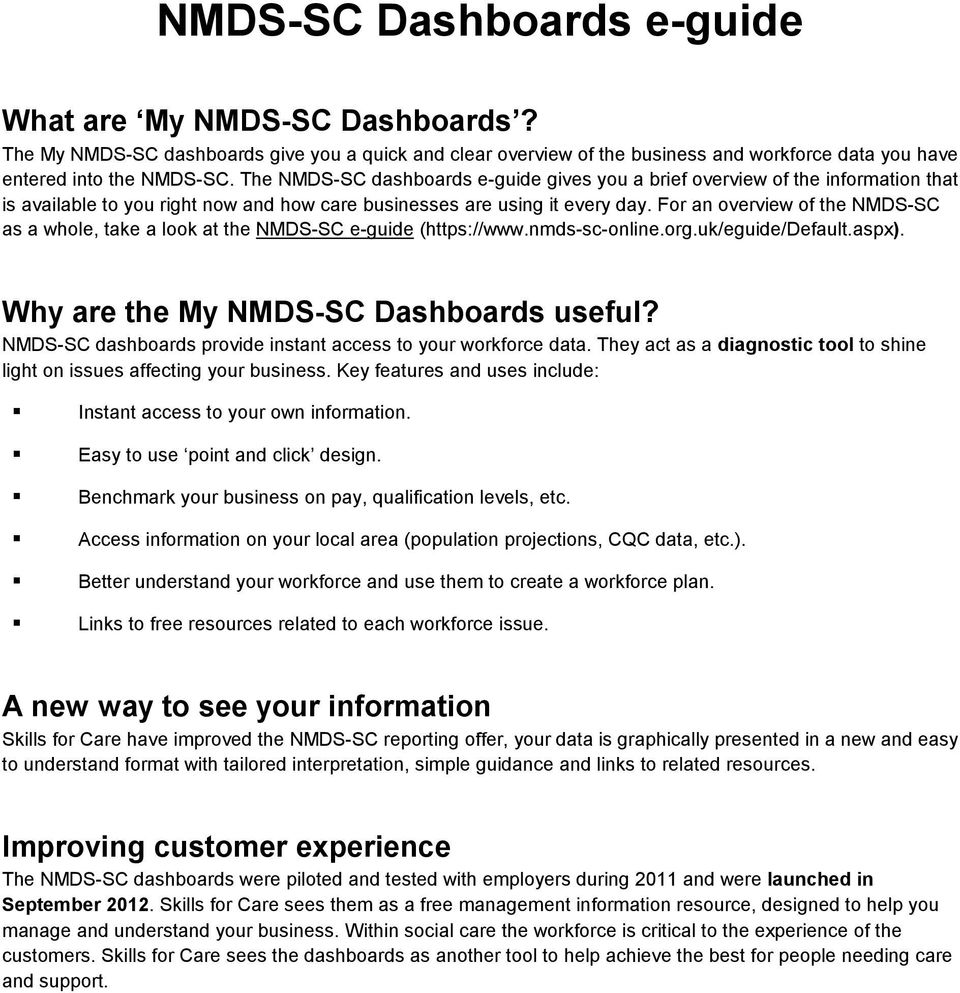
2 Using your NMDS-SC Dashboard Click on the numbered buttons on this image for a brief explanation of some of the features of your NMDS-SC dashboards. 1. Blue bar In all NMDS-SC dashboards, your information is represented by the blue bar. Your selected benchmark group is shown by the vertical purple line. 2. Benchmark Group There are 3 selections available to you: 1. Geographic area. 2. Sector which sector do you wish to focus on i.e. private, voluntary, etc. 3. Service type compare yourself to providers offering the same care services as your business. 3. Explanation The What is this telling me box provides an overview of the data being presented in the dashboard. It's an interpretation of the information you have selected and many contain questions to consider when viewing the information being presented. 4. Resources The NMDS-SC dashboards act as a diagnostic tool identifying possible issues in your workforce. The What resources can help me section guides you towards help with workforce issues you may have identified. From retention issues to qualifications, the resources are tailored to your needs.

3 Stacked bar dashboards Stacked bars are used where there are multiple responses possible to a question e.g. a worker s gender. Different colours denote the different responses received. In this example the proportion of female workers is shown by the light blue part of the bar, while the darker blue represents male workers. Clicking Show details provides more information and a benchmark. A few more functions This section of the dashboard provides a few more options on sorting and displaying your data: View by view data by job role or by establishment (if you re a parent organisation). Sort by sort and order your data by job role, result or percentage. Display view your data as a chart or as a table. Export options NMDS-SC dashboards have been designed to allow you to export your information. The dashboard can be: 1. Exported as an image file, ready to be used in Word documents or Powerpoint. 2. Exported into PDF. 3. Exported into Excel allowing you to manipulate your own data or create your own charts. Navigation menus The menu bar at the top of each dashboard provides quick navigation to the other dashboards. The dashboards are grouped under different workforce planning topics: Staff overview. Recruitment and retention. Workforce demographics. Pay. Qualifications and training. Local demand and intelligence. Click on them and take a look at the information available to you.

4 Using your NMDS-SC Dashboards Use your dashboards to answer those questions that arise on a frequent basis: How do my pay rates compare to other providers? Which of my staff are qualified to level 2? How many days sickness did my business lose last year? And how typical is that? And get these answers in seconds at any time of day (or night!) Use your dashboards to plan for the future: How many staff will retire in the next 5 years? What qualifications are missing from your skills mix? How typical is your turnover? Is it consistent across job roles? What will the local population look like in 10 years, 15 years, etc? Start planning for the future, today. "An effective workforce plan helps a business achieve its corporate objectives by ensuring the business has a workforce of the right size, with the right skills, in the right place. Seen like that, you can argue that good workforce planning is a source of competitive advantage."

5 So, in summary NMDS-SC dashboards aim to put workforce and management information at your fingertips. Just log into your NMDS-SC account to access them (if you need assistance to get logged in or to create a new NMDS-SC account please call ). For further information on the dashboards, please take a look at this short video guide. ( If you have feedback on the dashboards, please drop an to [email protected]. The dashboards you have seen so far are those available to you, about your business. The Open Access NMDS- SC Dashboards ( provide aggregate level information on social care services and the social care workforce. They allow users to look at all data for a particular geographic area or a particular service type. We hope this guide was useful however, the best thing to do is just log in and explore your own data and benchmarks.
6 NMDS-SC Open Access Dashboards What is the NMDS-SC? The National Minimum Data Set for Social Care (NMDS-SC) is managed by Skills for Care on behalf of the Department of Health. It collects data on social care providers and the social care workforce. It has been collecting data since early 2006, and contains information about over 27,000 care providing establishments and 750,000 individual worker records. For more information on the NMDS-SC please take a look at the overview provided by the NMDS-SC e-guide ( NMDS-SC Open Access Dashboards The NMDS-SC Open Access Dashboards are available to all visitors to the NMDS-SC website. They have been designed for use by employers, workforce planners, service commissioners, researchers and other social care stakeholders. National, regional, sub regional and local authority level social care workforce and care service information is now at your fingertips. Dashboard functions The Open Access NMDS-SC Dashboards provide you with a range of choices regarding the information you wish to access. You can make choices in the following areas dependent on your area of interest: Geographic area, service type, service user group, sector, job role, adult or children s services. The Open Access NMDS-SC Dashboards really allow you to focus in on what you need for a particular project or information request. Dashboards overview Open Access NMDS-SC Dashboards are available to all visitors to the NMDS-SC website. They provide aggregate level information and analysis grouped under broad workforce planning topic areas. To access the dashboards, just click on Dashboards from the menu on the NMDS-SC website and choose Open Access Dashboards, or [link href=" here[/link]. Dashboards functions The Open Access Dashboards also allow you to choose a benchmark or comparator group. For example, compare social worker turnover rates in a given local authority to turnover rates in any other local authority in England. The dashboards also allow you to get to the underlying NMDS-SC data so you can do additional analysis if required. Areas of interest Use the Open Access NMDS-SC Dashboards to explore the following areas; - Turnover and vacancy rates - Workforce demographic information and pay rates - Sickness rates and whole time equivalent information - Qualification and training information - Information about your local areas - And much more!
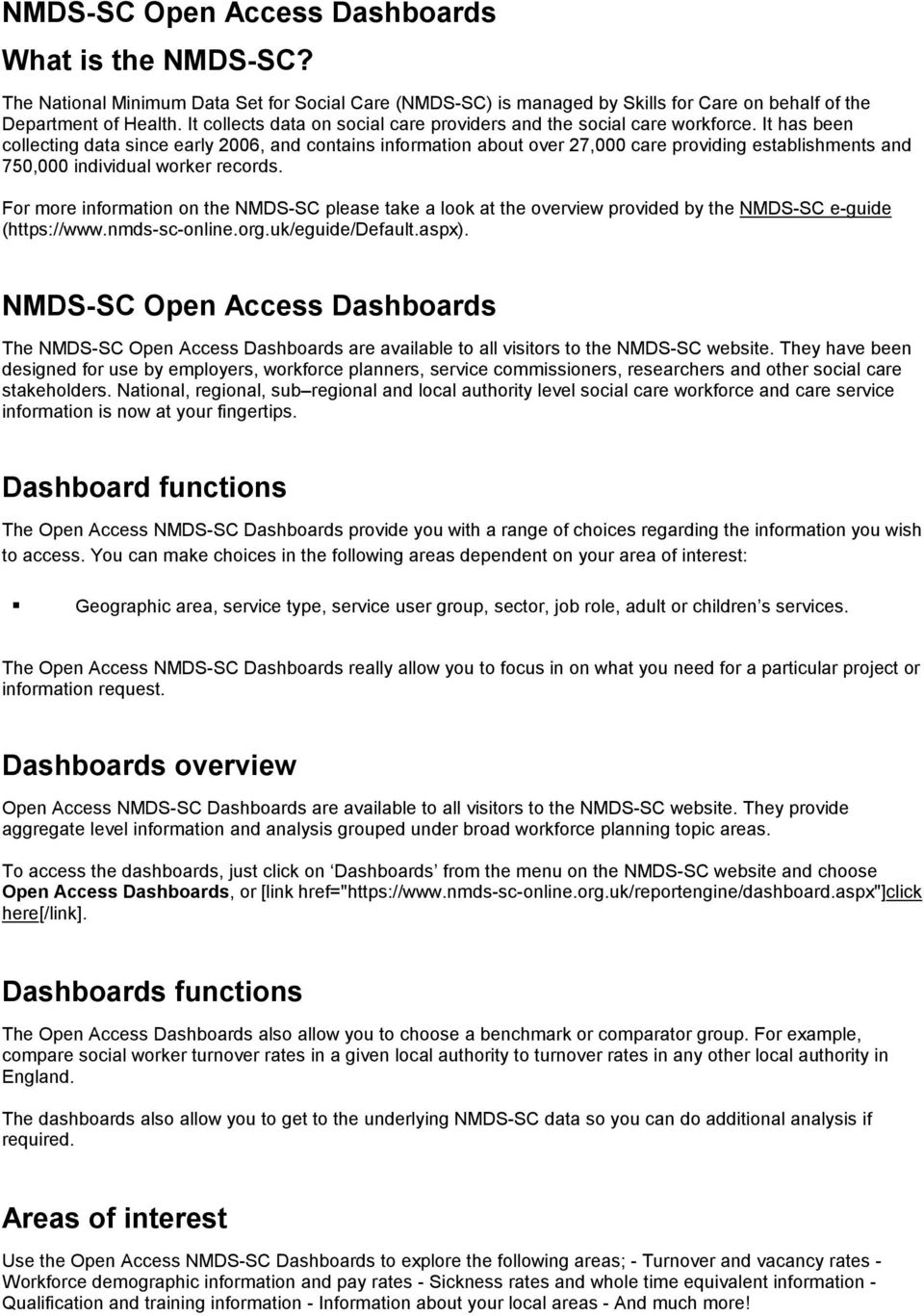
7 Introduction to Dashboard features The dashboards have been designed to be easy to use and intuitive to read and understand. Let s take a look at some of the key features and explain what s happening in each. 1. The bar chart Once you ve selected the information you require, it appears here. The information you choose is shown as the blue bar, if you choose to show a benchmark group this appears as the purple vertical line. The figures shown in the bar chart are provided to the right in two columns. 2. Information selection This is where you make your selections and focus in on the information you require. The choices are available in the drop down boxes they are quick and easy to use. Just click on them and take a look at the choices available all choices are based on NMDS-SC definitions of jobs, services and user groups. 3. Explaining the information The What is this telling me box provides an overview of the data being presented in the dashboard. It's an interpretation of the information you have selected and many contain questions to consider when viewing the information being presented. 4. Resources The NMDS-SC Dashboards aim to act as a diagnostic tool identifying issues in the workforce. The What resources can help me section aims to guide you towards further information on the workforce issue you re looking at. From retention issues to qualifications, the resources are tailored to each dashboard.

8 Dashboard functions A bit more detail on your choices Here s a brief overview of each choice: Geography choose from national level to a particular local authority Main Service care home, domiciliary care, etc Sector private, voluntary, etc Creating a benchmark group 1. To create a benchmark group, tick the show benchmark tick box. 2. Then make your benchmark choices in the same way as selecting your original choices, by selecting from the drop-down boxes. 3. When you re happy with your benchmark group just click refresh dashboard to see the results. 4. You can take a look, and go back and alter as many times as you wish. Other display options The List Results by option allows you to decide how your results are displayed by selecting from a drop down menu. For example, if you select Sector then all sectors will be listed. Try ticking different boxes to experiment with this function. After making a change hit refresh dashboard. Export options and navigation All dashboards can be exported either as an image, a PDF or into Excel for further manipulation of the underlying data. Use Dashboard menu to access these options. The other headers in the top menu provide quick and easy access to other dashboards. They are grouped under different workforce planning areas i.e. workforce demographics, pay, etc.

9 Using Open Access Dashboards You can use Open Access NMDS-SC Dashboards to find answers to those frequently asked questions at any time of the day (or night!) For example: How do worker pay rates compare across local authorities? What are social worker turnover rates, demographics, etc What is the size of the adult social care workforce? You can also use the dashboards for strategic workforce and future planning. For example: What data is required for a Joint Strategic Needs Assessment or Market Position Statement? How many staff will retire in the next 5 years, 10 years, etc? What will the local population look like in 20 years and what does that mean for the workforce?
10 So, in summary... Open Access NMDS-SC Dashboards ( put workforce and management information at your fingertips. Just visit the NMDS-SC website to access them ( If you have feedback or ideas for new dashboards, please drop an to: If you are a care providing business, why not create your own NMDS-SC account and get access to your own logged in dashboards as well as benefitting from the many other reasons ( are the benefits of NMDS-SC Online?) to be part of the NMDS-SC. The overall NMDS-SC e-guide ( will give you more information. We hope this guide was useful however, the best thing to do is visit the NMDS-SC website and start exploring this new, free to use online resource.
PASSPORT USER GUIDE. This guide provides a detailed overview of how to use Passport, allowing you to find the information you need more efficiently.
 PASSPORT USER GUIDE Euromonitor International s Passport is an integrated online database, providing business intelligence on industries, economies and consumers. Its simple-to-use interface makes it easy
SLA Online User Guide
 SLA Online User Guide Contents SLA Online User Guide 2 Logging in 2 Home 2 Things to do 2 Upcoming events/calendar 3 News features 3 Services 3 Shopping Basket 3 Appointment/Visit Bookings 4 Quote Requests
Merchant Center User Guide
 Merchant Center User Guide Logging In The Merchant Center is the online management tool for your Groupon promotions. You can track redemption, read customer comments, and view customer demographic information.
Manchester City Council Online Application Form Guidance
 Version 0.01 Online application form guidance Contents 1 Introduction 2 2 Registering for the online recruitment system 3 3 Overview of Personal Data section 3 3.1 Personal Data 5 3.2 Communication data
Interactive data centre dashboards instruction guide
 February 2013 Interactive data centre dashboards instruction guide Contents Interactive data centre dashboards instruction guide... 1 About this document... 2 What is a dashboard?... 2 Interactive data
T Analyst User Guide 1
 T Analyst User Guide 1 Contents Contents...2 Getting Started...3 Navigation...4 Logging Out of T Analyst...4 View bills...4 Bill columns and definitions...4 Viewing a PDF bill...5 Comparing bills...5 Requesting
Helpful icons on the Zurich Platform
 Branding User Guide Branding This guide will help you when you are using the Zurich Intermediary Platform. Please note that more detailed instructions regarding branding are included in the Firm Administrator
Opt It Get Started Guide
 Opt It Get Started Guide 1 Welcome to Opt It Mobile Thanks for choosing Opt It Mobile for your text messaging needs. Opt It, Inc. is the leading provider of text messaging applications for businesses.
Affiliated Provider Billing/Coding
 Affiliated Provider Billing/Coding ED BILLING USING FIRSTNET Table of Contents Affiliated Provider ED Billing...2 icentra FirstNet...2 Accessing FirstNet...2 To access FirstNet:...2 Checking In as a Provider...2
Sustainability Dashboard Quick Start Guide
 Sustainability Dashboard Quick Start Guide The Sustainability Dashboard is a web based energy management system that allows users to track a building s performance, generate reports and identify leaks
Table of contents TABLE OF CONTENTS... 2 ABOUT THIS MANUAL... 3 IMPORTANT NOTES... 3 PICO LOGGING APPLICATION... 5 ABOUT THE PICO LOGGING PC
 1 Table of contents TABLE OF CONTENTS... 2 ABOUT THIS MANUAL... 3 IMPORTANT NOTES... 3 PICO LOGGING APPLICATION... 5 ABOUT THE PICO LOGGING PC APPLICATION... 5 WHERE TO GET A HOLD OF THE PICO LOGGING APPLICATION...
TalentValue Applicant Tracking System
 TalentValue Applicant Tracking System Training Workbook TalentValue [email protected] 954.356.2132 All Rights Reserved 1 INTRODUCTION The TalentValue Applicant Tracking System (ATS) is a part of
How To Run A Run Dashboard On An Aca.Edu
 Chairs and Deans Argos Dashboards Guide The following guide is provided to assist you in running and understanding the information that the dashboard in Argos returns. The dashboard located through the
The Online Health Program Planner Part 1: Beginner's Guide
 The Online Health Program Planner Part 1: Beginner's Guide 1.1 Introduction This audio presentation is the first in a series of six parts that will provide an overview on how to use the Online Health Program
DataDirector Getting Started
 DataDirector Getting Started LOG-IN 1. Login to the DataDirector website: https://www.achievedata.com/yourdistrictname 2. Enter your User Name and Password. 3. You may need to select the site and level
eattendancemanager TIME AND ATTENDANCE AT YOUR FINGERTIPS PROTECTING WHAT S IMPORTANT TO YOU
 eattendancemanager TIME AND ATTENDANCE AT YOUR FINGERTIPS PROTECTING WHAT S IMPORTANT TO YOU eattendancemanager: Time and Attendance at Your Finge In today s complicated workplace environment the very
Create Beautiful Reports with AWR Cloud and Prove the Value of Your SEO Efforts
 Create Beautiful Reports with AWR Cloud and Prove the Value of Your SEO Efforts It can be difficult sometimes to show your clients the value that they get from your service. Your job, as an SEO, is to
Guidelines for Creating Reports
 Guidelines for Creating Reports Contents Exercise 1: Custom Reporting - Ad hoc Reports... 1 Exercise 2: Custom Reporting - Ad Hoc Queries... 5 Exercise 3: Section Status Report.... 8 Exercise 1: Custom
Merchant Center User Guide
 Merchant Center User Guide Logging In The Merchant Center is the online management tool for your Groupon promotions. Here you can track redemption, read customer comments and view customer demographic
Using the Turn2us Intermediary Benefits Calculator
 Using the Turn2us Intermediary Benefits Calculator Objectives To become confident in using the Turn2us Intermediary Benefits Calculator to work out what benefits and tax credits someone might be entitled
Infoview XIR3. User Guide. 1 of 20
 Infoview XIR3 User Guide 1 of 20 1. WHAT IS INFOVIEW?...3 2. LOGGING IN TO INFOVIEW...4 3. NAVIGATING THE INFOVIEW ENVIRONMENT...5 3.1. Home Page... 5 3.2. The Header Panel... 5 3.3. Workspace Panel...
Adobe Digital Signatures in Adobe Acrobat X Pro
 Adobe Digital Signatures in Adobe Acrobat X Pro Setting up a digital signature with Adobe Acrobat X Pro: 1. Open the PDF file you wish to sign digitally. 2. Click on the Tools menu in the upper right corner.
Reporting. Understanding Advanced Reporting Features for Managers
 Reporting Understanding Advanced Reporting Features for Managers Performance & Talent Management Performance & Talent Management combines tools and processes that allow employees to focus and integrate
How to Use the Oklahoma Data Query System
 How to Use the Oklahoma Data Query System The State Epidemiological Outcomes Workgroup s (SEOW) Oklahoma Data Query System website provides users with a relatively simple to use data viewing and download
Managing your Joomla! 3 Content Management System (CMS) Website Websites For Small Business
 2015 Managing your Joomla! 3 Content Management System (CMS) Website Websites For Small Business This manual will take you through all the areas that you are likely to use in order to maintain, update
Messaging Dashboard Quick Reference Guide
 Messaging Dashboard Quick Reference Guide This guide will show you how to log in and use the Messaging Dashboard application. The Messaging Dashboard application allows users to search for messages or
Using FileMaker Pro with Microsoft Office
 Hands-on Guide Using FileMaker Pro with Microsoft Office Making FileMaker Pro Your Office Companion page 1 Table of Contents Introduction... 3 Before You Get Started... 4 Sharing Data between FileMaker
Ads Analytics. User Guide
 Ads Analytics User Guide For many marketers, measuring ad performance is either too complicated or time-consuming. Too much time is wasted wading through meaningless metrics, struggling to get an aggregated
The state of the adult social care sector and workforce in England
 The state of the adult social care sector and workforce in England March 2015 The state of the adult social care sector and workforce in England, 2014 Published by Skills for Care, West Gate, 6 Grace Street,
My ø Business User guide
 My ø Business User guide Contents Page 1 Contents Welcome to your My ø Business user guide. It s easy to use. Move your mouse over the page to get to the section you want. Click on the links at the top
TUTORIAL: Reporting Gold-Vision 6
 Reporting Using SQL reporting Services Tutorial Objectives: Introduction to Gold-Vision Reporting Standard Reports Searching for a Report Running a Standard Report Viewing a Report Exporting Data Example
People Manager. User Guide. Click HERE to log in BUSINESS SYSTEMS TEAM. Contact us: [email protected] http://www.essex.ac.uk/staff/hr_organiser/
 People Manager User Guide BUSINESS SYSTEMS TEAM Click HERE to log in Contact us: [email protected] http://www.essex.ac.uk/staff/hr_organiser/ 1 P a g e Contents Introduction... 2 Navigating People Manager...
National Finance Center. Insight: Using Reports and Dashboards Participant Guide
 National Finance Center Insight: Using Reports and Dashboards Participant Guide June 2013 0 Table of Contents Table of Contents... 1 1.0. Training Information... 3 1.1. Agenda... 3 1.2. Purpose... 3 1.3.
Business Intelligence (BI) Reporting. American University s Executive Dashboards. User Guide
 Business Intelligence (BI) Reporting American University s Executive Dashboards User Guide Accessing BI Reporting Log on to the myau.american.edu Portal, then expand the TECHNOLOGY link under Personalized
A FRESH NEW LOOK FOR YOUR INVESTMENTS
 A FRESH NEW LOOK FOR YOUR INVESTMENTS A handy reference guide We are delighted to bring a new look to the client portfolio screens on our website. We hope you enjoy using them; you might want to keep this
Google Analytics in the Dept. of Medicine
 Google Analytics in the Dept. of Medicine Understanding the Analytics Dashboard 1. Click this link to navigate back to your Analytics Settings page, so you can get an overview of and edit all your Analytics
Learn About Analysis, Interactive Reports, and Dashboards
 Learn About Analysis, Interactive Reports, and Dashboards This document supports Pentaho Business Analytics Suite 5.0 GA and Pentaho Data Integration 5.0 GA, documentation revision February 3, 2014, copyright
LMS USER GUIDE AN INTRODUCTION TO REPORTS
 LMS USER GUIDE AN INTRODUCTION TO REPORTS Report Information The E nable system generates a lot of data to enable administrators/monitors/managers to obtain information useful to their organisation. Different
Using ELMS with TurningPoint Cloud
 Using ELMS with TurningPoint Cloud The ELMS (Canvas) integration enables TurningPoint Cloud users to leverage response devices in class to easily collect student achievement data. Very simply one can load
How to Use Boards for Competitive Intelligence
 How to Use Boards for Competitive Intelligence Boards are highly customized, interactive dashboards that ubervu via Hootsuite users can personalize to fit a specific task, job function or use case like
Nurse and Midwifery Career Long eportfolio summary guides: 1) Key functions: Getting started, logging on and moving around
 Nurse and Midwifery Career Long eportfolio summary guides: 1) Key functions: Getting started, logging on and moving around Getting started In order to log on to the eportfolio you will need your username
Match Branch Services to Enterprise Services in Kitomba One
 Match Branch Services to Enterprise Services in Kitomba One To manage your services at an enterprise level, you'll need to create a central service list and match all your branch services to this list.
Editing your Website User Guide
 User Guide Adding content to your Website To add or replace content on your website you will need to log in to your Content Management System (Joomla) using your username and password. If you do not already
Tableau Quick Tips Guide November 2015
 Tableau Quick Tips Guide November 2015 Fannie Mae Connect uses Tableau software to enable data display and analysis. This document provides guidance on how to get the most out of Tableau reports. The reference
RISKMASTER Business Intelligence Working with Reports User Guide
 RISKMASTER Business Intelligence Working with Reports User Guide Statement of Confidentiality This documentation contains trade secrets and confidential information, which are proprietary to Computer Sciences
Getting Started With Online Bill Pay
 Getting Started With Online Bill Pay An Easy-To-Follow Instructional Guide Table of Contents Introduction to Online Bill Pay Paying your bills online is the most convenient and secure way to handle this
How to complete the provider information return (PIR):
 How to complete the provider information return (PIR): Community services April 2015 CONTENTS Purpose... 1 Completing the return... 2 Information about the service and the person completing the PIR...
Next Generation Dashboard Guide
 Next Generation Dashboard Guide For use with READ 180 Next Generation, System 44 Next Generation, FASTT Math Next Generation, iread, MATH 180, and Scholastic Achievement Manager (SAM) version 2.0.2 or
Marathon Data Systems
 Marathon Data Systems Executive Dashboard Executive Dashboard is a powerful business intelligence tool that allows owners, managers and executives to: Easily see trends that exist within the data that
K12 Longitudinal Data System
 K12 Longitudinal Data System Hawaii State Department of Education Data Governance and Analysis Branch What the LDS is: The LDS is. A collection of longitudinal data from various sources that can be used
How to Login Username Password:
 How to Login After navigating to the SelecTrucks ATTS Call Tracking & Support Site: www.selectrucksatts.com Select Corporate Link to login for Corporate owned Centers/Locations. Username: Your Email Address
Getting Started With Mortgage MarketSmart
 Getting Started With Mortgage MarketSmart We are excited that you are using Mortgage MarketSmart and hope that you will enjoy being one of its first users. This Getting Started guide is a work in progress,
Hands-on Guide. FileMaker Pro. Using FileMaker Pro with Microsoft Office
 Hands-on Guide FileMaker Pro Using FileMaker Pro with Microsoft Office Table of Contents Introduction... 3 Before You Get Started... 4 Sharing Data between FileMaker Pro and Microsoft Excel... 5 Drag and
SiteBuilder E-Shop User Guide
 SiteBuilder E-Shop User Guide Contents What is eshop?... 3 Setting up eshop for the first time... 4 Setting up your ordering information... 4 Deciding how to process orders... 5 Setting your general configuration
Socialbakers Analytics User Guide
 1 Socialbakers Analytics User Guide Powered by 2 Contents Getting Started Analyzing Facebook Ovierview of metrics Analyzing YouTube Reports and Data Export Social visits KPIs Fans and Fan Growth Analyzing
Perform this procedure when you need to add a recurring payment option, or when you need to change or withdraw it.
 Purpose Use this procedure to add, change, or remove recurring payments. Trigger Perform this procedure when you need to add a recurring payment option, or when you need to change or withdraw it. Prerequisites
1. Introduction 3 Overview 1.1 Profiles
 QUICK START GUIDE In this guide, you will find a brief summary of the steps needed to begin using your FingerCheck Workforce Management Solution. To see detailed instructions on all of the features available,
Document Management User Guide
 Document Management User Guide For the attention of SystmOne users: This document explains how to use the Document Management functionality once the setup has been completed. Contents Beginning to Scan...
ReceivablesVision SM Getting Started Guide
 ReceivablesVision SM Getting Started Guide March 2013 Transaction Services ReceivablesVision Quick Start Guide Table of Contents Table of Contents Accessing ReceivablesVision SM...2 The Login Screen...
Pacific Premier Bank s Business e- Banking Getting Started Guide with QuickBooks 2013-2015 for Windows
 Pacific Premier Bank s Business e- Banking Getting Started Guide with QuickBooks 2013-2015 for Windows Table of Contents CONNECT AND UPDATE YOUR DATA... 2 SET UP AN ACCOUNT FOR ONLINE BANKING (DIRECT CONNECT)...
Module 2 Using the Database
 Health Information System (HIS) Part Three: Data Management Module 2 Using the Database CONTENTS 2.1 Before you start...................................................11 2.2 The first time you start..............................................12
Applicant User Guide. SaskPolytech Recruiting and Onboarding System (SROS) Version 2.0 (January 2015) Human Resources
 Applicant User Guide SaskPolytech Recruiting and Onboarding System (SROS) Version 2.0 (January 2015) Human Resources Table of Contents 1. Get ready... 2 1.1 Need to know information... 3 2. Access the
Set up your first free website
 How to Set up your first free website There are many websites available across the web that allow you to create a whole website for free, without any knowledge of scripts or coding. Think that sounds too
INFOASSIST: REPORTING MADE SIMPLE
 INFOASSIST: REPORTING MADE SIMPLE BRIAN CARTER INFORMATION BUILDERS SUMMIT 2010 USERS CONFERENCE JUNE 2010 Presentation Abstract: InfoAssist, WebFOCUS' browser-based ad hoc reporting tool, provides a single
Online Score Reports: Samples and Tips
 Online Score Reports: Samples and Tips Online Score Reports Authorized school administrators and AP Coordinators have access to the following reports for free at scores.collegeboard.org: AP Instructional
Dobbin Day - User Guide
 Dobbin Day - User Guide Introduction Dobbin Day is an in running performance form analysis tool. A runner s in-running performance is solely based on the price difference between its BSP (Betfair Starting
Reporting User Guide
 Reporting User Guide Reporting This guide will help you when you are using the Zurich Intermediary Platform. It will take you through the screens needed to view management information, create reports and
Starting User Guide 11/29/2011
 Table of Content Starting User Guide... 1 Register... 2 Create a new site... 3 Using a Template... 3 From a RSS feed... 5 From Scratch... 5 Edit a site... 6 In a few words... 6 In details... 6 Components
TribeHR: Employee Training Last updated: 1 October 2013
 TribeHR: Employee Training Last updated: 1 October 2013 TribeHR Overview! 2 Home Page! 3 Navigation! 6 Employee Profiles! 8 Leave Management! 11 Requesting leave for self! 11 Pending requests! 12 Approving
1 TABLE OF CONTENTS. 10-2015 Page 1
 1 TABLE OF CONTENTS 1 Prerequisites: SWIFT Access and Data Warehouse Access... 2 2 Accessing OBIEE through the SWIFT Administrative Portal... 2 2.1 Navigate to the SWIFT Administrative Portal website...
Reading Wonders Training Resource Guide
 Reading Wonders Training Resource Guide Table of Contents Page Register for Your Teacher Access 2 Redeem Master Codes 4 Enroll Students Teacher / District Import (Single or Multiple Students) 7 Individual
MetroBoston DataCommon Training
 MetroBoston DataCommon Training Whether you are a data novice or an expert researcher, the MetroBoston DataCommon can help you get the information you need to learn more about your community, understand
Strategic Information Reporting Initiative (SIRI) User Guide for Student Dashboard
 Strategic Information Reporting Initiative (SIRI) User Guide for Student Dashboard Table of Contents I. Signing into SIRI... 3 A. Logging on... 3 B. Accessing SIRI off campus... 4 C. Questions... 4 II.
Pearson Inform v4.0 Educators Guide
 Pearson Inform v4.0 Educators Guide Part Number 606 000 508 A Educators Guide v4.0 Pearson Inform First Edition (August 2005) Second Edition (September 2006) This edition applies to Release 4.0 of Inform
Employer Online Access Documentation
 Employer Online Access Documentation BBCS Payroll Services Online Portal The following has been provided as a brief introduction to the Online Access Portal for BBCS Payroll Customers. It is to help you
Aesop QuickStart Guide for Employees
 Aesop QuickStart Guide for Employees This guide will show you how to: -Log on to the Aesop system -Navigate your Aesop home page -Create an absence online -Assign a substitute to an absence* -Attach a
MicroStrategy Desktop
 MicroStrategy Desktop Quick Start Guide MicroStrategy Desktop is designed to enable business professionals like you to explore data, simply and without needing direct support from IT. 1 Import data from
Introduction to Oracle Business Intelligence (OBI)
 Introduction to Oracle Business Intelligence (OBI) Oracle Business Intelligence (OBI) is the chosen reporting solution for the University. OBIA (Oracle Business Intelligence Analytics) and OBAW (Oracle
STEPfwd Quick Start Guide
 CERT/Software Engineering Institute June 2016 http://www.sei.cmu.edu Table of Contents Welcome to STEPfwd! 3 Becoming a Registered User of STEPfwd 4 Learning the Home Page Layout 5 Understanding My View
Intelligent Workforce Management
 Intelligent Workforce Management ASSESSING CURRENT ACTIVE PERSON PROFILE (APP) NUMBERS Customer Procedure Contents 1 Active Person Profile (APP) Definition... 3 2 Active Person Profile (APP) Licensing...
Online training used to be under e-training on myscouting.org it is now gone. All online training is now found on my.scouting.org
 New Online Training for Cub Scout leaders (Step by step instructions with Screenshots) I took the trainings on a Mac using Safari it may look slightly different on windows or another browser. Online training
Sign in. Select Search Committee View
 Applicant Tracking for Search Committees Thank you for agreeing to serve on a search committee at Youngstown State University. The following information will enable you to utilize our online applicant
Degree Works. Counselor Guide
 Degree Works Counselor Guide Revised September 2014 Contents Changing the Program of Study (Self Service)... 4 Update Student in DegreeWorks... 7 Accessing DegreeWorks... 8 Navigation... 9 Navigation Bar...