
Windows Domain/Workgroup
|
|
|
- Frederica Barrett
- 10 years ago
- Views:
Transcription
1 Process Solutions Experion LX Windows Domain/Workgroup Implementation Guide EXDOC-X148-en-110A R110 February 2014 Release 110

2 Notices and Trademarks Copyright 2014 by International Sarl. Release 110 February 2014 While this information is presented in good faith and believed to be accurate, disclaims the implied warranties of merchantability and fitness for a particular purpose and makes no express warranties except as may be stated in its written agreement with and for its customers. In no event is liable to anyone for any indirect, special or consequential damages. The information and specifications in this document are subject to change without notice., PlantScape, Experion LX, and TotalPlant are registered trademarks of International Inc. Other brand or product names are trademarks of their respective owners. Process Solutions 1860 W. Rose Garden Lane Phoenix, AZ USA ii Experion LX Windows Domain/Workgroup Implementation Guide R110 February 2014

3 About This Document This document describes how to implement Windows domain/workgroups in Experion LX. Release Information Document Name Document ID Release Number Publication Date Windows Domain/Workgroup Implementation Guide EXDOC-X148-en-110A R110 February 2014 Document Category Configuration References The following list identifies all documents that may be sources of reference for material discussed in this publication. Experion LX Software Installation User s Guide Experion LX Network Security and Planning Guide Experion LX R110 Software Change Notice R110 Experion LX Windows Domain/Workgroup Implementation Guide iii February 2014

4 Support and Other Contacts Support and Other Contacts People s Republic of China Contact: Phone: Mail: Global TAC China (China) Co., Ltd 33/F, Tower A, City Center, 100 Zunyi Rd. Shanghai , People s Republic of China [email protected] iv Experion LX Windows Domain/Workgroup Implementation Guide R110 February 2014

5 Symbol Definitions Symbol Definitions The following table lists those symbols used in this document to denote certain conditions. Symbol Definition ATTENTION: Identifies information that requires special consideration. TIP: Identifies advice or hints for the user, often in terms of performing a task. REFERENCE -EXTERNAL: Identifies an additional source of information outside of the bookset. REFERENCE - INTERNAL: Identifies an additional source of information within the bookset. CAUTION Indicates a situation which, if not avoided, may result in equipment or work (data) on the system being damaged or lost, or may result in the inability to properly operate the process. CAUTION: Indicates a potentially hazardous situation which, if not avoided, may result in minor or moderate injury. It may also be used to alert against unsafe practices. CAUTION symbol on the equipment refers the user to the product manual for additional information. The symbol appears next to required information in the manual. WARNING: Indicates a potentially hazardous situation, which, if not avoided, could result in serious injury or death. WARNING symbol on the equipment refers the user to the product manual for additional information. The symbol appears next to required information in the manual. WARNING, Risk of electrical shock: Potential shock hazard where HAZARDOUS LIVE voltages greater than 30 Vrms, 42.4 Vpeak, or 60 VDC may be accessible. R110 Experion LX Windows Domain/Workgroup Implementation Guide v February 2014

6 Symbol Definitions Symbol Definition ESD HAZARD: Danger of an electro-static discharge to which equipment may be sensitive. Observe precautions for handling electrostatic sensitive devices. Protective Earth (PE) terminal: Provided for connection of the protective earth (green or green/yellow) supply system conductor. Functional earth terminal: Used for non-safety purposes such as noise immunity improvement. NOTE: This connection shall be bonded to Protective Earth at the source of supply in accordance with national local electrical code requirements. Earth Ground: Functional earth connection. NOTE: This connection shall be bonded to Protective Earth at the source of supply in accordance with national and local electrical code requirements. Chassis Ground: Identifies a connection to the chassis or frame of the equipment shall be bonded to Protective Earth at the source of supply in accordance with national and local electrical code requirements. vi Experion LX Windows Domain/Workgroup Implementation Guide R110 February 2014
7 Contents 1. PLANNING A WINDOWS DOMAIN/WORKGROUP Overview of Windows domain Overview of a Windows Workgroup Overview of a Domain Controller System requirements for a Domain Controller Overview of a Read-only Domain Controller Choosing the right OS for a Domain Controller Software requirements for implementing a domain in Experion LX Active Directory and its components Overview of Active Directory Overview of domain trees Overview of Forests Overview of Organizational Units Considerations for using a single domain with multiple OUs TPS domains as Organizational Units Overview of sites Group Policy Overview of Group Policy Computer Configuration Settings User Configuration Settings Controlling the scope of GPOs Experion LX Group Policy descriptions Domain Users, Computers, and Groups User Account Computer Account Groups Distribution Groups Group Scope Support for DNS DNS as a name resolution service DNS deployment DNS integration with Active Directory DNS naming conventions BDNS tools Active Directory replication Multiple Domain Controllers in a domain R110 Experion LX Windows Domain/Workgroup Implementation Guide vii February 2014

8 Contents 1.11 Functional levels in Active Directory Domain controllers in a Experion LX FTE network Domain controller placement Domain controller as a non-fte node in an FTE community Domain controller backup strategies Guidelines for upgrading a DC DOMAIN CONTROLLER INSTALLATION Installing the Windows Server operating system Installing Windows Server 2003, Windows Server 2008, Windows Server 2008 R Setting local administrator password Setting time and date Changing the computer name Configuring the TCP/IP settings Promoting the Windows server to root Domain Controller Installing Active Directory and DNS Adding Reverse lookup zone to DNS Installing the Domain Controller package Domain Controller Security on Windows Server 2003/ 2008/ 2008 R Install domain security, optional components on Windows server Domain Controller Security and Optional Component Installation SET UP A WINDOWS DOMAIN ENVIRONMENT Creating Active Directory users and groups Create a user Create a group Change group membership Creating Organizational Units (OUs) Create a TPS Domain OU Create a Experion LX/TPS domain OU or a console OU within a TPS domain OU Creating a Group Policy INTEGRATING COMPUTERS INTO A WINDOWS DOMAIN viii Experion LX Windows Domain/Workgroup Implementation Guide R110 February 2014

9 Contents 4.1 Adding a node to a Windows domain Adding global Experion LX domain account groups to local account groups on this computer SET UP A WINDOWS WORKGROUP ENVIRONMENT Creating Windows Workgroup users and groups REVIEW HONEYWELL SECURITY TEMPLATE Reviewing security templates in domain/workgroup environment SET UP TIME SYNCHRONIZATION About time synchronization in a domain SECURING THE OPERATING SYSTEM Using login scripts Station command line options Lock Station in full screen mode and disabling menus Example script: Starting Station Assign logon scripts to domain groups and users using group policy Assign logon scripts to individual domain accounts Assign logon scripts to local accounts Removing access to Task Manager, Windows Explorer, Internet Explorer Setting up automatic logon Set up automatic logon in a domain Set up automatic logon in a workgroup Preventing operator shut down Disabling the lock computer option MANAGING DOMAINS AND WORKGROUPS Installing a peer Domain Controller Overview Considerations and Prerequisites Managing Group/domain policy R110 Experion LX Windows Domain/Workgroup Implementation Guide ix February 2014

10 Contents Overview Edit a Group Policy Copy a group policy Move a group policy from the default domain to OUs Managing Security Renaming a Domain Controller Removing a Domain Controller ADVANCED DOMAIN ADMINISTRATION Troubleshooting Group Policy Objects Overview Resultant Set of Policy Using gpupdate and gpresult gpupdate gpresult DNS Recommendations for large FTE networks Overview Recommendation APPENDIX Experion LX domain group policy settings Workstation Security Settings Security Model Specific Permissions Local Policy Settings x Experion LX Windows Domain/Workgroup Implementation Guide R110 February 2014

11 Contents Figures Figure 1 Windows domain Figure 2 Domain controller Figure 3 Contiguous namespace of a tree Figure 4 Non-contiguous namespace of a forest Figure 5 Group Policy objects R110 Experion LX Windows Domain/Workgroup Implementation Guide xi February 2014

12 Contents xii Experion LX Windows Domain/Workgroup Implementation Guide R110 February 2014
13 1. Planning a Windows Domain/Workgroup 1.1 Overview of Windows domain A Windows domain is a logical group of computers that are managed by a central database that is used for control user access and resource access. The central database is known as Active Directory. Active Directory uses a structured database as the basis for describing both the logical and physical design of the network in a hierarchical format. Active Directory contains information about the users and resources that are controlled in the Domain. This design allows administrators to define security permissions for users and the resources that they have access to. Each domain has at least one server running as a Domain Controller, which holds the database for the domain. The Domain Controller is used for managing all security-related aspects between users and resources, centralizing security and administration. Both windows computers and non-windows computers can be part of the domain. A Windows domain can be used by any size organization and its design allows a single domain to be used for managing multiple physical locations that could be located anywhere across the world. The following figure shows a typical Windows domain: Figure 1 Windows domain R110 Experion LX Windows Domain/Workgroup Implementation Guide 13 February 2014

14 1. Planning a Windows Domain/Workgroup 1.2. Overview of a Windows Workgroup REFERENCE - EXTERNAL For detailed description about the Windows domain concepts, refer to the following Microsoft documentation Overview of a Windows Workgroup A Windows workgroup is a group of standalone computers in a peer-to-peer network. Each computer in the workgroup uses its own local accounts database to authenticate resource access. The computers in a workgroup also do not have a common authentication process. The default-networking environment for a clean windows load is workgroup. In general, a workgroup environment is most appropriate for networks with a small number of computers (say, less than 10); all located in the same general area. The computers in a workgroup are considered peers because they are all equal and share resources among each other without requiring a server. Since the workgroup does not share a common security and resource database, users and resources must be defined on each computer. This increases administration overhead since common user accounts must be created on every computer that holds a resource that the user account requires access to. Resources can be shared across the workgroup but this requires common user accounts that have the same password. The main disadvantages of workgroups are: If a user account will be used for accessing resources on multiple machines, the user account will need to be created on those machines this requires that the same username and password be used. The low security protocol used for authentication between nodes Desktop computers have a fixed limit of 10 connections. Note that this is in reference to connections to an individual desktop. 14 Experion LX Windows Domain/Workgroup Implementation Guide R110 February 2014

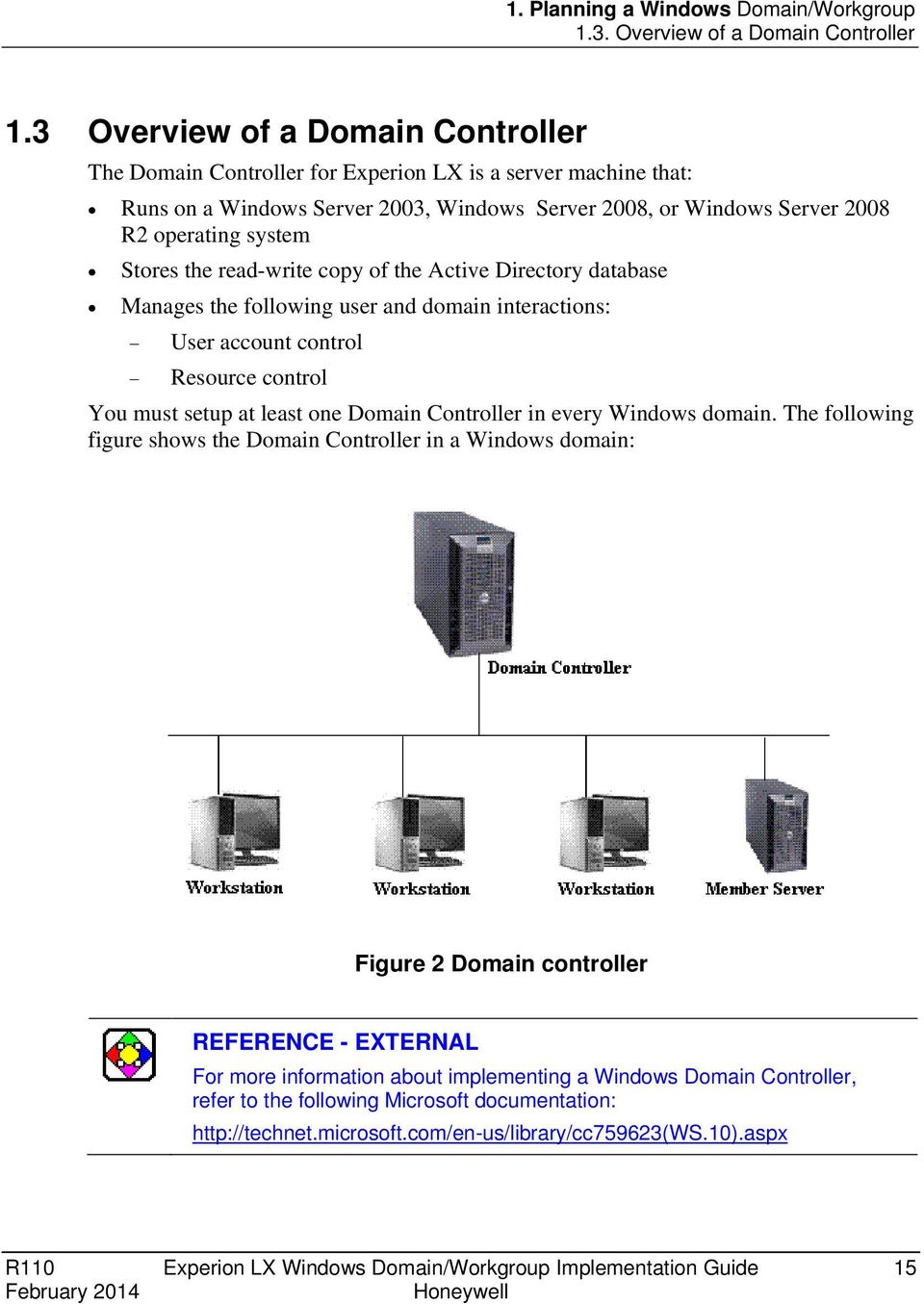
15 1. Planning a Windows Domain/Workgroup 1.3. Overview of a Domain Controller 1.3 Overview of a Domain Controller The Domain Controller for Experion LX is a server machine that: Runs on a Windows Server 2003, Windows Server 2008, or Windows Server 2008 R2 operating system Stores the read-write copy of the Active Directory database Manages the following user and domain interactions: User account control Resource control You must setup at least one Domain Controller in every Windows domain. The following figure shows the Domain Controller in a Windows domain: Figure 2 Domain controller REFERENCE - EXTERNAL For more information about implementing a Windows Domain Controller, refer to the following Microsoft documentation: R110 Experion LX Windows Domain/Workgroup Implementation Guide 15 February 2014
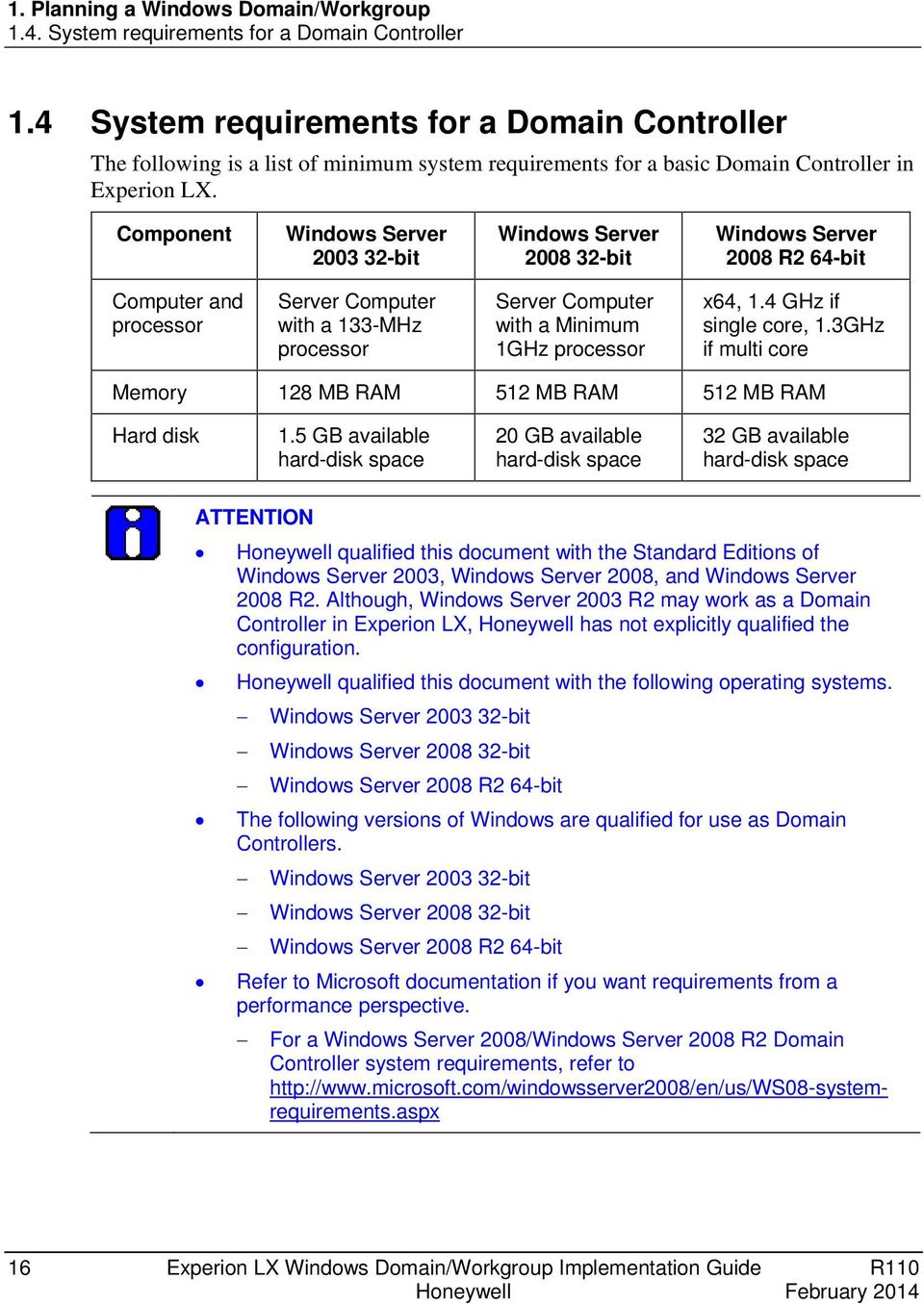
16 1. Planning a Windows Domain/Workgroup 1.4. System requirements for a Domain Controller 1.4 System requirements for a Domain Controller The following is a list of minimum system requirements for a basic Domain Controller in Experion LX. Component Windows Server bit Windows Server bit Windows Server 2008 R2 64-bit Computer and processor Server Computer with a 133-MHz processor Server Computer with a Minimum 1GHz processor x64, 1.4 GHz if single core, 1.3GHz if multi core Memory 128 MB RAM 512 MB RAM 512 MB RAM Hard disk 1.5 GB available hard-disk space 20 GB available hard-disk space 32 GB available hard-disk space ATTENTION qualified this document with the Standard Editions of Windows Server 2003, Windows Server 2008, and Windows Server 2008 R2. Although, Windows Server 2003 R2 may work as a Domain Controller in Experion LX, has not explicitly qualified the configuration. qualified this document with the following operating systems. Windows Server bit Windows Server bit Windows Server 2008 R2 64-bit The following versions of Windows are qualified for use as Domain Controllers. Windows Server bit Windows Server bit Windows Server 2008 R2 64-bit Refer to Microsoft documentation if you want requirements from a performance perspective. For a Windows Server 2008/Windows Server 2008 R2 Domain Controller system requirements, refer to 16 Experion LX Windows Domain/Workgroup Implementation Guide R110 February 2014
17 1. Planning a Windows Domain/Workgroup 1.4. System requirements for a Domain Controller Overview of a Read-only Domain Controller With Windows Server 2008, Microsoft introduced the concept of a Read-only Domain Controller (RODC). An RODC is a server that performs most of the functions of a normal Domain Controller, except that, it forwards Active Directory updates to a writable Domain Controller. This is well suited in sites where the organization requires the Domain Controller to reside in levels above the process control network for security and/or administrative purposes. Adding an RODC to the PCN can preserve these purposes while providing a local source of authentication for performance and reliability reasons: With the RODC local to the PCN, link speeds and firewall traversals to remote Domain Controllers do not affect performance. If the PCN becomes isolated from the IT network where the normal Domain Controller resides, access to the PCN is not impacted. Choosing the right OS for a Domain Controller Choosing the OS for a Domain Controller depends on your organization requirements. Experion LX R110 supports Domain Controllers running Windows Server 2003, Windows Server 2008, and Windows Server 2008 R2. However, if you are installing a new Domain Controller, choose Windows Server 2008, as it is the current supported version. If you already have a Windows Server 2003 DC, you can continue to use that, or choose to upgrade to Windows Server There are some limitations when selecting the OS for the Domain Controller. Windows Server 2008 can host the Experion LX R110 Domain Controller Security Package, optionally FTE. Windows Server 2003 or Windows Server 2008 R2 domain controllers can host the Experion LX R110 Domain Controller Security Package. However, they cannot host FTE. REFERENCE - EXTERNAL To understand the changes in functionality for Windows Server 2008 and Windows Server 2008 R2, refer to the following Microsoft documentation: Software requirements for implementing a domain in Experion LX To implement a domain in Experion LX, you need the following media/software: Operating System media (Windows Server 2003 or Windows Server 2008 or Windows Server 2008 R2) R110 Experion LX Windows Domain/Workgroup Implementation Guide 17 February 2014

18 1. Planning a Windows Domain/Workgroup 1.4. System requirements for a Domain Controller Experion LX Installation media Domain Controller Package FTE (optional) 18 Experion LX Windows Domain/Workgroup Implementation Guide R110 February 2014

19 1. Planning a Windows Domain/Workgroup 1.5. Active Directory and its components 1.5 Active Directory and its components Overview of Active Directory The Active Directory directory service is a distributed database that stores and manages information about network resources and application-specific data from directoryenabled applications. Active Directory allows administrators to organize objects of a network (such as users, computers, and devices) into a hierarchical collection of containers known as the logical structure. The following are the logical components of an Active Directory: Domain trees Forests Domains Organizational Units (OUs) Site Objects REFERENCE - INTERNAL Refer to the following Microsoft documentation: For information on Active Directory structure and its components For information on Active Directory Domain Services server role in Windows Server 2008 and Windows Server 2008 R2 Overview of domain trees A domain tree is a collection of domains that share a contiguous namespace. The tree structure starts with a single root domain and branches out into child domains. The first Active Directory domain created becomes the root of the domain tree structure. The other domains created later become the child domains. The name of the tree is always the DNS name of the root domain. The child domains are always in the same DNS name space as the root domain. Note that the Domain Controllers in the child domains are not peer Domain Controllers of the Domain Controllers in the root domain. R110 Experion LX Windows Domain/Workgroup Implementation Guide 19 February 2014
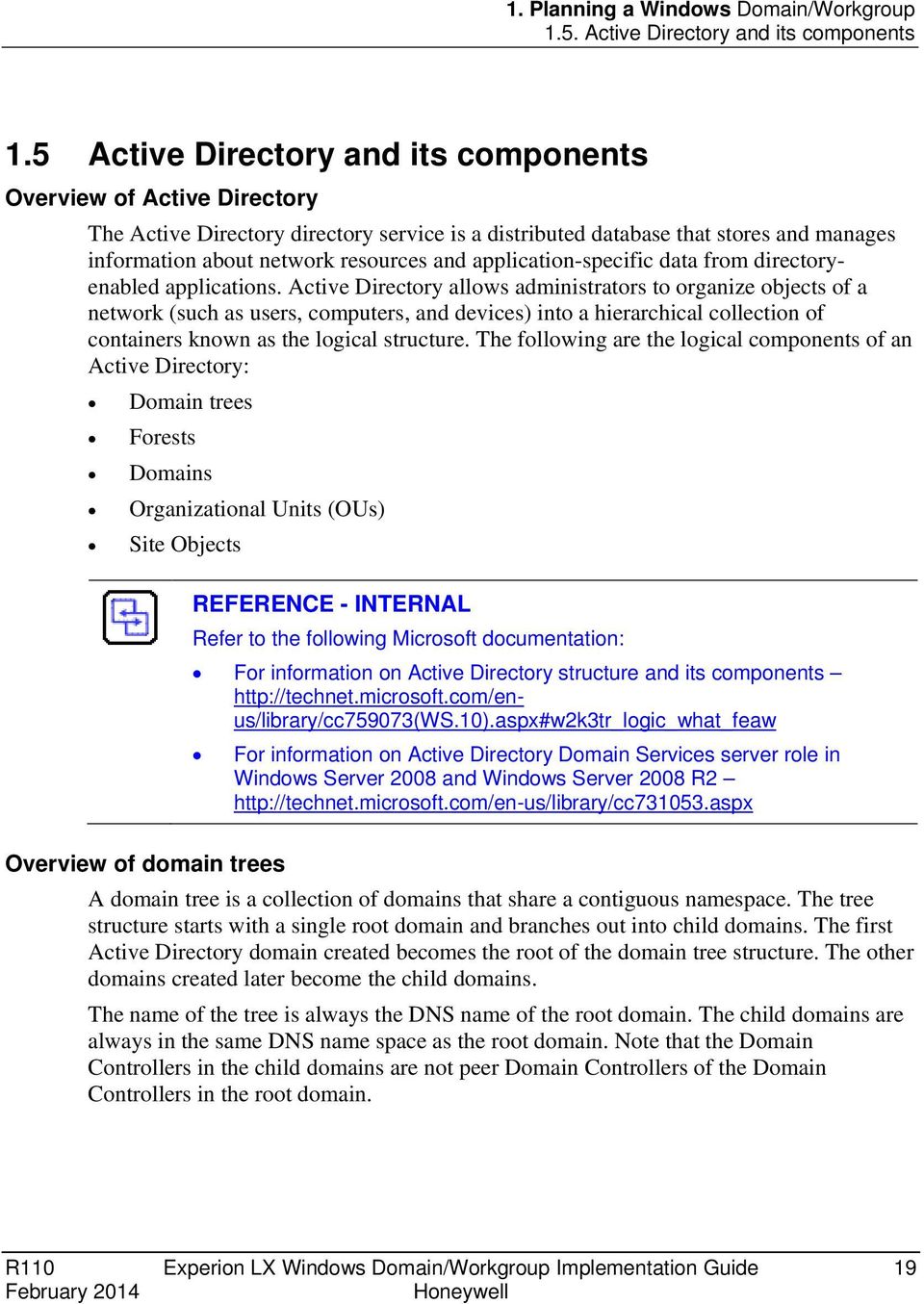
20 1. Planning a Windows Domain/Workgroup 1.5. Active Directory and its components The following figure shows the contiguous namespace of a tree structure: Figure 3 Contiguous namespace of a tree The main reason for creating multiple domains is the management of the domain structure. Most settings are bound by the domain security boundary like password policies. In addition, all child domains have transitive trusts with other domains in the same tree. The following are additional reasons for creating multiple domains in a network: To manage different organizations or to provide unit identities To enforce different security settings and password policies To control Active Directory replication To de-centralize administration 20 Experion LX Windows Domain/Workgroup Implementation Guide R110 February 2014
21 1. Planning a Windows Domain/Workgroup 1.5. Active Directory and its components Overview of Forests By strict definition, the first Domain Controller in a domain is the forest root. A forest does not require multiple trees, but can have other trees with a non-contiguous name space. Forests act independently of each other but can trust each other. Forests are defined as: Collections of domain containers that trust each other Units of replication Security boundaries Units of delegation REFERENCE - INTERNAL For information, see What are forests? in the following Microsoft documentation The following are the characteristics of a child domain in a forest structure. Can have a non-contiguous with the root domain Each domain tree operates independently belongs to the same network The following figure shows the non-contiguous namespace of a forest structure: Figure 4 Non-contiguous namespace of a forest Overview of Organizational Units An OU is an Active Directory container. You can place domain objects like users, groups, computers, and other OUs in an OU. An OU cannot contain objects from other domains. The domain for any organization can enlarge and becomes difficult to manage. R110 Experion LX Windows Domain/Workgroup Implementation Guide 21 February 2014
22 1. Planning a Windows Domain/Workgroup 1.5. Active Directory and its components Using OUs, you can breakdown a very large domain into smaller units to ease management. You can arrange the OUs hierarchically in a tree-like structure. An organization can divide a large domain into OUs based on their department. For example, within business.com, an OU can be created each for Sales, Support, Marketing, Development, and Q/A. An organization can extend the hierarchy of OUs, as required by the organization s hierarchy within a domain. The OUs created in a domain helps to reduce the number of domains required for a network. OUs can be used for delegating administrative control over objects contained in them to a subset of users in Active Directory. For instance, the domain administrator needs to designate one person in each department as the official Password Change Administrator. This reduces the administrative load. The domain administrator can delegate the authority to modify users' passwords to each user over only their respective OU. OUs can also be used for easy administration by grouping like objects together, which can then be used for applying security settings contained in Group Policy Objects. REFERENCE - EXTERNAL For more information about OUs, refer the following Microsoft documentation Considerations for using a single domain with multiple OUs recommends that you use a single domain with multiple OUs. The OUs created in the domain are visible to the Experion LX Network Tree. OUs provide a means for logical grouping of domain objects that have a similar function. TPS domains as Organizational Units TPS domains are created as Windows Server 2003/2008 Organizational Units (OUs). The Active Directory Users and Computers snap-in in Windows Server 2003, Windows Server 2008, Windows Server 2008 R2, which is used for administering domains, can be modified to designate an OU as a TPS domain. Overview of sites Sites represent the physical structure of your network, while domains represent the logical structure of your organization. In Active Directory, a site is a set of computers that are well connected by a high-speed network, such as a local area network (LAN). All computers within the same site typically reside in the same building, or on the same campus network. A single site consists of one or more Internet Protocol (IP) subnets. 22 Experion LX Windows Domain/Workgroup Implementation Guide R110 February 2014
23 1. Planning a Windows Domain/Workgroup 1.5. Active Directory and its components Subnets are subdivisions of an IP network, with each subnet possessing its own unique network address. Use of sites allows administrators greater control of domain replication traffic across the entire domain. In addition, Group Policy Objects can also be applied to the site. Refer to the following Microsoft documentation for more information: R110 Experion LX Windows Domain/Workgroup Implementation Guide 23 February 2014
24 1. Planning a Windows Domain/Workgroup 1.6. Group Policy 1.6 Group Policy Overview of Group Policy Group Policy is an infrastructure used for delivering and applying one or more configurations/policy settings to the users and the computers within an Active Directory environment. The Group Policy Objects (GPOs) contain the Group Policy settings. You can link GPOs in a domain to sites, domains, or OUs. An organization can have different types of users. For example, you want to deliver and maintain a customized desktop configuration for different types of users, such as operators who do not require access to Internet Explorer, but Engineers and Administrators need access to Internet Explorer. Group Policy helps in applying a customized configuration to a group of users. The following figure shows the customized group policies assigned to the OUs within a domain: Figure 5 Group Policy objects You can infer the following from the preceding figure: The Admin Policy is applied to the Administration OU. The Engineering Policy is applied to the Engineering OU. The Operations Policy is applied to the Operations OU. The Hardware Engineering Policy and the Engineering Policy are applied to the Hardware Engineering OU. The members in each OU receive the Group Policy assigned to their respective OU. 24 Experion LX Windows Domain/Workgroup Implementation Guide R110 February 2014
25 1. Planning a Windows Domain/Workgroup 1.6. Group Policy When you link GPOs to sites, domains, or OUs, the GPO links affect users and computers in the following ways: GPOs are applied to the domain object by the closest linked GPO in the domain hierarchy. Site>Domain>OU>Domain Object, meaning if there were linked GPOs that conflicted with each other at each level, the GPO applied is at the OU level. A GPO linked to a domain applies to all users and computers in the domain. By default, any domain object in an OU will have the domain GPO applied. The policies linked at the domain level are not applicable to child domains. The scope of a GPO can also be controlled. Refer to the topic Controlling the scope of GPOs for more information. Group Policy includes the following types of policy settings: Computer Configuration Settings User Configuration Settings Computer Configuration Settings The Computer Configuration Settings contain policy settings that affect computers, regardless of who logs on to the computers. The following are the computer-related policies specified in the Computer Configuration settings: Operating system behavior Desktop behavior Application settings Security settings Assigned software applications Computer startup and shutdown scripts Computer-related policy settings are applied: when the machine is restarted during a periodic refresh of the Group Policy Note: The Administrator can also apply the computer-related policy settings manually. R110 Experion LX Windows Domain/Workgroup Implementation Guide 25 February 2014
26 1. Planning a Windows Domain/Workgroup 1.6. Group Policy User Configuration Settings The User Configuration Settings contain policy settings that affect users, regardless of which computer they log on to. The following are the user-related policies specified in the User Configuration settings: Operating system related settings Desktop settings Application settings Security settings Assigned and published software applications User logon and logoff scripts Folder redirection options User-related policy settings are applied: when the users log on to the computer during the periodic refresh of the Group Policy Note: The Administrator can also apply the user-related policy settings manually. The Group Policy Management Console is used for viewing and editing the Group Policy Settings. The settings under Computer Configuration are applied to all computers that have this Group Policy enforced on them. The settings under User Configuration are applied to all users that have this Group Policy enforced on them. ATTENTION A GPO with settings limited to computer configuration does not have any effect when it is applied to a user. A GPO with settings limited to user configuration does not have any effect when it is applied to a computer. Controlling the scope of GPOs GPOs are applied to users and computers. To apply a GPO to a user or computer, you must first link the GPO with a domain, an OU, or a site. You can control the scope of GPOs in the following ways Change the default order in which GPOs are processed (by changing the GPO link order) Block a GPO inheritance (by disabling a GPO link or by enforcing (previously known as no override) a GPO) 26 Experion LX Windows Domain/Workgroup Implementation Guide R110 February 2014
27 1. Planning a Windows Domain/Workgroup 1.7. Domain Users, Computers, and Groups Security and WMI filtering (for applying greater precision) Loopback processing (applying a consistent set of policies to any user logging on to a computer) For more information, refer to the following Microsoft documentation: Experion LX Group Policy descriptions The following table lists the Group Policy Objects (GPOs) that the Experion LX PKS High Security Domain Controller package creates in Active Directory, and the corresponding Global Group that is used for "filter" the scope of the group object. Group Policy Name Product Administrator Role Engineering Role Operational Roles Filter (Global Group) DCS Administrators Engineers Operators, Supervisors, View only users, ACK view only users Description A minimally restricted user environment. This account is typically used for day-to-day DCS administrative tasks for Windows 7/2008. A restricted user environment that allows members to perform relevant process control activities. Administrative actions in the Windows 7/2008 environment are limited. A very restricted user environment that permits members of this group to run only allowed applications. Typically, members of this group have a specified logon script that automatically starts relevant applications. Usage of the Microsoft Internet Explorer browser is limited to intranet or local applications. For more information on Group Policy, refer to Creating a Group Policy and Managing Group/domain policy in this guide. R110 Experion LX Windows Domain/Workgroup Implementation Guide 27 February 2014
28 1. Planning a Windows Domain/Workgroup 1.7. Domain Users, Computers, and Groups 1.7 Domain Users, Computers, and Groups User Account An Active Directory user account is used for authenticating the domain, which then allows access to domain resources. This account provides an identity on the network for the user. The operating system uses this identity for the following purposes: To authenticate the user To grant access privileges to specific domain resources To enable user authentication and authorization features, perform the following: Create an individual user account for each user on the network. Assign appropriate group membership to the user. Assign appropriate rights and permissions to each group. TIP Although rights and permissions can be assigned directly to user accounts, it is a best practice to assign rights and permissions to groups and put individual user accounts in those groups. Computer Account Every computer that is part of the domain has a specific computer account. This account is created automatically when a computer is added to the domain. However, this account can also be created before the computer joins the domain. The computer account provides the following: Authenticates the computer to access the network Audits the computer s access to the network and the domain resources Groups A Group is an Active Directory container object. The Group can contain users, contacts, computers, and other groups. The following are the two different types of Groups: Distribution Groups Security Groups Distribution Groups Distribution Groups have only one function that is creating distribution lists. Distribution Groups can be used with applications (like Microsoft Exchange) to send to the members of the group. Changing group membership follows the same process as Security Groups. Distribution groups cannot be used to apply security. 28 Experion LX Windows Domain/Workgroup Implementation Guide R110 February 2014
29 1. Planning a Windows Domain/Workgroup 1.7. Domain Users, Computers, and Groups ATTENTION does not recommend the usage of on the Process Control Domain used by Experion LX and TPS. Security Groups Security Groups are an essential component of the relationship between users and resources. Security Groups perform the following functions: Manages user and computer access to the shared resources on the domain Filters Group Policy settings Security groups can contain users, computers, and other groups. Using Security Groups simplifies security administration by letting you assign permissions to the group rather than assigning permissions to the individual users. When you add a new user to the group, the user receives all access permissions assigned to the security group. Group Scope Every security group or distribution group has a defined scope, which determines to what extent the group is applied. The following are the different scopes that can be applied to a group: Universal indicates that a group can be assigned permissions in any domain or any trusted forest. Global indicates that a group can be assigned permissions in any domain. Domain local indicates that a group can be assigned permissions within the same domain. For more information on Group Scope, refer to the following Microsoft documentation: R110 Experion LX Windows Domain/Workgroup Implementation Guide 29 February 2014
30 1. Planning a Windows Domain/Workgroup 1.8. Support for DNS 1.8 Support for DNS DNS as a name resolution service Domain Name System (DNS) is the default name resolution service in a Windows Server 2003/2008 network. It is part of the TCP/IP protocol suite and all TCP/IP network connections by default, are configured with the IP address of one or more DNS Servers. For more information on DNS, refer to the following Microsoft documentation: What is DNS? DNS deployment DNS can be deployed in two ways with Active Directory support and without Active Directory support. It is deployed without Active Directory support if you want to host information outside of the domain environment. For domains in Experion LX, DNS must be deployed with Active Directory support. When deployed with Active Directory, the Active Directory service uses DNS as its Domain Controller location mechanism. For example, when an Active Directory user logs in to a domain, the user s computer uses DNS to locate a Domain Controller in the Active Directory domain. For more information on how DNS works, refer to the following Microsoft documentation: DNS integration with Active Directory Active Directory uses DNS as a Domain Controller locator and uses DNS domain naming system in the architecture of Active Directory domains. Active Directory depends on the following components of DNS: Domain controller locator (Locator) Active Directory domain names in DNS Active Directory DNS objects For more information on DNS integration with Active Directory, refer to the following Microsoft documentation: How DNS support for Active Directory works: DNS integration: 30 Experion LX Windows Domain/Workgroup Implementation Guide R110 February 2014
31 1. Planning a Windows Domain/Workgroup 1.9. Active Directory replication DNS naming conventions The following are some of the DNS requirements for Active Directory hierarchy: A node in the DNS hierarchy must be a domain or a computer A child domain cannot have more than one parent domain Two child domains of a parent domain cannot have identical names For more information on DNS naming conventions, refer to the following Microsoft documentation: ATTENTION Domain names must have a domain designator like.com,.org, or.local. Domain names without domain designators will cause name resolution issues on the network. BDNS tools A variety of tools is associated with DNS for use with Active Directory. The DNS management application and the command line utilities nslookup and ipconfig are some of the examples. For more information, refer to the following Microsoft documentation: DNS tools and settings DNS support for Active Directory tools and settings Active Directory replication Active Directory replication is the means by which changes to directory data are transferred between Domain Controllers in an Active Directory forest. The Active Directory replication model defines mechanisms to transfer directory updates automatically between Domain Controllers, thereby providing a seamless replication solution for the Active Directory database. For more information, refer to the following Microsoft documentation: Active Directory Replication Model Technical Reference R110 Experion LX Windows Domain/Workgroup Implementation Guide 31 February 2014
32 1. Planning a Windows Domain/Workgroup Multiple Domain Controllers in a domain 1.10 Multiple Domain Controllers in a domain A domain can have multiple Domain Controllers. Multiple Domain Controllers in a domain provide the following benefits: Improves availability and reliability of the domain by allowing the domain to continue operation if at least one Domain Controller is operational and available to the process control network Improves the performance by sharing the load across multiple Domain Controllers When there are multiple Domain Controllers in a domain, all Domain Controllers are peers. All Domain Controllers in a domain have read/write copies of the domain database. You can setup an additional Domain Controller (Peer Domain Controller) through the Active Directory installation wizard in one of the following ways: Over the network By restoring an existing Domain Controller backup Although all Domain Controllers in a domain are peers, some domain operations require a single Domain Controller to perform a specific function. To perform these specific functions, Domain Controllers are assigned specialized roles known as Flexible Single Master Operations (FSMO) roles. The Domain Controller Flexible Single Master Operation roles are: Schema master Domain naming master Primary Domain Controller (PDC) emulator Infrastructure master Relative ID (RID) master Another Domain Controller role is Global Catalog Server. This role can be run on multiple Domain Controllers in a domain. There is at least one Global Catalog Server per domain. The first Domain Controller in the forest automatically holds all five FSMO roles and is a Global Catalog Server. When peer Domain Controllers are introduced into the domain, the FSMO roles can be redistributed to different Domain Controllers. Refer to the following Microsoft documentation for more information on Domain Controller roles: 32 Experion LX Windows Domain/Workgroup Implementation Guide R110 February 2014
33 1. Planning a Windows Domain/Workgroup Functional levels in Active Directory 1.11 Functional levels in Active Directory Functional level is defined as the set of advanced Active Directory features and Windows operating systems that can run on Domain Controllers in a domain or a forest. This is essential for efficient Active Directory replication and domain renaming activities. The Windows Server 2003 Active Directory service enables you to introduce advanced features into your environment by raising the domain or forest functional level. You can raise the functional level when all Domain Controllers in the domain or forest are running an appropriate version of Windows. Raising the functional level allows you to introduce new features but also limits the versions of Windows that can run on Domain Controllers in your environment. ATTENTION Experion requires functional level Windows Server 2003/2008 or higher. For more information about functional levels in a forest or a domain, refer to the following Microsoft documentation: For information on how to raise functional levels in a forest or a domain, refer to the following Microsoft documentation: ATTENTION Functional levels define a set of operating systems only for the Domain Controllers in a domain or a forest. It does not define the client operating systems in a domain or a forest. Before raising the functional level for a domain, or a forest, assess your requirements appropriately. Once raised, you cannot lower the functional level for a domain or a forest. R110 Experion LX Windows Domain/Workgroup Implementation Guide 33 February 2014
34 1. Planning a Windows Domain/Workgroup Domain controllers in a Experion LX FTE network 1.12 Domain controllers in a Experion LX FTE network Domain controller placement REFERENCE - INTERNAL For a basic overview of FTE, refer to the Experion LX FTE Overview and Implementation Guide. For Domain Controller topology diagrams, refer to the Network and Security Planning Guide. In a Experion LX FTE network, the Domain Controller can be an FTE node or a non- FTE node. A Domain Controller can be placed on level 2 or on level 3 depending on your site network requirements. For example, if you have PHD integrated with Experion LX, you can have one Domain Controller as an FTE node at level 2 and another Domain Controller as a non-fte node at level 3. Domain controller as a non-fte node in an FTE community When connecting multiple non-fte Domain Controllers in the same FTE community, the Domain Controllers themselves must be connected to different legs of the FTE network tree. An example of this is, connecting one non-fte Domain Controller to the yellow network and another non-fte Domain Controller to the green network Domain controller backup strategies REFERENCE - EXTERNAL does not have any specific recommendations for Domain Controller backup. Refer to Microsoft documentation Guidelines for upgrading a DC REFERENCE - EXTERNAL Refer to the following Microsoft documentation: This activity requires sufficient planning before execution. The following is a summary of tasks that need to be performed for upgrading a Windows Server 2003 Domain Controller to a Windows Server 2008 and Windows Server 2008 R2 Domain Controller. 34 Experion LX Windows Domain/Workgroup Implementation Guide R110 February 2014
35 1. Planning a Windows Domain/Workgroup Guidelines for upgrading a DC 1. Prepare the domain for Windows Server 2008 and Windows Server 2008 R2 Active Directory 2. Introduce a Windows Server 2008 computer as a member server in the domain. 3. Install Windows Server 2008 or Windows Server 2008 R2 Domain Controller on the member server. 4. Move required roles from the old (Windows Server 2003) Domain Controller to the new Domain Controller. 5. On the old Domain Controller, perform the following tasks: a) Demote the Domain Controller b) Reload (not upgrade) Windows Server 2008 / Windows Server 2008 R2 OS c) Promote as peer Domain Controller d) Move back any of the required roles R110 Experion LX Windows Domain/Workgroup Implementation Guide 35 February 2014
36 1. Planning a Windows Domain/Workgroup Guidelines for upgrading a DC 36 Experion LX Windows Domain/Workgroup Implementation Guide R110 February 2014
37 2. Domain Controller Installation 2.1 Installing the Windows Server operating system Installing Windows Server 2003, Windows Server 2008, Windows Server 2008 R2 If the operating system is not installed already, install the operating system. Install service packs and Windows updates as recommended for Experion LX. Refer to the Experion LX R110 Software Change Notice. 2.2 Setting local administrator password For Windows Server 2003, you are prompted to enter the local administrator account and password when installing the OS. For Windows Server 2008 /Windows Server 2008 R2, you are prompted to enter the local administrator account and password during the first log on to Windows after the OS installation. To change the password, perform the following steps. Step Action 1 Log on to the server as the local Administrator. 2 Press <Ctrl> <Alt> <Delete> and change the password, if necessary. CAUTION Record and store the domain Administrator password in a secure place. If you forget the password, you have to reinstall the OS to recover. Note: When a member server is promoted to a Domain Controller, the local accounts database is removed. The local admin account and password become the domain admin account. In addition, any local accounts on the server are changed to domain accounts. However, this is only true for the first Domain Controller in a domain. 2.3 Setting time and date This is generally done as part of the OS installation. Time is crucial to the domain and hence, the time and the time zone must be verified before promoting a server to a Domain Controller. R110 Experion LX Windows Domain/Workgroup Implementation Guide 37 February 2014
38 2. Domain Controller Installation 2.4. Changing the computer name 2.4 Changing the computer name ATTENTION This procedure MUST be completed BEFORE promoting the computer to a Domain Controller, as it would be difficult to do so afterwards. This is normally done as part of the OS installation. If necessary, you can change the computer name by performing the following steps: Step Windows Server 2003 Windows Server 2008/Windows Server 2008 R2 1 Log on to the server as the local administrator. 2 Right-click the My Computer icon on Start menu and select Properties. 3 Select the Computer Name tab and click Change. 4 Change the computer name of the server. Log on to the server as local administrator. Choose Start > Administrative Tools > Server Manager. Under Computer Information in the Server Summary, click the Change System Properties link. The System Properties dialog box appears. Click the Change button. The Computer Name/Domain Changes dialog box appears. 5 Restart the node. In the Computer name box, type the new computer and then click OK. 6 If a restart your computer message dialog box appears, click OK. 7 Click OK in the System Properties dialog box. 38 Experion LX Windows Domain/Workgroup Implementation Guide R110 February 2014
39 2. Domain Controller Installation 2.5. Configuring the TCP/IP settings Step Windows Server 2003 Windows Server 2008/Windows Server 2008 R2 8 In the restart your computer message dialog box, click Yes to restart the computer. After the computer restarts, an unable to locate dll event message may be displayed. This message can be ignored. Click OK to continue. ATTENTION It is important to restart the server after changing the name and before promoting the server to a Domain Controller. 2.5 Configuring the TCP/IP settings For the actual data that needs to be entered, refer to your Domain Controller Configuration Data Sheet. Note that Domain Controllers must use static IP addresses. Step Windows Server 2003 Windows Server 2008/Windows Server 2008 R2 1 Log on to the server as the local administrator. 2 Right-click My Network Places from the Start menu and select Properties. 3 Right-click Local Area Connection and select Properties. Log on to the server as the local administrator. Choose Start > Control Panel. Do one of the following: If you use the Control Panel Home view, under the Network and Internet section, click View network status and tasks. If you use the Classic View, click Network and Sharing Center. 4 Double-click Internet Protocol. In the Tasks section, click Manage Network Connections. 5 Select Use the following IP address. Right-click Local Area Connection and select Properties. R110 Experion LX Windows Domain/Workgroup Implementation Guide 39 February 2014
40 2. Domain Controller Installation 2.5. Configuring the TCP/IP settings Step Windows Server 2003 Windows Server 2008/Windows Server 2008 R2 6 Enter the IP address. Select Internet Protocol Version 4 (TCP/IPv4) and click Properties. Note: Leave the IPv6 address empty. 7 Enter the Subnet mask. Select Use the following IP address. 8 Enter the Default gateway. Enter the IP address. 9 Select the Use the following DNS Server addresses. 10 Enter the IP address of the Preferred DNS server (this must be local address). 11 Enter the IP address of the Alternate DNS server. Note: If you are installing the first Domain Controller, when using Active Directory integrated DNS, the alternate DNS server must be left blank. Once a Peer Domain Controller running DNS is added to the domain, the alternate DNS server address can be entered. If you are installing a peer Domain Controller running DNS, the Alternate DNS server must be the root Domain Controller that runs DNS. Enter the Subnet mask. Enter the Default gateway. Select the Use the following DNS Server addresses. 12 Click OK. Enter the IP address of the Preferred DNS server (this must be local address). 13 Click OK on the Local Area Connection Properties dialog box. Enter the IP address of the Alternate DNS server. Note: If you are installing the first Domain Controller, when using Active Directory integrated DNS, the alternate DNS server must be left blank. Once a Peer Domain Controller running DNS is added to the domain, the alternate DNS server address can be entered. If you are installing a peer Domain 40 Experion LX Windows Domain/Workgroup Implementation Guide R110 February 2014
41 2. Domain Controller Installation 2.5. Configuring the TCP/IP settings Step Windows Server 2003 Windows Server 2008/Windows Server 2008 R2 Controller running DNS, the Alternate DNS server must be the root Domain Controller that runs DNS. 14 Physically connect the network (Ethernet) cable(s), if not already connected. Click OK. 15 Click OK on the Local Area Connection Properties dialog box. 16 Physically connect the network (Ethernet) cable(s), if not already connected. R110 Experion LX Windows Domain/Workgroup Implementation Guide 41 February 2014
42 2. Domain Controller Installation 2.6. Promoting the Windows server to root Domain Controller 2.6 Promoting the Windows server to root Domain Controller Step Action 1 Log on to the server as local administrator. 2 To begin the promotion of the standalone Windows Server 2003/2008 server machine to a root or peer Domain Controller, run the Microsoft application dcpromo.exe: Start > Run, type dcpromo, and click OK. RESULT: The dcpromo application initiates the Active Directory Installation Wizard. 2.7 Installing Active Directory and DNS At the Active Directory installation wizard, enter the appropriate configuration to install the Active Directory for a Root Domain Controller and install DNS, if necessary. Regarding domain naming, refer to the section Support for DNS of this guide. When installing DNS on a Windows Server 2008/Windows Server 2008 R2, the installation wizard may display a warning stating that one of the network adapters is not set to a static IP address. This message can be ignored as long as you have verified the IPv4 IP address information as mentioned in the section Configuring the TCP/IP settings. The error message in this situation is based on the IPv6 IP address that is neither configured nor required to be configured. ATTENTION Record and store the Directory Services Restore Mode Administrator password in a secure place. If you forget the password, authoritative restores on the domain will not be possible. This is not the same account as the Domain Administrator. Refer to the following Microsoft documentation for detailed instructions to Install Active Directory and DNS: Using the Active Directory installation wizard (Windows Server 2003) Using the Active Directory installation wizard (Windows Server 2008) WS Experion LX Windows Domain/Workgroup Implementation Guide R110 February 2014
43 2. Domain Controller Installation 2.8. Adding Reverse lookup zone to DNS 2.8 Adding Reverse lookup zone to DNS Using the DNS management application, add a Reverse Lookup Zone: Start >Administrative Tools >DNS. Note: The reverse lookup zone for the domain must be a primary zone and with Store the zone in Active Directory selected. In addition, once this is complete, the following command must be executed from the Command prompt on each node in the domain, including the Domain Controller. ipconfig /registerdns Refer to Microsoft documentation for detailed instructions to add reverse lookup zone to DNS Windows Server Windows Server Installing the Domain Controller package The Experion LX R110 Domain Controller Security package must be installed on the Domain Controller for a process control network before migrating to Experion LX R110 or installing a new Experion LX system. Experion LX also supports installation of FTE on the Domain Controller in some circumstances. These instructions apply to single Domain Controllers, peer Domain Controllers, and Windows Server 2008 read only Domain Controllers (RODC). ATTENTION The Domain Controller should be up-to-date with the latest updates from Microsoft before proceeding with the following instructions. Domain Controller Security on Windows Server 2003/ 2008/ 2008 R2 Follow this procedure if the only Experion LX support to be installed on the Domain Controller is the Experion LX Domain Controller Security package. This procedure works for a fresh install on Windows Server 2003, Windows Server 2008, or Windows Server 2008 R2. If your Domain Controller is Windows Server 2008, and you want to install FTE on your Domain Controller, follow the procedure in Install Domain Security and Optional Components (FTE) on Windows Server R110 Experion LX Windows Domain/Workgroup Implementation Guide 43 February 2014
44 2. Domain Controller Installation 2.9. Installing the Domain Controller package Step Action 1 Log on to the Domain Controller as a domain administrator. 2 Browse to the PACKAGES\DCSECURITY on the Installation media or the ESIS share. 3 Double-click Security Model-Domain Controller.msi. ATTENTION The Open File Security Warning dialog box may appear indicating that the publisher of the software could not be identified. Click Run to continue with the installation. 4 If a User Account Control dialog box appears, click Continue. 5 On the Welcome to the InstallShield Wizard screen, click Next. 6 Read the EULA and select I accept the terms in the license agreement option. 7 Click Next. 8 If the DcsComserver Password dialog appears, choose a password for this domain server account, type it into both fields on the dialog, and click Next. 9 On the Setup Type dialog, normally leave the default selection of Complete, and click Next. 10 If the Link Policies to the Domain or an Organizational Unit dialog appears, normally leave the default selection of Install policies at the Domain level, and click Next. 11 On the Ready to Install page, click Install. 12 Wait for the installation to complete, and on the InstallShield Wizard Completed page, click Finish. No restart is necessary after this procedure. Propagation of the domain policies installed by this procedure is not immediate. It occurs as each computer is restarted, after the default update interval, or when a manual update is performed using gpupdate. 44 Experion LX Windows Domain/Workgroup Implementation Guide R110 February 2014
45 2. Domain Controller Installation 2.9. Installing the Domain Controller package Install domain security, optional components on Windows server 2008 Use this procedure only if you plan to install Experion LX optional components (FTE) on a Windows Server 2008 Domain Controller. Do not use this procedure on Windows Server 2003 or Windows Server 2008 R2 since Experion LX FTE is not supported on Windows Server 2003 and Windows Server 2008 R2..NET Installation procedure Perform the following steps to install.net. If it is already installed, proceed with Domain Controller Security and Optional Component Installation procedure. To install.net on a Windows Server 2003/Windows Server 2008 operating system Step Action 1 Log on to the Domain Controller as a domain administrator. 2 Browse to DotNet3.5 on the installation media or ESIS share (for example, \D_EXP\PACKAGES\Microsoft\DotNet3.5), depending on the type of installation. 3 Double-click the dotnetfx35sp1 file. The.NET files are extracted. 4 Read the End-User License Agreement (EULA) on the Welcome to Setup dialog box and select I have read and ACCEPT the terms in the License Agreement. 5 Click Install. 6 When the installation is complete, the Microsoft.Net Framework has been installed successfully dialog box appears. Click Exit. To install.net on a Windows Server 2008 R2 operating system Step Action 1 Log on to the Domain Controller as a domain administrator. 2 Click Start > Administrative Tools > Server Manager. 3 In the Server Manager interface, click Features to see the list of all the installed Features in the right hand pane. 4 Select Add Features to display a list of features. R110 Experion LX Windows Domain/Workgroup Implementation Guide 45 February 2014
46 2. Domain Controller Installation 2.9. Installing the Domain Controller package Step Action 5 Expand.NET Framework Features. Two check boxes are displayed..net Framework WCF Activation 6 If it is not already selected, select.net Framework and click Next. ATTENTION If you do not expand.net Framework Features and select.net Framework 3.5.1, the Add Features Wizard dialog-box appears. Click Cancel, expand.net Framework Features and then select.net Framework Features. 7 In the Confirm Installation Selections interface, review the selections and then click Install. 8 When the installation is complete, the Microsoft.Net Framework has been installed successfully dialog box appears. 9 Click Exit. Domain Controller Security and Optional Component Installation ATTENTION If you are installing a new Domain and Domain Controller, you must manually install optional packages from the Experion LX R110 Installation media. Step Action 1 Log on to the Domain Controller as a domain administrator. 2 Browse to the \Packages\FTEDriver path and double-click the file honeywell fte mux driver.msi. 3 Select Allow if a Microsoft User Account Control (permissions dialog box) appears. 4 On the Welcome to the InstallShield Wizard screen, click Next. 5 Read the End-User License Agreement (EULA) and select I accept the terms in the license agreement. 6 Click Next. 46 Experion LX Windows Domain/Workgroup Implementation Guide R110 February 2014
47 2. Domain Controller Installation 2.9. Installing the Domain Controller package Step Action 7 Review the summary of the settings you have selected in the install dialog boxes and click Install. 8 Wait for the installation to complete, and on the InstallShield Wizard Completed page, click Finish. Propagation of the domain policies installed by this procedure is not immediate. It occurs as each computer is restarted, after the default update interval, or when a manual update is performed using gpupdate. If you installed FTE on the Domain Controller, FTE configuration must now be performed as described in refer to the Experion LX FTE Overview and Implementation Guide. R110 Experion LX Windows Domain/Workgroup Implementation Guide 47 February 2014
48 2. Domain Controller Installation 2.9. Installing the Domain Controller package 48 Experion LX Windows Domain/Workgroup Implementation Guide R110 February 2014
49 3. Set up a Windows domain environment 3.1 Creating Active Directory users and groups Create a user Step Action 1 Click Start > All Programs > Administrative Tools, and then click Active Directory Users and Computers. The Active Directory Users and Computers window appears. 2 In the left pane, right-click the container in which you want to create the user/computer/group. A pop-up menu appears. TIP You can create an account in the domain or in one of the OUs. 3 Click New, and then select User. 4 In the New Object User dialog box, fill in the details of the user and click Next. 5 In First name, type the user's first name. 6 In Initials, type the user's initials. 7 In Last name, type the user's last name. 8 Modify Full name to add initials or reverse order of first and last names. 9 In User logon name, type the user logon name, click the UPN suffix in the drop-down list, and then click Next. 10 In Password and Confirm password, type the user's password, and then select the appropriate password options. 11 Click OK. Next steps: Add new users to the appropriate domain groups, particularly the Experion LX groups, to grant the user privileges within the domain. R110 Experion LX Windows Domain/Workgroup Implementation Guide 49 February 2014
50 3. Set up a Windows domain environment 3.2. Creating Organizational Units (OUs) Create a group Step Action 1 Click Start > All Programs > Administrative Tools, and then click Active Directory Users and Computers. The Active Directory Users and Computers window appears. 2 In the console tree, right-click the folder (Active Directory Users and Computers/domain node/folder) in which you want to add a group. 3 Point to New, and then click Group. 4 Type the name of the Group name. 5 Select the required scope and type for the group. 6 Click OK. Change group membership Step Action 1 Click Start > All Programs > Administrative Tools, and then click Active Directory Users and Computers. The Active Directory Users and Computers window appears. 2 In the console tree, right-click the folder (Active Directory Users and Computers/domain node/folder) in which you want to add a group. 3 Select the Group that you want to modify. 4 In the details pane right click the group then click Properties. 5 Select the Members tab. 6 Click Add. 7 Enter the name of the user then click Check Names. A valid entry will have an underline. 8 Click OK. 9 Repeat steps 7 through 8 until the required users are added to the group. 10 Click OK. 50 Experion LX Windows Domain/Workgroup Implementation Guide R110 February 2014
51 3. Set up a Windows domain environment 3.2. Creating Organizational Units (OUs) For further guidance on managing groups, refer to the following Microsoft documentation: Creating Organizational Units (OUs) Create a TPS Domain OU ATTENTION This task can be performed only from Domain Controllers that have had the Domain Controller Security Package installed. The TPS Domain/Console Configuration tool is installed as part of the Domain Controller Security Package. Perform the following steps to create a TPS domain OU. Step Action 1 At the Domain Controller, with domain administrator privileges, open Active Directory Users and Computers. 2 In the console tree, right-click the folder Active Directory Users and Computers/domain node/folder in which you want to add an organizational unit. 3 Point to New, and then click Organizational Unit. 4 Type the name of the organizational unit. 5 Right-click the new OU and select Properties. 6 Select the TPS Domain tab, and then select the TPS Domain option. 7 Click OK. RESULT: The OU now has the "TPS Domain" attribute. R110 Experion LX Windows Domain/Workgroup Implementation Guide 51 February 2014
52 3. Set up a Windows domain environment 3.3. Creating a Group Policy Create a Experion LX/TPS domain OU or a console OU within a TPS domain OU Creating a Experion LX/TPS domain OU or a Console OU allows you to organize and manage plant nodes of interest. A Experion LX Console OU provides a grouping of similar process control computers within a TPS domain OU. Step Action 1 Click Start > Programs > Administrative Tools, and then click Active Directory Users and Computers. The Active Directory Users and Computers window appears. 2 Refer to the procedure in Create a TPS domain OU and create an OU within the TPS domain OU. 3 Right-click the new OU and select Properties. The Properties dialog box appears. TIP This can be performed on Domain Controllers that have had the Domain Controller Security installed. 4 Click the TPS Domain tab. The TPS Domain Properties dialog box appears. 5 Click Console. 6 Click OK. 3.3 Creating a Group Policy You can create and link a Group Policy to a domain, using the Group Policy Management Console. To create a group policy, perform the following steps: Step Action 1 Log on to the Domain Controller using a domain administrator account. 3 Choose Start > All Programs > Administrative Tools > Group Policy Management. 4 Click Yes on the User Account Control dialog box. 52 Experion LX Windows Domain/Workgroup Implementation Guide R110 February 2014
53 3. Set up a Windows domain environment 3.3. Creating a Group Policy Step Action 5 In the left (navigation) pane, expand the tree and right-click Group Policy Objects under the required domain and select New. 6 Enter the policy name and click OK. Refer to the following Microsoft documentation to create and link a Group Policy: R110 Experion LX Windows Domain/Workgroup Implementation Guide 53 February 2014
54 3. Set up a Windows domain environment 3.3. Creating a Group Policy 54 Experion LX Windows Domain/Workgroup Implementation Guide R110 February 2014
55 4. Integrating computers into a Windows domain 4.1 Adding a node to a Windows domain CAUTION While adding a node to a domain, you must not change the computer name and the domain at the same time. ATTENTION To join the domain, the client machine (server or desktop) must have DNS resolution to the domain. This may require editing the network card properties and entering primary and alternative DNS server addresses. These should be the addresses of the Domain Controllers on a domain running Active Directory-integrated DNS. Step Action 1 Log on to the client node as a local administrator. 2 Choose Start > Control Panel. 3 For Windows 7: In View by: select Small icons. Click System. For Windows Server 2008: Select Classic View, if not selected. Double-click System. 4 In the Computer name, Domain, and Workgroup Settings section, click Change Settings. 5 Click Continue in the User Account Control dialog box, if prompted. 6 In the System Properties dialog box, click Change 7 In Member of, click the domain and type the domain name. 8 Click OK. 9 Type the user name and password of a domain administrator account and click OK. R110 Experion LX Windows Domain/Workgroup Implementation Guide 55 February 2014
56 4. Integrating computers into a Windows domain 4.2. Adding global Experion LX domain account groups to local account groups on this computer Step Action 10 Click OK in the Welcome dialog box. 11 Click OK in the You must restart dialog box. 12 Click Close on the System Properties dialog box. 13 Click Restart Now. 4.2 Adding global Experion LX domain account groups to local account groups on this computer This procedure links the global groups created by Experion LX with local groups created on each computer by the High Security Policy. Prerequisites and considerations The computer must already be added to the domain. Perform this procedure on every Experion LX computer that is added to a domain (even if it was previously in a domain and this procedure was followed at that time): When in a domain environment, the security policies are applied to domain users only. This is as per the design by Microsoft. When a user is a member of domain groups, there are 4 levels of restrictions applied by policies: a) Domain Administrators and Enterprise Administrators: no restrictions b) DCS Administrators (Product Administrator role): very few restrictions (refer to the policy settings) c) Engineers: somewhat more restricted than DCS Administrators (refer to the policy settings) d) Operational users (Supervisor, Operator, Ack View Only, and View Only roles): highly restricted. e) When a user is a member of multiple groups, of the groups/roles listed previously, the least restriction is applied for the user (that is, if a user has the Engineer and the View Only roles, the restrictions is based on the Engineers role). Local group membership is not a factor in the policy determination. 56 Experion LX Windows Domain/Workgroup Implementation Guide R110 February 2014
57 4. Integrating computers into a Windows domain 4.2. Adding global Experion LX domain account groups to local account groups on this computer To link the domain Windows groups to the local Windows groups: Step Action 1 Log on as a user with domain administrative privileges. 2 Start a command prompt with "Type as administrator." 3 Change the directory to C:\Program Files\\WkStaSecurity. 4 Type the LinkDomainGroups.vbs and press Enter. A confirmation message appears. 5 Click OK to continue. If the linking is successful, a completion message appears. 5 Click OK to acknowledge. After you have run Linkdomaingroups.vbs, the following Windows domain account groups are linked to the local account groups. Windows domain account group DCS Administrators Engineers Supervisors Operators Ack View Only Usage View Only Users DCS Domain Servers Linked to local account group Product Administrators Local Engineers Local Supervisors Local Operators Local Ack View Only Users Local View Only Users Local Servers R110 Experion LX Windows Domain/Workgroup Implementation Guide 57 February 2014
58 4. Integrating computers into a Windows domain 4.2. Adding global Experion LX domain account groups to local account groups on this computer 58 Experion LX Windows Domain/Workgroup Implementation Guide R110 February 2014
59 5. Set up a Windows Workgroup environment 5.1 Creating Windows Workgroup users and groups REFERENCE - EXTERNAL Refer to the following Microsoft documentation: Any accounts that need to access other computers must have the same user name and password on all computers. R110 Experion LX Windows Domain/Workgroup Implementation Guide 59 February 2014
60 5. Set up a Windows Workgroup environment 5.1. Creating Windows Workgroup users and groups 60 Experion LX Windows Domain/Workgroup Implementation Guide R110 February 2014
61 6. Review security template 6.1 Reviewing security templates in domain/workgroup environment To review security templates in a domain and workgroup environment Step Action 1 Choose Start > Run, type mmc and click OK. The Microsoft Management Console opens. 2 If the User Account Control dialog box appears, click Yes. 3 Choose on File > Add/Remove Snap-in. The Add/Remove Snap-in dialog box opens. 4 Select Security Templates and click Add. 5 Click OK. The Security Templates snap-in is added to the console. 6 In the navigation pane, right-click Security Templates, and select New Template Search Path. 7 In the Browse For Folder dialog box, navigate to Desktop > Computer > Local Disk (C:) > Windows > security > templates and select templates and click OK. 8 In the navigation pane, expand C:\Windows\security\templates and select dc security. 9 Review the setting in the right pane. R110 Experion LX Windows Domain/Workgroup Implementation Guide 61 February 2014
62 6. Review security template 6.1. Reviewing security templates in domain/workgroup environment 62 Experion LX Windows Domain/Workgroup Implementation Guide R110 February 2014
63 7. Set up time synchronization 7.1 About time synchronization in a domain The Active Directory domain is very time sensitive and any time differences between Domain Controllers and client nodes could affect the authentication process of users and resource access. When a member server is promoted as the first Domain Controller in the domain, that server automatically receives all of the FSMO roles. The PDC emulator role controls time on the domain and the server holding that role becomes the authoritative time source on the domain. Any authentication process on any resource on the domain must have a clock setting that is within 5 minutes of the PDC emulator role holder. If the time difference between the machine clock and the PDC emulator role holder clock is greater than 5 minutes the authentication process will fail. Once there is peer Domain Controller in the domain the PDC emulator role can be moved to any Domain Controller in the domain. By default, the PDC emulator role holder will use its local clock as the time source for the domain. The time source for the PDC emulator can be changed to use an external source such as hardware clock (GPS clock) or an internet time server. In the Experion LX network, once a computer joins the domain, it will use the PDC role holder as the authoritative time source. If the computer had NTPsetup run on it while in a workgroup the NTPsetup settings may need to be cleared before NTP time functions correctly on the computer. For more information on configuring a time source for the forest, see the following article. REFERENCE - INTERNAL For more information about time synchronization and NTPsetup, refer to the Supplementary Installation Tasks Guide. R110 Experion LX Windows Domain/Workgroup Implementation Guide 63 February 2014
64 7. Set up time synchronization 7.1. About time synchronization in a domain 64 Experion LX Windows Domain/Workgroup Implementation Guide R110 February 2014
65 8. Securing the operating system 8.1 Using login scripts Station command line options The following command line options may be added to the command to start the Station application in batch files or in shortcuts to tailor the environment that Station runs in. Parameter Description -sf -sl -sx -ss -sc Disables window resizing so that Station can only operate in full screen mode and is always on top Disables window resizing so that Station can only operate in full screen mode and is always on the bottom Disables the Exit menu choice Disables the Setup menu choice Disables the Connect menu choice Lock Station in full screen mode and disabling menus You can restrict access to non-station software on a computer by changing the Station command line. Changing the Station command line allows you to: Lock the Station window in full screen so that users cannot resize the window or access operating system functions and non-station applications. Disable the Exit menu choice so users cannot close down this Station. Disable the Setup menu choice so that users cannot change the connection or display settings for this Station. Disable the Connect menu choice so that users cannot attempt to connect to a different server and disconnect from the current server. Access to Intranet and Internet sites is disabled by default on Station. For information on enabling full or restricted access via Station's SafeBrowse feature, see Customizing Station - Web Access tab, Connection properties in the Server and Client Configuration Guide. Example script: Starting Station In order for operators to access Station on a secure computer, you need to create a batch file that enables Station to start automatically when the operator logs on to the computer. R110 Experion LX Windows Domain/Workgroup Implementation Guide 65 February 2014
66 8. Securing the operating system 8.1. Using login scripts To create the batch file: Step Action 1 For domain account scripts, log on to the Domain Controller with a domain administrator account. For local account scripts, log on to each system with a local administrator account. 2 Use a text editor, such as Notepad, to create the following batch file: ATTENTION If you use Signon Manager and Electronic Signatures, you should use the sl option so that Station is in full-screen mode but always on the bottom so that the Signon Manager and Electronic Signatures dialog boxes appear on top of Station. cd \Program Files\\signon start signon.exe rem ******************************************* rem change to station directory rem ******************************************* cd \Program Files\\Experion LX PKS\client\station rem ******************************************* rem the following line need only be included rem if you are on the Server PC rem and also using automatic logon. rem It delays Station startup to let the rem Server start completely first. rem ******************************************* sleep 70 rem ******************************************* rem start station with "full screen lock" and always on top rem and all 'Station" menu options inactive. rem stnsetup.stn is optional, delete if not rem required. rem ******************************************* start station.exe [stnsetup.stn] -sslxc 3 Save the file according in the locations specified in one of the following sections. Assigning logon scripts to domain groups and users using group policy 66 Experion LX Windows Domain/Workgroup Implementation Guide R110 February 2014
67 8. Securing the operating system 8.1. Using login scripts Step Action Assigning logon scripts to individual domain accounts Assigning logon scripts to local accounts REFERENCE - INTERNAL For more information on using scripts, refer to the Experion LX System Administration Guide. Assign logon scripts to domain groups and users using group policy This procedure demonstrates how to assign the Operator_Start.bat logon script to all domain users that are members of the Operators global group. Note: For a Windows Server 2003 Domain Controller, the Group Policy Management Console must be installed first. On Windows Server 2008/ Windows Server 2008 R2, it is installed by default. Step Action 1 Log on to the Domain Controller using a domain administrator account. 2 Place the Operator_Start.bat script in the following path. %SystemRoot%\SYSVOL\Domain\Scripts 3 Choose Start > All Programs > Administrative Tools > Group Policy Management. 4 Click Yes on the User Account Control dialog box. 5 In the left (navigation) pane, expand the tree and right-click Group Policy Objects under the required domain and select New. 6 Enter the new policy name as Operator Startup Policy, and click OK. 7 Right-click the new policy in the navigation pane and select Edit. 8 In the Group Policy Management Editor window navigation pane, select User Configuration > Policies > Windows Settings > Scripts (logon/logoff). 9 In the right pane, double-click Logon. 10 In the Logon Properties dialog box, click Add. 11 In the Add a Script dialog box, type Operator_Start.bat as the name of the script in the script name edit field, and any parameters required for the script R110 Experion LX Windows Domain/Workgroup Implementation Guide 67 February 2014
68 8. Securing the operating system 8.1. Using login scripts Step Action in the Script Parameters: edit field, then click OK. 12 In the Logon Properties dialog box, click OK. 13 Close the Group Policy Object Editor window. 14 In the navigation pane, right-click the new policy and select GPO Status > Computer Configuration Settings Disabled. 15 In the navigation pane, left-click-and-drag the new policy to the domain (or OU) to which this policy should apply to. 16 Click OK if you want to link the GPO to the selected location. 17 Select Group Policy Objects > Operator Startup Policy in the navigation pane. 18 In the right pane, remove the users/groups listed under the Security Filtering heading, then click Add to add the required groups (or individual users). 19 When the group policies are next pushed to the computers in the domain, this startup script applies to all operator logons. Assign logon scripts to individual domain accounts To specify the batch file as a logon script for domain accounts: Step Action 1 Log on to the Domain Controller using a domain administrator account. Select Start > Control Panel > System and Maintenance > Administrative Tools > Active Directory Users and Computers. 2 Place the Operator_Start.bat script in %SystemRoot%\SYSVOL\domain\scripts. 3 In the tree view, select Users to display the list of users in the domain. 4 Right-click the account name to which the Logon Script must be assigned and select Properties. 5 On the Profile tab, type Operator_Start.bat in the Logon script: edit box 6 Click OK. 7 Close Active Directory Users and Computers. 68 Experion LX Windows Domain/Workgroup Implementation Guide R110 February 2014
69 8. Securing the operating system 8.1. Using login scripts Assign logon scripts to local accounts Step Action 1. Log on to the local machine using a domain or local administrator account. 2 If the local computer does not have a NetLogon share, create a directory to be used for the share (for example %SystemRoot%\NetLogon), and share the directory using the name NetLogon. 3 Place the Operator_start.bat file in \\<computername>\netlogon, or use the local directory path that is shared as NetLogon. 4 Select Start > Control Panel > System and Maintenance > Administrative Tools > Computer Management. 5 Select Local Users and Groups. 6 Select Users. 7 Double-click the user account you want to modify. The Properties dialog box opens. 8 Click the Profile tab, and in Logon Script: type Operator_Start.bat. 9 Click Apply. 10 Click OK to close the Properties dialog box. 11 Close Computer Management. R110 Experion LX Windows Domain/Workgroup Implementation Guide 69 February 2014
70 8. Securing the operating system 8.2. Removing access to Task Manager, Windows Explorer, Internet Explorer 8.2 Removing access to Task Manager, Windows Explorer, Internet Explorer ATTENTION This procedure applies to computers in a workgroup environment. In a domain environment, this is automatically taken care through the Operational Roles GPO settings. You can prevent operators from accessing applications through Task Manager and Windows Explorer by removing access to Task Manager and Windows Explorer. To remove access to Task Manager and Windows Explorer: Step Action 1 In Windows Explorer, navigate to the %windir%\system32 directory. 2 Right-click taskmgr.exe, select Properties and click the Security tab. 3 Click Advanced. 4 In the Advanced Security Settings dialog box, click the Owner tab. 5 Click Edit. 6 Click Yes, if the User Account Control dialog box appears. 7 Select Administrators in the Change owner to, list. 8 Click OK. 9 Click OK, if the Windows Security dialog box appears. 10 Click OK. 11 Click OK to close the Properties dialog box. 12 Right-click taskmgr.exe, select Properties and click the Security tab. 13 Click Edit. 14 Click Yes, if the User Account Control dialog box appears. 15 Click Add. 16 In the Select Users dialog box, click Advanced. 70 Experion LX Windows Domain/Workgroup Implementation Guide R110 February 2014
71 8. Securing the operating system 8.2. Removing access to Task Manager, Windows Explorer, Internet Explorer Step Action 17 In the expanded Select Users dialog box, click Find Now. 18 In the Search results list, click the first user or the group for which you do not want to provide access to Task Manager. 19 If there are additional groups or users that should be restricted, hold down the CTRL key while clicking each additional user/group. 20 Click OK. 21 Click OK. 22 For each user or group that you added to the Group or user names: list, Click the name in the list. In the Permissions for dialog box, click the checkbox in the Deny column next to Read & Execute. 23 When all necessary users/groups have been denied Execute access, click OK. 24 Click Yes, if the to the Windows Security prompt Do you want to continue? appears. 25 Click Yes, if the to the Windows Security prompt Do you want to continue? re-appears. 26 Click OK. 27 Repeat steps 1 through 26 of this procedure for the file %windir%\explorer.exe. 28 Repeat steps 1 through 26 of this task for the file %windir%\iexplore.exe. R110 Experion LX Windows Domain/Workgroup Implementation Guide 71 February 2014
72 8. Securing the operating system 8.3. Setting up automatic logon 8.3 Setting up automatic logon If you want Windows to start automatically without the operator entering a Windows password, you can set up automatic logon. If you set up automatic logon, the computer always logs on with the same user name and password. ATTENTION Computers must be configured individually for auto-logon in a domain or workgroup. Automatic logon can be useful in a Plant environment but you must use it with a very restrictive user account. It should not be used with user accounts with administrative privileges. If you set up automatic logon for a computer, to log on as an Administrator, you need to press the Shift key to prevent automatic logon. After following the procedures for automatic logon, automatic logon is set the first time after any restart. To get the computer to automatic logon after each restart AND each logoff, you must set the registry value of ForceAutoLogon = 1 in the same key. Set up automatic logon in a domain WARNING This mechanism of changing the password is a security risk since a clear text password would be visible in the registry entry. To set up an automatic logon in a domain, edit the following registry entries: HKEY_LOCAL_MACHINE\SOFTWARE\Microsoft\Windows NT\CurrentVersion\Winlogon key: DefaultUserName = the user account name DefaultPassword = the password for that account DefaultDomainName = computer name for local accounts or domain name for domain accounts AutoAdminLogon = 1 72 Experion LX Windows Domain/Workgroup Implementation Guide R110 February 2014
73 8. Securing the operating system 8.3. Setting up automatic logon Set up automatic logon in a workgroup Step Action 1 Choose Start > Run. 2 In the Run dialog box, type control userpasswords2 and click OK. 3 Select the user account in the main table. 4 Clear the Users must enter a user name and password to use this computer. 5 Click Apply. 6 In the Automatically Log On dialog box, enter the password for the selected account and confirm to add the password to the system. 7 Click OK in the Automatically Log On dialog box. 8 Click OK in the User Accounts dialog box. 9 When Windows is restarted, if automatic logon does not work, it is most likely that the password was entered incorrectly. Repeat the above steps to correct the issue after the account and password are checked for correctness. R110 Experion LX Windows Domain/Workgroup Implementation Guide 73 February 2014
74 8. Securing the operating system 8.4. Preventing operator shut down 8.4 Preventing operator shut down ATTENTION This procedure applies to computers in a workgroup environment. In a domain environment, this is automatically taken care through the Operational Roles GPO settings. Product Administrators, Engineers and Supervisors can shut down a computer in several ways. From the Start menu. By pressing CTRL+ALT+DEL. At the logon screen. To prevent Product Administrators, Engineers and Supervisors from shutting down the computer, you need to change the local policies and edit the registry. To change the local policies to prevent shut down by selected users: Step Action 1 Choose Start > Settings > Control Panel > System and Maintenance > Administrative Tools > Local Security Policy. 2 In the navigation pane, choose Local Policies > Security Options. 3 Select Local Policies > User Rights Assignment. 4 Double-click Shutdown the system. The Shut down the system Properties dialog box opens. Typical settings will include Administrators, Backup Operators, Product Administrators, Local Supervisors, and Local Engineers. 5 Remove any users or groups that must not be able to shut down the system. 6 Add any additional users or groups that must able to shut down the system. 7 Click OK to close the Shut down the system Properties dialog box. 8 Close the Local Security Policy window. 74 Experion LX Windows Domain/Workgroup Implementation Guide R110 February 2014
75 8. Securing the operating system 8.5. Disabling the lock computer option To prevent shut down from logon screen: Step Action 1 Select Start > All programs > Administrative Tools > Local Security Policy. 2 In the navigation pane, select Local Policies > Security Options. 3 In the right pane, double-click Shutdown: Allow system to be shut down without having to log on. 4 Select Disabled and click OK. 5 Close the Local Security Policy window. 8.5 Disabling the lock computer option ATTENTION This procedure applies to computers in a workgroup environment. In a domain environment, this is automatically taken care through the Operational Roles GPO settings. Product Administrators, Engineers and Supervisors can lock a computer in several ways. From the Start menu. By pressing CTRL+ALT+DEL. At the logon screen. To prevent Product Administrators, Engineers and Supervisors from locking the computer, you need to change the local policies and edit the registry. Step Action 1 Select Start > Run, type mmc and click OK. The MMC opens. 2 On the User Account Control dialog box, click Yes. 3 In the Console Root window, select File > Add/Remove Snap-in 4 In the Add or Remove Snap-ins dialog box, select Group Policy Object Editor, click Add. R110 Experion LX Windows Domain/Workgroup Implementation Guide 75 February 2014
76 8. Securing the operating system 8.5. Disabling the lock computer option Step Action 5 In the Select Group Policy Object dialog box, click Finish. 6 In the Add or Remove Snap-ins dialog box, click OK. 7 In the Console Root windows navigation pane, select Local Computer Policy > User Configuration > Administrative Templates > System > Ctrl + Alt + Del Options. 8 In the right pane, double-click Remove Lock Computer. 9 In the Remove Lock Computer dialog box, click Enabled, and then click Apply. 10 Press CTRL+ALT+DEL to verify that Lock Computer option is disabled. Click Cancel. 12 Click OK to close the Disable Lock Computer Properties dialog box. 76 Experion LX Windows Domain/Workgroup Implementation Guide R110 February 2014
77 9. Managing domains and workgroups 9.1 Installing a peer Domain Controller Overview A peer Domain Controller can be setup using one of the following ways: Over the network By restoring a backup of an existing Domain Controller The Domain Controller backup can be stored on a tape, hard drive, or any other backup media. Before setting up a peer Domain Controller, go through the checklist in the following Microsoft documentation: Considerations and Prerequisites The default configuration and system policies are used as defined in this document. The administrator of the Experion LX system can choose to configure the system using different policies. While this is allowed, it is not the intent of this document to cover all possible configurations of policies. The policies and procedures defined must be used on a per node basis within a single Windows Server 2003/2008 domain. This does not preclude the use of zero administration techniques, trusted domains, or physically separate resource and account domains, but those techniques are not described here. The computer must already be a member server of the domain for which you want to setup a peer Domain Controller. Active Directory DNS must be integrated with the peer Domain Controllers too. The following are some of the DNS-related settings that you need to perform during peer Domain Controller installation: The Preferred DNS server address must be the local address of the member server that will be promoted. The Alternate DNS server address must be the root Domain Controller that runs DNS. In the root Domain Controller, the peer Domain Controller address must be configured as the alternate DNS address. All steps applicable for setting up a Domain Controller are applicable for peer Domain Controllers too. The High Security Domain package need not be loaded on peer Domain Controllers unless it is necessary to install the TPS Domain/Console Configuration tool, which is a part of that package. R110 Experion LX Windows Domain/Workgroup Implementation Guide 77 February 2014
78 9. Managing domains and workgroups 9.1. Installing a peer Domain Controller If you are using Restore from backup option to setup a peer Domain Controller, take a backup of Domain Controller, perform the following steps: 1. Choose Start > Programs > Accessories > System Tools > Backup. The Backup or Restore Wizard dialog box appears. 2. Click Advanced Mode. The Backup Utility Window appears. 3. Click the Backup tab and then select System State from the left pane. 4. Click Browse to specify the path for the backup. 5. Click Start Backup. The backup files are saved in the specified path. Perform the following steps to implement a Peer Domain Controller. Step Action 1 Review the checklist for peer Domain Controller installation: Ensure that you are a member of the domain admin group before proceeding. 2 Verifying DNS before Active Directory installation: 3 Refer to the procedure in the following to create a peer Domain Controller: 78 Experion LX Windows Domain/Workgroup Implementation Guide R110 February 2014
79 9. Managing domains and workgroups 9.2. Managing Group/domain policy 9.2 Managing Group/domain policy Overview The Group Policy Management Console (GPMC) it the primary tool Microsoft provides for managing group policies. This tool is an optional feature on Windows Server 2008 and Windows Server 2008 R2, and is a free download from Microsoft for Windows Server 2003, Windows 7, and Windows XP. Detailed information on using GPMC is available from Microsoft at Edit a Group Policy ATTENTION You must not modify the Experion LX group policies, as each update to Experion LX overwrites these policies, eliminating any changes you have made. Instead, to change policy settings, create a new group policy object (GPO), add only the settings you need to change, and link the policy such that the new settings override the Experion LX setting. Warning: Be cautious while overriding Experion LX policy settings as it may affect the operation of Experion LX. To edit a group policy, open Administrative Tools > Group Policy Management, and find the policy to be edited under Forest > Domains > <<your domain> > Group Policy Objects, right-click and select Edit. For more information, refer to the following Microsoft documentation - Copy a group policy A copy operation is used for transferring settings from an existing Group Policy object in Active Directory into a new GPO. The new GPO is given a globally unique identifier (GUID) and is unlinked. You can copy GPOs in the same domain, another domain in the same forest, or a domain in another forest. However, if you want to copy GPOs across domains, ensure that trust is mutually established between the domains. You can use the Group Policy Management Console to copy GPOs. To understand more about copying GPOs, refer to the following Microsoft documentation - R110 Experion LX Windows Domain/Workgroup Implementation Guide 79 February 2014
80 9. Managing domains and workgroups 9.3. Managing Security To copy a group policy, perform the following steps: Step Action 1 Open Administrative Tools > Group Policy Management. 2 Find the policy to be copied under Forest > Domains > <<your domain> > Group Policy Objects, right-click and select Copy. 3 Right-click the heading Group Policy Objects, select Paste, and then rename the copied policy as appropriate. For more information on copying a group policy, refer to the following Microsoft documentation: Move a group policy from the default domain to OUs To move a group policy from its default location in the domain to an OU, perform the following steps: Step Action 1 Open Administrative Tools > Group Policy Management, find the policy to be moved under Forest > Domains > [your domain]. 2 Unlink the GPO from the domain: Right-click the GPO under the domain heading and select Delete. ATTENTION When unlinking a GPO, do NOT delete the object from the Group Policy Objects heading, as this deletes the GPO. Deleting the GPO from under the domain heading (or an OU) deletes the link to the object, and not the object itself. 3 Link the GPO to the OU: a) Right-click the OU to which the policy should be linked and select Link and Existing GPO. b) In the Select GPO dialog box, select the policy to link and click OK. 80 Experion LX Windows Domain/Workgroup Implementation Guide R110 February 2014
81 9. Managing domains and workgroups 9.3. Managing Security REFERENCE - EXTERNAL For more information on working with group policies, refer to the following Microsoft documentation: Managing Security ATTENTION Refer to the chapter, Configuring System Security in Experion LX Server Client Configuration Guide. Additionally, you can refer to the Appendix in this document. 9.4 Renaming a Domain Controller You can rename a Domain Controller for the following reasons: Restructure your network for organizational and business needs. Make management and administrative control easier. Renaming must be done without interruptions on the Domain Controller. The recommended practice for renaming a Domain Controller without interruption to clients is to use the Netdom tool. However, there would be a temporary interruption when the Domain Controller is restarted after the renaming. REFERENCE - EXTERNAL Refer to the following Microsoft documentation: Removing a Domain Controller Removing a Domain Controller means removing the Domain Controller role on the server and removing the Domain Controller from the domain. This task is referred to as demoting a Domain Controller. For more information, refer to the following Microsoft documentation: Demote a Domain Controller: R110 Experion LX Windows Domain/Workgroup Implementation Guide 81 February 2014
82 9. Managing domains and workgroups 9.5. Removing a Domain Controller CAUTION If the domain has only one Domain Controller then removing a domain leads to permanent loss of data (like User, Groups, and Accounts) contained in the domain. Hence, exercise caution before taking up this activity. As long as the domain has multiple Domain Controllers, no data loss should happen. Before performing this task, ensure the following: If this Domain Controller is a global catalog, ensure that another global catalog is available to users. Transfer any of the operation master roles held by the Domain Controller to another Domain Controller. 82 Experion LX Windows Domain/Workgroup Implementation Guide R110 February 2014
83 10. Advanced Domain Administration 10.1 Troubleshooting Group Policy Objects Overview When applying multiple GPOs against a domain object, the actual results on the domain object may not meet the required goals. In such a situation, you can use Microsoftprovided tools to help troubleshoot the interaction of multiple GPOs on a specific object. These tools can be run from a Domain Controller or from the client nodes exhibiting the issue. Resultant Set of Policy tool Using gpupdate and gpresult Resultant Set of Policy The Resultant Set of Policy tool can be run on the client node in logging mode. When the Resultant Set of Policy is run on a Domain Controller, it can be run in logging mode or in planning mode. Logging mode displays the GPO information currently applied to the node while planning mode can simulate how a specific object will have GPOs applied to it. The following steps describe how to run Resultant Set of Policy in planning mode on a Domain Controller. Step Action 1 Log on to a Domain Controller with domain administrative privileges. 2 Choose Start > Run, type mmc and click OK. The Microsoft Management Console opens. 3 If the User Account Control dialog box appears, click Yes. 4 Choose on File > Add/Remove Snap-in. The Add/Remove Snap-in dialog box opens. 5 Select Resultant Set of Policy and click Add. 6 Click OK. The Resultant Set of Policy snap-in is added to the console. 7 In the left detail pane, right-click Resultant Set of Policy and select Generate RSoP data The Resultant Set of Policy Wizard appears 8 Click Next. R110 Experion LX Windows Domain/Workgroup Implementation Guide 83 February 2014
84 10. Advanced Domain Administration Troubleshooting Group Policy Objects Step Action 9 In the Mode selection dialog box, choose Planning Mode and then click Next. 10 In the User and Computer selection dialog box, change user information to User: and computer information to Computer: 11 In the user section, click Browse. 12 Enter the required user (that is, operator), click Check Names if the domain user exists, it will be underlined. Click OK. 13 In the computer section, click Browse 14 Enter the required computer on the network (that is, operator station) click Check Names if the computer exists, it will be underlined. Click OK. 15 Select Skip to final page of this wizard with collecting additional data and then click Next. 16 To start the simulation, click Next. 17 To view the results of the simulation, click Finish. 18 At this point, you can drill into the part of the policy that is being applied and see what GPO actually applied the specific setting. Using gpupdate and gpresult gpupdate When making changes to group policies, it may be necessary to apply the changes immediately without waiting for the default update interval to elapse. The update interval for domain members is 90 minutes, and for Domain Controllers, the interval is 5 minutes. Gpupdate is a command line utility that is used to force an update change on local computers. 84 Experion LX Windows Domain/Workgroup Implementation Guide R110 February 2014
85 10. Advanced Domain Administration Troubleshooting Group Policy Objects The following are some examples of how to use gpupdate: gpupdate with no switches will update both computer and user policies on the local machine. Note that this will reapply policy settings that changed. gpupdate /force using the force switch will reapply all policy settings The full list of switches is outlined in the following article. Gpupdate can also be executed remotely through the use of psexec.exe from Sysinternals. For further information, see the following article. Note that this is listed as a suggestion but has not been qualified by. gpresult gpresult is a command line utility that will display the currently enforced policies on a computer. The utility can be run either locally or remotely. The gpresult tool will display the Resultant Set of Policy for the last logged on user on the machine. The following are some examples of using gpresult. gpresult with no switches will display the local Resultant Set of Policy data for the currently logged in user. gpresult /s computername where computername is the name of the computer, will display the current Resultant Set of Policy that is enforced on the remote computer with the currently logged in user. The full list of switches is outlined in the following article. R110 Experion LX Windows Domain/Workgroup Implementation Guide 85 February 2014
86 10. Advanced Domain Administration DNS Recommendations for large FTE networks 10.2 DNS Recommendations for large FTE networks Overview There are numerous DNS design strategies based on the location and layout of network resources. This section only addresses the network design recommendations for large FTE networks. In small network implementations, having one or two Domain Controllers running DNS will satisfy most of the network design goals. When implementing a large FTE network, especially with multiple level 2 FTE communities that communicate with a common level 3 network, the layout of DNS could affect name resolution across the entire network. Recommendation In a large FTE network, the major design goal is to minimize network traffic that needs to be routed to the level 3 network while at the same time ensuring name resolution to the local network in which the Domain Controller resides. To help minimize DNS traffic, there should be at least one Domain Controller running DNS on each level 2 FTE community and at least one Domain Controller running DNS on the level 3 network. The preferred DNS server on each Domain Controller should be its local IP address. The alternate DNS server on each Domain Controller in each level 2 FTE community should be the IP address of the level 3 Domain Controller that is running DNS. The computer nodes on each level 2 FTE community should have their preferred DNS server and their alternate DNS server set to the same IP addresses as the Domain Controller for that level 2 FTE community. This will isolate the majority of DNS traffic and domain authentication to the local Domain Controller in each level 2 FTE community. Another configuration aspect that needs to be addressed is that of reverse lookup zone configuration for this type of network design. It is assumed that each level 2 FTE community and the level 3 network will have different IP networks. To insure that reverse lookup (PTR) records are created for each host in each IP network, the initial reverse lookup zone should be larger than the single IP network. 86 Experion LX Windows Domain/Workgroup Implementation Guide R110 February 2014
87 10. Advanced Domain Administration DNS Recommendations for large FTE networks In the following network example, all of the IP networks share a common network identifier, in this case x.x. In this situation, the reverse lookup zone should reference as the network ID when creating the reverse lookup zone. This will allow all of the level 2 and level 3 hosts to be contained in a single reverse lookup zone. Level Network x x x R110 Experion LX Windows Domain/Workgroup Implementation Guide 87 February 2014
88 10. Advanced Domain Administration DNS Recommendations for large FTE networks 88 Experion LX Windows Domain/Workgroup Implementation Guide R110 February 2014
89 11.1 Experion LX domain group policy settings Policy settings related to Operating System releases Applies to Description Path::Setting Operational Roles Engineering Role Product Administrat or Role WS 2003 WS 2008 Win 7/WS 2008 R2 \Control Panel::Prohibit access to the Control Panel Enabled X x x Disables all Control Panel programs. This setting prevents Control.exe, the program file for Control Panel, from starting. As a result, users cannot start Control Panel or run any Control Panel items. This setting also removes Control Panel from the Start menu. This setting also removes the Control Panel folder from Windows Explorer. If users try to select a Control Panel item from the Properties item on a context menu, a message appears explaining that a setting prevents the action. \Control Panel\Add or Remove Programs::Go directly to Components Wizard Enabled X Prevents users from using Add or Remove Programs to configure installed services. This setting removes the "Set up services" section of the Add/Remove Windows Components page. The "Set up services" section lists system services that have not been configured and offers users easy access to the configuration tools. R110 Experion LX Windows Domain/Workgroup Implementation Guide 89 February 2014
90 11.1. Experion LX domain group policy settings Policy settings related to Operating System releases Applies to Description Path::Setting Operational Roles Engineering Role Product Administrat or Role WS 2003 WS 2008 Win 7/WS 2008 R2 If you disable this setting or do not configure it, "Set up services" appears only when there are no configured system services. If you enable this setting, "Set up services" never appears. This setting does not prevent users from using other methods to configure services. Note: When "Set up services" does not appear, clicking the Add/Remove Windows Components button starts the Windows Component Wizard immediately. Because the only remaining option on the Add/Remove Windows Components page starts the wizard, that option is selected automatically, and the page is bypassed. To remove "Set up services" and prevent the Windows Component Wizard from starting, enable the "Hide Add/Remove Windows Components page" setting. If the "Hide Add/Remove Windows Components page" setting is enabled, this setting is ignored. \Control Panel\Add or Remove Programs::Hide Add New Programs page Enabled X Removes the Add New Programs button from the Add or Remove Programs bar. As a result, users cannot view or change the attached page. The Add New Programs button lets users install programs published or assigned by a system administrator. If you disable this setting or do not configure it, the Add New Programs button is available to all users. 90 Experion LX Windows Domain/Workgroup Implementation Guide R110 February 2014
91 11.1. Experion LX domain group policy settings Policy settings related to Operating System releases Applies to Description Path::Setting Operational Roles Engineering Role Product Administrat or Role WS 2003 WS 2008 Win 7/WS 2008 R2 This setting does not prevent users from using other tools and methods to install programs. \Control Panel\Add or Remove Programs::Hide Add/Remove Windows Components page Enabled X Removes the Add/Remove Windows Components button from the Add or Remove Programs bar. As a result, users cannot view or change the associated page. The Add/Remove Windows Components button lets users configure installed services and use the Windows Component Wizard to add, remove, and configure components of Windows from the installation files. If you disable this setting or do not configure it, the Add/Remove Windows Components button is available to all users. This setting does not prevent users from using other tools and methods to configure services, add, or remove program components. However, this setting blocks user access to the Windows Component Wizard. \Control Panel\Add or Remove Programs::Hide Change or Remove Programs page Enabled X Removes the Change or Remove Programs button from the Add or Remove Programs bar. As a result, users cannot view or change the attached page. The Change or Remove Programs button lets users uninstall, repair, R110 Experion LX Windows Domain/Workgroup Implementation Guide 91 February 2014
92 11.1. Experion LX domain group policy settings Policy settings related to Operating System releases Applies to Description Path::Setting Operational Roles Engineering Role Product Administrat or Role WS 2003 WS 2008 Win 7/WS 2008 R2 add, or remove features of installed programs. If you disable this setting or do not configure it, the Change or Remove Programs page is available to all users. This setting does not prevent users from using other tools and methods to delete or uninstall programs. \Control Panel\Add or Remove Programs::"Hide the ""Add a program from CD-ROM or floppy disk"" option" Enabled x Removes the "Add a program from CD-ROM or floppy disk" section from the Add New Programs page. This prevents users from using Add or Remove Programs to install programs from removable media. If you disable this setting or do not configure it, the "Add a program from CD-ROM or floppy disk" option is available to all users. This setting does not prevent users from using other tools and methods to add or remove program components. Note: If the "Hide Add New Programs page" setting is enabled, this setting is ignored. In addition, if the "Prevent removable media source for any install" setting (located in User Configuration\Administrative Templates\Windows Components\Windows Installer) is enabled, users cannot add programs from removable media, regardless of this setting. 92 Experion LX Windows Domain/Workgroup Implementation Guide R110 February 2014
93 11.1. Experion LX domain group policy settings Policy settings related to Operating System releases Applies to Description Path::Setting Operational Roles Engineering Role Product Administrat or Role WS 2003 WS 2008 Win 7/WS 2008 R2 \Control Panel\Add or Remove Programs::"Hide the ""Add programs from Microsoft"" option" Enabled X Removes the "Add programs from Microsoft" section from the Add New Programs page. This setting prevents users from using Add or Remove Programs to connect to Windows Update. If you disable this setting or do not configure it, "Add programs from Microsoft" is available to all users. This setting does not prevent users from using other tools and methods to connect to Windows Update. Note: If the "Hide Add New Programs page" setting is enabled, this setting is ignored. \Control Panel\Add or Remove Programs::"Hide the ""Add programs from your network"" option" Enabled x Prevents users from viewing or installing published programs. This setting removes the "Add programs from your network" section from the Add New Programs page. The "Add programs from your network" section lists published programs and provides an easy way to install them. Published programs are those programs that the system administrator has explicitly made available to the user with a tool such as Windows Installer. Typically, system administrators publish programs to notify users that the programs are available, to recommend their use, or to enable users to install them without R110 Experion LX Windows Domain/Workgroup Implementation Guide 93 February 2014
94 11.1. Experion LX domain group policy settings Policy settings related to Operating System releases Applies to Description Path::Setting Operational Roles Engineering Role Product Administrat or Role WS 2003 WS 2008 Win 7/WS 2008 R2 having to search for installation files. If you enable this setting, users cannot tell which programs have been published by the system administrator, and they cannot use Add or Remove Programs to install published programs. However, they can still install programs by using other methods, and they can view and install assigned (partially installed) programs that are offered on the desktop or on the Start menu. If you disable this setting or do not configure it, "Add programs from your network" is available to all users. Note: If the "Hide Add New Programs page" setting is enabled, this setting is ignored. \Control Panel\Add or Remove Programs::Remove Add or Remove Programs Enabled x Prevents users from using Add or Remove Programs. This setting removes Add or Remove Programs from Control Panel and removes the Add or Remove Programs item from menus. Add or Remove Programs lets users install, uninstall, repair, add, and remove features and components of Windows and a wide variety of Windows programs. Programs published or assigned to the user appear in Add or Remove Programs. If you disable this setting or do not configure it, Add or Remove Programs is available to all users. 94 Experion LX Windows Domain/Workgroup Implementation Guide R110 February 2014
95 11.1. Experion LX domain group policy settings Policy settings related to Operating System releases Applies to Description Path::Setting Operational Roles Engineering Role Product Administrat or Role WS 2003 WS 2008 Win 7/WS 2008 R2 When enabled, this setting takes precedence over the other settings in this folder. This setting does not prevent users from using other tools and methods to install or uninstall programs. \Control Panel\Add or Remove Programs::Remove Support Information Enabled x Removes links to the Support Info dialog box from programs on the Change or Remove Programs page. Programs listed on the Change or Remove Programs page can include a "Click here for support information" hyperlink. When clicked, the hyperlink opens a dialog box that displays troubleshooting information, including a link to the installation files and data that users need to obtain product support, such as the Product ID and version number of the program. The dialog box also includes a hyperlink to support information on the Internet, such as the Microsoft Product Support Services Web page. If you disable this setting or do not configure it, the Support Info hyperlink appears. Note: Not all programs provide a support information hyperlink. \Control Panel\Display::Disable the Display Control Panel Enabled x x Disables Display in Control Panel. If you enable this setting, Display in Control Panel does not run. When users try to start Display, a message appears explaining that R110 Experion LX Windows Domain/Workgroup Implementation Guide 95 February 2014
96 11.1. Experion LX domain group policy settings Policy settings related to Operating System releases Applies to Description Path::Setting Operational Roles Engineering Role Product Administrat or Role WS 2003 WS 2008 Win 7/WS 2008 R2 a setting prevents the action. Also, see the "Prohibit access to the Control Panel" (User Configuration\Administrative Templates\Control Panel) and "Remove programs on Settings menu" (User Configuration\Administrative Templates\Start Menu & Taskbar) settings. \Control Panel\Display::Hide Appearance and Themes tab Enabled x x Removes the Appearance and Themes tabs from Display in Control Panel. When this setting is enabled, it removes the desktop color selection option from the Desktop tab. This setting prevents users from using Control Panel to change the colors or color scheme of the desktop and windows. If this setting is disabled or not configured, the Appearance and Themes tabs are available in Display in Control Panel. \Control Panel\Display::Hide Desktop tab Enabled x x Removes the Desktop tab from Display in Control Panel. This setting prevents users from using Control Panel to change the pattern and wallpaper on the desktop. Enabling this setting also prevents the user from customizing the 96 Experion LX Windows Domain/Workgroup Implementation Guide R110 February 2014
97 11.1. Experion LX domain group policy settings Policy settings related to Operating System releases Applies to Description Path::Setting Operational Roles Engineering Role Product Administrat or Role WS 2003 WS 2008 Win 7/WS 2008 R2 desktop by changing icons or adding new Web content through Control Panel. \Control Panel\Display::Hide Screen Saver tab Enabled x x Removes the Screen Saver tab from Display in Control Panel. This setting prevents users from using Control Panel to add, configure, or change the screen saver on the computer. \Control Panel\Display::Hide Settings tab Enabled x x x Removes the Settings tab from Display in Control Panel. This setting prevents users from using Control Panel to add, configure, or change the display settings on the computer. \Control Panel\Display::Prevent changing wallpaper Enabled x x Prevents users from adding or changing the background design of the desktop. By default, users can use the Desktop tab of Display in Control Panel to add a background design (wallpaper) to their desktop. If you enable this setting, the Desktop tab still appears, but all options on the tab are disabled. To remove the Desktop tab, use the "Hide Desktop tab" setting. To specify wallpaper for a group, use the "Desktop Wallpaper" setting. R110 Experion LX Windows Domain/Workgroup Implementation Guide 97 February 2014
98 11.1. Experion LX domain group policy settings Policy settings related to Operating System releases Applies to Description Path::Setting Operational Roles Engineering Role Product Administrat or Role WS 2003 WS 2008 Win 7/WS 2008 R2 Note: You must also enable the "Desktop Wallpaper" setting to prevent users from changing the desktop wallpaper. Refer to KB article: Q for more information. Also, see the "Allow only bitmapped wallpaper" setting. \Control Panel\Display::Screen Saver Disabled x x Enables desktop screen savers. If you disable this setting, screen savers do not run. In addition, this setting disables the Screen Saver section of the Screen Saver tab in Display in Control Panel. As a result, users cannot change the screen saver options. If you do not configure it, this setting has no effect on the system. If you enable it, a screen saver runs, provided the following two conditions hold: First, a valid screensaver on the client is specified through the "Screensaver executable name" setting or through Control Panel on the client computer. Second, the screensaver timeout is set to a nonzero value through the setting or Control Panel. Also, see the "Hide Screen Saver tab" setting. \Control Panel\Display\Desktop Themes::Prevent selection of windows and Enabled x Prevents users from changing the visual style of the windows and buttons displayed on their screens. When enabled, this setting 98 Experion LX Windows Domain/Workgroup Implementation Guide R110 February 2014
99 11.1. Experion LX domain group policy settings Policy settings related to Operating System releases Applies to Description buttons styles Path::Setting Operational Roles Engineering Role Product Administrat or Role WS 2003 WS 2008 Win 7/WS 2008 R2 disables the "Windows and buttons" drop-down list on the Appearance tab in Display Properties. \Control Panel\Display\Desktop Themes::Prohibit selection of font size Enabled x Prevents users from changing the size of the font in the windows and buttons displayed on their screens. If this setting is enabled, the "Font size" drop-down list on the Appearance tab in Display Properties is disabled. If you disable or do not configure this setting, a user may change the font size using the "Font size" drop-down list on the Appearance tab. \Control Panel\Display\Desktop Themes::Prohibit Theme color selection Enabled x This setting forces the theme color to be the default color scheme. If you enable this setting, a user cannot change the color scheme of the current desktop theme. If you disable or do not configure this setting, a user may change the color scheme of the current desktop theme. \Control Panel\Display\Desktop Themes::Remove Theme option Enabled x x This setting effects the Themes tab that controls the overall appearance of windows. It is accessed through the Display icon in Control Panel. Using the options under the Themes tab, users can configure the R110 Experion LX Windows Domain/Workgroup Implementation Guide 99 February 2014
100 11.1. Experion LX domain group policy settings Policy settings related to Operating System releases Applies to Description Path::Setting Operational Roles Engineering Role Product Administrat or Role WS 2003 WS 2008 Win 7/WS 2008 R2 theme for their desktop. If you enable this setting, it removes the Themes tab. If you disable or do not configure this setting, there is no effect. Note: If you enable this setting but do not set a theme, the theme defaults to whatever the user previously set. \Control Panel\Personalization::Enable screen saver Disabled x x x Enables desktop screen savers. If you disable this setting, screen savers do not run. In addition, this setting disables the Screen Saver section of the Screen Saver dialog in the Personalization or Display Control Panel. As a result, users cannot change the screen saver options. If you do not configure it, this setting has no effect on the system. If you enable it, a screen saver runs, provided the following two conditions hold: First, a valid screen saver on the client is specified through the "Screen Saver executable name" setting or through Control Panel on the client computer. Second, the screen saver timeout is set to a nonzero value through the setting or Control Panel. Also, see the "Prevent changing Screen Saver" setting. 100 Experion LX Windows Domain/Workgroup Implementation Guide R110 February 2014
101 11.1. Experion LX domain group policy settings Policy settings related to Operating System releases Applies to Description Path::Setting Operational Roles Engineering Role Product Administrat or Role WS 2003 WS 2008 Win 7/WS 2008 R2 \Control Panel\Personalization::Prevent changing color scheme Enabled x x x This setting forces the theme color scheme to be the default color scheme. If you enable this setting, a user cannot change the color scheme of the current desktop theme. If you disable or do not configure this setting, a user may change the color scheme of the current desktop theme. For Windows 7 and later, use the "Prevent changing window color and appearance" setting. \Control Panel\Personalization::Prevent changing desktop background Enabled x x x Prevents users from adding or changing the background design of the desktop. By default, users can use the Desktop Background page in the Personalization or Display Control Panel to add a background design (wallpaper) to their desktop. If you enable this setting, none of the Desktop Background settings can be changed by the user. To specify wallpaper for a group, use the "Desktop Wallpaper" setting. Note: You must also enable the "Desktop Wallpaper" setting to R110 Experion LX Windows Domain/Workgroup Implementation Guide 101 February 2014
102 11.1. Experion LX domain group policy settings Policy settings related to Operating System releases Applies to Description Path::Setting Operational Roles Engineering Role Product Administrat or Role WS 2003 WS 2008 Win 7/WS 2008 R2 prevent users from changing the desktop wallpaper. Refer to KB article: Q for more information. Also, see the "Allow only bitmapped wallpaper" setting. \Control Panel\Personalization::Prevent changing desktop icons Enabled x x x Prevents users from changing the desktop icons. By default, users can use the Desktop Icon Settings dialog in the Personalization or Display Control Panel to show, hide, or change the desktop icons. If you enable this setting, none of the desktop icons can be changed by the user. For systems prior to Windows Vista, this setting also hides the Desktop tab in the Display Control Panel \Control Panel\Personalization::Prevent changing mouse pointers Enabled x Prevents users from changing the mouse pointers. By default, users can use the Pointers tab in the Mouse Control Panel to add, remove, or change the mouse pointers. If you enable this setting, none of the mouse pointer scheme settings can be changed by the user \Control Panel\Personalization::Prevent Enabled x x x Prevents the Screen Saver dialog from opening in the Personalization or Display Control Panel. 102 Experion LX Windows Domain/Workgroup Implementation Guide R110 February 2014
103 11.1. Experion LX domain group policy settings Policy settings related to Operating System releases Applies to Description Path::Setting changing screen saver Operational Roles Engineering Role Product Administrat or Role WS 2003 WS 2008 Win 7/WS 2008 R2 This setting prevents users from using Control Panel to add, configure, or change the screen saver on the computer. It does not prevent a screen saver from running \Control Panel\Personalization::Prevent changing sounds Enabled x Prevents users from changing the sound scheme. By default, users can use the Sounds tab in the Sound Control Panel to add, remove, or change the system Sound Scheme. If you enable this setting, none of the Sound Scheme settings can be changed by the user \Control Panel\Personalization::Prevent changing theme Enabled x This setting disables the theme gallery in the Personalization Control Panel. If you enable this setting, users cannot change or save a theme. Elements of a theme such as the desktop background, window color, sounds, and screen saver can still be changed (unless policies are set to turn them off). If you disable or do not configure this setting, there is no effect. Note: If you enable this setting but do not specify a theme using the "load a specific theme" setting, the theme defaults to whatever the user previously set or the system default R110 Experion LX Windows Domain/Workgroup Implementation Guide 103 February 2014
104 11.1. Experion LX domain group policy settings Policy settings related to Operating System releases Applies to Description Path::Setting Operational Roles Engineering Role Product Administrat or Role WS 2003 WS 2008 Win 7/WS 2008 R2 \Control Panel\Personalization::Prevent changing visual style for windows and buttons Enabled x Prevents users or applications from changing the visual style of the windows and buttons displayed on their screens. When enabled on Windows XP, this setting disables the "Windows and buttons" drop-down list on the Appearance tab in Display Properties. When enabled on Windows XP and later systems, this setting prevents users and applications from changing the visual style through the command line. Also, a user may not apply a different visual style when changing themes \Control Panel\Personalization::Prevent changing window color and appearance Enabled x x x Disables the Window Color page in the Personalization Control Panel, or the Color Scheme dialog in the Display Control Panel on systems where the Personalization feature is not available. This setting prevents users from using Control Panel to change the glass color, system colors, or color scheme of the desktop and windows. If this setting is disabled or not configured, the Window Color page or Color Scheme dialog is available in the Personalization or Display Control Panel. For systems prior to Windows Vista, this setting hides the 104 Experion LX Windows Domain/Workgroup Implementation Guide R110 February 2014
105 11.1. Experion LX domain group policy settings Policy settings related to Operating System releases Applies to Description Path::Setting Operational Roles Engineering Role Product Administrat or Role WS 2003 WS 2008 Win 7/WS 2008 R2 Appearance and Themes tabs in the in Display in Control Panel \Control Panel\Personalization::Prohibit selection of visual style font size Enabled x Prevents users from changing the size of the font in the windows and buttons displayed on their screens. If this setting is enabled, the "Font size" drop-down list on the Appearance tab in Display Properties is disabled. If you disable or do not configure this setting, a user may change the font size using the "Font size" drop-down list on the Appearance tab \Control Panel\Printers::Browse the network to find printers Enabled x x x Allows users to use the Add Printer Wizard to search the network for shared printers. If you enable this setting or do not configure it, when users choose to add a network printer by selecting the "A network printer, or a printer attached to another computer" radio button on Add Printer Wizard's page 2, and also check the "Connect to this printer (or to browse for a printer, select this option and click Next)" radio button on Add Printer Wizard's page 3, and do not specify a printer name in the adjacent "Name" edit box, then Add Printer Wizard displays the list of shared printers on the network and invites to choose a printer from the shown list. If you disable this setting, the network printer browse page is R110 Experion LX Windows Domain/Workgroup Implementation Guide 105 February 2014
106 11.1. Experion LX domain group policy settings Policy settings related to Operating System releases Applies to Description Path::Setting Operational Roles Engineering Role Product Administrat or Role WS 2003 WS 2008 Win 7/WS 2008 R2 removed from within the Add Printer Wizard, and users cannot search the network but must type a printer name. Note: This setting affects the Add Printer Wizard only. It does not prevent users from using other programs to search for shared printers or to connect to network printers. \Control Panel\Printers::Prevent addition of printers Enabled x x x Prevents users from using familiar methods to add local and network printers. This setting removes the Add Printer option from the Start menu. (To find the Add Printer option, click Start, click Printers, and then click Add Printer.) This setting also removes Add Printer from the Printers folder in Control Panel. In addition, users cannot add printers by dragging a printer icon into the Printers folder. If they try, a message appears explaining that the setting prevents the action. However, this setting does not prevent users from using the Add Hardware Wizard to add a printer. Nor does it prevent users from running other programs to add printers. This setting does not delete printers that users have already added. However, if users have not added a printer when this setting is applied, they cannot print. 106 Experion LX Windows Domain/Workgroup Implementation Guide R110 February 2014
107 11.1. Experion LX domain group policy settings Policy settings related to Operating System releases Applies to Description Path::Setting Operational Roles Engineering Role Product Administrat or Role WS 2003 WS 2008 Win 7/WS 2008 R2 Note: You can use printer permissions to restrict the use of printers without specifying a setting. In the Printers folder, right-click a printer, click Properties, and then click the Security tab. If this policy is disabled, or not configured, users can add printers using the methods described above \Control Panel\Printers::Prevent deletion of printers Enabled x x x Prevents users from deleting local and network printers. If a user tries to delete a printer, such as by using the Delete option in Printers in Control Panel, a message appears explaining that a setting prevents the action. This setting does not prevent users from running other programs to delete a printer. If this policy is disabled, or not configured, users can delete printers using the methods described above \Control Panel\Programs::"Hide ""Get Programs"" page" Enabled x x Prevents users from viewing or installing published programs from the network. This setting prevents users from accessing the "Get Programs" page from the Programs Control Panel in Category View, Programs and Features in Classic View and the "Install a program from the R110 Experion LX Windows Domain/Workgroup Implementation Guide 107 February 2014
108 11.1. Experion LX domain group policy settings Policy settings related to Operating System releases Applies to Description Path::Setting Operational Roles Engineering Role Product Administrat or Role WS 2003 WS 2008 Win 7/WS 2008 R2 network" task. The "Get Programs" page lists published programs and provides an easy way to install them. Published programs are those programs that the system administrator has explicitly made available to the user with a tool such as Windows Installer. Typically, system administrators publish programs to notify users of their availability, to recommend their use, or to enable users to install them without having to search for installation files. If this setting is enabled, users cannot view the programs that have been published by the system administrator, and they cannot use the "Get Programs" page to install published programs. Enabling this feature does not prevent users from installing programs by using other methods. Users will still be able to view and installed assigned (partially installed) programs that are offered on the desktop or on the Start menu. If this setting is disabled or is not configured, the "Install a program from the network" task to the "Get Programs" page will be available to all users. Note: If the "Hide Programs Control Panel" setting is enabled, this setting is ignored \Control Panel\Programs::"Hide ""Installed Updates"" page" Enabled x x This setting prevents users from accessing "Installed Updates" page from the "View installed updates" task. 108 Experion LX Windows Domain/Workgroup Implementation Guide R110 February 2014
109 11.1. Experion LX domain group policy settings Policy settings related to Operating System releases Applies to Description Path::Setting Operational Roles Engineering Role Product Administrat or Role WS 2003 WS 2008 Win 7/WS 2008 R2 "Installed Updates," allows users to view and uninstall updates currently installed on the computer. The updates are often downloaded directly from Windows Update or from various program publishers. If this setting is disabled or not configured, the "View installed updates" task and the "Installed Updates" page will be available to all users. This setting does not prevent users from using other tools and methods to install or uninstall programs \Control Panel\Programs::"Hide ""Programs and Features"" page" Enabled x x This setting prevents users from accessing "Programs and Features" to view, uninstall, change, or repair programs that are currently installed on the computer. If this setting is disabled or not configured, "Programs and Features" will be available to all users. This setting does not prevent users from using other tools and methods to view or uninstall programs. It also does not prevent users from linking to related Programs Control Panel Features including Windows Features, Get Programs, or Windows Marketplace R110 Experion LX Windows Domain/Workgroup Implementation Guide 109 February 2014
110 11.1. Experion LX domain group policy settings Policy settings related to Operating System releases Applies to Description Path::Setting Operational Roles Engineering Role Product Administrat or Role WS 2003 WS 2008 Win 7/WS 2008 R2 \Control Panel\Programs::"Hide ""Set Program Access and Computer Defaults"" page" Enabled x x This setting removes the Set Program Access and Defaults page from the Programs Control Panel. As a result, users cannot view or change the associated page. The Set Program Access and Computer Defaults page allows administrators to specify default programs for certain activities, such as Web browsing or sending , as well as specify the programs that are accessible from the Start menu, desktop, and other locations. If this setting is disabled or not configured, the Set Program Access and Defaults button is available to all users. This setting does not prevent users from using other tools and methods to change program access or defaults. This setting does not prevent the Default Programs icon from appearing on the Start menu \Control Panel\Programs::Hide "Windows Features" Enabled x x This setting prevents users from accessing the "Turn Windows features on or off" task from the Programs Control Panel in Category View, Programs and Features in Classic View, and Get Programs. As a result, users cannot view, enable, or disable various Windows features and services. If this setting is disabled or is not configured, the "Turn Windows 110 Experion LX Windows Domain/Workgroup Implementation Guide R110 February 2014
111 11.1. Experion LX domain group policy settings Policy settings related to Operating System releases Applies to Description Path::Setting Operational Roles Engineering Role Product Administrat or Role WS 2003 WS 2008 Win 7/WS 2008 R2 features on or off" task will be available to all users. This setting does not prevent users from using other tools and methods to configure services or enable or disable program components \Control Panel\Programs::Hide "Windows Marketplace" Enabled x x This setting prevents users from access the "Get new programs from Windows Marketplace" task from the Programs Control Panel in Category View, Programs and Features in Classic View, and Get Programs. Windows Marketplace allows users to purchase and/or download various programs to their computer for installation. Enabling this feature does not prevent users from navigating to Windows Marketplace using other methods. If this feature is disabled or is not configured, the "Get new programs from Windows Marketplace" task link will be available to all users. Note: If the "Hide Programs control Panel" setting is enabled, this setting is ignored \Control Panel\Programs::Hide the Programs Control Panel Enabled x x This setting prevents users from using the Programs Control Panel in Category View and Programs and Features in Classic View. R110 Experion LX Windows Domain/Workgroup Implementation Guide 111 February 2014
112 11.1. Experion LX domain group policy settings Policy settings related to Operating System releases Applies to Description Path::Setting Operational Roles Engineering Role Product Administrat or Role WS 2003 WS 2008 Win 7/WS 2008 R2 The Programs Control Panel allows users to uninstall, change, and repair programs, enable and disable Windows Features, set program defaults, view installed updates, and purchase software from Windows Marketplace. Programs published or assigned to the user by the system administrator also appear in the Programs Control Panel. If this setting is disabled or not configured, the Programs Control Panel in Category View and Programs and Features in Classic View will be available to all users. When enabled, this setting takes precedence over the other settings in this folder. This setting does not prevent users from using other tools and methods to install or uninstall programs. \Control Panel\Regional and Language Options::Hide Regional and Language Options administrative options Enabled x x This policy removes the Administrative options from the Regional and Language Options control panel. Administrative options include interfaces for setting system locale and copying settings to the default user. This policy does not, however, prevent an administrator or another application from changing these values programmatically. The policy is used only to simplify the Regional Options control 112 Experion LX Windows Domain/Workgroup Implementation Guide R110 February 2014
113 11.1. Experion LX domain group policy settings Policy settings related to Operating System releases Applies to Description Path::Setting Operational Roles Engineering Role Product Administrat or Role WS 2003 WS 2008 Win 7/WS 2008 R2 panel. If the policy is Enabled, then the user will not be able to see the Administrative options. If the policy is Disabled or Not Configured, then the user will see the Administrative options. Note that even if a user can see the Administrative options, other policies may prevent them from modifying the values. \Control Panel\Regional and Language Options::Hide the geographic location option Enabled x x This policy removes the option to change the user's geographical location (GeoID) from the Language and Regional Options control panel. This does not, however, prevent the user or an application from changing the GeoID programmatically. The policy is used only to simplify the Regional Options control panel. If the policy is Enabled, then the user will not see the option to change the user geographical location (GeoID). If the policy is Disabled or Not Configured, then the user will see the option for changing the user location (GeoID). Note that even if a user can see the GeoID Option, the "Disallow R110 Experion LX Windows Domain/Workgroup Implementation Guide 113 February 2014
114 11.1. Experion LX domain group policy settings Policy settings related to Operating System releases Applies to Description Path::Setting Operational Roles Engineering Role Product Administrat or Role WS 2003 WS 2008 Win 7/WS 2008 R2 changing of geographical location" option may prevent them from actually changing their current geographical location. \Control Panel\Regional and Language Options::Hide the select language group options Enabled x x This policy removes the option to change the user's menus and dialogs (UI) language from the Language and Regional Options control panel. This does not, however, prevent the user or an application from changing the UI language programmatically. The policy is used only to simplify the Regional Options control panel. If the policy is Enabled, then the user will not see the option for changing the UI language. If the policy is Disabled or Not Configured, then the user will see the option for changing the UI language. Note that even if a user can see the option to change the UI language, other policies may prevent them from changing their UI language. \Control Panel\Regional and Language Options::Hide user locale selection and customization options Enabled x x This policy removes the regional formats interface from the Regional and Language Options control panel. This does not, however, prevent the user or an application from changing their user locale or user overrides programmatically. 114 Experion LX Windows Domain/Workgroup Implementation Guide R110 February 2014
115 11.1. Experion LX domain group policy settings Policy settings related to Operating System releases Applies to Description Path::Setting Operational Roles Engineering Role Product Administrat or Role WS 2003 WS 2008 Win 7/WS 2008 R2 The policy is only used to simplify the Regional Options control panel. If the policy is Enabled, then the user will not see the regional formats options. If the policy is Disabled or Not Configured, then the user will see the regional formats options for changing and customizing the user locale. \Desktop::Do not add shares of recently opened documents to Network Locations Enabled x Remote shared folders are not added to Network Locations whenever you open a document in the shared folder. If you disable this setting or do not configure it, when you open a document in a remote shared folder, the system adds a connection to the shared folder to Network Locations. If you enable this setting, shared folders are not added to Network Locations automatically when you open a document in the shared folder. \Desktop::Don't save settings at exit Enabled x x x Prevents users from saving certain changes to the desktop. If you enable this setting, users can change the desktop, but some changes, such as the position of open windows or the size and position of the taskbar, are not saved when users log off. However, R110 Experion LX Windows Domain/Workgroup Implementation Guide 115 February 2014
116 11.1. Experion LX domain group policy settings Policy settings related to Operating System releases Applies to Description Path::Setting Operational Roles Engineering Role Product Administrat or Role WS 2003 WS 2008 Win 7/WS 2008 R2 shortcuts placed on the desktop are always saved \Desktop::Hide and disable all items on the desktop Enabled x x x Removes icons, shortcuts, and other default and user-defined items from the desktop, including Briefcase, Recycle Bin, Computer, and Network Locations. Removing icons and shortcuts does not prevent the user from using another method to start the programs or opening the items they represent. Also, see "Items displayed in Places Bar" in User Configuration\Administrative Templates\Windows Components\Common Open File Dialog to remove the Desktop icon from the Places Bar. This will help prevent users from saving data to the Desktop \Desktop::Hide Internet Explorer icon on desktop Enabled x x x Removes the Internet Explorer icon from the desktop and from the Quick Launch bar on the taskbar. \Desktop::Hide Network Locations icon on desktop This setting does not prevent the user from starting Internet Explorer by using other methods Enabled x x x Removes the Network Locations icon from the desktop. This setting only affects the desktop icon. It does not prevent users from connecting to the network or browsing for shared computers on the network. 116 Experion LX Windows Domain/Workgroup Implementation Guide R110 February 2014
117 11.1. Experion LX domain group policy settings Policy settings related to Operating System releases Applies to Description Path::Setting Operational Roles Engineering Role Product Administrat or Role WS 2003 WS 2008 Win 7/WS 2008 R2 \Desktop::"Prevent adding, dragging, dropping and closing the Taskbar's toolbars" Note: In operating systems earlier than Microsoft Windows Vista, this policy applies to the My Network Places icon Enabled x x x Prevents users from manipulating desktop toolbars. If you enable this setting, users cannot add or remove toolbars from the desktop. In addition, users cannot drag toolbars on to or off of docked toolbars. Note: If users have added or removed toolbars, this setting prevents them from restoring the default configuration. Tip: To view the toolbars that can be added to the desktop, rightclick a docked toolbar (such as the taskbar beside the Start button), and point to "Toolbars." Also, see the "Prohibit adjusting desktop toolbars" setting \Desktop::Prohibit adjusting desktop toolbars Enabled Enabled Enable d x x x Prevents users from adjusting the length of desktop toolbars. In addition, users cannot reposition items or toolbars on docked toolbars. This setting does not prevent users from adding or removing toolbars on the desktop. R110 Experion LX Windows Domain/Workgroup Implementation Guide 117 February 2014
118 11.1. Experion LX domain group policy settings Policy settings related to Operating System releases Applies to Description Path::Setting Operational Roles Engineering Role Product Administrat or Role WS 2003 WS 2008 Win 7/WS 2008 R2 Note: If users have adjusted their toolbars, this setting prevents them from restoring the default configuration. Also, see the "Prevent adding, dragging, dropping and closing the Taskbar's toolbars" setting. \Desktop::Prohibit User from manually redirecting Profile Folders Enabled x x x Prevents users from changing the path to their profile folders. By default, a user can change the location of their individual profile folders like Documents, Music etc. by typing a new path in the Locations tab of the folder's Properties dialog box. If you enable this setting, users are unable to type a new location in the Target box \Desktop::Remove Computer icon on the desktop Enabled x This setting hides Computer from the desktop and from the new Start menu. It also hides links to Computer in the Web view of all Explorer windows, and it hides Computer in the Explorer folder tree pane. If the user navigates into Computer via the "Up" button while this setting is enabled, they view an empty Computer folder. This setting allows administrators to restrict their users from seeing Computer in the shell namespace, allowing them to present their users with a simpler desktop environment. If you enable this setting, Computer is hidden on the desktop, the new Start menu, the Explorer folder tree pane, and the Explorer 118 Experion LX Windows Domain/Workgroup Implementation Guide R110 February 2014
119 11.1. Experion LX domain group policy settings Policy settings related to Operating System releases Applies to Description Path::Setting Operational Roles Engineering Role Product Administrat or Role WS 2003 WS 2008 Win 7/WS 2008 R2 Web views. If the user manages to navigate to Computer, the folder will be empty. If you disable this setting, Computer is displayed as usual, appearing as normal on the desktop, Start menu, folder tree pane, and Web views, unless restricted by another setting. If you do not configure this setting, the default is to display Computer as usual. Note: In operating systems earlier than Microsoft Windows Vista, this policy applies to the My Computer icon. Hiding Computer and its contents does not hide the contents of the child folders of Computer. For example, if the users navigate into one of their hard drives, they see all of their folders and files there, even if this setting is enabled. \Desktop::Remove My Documents icon on the desktop Enabled x Removes most occurrences of the My Documents icon. This setting removes the My Documents icon from the desktop, from Windows Explorer, from programs that use the Windows Explorer windows, and from the standard Open dialog box. This setting does not prevent the user from using other methods to gain access to the contents of the My Documents folder. R110 Experion LX Windows Domain/Workgroup Implementation Guide 119 February 2014
120 11.1. Experion LX domain group policy settings Policy settings related to Operating System releases Applies to Description Path::Setting Operational Roles Engineering Role Product Administrat or Role WS 2003 WS 2008 Win 7/WS 2008 R2 This setting does not remove the My Documents icon from the Start menu. To do so, use the "Remove My Documents icon from Start Menu" setting. Note: To make changes to this setting effective, you must log off from and log back on to Windows. \Desktop::Remove Properties from the Recycle Bin context menu Enabled x Removes the Properties option from the Recycle Bin context menu. If you enable this setting, the Properties option will not be present when the user right-clicks on Recycle Bin or opens Recycle Bin and then clicks File. Likewise, Alt-Enter does nothing when Recycle Bin is selected. If you disable or do not configure this setting, the Properties option is displayed as usual. \Desktop::Remove the Desktop Cleanup Wizard Enabled x Prevents users from using the Desktop Cleanup Wizard. If you enable this setting, the Desktop Cleanup wizard does not automatically run on a user s workstation every 60 days. The user will also not be able to access the Desktop Cleanup Wizard. If you disable this setting or do not configure it, the default behavior of the Desktop Clean Wizard running every 60 days occurs. 120 Experion LX Windows Domain/Workgroup Implementation Guide R110 February 2014
121 11.1. Experion LX domain group policy settings Policy settings related to Operating System releases Applies to Description Path::Setting Operational Roles Engineering Role Product Administrat or Role WS 2003 WS 2008 Win 7/WS 2008 R2 Note: When this setting is not enabled, users can run the Desktop Cleanup Wizard, or have it run automatically every 60 days from Display, by clicking the Desktop tab and then clicking the Customize Desktop button. \Desktop\Active Directory::Hide Active Directory folder Enabled Hides the Active Directory folder in Network Locations. The Active Directory folder displays Active Directory objects in a browse window. If you enable this setting, the Active Directory folder does not appear in the Network Locations folder. If you disable this setting or do not configure it, the Active Directory folder appears in the Network Locations folder. This setting is designed to let users search Active Directory but not tempt them to casually browse Active Directory. \Desktop\Desktop::Disable Active Desktop Enabled Enabled Enable d x Disables Active Desktop and prevents users from enabling it. This setting prevents users from trying to enable or disable Active Desktop while a policy controls it. If you disable this setting or do not configure it, Active Desktop is disabled by default, but users can enable it. R110 Experion LX Windows Domain/Workgroup Implementation Guide 121 February 2014
122 11.1. Experion LX domain group policy settings Policy settings related to Operating System releases Applies to Description Path::Setting Operational Roles Engineering Role Product Administrat or Role WS 2003 WS 2008 Win 7/WS 2008 R2 \Desktop\Desktop::Prohibit changes Enabled Enabled Enable d x Note: If both the "Enable Active Desktop" setting and the "Disable Active Desktop" setting are enabled, the "Disable Active Desktop" setting is ignored. If the "Turn on Classic Shell" setting (in User Configuration\Administrative Templates\Windows Components\Windows Explorer) is enabled, Active Desktop is disabled, and both these policies are ignored. Prevents the user from enabling or disabling Active Desktop or changing the Active Desktop configuration. This is a comprehensive setting that locks down the configuration you establish by using other policies in this folder. This setting removes the Web tab from Display in Control Panel. As a result, users cannot enable or disable Active Desktop. If Active Desktop is already enabled, users cannot add, remove, or edit Web content or disable, lock, or synchronize Active Desktop components. \Network\Network Connections::Prohibit access to the New Connection Wizard Enabled x Determines whether users can use the New Connection Wizard, which creates new network connections. If you enable this setting (and enable the "Enable Network Connections settings for Administrators" setting), the Make New Connection icon does not appear in the Start Menu on in the Network Connections folder. As a result, users (including administrators) cannot start the New Connection Wizard. 122 Experion LX Windows Domain/Workgroup Implementation Guide R110 February 2014
123 11.1. Experion LX domain group policy settings Policy settings related to Operating System releases Applies to Description Path::Setting Operational Roles Engineering Role Product Administrat or Role WS 2003 WS 2008 Win 7/WS 2008 R2 Important: If the "Enable Network Connections settings for Administrators" is disabled or not configured, this setting will not apply to administrators on post-windows 2000 computers. If you disable this setting or do not configure it, the Make New Connection icon appears in the Start menu and in the Network Connections folder for all users. Clicking the Make New Connection icon starts the New Connection Wizard. Note: Changing this setting from Enabled to Not Configured does not restore the Make New Connection icon until the user logs off or on. When other changes to this setting are applied, the icon does not appear or disappear in the Network Connections folder until the folder is refreshed. Note: This setting does not prevent users from using other programs, such as Internet Explorer, to bypass this setting. \Network\Windows Connect Now::Prohibit Access of the Windows Connect Now wizards Enabled x x This policy setting prohibits access to Windows Connect Now (WCN) wizards. If this policy setting is enabled, the wizards are disabled and users will have no access to any of the wizard tasks. All the configuration related tasks, including Set up a wireless router or access point and Add a wireless device, will be disabled. If this policy is disabled or not configured, users will have access to the wizard tasks; including Set up a wireless router or access point and Add a wireless device. The default for this policy setting allows R110 Experion LX Windows Domain/Workgroup Implementation Guide 123 February 2014
124 11.1. Experion LX domain group policy settings Policy settings related to Operating System releases Applies to Description Path::Setting Operational Roles Engineering Role Product Administrat or Role WS 2003 WS 2008 Win 7/WS 2008 R2 users to access all WCN wizards. \Start Menu and Taskbar::Add Logoff to the Start Menu Enabled Enabled Enable d x x This policy only applies to the classic version of the start menu and does not affect the new style start menu. Adds the "Log Off <username>" item to the Start menu and prevents users from removing it. If you enable this setting, the Log Off <username> item appears in the Start menu. This setting also removes the Display Logoff item from Start Menu Options. As a result, users cannot remove the Log Off <username> item from the Start Menu. If you disable this setting or do not configure it, users can use the Display Logoff item to add and remove the Log Off item. This setting affects the Start menu only. It does not affect the Log Off item on the Windows Security dialog box that appears when you press Ctrl+Alt+Del. Note: To add or remove the Log Off item on a computer, click Start, click Settings, click Taskbar and Start Menu, click the Start Menu Options tab, and then, in the Start Menu Settings box, click Display Logoff. Also, see "Remove Logoff" in User Configuration\Administrative Templates\System\Logon/Logoff. 124 Experion LX Windows Domain/Workgroup Implementation Guide R110 February 2014
125 11.1. Experion LX domain group policy settings Policy settings related to Operating System releases Applies to Description Path::Setting Operational Roles Engineering Role Product Administrat or Role WS 2003 WS 2008 Win 7/WS 2008 R2 \Start Menu and Taskbar::Change Start Menu power button Log off Log off Log off x Set the default action of the power button on the Start menu. If you enable this setting, the Start Menu will set the power button to the chosen action, and not let the user change this action. If you set the button to either Sleep or Hibernate, and that state is not supported on a computer, then the button will fall back to Shut Down. If you disable or do not configure this setting, the Start Menu power button will be set to Shut Down by default, and the user can change this setting to another action. \Start Menu and Taskbar::Clear history of recently opened documents on exit Enabled x x x Clear history of recently opened documents on exit. If you enable this setting, the system deletes shortcuts to recently used document files when the user logs off. As a result, the Recent Items menu on the Start menu is always empty when the user logs on. In addition, recently and frequently used items in the Jump Lists off of programs in the Start Menu and Taskbar will be cleared when the user logs off. If you disable or do not configure this setting, the system retains document shortcuts, and when a user logs on, the Recent Items menu and the Jump Lists appear just as it did when the user logged R110 Experion LX Windows Domain/Workgroup Implementation Guide 125 February 2014
126 11.1. Experion LX domain group policy settings Policy settings related to Operating System releases Applies to Description Path::Setting Operational Roles Engineering Role Product Administrat or Role WS 2003 WS 2008 Win 7/WS 2008 R2 off. Note: The system saves document shortcuts in the user profile in the System-drive\Users\User-name\Recent folder. Also, see the "Remove Recent Items menu from Start Menu" and "Do not keep history of recently opened documents" policies in this folder. The system only uses this setting when neither of these related settings are selected. This setting does not clear the list of recent files that Windows programs display at the bottom of the File menu. See the "Do not keep history of recently opened documents" setting. This policy setting also does not hide document shortcuts displayed in the Open dialog box. See the "Hide the dropdown list of recent files" setting. This policy also does not clear items that the user may have pinned to the Jump Lists, or Tasks that the application has provided for their menu. See the "Do not allow pinning items in Jump Lists" setting. \Start Menu and Taskbar::Do not allow pinning items in Jump Lists Enabled x If you enable this setting, users cannot pin files, folders, websites, or other items to their Jump Lists in the Start Menu and Taskbar. Users also cannot unpin existing items pinned to their Jump Lists. Existing items already pinned to their Jump Lists will continue to show. If you disable this setting or do not configure it, users can pin files, 126 Experion LX Windows Domain/Workgroup Implementation Guide R110 February 2014
127 11.1. Experion LX domain group policy settings Policy settings related to Operating System releases Applies to Description Path::Setting Operational Roles Engineering Role Product Administrat or Role WS 2003 WS 2008 Win 7/WS 2008 R2 folders, websites, and other items to a program's Jump List so that the items is always present in this menu. \Start Menu and Taskbar::Do not keep history of recently opened documents Enabled x x x Prevents the operating system and installed programs from creating and displaying shortcuts to recently opened documents. If you enable this setting, the system and Windows programs do not create shortcuts to documents opened while the setting is in effect. In addition, they retain but do not display existing document shortcuts. The system empties the Recent Items menu on the Start menu, and Windows programs do not display shortcuts at the bottom of the File menu. In addition, the Jump Lists off of programs in the Start Menu and Taskbar do not show lists of recently or frequently used files, folders, or websites. If you disable or do not configure this setting, the system will store and display shortcuts to recently and frequently used files, folders, and websites. Note: The system saves document shortcuts in the user profile in the System-drive\Users\User-name\Recent folder. Also, see the "Remove Recent Items menu from Start Menu" and "Clear history of recently opened documents on exit" policies in this folder. If you enable this setting but do not enable the "Remove Recent R110 Experion LX Windows Domain/Workgroup Implementation Guide 127 February 2014
128 11.1. Experion LX domain group policy settings Policy settings related to Operating System releases Applies to Description Path::Setting Operational Roles Engineering Role Product Administrat or Role WS 2003 WS 2008 Win 7/WS 2008 R2 Items menu from Start Menu" setting, the Recent Items menu appears on the Start menu, but it is empty. If you enable this setting, but then later disable it or set it to Not Configured, the document shortcuts saved before the setting was enabled reappear in the Recent Items menu and program File menus, and Jump Lists. This setting does not hide or prevent the user from pinning files, folders, or websites to the Jump Lists. See the "Do not allow pinning items in Jump Lists" setting. This policy also does not hide Tasks that the application has provided for their Jump List. This setting does not hide document shortcuts displayed in the Open dialog box. See the "Hide the dropdown list of recent files" setting. Note: It is a requirement for third-party applications with Windows 2000 or later certification to adhere to this setting. \Start Menu and Taskbar::Lock all taskbar settings Enabled x x Prevents the user from making any changes to the taskbar settings through the Taskbar Properties dialog. If you enable this setting the user cannot access the taskbar control panel. The user is also unable to resize, move or rearrange toolbars on their taskbar. If you disable or do not configure this setting the user will be able to set any taskbar setting that is not disallowed by another policy setting. 128 Experion LX Windows Domain/Workgroup Implementation Guide R110 February 2014
129 11.1. Experion LX domain group policy settings Policy settings related to Operating System releases Applies to Description Path::Setting Operational Roles Engineering Role Product Administrat or Role WS 2003 WS 2008 Win 7/WS 2008 R2 \Start Menu and Taskbar::Prevent changes to Taskbar and Start Menu Settings Enabled Enabled x x x Removes the Taskbar and Start Menu item from Settings on the Start menu. This setting also prevents the user from opening the Taskbar Properties dialog box. If the user right-clicks the taskbar and then clicks Properties, a message appears explaining that a setting prevents the action. \Start Menu and Taskbar::Prevent grouping of taskbar items Enabled Enabled x This setting affects the taskbar buttons used to switch between running programs. Taskbar grouping consolidates similar applications when there is no room on the taskbar. It kicks in when the user's taskbar is full. If you enable this setting, it prevents the taskbar from grouping items that share the same program name. By default, this setting is always enabled. If you disable or do not configure it, items on the taskbar that share the same program are grouped together. The users have the option to disable grouping if they choose. \Start Menu and Taskbar::Prevent users from adding or removing toolbars Enabled Enabled x x Prevents users from adding or removing toolbars. If you enable this policy setting the user will not be allowed to add or remove any toolbars to the taskbar. Applications will not be able to add toolbars either. R110 Experion LX Windows Domain/Workgroup Implementation Guide 129 February 2014
130 11.1. Experion LX domain group policy settings Policy settings related to Operating System releases Applies to Description Path::Setting Operational Roles Engineering Role Product Administrat or Role WS 2003 WS 2008 Win 7/WS 2008 R2 If you disable or do not configure this policy setting, the users and applications will be able to add toolbars to the taskbar. \Start Menu and Taskbar::Prevent users from moving taskbar to another screen dock location Enabled Enabled x x Prevents users from moving taskbar to another screen dock location. If you enable this policy setting the user will not be able to drag their taskbar to another side of the monitor(s). If you disable or do not configure this policy setting the user may be able to drag their taskbar to other sides of the monitor unless disallowed by another policy setting. \Start Menu and Taskbar::Prevent users from rearranging toolbars Enabled Enabled x x Prevents users from rearranging toolbars. If you enable this setting the user will not be able to drag or drop toolbars to the taskbar. If you disable or do not configure this policy setting, users will be able to rearrange the toolbars on the taskbar. \Start Menu and Taskbar::Prevent users from resizing the taskbar Enabled Enabled x x Prevent users from resizing the taskbar. If you enable this policy setting the user will not be able to resize their taskbar to be any other size. 130 Experion LX Windows Domain/Workgroup Implementation Guide R110 February 2014
131 11.1. Experion LX domain group policy settings Policy settings related to Operating System releases Applies to Description Path::Setting Operational Roles Engineering Role Product Administrat or Role WS 2003 WS 2008 Win 7/WS 2008 R2 If you disable or do not configure this policy setting, the user will be able to resize their taskbar to be any other size unless disallowed by another setting. \Start Menu and Taskbar::Remove access to the context menus for the taskbar Enabled x x x Hides the menus that appear when you right-click the taskbar and items on the taskbar, such as the Start button, the clock, and the taskbar buttons. This setting does not prevent users from using other methods to issue the commands that appear on these menus. \Start Menu and Taskbar::Remove All Programs list from the Start menu Enabled x If you enable this setting, the "All Programs" item is removed from the simple Start menu. If you disable this setting or do not configure it, the "All Programs" item remains on the simple Start menu. \Start Menu and Taskbar::"Remove and prevent access to the Shut Down, Restart, Sleep, and Hibernate commands" Enabled x x x This policy setting prevents users from performing the following commands from the Start menu or Windows Security screen: Shut Down, Restart, Sleep, and Hibernate. This policy setting does not prevent users from running Windows-based programs that perform these functions. If you enable this policy setting, the Power button and the Shut Down, Restart, Sleep, and Hibernate commands are removed from the Start menu. The Power button is also removed from the Windows Security screen, which appears when you press R110 Experion LX Windows Domain/Workgroup Implementation Guide 131 February 2014
132 11.1. Experion LX domain group policy settings Policy settings related to Operating System releases Applies to Description Path::Setting Operational Roles Engineering Role Product Administrat or Role WS 2003 WS 2008 Win 7/WS 2008 R2 CTRL+ALT+DELETE. If you disable or do not configure this policy setting, the Power button and the Shut Down, Restart, Sleep, and Hibernate commands are available on the Start menu. The Power button on the Windows Security screen is also available. Note: Third-party programs certified as compatible with Microsoft Windows Vista, Windows XP SP2, Windows XP SP1, Windows XP, or Windows 2000 Professional are required to support this policy setting. \Start Menu and Taskbar::Remove Balloon Tips on Start Menu items Enabled x Hides pop-up text on the Start menu and in the notification area. When you hold the cursor over an item on the Start menu or in the notification area, the system displays pop-up text providing additional information about the object. If you enable this setting, some of this pop-up text is not displayed. The pop-up text affected by this setting includes "Click here to begin" on the Start button, "Where have all my programs gone" on the Start menu, and "Where have my icons gone" in the notification area. If you disable this setting or do not configure it, all pop-up text is displayed on the Start menu and in the notification area. 132 Experion LX Windows Domain/Workgroup Implementation Guide R110 February 2014
133 11.1. Experion LX domain group policy settings Policy settings related to Operating System releases Applies to Description Path::Setting Operational Roles Engineering Role Product Administrat or Role WS 2003 WS 2008 Win 7/WS 2008 R2 \Start Menu and Taskbar::Remove common program groups from Start Menu Enabled x x x Removes items in the All Users profile from the Programs menu on the Start menu. By default, the Programs menu contains items from the All Users profile and items from the user's profile. If you enable this setting, only items in the user's profile appear in the Programs menu. Tip: To see the Program menu items in the All Users profile, on the system drive, go to ProgramData\Microsoft\Windows\Start Menu\Programs. \Start Menu and Taskbar::Remove Default Programs link from the Start menu. Enabled Enabled x Removes the Default Programs link from the Start menu. Clicking the Default Programs link from the Start menu opens the Default Programs control panel and provides administrators the ability to specify default programs for certain activities, such as Web browsing or sending , as well as which programs are accessible from the Start menu, desktop, and other locations. Note: This setting does not prevent the Set Default Programs for This Computer option from appearing in the Default Programs control panel. \Start Menu and Taskbar::Remove Documents icon from Start Menu Enabled x x x Removes the Documents icon from the Start menu and its submenus. R110 Experion LX Windows Domain/Workgroup Implementation Guide 133 February 2014
134 11.1. Experion LX domain group policy settings Policy settings related to Operating System releases Applies to Description Path::Setting Operational Roles Engineering Role Product Administrat or Role WS 2003 WS 2008 Win 7/WS 2008 R2 This setting only removes the icon. It does not prevent the user from using other methods to gain access to the contents of the Documents folder. Note: To make changes to this setting effective, you must log off and then log on. Also, see the "Remove Documents icon on the desktop" setting. \Start Menu and Taskbar::Remove Downloads link from Start Menu \Start Menu and Taskbar::Remove dragand-drop and context menus on the Start Menu Enabled Enabled x If you enable this policy the start menu will not show a link to the Downloads folder. Enabled Enabled x x x Prevents users from using the drag-and-drop method to reorder or remove items on the Start menu. In addition, it removes context menus from the Start menu. If you disable this setting or do not configure it, users can remove or reorder Start menu items by dragging and dropping the item. They can display context menus by right-clicking a Start menu item. This setting does not prevent users from using other methods of customizing the Start menu or performing the tasks available from the context menus. Also, see the "Prevent changes to Taskbar and Start Menu Settings" and the "Remove access to the context menus for 134 Experion LX Windows Domain/Workgroup Implementation Guide R110 February 2014
135 11.1. Experion LX domain group policy settings Policy settings related to Operating System releases Applies to Description Path::Setting Operational Roles Engineering Role Product Administrat or Role WS 2003 WS 2008 Win 7/WS 2008 R2 taskbar" settings. \Start Menu and Taskbar::Remove Favorites menu from Start Menu Enabled x x x Prevents users from adding the Favorites menu to the Start menu or classic Start menu. If you enable this setting, the Display Favorites item does not appear in the Advanced Start menu options box. If you disable or do not configure this setting, the Display Favorite item is available. Note: The Favorites menu does not appear on the Start menu by default. To display the Favorites menu, right-click Start, click Properties, and then click Customize. If you are using Start menu, click the Advanced tab, and then, under Start menu items, click the Favorites menu. If you are using the classic Start menu, click Display Favorites under Advanced Start menu options. Note: The items that appear in the Favorites menu when you install Windows are preconfigured by the system to appeal to most users. However, users can add and remove items from this menu, and system administrators can create a customized Favorites menu for a user group. Note: This setting only affects the Start menu. The Favorites item still appears in Windows Explorer and in Internet Explorer. R110 Experion LX Windows Domain/Workgroup Implementation Guide 135 February 2014
136 11.1. Experion LX domain group policy settings Policy settings related to Operating System releases Applies to Description Path::Setting Operational Roles Engineering Role Product Administrat or Role WS 2003 WS 2008 Win 7/WS 2008 R2 \Start Menu and Taskbar::Remove frequent programs list from the Start Menu Enabled x x x If you enable this setting, the frequently used programs list is removed from the Start menu. \Start Menu and Taskbar::Remove Games link from Start Menu Enabled Enabled Enable d If you disable this setting or do not configure it, the frequently used programs list remains on the simple Start menu. x x If you enable this policy the start menu will not show a link to the Games folder. If you disable or do not configure this policy, the start menu will show a link to the Games folder, unless the user chooses to remove it in the start menu control panel. \Start Menu and Taskbar::Remove Help menu from Start Menu Enabled x x x Removes the Help command from the Start menu. This setting only affects the Start menu. It does not remove the Help menu from Windows Explorer and does not prevent users from running Help. \Start Menu and Taskbar::Remove Homegroup link from Start Menu Enabled Enabled Enable d x If you enable this policy the Start menu will not show a link to Homegroup. It also removes the homegroup item from the Start Menu options. As a result, users cannot add the homegroup link to the Start Menu. If you disable or do not configure this policy, users can use the Start Menu options to add or remove the homegroup link from the Start 136 Experion LX Windows Domain/Workgroup Implementation Guide R110 February 2014
137 11.1. Experion LX domain group policy settings Policy settings related to Operating System releases Applies to Description Path::Setting Operational Roles Engineering Role Product Administrat or Role WS 2003 WS 2008 Win 7/WS 2008 R2 Menu. \Start Menu and Taskbar::Remove links and access to Windows Update \Start Menu and Taskbar::Remove Music icon from Start Menu \Start Menu and Taskbar::Remove Network Connections from Start Menu Enabled Enabled Enable d Enabled Enabled Enable d Enabled Enabled Enable d x x x Prevents users from connecting to the Windows Update Web site. This setting blocks user access to the Windows Update Web site at In addition, the setting removes the Windows Update hyperlink from the Start menu and from the Tools menu in Internet Explorer. Windows Update, the online extension of Windows, offers software updates to keep a user s system up-to-date. The Windows Update Product Catalog determines any system files, security fixes, and Microsoft updates that user s need and shows the newest versions available for download. Also, see the "Hide the "Add programs from Microsoft" option" setting. x x x Removes the Music icon from the Start Menu. x x Prevents users from running Network Connections. This setting prevents the Network Connections folder from opening. This setting also removes Network Connections from Settings on the Start menu. R110 Experion LX Windows Domain/Workgroup Implementation Guide 137 February 2014
138 11.1. Experion LX domain group policy settings Policy settings related to Operating System releases Applies to Description Path::Setting Operational Roles Engineering Role Product Administrat or Role WS 2003 WS 2008 Win 7/WS 2008 R2 Network Connections still appears in Control Panel and in Windows Explorer, but if users try to start it, a message appears explaining that a setting prevents the action. Also, see the "Disable programs on Settings menu" and "Disable Control Panel" settings and the settings in the Network Connections folder (Computer Configuration and User Configuration\Administrative Templates\Network\Network Connections). \Start Menu and Taskbar::Remove Network icon from Start Menu Enabled x x x Removes the Network icon from the Start Menu. \Start Menu and Taskbar::Remove Pictures icon from Start Menu Enabled Enabled Enable d x x x Removes the Pictures icon from the Start Menu. \Start Menu and Taskbar::Remove pinned programs from the Taskbar Enabled x If you enable this setting, pinned programs are prevented from being shown on the Taskbar. Users cannot pin programs to the Taskbar. If you disable this setting or do not configure it, users can pin programs so that the program shortcuts stay on the Taskbar. \Start Menu and Taskbar::Remove pinned programs list from the Start Menu Enabled x x x If you enable this setting, the "Pinned Programs" list is removed from the Start menu. Users cannot pin programs to the Start menu. In Windows XP and Windows Vista, the Internet and 138 Experion LX Windows Domain/Workgroup Implementation Guide R110 February 2014
139 11.1. Experion LX domain group policy settings Policy settings related to Operating System releases Applies to Description Path::Setting Operational Roles Engineering Role Product Administrat or Role WS 2003 WS 2008 Win 7/WS 2008 R2 checkboxes are removed from the 'Customize Start Menu' dialog. If you disable this setting or do not configure it, the "Pinned Programs" list remains on the Start menu. Users can pin and unpin programs in the Start Menu. \Start Menu and Taskbar::Remove programs on Settings menu Enabled Enabled x x x Prevents Control Panel, Printers, and Network Connections from running. This setting removes the Control Panel, Printers, and Network and Connection folders from Settings on the Start menu, and from Computer and Windows Explorer. It also prevents the programs represented by these folders (such as Control.exe) from running. However, users can still start Control Panel items by using other methods, such as right-clicking the desktop to start Display or rightclicking Computer to start System. Also, see the "Disable Control Panel," "Disable Display in Control Panel," and "Remove Network Connections from Start Menu" settings. \Start Menu and Taskbar::Remove Recent Items menu from Start Menu Enabled x x x Removes the Recent Items menu from the Start menu. Removes the Documents menu from the classic Start menu. The Recent Items menu contains links to the non-program files that R110 Experion LX Windows Domain/Workgroup Implementation Guide 139 February 2014
140 11.1. Experion LX domain group policy settings Policy settings related to Operating System releases Applies to Description Path::Setting Operational Roles Engineering Role Product Administrat or Role WS 2003 WS 2008 Win 7/WS 2008 R2 users have most recently opened. It appears so that users can easily reopen their documents. If you enable this setting, the system saves document shortcuts but does not display the Recent Items menu in the Start Menu, and users cannot turn the menu on. If you later disable the setting, so that the Recent Items menu appears in the Start Menu, the document shortcuts saved before the setting was enabled and while it was in effect, appear in the Recent Items menu. When the setting is disabled, the Recent Items menu appears in the Start Menu, and users cannot remove it. If the setting is not configured, users can turn the Recent Items menu on and off. Note: This setting does not prevent Windows programs from displaying shortcuts to recently opened documents. See the "Do not keep history of recently opened documents" setting. This setting also does not hide document shortcuts displayed in the Open dialog box. See the "Hide the dropdown list of recent files" setting. \Start Menu and Taskbar::Remove Enabled Enabled Enable x If you enable this policy the start menu will not show a link to the 140 Experion LX Windows Domain/Workgroup Implementation Guide R110 February 2014
141 11.1. Experion LX domain group policy settings Policy settings related to Operating System releases Applies to Description Path::Setting Operational Roles Engineering Role Product Administrat or Role Recorded TV link from Start Menu d Recorded TV library. WS 2003 WS 2008 Win 7/WS 2008 R2 \Start Menu and Taskbar::Remove Run menu from Start Menu Enabled x x x Allows you to remove the Run command from the Start menu, Internet Explorer, and Task Manager. If you enable this setting, the following changes occur: (1) The Run command is removed from the Start menu. (2) The New Task (Run) command is removed from Task Manager. (3) The user will be blocked from entering the following into the Internet Explorer Address Bar: --- A UNC path: \\<server>\<share> ---Accessing local drives: e.g., C: --- Accessing local folders: e.g., \temp> Also, users with extended keyboards will no longer be able to display the Run dialog box by pressing the Application key (the key with the Windows logo) + R. \Start Menu and Taskbar::Remove Search Computer link Enabled x If you enable this policy, the "See all results" link will not be shown when the user performs a search in the start menu search box. R110 Experion LX Windows Domain/Workgroup Implementation Guide 141 February 2014
142 11.1. Experion LX domain group policy settings Policy settings related to Operating System releases Applies to Description Path::Setting Operational Roles Engineering Role Product Administrat or Role WS 2003 WS 2008 Win 7/WS 2008 R2 \Start Menu and Taskbar::Remove Search link from Start Menu Enabled If you disable or do not configure this policy, the "See all results" link will be shown when the user performs a search in the start menu search box. Removes the Search link from the Start menu, and disables some Windows Explorer search elements. Note that this does not remove the search box from the new style Start menu. This setting removes the Search item from the Start menu and from the context menu that appears when you right-click the Start menu. In addition, the system does not respond when users press the Application key (the key with the Windows logo)+ F. In Windows Explorer, the Search item still appears on the Standard buttons toolbar, but the system does not respond when the user presses Ctrl+F. In addition, Search does not appear in the context menu when you right-click an icon representing a drive or a folder. This setting affects the specified user interface elements only. It does not affect Internet Explorer and does not prevent the user from using other methods to search. Note: This setting also prevents the user from using the F3 key. 142 Experion LX Windows Domain/Workgroup Implementation Guide R110 February 2014
143 11.1. Experion LX domain group policy settings Policy settings related to Operating System releases Applies to Description Path::Setting Operational Roles Engineering Role Product Administrat or Role WS 2003 WS 2008 Win 7/WS 2008 R2 \Start Menu and Taskbar::Remove See More Results / Search Everywhere link Enabled x If you enable this policy, a "See more results" / "Search Everywhere" link will not be shown when the user performs a search in the start menu search box. If you disable or do not configure this policy, a "See more results" link will be shown when the user performs a search in the start menu search box. If a 3rd party protocol handler is installed, a "Search Everywhere" link will be shown instead of the "See more results" link. \Start Menu and Taskbar::"Remove the ""Undock PC"" button from the Start Menu" Enabled x x x If you enable this setting, the "Undock PC" button is removed from the simple Start Menu, and your PC cannot be undocked. If you disable this setting or do not configure it, the "Undock PC" button remains on the simple Start menu, and your PC can be undocked. \Start Menu and Taskbar::Remove the Action Center icon Enabled Enabled x Prevents the Action Center in the system control area from being displayed. If you enable this setting, the Action Center icon will not be displayed in the system notification area. If you disable or do not configure this setting, the Action Center icon will be displayed in the system notification area. \Start Menu and Taskbar::Remove the battery meter Enabled x x Prevents the battery meter in the system control area from being displayed. If you enable this setting, the battery meter will not be R110 Experion LX Windows Domain/Workgroup Implementation Guide 143 February 2014
144 11.1. Experion LX domain group policy settings Policy settings related to Operating System releases Applies to Description Path::Setting Operational Roles Engineering Role Product Administrat or Role WS 2003 WS 2008 Win 7/WS 2008 R2 displayed in the system notification area. If you disable or do not configure this setting, the battery meter will be displayed in the system notification area. \Start Menu and Taskbar::Remove user folder link from Start Menu Enabled x x If you enable this policy the start menu will not show a link to the user's storage folder. If you disable or do not configure this policy, the start menu will display a link, unless the user chooses to remove it in the start menu control panel. \Start Menu and Taskbar::Remove user's folders from the Start Menu Enabled x x x Hides all folders on the user-specific (top) section of the Start menu. Other items appear, but folders are hidden. This setting is designed for use with redirected folders. Redirected folders appear on the main (bottom) section of the Start menu. However, the original, user-specific version of the folder still appears on the top section of the Start menu. Because the appearance of two folders with the same name might confuse users, you can use this setting to hide user-specific folders. Note that this setting hides all user-specific folders, not just those associated with redirected folders. If you enable this setting, no folders appear on the top section of the Start menu. If users add folders to the Start Menu directory in their 144 Experion LX Windows Domain/Workgroup Implementation Guide R110 February 2014
145 11.1. Experion LX domain group policy settings Policy settings related to Operating System releases Applies to Description Path::Setting Operational Roles Engineering Role Product Administrat or Role WS 2003 WS 2008 Win 7/WS 2008 R2 user profiles, the folders appear in the directory but not on the Start menu. If you disable this setting or do not configured it, Windows 2000 Professional and Windows XP Professional display folders on both sections of the Start menu. \Start Menu and Taskbar::Remove Videos link from Start Menu \Start Menu and Taskbar::Show QuickLaunch on Taskbar Enabled x If you enable this policy the start menu will not show a link to the Videos library Disabled x This policy setting controls whether the QuickLaunch bar is displayed in the Taskbar. If you enable this policy setting, the QuickLaunch bar will be visible and cannot be turned off. If you disable this policy setting, the QuickLaunch bar will be hidden and cannot be turned on. If you do not configure this policy setting, then users will be able to turn the QuickLaunch bar on and off. \Start Menu and Taskbar::Turn off feature advertisement balloon notifications Enabled x If you enable this setting, certain notification balloons that are marked as feature advertisements will not be shown. If you disable this setting or do not configure it, feature advertisement balloons will be shown. R110 Experion LX Windows Domain/Workgroup Implementation Guide 145 February 2014
146 11.1. Experion LX domain group policy settings Policy settings related to Operating System releases Applies to Description Path::Setting Operational Roles Engineering Role Product Administrat or Role WS 2003 WS 2008 Win 7/WS 2008 R2 \Start Menu and Taskbar::Turn off personalized menus Enabled x x Disables personalized menus. Windows personalizes long menus by moving recently used items to the top of the menu and hiding items that have not been used recently. Users can display the hidden items by clicking an arrow to extend the menu. If you enable this setting, the system does not personalize menus. All menu items appear and remain in standard order. In addition, this setting removes the "Use Personalized Menus" option so users do not try to change the setting while a setting is in effect. Note: Personalized menus require user tracking. If you enable the "Turn off user tracking" setting, the system disables user tracking and personalized menus and ignores this setting. Tip: To Turn off personalized menus without specifying a setting, click Start, click Settings, click Taskbar and Start Menu, and then, on the General tab, clear the "Use Personalized Menus" option. \Start Menu and Taskbar::Turn off user tracking Enabled x x If you disable or do not configure this setting, the system tracks the programs that the user runs. The system uses this information to customize Windows features, such as showing frequently used programs in the Start Menu. If you enable this setting, the system does not track the programs 146 Experion LX Windows Domain/Workgroup Implementation Guide R110 February 2014
147 11.1. Experion LX domain group policy settings Policy settings related to Operating System releases Applies to Description Path::Setting Operational Roles Engineering Role Product Administrat or Role WS 2003 WS 2008 Win 7/WS 2008 R2 that the user runs, and does not display frequently used programs in the Start Menu. Also, see these related settings: "Remove frequent programs list from the Start Menu" and "Turn off personalized menus. This setting does not prevent users from pinning programs to the Start Menu or Taskbar. See the "Remove pinned programs list from the Start Menu" and "Do not allow pinning programs to the Taskbar" settings. \System: Don t display the Getting Started welcome screen at logon Enabled Enabled Enable d Suppresses the welcome screen. This setting hides the welcome screen that is displayed on Windows 2000 Professional each time the user logs on. Users can still display the welcome screen by selecting it on the Start menu or by typing "Welcome" in the Run dialog box. This setting applies only to Windows 2000 Professional. It does not affect the "Configure Your Server on a Windows 2000 Server" screen on Windows 2000 Server. Note: This setting appears in the Computer Configuration and User Configuration folders. If both settings are configured, the setting in Computer Configuration takes precedence over the setting in User R110 Experion LX Windows Domain/Workgroup Implementation Guide 147 February 2014
148 11.1. Experion LX domain group policy settings Policy settings related to Operating System releases Applies to Description Path::Setting Operational Roles Engineering Role Product Administrat or Role WS 2003 WS 2008 Win 7/WS 2008 R2 Configuration. Tip: To display the welcome screen, click Start, point to Programs, point to Accessories, point to System Tools, and then click "Getting Started." To suppress the welcome screen without specifying a setting, clear the "Show this screen at startup" check box on the welcome screen. \System::Prevent access to registry editing tools Enabled Enabled x x x Disables the Windows registry editor Regedit.exe. If this setting is enabled and the user tries to start a registry editor, a message appears explaining that a setting prevents the action. To prevent users from using other administrative tools, use the "Run only specified Windows applications" setting. Disable regedit from running silently No No \System::Prevent access to the command prompt Enabled x x x Prevents users from running the interactive command prompt, Cmd.exe. This setting also determines whether batch files (.cmd and.bat) can run on the computer. If you enable this setting and the user tries to open a command window, the system displays a message explaining that a setting prevents the action. Note: Do not prevent the computer from running batch files if the 148 Experion LX Windows Domain/Workgroup Implementation Guide R110 February 2014
149 11.1. Experion LX domain group policy settings Policy settings related to Operating System releases Applies to Description Path::Setting Operational Roles Engineering Role Product Administrat or Role WS 2003 WS 2008 Win 7/WS 2008 R2 computer uses logon, logoff, startup, or shutdown batch file scripts, or for users that use Remote Desktop Services. Disable the command prompt script processing also No \System\Ctrl+Alt+Del Options::Remove Lock Computer Enabled x x x Prevents users from locking the system. While locked, the desktop is hidden and the system cannot be used. Only the user who locked the system or the system administrator can unlock it. Tip: To lock a computer without configuring a setting, press Ctrl+Alt+Delete, and then click "Lock Computer." \System\Ctrl+Alt+Del Options::Remove Task Manager Enabled x x x Prevents users from starting Task Manager (Taskmgr.exe). If this setting is enabled and users try to start Task Manager, a message appears explaining that a policy prevents the action. Task Manager lets users start and stop programs; monitor the performance of their computers; view and monitor all programs running on their computers, including system services; find the executable names of programs; and change the priority of the process in which programs run. R110 Experion LX Windows Domain/Workgroup Implementation Guide 149 February 2014
150 11.1. Experion LX domain group policy settings Policy settings related to Operating System releases Applies to Description Path::Setting Operational Roles Engineering Role Product Administrat or Role WS 2003 WS 2008 Win 7/WS 2008 R2 \System\Internet Communication Management\Internet Communication settings::turn off Help Experience Improvement Program Enabled x x Specifies whether users can participate in the Help Experience Improvement program. The Help Experience Improvement program collects information about how customers use Windows Help so that Microsoft can improve it. If this setting is enabled, this policy prevents users from participating in the Help Experience Improvement program. If this setting is disabled or not configured, users will be able to turn on the Help Experience Improvement program feature from the Help and Support settings page. \System\Internet Communication Management\Internet Communication settings::turn off Help Ratings Enabled x x Specifies whether users can provide ratings for Help content. If this setting is enabled, this policy setting prevents ratings controls from being added to Help content. If this setting is disabled or not configured, a rating control will be added to Help topics. Users can use the control to provide feedback on the quality and usefulness of the Help and Support content. \System\Internet Communication Management\Internet Communication settings::turn off the Windows Messenger Enabled x x x Specifies whether Windows Messenger collects anonymous information about how Windows Messenger software and service is used. 150 Experion LX Windows Domain/Workgroup Implementation Guide R110 February 2014
151 11.1. Experion LX domain group policy settings Policy settings related to Operating System releases Applies to Description Path::Setting Customer Experience Improvement Program Operational Roles Engineering Role Product Administrat or Role WS 2003 WS 2008 Win 7/WS 2008 R2 With the Customer Experience Improvement program, users can allow Microsoft to collect anonymous information about how the product is used. This information is used to improve the product in future releases. If you enable this setting, Windows Messenger will not collect usage information and the user settings to enable the collection of usage information will not be shown. If you disable this setting, Windows Messenger will collect anonymous usage information and the setting will not be shown. If you do not configure this setting, users will have the choice to optin and allow information to be collected. \System\Internet Communication Management\Internet Communication settings::turn off Windows Online Enabled x x Specifies whether users can search and view content from Windows Online in Help and Support. Windows Online provides the most upto-date Help content for Windows. If this setting is enabled, users will be prevented from accessing online assistance content from Windows Online. If this setting is disabled or not configured, users will be able to access online assistance if they have a connection to the Internet and have not disabled Windows Online from the Help and Support R110 Experion LX Windows Domain/Workgroup Implementation Guide 151 February 2014
152 11.1. Experion LX domain group policy settings Policy settings related to Operating System releases Applies to Description Path::Setting Operational Roles Engineering Role Product Administrat or Role WS 2003 WS 2008 Win 7/WS 2008 R2 Options page. \System\Performance Control Panel::Turn off access to the OEM and Microsoft branding section Enabled x x Removes access to the performance center control panel OEM and Microsoft branding links. If you enable this setting, the OEM and Microsoft web links within the performance control panel page will not be displayed. The administrative tools will not be affected. If you disable or do not configure this setting, the performance center control panel OEM and Microsoft branding links will be displayed to the user. \System\Performance Control Panel::Turn off access to the performance center core section Enabled x x Removes access to the performance center control panel page. If you enable this setting, some settings within the performance control panel page will not be displayed. The administrative tools will not be affected. \System\Performance Control Panel::Turn off access to the solutions to performance problems section If you disable or do not configure this setting, the performance center control panel core section will be displayed to the user. Enabled x x Removes access to the performance center control panel solutions to performance problems. If you enable this setting, the solutions and issue section within the performance control panel page will not be displayed. The 152 Experion LX Windows Domain/Workgroup Implementation Guide R110 February 2014
153 11.1. Experion LX domain group policy settings Policy settings related to Operating System releases Applies to Description Path::Setting Operational Roles Engineering Role Product Administrat or Role WS 2003 WS 2008 Win 7/WS 2008 R2 administrative tools will not be affected. If you disable or do not configure this setting, the performance center control panel solutions to performance problems section will be displayed to the user. \Windows Components\AutoPlay Policies::Turn off Autoplay Enabled x x x Turns off the Autoplay feature. Autoplay begins reading from a drive as soon as you insert media in the drive. As a result, the setup file of programs and the music on audio media start immediately. Prior to XP SP2, Autoplay is disabled by default on removable drives, such as the floppy disk drive (but not the CD-ROM drive), and on network drives. Starting with XP SP2, Autoplay is enabled for removable drives as well, including ZIP drives and some USB Mass Storage devices. If you enable this setting, you can disable Autoplay on CD-ROM and removable media drives, or disable Autoplay on all drives. This setting disables Autoplay on additional types of drives. You cannot use this setting to enable Autoplay on drives on which it is disabled by default. Note: This setting appears in both the Computer Configuration and R110 Experion LX Windows Domain/Workgroup Implementation Guide 153 February 2014
154 11.1. Experion LX domain group policy settings Policy settings related to Operating System releases Applies to Description Path::Setting Operational Roles Engineering Role Product Administrat or Role WS 2003 WS 2008 Win 7/WS 2008 R2 User Configuration folders. If the settings conflict, the setting in Computer Configuration takes precedence over the setting in User Configuration. Turn off Autoplay on: All drives \Windows Components\AutoPlay Policies::Turn off Autoplay for non-volume devices \Windows Components\Desktop Gadgets::Turn off desktop gadgets Enabled x If this policy is enabled, autoplay will not be enabled for non-volume devices like MTP devices. If you disable or not configure this policy, autoplay will continue to be enabled for non-volume devices. Enabled x x This policy setting allows you to turn off desktop gadgets. Gadgets are small applets that display information or utilities on the desktop. If you enable this setting, desktop gadgets will be turned off. If you disable or do not configure this setting, desktop gadgets will be turned on. The default is for desktop gadgets to be turned on. \Windows Components\Microsoft Management Console::Restrict the user from entering author mode Enabled x x x Prevents users from entering author mode. This setting prevents users from opening the Microsoft Management Console (MMC) in author mode, explicitly opening console files in author mode, and opening any console files that open in author mode by default. 154 Experion LX Windows Domain/Workgroup Implementation Guide R110 February 2014
155 11.1. Experion LX domain group policy settings Policy settings related to Operating System releases Applies to Description Path::Setting Operational Roles Engineering Role Product Administrat or Role WS 2003 WS 2008 Win 7/WS 2008 R2 As a result, users cannot create console files or add or remove snap-ins. In addition, because they cannot open author-mode console files, they cannot use the tools that the files contain. This setting permits users to open MMC user-mode console files, such as those on the Administrative Tools menu in Windows 2000 Server family or Windows Server 2003 family. However, users cannot open a blank MMC console window on the Start menu. (To open the MMC, click Start, click Run, and type mmc.) Users also cannot open a blank MMC console window from a command prompt. If you disable this setting or do not configure it, users can enter author mode and open author-mode console files. \Windows Components\Microsoft Management Console\Restricted/Permitted snap-ins::server Manager Disabled x x x Permits or prohibits use of this snap-in. If you enable this setting, the snap-in is permitted. If you disable the setting, the snap-in is prohibited. If this setting is not configured, the setting of the "Restrict users to the explicitly permitted list of snap-ins" setting determines whether this snap-in is permitted or prohibited. -- If "Restrict users to the explicitly permitted list of snap-ins" is enabled, users cannot use any snap-in except those explicitly R110 Experion LX Windows Domain/Workgroup Implementation Guide 155 February 2014
156 11.1. Experion LX domain group policy settings Policy settings related to Operating System releases Applies to Description Path::Setting Operational Roles Engineering Role Product Administrat or Role WS 2003 WS 2008 Win 7/WS 2008 R2 permitted. To permit explicit use of this snap-in, enable this setting. If this setting is not configured (or disabled), this snap-in is prohibited. -- If "Restrict users to the explicitly permitted list of snap-ins" is disabled or not configured, users can use any snap-in except those explicitly prohibited. To prohibit explicit use of this snap-in, disable this setting. If this setting is not configured (or enabled), the snap-in is permitted. When a snap-in is prohibited, it does not appear in the Add/Remove Snap-in window in MMC. In addition, when a user opens a console file that includes a prohibited snap-in, the console file opens, but the prohibited snap-in does not appear. \Windows Components\Task Scheduler::Hide Advanced Properties Checkbox in Add Scheduled Task Wizard Enabled x This setting removes the "Open advanced properties for this task when I click Finish" checkbox from the last page of the Scheduled Task Wizard. This policy is only designed to simplify task creation for beginning users. The checkbox, when checked, instructs Task Scheduler to open the newly created task's property sheet automatically upon completion of the "Add Scheduled Task" wizard. The task's property sheet allows users to change task characteristics such as, the program 156 Experion LX Windows Domain/Workgroup Implementation Guide R110 February 2014
157 11.1. Experion LX domain group policy settings Policy settings related to Operating System releases Applies to Description Path::Setting Operational Roles Engineering Role Product Administrat or Role WS 2003 WS 2008 Win 7/WS 2008 R2 the task runs, details of its schedule, idle time and power management settings, and its security context. Beginning users will often not be interested or confused by having the property sheet displayed automatically. Note that the checkbox is not checked by default even if this setting is Disabled or Not Configured. Note: This setting appears in the Computer Configuration and User Configuration folders. If both settings are configured, the setting in Computer Configuration takes precedence over the setting in User Configuration. \Windows Components\Task Scheduler::Hide Property Pages Enabled x Prevents users from viewing and changing the properties of an existing task. This setting removes the Properties item from the File menu in Scheduled Tasks and from the context menu that appears when you right-click a task. As a result, users cannot change any properties of a task. They can only see the properties that appear in Detail view and in the task preview. This setting prevents users from viewing and changing characteristics such as the program the task runs, its schedule details, idle time and power management settings, and its security context. Note: This setting appears in the Computer Configuration and User R110 Experion LX Windows Domain/Workgroup Implementation Guide 157 February 2014
158 11.1. Experion LX domain group policy settings Policy settings related to Operating System releases Applies to Description Path::Setting Operational Roles Engineering Role Product Administrat or Role WS 2003 WS 2008 Win 7/WS 2008 R2 Configuration folders. If both settings are configured, the setting in Computer Configuration takes precedence over the setting in User Configuration. Tip: This setting affects existing tasks only. To prevent users from changing the properties of newly created tasks, use the "Remove Advanced Menu" setting. \Windows Components\Task Scheduler::Prevent Task Run or End Enabled x Prevents users from starting and stopping tasks manually. This setting removes the Run and End Task items from the context menu that appears when you right-click a task. As a result, users cannot start tasks manually or force tasks to end before they are finished. Note: This setting appears in the Computer Configuration and User Configuration folders. If both settings are configured, the setting in Computer Configuration takes precedence over the setting in User Configuration. \Windows Components\Task Scheduler::Prohibit Browse Enabled x Limits newly scheduled to items on the user's Start menu, and prevents the user from changing the scheduled program for existing tasks. This setting removes the Browse button from the Schedule Task Wizard and from the Task tab of the properties dialog box for a task. In addition, users cannot edit the "Run" box or the "Start in" box that 158 Experion LX Windows Domain/Workgroup Implementation Guide R110 February 2014
159 11.1. Experion LX domain group policy settings Policy settings related to Operating System releases Applies to Description Path::Setting Operational Roles Engineering Role Product Administrat or Role WS 2003 WS 2008 Win 7/WS 2008 R2 determine the program and path for a task. As a result, when users create a task, they must select a program from the list in the Scheduled Task Wizard, which displays only the tasks that appear on the Start menu and its submenus. Once a task is created, users cannot change the program a task runs. Important: This setting does not prevent users from creating a new task by pasting or dragging any program into the Scheduled Tasks folder. To prevent this action, use the "Prohibit Drag-and-Drop" setting. Note: This setting appears in the Computer Configuration and User Configuration folders. If both settings are configured, the setting in Computer Configuration takes precedence over the setting in User Configuration. \Windows Components\Task Scheduler::Prohibit Drag-and-Drop Enabled x Prevents users from adding or removing tasks by moving or copying programs in the Scheduled Tasks folder. This setting disables the Cut, Copy, Paste, and Paste Shortcut items on the context menu and the Edit menu in Scheduled Tasks. It also disables the drag-and-drop features of the Scheduled Tasks folder. As a result, users cannot add new scheduled tasks by dragging, R110 Experion LX Windows Domain/Workgroup Implementation Guide 159 February 2014
160 11.1. Experion LX domain group policy settings Policy settings related to Operating System releases Applies to Description Path::Setting Operational Roles Engineering Role Product Administrat or Role WS 2003 WS 2008 Win 7/WS 2008 R2 moving, or copying a document or program into the Scheduled tasks folder. This setting does not prevent users from using other methods to create new tasks, and it does not prevent users from deleting tasks. Note: This setting appears in the Computer Configuration and User Configuration folders. If both settings are configured, the setting in Computer Configuration takes precedence over the setting in User Configuration. \Windows Components\Task Scheduler::Prohibit New Task Creation Enabled x Prevents users from creating new tasks. This setting removes the Add Scheduled Task item that starts the New Task Wizard. In addition, the system does not respond when users try to move, paste, or drag programs or documents into the Scheduled Tasks folder. Note: This setting appears in the Computer Configuration and User Configuration folders. If both settings are configured, the setting in Computer Configuration takes precedence over the setting in User Configuration. Important: This setting does not prevent administrators of a computer from using At.exe to create new tasks or prevent administrators from submitting tasks from remote computers. 160 Experion LX Windows Domain/Workgroup Implementation Guide R110 February 2014
161 11.1. Experion LX domain group policy settings Policy settings related to Operating System releases Applies to Description Path::Setting Operational Roles Engineering Role Product Administrat or Role WS 2003 WS 2008 Win 7/WS 2008 R2 \Windows Components\Task Scheduler::Prohibit Task Deletion Enabled x Prevents users from deleting tasks from the Scheduled Tasks folder. This setting removes the Delete command from the Edit menu in the Scheduled Tasks folder and from the menu that appears when you right-click a task. In addition, the system does not respond when users try to cut or drag a task from the Scheduled Tasks folder. Note: This setting appears in the Computer Configuration and User Configuration folders. If both settings are configured, the setting in Computer Configuration takes precedence over the setting in User Configuration. Important: This setting does not prevent administrators of a computer from using At.exe to delete tasks. \Windows Components\Windows Anytime Upgrade::Prevent Windows Anytime Upgrade from running. Enabled x By default Windows Anytime Upgrade is available for all administrators. If you enable this policy setting, Windows Anytime Upgrade will not run. If you disable this policy setting or set it to Not Configured, Windows Anytime Upgrade will run. \Windows Components\Windows Enabled x This policy setting prevents the display of the Welcome Center at R110 Experion LX Windows Domain/Workgroup Implementation Guide 161 February 2014
162 11.1. Experion LX domain group policy settings Policy settings related to Operating System releases Applies to Description Path::Setting Explorer::Do not display the Welcome Center at user logon Operational Roles Engineering Role Product Administrat or Role WS 2003 WS 2008 Win 7/WS 2008 R2 user logon. If you enable this policy setting, the Welcome Center will not be displayed at user logon. The user will be able to access the Welcome Center using the Control Panel or Start menu. If you disable or do not configure this policy setting, the Welcome Center will be displayed at user logon. \Windows Components\Windows Explorer::Hide these specified drives in My Computer Enabled x x x Removes the icons representing selected hard drives from My Computer and Windows Explorer. In addition, the drive letters representing the selected drives do not appear in the standard Open dialog box. To use this setting, select a drive or combination of drives in the drop-down list. To display all drives, disable this setting or select the "Do not restrict drives" option in the drop-down list. Note: This setting removes the drive icons. Users can still gain access to drive contents by using other methods, such as by typing the path to a directory on the drive in the Map Network Drive dialog box, in the Run dialog box, or in a command window. In addition, this setting does not prevent users from using programs to access these drives or their contents. In addition, it does not prevent users from using the Disk Management snap-in to view and 162 Experion LX Windows Domain/Workgroup Implementation Guide R110 February 2014
163 11.1. Experion LX domain group policy settings Policy settings related to Operating System releases Applies to Description Path::Setting Operational Roles Engineering Role Product Administrat or Role WS 2003 WS 2008 Win 7/WS 2008 R2 change drive characteristics. Also, see the "Prevent access to drives from My Computer" setting. Note: It is a requirement for third-party applications with Windows 2000 or later certification to adhere to this setting Pick one of the following combinations Restrict all drives \Windows Components\Windows Explorer::Hides the Manage item on the Windows Explorer context menu Enabled x x x Removes the Manage item from the Windows Explorer context menu. This context menu appears when you right-click Windows Explorer or My Computer. The Manage item opens Computer Management (Compmgmt.msc), a console tool that includes many of the primary Windows administrative tools, such as Event Viewer, Device Manager, and Disk Management. You must be an administrator to use many of the features of these tools. This setting does not remove the Computer Management item from the Start menu (Start, Programs, Administrative Tools, Computer Management), nor does it prevent users from using other methods to start Computer Management. Tip: To hide all context menus, use the "Remove Windows R110 Experion LX Windows Domain/Workgroup Implementation Guide 163 February 2014
164 11.1. Experion LX domain group policy settings Policy settings related to Operating System releases Applies to Description Path::Setting Operational Roles Engineering Role Product Administrat or Role WS 2003 WS 2008 Win 7/WS 2008 R2 Explorer's default context menu" setting. \Windows Components\Windows Explorer::No Computers Near Me in Network Locations Enabled x Removes computers in the user's workgroup and domain from lists of network resources in Windows Explorer and Network Locations. If you enable this setting, the system removes the "Computers Near Me" option and the icons representing nearby computers from Network Locations. This setting also removes these icons from the Map Network Drive browser. This setting does not prevent users from connecting to computers in their workgroup or domain by other commonly used methods, such as typing the share name in the Run dialog box or the Map Network Drive dialog box. To remove network computers from lists of network resources, use the "No Entire Network in Network Locations" setting. \Windows Components\Windows Explorer::No Entire Network in Network Locations Enabled x Removes all computers outside of the user's workgroup or local domain from lists of network resources in Windows Explorer and Network Locations. If you enable this setting, the system removes the Entire Network option and the icons representing networked computers from Network Locations and from the browser associated with the Map Network Drive option. 164 Experion LX Windows Domain/Workgroup Implementation Guide R110 February 2014
165 11.1. Experion LX domain group policy settings Policy settings related to Operating System releases Applies to Description Path::Setting Operational Roles Engineering Role Product Administrat or Role WS 2003 WS 2008 Win 7/WS 2008 R2 This setting does not prevent users from viewing or connecting to computers in their workgroup or domain. It also does not prevent users from connecting to remote computers by other commonly used methods, such as by typing the share name in the Run dialog box or the Map Network Drive dialog box. To remove computers in the user's workgroup or domain from lists of network resources, use the "No Computers Near Me in Network Locations" setting. Note: It is a requirement for third-party applications with Windows 2000 or later certification to adhere to this setting. \Windows Components\Windows Explorer::Prevent access to drives from My Computer Enabled x x x Prevents users from using My Computer to gain access to the content of selected drives. If you enable this setting, users can browse the directory structure of the selected drives in My Computer or Windows Explorer, but they cannot open folders and access the contents. In addition, they cannot use the Run dialog box or the Map Network Drive dialog box to view the directories on these drives. To use this setting, select a drive or combination of drives from the drop-down list. To allow access to all drive directories, disable this setting or select the "Do not restrict drives" option from the drop- R110 Experion LX Windows Domain/Workgroup Implementation Guide 165 February 2014
166 11.1. Experion LX domain group policy settings Policy settings related to Operating System releases Applies to Description Path::Setting Operational Roles Engineering Role Product Administrat or Role WS 2003 WS 2008 Win 7/WS 2008 R2 down list. Note: The icons representing the specified drives still appear in My Computer, but if users double-click the icons, a message appears explaining that a setting prevents the action. In addition, this setting does not prevent users from using programs to access local and network drives. In addition, it does not prevent them from using the Disk Management snap-in to view and change drive characteristics. Also, see the "Hide these specified drives in My Computer" setting. Pick one of the following combinations Restrict all drives \Windows Components\Windows Explorer::Prevent users from adding files to the root of their Users Files folder. Enabled x x This policy setting allows administrators to prevent users from adding new items such as files or folders to the root of their Users Files folder in Windows Explorer. If you enable this policy setting, users will no longer be able to add new items such as files or folders to the root of their Users Files folder in Windows Explorer. If you disable or do not configure this policy setting, users will be able to add new items such as files or folders to the root of their 166 Experion LX Windows Domain/Workgroup Implementation Guide R110 February 2014
167 11.1. Experion LX domain group policy settings Policy settings related to Operating System releases Applies to Description Path::Setting Operational Roles Engineering Role Product Administrat or Role WS 2003 WS 2008 Win 7/WS 2008 R2 Users Files folder in Windows Explorer. Note: Enabling this policy setting does not prevent the user from being able to add new items such as files and folders to their actual file system profile folder at %userprofile%. \Windows Components\Windows Explorer::Remove "Map Network Drive" and "Disconnect Network Drive" Enabled x x x Prevents users from using Windows Explorer or Network Locations to map or disconnect network drives. If you enable this setting, the system removes the Map Network Drive and Disconnect Network Drive commands from the toolbar and Tools menus in Windows Explorer and Network Locations and from menus that appear when you right-click the Windows Explorer or Network Locations icons. This setting does not prevent users from connecting to another computer by typing the name of a shared folder in the Run dialog box. Note: This setting was documented incorrectly on the Explain tab in Group Policy for Windows The Explain tab states incorrectly that this setting prevents users from connecting and disconnecting drives. R110 Experion LX Windows Domain/Workgroup Implementation Guide 167 February 2014
168 11.1. Experion LX domain group policy settings Policy settings related to Operating System releases Applies to Description Path::Setting Operational Roles Engineering Role Product Administrat or Role WS 2003 WS 2008 Win 7/WS 2008 R2 Note: It is a requirement for third-party applications with Windows 2000 or later certification to adhere to this setting. \Windows Components\Windows Explorer::Remove CD Burning features Enabled x x x Windows Explorer allows you to create and modify re-writable CDs if you have a CD writer connected to your PC. If you enable this setting, all features in the Windows Explorer that allow you to use your CD writer are removed. If you disable or do not configure this setting, users are able to use the Windows Explorer CD burning features. Note: This setting does not prevent users from using third-party applications to create or modify CDs using a CD writer. \Windows Components\Windows Explorer::Remove DFS tab Enabled Enabled x x x Removes the DFS tab from Windows Explorer. This setting removes the DFS tab from Windows Explorer and from other programs that use the Windows Explorer browser, such as My Computer. As a result, users cannot use this tab to view or change the properties of the Distributed File System (DFS) shares available from their computer. This setting does not prevent users from using other methods to configure DFS. 168 Experion LX Windows Domain/Workgroup Implementation Guide R110 February 2014
169 11.1. Experion LX domain group policy settings Policy settings related to Operating System releases Applies to Description Path::Setting Operational Roles Engineering Role Product Administrat or Role WS 2003 WS 2008 Win 7/WS 2008 R2 \Windows Components\Windows Explorer::Remove File menu from Windows Explorer \Windows Components\Windows Explorer::Remove Hardware tab \Windows Components\Windows Explorer::Remove Search button from Windows Explorer Enabled x x x Removes the File menu from My Computer and Windows Explorer. Enabled x x x Removes the Hardware tab. This setting does not prevent users from using other methods to perform tasks available on the File menu. This setting removes the Hardware tab from Mouse, Keyboard, and Sounds and Audio Devices in Control Panel. It also removes the Hardware tab from the Properties dialog box for all local drives, including hard drives, floppy disk drives, and CD-ROM drives. As a result, users cannot use the Hardware tab to view or change the device list or device properties, or use the Troubleshoot button to resolve problems with the device. Enabled x Removes the Search button from the Windows Explorer toolbar. This setting removes the Search button from the Standard Buttons toolbar that appears in Windows Explorer and other programs that use the Windows Explorer window, such as My Computer and Network Locations. It does not remove the Search button or affect any search features of Internet browser windows, such as the Internet Explorer window. This setting does not affect the Search items on the Windows R110 Experion LX Windows Domain/Workgroup Implementation Guide 169 February 2014
170 11.1. Experion LX domain group policy settings Policy settings related to Operating System releases Applies to Description Path::Setting Operational Roles Engineering Role Product Administrat or Role WS 2003 WS 2008 Win 7/WS 2008 R2 Explorer context menu or on the Start menu. To remove Search from the Start menu, use the "Remove Search menu from Start menu" setting (in User Configuration\Administrative Templates\Start Menu and Taskbar). To hide all context menus, use the "Remove Windows Explorer's default context menu" setting. \Windows Components\Windows Explorer::Remove Security tab Enabled x Removes the Security tab from Windows Explorer. If you enable this setting, users opening the Properties dialog box for all file system objects, including folders, files, shortcuts, and drives, will not be able to access the Security tab. As a result, users will be able to neither change the security settings nor view a list of all users that have access to the resource in question. If you disable or do not configure this setting, users will be able to access the security tab. \Windows Components\Windows Explorer::Remove Shared Documents from My Computer Enabled x Removes the Shared Documents folder from My Computer. When a Windows client is in a workgroup, a Shared Documents icon appears in the Windows Explorer Web view under "Other Places" and also under "Files Stored on This Computer" in My Computer. Using this policy setting, you can choose not to have these items displayed. If you enable this setting, the Shared Documents folder is not 170 Experion LX Windows Domain/Workgroup Implementation Guide R110 February 2014
171 11.1. Experion LX domain group policy settings Policy settings related to Operating System releases Applies to Description Path::Setting Operational Roles Engineering Role Product Administrat or Role WS 2003 WS 2008 Win 7/WS 2008 R2 displayed in the Web view or in My Computer. If you disable or do not configure this setting, the Shared Documents folder is displayed in Web view and also in My Computer when the client is part of a workgroup. Note: The ability to remove the Shared Documents folder via Group Policy is only available on Windows XP Professional \Windows Components\Windows Explorer::"Remove the Search the Internet ""Search again"" link" Enabled x If you enable this policy, the "Internet" "Search again" link will not be shown when the user performs a search in the Explorer window. If you disable this policy, there will be an "Internet" "Search again" link when the user performs a search in the Explorer window. This button launches a search in the default browser with the search terms. If you do not configure this policy (default), there will be an "Internet" link when the user performs a search in the Explorer window. \Windows Components\Windows Explorer::Remove UI to change keyboard navigation indicator setting Enabled x Disables the "Hide keyboard navigation indicators until I use the ALT key" option in Display in Control Panel. When this Display Properties option is selected, the underlining that indicates a keyboard shortcut character (hot key) does not appear on menus until you press ALT. R110 Experion LX Windows Domain/Workgroup Implementation Guide 171 February 2014
172 11.1. Experion LX domain group policy settings Policy settings related to Operating System releases Applies to Description Path::Setting Operational Roles Engineering Role Product Administrat or Role WS 2003 WS 2008 Win 7/WS 2008 R2 Effects, such as transitory underlines, are designed to enhance the user's experience but might be confusing or distracting to some users. \Windows Components\Windows Explorer::Remove UI to change menu animation setting Enabled x Prevents users from selecting the option to animate the movement of windows, menus, and lists. If you enable this setting, the "Use transition effects for menus and tooltips" option in Display in Control Panel is disabled. Effects, such as animation, are designed to enhance the user's experience but might be confusing or distracting to some users. \Windows Components\Windows Explorer::Remove Windows Explorer's default context menu \Windows Components\Windows Explorer::Turn on Classic Shell Enabled x x x Removes shortcut menus from the desktop and Windows Explorer. Shortcut menus appear when you right-click an item. If you enable this setting, menus do not appear when you right-click the desktop or when you right-click the items in Windows Explorer. This setting does not prevent users from using other methods to issue commands available on the shortcut menus. Enabled x x This setting allows an administrator to revert specific Windows Shell behavior to classic Shell behavior. If you enable this setting, users cannot configure their system to open items by single-clicking (such as in Mouse in Control Panel). 172 Experion LX Windows Domain/Workgroup Implementation Guide R110 February 2014
173 11.1. Experion LX domain group policy settings Policy settings related to Operating System releases Applies to Description Path::Setting Operational Roles Engineering Role Product Administrat or Role WS 2003 WS 2008 Win 7/WS 2008 R2 As a result, the user interface looks and operates like the interface for Windows NT 4.0, and users cannot restore the new features. Enabling this policy will also turn off the preview pane and set the folder options for Windows explorer to Use classic folders view and disable the user s ability to change these options. If you disable or not configure this policy, the default Windows explorer behavior is applied to the user. Note: In operating systems earlier than Windows Vista, enabling this policy will also disable the Active Desktop and Web view. This setting will also take precedence over the "Enable Active Desktop" setting. If both policies are enabled, Active Desktop is disabled. In addition, see the "Disable Active Desktop" setting in User Configuration\Administrative Templates\Desktop\Active Desktop and the "Remove the Folder Options menu item from the Tools menu" setting in User Configuration\Administrative Templates\Windows Components\Windows Explorer. \Windows Components\Windows Installer::Prevent removable media source for any install Enabled x x x Prevents users from installing programs from removable media. If a user tries to install a program from removable media, such as CD-ROMs, floppy disks, and DVDs, a message appears, stating that the feature cannot be found. R110 Experion LX Windows Domain/Workgroup Implementation Guide 173 February 2014
174 11.1. Experion LX domain group policy settings Policy settings related to Operating System releases Applies to Description Path::Setting Operational Roles Engineering Role Product Administrat or Role WS 2003 WS 2008 Win 7/WS 2008 R2 This setting applies even when the installation is running in the user's security context. If you disable this setting or do not configure it, users can install from removable media when the installation is running in their own security context, but only system administrators can use removable media when an installation is running with elevated system privileges, such as installations offered on the desktop or in Add or Remove Programs. Also, see the "Enable user to use media source while elevated setting" in Computer Configuration\Administrative Templates\Windows Components\Windows Installer. Also, see the "Hide the 'Add a program from CD-ROM or floppy disk' option" setting in User Configuration\Administrative Templates\Control Panel\Add or Remove Programs. \Windows Components\Windows Mail::Turn off Windows Mail application Enabled x x Denies or allows access to the Windows Mail application. If you enable this setting, access to the Windows Mail application is denied. If you disable or do not configure this setting, access to the Windows Mail application is allowed. \Windows Components\Windows Media Enabled x x Specifies whether Windows Media Center can run. 174 Experion LX Windows Domain/Workgroup Implementation Guide R110 February 2014
175 11.1. Experion LX domain group policy settings Policy settings related to Operating System releases Applies to Description Path::Setting Center::Do not allow Windows Media Center to run Operational Roles Engineering Role Product Administrat or Role WS 2003 WS 2008 Win 7/WS 2008 R2 If you enable this setting, Windows Media Center will not run. If you disable or do not configure this setting, Windows Media Center can be run. \Windows Components\Windows Media Player::Prevent CD and DVD Media Information Retrieval Enabled Prevents media information for CDs and DVDs from being retrieved from the Internet. This policy prevents the Player from automatically obtaining media information from the Internet for CDs and DVDs played by users. In addition, the Retrieve media information for CDs and DVDs from the Internet check box on the Privacy Options tab in the first use dialog box and on the Privacy tab in the Player are not selected and are not available. When this policy is not configured or disabled, users can change the setting of the Retrieve media information for CDs and DVDs from the Internet check box. \Windows Components\Windows Media Player::Prevent Music File Media Information Retrieval Enabled Prevents media information for music files from being retrieved from the Internet. This policy prevents the Player from automatically obtaining media information for music files such as Windows Media Audio (WMA) and MP3 files from the Internet. In addition, the Update my music R110 Experion LX Windows Domain/Workgroup Implementation Guide 175 February 2014
176 11.1. Experion LX domain group policy settings Policy settings related to Operating System releases Applies to Description Path::Setting Operational Roles Engineering Role Product Administrat or Role WS 2003 WS 2008 Win 7/WS 2008 R2 files (WMA and MP3 files) by retrieving missing media information from the Internet check box in the first use dialog box and on the Privacy and Media Library tabs in the Player are not selected and are not available. When this policy is not configured or disabled, users can change the setting of the Update my music files (WMA and MP3 files) by retrieving missing media information from the Internet check box. \Windows Components\Windows Media Player::Prevent Radio Station Preset Retrieval Enabled x Prevents radio station presets from being retrieved from the Internet. This policy prevents the Player from automatically retrieving radio station presets from the Internet and displaying them in Media Library. In addition, presets that exist before the policy is configured will not be updated, and presets a user adds will not be displayed. When this policy is not configured or disabled, the Player automatically retrieves radio station presets from the Internet. \Windows Components\Windows Messenger::Do not automatically start Windows Messenger initially Enabled x x x Windows Messenger is automatically loaded and running when a user logs on to a Windows XP computer. You can use this setting to stop Windows Messenger from automatically being run at logon. If you enable this setting, Windows Messenger will not be loaded automatically when a user logs on. 176 Experion LX Windows Domain/Workgroup Implementation Guide R110 February 2014
177 11.1. Experion LX domain group policy settings Policy settings related to Operating System releases Applies to Description Path::Setting Operational Roles Engineering Role Product Administrat or Role WS 2003 WS 2008 Win 7/WS 2008 R2 If you disable or do not configure this setting, the Windows Messenger will be loaded automatically at logon. Note: This setting simply prevents Windows Messenger from running initially. If the user invokes and uses Windows Messenger from that point on, Windows Messenger will be loaded. The user can also configure this behavior on the Preferences tab on the Tools menu in the Windows Messenger user interface. Note: If you do not want users to use Windows Messenger, enable the "Do not allow Windows Messenger to run" setting. Note: This setting is available under both Computer Configuration and User Configuration. If both are present, the Computer Configuration version of this setting takes precedence. R110 Experion LX Windows Domain/Workgroup Implementation Guide 177 February 2014
178 11.1. Experion LX domain group policy settings Policy settings related to Operating System releases Applies to Description Path::Setting Operational Roles Engineering Role Product Administrat or Role WS 2003 WS 2008 Win 7/WS 2008 R2 \Windows Components\Windows Sidebar::Turn off Windows Sidebar Enabled x x Windows Sidebar is a feature that allows the use of gadgets, which are small applets that may display information or utilities to the user. If you enable this setting, Windows Sidebar will be turned off. If you disable or do not configure this setting, Windows Sidebar will be turned on. The default is for Windows Sidebar to be turned on. \Windows Components\Windows SideShow::Turn off Windows SideShow Enabled x x This policy setting turns off Windows SideShow. If you enable this policy setting, the Windows SideShow Control Panel will be disabled and data from Windows SideShowcompatible gadgets (applications) will not be sent to connected devices. If you disable or do not configure this policy setting, Windows SideShow is on by default. 178 Experion LX Windows Domain/Workgroup Implementation Guide R110 February 2014
179 11.2. Workstation Security Settings 11.2 Workstation Security Settings Security Model Specific Permissions Part of the installation of the Common Security Model is to set up permissions on some keys in the registry and directories in the file system. In addition, it installs a base set of files, with defined permissions, that act as proxy access control lists (ACLs) for Experion LX objects and functions that do not have an integral Windows ACL. R110 Experion LX Windows Domain/Workgroup Implementation Guide 179 February 2014
180 11.2. Workstation Security Settings [Registry Permissions] Scope Product Admins Engineer Supervisor Operator Ack View View Only Local Servers Windows Admin Windows Users SYSTEM Creator Owner HKLM\SOFTWARE\ (add) Key RW Subkeys Full HKLM\SOFTWARE\\ProgramData (add) HKLM\SOFTWARE\\EngineeringD ata (set) HKLM\software\Microsoft\MSDTC (add - legacy) Key Full RW RW RW RW RW Subkeys Full Full Full Full Full Full Key RW Full R Full Subkeys Full Full R Full Full Key RW RW Subkeys RW RW HKLM\software\Clients\Mail (add - legacy) Key RW RW Subkeys RW RW HKLM\SYSTEM\CurrentControlSet\Control\S ecurepipeservers\winreg (add) Key Subkeys R R HKLM\Software\Microsoft\Windows NT\CurrentVersion\Perflib (add) HKLM\Software\Microsoft\Windows NT\CurrentVersion\WbemPerf (add) Key R R Subkeys R R Key R R Subkeys R R 180 Experion LX Windows Domain/Workgroup Implementation Guide R110 February 2014
181 11.2. Workstation Security Settings [File System Permissions] Scope Product Admins Engineer Supervisor Operator Ack View View Only Local Servers Windows Admin Windows Users SYSTEM Creator Owner [Directories] %HwProgramData% (set) Folder RWX RWX RWX RWX RW X RWX Full RX Full Subfolders Full Full Full Full Full Full Full RX Full Full Files Full Full Full Full Full Full Full RX Full Full %HwEngineeringData% (set) Folder RWX Full RX Full Subfolders Full Full RX Full Full Files Full Full RX Full Full %HwProductConfig% (set) Folder RWX Full RX Full Subfolders Full Full RX Full Full Files Full Full RX Full Full %HwSecurityPath% (set) Folder Full Full RX Full [Proxy Files] Subfolders Full Full RX Full Full Files RW RW R RW RW %HwSecurityPath%\tpn_priority_two (add) file RX RX RX R110 Experion LX Windows Domain/Workgroup Implementation Guide 181 February 2014
182 11.2. Workstation Security Settings [File System Permissions] Scope Product Admins Engineer Supervisor Operator Ack View View Only Local Servers Windows Admin Windows Users SYSTEM Creator Owner %HwSecurityPath%\tpn_priority_three (add) file RX RX RX %HwSecurityPath%\tpn_priority_four (add) file RX RX RX %HwSecurityPath%\tpn_priority_five (add) file RX RX RX %HwSecurityPath%\tpn_priority_six (add) file RX RX RX %HwSecurityPath%\tpn_priority_seven (add) file RX RX RX %HwSecurityPath%\tpn_priority_eight (add) file RX RX RX %HwSecurityPath%\tpn_priority_nine (add) file RX RX RX %HwSecurityPath%\tpn_priority_ten (add) file RX RX RX %HwSecurityPath%\product admin (add) file RX %HwSecurityPath%\engineer (add) file RX %HwSecurityPath%\supervisor (add) file RX RX %HwSecurityPath%\operator (add) file RX RX RX %HwSecurityPath%\AckUser (add) file RX RX RX RX %HwSecurityPath%\view only (add) file RX RX RX RX RX %HwSecurityPath%\program (add) file RX %HwSecurityPath%\continuous control (add) file RX 182 Experion LX Windows Domain/Workgroup Implementation Guide R110 February 2014
183 11.2. Workstation Security Settings [File System Permissions] Scope Product Admins Engineer Supervisor Operator Ack View View Only Local Servers Windows Admin Windows Users SYSTEM Creator Owner %HwSecurityPath%\checkpoint (add) file RX RX RX RX RX RX %HwSecurityPath%\start (add) file RX RX RX RX RX RX %HwSecurityPath%\shutdown (add) file RX RX RX %HwSecurityPath%\shutdownforce (add) file RX RX RX In the preceding table, strings between percent signs (%) represent system environment variables that may vary based on installation conditions. The default values for these are:... %HwProgramData% C:\ProgramData\... %HwEngineeringData% C:\ProgramData\\EngineeringData... %HwProductConfig% C:\ProgramData\\ProductConfig... %HwSecurityPath% C:\ProgramData\\ProductConfig\Security R110 Experion LX Windows Domain/Workgroup Implementation Guide 183 February 2014
184 11.2. Workstation Security Settings Local Policy Settings The following settings are applied via the SECEDIT.EXE command, using a template that is installed by the Workstation Security package. In the following table: Green cells indicate default settings that were modified for Experion LX per operating system. Blue cells indicate settings on Experion LX that differ between Windows 7 and Windows server 2008/2008 R2 Local Policy Settings Windows 7 for Experion LX Windows 7 defaults Windows server 2008/2008 R2 for Experion LX Windows server 2008/2008 R2 defaults [System Access] MinimumPasswordAge MaximumPasswordAge MinimumPasswordLength PasswordComplexity PasswordHistorySize LockoutBadCount RequireLogonToChangePassword ForceLogoffWhenHourExpire NewAdministratorName Administrator Administrator Administrator Administrator NewGuestName Guest Guest Guest Guest 184 Experion LX Windows Domain/Workgroup Implementation Guide R110 February 2014
185 11.2. Workstation Security Settings Local Policy Settings Windows 7 for Experion LX Windows 7 defaults Windows server 2008/2008 R2 for Experion LX Windows server 2008/2008 R2 defaults ClearTextPassword LSAAnonymousNameLookup EnableAdminAccount EnableGuestAccount [Event Audit] AuditSystemEvents AuditLogonEvents AuditObjectAccess AuditPrivilegeUse AuditPolicyChange AuditAccountManage AuditProcessTracking AuditDSAccess AuditAccountLogon [Registry Values] HKLM\software\microsoft\Ole\EnableDC OM "Y" "Y" "Y" "Y" R110 Experion LX Windows Domain/Workgroup Implementation Guide 185 February 2014
186 11.2. Workstation Security Settings Local Policy Settings Windows 7 for Experion LX Windows 7 defaults Windows server 2008/2008 R2 for Experion LX Windows server 2008/2008 R2 defaults HKLM\software\microsoft\Ole\LegacyAu thenticationlevel HKLM\software\microsoft\Ole\LegacyIm personationlevel HKLM\software\microsoft\windows\curre ntversion\policies\system\hidefastuser Switching HKLM\software\microsoft\windows\curre ntversion\policies\system\logontype HKLM\SOFTWARE\Microsoft\Windows\ Windows Error Reporting\LocalDumps\DumpCount HKLM\SOFTWARE\Microsoft\Windows\ Windows Error Reporting\LocalDumps\DumpFolder "%HwProgramData%\Experion LX PKS\CrashDump" "%HwProgramData%\Exper ion LX PKS\CrashDump" HKLM\SOFTWARE\Microsoft\Windows\ Windows Error Reporting\LocalDumps\DumpType HKLM\Software\Microsoft\Windows NT\CurrentVersion\Setup\RecoveryCon sole\securitylevel Experion LX Windows Domain/Workgroup Implementation Guide R110 February 2014
187 11.2. Workstation Security Settings Local Policy Settings Windows 7 for Experion LX Windows 7 defaults Windows server 2008/2008 R2 for Experion LX Windows server 2008/2008 R2 defaults HKLM\Software\Microsoft\Windows NT\CurrentVersion\Setup\RecoveryCon sole\setcommand HKLM\Software\Microsoft\Windows NT\CurrentVersion\Winlogon\AllocateC DRoms HKLM\Software\Microsoft\Windows NT\CurrentVersion\Winlogon\AllocateD ASD HKLM\Software\Microsoft\Windows NT\CurrentVersion\Winlogon\AllocateFl oppies HKLM\Software\Microsoft\Windows NT\CurrentVersion\Winlogon\CachedLo gonscount HKLM\Software\Microsoft\Windows NT\CurrentVersion\Winlogon\ForceUnlo cklogon HKLM\Software\Microsoft\Windows NT\CurrentVersion\Winlogon\Password ExpiryWarning HKLM\Software\Microsoft\Windows NT\CurrentVersion\Winlogon\ScRemov eoption "0" "0" "0" "0" "1" "1" "10" "10" "10" "25" "0" "0" "0" "0" R110 Experion LX Windows Domain/Workgroup Implementation Guide 187 February 2014
188 11.2. Workstation Security Settings Local Policy Settings Windows 7 for Experion LX Windows 7 defaults Windows server 2008/2008 R2 for Experion LX Windows server 2008/2008 R2 defaults HKLM\Software\Microsoft\Windows\Cur rentversion\policies\system\consentpr omptbehavioradmin HKLM\Software\Microsoft\Windows\Cur rentversion\policies\system\consentpr omptbehavioruser HKLM\Software\Microsoft\Windows\Cur rentversion\policies\system\disableca D HKLM\Software\Microsoft\Windows\Cur rentversion\policies\system\dontdispla ylastusername HKLM\Software\Microsoft\Windows\Cur rentversion\policies\system\enableinst allerdetection HKLM\Software\Microsoft\Windows\Cur rentversion\policies\system\enablelua HKLM\Software\Microsoft\Windows\Cur rentversion\policies\system\enablesec ureuiapaths HKLM\Software\Microsoft\Windows\Cur rentversion\policies\system\enableuia DesktopToggle Experion LX Windows Domain/Workgroup Implementation Guide R110 February 2014
189 11.2. Workstation Security Settings Local Policy Settings Windows 7 for Experion LX Windows 7 defaults Windows server 2008/2008 R2 for Experion LX Windows server 2008/2008 R2 defaults HKLM\Software\Microsoft\Windows\Cur rentversion\policies\system\enablevirt ualization HKLM\Software\Microsoft\Windows\Cur rentversion\policies\system\filteradmin istratortoken HKLM\Software\Microsoft\Windows\Cur rentversion\policies\system\legalnotic ecaption "Important Notice:" "" "Important Notice:" "" HKLM\Software\Microsoft\Windows\Cur rentversion\policies\system\legalnotic etext Do not attempt to log on unless you are an authorized user Do not attempt to log on unless you are an authorized user HKLM\Software\Microsoft\Windows\Cur rentversion\policies\system\prompton SecureDesktop HKLM\Software\Microsoft\Windows\Cur rentversion\policies\system\scforceop tion HKLM\Software\Microsoft\Windows\Cur rentversion\policies\system\shutdown WithoutLogon HKLM\Software\Microsoft\Windows\Cur rentversion\policies\system\undockwit houtlogon R110 Experion LX Windows Domain/Workgroup Implementation Guide 189 February 2014
190 11.2. Workstation Security Settings Local Policy Settings Windows 7 for Experion LX Windows 7 defaults Windows server 2008/2008 R2 for Experion LX Windows server 2008/2008 R2 defaults HKLM\Software\Microsoft\Windows\Cur rentversion\policies\system\validatead mincodesignatures HKLM\Software\Policies\Microsoft\Wind ows\safer\codeidentifiers\authenticode Enabled HKLM\System\CurrentControlSet\Contr ol\lsa\auditbaseobjects HKLM\System\CurrentControlSet\Contr ol\lsa\crashonauditfail HKLM\System\CurrentControlSet\Contr ol\lsa\disabledomaincreds HKLM\System\CurrentControlSet\Contr ol\lsa\everyoneincludesanonymous HKLM\System\CurrentControlSet\Contr ol\lsa\fipsalgorithmpolicy\enabled HKLM\System\CurrentControlSet\Contr ol\lsa\forceguest HKLM\System\CurrentControlSet\Contr ol\lsa\fullprivilegeauditing HKLM\System\CurrentControlSet\Contr ol\lsa\limitblankpassworduse Experion LX Windows Domain/Workgroup Implementation Guide R110 February 2014
191 11.2. Workstation Security Settings Local Policy Settings Windows 7 for Experion LX Windows 7 defaults Windows server 2008/2008 R2 for Experion LX Windows server 2008/2008 R2 defaults HKLM\System\CurrentControlSet\Contr ol\lsa\lmcompatibilitylevel HKLM\System\CurrentControlSet\Contr ol\lsa\msv1_0\ntlmminclientsec HKLM\System\CurrentControlSet\Contr ol\lsa\msv1_0\ntlmminserversec HKLM\System\CurrentControlSet\Contr ol\lsa\nolmhash HKLM\System\CurrentControlSet\Contr ol\lsa\restrictanonymous HKLM\System\CurrentControlSet\Contr ol\lsa\restrictanonymoussam HKLM\System\CurrentControlSet\Contr ol\print\providers\lanman Print Services\Servers\AddPrinterDrivers ,870, ,870, ,870, ,870, HKLM\System\CurrentControlSet\Contr ol\securepipeservers\winreg\allowede xactpaths\machine System\CurrentControlSet\Control \ProductOptions, System\CurrentControlSet\Control \Server Applications, Software\Microsoft\Windows NT\CurrentVersion System\CurrentControlSet\C ontrol\productoptions, System\CurrentControlSet\C ontrol\server Applications, Software\Microsoft\Windows NT\CurrentVersion System\CurrentControlSet\ Control\ProductOptions, System\CurrentControlSet\ Control\Server Applications, Software\Microsoft\Window s NT\CurrentVersion System\CurrentControl Set\Control\ProductOp tions, System\CurrentControl Set\Control\Server Applications, Software\Microsoft\Wi ndows NT\CurrentVersion R110 Experion LX Windows Domain/Workgroup Implementation Guide 191 February 2014
192 11.2. Workstation Security Settings Local Policy Settings Windows 7 for Experion LX Windows 7 defaults Windows server 2008/2008 R2 for Experion LX Windows server 2008/2008 R2 defaults HKLM\System\CurrentControlSet\Contr System\CurrentControlSet\Control System\CurrentControlSet\C System\CurrentControlSet\ System\CurrentControl ol\securepipeservers\winreg\allowedp \Print\Printers, ontrol\print\printers, Control\Print\Printers, Set\Control\Print\Print aths\machine System\CurrentControlSet\Servic System\CurrentControlSet\S System\CurrentControlSet\ ers, es\eventlog, ervices\eventlog, Services\Eventlog, System\CurrentControl Software\Microsoft\OLAP Server, Software\Microsoft\OLAP Software\Microsoft\OLAP Set\Services\Eventlog, Software\Microsoft\Windows Server, Server, Software\Microsoft\OL NT\CurrentVersion\Print, Software\Microsoft\Windows Software\Microsoft\Window AP Server, Software\Microsoft\Windows NT\CurrentVersion\Print, s NT\CurrentVersion\Print, Software\Microsoft\Wi NT\CurrentVersion\Windows, Software\Microsoft\Windows Software\Microsoft\Window ndows System\CurrentControlSet\Control NT\CurrentVersion\Windows s NT\CurrentVersion\Pri \ContentIndex,, NT\CurrentVersion\Window nt, System\CurrentControlSet\Control System\CurrentControlSet\C s, Software\Microsoft\Wi \Terminal Server, ontrol\contentindex, System\CurrentControlSet\ ndows System\CurrentControlSet\Control System\CurrentControlSet\C Control\ContentIndex, NT\CurrentVersion\Wi \Terminal Server\UserConfig, ontrol\terminal Server, System\CurrentControlSet\ ndows, System\CurrentControlSet\Control System\CurrentControlSet\C Control\Terminal Server, System\CurrentControl \Terminal ontrol\terminal System\CurrentControlSet\ Set\Control\ContentInd Server\DefaultUserConfiguration, Server\UserConfig, Control\Terminal ex, Software\Microsoft\Windows System\CurrentControlSet\C Server\UserConfig, System\CurrentControl NT\CurrentVersion\Perflib, ontrol\terminal System\CurrentControlSet\ Set\Control\Terminal System\CurrentControlSet\Servic Server\DefaultUserConfigur Control\Terminal Server, es\sysmonlog ation, Server\DefaultUserConfigur System\CurrentControl Software\Microsoft\Windows ation, Set\Control\Terminal NT\CurrentVersion\Perflib, Software\Microsoft\Window Server\UserConfig, System\CurrentControlSet\S s System\CurrentControl ervices\sysmonlog NT\CurrentVersion\Perflib, Set\Control\Terminal System\CurrentControlSet\ Server\DefaultUserCo Services\SysmonLog nfiguration, Software\Microsoft\Wi ndows NT\CurrentVersion\Per flib, 192 Experion LX Windows Domain/Workgroup Implementation Guide System\CurrentControl R110 February Set\Services\SysmonL 2014 og
193 11.2. Workstation Security Settings Local Policy Settings Windows 7 for Experion LX Windows 7 defaults Windows server 2008/2008 R2 for Experion LX Windows server 2008/2008 R2 defaults HKLM\System\CurrentControlSet\Contr ol\session Manager\Kernel\ObCaseInsensitive HKLM\System\CurrentControlSet\Contr ol\session Manager\Memory Management\ClearPageFileAtShutdown HKLM\System\CurrentControlSet\Contr ol\session Manager\ProtectionMode HKLM\System\CurrentControlSet\Contr ol\session Manager\SubSystems\optional HKLM\System\CurrentControlSet\Servic es\lanmanserver\parameters\autodisc onnect HKLM\System\CurrentControlSet\Servic es\lanmanserver\parameters\enablef orcedlogoff HKLM\System\CurrentControlSet\Servic es\lanmanserver\parameters\enables ecuritysignature HKLM\System\CurrentControlSet\Servic es\lanmanserver\parameters\nullsessi onpipes Posix Posix Posix Posix browser browser R110 Experion LX Windows Domain/Workgroup Implementation Guide 193 February 2014
194 11.2. Workstation Security Settings Local Policy Settings Windows 7 for Experion LX Windows 7 defaults Windows server 2008/2008 R2 for Experion LX Windows server 2008/2008 R2 defaults HKLM\System\CurrentControlSet\Servic es\lanmanserver\parameters\requires ecuritysignature HKLM\System\CurrentControlSet\Servic es\lanmanserver\parameters\restrictn ullsessaccess HKLM\System\CurrentControlSet\Servic es\lanmanworkstation\parameters\ena bleplaintextpassword HKLM\System\CurrentControlSet\Servic es\lanmanworkstation\parameters\ena blesecuritysignature HKLM\System\CurrentControlSet\Servic es\lanmanworkstation\parameters\req uiresecuritysignature HKLM\System\CurrentControlSet\Servic es\ldap\ldapclientintegrity HKLM\System\CurrentControlSet\Servic es\netlogon\parameters\disablepassw ordchange HKLM\System\CurrentControlSet\Servic es\netlogon\parameters\maximumpass wordage Experion LX Windows Domain/Workgroup Implementation Guide R110 February 2014
195 11.2. Workstation Security Settings Local Policy Settings Windows 7 for Experion LX Windows 7 defaults Windows server 2008/2008 R2 for Experion LX Windows server 2008/2008 R2 defaults HKLM\System\CurrentControlSet\Servic es\netlogon\parameters\requiresignor Seal HKLM\System\CurrentControlSet\Servic es\netlogon\parameters\requirestrong Key HKLM\System\CurrentControlSet\Servic es\netlogon\parameters\sealsecurech annel HKLM\System\CurrentControlSet\Servic es\netlogon\parameters\signsecurech annel [Privilege Rights] [Privilege Rights] [Privilege Rights] [Privilege Rights] [Privilege Rights] SeNetworkLogonRight Everyone, Administrators, Users, Backup Operators Everyone, Administrators, Users, Backup Operators Everyone, Administrators, Users, Backup Operators Everyone, Administrators, Users, Backup Operators SeBackupPrivilege Administrators, Backup Operators Administrators, Backup Operators Administrators, Backup Operators Administrators, Backup Operators SeChangeNotifyPrivilege Everyone, Local Service, Network Service, Administrators, Users, Backup Operators Everyone, Local Service, Network Service, Administrators, Users, Backup Operators Everyone, Local Service, Network Service, Administrators, Users, Backup Operators Everyone, Local Service, Network Service, Administrators, Users, Backup Operators R110 Experion LX Windows Domain/Workgroup Implementation Guide 195 February 2014
196 11.2. Workstation Security Settings Local Policy Settings Windows 7 for Experion LX Windows 7 defaults Windows server 2008/2008 R2 for Experion LX Windows server 2008/2008 R2 defaults SeSystemtimePrivilege Local Service, Administrators Local Service, Administrators Local Service, Administrators Local Service, Administrators SeCreatePagefilePrivilege Administrators Administrators Administrators Administrators SeDebugPrivilege Administrators Administrators Administrators Administrators SeRemoteShutdownPrivilege Administrators Administrators Administrators Administrators SeAuditPrivilege Local Service, Network Service Local Service, Network Service Local Service, Network Service Local Service, Network Service SeIncreaseQuotaPrivilege Local Service, Network Service, Administrators Local Service, Network Service, Administrators Local Service, Network Service, Administrators Local Service, Network Service, Administrators SeIncreaseBasePriorityPrivilege Administrators Administrators Administrators Administrators SeLoadDriverPrivilege Administrators Administrators Administrators Administrators SeLockMemoryPrivilege Local Servers Local Servers SeBatchLogonRight Local Servers, Administrators, Backup Operators, Performance Log Users Administrators, Backup Operators, Performance Log Users Local Servers, Administrators, Backup Operators, Performance Log Users Administrators, Backup Operators, Performance Log Users SeServiceLogonRight Local Servers,*S *S Local Servers SeInteractiveLogonRight Guest, Administrators, Users, Backup Operators Guest, Administrators, Users, Backup Operators Administrators, Users, Backup Operators Administrators, Users, Backup Operators 196 Experion LX Windows Domain/Workgroup Implementation Guide R110 February 2014
197 11.2. Workstation Security Settings Local Policy Settings Windows 7 for Experion LX Windows 7 defaults Windows server 2008/2008 R2 for Experion LX Windows server 2008/2008 R2 defaults SeSecurityPrivilege Administrators Administrators Administrators Administrators SeSystemEnvironmentPrivilege Administrators Administrators Administrators Administrators SeProfileSingleProcessPrivilege Administrators Administrators Administrators Administrators SeSystemProfilePrivilege Administrators,*S Administrators,*S Administrators Administrators SeAssignPrimaryTokenPrivilege Local Service, Network Service Local Service, Network Service SeRestorePrivilege Administrators, Backup Operators Administrators, Backup Operators Local Service, Network Service Administrators, Backup Operators Local Service, Network Service Administrators, Backup Operators SeShutdownPrivilege Local Engineers, Local Supervisors, Product Administrators, Administrators, Backup Operators Administrators, Users, Backup Operators Local Engineers, Local Supervisors, Product Administrators, Administrators, Backup Operators Administrators, Backup Operators SeTakeOwnershipPrivilege Administrators Administrators Administrators Administrators SeDenyNetworkLogonRight Guest Guest Local Servers, Guest SeDenyInteractiveLogonRight Local Servers, Guest Guest Administrators SeUndockPrivilege Administrators, Users Administrators, Users Administrators Administrators R110 Experion LX Windows Domain/Workgroup Implementation Guide 197 February 2014
198 11.2. Workstation Security Settings Local Policy Settings Windows 7 for Experion LX Windows 7 defaults Windows server 2008/2008 R2 for Experion LX SeManageVolumePrivilege Administrators Administrators Administrators, Remote Desktop Users Windows server 2008/2008 R2 defaults Administrators SeRemoteInteractiveLogonRight Administrators, Remote Desktop Users Administrators, Remote Desktop Users Local Servers, Guest Administrators, Remote Desktop Users SeDenyRemoteInteractiveLogonRight Local Servers, Guest Local Service, Network Service, Administrators, Service SeImpersonatePrivilege Local Service, Network Service, Administrators, Service Local Service, Network Service, Administrators, Service Local Service, Network Service, Administrators, Service Local Service, Network Service, Administrators, Service SeCreateGlobalPrivilege Local Service, Network Service, Administrators, Service Local Service, Network Service, Administrators, Service Users Local Service, Network Service, Administrators, Service SeIncreaseWorkingSetPrivilege Users Users Local Service, Administrators Users SeTimeZonePrivilege Local Service, Administrators, Users Local Service, Administrators, Users Administrators Local Service, Administrators SeCreateSymbolicLinkPrivilege Administrators Administrators [Version] Administrators 198 Experion LX Windows Domain/Workgroup Implementation Guide R110 February 2014
199 R110 Experion LX Windows Domain/Workgroup Implementation Guide 199 February Appendix Workstation Security Settings
200
201
202 Process Solutions 1860 W. Rose Garden Lane Phoenix, AZ USA
Honeywell Process Solutions. Experion LX. Backup and Restore. Guide. EXDOC-X111-en-110A R110 February 2014. Release 110. Honeywell
 Honeywell Process Solutions Experion LX Backup and Restore Guide EXDOC-X111-en-110A R110 February 2014 Release 110 Honeywell Notices and Trademarks Copyright 2014 by Honeywell International Sárl. Release
Presenter s name here Date of presentation (optional) Windows Security and Domains for Experion
 Presenter s name here Date of presentation (optional) Windows Security and Domains for Experion Today s Webinar Agenda Overview of Domains Common Setup of a Domain in an Experion Environment Best Practices
Chapter. Managing Group Policy MICROSOFT EXAM OBJECTIVES COVERED IN THIS CHAPTER:
 Chapter 10 Managing Group Policy MICROSOFT EXAM OBJECTIVES COVERED IN THIS CHAPTER: Implement and troubleshoot Group Policy. Create a Group Policy object (GPO). Link an existing GPO. Delegate administrative
Windows Domain Network Configuration Guide
 Windows Domain Network Configuration Guide Windows Domain Network Configuration Guide for CCC Pathways Copyright 2008 by CCC Information Services Inc. All rights reserved. No part of this publication may
Appendix B Lab Setup Guide
 JWCL031_appB_467-475.indd Page 467 5/12/08 11:02:46 PM user-s158 Appendix B Lab Setup Guide The Windows Server 2008 Applications Infrastructure Configuration title of the Microsoft Official Academic Course
70-640 R4: Configuring Windows Server 2008 Active Directory
 70-640 R4: Configuring Windows Server 2008 Active Directory Course Introduction Course Introduction Chapter 01 - Installing the Active Directory Role Lesson: What is IDA? What is Active Directory Identity
Create, Link, or Edit a GPO with Active Directory Users and Computers
 How to Edit Local Computer Policy Settings To edit the local computer policy settings, you must be a local computer administrator or a member of the Domain Admins or Enterprise Admins groups. 1. Add the
SETTING UP ACTIVE DIRECTORY (AD) ON WINDOWS 2008 FOR DOCUMENTUM @ EROOM
 SETTING UP ACTIVE DIRECTORY (AD) ON WINDOWS 2008 FOR DOCUMENTUM @ EROOM Abstract This paper explains how to setup Active directory service on windows server 2008.This guide also explains about how to install
LepideAuditor Suite for File Server. Installation and Configuration Guide
 LepideAuditor Suite for File Server Installation and Configuration Guide Table of Contents 1. Introduction... 4 2. Requirements and Prerequisites... 4 2.1 Basic System Requirements... 4 2.2 Supported Servers
Configuring Windows Server 2008 Active Directory
 Configuring Windows Server 2008 Active Directory Course Number: 70-640 Certification Exam This course is preparation for the Microsoft Technical Specialist (TS) exam, Exam 70-640: TS: Windows Server 2008
Administering Group Policy with Group Policy Management Console
 Administering Group Policy with Group Policy Management Console By Jim Lundy Microsoft Corporation Published: April 2003 Abstract In conjunction with Windows Server 2003, Microsoft has released a new Group
Lesson Plans LabSim for Microsoft s Implementing a Server 2003 Active Directory Infrastructure
 Lesson Plans LabSim for Microsoft s Implementing a Server 2003 Active Directory Infrastructure (Exam 70-294) Table of Contents Course Overview... 2 Section 1.1: Introduction to Active Directory... 3 Section
2. Using Notepad, create a file called c:\demote.txt containing the following information:
 Unit 4 Additional Projects Configuring the Local Computer Policy You need to prepare your test lab for your upcoming experiments. First, remove a child domain that you have configured. Then, configure
The Windows Server 2003 Environment. Introduction. Computer Roles. Introduction to Administering Accounts and Resources. Lab 2
 Islamic University of Gaza College of Engineering Computer Department Computer Networks Lab Introduction to Administering Accounts and Resources Prepared By: Eng.Ola M. Abd El-Latif Mar. /2010 0 :D Objectives
Faculty Details. : Assistant Professor ( OG. ),Assistant Professor (OG) Course Details. : B. Tech. Batch : 2010-2014. : Information Technology
 COURSE FILE (COURSE PLAN) Year : 2012-13 Sem: ODD Faculty Details Name of the Faculty : Mullai.P & Yaashuwanth.C Designation : Assistant Professor ( OG. ),Assistant Professor (OG) Department : Information
SharePoint Server for Business Intelligence
 SharePoint Server for Business Intelligence SharePoint Business Intelligence Content Team Summary: Step-by-step, learn how to install and configure SharePoint Server 2010 and SQL Server 2008 to create
Deploying Windows Streaming Media Servers NLB Cluster and metasan
 Deploying Windows Streaming Media Servers NLB Cluster and metasan Introduction...................................................... 2 Objectives.......................................................
Installation Guide. Novell Storage Manager 3.1.1 for Active Directory. Novell Storage Manager 3.1.1 for Active Directory Installation Guide
 Novell Storage Manager 3.1.1 for Active Directory Installation Guide www.novell.com/documentation Installation Guide Novell Storage Manager 3.1.1 for Active Directory October 17, 2013 Legal Notices Condrey
Deploying Remote Desktop Connection Broker with High Availability Step-by-Step Guide
 Deploying Remote Desktop Connection Broker with High Availability Step-by-Step Guide Microsoft Corporation Published: May 2010 Abstract This guide describes the steps for configuring Remote Desktop Connection
NETWRIX ACCOUNT LOCKOUT EXAMINER
 NETWRIX ACCOUNT LOCKOUT EXAMINER ADMINISTRATOR S GUIDE Product Version: 4.1 July 2014. Legal Notice The information in this publication is furnished for information use only, and does not constitute a
ACTIVE DIRECTORY DEPLOYMENT
 ACTIVE DIRECTORY DEPLOYMENT CASAS Technical Support 800.255.1036 2009 Comprehensive Adult Student Assessment Systems. All rights reserved. Version 031809 CONTENTS 1. INTRODUCTION... 1 1.1 LAN PREREQUISITES...
Quick Start Guide for VMware and Windows 7
 PROPALMS VDI Version 2.1 Quick Start Guide for VMware and Windows 7 Rev. 1.1 Published: JULY-2011 1999-2011 Propalms Ltd. All rights reserved. The information contained in this document represents the
SafeGuard Enterprise Administrator help
 SafeGuard Enterprise Administrator help Product version: 5.60 Document date: April 2011 Contents 1 The SafeGuard Management Center...4 2 Log on to the SafeGuard Management Center...5 3 Operating steps
Ultimus and Microsoft Active Directory
 Ultimus and Microsoft Active Directory May 2004 Ultimus, Incorporated 15200 Weston Parkway, Suite 106 Cary, North Carolina 27513 Phone: (919) 678-0900 Fax: (919) 678-0901 E-mail: [email protected]
XenClient Enterprise Synchronizer Installation Guide
 XenClient Enterprise Synchronizer Installation Guide Version 5.1.0 March 26, 2014 Table of Contents About this Guide...3 Hardware, Software and Browser Requirements...3 BIOS Settings...4 Adding Hyper-V
Configuring and Troubleshooting Windows Server 2008 Active Directory Domain Services
 Configuring and Troubleshooting Windows Server 2008 Active Directory Domain Services Course Number: 6425B Course Length: 5 Days Course Overview This five-day course provides to teach Active Directory Technology
Configuring and Troubleshooting Windows Server 2008 Active Directory Domain Services
 Configuring and Troubleshooting Windows Server 2008 Active Directory Domain Services Course Number: 6425C Course Length: 5 Days Course Overview This five-day course provides in-depth training on implementing,
Module 8: Implementing Group Policy
 Module 8: Implementing Group Policy Contents Overview 1 Lesson: Implementing Group Policy Objects 2 Lesson: Implementing GPOs in a Domain 12 Lesson: Managing the Deployment of Group Policy 21 Lab: Implementing
Installation Notes for Outpost Network Security (ONS) version 3.2
 Outpost Network Security Installation Notes version 3.2 Page 1 Installation Notes for Outpost Network Security (ONS) version 3.2 Contents Installation Notes for Outpost Network Security (ONS) version 3.2...
Chapter 3: Building Your Active Directory Structure Objectives
 Chapter 3: Building Your Active Directory Structure Page 1 of 46 Chapter 3: Building Your Active Directory Structure Objectives Now that you have had an introduction to the concepts of Active Directory
XyLoc Security Server w/ AD Integration (XSS-AD 5.x.x) Administrator's Guide
 XyLoc Security Server w/ AD Integration (XSS-AD 5.x.x) Administrator's Guide Contacting Ensure Technologies Email: [email protected] Phone: (734) 547-1600 Home Office: Ensure Technologies 135 S Prospect
How To Install And Configure Windows Server 2003 On A Student Computer
 Course: WIN310 Student Lab Setup Guide Microsoft Windows Server 2003 Network Infrastructure (70-291) ISBN: 0-470-06887-6 STUDENT COMPUTER SETUP Hardware Requirements All hardware must be on the Microsoft
AD RMS Step-by-Step Guide
 AD RMS Step-by-Step Guide Microsoft Corporation Published: March 2008 Author: Brian Lich Editor: Carolyn Eller Abstract This step-by-step guide provides instructions for setting up a test environment to
Step-by-Step Guide to Setup Instant Messaging (IM) Workspace Datasheet
 Step-by-Step Guide to Setup Instant Messaging (IM) Workspace Datasheet CONTENTS Installation System requirements SQL Server setup Setting up user accounts Authentication mode Account options Import from
How to install Small Business Server 2003 in an existing Active
 Page 1 of 6 How to install Small Business Server 2003 in an existing Active Directory domain INTRODUCTION This article describes how to install a Microsoft Windows Small Business Server (SBS) 2003-based
Interworks. Interworks Cloud Platform Installation Guide
 Interworks Interworks Cloud Platform Installation Guide Published: March, 2014 This document contains information proprietary to Interworks and its receipt or possession does not convey any rights to reproduce,
How to Test Out Backup & Replication 6.5 for Hyper-V
 How to Test Out Backup & Replication 6.5 for Hyper-V Mike Resseler May, 2013 2013 Veeam Software. All rights reserved. All trademarks are the property of their respective owners. No part of this publication
WINDOWS 2000 Training Division, NIC
 WINDOWS 2000 Active TE Directory Services WINDOWS 2000 Training Division, NIC Active Directory Stores information about objects on the network and makes this information easy for administrators and users
MCTS Guide to Microsoft Windows 7. Chapter 13 Enterprise Computing
 MCTS Guide to Microsoft Windows 7 Chapter 13 Enterprise Computing Objectives Understand Active Directory Use Group Policy to control Windows 7 Control device installation with Group Policy settings Plan
Setting up an MS SQL Server for IGSS
 Setting up an MS SQL Server for IGSS Table of Contents Table of Contents...1 Introduction... 2 The Microsoft SQL Server database...2 Setting up an MS SQL Server...3 Installing the MS SQL Server software...3
Installation & Upgrade Guide. Hand-Held Configuration Devices Mobility DHH820-DMS. Mobility DHH820-DMS Device Management System Software
 Installation & Upgrade Guide Hand-Held Configuration Devices Mobility DHH820-DMS Mobility DHH820-DMS Device Management System Software WARNING notices as used in this manual apply to hazards or unsafe
Tool Tip. SyAM Management Utilities and Non-Admin Domain Users
 SyAM Management Utilities and Non-Admin Domain Users Some features of SyAM Management Utilities, including Client Deployment and Third Party Software Deployment, require authentication credentials with
Installing Active Directory
 Installing Active Directory 119 Installing Active Directory Installing Active Directory is an easy and straightforward process as long as you planned adequately and made the necessary decisions beforehand.
Lepide Software. LepideAuditor for File Server [CONFIGURATION GUIDE] This guide informs How to configure settings for first time usage of the software
![Lepide Software. LepideAuditor for File Server [CONFIGURATION GUIDE] This guide informs How to configure settings for first time usage of the software](/thumbs/33/16328811.jpg "Lepide Software. LepideAuditor for File Server [CONFIGURATION GUIDE] This guide informs How to configure settings for first time usage of the software") Lepide Software LepideAuditor for File Server [CONFIGURATION GUIDE] This guide informs How to configure settings for first time usage of the software Lepide Software Private Limited, All Rights Reserved
Lepide Software LepideAuditor for File Server [CONFIGURATION GUIDE] This guide informs How to configure settings for first time usage of the software Lepide Software Private Limited, All Rights Reserved
Networking Best Practices Guide. Version 6.5
 Networking Best Practices Guide Version 6.5 Summer 2010 Copyright: 2010, CCH, a Wolters Kluwer business. All rights reserved. Material in this publication may not be reproduced or transmitted in any form
Active Directory Restoration
 Active Directory Restoration This document outlines the steps required to recover an Active Directory Infrastructure, running on Windows 2003 R2 Server Standard. The scope of this document covers the scenario
Installing Windows Rights Management Services with Service Pack 2 Step-by- Step Guide
 Installing Windows Rights Management Services with Service Pack 2 Step-by- Step Guide Microsoft Corporation Published: October 2006 Author: Brian Lich Editor: Carolyn Eller Abstract This step-by-step guide
Diamond II v2.3 Service Pack 4 Installation Manual
 Diamond II v2.3 Service Pack 4 Installation Manual P/N 460987001B ISS 26APR11 Copyright Disclaimer Trademarks and patents Intended use Software license agreement FCC compliance Certification and compliance
Experion LX System Administration Guide
 Experion LX System Administration Guide EXDOC-X139-en-110A February 2014 Release 110 Document Release Issue Date EXDOC-X139-en-110A 110 0 February 2014 Disclaimer This document contains Honeywell proprietary
Server & Workstation Installation of Client Profiles for Windows
 C ase Manag e m e n t by C l i e n t P rofiles Server & Workstation Installation of Client Profiles for Windows T E C H N O L O G Y F O R T H E B U S I N E S S O F L A W General Notes to Prepare for Installing
Configuring and Troubleshooting Windows Server 2008 Active Directory Domain Services
 Course 6425B: Configuring and Troubleshooting Windows Server 2008 Active Directory Domain Services Length: 5 Days Language(s): English Audience(s): IT Professionals Level: 200 Technology: Windows Server
Dell MessageStats for Lync and the MessageStats Report Pack for Lync & OCS 7.3. User Guide
 Dell MessageStats for Lync and the MessageStats Report Pack for Lync & OCS 7.3 User Guide 2014 Dell Inc. ALL RIGHTS RESERVED. This guide contains proprietary information protected by copyright. The software
Course 6425B: Configuring and Troubleshooting Windows Server 2008 Active Directory Domain Services
 Course 6425B: Configuring and Troubleshooting Windows Server 2008 Active Directory Domain Services About this Course This five-day instructor-led course provides to teach Active Directory Technology Specialists
Step-by-Step Guide for Microsoft Advanced Group Policy Management 4.0
 Step-by-Step Guide for Microsoft Advanced Group Policy Management 4.0 Microsoft Corporation Published: September 2009 Abstract This step-by-step guide describes a sample scenario for installing Microsoft
Windows Peer-to-Peer Network Configuration Guide
 Windows Peer-to-Peer Network Configuration Guide Windows Peer-to-Peer Network Configuration Guide for CCC Pathways Copyright 2008 by CCC Information Services Inc. All rights reserved. No part of this publication
Getting Started Guide
 Getting Started Guide Microsoft Corporation Published: December 2005 Table of Contents Getting Started Guide...1 Table of Contents...2 Get Started with Windows Server 2003 R2...4 Windows Storage Server
Core Protection for Virtual Machines 1
 Core Protection for Virtual Machines 1 Comprehensive Threat Protection for Virtual Environments. Installation Guide e Endpoint Security Trend Micro Incorporated reserves the right to make changes to this
Installation Guide. . All right reserved. For more information about Specops Deploy and other Specops products, visit www.specopssoft.
 . All right reserved. For more information about Specops Deploy and other Specops products, visit www.specopssoft.com Copyright and Trademarks Specops Deploy is a trademark owned by Specops Software. All
INUVIKA OVD VIRTUAL DESKTOP ENTERPRISE
 INUVIKA OVD VIRTUAL DESKTOP ENTERPRISE MICROSOFT ACTIVE DIRECTORY INTEGRATION Agostinho Tavares Version 1.0 Published 06/05/2015 This document describes how Inuvika OVD 1.0 can be integrated with Microsoft
Synchronizer Installation
 Synchronizer Installation Synchronizer Installation Synchronizer Installation This document provides instructions for installing Synchronizer. Synchronizer performs all the administrative tasks for XenClient
QUANTIFY INSTALLATION GUIDE
 QUANTIFY INSTALLATION GUIDE Thank you for putting your trust in Avontus! This guide reviews the process of installing Quantify software. For Quantify system requirement information, please refer to the
9. Which is the command used to remove active directory from a domain controller? Answer: Dcpromo /forceremoval
 1. What is Active Directory schema? Answer: The schema is the Active Directory component that defines all the objects and attributes that the directory service uses to store data. 2. What is global catalog
Dell Spotlight on Active Directory 6.8.4. Deployment Guide
 Dell Spotlight on Active Directory 6.8.4 2014 Dell Inc. ALL RIGHTS RESERVED. This guide contains proprietary information protected by copyright. The software described in this guide is furnished under
Quick Start guide to. Microsoft Business Solutions CRM 1.2. on a Microsoft Windows Small Business Server 2003 Premium Edition.
 Quick Start guide to Microsoft Business Solutions CRM 1.2 on a Microsoft Windows Small Business Server 2003 Premium Edition M Partner Program Welcome! There are many resources available to help you install
Group Policy 21/05/2013
 Group Policy Group Policy is not a new technology for Active Directory, but it has grown and improved with every iteration of the operating system and service pack since it was first introduced in Windows
Virtual CD v10. Network Management Server Manual. H+H Software GmbH
 Virtual CD v10 Network Management Server Manual H+H Software GmbH Table of Contents Table of Contents Introduction 1 Legal Notices... 2 What Virtual CD NMS can do for you... 3 New Features in Virtual
Charter Business Desktop Security Administrator's Guide
 Charter Business Desktop Security Administrator's Guide Table of Contents Chapter 1: Introduction... 4 Chapter 2: Getting Started... 5 Creating a new user... 6 Recovering and changing your password...
VERITAS Backup Exec TM 10.0 for Windows Servers
 VERITAS Backup Exec TM 10.0 for Windows Servers Quick Installation Guide N134418 July 2004 Disclaimer The information contained in this publication is subject to change without notice. VERITAS Software
User Manual. Onsight Management Suite Version 5.1. Another Innovation by Librestream
 User Manual Onsight Management Suite Version 5.1 Another Innovation by Librestream Doc #: 400075-06 May 2012 Information in this document is subject to change without notice. Reproduction in any manner
NETWRIX WINDOWS SERVER CHANGE REPORTER
 NETWRIX WINDOWS SERVER CHANGE REPORTER INSTALLATION AND CONFIGURATION GUIDE Product Version: 4.0 March 2013. Legal Notice The information in this publication is furnished for information use only, and
Acronis Backup & Recovery 11.5 Quick Start Guide
 Acronis Backup & Recovery 11.5 Quick Start Guide Applies to the following editions: Advanced Server for Windows Virtual Edition Advanced Server SBS Edition Advanced Workstation Server for Linux Server
Installing and Configuring vcenter Multi-Hypervisor Manager
 Installing and Configuring vcenter Multi-Hypervisor Manager vcenter Server 5.1 vcenter Multi-Hypervisor Manager 1.1 This document supports the version of each product listed and supports all subsequent
NetWrix USB Blocker. Version 3.6 Administrator Guide
 NetWrix USB Blocker Version 3.6 Administrator Guide Table of Contents 1. Introduction...3 1.1. What is NetWrix USB Blocker?...3 1.2. Product Architecture...3 2. Licensing...4 3. Operation Guide...5 3.1.
http://docs.trendmicro.com
 Trend Micro Incorporated reserves the right to make changes to this document and to the products described herein without notice. Before installing and using the product, please review the readme files,
ILTA 2013 - HAND 6B. Upgrading and Deploying. Windows Server 2012. In the Legal Environment
 ILTA 2013 - HAND 6B Upgrading and Deploying Windows Server 2012 In the Legal Environment Table of Contents Purpose of This Lab... 3 Lab Environment... 3 Presenter... 3 Exercise 1 Add Roles and Features...
Introduction. Versions Used Windows Server 2003
 Training Installing Active Directory Introduction As SonicWALL s products and firmware keeps getting more features that are based on integration with Active Directory, e.g., Active Directory Connector
Installation Guide: Delta Module Manager Launcher
 Installation Guide: Delta Module Manager Launcher Overview... 2 Delta Module Manager Launcher... 2 Pre-Installation Considerations... 3 Hardware Requirements... 3 Software Requirements... 3 Virtualisation...
NetWrix Account Lockout Examiner Version 4.0 Administrator Guide
 NetWrix Account Lockout Examiner Version 4.0 Administrator Guide Table of Contents Concepts... 1 Product Architecture... 1 Product Settings... 2 List of Managed Domains and Domain Controllers... 2 Email
Migrating Active Directory to Windows Server 2012 R2
 Migrating Active Directory to Windows Server 2012 R2 Windows Server 2012 R2 Hands-on lab In this lab, you will complete a migration of a Windows Server 2008 R2 domain environment to Windows Server 2012
EXPRESSCLUSTER X for Windows Quick Start Guide for Microsoft SQL Server 2014. Version 1
 EXPRESSCLUSTER X for Windows Quick Start Guide for Microsoft SQL Server 2014 Version 1 NEC EXPRESSCLUSTER X 3.x for Windows SQL Server 2014 Quick Start Guide Document Number ECX-MSSQL2014-QSG, Version
Dell InTrust 11.0 Best Practices Report Pack
 Complete Product Name with Trademarks Version Dell InTrust 11.0 Best Practices Report Pack November 2014 Contents About this Document Auditing Domain Controllers Auditing Exchange Servers Auditing File
Using Logon Agent for Transparent User Identification
 Using Logon Agent for Transparent User Identification Websense Logon Agent (also called Authentication Server) identifies users in real time, as they log on to domains. Logon Agent works with the Websense
Course 6425C: Configuring and Troubleshooting Windows Server 2008 Active Directory Domain Services
 Course 6425C: Configuring and Troubleshooting Windows Server 2008 Active Directory Domain Services Length: 5 Days Published: June 02, 2011 Language(s): English Audience(s): IT Professionals Level: 200
Quick Start Guide for Parallels Virtuozzo
 PROPALMS VDI Version 2.1 Quick Start Guide for Parallels Virtuozzo Rev. 1.1 Published: JULY-2011 1999-2011 Propalms Ltd. All rights reserved. The information contained in this document represents the current
Deploying Personal Virtual Desktops by Using RemoteApp and Desktop Connection Step-by-Step Guide
 c623242f-20f0-40fe-b5c1-8412a094fdc7 Deploying Personal Virtual Desktops by Using RemoteApp and Desktop Connection Step-by-Step Guide Microsoft Corporation Published: June 2009 Updated: April 2010 Abstract
Experion HS. Quick Builder Patch 3 R410. Software Change Notice
 Experion HS Quick Builder Patch 3 R410 Software Change Notice Revision Date: October 3, 2013 Notices and Trademarks Honeywell International Inc. 2013. All Rights Reserved. While this information is presented
Cisco TelePresence Authenticating Cisco VCS Accounts Using LDAP
 Cisco TelePresence Authenticating Cisco VCS Accounts Using LDAP Deployment Guide Cisco VCS X8.1 D14465.06 December 2013 Contents Introduction 3 Process summary 3 LDAP accessible authentication server configuration
About Recovery Manager for Active
 Dell Recovery Manager for Active Directory 8.6.1 May 30, 2014 These release notes provide information about the Dell Recovery Manager for Active Directory release. About Resolved issues Known issues System
Network System Management. Creating an Active Directory Domain
 Network System Management Creating an Active Directory Domain Objectives Identify the procedures involved in the promotion of a stand-alone Windows Server to an active directory services (ADS) domain controller
Test Note Phone Manager Deployment Windows Group Policy Sever 2003 and XP SPII Clients
 Test Note Phone Manager Deployment Windows Group Policy Sever 2003 and XP SPII Clients Note: I have only tested these procedures on Server 2003 SP1 (DC) and XP SPII client, in a controlled lab environment,
6425C - Windows Server 2008 R2 Active Directory Domain Services
 Configuring and Troubleshooting Windows Server 2008 Active Directory Domain Services Introduction This five-day instructor-led course provides in-depth training on configuring Active Directory Domain Services
Course: WIN310. Student Lab Setup Guide. Summer 2010. Microsoft Windows Server 2003 Network Infrastructure (70-291)
 Course: WIN310 Student Lab Setup Guide Summer 2010 Microsoft Windows Server 2003 Network Infrastructure (70-291) ISBN: 0-470-06887-6 Published by Wiley & Sons 1 STUDENT COMPUTER SETUP Hardware Requirements
WatchGuard Mobile User VPN Guide
 WatchGuard Mobile User VPN Guide Mobile User VPN establishes a secure connection between an unsecured remote host and a protected network over an unsecured network using Internet Protocol Security (IPSec).
Microsoft. Jump Start. M11: Implementing Active Directory Domain Services
 Microsoft Jump Start M11: Implementing Active Directory Domain Services Rick Claus Technical Evangelist Microsoft Ed Liberman Technical Trainer Train Signal Jump Start Target Agenda Day One Day 1 Day 2
Core Active Directory Administration
 Chapter 7 Core Active Directory Administration In this chapter: Tools for Managing Active Directory............................157 Using the Active Directory Users And Computers Tool............162 Managing
Active Directory Change Notifier Quick Start Guide
 Active Directory Change Notifier Quick Start Guide Software version 3.0 Mar 2014 Copyright 2014 CionSystems Inc., All Rights Reserved Page 1 2014 CionSystems Inc. ALL RIGHTS RESERVED. This guide may not
DriveLock Quick Start Guide
 Be secure in less than 4 hours CenterTools Software GmbH 2012 Copyright Information in this document, including URL and other Internet Web site references, is subject to change without notice. Unless otherwise
Setup and Configuration Guide for Pathways Mobile Estimating
 Setup and Configuration Guide for Pathways Mobile Estimating Setup and Configuration Guide for Pathways Mobile Estimating Copyright 2008 by CCC Information Services Inc. All rights reserved. No part of
COMPLETE COMPUTING, INC.
 6425: Configuring and Troubleshooting Windows Server 2008 Active Directory Domain Services Five days; Instructor-Led Introduction This five-day instructor-led course provides to teach Active Directory