
CONTENTS CONTENTS CONTENTS
|
|
|
- Roberta Lynne Carter
- 10 years ago
- Views:
Transcription
1 Start Here
2
3 CONTENTS CONTENTS WELCOME MY VERIZON BASICS YOUR SMARTPHONE FIRST STEPS WELCOME HOME TO MOTOROLA TOUCHSCREEN TIPS UNLOCK & LOCK TOUCHSCREEN HOME SCREEN NOTIFICATIONS APPS SCREEN MAKE & ANSWER CALLS CONTACTS VOIC RINGTONES Wi-Fi BLUETOOTH HEARING AID COMPATIBILITY INFORMATION APPS & FEATURES VERIZON APPS GOOGLE PLAY WEBTOP APPLICATION MOTOCAST CONTENTS 1
4 MOTOPRINT SMART ACTIONS MESSAGES GMAIL MUSIC PHOTOS VIDEOS GALLERY MIRROR MODE MOBILE WEB BE A MEDIA MOGUL SEE IT ALL PLAY IT UP VERIZON SAFEGUARDS VZ NAVIGATOR ACCESSORIES CONTENTS 2
5 WELCOME WELCOME THANK YOU FOR CHOOSING VERIZON WIRELESS You re now connected to America s largest, most reliable Verizon 4G LTE Network. That s up to ten times faster than 3G. So go ahead, make yourself heard. For more information, visit verizonwireless.com/4glte. This book will show you how to unleash the potential of your new device. Assistance is at your fingertips at verizonwireless.com. Customer Service is at your disposal at or at any Verizon Wireless Store. A comprehensive User Guide is available on demand simply download one at support.vzw.com/phones, or call to order a copy. Note: Devices and software are constantly evolving the screen images and icons you see here are for reference only. WELCOME 3
6 WELCOME IMPORTANT CUSTOMER INFORMATION DATA PLANS AND FEATURES Content and Internet Access Many services and applications offered through your device are provided by third parties. Before you use, link to or download a service provided by a third party, or an application such as a non-verizon Wireless location-based GPS-type service, chat room, marketplace or social network from your device, you should review the terms of such service or application and applicable privacy policy. Personal information you submit may be read, collected or used by the service or application provider and/or other users of those forums. Verizon Wireless is not responsible for any information, content or services you access, download or use from the Internet. You are responsible for maintaining virus and other Internet security protections when accessing service. For additional information, visit the Verizon Content Policy at responsibility.verizonwireless.com/contentpolicy. Your Verizon Wireless Customer Agreement terms and conditions and certain other specially identified 4
7 terms govern your use of any Verizon Wireless products and services. WELCOME 5
8 MY VERIZON MY VERIZON Save time. Save money. Register now at verizonwireless.com/myverizon. Manage your account. Quickly check your voice, text and data usage or make adjustments to your plan at any time. Get personalized support. My Support answers your questions quickly. Pay bills your way. Go green and set up Paperless Billing, make a one-time payment, or use Auto Pay and never worry about missing a payment. Much more. Transfer your contacts in no time with Backup Assistant SM Plus, move your media, pick your Friends & Family, or view in one place from popular Internet-based accounts, including Yahoo!, AOL, Gmail, and Windows Live. MY VERIZON Caution: Before assembling, charging, or using your phone for the first time, please read the important safety, regulatory and legal information provided with your product. 6
9 BASICS BASICS YOUR SMARTPHONE Micro USB Micro HDMI 3.5mm Headset HD Front Camera 8MP Camera (on back) 4:00 Amy Merch Doug Foste James Som Natanya R Power Key Press = Screen On/Off Hold = Phone On/Off Volume Keys Voic Browser Play Store 4.3" Super AMOLED Advanced Touchscreen Micro SIM microsd Phone People Text Camera Menu Search Home Back BASICS 7
10 This product meets the applicable limit for exposure to radio waves (known as SAR) of 1.6 W/kg (FCC & IC). The limits and guidelines include a substantial safety margin designed to assure the safety of all persons, regardless of age and health. The highest SAR values measured for this device are listed in the regulatory information packaged with your product. FIRST STEPS BASICS INSTALL THE 4G MICRO SIM CARD Note: A Subscriber Identity Module (SIM Card) is a smartcard that houses personal information, such as your mobile phone number, calling plan, account information, and content, such as contacts, text messages, and call history. The Verizon Wireless 4G Micro SIM Card is compatible with any Verizon Wireless 4G certified device. You can move the 4G Micro SIM Card from one device to another and your wireless service will work seamlessly as long as you have a compatible device and service plan. To see which devices are compatible with the Verizon Wireless 4G Micro SIM Card, visit verizonwireless.com/certifieddevice. 8
11 ASSEMBLE & CHARGE 1 Micro SIM in. 2 microsd in.* Note: Pull down cover to locate the micro SIM & microsd card slots. 3 Charge up. 3 H 5.5 H DROID RAZR DROID RAZR MAXX * Optional. A microsd memory card is pre-installed in Motorola XT912, XT912M, and XT912W models. For other models, you can purchase a microsd card separately, if desired. Note: This product uses a non-removable battery. The battery should only be replaced by a Motorola-approved service facility. Any attempt to remove or replace your battery may damage the product and void your warranty. BASICS 9
12 Tip: In the unlikely event that your device becomes unresponsive, try a forced reboot press and hold both the Power key and the down volume key for up to 10 seconds. Warning: Please use only an approved charging accessory to charge your device. Improper handling of the charging port, as well as the use of an incompatible charger, may cause damage to your device and void your warranty. SET UP & GO Note: It s important to fully charge the battery before turning on your smartphone. 1 Turn on. 2 4:00 Select a language. Welcome Amy Merch Doug Foste James So Natanya R Select your language: English Español Start 3 Complete initial setup steps. Voic Welcome to the Setup Wizard Browser Play Store This setup wizard will help you customize your phone in a few steps. It will also help you backup all your important data going forward. Phone People Text Camera Start the setup BASICS 10
13 Follow the on-screen instructions to backup or restore your contacts, set up personal and corporate accounts, and set location preferences on your smartphone. For more information on how to set up your , visit smartphones.verizonwireless.com. Click on the Smartphone Support tab and select your smartphone. GOOGLE ACCOUNT SETUP Create or set up your Google account to get access to all of your Google services, like Gmail, Google+, Google Play, and more. Registration is secure and only takes a few minutes. Your Gmail contacts are synced to the smartphone when you log in to your Google account. To set up your Google account, touch Menu > System settings > Accounts & sync > ADD ACCOUNT > Google. If you create a new Google account, be sure to record your account information. Password: Note: You don t need to have a Google account to use your smartphone. BASICS 11
14 Note: This smartphone supports apps and services that use a lot of data, so make sure your data plan meets your needs. Contact Verizon Wireless for details. BACKUP ASSISTANT SM PLUS Backup Assistant Plus is a free service from Verizon Wireless that saves your smartphone s contacts to a secure server. If your smartphone is lost or damaged, or if you upgrade to a new smartphone, Backup Assistant Plus will restore your contacts. From the home screen, touch Menu > System settings > Backup Assistant Plus > Backup Assistant Plus Contacts, and then enter your password. Note: Subject to specific terms of use. Results may vary based on backup schedule and other factors. See verizonwireless.com/baplus for more details. ADD ACCOUNTS To add more and/or online accounts on your smartphone, touch Menu > System settings > Accounts & sync > ADD ACCOUNT > account type. Follow the prompts to set up your account. BASICS 12
15 WELCOME HOME TO MOTOROLA Switching from an Apple or Blackberry phone? Get all your important information set up on your new Motorola smartphone in a few easy steps. The Welcome Home To Motorola application transfers contacts, addresses, calendar meetings, events, tasks, music, playlists, photos, and videos from your old phone to your new Motorola smartphone. To move information from your old phone to your Motorola smartphone: 1 Use your computer browser to navigate to and download the free Microsoft Windows or Apple Macintosh version of the Welcome Home To Motorola application to your computer. 2 Install and run the application on your computer. 3 Follow the application instructions on your computer to transfer information from your old phone to your Motorola smartphone. The Welcome Home To Motorola application will prompt you to connect your old phone to the computer with a USB cable, and backup the data you want to transfer. BASICS 13
16 Next, you will be instructed to install the Welcome Home To Motorola app on your Motorola smartphone, connect the smartphone to your computer with a USB cable, then transfer and unpack the data onto the Motorola smartphone. BASICS 14
17 TOUCHSCREEN TIPS It s all in the touch. Touch: Choose an icon or option. Touch & hold: Move items in the home screen, or open options for items in lists. Drag or flick: Scroll slowly (drag) or quickly (flick). Pinch or double-touch: Zoom in and out on websites, photos, and maps. lark St born St Slide two fingers apart or together to zoom in or out. Wacker Dr E Wacker Pl State/Lake M W Lake St M Lake M E Randolph St Randolph/ Wabash M W Lake St N Micigan Drag or flick to scroll. BASICS 15
18 UNLOCK & LOCK TOUCHSCREEN To unlock the screen, press the Power key, then touch and flick to. To lock the screen, press the Power key, or let the screen time out (don t press anything). Thu, Jul 26 Touch and flick to turn sound on/off. Phone Touch and flick to: BASICS Camera Text Unlock Unlock to unlock. Phone to make a call. Text to send a message. Camera to use the camera. 16
19 HOME SCREEN Use the home screen to see what s most important to you you ll see it when you turn on your phone or touch Home from another screen. 4:00 Amy Merch Doug Foste James Som Natanya R Status Bar Notifications Drag this bar down to see details. Widget Flick left or right to see more panels of shortcuts & widgets. Voic Browser Play Store Shortcuts Touch to open. Phone People Text Camera Favorites Tray Touch Apps to see all your apps & widgets. BASICS 17
20 BASICS To add shortcuts to the home screen, touch Apps, touch and hold an app, then drag it to a spot on a home screen panel. To add widgets, touch Apps, touch Widgets at the top, then touch and hold a widget. To move widgets or shortcuts, touch and hold them, then drag to a new location. To remove shortcuts or widgets from the home screen, touch and hold the shortcut or widget, then drag it to Remove at the top. To change wallpaper, touch and hold a blank spot on the home screen. NOTIFICATIONS Icons at the top of the screen notify July 26, 2012 you about messages and smartphone status. To see your notifications, 1 new suggestion touch the status New voic Dial *86 bar and drag it down. Touch a notification to select it. Wi-Fi networks available Select a Preferred Network Jim Somers: Meeting time? [email protected] 3 new messages 11:20 AM 11:23 AM 3 10:49 AM 6 10:41 AM 1 4:00 18
21 To remove a notification from the list, flick it left or right. To clear all notifications, touch. APPS SCREEN Find all of your apps in one place. Touch Apps in any home screen panel, then flick left or right to see all your apps. Voic Browser Play Store Phone People Text Camera BASICS 19
22 MAKE & ANSWER CALLS To make a call, touch Phone, enter a number, then touch. Tip: When the smartphone is locked, touch and flick to Phone to make a call. Victor Harp Mobile (555) :12 Call Timer Verizon Wireless Add another person for a conference call. End Call Add call End call Dialpad Enter numbers during a call. Bluetooth Mute Speaker Speakerphone On/Off Mute/Unmute BASICS Use a Bluetooth headset or car kit. 20
23 To answer a call, touch and flick to. To send an incoming call to your voic , touch and flick to. To send a pre-set text message to the caller, touch and flick to. Select a message to immediately send it. Tip: When you hold your smartphone to your ear, the display goes dark to prevent accidental touches. When you move the smartphone away from your ear, the display lights up again. Tip: To silence an incoming call alert, press the Power key or the volume keys. BASICS 21
24 CONTACTS Contacts like you ve never had before, downloaded from your accounts. View, search, and use them your way. Touch Apps > People. ICE ME A GROUPS In case of emergency Set up my profile Abe Baudo Allie Smyth Anna Medina PEOPLE Astrid Fanning Avery Durning FAVORITES A B C D E 297 contacts F G H I J K L M N O P Q R S T U V W X Y Z Create & view groups of contacts. Contacts List Touch to view contact information, call, send a text message, & more. Touch a letter to jump to contact names that start with that letter. Search the list. Go to the dialpad to search for contacts. BASICS Add contacts. 22
25 VOIC SET UP VOIC 1 Dial *86 (*VM). If you hear a greeting, touch # to interrupt it. Shortcut: Touch and hold 1 in the dialer screen to call your voic number. 2 Follow the setup tutorial. You will be prompted to select a password, and record a voice signature and greeting. ACCESS VOIC FROM YOUR SMARTPHONE 1 Dial *86 (*VM). When you hear your greeting, touch # to interrupt it. 2 Follow the prompts to enter your password and retrieve your messages. ACCESS VOIC FROM ANY PHONE 1 Dial your wireless number. When you hear your greeting, touch # to interrupt it. 2 Follow the prompts to enter your password and retrieve your messages. BASICS 23
26 RESET YOUR VOIC PASSWORD To learn how to reset your password or discover other features, visit verizonwireless.com/myverizon. Note: Voice mailboxes not set up within 45 days will be cancelled. Your Verizon Wireless voice mailbox is not password protected until you create a password by following the setup tutorial. Airtime and other charges will be incurred when using voic from your wireless device. Mobile to Mobile minutes do not apply to voic retrievals; you will be charged to maintain your connection to voic . Verizon Wireless is not liable for missed messages or deletions of messages from your voice mailbox, even if you have saved them. BASICS VISUAL VOIC One glance tells you all you need to know. View a list of messages without dialing into a mailbox. Listen or erase with the touch of a button. Setting up Visual Voice Mail: 1 If you are a new Verizon Wireless subscriber, first dial *86 to set up your voic service. 2 Touch Apps > Voic > Subscribe to Visual Voice Mail and follow the prompts to set it up. Note: It may take up to five minutes for Visual Voice Mail to set up. Your password and voice mail messages will be stored on the device and messages will be available to anyone with access to the device. To limit unauthorized access to the voice mail, consider locking the device when not in use. To cancel your Visual Voice Mail service, go to 24
27 verizonwireless.com/myverizon or contact Customer Service. V Block must be removed to use Visual Voice Mail. Data charges apply only to the application download, which requires approximately 1 MB of data. RINGTONES Make your smartphone dance to your tune. Choose a ringtone, change the tone, or silence your phone. To personalize your ringtones, touch Menu > System settings > Sound > Phone ringtone or Default notification. To silence your smartphone and make it vibrate for incoming calls, touch the down volume key one or more times until the phone vibrates and you see in the status bar. To assign a unique ringtone to a contact, touch Apps > People > contact name, then touch Menu > Set ringtone. BASICS 25
28 Wi-Fi Wi-Fi SEARCH & CONNECT The Wi-Fi in range indicator appears in the status bar when a network is available. Drag down the status bar and touch the Wi-Fi networks available notification to select and connect to anetwork. When Wi-Fi is turned off, touch Menu > System settings > Wi-Fi, then touch the Wi-Fi power switch to turn it ON and scan for available networks. Touch a network to connect. When your smartphone is connected to the network, the Wi-Fi connected indicator appears in the status bar. Tip: When you are in range and Wi-Fi is on, you will automatically reconnect to available networks you ve connected to before. BASICS Wi-Fi ENHANCED CONNECTIVITY Conserve your monthly data allowance by switching from the Verizon network to a Wi-Fi network for your Internet connections. When you use the browser or other Internet apps, your smartphone scans for Wi-Fi networks (even when Wi-Fi is turned off) and prompts you to switch to a Wi-Fi network. If you have a usage-based data plan, you can conserve your 26
29 monthly data allowance by using a Wi-Fi connection. Wi-Fi HOTSPOT Caution: This application will significantly impact battery life. You may want to run this application with the charger connected. Note: You need to subscribe to Wi-Fi hotspot service to use this feature. Contact Verizon Wireless for details. Set up your smartphone as a Wi-Fi hotspot to provide portable, convenient Internet access to other Wi-Fi enabled devices. To activate your Wi-Fi hotspot, touch Menu > System settings > Tethering & Mobile Hotspot > Mobile Hotspot. When your Wi-Fi hotspot is active, other Wi-Fi enabled devices can connect by entering your hotspot s SSID, selecting a Security type, and entering the correct Password, Note: Risks can be associated with connecting to the public Internet. It is highly recommended that you take steps to protect your computer from unauthorized access. To set up and add encryption to your Wi-Fi hotspot, touch Menu > System settings > Tethering & Mobile Hotspot > Mobile Hotspot settings > Configure Mobile Hotspot. BASICS 27
30 BLUETOOTH PAIR A BLUETOOTH DEVICE WITH YOUR SMARTPHONE To connect with a new Bluetooth headset or other device, you need to pair with it. You only need to do this once for each device to connect again, just turn on the device. 1 Make sure the Bluetooth device you are pairing with is in discoverable mode. Note: Refer to the guide that came with the Bluetooth device for details. 2 To turn on Bluetooth power, touch Menu > System settings > Bluetooth, then touch the Bluetooth power switch to turn it ON and scan. 3 Touch a device to connect. 4 If necessary, touch OK, or enter the device passkey (like 0000) to connect to the device. When the device is connected, the Bluetooth connected indicator appears in the status bar. Note: Using a mobile device or accessory while driving may cause distraction and may be illegal. Always obey the laws and drive safely. BASICS 28
31 HEARING AID COMPATIBILITY INFORMATION This phone has been tested and rated for use with hearing aids for some of the wireless technologies that it uses. However, there may be some newer wireless technologies used in this phone that have not been tested yet for use with hearing aids. It is important to try the different features of this phone thoroughly and in different locations, using your hearing aid or cochlear implant, to determine if you hear any interfering noise. Consult your service provider or the manufacturer of this phone for information on hearing aid compatibility. If you have questions about return or exchange policies, consult your service provider or phone retailer. BASICS 29
32 APPS & FEATURES APPS & FEATURES VERIZON APPS Do more with your smartphone. Enjoy music, movies, videos, and games. Check the latest scores. Keep up with Twitter and Facebook. Even plan a vacation. We ve got apps that help you do it all. Go to verizonwireless.com for more information. Note: Data charges may apply. APPS & FEATURES GOOGLE PLAY One of the great things about a smartphone is the apps. Whatever you re into, whatever you want to do, there s probably an app that can help you. So, go to the place that has it all, Google Play Store. Note: You need to be signed in to your Google account to use Google Play. Touch Apps > Play Store. Scroll to and touch the app you want to install. Then, touch Install (if app is free) or Buy. Warning: To help prevent spyware, phishing, or viruses from affecting your phone or privacy, use apps from trusted sites, like Play Store. 30
33 WEBTOP APPLICATION The webtop application and webtop-enabled accessories (sold separately) expand your phone onto any full-sized HDTV or monitor. It s web browsing, , and more with computer-like precision on a large, high-resolution screen. Add a full size USB or wireless keyboard and mouse for serious productivity. Just connect your smartphone to a Motorola Lapdock, or to an HDTV or monitor, and you re ready to go. (see ACCESSORIES on page 44). Optional Lapdock or HD Dock Lapdock Display, HDTV, or Monitor Mobile View Apps Button Browser Tabs Android Navigation Keys Apps Tray Notifications APPS & FEATURES 31
34 MOTOCAST Stream or copy music, pictures, videos, and documents from your computer to your smartphone. MotoCast lets you pull content from your home or work computers at blazing fast 4G LTE speeds, providing secure, nearly instant remote access to your files. Smartphone setup: Touch Menu > System settings > Accounts & sync > ADD ACCOUNT > MotoCast ID, and follow the prompts to create a MotoCast account on your smartphone. Computer setup: Connect your smartphone to the computer with a USB cable. Follow the on-screen instructions to install MotoCast on your computer, then log in to choose folders to share. Use your smartphone s My Music, My My Files apps to access the shared Gallery, and files stored on your computer. APPS & FEATURES Note: Copyright do you have the right? Always follow the rules. See Content Copyright in your legal and safety information. 32 MOTOPRINT Print , documents, pictures, and contacts directly to shared printers on a Wi-Fi network no printer drivers necessary. MOTOPRINT automatically discovers networked printers for
35 you. You can even save your favorite printers and geo-tag their location for future use. To print something from the , Quickoffice, or My Gallery apps, open it and touch Menu > Print or > Print. SMART ACTIONS Tired of doing the same tasks over and over again? Let smart actions do them for you. You can create rules to do things, like automatically dim the touch screen when the battery is low, set your ringer to vibrate at work, or send auto-reply messages when you re busy. For more information, touch Apps > Smart Actions, then touch Menu > Help. MESSAGES Talk with your fingers. Make a bold statement with the touch of a button. For messaging rates and complete information, go to verizonwireless.com/messaging. To send a text message, touch Apps > Text Messaging >. Tip: When the smartphone is locked, touch and flick to Text. APPS & FEATURES 33
36 Enter the recipient and message. Touch Menu to Insert smiley, Set priority, or Add subject. To add an attachment, touch in the upper right corner. To open a message and all of its replies, touch it. To respond to a message, open it and enter your response in the text box at the bottom. To delete a message, touch and hold to select it, then drag it to the trash can in the upper right corner. To adjust messaging options, touch Apps > Messages >Menu >Messaging settings. APPS & FEATURES GMAIL Tip: To set up a Google Gmail account on your smartphone, touch Menu > System settings > Accounts & sync > ADD ACCOUNT > Google. To read and reply to messages on your Gmail account, touch Apps > Gmail. Tip: For more information, touch Apps > Gmail >Menu > Help. 34
37 You can set up and use multiple accounts on your smartphone. Touch Menu > System settings > Accounts & sync > ADD ACCOUNT, then: Select Corporate for Microsoft Exchange server work accounts. Enter details from your IT administrator. Tip: You might need to enter your domain name and user name (like domain/username). Select for your personal accounts. For account details, contact the account provider. To read and reply to messages on your accounts, touch Apps > . APPS & FEATURES 35
38 MUSIC Put music on your phone, or stream music from your computer with MotoCast. From the home screen, touch Apps > My Music > My library. Artists Brooks Fairfax 2 songs Artists Albums Jon Levy 3 songs Playlists Genres Lisa Palleschi 6 songs Songs Recommended Song The Downtown Fiction Makes Me Better 1 of 3 Satellites Say the Words Ring the Bells - EP Brooks Fairfax 2 songs Jon Levy 3 songs Lisa Palleschi 14 songs Max Keppler and AnnaLee songs 01:31-00:48 APPS & FEATURES Categories Touch to select music by artist, album, song, playlist, or genre. Last Played Touch to play again. Music Controls Tip: When a song is playing, you can add it to a playlist by touching Menu > Add to playlist. 36
39 PHOTOS Take high-quality photos with your 8MP camera. From the home screen, touch Apps > Camera. Tip: When the smartphone is locked, touch and flick to Camera. See your last photo. Geo-Tag Location Zoom in/out. Select front or back camera. Take photo. Honolulu, Hawaii Adjust camera settings. Autofocus Box Touch screen to change focus location. Tip: Press the volume keys to zoom in and out. To take the photo, touch. Select camera or camcorder. APPS & FEATURES 37
40 VIDEOS Capture HD videos with your 1080p HD camcorder. Upload your creations or send them to family and friends. From the home screen, touch Apps > Camera, then drag the camera switch to the right. Watch your last video. Geo-Tag Location Switch between front & back cameras. Record video. HD+ Los Angeles, California APPS & FEATURES Adjust camcorder settings. Zoom in/out. Switch to camera. To record a video, touch. To stop the video recording, touch again. 38
41 GALLERY View all of your photos and your friends photos/videos from different media sites, like Picasa, Flickr, PhotoBucket, and Facebook. You can add comments to others photos, and see comments that others have posted. You can even view photos stored on your computer with MotoCast. From the home screen, touch Apps > My Gallery. MIRROR MODE Watch your photo slideshow or recorded HD videos on your HDTV or monitor. Just connect your smartphone to an HDTV or monitor using a micro HDMI cable (sold separately). Everything you see on your display will appear on the big screen as well. MOBILE WEB Take the Internet with you wherever you go. You can read the latest news, get the weather, even watch videos. From the home screen, touch Browser. APPS & FEATURES 39
42 BE A MEDIA MOGUL Let your music flood the airwaves. Your airwaves. RINGTONES Pick from over 90,000 tracks and assign a different song to each person in your address book. Go to verizonwireless.com for more information. RINGBACK TONES Entertain your callers with Ringback Tones songs or sounds they ll hear while waiting for you to answer. Go to verizonwireless.com for more information. VERIZON WIRELESS MEDIA STORE Go online to find loads of cool apps, as well as the latest games and music. Make your purchase online, download apps straight to your phone. Visit verizonwireless.com/apps. APPS & FEATURES 40
43 SEE IT ALL Watch what you want, when you want, right on your phone. VERIZON VIDEO Catch your favorite shows and live sports from anywhere in the VERIZON VIDEO coverage area. View more than 100 channels, with additional shows added every day in on-demand, full-length episodes. Go to verizonwireless.com/video. PLAY IT UP There s plenty to play, with hundreds of gaming apps: Browse, buy and download games on your phone via Google Play apps (touch Apps > Play Store). Browse and buy games online at verizonwireless.com/games. Note: Data charges may apply. APPS & FEATURES 41
44 VERIZON SAFEGUARDS Your family; your call. Verizon safeguards give you peace of mind with Content Filters, Spam Controls, Usage Controls, and more. Go to verizonwireless.com/spamcontrols or verizonwireless.com/usagecontrols. APPS & FEATURES GETTING STARTED WITH LOCATION-BASED SERVICES (LBS) Verizon Wireless values your privacy. Because of this, your phone is defaulted to only acquire your location when you dial 911. To use Location-Based Services, you must first enable location services on your phone. To activate Verizon Wireless Location-Based Services on your smartphone, touch Menu > Settings > Location & security > VZW location services. Note: Your wireless device can determine its (and your) physical, geographical location ( Location Information ) and can associate Location Information with other data. Additionally, certain applications, services and programs are capable of accessing, collecting, storing and using Location Information and disclosing Location Information to others. You should use caution when determining whether or not Location Information should be made available to others and you should review any applicable third party policies before providing access. To limit potential unauthorized access to your Location Information, Verizon Wireless offers various mechanisms and settings to manage access to location data. By enabling location settings you are permitting third party access to 42
45 Location Information through software, widgets or peripheral components you choose to download, add or attach to your wireless device or through web access, messaging capabilities or other means, and you are authorizing Verizon Wireless to collect, use and disclose your Location Information as appropriate to provide you with any location services that you enabled. VZ NAVIGATOR More than just directions, VZ Navigator gets you where you re going and keeps you informed once you get there. Receive traffic alerts, find gas prices and directions to the station, search local businesses, share your location with friends, or speed-dial roadside assistance. Go to verizonwireless.com/navigator. APPS & FEATURES 43
46 ACCESSORIES ACCESSORIES The Total Package starts with DROID RAZR or DROID RAZR MAXX. Highlight its abilities with a suite of accessories that turn your smartphone into a navigation device, a mobile cloud computing powerhouse, an HD media hub, or a stereo system. Note: These accessories are available for purchase at Verizon Wireless locations. ACCESSORIES MOTOROLA LAPDOCK 100 Sleek and lightweight with a built-in keyboard, Lapdock 100 looks like a slim laptop, but comes to life when you dock your smartphone. Watch movies, edit documents, and browse the web, all on the 10.1" screen. 44
47 HD DOCK Connect to your HDTV and external speakers so you can watch movies, share pictures and home videos with friends, and browse the web all on the big screen. HD Dock also enables the webtop application, giving you access to all of your smartphone s functions plus browser and web applications on the same screen. Text, answer calls, browse the web all on the big screen, all at the same time. VEHICLE NAVIGATION DOCK The Vehicle Navigation Dock provides easy access to maps, full turn-by-turn navigation, hands-free calling, and your favorite contacts all while your smartphone stays charged. When you park your car, the Motorola Car Finder App automatically notes your location and provides directions back to the car, right on your smartphone. ACCESSORIES 45
48 P893 UNIVERSAL PORTABLE POWER PACK The new P893 Universal Portable Power Pack is an on-the-go charger for your smartphone. Just plug the Power Pack into your phone and forget about running out of battery life. Charge your phone on the go, and have complete access to the phone while it charges. HDMI CABLE Use this high-speed 1080p micro HDMI cable to connect your smartphone directly to a compatible HDTV or monitor, to experience all the benefits the webtop application has to offer. Browse the web, watch a video, or view your photos on the big screen. ACCESSORIES 46
49 Copyright & Trademarks Motorola Mobility, Inc. Consumer Advocacy Office 600 N US Hwy 45 Libertyville, IL Note: Do not ship your product to the above address. If you need to return your product for repairs, replacement, or warranty service, please contact the Motorola Customer Support Center at: (United States) (TTY/TDD United States for hearing impaired) (Canada) Certain features, services and applications are network dependent and may not be available in all areas; additional terms, conditions and/or charges may apply. Contact your service provider for details. All features, functionality, and other product specifications, as well as the information contained in this guide, are based upon the latest available information and believed to be accurate at the time of printing. Motorola reserves the right to change or modify any information or specifications without notice or obligation. Note: The images in this guide are examples only. MOTOROLA and the Stylized M Logo are trademarks or registered trademarks of Motorola Trademark Holdings, LLC. DROID is a trademark of Lucasfilm Ltd. and its related companies. Used under license. LTE is a trademark of ETSI. Google, the Google logo, Google+, Google Maps, Google Talk, Google Latitude, Gmail, YouTube, Google Play, Google Drive, Google Local, Google Maps Navigation Beta, Google Calendar, Android, and other marks are trademarks of Google, Inc. All other product or service names are the property of their respective owners Motorola Mobility, Inc. All rights reserved. Caution: Motorola does not take responsibility for changes/modifications to the transceiver. Product ID: DROID RAZR and DROID RAZR MAXX (Model XT912) Manual Number: A 47
50
51
52
CONTENTS CONTENTS CONTENTS
 Start Here CONTENTS CONTENTS WELCOME............................................... 3 MY VERIZON............................................ 6 BASICS..................................................
GETTING STARTED BY MOTOROLA
 GETTING STARTED BY MOTOROLA CONTENTS CONTENTS WELCOME............................................... 3 THANK YOU FOR CHOOSING VERIZON WIRELESS.. 3 IMPORTANT CUSTOMER INFORMATION............. 4 MY VERIZON............................................
MOTOROLA MotoCast. Next. Back LIFE. POWERED.
 Tip: Select a link above or use Bookmarks in your Acrobat Reader to jump to a topic. here s what you can do MOTOROLA MotoCast Take your music, photos, videos, and documents with you wherever you go. MotoCast
Get started All you need to know to get going.
 Get started All you need to know to get going. Welcome! Sprint is committed to developing technologies that give you the ability to get what you want when you want it, faster than ever before. This booklet
User s Guide BY MOTOROLA
 User s Guide BY MOTOROLA Congratulations DROID BIONIC by Motorola DROID BIONIC by Motorola doesn t just raise the bar it gives the bar altitude sickness. With tons of advanced features, you'll be able
This guide describes features that are common to most models. Some features may not be available on your tablet.
 User Guide Copyright 2014 Hewlett-Packard Development Company, L.P. Bluetooth is a trademark owned by its proprietor and used by Hewlett-Packard Company under license. SD Logo is a trademark of its proprietor.
BLU Vivo 4.3 User Manual
 BLU Vivo 4.3 User Manual 1 Table of Contents Phone Safety Information... 3 Appearance and Key Functions... 4 Installation and Charging... 5 Phone Operation... 7 Communication... 10 Camera... 11 Gallery...
Back, start, and search key... 3. Lock the keys and screen... 6. Unlock the keys and screen... 7. Set the keys and screen to lock automatically...
 Userguide Nokia Lumia 620 Table of Contents Keys and parts... 3 Back, start, and search key... 3 How to Insert a SIM card... 4 First start-up... 6 Switching Phone ON and OFF... 6 Switch the phone on...
User Guide. Welcome to HUAWEI
 User Guide Welcome to HUAWEI Contents Introduction.................................... 1 Installation..................................... 2 Keys and Functions.................................. 2 Installation..........................................
Congratulations. DROID 4 by Motorola. More
 USER S GUIDE Congratulations DROID 4 by Motorola Introducing the world s most powerful 4G QWERTY smartphone! DROID 4 by Motorola has tons of advanced features for everything you want to do video, web browsing,
TABLE OF CONTENTS YOUR PHONE 3
 TABLE OF CONTENTS 3 Front View Features 3 Bottom View 4 Side by Side View 5 Cool Apps 6 SIM Card 7 Memory Card 11 Battery 13 Power 15 Making a Call 16 Sending a Message 16 Home Screen 18 Ringtone 24 Volume
Android Mobile Phone User Manual
 Android Mobile Phone User Manual The manual is applicable for the Grand X mobile phone. Contents Let s get started... 1 Getting to know your phone... 2 Screen control... 2 Open and switch applications...
Get. Started All you need to know to get going.
 Get Started All you need to know to get going. Welcome! Thanks for choosing Sprint. This booklet helps you get started with your Sprint Spark and HD Voice capable* HTC One (M8). ReadyNow For more help
User Guide PUSH TO TALK PLUS. For Android
 User Guide PUSH TO TALK PLUS For Android PUSH TO TALK PLUS For Android Contents Introduction and Key Features...4 PTT+ Calling to Individuals and Groups...4 Supervisory Override...4 Real-Time Presence...4
Contents. New features. Getting started. Entertainment. Transferring data. Managing your phone. Tools
 User Guide Contents New features 1 Read before use 1 Unlocking with fingerprint 3 Safe 3 All focus mode 4 Taking photos from the timeline album screen 5 Scanning a QR code 6 Protecting your privacy Getting
V9A Light User Manual
 V9A Light User Manual 1 Table of Content Getting Started...25 Taking a Glance at Your Light... 25 Over view... 25 Key Definition... 26 Starting Up... 26 Install the SIM/USIM Card/ microsd Card/ Battery...
This guide describes features that are common to most models. Some features may not be available on your tablet.
 User Guide Copyright 2013 Hewlett-Packard Development Company, L.P. Bluetooth is a trademark owned by its proprietor and used by Hewlett-Packard Company under license. Google is a trademark of Google Inc.
INQ CLOUD TOUCH USER GUIDE
 INQ CLOUD TOUCH USER GUIDE OVERVIEW THE BASICS The Basics overview Your phone Remove the back cover Insert SIM, microsd & battery Charge the battery Power on/off First-time setup Lock & unlock your screen
Your HTC HD mini Quick start guide
 Your HTC HD mini Quick start guide Quick start guide Before you do anything else, please read this Charge the battery The battery in your phone hasn t been charged yet. While your phone is charging, it
BlackBerry Link for Windows. Version: 1.2.3. User Guide
 BlackBerry Link for Windows Version: 1.2.3 User Guide Published: 2014-01-20 SWD-20140120093847797 Contents Related resources...5 Getting started...6 About BlackBerry Link... 6 Getting to know BlackBerry
Contents. Read Before Proceeding... 1 Safety Precautions... 1 Personal Information and Data Security... 2 Legal Notice... 3
 Y600 User Guide Contents Read Before Proceeding... 1 Safety Precautions... 1 Personal Information and Data Security... 2 Legal Notice... 3 Getting Started... 6 Key Functions at Your Fingertips... 6 Important
BlackBerry Curve 9310/9315/9320 Smartphones. Version: 7.1. User Guide
 BlackBerry Curve 9310/9315/9320 Smartphones Version: 7.1 User Guide Published: 2012-10-19 SWD-20121019094225835 Contents Quick Help... 9 Getting started: Your smartphone... 9 Popular topics... 28 Popular
verizonwireless.com MASTER YOUR DEVICE
 verizonwireless.com MASTER YOUR DEVICE CONGRATULATIONS CONGRATULATIONS MOTOROLA XOOM The fourth generation of wireless has arrived the best technology with the most cutting-edge innovations. Designed
Motorola ELECTRIFY M At a glance Start Home screen & apps Control & customize Calls Contacts PLAYLISTS
 Motorola ELECTRIFY M pick a topic, get what you need At a glance Start Home screen & apps Control & customize Calls Contacts 1 2 3 4 5 6 q w e r t y www. PLAYLISTS Messages Type Socialize Browse Photos
May 20, 2011 AUG-2.3.4-106 Android mobile technology platform 2.3.4. Android 2.3.4 User s Guide
 May 20, 2011 Android mobile technology platform 2.3.4 Android 2.3.4 User s Guide 2 Legal Copyright 2010 Google Inc. All rights reserved. Google, the stylized Google logo, Android, the stylized Android
This guide describes features that are common to most models. Some features may not be available on your tablet.
 User Guide Copyright 2013 Hewlett-Packard Development Company, L.P. Bluetooth is a trademark owned by its proprietor and used by Hewlett-Packard Company under license. Google, Android, AdWords, Gmail,
KYOCERA Hydro User Guide
 KYOCERA Hydro User Guide 2012 Kyocera Corporation. All Rights Reserved. BOOST and BOOSTMOBILE and Logo, and the Logo are trademarks of Boost. Other marks are the property of their respective owners. KYOCERA
HTC Wildfire S. Call Basics. Answer calls. Reject calls. Block calls. Dial. To answer a call, follow these steps: Display on. 1. Tap Answer.
 HTC Wildfire S Call Basics Answer calls To answer a call, follow these steps: Display on 1. Tap Answer. Display off 1. Tap the screen and drag down. Reject calls To reject a call, follow these steps: Display
Point of View ProTab 3XXL IPS - Android 4.0 Tablet PC. Contents... 1 General notices for use... 2 Disclaimer... 2 Box Contents...
 Point of View ProTab 3XXL IPS - Android 4.0 Tablet PC English Contents Contents... 1 General notices for use... 2 Disclaimer... 2 Box Contents... 2 1.0 Product basics... 3 1.1 Buttons and connections...
Welcome to Huawei. Ascend II User Guide. Model: HUAWEI M865
 Welcome to Huawei Ascend II User Guide Model: HUAWEI M865 Contents 1 Reading Before Proceeding...1 1.1 Safety Precautions... 1 1.2 Personal Information and Data Security... 2 1.3 Legal Notice... 3 2 Getting
Get started. All you need to know to get going.
 Get started All you need to know to get going. Welcome! Your Device Sprint is committed to developing technologies that give you the ability to get what you want when you want it, faster than ever before.
Hello. Quick Start Guide
 Hello. Quick Start Guide Welcome to your new Mac mini. Let us show you around. This guide shows you what s on your Mac, helps you set it up, and gets you up and running with tips for the apps you ll use
Quick Start Guide www.lgmobilephones.com/envtouch
 QWERTY Keyboard Using the Touch Screen Making and Answering a Call Text Messaging Browsing the Web Blog Support/RSS Feed Support Getting Music/ Playing Music Taking a Picture/ Recording a Video Bluetooth
10 Magni Tablet User Guide
 10 Magni Tablet User Guide MODEL NUMBER: Wireless Mobile Internet Tablet Powered by SYTAB10ST Top View Front View Bottom View Side View SYTAB10ST Getting to Know Your New Tablet: MINI Micro SD Micro SD
Android 3.1 User s Guide. April 15, 2011 AUG-3.1-CC-100 Creative Commons Attribution 3.0 License Edition Android mobile technology platform 3.
 Android 3.1 User s Guide April 15, 2011 Creative Commons Attribution 3.0 License Edition Android mobile technology platform 3.1 2 Legal Except as otherwise noted at http://code.google.com/policies.html#restrictions,
Congratulations MOTOROLA RAZR V. More
 EN Congratulations MOTOROLA RAZR V Introducing your new MOTOROLA RAZR V, the slim, fast, and intelligent phone. It has tons of advanced features for everything you want to do web browsing, multimedia,
MOTO. Quick Start Guide
 MOTO 9h Quick Start Guide welcome Technology promised to make things easier... but then it gave you more to do phone calls, e-mails, music, photos, videos, the Internet, and more. It s time to take back
User Guide. 2012 Sprint. Sprint and the logo are trademarks of Sprint. Other marks are trademarks of their respective owners.
 User Guide 2012 Sprint. Sprint and the logo are trademarks of Sprint. Other marks are trademarks of their respective owners. Table of Contents Get Started... 1 Your Phone at a Glance... 1 Set Up Your Phone...
KYOCERA Rise User Guide
 KYOCERA Rise User Guide 2012 Kyocera Corporation. All rights reserved. The Virgin name and the Virgin signature logo are registered trademarks of Virgin Enterprises Limited and are used under license.
HTC Hotline Support: 1866-449-8358 7 days a week 8am EST to 1am EST. Your HTC Desire 601 User guide
 HTC Hotline Support: 1866-449-8358 7 days a week 8am EST to 1am EST Your HTC Desire 601 User guide 21 Phone setup and transfer Home screen Your Home screen is where you make HTC Desire 601 your own. After
1 Welcome 1 2 Getting started 2 3 Text input 9 4 Network connection 10 5 Network sharing 11 6 Managing applications 12 7 Email 13 8 Multimedia 14
 User Guide 1 Welcome 1 2 Getting started 2 HUAWEI MediaPad T1 8.0 at a Glance 2 Installing the SIM and microsd Cards 2 Charging the Battery 3 Important information about the battery 4 Your home screen
US Cellular : How Do I Update The Software On My US Cellular SCH-R880 (Acclaim) Phone To Android 2.2 Froyo DL25 Build?
 Ho w to gu ides US Cellular : How Do I Update The Software On My US Cellular SCH-R880 (Acclaim) Phone To Android 2.2 Froyo DL25 Build? Samsung has released this software upgrade for the US Cellular SCH-R880
Socialize Browse Photos & videos. Locate & navigate. Safety
 Moto G pick a topic, get what you need At a glance Start t Home screen & apps Control & customize Calls Contacts Messages Email Type Socialize Browse Photos & videos Music Books Games Locate & navigate
Available applications and services are subject to change at any time.
 Available applications and services are subject to change at any time. Table of Contents Get Started 1 Your Phone at a Glance 1 Charge Your Phone Battery 1 Activation and Service 3 Complete the Setup Screens
Contents. Read Before Proceeding... 1 Safety Precautions... 1 Personal Information and Data Security... 2 Legal Notice... 3
 Y3 User Guide Contents Read Before Proceeding... 1 Safety Precautions... 1 Personal Information and Data Security... 2 Legal Notice... 3 Getting Started... 6 Key Functions at Your Fingertips... 7 Important
Contents. 1 Welcome. 2 Getting started. 3 Text input. 4 Network connection. 5 Network sharing. 6 Managing applications. 7 Email.
 User Guide Contents 1 Welcome 2 Getting started 2 HUAWEI MediaPad 7 Youth 2 at a Glance 3 Installing the SIM and microsd Cards 3 Charging the Battery 4 Important information about the battery 5 Your home
Cat B10 Smartphone User manual
 Cat B10 Smartphone User manual Please Read Before Proceeding Safety Precautions Please read the safety precautions carefully to ensure the correct use of your mobile phone. Despite the nature of this rugged
USER MANUAL Z665C. www.zteusa.com
 USER MANUAL Z665C www.zteusa.com About This Manual Thank you for choosing this ZTE mobile device. In order to keep your device in its best condition, please read this manual and keep it for future reference.
Available applications and services are subject to change at any time.
 Available applications and services are subject to change at any time. TABLE OF CONTENTS GET STARTED 1 Your Phone at a Glance 1 Install the Battery 2 Charge Your Phone 4 Set Up Your Phone on Virgin Mobile
Making an emergency call 12 Making a conference call 12 Adding an unknown number to your contacts 12 Clearing call logs 12
 User Guide 1 Welcome 1 2 Getting started 2 Your HUAWEI MediaPad at a glance 2 Installation 2 Charging the battery 3 Important information about the battery 4 Your home screen at a glance 5 Notification
Hello. Quick Start Guide
 Hello. Quick Start Guide Welcome to your new MacBook Air. Let us show you around. This guide shows you what s on your Mac, helps you set it up, and gets you up and running with tips for the apps you ll
Phone Calls...28 Make Phone Calls...28 Call Using the Phone Dialpad...28 Call from Recent Calls...29 Call from Contacts...29 Call Using a Speed Dial
 User Guide Table of Contents Get Started... 1 Your Phone at a Glance... 1 Set Up Your Phone... 3 Insert a SIM Card... 3 Remove a SIM Card... 4 Charge the Battery... 5 Charge the Battery Wirelessly... 5
Welcome to the GreatCall Family.
 pms2603 pms1235 pms226 pms298 How-To Guide Welcome to the GreatCall Family. Thank you for choosing the Jitterbug. At GreatCall, we ve made it easy for you to stay Orange - pms 143 connected to friends
User Guide SONY. XPERIA Z3v
 User Guide SONY XPERIA Z3v Contents Getting started...6 About this User guide...6 Device Features...6 Setting Up Your Device...7 Starting your device for the first time...8 Why do I need a Google account?...9
User Manual 9.7 Tablet Android 4.0
 User Manual 9.7 Tablet Android 4.0 1 Welcome...3 Important Notices...3 Keys and Functions...4 I. Getting Started...5 1.1 Turn on/off...5 1.1.1 Turn on...5 1.1.2 Turn off...5 1.2 Lock/unlock the screen
KYOCERA Event User Guide
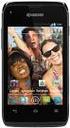 KYOCERA Event User Guide 2013 Kyocera Corporation. All rights reserved. The Virgin name and the Virgin signature logo are registered trademarks of Virgin Enterprises Limited and are used under license.
Table of Contents. Table of Contents i
 User Guide Table of Contents Get Started...1 Your Phone at a Glance... 1 Set Up Your Phone... 4 Insert a SIM Card... 4 Remove a SIM Card... 5 Insert and Charge the Battery... 6 Charge the Battery Wirelessly...
FMC VoIP. User Manual. OfficeServ 7000
 FMC VoIP User Manual OfficeServ 7000 COPYRIGHT This manual is proprietary to SAMSUNG Electronics Co., Ltd. and is protected by copyright. No information contained herein may be copied, translated, transcribed
User Guide. HUAWEI Ascend G 300. Welcome to HUAWEI
 User Guide HUAWEI Ascend G 300 Welcome to HUAWEI Contents 1 Read Before Proceeding...1 1.1 Safety Precautions... 1 1.2 Personal Information and Data Security... 2 1.3 Legal Notice... 3 2 Getting Started...5
User Guide C 12 M 100 Y 36 K 0
 User Guide Welcome to GreatCall! Thank you for choosing the Jitterbug Touch3. We ve made it easy for you to stay connected to friends and family with the simplicity of GreatCall. Additionally, our service
Point of View Mobii 925 - Android 4.2 Tablet PC. General notices for use... 2 Disclaimer... 2 Box Contents... 2
 Table of Contents General notices for use... 2 Disclaimer... 2 Box Contents... 2 1.0 Product basics... 3 1.1 Buttons and connections... 3 1.2 Start up and shut down... 3 2.0 Introduction to Google Android
Socialize Browse Photos & videos. Locate & navigate. Safety
 Moto X At a glance Start t Home screen & apps Control & customize Calls Contacts Messages Email Type Socialize Browse Photos & videos Music Books Games Locate & navigate Organize Connect & transfer Protect
User guide. Xperia M 1904/C1905
 User guide Xperia M 1904/C1905 Contents Getting started...6 Android what and why?...6 Overview...6 Assembly...7 Turning the device on and off...9 Locking and unlocking the screen...9 Setup guide...10 Accounts
Contents Getting started Personalizing Knowing the basics
 User Guide Some of the contents in this manual may differ from your phone depending on the software of the phone. Actual color may vary. Your phone is designed to make it easy for you to access a wide
RingCentral Office@Hand from AT&T Desktop App for Windows & Mac. User Guide
 RingCentral Office@Hand from AT&T Desktop App for Windows & Mac User Guide RingCentral Office@Hand from AT&T User Guide Table of Contents 2 Table of Contents 3 Welcome 4 Download and install the app 5
Google Apps Browse Photos & videos. Connect & transfer
 Moto G At a glance Start Home screen & apps Control & customize Calls Contacts Messages Email Type Google Apps Browse Photos & videos Music Locate & navigate Organize Connect & transfer Protect Want more?
Quick Start Guide: Iridium GO! Advanced Portal
 Quick Start Guide: Iridium GO! Advanced Portal Contents Set-Up... 3 Overview... 4 Main Tab 1: General... 5 Status.... 5 Settings... 8 Audio.... 8 GPS.... 9 Tab 2: Communication... 9 Wi-Fi... 9 Satellite...
ZTE Imperial User Manual
 ZTE Imperial User Manual 1 About This Manual Thank you for choosing this ZTE mobile device. In order to keep your device in its best condition, please read this manual and keep it for future reference.
Congratulations. DROID2 Global by Motorola. More
 USER GUIDE Congratulations DROID2 Global by Motorola Make calls from over 200 countries with DROID2 Global by Motorola. Your new smartphone has international roaming, so you can stay in touch wherever
BlackBerry Link for Windows. Version: 1.1.1. User Guide
 BlackBerry Link for Windows Version: 1.1.1 User Guide Published: 2013-07-22 SWD-20130722144723525 Contents Getting started...5 About BlackBerry Link... 5 Getting to know BlackBerry Link...5 Connecting
February 23, 2011 AUG-3.0-100 Android mobile technology platform 3.0. Android User s Guide
 1 Android 3.0 User s Guide February 23, 2011 Android mobile technology platform 3.0 2 Legal Copyright 2011 Google Inc. All rights reserved. Google, the stylized Google logo, Android, the stylized Android
Quick Start Guide. U.S. Cellular Customer Service 1-888-944-9400
 Quick Start Guide U.S. Cellular Customer Service 1-888-944-9400 2 LEGAL INFORMATION Copyright 2016 ZTE CORPORATION. All rights reserved. No part of this publication may be quoted, reproduced, translated
Congratulations MOTOROLA RAZR V. More
 EN Congratulations MOTOROLA RAZR V Introducing your new MOTOROLA RAZR V, the slim, fast, and intelligent phone. It has tons of advanced features for everything you want to do web browsing, multimedia,
USER MANUAL Z660G. www.zteusa.com
 USER MANUAL Z660G www.zteusa.com Table of Contents Copyright 2013 ZTE CORPORATION. All rights reserved. No part of this publication may be excerpted, reproduced, translated or utilized in any form or by
ZTE Blade III WCDMA/GSM Mobile Phone User Manual
 ZTE Blade III WCDMA/GSM Mobile Phone User Manual 1 LEGAL INFORMATION Copyright 2012 ZTE CORPORATION. All rights reserved. No part of this publication may be quoted, reproduced, translated or used in any
Verizon Wireless Family Locator 4.9 User Guide Contents
 Verizon Wireless Family Locator.9 User Guide Contents Let s get started... Sign up, then activate phones!... Use the Activation Wizard... Set Up an Android... Set Up a BlackBerry... 6 Set Up a Feature...
Get. Started. All you need to know to get going. Optik
 Get Started All you need to know to get going. Optik Welcome! Sprint is committed to developing technologies that give you the ability to get what you want when you want it, faster than ever before. This
MobileLite Wireless G2 5-in-1 Mobile Companion User Manual
 MobileLite Wireless G2 5-in-1 Mobile Companion User Manual Document No. 480-MLWG2-021315.A00 Kingston MobileLite Wireless Page 1 of 21 Table of Contents Introduction... 3 What s Included:... 3 Getting
Your HTC Velocity 4G User guide
 Your HTC Velocity 4G User guide 2 Contents Contents Getting started Inside the box 8 HTC Velocity 4G 8 Back cover 10 SIM card 12 Storage card 13 Battery 14 Switching the power on or off 16 Entering your
How To Use A T1 On A Iphone Or Ipad (Ios)
 User Guide 1 Welcome 1 2 Getting started 2 honor T1 at a Glance 2 Installation 2 Charging the battery 3 Important information about the battery 4 Your home screen at a glance 5 Notification and status
User Guide HUAWEI Ascend Y210
 User Guide HUAWEI Ascend Y210 Welcome to HUAWEI Contents 1 Read Before Proceeding...1 1.1 Safety Precautions... 1 1.2 Personal Information and Data Security... 2 1.3 Legal Notice... 3 2 Getting Started...6
BY MOTOROLA. User Guide
 BY MOTOROLA User Guide Congratulations DROID X by Motorola DROID X by Motorola gives you a high quality imaging, video, and multimedia sharing experience. View your photos and videos, YouTube videos,
Cable TV Quick Start Guide. Enjoy your Midco cable TV experience to the fullest with these helpful tips.
 Cable TV Quick Start Guide Enjoy your Midco cable TV experience to the fullest with these helpful tips. 1 Contents Equipment & Features.......................................................... 4 New Equipment
BlackBerry Z3 Smartphone. Version: 10.2.1. User Guide
 BlackBerry Z3 Smartphone Version: 10.2.1 User Guide Published: 2014-05-13 SWD-20140513160505469 Contents Setup and basics... 6 New in this release...6 Your device at a glance... 7 Introducing your BlackBerry