
User Guide HUAWEI Ascend Y210
|
|
|
- Kenneth McKenzie
- 9 years ago
- Views:
Transcription
1 User Guide HUAWEI Ascend Y210 Welcome to HUAWEI

2 Contents 1 Read Before Proceeding Safety Precautions Personal Information and Data Security Legal Notice Getting Started Key Functions at Your Fingertips Important Information About the Battery Power Saving Tips Power On or Off Your Mobile Phone Using the Touchscreen Locking and Unlocking the Screen Home Screen Application Screen Using a microsd Card Calling Making a Call Answering or Rejecting a Call Other Operations During a Call Using the Call log Using Airplane Mode Contacts Opening the Contacts Application Importing Contacts from a SIM Card Adding a Contact Adding a Contact to Your Favorites Searching for a Contact Editing a Contact Communicating with Your Contacts i

3 ii 4.8 Deleting a Contact Backing Up and Synchronizing Contacts Managing Groups Joining and Separating Contacts Sending Contacts Using the Onscreen Keyboard Displaying the Keyboard Customizing Keyboard Settings Messaging SMS and MMS Getting Connected Mobile Networks Wi-Fi Sharing Your Phone s Data Connection Browser Bluetooth Entertainment Taking Photos and Recording Videos Using the Gallery Enjoying Music Listening to the FM Radio Google Services Creating a Google Account Gmail Talk Maps YouTube Play Store... 49

4 10 Synchronizing Information Managing Your Accounts Customizing Your Account Synchronization Using Other Applications AppInstaller Calendar File Manager Clock Calculator Notepad Managing Your Mobile Phone Setting the Date and Time Setting the Display Setting Ringers Setting Phone Services Configuring Text-to-Speech Protecting Your Mobile Phone Managing Applications Resetting Your Mobile Phone Online Update FAQs...68 iii
5 1 Read Before Proceeding 1.1 Safety Precautions Please read the safety precautions carefully to ensure the correct use of your mobile phone. Do not crash, throw, or puncture your mobile phone. Avoid the falling, squeezing, and bending of your mobile phone. Do not use your mobile phone in a moist environment, such as the bathroom. Prevent your mobile phone from being soaked or washed in liquid. Do not switch on your mobile phone when it is prohibited to use phones or when the phone may cause interference or danger. Do not use your mobile phone while driving. Follow any rules or regulations in hospitals and health care facilities. Switch off your mobile phone near medical apparatus. Switch off your mobile phone in aircraft. The phone may cause interference to control equipment of the aircraft. Switch off your mobile phone near high-precision electronic devices. The phone may affect the performance of these devices. Do not attempt to disassemble your mobile phone or its accessories. Only qualified personnel are allowed to service or repair the phone. 1

6 Do not place your mobile phone or its accessories in containers with a strong electromagnetic field. Do not place magnetic storage media near your mobile phone. Radiation from the phone may erase the information stored on them. Do not put your mobile phone in a high-temperature place or use it in a place with flammable gas such as a gas station. Keep your mobile phone and its accessories away from children. Do not allow children to use your mobile phone without guidance. Use only approved batteries and chargers to avoid the risk of explosions. Observe any laws or regulations on the use of wireless devices. Respect others privacy and legal rights when using your wireless device. Strictly follow the relevant instructions of this manual while using the USB cable. Otherwise your mobile phone or PC may be damaged. 1.2 Personal Information and Data Security The use of some functions or third-party applications on your device could result in your personal information and data being lost or becoming accessible to others. Several measures are recommended to help you protect personal and confidential information. Place your device in a safe area to prevent it from unauthorized use. Set your device screen to lock and create a password or unlock pattern to open it. 2

7 Periodically back up personal information kept on your SIM/UIM card, memory card, or stored in your device memory. If you change to a different device, be sure to move or delete any personal information on your old device. If you are worried about viruses when you receive messages or s from a stranger, you can delete them without opening them. If you use your device to browse the Internet, avoid websites that might pose a security risk to avoid theft of your personal information. If you use services such as Wi-Fi tether or Bluetooth, set passwords for these services to prevent unauthorized access. When these services are not in use, turn them off. Install or upgrade device security software and regularly scan for viruses. Be sure to obtain third-party applications from a legitimate source. Downloaded third-party applications should be scanned for viruses. Install security software or patches released by Huawei or third-party application providers. Some applications require and transmit location information. As a result, a thirdparty may be able to share your location information. Your device may provide detection and diagnostic information to third-party application providers. Third party vendors use this information to improve their products and services. If you have concerns about the security of your personal information and data, please contact [email protected]. 1.3 Legal Notice Copyright Huawei Technologies Co., Ltd All rights reserved. No part of this document may be reproduced or transmitted in any form or by any means without prior written consent of Huawei Technologies Co., Ltd. The product described in this manual may include copyrighted software of Huawei Technologies Co., Ltd. and possible licensors. Customers shall not in any manner reproduce, distribute, modify, decompile, disassemble, decrypt, extract, reverse engineer, lease, assign, or sublicense the said software, unless such restrictions are prohibited by applicable laws or such actions are approved by respective copyright holders. 3

8 Trademarks and Permissions,, and are trademarks or registered trademarks of Huawei Technologies Co., Ltd. Android is a trademark of Google Inc. The Bluetooth word mark and logos are registered trademarks owned by Bluetooth SIG, Inc. and any use of such marks by Huawei Technologies Co., Ltd. is under license. Other trademarks, product, service and company names mentioned are the property of their respective owners. Notice Some features of the product and its accessories described herein rely on the software installed, capacities and settings of local network, and therefore may not be activated or may be limited by local network operators or network service providers. Thus the descriptions herein may not match exactly the product or its accessories you purchase. Huawei Technologies Co., Ltd. reserves the right to change or modify any information or specifications contained in this manual without prior notice and without any liability. Third-Party Software Statement Huawei Technologies Co., Ltd. does not own the intellectual property of the third-party software and applications that are delivered with this product. Therefore, Huawei Technologies Co., Ltd. will not provide any warranty of any kind for these third-party software and applications. Neither will Huawei Technologies Co., Ltd. provide support to customers who use these third-party software and applications, nor be responsible or liable for the functions of these third-party software and applications. Third-party software and applications services may be interrupted or terminated at any time. Huawei Technologies Co., Ltd. does not guarantee that any content or service would be maintained for any period during its availability. Third-party service providers provide content and services through network or transmission tools outside of the control of Huawei Technologies Co., Ltd. To the greatest extent permitted by applicable law, it is explicitly stated that Huawei Technologies Co., Ltd. shall not compensate or be liable for services provided by third-party service providers, or the interruption or termination of third-party contents or services. Huawei Technologies Co., Ltd. shall not be responsible for the legality, quality, or any other aspects of any software installed on this product, or for any uploaded or downloaded third-party works, such as texts, images, videos, or software. Customers 4

9 shall bear the risk for any and all effects, including incompatibility between the software and this product, which result from installing software or uploading or downloading the third-party works. This product uses the open-source Android platform. Huawei Technologies Co., Ltd. has made necessary changes to the platform. Therefore, this product may not support all the functions that are supported by the standard Android platform or may be incompatible with third-party software. Huawei Technologies Co., Ltd. shall not be liable for any of such situation. DISCLAIMER OF WARRANTIES THE CONTENTS OF THIS MANUAL ARE PROVIDED "AS IS". EXCEPT AS REQUIRED BY APPLICABLE LAWS, NO WARRANTIES OF ANY KIND, EITHER EXPRESS OR IMPLIED, INCLUDING BUT NOT LIMITED TO, THE IMPLIED WARRANTIES OF MERCHANTABILITY AND FITNESS FOR A PARTICULAR PURPOSE, ARE MADE IN RELATION TO THE ACCURACY, RELIABILITY OR CONTENTS OF THIS MANUAL. LIMITATIONS OF LIABILITY TO THE MAXIMUM EXTENT PERMITTED BY APPLICABLE LAW, IN NO EVENT SHALL HUAWEI TECHNOLOGIES CO., LTD. BE LIABLE FOR ANY SPECIAL, INCIDENTAL, INDIRECT, OR CONSEQUENTIAL DAMAGES, OR LOST PROFITS, BUSINESS, REVENUE, DATA, GOODWILL OR ANTICIPATED SAVINGS. THE MAXIMUM LIABILITY (THIS LIMITATION SHALL NOT APPLY TO LIABILITY FOR PERSONAL INJURY TO THE EXTENT APPLICABLE LAW PROHIBITS SUCH A LIMITATION) OF HUAWEI TECHNOLOGIES CO., LTD. ARISING FROM THE USE OF THE PRODUCT DESCRIBED IN THIS DOCUMENT SHALL BE LIMITED TO THE AMOUNT PAID BY CUSTOMERS FOR THE PURCHASE OF THIS PRODUCT. Import and Export Regulations Customers shall comply with all applicable export or import laws and regulations and be responsible to obtain all necessary governmental permits and licenses in order to export, re-export or import the product mentioned in this manual including the software and technical data therein. 5

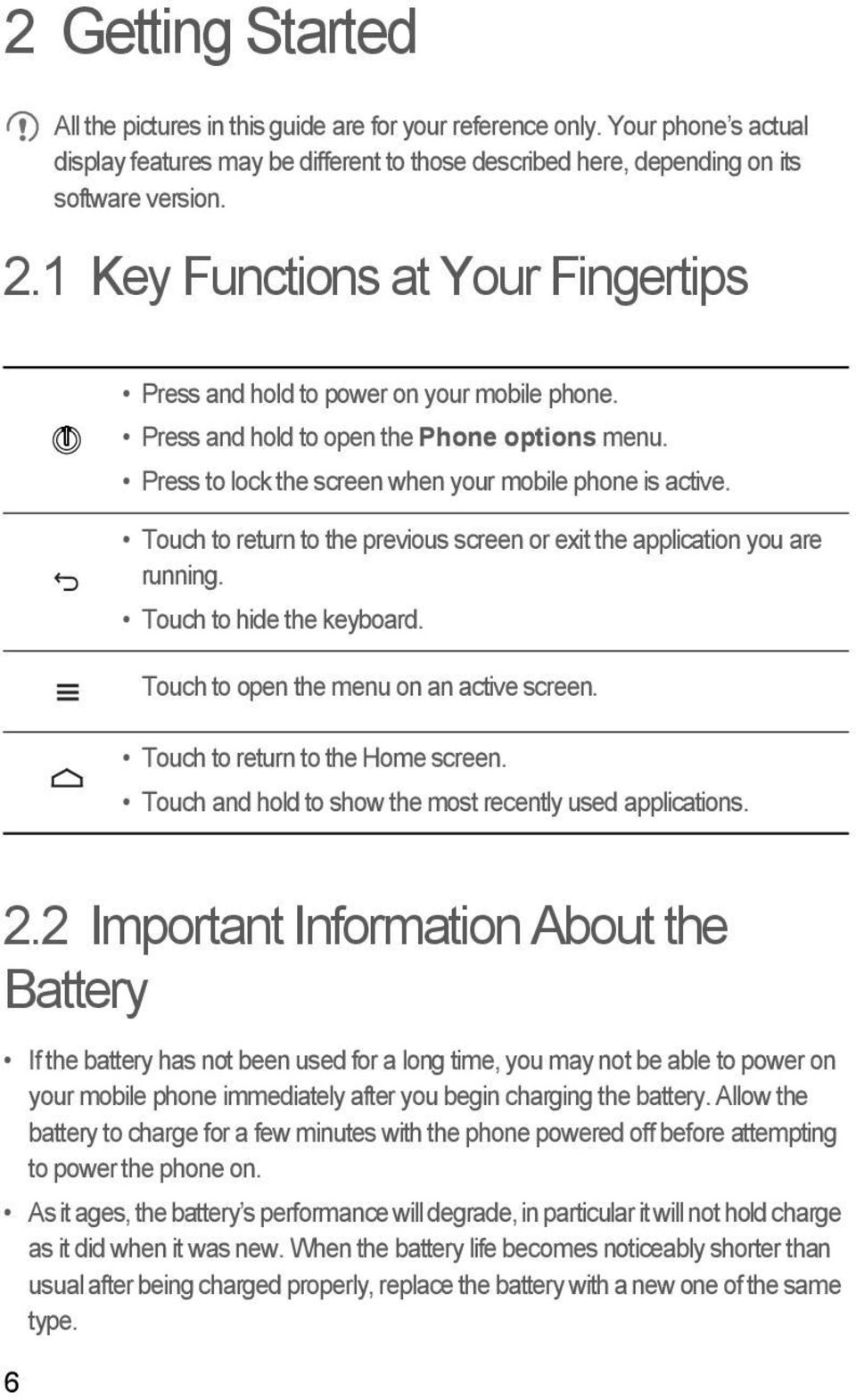
10 2 Getting Started All the pictures in this guide are for your reference only. Your phone s actual display features may be different to those described here, depending on its software version. 2.1 Key Functions at Your Fingertips Press and hold to power on your mobile phone. Press and hold to open the Phone options menu. Press to lock the screen when your mobile phone is active. Touch to return to the previous screen or exit the application you are running. Touch to hide the keyboard. Touch to open the menu on an active screen. Touch to return to the Home screen. Touch and hold to show the most recently used applications. 2.2 Important Information About the Battery If the battery has not been used for a long time, you may not be able to power on your mobile phone immediately after you begin charging the battery. Allow the battery to charge for a few minutes with the phone powered off before attempting to power the phone on. As it ages, the battery s performance will degrade, in particular it will not hold charge as it did when it was new. When the battery life becomes noticeably shorter than usual after being charged properly, replace the battery with a new one of the same type. 6
11 Using data services increases the power consumption of the phone and will therefore reduce the length of time that the phone can be used between battery charges. The time required to fully charge the battery depends on the ambient temperature and the age of the battery. When the battery power is low, the phone will alert you and display a message. When the battery power is almost exhausted, your phone will power off automatically. 2.3 Power Saving Tips The longevity of battery power depends on the network to which you connect, and how you use your mobile phone. Try the following to conserve battery power: When you do not need 3G services, set your phone to connect to a 2G network. When your mobile phone is not in use, turn off the screen backlight. Reduce the time it takes for your screen backlight to turn off when your phone is idle. Lower the screen brightness. Turn off Bluetooth when you are not using it. Only make your phone visible to other Bluetooth devices when you need to establish a Bluetooth connection. Turn off Wi-Fi when you are not using it. Turn off your phone s GPS receiver when you are not using it. Lower the volume. Close power-draining programs, when you do not need them. Turn off the data service. 7
12 2.4 Power On or Off Your Mobile Phone Powering On Your Mobile Phone Press and hold. The first time you power on your phone, you will be asked to sign in to your account and set up your mobile phone. If personal identification number (PIN) protection is enabled on your mobile phone, you must enter your PIN before using the mobile phone Setting Up Your Mobile Phone The first time you power on your mobile phone, the phone displays a setup wizard to help you set up the phone. The setup wizard helps you: Create or sign in to your account Make some initial decisions about how you want to use your mobile phone Powering Off Your Mobile Phone 1. Press and hold to open the Phone options menu. 2. Touch Power off. If Fast boot is enabled, the phone will enter the deep sleep mode. If Fast boot is disabled, touch OK to shut down the phone Turning On Fast Boot 1. Touch > Settings > Applications. 2. Select the Fast boot check box. Do not turn on Fast boot while on an airplane Restarting Your Mobile Phone 1. Press and hold to open the Phone options menu. 2. Touch Restart. 3. Touch OK. 8

13 2.5 Using the Touchscreen Touchscreen Actions Touch: Tap the screen with your finger to select an item, confirm a selection, or start an application. Touch and hold: Touch an item with your finger and do not release it until the mobile phone responds. For example, to open the options menu for the active screen, touch and hold the screen until the menu appears. Flick: Move your finger either vertically or horizontally across the screen. Drag: Touch and hold the desired item with your finger. To move an item, drag the item to any part of the screen. You can drag an icon to move or delete it Rotating Your Mobile Phone Screen The orientation of most screens will change to landscape or portrait view when you rotate your phone sideways. On the Home screen, touch to disable this function. > Settings > Display > Auto-rotate screen 2.6 Locking and Unlocking the Screen Locking the Screen When your phone is on, press to lock the screen. When the screen is locked, you can still receive messages and calls. If your phone is idle for a while, the screen will lock automatically. 9

14 2.6.2 Unlocking the Screen 1. Press to wake up the screen. 2. Drag the lock icon from left to right to unlock the screen. If you have set up a screen unlock pattern, you will be prompted to draw the pattern on the screen to unlock it. 2.7 Home Screen 10:23 Notification bar: Displays reminders and phone status icons. Flick down to open the notification panel. Display area: Main display area of the phone. 10 Shortcuts Touch to view all your applications. Touch and hold a shortcut until the mobile phone vibrates, you can then drag it to your desired location or move it to the trash. You can also drag an icon from another area of the screen to the shortcut position.

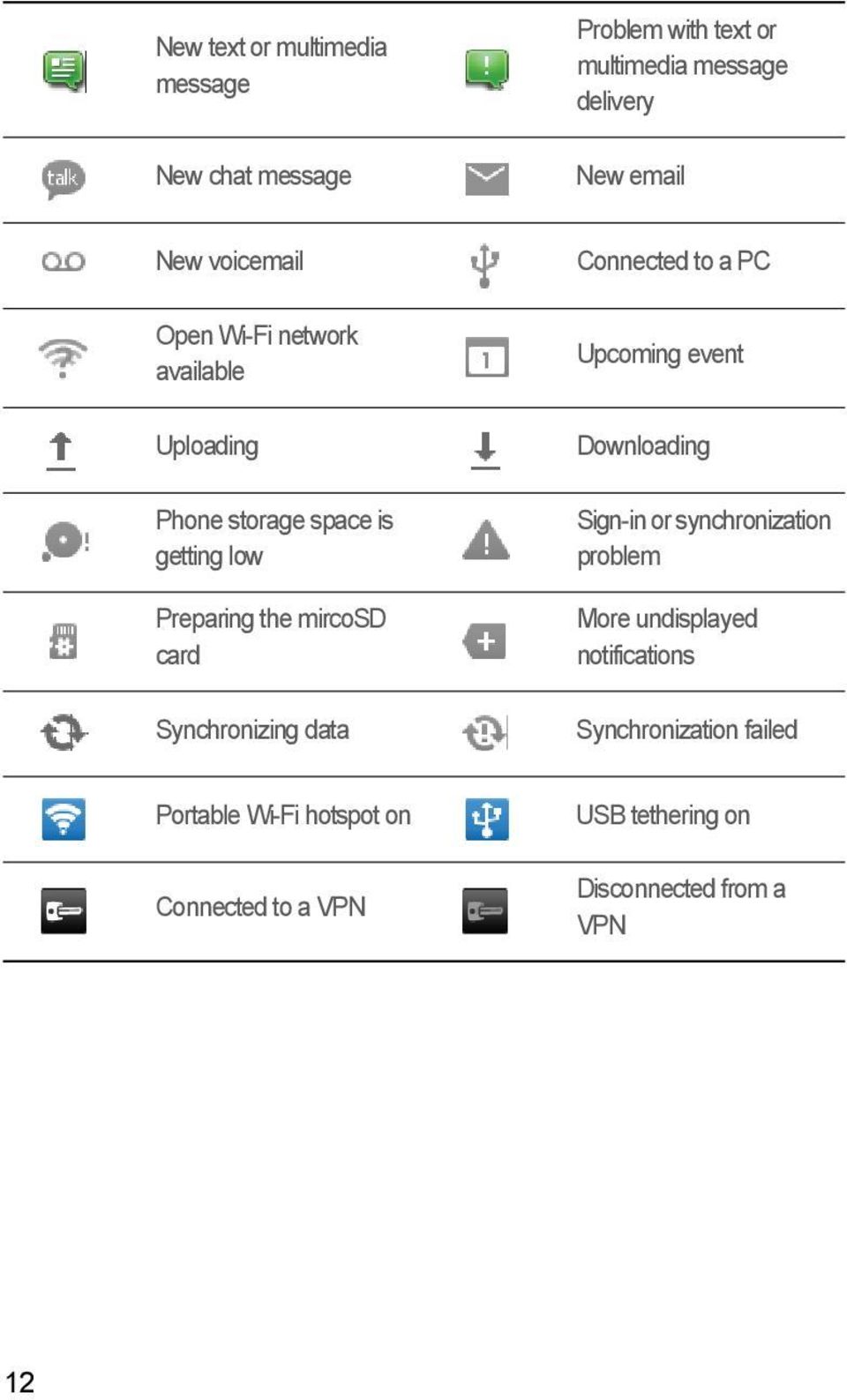
15 2.7.1 Notification and Status Icons Signal strength Connected to GPRS mobile network Connected to EDGE mobile network Connected to 3G mobile network Connected to HSPA mobile network Roaming Bluetooth on Speakerphone on No signal GPRS in use EDGE in use 3G in use HSPA in use Airplane mode Receiving location data from GPS Alarm enabled Vibration mode Ringer silenced Call muted Charging battery Battery full Battery extremely low Call in progress Call in progress with a Bluetooth headset used Missed call New mail from Gmail 11
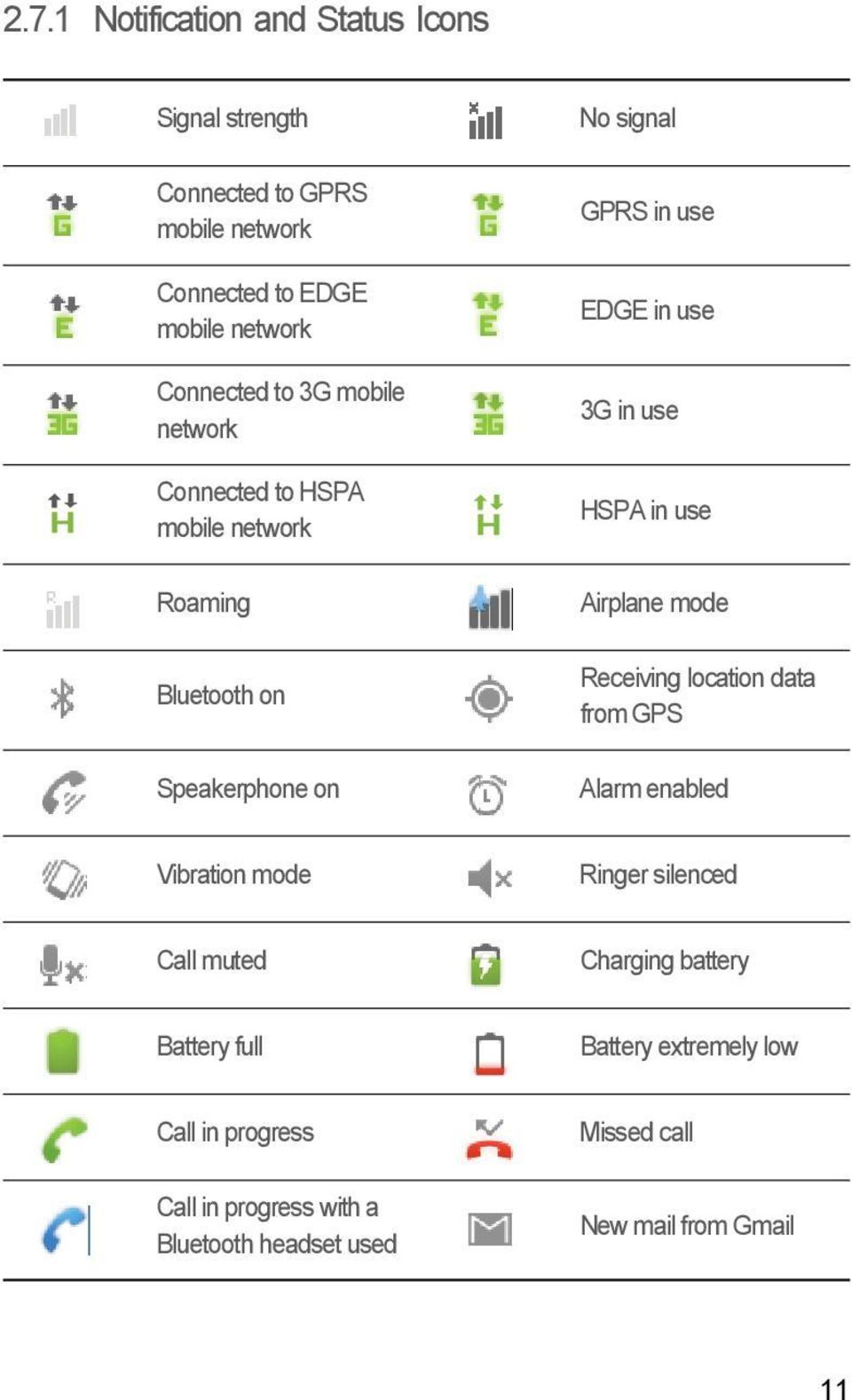
16 New text or multimedia message New chat message Problem with text or multimedia message delivery New New voic Open Wi-Fi network available Uploading Phone storage space is getting low Preparing the mircosd card Synchronizing data Connected to a PC Upcoming event Downloading Sign-in or synchronization problem More undisplayed notifications Synchronization failed Portable Wi-Fi hotspot on Connected to a VPN USB tethering on Disconnected from a VPN 12
17 2.7.2 Notification Panel Your mobile phone will notify you when you receive a new message or there is an upcoming event. The notification panel also informs you of alarms and settings. Open the notification panel to see your network operator or to view a message, reminder, or event notification. Opening the Notification Panel 1. When a new notification icon appears on the notification bar, place your finger on the notification bar and flick down to open the notification panel. You can also open the notification panel from the Home screen: Touch > Notifications to open the panel. 2. On the panel, you can: Touch a notification to open the related application. Touch Clear to clear all notifications. Closing the Notification Panel Touch and hold the bottom of the panel. Then flick up to close it Viewing Other Parts of the Home Screen 10:23 10:23 Flick your finger left or right across the Home screen. Touch to view thumbnails of the Home screen and its extensions. Touch a thumbnail to open the screen. 13

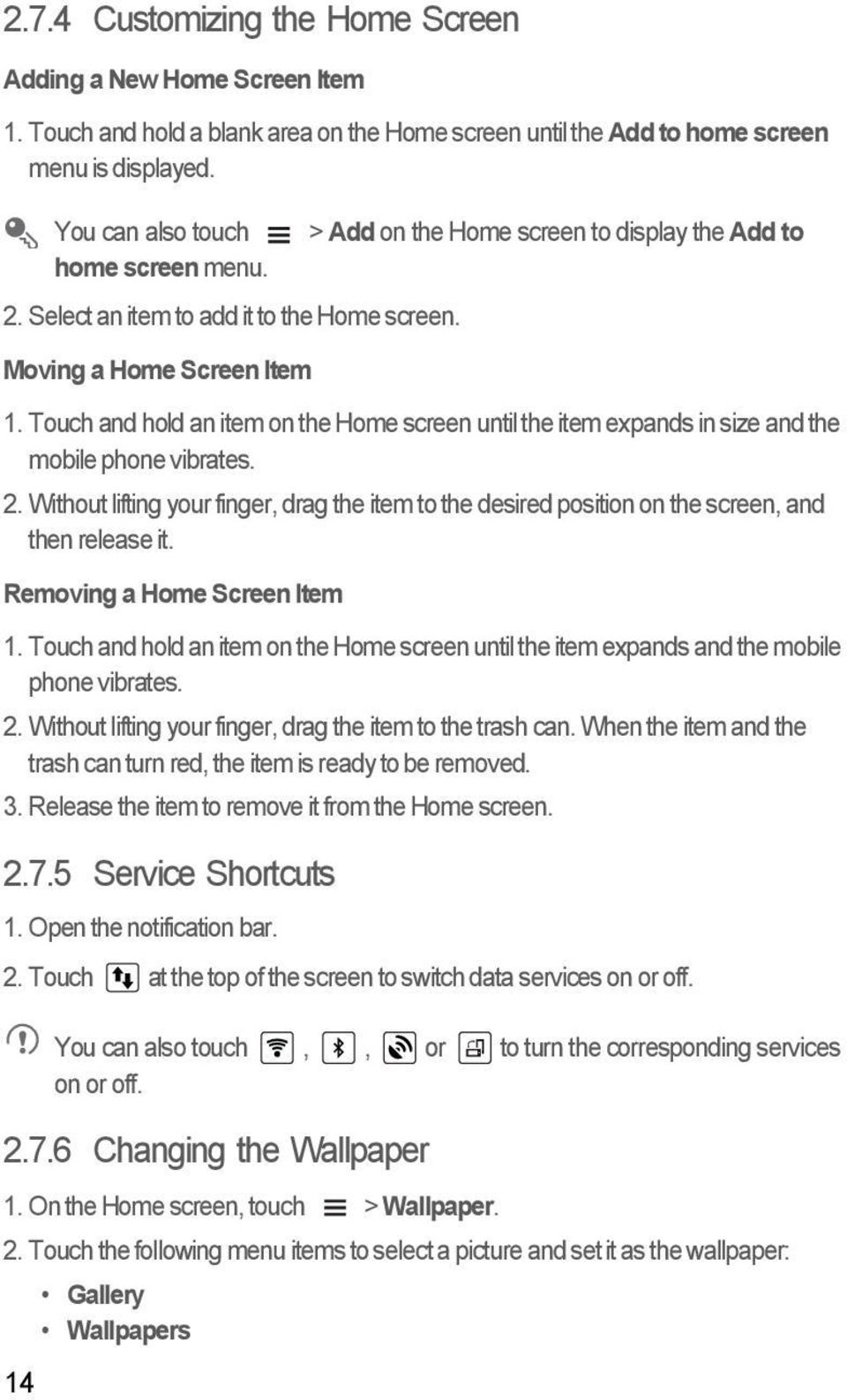
18 2.7.4 Customizing the Home Screen Adding a New Home Screen Item 1. Touch and hold a blank area on the Home screen until the Add to home screen menu is displayed. You can also touch > Add on the Home screen to display the Add to home screen menu. 2. Select an item to add it to the Home screen. Moving a Home Screen Item 1. Touch and hold an item on the Home screen until the item expands in size and the mobile phone vibrates. 2. Without lifting your finger, drag the item to the desired position on the screen, and then release it. Removing a Home Screen Item 1. Touch and hold an item on the Home screen until the item expands and the mobile phone vibrates. 2. Without lifting your finger, drag the item to the trash can. When the item and the trash can turn red, the item is ready to be removed. 3. Release the item to remove it from the Home screen Service Shortcuts 1. Open the notification bar. 2. Touch at the top of the screen to switch data services on or off. 14 You can also touch,, or to turn the corresponding services on or off Changing the Wallpaper 1. On the Home screen, touch > Wallpaper. 2. Touch the following menu items to select a picture and set it as the wallpaper: Gallery Wallpapers
19 2.8 Application Screen The Application screen holds icons for all of the applications on your phone. You can touch on the Home screen to open the application screen Moving Icons on the Application Screen 1. On the application screen, touch. 2. Touch and hold the icon you want to move on the application screen. 3. Without lifting your finger, drag the icon to the desired location, and then release it. To move more icons, repeat steps 2 and Touch or to save. 2.9 Using a microsd Card Using the microsd Card as a USB Mass Storage To transfer all your favorite music and pictures from your PC to your mobile phone s microsd card, set the microsd card as a USB mass storage. 1. Connect your mobile phone to your PC with the USB cable provided. Your PC will detect the microsd card as a removable storage device. 2. Open the notification bar, and then touch USB connected. 3. Touch Turn on USB storage in the dialog box that opens to confirm that you want to transfer files. You can now transfer files from your PC to your mobile phone s microsd card. When your microsd card acts as a USB mass storage, your mobile phone will not use this memory space. Ensure that you follow the correct procedures to disconnect the USB mass storage device (your mobile phone) from the PC when you have finished transferring files Removing the microsd Card 1. On the Home screen, touch > Settings. 2. Scroll down the screen, and then touch Storage > Unmount SD card. 3. Carefully remove the microsd card. 15

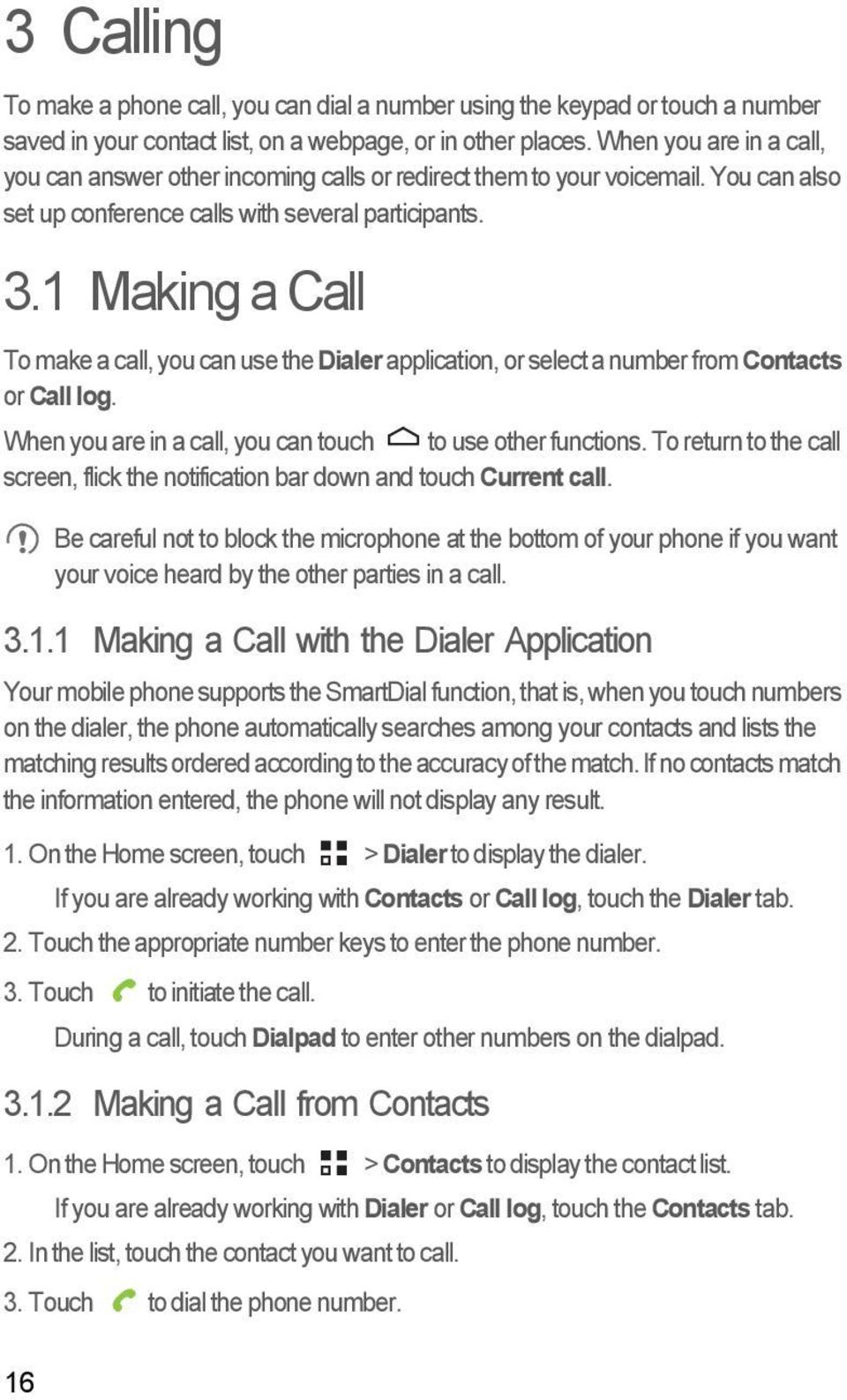
20 3 Calling To make a phone call, you can dial a number using the keypad or touch a number saved in your contact list, on a webpage, or in other places. When you are in a call, you can answer other incoming calls or redirect them to your voic . You can also set up conference calls with several participants. 3.1 Making a Call To make a call, you can use the Dialer application, or select a number from Contacts or Call log. When you are in a call, you can touch to use other functions. To return to the call screen, flick the notification bar down and touch Current call. Be careful not to block the microphone at the bottom of your phone if you want your voice heard by the other parties in a call Making a Call with the Dialer Application Your mobile phone supports the SmartDial function, that is, when you touch numbers on the dialer, the phone automatically searches among your contacts and lists the matching results ordered according to the accuracy of the match. If no contacts match the information entered, the phone will not display any result. 1. On the Home screen, touch > Dialer to display the dialer. If you are already working with Contacts or Call log, touch the Dialer tab. 2. Touch the appropriate number keys to enter the phone number. 3. Touch to initiate the call. During a call, touch Dialpad to enter other numbers on the dialpad Making a Call from Contacts 1. On the Home screen, touch > Contacts to display the contact list. If you are already working with Dialer or Call log, touch the Contacts tab. 2. In the list, touch the contact you want to call. 3. Touch to dial the phone number. 16
21 3.1.3 Making a Call from Call log 1. On the Home screen, touch > Call log to display the call log. If you are already working with Contacts or Dialer, touch the Call log tab. 2. Touch to the right of the log entry to dial. If you touch and hold a log entry, the options menu will open. 3.2 Answering or Rejecting a Call Answering an Incoming Call When you receive a phone call, the incoming call screen opens. If you have previously saved the caller s number in Contacts, the caller's name and number are displayed. If the caller s number is not saved in Contacts, the caller s number is displayed. Drag to the right to answer the call Ending a Call During a call, touch End to hang up. 17
22 3.2.3 Rejecting an Incoming Call Drag to the left to reject the call. 18 You can also drag up the bar at the bottom of the screen to reject a call and send the caller a message. 3.3 Other Operations During a Call Making a Conference Call If you receive a new call while you are already in a call, you can add the second call to the call you are in. This feature is known as conference calling. You can also set up a conference call with multiple callers. Contact your network operator to ask if conference calls are supported and, if yes, how many parties can participate. 1. To initiate a conference call, dial the number of the first participant. After you have connected to the first participant, keep the connection open, touch Add call. 2. Enter the phone number of the next person you want to invite for the conversation and touch, or select someone from your Call log or Contacts. The first participant is automatically placed on hold while you do this. 3. Once you have connected to the second person, touch Merge calls to begin the conference call. 4. To end the conference call and disconnect from everyone, touch End.
23 3.3.2 Switching Between Calls If you receive a new call while you are already in a call, you can switch between the two calls. 1. While you are in the first call and the second call comes in, answer the incoming call, and then touch Swap. 2. The current call is placed on hold and you are connected to the first call. 3.4 Using the Call log The Call log contains a list of calls that you have dialed, received, and missed. You can use the call log to find a recently called number quickly or add a number from the call log to your contact list Adding an Entry to Contacts 1. If you are already working with Dialer or Contacts, touch the Call log tab. 2. Touch and hold the entry you want to add to your Contacts. 3. Touch Add to contacts in the options menu. 4. Touch Create contact or scroll through the contact list and touch an existing contact name. 3.5 Using Airplane Mode Some locations may require you to turn off your phone s wireless connections. Rather than powering off your phone, you can place it in Airplane mode. 1. Press and hold. 2. Touch Airplane mode in the options menu. 4 Contacts The Contacts application enables you to save and manage information such as phone numbers and addresses of your contacts. After you save contact information on your mobile phone, you have easy access to the people with whom you want to communicate. 19
24 4.1 Opening the Contacts Application If you have not yet added any contacts to your mobile phone, Contacts displays a message with hints on how to start adding contacts information. On the Home screen, touch > Contacts to open the Contacts application. All of your contacts are displayed alphabetically in a list that you can scroll through. 4.2 Importing Contacts from a SIM Card 1. In the contact list, touch > Manage contacts. 2. Touch Copy from SIM card. 3. Wait for the SIM card contents to be loaded. Select the contacts you want to import or touch Select All to select all contacts. 4. Touch Copy. 5. If you have more than one account on your phone, touch the account into which you want to import the contacts. 4.3 Adding a Contact 1. In the contact list, touch > Create contact. 2. If you have more than one account with contacts, touch the account to which you want to add the contact. 3. Enter the contact's name, and then add detailed information such as phone number and address. 4. When you are finished, touch Save to save the contact information. 4.4 Adding a Contact to Your Favorites Touch and hold the contact you want to add to Favorites. Then touch Add to Favorites. Touch a contact, and then touch the star to the right of the contact s name. The star turns gold. 20
25 4.5 Searching for a Contact 1. In the contact list, touch > Search. 2. Enter the name of the contact you wish to search for. As you type, contacts with matching names appear below the search box. On the contact list screen, you can touch a letter on the right to display contacts starting with the touched letter. 4.6 Editing a Contact You can make changes to the information you have stored for a contact at any time. 1. In the contacts list, touch and hold the contact whose details you want to edit, and then touch Edit contact in the options menu. 2. Touch the category of contact information you wish to change: name, phone number, address, or any other information you recorded earlier. 3. Make the desired changes to the contact information, and then touch Save. To cancel all of your changes, touch Cancel. 4.7 Communicating with Your Contacts From the Contacts or Favorites tab, you can quickly call or send a text (SMS) or multimedia (MMS) message to a contact s default phone number. You can also open details to view a list of all the ways you can communicate with that contact. This section describes how to communicate with a contact when you view your contacts list Using Quick Contact for Android 1. Touch the contact's picture or picture frame (if you have not assigned a picture to the contact) to open Quick Contact for Android. 2. Touch the icon for the way you want to communicate with the contact. The icons available depend on the information you have entered for the contact, the applications installed on your phone, and the accounts you have. 21
26 4.7.2 Communicating with a Contact 1. In the contacts list, touch the contact that you want to communicate with. 2. On the contact s details screen, touch the icon to the right of the number to call or send messages. 4.8 Deleting a Contact 1. In the contacts list, touch and hold the contact that you want to delete, and then touch Delete contact in the options menu. 2. Touch OK to confirm that you want to delete the contact. 4.9 Backing Up and Synchronizing Contacts You can back up contacts from your phone to a microsd card, or synchronize phone contacts with a server using your Google account Using a microsd Card to Back Up Contacts Backing Up Contacts 1. In the contact list, touch > Manage contacts. 2. Touch Backup to SD card in the displayed menu. 3. Touch OK to export your phone contact's information to the installed microsd card. You can copy the.vcf files backed up on the microsd card to your computer. The files are stored in the microsd card's Contact folder. Restoring Contacts 1. In the contact list, touch > Manage contacts. 2. Touch Restore from SD card in the displayed menu. If there is more than one.vcf files saved on the microsd card, you can choose to restore one, multiple, or all the of them. 22
27 4.9.2 Using a Google Account to Synchronize Contacts You can synchronize contacts using your Google account. For details, see Changing an Account s Synchronization Settings Managing Groups Creating a Group 1. On the Home screen, touch > Contacts. Then flick the tab bar to the left and touch Groups. 2. In the groups list, touch, and then touch Create group. 3. Enter the name and picture you want to assign to the group, and then set a ringtone for it. 4. Touch > Add Members to add members to the group. 5. Select the contacts to be added to the group, and then touch OK. 6. When you are finished, touch Save to save the group information. You can only add contacts saved in the phone memory to a group Editing a Group You can always make changes to the information you have saved for a group. 1. In the groups list, touch and hold the group whose details you want to edit, and then touch Edit group in the options menu. 2. Make the desired changes to the group information, and then touch Save. To cancel all changes you made to the group information, touch Cancel Adding a Contact to Your Groups To add a contact to your groups, you can do any of the following: Touch and hold the contact you want to add to Groups. Then touch Add to groups. When editing a group, touch, and then touch Add Members to select the contacts you want to add to group. You can add contacts in phone memory rather than in SIM/UIM card to a group. 23
28 4.11 Joining and Separating Contacts You may have duplicate contacts if you import contacts by: Adding an account, such as a Gmail account. Using other methods, such as exchanging s. To avoid duplication, join two or more contacts together to form a single contact Joining Contacts 1. On the Home screen, touch > Contacts. 2. Touch a duplicated contact. 3. Touch Joined Contacts, and then touch Add contact. 4. Select the contact to be joined to combine two duplicate contacts. Two contacts will be joined together and displayed as one contact. Touch the contact to view the joined information. You can see that the contact is joined together by two contacts. You can also combine more than two contacts Separating Contacts If contact information from different sources was joined together in error, you can separate the contacts. 1. On the Home screen, touch > Contacts. 2. Touch the joint contact to be separated. 3. Touch the option for separating a contact. 4. Select the contact to be separated from the joint contact. The joint contact is then separated into two contacts displayed separately in Contacts. 24
29 4.12 Sending Contacts You can send contacts as a.vcf file via Bluetooth or In the contacts list, touch. 2. Select contacts that you want to send. 3. Touch Send. 4. Select the way you prefer to send the contacts you have selected, for example Bluetooth or . You can send one contact by another way. Touch and hold a contact, touch Send contact, and then select the way you prefer to send. 5 Using the Onscreen Keyboard 5.1 Displaying the Keyboard To enter text, use the onscreen keyboard. Some applications open the keyboard automatically. In others, touch a text field to open the keyboard. Touch to hide the keyboard. Touch and hold a text field to open the Edit text menu Choosing an Input Method 1. Touch and hold a text field until the Edit text menu is displayed. 2. Touch Select input method. 3. Select the input method. 25
30 5.1.2 Using the Android Keyboard 1 q 2 w 3 e 4 r 5 t 6 y 7 u i 9 o 0 p 8 a s d f g h j k l z x c v b n m? :-)... Touch to insert a space.... Touch to delete a character to the left of the cursor. Touch and hold to delete all characters to the left of the cursor. Touch to change from the text mode to the symbol/number mode. Touch once to capitalize the next letter you type. Touch twice to capitalize all letters to be entered. The keyboard layout may vary slightly depending on the field where you are entering text. The previous figure is provided for your reference only. On the Home screen, touch > Settings > Language & keyboard > Android keyboard > Voice input to turn on or turn off voice input Using the Landscape Keyboard If you find the keyboard inconvenient or difficult to use, turn your mobile phone sideways. The screen will display the keyboard in landscape orientation, providing you with a wider keyboard layout. 5.2 Customizing Keyboard Settings 1. On the Home screen, touch > Settings > Language & keyboard. 2. In Keyboard settings, select an input method to customize the keyboard settings. 26
31 6 Messaging The Messaging application allows you to exchange text messages (SMS) and multimedia messages (MMS) with anyone using an SMS-or-MMS-capable phone. With the application you can read and send s. 6.1 SMS and MMS Opening Messaging Touch > Messaging Creating and Sending a Text Message 1. Touch > Messaging > New message. 2. Enter a phone number or a contact's name in the To field, or touch to select a contact from Contacts or Groups. As you enter the phone number or the contact's name, the phone displays possible matches from your contacts. Select a contact from the list of possible matches or continue entering. After you select a contact or finish entering a number, add a comma and you can enter another recipient. You can also touch a previously entered contact again to edit or delete it. 3. Touch the composition text box to start entering your message. 4. When you are ready to send the message, touch. Sent and received messages will be displayed in a message thread, grouping together the messages in a conversation. 27
32 6.1.3 Creating and Sending a Multimedia Message You can use multimedia messages to make everyday communications very special. You can record a message and send it as an audio file, sing 'Happy Birthday' and send it to friend, or send a slideshow of photographs of a special event. The possibilities are endless. 1. Touch > Messaging > New message. 2. Enter a phone number in the To field, or touch to select a contact from Contacts or Groups. 3. Touch the composition text box to start entering your message. 4. Touch to display the options panel. Touch Add subject to add the message subject. Your mobile phone is now in multimedia message mode. Touch Add to add a picture, music, or video file. 5. When the message is ready to be sent, touch. On the message editing screen, you can also touch desired files to add., and then select your You can select a media file (music, video or picture) and send it as an attachment in a multimedia message. In File Manager, touch and hold a media file, and then touch Share > Messaging. Adding a Slideshow If you want to attach more than one file to your message, use the Slideshow option. 1. On the message editing screen, touch to display the options panel. 2. Touch Add > Slideshow, and then select a slide to start editing it. 3. Touch and then touch More > Add slide to add more slides. 4. Touch Done to finish composing your message and return to the multimedia message screen. 5. To alter your multimedia message, touch the slideshow on the multimedia message screen. When the message is ready to be sent, touch Send. 28
33 6.1.4 Opening and Viewing a Multimedia Message 1. In the message list, touch the message thread you wish to view. 2. Touch the multimedia message to view the message Replying to a Message 1. In the message list, touch a text or multimedia message thread to open it. 2. Touch the text box to compose your message. Once finished, touch. You can also do the following to reply to a message: Touch select one or more message threads, and touch Reply. > Multiselect, Copying a Text Message to Notepad or Calendar 1. In the message list, touch a text message thread to open it. 2. Touch and hold one of the messages, and then touch Copy message to. 3. Touch Notepad or Calendar to save it as a note or an event. For information about how to use Notepad or Calendar, see the relevant sections of this guide Customizing Message Settings In the message list, touch settings., and then touch Settings to customize the message 29
34 6.2 Your mobile phone also puts at your fingertips. With your phone s application, you can use your account with Yahoo!, AOL, or other popular services on your phone Adding an Account When using the application for the first time, you must configure an account. The setup wizard helps you to configure your account. A number of popular systems are supported. You can work with the same service that you use on your PC or you can select another service. 1. On the Home screen, touch > In the system list, select a system, or select Others. 3. To customize your settings, follow the onscreen instructions, and then touch Next. 4. Enter the account name and the name you want other people to see when they receive an from you. 5. Touch Done. Adding Other Accounts 1. After creating your initial account, touch on the Inbox screen, and then touch More > Accounts to access the accounts screen. 2. Touch on the accounts screen, and then touch Add account to create another account. When adding an additional account, you have the option to use the new account to send all outgoing messages Viewing an Message 1. On the accounts screen, touch the account you want to use. 2. Access a folder, and then touch the message that you want to view. 30
35 6.2.3 Saving an Attachment 1. On the accounts screen, touch the account you want to use. 2. Touch the message you want to view. 3. Touch Save next to the attachment in the Select a path for saving the attachment and touch Save Creating and Sending an Message 1. On the accounts screen, touch the account you want to use. 2. On the Inbox screen, touch, and then touch Compose in the options panel. 3. In the To field, enter the recipients name or address. 4. Enter the subject of your message and compose the message. To send an attachment with the message, touch, and then touch Add attachment. 5. When you are finished, touch Send. If you are not ready to send the message, touch Save as draft or touch to save the message as a draft Replying to an Message 1. On the accounts screen, touch the account you want to use. 2. Touch the message to which you want to reply. 3. Touch Reply or Reply all to reply to the message Deleting an Account 1. On the accounts screen, touch and hold the account you want to delete. 2. Touch Remove account. 3. Touch OK. 31
36 6.2.7 Changing Account Settings You can change a number of account settings, including how often you check for s, how you are notified of a new mail, and details about the servers the account uses to send and receive mails. Your account s incoming and outgoing settings depend on the kind of service you are using. You can enter the necessary details manually, although you may need to contact your service provider to obtain the correct information. 1. Touch > On the accounts screen, touch and hold the account you want to change. 3. Touch Account settings. 4. Change General settings, Notification settings, or Server settings. 7 Getting Connected 7.1 Mobile Networks Your mobile phone will be automatically configured to use your network operator s 2G/3G service (if available) when you turn on the phone for the first time. Note that the SIM/UIM card must be inserted (some CDMA mobile phones have an integrated UIM card and do not need a separate UIM card) Checking the Network Connection 1. Touch > Settings. 2. Touch Wireless & networks > Mobile networks > Network Settings. 3. Touch Network operators or Access Point Names to check the network connection. Your mobile phone will automatically read the access point settings from the SIM/UIM card (if any). For this reason, do not change the access point parameters; otherwise, you might not be able to access network resources. 32
37 7.1.2 Turning on the Data Service 1. Touch > Settings. 2. Touch Wireless & networks > Mobile networks. 3. Select the Data enabled check box to turn on the data connection. 7.2 Wi-Fi Wi-Fi gives you wireless access to broadband Internet. To use Wi-Fi on your mobile phone, you must have an access to wireless access points (hotspots). Obstacles that block the Wi-Fi signal will reduce its strength Turning On Wi-Fi 1. Touch > Settings. 2. Touch Wireless & networks, and then select the Wi-Fi check box to turn on Wi-Fi Connecting to a Wireless Network 1. After turning on Wi-Fi, touch > Settings. 2. Touch Wireless & networks > Wi-Fi settings. You will see a list of detected Wi-Fi networks in the Wi-Fi networks section. 3. Touch a Wi-Fi network to connect to it. If you select an open network, you will be automatically connected to the network. If you select a network that is secured with Wired Equivalent Privacy (WEP) and connect to it for the first time, enter the password as prompted, and then touch Connect. If you connect to a secured wireless network that you have already used, you will not be prompted to enter the password again unless you have reset your mobile phone to its default settings. On the Wi-Fi settings screen, touch Add Wi-Fi network to add a new Wi-Fi network. 33
38 7.3 Sharing Your Phone s Data Connection You can share your mobile phone's data connection with a single computer via a USB cable: USB tethering. You can share your mobile phone's data connection with a number of devices at the same time, by turning your phone into a portable Wi-Fi hotspot Sharing Your Phone s Data Connection via USB To use USB tethering in different operating systems, you may need to prepare your computer to establish a network connection via USB. You cannot share your mobile phone s data connection and access its microsd card via USB at the same time. 1. Touch > Settings. 2. Touch Wireless & networks > Tethering & portable hotspot. 3. Select the USB tethering check box to share your data connection Sharing Your Phone s Data Connection as a Portable Wi-Fi Hotspot 1. Touch > Settings. 2. Touch Wireless & networks > Tethering & portable hotspot. 3. Select the Portable Wi-Fi hotspot check box to share your data connection. When Portable Wi-Fi hotspot is selected, you can touch Portable Wi-Fi hotspot settings to change its network name or secure it. 34
39 7.4 Browser Your mobile phone comes with an Internet browser pre-installed Opening the Browser Touch > Browser to open the home page. When known or open Wi-Fi networks and mobile data networks are available at the same time, your phone will preferably select a Wi-Fi network for Internet access. Touch to open the browser options menu and perform one of the following operations: New window: Touch to open a new window. Bookmarks: Touch to display bookmarks. Windows: Touch to view thumbnails of open browser windows. You can switch to another browser window or open a new one on this screen. Refresh: Touch to refresh the current webpage. Forward: Touch to browse the next web page. More: Touch to open other menus and perform operations such as searching, selecting text, downloading, or setting options Opening a Webpage 1. In a browser window, touch the URL field at the top of the screen. 2. Use the keyboard to enter a webpage address. You can touch to enter the web page address by voice. 3. As you enter the address, matching webpage addresses will appear on the screen. If you see the address you want, touch it and go directly to that webpage or complete entering your desired webpage Setting a Home Page 1. In a browser window, touch. 2. Touch More > Settings > Set home page. 3. Enter the address of the desired home page, and then touch OK. 35
40 7.4.4 Managing Bookmarks You can store as many bookmarks as you want on your mobile phone. Adding a Bookmark 1. In a browser window, go to the webpage you want to save as a bookmark. 2. Touch, and then touch Bookmarks > Add. 3. Edit the bookmark name and then touch OK. Opening a Bookmark 1. In a browser window, touch, and then touch Bookmarks. On the Bookmarks screen, touch the History tab to view the pages you have visited, or touch the Most visited tab to view the pages you have visited most frequently. 2. Touch the bookmark of the website you want to open Customizing Browser Settings Customize the browser to suit your browsing style. Use Browser to set page content, privacy, and security preferences. In a browser window, touch, and then touch More > Settings. 7.5 Bluetooth Your mobile phone has Bluetooth, which allows you to create a wireless connection with other Bluetooth devices so you can share files with your friends, talk hands-free with a Bluetooth headset, or even transfer photos from your phone to your PC. If you are using Bluetooth, remember to stay within 10 meters (33 feet) of the other Bluetooth devices to which you want to connect. Be aware that obstacles like walls or other electronic equipment may interfere with your Bluetooth connection. 36
41 7.5.1 Turning On Bluetooth 1. Touch > Settings. 2. Touch Wireless & networks, and then select the Bluetooth check box to turn on Bluetooth. When Bluetooth is turned on, the Bluetooth icon appears in the notification bar. 3. Touch Bluetooth settings, and then select the Discoverable to make your mobile phone visible to other Bluetooth devices Pairing with and Connecting to a Bluetooth Device Your mobile Bluetooth lets you do the following: Hands Free Profile (HFP): allows you to use a hands-free Bluetooth device. Headset Profile (HSP): allows you to use a mono Bluetooth headset. Object Push Profile (OPP): allows you to transfer files over a Bluetooth connection. Advanced Audio Distribution Profile (A2DP): allows you to use a stereo Bluetooth headset. A/V Remote Control Profile (AVRCP): allows you to control audio playing using a Bluetooth headset remotely. Before you use Bluetooth, pair your mobile phone with another Bluetooth device as follows: 1. Ensure that the Bluetooth function on your mobile phone is enabled. 2. On the Home screen, touch > Settings > Wireless & networks > Bluetooth settings. Your mobile phone will then scan for Bluetooth devices in range. 3. Touch the device you want to pair your mobile phone with. 4. If required, enter the pairing password to complete the connection Sending Files via Bluetooth With Bluetooth, you can share pictures, videos, or music files with your family and friends. To send files via Bluetooth: 1. Touch and hold the file to be sent in your mobile phone or SD card. The active options menu is displayed. 2. Touch Share, then Bluetooth to select a paired device. 37
42 7.5.4 Disconnecting from or Unpairing with a Bluetooth Device 1. Touch > Settings > Wireless & networks > Bluetooth settings. 2. Navigate to the Bluetooth devices section, and then touch and hold the device to which you are connected. 3. Touch Unpair to disconnect from the device. 8 Entertainment In addition to being a communication device and personal assistant, your mobile phone also provides you with a multitude of entertainment possibilities. You can take photos, create videos and audio clips, and download and listen to music. 8.1 Taking Photos and Recording Videos The camera is a combination of camera and camcorder that you can use to shoot and share pictures and videos Opening Your Camera Touch > Camera to open the camera. The camera opens in landscape mode, ready to take a picture or record a video. Touch to close the camera. Capture Screen Thumbnail of the 3 last photo. Touch to preview the photos or videos. Slide up to record videos; slide down to take photos. Touch to take a photo. 5 Touch to customize the camera settings. On the capture screen, touch to show the capture panel. 38
43 8.1.2 Taking a Photo 1. Open your camera application and switch it to camera mode. 2. If necessary, change the camera settings. The preview changes as you change the settings. 3. Frame your photo within the photo capture screen. 4. Touch to take your photo. Photos taken are displayed for a moment. You can take another photo or review your photos Viewing Your Photos 1. After taking a photo, a thumbnail of the photo you have just taken is shown in the upper right corner of the capture screen. Touch the thumbnail to view it. 2. Touch the onscreen button to do any of the following: Touch Share to send the photo in a message or post it online. Touch Delete to delete the photo. Touch More > Set as to set the photo as a contact icon or the wallpaper Recording a Video 1. Open the camera application, and then switch it to camcorder mode. 2. If necessary, change the camcorder settings. 3. Frame the scene with which you want to start your video. 4. Touch to start recording a video. 5. Touch to stop recording Viewing Your Videos 1. After recording a video, a thumbnail of the video you have just recorded is shown in the upper right corner of the capture screen. Touch the thumbnail to view it. 2. Touch the onscreen buttons to do any of the following: Touch Share to send the video in a message or post it online. Touch Delete to delete the video. On the video playback screen, touch the controls to fast-forward or rewind or to play or pause the video. 3. If you want to view more videos, flick your finger left or right across the screen. 39
44 8.2 Using the Gallery Your Gallery application can automatically search for pictures and videos on your mobile phone and microsd card. Use Gallery to sort photos and videos into folders, view and edit pictures, watch videos, and set a picture as wallpaper or as a photo for a contact Opening the Gallery On the Home screen, touch > Gallery. The Gallery application categorizes your pictures and videos by storage location and displays these files in folders. Touch a folder to view the pictures or videos inside Viewing a Picture 1. In Gallery, touch the folder that contains the pictures you want to view. 2. Touch the picture to view it in full-screen mode. 3. Touch the screen. Then the zoom panel appears. You can zoom in or zoom out on the picture. The picture viewer supports the automatic rotation function. When you rotate your mobile phone, the picture adjusts itself to the rotation Rotating a Picture 1. When viewing a picture, touch to display the operations panel. 2. Touch More. 3. Select either Rotate Left or Rotate Right. The picture is saved with the new orientation. 40
45 8.2.4 Cropping a Picture 1. When viewing a picture, touch to display the operation panel, and then touch More > Crop. 2. Use the cropping tool to select the portion of the picture to crop. Drag from the inside of the cropping tool to move it. Drag an edge of the cropping tool to resize the image. Drag a corner of the cropping tool to resize the image without changing its length to width ratio. 3. Touch Save to save the cropped picture. Touch Discard to discard the changes. 8.3 Enjoying Music Opening the Music Library On the Home screen, touch > Music to open the music library. The music library automatically scans for music stored on your microsd card and displays them in Albums, Songs, Playlists, Folders. Touch More to view music in other ways. Media player screen Main screen Albums More Songs Folders Playlists 41
46 8.3.2 Playing Music 1. From the music library, select a way to view your music. 2. Touch the music file you want to play. Back Playlist screen Progress bar Music player controls While playing music, touch to return to the Home screen, the music will continue to play in the background and you can use other applications. Open the notifications panel and touch the playing music to return to the music playing screen Creating a Playlist 1. In the music library, enter Playlists, and touch New playlist to create a new playlist. 2. After a playlist is created, touch OK to add songs. 3. Select the songs to be added to the playlist, and touch Done. Touch and hold a playlist to Rename or Delete it Adding Music to a Playlist 1. From the music library select a way to view your music. 2. Touch and hold a music file, and then touch Add to playlist. Touch an existing playlist to add the song to that playlist. Touch New playlist to add the song to a new playlist. 42
47 8.3.5 Playing Music in a Playlist 1. In music library, touch Playlists. 2. Touch and hold the playlist you want to play. 3. Touch Play to play the playlist. 8.4 Listening to the FM Radio The FM radio lets you listen to FM radio programs on your mobile phone. Since the FM radio uses the provided wired stereo headset as its antenna, before opening the application, connect the headset to your phone s the audio jack Opening the FM Radio 1. On the Home screen, touch > FM Radio to open the application. 2. The first time you open FM radio, touch Auto tuning, which automatically scans for available FM channels, saves them as presets, and plays the first FM channel found Tuning the FM Radio Open the FM Radio application, and then do the following: Touch or to tune the radio to the previous or next channel. Slide the knob left or right to perform precision tuning. When a channel is found, touch, then Save channel. Enter the channel name, touch OK, and then select an empty channel to save the new channel to the channel list. Touch > Auto tuning to scan automatically for available FM channels. 43
48 9 Google Services Availability of Google applications, services, and features may vary according to your country or carrier. Please follow local laws and regulations to use them. When you turn on your mobile phone for the first time, touch a Google services such as Talk, Gmail, or Play Store, and you will be prompted to sign in to your Google account. Ensure that your mobile phone has an active data connection (3G/GPRS) before you sign in to your Google account. If you already have a Google account, touch Sign in and enter your username and password. 9.1 Creating a Google Account If you do not have a Google account, you can create one: 1. After reading the setup information, touch Next. 2. Touch Create. 3. Enter the first name, last name, and user name for your Google account, and then touch Next. The mobile phone will connect to a Google server to check whether the username is available. If the username you entered is already in use, you will be prompted to choose another one or select one from a list. 4. Enter and confirm your Google account password. 5. Select a security question from the drop-down menu, and then enter the answer. 6. Touch Create. 7. When the Google Terms of Service screen appears, touch I agree, Next. 8. Enter the characters that appear on the screen, and then touch Next. To use another Google account, go to the Accounts & sync settings screen, and touch Add account to select which type of accounts you want to add. 44
49 9.2 Gmail Gmail is Google s web-based service. When you first set up your phone, you may have configured it to use an existing Gmail account or create a new account. The first time you open the Gmail application on your phone, your Inbox will contain the messages from your Gmail web account Opening Gmail On the Home screen, touch > Gmail. The Inbox mail list appears. Any s you decide to keep on your mobile phone will go to your Inbox folder Switching Between Accounts 1. In the mail list, touch, and then touch Accounts. 2. Touch the account that contains the you want to read Creating and Sending an 1. In the mail list, touch, and then touch Compose. 2. Enter the message recipient s address in the To field. If you are sending the to several recipients, separate the addresses with commas. You can add as many message recipients as you want. If you want to send a copy (Cc) or a blind copy (Bcc) of the to other recipients, touch, and then touch Add Cc/Bcc. 3. Enter the subject and write your . If you want to add a picture attachment, touch, and then touch Attach to select the picture you want to attach. 4. After writing your , touch. 45
50 9.2.4 Replying to or Forwarding an 1. In the mail list, touch the that you want to reply to or forward. 2. Touch to reply. You can also touch, and then touch Reply, Reply all, or Forward. 3. Do one of the following: If you selected Reply or Reply all, enter your message. If you selected Forward, specify the message recipients and add any additional text you want to include in the forwarded message. 4. Touch to send, or touch to save as a draft Searching for an 1. In the mail list, touch, and then touch Search. 2. Enter the search keywords in the box, and then touch Customizing Your Gmail Settings In the mail list, touch Gmail., and then touch More > Settings to customizing your 9.3 Talk Talk is Google s instant messaging service. You can use it to communicate in real time with other people using Talk on a phone or on the web Opening Talk On the Home screen, touch > Talk to open the application. 46 Your Talk account is based on the Google account you set up with your mobile phone Adding a Friend 1. In the friends list, touch, and then touch Add friend. 2. Enter the Talk instant messaging ID or Gmail address of the friend you want to add. 3. Touch Send invitation.
51 9.3.3 Accepting an Invitation 1. If you have invited anyone to chat or if someone else has invited you to chat, this information will appear in the friends list. 2. Touch a pending invitation, and then touch Accept Starting a Chat 1. In the friends list, touch a friend's name in the friends list. 2. Use the onscreen keyboard to enter text and chat with your friend. 3. After entering your message, touch Send Setting Notifications for New Instant Messages Whenever you receive an instant message, your mobile phone can play a sound, vibrate, or display an icon. To set up one of these handy notifications, start in the friends list, and then touch. Then touch Settings. Now choose from one of the following: IM notifications Select ringtone Vibrate Select the check box to receive a notification on the notification bar when you receive an instant message. Touch to choose the ringtone used for a new instant message. You will hear a short sample of the ringtone when you select it. To turn the ringtone off, select Silent. Select the check box to make your mobile phone vibrate when you receive a new instant message Signing out of Talk On the friends list screen, touch, and then touch Sign out to quit Talk. 47
52 9.4 Maps Maps lets you find your current location, view real-time traffic conditions (depending on availability in your locale), and get detailed directions to various destinations. You can view satellite images, traffic maps, or other kinds of maps of your current or other locations Enabling the Location Service Before you open Maps to find your location or search for places of interest, you must enable the location service. 1. On the Home screen, touch > Settings. 2. Touch Location & security. 3. In the My Location section, select the Use wireless networks check box, the Use GPS satellites check box, or both Opening Maps On the Home screen, touch > Maps to open the application Searching for Places of Interest 1. On the map, touch, and then touch Search. 2. Enter the place you want to search for in the search box, and then touch the Search icon. 3. Your search results will then be displayed. Touch a place you are interested in and the application will show where it is on the map Getting Directions 1. While viewing a map, touch, and then touch Directions. 2. Enter the starting point in the first text box, and then enter your destination in the second text box. 3. Touch the icon for car, public transit, or walking directions. 4. Touch Get directions. Your directions will appear in a list. 5. Touch a direction item on the list to show it on the map. 6. When you finish viewing or following the directions, touch, and then touch Clear Map to reset the map. 48
53 9.5 YouTube YouTube is Google s free online video streaming service for watching, searching for, and uploading videos Opening YouTube On the Home screen, touch > YouTube. You will then see the YouTube screen Searching for a Video 1. On the YouTube screen, touch, and then touch Search. 2. Enter a search keyword, and then touch the Search icon. 3. You will see a number of search results displayed below the notification bar. Scroll through the results and touch a video to watch it Sharing a Video From the video list on the YouTube screen, select a video clip and touch More > Share. 9.6 Play Store Android Play Store provides direct access to applications and games which you can download and install on your phone Opening Play Store 1. On the Home screen, touch > Play Store. 2. When you open Play Store for the first time, the Google Play Terms of Service window will appear. Touch Accept to continue. 49
54 9.6.2 Installing an Application 1. In the Play Store, select a category, and then touch the application you want to download. On the application details screen, you can view more information about this application, such as its cost, overall rating, user comments, and similar applications. When scrolling down, you can also view developer's information including other applications from the same developer and the link to the developer's website. In addition, you can send the developer an To install the application, touch Download or Install (if it is free) or touch the button with a price (if it is not free), and confirm your download or purchase. 3. To check the progress of a download, open the notification panel. Most applications are installed within seconds. To stop an application from downloading, touch the cross ( ). After the application has been downloaded and installed on your mobile phone, the content download icon appears in the notification bar. If you want to install a non-play Store application, touch > Settings > Applications, and then select the Unknown sources check box to allow installation of the non-play Store application Uninstalling an Application 1. On the Play Store screen, touch > My Apps. 2. Touch the application you want to uninstall, and then touch Uninstall. 3. When prompted, touch OK to remove the application from your mobile phone. 10 Synchronizing Information Some applications on your mobile phone give you access to the same personal information that you can add, view, and edit on your computer. If you add, change, or delete your information in any of these applications on the web, the updated information also appears on your mobile phone. This is made possible through over-the-air data synchronization. The process occurs in the background and does not interfere with use of your mobile phone. When your phone is synchronizing, a data synchronization icon will be shown in the notification bar. 50
55 10.1 Managing Your Accounts You can synchronize contacts, , and other information on your mobile phone with multiple Google accounts or other kinds of accounts, depending on the applications installed on your mobile phone. For example, you can start by adding your personal Google account, so your personal , contacts, and calendar are always available. You could then add a work account, so your work-related s and work contacts are handy. If you like, you may add multiple Google accounts or other accounts Adding an Account When you add an account, the Contacts application compares contacts from the newly synchronized account with contacts from your existing mobile phone accounts and attempts to merge duplicates into a single entry in Contacts. While it is presented as a single contact entry, the contact data itself is not merged. 1. On the Home screen, touch > Settings > Accounts & sync. The screen displays your current synchronization settings and a list of your current accounts. In some cases, you may need to obtain account details from IT support. For example, you may need to know the account s domain or server address. 2. Touch Add account. 3. Touch the kind of account to add. 4. Follow the onscreen steps to enter the required and optional information about the account. Most accounts require a username and password, but the details depend on the kind of account and the configuration of the service to which you are connecting. 5. Configure the account. Depending on the kind of account, you may be asked to configure what kind of data you want to synchronize to the mobile phone, to name the account, and for other details. When you are finished, the account is added to the list on the Accounts & sync settings screen. 51
56 Adding an Exchange Account 1. On the Home screen, touch > Settings > Accounts & sync. 2. Touch Add account > Corporate. 3. Follow the instructions and enter the required information about the exchange account you want to add. For details, contact the server administrator. 4. Touch Next to display the Account options screen. Configure the synchronization settings for this account. 5. Touch Next to finish configuring the account settings. If s are not synchronized properly, contact the server administrator Removing an Account You can remove an account, deleting it and all information associated with it from your mobile phone, including , contacts, settings, and so on. You cannot, however, remove some accounts, such as the first account you signed into on the mobile phone. If you attempt to remove certain accounts, all personal information associated with it will be deleted. You can only remove the first Google Account by resetting the phone to factory defaults. 1. On the Accounts & sync settings screen, touch the account to be deleted. 2. Touch Sign Out. 3. Confirm that you want to remove the account Customizing Your Account Synchronization You can configure background data use and synchronization options for all the applications on your phone. You can also configure what kind of data you synchronize for each account. For some accounts, synchronization is bi-directional; changes that you make to the information on your mobile phone are made to the copy of that information on the web. Some accounts support only one-way synchronization; the information on your mobile phone is read-only. 52
57 Configuring General Synchronization Settings On the Accounts & sync settings screen, do the following: Select or clear the Background data check box to control whether applications and services can transmit data when you are not working with them directly (that is, when they are running in the background). If you clear this option, Gmail stops receiving new mails, Calendar stops synchronizing events, and so on, until you refresh them. Select or clear the Auto-sync check box to control whether changes you make to information on the phone or on the web are automatically synchronized with each other. For example, when this option is selected, changes that you make in Contacts on the phone are automatically made in Google Contacts on the web Changing an Account s Synchronization Settings 1. On the Accounts & sync settings screen, select Background data and Autosync. 2. Touch the account for which you want to change the synchronization settings. The data and synchronization screen opens, displaying a list of the kinds of information the account can synchronize. 3. Select the items you want to synchronize from the list. Your phone will automatically synchronize the selected items. 53
58 11 Using Other Applications 11.1 AppInstaller You can use this installer to install more than one applications at a time Install Applications 1. On the Home screen, touch > AppInstaller. Then the installer will scan and display all the applications (.apk files) in the microsd card. 2. In the applications list, select applications you want to install. You can touch, and then touch Deselect all or Select all to select and deselect all applications. 3. Touch > Install. The applications you select will be installed in your phone Calendar Use Calendar to create and manage events, meetings, and appointments. Depending on your synchronization settings, the calendar on your phone can be synchronized with the internet-based calendar you use Opening Calendar On the Home screen, touch > Calendar to open the application. When you add a Google Account that includes a calendar service to your phone, you can access Google calendar: Touch, and then touch More > Calendars. 54
59 Creating an Event 1. In any calendar view, touch, and then touch New event to open the Event details screen. If you have more than one calendar, select the calendar where you want to save the event. 2. Enter the event name. If there is a time frame for the event, touch From and To to set the beginning and end times of the event. If the event is a special occasion such as a birthday or a day-long activity, set the date for From and To, and then select the All day check box. 3. Enter the location of the event and a description. 4. Specify in Repetition whether the event recurs and, if it does, how frequently, and then set the time for your event reminder in Reminders. 5. Touch Done. To quickly create an event in the day, week, or month view, touch and hold an empty time slot, and then touch New event. A new event details screen will appear with the selected time slot and date in the From and To fields Setting an Event Reminder 1. In any calendar view, touch an event to view its details or an event summary. 2. Touch the Add reminder button to add a reminder, or touch the reminder s - button to delete an existing reminder. 3. Touch the reminder time, and then, from the list displayed, touch the length of time before the event when you want to be reminded. When the time comes, you will receive a notification about the event. 55
60 Setting Synchronization and Display The Calendars screen displays all the calendars you have added or subscribed to for each account that is configured to synchronize events to your phone, organized by account. (Calendars for accounts you have configured not to synchronize Calendar events are not included in the list.) 1. In any calendar view, touch. Then touch More > Calendars. 2. Touch the icon next to a calendar to change whether it is synchronized and whether it is displayed. You remain subscribed to Calendars that you configure not to store on the phone and can still work with them with Google Calendar on the web, or using other calendar services. 3. Touch OK Customizing Calendar Settings In any calendar view, touch. Then touch More > Settings and choose from the following: Hide declined events: Select to hide events for which you have declined invitations. Set alerts & notifications: Touch to set event reminders to alert you, to send you a notification, or to turn off event notifications on your mobile phone. Select ringtone: Touch to select the ringtone to sound when you receive an event reminder. Vibrate: Select to vibrate the mobile phone when you receive an event notification. Default reminder time: Touch to select the default time before an event for event reminders to occur File Manager File Manager is like having a pocket-sized personal assistant (PA), letting you organize, edit, and delete files and folders Opening File Manager On the Home screen, touch > File Manager to open the application. 56
61 Creating a Folder 1. On the File Manager screen, access the directory in which you want to create a new folder. 2. Touch to open the options panel, and then touch New folder. 3. Enter the name of the new folder in the text box. 4. Touch Save Moving or Copying a File 1. On the File Manager screen, touch to show the options panel, and then touch Multiselect. 2. Touch the file or folder you want to move or copy. When a file or a folder is selected, a check mark will appear. To select or unselect all files, touch Select all or Unselect all. 3. Touch Cut or Copy. 4. Select the path where you want the file to be copied or moved. Touch to open the options panel, and then touch Paste to move or copy the file to the selected path Searching for a File 1. On the File Manager screen, touch a folder to access the directory where the file you want is located. 2. Touch to open the options panel, and then touch Search. 3. Write a key word of the name of your file in the search box. 4. Touch next to the search box. Your mobile phone will start the search. 5. A list of search results will be displayed. Touch a file in the list to open it. 6. Touch New search for a new search or touch the back key to return to the file manager screen. 57
62 Compressing or Extracting Files Your phone supports compressing and extracting files. You can only compress files and folders into.zip files, but can extract both.zip and.rar files. Compressing Files 1. On the File Manager screen, touch, and then touch Multiselect. 2. Select the files or folders you want to compress. When a file is selected, a check mark will appear. To select or unselect all files, touch Select all or Unselect all. 3. Touch Compress. 4. Edit the save path and the name of the target file, and then touch OK to start compressing the files and folders. Extracting a File 1. Touch and hold a compressed file. 2. Touch Extract. 3. Edit the save path for the extracted files. 4. Touch OK to start extracting Viewing Your Memory Status On the File Manager screen, touch to open the options panel, and then touch Memory Status. The memory management screen will be displayed. This screen allows you to view the memory status and available memory on your mobile phone and microsd card Clock In addition to displaying the date and time, the Clock application displays information about the weather and your phone. You can also use Clock to turn your mobile phone into an alarm clock. 58
63 Opening the Clock On the Home screen, touch > Clock to open the application. Clock opens with the date and time displayed on your Home screen wallpaper, along with your local weather and other useful information Opening the Alarms On the Clock screen, touch to open the Alarms. Adding an Alarm 1. On the alarm list screen, touch Add alarm. 2. Set the alarm, and then touch Done. Setting an Alarm 1. On the alarm list screen, touch one of the alarms on the screen. 2. Touch Time to set the time of the alarm. 3. Touch Repeat to set the days when you want the alarm to sound. 4. Touch Ringtone to select a ringtone for the alarm. 5. Select the Vibrate check box to enable the phone to vibrate, in addition to playing the ringtone. 6. Touch Label to enter a name for the alarm. 7. Touch Done. The alarm clock still works when the phone is powered off. Customizing Alarm Settings On the alarm list screen, touch, and then touch Settings. 59
64 11.5 Calculator Use Calculator to solve simple arithmetic problems or use its advanced operators to solve more complex equations Opening Calculator On the Home screen, touch > Calculator to open the application Switching Between Basic and Advanced panel On the Calculator screen, flick the screen to the right or left to switch between Advanced panel and Basic panel Notepad Notepad features a simple text processor. In the note list, you can add, edit, and delete notes. 1. On the Home screen, touch > Notepad to open the application. 2. Touch, and then touch Add note to create a note. 3. Touch > OK to save the note. 60
65 12 Managing Your Mobile Phone To configure your mobile phone, touch > Settings Setting the Date and Time When your mobile phone is using the date and time settings provided automatically by the network, you cannot manually set the date, time, and time zone. 1. On the Settings screen, touch Date & time. 2. Clear the Automatic check box. 3. Touch Set date. On the set date screen, touch or to adjust the date, month, and year, and then touch Set when the configuration is complete. 4. Touch Select time zone, and then select the desired time zone from the list. Scroll the list to view more time zones. 5. Touch Set time. On the set time screen, touch or to adjust the hour and minute. Touch Set when the configuration is complete. 6. Select or clear the Use 24-hour format check box to switch between 24-hour and 12-hour formats. 7. Touch Select date format to select how you want the date to display on your mobile phone Setting the Display Adjusting the Screen Brightness 1. On the Settings screen, touch Display > Brightness. 2. Drag the slider left to make the screen darker, or right to make it brighter. 3. Touch OK to save the adjustment. 61
66 Adjusting the Time Before the Screen Turns Off If your mobile phone is idle for several minutes, it will turn off the screen to save battery power. To set a longer or shorter idle time: 1. On the Settings screen, touch Display > Screen timeout. 2. Select the duration you want the screen to be illuminated Setting Ringers Turning On Silent Mode 1. On the Settings screen, touch Sound. 2. Select the Silent mode check box to silence all sounds except alarms, and music and video media Adjusting the Volume You can adjust the volume while on the Home screen or on most of the application screens (such as the screen displayed during a call or when playing music or videos). Press the Volume keys to adjust volume to the level you desire. You can also adjust the volume from the settings screen. 1. On the Settings screen, touch Sound > Volume. 2. Drag the slider left to make the volume lower, or right to make it higher. 3. Touch OK to save the adjustment Changing the Phone Ringtone 1. On the Settings screen, touch Sound > Phone ringtone. 2. In the displayed list, select an option: Ringtone: Select a preinstalled ringtone. The ringtone plays when selected. Music: Select the music stored in the phone or on the microsd card. The music plays when selected. 3. Touch OK. 62
67 Changing the Message Ringtone 1. On the Home screen, touch > Messaging. 2. In the message list, touch > Settings > Select ringtone. 3. In the displayed list, select an option: Ringtone: Select a preinstalled ringtone. The ringtone plays when selected. Music: Select the music stored in the phone or on the microsd card. The music plays when selected. 4. Touch OK Setting Phone Services Customizing Call Settings Mobile phone service providers offer different services such as call forwarding, call waiting, fixed dialing numbers, and voic . You can customize many of these services if they are part of your calling plan. On the Settings screen, touch Call settings to customize your call functions Turning on Data Roaming 1. On the Settings screen, touch Wireless & networks > Mobile networks. 2. Select the Data roaming check box. Accessing data services while roaming may incur additional charges. Ask your wireless service provider about data roaming fees Switching off the Data Service 1. On the Settings screen, touch Wireless & networks > Mobile networks. 2. Clear the Data enabled check box. 63
68 12.5 Configuring Text-to-Speech Use the Text-to-Speech settings to configure the Android text-to-speech synthesizer, for applications that can take advantage of this feature Installing Voice Data 1. On the Settings screen, touch Voice input & output > Text-to-speech settings > Install voice data. 2. If your mobile phone does not have speech synthesizer data installed, connect to Android Play Store and let it guide you through the process of downloading and installing the data. 3. Follow the instructions to install the voice data Adjusting the Speech Rate 1. On the Settings screen, touch Voice input & output > Text-to-speech settings > Speech rate. 2. Select a speed at which the text is to be spoken Protecting Your Mobile Phone Turning on Your SIM Card PIN 1. On the Settings screen, touch Location & security > Set up SIM card lock. 2. Select the Lock SIM card check box. 3. Use the keyboard to enter the PIN, and then touch OK. 4. To change the PIN at any time, touch Change SIM PIN. You can dial emergency numbers any time from your mobile phone Protecting Your Mobile Phone with a Screen Lock To keep your data more secure, lock the screen and/or require a screen unlock pattern every time your mobile phone is turned on or wakes up from sleep mode. 1. On the Settings screen, touch Location & security > Set up screen lock > Pattern. 64
69 2. Flick your finger vertically, horizontally or diagonally, connect at least four dots in any order you choose. Lift your finger from the screen when you are finished. You must drag your finger between the dots on the screen to create the pattern, not simply touch individual dots. 3. Your mobile phone will record the pattern. Touch Continue. 4. When prompted, draw the screen unlock pattern again, and then touch Confirm. To change your unlock screen pattern, touch Location & security > Change screen lock Protecting Your Mobile Phone with a Numeric PIN You can set up a numeric PIN to lock your phone. 1. On the Settings screen, touch Location & security > Set up screen lock > PIN. 2. Enter at least four characters. 3. Touch Continue. 4. Enter the same characters again and touch OK. To change your PIN, touch Location & security > Change screen lock Managing Applications Viewing an Installed Application 1. On the Settings screen, touch Applications > Manage applications. 2. In the applications list, do either of the following: Touch, and then touch Sort by size. Then touch an application to view its details. Touch an application directly to view its details Uninstalling an Application You cannot uninstall the applications that are pre-installed on the system. 1. On the Settings screen, touch Applications > Manage applications. 2. Touch an application, and then touch Uninstall. 65
70 Moving an Application to the microsd Card Some applications are designed to be stored on your phone s USB storage or microsd card (depending on the model of your phone), rather than in its internal storage. Others are designed so you can change where they are stored. You may find it helpful to move large applications off your internal storage, to make more room for other applications that do not offer the option. 1. On the Settings screen, touch Applications > Manage applications. 2. Touch an application in the list. Then touch Move to SD card to move the bulk of the application from the phone s internal storage. The Storage section of the application s details screen shows details about the memory used by the application. If the application can be moved, the Move to SD card button is active. Touch Move to phone to move the application back to the phone s internal storage Ways to Free Up Your Mobile Phone Memory Move files and attachments to the microsd card. In Browser, clear all temporary Internet files and Browser history information. Move applications to the microsd card. Uninstall any downloaded programs that you no longer use. Reset your mobile phone Resetting Your Mobile Phone Backing Up My Data You can use your Google account to back up your mobile phone s settings to Google servers. If you replace your mobile phone, the settings you have backed up will be transferred to the new mobile phone the first time you sign in to your Google account. 1. On the Settings screen, touch Privacy. 2. Select the Back up my data check box. 66
71 Restoring Factory Data If you reset your phone to its factory settings, all of your personal data stored on the phone, including information about your Google account, any other accounts that you have configured, your system and application settings, and any applications you have installed will be erased. Resetting the phone does not erase any system updates you have downloaded. Using the check box provided, you can also select to erase all the data stored on your SD card or on the phone s internal SD card, which includes files that you have downloaded or copied there, such as music or photos. 1. On the Settings screen, touch Privacy > Factory data reset. 2. When prompted, touch Reset phone, and then touch Erase everything. The mobile phone resets the settings to the original factory settings, and then restarts Online Update Your mobile phone has pre-installed the online update function. When there is new software available, the version information appears and prompts you to update. You can also touch Settings > About phone > Online upgrade to check whether the new software is available. When updating: 1. Back up your personal information. All personal information will be removed after the update. 2. Make sure that your microsd card has sufficient space to store the new software version. 3. Perform the online update following the onscreen instructions. 67
72 13 FAQs How Can I Use a microsd Card to Import Contacts to My Phone from a Different Mobile Phone? Your mobile phone only supports contact files in the.vcf format. 1. Save the contacts you want to import to your mobile phone to a microsd card as a.vcf file. 2. Insert the microsd card into your mobile phone and find the.vcf file using File Manager. 3. Touch the.vcf file. The phone displays a message asking whether you want to import the contacts. 4. Touch OK to import the contacts. Compatibility problems may occur with.vcf files created by different mobile phones and certain contact information may be lost after contacts are imported. You can also use Bluetooth to share and import contacts. How Do I Set a Song As a Phone Ringtone? In Music, touch and hold the song to be set as a ringtone, and then touch Set as ringtone. How Do I Prevent Automatic Change of Screen Orientation When Rotating My Phone? On the Home screen, touch > Settings > Display > Auto-rotate screen to disable the function. How Do I Set an Unlock Pattern? On the Home screen, touch > Settings > Location & security > Set up screen lock > Pattern. How Can I Change the Input Method? Touch and hold the area where you write text and then select the input method you prefer. 68
73 How Do I Stop the Song Playing in the Background? Touch the notification bar, flick downwards to open the notifications panel, touch the music playing notification to go to the music playing screen, and then stop playing the song. How Do I Return to the Call Screen? While in a call, if you re on another screen, you can touch the notification bar, and flick downwards to open the notifications panel. Then touch the current call notification to return to the call screen. How Do I Create an Application Shortcut on the Home Screen? Touch and hold an application icon on the application screen until the Home screen is displayed. Then drag the icon to where you want to place it and release your finger. How Do I Hide the Keyboard? Touch to hide the keyboard. How Do I Forward a Message? Touch and hold a message, and then touch Forward in the menu that opens. Why Am I Unable to Use Navigation? Navigation is unavailable in some countries or regions. How Do I Use Quick GPS? On the Home screen, touch > Settings > Location & security > Use Quick GPS. Quick GPS downloads data to enhance the GPS satellite information and may therefore incur additional data charges. 69
74 HUAWEI Y &Y V100R001_01
User Guide. HUAWEI Ascend G 300. Welcome to HUAWEI
 User Guide HUAWEI Ascend G 300 Welcome to HUAWEI Contents 1 Read Before Proceeding...1 1.1 Safety Precautions... 1 1.2 Personal Information and Data Security... 2 1.3 Legal Notice... 3 2 Getting Started...5
Welcome to Huawei. Ascend II User Guide. Model: HUAWEI M865
 Welcome to Huawei Ascend II User Guide Model: HUAWEI M865 Contents 1 Reading Before Proceeding...1 1.1 Safety Precautions... 1 1.2 Personal Information and Data Security... 2 1.3 Legal Notice... 3 2 Getting
User Guide. Glory. Welcome to HUAWEI. TracFone part number: H02230TXH. Model: H867G
 User Guide Glory Welcome to HUAWEI Model: H867G TracFone part number: H02230TXH Contents 1 Read Before Proceeding...1 1.1 Safety Precautions... 1 1.2 Personal Information and Data Security... 2 1.3 Legal
Contents. Read Before Proceeding... 1 Safety Precautions... 1 Personal Information and Data Security... 2 Legal Notice... 3
 Y600 User Guide Contents Read Before Proceeding... 1 Safety Precautions... 1 Personal Information and Data Security... 2 Legal Notice... 3 Getting Started... 6 Key Functions at Your Fingertips... 6 Important
User Guide. Welcome to HUAWEI
 User Guide Welcome to HUAWEI Contents Introduction.................................... 1 Installation..................................... 2 Keys and Functions.................................. 2 Installation..........................................
OPERATING INSTRUCTIONS SmartPhone Android 2.1
 OPERATING INSTRUCTIONS SmartPhone Android 2.1 Reading Before Proceeding......................... 1 Safety Precautions....................................... 1 Notice and Copyright......................................
Contents. Read Before Proceeding... 1 Safety Precautions... 1 Personal Information and Data Security... 2 Legal Notice... 3
 Y3 User Guide Contents Read Before Proceeding... 1 Safety Precautions... 1 Personal Information and Data Security... 2 Legal Notice... 3 Getting Started... 6 Key Functions at Your Fingertips... 7 Important
Cat B10 Smartphone User manual
 Cat B10 Smartphone User manual Please Read Before Proceeding Safety Precautions Please read the safety precautions carefully to ensure the correct use of your mobile phone. Despite the nature of this rugged
Contents. Read First... 1 Safety Precautions... 1 Personal Information and Data Security... 2 Legal Notice... 3
 holly User Guide Contents Read First... 1 Safety Precautions... 1 Personal Information and Data Security... 2 Legal Notice... 3 Getting Started... 6 Key Functions at Your Fingertips... 6 Important Information
1 Welcome 1 2 Getting started 2 3 Text input 9 4 Network connection 10 5 Network sharing 11 6 Managing applications 12 7 Email 13 8 Multimedia 14
 User Guide 1 Welcome 1 2 Getting started 2 HUAWEI MediaPad T1 8.0 at a Glance 2 Installing the SIM and microsd Cards 2 Charging the Battery 3 Important information about the battery 4 Your home screen
Cat B15 Smartphone User manual
 Cat B15 Smartphone User manual Please Read Before Proceeding Safety Precautions Please read the safety precautions carefully to ensure the correct use of your mobile phone. Despite the nature of this rugged
!! This!file!contains!the!manual!for!the!single!and!dual!SIM!phone:!! The!single!SIM!version!is!placed!first!(PDF!Pg!2)!!
 !! This!file!contains!the!manual!for!the!single!and!dual!SIM!phone:!! The!single!SIM!version!is!placed!first!(PDF!Pg!2)!! The!dual!SIM!second!(PDF!Pg!55)! Cat B15 Smartphone User manual Please Read Before
BLU Vivo 4.3 User Manual
 BLU Vivo 4.3 User Manual 1 Table of Contents Phone Safety Information... 3 Appearance and Key Functions... 4 Installation and Charging... 5 Phone Operation... 7 Communication... 10 Camera... 11 Gallery...
Contents. 1 Welcome. 2 Getting started. 3 Text input. 4 Network connection. 5 Network sharing. 6 Managing applications. 7 Email.
 User Guide Contents 1 Welcome 2 Getting started 2 HUAWEI MediaPad 7 Youth 2 at a Glance 3 Installing the SIM and microsd Cards 3 Charging the Battery 4 Important information about the battery 5 Your home
Cat B15Q Smartphone User manual
 Cat B15Q Smartphone User manual Please Read Before Proceeding Safety Precautions Please read the safety precautions carefully to ensure the correct use of your mobile phone. Despite the nature of this
Android Mobile Phone User Manual
 Android Mobile Phone User Manual The manual is applicable for the Grand X mobile phone. Contents Let s get started... 1 Getting to know your phone... 2 Screen control... 2 Open and switch applications...
This guide describes features that are common to most models. Some features may not be available on your tablet.
 User Guide Copyright 2014 Hewlett-Packard Development Company, L.P. Bluetooth is a trademark owned by its proprietor and used by Hewlett-Packard Company under license. SD Logo is a trademark of its proprietor.
Making an emergency call 12 Making a conference call 12 Adding an unknown number to your contacts 12 Clearing call logs 12
 User Guide 1 Welcome 1 2 Getting started 2 Your HUAWEI MediaPad at a glance 2 Installation 2 Charging the battery 3 Important information about the battery 4 Your home screen at a glance 5 Notification
How To Use A T1 On A Iphone Or Ipad (Ios)
 User Guide 1 Welcome 1 2 Getting started 2 honor T1 at a Glance 2 Installation 2 Charging the battery 3 Important information about the battery 4 Your home screen at a glance 5 Notification and status
Cat S40 Smartphone User manual
 Cat S40 Smartphone User manual Please Read Before Proceeding Safety Precautions Please read the safety precautions carefully to ensure the correct use of your mobile phone. Despite the nature of this rugged
Contents. 1 Welcome. 2 Getting started. 3 Text input. 4 Network connection. 5 Network sharing. 6 Managing applications. 7 Email
 User Guide Contents 1 Welcome 2 Getting started 2 HUAWEI MediaPad M1 8.0 at a Glance 2 Installing the SIM and microsd Cards 4 Charging the Battery 4 Important information about the battery 5 Your home
This guide describes features that are common to most models. Some features may not be available on your tablet.
 User Guide Copyright 2013 Hewlett-Packard Development Company, L.P. Bluetooth is a trademark owned by its proprietor and used by Hewlett-Packard Company under license. Google is a trademark of Google Inc.
Contents. New features. Getting started. Entertainment. Transferring data. Managing your phone. Tools
 User Guide Contents New features 1 Read before use 1 Unlocking with fingerprint 3 Safe 3 All focus mode 4 Taking photos from the timeline album screen 5 Scanning a QR code 6 Protecting your privacy Getting
HTC Hotline Support: 1866-449-8358 7 days a week 8am EST to 1am EST. Your HTC Desire 601 User guide
 HTC Hotline Support: 1866-449-8358 7 days a week 8am EST to 1am EST Your HTC Desire 601 User guide 21 Phone setup and transfer Home screen Your Home screen is where you make HTC Desire 601 your own. After
Contents. Foreword. Getting started. Basic operations. Personalizing your phone. Calls. Contacts. Messaging
 Y330 User Guide Contents Foreword Getting started 2 Your phone at a glance 3 Charging the battery 4 Powering on or off your phone 5 Getting to know your home screen Basic operations 8 Status icons 9 Accessing
May 20, 2011 AUG-2.3.4-106 Android mobile technology platform 2.3.4. Android 2.3.4 User s Guide
 May 20, 2011 Android mobile technology platform 2.3.4 Android 2.3.4 User s Guide 2 Legal Copyright 2010 Google Inc. All rights reserved. Google, the stylized Google logo, Android, the stylized Android
V9A Light User Manual
 V9A Light User Manual 1 Table of Content Getting Started...25 Taking a Glance at Your Light... 25 Over view... 25 Key Definition... 26 Starting Up... 26 Install the SIM/USIM Card/ microsd Card/ Battery...
Your HTC Merge. User guide
 Your HTC Merge User guide Before you do anything else, please read this Charge the battery The battery in your phone hasn t been charged yet. While your phone is charging, it s important that you do not
2 Safe 2 Taking a photo before focusing the camera 3 Launching the camera from gallery 3 QR code 4 Privacy protection
 G7 User Guide Contents Foreword First-class functions 2 Safe 2 Taking a photo before focusing the camera 3 Launching the camera from gallery 3 QR code 4 Privacy protection Getting started 6 Locking and
HUAWEI MediaPad T1 8.0 FAQ HUAWEI TECHNOLOGIES CO., LTD. Issue 01. Date 06/30
 HUAWEI MediaPad T1 8.0 FAQ Issue 01 Date 06/30 HUAWEI TECHNOLOGIES CO., LTD. 1 System and update... 1-1 1.1 Why does my HUAWEI MediaPad T1 8.0 constantly crash?... 1-1 1.2 Will data be erased if I update
Your HTC Hero S User guide
 Your HTC Hero S User guide 2 Contents Contents Getting started Inside the box 8 HTC Hero S 8 Bottom cover 10 Battery compartment door 11 Storage card 12 Battery 13 Switching the power on or off 15 Finger
INQ CLOUD TOUCH USER GUIDE
 INQ CLOUD TOUCH USER GUIDE OVERVIEW THE BASICS The Basics overview Your phone Remove the back cover Insert SIM, microsd & battery Charge the battery Power on/off First-time setup Lock & unlock your screen
PT500 500Mbps Powerline Adapter. User Guide
 PT500 500Mbps Powerline Adapter User Guide PT500 500Mbps Powerline Adapter V100R001 User Guide 202593_04 Huawei Technologies Co., Ltd. provides customers with comprehensive technical support and service.
ZTE Blade III WCDMA/GSM Mobile Phone User Manual
 ZTE Blade III WCDMA/GSM Mobile Phone User Manual 1 LEGAL INFORMATION Copyright 2012 ZTE CORPORATION. All rights reserved. No part of this publication may be quoted, reproduced, translated or used in any
HTC Wildfire S. User Manual
 HTC Wildfire S User Manual 2 Contents Contents Getting started Inside the box 8 HTC Wildfire S 8 Back cover 10 Storage card 11 Battery 12 Switching the power on or off 13 Finger gestures 14 Ways of getting
User manual. Smart 4
 User manual Smart 4 1. Your mobile 1 1.1 Removing the back cover 1 1.2 Charging the battery 2 1.3 SIM card and microsd card 2 1.4 Powering on/off, Reboot and Aeroplane mode 3 1.5 Locking/unlocking the
Contents. Foreword. Safety precautions. Preparations. Getting started. Personalizing your phone. Calls
 G620 User Guide Contents Contents Foreword Safety precautions Preparations 4 Your phone at a glance 5 Inserting a micro-sim card 6 Removing a micro-sim card 7 Inserting a microsd card 7 Removing a microsd
This guide describes features that are common to most models. Some features may not be available on your tablet.
 User Guide Copyright 2013 Hewlett-Packard Development Company, L.P. Bluetooth is a trademark owned by its proprietor and used by Hewlett-Packard Company under license. Google, Android, AdWords, Gmail,
Honor T1 8.0 FAQ. Issue 01. Date 06/30
 Honor T1 8.0 FAQ Issue 01 Date 06/30 1 System and update... 1-1 1.1 Why does my Honor T1 8.0 constantly crash?... 1-1 1.2 Will data be erased if I update my Honor T1 8.0?... 1-1 1.3 Why can't I power
G525. User Guide. Welcome to HUAWEI
 G525 User Guide Welcome to HUAWEI Contents Contents Foreword...1 Safety precautions...2 Preparations...4 Your phone at a glance... 4 Inserting a USIM/SIM card... 5 Installing the microsd card... 6 Installing
Your HTC Sensation 4G User guide
 Your HTC Sensation 4G User guide 2 Contents Contents Getting started HTC Sensation 4G 8 Back cover 10 SIM card 11 Storage card 12 Battery 13 Switching the power on or off 15 Setting up HTC Sensation 4G
Your HTC Amaze 4G User guide
 Your HTC Amaze 4G User guide 2 Contents Contents Getting started Inside the box 8 HTC Amaze 4G 8 Back cover 10 SIM card 12 Storage card 13 Battery 14 Switching the power on or off 16 Setting up HTC Amaze
ZTE Imperial User Manual
 ZTE Imperial User Manual 1 About This Manual Thank you for choosing this ZTE mobile device. In order to keep your device in its best condition, please read this manual and keep it for future reference.
7 Mini Tablet User Guide
 7 Mini Tablet User Guide MODEL NUMBER: Powered by SYTABBL7 Wireless Mobile Internet Tablet Getting to Know Your New Tablet: Front View: Back View: Side Angle View: MENU MENU Power Key ON/OFF, Back Button
Your HTC Inspire 4G. User guide
 Your HTC Inspire 4G User guide 2 Conventions used in this guide In this user guide, we use the following symbols to indicate useful and important information: This is a note. A note often gives additional
February 23, 2011 AUG-3.0-100 Android mobile technology platform 3.0. Android User s Guide
 1 Android 3.0 User s Guide February 23, 2011 Android mobile technology platform 3.0 2 Legal Copyright 2011 Google Inc. All rights reserved. Google, the stylized Google logo, Android, the stylized Android
Contents. Foreword. Safety precautions. Preparations. Basic operations. Personalizing your phone. Calls
 Mate2 User Guide Contents Foreword Safety precautions Preparations 4 Your phone at a glance 5 Inserting or removing a micro-sim card 6 Inserting or removing a microsd card 6 Charging the battery 7 Powering
Unimax MAXBravo User Manual
 Unimax MAXBravo User Manual U670C Accessories available at www.unimaxmobile.com U670CUG Conventions used in this guide In this user guide, we use the following symbols to indicate useful and important
USER MANUAL Z665C. www.zteusa.com
 USER MANUAL Z665C www.zteusa.com About This Manual Thank you for choosing this ZTE mobile device. In order to keep your device in its best condition, please read this manual and keep it for future reference.
ZTE Avid 4G CDMA/LTE Mobile Phone User Manual
 ZTE Avid 4G CDMA/LTE Mobile Phone User Manual 1 LEGAL INFORMATION Copyright 2012 ZTE CORPORATION. All rights reserved. No part of this publication may be quoted, reproduced, translated or used in any form
User manual Vodafone Smart 4G
 User manual Vodafone Smart 4G 1. Your mobile 1 1.1 Removing the back cover 1 1.2 Charging the battery 2 1.3 SIM card and microsd card 3 1.4 Powering on/off and Airplane mode 3 1.5 Locking/unlocking the
User Guide C 12 M 100 Y 36 K 0
 User Guide Welcome to GreatCall! Thank you for choosing the Jitterbug Touch3. We ve made it easy for you to stay connected to friends and family with the simplicity of GreatCall. Additionally, our service
User manual. Smart 4 turbo
 User manual Smart 4 turbo Some services and apps may not be available in all countries. Please ask in-store for details. Android is a trademark of Google Inc. The Android robot is reproduced or modified
Your HTC Desire User guide
 Your HTC Desire User guide Before you do anything else, please read this Charge the battery The battery in your phone hasn t been charged yet. While your phone is charging, it s important that you do not
USER MANUAL Z660G. www.zteusa.com
 USER MANUAL Z660G www.zteusa.com Table of Contents Copyright 2013 ZTE CORPORATION. All rights reserved. No part of this publication may be excerpted, reproduced, translated or utilized in any form or by
How To Use A Iphone 4 (Blackberry) On A Sim Sims Or Iphones Or Ipad (Blackburn) On An Iphon Or Ipa (Blackphone) On Sims 2 Or Imex (
 HUAWEI P6 User Guide Contents Foreword... 1 Safety precautions... 2 Preparations... 3 Your phone at a glance 3 Inserting or removing a micro-sim card 4 Inserting or removing a microsd card 6 Charging the
ZTE GRAND X Plus User Manual
 ZTE GRAND X Plus User Manual 1 About This Manual Thank you for choosing this ZTE mobile device. In order to keep your device in its best condition, please read this manual and keep it for future reference.
Point of View Mobii 925 - Android 4.2 Tablet PC. General notices for use... 2 Disclaimer... 2 Box Contents... 2
 Table of Contents General notices for use... 2 Disclaimer... 2 Box Contents... 2 1.0 Product basics... 3 1.1 Buttons and connections... 3 1.2 Start up and shut down... 3 2.0 Introduction to Google Android
ZTE Blade S6 User Manual
 ZTE Blade S6 User Manual 1 About This Manual Thank you for choosing this ZTE mobile device. In order to keep your device in its best condition, please read this manual and keep it for future reference.
AT&T Avail. User Manual
 AT&T Avail User Manual Legal Information Devices purchased for use on AT&T s system are designed for use exclusively on AT&T s system. You agree that you won t make any modifications to the Equipment or
SW10. User Guide. Smart Watch. Please read the manual before use.
 SW10 Smart Watch User Guide www. ScinexUSA.com Please read the manual before use. 1 About this manual You can use this Watch as a companion device to most Android and IOS mobile devices. This user manual
Contents. Foreword. Getting started. Texting. Personalizing your phone. Calls. Contacts
 Y550 User Guide Contents Foreword Getting started 2 Your phone at a glance 3 Charging the battery 4 Powering on or off your phone 4 Locking and unlocking the screen 6 Getting to know your home screen 9
TABLE OF CONTENTS YOUR PHONE 3
 TABLE OF CONTENTS 3 Front View Features 3 Bottom View 4 Side by Side View 5 Cool Apps 6 SIM Card 7 Memory Card 11 Battery 13 Power 15 Making a Call 16 Sending a Message 16 Home Screen 18 Ringtone 24 Volume
ZTE V768. User Manual and Safety Information
 ZTE V768 User Manual and Safety Information 1 LEGAL INFORMATION Copyright 2012 ZTE CORPORATION. All rights reserved. No part of this publication may be quoted, reproduced, translated or used in any form
Your HTC Sensation XE with Beats Audio User guide
 Your HTC Sensation XE with Beats Audio User guide 2 Contents Contents Getting started Inside the box 8 HTC Sensation XE with Beats Audio 8 Back cover 10 SIM card 11 Storage card 12 Battery 13 Switching
ZTE N850 User Manual
 ZTE N850 User Manual 1 LEGAL INFORMATION Copyright 2013 ZTE CORPORATION. All rights reserved. No part of this publication may be quoted, reproduced, translated or used in any form or by any means, electronic
Your HTC Rezound with Beats Audio User guide
 Your HTC Rezound with Beats Audio User guide 2 Contents Contents Getting started Inside the box 9 HTC Rezound with Beats Audio 9 Back cover 11 SIM card 12 Storage card 13 Battery 15 Switching the power
Your HTC Desire. User guide
 Your HTC Desire User guide Before you do anything else, please read this Charge the battery The battery in your phone hasn t been charged yet. While your phone is charging, it s important that you do not
HTC Wildfire S. Call Basics. Answer calls. Reject calls. Block calls. Dial. To answer a call, follow these steps: Display on. 1. Tap Answer.
 HTC Wildfire S Call Basics Answer calls To answer a call, follow these steps: Display on 1. Tap Answer. Display off 1. Tap the screen and drag down. Reject calls To reject a call, follow these steps: Display
Point of View SmartTV HDMI 210 dongle - Android 4.2. General notices for use... 2 Disclaimer... 2 Box Contents... 2
 Table of Contents General notices for use... 2 Disclaimer... 2 Box Contents... 2 1.0 Product basics... 3 1.1 Connecting your device for the first time... 3 1.2 Connections... 4 1.3 Using the remote control
Your HTC Amaze 4G User guide
 Your HTC Amaze 4G User guide 2 Contents Contents Getting started Inside the box 8 HTC Amaze 4G 8 Back cover 10 SIM card 12 Storage card 13 Battery 14 Switching the power on or off 16 Setting up HTC Amaze
Your HTC Desire S User guide
 Your HTC Desire S User guide 2 Contents Contents Getting started Inside the box 8 Your phone 8 Bottom cover 10 Battery compartment door 12 SIM card 13 Storage card 14 Battery 15 Switching your phone on
Premium Design Phone with Smartphone Connect
 Smartphone Connect App Guide Premium Design Phone with Smartphone Connect Model No. KX-PRW130 Thank you for purchasing a Panasonic product. This document explains how to use the Smartphone Connect app.
Content Get Started... 3 Insert SIM card and Memory Card...3 Charging the Battery or Connect to a Computer...4 PAD Overview...
 Content Get Started... 3 Insert SIM card and Memory Card...3 Charging the Battery or Connect to a Computer...4 PAD Overview... 5 Locking and Unlocking the Screen...6 Basic Operation... 7 Switch on/off...
http://www.ztedevice.com User Manual and Safety Information
 http://www.ztedevice.com User Manual and Safety Information User Manual and Safety information 1 About This Manual LEGAL INFORMATION Copyright 2014 ZTE CORPORATION All rights reserved. Approved Firmware
Android 3.1 User s Guide. April 15, 2011 AUG-3.1-CC-100 Creative Commons Attribution 3.0 License Edition Android mobile technology platform 3.
 Android 3.1 User s Guide April 15, 2011 Creative Commons Attribution 3.0 License Edition Android mobile technology platform 3.1 2 Legal Except as otherwise noted at http://code.google.com/policies.html#restrictions,
ZTE Concord II User Manual and Safety information
 ZTE Concord II User Manual and Safety information 1 About This Manual LEGAL INFORMATION Copyright 2014 ZTE CORPORATION All rights reserved. No part of this publication may be quoted, reproduced, translated
USER GUIDE USER GUIDE
 USER GUIDE USER GUIDE Conventions used in this guide In this user guide, we use the following symbols to indicate useful and important information: This is a note It might give extra information that
Honor 3C. User Guide
 Honor 3C User Guide Contents Foreword Getting started 2 Your phone at a glance 3 Charging the battery 4 Turning your phone on or off 5 Dual-card management 5 Locking and unlocking the screen 7 Getting
Otium Gear S Smart Watch User Guide Please read the manual before use. * For further information, please visit www.otiumobile.com
 Otium Gear S Smart Watch User Guide Please read the manual before use. * For further information, please visit www.otiumobile.com 1 About this manual You can use this Gear S as a companion device to some
Point of View ProTab 3XXL IPS - Android 4.0 Tablet PC. Contents... 1 General notices for use... 2 Disclaimer... 2 Box Contents...
 Point of View ProTab 3XXL IPS - Android 4.0 Tablet PC English Contents Contents... 1 General notices for use... 2 Disclaimer... 2 Box Contents... 2 1.0 Product basics... 3 1.1 Buttons and connections...
USER MANUAL. www.zteusa.com
 USER MANUAL www.zteusa.com Copyright 2012 ZTE CORPORATION. All rights reserved. No part of this publication may be excerpted, reproduced, translated or utilized in any form or by any means, electronic
User manual. Smart 4 power. Some services and apps may not be available in all countries. Please ask in-store for details.
 User manual Smart 4 power Some services and apps may not be available in all countries. Please ask in-store for details. Android is a trademark of Google Inc. The Android robot is reproduced or modified
Get started. Issue 1
 Get started Issue 1 2008 Nokia. All rights reserved. Nokia, Nokia Connecting People, Nseries, N85, Navi, and Nokia Care are trademarks or registered trademarks of Nokia Corporation. Other product and company
Your HTC Wildfire S User guide
 Your HTC Wildfire S User guide 2 Contents Contents Getting started Inside the box 8 HTC Wildfire S 8 Back cover 10 SIM card 11 Storage card 14 Battery 15 Switching the power on or off 17 Entering your
Contents Getting started Personalizing Knowing the basics
 User Guide Some of the contents in this manual may differ from your phone depending on the software of the phone. Actual color may vary. Your phone is designed to make it easy for you to access a wide
Your HTC Velocity 4G User guide
 Your HTC Velocity 4G User guide 2 Contents Contents Getting started Inside the box 8 HTC Velocity 4G 8 Back cover 10 SIM card 12 Storage card 13 Battery 14 Switching the power on or off 16 Entering your
ZTE Blade C2+ DUAL SIM. Mobile Phone User Manual
 ZTE Blade C2+ DUAL SIM Mobile Phone User Manual 1 LEGAL INFORMATION Copyright 2014 ZTE CORPORATION. All rights reserved. No part of this publication may be quoted, reproduced, translated or used in any
User guide. Xperia M 1904/C1905
 User guide Xperia M 1904/C1905 Contents Getting started...6 Android what and why?...6 Overview...6 Assembly...7 Turning the device on and off...9 Locking and unlocking the screen...9 Setup guide...10 Accounts