
Wireless File Transmitter WFT-E1 INSTRUCTION MANUAL
|
|
|
- Ambrose Thompson
- 10 years ago
- Views:
Transcription
1 Wireless File Transmitter WFT-E1 E INSTRUCTION MANUAL

2 Thank you for purchasing a Canon product. Wireless File Transmitter WFT-E1 enables your EOS digital camera to send captured images to an FTP server via a wireless or wired LAN. It works with IEEE b and IEEE g wireless LANs and 100 Base-TX Ethernet wired LANs. EOS digital cameras compatible with the WFT-E1 are listed on Canon s Web site. Or you can inquire at a Canon Service Center. Image Transfer Overview Wireless LAN-1 Images are directly transmitted (ad hoc) to an FTP server equipped with a wireless LAN adapter. FTP server Wireless LAN adapter (Commercially available) Wireless LAN-2 Images are transmitted (infrastructure) to an FTP server via a wireless LAN access point. FTP server Wireless LAN access point (Commercially available) Wired LAN The camera is connected via a LAN cable to transmit images to the FTP server. FTP server Ethernet port Ethernet port 2

3 Item Check List Check that all the following items have been included with the WFT-E1. If anything is missing, contact your dealer. Wireless File Transmitter WFT-E1 Normal Antenna NA-E1 Interface Cable IFC-15D4 Cable approx. 15 cm/0.5 ft long to connect to the <a> (IEEE 1394) port. Used when the WFT-E1 is attached to the camera s tripod socket. Interface Cable IFC-150D4 Cable approx. 1.5 m/4.9 ft long to connect to the <a> (IEEE 1394) port. Used when the WFT-E1 is placed some distance away from the camera. Interface Cable IFC-30U Cable approx. 30 cm/1 ft long to connect to the <a> (USB) port. Protective caps for cable Two types are provided for the WFT-E1 and camera (EOS-1D series). Tripod socket (with anti-rotation rubber pad) Used when the WFT-E1 is attached to the camera s tripod socket. To prevent rotational slippage, a rubber pad is inserted between the WFT-E1 and camera. Case Case for the WFT-E1. Can be mounted on a belt. Strap also provided. Introduction WFT-E1/ WFT-E1A Utility Disk Contains the instruction manual (what you are reading now) and software for creating the settings file. Warranty card * Battery Pack and Battery Charger are not included. If necessary, purchase them separately (p.22). * Be careful not to lose any of the items included with the WFT-E1. Canon and EOS are trademarks of Canon Inc. Windows is a trademark or registered trademark of Microsoft Corporation in the United States and other countries. Macintosh is a registered trademark of Apple Corporation in the United States and other countries. WPA is a registered trademark of Wi-Fi Alliance. All other corporate names and trademarks mentioned in this manual are the property of their respective owners. 3

4 Conventions Used in this Manual The instructions in this manual assume that the proper settings for the wireless LAN or wired LAN and FTP server have been completed. For details on how to set these settings, consult the manufacturer of the respective equipment. The menu screens are based on the EOS-1Ds Mark II s. Terms in brackets [ ] indicate the button name, icon name, camera menu item, etc. The number in parentheses indicate the number of the page where you can find more information. This manual assumes that you have read the camera s instruction manual and are familiar with camera operation procedures. This manual uses the following alert symbols: : The Caution symbol indicates a warning to prevent mishaps. : The Note symbol gives supplemental information. In this manual, Windows XP refers to Windows XP Home Edition/Professional, and Windows 2000 refers to Windows 2000 Professional. Using the WFT-E1 for image transmissions requires adequate knowledge of your wireless LAN, wired LAN, and FTP server settings. Canon does not provide support for setting up any wireless LANs, wired LANs, and FTP servers. Note that Canon cannot be held liable for any loss or damage of the network and FTP server caused by any mistaken settings. Canon also cannot be held liable for any loss or damage caused by the use of the WFT-E1. 4
![Terms in brackets [ ] indicate the button name, icon name, camera menu item, etc. The number in parentheses indicate the number of the page where you can find more information.](/docs-images/54/10792644/images/page_4.jpg "This manual assumes that you have read the camera s instruction manual and are familiar with camera operation procedures.")
5 Contents Introduction Item Check List...3 Conventions Used in this Manual... 4 Safety Warnings...7 Handling Precautions Creating the Settings File 9 Startup the Software...10 TCP/IP Settings...11 FTP Settings...12 Wireless LAN Settings...15 Saving the Settings to the Memory Card Registering the Settings in the Software Setting Up the WFT-E1 19 Nomenclature...20 Installing and Removing the Battery Using a Household Power Outlet Attaching the Antenna...25 Attaching to the Camera...26 Setting the LAN...27 Selecting the LAN Type...29 Checking the Connection Status Power Management Transferring Images 33 Automatic Image Transfer After Each Shot Image Batch Transfer After Shooting Transferring RAW+JPEG Images Changing the LAN Settings with the Camera 41 Setting TCP/IP...42 Setting the DNS Server...43 Setting the FTP Server...44 Setting Wireless LAN...47 Protecting and Saving the Settings Reference 49 Troubleshooting Guide...50 Error Number Description Specifications...53 Index

6 The WFT-E1 can only be used in the following areas: Japan, France, Italy, Germany, Great Britain, Belgium, the Netherlands, Luxembourg, Ireland, Denmark, Greece, Spain, Portugal, Austria, Finland, Sweden, Poland, Hungary, Czech, Slovakia, Slovenia, Estonia, Latvia, Lithuania, Cyprus, Malta, Iceland, Norway, Switzerland, Australia, New Zealand, China, and Singapore. For other countries, inquire through Canon s Customer Service Center. In France, using the WFT-E1 outdoors is prohibited. In Italy, if used outside of own premises, general authorization is required. In Latvia, if used outside of own premises, individual radio licenses is required. This device may experience signal interference caused by other devices emitting radio waves (microwave ovens, Bluetooth appliances, etc.). Keep the device away from such devices or do not use the devices at the same time. The performance of this transmitter is guaranteed only when used with the Canon antenna (NA-E1 or ERA-E1). 6

7 Safety Warnings Follow these safeguards and use the equipment properly to prevent injury, death, and material damage. Preventing Serious Injury or Death To prevent fire, excessive heat, chemical leakage, and explosions, follow the safeguards below: - Do not use any batteries, power sources, and accessories not specified in this booklet. Do not use any home-made or modified batteries. - Do not short-circuit, disassemble, or modify the battery pack. Do not apply heat or apply solder to the battery pack or back-up battery. Do not expose the battery pack or back-up battery to fire or water. And do not subject the battery pack or back-up battery to strong physical shock. - Do not install the battery pack in reversed polarity (+ ). - Do not recharge the battery pack outside the allowable ambient temperature range of 0 C - 40 C (32 F F). Also, do not exceed the recharging time. - Do not insert any foreign metallic objects into the electrical contacts of the WFT-E1, accessories, connecting cables, etc. When disposing of a battery pack, insulate the electrical contacts with tape to prevent contact with other metallic objects or batteries. This is to prevent fire or an explosion. If excessive heat, smoke, or fumes are emitted during battery pack recharging, immediately unplug the battery charger from the power outlet to stop the recharging and prevent a fire. If the battery pack or back-up battery leaks, changes color, deforms, or emits smoke or fumes, remove it immediately. Be careful not to get burned in the process. Prevent any battery leakage from contacting your eyes, skin, and clothing. It can cause blindness or skin problems. If the battery leakage contacts your eyes, skin, or clothing, flush the affected area with lots of clean water without rubbing it. See a physician immediately. When recharging the battery pack, keep the equipment away from the reach of children. The cord can accidentally choke the child or give an electrical shock. Do not leave any cords near a heat source. It can deform the cord or melt the insulation and cause a fire or electrical shock. When the WFT-E1 is not in use, disconnect the power plug and remove the battery pack. This is to prevent electrical shock, heat generation, and fire. Do not use the equipment where there is flammable gas. This is to prevent an explosion or fire. If you drop the equipment and the casing breaks open to expose the internal parts, do not touch the internal parts due to the possibility of electrical shock. Do not disassemble or modify the equipment. High-voltage internal parts can cause electrical shock. Do not store the equipment in dusty or humid places. This is to prevent fire and electrical shock. Before using the camera inside an airplane or hospital, check if it is allowed. Electromagnetic waves emitted by the camera may interfere with the plane s instruments or the hospital s medical equipment. To prevent fire and electrical shock, follow the safeguards below: - Always insert the power plug all the way in. - Do not handle a power plug with wet hands. - When unplugging a power plug, grasp and pull the plug instead of the cord. - Do not scratch, cut, or excessively bend the cord or put a heavy object on the cord. Also do not twist or tie the cords. - Do not connect too many power plugs to the same power outlet. - Do not use a cord whose insulation has been damaged. Occasionally unplug the power plug and use a dry cloth to clean off the dust around the power outlet. If the surrounding is dusty, humid, or oily, the dust on the power outlet may become moist and short-circuit the outlet to cause a fire. Be careful not to poke the tip of the antenna into someone s eyes. It can cause visual impairment. Introduction Preventing Injury or Equipment Damage Do not leave equipment inside a car under the hot sun or near a heat source. The equipment may become hot and cause skin burns. Do not cover or wrap the battery-recharging apparatus with a cloth. Doing so may trap heat within and cause the casing to deform or catch fire. If you drop the camera in water or if water or metal fragments enter inside the camera, promptly remove the battery pack and back-up battery. This is to prevent fire and electrical shock. Do not use or leave the battery pack in a hot environment. Doing so may cause battery leakage or a shorter battery life. The battery pack can also become hot and cause skin burns. Do not use paint thinner, benzene, or other organic solvents to clean the equipment. Doing so may cause fire or a health hazard. If the product does not work properly, requires repair, or is damaged, contact your dealer or your nearest Canon Service Center. 7

8 Handling Precautions Product Care and Storage The WFT-E1 is a precision instrument. Do not drop it or subject it to physical shock. The WFT-E1 is not waterproof and cannot be used underwater. If it gets wet, detach the battery and promptly consult your nearest Canon Service Center. Wipe off any water droplets with a clean, dry cloth. If the WFT-E1 has been exposed to salty air, wipe with a well-wrung wet cloth. Never leave the WFT-E1 near anything having a strong magnetic field such as a magnet or electric motor. Do not leave the WFT-E1 in excessive heat such as in a car in direct sunlight. High temperatures can cause the WFT-E1 to malfunction. Do not use cleaners that contain organic solvents to clean the WFT-E1. For stubborn dirt, take the WFT-E1 to a Canon Service Center. If the WFT-E1 will not be used for an extended period, remove the battery and store the WFT-E1 in a cool, dry, well-ventilated location. Avoid storing the WFT-E1 where there are corrosive chemicals such as a darkroom or chemical lab. LCD Panel Care At low temperatures, the liquid-crystal display response may become slower. And at high temperatures, the display may blacken. In either case, the display will return to normal at room temperature. Operation Restrictions Use the WFT-E1 only with a compatible EOS digital camera. Using it with an incompatible product may result in malfunction, accident, etc., not covered by the product warranty. Use the WFT-E1 only for image transfers via wireless LAN or wired LAN devices. If you use the WFT-E1 for any other purpose, Canon cannot be held liable for any damage or injury that may occur. 8

9 1 Creating the Settings File 1 First you must create the settings file to enable image transfers from the WFT-E1 to the FTP server or wireless LAN access point (or wireless LAN adapter). Then you load the settings file in the camera with a memory card. Although this chapter uses Windows XP screenshots, the procedure is the same for Windows 2000 and Mac OS X. Connection function to the FTP server If the personal computer used for creating the setting file is in the network environment that is connectable to the FTP server for transferring images via a wireless or wired LAN, you can do a simple connection check using the personal computer, instead of the WFT-E1. You can also [Browse] the folders and [Search] the SSID. However, note that depending on the OS used or the wireless LAN network environment, these functions may not be usable. 9

10 Startup the Software Double-click WFT_E1 Utility.exe to startup the software. When starting up the software for the first time, [WFT-E1 Settings Wizard] will start up. From the second time, [WFT-E1 Utility] will start up. WFT-E1 Settings Wizard Follow the on-screen setup instructions. Click on the [Next] button to create the communications setting file. You can also do a simple connection check. The WFT-E1 Settings Wizard can also be started up with the WFT-E1 Utility s [File] / [New Settings Wizard]. WFT-E1 Utility This is for creating the communications setup file and saving it to the memory card as well as saving the file for each communications setting. The procedure to create the communications setup file with the WFT-E1 Utility is explained in the following. 10
![You can also do a simple connection check. The WFT-E1 Settings Wizard can also be started up with the WFT-E1 Utility s [File] / [New Settings Wizard].](/docs-images/54/10792644/images/page_10.jpg "WFT-E1 Utility This is for creating the communications setup file and saving it to the memory card as well as saving the file for each communications setting.")
11 TCP/IP Settings 1 Creating the Settings File IP Address Setting [K Obtain an IP address automatically] If the IP address is to be obtained automatically by using the DHCP server of the wireless LAN access point, select [K Obtain an IP address automatically]. [K Use the following IP address] If the DHCP server is not to be used, select [K Use the following IP address]. Then enter the necessary information in the [IP address], [Subnet mask], and [Gateway] text boxes. DNS Server Setting [M Use DNS server] If a DNS server is to be used, checkmark the [M Use DNS server] box and enter the DNS server s IP address. If the [K Obtain an IP address automatically] box is checkmarked, the DNS server address acquired automatically from the DHCP server will override any other address. 11
![Then enter the necessary information in the [IP address], [Subnet mask], and [Gateway] text boxes.](/docs-images/54/10792644/images/page_11.jpg "DNS Server Setting [M Use DNS server] If a DNS server is to be used, checkmark the [M Use DNS server] box and enter the DNS server s IP address.")
12 FTP Settings Target Server Settings [Server] For [Server], enter the FTP server name or IP address. [Port No.] Normally, enter 21. [M Use passive mode] If the passive mode is to be used, checkmark the [M Use passive mode] box. 12
![[Port No.] Normally, enter 21.](/docs-images/54/10792644/images/page_12.jpg "[M Use passive mode] If the passive mode is to be used,")
13 FTP Settings [Target folder] Enter the path (ASCII characters) to the transfer target folder (root folder) specified with the FTP server. If a save target folder as specified by the path already exists, the images will be saved in the folder. If there is no save target folder for the specified path, a folder will be created automatically. Even if a save target folder is not created, images will be saved to the transfer target folder specified by the FTP server. About the image transfer target folder The transferred images will be saved in the target transfer folder specified by the FTP server in the following folder hierarchy: A/DCIM/100EOS1D If the camera has two memory card slots and the CF card is selected to save the images, the A/ DCIM/100EOS1D folder hierarchy will be created automatically to save the images. If the SD card is selected to save the images, the B/DCIM/100EOS1D folder hierarchy will be created automatically to save the images. (CF card images will be in folder A, while SD card images will be in folder B.) 1 Creating the Settings File [Browse] button When you click the [Browse] button on the [FTP settings] screen, the [Browse FTP server folder] screen appears and the folder inside the transfer target folder (root folder) specified by the FTP server is displayed. If the save target folder has already been set, that folder will be selected. When you click on the [New folder] button, the save target folder s create screen will appear. When you click on the [Delete] button, the selected folder will be deleted only if it is empty. Use the [Test writing] button to check if the folder is writable. When you click this button, a writing test is performed for the selected folder and the result is displayed. The file used for the writing test is deleted automatically. When you click the [Up a level] button, the folder one level above the current folder (below the transfer target folder or root folder) in the folder tree will be displayed. There is no folder that can be displayed above the transfer target folder or root folder. 13

14 FTP Settings [M Overwrite same file] To allow an image file in the target folder to be overwritten by a file having the same name, checkmark the [M Overwrite same file] box (p.39). User Settings [K Anonymous login] Use this if the FTP server allows anonymous logins. When [K Anonymous login] is selected, FTP server login will be possible with the username anonymous and password wft-e1@canon. If the FTP server is run by Mac OS X, anonymous login will not be possible. [K Use the following login info] Enter the [Login name] and [Login password] required by the FTP server. Proxy Settings When using a proxy server, checkmark the [M Use the following proxy] box, and set the [Server] and [Port No.]. [Server] Enter the proxy server s server name or IP address. [Port No.] Enter the proxy server s port number. [Option] button This is for selecting which proxy setting to use when the save target folder s [Browse] button or WFT-E1 settings wizard s [Test connection] button has been clicked. [K Use camera proxy settings to test connection] The connection will be confirmed for the proxy server actually set for the camera. [K Do not use proxy to test connection] Set this if the network environment does not use a proxy server. [K Use this proxy to test connection] The connection will be confirmed for the proxy server whose [Server] and [Port No.] were set on this screen. 14
![When [K Anonymous login] is selected, FTP server login will be possible with the username anonymous and password wft-e1@canon.](/docs-images/54/10792644/images/page_14.jpg "If the FTP server is run by Mac OS X, anonymous login will not be possible. [K Use the following login info] Enter the [Login name] and [Login password] required by the FTP server.")
15 Wireless LAN Settings 1 Creating the Settings File Basic Settings [SSID] Enter the SSID (or ESS-ID) that has been set for the wireless LAN access point or wireless LAN adapter. If the wireless LAN access point is set to ANY connection, set the SSID for the wireless LAN access point. [Search] button If your personal computer is connected to a wireless LAN access point or a wireless LAN adapter, clicking on the [Search] button will search for a nearby wireless LAN terminal by using the personal computer s wireless LAN environment, and the terminal s SSID will be displayed. When the displayed SSID is selected, the SSID connection method and channel setting are done automatically so that a connection to the wireless LAN terminal can be made. 15
![[Search] button If your personal computer is connected to a wireless LAN access point or a wireless LAN adapter, clicking on the [Search] button will search for a nearby wireless LAN](/docs-images/54/10792644/images/page_15.jpg "terminal by using the personal computer s wireless LAN environment, and the terminal s SSID will be displayed.")
16 Wireless LAN Settings [Conn. Method] Select either [K Infrastructure] or [K Ad hoc] for the connection. If you will use IEEE g, select [K Infrastructure]. [K Ad hoc] only supports communications via IEEE b. [Channel] With [K Infrastructure], the channel is set automatically. With [K Ad hoc], the same channel as for the wireless LAN adapter will be set. Authentication and Encryption Set the [Authentication], [Encryption], [Key format], and [Key] to the same settings as for the wireless LAN access point or wireless LAN adapter. The possible settings will vary depending on the combination as shown below. Conn. Method Infrastructure Ad hoc Authentication Encryption Encryption Method Key Format Enter 10 hexadecimal char. Enter 26 hexadecimal char. WEP Open System Enter 5 ASCII characters Enter 13 ASCII characters None Shared key WEP See WEP settings above. WPA-PSK TKIP Enter 64 hexadecimal char. Enter 8-63 ASCII characters WEP TKIP None See WEP settings above. See TKIP settings above. Settings Protect To prevent the camera from changing the LAN settings, put a checkmark in the Protect Settings option in the lower left corner of the window. You can also enable/disable the [M Protect settings] with the camera s menu screen (p.48). 16
![With [K Ad hoc], the same channel as for the wireless LAN adapter will be set.](/docs-images/54/10792644/images/page_16.jpg "Authentication and Encryption Set the [Authentication], [Encryption], [Key format], and [Key] to the same settings as for the wireless LAN access point or wireless LAN adapter.")
17 Saving the Settings to the Memory Card You must now save the settings file to a memory card. Have a memory card on hand to save data. 1 Select [File] / [Save]. a The Save dialog box will appear. 2 Click the [Save] button. Select the drive where the memory card is inserted, then open the memory card (in the root directory) and save the file to the memory card. The [nprofile.nif] file name cannot be changed. To load the settings file into the camera, see page Creating the Settings File Save the settings file to the root directory of the memory card. If the settings file is nested inside another folder, the camera will not be able to read it. By selecting [File] / [Open], the communications setting file saved in the memory card or hard disk can be read. 17
![Select the drive where the memory card is inserted, then open the memory card (in the root directory) and save the file to the memory card. The [nprofile.nif] file name cannot be changed.](/docs-images/54/10792644/images/page_17.jpg "To load the settings file into the camera, see page 27. 1 Creating the Settings File Save the settings file to the root directory of the memory card.")
18 Registering the Settings in the Software You can name the settings and save up to 20 settings for WFT-E1 Utility. The settings can also be registered according to the operating environment such as infrastructure and ad hoc. [Settings list] When you click on the [Settings list] field, the registered settings will appear in a pulldown menu. The selected item will be read by WFT-E1 Utility. [Register] button Click this button to display the setting s register screen. Enter the name to be registered (up to 20 characters) and click [OK]. The setting will be registered in [Settings list]. [Delete] button This deletes the registered file displayed in the [Settings list] field. [Update] button This updates the registered file displayed in the [Settings list] field to the setting being edited. 18
![[Settings list] When you click on the [Settings list] field, the registered settings will appear in a pulldown menu. The selected item will be read by WFT-E1 Utility.](/docs-images/54/10792644/images/page_18.jpg "[Register] button Click this button to display the setting s register screen. Enter the name to be registered (up to 20 characters) and click [OK]. The setting will be registered in [Settings list].")
19 2 Setting Up the WFT-E1 2 This chapter explains the WFT-E1 s nomenclature and preparatory steps for image transfers. 19

20 Nomenclature For detailed information, reference page numbers are provided in parentheses (p.**). IEEE 1394 port (p.26) USB port (p.26) Battery compartment cover (p.22) Battery compartment cover release lever (p.22) Antenna socket (p.25) Antenna (p.25) Tripod screw hole Power lamp (p.26) LINK lamp (p.30) LCD panel (p.21) Power switch (p.26) Ethernet RJ-45 port 20

21 Nomenclature LCD Panel Wireless LAN connection status Link speed (** Mbps) Error number (** ERROR) Case Wireless signal strength Wired LAN connection status Battery check P Q S Camera connection status 2 Setting Up the WFT-E1 Strap (commercially available) mounts Belt holder Normal antenna pocket Water and dust resistance is further improved by using the WFT-E1 inside the supplied case. Under extreme operating conditions, insert the WFT-E1 into the supplied case during usage. 21
22 Installing and Removing the Battery The WFT-E1 can be powered by Battery Pack BP-511A, BP-514, BP-511, or BP-512. The battery pack and Battery Charger CB-5L or CG-580 do not come with the WFT-E1. Purchase them separately if necessary. Installing the Battery 1 Open the battery compartment cover. Push down the release lever and slide the cover to the left. 2 Insert the battery. The battery contacts must face upward. Insert it all the way in until it locks in place. 3 Close the cover. Close the cover, then slide it to the right. Checking the Battery Level When you turn on the power switch (1), the battery power level is indicated in one of three levels. P Q : Battery level OK. : Battery level is low. S : Battery must be recharged. 22
23 Installing and Removing the Battery Battery Life LAN type Temperature Continuous Image Transfer Time [minutes] Wireless LAN At 20 C / 68 F 270 Ethernet At 0 C / 32 F 180 The above figures apply when a fully-charged Battery Pack BP-511A is used. The battery life is based on Canon s testing standards. The actual battery life may be shorter than the figures above depending on the operating conditions. Removing the Battery At 20 C / 68 F 180 At 0 C / 32 F Open the battery compartment cover. Push down the release lever and slide the cover to the left. 2 Setting Up the WFT-E1 2 Remove the battery. Push the battery lock lever as shown by the arrow to unlock it, then take out the battery. 23
24 Using a Household Power Outlet With the AC Adapter Kit ACK-E2 (optional), the WFT-E1 can be powered by a household power outlet. 1 Connect the DC coupler. Connect the DC coupler s plug to the AC adapter s socket. 2 Connect 3 Insert the power cord. Connect the power cord to the AC adapter. Insert the plug into a power outlet. When you are finished, disconnect the plug from the power outlet. the DC coupler. Open the battery compartment cover and open the DC Coupler cord notch cover. Insert the DC Coupler until the lock position and put the cord through the notch. Close the cover. Be sure to turn off the WFT-E1 s power switch before connecting/disconnecting the power cord. 24
25 Attaching the Antenna Attaching the Normal Antenna 1 Attach the antenna. Turn the antenna s base to screw it in. 2 Adjust the antenna s direction. To maximize the signal strength for transferring images, set the antenna so that it is perpendicular to the ground. 2 Setting Up the WFT-E1 Attaching the Extended Range Antenna ERA-E1 (optional) This is a high-performance antenna useful if the normal antenna is unable to send an adequate signal. Turn the antenna cable s base to screw it in. The antenna s stand has a tripod socket. Position it so it has a clear line of sight with the wireless LAN access point. Before transferring images, position the antenna so that it is perpendicular to the ground to maximize the signal strength. If you use a wired LAN, you need not attach the antenna. 25
26 Attaching to the Camera The WFT-E1 has an IEEE 1394 port and USB port for connecting to the camera. To connect the camera and the WFT-E1, always use the interface cable that comes with the WFT-E1. If the Digital terminal of the camera is IEEE 1394, always use the IEEE 1394 terminal. And if the Digital terminal is USB, set the [Communication] setting menu to [Normal], [PC connect], or [LAN (WFT-E1)]. Images cannot be transferred if the setting is not as above. 1 Turn off the WFT-E1 and camera. 2 Connect 3 Turn the WFT-E1 and camera. Connect the cable plug to the WFT-E1 and camera s <a> port. Use the 15 cm/0.5 ft cable (water- and dustresistant) that came with the WFT-E1 when the WFT-E1 is attatched to the camera s tripod socket. on the WFT-E1 and camera. a The WFT-E1 s <3> lamp will light and <D> will be displayed on the WFT-E1 s LCD panel. Protective Caps for Cable To use the cable caps with an EOS-1D-series camera, first attach the respective cap to the camera and WFT-E1/E1A. Then attach the cable plug to the <a> terminal. For the WFT-E1/E1A Top For EOS-1D series cameras Top Bottom Attach this way Bottom Attach this way Before disconnecting the cable, turn off both the WFT-E1 and camera. If the WFT-E1 s <3> lamp blinks, it means that the WFT-E1 and camera are not properly connected. Check the connection. 26
27 Setting the LAN With the settings file you created in Chapter 2, you will enable the camera to be connected to the LAN. Although the sample menu screens shown are from the EOS-1Ds Mark II, other EOS digital cameras also use the same menu terminology. For the menu operation procedure, refer to your camera s instruction manual. Loading the Settings File to the Camera 1 Insert the memory card containing the settings file. 2 Connect the WFT-E1 and camera and turn on both. 3 Display the menu screen. Select the Setup menu category. 4 Select [Image transfer (LAN) settings]. [Image transfer (LAN) settings] will not be displayed if the WFT-E1 and camera are not connected and turned on. 2 Setting Up the WFT-E1 5 Select [LAN setting]. English will be displayed for any language that the WFT-E1 is not compatible with. 27
28 Setting the LAN 6 Select [Set up]. 7 Select the Set No. of the settings file you want to load. You can have up to five settings from [Set 1] to [Set 5]. 8 Select [Load settings]. 9 Select [OK]. a The settings file will be loaded into the selected Set No. Selecting the Settings (Set No.) Do steps 2 to 5 on page 27. In step 6, select the Set No. that suits the LAN environment you are using. 28
29 Selecting the LAN Type Set the image transfer for the wireless LAN or wired LAN. 1 Select [Image transfer (LAN) settings]. [Image transfer (LAN) settings] will not be displayed if the WFT-E1 and camera are not connected and turned on. 2 2 Select [LAN type]. English will be displayed for any language that the WFT-E1 is not compatible with. Setting Up the WFT-E1 3 Select the LAN type to be used. 29
30 Checking the Connection Status You can check the status of the connection between the WFT-E1 and camera with the WFT-E1 s LCD panel and lamp. Checking the Connection Status of the Wireless LAN Check the connection right near the wireless LAN access point (or wireless LAN adapter). Successful connection display The LCD panel, <3> lamp, and <4> lamp will light. The number indicates the link speed. Failed connection display The LCD panel will show <E> and the error number (p.52). The <B> and <3> lamps will also blink. The more <A> bars there are, the more stable the image transfer will be. The greater the link speed number, the faster the image transfer will be (the actual image transfer speed will be different). Checking the Connection Status of the Wired LAN First connect the WFT-E1 and FTP server with a LAN cable. Successful connection display The LCD panel, <3> lamp, and <4> lamp will light. Failed connection display The LCD panel will show <E> and the error number (p.52). The <C> and <3> lamps will also blink. 30
31 Checking the Connection Status When switching from a wired LAN to a wireless LAN, be sure to keep the LAN cable connected. If you switch to a wireless LAN while the cable is already disconnected, a connection with the wireless LAN might not be established. If <E 81> (p.52) does not disappear, turn the power switch off and on again. Use a category 5 or higher LAN cable. If you are connecting directly to a personal computer without any router or hub, use a cross cable. 2 Identifying an Error No. Displayed on the Display Panel If an error occurs, follow the procedure below to identify the error (p.52) and take suitable steps to resolve the error. To resolve an error, you must be knowledgeable about the wireless LAN, wired LAN, and FTP server. 1 Select [Image transfer (LAN) settings]. Setting Up the WFT-E1 2 Select [Error description]. 3 Select the error No. displayed on the LCD panel. a The respective error description will be displayed. 31
32 Power Management To conserve battery power while the WFT-E1 is not being used, three power management levels are provided: Power save mode If you do not use the WFT-E1 for a set period of time, the power save mode takes effect (see below). Standby mode When the camera turns off, the WFT-E1 enters the standby mode. The standby mode is canceled when the camera turns on again. During the standby mode, only the <P> icon is displayed on the WFT-E1. The <3> lamp and <4> lamp will be off. Auto power off If the standby mode continues for four hours, the WFT-E1 will turn off. The power turns on again when you set the WFT-E1 s power switch to <2>/<1>. Setting the Power Save Mode The WFT-E1 enters the power save mode if do not use the WFT-E1 for a set period of time. When you start shooting again, the power save mode will be canceled automatically and images will be transferred. During the power save mode, only the <D> and <P> icons will be displayed on the WFT-E1 s display panel. The <4> lamp will be off. 1 Select [Image transfer (LAN) settings]. 2 Select [Power saving]. Select the desired time. 32
33 3 Transferring Images 3 Besides transferring images automatically as you shoot, you can also send images in a batch after shooting. Also, when you shoot in the RAW+JPEG mode, you can send only the JPEG image or RAW image or both images. This chapter assumes that the WFT-E1 is already connected to an FTP server. 33
34 Automatic Image Transfer After Each Shot You can transfer the image automatically to an FTP server right after it is taken. You can continue shooting even while an image is being transferred. Be sure to insert the memory card in the camera when shooting. 1 Select [Image transfer (LAN) settings]. 2 Select [Automatic transfer]. Select [Enable]. 3 Take the picture. a The captured image will be transferred to the FTP server. During the image transfer, the <4> lamp will blink. Images cannot be transferred if the memory card is not inserted. During the image transfer, do not turn off the camera s power switch. Doing so will interrupt the image transfer. If there is any image whose transfer failed or was interrupted, you can transfer it later in a batch. During continuous shooting, the images will be transferred in the order they were captured. The captured images will also be stored in the memory card. 34
35 Automatic Image Transfer After Each Shot Checking the Remaining Images to be Transferred and Canceling the Image Transfer During continuous shooting, you can check how many images are remaining to be transferred. Select [Image transfer (LAN) settings] on the menu and the number remaining will be displayed. If you select [Cancel], the transferring and transfer standby images will be cancelled. Checking the Image Transfer History If you select [Select] with [Image sel./transfer], you can check its image transfer history (p.36). Image not selected for transfer (No icon) 3 Transferring Images Image to transfer Image selected for transfer Image failing transfer Image failed to transfer (error) Image transferred Image transferred successfully 35
36 Image Batch Transfer After Shooting After you finish shooting, you can select the best images and transfer them in a batch. Or you can send images which have not been transferred or which failed transfer. You can continue shooting even while an image is being transferred. Selecting Images to be Transferred 1 Select [Image transfer (LAN) settings]. 2 Select [Image sel./transfer]. Select [Select]. 3 Select a The image will be displayed. the image to be transferred. Select the image in the same way as for image playback. When using a camera with <b> button, turn the <c> while holding down the <b> button to display <j> on the upper left of the image to be transferred. When using a camera with <g> button, press the <g> button to display <j> on the upper left of the image to be transferred. You can select up to 9999 images. After selecting the images to be transferred, press the <e> button. 36
37 Image Batch Transfer After Shooting 4 Transfer the images. Select [Transfer]. During the image transfer, the <4> lamp will blink. During the image transfer, do not turn off the camera s power switch. Doing so will interrupt the image transfer. In step 3, if you set it to the index display, three thumbnail images will be displayed. To return to the normal view, magnify the image view. See page 35 for Checking the Remaining Images to be Transferred and Canceling the Image Transfer. Checking the Image Transfer History for a Folder or Memory Card With the left screen displayed in step 2, you can check the number of images to be transferred as well as the image transfer history such as the number of images in the selected folder or card that failed to transfer or that completed the transfer. 3 Transferring Images 37
38 Image Batch Transfer After Shooting Transferring Images in a Batch 1 Select [Image transfer (LAN) settings]. 2 Select [Image sel./transfer]. Select [All]. 3 Select the desired option. You can select the images in a folder or memory card which have not been transferred or which failed the transfer. If your camera cannot select folders, the folder options will not appear. About [Folder ] You can select images not transferred or images failed transfer in the selected folder. About [Card ] You can select images not transferred or images failed transfer in the selected memory card. After selecting the desired option, press the <e> button. 38
39 Image Batch Transfer After Shooting 4 Transfer the images. Select [Transfer]. During the image transfer, the <4> lamp will blink. During the image transfer, do not turn off the camera s power switch. Doing so will interrupt the image transfer. See page 35 for Checking the Remaining Images to be Transferred and Canceling the Image Transfer. If you select [Clear transfer history], the status of all the images in the folder or memory card will be set to not transferred. Then you can resend all the images in the folder or memory card by selecting [Images not transferred]. Menu Operation During Image Transfer You can use the menu even during image transfers. However, the following menu operations cannot be done during image transfers since it may interfere with the image transfer (your camera might not have all these operations): 3 Transferring Images Protect images Rotate Erase Print Order Format Firmware Sensor cleaning Save camera settings Loading camera setting Overwriting Files with the Same Name When the utility is configured to prevent overwriting If there is a file with the same name in the target folder on the FTP server, the new file will be saved with an extension consisting of an underline and a numeral, as in GA5P0003_1.JPG. When re-transferring images after initial transfer failed If you transfer an image file that could not be transferred initially when the utility is configured for overwriting, the previous file may not be overwritten in some cases. If this happens, the new file is saved with an extension consisting of an underline, a letter, and a numeral, as in GA5P0003_a1.JPG. 39
40 Transferring RAW+JPEG Images For RAW+JPEG images, you can select which image type to transfer. This option is convenient when you want to first send only the JPEG images that have a smaller file size. 1 Select [Image transfer (LAN) settings]. 2 Select [RAW+JPEG transfer]. 3 Select the desired option. About [WFT-E1 firmware] Select this when you want to update the WFT-E1 s firmware. For any new firmware and update procedures, check Canon s Web site. 40
41 4 Changing the LAN Settings with the Camera 4 The settings file loaded in the camera can be modified using the menu screen. (Some settings cannot be modified depending on the camera.) However, using the camera to modify the settings file may be cumbersome due to the settings being deep in the menu hierarchy. Using the software explained in Chapter 2 is recommended to modify the settings file. This chapter explains the menu structure centering on the menu options that appear on the menu screens. 41
42 Setting TCP/IP DHCP Server [Image transfer (LAN) settings] / [LAN setting] / [Set up] / [TCP/IP] / [DHCP server]: Select Use or No use. IP Address [Image transfer (LAN) settings] / [LAN setting] / [Set up] / [TCP/IP] / [IP address]: Enter number Enter the number in the same way as for the [Date/Time]. Subnet Mask [Image transfer (LAN) settings] / [LAN setting] / [Set up] / [TCP/IP] / [Subnet mask]: Enter the number. Enter the number in the same way as for the [Date/Time]. Gateway [Image transfer (LAN) settings] / [LAN setting] / [Set up] / [TCP/IP] / [Gateway]: Enter the number. Enter the number in the same way as for the [Date/Time]. 42
43 Setting the DNS Server DNS Server [Image transfer (LAN) settings] / [LAN setting] / [Set up] / [DNS server] / [DNS server]: Select Use or No use. Address [Image transfer (LAN) settings] / [LAN setting] / [Set up] / [DNS server] / [Address]: Enter the number. Enter the number if you use a DNS server. Enter the number in the same way as for the [Date/Time]. 4 Changing the LAN Settings with the Camera 43
44 Setting the FTP Server Target Server [Server name] [Image transfer (LAN) settings] / [LAN setting] / [Set up] / [FTP server] / [Target server] / [Server name]: Enter server name or address. [Port No.] [Image transfer (LAN) settings] / [LAN setting] / [Set up] / [FTP server] / [Target server] / [Port No.]: Enter a number less than Virtual Keyboard Operation You can enter the server name using the following method. With EOS-1D-Series Cameras Moving the cursor: Hold down the <k> button and turn the <c> dial. Deleting a character in the entry field: Press the <d> button and the cursor will delete the character on its left. Selecting a keyboard character and entering it: Hold down the <b> button and turn the <c> dial to select a character. When you let go of the button, the character will be entered at the cursor s position. Exiting the entry screen: Press the <e> button. The entries will be registered and the previous screen will reappear. Canceling the entry: Press the <f> button and no changes will be made to the entry. The previous screen will reappear. 44
45 Setting the FTP Server With Cameras Other than EOS-1D-Series Switching between the entry field and keyboard: Press the <h> button to switch between the entry field and keyboard. Moving the cursor in the entry field: Turn the <c> dial. Deleting a character in the entry field: Press the <d> button and the cursor will delete the character on its left. Selecting a keyboard character and entering it: Turn the <c> dial to select a character. Press the <g> button to enter the character at the cursor s position. Exiting the entry screen: Press the <e> button. The entries will be registered and the previous screen will reappear. Canceling the entry: Press the <i> button and no changes will be made to the entry. The previous screen will reappear. Login name [Image transfer (LAN) settings] / [LAN setting] / [Set up] / [FTP server] / [Login name]: Enter your login name. Login password [Image transfer (LAN) settings] / [LAN setting] / [Set up] / [FTP server] / [Login password]: Enter your login password. 4 Changing the LAN Settings with the Camera Target folder [Image transfer (LAN) settings] / [LAN setting] / [Set up] / [FTP server] / [Target folder]: Enter the save folder. 45
46 Setting the FTP Server Passive Mode [Image transfer (LAN) settings] / [LAN setting] / [Set up] / [FTP server] / [Passive mode]: Select Use or No use. Proxy [Proxy] [Image transfer (LAN) settings] / [LAN setting] / [Set up] / [FTP server] / [Proxy] / [Proxy]: Select Use or No use. [Address] [Image transfer (LAN) settings] / [LAN setting] / [Set up] / [FTP server] / [Proxy] / [Address]: Enter number Enter the number in the same way as for the [Date/Time]. [Port No.] [Image transfer (LAN) settings] / [LAN setting] / [Set up] / [FTP server] / [Proxy] / [Port No.]: Enter a number less than Overwrite Same File [Image transfer (LAN) settings] / [LAN setting] / [Set up] / [FTP server] / [Overwrite same file]: Select Yes or No. 46
47 Setting Wireless LAN SSID [Image transfer (LAN) settings] / [LAN setting] / [Set up] / [Wireless LAN] / [SSID]: Enter the SSID. Advanced settings You can set the connection method, authentication method, encryption, etc. [Image transfer (LAN) settings] / [LAN setting] / [Set up] / [Wireless LAN] / [Advanced settings]: If you enter the settings for the wireless LAN access point (or wireless LAN adapter), the following screens will be displayed automatically. The settings which can be set will vary automatically depending on the configuration. 4 MAC Address [Image transfer (LAN) settings] / [LAN setting] / [Set up] / [Wireless LAN] / [MAC address]: The MAC address will be displayed Changing the LAN Settings with the Camera 47
48 Protecting and Saving the Settings Protect Settings [Image transfer (LAN) settings] / [LAN setting] / [Set up] / [Protect settings]: Select On or Off. Select [On] to prevent the LAN settings from being modified inadvertantly. Select [Off] if you want to change the LAN settings with the camera. Save Settings [Image transfer (LAN) settings] / [LAN setting] / [Set up] / [Save settings] / [OK]: The settings will be saved in the memory card. 48
49 5 Reference 5 49
50 Troubleshooting Guide If you think there is a problem with the WFT-E1, first read the probable causes below. Also read the troubleshooting section in your camera s instruction manual. Software The software does not startup. Your personal computer does not meet the software s operating requirements. a Use a personal computer that meets the software s operating requirements. Power Source The <3> lamp does not turn on when you turn on the <5> switch. The battery is exhausted. a Recharge the battery. The battery is not installed properly. a Install the battery properly (p.22). The battery becomes exhausted quickly. The battery is not fully charged. a Recharge the battery fully. The battery s service life has ended. a Replace the battery with a new one. The power turns off by itself. Auto power off is in effect. a Turn on the <5> switch again or disable the auto power off function (p.32). <R> blinks on the LCD panel. The battery is almost exhausted. a Recharge the battery. 50
51 Troubleshooting Guide Menu Functions LAN menu options do not appear. The WFT-E1 is not connected to the camera and both are not turned on. a The LAN menu options will appear only if the WFT-E1 is connected to the camera and both are turned on (p.27). LAN menu options are in English. You selected an interface language not compatible with LAN menus. a English will be displayed for languages not compatible with the LAN menus (p.29). LAN Functions The <3> lamp blinks and images cannot be transferred. The WFT-E1 is not securely connected to the camera. a Check whether the cable is securely connected to the WFT-E1 and camera (p.26). The WFT-E1 is connected to the EOS-1D-series camera with a USB cable. a To connect an EOS-1D-series to the WFT-E1 (p.26), use an IEEE 1394 cable. Although there is no <E> displayed, images cannot be transferred. 5 Reference The correct [LAN type] setting (wireless LAN/wired LAN) in the menu has not been selected. a Set the correct LAN type (p.29). You are trying to connect to the IEEE g wireless LAN access point via ad hoc. a For the wireless LAN setting, set it to infrastructure instead (p.15). 51
52 Error Number Description If there is a problem with the LAN connection, one of the error numbers below will be displayed on the WFT-E1 s display panel. You can also check the error number with the camera s menu screen (p.31). Error Number Description 01 Problem with camera cable connection 21 No address assigned by DHCP server 22 No response from DNS server 23 Duplicate IP address 24 No response from proxy server 25 Other terminal has set the same IP address 41 Cannot connect to FTP server 42 FTP server rejected connection 43 Cannot connect to FTP server. Error code received from server. 44 Cannot disconnect FTP server. Error code received from server. 45 Cannot login to FTP server. Error code received from server. 46 For the data session, error code received from FTP server 47 Image file transfer completion not confirmed by FTP server 61 Same SSID wireless LAN terminal not found 62 No response from wireless LAN terminal 63 Wireless LAN authentication failed 64 Cannot connect to wireless LAN terminal 65 Wireless LAN connection lost 81 Wired LAN connection lost If an <E 01> message is not cleared even if there is no problem with the interface cable connection, try turning off the WFT-E1 and camera and turning them back on again. 52
53 Specifications Type Type: Image transfer accessory compatible with IEEE b/IEEE g wireless LAN and Ethernet Wireless LAN Standards Compliance: ARIB STD-T66 (data transmission system) IEEE b/IEEE g Transmission Method: DS-SS modulation (IEEE b), OFDM modulation (IEEE g) Transmission range: Approx. 60 m / 197 ft (with normal antenna) Approx. 150 m / 492 ft (with extended range antenna) * Link speed IEEE b: 1 Mbps, IEEE g: 6 Mbps * With no obstructions between the transmitting and receiving antennas and no radio interference. * With the high-performance, large antenna attached to the wireless LAN access point. Transmission frequency: 2412 MHz MHz (Central frequency, total 13 channels) Link speed: 1/2/5.5/6/9/11/12/18/24/36/48/54 Mbps Connection method: Infrastructure or ad hoc (IEEE b only) Security: Authentication method: Open, shared key, WPA-PSK Encryption: WEP, TKIP Power consumption: Max. approx. 3.5 W Wired LAN Standards Compliance: IEEE 802.3u (Ethernet 100BASE-TX) Interface Camera connection: IEEE 1394 port (6-pin), USB 2.0 port (Type A) Personal computer connection: RJ-45 for Ethernet Continuous Image Transfer Time Wireless LAN: At 20 C / 68 F: Approx. 180 min., At 0 C / 32 F: Approx. 120 min. Wired LAN: At 20 C / 68 F: Approx. 270 min., At 0 C / 32 F: Approx. 180 min. Power Source Battery: AC power: Battery Pack BP-511A/514/511/512 AC Adapter Kit ACK-E2 Dimensions and Weight Dimensions (W x H x D): 140 x 26.3 x 65 mm / 5.5 x 1.0 x 2.6 in Weight: Approx. 165 g / 5.82 oz (including normal antenna. excluding battery) Operating Environment Working temperature range: 0 C - 45 C / 32 F F Working humidity: 85% or less Extended Range Antenna ERA-E1 (optional) Max. diameter x length: 60 x 191 mm / 2.36 x 7.52 in Weight: Approx. 100 g / 3.53 oz Cable length: 1.5 m / 4.92 ft 5 Reference All the specifications above are based on Canon s testing standards. The camera s specifications and physical appearance are subject to change without notice. 53
54 54
55 Statement on EC directive Hereby, CANON INC., declares that this DS is in compliance with the essential requirements and other relevant provisions of Directive 1999/5/EC. CANON INC. vakuuttaa täten että DS tyyppinen laite on direktiivin 1999/5/EY oleellisten vaatimusten ja sitä koskevien direktiivin muiden ehtojen mukainen. Hierbij verklaart CANON INC. dat het toestel DS in overeenstemming is met de essentiële eisen en de andere relevante bepalingen van richtlijn 1999/5/EG Bij deze verklaart CANON INC. dat deze DS voldoet aan de essentiële eisen en aan de overige relevante bepalingen van Richtlijn 1999/5/EC. Par la présente CANON INC. déclare que l'appareil DS est conforme aux exigences essentielles et aux autres dispositions pertinentes de la directive 1999/5/CE Par la présente, CANON INC. déclare que ce DS est conforme aux exigences essentielles et aux autres dispositions de la directive 1999/5/CE qui lui sont applicables Härmed intygar CANON INC. att denna DS står I överensstämmelse med de väsentliga egenskapskrav och övriga relevanta bestämmelser som framgår av direktiv 1999/5/EG. Undertegnede CANON INC. erklærer herved, at følgende udstyr DS overholder de væsentlige krav og øvrige relevante krav i direktiv 1999/5/EF Hiermit erklärt CANON INC., dass sich dieser/diese/dieses DS in Übereinstimmung mit den grundlegenden Anforderungen und den anderen relevanten Vorschriften der Richtlinie 1999/5/EG befindet". (BMWi) Hiermit erklärt CANON INC. die Übereinstimmung des Gerätes DS mit den grundlegenden Anforderungen und den anderen relevanten Festlegungen der Richtlinie 1999/5/EG. (Wien) CANON INC. DS /5/ Con la presente CANON INC. dichiara che questo DS è conforme ai requisiti essenziali ed alle altre disposizioni pertinenti stabilite dalla direttiva 1999/5/CE. Por medio de la presente CANON INC. declara que el DS cumple con los requisitos esenciales y cualesquiera otras disposiciones aplicables o exigibles de la Directiva 1999/5/CE CANON INC. declara que este DS está conforme com os requisitos essenciais e outras disposições da Directiva 1999/5/CE. Hawnhekk, CANON INC.,jiddikjara li dan DS jikkonforma mal- ti ijiet essenzjali u ma provvedimenti o rajn relevanti li hemm fid-dirrettiva 1999/5/EC Käesolevaga kinnitab CANON INC. seadme DS vastavust direktiivi 1999/5/EÜ põhinõuetele ja nimetatud direktiivist tulenevatele teistele asjakohastele sätetele. Alulírott, CANON INC. nyilatkozom, hogy a DS megfelel a vonatkozó alapvetõ követelményeknek és az 1999/5/EC irányelv egyéb elõírásainak. CANON INC. týmto vyhlasuje, že DS sp a základné požiadavky a všetky príslušné ustanovenia Smernice 1999/5/ES. CANON INC. tímto prohlašuje, že tento DS je ve shod se základními požadavky a dalšími p íslušnými ustanoveními sm rnice 1999/5/ES. Šiuo CANON INC. deklaruoja, kad šis DS atitinka esminius reikalavimus ir kitas 1999/5/EB Direktyvos nuostatas. Ar šo CANON INC. deklar, ka DS atbilst Direkt vas 1999/5/EK b tiskaj m pras b m un citiem ar to saist tajiem noteikumiem. CANON INC. niniejszym o wiadcza, e DS spe nia zasadnicze wymogi oraz inne istotne postanowienia dyrektywy 1999/5/EC. 5 Reference 55
56 Index A AC Adapter...24 Ad hoc... 2, 16 Address... 43, 46 Advanced settings...47 Anonymous...14 Anonymous login...14 Antenna... 20, 25 ANY connection...15 ASCII...16 Authentication...16 Automatic transfer...34 B Battery...22 Battery Charger...22 Battery check...22 Battery Life...23 C Camera connection status...21 Cancel...35 Case...21 Channel...16 Clear transfer history...39 Conn. Method...16 D DHCP Server... 11, 42 DNS Server... 11, 43 E Encryption...16 Error... 31, 52 Error description...31 Error number... 21, 30 Ethernet...2 Ethernet RJ-45 port...20 Extended Range Antenna...25 F Firmware...40 FTP FTP Server...2, 44 G Gateway H Hexadecimal I IEEE 1394 port...20, 26 IEEE g Image not selected for transfer Image sel./transfer... 35, 36, 38 Image Transfer History...35, 37 Images failing transfer... 35, 36, 37, 38 Images not transferred...36, 38 Images to transfer Images transferred...35, 37 Infrastructure...2, 16 IP Address...11, 42 K Key Format L LAN setting LAN type LCD Panel...20, 21 LINK lamp...20, 30 Link speed...21, 30 Load settings Login name Login password M MAC Address Menu Operation N Normal Antenna
57 Index O Open System...16 Overwrite Same File... 14, 39, 46 P Passive Mode... 12, 46 Password...14 Port No....12, 14, 44, 46 Power lamp... 20, 30 Power switch... 20, 26 Protect Settings... 16, 48 Proxy... 14, 46 Option...14 V Virtual Keyboard W WEP Wired LAN connection status Wireless LAN Wireless LAN access point... 2 Wireless LAN adapter... 2 Wireless LAN connection status Wireless signal strength Wizard WPA-PSK R RAW+JPEG Images...40 Registering the Settings...18 S Save Settings... 17, 48 Select...35 Server name...44 Settings File... 9, 17, 27 Shared key...16 SSID... 15, 47 Search...15 Subnet Mask... 11, 42 5 Reference T Target folder... 13, 45 Browse...13 New folder...13 Test writing...13 Target Server... 12, 44 TCP/IP... 11, 42 TKIP...16 Transfer...37 Transferring Images in a Batch...36, 38 U USB port... 20, 26 57
58 CANON INC. 30-2, Shimomaruko 3-chome, Ohta-ku, Tokyo , Japan U.S.A. CANADA EUROPE, AFRICA & MIDDLE EAST CENTRAL & SOUTH AMERICA ASIA OCEANIA JAPAN CANON U.S.A. INC. One Canon Plaza, Lake Success, NY , U.S.A. For all inquires concerning this product, call toll free in the U.S OK-CANON CANON CANADA INC. HEADQUARTERS 6390 Dixie Road, Mississauga, Ontario L5T 1P7, Canada CANON CANADA INC. MONTREAL BRANCH 5990, Côte-de-Liesse, Montréal Québec H4T 1V7, Canada CANON CANADA INC. CALGARY OFFICE 2828, 16th Street, N.E. Calgary, Alberta T2E 7K7, Canada For all inquiries concerning this product, call toll free in Canada OK-CANON CANON EUROPA N.V. Bovenkerkerweg 59-61, P.O. Box 2262, 1180 EG Amstelveen, The Netherlands CANON COMMUNICATION & IMAGE FRANCE S.A.S. 12 Rue de l Industrie Courbevoie Cedex, France CANON UK LTD. Woodhatch Reigate Surrey RH2 8BF, United Kingdom CANON DEUTSCHLAND GmbH Europark Fichtenhain A10, Krefeld, Germany CANON ITALIA S.p.A. Via Milano 8 I San Donato Milanese, Milano, Italy CANON Schweiz AG Geschäftsbereich Wiederverkauf, Industriestrasse 12, CH-8305 Dietlikon, Switzerland CANON GMBH Zetschegasse 11, A-1230 Wien, Austria CANON España, S. A. C/Joaquín Costa, 41, Madrid, Spain SEQUE Soc. Nac. de Equip., Lda., Praça da Alegria, 58, 2, Lisboa, Portugal CANON LATIN AMERICA, INC. 703 Waterford Way, Ste. 400 Miami, FL 33126, U.S.A. CANON (China) Co., Ltd. 15F, North Tower, Beijing Kerry Center, 1 Guang Hua Road, Chaoyang District, Beijing , China CANON HONGKONG CO., LTD. 19/F., The Metropolis Tower, 10 Metropolis Drive, Hunghom, Kowloon, Hong Kong CANON SINGAPORE PTE. LTD. 1 HarbourFront Avenue, #04-01 Keppel Bay Tower, Singapore CANON AUSTRALIA PTY. LTD. 1 Thomas Holt Drive, North Ryde, N.S.W. 2113, Australia CANON NEW ZEALAND LTD. Akoranga Business Park, Akoranga Drive, Northcote, Auckland, New Zealand CANON SALES CO., INC. 16-6, Kohnan 2-chome, Minato-ku, Tokyo , Japan This Instruction Manual booklet is current as of September For information on using the WFT-E1 with accessories introduced after this date, contact your nearest Canon Service Center. CT CANON INC. 2004
Plug n Play Wireless 10/100 Ethernet Cable
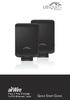 Plug n Play Wireless 10/100 Ethernet Cable Plug n Play Wireless 10/100 Ethernet Cable Package Contents Package Contents AirWire (Qty. 2) Power Adapter (Qty. 2) Ethernet Cable (Qty. 2) Quick Start Guide
Cabling and Connectors
 Cabling and Connectors Contents Contents Overview.... 1 Installation Requirements... 1 Wiring the Cable (Level 1 Shielding)... 2 Wiring the Cable (Level 2 Shielding)... 8 Cable Wiring Specification (T568B)...
Wireless File Transmitter WFT-E6 COPY
 Wireless File Transmitter WFT-E6 To comply with local radio wave regulations, Canon offers five region-specific versions of the transmitter (WFT-E6A, E6B, E6C, E6D, and E6E) in various areas around the
TRENDnet User s Guide. Cover Page
 Cover Page Contents Product Overview... 2 Package Contents... 2 Overview... 2 Interface... 3 Setting up... 4 WPS Setup... 4 Web Browser Setup... 4 ios Setup... 4 Android Setup... 7 Managing the App...
Overview. Installation Requirements. TOUGHCable Ethernet Connectors
 Overview Overview Thank you for purchasing Ubiquiti Networks TOUGHCable CARRIER cabling. This Quick Start Guide is designed to provide wiring instructions and includes the warranty terms. Ubiquiti offers
Meraki Outdoor Hardware Installation Guide
 Meraki Outdoor Hardware Installation Guide Trademarks Meraki, Meraki Outdoor, Meraki Cloud Controller, and Meraki Mesh are trademarks of Meraki, Inc. Other brand and product names are registered trademarks
DC3 Standard Installation Guide
 DRC 303 B / July 2009 www.drivecam.com DC3 Standard Installation Guide How to install the DC3 Video Event Recorder (VER) using the Standard Power Cable with no additional components. Start Here... 3 Mounting
COPY EOS 70D (W) Wi-Fi Function Instruction Manual INSTRUCTION MANUAL
 EOS 70D (W) Wi-Fi Function Instruction Manual E INSTRUCTION MANUAL What You Can Do Using the Wireless LAN Functions This camera s wireless LAN functions let you perform a range of tasks wirelessly, from
Networking. General networking. Networking overview. Common home network configurations. Wired network example. Wireless network examples
 Networking General networking Networking overview A network is a collection of devices such as computers, printers, Ethernet hubs, wireless access points, and routers connected together for communication
User Manual for the NETGEAR 54 Mbps Wireless USB 2.0 Adapter WG121. NETGEAR, Inc. 4500 Great America Parkway Santa Clara, CA 95054 USA
 User Manual for the NETGEAR 54 Mbps Wireless USB 2.0 Adapter WG121 NETGEAR, Inc. 4500 Great America Parkway Santa Clara, CA 95054 USA Version v1.0 September 2003 Technical Support Please refer to the support
Step-by-Step Setup Guide Wireless File Transmitter FTP Mode
 EOS Step-by-Step Setup Guide Wireless File Transmitter FTP Mode Infrastructure & Ad Hoc Networks Mac OS X 10.5-10.6 2012 Canon U.S.A., Inc. All Rights Reserved. Reproduction in whole or in part without
Configuring the WT-4 for ftp (Ad-hoc Mode)
 En Configuring the WT-4 for ftp (Ad-hoc Mode) Windows XP Introduction This document provides basic instructions on configuring the WT-4 wireless transmitter and a Windows XP Professional SP2 ftp server
Configuring the WT-4 for ftp (Ad-hoc Mode)
 En Configuring the WT-4 for ftp (Ad-hoc Mode) Mac OS X Introduction This document provides basic instructions on configuring the WT-4 wireless transmitter and a Mac OS X (10.5.2) ftp server for transmission
Configuring the WT-4 for ftp (Infrastructure Mode)
 Introduction En Configuring the WT-4 for ftp (Infrastructure Mode) This document provides basic instructions on configuring the WT-4 wireless transmitter and a ftp server for transmission over an infrastructure
Universal WiFi Range Extender WN3000RP
 Universal WiFi Range Extender WN3000RP User Manual 350 East Plumeria Drive San Jose, CA 95134 USA February 2013 202-10789-02 v1.0 2011 NETGEAR, Inc. All rights reserved. No part of this publication may
Step-by-Step Setup Guide Wireless File Transmitter FTP Mode
 EOS Step-by-Step Setup Guide Wireless File Transmitter FTP Mode Ad Hoc Setup Windows XP 2012 Canon U.S.A., Inc. All Rights Reserved. Reproduction in whole or in part without permission is prohibited. 1
PJ-673 Mobile Printer USER S GUIDE
 USER S GUIDE PJ-673 Mobile Printer Before using this printer, be sure to read this Users Guide. We suggest that you keep this manual in a handy place for future reference. Version 0 ENG Introduction 0
125 8880 telstra.com/ppmbb visit a telstra store or partner GETTING TO KNOW YOUR
 FOR MORE INFORMATIoN: 125 8880 telstra.com/ppmbb visit a telstra store or partner GETTING TO KNOW YOUR Telstra PRE-paid 4G wi-fi LET S GET THIS SHOW ON THE ROad WHAT S INSIDE Your Telstra Pre-Paid 4G Wi-Fi
Network Installation Guide. WorkForce 610 Series Artisan 710 Series
 Network Installation Guide WorkForce 610 Series Artisan 710 Series Contents Before You Begin.......................................... 3 Choose Your Connection Type................................ 4 Wireless.............................................
Network Installation Guide. Artisan 810 Series
 Network Installation Guide Artisan 810 Series Before You Begin Make sure you installed ink cartridges and loaded paper as described on the Start Here sheet. Then follow the instructions in this guide to
Universal WiFi Internet Adapter (WNCE2001)
 Universal WiFi Internet Adapter (WNCE2001) User Manual 350 East Plumeria Drive San Jose, CA 95134 USA September 2010 202-10598-01 v1.0 2010 NETGEAR, Inc. All rights reserved. No part of this publication
GETTING TO KNOW YOUR PRE-PAID TELSTRA WI-FI 4G
 GETTING TO KNOW YOUR PRE-PAID TELSTRA WI-FI 4G LET S GET THIS SHOW ON THE ROAD You must be excited about your brand new Pre-Paid Telstra Wi-Fi 4G. This guide will help you get connected as quickly and
English version. LW320/LW321 Sweex Wireless 300N Router. Package Contents. Terminology list
 LW320/LW321 Sweex Wireless 300N Router Do not expose the Sweex Wireless 300N Router to extreme temperatures. Do not place the device in direct sunlight or in the direct vicinity of heating elements. Do
WIRELESS 150N USB 2.0 ADAPTER. User Manual
 WIRELESS 150N USB 2.0 ADAPTER User Manual Federal Communication Commission Interference Statement This equipment has been tested and found to comply with the limits for a Class B digital device, pursuant
Exploring the world of Canon EOS photography. EOSmagazineQ. from July-September 2009. Wireless world Communication without cables
 Exploring the world of Canon EOS photography EOSmagazineQ from July-September 2009 Wireless world Communication without cables Technique Wireless Transmitters DIGITAL 00-00 Wireless world Canon s wireless
Configuring the WT-4 for Upload to a Computer (Infrastructure Mode)
 Introduction En Configuring the WT-4 for Upload to a Computer (Infrastructure Mode) This document provides basic instructions on configuring the WT-4 wireless transmitter and a computer for transmission
Step-by-Step Setup Guide Wireless File Transmitter FTP Mode
 EOS Step-by-Step Setup Guide Wireless File Transmitter FTP Mode Infrastructure Setup Windows XP 2012 Canon U.S.A., Inc. All Rights Reserved. Reproduction in whole or in part without permission is prohibited.
2 Setting Up the Hardware for a Wired Ethernet Network... 13. 3 Setting Up the Software for an Ethernet Network... 21
 Contents 1 Networking Basics............................................... 1 Selecting a network connection........................................ 2 Wired Ethernet network...........................................
Using These Manuals. How to Use the. Software User Guide. Display examples: 1. Understanding How to Use Your Camera.
 Software User Guide For the safe use of your camera, be sure to read the Safety Precautions thoroughly before use. Types of software installed on your computer varies depending on the method of installation
Canon WFT-E1 (A) Wireless File Transmitter. Network Support Guide
 1 Canon WFT-E1 (A) Wireless File Transmitter Network Support Guide Windows XP - Infrastructure Wireless Mode Connection 2 Setting up the WFT-E1A on Windows XP Home or Professional Infrastructure Wireless
Canon WFT-E1 (A) Wireless File Transmitter. Network Support Guide
 1 Canon WFT-E1 (A) Wireless File Transmitter Network Support Guide Apple Macintosh 2 Setting up the WFT-E1A on the Apple Macintosh This document will take you through the process of setting up the WFT-E1A
WL-5460USB Wireless LAN Card Adapter
 WL-5460USB Wireless LAN Card Adapter User s Manual Regulatory notes and statements Wireless LAN, Health and Authorization for use Radio frequency electromagnetic energy is emitted from Wireless LAN devices.
DATA PROJECTOR XJ-A147/XJ-A247/XJ-A257 XJ-M146/XJ-M156 XJ-M246/XJ-M256. XJ-A Series. XJ-M Series. Network Function Guide
 DATA PROJECTOR EN XJ-A Series XJ-A147/XJ-A247/XJ-A257 XJ-M Series XJ-M146/XJ-M156 XJ-M246/XJ-M256 Network Function Guide In this manual, XJ-A Series and XJ-M Series refer only to the specific models listed
GETTING TO KNOW YOUR TELSTRA PRE-PAID 3G WI-FI
 GETTING TO KNOW YOUR TELSTRA PRE-PAID 3G WI-FI LET S GET THIS SHOW ON THE ROAD You must be excited about your brand new Telstra Pre-Paid 3G Wi-Fi. This guide will help you get connected as quickly and
Configuring the WT-4 for Upload to a Computer (Infrastructure Mode)
 En Configuring the WT-4 for Upload to a Computer (Infrastructure Mode) Windows XP This document provides basic instructions on configuring the WT-4 wireless transmitter and a Windows XP Professional SP2
A Division of Cisco Systems, Inc. GHz 2.4 802.11g. Wireless-G. USB Network Adapter with RangeBooster. User Guide WIRELESS WUSB54GR. Model No.
 A Division of Cisco Systems, Inc. GHz 2.4 802.11g WIRELESS Wireless-G USB Network Adapter with RangeBooster User Guide Model No. WUSB54GR Copyright and Trademarks Specifications are subject to change without
WELCOME. Thank you for choosing the Boost Mobile Wi-Fi. To get the most from your
 WELCOME Thank you for choosing the Boost Mobile Wi-Fi. To get the most from your device and to keep it in the best condition please read this manual thoroughly. The following parts are supplied in the
N600 WiFi USB Adapter
 Model WNDA3100v3 User Manual December 2014 202-11470-01 350 East Plumeria Drive San Jose, CA 95134 USA Support Thank you for selecting NETGEAR products. After installing your device, locate the serial
V660. Quick Start Guide. Dual-Mode Phone. Version 1.00 04/2007 Edition 1. Copyright 2007. All rights reserved
 V660 Dual-Mode Phone Quick Start Guide Version 1.00 04/2007 Edition 1 Copyright 2007. All rights reserved 1 Overview Your V660 provides standard cellphone functions, and adds WiFi connectivity. In the
Configuring the WT-4 for Upload to a Computer (Ad-hoc Mode)
 En Configuring the WT-4 for Upload to a Computer (Ad-hoc Mode) This document provides basic instructions on configuring the WT-4 wireless transmitter and a computer for transmission over an ad-hoc (peer-to-peer)
WLAN600 Wireless IP Phone Administrator s Guide
 WLAN600 Wireless IP Phone Administrator s Guide Trademark Acknowledgement All brand names are trademarks or registered trademarks of their respective companies. Disclaimer This document is supplied by
IEEE 802.11b WLAN PC Card
 IEEE 802.11b WLAN PC Card User s Guide Version: 1.3 August 2001 Please install the Utility/Driver first before inserting the PCMCIA Card. FCC Class B Radio Frequency Interference Statement The manufacturer
AirRouter Power Adapter Ethernet Cable Quick Start Guide
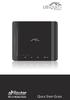 Package Contents Package Contents AirRouter Power Adapter Ethernet Cable Quick Start Guide System Requirements Microsoft Windows XP, Windows Vista, Windows 7, Linux, or Mac OS X Java Runtime Environment
Wireless Router Setup Manual
 Wireless Router Setup Manual NETGEAR, Inc. 4500 Great America Parkway Santa Clara, CA 95054 USA 208-10082-02 2006-04 2006 by NETGEAR, Inc. All rights reserved. Trademarks NETGEAR is a trademark of Netgear,
N300 WiFi Range Extender
 Model EX2700 User Manual July 2014 202-11395-01 350 East Plumeria Drive San Jose, CA 95134 USA Support Thank you for selecting NETGEAR products. After installing your device, locate the serial number on
FMT600BT Transmitter
 Technaxx FMT600BT Transmitter User Manual Transfer of music and calls directly from your Bluetooth device to your car radio This device complies with the requirements of the standards referred to the Directive
DATA PROJECTOR XJ-A135/XJ-A145/XJ-A235/ XJ-A245
 DATA PROJECTOR XJ-A135/XJ-A145/XJ-A235/ XJ-A245 E Data Projector Wireless Function Guide Be sure to read the precautions in the User s Guide (Basic Operations) that comes with the Data Projector. Be sure
Enterprise WiFi System
 Enterprise WiFi System Enterprise WiFi System Package Contents Package Contents Wall Mount UniFi Enterprise AP Wall-Mount Bracket Ceiling-Mount Plate UniFi Controller CD with User Guide Quick Start Guide
EOS 750D (W) Wi-Fi/NFC Function Instruction Manual ENGLISH INSTRUCTION MANUAL
 EOS 750D (W) Wi-Fi/NFC Function Instruction Manual ENGLISH INSTRUCTION MANUAL Introduction What You Can Do Using the Wireless LAN Functions This camera s wireless LAN functions let you perform a range
How To Use An Easypad On A Pc Or Macbook Or Ipad (For Pc)
 User Guide Congratulations on your new EasyPad 1000. Please follow the instructions in this manual carefully. Statement: If the final version of this product has any differences from the description of
Single Day Alarm Clock with. Bluetooth and USB Play-through
 Single Day Alarm Clock with Bluetooth and USB Play-through MODEL : BSC 200 READ THIS INSTRUCTION MANUAL BEFORE OPERATING THE APPLIANCE. SAVE THIS MANUAL FOR FUTURE REFERENCE. TABLE OF CONTENTS IMPORTANT
Step-by-Step Setup Guide Wireless File Transmitter
 EOS Step-by-Step Setup Guide Wireless File Transmitter EOS UTility Mode Infrastructure or Ad Hoc Networks Windows XP / Windows 7 Professional 2012 Canon U.S.A., Inc. All Rights Reserved. Reproduction in
DATA PROJECTOR XJ-A146/XJ-A246/XJ-A256
 DATA PROJECTOR XJ-A146/XJ-A246/XJ-A256 E Data Projector Wireless Function Guide Be sure to read the precautions in the Setup Guide that comes with the Data Projector. Be sure to keep all user documentation
Disclaimers. Important Notice
 Disclaimers Disclaimers Important Notice Copyright SolarEdge Inc. All rights reserved. No part of this document may be reproduced, stored in a retrieval system, or transmitted, in any form or by any means,
Using the Control Panel for Wireless Network Installation. WorkForce 600 Series Artisan 700 Series
 Using the Control Panel for Wireless Network Installation WorkForce 600 Series Artisan 700 Series Before You Begin Make sure you installed ink cartridges and loaded paper in the printer as described on
Chapter 1 Downloading Images to Your Computer (Windows)
 Software User Guide For the safe use of your camera, be sure to read the Safety Precautions thoroughly before use. Types of software installed on your computer varies depending on the method of installation
Operator's Manual for Wireless LAN Module
 MULTIFUNCTIONAL DIGITAL SYSTEMS Operator's Manual for Wireless LAN Module GN-1060 2011-2012 TOSHIBA TEC CORPORATION All rights reserved Under the copyright laws, this manual cannot be reproduced in any
Contents. Section A Networking Basics... 1. 1 Learning the Basics... 3. Section B Wired Ethernet Networking... 17
 Contents Section A Networking Basics...................................... 1 1 Learning the Basics............................................. 3 Selecting a network connection........................................
The Wireless LAN (Local Area Network) USB adapter can be operated in one of the two following networking configurations :
 SAGEM Wi-Fi 11g USB ADAPTER Quick Start Guide About this guide This Quick Start Guide describes how to install and operate your SAGEM Wi-Fi 11g USB ADAPTER. Please read this manual before you install the
Step-by-Step Setup Guide Wireless File Transmitter
 EOS Step-by-Step Setup Guide Wireless File Transmitter EOS UTility Mode Infrastructure or Ad Hoc Networks Mac OS X 10.5-10.6 2012 Canon U.S.A., Inc. All Rights Reserved. Reproduction in whole or in part
Configuring the WT-4 for Upload to a Computer (Ad-hoc Mode)
 En Configuring the WT-4 for Upload to a Computer (Ad-hoc Mode) Windows XP This document provides basic instructions on configuring the WT-4 wireless transmitter and a Windows XP Professional SP2 computer
Linksys WAP300N. User Guide
 User Guide Contents Contents Overview Package contents 1 Back view 1 Bottom view 2 How to expand your home network 3 What is a network? 3 How to expand your home network 3 Where to find more help 3 Operating
User Guide. Guide d utilisation Guida dell'utente Benutzerhandbuch Guía del usuario Guia do Usuário WNA-100. Wireless Network Adapter
 WNA-100 Wireless Network Adapter User Guide Guide d utilisation Guida dell'utente Benutzerhandbuch Guía del usuario Guia do Usuário www.xerox.com/office/wna Copyright 2007 Xerox Corporation. All Rights
Network Installation Guide. WorkForce 600 Series Artisan 700 Series Artisan 800 Series
 Network Installation Guide WorkForce 600 Series Artisan 700 Series Artisan 800 Series Before You Begin Make sure you installed ink cartridges and loaded paper as described on the Start Here poster. Then
Step-by-Step Setup Guide Wireless File Transmitter
 EOS Step-by-Step Setup Guide Wireless File Transmitter Server Mode Infrastructure & Ad Hoc Networks Macintosh OS X 10.5-10.6 2012 Canon U.S.A., Inc. All Rights Reserved. Reproduction in whole or in part
1 Upload existing photos and movies
 Network Guide En What Networks Can Do for You This manual describes how to connect to a network, access the camera remotely, and upload images to computers and ftp servers over Ethernet connections. Once
4P359542-1H. Wireless LAN Connecting Adapter <BRP069A41> Installation Manual
 4P359542-1H Wireless LAN Connecting Adapter Installation Manual Wireless LAN Connecting Adapter Installation Manual Homepage: http://www.onlinecontroller.daikineurope.com For details
BLU Vivo 4.3 User Manual
 BLU Vivo 4.3 User Manual 1 Table of Contents Phone Safety Information... 3 Appearance and Key Functions... 4 Installation and Charging... 5 Phone Operation... 7 Communication... 10 Camera... 11 Gallery...
USER PRECAUTION Please read the instruction carefully to protect yourself and others from personal injury or damage to property.
 Dexter IP330S PRECAUTION USER PRECAUTION Please read the instruction carefully to protect yourself and others from personal injury or damage to property. To use the phone correctly and safely and prevent
User Guide. E-Series Routers
 User Guide E-Series Routers Table of Contents Table of Contents Product overview E900/E1200/E1500/E2500/E3200 1 Back view 1 Bottom view 1 E4200 2 Top view 2 Back view 2 Setting Up Your E-Series Router
How To Use An Easymp Network Projector On A Computer Or Network Projection On A Network Or Network On A Pc Or Mac Or Ipnet On A Laptop Or Ipro Or Ipo On A Powerbook On A Microsoft Computer On A Mini
 EasyMP Network Projection Operation Guide Contents 2 Before Use Functions of EasyMP Network Projection....................... 5 Sharing the Projector....................................................
WebSTAR Model DPW700 PCMCIA Wireless LAN Card and WebSTAR Model DPW730 USB Wireless Adapter User s Guide
 WebSTAR Model DPW700 PCMCIA Wireless LAN Card and WebSTAR Model DPW730 USB Wireless Adapter User s Guide Introduction Are you tired of tripping over or fumbling with countless computer wires? The solution
USER GUIDE AC2400. DUAL BAND GIGABIT Wi Fi ROUTER. Model# E8350
 USER GUIDE AC2400 DUAL BAND GIGABIT Wi Fi ROUTER Model# E8350 Table of Contents Product overview E8350..................................... 1 Setting Up Your E-Series Router Where to find more help.........................
Network Installation Guide
 Network Installation Guide Before You Begin Make sure you installed ink cartridges and loaded paper as described on the Start Here sheet. Then follow the instructions in this guide to set up the printer
LW310V2 Sweex Wireless 300N Router
 LW310V2 Sweex Wireless 300N Router Please notice! On the included CD-ROM you will find the Setup Wizard. This easy install procedure will show you how to setup the router step-by-step. Do not expose the
Wireless-N. User Guide. PCI Adapter WMP300N (EU) WIRELESS. Model No.
 2,4 GHz WIRELESS Wireless-N PCI Adapter User Guide Model No. WMP300N (EU) Copyright and Trademarks Specifications are subject to change without notice. Linksys is a registered trademark or trademark of
The range of Wi-Fi coverage and usage. Hub Computers which can
 300Mbps Wireless LAN Repeater Quick Start Guide Version:MZK-EX300N_QIG-A_V1.1 In order to guarantee the correct usage of our products, this guide gives instructions on how to set and use our products.
WELCOME. Wireless Router 1 AC Charger 1 USB charging cable 1 Quick Start User Guide 1 Security Settings card 1
 WELCOME Thank you for choosing the Telstra ELITE Pre-Paid Mobile Wi-Fi. To get the most from your wireless router and to keep it in the best condition please read this manual thoroughly. The following
WD Sentinel DX4000. Small Office Storage Server. Administrator s Quick Install Guide
 WD Sentinel DX4000 Small Office Storage Server Administrator s Quick Install Guide Kit Contents WD Sentinel DX4000 Ethernet cable AC adapter About Your WD Product Kit Contents WD Sentinel DX4000 Small
Congratulations on your HomePortal purchase. To install your HomePortal and configure your home network, follow these steps.
 Notice to Users 2003 2Wire, Inc. All rights reserved. This manual in whole or in part, may not be reproduced, translated, or reduced to any machine-readable form without prior written approval. 2WIRE PROVIDES
WAP3205 v2. User s Guide. Quick Start Guide. Wireless N300 Access Point. Default Login Details. Version 1.00 Edition 2, 10/2015
 WAP3205 v2 Wireless N300 Access Point Version 1.00 Edition 2, 10/2015 Quick Start Guide User s Guide Default Login Details Web Address http://zyxelsetup Password www.zyxel.com 1234 Copyright 2014 ZyXEL
NETGEAR RangeMax NEXT Wireless Router WNR854T User Manual. NETGEAR, Inc. 4500 Great America Parkway Santa Clara, CA 95054 USA
 NETGEAR RangeMax NEXT Wireless Router WNR854T User Manual NETGEAR, Inc. 4500 Great America Parkway Santa Clara, CA 95054 USA 202-10187-02 January 2007 2007 by NETGEAR, Inc. All rights reserved.. Product
Safety Precautions WARNINGS
 Safety Precautions This guide contains a variety of safety markings related to the safe and correct operation of the USB Data Transfer Cable. Be sure to read this guide and any related manuals carefully
Universal Dual Band WiFi Range Extender WN2500RP
 Universal Dual Band WiFi Range Extender WN2500RP User Manual 350 East Plumeria Drive San Jose, CA 95134 USA November 2012 202-10932-02 v1.0 2012 NETGEAR, Inc. All rights reserved. No part of this publication
Single-bay NAS Server
 Single-bay NAS Server NAS-1100 User s Manual Copyright (C) 2004 PLANET Technology Corp. All rights reserved. The products and programs described in this User s Manual are licensed products of PLANET Technology,
c. Securely insert the Ethernet cable from your cable or DSL modem into the Internet port (B) on the WGT634U. Broadband modem
 Start Here Follow these instructions to set up your router. Verify That Basic Requirements Are Met Assure that the following requirements are met: You have your broadband Internet service settings handy.
Home Wi-Fi Gateway Instructions
 Home Wi-Fi Gateway Instructions 1. Connect the gateway. Use the coaxial cable provided by BendBroadband to connect the cable port (A) to your cable outlet. 2. Connect your computer to the cable modem gateway
Quick Setup Guide QL-710W/720NW
 Quick Setup Guide QL-710W/720NW Be sure to read and understand this guide before using the machine. We recommend that you keep this guide nearby for future reference. Not all models are available in all
your Gateway Windows network installationguide 802.11b wireless series Router model WBR-100 Configuring Installing
 your Gateway Windows network installationguide 802.11b wireless series Router model WBR-100 Installing Configuring Contents 1 Introduction...................................................... 1 Features...........................................................
WD Sentinel DX4000. Small Office Storage Server Administrator s Quick Install Guide
 0 WD Sentinel DX4000 Small Office Storage Server Administrator s Quick Install Guide 1 Introduction This quick install guide steps the Administrator through the procedures for setting up the WD Sentinel
Quick Start Guide. RV 120W Wireless-N VPN Firewall. Cisco Small Business
 Quick Start Guide Cisco Small Business RV 120W Wireless-N VPN Firewall Package Contents Wireless-N VPN Firewall Ethernet Cable Power Adapter Quick Start Guide Documentation and Software on CD-ROM Welcome
User Manual for the NETGEAR 11 Mbps Wireless USB Adapter MA111. NETGEAR, Inc. 4500 Great America Parkway Santa Clara, CA 95054 USA
 User Manual for the NETGEAR 11 Mbps Wireless USB Adapter MA111 NETGEAR, Inc. 4500 Great America Parkway Santa Clara, CA 95054 USA Version v1.0 June 2004 Technical Support Please refer to the support information
Network Setup Guide. Introduction. Setting up for use over LAN
 Network Setup Guide This manual contains the setup information required to use the machine over wired LAN. If you use the machine with USB connection, refer to your setup sheet. Introduction To use the
CONTENTS --------------------------------------------------------------------------------------
 en WiFi USB DONGLE CONTENTS -------------------------------------------------------------------------------------- 9 SAFETY AND SET-UP 10 WiFi USB DONGLE 10 Packing contents 10 Special features 10 Connection
Thank you for your support and welcome to Maxis! Yours sincerely, Maxis
 Welcome Congratulations, you are now on your way to a world of faster internet! With your newly-installed Maxis Fibre Internet, you will enjoy faster downloads, enhanced online shopping, smoother video
Configuring the WT-4 for Upload to a Computer (Infrastructure Mode)
 Page 1 of 25 Configuring the WT-4 for Upload to a Computer (Infrastructure Mode) Windows 7 Configuring the WT-4 for Upload to a Computer (Infrastructure Mode) This document provides basic instructions
A6210 WiFi USB Adapter 802.11ac USB 3.0 Dual Band User Manual
 802.11ac USB 3.0 Dual Band User Manual August 2014 202-11373-01 350 East Plumeria Drive San Jose, CA 95134 USA Support Thank you for selecting NETGEAR products. After installing your device, locate the
A Division of Cisco Systems, Inc. GHz 2.4 802.11g. Wireless-G. PCI Adapter with RangeBooster. User Guide WIRELESS WMP54GR. Model No.
 A Division of Cisco Systems, Inc. GHz 2.4 802.11g WIRELESS Wireless-G PCI Adapter with RangeBooster User Guide Model No. WMP54GR Copyright and Trademarks Specifications are subject to change without notice.
Golden N Wireless Mini USB Adapter. Model # AWLL6075 User s Manual. Rev. 1.2
 Golden N Wireless Mini USB Adapter Model # AWLL6075 User s Manual Rev. 1.2 Table of Contents 1. Introduction...2 1.1 Package Contents...2 1.2 Features...2 2. Install the Wireless Adapter...3 3. Connect
Getting started with
 PART NO. CMA113 MADE IN CHINA 1. Measuring CAT II 2. Max. voltage 250V ~ 3. Max. current 71 Amp Getting started with Electricity consumption monitoring single phase for homes and some smaller light commercial