
Stephen du Toit Mathilda du Toit Gerhard Mels Yan Cheng. LISREL for Windows: PRELIS User s Guide
|
|
|
- Myles Charles
- 10 years ago
- Views:
Transcription
1 Stephen du Toit Mathilda du Toit Gerhard Mels Yan Cheng LISREL for Windows: PRELIS User s Guide

2 Table of contents INTRODUCTION... 1 GRAPHICAL USER INTERFACE... 2 The Data menu... 2 The Define Variables dialog box... 2 The Add Variables dialog box... 4 The Variable Types for dialog box... 4 The Category Labels for dialog box... 4 The Missing Values for dialog box... 4 The Select Data dialog box... 5 The Weight Cases dialog box... 7 The Survey Design dialog box... 8 The Transformation menu... 9 The Recode Variables dialog box... 9 The Compute dialog box The Statistics menu The Impute Missing Values dialog box The Multiple Imputation dialog box The Equal Threshold Test dialog box The Fix Thresholds dialog box The Homogeneity Test dialog box The Normal Scores dialog box The Factor Analysis dialog box The Censored Regression dialog box The Logistic Regression dialog box The Probit Regressions dialog box The Regression dialog box The Two-Stage Lease-Squares dialog box The Bootstrapping dialog box The Output dialog box PRELIS SYNTAX The structure of the PRELIS syntax file CA command CB command CE command CL command CO command DA command ET command FT command HT command IM command LA command LA paragraph LO command LR command MI command MT command NE command OR command LISREL for Windows: PRELIS User s Guide i

3 OU command PO command PR command RA command RA paragraph RE command RG command SC command SD command SY command TI paragraph WE command EXAMPLES Processing continuous variables Data preparation example using fitness data The data Importing the Excel data file Defining the variable types Dealing with the missing values Defining a global missing value and listwise deletion Multiple imputation Inserting a new variable Computing values for a new variable Selecting cases and creating a subset of the data Exporting the data to Excel Data screening Normal scores Bootstrapping Computing matrices Multiple linear regression example using drug abuse data The data The model The analysis Two-stage least square example using US economy data The data The model The analysis Exploratory factor analysis example using psychological data The data The mathematical model The specific model The analysis Processing ordinal variables Data preparation example using political action survey data The data Importing the SPSS data file Defining the variable types Assigning labels to the categories Dealing with the missing values Defining the missing values Listwise deletion Imputation by matching Data screening LISREL for Windows: PRELIS User s Guide ii

4 Exporting the PSF to SPSS Thresholds Equal thresholds test and compute polychoric correlations Fixed thresholds and compute polychoric correlations Bootstrapping Computing matrices Homogeneity test Logistic regression example using political action survey data The model The analysis Multivariate probit regression example using political action survey data The model The analysis REFERENCES LISREL for Windows: PRELIS User s Guide iii
5 Introduction LISREL for Windows (Jöreskog & Sörbom 2005) is a Windows application for structural equation modeling, multilevel structural equation modeling, multilevel linear and nonlinear modeling, generalized linear modeling and formal inference-based recursive modeling. However, it can also be used to import data, prepare data, manipulate data and basic statistical methods such as multiple linear regression, logistic regression, probit regression, censored regression and exploratory factor analysis. LISREL for Windows consists of a 32-bit Windows application LISWIN32 that interfaces with the 32-bit applications LISREL, PRELIS, MULTILEV, SURVEYGLIM, CATFIRM and CONFIRM. PRELIS is a 32-bit application for manipulating data, transforming data, generating data, computing moment matrices, computing asymptotic covariance matrices, performing multiple linear, censored, logistic and probit regression analyses, performing exploratory factor analyses, etc. The 32-bit application LISREL is intended for standard and multilevel structural equation modeling. The Full Information Maximum Likelihood (FIML) method for missing data is also available for both standard and multilevel structural equation modeling. In the case of continuous data, these methods are also available for complex survey data. MULTILEV fits multilevel linear and nonlinear models to raw data while CATFIRM and CONFIRM allow formal inference-based recursive modeling for raw categorical and continuous data respectively. In the case of continuous response variables, MULTILEV allows for design weights at each level of the hierarchy. SUVEYGLIM fits generalized linear models to simple random sample and complex survey data. LISREL for Windows uses the PSF (PRELIS System File) window to display the contents of a PSF, which contains the raw data to be processed. A PSF is typically obtained by importing external data files such as SPSS, SAS, STATA, Statistica, etc. data files. PRELIS, MULTILEV and SURVEYGLIM can be accessed interactively by means of the PSF window. This document is intended as an illustrative user s guide for using the application PRELIS interactively and for preparing graphical displays. It supersedes Chapter 3 and many sections of Chapter 2 of Du Toit & Du Toit (2001). After we overview the graphical user interface of PRELIS, we give an overview of the PRELIS syntax file. Finally, we demonstrate how to use PRELIS to process data on continuous variables as well as data on ordinal variables. For both these variable types, we illustrate the preparation of the data and the application of basic statistical methods. LISREL for Windows: PRELIS User s Guide 1

6 Graphical User Interface The graphical user interface (GUI) of the PRELIS module consists of the options and dialog boxes of the Data, Transformation and Statistics menus on the PSF (PRELIS System File) window of LISREL for Windows. This GUI allows the user to interactively generate PRELIS syntax and output files. These three menus and the corresponding options and dialog boxes are reviewed in this section. The Data menu The Data menu is located on the PSF window of LISREL for Windows which is used to display, manipulate and process raw data. In other words, one needs to create a PSF and open it in a PSF window before using any option of the Data menu interactively. To illustrate this, the PSF window for the file fitchol.psf in the TUTORIAL subfolder with the Data menu expanded is shown below. SY = fitchol.psf The Data menu allows the user to specify variables types, manipulate data, specify a case weight variable and complex survey design variables. Only the Define variables, Select Variables/Cases, Weight Cases and Survey Design options and the associated dialog boxes form part of the PRELIS GUI. They are discussed separately in the subsequent sections. The Sort Case, Insert Variable, Insert Cases, Delete Variable and Delete Case options and the corresponding dialog boxes are not part of the PRELIS GUI. Hence, they are not discussed here. The Define Variables dialog box The Define Variables dialog box allows the user to insert variables, rename variables, define variable types, assign category labels and define missing values. It is accessed by selecting the Define Variables option on the Data menu. This selection loads the following Define Variables dialog box shown in the image below. LISREL for Windows: PRELIS User s Guide 2

7 NE <label> OR <label(s)> CO <label(s)> CA <label(s)> CB <label(s)> CE <label(s)> CL <label(s)> <number1> = <label1>...<numbern> = <labeln> MI <value(s)> <label(s)> MI <range> DA MI = -9 DA MI = <range> DA TR = PA DA TR = LI As shown above, the five variable buttons on the Define Variables dialog box are the Insert, Rename, Variable Type, Category Labels and Missing Values buttons. All these buttons become active as soon as a variable(s) is selected from the variable list box. The Rename button enables the user to rename a variable by first selecting the label from the variable list box and then by clicking on the Rename button to change the variable label in the variable list box directly. The other four variable buttons provide the user access to four dialog boxes. Each of these dialog boxes is discussed next. LISREL for Windows: PRELIS User s Guide 3

8 The Add Variables dialog box The Add Variables dialog box is accessed by clicking on the Insert button on the Define Variables dialog box. It corresponds with the NE command as indicated on its image. The user can add a variable by first entering the variable label in the string box and then by clicking on the OK button to return to the Define Variables dialog box. A list of variables can be added as well. However, this requires that the variable labels must end with sequential positive integers. For example, if we enter var1 var3 in the string box, var1, var2 and var3 are added to the in the variable list once we click on the OK button. Note that only the first 8 characters of variable labels are recognized and that the variable labels are not case sensitive. The Variable Types for dialog box The Variable Types for dialog box is accessed by clicking on the Variable Type button on the Define Variables dialog box. It corresponds with the OR, CO, CA, CB and CE commands as indicated on its image. The user can choose the desired variable type by activating the Ordinal, Continuous, Censored above, Censored below or Censored above and below radio button. If the variable type applies to all the variables, the user needs to check the Apply to all check box. Finally, click on the OK button to return to the Define Variables dialog box. The Category Labels for dialog box The Category Labels for dialog box is accessed by clicking on the Category Labels button on the Define Variables dialog box. It corresponds with the CL command as indicated on its image. To define the category labels, enter the number and the corresponding label in the Value and Label string boxes respectively. Then, click on the Add button to add a command line in the CL grid box. Check the Apply to all check box if the category labels apply to all the variables. Finally, click on the OK button to return to the Define Variables dialog box. The Missing Values for dialog box The Missing Values for dialog box is accessed by clicking on the Missing Values button on the Define Variables dialog box. It corresponds with the MI and DA commands as indicated on its LISREL for Windows: PRELIS User s Guide 4

9 image. The Missing Values for dialog box consists of two sections. The upper section defines the missing values for the selected variable(s) only while the lower section defines the global missing values. To specify the missing values of a selected variable(s), activate the Missing values radio button and enter the missing values in the corresponding string boxes. Three different missing values can be defined at a time. The user can also define a range of missing values by entering the lower and upper bounds of the range in the Low and High string boxes respectively. The Apply to all check box is checked if the missing values defined can be applied to all the variables. In this case, it is the same as specifying a global missing value(s). To specify global missing values, enter the missing value(s) in one or all Global missing value string box(es). Three different missing values can be defined at a time. A range of the missing values can be specified by entering the lower and upper bounds of the range in the Low and High string boxes respectively. Two deletion methods, namely listwise deletion and pairwise deletion, are available in PRELIS. Either of the two deletion methods can be specified by activating one of the Listwise or Pairwise radio buttons. Click on the OK button to return to the Define Variables dialog box when done. Once the user is done with all dialog boxes, click on the OK button on the Define Variables dialog box to return to the PSF window. Save the changes by selecting the Save option on the File menu. The Select Data dialog box The Select data dialog box contains two tabs, namely the Select Variable(s) and the Select Cases tabs. The Select Variable(s) tab allows the user to select variables while the Select Cases tab allows the user to select cases. The Select Variable(s) tab is accessed by selecting the Select Variables/Cases option on the Data menu. This selection loads the following Select Variable(s) tab of the Select Data dialog box. LISREL for Windows: PRELIS User s Guide 5

10 SE <number(s)> OU <options> Note that the Select Variable(s) tab of the Select Data dialog box corresponds with the SE and OU commands as indicated on the image above. The user selects the variable(s) by first selecting the label(s) from the Variable(s) list box and then by clicking on the upper Select button to add the variables to the Selected Variable(s) list box. A click on the Select Cases tab loads the following dialog box. SC <number(s)> <condition(s)> SC CASE = <condition(s)> OU <options> Note that the Select Cases tab of the Select Data dialog box corresponds with the SC and OU commands as indicated on the image above. LISREL for Windows: PRELIS User s Guide 6
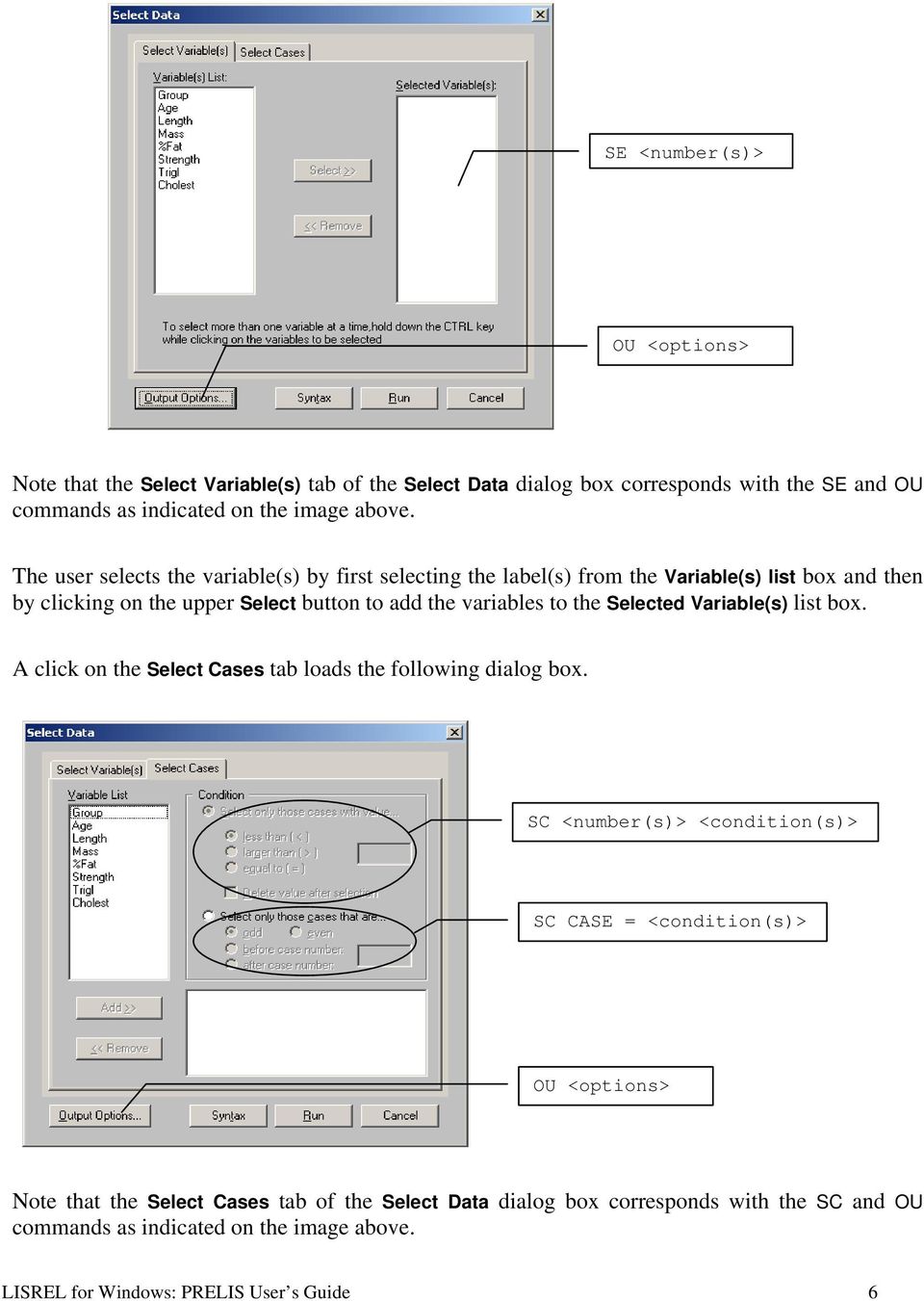
11 The user selects the cases by first selecting the desired label from the Variable list box to activate Select only those cases with value radio button. Then, choose one of the desired conditions of less than, larger than or equal to by activating the corresponding radio button. Enter the desired value in the corresponding string field. By default, the variable(s) selected is not excluded by PRELIS. The user can request PRELIS to ignore the selected variable by checking the Delete values check box. PRELIS offers some other options for selecting cases, which include selecting odd/even numbered cases or selecting the cases before/after a case number. To use these options, first activate the Select only those cases that are radio button and then activate the desired condition radio button. If the cases before/after a case number are wanted, enter the case number in the corresponding string box. The Output Options button provides access to the Output dialog box, which can be used for example to save the selected variables/cases in a new PSF (see the Output dialog box section). Once the user is done with the Select Data dialog box, one may either request the PRELIS syntax file by clicking on the Syntax button or run PRELIS directly by clicking on the Run button. The Weight Cases dialog box The Weight Cases dialog box allows the user to define the variable to be used to weight cases. It is accessed by selecting the Weight Cases option on the Data menu. This selection loads the following Weight Cases dialog box. WE <label> Note that the Weight Cases dialog box corresponds with the WE command as indicated on the image above. The user specifies the weight variable by first selecting the label from the variable list box and then by clicking on the Add button to add the variable to the WE grid box. Once the user is done with the Weight Cases dialog box, click on the OK button to return to the PSF window. Save the changes by selecting the Save option on the File menu. LISREL for Windows: PRELIS User s Guide 7

12 The Survey Design dialog box The Survey Design dialog box allows the user to define the stratification, cluster and design weight variables of a complex survey design. It is accessed by selecting the Survey Design option on the Data menu. This selection loads the following Survey Design dialog box. DA ST = <number> DA CL = <number> DA WT = <number> Note that the Survey Design dialog box corresponds with the DA command as indicated on the image above. The user specifies the stratification variable by first selecting the corresponding label from the Variables in data list box and then by clicking on the upper Add button to add the variable to the Stratification variable grid box. The cluster variable is specified by first selecting the desired label from the Variables in data list box and then by clicking on the middle Add button to add the variable to the Cluster variable grid box. The weight variable is specified by first selecting the appropriate label from the Variables in data list box and then by clicking on the bottom Add button to add the variables to the Design weight grid box. Once the user is done with the Survey Design dialog box, click on the OK button to return to the PSF window. Save the changes by selecting the Save option on the File menu. LISREL for Windows: PRELIS User s Guide 8

13 The Transformation menu The Transformation menu is located on the PSF window of LISREL for Windows which is used to display, manipulate and process raw data. In other words, one needs to create a PSF and open it in a PSF window before using any option of the Transformation menu interactively. To illustrate this, the PSF window for the file fitchol.psf in the TUTORIAL subfolder with the Transformation menu expanded is shown below. SY = fitchol.psf The Transformation menu allows the user to perform basic data manipulations. The Recode option gives the user access to the Recode Variables dialog box while the Compute option provides the user access to the Compute dialog box. Each of these dialog boxes is discussed separately in the next two sections. The Recode Variables dialog box The Recode Variables dialog box allows the user to recode the values or the range of values of one or more variables. It is accessed by selecting the Recode option on the Transformation menu. This selection loads the following Recode Variables dialog box. RE <label(s)> OLD = <value> NEW = <value> RE <label(s)> OLD = <valuerange> NEW = <value> OU options LISREL for Windows: PRELIS User s Guide 9

14 Note that the Recode Variables dialog box corresponds with the RE and OU commands as indicated on the image above. The user can recode a system missing value to a new value by first selecting the desired label from the variable list box to activate all the radio buttons. Then, activate the System missing radio button in the Old values section. Once done, the string field of old values is de-activated and the New value radio button is activated automatically. Next, enter the desired value in the new value string box. Finally, click on the Add button to add a recode command line to the RE grid box. Similarly, the user can recode an old value to a new value or an old value to a system missing value. PRELIS also enables the user to recode a range of values of a variable to a new value. This is achieved by first activating the Old range of values radio button. Specify the old range of the values by entering the lower bound in the Low string box and the upper bound in the High string box. Next, activate the New value radio button and enter the desired value in the corresponding string box. Finally click on the Add button to add a recode command line to the RE grid box. The Output Options button provides the user access to the Output dialog box, which is used to specify the desired results to be written to the output file. For example, it may be used to save the recoded data to a new PSF (see the Output dialog box section). Once the user is done with the Recode Variables dialog box, click on the OK button to run PRELIS. The Compute dialog box The Compute dialog box allows the user to compute the values of new variables and to transform variables. The Compute dialog box is accessed by selecting the Compute option on the Transformation menu. This selection loads the following Compute dialog box. LISREL for Windows: PRELIS User s Guide 10

15 NE <label> = <label>**0.5 NE <label> = NRAND NE <label> LOG <label> AL = <number> BE <number> NE <label> = NRAND OU options NE <label> = CRAND (<number>) POW <label> AL = <number> BE <number> GA <number> LG <label> LAG = <number> NE <label> = TIME Note that the Compute dialog box corresponds with the NE, LOG, POW, LG and OU commands as indicated on the image above. The functions of the functional buttons on the Compute dialog box are summarized in the following table. Button Function sqrt Computes the square root of a positive number. log Computes the natural logarithm of a positive number. pow Computes the power value of a linear combination. time Generates the time points of the observations. LG & lag Computes the values of a variable lagged for a given number of points in time. n(0,1) Generates a random value from a standard Normal distribution. u(0,1) Generates a random value from a Uniform distribution on the interval (0,1). chisq Generates a random value from a Chi-square distribution with a given degrees of freedom. The user can click on any computation function button of the Compute dialog box and/or select and drag the labels from the variable list box into the top grid box to specify the desired computation or transformation. Note that the keyboard can not be used for the Compute dialog box. The Output Options button provides access to the Output dialog box, which is used to specify the desired results to be written to the output file. For example, it can be used to save the transformed LISREL for Windows: PRELIS User s Guide 11

16 data to a new PSF (see the Output dialog box section). Once the user is done with the Recode Variables dialog box, click on the OK button to run PRELIS. LISREL for Windows: PRELIS User s Guide 12

17 The Statistics menu The Statistics menu is located on the PSF window of LISREL for Windows which is used to display, manipulate and process raw data. In other words, one needs to create a PSF and open it in a PSF window before using any option of the Statistics menu interactively. To illustrate this, the PSF window for the file fitchol.psf in the TUTORIAL subfolder with the Statistics menu expanded is shown below. SY = fitchol.psf The Statistics menu provides the user access to fifteen data analysis options. Except for the Data Screening option, each of these options gives the user access to a dialog box. Each of these dialog boxes is discussed separately in the subsequent sections. Note The Data Screening option is not associated with a dialog box. Instead, it directly generates a PRELIS output file containing descriptive statistics for the ordinal and continuous variables in the opened PSF. The Impute Missing Values dialog box The Impute Missing Values dialog box allows the user to impute the missing data values by matching. It is accessed by selecting the Impute Missing Values option on the Statistics menu. This selection loads the following Impute Missing Values dialog box. LISREL for Windows: PRELIS User s Guide 13

18 IM (<label(s)>) (<label(s)>) OU <options> Note that the Impute Missing Values dialog box corresponds with the IM and OU commands as indicated on the image above. The user can specify the variable(s) to be imputed by first selecting the label(s) from the variable list box, then clicking on the upper Add button to add the variables to the Imputed variables list box. Similarly, the matching variables can be selected by using the lower Add button. The default Variance ratio is 0.5. The user can specify any number between 0 and 0.5 if 0.5 is not desired. In the output file, all the imputations are listed by default. The user can request a list of only the successful imputations by activating the List only successful imputations radio button. If no imputations are to be listed, the user can activate the Skip entire listing of cases radio button. The Output Options button provides access to the Output dialog box, which is used to specify the desired results to be written to the output file (see the Output dialog box section). Once the user is done with the Impute Missing Values dialog box, one may either request the PRELIS syntax file by clicking on the Syntax button or run PRELIS directly by clicking on the Run button. The Multiple Imputation dialog box The Multiple Imputation dialog box allows the user to impute the missing values by using the Expected Maximization (EM) or the Monte Carlo Markov Chain (MCMC) method. These methods are described in Du Toit & Du Toit (2001). LISREL for Windows: PRELIS User s Guide 14

19 The Multiple Imputation dialog box is accessed by selecting the Multiple Imputation option on the Statistics menu. This selection loads the following Multiple Imputation dialog box. EM CC = IT = 200 TC = 0 MC CC = IT = 200 TC = 0 OU <options> Note that the Multiple Imputation dialog box corresponds with the EM, MC and OU commands as indicated on the image above. The default method for multiple imputation is the EM algorithm. If this method is not desirable, the user can specify the MCMC method by activating the MCMC radio button. Both the EM and the MCMC methods use an iterative algorithm to impute the missing values. The user can enter the maximum number of iterations in the Number of Iterations number field if the default of 200 is not appropriate. Enter the appropriate convergence criterion in the Convergence Criterion number field if the default value of is not to be used. By default, the completely missing cases are replaced with the mean case for the variables. Alternatively, the user may either keep these cases as missing or delete them by selecting the desired option from the Treatment of cases with all values missing drop-down list box. The Output Options button provides access to the Output dialog box, which is used to specify the desired results to be written to the output file (see the Output dialog box section). Once the user is done with the Multiple Imputation dialog box, one may either request the PRELIS syntax file by clicking on the Syntax button or run PRELIS directly by clicking on the Run button. LISREL for Windows: PRELIS User s Guide 15

20 The Equal Threshold Test dialog box The Equal Threshold Test dialog box allows the user to perform the equal threshold test for ordinal variables (Jöreskog & Sörbom 1999). It is accessed by selecting the Equal Thresholds option on the Statistics menu. This selection loads the following Equal Threshold Test dialog box. OU <options> ET <label(s)> OU TH = <filename> Note that the Equal Threshold Test dialog box corresponds with the ET and OU commands as indicated on the image above. At least two ordinal variables should be selected to perform the equal threshold test. Once the desired variables are selected, click on the Add button to add an ET command line to the ET grid box. The user can save the thresholds to a separate text file by checking the Save thresholds to check box and entering a desired file name in the corresponding string box. The Output Options button provides access to the Output dialog box, which is used to specify the desired results to be written to the output file (see the Output dialog box section). Once the user is done with the Equal Threshold Test dialog box, one may either request the PRELIS syntax file by clicking on the Syntax button or run PRELIS directly by clicking on the Run button. The Fix Thresholds dialog box The Fix Thresholds dialog box allows the user to fix the thresholds for ordinal variables (Jöreskog & Sörbom 1999). It is accessed by selecting the Fix Thresholds option on the Statistics menu. This selection loads the following Fix Thresholds dialog box. LISREL for Windows: PRELIS User s Guide 16

21 OU <options> FT = <filename> <label1> FT <label2>... FT <labeln> Note that the Fix Thresholds dialog box corresponds with the FT and OU commands as indicated on the image above. Select the desired variables, and click on the Add button to write the corresponding commands to the FT grid box. Before the thresholds can be fixed, a separate text file that contains all the threshold values needs to be prepared. Specify this text file by entering the file name in the File that contains thresholds string box. The Output Options button provides access to the Output dialog box, which is used to specify the desired results to be written to the output file (see the Output dialog box section). Once the user is done with the Fix Thresholds dialog box, one may either request the PRELIS syntax file by clicking on the Syntax button or run PRELIS directly by clicking on the Run button. The Homogeneity Test dialog box The Homogeneity Test dialog box allows the user to perform the homogeneity test, which is a test of the hypothesis that the marginal distributions of two categorical variables with the same number of categories are the same (Jöreskog & Sörbom 1999). It is accessed by selecting the Homogeneity Test option on the Statistics menu. This selection loads the following Homogeneity Test dialog box. LISREL for Windows: PRELIS User s Guide 17
22 OU <options> HT <label1> <label2> Note that the Homogeneity Test dialog box corresponds with the HT and OU commands as indicated on the image above. A pair of variables must be selected at a time to activate the Add button. Once the desired variables are selected, click on the Add button to write a corresponding command line to the HT grid box. Repeat these actions for all the homogeneity tests to be performed. The Output Options button provides access to the Output dialog box, which is used to specify the desired results to be written to the output file (see the Output dialog box section). Once the user is done with the Homogeneity Test dialog box, one may either request the PRELIS syntax file by clicking on the Syntax button or run PRELIS directly by clicking on the Run button. The Normal Scores dialog box Normal scores offer an effective way of normalizing a variable. They may be computed for ordinal and continuous variables (Jöreskog et al. 2001) by using the Normal Scores dialog box. The Normal Scores dialog box is accessed by selecting the Normal Scores option on the Statistics menu. This selection loads the following Normal Scores dialog box. LISREL for Windows: PRELIS User s Guide 18
23 OU <options> NS <number(s)> Note that the Normal Scores dialog box corresponds with the NS and OU commands as indicated on the image above. Once the desired variables are selected, click on the Add button to write a corresponding command line to the NS grid box. Variables can be added separately or as groups of variables. The Output Options button provides access to the Output dialog box, which is used to specify the desired results to be written to the output file (see the Output dialog box section). Once the user is done with the Normal Scores dialog box, one may either request the PRELIS syntax file by clicking on the Syntax button or run PRELIS directly by clicking on the Run button. The Factor Analysis dialog box The Factor Analysis dialog box allows the user to perform an exploratory factor analysis (Jöreskog et al. 2001). It is accessed by selecting the on the Factor Analysis option on the Statistics menu. This selection loads the following Factor Analysis dialog box. LISREL for Windows: PRELIS User s Guide 19
24 SE <number(s)> FA <options> OU <options> Note that the Factor Analysis dialog box corresponds with the SE, FA and OU commands as indicated on the image above. The user can specify the variables to be used for the factor analysis by first selecting the labels from the Variable List list box and then by clicking on the Select button to add the variables to the Select a subset of Variables list box. This step is optional. If no variable is selected, all the variables in the data set are used for the analysis. There are three types of exploratory analyses available, namely ML Factor Analysis, MINRES Factor Analysis and Principal Component Analysis. The default analysis is ML Factor Analysis. The user can specify the other methods by activating either the MINRES Factor Analysis or the Principal Component Analysis radio button. By default, PRELIS chooses the number of factors. However, the user can specify the desired number of factors by entering a number in the Number of factors string box. The factor scores are not printed in the output file by default. The user can request the factor scores to be written to the output file by checking the Factor Scores check box. The Output Options button provides access to the Output dialog box, which is used to specify the desired results to be written to the output file (see the Output dialog box section). Once the user is done with the Factor Analysis dialog box, one may either request the PRELIS syntax file by clicking on the Syntax button or run PRELIS directly by clicking on the Run button. LISREL for Windows: PRELIS User s Guide 20
25 The Censored Regression dialog box The Censored Regression dialog box allows the user to perform a censored regression analysis (Jöreskog 2002b, 2004). It is accessed by selecting the Censored Regressions option on the Statistics menu. This selection loads the following Censored Regression dialog box. CR <number(s)> ON <number(s)> CO <number(s)> Note that the Censored Regression dialog box corresponds with the CR and CO commands as indicated on the image above. The user can specify the dependent censored variables by first selecting the labels from the Variables list box and then by clicking on the upper Add button to add the variables to the Censored Variables list box. The independent variables are specified by first selecting the labels from the Variables list box and then by clicking on the lower Add button to add the variables to the Covariates list box. Once the user is done with the Censored Regression dialog box, one may either request the PRELIS syntax file by clicking on the Syntax button or run PRELIS directly by clicking on the Run button. The Logistic Regression dialog box The Logistic Regression dialog box allows the user to perform a logistic regression analysis (Jöreskog 2002a). It is accessed by selecting the Logistic Regressions option on the Statistics menu. This selection loads the following Logistic Regression dialog box. LISREL for Windows: PRELIS User s Guide 21
26 LR <number(s)> ON <number(s)> CO <number(s)> Note that the Logistic Regression dialog box corresponds with the LR and CO commands as indicated on the image above. Before performing a logistic regression analysis, the type of the dependent variables must be correctly defined as ordinal (see the Define Variables dialog box section). The user can specify the ordinal dependent variables by first selecting the labels from the Variables list box and then by clicking on the upper Add button to add the variables to the Ordinal Variables list box. The independent variables are specified by first selecting the labels from the Variables list box and then by clicking on the lower Add button to add the variables into the Covariates list box. The user may request the alternative parameterization method (Jöreskog 2002a) by checking the Alternative Parameterization check box. Once the user is done with the Logistic Regression dialog box, one may either request the PRELIS syntax file by clicking on the Syntax button or run PRELIS directly by clicking on the Run button. The Probit Regressions dialog box The Probit Regressions dialog box allows the user to perform a probit regression analysis (Jöreskog 2002a). It is accessed by selecting the Probit Regressions option on the Statistics menu. This selection loads the following Probit Regressions dialog box. LISREL for Windows: PRELIS User s Guide 22
27 SE <number(s)> Covariate <label(s)> OU <options> FT = <filename> <label1> FT <label2>... FT <labeln> MT <label1> MT <label2>... MT <labeln> Note that the Probit Regressions dialog box corresponds with the SE, Covariate, OU and FT commands as indicated on the image above. Before performing a probit regression analysis, the type of the dependent variables must be correctly defined as ordinal (see the Define Variables dialog box section). The user can specify the ordinal dependent variables by first selecting the labels from the Variable List list box and then by clicking on the upper Add button to add the variables to the Ordinal Variables list box. The independent variables are specified by first selecting the labels from the Variable List list box and then by clicking on the lower Add button to add the variables to the Covariates list box. The user may request the alternative parameterization method (Jöreskog 2002a) by checking the Alternative Parameterization check box. The Fix Thresholds button allows the user to access the Fix Thresholds dialog box (see the Fix LISREL for Windows: PRELIS User s Guide 23
28 Thresholds dialog box section). A click on the Marginal Thresholds button loads the Marginal Thresholds dialog box. Note that the Marginal Thresholds dialog box corresponds with the MT command as shown on its image. It allows the user to request marginal thresholds for the desired ordinal variables by first selecting the labels from the Ordinal Variables list box and then by clicking on the Add button to add the corresponding commands to the MT grid box. Once done, click on the Previous button to return to the Probit Regressions dialog box. The Output Options button provides access to the Output dialog box, which is used to specify the desired results to be written to the output file (see the Output dialog box section). Once the user is done with the Probit Regression dialog box, one may either request the PRELIS syntax file by clicking on the Syntax button or run PRELIS directly by clicking on the Run button. The Regression dialog box The Regression dialog box allows the user to perform a multiple linear regression analysis. It is accessed by selecting the Regressions option on the Statistics menu. This selection loads the following Regression dialog box. RG <number(s)> ON <number(s)> OU <options> Note that the Regression dialog box corresponds with the RG and OU commands as indicated on the image above. The user can specify the dependent variables by first selecting the labels from the variable list box and then by clicking on the upper Add button to add the variables to the Y variables list box. The independent variables are specified by first selecting the labels from the variable list box and then by clicking on the lower Add button to add the variables to the X variables list box. LISREL for Windows: PRELIS User s Guide 24
29 The Output Options button provides access to the Output dialog box, which is used to specify the desired results to be written to the output file (see the Output dialog box section). Once the user is done with the Regression dialog box, one may either request the PRELIS syntax file by clicking on the Syntax button or run PRELIS directly by clicking on the Run button. The Two-Stage Lease-Squares dialog box The Two-Stage Least-Squares dialog box is used to apply the two-stage least-square method (Jöreskog et al. 2001). It is accessed by selecting the Two-Stage Least-Squares option on the Statistics menu. This selection loads the following Two-Stage Least-Squares dialog box. RG <number(s)> ON <number(s)> WITH <number(s)> OU <options> Note that the Two-Stage Least-Squares dialog box corresponds with the RG and OU commands as indicated on the image above. The user can specify the dependent variables by first selecting the labels from the variable list box and then by clicking on the upper Add button to add the variables to the Y Variables list box. The independent variables are specified by first selecting the labels from the variable list box and then by clicking on the middle Add button to add the variables to the X Variables list box. The instrumental variables are specified by first selecting the labels from the variable list box and then by clicking on the bottom Add button to add the variables to the Instrumental Variables list LISREL for Windows: PRELIS User s Guide 25
30 box. The Output Options button provides access to the Output dialog box, which is used to specify the desired results to be written to the output file (see the Output dialog box section). Once the user is done with the Two-Stage Least-Squares dialog box, one may either request the PRELIS syntax file by clicking on the Syntax button or run PRELIS directly by clicking on the Run button. The Bootstrapping dialog box The Bootstrapping dialog box allows the user to draw random samples with replacement from an original sample (Jöreskog & Sörbom 1999). It is accessed by selecting the Bootstrapping option on the Statistics menu. This selection loads the following Bootstrapping dialog box. OU BS = 100 SF = 50 <options> OU <options> Note that the Bootstrapping dialog box corresponds with the OU command as indicated on the image above. The default number of bootstrap samples is 100. The user can specify another number by entering the desired number in the Number of bootstrap samples string box. By default, the sample fraction is 50 percent. It can be changed by entering another fraction in the Sample fraction string box. PRELIS provides the option to save the matrices specified in the MA keyword on the OU command line, the mean vectors and the standard deviation vectors to a separate text file(s). This is obtained by checking the All the MA-matrices, All the mean vectors and/or All the standard deviations check box(es), and then entering the desired file name(s) in the Filename string box(es). The Output Options button provides access to the Output dialog box, which is used to specify the desired results to be written to the output file (see the Output dialog box section). LISREL for Windows: PRELIS User s Guide 26
31 Once the user is done with the Bootstrapping dialog box, one may either request the PRELIS syntax file by clicking on the Syntax button or run PRELIS directly by clicking on the Run button. The Output dialog box The Output dialog box allows the user to compute sample means, standard deviations, covariance (correlation) matrices and estimated asymptotic covariance matrices of sample variances and covariances (correlations). It also allows the user to save these results and/or the transformed data to file and to request specific results to be written to the output file. It can be accessed by clicking on the Output Options button on most of the other dialog boxes associated with the options on the Statistics menu or by selecting the Output Options option on the Statistics menu. These selections load the following Output dialog box. OU MA = CM XM <options> Note that the Output dialog box corresponds with the OU command as indicated on the image above. The Moment Matrix section of the Output dialog box enables the user to specify the desired moment matrix to be computed. This is accomplished by selecting the desired moment matrix from the drop-down list box. If it is to be saved to file, either check the Save to file check box if a separate text file is wanted or check the LISREL system data check box if a data system file (DSF) is desired. Then, enter a name in the corresponding string box. By default, the means of the variables in the data file are written to the output file, but not saved to a separate text file. The Means section of the Output dialog box enables the user to save the sample means of the variables to a separate text file by first checking the Save to file check box and then by entering a name in the corresponding string box. LISREL for Windows: PRELIS User s Guide 27
32 By default, the standard deviations of the variables in the data file are printed in the output file, but not saved in a separate text file. The Standard Deviations section of the Output dialog box allows the user to save the sample standard deviations of the variables to a separate text file by first checking the Save to file check box and then by entering a name in the corresponding string box. The estimated asymptotic covariance matrix of the selected sample moments is not computed by default. The Asymptotic Covariance Matrix section of the Output dialog box enables the user to compute the estimated asymptotic covariance matrix of the selected sample moments, save it to a binary file and/or print it in the output file. The user checks the Save to file check box if a separate binary file is desired and then enter a name in the corresponding string box. If the matrix is to be written to the output file, the user needs to check the Print in output check box. The estimated asymptotic variances of the selected sample moments are not computed by default. The Asymptotic Variances section of Output dialog box allows the user to compute the estimated asymptotic variances of the sample moments, save it to a binary file and/or write it to the output file. If a separate binary file is desired, check the Save to file check box and then enter a name in the corresponding string box. These estimated variances are written to the output file if the Print in output check box is checked. The Data section allows the user to save the transformed data to file. To save the transformed data to file, first check the Save the transformed data to file check box and then enter a name in the corresponding string box. If the extension of the file name is PSF, a PSF is created. Otherwise, a text file is created. The default width of the column fields is 15 and the default number of decimals is 6. Other numbers can be used by simply enter the desired numbers in the Width of field and Number of decimals string boxes respectively. The default number of repetitions is 1. If there are more repetitions, the number of repetitions is specified by entering the appropriate number in the Number of repetitions string box. The rewinding of the data to the first observation after each repetition is not done by default. However, the user may request it by checking the Rewind data after each repetition check box. The bivariate frequency tables are not written to the output file by default. They are requested by checking the Print bivariate frequency tables check box. By default, the underlying bivariate normality test results are written to the output file. If this is not desired, the user may un-check the Print tests of underlying bivariate normality check box. One may request the output file to be formatted to a width of 132 columns instead of 80 columns by checking the Wide print check box. LISREL for Windows: PRELIS User s Guide 28
33 By default, the random seed is used for the bootstrapping and Monte Carlo methods for simulation. The user can set the seed to a fixed number by activating the Set seed to radio button and then by entering an integer in the corresponding string box. Once the user is done with the Output dialog box, click on the OK button to either return to the previous dialog box (if applicable) or to run PRELIS. LISREL for Windows: PRELIS User s Guide 29
34 PRELIS Syntax The structure of the PRELIS syntax file The PRELIS syntax file, which is generated by the graphical user interface of the PRELIS module, can also be prepared by the user by using the LISREL for Windows text editor or any other text editor such as Notepad and Wordpad. The general structure of the PRELIS syntax file depends on the data to be processed. If the raw data file to be processed is a PSF, the PRELIS syntax file has the following structure. TI <string> SY= <psfname> <commands> OU <options> where <string> denotes a character string, <psfname> denotes the complete name (including the drive and folder names) of the PSF and <commands> denotes a set of optional PRELIS commands to specify data manipulations or basic statistical analyses and <options> denotes a list of options for the analysis each of which either has the syntax: <keyword> = <selection> where <keyword> is one of AC, AM, BM, BS, CM, IX, KM, MA, ME, ND, NP, OM, PM, RA, RM, SA, SD, SF, SM, SR, TH, TM or WI and <selection> denotes a number, a value or a name (see the OU command section) or the syntax: <option> where <option> is one of PA, PV, WP, XB, XM or XT (see the OU command section). The PRELIS syntax file has the following structure if the data file to be processed is in the form of a text file. TI <string> DA <data-specifications> LA <labels> LISREL for Windows: PRELIS User s Guide 30
35 RA= <filename> <commands> OU <options> where <data-specifications> has the syntax <keyword> = <selection> where <keyword> is one of CL, MI, NI, NO, RP, ST, TR or WT and <selection> denotes a number, a value or a name (see the DA command section), <filename> denotes the complete name (including the drive and folder names) of a text data file and <labels> denotes the labels of the variables in the text data file. The SY command is a required command only if a PSF is used. If the data to be analyzed are not provided as a PSF, the DA command, the LA paragraph (or LA command) and the RA command are required. In this case, the DA command should be the first command after the titles and comments. The OU command is a required command and should be the final command in the PRELIS syntax file. The remaining PRELIS commands are all optional and can be entered in any order. In the following sections, the PRELIS commands and paragraphs are discussed separately in alphabetical order. CA command The CA command is used to specify the variable type of a variable(s) as censored above. It is an optional command. Syntax or CA <labels> CA <numbers> where <labels> denotes a list of variable labels in free or abbreviated format or ALL for all the variables and <numbers> is a list of variable positions in the raw data file in free or abbreviated format. Examples CA REPAIRS LISREL for Windows: PRELIS User s Guide 31
36 CA CB command The purpose of the CB command is to specify the variable type of a variable(s) as censored below. It is an optional command. Syntax or CB <labels> CB <numbers> where <labels> denotes a list of variable labels in free or abbreviated format or ALL for all the variables and <numbers> is a list of variable positions in the raw data file in free or abbreviated format. Examples CB AFFAIRS CB CE command Variables that are censored above and below are specified by using the CE command. It is an optional command. Syntax or CE <labels> CE <numbers> where <labels> denotes a list of variable labels in free or abbreviated format or ALL for all the variables and <numbers> is a list of variable positions in the raw data file in free or abbreviated format. LISREL for Windows: PRELIS User s Guide 32
37 Examples CE WAGES CE 1 9 CL command The purpose of the CL command is to assign category labels to the categories of ordinal variables. It is an optional command. Syntax CL <labels> <assignments> where <labels> denotes a list of variable labels in free or abbreviated format or ALL for all the variables and <assignments> is a list of assignment statements for the category labels each of which has the syntax <number>=<label> where <number> denotes a value of the ordinal variable(s) and <label> denotes the corresponding category label. Example CL NOSAY INTEREST 1=AS 2=A 3=D 4=DS 8=DK 9=NA CO command The CO command is used to specify the variable type of a variable(s) as continuous. It is an optional command. Syntax or CO <labels> LISREL for Windows: PRELIS User s Guide 33
38 CO <numbers> where <labels> denotes a list of variable labels in free or abbreviated format or ALL for all the variables and <numbers> is a list of variable positions in the raw data file in free or abbreviated format. Examples CO JOBSEC AGE WEIGHT CO DA command The DA command is used to specify the number of variables, the number of observations, the missing values and their treatment, the number of repetitions, the clustering variable, the stratification variable and the design weight variable for the data to be processed. If the data to be processed is in the form of a text data file, the DA command is required. Syntax DA <data-specifications> where <data-specifications> has the syntax <keyword> = <selection> where <keyword> is one of CL, MI, NI, NO, RP, ST, TR or WT and <selection> denotes a number, a value or a name. Examples DA NI=12 NO=579 CL=3 ST=4 WT=11 MI=-9 DA NI=37 DA NI=76 TR=PA Note Except for the NI keyword, the keywords of the DA command are optional. LISREL for Windows: PRELIS User s Guide 34
39 CL keyword The purpose of the CL keyword is to specify the clustering variable of a complex survey data set. Syntax CL=<number> where <number> denotes the column position of the clustering variable in the raw data file. MI keyword The MI keyword is used to specify the global missing value for the data file. Syntax MI=<number> where <number> denotes the global missing value for the data file. NI keyword The purpose of the NI keyword is to specify the number of variables to be read from the raw data file. Syntax NI=<number> where <number> denotes the number of input variables in the raw data file. NO keyword The number of observations to be read from the raw data file is specified by using the NO keyword. Syntax NO=<number> where <number> denotes the number of observations in the raw data file. Default NO=0 RP keyword The purpose the RP keyword is used to specify the number of subsets of data in the raw data file to be processed. Syntax RP=<number> where <number> denotes the number of data subsets in the raw data file. LISREL for Windows: PRELIS User s Guide 35
40 Default RP=1 ST keyword The stratification variable of a complex survey data set is specified by using the ST keyword. Syntax ST=<number> where <number> denotes the column position of the stratification variable in the data file. TR keyword The purpose of the TR keyword is to specify how the missing values in the data should be treated. Syntax TR=<treatment> where <treatment> in one of LI for list-wise deletion and PA for pair-wise deletion. Default TR=LI WT keyword The purpose of the WT keyword is to specify the variable that contains the design weights for the observations of a complex survey data set. Syntax WT=<number> where <number> denotes the column position of the design weight variable in the data file. ET command The purpose of the ET command is to specify an equal thresholds test for ordinal variables. It is an optional command. Syntax or ET <labels> ET <numbers> LISREL for Windows: PRELIS User s Guide 36
41 where <labels> denotes a list of ordinal variable labels in free or abbreviated format and <numbers> denotes a list of the variable positions of ordinal variables in free or abbreviated format. Example ET VOTING COMPLEX NOCARE FT command The FT command is used to specify fixed thresholds for ordinal variables. It is an optional command. Syntax or FT=<filename> <labels> FT <labels> FT=<filename> <numbers> FT <numbers> where <filename> denotes the name (including drive and folder names) of the text file that contains the fixed threshold values, <labels> denotes a list of ordinal variable labels in free or abbreviated format and <numbers> denotes a list of the variable positions of ordinal variables in free or abbreviated format. Example FT=USA.TH NOSAY FT NOCARE VOTING COMPLEX HT command The HT command allows the user to specify a homogeneity test for the marginal distributions of a pair of ordinal variables. It is an optional command. Syntax LISREL for Windows: PRELIS User s Guide 37
42 or HT <labels> HT <numbers> where <labels> denotes a list of two ordinal variable labels in free format and <numbers> denotes a list of the variable positions of two ordinal variables in free format. Example HT NOSAY INTEREST IM command The purpose of the IM command is to impute missing values by means of imputation by matching. It is an optional command. Syntax or IM <ilabels> <mlabels> <options> IM <inumbers> <mnumbers> <options> where <ilabels> denotes a list of the labels of the variables to be imputed in free or abbreviated format, <mlabels> denotes a list of the labels of the matching variables in free or abbreviated format, <inumbers> denotes the variable positions of the variables to be imputed in free or abbreviated format, <mnumbers> denotes the variable positions of the matching variables in free or abbreviated format and <options> is one of XN if only the successful imputations are to be listed in the output file, XL if no imputations are to be listed in the output file or VR=<number> where <number> denotes the cutoff criterion for the variance ratio for imputation. Examples IM (NOSAY INTEREST) (NOSAY INTEREST) IM (1 9) (10 18) VR=0.6 LISREL for Windows: PRELIS User s Guide 38
43 LA command If the labels of the observed variables are in the form of a text file, the LA command is used to specify descriptive names for the observed variables in the raw data file. If a PSF or an LA command is not used and an LA paragraph is not specified, it is a required command. The labels of the observed variables can also be specified as part of the PRELIS syntax file. In this regard, the LA paragraph rather than the LA command is used (see the LA paragraph section). Syntax LA=<filename> where <filename> denotes the name of the text file containing the descriptive names of the observed variables in the raw data file. Example Suppose that the name of the text file containing the variable labels is ABUSE.LAB, which is located in the folder Projects\ABUSE on the C drive. In this case, the corresponding LA command is given by LA= C:\Projects\ABUSE\ ABUSE.LAB LA paragraph The LA paragraph is used to provide descriptive names to the variables in the raw data file. It is a required command, unless a PSF or an LA command is used. If the labels of the observed variables are in the form of a text file, the LA command instead of the LA paragraph is used (see the LA command section). Syntax LA <labels> where <labels> denotes the descriptive names of the observed variables in the raw data file. These names are provided in free or abbreviated format and only the first 8 characters of each name are utilized. LISREL for Windows: PRELIS User s Guide 39
44 Examples LA Age Gender MSCORE SSCORE ESCORE LA JS1 JS6 OC1 OC10 LO command The LO command is used to compute the natural logarithm of a variable or a linear combination of a variable. It is an optional command. Syntax or LO <labels> AL=<number> BE=<number> LO <numbers> AL=<number> BE=<number> where <labels> denotes a list of variable labels in free or abbreviated format, <number> is a numerical value and <numbers> denotes a list of variable positions in free or abbreviated format. Example LO INCOME AL=0 BE=1 LR command The user can specify a logistic regression analysis by using the LR command. It is an optional command. Syntax or LR <labels> ON <labels> LR <numbers> ON <numbers> where <labels> denotes a list of variable labels in free or abbreviated format and <numbers> LISREL for Windows: PRELIS User s Guide 40
45 denotes a list of variable positions in free or abbreviated format. Example LR Y1 Y2 ON X1 - X10 MI command If the raw data to be processed include missing values, the MI command is used to specify the missing values. In this case, it is a required command, unless a PSF, which contains all the missing value information, is to be processed. Syntax MI <values> <labels> where <values> denotes a list of values in free or abbreviated format and <labels> is a list of variable labels in free or abbreviated format. Example Suppose that the missing values in a text data file are listed as -100, -99 and -98 for all the variables. For this example, the MI command is MI AGE JOBSAT ITEM1 ITEM8 MT command The MT command allows the user to compute the marginal thresholds for ordinal variables from their marginal distributions. It is an optional command. Syntax or MT <labels> MT <numbers> LISREL for Windows: PRELIS User s Guide 41
46 where <labels> denotes a list of ordinal variable labels in free or abbreviated format and <numbers> denotes a list of the variable positions of ordinal variables in free or abbreviated format. Example MT NOSAY NOCARE VOTING COMPLEX INTEREST NE command The purpose of the NE command is to create new variables as functions of the variables in the raw data file and to transform the variables in the raw data file. It is an optional command. Syntax NE <label> =<function> where <label> denotes the label of the new variable and <function> is one of NRAND, URAND, CHISQ(<k>) or a linear combination of the variables where <k> denotes a positive integer. Examples NE V1=NRAND NE X6 = 0.27*V1+0.25*V2+0.38*V8 OR command Ordinal variables are specified by using the OR command. It is an optional command. Syntax or OR <labels> OR <numbers> where <labels> denotes a list of variable labels in free or abbreviated format or ALL for all the variables and <numbers> is a list of variable positions in the raw data file in free or abbreviated LISREL for Windows: PRELIS User s Guide 42
47 format. Examples OR NOSAY INTEREST OR ALL OU command The OU command is used to request the results to be printed in the PRELIS output file, to specify external files for specific results to be written to and to specify the format of the results. It is a required command. Syntax OU <options> <options> denotes a list of options for the analysis each of which either has the syntax: <keyword> = <selection> where <keyword> is one of AC, AM, BM, BS, CM, IX, KM, MA, ME, ND, NP, OM, PM, RA, RM, SA, SD, SF, SM, SR, TH, TM or WI and <selection> denotes a number, a value or a name or the syntax: <option> where <option> is one of PA, PV, WP, XB, XM or XT. Examples OU RA=TREATMENT.PSF WP=8 ND=3 KM=TREATMENT.KM OU PM=NIH.PM AC=NIH.ACM OU NP=6 XM AC keyword The purpose of the AC keyword is to specify the name of the binary file for the estimated LISREL for Windows: PRELIS User s Guide 43
48 asymptotic covariance matrix of the selected sample moments. Syntax AC=<filename> where <filename> denotes the name of the binary file for the estimated asymptotic covariance matrix. AM keyword The name of the text file for the augmented moment matrix is specified by using the AM keyword. Syntax AM=<filename> where <filename> denotes the name of the text file for the augmented moment matrix. BM keyword The purpose of the BM keyword is to specify the name of the text file for the moment matrices of the bootstrap samples. Syntax BM=<filename> where <filename> denotes the name of the text file for the moment matrices of the bootstrap samples. BS keyword The BS keyword is used to specify the number of bootstrap samples to be generated. Syntax BS =<number> where <number> denotes the number of bootstrap samples to be drawn. CM keyword The name of the text file for the sample covariance matrix is specified by using the CM keyword. Syntax CM=<filename> where <filename> denotes the name of the text file for the sample covariance matrix. IX keyword The IX keyword is used to specify the starting value for the random number generator (random seed). LISREL for Windows: PRELIS User s Guide 44
49 Syntax IX =<number> where <number> denotes the random seed. KM keyword The name of the text file for the sample correlation matrix is specified by using the KM keyword. Syntax KM=<filename> where <filename> denotes the name of the text file for the sample correlation matrix. MA keyword The MA keyword is used to specify the type of moment matrix to be computed. Syntax MA=<matrix> where <matrix> is one of AM for the augmented moment matrix, CM for the covariance matrix, KM for the correlation matrix, MM for the matrix of sample moments about zero, OM for the matrix of sample correlations based of optimal scores, PM for the matrix of product-moment, poly-choric and poly-serial sample correlations, RM for the Spearman rank correlation matrix and TM for the matrix of Kendall s tau-c sample correlations. ME keyword The name of the text file for the sample means is specified by using the ME keyword. Syntax ME=<filename> where <filename> denotes the name of the text file for the sample means. ND keyword The ND keyword is used to specify the number of decimal places to be used for writing the transformed data to the external file specified in the RA keyword. Syntax ND =<number> where <number> denotes the number of decimal places. NP keyword The NP keyword is used to specify the number of decimal places to be used for writing the results LISREL for Windows: PRELIS User s Guide 45
50 of a basic statistical analysis to the output file. Syntax NP =<number> where <number> denotes the number of decimal places. Default NP=3 OM keyword The name of the text file for the sample correlation matrix based on optimal scores is specified by using the OM keyword. Syntax OM=<filename> where <filename> denotes the name of the text file for the sample correlation matrix based on optimal scores. PA option The estimated asymptotic covariance matrix of the sample moments is listed in the output file if the PA option is specified. PM keyword The purpose of the PM keyword is to specify the name of the text file for the matrix of productmoment, poly-choric and poly-serial sample correlations. Syntax PM=<filename> where <filename> denotes the name of the text file for the matrix of product-moment, poly-choric and poly-serial sample correlations. PV option The purpose of the PV option is to request that the estimated asymptotic variances of the sample moments are written to the output file. RA keyword The RA keyword is used to specify the name of the binary or text file for the transformed raw data LISREL for Windows: PRELIS User s Guide 46
51 set. Syntax RA=<filename> where <filename> denotes the name of the binary or text file for the transformed raw data. If the extension PSF is used, a binary file is created. Otherwise, a text file is produced. RM keyword The name of the text file for the Spearman rank sample correlation matrix is specified by using the RM keyword. Syntax RM=<filename> where <filename> denotes the name of the text file for the Spearman rank sample correlation matrix. SA keyword The purpose of the SA keyword is to specify the name of the binary file for the estimated asymptotic covariance matrix of the selected sample moments. Syntax SA =<filename> where <filename> denotes the name of the binary file for the estimated asymptotic covariance matrix. SD keyword The name of the text file for the sample standard deviations is specified by using the SD keyword. Syntax SD=<filename> where <filename> denotes the name of the text file for the sample standard deviations. SF keyword The SF keyword is used to specify the fraction of the sample size to be used for the sample size of the bootstrap samples to be generated. Syntax SF =<number> where <number> denotes the fraction of the sample size to number of bootstrap samples to be drawn. LISREL for Windows: PRELIS User s Guide 47
52 SM keyword The name of the text file for the selected sample moment matrix is specified by using the SM keyword. Syntax SM=<filename> where <filename> denotes the name of the text file for the selected sample moment matrix. SR keyword The SR keyword is used to specify the name of the binary or text file for the transformed raw data set. Syntax SR=<filename> where <filename> denotes the name of the binary or text file for the transformed raw data. If the extension PSF is used, a binary file is created. Otherwise, a text file is produced. TH keyword The name of the text file for the estimated thresholds for the ordinal variables is specified by using the TH keyword. Syntax TH=<filename> where <filename> denotes the name of the text file for the estimated thresholds for the ordinal variables. TM keyword The purpose of the TM keyword is to specify the name of the text file for the Kendall tau-c sample correlation matrix. Syntax TM=<filename> where <filename> denotes the name of the text file for the Kendall tau-c sample correlation matrix. WI keyword The WI keyword is used to specify the column width to be used for writing the transformed data to the external file specified in the RA keyword. LISREL for Windows: PRELIS User s Guide 48
53 Syntax WI =<number> where <number> denotes the column width. WP option An output file with a column width of 132 columns is produced if the WP option is specified. XB option The XB option is used to suppress the printing of the bivariate frequency tables for the ordinal variables in the output file. XM option The purpose of the XM option is to suppress the computing and reporting of the tests for multivariate normality. XT option The printing of test statistic value (if applicable) is suppressed by specifying the XT option. PO command The PO command allows the user to transform a variable by raising it or a linear combination of it to a power. It is an optional command. Syntax or PO <labels> AL=<number> BE=<number> GA=<number> PO <numbers> AL=<number> BE=<number> GA=<number> where <labels> denotes a list of variable labels in free or abbreviated format, <number> is a numerical value and <numbers> denotes a list of variable positions in free or abbreviated format. Example PO AGE AL=0 BE=1 GA=2 LISREL for Windows: PRELIS User s Guide 49
54 PR command The user can specify a Probit regression analysis by using the PR command. It is an optional command. Syntax or PR <labels> ON <labels> PR <numbers> ON <numbers> where <labels> denotes a list of variable labels in free or abbreviated format and <numbers> denotes a list of variable positions in free or abbreviated format. Example PR NOSAY ON AGE GENDER RACE RA command The RA command is used to specify the name of the text file containing the raw data. It is a required command only if a text data file is to be processed. The raw data matrix can also be specified as part of the PRELIS syntax file. In this regard, the RA paragraph rather than the RA command is used (see the RA paragraph section). Syntax RA=<filename> where <filename> denotes the name of the text data file. Example Suppose that the name of the text file containing the raw data is SELECT.DAT and that it is located in the folder Projects\SELECT on the E drive. In this case, the corresponding RA command is given by RA= E:\Projects\ SELECT \ SELECT.DAT LISREL for Windows: PRELIS User s Guide 50
55 RA paragraph The RA paragraph is used to provide the raw data to be analyzed as part of the PRELIS syntax file. It is a required command only if the raw data are provided as part of the PRELIS syntax file. If the raw data are in the form of a text file or a PSF, the RA command instead of the RA paragraph is used (see the RA command section). Syntax RA <values> where <values> denotes the rows of the raw data matrix. These rows can be provided in free or fixed formats. However, in the case of a fixed format, the first line of the RA paragraph should be a Fortran format statement. Examples RA RA (2F6.3) LISREL for Windows: PRELIS User s Guide 51
56 RE command The RE command allows the user to recode values or a range of values of a variable to new values. It is an optional command. Syntax or RE <labels> OLD=<valueranges> NEW=<values> RE <numbers> OLD=<valueranges> NEW=<values> where <labels> denotes a list of variable labels in free or abbreviated format or ALL for all the variables, <valueranges> denotes a list of value ranges (a value range can also be a single value) separated by commas, <values> is a list of values separated by commas and <numbers> denotes a list of variable positions in free or abbreviated format. Examples RE NOSAY INTEREST OLD=1,2,3,4 NEW=4,3,2,1 RE OLD=1-3,4-5 NEW=0,1 RG command The RG command is used to specify a univariate or a multivariate multiple linear regression analysis or a two stage least squares regression with instrumental variables. It is an optional command. Syntax or RG <labels> ON <labels> [WITH <labels>] [RES=<label>] RG <numbers> ON <numbers> [WITH <numbers>] [RES=<label>] where <labels> denotes a list of variable labels in free or abbreviated format, <numbers> denotes a list of variable positions in free or abbreviated format and <label> denotes the label to be used for the regression residuals. Examples LISREL for Windows: PRELIS User s Guide 52
57 RG Y1 ON Y2 WITH X1 X2 X3 RG Y1 ON Y2 X2 X3 WITH X1 X2 X3 RES=Y1RES RG 2 ON with SC command The purpose of the SC command is to select specific cases to be processed. It is an optional command. Syntax or or SC <labels> <conditions> SC <numbers> <conditions> SC CASE= <condition> where <labels> denotes a list of variable labels in free or abbreviated format, <numbers> denotes a list of variable positions in free or abbreviated format, <conditions> is a list of conditions in free or abbreviated format and <condition> is one of ODD, EVEN, > <case> or < <case> where <case> denotes a case number. Examples SC > 2 < 5 SC GENDER=2 SD command The SD command is used to obtain a subset of the raw data and exclude variables from the analysis. It is an optional command. Syntax LISREL for Windows: PRELIS User s Guide 53
58 or SD <labels> <conditions> SD <numbers> <conditions> where <labels> denotes a list of variable labels in free or abbreviated format, <numbers> denotes a list of variable positions in free or abbreviated format and <conditions> is a list of conditions in free or abbreviated format. Examples SD GENDER=1 SD SY command The SY command is used to specify the PSF to be processed. It is a required command only if a PSF is to be processed. Syntax SY=<filename> where <filename> denotes the complete name (include drive and folder names) of the PSF. Example Suppose that the PSF, DEPRESSION.PSF, which is located in the folder Projects\DEPRESSION on the F drive, is to be processed. In this case, the corresponding SY command is given by SY= F:\Projects\ DEPRESSION \ DEPRESSION.DSF TI paragraph The TI paragraph is used to specify a descriptive heading for the analysis. It is an optional command. If the TI paragraph is used, avoid using any other PRELIS commands or paragraphs in the title string. LISREL for Windows: PRELIS User s Guide 54
59 Syntax TI <string> where <string> denotes a character string. Example TI A PRELIS syntax file for Example 6 WE command The purpose of the WE command is to specify the variable to be used to weight the cases in the raw data file. It is an optional command Syntax or WE <label> WE <number> where <label> denotes the descriptive name and <number> denotes the variable position of the case weight variable. Example WE PAWEIGHT LISREL for Windows: PRELIS User s Guide 55
60 Examples PRELIS is a versatile tool that, among other uses, can be used interactively for data screening, graphical displays and regression analyses. It includes methods for data on continuous and ordinal variables. In this section, we will illustrate these interactive features by using data on continuous variables obtained from a study of the relationship between cholesterol and fitness and political data on ordinal variables. Processing continuous variables PRELIS can be used to process data on continuous variables interactively. Next, we illustrate these interactive features for continuous variables by using data obtained from a study of the relationship between cholesterol and fitness. The specific data set is described next. Data preparation example using fitness data The data Two of the many factors that are known to have some influence or relevance on the condition of the human heart are physical fitness and blood cholesterol level. In a related research project, three different homogeneous groups of adult males were considered. A number of plasma lipid parameters were measured on each of the 60 individuals and fitness parameters were also measured on three groups. The data file is saved as an Excel file, fitchol.xls, in the TUTORIAL subfolder. The first 10 lines of the data set are shown below. Note The -9 entries represent missing values in this data set. There are 3 observations with missing values. The variables in the data set are: LISREL for Windows: PRELIS User s Guide 56
61 o Group is the group ID (1 for a weightlifter, 2 for a student and 3 for a marathon athlete.) o Age is the age in years. o Length is the height in cm. o Mass is the weight in kg. o %Fat is the percentage fat. o Strength represents the breast-strength in lb. o Trigl is the triglycerides. o Cholest represents the total cholesterol. More details about the data are available in Du Toit, Steyn and Stumpf (1986). We now use the data in fitchol.xls to illustrate how to accomplish the following tasks. o importing the Excel data file o defining the variable types o dealing with the missing values We then use the complete data after listwise deletion to illustrate the following tasks. o inserting a new variable o computing values for a new variable o selecting cases and create a subset of the data o exporting the data to Excel o performing data screening o computing normal scores o computing matrices Importing the Excel data file o Open the main window of LISREL for Windows by using the LISREL shortcut on the LISREL program menu. o On the File menu of the main window, select the Import Data option as shown below LISREL for Windows: PRELIS User s Guide 57
62 to load the Open dialog box. o Select the Excel (*.xls) option from the Files of type drop-down list box. o Browse for the file fitchol.xls in the TUTORIAL subfolder and select it to produce the following dialog box. o Click on the Open button to load the Save As dialog box. o Enter the name fitchol in the File name string field to create the following dialog box. o Click on the Save button to open the following PSF window. LISREL for Windows: PRELIS User s Guide 58
63 Defining the variable types Our next step is to specify the variable types for the variables in fictchol.psf. All the variables except for Group are continuous. If data are imported, the default variable type is ordinal. To modify this for the continuous variables in fitchol.psf, we proceed as follows. o Select the Define Variables option on the Data menu of the PSF window as shown below to activate the Define Variables dialog box. o Select the variable Group from the variable list to activate all the buttons on the Define Variables dialog box. o Click on the Variable Type button to load the Variable Types for Group dialog box. o Activate the Continuous radio button and check the Apply to all check box to obtain the following dialog box. LISREL for Windows: PRELIS User s Guide 59
64 o Click on the OK button to return to the Define Variables dialog box. o Click on the OK button on the Define Variables dialog box to return to the PSF window. o Select the Save option on the File menu to save the changes to fictchol.psf. o Select the Define Variables option on the Data menu to activate the Define Variables dialog box. o Select the variable Group from the variable list. o Click on the Variable Type button to load the Variable Types for Group dialog box. o Activate the Ordinal radio button. o Click on the OK button to return to the Define Variables dialog box. o Click on the OK button on the Define Variables dialog box to return to the PSF window. o Select the Save option on the File menu to save the changes to fictchol.psf. Note PRELIS doesn t make a distinction between nominal and ordinal variables. Both of them are defined as ordinal. Dealing with the missing values Dealing with the missing values is an important step in data preparation. One may choose either to delete or to impute the missing values. There are two methods in PRELIS to delete the missing values, namely listwise and pairwise deletion. There are also two methods to impute the missing values, namely imputation by matching and multiple imputation. In this section, we illustrate the following tasks interactively. o defining a global missing value and listwise deletion o multiple imputation Defining a global missing value and listwise deletion The value -9 is the global missing value in fitchol.psf. We specify this global missing value as follows. o Select the Define Variables option on the Data menu of the PSF window to activate the Define Variables dialog box. o Select the variable Group from the variable list to activate the buttons on the Define Variables dialog box. o Click on the Missing Values button to load the Missing Values for Group dialog box. LISREL for Windows: PRELIS User s Guide 60
65 o Enter -9 in the first string field in the Global missing value section. o Activate the Listwise radio button in the Deletion methods section to produce the following dialog box. o Click on the OK button to return to the Define Variables dialog box. o Click on the OK button on the Define Variables dialog box to return to the PSF window. o Select the Save option on the File menu to save the changes to fictchol.psf. Next, we illustrate listwise deletion and creating a PSF which only contains the complete cases. This is accomplished as follows. o Select the Output Options option on the Statistics menu to obtain the Output dialog box. o Check the Save the transformed data to file check box in the Data section. o Enter the name fitcholcplt.psf in the corresponding string field to create the following dialog box. LISREL for Windows: PRELIS User s Guide 61
66 o Click on the OK button to produce the text editor window for fitchol.out. A portion of this output file is shown below. The file fitcholcplt.psf, which contains 57 observations, is saved in the same subfolder as that of fitchol.psf. We access the file as follows. o Select the Open option on the File menu to load the Open dialog box. o Select the PRELIS Data (*.psf) option on the Files of type drop-down list box. o Browse for the file fitcholcplt.psf and select it. o Click on the Open button to open the PSF window for fitcholcplt.psf. Multiple imputation Missing values can be imputed using either the Expected Maximization (EM) or the Monte Carlo Markov Chain (MCMC) method for multiple imputation. The EM method for multiple imputation is applied interactively to the data in fitchol.psf as follows. o Select the Open option on the File menu to load the Open dialog box. o Select the PRELIS Data (*.psf) option on the Files of type drop-down list box. o Browse for the file fitchol.psf and select it. LISREL for Windows: PRELIS User s Guide 62
67 o Click on the Open button to open the PSF window for fitchol.psf. o Select the Multiple Imputation option on the Statistics menu of the PSF window as shown below to activate the Multiple Imputation dialog box. o Select all the variables from the variable list box and then click on the Select button to obtain the following dialog box. o Click on the Output Options button to obtain the Output dialog box. o Check the Save the transformed data to file check box in the Data section. o Enter the name fitcholimp.psf in the corresponding string field to produce the following dialog box. LISREL for Windows: PRELIS User s Guide 63
68 o Click on the OK button to return to the Multiple Imputation dialog box. o Click on the Run button on the Multiple Imputation dialog box to produce the text editor window for fitchol.out. A portion of this file follows. After the multiple imputation, the data file fitcholimp.psf has 60 observations with no missing values and is saved in the same subfolder as that of fitchol.psf. To view the imputed data set, we proceed as follows. o Select the Open option on the File menu to load the Open dialog box. o Select the PRELIS Data (*.psf) option on the Files of type drop-down list box. o Browse for the file fitcholimp.psf and select it. o Click on the Open button to open the following PSF window. LISREL for Windows: PRELIS User s Guide 64
69 Inserting a new variable Next, we demonstrate how to insert the new variable Totchol into fitcholcplt.psf. This is accomplished by using the following steps. o Select the Open option on the File menu to load the Open dialog box. o Select the PRELIS Data (*.psf) option on the Files of type drop-down list box. o Browse for the file fitcholcplt.psf and select it. o Click on the Open button to open the PSF window for fitcholcplt.psf. o Select the Insert Variable option on the Data menu of the PSF window as shown below to activate the Insert Variables dialog box. o Click on the OK button to insert one new variable, which is named var9 by default, before Group. o Select the Define Variables option on the Data menu to activate the Define Variables dialog box. o Select the variable var9 from variable list. o Click on the Rename button. o Enter Totchol to replace var9 in the variable list. o Click on the OK button to return to the Define Variables dialog box. o Click on the OK button on the Define Variables dialog box to generate the following PSF window. LISREL for Windows: PRELIS User s Guide 65
70 o Select the Save as option on the File menu to load the Save as dialog box. o Enter fitchol2 as the new file name in the File name string field to produce the following dialog box. o Click on the Save button to open the following PSF window. Thus, the variable Totchol has been saved to fitchol2.psf as a column with the value 0 assigned to each individual. Computing values for a new variable Next, we illustrate how to compute the values of Totchol as the sum of the Trigl and Cholest values. LISREL for Windows: PRELIS User s Guide 66
71 We accomplish this as follows. o Select the Compute option on the Transformation menu to load the Compute dialog box. o Select Totchol from the variable list, drag it to the top grey string field in the Compute dialog box, and release the mouse button. o Click on the = button. o Select and drag Trigl to the position just after the = sign. o Click on the + button. o Select and drag Cholest to the position just following the + sign to produce the following Compute dialog box. o Click on the OK button to open the following PSF window. o Select the Save option on the File menu to save the changes to fictchol2.psf. LISREL for Windows: PRELIS User s Guide 67
72 Selecting cases and creating a subset of the data Suppose we want to focus on the subgroup of marathon athletes (Group = 3) in fitchol2.psf. The following steps may be used to create a data set consisting only of the marathon athletes. o Select the Select Variables/Cases option on the Data menu of the PSF window as shown below to load the Select Data dialog box. o Click on the Select Cases tab. o Select the variable Group from the Variable List list box. o Activate the Select only those cases with value radio button in the Condition section. o Activate the equal to ( = ) radio button. o Enter the number 3 in the corresponding string field. o Click on the Add button to produce the following dialog box. LISREL for Windows: PRELIS User s Guide 68
73 o Click on Output Options button to obtain the Output dialog box. o Check the Save the transformed data to file check box in the Data section o Enter the name fitchol2g3.psf in the corresponding string field to generate the following Output dialog box. o Click on the OK button to return to the Select Data dialog box. o Click on the Run button on the Select Data dialog box to produce the text editor window for fitchol2.out. A portion of this output file is given below. LISREL for Windows: PRELIS User s Guide 69
74 The following steps may be followed to view the newly created data file fitchol2g3.psf. o Select the Open option on the File menu to load the Open dialog box. o Select the PRELIS Data (*.psf) option on the Files of type drop-down list box. o Browse for the file fitchol2g3.psf in the TUTORIAL subfolder and select it. o Click on the Open button to open the following PSF window. The new data set contains only the 20 cases of the marathon athletes. Exporting the data to Excel The steps below may be used to export the data in fitchol2g3.psf to Excel. o Select the Export LISREL Data option on the File menu as shown below LISREL for Windows: PRELIS User s Guide 70
75 to load the Save As dialog box. o From the Save as type drop-down list box, select the Comma Separated (*.csv) option. o Enter fitchol2g3 in the File name string field to generate the following dialog box. o Click on the Save button to save the new CSV data file as fitchol2g3.csv in the TUTORIAL subfolder. A portion of this file is shown in the following Excel spreadsheet window. LISREL for Windows: PRELIS User s Guide 71
76 Data screening Prior to any data analysis, it may be wise to run a data screening procedure. The PRELIS data screening procedure provides information on the distribution of the missing values, univariate summary statistics and tests of the univariate normality for continuous variables. The procedure also provides information on the distribution of variables over a number of class intervals. To screen the data in fictchol.psf, we proceed as follows. o Select the Open option on the File menu to load the Open dialog box. o Select the PRELIS Data (*.psf) option on the Files of type drop-down list box. o Browse for the file fitchol.psf in the TUTORIAL subfolder and select it. o Click on the Open button to open the PSF window for fitchol.psf. o Select the Data Screening option on the Statistics menu of the PSF window as shown below to produce the text editor window for fitchol.out. A selection of this output file is shown below. LISREL for Windows: PRELIS User s Guide 72
77 The histogram of each variable is printed in the output file. The histogram for Age is shown below. LISREL for Windows: PRELIS User s Guide 73
78 Normal scores One possible approach to treat non-normality is to normalize the variables before the analysis. Normal scores offer an effective way of normalizing a continuous variable for which the origin and unit of measurement have no intrinsic meaning, such as test scores. Normal scores may be computed for ordinal and continuous variables. To compute the normal scores for the continuous variables in fitcholcplt.psf, we proceed as follows. o Select the Open option on the File menu to load the Open dialog box. o Select the PRELIS Data (*.psf) option from the Files of type drop-down list box. o Browse for the file fitcholcplt.psf in the TUTORIAL subfolder and select it. o Click on the Open button to open the PSF window for fitcholcplt.psf. o Click on the Normal Scores option on the Statistics menu of the PSF window as shown below to load the Normal Scores dialog box. o Select all the continuous variables from the variable list box and the click on the Add button to produce the following dialog box. LISREL for Windows: PRELIS User s Guide 74
79 o Check the Save the transformed data to file check box in the Data section. o Enter the name fitcholns.psf for the transformed data file in the corresponding string field to produce the following dialog box. o Click on the OK button to return to the Normal Scores dialog box. o Click on the Run button on the Normal Scores dialog box to open the text editor window for fitcholcplt.out. A portion of this output file is shown below. LISREL for Windows: PRELIS User s Guide 75
80 Bootstrapping Drawing random samples of data from some population is often needed for simulation studies. There are two methods for drawing the random samples, namely the bootstrap and the Monte Carlo methods. In the case of bootstrapping, the random samples are drawn from an original sample, which usually is a sample of empirical data but a set of artificial data can also be used. In Monte Carlo sampling, the samples are generated from randomly generated variables so that no real data are in involved. We now use fitcholcplt.psf to illustrate how to obtain bootstrap samples with PRELIS. Suppose we want to draw 5 samples of size 50 and study the covariance matrices of these 5 samples. This is achieved as follows. o Select the Open option on the File menu to load the Open dialog box. o Select PRELIS data (*.psf) from the Files of type: drop-down list box. o Browse for the file fitcholcplt.psf in the TUTORIAL subfolder and select it. o Click on the Open button to open fitcholcplt.psf in a PSF window. o Click the Bootstrapping option on the Statistics menu as shown below LISREL for Windows: PRELIS User s Guide 76
81 to load the Bootstrapping dialog box. o Check the All the MA-Matrices check box. o Enter the name fitcholcplt.cov in the corresponding string field to produce the following dialog box. o Click on the Output Options button to load the Output dialog box. o Activate the Random seed radio button to produce the following dialog box. LISREL for Windows: PRELIS User s Guide 77
82 o Click on the OK button to return to the Bootstrapping dialog box. o Click on the Run button to produce the text editor window for fitcholcplt.out. A portion of this output file is shown below. The 5 covariance matrices are saved to the text file fitcholcplt.cov. We access this file as follows. o Select the Open option on the File menu. o Select the All Files (*.*) option on the Files of type drop-down list box. o Browse the file pasurveybt.cov in the TUTORIAL subfolder and select it. o Click on the Open button to open the text file pasurveybt.cov, which includes 5 covariance p ( p+ 1) matrices, each with = 36 elements, where p = 8 is the number of variables. The 2 covariance matrices for the first two bootstrap samples are shown below. LISREL for Windows: PRELIS User s Guide 78
83 Computing matrices A covariance matrix (or correlation matrix) and the corresponding estimated asymptotic covariance matrix are often needed to fit structural equation models to data. PRELIS can compute and save these matrices to files interactively. For the data in the fitcholcplt.psf, we can compute and save the covariance matrix and the estimated asymptotic covariance matrix of the variances and covariances as follows. o Select the Open option on the File menu to load the Open dialog box. o Select PRELIS data (*.psf) from the Files of type: drop-down list box. o Browse for the file fitcholcplt.psf in the TUTORIAL subfolder and select it. o Click on the Open button to open fitcholcplt.psf in a PSF window. o Select the Output Options option on the Statistics menu as shown below to load the Output dialog box. o Check the Save to file check box in the Moment Matrix section. o Enter the name fitcholcplt.cov for the computed covariance matrix of the variables in fitcholcplt.psf in the corresponding string field. LISREL for Windows: PRELIS User s Guide 79
84 o Check the Save to file check box in the Asymptotic Covariance Matrix section o Enter the name fitcholcplt.acm in the corresponding string field to produce the following dialog box. o Click on the OK button to open the text editor window for fitcholcplt.out. A selection of this output file is given below. Thus, the covariance matrix is saved as a text file fitcholcplt.cov in the same subfolder as that of fitcholcplt.psf. The corresponding estimated asymptotic covariance matrix is saved as the binary file fitcholcplt.acm in the same subfolder. LISREL for Windows: PRELIS User s Guide 80
85 Multiple linear regression example using drug abuse data The data The data consist of indicators of alcohol and marijuana usage of 1608 high school students during 2001 as recorded in the Monitoring The Future (MTF) study which is conducted by the Institute for Social Research at the University of Michigan. The raw data are listed in the file select.psf in the TUTORIAL subfolder. The first few lines of select.psf are shown in the following PSF window. Note that the is the default missing value of this data file. The variables are: o alclifs is the numerical response to the question On how many occasions have you had alcoholic beverages to drink in your lifetime? o alc12mos is the numerical response to the question On how many occasions have you had alcoholic beverages to drink in the past 12 months? o alc30ds is the numerical response to the question On how many occasions have you had alcoholic beverages to drink in the past 30 days? o xmjlifs is the numerical response to the question On how many occasions have you used marijuana in your lifetime? o xmj12mos is the numerical response to the question On how many occasions have you used marijuana in the past 12 months? o xmj30ds is the numerical response to the question On how many occasions have you used marijuana in the past 30 days? o tick12mo is the numerical response to the question Within the last 12 months, how many times have you received a ticket (or been stopped and warned) for moving violations? o acci12mo is the numerical response to the question Within the last 12 months, how many times you were involved in an accident while driving? More details about the data are available at LISREL for Windows: PRELIS User s Guide 81
86 The model The general purpose of multiple linear regression is to learn more about the relationship between several independent or predictor variables x 1, L x and a dependent or criterion variable y. In general, then, multiple linear regression procedures will estimate a linear equation of the form:, p y = β + β x + L + β x + ε p p where β 0 is the intercept, β 1, L, β p are the regression coefficients and ε is the error term. The multiple linear regression model to be fitted to the data in select.psf may be expressed as acci12mo = β + β alclifs + β alcanns + β alc30ds + β xmjlifs + β xmj12mos + β xmj30ds + ε where β 0 denotes the mean number of accidents in the past 12 months if no alcohol or marijuana is used, β1, L, β6 are unknown regression weights and ε denotes the error term. The analysis To fit the multiple linear regression model above to the data in select.psf, we proceed as follows. o Select the Open option on the File menu to load the Open dialog box. o Select PRELIS data (*.psf) from the Files of type: drop-down list box. o Browse for the file select.psf in the TUTORIAL subfolder and select it. o Click on the Open button to open select.psf in a PSF window. o Select the Regressions option on the Statistics menu as shown below LISREL for Windows: PRELIS User s Guide 82
87 to load the Regression dialog box. o Select acci12mo from the variable list box. o Click on the top Add button to transfer the selected variable to the Y variables list box. o Select the variables alclifs, alcanns, alc30ds, xmjlifs, xmj12mos, and xmj30ds from the variable list box. o Click on the bottom Add button to create the following dialog box. o Click on the Run button to open the text editor window for fitchol.out. A selection of this output file is given below. LISREL for Windows: PRELIS User s Guide 83
88 Two-stage least square example using US economy data Two-stage Least Squares (TSLS) estimation often provides sufficient information to judge whether a structural equation model is reasonable or not. TSLS estimates and the corresponding standard error estimates may be obtained quickly, without iterations, for several typical structural equation models and are useful especially in the early stages of investigation. The data Klein s Model I (Klein 1950) is a classical econometric model, which has been used extensively as a benchmark problem for studying econometric methods. It is an eight-equation system based on annual data for the United States in the period between the two World Wars. It is dynamic in the sense that elements of time play important roles in the model. The data file, klein.psf, is located in the TUTORIAL subfolder of the LISREL installation. The first 10 observations of this file are shown below. The 15 variables in the data set are: o Ct is the aggregate consumption for year t. o Pt-1 is the total profits for year t-1. o Wt* represents the private wage bill for year t. o It denotes the net investment for year t. o Kt-1 is the capital stock for year t-1. o Et-1 indicates the total production of private industry for year t-1. o Wt** is the government wage bill for year t. o Tt is the taxes for year t. o At represents time in years from 1931, i.e. t o Pt is the total profits for year t. o Kt denotes the end-of-year capital stock for year t. o Et is the total production of private industry for year t. LISREL for Windows: PRELIS User s Guide 84
89 o Wt is the total wage bill for year t. o Yt is the total income for year t. o Gt is government non-wage expenditure for year t. All these variables except for At are in billions of 1934 dollars. More details about this data set are available in Klein (1950). The model Two-stage least squares (TSLS) is particularly useful for estimating econometric models of the form y = By+ Γx+ u where y = ( y1, y2,..., y p ) is a set of endogenous or jointly dependent variables, x = ( x1, x2,..., x q ) is a set of exogenous or predetermined variables uncorrelated with the error terms u = ( u, u,..., u ), and B and Γ are parameter matrices. 1 2 p A typical feature of the above model is that not all y-variables and not all x-variables are included in each equation. A necessary condition for identification of each equation is that, for every y- variable on the right side of the equation, there must be at least one x-variable excluded from that equation. There is also a sufficient condition for identification, the so-called rank condition, but this is often difficult to apply in practice. For more information on the identification of interdependent systems, see, e.g., Goldberger (1964, pp ). The specific model to be fitted to the data in klein.psf may be expressed as C = β + β P + β P + β W + ε t 0 1 t 2 t 1 3 t t where β 0 denotes the expected aggregate consumption in year t, β 1, β 2 and β 3 denote unknown regression weights and ε t denotes an error term. The analysis We now use the TSLS method to fit the model above to the data in klein.psf. We accomplish this as follows. LISREL for Windows: PRELIS User s Guide 85
90 o Select the Open option on the File menu to load the Open dialog box. o Select PRELIS data (*.psf) from the Files of type: drop-down list box. o Browse for the file klein.psf in the TUTORIAL subfolder and select it. o Click on the Open button to open klein.psf in a PSF window. o Click on the Two-Stage Least-Squares option on the Statistics menu as shown below to load the Two-Stage Least-Squares dialog box. o Select the label Ct in the variable list box. o Click on the top Add button to transfer the label Ct to the Y Variables list box. o Select the labels Pt, Pt-1 and Wt in the variable list box. o Click on the center Add button to transfer the label Pt, Pt-1 and Wt to the X Variables list box. o Select the labels Wt**, Tt, Gt, At, Pt-1, Kt-1 and Et-1 in the variable list box. o Click on the bottom Add button to produce the following dialog box. LISREL for Windows: PRELIS User s Guide 86
91 o Click on the Run button to produce the text editor window for klein.out. A selection of the klein.out is shown in the following text editor window. LISREL for Windows: PRELIS User s Guide 87
92 Exploratory factor analysis example using psychological data Exploratory factor analysis (EFA) is a technique often used to detect and assess latent sources of variation and covariation in observed measurements. It is widely recognized that exploratory factor analysis can be quite useful in the early stages of experimentation or test development. In an exploratory factor analysis, one wants to explore the empirical data to discover and detect characteristic features and interesting relationships without imposing any definite model on the data. An exploratory factor analysis may be structure generating, model generating, or hypothesis generating. ML estimates of factor loadings (unrotated, VARIMAX rotated or PROMAX rotated) are provided. The number of factors may be specified manually or may be determined automatically by PRELIS. In this section, we will demonstrate how PRELIS can be used to perform an EFA. The data Holzinger and Swineford (1939) collected data on twenty-six psychological tests administered to 145 seventh- and eighth-grade children in the Grant-White school in Chicago. Nine of these tests are selected for this example. The data file, npv.psf, is located in the TUTORIAL subfolder of the LISREL installation. The first 10 observations of the nine selected variables are given below. o VISPERC is the visual perception test score. o CUBES is the cubes test score. o LOZENGES is the lozenges tests score. o PARCOMP indicates the paragraph completion test score. o SENCOMP represents the sentence completion test score. o WORDMEAN is the word meaning test score. o ADDITION is the add test score. o COUNTDOT denotes the counting groups of dots test score. o SCCAPS is the straight and curved capitals test score. More information on the data in npv.psf may be found in Holzinger and Swineford (1939). LISREL for Windows: PRELIS User s Guide 88
93 The mathematical model The objective of exploratory factor analysis is to find, for a given set of response variables x = ( x,, 1 L x q ), a set of underlying latent factors ξ = ( ξ,, 1 L ξ n ), fewer in number than the observed variables. These factors are supposed to account for the intercorrelations of the response variables in the sense that when the factors are partialed out no correlations between variables should remain. The mathematical model can be expressed as x = Λξ + δ where Λ denotes an unknown parameter matrix, δ denotes a vector of measurement errors, E = E δ = 0 and δ is uncorrelated with ξ. ( ξ) 0, ( ) The specific model The specific model to be fitted to the data may be expressed as VISPERC λ11 λ12 λ13 δ1 CUBES λ21 λ22 λ 23 δ 2 LOZENGES λ31 λ32 λ 33 δ 3 PARCOMP λ41 λ42 λ43 Visual δ 4 SENCOMP = λ51 λ52 λ 53 Verbal + δ 5. WORDMEAN λ61 λ62 λ63 Speed δ 6 ADDITION λ71 λ72 λ 73 δ 7 COUNTDOT λ81 λ82 λ83 δ8 SCCAPS λ λ λ δ where λ11, λ12, λ93 L denote the unknown factor loadings and δ 1, δ 2, L δ 9 are the measurement errors. The specific EFA model above suggests that the psychological tests are indicators of the latent variables visual ability, verbal ability and speed. A path diagram of this EFA model follows. LISREL for Windows: PRELIS User s Guide 89
94 The analysis We now use the data in npv.psf to illustrate how to perform an exploratory factor analysis interactively. o Select the Open option from the File menu. o Select the PRELIS Data (*.psf) option on the Files of type drop-down list box. o Browse for the file npv.psf in the TUTORIAL subfolder and select it. o Click on the Open button to open npv.psf in a PSF window. o Select the Factor Analysis option on the Statistics menu as shown below to load the Factor Analysis dialog box. o Select all the labels from the Variable List list box. LISREL for Windows: PRELIS User s Guide 90
95 o Click on the Select button to transfer all the labels to Select a subset of Variables box. o Activate the ML Factor Analysis radio button o Enter 3 in the Number of factors string field to produce the following dialog box. o Click on the Run button to produce the text editor window for npv.out. A portion of this output file is shown below. LISREL for Windows: PRELIS User s Guide 91
96 Processing ordinal variables Observations on an ordinal variable represent responses to a set of ordered categories, such as a five-category Likert scale. Ordinal variables do not have origins or units of measurements. Means, variances, and covariances of ordinal variable have no meaning (Jöreskog 2002a). In this section, we illustrate how to use PRELIS to deal with ordinal variables. Data preparation example using political action survey data The data Barnes & Kaase (1979) conducted a cross-national survey to obtain information on conventional and unconventional forms of political participation in industrial societies. The survey is known as the Political Action Survey. Two surveys were conducted. The first one was conducted between 1973 and 1975; and the second was obtained during The SPSS data file pasurvey.sav in the TUTORIAL subfolder contains the responses to these statements for both surveys recorded for a sample of 768 United States respondents. The first portion of the data file is shown in the following SPSS Data Editor window. The operational definition of political efficacy is based on the responses to the first 12 items of the data set. o NOSAY1 is the numerical answer to the statement People like me have no say in what the government does in survey 1. o COMPLEX1 is the numerical answer to the statement Sometimes politics and government seem so complicated that a person like me cannot really understand what is going on in survey 1. o NOCARE1 is the numerical answer to the statement I don t think that public officials care much about what people like me think in survey 1. LISREL for Windows: PRELIS User s Guide 92
97 o TOUCH1 is the numerical answer to the statement Generally speaking, those we elect to Congress in Washington lose touch with people pretty quickly in survey 1. o INTERES1 is the numerical answer to the statement Parties are only interested in people s votes but not in their opinions in survey 1. o NOSAY2 is the numerical answer to the statement People like me have no say in what the government does in survey 2. o COMPLEX2 is the numerical answer to the statement Sometimes politics and government seem so complicated that a person like me cannot really understand what is going on in survey 2. o NOCARE2 is the numerical answer to the statement I don t think that public officials care much about what people like me think in survey 2. o TOUCH2 is the numerical answer to the statement Generally speaking, those we elect to Congress in Washington lose touch with people pretty quickly in survey 2. o INTERES2 is the numerical answer to the statement Parties are only interested in people s votes but not in their opinions in survey 2. The respondents had to respond to the statements above with one of: o agree strongly (recorded as 1) o agree (recorded as 2) o disagree (recorded as 3) o disagree strongly (recorded as 4) o do not know (recorded as 8) o no answer (recorded as 9) The 3 demographic variables in the data set are: o AGE is the age of the respondent in o GENDER is the gender of the respondent (1 for male and 0 for female). o EDUCAT represents the education of the respondent (1 for compulsory level only, 2 for middle level and 3 for higher or academic level). In this section, we use this data set to illustrate how the following tasks are accomplished interactively. o importing the SPSS data file o defining the variable types o assigning labels to the categories o defining the missing values LISREL for Windows: PRELIS User s Guide 93
98 o performing data screening o dealing with missing values We then use the imputed data to demonstrate the following tasks. o exporting the PSF to SPSS o conducting an equal thresholds test and computing matrices o conducting a fixed thresholds test and computing matrices o generating bootstrap samples o computing matrices Importing the SPSS data file We import the SPSS data file pasurvey.sav in the TUTORIAL subfolder as follows. o Open the main window of LISREL for Windows by using the LISREL shortcut on the LISREL program menu. o On the File menu of the main window, select the Import Data option as shown below to load the Open dialog box. o Select the SPSS Data File (*.sav) option from the Files of type drop-down list box. o Browse for the file pasurvey.sav in the TUTORIAL subfolder and select it to produce the following dialog box. LISREL for Windows: PRELIS User s Guide 94
99 o Click on the Open button to load the Save As dialog box. o Enter the name pasurvey in the File name string field to create the following dialog box. o Click on the Save button to open the following PSF window. Defining the variable types Our next step is to specify the variable types for the variables in pasurvey.psf. All the variables except for AGE are ordinal. When data are imported, the default variable type is ordinal. Thus, we LISREL for Windows: PRELIS User s Guide 95
100 only need to define AGE as a continuous variable. This is accomplished as follows. o Select the Define Variables option on the Data menu of the PSF window as shown below to activate the Define Variables dialog box. o Select the variable AGE from the variable list to activate all the buttons on the Define Variables dialog box. o Click on the Variable Type button to load the Variable Types for AGE dialog box. o Activate the Continuous radio button to produce the following dialog box. o Click on the OK button to return to the Define Variables dialog box. o Click on the OK button on the Define Variables dialog box to return to the PSF window. o Select the Save option on the File menu to save the changes to pasurvey.psf. Assigning labels to the categories Each of the 12 political efficacy items has a maximum of six distinct numerical values. To assign category labels AS, A, D, DS, DK, and NA (AS = Agree strongly, A = Agree, D = Disagree, DS = Disagree Strongly, DK = Don t Know and NA = Not Available) to the numerical values 1, 2, 3, 4, 8 and 9 respectively, we proceed as follows. o Select the Define Variables option on the Data menu of the PSF window as shown below LISREL for Windows: PRELIS User s Guide 96
101 to activate the Define Variables dialog box. o Select the first 12 variables from the variable list to activate all the buttons on the Define Variables dialog box. o Click on the Category Labels button to load the Category Labels for NOSAY1 dialog box. o Enter the number 1 in the string box of Value and enter AS in the Label string box. o Click on the Add button to assign AS as the label for the value 1. o Similarly assign the labels for the values 2, 3, 4, 8 and 9 respectively to obtain the following dialog box. o Click on the OK button to return to the Define Variables dialog box. o Click on the OK button on the Define Variables dialog box to return to the PSF window. o Select the Save option on the File menu to save the changes to pasurvey.psf. Dealing with the missing values Defining the missing values We deliberately selected the cases without any missing values in survey 1. However, the 6 political efficacy items in survey 2 contain values 8 and 9, which are actually codes to indicate missing responses. We specify this as follows. o Select the Define Variables option on the Data menu of the PSF window as shown below LISREL for Windows: PRELIS User s Guide 97
102 to activate the Define Variables dialog box. o Select the first 12 variables and click on the Missing Values option to activate the Missing Values for NOSAY1 dialog box. o Activate the Missing values radio button. Enter the values 8 and 9 in the first two string fields. o Activate the Listwise radio button to produce the following dialog box. o Click on the OK button to return to the Define Variables dialog box. o Click on the OK button on the Define Variables dialog box to return to the PSF window. o Select the Save option on the File menu to save the changes to pasurvey.psf. Listwise deletion Next, we illustrate listwise deletion and the creation of a PSF which only contains the complete cases in pasurvey.psf. This is accomplished as follows. o Select the Open option from the File menu. o Select the PRELIS Data (*.psf) option on the Files of type drop-down list box. o Browse for the file pasurvey.psf in the TUTORIAL subfolder and select it. o Click on the Open button to open pasurvey.psf in the following PSF window. o Select the Output Options option on the Statistics menu as shown below LISREL for Windows: PRELIS User s Guide 98
103 to obtain the Output dialog box. o Check the Save the transformed data to file check box in the Data section. o Enter the name pasurveycplt.psf in the corresponding string field to create the following dialog box. o Click on the OK button to produce the text editor window for pasurvey.out. A selection of this output file is shown below. LISREL for Windows: PRELIS User s Guide 99
104 The file pasurveycplt.psf, which contains 718 observations, is saved in the same subfolder as that of pasurvey.psf. To view this data set, we proceed as follows. o Select the Open option from the File menu. o Select the PRELIS Data (*.psf) option on the Files of type drop-down list box. o Browse for the file pasurveycplt.psf in the TUTORIAL subfolder and select it. o Click on the Open button to open the following PSF window. Imputation by matching Missing values can be handled by choosing pairwise or listwise deletion. PRELIS offers another possible way to handle missing values, namely imputation by matching. The value to be substituted for the missing value for a case is obtained from another case that has a similar response pattern over a set of matching variables (see Jöreskog & Sörbom 1999, pages ). We impute the missing values in the second survey by matching the patterns from the first survey in pasurvey.psf as follows. o Select the Open option from the File menu. o Select the PRELIS Data (*.psf) option on the Files of type drop-down list box. o Browse for the file pasurvey.psf in the TUTORIAL subfolder and select it. o Click on the Open button to open pasurvey.psf in the following PSF window. o Select the Impute Missing Values option on the Statistics menu of the PSF window as shown below LISREL for Windows: PRELIS User s Guide 100
105 to activate the Impute Missing Values dialog box. o Select the variables NOSAY2,, INTERES2 from the variable list box and then click on the upper Add button to transfer all the variables to the Imputed variables list box. o Select the variables NOSAY1,, INTERES1 from the variable list box and then click on the lower Add button to obtain the following dialog box. o Click on the Output Options button to obtain the Output dialog box. o Check the Save the transformed data to file check box in the Data section. o Enter the name pasurveyibm.psf in the corresponding string field to produce the following dialog box. LISREL for Windows: PRELIS User s Guide 101
106 o Click on the OK button to return to the Impute Missing Values dialog box. o Click on the Run button on the Impute Missing Values dialog box to produce the text editor window for pasurvey.out. A portion of this output file is shown below. After the imputation, the data file pasurveyibm.psf has 739 observations with no missing values and is saved in the same subfolder as that of pasurvey.psf. To view the imputed data set, we proceed as follows. o Select the Open option from the File menu. o Select the PRELIS Data (*.psf) option on the Files of type drop-down list box. o Browse for the file pasurveyibm.psf in the TUTORIAL subfolder and select it. o Click on the Open button to open the following PSF window. LISREL for Windows: PRELIS User s Guide 102
107 Data screening To screen the data in pasurvey.psf, we proceed as follows. o Select the Open option from the File menu. o Select the PRELIS Data (*.psf) option on the Files of type drop-down list box. o Browse for the file pasurvey.psf in the TUTORIAL subfolder and select it. o Click on the Open button to open the following PSF window. o Click on the Data Screening option on the Statistics as shown below to produce the text editor window for pasurvey.out. A selection of this output file is shown below. LISREL for Windows: PRELIS User s Guide 103
108 A histogram for each variable is also printed in the output file. The histogram for NOSAY1 is shown below. Exporting the PSF to SPSS The steps below may be used to export the data in pasurveyibm.psf to an SPSS data file. o Select the Open option on the File menu to load the Open dialog box. o Select PRELIS data (*.psf) from the Files of type: drop-down list box. o Browse for the file pasurveyibm.psf in the TUTORIAL folder and select it. o Click on the Open button to open pasurveyibm.psf in a PSF window. o Select the Export LISREL Data option on the File menu as shown below LISREL for Windows: PRELIS User s Guide 104
109 to load the Save As dialog box. o From the Save as type drop-down list box, select the SPSS for Windows (*.sav) option. o Enter pasurveyibm in the File name string filed to generate the following dialog box. o Click on the Save button to save the new SPSS data file as pasurveyibm.sav in the TUTORIAL subfolder. A portion of the SPSS data file pasurveyibm.sav is shown in the following SPSS Data Editor window. LISREL for Windows: PRELIS User s Guide 105
110 Thresholds An ordinal variable z may be regarded as a crude measurement of an underlying unobserved or unobservable continuous variable * z. For example, a four-point ordinal scale may be conceptualized as: * if z α 1, z is scored 1, if if α < z α, z is scored 2, * 1 2 α < z α, z is scored 3, * 2 3 * if α 3 < z, z is scored 4, where α1 < α2 < α3 are threshold values for z *. It is often assumed that z * has a standard normal distribution, in which case the thresholds can be estimated from the inverse of the normal distribution function (Jöreskog & Sörbom 1999). Equal thresholds test and compute polychoric correlations To perform an equal thresholds test for the repeated measures in pasurveyibm.psf and to compute the corresponding polychoric correlation matrix, we proceed as follows. o Select the Open option on the File menu to load the Open dialog box. o Select PRELIS data (*.psf) from the Files of type: drop-down list box. o Browse for the file pasurveyibm.psf in the TUTORIAL subfolder and select it. o Click on the Open button to open pasurveyibm.psf in a PSF window. o Select the Equal Thresholds option on the Statistics menu as shown below LISREL for Windows: PRELIS User s Guide 106
111 to load the Equal Threshold Test dialog box. o Select the labels NOSAY1 and NOSAY2 in the Ordinal Variables: variable list. o Click on the Add button to add the line ET NOSAY1 NOSAY2 to the syntax box. o Select the labels COMPLEX1 and COMPLEX2 in the Ordinal Variables: variable list. o Click on the Add button to add the line ET COMPLEX1 COMPLEX2 to the syntax box. o Select the labels NOCARE1 and NOCARE2 in the Ordinal Variables: variable list. o Click on the Add button to add the line ET NOCARE1 NOCARE2 to the syntax box. o Select the labels TOUCH1 and TOUCH2 in the Ordinal Variables: variable list. o Click on the Add button to add the line ET TOUCH1 TOUCH2 to the syntax box. o Select the labels INTERES1 and INTERES2 in the Ordinal Variables: variable list. o Click on the Add button to add the line ET INTERES1 INTERES2 to the syntax box. o Check the Save thresholds to check box. o Enter the name pasurvey.th for the text file for the thresholds in the string field to produce the following dialog box. LISREL for Windows: PRELIS User s Guide 107
112 o Click on the Output Options button to load the Output dialog box. o Select the Correlations option from the drop-down list box in the Moment Matrix section to obtain the following dialog box. o Click on the OK button to return to the Equal Threshold Test dialog box. o Click on the Run button to produce the text editor window for pasurveyibm.out. A section of this output file is shown below. LISREL for Windows: PRELIS User s Guide 108
113 Fixed thresholds and compute polychoric correlations To fix the thresholds of the repeated measures in pasurveyibm.psf and compute the corresponding polychoric correlation matrix, we proceed as follows. o Select the Open option on the File menu to load the Open dialog box. o Select PRELIS data (*.psf) from the Files of type: drop-down list box. o Browse for the file pasurveyibm.psf in the TUTORIAL subfolder and select it. o Click on the Open button to open pasurveyibm.psf in a PSF window. o Select the Fix Thresholds option on the Statistics menu as shown below to load the Fix Thresholds dialog box. o Select the first 12 variables in the Ordinal Variables: variable list box. LISREL for Windows: PRELIS User s Guide 109
114 o Click on the Add button. o Enter the name pasurvey.th for the text file that contains all the thresholds in the string field to produce the following dialog box. o Click on the Output Options button to load the Output dialog box. o Select the Correlations option from the drop-down list box in the Moment Matrix section to create the following dialog box. o Click on the OK button to return to the Fixed Threshold Test dialog box. o Click on the Run button to produce the text editor window for pasurveyibm.out. A portion LISREL for Windows: PRELIS User s Guide 110
115 of this output file is shown below. Bootstrapping Bootstrapping is the method of drawing random samples from an original sample. We now use pasurveyibm.psf to illustrate how to obtain bootstrap samples with PRELIS. Suppose we want to draw 100 samples of size 50 and study the correlation matrices of these 100 samples. This is achieved as follows. o Select the Open option on the File menu to load the Open dialog box. o Select PRELIS data (*.psf) from the Files of type: drop-down list box. o Browse for the file pasurveyibm.psf in the TUTORIAL subfolder and select it. o Click on the Open button to open pasurveyibm.psf in a PSF window. o Select the Bootstrapping option on the Statistics menu as shown below to load the Bootstrapping dialog box. LISREL for Windows: PRELIS User s Guide 111
116 o Check the All the MA-Matrices check box. o Enter the name pasurveybt.cor in the corresponding string field to produce the following dialog box. o Click on the Output Options button to load the Output dialog box. o Select the Correlations option from the drop-down list box in the Moment Matrix section. o Check the Set seed to radio button. o One may set the random number generator seed, so that this run can be replicated exactly. For this example, we enter in the Set seed to box to produce the following dialog box. o Click on the OK button to return to the Bootstrapping dialog box. o Click on the Run button to produce the text editor window for pasurveyibm.out. A portion of this output file is shown below. LISREL for Windows: PRELIS User s Guide 112
117 The 100 correlation matrices are saved to the text file pasurveybt.cor. We access this file as follows. o Select the Open option on the File menu. o Select the All Files (*.*) option on the Files of type drop-down list box. o Browse for the file pasurveybt.cor in the TUTORIAL subfolder and select it. o Click on the Open button to open the text file pasurveybt.cor, which includes 100 p ( p+ 1) correlation matrices, each with = 120 elements, where p = 15 is the number of 2 variables. The correlation matrices for the first two bootstrap samples are shown below. Computing matrices The correlation matrix and the estimated asymptotic covariance matrix of the correlations can be computed and saved by PRELIS interactively. We illustrate this using the data in pasurveyibm.psf. o Select the Open option on the File menu to load the Open dialog box. o Select PRELIS data (*.psf) from the Files of type: drop-down list box. o Browse for the file pasurveyibm.psf in the TUTORIAL subfolder and select it. LISREL for Windows: PRELIS User s Guide 113
118 o Click on the Open button to open pasurveyibm.psf in a PSF window. o Select the Output Options option on the Statistics menu as shown below to load the Output dialog box. o Select the Correlations option from the drop-down list box in the Moment Matrix section. o Check the Save to file check box in the Moment Matrix section. o Enter the name pasurveyibm.cor in the corresponding string field. o Check the Save to file check box in the Asymptotic Covariance Matrix section. o Enter the name pasurveyibm.acm in the corresponding string field to produce the following dialog box. o Click on the OK button to open the text editor window for pasurveyibm.out. A portion of LISREL for Windows: PRELIS User s Guide 114
119 the output file is shown below. Thus, the correlation matrix is saved as the text file pasurveyibm.cov in the same subfolder as that of pasurveyibm.psf. The corresponding estimated asymptotic covariance matrix is saved as the binary file pasurveyibm.acm in the same subfolder. Homogeneity test The homogeneity test (see Jöreskog & Sörbom 1999, pages ) is a test of the hypothesis that the marginal distributions of two categorical variables with the same number of categories (k) are the same. The χ 2 statistic for testing this hypothesis has k -1 degrees of freedom. The homogeneity test is particularly useful in longitudinal studies to test the hypothesis that the distribution of a variable has not changed from one occasion to the next. We now use the data in pasurveyibm.psf in the TUTORIAL subfolder to demonstrate the homogeneity test. This is accomplished interactively as follows. o Select the Open option on the File menu to load the Open dialog box. o Select PRELIS data (*.psf) from the Files of type: drop-down list box. o Browse for the file pasurveyibm.psf in the TUTORIAL subfolder and select it. o Click on the Open button to open pasurveyibm.psf in a PSF window. o Select the Homogeneity Test option on the Statistics menu as shown below LISREL for Windows: PRELIS User s Guide 115
120 to load the Homogeneity Test dialog box. o Select the labels NOSAY1 and NOSAY2 in the Ordinal Variables: variable list. o Click on the Add button to add the line Homogeneity test for NOSAY1 and NOSAY2 to the syntax box. o Repeat this for COMPLEX1 and COMPLEX2, NOCARE1 and NOCARE2, TOUCH1 and TOUCH2 and INTERES1 and INTERES2 to produce the following dialog box. o Click on the Run button to produce the text editor window for pasurveyibm.out. A portion of this output file is shown below. LISREL for Windows: PRELIS User s Guide 116
121 Logistic regression example using political action survey data In practice, it often occurs that the response variable of a study is ordinal rather than continuous. In this section, logistic regression analysis is more appropriate than multiple linear regression analysis. We now demonstrate how to use PRELIS to fit a logistic regression model to data. The model When the response variable follows a multinomial or Bernoulli distribution, a model that accommodates the pattern is the logistic functional form 1 y =. ( + ε ) 1 + x β e The transformation to linearity is logit ( y) y = ln = x β + ε, 1 y where y is an endogenous or jointly dependent variable, x = ( x1, x2,..., x q) is a set of exogenous variables, = ( β1, β1,, βq ) β L is a set of unknown parameters andε is the error term. The logistic model to be fitted to the data in pasurveyibm.psf may be expressed as ( ) logit NOSAY1 = β + β AGE + β GENDER + β EDUCAT + ε, where 0 β denotes the intercept, 1 β, 2 β and 3 β denote unknown regression weights and ε denotes an error term. LISREL for Windows: PRELIS User s Guide 117
122 The analysis We fit the model above to the data in pasurveyibm.psf as follows. o Select the Open option on the File menu to load the Open dialog box. o Select PRELIS data (*.psf) from the Files of type drop-down list box. o Browse for the file pasurveyibm.psf in the TUTORIAL subfolder and select it. o Click on the Open button to open pasurveyibm.psf in a PSF window. o Select the Logistic Regressions option on the Statistics menu as shown below to load the Logistic Regression dialog box. o Select the label NOSAY1 in the Variables list box. o Click on the top Add button to transfer the label NOSAY1 to the Ordinal Variables: list box. o Select the labels AGE, GENDER and EDUCAT in the Variables list box. o Click on the bottom Add button to produce the following dialog box. LISREL for Windows: PRELIS User s Guide 118
123 o Click on the Run button to produce the text editor window for pasurveyibm.out. A selection of this output file is shown below. Multivariate probit regression example using political action survey data Probit regression analysis is very useful when the response variable is ordinal rather than continuous. In this section, we use PRELIS to fit a multivariate probit regression model to data interactively. The model The general probability model for the probit model is given by Prob( y j ) =Φ( β x ). where y is an endogenous or jointly dependent variable, x = ( x1, x2,..., x q ) is a set of exogenous variables, = ( β1, β1,, βq ) β L is a set of unknown parameters and Φ denotes the cumulative LISREL for Windows: PRELIS User s Guide 119
124 distribution function of the standard Normal distribution. The specific multivariate probit regression model to be fitted to the data in pasurveyimp.psf is given by ( ) ( β β β β ) Prob NOSAY1 j =Φ + AGE + GENDER + EDUCAT, j = , 0.548, and ( ) ( β β β β ) Prob NOSAY 2 j =Φ + AGE + GENDER + EDUCAT, j = , 0.347, where β 0, β 1, β 2 and β 3 denote unknown regression weights. The analysis We fit the model above to the data in pasurveyibm.psf as follows. o Select the Open option on the File menu to load the Open dialog box. o Select PRELIS data (*.psf) from the Files of type drop-down list box. o Browse for the file pasurveyibm.psf in the TUTORIAL subfolder and select it. o Click on the Open button to open pasurveyibm.psf in a PSF window. o Select the Probit Regressions option on the Statistics menu as shown below to load the Probit Regressions dialog box. LISREL for Windows: PRELIS User s Guide 120
125 o Select the labels NOSAY1and NOSAY2 in the Variables list box. o Click on the top Add button to transfer the label NOSAY1 and NOSAY2 to the Ordinal Variables: list box. o Select the labels AGE, GENDER and EDUCAT in the Variables list box. o Click on the bottom Add button to produce following dialog box. o Click on the Run button to produce the text editor window for pasurveyibm.out. A portion of this output file is shown in the following text editor window. The Chi-square values are written to the text file pasurveyibm.fit. We access this file as follows. o Select the Open option on the File menu to load the Open dialog box. o Select the Output (*.out; *.fit) option from the Files of type: drop-down list box. o Browse for the file pasurveyibm.fit in the TUTORIAL subfolder and select it. o Click on the Open button to open the following text editor window for pasurveyibm.fit. LISREL for Windows: PRELIS User s Guide 121
126 LISREL for Windows: PRELIS User s Guide 122
127 References Barnes, S.H. & Kaase, M. (Eds.). (1979). Political Action: Mass Participation in Five Western Democracies. Beverley Hills and London: Sage Publications. Du Toit, S.H.C., Steyn, A.G.W. & Stumpf, R.H. (1986). Graphical Exploratory Data Analysis. New York: Springer-Verlag. Du Toit, M. & Du Toit, S.H.C. (2001). Interactive LISREL User s Guide. Lincolnwood, IL: Scientific Software International, Inc. Goldberger, A.S. (1964). Econometric theory. Wiley: New York. Holzinger, K., and Swineford, F. (1939). A study in factor analysis: The stability of a bifactor solution. Supplementary Educational Monograph no. 48. University of Chicago Press: Chicago. Jöreskog, K.G. (2002a). Structural Equation Modeling with Ordinal Variables using LISREL. Available at Jöreskog, K.G. (2002b). Censored variables and censored regression. Available at Jöreskog, K.G. (2004). Multivariate censored regression. Available at Jöreskog, K.G. & Sörbom, D. (1999). PRELIS 2: User s Reference Guide. Lincolnwood, IL: Scientific Software International, Inc. Jöreskog, K.G. & Sörbom, D. (2005). LISREL 8.7 for Windows [Computer Software]. Lincolnwood, IL: Scientific Software International, Inc. Klein, L.R. (1950). Economic fluctuations in the United States Cowles Commission Monograph No. 11. LISREL for Windows: PRELIS: User s Guide 123
Stephen du Toit Mathilda du Toit Gerhard Mels Yan Cheng. LISREL for Windows: SIMPLIS Syntax Files
 Stephen du Toit Mathilda du Toit Gerhard Mels Yan Cheng LISREL for Windows: SIMPLIS Files Table of contents SIMPLIS SYNTAX FILES... 1 The structure of the SIMPLIS syntax file... 1 $CLUSTER command... 4
Before LISREL: Preparing the Data using PRELIS
 Before LISREL: Preparing the Data using PRELIS The data used in a linear structural equation model are the sufficient statistics (means, variances and covariances). Before any analysis this statistics
IBM SPSS Missing Values 22
 IBM SPSS Missing Values 22 Note Before using this information and the product it supports, read the information in Notices on page 23. Product Information This edition applies to version 22, release 0,
STATISTICA Formula Guide: Logistic Regression. Table of Contents
 : Table of Contents... 1 Overview of Model... 1 Dispersion... 2 Parameterization... 3 Sigma-Restricted Model... 3 Overparameterized Model... 4 Reference Coding... 4 Model Summary (Summary Tab)... 5 Summary
CHAPTER 3 EXAMPLES: REGRESSION AND PATH ANALYSIS
 Examples: Regression And Path Analysis CHAPTER 3 EXAMPLES: REGRESSION AND PATH ANALYSIS Regression analysis with univariate or multivariate dependent variables is a standard procedure for modeling relationships
SPSS: Getting Started. For Windows
 For Windows Updated: August 2012 Table of Contents Section 1: Overview... 3 1.1 Introduction to SPSS Tutorials... 3 1.2 Introduction to SPSS... 3 1.3 Overview of SPSS for Windows... 3 Section 2: Entering
There are six different windows that can be opened when using SPSS. The following will give a description of each of them.
 SPSS Basics Tutorial 1: SPSS Windows There are six different windows that can be opened when using SPSS. The following will give a description of each of them. The Data Editor The Data Editor is a spreadsheet
January 26, 2009 The Faculty Center for Teaching and Learning
 THE BASICS OF DATA MANAGEMENT AND ANALYSIS A USER GUIDE January 26, 2009 The Faculty Center for Teaching and Learning THE BASICS OF DATA MANAGEMENT AND ANALYSIS Table of Contents Table of Contents... i
IBM SPSS Statistics for Beginners for Windows
 ISS, NEWCASTLE UNIVERSITY IBM SPSS Statistics for Beginners for Windows A Training Manual for Beginners Dr. S. T. Kometa A Training Manual for Beginners Contents 1 Aims and Objectives... 3 1.1 Learning
IBM SPSS Statistics 20 Part 4: Chi-Square and ANOVA
 CALIFORNIA STATE UNIVERSITY, LOS ANGELES INFORMATION TECHNOLOGY SERVICES IBM SPSS Statistics 20 Part 4: Chi-Square and ANOVA Summer 2013, Version 2.0 Table of Contents Introduction...2 Downloading the
Introduction Course in SPSS - Evening 1
 ETH Zürich Seminar für Statistik Introduction Course in SPSS - Evening 1 Seminar für Statistik, ETH Zürich All data used during the course can be downloaded from the following ftp server: ftp://stat.ethz.ch/u/sfs/spsskurs/
IBM SPSS Missing Values 20
 IBM SPSS Missing Values 20 Note: Before using this information and the product it supports, read the general information under Notices on p. 87. This edition applies to IBM SPSS Statistics 20 and to all
Gamma Distribution Fitting
 Chapter 552 Gamma Distribution Fitting Introduction This module fits the gamma probability distributions to a complete or censored set of individual or grouped data values. It outputs various statistics
SPSS Introduction. Yi Li
 SPSS Introduction Yi Li Note: The report is based on the websites below http://glimo.vub.ac.be/downloads/eng_spss_basic.pdf http://academic.udayton.edu/gregelvers/psy216/spss http://www.nursing.ucdenver.edu/pdf/factoranalysishowto.pdf
SAS Software to Fit the Generalized Linear Model
 SAS Software to Fit the Generalized Linear Model Gordon Johnston, SAS Institute Inc., Cary, NC Abstract In recent years, the class of generalized linear models has gained popularity as a statistical modeling
Imputing Missing Data using SAS
 ABSTRACT Paper 3295-2015 Imputing Missing Data using SAS Christopher Yim, California Polytechnic State University, San Luis Obispo Missing data is an unfortunate reality of statistics. However, there are
A REVIEW OF CURRENT SOFTWARE FOR HANDLING MISSING DATA
 123 Kwantitatieve Methoden (1999), 62, 123-138. A REVIEW OF CURRENT SOFTWARE FOR HANDLING MISSING DATA Joop J. Hox 1 ABSTRACT. When we deal with a large data set with missing data, we have to undertake
Regression Clustering
 Chapter 449 Introduction This algorithm provides for clustering in the multiple regression setting in which you have a dependent variable Y and one or more independent variables, the X s. The algorithm
Bill Burton Albert Einstein College of Medicine [email protected] April 28, 2014 EERS: Managing the Tension Between Rigor and Resources 1
 Bill Burton Albert Einstein College of Medicine [email protected] April 28, 2014 EERS: Managing the Tension Between Rigor and Resources 1 Calculate counts, means, and standard deviations Produce
Data Analysis Tools. Tools for Summarizing Data
 Data Analysis Tools This section of the notes is meant to introduce you to many of the tools that are provided by Excel under the Tools/Data Analysis menu item. If your computer does not have that tool
IBM SPSS Data Preparation 22
 IBM SPSS Data Preparation 22 Note Before using this information and the product it supports, read the information in Notices on page 33. Product Information This edition applies to version 22, release
Directions for using SPSS
 Directions for using SPSS Table of Contents Connecting and Working with Files 1. Accessing SPSS... 2 2. Transferring Files to N:\drive or your computer... 3 3. Importing Data from Another File Format...
A Brief Introduction to SPSS Factor Analysis
 A Brief Introduction to SPSS Factor Analysis SPSS has a procedure that conducts exploratory factor analysis. Before launching into a step by step example of how to use this procedure, it is recommended
CHAPTER 12 EXAMPLES: MONTE CARLO SIMULATION STUDIES
 Examples: Monte Carlo Simulation Studies CHAPTER 12 EXAMPLES: MONTE CARLO SIMULATION STUDIES Monte Carlo simulation studies are often used for methodological investigations of the performance of statistical
Introduction to SPSS 16.0
 Introduction to SPSS 16.0 Edited by Emily Blumenthal Center for Social Science Computation and Research 110 Savery Hall University of Washington Seattle, WA 98195 USA (206) 543-8110 November 2010 http://julius.csscr.washington.edu/pdf/spss.pdf
Regression Modeling Strategies
 Frank E. Harrell, Jr. Regression Modeling Strategies With Applications to Linear Models, Logistic Regression, and Survival Analysis With 141 Figures Springer Contents Preface Typographical Conventions
SPSS Workbook 1 Data Entry : Questionnaire Data
 TEESSIDE UNIVERSITY SCHOOL OF HEALTH & SOCIAL CARE SPSS Workbook 1 Data Entry : Questionnaire Data Prepared by: Sylvia Storey [email protected] SPSS data entry 1 This workbook is designed to introduce
Improving the Performance of Data Mining Models with Data Preparation Using SAS Enterprise Miner Ricardo Galante, SAS Institute Brasil, São Paulo, SP
 Improving the Performance of Data Mining Models with Data Preparation Using SAS Enterprise Miner Ricardo Galante, SAS Institute Brasil, São Paulo, SP ABSTRACT In data mining modelling, data preparation
MISSING DATA TECHNIQUES WITH SAS. IDRE Statistical Consulting Group
 MISSING DATA TECHNIQUES WITH SAS IDRE Statistical Consulting Group ROAD MAP FOR TODAY To discuss: 1. Commonly used techniques for handling missing data, focusing on multiple imputation 2. Issues that could
HLM software has been one of the leading statistical packages for hierarchical
 Introductory Guide to HLM With HLM 7 Software 3 G. David Garson HLM software has been one of the leading statistical packages for hierarchical linear modeling due to the pioneering work of Stephen Raudenbush
CHAPTER 8 EXAMPLES: MIXTURE MODELING WITH LONGITUDINAL DATA
 Examples: Mixture Modeling With Longitudinal Data CHAPTER 8 EXAMPLES: MIXTURE MODELING WITH LONGITUDINAL DATA Mixture modeling refers to modeling with categorical latent variables that represent subpopulations
CHAPTER 9 EXAMPLES: MULTILEVEL MODELING WITH COMPLEX SURVEY DATA
 Examples: Multilevel Modeling With Complex Survey Data CHAPTER 9 EXAMPLES: MULTILEVEL MODELING WITH COMPLEX SURVEY DATA Complex survey data refers to data obtained by stratification, cluster sampling and/or
IBM SPSS Statistics 20 Part 1: Descriptive Statistics
 CALIFORNIA STATE UNIVERSITY, LOS ANGELES INFORMATION TECHNOLOGY SERVICES IBM SPSS Statistics 20 Part 1: Descriptive Statistics Summer 2013, Version 2.0 Table of Contents Introduction...2 Downloading the
Using SPSS, Chapter 2: Descriptive Statistics
 1 Using SPSS, Chapter 2: Descriptive Statistics Chapters 2.1 & 2.2 Descriptive Statistics 2 Mean, Standard Deviation, Variance, Range, Minimum, Maximum 2 Mean, Median, Mode, Standard Deviation, Variance,
An Introduction to SPSS. Workshop Session conducted by: Dr. Cyndi Garvan Grace-Anne Jackman
 An Introduction to SPSS Workshop Session conducted by: Dr. Cyndi Garvan Grace-Anne Jackman Topics to be Covered Starting and Entering SPSS Main Features of SPSS Entering and Saving Data in SPSS Importing
Data analysis process
 Data analysis process Data collection and preparation Collect data Prepare codebook Set up structure of data Enter data Screen data for errors Exploration of data Descriptive Statistics Graphs Analysis
Introduction to IBM SPSS Statistics
 CONTENTS Arizona State University College of Health Solutions College of Nursing and Health Innovation Introduction to IBM SPSS Statistics Edward A. Greenberg, PhD Director, Data Lab PAGE About This Document
Data Analysis. Using Excel. Jeffrey L. Rummel. BBA Seminar. Data in Excel. Excel Calculations of Descriptive Statistics. Single Variable Graphs
 Using Excel Jeffrey L. Rummel Emory University Goizueta Business School BBA Seminar Jeffrey L. Rummel BBA Seminar 1 / 54 Excel Calculations of Descriptive Statistics Single Variable Graphs Relationships
Neural Network Add-in
 Neural Network Add-in Version 1.5 Software User s Guide Contents Overview... 2 Getting Started... 2 Working with Datasets... 2 Open a Dataset... 3 Save a Dataset... 3 Data Pre-processing... 3 Lagging...
Polynomial Neural Network Discovery Client User Guide
 Polynomial Neural Network Discovery Client User Guide Version 1.3 Table of contents Table of contents...2 1. Introduction...3 1.1 Overview...3 1.2 PNN algorithm principles...3 1.3 Additional criteria...3
7 Generalized Estimating Equations
 Chapter 7 The procedure extends the generalized linear model to allow for analysis of repeated measurements or other correlated observations, such as clustered data. Example. Public health of cials can
A Basic Introduction to Missing Data
 John Fox Sociology 740 Winter 2014 Outline Why Missing Data Arise Why Missing Data Arise Global or unit non-response. In a survey, certain respondents may be unreachable or may refuse to participate. Item
Bayesian Machine Learning (ML): Modeling And Inference in Big Data. Zhuhua Cai Google, Rice University [email protected]
 Bayesian Machine Learning (ML): Modeling And Inference in Big Data Zhuhua Cai Google Rice University [email protected] 1 Syllabus Bayesian ML Concepts (Today) Bayesian ML on MapReduce (Next morning) Bayesian
Instructions for SPSS 21
 1 Instructions for SPSS 21 1 Introduction... 2 1.1 Opening the SPSS program... 2 1.2 General... 2 2 Data inputting and processing... 2 2.1 Manual input and data processing... 2 2.2 Saving data... 3 2.3
C:\Users\<your_user_name>\AppData\Roaming\IEA\IDBAnalyzerV3
 Installing the IDB Analyzer (Version 3.1) Installing the IDB Analyzer (Version 3.1) A current version of the IDB Analyzer is available free of charge from the IEA website (http://www.iea.nl/data.html,
IBM SPSS Direct Marketing 23
 IBM SPSS Direct Marketing 23 Note Before using this information and the product it supports, read the information in Notices on page 25. Product Information This edition applies to version 23, release
Εισαγωγή στην πολυεπίπεδη μοντελοποίηση δεδομένων με το HLM. Βασίλης Παυλόπουλος Τμήμα Ψυχολογίας, Πανεπιστήμιο Αθηνών
 Εισαγωγή στην πολυεπίπεδη μοντελοποίηση δεδομένων με το HLM Βασίλης Παυλόπουλος Τμήμα Ψυχολογίας, Πανεπιστήμιο Αθηνών Το υλικό αυτό προέρχεται από workshop που οργανώθηκε σε θερινό σχολείο της Ευρωπαϊκής
IBM SPSS Direct Marketing 22
 IBM SPSS Direct Marketing 22 Note Before using this information and the product it supports, read the information in Notices on page 25. Product Information This edition applies to version 22, release
Statistical Analysis Using SPSS for Windows Getting Started (Ver. 2014/11/6) The numbers of figures in the SPSS_screenshot.pptx are shown in red.
 Statistical Analysis Using SPSS for Windows Getting Started (Ver. 2014/11/6) The numbers of figures in the SPSS_screenshot.pptx are shown in red. 1. How to display English messages from IBM SPSS Statistics
SPSS Tutorial, Feb. 7, 2003 Prof. Scott Allard
 p. 1 SPSS Tutorial, Feb. 7, 2003 Prof. Scott Allard The following tutorial is a guide to some basic procedures in SPSS that will be useful as you complete your data assignments for PPA 722. The purpose
Two Correlated Proportions (McNemar Test)
 Chapter 50 Two Correlated Proportions (Mcemar Test) Introduction This procedure computes confidence intervals and hypothesis tests for the comparison of the marginal frequencies of two factors (each with
Below is a very brief tutorial on the basic capabilities of Excel. Refer to the Excel help files for more information.
 Excel Tutorial Below is a very brief tutorial on the basic capabilities of Excel. Refer to the Excel help files for more information. Working with Data Entering and Formatting Data Before entering data
R with Rcmdr: BASIC INSTRUCTIONS
 R with Rcmdr: BASIC INSTRUCTIONS Contents 1 RUNNING & INSTALLATION R UNDER WINDOWS 2 1.1 Running R and Rcmdr from CD........................................ 2 1.2 Installing from CD...............................................
Data Analysis in SPSS. February 21, 2004. If you wish to cite the contents of this document, the APA reference for them would be
 Data Analysis in SPSS Jamie DeCoster Department of Psychology University of Alabama 348 Gordon Palmer Hall Box 870348 Tuscaloosa, AL 35487-0348 Heather Claypool Department of Psychology Miami University
Comparison of Estimation Methods for Complex Survey Data Analysis
 Comparison of Estimation Methods for Complex Survey Data Analysis Tihomir Asparouhov 1 Muthen & Muthen Bengt Muthen 2 UCLA 1 Tihomir Asparouhov, Muthen & Muthen, 3463 Stoner Ave. Los Angeles, CA 90066.
This chapter will demonstrate how to perform multiple linear regression with IBM SPSS
 CHAPTER 7B Multiple Regression: Statistical Methods Using IBM SPSS This chapter will demonstrate how to perform multiple linear regression with IBM SPSS first using the standard method and then using the
Chapter 29 The GENMOD Procedure. Chapter Table of Contents
 Chapter 29 The GENMOD Procedure Chapter Table of Contents OVERVIEW...1365 WhatisaGeneralizedLinearModel?...1366 ExamplesofGeneralizedLinearModels...1367 TheGENMODProcedure...1368 GETTING STARTED...1370
MICROSOFT OUTLOOK 2010 WORK WITH CONTACTS
 MICROSOFT OUTLOOK 2010 WORK WITH CONTACTS Last Edited: 2012-07-09 1 Access to Outlook contacts area... 4 Manage Outlook contacts view... 5 Change the view of Contacts area... 5 Business Cards view... 6
Software for Analysis of YRBS Data
 Youth Risk Behavior Surveillance System (YRBSS) Software for Analysis of YRBS Data June 2014 Where can I get more information? Visit www.cdc.gov/yrbss or call 800 CDC INFO (800 232 4636). CONTENTS Overview
CHAPTER 4 EXAMPLES: EXPLORATORY FACTOR ANALYSIS
 Examples: Exploratory Factor Analysis CHAPTER 4 EXAMPLES: EXPLORATORY FACTOR ANALYSIS Exploratory factor analysis (EFA) is used to determine the number of continuous latent variables that are needed to
SPSS Resources. 1. See website (readings) for SPSS tutorial & Stats handout
 Analyzing Data SPSS Resources 1. See website (readings) for SPSS tutorial & Stats handout Don t have your own copy of SPSS? 1. Use the libraries to analyze your data 2. Download a trial version of SPSS
How to set the main menu of STATA to default factory settings standards
 University of Pretoria Data analysis for evaluation studies Examples in STATA version 11 List of data sets b1.dta (To be created by students in class) fp1.xls (To be provided to students) fp1.txt (To be
Assignments Analysis of Longitudinal data: a multilevel approach
 Assignments Analysis of Longitudinal data: a multilevel approach Frans E.S. Tan Department of Methodology and Statistics University of Maastricht The Netherlands Maastricht, Jan 2007 Correspondence: Frans
Agilent 85190A IC-CAP 2008
 Agilent 85190A IC-CAP 2008 Statistical Analysis Agilent Technologies Notices Agilent Technologies, Inc. 2000-2008 No part of this manual may be reproduced in any form or by any means (including electronic
SPSS INSTRUCTION CHAPTER 1
 SPSS INSTRUCTION CHAPTER 1 Performing the data manipulations described in Section 1.4 of the chapter require minimal computations, easily handled with a pencil, sheet of paper, and a calculator. However,
Factor Analysis. Chapter 420. Introduction
 Chapter 420 Introduction (FA) is an exploratory technique applied to a set of observed variables that seeks to find underlying factors (subsets of variables) from which the observed variables were generated.
SPSS Manual for Introductory Applied Statistics: A Variable Approach
 SPSS Manual for Introductory Applied Statistics: A Variable Approach John Gabrosek Department of Statistics Grand Valley State University Allendale, MI USA August 2013 2 Copyright 2013 John Gabrosek. All
SPSS (Statistical Package for the Social Sciences)
 SPSS (Statistical Package for the Social Sciences) What is SPSS? SPSS stands for Statistical Package for the Social Sciences The SPSS home-page is: www.spss.com 2 What can you do with SPSS? Run Frequencies
Can SAS Enterprise Guide do all of that, with no programming required? Yes, it can.
 SAS Enterprise Guide for Educational Researchers: Data Import to Publication without Programming AnnMaria De Mars, University of Southern California, Los Angeles, CA ABSTRACT In this workshop, participants
NCSS Statistical Software Principal Components Regression. In ordinary least squares, the regression coefficients are estimated using the formula ( )
 Chapter 340 Principal Components Regression Introduction is a technique for analyzing multiple regression data that suffer from multicollinearity. When multicollinearity occurs, least squares estimates
Analyzing Structural Equation Models With Missing Data
 Analyzing Structural Equation Models With Missing Data Craig Enders* Arizona State University [email protected] based on Enders, C. K. (006). Analyzing structural equation models with missing data. In G.
APPLIED MISSING DATA ANALYSIS
 APPLIED MISSING DATA ANALYSIS Craig K. Enders Series Editor's Note by Todd D. little THE GUILFORD PRESS New York London Contents 1 An Introduction to Missing Data 1 1.1 Introduction 1 1.2 Chapter Overview
Youth Risk Behavior Survey (YRBS) Software for Analysis of YRBS Data
 Youth Risk Behavior Survey (YRBS) Software for Analysis of YRBS Data CONTENTS Overview 1 Background 1 1. SUDAAN 2 1.1. Analysis capabilities 2 1.2. Data requirements 2 1.3. Variance estimation 2 1.4. Survey
Appendix A How to create a data-sharing lab
 Appendix A How to create a data-sharing lab Creating a lab involves completing five major steps: creating lists, then graphs, then the page for lab instructions, then adding forms to the lab instructions,
Help File. Version 1.1.4.0 February, 2010. MetaDigger for PC
 Help File Version 1.1.4.0 February, 2010 MetaDigger for PC How to Use the Sound Ideas MetaDigger for PC Program: The Sound Ideas MetaDigger for PC program will help you find and work with digital sound
Simple Linear Regression, Scatterplots, and Bivariate Correlation
 1 Simple Linear Regression, Scatterplots, and Bivariate Correlation This section covers procedures for testing the association between two continuous variables using the SPSS Regression and Correlate analyses.
Converting an SPSS Data File to Mplus. by Paul F. Tremblay September 2013
 Converting an SPSS Data File to Mplus by Paul F. Tremblay September 2013 Types of Data Files There are two types of ASCII data files that can be considered. They are referred to as delimited (free) and
Multivariate Normal Distribution
 Multivariate Normal Distribution Lecture 4 July 21, 2011 Advanced Multivariate Statistical Methods ICPSR Summer Session #2 Lecture #4-7/21/2011 Slide 1 of 41 Last Time Matrices and vectors Eigenvalues
How to Use a Data Spreadsheet: Excel
 How to Use a Data Spreadsheet: Excel One does not necessarily have special statistical software to perform statistical analyses. Microsoft Office Excel can be used to run statistical procedures. Although
From the help desk: Bootstrapped standard errors
 The Stata Journal (2003) 3, Number 1, pp. 71 80 From the help desk: Bootstrapped standard errors Weihua Guan Stata Corporation Abstract. Bootstrapping is a nonparametric approach for evaluating the distribution
Introduction to SPSS (version 16) for Windows
 Introduction to SPSS (version 16) for Windows Practical workbook Aims and Learning Objectives By the end of this course you will be able to: get data ready for SPSS create and run SPSS programs to do simple
Descriptive Statistics
 Descriptive Statistics Descriptive statistics consist of methods for organizing and summarizing data. It includes the construction of graphs, charts and tables, as well various descriptive measures such
Tutorial: Get Running with Amos Graphics
 Tutorial: Get Running with Amos Graphics Purpose Remember your first statistics class when you sweated through memorizing formulas and laboriously calculating answers with pencil and paper? The professor
SAS Analyst for Windows Tutorial
 Updated: August 2012 Table of Contents Section 1: Introduction... 3 1.1 About this Document... 3 1.2 Introduction to Version 8 of SAS... 3 Section 2: An Overview of SAS V.8 for Windows... 3 2.1 Navigating
SPSS and AM statistical software example.
 A detailed example of statistical analysis using the NELS:88 data file and ECB, to perform a longitudinal analysis of 1988 8 th graders in the year 2000: SPSS and AM statistical software example. Overall
Excel 2003 Tutorial I
 This tutorial was adapted from a tutorial by see its complete version at http://www.fgcu.edu/support/office2000/excel/index.html Excel 2003 Tutorial I Spreadsheet Basics Screen Layout Title bar Menu bar
Developing Risk Adjustment Techniques Using the SAS@ System for Assessing Health Care Quality in the lmsystem@
 Developing Risk Adjustment Techniques Using the SAS@ System for Assessing Health Care Quality in the lmsystem@ Yanchun Xu, Andrius Kubilius Joint Commission on Accreditation of Healthcare Organizations,
MS Access Lab 2. Topic: Tables
 MS Access Lab 2 Topic: Tables Summary Introduction: Tables, Start to build a new database Creating Tables: Datasheet View, Design View Working with Data: Sorting, Filtering Help on Tables Introduction
Forecasting in STATA: Tools and Tricks
 Forecasting in STATA: Tools and Tricks Introduction This manual is intended to be a reference guide for time series forecasting in STATA. It will be updated periodically during the semester, and will be
9.2 User s Guide SAS/STAT. Introduction. (Book Excerpt) SAS Documentation
 SAS/STAT Introduction (Book Excerpt) 9.2 User s Guide SAS Documentation This document is an individual chapter from SAS/STAT 9.2 User s Guide. The correct bibliographic citation for the complete manual
Introduction to Statistical Computing in Microsoft Excel By Hector D. Flores; [email protected], and Dr. J.A. Dobelman
 Introduction to Statistical Computing in Microsoft Excel By Hector D. Flores; [email protected], and Dr. J.A. Dobelman Statistics lab will be mainly focused on applying what you have learned in class with
Please follow these guidelines when preparing your answers:
 PR- ASSIGNMNT 3000500 Quantitative mpirical Research The objective of the pre- assignment is to review the course prerequisites and get familiar with SPSS software. The assignment consists of three parts:
Statistics Graduate Courses
 Statistics Graduate Courses STAT 7002--Topics in Statistics-Biological/Physical/Mathematics (cr.arr.).organized study of selected topics. Subjects and earnable credit may vary from semester to semester.
Data Preparation in SPSS
 Data Preparation in SPSS Jamie DeCoster Center for Advanced Study of Teaching and Learning University of Virginia 350 Old Ivy Way Charlottesville, VA 22903 August 15, 2012 If you wish to cite the contents
Module One: Getting Started... 6. Opening Outlook... 6. Setting Up Outlook for the First Time... 7. Understanding the Interface...
 2 CONTENTS Module One: Getting Started... 6 Opening Outlook... 6 Setting Up Outlook for the First Time... 7 Understanding the Interface...12 Using Backstage View...14 Viewing Your Inbox...15 Closing Outlook...17
GeoGebra. 10 lessons. Gerrit Stols
 GeoGebra in 10 lessons Gerrit Stols Acknowledgements GeoGebra is dynamic mathematics open source (free) software for learning and teaching mathematics in schools. It was developed by Markus Hohenwarter
E x c e l 2 0 1 0 : Data Analysis Tools Student Manual
 E x c e l 2 0 1 0 : Data Analysis Tools Student Manual Excel 2010: Data Analysis Tools Chief Executive Officer, Axzo Press: Series Designer and COO: Vice President, Operations: Director of Publishing Systems
Preface of Excel Guide
 Preface of Excel Guide The use of spreadsheets in a course designed primarily for business and social science majors can enhance the understanding of the underlying mathematical concepts. In addition,
SPSS 12 Data Analysis Basics Linda E. Lucek, Ed.D. [email protected] 815-753-9516
 SPSS 12 Data Analysis Basics Linda E. Lucek, Ed.D. [email protected] 815-753-9516 Technical Advisory Group Customer Support Services Northern Illinois University 120 Swen Parson Hall DeKalb, IL 60115 SPSS