
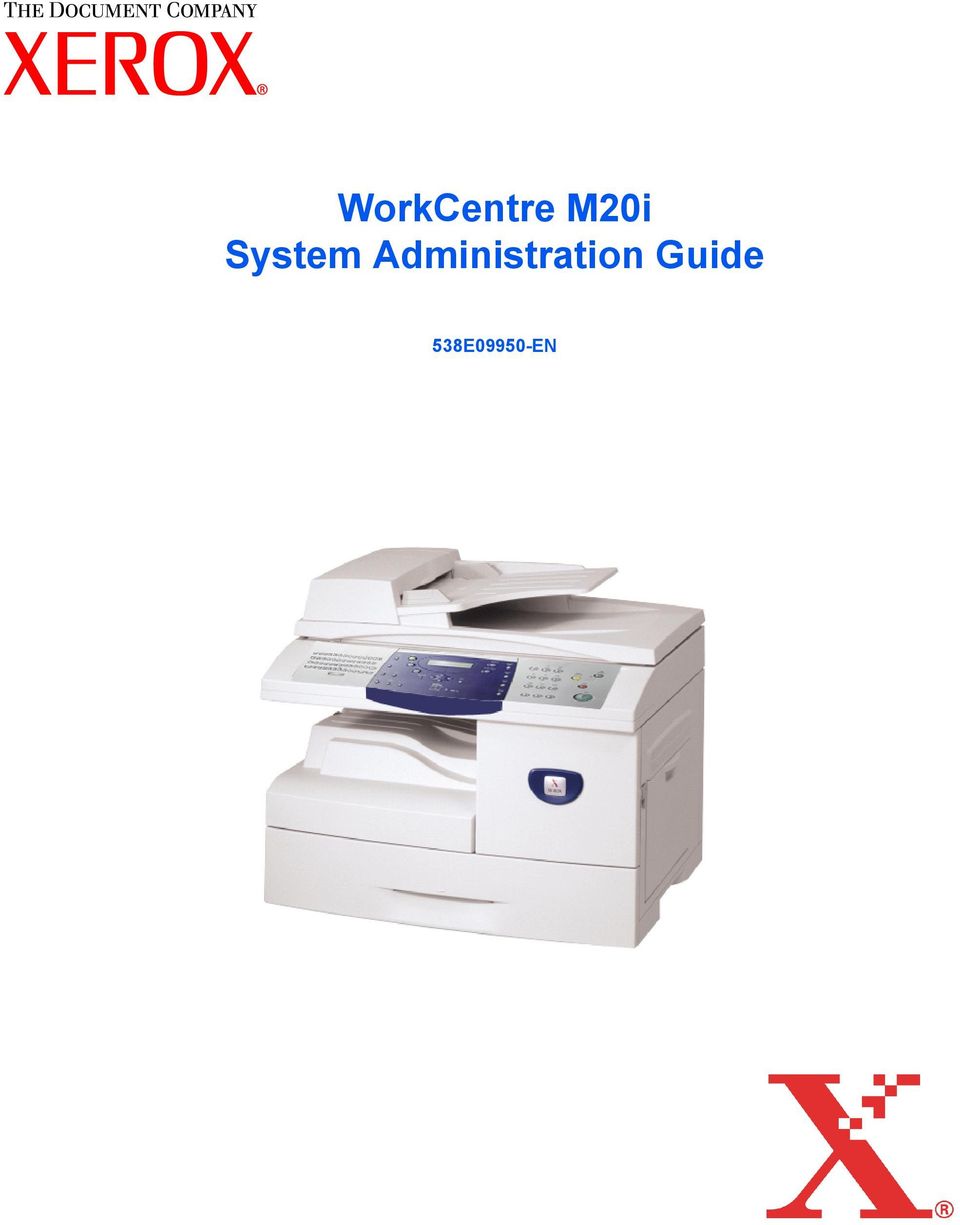
WorkCentre M20i System Administration Guide 538E09950-EN
|
|
|
- Colleen Parsons
- 10 years ago
- Views:
Transcription

1 WorkCentre M20i System Administration Guide 538E09950-EN
2 Prepared by: The Document Company Xerox GKLS European Operations Bessemer Road Welwyn Garden City Hertfordshire AL7 1HE ENGLAND 2004 by Xerox Corporation. All rights reserved. Copyright protection claimed includes all forms and matters of copyrighted material and information now allowed by statutory or judicial law or hereinafter granted, including without limitations, material generated from the software programs which are displayed on the screen, such as icons, screen displays, looks etc. Xerox and all Xerox product Names are trademarks of XEROX CORPORATION. AppleTalk is a trademark of Apple Computer Inc. Netware is a trademark of Novell Inc. Changes, technical inaccuracies and typographical errors will be corrected in subsequent editions.

3 Table of Contents 1 Welcome Introduction About This Guide Related Information Sources Customer Support Safety Safety Standards Regulatory Information Laser Safety The Electricity at Work Regulations - UK ONLY Regulations - Europe Certification to 1999/5/EC Radio Equipment & Telecommunications Terminal Equipment Directive Regulations - USA Fax Send Header Requirements Data Coupler Information Regulations - Canada Environmental Compliance Energy Star Basic Network Installation Introduction Information Checklist Ethernet Port Ethernet Port Setup Basic TCP/IP Settings Installation Procedure Enabling or Disabling TCP/IP Network Communication Setup Workstation Setup Test Print Xerox WorkCentre M20i System Administration Guide Page i

4 Table of Contents 3 NetWare Introduction Information Checklist NetWare Environments IPX Queue Based Printing Installation Options Using Xerox CentreWare DP Using NetWare Utilities IPX NDPS Printing IP NDPS Printing Test Print Print Driver Installation for Networked Printers Introduction Information Checklist Workstation Setup Windows XP (TCP/IP) Windows 2000 (TCP/IP) Windows NT V4.0 (TCP/IP) Windows 98/Me Windows XP (Internet Printing Protocol) Windows 2000 (Internet Printing Protocol) Apple Mac OSX with Rendezvous Test Print AppleTalk Introduction Information Checklist AppleTalk Installation Installation Procedure Network Communication Setup Printer Driver Installation (Mac OS 8x,9x only) Installation Procedure Setting the Printer Driver (Mac OS 8x,9x only) Printer Driver Installation (Mac OSX only) Installation Procedure Setting the Printer Driver (Mac OSX only) Test Print Page ii Xerox WorkCentre M20i System Administration Guide

5 6 Advanced TCP/IP Setup Introduction Information Checklist Enabling/Disabling LPR/LPD Enabling/Disabling Raw Printing Enabling/Disabling HTTP Table of Contents 7 Network Installation Using Internet Services Introduction Information Checklist Using CentreWare Internet Services Introduction Network Communication Setup Enabling Internet Services Configuring the Network Ethernet AppleTalk NetWare TCP/IP SNMP SSDP LPR/LPD Raw TCP/IP Printing IPP HTTP Local Connection Introduction Information Checklist Installation Procedure Driver Installation Workstation Setup Test Print or Scan Scan to Introduction Overview Information Checklist Configuring SMTP SMTP IP Address Xerox WorkCentre M20i System Administration Guide Page iii

6 Table of Contents Maximum Mail Size Authentication Add Authenticated Users Delete Authenticated Users Configuring Settings Default Subject Default From Guest User Access Auto Send to Self LDAP Directory Setup (Internal Address Book) Primary LDAP IP Address Setup using Internet Services Enabling Internet Services LDAP Directory SMTP Server Setup User Authentication Local Address Book Group Address Book forwarding Test Transmission Fax Introduction Information Checklist Fax Forwarding Mailbox Setup Create a Mailbox Delete a Mailbox Fax Setup using Internet Services Enabling Internet Services Fax General Setup Fax Phone Book Setup Testing Administration Tools Introduction Department Codes Creating Departments Printing Department Data Managing Departments Page iv Xerox WorkCentre M20i System Administration Guide

7 Changing the Master Code Passcode Protection Enable Passcode Protection Change the Passcode Network Tools Reset NIC Set Factory Defaults Clear Memory Maintenance Tools Check the Serial Number Notify Toner Low New Drum Clean Drum Billing Counters Maintenance using Internet Services Enabling Internet Services Checking Printer Status Printing Reports Defining the Printer Checking Configurations Setting Alert Notifications Checking Billing and Counters Making General Maintenance Settings Upgrading Firmware Installing Flash PCL Fonts Installing Flash PCL Macros Installing Flash PostScript Fonts Obtaining Assistance Maintenance using ControlCentre Upgrading Firmware Downloading PCL Fonts and Macros Downloading PostScript Fonts Enabling or Disabling Auxiliary Access Table of Contents 12 Problem Solving Introduction Problem Solving Procedure Scan to Glossary Xerox WorkCentre M20i System Administration Guide Page v

8 Table of Contents Page vi Xerox WorkCentre M20i System Administration Guide

9 1 Welcome Thank you for choosing the WorkCentre M20i. These products have been designed for ease of use, but to use your machine to its fullest potential take some time to read the User Guide. Introduction About This Guide Related Information Sources Customer Support Safety Regulatory Information Regulations - Europe Regulations - USA Regulations - Canada Environmental Compliance Xerox WorkCentre M20i System Administration Guide Page 1-1

10 Welcome Introduction The Xerox CopyCentre C20, WorkCentre M20 and WorkCentre M20i are a family of digital devices capable of being used for copying, printing, faxing, scanning and . The features and functions available on your machine depend on the model purchased: Xerox CopyCentre C20 This model is a digital copier and copies at 20 pages per minute. It comes with a Document Cover, Paper Tray and Bypass Tray as standard and provides 2-sided copying. A Document Feeder and an additional Paper Tray are available as an option. Xerox WorkCentre M20 This model provides digital copying, direct printing and direct scanning. It copies and prints at 20 pages per minute. A Document Feeder, Paper Tray and Bypass Tray are also provided and 2-sided copying and printing is supported. An additional Paper Tray and Network Printing are available as options. Xerox WorkCentre M20i This model has digital copying, direct scanning, and faxing capabilities. It also provides networked printing and . A Document Feeder and a single Paper Tray are supplied as standard, and 2-Sided capability is also supported. An additional Paper Tray is available as an option. Documentation and software is provided to support the networked capability and an additional 32MB memory is supplied with the function. Page 1-2 Xerox WorkCentre M20i System Administration Guide

11 About This Guide Throughout this System Administration Guide some terms are used interchangeably: Welcome Paper is synonymous with media. Document is synonymous with original. Page is synonymous with sheet. WorkCentre M20i is synonymous with the machine. The following table offers further information about the conventions used within this Guide. CONVENTION DESCRIPTION EXAMPLE Italic Typeface Used to emphasise a word or phrase. In addition, references to other publications are displayed in Italic typeface. Xerox CopyCentre C20, WorkCentre M20 and WorkCentre M20i. Bracket Text Typeface Notes Used to emphasise the selection of a feature mode or button. Located in the margins and used to provide additional or useful information about a function or feature. Select the paper supply source required by pressing [Paper Supply]. For instructions on loading media, refer to Loading Paper in the User Guide. Specification Note Provides more in-depth specification information relating to the machine. For full media specifications refer to Media Specifications in the USer Guide Caution Cautions are statements that suggest mechanical damage as a result of an action. CAUTION: DO NOT use organic or strong chemical solvents or aerosol cleaners or pour fluids directly onto any area. Warning Used to alert users to the possibility of personal injury. WARNING: This product must be connected to a protective earthing circuit. Xerox WorkCentre M20i System Administration Guide Page 1-3

12 Welcome Related Information Sources Information available for the products consists of: -This System Administration Guide -The Quick Start Guide -The Quick Install Sheets -The User Guide - The Xerox website Page 1-4 Xerox WorkCentre M20i System Administration Guide

13 Customer Support If you need assistance during or after product installation, please visit the Xerox website for online solutions and support: Welcome If you still require assistance, call our experts at the Xerox Welcome Center, or contact the local representative. When telephoning please quote the machine serial number. Use the space below to make a note of the machine serial number: # To access the serial number open the side cover using the release latch and then open the front door. The serial number is located on the panel above the Toner Cartridge. The Xerox Welcome Center or local representative telephone number is provided when the machine is installed. For convenience and future reference, please record the telephone number in the space below: Xerox Welcome Center or local representative telephone number: # Xerox US Welcome Center: Xerox Canada Welcome Center: XEROX ( ) Xerox WorkCentre M20i System Administration Guide Page 1-5

14 Welcome Safety Your Xerox product and supplies have been designed and tested to meet strict safety requirements. These include Safety Agency approval, and compliance to established environmental standards. Please read the following instructions carefully before operating the product and refer to them as needed to ensure the continued safe operation of your product. The safety testing and performance of this product have been verified using XEROX materials only. Follow all warnings and instructions marked on, or supplied with the product. This WARNING Mark alerts users to the possibility of personal injury. This WARNING Mark alerts users to heated surfaces. WARNING: This product must be connected to a protective earthing circuit. This product is equipped with a 3-wire type plug, provided with a protective earthing pin. This plug will fit only into an earthed power outlet. This is a safety feature. To avoid risk of electric shock, contact your electrician to replace the receptacle if you are unable to insert the plug into the outlet. Never use an earthed adapter plug to connect the product to a power source receptacle that lacks an earth connection terminal. This product should be operated from the type of power source indicated on the marking label. If you are not sure of the type of power available, consult your local power company. Do not allow anything to rest on the power cord. Do not locate the product where persons will step or trip on the cord. Use of an extension cord with this product is not recommended or authorized. Users should check building codes and insurance requirements if a properly earthed extension cord is to be used. Ensure that the total ampere ratings of the products plugged into the extension cord do not exceed the extension cord ampere rating. Also, ensure that the total amperage of all products plugged into the wall outlets does not exceed the outlet rating. Disconnect Device for this product is the power cord. To remove all electrical power to the product, disconnect the power cord from the power receptacle. Your equipment is equipped with an energy saving device to conserve power when the machine is not in use. The machine may be left on continuously. Unplug this product from the wall outlet before cleaning. Always use materials specifically designated for this product. Use of other materials may result in poor performance and could create a hazardous situation. Page 1-6 Xerox WorkCentre M20i System Administration Guide

15 Do not use aerosol cleaners. Follow the instructions in this User Guide for proper cleaning methods. Never use supplies or cleaning materials for purposes other than those for which they were intended. Keep all supplies and materials out of reach of children. Welcome Do not use this product near water, wet locations, or outdoors. Do not place this product on an unstable cart, stand or table. The product may fall, causing personal injury or serious damage to the product Slots and Openings in the cabinet and in the back and sides of the product are provided for ventilation. To ensure reliable operation of the product and to protect it from overheating, these openings must not be blocked or covered. The product should never be located near or over a radiator or heat register. This product should not be placed in a built-in installation unless proper ventilation is provided. Never push objects of any kind into the slots of the product as they may touch dangerous voltage points or short out parts which could result in a fire or electric shock. Never spill liquid of any kind on the product. Never remove covers or guards that require a tool for removal, unless directed to do so in a Xerox approved maintenance kit. Never defeat interlock switches. Machines are designed to restrict operator access to unsafe areas. Covers, guards and interlock switches are provided to ensure that the machine will not operate with covers opened. Do not put your hands into the fuser area, located just inside the exit tray area, as you may be burned. Quality Standards: The product is manufactured under a registered ISO9002 Quality system. If you need additional safety information concerning this XEROX product or XEROX supplied materials you may call the following number: EUROPE +44 (0) USA/CANADA Xerox WorkCentre M20i System Administration Guide Page 1-7

16 Welcome Safety Standards EUROPE This XEROX product is certified by the following Agency using the Safety Standards listed. Agency: TUV Rheinland Standard: IEC rd Edition Amendments A1, A2, A3, A4 and A11. USA/CANADA This XEROX product is certified by the following Agency using the Safety Standards listed. Agency: UNDERWRITERS LABORATORIES Standard: UL rd Edition. Certification is based on reciprocity agreements, which include requirements for Canada. Page 1-8 Xerox WorkCentre M20i System Administration Guide

17 Regulatory Information The CE marking applied to this product symbolizes Xerox Limited Declaration of Conformity with the following applicable Directives of the European Union as of the dates indicated: Welcome January 1, 1995: January 1, 1996: March 9, 1999 Council Directive 73/23/EEC amended by Council Directive 93/68/EEC, approximation of the laws of the member states related to low voltage equipment. Council Directive 89/336/EEC, approximation of the laws of the member states related to electromagnetic compatibility. Council Directive 99/5/EC, on radio equipment and telecommunications terminal equipment and the mutual recognition of their conformity. A full declaration, defining the relevant directives and referenced standards can be obtained from your Xerox representative or by contacting: Environment, Health and Safety Xerox Limited Bessemer Road Welwyn Garden City Hertfordshire AL7 1HE England Telephone Number: +44 (0) WARNING: This is a Class A product. In a domestic environment this product may cause radio frequency interference, in which case the user may be required to take adequate measures. WARNING: This product is certified manufactured and tested in compliance with strict safety and radio frequency interference regulations. Any unauthorized alteration which includes the addition of new functions or the connection of external devices may impact this certification. Please contact your local XEROX Limited representative for a list of approved accessories. Xerox WorkCentre M20i System Administration Guide Page 1-9

18 Welcome WARNING: In order to allow this equipment to operate in proximity to Industrial, Scientific and Medical (ISM) equipment, the external radiation from the ISM equipment may have limited or special mitigation measures taken. WARNING: Shielded cables must be used with this equipment to maintain compliance with Council Directive 89/336/EEC. FCC Part 15 This equipment has been tested and found to comply with the limits for a Class A digital device, pursuant to Part 15 of the FCC Rules. These limits are designed to provide reasonable protection against harmful interference when the product is operated in a commercial environment. This equipment generates, uses, and can radiate radio frequency energy and, if not installed and used in accordance with the instruction manual, may cause harmful interference to radio communications. Operation of this equipment in a residential area is likely to cause harmful interference in which case the user will be required to correct the interference at his own expense. Reference CFR 47 Part 15 Section Changes or modifications to this equipment not specifically approved by the XEROX Corporation may void the user's authority to operate this equipment. Laser Safety Shielded cables must be used with this equipment to maintain compliance with FCC regulations. WARNING: Use of controls or adjustments or performance of procedures other than those specified herein may result in hazardous radiation exposure. With specific regard to lasers, the equipment complies with laser product performance standards set by governmental, national and international agencies as a Class 1 Laser Product. It does not emit hazardous radiation as the beam is totally enclosed during all phases of customer operation and maintenance. Page 1-10 Xerox WorkCentre M20i System Administration Guide

19 The Electricity at Work Regulations - UK ONLY The Electricity at Work Regulation 1989 came into force in England and Wales on 1 April This 1989 Regulation places a duty on all employers and self-employed persons to ensure the electrical system in their premises is constructed, maintained and operated in such a manner as to prevent, so far as reasonably practical, danger. This includes ensuring all electrical equipment connected to such electrical systems safely constructed, maintained and operated. Welcome All Xerox equipment has been designed to exacting safety standards and has undergone a variety of stringent safety tests including earth bond, insulation resistance and electrical strength tests. Xerox Limited manufacturing plants have been awarded ISO 9000 quality certification and are subject to regular audits by the British Standards Institution or equivalent national standards body. Xerox equipment which has been properly and regularly serviced and maintained should not have to undergo additional specific safety tests pursuant to the 1989 Regulation. Customers wishing to complete safety testing should contact Xerox Limited (see page 1-13 for details) for advice prior to any test implementation. XEROX equipment should, however, be properly and regularly serviced and maintained at all times. QUESTION: What is the Electricity at Work Regulation? ANSWER: The Electricity at Work Regulation 1989 came into force in England and Wales on 1 April This 1989 Regulation places a duty on all employers and selfemployed persons to ensure the electrical systems in their premises are constructed, maintained and operated in such a manner as to prevent, so far as reasonably practicable, danger. This includes ensuring that all electrical products connected to such electrical systems are safely constructed, maintained and operated. QUESTION: Does XEROX Limited comply with the Electricity at Work Regulation? ANSWER: The regulation places a duty on all employers and self-employed persons to ensure the electrical systems in their premises are, effectively safe. The regulation does not impose on, amongst others, manufacturers or suppliers of such electrical systems. However, rest assured that all XEROX equipment which XEROX Limited and its authorized distributors supplies to customers, conforms with all the relevant safety legislation and standards. QUESTION: Is XEROX equipment safe? ANSWER: All XEROX equipment supplied by XEROX Limited and their authorized distributors conforms to all relevant safety legislation and standards. Xerox WorkCentre M20i System Administration Guide Page 1-11

20 Welcome QUESTION: Is the XEROX equipment in my premises safe? ANSWER: All XEROX equipment supplied by XEROX Limited and their authorized distributors conforms to all relevant safety legislation and standards. However, like all electrical equipment, they have to be regularly serviced and maintained by competent persons. XEROX Limited Customer Service Engineers ensure XEROX equipment is serviced and maintained to exacting XEROX safety standards. If you would like your XEROX equipment to be serviced and maintained to such high standards, please contact your local XEROX Limited Customer Service Organization. They will be pleased to assist you. QUESTION: Does the XEROX equipment in my premises comply with the Electricity at Work Regulations? ANSWER: All employers and self-employed persons must ensure that the electrical systems in their premises are safe. This will include ensuring XEROX equipment in such premises is safe. XEROX Limited s Product Safety function has prepared a guide which contains a list of tests which may be completed by your XEROX Limited Customer Service Organization. THESE TESTS MUST BE CARRIED OUT ONLY BY PERSONS WHO POSSESS THE RELEVANT SKILL, KNOWLEDGE AND EXPERIENCE TO CARRY OUT SUCH TESTS. Please contact the XEROX Limited Customer Service Organization for further information. THE USE OF INAPPROPRIATE TEST PROCEDURES AND TEST EQUIPMENT MAY PROVIDE MISLEADING RESULTS AND MAY CAUSE DEATH, PERSONAL INJURY AND/ OR DAMAGE TO PROPERTY. QUESTION: I would like to carry out my own safety tests on the XEROX equipment in my premises. ANSWER: You may, of course, request such tests as you deem necessary to satisfy yourself that your XEROX equipment is safe. Your XEROX Limited Customer Support will be pleased to advise you on such testing. QUESTION: I require records of all tests. ANSWER: After safety testing, your XEROX Limited Customer Service Engineer will provide you with a certificate which details the results of all tests completed. Page 1-12 Xerox WorkCentre M20i System Administration Guide

21 In the event of any defect being noted, the XEROX equipment will be switched off and disconnected from the supply until the defect has been corrected. You will be advised of such action to enable such defects to be corrected. PLEASE NOTE: YOU MUST ENSURE THAT YOUR XEROX EQUIPMENT IS SAFE AT ALL TIMES. Welcome Please contact us if you have any queries regarding the information provided in this document. Environment, Health and Safety XEROX Limited Bessemer Road Welwyn Garden City Hertfordshire AL7 1HE England Telephone Number: +44 (0) Xerox WorkCentre M20i System Administration Guide Page 1-13
22 Welcome Regulations - Europe Certification to 1999/5/EC Radio Equipment & Telecommunications Terminal Equipment Directive This Xerox product has been self-certified by Xerox for pan-european single terminal connection to the analogue public switched telephone network (PSTN) in accordance with Directive 1999/5/EC. The product has been designed to work with the national PSTNs and compatible PBXs of the following countries: Austria GermanyLuxembourg Sweden Belgium GreeceNetherlands Switzerland Denmark IcelandNorway United Kingdom France IrelandPortugal Finland Italy Spain In the event of problems, you should contact your local Xerox representative in the first instance. This product has been tested to and is compliant with TBR21, a technical specification for terminal equipment for use on analogue-switched telephone networks in the European Economic Area. The product may be configured to be compatible with other country networks. Please contact your Xerox representative if it needs to be reconnected to another country's network. There are no user-adjustable settings in the product. NOTE: Although this product can use either loop disconnect (pulse) or DTMF (tone) signaling it is recommended that it is set to use DTMF signaling. DTMF signaling provides reliable and faster call setup. Modification, connection to external control software or to external control apparatus not authorized by Xerox, will invalidate its certification. Page 1-14 Xerox WorkCentre M20i System Administration Guide
23 Regulations - USA Fax Send Header Requirements Welcome The Telephone Consumer Protection Act of 1991 makes it unlawful for any person to use a computer or other electronic device, including FAX machines, to send any message unless such message clearly contains in a margin at the top or bottom of each transmitted page or on the first page of the transmission, the date and time it is sent and an identification of the business or other entity, or other individual sending the message and the telephone number of the sending machine or such business, other entity, or individual. (The telephone number provided may not be a 900 number or any other number for which charges exceed local or long-distance transmission charges.) In order to program this information into your FAX machine refer to Setting the Machine ID in the User Guide and follow the steps provided. Data Coupler Information This equipment complies with Part 68 of the FCC rules and the requirements adopted by the Administrative Council for Terminal Attachments (ACTA). On the rear of this equipment is a label that contains, among other information, a product identifier in the format US:AAAEQ##TXXXX. If requested, this number must be provided to the Telephone Company. A plug and jack used to connect this equipment to the premises wiring and telephone network must comply with the applicable FCC Part 68 rules and requirements adopted by the ACTA. A compliant telephone cord and modular plug is provided with this product. It is designed to be connected to a compatible modular jack that is also compliant. WARNING: Ask your local Telephone Company for the modular jack type installed on your line. Connecting this machine to an unauthorized jack can damage Telephone Company equipment. You, not Xerox, assume all responsibility and/or liability for any damage caused by the connection of this machine to an unauthorized jack. You may safely connect the machine to the following standard modular jack: USOC RJ-11C using the compliant telephone line cord (with modular plugs) provided with the installation kit. See installation instructions for details. Xerox WorkCentre M20i System Administration Guide Page 1-15
24 Welcome The Ringer Equivalence Number (or REN) is used to determine the number of devices that may be connected to a telephone line. Excessive RENs on a telephone line may result in the devices not ringing in response to an incoming call. In most but not all areas, the sum of RENs should not exceed five (5.0). To be certain of the number of devices that may be connected to a line, as determined by the total RENs, contact the local Telephone Company. For products approved after July 23, 2001, the REN for this product is part of the product identifier that has the format US:AAAEQ##TXXXX. The digits represented by ## are the REN without a decimal point (e.g., 03 is a REN of 0.3). For earlier products, the REN is separately shown on the label. If this Xerox equipment causes harm to the telephone network, the Telephone Company will notify you in advance that temporary discontinuance of service may be required. But if advance notice isn't practical, the Telephone Company will notify the customer as soon as possible. Also, you will be advised of your right to file a complaint with the FCC if you believe it is necessary. The Telephone Company may make changes in its facilities, equipment, operations or procedures that could affect the operation of the equipment. If this happens the Telephone Company will provide advance notice in order for you to make necessary modifications to maintain uninterrupted service. If trouble is experienced with this Xerox equipment, for repair or warranty information, please contact the appropriate service center; details of which are displayed either on the machine or contained within the user guide. If the equipment is causing harm to the telephone network, the Telephone Company may request that you disconnect the equipment until the problem is resolved. Repairs to the machine should be made only by a Xerox representative or an authorized Xerox service agency. This applies at any time during or after the service warranty period. If unauthorized repair is performed, the remainder of the warranty period is null and void. This equipment must not be used on party lines. Connection to party line service is subject to state tariffs. Contact the state public utility commission, public service commission or corporation commission for information. If your office has specially wired alarm equipment connected to the telephone line, ensure the installation of this Xerox equipment does not disable your alarm equipment. If you have questions about what will disable alarm equipment, consult your Telephone Company or a qualified installer. Page 1-16 Xerox WorkCentre M20i System Administration Guide
25 Regulations - Canada This product meets the applicable Industry Canada technical specifications. Welcome 'The Ringer Equivalence Number (REN) is an indication of the maximum number of devices allowed to be connected to a telephone interface. The termination on an interface may consist of any combination of devices subject only to the requirement that the sum of the RENs of all the devices does not exceed five. The REN value may be found on the label located on the rear of the equipment. Repairs to certified equipment should be made by an authorized Canadian maintenance facility designated by the supplier. Any repairs or alterations made by the user to this equipment, or equipment malfunctions, may give the telecommunications company cause to request the user to disconnect the equipment. Users should ensure for their own protection the electrical ground connections of the power utility, telephone lines and internal metallic water pipe system, if present, are connected together. This precaution may be particularly important in rural areas. CAUTION: Users should not attempt to make such connections themselves, but should contact the appropriate electric inspection authority or electrician, as appropriate. Xerox WorkCentre M20i System Administration Guide Page 1-17
26 Welcome Environmental Compliance Energy Star XEROX Corporation designed this product to comply with the guidelines of the ENERGY STAR program of the Environmental Protection Agency. As an ENERGY STAR Partner, XEROX has determined that this product meets the ENERGY STAR guidelines for energy efficiency. Page 1-18 Xerox WorkCentre M20i System Administration Guide
27 2 Basic Network Installation Introduction This chapter explains how to make the basic settings to install the WorkCentre M20i on a network. The physical connection is Ethernet and the addressing protocols are provided by TCP/IP. The following information is provided: Information Checklist Ethernet Port Basic TCP/IP Settings Xerox WorkCentre M20i System Administration Guide Page 2-1
28 Basic Network Installation Information Checklist Before starting the basic network installation procedures, please ensure the following items are available or have been performed: Item An existing operational network utilizing TCP/IP is required, these procedures are not designed to install a network. Customer By A suitable network cable. If you are going to configure TCP/IP manually, you need to obtain and record the following information: Customer Customer TCP/IP Address: Gateway Address: Subnet Mask Address: Primary DNS Server Address: Refer to the Glossary for additional information on the Gateway Address, Subnet Mask Address and Primary DNS, if needed. Test the WorkCentre M20i to ensure it is installed fully and functioning correctly. WorkCentre M20i print and fax drivers. Customer Xerox If problems are encountered during the WorkCentre M20i installation, refer to the Problem Solving chapter for assistance. CAUTION: Do not connect the network cable to the WorkCentre M20i until instructed to do so. Page 2-2 Xerox WorkCentre M20i System Administration Guide
29 Ethernet Port Ethernet Port Setup The Ethernet port is the default interface used on the WorkCentre M20i. NOTE: The Ethernet port cannot be disabled. Basic Network Installation If the speed setting of the Ethernet port needs to be changed perform the following steps: 1 2 Connect the device to the network outlet or cable. Press the [Machine Status] button. 3 Press or until System Admin Tools is displayed and press [Enter]. If the System Admin Tools have been passcode protected, type in the password and press [Enter]. System Admin Tools [Passcode Protect] 4 Press or until Network Setup is displayed and press [Enter]. System Admin Tools [Network Setup] Xerox WorkCentre M20i System Administration Guide Page 2-3
30 Basic Network Installation 5 Press or until Configure Network is displayed and press [Enter]. 6 Press or until Ethernet is displayed and press [Enter]. Press [Enter] to set the speed. Config. Network [Ethernet] Ethernet [Speed] 7 Press or to display the appropriate speed and press [Enter]. The choices are: Auto 10M Half 10M Full 100M Half 100M Full Speed [Auto] 8 Setup the TCP/IP addresses (see Basic TCP/IP Settings on page 2-5). Page 2-4 Xerox WorkCentre M20i System Administration Guide
31 Basic TCP/IP Settings Before the printer can be used on the network, the TCP/IP addresses need to be entered. These can be entered automatically using Dynamic Host Configuration Protocol (DHCP) or Bootstrap Protocol (BOOTP) or entered manually. To enter the addresses manually, you need to obtain the following: TCP/IP Address Gateway Address Basic Network Installation Subnet Mask Address Primary DNS Server Address Installation Procedure There are three stages required to install the WorkCentre M20i in a TCP/IP networking environment: Network Communication Setup This requires the WorkCentre M20i to be setup for TCP/IP. Workstation Setup Test Print This requires the Workstations in the networking environment to be configured to communicate with the WorkCentre M20i. A print job should be submitted to ensure the WorkCentre M20i has been installed and configured correctly. Xerox WorkCentre M20i System Administration Guide Page 2-5
32 Basic Network Installation Enabling or Disabling TCP/IP 1 At the WorkCentre M20i, perform these steps: Press the [Machine Status] button. 2 Press or until System Admin Tools is displayed and press [Enter]. If the System Admin Tools have been passcode protected, type in the password and press [Enter]. System Admin Tools [Passcode Protect] 3 Press or until Network Setup is displayed and press [Enter]. System Admin Tools [Network Setup] 4 Press or until Configure Network is displayed and press [Enter]. Network Setup [Config. Network] 5 Press or until TCP/IP is displayed and press [Enter]. Config Network [TCP/IP] Page 2-6 Xerox WorkCentre M20i System Administration Guide
33 6 Press or until Setup is displayed and press [Enter]. To enable TCP/IP, press or until Enable is displayed and press [Enter]. Otherwise display Disable and press [Enter]. TCP/IP [Setup] Basic Network Installation Xerox WorkCentre M20i System Administration Guide Page 2-7
34 Basic Network Installation Network Communication Setup 1 2 Automatically setting TCP/IP Addresses At the WorkCentre M20i, perform these steps: Ensure that the Ethernet Port has been configured (see Ethernet Port on page 2-3). Press the [Machine Status] button. 3 Press or until System Admin Tools is displayed and press [Enter]. If the System Admin Tools have been passcode protected, type in the password and press [Enter]. System Admin Tools [Passcode Protect] 4 Press or until Network Setup is displayed and press [Enter]. System Admin Tools [Network Setup] 5 Press or until Configure Network is displayed and press [Enter]. Network Setup [Config. Network] Page 2-8 Xerox WorkCentre M20i System Administration Guide
35 6 Press or until TCP/IP is displayed and press [Enter]. You can use DHCP or BOOTP to automatically configure TCP/ IP on the machine. Config Network [TCP/IP] Basic Network Installation 7 Press or until the required setting method is displayed and press [Enter]. TCP/IP [DHCP] After a short period of time, the network will allocate the required addresses. 8 Print a System Data sheet to check the addresses (see the User Guide for printing reports). Xerox WorkCentre M20i System Administration Guide Page 2-9
36 Basic Network Installation Manually setting TCP/IP Addresses At the WorkCentre M20i, perform these steps: HINT: Xerox CentreWare Internet Services can also be used to configure the WorkCentre M20i, refer to the Internet Services chapter for instructions. When manually making the TCP/IP settings, you will need to know the following information: The IP address. The subnet mask, if required. The Gateway address, if required The primary and Secondary DNS address, if required. 1 2 Ensure that the Ethernet Port has been configured (see Ethernet Port on page 2-3). Press the [Machine Status] button. 3 Press or until System Admin Tools is displayed and press [Enter]. If the System Admin Tools have been passcode protected, type in the password and press [Enter]. System Admin Tools [Passcode Protect] 4 Press or until Network Setup is displayed and press [Enter]. System Admin Tools [Network Setup] Page 2-10 Xerox WorkCentre M20i System Administration Guide
37 5 Press or until Configure Network is displayed and press [Enter]. 6 Press or until Manual is displayed and press [Enter]. Network Setup [Config. Network] Config Network [Manual] Basic Network Installation 7 For each address, press or until the required setting is displayed and press [Enter]. Manual [IP Address] 8 Enter the address using the keyboard and press [Enter]. Press the period on the keyboard to insert the dot between each group. IP Address [xxx.xxx.xxx.xxx] 9 Continue with Workstation Setup on page Xerox WorkCentre M20i System Administration Guide Page 2-11
38 Basic Network Installation Workstation Setup 1 2 To enable the workstation environment to communicate with the WorkCentre M20i perform the following steps: At the client workstation, install print drivers and map to the printer (see Workstation Setup 4-3). Continue with Test Print on page Page 2-12 Xerox WorkCentre M20i System Administration Guide
39 Test Print To ensure the WorkCentre M20i has been installed on the network correctly a test print should be submitted from a client workstation. Perform the following steps: Open a document on a client workstation. Select the WorkCentre M20i as the printer for sending documents to. Print the document on the device and verify that it prints correctly. Ensure the print driver is installed on every workstation that will be sending jobs to the device. Repeat the test for all workstations that will be sending jobs to the device. If the test print fails, refer to the Problem Solving chapter for trouble-shooting procedures. Basic Network Installation Xerox WorkCentre M20i System Administration Guide Page 2-13
40 Basic Network Installation Page 2-14 Xerox WorkCentre M20i System Administration Guide
41 3 NetWare Introduction This chapter explains how to install the WorkCentre M20i on the various NetWare networks. The following information is provided: Information Checklist NetWare Environments IPX Queue Based Printing IPX NDPS Printing IP NDPS Printing Test Print Xerox WorkCentre M20i System Administration Guide Page 3-1
42 NetWare Information Checklist Before starting the NetWare installation procedures, please ensure the following items are available or have been performed: Item By An existing operational NetWare network is required, these procedures are not designed to install a NetWare network. NetWare client, server and operating system software version 4.x, 5.x and 6.x. Install the printer drivers on each workstation that will use the printer. Test the WorkCentre M20i to ensure it is installed fully and functioning correctly. WorkCentre M20i print and fax drivers. Customer Customer Customer Customer Xerox If problems are encountered during the WorkCentre M20i installation, refer to the Problem Solving chapter for assistance. Page 3-2 Xerox WorkCentre M20i System Administration Guide
43 NetWare Environments NetWare The NetWare versions and protocols supported in this chapter are as follows: NetWare Versions supported: NetWare 4.x, 5.x and 6.x Network Protocols supported: IPX, IP (IP printing is supported via LPR/LPD only) The WorkCentre M20i settings which require configuring vary, depending on the NetWare version being used. Identify which instructions are appropriate for the network configuration and refer to the section: IPX Queue based printing in Bindery and NDS environments refer to page 3-4. IPX printing with NDPS refer to page LPR/LPD printing with NDPS Xerox WorkCentre M20i System Administration Guide Page 3-3
44 NetWare IPX Queue Based Printing Installation Options There are two main methods which can be used to complete the network installation for IPX environment. These are: Using Xerox CentreWare DP To use this method of installation, refer to page 3-5. Using NetWare Utilities This method requires use of the NetWare utilities for example NWADMIN to configure the network. The device will require configuring using the WorkCentre M20i user interface or CentreWare Internet Services. To use this method of installation, refer to page 3-8. Page 3-4 Xerox WorkCentre M20i System Administration Guide
45 Using Xerox CentreWare DP Installation Procedure There are four stages required to install the WorkCentre M20i on a NetWare network using Xerox CentreWare DP: NetWare Network Communication Setup This procedure will enable the WorkCentre M20i to communicate on the NetWare network. Xerox CentreWare DP Setup This procedure is used to complete the WorkCentre M20i installation using Xerox CentreWare DP. Install the printer driver on each workstation (see Workstation Setup on page 4-3) Test Print A print job should be submitted to ensure the WorkCentre M20i has been installed and configured correctly. Network Communication Setup At the WorkCentre M20i, perform these steps: 1 2 HINT: Xerox CentreWare Internet Services can also be used to configure the WorkCentre M20i, refer to the Internet Services chapter for instructions. Ensure that the Basic TCP/IP settings have been configured (see Network Communication Setup on page 2-8). Press the [Machine Status] button. 3 Press or until System Admin Tools is displayed and press [Enter]. If the System Admin Tools have been passcode protected, type in the password and press [Enter]. System Admin Tools [Passcode Protect] Xerox WorkCentre M20i System Administration Guide Page 3-5
46 NetWare 4 Press or until Network Setup is displayed and press [Enter]. System Admin Tools [Network Setup] 5 Press or until Netware is displayed and press [Enter]. Network Setup [Netware] 6 Press or until the appropriate frametype is displayed and press [Enter]. The choices are: Auto Enable Enable Ethernet 2 Enable Enable SNAP SAP Off Netware [Auto] 7 Continue with CentreWare DP Setup on page 3-7. Page 3-6 Xerox WorkCentre M20i System Administration Guide
47 CentreWare DP Setup Ensure that the Xerox CentreWare DP is installed on the client workstation. If needed, refer to the Xerox CentreWare DP User Guide for installation instructions. NetWare For more detailed instructions on setting up a network, access the electronic, context-sensitive Help from all Network Services and Admin Services screens and dialogue boxes Locate and launch Xerox CentreWare DP. Follow the instructions in Netware section of the Xerox CentreWare DP User Guide to setup the WorkCentre M20i on the network. Power off and power on the WorkCentre M20i so the setup selections will take effect. Install the print driver for on each workstation (see Workstation Setup on page 4-3). Xerox WorkCentre M20i System Administration Guide Page 3-7
48 NetWare Using NetWare Utilities Installation Procedure There are three stages required to install the WorkCentre M20i on a NetWare network using NetWare utilities: Network Communication Setup This procedure will enable the WorkCentre M20i to communicate on the NetWare network. NetWare Setup Test Print This procedure is used to setup the network using NetWare utilities, for example NWADMIN. A print job should be submitted to ensure the WorkCentre M20i has been installed and configured correctly. If running NLSP, ensure that RIP/SAP compatibility is configured on the same segment as the WorkCentre M20i. Network Communication Setup At the WorkCentre M20i, perform these steps: 1 2 HINT: Xerox CentreWare Internet Services can also be used to configure the WorkCentre M20i, refer to the Internet Services chapter for instructions. Ensure that the Basic TCP/IP settings have been configured (see Network Communication Setup on page 2-8). Press the [Machine Status] button. 3 Press or until System Admin Tools is displayed and press [Enter]. If the System Admin Tools have been passcode protected, type in the password and press [Enter]. System Admin Tools [Passcode Protect] Page 3-8 Xerox WorkCentre M20i System Administration Guide
49 4 Press or until Network Setup is displayed and press [Enter]. System Admin Tools [Network Setup] NetWare 5 Press or until Netware is displayed and press [Enter]. Network Setup [Netware] 6 Press or until the appropriate frametype is displayed and press [Enter]. The choices are: Auto Enable Enable Ethernet 2 Enable Enable SNAP SAP Off Netware [Auto] 7 Continue with NetWare Setup on page Xerox WorkCentre M20i System Administration Guide Page 3-9
50 NetWare NetWare Setup Create and configure a print server, a printer and a print queue for the WorkCentre M20i using the appropriate Netware utility, PCONSOLE or NWADMIN for example. Record the following information for use during setup at the WorkCentre M20i: - NDS Tree (not Bindery): - NDS Context (not Bindery): - File Server (Bindery only): - Print Server Name: - Print Server Password: Install the print driver for on each workstation (see Workstation Setup on page 4-3). Page 3-10 Xerox WorkCentre M20i System Administration Guide
51 IPX NDPS Printing NetWare Ensure server(s) and NDS are patched to the correct level. Ensure that NDPS 2.0 is installed. Ensure that the latest version of the Xerox NDPS Gateway is installed on the relevant server. Ensure that you have an NDS login with sufficient rights to create objects in the desired container. NDPS Printing to the WorkCentre M20i can use either IPX or IP. 1 Before creating the new NDPS Printer the WorkCentre M20i must be configured with a printer server name an appropriate Netware Utility, for example NWAdmin. NOTE: The correct tree and context are not required but it is necessary to enter some text in each in order to save the print server name. 2 3 Create NDPS Printer object: In NDS create a new NDPS Printer object in the appropriate container: - Enter a name and select [Create]. - Choose the appropriate NDPS Manager and select the Xerox Printer Gateway. Select [OK]. -In Select a Network Protocol choose [IPX] and select [OK] and then [Next] to launch the Installation Wizard. - From the list select the print server name created in Step 1. Ensure that Auto Create NDS Objects is checked, then select [Next] and [Next] again. -Select[Finish]. The WorkCentre M20i will reset and the new Printer Agent will load on the relevant server. - You can select print drivers if you wish. Select [Continue] and then [OK] to finish. Install the print driver for on each workstation (see Workstation Setup on page 4-3). Xerox WorkCentre M20i System Administration Guide Page 3-11
52 NetWare IP NDPS Printing Ensure server(s) and NDS are patched to the correct level. Ensure that NDPS 2.0 is installed. Ensure that the latest version of the Xerox NDPS Gateway is installed on the relevant server. Ensure that you have an NDS login with sufficient rights to create objects in the desired container. NDPS Printing to the WorkCentre M20i can use either IPX or IP. This uses LPR printing therefore the Line Printer Daemon must be configured. See Enabling/Disabling LPR/LPD on page Create NDPS Printer object: In NDS create a new NDPS Printer object in the appropriate container. - Enter a name and select [Create]. - Choose the appropriate NDPS Manager and select the Novell Printer Gateway. Select [OK]. - You can choose a printer type at this stage if desired. Otherwise leave as None. Select [OK]. - On the Configure Port Handler screen select [LPR on IP] and then select [Next]. - Enter the IP Address (or host name if appropriate) of the WorkCentre M20i. NOTE: The Printer Name can be left at the default. -Select[Finish]. The new Printer Agent will load on the relevant server. - You can select print drivers at this point if you wish. Select [Continue] and then [OK] to finish. NOTE: The two configurations described above can coexist. 2 Install the print driver for on each workstation (see Workstation Setup on page 4-3). Page 3-12 Xerox WorkCentre M20i System Administration Guide
53 Test Print NetWare To ensure the WorkCentre M20i has been installed on the network correctly a test print should be submitted from a client workstation. Perform the following steps: Open a document on a client workstation. Select the WorkCentre M20i as the printer for sending documents to. Print the document on the device and verify that it prints correctly. Ensure the print driver is installed on every workstation that will be sending jobs to the device. Repeat the test for all workstations that will be sending jobs to the device. If the test print fails, refer to the Problem Solving chapter for trouble-shooting procedures. Xerox WorkCentre M20i System Administration Guide Page 3-13
54 NetWare Page 3-14 Xerox WorkCentre M20i System Administration Guide
55 4 Print Driver Installation for Networked Printers Introduction This chapter explains how to install the print drivers for networked printers. The following information is provided: Information Checklist Workstation Setup Xerox WorkCentre M20i System Administration Guide Page 4-1
56 Print Driver Installation for Networked Printers Information Checklist Before starting the Driver installation procedures, please ensure the following items are available or have been performed: Item The printer has been installed on the network WorkCentre M20i print drivers are available on CD. Customer Xerox If problems are encountered during the WorkCentre M20i installation, refer to the Problem Solving chapter for assistance. By Page 4-2 Xerox WorkCentre M20i System Administration Guide
57 Workstation Setup 1 This section includes the setup procedures for the various Windows workstation environments. Locate and perform the workstation setup procedures for the workstation environment. Choose from: Windows XP (TCP/IP) (see 4-4). Windows 2000 Internet Printing Protocol (TCP/IP) (see 4-6). Windows NT V4.0/2000 (TCP/IP) (see 4-8). Windows 98/Millennium Edition (see 4-10). Windows XP (IPP) (see 4-11). Windows 2000 Internet Printing Protocol (IPP) (see 4-12). Print Driver Installation for Networked Printers 2 Apple Mac OSX with Rendezvous (see 4-13). Continue with Test Print (see Test Print on page 4-14). Xerox WorkCentre M20i System Administration Guide Page 4-3
58 Print Driver Installation for Networked Printers Windows XP (TCP/IP) NOTE: Windows XP supports printing via TCP/IP as standard when TCP/IP is installed on a Windows XP Workstation. Use the Add Printer Wizard to add the WorkCentre M20i to the network. Select [Start], select [Printers and Faxes]. Double-click on the [Add Printer] icon to display the Add Printer Wizard. Select [Local Printer attached to this computer], uncheck the box labelled [Automatically detect and install my Plug and Play printer.]and then select [Next] to display the dialog box listing available ports. Select [Create a new port] to display the Printer Ports dialog box. Select [Standard TCP/IP Port] and select [Next] to display the Add Standard TCP/IP Port dialog box. Enter the IP Address of the printer in the [Name or address of printer] field (you can optionally enter a friendly name for the printer port you are creating or use the default name created). Then select [Next] to continue. If the network printer settings are not automatically detected, click on the [Custom] button to setup the network printer port settings. It is recommended that you select [RAW] as the Print Protocol. If you prefer to use LPR: Select [LPR] as the Print Protocol. Enter [lp] (in lower case) in the [LPR print queue] field. Uncheck the box labelled [LPR Byte Counting Enabled] Check the box labelled [SNMP Status Enabled]. The [Community Name] should normally be set to public (unless you have configured the device to have a custom SNMP community name) and the [SNMP Device Index] should be set to 1. Select [OK]. 4 The Add Printer Wizard will then request that you select the driver to be used for this printer. Insert the CD ROM with the WorkCentre M20i drivers into the workstation and select [Have Disk]. Page 4-4 Xerox WorkCentre M20i System Administration Guide
59 5 6 Browse to the required Windows XP driver on the CDROM and select [OK]. NOTE: The driver will be found in the Drivers>Print folder on the CD in the appropriate PCL or PostScript (PS) folder. For PostScript, you will need to choose the required language. The driver is identified by the file extension.inf. Select [Next], and select [Next] again and the WorkCentre M20i driver will be loaded onto the workstation. Enter the Printer Name and select [Next]. If you wish to share the printer over the network Select [Shared]. You may also wish to install printer drivers for other operating systems that will access the printer. A dialog box will be displayed with a message regarding the printing of a test page. Select [Finish] to accept the Yes choice. Continue with Test Print on page Print Driver Installation for Networked Printers Xerox WorkCentre M20i System Administration Guide Page 4-5
60 Print Driver Installation for Networked Printers Windows 2000 (TCP/IP) NOTE: Windows 2000 supports printing via TCP/IP as standard when TCP/IP is installed on a Windows 2000 Workstation. Use the Add Printer Wizard to add the WorkCentre M20i to the network. Select [Start], select [Settings], and then select [Printers]. Double-click on the [Add Printer] icon to display the Add Printer Wizard. Select [Local Printer], uncheck the box labelled [Automatically detect and install my Plug and Play printer.]and then select [Next] to display the dialog box listing available ports. Select [Create a new port] to display the Printer Ports dialog box. Select [Standard TCP/IP Port] and select [Next] to display the Add Standard TCP/IP Port dialog box. Enter the IP Address of the printer in the [Name or address of printer] field (you can optionally enter a friendly name for the printer port you are creating or use the default name created). Then select [Next] to continue. If the network printer settings are not automatically detected, click on the [Custom] button to setup the network printer port settings. It is recommended that you select [RAW] as the Print Protocol. If you prefer to use LPR: Select [LPR] as the Print Protocol. Enter [lp] (in lower case) in the [LPR print queue] field. Uncheck the box labelled [LPR Byte Counting Enabled] Check the box labelled [SNMP Status Enabled]. The [Community Name] should normally be set to public (unless you have configured the device to have a custom SNMP community name) and the [SNMP Device Index] should be set to 1. Select [OK]. 4 The Add Printer Wizard will then request that you select the driver to be used for this printer. Insert the CD ROM with the WorkCentre M20i drivers into the workstation and select [Have Disk]. Page 4-6 Xerox WorkCentre M20i System Administration Guide
61 5 6 Browse to the required Windows 2000 driver on the CDROM and select [OK]. NOTE: The driver will be found in the Drivers>Print folder on the CD in the appropriate PCL or PostScript (PS) folder. For PostScript, you will need to choose the required language. The driver is identified by the file extension.inf. Select [Next], and select [Next] again and the WorkCentre M20i driver will be loaded onto the workstation. Enter the Printer Name and select [Next]. If you wish to share the printer over the network Select [Shared]. You may also wish to install printer drivers for other operating systems that will access the printer. A dialog box will be displayed with a message regarding the printing of a test page. Select [Finish] to accept the Yes choice. Continue with Test Print on page Print Driver Installation for Networked Printers Xerox WorkCentre M20i System Administration Guide Page 4-7
62 Print Driver Installation for Networked Printers Windows NT V4.0 (TCP/IP) 1 2 NOTE: TCP/IP Print Services must be installed and running on the workstation. Use the Add Printer Wizard to add the WorkCentre M20i to the network. At the Windows NT workstation, select [Start], select [Settings], and then select [Control Panel]. Double-click on the [Network] icon and then select [Services]. Ensure that Microsoft TCP/IP Print Service is running and select [Start], select [Settings], and then select [Printers]. Double-click on the [Add Printer] icon to display the Add Printer Wizard. Select [My Computer] and then select [Next] to display the dialog box listing available ports. Select [Add Port] to display the Printer Ports dialog box. Select [LPR Port] and select [New Port] to display the Add LPR compatible printer dialog box. 3 Enter the IP Address of the printer in the [Name or address of server providing lpd] field. Enter [lp] (in lower case) in the [Name of printer or print queue on that server] field. NOTE: lp must be entered regardless of the name of the printer or print queue. lp is the name of the remote printer/server on the WorkCentre M20i. This name does not change. Select [OK]. Select [Close]. 4 With the New Port selected, select [Next]. Insert the CD ROM with the WorkCentre M20i drivers into the workstation and select [Have Disk]. Browse to the required Windows NT driver on the CD ROM and select [OK]. Page 4-8 Xerox WorkCentre M20i System Administration Guide
63 5 6 NOTE: The driver will be found in the Drivers>Print folder on the CD in the appropriate PCL or PostScript (PS) folder. For PostScript, you will need to choose the required language. The driver is identified by the file extension.inf. Select [Next], and select [Next] again and the WorkCentre M20i driver will be loaded onto the workstation. Enter the Printer Name and select [Next]. Select [Shared], select all the Windows NT V4.0 choices for the operating systems that require access to the printer, and then select [Next]. A dialog box will be displayed with a message regarding the printing of a test page. Select [Finish] to accept the Yes choice. Continue with Test Print on page Print Driver Installation for Networked Printers Xerox WorkCentre M20i System Administration Guide Page 4-9
64 Print Driver Installation for Networked Printers Windows 98/Me 1 2 Refer to the Xerox CentreWare documentation to install and setup the WorkCentre M20i Windows drivers on the workstation. Once the drivers are installed, connect a driver to the WorkCentre M20i on the network. Continue with Test Print on page Page 4-10 Xerox WorkCentre M20i System Administration Guide
65 Windows XP (Internet Printing Protocol) NOTE: Windows XP supports printing via IPP as standard when TCP/IP is installed on a Windows XP Workstation. Use the Add Printer Wizard to add the WorkCentre M20i to the network. Select [Start], select [Settings], and then select [Printers and Faxes]. Double-click on the [Add Printer] icon to display the Add Printer Wizard. Verify that the [Network Printer] is selected and click [Next]. The [Locate Your Printer] screen will be displayed. Select [Connect to a printer on the Internet or on a home or office network]. The [Specify a Printer] screen will be displayed. In the [URL] field enter the IP address or hostname of the printer in the following format: or where aaa.bbb.ccc.ddd is the IP address of the WorkCentre M20i and printer-host-name is the host name of the WorkCentre M20i registered with a DNS server. Print Driver Installation for Networked Printers The Add Printer Wizard will then ask if you wish to install a local driver for this printer. You should click [OK] to install the driver. 4 Insert the CD ROM with the WorkCentre M20i drivers into the workstation and select [Have Disk]. Browse to the required Windows XP driver on the CDROM and select [OK]. NOTE: The driver will be found in the Drivers>Print folder on the CD in the appropriate PCL or PostScript (PS) folder. For PostScript, you will need to choose the required language. The driver is identified by the file extension.inf. Select [Next], and select [Next] again and the WorkCentre M20i driver will be loaded onto the workstation. A dialog box will be displayed with a message regarding the printing of a test page. Select [Finish] to accept the Yes choice. 5 Continue with Test Print on page Xerox WorkCentre M20i System Administration Guide Page 4-11
66 Print Driver Installation for Networked Printers Windows 2000 (Internet Printing Protocol) NOTE: Windows 2000 supports printing via IPP as standard when TCP/IP is installed on a Windows 2000 Workstation. Use the Add Printer Wizard to add the WorkCentre M20i to the network. Select [Start], select [Settings], and then select [Printers]. Double-click on the [Add Printer] icon to display the Add Printer Wizard. Verify that the [Network Printer] is selected and click [Next]. The [Locate Your Printer] screen will be displayed. Select [Connect to a printer on the Internet or on your intranet]. In the [URL] field enter the IP address or hostname of the printer in the following format: or where aaa.bbb.ccc.ddd is the IP address of the WorkCentre M20i and printer-host-name is the host name of the WorkCentre M20i registered with a DNS server. The Add Printer Wizard will then ask if you wish to install a local driver for this printer. You should click [OK] to install the driver. 4 Insert the CD ROM with the WorkCentre M20i drivers into the workstation and select [Have Disk]. Browse to the required Windows 2000 driver on the CDROM and select [OK]. NOTE: The driver will be found in the Drivers>Print folder on the CD in the appropriate PCL or PostScript (PS) folder. For PostScript, you will need to choose the required language. The driver is identified by the file extension.inf. Select [Next], and select [Next] again and the WorkCentre M20i driver will be loaded onto the workstation. A dialog box will be displayed with a message regarding the printing of a test page. Select [Finish] to accept the Yes choice. 5 Continue with Test Print on page Page 4-12 Xerox WorkCentre M20i System Administration Guide
67 Apple Mac OSX with Rendezvous Ensure that LPR/LPD has to be enabled on the WorkCentre M20i. Choose Print Center and click the [Add] button. Choose Rendezvous from the drop-down list. All IP printers on the subnet will be listed. Choose the WorkCentre M20i Choose Xerox from the Printer Model list. Choose Xerox WC M20 Series PS as the printer driver. Click the [Add] button. Continue with Test Print on page 5-9. Print Driver Installation for Networked Printers Xerox WorkCentre M20i System Administration Guide Page 4-13
68 Print Driver Installation for Networked Printers Test Print To ensure the WorkCentre M20i has been installed on the network correctly a test print should be submitted from a client workstation. Perform the following steps: Open a document on a client workstation. Select the WorkCentre M20i as the printer for sending documents to. Print the document on the device and verify that it prints correctly. Ensure the print driver is installed on every workstation that will be sending jobs to the device. Repeat the test for all workstations that will be sending jobs to the device. If the test print fails, refer to the Problem Solving chapter for trouble-shooting procedures. Page 4-14 Xerox WorkCentre M20i System Administration Guide
69 5 AppleTalk Introduction This chapter explains how to install the WorkCentre M20i on an AppleTalk network. The following information is provided: Information Checklist AppleTalk Installation Printer Driver Installation (Mac OS 8x,9x only) Printer Driver Installation (Mac OSX only) Test Print Xerox WorkCentre M20i System Administration Guide Page 5-1
70 AppleTalk Information Checklist Before starting the AppleTalk installation procedures, please ensure the following items are available or have been performed: Item By An existing operational AppleTalk network with Macintosh workstation computers equipped with Ethernet network interface cards are required. These procedures are not designed to install an AppleTalk network. Macintosh System version 8.x. / 9.x/OSX Test the WorkCentre M20i Copier/Fax to ensure it is installed fully and functioning correctly. WorkCentre M20i Macintosh print and fax driver or PPD. Customer Customer Customer Xerox If problems are encountered during the WorkCentre M20i installation, refer to the Problem Solving chapter for assistance. Page 5-2 Xerox WorkCentre M20i System Administration Guide
71 AppleTalk Installation Installation Procedure AppleTalk There are two stages required to install the WorkCentre M20i on an AppleTalk network: Network Communication Setup This requires the WorkCentre M20i to be setup for AppleTalk. Print Driver Installation Test Print Network Communication Setup A test print should be submitted to ensure the WorkCentre M20i has been installed and configured correctly. This procedure is used to setup the network communication parameters of the WorkCentre M20i. At the WorkCentre M20i, perform these steps: 1 2 HINT: Xerox CentreWare Internet Services can also be used to configure the WorkCentre M20i, refer to the Internet Services chapter for instructions. Connect the device to the network outlet or cable. Press the [Machine Status] button. 3 Press or until System Admin Tools is displayed and press [Enter]. If the System Admin Tools have been passcode protected, type in the password and press [Enter]. System Admin Tools [Passcode Protect] Xerox WorkCentre M20i System Administration Guide Page 5-3
72 AppleTalk 4 Press or until Network Setup is displayed and press [Enter]. System Admin Tools [Network Setup] 5 Press or until Configure Network is displayed and press [Enter]. Press or until Ethertalk is displayed and press [Enter]. Config. Network [Ethertalk] 6 To enable or disable Ethertalk, press or until the desired setting, [On] or [Off] is displayed and press [Enter]. Ethertalk [On] NOTE: The WorkCentre M20i will attach itself to the default zone of the local segment where it is connected. 7 Install the Printer Driver (see Printer Driver Installation (Mac OS 8x,9x only) on page 5-5). Page 5-4 Xerox WorkCentre M20i System Administration Guide
73 Printer Driver Installation (Mac OS 8x,9x only) This section describes how to install the Adobe printer driver and how to set the printer driver for this machine. There are two steps to install the printer driver. Firstly, use the installer enclosed in the CD-ROM to install the printer to the Macintosh. Then, configure the printer driver according to the printer used. AppleTalk Installation Procedure This section describes the procedures for installing the Apple printer driver Insert the driver CD-ROM in the CD-ROM drive. The driver icon appears on the desktop. Double-click the icon. Double-click the WorkCentre M20i folder and then the installer folder. Double-click installer and click [Continue]. Read through the license agreement carefully and if you have no objections to it, click [Accept]. Read the Read Me displayed, then click [Continue]. Confirm the Install Location and change it if necessary, then click Install. Installation begins. When installation is complete, a dialog box appears. Click [Quit]. This completes installation. Continue with Setting the Printer Driver to continue (see Setting the Printer Driver (Mac OS 8x,9x only) on page 5-6). Xerox WorkCentre M20i System Administration Guide Page 5-5
74 AppleTalk Setting the Printer Driver (Mac OS 8x,9x only) When you finish installing the printer driver, set the PostScript Printer Description (PPD) file for this machine to the printer driver. The printer driver controls the functions of this machine based on the information in the PPD file Make sure that the printer is on and that Ethertalk has been enabled (see Network Communication Setup on page 5-3). On the Apple menu select [Chooser], select the Laser Writer 8. Ensure that Appletalk is set to Active. choose the Appletalk Zone where the printer is installed and click the [Setup] button. Click the [Auto Setup] button then click [OK]. The Xerox WCM20 ppd should be displayed. Click the [OK] button. Alternatively, you can click the [Select PPD] button and choose the Xerox WCM20 ppd. Click [Configure] to set the options. You can change the print settings after you install the printer driver. To use the function of the options, it is necessary to set Configure. Always set this according to the configuration of your machine. Also, Installable Options should normally be set automatically according to the bi-directional communications with this machine. You do not have to change the settings. Click [OK]. Click [OK] once more in the screen displayed. Close the Chooser. Page 5-6 Xerox WorkCentre M20i System Administration Guide
75 Printer Driver Installation (Mac OSX only) This section describes how to install the printer driver for the Mac OSX using the Appletalk protocol. AppleTalk Installation Procedure This section describes the procedures for installing the Apple printer driver Choose Print Center and click the [Add] button. Choose Appletalk from the drop-down list. All IP printers on the subnet will be listed. Choose the WorkCentre M20i Choose Xerox from the Printer Model list. Choose Xerox WC M20 Series PS as the printer driver. Click the [Add] button. Continue with Test Print on page 5-9. Xerox WorkCentre M20i System Administration Guide Page 5-7
76 AppleTalk Setting the Printer Driver (Mac OSX only) When you finish installing the printer driver, set the PostScript Printer Description (PPD) file for this machine to the printer driver. The printer driver controls the functions of this machine based on the information in the PPD file Make sure that the printer is on and that Ethertalk has been enabled (see Network Communication Setup on page 5-3). On the Apple menu select [Mac Print Utility]. This automatically searches for the printer. Select [Appletalk]. Choose the WorkCentre M20i driver. Close the Mac Print Utility. Page 5-8 Xerox WorkCentre M20i System Administration Guide
77 Test Print To ensure the WorkCentre M20i has been installed on the network correctly a test print should be submitted from a client workstation. Perform the following steps: AppleTalk Open a document on a client workstation. Select the WorkCentre M20i as the printer for sending documents to. Print the document on the device and verify that it prints correctly. Ensure the print driver is installed on every workstation that will be sending jobs to the device. Repeat the test for all workstations that will be sending jobs to the device. If the test print fails, refer to the Problem Solving chapter for trouble-shooting procedures. Xerox WorkCentre M20i System Administration Guide Page 5-9
78 AppleTalk Page 5-10 Xerox WorkCentre M20i System Administration Guide
79 6 Advanced TCP/IP Setup Introduction This chapter explains how to change TCP/IP settings for your specific network requirements. The following information is provided: Information Checklist Enabling/Disabling LPR/LPD Enabling/Disabling Raw Printing Enabling/Disabling HTTP Xerox WorkCentre M20i System Administration Guide Page 6-1
80 Advanced TCP/IP Setup Information Checklist Before starting the TCP/IP installation procedures, please ensure the following items are available or have been performed: Item An existing operational network utilizing TCP/IP is required, these procedures are not designed to install a network. Customer By Test the WorkCentre M20i to ensure it is installed fully and functioning correctly. WorkCentre M20i print and fax drivers. Customer Xerox If problems are encountered during the WorkCentre M20i installation, refer to the Problem Solving chapter for assistance. Page 6-2 Xerox WorkCentre M20i System Administration Guide
81 Enabling/Disabling LPR/LPD 1 2 This procedure is used to enable or disable Line Printer Remote/Line Printer Daemon (LPR/ LPD) port on the WorkCentre M20i. Once the port is enabled, you can change the LPR port number. To enable the LPR/LPD port, at the WorkCentre M20i, perform these steps: Ensure that the basic TCP/IP settings have been made (see Basic TCP/IP Settings on page 2-5). Press the [Machine Status] button. Advanced TCP/IP Setup 3 Press or until System Admin Tools is displayed and press [Enter]. If the System Admin Tools have been passcode protected, type in the password and press [Enter]. System Admin Tools [Passcode Protect] 4 Press or until Network Setup is displayed and press [Enter]. System Admin Tools [Network Setup] 5 Press or until Configure Network is displayed and press [Enter]. Network Setup [Config. Network] Xerox WorkCentre M20i System Administration Guide Page 6-3
82 Advanced TCP/IP Setup 6 Press or until TCP/IP is displayed and press [Enter]. Config Network [TCP/IP] 7 Press or until Manual is displayed and press [Enter]. TCP/IP [Manual] 8 Press or until LPD/LPD is displayed and press [Enter]. Manual [LPD/LPD] 9 To enable or disable LPD/LPD, press or until the desired setting, [Enable] or [Disable] is displayed, enter the port number using the keyboard and press [Enter]. LPD/LPD [Enable] NOTE: While you can change the port number at which the WorkCentre M20i will accept LPR print jobs, it is recommended that you do this ONLY with extreme caution as most LPR spoolers are set to send print jobs to the default port number, 515. Page 6-4 Xerox WorkCentre M20i System Administration Guide
83 Enabling/Disabling Raw Printing This procedure is used to enable or disable the Raw Printing port on the WorkCentre M20i. Once the port is enabled, you can change the Raw Printing port number. NOTE: While you can change the port number at which the WorkCentre M20i will accept RAW print jobs, it is recommended that you use the default port, this is the industry standard Advanced TCP/IP Setup To enable the Raw Printing port, at the WorkCentre M20i, perform these steps: 1 2 Ensure that the basic TCP/IP settings have been made (see Basic TCP/IP Settings on page 2-5). Press the [Machine Status] button. 3 Press or until System Admin Tools is displayed and press [Enter]. If the System Admin Tools have been passcode protected, type in the password and press [Enter]. System Admin Tools [Passcode Protect] 4 Press or until Network Setup is displayed and press [Enter]. System Admin Tools [Network Setup] Xerox WorkCentre M20i System Administration Guide Page 6-5
84 Advanced TCP/IP Setup 5 Press or until Configure Network is displayed and press [Enter]. Network Setup [Config. Network] 6 Press or until TCP/IP is displayed and press [Enter]. Config Network [TCP/IP] 7 Press or until Manual is displayed and press [Enter]. TCP/IP [Manual] 8 Press or until Raw Printing is displayed and press [Enter]. Manual [Raw Printing] Page 6-6 Xerox WorkCentre M20i System Administration Guide
85 9 To enable or disable Raw Printing, press or until the desired setting, [Enable] or [Disable] is displayed, enter the port number using the keyboard and press [Enter]. Raw Printing [Enable] Advanced TCP/IP Setup Xerox WorkCentre M20i System Administration Guide Page 6-7
86 Advanced TCP/IP Setup Enabling/Disabling HTTP 1 2 This procedure is used to enable or disable Hypertext Transfer Protocol (HTTP) on the WorkCentre M20i. To enable HTTP, at the WorkCentre M20i, perform these steps: Ensure that the basic TCP/IP settings have been made (see Basic TCP/IP Settings on page 2-5). Press the [Machine Status] button. 3 Press or until System Admin Tools is displayed and press [Enter]. If the System Admin Tools have been passcode protected, type in the password and press [Enter]. System Admin Tools [Passcode Protect] 4 Press or until Network Setup is displayed and press [Enter]. System Admin Tools [Network Setup] 5 Press or until Configure Network is displayed and press [Enter]. Network Setup [Config. Network] Page 6-8 Xerox WorkCentre M20i System Administration Guide
87 6 Press or until TCP/IP is displayed and press [Enter]. Config Network [TCP/IP] Advanced TCP/IP Setup 7 Press or until Manual is displayed and press [Enter]. TCP/IP [Manual] 8 Press or until HTTP is displayed and press [Enter]. Manual [HTTP] 9 To enable or disable HTTP, press or until the desired setting, [Enable] or [Disable] is displayed and press [Enter]. HTTP [Enable] Xerox WorkCentre M20i System Administration Guide Page 6-9
88 Advanced TCP/IP Setup Page 6-10 Xerox WorkCentre M20i System Administration Guide
89 7 Network Installation Using Internet Services Introduction This chapter explains how to enable and use the Internet Services to install the WorkCentre M20i on the network. The following information is provided: Information Checklist Using CentreWare Internet Services Enabling Internet Services Configuring the Network Xerox WorkCentre M20i System Administration Guide Page 7-1
90 Network Installation Using Internet Services Information Checklist Before starting the procedure for enabling the Internet Services feature, please ensure the following items are available or have been performed: Item An existing operational workstation with TCP/IP Internet or Intranet accessibility is required. These procedures are not intended to install the TCP/IP stack itself. Obtain and record the following information: A Unique IP Address: Gateway Address: Subnet Mask: Refer to the Glossary for additional information on the Gateway Address and Subnet Mask, if needed. Customer Customer By Test the WorkCentre M20i to ensure it is installed fully and functioning correctly. Xerox CentreWare Internet Services. Customer Xerox If problems are encountered during the WorkCentre M20i installation, refer to the Problem Solving chapter for assistance. Page 7-2 Xerox WorkCentre M20i System Administration Guide
91 Using CentreWare Internet Services Introduction CentreWare Internet Services uses the embedded HTTP Server on the WorkCentre M20i to allow communication with the WorkCentre M20i if you have a Web Browser with access to the Internet or Intranet. By entering the IP Address of the WorkCentre M20i as the URL (Universal Resource Locator) in the Browser, direct access to the WorkCentre M20i is available. NOTE: Microsoft Internet Explorer version 4.x or later should be used. Other browsers may work, but could produce unexpected results. Many of the selections and settings needed to install WorkCentre M20i on a network can be made using Internet Services, eliminating steps that would otherwise need to be performed at the WorkCentre M20i Control Panel. Network Installation Using Internet Services Many of the features available within Internet Services will require an admin user name and password. A user will only be prompted for an admin name and password once in a single browser session. Before the Internet Services feature can be used for installing WorkCentre M20i on a network it must be enabled. There are two stages required to enable Internet Services: Network Communication Setup This requires the WorkCentre M20i to be setup for Internet Services. Enable Internet Services Make settings to the appropriate network NOTE: When making more than one configuration change please complete all the changes in one go and then carry out a reboot. Xerox WorkCentre M20i System Administration Guide Page 7-3
92 Network Installation Using Internet Services Network Communication Setup Network Communication Setup requires that the WorkCentre M20i is connected to the network and that the TCP/IP address settings are made (see Basic TCP/IP Settings on page 2-5) Make sure that these procedures have been carried out. Page 7-4 Xerox WorkCentre M20i System Administration Guide
93 Enabling Internet Services At a client workstation on the network, launch the Internet Browser. Access CentreWare Internet Services. In the URL field, enter followed by the IP Address of the WorkCentre M20i. Then select the [Enter] key. Example: If the IP Address is , enter the following in the URL field: Network Installation Using Internet Services Xerox WorkCentre M20i System Administration Guide Page 7-5
94 Network Installation Using Internet Services Configuring the Network CentreWare Internet Services provides an alternative method of configuring the device settings in order to successfully complete installation on a network. Instructions are provided for configuring the device for the following network environments. Refer to the appropriate instructions for the network being used: Ethernet - page 7-7 AppleTalk - page 7-8 TCP/IP - page 7-14 NetWare - page 7-11 LPR/LPD - page 7-20 Raw TCP/IP Printing - page 7-22 HTTP - page 7-26 IPP - page 7-24 Page 7-6 Xerox WorkCentre M20i System Administration Guide
95 Ethernet Use these instructions to set the rated speed for Ethernet using CentreWare Internet Services: To complete the installation of the WorkCentre M20i, perform these steps: Enable CentreWare Internet Services (see Enabling Internet Services on page 7-5). At the CentreWare Internet Services Home Page for the WorkCentre M20i, select the [Properties] tab. Select the plus symbol [+] to the left of the Connectivity folder in the Properties frame, and then select the [+] symbol to the left of the Physical Connections folder. In the Properties frame, within the Physical Connections folder, select [Ethernet]. Choose the appropriate [Rated Speed]. Click the [Apply] button to implement any changes. NOTE: Click the [Undo] button to cancel any changes made and return to the previous values. Network Installation Using Internet Services 7 Select the [Status] tab and then select [Reset Network Controller] to enable the selection to take effect. Xerox WorkCentre M20i System Administration Guide Page 7-7
96 Network Installation Using Internet Services AppleTalk Use these instructions to install the WorkCentre M20i on an AppleTalk network using CentreWare Internet Services. Installation Procedure There are two stages required to install the device on an AppleTalk network using CentreWare Internet Services: Configure the WorkCentre M20i Test Print This procedure explains how to use CentreWare Internet Services to configure the device. A print job should be submitted to ensure the device has been installed and configured correctly Configure the WorkCentre M20i To complete the installation of the WorkCentre M20i, perform these steps: Enable CentreWare Internet Services (see Enabling Internet Services on page 7-5). At the CentreWare Internet Services Home Page for the WorkCentre M20i, select the [Properties] tab. Select the plus symbol [+] to the left of the Connectivity folder in the Properties frame, and then select the [+] symbol to the left of the Protocols folder. In the Properties frame, within the Protocols folder, select [AppleTalk]. Make the following selections and settings in the AppleTalk Physical Configuration section of the Protocols frame: Select the checkbox to enable AppleTalk. Enter the [Printer Name]. Use a meaningful name, such as the location of the device. Choose the Zone where the printer resides from the drop-down list. Click the [Apply] button to implement any changes. Page 7-8 Xerox WorkCentre M20i System Administration Guide
97 8 9 NOTE: Click the [Undo] button to cancel any changes made and return to the previous values. Select the [Status] tab and then select [Reset Network Controller] to enable the selections to take effect. Continue with Test Print. Network Installation Using Internet Services Xerox WorkCentre M20i System Administration Guide Page 7-9
98 Network Installation Using Internet Services Test Print To ensure the device has been installed on the network correctly a test print should be submitted from a client workstation. Perform the following steps: Open a document on a client workstation. Select the WorkCentre M20i in the Chooser as the printer to which the selected document will be sent. Print the document on the device and verify that it prints correctly. Ensure the driver is installed on every workstation that will be sending jobs to the WorkCentre M20i. Repeat the test for all workstations that will be sending jobs to the WorkCentre M20i. The installation process is now complete. If the test print fails, refer to the Problem Solving chapter for trouble-shooting procedures. Page 7-10 Xerox WorkCentre M20i System Administration Guide
99 NetWare Use these instructions to install WorkCentre M20i on a NetWare network using CentreWare Internet Services. Installation Procedure There are three stages required to install the WorkCentre M20i on a NetWare network using CentreWare Internet Services: PCONSOLE or NWADMIN Setup This procedure is used to setup the network using NetWare s PCONSOLE or NWADMIN utility. Configure the WorkCentre M20i Test Print This procedure explains how to use CentreWare Internet Services to configure the WorkCentre M20i. A print job should be submitted to ensure the device has been installed and configured correctly. Network Installation Using Internet Services PCONSOLE or NWADMIN Setup If running NLSP, be sure that RIP/SAP compatibility is configured on the same segment as the WorkCentre M20i. Using the PCONSOLE or NWADMIN utility, perform the following steps: Login to File Server as Supervisor or equivalent. Create the Print Queue. Create Print Server Name and Password. Define the printer as Defined Elsewhere or Remote/Other Unknown. Verify the Frame Type. Xerox WorkCentre M20i System Administration Guide Page 7-11
100 Network Installation Using Internet Services Obtain and record the following information from the setup just completed. This information is needed to configure the device with CentreWare Internet Services: File Server Name Print Server Name Print Server Password Frame Type Continue with Configure the WorkCentre M20i. Configure the WorkCentre M20i To complete the installation of the WorkCentre M20i, perform these steps: Enable CentreWare Internet Services (see Enabling Internet Services on page 7-5). At the CentreWare Internet Services Home Page for the WorkCentre M20i, select the [Properties] tab. Select the plus symbol [+] to the left of the Connectivity folder in the Properties frame, and then select the [+] symbol to the left of the Protocols folder. In the Properties frame, within the Physical Connections folder, select [NetWare]. Make the following selections and settings in the General section of the Protocols frame: Select the checkbox to enable NetWare. Choose the [Frame Type]. Set the [Queue Poll Interval]. This value determines how often the WorkCentre M20i polls the NetWare file server to check if there is a file at the server to be printed or faxed. Enter a value from 10 to 240 seconds. Enter the [Print Server] name. Use a meaningful name, such as the location of the device. NOTE: The Printer Server Name must match that entered using PConsole or the NW Admin utility. Page 7-12 Xerox WorkCentre M20i System Administration Guide
101 Enter the [NDS Tree] and [NDS Context] if using NDS. Enable the [Service Advertising Protocol (SAP)]. Enter the [Primary File Server] name, if using Bindery. Click the [Apply] button to implement any changes. NOTE: Click the [Undo] button to cancel any changes made and return to the previous values. Select the [Status] tab and then select [Reset Network Controller] to enable the selections to take effect. Continue with Test Print. Test Print To ensure the device has been installed on the network correctly a test print should be submitted from a client workstation. Perform the following steps: Open a document on a client workstation. Select the device as the printer to which the selected document will be sent. Print the document on the device and verify that it prints correctly. Ensure the driver is installed on every workstation that will be sending jobs to the device. Repeat the test for all workstations that will be sending jobs to the device. The installation process is now complete. If the test print fails, refer to the Problem Solving chapter for trouble-shooting procedures. Network Installation Using Internet Services Xerox WorkCentre M20i System Administration Guide Page 7-13
102 Network Installation Using Internet Services TCP/IP Use these instructions to install the device on a TCP/IP network using CentreWare Internet Services. Installation Procedure There are two stages required to install the device on a TCP/IP network using CentreWare Internet Services: Configure the WorkCentre M20i Test Print This procedure explains how to use CentreWare Internet Services to configure the device. A print job should be submitted to ensure the device has been installed and configured correctly. Configure the WorkCentre M20i NOTE: The TCP/IP settings for the device will have been setup when completing the Enabling CentreWare Internet Services section. To complete the installation of the device, perform these steps: Enable CentreWare Internet Services (see Enabling Internet Services on page 7-5). At the CentreWare Internet Services Home Page for the WorkCentre M20i, select the [Properties] tab. Select the plus symbol [+] to the left of the Connectivity folder in the Properties frame, and then select the [+] symbol to the left of the Protocols folder. Select [TCP/IP] and check the Protocol Configuration details are correct. If any of the details are incorrect then enter the correct information. In the Physical Connection field, Ethernet will be the default setting. Select the checkbox to enable TCP/IP. Enter the [Host Name]. Choose the [IP Address Resolution] required. Page 7-14 Xerox WorkCentre M20i System Administration Guide
103 6 7 8 NOTE: DHCP automatically assigns IP addresses and is the default setting. If the IP Address needs to be edited but is unavailable, select IP Address Resolution and then Static to continue. Enter the [IP Address]. Enter the [Subnet Mask]. Enter the [Gateway Address]. Check the DNS Settings details and if necessary enter the correct information required. Scroll down the screen and check the SLP Configuration details and if necessary enter the correct information required. Click the [Apply] button to implement any changes. NOTE: Click the [Undo] button to cancel any changes made and return to the previous values. Network Installation Using Internet Services 9 10 Select the [Status] tab and then select [Reset Network Controller] to enable the selections to take effect. Continue with Test Print. Xerox WorkCentre M20i System Administration Guide Page 7-15
104 Network Installation Using Internet Services Test Print To ensure the device has been installed on the network correctly a test print should be submitted from a client workstation. Perform the following steps: Open a document on a client workstation. Select the device as the printer to which the selected document will be sent. Print the document on the device and verify that it prints correctly. Ensure the driver is installed on every workstation that will be sending jobs to the device. Repeat the test for all workstations that will be sending jobs to the device. The installation process is now complete. If the test print fails, refer to the Problem Solving chapter for trouble-shooting procedures. Page 7-16 Xerox WorkCentre M20i System Administration Guide
105 SNMP Use these instructions to configure the Simple Network Management Protocol (SNMP) using CentreWare Internet Services. Configure SNMP To configure SNMP, perform these steps: Enable CentreWare Internet Services (see Enabling Internet Services on page 7-5). At the CentreWare Internet Services Home Page for the WorkCentre M20i, select the [Properties] link. Select the plus symbol [+] to the left of the Connectivity folder in the Properties frame, and then select the [+] symbol to the left of the Protocols folder. Network Installation Using Internet Services 4 Select [SNMP] and check the Protocol Configuration details are correct. If any of the details are incorrect then enter the correct information. 5 Make the following selections and settings in the SNMP Properties section of the frame: Select the checkbox to enable the SNMP Protocol. Click the [Edit] button to configure SNMP. You can change the GET and SET Community Names. NOTE: Changes made to the GET and SET Community Names will require corresponding changes for each application that uses the protocol. You can set the Default TRAP Community Name. NOTE: This specifies the default trap community name for all traps generated by the machine and can be overridden by the trap community name specified for each TRAP destination address. It may not have the same trap community name as that specified fro another address. You can Enable Authentication Failure Generic Traps to generate a trap for every SNMP request received by the machine that contains an invalid community name. Click the [Apply] button to implement any changes and return to the first screen. Xerox WorkCentre M20i System Administration Guide Page 7-17
106 Network Installation Using Internet Services 6 NOTE: Click the [Undo] button to cancel any changes made and return to the previous values. You can Add or Edit a Trap Destination Address by making the following selections and settings in the Trap Destination Addresses section of the frame: Click the [Add] button or the [Edit] button to add a new address or amend an existing address. In the IP Address Destination section, enter or amend the IP Address and UDP Port Number. In the Traps section, enter the Trap Community Name and check the boxes corresponding to the required Traps to be Received. Click the [Apply] button to implement any changes and return to the first screen. NOTE: Click the [Undo] button to cancel any changes made and return to the previous values. 7 8 You can Delete a Trap Destination Address from the Trap Destination Addresses section of the frame: Highlight the required Address/Socket or Port and click the [Delete] button. Click the [Apply] button to implement any changes. NOTE: Click the [Undo] button to cancel any changes made and return to the previous values. 9 Select the [Status] tab and then select [Reset Network Controller] to enable the selections to take effect. Page 7-18 Xerox WorkCentre M20i System Administration Guide
107 SSDP Use these instructions to configure the Simple Service Discovery Protocol (SSDP) using CentreWare Internet Services. Configure SSDP To configure SSDP, perform these steps: Enable CentreWare Internet Services (see Enabling Internet Services on page 7-5). At the CentreWare Internet Services Home Page for the WorkCentre M20i, select the [Properties] link. Select the plus symbol [+] to the left of the Connectivity folder in the Properties frame, and then select the [+] symbol to the left of the Protocols folder. Network Installation Using Internet Services 5 Select [SSPD] and check the Protocol Configuration details are correct. If any of the details are incorrect then enter the correct information. 6 Make the following selections and settings in the General section of the Protocols frame: Select the checkbox to enable SSDP. Enter the [Time to Live] (1 to 60 hops). 7 Click the [Apply] button to implement any changes. NOTE: Click the [Undo] button to cancel any changes made and return to the previous values. 8 Select the [Status] tab and then select [Reset Network Controller] to enable the selections to take effect. Xerox WorkCentre M20i System Administration Guide Page 7-19
108 Network Installation Using Internet Services LPR/LPD Use these instructions to enable or disable LPR/LPD using CentreWare Internet Services. Installation Procedure There are two stages required to install the device on a LPR/LPD network using CentreWare Internet Services: Configure the WorkCentre M20i Test Print This procedure explains how to use CentreWare Internet Services to configure the device. A print job should be submitted to ensure the device has been installed and configured correctly Configure the WorkCentre M20i To complete the installation of the device, perform these steps: Enable CentreWare Internet Services (see Enabling Internet Services on page 7-5). At the CentreWare Internet Services Home Page for the WorkCentre M20i, select the [Properties] tab. Select the plus symbol [+] to the left of the Connectivity folder in the Properties frame, and then select the [+] symbol to the left of the Protocols folder. In the Properties frame, within the Protocols folder, select [LPR/LPD]. Select the checkbox to enable LPR/LPD. Enter the [Port Number]. NOTE: While you can change the port number at which the WorkCentre M20i will accept LPR print jobs, it is recommended that you do this ONLY with extreme caution as most LPR spoolers are set to send print jobs to the default port number, Click the [Apply] button to implement any changes. Page 7-20 Xerox WorkCentre M20i System Administration Guide
109 NOTE: Click the [Undo] button to cancel any changes made and return to the previous values. Select the [Status] tab and then select [Reset Network Controller] to enable the selections to take effect. Using the procedure located in the Xerox CentreWare documentation, install the driver for the workstation. Continue with Test Print. Test Print To ensure the device has been installed on the network correctly a test print should be submitted from a client workstation. Perform the following steps: Open a document on a client workstation. Select the device as the printer to which the selected document will be sent. Print the document on the device and verify that it prints correctly. Ensure that the driver is installed on every workstation that will be sending jobs to the device. Repeat the test for all workstations that will be sending jobs to the device. The installation process is now complete. If the test print fails, refer to the Problem Solving chapter for trouble-shooting procedures. Network Installation Using Internet Services Xerox WorkCentre M20i System Administration Guide Page 7-21
110 Network Installation Using Internet Services Raw TCP/IP Printing Use these instructions to enable or disable Raw Printing using CentreWare Internet Services. Installation Procedure There are two stages required to install the device on an Raw TCP/IP printing network using CentreWare Internet Services: Configure the WorkCentre M20i Test Print This procedure explains how to use CentreWare Internet Services to configure the device. A print job should be submitted to ensure the device has been installed and configured correctly. Configure the WorkCentre M20i To complete the installation of the WorkCentre M20i, perform these steps: Enable CentreWare Internet Services (see Enabling Internet Services on page 7-5). At the CentreWare Internet Services Home Page for the WorkCentre M20i, select the [Properties] tab. Select the plus symbol [+] to the left of the Connectivity folder in the Properties frame, and then select the [+] symbol to the left of the Protocols folder. Select [Raw TCP/IP Printing]. Select the checkbox to enable Raw TCP/IP Printing. Enter the [Port Number] and then enter the required port number. NOTE: While you can change the port number at which the WorkCentre M20i will accept RAW print jobs, it is recommended that you use the default port, this is the industry standard 5 Click the [Apply] button to implement any changes. NOTE: Click the [Undo] button to cancel any changes made and return to the previous values. Page 7-22 Xerox WorkCentre M20i System Administration Guide
111 Select the [Status] tab and then select [Reset Network Controller] to enable the selections to take effect. Continue with Test Print. Test Print To ensure the device has been installed on the network correctly a test print should be submitted from a client workstation. Perform the following steps: Open a document on a client workstation. Select the device as the printer to which the selected document will be sent. Print the document on the device and verify that it prints correctly. Make sure that the driver is installed on every workstation that will be sending jobs to the device. Repeat the test for all workstations that will be sending jobs to the device. The installation process is now complete. If the test print fails, refer to the Problem Solving chapter for trouble-shooting procedures. Network Installation Using Internet Services Xerox WorkCentre M20i System Administration Guide Page 7-23
112 Network Installation Using Internet Services IPP Use these instructions to setup IPP using CentreWare Internet Services. NOTE: The HTTP settings for the device will have been setup when completing the Enabling CentreWare Internet Services section. To complete the installation of the device, perform these steps: Enable CentreWare Internet Services (see Enabling Internet Services on page 7-5). At the CentreWare Internet Services Home Page for the WorkCentre M20i, select the [Properties] tab. Select the plus symbol [+] to the left of the Connectivity folder in the Properties frame, and then select the [+] symbol to the left of the Protocols folder. 4 Select [IPP]. Select the checkbox to enable IPP. Check the IPP Configuration details are correct. If any of the details are incorrect then enter the required configuration details in the appropriate boxes. 5 Click the [Apply] button to implement any changes. NOTE: Click the [Undo] button to cancel any changes made and return to the previous values. 6 Select the [Status] tab and then select [Reset Network Controller] to enable the selections to take effect. 7 Continue with Test Print. Page 7-24 Xerox WorkCentre M20i System Administration Guide
113 Test Print To ensure Internet Services has been setup correctly a test print should be submitted from a client workstation. Perform the following steps: Create a print-ready PostScript, PCL, or ASCII text file and save it on a client workstation. From a workstation that is connected to the Internet or an Intranet, use a Browser to access the WorkCentre M20i embedded HTTP Server Home Page. In the URL field, enter the IP Address of the WorkCentre M20i. Example: If the IP Address is , enter the following in the URL field: Verify that files can be sent from the workstation to the WorkCentre M20i and that they print. At the CentreWare Internet Services homepage for the WorkCentre M20i select [Services]. Select [Job Submission] and complete displayed details. Select the green [Start] button displayed at the bottom of the screen. The Internet Services installation process is now complete. If the test print fails, refer to the Problem Solving chapter for trouble-shooting procedures. Network Installation Using Internet Services Xerox WorkCentre M20i System Administration Guide Page 7-25
114 Network Installation Using Internet Services HTTP Use these instructions to setup HTTP using CentreWare Internet Services. NOTE: The HTTP settings for the device will have been setup when completing the Enabling CentreWare Internet Services section. To complete the installation of the device, perform these steps: Enable CentreWare Internet Services (see Enabling Internet Services on page 7-5). At the CentreWare Internet Services Home Page for the WorkCentre M20i, select the [Properties] tab. Select the plus symbol [+] to the left of the Connectivity folder in the Properties frame, and then select the [+] symbol to the left of the Protocol folder. 5 Check the HTTP Configuration details are correct. If necessary. Enter the [Keep Alive Timeout] in seconds from 5 to 99. Enter the [Maximum Connections] from 5 to Click the [Apply] button to implement any changes. NOTE: Click the [Undo] button to cancel any changes made and return to the previous values. 7 Select the [Status] tab and then select [Reset Network Controller] to enable the selections to take effect. 8 Continue with Test Print. Page 7-26 Xerox WorkCentre M20i System Administration Guide
115 Test Print To ensure Internet Services has been setup correctly a test print should be submitted from a client workstation. Perform the following steps: Create a print-ready PostScript, PCL, or ASCII text file and save it on a client workstation. From a workstation that is connected to the Internet or an Intranet, use a Browser to access the WorkCentre M20i embedded HTTP Server Home Page. In the URL field, enter the IP Address of the WorkCentre M20i. Example: If the IP Address is , enter the following in the URL field: Verify that files can be sent from the workstation to the WorkCentre M20i and that they print. At the CentreWare Internet Services homepage for the WorkCentre M20i select [Services]. Select [Job Submission] and complete displayed details. Select the green [Start] button displayed at the bottom of the screen. The Internet Services installation process is now complete. If the test print fails, refer to the Problem Solving chapter for trouble-shooting procedures. Network Installation Using Internet Services Xerox WorkCentre M20i System Administration Guide Page 7-27
116 Network Installation Using Internet Services Page 7-28 Xerox WorkCentre M20i System Administration Guide
117 8 Local Connection Introduction This chapter explains how to install the workstation drivers for local connection of the WorkCentre M20i. The following information is provided: Information Checklist Installation Procedure Xerox WorkCentre M20i System Administration Guide Page 8-1
118 Local Connection Information Checklist Before starting the installation procedures, please ensure the following items are available or have been performed: Item By IEEE 1284C Parallel Port Cable USB cable Test the WorkCentre M20i Copier/Fax to ensure it is installed fully and functioning correctly. WorkCentre M20i drivers. Customer Xerox Customer Xerox NOTE: The installation procedures will install the WorkCentre M20i on the host workstation. The procedure is not intended to connect the host workstation to other workstations. If problems are encountered during the WorkCentre M20i installation, refer to the Problem Solving chapter for assistance. Page 8-2 Xerox WorkCentre M20i System Administration Guide
119 Installation Procedure There are four drivers provided, PCL5, PostScript, Twain and ControlCentre. The installation procedure is the same for all of them. You can install many of the drivers that you require at the same time. Local Connection NOTE: The drivers will be installed to the local port. For network connections, it is recommended that you use the instructions relevant to the specific network requirements. The WorkCentre M20i can be connected directly to the parallel port or USB of a host workstation. A document file can be sent or received from the host workstation via the appropriate port to the WorkCentre M20i. There are three stages required to install the WorkCentre M20i on a port on a local workstation: Install the driver. This requires the appropriate printer driver to be installed on the workstation. Workstation Setup This requires the workstation to be configured to print to the WorkCentre M20i. Test Print or Scan A print job should be submitted to ensure the WorkCentre M20i has been installed and configured correctly. Xerox WorkCentre M20i System Administration Guide Page 8-3

120 Local Connection Driver Installation Before printing, scanning or using ControlCentre through the parallel port or the USB port connected between the workstation and the WorkCentre M20i, you will need to install a driver. The procedure will install the driver and configure it for the local port. 1 To install the driver on the workstation. Insert the Driver CD into the CD drive. Within a few seconds, the CD should start automatically and present you with the opening screen. If this does not happen, go to the Start menu, choose Run and browse to the CD drive. Select Setup and click OK. Click OK to start the installation procedure and present you with the opening screen. 2 Choose the language for the installation and click [Continue]. Page 8-4 Xerox WorkCentre M20i System Administration Guide
121 The driver screen is displayed. Local Connection 3 Check the printer driver box that you want to install, PostScript or PCL, and click [Continue]. NOTE: You can choose to install as many drivers as you want by checking the appropriate boxes. The selection will be confirmed. Xerox WorkCentre M20i System Administration Guide Page 8-5
122 Local Connection Click [Continue] to confirm your choice and install the driver. The installation will continue by transferring a number of files. NOTE: If you chose to install multiple drivers, the installation process will be repeated for each driver. Click [Finish] to complete the installation. Switch off the printer and connect the Parallel or USB cable between the workstation and the printer. Switch on the printer. Windows will automatically detect new hardware and install the appropriate driver. Continue with Workstation Setup. Page 8-6 Xerox WorkCentre M20i System Administration Guide

123 Workstation Setup 1 You will need to configure the printer drivers. Choose Printers and Faxes from Control Panel. The location of this window will vary according to the operating system: from the Start>Settings menu or directly from the Start menu. Local Connection The Printers and Faxes window will be displayed. NOTE: This window will have a different appearance according to the operating system of the workstation. The window displayed is from a Windows XP operating system. 2 Click on the printer and choose Properties from the File menu or the right mouse menu. Xerox WorkCentre M20i System Administration Guide Page 8-7

124 Local Connection A properties window will be displayed. NOTE: This window will have a different appearance according to the operating system of the workstation and the type of driver installed. The window displayed is from a Windows XP operating system. 3 Click on the Ports tab. Page 8-8 Xerox WorkCentre M20i System Administration Guide

125 The Ports tab will be displayed. Local Connection 4 Check the box appropriate to the connection. For a parallel connection, check LPT1, LPT2 or LPT3 depending on the configuration of the workstation. This is usually LPT1. For a USB connection, check the USB box. 5 6 Click OK. Continue with Test Print or Scan. Xerox WorkCentre M20i System Administration Guide Page 8-9
126 Local Connection Test Print or Scan To ensure the WorkCentre M20i has been installed correctly a test print or scan should be submitted from the workstation. Test Print Perform the following steps: Open a document on the workstation. Select the WorkCentre M20i as the printer to which the document will be sent. Print the selected document on the device and verify that it prints correctly. The installation process is now complete. If the test print fails, refer to the Problem Solving chapter for trouble-shooting procedures Test Scan Open the Twain compliant application used to scan documents. Place a document in the WorkCentre M20i. Follow the instructions for scanning from the Help supplied by the application to scan verify that it scans correctly. The installation process is now complete. If the test scan fails, refer to the Problem Solving chapter for trouble-shooting procedures. Page 8-10 Xerox WorkCentre M20i System Administration Guide
127 9 Scan to Introduction This chapter explains how to setup and enable the feature of WorkCentre M20i. The following information is provided: Overview Information Checklist Configuring SMTP Configuring Settings LDAP Directory Setup (Internal Address Book) Setup using Internet Services forwarding Test Transmission Xerox WorkCentre M20i System Administration Guide Page 9-1
128 Scan to Overview By combining the power of the WorkCentre M20i and CentreWare Internet Services, Xerox provides an solution for all users. After the Xerox WorkCentre M20i is installed, the feature allows users to scan an original document, convert the scanned document to an electronic format and then send that information to one or more address destinations. NOTE: When entering a manual address on the WorkCentre M20i both ASCII and accented characters (ISO characters) will be available on the keyboard. Page 9-2 Xerox WorkCentre M20i System Administration Guide
129 Information Checklist These instructions for configuring Scan-to- at the WorkCentre M20i. Configuration can also be performed using Xerox CentreWare (Refer to Network Installation Using Internet Services on page 7-1). Before starting the installation procedures, please ensure the following items are available or have been performed: Scan to Item By Ensure that the network has a fully functioning SMTP Mail Server. It is recommended that the network has a fully functioning LDAP Server. Ensure the WorkCentre M20i is fully functioning on the network prior to installation. Ensure that the TCP/IP protocol is configured on the device and is fully functional Install WorkCentre M20i and Network Scanning Services kit. Customer Customer Customer Customer Xerox/Customer If problems are encountered during the WorkCentre M20i installation, refer to the Problem Solving chapter for assistance. Xerox WorkCentre M20i System Administration Guide Page 9-3
130 Scan to Configuring SMTP This section describes how to configure the Simple Mail Transfer Protocol used by the WorkCentre M20i for scan to . The settings are: SMTP IP Address - see page 9-5. Maximum Mail Size - see page 9-6. User Authentication - see page 9-7. NOTE: All configurations for SMTP can be setup using CentreWare Internet Services but not all settings can be setup at the machine. Refer to Setup using Internet Services on page Page 9-4 Xerox WorkCentre M20i System Administration Guide
131 SMTP IP Address 1 This feature allows you set the IP address of the SMTP server. To enter the SMTP IP address: Press the [Machine Status] button. Scan to 2 Press or until System Admin Tools is displayed and press [Enter]. If the System Admin Tools have been passcode protected, type in the password and press [Enter]. System Admin Tools [Passcode Protect] 3 Press or until Setup is displayed and press [Enter]. Press or until SMTP Server Setup is displayed and press [Enter]. Setup [SMTP Server Setup] 4 Press or until SMTP Server IP is displayed and press [Enter] Enter the SMTP IP address using the keypad. Press the period on the keyboard to insert the dot between each group. SMTP Server Setup [SMTP Server IP] Xerox WorkCentre M20i System Administration Guide Page 9-5
132 Scan to Maximum Mail Size 1 This feature allows you set the maximum size of mail that can be transmitted. To enter the maximum mail size: Press the [Machine Status] button. 2 Press or until System Admin Tools is displayed and press [Enter]. If the System Admin Tools have been passcode protected, type in the password and press [Enter]. System Admin Tools [Passcode Protect] 3 Press or until Setup is displayed and press [Enter]. Press or until SMTP Setup is displayed and press [Enter]. Setup [SMTP Setup] 4 Press or until SMTP IP is displayed and press [Enter]. Press or until the required size is displayed and press [Enter]. SMTP Setup [Max Mail Size] The choices are 1, 2, 3 or 4 Mb. Page 9-6 Xerox WorkCentre M20i System Administration Guide
133 Authentication This feature allows you enable authentication. Configuring Authentication If a user has successfully logged into a device with Authentication enabled the WorkCentre M20i will match the user s login name to their address. The user s address will then be used to populate the From address field. This enables recipients of jobs to identify the originator of the job. Scan to NOTE: Users will not be able to change the user s From address if Network Authenticated Access is configured. This prevents untraceable jobs being sent from the WorkCentre M20i. NOTE: Xerox recommends enabling User Authentication for security reasons as well as for usability. Enabling Authentication To enable authentication: 1 Press the [Machine Status] button. 2 Press or until System Admin Tools is displayed and press [Enter]. If the System Admin Tools have been passcode protected, type in the password and press [Enter]. System Admin Tools [Passcode Protect] 3 Press or until Setup is displayed and press [Enter]. Press or until Auth User Setup is displayed and press [Enter]. Setup [Auth User Setup Xerox WorkCentre M20i System Administration Guide Page 9-7
134 Scan to 4 Press or until User Auth is displayed and press [Enter]. Auth User Setup [User Auth] 5 If you want to enable User Authentication, press or until Enable is displayed and press [Enter]. Otherwise choose Disable and press [Enter]. User Auth [Enable] Page 9-8 Xerox WorkCentre M20i System Administration Guide
135 Add Authenticated Users 1 This feature allows you to add authenticated users from the WorkCentre M20i. To add authenticated users: Press the [Machine Status] button. Scan to 2 Press or until System Admin Tools is displayed and press [Enter]. If the System Admin Tools have been passcode protected, type in the password and press [Enter]. System Admin Tools [Passcode Protect] 3 Press or until Setup is displayed and press [Enter]. Press or until Auth User Setup is displayed and press [Enter]. Setup [Auth User Setup Xerox WorkCentre M20i System Administration Guide Page 9-9
136 Scan to 4 Press or until Add Auth Users is displayed and press [Enter]. Enter the appropriate information using the keyboard pressing [Enter] between each entry. The information required is: Auth User Setup [Add Auth Users] Name - the Name of the sender that will appear in the . Login ID - the User ID used to access - try to keep this short and simple so that the you do not have to enter too many characters. User password - the password used to access . address - the user s valid address used to populate the From: field and can not be edited by the user 5 Press [Enter] to add another authenticated user. Otherwise press the [Menu/Exit] button. Add Auth Users [Add Another] Page 9-10 Xerox WorkCentre M20i System Administration Guide
137 Delete Authenticated Users 1 This feature allows you to delete authenticated users from the WorkCentre M20i. To delete authenticated users: Press the [Machine Status] button. Scan to 2 Press or until System Admin Tools is displayed and press [Enter]. If the System Admin Tools have been passcode protected, type in the password and press [Enter]. System Admin Tools [Passcode Protect] 3 Press or until Setup is displayed and press [Enter]. Press or until Auth User Setup is displayed and press [Enter]. Setup [Auth User Setup 34 Press or until Delete Auth Users is displayed and press [Enter]. A list of all authenticated users is displayed. Setup [Delete Auth Users] Press or to move the cursor beside the user you want to delete and press [Enter]. Xerox WorkCentre M20i System Administration Guide Page 9-11
138 Scan to 5 To delete the Authenticated User, press or until Yes is displayed and press [Enter]. Otherwise, press or until No is displayed and press [Enter]. Delete [Yes] Repeat this for each user that you want to delete then press the [Menu/Exit] button. Page 9-12 Xerox WorkCentre M20i System Administration Guide
139 Configuring Settings This section describes how to configure or set the following features: Default Subject text - see page Scan to Default From address - see page Guest User Access - see page Auto Send to Self - see page Setup using Internet Services - see page forwarding - see page Xerox WorkCentre M20i System Administration Guide Page 9-13
140 Scan to Default Subject 1 This feature allows you to automatically enter information into the Subject field of the . To enter a default subject: Press the [Machine Status] button. 2 Press or until System Admin Tools is displayed and press [Enter]. If the System Admin Tools have been passcode protected, type in the password and press [Enter]. System Admin Tools [Passcode Protect] 3 Press or until Setup is displayed and press [Enter]. Press or until Default Subject is displayed and press [Enter]. Setup [Default Subject] 4 If you want to enter a default subject, press or until On is displayed and press [Enter]. Enter the default subject using the keyboard and press [Enter]. Otherwise, choose Off and press [Enter]. Default Subject [On] Page 9-14 Xerox WorkCentre M20i System Administration Guide
141 Default From This feature allows you to automatically enter information into the From field of the . NOTE: The Default From has to contain a valid address. Scan to To enter a default from: 1 Press the [Machine Status] button. 2 Press or until System Admin Tools is displayed and press [Enter]. If the System Admin Tools have been passcode protected, type in the password and press [Enter]. System Admin Tools [Passcode Protect] 3 Press or until Setup is displayed and press [Enter]. Press or until Default From is displayed and press [Enter]. Setup [Default From] Enter the Default From using the keyboard otherwise the machine will use the [User Address] Xerox WorkCentre M20i System Administration Guide Page 9-15
142 Scan to Guest User Access This feature allows you to permit a guest user to send an . NOTE: For this feature to be enabled a valid Default From address has to have been entered and Authentication has to have been enabled. To enter a guest user: 1 Press the [Machine Status] button. 2 Press or until System Admin Tools is displayed and press [Enter]. If the System Admin Tools have been passcode protected, type in the password and press [Enter]. System Admin Tools [Passcode Protect] 3 Press or until Setup is displayed and press [Enter]. Press or until Guest User Access is displayed and press [Enter]. Setup [Guest User Access] 4 If you want to permit a guest user, press or until On is displayed and press [Enter]. Enter the Guest User Login ID and password using the keyboard and press [Enter]. Guest User Access [On] NOTE: Guest is the default Login ID. Page 9-16 Xerox WorkCentre M20i System Administration Guide
143 Auto Send to Self 1 This feature allows you to send a copy of the to yourself. To set auto send to self: Press the [Machine Status] button. Scan to 2 Press or until System Admin Tools is displayed and press [Enter]. If the System Admin Tools have been passcode protected, type in the password and press [Enter]. System Admin Tools [Passcode Protect] 3 Press or until Setup is displayed and press [Enter]. Press or until Auto Send to Self is displayed and press [Enter]. Setup [Auto Send to Self] 4 If you want to send a copy to yourself, press or until On is displayed and press [Enter]. Otherwise, choose Off and press [Enter]. Auto Send to Self [On] Xerox WorkCentre M20i System Administration Guide Page 9-17
144 Scan to LDAP Directory Setup (Internal Address Book) This section describes how to configure the Lightweight Directory Application Protocol. All configurations for LDAP can be setup using CentreWare Internet Services the only setting that can be made at the machine is Primary LDAP IP Address - see page Refer to Setup using Internet Services on page NOTE: Configuration of the LDAP directory settings requires the network to support LDAP services. The WorkCentre M20i will display search results for the Internal Address Book as defined by the LDAP configuration. For example, an LDAP server can return a search query And as Andrew Smith when the result Andrews, James may have been expected. NOTE: Search strings for common names are limited to accented characters (ISO characters) only. The <lastname, firstname> or,<firstname, lastname> display behavior is controlled by the LDAP server and not the WorkCentre M20i. NOTE: The LDAP configuration may also return other search results, for example AndrewS for the same search query. Page 9-18 Xerox WorkCentre M20i System Administration Guide
145 Primary LDAP IP Address This feature allows you set the primary IP address for LDAP. NOTE: The default Port is the industry standard 389. Scan to To enter the LDAP IP address: 1 Press the [Machine Status] button. 2 Press or until System Admin Tools is displayed and press [Enter]. If the System Admin Tools have been passcode protected, type in the password and press [Enter]. System Admin Tools [Passcode Protect] 3 Press or until Setup is displayed and press [Enter]. Press or until LDAP Server Setup is displayed and press [Enter]. Setup [LDAP Server Setup] 4 Press or until Pri LDAP IP (or Alt LDAP IP) is displayed and press [Enter] Enter the LDAP IP address using the keypad. Press the period on the keyboard to insert the dot between each group. LDAP Setup [Pri LDAP IP] Xerox WorkCentre M20i System Administration Guide Page 9-19
146 Scan to Setup using Internet Services Enabling Internet Services At a client workstation on the network, launch the Internet Browser. Access CentreWare Internet Services. In the URL field, enter followed by the IP Address of the WorkCentre M20i. Then select the [Enter] key. Example: If the IP Address is , enter the following in the URL field: Page 9-20 Xerox WorkCentre M20i System Administration Guide
147 LDAP Directory Use these instructions to configure the Light Weight Directory Access Protocol (LDAP) using CentreWare Internet Services. Configure LDAP To configure LDAP, perform these steps: Enable CentreWare Internet Services (see Enabling Internet Services on page 9-20). At the CentreWare Internet Services Home Page for the WorkCentre M20i, select the [Properties] tab. Select the plus symbol [+] to the left of the Connectivity folder in the Properties frame, and then select the [+] symbol to the left of the Protocols folder. Select [LDAP Directory] and check the details are correct. If any of the details are incorrect then enter the correct information. In the Server Information area identify where the directory will be found: Choose whether to use the [IP address] or [Host Name]. Enter the appropriate information. In the Optional Information area identify where the directory will be found: Enter the required information Information. Click the [Apply] button to implement any changes. NOTE: Click the [Undo] button to cancel any changes made and return to the previous values. Scan to Xerox WorkCentre M20i System Administration Guide Page 9-21
148 Scan to SMTP Server Use these instructions to configure the Simple Mail Transfer Protocol (SMTP) using CentreWare Internet Services. Configure SMTP To configure SMTP, perform these steps: Enable CentreWare Internet Services (see Enabling Internet Services on page 9-20). At the CentreWare Internet Services Home Page for the WorkCentre M20i, select the [Properties] tab. Select the plus symbol [+] to the left of the Connectivity folder in the Properties frame, and then select the [+] symbol to the left of the Protocols folder. Select [SMTP Server] and check the details are correct. If any of the details are incorrect then enter the correct information. In the Server Information area identify where the directory will be found: Choose whether to use the [IP address] or [Host Name]. Enter the appropriate information. NOTE: It is recommended that you do not change the standard port number of 25. Check the [SMTP Server Authentication] box to enable Authentication. Enter the [Login Name] and [Password]. 6 7 In the Options area choose the [Maximum Message Size] from the drop-down list. Click the [Apply] button to implement any changes. NOTE: Click the [Undo] button to cancel any changes made and return to the previous values. Page 9-22 Xerox WorkCentre M20i System Administration Guide
149 Setup Use these instructions to configure how is handled in the WorkCentre M20i. Configure To configure , perform these steps: Enable CentreWare Internet Services (see Enabling Internet Services on page 9-20). At the CentreWare Internet Services Home Page for the WorkCentre M20i, select the [Properties] tab. Select the plus symbol [+] to the left of the Services folder in the Properties frame, and then select the [+] symbol to the left of the settings folder. Select [ Setup] and check the details are correct. If any of the details are incorrect then enter the correct information. In the Image Attachment area: Choose whether to use the [Black and White] or [Color]. Choose [Default Scan Resolution] from the drop-down list. Scan to Choose [Default Attachment Type] from the drop-down list. 6 In the From Field Options area: Enter the [Default "From" Address] that will be used to populate the From field of the . Check the [Auto Send To Self] box to add the From address to the recipient list. 7 8 In the Subject area: Enter the [Default] subject text that will be used to populate the Subject field of the . Click the [Apply] button to implement any changes. NOTE: Click the [Undo] button to cancel any changes made and return to the previous values. Xerox WorkCentre M20i System Administration Guide Page 9-23
150 Scan to User Authentication Use these instructions to enable and configure User Authentication and to enable a Guest Account. Configure User Authentication To configure User Authentication, perform these steps: Enable CentreWare Internet Services (see Enabling Internet Services on page 9-20). At the CentreWare Internet Services Home Page for the WorkCentre M20i, select the [Properties] tab. Select the plus symbol [+] to the left of the Services folder in the Properties frame, and then select the [+] symbol to the left of the settings folder. Select [User Authentication] and check the details are correct. If any of the details are incorrect then enter the correct information. In the Options area: Check the [User Authentication] box to enable User Authentication. Check the [Guest Access] box to enable a Guest Account. Enter the Login Name and Password to access the Guest Account. In the user accounts area you can add authenticated users individually; import these users from a comma delimited,.csv file; and export the authenticated user data from the WorkCentre M20i to a comma delimited,.csv file. To Add a User, click the [Add New] button; choose the [User No] from the drop-down list; enter the [User Name], [User Login Name], [Password] and [ Address]; and click the [Apply] button. To Import from a.csv file, click the [Import from File] button and enter or Browse to the location of the file. To Export to a.csv file, click the [Export From File] button and save the file to the required location. 7 Click the [Apply] button to implement any changes. NOTE: Click the [Undo] button to cancel any changes made and return to the previous values. Page 9-24 Xerox WorkCentre M20i System Administration Guide
151 Local Address Book Use these instructions to create a local address book. Creating a Local Address Book To create a local address book, perform these steps: Enable CentreWare Internet Services (see Enabling Internet Services on page 9-20). At the CentreWare Internet Services Home Page for the WorkCentre M20i, select the [Properties] tab. Select the plus symbol [+] to the left of the Services folder in the Properties frame, and then select the [+] symbol to the left of the settings folder. Select [Local Address Book] and enter the required information. You can add addresses individually; import these addresses from a comma delimited,.csv file; and export the address data from the WorkCentre M20i to a comma delimited,.csv file. Scan to To Add an Address, click the [Add New] button; choose the [User No] from the dropdown list; enter the [Name] and [ Address]; and click the [Apply] button. To Import from a.csv file, click the [Import from File] button and enter or Browse to the location of the file. To Export to a.csv file, click the [Export From File] button and save the file to the required location. 6 7 Click the [Apply] button to implement any changes. NOTE: Click the [Undo] button to cancel any changes made and return to the previous values. Select the [Status] tab and then select [Reset Network Controller] to enable the selections to take effect. Xerox WorkCentre M20i System Administration Guide Page 9-25
152 Scan to Group Address Book Use these instructions to create a group address book. Creating a Group Address Book To create a group address book, perform these steps: Enable CentreWare Internet Services (see Enabling Internet Services on page 9-20). At the CentreWare Internet Services Home Page for the WorkCentre M20i, select the [Properties] tab. Select the plus symbol [+] to the left of the Services folder in the Properties frame, and then select the [+] symbol to the left of the settings folder. Select [Group Address Book] and enter the required information. You can add a new group and add users to that group. To Add A New Group, click the [Add New Group] button; choose the [Group #] from the drop-down list and enter the [Group Name]. Click the [Save] button. To Add A User To A Group, click the [Add New Custom Address] button; choose the [Group #] from the drop-down list. The Edit Group Address screen is displayed ;To Add a User that is already in the Local Address Book click [Add New Address From Local Address Book]. Check the users that you want to add and click the [Apply] button. Otherwise, enter the [Name] and [ Address]; and click the [Apply] button. ;To Edit the details of a User that is already in the Local Address Book click the [Edit] link relating to the user and make the required changes. To Remove a User from the Local Address Book click the [Remove] link relating to the user. Click the [Apply] button to implement any changes. NOTE: Click the [Undo] button to cancel any changes made and return to the previous values. Page 9-26 Xerox WorkCentre M20i System Administration Guide
153 forwarding This feature sets up the forwarding details for . This can be set for received and or transmitted s and can also print a copy at the WorkCentre M20i. Scan to To configure forwarding: 1 Press the [Machine Status] button. 2 Press or until System Admin Tools is displayed and press [Enter]. If the System Admin Tools have been passcode protected, type in the password and press [Enter]. System Admin Tools [Passcode Protect] 3 Press or until Fax/ Forward is displayed and press [Enter]. Press or until is displayed and press [Enter]. Setup Forward [ ] Xerox WorkCentre M20i System Administration Guide Page 9-27
154 Scan to 4 Press or until the required forwarding condition is displayed and press [Enter]. The choices are: Off - don t forward RX - forward received TX - forward transmitted All - forward RX and TX Enter the address to receive the forwarded mail and press [Enter]. [All] 5 Enter the From address and press [Enter]. Enter the To address and press [Enter]. From: 6 If you want to forward the to another address, press or until Yes is displayed and press [Enter]. Otherwise, choose No and press [Enter]. Another Address [Yes] 7 If you want to print a local copy, press or until Yes is displayed and press [Enter]. Otherwise, choose No and press [Enter]. Print Local Copy [Yes] Page 9-28 Xerox WorkCentre M20i System Administration Guide
155 8 If you want to delete the assigned recipient of the forwarded s, press or until Yes is displayed and press [Enter]. Otherwise, choose No and press [Enter]. Assigned Delete [Yes] Scan to Xerox WorkCentre M20i System Administration Guide Page 9-29
156 Scan to Test Transmission To ensure has be setup successfully, perform the following steps: Refer to the User Guide for full details of sending s. Place a document in the Document Feeder, or on the Document Glass. Select the [ ] key and set any features required. Follow the instructions on the display. Press the [Start] button to scan the original. If you loaded an original on the Document Glass, you will be asked if you want to scan another page. If the test job fails, refer to the Problem Solving chapter for trouble-shooting procedures. Page 9-30 Xerox WorkCentre M20i System Administration Guide
157 10 Fax Introduction This chapter explains how to setup Fax Forwarding and Mailboxes. The following information is provided: Information Checklist Fax Forwarding Mailbox Setup Fax Setup using Internet Services Testing Xerox WorkCentre M20i System Administration Guide Page 10-1
158 Fax Information Checklist Before starting the installation procedures, please ensure the following items are available or have been performed: Configuration can also be performed using Xerox CentreWare (Refer to Network Installation Using Internet Services on page 7-1). Item By Ensure the WorkCentre M20i is fully functioning prior to installation. Ensure that the WorkCentre M20i is connected to the telephone line. Customer Customer If problems are encountered during the WorkCentre M20i installation, refer to the Problem Solving chapter for assistance. Page 10-2 Xerox WorkCentre M20i System Administration Guide
159 Fax Forwarding Fax This feature sets up the forwarding details for faxes. This can be set for received and or transmitted faxes and can also print a copy at the WorkCentre M20i. To configure fax forwarding: 1 Press the [Machine Status] button. 2 Press or until System Admin Tools is displayed and press [Enter]. If the System Admin Tools have been passcode protected, type in the password and press [Enter]. System Admin Tools [Passcode Protect] 3 Press or until Fax/ Forward is displayed and press [Enter]. Press or until Fax is displayed and press [Enter]. Setup Forward [Fax] Xerox WorkCentre M20i System Administration Guide Page 10-3
160 Fax 4 Press or until the required forwarding condition is displayed and press [Enter]. The choices are: Off - don t forward RX - forward received TX - forward transmitted All - forward RX and TX Enter the fax number to receive the forwarded fax and press [Enter]. Fax [All] 5 If you want to forward the Fax to another number, press or Yes is displayed and press [Enter]. Otherwise, choose No and press [Enter]. Enter the fax number to receive the forwarded fax and press [Enter]. Another Address [Yes] 6 If you want to print a local copy, press or until Yes is displayed and press [Enter]. Otherwise, choose No and press [Enter]. Print Local Copy [Yes] 7 If you want to delete the assigned recipient of the forwarded faxes, press or until Yes is displayed and press [Enter]. Otherwise, choose No and press [Enter]. Assigned Delete [Yes] Page 10-4 Xerox WorkCentre M20i System Administration Guide
161 Mailbox Setup Fax Create a Mailbox This feature sets up the forwarding details for faxes. This can be set for received and or transmitted faxes and can also print a copy at the WorkCentre M20i. To create a mailbox: 1 Press the [Machine Status] button. 2 Press or until System Admin Tools is displayed and press [Enter]. If the System Admin Tools have been passcode protected, type in the password and press [Enter]. System Admin Tools [Passcode Protect] 3 Press or until Mailbox Setup is displayed and press [Enter]. Press or until Mailbox is displayed and press [Enter]. Mailbox Setup [Mailbox] 4 Press or until Create is displayed and press [Enter]. Mailbox [Create] Xerox WorkCentre M20i System Administration Guide Page 10-5
162 Fax 5 Press or until the required Mailbox Type is displayed and press [Enter]. The choices are: Confidential Bulletin Create [Set_Conf_Mbx] 6 Press or until Enter Box No is displayed and press [Enter]. Enter the Mailbox number and press [Enter]. Set_Conf_Mbx [Enter Box No] 7 If you want to passcode protect press or until Security is displayed and press [Enter]. Press or until Yes is displayed and press [Enter]. Enter the passcode using the keypad and press [Enter]. Enter the Mailbox Id. using the keypad and press [Enter]. Set_Conf_Mbx [Security] 8 If you want to create another Mailbox, press or until Another is displayed and press [Enter]. Repeat steps 5 and 6. Set_Conf_Mbx [Another?] Page 10-6 Xerox WorkCentre M20i System Administration Guide
163 Delete a Mailbox Fax To delete a mailbox: 1 Press the [Machine Status] button. 2 Press or until System Admin Tools is displayed and press [Enter]. If the System Admin Tools have been passcode protected, type in the password and press [Enter]. System Admin Tools [Passcode Protect] 3 Press or until Mailbox Setup is displayed and press [Enter]. Press or until Mailbox is displayed and press [Enter]. Mailbox Setup [Mailbox] 4 Press or until Delete is displayed and press [Enter] Enter the Box Number to be deleted. Mailbox [Delete] Enter the Passcode for the mailbox. Confirm the deletion. Xerox WorkCentre M20i System Administration Guide Page 10-7
164 Fax Fax Setup using Internet Services Enabling Internet Services At a client workstation on the network, launch the Internet Browser. Access CentreWare Internet Services. In the URL field, enter followed by the IP Address of the WorkCentre M20i. Then select the [Enter] key. Example: If the IP Address is , enter the following in the URL field: Page 10-8 Xerox WorkCentre M20i System Administration Guide
165 Fax General Setup Fax Use these instructions to set up fax using CentreWare Internet Services Enable CentreWare Internet Services (see Enabling Internet Services on page 10-8). At the CentreWare Internet Services Home Page for the WorkCentre M20i, select the [Properties] tab. Select the plus symbol [+] to the left of the Services folder in the Properties frame, and then select the [+] symbol to the left of the Fax Settings folder. Select [General] and check the details are correct. If any of the details are incorrect then enter the correct information. Click the [Apply] button to implement any changes. NOTE: Click the [Undo] button to cancel any changes made and return to the previous values. Xerox WorkCentre M20i System Administration Guide Page 10-9
166 Fax Fax Phone Book Setup Use these instructions to set up the fax phonebook fax using CentreWare Internet Services Enable CentreWare Internet Services (see Enabling Internet Services on page 10-8). At the CentreWare Internet Services Home Page for the WorkCentre M20i, select the [Properties] tab. Select the plus symbol [+] to the left of the Services folder in the Properties frame, and then select the [+] symbol to the left of the Fax Settings folder. Select [Phone Book] and check the details are correct. If any of the details are incorrect then enter the correct information. You can add fax numbers individually; import these numbers from a comma delimited,.csv file; and export the number data from the WorkCentre M20i to a comma delimited,.csv file. You can also delete all numbers from the Fax Phone Book. To Add a Number, click the [Add] button; choose the sequence [No] and [Type] from the drop-down lists; enter the [Name] and [Phone Number]; and click the [Apply] button. To Import from a.csv file, click the [Load Phone Book] button and enter or Browse to the location of the file. To Export to a.csv file, click the [Save Phone Book] button and save the file to the required location. To Delete all of the entries in the Phone Book, click the [Delete All] button and confirm the deletions 6 Click the [Apply] button to implement any changes. NOTE: Click the [Undo] button to cancel any changes made and return to the previous values. Page Xerox WorkCentre M20i System Administration Guide
167 Testing Fax To ensure Server Fax has be setup successfully, perform the following steps: Refer to the User Guide for full details of sending Faxes. Place a document in the Document Feeder, or on the Document Glass. Select the [Fax] key and set any features required. Follow the instructions on the display. Press the [Start] button to scan the original. If you loaded an original on the Document Glass, you will be asked if you want to scan another page. If the test job fails, refer to the Problem Solving chapter for trouble-shooting procedures. Xerox WorkCentre M20i System Administration Guide Page 10-11
168 Fax Page Xerox WorkCentre M20i System Administration Guide
169 11 Administration Tools Introduction This chapter explains how to configure or use the various administration tools found in the WorkCentre M20i. The following information is provided: Department Codes Passcode Protection Network Tools Clear Memory Maintenance Tools Maintenance using Internet Services Maintenance using ControlCentre Enabling or Disabling Auxiliary Access Xerox WorkCentre M20i System Administration Guide Page 11-1
170 Administration Tools Department Codes Creating Departments Department Codes allow the Administrator to restrict usage record usage data for specified departments. To set up departments: 1 Press the [Machine Status] button. 2 Press or until System Admin Tools is displayed and press [Enter]. If the System Admin Tools has already been passcode protected, type in the password and press [Enter]. System Admin Tools [Passcode Protect] 3 Press or until Department is displayed and press [Enter]. Enter the master access code. System Admin Tools [Department] NOTE: The first time that you access Department, you will be prompted to enter a master access code then re-enter it to confirm the code. Page 11-2 Xerox WorkCentre M20i System Administration Guide
171 4 Press or until Set is displayed and press [Enter]. Enter a number to identify the department and press [Enter]. Enter a name to identify the department and press [Enter]. Department [Set] Administration Tools Enter the passcode for that department and press [Enter]. Continue to add departments as required. Xerox WorkCentre M20i System Administration Guide Page 11-3
172 Administration Tools Printing Department Data 1 This setting is used to print two reports, Department Code report and a Department Journal. To print department data: Press the [Machine Status] button. 2 Press or until System Admin Tools is displayed and press [Enter]. If the System Admin Tools has already been passcode protected, type in the password and press [Enter]. System Admin Tools [Passcode Protect] 3 Press or until Department is displayed and press [Enter]. Enter the master access code. System Admin Tools [Department] NOTE: The first time that you access Department, you will be prompted to enter a master access code then re-enter it to confirm the code. 4 Press or until Print is displayed and press [Enter]. Press or until the required report is displayed and press [Enter]. Department [Print] Page 11-4 Xerox WorkCentre M20i System Administration Guide
173 Managing Departments 1 This setting is used to enable or disable Department Mode and to clear Department data and codes. To manage departments: Press the [Machine Status] button. Administration Tools 2 Press or until System Admin Tools is displayed and press [Enter]. If the System Admin Tools has already been passcode protected, type in the password and press [Enter]. System Admin Tools [Passcode Protect] 3 Press or until Department is displayed and press [Enter]. Enter the master access code. System Admin Tools [Department] NOTE: The first time that you access Department, you will be prompted to enter a master access code then re-enter it to confirm the code. 4 Press or until Management is displayed and press [Enter]. Department [Management] Xerox WorkCentre M20i System Administration Guide Page 11-5
174 Administration Tools 5 Press or until Department Mode is displayed and press [Enter]. To enable Department Mode, press or until On is displayed and press [Enter]. Otherwise display Off and press [Enter]. Management [Department Mode] 6 Press or until Clear Department is displayed and press [Enter]. To clear the Journal, press or until Journal is displayed and press [Enter]. To remove a Department Code, press or until Code is displayed and press [Enter]. Choose All and press [Enter] to remove all Department Codes. To remove individual Department Codes, choose Each, press [Enter], enter the Department Number and confirm the removal. Management [Clear Department] Page 11-6 Xerox WorkCentre M20i System Administration Guide
175 Changing the Master Code 1 To change the Master Code: Press the [Machine Status] button. Administration Tools 2 Press or until System Admin Tools is displayed and press [Enter]. If the System Admin Tools has already been passcode protected, type in the password and press [Enter]. System Admin Tools [Passcode Protect] 3 Press or until Department is displayed and press [Enter]. Enter the master access code. System Admin Tools [Department] NOTE: The first time that you access departments, you will be prompted to enter a master access code then re-enter it to confirm the code. 4 Press or until Change M. Code is displayed and press [Enter]. Department [Change M Code] Xerox WorkCentre M20i System Administration Guide Page 11-7
176 Administration Tools 5 To change the Master Code, press or until Change is displayed and press [Enter]. Enter the new Master Code To remove the Master Code, press or until Delete is displayed and press [Enter]. Change M Code [Change] Page 11-8 Xerox WorkCentre M20i System Administration Guide
177 Passcode Protection System Administration functions can be restricted to individual users by requiring that a passcode be entered before access to the functions can be granted. Enable Passcode Protection Administration Tools To enable passcode protection: 1 Press the [Machine Status] button. 2 Press or until System Admin Tools is displayed and press [Enter]. If the System Admin Tools has already been passcode protected, type in the password and press [Enter]. System Admin Tools [Passcode Protect] 3 Press or until Passcode Protect is displayed and press [Enter]. To enable passcode protection, press or until Yes is displayed and press [Enter]. Otherwise display No and press [Enter] to disable passcode protection. Passcode Protect [Yes] NOTE: When the machine is first installed, the passcode is blank. When you choose Yes, you will be asked to enter the passcode. Simply press [Enter] when requested to enter the passcode. 4 If you Enabled passcode protection, continue with Change the Passcode to enter the new passcode. Xerox WorkCentre M20i System Administration Guide Page 11-9
178 Administration Tools Change the Passcode 1 This procedure is used to change an existing passcode or to enter a passcode after Passcode Protect has been enabled. To change the passcode: Press the [Machine Status] button. 2 Press or until System Admin Tools is displayed and press [Enter]. If the System Admin Tools have been passcode protected, type in the password and press [Enter]. System Admin Tools [Passcode Protect] 3 Press or until Change Passcode is displayed and press [Enter]. Enter the existing passcode and press [Enter]. System Admin Tools [Change Passcode] NOTE: This will be blank if you have just enabled Passcode Protection 4 Enter the new passcode and press [Enter]. Enter Passcode: Page Xerox WorkCentre M20i System Administration Guide
179 Network Tools Three tools are provided for the network: Reset NIC - resets the network card after changes have been implemented. Factory Defaults- restores all settings to their factory state. Administration Tools Print System Data - provides you with a hard copy of the network settings. Reset NIC To reset the network card: 1 Press the [Machine Status] button. 2 Press or until System Admin Tools is displayed and press [Enter]. If the System Admin Tools has already been passcode protected, type in the password and press [Enter]. System Admin Tools [Passcode Protect] 3 Press or until Network Setup is displayed and press [Enter]. System Admin Tools [Network Setup] 4 Press or until Reset NIC is displayed and press [Enter]. Choose Yes to reset the network card. Network Setup [Reset NIC] Xerox WorkCentre M20i System Administration Guide Page 11-11
180 Administration Tools Set Factory Defaults 1 To reset the factory defaults: Press the [Machine Status] button. 2 Press or until System Admin Tools is displayed and press [Enter]. If the System Admin Tools has already been passcode protected, type in the password and press [Enter]. System Admin Tools [Passcode Protect] 3 Press or until Network Setup is displayed and press [Enter]. System Admin Tools [Network Setup] 4 Press or until Factory Default is displayed and press [Enter]. Network Setup [Factory Defaults] Page Xerox WorkCentre M20i System Administration Guide
181 Clear Memory This tool is provided to let you clear the data from selected areas of memory. For FAx, you can clear the phonebook and both receive and transmit history data; for , you can clear address book and transmit data; and you can clear the system data. To clear memory: Administration Tools 1 Press the [Machine Status] button. 2 Press or until System Admin Tools is displayed and press [Enter]. If the System Admin Tools has already been passcode protected, type in the password and press [Enter]. System Admin Tools [Passcode Protect] 3 Press or until Clear Memory is displayed and press [Enter]. Press or until the required item is displayed and press [Enter]. Clear Memory [Fax Phone Book] The choices are: Fax Phone Book Fax RX History Fax TX History System Data TX History Address Book Xerox WorkCentre M20i System Administration Guide Page 11-13
182 Administration Tools Maintenance Tools A number of maintenance tools are provided. These tools can also be accessed using Xerox CentreWare. The tools are: Serial Number - displays the serial number of the WorkCentre M20i - page Notify Toner Low - sends an to you when the toner is low - page The address is entered using Xerox CentreWare Internet Services (see Setting Alert Notifications on page 11-25). New Drum - used to reset the drum usage after replacement - page Clean Drum - prints a special drum cleaning - page Billing Counters - used to check the billing counters (see page 11-19). Page Xerox WorkCentre M20i System Administration Guide
183 Check the Serial Number 1 To check the serial number of the WorkCentre M20i. Press the [Machine Status] button. Administration Tools 2 Press or until System Admin Tools is displayed and press [Enter]. If the System Admin Tools has already been passcode protected, type in the password and press [Enter]. System Admin Tools [Passcode Protect] 3 Press or until Maintenance is displayed and press [Enter]. Press or until Serial Number is displayed and press [Enter]. Maintenance [Serial Number] The serial number of the WorkCentre M20i is displayed. Press [Menu/Exit] to exit this function. Xerox WorkCentre M20i System Administration Guide Page 11-15
184 Administration Tools Notify Toner Low 1 This will be used to notify a specified address when the toner is running low in order to send a fax to order a new supply automatically. To notify a low toner situation: Press the [Machine Status] button. 2 Press or until System Admin Tools is displayed and press [Enter]. If the System Admin Tools has already been passcode protected, type in the password and press [Enter]. System Admin Tools [Passcode Protect] 3 Press or until Notify Toner Low is displayed and press [Enter]. Maintenance [Notify Toner Low] 4 Press or until On is displayed and press [Enter]. When prompted, enter: Your Customer Number Your Customer Name The Supplier s Fax Number The Suppliers Name Notify Toner Low [On] Page Xerox WorkCentre M20i System Administration Guide
185 New Drum 1 This function is used to reset the drum counter after a drum has been replaced. To set the new drum: Press the [Machine Status] button. Administration Tools 2 Press or until System Admin Tools is displayed and press [Enter]. If the System Admin Tools has already been passcode protected, type in the password and press [Enter]. System Admin Tools [Passcode Protect] 3 Press or until New Drum is displayed and press [Enter]. To set drum counter to zero, press or until On is displayed and press [Enter]. Otherwise display Off and press [Enter] to exit the selection. New Drum [On] Xerox WorkCentre M20i System Administration Guide Page 11-17
186 Administration Tools Clean Drum 1 Press the [Machine Status] button. 2 Press or until System Admin Tools is displayed and press [Enter]. If the System Admin Tools has already been passcode protected, type in the password and press [Enter]. System Admin Tools [Passcode Protect] 3 Press or until Clean Drum is displayed and press [Enter]. The WorkCentre M20i will print a special cleaning page. System Admin Tools [Clean Drum] Page Xerox WorkCentre M20i System Administration Guide
187 Billing Counters Billing can display the contents of a number of counters used in the WorkCentre M20i. These counters are: Total Impressions - the total number of prints produced by the machine. Toner Impressions - the number of prints produced by the toner. Drum Impressions - the number of prints produced by the drum. Administration Tools DADF Scan Page - the number of originals scanned from the DADF. Platen Scan Page - the number of originals scanned from the document glass. Replaced Toner - the number of prints when the toner was last replaced. Replaced Drum - the number of prints when the drum was last replaced. 1 Press the [Machine Status] button. 2 Press or until System Admin Tools is displayed and press [Enter]. If the System Admin Tools has already been passcode protected, type in the password and press [Enter]. System Admin Tools [Passcode Protect] 3 Press or until Billing is displayed and press [Enter]. Press or until the required counter is displayed and press [Enter]. System Admin Tools [Billing] Xerox WorkCentre M20i System Administration Guide Page 11-19
188 Administration Tools Maintenance using Internet Services Enabling Internet Services At a client workstation on the network, launch the Internet Browser. Access CentreWare Internet Services. In the URL field, enter followed by the IP Address of the WorkCentre M20i. Then select the [Enter] key. Example: If the IP Address is , enter the following in the URL field: Page Xerox WorkCentre M20i System Administration Guide
189 Checking Printer Status Use these instructions to check the status of the WorkCentre M20i, the paper trays and consumables. To check the status, perform these steps: Enable CentreWare Internet Services (see Enabling Internet Services on page 11-20). At the CentreWare Internet Services Home Page for the WorkCentre M20i, select the [Status] tab. Select [General] to view the status of the WorkCentre M20i. Click the [Reset Network Controller] to apply any changes made within Internet Services to the WorkCentre M20i. Administration Tools Click the [Refresh] button to show the current status. 4 5 Select [Trays] to view the status of the paper trays in the WorkCentre M20i. Click the [Refresh] button to show the current status. Select [Consumables] to view the status of the toner and drum in the WorkCentre M20i. Click the [Refresh] button to show the current status. Xerox WorkCentre M20i System Administration Guide Page 11-21
190 Administration Tools Printing Reports Use these instructions to print the printer s reports or to send a test print file to the WorkCentre M20i. To print reports, perform these steps: Enable CentreWare Internet Services (see Enabling Internet Services on page 11-20). At the CentreWare Internet Services Home Page for the WorkCentre M20i, select the [Print] tab. Click the appropriate [Print] button to print: System Data List Network Configuration Sheet PCL Font List PS Font List Fax Phone Book Address Book 4 To print a test print file, enter the file name or [Browse] to the file location and select the file. Click the [Print] button in the Print-Ready File area. Page Xerox WorkCentre M20i System Administration Guide
191 Defining the Printer Use these instructions to change the printer s name and location. To define the printer, perform these steps: Enable CentreWare Internet Services (see Enabling Internet Services on page 11-20). At the CentreWare Internet Services Home Page for the WorkCentre M20i, select the [Properties] tab. Enter the [Machine Name], but only if necessary. Enter the [Machine Location], if required. Click the [Apply] button to implement any changes. NOTE: Click the [Undo] button to cancel any changes made and return to the previous values. Administration Tools 6 Select the [Status] tab and then select [Reset Network Controller] to enable the selection to take effect. Xerox WorkCentre M20i System Administration Guide Page 11-23
192 Administration Tools Checking Configurations Use these instructions to check the configuration settings of the WorkCentre M20i. To check the configuration, perform these steps: Enable CentreWare Internet Services (see Enabling Internet Services on page 11-20). At the CentreWare Internet Services Home Page for the WorkCentre M20i, select the [Properties] tab. Select the plus symbol [+] to the left of the General Setup folder in the Properties frame. In the Properties frame, within the General Setup folder, select [Configuration]. The lower pane will show the firmware versions. Click [Print System Data List] to print this report. In the upper pane, click the link for the settings that you want to check. Page Xerox WorkCentre M20i System Administration Guide
193 Setting Alert Notifications Use these instructions to an alert notification to be sent for specified alerts. To set alert notifications, perform these steps: Enable CentreWare Internet Services (see Enabling Internet Services on page 11-20). At the CentreWare Internet Services Home Page for the WorkCentre M20i, select the [Properties] tab. Select the plus symbol [+] to the left of the General Setup folder in the Properties frame. In the Properties frame, within the General Setup folder, select [Alert Notification]. Check the box beside the kind of alert you want notified. These are: When a paper jam is detected. Administration Tools When the toner is running low. When the toner is empty. When a drum warning occurs. When the drum needs replacing Enter the [ Address] of the person to receive the notification. Click the [Apply] button to implement any changes. NOTE: Click the [Undo] button to cancel any changes made and return to the previous values. Select the [Status] tab and then select [Reset Network Controller] to enable the selection to take effect. Xerox WorkCentre M20i System Administration Guide Page 11-25
194 Administration Tools Checking Billing and Counters Use these instructions to check the billing and other counters of the WorkCentre M20i. To check the configuration, perform these steps: Enable CentreWare Internet Services (see Enabling Internet Services on page 11-20). At the CentreWare Internet Services Home Page for the WorkCentre M20i, select the [Properties] tab. Select the plus symbol [+] to the left of the General Setup folder in the Properties frame. In the Properties frame, within the General Setup folder, select [Billing Counters]. The counters are displayed. Click the [Refresh Counters] button to show the current status. Page Xerox WorkCentre M20i System Administration Guide
195 Making General Maintenance Settings Use these instructions to set a number of maintenance items and to change the admin user s name and password. To make general maintenance settings, perform these steps: Enable CentreWare Internet Services (see Enabling Internet Services on page 11-20). At the CentreWare Internet Services Home Page for the WorkCentre M20i, select the [Maintenance] tab. Enter your [Admin User Name] and [Password]. In the Maintenance frame, select [Maintenance]. In the Maintenance area: Enter the [Service Number] to telephone to obtain service or advice. Choose the required USB Mode, UI Language, Power Save time and Clock Mode from the drop-down lists. Administration Tools Click the [Print] button to print an [Internal Cleaning Sheet]. Click the [Refresh Counters] button to show the current status. 5 To change the Admin User Password, in the Change Admin User Name and Password area: Enter the [New User Name] and [Old User Name]. Enter the [New User Password] and [Old User Password]. 6 7 Click the [Apply] button to implement any changes. NOTE: Click the [Undo] button to cancel any changes made and return to the previous values. Select the [Status] tab and then select [Reset Network Controller] to enable the selection to take effect. Xerox WorkCentre M20i System Administration Guide Page 11-27
196 Administration Tools Upgrading Firmware Firmware upgrades my be supplied on a CD or as a download from the internet. Use these instructions to install firmware upgrades in the WorkCentre M20i. To upgrade the firmware, perform these steps: Enable CentreWare Internet Services (see Enabling Internet Services on page 11-20). At the CentreWare Internet Services Home Page for the WorkCentre M20i, select the [Maintenance] tab. Enter your [Admin User Name] and [Password]. In the Maintenance frame, select [Firmware Upgrade]. Insert the CD or download the upgrade from the internet. Choose the type of firmware upgrade Machine or Network. Enter the file name and location or [Browse] to the location and select the file. Click the [Upgrade] button. Page Xerox WorkCentre M20i System Administration Guide
197 Installing Flash PCL Fonts Flash PCL fonts may be supplied on a CD or downloaded from the internet. Use these instructions to install flash PCL fonts in the WorkCentre M20i. You can also delete individual fonts, all of the fonts and print a font listing. To install flash PCL fonts, perform these steps: Enable CentreWare Internet Services (see Enabling Internet Services on page 11-20). At the CentreWare Internet Services Home Page for the WorkCentre M20i, select the [Maintenance] tab. Enter your [Admin User Name] and [Password]. Select the plus symbol [+] to the left of the Flash Font and Macro folder in the Maintenance frame. In the Maintenance frame, within the Flash Font and Macro folder, select [Flash PCL Font]. Choose the type of firmware upgrade Machine or Network. Enter the file name and location or [Browse] to the location and select the file. Enter the Font [ID]. Click the [Upgrade] button. To delete an individual font, highlight the font and click the [Delete] button. To delete all fonts, click the [Delete All] button. To print a PCL font listing, click the [Print List] button. Administration Tools Xerox WorkCentre M20i System Administration Guide Page 11-29
198 Administration Tools Installing Flash PCL Macros Flash PCL macros may be supplied on a CD or downloaded from the internet. Use these instructions to install flash PCL macros in the WorkCentre M20i. You can also delete individual macros, all of the macros and print a font listing. To install flash PCL macros, perform these steps: Enable CentreWare Internet Services (see Enabling Internet Services on page 11-20). At the CentreWare Internet Services Home Page for the WorkCentre M20i, select the [Maintenance] tab. Enter your [Admin User Name] and [Password]. Select the plus symbol [+] to the left of the Flash Font and Macro folder in the Maintenance frame. In the Maintenance frame, within the Flash Font and Macro folder, select [Flash PCL Macro]. Insert the CD or download the file from the internet. Enter the file name and location or [Browse] to the location and select the file. Enter the Macro [ID]. Click the [Upgrade] button. To delete an individual macro, highlight the macro and click the [Delete] button. To delete all macros, click the [Delete All] button. To print a PCL macro listing, click the [Print List] button. Page Xerox WorkCentre M20i System Administration Guide
199 Installing Flash PostScript Fonts Flash PS fonts may be supplied on a CD or downloaded from the internet. Use these instructions to install flash PS fonts in the WorkCentre M20i. You can also delete all of the fonts and print a font listing. To install flash PS fonts, perform these steps: Enable CentreWare Internet Services (see Enabling Internet Services on page 11-20). At the CentreWare Internet Services Home Page for the WorkCentre M20i, select the [Maintenance] tab. Enter your [Admin User Name] and [Password]. Select the plus symbol [+] to the left of the Flash Font and Macro folder in the Maintenance frame. In the Maintenance frame, within the Flash Font and Macro folder, select [Flash PS Font]. Insert the CD or download the file from the internet. Enter the file name and location or [Browse] to the location and select the file. Click the [Upgrade] button. To delete all fonts, click the [Delete All] button. To print a PCL font listing, click the [Print List] button. Administration Tools Xerox WorkCentre M20i System Administration Guide Page 11-31
200 Administration Tools Obtaining Assistance Use these instructions to obtain internet assistance and to record local assistance information for the WorkCentre M20i. To obtain assistance and to edit the local settings, perform these steps: Enable CentreWare Internet Services (see Enabling Internet Services on page 11-20). At the CentreWare Internet Services Home Page for the WorkCentre M20i, select the [Assistance] tab. To obtain internet assistance for [Software Upgrades] and [Browser Software], click the appropriate link in the Assistance frame. To edit the settings for local assistance, click the [Edit Settings] button. Enter the details for the local [System Administrator] and the local [Xerox Support]. Click the [Apply] button to apply the changes. NOTE: Click the [Undo] button to cancel any changes made and return to the previous values. Click the [Return] button to return to the Main Assistance page. Page Xerox WorkCentre M20i System Administration Guide
201 Maintenance using ControlCentre You can use ControlCentre at a locally connected workstation to: Upgrade firmware Download PCL fonts and macros Administration Tools Download PostScript fonts and macros Xerox WorkCentre M20i System Administration Guide Page 11-33
202 Administration Tools Upgrading Firmware Firmware upgrades my be supplied on a CD or as a download from the internet. Use these instructions to install firmware upgrades in the WorkCentre M20i using the ControlCentre application. To upgrade the firmware, perform these steps: Start the ControlCentre application. Select the [Firmware Update] tab. Enter your [Admin User Name] and [Password]. Insert the CD or download the upgrade from the internet. Enter the file name and location or [Browse] to the location and select the file. Click the [Update] button. Page Xerox WorkCentre M20i System Administration Guide
203 Downloading PCL Fonts and Macros Flash PCL fonts and macros may be supplied on a CD or downloaded from the internet. Use these instructions to install flash PCL fonts and macros in the WorkCentre M20i. You can also delete individual fonts and macros, all of the fonts and macros and print a listing. To install flash PCL fonts and macros, perform these steps: Start the ControlCentre application. Select the [Flash Font and Macro] tab. Enter your [Admin User Name] and [Password]. Insert the CD or download the upgrade from the internet. In the appropriate section (PCL Font or PCL Macro), click the [Add] button and enter the file name and location or [Browse] to the location and select the file. To delete an individual font or macro, highlight the font or macro and click the appropriate [Delete] button. To delete all fonts or macros, click the appropriate [Delete All] button. To delete all fonts and macros, click the [Delete All Macros and Fonts] button. To print a list of installed fonts or macros, click the appropriate [Print List] button. Administration Tools Xerox WorkCentre M20i System Administration Guide Page 11-35
204 Administration Tools Downloading PostScript Fonts PostScript fonts may be supplied on a CD or downloaded from the internet. Use these instructions to install PostScript fonts in the WorkCentre M20i. You can also delete individual fonts, all of the fonts and print a listing. To install PostScript fonts, perform these steps: Start the ControlCentre application. Select the [PostScript] tab. Enter your [Admin User Name] and [Password]. Insert the CD or download the upgrade from the internet. Click the [Add] button and enter the file name and location or [Browse] to the location and select the file. To delete an individual font, highlight the font and click the [Delete] button. To delete all fonts, click the [Delete All] button. To print a list of installed fonts, click the [Print List] button. Page Xerox WorkCentre M20i System Administration Guide
205 Enabling or Disabling Auxiliary Access 1 Auxiliary Access allows a foreign interface board to be recognized. To enable or disable Auxiliary Access: Press the [Machine Status] button. Administration Tools 2 Press or until System Admin Tools is displayed and press [Enter]. If the System Admin Tools has already been passcode protected, type in the password and press [Enter]. System Admin Tools [Passcode Protect] 3 Press or until Auxiliary Access is displayed and press [Enter]. To enable Auxiliary Access, press System Admin Tools [Auxiliary Access] or until On is displayed and press [Enter]. Otherwise display Off and press [Enter]. Xerox WorkCentre M20i System Administration Guide Page 11-37
206 Administration Tools Page Xerox WorkCentre M20i System Administration Guide
207 12 Problem Solving Introduction This chapter explains the problem solving procedure and how to seek further assistance. Problem Solving Procedure Xerox WorkCentre M20i System Administration Guide Page 12-1
208 Problem Solving Problem Solving Procedure If a problem occurs with the network printing or scan to in the WorkCentre M20i, this chapter is used to identify the steps to solve the problem. Use the following procedure to identify and solve the problem: Resolve any local copier or fax problems first. Perform the corrective action that is recommended by the User Guide. Do not attempt to resolve a network problem if the local copier and fax functions are not operating correctly. Check that the WorkCentre M20i has power and it is turned on. Check that the network cable is connected to the WorkCentre M20i. Check that the network cable is connected to the workstation. Check that the WorkCentre M20i print driver is selected at the workstation. Check that the software application being used to send print jobs is setup correctly. If available within the print driver, select the Print PostScript Error Information option or the equivalent. If there are any PostScript errors, the document may not print, but an error sheet will print if this option is selected. This error information can be helpful in resolving the problem. Power off the device, wait 15 seconds then power back on and check for a configuration report being printed. If a specific workstation is not printing then reload the device printer drivers on the workstation. If all else fails, call the local Xerox Welcome Center where a representative will assist in the diagnosis and solution of the problem. The following table offer information about errors that may be encountered when using scan to . Page 12-2 Xerox WorkCentre M20i System Administration Guide
209 Scan to Problem does not arrive at destination address. No Error report printed by the device. Corrective Action Check the SMTP address entry to ensure job is being sent to the correct recipient and that the address is spelt correctly. Problem Solving Device prints an Error report after an attempt is made to send an job. Check that the server settings configured on the device are correct. Check that the mail server is configured to accept SMTP mail. NOTE: Not all mail servers are configured to accept SMTP . The WorkCentre M20i requires a mail server that is configured for SMTP. Cannot change From address entry. Reply To address receives a mailnote from the SMTP server stating that the mail message was undeliverable due to the attachment or file being too large. Cannot find required entry in the Internal Address Book. If the user accesses the device using a password with the Guest Access feature then the From address cannot be changed. Resend the job using a lower scan resolution. Split the originals into smaller jobs. Try typing the first letter of the entry and then manually scroll the list for the required name. Check that the address book entries are in the correct order. NOTE: The order of the Address Book is defined by the order of the entries contained in the downloaded.csv file. If the.csv files contain the wrong order of entries then that incorrect order will be displayed to the user. Xerox WorkCentre M20i System Administration Guide Page 12-3
210 Problem Solving Problem Address Book does not display an address format of for a selected name entry. Corrective Action Check that the.csv file contains a name value and an address value separate by a comma, for example the format "Smith, John" - [email protected]. Check that the mapping of the address book is correct as defined in the Import CSV file screen in the device Web UI. NOTE: The WorkCentre M20i will accept.csv files from most word processing or mail client applications. Cannot find required entry in the Internal Address Book available via LDAP. Recheck the spelling of the name required. Try searching on only the first letter of the name. Normally an LDAP environment will search on a Lastname / Firstname order but this may differ depending on the environment. NOTE: System Administrators can change the LDAP search location. Cannot browse an Internal Address Book LDAP server that is configured with SSL. Attempting an Internal Address Book LDAP search results in a "Too many entries found" error. The WorkCentre M20i only supports connection to the LDAP server over a non-secure port. Try entering more letters for the name being searched. NOTE: The number of search results may be limited by either the device System Administrator or the System Administrator to prevent the LDAP server being overloaded with too many search queries. Attempting an Internal Address Book LDAP search results in a "Search Tree Invalid" error. Attempting an Internal Address Book LDAP search results in a "No matches found" error. Check the syntax of the LDAP Directory entry. It should be in the format ou=name, o=name but this will vary depending on the LDAP server type and configuration. Check the spelling of the name that you are searching for. Page 12-4 Xerox WorkCentre M20i System Administration Guide
211 13 Glossary 10BaseT ASCII DHCP DHCP AUTOIP Driver CSV Ethernet Ethernet Address Fax Driver Client Server A cable used for networking. It is also called twisted-pair because it is comprised of two insulated wires twisted together. 10BaseT cable can be shielded or unshielded. Shielded cable provides more protection from noise than unshielded cable. An acronym for American Standard Code for Information Interchange. A coding scheme that assigns numeric values to letters, numbers, punctuation, and certain other characters. An acronym for Dynamic Host Configuration Protocol. A protocol allowing the principal parameters of network devices (including IP Addresses) to be configured by central DHCP servers. Available with Win98 and Win2000. Dynamic Host Configuration Protocol AutoIP will automatically assign itself an IP address in the range x.x during configuration of the PC. Software that is loaded on the client workstation that prepares data to be sent to the WorkCentre M20i. It is also called a print driver or a print/fax driver. The WorkCentre M20i drivers are designed specifically for the WorkCentre M20i. An acronym for Comma Separated Value. The CSV file is typically created by a Third Party application, for example Microsoft Outlook. Network transport technology commonly used to send data from one network node to another. The Ethernet Address is a unique address that identifies a device on a network. The Ethernet Address is built into the device when it is manufactured. The Ethernet Address consists of six bytes of information and is expressed as hexadecimal numbers with the bytes separated by colons. (Example: 00:00:08:D4:05:14) See Driver. A network environment in which the nodes communicate with a file server, and not directly with other nodes. Xerox WorkCentre M20i System Administration Guide Page 13-1
212 Glossary Frame Gateway Address HTTP IEEE Internetwork Packet Exchange IP IP Address IPX ISO LAN Local Area Network LPD LDAP Message NetWare NetWare Core Protocol A group of data sent through the network. It is also called a packet or a message. There are several different types of frames. The data is arranged differently in different types of frames. Nodes on a network must be setup for the same Frame Type in order to communicate. The Gateway Address is the IP Address of the gateway, or router, that the WorkCentre M20i will use to access devices on other subnets. An acronym for Hyper Text Transfer Protocol. This is the Internet standard that supports the exchange of information on the World Wide Web (WWW). HTTP lays the foundation for transparent access to the Internet. An acronym for Institute of Electrical and Electronics Engineers. This is an organization of engineering and electronics professionals notable for developing the IEEE 802 standards for the physical and data-link layers of local area networks, following the ISO Open Systems Interconnection (OSI) model. See IPX. See TCP/IP See TCP/IP Internetwork Packet Exchange. IPX is part of NetWare. It routes packets to the correct node and to the correct process within the node. An acronym for International Standards Organization. An international organization that specifies network standards. The ISO developed the Open Systems Interconnection (OSI) model. An acronym for Local Area Network. This is a network that serves a relatively small area, such as one building, and does not require telecommunications services to reach all of the nodes. See also WAN. See LAN. An acronym for line printer daemon. This is a print management program that runs on a host. An acronym for Lightweight Directory Access Protocol. A protocol that allows sharing of corporate phone book information. See Frame. A network operating system from Novell. Clients log onto one or more file servers, which provide services such as mail, printing, and filing. A protocol used by a NetWare client to request services from a NetWare server. Page 13-2 Xerox WorkCentre M20i System Administration Guide
213 Node Packet PCL PCL5e PCONSOLE PDL Peer-to-Peer Print driver Protocol Queue RARP Reverse Address Resolution Protocol RJ45 Router SAP Sequenced Packet Exchange A device on a network that has an address and can send and/or receive data to and from other devices on the network. See Frame. An acronym for Printer Control Language, which is used by Hewlett-Packard. This is a set of commands that tell a printer how to print a document. A Hewlett-Packard Printer Control Language (PCL) that is the first version of PCL to support bi-directional communication between printer and computer. A NetWare utility that can be used to create, configure, monitor, and manage queues in a NetWare server, and to attach print servers to the queues. An acronym for Page-Description Language. This refers to a programming language, such as PostScript, that is used to describe output to a printer or a display device, which then uses the instructions from the PDL to construct text and graphics and create the required page image. A network environment in which the nodes communicate directly with other nodes. Windows for Workgroups, NetWare Lite, and Macintosh System 7 are examples of peer-to-peer networking products. See Driver. The rules that control the transmitting and receiving of data. A place where jobs are stored temporarily, while they are waiting to be processed. A print queue will hold several print jobs. A printer that is attached to the print queue will print the jobs one at a time. An acronym for Reverse Address Resolution Protocol. This is a method for providing IP Addresses to nodes on a network. When a node powers up, it broadcasts a RARP packet containing its Ethernet Address. The RARP server receives the packet and sends the IP Address back to the node. See RARP. A connector used to connect a 10BaseT cable to a device. A device that directs network packets to the segment of the network for which the packet is intended, and excludes packets that are not intended for a segment. Routers reduce unnecessary network traffic and control access to segments of the network. An acronym for Server Advertising Protocol. Nodes on a NetWare network broadcast SAP packets at intervals to advertise their presence to other nodes. See SPX. Glossary Xerox WorkCentre M20i System Administration Guide Page 13-3
214 Glossary Server Advertising Protocol SPX Subnet Mask TCP/IP See SAP. An acronym for Sequenced Packet Exchange. SPX is part of NetWare. It ensures that packets are received in the correct order and that there are no errors. There are approximately 4.3 billion different addresses in the IP Address range of to These addresses can be divided into smaller, and much more manageable subnetworks, or subnets. The Subnet Mask identifies which part of the IP Address contains the Subnet Address and which part contains the host (or device) address. An acronym for Transmission Control Protocol / Internet Protocol. TCP/IP is a set of communications protocols that is supported by a variety of computer platforms. TCP controls the data transfer and IP controls the routing of the data. The IP Address is a unique address that identifies a device in a network. The IP Address has to be set in the WorkCentre M20i by the System Administrator. The IP Address consists of four bytes of information and is expressed as decimal numbers with the bytes separated by dots. TIFF Twisted-pair WAN Wide Area Network (Example: ) An acronym for Tagged Image File Format. A standard file format commonly used for scanning. Images scanned with the WorkCentre M20i are captured in a TIFF 6.0 file format. See 10BaseT. An acronym for Wide Area Network. This is a network that serves a relatively large area, such as buildings in different cities and requires telecommunications services to reach all the nodes. See also LAN. See WAN. Page 13-4 Xerox WorkCentre M20i System Administration Guide
215 Index A About this guide 1-3 Add Authenticated Users 9-9 Administration Tools 11-1 Clear Memory ControlCentre Department Codes 11-2 Internet Services Maintenance Tools Network Tools Passcode Protection 11-9 Advanced TCP/IP Setup 6-1 Enabling/Disabling HTTP 6-8 Enabling/Disabling LPR/LPD 6-3 Enabling/Disabling Raw Printing 6-5 Information Checklist 6-2 Alert Notifications AppleTalk 5-1 Information Checklist 5-2 Installation Procedure 5-3 Network Communication Setup 5-3 Printer Driver Installation (Mac OS 8x,9x only) 5-5 Printer Driver Installation (Mac OSX only) 5-7 Setting the Printer Driver (Mac OS 8x,9x only) 5-6, 5-8 Test Print 5-9 AppleTalk Configuration 7-8 Authentication 9-7, 9-24 Auto Send to Self 9-17 Automatically setting TCP/IP Addresses 2-8 B Basic Network Installation 2-1 Automatically setting TCP/IP Addresses 2-8 Basic TCP/IP Settings 2-5 Ethernet Port Setup 2-3 Information Checklist 2-2 Manually setting TCP/IP Addresses 2-10 Network Communication Setup 2-8 TCP/IP Enabling or Disabling 2-6 Test Print 2-13 Workstation Setup 2-12 Basic TCP/IP Settings Installation Procedure 2-5 Billing Checking Billing Counters C Calling for service 1-5 CentreWare DP NetWare Installation 3-5 Network Communication Setup 3-5 Setup 3-7 CentreWare Internet Services 7-1, 9-2 Changing the Master Code 11-7 Checking Configurations Clean Drum Clear Memory Configuring Settings Auto Send to Self 9-17 Default From 9-15 Default Subject 9-14 Guest User Access 9-16 Configuring SMTP Add Authenticated Users 9-9 Authentication 9-7 Delete Authenticated Users 9-11 Xerox WorkCentre M20i System Administration Guide Index-i
216 Index Maximum Mail Size 9-6 ControlCentre Downloading PCL Fonts and Macros Downloading PostScript Fonts Upgrading Firmware 11-34, 11-35, Upgrading firmware Conventions 1-3 Counters Checking Creating Departments 11-2 Customer support 1-5 D Default From 9-15 Default Subject 9-14 Delete Authenticated Users 9-11 Department Codes 11-2 Changing the Master Code 11-7 Creating Departments 11-2 Managing Departments 11-5 Printing Department Data 11-4 Downloading PCL Fonts and Macros using ControlCentre Downloading PostScript Fonts using ControlCentre Drum Cleaning Drum Replacement E Forwarding Setup 9-23 Energy Star 1-18 Ethernet Configuration 7-7 Ethernet Port Setup 2-3 F Fax 10-1 Fax Forwarding 10-3 Information Checklist 10-2 Mailbox Setup 10-5 Setup using Internet Services 10-8 Testing Fax Forwarding 10-3 G Glossary 13-1 Group Address Book 9-26 Guest User Access 9-16 H HTTP Configuration 7-26 HTTP Enabling/Disabling 6-8 I IIP Configuration 7-24 Information Sources 1-4 Internet Services 7-1, 9-2 Alert Notifications AppleTalk Configuration 7-8 Authentication 9-24 Billing Checking Checking Configurations Configuring the Network 7-6 Counters Checking Setup 9-23 Enabling 7-5 Enabling Internet Services 9-20, 10-8 Ethernet Configuration 7-7 Fax General Setup 10-9 Fax Phone Book Setup General Settings Group Address Book 9-26 HTTP 7-26 HTTP Configuration 7-26 IIP 7-24 IIP Configuration 7-24 Information Checklist 7-2 LDAP Directory Configuration 9-21 Local Address Book 9-25 LPR/LPD Configuration 7-20 NetWare Configuration 7-11 Network Communication Setup 7-4 Network Installation 7-1 Obtaining Assistance PCL Flash Font Installation PCL Flash Macro Installation Printer Definition Printer Status Index-ii Xerox WorkCentre M20i System Administration Guide
217 Printing Reports PS Flash Font Installation Raw TCP/IP Printing Configuration 7-22 SMTP Configuration 9-22 SNMP Configuration 7-17 SSDP Configuration 7-19 TCP/IP Configuration 7-14 Upgrading Firmware Using CentreWare Internet Services 7-3 Introduction 1-2 IPX Installation Options 3-4 IPX Queue Based Printing 3-4 L Laser Safety 1-10 LDAP Directory Configuration 9-21 LDAP Directory Setup Primary LDAP IP Address 9-19 Local Address Book 9-25 Local Connection 8-1 Driver Installation 8-4 Information Checklist 8-2 Installation Procedure 8-3 Test Print 8-10 Test Scan 8-10 Workstation Setup 8-7 LPR/LPD Configuration 7-20 LPR/LPD Enabling/Disabling 6-3 M Mailbox Setup 10-5 Maintenance Tools Billing Counters Check Serial Number Clean Drum New Drum Notify Toner Low Maintenance Using ControlCentre Managing Departments 11-5 Manually setting TCP/IP Addresses 2-10 Maximum Mail Size 9-6 N NetWare 3-1, 4-1 Information Checklist 3-2, 4-2 IP NDPS Printing 3-12 IPX Queue Based Printing 3-4 NetWare Environments 3-3 Test Print 3-13, 4-14 Using NetWare Utilities 3-8 Workstation Setup 4-3 Netware CentreWare DP 3-5 IPX Installation Options 3-4 IPX NDPS Printing 3-11 NetWare Configuration 7-11 NetWare Utilities Installation Procedure 3-8 NetWare Setup 3-10 Network Communications Setup 3-8 Network Tools Reset NIC Set Factory Defaults O Obtaining Assistance P Passcode Protection 11-2, 11-9 Change the Passcode Enable 11-9 PCL Flash Font Installation PCL Flash Macro Installation Primary LDAP IP Address 9-19 Printer Definition Printer Status Printing Department Data 11-4 Printing Reports Problem Solving Procedure 12-2 PS Flash Font Installation R Raw Printing Enabling/Disabling 6-5 Raw TCP/IP Printing Configuration 7-22 Index Xerox WorkCentre M20i System Administration Guide Index-iii
218 Index Regulations 1-6, 1-9 Regulatory Information 1-9 Related Information Sources 1-4 Reset NIC S Safety 1-6 Safety Standards 1-8 Scan to overview 9-2 Information Checklist 9-3 LDAP Directory Setup 9-18 SMTP Configuration 9-4 Scan to 9-1 Configuring Settings Forwarding 9-27 Setup using Internet Services 9-20 Test Transmission 9-30 Serial Number Serial number 1-5 Set Factory Defaults SMTP Configuration 9-4, 9-22 SNMP Configuration 7-17 SSDP Configuration 7-19 T TCP/IP Configuration 7-14 Toner Low Notification U Upgrading Firmware Using ControlCentre 11-34, 11-35, Upgrading Firmware using ControlCentre Upgrading Firmware Using Internet Services W Welcome 1-2 Welcome Center 1-5 Canada 1-5 US 1-5 Workstation Setup Windows 2000 (IPP) 4-12, 4-13 Windows 2000 (TCP/IP) 4-6 Windows 98/me 4-10 Windows NT V4.0 (TCP/IP) 4-8 Windows XP (IPP) 4-11 Windows XP (TCP/IP) 4-4 X Xerox Welcome Center 1-5 Index-iv Xerox WorkCentre M20i System Administration Guide
CopyCentre C20 WorkCentre M20/M20i User Guide 604E07110
 CopyCentre C20 WorkCentre M20/M20i User Guide 604E07110 Prepared by: The Document Company Xerox GKLS European Operations Bessemer Road Welwyn Garden City Hertfordshire AL7 1HE ENGLAND 2004 by Xerox Corporation.
Xerox WorkCentre 4150 User Guide
 Xerox WorkCentre 4150 User Guide Version 6.0 21.04.06 Prepared by: Xerox GKLS European Operations Bessemer Road Welwyn Garden City Hertfordshire AL7 1BU ENGLAND 2006 by Xerox Corporation. All rights reserved.
System Administration Guide Xerox WorkCentre 4250/4260 Series
 System Administration Guide Xerox WorkCentre 4250/4260 Series Xerox WorkCentre 4260 Series System Administration Guide i Prepare and Translated by: Xerox GKLS Europe Operations Bessemer Road Welwyn Garden
FUTURE CALL PICTURE CARE PHONE MODEL: FC-1007 USER MANUAL
 FUTURE CALL PICTURE CARE PHONE MODEL: FC-1007 USER MANUAL Please follow instructions for repairing if any otherwise do not alter or repair any parts of device except specified. IMPORTANT SAFETY INSTRUCTIONS
WorkCentre Pro 65/75/90. System Administration Guide Supplement. Xerox Model. Serial Number
 WorkCentre Pro 65/75/90 System Administration Guide Supplement May 2003 604Pxxxxx Xerox Model Serial Number Xerox Bessemer Road Welwyn Garden City Hertfordshire AL71HE Great Britain 2003 by Xerox Corporation.
B100. single-line business telephone
 users guide B100 single-line business telephone B100 TELEPHONE DIAGRAM TABLE OF CONTENTS 1) FEATURES......2 1.1 FLASH 1.2 LAST NUMBER REDIAL 1.3 MUTE 1.4 HANDSET VOLUME CONTROL 1.5 DATA PORT 1.6 HEARING
CentreWare Internet Services Setup and User Guide. Version 2.0
 CentreWare Internet Services Setup and User Guide Version 2.0 Xerox Corporation Copyright 1999 by Xerox Corporation. All rights reserved. XEROX, The Document Company, the digital X logo, CentreWare, and
Two kinds of size notation are employed in this manual. With this machine refer to the metric version.
 Network Guide 1 2 3 4 5 6 7 Functions Available over a Network Connecting the Network Cable to the Network Setting Up the Machine on a Network Windows Configuration Using the Printer Function Configuring
XEROX. WorkCentre Pro 665, 685, 765, 785 System Administrator s Guide
 XEROX WorkCentre Pro 665, 685, 765, 785 System Administrator s Guide Xerox Limited, Global knowledge and Language Services, Enterprise Centre, Bessemer Road, WELWYN GARDEN CITY, AL7 1HL United Kingdom
Caller-ID on your TV!
 TM Caller-ID on your TV! User s Manual and Installation Guide Copyright 1998 NetMedia Inc., All rights reserved. Rev. 061898 Thank you for your purchase of Caller-TV! You are now ready to enjoy the convenience
Xerox PHASER 3635 User Guide
 Xerox PHASER 3635 User Guide Prepared and translated by: Xerox GKLS European Operations Bessemer Road Welwyn Garden City Hertfordshire AL7 1BU ENGLAND Copyright 2008 Xerox Corporation. All rights reserved.
LabelWriter. Print Server. User Guide
 LabelWriter Print Server User Guide Copyright 2010 Sanford, L.P. All rights reserved. 08/10 No part of this document or the software may be reproduced or transmitted in any form or by any means or translated
Installation Guide Wireless 4-Port USB Sharing Station. GUWIP204 Part No. M1172-a
 Installation Guide Wireless 4-Port USB Sharing Station 1 GUWIP204 Part No. M1172-a 2011 IOGEAR. All Rights Reserved. PKG-M1172-a IOGEAR, the IOGEAR logo, MiniView, VSE are trademarks or registered trademarks
Administrative Council for Terminal Attachments (ACTA) Customer Information
 Administrative Council for Terminal Attachments (ACTA) Customer Information Revision: July 2003 Background: The Administrative Council for Terminal Attachments ( ACTA ) has revised its Customer Information
EPSON Network Image Express Card User s Guide
 Network Scan Server English EPSON Network Image Express Card User s Guide All rights reserved. No part of this publication may be reproduced, stored in a retrieval system, or transmitted in any form or
1. Installation Requirements
 1. Installation Requirements 1.1. Package Contents Analog Telephone Adapter (CRA-210) Standard Telephone Cable (RJ11) Ethernet Cable (RJ45) Power Adapter 1.2. You will also need the following: 1.2.1. A
IEEE 802.11b WLAN PC Card
 IEEE 802.11b WLAN PC Card User s Guide Version: 1.3 August 2001 Please install the Utility/Driver first before inserting the PCMCIA Card. FCC Class B Radio Frequency Interference Statement The manufacturer
TL-PS310U Single USB 2.0 Port MFP and Storage Server
 TL-PS310U Single USB 2.0 Port MFP and Storage Server Rev: 2.0.0 1910010313 Contents Chapter 1 Introduction... 1 1.1 Product Overview...1 1.2 Network Management...1 1.3 Components and Features...1 1.4 Hardware
XEROX DOCUPRINT N4525 NETWORK LASER PRINTER QUICK NETWORK INSTALL GUIDE
 XEROX DOCUPRINT N4525 NETWORK LASER PRINTER QUICK NETWORK INSTALL GUIDE Xerox DocuPrint N4525 Network Laser Printer Quick Network Install Guide 721P56640 September 2000 2000 by Xerox Corporation. All
ReadyNet Easy Jack 2 Voice/Data and Data Only Owner s Manual PX-211d and PX-211v
 ReadyNet Easy Jack 2 Voice/Data and Data Only Owner s Manual PX-211d and PX-211v Phonex Broadband Corporation dba ReadyNet 6952 High Tech Drive Midvale, Utah 84047 801.566.0100 Phone 801.566.0880 Fax www.readynetsolutions.com
Phone Adapter. with 2 Ports for Voice-over-IP. Installation and Troubleshooting Guide. Model No. PAP2 Ver. 2. Voice
 Phone Adapter with 2 Ports for Voice-over-IP Voice Installation and Troubleshooting Guide Model No. PAP2 Ver. 2 Copyright and Trademarks Specifications are subject to change without notice. Linksys is
PostScript User Guide 604P17454_EN
 CopyCentre C118 WorkCentre M118/M118i PostScript User Guide 604P17454_EN Prepared by: The Document Company Xerox GKLS European Operations Bessemer Road Welwyn Garden City Hertfordshire AL7 1HE ENGLAND
QUICK INSTALLATION. 8-Port Telephony Gateway. Model: SPA8000
 QUICK INSTALLATION 8-Port Telephony Gateway Model: SPA8000 Table of Contents Connect................................................. 4 Regulatory Information....................................12 WEEE
PREFACE http://www.okiprintingsolutions.com 07108001 iss.01 -
 Network Guide PREFACE Every effort has been made to ensure that the information in this document is complete, accurate, and up-to-date. The manufacturer assumes no responsibility for the results of errors
Operating Guide Manuel de l utilisateur
 Operating Guide Manuel de l utilisateur Model RF-110 Modèle RF-110 English Thank you for purchasing this Ringmaster; please read this operating guide carefully before use and keep it for future reference.
466-1936 Rev E October 2004 ZZZ*(6HFXULW\FRP. Part No: 60-883-95R. CareGard. User Guide
 ) *(6HFXULW\ 466-1936 Rev E October 2004 ZZZ*(6HFXULW\FRP Part No: 60-883-95R CareGard User Guide FCC Notices FCC Part 15 Information to the User Changes or modifications not expressly approved by GE Security
SoftRAID 5 QUICK START GUIDE. for OWC ThunderBay
 SoftRAID 5 QUICK START GUIDE for OWC ThunderBay TABLE OF CONTENTS INTRODUCTION...1 1.1 MINIMUM SYSTEM REQUIREMENTS 1.2 FEATURES 1.3 ABOUT THIS MANUAL SYSTEM SETUP...2 2.1 GETTING STARTED 2.2 INITIALIZING,
Product Documentation on the World Wide Web
 Hotwire M/SDSL Standalone Termination Units Models 7974-A2, 7975-A2, and 7976-A2 Installation Instructions Document Number 7900-A2-GN11-00 August 2000 Product Documentation on the World Wide Web We provide
WorkCentre 5632/5638/5645/5655/5665/5675/5687. Quick Use Guide MAXIMISE YOUR PRODUCTIVITY...
 WorkCentre 563/5638/5645/5655/5665/5675/5687 Quick Use Guide 604P90C MAXIMISE YOUR PRODUCTIVITY......by taking advantage of all the capabilities of your device. An Interactive User Guide CD is supplied
ATTENTION RISQUE D ÉLECTROCUTION! NE PAS OUVRIR!
 Quick Start Guide ATTENTION RISQUE D ÉLECTROCUTION! NE PAS OUVRIR! CAUTION: TO REDUCE THE RISK OF ELECTRIC SHOCK, DO NOT REMOVE COVER (OR BACK). NO USER-SERVICEABLE PARTS INSIDE. REFER SER- VICING TO QUALIFIED
Quick Scan Features Setup Guide. Scan to E-mail Setup. See also: System Administration Guide: Contains details about E-mail setup.
 Quick Scan Features Setup Guide XE3024EN0-2 This guide includes instructions for: Scan to E-mail Setup on page 1 Scan to Mailbox Setup on page 6 Network Scanning Setup on page 9 Scan to PC Setup on page
User Guide. Guide d utilisation Guida dell'utente Benutzerhandbuch Guía del usuario Guia do Usuário WNA-100. Wireless Network Adapter
 WNA-100 Wireless Network Adapter User Guide Guide d utilisation Guida dell'utente Benutzerhandbuch Guía del usuario Guia do Usuário www.xerox.com/office/wna Copyright 2007 Xerox Corporation. All Rights
Box Camera Series Hardware Manual
 Encoder Firmware V4.06.09 User s Manual Box Camera Series Hardware Manual D21 (D21F / D21V) D22 (D22F / D22V) E21 (E21F / E21V) E22 (E22F / E22V) E23, E24, E25 2013/08/27 Table of Contents Precautions...
MULTIFUNCTIONAL DIGITAL COLOR SYSTEMS. Easy Setup Guide GA-1310
 MULTIFUNCTIONAL DIGITAL COLOR SYSTEMS Easy Setup Guide GA-1310 Notice FCC Notice This equipment has been tested and found to comply with the limits for a Class A digital device, pursuant to Part 15 of
10/100 Mbps USB Print Server
 10/100 Mbps USB Print Server PM1115U *actual product may vary from photos DE: Bedienungsanleitung - de.startech.com FR: Guide de l'utilisateur - fr.startech.com ES: Guía del usuario - es.startech.com IT:
Xerox Global Print Driver. Installation Guide
 Xerox 2010 Xerox Corporation. All Rights Reserved. Unpublished rights reserved under the copyright laws of the United States. Contents of this publication may not be reproduced in any form without permission
High-Speed Broadband Internet Guide
 High-Speed Broadband Internet Guide Welcome Welcome to SkyBest High-Speed Broadband Internet. SkyBest High-Speed Broadband Internet allows for rapid downloading of large files, such as music and graphics.
High-Speed Broadband Internet Guide
 High-Speed Broadband Internet Guide Welcome Welcome to SkyBest High-Speed Broadband Internet. SkyBest High-Speed Broadband Internet allows for rapid downloading of large files, such as music and graphics.
Network User's Guide for HL-2070N
 f Multi-Protocol On-board Print Server Network User's Guide for HL-2070N Please read this manual thoroughly before using the printer. You can print or view this manual from the Printer CD-ROM at any time,
Installation Guide 1-port USB 2.0 Print Server 1 GPSU21
 Installation Guide 1-port USB 2.0 Print Server 1 GPSU21 2 Welcome Thank you for purchasing this 1-port USB 2.0 Print Server that allows any networked computer to share a USB printer. It complies with USB
IB-2x. Quick Configuration Guide. Network Connectivity for Kyocera Mita Printers
 IB-2x Quick Configuration Guide Network Connectivity for Kyocera Mita Printers Contents Introduction... 2 CD-ROM Contents / Using the CD-ROM... 2 Supported Connections and Models... 3 IB-2x Hardware Installation...
BLACK BOX. T1/E1 Link Extenders OCTOBER 2007 MT195A-T1 MT196A-E1
 BLACK BOX NETWORK SERVICES OCTOBER 2007 MT195A-T1 MT196A-E1 T1/E1 Link Extenders Important This is a Class A device and is intended for use in a light industrial environment. It is not intended nor approved
Network Interface Panel User s Guide NPD4747-01 EN
 User s Guide NPD4747-01 EN Contents Contents Copyright and Trademarks Safety Instructions Important Safety Instructions... 4 Cautions and Notes... 4 Getting to Know Your Network Interface Panel Package
C82362 /C82363 / C82364 EpsonNet 10 Base 2/T Int. Print Server EpsonNet 10/100 Base Tx Int. Print Server
 C82362 /C82363 / C82364 EpsonNet 10 Base 2/T Int. Print Server EpsonNet 10/100 Base Tx Int. Print Server All rights reserved. No part of this publication may be reproduced, stored in a retrieval system,
Internet Telephony PBX system IPX-1980
 Internet Telephony PBX system IPX-1980 Quick Installation Guide Table of Contents 1. Package Contents... 3 2. Hardware Installation... 4 2.1 Safety Instruction... 4 2.2 Front panel... 4 2.3 LED & Button
Version 1.0 January 2013. Xerox WorkCentre 5845/5855/5865/5875/5890 Getting Started Guide
 Version 1.0 January 2013 Xerox WorkCentre 5845/5855/5865/5875/5890 2013 Xerox Corporation. All rights reserved. Xerox and Xerox and Design are trademarks of Xerox Corporation in the United States and/or
AXIS 5810 A Bluetooth Print Plug. Quick Start
 AXIS 5810 AXIS 5810 A Bluetooth Print Plug Quick Start BLUETOOTH is a trademark owned by its proprietor and used by Axis Communications AB under license 1 AXIS 5810 Regulatory Information Regulatory Information
Business Audio System: Music & Messaging MP3 Player. by Grace Digital Audio. User Guide. Model No. GDI-USBM10
 Business Audio System: Music & Messaging MP3 Player by Grace Digital Audio User Guide Model No. GDI-USBM10 User Guide Contents Introduction 2 Safety & General Use Information 2 Features 3 Set Up & Operation
Welcome. Unleash Your Phone
 User Manual Welcome Unleash Your Phone For assistance with installation or troubleshooting common problems, please refer to this User Manual or Quick Installation Guide. Please visit www.vonage.com/vta
IMPORTANT SAFETY INSTRUCTIONS
 IMPORTANT SAFETY INSTRUCTIONS Before you install or use the apparatus, you must read and understand these Important Safety Instructions. At all times when using the apparatus you must follow these Important
Xerox WorkCentre 4250/4260 User Guide
 Xerox WorkCentre 4250/4260 User Guide 2013 Xerox Corporation. All rights reserved. Xerox and Xerox and Design are trademarks of Xerox Corporation in the United States and/or other countries. Product names
What is Bitdefender BOX?
 Quick Setup Guide What is Bitdefender BOX? Think about Bitdefender BOX like an antivirus for your network. It s a hardware device that sits next to your Wi-Fi router and protects all Internet connected
CABLE MODEM QUICK START
 CABLE MODEM QUICK START This Quick Start describes how to connect your Zoom cable modem to a cable modem service. This lets your cable modem provide Internet access to a computer or other device connected
Xerox WorkCentre 7220/7225 Color Multifunction Printer Xerox ConnectKey 1.5 Technology System Administrator Guide
 Xerox WorkCentre 7220/7225 Color Multifunction Printer Xerox ConnectKey 1.5 Technology 2013 Xerox Corporation. All rights reserved. Unpublished rights reserved under the copyright laws of the United States.
Gateway Port Replicator User Guide
 Gateway Port Replicator User Guide Using the Port Replicator Identifying features Connecting and disconnecting the port replicator 1 Using the Port Replicator Top Power button Component Icon Description
Operating Instructions
 Operating Instructions (For Setting Up) Digital Imaging Systems Installation Overview Model No. DP-8060 / 8045 / 8035 Table of Contents Setting Your Machine Installation Overview General Installation Overview...
RC930 Manual 6/10/99 1:23 PM Page 1. Wireless Modem Jack
 RC930 Manual 6/10/99 1:23 PM Page 1 Wireless Modem Jack Table of Contents Safety Precautions...1 Important Notes...4 Getting Started...5 System Installation...5 Connecting to Computer...6 Trouble Shooting...7
Chapter 5 - Ethernet Setup
 Chapter 5 - Ethernet Setup Chapter Overview Introduction... 5-3 EtherTalk Network Configuration... 5-3 Select the EtherTalk Phase 2 Driver...5-3 Change the EtherTalk Zone Name...5-4 Novell NetWare Configuration...
Owner s Instruction Manual. 2500/2554 Telephones Message Waiting
 Owner s Instruction Manual 2500/2554 Telephones Message Waiting THANK YOU FOR PURCHASING THIS TELEPHONE We want you to know all about your new telephone, how to install it, the features it provides, and
Simple Scan to Email Setup Guide
 Simple Scan to Email Setup Guide Document Centre 555/545/535 Dc04cc0336 Scan to Email Scanning to email from a Xerox DC 555/545/535 requires the support of external email services on a network. These services
TL-PS310U Single USB 2.0 Port MFP and Storage Server
 Single USB 2.0 Port MFP and Storage Server REV3.0.0 1910010947 COPYRIGHT & TRADEMARKS Specifications are subject to change without notice. is a registered trademark of TP-LINK TECHNOLOGIES CO., LTD. Other
Linksys Gateway SPA2100-SU Manual
 Linksys Gateway SPA2100-SU Manual Manuel de l'utilisateur Table of Contents Looking for Basic Setup Instructions?... 3 Most Recent Version of this Manual... 3 Advanced Setup Instructions... 4 Wiring Your
EPSON Scan Server & EPSON TWAIN Pro Network
 EPSON Scan Server & EPSON TWAIN Pro Network EPSON Scan Server & EPSON TWAIN Pro Network SCANNER UTILITY PROGRAMS All rights reserved. No part of this publication may be reproduced, stored in a retrieval
2014 Xerox Corporation. XEROX and XEROX and Design are trademarks of Xerox Corporation in the United States and/or other countries.
 Version 2.0 February 2014 Xerox 2014 Xerox Corporation. XEROX and XEROX and Design are trademarks of Xerox Corporation in the United States and/or other countries. Changes are periodically made to this
About the HotWire 7900 10-Slot Standalone Shelf
 TM HotWire Model 7900 10-Slot Standalone Shelf Installation Instructions Document Number 7900-A2-GN10-10 About the HotWire 7900 10-Slot Standalone Shelf The HotWire 7900 10-Slot Standalone Shelf is designed
Congratulations on your HomePortal purchase. To install your HomePortal and configure your home network, follow these steps.
 Notice to Users 2003 2Wire, Inc. All rights reserved. This manual in whole or in part, may not be reproduced, translated, or reduced to any machine-readable form without prior written approval. 2WIRE PROVIDES
HNP6L-ET. 85 Mbps High Speed HomePlug Ethernet Embedded Transient Voltage Surge Suppressor. P/N: 92227001 Rev A 3/07
 HNP6L-ET 85 Mbps High Speed HomePlug Ethernet Embedded Transient Voltage Surge Suppressor 1 Table of Contents Table of Content 2 Safety Messages.3 Chapter1 Introduction.5 1.1 Networking Application Examples..6
Bullet Camera. Installation Guide. Hangzhou Hikvision Digital Technology Co., Ltd. http://www.hikvision.com
 Bullet Camera Installation Guide Hangzhou Hikvision Digital Technology Co., Ltd. http://www.hikvision.com 1 Thank you for purchasing our product. If there are any questions, or requests, please do not
Xerox WorkCentre 5945/5955 Multifunction Printer Xerox ConnectKey 1.5 Technology System Administrator Guide
 Xerox WorkCentre 5945/5955 Multifunction Printer Xerox ConnectKey 1.5 Technology 2014 Xerox Corporation. All rights reserved. Unpublished rights reserved under the copyright laws of the United States.
www.iconnectivity.com
 www.iconnectivity.com USER GUIDE WARRANTY INFORMATION iconnectivity warrants to the original purchaser that this unit is free of defects in materials and workmanship under normal use and maintenance for
Evolution Digital HD Set-Top Box Important Safety Instructions
 Evolution Digital HD Set-Top Box Important Safety Instructions 1. Read these instructions. 2. Keep these instructions. 3. Heed all warnings. 4. Follow all instructions. 5. Do not use this apparatus near
CAUTION RISK OF ELECTRIC SHOCK NO NOT OPEN
 Evolution Digital HD Set-Top Box Important Safety Instructions 1. Read these instructions. 2. Keep these instructions. 3. Heed all warnings. 4. Follow all instructions. 5. Do not use this apparatus near
CONTENTS. Contents > 3
 PREFACE Every effort has been made to ensure that the information in this document is complete, accurate, and up-to-date. The manufacturer assumes no responsibility for the results of errors beyond its
Wireless Router Setup Manual
 Wireless Router Setup Manual NETGEAR, Inc. 4500 Great America Parkway Santa Clara, CA 95054 USA 208-10082-02 2006-04 2006 by NETGEAR, Inc. All rights reserved. Trademarks NETGEAR is a trademark of Netgear,
Start Here. 3200 Series. All-in-One Printer. Print Copy Scan. Includes Information on the: ESP 3250 All-in-One Printer ESP 3260 All-in-One Printer
 Start Here All-in-One Printer 3200 Series MS SD/HC MMC Print Copy Scan Includes Information on the: ESP 3250 All-in-One Printer ESP 3260 All-in-One Printer Note: A USB 2.0 cable is required to connect
dedicated KVM switch and rackmount screen technology User Manual IP-S101 Combo KVM Extender Designed and manufactured by Austin Hughes
 dedicated KVM switch and rackmount screen technology User Manual IP-S101 Combo KVM Extender Designed and manufactured by Austin Hughes 751 Legal Information First English printing, October 2002 Information
OnQ 2x10 KSU/PBX Telephone System P/N 364565-01. User s Guide P/N 1307724 Rev. A
 OnQ 2x10 KSU/PBX Telephone System P/N 364565-01 User s Guide P/N 1307724 Rev. A For information regarding any of the products discussed in this user s guide, contact your local OnQ product installer or
Xerox WorkCentre 3655/3655i Multifunction Printer 2016 Xerox ConnectKey Technology System Administrator Guide
 Xerox WorkCentre 3655/3655i Multifunction Printer 2016 Xerox ConnectKey Technology 2016 Xerox Corporation. All rights reserved. Unpublished rights reserved under the copyright laws of the United States.
Iomega Home Media Network Hard Drive
 Page 1 of 75 Iomega Home Media Network Hard Drive Iomega, the stylized "i" logo, and all Iomega brand blocks are either registered trademarks or trademarks of Iomega Corporation in the United States and/or
Version 1.0 November 2010. Xerox Phaser 4600/4620 User Guide
 Version 1.0 November 2010 Xerox Phaser 4600/4620 2010 Xerox Corporation. XEROX and XEROX and Design are trademarks of Xerox Corporation in the United States and/or other countries. Changes are periodically
Ethernet Radio Configuration Guide
 Ethernet Radio Configuration Guide for Gateway, Endpoint, and Repeater Radio Units April 20, 2015 Customer Service 1-866-294-5847 Baseline Inc. www.baselinesystems.com Phone 208-323-1634 FAX 208-323-1834
User s Manual. Bluetooth Calculator Keypad. Page
 User s Manual Bluetooth Calculator Keypad Page Regulatory Compliance This device complies with Part 15 of the FCC Rules. Operation is subject to the following two conditions: (1) This device may not cause
LG 8820 IP Phone. User Guide. for Bell Aliant Call Servers
 LG 8820 IP Phone User Guide for Bell Aliant Call Servers Please read this guide carefully before operating your set. Retain this guide for future reference. 1 Regulatory and Safety Notices 1. Radio Frequency
DocuPrint C3290 FS Features Setup Guide
 DocuPrint C3290 FS Features Setup Guide Adobe and PostScript are trademarks of Adobe Systems Incorporated in the United States and/or other countries. Apple, Bonjour, ColorSync, EtherTalk, Macintosh, and
Networking. General networking. Networking overview. Common home network configurations. Wired network example. Wireless network examples
 Networking General networking Networking overview A network is a collection of devices such as computers, printers, Ethernet hubs, wireless access points, and routers connected together for communication
Call Waiting ID Telephone OWNER S MANUAL MODEL BT118 1107
 Call Waiting ID Telephone OWNER S MANUAL MODEL BT118 1107 Table of Contents SETTING UP AND INSTALLING YOUR PHONE... 1 Introduction... 1 Important Safety Instructions... 1 Parts Checklist... 2 Controls
B220. two-line business speakerphone
 users guide B220 two-line business speakerphone HEADSET PROGRAM REDIAL FLASH RELEASE HEADSET JACK B220 TELEPHONE DIAGRAM PRGM REDIAL FLASH RELEASE FIGURE 1 /HEADSET TABLE OF CONTENTS 1) FEATURES......2
User Guide. WorkCentre M24 Printer/Copier
 User Guide WorkCentre M24 Printer/Copier Xerox Corporation Global Knowledge & Language Services 800 Phillips Rd. - Bldg. 845 Webster, New York 14580 Copyright 2003 XEROX Corporation. All rights reserved.
IP Box Camera ACM-5711. Ver. 081016. Hardware User s Manual
 IP Box Camera ACM-5711 Ver. 081016 Hardware User s Manual 0 0 PRECAUTIONS 1. Read these instructions All the safety and operating instructions should be read before the product is operated. 2. Heed all
Version 1.0 February 2012. Xerox Phaser 3320DN/3320DNI System Administrator Guide
 Version 1.0 February 2012 Xerox Phaser 3320DN/3320DNI 2012 Xerox Corporation. XEROX and XEROX and Design are trademarks of Xerox Corporation in the United States and/or other countries. Document version
Xerox 700 Digital Color Press with Integrated Fiery Color Server. Utilities
 Xerox 700 Digital Color Press with Integrated Fiery Color Server Utilities 2008 Electronics for Imaging, Inc. The information in this publication is covered under Legal Notices for this product. 45072726
Scan to E-mail Quick Setup Guide
 Xerox WorkCentre M118i Scan to E-mail Quick Setup Guide 701P42574 This guide provides a quick reference for setting up the Scan to E-mail feature on the Xerox WorkCentre M118i. It includes procedures for:
WorkCentre 5845/5855/5865/5875/5890 System Administrator Guide Guide de l administrateur système
 Xerox WorkCentre 5845/5855/5865/5875/5890 Multifunction Printer Imprimante multifonction Xerox Español Português Guía del administrador del sistema Guia de Administração do Sistema WorkCentre 5845/5855/5865/5875/5890
Phaser 3635MFP Quick Use Guide
 Phaser 3635MFP Quick Use Guide Version 3.2 25.01.08 Quick Use Guide Phaser 3635MFP Xerox Phaser 3635MFP Quick Use Guide Thank you for choosing the Phaser 3635MFP. If you work through the procedures in
ADSL Modem Installation Guide. Model # 36R515 Part # 030-300108 Rev. D Revision Date 12/2000. ADSL Modem Installation Guide
 ADSL Modem Installation Guide Model # 36R515 Part # 030-300108 Rev. D Revision Date 12/2000 ADSL Modem Installation Guide Installation Instructions Westell ADSL Modem 1. Package Inspection and Contents...2
Duplex ID Card & License Scanner. User Guide
 Duplex ID Card & License Scanner User Guide CE Conformity and FCC Statement This equipment has been tested and found to comply with the limits of the European Council Directive on the approximation of
Network Installation Guide. WorkForce 600 Series Artisan 700 Series Artisan 800 Series
 Network Installation Guide WorkForce 600 Series Artisan 700 Series Artisan 800 Series Before You Begin Make sure you installed ink cartridges and loaded paper as described on the Start Here poster. Then
mysensors mysensors Wireless Sensors and Ethernet Gateway Quick Start Guide Information to Users Inside the Box mysensors Ethernet Gateway Quick Start
 mysensors Information to Users mysensors Wireless Sensors and Ethernet Gateway Quick Start Guide This equipment has been tested and found to comply with the limits for a Class B digital devices, pursuant
High Speed Internet, Welcome Kit. If your apartment is served by Ethernet: How do I connect to the network if not using a router?:
 High Speed Internet, Welcome Kit We provide a WIRED High Speed Internet connection to your apartment. Your apartment will be served by a DSL modem or Ethernet jack. If you have multiple users in your apartment