
I prefer this access method:
|
|
|
- Franklin Garrett
- 10 years ago
- Views:
Transcription
1 Please visit the on-line survey at to submit your comments about accessing Cisco technical documentation. Document Title Cisco Wireless IP Phone 7920 User Guide Part Number I access Cisco technical manuals through: % Cisco.com % CD-ROM % Printed docs % Other I prefer this access method: On a scale of 1 5 (5 being the best), please let us know how we rate in the following areas: The document is written at my technical level of understanding. The information is accurate. The document is complete. The information I wanted was easy to find. The information is well organized. The information I found was useful to my job. Please comment on our lowest scores: Organization Contact Name Mailing Address City State/Province Zip/Postal Code Country Phone ( ) Extension May we contact you further concerning our documentation? Yes No You can also send us your comments by to [email protected], or by fax to When mailing this card from outside of the United States, please enclose in an envelope addressed to the location on the back of this card with the required postage or fax to

2 CISCO SYSTEMS INC 170 WEST TASMAN DR SAN JOSE CA USA BUSINESS REPLY MAIL FIRST-CLASS MAIL PERMIT NO SAN JOSE CA POSTAGE WILL BE PAID BY ADDRESSEE DOCUMENT RESOURCE CONNECTION CISCO SYSTEMS INC 170 WEST TASMAN DR SAN JOSE CA NO POSTAGE NECESSARY IF MAILED IN THE UNITED STATES


3 User Guide Cisco Wireless IP Phone 7920 User Guide Corporate Headquarters Cisco Systems, Inc. 170 West Tasman Drive San Jose, CA USA Tel: NETS (6387) Fax: Customer Order Number: DOC = Text Part Number:

4 CCIP, CCSP, the Cisco Arrow logo, the Cisco Powered Network mark, the Cisco Systems Verified logo, Cisco Unity, Follow Me Browsing, FormShare, iq Net Readiness Scorecard, Networking Academy, and ScriptShare are trademarks of Cisco Systems, Inc.; Changing the Way We Work, Live, Play, and Learn, The Fastest Way to Increase Your Internet Quotient, and iquick Study are service marks of Cisco Systems, Inc.; and Aironet, ASIST, BPX, Catalyst, CCDA, CCDP, CCIE, CCNA, CCNP, Cisco, the Cisco Certified Internetwork Expert logo, Cisco IOS, the Cisco IOS logo, Cisco Press, Cisco Systems, Cisco Systems Capital, the Cisco Systems logo, Empowering the Internet Generation, Enterprise/Solver, EtherChannel, EtherSwitch, Fast Step, GigaStack, Internet Quotient, IOS, IP/TV, iq Expertise, the iq logo, LightStream, MGX, MICA, the Networkers logo, Network Registrar, Packet, PIX, Post-Routing, Pre-Routing, RateMUX, Registrar, SlideCast, SMARTnet, StrataView Plus, Stratm, SwitchProbe, TeleRouter, TransPath, and VCO are registered trademarks of Cisco Systems, Inc. and/or its affiliates in the U.S. and certain other countries. All other trademarks mentioned in this document or Web site are the property of their respective owners. The use of the word partner does not imply a partnership relationship between Cisco and any other company. (0303R) Cisco Wireless IP Phone 7920 User Guide Copyright 2003, Cisco Systems, Inc. All rights reserved.

5 Contents Cisco One-Year Limited Hardware Warranty Terms xi Preface xv About This Guide xv Audience and Scope xv Related Documentation xvi Cisco 7920 Documentation xvi Cisco IP Phone Documentation xvii Obtaining Documentation xvii Cisco.com xvii Documentation CD-ROM xviii Ordering Documentation xviii Documentation Feedback xix Obtaining Technical Assistance xx Cisco.com xx Technical Assistance Center xxi Cisco TAC Website xxii Cisco TAC Escalation Center xxiii Obtaining Additional Publications and Information xxiv Cisco Wireless IP Phone 7920 User Guide iii

6 CHAPTER 1 Overview of the Cisco Wireless IP Phone Powering the Phone On and Off 4 Entering and Editing Text 5 Entering Symbols into Text 6 Deleting Characters 6 Main Screen and Display Indicators 6 Adjusting the Speaker Volume 8 Accessories 8 CHAPTER 2 Getting Started 9 Checking Shipment Completeness 9 Safety Warnings 10 Warning Definition 10 Installation Warning 10 Product Disposal Warning 11 Lightning Activity Warning 11 Battery Handling Warning 11 Emergency Services Warning 12 Explosive Gas Warning 12 Battery Disposal Warning 12 Battery Safety Notices 13 Installing and Removing the Battery 15 Charging the Phone and the Battery 17 CHAPTER 3 Basic Phone Tasks 21 Dialing a Phone Number 21 Redialing a Number 22 Using Speed Dial 22 iv

7 Answering a Call 23 Muting a Call 23 Using the Menus 23 CHAPTER 4 Using Special Call Features 25 Selecting a Phone Line 25 Switching Between Calls 25 Placing a Call on Hold 26 Resuming a Held Call 26 Parking a Call 26 Making Conference Calls 27 Setting Up a Conference Call 27 Making Meet-Me Conference Calls 28 Establishing a Meet-Me Conference 28 Connecting to a Meet-Me Conference Call 29 Transferring a Call to Another Phone 29 Using Call Pickup 30 Picking Up a Call Within Your Calling Group 30 Picking Up a Call Outside Your Calling Group 31 Using Shortcuts 32 Switching the Key Lock On and Off 32 Setting Ring and Vibration Modes 33 Checking Voice Mail 34 Cisco Wireless IP Phone 7920 User Guide v

8 CHAPTER 5 Advanced Features 35 Using the Directory Features 35 Accessing the Directory Menu 36 Browsing the Phone Record 36 Checking Detailed Phone Record Information 37 Dialing a Number from the Directory 37 Dialing by Browsing Phone Records by Name 37 Dialing by Scrolling Within the Phone Record 39 Editing Phone Records 39 Adding or Erasing a Phone Record 39 Editing a Phone Record Entry 41 Configuring a Speed Dial Hot Key 41 Playing Voice Messages 43 Using the Call History 43 Opening the Call History Menu 44 Missed Calls 44 Checking a Missed Call 45 Editing and Dialing a Missed Call Number 45 Received Calls 45 Checking a Received Call 46 Editing and Dialing a Received Call Number 46 Placed Calls 46 Checking a Placed Call 47 Editing and Dialing a Placed Call 47 Erasing the Entire Call History 47 vi

9 CHAPTER 6 Configuring Profiles and Phone Settings 49 Default Settings for the Profiles 49 Using the Profiles 50 Opening the Profiles Menu 51 Activating a Profile 52 Setting the Ring Volume for a Profile 52 Setting the Incoming Call Alert for a Profile 53 Setting the Vibrating Call Alert for a Profile 53 Setting the Keypad Tone for a Profile 54 Setting the Warning Style for a Profile 54 Setting the Speaker Volume for a Profile 55 Configuring Phone Settings 56 Opening the Phone Settings Menu 57 Viewing the Phone Status 57 Viewing the Current Config File 57 Viewing the Network Statistics 58 Viewing the Firmware Information 58 Setting the Ring Tones 59 Downloading the Ring Tones 60 Setting the Phone Language 61 Setting the Greeting Message 61 Setting the Welcome Message 62 Setting the Backlight On and Off 62 Switching the Phone Lock On and Off 62 Setting the Password for the Phone Lock 63 Enabling and Disabling the USB Port 63 Restoring the Factory Default Settings 64 Cisco Wireless IP Phone 7920 User Guide vii

10 CHAPTER 7 Network Configuration 67 Opening the Network Config Menu 68 Setting Up the Dynamic Host Configuration Protocol Client 68 Performing Static Settings 70 Setting IP Address 71 Setting IP Address for the Subnet Mask 71 Setting IP Address for the Primary Gateway 72 Setting IP Address for the Primary TFTP Server 73 Setting IP Address for the Primary DNS Server 73 Setting IP Address for the Secondary DNS Server 74 Viewing the Current Configuration 75 Choosing TFTP IP Address 75 Viewing the Media Access Control Address 76 Site Survey 76 Performing the b Configuration 77 Opening the b Configuration Menu 79 Performing Wireless Settings 79 Activating the Wireless Settings 79 Setting Up the Service Set Identifier 80 Selecting the Authentication Type 81 Setting Up the Wired Equivalent Privacy Keys 82 Opening the Encryption Menu 83 viii

11 Viewing the Associated Access Point MAC Address 85 Viewing the Associated AP SSID 86 Viewing the Network Type 86 Setting the Cisco Light Extensible Authentication Protocol 87 Setting the LEAP Username 87 Setting the LEAP Password 88 Switching the Prompt Mode On and Off 88 APPENDIX A Menu Diagrams 91 APPENDIX B Display Messages 99 Informational Messages 99 Error Messages 101 Warning Messages 103 I NDEX 105 Cisco Wireless IP Phone 7920 User Guide ix

12 x

13 Cisco One-Year Limited Hardware Warranty Terms There are special terms applicable to your hardware warranty and various services that you can use during the warranty period. Your formal Warranty Statement, including the warranty applicable to Cisco software, is included on the CD that accompanies your Cisco product. Follow these steps to access and download the Cisco Information Packet and your warranty document from the CD or from Cisco.com. 1. Launch your browser, and go to this URL: k/cetrans.htm The Warranties and License Agreements page appears. 2. To read the Cisco Information Packet, follow these steps: a. Click the Information Packet Number field, and make sure that the part number F0 is highlighted. b. Select the language in which you would like to read the document. c. Click Go. Cisco Wireless IP Phone 7920 User Guide xi

14 The Cisco Limited Warranty and Software License page from the Information Packet appears. d. Read the document online, or click the PDF icon to download and print the document in Adobe Portable Document Format (PDF). Note You must have Adobe Acrobat Reader to view and print PDF files. You can download the reader from Adobe s website: 3. To read translated and localized warranty information about your product, follow these steps: a. Enter this part number in the Warranty Document Number field: C0 b. Select the language in which you would like to view the document. c. Click Go. The Cisco warranty page appears. d. Read the document online, or click the PDF icon to download and print the document in Adobe Portable Document Format (PDF). You can also contact the Cisco service and support website for assistance: xii

15 Cisco One-Year Limited Hardware Warranty Terms Duration of Hardware Warranty One (1) Year Replacement, Repair, or Refund Policy for Hardware Cisco or its service center will use commercially reasonable efforts to ship a replacement part within ten (10) working days after receipt of a Return Materials Authorization (RMA) request. Actual delivery times can vary, depending on the customer location. Cisco reserves the right to refund the purchase price as its exclusive warranty remedy. To Receive a Return Materials Authorization (RMA) Number Contact the company from whom you purchased the product. If you purchased the product directly from Cisco, contact your Cisco Sales and Service Representative. Complete the information below, and keep it for reference: Product purchased from: Their telephone number: Product Model and Serial number: Maintenance Contract number: Cisco Wireless IP Phone 7920 User Guide xiii

16 xiv

17 Preface This section covers the following topics: About This Guide, page xv Audience and Scope, page xv Related Documentation, page xvi Obtaining Documentation, page xvii Obtaining Technical Assistance, page xx Obtaining Additional Publications and Information, page xxiv About This Guide This guide is designed to help you learn about basic and advanced features of, and phone and network configurations for, the Cisco Wireless IP Phone Audience and Scope This guide is intended for the wireless phone user who may or may not have had any technical training in IP telephony or networking, and who is planning to use the Cisco Wireless IP Phone 7920 in an enterprise environment. Cisco Wireless IP Phone 7920 User Guide xv

18 Related Documentation This section describes other publications in the Cisco 7920 Wireless IP Phone documentation set in addition to related Cisco publications. Cisco 7920 Documentation The following publications are companion documents to the Cisco Wireless IP Phone 7920 User Guide: For IP phone configuration, software installation, and operation instructions, refer to the Cisco Wireless IP Phone 7920 Administrator Guide. For Cisco Wireless IP Phone 7920 accessories, refer to the Cisco Wireless IP Phone 7920 Accessory Guide. For regulatory compliance and safety information, refer to the Regulatory Compliance and Safety Information for the Cisco Wireless IP Phone For the latest information about the Cisco Wireless IP Phone 7920, refer to the Release Notes for the Cisco Wireless IP Phone 7920 at the following location: t/voice/c_ipphon/7920/index.htm xvi

19 Cisco IP Phone Documentation Preface For information about Cisco IP Phones, refer to the following publications: Getting Started with the Cisco IP Phone 7910 Cisco IP Phone Models 7960 and 7940 User Guide Cisco IP Phone Administration Guide for Cisco CallManager Obtaining Documentation Cisco provides several ways to obtain documentation, technical assistance, and other technical resources. These sections explain how to obtain technical information from Cisco Systems. Cisco.com You can access the most current Cisco documentation on the World Wide Web at this URL: You can access the Cisco website at this URL: International Cisco websites can be accessed from this URL: Cisco Wireless IP Phone 7920 User Guide xvii

20 Documentation CD-ROM Cisco documentation and additional literature are available in a Cisco Documentation CD-ROM package, which may have shipped with your product. The Documentation CD-ROM is updated regularly and may be more current than printed documentation. The CD-ROM package is available as a single unit or through an annual or quarterly subscription. Registered Cisco.com users can order a single Documentation CD-ROM (product number DOC-CONDOCCD=) through the Cisco Ordering tool: g_place_order_ordering_tool_launch.html All users can order monthly or quarterly subscriptions through the online Subscription Store: Ordering Documentation You can find instructions for ordering documentation at this URL: xviii

21 Preface You can order Cisco documentation in these ways: Registered Cisco.com users (Cisco direct customers) can order Cisco product documentation from the Networking Products MarketPlace: dex.shtml Nonregistered Cisco.com users can order documentation through a local account representative by calling Cisco Systems Corporate Headquarters (California, U.S.A.) at or, elsewhere in North America, by calling NETS (6387). Documentation Feedback You can submit comments electronically on Cisco.com. On the Cisco Documentation home page, click Feedback at the top of the page. You can your comments to [email protected]. You can submit comments by using the response card (if present) behind the front cover of your document or by writing to the following address: Cisco Systems Attn: Customer Document Ordering 170 West Tasman Drive San Jose, CA We appreciate your comments. Cisco Wireless IP Phone 7920 User Guide xix
22 Obtaining Technical Assistance Cisco provides Cisco.com, which includes the Cisco Technical Assistance Center (TAC) website, as a starting point for all technical assistance. Customers and partners can obtain online documentation, troubleshooting tips, and sample configurations from the Cisco TAC website. Cisco.com registered users have complete access to the technical support resources on the Cisco TAC website, including TAC tools and utilities. Cisco.com Cisco.com offers a suite of interactive, networked services that let you access Cisco information, networking solutions, services, programs, and resources at any time, from anywhere in the world. Cisco.com provides a broad range of features and services to help you with these tasks: Streamline business processes and improve productivity Resolve technical issues with online support Download and test software packages Order Cisco learning materials and merchandise Register for online skill assessment, training, and certification programs To obtain customized information and service, you can self-register on Cisco.com at this URL: xx
23 Technical Assistance Center Preface The Cisco TAC is available to all customers who need technical assistance with a Cisco product, technology, or solution. Two types of support are available: the Cisco TAC website and the Cisco TAC Escalation Center. The type of support that you choose depends on the priority of the problem and the conditions stated in service contracts, when applicable. We categorize Cisco TAC inquiries according to urgency: Priority level 4 (P4) You need information or assistance concerning Cisco product capabilities, product installation, or basic product configuration. There is little or no impact to your business operations. Priority level 3 (P3) Operational performance of the network is impaired, but most business operations remain functional. You and Cisco are willing to commit resources during normal business hours to restore service to satisfactory levels. Priority level 2 (P2) Operation of an existing network is severely degraded, or significant aspects of your business operations are negatively impacted by inadequate performance of Cisco products. You and Cisco will commit full-time resources during normal business hours to resolve the situation. Cisco Wireless IP Phone 7920 User Guide xxi
24 Priority level 1 (P1) An existing network is down, or there is a critical impact to your business operations. You and Cisco will commit all necessary resources around the clock to resolve the situation. Cisco TAC Website The Cisco TAC website provides online documents and tools to help troubleshoot and resolve technical issues with Cisco products and technologies. To access the Cisco TAC website, go to this URL: All customers, partners, and resellers who have a valid Cisco service contract have complete access to the technical support resources on the Cisco TAC website. Some services on the Cisco TAC website require a Cisco.com login ID and password. If you have a valid service contract but do not have a login ID or password, go to this URL to register: If you are a Cisco.com registered user, and you cannot resolve your technical issues by using the Cisco TAC website, you can open a case online at this URL: If you have Internet access, we recommend that you open P3 and P4 cases online so that you can fully describe the situation and attach any necessary files. xxii
25 Preface Cisco TAC Escalation Center The Cisco TAC Escalation Center addresses priority level 1 or priority level 2 issues. These classifications are assigned when severe network degradation significantly impacts business operations. When you contact the TAC Escalation Center with a P1 or P2 problem, a Cisco TAC engineer automatically opens a case. To obtain a directory of toll-free Cisco TAC telephone numbers for your country, go to this URL: TAC.shtml Before calling, please check with your network operations center to determine the Cisco support services to which your company is entitled: for example, SMARTnet, SMARTnet Onsite, or Network Supported Accounts (NSA). When you call the center, please have available your service agreement number and your product serial number. Cisco Wireless IP Phone 7920 User Guide xxiii
26 Obtaining Additional Publications and Information Information about Cisco products, technologies, and network solutions is available from various online and printed sources. The Cisco Product Catalog describes the networking products offered by Cisco Systems, as well as ordering and customer support services. Access the Cisco Product Catalog at this URL: catalog_links_launch.html Cisco Press publishes a wide range of networking publications. Cisco suggests these titles for new and experienced users: Internetworking Terms and Acronyms Dictionary, Internetworking Technology Handbook, Internetworking Troubleshooting Guide, and the Internetworking Design Guide. For current Cisco Press titles and other information, go to Cisco Press online at this URL: Packet magazine is the Cisco quarterly publication that provides the latest networking trends, technology breakthroughs, and Cisco products and solutions to help industry professionals get the most from their networking investment. Included are networking deployment and troubleshooting tips, configuration examples, customer case studies, tutorials and xxiv
27 Preface training, certification information, and links to numerous in-depth online resources. You can access Packet magazine at this URL: iq Magazine is the Cisco bimonthly publication that delivers the latest information about Internet business strategies for executives. You can access iq Magazine at this URL: Internet Protocol Journal is a quarterly journal published by Cisco Systems for engineering professionals involved in designing, developing, and operating public and private internets and intranets. You can access the Internet Protocol Journal at this URL: about_cisco_the_internet_protocol_journal.html Training Cisco offers world-class networking training. Current offerings in network training are listed at this URL: ng_recommended_training_list.html Cisco Wireless IP Phone 7920 User Guide xxv
28 xxvi
29 CHAPTER 1 Overview of the Cisco Wireless IP Phone 7920 The Cisco Wireless IP Phone 7920 is depicted in Figure 1-1 on page 2. The callout table describes the functions of the keys. Cisco Wireless IP Phone 7920 User Guide 1
30 Figure 1-1 Cisco Wireless IP Phone ABC 4 GHI 5 JKL 3 DEF 6 MNO 7 PQRS 8 TUV 9 WXYZ 4 0 #
31 Overview of the Cisco Wireless IP Phone Left soft key: Used for performing functions displayed in the tab shown above it. 2 Answer/Send key: Used for answering a call or dialing a number Number keys (0-9): Used for entering numbers and characters. Also used as Speed Dial hot keys. Shortcut to voic box. 4 Asterisk (*) key: Shortcut for setting ring or vibrating mode. In entry mode, use the asterisk key to select between upper case and lower case. 5 Right soft key: Used for performing functions displayed in the tab shown above it. Cisco Wireless IP Phone 7920 User Guide 3
32 6 Arrow keys: Used for navigating from one function to another. 7 Can be used as Power key or End key: Power key: Switches the phone on and off. End key: Used to end or reject a call or to return to standby mode. 8 # Pound (#) key: Shortcut for switching key lock on and off. In entry mode, use the pound key to select special characters or symbols. Powering the Phone On and Off To turn the phone on or off, press and hold the key for two to three seconds. The phone enters standby mode, with the main screen displayed, as shown in Figure 1-2. Figure 1-2 Main Screen/Standby Mode
33 Overview of the Cisco Wireless IP Phone 7920 Note The LEAP password screen appears when the phone is switched on in a LEAP and Prompt mode activated environment. Contact your administrator to obtain the LEAP password. Or see the Setting the LEAP Password section on page 88. Entering and Editing Text You can enter characters and numbers in the phone book by using the numeric keys as follows: Press the numeric key once to enter the first character on a key. Press it twice to enter the second character. Press it three times to enter the third character. Press it four times to enter the number shown on the numeric key. Press to switch between uppercase and lowercase. The sign or appears at the lower-right corner of the screen to indicate uppercase mode or lowercase mode. To enter a space between characters, press. Cisco Wireless IP Phone 7920 User Guide 5
34 Entering Symbols into Text 1. Press # to display the Symbol table, as shown in Figure 1-3. Figure 1-3 Symbol Table 2. Use,,, or to select the desired symbol. 3. Press to insert the symbol into your text. Deleting Characters There are two ways to clear the text entered: Press once to delete the last character entered. Press and hold to delete the entire string entered. To cancel editing, press. Main Screen and Display Indicators Figure 1-4 shows the icons displayed in the Main screen, which is the screen that you see after you turn on the Cisco 7920 Wireless IP Phone
35 Overview of the Cisco Wireless IP Phone 7920 Figure 1-4 Main Screen 1 Battery icon 2 Vibration mode icon 3 Key lock icon 4 Signal strength icon 5 Available phone lines 6 Right soft key tab 7 Left soft key tab 8 User programmable welcome message Cisco Wireless IP Phone 7920 User Guide 7
36 Adjusting the Speaker Volume 1. In standby mode, press or until you see the Volume tab. 2. Press the soft key for the Volume tab to start adjusting the speaker volume. 3. Increase the volume by pressing. Decrease the volume by pressing. See Figure 1-5. Figure 1-5 Adjusting the Speaker Volume 4. Press to return to standby mode. Accessories See the Cisco Wireless IP Phone 7920 Accessory Guide for information about phone accessories
37 CHAPTER 2 Getting Started Before using your Cisco Wireless IP Phone 7920, you need to do the following: Check the shipment for completeness Install the battery and charge the phone Learn how to turn the phone on and off Checking Shipment Completeness Check to make sure that all items are present in the Cisco Wireless IP Phone 7920 box. The package should contain the following: Cisco Wireless IP Phone 7920 Standard battery (Cisco part number: CP-BATT-7920-STD) Power supply (Cisco part number: CP-PWR-7920SE-NA) Cisco Wireless IP Phone 7920 User Guide Regulatory Compliance and Safety Information for the Cisco Wireless IP Phone 7920 Inform your system manager or supplier if any items are missing. Cisco Wireless IP Phone 7920 User Guide 9
38 Safety Warnings These safety notices apply to the Cisco Wireless IP Phone Please read the following sections before installing or using your Cisco Wireless IP Phone Warning Definition Warning This warning symbol means danger. You are in a situation that could cause bodily injury. Before you work on any equipment, be aware of the hazards involved with electrical circuitry and be familiar with standard practices for preventing accidents. To see translations of the warnings that appear in this publication, refer to the translated safety warnings that accompanied this device. Installation Warning Warning Read the installation instructions before connecting the system to the power source
39 Getting Started Product Disposal Warning Warning Ultimate disposal of this product should be handled according to all national laws and regulations. Lightning Activity Warning Warning Do not work on the system or connect or disconnect cables during periods of lightning activity. Battery Handling Warning Warning There is the danger of explosion if the battery is replaced incorrectly. Replace the battery only with the same or equivalent type recommended by the manufacturer. Dispose of used batteries according to the manufacturer s instructions. Cisco Wireless IP Phone 7920 User Guide 11
40 Emergency Services Warning Warning This equipment will not be able to access emergency services during a power outage because of reliance on utility power for normal operation. Alternative arrangements should be made for access to emergency services. Access to emergency services can be affected by any call-barring function of this equipment. Explosive Gas Warning Warning The use of the Cisco Wireless IP Phone 7920 in hazardous environments such as areas where high levels of explosive gas may be present is not recommended. Check with the site safety engineer before using any type of wireless device in such an environment. Battery Disposal Warning Warning Do not dispose of the battery pack in fire or water. The battery may explode if placed in the fire
41 Battery Safety Notices Getting Started These battery safety notices apply to the batteries that are approved by the Cisco Wireless IP Phone 7920 manufacturer. Caution This symbol means reader be careful. In this situation, you might do something that could result in equipment damage. Refer to the product documentation for instructions. Caution The battery pack is intended for use only with this device. Caution Do not disassemble, crush, puncture, or incinerate the battery pack. Caution To avoid risk of fire, burns, or damage to your battery pack, do not allow a metal object to touch the battery contacts. Cisco Wireless IP Phone 7920 User Guide 13
42 Caution Handle a damaged or leaking battery with extreme care. If you come in contact with the electrolyte, wash the exposed area with soap and water. If the electrolyte has come in contact the eye, flush the eye with water for 15 minutes and seek medical attention. Caution Do not charge the battery pack if the ambient temperature exceeds 104 degrees Fahrenheit (40 degrees Celsius). Caution Do not expose the battery pack to high storage temperatures (above 140 degrees Fahrenheit, 60 degrees Celsius). Caution When discarding a battery pack, contact your local waste disposal provider regarding local restrictions on the disposal or recycling of batteries
43 Getting Started Caution To obtain a replacement battery, contact your local dealer. Use only the batteries that have one of the following Cisco part numbers: CP-BATT-7920-STD (standard battery) or CP-BATT-7920-EXT (extended use battery). Caution Use only the power supply that is provided by Cisco. The Cisco part numbers are: CP-PWR-7920-NA (for North America), CP-PWR-7920-CE (for Central Europe), CP-PWR-7920-UK (for United Kingdom), CP-PWR-7920-AU (for Australia), and CP-PWR-7920-JP (for Japan). To see translations of the warnings that appear in this publication, refer to the Regulatory Compliance and Safety Information for the Cisco Wireless IP Phone 7920 document that accompanied this product. Installing and Removing the Battery 1. To install the battery, insert the two catches of the battery (as shown in Figure 2-1) in the corresponding slots near the bottom of the Cisco Wireless IP Phone 7920 User Guide 15
44 Cisco Wireless IP Phone Make sure that the metal contacts on the battery and the phone are facing each other. Figure 2-1 Installing and Removing the Battery
45 Getting Started 1 Locking catch. Press the catch to release the battery. 2 Catches to be inserted into the corresponding slots near the bottom of the Cisco Wireless IP Phone 7920 at battery installation. 3 Metal contacts. 2. Press the battery to the body of the phone until it locks into place. 3. To remove the battery, press down on the locking catch of the battery. Then lift and remove the battery. Charging the Phone and the Battery The Cisco Wireless IP Phone 7920 is powered by a rechargeable battery. To charge the battery when it is installed in the phone, follow these steps: 1. Connect the cable from the power supply to the base of the phone. 2. Connect the power supply to an AC wall outlet as shown in Figure 2-2. Cisco Wireless IP Phone 7920 User Guide 17
46 Figure 2-2 Charging the Phone and the Battery GHI PQRS ABC JKL TUV 7 8 DEF 6 MNO 9 WXYZ 0 # If the phone is turned off, the screen displays the message Battery Charging. When the battery is fully charged, the Charging Complete message is displayed, as shown in Figure
47 Getting Started Figure 2-3 Charging Battery Messages If the phone is turned on, the battery indicator bar blinks, displaying the current power level. When the battery is fully charged, the battery indicator bar stops blinking. 3. When the battery is fully charged, disconnect the charger from the phone, and unplug the power cord from the AC wall outlet. Cisco Wireless IP Phone 7920 User Guide 19
48
49 Basic Phone Tasks CHAPTER 3 This chapter provides information about performing the following tasks: Dialing a Phone Number Redialing a Number Using Speed Dial Answering a Call Muting a Call Dialing a Phone Number 1. In standby mode, enter the phone number by using the numerical keys. If you entered an incorrect number, press to delete it. 2. Press to connect your call. Cisco Wireless IP Phone 7920 User Guide 21
50 Redialing a Number 1. In standby mode, press or until you see the Redial tab. 2. Press to make the call. To redial a number from the list of placed calls: 1. In standby mode, press. The list of placed calls is displayed. 2. Scroll to the phone number you wish to dial, using or. Press to make the call. Note The list of previously placed calls contains 10 records. Using Speed Dial In standby mode, press and hold the Speed Dial hot key for the number you wish to call. The number will be dialed automatically. Note For information about how to add, edit, or delete a Speed Dial hot key, see the Configuring a Speed Dial Hot Key section on page
51 Answering a Call To answer a call, press. To reject a call, press. Basic Phone Tasks Muting a Call 1. During a call, press or until you see the MuteOn tab. 2. Press the soft key for the MuteOn tab to mute the call. 3. To cancel the mute, press the soft key for the MuteOff tab. Using the Menus The Cisco Wireless IP Phone 7920 provides a menu with seven submenus, as shown in Figure 3-1. The functions of the submenus are covered in the rest of this guide. Cisco Wireless IP Phone 7920 User Guide 23
52 Figure 3-1 Menu Menu Architecture Directory Messages Call History Profiles Services Phone Settings Network Config
53 Using Special Call Features CHAPTER 4 This chapter provides information about using special calling features of the Cisco Wireless IP Phone Selecting a Phone Line If more than one phone line is available for your phone, you can select a phone line by pressing or to switch to a different line displayed on the screen. Tip Pressing automatically displays the Main screen, with the first phone line selected. Switching Between Calls Press or to switch between different calls that are displayed on the screen. See Figure 4-1. Cisco Wireless IP Phone 7920 User Guide 25
54 Figure 4-1 Switching Between Calls Placing a Call on Hold 1. When the line is connected, press or until you see the Hold tab. 2. Press to place the call on hold. Resuming a Held Call When a call is placed on hold, the Hold tab is replaced by the Resume tab. Press to resume a held call. Parking a Call 1. During an active call, press or until you see the Park tab. 2. Press to park a call
55 Using Special Call Features The screen displays the call park number. If the screen does not display a call park number, then the call park feature is not available. 3. Make a note of the call park number. The call is parked at the call park number, enabling you to retrieve the call from another phone. 4. To retrieve the parked call from any phone in the Cisco CallManager system, simply dial the park number. Note You have a limited amount of time to retrieve the parked call before it reverts to ringing at its original destination. See your system administrator to find out this time limit. Making Conference Calls Your Cisco Wireless IP Phone 7920 supports conference calls, enabling you to talk with multiple parties at the same time. Setting Up a Conference Call 1. During a call, press or until you see the Confrn tab. 2. Press to automatically activate a new line and to put the first party on hold. Cisco Wireless IP Phone 7920 User Guide 27
56 3. Place a call to another number or extension. 4. When the new call connects, press to add the additional party to the conference call. 5. Repeat Step 1 through Step 4 to add each party to the conference call. Making Meet-Me Conference Calls Your Cisco Wireless IP Phone 7920 supports Meet-Me conferences. A Meet-Me conference enables other callers to dial into the conference call. A Meet-Me conference requires a special conference number, which is preconfigured for this purpose by your system administrator. Establishing a Meet-Me Conference 1. Contact your system administrator for the necessary Meet-Me conference number. 2. In standby mode, press or until you see the MeetMe tab. 3. Press. 4. Dial the Meet-Me conference number
57 Using Special Call Features Connecting to a Meet-Me Conference Call To join a Meet-Me conference call, dial the conference number provided by the conference initiator. You are connected to the conference once the conference initiator has dialed in and established the conference. Note You do not need to press on your Cisco Wireless IP Phone 7920 to connect to a Meet-Me conference call that has been established. Transferring a Call to Another Phone 1. During a call, press or until you see the Transfer tab. 2. Press the soft key for the Transfer tab, and then enter the phone number to which you wish to transfer. The system will initiate a call to the number you entered. The first call is held, and the initiated new call is connected when the called party picks up the phone. 3. Press the soft key for the Transfer tab again. The call will be transferred automatically. Cisco Wireless IP Phone 7920 User Guide 29
58 Using Call Pickup You can use the call pickup feature to answer an incoming call that is ringing on another phone that is connected to your phone system. Using the Cisco Wireless IP Phone 7920, you can either pick up a call within your calling group or pick up a call outside your calling group. A group is any consolidation of Cisco IP Phone extensions, as defined by your system administrator. Picking Up a Call Within Your Calling Group 1. Choose any available line on your phone. 2. Press or until you see the Pickup tab. 3. Press. Calls directed to the other phone extension will now ring on your phone. 4. Answer the incoming call. Note If several calls come in when you activate call pickup, the first unanswered call will ring at your phone
59 Using Special Call Features Picking Up a Call Outside Your Calling Group 1. Obtain the call pickup group number from the system administrator. 2. Choose any available line on your phone. 3. Press or until you see the GPickup tab. 4. Press. 5. Dial the call pickup group number. 6. Any call directed to the other calling group will now ring on your phone. Answer the incoming call. 7. To pick up a call for a different call pickup group number, hang up, and repeat Step 2 through Step 5. Note If several calls are coming through when you activate the group call pickup, you will pick up the first unanswered call. Cisco Wireless IP Phone 7920 User Guide 31
60 Using Shortcuts The Cisco Wireless IP Phone 7920 provides the following shortcuts: Switching the Key Lock On and Off Setting Ring and Vibration Modes Checking Voice Mail Switching the Key Lock On and Off The key lock prevents keys from being accidentally pressed. Follow these steps to switch the key lock on and off: # 1. In standby mode, press and hold the key. The screen displays Key Locked, as shown in Figure 4-2. A key icon ( ) appears in the Main screen. Figure 4-2 Key Locked 2. To switch off the key lock, press and hold the # key again. A prompt appears, as shown in Figure 4-3, which asks you to confirm that you want the key lock off
61 Using Special Call Features Figure 4-3 Key Lock Off Confirm Message 3. Press to confirm the change. The screen displays Keylock Off. The key icon ( ) disappears from the Main screen. Setting Ring and Vibration Modes The Cisco Wireless IP Phone 7920 is in ring mode by default. To set the phone to vibration mode, follow these steps: 1. In standby mode, press and hold the key. The screen displays Vibration On. The Cisco 7920 Wireless IP Phone will vibrate for 1 second. The icon appears in the Main screen. Figure 4-4 Vibration On Message Cisco Wireless IP Phone 7920 User Guide 33
62 2. To switch back to the ring mode, press and hold the key again. The screen displays Vibration Off, as shown in Figure 4-5. The icon disappears from the Main screen. Figure 4-5 Vibration Off Message Checking Voice Mail In standby mode, press and hold 1. The phone is connected to the voice mailbox. See also the Playing Voice Messages section on page
63 CHAPTER 5 Advanced Features The Cisco Wireless IP Phone 7920 offers directory features, voice messaging feature, and call history features that help you enter and access information. Using the Directory Features This section provides information about accessing the directory and using its features. Figure 5-1 shows the architecture of the Directory menu. Figure 5-1 Directory Menu Architecture Directory Names Add Speed Dial Cisco Wireless IP Phone 7920 User Guide 35
64 Accessing the Directory Menu 1. In standby mode, press. The Directory menu is displayed, as shown in Figure 5-2. Figure 5-2 Directory Menu 2. Press to access the Directory menu. Browsing the Phone Record You can browse your saved phone records either in standby mode or from the Directory menu. In the standby mode, press. The list of entries is displayed. If there is no phone book entry, the message Empty is displayed. To browse the saved phone records from the Directory menu, follow these steps: 1. In standby mode, press to display the menu set. Then press to access the Directory menu. 2. Press or to scroll to Names. Then press to select the Names list
65 Checking Detailed Phone Record Information Advanced Features 1. Browse your saved phone records. (See the Browsing the Phone Record section on page 36.) 2. Press or to select the desired contact person. 3. Press to see the detailed phone entry information. Dialing a Number from the Directory You can dial a number from the directory either by browsing the phone records by name or by scrolling within the phone records. Dialing by Browsing Phone Records by Name 1. Browse the phone records by name. 2. Press or to scroll to the contact person. 3. Press to dial the number. Cisco Wireless IP Phone 7920 User Guide 37
66 Note The Cisco Wireless IP Phone 7920 will search for and dial the first number available in the order of office number, home phone number, and cellular phone number in the contact information records shown in Figure 5-3. Figure 5-3 Contact Information Record 1 Name 2 Office phone number 3 Home phone number 4 Cellular phone number 5 address
67 Advanced Features Dialing by Scrolling Within the Phone Record 1. Follow the steps given in the Checking Detailed Phone Record Information section on page Press or to scroll to the phone number you wish to dial. 3. Press to dial the call. Editing Phone Records See the Entering and Editing Text section on page 5. Adding or Erasing a Phone Record 1. Follow the procedure in Browsing the Phone Record section on page 36. Then press to scroll to see other soft key functions. 2. Press to add a new phone entry. To add or edit a directory entry: a. Scroll to the desired detail information item. Then press to select the entry. b. Press when you have finished adding or editing an entry. c. Repeat this step for each item you wish to add or edit. d. Press to save the new entry. Cisco Wireless IP Phone 7920 User Guide 39
68 Note A phone number is required for each phone book entry. The Phone Number Required message is displayed as shown in Figure 5-4 if there is no phone number entered. Figure 5-4 Phone Number Required 3. Press to erase an entry. To erase a directory entry: a. Press or to scroll to the record you wish to erase. Then press or to view the available soft key functions until you see the Erase tab. b. Press to erase the entry. c. Press to confirm that you wish to erase a phone entry. Press to go back to the phone entry list
69 Advanced Features Editing a Phone Record Entry 1. Follow the steps in Adding or Erasing a Phone Record section on page 39. Then press. 2. Press or to scroll to the item you wish to edit. Then press to open the detailed information list. 3. Press to edit the item. After you have finished making the desired changes, press to return to the Edit list. 4. Repeat Step 2 to edit other items. 5. Press to save the changes. Configuring a Speed Dial Hot Key 1. Open the Directory menu, and scroll down to SpeedDial. Press to open the Speed Dial menu, as shown in Figure 5-5. Figure 5-5 Speed Dial Menu Cisco Wireless IP Phone 7920 User Guide 41
70 Note A check mark before the Speed Dial hot key indicates that the hot key has been assigned a phone number. 2. Scroll up or down to choose the Speed Dial hot key that you wish to use. Then press. Note If the Speed Dial hot key you choose has been assigned a phone number, the number will be displayed. 3. Perform the following, as appropriate: If the Speed Dial hot key has not been assigned a phone number, press to enter the phone number that you wish to assign to the Speed Dial hot key. If the Speed Dial hot key has been assigned a number, you can press, and then press to edit or delete an existing phone number. 4. Press to confirm the change. 5. To activate the Speed Dial, press and hold the Speed Dial hot key
71 Playing Voice Messages Advanced Features 1. In standby mode, press. Press once to display the Messages menu. 2. Press to enter the Messages menu, as shown in Figure 5-6. Figure 5-6 Messages Menu 3. Press to connect to the voice mailbox. Using the Call History The Call History is a useful feature for checking missed calls, received calls, and placed calls. Figure 5-7 shows the architecture of the Call History menu. Cisco Wireless IP Phone 7920 User Guide 43
72 Figure 5-7 Call History Menu Architecture Call History Missed Calls Received Calls Placed Calls Erase Call History Opening the Call History Menu In standby mode, press. Then press until you see the Call History menu, as shown in Figure 5-8. Press to open the Call History menu. Figure 5-8 Call History Menu Missed Calls You can check for missed calls and then edit and dial the phone numbers on the Missed Calls list
73 Advanced Features Checking a Missed Call 1. Open the Call History menu. Scroll to Missed Calls, and then press. 2. Scroll to the missed call number that you wish to check, and then press. Detailed information about the missed call is displayed. Editing and Dialing a Missed Call Number 1. Follow the steps in Checking a Missed Call section on page Press to edit the number, if necessary. 3. Press to dial the number. Received Calls You can check for calls that you received, and then edit and dial the phone numbers in the Received Calls list. Cisco Wireless IP Phone 7920 User Guide 45
74 Checking a Received Call 1. Open the Call History menu. Scroll to Received Calls, and then press. 2. Scroll to highlight the received call number that you wish to check, and then press. Detailed information about the received call is displayed. Editing and Dialing a Received Call Number 1. Follow the steps in Checking a Received Call section on page Press to edit the number, if necessary. 3. Press to dial the number. Placed Calls This section provides information on checking, editing, and dialing the phone numbers of placed calls
75 Advanced Features Checking a Placed Call 1. Open the Call History menu. Scroll to Placed Calls, and then press. 2. Scroll to the placed call number that you wish to check, and then press. Detailed information about the placed call is displayed. Editing and Dialing a Placed Call 1. Follow the steps in Checking a Placed Call section on page Press to edit the number, if necessary. 3. Press to dial the number. Erasing the Entire Call History 1. Open the Call History menu. Scroll to Erase Call History, and then press. 2. Press to confirm that you wish to erase the entire call history. Or press to return to the Call History menu. Cisco Wireless IP Phone 7920 User Guide 47
76
77 CHAPTER 6 Configuring Profiles and Phone Settings This chapter provides information on using the Profiles and configuring your phone settings. Default Settings for the Profiles Table 6-1 lists the default settings for the normal, silent, meeting, and outdoor profiles. Table 6-1 Type of Settings Ring Volume Incoming Call Alert Vibrating Call Alert Keypad Tone Default Settings for Profiles Profiles Normal Silent Meeting Outdoor On Off On On Off On On On On Off On On Cisco Wireless IP Phone 7920 User Guide 49
78 Table 6-1 Type of Settings Warning Tone Speaker Volume Default Settings for Profiles (continued) Profiles Normal Silent Meeting Outdoor Tone Vibrate Vibrate Vibrate Using the Profiles Selecting profile settings lets you set phone tones as desired. In the Profiles menu, you can easily edit the settings for the selected profile. Figure 6-1 shows the architecture of the Profiles menu
79 Configuring Profiles and Phone Settings Figure 6-1 Profile Menu Architecture Activate Profiles Normal Silent Meeting Outdoors Ring Volume Incoming Call Alert Vibration Call Alert Keypad Tones Warning Style Speaker Volume On/Off On/Off On/Off Off Tone Vibration Opening the Profiles Menu In standby mode, press. Press or to switch to the Profiles menu, as shown in Figure 6-2. Then press to open the Profiles menu. Figure 6-2 Profiles Menu Cisco Wireless IP Phone 7920 User Guide 51
80 Activating a Profile 1. Open the Profiles menu. Press or to scroll to the desired profile setting. Then press to access the option list for that profile, as shown in Figure 6-3. Figure 6-3 Profile Option List 2. Scroll to Activate. Press to activate the selected profile. A check mark appears before the activated profile. Setting the Ring Volume for a Profile 1. Open the Profiles menu. Press or to scroll to the desired profile setting. Then press to access the option list for that profile. 2. Scroll to Ring Volume. Then press
81 Configuring Profiles and Phone Settings 3. Increase the volume by pressing. Decrease the volume by pressing. 4. Press to confirm the change. Setting the Incoming Call Alert for a Profile 1. Open the Profiles menu. Press or to scroll to the desired profile setting. Then press to access the option list for that profile. 2. Scroll to Incoming Call Alert. Then press. 3. Scroll to Off to turn off the incoming call alert function. Scroll to On to turn on the incoming call alert function. 4. Press to confirm the change. Setting the Vibrating Call Alert for a Profile 1. Open the Profiles menu. Press or to scroll to the desired profile setting. Then press to access the option list for that profile. 2. Scroll to Vibrating Call Alert, and then press. Cisco Wireless IP Phone 7920 User Guide 53
82 3. Scroll to Off to turn off the vibrating call alert function. Scroll to On to turn on the vibrating call alert function. 4. Press to confirm the change. Setting the Keypad Tone for a Profile 1. Open the Profiles menu. Press or to scroll to the desired profile setting. Then press to access the option list for that profile. 2. Scroll to Keypad Tone. Then press. 3. Scroll to Off to turn off the keypad tone function. Scroll to On to turn on the keypad tone function. 4. Press to confirm the change. Setting the Warning Style for a Profile 1. Open the Profiles menu. Press or to scroll to the desired profile setting. Then press to enter the option list for that profile. 2. Scroll to Warning Style. Then press
83 3. Scroll to one of the following: Configuring Profiles and Phone Settings Tone--The Cisco Wireless IP Phone 7920 makes a warning sound when sending warning messages. Vibration--The Cisco Wireless IP Phone 7920 vibrates when sending warning messages. Off--The Cisco Wireless IP Phone 7920 does not send any message. 4. Press. A check mark appears before the selected warning style. Setting the Speaker Volume for a Profile 1. Open the Profiles menu. Press or to scroll to the desired profile setting. Then press to enter the option list of that profile. 2. Scroll to Speaker Volume, and then press. 3. Increase the volume by pressing. Decrease the volume by pressing. 4. Press to confirm the change. Cisco Wireless IP Phone 7920 User Guide 55
84 Configuring Phone Settings This section provides instructions for viewing and configuring Cisco Wireless IP Phone 7920 settings by using the Phone Settings menu. Figure 6-4 shows the architecture of the Phone Settings menu. Figure 6-4 Phone Settings Menu Architecture Phone Settings Phone Status Ring Tones Language Greeting Message Welcome Message Back Light Phone Lock USB Enable/Disable Current Config File Network Statistics Firmware Info Select Ring Tone Download Ring Tone English French German On/Off On/Off Password Enable/Disable Firmware Version BSP Load ID Boot Load ID Factory Default
85 Configuring Profiles and Phone Settings Opening the Phone Settings Menu In standby mode, press. Press or to switch to the Phone Settings menu, as shown in Figure 6-5. Then press to open the Phone Settings menu. Figure 6-5 Phone Settings Menu Viewing the Phone Status This section provides instructions for viewing the phone status. Viewing the Current Config File 1. Open the Phone Settings menu. Scroll to Phone Status, and then press. 2. Scroll to Current Config File, and then press. The current configuration filename is displayed. Cisco Wireless IP Phone 7920 User Guide 57
86 Viewing the Network Statistics 1. Open the Phone Settings menu. Scroll to Phone Status, and then press. 2. Scroll to Network Statistics, and then press. The Network Statistics information is displayed. Viewing the Firmware Information 1. Open the Phone Settings menu. Scroll to Phone Status, and then press. 2. Scroll to Firmware Info. Then press. The current configuration filename is displayed. Viewing the Firmware Version 1. Follow the steps in Viewing the Firmware Information section on page Press or to scroll to Firmware Version. 3. Press to view the Firmware Version information
87 Configuring Profiles and Phone Settings Viewing the Board Support Package Load ID 1. Follow the steps in Viewing the Firmware Information section on page Press or to scroll to Board Support Package (BSP) Load ID. 3. Press. The BSP Load ID is displayed. Viewing the Boot Load ID 1. Follow the steps in the Viewing the Firmware Information section on page Press or to scroll to Boot Load ID. 3. Press. The Boot Load ID is displayed. Setting the Ring Tones 1. Open the Phone Settings menu. Scroll to Ring Tones. Then press. 2. Press or to scroll to Select Ring Tone. Then press. 3. Two default ring tones and one user downloaded ring tone are available. Press or to scroll to the desired ring tone. 4. Press to select and play the ring tone. Cisco Wireless IP Phone 7920 User Guide 59
88 Downloading the Ring Tones 1. Open the Phone Settings menu. Scroll to Ring Tones. Then press. 2. Press or to scroll to Download Ring Tone. Then press. The ring list downloaded from the Cisco CallManager appears. Contact your system administrator if the ring list does not appear. 3. Press or to scroll to the desired ring tone. Then press to select the desired ring tone. 4. Press or to view the available soft key functions until you see the Play tab. 5. Press to play the selected ring tone. Note The Play ring tone function is deactivated during an active phone call. A Function inactive during call warning message box appears when you try to play the ring tone during an active call. 6. Press to cancel and return to the Phone Settings menu
89 Setting the Phone Language Configuring Profiles and Phone Settings 1. Open the Phone Settings menu. Scroll to Language. Then press. 2. Scroll to the desired language. Then press. A check mark appears before the language selected. Setting the Greeting Message 1. Open the Phone Settings menu. Scroll to Greeting Message. Then press. 2. Press to enter or edit the greeting message content. Then press to confirm the change. 3. Press to return to the Phone Settings menu. Note The maximum length of the greeting message is 15 characters. Cisco Wireless IP Phone 7920 User Guide 61
90 Setting the Welcome Message 1. Open the Phone Settings menu. Scroll to Welcome Message, and then press. 2. Press to enter or edit the welcome message. Then press to confirm the change. 3. Press to return to the Phone Settings menu. Note The maximum length of the welcome message is 10 characters. Setting the Backlight On and Off 1. Open the Phone Settings menu. Scroll to Backlight, and then press. 2. Scroll to Off to turn off the backlight. Scroll to On to turn on the backlight. 3. Press to confirm the change. Switching the Phone Lock On and Off 1. Open the Phone Settings menu, scroll to Phone Lock, and then press. 2. Scroll to On/Off, and press
91 Configuring Profiles and Phone Settings 3. Scroll to Off to turn off the phone lock. Scroll to On to turn on the phone lock. 4. Press to confirm the change. A check mark appears next to the selected phone lock setting. Setting the Password for the Phone Lock 1. Open the Phone Settings menu. Scroll to Phone Lock, and then press. 2. Scroll to Password, and press. 3. Press Edit to enter the phone lock password. 4. Press to confirm the change. Note The maximum length of the phone lock password is 10 characters. Enabling and Disabling the USB Port You need to enable the USB port before using the Cisco 7920 Configuration Utility. The USB port is disabled by default. Cisco Wireless IP Phone 7920 User Guide 63
92 Follow these steps to enable or disable the USB port: 1. Open the Phone Settings menu. 2. Press or to scroll to USB Enable/Disable. Press. 3. Scroll to Enable to enable the USB. Scroll to Disable to disable the USB. Restoring the Factory Default Settings 1. Open the Phone Settings menu. Scroll to Factory Default, and then press. The Restore to Default message appears, as shown in Figure 6-6. Figure 6-6 Restore to Default Message
93 2. Do one of the following: Configuring Profiles and Phone Settings Press to confirm that you wish to restore the factory default settings. The factory default settings will then be restored. Press if you do not wish to restore the factory default settings. 3. The Cisco Wireless IP Phone 7920 automatically reboots when the factory default settings are restored. Note When you choose the Factory Default option, all the settings in the Cisco Wireless IP Phone 7920 are restored to the original settings, including Speed Dial settings, Call History, and Profile settings. However, the data stored in the Directory will be preserved. Cisco Wireless IP Phone 7920 User Guide 65
94
95 Network Configuration CHAPTER 7 This chapter provides information on using the Network Config menu to configure the Cisco Wireless IP Phone Figure 7-1 shows the Network Config menu with the top-level options only. Figure 7-1 Network Config Menu With Top-Level Options Network Config DHCP Enable/Disable Current Config TFTP Option MAC Address Site Survey b Configuration Cisco Wireless IP Phone 7920 User Guide 67
96 Opening the Network Config Menu 1. In standby mode, press. 2. Press until you see the Network Config menu shown in Figure 7-2. Press to open the Network Config menu. Figure 7-2 Network Config Menu Setting Up the Dynamic Host Configuration Protocol Client The Dynamic Host Configuration Protocol (DHCP) client provides a mechanism for allocating IP addresses dynamically so that addresses can be reused when hosts no longer need them. Figure 7-3 shows the details for the Network Config>DHCP Enable/Disable submenu
97 Figure 7-3 Network Config DHCP Enable/disable Network Configuration Network Config Menu>DHCP Enable/Disable Submenu Enable Disable Activate Static Settings IP Address Subnet Mask Primary Gateway Primary TFTP Server Primary DNS Server Secondary DNS Server To set up the DHCP client, follow these steps: 1. Open the Network Config menu. 2. Press or to scroll to DHCP Enable/Disable. 3. Press. Cisco Wireless IP Phone 7920 User Guide 69
98 4. Do one of the following: Scroll to Enable to enable the DHCP client. Press to confirm the change. A check mark appears next to the selected option. Scroll to Disable to disable the DHCP client. Press to enter the Disable menu. a. Press or to scroll to Activate. Then press. A check mark appears next to the selected option. b. Press or to scroll to Static Settings. Then press to enter the Static Settings menu. See the Performing Static Settings section on page 70 for information about performing static settings. Performing Static Settings This section provides instructions for performing the static settings
99 Network Configuration Setting IP Address 1. Follow Step 1 to Step 3 in Setting Up the Dynamic Host Configuration Protocol Client section on page Scroll to Disable to disable the DHCP client. 3. Press or to scroll to Static Settings. Then press to enter the Static Settings menu. 4. Press or to scroll to IP address. Then press. 5. Press to enter the edit mode. Use the numeric keys to enter the IP address. Press to delete the number last entered when editing. 6. Press when you have finished entering or editing the IP address. 7. Press to return to the Static Settings menu. Setting IP Address for the Subnet Mask 1. Follow Step 1 to Step 3 in Setting Up the Dynamic Host Configuration Protocol Client section on page Scroll to Disable to disable the DHCP client. 3. Press or to scroll to Static Settings. Then press to enter the Static Settings menu. 4. Press or to scroll to Subnet Mask. Then press. Cisco Wireless IP Phone 7920 User Guide 71
100 5. Press to enter the edit mode. Use the numeric keys to enter the IP address for the Subnet Mask. Press to delete the number last entered when editing. 6. Press when you have finished entering or editing the IP address for the Subnet Mask. 7. Press to return to the Static Settings menu. Setting IP Address for the Primary Gateway 1. Follow Step 1 to Step 3 in the Setting Up the Dynamic Host Configuration Protocol Client section on page Scroll to Disable to disable the DHCP client. 3. Press or to scroll to Static Settings. Then press to enter the Static Settings menu. 4. Press or to scroll to Primary Gateway. Then press. 5. Press to enter the edit mode. Use the numeric keys to enter the IP address for the Primary Gateway. Press to delete the number last entered when editing. 6. Press when you have finished entering or editing the IP address for the Primary Gateway. 7. Press to return to the Static Settings menu
101 Network Configuration Setting IP Address for the Primary TFTP Server 1. Follow Step 1 to Step 3 in the Setting Up the Dynamic Host Configuration Protocol Client section on page Scroll to Disable to disable the DHCP client. 3. Press or to scroll to Static Settings. Then press to enter the Static Settings menu. 4. Press or to scroll to Primary TFTP Server. Then press. 5. Press to enter the edit mode. Use the numeric keys to enter the IP address for the Primary TFTP Server. Press to delete the number last entered when editing. 6. Press when finished entering or editing the IP address for the Primary TFTP Server. 7. Press to return to the Static Settings menu. Setting IP Address for the Primary DNS Server 1. Follow Step 1 to Step 3 in the Setting Up the Dynamic Host Configuration Protocol Client section on page Scroll to Disable to disable the DHCP client. 3. Press or to scroll to Static Settings. Then press to enter the Static Settings menu. 4. Press or to scroll to Primary DNS Server. Then press. Cisco Wireless IP Phone 7920 User Guide 73
102 5. Press to enter the edit mode. Use the numeric keys to enter the IP address for the Primary DNS Server. Press to delete the number last entered when editing. 6. Press when you have finished entering or editing the IP address for the Primary DNS Server. 7. Press to return to the Static Settings menu. Setting IP Address for the Secondary DNS Server 1. Follow Step 1 to Step 3 in the Setting Up the Dynamic Host Configuration Protocol Client section on page Scroll to Disable to disable the DHCP client. 3. Press or to scroll to Static Settings. Then press to enter the Static Settings menu. 4. Press or to scroll to Secondary DNS Server. Then press. 5. Press to enter the edit mode. Use the numeric keys to enter the IP address for the Secondary DNS Server. Press to delete the number last entered when editing. 6. Press when you have finished entering or editing the IP address for the Secondary DNS Server. 7. Press to return to the Static Settings menu
103 Network Configuration Viewing the Current Configuration 1. Open the Network Config menu. 2. Press or to scroll to Current Config. 3. Press. 4. Press or to view the various settings. Choosing TFTP IP Address In the TFTP Option submenu shown in Figure 7-4, you can choose to use the TFTP IP address obtained from the DHCP server or to use the TFTP IP address obtained from the static settings. Figure 7-4 Network Config>TFTP Option Submenu Network Config TFTP Option Use DHCP USE Static Open the Network Config menu. 2. Press or to scroll to TFTP Option. Cisco Wireless IP Phone 7920 User Guide 75
104 3. Press. 4. Scroll to Use DHCP to use the TFTP IP address obtained from the DHCP server. Scroll to Use Static to use the TFTP IP address obtained from the static settings. Viewing the Media Access Control Address 1. Open the Network Config menu. 2. Press or to scroll to MAC Address. 3. Press to view the MAC address. Site Survey 1. Open the Network Config menu. 2. Press or to scroll to Site Survey. 3. Press to open the Site Survey menu. 4. Press to see the details for each record. 5. Press to refresh the site survey information. 6. Press to return to the Site Survey menu. 7. Press again to return to the Network Config menu
105 Network Configuration Performing the b Configuration This section provides instructions for performing the b configuring using the b Configuration submenu. Figure 7-5 shows the details for the Network Config>802.11b Configuration submenu. Cisco Wireless IP Phone 7920 User Guide 77
106 Figure b Configuration Submenu Architecture b Configuration Wireless Settings Activate Associated AP MAC Associated AP SSID Network Type LEAP SSID Authentication Encryption Username Password Prompt Password Mode On/off SSID Any/Specify 2-4 None/Any/ Specify Open Shared Key LEAP WEP Key 1-4 Activate WEP Key Settings None 64 Bits 128 Bits
107 Network Configuration Opening the b Configuration Menu 1. Open the Network Config menu. 2. Press or to scroll to select b Configuration. 3. Press to enter the b Configuration menu. Performing Wireless Settings This section provides information about performing the following wireless settings: Activating the Wireless Settings Setting Up the Service Set Identifier Selecting the Authentication Type Setting Up the Wired Equivalent Privacy Keys Activating the Wireless Settings 1. Open the b Configuration menu. Press or to scroll to Wireless Settings. Then press to enter the Wireless Settings menu. 2. Press or to scroll to Activate. 3. Press to activate the Wireless Settings including Service Set Identifier (SSID), selected authentication type, and Wired Equivalent Privacy (WEP) keys. Cisco Wireless IP Phone 7920 User Guide 79
108 Setting Up the Service Set Identifier A SSID is a unique identifier that Cisco Wireless IP Phone 7920s use to communicate with each other through one or more access points (APs). A valid SSID can have any value but cannot exceed 32 digits; the SSID for the phone should have the same value as the SSID of the associated AP. The same SSID can be shared by several APs on a network or subnetwork. This section provides information about activating and setting up the SSID. To set up SSID, follow these steps: 1. Open the b Configuration menu. Press or to scroll to Wireless Settings. Then press to enter the Wireless Settings menu. 2. Press or to scroll to SSID. 3. Press. 4. Press or to scroll to one of the four SSIDs, and then press. 5. Any and Specify are the two options for SSID1. None, Any, and Specify are the options for SSID2, SSID3, and SSID4. Do one of the following: If you do not wish to use the selected SSID, chose None. Then press. To use any of the Access Point in the environment, choose Any. Then press. To use the user-specified SSID, choose Specify. Then press
109 Network Configuration 6. If there is an existing setting for the SSID that you selected, it will be displayed. Press to enter the edit mode to modify the SSID setting, or to enter an SSID setting if there is no setting for the selected SSID. 7. When editing, press to delete the last character entered. 8. Press when you have finished editing. Note An SSID Required! message appears if you leave the SSID field blank when editing. Selecting the Authentication Type 1. Open the b Configuration menu. Press or to scroll to Wireless Settings. Then press to enter the Wireless Settings menu. 2. Press or to scroll to Authentication. 3. Press to open the Authentication menu. Cisco Wireless IP Phone 7920 User Guide 81
110 4. Press or to scroll to the desired authentication type. Note This function is deactivated during an active phone call. A Function inactive during call warning message appears if you try to change the authentication type settings during an active phone call. 5. Press. A check appears before the selected authentication type. Note You need to enable WEP key encryption before you choose the Shared Key authentication type. Otherwise, an Enable WEP key first! message appears. Setting Up the Wired Equivalent Privacy Keys The IEEE b standard attempts to provide privacy of a wire by means of an optional encryption scheme called Wired Equivalent Privacy (WEP). Both the Cisco Wireless IP Phone 7920 and Access Point support 40-bit and 128-bit keys. This section provides information about activating and setting up the WEP keys
111 Opening the Encryption Menu Network Configuration 1. Open the b Configuration menu. Press or to scroll to Wireless Settings. Then press to enter the Wireless Settings menu. 2. Press or to scroll to Encryption. 3. Press to open the Encryption menu, as shown in Figure 7-6. Figure 7-6 Encryption Menu Activating a WEP Key 1. Open the Encryption menu. 2. Press or to scroll to select the WEP key that you wish to activate. 3. Press. Cisco Wireless IP Phone 7920 User Guide 83
112 4. Press or to scroll to Activate. Note The Activate function is deactivated during an active phone call. A Function inactive during call warning message appears if you try to activate the WEP key settings during an active phone call. 5. Press to activate the selected WEP key. A check mark appears next to the activated WEP key. Configuring a WEP Key 1. Open the Encryption menu. 2. Press or to scroll to the WEP key that you wish to configure. 3. Press. 4. Press or to scroll to WEP Key Settings. 5. Press to open the WEP Key Settings menu, as shown in Figure 7-7. Figure 7-7 WEP Key Settings Menu
113 Network Configuration 6. Press or to scroll to None, 40 Bits, or 128 Bits. Then press. 7. When you select: None--The WEP key function is disabled. A check mark appears next to None. 40 Bits Enter a 10 hexadecimal digit (0-9, A-F) password. Press to delete the last character or number entered. Press when you have finished entering or editing the password. A check mark appears next to 40 Bits. 128 Bits Enter a 26 hexadecimal digit (0-9, A-F) password. Press to delete the last character or number entered. Press when you have finished entering or editing the password. A check mark appears next to the 128 Bits. Viewing the Associated Access Point MAC Address 1. Open the b Configuration menu. 2. Press or to scroll to Associated AP MAC. Cisco Wireless IP Phone 7920 User Guide 85
114 3. Press. The Associated AP MAC address is displayed. 4. Press to return to the b Configuration menu. Viewing the Associated AP SSID 1. Open the b Configuration menu. 2. Press or to scroll to Associated AP SSID. 3. Press. The Associated AP SSID is displayed. 4. Press to return to the b Configuration menu. Viewing the Network Type 1. Open the b Configuration menu. 2. Press or to scroll to Network Type. 3. Press. The Network Type is displayed. 4. Press to return to the b Configuration menu
115 Setting the Cisco Light Extensible Authentication Protocol Network Configuration This section provides information for configuring the Cisco Light Extensible Authentication Protocol (LEAP). Setting the LEAP Username 1. Open the b Configuration menu. 2. Press or to scroll to LEAP. 3. Press. 4. Press or to scroll to Username. 5. Press. The existing LEAP username is displayed. 6. Press to enter the edit mode. Press to delete the last character entered. Press to cancel editing. Note The maximum length of the LEAP username entry is 32 characters. 7. Press to confirm the changes. 8. Press to return to the LEAP menu. Cisco Wireless IP Phone 7920 User Guide 87
116 Setting the LEAP Password 1. Open the b Configuration menu. 2. Press or to scroll to LEAP. 3. Press. 4. Press or to scroll to Password. 5. Press. 6. Press to enter the edit mode. Press to delete the last character entered. Press to cancel editing. Note The maximum length of the LEAP password entry is 32 characters. 7. Press to confirm the changes. 8. Press to return to the LEAP menu. Switching the Prompt Mode On and Off When the Prompt Mode is turned on, the phone displays a message requesting you to enter the LEAP username and password whenever you switch on the Cisco Wireless IP Phone Open the b Configuration menu. 2. Press or to scroll to LEAP. 3. Press. 4. Press or to scroll to Prompt Mode
117 Network Configuration 5. Press. 6. Scroll to Off to turn off the Prompt Mode. Scroll to On to turn on the Prompt Mode. 7. Press to confirm the change. A check mark appears next to the selected option. Cisco Wireless IP Phone 7920 User Guide 89
118
119 Menu Diagrams APPENDIX A Figure A-1 Menu Cisco Wireless IP Phone 7920 Menu Directory Messages Call History Profiles Services Phone Settings Network Config Cisco Wireless IP Phone 7920 User Guide 91
120 Figure A-2 Directory Menu Directory Names Add Speed Dial Figure A-3 Messages Menu Messages Voice Mail Box Figure A-4 Call History Menu Call History Missed Calls Received Calls Placed Calls Erase Call History
121 Menu Diagrams Figure A-5 Profiles Menu Activate Profiles Normal Silent Meeting Outdoors Ring Volume Incoming Call Alert Vibration Call Alert Keypad Tones Warning Style Speaker Volume On/Off On/Off On/Off Off Tone Vibration Cisco Wireless IP Phone 7920 User Guide 93
122 Figure A-6 Phone Settings Menu Phone Settings Phone Status Ring Tones Language Greeting Message Welcome Message Back Light Phone Lock USB Enable/Disable Current Config File Network Statistics Firmware Info Select Ring Tone Download Ring Tone English French German On/Off On/Off Password Enable/Disable Firmware Version BSP Load ID Boot Load ID Factory Default
123 Menu Diagrams Figure A-7 Network Config Menu Network Config DHCP Enable/Disable Current Config TFTP Option MAC Address Site Survey b Configuration Figure A-8 Network Config TFTP Option Network Config Menu>TFTP Option Submenu Use DHCP USE Static Cisco Wireless IP Phone 7920 User Guide 95
124 Figure A-9 Network Config Menu>DHCP Enable/Disable Submenu Network Config DHCP Enable/disable Enable Disable Activate Static Settings IP Address Subnet Mask Primary Gateway Primary TFTP Server Primary DNS Server Secondary DNS Server
125 Menu Diagrams Figure A b Menu b Configuration Wireless Settings Activate Associated AP MAC Associated AP SSID Network Type LEAP SSID Authentication Encryption Username Password Prompt Password Mode On/off SSID Any/Specify 2-4 None/Any/ Specify Open Shared Key LEAP WEP Key 1-4 Activate WEP Key Settings None 64 Bits 128 Bits Cisco Wireless IP Phone 7920 User Guide 97
126
127 Display Messages APPENDIX B This appendix provides a list of messages that are displayed on the user interface of the Cisco Wireless IP Phone 7920, and contains the following sections: Informational Messages Error Messages Warning Messages Informational Messages Informational messages are displayed to inform you of an activity or process that is taking place on your phone, or of the status of the phone. Authenticating with AP The phone is authenticating with the access point (AP). Authentication OK The phone successfully authenticate with the AP. Associating with AP The phone finished the authentication and is associating with the AP. Cisco Wireless IP Phone 7920 User Guide 99
128 Association OK The phone has successfully associated with the AP. Authenticating LEAP If LEAP is activated, the phone will perform LEAP authentication after associated with the AP. LEAP authentication OK The phone has successfully performed the LEAP authentication on the AP. Configuring IP network The phone is obtaining the IP address from the DHCP server. Downloading load ID The phone is downloading the load ID from the TFTP server. Downloading config file The phone is downloading the configuration file from the TFTP server. Updating firmware The phone is downloading the firmware and updating the firmware on the phone. Do not turn off the phone until you see the Phone Reset (Update OK) message. Connecting to CallManager The phone is connecting to the Cisco CallManager
129 Display Messages Registering to CallManager The phone is registering to the Cisco CallManager. You have voice mail You have a voice mail in your mailbox. Error Messages Error messages are displayed to let you know that an error has occurred. This error may prevent you from connecting to the network or from using the phone. You may need to contact the system administrator to resolve the problem. Authentication failed The phone failed to authenticate with the AP. Association failed The phone failed to associate with the AP. LEAP authentication failed The LEAP authentication on the phone has failed. Contact your system administrator. Duplicate IP address The current IP address on the phone is duplicated in the network. Contact your system administrator. Cisco Wireless IP Phone 7920 User Guide 101
130 No service-ip config. failed The phone failed to obtain the IP address from DHCP server. No service-no TFTP server The phone failed to find the TFTP server. Contact your system administrator. No service-tftp not responding The TFTP server is not responding. Contact your system administrator. No service-tftp connection failed The phone failed to connect to the TFTP server. Contact your system administrator. CallManager Down The Cisco CallManager is not functioning at this time. Contact your system administrator. No CallManager found The phone is not able to detect the Cisco CallManager in the network. No AP found The SSIDs set on the phone do not match any of the Service Set Identifiers (SSIDs) of the APs in the network. No Network The phone is not able to connect to the network. Contact your system administrator
131 Warning Messages Display Messages Warning messages are displayed when the phone detects a condition that may disrupt your phone service. Weak signal detected The signal quality is low. Battery Low The battery energy level is low. Cisco Wireless IP Phone 7920 User Guide 103
132
133 Index Numerics b 79 A advanced features 35 Associated AP MAC 85 Associated AP SSID 86 authentication type 81 B backlight setting 62 basic phone tasks 21 battery battery charging message 17 charging complete message 18 disposal warning 12 handling warning 11 Cisco Wireless IP Phone 7920 User Guide 105
134 indicator bar 19 installing and removing 15 safety notices 13 standard 9 Boot Load ID 59 BSP Load ID 59 C call history menu erasing 47 using 43 call pickup outside a calling group 31 within a calling group 30 calls answering 23 conference 27 Meet-Me conference 28 missed muting 23 parking 26 placed placing on hold 26 received rejecting
135 resuming 26 switching between 25 transferring 29 Cisco CallManager 27 Cisco IP Phone extensions 30 configuring phone settings 49, Profiles 49 Current Config 75 Current Config File 57 D dialing a number from the Directory 37 dialing a phone number 21 directory menu 35 display indicators 6 E emergency services warning 12 Encryption menu 83 entering and editing text 5 explosive gas warning 12 Cisco Wireless IP Phone 7920 User Guide 107
136 F factory default settings, restoring 64 firmware information 58 firmware version 58 G greeting message maximum length 61 setting 61 I icons (main screen and display) battery 7 key lock 7 vibration mode 7 icons (mains screen and display) signal strength 7 installation warning
137 K key # (pound) 4 Answer/Send 3 arrow 4 End 4 left soft 3 number 3 Power 4 right soft 3 Speed Dial 3, 22 Key Locked screen 32 Keylock Off screen 33 keypad tone 54 L LEAP password 88 LEAP username 87 lightning activity warning 11 Cisco Wireless IP Phone 7920 User Guide 109
138 M Main screen 6 menus b 97 Call History 44, 92 diagrams 91 Directory 36, 92 Encryption 83 Messages 43, 92 Network Config 68, 95 Phone Settings 57, 94 Profiles 50, 51, 93 Site Survey 76 N Network Config menu 67 network statistics 58 network type 86 notices for battery safety
139 P parked call time limit 27 phone features 25 phone language, setting 61 phone line, selecting a 25 phone lock password 63 switching on and off 62 phone package contents 9 phone records 36 adding or erasing 39 detailed info 37 editing 39 phone settings configuring 49, menu 56 phone status 57 power supply, connecting 17 product disposal warning 11 profiles 50 activating 52 Profiles menu 50, 51 setting the incoming call alert 53 setting the keypad tone 54 setting the ring volume 52 Cisco Wireless IP Phone 7920 User Guide 111
140 setting the speaker volume 55 setting the vibrating call alert 53 setting the warning tone 54 Prompt Mode, switching on and off 88 R records Missed Calls list 44 placed calls 22 Received Calls list 45 redialing a number 22 ring tones downloading 60 setting 59 ring volume 52 S safety warnings 10 shortcuts available on phone 32 for checking voice mail 3, 34 for setting ring or vibrating mode 3, 33 for switching key lock on and off 4, 32 Site Survey menu
141 speaker volume adjusting 8 for a profile 55 Speed Dials 22, 41 SSID 80 standby mode 4 switching the phone on and off 19 Symbol table 6 T Tab Confrn 27 GPickup 31 left soft key 7 MeetMe 28 Pickup 30 right soft key 7 Transfer 29 tone, warning style 55 U USB Enable/Disable 63 Cisco Wireless IP Phone 7920 User Guide 113
142 V vibrating call alert, setting 53 vibration, warning style 55 voice messages, playing 43 W warning styles 54 warning tone 54 warning vibration 55 warnings definition 10 for battery disposal 12 for battery handling 11 for emergency services 12 for explosive gas 12 for installation 10 for lightning activity 11 for product disposal 11 welcome message example on Main Screen 7 maximum length 62 setting
143 WEP key 82 activating 83 configuring 84 Cisco Wireless IP Phone 7920 User Guide 115
144
Cisco Unified Wireless IP Phone 7920 for Cisco CallManger Express 3.2 and Later
 Phone Guide Cisco Unified Wireless IP Phone 7920 for Cisco CallManger Express 3.2 and Later INCLUDING LICENSE AND WARRANTY Corporate Headquarters Cisco Systems, Inc. 170 West Tasman Drive San Jose, CA
Installing and Configuring External Flash Memory Cards in Cisco 3600 Series Routers
 Installing and Configuring External Flash Memory Cards in Cisco 3600 Series Routers Product Numbers: MEM3600-4FC=, MEM3600-8FC=, MEM3600-16FC=, MEM3600-20FC= This document describes how to install external
Cisco IP Phone 7912G. At a Glance
 At a Glance Cisco IP Phone 7912G 1 Overview 2 Connecting Your Phone 3 Introducing Your Cisco IP Phone 7912G 4 Tips for Using Your Phone 5 Using Additional Features 6 Where to Find More Information 7 Safety
FXO, FXS, and E&M Voice Interface Card Support on Cisco 1700 Series Routers
 FXO, FXS, and E&M Voice Interface Card Support on Cisco 1700 Series Routers This document describes the support on the Cisco 1751 and Cisco 1760 routers for the following new voice interface cards (VICs):
Cisco Wireless IP Phone 7920 for Cisco CallManager 4.0 and Later
 Phone Guide Cisco Wireless IP Phone 7920 for Cisco CallManager 4.0 and Later INCLUDING LICENSE AND WARRANTY Corporate Headquarters Cisco Systems, Inc. 170 West Tasman Drive San Jose, CA 95134-1706 USA
Overview: Cisco Wireless Network Management Suite 1.0
 Overview: Cisco Wireless Network Management Suite 1.0 Introduction Cisco Wireless Network Management Suite 1.0 (CWNMS 1.0) is a client/server based network management application suite for Broadband Fixed
Cisco IP Phone 7961G/7961G-GE and 7941G/7941G-GE Enhancements
 Enhancements The purpose of this document is to provide a summary of some of the feature behavior enhancements on the new, and how they differ from the Cisco IP Phone 7960G/7940G. Complete information
Cisco IP Phone 7960 and 7940 Series. At a Glance
 At a Glance Cisco IP Phone 7960 and 7940 Series 1 Overview 2 Connecting Your Cisco IP Phone 3 Introducing Your Cisco IP Phone 4 Tips for Using Your Phone 5 How to Get Help with Keys and Features 6 Where
Cisco IP Phone 7914 Expansion Module
 Quick Start Guide Cisco IP Phone 7914 Expansion Module 1 Introduction to the Cisco IP Phone 7914 Expansion Module 2 Installing the 7914 Expansion Module 3 Features 4 How to Use the 7914 Expansion Module
Cisco 837 Router and Cisco SOHO 97 Router Cabling and Setup
 English CHAPTER 1 Cisco 837 Router and Cisco SOHO 97 Router Cabling and Setup Cisco One-Year Limited Hardware Warranty Terms Easy Installation: Try These Steps First! (CRWS Users) Overview Parts List Verify
Cisco 831 Router and Cisco SOHO 91 Router Cabling and Setup Quick Start Guide
 English CHAPTER 1 Cisco 831 Router and Cisco SOHO 91 Router Cabling and Setup Quick Start Guide Cisco One-Year Limited Hardware Warranty Terms Easy Installation: Try These Steps First! (CRWS Users) Overview
Cisco OC-3/OC-12/OC-48 SFP Transceiver Modules Compatibility Matrix
 Cisco OC-3/OC-12/OC-48 SFP Transceiver Modules Compatibility Matrix This publication contains information about the Cisco platforms and software versions that support the OC-3/OC-12/OC-48 Small Form-Factor
Getting Started with the Cisco IP Phone 7910 Series
 Getting Started with the Cisco IP Phone 7910 Series Corporate Headquarters Cisco Systems, Inc. 170 West Tasman Drive San Jose, CA 95134-1706 USA http://www.cisco.com Tel: 408 526-4000 800 553-NETS (6387)
Cisco Unified SIP Phone 3911 Phone Guide for Cisco Unified Communications Manager 6.0 and 5.1
 Phone Guide Cisco Unified SIP Phone 3911 Phone Guide for Cisco Unified Communications Manager 6.0 and 5.1 INCLUDING LICENSE AND WARRANTY Americas Headquarters Cisco Systems, Inc. 170 West Tasman Drive
Disaster Recovery System Administration Guide for Cisco Unified Presence Server Release 1.0(3)
 Disaster Recovery System Administration Guide for Cisco Unified Presence Server Release 1.0(3) The Disaster Recovery System Administration Guide provides an overview of the Disaster Recovery System, describes
Getting Started. Cisco Desktop Product Suite 4.5 (ICD)
 Getting Started Cisco Desktop Product Suite 4.5 (ICD) Corporate Headquarters Cisco Systems, Inc. 170 West Tasman Drive San Jose, CA 95134-1706 USA http://www.cisco.com Tel: 408 526-4000 800 553-NETS (6387)
Wireless VoIP Phone. Table of Contents. User s Manual
 Wireless VoIP Phone User s Manual Table of Contents Chapter 1 Overview the WiFi Phone... 6 1.1 Front Panel and Keypad... 6 1.2 Removing and Installing the Battery... 8 1.4 Powering the WiFi Phone On and
CD Installation Guide for the Cisco SIP Proxy Server on Linux
 CD Installation Guide for the Cisco SIP Proxy Server on Linux The describes how to install the Cisco SIP Proxy Server software on a Pentium-based server running Linux Kernel 2.2.13 or later. Network engineers,
An Overview of the Cisco Unified Wireless IP Phone 7921G
 CHAPTER1 An Overview of the Cisco Unified Wireless IP Phone 7921G The Cisco Unified Wireless IP Phone 7921G provides wireless voice communication over an Internet Protocol (IP) network. Like traditional
Wireless VoIP Phone User s Manual
 Wireless VoIP Phone User s Manual Table of Contents Chapter 1 Overview of the WiFi phone... 5 1.1 Front Panel and Keypad...5 1.2 Removing and Installing the Battery...7 1.3 Charging the WIFI PHONE...8
Cisco Network Planning Solution 2.0.2 Documentation Guide and Supplemental License Agreement
 Cisco Network Planning Solution 2.0.2 Documentation Guide and Supplemental License Agreement June 2007 This documentation guide contains the End User Supplemental License Agreement for Cisco Systems Network
How To Install A Cisco Antenna For Outdoor Use
 Cisco Aironet 5.5-dBi Omnidirectional Antenna (AIR-ANT2455V-N) This document describes the Cisco Aironet AIR-ANT2455V-N 5.5-dBi Omnidirectional Antenna and provides instructions for mounting it. The antenna
Cisco Router and Security Device Manager File Management
 Application Note Cisco Router and Security Device Manager File Management Introduction Cisco Router and Security Device Manager (SDM) allows you to view and manage the file system on your Cisco router
CISCO IOS SOFTWARE FEATURE PACKS FOR THE CISCO 1700 SERIES MODULAR ACCESS ROUTERS AND CISCO 1800 SERIES (MODULAR) INTEGRATED SERVICES ROUTERS
 CISCO IOS SOFTWARE FEATURE PACKS FOR THE CISCO 1700 SERIES MODULAR ACCESS ROUTERS AND CISCO 1800 SERIES (MODULAR) INTEGRATED SERVICES ROUTERS This product bulletin provides details on the Cisco IOS s for
USER GUIDE Cisco Unified Communications Manager Express User Guide for Cisco Unified IP Phones 7942G and 7962G 1
 USER GUIDE Cisco Unified Communications Manager Express User Guide for Cisco Unified IP Phones 7942G and 7962G 1 Overview 2 Operating Your Phone 3 Phone Features Index 1 Overview This guide provides phone
Cisco Unified Wireless IP Phone 7925G Accessory Guide
 Cisco Unified Wireless IP Phone 7925G Accessory Guide This guide describes the accessories that you can order for your Cisco Unified Wireless IP Phone 7925G. Contents This document contains these sections:
Upgrading to the Cisco ubr7246vxr Universal Broadband Router
 Upgrading to the Cisco ubr7246vxr Universal Broadband Router This document outlines the process for upgrading an existing Cisco ubr7246 universal broadband router to a Cisco ubr7246vxr chassis, along with
Cisco Unified Wireless IP Phone 7925G Accessory Guide
 Cisco Unified Wireless IP Phone 7925G Accessory Guide This guide describes the accessories that you can order for your Cisco Unified Wireless IP Phone 7925G. Contents This document contains these sections:
Cisco Registered Envelope Recipient Guide
 September 8, 2008 Americas Headquarters Cisco Systems, Inc. 170 West Tasman Drive San Jose, CA 95134-1706 USA http://www.cisco.com Tel: 408 526-4000 800 553-NETS (6387) Fax: 408 527-0883 Text Part Number:
Cisco Unified Wireless IP Phone 7921G Phone Guide for Cisco Unified Communications Manager 7.0
 Cisco Unified Wireless IP Phone 7921G Phone Guide for Cisco Unified Communications Manager 7.0 Americas Headquarters Cisco Systems, Inc. 170 West Tasman Drive San Jose, CA 95134-1706 USA http://www.cisco.com
Cisco SPA302D Mobility Enhanced Cordless Handset
 USER GUIDE Cisco SPA30D Mobility Enhanced Cordless Handset Contents Chapter 1: Getting Started 1 Overview 1 Understanding Your Cisco SPA30D Cisco SPA30D Display Screen 4 Turning the Handset On and Off
Cisco Unified Wireless IP Phone 7921G Guide for Cisco Unified CallManager 4.1, 4.2, 5.0 and Later
 Cisco Unified Wireless IP Phone 7921G Guide for Cisco Unified CallManager 4.1, 4.2, 5.0 and Later INCLUDING LICENSE AND WARRANTY Americas Headquarters Cisco Systems, Inc. 170 West Tasman Drive San Jose,
USER GUIDE Cisco Unified IP Phones 7942G and 7962G for Cisco Unified Communications Manager Express 4.3
 USER GUIDE Cisco Unified IP Phones 7942G and 7962G for Cisco Unified Communications Manager Express 4.3 1 Overview 2 Operating Your Phone 3 Phone Features Index 1 Overview This guide provides phone operating
White Paper: Cisco Unity Data and the Directory
 White Paper: Cisco Unity Data and the Directory Published February 28, 2002 This document describes the Cisco Unity data that is stored in the directory and explains how this data is kept consistent with
CISCO IP PHONE EXPANSION MODULE 7914
 DATA SHEET CISCO IP PHONE EXPANSION MODULE 7914 Call coverage is a critical capability for administrative assistants and others who must monitor, manage, and cover the various status of calls. This requires
Cisco CWDM GBIC and CWDM SFP Installation Note
 Cisco CWDM GBIC and CWDM SFP Installation Note, Product Numbers: CWDM-GBIC-1470= CWDM-GBIC-1550= CWDM-SFP-1470= CWDM-SFP-1550= CWDM-GBIC-1490= CWDM-GBIC-1570= CWDM-SFP-1490= CWDM-SFP-1570= CWDM-GBIC-1510=
How to Register, Start, and Access a Cisco Online Exam
 How to Register, Start, and Access a Cisco Online Exam Lifecycle Services and SMB Exams The process for registering and taking a Cisco online exam is different from the process for registering and taking
Cisco Unified Wireless IP Phone 7921G Phone Guide for Cisco Unified Communications Manager 7.0
 Cisco Unified Wireless IP Phone 7921G Phone Guide for Cisco Unified Communications Manager 7.0 Americas Headquarters Cisco Systems, Inc. 170 West Tasman Drive San Jose, CA 95134-1706 USA http://www.cisco.com
Cisco Unified IP Phone User Guide for Cisco Unified Communications Manager 8.5 (SCCP and SIP)
 Cisco Unified IP Phone User Guide for Cisco Unified Communications Manager 8.5 (SCCP and SIP) For Cisco Unified IP Phone 6921, 6941, 6945, and 6961 Americas Headquarters Cisco Systems, Inc. 170 West Tasman
Release Notes for the Cisco WAN Modeling Tools, Release 15.4.00 Patch 1
 Release Notes for the Cisco WAN Modeling Tools, Release 15.4.00 Patch 1 June 2007 Rev. A0 These release notes are for use with the Cisco WAN Modeling Tools, which includes the following subsystems: NMT
L2TP Dial-Out Load Balancing and Redundancy
 L2TP Dial-Out Load Balancing and Redundancy The L2TP Dial-Out Load Balancing and Redundancy feature enables an L2TP network server (LNS) to dial out to multiple L2TP access concentrators (LACs) When the
CISCO SMALL AND MEDIUM BUSINESS CLASS VOICE SOLUTIONS: CISCO CALLMANAGER EXPRESS BUNDLES
 OVERVIEW CISCO SMALL AND MEDIUM BUSINESS CLASS VOICE SOLUTIONS: CISCO CALLMANAGER EXPRESS BUNDLES COMPANY PROFILE Cisco CallManager Express (CME) promotional bundles are appropriate for small businesses
Cisco IP Conference Station 7935
 Quick Start Guide Cisco IP Conference Station 7935 1 Getting Started 2 Installation 3 Features and Web Interface 4 Using the Cisco IP Conference Station 7935 5 General Troubleshooting Information 6 For
Quick Start Guide. RV 120W Wireless-N VPN Firewall. Cisco Small Business
 Quick Start Guide Cisco Small Business RV 120W Wireless-N VPN Firewall Package Contents Wireless-N VPN Firewall Ethernet Cable Power Adapter Quick Start Guide Documentation and Software on CD-ROM Welcome
Constraining IP Multicast in a Switched Ethernet Network
 Constraining IP Multicast in a Switched Ethernet Network This module describes how to configure routers to use the Cisco Group Management Protocol (CGMP) in switched Ethernet networks to control multicast
Cisco IP Phone Models 7941 and 7945 Quick Reference Guide December 23, 2011
 Emergency Calls Dial 911 or 3 911 Cisco IP Phone Models 7941 and 7945 Quick Reference Guide December 23, 2011 Place a Call Lift handset (or press the Speaker button, the line button, or New Call soft key)
CISCO MEETINGPLACE FOR OUTLOOK 5.3
 DATA SHEET CISCO MEETINGPLACE FOR OUTLOOK 5.3 Rich-media Conferencing for Microsoft Outlook PRODUCT OVERVIEW Cisco MeetingPlace part of the Cisco IP Communications system is a complete rich-media conferencing
User Guide for Cisco Unified MeetingPlace Web Conferencing
 User Guide for Cisco Unified MeetingPlace Web Conferencing Release 5.4 Revised August, 2007 Americas Headquarters Cisco Systems, Inc. 170 West Tasman Drive San Jose, CA 95134-1706 USA http://www.cisco.com
White Paper: Active Directory Capacity Planning (Cisco Unity Versions 4.x, 3.1, and 3.0(3) and Later with Microsoft Exchange)
 White Paper: Active Directory Capacity Planning (Cisco Unity Versions 4.x, 3.1, and 3.0(3) and Later with Microsoft Exchange) Revised August 10, 2007 Purpose This document provides capacity planning recommendations
NETWORK AVAILABILITY IMPROVEMENT SUPPORT OPERATIONAL RISK MANAGEMENT ANALYSIS
 DATA SHEET NETWORK AVAILABILITY IMPROVEMENT SUPPORT OPERATIONAL RISK MANAGEMENT ANALYSIS Operational Risk Management Analysis helps you maintain and improve network availability by evaluating the risks
VoIP Wireless Handset 7921 & 7925
 VoIP Wireless Handset 7921 & 7925 User Guide UCLA INFORMATION TECHNOLOGY SERVICES Introduction This guide covers the features that are available with the VoIP wireless telephone system. IT Services supports
Cisco Outbound Option
 Data Sheet Cisco Outbound Option Today s contact center is about more than just handling inbound telephone calls it is about fully integrated, multi-channel customer interaction. The Cisco Intelligent
Installation Guide for Cisco Unified ICM/Contact Center Enterprise and Hosted Release 9.0(1)
 Installation Guide for Cisco Unified ICM/Contact Center Enterprise and Hosted Release 9.0(1) First Published: June 21, 2012 Americas Headquarters Cisco Systems, Inc. 170 West Tasman Drive San Jose, CA
Cisco Unified IP Phone User Guide for Cisco Unified Communications Manager 8.5 (SCCP and SIP)
 Cisco Unified IP Phone User Guide for Cisco Unified Communications Manager 8.5 (SCCP and SIP) For Cisco Unified IP Phone 6921, 6941, 6945, and 6961 Americas Headquarters Cisco Systems, Inc. 170 West Tasman
Session Initiation Protocol Gateway Call Flows and Compliance Information
 Session Initiation Protocol Gateway Call Flows and Compliance Information Corporate Headquarters Cisco Systems, Inc. 170 West Tasman Drive San Jose, CA 95134-1706 USA http://www.cisco.com Tel: 408 526-4000
Cisco SIP IP Phone 7960 Version 2.1 Release Note
 Cisco SIP IP Phone 7960 Version 2.1 Release Note June, 2001 This document lists the known problems in the Cisco SIP IP Phone 7960 Version 2.1 and contains information about the Cisco SIP IP Phone 7960
Customizing Your Cisco Unified IP Phone on the Web
 Phone Guide Customizing Your Cisco Unified IP Phone on the Web Corporate Headquarters Cisco Systems, Inc. 170 West Tasman Drive San Jose, CA 95134-1706 USA http://www.cisco.com Tel: 408 526-4000 800 553-NETS
Data Center Infrastructure Design Guide 2.1 Readme File
 Data Center Infrastructure Design Guide 2.1 Readme File Corporate Headquarters Cisco Systems, Inc. 170 West Tasman Drive San Jose, CA 95134-1706 USA http://www.cisco.com Tel: 408 526-4000 800 553-NETS
How To Use A Sim Sim Sims 3.2 On A Cell Phone On A Pc Or Mac Or Ipa (For A Sims) On A Simmer (For An Ipa) Or Ipb (For Mac) On An Ip
 Telephone and Voice Mail Quick Reference Guide ADTRAN IP 712 and IP 706 Phones ADTRAN Polycom IP 650, IP 601, IP 501, and IP 430 Phones Table of Contents 4 5 6 10 15 16 17 19 20 21 22 Voice Mail Quick
Danish Train Operator Gets Customer Service Back On Track
 Danish Train Operator Gets Customer Service Back On Track Danish Rail uses Cisco Unified Communications to sharpen its customer focus and revitalise its call centre operation EXECUTIVE SUMMARY Customer
Cisco 10-Gigabit Ethernet Transceiver Modules Compatibility Matrix
 Cisco 10-Gigabit Ethernet Transceiver Modules Compatibility Matrix This publication contains information about the Cisco platforms and software versions that support the 10-Gigabit Ethernet transceiver
Cisco IronPort Encryption Appliance 6.5.5 Release Notes
 Cisco IronPort Encryption Appliance 6.5.5 Release Notes Published: August 30, 2011 Contents These release notes contain important information about running the latest version of the IronPort Encryption
Cisco Unified IP Phone 6945 User Guide for Cisco Unified Communications Manager Express Version 8.8 (SCCP)
 Cisco Unified IP Phone 6945 User Guide for Cisco Unified Communications Manager Express Version 8.8 (SCCP) First Published: July 22, 2011 Last Modified: July 22, 2011 Americas Headquarters Cisco Systems,
Voice-Over IP Monitoring Best Practices Deployment Guide for CAD 6.0/6.1
 Voice-Over IP Monitoring Best Practices Deployment Guide for CAD 6.0/6.1 Corporate Headquarters Cisco Systems, Inc. 170 West Tasman Drive San Jose, CA 95134-1706 USA http://www.cisco.com Tel: 408 526-4000
Quick Start Guide Cisco 7912 IP Telephone
 Quick Start Guide Cisco 7912 IP Telephone Contents: Cisco 7912 IP Phone Feature and Key Overview...3 Basic Features...5 Installing the IP Phone and Connecting to the Network...5 Placing a Call...5 Answering
Cisco Unified CallConnector for Microsoft Office Troubleshooting Guide
 Cisco Unified CallConnector for Microsoft Office Troubleshooting Guide First Published: April 2007 Last Updated: April 2007 OL 13005-01 In this document you will find basic information that will help you
Cisco UCS Director Payment Gateway Integration Guide, Release 4.1
 First Published: April 16, 2014 Americas Headquarters Cisco Systems, Inc. 170 West Tasman Drive San Jose, CA 95134-1706 USA http://www.cisco.com Tel: 408 526-4000 800 553-NETS (6387) Fax: 408 527-0883
Cisco Unified IP Phone Guide 7970G/7971G (SCCP) Cisco Unified Communications Manager Express
 User Guide Cisco Unified IP Phone Guide 7970G/7971G (SCCP) Cisco Unified Communications Manager Express 1 Overview 2 Operating Your Phone 3 Phone Features and Functions List 1 Overview This guide provides
WLAN600 Wireless IP Phone Administrator s Guide
 WLAN600 Wireless IP Phone Administrator s Guide Trademark Acknowledgement All brand names are trademarks or registered trademarks of their respective companies. Disclaimer This document is supplied by
IP Phone System: Cisco 7960G and 7940G
 IP Phone System: Cisco 7960G and 7940G Table of Contents: IP Phone System 7940G and 7960G CISCO IP PHONE ROAD MAP...1 NAVIGATE THE PHONE SYSTEM AND USE THE LCD SCREEN...2 SOFT KEYS... 2 USE THE NAVIGATION
Cisco SPA 525G. Quick Start guide. Business
 Cisco SPA 525G Quick Start guide Business Cisco Small Business SPA IP Phone Model SPA 525G/SPA 525G2 Package Contents IP telephone (Fig. 1) Desk Stand RJ-45 Ethernet Cable Setup CD-ROM Quick Start Guide
Installing Cisco Security Agent for Cisco Intelligent Contact Management Software, Release 6.0(0)
 Installing Cisco Security Agent for Cisco Intelligent Contact Management Software, Release 6.0(0) October 2004 This document provides installation instructions and information about Cisco Security Agent
USER GUIDE Cisco Small Business
 USER GUIDE Cisco Small Business Cisco Unified Communications Manager Express for IP Phone Models 30X June 2010 Cisco and the Cisco Logo are trademarks of Cisco Systems, Inc. and/or its affiliates in the
Quick Start Guide Cisco 7940/7960 IP Telephone
 Quick Start Guide Cisco 7940/7960 IP Telephone Contents: Cisco 7960/7940 IP Phone Feature and Key Overview...2 Basic Features...5 Installing the IP Phone and Connecting to the Network...5 Adjusting the
User Guide for Resource Manager Essentials
 User Guide for Resource Manager Essentials Software Release 3.4 CiscoWorks2000 Corporate Headquarters Cisco Systems, Inc. 170 West Tasman Drive San Jose, CA 95134-1706 USA http://www.cisco.com Tel: 408
Enabling High Availability for Voice Services in Cable Networks
 White Paper Enabling High Availability for Voice Services in Cable Networks When customers place a telephone call, they expect it to go through on the first attempt and they expect it to continue without
Quick Start Guide. Cisco SPA232D Mobility Enhanced ATA
 Quick Start Guide Cisco SPA232D Mobility Enhanced ATA Package Contents Analog Telephone Adapter Ethernet Cable Phone Cable Power Adapter Quick Start Guide Product CD-ROM Welcome Thank you for choosing
Cisco Router and Security Device Manager USB Storage
 Application Note Cisco Router and Security Device Manager USB Storage Introduction The USB Storage feature on the Cisco Router and Security Device Manager (Cisco SDM) allows the Cisco 871 and Cisco 1800,
Cisco Unified Wireless IP Phone 7925G for Cisco Unified Communications Manager 7.0
 Cisco Unified Wireless IP Phone 7925G for Cisco Unified Communications Manager 7.0 Americas Headquarters Cisco Systems, Inc. 170 West Tasman Drive San Jose, CA 95134-1706 USA http://www.cisco.com Tel:
Cisco VPN Client User Guide for Mac OS X
 Release 4.0 April 2003 Corporate Headquarters Cisco Systems, Inc. 170 West Tasman Drive San Jose, CA 95134-1706 USA http://www.cisco.com Tel: 408 526-4000 800 553-NETS (6387) Fax: 408 526-4100 Customer
V660. Quick Start Guide. Dual-Mode Phone. Version 1.00 04/2007 Edition 1. Copyright 2007. All rights reserved
 V660 Dual-Mode Phone Quick Start Guide Version 1.00 04/2007 Edition 1 Copyright 2007. All rights reserved 1 Overview Your V660 provides standard cellphone functions, and adds WiFi connectivity. In the
USER GUIDE. Cisco Small Business. SPA 303 IP Phone for 8x8 Virtual Office
 USER GUIDE Cisco Small Business SPA 303 IP Phone for 8x8 Virtual Office May 2011 Cisco and the Cisco Logo are trademarks of Cisco Systems, Inc. and/or its affiliates in the U.S. and other countries. A
USER GUIDE. Wireless-G IP Phone. Model: WIP310
 USER GUIDE Model: WIP310 Table of Contents Introduction 1 Welcome 1 About This Guide 1 Online Resources 1 Copyright and Trademarks 1 Chapter 1: Getting to Know Your WIP310 3 Phone and Charger 3 Phone Keys
CISCO SFP OPTICS FOR PACKET-OVER-SONET/SDH AND ATM APPLICATIONS
 DATA SHEET CISCO SFP OPTICS FOR PACKET-OVER-SONET/SDH AND ATM APPLICATIONS The Cisco industry-standard Small Form-Factor Pluggable Interface Converter (SFP) for packet-over-sonet/sdh (POS), optical networking,
Quick Start Guide. Cisco 7940/7960. IP Telephone
 Quick Start Guide Cisco 7940/7960 IP Telephone Quick Start Guide Cisco 7940/7960 IP Telephone CONTENTS CISCO 7960/7940 IP PHONE FEATURE AND KEY OVERVIEW... 3 BASIC FEATURES... 5 Installing the IP Phone
Cisco IP Communicator
 Q & A Cisco IP Communicator Q. What is Cisco IP Communicator? A. Cisco IP Communicator is a software-based application that delivers enhanced telephony support through personal computers. This application
User Guide for Cisco Unified IP Phones 7961G and 7941G
 User Guide for Cisco Unified IP Phones 7961G and 7941G Common Phone Tasks Softkey Definitions View online help on the phone Press. Place a call Redial a number Switch to the handset during a call Switch
PHONE & VOICEMAIL- REFERENCE GUIDE
 Information Technology PHONE & VOICEMAIL- REFERENCE GUIDE INTRODUCTION The following guide is designed as a reference guide for the Cisco Model 7960 phone system. Figure 1 Cisco Model 7960 Phone COMMON
Dolby Conference Phone User s Guide 2.0. Issue 2
 Dolby Conference Phone User s Guide 2.0 Issue 2 Corporate Headquarters Dolby Laboratories Licensing Corporation Dolby Laboratories, Inc. 100 Potrero Avenue San Francisco, CA 94103 4813 USA Telephone 415
USER GUIDE. Cisco Small Business Pro. SPA 500 Series IP Phones Models 504G, 508G, and 509G. Provided by
 USER GUIDE Cisco Small Business Pro SPA 500 Series IP Phones Models 504G, 508G, and 509G Provided by Understanding Your Phoneʼs Lines and Buttons Use the following graphic and table to identify the parts
Transferring Files Using HTTP or HTTPS
 Transferring Files Using HTTP or HTTPS First Published: May 5, 2005 Last Updated: May 14, 2009 Cisco IOS Release 12.4 provides the ability to transfer files between your Cisco IOS software-based device
WiFi Phone WP589 User Guide
 WiFi Phone WP589 User Guide 001.001.024 2010/06/22 1 n CONTENTS For your safety...5 Getting Started...6 Phone Overview...6 To insert the battery...6 Charging the battery...7 Turn on and turn off the phone...7
Cisco Unified Communications Manager Express User Guide for Cisco Unified IP Phone 7921 (SCCP)
 User Guide Cisco Unified Communications Manager Express User Guide for Cisco Unified IP Phone 7921 (SCCP) 1 Overview 2 Operating Your Phone 3 Phone Features and Functions 1 Overview This guide provides
Figure 1. The Cisco Aironet Power Injectors Provide Inline Power to Cisco Aironet Access Points and Bridges
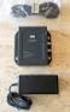 DATA SHEET CISCO AIRONET POWER INJECTOR Cisco Aironet Power Injector products increase the deployment flexibility of Cisco Aironet wireless access points and bridges by providing an alternative powering