
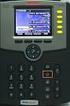
Integrating a Hitachi IP5000 Wireless IP Phone
|
|
|
- Cory Collins
- 10 years ago
- Views:
Transcription
1 November, 2007 Avaya Quick Edition Integrating a Hitachi IP5000 Wireless IP Phone This application note explains how to configure the Hitachi IP5000 wireless IP telephone to connect with Avaya Quick Edition Release 3.2 to provide a robust VoIP communication solution with an integrated mobility option. Required Components An Avaya Quick Edition system R3.2 consisting of at least 1 QE46xx series telephone A Hitachi IP5000 Wireless IP Phone Power over Ethernet (PoE) switch to provide power and network connectivity to the Quick Edition system A wireless B/G network access point and router (or router/access point combo) to provide wireless connectivity to the data network A PC to provision the Quick Edition system and IP5000 Network Configuration The following diagram provides an architectural overview for the connectivity of the above components in order to provide SIP connectivity from the Hitachi IP5000 wireless handset to the Avaya Quick Edition system. Network Diagram Order of Installation 1. Configure your wireless access point (or wireless router) with the desired security functionality or disable security if it is not desired or required. Depending on corporate policy application of MAC filtering can add to the overall security of the wireless network. 2. Connect the wireless access point to a router providing DHCP addresses or enable the wireless router (or enable DHCP functionality on your wireless router). 3. Connect the PoE switch to the router. 4. Connect the Quick Edition devices to the PoE switch. 5. Configure Avaya Quick Edition as outlined in the following sections. 1

2 6. Configure the Hitachi IP5000 as outlined in the following sections. Quick Edition Configuration The following section provides the steps to follow for configuring Quick Edition to register the IP5000 as an extension within the system Configuration Steps 1. Establish and configure your Quick Edition site and ensure all devices are active and connected to the same PoE switch. For more detailed information on setup and configuration of your Quick Edition system please see 2. From the PC, use system web admin create a Subscriber SIP proxy identity to support the connectivity of the IP5000 to the Quick Edition system. To get to this menu item select SIP Proxy and from that menu choose Identities as shown below. 3. Select Add to create the new identity to be associated with the IP5000. Provide a name and extension for this device which will be automatically populated in the local directory of the Quick Edition system. Press Submit to apply the changes. 2

3 4. After the Identity has been created it will be listed as follows, as well as in the local directory of the Quick Edition system. At this point the Quick Edition is provisioned to accept the registration of the IP5000 when network connectivity has been established. IP5000 Configuration The following section provides the steps for configuring the IP5000 to register to Quick Edition system as an extension. Ensure that your wireless router or access point has been configured and is active prior to beginning these steps. The following menu items are accessed from the user interface of the IP5000 device. It is assumed that the documentation for the IP5000 has been read and understood. The password of should be considered as the phone s default administrative password, please note it can be changed. Network Configuration Steps 1. Select the Left soft-key to select the Menu option. 2. Select the option item labeled Setup. 3. From the setup menu, select the Phone lock item. 4. From the phone lock menu, select the User Pwd item. 5. Input a password of to access the phone as a default administrator. 6. Select the option item labeled Network config. 7. By default an item Config1 will be listed, select this item. 8. To change the basic information for this configuration select Basic Config, this menu item should not require any changes for a basic installation. 9. Select the option item labeled WLAN. From the menu input the SSID being used by the wireless router or access point which the IP5000 will use to connect to the network. For example, wireless. 10. Select the option item labeled Security. From this menu input the mode of authentication and encryption being used by your wireless router or access point. For example, Mode: WEP, Auto Algorithm; Auto, WEP bits: 128 bit, DefaultKeyId: 1, WEPKey 1 (Hex): 00:00:00:00:00:00:00:00:00:00:00:00: Once these settings have been saved the IP5000 should connected to the IP network and be assigned an IP address. To determine the IP address of the device continue to the next step. 12. From the Config1 menu select the TCP/IP menu. Ensure that Use DHCP is enabled and take note of the IP address of the device. 3

4 SIP Registration Configuration Steps 1. From a PC connected to the same network (or routable to the rest of the devices in the network), use a standard web browser to access the IP address of the IP5000 and specify port For example, 2. To access this interface use the required default username login of admin and password of Once logged in the following screen will be displayed: 3. Select the Network Setup link to begin provisioning the device to identity the SIP configuration with the Quick Edition system. The network setup menu is shown below: 4

5 4. Select the Server Settings link to provision the server relationship to the Quick Edition system. In the 1 st Proxy and 1 st Registrar fields input the IP address of one of the Quick Edition telephones which are currently active in the network. Input a Domain Realm of qe.avaya and a Register Expire time of The IP5000 will then direct its SIP registration requests to this device. Note a second Quick Edition telephone can be identified as a proxy and registrar for the IP5000 to provide redundancy in the system. 5. Save the user settings by selecting Change Value. 6. From the Network Setup menu select User Account. From this menu input the following field information: Display Name: to match the identity name in the Quick Edition system Phone Number: to match identity number in the Quick Edition system User ID: use the default provided by Quick Edition of admin User Password: use the default provided by Quick Edition of admin URL Scheme: use SIP 7. Save the user settings by selecting Change Value. 8. On the IP5000 telephone press the Register soft-key to register this device with the Quick Edition system. The device will register and basic calls can now be placed from the Quick Edition phones to the IP5000, and vice versa, however there are a few additional protocol adjustments are required. 5

6 Protocol Configuration Steps 1. Select the Configuration link to begin provisioning the device protocols to their required settings in order to properly operate with the Quick Edition system. 2. Select the DTMF item to select the appropriate protocol to operate with the Quick Edition system. The codec selection should be RFC2833. Save these changes by selecting Change Value. 6

7 3. From the System Configuration menu select Basic Call. From the Basic Call menu ensure that Echo Canceller is On. 4. Integration of the IP5000 to the Quick Edition system is now complete and the device is now a functional part of the system. Functionality Provided The following section provides an outline for the functionality which is supported. Basic Call Multiple Call Appearance Hold Mute Transfer Conference Member of Ring Group Directory Entry Auto Attendant Entry 7

8 2007 Avaya Inc. All Rights Reserved. Avaya and the Avaya Logo are trademarks of Avaya Inc. and may be registered in certain jurisdictions. All trademarks identified by the, SM or TM are registered trademarks, service marks or trademarks, respectively, of Avaya Inc. All other trademarks are the property of their respective owners. 8

NF3ADV VoIP Setup Guide (for TPG)
 NF3ADV VoIP Setup Guide (for TPG) Configuring your NF3ADV for TPG VoIP The following steps will take you through the process of setting up your VoIP connection. This guide assumes that the NF3ADV already
RingCentral Office. Configure Aastra phones with RingCentral
 TM RingCentral Office Configure Aastra phones with RingCentral Configuring Aastra phones Overview... 2 Getting ready to setup your Aastra phones... 2 Configuring the Aastra Phone... 4 Overview Aastra s
RingCentral Office. Configure Grandstream phones with RingCentral. To contact RingCentral, please visit www.ringcentral.com or call 1-800-574-5290.
 TM RingCentral Office Configure Grandstream phones with RingCentral Configuring Grandstream phones Overview... 2 Getting ready to setup your Grandstream phones... 2 Configuring the Grandstream Phone...
NF1Adv VOIP Setup Guide (for Pennytel)
 NF1Adv VOIP Setup Guide (for Pennytel) Configuring your NF1Adv for VOIP Service The following steps will take you through the process of setting up your VOIP connection. Step 1: Checking Computer Network
Abstract. Avaya Solution & Interoperability Test Lab
 Avaya Solution & Interoperability Test Lab Application Notes for Configuring Enterasys Wireless Access Point 3000 (RBT3K-AG) to Support Avaya IP Office, Avaya IP Wireless Telephones and Avaya Phone Manager
NF1Adv VOIP Setup Guide (for Generic VoIP Setup)
 NF1Adv VOIP Setup Guide (for Generic VoIP Setup) Configuring your NF1Adv for VOIP Service The following steps will take you through the process of setting up your VOIP connection. Step 1: Checking Computer
How to add a SIP server How to register a handset
 How to add a SIP server How to register a handset Contents Contents... 1 Hardware required equipment... 2 Software required equipment... 3 Add server... 3 Register handset to base... 7 1 of 12 Hardware
Configuring the Avaya B179 SIP Conference Phone with Avaya Aura Communication Manager and Avaya Aura Session Manager Issue 1.0
 Avaya Solution & Interoperability Test Lab Configuring the Avaya B179 SIP Conference Phone with Avaya Aura Communication Manager and Avaya Aura Session Manager Issue 1.0 Abstract These Application Notes
Step 1: Checking Computer Network Settings:
 Configuring your 3G18WV for VOIP The following steps will take you through the process of setting up your VOIP connection. Step 1: Checking Computer Network Settings: You will need to connect your computer
Note: these functions are available if service provider supports them.
 Key Feature New Feature Remote Maintenance: phone can be diagnosed and configured by remote. Zero Config: automated provisioning and software upgrading even through firewall/nat. Centralized Management:
3rd Party VoIP Phone Setup Guide (Panasonic 500-550b)
 3rd Party VoIP Phone Setup Guide (Panasonic 500-550b) We are changing how we add 3rd party VoIP phones to accounts. Going forward, you can simply add a 3rd Party Softphone and use those credentials to
Configuring the Dolby Conference Phone with Cisco Unified Communications Manager
 Configuring the Dolby Conference Phone with Cisco Unified Communications Manager Version 1.2 December 10, 2015 This product is protected by one or more patents in the United States and elsewhere. For more
NetComm V90 VoIP Phone Quick Start Guide Draft Release 0.1
 NetComm V90 VoIP Phone Quick Start Guide Draft Release 0.1 Copyright NetComm Ltd Overview NetComm V90 SIP VoIP Phone User Guide Table of Contents Overview... 3 V90 VoIP Phone Specification...4 Shipping
Wireless VoIP Phone. Table of Contents. User s Manual
 Wireless VoIP Phone User s Manual Table of Contents Chapter 1 Overview the WiFi Phone... 6 1.1 Front Panel and Keypad... 6 1.2 Removing and Installing the Battery... 8 1.4 Powering the WiFi Phone On and
CyberData VoIP V2 Speaker with VoIP Clock Kit Configuration Guide for OmniPCX Enterprise
 CyberData VoIP V2 Speaker with VoIP Clock Kit Configuration Guide for OmniPCX Enterprise CyberData Corporation 2555 Garden Road Monterey, CA 93940 T:831-373-2601 F: 831-373-4193 www.cyberdata.net 2 Introduction
Elastix Server VoIP Intercom Setup Guide
 The IP Endpoint Company Elastix Server VoIP Intercom Setup Guide CyberData Corporation 2555 Garden Road Monterey, CA 93940 T:831-373-2601 F: 831-373-4193 www.cyberdata.net 2 1.0 Setup Diagram Figure 1
WLAN660 Wireless IP Phone Administrator s Guide
 FEDERAL COMMUNICATIONS COMMISSION This device complies with Part 15 of the FCC Rules. Operation is subject to the following two conditions: (1) this device may not cause harmful interference, and (2) this
3rd Party VoIP Phone Setup Guide (Panasonic UT113-123)
 3rd Party VoIP Phone Setup Guide (Panasonic UT113-123) We are changing how we add 3rd party VoIP phones to accounts. Going forward, you can simply add a 3rd Party Softphone and use those credentials to
How to configure Linksys SPA 941 942 for VOIP Connections
 How to configure Linksys SPA 941 942 for VOIP Connections Congratulations. Welcome to VOIP Connections family. 1.) Connect the phone properly. Make sure the phone is connected securely to your router or
FLX VoIP Registering with Avaya IP Office 500
 FLX VoIP Registering with Avaya IP Office 500 Date: April 5 th, 2012 This technical note gives a detailed description on how to register a Revolabs FLX conference phone with Avaya IP Office 500 PBX. On
SIP Trunking using Optimum Business SIP Trunk Adaptor and the Allworx 6x IP PBX 7.1.6.1
 ALLWORX SIP Trunking using Optimum Business SIP Trunk Adaptor and the Allworx 6x IP PBX 7.1.6.1 Goal The purpose of this configuration guide is to describe the steps needed to configure the Allworx 6x
Opera Wireless Mobilty
 Opera Wireless Mobilty How to set-up a Nokia E51 handset as a SIP WiFi extension off the Opera 4IP/20IP system This will allow your mobile phone to act as an extension when you are in the office. Your
Business VoIP Solution Training 04/2009
 Business VoIP Solution Training 04/2009 IP Phone Deployment Scenario 1 Company LAN All the IP Phones and PBX are within the same local area network, no firewall and NAT traversal issues IP PBX 2 IP Phone
WLAN600 Wireless IP Phone Administrator s Guide
 WLAN600 Wireless IP Phone Administrator s Guide Trademark Acknowledgement All brand names are trademarks or registered trademarks of their respective companies. Disclaimer This document is supplied by
NF5 VOIP Setup Guide (for Generic)
 NF5 VOIP Setup Guide (for Generic) Configuring your NF5 for VOIP Service The following steps will take you through the process of setting up your VOIP connection. Step 1: Checking Computer Network Settings:
Wireless VoIP Phone User s Manual
 Wireless VoIP Phone User s Manual Table of Contents Chapter 1 Overview of the WiFi phone... 5 1.1 Front Panel and Keypad...5 1.2 Removing and Installing the Battery...7 1.3 Charging the WIFI PHONE...8
VoIP Intercom and Elastix Server
 VoIP Intercom and Elastix Server Setup Guide http://www.elastix.org 1.0 Setup Diagram Figure 1-1 is a setup diagram for a single VoIP Intercom configuration. In this configuration, the VoIP Intercom acts
VOI-7000 VOI-7100 SIP IP Telephone
 VOI-7000 VOI-7100 SIP IP Telephone User Manual 1 Ver 2.01-0609 Table of Contents 1. INTRODUCTIONS... 1 1.1. FEATURES... 1 1.2. PACKING CONTENTS... 2 1.3. LCD DISPLAY AND KEYPADS... 2 2. INSTALLATIONS &
VOIP-500 Series Phone CUCM 8.0.3a Integration Guide
 I. Introduction This provides general instructions for integration of the VOIP-500 Series Phone with a Cisco Call Manager installation. It is recommended to read this instruction set completely before
Application Notes for Configuring Yealink T-22 SIP Phones to interoperate with Avaya IP Office - Issue 1.0
 Avaya Solution & Interoperability Test Lab Application Notes for Configuring Yealink T-22 SIP Phones to interoperate with Avaya IP Office - Issue 1.0 Abstract These Application Notes describe the configuration
Application Notes for Algo 8028 SIP Door Phone with Avaya IP Office - Issue 1.0
 Avaya Solution & Interoperability Test Lab Application Notes for Algo 8028 SIP Door Phone with Avaya IP Office - Issue 1.0 Abstract These Application Notes describe the configuration steps required for
SMC7901WBRA2-B1 Installation Guide
 SMC7901WBRA2-B1 Installation Guide Model number: SMC7901WBR2- B1 Topic: Wireless Encryption (WPA) c. Click WLAN Security. Choose WPA2 Mixed under Encryption. Enter a password in the Pre- Shared Key and
P160S SIP Phone Quick User Guide
 P160S SIP Phone Quick User Guide Version 2.2 TABLE OF CONTENTS 1.0 INTRODUCTION... 1 2.0 PACKAGE CONTENT... 1 3.0 LIST OF FIGURES... 2 4.0 SUMMARY OF KEY FUNCTIONS... 3 5.0 CONNECTING THE IP PHONE... 4
Configure cordless IP phones with RingCentral. RingCentral Office
 RingCentral Office Configure cordless IP phones with RingCentral 2011 To contact RingCentral, RingCentral, Inc. All Rights please Reserved. visit RingCentral www.ringcentral.com and the or call 1-800-574-5290.
Wireless G Broadband quick install
 Wireless G Broadband Router quick install guide Model 503693 INT-503693-QIG-0608-02 Thank you for purchasing the INTELLINET NETWORK SOLUTIONS Wireless G Broadband Router, Model 503693. This quick install
VoIP Intercom with Allworx 6x Server Setup Guide
 VoIP Intercom with Allworx 6x Server Setup Guide CyberData Corporation 2555 Garden Road Monterey, CA 93940 T:831-373-2601 F: 831-373-4193 www.cyberdata.net 2 1.0 Setup Diagram Figure 1-1 is a setup diagram
PePWave Surf Series PePWave Surf Indoor Series: Surf 200, AP 200, AP 400
 PePWave Surf Series PePWave Surf Indoor Series: Surf 200, AP 200, AP 400 PePWave Surf Outdoor Series: Surf AP 200/400-X, PolePoint 400-X, Surf 400-DX User Manual Document Rev. 1.2 July 07 COPYRIGHT & TRADEMARKS
ZyXEL VoIP 2602HWL - Setup guide
 POWER A/C Adapter 4 3 2 1 PHONE 2 PHONE 1 LINE 2.0 Setup Network 2.1 Click on the Start button on the bottom left hand corner, and then choose Control Panel. ZyXEL VoIP 2602HWL - Setup guide Contents 1.
How To Set up and Configure the WNA-100 Wireless Network Adapter
 How To Set up and Configure the WNA-100 Wireless Network Adapter Section 1: Set up and Connect the Adapter to a Computer, Then Configure the Computer to Communicate With the Adapter Before the adapter
SIP Trunk Configuration Guide. using
 SIP Trunk Configuration Guide using www.cbeyond.net 1-877-441-9783 The information contained in this document is specific to setting up SIP connections between Vertical SBX IP 320 and Cbeyond. If you require
Application Notes for Revolabs FLX UC 1000 with Avaya IP Office - Issue 0.1
 Avaya Solution & Interoperability Test Lab Application Notes for Revolabs FLX UC 1000 with Avaya IP Office - Issue 0.1 Abstract These Application Notes describe the configuration steps required to integrate
Configuring Avaya 1120E, 1140E, 1220 and 1230 IP Deskphones with Avaya IP Office Release 6.1 Issue 1.0
 Avaya Solution & Interoperability Test Lab Configuring Avaya 1120E, 1140E, 1220 and 1230 IP Deskphones with Avaya IP Office Release 6.1 Issue 1.0 Abstract These Application Notes describe a solution comprised
BiPAC 74xx series. VoIP Quick Install Guide
 BiPAC 74xx series VoIP ADSL2/2+ Modem/Routers VoIP Quick Install Guide This guide covers the initial VoIP set-up only. Please contact your VoIP service provider for their full VoIP setting. This guide
Voxitas SIP Trunk Setup
 DSX Voxitas SIP Trunk Setup April 23, 2011 Issue 1.05 NEC Corporation of America 4 Forest Parkway, Shelton, CT 06484 Copyright 2011 NEC Corporation of America 6535 N. State Highway 161 Irving, TX 75039-2402
Mediatrix 4404 Step by Step Configuration Guide June 22, 2011
 Mediatrix 4404 Step by Step Configuration Guide June 22, 2011 Proprietary 2011 Media5 Corporation Table of Contents First Steps... 3 Identifying your MAC Address... 3 Identifying your Dynamic IP Address...
Quick Setup of Unication VoIP Products
 Quick Setup of Unication VoIP Products Diagram of VoIP Applications example Index Quick Setup of Unication VoIP Products...1 1. Installing the Server Center SC-203...2 2. Installing the PSTN Gateway WG-205...4
Mobile Router MR600 User Guide
 Mobile Router MR600 User Guide HANTZ + PARTNER The Upgrade Company! www.hantz.com 1. Connections and LEDS The following pictures show you various connectors and status LED indicators on the MR600 Mobile
DPH-140S SIP Phone Quick User Guide
 DPH-140S SIP Phone Quick User Guide Version 1.0 TABLE OF CONTENTS 1.0 INTRODUCTION... 1 2.0 PACKAGE CONTENT... 1 3.0 LIST OF FIGURES... 2 4.0 SUMMARY OF KEY FUNCTIONS... 3 5.0 CONNECTING THE IP PHONE...
Application Notes for Algo 8180 SIP Audio Alerter with Avaya IP Office - Issue 1.1
 Avaya Solution & Interoperability Test Lab Application Notes for Algo 8180 SIP Audio Alerter with Avaya IP Office - Issue 1.1 Abstract These Application Notes describe the configuration steps required
NETVIGATOR Wireless Modem Setup Guide. (TG789Pvn)
 NETVIGATOR Wireless Modem Setup Guide (TG789Pvn) Configure the NETVIGATOR Wireless Modem Make sure that system meets the following requirement prior to NETVIGATOR Wireless Modem usage: - Subscribers who
Quick DDNS Quick Start Guide
 Quick DDNS Quick Start Guide DDNS 快 速 指 导 手 册 1 / 11 Before Use The device must be connected to the Internet, please check if the connection works properly. Please confirm Internet access port is open
Optimum Business SIP Trunk Set-up Guide
 Optimum Business SIP Trunk Set-up Guide For use with IP PBX only. SIPSetup 07.13 FOR USE WITH IP PBX ONLY Important: If your PBX is configured to use a PRI connection, do not use this guide. If you need
V101 SIP VoIP Telephone Adaptor User Manual V1.1m
 V101 SIP VoIP Telephone Adaptor User Manual V1.1m Quick Guide Step 1: Broadband (ADSL/Cable Modem) Connections for V101 A. Connect V101 LAN port to ADSL NAT Router as the following connection. B. Connect
Click Main on the left hand side then click on Password at the top of the page.
 Q: How do I change the password on my router? A: Step 1. Log into the router by entering its IP address into a browser. The default IP address is http://192.168.1.1. The default username is admin with
Configuring Settings on the Cisco Unified Wireless IP Phone 7925G
 CHAPTER 5 Configuring Settings on the Cisco Unified Wireless IP Phone 7925G This chapter describes the available configuration settings on the Cisco Unified Wireless IP Phone 7925G. It contains the following
Avaya IP Office 8.1 Configuration Guide
 Avaya IP Office 8.1 Configuration Guide Performed By tekvizion PVS, Inc. Contact: 214-242-5900 www.tekvizion.com Revision: 1.1 Date: 10/14/2013 Copyright 2013 by tekvizion PVS, Inc. All Rights Reserved.
Question How do I access the router s web-based setup page? Answer
 http://linksys.custhelp.com/cgi-bin/linksys.cfg/php/enduser/std_adp.php?p_faqid=3676 Question How do I access the router s web-based setup page? Answer All Linksys routers have a built-in web-based setup
Table of Contents. P a g e 2
 Welcome to your personal ADSL Setup Guide. This document will explain how to setup your VoIP enabled ADSL router. Once you ve had a chance to explore the guide, we d love to hear what your comments, suggestions
3CX PBX SIP server 3CX softphone X-Lite softphone HW IP phone - Alphatech IP video door entry phone station
 3CX PBX SIP server 3CX softphone X-Lite softphone HW IP phone - Alphatech IP video door entry phone station Before you start: The Alphatech IP video doorphone must be set manually to the SIP proxy mode
SIP Trunking using Optimum Business SIP Trunk Adaptor and the Cisco Call Manager Express Version 8.5
 CISCO SIP Trunking using Optimum Business SIP Trunk Adaptor and the Cisco Call Manager Express Version 8.5 Goal The purpose of this configuration guide is to describe the steps needed to configure the
STEP III: Enable the Wireless Network Card
 How do I configure the wireless printer without a network cable and install the printer driver in Macintosh OS X? NOTE: For successful wireless setup, you MUST know your network security settings. STEP
STEP III: Enable the Wireless Network Card. STEP IV: Print out the Printer Settings pages to determine the IP Address
 Title: How do I configure the wireless printer without a network cable and install the printer driver in Windows? NOTE: For successful wireless setup, you MUST know your network security settings. STEP
Installation and setup guide V 1.0
 V o I P G S M G A T E BlueGate SIP 1 Installation and setup guide V 1.0 1. General description 1.1 Technical parametres Dimensions 100 x 130 x 37 mm Weight 850 g Operating position various Operating condition
Quick Installation Guide DVG-N5402SP VoIP Router
 Quick Installation Guide DVG-N5402SP VoIP Router Check Your Package Contents DVG-N5402SP VoIP Router Ether (CAT5 UTP) Cable 12VDC, 2A Power Adapter Using a power adapter with a different voltage rating
Installation of the On Site Server (OSS)
 Installation of the On Site Server (OSS) rev 1.1 Step #1 - Initial Connection to the OSS Having plugged in power and an ethernet cable in the eth0 interface (see diagram below) you can connect to the unit
Opera 240 System DECT Integration. with Gigaset N720 IP PRO Base Station. and Gigaset N720 DM PRO Manager. Installation and User Guide
 Opera 240 System DECT Integration with Gigaset N720 IP PRO Base Station and Gigaset N720 DM PRO Manager Installation and User Guide Contents 1 Introduction... 3 2 To set up the Opera 240 System and the
Nokia E65 Internet calls
 Nokia E65 Internet calls Nokia E65 Internet calls Legal Notice Copyright Nokia 2007. All rights reserved. Reproduction, transfer, distribution or storage of part or all of the contents in this document
Internet Telephony PBX System. IPX-300 Series. Quick Installation Guide
 Internet Telephony PBX System IPX-300 Series Quick Installation Guide Overview PLANET IPX-300/IPX-300W IP PBX telephony systems ( IP PBX in the following term) are designed and optimized for the small
WLAN Outdoor CPE For 2.4G. Quick Installation Guide
 WLAN Outdoor CPE For 2.4G Quick Installation Guide Part I: External Installation Direction A. Check the parts in your box CPE SET 1 DC 12V/1.5A Power Adapter 1 PoE DC Injector 1 Hose Clamps 2 Manual &
STATIC IP SET UP GUIDE
 STATIC IP SET UP GUIDE VERIZON D-LINK 2750B & ACTIONTEC GT784 WNV WIRELESS GATEWAY Verizon High Speed Internet for Business Verizon High Speed Internet for Business YOUR NEW STATIC IP CONNECTION AND SET
Configuring an IP (SIP) Polycom Soundstation on the Avaya IP Office
 Hardware used for this documentation Polycom Soundstation IP 6000 Avaya IP500V2 firmware 7.0.23 Set the Polycom with an IP Address Step 1: Initial setup If your Soundstation does not automatically register
IP101 VoIP Phone. User Manual
 IP101 VoIP Phone User Manual 1 Introduction...3 1.1 Hardware Overview...3 1.2 Software Overview...4 2 Setup the IP Phone system by using keypad...4 2.1 Keypad Description...4 2.2 Keypad Function and Setting
Snom 720 and Elastix Server
 Snom 720 and Elastix Server Setup Guide http://www.elastix.org 1.0 Setup Diagram Figure 1-1 is a setup diagram for a single IP Phone Snom 720 configuration. The phone is setup as a SIP telephony device.
Fonality. Optimum Business Trunking and the Fonality Trixbox Pro IP PBX Standard Edition V4.1.2- p13 Configuration Guide
 Fonality Optimum Business Trunking and the Fonality Trixbox Pro IP PBX Standard Edition V4.1.2- p13 Configuration Guide Fonality Table of Contents 1. Overview 2. SIP Trunk Adaptor Set-up Instructions 3.
Table 28-1. Example 1-basic settings in Vigor 3300V and 2900V. WAN IP Port Number Phone Number Proxy Codec
 28. VoIP Example 1 (Basic Configuration and Registration) There are many different kinds of applications about VoIP function, most of VoIP callings must be via a VoIP Server by registering, except we can
Avaya IP Office SIP Configuration Guide
 Valcom Session Initiation Protocol (SIP) VIP devices are compatible with SIP-enabled versions of Avaya IP Office (5.0 and higher). The Valcom device is added to the IP Office system as a SIP Extension.
Quick Installation Guide
 Quick Installation Guide PRI Gateway Version 2.4 Table of Contents Hardware Setup... 1 Accessing the WEB GUI... 2 Notification LEDs (On the Front Panel of the Gateway)... 3 Creating SIP Trunks... 4 Creating
FLX UC1000/1500 Registering with Siemens HiPath 4000 & OpenScape Voice Server
 Technical Note FLX UC1000/1500 Registering with Siemens HiPath 4000 & OpenScape Voice Date: February 1, 2016 This technical note gives a detailed description on how to register a Revolabs FLX UC1000/1500
D-Link DAP-1360 Repeater Mode Configuration
 D-Link DAP-1360 Repeater Mode Configuration Outline 1. Package Contents 2. System Requirements 3. Hardware Overview Connections LED s WPS LED/Button 4. Default Settings 5. Configuring your LAN Adapter
Quick DDNS Quick Start Guide
 Quick DDNS Quick Start Guide Contents Before Use... 1 Enable Domain Name Access... 2 Default Domain Name Access... 2 Custom Domain Name... 3 DDNS Web Registration and Management... 5 Smart Phone Client...
THINKTEL COMMUNICATIONS TALKSWITCH VS TALKSWITCH VS THINKTEL SIP TRUNK & DID
 THINKTEL COMMUNICATIONS TALKSWITCH VS TALKSWITCH VS THINKTEL SIP TRUNK & DID TA B L E O F C O N T E N T S 1.1 INTRODUCTION... 3 1.2 STARTING THE MANAGEMENT SOFTWARE... 4 1.3 IP CONFIGURATION... 5 1.4 ROUTER
Smart Telephone System
 IG7600 Smart Telephone System Quick Installation Guide Copyright 2013, All Rights Reserved. Ver11140311 IG7600 Smart Telephone System Quick Installation Guide Powering up 1. Plug the IG7600 in and allow
Step-by-Step Setup Guide Wireless File Transmitter FTP Mode
 EOS Step-by-Step Setup Guide Wireless File Transmitter FTP Mode Infrastructure & Ad Hoc Networks Mac OS X 10.5-10.6 2012 Canon U.S.A., Inc. All Rights Reserved. Reproduction in whole or in part without
Configuring Check Point VPN-1/FireWall-1 and SecuRemote Client with Avaya IP Softphone via NAT - Issue 1.0
 Configuring Check Point VPN-1/FireWall-1 and SecuRemote Client with Avaya IP Softphone via NAT - Issue 1.0 Abstract Avaya IP Softphone R3 V2.1 now supports H.323 VoIP applications running over different
Netcomm NB604N. Modem Configuration Guide. Netcomm NB604N. Configuring in Layer2 PPPoE for Windows XP and 2000 IMPORTANT MESSAGE
 Configuring in Layer2 PPPoE for Windows XP and 2000 IMPORTANT MESSAGE Your modem has been pre-configured, you do not need to follow each step of the set-up guide but should retain this document in case
Using LifeSize systems with Microsoft Office Communications Server 2007. Server Setup
 Using LifeSize systems with Microsoft Office Communications Server 2007 This technical note describes the steps to integrate a LifeSize video communications device with Microsoft Office Communication Server
DSL-2600U. User Manual V 1.0
 DSL-2600U User Manual V 1.0 CONTENTS 1. OVERVIEW...3 1.1 ABOUT ADSL...3 1.2 ABOUT ADSL2/2+...3 1.3 FEATURES...3 2 SPECIFICATION...4 2.1 INDICATOR AND INTERFACE...4 2.2 HARDWARE CONNECTION...4 2.3 LED STATUS
Application Notes for Spectralink 84-Series Wireless Telephones and Avaya IP Office Issue 1.0
 ` Avaya Solution & Interoperability Test Lab Application Notes for Spectralink 84-Series Wireless Telephones and Avaya IP Office Issue 1.0 Abstract These Application Notes describe the procedures for configuring
ASUS WL-5XX Series Wireless Router Internet Configuration. User s Guide
 ASUS WL-5XX Series Wireless Router Internet Configuration User s Guide Contents Chapter 1 Introduction:...1 Chapter 2 Connecting the wireless router...1 Chapter 3 Getting to know your Internet connection
Technical Support Information
 F1P000GNukSK Skype Phone 1: What is the F1P000GNukSK? The F1P000GNukSK is a Wi-Fi phone (IEEE 802.11b/g) designed to allow users to make Skype calls without having to use a computer anywhere that a wireless
Configuration of Cisco Autonomous Access Point with 802.1x Authentication for Avaya 3631 Wireless Telephone
 Configuration of Cisco Autonomous Access Point with 802.1x Authentication for Avaya 3631 Wireless Telephone Product Summary Manufacturer: Cisco Systems: www.cisco.com Access Point: Cisco Aironet 1130AG
3COM VCX PBX Server VoIP Intercom Setup Guide
 3COM VCX PBX Server VoIP Intercom Setup Guide CyberData Corporation 2555 Garden Road Monterey, CA 93940 T:831-373-2601 F: 831-373-4193 www.cyberdata.net 2 1.0 Setup Diagram Figure 1 is a setup diagram
Yealink Phones User Guide. 2003-2012 Bicom Systems
 I Table of Contents Part I Introduction 1 Part II Requirements 1 Part III Installation 2 1 Power... Adapter 3 2 Power... over Ethernet (PoE) 3 3 IP Address... 3 4 Factory... Settings 3 4 Part IV Registering
Communication Manager configuration for BLU-103
 Avaya Aura Communication Manager configuration for BLU-103 Application Notes for Configuring BLU-103 VoIP Solution with Avaya Aura Session Manager 6.3 and Avaya Aura Communication Manager 6.3 10653 South
Step-by-Step Setup Guide Wireless File Transmitter FTP Mode
 EOS Step-by-Step Setup Guide Wireless File Transmitter FTP Mode Infrastructure Setup Windows XP 2012 Canon U.S.A., Inc. All Rights Reserved. Reproduction in whole or in part without permission is prohibited.
MyIC setup and configuration (with sample configuration for Alcatel Lucent test environment)
 MyIC setup and configuration (with sample configuration for Alcatel Lucent test environment) N.B. Goto MyIC Preferences in the System Toolbar. Description: this may be any appropriate description of the
Configuring PPP And SIP
 Copyright Copyright 2005. All rights reserved. The content of this manual is subject to change without notice. The information and messages contained herein are proprietary to. No part of this manual may
VoIP Telephone Adapter User s Manual
 VoIP Telephone Adapter User s Manual Last Update: 2008/10/10 1 Introduction...3 1.1 Product Overview (Single Phone Port Model)...3 1.2 Product Overview (Dual Phone Port Model)...4 2 IVR Interface for TA...6
KE1020A INSTALL GUIDE
 KE1020A INSTALL GUIDE Table of Contents 1 Check for Required Items...2 2 Installation Steps...2 2.1 Installation View... 2 2.2 Connection Chart to Determine Cable Types... 2 3 Ready to Use...3 3.1 Changing
SATO Network Interface Card Configuration Instructions
 SATO Network Interface Card Configuration Instructions Table of Contents 1. Reset of wired/wireless interface card... 3 2. Installing the All-In-One Utility (recommended)... 4 3. Configuring wired/wireless