
Monitoring the Microsoft Windows Server System with PATROL - a Best Practices Guide
|
|
|
- Violet Barrett
- 10 years ago
- Views:
Transcription
1 Monitoring the Microsoft Windows Server System with PATROL - a Best Practices Guide

2

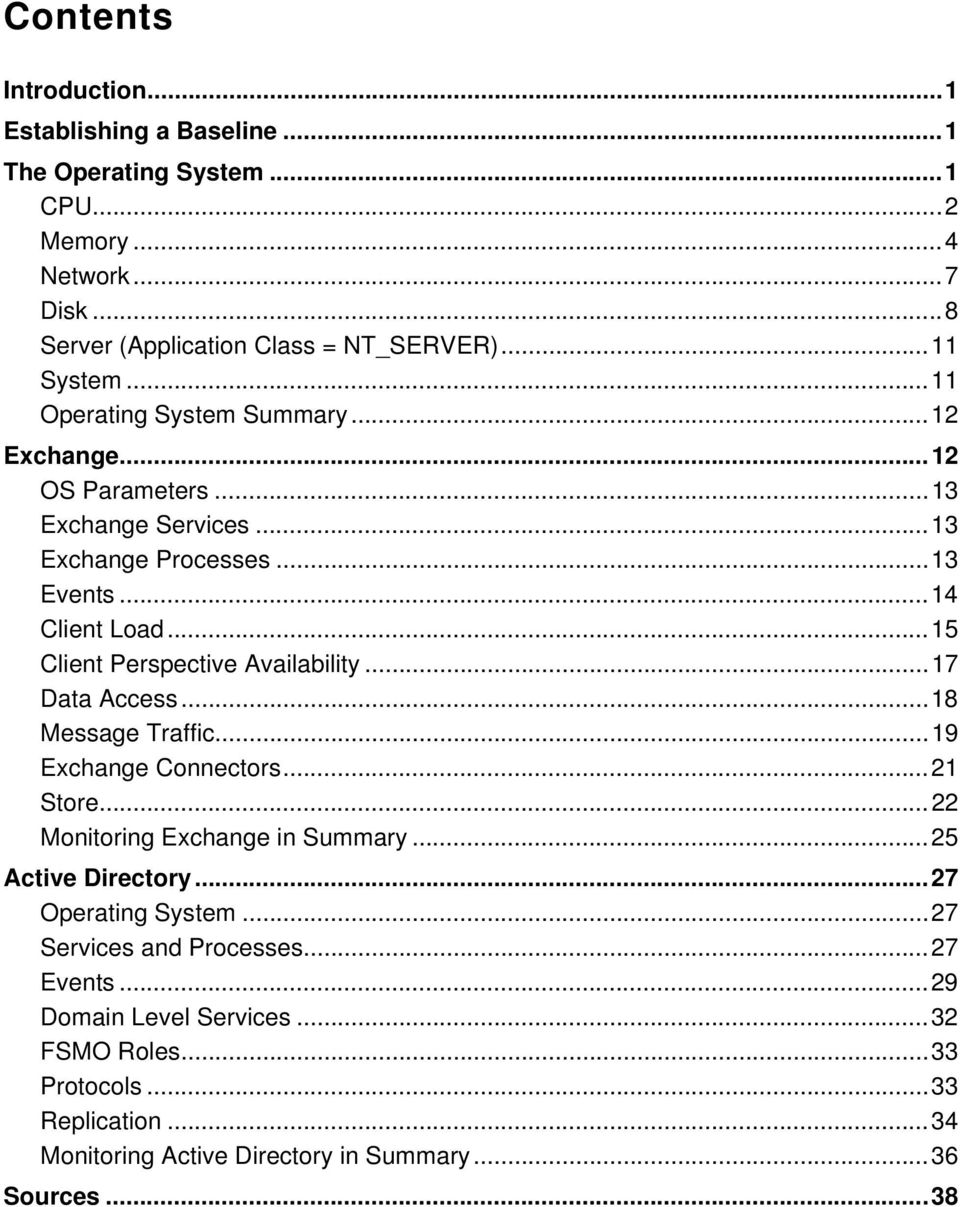
3 Contents Introduction...1 Establishing a Baseline...1 The Operating System...1 CPU...2 Memory...4 Network...7 Disk...8 Server (Application Class = NT_SERVER)...11 System...11 Operating System Summary...12 Exchange...12 OS Parameters...13 Exchange Services...13 Exchange Processes...13 Events...14 Client Load...15 Client Perspective Availability...17 Data Access...18 Message Traffic...19 Exchange Connectors...21 Store...22 Monitoring Exchange in Summary...25 Active Directory...27 Operating System...27 Services and Processes...27 Events...29 Domain Level Services...32 FSMO Roles...33 Protocols...33 Replication...34 Monitoring Active Directory in Summary...36 Sources...38
4

5 Introduction While every Microsoft Windows environment is unique, there are certain practices that you can follow to ensure the overall availability of their Microsoft Windows Server System. A Windows environment can consist of many servers with each providing a different business critical application or service. Any application that affects the business should be monitored. This white paper discusses the critical components of a typical Windows environment, including the operating system, Active Directory, and Exchange. It will also show how to monitor these components with PATROL. Establishing a Baseline A baseline is a data set that indicates how system resources are being utilized. Once you establish a baseline, you can compare it with later system activity to help determine system usage and performance. PATROL products typically follow industry best practices for alarm threshold settings, every environment is unique, so a good baseline can help you ensure that these settings are appropriate for your environment. To create a Windows baseline, you should monitor these four basic server resources: memory processor disk network objects Over a several-day period, capture and save the history data from these parameters to determine what is normal for your system. You can do this offline by using the PATROL History Loader to archive PATROL history data to a database. If you need more information about establishing a baseline, refer to chapters 5 through 10 in the Microsoft Windows 2000 Resource Kit. The Operating System Begin by monitoring the Windows operating system (OS) itself. Without a healthy OS, no application will perform as expected. The following six operating systems categories will be discussed: CPU Memory Network Disk Server Page 1

6 System CPU The four most important PATROL parameters for can be found under the NT_CPU application class: CPUprcrInterruptsPerSec CPUprcrProcessorTimePercent CPUprcrPrivTimePercent CPUprcrUserTimePercent Interrupts per Second The CPUprcrInterruptsPerSec parameter monitors the number of device interrupts encountered by the processor per second. An interrupt occurs when a device completes a task or when it requires attention. Normal thread execution is suspended during interrupts. An interrupt may cause the processor to switch to another, higher priority thread. Under the _Total NT_CPU application class instance, this parameter shows the total number of interrupts per second for all processors on the computer, while each processor application class instance shows the number of interrupts for that processor. A high number of interrupts per second indicates that a hardware device is generating an excessive number of interrupts. The device causing the problem could be a video card, the network interface card (NIC), the hard disk driver, or the mouse. If the value of CPUprcrInterruptsPerSec is high, consider running a diagnostic test on your NIC to check for configuration and hardware errors. Most NIC manufacturers provide testing software with the card. If your keyboard or mouse appears to be behaving poorly, try replacing your keyboard or mouse to see if fewer interrupts occur. Processor Time Percent The CPUprcrProcessorTimePercent parameter monitors the percentage of time that a processor is busy executing the threads of a process. Threads are units of work that make up a process. Consistently high percentages (greater than 75%) indicate performance problems that can slow your system down. Temporarily high percentages (spikes) are normal. The _Total NT_CPU application class instance shows the total percentage of time that all processors are busy executing threads. Page 2

7 When in an alarm state, this parameter graph displays an annotation mark that shows you the names of the top 10 processes that are using the most CPU resources. If this parameter value is consistently greater than 75%, you should consider taking action to remedy the problem. Some actions you can take include: Reducing the workload of the CPU if possible - review the processes running on your system, and terminate unnecessary processes. Reviewing the processes listed in this parameter's graph annotation. You may find that processor cycles are being consumed by a poorly designed application that is not releasing system resources properly. In this case, you may need to contact the software vendor (or internal programmer) to update your version of the application. Upgrading to a multiprocessor system-if your problem stems from hardware resources, upgrading to a machine with more than one processor may solve the problem. Research possible hardware issues. There are several possibilities: If the CPUprcrTotalInterruptsPerSec (device interrupts to the processor) parameter's value is greater than the SYSsysSystemCallsPerSec (calls to system service routines) parameter's value, then a hardware device is probably generating excessive interrupts and degrading performance. Note that the SYSsysSystemCallsPerSec parameter is inactive by default, so if you have high interrupts, you should enable it using the Task => Show Parameter List menu command from the NT_SYSTEM application class in the PATROL Central Operator console. If the CPUprcrTotalInterruptsPerSec parameter's value is greater than 1,000, then an I/O device is probably generating these interrupts. If a disk controller that requires a large amount of physical I/O is consuming the processor cycles, install a DMA disk controller to reduce processor utilization. If a memory bottleneck exists, the increased paging activity may be taxing the processor and masking what is primarily a memory bottleneck instead of a processor bottleneck. Refer to the following NT_MEMORY parameter topics to help determine if you have a memory bottleneck: MEMmemAvailableBytes, MEMmemPageFaultsPerSec, and MEMmemPagesPerSec Privileged Time Percent The CPUprcrPrivTimePercent parameter monitors the percentage of processor time spent in privileged mode in non-idle threads. The following items run in privileged mode: Most device drivers (except those for graphics adapters and printers) Windows service layer Executive routines Windows kernel Page 3

8 Under the _Total NT_CPU application class instance, this parameter shows the total percentage of time spent in privileged mode for all processors. When this number is greater than SYSsysTotalUserTimePercent under the NT_SYSTEM application class, the system is spending more of its time processing operating system commands than application commands. Consider using the Microsoft Performance Monitor Process object to find out which processes are using the most privileged time. Terminate services that are not in use but are consuming privileged time. User Time Percent The CPUprcrUserTimePercent parameter monitors the percentage of CPU time currently spent in User Mode doing commands and tasks initiated by users. All application code and subsystem code executes in User Mode. This value helps identify how much time a particular process spends executing in User versus Privileged Mode. Under the _Total NT_CPU application class instance, this parameter shows the total percentage of time spent in User Mode for all processors. When the total system user time percentage is lower than the system privileged time percentage, the system is spending more of its time processing operating system commands than application commands. Consider using the Microsoft Performance Monitor's Process object to find out which processes are using the most privileged time. Terminate services that are not in use but are consuming privileged time. Memory Memory plays a key part in server availability. Applications and users will consume memory and sometimes make a server sluggish. A popular approach to solving a memory shortage is upgrading the amount of memory in the server. Alternatively, you can monitor memory usage to help isolate fixable issues. Consider these three application classes: NT_MEMORY NT_CACHE NT_PAGEFILE The value of monitoring each class is explained in detail in the subsequent paragraphs. Key Memory Parameters There are five parameters under the NT_MEMORY application class that can help you understand memory utilization. MEMmemAvailableBytes Page 4

9 MEMmemCacheFaultsPerSec MEMmemPageFaultsPerSec MEMmemPagesInputPerSec MEMmemPagesPerSec The MEMmemAvailableBytes parameter monitors the number of megabytes of physical memory currently available to processes, but it is not related to the amount of physical memory installed on your server. The value of the MEMmemAvailableBytes parameter is calculated by adding the space on the Zeroed, Free, and Standby memory lists. Zeroed memory is filled with zeros to prevent later processes from seeing data used by a previous process. Free memory is ready for use by any process. Standby memory has been removed from a process' working set on route to disk but is still available for recall. The value for this parameter should never drop to less than 4 MB, even during peak usage times, and should be 10 MB or more: If the value is less than 10 megabytes, reorganize your page file by increasing its size and changing or splitting its location on to different physical drives. If the value is less than 4 megabytes, add more physical memory to your computer. The MEMmemCacheFaultsPerSec parameter monitors the frequency of cache faults. Cache faults occur whenever the cache manager does not find a file's page in the immediate cache. The MEMmemPageFaultsPerSec parameter monitors the number of hard and soft page faults in the processor. Page faults are normal for processors and do not necessarily imply a performance bottleneck. There are two kinds of page faults: soft page faults occur when the processor needs a memory page that is not in the current working set but is still in the standby list in main memory. hard page faults occur when the processor needs a memory page that is no longer in the standby list in memory and must read the page from disk. A soft page fault can be resolved without accessing a disk drive. A hard page fault must be resolved by physically accessing a disk drive. Add memory if: The ratio of hard page faults to total page faults is greater than 0.05 to If the ratio is higher than this value, the system is spending too much time on paging activity, and you should consider installing additional memory. If MEMmemPagesPerSec is greater than 10 and MEMmemPageFaultsPerSec is greater than MEMmemCacheFaultsPerSec,the system is paging too much, and you should install additional memory. Alternatives to adding memory include: Schedule memory intensive applications to run during off-peak hours. Page 5

10 Spread the paging file across multiple hard disks and remove the paging file on the disk where the Windows system is located. Note: You can use composite parameters to monitor the relationship between MEMmem- PagesPerSec, MEMmemPageFaultsPerSec and MEMmemCacheFaultsPerSec. Composite parameters can be created directly from the NT_COMPOSITES application class. There is a wizard that will guide you through the creation of a custom KM that will compare two or more parameters. The MEMmemPagesInputPerSec parameter monitors the number of pages read from the disk to resolve memory references to pages that were not in memory at the time of the reference. This parameter also includes paging activity incurred by the system cache accessing file data for applications. The ratio of hard page faults to total page faults (that is, MEMmemPagesInputPerSec / MEMmemPageFaultsPerSec), should not be greater than If the ratio is higher than this, the system is spending too much time on paging activity, consider installing additional memory resources. The same alternatives to adding memory apply here as well. MEMmemPagesPerSec monitors the number of hard page faults for the processor, and the value often determines whether or not your system needs more RAM. If MEMmemPagesPerSec is consistently greater than 5, you probably have a memory bottleneck, and you may want to install additional memory. If MEMmemPagesPerSec is consistently greater than 10 to 12 and MEMmemPageFaultsPerSec is greater than MEMmemCacheFaultsPerSec, the system is paging too much and you should consider installing additional memory and increasing the size of the paging file system. Key Cache Parameters The NT_CACHE application class contains parameters for measuring memory consumption. Two parameters provide you with valuable memory statistics: CACcachCopyReadHitsPercent CACcachCopyReadsPerSec The CACcachCopyReadHitsPercent parameter monitors the percentage of cache copy read requests. A copy read is a file read operation that is satisfied by a memory copy from a cache page to the application's buffer. A CACcachCopyReadHitsPercent value greater Page 6

11 than 80 percent is excellent. If CACcachCopyReadHitsPercent decreases in value about 10 percent while CACcachCopyReadsPerSec remains relatively flat, there is an overall memory shortage. Consider adding physical memory. The CACcachCopyReadsPerSec parameter monitors the frequency of reads from cache pages that involve a memory copy of the data from the cache to the application's buffer. If CACcachCopyReadHitsPercent decreases in value about 10 percent while CACcach- CopyReadsPerSec remains relatively flat, there is an overall memory shortage. Consider adding physical memory. Key Pagefile Parameters The NT_PAGEFILE application class offers additional parameters that should be monitored. The PAGEpgUsagePercent parameter monitors the percentage of the page file currently in use. When page file usage exceeds 90 percent, Windows increases the size of the page file dynamically. This causes two performance-degrading events: Server performance is impacted by the dynamic update. The increase in page file size occurs in non-contiguous file space. When the page file is initially created, the file is a single contiguous block of disk space that can be efficiently written and read. The paging file should be maintained to minimize the need to dynamically change the file. In order to avoid these two events you can tune the server's paging configuration. When the page file system usage exceeds 80 percent, increase the page file size as part of your routine maintenance program in order to create contiguous file space allocation and avoid dynamic allocation. If paging is less that 20 percent, the system has an extremely large page file, and has a large amount of memory, then consider freeing the excess disk space by decreasing the size of the page file. Network Network-related issues should be monitored along with core components. As more and more users or applications leverage a server for the application or service it provides, network-related problems will occur. The NT_NETWORK application class includes three important parameters to isolate network issues: NETniBytesTotalPerSec NETniOutputQueueLength NETniPcktsPerSec Page 7

12 The NETniBytesTotalPerSec parameter monitors the rate that bytes are sent and received on the interface; this rate includes framing characters. The packet size is NETniBytesTotalPerSec/NETniPcktsPerSec. If the packet size drops, collisions are probably occurring and network efficiency is decreasing. The collisions may be caused by a large number of users in a poorly configured network, or by a defective network card (NIC) that is sending excessive messages. Consider running a diagnostic test on your NIC to check for configuration or hardware errors. Most NIC manufacturers provide a diskette that contains testing software. The NETniOutputQueueLength parameter monitors the length (in packets) of the output packet queue and can indicate network bottlenecks. If this parameter's value is consistently greater than two, then the local NIC may be malfunctioning, or the network is experiencing a collision condition that is decreasing network efficiency. These collisions may also be caused by having a large number of users on a poorly configured network or by a defective network card or printer that is sending excessive messages. The NETniPcktsPerSec parameter monitors the rate that packets are sent and received on the network. The packet size is NETniBytesTotalPerSec/NETniPcktsPerSec. If the packet size drops, collisions are probably occurring and network efficiency is decreasing. The collisions may be caused by a large number of users in a poorly configured network, or by a defective NIC that is sending excessive messages. Disk One of the key resources that affect a server's availability is the disk in use. At a very high level disk activity can be attributed to users and applications. Disk activity should be measured to determine if there are potential problems with the disk, or if there are potential problems in other areas of the OS. PATROL includes two application classes that can help solidify answers to disk related problems: NT_LOGICAL_DISKS NT_PHYSICAL_DISKS Logical Disks Under the NT_LOGICAL_DISKS application class, four critical parameters are included: LdldDiskQueueLength LdldDiskTimePercent LdldFreeMegabytes LdldFreeSpacePercent Page 8

13 The LdldDiskQueueLength parameter monitors the number of requests outstanding on the disk, including requests currently in service. This is an instantaneous value at the time the data was collected. If the number displayed is consistently high, there is a sustained load on your disk drive. If this number, minus the number of disk spindles, averages greater than 2, there may be a disk-related bottleneck. If one drive is more heavily loaded than another, you may want to move some of the most used files to other disks to distribute the load more evenly. The LdldDiskTimePercent parameter monitors the percentage of elapsed time that the selected disk drive is busy servicing read or write requests. If you have multiple disks in your system, you may want to check this parameter for each volume of a server to see how the load is distributed across the system. If one drive has a considerably larger load, you may want to move some of the files to other disks in the system to distribute the load across disks. You should investigate any major swing in utilization, as it can reveal problems. PATROL initiates an alarm if this parameter is between 69 and 100 percent. The LdldFreeMegabytes parameter monitors the amount of unused space on the disk drive in megabytes (MB). Applications that write to drives with limited space can cause operating system stress and possible failures. For drives larger than 1 GB: If this parameter falls below the number of megabytes that you have chosen for your system, free up some disk space. To provide free disk space: Delete or move duplicate or unneeded files from the drive. Consider archiving the data before taking these actions. Back up the files on the drive, replace the drive with a larger capacity drive, and restore the files to the new drive. For drives that are 1 gigabyte (GB) or smaller: Consider using the LDldFreeSpacePercent (percentage of free space on the logical disk) parameter rather than LdldFreeMegabytes. The LdldFreeSpacePercent parameter notifies you when its value falls below 10 percent (warning) and 5 percent (alarm). LdldFreeSpacePercent monitors the percentage of free space available on the selected logical disk drive. Applications that write to drives with limited space can cause operating system stress and possible failures. This parameter contains a recovery action that automatically clears the temporary directory when LdldFreeSpacePercent enters an alarm state. The same recommendations for LdldFreeMegabytes apply here. Page 9

14 Physical Disks Included with the NT_PHYSICAL_DISKS application class are two parameters that compliment the logical disks parameters in monitoring disk activity and usage: PdpdDiskQueueLength PDpdDiskTimePercent The PdpdDiskQueueLength parameter monitors the number of requests outstanding on the disk at the time the performance data is collected. If this parameter consistently has a value greater than 2, you should consider replacing the disk drive and/or the disk controller with faster versions. Before you upgrade the disk system however, make sure that you do not have a memory bottleneck, since excessive paging activity that is caused by insufficient memory can appear as a disk bottleneck. Verify that the paging parameters have low values relative to the total disk activity to help you decide if you have a disk bottleneck. Refer to the following parameters to help identify memory bottlenecks: MEMmemCacheFaultsPerSec MEMmemPageFaultsPerSec MEMmemPagesInputPerSec MEMmemPagesPerSec The PDpdDiskTimePercent parameter monitors the percentage of elapsed time that the disk spends servicing read or write requests. Good disk performance enhances virtual memory performance and reduces the elapsed time required to load programs that perform a large number of I/O requests. Disk performance may be impacted by a shortage of physical memory. If the PDpdDiskTimePercent parameter is greater than 60 percent or the PdpdDiskQueue- Length parameter is greater than 2, then physical disk congestion is adversely affecting your system's performance. To fix the situation, consider one or more of the following actions: Install a faster disk and controller. Distribute the workload as evenly as possible among different disk drives. Use the NTFS file system. NTFS is more efficient for large disks (400 MB or more). Create mirrored data sets. Create striped data sets. Disable short name generation on the NTFS file system. To determine if a memory shortage is impacting disk performance, calculate the portion of the disk I/O used for paging with the following formula: Page 10

15 % disk time used for paging = 100 * (MEMmemPagesPerSec * 'PhysicalDisk Avg,DiskSec/Transfer') MEMmemPagesPerSec is the number of hard page faults. PhysicalDisk Avg,DiskSec/Transfer is the time in seconds of the average disk transfer. You can add this parameter to PATROL using the PATROL Performance Monitor Wizard. You can also find this value using Windows Performance Monitor. If this value is greater than 10 percent of the total disk activity, then paging is considered excessive. If this value is less than 10 percent of the total disk activity, consider adding more physical memory and increasing the paging file size. Server (Application Class = NT_SERVER) The NT_SERVER application class monitors statistics related to network and shows the workload that the server is experiencing. The SVRsvrBytesTotalPerSec parameter indicates the number of bytes that the server has sent to and received from the network. This value provides an overall indication of server workload. If this number is consistently at or above 50 percent of the network capacity, you may need to put the server on a faster switch or hub. You can also add a second network interface card (NIC) to the server and build a subnetwork using the routing capability in Windows NT. System The NT_SYSTEM application class provides information about the state of objects in a Windows system. The application class also provides information about the number of processes interrupts amount of CPU utilization. This application class also provides you with an overall workload metric experienced by the server. The SYSsysProcessorQueueLength parameter monitors the length of the processor queue in number of threads. If the queue length is consistently greater than 2, the processor is probably congested. Consider adding processors to the system or upgrading to a machine with faster processors. If the queue length is consistently between four and eight, check the CPUprcrProcessorTimePercent parameter to see if processor utilization is consistently at 100 percent, which may indicate a poorly-behaved process that is not releasing system resources properly. Page 11

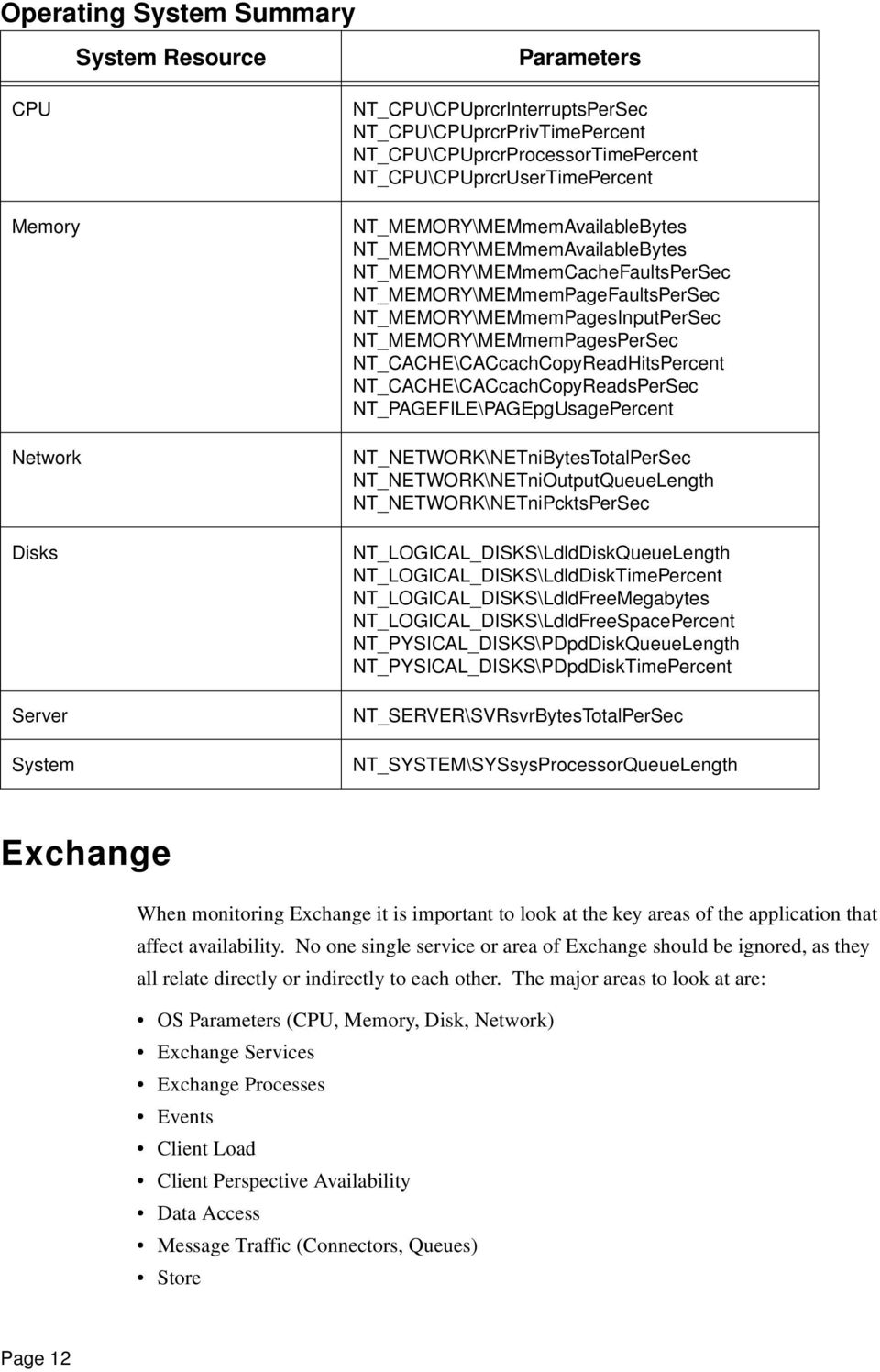
16 Operating System Summary System Resource Parameters CPU Memory Network Disks Server System NT_CPU\CPUprcrInterruptsPerSec NT_CPU\CPUprcrPrivTimePercent NT_CPU\CPUprcrProcessorTimePercent NT_CPU\CPUprcrUserTimePercent NT_MEMORY\MEMmemAvailableBytes NT_MEMORY\MEMmemAvailableBytes NT_MEMORY\MEMmemCacheFaultsPerSec NT_MEMORY\MEMmemPageFaultsPerSec NT_MEMORY\MEMmemPagesInputPerSec NT_MEMORY\MEMmemPagesPerSec NT_CACHE\CACcachCopyReadHitsPercent NT_CACHE\CACcachCopyReadsPerSec NT_PAGEFILE\PAGEpgUsagePercent NT_NETWORK\NETniBytesTotalPerSec NT_NETWORK\NETniOutputQueueLength NT_NETWORK\NETniPcktsPerSec NT_LOGICAL_DISKS\LdldDiskQueueLength NT_LOGICAL_DISKS\LdldDiskTimePercent NT_LOGICAL_DISKS\LdldFreeMegabytes NT_LOGICAL_DISKS\LdldFreeSpacePercent NT_PYSICAL_DISKS\PDpdDiskQueueLength NT_PYSICAL_DISKS\PDpdDiskTimePercent NT_SERVER\SVRsvrBytesTotalPerSec NT_SYSTEM\SYSsysProcessorQueueLength Exchange When monitoring Exchange it is important to look at the key areas of the application that affect availability. No one single service or area of Exchange should be ignored, as they all relate directly or indirectly to each other. The major areas to look at are: OS Parameters (CPU, Memory, Disk, Network) Exchange Services Exchange Processes Events Client Load Client Perspective Availability Data Access Message Traffic (Connectors, Queues) Store Page 12
17 OS Parameters Begin by monitoring the Windows operating system (OS) itself. The performance and availability of applications and databases are intimately tied to the operating systems that they run on; without a healthy OS, no application (ie: Exchange) will perform as expected. Use the previous part of this paper as a guide to monitoring the base operating system. Exchange Services Services are application types that run in the system background. Services provide core operating system features, such as Web serving, event logging, file serving, help and support, printing, cryptography, and error reporting. To provide core system features to its users, Exchange provides a number of services that run on an Exchange server. Of these services, the following components should be monitored: Microsoft Exchange Information Store Microsoft Exchange MTA Stacks Microsoft Exchange Routing Engine Microsoft Exchange System Attendant Simple Mail Transport Protocol World Wide Web Publishing The NT KM provides a number of parameters that give the status of all of these services. The two most important parameters to monitor are ServiceStatus and SvcDown. The ServiceStatus parameter indicates whether or not the Exchange services have been started and whether or not clients can make connections. The SvcDown parameter indicates the opposite. The NT KM monitors all services out of the box so there is little configuration necessary to achieve service monitoring. If any of the Exchange services enters a down state, it can be detrimental to your mail flow and your organization. Exchange Processes In addition to service monitoring, you should also monitor the processes that run on behalf of an application. Exchange has critical processes that should be watched to determine their availability and resource usage. Exchange processes include the following Store.exe (Information Store Service) Inetinfo.exe (IIS, Routing Engine) Mad.exe (System Attendant) Emsmta.exe (MTA Stacks Service) Windows Memory Handler System Process Page 13

18 Measure the percentage of processor time used to monitor for excessive processor usage and overall process status. Use the Process KM, which is part of the NT KM. The two most important parameters to look at are: PROCDown PROCProcessorTimePercent The PROCDown parameter indicates that a process is down. In monitoring the processor time percentage of a parameter, you can determine if a process is using too much processor time. Inetinfo.exe, store.exe, emsmta.exe and system.exe normally consume 90 percent of the processor time combined. In addition to processor time, the working set used by each process should be monitored. The working set is the set of memory pages touched recently by the threads in the process. This will give you an indication of memory usage per process. The PROCWorkingSet parameter can be found in the NT_PROCESS application class. Store.exe will consume most of the committed bytes due to the Exchange store maintaining a large cache. When used with PATROL KM for Microsoft Windows Operating System (the OS KM), PATROL for Microsoft Exchange Servers automatically monitors Exchange Server processes that are initiated at startup. You can also configure PATROL to monitor additional Exchange Server processes. Events Events can be monitored by configuring the NT_EVENTLOG application class. Exchange writes information and errors to the Windows Event Log. When troubleshooting a problematic server, this is often the first place to look. If your event log is not free from errors and potentially escalating warnings, users will suffer. With the OS KM, you can select specific IDs directly from a Windows Event Viewer and launch them from the console. Store errors and warnings should be monitored closely, as they will cause the most problems with Exchange. Store errors that are not resolved affect access and present the impression that your servers are unavailable. Any errors indicating a failure to access a Global Catalog (GC) by the store or a domain controller by the MTA should be monitored as well. Failure to access a GC will cause the store to dismount. Failure to access a domain controller will cause the MTA to shutdown. Monitoring all critical Exchange events ensures that your Exchange server is functioning properly. To monitor these events, use the Event Log KM found in the OS KM. The following services write events to the Application event log: IMAP4Svc (IMAP4 Protocol) Page 14

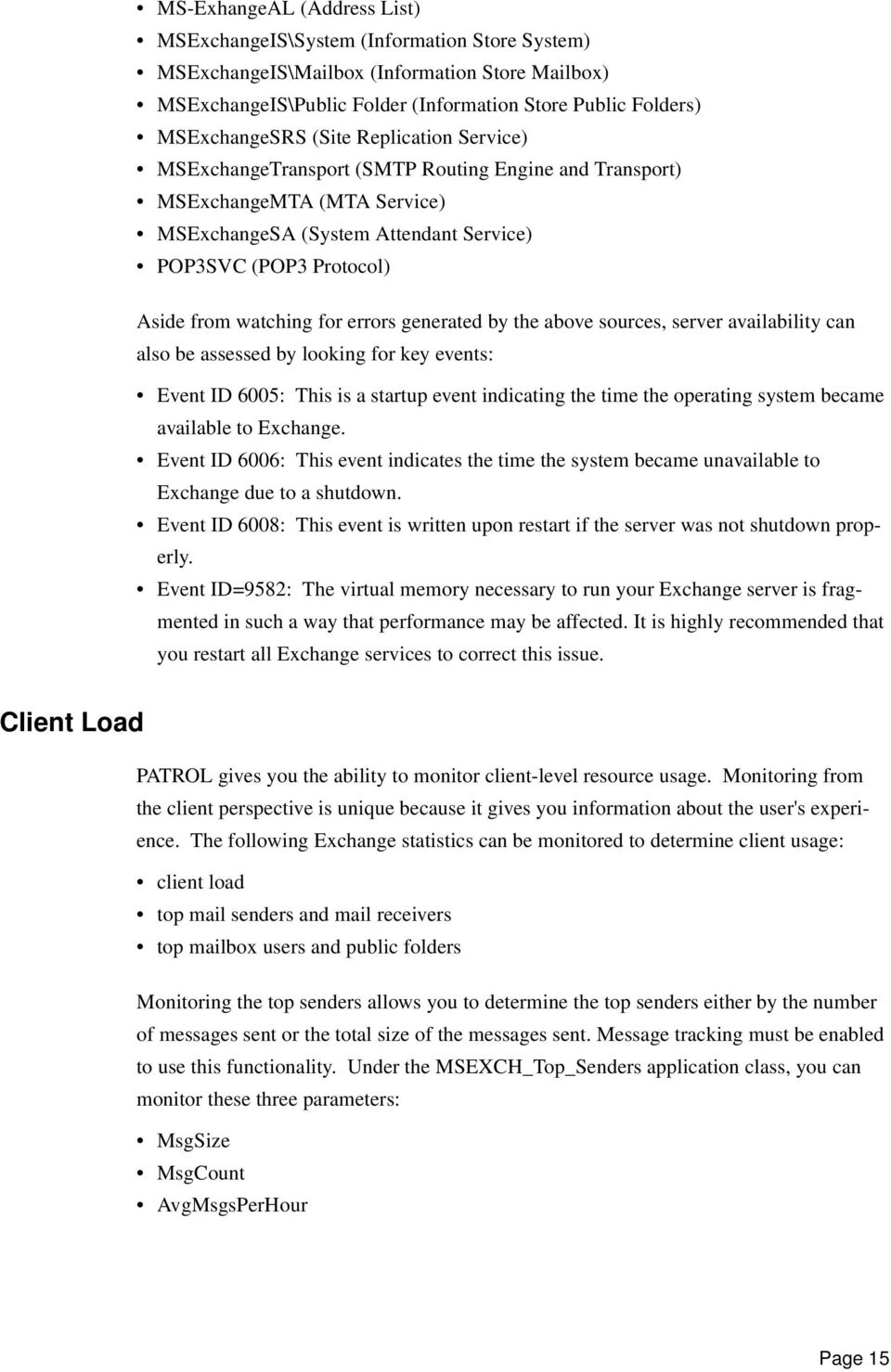
19 MS-ExhangeAL (Address List) MSExchangeIS\System (Information Store System) MSExchangeIS\Mailbox (Information Store Mailbox) MSExchangeIS\Public Folder (Information Store Public Folders) MSExchangeSRS (Site Replication Service) MSExchangeTransport (SMTP Routing Engine and Transport) MSExchangeMTA (MTA Service) MSExchangeSA (System Attendant Service) POP3SVC (POP3 Protocol) Aside from watching for errors generated by the above sources, server availability can also be assessed by looking for key events: Event ID 6005: This is a startup event indicating the time the operating system became available to Exchange. Event ID 6006: This event indicates the time the system became unavailable to Exchange due to a shutdown. Event ID 6008: This event is written upon restart if the server was not shutdown properly. Event ID=9582: The virtual memory necessary to run your Exchange server is fragmented in such a way that performance may be affected. It is highly recommended that you restart all Exchange services to correct this issue. Client Load PATROL gives you the ability to monitor client-level resource usage. Monitoring from the client perspective is unique because it gives you information about the user's experience. The following Exchange statistics can be monitored to determine client usage: client load top mail senders and mail receivers top mailbox users and public folders Monitoring the top senders allows you to determine the top senders either by the number of messages sent or the total size of the messages sent. Message tracking must be enabled to use this functionality. Under the MSEXCH_Top_Senders application class, you can monitor these three parameters: MsgSize MsgCount AvgMsgsPerHour Page 15
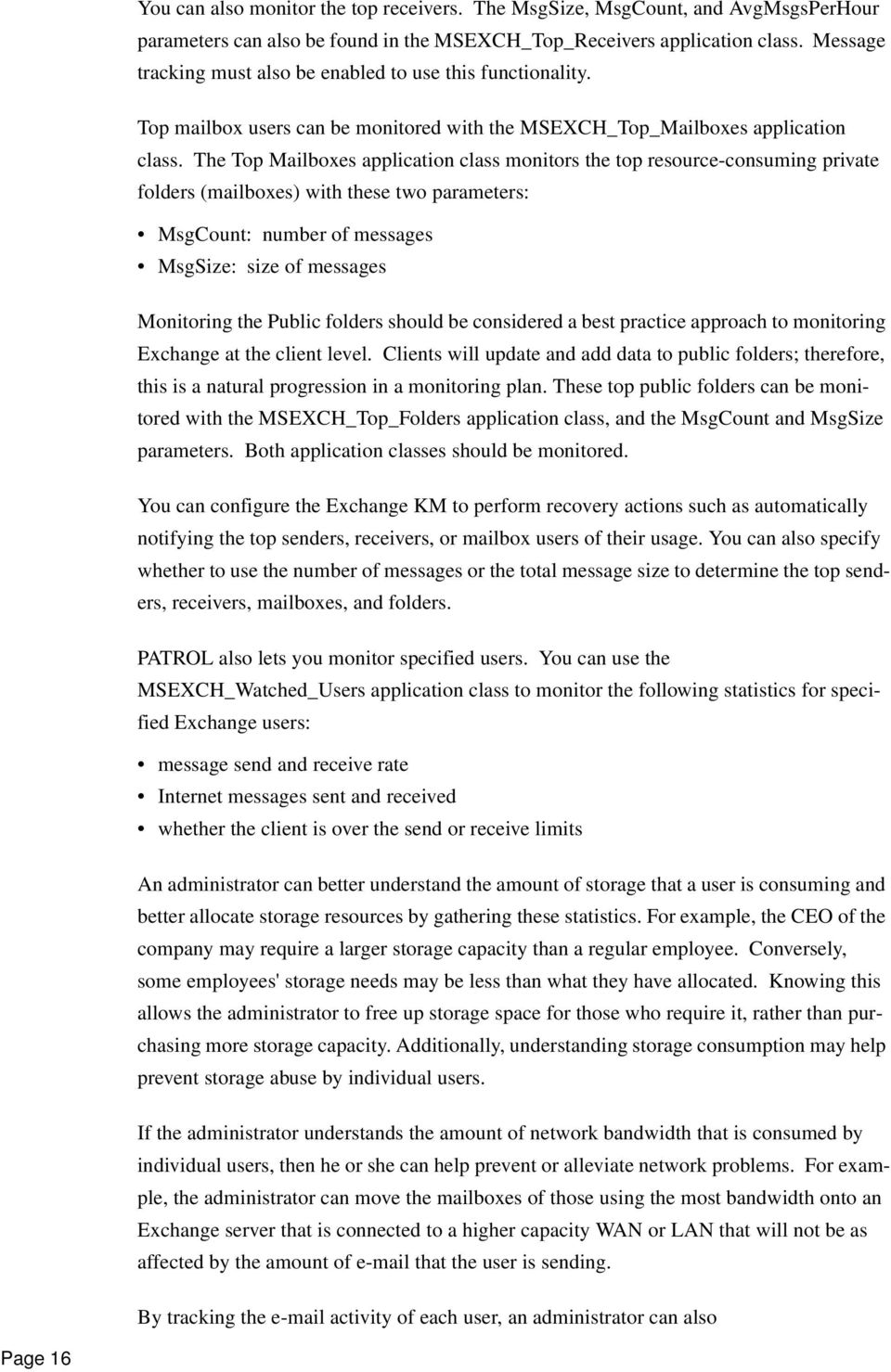
20 You can also monitor the top receivers. The MsgSize, MsgCount, and AvgMsgsPerHour parameters can also be found in the MSEXCH_Top_Receivers application class. Message tracking must also be enabled to use this functionality. Top mailbox users can be monitored with the MSEXCH_Top_Mailboxes application class. The Top Mailboxes application class monitors the top resource-consuming private folders (mailboxes) with these two parameters: MsgCount: number of messages MsgSize: size of messages Monitoring the Public folders should be considered a best practice approach to monitoring Exchange at the client level. Clients will update and add data to public folders; therefore, this is a natural progression in a monitoring plan. These top public folders can be monitored with the MSEXCH_Top_Folders application class, and the MsgCount and MsgSize parameters. Both application classes should be monitored. You can configure the Exchange KM to perform recovery actions such as automatically notifying the top senders, receivers, or mailbox users of their usage. You can also specify whether to use the number of messages or the total message size to determine the top senders, receivers, mailboxes, and folders. PATROL also lets you monitor specified users. You can use the MSEXCH_Watched_Users application class to monitor the following statistics for specified Exchange users: message send and receive rate Internet messages sent and received whether the client is over the send or receive limits An administrator can better understand the amount of storage that a user is consuming and better allocate storage resources by gathering these statistics. For example, the CEO of the company may require a larger storage capacity than a regular employee. Conversely, some employees' storage needs may be less than what they have allocated. Knowing this allows the administrator to free up storage space for those who require it, rather than purchasing more storage capacity. Additionally, understanding storage consumption may help prevent storage abuse by individual users. If the administrator understands the amount of network bandwidth that is consumed by individual users, then he or she can help prevent or alleviate network problems. For example, the administrator can move the mailboxes of those using the most bandwidth onto an Exchange server that is connected to a higher capacity WAN or LAN that will not be as affected by the amount of that the user is sending. By tracking the activity of each user, an administrator can also Page 16
21 see how much a user sends to and receives from the Internet: verify that employees are working while telecommuting confirm that a message reaches a recipient track messages sent to a mailbox that is used for external publications You can monitor the following in the MSEXCH_Watched_Users application class: AttachmentSize: the total size of the attachments in the user's mailbox MsgCount: the number of messages in the user's mailbox MsgSize: the total size of the messages in the user's mailbox You can also configure PATROL to watch for suspect mail. PATROL for Microsoft Exchange Servers uses a dummy mailbox to monitor for suspect mail that could contain viruses. This dummy mailbox uses a bogus name and is not a member of any distribution list, so it should never send or receive . If it does, an virus may be present. When this dummy mailbox sends or receives , a built-in recovery action automatically shuts down the Message Transfer Agent (MTA) or routing engine to prevent further spread of the virus. The parameter used to monitor is the SuspectMsgCount parameter and can be found in the MSEXCH_Watched_Users application class. Client Perspective Availability When developing a best practices monitoring plan for Exchange, you should not only monitor client load, but also client perspective. Users depend on Exchange to be available and responsive; therefore, understanding how the Exchange server responds to typical client usage will help determine its availability to your clients. The MSEXCH_Roundtrip_Client application class, which is part of the Exchange KM Roundtrip response-time monitoring feature, represents a response-time session between an Exchange client and an Exchange server, and it monitors the time required by the client to perform the following operations: sending round-trip messages to the Exchange Server logging on and off the Exchange Server opening messages creating messages sending messages deleting messages In order to utilize this feature of the Exchange KM, you must configure a session using a menu command from the MSEXCH_Roundtrip_Container application class. Page 17
22 When sending messages, they are often sent from an Exchange server to another Exchange server or a foreign Internet server that uses a connector for delivery. The Exchange KM can also monitor this pathway. You can configure an Internet Roundtrip session by using the MSEXCH_Roundtrip_Container application class. The following parameter values can help you determine server availability: Status LastMsgTime LastNMsgTime MaxMsgTime Data Access Exchange data is accessed in a number of different ways. For example, a user or Exchange Server can initiate an Active Directory query to look up an address. Monitoring the availability of data access is another best practices monitoring approach. For Exchange, you should monitor DSAccess. Active Directory (AD) queries are cached on the server running Exchange. This is called DSAccess. Caching eliminates repetitive queries to AD. Since querying AD is essential to Exchange 2000 and Exchange 2003 implementation, it should be monitored. The Exchange KM monitors the DSAccess with the MSEXCH_DSAccess_Cache application class and the MSEXCH_DSAccess_Processes application class. The application classes and parameters used to gather data and determine the availability of these queries are: MSEXCH_DSAccess_Cache\AsyncReadsPending: the number of outstanding asynchronous LDAP read requests submitted to the Directory Service Access (DSA). If this value is high or rising, Exchange clients may be experiencing delays when interacting with the Information Store. MSEXCH_DSAccess_Cache\AsyncSearchesPending: the number of outstanding asynchronous LDAP search requests submitted to the DSA. If this value is high or rising, Exchange clients may be experiencing delays when searching the Information Store. MSEXCH_DSAccess_Processes\LdapReadTime: the amount of time required by a client to send an LDAP read request to the DSA and receive a response. If this value is high or rising, Exchange clients may be experiencing delays when interacting with the Information Store. MSEXCH_DSAccess_Processes\LdapSearchTime: the time required by a client to send an LDAP search request to the DSA and receive a response. If this value is high or rising, Exchange clients may be experiencing delays when searching the information store. Page 18
23 Data access also involves changes to the Address List. Maintaining the address list in Exchange is done by the Recipient Update Service (RUS). To monitor the load placed on the RUS, the Exchange KM provides the AddressListQueueLength parameter in the MSEXCH_Address List application class. Message Traffic Message traffic from and to Exchange servers involves various factors, and you can use the Exchange KM to monitor them and provide availability to end-users. The Exchange KM monitors message traffic in the protocol queues and Exchange connectors. Protocol Queues Two of the most important queues to monitor are the x.400 and SMTP queues. Queue traffic is a direct result of the clients in use. For example, if you have a majority of Outlook clients in your environment, you will have more SMTP traffic. Focus on the local delivery queue and the messages-awaiting-directory-lookup queue. The Exchange KM discovers the queues being used on the server and generates an application class for each queue. Each application class contains the same parameters. The MSEXCH_Queues application class provides the following parameters to help identify queue related issues: IncreasingTime: The amount of time that the message queue for the protocol has been increasing in length. MsgSize: The size of the protocol message queue. Messages: The number of messages in the protocol message queue. If the queue is larger than normal, determine the destination server of the first message in the queue and then verify that the destination server is configured properly. You may also want to search the application event log generated by the destination server for problems with the protocol. OldestMsgAge: The age of the oldest message in the queue. State: The state of the queue. 0 = active 1= ready 2 = retry 3 = scheduled 4 = remote 5 = frozen The retry state is particularly important. When Exchange fails to deliver a message, it will attempt to resend it. If the queue is in this state you may have delivery problems on your network. Page 19
24 Type: The type of link queue. 0 - remote delivery 1- local delivery 2 - pending routing 3 - pending categorization 4 - unreachable 5 - deferred delivery 6 - internal QueueGrowth: The rate at which the queue is currently growing. A large number of messages in a queue may indicate a problem with the Web Storage System. Additionally, a large queue coupled with a Pending categorization type may indicate that there is a problem contacting a domain controller in the case of an Active Directory lookup. Additional parameters that help you determine message transfer rate and productivity are the MSEXCH_Sent_Mail\RecvBytes and MSEXCH_Sent_Mail\SentBytes parameters. The MSEXCH_Sent_Mail\RecvBytes parameter displays the total number of bytes received by the server from the remote server during the last polling cycle. In the _Total application class instance, this parameter represents the total number of bytes received by the server from all remote servers that are being monitored. The RecvBytes parameter is a measure of message traffic between specific servers in your site. By monitoring the traffic patterns between servers, you can detect bottlenecks and spot potential problems. The Exchange KM obtains the data for this parameter from the Exchange Server tracking log; therefore, message tracking must be enabled. In addition to the RecvBytes parameter, you can use the Perfmon Wizard (part of PATROL for Microsoft Windows Servers) to bring the SMTP Server\Message Bytes Sent/Sec counter into the Exchange KM. This parameter helps you determine if messages are being transferred as quickly as they should be by your SMTP server. If your queues are high and the value of this parameter is low there may be a problem with the SMTP transport. The MSEXCH_Sent_Mail\SentBytes parameter displays the total number of bytes sent to the remote server during the last polling cycle. In the _Total application class instance, this parameter represents the total number of bytes sent to all remote servers that are being monitored. The SentBytes parameter measures message traffic between specific servers in your site. By monitoring the traffic patterns between servers, you can detect bottlenecks and spot potential problems. The Exchange KM also obtains the data for this parameter from the Exchange Server tracking log and, therefore, message tracking must be enabled. In addition to the SentBytes parameter you can use the Perfmon Wizard to bring the SMTP Server\Message Bytes Received/Sec counter into the Exchange KM. If this value is low and your queue is high, then there may be a problem with the SMTP transport. Page 20
25 Finally, viewing the number of connections to the server is critical because, if the number of connections is 0, then you may be having network problems. Use the MSEXCH_Server\ClientConnections parameter to monitor the number of clients connected to the server.you can use the Perfmon Wizard to bring the SMTP Server\Inbound Connections Current counter into the Exchange KM. Exchange Connectors Connectors enable information to flow between two systems. For example, connectors support message transfer, directory synchronization, and calendar querying between Exchange and other messaging systems. When connectors are in place, the basic user experience is maintained on both messaging systems. When they are not, your users may experience performance and availability issues; therefore it is important to monitor their status. MTA Connections Monitor the Message Transfer Agent (MTA) connections when Exchange 2003, Exchange 2000 and/or Exchange Server 5.5 coexist, or when there are X.400 clients in the environment. You should monitor the work queue, the messages per second, and queue length of the MTA. If the MTA cannot contact a domain controller, it may frequently shut down. If it does, the Exchange KM has a recovery action that will automatically restart the service for you. Monitor the following parameters to determine MTA queue length and messages per second: The MSEXCH_MTA\MsgBytesPerSec parameter displays the rate that messages are processed by the MTA. This value indicates how much traffic is being exchanged with other Exchange servers. The MSEXCH_MTA\WorkQueueLength parameter displays the total number of messages currently in the MTA queue. This number includes inbound and outbound messages for the Information Store, the Directory, and any MTA connectors. This parameter is an important measure of MTA health. The parameter value should remain less than 0.5 to 1.0 percent of connected users. If the queue length is above these values for a sustained period of time or if the queue length is rising, you may have a problem with one of your Exchange components, a connector, or a remote Exchange MTA. To improve performance, you can remove messages from the MTA queue that were generated by the directory service, system attendant, or the public Information Store. These messages often accumulate when a WAN link fails or when a server is offline, interfering with the delivery of user-generated messages. Page 21
26 The MSEXCH_MTA_Connections application class monitors the connections to non- Exchange entities. You can use this application class to monitor the rate of data flow between the Exchange server and other connected entities. The Exchange KM provides the MSEXCH_MTA_Connections\QueueLength parameter to monitor queue length. The QueueLength parameter measures the number of outstanding messages queued for transfer from the Exchange server to the MTA connection. Note: In Microsoft Exchange Server 5.5 SP1 and SP2, the Windows NT Performance counter that supplies the data for this parameter is unreliable. SP3 fixes this problem. See the Microsoft Exchange Server documentation for more information. If the QueueLength parameter is large or increasing, the cause could be: the receiving MTA may be failing a network communication failure a performance problem on the sending or receiving machine Tip: If the queue is larger than normal, determine the destination server of the first message in the queue and then verify that the destination server or connector is configured properly. You may also want to search the application event log generated by the MTA connection or the destination server. Store It is critical to determine if information is being processed in a timely manner between IIS and the Exchange store. The MSEXCH_ExIPC application class monitors the performance of ExIPC queuing layers. The Exchange KM creates one MSEXCH_ExIPC application class instance for each supported protocol (if the server is running Exchange 5.5 or earlier, the Exchange KM does not display this application class). There are two key parameters to monitor in this regard: The ClientQueLenparameter monitors the length of the client-to-store output queue. The StoreQueLenparameter monitors the length of the store-to-client output queue. Private and Public Information Store The Private Information Store (IS) application class monitors the Microsoft Exchange Server Information Store performance. You can use this application class to monitor how well the private IS processes client messages. The outbound queue, messages sent per minute, received queue, and user and client connections are all key areas to monitor. Outbound Queue Size The key parameters to monitor with regard to the public and private Information Store are: Page 22
27 The MSEXCH_IS_Private\SendQueueSize parameter, which monitors the number of messages in the private Information Store send queue waiting to be sent to the MTA. If the SendQueueSize parameter value is high or increasing, the MTA may be down or performing poorly, resulting in slow mail delivery. According to Microsoft, The Send- QueueSize parameter should not exceed 0.5 to 1.0 percent of connected users. If you suspect that the private Information Store send queue is a bottleneck, use one of the following actions to correct the problem: - Move some or all of the mailboxes to another server. - Use multiple disk controllers. - Limit the amount or type of that users can send. - Add more disks to the stripe set. - Add one or more caching disk controllers that cache read and write operations. The MSEXCH_IS_Public\SendQueueSize parameter monitors the number of messages in the public Information Store send queue that are waiting to be sent to the MTA. If the SendQueueSize parameter is high or increasing, the MTA may be down or performing poorly, and you will likely experience slow delivery. If you suspect that the public Information Store send queue is a bottleneck, use one of the following actions to correct the problem: - Configure the public folder replication to occur less frequently. - Move some or all of the public folders to another server. - Use multiple disk controllers. - Add more disks to the stripe set. - Add one or more caching disk controllers that cache read and write operations. Messages Sent Per Minute Load on a server can be affected by the message flow of that server. Determining the amount of messages sent from a server can help you determine if the server is being overutilized. You can also determine if the server is receiving messages, or if there is a backed-up queue. Use the following parameters to monitor sent messages: The MSEXCH_IS_Private\MsgSentPerMin parameter monitors the rate that the MTA sends private Information Store messages to private Information Stores on remote Exchange servers. You may have performance issues if this value is low compared to your baseline and if your Send Queue size is a nonzero value. The MSEXCH_IS_Public\MsgSentPerMin parameter monitors the rate that the MTA sends public Information Store messages to public Information Stores on remote Exchange Servers. Page 23
28 Received Queue Size Receiving messages also indicates server load. Knowing how many messages your Exchange server is receiving can help you decide if you must load balance the server. Two parameters that should be monitored to determine the receive values of your private and public Information Store are: The MSEXCH_DB_Private\RecvQueueSize parameter, which monitors the total size of the replication messages that have been received from remote servers and that are waiting in the public Information Store receive queue. The MSEXCH_DB_Public\RecvQueueSize parameter, which monitors the number of messages in the public Information Store receive queue. The values for these two parameters are often a nonzero value (with the exception of a bridgehead server that has no mailboxes). If you compare this value to your baseline and find that it is higher, you may have a problem. User and Client Connections As with any server or application, the number of users or clients connecting to it creates increased load and resource consumption. There are two key parameters provided by the Exchange KM that help you monitor connections: The MSEXCH_IS\UserConnects parameter monitors the number of users connected to the Information Store. The MSEXCH_IS\ClientConnects parameter monitors the number of client processes connected to the Information Store. You can also use the Perfmon Wizard within PATROL to bring objects and counters that relate to store access into PATROL. Two key Perfmon counters to use are: MSExchangeIS\RPC Requests counter - this value indicates the number of MAPI RPC requests serviced by the Exchange store. 100 simultaneous requests is the store's limit. MSExchangeIS\RPC Operations/sec counter - this value indicates the rate at which the Exchange store is servicing user requests. These two values help you determine problems with processing the client request before or after Exchange processing begins. A problem before Exchange processing exists if the RPC Requests are low and the RPC Operations/sec is 0. Anything other than this scenario indicates a problem during or after Exchange processing. You can use the Composites KM (part of the OS KM) to compare these two values. Page 24
29 Monitoring Exchange in Summary Exchange Area KM Application Class/Parameters Exchange Services Microsoft Exchange Information Store Microsoft Exchange MTA Stacks Microsoft Exchange Routing Engine Microsoft Exchange System Attendant Simple Mail Transport Protocol World Wide Web Publishing Service Exchange Processes Store.exe (Information Store Service) Inetinfo.exe (IIS, Routing Engine) Mad.exe (System Attendant) Emsmta.exe (MTA Stacks Service) System Events from Sources IMAP4Svc MS-ExhangeAL MSExchangeIS\System MSExchangeIS\Mailbox MSExchangeIS\Public Folder MSExchangeSRS MSExchangeTransport MSExchangeMTA MSExchangeSA POP3SVC Client Load client load top mail senders and mail receivers top mailbox users and public folders OS OS OS Exchange NT_SERVICES\SvcDown NT_SERVICES\ServiceStatus NT_PROCESS\PROCDown NT_PROCESS\PROCProcessorTimePercent NT_EVENINST\ELMError MSEXCH_Top_Senders\MsgSize MSEXCH_Top_Senders\MsgCount MSEXCH_Top_Senders\AvgMsgsPerHour MSEXCH_Top_Receivers\MsgSize MSEXCH_Top_Receivers\MsgCount MSEXCH_Top_ReceiversAvgMsgsPerHourM SEXCH_Top_Mailboxes\MsgSize MSEXCH_Top_Mailboxes\MsgCount MSEXCH_Top_Folders\MsgSize MSEXCH_Top_Folders\MsgCount MSEXCH_Watched_Users\AttachmentSize MSEXCH_Watched_Users\MsgCount MSEXCH_Watched_Users\MsgSize MSEXCH_Watched_Users\SuspectMsgCount Page 25
30 Exchange Area KM Application Class/Parameters Client Perspective Availability sending round-trip messages to the Exchange Server logging on and off the Exchange Server opening messages creating messages sending messages deleting messages Data Access DS Access Address List Message Traffic - Protocol Queues Protocol Queues Sent/Received Client Connections Message Traffic - Connectors MTA Connections Store EXPIC IS Private and Public Exchange Exchange Exchange Exchange Exchange MSEXCH_EndtoEnd\Status MSEXCH_EndtoEnd\LastMsgTime MSEXCH_EndtoEnd\LastNMsgTime MSEXCH_EndtoEnd\MaxMsgTime MSEXCH_DSAccess_Cache\AsyncReadsPending MSEXCH_DSAccess_Cache\Async- SearchesPending MSEXCH_DSAccess_Processes\LdapRead- Time MSEXCH_DSAccess_Processes\LdapSearch Time MSEXCH_Address_List\ListQueLen MSEXCH_Queues\IncreasingTime MSEXCH_Queues\MsgSize MSEXCH_Queues\Messages MSEXCH_Queues\State MSEXCH_Queues\Type MSEXCH_Sent_Mail\RecvBytes MSEXCH_Sent_Mail\SentBytes MSEXCH_Server\ ClientConnections MSEXCH_MTA\MsgBytesPerSec MSEXCH_MTA\WorkQueueLength MSEXCH_MTA_Connections\QueueLength MSEXCH_ExIPC\ClientQueLen MSEXCH_ExIPC\StoreQueLen MSEXCH_IS_Private\SendQueueSize MSEXCH_IS_Public\SendQueueSize MSEXCH_IS_Private\MsgSentPerMin MSEXCH_IS_Public\MsgSentPerMin MSEXCH_DB_Private\RecvQueueSize MSEXCH_DB_Public\RecvQueueSize User and Client Connections Exchange MSEXCH_IS\UserConnects MSEXCH_IS\ClientConnects Perfmon:MSExchangeIS\RPC Requests Perfmon:MSExchangeIS\RPC Operations/sec Page 26
31 Active Directory Active Directory offers a truly scalable, fault tolerant directory service for enterprises upgrading to Windows 2000 and Windows Server If your enterprise relies on Active Directory, it should be monitored as a key service that creates the foundation for applications such as Exchange. Active Directory monitoring with PATROL is accomplished by using the PATROL Knowledge Module for Microsoft Windows Active Directory, the PATROL Knowledge Module for the Microsoft Windows Operating System, and the PATROL Knowledge Module for Windows Domain Services. Best practices in monitoring Active Directory can be broken down into the following sections: Operating System Services and Processes Events Domain Level Services (Shares and DNS) FSMO Roles Protocols Replication Operating System As mentioned previously, monitoring the operating system is key in any type of monitoring plan. Without understanding the health of the operating system, you cannot truly understand the health of any applications or databases, etc. that run on top of that operating system. So before you begin monitoring Active Directory, be sure that you have an operating system monitoring strategy in place, since Active Directory relies on the operating system. One important operating system parameter that has significant impact on Active Directory is the LdldDiskQueueLength parameter. This parameter monitors the number of requests outstanding on the disk, including requests currently in service. This is an instantaneous value at the time the data was collected. If the number displayed is consistently high, there is a sustained load on your disk drive. The value on the domain controllers and the disk queue length on the drive hosting the AD Database should be 0. This ensures that Active Directory is not overloaded and unresponsive due to disk access requests. Services and Processes Monitor the underlying services and processes that make up Active Directory on each domain controller. The critical services to monitor include: Page 27
32 File Replication Service (FRS), which provides multi-master replication of files and folders, as well as SYSVOL and DFS. If this service is not running, group policy objects and login scripts will not be replicated. You will have problems with FRS if it is down; if the drive that is receiving updates from FRS is full, you will experience issues with replication. Inter-site Messaging Service, which provides replication services to networks between sites. This service is instrumental in helping the Knowledge Consistency Checker (KCC) build the tree topology for AD replication. Therefore, if this service isn't working, replication will be directly affected. Key Distribution Center, which facilitates User Logon by issuing Kerberos tickets. If this service isn't working, users will have login problems. NetLogon, which is necessary for registering or deregistering DDNS records, enabling secure channel connections, and several other functions. This service also provides the ability to logon to the current server and access network resources. RPC Services, which works in conjunction with Locator to find domain controllers. Often when the RPC Service stops, it is necessary to reboot the server, which may be undesirable. Therefore, monitoring the RPC Service will at least tell you when it is down, which will affect your domain controller's performance. You will have many errors detailing RPCs not responding if your time service is not synchronized. Some other problems you may encounters if the RPC Service is not functioning are: - connecting to domain controllers - connecting to trusted domains - enabling trust relationships - user authentication Windows Time Service ensures time synchronization between domain controllers and is necessary for Kerberos and for resolving replication conflicts. Each domain controller must have a common time. If time is not synchronized across the domain, your users will have login problems. Additionally, if your clients are not synchronized with your domain controllers, they will have problems logging in to the domain. Each service should be monitored by the OS KM. Under the NT_SERVICES application class there are two key parameters that you should be monitor: The ServiceStatus parameter indicates the current state of a service (starting, running, paused, stopping, stopped). The SvcDown parameter indicates whether a service is down; if a service is down, PATROL includes a recovery action to restart the service. PATROL monitors all the services running on a Windows server by default; therefore, there is no configuration needed to monitor the default set of Active Directory Services. Of these default services, the two that you should keep an eye on are the DC locator or locator.exe which locates domain controllers for client use, and LSASS (lsass.exe) or the Page 28
33 Local Security Authority which is an AD process. The key parameters include CPU and memory utilization. Monitor the memory and CPU utilization of the DC Locator process by using the NT_PROCESS application class and the following parameters: The PROCDown parameter, which indicates when a process is down. The PROCProcessorTimePercent parameter, which monitors the percentage of elapsed time the selected process used the processor to execute instructions. Use this parameter to learn the distribution of processor time between processes. For the LSASS process, monitor the CPUprcrProcessorTimePercent parameter. This parameter should not exceed 80 percent. LSASS contains the DS Propagator Thread which is responsible for securing administrator group membership. If you have too many users in the administrators group or if you have nested groups, lsass.exe may spike to 100 percent CPU utilization. If this occurs, make adjustments to your group memberships as necessary to decrease CPU utilization. Events Often the first place you should check for Active Directory-related errors is the event log. Using the event log helps you isolate a problem and prevent it from affecting the availability of your AD servers. Monitor the following AD sources: AD FRS LSASS SAM Netlogon W32Time UserEnv KCC SceCli DNS KDC Kerberos LsaSrv NetLogon W32Time Server The Active Directory KM configures the 3.8 version of the OS KM to monitor event sources dealing with DNS Name Registration, Core Active Directory Service, File Replication Service and Group Policy, Time Synchronization Service, Kerberos, and Netlogon out of the box. No additional event log configuration is required for AD monitoring. The Page 29
34 Active Directory KM monitors the DNS Name Registration Service, the Core Directory Service, the File Replication Service and Group Policy, the Time Synchronization Service, Kerberos, Netlogon. DNS Name Registration The following events indicate that a domain controller had a problem registering DNS records: Event Log Source Event Why Event is Important System DNSAPI 11154, Domain controller does not have sufficient rights to perform a secure dynamic update. System DNSAPI 11150, 1162 DNS server timed out. System DNSAPI 11152, 11153, 11164, System DNSAPI 11151, 11155, 11163, The zone or the currently connected DNS server does not support dynamic update. A resource record for the domain controller is not registered in DNS. System NETLOGON 5773 One or more DC locator records are not registered because the primary DNS server does not support dynamic update. System NETLOGON 5774 One or more DC locator records are not registered in DNS. Core Directory Service The following events indicates problems with core Active Directory functionality.: Event Log Source Event Why Event is Important Directory Service All Sources Severity = error The primary error events for the Active Directory service. System LSASS Severity = error Local Security Authority is the core security subsystem for Active Directory. Page 30
35 File Replication Service and Group Policy The following events may indicate problems with SYSVOL replication or the replication of group policy. Event Log Source Event Why Event is Important FRS All Sources Severity = error FRS is used to synchronize policies between all Domain Controllers in the Forest. Application USERENV Severity = erroruser = System Application SCECLI Severity = error1058 Responsible for the application of group policy and profiles on domain controllers. Security Configuration Engine error messages. Time Synchronization Service The following events may indicate problems with maintaining uniform time throughout the Active Directory forest. Event Log Source Event Why Event is Important System W32TIME Severity = error Severity = warning Ensures time synchronization between domain controllers and is necessary for Kerberos and resolving replication conflicts. Kerberos The following events may indicate problems with Kerberos, the default authentication protocol. Event Log Source Event Why Event is Important System KDC Severity = error Kerberos is the default authentication protocol. Page 31
36 Netlogon The following events may indicate problems with the Netlogon service and protocol that are required for proper domain controller functionality. Event Log Source Event Why Event is Important System NETLOGON Severity = error, 5705, 5723 Netlogon is necessary for registering DDNS records, enabling secure channel connections and several other functions like providing the ability to logon to the current server. Domain Level Services DNS and shares are two critical components from a domain perspective. One advance in Active Directory is the use of DNS instead of WINS. DNS has fewer problems than WINS, but is still a source of a lot of problems in Active Directory. When there are resource access issues in an environment, DNS can be the cause. PATROL monitors DNS using the Domain KM. With the Domain KM you can monitor Windows 2000 (or higher) DNS. The KM creates an application class instance for each agent running DNS. Then it provides information on the status of the DNS service, DNS query rate, DNS query success rate, and DNS query failure rate. In the NT_DNS_2000 application class, two critical parameters to monitor are: DnQueryResponseTime parameter - records the number of milliseconds the DNS server takes to process a sample request. DnDynUpdateRecvRate parameter - monitors the rate at which dynamic updates are being received at the DNS server each minute. Monitoring shares is the second domain-level area that should be monitored. The AD KM monitors one of the vital shares regarding Active Directory - the SYSVOL share. The contents of the SYSVOL share must be replicated to other domain controllers. SYSVOL contains group policy settings, logon/logoff scripts, and pre-w2k system policies. Under the AD_AD_SERVER application class the ADSysvolShared parameter tells you whether or not SYSVOL is shared. For more advanced DNS monitoring, BMC Software offers the PATROL Internet Server Manager product, which can monitor DNS from the client perspective. Many customers install this on every domain controller to ensure that it is receiving appropriate information from the DNS in a timely fashion. Page 32
37 FSMO Roles A Flexible Single Master Operations (FSMO) role holder server is simply a domain controller that has a specific job related to Active Directory operations (either forest-wide or domain-wide). All five roles should be monitored: Schema Master controls changes to the schema. The Active Directory Schema contains classes, objects and attributes. Domain Naming Master controls additions of domains to existing domains within the forest. When multiple domains are added to an existing domain, the Domain Naming Master is in charge of those additions. PDC Emulator controls time synchronization, group policy propagation, and password changes. RID Master controls the distribution of relative identifiers. Infrastructure Master updates references to objects and group memberships from other domains. Each DC's connectivity to its FSMO role holder is verified by PATROL. The role holders are listed as InfoBox items off of the AD_AD_SERVER application class. Two parameters are vital to monitor for your organization: The AdFsRoleChanged parameter detects and reports when an FSMO role is moved to or from the current DC and when the current DC acquires the role. The AdFsConnectivity parameter reports whether the domain controller that holds the schema master role is allowing LDAP connections. The operations master role server is pinged frequently to determine network availability. Attempts to connect through LDAP are not performed as often because LDAP connections use a greater amount of server resources. You can configure the frequency of the LDAP connection test by changing the value of the agent configuration variable ConnStatusSched. The default value for each FSMO role is stored in the configuration database. In addition to monitoring these parameters, you should monitor the FSMO role holder because it is a domain controller. The OS and all other AD particulars should be considered part of your monitoring plan. Protocols AD uses the Lightweight Directory Access Protocol (LDAP) heavily. Users query and manage AD using LDAP, and applications such as Exchange query AD using LDAP. AD must be able to respond in a timely fashion to LDAP queries. Two problems you might face with LDAP include response time and client connections. The AD KM monitors LDAP response time with the AdLdResponseTime parameter. This parameter reports the amount of time required to issue an LDAP bind operation. The bind operation is performed locally on the domain controller to eliminate network latency. Page 33
38 Another parameter to monitor is the AdLdClientSessions parameter. This parameter tells you how many client sessions are active on the server. If there are too many client sessions active, your server may become sluggish, especially if there are stale connections that cannot time out. Microsoft recommends that you apply the latest service pack to alleviate this problem. Replication Active Directory replicates to partner domain controllers in an effort to keep resources and AD data consistent across the enterprise. As objects are added to or removed from AD, they are replicated at a specified interval. As properties of objects are changed, they must be replicated as well. PATROL uses synthetic transactions to monitor AD. Real data is inserted into AD and replicated. This data is tested for latency and for successful replications. You should not only monitor replication itself however, there are also various services that can affect the performance of replication. For example, if your domain controller's time is not synchronized, replication will be directly affected. PATROL offers individual parameters to help you monitor replication. The AdRpFailedSyncRequests parameter reports the number of unsuccessful synchronization requests processed since the last collection cycle. In addition, the following three parameters in the AD_AD_SERVER application class monitor replication: The AdIntrasiteReplicationStatus parameter reports whether replication is occurring properly within the site or domain for this domain controller. Note: This parameter is inactive by default. During each discovery cycle, the KM checks to see if more than one DC is in the current site. If there is more than one DC in the site, then the parameter becomes active. Because the active/inactive status is determined programmatically, changing the active/inactive setting for the parameter has no effect on the active/inactive status at runtime. The AdIntrasiteReplicationLatency parameter reports the average replication latency between domain controllers within the site or domain and the current domain controller. Data points are annotated with the maximum latency reported and the name of the domain controllers to which the current domain controller is replicating. Note: This parameter is inactive by default. During each discovery cycle, the KM checks to see if more than one DC is in the current site. If there is more than one DC in the site, then the parameter becomes active. Because the active/inactive status is determined programmatically, changing the active/inactive setting for the parameter has no effect on the active/inactive status at runtime. Page 34
39 The AdIntersiteReplicationStatus parameter reports whether replication for this domain controller is occurring properly between sites in the domain. Note: This parameter is inactive by default. During each discovery cycle, the KM checks to see if the current DC is a bridgehead server. If the current server becomes a bridgehead server, then the parameter becomes active. Because the active/inactive status is determined programmatically, changing the active/inactive setting for the parameter has no effect on the active/inactive status at runtime. Page 35
40 Monitoring Active Directory in Summary Active Directory Area KM Application Class/Parameter Services File Replication Service Inter-sight Messaging Service Key Distribution Center NetLogon RPC Services Windows Time Service Processes DC Locator (locator.exe) LSASS (lsass.exe) Event Sources AD FRS LSASS SAM Netlogon W32Time UserEnv KCC SceCli DNS KDC Kerberos LsaSrv NetLogon W32Time Server OS OS OS NT_SERVICES\SvcDown NT_SERVICES\ServiceStatus NT_PROCESS\PROCDown NT_PROCESS\PROCProcessorTimePercent NT_EVENINST\ELMError DNS Domain NT_DNS_2000\DnQueryResponseTime NT_DNS_2000\DnDynUpdateRecvRate Shares AD AD_AD_SERVER\ADSysvolShared FSMO Roles Schema Master Domain Naming Master PDC Emulator RID Master Infrastructure master Protocols LDAP AD AD AD_AD_FSMO_ROLE_CONNECTIVITY\AdFs- RoleChanged AD_AD_FSMO_ROLE_CONNECTIVITY\AdFsConnectivity AD_AD_LDAP\AdLdResponseTime AD_AD_LDAP\AdLdClientSessions Page 36
41 Active Directory Area KM Application Class/Parameter Replication Inter-Site Intra-Site AD AD_AD_REPLICATION\AdRpFailedSyncRequests AD_AD_SERVER\AdIntrasiteReplicationStatus AD_AD_SERVER\AdIntrasiteReplicationLatency AD_AD_SERVER\AdIntersiteReplicationStatus Page 37
42 Sources Basics of Exchange Server Performance - default.asp?url=/library/en-us/dnw2kmag01/html/exchangeserver.asp Exchange 2000 Resource Kit Exchange 2000 Server Operations Guide - default.asp?url=/technet/prodtechnol/exchange/exchange2000/maintain/operate/opsguide/e2kops4.asp Designing Monitoring and Maintenance Procedures exchange/exchange2000/deploy/upgrdmigrate/ex2kupgr/planus/p_07_tt1.asp Troubleshooting Exchange 2000 Performance Understanding and Troubleshooting Directory Access Active Directory Operations Guide part I and II PATROL for Microsoft Windows Getting Started Guide and Help files PATROL for Microsoft Exchange Servers Getting Started Guide and Help files PATROL for Microsoft Windows Servers PATROL for Microsoft Exchange Servers About BMC Software BMC Software, Inc. [NYSE:BMC], is a leader in enterprise management. The company focuses on Assuring Business Availability for its customers by helping them proactively improve service, reduce costs, and increase value to their business. BMC Software solutions span enterprise systems, applications, and databases. Founded in 1980, BMC Software has offices worldwide and is a member of the S&P 500, with fiscal year 2002 revenues of approximately $1.3 billion. Visit to learn more. Page 38
43
44 BMC Software, the BMC Software logos and all other BMC Software product or service names are registered trademarks or trademarks of BMC Software, Inc. All other trademarks belong to their respective companies. Copyright 2002 BMC Software, Inc. All rights reserved. December 19,
Monitoring Microsoft Exchange to Improve Performance and Availability
 Focus on Value Monitoring Microsoft Exchange to Improve Performance and Availability With increasing growth in email traffic, the number and size of attachments, spam, and other factors, organizations
PATROL for Microsoft Windows Servers v2.3.00 Reviewer s Guide
 PATROL for Microsoft Windows Servers v2.3.00 Reviewer s Guide Contents Welcome!................................................. 3 Management of Microsoft Windows Servers...................... 3 Installation
Monitoring Mail Servers
 Monitoring Mail Servers eg Enterprise v5.6 Restricted Rights Legend The information contained in this document is confidential and subject to change without notice. No part of this document may be reproduced
Centerity Service Pack for Microsoft Exchange 2013 Keep your e-mail services up and running!
 Centerity Service Pack for Microsoft Exchange 2013 Keep your e-mail services up and running! Key Features Client & server monitoring. Tens of monitored KPI s for in-depth inspection. Wide range of usage
IBM Tivoli Composite Application Manager for Microsoft Applications: Microsoft Exchange Server Agent Version 6.3.1 Fix Pack 2.
 IBM Tivoli Composite Application Manager for Microsoft Applications: Microsoft Exchange Server Agent Version 6.3.1 Fix Pack 2 Reference IBM Tivoli Composite Application Manager for Microsoft Applications:
Also on the Performance tab, you will find a button labeled Resource Monitor. You can invoke Resource Monitor for additional analysis of the system.
 1348 CHAPTER 33 Logging and Debugging Monitoring Performance The Performance tab enables you to view the CPU and physical memory usage in graphical form. This information is especially useful when you
Monitoring Agent for Microsoft Exchange Server 6.3.1 Fix Pack 9. Reference IBM
 Monitoring Agent for Microsoft Exchange Server 6.3.1 Fix Pack 9 Reference IBM Monitoring Agent for Microsoft Exchange Server 6.3.1 Fix Pack 9 Reference IBM Note Before using this information and the product
Perfmon counters for Enterprise MOSS
 Perfmon counters for Enterprise MOSS # Counter What does it measure or can tell us Threshold [Action taken if] Notes PROCESSOR RELATED COUNTERS 1 Processor(_Total)\% Measures average processor utilization
Planning Domain Controller Capacity
 C H A P T E R 4 Planning Domain Controller Capacity Planning domain controller capacity helps you determine the appropriate number of domain controllers to place in each domain that is represented in a
WINDOWS SERVER MONITORING
 WINDOWS SERVER Server uptime, all of the time CNS Windows Server Monitoring provides organizations with the ability to monitor the health and availability of their Windows server infrastructure. Through
Lesson Plans Configuring Exchange Server 2007
 Lesson Plans Configuring Exchange Server 2007 (Exam 70-236) Version 2.1 Table of Contents Course Overview... 2 Section 1.1: Server-based Messaging... 4 Section 1.2: Exchange Versions... 5 Section 1.3:
pc resource monitoring and performance advisor
 pc resource monitoring and performance advisor application note www.hp.com/go/desktops Overview HP Toptools is a modular web-based device management tool that provides dynamic information about HP hardware
Windows Server Performance Monitoring
 Spot server problems before they are noticed The system s really slow today! How often have you heard that? Finding the solution isn t so easy. The obvious questions to ask are why is it running slowly
Web Server (Step 1) Processes request and sends query to SQL server via ADO/OLEDB. Web Server (Step 2) Creates HTML page dynamically from record set
 Dawn CF Performance Considerations Dawn CF key processes Request (http) Web Server (Step 1) Processes request and sends query to SQL server via ADO/OLEDB. Query (SQL) SQL Server Queries Database & returns
BlackBerry Enterprise Server for Microsoft Exchange Version: 5.0 Service Pack: 2. Feature and Technical Overview
 BlackBerry Enterprise Server for Microsoft Exchange Version: 5.0 Service Pack: 2 Feature and Technical Overview Published: 2010-06-16 SWDT305802-1108946-0615123042-001 Contents 1 Overview: BlackBerry Enterprise
15 Ways to Optimize Microsoft Exchange by Robert Shimonski & Chad Conrow
 15 Ways to Optimize Microsoft Exchange by Robert Shimonski & Chad Conrow In today s high-speed, fast-paced environment whether it be business or technology it is essential to pay close attention to detail.
Implementing, Managing, and Maintaining a Microsoft Windows Server 2003 Network Infrastructure
 Question Number (ID) : 1 (wmpmsp_mngnwi-121) You are an administrator for an organization that provides Internet connectivity to users from the corporate network. Several users complain that they cannot
FIGURE 33.5. Selecting properties for the event log.
 1358 CHAPTER 33 Logging and Debugging Customizing the Event Log The properties of an event log can be configured. In Event Viewer, the properties of a log are defined by general characteristics: log path,
MailEnable Scalability White Paper Version 1.2
 MailEnable Scalability White Paper Version 1.2 Table of Contents 1 Overview...2 2 Core architecture...3 2.1 Configuration repository...3 2.2 Storage repository...3 2.3 Connectors...3 2.3.1 SMTP Connector...3
Monitoring and Troubleshooting Microsoft Exchange Server 2007 (5051A) Course length: 2 days
 Monitoring and Troubleshooting Microsoft Exchange Server 2007 (5051A) Course length: 2 days Who Should Attend: This workshop is intended for experienced enterprise-level messaging professionals who have
MCSE Objectives. Exam 70-236: TS:Exchange Server 2007, Configuring
 MCSE Objectives Exam 70-236: TS:Exchange Server 2007, Configuring Installing and Configuring Microsoft Exchange Servers Prepare the infrastructure for Exchange installation. Prepare the servers for Exchange
MOC 5047B: Intro to Installing & Managing Microsoft Exchange Server 2007 SP1
 MOC 5047B: Intro to Installing & Managing Microsoft Exchange Server 2007 SP1 Course Number: 5047B Course Length: 3 Days Certification Exam This course will help you prepare for the following Microsoft
Running a Workflow on a PowerCenter Grid
 Running a Workflow on a PowerCenter Grid 2010-2014 Informatica Corporation. No part of this document may be reproduced or transmitted in any form, by any means (electronic, photocopying, recording or otherwise)
ERserver. iseries. Work management
 ERserver iseries Work management ERserver iseries Work management Copyright International Business Machines Corporation 1998, 2002. All rights reserved. US Government Users Restricted Rights Use, duplication
Installing GFI MailSecurity
 Installing GFI MailSecurity Introduction This chapter explains how to install and configure GFI MailSecurity. You can install GFI MailSecurity directly on your mail server or you can choose to install
Dell Active Administrator 8.0
 What s new in Dell Active Administrator 8.0 January 2016 Dell Active Administrator 8.0 is the upcoming release of Dell Software's complete solution for managing Microsoft Active Directory security auditing,
Active Directory Monitoring With PATROL
 Active Directory Monitoring With PATROL Contents What is Active Directory?...1 Why Monitor?...1 Active Directory and PATROL...2 Critical Active Directory Components to Monitor...3 Address Book...3 Domain
Network Management and Monitoring Software
 Page 1 of 7 Network Management and Monitoring Software Many products on the market today provide analytical information to those who are responsible for the management of networked systems or what the
This course is intended for IT professionals who are responsible for the Exchange Server messaging environment in an enterprise.
 10233A: Designing and Deploying Messaging Solutions with Microsoft Exchange Server 2010 Course Number: 10233A Course Length: 5 Day Course Overview This instructor-led course provides you with the knowledge
ES Exchange Server - How to Remove XMON
 w e p r o t e c t d i g i t a l w o r l d s NOD32 Server Edition for MS Exchange Server Installation Copyright Eset, spol. s r. o. All rights reserved. No part of this document may be reproduced or transmitted
Installing Windows XP Professional
 CHAPTER 3 Installing Windows XP Professional After completing this chapter, you will be able to: Plan for an installation of Windows XP Professional. Use a CD to perform an attended installation of Windows
Journaling Guide for Email Archive for Exchange 2007
 Journaling Guide for Email Archive for Exchange 2007 (C) 2010 Websense, Inc. All Rights Reserved. Thank you for choosing Email Archive. This Journaling Guide provides information you need to set up the
Monitoring Microsoft Exchange 2013
 Monitoring Microsoft Exchange 2013 eg Enterprise v6 Restricted Rights Legend The information contained in this document is confidential and subject to change without notice. No part of this document may
VirtualCenter Database Performance for Microsoft SQL Server 2005 VirtualCenter 2.5
 Performance Study VirtualCenter Database Performance for Microsoft SQL Server 2005 VirtualCenter 2.5 VMware VirtualCenter uses a database to store metadata on the state of a VMware Infrastructure environment.
One of the database administrators
 THE ESSENTIAL GUIDE TO Database Monitoring By Michael Otey SPONSORED BY One of the database administrators (DBAs) most important jobs is to keep the database running smoothly, which includes quickly troubleshooting
MCSA Objectives. Exam 70-236: TS:Exchange Server 2007, Configuring
 MCSA Objectives Exam 70-236: TS:Exchange Server 2007, Configuring Installing and Configuring Microsoft Exchange Servers Prepare the infrastructure for Exchange installation. Prepare the servers for Exchange
Feature and Technical
 BlackBerry Enterprise Server for Microsoft Exchange Version: 5.0 Service Pack: 4 Feature and Technical Overview Published: 2013-11-07 SWD-20131107160132924 Contents 1 Document revision history...6 2 What's
Microsoft Exchange Server 2003 Deployment Considerations
 Microsoft Exchange Server 3 Deployment Considerations for Small and Medium Businesses A Dell PowerEdge server can provide an effective platform for Microsoft Exchange Server 3. A team of Dell engineers
The Lagopus SDN Software Switch. 3.1 SDN and OpenFlow. 3. Cloud Computing Technology
 3. The Lagopus SDN Software Switch Here we explain the capabilities of the new Lagopus software switch in detail, starting with the basics of SDN and OpenFlow. 3.1 SDN and OpenFlow Those engaged in network-related
Using Avaya Aura Messaging
 Using Avaya Aura Messaging Release 6.3.2 Issue 1 December 2014 Contents Chapter 1: Getting Started... 4 Messaging overview... 4 Prerequisites... 4 Accessing your mailbox from any phone... 4 Accessing the
Understanding IBM Lotus Domino server clustering
 Understanding IBM Lotus Domino server clustering Reetu Sharma Software Engineer, IBM Software Group Pune, India Ranjit Rai Software Engineer IBM Software Group Pune, India August 2009 Copyright International
IT Essentials v4.1 LI 11.4.5 Upgrade and configure storage devices and hard drives. IT Essentials v4.1 LI 12.1.3 Windows OS directory structures
 IT Essentials v4.1 LI 11.4.5 Upgrade and configure storage devices and hard drives 2.3 Disk management tools In Windows Vista and Windows 7, use the following path: Start > Start Search > type diskmgmt.msc
WhatsUp Event Alarm v10x Quick Setup Guide
 WhatsUp Event Alarm v10x Quick Setup Guide Contents CHAPTER 1 WhatsUp Event Alarm Quick Setup Guide Microsoft Vista/Server 2008/Windows 7 Requirements/Recommendations... 3 Before You Begin... 7 Installation
EUCIP IT Administrator - Module 2 Operating Systems Syllabus Version 3.0
 EUCIP IT Administrator - Module 2 Operating Systems Syllabus Version 3.0 Copyright 2011 ECDL Foundation All rights reserved. No part of this publication may be reproduced in any form except as permitted
5nine Cloud Monitor for Hyper-V
 5nine Cloud Monitor for Hyper-V Getting Started Guide Table of Contents System Requirements... 2 Installation... 3 Getting Started... 8 Settings... 9 Authentication... 9 5nine Cloud Monitor for Hyper-V
Installing GFI MailSecurity
 Installing GFI MailSecurity Introduction This chapter explains how to install and configure GFI MailSecurity. You can install GFI MailSecurity directly on your mail server or you can choose to install
ESET Mail Security 4. User Guide. for Microsoft Exchange Server. Microsoft Windows 2000 / 2003 / 2008
 ESET Mail Security 4 for Microsoft Exchange Server User Guide Microsoft Windows 2000 / 2003 / 2008 Content 1. Introduction...4 1.1 System requirements... 4 1.2 Methods Used... 4 1.2.1 Mailbox scanning
Benchmarking Guide. Performance. BlackBerry Enterprise Server for Microsoft Exchange. Version: 5.0 Service Pack: 4
 BlackBerry Enterprise Server for Microsoft Exchange Version: 5.0 Service Pack: 4 Performance Benchmarking Guide Published: 2015-01-13 SWD-20150113132750479 Contents 1 BlackBerry Enterprise Server for Microsoft
Distribution One Server Requirements
 Distribution One Server Requirements Introduction Welcome to the Hardware Configuration Guide. The goal of this guide is to provide a practical approach to sizing your Distribution One application and
Analyzing IBM i Performance Metrics
 WHITE PAPER Analyzing IBM i Performance Metrics The IBM i operating system is very good at supplying system administrators with built-in tools for security, database management, auditing, and journaling.
How To Backup An Exchange 2007 Mailbox With A Backup From A Backup To A Backup On A Windows 2007 Mail Box (Brick Level) (Barcondown) (For Windows 2007) (Powerpoint) (Windows 2007) And Power
 MS Exchange Server Backup - User Guide TABLE OF CONTENTS Introduction...2 Features...2 System Requirements...4 Exchange Server 2010... 4 Exchange Server 2007... 4 Exchange Server 2003... 4 Exchange Server
Product Review ControlUp
 Product Review ControlUp Februari 2012 Wilco van Bragt Control-UP Page 2 of 15 Introduction While Citrix Resource Manager was not perfect in earlier version of Citrix Presentation Server, many Citrix administrators
Agency Pre Migration Tasks
 Agency Pre Migration Tasks This document is to be provided to the agency and will be reviewed during the Migration Technical Kickoff meeting between the ICS Technical Team and the agency. Network: Required
How To Check If Your Mailbox Is Running Properly
 CA Nimsoft Monitor Probe Guide for Exchange Server Monitor exchange_monitor v5.0 series Legal Notices Copyright 2013, CA. All rights reserved. Warranty The material contained in this document is provided
EUCIP - IT Administrator. Module 2 Operating Systems. Version 2.0
 EUCIP - IT Administrator Module 2 Operating Systems Version 2.0 Module 2 Goals Module 2 Module 2, Operating Systems, requires the candidate to be familiar with the procedure of installing and updating
Features Overview Guide About new features in WhatsUp Gold v12
 Features Overview Guide About new features in WhatsUp Gold v12 Contents CHAPTER 1 Learning about new features in Ipswitch WhatsUp Gold v12 Welcome to WhatsUp Gold... 1 What's new in WhatsUp Gold v12...
theguard! ApplicationManager System Windows Data Collector
 theguard! ApplicationManager System Windows Data Collector Status: 10/9/2008 Introduction... 3 The Performance Features of the ApplicationManager Data Collector for Microsoft Windows Server... 3 Overview
Installing GFI FAXmaker
 Installing GFI FAXmaker System Requirements Before you install GFI FAXmaker, please ensure that the following requirements are met. GFI FAXmaker FAX Server: A Windows 2000, 2003, 2008 server or Windows
my forecasted needs. The constraint of asymmetrical processing was offset two ways. The first was by configuring the SAN and all hosts to utilize
 1) Disk performance When factoring in disk performance, one of the larger impacts on a VM is determined by the type of disk you opt to use for your VMs in Hyper-v manager/scvmm such as fixed vs dynamic.
CHAPTER 3 PROBLEM STATEMENT AND RESEARCH METHODOLOGY
 51 CHAPTER 3 PROBLEM STATEMENT AND RESEARCH METHODOLOGY Web application operations are a crucial aspect of most organizational operations. Among them business continuity is one of the main concerns. Companies
Lotus Domino 8 Monitoring and Maintenance
 Lotus Domino 8 Monitoring and Maintenance Course Title Course Code Lotus Domino 8 Monitoring and Maintenance DSMM8 Duration 02 days Course Fee Call to Request Instructor Certified Lotus Instructor or Certified
Omtool Server Monitor administrator guide
 Omtool Server Monitor administrator guide May 29, 2008 (4.0342-AA) Omtool, Ltd. 6 Riverside Drive Andover, MA 01810 Phone: +1/1 978 327 5700 Toll-free in the US: +1/1 800 886 7845 Fax: +1/1 978 659 1300
המרכז ללימודי חוץ המכללה האקדמית ספיר. ד.נ חוף אשקלון 79165 טל'- 08-6801535 פקס- 08-6801543 בשיתוף עם מכללת הנגב ע"ש ספיר
 מודולות הלימוד של מייקרוסופט הקורס מחולק ל 4 מודולות כמפורט:.1Configuring Microsoft Windows Vista Client 70-620 Installing and upgrading Windows Vista Identify hardware requirements. Perform a clean installation.
VirtualCenter Database Maintenance VirtualCenter 2.0.x and Microsoft SQL Server
 Technical Note VirtualCenter Database Maintenance VirtualCenter 2.0.x and Microsoft SQL Server This document discusses ways to maintain the VirtualCenter database for increased performance and manageability.
Metalogix SharePoint Backup. Advanced Installation Guide. Publication Date: August 24, 2015
 Metalogix SharePoint Backup Publication Date: August 24, 2015 All Rights Reserved. This software is protected by copyright law and international treaties. Unauthorized reproduction or distribution of this
Best Practices with Argent
 Best Practices with Argent... Contents System Requirements 3 Remote Monitoring Engines (Formerly Regional Agents) 4 Daughter Engines 4 Non-Stop Monitoring 5 What to Monitor On All Your Servers 5 What to
CA Unified Infrastructure Management
 CA Unified Infrastructure Management Probe Guide for IIS Server Monitoring iis v1.7 series Copyright Notice This online help system (the "System") is for your informational purposes only and is subject
How To Use Gfi Mailarchiver On A Pc Or Macbook With Gfi Email From A Windows 7.5 (Windows 7) On A Microsoft Mail Server On A Gfi Server On An Ipod Or Gfi.Org (
 GFI MailArchiver for Exchange 4 Manual By GFI Software http://www.gfi.com Email: [email protected] Information in this document is subject to change without notice. Companies, names, and data used in examples
Predefined Analyser Rules for MS SQL Server
 NORAD Surveillance DB for Microsoft SQL Server NORAD Surveillance DB for Microsoft SQL Server provides several predefined rule templates and parameters which can immediately apply to SQL Server entities
Load Testing and Monitoring Web Applications in a Windows Environment
 OpenDemand Systems, Inc. Load Testing and Monitoring Web Applications in a Windows Environment Introduction An often overlooked step in the development and deployment of Web applications on the Windows
MICROSOFT EXCHANGE 2010 4 MAIN CHALLENGES IT MANAGER HAVE TO FACE GSX SOLUTIONS
 White paper September 2011 GSX SOLUTIONS MICROSOFT EXCHANGE 2010 4 MAIN CHALLENGES IT MANAGER HAVE TO FACE Project: Exchange 2010 Monitoring an reporting Targeted Product: GSX Monitor [ A d r e s s e d
Monitoring and Maintaining Cisco Unified MeetingPlace Web Conferencing
 CHAPTER 7 Monitoring and Maintaining Cisco Unified MeetingPlace Web Conferencing We recommend that you monitor heavily used systems on short intervals, such as bi-weekly or weekly. Monitor systems with
The team that wrote this redbook Comments welcome Introduction p. 1 Three phases p. 1 Netfinity Performance Lab p. 2 IBM Center for Microsoft
 Foreword p. xv Preface p. xvii The team that wrote this redbook p. xviii Comments welcome p. xx Introduction p. 1 Three phases p. 1 Netfinity Performance Lab p. 2 IBM Center for Microsoft Technologies
DELL TM PowerEdge TM T610 500 Mailbox Resiliency Exchange 2010 Storage Solution
 DELL TM PowerEdge TM T610 500 Mailbox Resiliency Exchange 2010 Storage Solution Tested with: ESRP Storage Version 3.0 Tested Date: Content DELL TM PowerEdge TM T610... 1 500 Mailbox Resiliency
HP Device Manager 4.6
 Technical white paper HP Device Manager 4.6 Installation and Update Guide Table of contents Overview... 3 HPDM Server preparation... 3 FTP server configuration... 3 Windows Firewall settings... 3 Firewall
Module 10: Maintaining Active Directory
 Module 10: Maintaining Active Directory! Lesson: Backing Up Active Directory Topic: How to Back Up Active Directory! Lesson: Restoring Active Directory Topic: How to Perform a Primary Restore! Lesson:
BMC Performance Manager Active Directory Best Practices White Paper
 BMC Performance Manager Active Directory Best Practices White Paper Problem The IT department delivers user authentication services to their internal and external customers. Users complain that they can
GFI Product Guide. GFI MailArchiver Archive Assistant
 GFI Product Guide GFI MailArchiver Archive Assistant The information and content in this document is provided for informational purposes only and is provided "as is" with no warranty of any kind, either
Installing GFI MailEssentials
 Installing GFI MailEssentials Introduction to installing GFI MailEssentials This chapter shows you how to install and configure GFI MailEssentials. GFI MailEssentials can be installed in two ways: Installation
SAN Conceptual and Design Basics
 TECHNICAL NOTE VMware Infrastructure 3 SAN Conceptual and Design Basics VMware ESX Server can be used in conjunction with a SAN (storage area network), a specialized high speed network that connects computer
Windows 2003 Performance Monitor. System Monitor. Adding a counter
 Windows 2003 Performance Monitor The performance monitor, or system monitor, is a utility used to track a range of processes and give a real time graphical display of the results, on a Windows 2003 system.
WebEx. Remote Support. User s Guide
 WebEx Remote Support User s Guide Version 6.5 Copyright WebEx Communications, Inc. reserves the right to make changes in the information contained in this publication without prior notice. The reader should
PrinterOn Enterprise Administration Support Guide
 PrinterOn Enterprise Administration Support Guide Version 2.5 Doc Rev: 1.1 Table of Contents 1. Overview...4 2. Hardware and Operating System Requirements...5 2.1. Hardware Requirements...5 2.2. Software
How To Install An Aneka Cloud On A Windows 7 Computer (For Free)
 MANJRASOFT PTY LTD Aneka 3.0 Manjrasoft 5/13/2013 This document describes in detail the steps involved in installing and configuring an Aneka Cloud. It covers the prerequisites for the installation, the
A+ Guide to Software: Managing, Maintaining, and Troubleshooting, 5e. Chapter 3 Installing Windows
 : Managing, Maintaining, and Troubleshooting, 5e Chapter 3 Installing Windows Objectives How to plan a Windows installation How to install Windows Vista How to install Windows XP How to install Windows
Getting Started Guide
 GFI MailArchiver for Exchange Getting Started Guide By GFI Software Ltd. http://www.gfi.com Email: [email protected] Information in this document is subject to change without notice. Companies, names, and
IBM Tivoli Monitoring Version 6.3 Fix Pack 2. Infrastructure Management Dashboards for Servers Reference
 IBM Tivoli Monitoring Version 6.3 Fix Pack 2 Infrastructure Management Dashboards for Servers Reference IBM Tivoli Monitoring Version 6.3 Fix Pack 2 Infrastructure Management Dashboards for Servers Reference
ENTERPRISE INFRASTRUCTURE CONFIGURATION GUIDE
 ENTERPRISE INFRASTRUCTURE CONFIGURATION GUIDE MailEnable Pty. Ltd. 59 Murrumbeena Road, Murrumbeena. VIC 3163. Australia t: +61 3 9569 0772 f: +61 3 9568 4270 www.mailenable.com Document last modified:
Hardware Performance Optimization and Tuning. Presenter: Tom Arakelian Assistant: Guy Ingalls
 Hardware Performance Optimization and Tuning Presenter: Tom Arakelian Assistant: Guy Ingalls Agenda Server Performance Server Reliability Why we need Performance Monitoring How to optimize server performance
MANAGING NETWORK COMPONENTS USING SNMP
 MANAGING NETWORK COMPONENTS USING SNMP Abubucker Samsudeen Shaffi 1 Mohanned Al-Obaidy 2 Gulf College 1, 2 Sultanate of Oman. Email: [email protected] [email protected] Abstract:
NetWrix Server Configuration Monitor
 NetWrix Server Configuration Monitor Version 2.2 Quick Start Guide Contents NetWrix Server Configuration Monitor Quick Start Guide 1. INTRODUCTION... 3 1.1 KEY FEATURES... 3 1.2 LICENSING... 4 1.3 HOW
NE-2273B Managing and Maintaining a Microsoft Windows Server 2003 Environment
 NE-2273B Managing and Maintaining a Microsoft Windows Server 2003 Environment Summary Duration Vendor Audience 5 Days Microsoft IT Professionals Published Level Technology 05 October 2005 200 Microsoft
Microsoft Exchange 2003 Disaster Recovery Operations Guide
 Microsoft Exchange 2003 Disaster Recovery Operations Guide Microsoft Corporation Published: December 12, 2006 Author: Exchange Server Documentation Team Abstract This guide provides installation and deployment
Installing GFI MailEssentials
 Installing GFI MailEssentials Introduction to installing GFI MailEssentials This chapter explains the procedure on how to install and configure GFI MailEssentials. GFI MailEssentials can be installed in
white paper Capacity and Scaling of Microsoft Terminal Server on the Unisys ES7000/600 Unisys Systems & Technology Modeling and Measurement
 white paper Capacity and Scaling of Microsoft Terminal Server on the Unisys ES7000/600 Unisys Systems & Technology Modeling and Measurement 2 This technical white paper has been written for IT professionals
NEC Express5800 Series NEC ESMPRO AlertManager User's Guide
 NEC Express5800 Series NEC ESMPRO AlertManager User's Guide 7-2006 ONL-4152aN-COMMON-128-99-0606 PROPRIETARY NOTICE AND LIABILITY DISCLAIMER The information disclosed in this document, including all designs