
Cloud Controls. Quick Start Guide Version April 2014
|
|
|
- Marianna Underwood
- 10 years ago
- Views:
Transcription
1 Cloud Controls Quick Start Guide Version April 2014 W HE A NY ANY TIME ONLINE RE
2 Table of Contents Welcome to imeet Cloud Controls. 1 Getting started. 2 Add hosts and meeting rooms. 4 Enterprise-wide imeet settings. 9 Individual host settings. 13 Support. 16
3 Welcome to imeet Cloud Controls. Centrally administer, customize, and controls large groups of imeet rooms. Companies can assign and manage their imeet rooms with Cloud Controls. It s a cloud-based company portal that allows administrators to manage accounts, customize room functions, and set meeting defaults at the user level or enterprise-wide. Quickly add meeting rooms and hosts. Enable features for all your rooms at one time, or on a room-by-room basis. Set defaults for imeet features like audio, screen share, recording, chat, room backgrounds, and more. Set access to integrated social networking applications. Allow or restrict international dialing access per host or company-wide. 1
4 Getting started. This section explains how to sign in to your imeet company account and manage key features and default settings by room host, or across your enterprise. Note: To access imeet Cloud Controls, you must be set up as a company account (imeet.com/company/hostname) and have Administrator rights. If you have questions, please contact your sales representative or send to [email protected]. To access your company s Cloud Controls 1. Open a browser and go to 2. At the top of the page, click Sign In and then select My Account. 3. Enter the address and password associated with your imeet Administrator account. 4. Click MANAGE MY COMPANY. The imeet Cloud Controls Dashboard is displayed. 2
5 Getting started. The imeet Cloud Controls dashboard The imeet Cloud Controls Dashboard gives you a summary view of your company s imeet accounts. From here, you can update your company details (including your own credentials), see who s currently meeting, manage hosts and rooms, and set feature defaults at the enterprise-wide level, and change features for individual hosts. Active Meetings See which meeting rooms are in use. Language View Cloud Controls in your preferred language. Tabs Quickly navigate to your users, account details, and enterprise-wide imeet settings or just click a link on the Dashboard. 3
6 Add hosts and meeting rooms. It s easy to add new imeet rooms directly from the Dashboard. Just click the ADD NEW USER link. Or click GO TO USERS to bulk add a group of hosts. Each new host added will receive a welcome with instructions to complete the registration and enter a new password. TIP: You can also access existing host profiles and meeting room settings from the Users tab. For more information, see Individual host settings, later in this guide. Add New User Add a new host and meeting room. Go to Users From here you can add several hosts and rooms quickly or search for a specific host. 4
7 Add hosts and meeting rooms. Add a user 1. On the Cloud Controls Dashboard, click ADD NEW USER. 2. Complete the host profile, including the user s name, address, and phone number. 3. Enter an address, a room address (URL), and a password. Enter only the room name that will be appended to your company URL. For example: imeet.com/abccompany/hostname. 4. Optionally, you can specify whether the user is an administrator, and can access the Cloud Controls. 5. Click SAVE CHANGES. address is the user s login name. Room address is appended to your imeet company URL. Change from Host to Administrator to let this user manage company settings and rooms. 5

8 Add hosts and meeting rooms. Bulk upload users The bulk upload feature lets you create multiple hosts and rooms quickly, by uploading a CSV file. First create the CSV file, and then upload it. It s best to use provided CSV template to create your upload file. To create the CSV file: 1. At the top of the Users page, click ADD BULK USERS. The Add Bulk Users page is displayed. 2. Click Download Our Bulk Upload Template. 3. Save the CSV file to your Desktop and then open it in Microsoft Excel or Notepad. 4. Enter the hosts information. Be sure to complete all fields. TIP: In CountryCode3, enter the three-character country code for the user. If you leave it blank, imeet defaults to USA. For the Room Name, enter only the room name, without spaces. imeet adds your company URL when it creates the room. In the example below, bulk1 becomes imeet.com/abccompany/bulk1. Get the CSV template. address is the host s login name. Enter the 3-character country code. 5. When finished, save the file in CSV format. You re ready to upload the new hosts. 6
9 Add hosts and meeting rooms. To bulk upload hosts using your CSV file: 1. Navigate to the Add Bulk Users page again. 2. Click Browse Your File and select the CSV file that contains the host information. 3. The name of your uploaded file is displayed. Click UPLOAD. The Add Bulk Users page displays a message with the number of users created successfully. If applicable, a detailed list of errors will display giving you the opportunity to resolve those issues. Edit Profile to view errors. To resolve errors: If you received an error, click the Fix option next to the record, and then select Edit Profile. On the Edit User page, the errors are highlighted. (In the following example, the address is highlighted; the selected address is already assigned.) Fix all highlighted errors, and then click SAVE CHANGES. Double-check the Add Bulk Users page to ensure all hosts are now added successfully. 7
10 Add hosts and meeting rooms. New host welcome One a new host is added, imeet sends a Welcome to the person, with instructions to complete signup. 8

11 Enterprise-wide imeet settings. Use the Settings area to control which features are available to your hosts, manage access to the audio portion of meetings, set a common look for your rooms, and more. Enterprise-wide settings apply to all imeet rooms in your company. As an admin, you can also customize at the user level, to override the enterprise-wide setting. Please note: once you alter an individual host s settings, he will then have a customized setting and will not receive future enterprise-wide updates. General Settings Enable meeting features, security, and tailor the meeting experience. Add-Ons Access features like international dialing. Applications Select third-party apps for your hosts and guests. Context-sensitive help. Important: You cannot change settings for a room that is in use. Before changing enterprise-wide settings, check the Active Meetings section on the imeet Cloud Controls Dashboard. If there are active meetings, contact the hosts and ask them to exit their rooms or wait until all meetings have ended. 9
12 Enterprise-wide imeet settings. General settings Room features Use the Room Features to determine which meeting features you d like to enable for all your meeting hosts: Screen Share, Chat, Room Notes, Meeting Recordings, and the File Cabinet. Let hosts share their desktops (screens) with the room. Set or restrict access to inmeeting chat functionality. Allow hosts and guests to type, save, and send meeting notes. Allow hosts to record their meetings. Completed recordings are available as MP4 files in the host s File Cabinet and via . Let hosts share their desktops (screens) with the room. Security By enabling Music on Hold your room and audio is unavailable to meeting participants until the host joins the meeting. Use the option to have imeet automatically send a welcome to new users with instructions to Complete Sign up. 10
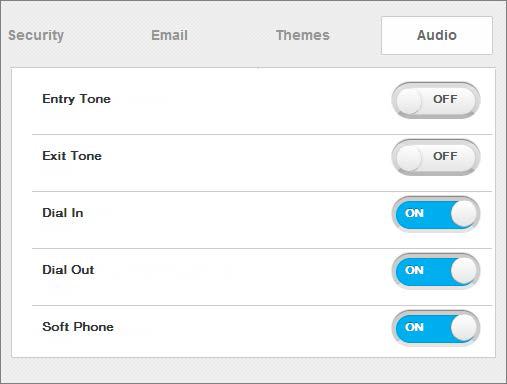
13 Enterprise-wide imeet settings. Themes imeet includes a variety of background images for your meeting rooms. Use Themes to pick a standard background for all your meeting rooms, and select the backgrounds for your hosts to choose. Hover over a theme name to see a preview. Audio To hide a theme, set it to OFF. Audio options allow you to turn on/off entry and exit tones in the meeting room, and control how the host and guest can connect to meeting audio. All rooms will use this theme Until hosts select a different theme. Display dial-in numbers and access keys so that guests can dial in to the meeting. Have the meeting call participants. Connect using an active Internet connection. 11
14 Enterprise-wide imeet settings. Add-Ons Set International Dialing to ON to allow enterprise-wide access to international dialing. When you enable International Dialing, guests can join meetings from anywhere in the world, using international access numbers. (Usage-based charges apply.) Applications With imeet, your hosts and their guests can connect in today s popular social networks and cloud apps. Participants can link their imeet profiles with their profiles on other social networks and cloud apps like LinkedIn, Facebook, Twitter, and Evernote. Use the Applications area to determine which third-party apps you want to make available to your hosts and guests. When set to ON, the app is included on the APPS side of all participant cubes 12

15 Individual host settings. Enterprise-wide settings apply to all your company s rooms, but you can also manage settings per host. For example, you can individually select which hosts should have access to international dialing options. Note: Once you alter an individual host s settings, he will then have a customized setting and will not receive future enterprise-wide updates. To access and set defaults at the user-level, go to the Users section. The Users page lists all users hosts and administrators. At the top of the page, you can also search for a specific user. View your rooms and hosts The Users page lists all hosts and rooms that are set up for your company. From here you can change meeting settings for a specific room, update a host s profile, and remove rooms you are no longer using. You can also re-send the imeet account welcome to a host. Search by name or address. Bulk Actions Use checkboxes to select more than one host and then perform the same action and changes. address is the host s login name. Select to View, Edit or Delete a user. You can also Message User to resend the Welcome . 13
16 Individual host settings. Edit a host pro e and meeting settings Select a host in the users list to update his pro e, defaults, and access to imeet features like Audio, Chat, Social Media, and more for the room. Once a host s settings are altered at the individual level, he will then have a customized setting and will not receive future enterprise-wide updates. You can click the user s name to view the user s pro le, or use the Actions menu to choose what you want to do. Open the Actions menu for the host you want to edit, and then select Edit Pro e. User Profile contains info entered when the host was added. Profile Settings override enterprise-wide settings for this room. EDIT PROFILE Upda te the host s pro e and room settings. address is also the host s login name. Change to Administrator to let this user manage company settings and rooms. 14

17 Individual host settings. Update profile settings The Profile Settings tab lets you replace the enterprise-wide settings defined for your company, for the selected host. Notice that the options in this tab mirror the groupings in the Settings area. Resend the login information to a host You cannot change a host s password. However, you can resend the login information to the host. In the Actions menu for the host, select Message User. Delete a room Deleting a room permanently removes the imeet room, all uploaded files in the room s file cabinet, and deletes the host from your company account. In the Actions menu for the host, select Delete User. 15
18 Support. There s so much more to know about imeet. Cruise around the imeet Resource and Training Center. Everyone needs support from time to time and we re here to help. Visit imeet Resource and Training Center View video tutorials [email protected] 16
Guest Quick Guide PC and Mac Users Updated to version 3.5.8 March 2015
 Guest Quick Guide PC and Mac Users Updated to version 3.5.8 March 2015 Table of Contents Welcome to imeet 3 Sign in and join a meeting (via the imeet desktop app) 4 Sign in and join a meeting (via a Web
Web Conferencing Guide for Session Hosts using Microsoft Lync
 Web Conferencing Guide for Session Hosts using Microsoft Lync With MS Lync, faculty and staff can plan and schedule online meetings for collaborative activities with the ability to share audio, video,
RCN BUSINESS PHONE with Call Manager. Features & User Guide
 RCN BUSINESS PHONE with & User Guide Welcome to RCN Business Phone with Thank you for choosing RCN Business Phone as your new telephone system. By partnering with RCN Business Services, you now have access
Site Administration. User s Guide
 Site Administration User s Guide Copyright 1997-2010. Cisco and/or its affiliates. All rights reserved. WEBEX, CISCO, Cisco WebEx, the CISCO logo, and the Cisco WebEx logo are trademarks or registered
Document Services Online Customer Guide
 Document Services Online Customer Guide Logging in... 3 Registering an Account... 3 Navigating DSO... 4 Basic Orders... 5 Getting Started... 5 Attaching Files & Print Options... 7 Advanced Print Options
Getting started with OneDrive
 Getting started with OneDrive What is OneDrive? OneDrive is an online storage area intended for business purposes. Your OneDrive library is managed by the University. You can use it to share documents
Administrator Quick Start Guide
 This guide is designed to provide Administrators with a quick overview of the features and functionalities provided to them in LEARN360 s Administration section. Login Figures 1-4 feature different components
What is OneDrive for Business at University of Greenwich? Accessing OneDrive from Office 365
 This guide explains how to access and use the OneDrive for Business cloud based storage system and Microsoft Office Online suite of products via a web browser. What is OneDrive for Business at University
Web Conferencing with WebEx
 Web Conferencing with WebEx Setting Up an Unrestricted Meeting 1. Browse to https://purdue.webex.com. 2. In the upper right, click Log In. 3. Log in with your Purdue Career Account. 4. Click the Meeting
Reference Guide TEAM. Pogoplug Team. Reference Guide. 2012 Cloud Engines Inc., All Rights Reserved.
 Reference Guide Pogoplug Team Reference Guide Table of Contents Table of Contents 1. What s Included 2. Getting Started 3. Customizing the Pogoplug Interface a. Custom UI b. Custom Domain Name c. Custom
Connecting With Lifesize Cloud
 There are several different ways to connect to a Lifesize Cloud video conference meeting. This guide will provide you instructions for each way. Ways to Join a Lifesize Cloud Video Conference After getting
Installing Lync. Configuring and Signing into Lync
 Microsoft Lync 2013 Contents Installing Lync... 1 Configuring and Signing into Lync... 1 Changing your Picture... 2 Adding and Managing Contacts... 2 Create and Manage Contact Groups... 3 Start an Instant
Virtual Office Online and Virtual Office Desktop
 Virtual Office Online and Virtual Office Desktop Quick Start Guide Version 3.6 April 2014 The Champion For Business Communications Contents Virtual Office Overview...3 Getting Started...3 Login to Virtual
How To Set Up A Xerox Econcierge Powered By Xerx Account
 Xerox econcierge Account Setup Guide Xerox econcierge Account Setup Guide The free Xerox econcierge service provides the quickest, easiest way for your customers to order printer supplies for all their
Personal Cloud. Support Guide for Mac Computers. Storing and sharing your content 2
 Personal Cloud Support Guide for Mac Computers Storing and sharing your content 2 Getting started 2 How to use the application 2 Managing your content 2 Adding content manually 3 Renaming files 3 Moving
Index. Page 1. Index 1 2 2 3 4-5 6 6 7 7-8 8-9 9 10 10 11 12 12 13 14 14 15 16 16 16 17-18 18 19 20 20 21 21 21 21
 Index Index School Jotter Manual Logging in Getting the site looking how you want Managing your site, the menu and its pages Editing a page Managing Drafts Managing Media and Files User Accounts and Setting
Microsoft OneDrive. How to login to OneDrive:
 Microsoft OneDrive The beauty of OneDrive is that it is accessible from anywhere you have an Internet connection. You can access it from a Mac or Windows computer. You can even access it on your Smartphone
Connecting With Lifesize Cloud
 There are several different ways to connect to a Lifesize Cloud video conference meeting. This guide will provide you instructions for each way. Ways to Join a Lifesize Cloud Video Conference After getting
SAS Visual Analytics 7.2 for SAS Cloud: Quick-Start Guide
 SAS Visual Analytics 7.2 for SAS Cloud: Quick-Start Guide Introduction This quick-start guide covers tasks that account administrators need to perform to set up SAS Visual Statistics and SAS Visual Analytics
Unified Meeting. Easy to use, simple, reliable. Tips for a Successful Conference CONFERENCING & COLLABORATION
 U S E R G U I D E V 4. 1 1. 7 Unified Meeting Easy to use, simple, reliable Unified Meeting lets you quickly and easily bring people together from anywhere in the world. You get audio, web and video conferencing
Anchor End-User Guide
 Table of Contents How to Access Your Account How to Upload Files How to Download the Desktop Sync Folder Sync Folder How to Share a File 3 rd Party Share from Web UI 3 rd Party Share from Sync Folder Team-Share
Cloud. Hosted Exchange Administration Manual
 Cloud Hosted Exchange Administration Manual Table of Contents Table of Contents... 1 Table of Figures... 4 1 Preface... 6 2 Telesystem Hosted Exchange Administrative Portal... 7 3 Hosted Exchange Service...
Welcome to OnSync University 1 Last update: 2016/04/23 Digital Samba, SL
 Welcome to OnSync University 1 Last update: 2016/04/23 Digital Samba, SL Table of Contents Getting Started... 2 Logging in... 3 The OnSync Dashboard... 4 Managing your account... 6 Changing service plans...
Volume FIRST WALKTHROUGH. The 10-Minute Guide to Using Newsletter Services. First Walkthrough: the 10-Minute Guide
 Volume 1 FIRST WALKTHROUGH The 10-Minute Guide to Using Newsletter Services First Walkthrough: the 10-Minute Guide Table of Contents Step - 1... 3 Sign-up for an account... 3 Step 2... 4 Authenticate your
easy-to-use platform. Our solution offers the best video, audio and screen-sharing quality across Window, Mac, ios, Android
 Getting Started On PC And Mac What is Zoom? Zoom, the cloud meeting company, unifies cloud video conferencing, simple online meetings and mobile collaboration into one easy-to-use platform. Our solution
How-to Guide: Creating a Mobile Website Using bmobilized
 Mobile Websites How-to Guide: Creating a Mobile Website Using Content Provided by Mobile Websites Content 1. What is a mobile website? 2. Why you need a mobile website? 3. Who is? 4. How to create a mobile
Wimba Pronto. Version 3.1. Administrator Guide
 Wimba Pronto Version 3.1 Administrator Guide Wimba Pronto 3.1 Administrator Guide Overview 1 Accessing the Wimba Pronto Administration Interface 2 Managing Multiple Institutions 3 General Features 4 Configuring
Table of Contents. Table of Contents
 Table of Contents Setup Instructions... 1 Step 1: Download the Required Components... 1 Step 2: Install and Run the Online Backup Module... 3 Step 3: Sign-Up to the Online Backup Service... 4 Step 4: Configure
Hosted PBX. TelePacific Communicator User Guide. Desktop Edition
 Hosted PBX TelePacific Communicator User Guide Desktop Edition 11/19/2014 CONTENTS Login... 2 Home Window... 3 Status Flag... 4 My Room... 6 Contacts Screen... 6 History... 8 Directory... 9 Dialpad...
Your Archiving Service
 It s as simple as 1, 2, 3 This email archiving setup guide provides you with easy to follow instructions on how to setup your new archiving service as well as how to create archiving users and assign archiving
UNIFIED MEETING 5 HELP
 UNIFIED MEETING 5 HELP Table of Contents Conference Manager... 1 About Conference Manager... 1 From Conference Manager, you can... 1 Signing in to Conference Manager... 2 To sign in to the Conference
Comcast Business Class Audio and Web
 Comcast Business Class Audio and Web Conferencing User Guide 1 table of contents WELCOME TO COMCAST AUDIO AND WEB CONFERENCING DOCUMENTATION CONVENTIONS TERMINOLOGY 1 YOUR CONFERENCING SUBSCRIPTION Account
Technology in the Classroom Kidblog kidblog.org
 Technology in the Classroom Kidblog kidblog.org Kidblog provides a secure classroom blogging community, where teachers have complete control over individual student blogs. Students do not need an email
ShoreTel 13 Conferencing User Guide. Part Number 850-1234-01
 ShoreTel 13 Part Number 850-1234-01 Document and Software Copyrights Copyright 1998-2012 by ShoreTel Inc., Sunnyvale, California, USA. All rights reserved. Printed in the United States of America. Contents
Abila Grant Management. Document Management
 Abila Grant Management This is a publication of Abila, Inc. Version 2014 2014 Abila, Inc. and its affiliated entities. All rights reserved. Abila, the Abila logos, and the Abila product and service names
In a browser window, enter the Canvas registration URL: silverlakemustangs.instructure.com
 How do I sign up for a Canvas account as a Parent? Parents (Observers) can link their Canvas account to their student's account so they can see assignment dues dates, announcements, and other course content.
Cloud Services. Lync. IM/ Web Conferencing Admin Quick Start Guide
 Cloud Services Lync IM/ Web Conferencing Admin Quick Start Guide 10/14/2014 ACTIVATION LETTER An activation letter will be sent to the email account of your administrator contact. Please look for the following
BULK SMS APPLICATION USER MANUAL
 BULK SMS APPLICATION USER MANUAL Introduction Bulk SMS App is an online service that makes it really easy for you to manage contacts and send SMS messages to many people at a very fast speed. The Bulk
Lync Quick Start Guide for MAC OS
 Microsoft Lync is a unified communications platform that works ideally in a Windows Operating System, but is also feature- rich using a MAC OS. The purpose of this guide is to cover highlights of Lync
Table of Contents. Welcome... 2. Login... 3. Password Assistance... 4. Self Registration... 5. Secure Mail... 7. Compose... 8. Drafts...
 Table of Contents Welcome... 2 Login... 3 Password Assistance... 4 Self Registration... 5 Secure Mail... 7 Compose... 8 Drafts... 10 Outbox... 11 Sent Items... 12 View Package Details... 12 File Manager...
CourseSites Quick Start Guide
 CourseSites Quick Start Guide Copyright 2012, Blackboard Inc. CourseSites Quick Start Guide 1 Part 1: Creating an Account 1.1 Creating a New Account 5 2 Part 2: Creating a Course 2.1 Creating a New Course
Hubcase for Microsoft Dynamics CRM Installation and Configuration Guide
 Hubcase for Microsoft Dynamics CRM Installation and Configuration Guide 1. Overview... 2 2. Install Hubcase for Dynamics CRM solution... 3 3. Setup and configure your Hubcase membership... 7 3.1. Sign
Store & Share Quick Start
 Store & Share Quick Start What is Store & Share? Store & Share is a service that allows you to upload all of your content (documents, music, video, executable files) into a centralized cloud storage. You
Introducing OneDrive for Business
 Introducing OneDrive for Business OneDrive for Business is Microsoft s cloud storage service, which comes as part of the Conservatoire s Office365 subscription. OneDrive for Business allows you to access
Shaw Business SmartVoice Online Feature Management User Guide
 Shaw Business SmartVoice Online Feature Management User Guide Contents SmartVoice End User Portal User Guide... 3 Logging into the portal... 3 Calling Features...4 Managing incoming calls...4 Alternate
QQConnect Overview Guide
 QQConnect Overview Guide Last Updated: 3/20/2015 About QQConnect QQConnect is an add-on utility for QQCatalyst that makes it easy to transfer documents and e- mails from your Windows desktop or desktop
Site Administration. User s Guide
 Site Administration User s Guide Copyright 1997-2008. WebEx Communications, Inc. All Rights Reserved. WEBEX and the WEBEX LOGO are trademarks or registered trademarks of WebEx Communications, Inc. in the
Site Admininstration. User Guide
 Site Admininstration User Guide Copyright 1997 2011 Cisco and/or its affiliates. All rights reserved. WEBEX, CISCO, Cisco WebEx, the CISCO logo, and the Cisco WebEx logo are trademarks or registered trademarks
AgingServicesJobs.org Quick Start Guide Powered By SmartRecruiters!
 AgingServicesJobs.org Quick Start Guide Powered By SmartRecruiters! Welcome to SmartRecruiters A Secure online tool that helps you manage your hiring process from start to finish. SmartRecruiters lets
MyCaseInfo Attorney Administration Users Guide. A Best Case Bankruptcy Add-on Tool
 MyCaseInfo Attorney Administration Users Guide A Best Case Bankruptcy Add-on Tool 2 Table of Contents I. ATTORNEY ADMINISTRATION OVERVIEW... 4 II. HELP CENTER... 5 Documents Web Tutorials Online Seminar
Conference Instructions
 Toll-Free Customer Service: (844) 844-1322 Online Support: [email protected] Step 1-Setup Conference Call Conference Instructions Organize your conference call by notifying all participants
BULK SMS USER GUIDE. Version 2.0 1/18
 BULK SMS USER GUIDE Version 2.0 1/18 Contents 1 Overview page 3 2 Registration page 3 3 Logging In page 6 4 Welcome page 7 5 Payment Method page 8 6 Credit Topup page 9 7 Send/Schedule SMS page 10 8 Group
PORTAL ADMINISTRATION
 1 Portal Administration User s Guide PORTAL ADMINISTRATION GUIDE Page 1 2 Portal Administration User s Guide Table of Contents Introduction...5 Core Portal Framework Concepts...5 Key Items...5 Layouts...5
Edline Manual Teacher Guide Version: September 2011
 Edline Manual Teacher Guide Version: September 2011 Copyright Statements: Edline software is a trademark of Edline. Copyright 2011. Microsoft Windows names and logos are registered trademarks of the Microsoft
A quick guide to setting up your new website
 A quick guide to setting up your new website Hi there. Welcome to MrSite we re really happy you chose to build your brand new website with us and look forward to seeing what you create! We re sure you
Table of Contents. Table of Contents 3
 User Guide EPiServer 7 Mail Revision A, 2012 Table of Contents 3 Table of Contents Table of Contents 3 Introduction 5 About This Documentation 5 Accessing EPiServer Help System 5 Online Community on EPiServer
MyFaxCentral User Administration Guide
 faxing simplified. anytime. anywhere. MyFaxCentral User Administration Guide www.myfax.com MyFaxCentral Common Controls...1 Navigation Controls...1 Customize View...1 MyFaxCentral User Administration...2
Personal Portfolios on Blackboard
 Personal Portfolios on Blackboard This handout has four parts: 1. Creating Personal Portfolios p. 2-11 2. Creating Personal Artifacts p. 12-17 3. Sharing Personal Portfolios p. 18-22 4. Downloading Personal
What is FTH 2.0? replacement for
 Free Toast Host 2.0 What is FTH 2.0? FreeToastHost 2.0 is the replacement for FreeToastHost 1.0. It is not a competitor of FTH, or a alternative for FTH. It is a complete rebuild using the latest web
Using Internet or Windows Explorer to Upload Your Site
 Using Internet or Windows Explorer to Upload Your Site This article briefly describes what an FTP client is and how to use Internet Explorer or Windows Explorer to upload your Web site to your hosting
Create A Google Site. Introduction to Sites. Create, format, and customize a site. Adapted from:
 Create A Google Site Adapted from: http://edutraining.googleapps.com/training-home/module-5-sites Introduction to Sites Google Sites is an online application that makes creating a class, school, or project
123RF Corporate+ User s Guide
 123RF Corporate+ User s Guide Table of Contents Welcome Message Moving In Corporate+ Users Site Signing In User s Dashboard Searching for Content Viewing Search Results Advanced Search Bar Lightbox Downloading
Mass Announcement Service Operation
 Mass Announcement Service Operation The Mass Announcement Service enables you to automate calling a typically large number of contacts, and playing them a pre-recorded announcement. For example, a weather
Advanced Training Reliance Communications, Inc.
 Reliance Communications, Inc. 603 Mission Street Santa Cruz, CA 95060 888-527-5225 www.schoolmessenger.com Contents Contents... 2 Before you Begin... 4 Advanced Lists... 4 List Builder... 4 Create a List...
Lync 2013 - Online Meeting & Conference Call Guide
 Lync 2013 - Online Meeting & Conference Call Guide Alteva Hosted Lync Version:00 QUICK LINKS Schedule an Online Meeting Change Meeting Access and Presenter Options Join from a Computer with Lync Installed
How to register and use our Chat System
 How to register and use our Chat System Why this document? We have a very good chat system and easy to use when you are set up, but getting registered and into the system can be a bit complicated. If you
Egnyte Single Sign-On (SSO) Installation for OneLogin
 Egnyte Single Sign-On (SSO) Installation for OneLogin To set up Egnyte so employees can log in using SSO, follow the steps below to configure OneLogin and Egnyte to work with each other. 1. Set up OneLogin
COSTARS Sales Reporting Manual December 2013
 COSTARS Sales Reporting Manual December 2013-1 - DGS/COSTARS website Suppliers access the COSTARS website through the DGS website. Follow the steps below to navigate to the COSTARS website. 1. Navigate
Office 365 SharePoint Site Admins Quick Reference
 Office 365 SharePoint Site Admins Quick Reference Office365SharePointSiteAdminsQuickReference Page 2 of 24 May 19, 2015 Table of Contents OFFICE 365 SHAREPOINT FOR SITE ADMINS 5 Sign In 5 Office 365 5
Posting Job Orders. mindscope Staffing and Recruiting Software www.mindscope.com
 Posting Job Orders CURA Technical Support Email: [email protected] Phone: 1.888.322.2362 x 555 Posting Job Orders Page 1 Table of Contents Posting Jobs Orders... 2 Posting Jobs on Your Website...
Adobe Connect Quick Guide
 Leicester Learning Institute Adobe Connect Quick Guide Request an account If you want to publish materials to Adobe Connect or run online meetings or teaching sessions, contact the IT Service Desk on 0116
Microsoft Office 365 from Vodafone. Administrator s Guide for Midsize Businesses and Enterprises
 Microsoft Office 365 from Vodafone Administrator s Guide for Midsize Businesses and Enterprises Contents Footer bar Return to contents page Go to next of section Return to start of section Previous page
UC Business & UC Team
 UC Business & UC Team Administrator Guide Revision 1.0 GCI Ltd Global House 2 Crofton Close Lincoln Lincolnshire LN3 4NT www.gcicom.net Copyright GCI 2013 UC Business & UC Team Administrator Guide 1 of
Zoom Cloud Meetings: Leader Guide
 Zoom Cloud Meetings: Leader Guide Zoom is a cloud-based conferencing solution that provides both video conferencing and screen share capabilities. Zoom can be used for meetings among individuals or to
Unified Meeting 5 User guide for MAC
 Unified Meeting 5 User guide for MAC Unified Meeting 5 is a web based tool that puts you in complete control of all aspects of your meeting including scheduling, managing and securing your meetings.. Whether
How to Add Users 1. 2.
 Administrator Guide Contents How to Add Users... 2 How to Delete a User... 9 How to Create Sub-groups... 12 How to Edit the Email Sent Out to New Users... 14 How to Edit and Add a Logo to Your Group's
360Pro Providers Quick Reference Guide. Introduction
 360Pro Providers Quick Reference Guide This guide will step you through the basics, from logging on, to answering ATM questions and then submitting a Response. This Guide is available at: https://langeconsulting.zendesk.com/entries/24921676-360pro-providers-quick-reference-guide
My Account Quick Start
 My Account Quick Start for Verizon Business Digital Voice Service Guide for Office System Administrators Accessing My Account Phone Assignment Defining the User Site Services Auto Attendant Voice Portal
BT Cloud Phone. User guide for the Admin Portal. A guide to setting up and making the most of BT Cloud Phone.
 BT Cloud Phone. User guide for the Admin Portal. A guide to setting up and making the most of BT Cloud Phone. 2 What s in this guide. Emergency calls. 999 or 112 emergency calls. Each BT Cloud Phone number
Increasing Productivity and Collaboration with Google Docs. Charina Ong Educational Technologist [email protected]
 Increasing Productivity and Collaboration with Google Docs [email protected] Table of Contents About the Workshop... i Workshop Objectives... i Session Prerequisites... i Google Apps... 1 Creating
How To Set Up Dataprotect
 How To Set Up Dataprotect This document will show you how to install and configure your computer for a Typical installation. If you have questions about configuring a Custom installation please contact
Startup Guide. Version 2.3.9
 Startup Guide Version 2.3.9 Installation and initial setup Your welcome email included a link to download the ORBTR plugin. Save the software to your hard drive and log into the admin panel of your WordPress
one Managing your PBX Administrator ACCESSING YOUR PBX ACCOUNT CHECKING ACCOUNT ACTIVITY
 one Managing your PBX Administrator ACCESSING YOUR PBX ACCOUNT Navigate to https://portal.priorityonenet.com/ and log in to the PriorityOne portal account. If you would like your web browser to keep you
Getting Started with Zoom
 Getting Started with Zoom The Institute of Agriculture has recently purchased a site license for a new cloud-based video conferencing service known as Zoom. If you have ever connected to a GoToMeeting,
I ve logged in! Now where do I start?
 I ve logged in! Now where do I start? Instructor s Quick Start Guide Introduction: Up and Running with OpenClass We ve created this Quick Start Guide to help you, the instructor, get up and running with
DocuSign Connect for Salesforce Guide
 Information Guide 1 DocuSign Connect for Salesforce Guide 1 Copyright 2003-2013 DocuSign, Inc. All rights reserved. For information about DocuSign trademarks, copyrights and patents refer to the DocuSign
Web Conferencing with Microsoft Lync TM. Quick Start Guide
 Web Conferencing with Microsoft Lync TM Quick Start Guide Web Conferencing with Microsoft Lync i Contents Participate in Online Meetings with Lync Web App... 1 Check Your Meeting Readiness... 1 Join the
Site Administrator Guide
 Site Administrator Guide Trademark Notice Blackboard, the Blackboard logos, and the unique trade dress of Blackboard are the trademarks, service marks, trade dress and logos of Blackboard, Inc. All other
Welcome to Sookasa. Getting Started Guide for SafeMonk users
 Welcome to Sookasa Getting Started Guide for SafeMonk users Welcome to Sookasa! About Us Like Safemonk, Sookasa provides Dropbox encryption to protect your information at the file level, so it s safe both
Clever School Signup: PowerSchool
 Clever School Signup: PowerSchool 1. Introduction Clever allows the students, teachers, schools, and class rosters in PowerSchool to automatically sync with the applications you authorize. This eliminates
NDSU Technology Learning & Media Center. Introduction to Google Sites
 NDSU Technology Learning & Media Center QBB 150C 231-5130 www.ndsu.edu/its/tlmc Introduction to Google Sites Get Help at the TLMC 1. Get help with class projects on a walk-in basis; student learning assistants
Getting Started. Send a file in 3 easy steps Quickly organize and share your files
 Getting Started Send a file in 3 easy steps Quickly organize and share your files Getting Started with Citrix ShareFile Welcome to ShareFile! You can use your ShareFile account to easily and securely exchange
Administering Jive for Outlook
 Administering Jive for Outlook TOC 2 Contents Administering Jive for Outlook...3 System Requirements...3 Installing the Plugin... 3 Installing the Plugin... 3 Client Installation... 4 Resetting the Binaries...4
Using Microsoft Expression Web to Upload Your Site
 Using Microsoft Expression Web to Upload Your Site Using Microsoft Expression Web to Upload Your Web Site This article briefly describes how to use Microsoft Expression Web to connect to your Web server
The instructions in this user guide will help make meetings easier to manage, more effective and more productive.
 User Guide for Windows ZONE Conference - Unified Meeting 5 is a web based tool that puts you in complete control of all aspects of your meeting including scheduling, managing and securing your meetings.
Creating Codes with Spreadsheet Upload
 Creating Codes with Spreadsheet Upload Ad-ID codes are created at www.ad-id.org. In order to create a code, you must first have a group, prefix and account set up and associated to each other. This document