
BrightStor ARCserve Backup for Linux
|
|
|
- Kerry Patrick
- 10 years ago
- Views:
Transcription
1 BrightStor ARCserve Backup for Linux Enterprise Option for Advantage Ingres Guide r11.5 D E

2 This documentation and related computer software program (hereinafter referred to as the "Documentation") is for the end user's informational purposes only and is subject to change or withdrawal by Computer Associates International, Inc. ("CA") at any time. This documentation may not be copied, transferred, reproduced, disclosed or duplicated, in whole or in part, without the prior written consent of CA. This documentation is proprietary information of CA and protected by the copyright laws of the United States and international treaties. Notwithstanding the foregoing, licensed users may print a reasonable number of copies of this documentation for their own internal use, provided that all CA copyright notices and legends are affixed to each reproduced copy. Only authorized employees, consultants, or agents of the user who are bound by the confidentiality provisions of the license for the software are permitted to have access to such copies. This right to print copies is limited to the period during which the license for the product remains in full force and effect. Should the license terminate for any reason, it shall be the user's responsibility to return to CA the reproduced copies or to certify to CA that same have been destroyed. To the extent permitted by applicable law, CA provides this documentation "as is" without warranty of any kind, including without limitation, any implied warranties of merchantability, fitness for a particular purpose or noninfringement. In no event will CA be liable to the end user or any third party for any loss or damage, direct or indirect, from the use of this documentation, including without limitation, lost profits, business interruption, goodwill, or lost data, even if CA is expressly advised of such loss or damage. The use of any product referenced in this documentation and this documentation is governed by the end user's applicable license agreement. The manufacturer of this documentation is Computer Associates International, Inc. Provided with "Restricted Rights" as set forth in 48 C.F.R. Section , 48 C.F.R. Sections (c)(1) and (2) or DFARS Section (c)(1)(ii) or applicable successor provisions Computer Associates International, Inc. All trademarks, trade names, service marks, and logos referenced herein belong to their respective companies.

3 Contents Chapter 1: Introducing the Option 7 Option Architecture... 8 Components... 9 Online Backup and Restore Strategies... 9 Database Backup Overview Master Database Backup BrightStor ARCserve cadbase Database Backup How Transaction Checkpoints Work Database Restore Overview Disaster Recovery Preparation Backup Strategy Test Environments Restore a Destroyed Database How the Option Backs Up Data How the Option Restores Data to Recover a Database Chapter 2: Installing the Option 19 Installation Prerequisites Post-Installation Tasks Configure the Option Define Nodes as Remote Clients Uninstall the Option Chapter 3: Backing Up Databases 23 Backup Strategies Backup Considerations General Backup Strategies Ingres Cluster Support Directory Tree Backups Journal Files Maintenance Automatic Repeating Backups Schedule Jobs to Optimize Resources Backup Preparation Backup Manager How Backup Job Failover Works Advantage Ingres Backup Operations Contents iii
4 Back Up Local or Remote Data Back Up Journal Files Command Line Interface Backups Command Parameters for Backup Jobs Backup Commands Chapter 4: Restoring Databases 49 Prepare for a Restore Database Restore Jobs Restore Manager Restore Database Files with the Destination Object Tree Restore Methods Restore Options for Advantage Ingres Restore Database Files Restore By File System Restore By Session Database Restore Methods Restore Journal Files Journal Restore Jobs Restore Journal Files to Original Locations Restore Journal Files with the Destination Object Tree Journaled Database Restore Jobs Restore Data to Remote Clients Restore Data from Previous Versions Command Line Interface Restore Jobs Command Parameters for Restore Jobs Restore Commands Chapter 5: Best Practices 75 Backup and Restore Strategy Tests Database Configuration Database Journal Set Up Considerations Database Checkpoint Dump File Considerations Multiple Physical Disks Advantage Ingres Configuration File Database Object Recreation Scripts Backup Recommendations Vault Storage File Selection Database Backup Frequency Database Backup Schedule Considerations iv Enterprise Option for Advantage Ingres Guide

5 Special Scheduling Checkpoints File System Backups Database Verification Before Backup Unloaddb Utility Directory Cleaning Recovery Recommendations Database Configuration File Checkpoint Recovery Prerequisites Backup Configuration File Recovery Checkpoint Configuration Session Recovery Journal File Recovery Non-Journaled Database Recovery Journaled Database Recovery Considerations Recover to Specific Checkpoints Latest Transactions Recovery Remove Incorrect Updates How Incorrect Updates are Corrected New Installation on Original Hosts Operating System Reinstallation File System Recovery Advantage Ingres Reinstallation Method # Method # Standby Host Restore Operations Standby Hosts How File System Backups Work Database Replication to Standby Hosts Unload and Load Process Post-Restore Back Up Appendix A: Frequently Asked Questions 99 Appendix B: Troubleshooting 105 Log and Configuration Files Log Files Configuration Files Installation and Setup Problems Browsing Problems Backup and Restore Error Messages Advantage Ingres Errors Contents v

6 Checkpoint Wait Time Stall Messages Appendix C: Login Name Privileges 113 Database Backup Jobs Database Data Restore Jobs Index 117 vi Enterprise Option for Advantage Ingres Guide

7 Chapter 1: Introducing the Option BrightStor ARCserve Backup is a comprehensive, distributed storage solution for applications, databases, distributed servers, and file systems. It provides backup and restore capabilities for databases, business-critical applications, and network clients. BrightStor ARCserve Backup incorporates cutting edge client/server and manager architectures. The client component lets you issue requests through client software located on your database host, to the BrightStor ARCserve Backup server. Typical requests include calls to browse computer systems and to submit backup and restore jobs. BrightStor ARCserve Backup also treats the computer systems and NAS servers it backs up and restores as clients. The manager component manages the flow of data and requests between BrightStor ARCserve Backup and the databases you back up or restore. The option portion of the manager component, a separate software component installed on your client machine, initiates or performs specified backup and restore services. Each option is designed to work with a particular database or operating system. Among the options BrightStor ARCserve Backup offers is the BrightStor ARCserve Backup Agent for Advantage Ingres, which provides services to BrightStor ARCserve Backup and the Advantage Ingres database. These services let you: Backup Advantage Ingres databases and the objects they contain using BrightStor ARCserve Backup without taking your database offline or preventing users from adding new data to it. Restore Advantage Ingres databases using BrightStor ARCserve Backup. The option handles all communications between BrightStor ARCserve Backup and the Advantage Ingres database server during backup and restore jobs, including preparing, retrieving, and processing the data packets sent back and forth across the network. This process lets you perform backup and restore jobs efficiently. Introducing the Option 7
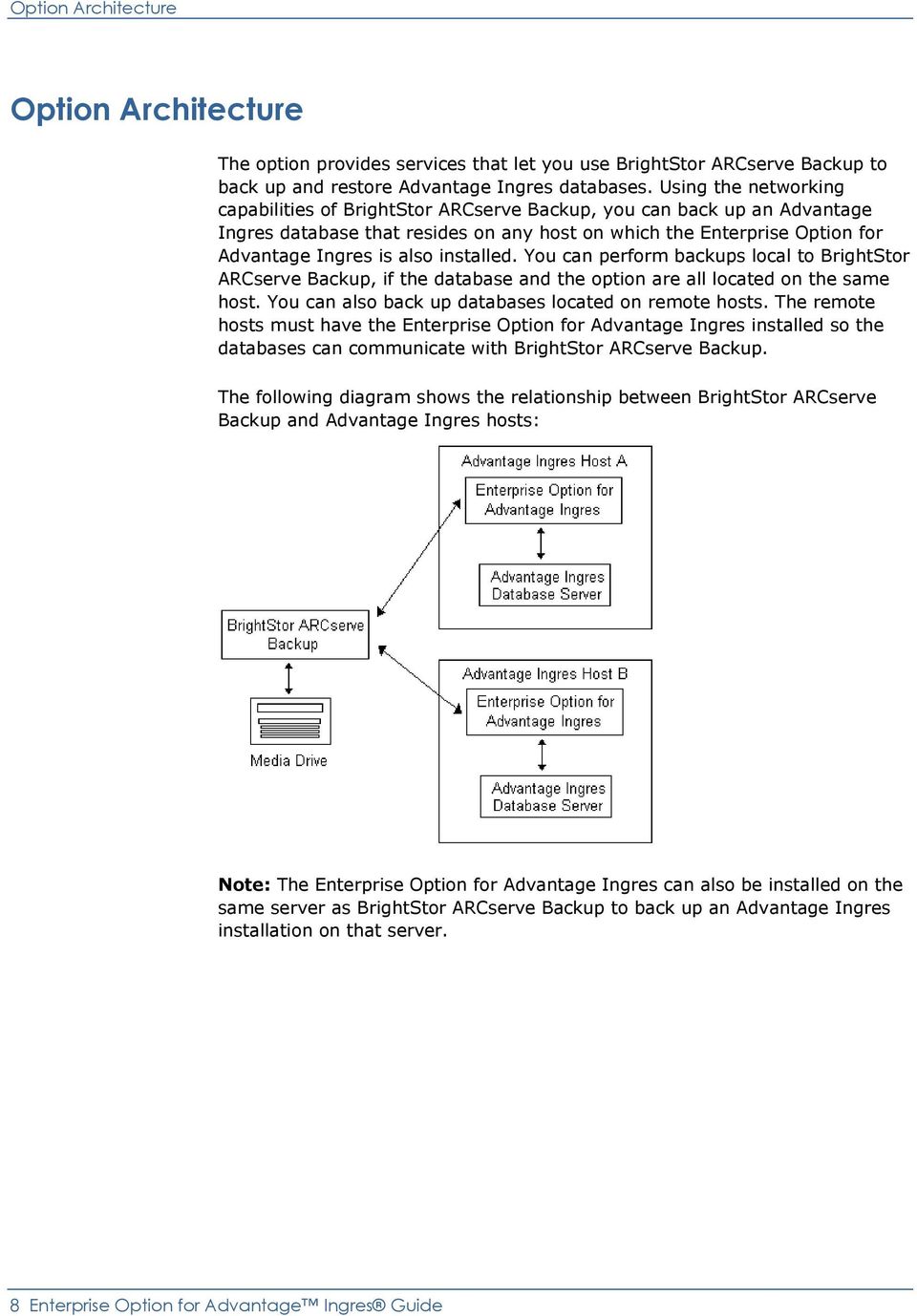
8 Option Architecture Option Architecture The option provides services that let you use BrightStor ARCserve Backup to back up and restore Advantage Ingres databases. Using the networking capabilities of BrightStor ARCserve Backup, you can back up an Advantage Ingres database that resides on any host on which the Enterprise Option for Advantage Ingres is also installed. You can perform backups local to BrightStor ARCserve Backup, if the database and the option are all located on the same host. You can also back up databases located on remote hosts. The remote hosts must have the Enterprise Option for Advantage Ingres installed so the databases can communicate with BrightStor ARCserve Backup. The following diagram shows the relationship between BrightStor ARCserve Backup and Advantage Ingres hosts: Note: The Enterprise Option for Advantage Ingres can also be installed on the same server as BrightStor ARCserve Backup to back up an Advantage Ingres installation on that server. 8 Enterprise Option for Advantage Ingres Guide
9 Components Components The option has the following four components: Browser: Initiated by BrightStor ARCserve Backup, when you use the Backup and Restore Managers to browse the contents of a host. If the option is installed and enabled on the host, the Browser component is initiated. The Browser is used to retrieve selected information, as part of the user s browsing process, from the Advantage Ingres installations on that host. This information is then displayed on the Backup Manager s Source Panel or the Restore Manager s Destination Panel. Data Movement Agent: Initiated by BrightStor ARCserve Backup during the execution of a backup or restore execution. This agent contacts the ingres tools such as ckpdb/rollforwarddb/infodb in order to know what must be part of the backup or restore execution, and at what specific moment. The agent is responsible for the data movement that occurs during the backup and restores execution. libing.so: This library includes various modules that are shared between the Browser and the Data Movement Agent including code that is used to interface with Advantage Ingres. IngDBExtr: During the backup or restore execution, the IngDBExtr is responsible for synchronizing the work and information between the ingres ckpdb/rollforwarddb and the Data Movement agent. Online Backup and Restore Strategies The Advantage Ingres server is organized into databases. The databases are subdivided into database objects, such as data files, config files, and journal files. BrightStor ARCserve Backup uses the option to dynamically backup and restore/recover the entire database, or selected database objects, while the database remains online. Important! Planning your backup and restore strategy in advance is critical both for protecting your database against failures and for quick recovery of your Advantage Ingres server in case of disaster. As part of your preparation, be sure to review the planning information in the Administrator Guide for guidelines on creating backup and restore strategies. For additional information on backup and restore strategies, also see Backup Strategies in the chapter Backing up the Database. Introducing the Option 9

10 Database Backup Overview Database Backup Overview A backup operation copies a database or selected database objects to storage media (for example, a tape volume). BrightStor ARCserve Backup backs up Advantage Ingres databases using the backup features of BrightStor ARCserve Backup, the option, and Advantage Ingres. Backup jobs are submitted from either the BrightStor ARCserve Backup graphical user interface or command line interface. BrightStor ARCserve Backup adds the job to a job queue. At the appropriate time, the job initiates and prompts the option to issue commands such as ckpdb and infodb to Advantage Ingres. When the data transfer is ready to begin, the option reads the data to be backed up and transfers it through the network to the BrightStor ARCserve Backup server, which reprocesses the data and places it on a storage device. Depending on the backup job and the properties of the database, BrightStor ARCserve Backup creates appropriate backup sessions on the storage media. If you back up an entire database, BrightStor ARCserve Backup automatically creates at least two sessions: The data session containing the actual database information. The configuration session containing the database s backup configuration file and the checkpoint s.dmp and.lst files. If a database is journaled, you can also back up the database's journal files. In journaled databases, the browser displays a JOURNAL OF DATABASE dbname object that refers to the journal files associated with that database. Select this object to back up the database s journal files. A separate journal session is added to the storage media for each set of journal files that are backed up and are associated with a particular checkpoint number. During a simple (no journal files requested) Advantage Ingres database backup, BrightStor ARCserve Backup automatically backs up the following: Data files The checkpoint s.dmp file The checkpoint s.lst file The aaaaaaaa.cnf file in the database s dmp directory 10 Enterprise Option for Advantage Ingres Guide

11 Database Backup Overview Master Database Backup The Advantage Ingres master database, iidbdb, contains information that is particular to each installation, such as: The list of databases that exist in the installation and where they are located The list of locations that exist in the installation Authorization information on which users may access which databases You must include it in your regular backup schedule. If a total system failure occurs, the information in the iidbdb database is required to perform a full database restore. In the following illustration, the selected item is the Advantage Ingres Master database: BrightStor ARCserve cadbase Database Backup Although BrightStor ARCserve s internal database (cadbase) is stored within an Ingres installation, using the Advantage Ingres Option to backup and recover this database is not supported. A special BrightStor ARCserve procedure must be followed for this purpose. Introducing the Option 11

12 Database Restore Overview How Transaction Checkpoints Work A checkpoint is a consistent snapshot of a database s tables at a specific point in time in which all outstanding transactions have been committed. The Enterprise Option for Advantage Ingres uses Advantage Ingres checkpoints to perform online, dynamic backups without locking the database or taking the entire database offline. Checkpoints of the database are created using the Advantage Ingres ckpdb command. During backup, Advantage Ingres logs database transactions to a special dump file to track all of the changes made from the time the database is checkpointed until the backup ends. During a restore operation, after the Enterprise Option for Advantage Ingres has restored the data, the dump file is used to bring the database to the consistent state (recover) that it was in at the time that checkpoint was first created. If journal files are also selected for backup, the option retrieves journal files from the database journal directory and passes them directly to BrightStor ARCserve Backup, which backs them up to a storage device. When the backup finishes, the option instructs the Advantage Ingres database server to return to normal operation mode. If only journal files have been selected for backup, BrightStor ARCserve Backup backs up only the journal files without creating a database checkpoint. Before backing up journals, however, the database is prompted to close the currently active journal and open a new one. All journals in the database's journal directory are backed up except for the new active journal. Please refer to the Advantage Ingres documentation set for more information on Transaction Checkpoints. Note: BrightStor ARCserve Backup will be unaware of checkpoints that are created by manual executions of ckpdb from outside BrightStor ARCserve Backup. Database Restore Overview Restore operations retrieve databases or database objects from backup sessions on media and overwrites the information currently in the database with the retrieved information. Note: This process is also called loading. 12 Enterprise Option for Advantage Ingres Guide

13 Database Restore Overview Using the Enterprise Option for Advantage Ingres, you can restore data in the following ways: By file or by session To the most current entry or up to a date and time you specify To a remote client From past versions of data files If you restore journaled databases, you can specify whether to use the journal files to restore the database to a later time than the checkpoint time. Restore jobs use features from BrightStor ARCserve Backup, the option, and Advantage Ingres. To restore data, submit a restore job from the Restore Manager. BrightStor ARCserve Backup processes the restore job in a job queue and starts it at the scheduled time. The restore job communicates with the option, which issues recovery commands such as rollforwarddb to Advantage Ingres. The option initiates communication with Advantage Ingres, performs the restore job with the specified options, and overwrites the current data with the backed up data. Advantage Ingres completes the job by recovering the database. Introducing the Option 13

14 Disaster Recovery Preparation Disaster Recovery Preparation After creating your databases, perform an Ingres Installation-wide backup that includes the master database iidbdb. After you have performed this initial installation-wide backup, we recommend that you schedule backup jobs at regular intervals to keep this information current. Important! You cannot restore Advantage Ingres data using the Disaster Recovery Option. Use a separate disaster recovery strategy for Advantage Ingres. In addition, we recommend that you identify and prepare a standby host, an alternate computer system to which you can recover your Advantage Ingres databases if your database host fails completely. Set up and maintain a standby host so that it is ready to take over from the online host if the online host fails. You can dedicate the standby host to database recovery or use it as a regular production system. Important! The standby host and the online database host must use the same operating system. For more information, see "Standby Host Restore Operations" We strongly recommend that you maintain your standby host at a high level of preparedness. It takes a significant amount of time to set up, test, and maintain the standby host because the process is involved and requires tailoring to meet your specific needs. You should also recreate the online databases on the standby system and regularly restore/recover the ckp, data, dmp, and jnl directories from the online host to the standby host so you can recover your databases quickly. 14 Enterprise Option for Advantage Ingres Guide

15 Disaster Recovery Preparation Backup Strategy For the most efficient disaster recovery, we recommend the following backup strategy: Perform at least one full offline file system backup of your Advantage Ingres installation before performing your first online backup with the option. To perform a full offline backup, shut down the Advantage Ingres server and perform a file system backup of all the directories used by your Ingres installation making sure to include all the data locations of any extended databases. Perform a full offline checkpoint backup each time there is a major schema change in your database. Although this is not required, it is highly recommended. Note: See an Advantage Ingres administrator and the Advantage Ingres documentation for information on performing an offline checkpoint backup. Perform full online backups regularly (for example, once a week). Between successive online backups, incremental journal backups may be necessary. Test Environments After developing backup and recovery strategies, we recommend that you create a test environment in which to practice them. Practicing strategies in separate environments protects your Advantage Ingres files from unnecessary risk. After you have established your backup and restore methods, make any necessary adjustments in the test environment and try your strategies again. When you are satisfied that your backup and recovery strategies have been properly established, move to a production system and perform further tests. By testing your strategies, you can minimize problems before they occur in a real situation. Introducing the Option 15

16 Disaster Recovery Preparation Restore a Destroyed Database To restore/recover a specific database checkpoint, the database must already exist in the destination. If the database does not exist (if, for example, it had been destroyed), perform the following procedure: 1. Create the database in the same manner that it existed when the checkpoint was created using the Advantage Ingres utility createdb. 2. If appropriate, extend the database to the same data locations as the original database at the time the checkpoint to be restored was created. 3. If the original database was journaled, run the Advantage Ingres ckpdb command with the +j parameter to enable journaling on the newly created database. ckpdb +j database name 4. Restore the config session for the checkpoint to be restored. This will restore the.dmp files,.lst files, and the database's aaaaaaaa.cnf file created by the checkpoint to be restored/recovered. 5. Restore any needed journal files. 6. Copy the restored aaaaaaaa.cnf.timestamp file from the database dmp directory to the database data directory and rename it to aaaaaaaa.cnf to overwrite the existing aaaaaaaa.cnf file. 7. You are now ready to restore the data session in order to recover the database from the checkpoint you have selected. 8. After this, your original database will be recovered. You may, however, still need to perform additional tasks such as granting access to the database to particular users, and so on. 16 Enterprise Option for Advantage Ingres Guide
17 How the Option Backs Up Data How the Option Backs Up Data When BrightStor ARCserve Backup begins a backup of a database object, it sends a request to the option, prompting it to retrieve database objects from the Advantage Ingres database and relay the data packets to BrightStor ARCserve Backup, which backs them up to a storage device. During the backup, the option reads Advantage Ingres data, dump, and journal files directly from the Advantage Ingres database files and forwards the data to the BrightStor ARCserve Backup server. During this transfer, the data to be backed up does not pass through the Advantage Ingres database server. Control information, however, is exchanged between the option and the server. 1. SQL statements query the Advantage Ingres master database, iidbdb, for a list of databases and the location of their data, dump, and journal directories. 2. The option notifies Advantage Ingres to use the option's cktmpl.def file.this is done using of the II_CKTMPL_FILE environment variable. 3. The ckpdb command is called by the option to perform an online checkpoint of the database to be backed up. 4. The cktmpl.def file instructs ckpdb to initiate the option s IngDbExtr. 5. The ckpdb command notifies IngDBExtr of the next database location to back up. 6. The option's IngDBExtr identifies the files to backup and provides the Data Movement Agent option with each file name. The Data Movement Agent then reads each file and forwards the data to the BrightStor ARCserve Backup server. 7. Repeat step 5 and 6 for each distinct Ingres location that needs to be backed up. 8. Once all the files of the current Ingres location have been backed up, the Data Movement Agent informs the IngDBExtr, which in turn informs ckpdb. 9. Step 4 to 8 will be repeated for each distinct Ingres location that needs to be backed up. 10. Once all location have been backed up, the Ingres ckpdb returns with a success status. 11. The Data Movement Agent will create a new session containing the dump files and config files created during the checkpoint execution. Introducing the Option 17
18 How the Option Restores Data to Recover a Database How the Option Restores Data to Recover a Database The Enterprise Option for Advantage Ingres uses the following process to restore data and recover a database: 1. The option notifies Advantage Ingres to use the option's cktmpl.def file. This is done using the II_CKTMPL_FILE environment variable. 2. The option executes the rollforwarddb command to lock the Advantage Ingres database during the restore/recover operation. 3. The cktmpl.def file instructs rollforwarddb to initiate the option s IngDbExtr. 4. The rollforwarddb notifies IngDBExtr of the next database location to restore from tape. 5. The option s IngDBExtr pass the location information to the Data Movement agent. The Data Movement Agent contact the BrightStor ARCserve Backup Server in order to restore the files from the specified locations and checkpoint ID. 6. BrightStor ARCserve Backup writes the data directly to the appropriate location in the Advantage Ingres database. Note: During this transfer, the restored data does not pass through the Advantage Ingres database server. However, control information is exchanged between the option and the server. 7. Once the data movement completed, that is all the files from the current location restored, the Data Movement Agent informs the IngDBExtr which informs rollforwarddb. 8. Steps 4 to 7 are repeated for each locations that needs to be restored to complete the recovery of the mentioned database. 9. Once all the locations restored, rollforwarddb completes the recovery by applying the checkpoint s.dmp file. If requested, rollforwarddb also rolls forward through available journals, applying those transactions to the database. 10. Rollforwarddb returns with a success status. 18 Enterprise Option for Advantage Ingres Guide

19 Chapter 2: Installing the Option The Enterprise Option for Advantage Ingres is a client program you install on a BrightStor ARCserve Backup client machine. Use the information in this chapter to install and configure the option. You can find system requirement information in the Readme file and the Getting Started guide. Check ca.com for updates to the requirements. Installation Prerequisites Before you install the Enterprise Option for Advantage Ingres, we recommend that you verify that your system configuration meets the minimum requirements needed to install the option. For a list of these system requirements, see the Readme file. In addition, verify that the following applications are installed and working properly: Advantage Ingres database server BrightStor ARCserve Backup The BrightStor ARCserve Backup host must be a UNIX or Linux machine. You must install the option on the same host as the Advantage Ingres installation that you want to backup. This may or may not be the same host as that where BrightStor ARCserve Backup is installed. Before beginning the installation, you must have the following permissions and information: Super user privileges to log in as root The installation ID and II_SYSTEM Environment Variable for each Advantage Ingres server installation on the host machine that you want the option to back up and restore. Note: Contact an Advantage Ingres administrator to obtain the proper rights and information if you do not have them. For procedures to install the Enterprise Option for Advantage Ingres, see the Getting Started guide. Post-Installation Tasks After you have installed the Enterprise Option for Advantage Ingres, you must configure it and add the node on which the option is installed as a remote client to BrightStor ARCserve Backup. The following sections explain how to perform these post-installation tasks. Installing the Option 19

20 Post-Installation Tasks Configure the Option To configure the Enterprise Option for Advantage Ingres, follow these steps: 1. Enter./ingsetup at the option's installation directory. 2. At the prompt, enter y if you have Advantage Ingres installed. Note: If Advantage Ingres is not installed, the configuration process stops. Install Advantage Ingres and start the setup script again. 3. When prompted, enter the Installation ID for an Advantage Ingres server installation. 4. When prompted, enter the value of the Advantage Ingres II_SYSTEM Environment Variable for that server. 5. Repeat Steps 3 and 4 until you have configured all the Advantage Ingres server installations you want the option to backup and restore. 6. After configuring the last Advantage Ingres server installation, and when prompted, press Enter. 7. When prompted, enter y to complete the configuration. This will register the option to the BrightStor ARCserve Backup Common Agent. 8. After the configuration finishes, enter y to enable the option. Define Nodes as Remote Clients Before backing up an Advantage Ingres database on a remote node to the location in which the BrightStor ARCserve Backup server is installed, you must define that node as a remote client of BrightStor ARCserve Backup. To define a node as a remote client, use the Database Manager in BrightStor ARCserve Backup. 20 Enterprise Option for Advantage Ingres Guide

21 Post-Installation Tasks To define a node as a remote client, follow these steps: 1. In the Database Manager, click the Clients tab to display the remote client entries attached to the BrightStor ARCserve Backup host. 2. Click Add Client. The Add Client dialog appears. 3. Enter the machine name and IP address of the remote client. Note: Select the operating system type (OS Type) and optionally enter the hardware type, operating system description (OS Description), and operating system version (OS Version). 4. Click OK to add the new entry to the BrightStor ARCserve Backup database. Installing the Option 21
22 Uninstall the Option Uninstall the Option At the command line prompt, enter the following command to uninstall the option: rpm-e BABinging Note: You must have superuser privileges to uninstall the option. 22 Enterprise Option for Advantage Ingres Guide
23 Chapter 3: Backing Up Databases The Enterprise Option for Advantage Ingres lets you perform online backups at any time without taking your database offline or preventing users from adding new data to it. Note: You cannot use the option to perform offline backups. See your Advantage Ingres administrator and the Advantage Ingres documentation for information about performing offline database backups. This chapter discusses how to plan your installation backup strategy and explains how to prepare for and perform backups of Advantage Ingres database and journal files. Backup Strategies The goal of a backup strategy is to prevent the loss of valuable data by ensuring that the data can be recovered from a combination of backup data and online journal files. There are two keys to a successful backup strategy: Perform regular backups: Although different Advantage Ingres installations and databases often require different backup frequencies, all installations and databases should be backed up at regularly scheduled intervals. Journal critical databases: Journal all of your critical or heavily used databases so that you can recover them up to the latest committed transaction. Backup Considerations The following factors should be considered when planning a backup strategy: The importance of each database The volatility of each database The size of each database The time available to perform backups (the backup window) The time required to recover the database if a failure occurs The remainder of this section discusses how each of the considerations affect backup strategy. Backing Up Databases 23
24 Backup Strategies Database Importance Database Volatility Database Size The importance of a database is the most crucial factor in determining the direction of your backup strategy. The following actions should be taken for important and critical databases: Backup databases regularly Enable journaling so that databases can be recovered up to the latest committed transaction Backup journals regularly Note: Backup active journals frequently to reduce the number of transactions potentially lost by a corruption of the active journals. The volatility of a database often determines the journaling strategy. Volatile databases should be journaled to reduce the potential for data loss. Perform daily database and journal backups to reduce the size of journal files and the time needed to roll forward through journals during recovery. To further reduce the risk of data loss due to journal location corruption, multiple journal backups can be performed between the execution of database data backups. Because the option does not back up active journals, it prompts Advantage Ingres to close the active journal and open a new one, allowing the previously active journal to be backed up. Because journal files can become very large, you may need to use the Purge Journal after Journal Backup option. This option automatically reclaims disk space by deleting older, backed up journal files. For more information about the Purge Journal after Journal Backup option, see BackUp Journal Files later in this chapter. The size of a database often affects when and how often you can back it up. For example, very large databases take longer to backup. Because of the long backup time, you may be compelled to backup very large databases only once a week, on weekends. If the size of a database dictates weekly backups, it is vital that you journal the database and backup the journal files for the database more frequently than the database itself. If the database is mission-critical or very volatile, we recommend that you backup the journal files daily or even more frequently. 24 Enterprise Option for Advantage Ingres Guide
25 Backup Strategies Raw Data Locations When you use raw data locations, the Enterprise Option for Advantage Ingres may need to backup the entire raw area location. Since this area may be quite large it can take a long time to backup and restore. We recommend that you take this into consideration when planning a backup and restore strategy. Backup Window The backup window you have available often determines when you can back up a database. For example, a database used heavily during the work-day but little used after 6 p.m. has a twelve or thirteen hour a night backup window. In contrast, a database used heavily twenty-four hours a day, Monday through Friday, but not used on weekends, has a two-day backup window each weekend. In both cases, you can adjust your backup strategy to accommodate the backup window available to you. Length of Recovery Time Although the option performs online backups (backups run while the database is in use), other constraints can impose particular backup windows. For example, you may not be able to back up the database when it is being updated because of the extra load on the system imposed by the backup operation. In addition, large numbers of updates during backup operations results in larger dump file sizes and longer recovery time because transactions in the dump file must be undone. Therefore, your backup window may be limited to certain times during the day. Other corporate network backups or file transfers can also impose a specific backup window for your database backups, or, if your databases are located remotely from your BrightStor ARCserve Backup Server, network load can also impose a particular backup window. To decrease the time needed to recover a database, follow these guidelines: Reduce the size of the database before backing it up using Advantage Ingres commands to reorganize indexes or reclaim unused index space. Back up the database often. More frequent database backups result in smaller journal files that take less time to roll forward. Keep a few journal files available on disk. If you keep journal files on disk, you can recover the database s checkpoint without restoring its journal files. Keep a few database checkpoint dmp files available on disk. If you keep dmp files on disk, you can recover the database s data session without having to restore its config session. Have a standby system ready to take over from your online system. For example, you can regularly recover the latest database and journal files to the standby system so that it can more quickly replace the online system if it fails. Backing Up Databases 25
26 Backup Strategies General Backup Strategies There are two general backup strategies you can use, alone or together, to implement a successful backup scheme: Backup Advantage Ingres completely each time you back up Backup selected databases and journal files at different time intervals Complete Backup Strategies A complete backup procedure backs up all Advantage Ingres databases and journal files. A selective backup procedure backs up only those databases and journals you have chosen. Each general strategy has variations, some of which are discussed in the sections Complete Backup Strategies and Selective Backup Strategies. A complete Advantage Ingres backup strategy is the easier of the two general strategies to implement. It is less complicated, requires the least amount of setup, and is the easiest to maintain. The primary variations of the complete backup strategy are as follows: Daily complete Advantage Ingres installation backups. Weekly (or less frequent) complete Advantage Ingres backups. Weekly (or less frequent) complete backups combined with separate daily or more frequent journal backups. Daily Backups If you implement a complete backup strategy, the variation you choose depends on a number of factors. These factors include the relative importance of your databases, the volatility of the databases, and the length of time you have available to perform backups. The remainder of this section discusses the advantages and disadvantages of each variation and how you can choose an appropriate variation. Daily complete backups are appropriate if the following conditions are present: All of your Advantage Ingres databases are of comparable importance. All of your Advantage Ingres databases require backup. 26 Enterprise Option for Advantage Ingres Guide
27 Backup Strategies All the databases are similarly volatile (they are all accessed and updated frequently by users) The time it takes to back up fits within your backup window. Weekly or Intermittent Backups Combined Backups Daily backups provide the most comprehensive data protection. However, daily backups may be inappropriate for Advantage Ingres users with extremely active databases and no viable daily backup window. Weekly (or less frequent backups) are appropriate if the following conditions are present: All of your Advantage Ingres databases are of comparable importance All of your Advantage Ingres databases require backing up There is enough disk space to store the journal files, which accumulate data for a week. The longer recovery time after a failure, caused by the need to roll forward through larger, weekly journal files, is acceptable. The primary disadvantage of this variation is a potential disaster recovery drawback. Because the journal files and databases are backed up at the same time, a disaster that corrupts or destroys the active journal files results in the loss of all transactions from the last backup to the most recent transaction. Weekly or less frequent backups, combined with daily or more frequent journal backups, are appropriate if the following conditions are present: All of your Advantage Ingres databases are of comparable importance All of your Advantage Ingres databases require backing up There is enough disk space to store the journal files, which accumulate data for a week. The longer recovery time after a failure, caused by the need to roll forward through larger, weekly journal files, is acceptable. You want better protection against disasters. Frequent journal backups provide added protection against disasters. If the active journal files are destroyed or corrupted, you can use the most current backed up journal files to recover transactions to a point much closer to the latest actual transactions. Backing Up Databases 27
28 Backup Strategies Selective Backup Strategies Rather than implement an installation-wide backup strategy, you may need to tailor your backup strategy per database or group of databases. Because selective backup strategy variations are more numerous, and because you can apply different variations to different databases, it is more difficult to implement a selective backup strategy. On the other hand, this type of backup strategy gives you greater control over the backup process and lets you match backup frequency and other backup options more precisely to the requirements of each database. Selective backup strategies include the following procedures: Daily database and journal backups Daily journal backups with less frequent database backups Monthly database and journal backups Monthly journal backups with less frequent database backups Multiple daily database and journal backups Multiple daily journal backups with less frequent database backups Daily Database and Journal Backups The following sections describe these selective backup strategies. The daily database and journal backup strategy is the typical backup strategy and applies to most databases. This strategy provides high levels of data protection. Daily Journal with Intermittent Database Backups A common schedule with this strategy is to perform full database backups on the weekend. The following are characteristics of the daily journal with less frequent database backup strategy: Lowers system overhead because you only back up journal files on most days Increases the time needed to roll forward through journals during recovery Uses more disk space for journal files Weekly Database and Journal Backups The weekly database and journal backup strategy is appropriate for databases with low levels of volatility. 28 Enterprise Option for Advantage Ingres Guide
29 Backup Strategies Weekly Journal with Intermittent Database Backups The following are characteristics of the weekly journal with less frequent database backup strategy: Lowers system overhead associated with database backups because they are performed less frequently Increases the time needed to roll forward through journals during recovery Uses more disk space for journal files Monthly Database and Journal Backups The monthly database and journal backup strategy is appropriate only for databases with little activity. Monthly Journal with Intermittent Database Backups The monthly journal with less frequent database backup strategy is appropriate only for databases with little activity. Multiple Daily Database and Journal Backups The following are characteristics of the multiple daily database and journal backup strategy: It is for very volatile databases. It provides higher levels of data protection. It reduces the time needed to roll forward through journals during recovery. It increases system overhead. Multiple Daily Journal with Intermittent Database Backups The following are characteristics of the multiple daily journal with less frequent database backup strategy: It is for very volatile databases. It provides greater protection against disasters. It provides higher levels of data protection. It lowers system overhead because the more frequent journal backups take less system resources, such as cpu, than the less frequent database backups. It increases the time needed to process journals during recovery, but the increase is often acceptable. Backing Up Databases 29
30 Backup Strategies Ingres Cluster Support How to backup a cluster BrightStor ARCserve Backup for Linux supports clusters. In an Ingres cluster installation environment, two or more nodes share the same Ingres installation ID and the same data, dump, log and journal directories concurrently. The ingres binaries,libs,etc that reside in the Ingres Installation directory can be optionally shared. The Ingres instance can be started on a few or all nodes in the cluster at any specific time. Ingres provides a mechanism to detect if an Ingres installation is cluster. BrightStor ARCserve Backup uses this mechanism to extract the list of nodes in the cluster configuration and store that list in the backup job. If necessary, this information is used during the backup job execution to handle fail over to another node part of the Ingres cluster. If there are multiple nodes in a cluster installation, the machine that is used to register the backup job is considered as the Primary node.the Primary node concept helps you identify fromwhich node restore jobs need to be registered. If the Primary cluster node is not available when the backup job is executed, the backup job will fail over to the next node of the cluster, which is registered in the job. The database backup requirements for a clustered Ingres Installation are similar to the non cluster environment support. 30 Enterprise Option for Advantage Ingres Guide
31 Backup Strategies How to restore a cluster IMPORTANT: An Ingres installation that is a part of a cluster is highlighted with the suffix [CLUSTER] next to its Installation ID (As shown in the Figure above). For a backup of a cluster installation to handle fail over, you must explicitly select the cluster Ingres Instance or one or more of its databases or journals, the fail over mechanism is not supported for Full Node or Full Ingres Backup. If you select the cluster Ingres Instance a Full Node or Full Ingres Backup of a cluster Ingres Instance, the instance is backed up but fail over will not be attempted if the Primary node is unavailable. The backup of a clustered ingres Installation's database can be registered and executed from any node that makes part of the cluster environment. The backup execution information will, however, always be registered as being owned by the Primary node, even if the backup execution fails over to another node in the cluster. As a result, all the information generated during the backup is always registered as belonging to the primary node. You can restore a clustered Ingres installation's databases or journals as you would a non-clustered Ingres Installation. The primary node used to register the Ingres Cluster backup job and will appear in the source node of the Restore Manager. The destination node specified in the Restore Manager can either be the Primary node that was used during the backup or any node of the cluster. During restore, the agent does not verify whether the destination node is primary or any other node in the cluster. IMPORTANT: Restore jobs do not support a failover mechanism. How to access the Ingres clustered instance You can access the Ingres clustered instance: By directly connecting to the Ingres instance from any of the nodes that constitute the cluster environment. The BrightStor ARCserve Backup server has a fail over mechanism that enables the backup job to execute on any node that is a member of the cluster. Backing Up Databases 31
32 Backup Strategies Limitations and Assumptions The following are some of the limitations and assumptions in Cluster support: On a particular cluster member node, you can have both local and clustered Ingres installations and both can be part of the same jobs. Fail over will only take place on Ingres cluster installations, not on local Ingres installations. Since a backup job contains the list of all the nodes that make part of an Ingres cluster installation, you must modify a pending job if changes are done to the cluster configuration, for example adding or removing a node. For the GUI to automatically call the Ingres browser and to receive up to date information about the nodes that make part of the cluster installation, select the Modify Job option from the Job Manager. Restore job execution will not have any fail over mechanism. Backup jobs issued from command line (ca_backup) will not support fail over mechanism. The username or password used to connect to the primary node that has been used to configure the backup job must be the same on all nodes that make part of the cluster. If this requirement is not met, the assumption is made that the node is not available and fail over will be redirected to the next available node that is a component of the cluster. The fail over mechanism is not supported for Full Ingres or Full node backup. For all nodes that constitute the cluster, BrightStor ARCserve Backup server must be able to resolve the IP address from the hostname. There must be a DNS entry or /etc/hosts entry in the BrightStor ARCserve Server for each node in the cluster. This limitation is due to the fact that the backup job will contain the list of node names that consitute the cluster, with no IP information. 32 Enterprise Option for Advantage Ingres Guide
33 Backup Strategies Directory Tree Backups The Advantage Ingres installation includes various directory trees whose files are not backed up by the Enterprise Option for Advantage Ingres. These files include executable programs and configuration files. To protect these files, use BrightStor ARCserve Backup periodically to back up such Advantage Ingres Installation directory trees. Please note that if your Advantage Ingres installation is spread across various hard disks, the directory trees to backup will also be located on different hard disks. Please refer to your Advantage Ingres documentation set for more information on installations that are spread across various hard disks. If these file backups include the installation s database data directories, they should be performed only when the Advantage Ingres instance is shut down. This ensures that the database can simply be restarted after a directory tree backup is recovered. If the instance is not shut down, you will likely need to recover a particular checkpoint before you can use the database. Journal Files Maintenance When you back up a journaled database, the current, active journal file is closed and a new active journal file is created. The old journal file, however, is not deleted from the disk. As you perform subsequent backups, the old journal files accumulate. To save disk space, you can delete old journal files using the Purge Journal after Journal Backup option. This option deletes all but the current, active journal file when journals are backed up. Keep in mind, however, that for potentially quicker recovery time, it may be best to keep a few old journals on disk just in case they are needed on a database recovery scenario. In this way, they will not need to be recovered before the database data files. Note: You can use this option to remove old journal files automatically. Backing Up Databases 33
34 Backup Strategies Automatic Repeating Backups You can set BrightStor ARCserve Backup to execute backup jobs automatically by specifying a repeating interval. For example, to run a backup job every Sunday at midnight, you can set the repeating interval to seven days and, when you submit the job, schedule it to run on Sunday at midnight. After the backup finishes, BrightStor ARCserve Backup automatically reschedules the job to execute every Sunday at midnight. Set the repeating interval on the Repeating Interval tab, on the Method/Schedule tab of the Backup Manager. When you set the repeating interval, set the Backup Method on the Repeating Interval tab to Full. For Custom, Rotation and GFS Rotation job schedules, the Full backup method generates database data backups while the Incremental and Differential backup methods generate database journal backups. Schedule Jobs to Optimize Resources The option uses the Advantage Ingres ckpdb utility to perform online backups of Advantage Ingres databases. The ckpdb utility requires the database to be in a consistent state before it creates a checkpoint of the database and proceeds with a backup. Consequently, all outstanding transactions must be committed or rolled back before a backup job can begin. 34 Enterprise Option for Advantage Ingres Guide
35 Backup Preparation If transactions are uncommitted, ckpdb stalls when it initiates the backup job and waits 60 minutes for the transactions to be committed or rolled back before continuing. During this period, messages with the following text are logged to BrightStor ARCserve Backup Activity Log: "Waiting for Db Extractor's response; ckpdb may be stalled due to open transactions (see /tmp/ckpdb_out). Once all transactions have been committed or rolled back, the backup job continues. When the backup resumes, you can perform database transactions as needed. If open transactions remain after the wait period, the job terminates in error. Important! You can configure the option to wait a specified length of time for ckpdb to initiate and continue a backup job. If ckpdb stalls and does not continue within the time you specified, the option terminates the backup job. The default period of time is one hour. For information on setting a different wait period please refer to the Checkpoint Wait Time section of Appendix B: Troubleshooting. To avoid stalling when a backup job starts, schedule database backups at times when the database is least heavily used. Backup Preparation Before you submit a backup job, verify the following: The integrity of the data in the database. We strongly recommend that you verify the consistency of the database occasionally. To verify data integrity, use commands such as infodb, verifydb, sysmod, or any procedure that touches all the rows in each table being backed up. For specific information on the infodb, verifydb, and sysmod commands, see the Advantage Ingres documentation. The remote node containing the Advantage Ingres databases to back up is defined to BrightStor ARCserve Backup as remote clients. For details about defining a node, see Define a Node as a Remote Client in the chapter Installing the Option. Backing Up Databases 35
36 Backup Manager Backup Manager The Backup Manager is used to submit your BrightStor ARCserve Backup jobs. It also lets you select the items you want to back up and the location to which you want them backed up. Each object in the Backup Manager has an icon to its left. Green icons let you control the extent of the backup for an object directly. Click an icon to exclude an object from a backup or to indicate that you want the backup for the object to be full or partial. As you click the icon, it fills or empties of color, indicating the extent of the backup. A completely filled icon indicates a full backup. A partially filled icon indicates a partial backup. An empty icon indicates that the item will not be backed up. Gray icons are associated with objects that are not real and that you cannot back up. Typically, these items serve as placeholders under which other objects are grouped and displayed. For example, the "UNIX/Linux Agents" item with a gray icon does not represent a real entity that you can back up. Instead, it serves as a placeholder under which all UNIX/Linux Agents are listed. 36 Enterprise Option for Advantage Ingres Guide
37 Backup Manager As you click the green icons under a gray icon, the fill proportion of the gray icon changes automatically from empty to partial to full depending on the proportion of files you have chosen to back up. The fill proportion of an icon at a higher level of the directory tree depends on the fill proportions of the icons of the objects at the lower levels. If the icons at the lower levels are a mix of completely filled and partially filled, the icon at the higher level is automatically partially filled. If you click an icon at the higher level, it is automatically completely filled and all of the icons at the lower levels are automatically filled completely. Backing Up Databases 37
38 How Backup Job Failover Works How Backup Job Failover Works A fail over can occur if either: The cluster node is unavailable to execute the backup job. The BrightStor ARCserve Backup common agent/ Ingres DB Agent running on the node to backup cannot be contacted. Ingres is not up and running on the machine. Any other failure in the backup job execution will not qualify for fail over execution and will be handled the same way as for non clustered Ingres backup execution. IMPORTANT: When a fail over condition is met, the information about the backup execution is registered as if the execution took place on the primary node implying that a fail over did not take place. This action helps in determining from where the data is to be restored. The following screen illustrates a cluster environment and log that is available when a job is executed. 38 Enterprise Option for Advantage Ingres Guide
39 Advantage Ingres Backup Operations Advantage Ingres Backup Operations A backup job must have a data source from which data is extracted and an archive device (storage) in which data is stored. Depending on how you have installed BrightStor ARCserve Backup, the target data can exist on a local volume or on a remote machine. When a backup job executes, the Enterprise Option for Advantage Ingres automatically calls the Advantage Ingres ckpdb utility to issue a checkpoint of the target database. Before it issues the checkpoint, ckpdb polls the database for open transactions (for example, Update, Insert, or Delete). If ckpdb finds open transactions, it waits for all open transactions to be committed or rolled back before issuing the checkpoint and starting the backup. Important! You can specify a maximum length of time the option waits for ckpdb to checkpoint a database. If ckpdb does not checkpoint the database in the time specified, the option terminates and fails the backup job. The default wait period is one hour. For information on setting a different wait period please refer to the Checkpoint Wait Time section of Appendix B: Troubleshooting. Once the backup starts, you can continue to perform transactions on the database such as database updates, insertions and deletions, and the creation, deletion, or manipulation of global temporary tables. You cannot, however, create, drop, or modify database tables while the database is being backed up. Back Up Local or Remote Data To back up data that resides on a local or remote volume, follow these steps: 1. In the Backup Manager, on the Source tab, expand UNIX/Linux Agents. 2. Under UNIX/Linux Agents, expand the host containing the Advantage Ingres installation whose database you want to backup. A pop-up window prompts you for the login account to use while browsing the installation. Alternately, if you wish to backup the whole host, including using the option to backup all the Advantage Ingres instances for which it has been configured (entered in the option's installation.cfg.file), simply select the host. Note: If the host you want to back up is not on the list, use the Database Manager to add that host as a remote client. Backing Up Databases 39
40 Back Up Local or Remote Data 3. Enter the user name and password of the login account you want to use while browsing and click OK. Important! The login account you use determines the objects that will be backed up. The option performs backups under the name you enter to browse the host. If you enter ingres or root, all the database items you select will be backed up. If you enter a user name who has the Advantage Ingres operator privilege, all the database items you select, except for the iidbdb database (only the root and ingres users can backup iidbdb and its journal files) will be backed up. If you do not enter ingres, root, or a user name with the operator privilege, the option allows you to browse the database, but your backup jobs will not succeed. For more information, see the appendix, How the Login Name Affects Job Execution. 4. A list of the host file systems and of the BrightStor database agents that are installed on your host appears. If the Ingres Agent has been installed on the host, an entry named Ingres will be displayed. To backup every Ingres installation that has been configured into the Ingres Agent s installation.cfg configuration file, select this Ingres item for backup. If you choose an Ingres Agent backup option, this option will apply to all the databases that will be backed up. 5. You can expand the Ingres entry to display the list of Advantage Ingres installations on the host. 6. To back up all of the databases and journals of a specific Advantage Ingres installation, select that installation. You can select multiple installations to back up more than one installation in the same job. If you choose an Ingres Agent backup option, this option will apply to all the databases of the Ingres installations you select. 40 Enterprise Option for Advantage Ingres Guide
41 Back Up Local or Remote Data 7. To back up individual databases or journals, expand the Advantage Ingres installation containing the database to back up. The Backup Manager displays all the databases and database journals you can select for backup. Select the items that you want to back up by clicking on their respective markers until they are solid green. Important! If the database is journaled, you must select the journal file item to backup the database s journal. For more information, see Back Up Journal Files. 8. Click the Destination tab. 9. Select the Backup Group to which you want to direct the backup data. 10. Customize the backup job. To customize a backup job, click Options in the Backup Manager to display the Options dialog. For specific information about these options, see the Administrator Guide. Note: Many of the options available are not applicable to Advantage Ingres backup jobs. 11. Click Submit to schedule and submit the backup job. Note: For specific information about backup job schedule options, see the Administrator Guide. You can monitor the progress of your job from the Job Status Manager. Backing Up Databases 41
42 Back Up Journal Files Back Up Journal Files To back up a database and its journal files, you must select both the database s object and the JOURNAL OF DATABASE database name objects. If you select a database and do not select the journal object, only the database is backed up. Backing up journal files gives you more options when determining a restore strategy. If you do not back up the journals and if they are no longer available on disk, you can recover the database only up to the last backup execution time. We strongly recommend that your backup strategy includes journals. For more information about how journal files are used during the recovery process, see the chapter Restoring Databases." To back up journal files, follow these steps: 1. In the Backup Manager, on the Source tab, expand UNIX/Linux Agents. 2. Under UNIX/Linux Agents, expand the host containing the Advantage Ingres Installation whose database you want to back up. A pop-up window prompts you for the login account to use while browsing the installation. Note: If the host you want to back up is not on the list, use the Database Manager to add that host as a remote client. 3. Enter the user name and password of the login account you want to use while browsing and click OK. Important! The login account you use determines the objects that will be backed up. The option performs backups under the name you enter to browse the host. If you enter ingres or root, all the database items you select will be backed up. If you enter a user name who has the Advantage Ingres operator privilege, all the database items you select, except for the iidbdb database (only the root and ingres users can backup iidbdb and its journal files) will be backed up. If you do not enter ingres, root, or a user name with the operator privilege, the option allows you to browse the database, but your backup jobs will not succeed. For more information, see the appendix, How the Login Name Affects Job Execution. 4. Expand the Advantage Ingres installation entry to display the Advantage Ingres instances on the host. 5. Expand the Advantage Ingres installation containing the journal files you want to back up. The Backup Manager displays all the journals you can select for backup. 6. Select the JOURNAL OF DATABASE dbname item, where dbname is the name of the database whose journals you want to backup. All the journal files in the selected database's journals directory are backed up. 7. Click the Destination tab. 42 Enterprise Option for Advantage Ingres Guide
43 Back Up Journal Files 8. Select the Backup Group to which you want to direct the backup data. Note: Each backup group represents a specific backup device, such as a tape drive or a file system directory, to which the backup can be directed. 9. Customize the backup job by clicking the Options button in the Backup Manager. For specific information about these options, see the Administrator Guide. Note: Many of the options available are not applicable to Advantage Ingres backup jobs. 10. To purge journal files after they have been backed up, highlight the Advantage Ingres icon, and click the Ingres Options tab on the right pane of the Backup Manager. 11. Select the Purge Journal after Journal Backup option. 12. Click Submit to schedule and submit the backup job. Note: For specific information about backup job schedule options, see the Administrator Guide. Backing Up Databases 43
44 Command Line Interface Backups Command Line Interface Backups BrightStor ARCserve Backup enables you to use commands issued from the system prompt to back up databases and journal files. The following section describes the commands that are available and parameters that you use when issuing these commands. The following command is used to back up data: ca_backup -source hostname [node options] -ingres_installation_id ingres_installation_id [-database INGRES [ ingres_dbname ] ] [-ingres_databaseandjournals ingres_dbname ] [-ingres_journals ingres_dbname ] [- ingres_purge_journals] Command Parameters for Backup Jobs The following are the optional parameters available to use when issuing commands to back up data: -ingres_installation_id ingres_installation_id This parameter specifies the installation ID of the Advantage Ingres database server. A list of installation ids (separated by blank characters) can be provided if you wish to completely backup more than one Advantage Ingres installation using the same backup job. To backup all the Advantage Ingres installations that are configured to the agent on the source host, do not enter a value for this parameter - all the installations that are entered into the agent s installation.cfg configuration file will automatically be selected for backed up. database INGRES -ingres_dbname This parameter indicates that only the listed databases, not their journals, should be backed up. If you enter this parameter without indicating an Advantage Ingres database name, the parameter is ignored and has no effect. -ingres_databaseandjournals -ingres_dbname This parameter specifies that both the data and journals of the database should be backed up. -ingres_journals -ingres_dbname This parameter specifies that only journals of the specified database should be backed up. -ingres_purge_journals This parameter specifies that the journals that are backed up should be purged afterwards. 44 Enterprise Option for Advantage Ingres Guide
45 Command Line Interface Backups Backup Commands Complete Installation Backup The following section describes the commands available to use to back up database files and journal files. Sample commands are also provided to illustrate how to perform various backups. In the following examples, DS and WV represent the ID of Advantage Ingres installations containing the data you want to back up and db1, db2, and db3 represent the names of databases. The following is an example of a command to back up a complete Advantage Ingres installation. All the database data, config and journal files of the WV installation will be backed up: $ca_backup -source host01 -ingres_installation_id WV -username root -password root123 group GROUP1 Complete Multiple Installation Backup The following is an example of a command to back up two complete Advantage Ingres installations. All the database data, config and journal files of the WV and DS installations will be backed up: $ca_backup -source host01 -ingres_installation_id WV DS -username root -password root123 group GROUP1 To completely backup all the Ingres instances running on a host (that have been configured into the option's installation.cfg file), simply do not enter a value for the -ingres_installation_id parameter as in this example: $ca_backup -source host01 -ingres_installation_id -username root -password root123 -group GROUP1 Database Only Backup The following is an example of a command to back up database data files: $ca_backup -source host01 -ingres_installation_id WV -database INGRES db1 db2 -username root -password root123 This command backs up only the database data files of databases db1 and db2 from the WV instance. If you want to back up only database items, use the - database INGRES option. You can specify multiple databases. Backing Up Databases 45
46 Command Line Interface Backups Database and Journal Backup The following is an example of a command to back up databases and their journals: $ca_backup -source host01 -ingres_installation_id WV -ingres_databaseandjournals db1 db2 -username root -password root123 Journal Only Backup This command backs up both the database data files and journals of databases db1 and db2 from the WV installation. You can specify multiple parameters. The following is an example of a command to back up journals: $ca_backup -source host01 -ingres_installation_id WV -ingres_journals db1 db2 -username root -password root123 This command backs up only the journals of databases db1 and db2 from the WV installation. You can specify multiple parameters. Journal Backup Using the ingres_purge_journals Option The following is an example of a command to back up journals using the - ingres_purge_journals parameter option: $ca_backup -source host01 -ingres_installation_id WV -ingres_journals db1 -username root -password root123 - ingres_purge_journals Multiple Database and Journal Backup This command backs up and purges the journals of database db1 from the WV installation. The following are examples of commands to back up multiple databases and journals. In the following command, the database files of databases db1, and db3 and only the journals of database db2 will be backed up: $ca_backup -source host01 -ingres_installation_id WV -database INGRES db1 db3 -ingres_journals db2 - username root -password root Enterprise Option for Advantage Ingres Guide
47 Command Line Interface Backups In the following command, the database files of databases db1 and db2, and the journals of database db2 will be backed up: $ca_backup -source host01 -ingres_installation_id WV -database INGRES db1 -ingres_databaseandjournals db2 -username root -password root123 In the following command, database files and journals of databases db1, and db2 and only the journals of database db3 will be backed up: $ca_backup -source host01 -ingres_installation_id WV ingres_databaseandjournals db1 db2 -ingres_journals db3 -username root -password root123 Note: All combinations of database files and their journals can be backed up. Backing Up Databases 47
48
49 Chapter 4: Restoring Databases A restore job must have a data source from which backup files are extracted and a destination to which the backup files are restored. Depending on how you have installed BrightStor ARCserve Backup, the backup files can exist on a local volume or on a remote machine. This chapter explains how to use the Enterprise Option for Advantage Ingres to restore lost or damaged databases or database objects. Prepare for a Restore Before you submit a restore job, perform the following actions: Make sure the database configuration file, called aaaaaaaa.cnf, is in the database data directory. For more information about the configuration file, see Work with the Database Configuration File in the chapter Best Practices. Verify that the dump file for the checkpoint you are recovering exists in the database dmp directory. Confirm that the journal files you need exist in the database s jnl directory, if you are recovering a database using its journal files. Confirm the date and time to use if recovering up to a specific point in time. Important! If the database configuration file, the dump files for the checkpoint, or the journal files you need are missing or corrupted, you must restore them before you begin the database restore. Restoring Databases 49
50 Database Restore Jobs Database Restore Jobs The Enterprise Option for Advantage Ingres cannot restore database files, configuration files, and journal files in a single restore job. If you need to restore a database file and configuration files, journal files, or both, you must run two restore jobs. You must first run a job to restore the configuration files, the journal files, or both and then run a restore job to restore the database files. Note: You can restore multiple configuration and journal sessions from different databases in the same restore job. You can also restore data sessions from different databases in the same job. However, you cannot mix configuration and journal session restore operations with data session restore operations in the same restore job. Restore Manager The Restore Manager provides detailed information about your BrightStor ARCserve Backup restore job. It also lets you select the items you want to restore and the location to which to restore them. 50 Enterprise Option for Advantage Ingres Guide
51 Restore Database Files with the Destination Object Tree Each object in the Restore Manager has an icon to its left. Green icons let you control the extent of the restore for an object directly. Click an icon to exclude an object from a restore job or to indicate that you want the restore for the object to be full or partial. As you click the icon, it fills or empties of color, indicating the extent of the restore job. A completely filled icon indicates a full restore. A partially filled icon indicates a partial restore. An empty icon indicates that the item will not be restored. Gray icons are associated with objects that are not real and that you cannot restore. Typically, these items serve as placeholders under which other objects are grouped and displayed. For example, the UNIX/Linux Agents item with a gray icon does not represent a real entity that you can restore. Instead, it serves as a placeholder under which all UNIX/Linux Agents are listed. As you click the green icons under a gray icon, the fill proportion of the gray icon changes automatically from empty to partial to full depending on the proportion of files you have chosen to restore. The fill proportion of an icon at a higher level of the directory tree depends on the fill proportions of the icons of the objects at the lower levels. If the icons at the lower levels are a mix of completely filled and partially filled, the icon at the higher level is automatically partially filled. If you click an icon at the higher level, it is automatically completely filled and all of the icons at the lower levels are automatically filled completely. Restore Database Files with the Destination Object Tree Follow these steps to use the restore manager destination object tree to indicate where database files will be restored: 1. On the Destination tab of the Restore Manager, expand the UNIX/Linux Agents object. 2. Under UNIX/Linux Agents, expand the host containing the Advantage Ingres installation to which you want to restore the data. A pop-up window prompts you for the login account to use to continue browsing. Restoring Databases 51
52 Restore Database Files with the Destination Object Tree 3. Enter the user name and password of the login account to use and click OK. Important! The login account you use determines whether the restore jobs you submit will be completed successfully. The option performs restores under the name you enter. If you enter ingres or root, all your items will be restored. If you enter a user name who has the Advantage Ingres operator privilege as your user name, you can restore all the items selected, except for the iidbdb database s data sessions, config sessions and journal files. If you do not enter ingres, root, or a user name with operator privilege, the option cannot complete your jobs. For more information, see the appendix How the Login Name Affects Job Execution. 4. Expand the branches of the Destination tree to find and highlight the Ingres item. You can recover a database only to an Advantage Ingres installation with the same Installation ID as the ID of the source database. The destination database must also be a clone of the original database. Because of these restrictions, to restore a database to another Advantage Ingres installation, that installation must effectively be located on a different host from which it was backed up. Note: For procedures to restore databases to hosts other than the ones from which they were backed up, see Restore a Database to a Standby Host in the Best Practices chapter in this guide. 5. Click the Ingres Options tab. If the Ingres Options tab does not appear, highlight the Advantage Ingres icon. 6. Select the restore options for the job. If you do not select an option, the option rolls forward up to the latest journal file, if journal files exist for the database. For more information about these options, see Restore Options for Advantage Ingres in this chapter. Important! Restoring/recovering a journaled database differs at this point from restoring a non-journaled database. For detailed instructions about restoring a journaled database, see How Journaled Database Restores Work in this chapter. When you complete that procedure, return to Step 7 in this section. 7. Click Submit to submit the job. The Submit dialog appears. 8. In the Submit dialog, enter the time and date you want the restore job to start. Enter a brief description of the job in the appropriate field and click OK. After you submit a restore job, you can view its progress from the BrightStor ARCserve Backup Home Page by clicking the Job Status icon. 52 Enterprise Option for Advantage Ingres Guide
53 Restore Methods Restore Methods The Enterprise Option for Advantage Ingres provides these restore methods: Restore By File System method This method lets you select objects for restore jobs based on the source machine, and the Advantage Ingres installation from which the data was backed up. It is the default restore method for the Restore Manager. For more information about how to use this method, see Restore By File System later in this chapter. Restore By Session method This method lets you select objects for restore jobs based on backup sessions. For more information about how to use this method, see Using the Restore By Session Method later in this chapter. Note: The default for all methods is to restore data to the original database. Restoring Databases 53
54 Restore Options for Advantage Ingres Restore Options for Advantage Ingres The Enterprise Option for Advantage Ingres provides the following restore options for Advantage Ingres: Overwrite Journal option: Use this option to restore a journal file that still exists on disk and overwrite it with the backup file. This option is used only when you are restoring journal files. The data in the overwritten journal files is permanently lost. If this option is not set and the journal file you are restoring already exists, the restored journal file's file name is appended with an integer value representing the restore time (in seconds) to prevent the existing journal file from being overwritten. To use this restored journal file, rename it appropriately. Remove the.secondssincejan1_1970 from the name for it to be used while recovering the database from the database's data session. Do Not Recover Database from Journal option: Use this option if you do not want to roll forward through the available journal files; that is, you only want to recover the database to its state at the time of the backup you are recovering. This option is only significant for journaled databases. Restore to Point of Time option: Use this option to recover a database up to a specific date and time. When you select this option for a restore job, the Advantage Ingres rollforwarddb utility will roll the recovered data session forward through the transactions in the available journals up to the date and time you specify. This option is only significant for journaled databases. Note: When using the Restore to Point of Time option with a journaled database, verify that the latest journal files associated with the checkpoint to recover are on the local disk. If the latest journal information is not on the local disk, the roll forward operation may not reach the point of time you specify. These restore options take precedence over the regular BrightStor ARCserve Backup restore filters. Check the Administrator Guide before placing any filters on a restore job that are not specific to Advantage Ingres. 54 Enterprise Option for Advantage Ingres Guide
55 Restore Database Files Restore Database Files To start a database restore job, follow these steps: 1. In the Restore Manager, on the Source tab, select a restore method from the drop-down list. The objects displayed in the tree on the Source tab depend on the restore method you have chosen. 2. Select the objects you want to restore. You must select the appropriate objects for the method that you have chosen. Note: For information on how to select these objects, see Restore By File System Method, or Restore By Session Method later in this chapter. 3. Click Option to open the Option dialog. Use this dialog to set job attributes. Note: The options in the Destination tab are not relevant to the Enterprise Option for Advantage Ingres. Restoring Databases 55
56 Restore Database Files 4. Click the Log tab in the Option dialog. Use this tab to configure job reporting settings. Note: For detailed descriptions of the log options, see the Administrator Guide. 5. In the Option dialog, click the Destination tab and select the appropriate destination options for the restore job. Note: For detailed descriptions of the destination options, see the Administrator Guide. 6. Click OK to close the Option dialog and return to the Restore Manager. You can choose one of these methods to complete the database restore job: Restore files to their original locations automatically Restore files using the destination object tree and the Ingres Option tab For more information about these methods, see Database Restore Methods later in this chapter. 56 Enterprise Option for Advantage Ingres Guide
57 Restore Database Files Restore By File System The Restore By File System Source Panel method displays an initial directory tree of operating system agent types (for example, UNIX/Linux and Windows NT/2000/2003/XP Agents). When you select an operating system agent type, the machines of that type that have been backed up by BrightStor ARCserve Backup are displayed. When you expand a machine name, the Restore Manager displays both the file systems of this machine that have been backed up and database agent objects for the types of databases on this machine that have been backed up. Expand the Ingres item, and continue expanding until you reveal a set of folders identified by the checkpoint numbers of each backup. Each numbered folder contains the backup data for the corresponding checkpoint. Select the object types you want to restore. Note: If the journal files associated to a given checkpoint have not been backed up, only data and configuration objects appear in the tree. Journal objects appear in the tree only if a journal file associated with the particular checkpoint has been backed up. To select a data session for restore using this method, follow these steps: 1. On the Source tab, expand UNIX/Linux Agents and expand the host on which the Advantage Ingres database you want to restore is located. 2. Expand the Advantage Ingres tree for the host until you reach the folders numbered by checkpoint. 3. Expand the numbered folder of your choice. 4. Click the marker of the data session you want to restore in that folder until it is solid green. To select a configuration or journal session for restore using this method, follow these steps: 1. On the Source tab, expand UNIX/Linux Agents, and expand the host on which the Advantage Ingres database you want to restore is located. 2. Expand the Ingres tree for the host until you reach the folders numbered by checkpoint. 3. Expand the numbered folders of your choice. 4. Click the markers of the journal and/or configuration session you want to restore in that folder until it is are a solid green. If you wish to recover a specific journal file, expand the journal session object and select the journal you need. Note: You can select multiple configuration sessions or multiple journal sessions or files, or multiple configuration and multiple journal sessions or files, at the same time. Restoring Databases 57
58 Restore Database Files Restore By Session The Restore By Session method displays a directory tree showing all the media that have been used for backup jobs. When you select a media, all the sessions backed up to that media appear. From this window, select a complete session or particular journals from a specific journal session to restore. You can restore from only one session per job. If you try to select directories or files from different sessions, BrightStor ARCserve Backup clears your previous selections. To select data for restore using this method, follow these steps: 1. Select Restore by Session from the Source tab and expand the media containing the files you want to restore. A list of sessions on that media appears. 2. Click the objects that you want to restore from the listed sessions. 58 Enterprise Option for Advantage Ingres Guide
59 Restore Database Files Database Restore Methods The option provides the following methods for completing database restore jobs: Restoring files to their original locations automatically Restoring files using the destination object tree and the Ingres Options tab Use the first method to restore files to their original locations with the fewest number of steps. Restore to Original Locations Option Use the second method to perform any of the following actions: Restore database files to a different host location Apply the options available on the Ingres Options tab, such as the Restore to Point of Time option, to a restore job Restore database files to a different host and apply the options available on the Ingres Options tab Both methods are described in the following sections. To restore database files to their original locations, follow these steps: 1. On the Destination tab of the Restore Manager, select the Restore Files to Their Original Locations option. If journal files exist for the database, the option, by default, automatically rolls forward to the latest journal file. Important! Restoring/recovering a journaled database differs at this point from restoring a non-journaled database. For detailed instructions about restoring a journaled database, see How Journaled Database Restores Work in this chapter. When you complete that procedure, return to Step 3 in this section. 2. Click Submit to submit the job. A pop-up window prompts you for the UNIX/Linux login account you want used to submit the restore. Restoring Databases 59
60 Restore Database Files 3. Enter the user name and password of the UNIX/Linux login account you want to use and click OK. The Submit dialog appears. Important! The login account you use determines whether the restore jobs you submit are completed successfully. The option performs restores under the name you enter. If you enter ingres or root, all the database items you select will be restored. If you enter a user name who has the Advantage Ingres operator privilege, the restore job will restore the items you request, except for the iidbdb database's data sessions, config sessions and journal files (only the root and ingres users can recover the iidbdb and restore its journal files). If you do not enter ingres, root, or a user name with operator privilege, the option cannot execute your jobs. For more information, see the appendix "How the Login Name Affects Job Execution." 4. In the Submit dialog, enter the time and date you want the restore job to start. 5. Enter a brief description of the job in the appropriate field and click OK. Note: After you submit a restore job, you can view its progress from the BrightStor ARCserve Backup Home Page by clicking Job Status. 60 Enterprise Option for Advantage Ingres Guide
61 Restore Database Files Restore Database Files Using the Destination Object Tree To restore database files using the destination object tree, follow these steps: 1. Click the Destination tab on the Restore Manager. 2. Expand the UNIX/Linux Agents object. 3. Under UNIX/Linux Agents, expand the host containing the Advantage Ingres installation to which you want to restore the data. A pop-up window prompts you for the login account you want used to continue browsing. 4. Enter the user name and password of the login account you want used, and then click OK. Important! The login account you use determines whether the restore jobs you submit are completed successfully. The option performs restores under the name you enter. If you enter ingres or root, all the database items you select will be restored. If you enter a user name who has the Advantage Ingres operator privilege, the restore job will restore the items you request, except for the iidbdb database's data sessions, config sessions and journal files (only the root and ingres users can recover the iidbdb and restore its journal files). If you do not enter ingres, root, or a user name with operator privilege, the option cannot execute your jobs. For more information, see the appendix "How the Login Name Affects Job Execution." 5. Expand the branches of the Destination tree to find and highlight the Ingres item. Notes: For the procedures on restoring a database to a host that is different from the one from which it was backed up, see Restoring a Database to a Standby Host in the Best Practices chapter in this guide. You can restore a database only to an Ingres installation with the same Installation ID as the ID of the backup source database. The destination database must also be a clone of the original database as far as database location paths, etc. are concerned. Because of these restrictions, to restore a database to another Ingres installation, that installation must effectively be located at a different host from which it was backed up. 6. Click the Ingres Options tab. Tip: If the Ingres Options tab does not appear, highlight the Ingres icon. 7. Select the restore options for the job. If you do not select an option, the option will roll forward up to the latest journal file, if journal files exist for the database. For more information about these options, see Restore Options for Advantage Ingres in this chapter. Restoring Databases 61
62 Restore Database Files Important! Restoring/recovering a journaled database differs at this point from restoring a non-journaled database. For detailed instructions about restoring a journaled database, see Restoring a Journaled Database in this chapter. When you complete that procedure, return to Step 7 in this section. 8. Click Submit to submit the job. The Submit dialog appears. 9. On the Submit dialog, enter the time and date when you want the restore job to start. 10. Enter a brief description of the job in the appropriate field, and then click OK. Tip: After you submit a restore job, you can view its progress from the BrightStor ARCserve Backup Home Page by clicking the Job Status icon. 62 Enterprise Option for Advantage Ingres Guide
63 Restore Journal Files Restore Journal Files If a database has been journaled and the journal files are corrupt or missing, restore the journal files before restoring the rest of the database. To restore journal files, follow these steps: 1. In the Restore Manager, select Restore by File System from the drop-down list on the Source tab. Note: To view and select Journal files for restore, you must use the Restore by File System method or the Restore By Session method. 2. Expand the tree as necessary and select the journal files you want to restore. Journal files have a.jnl extension. Select journal files as you would any other file. 3. Click Options to open the Option dialog. Use this dialog to set the attributes for your restore job. Restoring Databases 63
64 Restore Journal Files 4. Click the Log tab in the Option dialog. Use this tab to configure job reporting settings. For detailed descriptions of the log options, see the Administrator Guide. 5. In the Option dialog, click the Destination tab and select the appropriate destination options for the restore job. For detailed descriptions of the destination options, see the Administrator Guide. 6. Click OK to close the Options dialog and return to the Restore Manager. You are now ready to complete the database restore job. Journal Restore Jobs The option provides the following methods to complete journal restore jobs: Restore files to their original locations automatically Restore files using the destination object tree and the Ingres Options tab Use the first method to restore files to their original locations with the fewest number of steps. Use the second method if you want to: Restore journal files to a different host Apply the options available on the Ingres Options tab, such as the Overwrite Journal option, to a restore job Restore journal files to a different host and apply the options available on the Ingres Options tab Both methods are described in the following sections. Restore Journal Files to Original Locations To restore journal files to their original locations, follow these steps: 1. Click the Destination tab on the Restore Manager. 2. Click the Restore Files to Their Original Locations option at the top of the Restore Manager. 3. Click Submit to submit the job. A pop-up window prompts you for the login account you want used to Submit the restore. 64 Enterprise Option for Advantage Ingres Guide
65 Restore Journal Files 4. Enter the user name and password of the login account you want to use, and click OK. The Submit dialog appears. Important! The login account you use determines whether the restore jobs you submit are completed successfully. The option performs restores under the name you enter. If you enter ingres or root, all the database items you select will be restored. If you enter a user name who has the Advantage Ingres operator privilege, the restore job will restore the items you request, except for the iidbdb database's data sessions, config sessions and journal files (only the root and ingres users can recover the iidbdb and restore its journal files). If you do not enter ingres, root, or a user name with operator privilege, the option cannot execute your jobs. For more information, see the appendix "How the Login Name Affects Job Execution." 5. On the Submit dialog, enter the time and date when you want the restore job to start. 6. Enter a brief description of the job in the appropriate field and click OK. After submitting a restore job, you can view its progress from the BrightStor ARCserve Backup Home Page by clicking the Job Status icon. Restore Journal Files with the Destination Object Tree The destination object tree can be used to specify an alternate destination host for the restore or to specify restore options. To restore journal files using the destination object tree, follow these steps: 1. Click the Destination tab on the Restore Manager. 2. Expand the UNIX/Linux Agents object. 3. Under UNIX/Linux Agents, expand the host containing the installation to which you want to restore the journal files. A pop-up window appears prompting you for the login account, you want to use to continue browsing. 4. Enter the user name and password of the login account you want to use and click OK. Restoring Databases 65
66 Restore Journal Files 5. Expand the branches of the Destination tree to find and highlight the Ingres item. You can restore a database only to an Advantage Ingres installation with the same Installation ID as the ID of the database from which it was backed up. Note: For the procedures on restoring a database to a host other than the one from which it was backed up, see Restore a Database to a Standby Host in the Best Practices chapter in this guide. 66 Enterprise Option for Advantage Ingres Guide
67 Restore Journal Files 6. Click the Ingres Options tab. If the Ingres Options tab does not appear, highlight an Ingres item. 7. Select the restore options for the job. For more information about these options, see Restore Options for Advantage Ingres earlier in this chapter. 8. Click Submit to submit the job. 9. On the Submit dialog, enter the time and date when you want the restore job to start. 10. Enter a brief description of the job in the appropriate field and click OK. After submitting a restore job, you can view its progress from the BrightStor ARCserve Backup Home Page by clicking the Job Status icon. Restoring Databases 67
68 Journaled Database Restore Jobs Journaled Database Restore Jobs The process of restoring a journaled database is identical to that of restoring a non-journaled database, with one exception: you can select whether to roll forward through the available journals. To roll forward through the available journals, do not check the Do Not Recover Database from Journal option. If you do not want to roll forward through the available journals, select the Do Not Recover Database from Journal option on the Ingres Options tab of the Restore Manager s Destination tab. If you are restoring journal files, you can select the Overwrite Journal option. This option is applicable only when restoring journal files. If it is selected, the option writes the restored journal file over the existing journal. If a journaled database data session is being restored/recovered, then the Restore to Point of Time option can be applied, but not with the Do Not Recover Database from Journal option. For more information on the Restore to Point of Time option, see Restore Options for Advantage Ingres earlier in this chapter. Important! Be careful when using the Overwrite Journal option. All data in the overwritten files is permanently lost. Set the Do Not Recover Database from Journal option if you are restoring a journaled database s data session and do not want to apply the journals. In all other cases, especially when you are recovering a database s data session and want to apply the journals, you can leave this option unchecked. 68 Enterprise Option for Advantage Ingres Guide
69 Restore Data to Remote Clients Restore Data to Remote Clients You can restore data to a remote client machine using the Destination tab on the Restore Manager. To restore to a remote client, the client must first be defined as a remote node within the option. For more information about restoring to a remote client, see Define a Node as a Remote Client in the chapter Installing the Option. To restore data to a remote client machine, follow these steps: 1. Select the files you want to restore. For instructions, see Restore Database Files, Steps 1 through 7, earlier in this chapter. 2. Click the Destination tab in the Resource Manager window. 3. Expand UNIX/Linux Agents in the tree and expand the client you want to receive the recovered database. 4. Enter the user name and password for the client when prompted. 5. After the list of files at the client s root directory and the list of BrightStor ARCserve Backup database options appear, highlight the Ingres item. Typically, you restore data to the same host and Advantage Ingres server from which the data originated. For the procedures on restoring a database to a host other than the one from which it was backed up, see Restore a Database to a Standby Host in the Best Practices chapter in this guide. Restoring Databases 69
70 Restore Data from Previous Versions You can only restore a database to an Advantage Ingres installation with the same Installation ID as the ID of the database from which it was backed up. The destination database must also be a clone of the original database as far as database location paths, etc. are concerned. Because of these restrictions, to restore a database to another Advantage Ingres instance that instance must effectively be located at a different host from which it was backed up. You cannot restore a database s data session and its journal file using a single restore job. Always restore the journal file before restoring the data files. See Advantage Ingres Database Restore Overview in the chapter Introducing the Option for more information about how BrightStor ARCserve Backup uses journal files during the restore process. Restore Data from Previous Versions When you have backed up journal files multiple times, you can restore any of these past versions using the Version History feature in BrightStor ARCserve Backup. Version History lets you view all the versions you have backed up and select the one you want to restore. Note: You can only use the Version History feature with the Restore by File System method. 70 Enterprise Option for Advantage Ingres Guide
71 Command Line Interface Restore Jobs To use the Version History feature, follow these steps: 1. From the Source tab in the Restore Manager, select one of these items: The Ingres item An installation A specific database or a journal for which you want to view a version history. 2. Click Version History to open the Version History dialog. The Version History dialog identifies each version of the item you selected by modification date, file size, file name, backup time, and session number. 3. Select the version you want to restore and click OK. 4. Continue with the restore job, as you would for a typical restore using the Restore by File System method. Command Line Interface Restore Jobs BrightStor ARCserve Backup enables you to use commands issued from the system prompt to restore databases and journal files. The following section describes the available commands and parameters you can use when issuing these commands. The following command is used to restore data: $ca_restore -source hostname absolute path of the ingres file [data, config, jnl or [jnl/file.jnl] -dest hostname [- username username -password password] -database INGRES dbase name [dbase options] Restoring Databases 71
72 Command Line Interface Restore Jobs Command Parameters for Restore Jobs The following are the optional parameters available to use when issuing commands to restore data: ca_restore [-ingres_overwrite_journal] ca_restore [-rollforward endoflogs mm/dd/yyyy[:hh:mm] Restore Commands Database File Restoration The following section describes the commands available to use to restore database files and journal files. Sample commands are also provided that illustrate how you can perform various restores. Database data files must be restored as a separate job once the database's config files and journal files have been restored. Database config and journal files can be restored by a single restore job. The following are examples of commands to restore/recover a particular database's data files, config files, and journals files: root@/$ca_restore -source host01 Ingres/WV/db01/123/config Ingres/WV/db01/123/jnl -dest host01 -database INGRES db01 -username root -password root123 root@/$ca_restore -source host01 Ingres/WV/db01/123/data -dest host01-database INGRES db01 -username root -password root123 In these examples, the commands restore the db01 database's data, config and journal files to the same instance on host01. The first command restores the database's config and journal files associated with checkpoint 123. The second command restores/recovers the database's data files for that checkpoint. The parameters -rollforward, and -ingres_overwrite_journal can also be used with these commands. The following are the requirements for restoring Advantage Ingres files: The host must be running the same operating system as the original location Files can only be restored to an Advantage Ingres instance with the same installation ID Files can be restored only to a database with the same database name as the original on any machine 72 Enterprise Option for Advantage Ingres Guide
73 Command Line Interface Restore Jobs Specific Database Restore Jobs The following is an example of command to restore/recover the data files of a particular database: root@/$ca_restore -source host01 Ingres/WV/db01/0001/data -dest host01-database INGRES db01 -username root -password root123 In this command, 0001 represents the checkpoint number within the database. This command restores the data files in the 0001 checkpoint of the db01 database. You can also request the restore of data sessions from multiple databases by a single job. root@/$ca_restore -source host01 Ingres/WV/db01/0011/data Ingres/WV/testdb/0032/data -dest host01 - database INGRES db01 -username root -password root123 Multiple Database Config File Restore Jobs In this example, the data sessions of checkpoint 11 of the db01 database and checkpoint 32 of the testdb database will be restored and the db01 and testdb databases recovered. Please note that either database or both could have been entered for the database INGRES <dbname> parameter The following is an example of a command to restore the config sessions of multiple databases: root@/$ca_restore -source host01 Ingres/WV/cadbase/0001/config Ingres/WV/iidbdb/0002/config -dest host01 -database INGRES cadbase iidbdb root -password root123 Specific Database Journal Restore Jobs This command restores the config files of cadbase's checkpoint 0001 and iidbdb's checkpoint You can restore multiple config files in a single restore job. The following is an example of a command to restore a particular database s journals: root@/$ca_restore -source host-01 Ingres/WV/db01/0001/jnl Ingres/WV/db01/0002/jnl -dest host-01 -database INGRES db01 -username root -password root123 This command restores the journal files associated with checkpoints 0001 and 0002 of the db01 database. You can restore multiple journal files in a single restore job. Restoring Databases 73
74 Command Line Interface Restore Jobs Specific Journal File Restore Jobs The following is an example of a command to restore specific journal files of a database: root@/$ca_restore -source host01 Ingres/WV/db01/0001/jnl/00001.jnl Ingres/WV/db01/0002/jnl/00003.jnl -dest host01 -database INGRES db01 -username root -password root123 This command restores the specified journal files. The database parameters [- ingres_overwrite_journal] can be used with these restore procedures. 74 Enterprise Option for Advantage Ingres Guide
75 Chapter 5: Best Practices This chapter provides recommendations for backup and recovery operations using Advantage Ingres, BrightStor ARCserve Backup, and the Enterprise Option for Advantage Ingres. Backup and Restore Strategy Tests After you have developed backup and restore strategies, you must test them to ensure that they work satisfactorily. You can perform backup tests on a production system; however, you should perform recovery tests on a test system that closely mimics the production system before you apply your backup and restore strategies to the production system. Database Configuration This section provides recommendations for configuring the Advantage Ingres. Database Journal Set Up Considerations You should journal your databases to ensure that you can recover them up to the last recorded transaction before a failure. If you do not journal your databases, you can restore only from the last database backup you performed. Any updates from the backup time to the time of failure are lost and must be reentered. Advantage Ingres uses the $II_JOURNAL environment variable to define the location of the journal files. When you configure your journaled databases, ensure that $II_JOURNAL resolves to a file system large enough to accommodate at least one journal for each journaled database. When determining the size of your file system, take into consideration your expected backup frequency and the size of the journal files. Remember that the lower the database backup frequency, the greater the journal file size. You should also provide room for more than one journal file for each database because the recovery of a database may require a roll forward through multiple journal files. Best Practices 75
76 Database Configuration Database Checkpoint Dump File Considerations The checkpoint dump file contains records of changes to the databases that occur during checkpoint execution. The size of the dump file depends on the number of updates that occur during a backup. Advantage Ingres uses the $II_DUMP environment variable to define the location of the dump file. When you configure Advantage Ingres, ensure that $II_DUMP resolves to a file system large enough to accommodate the dump file, given the number of updates you expect during the execution of backups. Since a checkpoint s dump file is needed when recovering a database data session, consider keeping a few dump files available on disk for each database. Multiple Physical Disks For optimal security against failures, and to improve performance, you should set up your Advantage Ingres instance so that it uses at least five or six physical disks. This allows you to locate the data, checkpoint, journal, dmp, work, log, dual log, and system directories on different physical disks. For more information about DBMS server disk configurations, see the Advantage Ingres Enterprise Relational Database Getting Started. Advantage Ingres Configuration File The Advantage Ingres configuration file, called config.dat, located in the $II_SYSTEM/ingres/files directory, contains configuration parameters for your Advantage Ingres instance. You should keep a copy of this configuration file in a safe location since it will come in handy if ever you need to reinstall and reconfigure your Advantage Ingres instance. Database Object Recreation Scripts You should maintain scripts to recreate database objects such as users, groups, roles, and database locations. If you must recreate a database, these scripts may help bring the database environment back to an operational level faster. 76 Enterprise Option for Advantage Ingres Guide
77 Backup Recommendations Backup Recommendations The following sections provide information regarding items you should consider when backing up Advantage Ingres databases, such as: Vault storage for backup media File selection Database backup frequency Database backup scheduling Database verification before backup Checkpoint resolution Directory cleaning Vault Storage To protect against major catastrophes, consider storing backup media in a vault at a remote location. Balance this decision against the time it takes to retrieve the tapes for a recovery. One strategy is to create a copy of the backup media for archiving at an off-site vault while retaining the original on site for a number of days. File Selection You should back up every database at appropriate, regularly scheduled time intervals. We strongly recommend that you back up the iidbdb and imadb Advantage Ingres databases regularly. The iidbdb database saves installation-level information such as users, locations, databases, and database extensions. Whenever this information changes, back up iidbdb as soon as possible. If a database is journaled, back up the journals. Journal files are frequently deleted from disk to save disk space. Backing up your journal files gives you added security against data loss. We recommend that you back up other components of the Advantage Ingres installation such as the II_SYSTEM directory tree, using the file system backup method. Best Practices 77
78 Backup Recommendations Database Backup Frequency If a database is volatile or contains critical data, you may consider backing it up a few times a day. This strategy offers the greatest protection against a failure that can damage both the data files and the currently active journal. Typically, one backup each day is sufficient, especially if the journals and databases reside on separate disk drives. In case of failure, you can recover the database from the latest backup. A roll forward operation can add the transactions recorded in the journal that occurred after the backup. If your databases are journaled and are not volatile, consider performing database backups less frequently (for example, weekly). If one of these databases fails, however, the time needed to recover the database is longer because the roll forward operation through the database s journal file has more transactions to apply than if the database backups were done daily. In addition, the size taken by the journal file can grow beyond an acceptable size because the journal files will have recorded a larger number of transactions. If you do back up journaled databases once a week or less often, you should perform journal backups more frequently. For example, if you back up your databases once a week, consider backing up your journal files once a day. These journal backups are a form of incremental backup from the most recent checkpoint. Database Backup Schedule Considerations Because of the following considerations, schedule backups for a time when your database is least used to ensure efficiency: The execution of online backups creates extra overhead BrightStor ARCserve Backup delays starting a backup until all open transactions are either committed or rolled back Special Scheduling After you create a new database, change the structure of an existing database, add or remove users, or change user attributes, you should schedule a backup of that database and the iidbdb database. You may also schedule a database backup whenever the contents of a database have changed significantly. 78 Enterprise Option for Advantage Ingres Guide
79 Backup Recommendations Checkpoints The Enterprise Option for Advantage Ingres uses the ckpdb utility to perform backups. During these backups, the ckpdb utility creates checkpoints that the option records. You can also run the ckpdb utility manually, outside of the option. However, because the option is not running when you run ckpdb manually, the option does not record these checkpoints. During a restore operation, the Restore Manager displays a list of all checkpoints the option has recorded. Checkpoints generated outside the option do not appear. Therefore, if you have performed a manual ckpdb execution more recently than an option-directed backup, the Restore Manager does not display the most current checkpoint. For this reason, you should avoid manual ckpdb executions. If you have run ckpdb manually, run an infodb dbname command to help you select the checkpoint from which to recover. The infodb command lists the checkpoints recorded by the database. You can compare them to the checkpoints recorded by the option, and select the most appropriate checkpoint from which to recover. File System Backups We recommend that you perform occasional file system backups of all the directories used by an Advantage Ingres instance. Perform file system backups while the Advantage Ingres instance is shut down. Shutting down the system ensures that the files contain a consistent view of the databases. File system backups are important. If a disk failure results in the loss of Advantage Ingres files, such as the database server executables in the bin/directory or the configuration files in the files/directory, your database could be unusable, even if your database data files are untouched by the failure. Note: The Enterprise Option for Advantage Ingres backs up only database data files,.dmp directory files, and journal files. If you have the system backup files, you can use the file system backups to return the Advantage Ingres installation, to operational status. However, if you have lost the Advantage Ingres files and do not have a file system backup of the Advantage Ingres instance, you may need to reinstall and reconfigure a new Advantage Ingres instance, recreate the databases (manually or using the unloaddb utility), and recover the databases from the latest option backups to return the databases to their most recent state. Best Practices 79
80 Backup Recommendations Database Verification Before Backup You may verify databases before performing a backup with Advantage Ingres commands. To verify the database, run the verifydb command. You can also run the infodb command to check database configurations. For more information about verifying a database, see the Advantage Ingres Database Administrators Guide. Unloaddb Utility We recommend that you use the unloaddb utility as part of your backup strategy. In a process called unloading, the unloaddb utility works through all the tables in a database and creates script files that can recreate the database objects. You can then run the script files created by the unloaddb utility, in a process called loading, to rebuild a database or build a copy of it. You can also edit the script files so that they rebuild only the data tables you have selected. Note: You can back up the script files and the directory in which they reside using the file system method. The unloaddb utility script files are especially useful if you need to reinstall Advantage Ingres. After you have reinstalled Advantage Ingres, run the script files to recreate the databases. To create script files that let you load a database onto another platform type, you must run unloaddb in ASCII mode. After a recovery in which you have run script files created by unloaddb in ASCII mode, you can run other scripts to recreate users, groups, roles, and so on, depending on what has been recovered. For more information about scripts, see Using Scripts to Recreate Database Objects in this chapter. Advantage Ingres saves some database information, such as the list of known database users, in the iidbdb database. It saves other database information, such as user permissions, in each database. Directory Cleaning Because BrightStor ARCserve Backup does not automatically clean dmp directories as part of a backup, you should clean these directories periodically. If you typically start backups without selecting the Purge Journal after Journal Backup option, you should periodically clean the database journal directories also. The Purge Journal after Journal Backup option automatically cleans the database s journal directory as part of a backup job. Use it when you want to automate the clearing of database journal directories. 80 Enterprise Option for Advantage Ingres Guide
81 Recovery Recommendations Recovery Recommendations Typically, database, configuration, data, and journal sessions are restored to their original host and database. For information about restoring to another host, see Restore a Database to a Standby Host in this chapter. The following sections contain recommendations for recovering Advantage Ingres databases and files. Database Configuration File The database configuration file, aaaaaaaa.cnf, is critical to the operation of the Advantage Ingres database. When you run a checkpoint operation, the checkpoint program, ckpdb copies the current aaaaaaaa.cnf file to the database's dmp directory. Checkpoint Recovery Prerequisites To recover a particular database checkpoint, you must satisfy the following prerequisites: The database must already exist in the destination. If the database does not exist (if, for example, it had been destroyed), the database must be recreated. The checkpoint must be listed in the database's aaaaaaaa.cnf configuration file. This prerequisite is discussed in the Backup Configuration File Recovery. The checkpoint's dmp and lst files must exist in the database's dmp directory. This prerequisite is discussed in the Checkpoint Configuration Session Restore section. The journal files through which the database is to be rolled forward through must exist in the database's jnl directory. This prerequisite is discussed in the Journal File Restore section. Best Practices 81
82 Recovery Recommendations Backup Configuration File Recovery You can use the backup copy of a database's aaaaaaaa.cnf that is saved in the databases's dmp directory, to resolve the following situations: The database's aaaaaaaa.cnf file becomes corrupted. A data session must be recovered and the aaaaaaaa.cnf file is either unavailable or corrupted. A data session must be recovered and the database's aaaaaaaa.cnf file does not contain information about the checkpoint to be recovered. In either of the first two situations, copy the backup aaaaaaaa.cnf file, to the database's data directory. If this backup copy becomes lost or corrupted and cannot be used, restore a previous version of this file using the option. The backup aaaaaaaa.cnf is backed up with every database backup and is saved in the checkpoint s config session. Restore the appropriate config session to restore a backup aaaaaaaa.cnf file. Because the option consults the database s aaaaaaaa.cnf file for authentication purposes, if this file is corrupted or unavailable when attempting to restore the database s config session, this restore job must be run as the ingres user. To copy the backup aaaaaaaa.cnf file, to the database s data directory, issue the following file system copy command from the installation s $II_SYSTEM/ingres directory: cp dmp/default/dbname/aaaaaaaa.cnf data/default/dbname Note: Do not remove the backup aaaaaaaa.cnf file from the dmp directory. You may need the backup copy in the future. In the third situation is, if the backup aaaaaaaa.cnf file does not have a record of the checkpoint you wish to recover from. A checkpoint cannot be recovered if it is not listed in the database s aaaaaaaa.cnf file. Ordinarily this situation should never arise; however, there are two ways in which this may occur. The aaaaaaaa.cnf configuration file contains information on a database's last 99 checkpoints. To recover a checkpoint older than those on the current aaaaaaaa.cnf file, you must perform the following procedure before recovering the database checkpoint's data session: 1. Restore the config session of the checkpoint you need to restore. To restore a previous version of the aaaaaaaa.cnf file, choose a previous checkpoint, select its configuration session for restore, and submit the job. The restore job restores a previous aaaaaaaa.cnf file to the database s dmp directory (along with that checkpoint s dump and list files). 2. Copy the restored aaaaaaaa.cnf file to the database's data directory. 82 Enterprise Option for Advantage Ingres Guide
83 Recovery Recommendations If an aaaaaaaa.cnf file was previously located in the database's dmp directory(usually the case), the restored aaaaaaaa.cnf file will be named aaaaaaaa.cnf.timestamp, where timestamp represents the file's restored time in seconds since January 1, To copy the restored aaaaaaaa.cnf file to the database s data directory, issue the following file system copy command from the installation s $II_SYSTEM/ingres directory: cp dmp/default/dbname/aaaaaaaa.cnf.timestamp data/default/dbname/aaaaaaaa.cnf Note: Because aaaaaaaa.cnf files track checkpoints, restoring an older aaaaaaaa.cnf and copying it to the database's data directory will mean that the database loses the records of its latest checkpoints. Hence, you may want to keep a safe copy of the database s current aaaaaaaa.cnf file just in case you decide that you need to replace it later. The other way that your aaaaaaaa.cnf may not hold the information on a checkpoint you wish to recover from is if you recover an older version of the database and then decide that you need to recover a more recent version. The problem is that the newly restored aaaaaaaa.cnf file no longer has information on the checkpoints that were performed after it was originally backed up. To correct this problem, you will need to replace the current aaaaaaaa.cnf file with a more recent version. You may start by copying the aaaaaaaa,cnf file in the database s dmp directory (or another backup copy you may have saved) to the database s data directory. You should then run an infodb dbname command to determine if the copied aaaaaaaa.cnf file is aware or the checkpoint you need to recover. If not, then you will need to restore a more recent database config session and copy the restored aaaaaaaa.cnf from the database s dmp directory to its data directory. Checkpoint Configuration Session Recovery All Enterprise Option for Advantage Ingres backups are online backups. These backups create a dump file that must be on disk before the option can recover the backup s data session. If the dump file for the checkpoint you are recovering no longer exists in the database s dmp directory, you must restore a database checkpoint s configuration session before you recover the database s data session. Best Practices 83
84 Recovery Recommendations Journal File Recovery When you recover a data session, the database is restored/recovered to the state it was in at the time that the backup session was created. If the database is journaled, all updates to the database performed from the time that the backup session was created are logged in the database s journal files. When you initiate a recovery job for a journaled database, by default, the option rolls forward through the existing journal files to automatically bring the database to a more recent state. If you choose to roll forward, the journal files must exist in the database s jnl directory before you initiate the recovery of the database s data session. If these journal files are not in the jnl directory, you must use the option to restore the journals first. For more information on recovering journal files, see Restore Journal Files in the chapter Restoring Databases. Non-Journaled Database Recovery To restore/recover a non-journaled database, select the database backup that corresponds to the checkpoint you want to recover (typically, the latest backup). Journaled Database Recovery Considerations This section contains recommendations for recovering journaled databases. Recover to Specific Checkpoints To recover a database to the state it was in when you created a particular checkpoint, perform the following procedure: 1. Select the backup data session corresponding to the checkpoint you created. 2. Select the option, Do Not Recover Database from Journal, from the Ingres Options tab. The option recovers the database from the backup data session only. The option does not use the journal files. Because this procedure recovers journaled databases without using their journal files, you can use it when the journal files are unavailable. You can also use it when functions that require journal files to achieve a recovery (for example, rollforwarddb), fail. 84 Enterprise Option for Advantage Ingres Guide
85 Recovery Recommendations Latest Transactions Recovery To recover a database so that it contains the latest transactions in the active journal file, select the database session corresponding to the most current checkpoint but do not select any options on the Ingres Options tab. The option recovers the data session corresponding to the most current checkpoint and rolls forward through the active journal file automatically, recovering the latest transactions. Remove Incorrect Updates If you find incorrect data updates in a database starting at a certain time, you can remove the incorrect updates by submitting a recovery job from a checkpoint that rolls forward to just before that point in time. To run this recovery job, perform the following steps: 1. Select a database backup that corresponds to the appropriate checkpoint. 2. Select the Point of Time option on the Ingres Options tab. 3. Enter a date and time that corresponds to the time just before the incorrect updates began to occur. How Incorrect Updates are Corrected If incorrect database updates have occurred in a journaled database after a certain time, but you do not know exactly when, use the Advantage Ingres auditdb utility to produce an audit trail of database transactions to help you find the exact time. After you have found the time when the incorrect database updates began, use the Enterprise Option for Advantage Ingres to restore/recover the database from the most recent backup made before that time. To ensure a successful restore, set the Point of Time option on the Ingres Options tab to a date and time that corresponds to a time just before the erroneous updates began to occur. Best Practices 85
86 New Installation on Original Hosts New Installation on Original Hosts The standard recovery process restores databases to the Advantage Ingres instances from which they were backed up. In this situation, the instance is in good working order, you know the checkpoint from which to recover, and you have restored the required backup sessions (config, journal, data) in the appropriate order. You may encounter situations in which you need to restore a database to a new Advantage Ingres installation on the original host from which it was backed up. You might perform this type of restoration if, for example, a hard disk fails and corrupts Advantage Ingres or if some type of failure corrupts the operating system and you must reinstall both the operating system and Advantage Ingres. We recommend that you adhere to the following process when you restore/recover a database to a new Advantage Ingres instance on the original host: 1. Reinstall the operating system (if necessary) 2. Recover system files 3. Reinstall a new Advantage Ingres instance The following sections describe these procedures in detail. Operating System Reinstallation If the operating system is corrupted, you must reinstall the operating system and apply all the relevant patches. If the system disk configuration changed, you must ensure that your directory paths match those that were used by the original Advantage Ingres instance including the paths of any extended database locations. If your original Advantage Ingres instance was installed on /dsk100/ingresii, for example, it must be possible to create a /dsk100 directory entry with enough room to hold the new Advantage Ingres instance. This is a requirement for database recovery using Advantage Ingres database checkpoints. The Enterprise Option for Advantage Ingres must be installed on the system. If you can salvage the original Advantage Ingres database journal files that were on disk, set these files aside for use at the recovery of the databases. These files are typically located in the following directory: IngresInstallationDirectory/ingres/jnl/default/DatabaseName/ 86 Enterprise Option for Advantage Ingres Guide
87 New Installation on Original Hosts File System Recovery If you did not need to reinstall the operating system, and if a recent file system backup of the Advantage Ingres directory tree and database extended locations exists, you can recover the data from that backup. A recent file system backup is one that includes all of the extended locations of all databases to be recovered. You can use BrightStor ARCserve Backup to create such backups. Restore the Advantage Ingres directory tree and all database extended locations to recreate the Advantage Ingres instance as it was at the time of the backup. If you performed the backup while Advantage Ingres was shutdown, then your instance should now be in working order; however, your databases contents will be what they were at the time of the backup. If you wish to bring your databases to a more recent state, you will have to use the option to recover more recent checkpoints. Be aware, however, that you may need to restore their latest config sessions and copy the restored aaaaaaaa.cnf[.timestamp] files to their respective database data directories so that the checkpoints you want to recover are known. You may also need to restore database journal files. These restore tasks need to be performed before you recover your databases data sessions. If you performed the backup while Advantage Ingres was up and running, the recovered databases may not be consistent or the databases may not be at their most recent state. Use the option to restore the most recent config and jnl sessions of all databases, including iidbdb and imadb.you may need to copy the restored aaaaaaaa.cnf[.timestamp] configuration files from database dmp directories to their respective data directories if those in the data directories are unaware of the checkpoints you intend to recover. You may also need to recovery any journal files that were backed up after the checkpoints you will be recovering. You can copy any salvaged journal files to the journal directories of their respective databases in the new Advantage Ingres instance so that the database recovery process can roll forward through the transactions they contain. Use the option to recover each database in the Advantage Ingres instance, beginning with the Advantage Ingres iidbdb and imadb databases and followed by all other user databases. Run these recovery jobs as the ingres user. Note: When you recover the imadb database, the Advantage Ingres process rmcmd can prevent the rollforwarddb utility, called during database recovery, from taking an exclusive lock on the database. This prevents the database recovery from proceeding. If this occurs, use the rmcmdstp utility to stop the rmcmd process before you recover the imadb database. Best Practices 87
88 New Installation on Original Hosts Advantage Ingres Reinstallation If you do not have a recent file system backup of Advantage Ingres, you must reinstall your Advantage Ingres instance(s) once the operating system is stable. The new instance must have the same installation ID as that of the original instance. The new Advantage Ingres instance s data locations and dmp and jnl directories must have identical directory paths as those of the original instance. Apply all relevant Advantage Ingres patches to bring the new Advantage Ingres instances to the same revision level that existed when the backups from which you want to recover were made. In addition, the Advantage Ingres configuration file, called config.dat, located in the $II_SYSTEM/ingres/files directory, contains the configuration parameters for your Advantage Ingres instance. These parameters should be mirrored on the new Advantage Ingres instance. We recommend that you keep a copy of the config.dat file for each Advantage Ingres instance in a safe location in case you must apply it after reinstalling an instance. 88 Enterprise Option for Advantage Ingres Guide
89 New Installation on Original Hosts You can use either of the following methods to reinstall Advantage Ingres. The first method requires fewer tasks on your part; the second can be used if the first is not proceeding properly. For both methods, your recovery jobs should run as the ingres or root users. Method #1 This method requires fewer tasks. In addition, with this method, you do not recreate the databases in your instance. You will first use the option to recover your iidbdb database. 1. Determine which journal files are associated with the checkpoint you will recover you will need to recover these before the database s data session. 2. You will also need to restore the database s latest confg session; you can restore the config session and the needed journals using a single job. 3. Copy the restored aaaaaaaa.cnf[.timestamp] file to the database s data directory as aaaaaaaa.cnf. Database dmp directories are typically located at $II_SYSTEM/ingres/dmp/default/dbName You can use this Advantage Ingres command to determine under which directory tree database dmp directories located ingprenv II_DUMP Database data directories are typically located at $II_SYSTEM/ingres/data/default/dbName You can use this Advantage Ingres command to determine under which directory tree database data directories are located ingprenv II_DATABASE 4. Recover the database s data session. Your instance will now be aware of all the databases, locations, and so on that will exist at the end of the instance's complete recovery. You will now need to follow the steps above for each database in your instance. Begin with the imadb database keeping in mind that you may need to run the rmcmdstp command to stop the rmcmd process. Continue with every other database in your original instance. When copying a restored aaaaaaaa.cnf file from its database s dmp directory to its data directory (step #3), you may first need to recreate the database s data directory. Best Practices 89
90 New Installation on Original Hosts Method #2 With this method, you use Advantage Ingres utilities to recreate and extend every database in your instance before recovering their recent backups using the option. Use the createdb command to recreate the databases that existed on the original instance. It s important to maintain a list of the databases on an instance. In absence of such a list, you may start the BrightStor ARCserve Backup Restore Manager to consult which databases were backed up from your original instance. The databases to be recovered must occupy the same locations as they did originally. If these databases were extended to other locations, add these extended locations to the Advantage Ingres instance. These extended locations must be the same type (for example, OCFS or RAW) as the original. Use the Advantage Ingres accessdb utility to add these locations to your instance and to extend your databases to use them. Once all the databases are ready, you can use the option to recover each database in the Advantage Ingres installation. To do this, perform the following procedure: 1. As the ingres user, use the option to restore the config and journal sessions of each database that is associated with the checkpoints you want to recover (typically, the latest checkpoints will be recovered). A single restore job can be used for this step. 2. For each database. copy the restored aaaaaaaa.cnf file from its database's respective dmp directory to its data directory. Note: The restored aaaaaaaa.cnf file may have been restored as aaaaaaaa.cnf.timestamp. Database dmp directories are typically located at $II_SYSTEM/ingres/dmp/default/dbName You can use this Advantage Ingres command to determine under which directory tree database dmp directories are located ingprenv II_DUMP Database root data directories are typically located at $II_SYSTEM/ingres/data/default/dbName You can use this Advantage Ingres command to determine under which directory tree database data directories are located ingprenv II_DATABASE 3. Use the option to recover each database's respective checkpoint data session. A single restore job can be used for this step. Note: You may need to stop the Advantage Ingres rmcmd process, using the rmcmdstp command, before you recover the imadb data sessions. 4. Verify access to the recovered databases. 90 Enterprise Option for Advantage Ingres Guide
91 Standby Host Restore Operations Standby Host Restore Operations If your database host fails completely, you may have to recover your Advantage Ingres database to an alternate computer system. Since the time it takes to prepare an alternate computer system for such a recovery can be significant, we encourage Advantage Ingres administrators perform these preparatory tasks before the need for such a recovery is faced. In the sections that follow, we designate the computer system to which an online Advantage Ingres instance s databases will be recovered as the standby host. To restore/recover your database to a standby host, use one of the following methods: Recover using checkpoints Recover using file system backups Replication Unload and load using the unloaddb utility Standby Hosts Standby Host Prerequisites To recover your online instance s databases to a standby host using checkpoints, you should set up and maintain the standby host to be ready to take over from the online host incase of failure as described in the following sections. To recover an Advantage Ingres database using checkpoints, you must meet the following prerequisites: The standby system must have the same operating system as the online host, with the same revision level. The standby system should have a comparable performance level to that of the online system, if a similar level of responsiveness is needed. The hardware and software configuration and the underlying physical disk layouts of the standby host must be very similar (identical if possible) to those of the online host. Keep in mind that Advantage Ingres and its database must reside on the same paths on the standby host as on the online host. The standby system may be assigned the same host name as the online system. With this type of setup, if the online system fails, DNS entries for that host name must be reset so that connections by users and applications to the database using the host name can be redirected to the standby system. Advantage Ingres must be installed on the standby host and must have the same release and patch level as the online host. Best Practices 91
92 Standby Host Restore Operations The Advantage Ingres installation ID of the online and standby Advantage Ingres instances must be the same. Advantage Ingres should be installed at the same directory path on the standby system, as on the online system and the default database data location and extended data location directory paths must be identical on both systems. The same is true for database dmp and jnl directories. The Enterprise Option for Advantage Ingres and the Common Agent must be installed on the standby host. The standby host must have been added as a BrightStor ARCserve Backup client. Note: If the same host name is used for both the online and standby systems, the standby system must be identified as a BrightStor ARCserve Backup client with a different host name. For example, if both hosts are named abcde, the standby system should be defined as a BrightStor ARCserve Backup client with a host name such as abcde_stdby. The same users and groups that access Advantage Ingres on the online system must have access to Advantage Ingres on the standby system, with the same login accounts, passwords, and security levels. The local applications that use Advantage Ingres on the online host must also be installed and configured on the standby host. Any remote applications that use Advantage Ingres on the online host, or that interface with applications on the online host that connect to Advantage Ingres, must be able to reconnect easily to their counterparts on the standby host. 92 Enterprise Option for Advantage Ingres Guide
93 Standby Host Restore Operations Set Up Standby Hosts To set up the standby host, follow these steps: 1. Select a computer as similar to the online host as possible to use as the standby host. This computer must conform to the standby host prerequisites. 2. Install Advantage Ingres on the standby host, and apply the patches needed to bring it to the same revision level as the Advantage Ingres instance on the online host. Note: The standby host should be a clone of the Advantage Ingres instance on the online system. It must have the same installation ID as that of the original instance. The new Advantage Ingres instance s data locations and dmp and jnl directories must have identical directory paths as those of the online instance. Generally, you should install the new instance on the same directory path as the online instance. In addition, the Advantage Ingres configuration file, called config.dat, located in the $II_SYSTEM/ingres/files directory, contains the configuration parameters for your Advantage Ingres instance. These parameters should be mirrored on the new Advantage Ingres instance. 3. At this point you may create the databases that exist on the online instance. The databases on the standby host must occupy the same locations as they do on the online host. If the original databases are extended to other locations, these extended locations must be added to the standby host's Advantage Ingres installation. In addition, they must be of the same type (for example, OCFS or RAW). Use the Advantage Ingres accessdb utility to add these locations and to extend databases to use them. 4. As the ingres user, use the option to restore the config and journal sessions of each database that is associated with the checkpoints you want to recover (typically, the latest checkpoints will be recovered) to the standby host. A single restore job can be used for this step. Ensure that on the Restore Manager s Destination Tab, you select the Ingres item of the standby host for the sessions to be recovered to that system. 5. For each database, copy the restored aaaaaaaa.cnf file from the iidbdb database's respective dmp directory to its data directory. Note: The restored aaaaaaaa.cnf file may have been renamed as aaaaaaaa.cnf.timestamp. Database dmp directories are typically located at $II_SYSTEM/ingres/dmp/default/dbName Database root data directories are typically located at $II_SYSTEM/ingres/data/default/dbName Best Practices 93
94 Standby Host Restore Operations Maintain the Standby Host 6. Use the option to recover each database's respective checkpoint s data session to the standby host. A single restore job can be used for this step. Don t forget that at the Restore Manager s Destination Tab you must select the Ingres item of the standby host for the sessions to be recovered to that system. Note: You may need to stop the Advantage Ingres rmcmd process, using the rmcmdstp command, before you recover the imadb data sessions. 7. Verify access to the standby host databases. To maintain the standby host at a high level of preparedness, perform the following procedures: Follow the backup schedule for the online system. Restore the config and jnl sessions to the standby system each time you back them up on the online host for speedier recovery. Keep the standby host identical to the online host. Replicate any significant changes made to the production system on the standby host. Test the disaster recovery plan regularly to ensure that it is working well. 94 Enterprise Option for Advantage Ingres Guide
95 Standby Host Restore Operations Restore to Standby Hosts If the online host fails, follow these steps to restore your databases to the standby host: 1. Use BrightStor ARCserve Backup to restore the latest config and jnl backup sessions to the Advantage Ingres standby host, if they are not already there. You can restore the config and jnl sessions of all the databases in a single job. 2. If the any database is unaware of the checkpoint from which it will be recovered, copy the aaaaaaaa.cnf files from that database's dmp directory to its data directory. You can only recover checkpoints of which your database is aware. Run the Advantage Ingres command infodb (as the Ingres user) on the standby host to generate a list of all of the checkpoints known to all of the databases in your Advantage Ingres installation. Note: Ensure that you copy the correct version of the aaaaaaaa.cnf file. If an aaaaaaaa.cnf file previously existed, restored configuration files are named aaaaaaaa.cnf.timestamp. 3. If you can salvage the previously active journal files of the online databases from the online system, copy them to the standby database s journals directory. Journal files contain the most recent updates to the database and can be used to bring the standby system to a more current state in relation to the online system. Losing the journal files of the online hosts that have not yet been backed up by the option means that the updates they contained will also be lost. Best Practices 95
96 Standby Host Restore Operations 4. The actions you should take at this point depend upon the ready state of your standby host. If you have not maintained your standby host in a ready state, you will need to: If you have not done so already, restore the latest config and jnl backups of your online databases to the standby host. You can retrieve multiple config and jnl sessions with a single restore job. If you have not done so already, copy any salvaged online journal files to their respective database directories of the standby host. Recover the latest database checkpoints of your online databases to the standby host. You can retrieve the data sessions of multiple databases with a single restore job. Your standby instance will now be ready to take over from your online instance. Be aware, however, that any updates to online databases that have not been either reflected in a recovered checkpoint or in an applied journal file will be lost. If you have previously recovered your latest online database checkpoints to the standby host. If your online databases have not been updated since this time or your online databases are not journaled, then your standby instance will be ready to take over from your online instance. Be aware however that if your databases are not journaled and updates have been made to your online databases since the last checkpoint, these updates will be lost. If some or all of your databases are journaled and updates have occurred since their last checkpoints, then if you have not already done so, copy any salvaged journals to their respective database journal directories on the standby instance. You must then execute the following command for each database to apply the latest journals to their previously recovered checkpoints: rollforwarddb c database name. Your standby instance will then be ready to take over from the online instance. 5. Before switching production processing to the standby system, perform any special actions needed. For example, if the online and standby hosts had the same host name, reset the DNS entries for the standby system so that external entities can continue to connect to the standby system using that host name. 6. Back up the standby instance at the first opportunity. 96 Enterprise Option for Advantage Ingres Guide
97 Standby Host Restore Operations How File System Backups Work To restore to a standby host using file system backups, you must install Advantage Ingres on the standby host with the same database disk directories as the online host. With this type of setup, you can use the BrightStor ARCserve Backup file system backups of the online database $II_SYSTEM directory and all its locations to restore to the standby system. Shut down Advantage Ingres during the backup and restore operation. The operating systems must be of the same type and should be at the same version level. When recovering in this manner, journal files cannot be used to roll the database forward from the database backup time. Database updates applied to the database from the backup time must be reentered. Database Replication to Standby Hosts To replicate a database to a standby host, set up a live, standby Advantage Ingres system that mirrors your production system. Use the Advantage Ingres Replicator to copy automatically each database update of your production system to the standby system as it occurs. The following are some of the advantages of replicating databases: The risk of losing database updates is small because the production system and the backup system both record all updates. If a failure occurs, downtime is minimal because the standby system can immediately take over from the production system. The standby system can be running on a different operating system. The one disadvantage of replicating a database is that throughput may suffer because the replication process increases network traffic and general overhead. Unload and Load Process In a process called unloading, the unloaddb utility creates script files that can recreate databases. You can use the script files to build a copy of a database on a standby host in a process called loading. You can also edit the script files so that they build only the data tables you have selected. Note: To create script files that let you load a database onto a host of another operating system type, you must run unloaddb in ASCII mode. Best Practices 97
98 Post-Restore Back Up The advantages of the unloading and loading processes are: There is no additional overhead imposed on your online systems during the normal processing period. You can run unloaddb only when the database is not being actively updated. The standby system can be running on a different operating system. The disadvantages of unloading and loading are: The database must be locked when you run unloaddb and must be used exclusively by unloaddb. You lose transactions that occur after you run unloaddb because journals from the production system cannot be applied to the recovered system. The unload and load procedures are time consuming. Post-Restore Back Up After you restore database data, you should schedule a new backup of the database, especially if the database was not recovered to the latest journal transactions. If a subsequent restore is needed, you can restore from the new backup. 98 Enterprise Option for Advantage Ingres Guide
99 Appendix A: Frequently Asked Questions This appendix presents frequently asked questions and answers concerning the operation of the Enterprise Option for Advantage Ingres. You can find additional information in the appendix Troubleshooting. Question What can I back up using the Enterprise Option for Advantage Ingres? Answer You can use the Enterprise Option for Advantage Ingres to back up Advantage Ingres databases and their respective journal files. A complete Advantage Ingres instance can be selected to back up all the databases and journal files available for that instance. Only selected databases and their respective journal directories can be backed up by a single backup job. Whenever you back up a database, you automatically backup the checkpoint s.dmp and.lst files along with the database s backup aaaaaaaa.cnf file from its dump directory. The Enterprise Option for Advantage Ingres backs up only database data locations, database journal directories and database dump directories. You cannot use the option to back up Advantage Ingres configuration files, log files, checkpoint directories or executable programs. Frequently Asked Questions 99
100 Post-Restore Back Up Question I cannot see the Ingres item or its databases from the Backup Manager Source or Restore Manager Destination tabs. Why? Answer The following list provides a number reasons why Advantage Ingres information cannot be found: Advantage Ingres may not be up and running. The Common Agent may not be up and running. To check the status of the Common Agent, use the caagent status command. The Enterprise Option for Advantage Ingres may not be enabled. To see a list of the registered and enabled options, use the caagent list command. The Advantage Ingres instance may not be properly identified to the option. Each Advantage Ingres instance on the host to be backed up and restored must be properly identified in this file. To see the contents of the installation.cfg file, use the more installation.cfg command from the option's installation directory. For more information, see the Troubleshooting appendix in this guide. Question Can the Enterprise Option for Advantage Ingres back up Raw database locations? Answer Yes, the option can back up Raw database locations. Question Can the option perform table level backups? Answer No, the option cannot perform table level backups. 100 Enterprise Option for Advantage Ingres Guide
101 Post-Restore Back Up Question Why does the option back up the Advantage Ingres database dump directory automatically whenever it backs up a database? Answer Whenever the option performs an online backup of an Advantage Ingres database, database updates that occur during the backup are saved by the Advantage Ingres database server to a dump file in the dump directory. This information is critical to the successful recovery of the database. If it is lost, the database cannot be safely recovered. The option always backs up the.dmp and.lst files of the created checkpoint and the database s backup aaaaaaaa.cnf file found in this directory to ensure that this information is available for use on recovery. Question Can I use Advantage Ingres while the option is backing it up? Answer Yes. The option can only back up databases in a running Advantage Ingres instance; that is, the option does not perform offline checkpoints. Databases can be updated while they are being backed up. Question Can the Enterprise Option for Advantage Ingres be used to create checkpoints to the database's checkpoint disk directory? Answer No, the option can only back up to the BrightStor ARCserve Backup server host's configured backup devices. Question Can I back up to a remote tape drive? Answer The option sends backup data to a BrightStor ARCserve Backup server. If that server is on a different host than the database being backed up, the option sends the backup data to a device on that remote host. Frequently Asked Questions 101
102 Post-Restore Back Up Question Can I back up to a local disk? Answer The option can only back up to a disk or tape at the same host as the BrightStor ARCserve Backup server whether it is located on the same host or a remote host to the database being backed up. If the BrightStor ARCserve Backup server and the database being backed up are on the same host, then your backups can be backed up to a local disk. Question Does the Enterprise Option for Advantage Ingres use Advantage Ingres database checkpoints? Answer Yes, the option initiates checkpoints on the databases being backed up. When a database must be recovered, the data associated with a particular checkpoint number is selected for a restore. Question The option uses the Advantage Ingres ckpdb utility. Can I use the option to request other ckpdb options such as setting a database offline or enabling journaling on a database requesting offline checkpoints? Answer No, the option only uses ckpdb to initiate and control online database backups. Question Does the Enterprise Option for Advantage Ingres use Advantage Ingres database journal files? Answer Yes. You can back up and restore Advantage Ingres database journal files. When a database's data is recovered, the option can control whether the database is rolled forward through the database's available journal files. You can also specify that the roll forward operation stops at a particular point in time. 102 Enterprise Option for Advantage Ingres Guide
103 Post-Restore Back Up Question If a job backs up more than one database and an error is experienced with a particular database, does the backup job terminate upon encountering the error? Answer If there are more databases to back up, the job continues. Question Can I recover my data to another Advantage Ingres instance or another computer? Answer Yes, it is possible, however, the instance to which you want the database to be recovered must be a clone of the original; it must reside on identical file system locations (directory trees) and it must have the same installation ID. Practically, since each Advantage Ingres instance on a host must have a unique installation ID, the instance to which you want the data to be recovered must reside on another computer. Question When I submit a job to my remote BrightStor ARCserve Backup server, why does it stay in a ready state for a certain period of time? Answer One possible cause is that the time scheduled for the job to run has not arrived. You can reschedule the job with the Job Status Manager or use the Run Now option when you submit your next job. You may also want to check the time on your BrightStor ARCserve Backup host to ensure it accurately represents the current date and time. Frequently Asked Questions 103
104
105 Appendix B: Troubleshooting This appendix contains troubleshooting tips for the Enterprise Option for Advantage Ingres. Log and Configuration Files To troubleshoot properly, you must understand the nature of the problem and its source. Start by looking at the log and configuration files. The option maintains these supporting files in various directories. Log Files If you are having problems with a job or are have browsing difficulties, you can usually find detailed information about the reason for these problems in the log files. The following is a list of log files used by the option and their locations. Option Logs: /opt/ca/babingagt directory/logs/ingresbr.log /opt/ca/babingagt directory/logs/ingresd.log Advantage Ingres Installation Error Log: Advantage Ingres Installation Directory/ingres/files/errlog.log BrightStor ARCserve Backup Activity Log: /opt/ca/brightstorarcserve/logs/brightstor.log BrightStor ARCserve Backup Media Server Log: /opt/brightstorarcserve/logs/camediad.log Common Agent Log: /opt/ca/babcmagt/logs/caagentd.log Troubleshooting 105
106 Log and Configuration Files Enterprise Option for Advantage Ingres Log Files There are two Enterprise Option for Advantage Ingres log files, ingresbr.log and ingresd.log. The GUI browsing option, ingresbr, writes to ingresbr.log. The backup and restore option, ingresd, writes to ingresd.log. The browsing option interfaces with Advantage Ingres when you use the Backup Manager or the Restore Manager to examine the databases serviced by Advantage Ingres. The Backup and Restore Managers interface with Advantage Ingres when you execute backup and restore jobs. Examine ingresbr.log for browsing difficulties and ingresd.log for backup or restore job execution difficulties. The log files are located in the logs directory of the option s installation directory. The following are the locations: /opt/ca/babingagt directory/logs/ingresbr.log /opt/ca/babingagt directory/logs/ingresd.log Advantage Ingres Error Log Occasionally, you may experience problems with Advantage Ingres. Examining the Advantage Ingres error log file, errlog.log, should reveal any difficulties that Advantage Ingres has encountered. The Advantage Ingres Error log file is in the following directory: Advantage Ingres Installation Directory/ingres/files/errlog.log Common Agent Log File The Common Agent is the software component that initiates ingresbr and ingresd. If their log files do not display a browsing attempt or a backup or restore job execution, the Common Agent could be experiencing a problem initiating ingresbr or ingresd. Check the Common Agent log file, caagentd.log, for a possible reason for the problem. The path for the Common Agent log file is: /opt/ca/babcmagt/logs/caagentd.log BrightStor ARCserve Backup Log Files Each BrightStor ARCserve Backup server component logs its activities to its own log file. If you suspect a problem with the BrightStor ARCserve Backup server is preventing the option from functioning properly, check the BrightStor ARCserve Backup Installation Dir/logs. The logs in this directory record problems with the server. 106 Enterprise Option for Advantage Ingres Guide
107 Installation and Setup Problems Configuration Files The following are the configuration files used by the option: Advantage Ingres installation configuration file: /opt/ca/babingagt/installation.cfg Common Agent configuration file: /opt/ca/babcmagt/agent.cfg Note: If you edit the installation.cfg file manually, you must run the caagent update command. This will ensure that the configuration change you made, is incorporated. Installation and Setup Problems You can often resolve installation or setup problems by running ingsetup, the Advantage Ingres setup script. You can rerun ingsetup at any time. Note: During setup, when you are prompted for the installation ID and II_SYSTEM value for each instance, the values you enter are appended to the installation.cfg file located in the option s installation directory. If you enter nothing, the file does not change. You may need to edit the installation.cfg file manually to remove or add entries as needed. Troubleshooting 107
108 Browsing Problems Browsing Problems If you expand the host from the Backup Manager Source tab or the Restore Manager Destination tab and you do not see the Advantage Ingres object at the bottom of the top-level directories list, try the following actions: Verify that the Common Agent is running by using the caagent status command. If the Common Agent is not running, issue the caagent start command. Verify that the Enterprise Option for Advantage Ingres has been installed on the host you expanded. If the option has not been installed, install the option and register it by running ingsetup from the option s home directory on the client machine. Verify that the Enterprise Option for Advantage Ingres and Common Agent are properly configured. Issue the caagent list command and verify that the option is enabled. If the option is not enabled, issue the caagent enable 19 command. To verify that the Common Agent has been configured to manage the option, issue the caagent list command and search for an entry that begins with the following code: 19 Ingres ENABLED If you do not see a line with this code, run ingsetup. If DISABLED is displayed instead ENABLED, run caagent enable 19. Expanding an Advantage Ingres instance should display all the databases and database journals in that instance. If they do not appear, verify that the Advantage Ingres Database server is running. If a particular Advantage Ingres instance appears repeatedly after you expand the Advantage Ingres object, the Advantage Ingres Installation Directory/ installation.cfg file has duplicate installation entries that must be deleted. After you expand the Advantage Ingres object, the next level displays the installation IDs of all the Advantage Ingres instances the option is to back up and restore on that particular host. If you do not see the Advantage Ingres instance you want, edit the Advantage Ingres Installation Directory/installation.cfg file to add the installation ID and II_SYSTEM values of the missing instance. 108 Enterprise Option for Advantage Ingres Guide
109 Backup and Restore Error Messages Backup and Restore Error Messages If you experience problems with backup or restore jobs, examine the logs noted in Log and Configuration Files earlier in this chapter. Pay particular attention to these log files: /opt/ca/babingagt Directory/logs/ingresd.log /opt/ca/babingagt Directory/ingres/files/errlog.log /opt/ca/babcmagt/logs/caagentd.log For persistent problems, uncomment the CA_ENV_DEBUG_LEVEL=4 line in the Enterprise Option for Advantage Ingres section of the Common Agent agent.cfg file by removing the leading character (#) and run caagent update. The output directed to the ingresbr.log and ingresd.log files becomes more detailed. The size of option s log files (ingresbr.log, and ingresd.log) are maintained, by default, at 20 megs for normal logging and 200 megs for debug logging. When their size exceeds these maximums, the files are renamed by appending.old to their names and creating new files to replace them. The default maximums can be overridden by defining the following environment variables in the Ingres Agent section of Common Agent s agent.cfg file: CA_ENV_LOG_MAX_SIZE=<value> This is the maximum log size when writing normal execution messages. <value> is an integer value representing the maximum number of bytes to write to the file. CA_ENV_DBGLOG_MAX_SIZE=<value> This is the maximum log size when writing debug messages. <value> is an integer value representing the maximum number of bytes to write to the file. Cannot Back Up Paths with $ in the Path Do not put $ in file or directory names. The option cannot back up database locations with the $ character in their path. Troubleshooting 109
110 Backup and Restore Error Messages Backup or Restore Job Hangs If a backup or restore job hangs, verify that all open database transactions are either committed or rolled back. See the Messages Issued if ckpdb Stalls section in this appendix for more information. Problems Restoring from a Checkpoint If you encounter a problem recovering from a particular checkpoint, try to recover from an earlier checkpoint. Before recovering from the earlier checkpoint, restore all the journals associated to that checkpoint and onwards so that the transactions in those journals are applied automatically after the checkpoint is recovered. Backup of Journaled Database Unsuccessful If the backup of a journaled database is unsuccessful, verify that the journal files for the database exist and are valid. Use the infodb command to verify checkpoints and the journal files. In addition, verify that the database is journaled. Restore of Database Unsuccessful If the restore/recover of a database is unsuccessful, confirm that the database is online. Validate the integrity and the association of the journal files (for example, gaps and sequence). If necessary, restore the journal files first in a separate job. Advantage Ingres Has Not Started The Advantage Ingres server may not be started if the following message appears in Advantage Ingres Installation Directory/logs/ingresd.log: E_DM00AB_CANT_MAP_SHARED_MEM Could not map the server's shared memory Check the errlog.log for the following message: E_DM1051_JSP_NO_INSTALL The installation is not currently running. If this message appears, restart the Advantage Ingres server. 110 Enterprise Option for Advantage Ingres Guide
111 Advantage Ingres Errors Advantage Ingres Errors If you encounter problems connecting to an Advantage Ingres database, check the errlog.log file for the following message: E_DM012A The database configuration file was not found. If this message appears, the aaaaaaaa.cnf file for this database is not present in the database data directory. You must copy it from the database s dmp directory. Note: Before you copy the aaaaaaaa.cnf file from the database dmp directory, you may need to use the Enterprise Option for Advantage Ingres to restore the correct version of the file. For more information, see Work with the Database Configuration File in the chapter, Best Practices. Checkpoint Wait Time To prevent indefinite suspensions of backup jobs, you can set the option to wait a specified amount of time for ckpdb to checkpoint a database. If ckpdb does not checkpoint the database within the specified time, the option terminates and the backup job fails. The default waiting period is one hour. To modify the checkpoint wait time, open the /opt/ca/babcmagt/agent.cfg file and add the following as a separate line in the Enterprise Option for Advantage Ingres section: ENV CA_ENV_MAX_SEMOP_WAKE_TIME=mins where mins is the number of minutes the option waits for ckpdb to checkpoint the database and start the backup. Add this line where the other ENV lines for the Enterprise Option for Advantage Ingres appear then run the caagent update command. Note: You should not set the wait time to less than five minutes. Stall Messages If ckpdb stalls, the following messages appear in the Job Status Manager, Activity log, and the option log files: Waiting for Db Extractor's response; ckpdb may be stalled due to open database transactions (see /tmp/ckpdb_out) Still waiting for Db Extractor's response; ckpdb may be stalled due to open database transactions (see /tmp/ckpdb_out) Troubleshooting 111
112 Stall Messages If ckpdb stalls on open transactions, the following messages appear in the /tmp/ckpdb_out.log file: Preparing to checkpoint database: database name Preparing stall of database, active xact cnt: open transactions List of active transactions... Username: user name Tran_id: 00003E153EF99892 Process: C Session: 019C3680 Note:The log message of ckpdb or rollforward tool are redirected to the /opt/ca/babingagt/logs/ckpdb.log.<pid> This is the temporary file. At the end of the job execution, the content of this file is extracted and appended to the <ingresd.log> The following are definitions of the variables displayed in the stall messages: Database name: The name of the database being backed up Active xact cnt: The number of open transactions ckpdb is waiting for Username: The user holding the open transaction Tran_id: The Advantage Ingres transaction ID Process: The internal Advantage Ingres server ID Session: The Advantage Ingres Server Session ID The information from the /tmp/ckpdb_out.log can indicate which user or application has open transactions you must commit or roll back before the backup can continue. The username field, combined with the ps ef command, can indicate which process has open transactions. You must commit or roll back the open transactions or terminate the process before the backup can continue. 112 Enterprise Option for Advantage Ingres Guide
113 Appendix C: Login Name Privileges This appendix describes how the login name you enter when you access the Backup Manager or Restore Manager affects the execution of your jobs. When you expand a host on the Source tab of the Backup Manager or the Destination tab of the Restore Manager, you are prompted to enter a login user name and password. If you enter an appropriate user name and password, the Backup and Restore Managers let you expand the host. If the name you enter is ingres or root, the option executes all the backup and restore jobs, you submit. If you enter another name, then the backup and restore jobs you submit will be subject to security checks by the Ingres server that may prevent them from backing up or recovering the items you selected. The following sections provide detailed information regarding the effect that the ingres, root accounts, the Ingres operator privilege, and "iihost.privileges.userusername"config.dat entries has on the execution of backup and restore jobs. Login Name Privileges 113
114 Database Backup Jobs Database Backup Jobs If your login name is ingres or root, database backup jobs will be able to backup all the database items you select. If your login name is that of a user with the Advantage Ingres operator privilege, database backup jobs will be able to backup all the database items you select except for the iidbdb database and its journal files. To backup the iidbdb database and its journal files, a non-ingres or non-root login user must have a corresponding ii.host.privileges.user.username entry with at least SERVER_CONTROL specified in the installation s config.dat configuration file; as in this example, ii.host01.privileges.user.user01: SERVER_CONTROL This line should be grouped with other such lines in the config.dat file. When this file is modified, the Ingres installation must be shutdown and restarted for the change to take effect. If as a user that does not have such an entry in the installation s config.dat file, you try to backup the iidbdb database, the following messages will be written to the BrightStor ARCserve Backup Activity Log: E_DM1037_JSP_NO_PRIV_UNAME Insufficient privilege to issue the u (username) flag Error Backing Up Database [iidbdb]; Continuing If as such a user you try to backup the iidbdb database s journal files, the following messages will be written to the BrightStor ARCserve Backup Activity Log: Error from Ingres infodb utility Error Backing Up Journal [JOURNAL OF DATABASE database name]; Continuing If the login name you used is not ingres nor root, and you do not have the operator privilege, the backup of non-iidbdb databases and journals will not succeed. If this occurs, the messages detailed as follows will be written to the BrightStor ARCserver Backup Activity Log. For each database you try to backup (except for the iidbdb database as described previously), you will receive these messages: E_DM100B_JSP_NOT_USER You are not a valid DBMS user Error Backing Up Database [database name]; Continuing 114 Enterprise Option for Advantage Ingres Guide
115 Database Data Restore Jobs For each database s journals you try to backup, you will receive these messages: Error from Ingres infodb utility Error Backing Up Journal [JOURNAL OF DATABASE database name]; Continuing Login Name Privileges 111 E_DM1014_JSP_DB_NOT_DB_OWNER You do not own the database specified Database Data Restore Jobs If your login name is ingres or root, database restore jobs will be able to recover all the database items you select. If your login name is that of a user with the Advantage Ingres operator privilege, database restore jobs will be able to restore/recover all the database items you select except for those belonging to the iidbdb database. To restore or recover iidbdb database data, config, or jnl sessions or files, a non-ingres or non-root login user must have a corresponding ii.host.privileges.user.username entry with at least SERVER_CONTROL specified in the installation s config.dat configuration file; as in this example, ii.host01.privileges.user.user01: SERVER_CONTROL This line should be grouped with other such lines in the config.dat file. When this file is modified, the Ingres installation must be shutdown and restarted for the change to take effect. If as a non-ingres, non-root user that does not have such an entry in the installation s config.dat file, you try to recover iidbdb database items, the following messages will be written to the BrightStor ARCserve Backup Activity Log: Error, user is not privileged to run this operation Error initiating restore. If the login name you used is not ingres nor root, nor do you have the operator privilege, and you select non-iidbdb items, the items you select for restore cannot be recovered. The following messages will be written to the BrightStor ARCserve Backup Activity Log: Error, user is not privileged to run this operation Error initiating restore. Login Name Privileges 115
116
117 Index $ $II_JOURNAL configuration 75 A aaaaaaaa.cnf file 10 adding clients 20 Advantage Ingres checkpoints 12, 17, 18 database 17 errors 111 II_SYSTEM environment variable 19 installation directory tree 33 installation files, loss of 79 installation problems 107 installing on multiple disks 76 options 68 remote installations 8, 20 restoring 49 setup problems 107 volumes 36 alternate host loading 97 replicating to 97 B backup Advantage Ingres installation directory tree 33 after changing structure 78 after restore 98 avoiding stalls 34 commands 10 frequency 78 general strategies for 26 II_SYSTEM directory tree 78 iidbdb 77 imadb 77 journal files 10, 42 master database 11 media 53 new database 78 offline 12, 15, 23 overview 10, 17 problems 109 purging journals after journal backup 33 repeating backups automatically 34 resolving checkpoints 79 scheduling 78 selecting files to 77 sessions 10 storing in vault 77 strategies 9, 15 strategies, testing 75 strategy considerations 23 verify database before 80 with unloaddb utility 80 backup strategies Advantage Ingres installation directory tree 33 avoiding stalls 34 backup time window 25 complete installation backup strategies 26 database importance 24 database size 24 database volatility 24 general considerations 23 general strategies 26 planning 23 purging journals after journal backup 33 raw data locations 25 recovery time 25 repeating backups automatically 34 selective backup strategies 28 Brightstor ARCserve Backup client machine 19 Database Manager 20 interface 50 interface to 36 BrightStor ARCserve Backup Enterprise Option for Advantage Ingres architecture 8 Backup Manager windo 36 configuring 20 error log files 106 installation 19 introduction to 7 log files 106 Restore Manager wind 50 Index 117
118 C checkpoint dump file logs 76 checkpoints 17 how used during backup 12 how used during restore 18 most current 79 recorded by agent 79 ckpdb 34 best practices 79 communicate with agent 10 how used during backup 12 initiating ingdbextr 9 manual execution 79 cktmpl.def 17 cleaning directories 80 client machines 19 Clients tab 20 committed transactions 34 Common Agent log files 106 configuration files 107 configuring database 75 control information 18 D Data Movement Agent 9 data, restoring from past versions 70 database transactions 34 database files must be restored separately 50 Database Manager adding a host 42 defining remote node 20 defining remote nodes 20 Destination Object tree 51 Destination tab 55, 63 disaster recovery planning for 9 preparing for 14 standby system setup 93 Do Not Recover Database from Journal option 54 dump file automatically backed up 10 recovering 83 F file system 53 file system backups 79 I II_CKTMPL_FILE 17 II_SYSTEM environment variable 19 iidbdb 77 imadb 77 infodb communicating with agent 10 comparing checkpoints 18 resolving checkpoints 79 verifying checkpoints 109 verifying data 35 verifying database 80 Ingres Options tab 51, 65, 68 ingsetup 20 installing the agent defining remote client nodes 20 post-installation tasks 19 prerequisites 19 J job attributes 55, 63 job queue 10, 12 journal files applying 68 backing up 10, 17, 42 overwriting 54 purging 34, 42, 81 recovering 84 restoring 18, 63 journaled database recovery to checkpoint 84 recovery to latest transaction 85 restore conditions 68 restoring 68 journals $II_JOURNAL 75 best practices 75 setting up 75 L libing.so 9 loading database from a backup 12 description Enterprise Option for Advantage Ingres Guide
119 to alternate host 91, 97 log files 105 Log tab 55, 63 M markers 36, 50 master database name of 14 system-wide backup 14 media 53 monitoring job progress 39 O offline backups 12, 15, 23 Operator privilege effect on backup job execution 114 effect on restore job execution 114 Options dialog 55, 63 Overwrite Journal option description 54 P Point of Time option 54 post-installation tasks 19 purging journals after journal backup 33, 42, 80 R recovery journal files 84 journaled databases 84 loading database to alternate host 97 recommendations 81 replicating database 97 with missing dump file 83 remote clients adding 20 backing up 39 defining 20 restoring 69 replicating database 97 restore backup after 98 by file system 57 by session 58 completing database restore job 59 completing journal restore job 64 copying aaaaaaaa.cnf file 81 data from past versions 70 database files to original locations 59 destination 55, 63, 81 dmp file 83 Do Not Recover Database from Journal option 54 file system 53 journal files 63 journal files to original locations 64 journal files using Destination Object tree 65 journaled databases 68 media 53 methods 55 Options dialog 55 overview 12, 18 performing 55 Point of Time option 54 preparing for 49 problems 109 remote clients 69 session 53 strategies 9, 42 strategies, testing 75 to point of time 85 using Destination Object tree 51 when overwriting journal files 54 restore by file system 57 restore by session 58 restore job 49 restore job using Destination Object tree 65 Restore Manager beginning restore job 12 restoring database files 55 restoring journal files 63 restoring files to original locations 59 restoring journal files initial steps 63 to original locations 64 using destination tree object 65 rollforward 12 running a job 39, 42 S scheduling backups 78 options 39, 42 scripts to recreate database objects 76 sessions backup 10 Index 119
120 restore 53 Source tab 39, 42 storage 39 superuser privileges 19 sysmod 35 T target 39 toolbar 36 troubleshooting Advantage Ingres installation problems 107 Advantage Ingres error log 106 Advantage Ingres errors 111 Advantage Ingres setup problems 107 Brightstor Enterprise Backup Ingres Agent log 106 configuration files 107 log files 105 U UNIX agents 39, 42, 51, 65 unloading alternate host 97 description 80 user name effect on backup execution 39, 42, 114 effect on restore execution 51, 59, 64, 114 V verifydb using before backup 80 verifying database 35 version history, restore using Enterprise Option for Advantage Ingres Guide
BrightStor ARCserve Backup for Linux
 BrightStor ARCserve Backup for Linux Agent for MySQL Guide r11.5 D01213-2E This documentation and related computer software program (hereinafter referred to as the "Documentation") is for the end user's
BrightStor ARCserve Backup for Windows
 BrightStor ARCserve Backup for Windows Agent for Microsoft SQL Server r11.5 D01173-2E This documentation and related computer software program (hereinafter referred to as the "Documentation") is for the
BrightStor ARCserve Backup for Windows
 BrightStor ARCserve Backup for Windows Serverless Backup Option Guide r11.5 D01182-2E This documentation and related computer software program (hereinafter referred to as the "Documentation") is for the
CA ARCserve Backup for Windows
 CA ARCserve Backup for Windows Agent for Sybase Guide r16 This Documentation, which includes embedded help systems and electronically distributed materials, (hereinafter referred to as the Documentation
BrightStor ARCserve Backup for Windows
 BrightStor ARCserve Backup for Windows Tape RAID Option Guide r11.5 D01183-1E This documentation and related computer software program (hereinafter referred to as the "Documentation") is for the end user's
CA ARCserve Backup for Windows
 CA ARCserve Backup for Windows Agent for Sybase Guide r16.5 This Documentation, which includes embedded help systems and electronically distributed materials, (hereinafter referred to as the Documentation
CA ARCserve Backup for Windows
 CA ARCserve Backup for Windows Enterprise Option for SAP R/3 for Oracle Guide r15 This documentation and any related computer software help programs (hereinafter referred to as the "Documentation") are
CA ARCserve Backup for Windows
 CA ARCserve Backup for Windows Agent for Microsoft SharePoint Server Guide r15 This documentation and any related computer software help programs (hereinafter referred to as the "Documentation") are for
BrightStor ARCserve Backup for UNIX
 BrightStor ARCserve Backup for UNIX Disaster Recovery Option Guide r11.5 D01200-1E This documentation and related computer software program (hereinafter referred to as the "Documentation") is for the end
BrightStor ARCserve Backup for Windows
 BrightStor ARCserve Backup for Windows Enterprise Option for Microsoft SQL Using HP-XP Snap-Shot Guide r11.5 D01190-2E This documentation and related computer software program (hereinafter referred to
How To Backup An Org Database On An Org Server On A Pc Oracle Server On Anorora (Orora) With A Backup And Restore Option On A Windows 7.5.2 (Ororora).Org (Orroboron
 CA ARCserve Backup for Windows Enterprise Option for SAP R/3 for Oracle Guide r16 This Documentation, which includes embedded help systems and electronically distributed materials, (hereinafter referred
CA ARCserve Backup. UNIX and Linux Data Mover Guide. r16
 CA ARCserve Backup UNIX and Linux Data Mover Guide r16 This Documentation, which includes embedded help systems and electronically distributed materials, (hereinafter referred to as the Documentation )
Unicenter NSM Integration for BMC Remedy. User Guide
 Unicenter NSM Integration for BMC Remedy User Guide This documentation and any related computer software help programs (hereinafter referred to as the Documentation ) is for the end user s informational
CA XOsoft Replication for Windows
 CA XOsoft Replication for Windows Microsoft SQL Server Operation Guide r12.5 This documentation and any related computer software help programs (hereinafter referred to as the Documentation ) is for the
CA ARCserve Replication and High Availability for Windows
 CA ARCserve Replication and High Availability for Windows Microsoft SQL Server Operation Guide r15 This documentation and any related computer software help programs (hereinafter referred to as the "Documentation")
Upgrade Guide. CA Application Delivery Analysis 10.1
 Upgrade Guide CA Application Delivery Analysis 10.1 This Documentation, which includes embedded help systems and electronically distributed materials, (hereinafter referred to as the Documentation ) is
BrightStor ARCserve Backup for Laptops & Desktops
 BrightStor ARCserve Backup for Laptops & Desktops Server Administrator and Expert User Guide 11.0 C00027-1E This documentation and related computer software program (hereinafter referred to as the Documentation
Arcserve Cloud. Arcserve Cloud Getting Started Guide
 Arcserve Cloud Arcserve Cloud Getting Started Guide This Documentation, which includes embedded help systems and electronically distributed materials, (hereinafter referred to as the Documentation ) is
BrightStor ARCserve Backup for Windows
 BrightStor ARCserve Backup for Windows NDMP NAS Option Guide r11.5 D01180-2E This documentation and related computer software program (hereinafter referred to as the "Documentation") is for the end user's
CA ARCserve Backup. UNIX and Linux Data Mover Guide. r15
 CA ARCserve Backup UNIX and Linux Data Mover Guide r15 This documentation and any related computer software help programs (hereinafter referred to as the "Documentation") are for your informational purposes
How To Install Caarcserve Backup Patch Manager 27.3.2.2 (Carcserver) On A Pc Or Mac Or Mac (Or Mac)
 CA ARCserve Backup Patch Manager for Windows User Guide r16 This Documentation, which includes embedded help systems and electronically distributed materials, (hereinafter referred to as the Documentation
Arcserve Backup for Windows
 Arcserve Backup for Windows Agent for Microsoft SharePoint Server Guide r16 Pre-release Document, only for reference This Documentation, which includes embedded help systems and electronically distributed
WANSync SQL Server. Operations Guide
 WANSync SQL Server Operations Guide This documentation and any related computer software help programs (hereinafter referred to as the Documentation ) is for the end user s informational purposes only
CA Spectrum. Microsoft MOM and SCOM Integration Guide. Release 9.4
 CA Spectrum Microsoft MOM and SCOM Integration Guide Release 9.4 This Documentation, which includes embedded help systems and electronically distributed materials, (hereinafter referred to as the Documentation
CA Nimsoft Monitor. Probe Guide for Active Directory Response. ad_response v1.6 series
 CA Nimsoft Monitor Probe Guide for Active Directory Response ad_response v1.6 series Legal Notices This online help system (the "System") is for your informational purposes only and is subject to change
CA VPN Client. User Guide for Windows 1.0.2.2
 CA VPN Client User Guide for Windows 1.0.2.2 This Documentation, which includes embedded help systems and electronically distributed materials, (hereinafter referred to as the Documentation ) is for your
ehealth Psytechnics Integration for User Guide r6.0 SP3
 ehealth Psytechnics Integration for User Guide r6.0 SP3 This documentation and any related computer software help programs (hereinafter referred to as the Documentation ) is for the end user s informational
CA ARCserve Backup for Windows
 CA ARCserve Backup for Windows NDMP NAS Option Guide r16 This Documentation, which includes embedded help systems and electronically distributed materials, (hereinafter referred to as the Documentation
Chapter 1: How to Register a UNIX Host in a One-Way Trust Domain Environment 3
 Contents Chapter 1: How to Register a UNIX Host in a One-Way Trust Domain Environment 3 Introduction... 3 How to Register a UNIX Host in a One-Way Trust Domain Environment... 4 Creating a Windows Agentless
CA Nimsoft Monitor. Probe Guide for CA ServiceDesk Gateway. casdgtw v2.4 series
 CA Nimsoft Monitor Probe Guide for CA ServiceDesk Gateway casdgtw v2.4 series Copyright Notice This online help system (the "System") is for your informational purposes only and is subject to change or
CA Spectrum and CA Embedded Entitlements Manager
 CA Spectrum and CA Embedded Entitlements Manager Integration Guide CA Spectrum Release 9.4 - CA Embedded Entitlements Manager This Documentation, which includes embedded help systems and electronically
RECOVERY OF CA ARCSERVE DATABASE IN A CLUSTER ENVIRONMENT AFTER DISASTER RECOVERY
 RECOVERY OF CA ARCSERVE DATABASE IN A CLUSTER ENVIRONMENT AFTER DISASTER RECOVERY Legal Notice This publication is based on current information and resource allocations as of its date of publication and
CA XOsoft High Availability for Windows
 CA XOsoft High Availability for Windows Microsoft File Server Operation Guide r12.5 This documentation and any related computer software help programs (hereinafter referred to as the Documentation ) is
CA ARCserve Backup r16.x Professional Exam (CAT-360) Study Guide Version 1.1
 (CAT-360) Version 1.1 - PROPRIETARY AND CONFIDENTIAL INFORMATION - These educational materials (hereinafter referred to as the Materials ) are for the end user s educational purposes only and are subject
How To Use An Npm Npm Option 17.3.3 (Npm) On A Network With A Npm And Npm On A Npa Server
 CA ARCserve Backup for Windows NDMP NAS Option Guide r16.5 This Documentation, which includes embedded help systems and electronically distributed materials, (hereinafter referred to as the Documentation
Unicenter Patch Management
 Unicenter Patch Management Best Practices for Managing Security Updates R11 This documentation (the Documentation ) and related computer software program (the Software ) (hereinafter collectively referred
Unicenter Service Desk
 Unicenter Service Desk ITIL User Guide r11.2 This documentation (the Documentation ) and related computer software program (the Software ) (hereinafter collectively referred to as the Product ) is for
CA Spectrum and CA Service Desk
 CA Spectrum and CA Service Desk Integration Guide CA Spectrum 9.4 / CA Service Desk r12 and later This Documentation, which includes embedded help systems and electronically distributed materials, (hereinafter
CA Nimsoft Monitor. Probe Guide for URL Endpoint Response Monitoring. url_response v4.1 series
 CA Nimsoft Monitor Probe Guide for URL Endpoint Response Monitoring url_response v4.1 series Legal Notices This online help system (the "System") is for your informational purposes only and is subject
CA Clarity Project & Portfolio Manager
 CA Clarity Project & Portfolio Manager Connector for CA Unicenter Service Desk & CA Software Change Manager for Distributed Product Guide v2.0.00 This documentation, which includes embedded help systems
CA Cloud Service Delivery Platform
 CA Cloud Service Delivery Platform Customer Onboarding Version 01.0.00 This Documentation, which includes embedded help systems and electronically distributed materials, (hereinafter referred to as the
BrightStor ARCserve Backup. Best Practices Guide for VMware ESX Server Backup
 BrightStor ARCserve Backup Best Practices Guide for VMware ESX Server Backup This documentation and any related computer software help programs (hereinafter referred to as the Documentation ) is for the
CA Change Manager Enterprise Workbench r12
 CA Change Manager Enterprise Workbench r12 Database Support for Microsoft SQL Server 2008 This documentation and any related computer software help programs (hereinafter referred to as the "Documentation")
CA NetQoS Performance Center
 CA NetQoS Performance Center Install and Configure SSL for Windows Server 2008 Release 6.1 (and service packs) This Documentation, which includes embedded help systems and electronically distributed materials,
CA ARCserve Backup for Windows
 CA ARCserve Backup for Windows Agent for VMware Guide r12 This documentation and any related computer software help programs (hereinafter referred to as the Documentation ) is for the end user s informational
CA Nimsoft Monitor. Probe Guide for Performance Collector. perfmon v1.5 series
 CA Nimsoft Monitor Probe Guide for Performance Collector perfmon v1.5 series CA Nimsoft Monitor Copyright Notice This online help system (the "System") is for your informational purposes only and is subject
CA Nimsoft Monitor. Probe Guide for Internet Control Message Protocol Ping. icmp v1.1 series
 CA Nimsoft Monitor Probe Guide for Internet Control Message Protocol Ping icmp v1.1 series CA Nimsoft Monitor Copyright Notice This online help system (the "System") is for your informational purposes
CA Unified Infrastructure Management Server
 CA Unified Infrastructure Management Server CA UIM Server Configuration Guide 8.0 Document Revision History Version Date Changes 8.0 September 2014 Rebranded for UIM 8.0. 7.6 June 2014 No revisions for
CA ARCserve Backup for UNIX and Linux
 CA ARCserve Backup for UNIX and Linux Enterprise Option for SAP R/3 for Oracle Guide r16.5 This Documentation, which includes embedded help systems and electronically distributed materials, (hereinafter
CA ARCserve Replication and High Availability for Windows
 CA ARCserve Replication and High Availability for Windows Microsoft Exchange Server Operation Guide r15 This documentation and any related computer software help programs (hereinafter referred to as the
CA Performance Center
 CA Performance Center Single Sign-On User Guide 2.4 This Documentation, which includes embedded help systems and electronically distributed materials, (hereinafter referred to as the Documentation ) is
CA arcserve Unified Data Protection Agent for Linux
 CA arcserve Unified Data Protection Agent for Linux User Guide Version 5.0 This Documentation, which includes embedded help systems and electronically distributed materials, (hereinafter referred to as
etrust Audit Using the Recorder for Check Point FireWall-1 1.5
 etrust Audit Using the Recorder for Check Point FireWall-1 1.5 This documentation and related computer software program (hereinafter referred to as the Documentation ) is for the end user s informational
Unicenter TCPaccess FTP Server
 Unicenter TCPaccess FTP Server Release Summary 6.0 This documentation and related computer software program (hereinafter referred to as the Documentation ) is for the end user s informational purposes
CA ARCserve and CA XOsoft r12.5 Best Practices for protecting Microsoft SQL Server
 CA RECOVERY MANAGEMENT R12.5 BEST PRACTICE CA ARCserve and CA XOsoft r12.5 Best Practices for protecting Microsoft SQL Server Overview Benefits The CA Advantage The CA ARCserve Backup Support and Engineering
CA APM Cloud Monitor. Scripting Guide. Release 8.2
 CA APM Cloud Monitor Scripting Guide Release 8.2 This Documentation, which includes embedded help systems and electronically distributed materials, (hereinafter referred to as the Documentation ) is for
CA Nimsoft Monitor. Probe Guide for Java Virtual Machine Monitoring. jvm_monitor v1.4 series
 CA Nimsoft Monitor Probe Guide for Java Virtual Machine Monitoring jvm_monitor v1.4 series Legal Notices This online help system (the "System") is for your informational purposes only and is subject to
CA Nimsoft Monitor. Probe Guide for iseries System Statistics Monitoring. sysstat v1.1 series
 CA Nimsoft Monitor Probe Guide for iseries System Statistics Monitoring sysstat v1.1 series Legal Notices This online help system (the "System") is for your informational purposes only and is subject to
Nimsoft Monitor. dns_response Guide. v1.6 series
 Nimsoft Monitor dns_response Guide v1.6 series CA Nimsoft Monitor Copyright Notice This online help system (the "System") is for your informational purposes only and is subject to change or withdrawal
CA Nimsoft Monitor. Probe Guide for Apache HTTP Server Monitoring. apache v1.5 series
 CA Nimsoft Monitor Probe Guide for Apache HTTP Server Monitoring apache v1.5 series Legal Notices This online help system (the "System") is for your informational purposes only and is subject to change
CA Nimsoft Service Desk
 CA Nimsoft Service Desk Single Sign-On Configuration Guide 6.2.6 This Documentation, which includes embedded help systems and electronically distributed materials, (hereinafter referred to as the Documentation
Ckpdb and Rollforwarddb commands
 Ckpdb and Rollforwarddb commands Backup and Restoration of Ingres databases Created: November 2008 Category: Ingres Sandyxsystems.co.uk Copyright 2008 Page 1 of 5 Introduction All Ingres database administrators
CA ARCserve Backup for Windows
 CA ARCserve Backup for Windows Disaster Recovery Option Guide r12.5 This documentation and any related computer software help programs (hereinafter referred to as the Documentation ) is for the end user
CA Clarity Project & Portfolio Manager
 CA Clarity Project & Portfolio Manager Using CA Clarity PPM with Open Workbench and Microsoft Project v12.1.0 This documentation and any related computer software help programs (hereinafter referred to
CA ARCserve Replication and High Availability
 CA ARCserve Replication and High Availability Microsoft SharePoint Server Operation Guide r16.5 This Documentation, which includes embedded help systems and electronically distributed materials, (hereinafter
CA Nimsoft Monitor. Probe Guide for E2E Application Response Monitoring. e2e_appmon v2.2 series
 CA Nimsoft Monitor Probe Guide for E2E Application Response Monitoring e2e_appmon v2.2 series Copyright Notice This online help system (the "System") is for your informational purposes only and is subject
CA Nimsoft Monitor. Probe Guide for DNS Response Monitoring. dns_response v1.6 series
 CA Nimsoft Monitor Probe Guide for DNS Response Monitoring dns_response v1.6 series Legal Notices This online help system (the "System") is for your informational purposes only and is subject to change
CA ARCserve Backup for Windows
 CA ARCserve Backup for Windows Agent for Microsoft SQL Server Guide r15 This documentation and any related computer software help programs (hereinafter referred to as the "Documentation") are for your
CA Unified Infrastructure Management
 CA Unified Infrastructure Management Probe Guide for Informix Database Monitoring informix v4.1 series Copyright Notice This online help system (the "System") is for your informational purposes only and
DevTest Solutions. Local License Server. Version 2.1.2
 DevTest Solutions Local License Server Version 2.1.2 This Documentation, which includes embedded help systems and electronically distributed materials (hereinafter referred to as the Documentation ), is
CA Workload Automation Agent for Databases
 CA Workload Automation Agent for Databases Implementation Guide r11.3.4 This Documentation, which includes embedded help systems and electronically distributed materials, (hereinafter referred to as the
CA ARCserve Replication and High Availability
 CA ARCserve Replication and High Availability Installation Guide r15 This documentation and any related computer software help programs (hereinafter referred to as the "Documentation") are for your informational
CA Cloud Service Delivery Platform
 CA Cloud Service Delivery Platform Service Level Manager Version 01.0.00 This Documentation, which includes embedded help systems and electronically distributed materials, (hereinafter referred to as the
Arcserve Backup for Windows
 Arcserve Backup for Windows Agent for Microsoft Exchange Server Guide r16.5 This Documentation, which includes embedded help systems and electronically distributed materials (hereinafter referred to as
CA ARCserve Backup for Windows
 CA ARCserve Backup for Windows Agent for Microsoft SQL Server Guide r16 This Documentation, which includes embedded help systems and electronically distributed materials, (hereinafter referred to as the
CA ARCserve Backup for Windows
 CA ARCserve Backup for Windows Agent for Microsoft Exchange Server Guide r15 This documentation and any related computer software help programs (hereinafter referred to as the "Documentation") are for
CA Nimsoft Unified Management Portal
 CA Nimsoft Unified Management Portal HTTPS Implementation Guide 7.6 Document Revision History Document Version Date Changes 1.0 June 2014 Initial version for UMP 7.6. CA Nimsoft Monitor Copyright Notice
CA ARCserve Backup for Windows
 CA ARCserve Backup for Windows NDMP NAS Option Guide r15 This documentation and any related computer software help programs (hereinafter referred to as the "Documentation") are for your informational purposes
CA Nimsoft Monitor. Probe Guide for Lotus Notes Server Monitoring. notes_server v1.5 series
 CA Nimsoft Monitor Probe Guide for Lotus Notes Server Monitoring notes_server v1.5 series Legal Notices This online help system (the "System") is for your informational purposes only and is subject to
TIBCO ActiveMatrix BusinessWorks Plug-in for TIBCO Managed File Transfer Software Installation
 TIBCO ActiveMatrix BusinessWorks Plug-in for TIBCO Managed File Transfer Software Installation Software Release 6.0 November 2015 Two-Second Advantage 2 Important Information SOME TIBCO SOFTWARE EMBEDS
Arcserve Replication and High Availability for Windows
 Arcserve Replication and High Availability for Windows Microsoft Exchange Server Operation Guide r16.5 Pre-release Document, only for reference This Documentation, which includes embedded help systems
CA Unified Infrastructure Management
 CA Unified Infrastructure Management Probe Guide for IIS Server Monitoring iis v1.7 series Copyright Notice This online help system (the "System") is for your informational purposes only and is subject
CA ARCserve Backup for Windows
 CA ARCserve Backup for Windows Disaster Recovery Option Guide r16 This Documentation, which includes embedded help systems and electronically distributed materials, (hereinafter referred to as the Documentation
CA Clarity PPM. Connector for Microsoft SharePoint Product Guide. Service Pack 02.0.01
 CA Clarity PPM Connector for Microsoft SharePoint Product Guide Service Pack 02.0.01 This Documentation, which includes embedded help systems and electronically distributed materials, (hereinafter referred
CA Performance Center
 CA Performance Center Release Notes Release 2.3.3 This Documentation, which includes embedded help systems and electronically distributed materials, (hereinafter referred to as the Documentation ) is for
CA ARCserve Replication and High Availability
 CA ARCserve Replication and High Availability Installation Guide r16 This documentation, which includes embedded help systems and electronically distributed materials, (hereinafter referred to as the Documentation
CA SiteMinder. Directory Configuration - OpenLDAP. r6.0 SP6
 CA SiteMinder Directory Configuration - OpenLDAP r6.0 SP6 This documentation, which includes embedded help systems and electronically distributed materials, (hereinafter referred to as the Documentation
CA ARCserve Backup for Windows
 CA ARCserve Backup for Windows Agent for Microsoft Exchange Server Guide r16 This Documentation, which includes embedded help systems and electronically distributed materials, (hereinafter referred to
CA ARCserve Backup for Windows
 CA ARCserve Backup for Windows Disaster Recovery Option Guide r15 This documentation and any related computer software help programs (hereinafter referred to as the "Documentation") are for your informational
BrightStor ARCserve Backup
 BrightStor ARCserve Backup Storage Area Network (SAN) Option Guide r11.5 D01166-2E This documentation and related computer software program (hereinafter referred to as the "Documentation") is for the end
CA Nimsoft Monitor Snap
 CA Nimsoft Monitor Snap Configuration Guide for IIS Server Monitoring iis v1.5 series Legal Notices This online help system (the "System") is for your informational purposes only and is subject to change
CA ARCserve and CA XOsoft r12.5 Best Practices for protecting Microsoft Exchange
 CA RECOVERY MANAGEMENT R12.5 BEST PRACTICES CA ARCserve and CA XOsoft r12.5 Best Practices for protecting Microsoft Exchange Overview Benefits The CA Advantage The CA ARCserve Backup Support and Engineering
CA SiteMinder. Web Agent Installation Guide for IIS 12.51
 CA SiteMinder Web Agent Installation Guide for IIS 12.51 This Documentation, which includes embedded help systems and electronically distributed materials (hereinafter referred to as the Documentation
CA Unified Infrastructure Management
 CA Unified Infrastructure Management Probe Guide for iseries Journal Message Monitoring journal v1.0 series Contact CA Contact CA Support For your convenience, CA Technologies provides one site where you
CA Technologies SiteMinder
 CA Technologies SiteMinder Agent for Microsoft SharePoint r12.0 Second Edition This Documentation, which includes embedded help systems and electronically distributed materials, (hereinafter referred to
CA SiteMinder. Upgrade Guide. r12.0 SP2
 CA SiteMinder Upgrade Guide r12.0 SP2 This documentation and any related computer software help programs (hereinafter referred to as the "Documentation") are for your informational purposes only and are
CA Unified Infrastructure Management
 CA Unified Infrastructure Management hyperv Release Notes All series Copyright Notice This online help system (the "System") is for your informational purposes only and is subject to change or withdrawal
Automated Database Backup. Procedure to create an automated database backup using SQL management tools
 Automated Database Backup Procedure to create an automated database backup using SQL management tools Genetec Technical Support 6/29/2009 Notice This manual, and the software that it describes, is provided