
Classroom Activities for the Busy Teacher: EV3
|
|
|
- Jeffery O’Neal’
- 10 years ago
- Views:
Transcription

1 Classroom Activities for the Busy Teacher: EV3

2 Table of Contents Chapter 1: Introduction... 1 Chapter 2: RileyRover Basics... 5 Chapter 3: Keeping Track Chapter 4: What is a Robot? Chapter 5: Flowcharting Chapter 6: How Far? Chapter 7: How Fast? Chapter 8: That Bot has Personality! Chapter 9: How Many Sides? Chapter 10: Help, I'm Stuck! Chapter 11: Let s go Prospecting! Chapter 12: Stay Away from the Edge Chapter 13: Prospecting and Staying Safe Chapter 14: Going Up and Going Down Chapter 15: Cargo Delivery Chapter 16: Prepare the Landing Zone Chapter 17: Meet your Adoring Public! Chapter 18: As seen on TV! Chapter 19: Mini-Golf Chapter 20: Dancing Robots Chapter 21: Robot Wave Chapter 22: Robot Butler Chapter 23: Student Worksheets Chapter 24: Building Instructions

3 Chapter 1: Introduction This book is a guide for teachers implementing a robotics unit in the classroom. It is aimed at middle years schooling (ages 9-15) but the wide range of activities can be adapted to suit older or younger students. The book is based around a single robot, the RileyRover, which is used in all activities. This approach is valuable in resource limited classrooms, as it allows the teacher to work with a 'standard' robot, rather than using valuable classroom time building and breaking down robots each lesson. The RileyRover design can be found at the back of the book, as well as being freely available online Please send me an and let me know if you are using the design! All activities are based around the LEGO MINDSTORMS Education EV3 core set. While the activities can be performed with the EV3 brick from Retail or Education, the building instructions have been compiled with the set in mind. It is assumed that the teacher has a basic knowledge of how to open the EV3 programming environment and how to download a program to the EV3 unit. Please see the excellent tutorials built into the EV3 software environment for more information. The book is divided into sections that follow a 10 week plan, although this can be modified to suit the needs of the teacher. The first 6 weeks takes students through a series of activities, progressively exposing them to new aspects of the EV3 programming environment. Following is a set of open ended challenges from which teachers may pick and choose to suit their particular class. All challenges follow a similar structure: Scenario setup + background information. Teachers are free to develop each scenario further as they see fit. Equipment list. Aside from the standard EV3 robotics kit, all other required resources are easily sourced within a school environment. Teacher notes are provided on common issues that may arise with each challenge and how they are best dealt with. Programming examples in the EV3 software environment. Student worksheets to fill out (photocopy / print permission is provided). Extension activities. 1

4 Chapter 2: RileyRover Basics Overview: Build a robot that is capable of driving around an obstacle course. Project: NASA is in the market for a new planetary rover to explore the recently discover planet Tobor-3. You are required to construct and test a robot that is capable of following a set of commands to explore the planet's surface. Before the robot is deployed, it must be extensively tested to ensure it will perform as expected. You can't fly a technician to Tobor-3 to reboot the robot! Equipment required 1 EV3 robot kit per group 1 computer per group Masking tape and Tape measure Teachers Notes This section will cover the following topics amongst others Basic numeracy Decimal and fractional numbers Relationship between diameter and circumference Conversion between millimetres and inches Get the students to build RileyRover robot presented in Building Instructions. Photocopy and hand out Student Worksheet RileyRover Basics. This worksheet gives the students a range of different activities to follow that progressively increase in difficulty. To make our robot move, we need to send instructions to the motors which in turn drive the wheels. The RileyRover design is often referred to as a wheelchair configuration, as it has a Left and Right motor that allows the robot to drive forwards, backwards and make turns. EV3 Software Specific To perform the programming, we will need to know about the Move Steering Block, located in the Action Blocks palette (green). The figure below shows the Move Steering Block, highlighting its different block inputs. 5

5 RileyRover Basics The Move Steering Block has several different parts to it as shown below. The Port Selector identifies which Ports the motors are connected to. If you are using the RileyRover design, ensure that you have the left motor connected to Port B and the right motor connected to Port C (cables will crossover). If these are in the wrong spots, then our robot will turn left when we say turn right and vice versa. The Mode Selector selects how you would like to control the duration the wheels will turn; OFF, ON, On for a certain number of seconds, On for a certain number of degrees or On for a certain number of rotations. 6

6 RileyRover Basics Block Inputs The Block Inputs change depending on which Mode Selector has been chosen. Steering: You can either type in a number, or drag the slider bar. 0 means straight ahead, -100 means tight turn left and 100 means tight turn right. Numbers in between these limits will give you varying turns, from quite gradual turns through to very tight turns. Power: Again you can type in a number or use the slider bar. 100 means as fast as possible forward, -100 means as fast as possible backwards and 0 means no power (effectively a stop). Numbers in between these limits will make the robot travel at different speeds either forwards or backwards. Rotations / Degrees / Seconds: This input (visible depending on which Mode Selectors was chosen) specifies how far the wheels of the robot will travel, ie. 2 in Rotations mode will make the robot s wheels turn two rotations, 4.5 in Seconds mode will make the robot s wheels turn for four and a half seconds. Brake at End: After the robot has completed its movement, the robot can either immediately apply the brakes to the motors (TRUE) or let the motors coast to a stop (FALSE). Let s choose the On for Rotations option for the moment. With this mode selected, we can now set the different Block Inputs to complete the first question on the Student worksheet: Drive Forward 2 Rotations. If all goes to plan, the wheels of your robot should drive forward exactly two rotations. 7

7 What is a Robot? What are the main components of a robot? Robots can be broken down into three distinct components; Sensors, Computation and Actuators. Sensors are used to 'feel' the surrounding environment. The robot uses these sensors to take in information about where it is and what it is doing. Different sensors can be used to sense different conditions including light and dark, temperature, bump sensors, ultrasonic, infrared the list goes on and on. Think about what senses a human has, and how a robot replicates them. Sensors are classed as inputs, that is, they take information and input it into the robot s brain. The Computation component consists of an onboard computer that the robot uses to process the information coming from its sensors. This can be as small as a few integrated circuits right through to a full personal computer. The level of complexity of the required tasks will dictate the amount of computational ability needed by the robot. The last distinct component of a robot are its Actuators. Actuators are a fancy way of saying 'parts that do things'. These may be motors in the wheels, or engines that make the arms go back and forth. It could also be hydraulic pistons or pneumatic cylinders. Actuators are a form of outputs, along with lights and speakers. The robot Computation tells these outputs to do different tasks. Generally speaking, the sensors provide the information to the computers, which in turn tell the motors what to do. information information Sensors Computation Actuators Path of information flow in a robot Where did the term 'Robot' come from? While the idea of artificial beings have been around for many years, the term 'robot' was first coined by Czech writer Karel Čapek in his play R.U.R. (Rossum's Universal Robots) in The word is derived from the Czech 'robota', which translates as 'forced work', 'slave' or 'servitude'. Čapek credits his brother Josef as the true inventor of the word. Robots have enjoyed the majority of their exposure through movies and science fiction writings, such Star Wars and the Asimov series of 'Robot' books. Robots in their presently accepted state were first developed in the 1950's, with George Devol's Unimate robot, capable of lifting hot pieces of metal from a die casting machine and stacking them. The first Unimate was sold to a General Motors assembly plant in New Jersey. 20

8 How Far? Theory This activity will look at the effect that changing the time of travel of the robot has on the distance it moves. It will become evident that the longer a robot travels the further it travels, but can the relationship between time and distance be predicted? Students will program their robot to travel for 1 second at a specific power level. The same experiment is run again this time for 1.5 seconds at the same power level. Students should take as many measurements as time allows with a wide variety of times. Encourage the students to take multiple runs and take the average of all their data to reduce the impact of experimental error. Keep increasing the length of time the robot is travelling and record the distance. By plotting the distance travelled (vertical axis) against the time taken (horizontal axis) students are able to build up a graph of their data. Students should find that there is a linear (straight line) relationship between the time programmed and the distance travelled. The slope of this line is the velocity of the robot (distance/time). A random power level between 50% and 100% is assigned to each group, ensuring different results for each group. They cannot copy another group s data as it would be inaccurate for their robot. This data was taken for the standard RileyRover running with a full battery. Lower battery levels will change the speed of the robot so ensure that all data is gathered in one session, using the same robot each time. 28

9 How Fast? The relationship between the time it takes to travel 5 rotations and the power level of the wheels is not a linear relationship. Given we know the time taken and the distance travelled, we can now calculate the speed of the robot for each power level. A graph of Speed against Power can be graphed by determining the distance travel over 5 rotations (879mm OR 34.6 inches) To determine the speed of the robot for each data point, divide the distance travelled over 5 rotations, by the time taken over 5 rotations. eg. If our robot takes 8.2 seconds to travel 5 rotations, then the speed can be calculated as follows; With this data, students should now find a roughly straight line relationship between speed the robot travels and power level applied to the motors. 33

10 That Bot has Personality! Text mode allows us to specify a particular phrase of our own choosing such as Take me to your leader! or Do you have any bananas?. The Text mode can be used in either Pixel or Grid configuration. When in Pixel mode, the X and Y parameters refer to the pixel location of the text. The EV3 screen has 178 horizontal pixels (0-177) and 128 vertical pixels (0-127). When in Grid mode, the X and Y parameters refer to the row and column location of the text. The EV3 screen has 12 rows (0-11) and 22 columns (0-21). For both the Grid and Pixel mode, counting of the rows and columns starts from the top left, ie. Row 0, Column 0 is the very top, left pixel. As with the Sound Block, the Display Block is an excellent way for students to keep track of where in the program their robot is currently at. Eg. Have your robot display on the screen a smiley face when it is driving forward, and a frowning face when it is driving backwards. Brick Status Block Underneath the buttons of the physical EV3 brick are several coloured LEDs (Light Emitting Diodes). These typically flash green as a program runs, but they can also be controlled by the program itself. The Brick Status Block can turn the lights ON or OFF, choose a colour (Green, Orange or Red) and set if they are blinking or not. 38

11 Help, I'm Stuck! It helps to use a flowchart to plan what the robot will do. Start driving forward This approach will still use the Move Steering Block, but rather than choosing the Seconds, Degrees or Rotations mode, we will use the On mode. This will turn the motors on and proceed to the next programming block. The motors will continue to drive, until another Move Steering Block instructs it otherwise. The Wait Block Wait until you detect the obstacle Stop the motors The next block will instruct the robot to wait until an obstacle has been detected. This is achieved with a Wait Block. The Wait Block can be configured to wait for a specific amount of time or wait until some condition has been observed with a sensor. In this case, the robot will be using the Ultrasonic Sensor Mode. 47

12 Chapter 12: Stay Away from the Edge Overview: Use the Colour Sensor to remain on the table. Project: Another challenge the robot faces is staying safe whilst navigating on top of a large plateau. Get too close and over you go! NASA has asked that you prove your robot is capable of staying away from the edge of a cliff. Equipment required 1 EV3 robot kit per group 1 computer per group Table top Teachers Notes The algorithm for this particular challenge is very similar to the previous challenge, but using the Colour Sensor to detect No Colour. Make sure your students are ready to catch the robot; just in case! Example Program Start driving forward Wait until you detect the edge of the desk Stop your motors TIP: If your robot only barely stays on the table, try lowering the power of the Move Steering Block. 55

13 Prospecting and Staying Safe Example Program 59

14 Prepare the Landing Zone Example Program TIP: In the above example we have closed and opened the Gripper Attachment using the On for Seconds mode of the Move Steering Block. This is often a better choice than either the On for Rotations or On for Degrees modes as it prevents the program from locking up if the gripper cannot close completely because of an unexpectedly large object to grab. ie. If the gripper motor is programmed to close for 6 rotations, but grabs the object after only 4 rotations, then program will never reach the required 6 rotations and will never be able to move on to the next programming block. If the gripper motor is programmed to close for 4 seconds (as in the above example), then even if the object is grabbed after 3 seconds, the program can continue on after the 4 seconds has passed. 73

15 RileyRover Basics Group Name Group Members Project: NASA is in the market for a new planetary rover to explore the recently discover planet Tobor-3. You are required to construct and test a robot that is capable of following a set of commands to explore the planet's surface. Before the robot is deployed, it must be extensively tested to ensure it will perform as expected. You can't fly a technician to Tobor-3 to reboot the robot! Before we send our robot into space, we must first test it thoroughly here on earth. Run the following experiments and observe how your robot behaves. Do not move to the next experiment until your teacher has seen your current experiment. Drive Forward for 2 rotations of the wheels How far did your robot travel? Drive Forward for 2 degrees of the wheels How far did your robot travel? Drive Forward for 2 seconds of the wheels How far did your robot travel? What is the circumference of the robots wheel? (hint: you will need to measure the diameter of the wheel) How far will the robot drive if the wheels turn 3 rotations? Program your robot to move 3 rotations and measure how far it goes. Does it go as far as you expected? Drive Forward 5 rotations slowly and then 1800 degrees backwards as fast as possible. Make your robot turn around a complete circle (360 degrees). What happened? How far did your robot turn if you type in 360? How many Degrees of the Wheel does your robot need to turn a complete circle? (hint: keep experimenting until it is perfect!)

16 Prospecting and Staying Safe Group Name Group Members Project: NASA are very impressed, but they note with your last program, while the robot is looking for the edge of the plateau, it is not doing any prospecting. Is there a way to do both at the same time? As there is only one Wait Block that can be used to determine colour, you will need to find a way for the robot to be able to determine which colour it has seen. This can be achieved with a Switch Block. Use this flow chart as a starting point, and fill in the blank spaces Detects Green Start driving forward Wait until you detect Green or No Colour Stop your motors What Colour? Detects No Colour

17


18

19

understanding sensors
 The LEGO MINDSTORMS NXT 2.0 robotics kit includes three types of sensors: Ultrasonic, Touch, and Color. You can use these sensors to build a robot that makes sounds when it sees you or to build a vehicle
How To Program An Nxt Mindstorms On A Computer Or Tablet Computer
 NXT Generation Robotics Introductory Worksheets School of Computing University of Kent Copyright c 2010 University of Kent NXT Generation Robotics These worksheets are intended to provide an introduction
2/26/2008. Sensors For Robotics. What is sensing? Why do robots need sensors? What is the angle of my arm? internal information
 Sensors For Robotics What makes a machine a robot? Sensing Planning Acting information about the environment action on the environment where is the truck? What is sensing? Sensing is converting a quantity
EV3 Programming. Overview for FLL Coaches. A very big high five to Tony Ayad
 EV3 Programming Overview for FLL Coaches A very big high five to Tony Ayad 2013 Nature s Fury Coach Call Basic programming of the Mindstorm EV3 Robot People Introductions Deborah Kerr & Faridodin Lajvardi
The Basics of Robot Mazes Teacher Notes
 The Basics of Robot Mazes Teacher Notes Why do robots solve Mazes? A maze is a simple environment with simple rules. Solving it is a task that beginners can do successfully while learning the essentials
Quick Start Guide to computer control and robotics using LEGO MINDSTORMS for Schools
 Quick Start Guide to computer control and robotics using LEGO MINDSTORMS for Schools www.lego.com/education/mindstorms LEGO, the LEGO logo and MINDSTORMS are trademarks of the LEGO Group. 2004 The LEGO
Can Traffic Accidents be eliminated by Robots?
 Can Traffic Accidents be eliminated by Robots? Elementary Science and Technology Grade 7 Teaching- learning Module for Unit Light and Sound Abstract This modules leads to a decision making activity related
Introduction to programming moway
 moway Contents Contents... 1 Introduction... 2 Flowcharts... 2 Movement blocks... 5 Conditionals... 6 Loops... 7 AND/OR Operators... 8 Setting flowcharts in order... 10 www.moway-robot.com 1 Introduction
North Texas FLL Coaches' Clinics. Beginning Programming October 2014. Patrick R. Michaud [email protected] republicofpi.org
 North Texas FLL Coaches' Clinics Beginning Programming October 2014 Patrick R. Michaud [email protected] republicofpi.org Goals Learn basics of Mindstorms programming Be able to accomplish some missions
C.I. La chaîne d information LES CAPTEURS. Page 1 sur 5
 LES CAPTEURS C.I. La chaîne d information The Touch Sensor gives your robot a sense of touch. The Touch Sensor detects when it is being pressed by something and when it is released again. Suggestions for
The second goal is to provide a list of tips, tricks, and best known methods that have been discovered over the life span of the course.
 ECE1882 LEGO NXT Brick Programming Guide Introduction This document was written with two goals in mind. The first is to orient a new user to the graphical programming language used in the MindSpring NXT
SE05: Getting Started with Cognex DataMan Bar Code Readers - Hands On Lab Werner Solution Expo April 8 & 9
 SE05: Getting Started with Cognex DataMan Bar Code Readers - Hands On Lab Werner Solution Expo April 8 & 9 Learning Goals: At the end of this lab, the student should have basic familiarity with the DataMan
Tutorial 1. Introduction to robot
 Tutorial 1. Introduction to moway robot www.moway-robot.com 1 Index INTRODUCTION... 2 MOWAY ROBOT... 2 MOWAY PERSON COMPARISON... 6 HEARING SENSE EXAMPLE... 11 VISION EXAMPLE... 12 TOUCH SENSE EXAMPLE...
CONTENTS. What is ROBOTC? Section I: The Basics
 BEGINNERS CONTENTS What is ROBOTC? Section I: The Basics Getting started Configuring Motors Write Drive Code Download a Program to the Cortex Write an Autonomous Section II: Using Sensors Sensor Setup
Tutorial for Programming the LEGO MINDSTORMS NXT
 Tutorial for Programming the LEGO MINDSTORMS NXT Table of contents 1 LEGO MINDSTORMS Overview 2 Hardware 2.1 The NXT Brick 2.2 The Servo Motors 2.3 The Sensors 3 Software 3.1 Starting a Program 3.2 The
Lego Robot Tutorials Touch Sensors
 Lego Robot Tutorials Touch Sensors Bumper Cars with a Touch Sensor With a touch sensor and some robot programming, you can make your robot search its way around the room. It can back up and turn around
TX GSM SMS Auto-dial Alarm System. Installation and User Manual
 TX GSM SMS Auto-dial Alarm System Installation and User Manual Product Features: 1. 16 wireless zones, 3 wired zones alarm system, suitable for small to medium size offices and homes. 2. The system uses
Programming LEGO NXT Robots using NXC
 Programming LEGO NXT Robots using NXC This text programming language derived from C language is bended together with IDE BricxCC on standard firmware LEGO Mindstorms. This can be very convenient for those,
Additional Guides. TETRIX Getting Started Guide NXT Brick Guide
 Preparing the NXT Brick Now that a functional program has been created, it must be transferred to the NXT Brick and then run. This is a perfect time to take a look at the NXT Brick in detail. The NXT Brick
Cycles in the Sky. Teacher Guide: Cycles in the Sky Page 1 of 8 2008 Discovery Communications, LLC
 Cycles in the Sky What is a Fun damental? Each Fun damental is designed to introduce your younger students to some of the basic ideas about one particular area of science. The activities in the Fun damental
LEARNING MOBILE ROBOTICS USING LEGO MINDSTORMS
 LEARNING MOBILE ROBOTICS USING LEGO MINDSTORMS Paulo Leitão, José Gonçalves, José Barbosa Polytechnic Institute of Bragança, Department of Electrical Engineering, Quinta Santa Apolónia, Apartado 1134,P-5301-857
DCC - PUC. IIC-3684 Mobile Robotics. Mobile Robots IIC-3684. Robots History. Professor : Alvaro Soto. Alvaro Soto Ch. 2.
 Mobile Robots IIC-3684 Robots History Professor : Alvaro Soto The Movies View Robots in the books In 1921 Czechoslovakian playwright Karel Capek creates the play R.U.R.: Rossum's Universal Robots Czech
Definitions. A [non-living] physical agent that performs tasks by manipulating the physical world. Categories of robots
![Definitions. A [non-living] physical agent that performs tasks by manipulating the physical world. Categories of robots](/thumbs/27/11692183.jpg "Definitions. A [non-living] physical agent that performs tasks by manipulating the physical world. Categories of robots") Definitions A robot is A programmable, multifunction manipulator designed to move material, parts, tools, or specific devices through variable programmed motions for the performance of a variety of tasks.
Definitions A robot is A programmable, multifunction manipulator designed to move material, parts, tools, or specific devices through variable programmed motions for the performance of a variety of tasks.
Analog control unit for mobile robots
 Analog control unit for mobile robots Soldering kit for experimentation For Fischertechnik robots and others Most diverse functions Requires no programming Patented sensor technology Summary We are pleased
Your EdVenture into Robotics You re a Programmer
 Your EdVenture into Robotics You re a Programmer Introduction... 3 Getting started... 4 Meet EdWare... 8 EdWare icons... 9 EdVenture 1- Flash a LED... 10 EdVenture 2 Beep!! Beep!!... 12 EdVenture 3 Robots
The NXT Generation. A complete learning solution
 The NXT Generation A complete learning solution The NXT Generation LEGO MINDSTORMS Education is the latest in educational robotics, enabling students to discover ICT, science, D&T and maths concepts in
Advanced Programming with LEGO NXT MindStorms
 Advanced Programming with LEGO NXT MindStorms Presented by Tom Bickford Executive Director Maine Robotics Advanced topics in MindStorms Loops Switches Nested Loops and Switches Data Wires Program view
product. Please read this instruction before setup your VenomXTM.
 Tuact Corp. Ltd. TM Venom X mouse controller combo Setup Software Instruction Thank you for purchasing our VenomXTM product. Please read this instruction before setup your VenomXTM. Introduction Venom
Statistics and Probability
 Statistics and Probability TABLE OF CONTENTS 1 Posing Questions and Gathering Data. 2 2 Representing Data. 7 3 Interpreting and Evaluating Data 13 4 Exploring Probability..17 5 Games of Chance 20 6 Ideas
How To Turn On A Robot On A Computer On A Black Box On A Pc Or Macbook
 Written Directions for EV3 Line Follow (Heaviside Algorithm) Description: Given a black line and the light sensor on the EV3 robot, we want to have the light sensor read values from the reflected light.
Instruction Manual Service Program ULTRA-PROG-IR
 Instruction Manual Service Program ULTRA-PROG-IR Parameterizing Software for Ultrasonic Sensors with Infrared Interface Contents 1 Installation of the Software ULTRA-PROG-IR... 4 1.1 System Requirements...
Introduction to the TI-Nspire CX
 Introduction to the TI-Nspire CX Activity Overview: In this activity, you will become familiar with the layout of the TI-Nspire CX. Step 1: Locate the Touchpad. The Touchpad is used to navigate the cursor
FUNDAMENTALS OF ROBOTICS
 FUNDAMENTALS OF ROBOTICS Lab exercise Stäubli AULINAS Josep (u1043469) GARCIA Frederic (u1038431) Introduction The aim of this tutorial is to give a brief overview on the Stäubli Robot System describing
Bluetooth + USB 16 Servo Controller [RKI-1005 & RKI-1205]
![Bluetooth + USB 16 Servo Controller [RKI-1005 & RKI-1205]](/thumbs/40/21161302.jpg "Bluetooth + USB 16 Servo Controller [RKI-1005 & RKI-1205]") Bluetooth + USB 16 Servo Controller [RKI-1005 & RKI-1205] Users Manual Robokits India [email protected] http://www.robokitsworld.com Page 1 Bluetooth + USB 16 Servo Controller is used to control up to
Bluetooth + USB 16 Servo Controller [RKI-1005 & RKI-1205] Users Manual Robokits India [email protected] http://www.robokitsworld.com Page 1 Bluetooth + USB 16 Servo Controller is used to control up to
CATIA V5 Tutorials. Mechanism Design & Animation. Release 18. Nader G. Zamani. University of Windsor. Jonathan M. Weaver. University of Detroit Mercy
 CATIA V5 Tutorials Mechanism Design & Animation Release 18 Nader G. Zamani University of Windsor Jonathan M. Weaver University of Detroit Mercy SDC PUBLICATIONS Schroff Development Corporation www.schroff.com
Business/Home GSM Alarm System. Installation and User Manual
 Business/Home GSM Alarm System Installation and User Manual Brief Introduction: GSM 900/1800/1900 bands, can be used in most parts of the world Full duplex communication with the host Monitor the scene
Programming the VEX Robot
 Preparing for Programming Setup Before we can begin programming, we have to set up the computer we are using and the robot/controller. We should already have: Windows (XP or later) system with easy-c installed
PALLETS ROLLER CONVEYOR LOADING CONVEYOR CHAIN TRANSFER TURNTABLE ROLLER STOP
 AUGUST 12, 2014 INDEX 04 07 04 06 EMITTER REMOVER 07 08 10 12 14 BOXES BELT CONVEYOR BELT CONVEYOR GATE STRAIGHT SPUR CONVEYOR CONVEYOR SCALE 16 17 18 19 20 22 24 26 ALIGNERS WHEEL ALIGNER BRACKET CHUTE
Guide to the... Nissan Leaf. Completely harmless fun with. City Car Club 100% electric
 Guide to the... Nissan Leaf Completely harmless fun with City Car Club 100% electric Contents 1. First arrival at the car 2. Starting the car 3. Basic controls 4. Getting the most from the battery 5. Finished
STRING TELEPHONES. Education Development Center, Inc. DESIGN IT! ENGINEERING IN AFTER SCHOOL PROGRAMS. KELVIN Stock #651817
 STRING TELEPHONES KELVIN Stock #6587 DESIGN IT! ENGINEERING IN AFTER SCHOOL PROGRAMS Education Development Center, Inc. DESIGN IT! Engineering in After School Programs Table of Contents Overview...3...
Your EdVenture into Robotics You re a Programmer
 Your EdVenture into Robotics You re a Programmer meetedison.com Contents Introduction... 3 Getting started... 4 Meet EdWare... 8 EdWare icons... 9 EdVenture 1- Flash a LED... 10 EdVenture 2 Beep!! Beep!!...
e d u c a t i o n NXT Solar Station
 e d u c a t i o n NXT Solar Station de LEGO Group. 2010 The LEGO Group. e d u c a t i o n NXT Solar Station Description Investigating the NXT Solar Station s ability to generate power by data logging wattage
Workshop NXT Programming For Beginners
 Workshop NXT Programming For Beginners Version 1.1 Summer, 2012 Based on the Lego NXT Robotics System Copyright 2012, Neil Rosenberg [email protected] 828-484-4444 Weaverville, NC All Rights Reserved This
TETRIX Add-On Extensions. Encoder Programming Guide (ROBOTC )
 Introduction: In this extension, motor encoders will be added to the wheels of the Ranger Bot. The Ranger Bot with Encoders will be programmed to move forward until it detects an object, turn 90, and move
Grade 6 Standard 3 Unit Test A Astronomy. 1. The four inner planets are rocky and small. Which description best fits the next four outer planets?
 Grade 6 Standard 3 Unit Test A Astronomy Multiple Choice 1. The four inner planets are rocky and small. Which description best fits the next four outer planets? A. They are also rocky and small. B. They
Your EdVenture into Robotics You re a Controller
 Your EdVenture into Robotics You re a Controller Barcode - Clap controlled driving meetedison.com Contents Introduction... 3 Getting started... 4 EdVenture 1 Clap controlled driving... 6 EdVenture 2 Avoid
NASA Explorer Schools Pre-Algebra Unit Lesson 2 Student Workbook. Solar System Math. Comparing Mass, Gravity, Composition, & Density
 National Aeronautics and Space Administration NASA Explorer Schools Pre-Algebra Unit Lesson 2 Student Workbook Solar System Math Comparing Mass, Gravity, Composition, & Density What interval of values
Classroom Activities. These educational materials were developed by the Carnegie Science Center <http://www.carnegiesciencecenter.org/>.
 Classroom Activities These materials are designed to increase students' understanding about what makes a robot a robot, how robots sense, think, and act as well as the uses and limitations of working robots.
Table of Contents Getting Started... 3 The Motors... 4 The Control Board... 5 Setting up the Computer with Mach3... 6 Starting up the Equipment...
 User Manual Table of Contents Getting Started... 3 The Motors... 4 The Control Board... 5 Setting up the Computer with Mach3... 6 Starting up the Equipment... 12 G-Code Example... 13 2 Getting Started
Potential vs. Kinetic Energy
 Potential vs. Kinetic Energy Subject Area(s) Associated Unit Associated Lesson Activity Title measurement, number & operations, reasoning & proof, and science & technology None None Is it Potential or
CIM Computer Integrated Manufacturing
 INDEX CIM IN BASIC CONFIGURATION CIM IN ADVANCED CONFIGURATION CIM IN COMPLETE CONFIGURATION DL CIM A DL CIM B DL CIM C DL CIM C DL CIM B DL CIM A Computer Integrated Manufacturing (CIM) is a method of
Title: Line of Best Fit. Brief Overview:
 Title: Line of Best Fit Brief Overview: This Concept Development Lesson is based on the skills needed to determine the line best fit for a set of data. The focus is based on grade levels 7-12. Students
Getting Started in Tinkercad
 Getting Started in Tinkercad By Bonnie Roskes, 3DVinci Tinkercad is a fun, easy to use, web-based 3D design application. You don t need any design experience - Tinkercad can be used by anyone. In fact,
parts of an airplane Getting on an Airplane BOX Museum Aeronautics Research Mission Directorate in a Series
 National Aeronautics and Space Administration GRADES K-2 Aeronautics Research Mission Directorate Museum in a BOX Series www.nasa.gov parts of an airplane Getting on an Airplane MUSEUM IN A BOX Getting
What Is an Electric Motor? How Does a Rotation Sensor Work?
 What Is an Electric Motor? How Does a Rotation Sensor Work? Electric Motors Pre-Quiz 1. What is an electric motor? 2. Name two applications (things) you use every day that use electric motors. 3. How does
Business/Home. GSM Alarm system
 Business/Home GSM Alarm system Installation and Users guide Profile For a better understanding of this product, please read this user manual thoroughly before using it. I. General information: GSM 900/1800/1900
How To Run A Factory I/O On A Microsoft Gpu 2.5 (Sdk) On A Computer Or Microsoft Powerbook 2.3 (Powerpoint) On An Android Computer Or Macbook 2 (Powerstation) On
 User Guide November 19, 2014 Contents 3 Welcome 3 What Is FACTORY I/O 3 How Does It Work 4 I/O Drivers: Connecting To External Technologies 5 System Requirements 6 Run Mode And Edit Mode 7 Controls 8 Cameras
SketchUp Instructions
 SketchUp Instructions Every architect needs to know how to use SketchUp! SketchUp is free from Google just Google it and download to your computer. You can do just about anything with it, but it is especially
500 Series. www.irobot.com
 500 Series www.irobot.com Dear irobot Roomba owner, Welcome to the world of irobot! As an owner of an irobot Roomba Vacuum Cleaning Robot, you join a world-wide community of people who enjoy more free
Introduction to Robotics. Vikram Kapila, Associate Professor, Mechanical Engineering
 Introduction to Robotics Vikram Kapila, Associate Professor, Mechanical Engineering Definition Types Uses History Key components Applications Future Robotics @ MPCRL Outline Robot Defined Word robot was
YOSEMITE REGIONAL OCCUPATIONAL PROGRAM COURSE OUTLINE. COURSE TITLE: Robotics Engineering I ROP S1 Robotics Engineering I ROP S2
 YOSEMITE REGIONAL OCCUPATIONAL PROGRAM COURSE OUTLINE COURSE TITLE: Robotics Engineering I ROP S1 Robotics Engineering I ROP S2 COURSE NUMBER: ROP71501 ROP71502 RECOMMENDED GRADE LEVEL: 11-12 ABILITY LEVEL:
Line Tracking Basic Lesson
 Line Tracking Basic Lesson Now that you re familiar with a few of the key NXT sensors, let s do something a little more interesting with them. This lesson will show you how to use the Light Sensor to track
Best Robotics Sample Program Quick Start
 Best Robotics Sample Program Quick Start BEST Robotics Programming -- Sample Program Quick Start Page 1 Overview The documents describe the program "Best Competition Template.c" which contains the sample
Business/Home GSM. Alarm System(III) Installation and Users guide
 Business/Home GSM Alarm System(III) Installation and Users guide I. General information: GSM 900/1800/1900 bands, can be used all over the world. Full duplex communication with the base. Monitor environment
How Landsat Images are Made
 How Landsat Images are Made Presentation by: NASA s Landsat Education and Public Outreach team June 2006 1 More than just a pretty picture Landsat makes pretty weird looking maps, and it isn t always easy
Science Notebooks in the Classroom. Notebook Criteria
 presentapresents Presents Science Notebooks in the Classroom kdkrifr Notebook Criteria This document was developed by Bay Area Schools for Excellence in Education (BASEE) a local systemic change project
Adding Animation With Cinema 4D XL
 Step-by-Step Adding Animation With Cinema 4D XL This Step-by-Step Card covers the basics of using the animation features of Cinema 4D XL. Note: Before you start this Step-by-Step Card, you need to have
Industrial Robotics. Training Objective
 Training Objective After watching the program and reviewing this printed material, the viewer will learn the basics of industrial robot technology and how robots are used in a variety of manufacturing
Step by step guide to installing your own Ku Band satellite dish
 Step by step guide to installing your own Ku Band satellite dish If you don't feel comfortable installing your own system, your local TV Aerial or Handyman can easily follow these helpful guidelines for
Digital Single Axis Controller
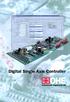 Digital Single Axis Controller The concept of intelligent hydraulic drive a vision? DSAC (Digital Single Axis Controller) Do you need hydraulic servo drive for your machine/system? What would it be like
LEGO NXT-based Robotic Arm
 Óbuda University e Bulletin Vol. 2, No. 1, 2011 LEGO NXT-based Robotic Arm Ákos Hámori, János Lengyel, Barna Reskó Óbuda University [email protected], [email protected], [email protected]
Input and Output Devices
 m In this lesson you will learn: bout input and output devices Some examples of input and output devices Lesson2 Input and Output Devices Jyoti [holding a Marigold flower]: Moz, This flower from my garden
Performance Dashboard Tutorial
 Performance Dashboard Tutorial Introduction This documents describes how to set-up the Excel templates provided by L3 Analytics. The configuration is straight forward: fill in all fields from the spreadsheet
Gephi Tutorial Visualization
 Gephi Tutorial Welcome to this Gephi tutorial. It will guide you to the basic and advanced visualization settings in Gephi. The selection and interaction with tools will also be introduced. Follow the
ROBOTICS AND AUTONOMOUS SYSTEMS
 ROBOTICS AND AUTONOMOUS SYSTEMS Simon Parsons Department of Computer Science University of Liverpool LECTURE 3 PROGRAMMING ROBOTS comp329-2013-parsons-lect03 2/50 Today Before the labs start on Monday,
By: M.Habibullah Pagarkar Kaushal Parekh Jogen Shah Jignasa Desai Prarthna Advani Siddhesh Sarvankar Nikhil Ghate
 AUTOMATED VEHICLE CONTROL SYSTEM By: M.Habibullah Pagarkar Kaushal Parekh Jogen Shah Jignasa Desai Prarthna Advani Siddhesh Sarvankar Nikhil Ghate Third Year Information Technology Engineering V.E.S.I.T.
File Management Windows
 File Management Windows : Explorer Navigating the Windows File Structure 1. The Windows Explorer can be opened from the Start Button, Programs menu and clicking on the Windows Explorer application OR by
SpaceClaim Introduction Training Session. A SpaceClaim Support Document
 SpaceClaim Introduction Training Session A SpaceClaim Support Document In this class we will walk through the basic tools used to create and modify models in SpaceClaim. Introduction We will focus on:
The Rocket Steam Locomotive - Animation
 Course: 3D Design Title: Rocket Steam Locomotive - Animation Blender: Version 2.6X Level: Beginning Author; Neal Hirsig ([email protected]) (May 2012) The Rocket Steam Locomotive - Animation In this tutorial
Introduction Configuring Your HP Mouse Batteries Replacing the Batteries Mouse Sensor Technology Navigating the HP Mouse Control Center
 Introduction Congratulations on your purchase of an HP mouse. This mouse is the latest in a wide range of computer peripherals manufactured by HP. It is designed to provide you with the highest level of
How to program a Zumo Robot with Simulink
 How to program a Zumo Robot with Simulink Created by Anuja Apte Last updated on 2015-03-13 11:15:06 AM EDT Guide Contents Guide Contents Overview Hardware Software List of Software components: Simulink
User Manual. NETGEAR, Inc. 350 East Plumeria Drive San Jose, CA 95134, USA. December 2014 202-11380-01
 User Manual December 2014 202-11380-01 NETGEAR, Inc. 350 East Plumeria Drive San Jose, CA 95134, USA Support For product updates and web support, visit http://support.arlo.com. Trademarks NETGEAR, Inc.
Robotics and Automation Blueprint
 Robotics and Automation Blueprint This Blueprint contains the subject matter content of this Skill Connect Assessment. This Blueprint does NOT contain the information one would need to fully prepare for
Writer Guide. Chapter 15 Using Forms in Writer
 Writer Guide Chapter 15 Using Forms in Writer Copyright This document is Copyright 2005 2008 by its contributors as listed in the section titled Authors. You may distribute it and/or modify it under the
Create a Poster Using Publisher
 Contents 1. Introduction 1. Starting Publisher 2. Create a Poster Template 5. Aligning your images and text 7. Apply a background 12. Add text to your poster 14. Add pictures to your poster 17. Add graphs
- Time-lapse panorama - TWAN (The World At Night) - Astro-Panoramic Photography
 User manual for PHOTOROBOT Photo Robot is a simple, small, lightweight (only 900g), but very reliable panoramic and astro photo head. It is motorised and allows quick and easy entry to all three "exotic"
AS COMPETITION PAPER 2008
 AS COMPETITION PAPER 28 Name School Town & County Total Mark/5 Time Allowed: One hour Attempt as many questions as you can. Write your answers on this question paper. Marks allocated for each question
SC Analysis Software. The software provides 5 main functions:
 SC Analysis Software Contents 1. Introduction 2. Rowing Record 3. Installing Software 4. Connecting to PC 5. Selecting a Record 6. Chart a Record 7. Display Splits 8. Setting Up SC 9. Synchronised Video
F1000T, F1000W System Start up & Calibration procedure
 F1000T, F1000W System Start up & Calibration procedure Version Modified By Release notes Issue A Vijayakumar Creation 2010-04-20 USA Selma, TX 78154 www.dynapac.com Page: 1 Introduction This section documents
The Richard Pate School. Draft Year 4 Scheme of Work for Scratch
 The Richard Pate School Draft Year 4 Scheme of Work for Scratch Marcus Gilvear July 2014 (Acknowledgements: Phil Bagge and Duncan Hooper) Re Scratch: This work is licensed under the Creative Commons Attribution-NonCommercial
NOQ_NQ-9121 Z-Wave Data Logger for Gas Meters Firmware Version : 2.55
 NOQ_NQ-9121 Z-Wave Data Logger for Gas Meters Firmware Version : 2.55 Quick Start S This device is a Z-Wave Sensor. Inclusion and Exclusion are confirmed by triple clicking the Z-Wave button on the device.
FRC WPI Robotics Library Overview
 FRC WPI Robotics Library Overview Contents 1.1 Introduction 1.2 RobotDrive 1.3 Sensors 1.4 Actuators 1.5 I/O 1.6 Driver Station 1.7 Compressor 1.8 Camera 1.9 Utilities 1.10 Conclusion Introduction In this
Which month has larger and smaller day time?
 ACTIVITY-1 Which month has larger and smaller day time? Problem: Which month has larger and smaller day time? Aim: Finding out which month has larger and smaller duration of day in the Year 2006. Format
Development of Combined Automatic Blade Control for Snow-Removing Grader
 Technical Papers Yukihisa Sakai In snowy regions, improving the efficiency of snow-removing machines has been called for so as to reduce the time and cost involved in clearing the roads of snow. As a means
The Dashboard. Change ActivInspire's Look And Feel. ActivInspire Primary. ActivInspire Studio. <- Primary. Studio -> page 1
 page 1 The Dashboard When ActivInspire opens, you are immediately greeted with the Dashboard. The Dashboard contains shortcuts to flipcharts and time-saving tools. The Dashboard remains open until it is
Quickstart for Desktop Version
 Quickstart for Desktop Version What is GeoGebra? Dynamic Mathematics Software in one easy-to-use package For learning and teaching at all levels of education Joins interactive 2D and 3D geometry, algebra,
Photoshop- Image Editing
 Photoshop- Image Editing Opening a file: File Menu > Open Photoshop Workspace A: Menus B: Application Bar- view options, etc. C: Options bar- controls specific to the tool you are using at the time. D: