
TIME and ATTENDANCE User Manual
|
|
|
- Louisa Lewis
- 10 years ago
- Views:
Transcription
1 TIME and ATTENDANCE User Manual Labor Scheduler, Management & Payroll Reports EDITION V

2 Table of Contents GENERAL DESCRIPTION... 1 Time Clock - Overview... 1 The Schedulers: Employee and Job... 3 Hours and Schedules... 3 Job Scheduler... 3 Budgeting and Projectors... 4 THE PAYROLL CYCLE: OPERATIONAL OVERVIEW... 4 SETUP FOR TIME AND ATTENDANCE... 6 Files needed to get started with Time and Attendance... 6 Initializing a Time and Attendance Database... 6 Setup > Time Clock... 9 Reference Section... 9 Setup > Restaurant Misc. Data > System Setup > Hardware Setup> T&A Front of the House > Options Setup > Time Clock > Options Setup>T&A Front of the House > Options TIME AND ATTENDANCE: MAIN MENU Commands Advance the Week Enter Password Employees Employee, Records Personal Info Adding New Employees Employee Status POS Info Job Rate Employee Hours & Schedules Employee Hours This Week s Hours Inserting Hours Worked into the Clock Grid... 56

3 Cannot Change/Delete Hours Worked in the Clock Grid Change Hours Worked in the Clock Grid Deleting Hours Worked in the Clock Grid Miscellaneous Pay Adjust Tips Use Previous Weeks Edit Schedule Job Scheduler Reports Overview Time and Attendance Reports Exception Report Sample Exception Report Exception Report (Hours Scheduled and Hours Worked) Sample Exception Report (Hrs Scheduled & Hrs Worked) Time Report Sample Time Report Labor Distribution Report Sample Labor Distribution Report Labor Cost Analysis Report Sample Labor Cost Analysis Report Labor Productivity Report Sample Labor Productivity Report Payroll Report Sample Payroll Summary and Detail Report Payroll File Output: RDC Format Sample Payroll File Output: RDC Format Payroll File Output: Remacs Format Sample Payroll File Output: Remacs Format Schedule Report Sample Schedule Report Schedule Summary Report Sample Summary Schedule Report Overtime Prediction Report Tip Report Sample Tip Report Employee List Sample Employee List Department Job List SampleDepartment Job List SETUP OPTIONS Company Data Company Data Department and Jobs Job Shift Codes Work Shifts Payroll & Overtime Holiday List Automatic Breaks Adjustment Reasons Password Control Page ii

4 Setup Reports Labor Productivity Schedule Summary Last Week(s) Sales FILE STURCTURE OF TIME AND ATTENDANCE Data Files Tip Files Application Files TROUBLE SHOOTING Punch2.DAT Format Error Messages T & A REPORT PARAMETERS CSV EMPLOYEE TRANSACTIONS Page iii

5 Page iv

6 GENERAL DESCRIPTION One makes the investment in a Point-of-Sale system because it will provide cost controls, management information, ease-of-use and, in general, the promise of savings of time and money. Similarly, the POSitouch Time and Attendance/ Labor Scheduling Module for Windows gives you a better grasp of the 20 percent, plus or minus, of your overhead that labor comprises; it allows you to compare sales vs. labor information, control your budget, overtime prediction, etc. - so that you can continue to run your business. The difference is that now you have accurate figures to make informed decisions. The Time and Attendance Module for Windows is a program that is integrated with the POSitouch Point-of-Sale system by providing a Job Scheduler, an Employee Scheduler, and a Time Clock Function via touch screens. The program also provides various Management Reports such as: Labor Cost Analysis, Overtime Prediction Report, Labor Productivity, Labor/Sales Distribution along with more traditional Payroll reports, including the ability to export Time and Attendance data to a Payroll Service. These reports help you to lower your Labor vs. Sales index through scheduling, budgeting, tracking labor productivity, and overtime prediction. Labor reports are available from the Touch Screens to provide quick access to important labor statistics at any time, right from your operation's floor. TIME CLOCK - OVERVIEW What follows is a narrative explanation of the Time and Attendance System; the actual step-by-step build is detailed in the reference section. Employees punch in and out via designated touch screen terminals. The Time and Attendance Module for Windows follows the same POSitouch ease of use philosophy that exists throughout the Order Entry System. This is especially important since non-pos users such as: cooks, busboys, dishwashers, etc. must use the system, as well as servers and bartenders who have more exposure to the POS systems. The system may optionally prohibit users, such as: servers, bartenders and managers, from performing POS functions prior to punching in. Likewise, it is possible to prevent a user from punching out, if he or she has "open and/or unpaid" checks. At punch out, the servers can have the ability to enter their Declared Tips from the touch screen. Tip Declaration can be compulsory or optional with a few suggested sales percentages. At any time, servers can print a Time Card or a Time Receipt for their own records. An Overtime Prediction Report is available to alert managers to employees who are approaching overtime in order to properly manage labor costs. From the Management side, a Time Report can be initiated from a touch screen, which shows the detail of punch activity for a particular day in the current week. The Time Report from the Backoffice can be produced for a particular day or week. From the Touch Screen Labor figures can be compared to Sales figures to provide a working labor/sales or sales/labor index. An Exception Report is available that highlights erroneous punches, i.e., a punch in with no punch out or off-schedule employees. Management uses both of these reports to determine if an employee's hours need to be adjusted. Adjustments are made for the current week from the touch screens or from the Backoffice system for all other weeks, with a notation of the reason for the adjustment. Once adjustments are complete, final Payroll Reports are printed and verified to close out the week. The Payroll Report is available in either summary or detail format, and can be output to a file for export to a Payroll Service, e.g., ADP or a third party payroll software, ReMacs, Ciridian. The Labor Distribution Report is available to give valuable labor productivity information such as Labor vs. Sales by server or department, Take Out, as well as Declared Tips, Charge Tips, 8% of Net Sales, etc. Employees can be assigned to perform multiple jobs, i.e. Hostess, Server, etc. in multiple departments and can punch in and out of these jobs as necessary. Management authorization can be

7 Restaurant Data Concepts, Inc. optionally required; if a user needs to perform a job other than his/her own Default Job that he or she normally works. Budgets can be assigned to Departments for each day of the week. Their value rests in the system s ability to indicate, when scheduling employees that you are over budget for the day and department. A budget can be planned on the basis of projected sales, which can be the same as last week s, last year s, or manually entered figures. 2
8 Time and Attendance Documentation THE SCHEDULERS: EMPLOYEE AND JOB Hours and Schedules When entering Hours and Schedules, management has the ability to view an employee's hours and different schedules, organized in the following ways: Hours: Schedules: - This Week's - Last Week's - Regular Schedule - Next Week's - This Week's - Last Week's This Week's Hours are taken from the actual punches in and out that are recorded in the punch file for this week. Last Week's Hours are simply a snapshot of the previous week's punches. Authorized personnel from the Back Office may adjust these hours if necessary. The Regular Schedule contains the schedule that an employee normally works. This schedule is automatically copied into Next Week's Schedule each time this week's hours and schedules are advanced so that reentry is not necessary. If an employee is needed to work hours that are not normally in his/her Regular Schedule, the adjustments can be made ahead of time to Next Week's schedule. The employee's schedule is recognized by the Time Clock program and can be enforced, i.e., the employee can be prevented from punching in/out outside of the scheduled hours, unless authorized by a manager. Management may authorize punch in and out activity at the POS terminal, either with numeric entry or the swipe of a magcard. The system records "attempted and rejected" punches in the case that a manager is not available to authorize a valid early or late punch, allowing for verification of attempted punch times. Job Scheduler The Job Scheduler allows management the ability to schedule its various departments (Dining Room, Bar, Kitchen, etc.) on a weekly basis. There can be up to 20 different departments and as many as 24 different jobs within each department, but no more than 100 total jobs in the system. Departments can be scheduled for an entire day or for an individual shift within the day (i.e., Lunch Kitchen, Dinner Bar). Note, Labor Shifts do not necessarily have to correspond to Order Entry Sales Shifts, but should be similar if comparisons are to be made between labor activity and sales of the same shift period. Employees can be assigned to work multiple jobs in a single day and may have different pay rates for the jobs. When viewing the schedule for a specific job, management can also view an employee's entire schedule and total hours, so that conflicting schedules are avoided and overtime situations are highlighted. 3
9 Restaurant Data Concepts, Inc. Budgeting and Projectors While laying out the schedule for a particular department and/or shift with the Job Scheduler, the user can view a budget for that department and shift to allow adjustment of labor assignments to fit the budget. Daily projection figures can be entered into the computer to scale the budget based on these projections. By scaling the budget you are creating an index based on Projected Sales divided by Budgeted Labor and Projected Sales divided by Scheduled Labor. This index or percentage is what you need to watch when scheduling to maintain a budget to make sure that you have not over scheduled for a slow week and under scheduled for a busy week. Sales figures from last week can be automatically copied into Projected Sales with a keystroke. Normal Sales can be entered or copied from Projected Sales. THE PAYROLL CYCLE: Operational Overview Employees punch in and out at designated touch screens. Each employee must be authorized to perform at least one job, their Default Job. If the employee performs more than one job within the restaurant, alternate jobs can be set up for the employee. Each job can have a different pay rate. When an employee punches in, their list of the authorized jobs is displayed. The Default Job or normal job for the employee is always the first job in the list of authorized jobs. Employees may select an alternate job by touching that job as they are punching in. Depending on their Employee Type, manager intervention may be necessary. POSitouch automatically adjusts for changes in the pay rate depending on the job chosen. There are three Employee Types: R - Regular Employees may punch in to their default job, but must have manager approval to select an alternate job. S - Special Employees are allowed to select an alternate job for themselves without manager approval, but cannot authorize an alternate job for other employees. M - Manager Employees are allowed to select alternate jobs for themselves and authorize alternate jobs for other employees. As people punch in and out at the various touch screens that are set up for time clock mode, the punches are collected in a punch file (C:\SC\PUNCH2.DAT). Each time a user at the Backoffice console accesses the Time and Attendance module, the punch file is read and the individual employee's time card is updated with any new punches. In this fashion, each time the Time and Attendance module is entered from the Backoffice, up-to-date and accurate punch information for the employee is available. The system keeps two weeks of current, punch information: This Week and Last Week (within the Employee Hours and Schedules section). These weeks are not necessarily the current week and last calendar week, but it may be any week and the preceding week, depending on the date shown on the Time and Attendance Main Menu screen. In other words, if one has forgotten to Advance Weekly Schedule for three weeks, then the system's This Week is three weeks ago and Last Week is the week before that. The Time and Attendance calendar week can be set up to advance automatically to avoid this situation. (See: SETUP > OPTIONS & COMPANY DATA from the Time and Attendance Main Menu). When punch information is collected from the touch screens, it is stored in a punch file based on the calendar date. The Time and Attendance date (shown on the Main Menu) should also be the current calendar week's date. If this is not the case, the Advance Weekly Schedule function should be selected until this is so. Weeks may be preset to advance automatically to prevent the Time and Attendance 4

10 Time and Attendance Documentation system from falling behind the calendar week; this is useful except in the case where a bi-weekly payroll system is being used. Also, businesses that pay their employees from the 1st to the 15th and again from the 16th to the end of the month, can print their preferred payroll report for an Arbitrary Period to designate the duration of the payroll for which they need data. Periodically during the day, Time Reports can be printed from a touch screen. This report is a snapshot of punch transactions for that day, another day, or a given week making it possible to see who has or has not punched in, as well as who has forgotten to punch out. If there are indications of missing punches, the manager has the ability to adjust a punch transaction by deleting the whole incorrect punch record and adding a complete new one, or by adding a punch out time to an existing incomplete punch record. In general, if a person forgets to punch in or out, the employee should enter a punch as soon as the omission is realized and report it to the manager. In so doing, the manager now has a punch transaction record to edit when the adjustment is made. Adjustments for the current week can be made from the touch screen, while all other weeks are done from the Backoffice system. Time clock activity and adjustments proceed on a daily basis throughout the week. Once the week has ended and a complete week's worth of punches has been collected, final reports can be printed for the week that has just ended. In general, a Time Report and Exception Report are the first reports to be produced. The Exception Report is very much like a Time Report; only that it identifies records that are not payable since they lack a punch out time. The objective is to attempt to run the Exception Report until there are no more exceptions, i.e. all punch transactions are correct and properly payable. At this point, the Payroll Report can be produced. The information shown should be verified, making adjustments if necessary. Once a final run of the Payroll Report is produced, the week is considered complete. The Advance Weekly Schedule function can be used to roll the current week back to open a new week, this can be preset to happen automatically at the week's end. (See: SETUP > OPTIONS & COMPANY DATA). The Advance Weekly Schedule function rolls the week's Hours and Schedules backwards, i.e. Last Week's hours get pushed back into an archive, This Week becomes Last Week, and a new This Week or current week is cleared and ready to accept new punch information. For Schedules, This Week's Schedule gets pushed back into Last Week, Next Week becomes This Week, and the Regular Schedule gets copied into the new Next Week. To summarize, the basic functions performed on a weekly basis are: Employees punch in and out at the designated time clock touch screens, either to their default job or to alternate jobs that they are preauthorized to work. Depending on their Employee Type, they may be allowed to select an alternate job without manager assistance. Managers periodically produce Time Reports in order to get a snapshot of the employees that have punched in and out. Managers create adjustments to correct any incomplete or wrong punches, from the touch screens for the current week and from the Backoffice for all others. After the current week has ended, i.e. a full week of punches has been collected; a final Time Report for the week is produced. An Exception Report should also be produced to point out all incomplete punch records so that adjustments can be made. The final step is to produce a Payroll Report for the week. The Payroll Report extends the hours times the rate of pay plus overtime and produces the correct total dollars the employee should be paid for any job worked in this period. 5

11 Restaurant Data Concepts, Inc. This report generally goes to a payroll service either in printed or machine readable form based on file outputs the system can produce so that individual employee checks can be printed. The Advance Weekly Schedule function is performed to push Last Week's Hours into an archive, This Week into Last Week, so that a new This Week can be cleared to accept new punches for the new week. This function also advances Schedules in the following manner: This Week is copied into Last Week, Next Week becomes This Week, and the Regular Schedule gets copied into Next Week. SETUP FOR TIME AND ATTENDANCE 1) Files needed to get started with Time and Attendance Time and Attendance is a separate Software Module that is purchased from your local POSitouch dealer. The Software Key in the back of your POS system unit must be programmed to enable this module to work; otherwise you will not be able to access it. A software key upgrade or a new key accompanies a copy of this manual and a Time and Attendance Transfer disk with the actual application programs. Initializing a Time and Attendance Database - Getting Started The Time and Attendance transfer diskette also includes an empty database, which includes five files: TAEMPLOY.DBF The employees, hours and schedules reside in this file. TAEMPL_1.IDX The three index files provide easy access to Names. TAEMPL_2.IDX Employee ID number and Department and Job. TAEMPL_3.IDX These index files can be rebuilt by TAREDO. TAMASTER.DAT This file holds department & job list and various setup information. After a successful Time and Attendance Transfer, the data files have to be removed from TANULL.ARC. This is done with the command. ARCE -R TANULL. NOTE: This procedure will overwrite an existing time and attendance database and punch file. It should be done only when starting a new database. Now you are ready to initialize the data files with the program TARESET. From the DOS prompt type TARESET. C:\SC> TARESET 1. Set the Current Week to today s date. 2. Clear Punches for Both weeks. 3. Set Punch Serial Number to 0 (zero) 6

12 Time and Attendance Documentation 4. Reset Sales and Tip Figures. 5. Set Auto-Advance With this process complete, you are ready to begin to actually build your own Time and Attendance database. The overview below serves as an outline; our suggestion is that you look in the reference section for the detailed explanations of the following setup chores. 2) Identify the Departments in the restaurant such as: Kitchen, Floor, Dining Room, Pub, etc. (See: SETUP OPTIONS > DEPARTMENT & JOBS). Departments may correspond with POS Cost Centers, so that the labor activity in a department can be compared to sales in the similar POSitouch Cost Center. The purposes of the departments are just for such comparisons, but they are also used in the Job Scheduler feature. The Job Scheduler allows scheduling of jobs by department; for example, all kitchen staff can be scheduled on a single screen and seen together. It is, therefore, important to set up the appropriate department separations ahead of time. 3) Set up Jobs within each Department. (See: SETUP OPTIONS > DEPARTMENT & JOBS). There are currently no limits as to number of jobs in the system that is logically connected to departments. A job can be created with the same name in multiple departments, i.e. the jobs of Dining Room Bartender and Pub Bartender can exist. 4) Define the appropriate Labor Shifts for the restaurant. There can be as many as 5 labor shifts that divide the 24-hour day. Labor shifts need not correspond exactly to the Order Entry shifts within the Point-of-Sale system, however, if they do correspond, (perhaps, with an additional shift to account for the hours when the restaurant is not operational, i.e., after closing and before opening), then accurate comparisons can be made between the labor activity and sales of the same shift time period. (See: SETUP OPTIONS > SHIFTS). 5) Add Employees to the system. (See: EMPLOYEES ). The information that is necessary in the Employee Record includes the Employee Number, Name, as well as a variety of other information pertinent to the employee's status in the Time and Attendance Module. It is intended that the Time and Attendance Employee Number must be exactly the same as the User Number for all POS users. Non-POS users such as Kitchen Staff should be assigned employee numbers above 1000 to keep them out of the range used by the POS employees. Other information contained in the Employee Record is Address, Phone Number, Social Security Number, Wage Type, Employee Status, and various other information fields that are optional to the Time and Attendance Module. 6) Set up the authorized Jobs that each Employee can perform in the Employee Jobs and Rates section. Employees can have virtually any number of authorized jobs, but the list should be kept as short as possible. The first job in each employees list is considered their default job, the job that they normally perform. When an employee uses the time clock to punch in, their list of authorized jobs is displayed. Again, this list should only include the jobs that they are approved to perform. Each job can be preset to have a different rate of pay, so that when an employee punches in to an alternate job, they are paid at the corresponding rate. 7

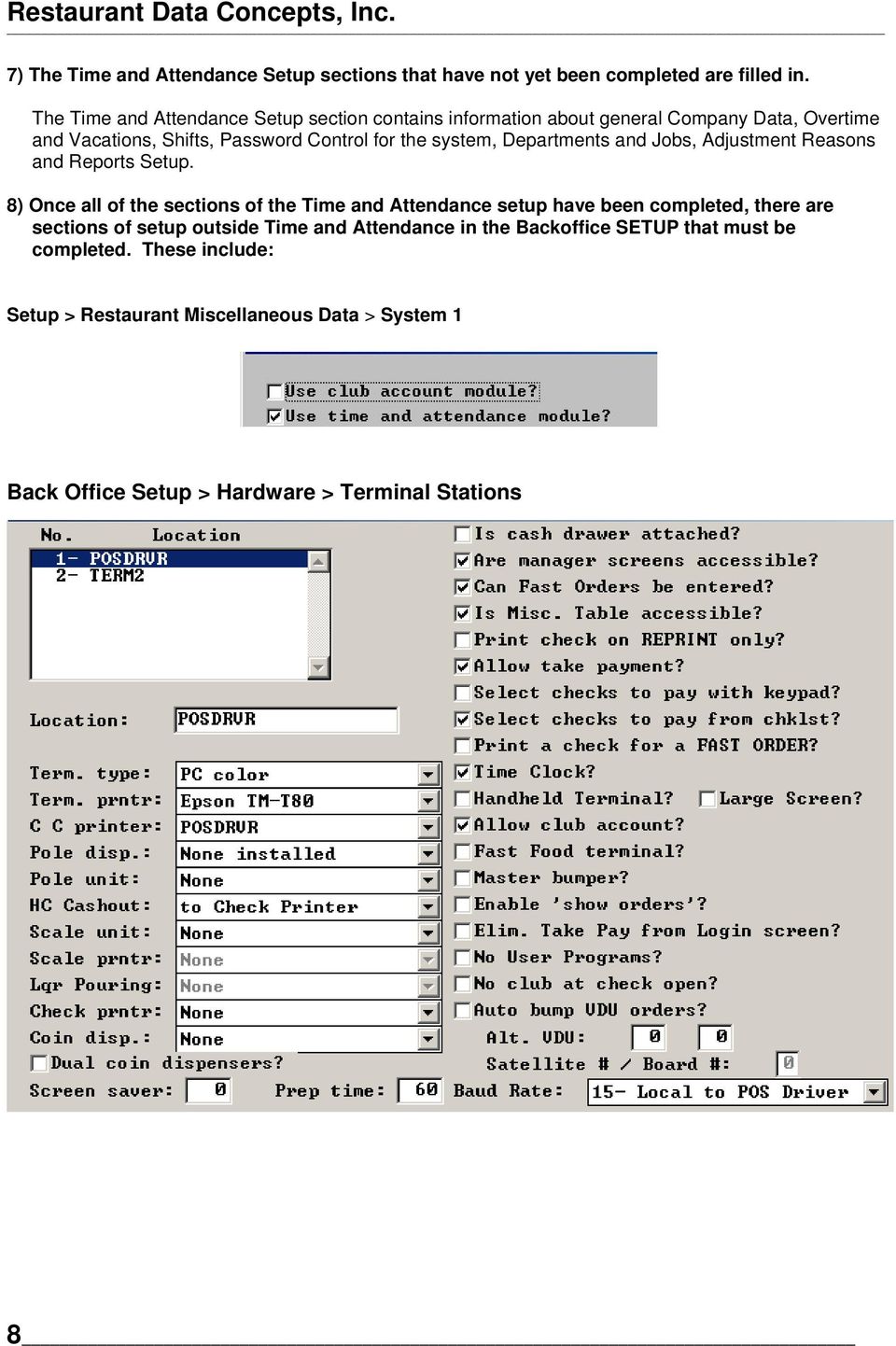
13 Restaurant Data Concepts, Inc. 7) The Time and Attendance Setup sections that have not yet been completed are filled in. The Time and Attendance Setup section contains information about general Company Data, Overtime and Vacations, Shifts, Password Control for the system, Departments and Jobs, Adjustment Reasons and Reports Setup. 8) Once all of the sections of the Time and Attendance setup have been completed, there are sections of setup outside Time and Attendance in the Backoffice SETUP that must be completed. These include: Setup > Restaurant Miscellaneous Data > System 1 Back Office Setup > Hardware > Terminal Stations 8
14 Time and Attendance Documentation Setup > T & A Front of the House The Setup > Time Clock section of the Backoffice System must be completed. This section includes information about the Time Clock Increment, Grace Periods for punching in and out, and various other fields that enable different options of the Time and Attendance for Windows Module. This setup operation creates a file named TIME.SYS in the \SC directory, which is essential to running your POS with Time and Attendance. The absence of this file will create an error message when trying the start up the Order Entry System with Time and Attendance enabled. The Reference Section of this manual that follows is a detailed explanation of the setup that need to be filled and its implications. REFERENCE SECTION This section details the setup work and periodic maintenance involved in running an efficient Time & Attendance System. Below we identify the screens and options that require setup in the Main Back Office Menu for the system to function according to customer needs. 9

15 Restaurant Data Concepts, Inc. Back Office Setup > Restaurant Misc. Data > System 1 The Use time and attendance module flag set to Y enables the Time and Attendance module to be active in the system. This alone does not initialize the module since specific terminals that are to be used for the Time Clock also need to be set up. (See next page for set up.) NOTE: The Time and Attendance module requires a security key upgrade; most often this is done when the POS is purchased. However, Time and Attendance can be enabled on the security key through files sent over the modem. Back Office Setup > Hardware > Terminal Stations The Time Clock should be set to Y within the setup for every terminal that is to be used by employees to punch in and out, i.e., a Y in this field allows the Time Clock box to appear on the Front Screen of that terminal. If the Order Entry System is already running an Immediate System Change is required to initiate the function at the terminal(s). 10

16 Time and Attendance Documentation Back Office Setup > T & A Front of the House > Options 1 The setup options and their values reside in the file TIME.SYS. This file is read by front of the house program, SPCWIN, and determines a variety of settings related to who gets time receipts or time cards, the type of schedule enforcement, tip declaration and other controls. Produce time receipt option specifies whether a receipt should be printed on all punches, out punches only, or not at all. Four options are provided: 11

17 Restaurant Data Concepts, Inc. 1 No time receipt provided at all. 2 System produces a time receipt with at punch in and punch out. 3 System produces a time receipt only when an employee is punching out. 4 System produces a time receipt at punchout and for adjustments. Collect declared tips option: Allows the users to enter a declared tip amount at punch out. Employee numbers under 1000 are reserved for POS users while over 1000 are non-pos users such as Kitchen help, who normally do not need to declare tips. 0 Do not collect tips for anyone. 1 Collect declared tips for employee s with user numbers greater than Collect declared tips for employees with user numbers less than Collect declared tips for all employees. 4 Collect declared tips for only employees with Tips checked in their employee record. 5 Collect declared tips for only employees who have a Tipped Job. See: Back Office Setup > Time and Attendance > Time and Attendance Back Office Setup > Department and Jobs > Job List > Edit Job 'No punchout with open tables'option defines what "open tables" are when the 'No punchout with open table ' feature is enabled. If sets to 0, servers are prohibited from punching out if they still have open tables and/or unpaid checks active in the system. If set to 1, the server cannot punch out if he/she has open tables active in the system. Magcard series number is filled in if the restaurant is to implement time clock punches via magcard. This field should contain the first five numbers of the magcard series supplied by the vendor. 12

18 Time and Attendance Documentation Magcard series number is filled in if the restaurant is to implement time clock punches via magcard. This field should contain the first five numbers of the magcard series supplied by the vendor. Overtime prediction hours for reporting purposes, this notifies the employer who is approaching overtime for the week, i.e., which employee already has total hours worked equal to or above the number of overtime prediction hours. See: Overtime Prediction Report for example. Suggested tip declaration percent: gives wait staff the option to see their sales multiplied by a declared tip percentage in order to facilitate accurate declaration of tips for income tax purposes. Suggested alternate tip declaration percent: gives wait staff the option to see their sales multiplied by an alternate declared tip percentage in order to facilitate accurate declaration of tips for income tax purposes. Print next schedule day: translate this to mean on which business day of the week do you want your employees to print Next Week s Schedule from the Front of the House. Said another way, enter the value for the day of your labor week on which your employees will have access to print next week s schedule from the order entry system. Eliminate Print Schedule button: This flag, when set, eliminates the Print Schedule button from front of the house. Time card trailer lines text: in the four lines available, enter the text that you wish to print on the bottom of the employees time card when they print it out from the Order Entry System. 13
19 Restaurant Data Concepts, Inc. Back Office Setup > T & A Front of the House > Options 2 Setup Options 2 has more controls to allow the manager/owner to determine when and how employees will use the POS system. It also allows you to define cashout labor information accessible from the Front of the House. Print time cards a check enables a button to display on the time clock screen named Time Card. When touched, this function produces a time card for employees. Labor cashout 2 nd column is labor hours? This option determines the look of the labor cashout, specifically which column is labor hours. Labor cashout 3 rd column is labor hours? This option determines the look of the labor cashout, specifically which column is labor hours. 14
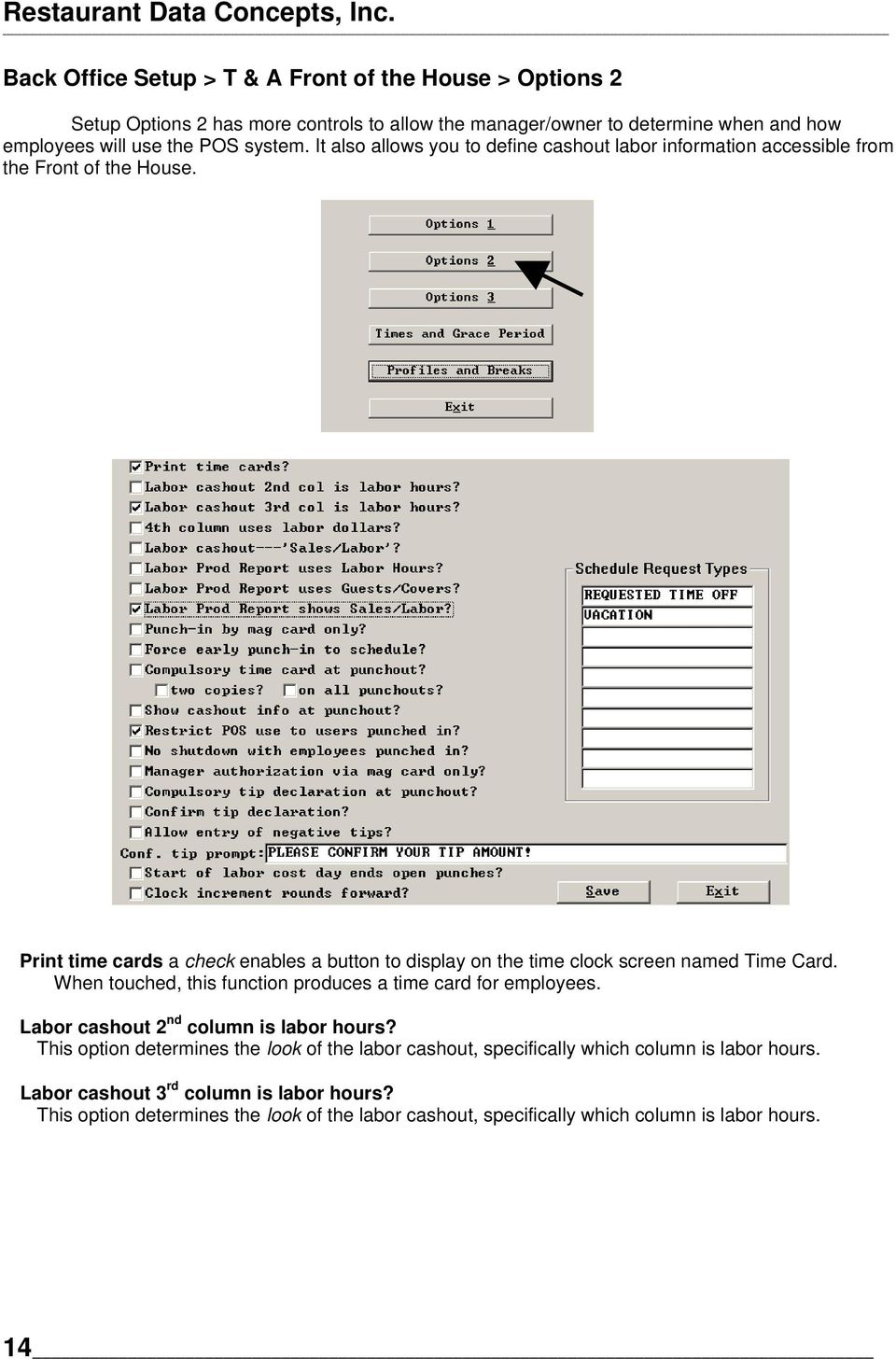
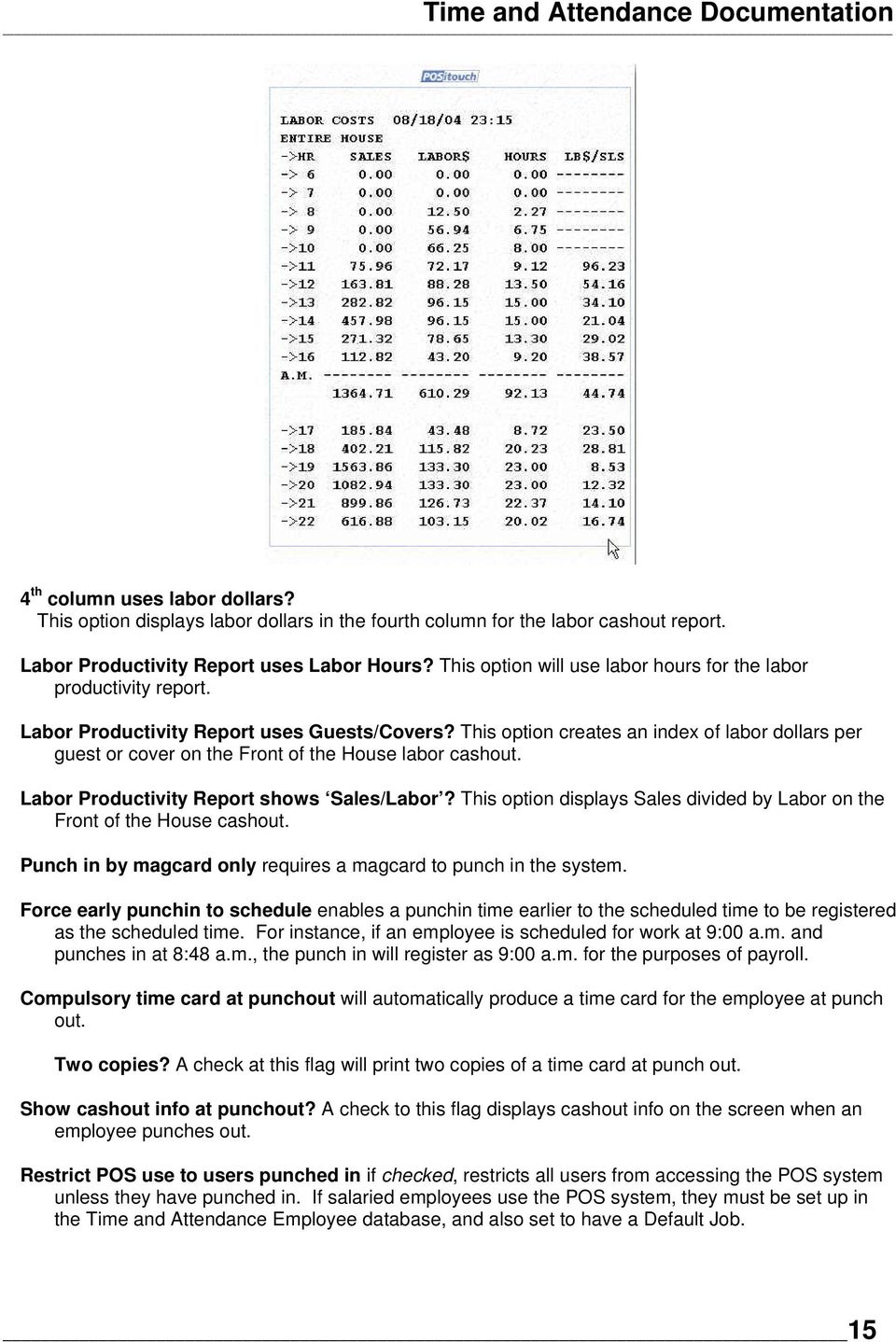
20 Time and Attendance Documentation 4 th column uses labor dollars? This option displays labor dollars in the fourth column for the labor cashout report. Labor Productivity Report uses Labor Hours? This option will use labor hours for the labor productivity report. Labor Productivity Report uses Guests/Covers? This option creates an index of labor dollars per guest or cover on the Front of the House labor cashout. Labor Productivity Report shows Sales/Labor? This option displays Sales divided by Labor on the Front of the House cashout. Punch in by magcard only requires a magcard to punch in the system. Force early punchin to schedule enables a punchin time earlier to the scheduled time to be registered as the scheduled time. For instance, if an employee is scheduled for work at 9:00 a.m. and punches in at 8:48 a.m., the punch in will register as 9:00 a.m. for the purposes of payroll. Compulsory time card at punchout will automatically produce a time card for the employee at punch out. Two copies? A check at this flag will print two copies of a time card at punch out. Show cashout info at punchout? A check to this flag displays cashout info on the screen when an employee punches out. Restrict POS use to users punched in if checked, restricts all users from accessing the POS system unless they have punched in. If salaried employees use the POS system, they must be set up in the Time and Attendance Employee database, and also set to have a Default Job. 15
21 Restaurant Data Concepts, Inc. No shutdown with employees punched in? If set to check, the Order Entry System will not shutdown unless all employees are punched out for the day. Manager authorization via magcard only restricts an authorization of an alternate job to only managers who have an approved magcard. Compulsory tip declaration at punchout requires that waitstaff declare a tip (0.00 is a valid declaration) at punchout. Confirm tip prompt: Enter the message that you want to appear on the Front of House screen when an employee trys to declare his/her tip. Allow entry of negative tips? This flag allows one to enter negative tips in at the front of the house at punchout. Start of labor cost day ends open punches if this flag is set to checked, then the system looks at the time setup in Start of Labor Cost Day in SETUP > RESTAURANT MISC. DATA > CASHOUTS and will not carry over earlier in punches. For instance, if the value of Start of Labor Cost Day is 5:00 a.m. anyone still punched in after this time will have to punch in again and the previous day s punch out will have to be adjusted. This is to prevent employee s who have not punched out the previous evening from being able to punch out the next business day. Clock increment rounds forward? With this flag set the clock increment only rounds forward, not forward and backwards. Schedule Request Types? We have added a set of 10 fields to create labels schedule request types. This creates a button in the Front of the House labled SCHEDULE REQUEST. When SCHEDULE REQUESTS is touched it brings up the screen which allows the employee to post a Schedule adjustment using the schedule request types. To the right are sample schedule requests. To add a request, select ADD. 16
22 Time and Attendance Documentation When you select ADD, the schedule request types come up. 17
23 Restaurant Data Concepts, Inc. After selecting the Schedule Request type, you are asked to enter the date and time of the schedule adjustment followed by a screen for an additional memo. 18
24 Time and Attendance Documentation Back Office Setup > T & A Front of the House > OPTIONS 3 Setup Options 3 has still more controls to allow the manager/owner to determine when and how employees will use the POS system. It also allows you to define cashout labor information accessible from the Front of the House. Eliminate rejected punches on time card? This option excludes rejected punches from appearing on the time card. Eliminate rejected punches on time report? This option excludes rejected punches from appearing on the Order Entry Time Report. 19
25 Restaurant Data Concepts, Inc. Eliminate tip %s at punchout/cashout a check to this flag will prevent the declared tip per-cent ages from appearing at punchout and the employee s cashout. Eliminate clock increment at punchout? With the flag set the clock increment occurs only on punch in. At punchout, the actual time is entered instead of the increment time. No authorization on punchout if authorization on punchin? With this flag set if an employee is authorized to work by the manager, then no authorization is required on punch out. Punch employees out at weekend? This option punches out employees who are working at the hour of week s end. Punch employees out at day end? This option punches out employees who are still working at the end of the labor business day. Eliminate deleted punches from reports? This option prevents the printing of deleted punches on Time and Attendance reports. Produce time receipt on hard check printer? This option produces a time receipt on the hard check printer. Produce time receipt on soft check printer? This option produces a time receipt on the soft check printer. Hard check time cards at Cashout Printer? This option produces a time card on the hard check printer. Hard check time receipts at Cashout Printer? This option produces a time receipt at the Cashout Printer. Eliminate User Privileges from Jobs? With this flag checked POSitouch does not look at the relationship between Job and User Type established in Back Office Setup > Time and Attendance > T&A BackOfffice Setup > Department and Jobs > Job List > Edit Field > User Privileges. Instead the User Type in the Employee POS record governs the privileges associated with the users job. Auto switch jobs based on schedule? This option automatically switches jobs based on an employee s schedule. An employee is scheduled from 8-1 as a server and from 1-4 as a line attendant. Prior to this feature, he would have to punch out as a server at 1:00 and then punch back in as the line attendant. This process is now automated based on the following conditions. An employee is scheduled for 2 jobs and the two schedule entries need to abut each other, such as 8-1 and 1-4, then the system automatically punches him out from the first job at 1:00 pm and then punches him back in at the second job at 1:00pm. See schedule example below: 20
26 Time and Attendance Documentation If an employee is on break when an automatic job switch is supposed to happen, then the employee s punch in from the break from the first job ends at the break punch out time and the new job punch in time is the time punched back in from break. Auto switch to non-tipped after hours? This option automatically switches an employee to a nontipped job when he is working outside of a restaurant s business hours. Based on the flag above, Auto switch to non-tipped after hours, and the table of start and end times defined on this setup screen, jobs are automatically switched. The switch is from the tipped job to the non-tipped job immediately after the tipped job in the employee s employment record. The result is that at the end of the restaurant s business day, based on the above setup screen, if a person is punched in at a tipped job, the system punches them out at their current job and then back in at their first non-tipped job in their employee job list. The second piece of this flag concerns itself with the beginning of the business day. The employee punches in before the start of business day as defined in the table above, then the sofware checks to see if their job is tipped. If the job is tipped, then the software goes through the employee s job list and looks for the very next non-tipped job after their tipped job (has to be the next job in sequence). If such a job exists, the software punches the employee in to that non-tipped job. If not found, they are punched back in at the tipped job. At the start time of the business day as defined in the table above, if the employee is punched in at the non-tipped job is still on the schedule, the software punches him out of the non-tipped job and back in at the tipped job. You need the tipped and non-tipped to be in a pair with the tipped first and the non-tipped right after it. They have to be paired, in this order and together. Other cases may appear to work but only because they are simple, you must make sure they follow this rule to be safe. Here are some examples: Server tipped Server non-tipped Kitchen non Server tipped Server non Server tipped Server non Kitchen non Bartender tipped Bartender non Tip declaration for non tipped job after close: When an employee works a tipped job, after the restaurant closes he is automatically switched to a non tipped job. We recognize this at punch out and pop up the declared tip box when they punch out even though they are not punched in at a tipped job at that point. 21
27 Restaurant Data Concepts, Inc. 22
28 Time and Attendance Documentation Back Office Setup > T & A Front of the House > Times and Grace Period Setup Times and Grace Period determines the Front of the House controls for punch in and punch out, appropriate grace periods and associated manager authorizations. Clock Increment allows the user to set up the Time Clock with an increment option to determine whether the clock "ticks" in one, five, fifteen and other minute increments. A value of 15 in this field forces the clock to round the punch either up or down to the nearest quarter hour. If so set, an actual punch between 12:52 p.m. to 1:07 p.m. is recorded as 1:00 p.m., 1:08 p.m. to 1:22 p.m. is 1:15, etc. 23
29 Restaurant Data Concepts, Inc. Temporary clock universal override minutes: This is a global setting which can be used to provide a universal override to all employees for the value of minutes defined in this field. This would be valuable for a mandatory meeting scheduled for all servers. For example, the site enforces schedules, so the manager simply goes to Time Clock and touches the button for 2 MINUTE OVERRIDE. During this time employees can punchin without encountering an OFF SCHEDULE exception message. Again the 2 minute value on the screen to the right is from the value set in field for Temporary clock universal override minutes. Schedule validity period defines the amount of minutes that the system should consider a punch as being Off Schedule. For example, if this field is set to 60, the punches that fall within 60 minutes before or after the scheduled punch time are labeled "On Schedule". The "On Schedule" punch is then labeled as being "Early" or "Late" if it falls outside the Grace Period. If the punch is beyond the 60 minute Validity Period, either earlier or later, the punch is considered as being Off Schedule. Manager authorization if past time? is used in conjunction with the Grace Periods to enforce the schedule. If this option is checked, a punch that is beyond the grace period of the preauthorized schedule will be rejected unless manager authorization is given. Grace period for Punching in and out is used for schedule enforcement and prohibits persons from punching in earlier or later than scheduled if manager authorization is necessary. The values entered in these fields allow a user to punch before or after the scheduled time without being considered early or late. This option also allows for the tracking the trend of punches as being early or late for analysis. (See Example above.) Manager authorization if beyond if set to check, requires manager authorization for any punches that are "Off Schedule". (See Schedule validity period, above.) EXAMPLE: Consider the following example, an employee is scheduled to work 1:00PM to 6:00PM on a particular day. Assuming the values for Grace Period and Manager Authorization are set as above, if the employee attempts to punch in between 12:55PM and 1:05PM, they may punch in without manager authorization and are considered On Time. If the punch in is attempted before 12:55PM, manager authorization is necessary since it is more than the 5-minute grace period before the scheduled punch in time. The employee is also considered Early. If the employee attempts to punch in more than the 60-minute schedule validity time before 1:00PM, say at 11:45AM, the punch is Off Schedule, and manager authorization is required, as set up above. Set Num POSitouch provides the ability to define four different sets of authorizations, which can then be assigned to specific departments. For instance, Managers might have no manager authorization set. However, the kitchen staff might have in early and late as well as out early and late checked for manager authorization. Dining Room staff might have manager authorization required only for In Early and Out Late. The Time and Grace period setup screen lists the departments that you have defined, now assign the appropriate set of manager authorizations to the department. 24
30 Time and Attendance Documentation Back Office Setup > T & A Front of the House > Profiles and Breaks The purpose of the Minors setup is to define up to four ranges of profiles that allow the front of the house to trap and notify managers of an exception condition for a minor. For instance, if a minor punches in on a school day and works for more hours than allowable in the minor s profile, an alert flashes on the order entry screen that tells the manager to look at Manager Exception Conditions. The User Privilege MGR EXCEPTIONS needs to be checked in Assign Privileges in order for this feature to work in the Front of the House. 25
31 Record paid breaks: This feature puts a BREAK button on the Order Entry Screen for the purpose of punching in or punching out for a paid break. Note that this option does not work with the Minimum break time option in the Times and Grace Period. This option is available for locales that require tracking of paid breaks. The paid break times are reported in the time report and the payroll report for tracking purposes. Unpaid breaks: (Feature not released as yet.) The ability to make the breaks Unpaid Breaks has been added to our product. The logic is the same as paid breaks except that when you start a break, a punch-out record is created, too, so that the break follows the punch-out. When the break ends, it works like a punch in. We now also allow 2 kinds of breaks each with their own rules as to whether they are paid or unpaid. The POSitouch system has a Paid Breaks feature; it is paid breaks because when someone goes on break, although we start the break, we do not punch the employee out. The break overlaps the work period and is just an indication of when the break was taken for the purposes of record keeping.
32 Time and Attendance Documentation Pay if shorter: If an employee tries to clock back in from break too early, we put up a message that says that they are early from break. We also prompt for a manager override. If a manager overrides the punch back in, and the pay if shorter? flag is on, we then delete the partial break and bring back the original punch in as the current active punch. Warning offset (minutes): Enter the amount of minutes before each exception that the system waits before flashing an exception warning for the manager. For example, if this field is set to 5, the system will flash a warning of an exception for the manager 5 minutes before someone with a profile of years is going to work over 3 hours on a school day. Profile name / Age: Enter the name for this profile which then links the minor employee to the appropriate profile in Time and Attendance > Employee > Employee Status. Enter the upper age for the employees in this profile. If the profile is 14-15, enter 15. The software will automatically assign the person to the correct profile based the Date of Birth entered in the Personal Info section of the employee s payroll record. Designate Day as a school day (SMTWTFS): Check the days of the week that are school days for the selected profile. Daily Hour Limit (School/Non-School): Enter the total number of hours that can be worked on a school day vs. a non-school day. Weekly Hour Limit (School/Non-School): Enter the total number of hours that can be worked on a school week vs. a non-school week as defined above in NON-SCHOOL DATES. Late Time Limit (School/Non-School): Enter the late time for a school day and a non-school day after which an exception will be posted for the minor profile. 27
33 Restaurant Data Concepts, Inc. Break Hour Limit: Enter the time after which if an break is not taken by this minor an exception will appear at the FOH alerting the manager that the employee should have a break. The labor law in the state requires that a minor have a break after 3 hours of work. Enter the value: 03:00 in this field. Non School Dates: Enter the start and end dates of vacation periods that will be counted by the system as non-school days. The above setup needs to be done first in order to link minors to the correct profile name. The profile name will be an option in the pull down menu. 28
34 Time and Attendance Documentation Below we have an example of a Minor Alert accessed through the Manager Screen by touching Manager Exceptions. The above completes the Order Entry side of setup options from the Backoffice. Below the discussion will turn to Time and Attendance specific issues as well as the setup of individual employees. 29
35 Restaurant Data Concepts, Inc. TIME AND ATTENDANCE: Main Menu Below is the main menu of the POSitouch Time and Attendance Module. This section introduces each selection, and then provides a complete explanation of all options and their purpose. Commands Advance the Week The Command option of the Time and Attendance Main Menu accesses two utilities. Advance Weekly Schedule is a procedure performed once the labor week has been completed. This function is necessary to read in punches into Hours and Schedules and to move forward and update information stored in the Regular Schedule as it moves to Next Week s, Next Week s moves to This Week s and This Week s becomes Next Week s. This function can be set to happen automatically as the calendar week passes to eliminate the chance of falling behind the calendar date. See: Setup Options > Company Data > Automatically Advance the Weeks. Note, that falling behind the calendar date or week end-date simply means that the punches for the most current week have not as yet been read into the Time and Attendance data base. They are safely being stored in the punch file until the week is eventually advanced and the punches get read. For sites that have bi-weekly payroll, it is preferable not to advance the schedule automatically, since two full weeks of data are readily available without going into archived files. 30
36 Time and Attendance Documentation Below is a calendar for the Month of March; a restaurant that is working with a bi-weekly payroll and whose week start date is Monday would proceed as follows: On March 12th, one week into the payroll, the week is advanced and reports are run for Last Week. On March 19th, reports are run for This Week and Last Week. The week is not advanced until the payroll is complete and submitted. On March 19th or 20th, when all payroll duties are finished, the week is advanced and punches from the 19th and 20th are now visible as the Current Week. Payroll data from the week ending March 4th can be accessed from Hours and Schedules > Use Previous Week s. An Advance Weekly Schedule pushes Last Week s Hours into an archive (TAHIST97.ZIP), copies This Week s Hours into Last Week s and clears a new This Week to start collecting punches for the current week. It is necessary to exit the Time and Attendance module and reenter it from the Backoffice to recollect the punch information for the new This Week. 31
37 Restaurant Data Concepts, Inc. The Schedules for Last Week are discarded, This Week is copied into Last Week, Next Week is copied into This Week, and the Regular Schedule is copied into Next Week. If no Regular Schedule exists, eventually all schedules through advancing will become blank, as the blank Regular schedule is copied into Next Week, Next Week to This Week, etc. and will eventually need to be built from scratch each week. Therefore any employee that works a somewhat Regular Schedule should have a Regular Schedule in the system. Keep in mind that if one forgets to advance the schedule, punches continue to be collected in the punch file and no punch or adjustment is lost. When you get around to advancing the week, the punches, deletions and adjustments get read into the Time and Attendance database from the punch file. One last note, manually advancing the week is dependent on the Shift Time. For instance, if you are trying to advance the week on Monday and your shift is set to start at 11:00 a.m. The system will not permit it. Make the shift start time earlier or wait until after 11:00 a.m. to advance the week. Enter Password The password is necessary to view rates or change rates of pay. If you enter the password incorrectly, you will get this message. 32
38 Time and Attendance Documentation Employees Employee Records The Employees section contains all of the Employee Information Records for the employees of the restaurant. Salaried employees who use the POS system must also be included in this section so that they may punch in, if the flag in SETUP > TIME CLOCK > OPTIONS 2 to Restrict POS use to users punched in is enabled. Non-POS salaried users can be added to the database as well as individuals who are on a miscellaneous payroll. Below is an example of Personal Information for a user record. The various options off the Edit Menu allow you to build various sections of an employee's data record. The Quick Setup option lets you get a cross view or quick view of essential pieces of information for each employee. 33
39 Restaurant Data Concepts, Inc. Visualize this information as an index card. Your employee data record is a box of employee index cards. You flip through the cards by using the Previous and Next command buttons. Next moves you forward, Previous moves you backwards in the database. If you know the name or employee number of the employee record you want to view, you can use the Goto command button. The Goto command button brings up the screen you see below. Enter either the complete last name in the Name field or your best guess. The system will either come up with a match or its closest match. You do not have to enter a value in the number field when searching by name. Note below that even a partial entry of the name gave us a hit. To search by employee number, enter employee number of the employee record you wish to find. The computer will either find a match or come as close as possible. Enter the complete last name in the Name field or your best approximation of the last name. The system will either come up with a match or the nearest record that matches your search. 34
40 Time and Attendance Documentation Get familiar with the use of Prev, Next and Goto command buttons by moving through your records and view the records that are currently in your database. Note that as you move to the different employee menus, you continue to retain the ability to move through your database of employee records. In any of the four menus below you can advance to the Next record, move back to the Previous record or Goto to a specific employee number or name. The Employee Menu above allows you to view various types of information stored for your employees. By default you view the Personal Info for the employee. Personal Information provides the owner/manager with relevant biographical and payroll information related to an employee s address, social security number, and phone number as well as employment specific facts. These are easily accessible, password protected and generally useful. 35
41 Restaurant Data Concepts, Inc. The required and optional fields within the Personal Info portion of the employee database are as follows: Employee number is up to a 4-digit number that identifies the employee. For all users of the POSitouch Order Entry System, this number MUST be the same as the Employee's User Number. A few rules to remember, Point of Sale users have 3 digit numbers, therefore, kitchen staff are usually given a 4-digit number in order to prevent any possible Order Entry use by kitchen or maintenance staff. The number 4 is 004 in POSitouch for the Order Entry system and for searching purposes. Last and First Name must be filled in for the Time and Attendance system to work properly. The Address Lines (1-3) fields are optional. The Phone Number field is printed in the Employee List Report and, therefore, should be completed. Call Harriet and see if she can come in from 5 to 11! The Card Number field contains the magnetic card number that the Employee is assigned when magcard are used to punch in and out. This field appears on the Employee List Report. Magcard setup is necessary in a few other places in the POSitouch system: Setup > Time & Attendance > T & A Front of the House > Options 1 > Magcard Series #. Setup > Restaurant Misc. Data > System 1 > Use Magnetic Card # as user number (4 digits) (optional). Setup > Restaurant Misc. Data > System 2 > User Magnetic Card track (1 or 2). Setup > Restaurant Misc. Data > System 2 > User Magnetic Card series number. Setup > User Privilege Codes > Assign Privileges > Magcard Access Only (optional). 36
42 Time and Attendance Documentation Alternate Employee Number is an additional alphanumeric id field that links the time clock information to external payroll systems that may have different numeric ids for the employee payroll information. This field appears on the Employee List Report. It also is a sort field for Labor Distribution and Payroll reports. Salary field is for salaried employees or managers. It is possible to track hours worked and still pay a salary. The Salary, Pay Salary, Wage Type and Pay Period fields need to be completed. Salary information is incorporated into the week s hours by the process of advancing the Weekly Schedule. If the salaried employee has no hours logged in a given week, then we use his weekly schedule as a substitute for hours worked. This is done so that a manager can decide how their wages affect the sales/cost ratio. If the weekly schedule is not filled in, then we try to use the salaried employee s regular schedule, and if that is empty too, we distribute the salary wage evenly across all seven days of the week. Social Security Number: this information prints on the Employee List Report and is optional. Tip Pool Amount/Percent: Custom feature, not for general use. Percent? Custom feature, not for general use. Tip Pool Code: Custom feature, not for general use. Marital Status this information is optional and is available in dbf file format in the file EMPFILE.DBF. Sex this information is optional and is available in dbf file format in the file EMPFILE.DBF. Exemptions this information is optional and is available in dbf file format in the file EMPFILE.DBF. This is collected strictly for informational purposes and has nothing to do with the calculation of the POSitouch Payroll. Ethnicity this information is optional and is available in dbf file format in the file EMPFILE.DBF. Ethnicity needs to be defined in Back Office Setup > Time and Attendance > T&A Back Office Setup > Options > Ethnicity. See additional notes below. Termination Reason: information is optional and is available in dbf file format in the file EMPFILE.DBF. Termination Reasons need to be defined in Back Office Setup > Time and Attendance > T&A Back Office Setup > Options > Termination Reasons. If the flag, Require Termination reason for Inactive (See: Back Office Setup > Time and Attendance > Time and Attendance Back Office setup > Setup > More flags), is checked, then when you change an employee s status to INACTIVE, the software requires a termination reason. When you SAVE STATUS, the message below appears. If you quit without selecting Termination reason, the software will not save your INACTIVE setting! See additional notes below. Rank for Scheduling is used within the Job Scheduler by department and shift. Starting with a '1' as the highest (or best) rank, employees can be ranked according to performance or preference. The higher ranked employees are sorted and displayed at the top of the Employee List when scheduling by department. 37
43 Restaurant Data Concepts, Inc. Date Hired this information is optional and is available in dbf file format in the file EMPFILE.DBF. The date in this field gets automatically filled in with the current date when an Employee s Status field is either changed to ACTIVE or when the employee record is created. Select an auto fill option from one of these two choices in Back Office Setup > Time and Attendance > T&A Back Office Setup > Options > More Flags. You can change the text name as it appears on the EMPLOYEE > PERSONAL INFO screen. The changes are made on the Back Office Setup > Time and Attendance > T&A Back Office Setup > Options > Edit Text option. Date Left this information is optional and is available in dbf file format in the file EMPFILE.DBF. The date in this field gets automatically filled in with the current date when an Employee s Status field is changed to INACTIVE.. Select the option in Back Office Setup > Time and Attendance > T&A Back Office Setup > Options > More Flags: Last Raise this information is optional and is available in dbf file format in the file EMPFILE.DBF. Jobs & Rates the first four jobs from the job list appear in the boxes on the Personal Info menu screen. Additional Notes on Ethnicity and Termination Reasons: The following files are produced by POSIDBFW.EXE and are located in the L:\DBF folder. These files relate to Termination Reasons and Race as defined in Backoffice Setup. The files layouts are described below. NAMETRSN.DBF This file contains the Termination Reasons as defined in Setup > Time & Attendance > Backoffice Setup > Options > Termination Reasons. # Name Type Width Dec Usage 1 STORE C 4 Restaurant chain Store number 2 CODE N 2 Termination reason number, starts at 1. 3 NAME C 30 Name of termination reason ( text ). NAMERACE.DBF This file contains the RACES as defined in Setup > Time & Attendance > Backoffice Setup > Options > Race. # Name Type Width Dec Usage 1 STORE C 4 Restaurant chain Store number 2 CODE N 2 Race code, starts at 1 3 NAME C 15 Race label ( text ). 38
44 Time and Attendance Documentation 39
45 Restaurant Data Concepts, Inc. Adding New Employees The above menu of command boxes offers a quick and easy guide to adding, and deleting employees as well as deleting POS users. Finally, the Save Empl command box does making permanent changes. Add Empl allows the owner/manager to add employees to the Time and Attendance database. These employees can be POS users with 3-digit user numbers or non-pos users with 4-digit user numbers. Note, the number 9 is 009 for the purposes of searching. Following an OK, the above bare minimum of information for an employee prepares a record in the database. Note that the POS User box has not been checked, so that a POS user record has yet to be filled in. Checking the POS User box allows you to now fill in the POS info information for the employee record that you are completing. To finish your new employee record, just make sure you select a 40
46 Time and Attendance Documentation Department/Job and enter a rate of pay. Remember, an employee will not appear on the Payroll or on the Labor Distribution Reports unless they have both an active job and a rate of pay. The start of an employee record above needs essential information filled in, for instance, employee status, POS information, a job and rate of pay. Del Empl is easy unless the employee has hours this week or last week in the Time and Attendance database. A normal delete request will bring up the dialogue box below. Trying to delete employees with hours in the current two weeks will bring up a dialogue box like the one below. Simply follow the instructions if you in fact wish to delete this employee, that is, delete the employee s hours and tips for the current two weeks. 41
47 Restaurant Data Concepts, Inc. Del POS changes an employee to a non-pos user by deleting his or her POS record. The dialogue box below clarifies that it is only the POS portion of the employee record that is being deleted. Save Empl makes permanent the changes to the employee. Remember if you have made some fundamental mistakes in the building of your employee database, POSitouch automatically maintains daily copies of your files in an archive. Call your POSitouch dealer for assistance. Employee Status menu provides the ability to change employment specific information for your employees. Also, Order Entry setup functions are available from this screen. A sample screen appears below: 42
48 Time and Attendance Documentation The Employee Type field indicates the level of independence and authority of an employee in the business. Managers (M) have the most privileges; they can (S) select an alternate job. An employee type (R) can do little other than punch in and out. The following are the different Employee Types: R is a Regular Employee who may use the Time and Attendance system, but cannot select an alternate job (other than their default job) without manager authorization. S is a Special Employee who may select an alternate job for themselves without manager authorization, but cannot authorize an alternate job selection for other employees. M is a Manager Employee who may both select an alternate job for himself and authorize other employee s selection of an alternate job. The Employee Status field contains the employee's status. Setting an Employee's Status to Inactive is the preferred method of making an employee inactive within the Time and Attendance system. Deleting an employee's record destroys the historical information for the employee needed for reporting purposes and should never be done. An employee with a status of "I" cannot punch in or out. Wage Type determines if this employee is paid hourly (H), on salary (S), or (N) salary, but not on reports. 43
49 Restaurant Data Concepts, Inc. Pay Period these are values for future fields; they have no effect at this time. Profile select the age group for the employee, a profile has to be defined for this option to appear on the Employee Status screen. Template if this box is checked, then this employee record s settings will serve as a template for the setup of other employee records. Employee Tipped determines if tips should be collected and calculated for this employee. Enforce Schedule field, if left blank, it determines that the employee may punch in or out without regard to the Schedule and Grace Periods. If this field is checked, the Employee may be prohibited from punching in or out outside of the employee's pre-authorized scheduled hours without manager authorization. All "Attempted and Rejected" punches are recorded in the event that a manager is not available to authorize a legitimate punch outside of the schedule. Punchout with Tables Open this is a means of preventing an employee from punching out with tables open or unpaid. This is an optional field, but useful for control purposes. Use POS without Punch In this flag determines if employees can use the system without punching into the system with the time clock, used primarily for Managers. Pay Salary this option determines if an employee is to be paid a fixed salary, the amount is determined in the Salary field from the Personal Info Menu Screen. 44
50 Time and Attendance Documentation POS Info provides the ability to make an employee a pos user. Click on Add User to access the screen to add POS information for your employees. Add POS User displays the fields below to setup your employee s User Type and access to your restaurant. 45
51 Restaurant Data Concepts, Inc. Both POS and non-pos users of the system are included in the Employee database. POS users' Time and Attendance Employee number MUST be the same as their Order Entry User Number. Non- POS users, such as kitchen help and other staff, should be assigned Time and Attendance Employee numbers above 1000 to keep them out of the three-digit range of the POS User Number. Below is an example of a non-pos user record. The preceding scheme is suggested for the purpose of organization. Non-POS users can have number below 1000, but they would have nothing filled in the POS INFO box. Some of the information below is repetitive from the Personal Information screen. This POS information is required for a user to be able to begin to use the Order Entry system. 46
52 Time and Attendance Documentation Employee number, first and last name and magnetic card number are repetitive from the Personal Info screen of this employee s record. User Type: select a user type for this employee. A full explanation of the relationship between user types and user access privileges can be acquired in the POSitouch BackOffice Reference Manual: Windows Edition. Job/Rate allows the manager/owner to associate jobs and rates of pay to individual employees. The default job is the first on the employee s job list as it appears on the Order Entry screen. Employees with an Employee type of R cannot change from their default job without a manager override. 47
53 Restaurant Data Concepts, Inc. Jobs and Rates section is used to set up the list of authorized jobs that each employee can perform. Each employee, both hourly and salaried, MUST be authorized to work AT LEAST ONE job, but can be have multiple jobs in different departments in their Job List. The first job in the Job List is the Default Job for the employee when punching in on the touch screen. Every other job is considered an Alternate Job and may need manager authorization to select, depending on the Employee's Type. Each job for the employee has a separate rate of pay that is set up in this section. This section may set for Password Control. (See: SETUP > PASSWORD CONTROL). Jobs and rates can be: Prev. Weeks, Edited, Added, Deleted, or Saved. Prev. Weeks: This button allows you to change a rate of pay for a previous week. For instance, you run a payroll report for an arbitrary period from the 1 st of the month to the 15 th. You realize that an employee should have received a raise two weeks ago. You click on Prev. Weeks and select the week you want to adjust the raise for the employee. In the case below we are changing the rate of pay for week starting 6/21/04. After you select the week in question you will see the week that you are changing at the top of the Job and Rates screen. You are changing the rate of pay for week ending 6/21/04 below. 48
54 Time and Attendance Documentation After you select the week in question you will see the week that you are changing at the top of the Job and Rates screen. Curr. Week: This button allows you to return to the current week s rate of pay screen. For instance, you run a payroll report for an arbitrary period from the 1 st of the month to the 15 th. You realize that an employee should have received a raise two weeks ago. You click on Prev. Weeks and select the week you want to adjust the raise for the employee. Then click on Curr. Week button to get to the current week. EDIT - Job/Rate select the job/rate you wish to edit by highlighting it with your mouse and click the EDIT command button. Number of Job: refers to this job s number on this employee s job list. The 1 st position is reserved for the default job; define here the position that you want this job to appear on the list. Job Status: has two choices, Active and Inactive. Department and Job: select the department and job for the employee from the master list of jobs. Rate: this is the rate of pay, which is to be paid this employee for this job. It is important to understand that rates of pay are not automatically linked to jobs. The same job can have a different rate of pay for different employees. 49
55 Restaurant Data Concepts, Inc. Rate Update: the system can automatically implement a raise or a new rate of pay. The new rate is entered in the Rate Update field. The fields below determine when the new rate will go into effect. Week Update: the workweek of the pay rate update is determined by selecting from the Week Update pull down menu. Day Update: the day of the workweek for the pay rate update is determined by selecting from the Day Update pull down menu. OK: saves the entries made on the Edit Rate screen. Cancel: undoes the changes and entries made on the Edit Rate screen. 50
56 Time and Attendance Documentation ADD - Job/Rate allows the owner/manager to add to an employee s job list. DELETE - Job/Rate select the job/rate you wish to delete by highlighting it with your mouse and click the DELETE command button. SAVE - Job/Rate makes permanent the changes, additions and deletions that you have made during your last session with Job/Rates. 51
57 Restaurant Data Concepts, Inc. Employee Hours & Schedules This section contains each employee's Hours and Schedules that can be viewed and/or adjusted if necessary to correct erroneous punch information for Hours, or to adjust an employee s authorized scheduled hours. Employee Hours consist of punch information collected from the touch screen time clock(s) and stored in the punch file. Hours are organized into This Week and Last Week. These two weeks worth of punches can be viewed and adjusted from this section. Schedules are optional in the system. Manager and owners use schedules to monitor employee punch activity by both authorizing hours that an employee can work and by prohibiting punches made by employees outside their scheduled hours. The Schedules are organized in the following way: Regular Schedule, Next Week's, This Week's, and Last Week's. The Regular Schedule for each employee contains the normal daily hours that he or she usually works. When weeks are advanced, the Regular Schedule is automatically copied into Next Week's Schedule so that reentry is not necessary. Schedules can be copied from one week to another for rotation purposes. 52
58 Time and Attendance Documentation Employee Hours Hours are read into the Time and Attendance Database straight from the 'Punch file' that contains all punches recorded from the touch screen time clock(s). Each time the Time and Attendance section of the Backoffice system is entered, the Employee Hours section is updated with any new punches that may have occurred since the last time entered. In this fashion, up-to-date and accurate punch information is displayed. There are four types of punches that will appear in the Clock Grid: normal, adjusted (A), rejected (R) and deleted (D) punches. The latter three types of punch records have a letter prefix identifying its type. Below you have examples of normal punches, throughout this section you will see the other types of punches and understand their characteristics. Normal and Adjusted punches can be changed and deleted. Rejected and Deleted punches cannot be changed nor deleted. Let us start our orientation to the above screen by the sections that are already familiar to us from the Employee Menu option screen. Again, this information on the above screen can up understood as a single index card. Your employee hours and schedules is a box of employee index cards. 53
59 Restaurant Data Concepts, Inc. You flip through the cards by using the Previous and Next command buttons. Next moves you forward, Previous moves you backwards in the database. You know whose hours and schedule you are look at, by the reference to the Employee Number and Name in the upper left corner of this screen. If you know the name or employee number of the employee record you want to view, you can use the Goto command button. The Goto command button brings up the screen you see below. Enter either the complete last name in the Name field or your best guess. The system will either come up with a match or its closest match. You do not have to enter a value in the number field when searching by name. To search by employee number, enter employee number of the employee record you wish to find. The computer will either find a match or come as close as possible. Enter the complete last name in the Name field or your best guess. The system will either come up with a match or the nearest record that matches your search. 54
60 Time and Attendance Documentation Get familiar with the use of Prev, Next and Goto command buttons by moving through your records and view the records that are currently in your database. Note that as you move to the different employee menus, you continue to retain the ability to move through your database of employee records. In any of the four menus below you can advance to the Next record, move back to the Previous record or Goto to a specific employee number or name. The system organizes punch information into two periods: This Week and Last Week. When the Advance Weekly Schedule option is selected, Last Week s hours get pushed into an archive, This Week becomes Last Week and a new This Week is cleared to accept new punch information. A snapshot of the database is made during this process and it resides on the current directory. This is for easy retrieval of up to the last 8 weeks of Time and Attendance data. The same set of files is also archived into TAHISTYY.ZIP (YY=year, e.g.tahist04.zip). Time clock data files older than 2 months can be retrieved from Use Past Records (Archives) option in the main Time and Attendance Menu. 55
61 Restaurant Data Concepts, Inc. THIS WEEK S HOURS Our focus in the Employee Hours and Schedule section is to get you familiar with the options on the screen below and how to add, insert and delete worked and scheduled hours on the Clock Grid. As we select different options from the menu below, the clock grid will change appropriately. The Clock Grid below is our next focus and we must spend time getting the reader familiar with its layout and use. INSERTING HOURS WORKED INTO THE CLOCK GRID The Clock Grid is the employee s master time card, which reflects hours worked, adjustments to existing punches and deletions of existing punches or adjustments. Adjustments to This Week s employee punch information can be made either from the Order Entry system or from the Backoffice, but not from both. A flag in Time and Attendance > Setup > Company Data defines where adjustments are going to be made. It is preferable to make the adjustments from the Order Entry System since it takes only a few seconds to accomplish, rather than keeping scraps of paper and remembering to perform the task from the BackOffice. Christine, our employee, forgot to punch in and out on Tuesday night. Below we demonstrate how to add her punch record into this week s hours clock grid. With a mouse click on the INSERT command box or any blank cell on the Clock Grid or by using the keyboard and hitting ALT+I, a dialogue box appears which begins the process and you are ready to add the punch information. 56
62 Time and Attendance Documentation Enter the reason for the clock adjustment: The system immediately wants to know why you are adding, deleting or changing the punch information in the form of your adjustment reason. Adjustment Reasons are selected from a list defined in Time and Attendance > Setup Options > Adjustment Reasons. Enter your employee number: It is also useful to know who is actually doing the adjustments, hence the system asks for the Employee number of the person actually doing the adjustments - it s useful! Exclude from overtime calculation: Exclude this clock adjustment from the calculation of overtime hours. This is useful for adding previously worked hours for an employee who already has 40 hours. With this box checked, the adjusted hours would be added as regular hours, not overtime hours. 57
63 Restaurant Data Concepts, Inc. An OK moves you to the screen below and you are ready to add detail to the punch you are adding. Yes, this is a mistake, do you understand why? See below Day: For which day of the week are you adding or editing this punch? Remember the day of the week is determined by the punch in time, not the punch out time! Job: The job the employee was working during the hour range entered for In: and Out: times? 58
64 Time and Attendance Documentation IN: (time) Enter the correct punch in time using the following format: HH:MM a or HH:MM p. Where HH is the hour of the punch in, : is the separator, and MM is the minutes after the hour. After a space, enter the letter a for a.m. or the letter p for p.m., for example, 06:00 p. OUT: (time) Enter the correct punch out time using the following format: HH:MM a or HH:MM p. Where HH is the hour of the punch in, : is the separator, and MM is the minutes after the hour. After a space, enter the letter a for a.m. or the letter p for p.m., for example, 12:00 a. * Christine worked 6 hours, from 6 p.m. to midnight or 12:00 a.m., not 18 hours from 6:00 p.m. to 12:00 p.m. The final inserted punch looks like the Clock Grid below. Note, additional 6 hours added to Total Hours. 59
65 Restaurant Data Concepts, Inc. CANNOT CHANGE/DELETE HOURS WORKED IN THE CLOCK GRID Your employees may have rejected, adjusted or deleted punches in their clock grid. These records have a (R), (A), or (D) as the prefix to the record to help you identify the punch. Deleted (D) and rejected (R) punch records cannot be changed nor deleted. The error message below appears on the screen when this is attempted. See below: CHANGE HOURS WORKED IN THE CLOCK GRID Changing normal or adjusted punches employs the skills learned above: use the arrow key to select the punch record you wish to change or click on the record with your mouse. It is important to note the difference in an adjustment of an adjustment, which does not provide a trail, and an adjustment to a normal punch, which creates an adjustment (A) record. When an adjustment record is changed, the assumption is that the original punch record was incorrectly adjusted and the new adjustment now accurately reflects the employee s hours. 60
66 Time and Attendance Documentation Changing the selected punch is similar to inserting a new punch; exactly the same dialogue box appears to query you for the same relevant pieces of information. If the dialogue box below appears, it means that the option Eliminate editing last week s hours is checked. Therefore, only current week s hours are available for editing. Select the reason from the punch adjustment from the pull down choices. Then enter your employee number or the employee number of the person making the adjustment. 61
67 Restaurant Data Concepts, Inc. Looks familiar, does it not? I am sure you are ready to try it, if you have not already. Pull down selection for the Job. Do not forget to enter the corrected times with an a for a.m. or a p for p.m.. The end result looks familiar too. 62
68 Time and Attendance Documentation DELETING HOURS WORKED IN THE CLOCK GRID You made a mistake and you wish to immediately delete the punch just made. Select the punch day/hours you wish to delete by highlighting it, then, hit ALT+D. This is the punch record we are deleting. Note, the prefix (A) for Adjusted punch and (D) for Deleted punch. MISCELLANEOUS PAY: EDIT HOURS AND SCHEDULES Miscellaneous pay allows you to pay per diem employees a flat rate. These employees may have a set base pay to which you can add an additional amount also per diem. Finally a job can be assigned to the per diem rate. Below is an example of the miscellaneous pay screen. It provides the ability to identify an employee other than the one selected with the Prev, Goto and Next options. 63
69 Restaurant Data Concepts, Inc. This Week: This option allows you to add miscellaneous pay for an employee during the current workweek. Last Week: This option allows you to add miscellaneous pay for an employee for the previous week. Note that the dates change when Last Week is selected. Save Week Info: save miscellaneous pay information you have entered during this session for an employee for the given period. After making changes to the Miscellaneous Pay screen, be sure to Save Week Info before returning to Hours and Schedules. Edit Hours returns you to the Hours and Schedules screen from whence you came. If you have made changes to Misc. Pay, be sure to Save Week Info before you return to Edit Hours Back to Main Menu: returns you to the Main Time and Attendance Menu. Be sure that you have Saved Week Info, if you have made changes to Misc. Pay for an employee. 64
70 Time and Attendance Documentation ADJUST TIPS: EDIT HOURS AND SCHEDULES Adjust Tips allows you to adjust a server s tips for a given week, this week or last week. Below is an example of the Adjust Tips screen. It provides the ability to identify an employee other than the one selected with the Prev, Goto and Next options. This Week: allows you to view Declared Tips and make adjustments to tips for your servers for This Week s payroll. Last Week: allows you to view Declared Tips and make adjustments to tips for your servers for Last Week s payroll. Save Week Info: makes permanent the adjustments made to tips and tip pool dollars during the current editing session. Edit Hours returns you to the Edit Hours and Schedule screen. Back to Main Menu returns you to the main Time and Attendance menu. Declared tips: are logged into the system through the Order Entry system (touch screens). The figure represented above is the value of declared tips for entire week. 65
71 Restaurant Data Concepts, Inc. Total Adjustment: is the calculated value of adjustments throughout the week. You cannot change this value directly, only through the Adjustment Amount field. The Total field reflects the sum of Declared Tips + Total Adjustments = Total. When a positive amount is entered in the Adjustment Amount field, then the Total Adjustment field increases. When a negative value is entered in the Adjustment Amount field, then the Total Adjustment field decreases. Adjustment Amount: is the field used to adjust the Total Adjustment field positively or negatively. A plus entry will increase the Total Adjustments for the week; a negative value will decrease the Total Adjustments for the same period. Total: is a calculated field that is the sum of Declared Tips and Total Adjustments. This field cannot be changed directly. Changes to this field are executed by making entries in the Adjustment Amount field, which increases or decreases the Total Adjustment field. Tip Pool: field allows you to enter tip pool dollar information for your servers for the given week. There are more tip pooling schemes than there are restaurants, this field is there to accommodate your own unique method of dividing tips among your servers and then to re-distribute the appropriate share to the individual servers. 66
72 Time and Attendance Documentation USE PREVIOUS WEEKS: EDIT HOURS AND SCHEDULES Use Previous Weeks allows you to access hours and schedules from a previous week for the purpose of editing, viewing or printing. Get TA records for what date? This allows you to enter a date in the week for which you need to retrieve Hours or schedule data. As soon as you enter a date, the start day and end day for the week you have selected change. 67
73 Restaurant Data Concepts, Inc. Prev, Goto and Next are options already familiar to us which allow us to retrieve hour or schedule information for an employee other than the one selected with the Prev, Goto and Next command buttons. Previous Week s Hours: at the top of the screen alerts you to the fact that you have moved from the Current Week s Hours to the Previous Week s Hours selected on the preceding screen. Use Current Week s Hours: allows you to return to the Current Week s Hours screen. Exit to Main Menu returns you to the Main Time & Attendance Menu. Insert allows you to insert a record in the previous week s hours and schedule grid. Change allows you to Change a record in the previous week s hours and schedule grid. Delete allows you to delete a record in the previous week s hours and schedule grid. 68
74 Time and Attendance Documentation EDIT SCHEDULE: EDIT HOURS AND SCHEDULES The Edit Schedules section of Time and Attendance is optional. Keeping an automated schedule may seem more cumbersome than your current cross out and write in version. However, if the issue is controlling your labor costs, planning, budgeting, etc.; then the money saved in judicious selection of over time labor, keeping within your budget justifies the daily regimen of the few minutes required to maintain your schedule. It should be used by management who wish to monitor punch activity by authorizing an employee's hours and jobs and in some cases prohibiting employees from punching in or out outside of their authorized schedule. Schedules also provide the mechanism to work within a department budget. Schedules can be made up with the assistance of a labor/sales index. Schedules help to predict employee overtime well in advance. Edit Schedule allows you to create and maintain your weekly schedule for your restaurant staff. POSitouch allows you to keep four schedules and as you advance weekly schedules, the regular schedule overwrites next week s schedule, next week s schedule becomes this week s schedule, and finally this week s schedule becomes last week s schedule. Usually, you are juggling this week s and next week s schedule to maintain proper coverage and save on your labor sales index. The Regular Schedule is like a template, which allows you to enter your ranges of times that need coverage and the number of servers, kitchen staff, etc. required to properly run your business. A schedule not only automatically moves through the cycle described above, it also can be copied from one schedule to another: Last Week s can be copied to the Regular Schedule. This Week s Schedule can be copied to Next Week s schedule, etc. 69
75 Restaurant Data Concepts, Inc. Prev, Goto and Next are options familiar to us which allow us to retrieve schedule information for an employee other than the one selected with the Prev, Goto and Next command buttons. This Week: This command button is the default schedule that appears when you select Edit Schedule. The name of the current schedule appears at the top of the screen, so that you always know which schedule you are viewing or changing. This Week s schedule moves to Last Week s schedule as you advance the weekly schedule. Last Week: This command button allows you to view and check last week s schedule. An individual day or the entire week of a schedule may be copied from one schedule to another. Last week s schedule falls out as you advance weekly schedule. Next Week: This command button allows you to begin to schedule and plan for next week s schedule. An individual day or the entire week of a schedule may be copied from one schedule to another. Next Week s schedule becomes This Week s Schedule as you advance the weekly schedule. Regular: This command button allows you to view and check the Regular schedule. An individual day or the entire week of a schedule may be copied from one schedule to another. The Regular schedule becomes Next Week s as you advance the weekly schedule. Copy All Schedules: This command button allows you to copy the contents of a one schedule to another. It brings up the dialogue box below, which allows you to select the schedule to copy from and to. Above we are copying from the Regular Schedule to This Week s Schedule. 70
76 Time and Attendance Documentation If these are the schedules you with to copy from and to, then select the Save command button. Remember this copying will over write what is currently in the schedule that is being written to. If you have changed your mind and do not wish to do this, then select Cancel. Edit Hours: This command button returns you to the Edit Hours screen. You toggle between Edit Schedule and Edit Hours by selecting the appropriate command button. Exit to Main: This command button returns you to the Main Time and Attendance Menu. Insert: This command button allows you to insert or add a schedule entry into the selected schedule: Regular, Next Week, This Week or Last Week. In its simplest form, inserting scheduled hours follows the same format as inserting worked hours. Select the day in which you wish to add hours, fill in the job which the person will work, fill in the scheduled in time followed by an A for a.m. or P for p.m., then the scheduled out time, again followed by an A for a.m. or P for p.m. 71
77 Restaurant Data Concepts, Inc. Day: This pull down menu allows you to select the day for which you wish to insert scheduled hours. Job: This pull down menu allows you to select the job that this person will work during the scheduled hours. In Time: Enter the scheduled time the person will be punching in. 72
78 Time and Attendance Documentation Out Time: Enter the scheduled time the person will be punching out. OK: Select OK to save the additions or changes that you have just made to insert a schedule. Change: Select the scheduled hours you wish to edit or change. Then select the Change command button to view the change screen. Make the changes to job or scheduled hours, then save the changes by selecting OK. If you do not wish to save the changes made, select Exit. 73
79 Restaurant Data Concepts, Inc. Delete: Select the scheduled hours you wish to delete. Then select the Delete command button, a dialogue box will appear to allow you to confirm the deletion with an OK or change your mind and click on EXIT. Copy Day: is a quick way to copy scheduled hours from one day to another day. Select the day you wish to copy hours to, and then click on the Copy Day command button to select the day the hours are to be copied from. Use the pull down menu to view day from which you can copy scheduled hours (only days that have scheduled hours appear in the list). 74
80 Time and Attendance Documentation Copy Week: is a quick way to copy scheduled hours from one entire schedule week to another schedule week for a particular employee. In the example below, Manual Cabral s This Week s schedule is a particularly good one both for him and the business. We are copying it to the regular schedule, since it automatically gets copied to Next Week s schedule when the week advances. It would also be appropriate to copy it into Next Week s Schedule, since Next Week s Schedule will advance to This Week s when the Schedule advances. Job Shift Codes: are defined from the Main Time and Attendance Menu > Setup Options > Job Shift Codes. They allow you to link a number of Job Shift time slots to a specific job. [Reference the Job Shift codes setup] In the example below the Busser Job has 5 time Job Shift associated with it - these have imbedded times: PM Busser = 6:00 p - 1:00 a Early PM Busser = 6:00 p -10:00 p Late PM Busser = 9:00 p - 2:00 a AM Busser = 10:00 a - 3:00 a Afternoon Busser = 1:00 p - 6:00 p 75
81 Restaurant Data Concepts, Inc. In order for the Job Shifts to appear in the screen below, they have to be defined in the above screen for the Job selected. Use Shift Hours: when selected, it enables you to click on one of the Job Shift Codes that appear in the above box. Upon checking a shift code, the schedule hours for that code automatically fill in the IN: and OUT: times. Try it, check one, then another, you will note that the times being filled in are the ones defined for that Job Shift Code in Setup. If Use Shift Hours is not checked, then that indicates that you do not wish for the scheduled hours to be filled in from the Job Shifts, but rather with to manually enter the IN: and OUT: times. 76
82 Time and Attendance Documentation JOB SCHEDULER The Job Scheduler is another view of Employee Schedules (see above) that permits the scheduling of employees by department and for a selected schedule, for example, Kitchen, this week. When this section is entered, the schedules of all the Kitchen personnel appear on the schedule grid. The schedule grid can then be viewed and edited as necessary. Selecting the Job Scheduler option from the Main Backoffice menu brings you to the Job Scheduler screen which allows you to select a department whose schedule you wish to build or edit, Select the week s schedule that you wish to work on. (See below). Select OK after making you choices of Department and Schedule. 77
83 Restaurant Data Concepts, Inc. The Job Scheduler allows you to enter projected sales or to copy sales from last week. The dollar budget for each department and shift is entered in SETUP OPTIONS > DEPARTMENT AND JOBS. During the actual scheduling process the actual hours entered are compared to the budget amount, if you are over - the budgeted number becomes highlighted. It is common to budget on the basis of your Labor/Sales index; that is, if you are trying to maintain a.17 index for the entire house with expected Sales at $10,000, then you are budgeting $1,700 for labor. Obviously, the index for each department would be different, but the point remains that some kind of index is derived for each department and used as a milestone during the scheduling process. POSitouch creates an index based on normal sales and projected sales. Then applies the index to your departmental budgets for the week simultaneously adjusting the budget. This example will help to clarify how the numbers are derived.. Also, keep in mind that a number of examples will be provided to nail the concept for you. Projected Sales for next Tuesday are estimated at 11,000, Normal Sales for Tuesday are 10,000, therefore a ratio of 1.1. When this ratio is applied to the kitchen department, which is normally budgeted for $480 of scheduled hours in the kitchen on Tuesdays, the new, computed budget is 480 x 1.1 = 528. The system will let you schedule up to $520 labor hours in the kitchen department for Tuesday before alerting you that you are over budget. You understand the concept if you can grasp that $9000 of projected sales for Tuesday with $10,000 of normal sales and a $480 budget means an adjusted budget of $432. This is because, 9000 is to as 432 is to 480 or.9 x 480 = 432. Remember, the budget window will contain the adjusted budget or the ratio of projected and normal sales applied to it. The Labor Cost Analysis Report compares your projections with your actual labor figures so that you can refine your index and, ultimately, save hundreds of dollars per week on your labor costs. 78
84 Time and Attendance Documentation Days of the week Labor Hrs. scheduled Hrs. scheduled for this department for this week Employees available for schedule The screen is a busy one, but the information is laid out in a way to make your job of scheduling easier; all necessary data is in ready view. We will explain all the information on this screen to help you immediately begin to use this scheduler in a productive and intelligent manner. Kitchen: This Week identifies the current department and schedule that is available for scheduling on this screen. Always look to this area to check your bearing. Is this the right department? Is this the correct schedule? Choose Department & Schedule: this command button allows you to select and load another department s schedule for this or another week. You do not need to exit the Job Scheduler, simply move from department to department to do your work. Horizontal scroll bar allows you to move right and left in the hours grid. Vertical scroll bar allows you to move up and down in the employee list 79
85 Restaurant Data Concepts, Inc. Days of the Week: this box contains the days of the week beginning with your week start day. It forms the row alignment for the Hours Grid to its immediate right. Hours Grid: displays the hours you need to schedule employees based on your SETUP OPTIONS > WORK SHIFTS. If you select the hour column headings, you see all the employees available for scheduling. When you highlight an hour slot in your grid, the employees that account for the labor hours appear in the employee box. If you highlight a specific hour slot, that has labor scheduled, then the employees that account for those hours appear in the Employee box to the right. Employees: lists the staff from the selected department that you can pick for scheduling. There are a number of ways to schedule employees. One is to simply select the employee you wish to schedule from the list by clicking on the employee s name with your mouse. This brings up the employee schedule screen already familiar to you. Ready to insert the employee s hours into a given day! 80
86 Time and Attendance Documentation Schedule: command button is another way to assign your staff to a schedule. You are now able to select from a list of available jobs. Which job do you wish to schedule? Let s say we need a Kitchen Supervisor. 81
87 Restaurant Data Concepts, Inc. With your mouse click on the Supervisor job or move your cursor so that the Supervisor job is highlighted and hit enters. The employees that have the Kitchen Supervisor job assigned to them appear in the list by Rank. We wish to schedule hours for Michael Brown, therefore we click on her name with our mouse or down arrow and highlight her name and hit enter. This brings up her schedule and we are ready to insert hours into her schedule. 82
88 Time and Attendance Documentation Rank for Scheduling: is used within the Job Scheduler by department and shift. Starting with a '1' as the highest (or best) rank, employees can be ranked according to performance or preference. The higher ranked employees are sorted and displayed at the top of the Employee List when scheduling by department and job. Note that no ranking is used in the example above. [Check use of ranking]. View Budget is a picture of your labor financials based on a simple formula that projected sales / normal sales = budgeted labor / theoretical budget. The ratio works this way $10,000 of normal sales requires a kitchen budget of $400. Projected sales of $11,000 or 10% more will require a kitchen budget of $440 or 10% over normal allotted budget. Do not look for the place where this value was originally entered, it is a calculated figure based on the value you enter as a target budget for $X,XXX of sales. As you schedule your kitchen staff, your budgeted labor is compared to scheduled labor. 83
89 Restaurant Data Concepts, Inc. Scheduled labor, when over budget is highlighted Budget % = Budgeted $ / Projected Sales Schedule % = Schedule $ / Projected Sales Normal Sales: is a base or average of sales for a given day - usually gleaned from the average column of the Sales Trend report. This number is then used as a numerator with projected sales as a denominator to provide a ratio that will be used to establish the labor budget. Sales: command button allows you to enter values for actual and projected sales. Actual sales are pulled from POSitouch check file data. Projected sales can be entered manually or copied from This Week s, Last Week s or Next Week s projected sales. Copy Normal Sales: command button allows you to copy values from the figures entered for the Normal Sales row to Projected Last Week, This Week or Next Week s Sales. Actual and Projected sales can be entered manually or copied from This Week s, Last Week s or Next Week s projected sales. You are being asked copy normal sales to: 84
90 Time and Attendance Documentation Last Week Projection, This Week Projection or Next Week Projection. Copy Last Week Sales: command button allows you to copy values from the figures entered for the Last Week Sales row to Projected Last Week, This Week or Next Week s Sales. Actual and Projected sales can be entered manually or copied from This Week s, Last Week s or Next Week s Projected Sales. You are being asked Copy Last Week s Sales to: Hours = : calculates the number of labor hours scheduled to the moment. The figure increases as staff is scheduled and decreases as staff is deleted from the schedule. Wages = : calculates the dollar value of the hours currently scheduled. The dollar figure increases as staff is scheduled and decreases as staff is deleted from the schedule. Budget = : represents the dollar value of the labor dollar. Remember, the budget figure is based on the factor of projected sales divided by normal sales. If your kitchen budget is $500 for a normal sales week, set projected sales more than normal, then your budget will be more than your base 85
91 Restaurant Data Concepts, Inc. daily budget figure. Set projected sales under your normal sales figure, then your budget will be less than your base daily budget figure. View Shifts: select this option box to get a different view of your employees scheduled hours by shift. It is a very useful look at your employees as you build your schedule since the employee s schedule and the total number of hours is on display. Select View Shifts again to return to the previous view of all employees. Exit of Main Menu: select this option to return to the main Time and Attendance menu. A common question related to the budget figures is why is there a difference between a department s budget as viewed in the Job Scheduler and the value entered in the budget table. The numbers in 'Job scheduler' are correct. Projected budget is not the same as the department budget you entered in 'Setup'. It was calculated using following formula: prbudget[day] = deptbudget[day] * multiplier; where the multiplier = prsales[day] / normalsales[day]; where : prbudget[day] - final figure you see in lookup budget table per day; deptbudget[day] value entered in 'Setup department & job data', summary per day; prsales[day] and normalsales[day] projected and normal sales figures per day, entered in 'Job schedule Sales table'. 86
92 Time and Attendance Documentation REPORTS OVERVEW This option produces a variety of hard copy documentation to support the automated time clock and to export to external payroll systems. Each report is explained in detail on pages below. The Time Report gives a snapshot of punch activity for any given day or week period for each employee. The Payroll Report is available in a summary version with or without punch detail. It includes all punch information for the period as is found in the Time Report and extends the hours for each employee times the rate of pay plus overtime to give the total dollar amount that they are due. This report is normally used to feed an external payroll system that produces paychecks. The Labor Distribution Report includes not only labor dollars, but also sales information for individuals, departments and the entire house. The Labor Cost Analysis Report is a management report that provides a weeklong look at projected and actual sales, labor hours and dollars as well as a sales/labor index. This report is useful for businesses that are seriously interested in tracking labor trends. Overtime Prediction Report tells you who is approaching the overtime prediction value entered in SETUP > T&A Front of the House > OPTIONS 1. This allows you to select employees for additional hours with an eye on overtime and your budget. 87
93 Restaurant Data Concepts, Inc. Time and Attendance Reports Exception Report The Exception Report shows incomplete punch activity and therefore the undefined range of hours cannot be paid, such as an in punch without an out punch. This report should be run regularly to keep ahead of the changes and corrections to your payroll. It also displays other information which prevent the successful flow of hours and wages into the Payroll and Labor Distribution Reports, such as: unknown or missing Job or no rate of pay for a given job. This report also has information on the comings and goings of your employee staff. It is suggested that you peruse this report for excessive numbers of rejected punches to identify employees display patterns of tardiness. Select Report Period: - Select the report period for the Exception Report. Your options are: This Week: This is the current week in the Time and Attendance database. This week appears at the top of the Time and Attendance main menu. Last Week: This is the week previous to the current week in the Time and Attendance database. Both Weeks: This selection will provide exception information for This Week and Last Week. Arbitrary Period: Select this option to run an exception report for any day or range of days. When this option is checked, the Start Day and End Day option become available to you to enter the range of days in the Arbitrary Period. Start Day: Enter the start date for the arbitrary range of days for the Exception Report. End Day: Enter the end date for the arbitrary range of days for the Exception Report. Start Day: 3/25/01 End Day: 3/25/01 Report for one day. Sort Report By:- Select the sort field for the Exception Report. Your options are listed below: 88
94 Time and Attendance Documentation Employee Number: This sort field will list the employees with exception records in order by employee number from lowest to highest. Employee Name: This sort field will list the employees with exception records in alphabetical order by Employee s Last Name. Department and Job: This sort field will list the employees with exception records by department and job. Select Exception(s):- Select the type of exception records you wish to include on your report by checking the box next to the description: Missing Out Punch: Employees appear on the report that have a missing out punch for the selected period. These hours will not appear on the Payroll or the Labor Distribution Report until an adjustment is made in Hours and Schedules. Unknown or missing Job Employees appear on the report that have an unknown or missing job for the selected period. Employee has no rate for job: Employees appear on the report that have no rate for their job for the selected period. Rej. Punch: job changed Employees appear on the report that have a rejected punch because of a job change during the selected period. Rej. punch: schedule overridden Employees appear on the report that have a rejected punch because of a schedule override during the selected period. Rej. punch: in early Employees appear on the report that have a rejected punch because they tried to punch in earlier than the set grace period allowed for early punch in to schedule during the selected period. The grace period for scheduled employees is setup in Backoffice Main Menu > Setup > Time and Attendance > T&A Front of the House. Rej. Punch: in late Employees appear on the report that have a rejected punch because they punched in late during the selected period. Red. punch: out early Employees appear on the report that have a rejected punch because they punched out early during the selected period. Rej. punch: out late This sort field will list the employees with exception records by department and job. All or Selected Employees: - Check one of the boxes to select an exception report for all employees or an exception report for only selected employees. All Employees (departments): Check this box if you want to print an exception report for all employees in all departments. Selected Employees (departments): Check this box if you want to print an exception report for selected employees in certain departments. 89
95 Restaurant Data Concepts, Inc. Sample Exception Report The Sample Exception Report is perused daily by managers and supervisors to identify employees who have forgotten to punch out, have many rejected punches, etc. GREGG'S EAST PROVIDENCE PAGE: 1 REPORT DATE: 03/25/2001 REPORT TIME: 20:04: Exception Report ( Hours worked ) for Week Ending Sun. Sept. 15, 96 Employee # Day Date Type In Out Hrs Job Exception CABRAL, MANUAL 5 Sun. 3/25 REJ: 4:15p BUSSER Rej. punch: in early EDWARDS, ROBERT E 7 Sat. 3/24 REJ: 4:45p COOK/NIGHT Rej. punch: in early Sun. 3/25 REJ: 4:45p COOK/NIGHT Rej. punch: in early REJ: 4:45p COOK/NIGHT Rej. punch: in early MELLO, MISSY 10 Fri. 3/23 REJ: 4:45p FOOD RUNNER Rej. punch: in late REJ: 4:45p FOOD RUNNER Rej. punch: in late DE COSTA, NANCY 11 Tue. 3/20 10:45a WAIT/DAY Missing out punch CUTE, CATHERINE 14 Mon. 3/19 11:00a WAIT/DAY Missing out punch SUAREZ, SHIRLEY 17 Fri. 3/23 9:00a 2:00p CREAM ROOM Employee has no rate for job Sat. 3/24 9:00a 5:00p CREAM ROOM Employee has no rate for job PENA, COREY 18 Wed. 3/21 REJ: 4:45p BUSSER Rej. punch: in early REJ: 4:45p BUSSER Rej. punch: in early REJ: 4:45p BUSSER Rej. punch: in early 5:00p BUSSER Missing out punch Sun. 3/25 REJ: 11:45a BUSSER/DAY Rej. punch: in early REJ: 11:45a BUSSER/DAY Rej. punch: in early 12:00p BUSSER/DAY Missing out punch DERCOLE, LAUREN 19 Fri. 3/23 REJ: 9:00p FOOD RUNNER Rej. punch: job changed REJ: 9:00p FOOD RUNNER Rej. punch: job changed CUSHMAN, ROBERT 20 Mon. 3/19 12:00p 5:00p COOK/DAY Employee has no rate for job Tue. 3/20 12:00p 5:00p COOK/DAY Employee has no rate for job Wed. 3/21 12:00p 5:00p COOK/DAY Employee has no rate for job Thu. 3/22 12:00p 5:00p COOK/DAY Employee has no rate for job Fri. 3/23 12:00p 5:00p COOK/DAY Employee has no rate for job Sat. 3/24 12:00p 5:00p COOK/DAY Employee has no rate for job Sun. 3/25 12:00p 5:00p COOK/DAY Employee has no rate for job Wed. 3/21 REJ: 4:45p COOK/NIGHT Rej. punch: in early REJ: 4:45p COOK/NIGHT Rej. punch: in early 5:00p 10:30p COOK/NIGHT Employee has no rate for job Thu. 3/22 5:00p 10:00p COOK/NIGHT Employee has no rate for job BAXENDALE, AMY 21 Fri. 3/23 10:30a 4:30p BUSSER Employee has no rate for job Sat. 3/24 10:30a 5:00p BUSSER Employee has no rate for job Thu. 3/22 12:00p 2:45p BUSSER/DAY Employee has no rate for job REBOLLO, PATRICIA 28 Wed. 3/21 10:30p WAIT/NIGHT Missing out punch Sat. 3/24 REJ: 5:00p FOOD RUNNER Rej. punch: in late REJ: 5:00p FOOD RUNNER Rej. punch: in late TUITE, LYNNE 32 11:45a WAIT/DAY Missing out punch Thu. 3/22 REJ: 4:30p WAIT/NIGHT Rej. punch: job changed REJ: 4:30p WAIT/NIGHT Rej. punch: job changed ADDISON, NYCOLE 36 REJ: 3:45p TO/SERVER Rej. punch: in early BOMBA, THERESA 38 4:45p WAIT/NIGHT Missing out punch CARLSON, NANCY 52 4:45p HOST/NIGHT Missing out punch PROPATIER, ANDREW 55 Fri. 3/23 REJ: 5:45p BAR/NIGHT Rej. punch: in early REJ: 5:45p BAR/NIGHT Rej. punch: in early BAIN, BCHRISTINA 57 Sat. 3/24 REJ: 5:00p FOOD RUNNER Rej. punch: in late BISHOP, LISA 80 Mon. 3/19 REJ: 8:45a COOK/DAY Rej. punch: in early REJ: 8:45a COOK/DAY Rej. punch: in early Sat. 3/24 REJ: 8:45a COOK/DAY Rej. punch: in early MCMAHON, SHANNON 81 Fri. 3/23 REJ: 3:30p TO/SERVER Rej. punch: in early REJ: 3:45p TO/SERVER Rej. punch: in early ANDREWS, DEBRA 90 Sat. 3/24 REJ: 3:45p TO/SERVER Rej. punch: in early CUTHILL, JENNIFER 91 Wed. 3/21 REJ: 3:45p TO/SERVER Rej. punch: in early POMBO, DAVID 100 Sun. 3/25 REJ: 3:45p COOK/NIGHT Rej. punch: in early BROWN, LORI :30a WAIT/NIGHT Missing out punch BUTLER, NATALIE 110 Wed. 3/21 REJ: 10:45a TO/SERVER Rej. punch: in early Sat. 3/24 REJ: 10:45a TO/SERVER Rej. punch: in early AMADIO, ALMERINDA 115 Tue. 3/20 11:45a PUBWAIT/DAY Missing out punch LABBE, BARBARA 130 Thu. 3/22 11:00a PUBWAIT/DAY Missing out punch Mon. 3/19 REJ: 5:45p PUBWAIT/NIGHT Rej. punch: in early HIGSON, LINDA 131 Thu. 3/22 REJ: 10:15a DR SUPERVISOR Rej. punch: in early EVANS, JOHN 138 Mon. 3/19 5:00p 10:15p COOK/NIGHT Employee has no rate for job Tue. 3/20 5:00p 10:30p COOK/NIGHT Employee has no rate for job Fri. 3/23 5:00p 12:45a COOK/NIGHT Employee has no rate for job Sat. 3/24 5:00p 12:15a COOK/NIGHT Employee has no rate for job MARSHALL, JAMES 148 REJ: 9:30a COOK/DAY Rej. punch: in early Sun. 3/25 REJ: 8:45a COOK/DAY Rej. punch: in early REJ: 8:45a COOK/DAY Rej. punch: in early GOFF, KATHY 170 Tue. 3/20 REJ: 10:45a WAIT/DAY Rej. punch: in early REJ: 10:45a WAIT/DAY Rej. punch: in early REJ: 10:45a WAIT/DAY Rej. punch: in early WHITE, TRUDY 186 Fri. 3/23 REJ: 10:45a PUBWAIT/DAY Rej. punch: in early OVERWOOD, SCOTT 195 Sun. 3/25 REJ: 11:45a DISH/DAY Rej. punch: in early REJ: 11:45a DISH/DAY Rej. punch: in early Wed. 3/21 REJ: 4:45p DISH/NIGHT Rej. punch: in early REJ: 4:45p DISH/NIGHT Rej. punch: in early Fri. 3/23 REJ: 5:45p DISH/NIGHT Rej. punch: in early REJ: 5:45p DISH/NIGHT Rej. punch: in early GAUDREAU, JEN 501 Mon. 3/19 11:30a DR SUPERVISOR Missing out punch Wed. 3/21 4:00p DR SUPERVISOR Missing out punch Sun. 3/25 6:30p DR SUPERVISOR Missing out punch Thu. 3/22 5:00p PUBWAIT/NIGHT Missing out punch SERBYN, LAURIE 509 Fri. 3/23 10:00a 5:15p COOK/DAY Employee has no rate for job 90
96 Time and Attendance Documentation Exception Report (Hours Scheduled and Hours Worked) The Exception Report (Hours Scheduled and Hours Worked) shows incomplete punch that cannot be paid, such as an in punch without an out punch or vice versa. Select Report Period: - Select the report period for the Exception Report (Hours Scheduled and Hours Worked). This report should be run regularly to keep ahead of the changes and corrections to your payroll. Your options are: This Week: This is the current week in the Time and Attendance database. This week appears at the top of the Time and Attendance main menu. Last Week: This is the week previous to the current week in the Time and Attendance database. Both Weeks: This selection will provide exception information for This Week and Last week. Sort Report By:- Select the sort field for the Exception Report (Hours Scheduled and Hours Worked). Your options are listed below: Employee Number: This sort field will list the employees with exception records in order by employee number from lowest to highest. Employee Name: This sort field will list the employees with exception records in alphabetical order by employee s last name. Department and Job: This sort field will list the employees with exception records by department and job. All or Selected Employees: - Check one of the boxes to select an exception report (Hours Scheduled and Hours Worked) for all employees or an exception report for only selected employees. All Employees (departments): Check this box if you want to print an exception report (Hours Scheduled and Hours Worked) for all employees in all departments. Selected Employees (departments): Check this box if you want to print an exception report (Hours Scheduled and Hours Worked) for selected employees in certain departments. 91
97 Restaurant Data Concepts, Inc. Sample Exception Report (Hours Scheduled and Hours Worked) GREGG'S EAST PROVIDENCE PAGE: 1 REPORT DATE: 03/25/2001 REPORT TIME: 20:57: Exception Report (Hours Scheduled and hours worked) for Week Ending Sun Aug 15, 2001 Employee # Day Date Type In Out Hrs Job FONDEUR, ANTHONY 2 Mon. 8/9 SCH: 5:30p 11:00p 5.50 COOK HRS: 5:40p 11:30p 5.83 COOK Wed. 8/11 SCH: 5:30p 11:15p 5.75 COOK HRS: 5:11p 11:24p 6.22 COOK Fri. 8/13 SCH: 5:30p 9:30p 4.00 COOK HRS: 5:31p 5:43p 0.20 COOK HRS: 5:43p 10:09p 4.43 COOK Sat. 8/14 SCH: 5:30p 10:00p 4.50 COOK HRS: 5:43p 11:38p 5.92 COOK Sun. 8/15 SCH: 5:00p 11:00p 6.00 COOK ADJF 5:25p 11:00p 5.58 COOK Mon. 8/16 SCH: 5:30p 11:00p 5.50 COOK HRS: 5:50p 11:24p 5.57 COOK Wed. 8/18 SCH: 5:30p 11:30p 6.00 COOK HRS: 5:37p 11:42p 6.08 COOK Sat. 8/21 SCH: 5:30p 10:00p 4.50 COOK Sun. 8/22 SCH: 5:00p 11:00p 6.00 COOK BRIAN SNOWDALE 3 Wed. 8/18 HRS: 7:23a 11:02p MGR HERNANDEZ, FRANK 21 Thu. 8/12 SCH: 5:00p 10:00p 5.00 SERVER HRS: 6:09p 9:00p 2.85 SERVER Fri. 8/13 SCH: 4:45p 11:00p 6.25 SERVER HRS: 5:04p 9:00p 3.93 SERVER Sat. 8/14 SCH: 4:45p 11:00p 6.25 SERVER Thu. 8/19 SCH: 5:00p 10:00p 5.00 SERVER Fri. 8/20 SCH: 4:45p 11:00p 6.25 SERVER Sat. 8/21 SCH: 4:45p 11:00p 6.25 SERVER Sun. 8/22 SCH: 4:45p 10:30p 5.75 SERVER
98 Time and Attendance Documentation Time Report The Time Report shows all punch activity, both a complete punch and an incomplete punch that cannot be paid, such as an in punch without an out punch. The Time Report gives a snapshot of punch activity by employee for a day or week. It also lists adjusted and deleted punches. Below is the list of selected periods for which the report can be run. Select Report Period: - Select the report period for the Time Report. This Week: This is the current week in the Time and Attendance database. The range of days for This Week appears at the top of the Time and Attendance main menu. Last Week: This is the week previous to the current week in the Time and Attendance database. Both Weeks: This selection will provide exception information for This Week and Last week. For Today: This selection will print a time report for today. For Arbitrary Period: This selection will provide Time Report information for a range of days, beginning with the Start date to the End date. Start Day: Enter the start date for the arbitrary range of days for the Time Report. End Day: Enter the end date for the arbitrary range of days for the Time Report. Start Day: 3/25/01 End Day: 3/25/01 Report for one day. Sort Report By:- Select the sort field for the Time Report. Your options are listed below: Employee Name: This sort field will list the employees with Time records in alphabetical order by employee name. 93
99 Restaurant Data Concepts, Inc. Department and Name: This sort field will list employees by department and name. Show Adjustments Only:- Check this box, if you wish to see only adjustments in the Time Report. Print Paid Breaks:- Check this box, if you wish to see paid breaks in the Time Report. 94
100 Time and Attendance Documentation Sample Time Report The sample Time Report on the page below provides an example of the information available to Managers to view the punch in/out flow in their establishment. GREGG'S EAST PROVIDENCE PAGE: 1 REPORT DATE: 03/25/2001 REPORT TIME: 19:48: Time Report for the Week ending Sun Mar 25, 01 Types: ADJB-backoffice adjustment, ADJF-front of the house adjustment, DEL-deleted punch, REJ-rejected punch Day Date Employee # Type In Out Hours Job Notes: Mon. 3/19 ADDISON, NYCOLE 36 11:00a 2:00p 3.00 TO/SERVER ALMEIDA, WENDY 69 10:30a 8:45p SB/SUPERVISOR AMADIO, ALMERINDA :00a 2:00p 3.00 PUBWAIT/DAY ANDREWS, DEBRA 90 11:00a 4:15p 5.25 TO/SERVER AUDET, ACHRISTINE 141 4:15p 9:00p 4.75 WAIT/NIGHT BERGERON, TRACY 117 9:00a 1:15p 4.25 FINISHER BISHOP, LISA 80 9:00a 3:00p 6.00 COOK/DAY REJ: 8:45a COOK/DAY Rej.Reason:'In early' REJ: 8:45a COOK/DAY Rej.Reason:'In early' BOULAIS, MICHELLE 25 4:15p 12:45a 8.50 HOST/NIGHT BRODUER, MARC 133 4:00p 9:00p 5.00 FINISHER BUTLER, BRUCE 16 4:00p 9:30p 5.50 WAIT/NIGHT BUTLER, NATALIE 110 4:00p 9:15p 5.25 TO/SERVER CABRAL, JOSEPH :00a 5:00p 8.00 COOK/DAY CARAVANO, CHRISTINE 6 5:00p 11:00p 6.00 COOK/NIGHT CUSHMAN, ROBERT 20 12:00p 5:00p 5.00 COOK/DAY CUTE, CATHERINE 14 11:00a WAIT/DAY DAVIDSON, LINDA JEAN 142 4:00p 12:00a 8.00 WAIT TRAINER DE COSTA, NANCY 11 10:45a 4:30p 5.75 WAIT/DAY DERCOLE, LAUREN 19 4:15p 8:45p 4.50 WAIT/NIGHT DO, ANH :00a 12:00p 6.00 MAINTENANCE EVANS, JOHN 138 5:00p 10:15p 5.25 COOK/NIGHT FINNERTY, CATHY-JO 98 11:00a 5:00p 6.00 WAIT/DAY FITTRO, TREVOR 37 4:30p 9:00p 4.50 BUSSER GAUDREAU, JEN :30a DR SUPERVISOR GAYE, IBRAHIMA :00a 12:00p 3.00 DISH/DAY 1:00p 5:00p 4.00 DISH/DAY GERNT, DANIELLE 514 4:15p 8:00p 3.75 TO/SERVER Ovr.Reason:'In early' by 510 REJ: 4:00p TO/SERVER Rej.Reason:'In early' REJ: 4:00p TO/SERVER Rej.Reason:'In early' REJ: 4:00p TO/SERVER Rej.Reason:'In early' REJ: 4:00p TO/SERVER Rej.Reason:'In early' REJ: 4:15p TO/SERVER Rej.Reason:'In early' GIRARD, MAURICE :30a 4:30p 6.00 WAIT/DAY 4:45p 9:30p 4.75 SB/NIGHT GOFF, KATHY :45a 2:00p 3.25 WAIT/DAY HESSMANN, ROBIN 140 4:15p 11:15p 7.00 WAIT/NIGHT HIGSON, LINDA :30a 6:30p 8.00 DR SUPERVISOR LABBE, BARBARA 130 6:00p 1:00a 7.00 PUBWAIT/NIGHT REJ: 5:45p PUBWAIT/NIGHT Rej.Reason:'In early' LAPOINT, ROBERT 85 4:00p 1:15a 9.25 BAR/NIGHT Ovr.Reason:'In early' by 85 LEONARDO, MARCIA 95 4:45p 8:30p 3.75 WAIT/NIGHT MANZI, KRISTEN 87 4:30p 9:15p 4.75 WAIT/NIGHT MARTINS, THEO :30p 1:15a 8.75 COOK/NIGHT OVERWOOD, SCOTT 195 4:45p 10:00p 5.25 DISH/NIGHT Oliviera, Carlos :30a 4:45p 8.25 COOK/DAY PENA, COREY 18 5:15p 10:00p 4.75 BUSSER PIRES, LEONEL :00p 1:15a 7.25 DISH/NIGHT POMBO, DAVID 100 4:00p 12:00a 8.00 COOK/NIGHT PUMPLE, JENNIFER 83 4:30p 11:00p 6.50 WAIT/NIGHT RESENDES, NELSON 126 8:00a 4:00p 8.00 SUPERVISOR RICHARDSON, JULIE 58 5:00p 10:00p 5.00 PUBWAIT/NIGHT SCHLEY, ALICIA 12 11:00a 2:15p 3.25 WAIT/DAY SERBYN, LAURIE :30a 5:00p 6.50 BAR/DAY SHILO, CHRISTINE A 129 4:15p 11:00p 6.75 WAIT/NIGHT SNELL, JOHN 41 11:00a 2:45p 3.75 BUSSER/DAY STROM, ELLIS :00a 3:15p 4.25 COOK/DAY SUAREZ, SHIRLEY 17 5:00p 9:30p 4.50 HOST/NIGHT TREMBLAY, DAVID 15 5:00p 10:00p 5.00 COOK/NIGHT VIERIA, NANCY :30a 5:00p 8.50 COOK/DAY VINCENT, MICHELLE 53 11:00a 1:45p 2.75 PUBWAIT/DAY VITI, ELIZABETH 42 4:15p 8:30p 4.25 WAIT/NIGHT WHITE, TRUDY :00p 7:30p 7.50 PUBWAIT/DAY Total Hours For The Day 3/19 : Tue. 3/20 ADDISON, NYCOLE 36 11:00a 2:00p 3.00 TO/SERVER ALMEIDA, WENDY 69 10:30a 8:30p SB/SUPERVISOR Total Hours For The Period:
101 Restaurant Data Concepts, Inc. Labor Distribution Report The Labor Distribution Report compares employee sales with each employee's labor cost. It also includes Declared Tips, 8% Tip Factor, and all Credit Card Tip totals for each employee. This report has similar sorting and reporting options to the payroll report below. Select Report Period: - Select the report period for the Labor Distribution Report This Week: This is the current week in the Time and Attendance database. The range of days for This Week appears at the top of the Time and Attendance main menu. Last Week: This is the week previous to the current week in the Time and Attendance database. Both Weeks: This selection will provide exception information for This Week and Last week. For Today: This selection will print a time report for today. For Arbitrary Period: This selection will provide Labor Distribution Report information for a range of days, beginning with the Start date to the End date. Start Day: Enter the start date for the arbitrary range of days for the Labor Distribution Report. End Day: Enter the end date for the arbitrary range of days for the Labor Distribution Report. Start Day: 03/23/01 End Day: 03/23/01 Report for three days. Report Detail:- Select the detail level for the Labor Distribution Report. Your options are listed below: Department Summary: Summarizes information by department. Job Summary: Summarizes information by job. Employee Summary: Summarizes information by employee. 96
102 Time and Attendance Documentation Full Detail: Provides detailed information for each employee. Sort Method:- Select the sort field for the Labor Distribution Report. Your options are listed below: Employee Number: This sort field will sort employees in order by employee number from lowest to highest. Employee Name: This sort field will list the employees in alphabetical order by the employee s last name. Department and Job: This sort field will list the employees by department and job. All or Selected Employees: - Check one of the boxes to select a Labor Distribution report for all employees or for only selected employees. All Employees (departments): Check this box if you want to print a Labor Distribution Report for all employees in all departments. Selected Employees (departments): Check this box if you want to print a Labor Distribution Report for only certain employees or departments. Employees below minimum wage only: - The Labor distribution report let s you print a report only for employees that have made under minimum wage for this period. 97
103 Restaurant Data Concepts, Inc. Sample Labor Distribution Report The sample Labor Distribution Report. GREGG'S RESTAURANT WARWICK PAGE: 1 REPORT DATE: 03/25/2001 REPORT TIME: 20:11: Labor Distribution Report for Week Ending Sun Mar 25, 01 ( * - RATE CHANGED OR TIPS ADJ., ****** FOUND ELSEWHERE IN REPORT ) Actual Sales For Period: % DEPT/JOB/EMPLOYEE # JOB RATE REG OVT REG OVT MISC TOTAL SERVER TIP CHRGD DECLRD LABOR ALT. # CODE HOURS HOURS WAGES WAGES WAGES WAGES SALES FACTOR TIPS TIPS COST% All sales/tips data are present. AHLQUIST, RENEE 503 SUPE SSN: EFF. RATE: /- MIN WAGE: ANDERSON, TINA 17 DINI SSN: EFF. RATE: /- MIN WAGE: ARVIDSON, PAUL 592 BUSS BUSS ** Total: SSN: EFF. RATE: /- MIN WAGE: BAK, P. ANDREW 1084 COOK COOK ** Total: SSN: EFF. RATE: /- MIN WAGE: BALLOU, JUNE 64 WAIT SSN: EFF. RATE: /- MIN WAGE: BARAHANA, ESWIN 1205 DISH DISH ** Total: SSN: EFF. RATE: /- MIN WAGE: BARAHONA, HECTOR 1204 DISH SSN: EFF. RATE: /- MIN WAGE: BARR, REBECCA 512 FINI SERV ** Total: SSN: EFF. RATE: /- MIN WAGE: BARRY, LIZBETH 73 HOST WAIT ** Total: SSN: EFF. RATE: /- MIN WAGE: BESSETTE, ADAM 13 WAIT SSN: EFF. RATE: /- MIN WAGE: BIRKENFELD, BETH 8 WAIT SSN: EFF. RATE: /- MIN WAGE: CARNEIRO, ANTONIO 20 SB/D SB/N ** Total: SSN: EFF. RATE: /- MIN WAGE: CASWELL, GAIL 26 WAIT SSN: EFF. RATE: /- MIN WAGE: CHACE, TINA 21 WAIT SSN: EFF. RATE: /- MIN WAGE: CHRISTINE, NUNES 106 HOST SSN: EFF. RATE: /- MIN WAGE: 2.32 COCROFT, JOYCE 1 WAIT SSN: EFF. RATE: /- MIN WAGE:
104 Time and Attendance Documentation Labor Cost Analysis Report The Labor Cost Analysis Report is a management report that provides a weeklong look at projected and actual sales, labor hours and dollars as well as a sales/labor index. For businesses that are seriously interested in tracking labor trends, this report is invaluable. The projected figures are from the numbers entered in the Job Scheduler for individual departments. The percentage value is the difference between the projected and actual figures. The report prints the labor management information found below for either the current week, last week or next week s schedule. Select Report Period: - Select the report period for the Labor Cost Analysis Report. This Week: This is the current week in the Time and Attendance database. The range of days for This Week appears at the top of the Time and Attendance main menu. Last Week: This is the week previous to the current week in the Time and Attendance database. Next Week Schedule: This selection will provide Labor Cost Analysis information for Next Week s Schedule. All or Selected Employees: - Check one of the boxes to select a Labor Cost Analysis report for all employees or for only selected employees. All Employees (departments): Check this box if you want to print a Labor Cost Analysis Report for all employees in all departments. Selected Employees (departments): Check this box if you want to print a Labor Cost Analysis Report for only certain employees or departments. Labor Cost Analysis by Job - check this box if you wish to review Labor Cost Analysis information by Job. 99
105 Restaurant Data Concepts, Inc. Sample Labor Cost Analysis Report The sample Labor Cost Analysis Report: GREGG'S RESTAURANT WARWICK PAGE: 1 REPORT DATE: 03/25/2001 REPORT TIME: 21:02: Labor Cost Analysis Report for Last Week Ending Sun. Mar. 25, 01 Active Sales : All sales/tips data are present WAITSTAFF MON 03/19 TUE 03/20 WED 03/21 THU 03/22 FRI 03/23 SAT 03/24 SUN 03/25 Total SALES projected amt actual amt /- (%) -8.81% +2.52% +6.75% -4.63% -6.15% 0.00% 0.00% -1.76% LABOR HOURS schedule (hrs) actual (hrs) /- (%) % % % % % % % % LABOR COST scheduled amt budgeted amt actual amt /- (actual-scheduled) (%) % % % % % % % % +/- (actual-budgeted) (%) 0.00% 0.00% 0.00% 0.00% 0.00% 0.00% 0.00% 0.00% LABOR/SALES scheduled (%) budgeted (%) actual (%) /- (actual-scheduled) (%) +3.45% +3.41% +2.45% +3.47% +2.49% +2.53% +2.32% +2.82% +/- (actual-budgeted) (%) +4.42% +4.53% +3.99% +4.44% +3.49% +3.39% +3.31% +3.86% SERVICE BAR MON 03/19 TUE 03/20 WED 03/21 THU 03/22 FRI 03/23 SAT 03/24 SUN 03/25 Total SALES projected amt actual amt /- (%) -8.81% +2.52% +6.75% -4.63% -6.15% 0.00% 0.00% -1.76% LABOR HOURS schedule (hrs) actual (hrs) /- (%) -7.14% +8.06% 0.00% +1.61% % +3.75% +2.94% -0.43% LABOR COST scheduled amt budgeted amt actual amt /- (actual-scheduled) (%) +1.68% +9.02% 0.00% +1.89% -8.61% +3.79% +3.03% +1.36% +/- (actual-budgeted) (%) 0.00% 0.00% 0.00% 0.00% 0.00% 0.00% 0.00% 0.00% LABOR/SALES scheduled (%) budgeted (%) actual (%) /- (actual-scheduled) (%) +0.14% +0.07% -0.06% +0.08% -0.02% +0.04% +0.03% +0.03% +/- (actual-budgeted) (%) +1.33% +1.30% +0.86% +1.28% +0.93% +1.09% +0.97% +1.09% *** HOUSE TOTAL: MON 03/19 TUE 03/20 WED 03/21 THU 03/22 FRI 03/23 SAT 03/24 SUN 03/25 Total SALES projected amt actual amt /- (%) -8.81% +2.52% +6.75% -4.63% -6.15% 0.00% 0.00% -1.76% LABOR HOURS schedule (hrs) actual (hrs) /- (%) % % % % % % % % LABOR COST scheduled amt budgeted amt actual amt /- (actual-scheduled) (%) % % % % % % % % +/- (actual-budgeted) (%) % % % % % % % % LABOR/SALES scheduled (%) budgeted (%) actual (%) /- (actual-scheduled) (%) +4.84% +3.09% +1.15% +4.05% +3.38% +2.43% +2.49% +3.06% +/- (actual-budgeted) (%) +9.90% +9.40% +7.61% +9.48% +8.83% +8.30% +6.79% +8.55% 100
106 Time and Attendance Documentation Labor Productivity Report The Labor Productivity Report is a management report that provides a sales/labor index (or labor/sales) based on selected sales categories. and cost centers. This report helps focus management on critical relationships between sales and labor dollars. This report requires setup; it will produce no output unless you define the sales categories and sales cost centers to be compared to labor departments. See: Setup Options > Labor Productivity for more details. Labor productivity prints for only one day.. Select Report Period: - Select the day for which you wish to view labor/sales comparisons. 101
107 Restaurant Data Concepts, Inc. Sample Labor Productivity Report The sample Labor Productivity Report required the setup below, be sure you have defined your labor productivity report; otherwise you will get no output. The report reads \OUTFILES\CSmmddyy.PRN to get the sales information distributed by cost center. If the file does not exist, the program creates it by running the file from the command line. GREGG'S RESTAURANT WARWICK PAGE: 1 REPORT DATE: 03/10/2001 REPORT TIME: 19:48: LABOR PRODUCTIVITY REPORT FOR : Sunday March 25, DESRT_SALE vs. WAIT_LABOR Shift Sales Labor Cost Cost/Sales() A.M P.M Total: WAIT_LIQUR vs. WAIT_LABR Shift Sales Labor Cost Cost/Sales() A.M P.M Total: DINE_FOOD vs. WAIT_LABOR Shift Sales Labor Cost Cost/Sales() A.M P.M Total: WAIT_SALES vs. WAIT_LABOR Shift Sales Labor Cost Cost/Sales() A.M P.M Total:
108 Time and Attendance Documentation Payroll Report The Payroll Report is available in a summary version without punch detail or with full detail including punch information. This latter version includes all punch information for the period as is found in the Time Report and extends the hours for each employee times the rate of pay plus overtime to give the total dollar amount that they are due. This report is normally used to feed an external payroll system that produces paychecks. Select Report Type: - Check if you are interested in summary information for each employee, department or job or full detail for it. Select Report Period: - Select the report period for the Payroll Report. This Week: This is the current week in the Time and Attendance database. The range of days for This Week appears at the top of the Time and Attendance main menu. Last Week: This is the week previous to the current week in the Time and Attendance database. Both Weeks: This selection will provide exception information for This Week and Last week. For Today: This selection will print a time report for today. For Arbitrary Period: This selection will provide Payroll Report information for a range of days, beginning with the Start date to the End date. Start Day: Enter the start date for the arbitrary range of days for the Labor Payroll Report. End Day: Enter the end date for the arbitrary range of days for the Labor Payroll Report. Start Day: 03/19/01 End Day: 03/25/01 Report for one day. Sort Method:- Select the sort field for the Labor Payroll Report. Your options are listed below: Employee Number: This sort field will sort employees in order by employee number from lowest to highest. Employee Name: This sort field will list the employees in alphabetical order by employee name. 103
109 Restaurant Data Concepts, Inc. Department and Job: This sort field will list the employees by department and job. Alt. Employee number: Sort the list of employees by the alternate employee number. This reports is useful for entry into third party payroll systems. All or Selected Employees: - Check one of the boxes to select a Labor Payroll report for all employees or for only selected employees. All Employees (departments): Check this box if you want to print a Labor Payroll Report for all employees in all departments. Selected Employees (departments): Check this box if you want to print a Labor Payroll Report for only certain employees or departments. Page Break after each employee: Check this box if you want a page break to printer after each employee in the payroll report. 104
110 Time and Attendance Documentation Sample Payroll Summary and Detail Reports The sample Payroll Summary Report, no password entered. GREGG'S RESTAURANT WARWICK PAGE: 1 REPORT DATE: 03/25/2001 REPORT TIME: 21:01: Payroll Summary Report for the Week ending Sun Mar 25, 01 REG regular OTW ovt-week OTD ovt-day MSC misc pay SAL salary Employee # Alt # Department Job Tips Pool Type Hours Rate Total COCROFT, JOYCE WAITSTAFF WAIT/DAY REG TAVARES, JAN WAITSTAFF WAIT/NIGHT REG Password not entered, therefore values in Rate and MAGLIOLI, CINDY CREAM ROOM FINISHER REG WAITSTAFF WAIT/DAY REG GRAVINO, BONNIE WAITSTAFF WAIT/DAY REG WAITSTAFF Total column WAIT/NIGHT are REG not visible. BIRKENFELD, BETH WAITSTAFF WAIT/NIGHT REG MALONEY, CAROL WAITSTAFF WAIT/NIGHT REG The sample Payroll Summary Report, with correct password entered. GREGG'S RESTAURANT WARWICK PAGE: 1 REPORT DATE: 03/25/2001 REPORT TIME: 21:46: Payroll Summary Report for the Week ending Sun Mar 25, 01 REG regular OTW ovt-week OTD ovt-day MSC misc pay SAL salary Employee # Alt # Department Job Tips Pool Type Hours Rate Total SAN SOUCI, LISA WAITSTAFF WAIT/NIGHT REG ALDANA, WILLIAM KITCHEN COOK/NIGHT REG End Date: 07/01/ ANDERSON, TINA HOSTESS/CASHIER DINING RM MANAG REG ARVIDSON, PAUL BUSSERS BUSSER/DAY REG BUSSERS BUSSER/NIGHT REG Total: regular hours ( )and overtime hours and other hourstotal Amt BAK, P. ANDREW KITCHEN COOK/DAY REG KITCHEN COOK/NIGHT REG Total: regular hours ( )and overtime hours and other hourstotal Amt The sample Payroll Detail Report by department and job. REPORT DATE: 03/25/2001 REPORT TIME: 22:05: Payroll Report for the Week ending Sun Mar 25, 01 REG regular OTW ovt-week OTD ovt-day MSC misc pay SAL salary ADJ adjustment DEL deleted punch * Rate changed in punch Types of punches not included in regular or overtime calculation: PADJ prev.period adjustment HOL holidays SHDF shift diff.pay BAK, P. ANDREW Department Job Tips Pool Type Hours Rate Total KITCHEN COOK/DAY REG KITCHEN COOK/NIGHT REG Total: regular hours ( 75.00)and overtime hours and other hourstotal Amt Department------Job Day---Date--Rate---Type-----In----Out---Hrs-+ KITCHEN COOK/DAY Tue. 8/ ADJF 10:00a 5:15p DEL: 5:15p 5:15p KITCHEN COOK/NIGHT Mon. 8/ :00p 10:15p BLAIR, CHRISTOPHER 1087 Department Job Tips Pool Type Hours Rate Total KITCHEN COOK/DAY REG IN TRAINING COOK/TRAIN REG Total: regular hours ( 54.00)and overtime hours and other hourstotal Amt Department------Job Day---Date--Rate---Type-----In----Out---Hrs-+ KITCHEN COOK/DAY Mon. 8/ DEL: 4:30p 9:15p IN TRAINING COOK/TRAIN Mon. 8/ ADJF 4:30p 9:15p 4.75 Tue. 8/ :00p 9:15p
111 Restaurant Data Concepts, Inc. Payroll File Output: RDC Format The Payroll File Output: RDC is an ASCII file output available for interface to third party payroll software. There are a number of products available to take this file and import the data into such payroll products as ADP. For more information about these software add-ons contact your POSitouch dealer. The file gets written to the \OUTFILES directory. with a file name of PRMMDDYY.PRN. Select Report Period: - Select the report period for the Payroll file output in the RDC format. This Week: This is the current week in the Time and Attendance database. The range of days for This Week appears at the top of the Time and Attendance main menu. Last Week: This is the week previous to the current week in the Time and Attendance database. Both Weeks: This selection will provide exception information for This Week and Last week. For Arbitrary Period: This selection will provide Payroll Report information for a range of days, beginning with the Start date to the End date. Start Day: Enter the start date for the arbitrary range of days for Ascii payroll file output in the RDC format. End Day: Enter the end date for the arbitrary range of days for Ascii payroll file output in the RDC format. Start Day: 03/19/01 End Day: 03/25/01 Ascii payroll file output for an arbitrary period. 106
112 Time and Attendance Documentation Sample Payroll File Output: RDC Format The sample Payroll File Output: RDC Format , 0," SAN SOUCI, LISA","151205"," ", , , , 98.98, , 0.00, ,"H", 72.82, , , , , 1, 042, 008, 1, ,2.890,98.98, , 2, 042, 008,"03/20/01","11:00a"," 4:45p", , 2, 042, 008,"03/21/01"," 4:30p","10:30p", , 2, 042, 008,"03/22/01","11:00a"," 2:45p", , 2, 042, 008,"03/23/01"," 4:30p","11:15p", , 2, 042, 008,"03/24/01"," 4:30p","12:15a", , 2, 042, 008,"03/25/01"," 4:15p"," 8:30p", , 0,"AHLQUIST, RENEE","180717"," ", , , , , 0.00, 0.00, 33.40,"H", 0.00, , , , , 1, 049, 009, 1, ,8.000,298.00, , 2, 049, 009,"03/19/01"," 9:00a"," 2:00p", , 2, 049, 009,"03/19/01"," 4:00p"," 9:15p",3,0, , 2, 049, 009,"03/19/01"," 9:15p"," 9:15p", , 2, 049, 009,"03/20/01"," 4:00p","11:00p", , 2, 049, 009,"03/21/01"," 4:30p","12:00a", , 2, 049, 009,"03/24/01","11:00a"," 5:15p", , 2, 049, 009,"03/25/01","11:00a"," 5:15p", , 0,"ALDANA, WILLIAM","031127"," ", , , , , 0.00, 0.00, 0.00,"H", 0.00, , , , , 1, 031, 001, 1, ,8.000,220.00, , 2, 031, 001,"03/19/01"," 5:00p","10:00p", , 2, 031, 001,"03/20/01"," 5:00p","10:00p", , 2, 031, 001,"03/21/01"," 5:00p","10:15p", , 2, 031, 001,"03/22/01"," 5:00p","10:15p", , 2, 031, 001,"03/23/01"," 5:00p","12:00a", , 0,"ANDERSON, TINA","141231"," ", , , , , 0.00, 0.00, ,"", 0.00, , , , , 1, 012, 007, 1, ,8.500,329.38, , 2, 012, 007,"03/19/01"," 4:15p"," 1:15a", , 2, 012, 007,"03/20/01","10:30a"," 5:30p", , 2, 012, 007,"03/21/01"," 4:15p"," 1:00a", , 2, 012, 007,"03/23/01","10:30a"," 5:30p", , 2, 012, 007,"03/24/01","10:45a"," 5:45p", , 0,"ARVIDSON, PAUL","092899"," ", , , , , 31.50, 0.00, 0.00,"H", 0.00, , , , , 1, 034, 004, 1, ,5.150,136.48, , 1, 035, 004, 1, ,5.150,33.48, , 2, 034, 004,"03/20/01","10:30a"," 5:15p", , 2, 034, 004,"03/21/01","10:30a"," 5:00p", , 2, 034, 004,"03/22/01","10:30a"," 5:00p", , 2, 034, 004,"03/25/01","10:30a"," 5:15p", , 2, 035, 004,"03/19/01","10:30a"," 5:00p",3,0, , 0,"BAK, P. ANDREW","032880"," ", , , , , 0.00, 0.00, 0.00,"H", 0.00, , , , , 1, 030, 001, 1, ,6.000,117.00, , 1, 031, 001, 1, ,6.000,100.50, , 2, 030, 001,"03/19/01"," 5:00p","10:00p", , 2, 030, 001,"03/21/01","10:00a"," 5:00p", , 2, 030, 001,"03/25/01"," 3:00p","10:30p", , 2, 031, 001,"03/23/01"," 3:15p","11:15p", , 2, 031, 001,"03/24/01"," 3:00p","11:45p", , 0,"BALLOU, JUNE","140867"," ", , , , , , 0.00, ,"H", 51.72, , , , , 1, 041, 008, 1, ,2.890,104.04, , 2, 041, 008,"03/20/01","11:00a"," 5:00p", , 2, 041, 008,"03/21/01","11:00a"," 4:45p", , 2, 041, 008,"03/22/01","11:00a"," 5:00p", , 2, 041, 008,"03/23/01","11:00a"," 5:00p", , 2, 041, 008,"03/24/01","11:00a"," 5:30p", , 2, 041, 008,"03/25/01","11:00a"," 4:45p",1 107
113 Restaurant Data Concepts, Inc. Payroll File Output: REMACS Format The Payroll File Output: REMACS is an Ascii file output available for direct import into Remacs Payroll software package. This report can run manually or in a batch file for automatic production of this file. The file gets written to the \OUTFILES directory with a file name of PRMMDDYY.PRN. Select Report Period: - Select the report period for the Payroll file output in the REMACS format. This Week: This is the current week in the Time and Attendance database. The range of days for This Week appears at the top of the Time and Attendance main menu. Last Week: This is the week previous to the current week in the Time and Attendance database. Both Weeks: This selection will provide exception information for This Week and Last week. For Arbitrary Period: This selection will provide Payroll file output in the REMACS data for a range of days, beginning with the Start date to the End date. Start Day: Enter the start date for the arbitrary range of days for Ascii payroll file output in the REMACS format. End Day: Enter the end date for the arbitrary range of days for Ascii payroll file output in the REMACS format. Start Day: 03/19/01 End Day: 03/25/01 Remacs payroll file output for an arbitrary period. 108
114 Time and Attendance Documentation Sample Payroll File Output: REMACS Format The ReMacs file output is in a format ready for import into the payroll package. The file is exported to the \OUTFILES directory, with the file name of PRINTF00.FLT (the 00 is the ReMacs business or company number). ReMacs File Output Format: TT TT TT TT TT TT TT TT TT TT TT TT TT TT TT TT TT TT TT TT Select Report Type: - Check if you are interested in summary information for each employee, department or job or full detail for same. Select Report Period: - Select the report period for the Payroll Report This Week: This is the current week in the Time and Attendance database. The range of days for This Week appears at the top of the Time and Attendance main menu. Last Week: This is the week previous to the current week in the Time and Attendance database. Both Weeks: This selection will provide exception information for This Week and Last week. For Today: This selection will print a time report for today. For Arbitrary Period: This selection will provide Payroll Report information for a range of days, beginning with the Start date to the End date. 109
115 Restaurant Data Concepts, Inc. Start Day: Enter the start date for the arbitrary range of days for the Labor Payroll Report. End Day: Enter the end date for the arbitrary range of days for the Labor Payroll Report. Start Day: 03/19/01 End Day: 03/19/01 Report for one day. Sort Method:- Select the sort field for the Labor Payroll Report Your options are listed below: Employee Number: This sort field will sort employees in order by employee number from lowest to highest. Employee Name: This sort field will list the employees in alphabetical order by employee name. Department and Job: This sort field will list the employees by department and job. Alt. Employee number: Sort the list of employees by the alternate employee number. This reports is useful for entry into third party payroll systems. Page break after each employee: With the option checked, each employee s payroll report will print on a separate page. 110
116 Time and Attendance Documentation Schedule Report The Schedule Report presents you with the daily schedule of your employees, a total of the hours already scheduled for each employee is displayed in the Hours column. Schedule Type: - Select the schedule that you wish to print. Regular: This schedule moves to Next Week s schedule when you advance the weekly schedule. This schedule serves as a template for your other schedules. Last Week: This schedule report provides information detail about last week s schedule. Remember, Last Week s schedule comes from This Week s schedule when the week advances. Next Week: As you advance the Weekly Schedule, the Regular Schedule becomes Next Week s Schedule. Blank (Dept. Sort): This will print a schedule by department. Sort Report by:- Select the sort field for the Schedule Report. Your options are listed below: Employee Number: This sort field will sort employees in order by employee number from lowest to highest. Employee Name: This sort field will list the employees in alphabetical order by employee name. Department and Job: This sort field will list the employees by department and job. Alt. Employee number: Sort the list of employees by the alternate employee number. This reports is useful for entry into third party payroll systems. Department and Name: This sort field will list the employees by department and employee name. 111
117 Restaurant Data Concepts, Inc. All or Selected Departments: - Check one of the boxes to select a Schedule report for all employees or for only selected employees. All Departments: Check this box if you want to print a Schedule Report for all employees in all departments. Simple Schedule: Include wages & summaries: Check this box if you wish to include wage and summary information for each employee. Selected Departments: Check this box if you want to print a Schedule Report for only certain employees or departments. Schedule with only IN time: Check this box if you want to print a Schedule Report with in times only on the report. Don t show shift code names: Check this box if you not want to print a Schedule Report with Job Shift code information on it. 112
118 Time and Attendance Documentation Sample Schedule Report The sample Schedule Report for last week has total scheduled hours in the hour s column. The employee number is displayed or not depending on the option set in Setup Options > Reports. If the schedule report is publicly displayed, then perhaps showing the employee number is not a good idea. GREGG'S RESTAURANT WARWICK PAGE: 1 REPORT DATE: 03/25/2001 REPORT TIME: 23:15: Last Week Schedule for Week Ending Sun. Mar. 25, 01. Employee # MON Job TUE Job WED Job THU Job FRI Job SAT Job SUN Job HOURS 03/19 03/20 03/21 03/22 03/23 03/24 03/ MANCUSO, SHERRI 4:15p 12:00a 4:30p 12:00a WAIT/NIGHT WAIT/NIGHT MAGLIOLI, CINDY 9:30a 3:00p 9:30a 3:00p 9:30a 3:00p FINISHER FINISHER FINISHER MALONEY, CAROL 4:15p 12:00a 4:30p 12:00a WAIT/NIGHT WAIT/NIGHT VIERA, ROSE 4:30p 12:00a 4:30p 1:00a WAIT/NIGHT WAIT/NIGHT ANDERSON, TINA 4:00p 12:45a 10:30a 5:30p 4:00p 1:00a 10:30a 5:30p 10:30a 5:30p HOST/NIGHT DINING RM MAN DINING RM MAN DINING RM MAN DINING RM MAN CARNEIRO, ANTONIO 11:00a 2:30p 11:00a 2:30p 11:00a 3:00p 5:00p 12:00a 5:00p 10:00p SB/DAY SB/DAY SB/DAY SB/NIGHT SB/NIGHT ETHIER, MELANIE 9:00a 3:00p 4:00p 8:00p 8:30a 4:00p 8:30a 4:00p FINISHER FINISHER FINISHER FINISHER SCALLON, KAREN 4:30p 12:00a 4:30p 12:00a WAIT/NIGHT WAIT/NIGHT MALONEY, ELAINE 11:30a 2:30p 11:30a 2:30p 4:30p 11:30p 11:30a 4:00p HOST/DAY HOST/DAY HOST/NIGHT HOST/DAY WAGONER-ACETO, JULI 4:15p 12:00a 4:30p 12:00a 4:30p 12:00a 4:30p 1:00a WAIT/NIGHT WAIT/NIGHT WAIT/NIGHT WAIT/NIGHT ZAPATA, LEYDIANA 3:00p 8:00p 3:00p 7:00p 3:00p 7:00p 3:00p 8:00p 8:30a 4:00p FINISHER FINISHER FINISHER FINISHER FINISHER TABER, MARK 4:00p 1:00a 10:30a 5:30p DINING RM MAN DINING RM MAN VOLPICELLI, ROBIN 4:15p 12:00a 4:30p 12:00a 4:30p 1:00a WAIT/NIGHT WAIT/NIGHT WAIT/NIGHT PANGBURN, BUNNY 11:00a 2:00p 11:00a 5:00p 11:00a 9:00p 11:00a 5:00p 11:00a 5:00p 11:00a 8:00p SUPERVISOR SUPERVISOR SUPERVISOR SUPERVISOR SUPERVISOR SUPERVISOR MOORE, RUTH 4:30p 1:00a 4:30p 1:00a WAIT/NIGHT WAIT/NIGHT SELTZER, KATHLEEN 4:00p 9:00p 4:00p 9:00p 4:00p 9:00p 4:00p 10:00p 4:00p 10:00p 11:00a 9:00p FOOD RUNNER FOOD RUNNER FOOD RUNNER FOOD RUNNER FOOD RUNNER FOOD RUNNER FROM NORTH KINGSTOW 11:00a 3:00p 11:00a 3:00p COOK/DAY COOK/DAY CORBIN, JOE 10:30a 5:30p 4:00p 1:00a 4:00p 2:00a 4:00p 1:00a DINING RM MAN DINING RM MAN DINING RM MAN DINING RM MAN BARRY, LIZBETH 11:30a 2:30p HOST/DAY McCabe, DIANE 4:15p 12:00a 4:30p 12:00a 4:30p 12:00a 4:30p 1:00a WAIT/NIGHT WAIT/NIGHT WAIT/NIGHT WAIT/NIGHT QUINN, TERESA 11:15a 4:00p HOST/DAY LORD, ALEXANDER 4:45p 9:00p 4:45p 11:00p 4:45p 11:00p BUSSER/NIGHT BUSSER/NIGHT BUSSER/NIGHT ROLES, KAREN 4:30p 11:15p 5:00p 9:00p 4:30p 11:15p 11:00a 2:00p 11:00a 9:00p 11:00a 8:00p SERVER SERVER SERVER SERVER SERVER SERVER TRUSLOW, CATHERINE 4:00p 9:30p 11:30a 4:00p HOST/NIGHT HOST/DAY DEMING, KERRY ANN 11:30a 2:30p 11:00a 2:30p 4:00p 10:30p 4:00p 11:00p 4:00p 10:00p HOST/DAY S/B TRAIN HOST/NIGHT HOST/NIGHT HOST/NIGHT DAVIDSON, GAIL L 4:00p 9:30p 4:00p 9:30p HOST/NIGHT HOST/NIGHT
119 Restaurant Data Concepts, Inc. Schedule Summary Report The Schedule Summary Report presents you with the ability to view projected sales vs. budgeted labor by department, as entered in Setup Options > Schedule Summary. This report and its setup give you another way to enter projected sales figures and view their impact on budgeted labor dollars. Scheduler Type: - Select the schedule summary report that you wish to print. Regular: This schedule moves to Next Week s schedule when you advance the weekly schedule. This regular summary schedule report serves as a template for your other schedules. Last Week: The summary schedule report provides information detail about last week s schedule. Remember, Last Week s schedule comes from This Week s schedule when the week advances. This Week: The summary schedule report provides information about last week s schedule. Remember, Last Week s schedule comes from This Week s schedule when the week advances. Next Week: As you advance the Weekly Schedule, the Regular Schedule becomes Next Week s Schedule. This option prints Next Week s Schedule Summary Report. Sort Report by:- Select the sort field for the Schedule Report. Your options are listed below: Employee Number: This sort field will sort employees in order by employee number from lowest to highest. 114
120 Time and Attendance Documentation Sample Summary Schedule Report The sample Schedule Report for provides you with breakdowns of total sales, regular hours, overtime hours, budgeted labor dollars, actual labor dollars and labor/sales projection. in the hours column. Projected sales can be setup for all departments or configurations of defined departments: e.g., Bar Wait Staff and Bartenders. GREGG'S RESTAURANT WARWICK PAGE: 1 REPORT DATE: 03/25/2001 REPORT TIME: 21:58: Last Week Schedule Summary for Week Ending Sun. Mar. 25, 01. * - over budget =================================================================================================================================== TAKEOUT: Sales was set up inside the TAKEOUT group and will be used to calculate labor cost figure. Sales Projection : TAKEOUT DEPT TOTALS: MON TUE WED THU FRI SAT SUN TOTALS 03/19 03/20 03/21 03/22 03/23 03/24 03/ SALES PROJ REG HOURS OVT HOURS BUDGET LABOR COST BUDGET.LABOR / SALES PRJ =================================================================================================================================== HOSTESS/CASHIER: Sales wasn't set up for this report, 'House Sales Projection' will be used to calculate labor cost figure. HOSTESS/CASHIER HOSTESS/CASHIER DEPT TOTALS: MON TUE WED THU FRI SAT SUN TOTALS 03/19 03/20 03/21 03/22 03/23 03/24 03/ SALES PROJ REG HOURS OVT HOURS BUDGET LABOR COST * * * * * * * * BUDGET.LABOR / SALES PRJ =================================================================================================================================== WAITSTAFF: Sales was set up inside the DINING SALES group and will be used to calculate labor cost figure Sales Projection : WAITSTAFF DEPT TOTALS: MON TUE WED THU FRI SAT SUN TOTALS 03/19 03/20 03/21 03/22 03/23 03/24 03/ SALES PROJ REG HOURS OVT HOURS BUDGET LABOR COST 97.20* 97.20* * 91.28* * * * * BUDGET.LABOR / SALES PRJ =================================================================================================================================== HOUSE TOTALS: MON TUE WED THU FRI SAT SUN TOTALS 03/19 03/20 03/21 03/22 03/23 03/24 03/ SALES PROJ REG HOURS OVT HOURS BUDGET LABOR COST * * * * * * * * BUDGET.LABOR / SALES PRJ
121 Restaurant Data Concepts, Inc. Overtime Prediction Report The Overtime Prediction Report just begins to print for the current week as soon as the report option is selected. The Overtime Prediction Report value has to be defined in Setup Options > Payroll & Overtime > Overtime Predictions > Worked Hours and Worked and Scheduled Hours. The report identifies employees who have more than the defined value of worked hours or worked and scheduled hours. GREGG'S EAST PROVIDENCE PAGE: 1 REPORT DATE: 03/25/2001 REPORT TIME: 20:13: Overtime Prediction Report for Week Ending Sun. Mar. 25, 01 Worked Remaining # Employee Alt Emp # So Far Scheduled TOTAL FINNERTY, CATHY-JO :30 45: CUSHMAN, ROBERT 45:30 45: MARTINS, THEO :30 43: HIGSON, LINDA :15 43: OVERWOOD, SCOTT :15 43: VIERIA, NANCY :45 41: KUMAR, CHRIS :30 40: OVERWOOD, BRIAN :30 40: SERBYN, LAURIE :00 40: Oliviera, Carlos :45 39: BOULAIS, MICHELLE :15 39: BRODUER, MARC :30 38: VITI, ELIZABETH :15 38: LAPOINT, ROBERT :15 38: ALMEIDA, WENDY :15 38: BISHOP, LISA :00 38: VARGAS, EDWIN :00 38: POMBO, DAVID :45 37: BUTLER, NATALIE :15 37: ADDISON, NYCOLE :00 37: CARLSON, NANCY :30 36: DAVIDSON, LINDA JEAN :30 36: GAYE, IBRAHIMA :00 36: LABBE, BARBARA :45 35: SUAREZ, SHIRLEY 35:00 35: ANDREWS, DEBRA :45 34: CUTHILL, JENNIFER :15 34: SANDBERG, ELIZABETH :15 34: PUMPLE, JENNIFER :15 33: CARAVANO, CHRISTINE :15 33: CABRAL, JOSEPH :45 32: AUDET, ACHRISTINE :45 31: EDWARDS, ROBERT E :45 31: GIRARD, MAURICE :30 30: CURTIS, CHRIS :15 30: DO, ANH :00 30:00 116
122 Time and Attendance Documentation Tip Report The Tip Report prints declared tip and adjustment information for all tipped employees. You can print the report for all your employees or only for selected employees. Select Report Period: - Select the report period for the Tip Report. This Week: This is the current week in the Time and Attendance database. The range of days for This Week appears at the top of the Time and Attendance main menu. Last Week: This is the week previous to the current week in the Time and Attendance database. Sort Report by:- Select the sort field for the Tip Report. Your options are listed below: Employee Number: This sort field will sort employees in order by employee number from lowest to highest. Employee Name: This sort field will list the employees in alphabetical order by employee name. All or Selected Employees: - Check one of the boxes to select a Tip report for all employees or for only selected employees. All Employees: Check this box if you want to print a Tip Report for all employees in all departments. Selected Employees: Check this box if you want to print a Tip Report for only certain employees or departments. When this box is checked, the Enter the Selected Employee numbers to appear on Tip Report: Enter the employee numbers of the selected employees you wish to list on the Tip Report. 117
123 Restaurant Data Concepts, Inc. Sample Tip Report The sample Tip Report with declared tip information and adjustments for all tipped employees. GREGG'S RESTAURANT WARWICK PAGE: 1 REPORT DATE: 03/25/2001 REPORT TIME: 18:23: Server Declared Tips Report. 3/19/01 3/20/01 3/21/01 3/22/01 3/23/01 3/24/01 3/25/01 # Employee Name MON TUE WED THU FRI SAT SUN Adjustments TOTAL All sales/tips data are present. 1 COCROFT, JOYCE MANCUSO, SHERRI TAVARES, JAN MAGLIOLI, CINDY GRAVINO, BONNIE BIRKENFELD, BETH MALONEY, CAROL DUBOIS, GERRIE VIERA, ROSE BESSETTE, ADAM LAPLANTE, JANA PALOMBO, KIM BARROWS, M CHACE, TINA DONNELLY, MARY SAN SOUCI, LISA CASWELL, GAIL MERCIER, JEAN LEBOEUF, DONA SCALLON, KAREN TART, JEAN WAGONER-ACETO, JULIE TABER, MARK VOLPICELLI, ROBIN MOORE, RUTH SELTZER, KATHLEEN COSTANTINO, CAROLE LEACH, SHERYN BALLOU, JUNE HATHAWAY, KEVIN TOURTELOTT, CHARLOTTE BARRY, LIZBETH MORSE, LISA HAUSER WEST, WENDY GEORGE, BONNIE McCabe, DIANE PISCOPIO, JASON PELLEY, SHANNON SURANIE, JENNIFER LORD, ALEXANDER FISHER, BILLIE-JO GAUVIN, AMY FLORI, PETER GILBERT, KAREN SWEET, MICHELLE VOLPICELLI, ANTHONY PRIVE, ROSE LORD, CHRISTOPHER ARVIDSON, PAUL DAROSA, JULIO VARGAS, OSCAR ANIBAL HOUSE TOTAL:
124 Time and Attendance Documentation Employee List The Employee List provides you with a quick list of your employees for easy reference. It also gives you the ability to sort the list in a number of useful ways. We have added the ability to select departments to be printed in the employee list ; the default is all departments Sort Method:- Select the sort field for your Employee List. Your options are listed below: Employee Number: This sort field will sort employees in order by employee number from lowest to highest. Employee Name: This sort field will list the employees in alphabetical order by employee name. Department: This sort field will list the employees by department. Alt. Employee number: Sort the list of employees by the alternate employee number. Social Security Number (only name and SSN# shown): This sort field allows you to have a quick list of employees by their SSN# and name. All or Selected Employees: - Check one of the boxes to select a Labor Payroll report for all employees or for only selected employees. All Employees (departments): Check this box if you want to print a Labor Payroll Report for all employees in all departments. Selected Employees (departments): Check this box if you want to print a Labor Payroll Report for only certain employees or departments. All or Selected Departments: - Check one of the boxes to select a Labor Payroll report for all departments or for only selected departments. Show Address: Check this box if you want the Employee s address to appear on the Employee list. 119
125 Restaurant Data Concepts, Inc. Show Rate of Pay: Check this box if you want the Employee s rate of pay to appear on the Employee list. Names and phone numbers only: Check this box if you want the Employee list to only include their names and phone numbers. Use the Date Filter: Check this box if you want the Employee list to be sorted by one of three date sort fields. Date Hired: This field will sort the Employee list by the Date Hired field. Date Left: This field will sort the Employee list by the Date Left field. Last Raise: This field will sort the Employee list by the date of the Last Raise field. Since: This field allows you to print your employee list by one of the three date sort fields above since a date that you enter in the Since Field. 120
126 Time and Attendance Documentation Sample Employee List The sample Employee List. GREGG'S RESTAURANT WARWICK PAGE: 1 REPORT DATE: 03/25/2001 REPORT TIME: 18:02: Employee List for Period Ending Wednesday March 21, 01 Employee # Telephone Status Card Alternate Exmp. Job Date Date Date Employee Address Number /Type # Empl. # Hired Left Raise COCROFT, JOYCE 1 (401) /S WAIT/DAY MANCUSO, SHERRI 2 (401) P/S WAIT/NIGHT 08/30/95 4 CHEST STREET WARWICK RI Rogers, Christine 3 (401) P/S /06/95 5 NINTH ST. PROVIDENCE R.I CRONIN, DONNA 4 (401) /S TAVARES, JON 5 (401) /S WAIT/NIGHT WAIT/DAY MAGLIOLI, CINDY 6 (401) P/S FINISHER 04/19/95 1 ANGEL COURT WAIT/DAY WARWICK RI WAIT/NIGHT GRAVINO, BONNIE 7 (401) P/S WAIT/DAY 09/24/92 14 WILSON STREET WAIT/NIGHT BIRKENFELD, BETH 8 (401) P/S WAIT/NIGHT 199 PEQUOT AVENUE WAIT/DAY WARWICK RI COELHO, GINA 9 (401) /S /25/96 41 APPLE DRIVE CRANSTON RI MALONEY, CAROL 10 (401) P/S WAIT/NIGHT 06/07/ POWER STREET WAIT/DAY WARWICK RI DUBOIS, GERRIE 11 (401) P/S WAIT/DAY WAIT/NIGHT VIERA, ROSE 12 (401) /S WAIT/DAY WAIT/NIGHT BESSETTE, ADAM 13 (401) P/S WAIT/DAY 11/01/94 18 APPIAN AVENUE WAIT/NIGHT CRANSTON RI
127 Restaurant Data Concepts, Inc. Department Job List The Department Job List provides you with a quick reference list of your department and jobs. A variety of sort options are available and listed below. Sort Method:- Select the sort field for your Department & Job List. Your options are listed below: Department: This sort field will list your departments as entered. Job (RDC Code): Sort the list of jobs by the RDC internal job code number. This sort field is useful when working with an interface to the RDC format payroll file output. Job (Alt. Code): Sort the list of jobs by the alternate job code. This sort field is useful when using the alternate Job code for the the purposes of interfaces with third party payroll software packages. Dept. Job-Shift: This sort field allows you to have a quick list of your department job shift codes. 122
128 Time and Attendance Documentation Sample Department Job List The sample Department Job list sorted by departments. GREGG'S RESTAURANT WARWICK PAGE: 1 REPORT DATE: 03/25/2001 REPORT TIME: 15:06: Jobs and Departments Listing Dept # Department Job # Job Name Alternate code KITCHEN 30 COOK/DAY COOK/NIGHT CREAM ROOM 14 SUPERVISOR FINISHER DISHROOM 5 DISH/DAY DISH/NIGHT MAINTENANCE 36 REPAIRS TAKEOUT 37 SUPERVISOR SERVER HOSTESS/CASHIER 12 DINING RM MANAGER HOST/DAY HOST/NIGHT WAITSTAFF 41 WAIT/DAY WAIT/NIGHT TRAINER TRAINEE FOOD RUNNER COORDINATOR SERVICE BAR 47 SB/DAY SB/NIGHT SUPERVISOR IN TRAINING 1 COOK/TRAIN C/R TRAIN DISH TRAIN BUS TRAIN T/O TRAIN The sample Department Job list sorted by RDC internal Job code. GREGG'S RESTAURANT WARWICK PAGE: 1 REPORT DATE: 03/25/2001 REPORT TIME: 15:11: Jobs and Departments Listing Job # Job Name Alternate code Dept # Department COOK/TRAIN IN TRAINING 2 C/R TRAIN IN TRAINING 3 DISH TRAIN IN TRAINING 4 BUS TRAIN IN TRAINING 5 DISH/DAY DISHROOM 6 DISH/NIGHT DISHROOM 7 T/O TRAIN IN TRAINING 8 HOSTESS/TR IN TRAINING 9 WAIT TRAIN IN TRAINING 10 S/B TRAIN IN TRAINING 11 PREP PREP 12 DINING RM MANAGER HOSTESS/CASHIER The sample Department Job list sorted Department Job-Shift code. GREGG'S RESTAURANT WARWICK PAGE: 1 REPORT DATE: 03/25/2001 REPORT TIME: 15:17: Departments, Job and Job Shift Code Listing. # Department Job # Job Name Alternate code Shift Code # Description Time In Out KITCHEN 30 COOK/DAY COOK/NIGHT CREAM ROOM 14 SUPERVISOR PM BUSSER 18:00 01: EARLY PM BUSSER 18:00 22:00 123
129 Restaurant Data Concepts, Inc. SETUP OPTIONS The Setup section should be defined first before even adding employees, because employees need Departments and Jobs set up. You cannot pay an individual who does not have a job and rate. Also, your week start date, overtime rules, adjustment reasons, breaks, passwords all need to be defined. You can move through the various setups just by going through this section. Proceed slowly, thoughtfully and make notes of questions that you need to ask your dealer for advice. Company Data This option contains miscellaneous information and important parameters for the proper running of the Time and Attendance system. Company Name is the heading for reports. Please fill this field exactly the way you want your restaurant name to appear on your Time and Attendance reports. Address line (1-3) and Phone Number are optional fields. 124
130 Time and Attendance Documentation The Week Start Date is very important and indicates which day of the week is the first day of the week for payroll; a 1 indicates Sunday and 7 is Saturday, etc. The week start date should not be changed until the end of a payroll and it should be accompanied with a TARESET. First Alternate Employee Number: - Each time a new employee is added the system finds the next available number, starting with the number entered in this field, that number becomes the value for the new employee s alternate employee number. The Alternate Employee Number is visible in Quick Setup and in Personal Info of the Employee s Data Record. 125
131 Restaurant Data Concepts, Inc. Setup Options Automatically Advance Weeks if set to Y, it will force the system to automatically Advance the Weekly Hours and Schedules as the current calendar week ends and if the Time and Attendance shift time for the current week is past. NOTE: Week ends on Saturday, but start of labor shift day is 11:00 a.m.; therefore, the week will not advance until after 11:00 a.m. If this is too late, make the shift start earlier. This will occur if necessary, each time the Time and Attendance system is entered from the Backoffice system. It is preferable to not set to Y for bi-weekly systems. Refer to the Advance Weekly Schedule section for more information. Current week adjustments from touch screen? If set to Y, all Current Week adjustments are done from the touch screens and cannot be done from the Backoffice. All other weeks adjustments are done from the Backoffice regardless of this field s value. Eliminate editing last week s hours? Set this flag to Y to prevent the editing of Last Week s hours. Once payroll is printed and sent to the payroll service, you do not want anyone to change these hours. Eliminate Exclude from overtime calculation in adjusted hours? Set this flag to Y to prevent the exclusion of hours from overtime calculation. The option is greyed out on the adjustment screen with this flag set to Y. 126
132 Time and Attendance Documentation Eliminate editing previous week s hours? Set this flag to Y to prevent the editing of Previous Week s hours. Once payroll is printed and sent to the payroll service, you do not want anyone to change those hours. Eliminate collection of rejected punches - this option prevents rejected punches from being read into the Time and Attendance database. Do you need to see each punch rejected by the system because it was early or late? If this information is not important to you, then check this box. This also helps system memory overhead. Eliminate last week schedule - this option eliminates last week s schedule from the Time and Attendance database. If last week s schedule is not important to you, then check this box. This also helps system storage overhead. Eliminate regular schedule - this option eliminates the regular schedule from the Time and Attendance database. If the regular schedule is not important to you, then check this box. This also helps system storage overhead. Require Social Security Number? If this option is checked, the system will require a Social Security Number before saving the employee record. Require Alternate Employee Number? If this option is checked, the system requires an Alternate Employee number. Require Card Number? If this option is checked, the system requires a Mag Card number before saving the employee record. Require Job? If this option is checked, the system requires a Job before saving the employee record. Require Ethnicity? If this option is checked, the system requires that the Ethnicity field is filled into the employee s record Personal Info section. Check Duplicate in Social Security Number? If this option is checked, the system alerts you to the fact that there are duplicate Social Security Numbers before saving the employee record. Check Duplication in Alternate Employee Number? If this option is checked, the system alerts you to the fact that there are duplicate Alternate Employee Numbers before saving the employee record. Check Duplication in Card Number? If this option is checked, the system alerts you to the fact that there are duplicate Mag Card Numbers before saving the employee record. Mag. Card Number same as Card Number? If this option is checked, the Card number entered in the system is the same as the Card number. Use Additional overtime pay rates (California)? If this option is checked, the system provides you with additional overtime pay rate options that are relevant to restaurants in California. They relate to overtime on the sixth and seventh day of the week. See Payroll and Overtime. 127
133 Restaurant Data Concepts, Inc. Use Regular week as Following week? If this option is checked, the system will change the label from regular to following week s schedule and enter the dates for the following week. Holiday pay based on business day? If this option is checked, the system will change the label from regular to following week s schedule and enter the dates for the following week. Display times in decimal? If set to Y, two and one half hours look like 2.5 hours in the POSitouch Time and Attendance Reports. If set to N, two and one half hours look like 2:30 hours in the POSitouch Time and Attendance Reports. Automatic help info - check the box if you want automatic help information displayed. Use new scheduler: - check the box if you have the New Graphical Labor Scheduler installed. If this box is checked you will not be able to add, change or delete your schedules in the JOB SCHEDULER internal to Time and Attendance. However, you will see schedules entered in the New Labor Scheduler and print the Schedule report and other reports using schedule data since this data is transferred from the New Labor Scheduler to the Time and Attendance program. Show templates in new scheduler? If this option is checked, the system will change the label from regular to following week s schedule and enter the dates for the following week. 128
134 Time and Attendance Documentation Use city, state, zip / six digit zip? If this option is checked, the system changes address line 3 in the Personal Info section of the Employee record. Before: After: Use Alt. Min. Wage for tipped jobs? Only If this option is checked, are you able to change the value in Alternate Minimum Wage for tipped jobs. The screen below is from Backoffice Setup > Time and Attendance > T & A Back Office Setup > Payroll and Overtime and reflects the field when the flag is NOT checked and the value is greyed out. Setting the Alternate Minimum wage for tipped jobs effects the calculation for overtime pay with rates below minimum wage for tipped jobs. Also the logic to calculate "EFFECTIVE RATE" is changed to "TIPPED EFFECTIVE RATE", which calculates the effective rate only for tipped jobs. MORE FLAGS: 129
135 Restaurant Data Concepts, Inc. Auto fill Date Hired on Add new employee: With this option checked, the Date Hired field in the Personal Info section of the Employee s Record gets automatically filled in with the current date when a new employee is added to the Time and Attendance database. Auto fill Date Hired on Active Change: With this option checked, the Date Hired field in the Personal Info section of the Employee s Record gets automatically filled in with the current date when the Employee Status field is set to ACTIVE. Auto fill Date Left on Inactive change: With this option checked, the Date Left field in the Personal Info section of the Employee s Record gets automatically filled in with the current date when the Employee Status field is set to INACTIVE. Require Termination Reason for Inactive: - With this option checked, the system requires a Termination Reason when an setting an employee s status field to INACTIVE. Require Date of Birth: If set to Y, then the system requires a Date of Birth before you can save the information entered into the Personal Info section of an employee s record. Eliminate Collection of Charged Tips With this flag checked, the system does not collect charged tip information for use in Time and Attendance. Edit Text You can change the text name for the flags below as they appear on thetime and Attendance > EMPLOYEE > PERSONAL INFO screen. The changes are made on the Back Office Setup > Time and Attendance > T&A Back Office Setup > Options > Edit Text option. Termination Reasons Define as many as 40 termination reasons to be used when an employee is made inactive to account for the reason for his/her leaving the enterprise. 130
136 Time and Attendance Documentation. Note, that if the flag, Require Termination Reason, is checked in MORE FLAGS above, then, when the employee s status is changed to INACTIVE, the software requires the selection of a Termination Reason in order to save the INACTIVE setting in the employee record.. Ethnicity: The software allows as many as 25 ethnicity types for tracking purposes. If the flag, Require Ethnicity is checked.. If the flag, Require Ethnicity is checked (see above), then when trying to save the employee record in Quick Setup without the Ethnicity information filled in the error message to the right appears. 131
137 Restaurant Data Concepts, Inc. Department and Jobs You must build your department and job structure before adding employees to the Time and Attendance database. Start by identifying all your departments, then list the jobs for each department. Do not wing it! It is easier to work from a paper list. The list below identifies all the departments and jobs available for linking to employees. The command buttons on the right perform different functions that are explained below. Add Field: Select this command button to add a department to the listing. Enter the Department Name you wish to add and click the OK button. Edit Field: Select Department you wish to edit and click on the Edit Field command button. Make corrections or change the name of the department name. Select the OK command button when the information is correct. 132
138 Time and Attendance Documentation Delete Field: Select Department you wish to delete and click on the Delete Field command button. The department will immediately disappear from the list. If the department still has jobs linked to it, then the error message below will appear indicating that you first have to delete jobs linked to the department before deleting the department. Job List: Select the Department for which you wish to see jobs that are already linked to that department. Select the Job List command button to access a list of all the jobs currently linked to the selected Department. Add (Job) Field: Select this command button to add a job to the listing. You got here by entering the name of the Department to which you wish to add a Job. 133
139 Restaurant Data Concepts, Inc. Job Name: Enter a unique Job Name in the space provided, 20 characters maximum. Alternate (Job) Code: Enter an alternate job code which may be the Job code for a third party Payroll package. POSitouch sorts its payroll reports by alternate job code to make it easy to enter or download payroll information to these services. Apply Shift Differential: Check this box if a shift differential will be applied to this job. Setup Options > Payroll & Overtime > Shift Differential must be setup before additional payroll money is added for hours worked in a job that has shift differential setup. Tipped: Check this box if this is a job that has tipped wages associated with it. Do not show at POS: Check this box if you do not want this job visible from the front of the house. An example would be a business that tracks vacation and bonus as a job. Do not show out time on schedule report: Check this box if you do not want the out time to be visible on the schedule report. Managers have asked for this because they want employees to work to shift s end. They should punchout after their duties are complete not when they are scheduled to leave. Do not apply auto break: Check this box if you do not want the automatic break to be calculated for employees with a job that has this option selected. (See: Automatic Breaks) 134
140 Time and Attendance Documentation Edit (Job) Field: Select this command button to edit a job to the listing. You got here by selecting the name of the Department to which you wish to edit a Job name. Below we are changing the job name Supervisor to Overseer. You get the gist. Delete (Job) Field: Select this command button to delete a job in the listing. You got here by selecting the name of the Department to which you wish to delete a Job name. If no employees during This Week and Last Week have associated hours for this job, the job will disappear after selecting the job and clicking on the Delete Field command button. However, if there are employees with hours for this job for This Week or Last Week, then the error message shown below will appear. Be sure no employees are using the job you wish to delete, then wait for the period to advance to delete the job. Save: Select this command button to make permanent the changes made during the current session in the Job List. Cancel: Select this command button to lose all your work during the current session in the Job List. Budget Window: Select the Department for which you wish to see the budget window. Select the Budget Window command button to edit budgeted labor dollar figures for the selected department. Shifts are setup in Setup Options > Work Shifts. 135
141 Restaurant Data Concepts, Inc. To change or enter a new value in a cell in the grid, double click on the cell you wish to change. When it becomes highlighted, enter your new value. Save: Select this command button to make permanent the changes made during the current session in the Budget Window. Cancel: Select this command button to lose all your work during the current session in the Budget Window. Save: Select this command button to make permanent the changes made during the current session in the Department and Jobs Setup Option. Cancel: Select this command button to lose all your work during the current session in the Department and Jobs Setup Option. 136
142 Time and Attendance Documentation Job Shift Codes Job Shift Codes facilitate the process of scheduling employees. They allow the owner/manager to create job/shift which is a range of hours that is regularly assigned to a given job, for instance, a.m._waitstaff 5:00 a.m. - 11:00 a.m. When scheduling waitstaff, you know you need to cover this time slot. The time saving is that instead of entering a job and the time for each employee to be scheduled for this slot throughout the week; you simply make a job shift code which links the job and time slot and assign it to employees for scheduling purposes. See: Job Scheduler > Schedule > Use Shift Hours above for more details and examples how to use Job Shift Codes. Remember, you have to setup the Job Shift Codes for jobs before you can assign them to employees. Below is an example of a list of Job Shift Codes for the Job COOK/DAY. Note the Job Shift Code names indicate the various shifts that you need to have busser coverage in your establishment.ˆ 137
143 Restaurant Data Concepts, Inc. Below is an example of a list of Job Shift Codes for the Department, Kitchen, and the Job, COOK/DAY. Note the Job Shift Code names indicate the various shifts that you need to have busser coverage in your establishment. Add: Select this command button to add another Job Shift Code to the list. These Job Shift Codes appear when you are scheduling any employee that has a Job with Job Shift Codes assigned. Be sure to select the Use Shift Codes box to indicate that you want to make use of these codes. Job Name: This is an informational field that identifies the job to which you are linking Job Shift Codes - you cannot change the value in this field. Description: This is the Job Shift Code name that is assigned to the Job in the field above. The times of the Shift Code are defined below. Time In: This is the punch in time that is going to used for scheduling purposes. When I schedule an Early AM Cook I want them there at 6:00 a.m. Time Out: This is the punch out time that is going to used for scheduling purposes. When I schedule an Early AM CookI want them there from 6:00 a.m. (time in) to 2:00 p.m. (time out). Save: Select this command button to make permanent the changes made during the current session in Job Shift Code Window. 138
144 Time and Attendance Documentation Cancel: Select this command button to lose all your work during the current session in the Job Shift Code Window. Edit: Select this command button to edit or change an existing Job Shift Code. First select the Job Shift Code you wish to edit, then select the edit command button. Delete: Select this command button to delete an existing Job Shift Code. First select the Job Shift Code you wish to delete, then select the delete command button. Exit: Select this command button to exit the Job Shift Code window. Work Shifts Work Shifts allow you to organize your labor shifts around your Point of Sale system shifts. The system allows for 5 shifts. The start time of the second shift is the end time of the first, etc. Shifts are also used when using the Job Scheduler to schedule departments and shifts. You cannot manually Advance the Weekly Schedule if you have not passed the beginning of your first shift. For example, your week start date is Monday and on Sunday night you try to Advance the Weekly Schedule. The system will not let you until 7:00 a.m. the next morning. Be sure that the first shift is early enough to include anyone who has to arrive early to open the restaurant. Do not forget maintenance and cleaning staff. Work shifts, when aligned correctly with POS sales shifts, provide you with labor productivity figures, that is, labor dollar vs. sales comparisons. This allows you to compare late night bar liquor sales vs. bartender labor costs for the same period. Is our index right or were there too many bartenders for the amount of sales we did that night. Why didn t the manager send home a bartender? Another scenario is pub service complaints from your customers over the weekend, you check and note that sales were especially high, but labor figures were low. Why weren t dining room staff switched to the pub for a busy hours? Does your staff properly manage the business or complain about it after the fact? Number of shifts: Enter the number of labor shifts that you intend to define. Remember the value has to be between one and five, otherwise the message below will appear. 139
145 Restaurant Data Concepts, Inc. Shift Name: Enter the name of the shift, up to eleven characters. Start (time): Enter the Start time for the shift, be sure to note a.m. or p.m. The system will automatically compute the end time. End (time): Is computed by the system and is based on your previous shift s start time. You can only change then end time by changing the start time of the previous shift. Save: Select this command button to make permanent the changes made during the current session in the Work Shifts Window. Cancel: - Select this command button to lose all your work during the current session in the Work Shifts Window. Payroll & Overtime The Payroll & Overtime setup window needs to be defined properly in order for your employees payroll to come out correctly. Note that the defined values in this window are read every time you print reports to printer or screen, so that changes to these values will result in different values the next time the report is printed. If the information is incorrect, correct it and re-run your reports. Computation errors often occur when values are entered in these fields erroneously. If your payroll does not add up, one of your first steps is to double check your values in the Payroll & Overtime setup window. Normal Overtime rate setups are used to compute overtime in the system by both maximum hours per day and/or week for non-salaried employees. If Max hours is set to 0, overtime rates do not apply. For example, if the Max hours/day is set to 8, then any hours after 8 on a given day would qualify for the rate entered next to Max Hours/Day. The same is true for Max Hours/Week. When a person goes beyond the value entered here, say 40, then he/she is qualified for the overtime rate (1.500 in the example above) for all hours beyond. The standard way to setup overtime is to pay time-and-a-half for more than 40 hours per week and not to use Daily Overtime. To set this up, enter 0 for Max Hours/Day and 0.00 for the Rate value next to it. Then enter 40 for Max Hours/Week and 1.50 for the Rate next to it. State law prohibits paying wages below minimum wage. This is complicated for server staff in restaurants, who are typically paid less than the minimum wage by the house, with the assumption that they will make tips to bring them back up to at least minimum wage is $4.50 per hour, it is assumed that she will make at least $2.00 per hour in tips. This $2.00 difference is known as the Tip Credit. Federal law states that when paying overtime to servers, who are paid less than minimum wage by the house, the overtime pay rate must be calculated as follows: 1) Multiply the minimum wage by the Overtime Rate (1.50 for time-and-a-half). 2) Subtract the employee s Tip Credit from this figure to come up with the actual overtime pay rate. 3) 140
146 Time and Attendance Documentation California Overtime If the option Use Additional overtime pay rates (California) is selected in Setup Options, then the system lets you setup for additional overtime rates for the 7 th consecutive day of work. This specific for the state of California. Overtime Rule: is used to inform the system how to compute overtime for non-salaried employees. The following are valid values for this field: 0 As worked - This means that if an employee works 2 hours at a $5.00 an hour job and 3 hours at a $6.00 an hour job, overtime is calculated separately for each job. Therefore, the first job would be $15.00 of additional wages ($10.00 straight pay plus $5.00 overtime) and the second job would be $18.00 ($12.00 straight pay, plus $6.00 overtime). The total is $23.00 of overtime wages ($15.00 from the first job and $18.00 from the second). 1 Weighted average (of Jobs and Hours worked) - The total of wages worked is divided by the total number of hours worked to derive a weighted hourly rate. This rate is then multiplied by the overtime rate, 1.5 to get the overtime wages. For example, an employee works 40 straight hours at $6.00/hour. Two hours of overtime at one job at $6.00 and 4 hours of overtime at a $5.00/hour rate. To derive the weighted average rate the following formula is used: $ (= (42 hrs x $6.00) + (4 hrs x $5.00)) / (divided by) 46 hrs=$5.913/hr. The weighted average hourly wage is used for the overtime wage multiplied by the overtime rate, 1.5. This gives us an overtime rate of $8.87 ($5.913 x 1.5). Note, if one of the jobs is a tipped position, then the Federal Tip Credit law is applied as a last step to the weighted average pay rate, not to any of the original rates. Below is an example of a wage computation made on a tipped and non-tipped job. First we proceed with the computation of the weighted overtime. $ (= (25 hrs x $5.00) + (22 hrs x $2.13)) / (divided by) 46 hrs=$ /hr. Note, since $ is less than the minimum wage, the tip credit law is applied. $ $ = $.593 (Tip Credit) Weighted Overtime = $4.25 * 1.5 = $ $.593 tip credit = $
147 Restaurant Data Concepts, Inc. The employee s wage for the two jobs would then be computed as follows: Wait person Reg. 20 hrs x $2.13 = $42.60 Wait person OT 3 hrs x $5.78 = $ Host Reg. 20 hrs x $5.00 = $ Host OT 5 hrs x $5.78 = $28.90 Weekly Salary computed with weighted overtime rule: $ Highest wage for overtime - (minimum wage rule) Under this overtime rule, if an employee works several different jobs throughout the week, all of the overtime is based on the highest paying job that he/she worked during the week. Non-overtime hours are paid as usual. The employee s wage for the two jobs using the highest wage worked rule would then be computed as follows: Wait person Reg. 20 hrs x $2.13 = $42.60 Wait person OT 3 hrs x $7.50 = $22.50 Host Reg. 20 hrs x $5.00 = $ Host OT 5 hrs x $7.50 = $37.50 Weekly Salary computed with highest wage overtime rule: $ Lowest wage for Overtime (minimum wage rule) Similar to the highest wage worked rule above, except that if an employee works overtime at more than one job, all of the overtime is paid based on the lowest paying job worked during the week. Note, that the federal tip credit law still must be applied, if the wage falls below minimum. $ $2.13 = $2.12 (Tip Credit) Weighted Overtime = $4.25 x 1.5 = $ $2.12 tip credit = $4.25 The employee s wage for the two jobs would then be computed as follows: Wait person Reg. 20 hrs x $2.13 = $42.60 Wait person OT 3 hrs x $4.25 = $12.75 Host Reg. 20 hrs x $5.00 = $ Host OT 5 hrs x $4.25 = $21.25 Weekly Salary computed with lowest wage overtime rule: $ Fluctuating Overtime - Minimum Wage: Enter the Federally established minimum wage in this field. As demonstrated in the overtime rules above, if a change is made to the Federal minimum wage, it has to be changed in this field in order for payroll computation to be correct. This field must be filled in with the current minimum wage in order for correct computation salaried and non-salaried overtime wages in accordance with Federal laws. Max Hours/Day: Enter a value here if overtime wages apply for employees who work beyond a certain number of hours in a single day. For instance, some employers provide overtime compensation after 12 hours worked in a single day. In this case, the value for this field would be 12. If this field does not apply to your establishment, leave it at zero. Rate (Max Hours/Day): Enter a value here only if you are compensating your employees for work beyond a maximum number of hours in a single day. For instance, an employer who wishes to compensate at 1.5 for hours beyond 12 for a single day would enter a value of 1.5 in this field. 142
148 Time and Attendance Documentation If this field does not apply to your establishment, leave it at zero. Max Hours/Week: Enter a value here for overtime wages to be applied to employees who work beyond a certain number of hours in a week. For instance, employers who provide overtime compensation after 40 hours worked in a week would enter a value of 40 in this field. This field usually is filled in with a value, make sure it is correct for your establishment. Rate (Max Hours/Week): Enter the weekly overtime rate for non-salaried employees in this field. In the previous field you entered the number of hours that need to be worked before overtime compensation applies. For instance, most employers compensate at a rate 1.5 for hours beyond 40 in a week, therefore, enter a value of 1.5 in this field. This field usually is filled in with a value, make sure it is correct for your establishment. Salaried Overtime applies to salaried employees who work more than the maximum hours per week. There are several different ways that you can treat overtime for this group of employees: 0 No overtime pay - Under this rule overtime hours do not result in any additional pay for salaried employees. They are paid the same salary regardless of how many hours they work. 1 Pay at the default rate Every employee, whether they are salaried or not, has a default job. This is the first job that appears in the table on the EDIT JOBS & RATES screen. When you use Salaried Overtime Rule #1, salaried employees who work overtime are paid additional wages at the pay rate for their default job, with no overtime multiplier. Example: A salaried employee makes $600.00/wk, works 45 hrs. Five of those hours are overtime, and the pay rate for his default job ( Manager ) is $11.00/hr. The employee makes $55.00 in extra overtime wages for a total of $ for the week. 2 Pay at the default rate * 1.5 This rule is similar to Rule #1 except that the default rate is multiplied by the overtime multiplier. In the example above, if the overtime multiplier were the usual 1.50 (time-and-a-half), the salaried employee s wage would be computed as follows: $11.00 x 1.50 or $16.50/hour, for a total of (5x$16.50)+$600.00=$ Fluctuating Overtime This salaried overtime rule calculates a pay rate for the salaried employee by dividing the salary by the total number of hours worked. For example, if a manager s salary is $600.00/wk, and he/she works 45 hours, then the effective hourly rate is $600/45= $13.33 per hour. His five hours of overtime will be paid based on the multiplier, which in the case of time-and-a-half is $13.33 x (0.50) = $ 6.67/hour of additional pay. The manager s total wage is (5.00 x $6.67) + $600 = $ However, if the effective wage that we calculate is less than minimum wage, then we ignore the salary altogether and pay the employee minimum wage for all of the hours worked. 143
149 Restaurant Data Concepts, Inc. Example: A salaried employee makes $200/week, and works 50 hours. His effective hourly wage is $200/50=$4.00/hour, which is less than the minimum wage of $4.25. The proper computation of the salaried wage based on the minimum wage rule follows: The regular pay is computed at minimum wage: 40 x $4.25 = $ The overtime pay is computed at: ($4.25x1.5) x 10 = $63.80 Total wage: $ Overtime Predictions: allow you to draw a line in the sand for the purpose of predicting overtime and controlling labor costs. The fields below alert you to employees that appear on the Overtime Prediction Report who are approaching overtime wages. Worked Hours: This is the number of hours a person can work before his name appears on the Overtime Prediction Report - note this number does not include scheduled hours that are not as yet worked. For example, if Fred has worked 32 hours and the value in this field is 30, then his name and hours will appear on the report to alert managers that he is approaching overtime. Worked + Scheduled Hours: This is the number of hours a person can work before his name appears on the Overtime Prediction Report - note this number includes scheduled hours not as yet worked. If the value for this field is 35 and Fred has worked 25 and he has 12 more hours scheduled, his name will appear on the report to alert managers that he is approaching overtime. Vacation Eligibility: These fields are optional and are not currently integrated into the program. Shift Differential: is additional hourly compensation for work during busy or less desirable times. A job must have the flag or option box checked in Department and Jobs in order for shift differential to properly compensate your employees. Start time: is the time that begins the start of the shift differential - hours worked during the start time and end time will result in additional compensation at the rate displayed in the Pay amount field. End time: is the time that marks the ending of the shift differential - hours worked during the start time and end time will result in additional compensation at the rate displayed in the Pay amount field. Pay amount: is the additional compensation that will be added to employees pay for hours worked during the start and end times defined as shift differential. 144
150 Time and Attendance Documentation Holiday List Holiday list allows you to identify 8 Holidays and enter a pay rate factor for hours worked on those days. Automatic Breaks This feature automatically subtracts out time allotted for breaks according to a setup range of hours. For instance, 20 minutes for every 4 hours worked, 50 minutes for 8 hours or over. Remember, automatic breaks are subtracted on reports that determine compensation such as payroll and labor distribution reports. To: enter the number of minutes of work after which an employee is entitled to a break. In the example above, after 4 hours or 240 minutes the employee is entitled to a 20 minute break. After 8 hours or 480 minutes, another 30 minutes will be subtracted from the hours worked because of the automatic break. Break minutes: enter the number of break minutes the employee is entitled to after the number of minutes worked in the To column. These minutes will be automatically subtracted from the hours worked to provide proper compensation. 145
151 Restaurant Data Concepts, Inc. Adjustment Reasons When making adjustments either from the Order Entry system or from the Backoffice, you need to specify a reason for the adjustment. These reasons can be up to 16 in number and will appear when adjustments to existing punches are made. Adjustment reasons: Enter your adjustment reasons which your managers will use to explain why they are making changes to punch information. 146
152 Time and Attendance Documentation Password Control Password Control is used to set the security level that management wishes to have for the Time and Attendance System. The Use password to control access to pay rates (Y/N): is set to Yes if the system forces the entering of the correct Password when entering a section of the Time and Attendance that contains Employee Rates of Pay, particularly the Employee Jobs and Rates section and the printing of Reports that contain Pay Rates. Once the Password is entered correctly, it will not have to be entered again during the same session. If an incorrect password is entered, the user still has access to sections of the system that do not contain pay rates or can select the Enter Password option off the main Time and Attendance Menu to try and enter the Password correctly. For Payroll and Labor reports, if the password fails, the report will print without pay rates. If set to No, the password is not required to be entered before entering any sections of the system. Edit: Select this command button if wish to use password control access to pay rates. Passwords may be used to prohibit entry into sections of Time and Attendance that contain rates of pay. The password should not be forgotten, if do, contact your vendor for assistance. The system will ask for the password when you try to enter Employee, Jobs and Rates. Passwords are Case Sensitive, i.e. be aware of the lower or upper cases of the characters being entered for the password. The characters will be masked when you enter them, you will only see asterisks. Enter up to 8 characters. Proceed carefully, you will be asked to verify the password again after you have enter it the first time. 147
153 Restaurant Data Concepts, Inc. If you do not enter the correctly verify the password, then you will get the message below. Simply start from scratch and do it again, this time slow down. 148
154 Time and Attendance Documentation Setup Reports Setup Reports are various setup options for labor reports. Most of the questions are self explanatory and they are reviewed below. *** Labor Distribution Report *** Include taxes with sales: A check will include taxes in the sales information in the Labor Distribution Report. These sales are collected from TFMMDDYY.TAF files. Print Sales/Labor and not Labor Cost %: A check will print Sales divided by Labor index, rather than a labor cost percentage. Tip Factor: Enter the tip factor percentage. *** ReMacs Payroll Report *** Print employee # and not alternate employee #: A check will export the employee number and not the alternate employee number to the ReMacs Payroll file output. *** Payroll File Output *** Print alternate job code instead of POSi job name: A check here will write out the alternate job code in the Payroll File Output file instead of the Positouch job name. *** Payroll and Labor Distribution Reports *** Do not print deleted punches: A check here will prevent deleted punches from printing on the payroll and the labor distribution reports. 149
155 Restaurant Data Concepts, Inc. *** Schedule Report *** Print employee number: A check here determines if the employee number appears on the Schedule Report. Print In and Out times on the same line: A check here will print the punch in and punch out times on same line of the Schedule Report. Print phone number: A check here determines if the employee phone number appears on the Schedule Report. *** Labor Cost Analysis Report *** Use scheduled labor cost: A check here will factor the scheduled labor dollars in the Labor Cost Analysis Report and not the budgeted labor dollars. Use budgeted labor cost: A check here will factor the budgeted labor dollars in the Labor Cost Analysis Report and not the scheduled labor dollars. *** Exception Report *** Short Shift Time (minutes): Enter the number of minutes that will determine a short shift and will determine if the shift will appear on the exception report. For example, if the value is 240, any shift less than 4 hours will appear on the exception report. *** For Labor Distribution and Cost Analysis Reports *** Use normal Sales for Labor %, not actual sales: A check here will factor the figures you entered as normal sales and not actual sales from the \outfiles\tf*.taf files. 150
156 Time and Attendance Documentation Labor Productivity The labor productivity report provides you with the ability to compare, for instance, your liquor sales at the Bar cost center with your labor costs for your Bar department. It is important to be sure you are comparing apples and apples, therefore, POS shifts have to match labor shifts. This is an import index for you to use to track labor figures as compared to your sales dollars. This setup is required before running the Labor Productivity report. The Labor Productivity report allows you to compare the labor of a certain department to the sales from that same department or profit center. For instance, you want to measure the productivity of your bartenders. By this we mean establishing a labor/sales index by which you can measure their productivity from week to week. You do this by comparing your labor department Pub, which includes only bartenders, with the liquor sales from the Pub profit center. To set up the report, enter a label for the name of the labor that will be compared. Then enter a label or name of the sales to be compared. In the Departments section identify the labor department for the comparison. In the Cost Centers section enter the comparable POS profit center. Finally, in Sales Categories enter the sales category to be used as the dollar comparison to measure productivity. Add: Allows you to add a labor vs. sales comparison for future printing. 151
157 Restaurant Data Concepts, Inc. Labor: This field is for the labor portion of the *** Labor *** vs. *** Sales *** label which describes the labor comparison. Our choice of 10 characters, TKOUTLBR, describes that we are comparing the Takeout department s labor figures. Department: Select the actual labor department(s) that define the label described above. In our example, we selected the Takeout Department. Sales: This field is for the Sales portion of the <Labor>vs.<Sales> label which describes the comparison. Our choice of 10 characters, TKEOUT, describes that we are comparing the takeout sales figures. 152
158 Time and Attendance Documentation Cost Center: Select the actual POS Cost Center from which sales will be collected for the label described above. In our example, we selected the TakOut Cost Center. Sales Categories: Select the actual POS Sales Categories that comprise the sales dollars used for comparison to the labor dollars for the label described above. In our example, we selected Total Sales for the TakOut Cost Center. We are comparing labor dollars from the TakeOut department with Total Sales from the Takout Cost Center. This figure will give us a labor sales index 153
159 Restaurant Data Concepts, Inc. Edit: Allows you to go back and edit or change a labor vs. sales comparison. Delete: Allows you to delete an existing labor vs. sales comparison. Done: Allows you exit the Labor Productivity setup window. 154
160 Time and Attendance Documentation Schedule Summary As you advance the week, projected sales in the Job Scheduler > View Budget move and eventually require replacement or copying to the current week. The Schedule Summary setup allows you to link projected sales to a labor department and those sales are impervious to the cycle of advancing weeks. This setup is required in order to view data in the Schedule Summary Report. Edit: Allows you to change an existing Sales Group. Select the label for the Sales Group you wish to change, then click on the EDIT command button. Add: Allows you to add a new Sales Group. Click on the ADD command button. Delete: Allows you to delete an existing Sales Group. Select the label for the Sales Group you wish to change, then click on the DELETE command button. Done: Saves your changes from the current session. Add: Allows you to add or link a labor Department to the Sales Group. 155
161 Restaurant Data Concepts, Inc. Click on the pull on down menu and select the department you wish to link to the Sales Group. Save: Allows you to save the Labor Department selection made during the current session. Delete: Allows you to delete an existing Labor Department from the selected Sales Group. Edit Sales Allows you to enter projected Sales figures for the Labor Department linked to the Sales Group. 156
162 Time and Attendance Documentation Save Makes permanent the changes made in Projected Sales during the current session. Cancel Discards the changes made in the Projected Sales during the current session. 157
163 Restaurant Data Concepts, Inc. Last Week(s) Sales Sometimes you wish to look at the average of multiple week s sales instead of just last week s sales. This setup option allows you to define how many week s back the system will average your sales. Save: Makes permanent the value entered during the current session in the Last Week s Sales window. Exit: Do not make permanent changes to the value of the number of week s to average entered during the current session in the Last Week s Sales window. EXIT SETUP MENU This option allows you to return back to the Main Time & Attendance menu. 158
164 Time and Attendance Documentation FILE STRUCTURE of TIME and ATTENDANCE DATA FILES The information in this section is for POSitouch Dealers to assist in understanding and supporting the Time and Attendance software product. From the technical support standpoint, it is as important to know what is happening behind the scenes at the DOS level, as it is to know how to properly setup the program for customers. Below is a list of data files that are relevant to Time and Attendance: PUNCH2.DAT - This file is a ASCII data file in the C:\SC directory which contains all punches and adjustments from the Order Entry system. The first column is the punch serial number of the transaction; this number should always equal the number in the upper left corner of the Time and Attendance Main Menu. The only time it will differ is when the week is not advanced. Every time the Time and Attendance program is accessed, all punches through the current week are read into the database. Note, this file should not be viewed with an editor, since most editors add an end-of-file marker which will prevent the Time and Attendance program. TAEMPLOY.DBF This data file contains the employee records, hours and schedules. Every time the Time and Attendance program is accessed, all punches from the PUNCH2.DAT data file - through the current week - are read into this file. This file contains two weeks of data, the current week and last week. TAMASTER.DAT - This data file contains the options flagged in SETUP as well as department and job names. TAEMPL_1.IDX, TAEMPL_2.IDX, TAEMPL_3.IDX - These three files are the Employee Id Number, Name, - Department and Job indexes for quick access to information. These files are re-built by the program TAREDO. TIME.SYS - This data file contains the Back Office setup flags and options needed for the Point of Sale System. The above files are archived nightly into the file BACK1.ZIP. Later in the processing, BACK20.ZIP is erased and BACK19.ZIP is renamed to BACK20.ZIP. BACK18 is renamed to BACK19.ZIP, etc. Finally, the current day s data files, including the Time and Attendance data files are archived into BACK1.ZIP. So that you have twenty days of your data of files archived in your C:\SC directory. Other data files that are important to know are the following: TXE0197.DBF - This is a copy of the TAEMPLOY.DBF created during the process of Advancing the Weekly Schedule. The 0197 in the file name signifies the first week of TXM0197.DAT - This is a copy of the TAMASTER.DAT created during the process of Advancing the Weekly Schedule. The 0197 in the file name signifies the first week of TX10197.IDX - This is a copy of the TAEMPL_1, 2, and 3.IDX created TX20197.IDX during the process of Advancing the Weekly Schedule. TX30197.IDX - The 0197 in the file name signifies the first week of
165 Restaurant Data Concepts, Inc. The TX... historical files are also archived into the TAHIST97.ZIP. This file holds 110 files or 5 TX... files for each week of the year. 160
166 Time and Attendance Documentation TIP FILES Declared tip information from the Point of Sale system for each day of the week is posted in the USMMDDYY.TIP file in the C:\SC directory. Entries in this file are the declared tip figures provided by individual servers from the Time Clock on a Touch Screen. Closing procedures after an automatic or manual shutdown of the POS system result in the collection of sales and tip information from the guest check transaction file (USMMDDYY.INV) and the declared tip file (USMMDDYY.TIP) into a file named, TFMMDDYY.TAF in the C:\OUTFILES directory. The program that does this nightly procedure is TA_FEED.EXE. It is the *.TAF files that get read into Time and Attendance and update servers declared tip and sales data for a given week. To review: *.TIP files are made by servers declared tip entries from the POS. Nightly, this information is culled from check file and tip file into a *.TAF file. Whenever the Time and Attendance program is accessed, it checks to see if it has read the most current...taf file. For example, if the back office Time and Attendance program is not accessed from Friday to Monday, then Monday morning the TAF files for Friday, Saturday and Sunday are read into payroll data base. If for some reason the declared tip or sales information is incorrect, then TARESET can be executed from the DOS prompt in order to RESET SALES AND TIP FIGURES. This process zeros out sales and tip information (only, it does not delete in the Time and Attendance data base and forces it to reread the *.TAF files for this week and last week. If there are no declared tip and sales figures for a given day in Time and Attendance, one can check for the existence of the appropriate *.TAF file in the C:\OUTFILES directory. If no file exists then from the DOS prompt in the C:\SC directory of the POSdriver and type: TA_FEED.EXE. This will produce the file and the next time Time and Attendance is accessed, it will update the employee records. 161
167 Restaurant Data Concepts, Inc. APPLICATION FILES The Time & Attendance application files which are included in a transfer are listed below. TAW.EXE This file is called by BOW.EXE when Time and Attendance is accessed from the Backoffice Menu. This program file does everything in the module with the exception of Time and Attendance reports. TARW.EXE This file is called by TAW.EXE when accessing Reports from the Time and Attendance Main Menu; it handles all labor, payroll and management reporting functions. When you are in the Time & Attendance Reports Menu, you working from within this program. See below for the TAREPORT parameters for executing Time & Attendance reports from the DOS command line. TARESET.EXE One purpose of the TARESET DOS program - is to initialize a Time and Attendance database. TARESET, as a utility, is also useful to correct errors in the Time & Attendance data base. This program must be initiated from the DOS prompt and is for the exclusive use of POSitouch support personnel. It is important to understand that the Time and Attendance program captures punch in/out transactions and adjustments made from the Touch Screens in the PUNCH2.DAT file. This file is read and updates the Time and Attendance data base every time the Time & Attendance module is accessed. If all adjustments are made from the Touch Screens, clearing punches (both weeks) and setting the punch serial number to 0 (zero) with TARESET will result in all data from the punch file being restored back into the Time & Attendance data base. However, time clock adjustments made from the Back Office are written directly into the Time & Attendance data base. Therefore, clearing punches will result in lost data, since the data restored will just include the transactions and adjustments in the PUNCH2.DAT file. This procedure should not be attempted without making copies of the taemploy.dbf file and a printing a hardcopy of the customer s data (minimally, a payroll detail and time report). Finally, the customer should be made aware of the consequences of this process. TAREDO.EXE This file rebuilds the three index files necessary for the Time & Attendance data base: TAEMPL_1.IDX, TAEMPL_2.IDX and TAEMPL_3.IDX. Most often, TA.EXE self-detects problems with its index files, and it automatically rebuilds them with this program. 162
168 Time and Attendance Documentation TROUBLE SHOOTING Customer remarks that punches have not been read into the Time and Attendance data base or simply that employees have missing punches, check the following. 1. Week Ending Date in Time and Attendance Main Menu - No one has advanced the week! 2. The serial number in the upper left hand corner of the Time and Attendance Main Menu should be noted and checked against the last serial number in the PUNCH2.DAT file. The two circled numbers should be identical, if today s date is within the week ending date ,26,0,2,0,97/03/02,14: ,20,0,2,0,97/03/02,14: ,61,0,2,16,97/03/02,14: ,48,0,2,16,97/03/02,14: ,11,0,2,16,97/03/02,14: ,1212,0,2,0,97/03/02,14: ,8008,44,1,0,97/03/02,14: ,8008,0,2,0,97/03/02,14: ,2001,0,2,0,97/03/02,14: ,2004,44,1,0,97/03/02,14: ,2004,0,2,0,97/03/02,14: ,55,0,2,16,97/03/02,14:45 <<<<< LAST PUNCH TRANSACTION. PUNCH2.DAT FORMAT Serial #,Employee #,Job #, Punch Type,Reason # Serial #: This is a system generated number that also appears in parenthesis on the initial Time and Attendance Main menu. The serial number must run in ascending order, however, numerical skips are allowable, if you edit the serial number. Employee #: The server number of the person who punched in or out. Job #: A system generated number from You cannot control this number. The Department Job list cross references the actual department and jobs that correspond to these numbers. Punch type: 1. Punch in 2. Punch out 3. Rejected punch 4. Adjustment 5. Shift Differential 6. Holiday Pay 163
169 Restaurant Data Concepts, Inc. 7. Start Break 8. End Break 9. Break Adjustment Reason: If it is a punch transaction is a type 4 (adjustment) then this number reflects the reason the adjustment was made. If you see a time of 99:99 in the punch file, this means that an adjustment was made on a person who has not punched out, so the system assigns the time of 99:00. Punch transactions with dates that are out of the range of the current two weeks will cause the Time and Attendance data base to not read punch transactions. If an erroneous date is entered in the POS or the system date gets incorrectly changed, the punch serial number will continue to increment with each punch transaction, but those punches will not be read into the data base because the program stops when it encounters a punch transaction that is out of date range. Repair involves changing the erroneous dates, but be sure to not include an end-of-file marker to the PUNCH2.DAT file. DOS EDIT works fine! Customer says that after every immediate system change all employees are punched out and have to punch back in. List the PUNCH2.DAT file and see if there are problems with the raw data file - corruption or crossed linked file. 164
170 Time and Attendance Documentation ERROR MESSAGES BAD OR MISSING TIME.SYS This message appears when the Order Entry System is loading into memory. It means that Backoffice setup of Time Clock has not been completed. From the Backoffice Main Menu go to SETUP > TIME CLOCK and fill in the Options 1, 2 and Times setup screens, TAB to save. Now, try to Start up Order Entry. DIVIDE ERRORS This message appears when the Order Entry System is beginning to read the punch file into memory. It is sometimes caused by an improperly initialized Time and Attendance data base. Please read the section on initializing a Time and Attendance data base. If there are no valid punches in the PUNCH2.DAT, rename this file, then restart the Order Entry System. Time Cards from the Touch Screen not reflecting all of this week s punches. This is a condition and not an error message which results from insufficient extended memory. Keep in mind the punch information continues to be safely stored in the PUNCH2.DAT file, but the system s memory configuration prevents all the punch information from being read into memory for the purposes of employees time cards. Other unpredictable results can appear in the Time and Attendance application in Windows NT (also check CONFIG.NT) or Windows 3.11 if the config.sys has FILES= statement of less than 100 (FILES=100). No Files= statement should appear in the Windows 95 config.sys. 165
171 Restaurant Data Concepts, Inc. T&A Batch Report Parameters Reports can be generated by the Time and Attendance program from a batch file. Any report that can be printed from the report menu can also be produced by supplying T&A with a set of parameters that indicate the type of the report and the time period of interest. By typing TAR -R alone with produce this file, TAREPORT.DOC.In order to create reports from the batch, call Time and Attendance by adding a line in the following format to the batch program: Usage: TAR -R N1 N2 N3 <N4> Notice: TARW was formerly TAREPORT. 0 Time Report 2 Payroll Summary Report ( alpha sort ) 3 Payroll Detail Report ( alpha sort ) 4 Summary Labor Distribution Report ( dept_job_sort ) 10 Payroll Summary Report ( number sort ) 11 Payroll Summary Report ( dept_job sort ) 12 Payroll Detail Report ( number sort ) 13 Payroll Detail Report ( dept_job sort ) 14 Detail Labor Distribution Report ( dept_job_sort ) 15 More Detail Labor Distribution Report ( number sort ) 16 More Detail Labor Distribution Report ( alpha sort ) 17 More Detail Labor Distribution Report ( dept_job sort ) 18 Much More Detail Labor Distribution Report ( number sort ) 19 Much More Detail Labor Distribution Report ( alpha sort ) 20 Much More Detail Labor Distribution Report ( dept_job sort) 21 Payroll File Output: RDC format ( alpha sort ) 25 Payroll Summary Report ( alt.number sort ) 26 Payroll Detail Report ( alt.number sort ) 27 More Detail Labor Distribution Report ( alt.number sort ) 28 Much More Detail Labor Distribution Report ( alt.number sort ) 34 Payroll File Output: REMACS format ( if set up: alt.num, if not num. sort ) 35 Dept. Job Listing ( dept sort ) 36 Dept. Job Listing ( job sort ) 37 Daily Labor : File output ( number sort ) 38 Weekly Labor : File output ( dept_job_sort, for a week ) 39 Tips Report ( number sort ) 40 Tips Report ( alpha sort ) 41 Labor Cost Analysis 42 Overtime Prediction Report ( number sort ) 44 Employee List: File Output ( number sort ) 45 Schedule Report: File Output ( number sort ) 47 Labor Cost Analysis by Job 50 Summary Labor Distribution Report: File output ( job sort ) 52 Payroll File Output: DBF format ( alpha sort ) 53 Dept. Job Listing: File output ( dept sort ) 54 Dept. Job Listing: File output ( job sort ) Payroll File Output: REMACS format (with POSitouch Rate ) Time Report (dept and name sort) 60 Schedule Report ( number sort ) (simple sch) 61 Schedule Report ( alpha sort ) (simple sch) 62 Schedule Report ( dept_job sort ) (simple sch) 65 Schedule Report ( number sort ) (simple sch) (time in only) 166
172 Time and Attendance Documentation 66 Schedule Report ( alpha sort ) (simple sch) (time in only) 67 Schedule Report ( dept_job sort ) (simple sch) (time in only) 70 Schedule Report ( number sort ) (simple sch) (time in only) 71 Schedule Report ( alpha sort ) (simple sch) (time in only) 72 Schedule Report ( dept_job sort ) (simple sch) (time in only) (don't show shift code names) 75 Schedule Report ( number sort ) (incl. wages) 76 Schedule Report ( alpha sort ) (incl. wages) 77 Schedule Report ( dept_job sort ) (incl. wages) 80 Schedule Report ( number sort ) (incl. wages) (time in only) 81 Schedule Report ( alpha sort ) (incl. wages) (time in only) 82 Schedule Report ( dept_job sort ) (incl. wages) (time in only) 85 Schedule Report ( number sort ) (incl. wages) (time in only) (don't show shift code names) 86 Schedule Report ( alpha sort ) (incl. wages) (time in only) (don't show shift code names) 87 Schedule Report ( dept_job sort ) (incl. wages) (time in only) (don't show shift code names) 93 Payroll File Output: DBF format ( alpha sort ) Same as 52, but includes open punches. 94 Payroll File Output: RDC format ( alpha sort ) Same as 21, but includes open punches N2 - : 1 - report for a day: 2 - report for a week: 3 - report for two weeks: 4 - report for an arbitrary period: If N2 = 1: N3 - how many days ago from the system date. If N2 = 2 or 3: N3 - how many weeks ago from the system date. If N2 = 4: N3 - start date N4 - end date. Format for N3 and N4: year, month, day ( Asian format ). For example: September 1, 1995 Notice: 1. Period cannot be more than 31 days; 2. N3 must be earlier than or equal to N4; 3. both dates must be earlier than or equal to the system date. 167
173 Restaurant Data Concepts, Inc. CSV Employee Transactions This is an excerpt from a document that defines employee transactions in CSV formatted information. It represents the same information defined in the POSitouch XML Employee Transactions document. The entire document has not been reprinted because of its length, but is present to introduce a variety of ways to get employees entered into TAEMPLOY.DBF and other Positouch Time and Attendance datafiles. If you are responsible for IT in your business, you should obtain a full copy of the document from your local dealer. ADDEMPL.CSV Contains records about new employees being added to the system Note: This information is imported into the system using the TAXML program with the following command line parameter: TAXML importemplcsv This program will check for the ADDEMPL.CSV file in the current directory and if found, all new employee information described in this file in the format listed below will be imported into the system. Field Field Name Description Numbe r 1 EmployeeNumber * POS user number and Employee Number POS user numbers are 3 digits, employee numbers can be 4 digits but any that are 4 digits cannot be POS users (busboys etc.) This transaction will delete and re-add a record found with this EmployeeNumber or create a new record if not found. 2 StoreNumber Optional field that is matched against POSi store number field. If it does not match, function fails. 3 UsePOS * This is a POS user and will be added to both User.Sys and Taemploy.Dbf User number must be <=999 4 LastName * Alpha FirstName * Alpha POSUserType * User type SSN 8 TableAccessCode * 1 = Entire House 2 = Costcenters 3 = Stations 9 TableAccess1 * Numeric values related to TableAccessCode if it is 2 or 3 10 TableAccess2 168
174 Time and Attendance Documentation 11 TableAccess3 12 TableAccess4 13 MagCardNum * POSi mag card number 14 EnforceSchedule * Logical (Y/N) 15 PunchOutWithOpen * Logical 16 UsePOSWoutPunchin * Logical g 17 EmployeeType * R = Regular S = Can change own job M = Manager 18 EmployeeStatus * F = Active I - Inactive 19 Tipped * Logical 20 AltEmplNumber 9 alpha-numeric 21 Address1 30 characters string 22 Address2 30 characters string 23 Address3 30 characters string 24 Phone 25 Salary 26 MaritalStatus U-unknown, S-single, M- married 27 Exemptions 28 Rank 29 DateHired 30 DateLeft 31 DateRaise 32 WageType H-hourly, S-salary, N-salary not in report 33 PayPeriod W - weekly (7 days), B - biweekly (14 days) S - semi_monthly (15 days) M - monthly (30 days) O - olways pay base salary 34 PaySalary Logical Y, N 35 JobNumber Must match POSi job numbers optional, can use job name to match this is the default job 36 JobName Must match POSi job names 37 Rate 38 JobNumber Must match POSi job numbers optional, can use job name to match 39 JobName Must match POSi job names 40 Rate 41 JobNumber Must match POSi job numbers optional, can use job name to match 42 JobName Must match POSi job names 43 Rate 44 JobNumber Must match POSi job numbers optional, can use job name to match 45 JobName Must match POSi job names 169
175 Restaurant Data Concepts, Inc. 46 Rate * JobNumber Additional triples can be added here to add additional jobs to the record. Note if a JobNumber, JobName pair is null, it is skipped and the program will continue to search for additional job entries to the right. * JobName * Rate ADDVIZOR.CSV This import updates two fields in the employee record that are used for the Vizor interface. This import can only apply field settings to an existing record. Field Field Name Description Numbe r 1 EmployeeNumber Key field to identify which record 2 Amount The Tip Pool contribution amount or Percent 3 IsPercent The Amount field contains a percentage 4 TipPoolCode 2 digit numeric field not required can be the fund code for Vizor Sample File: ADDEMPL.CSV 910,201,"Y","Philbin","Thomas",5, ,1,1,1,1,1, ,"N","Y","Y","M","F","N",,"610 Puzzletown Rd",,"Duncansville Pa, 16635", ,,"S",1,,"12/15/1985",,,"H","B","N" 301,1,Y,Schmo,Joe,1, ,1,1,2,3,4,334,N,N,N,R,F,Y,401,140 Governors Drive,Amherst, MA, (413) ,60000,M,,,,,,H,W,Y,1,job 1,5 302,1,Y,Doe,John,1, ,1,1,2,3,4,335,N,N,N,R,F,Y,402,140 Governors Drive,Amherst, MA, (413) ,1,Y,Watts,Ken,1, ,1,1,2,3,4,333,N,N,N,R,F,Y,400,2 Granby Heights,Granby, MA, (413) ,50000,M,,,,,,H,W,Y,1,job 1,5,2,job 2,6,3,job 3,7,4,job 4,8 170
176 Time and Attendance Documentation Additional Import Tables These imports are not supported at the present time These are supported via XML format ADDEMJOB.CSV Contains records about job information for an employee being added using ADDEMPL.CSV Field Field Name Description Numbe r 1 EmployeeNumber Matches EmployeeNumber field in ADDEMPL.CSV 2 JobNumber * At least 1 job required 3 JobName Must match POSi jobs 4 Rate Not Required 5 DefaultJob If not specified, first job is default 6 EffectiveDate Optional ADDEMSCH.CSV Contains records about schedule information for an employee being added using ADDEMPL.CSV Field Field Name Description Numbe r 1 EmployeeNumber Matches EmployeeNumber field in ADDEMPL.CSV 2 Week LAST, THIS, NEXT, REGULAR 3 InDay 4 InTime Time in military format 5 OutDay 6 OutTime Time in military format 7 JobNumber 8 JobName ADDEMHRS.CSV Contains records about hours information for an employee being added using ADDEMPL.CSV Field Field Name Description Numbe r 1 EmployeeNumber Matches EmployeeNumber field in ADDEMPL.CSV 2 Week LAST, THIS 3 InDay 4 InTime Time in military format 5 OutDay 6 OutTime Time in military format 7 JobNumber 8 JobName 9 PunchType 1 = Regular Punch 171
177 Restaurant Data Concepts, Inc. 2 = Adjustment Punch UPEMPL.CSV Contains update information about employees already in the system Same layout as ADDEMPL.CSV Different outcome with the employee number field: Same fields as AddEmployee but will only update an existing employee record and will not destroy the record first if found. UPEMJOB.CSV Contains job information about employees being updated as specified in UPEMPL.CSV Same layout as ADDEMJOB.CSV UPEMSCH.CSV Contains schedule information about employees being updated as specified in UPEMPL.CSV Same layout as ADDEMJOB.CSV UPEMHRS.CSV Contains job information about employees being updated as specified in UPEMPL.CSV Same layout as ADDEMJOB.CSV DELEMPL.CSV Contains records with information about employees to be deleted from the system Field Field Name Description Numbe r 1 StoreNumber Optional field that is matched against POSi store number field. If it does not match, function fails. 2 DeleteStart Employees can be deleted by number ranges. 3 DeleteEnd 172
Employee Scheduling. Support Guide for Scheduling Employees
 Aspect Software, Inc. Back-office software for restaurateurs Employee Scheduling Support Guide for Scheduling Employees Phone: 800.454.3280 or 405.721.4420 Fax: 405.721.4419 www.aspect-software.net [email protected]
POSITOUCH LABOR SCHEDULER
 POSITOUCH LABOR SCHEDULER Labor Scheduler 2/29/2008 1 POSITOUCH LABOR SCHEDULER FEATURES... 5 INSTALLING THE POSITOUCH LABOR SCHEDULER:... 8 SINGLE BACK OFFICE COMPUTER...8 MULTIPLE BACK OFFICE COMPUTERS...11
Table of Contents TIME CLOCK...2
 Table of Contents TIME CLOCK...2 PUNCH IN / OUT...2 CLOCK IN / OUT BREAK...2 DAILY WAGE COST...3 Wage Cost Log...4 Wage Cost Setup...4 TODAY S TIME TOTALS...5 PAY PERIOD REPORT...5 PAY PERIOD SUMMARY REPORT...5
Payco, Inc. Evolution and Employee Portal. Payco Services, Inc.., 2013. 1 Home
 Payco, Inc. Evolution and Employee Portal Payco Services, Inc.., 2013 1 Table of Contents Payco Services, Inc.., 2013 Table of Contents Installing Evolution... 4 Commonly Used Buttons... 5 Employee Information...
timeqplus User Guide Publication: 06-0414-000 Date of Publication: Sept. 12, 2013 Revision:
 timeqplus User Guide Publication: 06-0414-000 Date of Publication: Sept. 12, 2013 Revision: C Contacting Acroprint When contacting customer support, please have your product CD and registration information
Time and Attendance User Manual. By SmartLinx Solutions, LLC.
 Time and Attendance User Manual By SmartLinx Solutions, LLC. 1 Index I. Introduction 1. What is Time and Attendance? 2. What is included in the Time and Attendance package? 3. How is Time and Attendance
TimeClock Plus User s Guide
 TimeClock Plus User s Guide Publication No. EL1016-02 Publication Date: November 2007 This manual contains reference information about software products from Activant Solutions Inc. The software described
ezlabormanager for Administrators Handout Manual
 ezlabormanager for Administrators Handout Manual V12281072192EZ18CANENG 2010 ADP, Inc. ADP s Trademarks The ADP Logo, ezlabormanager, and pay@work are registered trademarks ADP, Inc. PaySpecialist is a
TIME OFFICE MANUAL A BRIEF
 TIME OFFICE MANUAL A BRIEF We welcome you to a brief introduction of our Application Software. As the name TimeDESK suggest, the software is used as a vital tool for the HR and Accounts Departments for
Banner Web Time Entry. Banner Web Time Entry (WTE) Time Entry User Guide
 Banner Web Time Entry Banner Web Time Entry (WTE) Time Entry User Guide Overview Banner s Web Time Entry module automates the time entry collection, calculation and approval process for job assignments.
User s Guide. (For TimeClock Pearl, Version 4)
 by User s Guide (For TimeClock Pearl, Version 4) 2013 Affinity Systems, Inc. All Rights Reserved. Affinity Systems, Inc. 5024 S. Bur Oak, Suite 100 Sioux Falls, SD 57108 www.timeclockpearl.com TimeClock
Time & Attendance Manager Basics
 Time & Attendance Manager Basics Handout Manual V03261272136EZ18CMB2 2012 ADP, Inc. ADP s Trademarks The ADP Logo, ADP Workforce Now, and ezlabormanager are registered trademarks of ADP, Inc. In the Business
Getting More From TimeVue User Guide. Includes Getting More From TimeVue Lite and Getting More From TimeVue Full
 Getting More From TimeVue User Guide Includes Getting More From TimeVue Lite and Getting More From TimeVue Full 1 Table of Contents Table of Contents... 2 Getting More From TimeVue Introduction... 3 More
TMx Time Management System
 TMx Time Management System TMx System Components The TMx system has 2 main physical components: 1) TMx software programs running on your PC; 2) The TMx Kiosk, a touchscreen device equipped with ID card
for 740 N. Plankinton Ave 12463 Rancho Bernardo Rd Suite 730 PMB #157 Milwaukee, Wisconsin 53203 San Diego, CA 92128 (800) 654-0441 (866) 402-8901
 for Integrated Time Systems Advanced Time Concepts 740 N. Plankinton Ave 12463 Rancho Bernardo Rd Suite 730 PMB #157 Milwaukee, Wisconsin 53203 San Diego, CA 92128 www.integratedtime.com www.timesystems.biz
4 Backing Up and Restoring System Software
 4 Backing Up and Restoring System Software In this Chapter... Planning a Backup Strategy, 4-3 Preparing for Disaster Recovery, 4-4 Creating Boot Recovery Diskettes, 4-5 Making a Full Backup Tape, 4-8 Restoring
Condiments... 37 Touch Repeat... 38 Repeat Round... 38
 1 USER GUIDE MICROS 3700 Making it work This guide contains step-by-step instructions for using your Micros 3700 POS System. Depending on the programming done for your site, some of the applications will
User s Guide. Table of Contents
 09/2009 User s Guide Table of Contents Getting Started 01. Logging In 1.1 Changing Login Name and Password 02. Entering Upgrade Codes Setting Up Your System Establishing Communication 03. Adding Clock
The manager s world revolves around five aspects when it comes to your Micros 3700 point-of-sale system:
 1 MANAGER GUIDE Micros 3700 The manager s world revolves around five aspects when it comes to your Micros 3700 point-of-sale system: 1. Powering Up! Enabling your operating system 2. POS Configurator 3.
Maitre D Back Office User Manual
 Maitre D Back Office User Manual Maitre D software serves you better Page 1 of 135 The Maitre'D Back Office Start-up Guide is intended primarily for restaurant owners and managers, but is equally suited
PixelPoint Users Manual
 PixelPoint Users Manual Table Of Contents Welcome...1 Publication Details...3 What's New...5 PixelPoint POS Version 8.0...5 Employee Functions...7 Employee Functions Overview...7 Basic Order...8 Shift
ezlabormanager for Supervisors Handout Manual
 ezlabormanager for Supervisors Handout Manual. V12291072195CANENG_EZ18 2010 ADP, Inc. ADP s Trademarks The ADP Logo and ezlabormanager are registered trademarks of ADP, Inc. Third-Party Trademarks Adobe,
InTime v6.1.xxx Easy Users Guide
 InTime v6.1.xxx Easy Users Guide First Steps 3 Installing 3 InTime Brief Instructions 3 Basic settings 3 Registration 3 Adding Employees 3 Collecting Data from terminals 4 Editing clocking data 4 Printing
WELCOME TO TIMECLOCK PLUS ONDEMAND (BASIC)!
 WELCOME TO TIMECLOCK PLUS ONDEMAND (BASIC)! To access the bookmarks go to View > Navigation Panels > Bookmarks. This Quick Reference Guide provides basic information to immediately start using TimeClock
ChamberMaster - QuickBooks Guide
 ChamberMaster - QuickBooks Guide CHAMBERMASTER ChamberMaster QuickBooks Guide ChamberMaster A Division of MicroNet, Inc. 14391 Edgewood Drive Baxter MN 56425 218.825.9200 800.825.9171 [email protected]
How To Setup & Use Insight Salon & Spa Software Payroll - Australia
 How To Setup & Use Insight Salon & Spa Software Payroll - Australia Introduction The Insight Salon & Spa Software Payroll system is one of the most powerful sections of Insight. It can save you a lot of
Dayforce HCM Employee Access Employee Guide
 Dayforce HCM Employee Access Employee Guide Contents Employee Tasks... 2 Dayforce HCM Login... 2 Tool Bar Buttons... 3 Time Entry 4 Time Clock Entry 4 Hours Entry..6 Time In/Out Manually Entered..7 Salaried
1. Employee Records. 1a. Identity Management Tool
 1. Employee Records Each employee, in order to be paid through the MyTime system, must have an active MyTime record. The employee record contains information about the employee, such as their name, ID
Electronic Timekeeping Supervisors Manual
 Swarthmore College Electronic Timekeeping Supervisors Manual Modified from: National Times Systems, Inc. (2007). Attendance on Demand User Manual, 1.11.07. Cinnaminson, NJ. 1 Original publication: Attendance
Accounts Payable System Administration Manual
 Accounts Payable System Administration Manual Confidential Information This document contains proprietary and valuable, confidential trade secret information of APPX Software, Inc., Richmond, Virginia
FrontDesk Installation And Configuration
 Chapter 2 FrontDesk Installation And Configuration FrontDesk v4.1.25 FrontDesk Software Install Online Software Activation Installing State Related Databases Setting up a Workstation Internet Transfer
Paychex Time and Labor Online User s Guide
 Paychex Time and Labor Online User s Guide This manual is the property of Paychex, Inc. and should never be removed from the office premises without the manager's express permission. Copyright 2014 Paychex,
WEBTIME CLEARING HOUSE Version 7.1.4
 WEBTIME CLEARING HOUSE Version 7.1.4 Computer Arts, Inc. has created a module in Payroll to manage and track daily time to comply with reporting requirements for the Affordable Care Act. The Webtime Clearing
ZeusPOS User s Manual TABLE OF CONTENTS
 ZeusPOS User s Manual TABLE OF CONTENTS ZeusPOS Configuration Pag. Getting Started.. 2 Store Setup.. 4 Software Activation... 5 Employee Setup... 6 Table Setup.. 7 Menu Categories.. 8 Menu Setup.. 9 Items
Odyssey Software Suite Everything POSsible. Odyssey POS/2100 Point of Sale Software Entry Screens
 Odyssey Software Suite Everything POSsible Odyssey from Comtrex Systems is a complete suite of software modules designed to provide any foodservice business; including fine dining, quick service, bars,
Dayforce HCM Manager Timesheet Guide
 Dayforce HCM Manager Timesheet Guide Contents The Timesheet Management Process... 2 Timesheets and Pay Approval... 2 Timesheet Overview... 3 Load the Timesheet.3 Timesheet Display Options.4 Grid View Options.4
Attendance Rx User Guide
 Attendance Rx User Guide Welcome to Attendance Rx The Attendance Rx system allows the user to manage an entire company's time and attendance from a single Windows-based PC. Key Time and Attendance Features:
Deltek Touch Time & Expense for GovCon. User Guide for Triumph
 Deltek Touch Time & Expense for GovCon User Guide for Triumph November 25, 2014 While Deltek has attempted to verify that the information in this document is accurate and complete, some typographical or
Council of Ontario Universities. COFO Online Reporting System. User Manual
 Council of Ontario Universities COFO Online Reporting System User Manual Updated September 2014 Page 1 Updated September 2014 Page 2 Table of Contents 1. Security... 5 Security Roles Defined in the Application...
Time Entry/Leave Reporting
 HOW DO I REPORT MY TIME? Students Web Time Entry begins December 6, 2010 o Time not in approved status by the deadline each pay period must be submitted to the Payroll Office on a paper timesheet. This
How To Use The Grants Management System
 Grants Management Online Information System (GMIS Online) http://grants.dcjs.virginia.gov/index.cfm Web-based access to the Grants Application and Report Processing System. Department Of Criminal Justice
TULSA PUBLIC SCHOOLS KRONOS TIME CLOCK MANAGERS MANUAL
 TULSA PUBLIC SCHOOLS KRONOS TIME CLOCK MANAGERS MANUAL July, 2005 Table of Contents page Enrolling Employees 3 Logging into Kronos 3 Scheduling Employees 5 Changing Existing Pattern 10 Time Periods 11
BPA Restaurant Professional Payroll System
 BPA Restaurant Professional Payroll System TABLE OF CONTENTS Summary... 4 Uploading Federal Tax Tables... 5 Defining Employees with Payroll Parameters... 6 Adding Employees To BPA... 7 Page 1... 7 Page
Postage Accounting Module User Guide
 Postage Accounting Module User Guide Table Of Contents INTRODUCTION...1 ACCOUNTING PRINCIPLES...1 Access Postage Accounting...2 LOGGING IN AND SECURITY...2 SETTING THE INTERACTION BETWEEN POSTAGE ACCOUNTING
POS:201. Essential Managers Guide to Menumate Point of Sale
 POS:201 Essential Managers Guide to Menumate Point of Sale Contents Setting up staff... 3 Time Clock... 5 Setting up Discounts & Surcharges... 6 The Basics... 6 More Options... 7 Auto Times... 8 Happy
User Manual for Web. Help Desk Authority 9.0
 User Manual for Web Help Desk Authority 9.0 2011ScriptLogic Corporation ALL RIGHTS RESERVED. ScriptLogic, the ScriptLogic logo and Point,Click,Done! are trademarks and registered trademarks of ScriptLogic
Time & Attendance Supervisor Basics for ADP Workforce Now. Automatic Data Processing, LLC ES Canada
 Time & Attendance Supervisor Basics for ADP Workforce Now Automatic Data Processing, LLC ES Canada ADP s Trademarks The ADP Logo, ADP, ADP Workforce Now and IN THE BUSINESS OF YOUR SUCCESS are registered
Hosted VoIP Phone System. Admin Portal User Guide for. Call Center Administration
 Hosted VoIP Phone System Admin Portal User Guide for Call Center Administration Contents Table of Figures... 4 1 About this Guide... 6 2 Accessing the Hosted VoIP Phone System Administration Portal...
for Sage 100 ERP Payroll Overview Document
 for Sage 100 ERP Payroll Document 2012 Sage Software, Inc. All rights reserved. Sage Software, Sage Software logos, and the Sage Software product and service names mentioned herein are registered trademarks
efiling and Reporting for Sage ERP MAS 90 and 200
 Product: Sage ERP MAS 90 and MAS 200 Description This document contains a detailed overview of Sage ERP MAS 90 and 200's Tax efiling and Reporting feature in v4.3 and above. The state and federal payroll
Non-Exempt RealTime Online Employee User Guide
 Non-Exempt RealTime Online Employee User Guide Updated 1/8/2015 Table of Contents Introduction... 4 Non-Exempt RealTime Employee Responsibilities and Deadlines... 4 Approval Requirement and Deadline...
Volume AGKSOFT. Ruby VeriFone Back Office Software. Ruby VeriFone Guide
 Volume V AGKSOFT Ruby VeriFone Back Office Software Ruby VeriFone Guide Introduction T he Ruby VeriFone can be connected to your Windows PC using an RJ45 cable and a 9-pin connector included in your package.
Ariba Frequently Asked Questions (FAQ)
 Ariba Frequently Asked Questions (FAQ) 1. I am a new user. How do I start using Ariba? 2. How do I update my user profile? 3. How do I verify a vendor is in Ariba? 4. How do I add a new vendor or change
EmpCenter Employee Training for Harvey Mudd College. TR-01: Time and Attendance Employee Functions
 ` EmpCenter Employee Training for Harvey Mudd College TR-01: Time and Attendance Employee Functions LEGAL NOTICES Copyright 2012 WorkForce Software All Rights Reserved. WorkForce Software 38705 Seven Mile
NAVIGATION. Save this page as a favorite for easy access to PeopleSoft.
 Time Entry & epaf NAVIGATION Users of PeopleSoft HR gain access to this system by requesting a PeopleSoft account. To apply for an account, complete the PeopleSoft Account Application available on the
How To Write Tvalue Amortization Software
 TimeValue Software Amortization Software Version 5 User s Guide s o f t w a r e User's Guide TimeValue Software Amortization Software Version 5 ii s o f t w a r e ii TValue Amortization Software, Version
Bank Account 1 September 2015
 Chapter 8 Training Notes Bank Account 1 September 2015 BANK ACCOUNTS Bank Accounts, or Bank Records, are typically setup in PrintBoss after the application is installed and provide options to work with
Alliance Payroll Services, Inc. Millennium Report Writer
 Alliance Payroll Services, Inc. Millennium Report Writer Introduction to Millennium Table of Contents Table of Contents Symbols Used in this Manual Chapter 1 - Overview of Report Writer Tool Accessing
Utilities. 2003... ComCash
 Utilities ComCash Utilities All rights reserved. No parts of this work may be reproduced in any form or by any means - graphic, electronic, or mechanical, including photocopying, recording, taping, or
Accounts Payable User Manual
 Accounts Payable User Manual Confidential Information This document contains proprietary and valuable, confidential trade secret information of APPX Software, Inc., Richmond, Virginia Notice of Authorship
pro Time & Attendance System
 pro Time & Attendance System 1 4 7 * 2 5 8 0 3 6 9 # pro An Integrated Punch-to-Paycheck System TouchStation TS100 Terminal Employees clock in using their fingerprint. PC-Click Software Employees clock
Unanet User Guide: Timesheets & Expenses Getting Started Submitting Timesheets Submitting Expenses Contacts & Support
 Unanet User Guide: Timesheets & Expenses Getting Started Submitting Timesheets Submitting Expenses Contacts & Support 395 West Passaic Street Rochelle Park New Jersey 07662 www.insys.com Getting Started
DIRECT PAYMENTS (ACH TRANSFER MODULE)
 DIRECT PAYMENTS (ACH TRANSFER MODULE) Direct payments is an add on module to utility billing that allows customers to pay their utility bill by a recur ACH payment. Please note that the term ACH (Automatic
How To Sync Between Quickbooks And Act
 QSalesData User Guide Note: In addition to this User Guide, we have an extensive Online Video Library that you can access from our website: www.qsalesdata.com/onlinevideos Updated: 11/14/2014 Installing
USING THE MODEL IQ 1000 INTELLICLOCK
 USING THE MODEL IQ 1000 INTELLICLOCK The IQ 1000 is an advanced model of time clock with many features and benefits designed to offer you a wide range of options in how you collect your time and attendance
TRACKING EMPLOYEE SICK LEAVE ACCRUED & USED
 TRACKING EMPLOYEE SICK LEAVE ACCRUED & USED First, plan your Sick Leave policy (or policies). Determine whether you want to have a single policy for all employees, or whether different types of employees
Accounts Receivable System Administration Manual
 Accounts Receivable System Administration Manual Confidential Information This document contains proprietary and valuable, confidential trade secret information of APPX Software, Inc., Richmond, Virginia
The M3 Payroll Cycle. M3 Training Manual MPI Software
 The M3 Payroll Cycle M3 Training Manual MPI Software Starting The Payroll Cycle You can start the payroll cycle by going to the payroll entry area off of the main menu. Setting the check date The first
Student Employment Website User Guide for Off-Campus Employers
 Student Employment Website User Guide for Off-Campus Employers Student Employment University Hall 255 2197 South University Boulevard Denver, Colorado 80208 Ph: 303.871.6792 Fax: 303.871.2341 Email: [email protected]
PayData A Vermont Company Working for You!
 PayData A Vermont Company Working for You! Introduction Welcome to the Evolution Employee Set Up and Payroll Processing Reference Manual! This manual is one part of an ongoing initiative to provide comprehensive
V2.0 Attendance System Hardware Suite Guide Instructions Manual
 CONTENTS TA920 V2.0 Attendance System Hardware Suite Guide Instructions Manual Chapter One - Introduction 1.1 Communication Port 5 1.2 Power Source Control. 5 1.3 Attendance Users. 6 1.4 Registering Ways..
BundyPlus Manual. Software Version 1.1.7 (c) (Last updated Thursday 23rd November 2006)
 BundyPlus Manual Software Version 1.1.7 (c) (Last updated Thursday 23rd November 2006) midnight technologies pty ltd E N G I N E E R I N G B Y D E S I G N 1 st Floor, 8 Queen Street, Nunawading, Victoria
Users Guide to Internet Banking Self Service Enrollment
 Users Guide to Internet Banking Self Service Enrollment This document is a guide for customers who wish to use The Bank of Greene County s Self Service Enrollment Utility for Internet Banking The following
Maitre'D Back Office Start-up Guide 2005 Edition
 Maitre'D Back Office Start-up Guide 2005 Edition i Copyright The Maitre'D Back Office Start-up Guide is intended primarily for restaurant owners and managers, but is equally suited for corporate IT departments.
Universal Time Clock TM Product Manual Software Version 2.0
 TO PLACE AN ORDER CALL: 866-487-4751 OR VISIT: WWW.TIMECLOCKEXPERTS.COM Icon Time Systems Universal Time Clock TM Product Manual Software Version 2.0 SB-100 PRO 2.0 / RTC-1000 2.0 15201 NW Greenbrier Pkwy.,
SETTING UP YOUR 6000 SERIES TIME RECORDER
 INTRODUCTION The Pyramid 6000 Series Time Recorder is an electronic time recorder designed to make payroll processing easier and more efficient. The 6000 series will meet your business needs whether your
BillQuick Agent 2010 Getting Started Guide
 Time Billing and Project Management Software Built With Your Industry Knowledge BillQuick Agent 2010 Getting Started Guide BQE Software, Inc. 2601 Airport Drive Suite 380 Torrance CA 90505 Support: (310)
Click to begin. Employees
 Click to begin Employees This document will guide you through setting up Employees in Maitre D. The Employee setup allows you to customize a record for each employee that uses the workstation. There are
Version 10 ACCOUNTS RECEIVABLE
 Version 10 ACCOUNTS RECEIVABLE Accounts Receivable Manual Version 10 ACCOUNTS PAYABLE ACCOUNTS RECEIVABLE BILLING CONTROL FILES FIXED ASSETS GENERAL LEDGER INVENTORY PAYROLL PERSONNEL ii N/Compass Hotline
Frequently Asked Questions webta
 Frequently Asked Questions webta Q1. What is webta? Q2. How does webta work? Q3. How do I access webta? Q4. What can I do when I have tried numerous times to log into webta and have been unsuccessful?
Retail User Training. IT Retail, Inc. 2010. Inventory Training Retail 7
 Retail User Training IT Retail, Inc. 2010 Inventory Training Retail 7 RETAIL 7 User Training: Inventory Using RETAIL 7 ITRetail, Inc. RETAIL User Training TABLE OF CONTENTS Inventory MANAGE INVENTORY...
Payroll Basics for ADP Workforce Now. Automatic Data Processing, LLC ES Canada
 Payroll Basics for ADP Workforce Now Automatic Data Processing, LLC ES Canada PAYROLL LEVEL 1 FOR WORKFORCE NOW ADP s Trademarks The ADP Logo and ADP Workforce Now are registered trademarks of ADP, Inc.
GENERAL LEAVE PROCEDURE REGULATION SUPERVISOR
 GENERAL Are there benefits to staff as a whole from the new system? Who makes policy decisions? What are the Colleges standard hours of operation? Can my schedule be flexible? Is lunch paid or unpaid?
Last Updated on 11/06/2008. www.jobprotech.com
 Last Updated on 11/06/2008 www.jobprotech.com Copyright JobPro Technology, 2008 How to Use this Guide This manual is designed as a reference for JobPro customers. It is not intended to be a replacement
RESTAURANT POS FEATURES
 This free list will help you choose the best touch screen restaurant POS software and system for your restaurant. Copyright 2002 www.poshelpdesk.com All Rights Reserved The document and the content are
SwipeClock Gems ClientCare. Quick Tip. Still Having Problems?
 ClientCare ClientCare provides resellers additional services to assist with sales, setup and training, and even escalated support to your prospects and clients. Use ClientCare for the following reasons:
SAVIOR Multi Application S/W System TOS 7.X.1
 SAVIOR Multi Application S/W System TOS 7.X.1 Welcome to the SAVIOR Multi Application S/W System for processing Attendance / Access / Canteen / Vehicle Parking / Visitor data, and generating relevent reports.
Integrated Accounting System for Mac OS X and Windows
 Integrated Accounting System for Mac OS X and Windows Program version: 6.2 110111 2011 HansaWorld Ireland Limited, Dublin, Ireland Preface Books by HansaWorld is a powerful accounting system for the Mac
TCS Payment Processing Interface 1.0
 TCS Payment Processing Interface 1.0 Purpose: Integrate Shift 4 payment card processing into TCS Reservations. Setup: To configure TCS reservations for use with Shift 4 UTG. First install the Shift4 UTG
Introduction... iv Version 3... iv Purpose... iv
 Visual Information Products Inc. 111 Regina Road, Suite 1, Woodbridge, Ontario, Canada, L4L 8N5 Tel: 905-264-7001 Fax: 905-264-7071 E-mail: [email protected] Website: www.visualtouchpos.com Copyright
This guide provides basic information regarding the Kuali Time system for employees. It includes directions for:
 Kuali Time Employee Guide Using This Guide This guide provides basic information regarding the Kuali Time system for employees. It includes directions for: o Logging in o Understanding timesheet layout
February 2010 Version 6.1
 HansaWorld University Point Of Sales (POS) Training Material HansaWorld Ltd. February 2010 Version 6.1 Table Of Contents INTRODUCTION...5 What is Point Of Sales?...5 THE 4 DIFFERENT WAYS OF USING POS...6
Table of Contents. Part I Introduction. Part II Getting Started. Part III Employee Control. Part IV Device Management. Part V Reports. Contents ...
 Contents I Table of Contents Part I Introduction 1 1 AIM-Time... Attendance Summary 1 Part II Getting Started 2 1 Software... Installation 2 2 Configure... Company Settings 8 Part III Employee Control
User Guide for Employer
 MINDEF Shared Services NSmen Payments Centre User Guide for Employer.......... Introduction This is a NS Payment eservices (NS Portal) user guide for Employers. Please feel free to contact us at 1800 367
Odyssey/BackOffice Suite. Programming
 Odyssey/BackOffice Suite Programming Version Date: July 6, 2011 Odyssey BackOffice Suite The information supplied in this document is based on the latest information available as of the date of this document.
To install the TimeWatch application, insert the setup cd in cd drive. In setup cd you will find these file.
 Powered By: Topics: Installation Process Operation User Manual Installation Manual: To install the TimeWatch application, insert the setup cd in cd drive. In setup cd you will find these file. Support