
AT&T Business Messenger
|
|
|
- Gillian Townsend
- 9 years ago
- Views:
Transcription
1 AT&T Business Messenger User Guide (for Android Handsets and Tablets) July 2016 Table of Contents 1
2 Copyright 2016 AT&T Intellectual Property. All rights reserved. AT&T, the AT&T logo and all other AT&T marks contained herein are trademarks of AT&T Intellectual Property and/or AT&T affiliated companies. The information contained herein is not an offer, commitment, representation or warranty by AT&T and is subject to change. Table of Contents 2
3 About this Guide Welcome to the AT&T Business Messenger User Guide (for Android Handsets and Tablets)! This guide is a resource for using AT&T Business Messenger. If you need assistance as you work your way through this guide, please contact Customer Support. Updates New editions of this guide contain information about functionality that has been revised or added since the previous edition. For details about changes, see What s New (page 4) Finding Information This user guide contains a variety of types of topics, including step-by-step instructions, general information, tips, and descriptions of features and functions. Features and Functions This guide may describe features and functions that are not present in your software or your service agreement. Contact your account representative to learn more about what is available with this product. Table of Contents 3
4 What s New Date August 2014 October 2014 Notes Original issue Added attachment capabilities for files, photos, and videos. Added support for tablets. February 2015 Added About function. Added support for copy/paste functionality. Added ability to share contacts and locations. Added custom alert tones. April 2015 Added A-Z listing in the Contacts screen for individuals and groups. Added information for opting in to the service for non-at&t customers. Updated settings to reflect that the actual text of message will be sent via push notifications if this setting is enabled on the device. June 2015 Added User Messages section. Added password complexity information and password lockout policy. Added secure messaging information, including PIN policies and push notifications. Updated procedures for 1:1 messaging, group chats, and broadcast messaging to include secure messaging. Added instructions for attaching voice memos to conversations. Added information about Administrator ability to remotely wipe a mobile phone or tablet. August 2015 October 2015 Added information on accessing onscreen tutorial in the application. Added access to cloud file services for message attachments. Added instructions for switching to SMS messaging. Updated instructions to reflect support for users with data-capable tablets, including both Wi-Fi and LTE tablets. Updated instructions to reflect changing the password periodically due to password expiration. Table of Contents 4
5 Date December 2015 Notes Added instructions for scheduling messages to be sent at a later time. Added instructions for setting secure messages to expire after a specified period of time. Added instructions for setting secure messages to delete after being viewed by the recipient. Added instructions for setting default preferences for message expiration and deletion after viewing. Updated instructions for attachments to reflect that attachments can now be sent with a caption instead of two separate messages. January 2016 Updated the Android version requirements. Added instructions for viewing information on group chats. Updated instructions for adding participants to conversations. Updated instructions for removing participants from conversations. Updated instructions for adding new contacts from the mobile device s address book. Updated descriptions of synchronizing messages and contacts with the BNC Web portal. March 2016 May 2016 July 2016 Added the Failed status to the Delivery Log options. Added information about exchanging messages with users. Changed the Box Net cloud file service option for message attachments to Box. Added information about Corporate Directory Address Book. Added information about Corporate SSO Login. Table of Contents 5
6 Table of Contents 1. Getting Started What You Need Multitasking Installing the Application Downloading from Google Play About Cross Carrier Users (Non-AT&T Customers only) About Data-Capable Tablet Users Sending Messages to Data-Capable Tablet Users Verifying an Account Logging In to the Application Corporate Login Password Lockout Policy Resetting a Forgotten Password Adjusting for Time Zone Accessing the Application Menu Using a Handset Using a Tablet About AT&T Business Messenger About Secure Messaging Sending Secure Messages Initiating Non-Secure Messages Receiving Secure Messages Using a PIN PIN Lockout Policy Selecting Text Logging Out of the Application Using a Handset Using a Tablet Remote Wipe Performed by Administrator Account Status Changes Messages and Conversations Accessing Messages Using a Handset Using a Tablet Sending Messages Sending 1:1 Messages to Contacts Starting a Group Chat Sending a Broadcast Message Sending Messages to SMS Users Sending Messages to Data-Capable Tablet Users Setting Message Options Scheduling Send Date and Time for Messages Table of Contents 6
7 Setting Messages to Expire Setting Message Expiration within a Conversation Setting Messages to Delete After Viewing Delete on Read Messages in the Messages List Setting Messages to Delete within a Conversation Adding Attachments to Conversations Sending Photos or Videos Sharing Contacts Sharing Locations Sending File Attachments Sharing Files from Cloud Service Accounts Sending Voice Memos Managing Conversations Viewing Group Chat Information Deleting a Conversation Leaving a Conversation Muting a Conversation Terminating a Conversation Adding Participants to a Conversation Removing Participants from a Conversation Searching Messages Using the Delivery Log Accessing the Delivery Log Viewing All Log Recipients Viewing All Non-Delivered Recipients Resend Non-Delivered Messages Understanding the Message Status Receiving Messages from Various Protocols Receiving Messages via Synchronizing Messages Contacts & Groups Accessing the Contacts List Using a Handset Using a Tablet Managing Contacts Adding a New Contact Viewing a Contact s User Profile Editing a Contact Deleting a Contact Accessing the Corporate Directory Using a Handset Using a Tablet Managing Groups Table of Contents 7
8 Adding a New Group Viewing a Group Editing a Group Deleting a Group Adding Contacts to an Existing Group Deleting Contacts from a Group Searching Contacts & Groups Preferences Accessing User Preferences Using a Handset Using a Tablet Updating Your User Profile Adding or Updating a Photo in Your User Profile: Setting Current User Status (Presence) Changing Your User Password Password Complexity Updating Your PIN for Secure Messaging Creating a PIN for Non-Secure Messaging Users Setting a Custom Alert Tone Setting the Preferred Message Options Setting the Preferred Message Expiration Setting a Message to Delete after Viewing Switching to SMS Messaging Switching from SMS Messaging to the Mobile Application Viewing the Application Tutorial Receiving Push Notifications Error Messages on the Client File Types User Messages Table of Contents 8
9 Figures List Figure 1. AT&T Business Messenger Icon Figure 2. Opt-Out Message Sample Figure 3. Welcome Screen Figure 4. Login Screen Figure 5. Corporate Login Screen option Figure 6. New User Change Password screen Figure 7. Corporate Login Screen option Figure 8. Sign In screen (This is a sample login screen and will be based on your enterprise login page) 23 Figure 9. Error message Figure 10. Reset Password Screen Figure 11. Application Menu Button (Handset) Figure 12. Application Menu (Handset) Figure 13. Application Menu (Tablet) Figure 14. About Option in the Application Menu Figure 15. Secure Message in Compose New Message Screen Figure 16. Secure Conversation Indicated by Lock Icon Figure 17. Non-Secure Message in Compose New Message Screen Figure 18. Select Text Figure 19. Cut or Copy Text Options Figure 20. Paste Option Figure 21. Logout (Handset) Figure 22. Logout (Tablet) Figure 23. Remote Wipe When Application is in Use (Handset) Figure 24. Log In Messaging Following Remote Wipe (Handset) Figure 25. Messages (Handset) Figure 26. Messages Screen (Handset) Figure 27. Unread Conversation Icon Figure 28. Messages (Tablet) Figure 29. Messages Screen (Tablet) Figure 30. Unread Conversation Icon Figure 31. Compose Button Figure 32. Compose New Message Screen (Handset) Figure 33. Compose New Message Screen (Tablet) Figure 34. Attempt to Send Secure Message to Non-Secure User Figure 35. Group Chat Icon Figure 36. Download Attachment Icon Figure 37. Group Chat Screen (Handset) Figure 38. Group Chat Screen (Tablet) Figure 39. Attempt to Send Secure Message to Non-Secure User Figure 40. Broadcast Message Icon Figure 41. Download Attachment Icon Figure 42. Broadcast Message Screen (Handset) Figure 43. Broadcast Message Screen (Tablet) Figure 44. Delivery Log with Messages Not Sent to Non-Secure Users Figure 45. Scheduled Message Icon Figure 46. Schedule a Message to Send at a Later Date and Time
10 Figure 47. Scheduled Messages Folder Figure 48. Message Expiration Icon Figure 49. Set a Message Expiration Figure 50. Message Set to Expire in the Conversation Screen Figure 51. Message Expiration Options within a Conversation Figure 52. Message Deletion Icon Figure 53. Set a Message to Delete After Viewing Figure 54. Message Set to Delete in the Conversation Screen Figure 55. Recipient s Initial View of Delete on Read Message Figure 56. Recipient s Updated View of Delete on Read Message Figure 57. Message Delete Options within a Conversation Figure 58. Attachment Button Figure 59. Add Photo or Video Options (Handset) Figure 60. Add Photo or Video (Tablet) Figure 61. Share Selected Contact Figure 62. Shared Contact as Viewed by the Recipient Figure 63. Location screen (Tablet) Figure 64. Shared Location Figure 65. Shared Location as Viewed by the Recipient Figure 66. Attachment Button Figure 67. Attachment Options Figure 68. Cloud Service Options Figure 69. Grant Access to Cloud Service Figure 70. Attachment Button Figure 71. Start Recording Voice Memo Figure 72. Stop Recording Voice Memo Figure 73. Attach Voice Memo to Message Figure 74. Conversation Info Screen (Chat Originator View) Figure 75. Conversation Info Screen (Chat Participant View) Figure 76. Delete a Conversation (Handset) Figure 77. Delete a Conversation (Tablet) Figure 78. Leave a Conversation (Handset) Figure 79. Leave a Conversation (Tablet) Figure 80. Mute a Conversation (Handset) Figure 81. Mute a Conversation (Tablet) Figure 82. Terminate a Conversation (Handset) Figure 83. Terminate a Conversation (Tablet) Figure 84. Add Participants to a Conversation (Handset) Figure 85. Add Participants to a Conversation (Tablet) Figure 86. Remove Participants from a Conversation (Handset) Figure 87. Remove Participants from a Conversation (Tablet) Figure 88. Search Messages Figure 89. Delivery Log Option (Tablet) Figure 90. Delivery Log Screen Figure 91. Show All Log Recipients Figure 92. Show Only Non-Delivered Recipients Figure 93. Resend Non-Delivered Messages Figure 94. Message Status
11 Figure 95. Message Synchronization Status Bar Figure 96. Contacts (Handset) Figure 97. Contacts Screen (Handset) Figure 98. Groups Tab (Handset) Figure 99. Contacts (Tablet) Figure 100. Contacts Screen (Tablet) Figure 101. Groups Tab (Tablet) Figure 102. Add Button Figure 103. Add Contact from Device Address Book Figure 104. New Contact Screen (Handset) Figure 105. New Contact Screen (Tablet) Figure 106. User Profile Screen (Handset) Figure 107. User Profile Screen (Tablet) Figure 108. Set a Custom Alert Tone for Contact (Handset) Figure 109. Set a Custom Alert Tone for Contact (Tablet) Figure 110. Edit Contacts Screen Figure 111. Delete a Contact Figure 112. Corporate Directory (Handset) Figure 113. Corporate Directory Screen (Handset) Figure 114. Corporate Directory (Tablet) Figure 115. Corporate Directory Screen (Tablet) Figure 116. Add Button Figure 117. New Group Screen (Handset) Figure 118. New Group Screen (Tablet) Figure 119. Group Info Screen (Handset) Figure 120. Group Info Screen (Tablet) Figure 121. Edit Group Info Screen (Handset) Figure 122. Edit Group Info Screen (Tablet) Figure 123. Delete a Group (Handset) Figure 124. Delete Group (Tablet) Figure 125. Add Contacts to Group Figure 126. Delete Contacts from Group Figure 127. Search Contacts (Handset) Figure 128. Search Contacts (Tablet) Figure 129. Preferences Figure 130. Preferences Screen (Handset) Figure 131. Preferences (Tablet) Figure 132. Preferences Screen (Tablet) Figure 133. Edit User Profile Figure 134. User Photo icon Figure 135. Add or Update User Profile Photo Figure 136. Insert a Custom Status Message (Handset) Figure 137. Change Password Screen (Handset) Figure 138. Change Password Screen (Tablet) Figure 139. Change PIN Lock Screen Figure 140. Require PIN Lock Screen Figure 141. Alert Tones Screen Figure 142. Alert Tones Screen
12 Figure 143. Preferred Message Expiration Figure 144. Preferred Message Deletion Setting Figure 145. Switch to SMS Messaging Confirmation Figure 146. Switch to SMS Messaging Confirmation Figure 147. Application Tutorial Tables List Table 1. New Message Screen Icons Table 2. Delivery Log Status Table 3. Message Status Table 4. User Profile Screen Icons Table 5. Error Messages on the Client Table 6. Unsupported File Types Table 7. User Messages
13 1. Getting Started The AT&T Business Messenger platform enables users to initiate 1:1 conversations, group chats, and broadcast messages with other IP messaging users. The application also enables users to send 1:1 messages and broadcast messages to SMS users. There is an address book management function on the application that enables users to create, edit, and delete contacts and groups. Users can install the application on multiple devices and all of the messages and address book functions synchronize across all devices. This application also synchronizes contacts, groups, and messages between devices and the existing Web portal. Only AT&T subscribers who have access to the Business Messaging product have access to this application. This guide contains the following sections: Sending Secure Messages (page 30) Sending 1:1 Messages to Contacts (page 42) Starting a Group Chat (page 46) Sending a Broadcast Message (page 49) Sending Messages to SMS Users (page 53) Sending Messages to Data-Capable Tablet Users 3 (page 53) Adding Attachments to Conversations (page 63) Managing Conversations (page 75) Managing Contacts (page 102) Managing Groups (page 113) Synchronizing Contacts (page 123) Setting Current User Status (Presence) (page 130) Table of Contents 13

14 What You Need The AT&T Business Messenger application automatically checks the operating system and mobile application version. For example, if the device is running an older, unsupported version of KitKat, a message appears that recommends the user update the operating system before proceeding. To use AT&T Business Messenger for Android you need: An Android handset or tablet with one of the following supported operating systems: 4.4 (KitKat) and above An active 4G, 3G, or 2G GSM cellular network or Wi-Fi connection Multitasking AT&T Business Messenger for Android supports multitasking which lets you switch to other applications while participating in a 1:1 conversation, group chat, or broadcast message. Installing the Application Existing BNC Web portal users who have been provisioned to use AT&T Business Messenger should download the application from the redirect URL listed below. Once they download the application, users can send and receive messages using their same BNC credentials. New users will need to be provisioned for AT&T Business Messenger service before proceeding. Downloading from Google Play Once provisioned for the application, you will receive the following link to download the application. The users can also search and download Business Messenger app from the app store. After you downloaded the application, AT&T Business Messenger for Android appears in your device s home screen. Figure 1. AT&T Business Messenger Icon Table of Contents 14
15 About Cross Carrier Users (Non-AT&T Customers only) Users who are not AT&T customers have all of the functionality described in this guide, but will need to opt in to the service before they can log in to the application. Messages longer than 160 characters may be split into multiple messages if the destination operator s SMSC does not support concatenation. Each section of these split messages will be identified in a format using the message section and the total number of messages the user will receive. For example, the first part of a message split into three sections will include (1/3) to indicate that it is the first of three SMS messages. 1. Once the administrator provisions your account for the AT&T Business Notification Center, you will receive an opt-in SMS message asking you to opt in to the service. An example of this message is shown below. AT&T Business Messaging: Reply YES to receive ongoing messages. Msg&Data Rates May Apply. Msg Freq may vary. Reply STOP to cancel, HELP for help or To opt in to the service, reply to the SMS message as instructed, such as YES, Y, or START. 3. Once the system receives the affirmative response, a welcome SMS message similar to the following will be sent. Welcome to AT&T Business Messaging. Msg&Data Rates May Apply. Msg Freq may vary. Reply HELP for help or call Reply STOP to cancel. 4. You can now proceed to log in to the application as described on (page 20). 5. You can stop this service at any time by sending a message to the designated number as instructed, such as CANCEL or STOP. 6. The system sends a message verifying that you have opted out of the service, as shown in the following example. AT&T Business Messaging. You have opted out. You will not receive additional messages. Contact: or Table of Contents 15

16 Figure 2. Opt-Out Message Sample Table of Contents 16
17 About Data-Capable Tablet Users AT&T Business Messenger can send 1:1 messages group chats, and broadcast messages to data-capable tablets, including both Wi-Fi and LTE tablets. Users of these devices have no mobile number associated with their account. Data-capable tablet users have the same functionality in the application as all other users. However, a data-capable tablet user receives messages, such as the Welcome message or reset password confirmation number, via instead of SMS. Also, the Switch to SMS option in Preferences is not available for users of these devices. Upon provisioning, a data-capable tablet user is assigned a system-generated mobile directory number (MDN). When a user adds a data-capable tablet user as a contact and enters the address, the system automatically searches for matching addresses. If the system locates a matching entry, the system-generated MDN appears in the Mobile Number field of the data-capable tablet user s profile. If the system does not locate a matching entry, a user not found message appears. Sending Messages to Data-Capable Tablet Users When you send a message to a data-capable tablet user, enter the name or address in the recipient list for the message. The list of recipients populates with the first and last name of the user based on the entry saved in the Address Book. Messages will be delivered to the Business Messaging application on the user s data-capable device as described in the Messages and Conversations chapter beginning on page 39. Note: Data-capable tablets cover both Wi-Fi and LTE devices. Table of Contents 17
18 Verifying an Account You can verify whether your mobile directory number has been provisioned (authorized) to use AT&T Business Messenger. When you install the application on your device, you will be prompted to agree to the terms and conditions. See User Messages (page 146) for information on any messages that may appear on this screen. 1. On the Welcome screen, enter your wireless number. Data-capable tablet users should enter a business address. 2. Tap Verify Now. If your account has been provisioned, a message stating that you have already registered for AT&T Business Messenger appears. Log in using your password or tap the Forgot Password option (page 26) to reset your password. Please refer to the password complexity requirements on page 133. If your account has not been provisioned, a message stating that the wireless number you entered is currently unavailable for use with AT&T Business Messenger appears. If you are a new IP messaging user who has not yet registered or an existing SMS user, a message appears indicating that a new PIN has been sent to the handset. If you are a data-capable tablet user and entered a business address, the Welcome message will be sent to the address. Table of Contents 18

19 Figure 3. Welcome Screen Table of Contents 19

20 Logging In to the Application You need to log in to the application when you open the AT&T Business Notification Center. 1. On the Welcome screen, tap Login. 2. When the Login screen appears, enter your wireless number. Data-capable tablet users should enter a business address. 3. Enter your password. Your password will need to be changed periodically, depending on the policy that your Administrator has set. When your password expires, you will be prompted to change your password and the Change Password screen appears. Please refer to the password complexity requirements on page 133 for information on changing your password. 4. If you want the application to remember your login information, check the Remember me field. 5. Tap Login. Figure 4. Login Screen Table of Contents 20

21 Figure 5. Corporate Login Screen option 6. If this is the first time you are logging in, you will need to complete the registration form. Fields with an asterisk (*) are required. 7. Select the option to accept the terms and agreements for using this application. 8. Tap Submit. The application tutorial opens automatically. For more information, please see page 144. Table of Contents 21
22 Figure 6. New User Change Password screen Table of Contents 22

23 Corporate Login 1. If you want to login using Corporate SSO, check the Corporate Login option 2. Enter the Organization Name. 3. Click Login Figure 7. Corporate Login Screen option 4. You will be required to enter the Username and Password in the next screen. 5. Click SIGN IN Figure 8. Sign In screen (This is a sample login screen and will be based on your enterprise login page) Table of Contents 23
24 6. You will be prompted to the Conversations screen. Notes: You can gather the Organization Name from your Welcome Message, if you do not find it there, please contact your Enterprise Admin to get the organization name. If you enter an invalid Organization Name, you will receive the following error: Figure 9. Error message If access is denied you will receive the following error message: Your account is not provisioned to access Business Notification Center. Please reach out to your Enterprise Admin to provision your account. Table of Contents 24
25 Password Lockout Policy The password lockout policy for all users is listed below. 1. If you enter the wrong password in the mobile application, there will be a one-hour lockout after seven failed attempts. 2. Following the one-hour lockout, if you continue to enter the wrong password, there will be a 24-hour lockout after six failed attempts. 3. Following the 24-hour lockout, if you continue to enter the wrong password, the account will be locked. You can select the Forgot password? option on the Login screen to obtain a confirmation number. You will need to enter the confirmation number in your application, the new password, and then confirm the new password to log in to the application. See page 26 for more information. Table of Contents 25

26 Resetting a Forgotten Password 1. On the Login screen, tap the Forgot password? option. 2. When the Reset Password screen appears, enter your wireless number if it doesn t already appear in the Wireless Number field. Data-capable tablet users should enter a business address. 3. Tap Reset Password. A confirmation number will be sent to you as a text message. Data-capable tablet users will receive the confirmation number via On the Forgot Password screen, enter the confirmation number, the new password, and then confirm the new password. Figure 10. Reset Password Screen See User Messages (page 157) for information on any messages that may appear on this screen. Adjusting for Time Zone AT&T Business Messenger automatically adjusts to the time zone where your device is located. There is no need to manually change the time zone. Table of Contents 26

27 Accessing the Application Menu Using a Handset 1. To open the menu, tap the Application Menu button in the left corner of the application to access different functions. Figure 11. Application Menu Button (Handset) Note: The Scheduled Messages option only appears in the application menu if you have any scheduled messages that have not been sent. See Scheduling Send Date and Time for Messages (page 54) for more information about scheduling messages. 2. To exit the menu, select one of the available options. Figure 12. Application Menu (Handset) Table of Contents 27

28 Using a Tablet When accessing the application on an Android tablet, the application menu buttons appear at the bottom of the screen. Figure 13. Application Menu (Tablet) Table of Contents 28

29 About AT&T Business Messenger The About function enables you to view the application version installed on your device. The About option is located in the application menu. Figure 14. About Option in the Application Menu Table of Contents 29
30 About Secure Messaging Secure messaging capability is available for use with the application, and can be used for 1:1 messages, group chats, and broadcast messages. All attachments in secure messages are also encrypted. Permissions for secure messaging are applied at the enterprise level by your Administrator. Secure messaging users can send and receive secure messages, and also receive non-secure messages. Secure users can also reply to existing non-secure messages. Non-secure users are any recipients who have not been provisioned for secure messaging. Secure messaging can be sent via push notifications to the mobile device. For more information, please refer to page 145. Secure messaging is compliant with the following: FISMA, FIPS, HIPAA, FINRA, and Dodd-Frank. Secure messaging adheres to NIST Standards & Guidelines, as outlined in NIST SP rev 4. Sending Secure Messages If you are sending a secure message, the Secure Conversation option will be selected on the Compose New Message screen. This field has a striped pattern behind it as well as a Lock icon indicating that this is a secure message. Figure 15. Secure Message in Compose New Message Screen If the recipient of a message is also a secure user, a Lock icon appears to the left of their name in the Contact list. Table of Contents 30

31 In a conversation screen, secure conversations are indicated by a Lock icon at the top of the screen. Figure 16. Secure Conversation Indicated by Lock Icon Table of Contents 31
32 Initiating Non-Secure Messages Depending on the permissions set by your Administrator, secure messaging users may be able to initiate non-secure conversations as well. Secure users with this permission will be able to select the Unsecure Conversation option when composing new messages. If you have permission to initiate a non-secure conversation, the striped pattern and Lock icon do not appear if the Secure Conversation option is not selected. Figure 17. Non-Secure Message in Compose New Message Screen If the recipient of your message is also a non-secure user, the Lock icon does not appear to the right of their name in the Contact list. Receiving Secure Messages Secure users will receive messages over their messaging applications. If you are an SMS user with secure capability, then you will receive a message via SMS indicating that you have a secure message to view. If you are using an older version of the application, you will not be allowed to log in and view a secure message until you upgrade to the latest mobile application. Table of Contents 32
33 Using a PIN Users can set up a four-digit PIN that must be entered after a specified period of time has passed since you last used the mobile application. The mobile application locks after the specified period has passed. Your PIN must be entered to unlock the application. For secure users, your Administrator sets the duration of time that has passed since you last used the mobile application. This PIN will need to be changed periodically, depending on the interval that your Administrator has set. If the new PIN has been used within the last five occurrences, the following message appears on your mobile device: The PIN was used recently. Please use a different PIN. For information on changing your PIN, see Updating Your PIN for Secure Messaging (page 134). Note: Non-secure users can set up a PIN and specify the duration by referring to the process outlined on page 136. PIN Lockout Policy The PIN lockout policy for all secure users is listed below. 1. If you enter the wrong PIN in the mobile application, there will be a one-hour lockout after seven failed attempts. 2. Following the one-hour lockout, if you continue to enter the wrong PIN, there will be a 24-hour lockout after six failed attempts. 3. Following the 24-hour lockout, if you continue to enter the wrong PIN, there will be an initial remote wipe of the data after six failed attempts. 4. Following the remote wipe, if you launch the mobile application, you will be prompted with the Login screen as if you were a new user. See Remote Wipe Performed by Administrator (page 36) for more information. Table of Contents 33

34 Selecting Text Throughout the application, you have the ability to select text and then cut, copy, or paste it as appropriate for your device in the Compose message view. 1. Tap the insertion point to view the selection options. Or double-tap a word to select it. Drag the grab points to select the desired text. Figure 18. Select Text 2. After selecting the text, the available text options appear. The appearance of these options may vary depending on your device. Figure 19. Cut or Copy Text Options 3. Go to the desired location to paste the text. Tap the insertion point to view the selection options. Figure 20. Paste Option Table of Contents 34
35 Logging Out of the Application Using a Handset 1. Tap the Application Menu. 2. Select Logout. Figure 21. Logout (Handset) Using a Tablet Select Logout at the top of the application menu. Figure 22. Logout (Tablet) Table of Contents 35

36 Remote Wipe Performed by Administrator Your Administrator can remotely remove all Business Messaging data stored on a user s mobile device (phone or tablet). An example of when this might be performed is in the event of a lost or stolen device. The data removed during a wipe includes: Messages Contacts Groups (private, public, and shared public) User name Password PIN If you are using the application on your mobile device when the wipe occurs, a message appears indicating that configuration of the application is in progress, and you will not be able to interrupt the process. Figure 23. Remote Wipe When Application is in Use (Handset) Table of Contents 36

37 When you attempt to log in following a successful wipe, the message below appears. After entering the correct user ID and password, you will be prompted to set up a new PIN. Once you successfully log in to the application, your messages and contacts will be synchronized with your account. Figure 24. Log In Messaging Following Remote Wipe (Handset) Table of Contents 37
38 Account Status Changes If your Administrator changes your secure messaging account to a non-secure account, then all data on the device will be removed, including all secure and non-secure messages, attachments, contacts, groups (private, public, and shared public), user name, password, and PIN. Once the user logs in again, nonsecure messages and address book entries will synchronize. Following a remote wipe, if you are currently participating in a secure group chat, the conversation will be removed. All secure group chats in which you are the owner will be terminated. If you are using the application on your mobile device when the wipe occurs, a message appears indicating that your account status has changed and configuration of the application is in progress. You will not be able to interrupt the process. If your Administrator changes your account back to a secure messaging account, your secure data will be restored. You will receive an SMS message that indicates that your account has been upgraded to the secure client. You will need to upgrade to the latest version of the mobile application before you can log in to the application. Table of Contents 38
39 2. Messages and Conversations This chapter describes how to create and manage messages and conversations in the application and contains the following sections: Accessing Messages (page 40) Sending 1:1 Messages to Contacts (page 42) Starting a Group Chat (page 46) Sending a Broadcast Message (page 49) Sending Messages to SMS Users (page 53) Sending Messages to Data-Capable Tablet Users (page 53) Scheduling Send Date and Time for Messages (page 54) Setting Messages to Expire (page 56) Setting Messages to Delete After Viewing (page 59) Adding Attachments to Conversations (page 63) Managing Conversations (page 75) Searching Messages (page 88) Using the Delivery Log (page 89) Understanding the Message Status (page 94) Receiving Messages from Various Protocols (page 95) Table of Contents 39


40 Accessing Messages Using a Handset 1. Tap the Application Menu. 2. Select Messages. Figure 25. Messages (Handset) 3. The Messages screen opens. Figure 26. Messages Screen (Handset) For any conversations that have not been read (or have been marked as unread), the Unread icon appears to the left. Figure 27. Unread Conversation Icon Table of Contents 40
41 Using a Tablet 1. Select Messages. Figure 28. Messages (Tablet) 2. The Messages screen opens. Figure 29. Messages Screen (Tablet) Any conversations that have not been read (or have been marked as unread), are indicated by the Unread icon to the left. Figure 30. Unread Conversation Icon Table of Contents 41
42 Sending Messages Sending 1:1 Messages to Contacts 1. Tap the Compose button. Figure 31. Compose Button 2. When the Compose screen opens, select the recipients of the message. If the recipient of your message is also a secure user, a Lock icon appears to the left of their name in the Contact list. Figure 32. Compose New Message Screen (Handset) Table of Contents 42
43 Figure 33. Compose New Message Screen (Tablet) 3. Enter the subject. 4. Select the Secure Conversation option as needed to send a secure or non-secure message. This field has a striped pattern behind it as well as a Lock icon indicating that this is a secure message. Note: Depending on the permissions set by your Administrator, secure messaging users may be able to initiate non-secure conversations as well. Secure users with this permission will be able to toggle the Secure Conversation option when composing new messages. If you have permission to initiate a non-secure conversation, the striped pattern and Lock icon do not appear if the Secure Conversation option is not selected. Please refer to About Secure Messaging (page 30) for more information about this functionality. 5. Set the desired message options. See Setting Message Options (page 54) for more information. Table of Contents 43
44 Note: Secure users can set additional message options from within a secure conversation, such as setting a message to expire or to delete after being viewed by the recipient. See Setting Message Options (page 54) for more information. 6. Enter the message at the bottom of the screen. Each separate message is limited to 1,000 characters. 7. (optional) To attach a file, photograph, or video to the message, see the instructions beginning on page 53. File size for all attachments is limited to 5 MB. 8. Tap Send. Note: If you attempt to send a secure message to a non-secure recipient, a message appears letting you know that the message cannot be sent. Figure 34. Attempt to Send Secure Message to Non-Secure User The table on the following page describes the icons, fields, and buttons in the New Message screen. Table of Contents 44
45 Table 1. New Message Screen Icons Item Description Filter Recipients Enter the name or part of the name of the contact you want to add to the message. The Recipients list is filtered to display a list of matches. Secure Conversation Send a secure message to the recipients. Not all users will be able to toggle this option. Please refer to About Secure Messaging (page 30) for more information. This field has a striped pattern behind it as well as a Lock icon indicating that this is a secure message. Download Attachment Tap to download a video or photo attachment. Play Video Attachment Tap to play a video attachment once it has been downloaded. View Photo Attachment Tap to view a photo attachment once it has been downloaded. Open Shared Contact Tap to open the shared contact information. The appearance of this icon varies as it indicates the first and last initials of the shared contact. See page 65 for more information. View Shared Location Tap to view the shared location information. The appearance of this thumbnail image varies according to the shared location. See page 67 for more information. Play Voice Memo Tap to play a voice memo recording once it has been downloaded. Options (Menu Button) Tap to set various message and conversation options, such as leaving a conversation. The contents of the Options menu change as appropriate for the screen. Secure Conversation Indicates that the message is secure and encrypted. Table of Contents 45
46 Starting a Group Chat Any responses to a group chat will be sent to all recipients, not just the originator. Group chats are indicated in the Messages list by the icon below. Figure 35. Group Chat Icon 1. Tap the Compose button. 2. When the New Message screen opens, select the recipients that should receive the message. A group chat is limited to 500 individual users. 3. If the recipient of your message is also a secure user, a Lock icon appears to the right of their name in the Contact list. Note: If the number of unique recipients is greater than 500, you will be presented with an option to send as a broadcast message or to remove recipients. 4. Enter the subject. 5. Select the Secure Conversation option as needed to send a secure or non-secure message. This field has a striped pattern behind it as well as a Lock icon indicating that this is a secure message. Note: Depending on the permissions set by your Administrator, secure messaging users may be able to initiate non-secure conversations as well. Secure users with this permission will be able to toggle the Secure Conversation option when composing new messages. If you have permission to initiate a non-secure conversation, the striped pattern and Lock icon do not appear if the Secure Conversation option is not selected. Please refer to About Secure Messaging (page 30) for more information about this functionality. 6. Set the desired message options. See Setting Message Options (page 54) for more information. Note: Secure users can set additional message options from within a secure conversation, such as setting a message to expire or to delete after being viewed by the recipient. See Setting Message Options (page 54) for more information. 7. Enter the message at the bottom of the screen. Each separate message is limited to 1,000 characters. 8. (optional) To attach a file, photograph, or video to the message, see the instructions beginning on page 63. File size for all attachments is limited to 5MB. Attachments in messages appear with the symbol shown below. Tap this symbol to download the attachment and view the picture or video. Table of Contents 46

47 Figure 36. Download Attachment Icon 9. Tap Send. Figure 37. Group Chat Screen (Handset) Table of Contents 47

48 Figure 38. Group Chat Screen (Tablet) 10. If you are sending a secure message, a list of non-secure message recipients and groups with non-secure recipients appears. Tap Continue to proceed with sending the message. Non-secure recipients will be removed prior to sending the message. Figure 39. Attempt to Send Secure Message to Non-Secure User Refer to the table on page 45 for a description of the icons, fields, and buttons in the New Message screen. Table of Contents 48
49 Sending a Broadcast Message Any responses to broadcast messages will be sent only to the originator, not to all of the recipients. Broadcast messages are indicated in the Messages list by the icon below. Figure 40. Broadcast Message Icon 1. Tap the Compose button. The New Message screen opens. 2. Enter the recipients of the message. Broadcast messages can be sent to up to 20,000 recipients. 3. Enter the subject. 4. Select the Secure Conversation option as needed to send a secure or non-secure message. This field has a striped pattern behind it as well as a Lock icon indicating that this is a secure message. Note: Depending on the permissions set by your Administrator, secure messaging users may be able to initiate non-secure conversations as well. Secure users with this permission will be able to toggle the Secure Conversation option when composing new messages. If you have permission to initiate a non-secure conversation, the striped pattern and Lock icon do not appear if the Secure Conversation option is not selected. Please refer to About Secure Messaging (page 30) for more information about this functionality. 5. Tap Message Options, and then select the Broadcast Message option. 6. Set any other desired message options. See Setting Message Options (page 54) for more information. Note: Secure users can set additional message options from within a secure conversation, such as setting a message to expire or to delete after being viewed by the recipient. See Setting Message Options (page 54) for more information. 7. Return to the Compose Message screen and enter the message. Each separate message is limited to 1,000 characters. 8. (optional) To attach a file, photograph, or video to the message, see the instructions beginning on page 63. File size for all attachments is limited to 5 MB. Attachments in messages appear with the symbol shown below. Tap this symbol to download the attachment and view the picture or video. Table of Contents 49

50 Figure 41. Download Attachment Icon 9. Tap Send. The message appears in a conversation screen. Figure 42. Broadcast Message Screen (Handset) Table of Contents 50

51 Figure 43. Broadcast Message Screen (Tablet) Note: To reply privately to a response, select the Reply link associated with the response bubble. 10. If you are sending a secure message, non-secure recipients will be removed prior to sending the message. You can see a list of users who did not receive the message by viewing the delivery log. Table of Contents 51
52 Figure 44. Delivery Log with Messages Not Sent to Non-Secure Users Refer to the table on page 45 for a description of the icons, fields, and buttons in the New Message screen. Table of Contents 52
53 Sending Messages to SMS Users AT&T Business Messenger can send individual messages and broadcast messages to SMS users who are not using the application. SMS users cannot receive secure messages on their native text clients. Instead, they will receive an SMS message that prompts them to upgrade to the mobile application or register for the BNC Web portal to view secure messages. Conversations with the application will appear as one conversation thread in AT&T Business Messenger on your device. See Sending 1:1 Messages to Contacts (page 42) and Sending a Broadcast Message (page 49) for more information. If the message recipient is using an: iphone or ipad: The conversation appears as one conversation thread in the default ios Messenger application on the device. Android handset or tablet: The conversation appears as one conversation thread in the built-in messenger product on the device. Standard messaging-capable phone (non-smartphone): The conversation appears from the originator short code to ensure the conversation s continuity. Broadcast message recipients who are not SMS users and do not have access to the BNC Web portal will not receive attachments. If a message with an attachment is sent to an SMS user, they will receive a text message that prompts them to upgrade to the application or register for the BNC Web portal to view attachments. Sending Messages to Data-Capable Tablet Users When you send a message to a data-capable tablet user, enter the name or address in the recipient list for the message. The list of recipients populates with the first and last name of the user based on the entry saved in the Address Book. Messages will be delivered to the Business Messaging application on the user s data-capable tablet. Note: Data-capable tablets cover both Wi-Fi and LTE devices. Table of Contents 53
54 Setting Message Options Scheduling Send Date and Time for Messages Secure and non-secure users can schedule messages to be sent at a later date and time. The maximum duration is 30 days from the current date. Messages cannot be scheduled for past dates and times. Scheduled messages are indicated in the Compose Message view by the icon below. Figure 45. Scheduled Message Icon 1. Open a new message and follow the appropriate steps for the desired message type: 1:1 message, group chat, or broadcast message. 2. Tap Message Options, and then select the Schedule Message option. 3. Select the desired date and time. 4. Tap Save, and then tap the Return (<) option to return to the Compose Message screen. 5. Tap Send, and the message will appear in the Scheduled Messages list. Scheduled messages can be modified or deleted by opening the appropriate message in the Scheduled Messages list, making any necessary edits and tapping Save. Scheduled messages can be modified or deleted by selecting the appropriate message in the Scheduled Messages list and following the instructions as described in Deleting a Conversation (page 77). If any messages are scheduled, a Schedule Messages option appears in the application menu as described on page 27. Once sent, the message will appear in the Messages list. Table of Contents 54

55 Figure 46. Schedule a Message to Send at a Later Date and Time Note: The figure above appears on the handset and in the right panel of the tablet. In the Scheduled Messages folder, a countdown timer appears that inform users when the message will be sent. Figure 47. Scheduled Messages Folder Table of Contents 55
56 Setting Messages to Expire Secure users can set an expiration date for a new message. When enabled, the message will be deleted from the sender s view and the recipient s view after a designated period of time. The expiration cannot be a past date or time. Messages set to expire are indicated in the Compose Message view by the icon below. Figure 48. Message Expiration Icon The value that appears as the default for this field is based on the settings selected in Preferences as described on page 139. For example, if the Message Options setting on the Preferences screen is set to five days, the Compose Message screen automatically populates with a message expiration of five days. Note: The message expiration setting is applicable for all subsequent messages in the conversation unless a change is made. Changes then will be applicable to future messages. 1. Open a new message and follow the appropriate steps for the desired message type: 1:1 message, group chat, or broadcast message. 2. Tap Message Options, and then select the Message Expiration option. 3. Select the time the message should expire by moving the slider to the desired option. Five-minute intervals up to one hour One-hour intervals up to 24 hours (one day) One-day intervals up to 30 days 4. Tap Save, and then tap the Return (<) option to return to the Compose Message screen. 5. Tap Send. Users can schedule a message and set the message expiration in the same message. In this case, message expiration must be at least 30 minutes after from the scheduled message send time. Table of Contents 56

57 Figure 49. Set a Message Expiration Note: The figure above appears on the handset and in the right panel of the tablet. In the conversation screen, a countdown timer appears to inform users when the message will expire. Figure 50. Message Set to Expire in the Conversation Screen If all messages in a conversation are set to expire or delete when read, the conversation will disappear from the recipient s Messages list once the expiration time and deletion time for all messages have elapsed. Messages that have been set to delete after being read will be visible to the sender, but expired messages will be removed. Table of Contents 57
58 Setting Message Expiration within a Conversation Secure users can also set the expiration of messages within a secure conversation by tapping the Expires in: text located at the bottom of the screen. The value that a user selects will be applicable for all subsequent messages in the conversation until the user makes a change. Any changes made will be applicable to future messages in the conversation. Figure 51. Message Expiration Options within a Conversation Table of Contents 58
59 Setting Messages to Delete After Viewing Secure users can set a message to delete after the recipient views it. If selected, the message will be deleted from the recipient s view within five minutes of the recipient opening the message. The message remains in the sender s view. Messages set to delete after being viewed by the recipient are indicated in the Compose Message view by the icon below. Figure 52. Message Deletion Icon The value that appears as the default for this field is based on the settings selected in Preferences as described on page 141. For example, if the Message Options setting on the Preferences screen is set to delete the message when read, the Compose Message screen automatically populates this field to delete messages within five minutes of the recipient viewing the message. Note: The message deletion setting will be applicable for all subsequent messages in the conversation unless a change is made. Changes then will be applicable to future messages. 1. Open a new message and follow the appropriate steps for the desired message type: 1:1 message, group chat, or broadcast message. 2. Tap Message Options, and then select the Delete on Read option. 3. Tap Save, and then tap the Return (<) option to return to the Compose Message screen. 4. Tap Send. Users can schedule a message, set the message expiration and set the message to delete all in the same message. In this case, the activity that happens first takes precedence. For example, the message is set to expire at 4:30 p.m. and the recipient does not read this message until 4:30 p.m., then the message will be deleted at 4:30 p.m. and not 4:35 p.m. (five minutes after the recipient opens the message). Table of Contents 59

60 Figure 53. Set a Message to Delete After Viewing Note: The figure above appears on the handset and in the right panel of the tablet. In the conversation screen, a countdown timer appears to inform users to know when the message will be deleted. Figure 54. Message Set to Delete in the Conversation Screen If all messages in the conversation are set to expire or delete after being read, the conversation disappears from the recipient s Messages list once the expiration time and deletion time for all messages have elapsed. Messages that have been set to delete after being read will continue to be visible to the sender, but expired messages will be removed. Table of Contents 60

61 Delete on Read Messages in the Messages List When a user receives a message that is set to delete after being viewed, the initial subject line in the Messages list is Delete on Read message received and the preview of the message is blank as shown in the figure below. This applies to 1:1 messages, group chats, and broadcast messages. Figure 55. Recipient s Initial View of Delete on Read Message Once the user opens the message, the five-minute countdown to deletion begins and the message appears in the conversation view. If the user returns to the Messages list before the message deletes, both the message subject and the preview of the message are populated. Figure 56. Recipient s Updated View of Delete on Read Message Table of Contents 61

62 Setting Messages to Delete within a Conversation Secure users can also set a message to delete after the recipient views it from within a secure conversation by tapping the Delete on read: text located at the bottom of the screen. The value that a user selects will be applicable for all subsequent messages in the conversation until the user makes a change. Any changes made will be applicable to future messages in the conversation. Figure 57. Message Delete Options within a Conversation Table of Contents 62
63 Adding Attachments to Conversations All attachments in secure messages are also encrypted. Sending Photos or Videos The application supports videos and photos taken with the camera on the mobile device or stored in the device s photo library. Only one attachment is allowed per message. The maximum file size for each attachment is 5 MB. Photos and Videos are saved in Gallery > Business Messenger folder. Each Business Messenger folder represents separate conversation. The user can also view all the file attachments in file manager under following directory: /BusinessMsgr/media/<Conversation_ID>/Business Messenger/file_name. Each conversation_id represents a separate conversation. 1. Open a new message, if desired. Photos and videos can be shared by starting a new message or from within an existing conversation. 2. Follow the appropriate steps for the desired message type: 1:1 message, group chat, or broadcast message. 3. Tap the Attachment button to add a photograph or video to the message. Figure 58. Attachment Button 4. Select one of the available options to take a photo or video or select an existing photo or video and then follow the onscreen instructions as appropriate for your device. 5. (optional) Add text to use as a caption to your attachment. Note: SMS users will not receive attachments, but they will receive a text message that prompts them to upgrade to the application or register for the BNC Web portal to view attachments. 6. Follow the onscreen instructions as appropriate for your device. Table of Contents 63
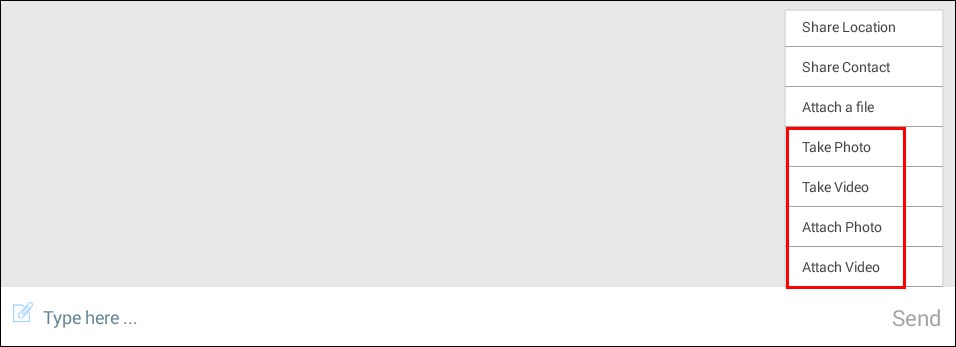
64 Figure 59. Add Photo or Video Options (Handset) Figure 60. Add Photo or Video (Tablet) Table of Contents 64
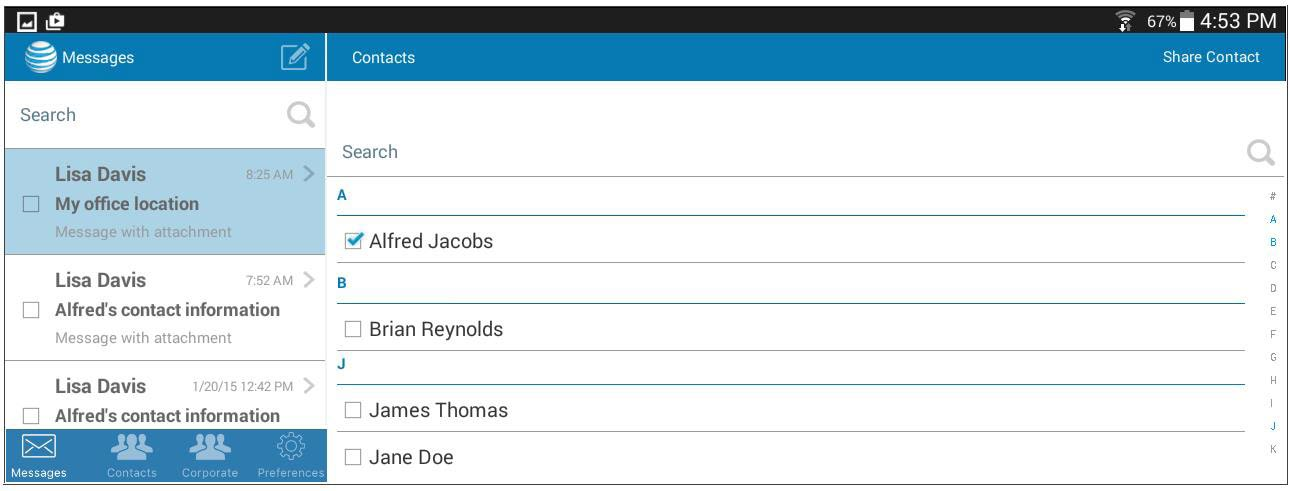
65 Sharing Contacts Only one contact can be shared per message. 1. Open a new message, if desired. Contacts can be shared by starting a new message or from within an existing conversation. 2. Follow the appropriate steps for the desired message type: 1:1 message, group chat, or broadcast message. 3. Tap the Attachment button. 4. Select the Share Contact option. The Contacts screen appears. 5. Select the appropriate contact, and then tap Share Contact. If desired, add text to use as a caption to the attachment. The contact to the attachment appears in the message, and is indicated by the first and last initials of the shared contact. Note: SMS users will not receive attachments, but they will receive a text message that prompts them to upgrade to the application or register for the BNC Web portal to view attachments. Figure 61. Share Selected Contact When the recipient opens the message, the contact information icon appears in the conversation. When the recipient taps the icon, they can edit the contact information, save it to their own contacts list, forward to someone else, or delete it. Table of Contents 65

66 Figure 62. Shared Contact as Viewed by the Recipient Table of Contents 66

67 Sharing Locations To share locations, location services on your device must be enabled for AT&T Business Messenger. 1. Open a new message, if desired. Locations can be shared by starting a new message or from within an existing conversation. 2. Follow the appropriate steps for the desired message type: 1:1 message, group chat, or broadcast message. 3. Tap the Attachment button. 4. Select the Share Location option. The Location screen appears. Figure 63. Location screen (Tablet) 5. After the location of your device has been determined, tap Share. If desired, add text to use as a caption to your attachment. A thumbnail of the location appears in the message. Note: Users can also enter a specific address to share or drop a pin and share the location of the shared pin. Note: SMS users will not receive attachments, but they will receive a text message that prompts them to upgrade to the application or register for the BNC Web portal to view attachments. Table of Contents 67

68 Figure 64. Shared Location When the recipient opens the message, the location information icon appears in the conversation. When the recipient taps the icon, they can save the location, navigate directions to the location, open it in a compatible program, forward it to someone else, or delete it. Figure 65. Shared Location as Viewed by the Recipient Table of Contents 68

69 Sending File Attachments See File Types (page 154) for more information on unsupported file types for attachments. 1. Open a new message, if desired. Files can be shared by starting a new message or from within an existing conversation 2. Follow the appropriate steps for the desired message type: 1:1 message, group chat, or broadcast message. 3. Tap the Attachment button to add a file to the message. Figure 66. Attachment Button 4. Select one of the available options and then follow the onscreen instructions as appropriate for your device. Figure 67. Attachment Options 5. The user can also share a file attachment from the Messages view. To share a file, tap and hold on the file attachment. 6. Select the Share option. This allows the user to share the file via different apps like Gmail, Business Msgr. Google + etc. Table of Contents 69
70 7. If desired, add text to use as a caption to your attachment. Please note that SMS users will not receive attachments, but they will receive a text message that prompts them to upgrade to the application or register for the BNC Web portal to view attachments. If the user is downloading or uploading any file in the application, and then switches to a different application, the download or upload pauses for Android phones. When the user returns to the application, the file upload or download resumes automatically. However, for Android tablets, upload and download continues even if the app is in the background. Once the recipient receives the file, it can be launched in the native document view or, if the default view is not found, will prompt the user to select the appropriate application to open the attachment. Table of Contents 70

71 Sharing Files from Cloud Service Accounts Users can attach files from their cloud service accounts, such as Box, and Google Drive. See File Types (page 154) for more information on unsupported file types for attachments. 1. Files can be shared by starting a new message or from within an existing conversation. 2. Follow the appropriate steps for the message type: 1:1 message, group chat, or broadcast message. 3. Tap the Attachment button. 4. Select the From Cloud option. The list of supported cloud services appears. Figure 68. Cloud Service Options 5. After selecting a cloud service, you will need to log in to your account. 6. The first time you log in to the cloud service using the Business Messenger application, you will need to approve access to your account. Table of Contents 71
72 Figure 69. Grant Access to Cloud Service 7. Select the file that you would like to share and then do one of the following. To send the file, tap Send. The file will be attached to your conversation or message. The maximum file attachment size is 5 MB. To send a link to the file, tap the Share button. The link is pasted in your conversation or message. Note: Users must be logged in to the application. Otherwise, they will be prompted to log in before proceeding. 8. If desired, add text to use as a caption to your attachment. Please note that SMS users will not receive attachments, but they will receive a text message that prompts them to upgrade to the application or register for the BNC Web portal to view attachments. If the user is downloading or uploading any file in the application, and then switches to a different application, the download or upload pauses. When the user returns to the application, the file upload or download resumes automatically. Once the recipient receives the file, it can be launched in the native document view or, if the default view is not found, will prompt the user to select the appropriate application to open the attachment. The recipient can then delete or forward the attachment. If a secure user receives a non-secure message with a file attachment, they can save it to their own cloud service account. Secure messages and attachments cannot be saved onto cloud services. Table of Contents 72

73 Sending Voice Memos 1. Voice memos can be shared by starting a new message or from within an existing conversation. 2. Follow the appropriate steps for the desired message type: 1:1 message, group chat, or broadcast message. 3. Tap the Attachment button to add a file to the message. Figure 70. Attachment Button 4. Select the Voice Memo option. 5. Select the Start Recording icon to start recording the memo. Figure 71. Start Recording Voice Memo 6. Record your voice memo. The maximum time limit for a voice memo is five minutes. 7. Select the Stop Recording icon to stop recording your voice memo. Table of Contents 73

74 Figure 72. Stop Recording Voice Memo 8. Listen to your recorded voice memo if desired by selecting the Play Recording icon, or select the Done button to attach your voice memo to the message. Figure 73. Attach Voice Memo to Message Table of Contents 74
75 To play a previously recorded message, go to the conversation in the Messages list and play the voice memo attachment. Managing Conversations Viewing Group Chat Information Conversation information is only available for group chats. With this view, all participants can see a list of other chat participants and access any attachments that have been sent in the conversation. Chat originators can also add and remove participants from the conversation. These options are not available to participants. 1. Open the appropriate conversation in the Messages list. 2. Tap Menu on your device. The location of the menu button varies by device. 3. Tap Conversation Info. The Conversation Info screen appears. To view attachments: Tap the Media/Attachments option. All attachments sent in the conversation are shown in chronological order, along with the sender s name and the date and time the attachment was sent. To add participants: (For chat originators only) Tap Menu and select Add people. See page 84 for information on this functionality. To remove participants: (For chat originators only) Select the appropriate participant, tap Menu and select Remove people. See page 86 for information about this functionality. Note: The figures on the following page appear on the handset and in the right panel of the tablet. Table of Contents 75
76 Figure 74. Conversation Info Screen (Chat Originator View) Figure 75. Conversation Info Screen (Chat Participant View) Table of Contents 76

77 Deleting a Conversation 1. Select the conversation in the Messages list using the check box to the left of the conversation. 2. Tap Menu on your device. The location of the menu button varies by device. 3. Tap Delete. Note: If the chat originator deletes the conversation, the entire chat is terminated and the recipients will not be able to continue. Figure 76. Delete a Conversation (Handset) Table of Contents 77

78 Figure 77. Delete a Conversation (Tablet) Table of Contents 78
79 Leaving a Conversation Note: If you leave a conversation, the chat originator will be notified that you have exited the conversation. 1. Open the appropriate conversation in the Messages list. 2. Tap Menu on your device. The location of the menu button varies by device. 3. Tap Leave Conversation. Figure 78. Leave a Conversation (Handset) Figure 79. Leave a Conversation (Tablet) Table of Contents 79
80 Muting a Conversation If you would like to stop receiving notifications of updates to a conversation, you can stop the notifications or mute the conversation. Muting a conversation is chat-specific and will not mute any other conversations unless you have already muted those as well. 1. Open the appropriate conversation in the Messages list. 2. Tap Menu on your device. The location of the menu button varies by device. 3. Tap Mute conversation. Figure 80. Mute a Conversation (Handset) Table of Contents 80

81 Figure 81. Mute a Conversation (Tablet) Table of Contents 81

82 Terminating a Conversation If the chat originator terminates the conversation, the entire chat is terminated, and the recipients will not be able to continue. Only the chat originator can terminate the conversation. Note: The Terminate Conversation menu option only appears if you are the chat originator. 1. Open the appropriate conversation in the Messages list. 2. Tap Menu on your device. The location of the menu button varies by device. 3. Tap Terminate Conversation. Figure 82. Terminate a Conversation (Handset) Table of Contents 82

83 Figure 83. Terminate a Conversation (Tablet) Table of Contents 83
84 Adding Participants to a Conversation Only the chat originator can add participants to a group conversation. The Add people menu option only appears if you are the chat originator. 1. Open the appropriate conversation in the Messages list. 2. Tap Menu on your device. The location of the menu button varies by device. 3. Tap Conversation Info. The Conversation Info screen appears. 4. Tap Menu and select Add people. 5. When the Contacts list appears, select the appropriate contact(s), and then tap Add. Figure 84. Add Participants to a Conversation (Handset) Table of Contents 84

85 Figure 85. Add Participants to a Conversation (Tablet) Table of Contents 85

86 Removing Participants from a Conversation Only the chat originator can remove participants from the conversation. The Remove people menu option only appears if you are the chat originator. 1. Open the appropriate conversation in the Messages list. 2. Tap Menu on your device. The location of the menu button varies by device. 3. Tap Conversation Info. The Conversation Info screen appears. 4. Select the appropriate participants to remove from the conversation. 5. Tap Menu and select Remove people. Figure 86. Remove Participants from a Conversation (Handset) Table of Contents 86

87 Figure 87. Remove Participants from a Conversation (Tablet) Table of Contents 87
88 Searching Messages 1. In the Messages screen, enter the conversation or part of the conversation you want to find. 2. The Messages list is filtered to display a list of matches. Figure 88. Search Messages Note: The figure above appears on the handset and in the left panel of the tablet. Table of Contents 88

89 Using the Delivery Log Accessing the Delivery Log 1. Select the appropriate group chat or broadcast message in the Messages list using the check box to the left of the conversation. This functionality does not apply to 1:1 conversations. 2. Tap a conversation bubble. The Options menu appears. 3. Tap Menu. The location of the menu button varies by device. 4. Tap See delivery log. The Delivery Log screen appears. Figure 89. Delivery Log Option (Tablet) Table of Contents 89
90 Figure 90. Delivery Log Screen Note: The figure above appears on the handset and in the left panel of the tablet. Table 2. Delivery Log Status Status Failed Not Delivered Non-secure Delivered Unprovisioned Description Indicates that the message failed because the recipient is not a provisioned user of AT&T Business Messenger. This applies when the message is sent to only one recipient. Indicates that the message has been sent but the system is awaiting a delivery acknowledgement. Indicates that the secure message was not delivered because the recipient was a non-secure user. Non-secure users are any recipients who have not been provisioned for secure messaging. Indicates that the message was sent and a delivery acknowledgement has been received. Indicates that the message was not sent because the recipient is not an AT&T Business Messenger customer. Table of Contents 90

91 Viewing All Log Recipients 1. On the Delivery Log screen, tap Menu. The location of the menu button varies by device. 2. Tap Show all log recipients. Figure 91. Show All Log Recipients Note: The figure above appears on the handset and in the right panel of the tablet. Table of Contents 91
92 Viewing All Non-Delivered Recipients 1. On the Delivery Log screen, tap Menu. The location of the menu button varies by device. 2. Tap See only non-delivered recipients. The list is filtered to display a list of all recipients who did not receive the message. Figure 92. Show Only Non-Delivered Recipients Note: The figure above appears on the handset and in the right panel of the tablet. Table of Contents 92
93 Resend Non-Delivered Messages 1. On the Delivery Log screen, tap Menu. The location of the menu button varies by device. 2. Tap Resend non-delivered messages. The message is sent to all recipients who did not receive the original message. Figure 93. Resend Non-Delivered Messages Note: The figure above appears on the handset and in the right panel of the tablet. Table of Contents 93

94 Understanding the Message Status The status of each message appears at the top of the conversation bubble. The timestamp for the message also appears at the top of the conversation bubble. The date and time only appear in messages that were sent prior to the current date; otherwise, only the time appears. Figure 94. Message Status The table below describes each available status. Table 3. Message Status Status Sent Description Indicates that the message was sent successfully. Indicates that the message failed in sending. Delivered Read Indicates that the message was successfully delivered to the recipient(s). Indicates that the message has been read by the recipient(s). Table of Contents 94
95 Receiving Messages from Various Protocols Users can receive messages from all supported protocols on the platform, including: SNPP (Simple Network Paging Protocol) WCTP (Wireless Communications Transfer Protocol) TAP (Telelocator Alphanumeric Protocol) SMTP (Simple Mail Transfer Protocol) The messages will be delivered to the application based on your user profile configuration. For example, if the profile is set to: SMS: The user will receive a message through an SMS channel to their native text client. IP: The user will receive the message through IP to their IP Messaging client. Receiving Messages via If a message is received via , the address appears instead of the short code. Replies to two-way messages appear as part of the same conversation. Replies to one-way messages are not allowed. users can attach up to three separate attachments in a message, but the size of each attachment cannot exceed 5 MB. Any replies can include only one attachment that does not exceed 5 MB. Messages received from s cannot be forwarded. Table of Contents 95

96 Synchronizing Messages Messages are automatically synchronized with the BNC Web portal, including: 1:1 messages Group chats Broadcast messages All scheduled messages Messages set with an expiration date Messages set to delete after being viewed by the recipient If a large number of messages must be synchronized, a green status bar appears to inform the user about the progress of the synchronization. Figure 95. Message Synchronization Status Bar The following are messages that might appear during synchronization. Loading contacts Loading groups Loading scheduled conversations Loading conversations Loading members of conversations Loading messages Table of Contents 96
97 3. Contacts & Groups This chapter describes how to manage contacts and groups in the application and contains the following sections: Accessing the Contacts List (page 98) Managing Contacts (page 102) Accessing the Corporate Directory (page 111) Managing Groups (page 113) Synchronizing Contacts (page 123) Searching Contacts & Groups (page 124) Table of Contents 97

98 Accessing the Contacts List Using a Handset 1. Tap the Application Menu. 2. Select Contacts. Figure 96. Contacts (Handset) 3. The Contacts screen opens, and defaults to the Individuals tab. You can quickly jump to contacts further down in the list by tapping the appropriate letter on the right side of the screen. Figure 97. Contacts Screen (Handset) 4. To access groups, select the Groups tab. Table of Contents 98

99 Figure 98. Groups Tab (Handset) Table of Contents 99
100 Using a Tablet 1. Select Contacts. Figure 99. Contacts (Tablet) 2. The Contacts screen opens, and defaults to the Individuals tab. You can quickly jump to contacts further down in the list by tapping the appropriate letter on the right side of the panel. Figure 100. Contacts Screen (Tablet) 3. To access groups, select the Groups tab. Table of Contents 100
101 Figure 101. Groups Tab (Tablet) Table of Contents 101

102 Managing Contacts Adding a New Contact 1. Tap the Add button. The New Contact screen opens. Figure 102. Add Button 2. A message appears asking if you would like to add a contact from a device address book. Select the desired option. Figure 103. Add Contact from Device Address Book Yes: The system scans the device s address book and adds any contacts who have been provisioned for Business Messaging but are not already in the Contacts List. The scan searches phone numbers and addresses (for data-capable tablet users). Note: This is a one-way scan. No changes will be made to the device s address book. No: The New Contact screen opens. Continue following the instructions below. 3. Enter the contact s name. 4. Enter the contact information. Table of Contents 102
103 Note: Phone numbers should be added without formatting. 5. (optional) Add a photo of the contact. 6. Tap Add. The new contact appears in the Contacts list. The application is limited to 20,000 contacts. Note: Required fields are indicated with a icon. Note: If the new contact does not have a mobile number (data-capable tablet user), enter the address. The system searches for matching users and adds the system-generated mobile number if it locates a matching entry. If the system does not locate a matching entry, a user not found message appears. Figure 104. New Contact Screen (Handset) Table of Contents 103

104 Figure 105. New Contact Screen (Tablet) Table of Contents 104

105 Viewing a Contact s User Profile Select the appropriate contact in the Contacts list. The contact s user profile appears. Figure 106. User Profile Screen (Handset) Table of Contents 105

106 Figure 107. User Profile Screen (Tablet) The table below describes the icons, fields, and buttons in the User Profile screen. Table 4. User Profile Screen Icons Item Description Presence Indicates the current availability of the contact. See Setting Current User Status (Presence) (page 130). Call the contact using the mobile number in the user profile. This option is only available on the handset. Send a message to the contact using the application. Table of Contents 106

107 Editing a Contact 1. Select the contact in the Contacts list. The selected contact appears. 2. (optional) Select an alert tone that will be used only for the selected contact. The available options default to system options for your device. If you set a custom alert tone, all messages from this contact will have the selected tone. Figure 108. Set a Custom Alert Tone for Contact (Handset) Table of Contents 107
108 Figure 109. Set a Custom Alert Tone for Contact (Tablet) 3. Tap Menu. The location of the menu button varies by device. 4. Tap Edit. The Edit Contacts screen appears. 5. Enter the appropriate edits. Note: If the new contact does not have a mobile number (data-capable tablet user), enter the address. The system searches for matching users and adds the system-generated mobile number if it locates a matching entry. 6. Tap Save. Table of Contents 108

109 Figure 110. Edit Contacts Screen Note: The figure above appears on the handset and in the right panel of the tablet. Table of Contents 109
110 Deleting a Contact 1. Select the contact in the Contacts list using the check box to the left of the name. 2. Tap Menu. The location of the menu button varies by device. 3. Tap Delete. 4. Verify that you want to delete the selected contact. Figure 111. Delete a Contact Note: The figure above appears on the handset and in the left panel of the tablet. Table of Contents 110

111 Accessing the Corporate Directory Using a Handset 1. Tap the Application Menu. 2. Select Corporate Directory. Figure 112. Corporate Directory (Handset) 3. The Corporate Directory screen opens and defaults to the Corporate Directory tab. You can quickly jump to contacts further down in the list by tapping the appropriate letter on the right side of the screen Figure 113. Corporate Directory Screen (Handset) Using a Tablet 1. Select Corporate Directory. Figure 114. Corporate Directory (Tablet) 2. The Corporate Directory screen opens and defaults to the Corporate Directory tab. You can quickly jump to contacts further down in the list by tapping the appropriate letter on the right side of the panel. Table of Contents 111
112 Figure 115. Corporate Directory Screen (Tablet) Note: The contacts in the Corporate Directory address book cannot be modified. If the user changes the profile information in the mobile or web application, then the changes are updated in the Corporate Directory address book. Table of Contents 112
113 Managing Groups Adding a New Group 1. Tap the Add button. The New Group screen opens. Figure 116. Add Button 2. Select the group type. Available options include: Private: A distribution list that a user creates and cannot share with others. The application is limited to 20 private groups. Public: A distribution list that a user creates and can share with others. When a user gives the group name to others, the group becomes a shared public group and anyone who uses it can send a message to everyone in the group. The application is limited to 100 public groups. Shared Public Group: This group name must exactly match an existing public group name. You may use the description box to further describe the group. Note that only the creator of the public group will be able to view or change the group recipient list and may do so at any time. 3. Enter the group name. Public group names can only be one word with no spaces. This does not apply to private groups. 4. Tap Continue. The Contacts list opens. 5. Select the contacts to add to the group. 6. Tap Create Group. The new group appears on the Groups tab. Table of Contents 113
114 Figure 117. New Group Screen (Handset) Table of Contents 114

115 Figure 118. New Group Screen (Tablet) Table of Contents 115

116 Viewing a Group Select the appropriate group in the Groups list. The group appears, including the contacts in the group. Figure 119. Group Info Screen (Handset) Figure 120. Group Info Screen (Tablet) Table of Contents 116
117 Editing a Group 1. Select the group in the Groups list. The selected group appears. 2. Tap Menu. The location of the menu button varies by device. 3. Tap Edit. The Edit Group Info screen appears. 4. Enter the appropriate edits. 5. Tap Save. Figure 121. Edit Group Info Screen (Handset) Table of Contents 117

118 Figure 122. Edit Group Info Screen (Tablet) Note: Only the owner of a Shared Public Group can add other users to the group. Table of Contents 118

119 Deleting a Group 1. Select the group in the Groups list using the check box to the left of the name. 2. Tap Menu. The location of the menu button varies by device. 3. Tap Delete. 4. Verify that you want to delete the selected group.. Figure 123. Delete a Group (Handset) Table of Contents 119

120 Figure 124. Delete Group (Tablet) Table of Contents 120

121 Adding Contacts to an Existing Group 1. Select the contact in the Contacts list using the check box to the left of the name. 2. Tap Menu. The location of the menu button varies by device. 3. Tap Add to group. The Groups list appears. 4. Select the group. 5. Tap Add. The contact is added to the group. Figure 125. Add Contacts to Group Note: The figure above appears on the mobile device and in the left panel of the tablet. Table of Contents 121

122 Deleting Contacts from a Group 1. Select the appropriate group in the Groups list. The group appears. 2. Select the contact in the People on this Group list using the check box to the left of the name. 3. Tap Menu. The location of the menu button varies by device. 4. Tap Remove. 5. Verify that you want to delete the selected contact from the group. Figure 126. Delete Contacts from Group Note: The figure above appears on the mobile device and in the left panel of the tablet. Table of Contents 122
123 Synchronizing Contacts Contacts are automatically synchronized with the BNC Web portal. These contacts are divided into three categories: Individual recipients Private groups Public groups Contacts within private and public groups will also be synchronized as individual recipients. Editing or deleting a contact or group will also synchronize with the BNC Web portal. If a large number of contacts must be synchronized, a green status bar appears to inform the user about the progress of the synchronization. The following are messages that might appear during synchronization. Loading contacts Loading groups Loading scheduled conversations Loading conversations Loading members of conversations Loading messages Table of Contents 123

124 Searching Contacts & Groups 1. In the Contacts list, enter the name or part of the name of the contact or group you want to locate. 2. The Contacts list is filtered to display a list of matches. Figure 127. Search Contacts (Handset) Table of Contents 124
125 Figure 128. Search Contacts (Tablet) Table of Contents 125
126 4. Preferences This chapter describes how to set user preferences in the application and contains the following sections: Accessing User Preferences (page 127) Adding or Updating a Photo in Your User Profile (page 129) Setting Current User Status (Presence) (page 130) Changing Your User Password (page 131) Updating Your PIN for Secure Messaging (page 134) Creating a PIN for Non-Secure Messaging Users (page 136) Setting a Custom Alert Tone (page 137) Setting the Preferred Message Options (page 139) Switching to SMS Messaging (page 142) Viewing the Application Tutorial (page 144) Receiving Push Notifications (page 145) Table of Contents 126

127 Accessing User Preferences Using a Handset 1. Tap the Application Menu. 2. Select Preferences. Figure 129. Preferences 3. The Preferences screen opens. Figure 130. Preferences Screen (Handset) Table of Contents 127
128 Using a Tablet 1. Select Preferences. Figure 131. Preferences (Tablet) 2. The Preferences screen opens. Figure 132. Preferences Screen (Tablet) Table of Contents 128

129 Updating Your User Profile 1. On the Preferences screen, tap the Edit Profile icon. Figure 133. Edit User Profile 2. Update the name, status, and settings as appropriate. 3. Tap Save. Adding or Updating a Photo in Your User Profile: 1. On the Preferences screen, tap the User Photo icon. Figure 134. User Photo icon 2. Follow the onscreen instructions to browse to an available photograph and add it (varies by device). Figure 135. Add or Update User Profile Photo Table of Contents 129

130 Setting Current User Status (Presence) 1. On the Preferences screen, tap Status, and select the desired option. Available options include: Available Away Busy Do Not Disturb Be Right Back Custom Message 2. To set a custom message, tap Custom Message and enter the message. 3. Tap OK. Figure 136. Insert a Custom Status Message (Handset) Table of Contents 130

131 Changing Your User Password Your password will need to be changed periodically, depending on the interval that your Administrator has set. If the new password has been used within the last five occurrences, the following message appears on your mobile device: The password was used recently. Please use a different password. 1. On the Preferences screen, tap the Change Password option at the bottom of the screen. 2. On the Change Password screen, enter the current password. 3. Enter the new password. Please refer to the password complexity requirements on the following page. 4. Retype the new password. 5. Tap Save. Figure 137. Change Password Screen (Handset) Table of Contents 131

132 Figure 138. Change Password Screen (Tablet) Table of Contents 132
133 Password Complexity Passwords must contain at least one uppercase letter. Passwords must contain at least one lowercase letter. Passwords must contain at least one numeric character. Passwords must contain at least one special character. Passwords must not match one of the five previous passwords. Passwords must not contain more than two sequential numbers or letters. Passwords must be at least eight characters long. Passwords must not match the User ID. Table of Contents 133
134 Updating Your PIN for Secure Messaging Secure users are required to set up a four-digit PIN that that must be entered after a specified period of time has passed since you last used the mobile application. The period of time that has passed before the PIN is required is set by your Administrator. The mobile application locks after the specified period has passed. Your PIN must be entered to unlock the application. You will be prompted to create a PIN the first time you log in to the application. This PIN will need to be changed periodically, depending on the interval that your Administrator has set. If the new PIN has been used within the last five occurrences, the following message appears on your mobile device: The PIN was used recently. Please use a different PIN. For more information on your PIN for secure messaging, see Using a PIN (page 33). Note: Non-secure users can set up a PIN and specify the duration by referring to the process outlined on page On the Preferences screen, tap the Change PIN Lock option. 2. On the Change PIN Lock screen, enter the current PIN. 3. Enter the new PIN. 4. Retype the new PIN. 5. Tap Save. Table of Contents 134
135 Figure 139. Change PIN Lock Screen Note: The figure above appears on the handset and in the left panel of the tablet. Table of Contents 135

136 Creating a PIN for Non-Secure Messaging Users Non-secure users can set up a PIN and specify the period of time that has passed before the PIN is required. Administrators cannot enforce a PIN policy for non-secure users. This feature is implemented at the device level for non-secure users. 1. On the Preferences screen, tap the Change PIN Lock option. 2. On the Change PIN Lock screen, enter the new PIN. 3. Retype the new PIN. 4. Tap Save. 5. On the Preferences screen, tap the Require PIN Lock option. 6. On the Require PIN Lock screen, select the desired interval. Figure 140. Require PIN Lock Screen Note: The figure above appears on the handset and in the left panel of the tablet. Table of Contents 136
137 Setting a Custom Alert Tone 1. On the Preferences screen, tap the Alert Tones option. Figure 141. Alert Tones Screen 2. On the Alert Tones screen, select the desired alert tone that will be used for all messages. You can also select a custom alert tone for specific contact as described on page Tap the arrow button to return to the Preferences screen. Table of Contents 137

138 Figure 142. Alert Tones Screen Note: The figure above appears on the handset and in the right panel of the tablet. Table of Contents 138
139 Setting the Preferred Message Options Setting the Preferred Message Expiration Secure users can set the preferred interval for messages to expire. Expired messages will be deleted from the sender s view and the recipient s view. The value that appears as the default for this field will be applied to all messages unless a change is made. Any changes made from within a conversation as described on page 56 or on this screen will apply to future messages. For example, if the Message Options setting on the Preferences screen is set to five days, the Compose Message screen automatically sets a message expiration of five days. 1. On the Preferences screen, select Message Options. 2. On the Message Options screen, select the Message Expiration option. Figure 143. Preferred Message Expiration Table of Contents 139
140 3. Select the time the message should expire by moving the slider to the desired option. Never expire Five-minute intervals up to one hour One-hour intervals up to 24 hours (one day) One-day intervals up to 30 days 4. Tap Save, and then tap the Return (<) option to return to the Preferences screen. Note: The figure above appears on the handset and in the right panel of the tablet. Table of Contents 140
141 Setting a Message to Delete after Viewing Secure users can set a message to delete after being viewed by the recipient. When enabled, the message will be deleted from the recipient s view within five minutes of the recipient opening the message. The message remains in the sender s view. The value that appears as the default for this field will be applied to all messages unless a change is made. Any changes made from within a conversation as described on page 141 or on this screen will be applicable to future messages. 1. On the Preferences screen, select Message Options. 2. On the Message Options screen, select the Delete on Read option. Figure 144. Preferred Message Deletion Setting 3. Tap Save, and then tap the Return (<) option to return to the Preferences screen. Note: The figure above appears on the handset and in the right panel of the tablet. Table of Contents 141

142 Switching to SMS Messaging Business Messaging application users can switch back to SMS messaging if they desire. Note: This option is not available to users who are using data-capable tablets without a mobile number associated with their account. 1. On the Preferences screen, tap the select the Switch to SMS option. A confirmation message appears recommending that they uninstall the mobile application. Figure 145. Switch to SMS Messaging Confirmation 2. Select OK to confirm the switch. When you switch to SMS messaging, the following items occur until you choose to switch back to the mobile application. You will be automatically logged out of the application. All fields on the Login screen, except the Wireless Number field, will be cleared. You will be unsubscribed from all group chats. Any group chats you own will be terminated. You will no longer receive push notifications from the mobile application. Table of Contents 142

143 Switching from SMS Messaging to the Mobile Application 1. If you choose to reinstall the application or attempt to log back in, a confirmation message appears asking you to confirm the switch to the mobile application. Figure 146. Switch to SMS Messaging Confirmation 2. Select Yes to log in to the application. You will also receive an SMS message letting you know that you have changed your account to use the mobile application. Table of Contents 143

144 Viewing the Application Tutorial The tutorial provides helpful information about using the mobile application. This tutorial automatically appears when the user successfully logs in for the first time. 1. On the Preferences screen, tap the Show Tutorial option. 2. When the tutorial appears, slide the images to the left to view the tutorial. 3. Tap Done to exit the tutorial. Figure 147. Application Tutorial Note: The figure above appears on the handset and in the right panel of the tablet. Table of Contents 144
145 Receiving Push Notifications The first time you log in to AT&T Business Messenger, you will be asked whether you want to receive push notifications. You can change these settings at any time. If push notifications are enabled on your device for the AT&T Business Messenger application and you are logged out of the application (or it is running in the background), you will receive the actual text of the message (for non-secure messages) in push notifications for two days unless you log back in to the application. If you don t log in after two days, then you will start receiving SMS notifications letting you know that you have unread messages. You will continue to receive SMS notifications for five days or until you log in to the application. After five days, your new messages will be sent to you as SMS notifications. Data capable devices will continue to receive push notifications even if the user does not login to the mobile app. These devices will not receive SMS notifications or SMS messages. You can choose to receive push notifications by using the Settings application and making the appropriate selections for your device. Table of Contents 145
146 5. Error Messages on the Client This chapter describes the error messages that may appear in the mobile application. Table 5. Error Messages on the Client Error Message <user_name> is not secure user. A group chat can only have recipients that are in your address book. Access to Contacts is denied. Change Privacy setting for Contacts to allow BusinessMsgr access. Are you sure you want to remove selected contact from this group? Are you sure you want to remove selected contacts from this group? Cannot reuse the same PIN Lock. Cloud storage limit reached. Description A user attempted to add a non-secure user to a secure group chat that is already in progress. <user_name> indicates the name or MDN of the non-secure user. Non-secure users cannot be added to secure group chats. Delete the non-secure user from the group chat. User attempted to create a group chat and added someone who is not in their address book. Add the user as a contact before adding them to a group chat. The user has not allowed the mobile application access to the Address Book on the device. Allow the mobile application to access contacts in the device s Address Book by going to Settings > Privacy > Contacts, and then enable Business Messenger. Warning message appears prior to removing a selected contact from a group. Verify that the selected contact should be removed from the group. Warning message appears prior to removing selected contact(s) from a group. Verify that the selected contact(s) should be removed from the group. User attempted to enter a PIN that matches one of the previous five PIN versions. Enter a PIN number not used in the previous five PIN versions. This occurs when there is not enough space available in the cloud. The user needs to delete files to create space. Table of Contents 146
147 Error Message Confirmation number cannot be empty. Could not change password because of invalid confirmation number. Current password cannot be empty. Empty group name is not allowed. Failed to add contact to chat. Failed to create group chat. Failed to remove contact to chat. Failed to resend non-delivered messages. Failed to retrieve delivery log. First Name cannot be empty. Group cannot be empty. It must have at least one contact. Description User attempted to reset a forgotten password without entering a valid confirmation number. Reset the password and enter a valid confirmation number. User attempted to reset a forgotten password and entered an invalid confirmation number. Reset the password and enter a valid confirmation number. User attempted to change the password and did not put an entry in the Current Password field. This field cannot be blank. Change the password and add the current password in the Current Password field. User attempted to create a group without entering a group name. This field cannot be blank. Enter a group name for the new group. User attempted to add a contact to a group chat but the request failed. This is a network or server issue. The user should try again later. User attempted to initiate a group chat but the request failed. This is a network or server issue. The user should try again later. User attempted to remove a contact from a group chat but the request failed. This is a network or server issue. The user should try again later. User attempted to resend non-delivered messages but the request failed. This is a network or server issue. The user should try again later. User attempted to view the delivery log but the request failed. This is a network or server issue. The user should try again later. User attempted to create a new contact without entering a value in the First Name field. This field cannot be blank. Enter text in the First Name field. User attempted to create a group without adding any contacts. There must be at least one contact included in the group. Select contacts to add to the group. Table of Contents 147
148 Error Message Group names cannot start with a digit. Groups quota exceeded. Last Name cannot be empty. Logging in with multiple accounts is not allowed. Please login with your initial account (<wireless_ number>). Maximum message length of 1000 characters exceeded. Maximum subject length of 200 characters exceeded. Maximum upload media size of 5 MB exceeded. Message cannot contain special characters. Minimum password requirements not met. New password cannot be empty. Description User attempted to create a group with a name that started with a digit. Group names cannot begin with a digit. Create a group name that does not begin with a digit. User attempted to create a new group and exceeded the maximum number of groups allowed (20 private groups or 100 public groups). User attempted to create a new contact without entering a value in the Last Name field. This field cannot be blank. Enter text in the Last Name field. User attempted to log in with another MDN. To use another MDN to log in, the user must uninstall the application and then reinstall it. Message exceeded the maximum length of characters allowed. Messages cannot exceed 1,000 characters. Compose the message using no more than 1,000 characters. Message subject exceeded the maximum length of characters allowed. Message subjects cannot exceed 200 characters. Compose the message subject using no more than 200 characters. Attachment exceeded the maximum size allowed. Attachments cannot exceed 5 MB. Compose the message using an attachment that is no more than 5 MB. User attempted to send a message that contained special characters in the message body. Special characters are not allowed in messages. Enter a message without using special characters. New password did not meet the minimum length of eight digits. Enter a new password using a minimum of eight digits. User attempted to change the password and did not put an entry in the New Password field. This field cannot be blank. Change the password and add the new password in the New Password field. Table of Contents 148
149 Error Message New password fields do not match. New password length can't be less than six characters. New passwords do not match. One failed PIN lock attempt. One or more users are not provisioned and cannot be added to a Public Group. Password complexity requirements not met. Please accept the Terms and Conditions. Please correct group name and resubmit. Description While changing the password, the values entered in the New Password and Retype Password fields do not match. Enter the new password and confirm the password, ensuring that these values match. User attempted to enter a new password on the registration form that was less than the minimum six characters. Enter a password of acceptable length. While changing the password, the values entered in the New Password and Retype Password fields do not match. Enter the new password and confirm the password, ensuring that these values match. User attempted to unlock the mobile application using the incorrect PIN. 1 indicates the attempt that has taken place. After seven failed attempts, the user s account is locked. Enter the correct PIN. If the mobile application is locked after seven failed attempts, the user can uninstall the application and then reinstall to reset the PIN. User attempted to add an individual who is not a provisioned user in the Business Messaging platform to a Public Group. Select a contact who is a provisioned user in the Business Messaging platform. While changing the password, the new password did not meet the password complexity requirements. Enter a new password, and ensure that the new password meets the password complexity requirements described on (page 133). While creating a new account, the user submits the registration form without accepting the Terms and Conditions. Accept the Terms and Conditions for using the mobile application. User attempted to create a group with a name that started with a digit or special character. Group names cannot begin with a digit or special character. Create a group that does not begin with a digit or special character. Table of Contents 149
150 Error Message Please enter a valid address. Please enter First Name. Please enter group name. Please enter Last Name. Please enter mobile number. Please select a contact. Please select at least one contact. Please select at least one recipient. Retype password cannot be empty. Special characters are not allowed in First Name. Description User didn t provide a valid address when completing the registration form. Enter a valid address in the registration form. User attempted to create a new contact without entering a value in the First Name field. This field cannot be blank. Enter text in the First Name field. User attempted to create a group without entering a group name. This field cannot be blank. Enter a group name for the new group. User attempted to create a new contact without entering a value in the Last Name field. This field cannot be blank. Enter text in the Last Name field. User attempted to create a new contact without providing a mobile number. This field cannot be blank. Enter a mobile number for the contact. (Android devices only) User attempted to select a menu option under the Contacts tab without a contact selected. Select a contact first and then select a menu option. User attempted to create a group without adding any contacts. There must be at least one contact included in the group. Select contacts to add to the group. User attempted to send a message without entering anyone in the To field. This field requires at least one entry. Enter a contact in the To field. User attempted to change the password and did not put an entry in the Retype Password field. This field cannot be blank. Change the password and add the new password in the Retype Password field. User attempted to enter special characters in the First Name, Last Name, or Alias fields for a contact. Special characters are now allowed in these fields. Enter a value in these fields without using special characters. Table of Contents 150
151 Error Message Subject cannot contain special characters. The password entered is incorrect, please try again. The password was used recently. Please use a different password. The wireless number or password entered is incorrect, please try again. There is no active network connection. Please try again later. There is some network issue. Please try again later. There was an error creating thumbnail for this image. There was an error creating thumbnail for this video. This account has been locked, please call Customer Support! To be able to send a message successfully, either 'Subject' or 'Message' needs to be entered. Description User attempted to send a message that contained special characters in the subject line. Special characters are not allowed in subject lines. Enter a subject for the message without using special characters. A new user attempted to register without using the password that was sent in the Welcome SMS message. Enter the password that was included in the Welcome SMS message. User has entered a password that matches one of the previous five passwords used. Enter a password that does not match one of the previous five passwords used. User attempted to log in using an incorrect wireless number or password. Enter the correct wireless number or password. User attempted to log in or initiate a new message or conversation when there is no active network connection. This is a network or server issue. The user should try again later. Indicates that there has been a connection timeout. This is a network or server issue. The user should try again later. The message and photo attachment were successfully created, but the thumbnail for the attachment does not appear. This is a network or server issue. The user can proceed with sending the message. The message and video attachment were successfully created, but the thumbnail for the attachment does not appear. This is a network or server issue. The user can proceed with sending the message. Indicates that the secure user s account has been locked. The secure user should contact customer support. User attempted to send a message with a blank subject line or no text in the message body. Neither of these fields can be blank. Complete the subject line and enter text in the message body. Table of Contents 151
152 Error Message Upload Failed. Unsupported media type. Username and Password cannot be empty. We do not seem to be able to hear you. Wireless number and Password cannot be empty. Would you like to add a contact from device address book? You have been locked out for 24 hours. Please try again later. Description User attempted to add an attachment using an unsupported file type. Compose the message and use an attachment with a supported media file as described on page 154. User attempted to log in to the application without providing a wireless number and password. Enter the correct wireless number and password. Indicates that the user attempted to record new audio but the device s microphone is not available. For example, the user may be covering the device s microphone with their hand. Verify that the microphone is working properly and is not obstructed. User didn t provide both a wireless number and password on the Login screen. Enter both the wireless number and password on the Login screen. Message appears asking the user whether the mobile application can add contacts from the mobile device s address book. Selecting Yes enables the user to add a contact from the mobile device s address book. Selecting No enables the user to create a new contact without accessing the device s address book. For secure users: Indicates that the user exceeded seven attempts to enter a correct password or PIN following a one-hour lockout. For non-secure users: Indicates that the user exceeded seven attempts to enter a correct password following a one-hour lockout. The user can wait for the 24-hour lockout to pass, or can select the Forgot password? option to reset the password. Secure users can also uninstall the mobile application and then reinstall to reset the PIN. For more information on password lockouts, see page 22. For more information on PIN lockouts, see page 33. Table of Contents 152
153 Error Message You have been locked out for one hour. Please try again later. Description For secure users: Indicates that the user exceeded seven attempts to enter a correct password or PIN. For non-secure users: Indicates that the user exceeded seven attempts to enter a correct password. The user can wait for the one-hour lockout to pass, or can select the Forgot password? option to reset the password. Secure users can also uninstall the mobile application and then reinstall to reset the PIN. You have more files in your cloud account. Please use the search field to find the file you want. Your current recording will be replaced. For more information on password lockouts, see page 22. For more information on PIN lockouts, see page 33. This occurs when there are more than 100 files. The user should use the search criteria to find the file. Indicates that the user attempted to record a voice memo when there is already a recorded memo attached to the message they are sending. The user can either re-record another voice memo and replace the existing attachment or cancel and continue with the current voice memo attachment. Table of Contents 153
154 6. File Types This chapter lists both supported and unsupported file types for message attachments. All files types are supported, except those listed in the table below. Only one attachment is allowed per message. The maximum file size for each attachment is 5 MB. Note: users can attach up to three separate attachments in a message, but the size of each attachment cannot exceed 5 MB. Any replies can include only one attachment that does not exceed 5 MB. Table 6. Unsupported File Types Extension.ade.adp.ani.apk.app.appx.asp.asx.avi.bas.bat.cab.ceo.chm.class.cls.cmd.com.cpl.crt.csh File Type Microsoft Access project extension Microsoft Access project Animated Windows Cursor <image001.png>( ) Android App installer Application file Windows 8 App Package Active Server Page Windows Media Audio / Video Audio Video Interleave File Microsoft Visual Basic class module Batch file Microsoft compressed files Compiled HTML Help file Java class file ArcMap Microsoft Windows NT Command Script Microsoft MS-DOS program Control Panel extension Security certificate Unix shell script Table of Contents 154
155 Extension.dll.eml.exe.fxp.hhp.hlp.hta.inf.ins.isp.ja.jar.js.jse.jsp.ksh.lnk.mda.mdb.mde.mdt.mdw.mdz.mid.midi.msc.msi.msp.mst.ops.pcd.php File Type Windows dynamic link library MS Outlook file format file Program Microsoft Visual FoxPro compiled program HTML Help File Help file HTML program Setup Information Internet Naming Service Internet Communication settings Java Archive used to store utility classes JScript file JScript Encoded Script file Java Script Page Unix shell script Shortcut Microsoft Access add-in program Microsoft Access program Microsoft Access MDE database Microsoft Access data file Microsoft Access workgroup Microsoft Access wizard program MIDI (Musical Instrument Digital Interface) MIDI (Musical Instrument Digital Interface) Microsoft Common Console Document Microsoft Windows Installer package Windows Installer patch Visual Test source files Microsoft Office profile settings file Photo CD image or Microsoft Visual Test compiled script Pre-Processor Hypertext file Table of Contents 155
156 Extension.pif.pls.prg.reg.scf.scr.sct.shb.shs.vb.vbe.vbs.wsc.wsf.wsh.xap.xlt.xlw.xsl File Type Shortcut to MS-DOS program Mpeg Playlist file Program source file Registration entries Windows Explorer command file Screen saver Windows Script Component Windows shortcut Shell Scrap Object Microsoft Visual Basic Scripting Edition (VBScript) file VBScript Encoded Script file VBScript file Windows Script Component Windows Script file Windows Script Host Settings file Silverlight Application Package Excel Template Excel Workspace xml file that can contain script Table of Contents 156
157 7. User Messages This chapter outlines the messages that appear within the application or are sent via SMS message to users. These messages may vary for AT&T and non-at&t customers. Messages longer than 160 characters may be split into multiple messages if the destination operator s SMSC does not support concatenation. Each section of these split messages will be identified in a format using the message section and the total number of messages the user will receive. For example, the first part of a message split into three sections will include (1/3) to indicate that it is the first of three SMS messages. Table 7. User Messages User Action User Status Application Behavior Sample Message User sends a start SMS message or taps the Start button. User selects the Forgot Password? option. The user does not exist / De-activated Not Activated Deactivated Active (AT&T customer) Opted In (non-at&t) Opt-in Pending (non-at&t) Opted Out (non-at&t) System sends a mobileterminated message stating that the user should contact their Administrator. Error message appears within the application. System sends a reset password SMS message. System sends a reset password SMS message. Message appears in the application stating that the user has not opted in to the service. New users: System sends an opt-in SMS message AT&T Business Messaging: Your account has not been activated by the Administrator. Please contact your Enterprise Administrator to activate your account. Error: You are not provisioned. Please contact your Administrator to activate your account. Password reset for the AT&T Business Notification Center. Your new password is m1mlc4, you will be required to select a new password the next time you log in to the application. AT&T Business Messaging: AT&T Password reset for the AT&T Business Notification Center. Your new password is 0RA0aO. Select a new password the next time you log in to the application. AT&T Business Messaging: Reply YES to receive ongoing messages. Msg&Data Rates May Apply. Msg Freq may vary. Reply STOP to cancel, HELP for help or Existing users: Start button appears at the bottom of the login page. Error message appears within the application. User selects the New User or Verify Now button. Not Activated Deactivated Error: You are not provisioned. Please contact your Administrator to activate your account. Table of Contents 157
158 User Action User Status Application Behavior Sample Message User receives opt-in SMS message. User responds to opt-in SMS message and opts in to the service. Active (AT&T customer) Opted In (non-at&t) Opt-in Pending (non-at&t) Opted Out (non-at&t) Opt-in Pending (non-at&t) Opted In (non-at&t) Message appears within the application. New users: System sends a reset password SMS message. Existing users: Message appears within the application. Message appears within the application. Administrator activates new user. System sends an opt-in SMS message. System sends an opt-in confirmation SMS message. You are already a registered user for AT&T Business Messaging Business Notification Center. Please use your Business Notification Center password to log in or select the Forgot password? option to reset your password. AT&T Business Messaging: Your new password is gdamnz for the AT&T Business Notification Center. You will be required to select a new password the next time you log in to the application.. You are already a registered user for AT&T Business Messaging Business Notification Center. Please use your Business Notification Center password to log in or select the Forgot password? option to reset your password. You are already a registered user for AT&T Business Messaging Business Notification Center. Please reply with START to short code to opt in to the service. AT&T Business Messaging: Reply YES to receive ongoing messages. Msg&Data Rates May Apply. Msg Freq may vary. Reply STOP to cancel, HELP for help or Welcome to AT&T Business Messaging. Msg&Data Rates May Apply. Msg Freq may vary. Reply HELP for help or call Reply STOP to cancel. Table of Contents 158
159 User Action User Status Application Behavior Sample Message User receives welcome SMS message. User sends STOP message via SMS. User sends HELP message via SMS. Opted In (non-at&t) Opted Out (non-at&t) Opted In (non-at&t) System sends a welcome SMS message. System sends a mobileterminated message confirming that the service has been stopped. System sends a mobileterminated message. N/A N/A System sends a reminder notification to subscribers. This reminder service is applicable only to those operators that support reminder service. MSG from AT&T. Your account is now activated for Business Messaging. Please visit com/busmsgr to download the Business Messaging app. Log in with your address and temp password xxxyyyzzz. You will be required to select a new password on your next login. You can also login to the app using Corporate SSO Login with your corporate username and password. You will be required to enter enterprise name as <enterprise_name> on the login screen. Please visit for more info. AT&T Business Messaging. You have opted out. You will not receive additional messages. Contact: or AT&T Business Messaging: Msg&Data Rates May Apply. Msg Freq may vary. Contact: or Reply STOP to cancel. REMINDER: Subscribed to AT&T Business Messaging. Msg&Data Rates May Apply. Msg Freq may vary. Reply STOP to cancel, HELP for help or Table of Contents 159
160 Table of Contents 160
161 Table of Contents 161
AT&T Business Messaging Account Management
 AT&T Business Messaging Account Management Admin User Guide December 2015 1 Copyright 2015 AT&T Intellectual Property. All rights reserved. AT&T, the AT&T logo and all other AT&T marks contained herein
Sophos Mobile Control User guide for Apple ios. Product version: 4
 Sophos Mobile Control User guide for Apple ios Product version: 4 Document date: May 2014 Contents 1 About Sophos Mobile Control...3 2 About this guide...4 3 Login to the Self Service Portal...5 4 Set
Mobile Iron User Guide
 2015 Mobile Iron User Guide Information technology Sparrow Health System 9/1/2015 Contents...0 Introduction...2 Changes to your Mobile Device...2 Self Service Portal...3 Registering your new device...4
Sophos Mobile Control User guide for Android
 Sophos Mobile Control User guide for Android Product version: 2.5 Document date: July 2012 Contents 1 About Sophos Mobile Control... 3 2 Login to the Self Service Portal... 4 3 Set up Sophos Mobile Control
Sophos Mobile Control User guide for Android. Product version: 4
 Sophos Mobile Control User guide for Android Product version: 4 Document date: May 2014 Contents 1 About Sophos Mobile Control...3 2 About this guide...4 3 Login to the Self Service Portal...5 4 Set up
1. Application Overview... 3. 2. System Requirements... 3. 3. Installation... 3. 4. Splash Screen... 4. 5. Registration Screen...
 1 P a g e Table of Contents 1. Application Overview... 3 2. System Requirements... 3 3. Installation... 3 4. Splash Screen... 4 5. Registration Screen... 5 5.1 Registration... 5 6. Login Screen... 7 6.1
Deltek Touch Time & Expense for GovCon. User Guide for Triumph
 Deltek Touch Time & Expense for GovCon User Guide for Triumph November 25, 2014 While Deltek has attempted to verify that the information in this document is accurate and complete, some typographical or
Work with Centricity2 Mobile Communications App (MCA) Site Manager. Schoolwires Centricity2
 Work with Centricity2 Mobile Communications App (MCA) Site Manager Schoolwires Centricity2 Trademark Notice Schoolwires, the Schoolwires logos, and the unique trade dress of Schoolwires are the trademarks,
AT&T U-verse App for iphone FAQ s
 About AT&T U-verse What is AT&T U-verse for iphone? The AT&T U-verse for iphone is a service that provides all U-verse subscribers with the ability to view their U-verse TV Guide, manage their home DVR,
AT&T Voicemail Viewer User Guide
 AT&T Voicemail Viewer User Guide Table of Contents iphone... 4 Requirements... 4 Installation... 4 Message Notification and Message Count... 6 Application... 8 Login... 8 Functionality Summary...10 Settings...
Frequently Asked Questions: Cisco Jabber 9.x for Android
 Frequently Asked Questions Frequently Asked Questions: Cisco Jabber 9.x for Android Frequently Asked Questions (FAQs) 2 Setup 2 Basics 4 Connectivity 8 Calls 9 Contacts and Directory Search 14 Voicemail
Baylor Secure Messaging. For Non-Baylor Users
 Baylor Secure Messaging For Non-Baylor Users TABLE OF CONTENTS SECTION ONE: GETTING STARTED...4 Receiving a Secure Message for the First Time...4 Password Configuration...5 Logging into Baylor Secure Messaging...7
Zipit Chat. Functional Specification / User Manual
 Zipit Chat Functional Specification / User Manual 1 Table of Contents 1. Zipit Chat Overview... 4 How to download... 4 Supported version... 4 2. Functionalities... 4 Get Started... 4 Login... 7 Payment
Sophos Mobile Control User guide for Windows Phone 8. Product version: 3.5
 Sophos Mobile Control User guide for Windows Phone 8 Product version: 3.5 Document date: July 2013 Contents 1 About Sophos Mobile Control...3 2 About this guide...4 3 Login to the Self Service Portal...5
DroboAccess User Manual
 DroboAccess User Manual Release 8.2 The DroboAccess developers June 02, 2016 CONTENTS 1 DroboAccess 8.2 User Manual Introduction 1 2 Configuration of DroboAccess 8.2 3 2.1 Users, passwords and share management................................
Junos Pulse for Google Android
 Junos Pulse for Google Android User Guide Release 4.0 October 2012 R1 Copyright 2012, Juniper Networks, Inc. Juniper Networks, Junos, Steel-Belted Radius, NetScreen, and ScreenOS are registered trademarks
Sophos Mobile Control user help. Product version: 6.1
 Sophos Mobile Control user help Product version: 6.1 Document date: May 2016 Contents 1 About this help...4 2 About Sophos Mobile Control...5 3 Login to the Self Service Portal...6 3.1 First login...6
Kaspersky Password Manager
 Kaspersky Password Manager User Guide Dear User, Thank you for choosing our product. We hope that you will find this documentation useful and that it will provide answers to most questions that may arise.
GO!Enterprise MDM Device Application User Guide Installation and Configuration for Android with TouchDown
 GO!Enterprise MDM Device Application User Guide Installation and Configuration for Android with TouchDown GO!Enterprise MDM for Android, Version 3.x GO!Enterprise MDM for Android with TouchDown 1 Table
Deltek Touch Time & Expense for Vision 1.3. Release Notes
 Deltek Touch Time & Expense for Vision 1.3 Release Notes June 25, 2014 While Deltek has attempted to verify that the information in this document is accurate and complete, some typographical or technical
Sophos Mobile Control User guide for Apple ios
 Sophos Mobile Control User guide for Apple ios Product version: 2.5 Document date: July 2012 Contents 1 About Sophos Mobile Control... 3 2 Login to the Self Service Portal... 4 3 Set up Sophos Mobile Control
Wave 4.5. Wave ViewPoint Mobile 2.0. User Guide
 Wave 4.5 Wave ViewPoint Mobile 2.0 User Guide 2014 by Vertical Communications, Inc. All rights reserved. Vertical Communications and the Vertical Communications logo and combinations thereof and Applications
Welcome to XO WorkTime
 Quick Start Guide End User s Quick Start Guide (for Smartphones) Welcome to XO WorkTime for IP Flex, IP Flex with VPN, Enterprise SIP, and SIP Services Go mobile with your office telephone numbers and
Quick Start Guide: Iridium GO! Advanced Portal
 Quick Start Guide: Iridium GO! Advanced Portal Contents Set-Up... 3 Overview... 4 Main Tab 1: General... 5 Status.... 5 Settings... 8 Audio.... 8 GPS.... 9 Tab 2: Communication... 9 Wi-Fi... 9 Satellite...
GLOBALMEET FOR iphone. GLOBALMEET FOR iphone USER GUIDE
 GLOBALMEET FOR iphone GLOBALMEET FOR iphone USER GUIDE Release 1.5 March 2014 TABLE OF CONTENTS GlobalMeet for iphone Overview 2 Installing GlobalMeet for iphone 3 Download the App 3 System Requirements
Mobile Connect for USA Mobility Pagers for iphone
 User Guide for Mobile Connect for USA Mobility Pagers for iphone Amcom Software, Inc. Copyright Mobile Connect 3.5 Document Version 1.0 Last Saved Date: September 19, 2013 Copyright 2003-2013 Amcom Software,
BlackVue Cloud App Overview...3. Getting Started...6. Basic Menu Screens...15. BlackVue Cloud...24. BlackVue Wi-Fi...40. Internal Memory...
 Table of Contents BlackVue Cloud App Overview...3 Key Functions When Cloud is Connected...4 Key Functions When Wi-Fi Connection is Made...4 Key Features of Internal Memory...4 Supported Devices...5 Getting
AT&T Toggle. 4/23/2014 Page i
 Page i Go Ahead Bring Your Own Device to Work... 1 Requirements... 1 1: AT&T Toggle Overview... 1 Personal Icon... 2 ToggleHub... 2 AT&T Toggle Browser... 2 Downloads... 2 Data Usage App... 3 Media...
Good Connect for ios Client User Guide
 Good Connect for ios Client User Guide Product Version: 2.3.6 Doc Rev 2.1 Last Update: 3-Feb-15 Good Connect TM Table of Contents Overview 1 What is Good Connect? 1 Installing the Good Connect App 1 Using
U.S. Bank Secure Mail
 U.S. Bank Secure Mail @ Table of Contents Getting Started 3 Logging into Secure Mail 5 Opening Your Messages 7 Replying to a Message 8 Composing a New Message 8 1750-All Introduction: The use of email
GO!Enterprise MDM Device Application User Guide Installation and Configuration for Android
 GO!Enterprise MDM Device Application User Guide Installation and Configuration for Android GO!Enterprise MDM for Android, Version 3.x GO!Enterprise MDM for Android 1 Table of Contents GO!Enterprise MDM
Business Mobile Banking
 Business Mobile Banking Union Bank & Trust Business Mobile Application User Guide Contents Overview... 2 Security... 2 Requirements... 3 Downloading the App... 3 Logging In... 4 One-time Passcode Entry...
All IUH Facilites Staff Physicians (does not include residents/fellows)
 Topic: Facility: Audience: Overview: Clinical IS Update Diagnotes: Frequently Asked Questions All IUH Facilites Staff Physicians (does not include residents/fellows) For anyone who is not a staff physician
To set up your Android with Good for Enterprise:
 To set up your Android with Good for Enterprise: 1. Your IT administrator will send you a message with your email address, a PIN (and expiration date, if applicable), and a URL address. 2. Make sure your
Android App Quick Start Guide
 Android App Quick Start Guide We have made this app available FREE to all members of entities that have a current subscription to IamResponding.com. If you are not a member of an entity with a current
BlackBerry Internet Service. Version: 4.5.1. Administration Guide
 BlackBerry Internet Service Version: 4.5.1 Administration Guide Published: 2014-01-22 SWD-20140122155744258 Contents 1 Getting started...6 Administrative feature availability... 6 Availability of features
Novell Filr 1.0.x Mobile App Quick Start
 Novell Filr 1.0.x Mobile App Quick Start February 2014 Novell Quick Start Novell Filr allows you to easily access all your files and folders from your desktop, browser, or a mobile device. In addition,
What does the First Mobile app do for me? What else can I do with the mobile banking app beyond the basics? Why should I use the mobile banking app?
 What does the First Mobile app do for me? What else can I do with the mobile banking app beyond the basics? Why should I use the mobile banking app? How do I sign up to use mobile banking? What type of
User Guide. BES12 Self-Service
 User Guide BES12 Self-Service Published: 2016-01-27 SWD-20160127153905522 Contents About BES12 Self-Service...4 Log in to BES12 Self-Service... 4 Forgot your login password?... 4 Change your login password...5
Using the Jive for ios App
 Using the Jive for ios App TOC 2 Contents App Overview...3 System Requirements... 4 Release Notes...5 Which Version Am I Using?... 6 Connecting to Your Community... 11 Getting Started...12 Using Your Inbox...13
Stewart Secure Email User Guide. March 13, 2015
 Stewart Secure Email User Guide March 13, 2015 Table of Contents Introduction... 1 What is secure email?... 1 Why secure email?... 1 What is personal, non-public information?... 1 How is my data protected?...
Mobility Manager 9.5. Users Guide
 Mobility Manager 9.5 Users Guide LANDESK MOBILITY MANAGER Copyright 2002-2013, LANDesk Software, Inc. and its affiliates. All rights reserved. LANDesk and its logos are registered trademarks or trademarks
Setting Up and Using the Funambol Windows Mobile Sync Client v7.1
 Setting Up and Using the Funambol Windows Mobile Sync Client v7.1 (For use in both Pocket PCs and Smartphones) Contents Introduction.......................................... 2 Requirements for PC-to-Device
U.S. Cellular Mobile Data Security. User Guide Version 00.01
 U.S. Cellular Mobile Data Security User Guide Version 00.01 Table of Contents Install U.S. Cellular Mobile Data Security...3 Activate U.S. Cellular Mobile Data Security...3 Main Interface...3 Checkup...4
MOBILE BANKING USER GUIDE
 MOBILE BANKING USER GUIDE CentricBank.com DrCentricBank.com 717.657.7727 Centric Bank does not currently charge a fee for Mobile Banking. However, your mobile phone provider may charge data usage fees
Salesforce Classic Guide for iphone
 Salesforce Classic Guide for iphone Version 37.0, Summer 16 @salesforcedocs Last updated: July 12, 2016 Copyright 2000 2016 salesforce.com, inc. All rights reserved. Salesforce is a registered trademark
Dell OpenManage Mobile Version 1.4 User s Guide (Android)
 Dell OpenManage Mobile Version 1.4 User s Guide (Android) Notes, cautions, and warnings NOTE: A NOTE indicates important information that helps you make better use of your computer. CAUTION: A CAUTION
Egnyte App for Android Quick Start Guide
 Egnyte App for Android Quick Start Guide Introduction Welcome to the Quick Start Guide for the Egnyte App for Android. This guide will explain how to: Access files. Download content for offline access.
Getting Started Guide. July 2013
 Getting Started Guide July 2013 Chapters 1. Scheduling Meetings Configuring Meeting Details Advanced Options Invitation Email, received by the Participants Invitation Email, sent to the Moderator (scheduler)
Store & Share Quick Start
 Store & Share Quick Start What is Store & Share? Store & Share is a service that allows you to upload all of your content (documents, music, video, executable files) into a centralized cloud storage. You
Single Sign-On Portal User Reference (Okta Cloud SSO)
 Single Sign-On Portal User Reference (Okta Cloud SSO) Contents Okta Single Sign-on Portal... 3 Initial account creation and configuration... 3 First time manual login to the Okta Single Sign-on Portal...
Getting Started Guide. November 25, 2013
 Getting Started Guide November 25, 2013 Getting Started Guide Chapters 1. Scheduling Meetings Configuring Meeting Details Advanced Options Invitation Email, received by the Participants Invitation Email,
Online Banking User Guide
 Online Banking User Guide If you need assistance, please call 315.477.2200 or 800.462.5000 M-F 7:30am - 6:00pm Sat 9:00am - 1:00pm empowerfcu.com 315.477.2200 800.462.5000 Table of Contents Online Banking
ShareSync Get Started Guide for Mac
 ShareSync Get Started Guide for Mac WHAT IS SHARESYNC? ShareSync is an enterprise-class cloud file backup and sharing service. ShareSync allows you to back up your files in real-time to protect against
Getting Started Guide. January 19, 2014
 Getting Started Guide January 19, 2014 User Guide Chapters 1. Scheduling Meetings Configuring Meeting Details Advanced Options Invitation Email, received by the Participants Invitation Email, sent to the
Contents First Time Setup... 2 Setting up the Legal Vault Client (KiteDrive)... 3 Setting up the KiteDrive Outlook Plugin... 10 Using the Legal Vault
 Contents First Time Setup... 2 Setting up the Legal Vault Client (KiteDrive)... 3 Setting up the KiteDrive Outlook Plugin... 10 Using the Legal Vault Outlook Plugin... 13 Using KiteDrive to Send Large
Mobility with Eye-Fi Scanning Guide
 Mobility with Eye-Fi Scanning Guide Scan and Transfer Images Wirelessly with Eye-Fi This document is to be used in addition to the scanner s user guide located on the installation disc. The instructions
Using Devices. Chapter 3
 Chapter 3 Using Devices es The Devices page lists all the devices you have enrolled in the Centrify identity platform and lets you send commands to the devices. Device related tasks that you can perform
Getting Started Guide
 Getting Started Guide User Guide Chapters 1. Scheduling Meetings Configuring Meeting Details Advanced Options Invitation Email, received by the Participants Invitation Email, sent to the Moderator (scheduler)
Getting Started. Getting Started with Time Warner Cable Business Class. Voice Manager. A Guide for Administrators and Users
 Getting Started Getting Started with Time Warner Cable Business Class Voice Manager A Guide for Administrators and Users Table of Contents Table of Contents... 2 How to Use This Guide... 3 Administrators...
Unified Meeting 5 User guide for MAC
 Unified Meeting 5 User guide for MAC Unified Meeting 5 is a web based tool that puts you in complete control of all aspects of your meeting including scheduling, managing and securing your meetings.. Whether
SonicWALL SSL VPN 3.5: Virtual Assist
 SonicWALL SSL VPN 3.5: Virtual Assist Document Scope This document describes how to use the SonicWALL Virtual Assist add-on for SonicWALL SSL VPN security appliances. This document contains the following
ShareSync Get Started Guide for Windows
 WHAT IS SHARESYNC? ShareSync Get Started Guide for Windows ShareSync is an enterprise-class cloud file backup and sharing service. ShareSync allows you to back up your files in real-time to protect against
Mobile App User's Guide
 Mobile App User's Guide Copyright Statement Copyright Acronis International GmbH, 2002-2012. All rights reserved. "Acronis", "Acronis Compute with Confidence", "Acronis Recovery Manager", "Acronis Secure
ClickView Digital Signage User Manual
 ClickView Digital Signage User Manual Table of Contents 1. What is ClickView Digital Signage?... 3 2. Where do I find ClickView Digital Signage?... 3 2.1. To find ClickView Digital Signage... 3 3. How
Frequently Asked Questions for logging in to Online Banking
 Frequently Asked Questions for logging in to Online Banking Why don t I recognize any of the phone numbers on the Secure Code page? I can t remember my password; can I reset it myself? I know I have the
Home Internet Filter User Guide
 Home Internet Filter User Guide TABLE OF CONTENTS About Home Internet Filter... 2 How Home Internet Filter help you?... 2 Setting up the Residential Gateway and accessing to SingTel Home Internet Filter
Contents. Cbeyond Communicator for Mobile (ios) extends TotalCloud Phone System (TCPS) calling capabilities to an iphone.
 Cbeyond Communicator for TotalCloud Phone System for Mobile Cbeyond Communicator for Mobile (ios) extends TotalCloud Phone System (TCPS) calling capabilities to an iphone. Cbeyond Communicator is an intuitive
Mac OS X User Manual Version 2.0
 Mac OS X User Manual Version 2.0 Welcome to ncrypted Cloud! ncrypted Cloud is a Privacy, Security, and Collaboration application that uses Industry Standard Encryption Technology (AES-256 bit encryption)
ONLINE ACCOUNTABILITY FOR EVERY DEVICE. Quick Reference Guide V1.0
 ONLINE ACCOUNTABILITY FOR EVERY DEVICE Quick Reference Guide V1.0 TABLE OF CONTENTS ACCOUNT SET UP Creating an X3watch account DOWNLOADING AND INSTALLING X3WATCH System Requirements How to install on a
Online Services User Guide
 Online Services User Guide Welcome to online banking! Whether you re online or using a mobile device, access your accounts whenever and wherever it s convenient for you. Log In: BankMidwest.com Online
AT&T Synaptic Storage as Service mobile business app for the Android Quick Start Guide
 Edition/Issue AT&T Synaptic Storage as Service mobile business app for the Android Quick Start Guide Core Features Guide For Technical Support: Website: https://www.synaptic.att.com/clouduser/synaptic/welcome.htm
Nokia for Business. Nokia and Nokia Connecting People are registered trademarks of Nokia Corporation
 Nokia for Business Nokia and Nokia Connecting People are registered trademarks of Nokia Corporation Nokia E50 Legal Notice Copyright Nokia 2006. All rights reserved. Reproduction, transfer, distribution
easy-to-use platform. Our solution offers the best video, audio and screen-sharing quality across Window, Mac, ios, Android
 Getting Started On PC And Mac What is Zoom? Zoom, the cloud meeting company, unifies cloud video conferencing, simple online meetings and mobile collaboration into one easy-to-use platform. Our solution
TABLE OF CONTENTS. Legend:
 user guide Android Ed. 1.1 TABLE OF CONTENTS 1 INTRODUCTION... 4 1.1 Indicators on the top tool bar... 5 1.2 First control bar... 7 1.3 Second control bar... 7 1.4 Description of the icons in the main
The easy way to accept EFTPOS, Visa and MasterCard payments on the spot. Mobile Users... 2. Charging your PayClip. 2. Downloading the PayClip app.
 PayClip User Guide The easy way to accept EFTPOS, Visa and MasterCard payments on the spot. Contents Getting started made easy 2 Information for Merchants....................................................2
Android App User Guide
 www.novell.com/documentation Android App User Guide ZENworks Mobile Management 2.7.x August 2013 Legal Notices Novell, Inc., makes no representations or warranties with respect to the contents or use of
UC-One 2014 R20.0.3 Frequently Asked Questions
 UC-One 2014 R20.0.3 Frequently Asked Questions August 2014 z Version Control Version Issue Date Document Author Purpose of Amendment 1.0 01/04/2013 DI Initial Release 2.0 TBA BM Updated for UC-One 2014
Employee Active Directory Self-Service Quick Setup Guide
 Employee Active Directory Self-Service Quick Setup Guide (V2.0) Last update: 11/5/2014 Copyright 2014 InfraDog Inc. All rights reserved Corporate Phone: +1 (416) 473-4096, Fax: +1 (888) 863-3936, Email:
iphone and Android Apps Guide iphone and Android Apps Guide
 iphone and Android Apps Guide A safe and efficient way of accessing your People s Choice Credit Union accounts, paying bills and transferring money. 1 Contents. 1. Mobile Banking using the People s Choice
Business Media Platform (BMP)
 (BMP) The BWW (BMP) is an in-house BWW communications platform, controlled, developed and owned by BWW, utilizing and maximizing Apple, Cloud and Internet technologies, compatible with ios and Android
GRS Advantage Website User Reference Guide
 GRS Advantage Website User Reference Guide This document describes how to use the GRS Advantage Website. Table of Contents GRS Advantage Website... 2 Accessing the Website... 2 Requesting Access to the
ATTENTION: End users should take note that Main Line Health has not verified within a Citrix
 Subject: Citrix Remote Access using PhoneFactor Authentication ATTENTION: End users should take note that Main Line Health has not verified within a Citrix environment the image quality of clinical cal
GREEN HOUSE DATA. E-Mail Services Guide. Built right. Just for you. greenhousedata.com. Green House Data 340 Progress Circle Cheyenne, WY 82007
 GREEN HOUSE DATA Built right. Just for you. E-Mail Services Guide greenhousedata.com 1 Green House Data 340 Progress Circle Cheyenne, WY 82007 Table of Contents Getting Started on Business Class Email
Enterprise. Student Mobility Portal. Three Rivers Systems, Inc. Published: 31 October 2013. Abstract
 Enterprise Student Mobility Portal Three Rivers Systems, Inc. Published: 31 October 2013 Abstract This document is designed to provide information necessary to use the Student Mobility Portal. Students
Mobile App User's Guide
 Mobile App User's Guide Copyright Statement Copyright Acronis International GmbH, 2002-2012. All rights reserved. "Acronis", "Acronis Compute with Confidence", "Acronis Recovery Manager", "Acronis Secure
Business Communicator for Android
 Business Communicator for Android Product Guide Release 9.3.0 Document Version 1 Copyright Notice Copyright 2012 BroadSoft, Inc. All rights reserved. Microsoft, MSN, Windows, and the Windows logo are registered
Remote Deposit Desktop Guide
 TABLE OF CONTENTS Remote Deposit Desktop Guide TABLE OF CONTENTS... 1 INTRODUCTION... 2 GETTING STARTED... 2 ELIGIBILITY... 2 REGISTERING FOR REMOTE DEPOSIT... 2 MAKING A REMOTE DEPOSIT... 3 LOG ON...
User Self-Service Configuration Overview
 User Self-Service Configuration Overview Version 8.2 Mobile Service Manager Legal Notice This document, as well as all accompanying documents for this product, is published by Good Technology Corporation
MobileMerchant Application Guide
 MobileMerchant Application Guide United Kingdom Ireland Version 6 Android: Google Play is a trademark of Google Inc. Apple: Apple, the Apple logo, iphone and ipad are trademarks of Apple Inc., registered
ipad User Guide Release: 20 Document Revision: 01.01
 ipad User Guide Release: 20 Document Revision: 01.01 bellaliant.net/unifiedcommunications 1 Bell Aliant Product release: 2.0 Copyright 2012 GENBAND. All rights reserved. Use of this documentation and its
smarshencrypt User s Guide
 Versions Addressed: smarshencrypt 2.0 Document Updated: 7/30/2010 Copyright 2010 Smarsh, Inc. All rights Purpose: This document will guide the end user in receiving and viewing smarshencrypt secure messages.
8x8 Virtual Office Mobile User Guide for ios
 8x8 User Guide for ios Works with iphone, ipad and ipod Touch Version 4.0, October 2012 The Champion For Business Communications Table of Contents Introduction...3 Features...3 Technical Requirements...4
Pogo> User Guide. for iphone, ipad and ipod touch
 Pogo> User Guide for iphone, ipad and ipod touch Introduction to Pogo> This document provides detailed information on how best to use the Pogo> application to benefit your business. The intention is to
Getting Started Guide. New Meeting Experience April 13, 2013
 Getting Started Guide New Meeting Experience April 13, 2013 How to Enable the New Experience To test drive the new Meeting Experience, click the Enable button in your Account section. You can disable from
ReadyNAS Remote. User Manual. June 2013 202-11078-03. 350 East Plumeria Drive San Jose, CA 95134 USA
 User Manual June 2013 202-11078-03 350 East Plumeria Drive San Jose, CA 95134 USA Support Thank you for selecting this NETGEAR product. After installing your device, locate the serial number on the label
ANDROID GUEST GUIDE. Remote Support & Management PC Tablet - Smartphone. 1. An Introduction. Host module on your PC or device
 ANDROID GUEST GUIDE Remote Support & Management PC Tablet - Smartphone Remote Desktop Guest module on your Android device Host module on your PC or device 1. An Introduction WiseMo develops software for
Intermedia Cloud Softphone. User Guide
 Intermedia Cloud Softphone User Guide FOR MORE INFO VISIT: CALL US EMAIL US intermedia.net +1.800.379.7729 [email protected] 1 Contents 1 Introduction... 3 1.1 Cloud Softphone Features... 3 2 Installation...