
SECTION 4 AUDIO PANEL AND CNS
|
|
|
- Alyson McGee
- 9 years ago
- Views:
Transcription
1 AND CNS SECTION 4 AND CNS 4.1 The Communication/Navigation/Surveillance (CNS) system includes the Audio Panel, communication radios, navigation radios, and Mode S transponder. The System Overview Section provides a block diagram description of the Audio Panel and CNS system interconnection. CNS operation in Cessna Nav III aircraft is performed by the following Line Replaceable Units (LRUs): The Audio Panel provides the traditional audio selector functions of microphone and receiver audio selection. The Audio Panel includes an intercom system (ICS) between the pilot, copilot, and passengers, a marker beacon receiver, and a COM clearance recorder. Ambient noise from the aircraft radios is reduced by a feature called Master Avionics Squelch (MASQ). When no audio is detected, MASQ processing further reduces the amount of background noise from the radios. The Mode S transponder is controlled with softkeys and the FMS APPENDICES INDEX Rev. A Garmin G1000 Pilot s Guide for Cessna Nav III 95
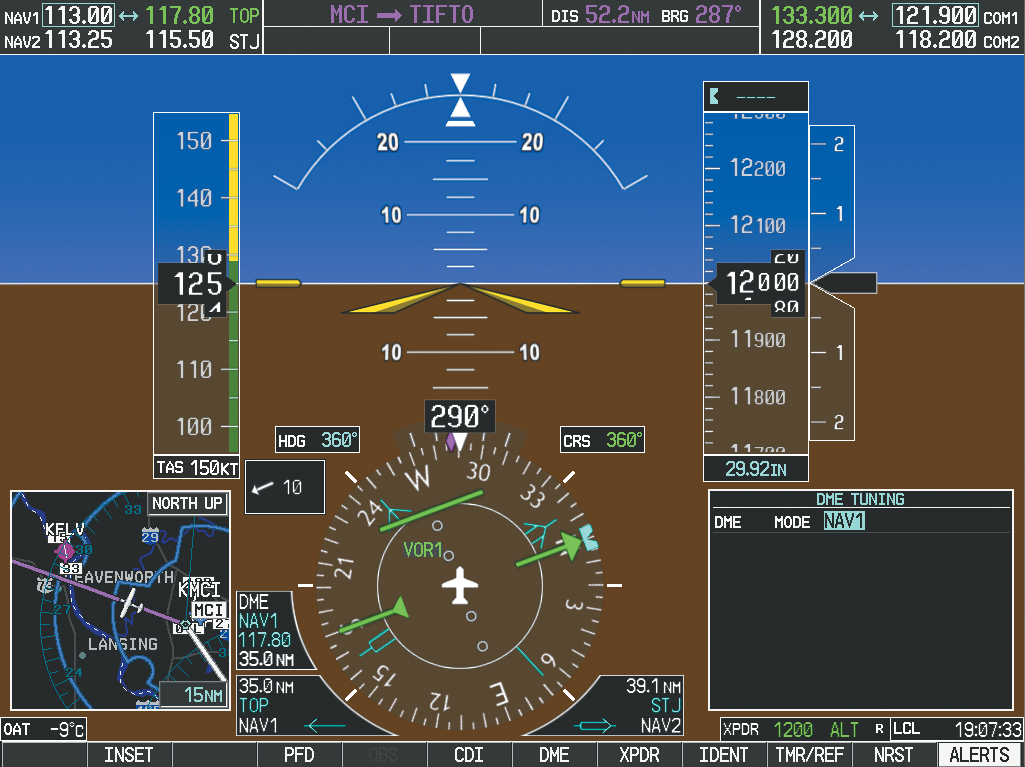
2 AND CNS MFD/PFD CONTROLS AND FREQUENCY DISPLAY INDEX APPENDICES Figure 4-1 MFD/PFD Controls, COM/NAV Frequency Tuning Boxes, and DME Tuning Window (Cessna 172R PFD Shown) Garmin G1000 Pilot s Guide for Cessna Nav III Rev. A
3 AND CNS 1 NAV VOL/ID Knob Controls NAV audio volume level. Press to turn the Morse code identifier audio on and off. Volume level is shown in the NAV frequency field as a percentage. 2 NAV Frequency Transfer Key Transfers the standby and active NAV frequencies. 3 NAV Knob Tunes the standby frequencies for the NAV receiver (large knob for MHz; small knob for khz). 4 NAV Frequency Box frequency of the NAV radio selected for navigation is displayed in green. 5 COM Frequency Box transceiver frequency is displayed in green. 6 COM Knob Tunes the standby frequencies for the COM transceiver (large knob for MHz; small knob for 7 COM Frequency Transfer Key Transfers the standby and active COM frequencies. Press and hold this key field. 8 COM VOL/SQ Knob Controls COM audio volume level. Press to turn the COM automatic squelch on and off. Volume level is shown in the COM frequency field as a percentage. 9 DME Tuning Window DME Softkey. 10 ENT Key 11 FMS Knob FMS Knob to turn the selection cursor on and off. The large knob moves the cursor in the window. The small knob selects individual characters for the highlighted cursor location. 12 Transponder Data Box Indicates the selected transponder code, operating mode, reply, and ident status for the transponder. APPENDICES INDEX Rev. A Garmin G1000 Pilot s Guide for Cessna Nav III 97

4 AND CNS CONTROLS Figure 4-2 Audio Panel Controls NOTE: When a key is selected, a triangular annunciator above the key is illuminated. APPENDICES 1 COM1 MIC added by pressing the COM2 Key. 2 COM1 3 COM2 MIC added by pressing the COM1 Key. 4 COM2 INDEX 5 COM3 MIC Not used in Cessna Nav III aircraft. 98 Garmin G1000 Pilot s Guide for Cessna Nav III Rev. A
5 AND CNS 6 COM3 Not used in Cessna Nav III aircraft. 7 COM 1/2 Not used in Cessna Nav III aircraft. 8 TEL Not used in Cessna Nav III aircraft. 9 PA Selects the passenger address system. The selected COM transmitter is deselected when the PA Key 10 SPKR Selects and deselects the cabin speaker. COM and NAV receiver audio can be heard on the speaker. 11 MKR/MUTE Selects marker beacon receiver audio. Mutes the currently received marker beacon receiver audio. Unmutes automatically when new marker beacon audio is received. Also, stops play of recorded COM audio. 12 HI SENS Press to increase marker beacon receiver sensitivity. Press again to return to low sensitivity. 13 DME 14 NAV1 15 ADF 16 NAV2 17 AUX Not used in Cessna Nav III aircraft. 18 MAN SQ PILOT Knob to illuminate SQ. Turn the PILOT/PASS Knobs to adjust squelch. 19 PLAY Press once to play the last recorded COM audio. Press again while audio is playing and the Pressing the MKR/MUTE Key during play of a memory block stops play. 20 PILOT Selects and deselects the pilot intercom isolation. 21 COPLT Selects and deselects the copilot intercom isolation. 22 PILOT Knob Press to switch between volume and squelch control as indicated by illumination of VOL or SQ. Turn to adjust intercom volume or squelch. The MAN SQ Key must be selected to allow squelch adjustment. 23 PASS Knob Turn to adjust Copilot/Passenger intercom volume or squelch. The MAN SQ Key must be selected to allow squelch adjustment. 24 DISPLAY BACKUP Button Manually selects Reversionary Mode. APPENDICES INDEX Rev. A Garmin G1000 Pilot s Guide for Cessna Nav III 99

6 AND CNS 4.2 COM OPERATION COM TRANSCEIVER SELECTION AND ACTIVATION NOTE: During PA Mode, the COM MIC Annunciator is extinguished and the COM active frequency color changes to white, indicating that neither COM transmitter is active. NOTE: When turning on the G1000 for use, the system remembers the last frequencies used and the active COM transceiver state prior to shutdown. The active frequencies are on the left side and the two standby frequencies are on the right. The COM transceiver is selected for transmitting by pressing the COM MIC audio from the other COM radio is muted. An active COM frequency displayed in green indicates that the COM transceiver is selected on the Audio Panel (COM1 MIC or COM2 MIC radio is selected for transmitting [PA standby fields are displayed in white. Active Fields Tuning Box Standby Fields Top Section of the Audio Panel COM2 Radio is Selected on the Audio Panel Figure 4-3 Selecting a COM Radio for Transmit INDEX APPENDICES 100 Garmin G1000 Pilot s Guide for Cessna Nav III Rev. A

7 AND CNS TRANSMIT/RECEIVE INDICATIONS Transfer Arrow. On the Audio Panel, when the active COM is transmitting, the active transceiver COM MIC Transmit and Receive Indicators COM TRANSCEIVER MANUAL TUNING Annunciator Flashes During Transmission Figure 4-4 COM Radio Transmit and Receive Indications Manually tuning a COM frequency: 1) Turn the COM Knob to tune the desired frequency in the COM Tuning Box (large knob for MHz; small knob for khz). 2) Press the Frequency Transfer Key to transfer the frequency to the active field. 3) Adjust the volume level with the COM VOL/SQ Knob. 4) Press the COM VOL/SQ Knob to turn automatic squelch on and off. Turn the VOL/SQ Knob to adjust volume. Press the Knob to Turn Automatic Squelch On or Off Press the Frequency Transfer Key to Transfer COM Frequencies Between Active and Standby Frequency Boxes Turn the COM Knob to Tune the Frequency in the Tuning Box Figure 4-5 COM Frequency Tuning APPENDICES INDEX Rev. A Garmin G1000 Pilot s Guide for Cessna Nav III 101

8 AND CNS SELECTING THE RADIO TO BE TUNED Press the small COM upper and lower radio frequency fields. Press the COM Knob to Switch the Tuning Box From One COM Radio to the Other INDEX APPENDICES Figure 4-6 Switching COM Tuning Boxes QUICK-TUNING AND ACTIVATING MHZ Pressing and holding the COM Frequency Transfer Key for two seconds automatically loads the emergency COM2 MIC Key activates the transceiver. Press for Two Seconds to Load MHz Figure 4-7 Quickly Tuning MHz 102 Garmin G1000 Pilot s Guide for Cessna Nav III Rev. A
9 AND CNS AUTO-TUNING THE COM FREQUENCY COM frequencies can be automatically tuned from the following: AUTO-TUNING FROM THE PFD COM frequencies for the nearest airports can be automatically tuned from the Nearest Airports Window on standby frequency. Pressing the Frequency Transfer Auto-tuning a COM frequency for a nearby airport from the PFD: 1) Press the NRST Softkey on the PFD to open the Nearest Airports Window. A list of 25 nearest airport identifiers and COM frequencies is displayed. 2) Turn the FMS Knob to scroll through the list and highlight the desired COM frequency. 3) Press the ENT Key to load the COM frequency into the COM Standby Tuning Box. 4) Press the Frequency Transfer Key to transfer the frequency to the COM Active Frequency Field. Figure 4-8 Nearest Airports Window (PFD) Press the NRST Softkey to Open the Nearest Airports Window APPENDICES INDEX Rev. A Garmin G1000 Pilot s Guide for Cessna Nav III 103
10 AND CNS AUTO-TUNING FROM THE MFD page group by highlighting the frequency and pressing the ENT Auto-tuning a COM frequency from the WPT and NRST Pages: 1) From any page that the COM frequency can be auto-tuned, activate the cursor by pressing the FMS Knob or the appropriate softkey. 2) Turn the FMS Knob to place the cursor on the desired COM frequency (Figure 4-11). 3) Press the ENT Key to load the COM frequency into the standby field of the selected COM radio. 4) Press the Frequency Transfer Key to transfer the frequency to the COM Active Frequency Field. Turn the FMS Knob to Scroll Through a List of Frequencies Press the ENT Key to Load a Highlighted Frequency into the COM Standby Frequency Box Figure 4-9 Frequency Auto-Tuning from the MFD Or: 1) On the Nearest Airports, Frequencies, or Airspaces page, press the MENU Key to display the page menu. 2) Turn the large FMS Knob to scroll through the menu options. 3) Press the ENT Key to place the cursor on the desired selection. 4) Scroll through the frequency selections with the FMS Knob. 5) Press the ENT Key to load the COM frequency into the standby field of the selected COM radio. 6) Press the Frequency Transfer Key to transfer the frequency to the COM Active Frequency Field. APPENDICES INDEX Nearest Airports Menu Nearest Frequencies Menu Nearest Airspaces Menu Figure 4-10 Nearest Pages Menus 104 Garmin G1000 Pilot s Guide for Cessna Nav III Rev. A

11 AND CNS On the WPT - Airport Information Page, the cursor can be placed on the frequency field by pressing the FMS ENT Key. Press Frequency Transfer Key to Load Frequency into COM Active Frequency Field Selected Airport Identifier and Information Figure 4-11 WPT Airport Information Page Runway Information Press ENT Key to Load Frequency into COM Standby Field. Cursor then advances to next frequency. Press INFO Softkey for AIRPORT, RUNWAYS, and FREQUENCIES Windows APPENDICES INDEX Rev. A Garmin G1000 Pilot s Guide for Cessna Nav III 105
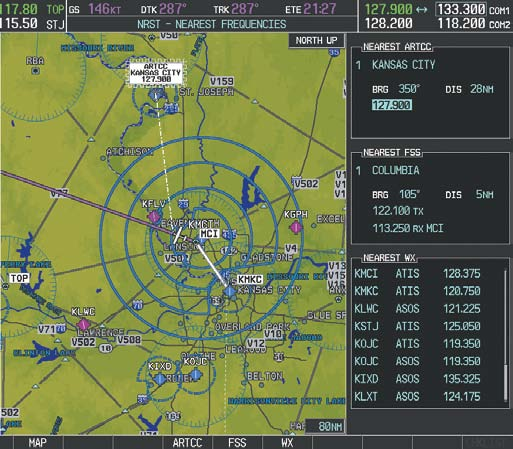
12 AND CNS MENU Key, the FMS Knob, and the ENT Key. Figure 4-12 NRST Nearest Frequencies, NRST Nearest Airports, and NRST Nearest Airspaces Pages INDEX APPENDICES 106 Garmin G1000 Pilot s Guide for Cessna Nav III Rev. A

13 AND CNS FREQUENCY SPACING COM channel spacing is set on the System Setup Page of the AUX Page Group kHz Channel Spacing 25-kHz Channel Spacing Figure 4-13 COM Channel Spacing Changing COM frequency channel spacing: 1) Select the AUX System Setup Page. 2) Press the FMS Knob to activate the flashing cursor. 3) Turn the large FMS Knob to highlight the Channel Spacing Field in the COM Configuration Box. 4) Turn the small FMS Knob to select the desired channel spacing. 5) Press the ENT Key to complete the channel spacing selection. Select 8.33-kHz or 25.0-kHz COM Frequency Channel Spacing Figure 4-14 AUX System Setup Page APPENDICES INDEX Rev. A Garmin G1000 Pilot s Guide for Cessna Nav III 107

14 AND CNS AUTOMATIC SQUELCH Automatic Squelch quiets unwanted static noise when no audio signal is received, while still providing good sensitivity to weak COM signals. To disable Automatic Squelch, press the VOL/SQ Knob. When Automatic Squelch is disabled, COM audio reception is always on. Continuous static noise is heard over the headsets and speaker, if selected. Pressing the VOL/SQ Knob again enables Automatic Squelch. VOLUME Squelch Indication Press the COM VOL/ SQ Knob to turn off Automatic Squelch. Press again to restore Automatic Squelch. Figure 4-15 Overriding Automatic Squelch VOL/SQ Knob. Turning the knob clockwise increases volume, turning the knob counterclockwise decreases volume. When adjusting volume, the level is displayed in place of the standby frequencies. Volume level indication remains for two seconds after the change. Figure 4-16 COM Volume Level COM Volume Level Remains for Two Seconds INDEX APPENDICES 108 Garmin G1000 Pilot s Guide for Cessna Nav III Rev. A

15 AND CNS 4.3 NAV OPERATION NAV RADIO SELECTION AND ACTIVATION standby fields and two active fields. The active frequencies are on the right side and the standby frequencies are on the left. A NAV radio is selected for navigation by pressing the CDI frequency selected for navigation is displayed in green. Pressing the CDI navigation radio. Pressing the CDI CDI Softkey a third time activates GPS mode. Pressing the CDI While cycling through the CDI The three navigation modes that can be cycled through are: green single line arrow (not shown) labeled either green double line arrow (shown) labeled either magenta single line arrow (not shown) appears on the HSI and neither NAV Standby Fields Active Fields Tuning Box The NAV Radio is Selected by Pressing the CDI Softkey Figure 4-17 Selecting a NAV Radio for Navigation APPENDICES INDEX Rev. A Garmin G1000 Pilot s Guide for Cessna Nav III 109
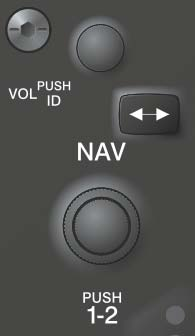
16 AND CNS NAV radios are selected for listening by pressing the corresponding keys on the Audio Panel. Pressing the NAV1, NAV2, ADF, or DME Key selects and deselects the navigation radio source. Selected audio can be heard over the headset and the speaker (if selected). All radios can be selected individually or simultaneously. INDEX APPENDICES Figure 4-18 Selecting a NAV Radio Receiver NAV RECEIVER MANUAL TUNING Manually tuning a NAV frequency: 1) Turn the NAV Knob to tune the desired frequency in the NAV Tuning Box. 2) Press the Frequency Transfer Key to transfer the frequency to the NAV Active Frequency Field. 3) Adjust the volume level with the NAV VOL/ID Knob. 4) Press the NAV VOL/ID Knob to turn the Morse code identifier audio on and off. Turn VOL/ID Knob to adjust volume. Press Knob to Turn Morse Code On or Off. Press the Frequency Transfer Key to Transfer NAV Frequencies Between Active and Standby Frequency Fields Turn the NAV Knob to Tune the Frequency in the Tuning Box Figure 4-19 NAV Frequency Tuning 110 Garmin G1000 Pilot s Guide for Cessna Nav III Rev. A

17 AND CNS SELECTING THE RADIO TO BE TUNED Press the small NAV upper and lower radio frequency fields. Press the NAV Knob to Switch the Tuning Box From One NAV Radio to the Other Figure 4-20 Switching NAV Tuning Boxes VOR/LOC ID When the Morse code Identifier audio is on for a NAV radio, a white NAV frequency. NAV1 or NAV2 Key on the Audio Panel. Pressing the VOL/ID Knob turns off the Morse code audio only in the radio with the NAV the small NAV Knob and press the VOL/ID Knob again to turn the Morse code off in the other radio. The Morse Code Identifier for the GHM VOR is On Figure 4-21 NAV Radio ID Indication Station Identifier VOLUME NAV VOL/ID Knob. Turning the knob clockwise increases volume, counterclockwise decreases volume. When adjusting, the level is displayed in place of the standby frequencies. Volume level indication remains for two seconds after the change. NAV Volume Level Remains for Two Seconds Figure 4-22 NAV Volume Levels APPENDICES INDEX Rev. A Garmin G1000 Pilot s Guide for Cessna Nav III 111
18 AND CNS AUTO-TUNING A NAV FREQUENCY FROM THE MFD activation the NAV frequency is entered automatically into the NAV active frequency field. group by highlighting the frequency and pressing the ENT Auto-tuning a NAV frequency from the WPT and NRST Pages: 1) From any page that the NAV frequency can be auto-tuned, activate the cursor by pressing the FMS Knob or the appropriate softkey. 2) Turn the FMS Knob to place the cursor on the desired NAV identifier or NAV frequency. 3) On the Nearest VOR, Nearest Airspaces, and Nearest Airports pages, press the FREQ Softkey to place the cursor on the NAV frequency (Figure 4-25). 4) Press the ENT Key to load the NAV frequency into the standby field of the selected NAV radio. 5) Press the Frequency Transfer Key to transfer the frequency to the NAV Active Frequency Field. Turn the FMS Knob to Scroll Through a List of Frequencies Press the ENT Key to Load a Highlighted Frequency into the NAV Standby Frequency Box Figure 4-23 NAV Frequency Auto-Tuning from the MFD INDEX APPENDICES 112 Garmin G1000 Pilot s Guide for Cessna Nav III Rev. A

19 AND CNS Or: 1) When on the NRST pages, press the MENU Key to display the page menu. 2) Turn the large FMS Knob to scroll through the menu options. 3) Press the ENT Key to place the cursor in the desired window. 4) Scroll through the frequency selections with the FMS Knob. 5) Press the ENT Key to load the NAV frequency into the standby field of the selected NAV radio. 6) Press the Frequency Transfer Key to transfer the frequency to the NAV Active Frequency Field. Nearest Airports Menu Nearest VOR Menu Nearest Frequencies Menu Figure 4-24 Nearest Pages Menus Nearest Airspaces Menu APPENDICES INDEX Rev. A Garmin G1000 Pilot s Guide for Cessna Nav III 113

20 AND CNS VOR Softkey or from the page menu. The FMS Knob or ENT Key is used to scroll through the list. The cursor is placed on the frequency with the FREQ Softkey and ENT Key. Press the VOR Softkey to Place the Cursor on the VOR Identifier Press the FREQ Softkey to Place the Cursor on the VOR Frequency Press the ENT Key to Load the Frequency into the NAV Standby Field. Figure 4-25 Loading the NAV Frequency from the NRST Nearest VOR Page INDEX APPENDICES 114 Garmin G1000 Pilot s Guide for Cessna Nav III Rev. A
21 AND CNS While enroute, NAV frequencies can also be auto-tuned from the NRST Nearest Airports, a similar manner using the appropriate softkeys or MENU Key, the FMS Knob, and the ENT Key. Figure 4-26 NRST Nearest Frequencies, WPT VOR Information, WPT Airport Information, and NRST Nearest Airports Pages APPENDICES INDEX Rev. A Garmin G1000 Pilot s Guide for Cessna Nav III 115
22 AND CNS AUTO-TUNING NAV FREQUENCIES ON APPROACH ACTIVATION NOTE: The primary NAV frequency is auto-tuned upon loading a VOR or ILS/Localizer approach. NOTE: When an ILS/LOC approach has been activated while navigating by GPS, the system automatically switches to LOC as the final approach course is intercepted (within 15 nm of the FAF). See the Flight Management Section for details. When loading or activating a VOR or ILS/LOC approach, the approach frequency is automatically transferred to a NAV frequency field as follows: standby. standby frequency field, the standby frequency is transferred to active. INDEX APPENDICES 116 Garmin G1000 Pilot s Guide for Cessna Nav III Rev. A
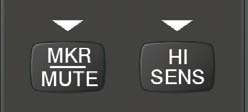
23 AND CNS MARKER BEACON RECEIVER NOTE: The marker beacon indicators operate independently of marker beacon audio and cannot be turned off. The marker beacon receiver is used as part of the ILS. The marker beacon receiver is always on and detects any marker beacon signals within the reception range of the aircraft. The receiver detects the three marker tones outer, middle, and inner and provides the marker beacon Outer Marker Indication Middle Marker Indication Inner Marker Indication Figure 4-27 Marker Beacon Annunciations on the PFD Figure 4-28 Marker Beacon Keys Pressing the MKR/MUTE Key selects and deselects marker beacon audio. The key annunciator indicates when marker beacon audio is selected. MKR/MUTE Key mutes the audio but does not affect the MKR/MUTE beacon signal is received. If the MKR/MUTE Key is pressed during signal reception (O, M, I indication) while marker beacon audio is muted, the audio is deselected and the MKR/MUTE Pressing the HI SENS Key switches between high and low marker beacon receiver sensitivity. The function (annunciator illuminated) is used to provide an earlier indication when nearing a marker during an approach. The station. APPENDICES INDEX Rev. A Garmin G1000 Pilot s Guide for Cessna Nav III 117
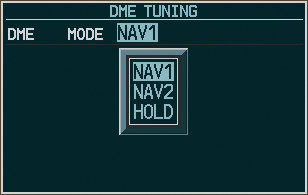
24 AND CNS DME TUNING NOTE: When another auxiliary window is turned on, the DME Tuning Window is replaced on the PFD. NOTE: When turning on the G1000 for use, the system remembers the last frequency used for DME tuning and the NAV1, NAV2, or HOLD state prior to shutdown. DME DME Modes APPENDICES Figure 4-29 DME Tuning Window The following frequency. Selecting DME transceiver pairing: 1) Press the DME Softkey to display the DME Tuning Window. 2) Turn the small FMS Knob to select the DME tuning mode. 3) Press the ENT Key to complete the selection. Pressing the CLR Key or FMS FMS Knob activates/deactivates the cursor in INDEX 118 Garmin G1000 Pilot s Guide for Cessna Nav III Rev. A
25 AND CNS 4.4 GTX 33 MODE S TRANSPONDER Mode S interrogation and reply capabilities. Selective addressing or Mode Select (Mode S) capability includes the following features: The transmission is sent periodically, regardless of the presence of interrogations. The purpose of acquisition squitter is to enable Mode S ground stations and aircraft equipped with a Traffic Avoidance System (TAS) to recognize the presence of Mode S-equipped aircraft for selective interrogation. The Hazard Avoidance Section provides more details on traffic avoidance systems. TRANSPONDER CONTROLS Code Selection. When the top-level XPDR Softkey is pressed, the Mode Selection softkeys appear: STBY, ON, ALT, VFR, CODE, IDENT, BACK. When the CODE Softkey is pressed, the number softkeys appear: 0, 1, 2, 3, 4, 5, 6, 7, IDENT, BKSP, BACK. The digits and are not used for code entry. Pressing the numbered softkeys in sequence enters the transponder code. If an error is made, the code selection cursor can be moved back to the left one digit with each press of the BKSP Softkey. Pressing the BACK Softkey during code selection reverts to the Mode Selection Softkeys. Pressing the BACK Softkey during mode selection reverts to the top-level softkeys. The code can also be entered with the FMS softkeys or the FMS Knob, but not a combination of both. Pressing the IDENT Softkey while in Mode or Code Selection initiates the ident function and reverts to the top-level softkeys. APPENDICES INDEX Rev. A Garmin G1000 Pilot s Guide for Cessna Nav III 119
26 AND CNS XPDR IDENT STBY ON ALT GND VFR CODE IDENT BACK ALERTS Pressing the BACK Softkey returns to the top-level softkeys. INDEX IDENT BKSP BACK ALERTS Pressing the BACK Softkey returns to the mode selection softkeys. Figure 4-30 Transponder Softkeys (PFD) TRANSPONDER MODE SELECTION Mode selection can be automatic (Ground and Altitude Modes) or manual (Standby, ON, and Altitude Modes). The STBY, ON, and ALT Softkeys can be accessed by pressing the XPDR Softkey. Selecting a transponder mode: 1) Press the XPDR Softkey to display the Transponder Mode Selection Softkeys. 2) Press the desired softkey to activate the transponder mode. GROUND MODE APPENDICES Ground Mode is normally selected automatically when the aircraft is on the ground. The transponder powers up in the last mode it was in when shut down. Ground Mode can be overridden by pressing any one of the Ground Mode, the transponder does not allow Mode A and Mode C replies, but it does permit acquisition squitter and replies to discretely addressed Mode S interrogations. When Standby Mode has been selected on the ground, the transponder can be returned to Ground Mode by pressing the GND Softkey. Figure 4-31 Ground Mode GND Mode 120 Garmin G1000 Pilot s Guide for Cessna Nav III Rev. A
27 AND CNS STANDBY MODE (MANUAL) NOTE: In Standby Mode, the IDENT function is inoperative. Standby Mode can be selected at any time by pressing the STBY Softkey. In Standby, the transponder does not reply to interrogations, but new codes can be entered. When Standby is selected, a white indication appear in green. STBY Mode (White Code Number and Mode) MANUAL ON MODE Figure 4-32 Standby Mode ON Mode can be selected at any time by pressing the ON Softkey. ON Mode generates Mode A and Mode S replies, but Mode C altitude reporting is inhibited. In ON Mode, a green ON indication and transponder Figure 4-33 ON Mode ON Mode (No Altitude Reporting) APPENDICES INDEX Rev. A Garmin G1000 Pilot s Guide for Cessna Nav III 121
28 AND CNS ALTITUDE MODE (AUTOMATIC OR MANUAL) Altitude Mode is automatically selected when the aircraft becomes airborne. Altitude Mode may also be selected manually by pressing the ALT Softkey. If Altitude Mode is selected, a green ALT indication and transponder code appear in the mode field of the altitude information. ALT Mode (Mode C Altitude Reporting) INDEX APPENDICES Figure 4-34 Altitude Mode REPLY STATUS When the transponder sends replies to interrogations, a white R indication appears momentarily in the Reply to Interrogation Figure 4-35 Reply Indication 122 Garmin G1000 Pilot s Guide for Cessna Nav III Rev. A
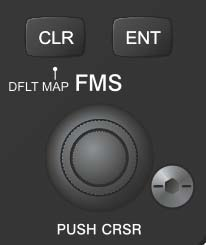
29 AND CNS ENTERING A TRANSPONDER CODE Entering a transponder code with softkeys: 1) Press the XPDR Softkey to display the Transponder Mode Selection Softkeys. 2) Press the CODE Softkey to display the Transponder Code Selection Softkeys, for digit entry. 3) Press the digit softkeys to enter the code in the code field. When entering the code, the next softkey in sequence must be pressed within 10 seconds, or the entry is cancelled and restored to the previous code. Pressing the BKSP Softkey moves the code selection cursor to the previous digit. Five seconds after the fourth digit has been entered, the transponder code becomes active. Entering a Code Figure 4-36 Entering a Code Entering a transponder code with the PFD FMS Knob: 1) Press the XPDR and the CODE Softkeys as in the previous procedure to enable code entry. 2) Turn the small FMS Knob on the PFD to enter the first two code digits. 3) Turn the large FMS Knob to move the cursor to the next code field. 4) Enter the last two code digits with the small FMS Knob. 5) Press the ENT Key to complete code digit entry. Pressing the CLR Key or small FMS Knob before code entry is complete cancels code entry and restores the Turn the Small FMS Knob to Enter Two Code Digits at a Time Figure 4-37 Entering a Code with the FMS Knob Press the ENT Key to Complete Code Entry Turn the Large FMS Knob to Move the Cursor to the Next Code Field APPENDICES INDEX Rev. A Garmin G1000 Pilot s Guide for Cessna Nav III 123
30 AND CNS VFR CODE The XPDR Softkey, then the VFR Softkey. When the VFR VFR Softkey again restores the previous identification code. Garmin-authorized service center for configuration. VFR Code INDEX APPENDICES Figure 4-38 VFR Code IDENT FUNCTION NOTE: In Standby Mode, the IDENT Softkey is inoperative. Pressing the IDENT Softkey sends a distinct identity indication to Air Traffic Control (ATC). The indication distinguishes the identing transponder from all the others on the air traffic controller s screen. The IDENT Softkey appears on all levels of transponder softkeys. When the IDENT Softkey is pressed, a green After the IDENT Softkey is pressed while in Mode or Code Selection, the system reverts to the top-level softkeys. Press the IDENT Softkey to Initiate the ID Function IDNT Indication Figure 4-39 IDENT Softkey and Indication 124 Garmin G1000 Pilot s Guide for Cessna Nav III Rev. A
31 AND CNS 4.5 FUNCTIONS POWER-UP those in use before the unit was last turned off. MONO/STEREO HEADSETS Stereo headsets are recommended for use in this aircraft. Using a monaural headset in a stereo jack shorts the right headset channel output to ground. While this does not damage the Audio Panel, a person listening on a monaural headset hears only the left channel in both ears. If a monaural headset is used at one of the passenger positions, any other passenger using a stereo headset hears audio in the left ear only. SPEAKER All of the radios can be heard over the cabin speaker. Pressing the SPKR Key selects and deselects the cabin speaker. Speaker audio is muted when the PTT is pressed. Certain aural alerts and warnings (autopilot, traffic, altitude) are always heard on the speaker, even when the speaker is not selected. The speaker volume is adjustable within a nominal range. Contact a Garmin-authorized service center for volume adjustment. Figure 4-40 Passenger Address and Speaker Keys APPENDICES INDEX Rev. A Garmin G1000 Pilot s Guide for Cessna Nav III 125
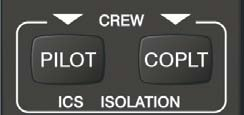
32 AND CNS INTERCOM The intercom provides pilot and copilot isolation from the passengers and aircraft radios. Figure 4-41 Intercom Controls PILOT KEY Annunciator OFF COPLT KEY Annunciator OFF Pilot Hears Copilot Hears Passenger Hears Selected radios, aural alerts, pilot, copilot, passengers, music Selected radios, aural alerts, pilot, copilot, passengers, music Selected radios, aural alerts, pilot, copilot, passengers, music ON OFF ON OFF ON ON Selected radios, aural alerts, pilot Selected radios, aural alerts, pilot, passengers, music Selected radios, aural alerts, pilot, copilot Copilot, passengers, music Copilot Selected radios, aural alerts, pilot, copilot Copilot, passengers, music Selected radios, aural alerts, pilot, passengers, music Passengers, music APPENDICES Table 4-1 ICS Isolation Modes hear the selected radios and aural alerts and warnings. The copilot and passengers can communicate with each other. The copilot is isolated from aural alerts and warnings. Copilot isolation is selected when the COPLT Annunciator is illuminated. The copilot is isolated from the selected radios, aural alerts and warnings, and everyone else. The pilot and passengers can hear the selected radios, aural alerts, and communicate with each other. When both the PILOT and COPLT Annunciators are illuminated, the pilot and copilot can hear the selected radios, aural alerts, and communicate with each other. The passengers are isolated from the pilot and copilot but can communicate with each other. alerts, and is able to communicate with everyone else. INDEX 126 Garmin G1000 Pilot s Guide for Cessna Nav III Rev. A
33 AND CNS INTERCOM VOLUME AND SQUELCH The PILOT/PASS Knob controls volume or manual squelch adjustment for the pilot and copilot/passenger. The small knob controls the pilot volume and squelch. The large knob controls the copilot/passenger volume and squelch. The VOL and SQ annunciations at the bottom of the unit indicate which function the knob is controlling. Pressing the PILOT/PASS Knob switches between volume and squelch control as indicated by the VOL or SQ annunciation being illuminated. The MAN SQ Key allows either automatic or manual control of the squelch setting. PILOT/PASS Knob controls only the volume (pressing the PILOT/PASS Knob has no effect on the VOL/SQ selection). PILOT/PASS Knob controls either volume or squelch (selected by pressing the PILOT/PASS Knob and indicated by the VOL or SQ annunciation). Manual Squelch Annunciator; Off for Automatic Squelch, On for Manual Squelch Automatic/Manual Squelch Pilot Volume or Manual Squelch. Press to switch between VOL and SQ. Turn to adjust Squelch when SQ Annunciation is lit, Volume when VOL Annunciation is lit. Copilot/Passenger Volume or Manual Squelch Volume Annunciation Figure 4-42 Volume/Squelch Control Squelch Annunciation APPENDICES INDEX Rev. A Garmin G1000 Pilot s Guide for Cessna Nav III 127
34 AND CNS PASSENGER ADDRESS (PA) PA and the active COM frequency changes to white, indicating that there is no COM selected. A Push-to-Talk (PTT) must be pressed to deliver PA announcements. The PA Annunciator flashes about once per second while the PTT is depressed. PA Key is Selected on the Audio Panel APPENDICES CLEARANCE RECORDER AND PLAYER Figure 4-43 PA Key Selected for Cabin Announcements have been reached, the recorder begins recording over the stored memory blocks, starting from the oldest block. The PLAY Key controls the play function. Pressing the PLAY Key once plays the latest recorded memory after the present memory block has finished playing. Pressing the MKR/MUTE Key during play of a memory block stops play. If a COM input signal is detected during play of a recorded memory block, play is halted. Pressing the PLAY subsequent press of the PLAY Key selects the previously recorded memory block. Powering off the unit automatically clears all recorded blocks. MKR/MUTE Key Stops Play PLAY Key Controls the Memory Function INDEX Figure 4-44 Marker Mute and Play Keys 128 Garmin G1000 Pilot s Guide for Cessna Nav III Rev. A
35 AND CNS ENTERTAINMENT INPUTS NOTE: Auxiliary entertainment inputs cannot be completely turned off. Audio level for the AUX Audio In input can be adjusted by a Garmin-authorized service center. NOTE: The AUX Audio In stereo entertainment input is not controlled by the AUX Key on the Audio Panel. The AUX Key is reserved for an auxiliary radio input. simultaneously (optional: requires subscription to SiriusXM Satellite Radio Service). Refer to the Additional headphone output of the entertainment device is plugged into the jack. The current ICS state of isolation affects Connecting a stereo input to the AUX Audio In jack removes the SiriusXM Satellite Radio Audio. illuminated and by the copilot when the PILOT Annunciator is illuminated. Passenger entertainment audio is never muted. ENTERTAINMENT AUDIO MUTING soft muted when an interruption occurs from these sources. Soft muting is the gradual return of audio to its original volume level. The time required for the volume to return to normal is between one-half and four seconds. Pressing and holding the MKR/MUTE Key for three seconds switches muting of entertainment audio on and off. When switching, either one or two beeps are heard; one beep indicates that audio muting is enabled, up. APPENDICES INDEX Rev. A Garmin G1000 Pilot s Guide for Cessna Nav III 129
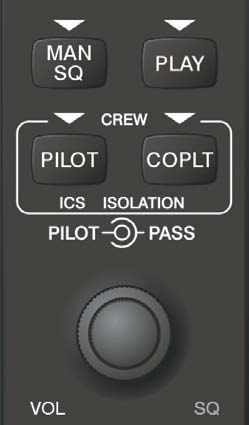
36 AND CNS 4.6 PRE PROCEDURE NOTE: If the pilot and/or copilot are using headsets that have a high/low switch or volume control knob, verify that the switch is in the high position and the volume control on the headsets are at maximum volume setting. On single-pilot flights, verify that all other headsets are not connected to avoid excess noise in the audio system. NOTE: When the MAN SQ Key is pressed, the ICS squelch can be set manually by the pilot and copilot. If manual squelch is set to full open (SQ annunciated and the knobs turned counterclockwise) background noise is heard in the ICS system as well as during COM transmissions. as prevent pilot and copilot induced issues. These preflight procedures should be performed each time a pilot boards the aircraft to insure awareness of all audio levels in the Audio Panel and radios. Automatic/Manual Squelch Pilot and Copilot ICS Isolation Keys Pilot Volume or Manual Squelch Volume Annunciation Copilot/Passenger Volume or Manual Squelch Squelch Annunciation Figure 4-45 Audio Panel Controls APPENDICES INDEX Setting the Audio Panel during preflight: 1) Verify that the PILOT and COPLT Annunciators are extinguished. 2) Verify that manual squelch is set to full open. 3) Turn the PILOT/PASS Knobs clockwise two full turns. This sets the headset intercom audio level to max volume (least amount of attenuation). 4) Adjust radio volume levels (COM, NAV, etc.) to a suitable level. 5) Adjust the PILOT/PASS Knob volume to the desired intercom level. 6) Reset squelch to automatic, or adjust to the appropriate level manually. Once this procedure has been completed, the pilot and copilot can change settings, keeping in mind the notes above. 130 Garmin G1000 Pilot s Guide for Cessna Nav III Rev. A
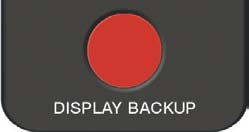
37 AND CNS 4.7 ABNORMAL OPERATION STUCK MICROPHONE stuck microphone. The COM1 MIC or COM2 MIC Key Annunciator on the Audio Panel flashes as long as the PTT Key remains stuck. Figure 4-46 Stuck Microphone Alert COM TUNING FAILURE In case of a COM system tuning failure, the frequency display. Emergency Channel Loaded Automatically Figure 4-47 COM Tuning Failure FAIL-SAFE OPERATION If there is a failure of the Audio Panel, a fail-safe circuit connects the pilot s headset and microphone directly REVERSIONARY MODE The red DISPLAY BACKUP Reversionary Mode. See the System Overview Section for more information on Reversionary Mode. Figure 4-48 Display Backup Button APPENDICES INDEX Rev. A Garmin G1000 Pilot s Guide for Cessna Nav III 131
38 AND CNS BLANK PAGE INDEX APPENDICES 132 Garmin G1000 Pilot s Guide for Cessna Nav III Rev. A
G1000TM. Transponder Pilot s Guide
 G1000TM Transponder Pilot s Guide Record of Revisions Revision Date of Revision Revision Page Range Description A B C D 04/30/04 11/29/04 05/3/05 07/20/05 5-1 5-7 5-1 5-7 5-1 5-5 5-1 5-5 Initial release.
737 NG Comm unications
 B737 NG Comm munications 5.20 Communications-System Description Introduction The communication system includes: radio communication system interphone communication system cockpit voice recorder system
KX 155A and KX 165A VHF Communication/Navigation Transceivers
 KX 155A and KX 165A VHF Communication/Navigation Transceivers KX 155A and KX 165A Operation (25 khz Versions) KX 155A/165A All controls required to operate the KX 155A and KX 165A are located on the unit
GNS 430/430A. Quick Reference
 GNS 430/430A Quick Reference KEYS AND KNOBS 1 2 3 4 5 6 7 8 9 10 11 12 13 14 15 16 17 18 1 COM Power/Volume 7 RNG (map range) 13 OBS 2 VLOC Volume 8 MENU 14 MSG (message) 3 COM Flip-flop 9 ENT (enter)
CIRRUS AIRPLANE MAINTENANCE MANUAL
 All AUDIO INTEGRATING 1. DESCRIPTION This section covers the portion of the system which controls the output of the communications and navigation receivers into the flight crew headphones and speakers,
AUDIO INTEGRATING. EFFECTIVITY: All
 All AUDIO INTEGRATING 1. DESCRIPTION This section covers the portion of the system which controls the output of the communications and navigation receivers into the flight crew headphones and speakers,
Bombardier Challenger 605 - Communications
 GENERAL The aircraft communication system includes those components and subsystems providing air-to-ground, interphone and cabin communications. The system is also responsible for recording communications
Audio Selector Panel with Intercom System Flying Never Sounded So Good!
 9800 Martel Road Lenoir City, TN 37772, 0503 Pilot s Guide and Operation Manual FAA Approved TSO C50c JAA-Approved JTSO C50c Revision 4 202-240-0002 April 2009 Patent No 5,903,227 and 6,160,496 Audio Selector
P/N 135A-970-022 FAA Approved: 12/6/2007 Section 9 Initial Release Page 1 of 8
 FAA APPROVED AIRPLANE FLIGHT MANUAL SUPPLEMENT FOR GARMIN SL40 NAV/COMM Serial No: Registration No: When the GARMIN SL40 COM radio is installed in the Liberty Aerospace XL-2, this supplement is applicable
VHF COMMUNICATION TRANSCEIVER
 ATR-500 VHF COMMUNICATION TRANSCEIVER ON OFF OPERATION MANUAL Manual Number 01.125.010.08 REVISION 1.3, Jan 20. 2005 from S/N 00301 04 Contents 1 SECTION 1 GENERAL INFORMATION...3 1.1 INTRODUCTION...3
Garmin GNC 300XL Pilot s Quick Reference Guide ---------------------------------------------------------------
 Garmin GNC 300XL Pilot s Quick Reference Guide --------------------------------------------------------------- CURSOR/ DATA ENTRY Cursor control: The cursor key is used to activate the cursor in the comm
09 FLIGHT MANAGEMENT, NAVIGATION
 Course overview N E X T G E N E R A T I O N Airplane General Air Systems Warning Systems, Communications, Ice & Rain Protection Electrical Engines, APU, Fuel System Hydraulics, Flight Controls, Landing
MK12D TSO (MK12, MK12A, MK12B REPLACEMENT RADIO)
 NARCO AVIONICS MK12D TSO (MK12, MK12A, MK12B REPLACEMENT RADIO) ADDENDUM INSTALLATION MANUAL 03118-0620R NARCO AVIONICS INC. 270 COMMERCE DRIVE FT. WASHINGTON, PA. 19034 U.S.A. PRINTED IN U.S.A. JUNE,
For Microsoft Flight Simulator X 2008 FriendlyPanels. All right reserved
 FriendlyPanels Software For Microsoft Flight Simulator X 2008 FriendlyPanels. All right reserved REPLACEMENT NAVIGATION GAUGES FOR FSX AIRCRAFT 1 1. Introduction. 2. Requirements 3. Installing the pack
DAB1001. Wireless Digital Radio Interface. Installation & User Guide
 DAB1001 Wireless Digital Radio Interface Installation & User Guide Contents Contents... 2 Introduction... 3 Contents of Package... 4 Installation... 5 Product Overview... 5 Installation Procedure... 5
In-Car Digital Radio Adaptor User Guide
 S1000-DAB In-Car Digital Radio Adaptor User Guide Table of Content INTRODUCTION... 1 CONTENTS OF PACKAGE... 2 INSTALLATION...3 OVERVIEW OF CONTROLS AND CONNECTORS... 5 STARTING UP THE SYSTEM... 7 USING
PG-01instruction manual
 PG-01instruction manual DIGITAL RADIO fairbank house ashley road altrincham WA14 2DP united kingdom t: +44 (0)161 924 0300 f: +44 (0)161 924 0319 e: [email protected] www.intempodigital.com PG-01
PS 29M DUAL CHANNEL BELTPACK IN METAL CASE
 PS 29M DUAL CHANNEL BELTPACK IN METAL CASE USER MANUAL October 2013 This product is designed and manufactured by: ASL Intercom BV Zonnebaan 42 3542 EG Utrecht The Netherlands Phone: +31 (0)30 2411901 Fax:
CONTENTS. Zulu User Guide 3
 Copyright Lightspeed Aviation, Inc., 2008. All rights reserved. Lightspeed Aviation is a trademark and Zulu and FRC are registered trademarks of Lightspeed Aviation, Inc. Bluetooth is a registered trademark
PT2508/3508 VHF/UHF HANDHELD TRANSCEIVER INSTRUCTION MANUAL
 PT2508/3508 VHF/UHF HANDHELD TRANSCEIVER INSTRUCTION MANUAL 0681 0681 TO THE USER THANK YOU! We are grateful you have chosen application. for your land mobile We believe this easy to use transceiver will
Digital Radio/DAB+/FM RDS digital clock radio with dual alarm Operating instruction
 381SE1D-A Digital Radio/DAB+/FM RDS digital clock radio with dual alarm Operating instruction GB Contents Controls... 2-3 Using the clock radio for the first time... 4 Operating your clock radio... 5 Selecting
Communication Management Unit : Single Solution of Voice and Data Routing Unit
 Defence Science Journal, Vol. 63, No. 2, March 2013, pp. 181-185, DOI: 10.14429/dsj.63.4261 2013, DESIDOC SHORT COMMUNICATION Communication Management Unit : Single Solution of Voice and Data Routing Unit
GTX 330. Mode S Transponder. pilot s guide
 GTX 330 Mode S Transponder pilot s guide Copyright 2002, 2007 Garmin Ltd. or its subsidiaries All Rights Reserved Except as expressly provided herein, no part of this manual may be reproduced, copied,
Controls (front) 1. Loudspeaker 2. Light button 3. Band button 4. Auto tune button 5. Alarm button 6. LCD display
 GB Contents Controls... 2-4 Mains operation... 5 Operating your radio... 6 Selecting a station DAB... 7 Display modes DAB... 8 Finding new stations - DAB... 9 Secondary services DAB... 9 Manual tuning
NEC SV8100 Telephone System User Guide (for SV8100 12-button and 24-button phones)
 NEC SV8100 Telephone System User Guide (for SV8100 12-button and 24-button phones) KEYS AND BUTTONS ON YOUR PHONE Incoming Call/Message Waiting indicator light Flashes red quickly when a call is ringing
Tiny Audio C3. English TINY AUDIO C3. Please read carefully before using this product
 English TINY AUDIO C3 Please read carefully before using this product 1 Safety Instructions: 1. Do not use this radio near water. 2. Clean with dry cloth. 3. Do not block any ventilation openings. 4. Do
LOG OF REVISIONS Revision Page FAA Date of Number Number(s) Description Approved Approval A All Initial Release K.
 LOG OF REVISIONS Revision Page FAA Date of Number Number(s) Description Approved Approval A All Initial Release K. Campbell* 4/4/00 B 5, 10 Remove SKYWATCH and add GTX 330 TIS G. Baker* 11/21/02 C All
DATABASE MANAGEMENT JEPPESEN DATABASES APPENDIX B
 DATABASE CAUTION: Never disconnect power to the system when loading a database. Power interruption during the database loading process could result in maintenance being required to reboot the system. The
Jabra CRUISER2. User manual. www.jabra.com MUTE VOL - VOL + jabra
 Jabra CRUISER2 VOL - VOL + MUTE jabra User manual www.jabra.com Contents THANK YOU...2 ABOUT YOUR JABRA CRUISER2...2 WHAT YOUR SPEAKERPHONE CAN DO...3 GETTING STARTED...4 CHARGE YOUR SPEAKERPHONE...4 TURNING
M&S SYSTEMS Model MC602 Master Unit. Owner's Guide
 M&S SYSTEMS Model MC602 Master Unit This booklet contains the information you need to get the most from your musical intercom system. It also tells you what to do if your system develops operating problems,
9800 Martel Road Lenoir City, TN 37772 www.ps-engineering.com
 9800 Martel Road Lenoir City, TN 37772 www.ps-engineering.com PMA6000 PMA6000M PMA6000C PMA6000M-C Audio Selector Panel with Intercom System and Marker Beacon Receiver Installation and Operation Manual
MAINTENANCE & ADJUSTMENT
 MAINTENANCE & ADJUSTMENT Circuit Theory The concept of PLL system frequency synthesization is not of recent development, however, it has not been a long age since the digital theory has been couplet with
Operation Manual for Users
 Operation Manual for Users Model No.: FLTAMFMRCD!!!!!!!!!! ATTENTION!!!!!!!!!! THE RESET BUTTON MUST BE PRESSED TO ENSURE PROPER OPERATION. SEE INSTRUCTION MANUAL Table of Contents Table of Contents ---------------------------------------------------------------------------------------------
AM/FM/CD/MP3 Receiver with USB/SD & A u xiliary Input 3 Built-in Microphone inputs for P A Announcements. Installation/Operation Manual
 AM/FM/CD/MP3 Receiver with USB/SD & A u xiliary Input 3 Built-in Microphone inputs for P A Announcements Installation/Operation Manual 50W x 4 CD-2000 CONTROLS AND INDICATORS (1) Power Button (2) Volume/Select
Cisco IP Phone Training
 Cisco IP Phone Training Objectives Overview Cisco IP Phone Layout Basic Phone Functions Voicemail Questions 2 Foot Stand Release Press the foot stand adjustment knob on the right-hand side of the phone.
S-Tec System Thirty Autopilot
 Cirrus Design Section 9 Pilot s Operating Handbook and FAA Approved Airplane Flight Manual Supplement for S-Tec System Thirty Autopilot When the S-Tec System Thirty Autopilot is installed in the Cirrus
GNS 430(A) Pilot s Guide and Reference
 GNS 430(A) Pilot s Guide and Reference RECORD OF REVISIONS Revision Date of Revision Description A 12/98 Initial Release B 4/99 Update to conform to recent SW changes C 6/99 Added Addendum D 7/99 Update
Avaya Campus PBX MICHIGAN STATE UNIVERSITY. Telecommunication Systems. Avaya 2410 User Guide
 Avaya Campus PBX MICHIGAN STATE UNIVERSITY Telecommunication Systems Avaya 2410 User Guide MICHIGAN STATE UNIVERSITY Avaya 2410 Telephone User Guide Michigan State University Telecommunication Systems
Radio Interface Setup
 For getting started with Ham Radio Sound Card digital modes. Jeffrey Kopcak K8JTK Table of Contents Introduction... 3 Program versions... 3 Resources... 3 SignaLink... 3 Rigblaster... 3 Configuration...
STEREO BLUETOOTH WIRELESS HEADPHONES
 STEREO BLUETOOTH WIRELESS HEADPHONES model: AF32 USER MANUAL part of the series PACKAGE CONTENTS Runaway AF32 Stereo Bluetooth Wireless Headphones Charging cable (USB 3.5mm) Stereo audio cable (3.5mm 3.5mm)
GNS 530(A) Pilot s Guide and Reference
 GNS 530(A) Pilot s Guide and Reference RECORD OF REVISIONS Revision Date of Revision Description A 5/00 Initial Release B 5/01 Update to reflect software changes through 2.06 C 4/03 Update to reflect
User Guide for the Orchid Key Phones KP416 & KP832
 User Guide for the Orchid Key Phones KP416 & KP832 Contents Page Introduction 2 Setting Up 2 Setting Date & Time 2 Making & Answering Calls 2 Call Pick 3 Call Transfer 3 Calls On Hold 3 Caller Display
BLINC Bluetooth Compatible Helmet Generation II Headset Manual (User Guide)
 BLINC Bluetooth Compatible Helmet Generation II Headset Manual (User Guide) Bluetooth Introduction This BLINC headset is a portable headset solution based on Bluetooth wireless technology. Bluetooth wireless
Welcome to the GreatCall Family.
 pms2603 pms1235 pms226 pms298 How-To Guide Welcome to the GreatCall Family. Thank you for choosing the Jitterbug. At GreatCall, we ve made it easy for you to stay Orange - pms 143 connected to friends
GMA 340 AUDIO PANEL INSTALLATION MANUAL
 GMA 340 AUDIO PANEL INSTALLATION MANUAL (GMA 340, GMA 340H, GMA 340 DUAL ADF) (GMA 340 and GMA 340 Dual ADF Shown) Garmin International, Inc. 1200 E. 151 st Street Olathe, KS 66062 USA 190-00149-01 Revision
INSTRUCTION MANUAL. Version: 1.05. 144/440 MHz FM DUAL BANDER TH-D72A. 144/430 MHz FM DUAL BANDER TH-D72E
 INSTRUCTION MANUAL 144/440 MHz FM DUAL BANDER TH-D72A 144/430 MHz FM DUAL BANDER TH-D72E Version: 1.05 CONTENTS Operation File name (TH-D72_) OPERATING THROUGH REPEATERS... REPEATER REPEATER ACCESS...
Smarthome SELECT Bluetooth Wireless Stereo Audio Receiver and Amplifier INTRODUCTION
 Smarthome SELECT Bluetooth Wireless Stereo Audio Receiver and Amplifier INTRODUCTION The Smarthome SELECT Bluetooth Wireless Stereo Audio Receiver and Amplifier is a multi-functional compact device. It
Owner s Manual AWM910 JENSEN AWM910 COMPACT DISC PLAYER RADIO CD COMPACT MUSIC SYSTEM MUTE AUX BAND AUX IN PUSH PUSH PWR VOL ALARM T/F AUD SPK A SPK B
 AWM910 Owner s Manual COMPACT DISC PLAYER PUSH 1 2 3 4 5 6 RPT SCAN RDM H M PUSH PWR VOL ALARM SET ON/OFF EQ T/F AUD RADIO CD COMPACT MUSIC SYSTEM MUTE AUX BAND CD AUX IN A B A+B JENSEN AWM910 Thank You!
DAB+ / FM Tuner Model: TU-201
 DAB+ / FM Tuner Model: TU-201 Instruction Manual www.pulse-audio.co.uk 1 Safety Information The lightning bolt within a triangle is intended to alert the user to the presence of dangerous voltage levels
How To Use A 9608 Phone On A Cell Phone On Sim Sims 2 (Satellite) On A Sims 3 (Cell Phone) On An Iphone Or Ipad Or Ipa 2 (Cellphone) On Sims 4
 AVAYA 9608 SIP DESKPHONE INSTRUCTIONS MESSAGE WAITING INDICATOR YOUR PHONE 9608 PHONE INSTRUCTIONS If there are messages in your Avaya Voice Mailbox, the light on the top right corner of your telephone
TELIKOU Intercom System. TM-200 Main Station. Instruction Manual
 Intercom System TM-200 Main Station Instruction Manual TELIKOU Systems All Rights Reserved I. Introduction Thank you for choosing TELIKOU intercom product. TM-200 main station is suitable for television
UVO SYSTEM QUICK REFERENCE GUIDE
 UVO SYSTEM QUICK REFERENCE GUIDE Congratulations on the Purchase of your new UVO system! Your new UVO system allows you to enjoy various audio and multimedia features through the main audio system. For
MVS - Mini Video Speaker
 MVS - Mini Video Speaker Mini Clock Radio Night Vision Hidden Camera User Manual Spy Tec www.spytecinc.com GETTING STARTED Components Features Powering Up the Device Micro SD Memory Card for Data Storage
Jabra FREEWAY. User manual. www.jabra.com
 Jabra FREEWAY User manual www.jabra.com CONTENTS THANK YOU...2 ABOUT YOUR...2 WHAT YOUR SPEAKERPHONE CAN DO...3 GETTING STARTED...4 CHARGE YOUR SPEAKERPHONE...4 TURNING YOUR SPEAKERPHONE ON AND OFF...5
EDA-Z5008 & Z5020. Radio Fire Alarm System. User Manual
 EDA-Z5008 & Z5020 Radio Fire Alarm System User Manual Electro-Detectors Ltd. Electro House, Edinburgh Way Harlow, Essex, CM20 2EG UK Tel: 01279 635668. Fax 01279 450185 Email: [email protected]
Cisco Model SPA 303 Quick Start Guide
 Cisco Model SPA 303 Quick Start Guide Welcome Thank you for choosing the Cisco Small Business IP phone. This guide describes how to install your phone and how to perform some basic tasks. 1 Installing
ATS-505. GB Version 1
 ATS-505 GB Version 1 Control Locations Power/Sleep Power On/off/Alarm off/sleep function Display Switch between radio frequency and time while radio is power on Mode Mode set up (please see below mode
Model No. KX-TGP500. Model No. KX-TGP550
 User Guide SIP Cordless Phone Model No. KX-TGP500 Model No. KX-TGP550 Model shown is KX-TGP500. Model shown is KX-TGP550. Thank you for purchasing a Panasonic product. You can configure some of the features
Step 1: Select the Start Menu, then Control Panel.
 Part of the Adobe Connect 9 software includes functionality to support full audio in addition to chat areas, shared spaces, and video. The technology that makes this possible is Voice- Over-IP (VOIP).
Global Positioning System Steering (GPSS) Converter Pilot s Operating Handbook
 Global Positioning System Steering (GPSS) Converter Pilot s Operating Handbook List of Effective Pages * Asterisk indicates pages changed, added, or deleted by revision. Retain this record in front of
Comfort Digisystem User Manual. Access DA20. English
 Comfort Digisystem User Manual Access DA20 English User Manual Table of Contents Page Introduction to the Comfort Digisystem 3 Presentation of Access DA20 4 Functions Access DA20 7 Assembly wall bracket/fitting
DVB-T 730. User s Manual
 EPG Program Reservation There are 10 program timers to bring up reminder for a reserved program. 20 seconds before the start of the reserved program, a pop-up window will remind viewer. If no further instruction,
USER MANUAL. www.interphone.cellularline.com Export Dept. [email protected]. www.interphone.cellularline.
 USER MANUAL www.interphone.cellularline.com Export Dept. [email protected] www.interphone.cellularline.com 1 Introduction 1.1 Hello! Index: Thank you for choosing our product. InterphoneF4MC
AT&T. DEFINITY Communications. and System 85 8102 and 8110 Telephone User's Guide. System Generic 2
 AT&T DEFINITY Communications System Generic and System 85 810 and 8110 Telephone User's Guide NOTICE While reasonable efforts were made to ensure that the information in this document was complete and
Revision Number Revision Date Insertion Date/Initials 1 st Edition February 1992 2 nd Edition March 05, 2002
 GPS List of Effective Pages * Asterisk indicates pages changed, added, or deleted by revision. Record of Revisions Retain this record in front of handbook. Upon receipt of a revision, insert changes and
BSCAN DW VOX SAVE BEEP CHANNEL CALL VOX
 The World in Communication Content 2 ALAN 441 transceivers 2 1 user instructions 8 CHANNELS PMR446 TRANSCEIVER Congratulations on your purchase! ALAN 441 is a new generation PMR 446 transceiver which may
Hi, let s get started. Sound Rise Wireless Speaker & Alarm Clock
 Hi, let s get started. Sound Rise Wireless Speaker & Alarm Clock Welcome to your new Sound Rise! We created Sound Rise for music lovers like you. Start the day with your favorite tunes, rock out while
DAB2+ Dear Customer, Congratulations with your new Argon DAB2+
 Dear Customer, Quality has always been our driving force and founding Argon Audio is a natural extension of this philosophy. We have 20 years' experience in creating and specifying high quality products,
Part 2. Copyright 1998 Philips Consumer Communications L.P. All rights reserved. Printed in Mexico. Issue 1AT&T 848229506
 2 User's Manual for Two-Line Digital Answering System Telephone with Speakerphone 1872 Fold open this paper for information about this telephone's installation and operation. Please read Part 1 Important
NEC SV8100 Telephone System User Guide (for SV8100 12-button and 24-button phones with CAP/PARK keys)
 NEC SV8100 Telephone System User Guide (for SV8100 12-button and 24-button phones with CAP/PARK keys) KEYS AND BUTTONS ON YOUR PHONE Incoming Call/Message Waiting indicator light Flashes red quickly when
Youkits TJ2B 2016 SSB CW HF TRANSCEIVER OPERATION GUIDE
 Youkits TJ2B 2016 SSB CW HF TRANSCEIVER OPERATION GUIDE TJ2B is a high-performance QRP portable multi-band SSB/CW transceiver, used with DDS as LO, offering wide frequency coverage and fine tuning rate.
Automatic Dependent Surveillance Broadcast (ADS-B)
 Automatic Dependent Surveillance Broadcast () Surveillance development for Air Traffic Management As air traffic is predicted to increase steadily over the coming years, there is a clear need to ensure
For Information Only-Not approved for cockpit use.
 For Information Only-Not approved for cockpit use. List of Effective Pages *The asterisk indicates pages changed, added, or deleted by current change. Record of Revisions REVISION REVISION NUMBER DATE
HP Advanced Wireless Docking Station. User Guide
 HP Advanced Wireless Docking Station User Guide Copyright 2014, 2015 Hewlett-Packard Development Company, L.P. Intel is a trademark of Intel Corporation in the U.S. and other countries. Windows and Windows
User Guide. VT1708A VIA HD Audio Adeck For Windows 2000, Windows XP & Server 2003. Jun 13 2007 Revision 1.1e
 VT1708A VIA HD Audio Adeck For Windows 2000, Windows XP & Server 2003 Jun 13 2007 Revision 1.1e VT1708A VIA HD Audio Adeck For Windows 2000, Windows XP & Server 2003 Revision History Rev Date Initial Note
PM1000 2-Place Intercom System Operation and Installation Manual
 Section I General Information 1.1 Introduction 9800 Martel Road Lenoir City, TN 37772 PM1000 2-Place Intercom System Operation and Installation Manual FAA-Approved TSO C50c Document P/N 200-190-0002 Revision
User Manual. Please read this manual carefully before using the Phoenix Octopus
 User Manual Please read this manual carefully before using the Phoenix Octopus For additional help and updates, refer to our website To contact Phoenix Audio for support, please send a detailed e-mail
The basic set up for your K2 to run PSK31 By Glenn Maclean WA7SPY
 The basic set up for your K2 to run PSK31 By Glenn Maclean WA7SPY I am by no means an expert on PSK31. This article is intended to help someone get on PSK31 with a K2. These are the things I did to get
USER MANUAL. www.interphone.cellularline.com Export Dept. [email protected]. www.interphone.cellularline.
 USER MANUAL www.interphone.cellularline.com Export Dept. [email protected] www.interphone.cellularline.com 1 Introduction 1.1 Hello! Index: Thank you for choosing our product. InterphoneF5MC
TELIKOU Intercom System. MS-500(4+1 channel) Main Station Instruction Manual
 TELIKOU Intercom System MS-500(4+1 channel) Main Station Instruction Manual TELIKOU Systems All Rights Reserved While TELIKOU makes every attempt to maintain the accuracy of the information contained in
Revision Number Revision Date Insertion Date/Initials 1 st Ed. Feb 01, 00 2 nd Ed. Jun 24, 02 3rd Ed. Feb 15, 07
 List of Effective Pages * Asterisk indicates pages changed, added, or deleted by current revision. Retain this record in front of handbook. Upon receipt of a Record of Revisions revision, insert changes
ABOUT YOUR SATELLITE RECEIVER
 2 Satellite Receiver ABOUT YOUR SATELLITE RECEIVER This chapter gives you an overview and a description of your satellite receiver. SATELLITE RECEIVER OVERVIEW SINGLE AND DUAL MODES REMOTE CONTROL SATELLITE
PM1122 INT DIGITAL INTERFACE REMOTE
 PM1122 INT DIGITAL INTERFACE REMOTE PM1122 INT front panel description: 1. Clear wireless remotes knob: push this button for more than 2 seconds to clear the list of all assigned wireless remote settings
IP Phone 1140E User Guide. BCM Business Communications Manager
 IP Phone 1140E User Guide BCM Business Communications Manager Document Status: Standard Document Version: 03.02 Document Number: NN40050-105 Date: November 2006 Copyright Nortel Networks Limited 2006,
Mbox Basics Guide. Version 6.7 for LE Systems on Windows XP or Mac OS X. Digidesign
 Mbox Basics Guide Version 6.7 for LE Systems on Windows XP or Mac OS X Digidesign 2001 Junipero Serra Boulevard Daly City, CA 94014-3886 USA tel: 650 731 6300 fax: 650 731 6399 Technical Support (USA)
Add-on for Microsoft FSX 2008 FriendlyPanels. All right reserved
 FriendlyPanels Software FMC manual is in a separate document Add-on for Microsoft FSX 2008 FriendlyPanels. All right reserved 1 1. Introduction 2. Requirements 3. Installing the panel 4. CRJ 700 Gauges
Model 403mc Voice Activated INTERCOM INSTALLATION/OPERATION MANUAL
 Model 403mc Voice Activated INTERCOM INSTALLATION/OPERATION MANUAL PLEASE READ THIS MANUAL THOROUGHLY BEFORE USING THE INTERCOM and consult with your A & P Mechanic or Certified Repair Station prior to
P420-M TM USB speakerphone
 P420-M TM USB speakerphone User guide Welcome Congratulations on purchasing your new Plantronics product. This guide contains instructions for setting up and using your Plantronics P420-M USB speakerphone.
B 737 NG El ectrical
 B737 NG Electrical Introduction Aircraft equipped with Single Battery Primary electrical power is provided by two engine integrated drive generators (IDGs) which supply three-phase, 115 volt, 400 cycle
BUSINESS COMMUNICATIONS DIVISION. IP4100 SIP DECT User Guide
 BUSINESS COMMUNICATIONS DIVISION IP4100 SIP DECT User Guide TOSHIBA IP4100 DECT HANDSET END USER GUIDE FEATURES Toshiba IP4100 DECT Handset Features 2.0 inch colour TFT back-lit display Li-ion battery
Plantronics.Audio 995 User Guide
 Plantronics.Audio 995 User Guide Welcome Congratulations on purchasing your new Plantronics.Audio 995. This User Guide contains instructions for setting up and using the.audio 995. Please refer to the
S TEC. List of Effective Pages. Record of Revisions
 List of Effective Pages * Asterisk indicates pages changed, added, or deleted by current revision. Retain this record in front of handbook. Upon receipt of a Record of Revisions revision, insert changes
Model No. KX-TGP500. Model No. KX-TGP550
 Panasonic Telephone Systems KX-TGP500/KX-TGP550 KX-TGP500, KXTGP500, TGP500, KX-TGP550, KXTGP550, TGP550 www.voicesonic.com Phone 877-289-2829 User Guide SIP Cordless Phone Model No. KX-TGP500 Model No.
HANDS FREE COMMUNICATION (UConnect ) IF EQUIPPED
 UConnect Hands Free Communications- Complete Instructions HANDS FREE COMMUNICATION (UConnect ) IF EQUIPPED UConnect is a voice-activated, hands-free, in- vehicle communications system. UConnect allows
Position of the RDS signal in the modulation spectrum... 3 RDS groups... 3 Group Format... 4 Error Correction and Synchronization...
 RDS Basics The RDS service (Radio Data System)... 2 RDS features... 2 Alternate Frequency (AF/EON)... 2 Traffic Announcement / Traffic Program Indication (TA/TP)... 2 TMC - Traffic Information via Traffic
SD1 SPEECH DIALLER OPERATING INSTRUCTIONS SD1 ESC ENT
 SD1 SPEECH DIALLER 1 2 3 4 5 6 7 8 9 SD1 ENT 0 ESC A B C OPERATING INSTRUCTIONS CONTENTS Section Title Page 1 Overview................................................ 1 2 Initialising the SD1.........................................
Alpha 10 SERVICE MANUAL. Downloaded from www.cbradio.nl. MAX 10 Meter Amateur Transceiver AM/FM/CW/SSB 6 BAND PROGRAMMABLE MODEL AM-1000.
 Alpha 10 MAX 10 Meter Amateur Transceiver MODEL AM-1000 AM/FM/CW/SSB 6 BAND PROGRAMMABLE SERVICE MANUAL Downloaded from www.cbradio.nl Cover Page LOUDER TALKBACK MOD Alpha 10 Max - Model AM-1000 4.7K Resistor
FMT600BT Transmitter
 Technaxx FMT600BT Transmitter User Manual Transfer of music and calls directly from your Bluetooth device to your car radio This device complies with the requirements of the standards referred to the Directive