
How To Use Dahua Software On A Computer Or Computer (For Free)
|
|
|
- Brice Douglas
- 5 years ago
- Views:
Transcription
1 Fast Manual Instruction of Network Video CMS V1.0 1

2 CATALOGUE 1.1 SUMMARY FEATURES... 3 CHAPTER 2 INSTALLATION INSTRUCTION RUNNING ENVIRONMENT INSTALLATION STEPS... 5 CHAPTER 3 INTRODUCTION OF BASIC FUNCTIONS CMS OPERATION MAIN MENU PREVIEW RIGHT-CLICK MENU PTZ CONTROL COLOR CHAPTER 5 SYSTEM DEVICE MANAGER LOCAL CONFIG DEVICE CONFIG USER LOCAL LOG CHAPTER 6 RECORD PLAYBACK CHAPTER 7 ADVANCED DECODER E-MAP TOUR TASK CONFIG APPENDIX A ABBREVIATIONS APPENDIX BMAIN PARAMETER

3 1.1 Summary Chapter 1 Software Instruction This is a Central Control Software with powerful function and distributed architecture, integrate many windows, users, and languages, It support bidirectional talk, video conference, classic of electronic map, alarm center, and be compatible with Other extended products and single directly connected devices surveillance system as one. Its electronic map design with friendly interface, easy to operate and purview set. This software is only for connecting different devices (DVR, DVS, etc), the manual only describe the software, for specific equipment features, please refer to related product manuals. This manual is for those who are responsible for planning, executing or reviewing the hardware installation of Network Video Surveillance software. You should have the basic operation knowledge and experience of related equipment (DVR, DVS, etc). 1.2 Features User and Purview Management Support N level organization management, user management and purview setting Data Interface Technology Adopted All data interaction use data interface technology, and support different database sizes flexibility, such as SQL, MYSQL, XML data and so on Intelligent Video Transport Protocol Intelligent Video Transport Protocol can do Maximize the use of network bandwidth, especially on the condition of Front-end network bandwidth limited, when to assure system based on high quality image in very low network bandwidth, it can work well Scalable Distributed Network Architecture Support multi servers coordinated running, intelligent load balancing, flexibility to add server and enhance the system capacity effectively on the condition of integrity assurance Dynamically Adjust Decode Buffering. Flexibility in adjusting the fluency or real-time of video images when real time monitoring, which can meet different users need. The former emphasize the fluency of video images, while the latter emphasize the real-time of video images. 3

4 1.1.6Adopting Shelf Technology, Modular Development and Flexible to Assembly Application Solutions. Adopt shelf technology to develop hierarchically and modularly. With rich middleware service, users can assemble different applications flexibly High Operability Within purview limitation, users can easily control and set each monitor point through the system, it also integrates-map High Integration The system integrates other related information, such as alarming, voice and so on High reliability The system designs a special fault tolerance measures to assure data Integrity and system running reliability Good Scalability The system designs for service. It has good scalability and adaptability to protect user investment maximumly Support Network Management and Load Balancing Support User DIY Interface and Multi Languages Support E-map Support Simultaneous 4 Channels Real Time Playback Support Connecting Multi Devices and View Multi Videos(real time monitoring and playback) XML Data Storage Support Multi RS Keyboard Protocols Support Multi Alarming Device, Like CK, Vista, etc Support Multi three-dimensional positioning Speed Cameras Protocol, easy to realize three-dimensional positioning in Preview Area Support multi manufactures access to our device, such as Dahua, Hikvision, etc. 4
5 2.1Running Environment Chapter 2 Installation Instruction Hardware: CPU P4/2.0G Graphics card must support hardware scaling (such as ATI, TNT2 and PRO, but suggest ATI9800 or above, dual channels), and the memory over 128M/128bit. Note: Good configuration for memory, graphics cards and CPU are needed for many screens decompression. Network card: 100/1000M Software: The CMS support Vista/WinXp/Win2000/Win2003/Win2007, not for windows 98. Please close all Antivirus Software and firewall so that it can write running program correctly and completely in the control center before installing the software, or it will not search any devices. 2.2 Installation Steps 1)Find Setup.exe in CD and double click to access guide page, click[english]>[matching tool]>click[cms]. 5


6 2)Click Next button, shown dialog box as below: 3)Click Next button, shown dialog box as below: 6


7 4)Click "Browser" to select setup path(default path "C:\Program Files\CMS"),then click "Next" to select Start Menu folder as below: 5) Click "Next" to start setup and end setup as below: 7

8 6)Click "Finish" to end the setup, at the same time it will come up this icon in the desktop. Please follow Chapter 3,4,5,6,7 instructions to operate this software after finish installation. 8

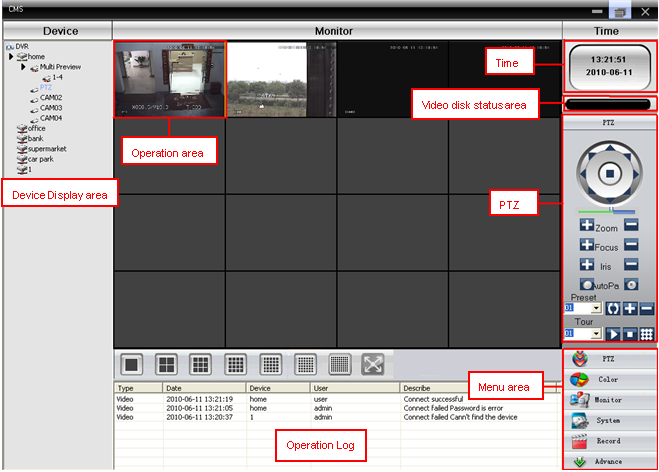
9 3.1 CMS Operation Main Menu Chapter 3 Introduction of Basic Functions Device Display Area: In this area, you can preview live screens by device and super account administrator setting, click device name or channel group to change channels. Users can also pull devices name or specific channel to operation area respectively Operation Area: You can preview live screens, and setup parameters of system configuration and video searching in this area Video Disk Status Area: It can display the rest disk spaces that store video files PTZ: Control and operate PTZ Screen Mode Selection Area: Choose the number of channels accordingly and page to browse. 9

10 3.1.6 Operation Log: It will record and display any operation information when setup and operating Menu Area: Users could set single menu and sub-menu in this area, select relevant menus to operate video surveillance system in the control center. Diagram 3-1 Menu Configuration No 1 2 First Menu PTZ 3 Color Second Menu Third Menu Functions & Instruction Click preview button to choose a preview mode of the screen, touring & switching among all channels and snapshot pictures of the screen. Shut down/open preview menu Control the speed cameras to go up, down, left, right and stop by operating panel. Adjust speed, zoom, focus, iris, auto pan, set preset and touring path. Start touring, the speed camera will tour follow the setting path. Delete the touring path. Set brightness, contract, saturation, and hue for video screen. Restore to original setting Operating right Admin/User Admin/User Admin/User Add device Add video surveillance devices, zone, and zone node. Set login type. 4 Syst em Devi ce man ager Loc al conf ig Modify device Delete device Import &export Connecti on test Base config Alarm config Record plan Modify device name, login type, port number, user name and password, and even manufacture information. Online device are forbidden to modify Delete surveillance devices and zone table. Import &export surveillance point information. Test the network connection status of the added devices. Disk selection, logs maintenance, store catalogue selection, CMS language selection, device connection type set, and CMS start type setting. Enable audio activated by alarm. Set alarm information Set local disk and recording time. Admin/User DDNS server Manage devices together with our company s DDNS server 10

11 Device config Version informati on Display the version information Select online device and set parameter of device Admin/User Account Group User Add and delete users and its operating rights Add, delete and manage users: Set user name, password and operating rights of menu Admin Admin Local log Search alarm log and operation log in set time area. Admin/User 5 Record Playback Select remote or local playback, search record files and playback. Admin/User Decoder Set DVR and corresponding decoder 6 Advance E-map Video touring Using E-map to visually show every cameras location and find current monitoring page directly Preview the touring status in each channel through design the touring solutions. Admin/User TASK config Set the sub stream, batching set the parameters of channels, set different solutions accordingly. Chapter 4 Monitor In menu area, click Device Display Area, it will turn to preview screen. Monitor functions: Preview, PTZ and video specification configuration. Here we introduce the monitor sub functions and its specification setting with details. 11

12 4.1Preview In operation area, users can select preview type, or screenshot in each single channel, or shut down the preview page. Function buttons and instructions of preview in operation area shown as below. Diagram 4-2 Function buttons and instructions of preview No. Button Meanings 1 1 screen preview button. Click it to preview full screen for every channel 2 4 screens preview button. Click it to preview 4 screens. 3 9 screens preview button Click it to preview 9 screens screens preview button. Click it to preview 16 screens screens preview button. Click it to preview 25 screens screens preview button. Click it to preview 36 screens screens preview button. Click it to preview 64 screens. 8 full screen preview button. Click it to enter full screen interface. 9 pagecontrol button. Click to page down and page up the preview pages. 10 audio button. Click to enable audio heard on preview page. 4.2Right-click Menu At operating area, user can do below operation by right-click: 12

13 Close window: close the current screen Close all windows: close all the current screens Audio: click it and hear the voices from preset screens 3D positioning: click to see 3D position. Local record: click it to record at current channel and save the record at the relevant disk. Zoomed: click it to enlarge channel partially. Snapshot: Capture pictures from current channel at any time and save it to relevant disk. Start talk: click it to begin talk with another side of the device. Device config: click it and go to device configuration interface. Color setting: click to set the color of channel. View full: click it to full display the channel. 4.3 PTZ Control When speed cameras are connected with DVR, user can control it at this control center, turn up, down, left and right, stop running, adjust turning speed, zoom, focus and iris, preset and tour configuration. When user enables touring function, the speed cameras will tour according to preset. In operation area of PTZ, user can control the tour way and speed of the speed cameras. The details of buttons in operation panel show as below: 13


14 No. Buttons Meanings 1 Click to control the direction of the speed cameras 2 Drag this pole to adjust speed rate 3 Click to zoom in; Click to zoom out 4 Click to focus in; Click to focus out 5 6 Click to iris it; Click to iris out Click to begin autopa; click to stop autopa. 7 Set a location for the preset, calls the preset points, PTZ automatically turns to the setting position, add, delete and config preset point. Note: device from dahua and hikvision can t support preset point. 8 Multiple preset points connected tour lines, call touring between points, the PTZ run around on the line. Add, delete, and config tour to display each surveillance point. Note: device from dahua and hikvision can t support preset point. Table 4-2 Function buttons and instructions of operation panel 4.4Color No. Button Meaning 1 Brightness 2 Contrast 3 Saturation 4 Hue Table 4-3 color Note:Click to resume Initial values. 14

15 Chapter 5 System 5.1 Device manager Click to add zone, See pic 1: Pic 1 Add zone Add zone here to manage surveillance points in different zones. Eg: Add Binjiang and binjing and click ok, it will show as pic 2: Pic 2 Add zone 15

16 5.1.2 Click to add device, see below picture: Pic 3 Add device Device Name: Device name Login type:ip address, domain, ARSP, and cloud-add. Dahua or ahikvisiopn don t support access device through serialno. IP Address: IP address Domain: Domain name by external network such as hzjufeng.3322.org ARSP:MAC address(config DDNS address locally;when device and CMS have penetration function, add device according MAC) Cloud: SerialNo of device. Manufacture: the device select manufacture, including H264DVR, Hikvision and Dahua. Port: TCP port, different manufacture has its own original TCP port. For instance, Dahua: 34667, Hikvision: User Name: User name 16


17 Password: Password Click "OK" after you have done above parameters, see below picture, you could only doubleclick to open this device, and doubleclick to open each channel. Pic 4 after adding zone Note: Choose only one of Domain name, IP address, ARSP, or cloud. Click IP search to search devices connected with network, and edit or login related device Click to modify device, click device name to edit, see below picture: 17

18 After finishing all the modifications, click "OK" Delete device Pic 5 modify parameters Choose the devices which you want to delete, then click. Note: Please make sure the device is disconnected before modifying and deleting it Import & Export surveillance points Click to import or export surveillance points Note:We get files with extension.bin Connection Test Click to test the connection condition. 5.2Local Config Base Config See pic 6: 18


19 pic6 base config Log Maintenance: Alarm and Operation log keep days. Picture DIR: Picture storage location by snapshot Record DIR: Record storage location by local recording Snapshot format: BMP and JPG, default as BMP. Sync time with PC: Adjusting device and PC in order to make both at the same time Language: Choose language for CMS 19


20 5.2.2 Alarm Setting Pic 7 alarming setting Device list: Choose 1 device to set alarms Alarm Enable: Click it to make sure all alarm functions available Alarm Prompt Sound: Select any alarm prompt sound which you like Sound File Path: Browse and choose prompt sound Auto Watch Warn: Choose it to add following channels by alarm activated Note:Please go to choose alarm type first DDNS Manage device together with DDNS servers, see pic: 20


21 pic8 DDNSserver When device and CMS have penetration function, add device according serialno Record Plan Set local recording time: 21

22 Pic 9 Overwrite:When the HDD is full, cover the earliest recording. Length :Time of video files. Length of alarming recording:time of alarming video files. HDD:Choose the HDD. Click to edit planning template, see pic 10: 22

23 Pic 10 Config name, time and click add to add new template, then click OK, see pic 11. Choose device name from left, and choose the channel number to config, choose time template for a week from Monday to Sunday, the time value will show at bottom, click OK. Pic 11 23

24 5.2.5 Version Information Click to show version information of CMS, see below: Pic Device Config. Control device or set parameters locally. Select a device first, then set its configurations, see below picture 13:: Pic 13 Record 24
25 5.3.1 Record:Click to go into record interface, see pic Recording setting Set record length, period, type, etc.: pic14 Record pic15 recording setting 25
26 Snapshot Storage Set presnapshot, snapshot type and period, see below picture Pic 16 snapshot storage Alarm : Click to go into alarm configuration, see pic 17 pic17 system Alarm activation configuration (motion detect, video blind, video loss and alarm in/out, abnormal alarming),see pic 18 26
27 5.3.3 System pic18 motion detection Click to go into system set interface, see pic 19: 27

28 Pic 19 system Cinfig any parameters as you like. A General: Set system time, language, video standard, DVR No., auto logout and so on Pic 20 general setting 28
29 B Encode: Set DVR specifications of resolution, FPS, video quality etc. see pic21: Pic 21 Encode C Network: Set IP address, port, DNS etc., in order to remote monitor by network and mobile, see pic 22 29
30 Pic 22 network D NetService: Set IP filter, DDNS, etc., see pic 23 Pic 23 NetSevice E CAM Name: Modify camera name by your need, see pic 24 30

31 Pic 24 CAM name F PTZ config,set PTZ parameters to make sure the same as speed cameras, and be able to control. See pic 25; 31
32 pic25 PTZ G RS232:Set port configuration, see pic Management Tools pic26 port setting Click to go into management tools interface, see pic27. 32

33 pic27 management tools A HDD manage: Setting HDD type, formatting, or partitions, see pic28. pic28 HDD manage B Account: Modify/add/delete user, group, password, and limit users rights. 33
34 pic29 Account C AutoMaintain: Set Auto-Reboot time and files management, see below picture pic30 automaintain D Default: Restore to factory setting, see pic31. 34
35 E Reboot the device. pic31 restore F System upgrade: upgrade device with program, see pic Info pic32 upgrading Click to get into system information interface, see pic
36 pic33system info. System info includes HDD info, Log and version info. 5.4 User Add and manage local users and its purview Group Add group, and set groups rights at right; choose a group and click Delete to delete group, see pic34. 36

37 pic34 group User Choose a group to add users, and set its name, password; choose a user to delete or modify, see pic Local Log pic35 add user User could search menu operation log, alarm log and other logs by time, see pic36: 37

38 pic36 38

39 Chapter 6 Record In menu area, click record, the record interface will show at operation area. 6.1 Playback Playback There are 2 playback modes---remote playback and Local playback. Remote playback support playback at device-side, and local playback support playback at client-side. Note:Device from Dahua or Hikvision only support remote playback, not local playback for the moment, see pic37. pic37 playback playback mode:1by file 2by time By file: Select playback channel, record type, period to playback. By time: Select all channels or partial channels to playback, select synchronous to playback all channels at the same time. Table 6-1 Functions and buttons of playback. 39

40 No. Buttons Meanings 1 Click to play. 2 Click to pause. 3 Click to stop. 4 Click to slow play, there are 1,2,3,4 classes of speed. 5 Click to fast play, there are 1,2,3,4 classes of speed. 6 Last frame. 7 Next frame. By file playback, shown as below: By time playback, shown as below: 40

41 Note:Drag the time bar to playback Download & Backup User could playback record files at set time and channels, select record fines, click "Download/Backup" and select "save directory". Note: Remote playback----download Local playback---backup 1 Select the recording file, click to download: 41

42 2 Pop up a window, select record format. 3 Set record dialogue: Click browse to select folder to save downloaded file. Note:To download record file from Dahua devices, user have to shut down the present channel and playback interface; After downloading the record file, it s forbidden to drag record file to DH_player to play, but click the button in red box instead. Pop up the window as below: 42

43 Select AllFiles in bottom right corner, and find the downloaded file. 43

44 Chapter 7 Advanced It contains decoder, E-map, video touring and Task config, see as pic Decoder pic38 advanced 1. Decoder It can manage and config remote decoder, see below picture: 44

45 (1) Add decoder Click to add decoder: Device Name: Name of decoder, set by yourself IP address: IP address of decoder Domain: Domain name of decoder, select it and input decoder domain name to access to Internet. ARSP: MAC address of decoder. 45

46 Cloud: SerialNo of decoder. Port: TCP port, default is User Name: Login name of decoder, default is admin Password: Password of decoder, default is null. Note: support to access to decoder via IP address, domain, MAC address, or serialno. After you add decoder successfully, it will come out a "decoder" ico in this interface, left-click decoder name to drag to right, it will show a purple decoder area, and right-click this ico to edit, delete and set attribute, see picture as below. Add multi decoder, and use the right ico to sort decoders in the interface, see picture as below. 46

47 Select decoder to cinfig as below: Right-click decoder name, and click preview to preview channel; or right-click the purple area in interface, click preview to get into preview channel. After get into preview interface, reclick preview to display related channel interface. Select Synchronous window mode in right bottom of the interface to synchronize decoder. (2) Configuration Click device name, and click configuration to get into interface as. Then select decoder and config it. Drag channel from left to digital channel area, then click video touring, save the config. (3) Reboot Click to reboot. (4) Edit Right-click decoder ico to "edit decoder", et into interface as below: Modify device name, port, etc.. 47
48 (5) Delete decoder 2. Layout In new-built layout, name the layout. Select and drag channel to blank area in the bottom, ad device,then click save, see as below: 48
49 3. Touring Click build touring solution to build. Drag lens or layout to touring window, as below show: 49

50 Click to save, and you can find it at left area, see as below: 4. Solutions Click one of 5. Lens to name and save new solution. Click to edit lens: 50

51 Choose an area, you can see add device and modify are nor gray anymore, you can click to add device or modify the device and lens. 6. Ico :Add decoder; :Save solution; :Solution save as; :Build touring solution; :Edit lens 7.2E-MAP E-MAP is a plan for simulating live screen, user can use it to add & delete cameras and set e-map alarm activation, see below pic43: 51

52 pic43 e-map 1)Select snapshot manage to get into interface as pic44. 2)Select add to get into picture interface as pic45: pic44 add picture 52
53 pic45 picture selecting 2)Find a picture to set its name, description, and click ok, then pop back to e-map interface. Click picture, and drag it to picture display area, as pic64: 53

54 pic46 surveillance point setting 4)Click device to drag device's channel to the map, then the channel name will appear at the map, double-click it to name and describe it, the finished interface as pic47: 5)Cancel edit,get into e-map controlling interface. pic47 surveillance points description 54

55 In e-map display area, doubleclick the surveillance point to get preview interface, as pic48: pic48 surveillance point selecting 7.3 Tour Video touring support several channels take turns to display in the same display area, including all the channels. 1)Click add to design a touring solution, delete or modify the solution, see as pic49: Pic 49 add touring solution Solution name: Solution name. Select channels to add in the solution, take pic49 for an example: 55

56 Touring solution named Touring solution will tour first channel of test device. Touring solution named Touring solution will tour first channel of test room device. Touring solution named Touring solution will tour second channel of test room device. Touring solution named Touring solution will tour fifth channel of test room device. Touring solution named Touring solution will tour seventh channel of test room device. The touring project is shown as pic50. pic5. Touring solution 2)Calling Touring In software operation area, right-click in a window, choose touring solution-touring to control video tour. Note: Touring solution is the name of a touring solution. 56
57 7.4 Task Config. Task config can set sub stream of video connecting. Batching set video connection channels, and config different solution according your need. 1)Click to add, delete or modify a Task solution, see as pic51: Solution name: Task solution name. pic 51 add task solution In device list, choose channels that use sub stream to add in Task solution, take pic51 as an example, Task solution 5 will control to connect 1,3,5,7 channels of device with sub stream. Pic52 as below show the Task solution 5 : 57

58 pic52 Tasksolution 2)Calling Task solution Right-click in left area of CMS, select Task configuration solution, see as below: 58
59 Appendix A Abbreviations Abbreviatio n Formal Name(English) Formal Name(Chinese) CMS center manager system 网 络 视 频 控 制 中 心 DVS Digital Video System 数 字 视 频 监 控 系 统 PTZ Pan/Tilt/Zoom 云 台 设 备 TCP/IP Transmission Control Protocol / Internet Protocol 传 输 控 制 协 议 / 互 联 网 协 议 59
60 Appendix BMain Parameter Video Compression H.264 Audio Compression G711A Video Resolution D1, CIF Display Resoluti on Resolution Rate Frame rate NTSC PAL NTSC 30FPS PAL 25FPS 30/25(NTSC/PAL) F/S Video input BNC input Audio input RCA input Type of compressed code Combine code Rate of compressed code 32kbps~2048kbps(adjustable) Network Protocol Net Interface TCP/IP static IP DHCP PPPoE 10/100M RJ45 PTZ Protocol Pelco-P/ Pelco-D/ Minking/ Linlin/ Neon/ Star/ Vido, etc. Remote mpnitor IE browse CMS remote control Maximum client-side connect Maximum 10 Power supply DC12V/5A 60
NVMS-1200. User Manual
 NVMS-1200 User Manual Contents 1 Software Introduction... 1 1.1 Summary... 1 1.2 Install and Uninstall... 1 1.2.1 Install the Software... 1 2 Login Software... 3 2.1 Login... 3 2.2 Control Panel Instruction...
NVMS - 1000 USER MANUAL. Version 2.1.0
 NVMS - 1000 USER MANUAL Version 2.1.0 Contents 1 Software Introduction... 1 1.1 Summary... 1 1.2 Operation Environment... 1 1.3 Install and Uninstall... 2 1.3.1 Install the Software... 2 1.3.2 Uninstall
User s Manual of DVR DVS Remote Client Software V 4.0.1
 User s Manual of DVR DVS Remote Client Software V 4.0.1 Index Version description...4 1 Introduction...8 2 Software Install, Uninstall and use...9 2.1 Install remote client software ver4.0.1...9 2.2 Uninstall
Professional Surveillance System User s Manual
 Professional Surveillance System User s Manual \ 1 Content Welcome...4 1 Feature...5 2 Installation...6 2.1 Environment...6 2.2 Installation...6 2.3 Un-installation...8 3 Main Window...9 3.1 Interface...9
ImagineWorldClient Client Management Software. User s Manual. (Revision-2)
 ImagineWorldClient Client Management Software User s Manual (Revision-2) (888) 379-2666 US Toll Free (905) 336-9665 Phone (905) 336-9662 Fax www.videotransmitters.com 1 Contents 1. CMS SOFTWARE FEATURES...4
Access to remote DVR from IE USER S MANUAL CONTENT
 Access to remote DVR from IE CONTENT... 2 Preface... 2 1. Introduction... 2 2. System requirement and executing environment... 2 2.1. Supported operating System:... 2 2.2. Hardware requirement (recommend):...
Multi-Site 4200. Remote Viewing Software. User Guide
 Multi-Site 4200 Remote Viewing Software User Guide Document 800-12064V1 Rev A 09/2012 User Guide Revisions Issue Date Revisions A 07/2012 New document. V1 Rev A 09/2012 Updated the description of the
Contents. 1.2 Software Installation... 1
 Software Manual Contents 1 Software Installation... 1 1.1 Overview...1 1.2 Software Installation... 1 2 Introduction To Basic Function...5 2.1 Login System... 5 2.2 CMS Operating Interface...5 2.2.1 Operating
ivms-4200 Client Software Quick Start Guide V1.02
 ivms-4200 Client Software Quick Start Guide V1.02 Contents 1 Description... 2 1.1 Running Environment... 2 1.2 Surveillance System Architecture with an Performance of ivms-4200... 3 2 Starting ivms-4200...
A quick user guide for your LX Apollo DVR
 A quick user guide for your LX Apollo DVR The LX Apollo series of DVR s is designed specially for the security and surveillance field and is an outstanding digital surveillance product. It has an embedded
Support N level organization management,user management and authority setup.
 Chapter 1 Software Instruction 1.1 Summary This is a Central Control Software with powerful function and Distributed Architecture,integrate many windows,users,languages,bidrectional Talk,video conference,classic
How To Set Up Flir Cloud Client For Pc Or Mac Or Mac (For Pc Or Ipad) On A Pc Or Pc Or Mouse (For Mac) On An Iphone Or Ipa) On Pc Or Tv (For Ipa
 Instruction Manual FLIR Cloud Services Client Instruction Manual FLIR Cloud Services Client #LX400018; r. 2.0/14567/14568; en-us iii Table of contents 1 Setting up FLIR Cloud Client for PC or Mac...1
Client Software-4000(V2.00.02) User Manual
 Client Software-4000(V2.00.02) User Manual Index Chapter 1 Welcome to Client Software-4000 (V2.0)... 1 1.1 Overview... 1 1.2 Computer Disposition Request... 1 1.3 Convention... 1 Chapter 2 Install & Uninstall...
ivms-4500(windows Mobile) Mobile Client Software User Manual Version 1.0
 ivms-4500(windows Mobile) Mobile Client Software User Manual Version 1.0 Thank you for purchasing our product. This manual applies to ivms-4500 (Windows Mobile) mobile client software, please read it carefully
Network Video Monitor Software
 Network Video Monitor Software V1.0.0.0 Operation menu Chapter 1 Product Overview 1.1 Performance instruction Network video monitoring software is a centralized management tool for I8 protocol surveillance
User Manual V1.0. Remote Software
 User Manual V1.0 Notice: The information in this manual was current when published. The manufacturer reserves the right to revise and improve its products. All specifications are therefore subject to change
PC-ZViewer User Manual
 PC-ZViewer User Manual For further help, please visit www.zmodo.com Contents Preface... 3 Statement... 3 Intended Reader... 3 Terms in this Manual... 3 Software Introduction... 3 Operating Environment...
1. Central Monitoring System Software
 1. Central Monitoring System Software 1-1. General information CMS program is an application with which users not only watch and control remote DVRs, but also receive video/audio data or alarm signals
Central Management System (CMS) USER MANUAL
 Central Management System (CMS) USER MANUAL LEGAL INFORMATION Reproduction, transfer, distribution or storage of part or all of the contents in this document in any form without the prior written permission
ivms 4000(V2.0) User Manual
 ivms 4000(V2.0) User Manual Table of Contents Chapter 1 Welcome to ivms 4000 (V2.0)...4 1.1 Overview...4 1.2 Computer Disposition Request...4 1.3 Convention...4 Chapter 2 Install & Uninstall...5 2.1 Install
KViewCenter Software User Manual 2012 / 04 / 20 Version 2.2.1.0
 KViewCenter Software User Manual 2012 / 04 / 20 Version 2.2.1.0 Table of Contents Chapter 1. KViewCenter Interface... 5 1.1. Log in.... 5 1.2. Log out... 5 1.3. Control Panel... 6 1.4. Control Panel (Preview
SMS (Server Management Software) Digital Video Recorder. User s Manual
 SMS (Server Management Software) Digital Video Recorder User s Manual Contents 1 - Introduction 2 1.1 About this manual 2 1.2 Configuration 2 1.3 SMS Functions 2 1.4 Product Information 2 1.5 System Requirements
1. Central Monitoring System Software
 1. Central Monitoring System Software 1-1. General information CMS program is an application with which users not only watch and control remote DVRs, but also receive video/audio data or alarm signals
ivms-4500(android) Mobile Client Software User Manual (V1.0)
 ivms-4500(android) Mobile Client Software User Manual (V1.0) Thank you for purchasing our product. This manual applies to ivms-4500 (Android) mobile client software, please read it carefully for the better
Network Video Monitor Software
 Network Video Monitor Software V2.0.0.7 Operation menu Chapter 1 Product Overview 1.1 Performance instruction Network video monitoring software is a centralized management software for I8 protocol surveillance
ivms-4200 Client Software Quick Start Guide
 ivms-4200 Client Software Quick Start Guide Notices The information in this documentation is subject to change without notice and does not represent any commitment on behalf of HIKVISION. HIKVISION disclaims
UC2 Video Surveillance Client. User Manual V1.0.6
 UC2 Video Surveillance Client User Manual V1.0.6 MODIFY STEPS VERSION WRITER STATUS DESCRIPTION DATE V1.0.3 BRIAN A Add access mode function 2011-4-11 V1.0.4 BRIAN A Add PTZ and user role and so on 2011-4-23
Central Management Software CV3-M1024
 Table of Contents Chapter 1. User Interface Overview...5 Chapter 2. Installation...6 2.1 Beginning Installation...6 2.2 Starting the CMS software...10 2.3 Starting it from the Start menu...10 2.4 Starting
Instruction for IE network monitor
 Instruction for IE network monitor This system features a built-in browser-based software that allows you to access your system remotely over your local area network (LAN) or over the Internet (WAN) using
ivms-4500(iphone) Mobile Client Software User Manual (V1.0)
 ivms-4500(iphone) Mobile Client Software User Manual (V1.0) Thank you for purchasing our product. This manual applies to ivms-4500 (iphone) mobile client software, please read it carefully for the better
ivms-4200 Client Software User Manual Version 1.02
 ivms-4200 Client Software User Manual Version 1.02 Contents Chapter 1. Overview... 3 1.1 Description... 3 1.2 Running Environment... 3 Chapter 2. Starting ivms-4200... 4 2.1 User Registration... 4 2.2
1. Central Monitoring System Software
 1. Central Monitoring System Software 1-1. General information CMS program is an application with which users not only watch and control remote DVRs, but also receive video/audio data or alarm signals
Pro Surveillance System 4.0. Quick Start Reference Guide
 Pro Surveillance System 4.0 Quick Start Reference Guide 1 Table of Contents 1) Overview 3 2) Initial Setup Adding a Connection..4 3) Viewing Live Cameras...6 4) Single or Multi Channel Playback..8 5) Predetermined
ivms-4200 Intelligent Video Management System Quick Start Guide
 ivms-4200 Intelligent Video Management System Quick Start Guide Notices The information in this documentation is subject to change without notice and does not represent any commitment on behalf of HIKVISION.
Network Video Recorder. Operation Manual
 Network Video Recorder Operation Manual Content 1 Product Description... 1 1.1 Product Overview... 1 1.2 Specification... 1 2 Product Structure Introduction... 2 2.1 Back Interface... 2 2.2 Front Panel...
Quick-Start Guide. Remote Surveillance & Playback SUPER DVR MONITORING SOFTWARE. For use on Q-See s QSDT series of PC Securitiy Surveillance Cards
 Quick-Start Guide SUPER DVR MONITORING SOFTWARE Remote Surveillance & Playback For use on Q-See s QSDT series of PC Securitiy Surveillance Cards 2 CONFIGURING ROUTER FOR REMOTE ACCESS REMOTE SURVEILLANCE
ivms-4200 Client Software Technical Specification v1.02
 ivms-4200 Client Software Technical Specification v1.02 Introduction ivms-4200 Client Software is a centralized video management software using a distributed structure for surveillance device control and
MAC CMS User Manual 1
 1 TABLE OF CONTENTS Chapter 1. Overview... 4 Chapter 2. Starting CMS Client... 4 2.1 User Registration... 4 2.2 Wizard for Importing Device... 4 2.3 User Login... 9 2.4 Control Panel and Main Menu Bar
Integrated Intelligent Video Surveillance Management System. User's Manual V2.0
 Integrated Intelligent Video Surveillance Management System User's Manual V2.0 1 Contents 1. Product Description... 4 1.1. General Information... 4 1.2. System Topology... 5 1.3. Operating Environment...
User Manual of Web Client
 User Manual of Web Client 1 Index Chapter 1 Software Installation... 3 Chapter 2 Begin to Use... 5 2.1 Login and Exit... 5 2.2 Preview Interface Instruction... 6 2.3 Preview Image... 7 Chapter 3 Playback...
Smart Professional Surveillance System User s Manual
 Smart Professional Surveillance System User s Manual Version 1.10.0 Table of Contents 1 OVERVIEW AND ENVIRONMENT... 1 1.1 Overview... 1 1.2 Performance... 1 1.3 Environments... 1 2 INSTALLATION AND UPGRADE...
CDVS-7000 Series Remote Software Users Guide
 CDVS-7000 Series Remote Software Users Guide Crest Electronics, Inc. Version 12.1005 Remote Surveillance Program The remote surveillance program enables users of the Crest 7000 series DVRs to connect remotely
contents 1.1 Introduction...4 1.2 running the environment...4 Chapter 2 install and uninstall 2.1 The installation of monitoring software...
 1 Chapter 1 monitoring software is introduced. contents 1.1 Introduction...4 1.2 running the environment...4 Chapter 2 install and uninstall 2.1 The installation of monitoring software...5 2.2 Monitoring
Professional Surveillance System User s Manual
 Professional Surveillance System User s Manual Version 4.06 Table of Contents 1 OVERVIEW AND ENVIRONMENT... 1 1.1 Overview... 1 1.2 Environment... 1 2 INSTALLATION AND UPGRADE... 2 2.1 Installation...
NetClient software user manual
 NetClient software user manual 1-1. General information Net Client is an application which provides users not only viewing and controling remote DVRs, but also receiving realtime event data or alarm signals
ivms-4000 (V2.03.07) Client Software User Manual
 ivms-4000 (V2.03.07) Client Software User Manual Table of Contents User Manual... 2 Table of Contents... 1 Chapter 1 Welcome to ivms-4000 (V2.03.04.07)... 4 1.1 Overview... 4 1.2 Computer Disposition Request...
ACS CLIENT SOFTWARE USER MANUAL
 ACS CLIENT SOFTWARE USER MANUAL 1 ACS USER GUIDE 1.1 System Requirement Recommended System Requirement OS CPU VGA RAM HDD WindowXP, Vista Pentium 4, 2Ghz 1024*768, 64MB 24bit color graphic card 1GB 20MB
Smart Professional Surveillance System User s Manual
 Smart Professional Surveillance System User s Manual Version 1.12.1 Table of Contents 1. OVERVIEW AND ENVIRONMENT... 1 1.1 Overview... 1 1.2 Performance... 1 1.3 Environments... 1 2. INSTALLATION AND UPGRADE...
User Manual ivms-4200 Client Software. Version 1.02
 User Manual ivms-4200 Client Software Version 1.02 TABLE OF CONTENTS Chapter 1. Overview... 3 Chapter 2. Starting ivms-4200... 3 2.1 User Registration... 3 2.2 Wizard for Importing Device... 3 2.3 User
Content. Chapter1 Start up and Main interface 2
 Content Chapter1 Start up and Main interface 2 1.1 Start up 2 1.2 Main interface 3 1.2.1 Interface description 3 1.2.2 Local setup 6 1.2.3 Local search 6 1.2.4 Remote setup 6 1.2.5 Remote search 6 1.2.6
LOREX CLIENT Remote Software 4.0
 LOREX CLIENT Remote Software 4.0 Instruction Manual English Version 2.0 MODEL: L20WD800 Series www.lorexcctv.com Copyright 2008 LOREX Technology Inc. Table of Contents Table of Contents Software Installation...
CMS Client Software. Instruction
 CMS Client Software Instruction Version:1.0 CONTENTS 1 Introduction & operation of CMS Client software... 3 1.1 DVR Network Remote Client... 3 1.1.1 Login... 3 1.1.2 Introduction of main interface... 3
CMS Pro. User`s Manual. Professional Central Monitoring Software. Full-featured Enterprise Class Surveillance Solution MADE IN KOREA
 Professional Central Monitoring Software CMS Pro Full-featured Enterprise Class Surveillance Solution User`s Manual MADE IN KOREA M11131CMSProDR This document contains preliminary information and is subject
Professional Surveillance System User s Manual
 Professional Surveillance System User s Manual Version 4.06 Table of Contents 1 OVERVIEW AND ENVIRONMENT... 1 1.1 Overview...1 1.2 Environment...1 2 INSTALLATION AND UPGRADE... 2 2.1 Installation...2 2.2
CMS-DH CENTRAL MANAGEMENT SOFTWARE
 CMS-DH CENTRAL MANAGEMENT SOFTWARE CMS-DH is a central management software that allows you to view and manage up to 300 DH200 series DVRs. System Requirements Your system must meet the system requirements
ivms-4500 (Android Tablet) Mobile Client Software User Manual (V3.0)
 ivms-4500 (Android Tablet) Mobile Client Software User Manual (V3.0) Thank you for purchasing our product. This manual applies to ivms-4500 (Android Tablet) mobile client software; please read it carefully
SMS Remote Software User Manual. Pro Series & Contender Series DVRs
 SMS Remote Software User Manual Pro Series & Contender Series DVRs Table of Contents Chapter 1 Overview 1 1.1 In This Manual 1 1.2 Overview 1 1.3 SMS Features 1 1.4 Product Information 1 1.5 System Requirements
DVS Net (Integration)
 DVS Net (Integration) Installation and User s Guide Ver 11.10.x Digital Video Security System Digital Video Recorder www.tuniss.com PLEASE CALL TUNISS COMPUTER AT: 650-401-6138 FOR ANY QUASTIONS REGARDING
Stand Alone Type. Digital Video Recorder USER S MANUAL. (Real time recording 8 & 16 CH DVR) Revision Date : 2010. 6. 30.
 Stand Alone Type Digital Video Recorder USER S MANUAL (Real time recording 8 & 16 CH DVR) Revision Date : 2010. 6. 30. INDEX 1. Front Panel - - - - - - - - - - - - - - - - - - - - - - - - - - - - - - -
ivms-4500 (Android) Mobile Client Software User Manual (V3.1)
 ivms-4500 (Android) Mobile Client Software User Manual (V3.1) UD.6L0202D1111A01 Thank you for purchasing our product. This manual applies to ivms-4500 (Android) V3.1 mobile client software; please read
BlackHawk for MAC Software User Guide
 BlackHawk for MAC Software User Guide Products: BLK-DH2 Series and BLK-HD Series DVRs Please read this manual before using your software, and always follow the instructions for safety and proper use. Save
XMEye Android Mobile Monitoring Client English Manual
 XMEye Android Mobile Monitoring Client English Manual Written by: The test department Prepared Date: 2014-03-25 Version: V1.0 目 录 1. Introduction... 3 1.1. Brief Introduction... 3 1.2. Main Functions...
<User s Guide> Plus Viewer. monitoring. Web
 Plus Viewer 1 < Plus Viewer (web ) > 1-1 Access Method The user can access the DVR system through the web. 1 Enter the IP for the DVR system in the address field of the web browser. 2 The
ADTVision (ios) Mobile Client Software User Manual (V1.6)
 ADTVision (ios) Mobile Client Software User Manual (V1.6) Thank you for purchasing our product. This manual applies to ADTVision (ios) mobile client software, please read it carefully for the better use
SCode CMS (Central Monitoring System) V3.5.1 (SP-501 and MP-9200)
 CMS (Central Monitoring System) V3.5.1 (SP-501 and MP-9200) Technical Characteristic Multi-server and Central-server Structure The multi-server structure is an innovated design. Each Server handles a regional
Remote Client Program... 3. Web Client... 39
 Remote Client / Web Client USER MANUAL T Series Digital Video Recorder Remote Client Program... 3 Remote Client Program Installation... 4 Remote Client... 6 Main Window... 6 Site Registration... 7 Group
Contents. Introduction 3. Installation 4
 VMS User Manual Contents Introduction 3 Installation 4 Minimum Recommended Requirements 4 Login 4 Main Window 5 Menu Items 5 Toolbar Items 6 Play Bar Items 7 Configuration 8 Add network cameras/ digital
TVWall User s Manual (for WindowsXP/2003/Win7/Vista)
 TVWall User s Manual (for WindowsXP/2003/Win7/Vista) Document edition:v4.1 Document suit for all of the NVS and NVD made in our company. 1 Preface Thank you for using our products, TVWall also called TVwall
MJPEG Camera Client User Manual
 MJPEG Camera Client User Manual CONTENTS User Manual 1 WELCOME... 3 1.1Features... 3 1.2Installation Requirements... 3 1.3 Software Installation... 3 2 Software Operation... 5 2.1 Tab bar... 6 2.2 Device
MULTI-CLIENT Remote Monitor Center. User manual
 MULTI-CLIENT Remote Monitor Center User manual Contents 1.Multi-client introduction... 3 2.Main features... 4 3.Working Envoirment and installation... 4 4.Login... 4 5.Using procedures... Ошибка! Закладка
4-CH Hybrid Digital Video Recorder
 4-CH Hybrid Digital Video Recorder Key Features Hardware Embedded, highly-reliable standalone HDVR Supports 4-ch BNC connectors Supports dual local display (VGA and HDMI) Supports 3.5" SATA x 1 HDD Supports
Digital Video Recorder Client and Network Manual V1.1 Table of Contents
 Table of Contents I. PC Client S/W User s Manual...2 1. Introduction of.avh Files Player...2 1.1 Introduction of Function Keys...3 1.2 Specific Operation...3 2. Introduction of DVR Network Remote Client...5
Guarding Expert (Android Tablet) Mobile Client Software User Manual (V3.1)
 Guarding Expert (Android Tablet) Mobile Client Software User Manual (V3.1) UD.6L0202D1080A01 Thank you for purchasing our product. This manual applies to Guarding Expert (Android Tablet) mobile client
CONTENTS WWW.FOSCAM.COM
 CMS User Manual CMS User Manual CONTENTS 1 WELCOME... 3 1.1Features... 3 1.2 Minimum System Requirements... 3 1.3 Software Installation... 4 2 The software operation... 5 2.1 Login and Exit the client...
Manual Client Management Software HDR50-CMS
 Manual Client Management Software HDR50-CMS HDR50-CMS (Client Management Software) A-1. Install HDR50-CMS for Windows PC HDR50-CMS is a program for communication between DVR and PC to control signal and
Multi Client (Integration)
 Multi Client (Integration) Installation and User s Guide Ver 12.10.x *All contents of this document may change without prior notice. INDEX 1. Index 01 2. Introduction 02 3. Installation 03 4. Using Multi
VMS A1 Client Software. User Manual (V2.0)
 VMS A1 Client Software User Manual (V2.0) Contents Chapter 1 Overview...4 1.1 Description...4 1.2 Running Environment...4 1.3 Function Modules...5 Chapter 2 Live View...7 2.1 User Registration and Login...7
Centralized Monitoring Management Platform Manual
 Centralized Monitoring Management Platform Manual 1 Contents 1 Products...3 1.1. Summary...3 1.2. Network topology...4 1.3. Application Environment...4 1.4. Related technology...4 2. System Architecture...5
SMS (Server Management Software) Digital Video Recorder. User s Manual
 SMS (Server Management Software) Digital Video Recorder User s Manual 1 Table of Contents Chapter 1 Overview.....03 1.1 In This Manual..03 1.2 Overview 03 1.3 SMS Features...03 1.4 Product Information..03
Appendix A. CMS(Client Management Software)
 Appendix A. CMS(Client Management Software) A-1. Install CMS for Windows PC CMS is a program for communication between DVR and PC to control signal and video. Insert the enclosed CD, and go to CD-ROM Drive
i -CEN S USER S Manual 2007. 08. 13.
 i -CEN S i -CEN'S USER S Manual 2007. 08. 13. i -CEN S Table of Contents Overview of i-cen S software... 4 1 Introduction of i-cen S... 4 2 Key Features... 5 3 Key Benefits... 5 4 System Specification...
NVMS Network Video Monitor System Standard Edition. Users Manual
 Network Video Monitor System Standard Edition Users Manual Contents Contents... 1 1. Introduction... 2 1.1. Brief Introduction... 2 1.2. Definition... 3 1.3. System Features... 3 1.4. System operating
CMS Manual. Digital Video Network Surveillance System. Unisight Digital Technologies, Inc.
 CMS Manual Digital Video Network Surveillance System Index Overview... 4 Datacenter...4 Run...4 Configuration...5 CMS Settings...9 Functions:...9 Components:...9 Device Manager...17 Functions:...17 Components:...17
How To Use A Pew V.V.V (Windows) V.A.1.1 (Windows 8) (Windows 7) (Powerpoint) (For Windows) (Win Xp) (V.A) (Amd)
 VIDEO VIEWER USER MANUAL Please read instructions thoroughly before operation and retain it for future reference. Video_viewer_V1.0 LEGAL INFORMATION Reproduction, transfer, distribution or storage of
QSD2316L DVR User s Manual
 QSD2316L DVR User s Manual H.264-200 FPS /240 FPS 16-channel digital video recorder All rights reserved Rev 062408 QSD2316L DVR User s Manual CAUTION Please read this user manual carefully to ensure that
XCenter User Manual (For Windows XP/2003/2008/ Vista/Win7)
 Xcenter(v2.0.1.8) User Manual XCenter User Manual (For Windows XP/2003/2008/ Vista/Win7) Document edition: For all IP cameras and digital video servers made in our company. 1/39 Xcenter(v2.0.1.8) User
IP Camera Centralization Management. Client Application. (IPCMonitor) Feb, 2013 Version 1.9. User Manual
 IP Camera Centralization Management Client Application (IPCMonitor) Feb, 2013 Version 1.9 User Manual INDEX 1 Introduction...3 2 Computer Requirement...3 3 Installation...4 4 Devices list...4 4.1 Adding
IP Surveillance System. User s manual
 IP Surveillance System User s manual IP Surveillance system Table of Contents TABLE OF CONTENTS TABLE OF CONTENTS...1 SYSTEM REQUIREMENT...3 INSTALLATION...4 1. MAIN CONSOLE...12 1.1 Start...14 1.2 Information
IPC series IP camera user manual
 IPC series IP camera user manual 1. Product introduction IPC series IP camera applied embedded RTOS system design, Dual-core T architecture 32-bit TI Da Vinci chip (DSP), Super storage capability, which
7. Mobile Phone Support
 7. Mobile Phone Support A state-of-the-art feature of this DVR device is transmitting live feed from the CCTV cameras to your mobile phone, so that you can have on the go access to your surveillance system
User`s Manual. CMS Pro. Professional Central Monitoring Software. Full-featured Enterprise Class Surveillance Solution
 Professional Central Monitoring Software CMS Pro Full-featured Enterprise Class Surveillance Solution User`s Manual This document contains preliminary information and is subject to change without notice.
Digital Sentry DS ControlPoint
 O P E R A T I O N Digital Sentry DS ControlPoint C3674M-I (5/11) 2 C3674M-I (5/11) C3674M-I (5/11) 3 Contents Description...........................................................................................................
Mobile Video Analysis Software User Guide. Version 2.0.8
 User Guide Version 2.0.8 Content 1. Introduction......1 1.1 Software Overview... 1 1.2 Documentation Overview... 1 1.3 Application Range... 1 1.4 System Requirements... 1 2. Getting Started... 3 2.1 Main
Smart Professional Surveillance System User s Manual
 Smart Professional Surveillance System User s Manual Version 1.0.0 Table of Contents 1 OVERVIEW AND ENVIRONMENT... 1 1.1 Overview...1 1.2 Environment...1 2 INSTALLATION AND UPGRADE... 2 2.1 Installation...2
Mobile Surveillance. User Manual
 Mobile Surveillance User Manual Contents 1 Network Configuration... 1 1.1 Access Device via WLAN... 1 1.2 Access Device via 3G Network... 1 2 By Phones with iphone OS... 2 2.1 Installation Instruction...
IPC Video Surveillance Client. User Manual V1.1.2
 IPC Video Surveillance Client User Manual V1.1.2 Statement Thank you for purchasing our products! If you have any questions or need, please contact the customer department at any time. This manual applies
DS-7200HWI-SH/A Series DVR. Technical Specification
 DS-7200HWI-SH/A Series DVR Technical Specification Notices The information in this documentation is subject to change without notice and does not represent any commitment on behalf of HIKVISION. HIKVISION
CMS3.0 CMS3.0. Manual. User. Use V3.01 声 明 非 常 感 谢 您 购 买 我 公 司 的 产 品, 如 果 您 有 什 么 疑 问 或 需 要 请 随 时 联 系 我 们
 CMS3.0 Use ser V3.01 声 明 非 常 感 谢 您 购 买 我 公 司 的 产 品, 如 果 您 有 什 么 疑 问 或 需 要 请 随 时 联 系 我 们 1 This manual maybe exist inexact in technology,product feature,operation discrepancy or misprint. The content of
ivms-5200 Professional Web Manager User Manual
 ivms-5200 Professional Web Manager User Manual UD.6L0202D1651A01 Hikvision ivms-5200 Professional Web Manager User Manual This manual, as well as the software described in it, is furnished under license
Enterprise Management Suite
 Light Version 02.01V 0 Tale of Contents II. INSTALLING... 4 III.EXECUTING EMS... 6 IV. FEATURES... 7 1. EMS Overview... 7 1. Online/Offline button... 7 2. Device Manager... 8 3. Tree... 10 4. EMS Log...