
AFN-SchoolStoreManagerGuide
|
|
|
- Morris Bruno Osborne
- 10 years ago
- Views:
Transcription
1 Blackbaud, Inc. This publication, or any part thereof, may not be reproduced or transmitted in any form or by any means, electronic, or mechanical, including photocopying, recording, storage in an information retrieval system, or otherwise, without the prior written permission of Blackbaud, Inc. The information in this manual has been carefully checked and is believed to be accurate. Blackbaud, Inc., assumes no responsibility for any inaccuracies, errors, or omissions in this manual. In no event will Blackbaud, Inc., be liable for direct, indirect, special, incidental, or consequential damages resulting from any defect or omission in this manual, even if advised of the possibility of damages. In the interest of continuing product development, Blackbaud, Inc., reserves the right to make improvements in this manual and the products it describes at any time, without notice or obligation. The Raiser s Edge, MatchFinder, ParaGon, RE:Alum, RE:Event, RE:Member, RE:Queue, RE:Tribute, RE:Volunteer, RE:Zip, and Blackbaud are registered trademarks of Blackbaud, Inc. All other products and company names mentioned herein are trademarks of their respective holder. AFN-SchoolStoreManagerGuide

2

3 School Store Manager Guide SCHOOL STORE MANAGER BASICS Accessing School Store Manager School Store Manager Functions Shortcut Keys Documentation for School Store Manager QUICKSELL 2000 & SCHOOL STORE MANAGER Configuration Load Students Print ID Cards Load Transactions Print Transaction Report Clear QuickSell Information STORE OPERATIONS & SCHOOL STORE MANAGER Configuration Load Students Print ID Cards Load Transactions Print Transaction Report Clear QuickSell Information POSTING FROM QUICKSELL TO GENERAL LEDGER Creating a QuickSell Post File Importing QuickSell Transactions to General Ledger Importing QuickSell Transactions to General Ledger QuickSell Post File Field Mappings: General Ledger QuickSell Post File Field Mappings: General Ledger SAMPLE ID CARDS Student ID Card with Picture Student ID Card without Picture Faculty ID Card without Picture SAMPLE STATEMENT OF CHARGES

4 Sample Statement of Charges INDEX

5 School Store Manager Basics In This Chapter Accessing School Store Manager School Store Manager Functions Shortcut Keys Documentation for School Store Manager Online Manual Accessing Online Manuals Using Acrobat Reader Using Online Help Accessing Online Help Using Help Notes User s Guide Format Chapter Format Text Format

6 2 CHAPTER 1 With School Store Manager you can post school store charges to Blackbaud s Student Billing when you use QuickSell 2000 or Store Operations, point-of-sale software produced by Retail Management System. With School Store Manager and QuickSell you can produce a single statement, with both school store and tuition charges, while reducing data entry time and errors. You can transfer customer information from Student Billing to QuickSell. Also, you can print customer ID cards with bar coding, which customers can then use as debit or credit cards. If you have Store Operations, you can set up multiple databases for multiple school stores. This chapter introduces the basics of School Store Manager, including instructions for accessing School Store Manager functions, a brief description of each function, an explanation of shortcut keys, and information about accessing and using the documentation. Subsequent chapters provide explanations and procedures for using School Store Manager with QuickSell 2000 and Store Operations. Appendices include sample ID cards and a sample transaction report. Accessing School Store Manager You access School Store Manager from the Utilities and Housekeeping module of Student Billing by selecting File, School Store Manager. When you highlight School Store Manager, a menu of options appears.
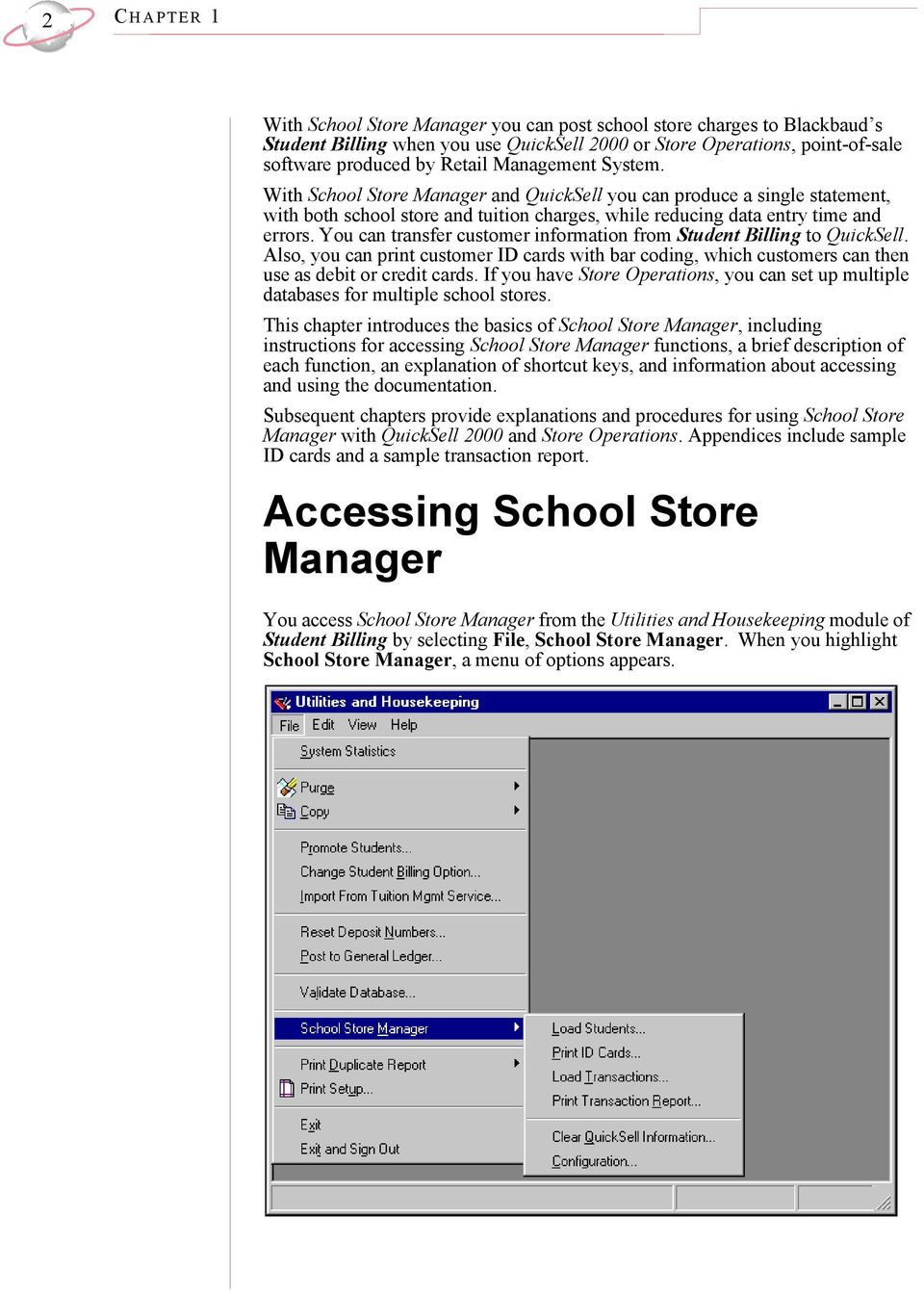
7 S CHOOL STORE MANAGER BASICS 3 School Store Manager Functions The School Store Manager menu contains several selections: Load Students, Print ID Cards, Load Transactions, Print Transactions Report, Clear QuickSell Information, and Configuration. Configuration. Configuration establishes parameters for School Store Manager. You cannot access other School Store Manager options until you have configured the program. Load Students. You can load student information, including address, ID number or Social Security Number, telephone number, gender, birth date, class year, grade, and purchase information directly into QuickSell as customer information. Purchase information includes charge tax exemptions, price level, credit limit, and percent discount. You can also update a spare code or flag in Student Billing for each student loaded into QuickSell. Print ID Cards. You can issue ID cards to customers with QuickSell accounts that include name, account number, and faculty status (if applicable). Also, you can include optional fields: birth date, class year, grade, signature line, school name, and space for a photograph. Your customers can use the ID cards as debit cards or credit cards when making purchases through their QuickSell accounts. Load Transactions. You can export charges and debits on QuickSell accounts to Student Billing. All transactions posted to Student Billing are in summary format. Print Transaction Report. You can print a statement containing item names, prices, quantities, and dates for transactions in which the customer charged at least some of the total price with On Account selected as the tender type. Clear QuickSell Information. When you clear QuickSell information, the program adjusts the customer balance to zero. You must periodically clear customer balances to ensure accounts in QuickSell do not show an inaccurate balance. Detailed information about each of these functions is discussed in subsequent chapters. If you choose to post directly from QuickSell, mark the transaction as Posted. If you post through Student Billing, mark the transaction Not Yet Posted or Do Not Post. Shortcut Keys Throughout School Store Manager, there are shortcut keys and shortcut methods to help with data entry. Function keys are the primary source for shortcuts. When a function key is available, a message appears in the status bar at the bottom of the screen. ENTER SHIFT TAB The ENTER key (sometimes called the RETURN key) signals the computer that entry of a command, field, or data is complete. The SHIFT key allows you to select consecutive items from a grid. To select consecutive items, highlight the first item, then press and hold SHIFT while selecting the last item. The TAB key signals the computer that entry of a command, field, or data is complete. Pressing this key moves the cursor forward to the next field.
8 4 CHAPTER 1 BACKSPACE HOME END DELETE F1 F3 F7 The BACKSPACE key moves the cursor back one character, deleting the character. The HOME key places the cursor at the beginning of the field. The END key places the cursor after the last character in a field. The DELETE key removes the highlighted characters or entry when pressed. The F1 key activates online help. Press this key to access context-sensitive Help. In date fields, pressing the F3 key inserts the current date. Pressing F3 also inserts the default value of a field if one is available. A message appears on the status bar if a default value is available. The primary function of the F7 key is activating table lookups. However, this key also activates a calendar in date fields and a calculator in currency fields. In addition, F7 accesses the search screen, where linking of records is available. Documentation for School Store Manager Select Help from the menu bar to search help topics, view online documentation, and connect to Blackbaud s home page. Documentation for School Store Manager includes the online manual School Store Manager Guide and Help File Topics in Student Billing. You can also refer to the Administrator s Guide for information about installation. Select Help from the menu bar to access online help topics, the online manual, and links to Blackbaud s Web site: Student Billing Help Topics opens the online help file. Here you find procedures to perform essential program tasks such as posting QuickSell charges. School Store Manager topics are listed under Optional Modules. Online Manual opens the Student Billing Guide. You can use the bookmarks to move from chapter to chapter. From the Student Billing Guide PDF, you can access other related guides, such as the School Store Manager Guide. Contacting Support provides information about contacting Blackbaud s support staff and other resources. Blackbaud on the Web provides links to Online Support and the Blackbaud home page. About Student Billing provides serial number, version number, and copyright information. This information is important if you need to contact Customer Support. Online Manual An online manual is a user s guide in a portable document format (PDF). Online manuals are located on your installation CD-ROM and on Blackbaud s Web site. You must have Adobe Acrobat Reader to view a PDF. A free copy of Adobe Acrobat Reader 4.05 is on your installation CD, or you can download it, without charge, from the Adobe Web site: From a guide s PDF, you can easily navigate through an online manual and print individual pages or entire guides on demand.

9 S CHOOL STORE MANAGER BASICS 5 Accessing Online Manuals If you loaded online manuals during program installation, you can access the Student Billing Guide from the Help menu of a Student Billing module. You can also access this guide by selecting Start, Programs. Then select Blackbaud Student Billing, Online Manual. If you choose not to install the online manual, you can open the PDF files from the installation CD. For the most up-to-date information, download the online manual from the Blackbaud Web site at For the most up-to-date information, download the online manual from the Blackbaud Web site at Using Acrobat Reader You can view the online manual on the Acrobat screen or print a portion or all of the manual. The online manual contains links so you can navigate easily. With a click of the mouse, you can jump from the Table of Contents to Posting from QuickSell to General Ledger. The viewing window contains bookmarks in the left pane that link to individual chapters, the glossary and index, and other user guides in the program. Using Online Help The online help files designed for Student Billing and School Store Manager provide access to many different kinds of help: overview and reference information, procedures, contact information, and user-defined notes. Specific help file topics for School Store Manager are located under Optional Modules on the Contents tab of the Student Billing help file. Accessing Online Help You can access online help in three ways: Help, Student Billing Help Topics from the menu bar the question mark button on the toolbar F1 from most screens in the program Online help contains concise information about specific processes and tasks within School Store Manager. Pressing F1 takes you directly to information about the part of the program you are using. Using Help Notes You can create and save notes and tips specific to your organization s needs about how to use Accounting for Nonprofits programs. To enter and maintain notes as you use School Store Manager, click the Notes button in the help file. A text file (sbnotes.doc) opens in which you can enter and maintain notes. This file is located in your Blackbaud directory folder. If you do not have Microsoft Word, delete the sbnotes.doc so that the Notes button can access sbnotes.txt using Notepad. Be aware when you run program updates, the Notes file is copied over with a blank file. If you want to keep notes, save the text file to a safe location apart from the Blackbaud directory. To share your notes/tips with coworkers, copy the notes file to the Blackbaud folder on their hard drives.

10 6 CHAPTER 1 User s Guide Format This guide follows a standard format to help you locate and identify information. Chapter Format Most chapters contain these elements.: Format In This Chapter Overview Procedures Denotes A listing of the contents of the chapter. A brief description of the information in the chapter. Quick, step-by-step instructions for completing basic tasks. Text Format The table below explains the conventions the manual uses as visual cues for fields, program names, notes, tips, or warnings. Format Bold Bold Italics Italics Denotes This is the name of a field or button, for example, Print. This is a Blackbaud program name, for example, Student Billing for Windows. This is a Blackbaud program module name, for example, Utilities and Housekeeping. The shaded arrow indicates the beginning of a procedure. SMALL CAPS or KEYS KEY+KEY KEY, KEY This is a key on your keyboard. Press DELETE refers to the key on your keyboard. Click Delete refers to an onscreen button. Two keys joined by a plus sign indicate you must press the keys simultaneously to execute the command. For example, if you are instructed to Press CTRL + F, you must press the CONTROL key and the F key at the same time. Two keys separated by a comma indicate you must press the keys in the order in which they appear. For example, if you are instructed to press ALT, F, you must press the ALT key, release it, then press the F key. The traffic light symbol indicates a cautionary note. Generally, this is used to point out a step that may have unwanted results. The notepad symbol designates a note or tip related to information in the main text column. The clock symbol designates a shortcut or timesaving action.
11 QuickSell 2000 & School Store Manager In This Chapter Configuration Load Students Print ID Cards Load Transactions Print Transaction Report Clear QuickSell Information

12 8 CHAPTER 2 Using QuickSell 2000 you can maintain a single school store database. You can transfer a summary of the store s transactions to Student Billing through the optional module School Store Manager and then post them to General Ledger. You can also create a post file from QuickSell and import transactions directly into General Ledger. You can access School Store Manager options from the File menu of Utilities and Housekeeping in Student Billing. The Configuration module of Student Billing must be configured for QuickSell First you must configure School Store Manager to work with QuickSell Then you load student and faculty information through Load Students. Using the information you load into QuickSell, you can print ID cards for students and faculty. Additionally, you can print a transaction report of all items for one customer or all customers. You can filter by a single transaction date or a date range. Student Billing must be configured for QuickSell In the Configuration module, select the Preferences tab. For the Display option, mark System Preferences. Then mark Miscellaneous 1 in the left box. In the Select the system you have installed field, select QuickSell Configuration Your selection in the Use [ ] as QuickSell Account # field becomes the unique identifier for each customer account in QuickSell Changing this identifier after loading students can cause problems. Proper configuration of School Store Manager is a key first step in connecting Student Billing and QuickSell Once you complete configuration, all School Store Manager functions become fully active and transactions can be posted from QuickSell to Student Billing. You establish the program paths for Student Billing and QuickSell on the Configuration screen in School Store Manager. You also select a student identifier to use as the QuickSell account number, edit the school name, specify the Student Billing fee, and set the spare field mappings. The program requires the information on the Configuration screen to establish a link between Student Billing and QuickSell. Before You Configure School Store Manager: We strongly recommend you do not change spare field mappings after loading students. When you change field mappings, Student Billing and QuickSell no longer recognize the other s information. Configure customer fields in QuickSell 2000 Manager so they can be correctly mapped to Student Billing fields. Spare QuickSell fields must be entered in the correct customer field type format (text, date, or numeric) for the selections to appear in School Store Manager. Student Billing field Student Billing record # Date ID card printed Birth date Gender Class of Grade QuickSell 2000 field type Text field Date field Date field Text field Numeric field Text field Student Billing record # and Date ID card printed fields are required. The other spare fields are optional. Make sure you have set up a billing fee in Student Billing Configuration to which you want school store charges applied. You can use only billing fees for the current billing year.

13 QUICKS ELL 2000 & SCHOOL STORE MANAGER 9 Student Billing performs all selected options on the biling fee when a charge from QuickSell 2000 is applied to the fee. For example, if you have established a default sales tax on the billing fee, the default sales tax fee is generated when a charge from QuickSell 2000 is applied to the fee. Fields Automatically Loaded into QuickSell The following fields are automatically loaded into QuickSell when you load students. The student identifier (Social Security Number or Student ID) you select on the Configuration screen for School Store Manager enables QuickSell to recognize the student and attach the correct information from the student record in Student Billing. Account number (Social Security Number or Student ID) Last name First name Address City State Zip Country Telephone number

14 10 CHAPTER 2 Configuring School Store Manager for QuickSell From Utilities and Housekeeping, select File, School Store Manager. Then select Configuration. The School Store Configuration screen appears. During the Print ID Cards procedure, you can select the font type, style, and size for the actual printing of the school name. 2. In the QuickSell field, enter the path to the directory where your QuickSell program files are located. For example, if QuickSell is on the C drive in the \QS2000 directory, enter C:\QS2000. If you are unsure of the path, click the ellipsis to browse. 3. In the Use [ ] as QuickSell Account # field, select Social Security No. or Student ID. The selection in this field becomes the unique identifier for each customer account in QuickSell In the School name field, the program automatically fills in your organization s name as it appears in Configuration in Student Billing; however, you can edit this field at any time. The school name in this field appears on the ID cards you print for students and faculty. 5. In the Fee to create in Student Billing field, select a billing fee code. Billing fees are established in Configuration in Student Billing.

15 QUICKS ELL 2000 & SCHOOL STORE MANAGER In the Spare Field Mapping frame, select each QuickSell spare field in the Map to column for each Student Billing Field in the left column. Only Student Billing record # and Date ID card printed fields are required. We strongly recommend you do not change spare field mappings after loading students. 7. Click OK to complete configuration. To make mapping easier, customize the names of text, numeric, and date fields in the Manager module of QuickSell before you configure School Store Manager. Load Students After you have properly configured the school store, you are ready to load students. The Load Students utility brings specific student information into QuickSell 2000 from Student Billing. You can filter the list of students being loaded by a previously-defined query, date they were added, and attributes. Also, you can run the Load Students utility to update QuickSell records based on changes made in Student Billing records. Mark the Update information for students already in QuickSell checkbox to include changes. On the Attributes tab, Add, Update, or Delete these Attributes for Each Student is helpful if you want to quickly add, update, or delete an attribute in Student Billing records for students you are loading into QuickSell. For example, you may want to add an attribute named Cafeteria Eligibility with a description of Yes for each student you load into the QuickSell school store. To print ID cards for faculty members or provide faculty charge accounts, you must create records for faculty members in QuickSell. For more information about procedures in QuickSell, see the user s guide produced by QuickSell. After loading students into QuickSell 2000, do not change the student identifier in QuickSell. In Student Billing, the student identifier is either the student s Social Security Number or ID as selected in School Store Manager Configuration. In QuickSell, the student identifier is the QuickSell Account #. The link to Student Billing and School Store Manager depends on this identifier. To add changes made in Student Billing records to customer records in QuickSell, run the Load Students utility and mark Update information for students already in QuickSell.
16 12 CHAPTER 2 Before you can load students, you must complete configuration of School Store Manager. Loading students into QuickSell From Utilities and Housekeeping, select File, School Store Manager. Then select Load Students. The Load Students screen appears. QuickSell does not provide space for middle initials. Marking Append middle initial to first name enables the program to treat the first name and middle initial as one unit. You can use this feature to identify students with similar names. 2. To filter students by a query or load only one student, click Include and choose Selected Students or One Student. The Select a Student Query screen appears. Select a query of students or a single student and click Open. 3. To filter students by the date they were added to Student Billing, mark Only load those students added after [ ]. Enter a date or click the calendar to select a date. 4. If you are updating information for students loaded previously to QuickSell, mark Update information for students already in QuickSell. 5. To add a student s middle initial to the end of the first name in QuickSell, mark Append middle initial to first name. 6. To create a query of students who are successfully loaded or updated in QuickSell, mark Create output query. 7. To create a query of students who are not successfully loaded or updated in QuickSell, mark Create exception query. You can use this query to update later. 8. To print a report detailing the results of loading students, mark Print control report.

17 QUICKS ELL 2000 & SCHOOL STORE MANAGER Select the Attributes tab. 10. To filter students by attribute, mark Include or Exclude Students with these Attributes. In the Filter column, select Include or Exclude. In the Category column, select the attribute type. In the Description column, select the attribute description by which you want to filter. The Short Description appears automatically. 11. To globally add, update, or delete student attributes, mark Add, Update, or Delete these Attributes for Each Student. In the Action column, select Add, Update, or Delete. In the Category column, select the attribute type. In the Description column, select the attribute description by which you want to filter. The Short Description fills automatically. In the Date column, you can enter the date the attribute is being added or another type of date. In the Comment column, you can enter up to 50 characters of text. Adding, updating, or deleting attributes affects only the Student Billing records. This information does not load into QuickSell.

18 14 CHAPTER 2 You can use student addresses in QuickSell for several purposes, including billing and student verification. 12. To set the student address used by QuickSell 2000, select the Addresses tab. For information about seasonal addresses, see the Student Billing for Windows User s Guide. 13. To verify addresses before loading students, mark Validate addresses as of [ ], and select Today or <Specific date>. If you select <Specific date>, enter the date in the Date field. 14. To use seasonal addresses in QuickSell, mark Consider seasonal addresses. If seasonal addresses are considered, in the If no seasonal addresses exist, use this address field, select an alternative address. If you select a specific address type, in the If no [ ] address exists, use this address field, select a tertiary address type. If seasonal addresses are not considered, in the Use this address field, select the address to load. If you select a specific address type, in the If no [ ] address exists, use this address field, select a second address type. 15. To load student records into QuickSell that do not have a valid address, mark Create a record with no address. To prevent loading student records that do not have a valid address, mark Omit the record.
![To verify addresses before loading students, mark Validate addresses as of [ ], and select Today or <Specific date>. If you select <Specific date>, enter the date in the Date field. 14.](/docs-images/45/2104815/images/page_18.jpg "To use seasonal addresses in QuickSell, mark Consider seasonal addresses.")
19 QUICKS ELL 2000 & SCHOOL STORE MANAGER Select the Miscellaneous tab. 17. If you are using a QuickSell multilevel pricing structure, select a level in the Price level field. In the Percent discount field, enter the percentage amount for all students being loaded. 18. To allow customer credit, mark Allow Credit. In the Credit limit field, enter an amount. 19. If all store items are tax exempt, mark Purchases are tax exempt. 20. Select the Additional Fields tab. You must mark Allow Credit to permit credit and debit transactions in QuickSell.
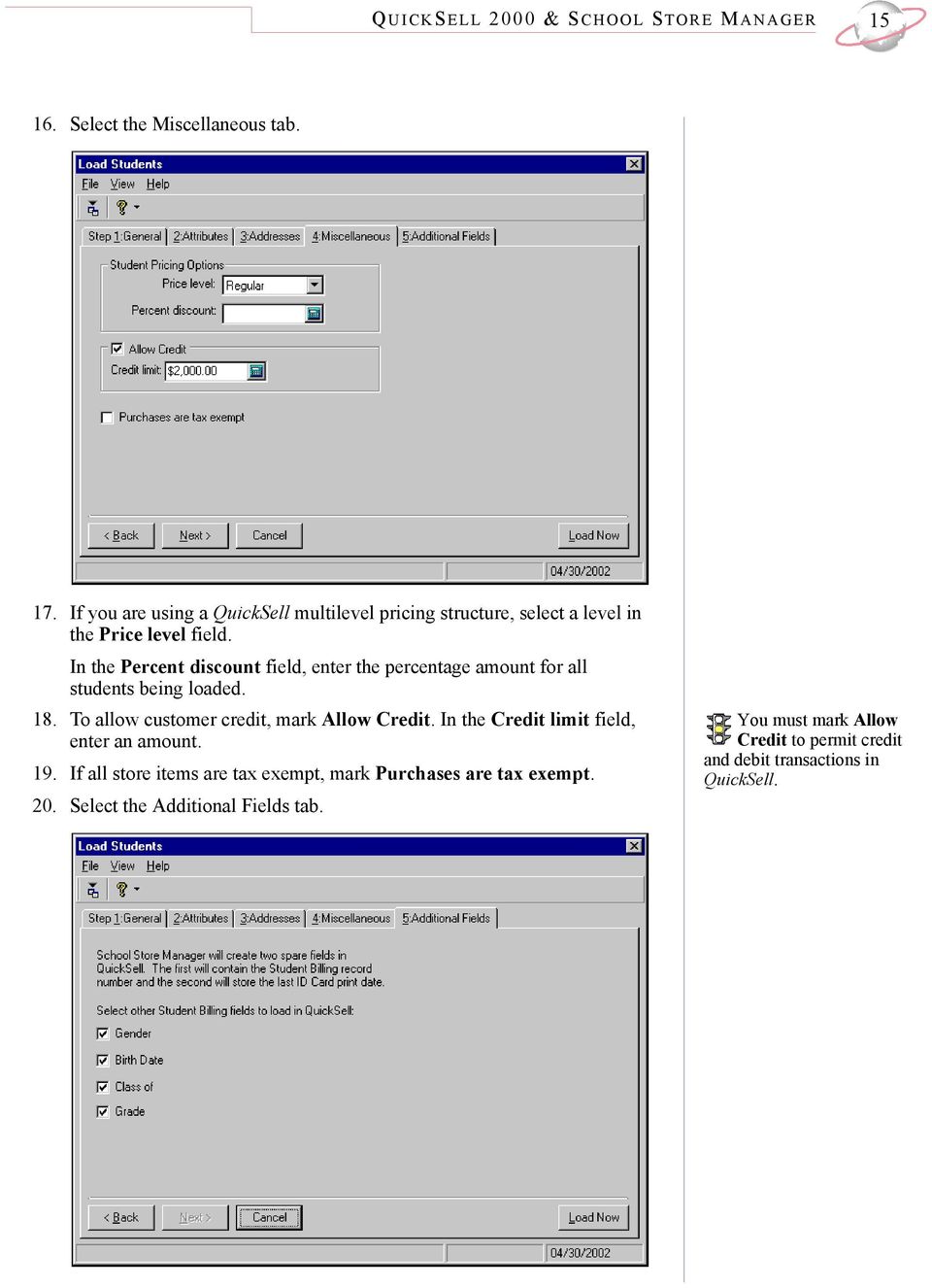
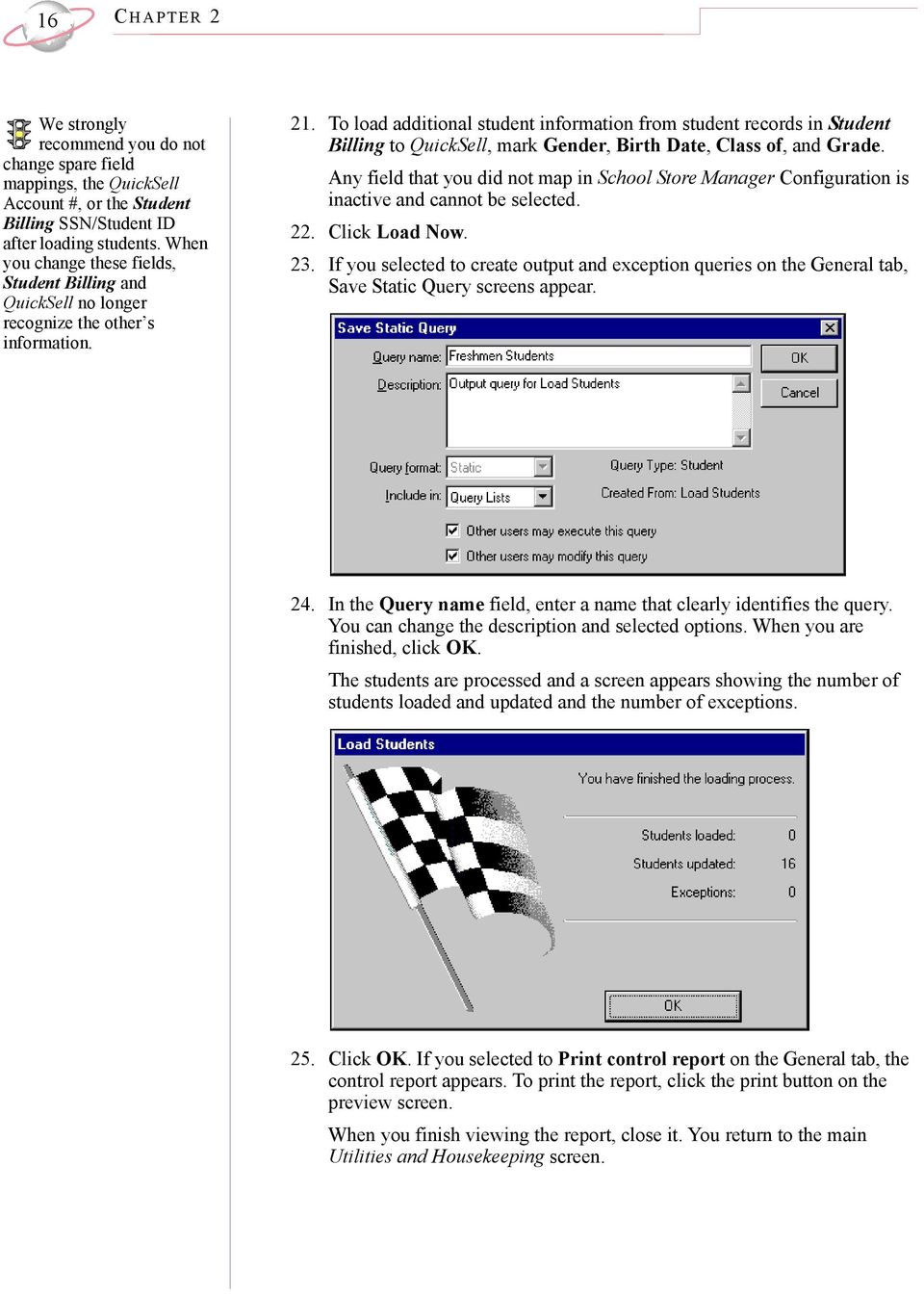
20 16 CHAPTER 2 We strongly recommend you do not change spare field mappings, the QuickSell Account #, or the Student Billing SSN/Student ID after loading students. When you change these fields, Student Billing and QuickSell no longer recognize the other s information. 21. To load additional student information from student records in Student Billing to QuickSell, mark Gender, Birth Date, Class of, and Grade. Any field that you did not map in School Store Manager Configuration is inactive and cannot be selected. 22. Click Load Now. 23. If you selected to create output and exception queries on the General tab, Save Static Query screens appear. 24. In the Query name field, enter a name that clearly identifies the query. You can change the description and selected options. When you are finished, click OK. The students are processed and a screen appears showing the number of students loaded and updated and the number of exceptions. 25. Click OK. If you selected to Print control report on the General tab, the control report appears. To print the report, click the print button on the preview screen. When you finish viewing the report, close it. You return to the main Utilities and Housekeeping screen.
21 QUICKS ELL 2000 & SCHOOL STORE MANAGER 17 Print ID Cards In Print ID Cards you can process ID cards for students and faculty in QuickSell. You can print the cards with or without a picture. You can include the school name, graduating class year, a box for signature, date of birth, and an optional field. Using the default font settings, you can print a school name of 30 characters or fewer on one line. If you use a picture on the ID card, the school name prints above the picture and is aligned to the left. You can select one user-defined field in QuickSell 2000 to appear as an optional field on the ID card, such as the date the card was printed or student grade level. We support preprinted ID card forms. If you preprint your school logo, you can: Preprint the school logo at the top of the card. Do not mark School name when printing the ID cards. Preprint the logo in the center of the card using a watermark effect. For example, print the logo as a 10 percent gray screen. Print the logo on the back of the card. Sample ID cards appear in Appendix A. To print this information you must mark the Class of, Gender, Birth Date, and Grade checkboxes during the Load Students process. Printing ID cards with QuickSell From Utilities and Housekeeping, select File, School Store Manager. Then select Print ID Cards. The Print ID Cards screen appears.
22 18 CHAPTER 2 You can select fields by using hot keys on your keyboard: press ALT + the underlined letter in the field name. The default font settings for School name enable up to 30 characters to fit on one line of the ID card. Western is the standard script in the United States. 2. In the School Store field, select the store for which you want to print ID cards. The program processes only one store at a time. 3. For the Print ID Cards for option, mark Students or Faculty. The program processes only one type of card at a time. Additional options appear, depending on your selection. Some fields may be inactive if you did not include the information when loading students. Mark one option: All Students includes all students loaded in QuickSell for that school store One Student enter the student name or click the binoculars to search for the student name Class Of enter the class year of students for whom you want to print ID cards Grade enter the grade of students for whom you want to print ID cards All Faculty includes all faculty loaded in QuickSell for that school store One Faculty Member enter the faculty member name or click the binoculars to search for the name 4. To reprint ID cards for students who previously had cards printed, mark Include Students who already have cards printed. To reprint ID cards for faculty members who previously had cards printed, mark Include Faculty who already have cards printed. 5. In the ID Card Options frame, mark the options you want to appear on the ID card. If you do not have a pre-printed ID card with a school name or logo and want to include the school name, mark School name. Click Font to change the font type, style, and size. To print the class year on student ID cards, mark Class of and select 2 digits or 4 digits. If you want Faculty to appear on faculty ID cards, mark Faculty Status. It is right-aligned on the same line as date of birth. In the Card type field, select to print ID cards with or without pictures. To create a space for student or faculty signatures, mark Signature line. A signature box appears on the bottom of the card. In the Optional field field, select a predefined field from QuickSell To print student or faculty date of birth on the card, mark Birth date. In the If name is too long field, select how the person s name should appear if it does not fit on one line: Drop to next line continue on the next line, Abbreviate first name, or Truncate cut off when space runs out. 6. In the Sort by field, select the order in which you want cards to print.
23 QUICKS ELL 2000 & SCHOOL STORE MANAGER Click Preview to view the layout and ensure information appears correctly on the ID cards. When you finish previewing, you can click the print button to print the cards or close the preview screen to make edits. 8. To print ID cards, click Print ID Cards Now. 9. When the print process finishes, a confirmation message appears. A bar code and QuickSell account number appear on the bottom of the ID card. The QuickSell account number was set up when you configured School Store Manager and is either the Student ID or Social Security Number. 10. Click Yes to update the Date ID card printed spare field in QuickSell and close the Print ID Cards screen. Load Transactions The Load Transactions option creates Student Billing charge transactions from QuickSell on account transactions. This option creates a summary transaction for each student. If you are going to post these charges to General Ledger from Student Billing, mark Not Yet Posted as the Post status. If you create a post file from QuickSell to your general ledger program, mark Do Not Post as the Post status so that charges are not posted twice (once from QuickSell and again from Student Billing). If you mark Clear student balances, an adjustment posts equal to the current balance which sets the QuickSell balance to zero. If you do not mark Clear student balances, the students accounts in QuickSell continue to show a balance due. Over time, this could result in students reaching their credit limits, even when they do not actually owe anything. On account transactions are transactions in which payments are applied to student accounts at the POS Register in QuickSell. You can only load transactions that are on account into Student Billing.
24 20 CHAPTER 2 You can load all on account transactions into Student Billing. However, School Store Manager loads only transactions with matching student records. The exception report lists any transactions not loaded. For example, faculty on account transactions are available for loading, but are not loaded. Loading transactions from QuickSell From Utilities and Housekeeping, select File, School Store Manager. Then select Load Transactions. The Load Transactions screen appears. If you are posting within Student Billing, select Not Yet Posted in the Post status field. If you do not mark Clear student balances, the student accounts in QuickSell continue to show a balance due. Over time, this could result in students reaching their credit limits, even when they do not actually owe anything. 2. In the Transaction date field, enter the date to appear in Student Billing as the transaction date. 3. In the Due date field, enter the date payment is due. 4. In the Post status/date field, select Not Yet Posted or Do Not Post and enter the posting date in the box. 5. To include the last name, first name, and today s date as it appears in QuickSell, mark Default in the Comments frame. To create your own comment, mark Custom and type the comment in the text box. 6. In the Include transactions entered into Quicksell after field, enter a date. Transactions entered prior to the selected date are not loaded into Student Billing. 7. To clear student balances in QuickSell after loading transactions to Student Billing, mark Clear student balances. 8. To preview the transactions before posting them to Student Billing, mark Preview before posting. From the preview screen, you can manually select individual transactions to load. 9. To view a report detailing successfully loaded transactions, mark Print transaction detail report. 10. To view a list of transactions that were not successfully loaded, mark Print exception report.
25 QUICKS ELL 2000 & SCHOOL STORE MANAGER Click OK. If you marked Preview before posting, the Transaction Preview screen appears. In the Create? column, mark the checkbox for each student transaction you want to load. Only on account transactions with matching student records load into Student Billing. Transactions without a matching record are treated as exceptions and appear on the exception report. 12. Click OK. The Load Transactions Complete screen appears. 13. Click OK. If you marked Print transaction detail report, the report preview screen appears. You can review the report on the screen or print it. When you finish, close the report. 14. If you marked Print exception report, the report preview screen appears. You can review the report on the screen or print it. When you finish, close the report.
26 22 CHAPTER 2 Print Transaction Report You can print a transaction report for one QuickSell customer or all customers. The report includes all items, prices, quantities, and dates for transactions in which the customer charged any portion of the purchase to their account. For example, if the customer pays cash for part of a purchase but charges some of the amount, the entire transaction appears. Printing a transaction report 1. From Utilities and Housekeeping, select File, School Store Manager. Then select Print Transaction Report. The Print Transaction Report screen appears. 2. In the Records to Include frame, mark All customers or One customer. If you mark One customer, the Customer name field appears in which you can enter a name. To search for a name, click the binoculars. The Search for Student/Faculty Member screen appears. Enter information in the filters at the bottom of the screen and click Find Now. Highlight the customer name and click Select. The Print Transaction Report screen reappears with the selected record name listed. 3. In the Include transactions from [ ] to [ ] fields, enter the date range for which you want to report transactions. 4. If you are printing a transaction report for all customers, you can mark Print one customer per page. 5. To view the report before printing, mark Preview report. 6. Click OK. If you marked Preview report, a preview screen appears. You can review the report on the screen, print it, or export it from this screen. If you did not mark Preview report, the report prints to your printer.
27 QUICKS ELL 2000 & SCHOOL STORE MANAGER 23 Clear QuickSell Information To adjust customer balances to zero in QuickSell 2000 and to clear the dates ID cards were printed, you can use the Clear QuickSell Information utility in School Store Manager. We recommend performing a backup before erasing any information in your Blackbaud database or QuickSell databases. If you do not periodically clear customer balances, QuickSell accounts continue to show a balance due. Over time, this could result in students reaching their credit limits, even though they do not actually owe anything. Clearing QuickSell 2000 Information 1. From Utilities and Housekeeping, select File, School Store Manager. Then select Clear QuickSell Information. The Clear QuickSell Information screen appears. This operation clears ALL QuickSell student balances, whether you loaded them into Student Billing or not. 2. To create zero balances for every student, mark Clear student balances in QuickSell. 3. To clear the dates that ID cards were printed for all students, mark Clear ID card field in QuickSell for students. 4. To clear the dates that ID cards were printed for all faculty members, mark Clear ID card field in QuickSell for faculty. 5. Click OK.
28 24 CHAPTER 2
29 Store Operations & School Store Manager In This Chapter Configuration Load Students Print ID Cards Load Transactions Print Transaction Report Clear QuickSell Information
30 26 CHAPTER 3 Using Store Operations, you can maintain multiple school store databases. You can transfer each school store s transactions in summary to Student Billing through the optional module School Store Manager and then post them to General Ledger. You can also create a post file and import transactions directly into General Ledger. School Store Manager options are accessed from the File menu of Utilities and Housekeeping in Student Billing. Be sure to set the correct preference to use Store Operations in the Configuration module of Student Billing before beginning to configure School Store Manager. In Configuration, select the Preferences tab. For the Display option, mark System Preferences. Then mark Miscellaneous 1 in the left box. In the School Store Manager System field, select Store Operations. Be sure to set the preference in Student Billing Configuration to use Store Operations; otherwise, the settings in School Store Manager will be configured for QuickSell If you have multiple Student Billing databases, School Store Manager must be configured for each school. Settings throughout School Store Manager apply only to the database in which you are logged in. We strongly recommend you do not change spare field mappings after loading students. When you change field mappings, Student Billing and Store Operations no longer recognize the other s information. For specific information about configuring settings in Store Operations, see the documentation for Store Operations. First, you must configure School Store Manager to work with Store Operations. Then you load student and faculty information through the Load Students option. Using the information you loaded into Store Operations, you can print ID cards for students and faculty. Additionally, you can print a transaction report for all or selected customers of one or more school stores. You can filter the report by specific items that have been sold. Configuration Configuring School Store Manager in Utilities and Housekeeping is the first step in establishing the connection between Store Operations and Student Billing. Once you complete configuration for at least one store, all School Store Manager functions become fully active and transactions can be posted to Student Billing. On the Options tab, you select whether to use the Student ID or Social Security Number as the account number in Store Operations. Be aware this number automatically appears on ID cards when they are printed. Before You Configure School Store Manager: Configure customer fields in the Manager module of Store Operations so they can be correctly mapped to Student Billing fields. Spare QuickSell fields must be entered in the correct customer field type format (text, date, or numeric) for the selections to appear in School Store Manager. Student Billing field Student Billing record # Date ID card printed Birth date Gender Class of Grade Store Operations field type Text field Date field Date field Text field Numeric field Text field Student Billing record # and Date ID card printed fields are required. The other spare fields are optional. The Student Billing record # field is used to link Student Billing and Store Operations. Student Billing automatically assigns the Student Billing record # based on the last section of the student import ID. If you want to view the student s import ID, open the student record and select File, Properties. Set up credit account types for each store in Store Operations.
31 STORE OPERATIONS & SCHOOL STORE MANAGER 27 Configure store IDs for each store. Each store must be assigned a different number in Store Operations or you will receive an error while configuring School Store Manager. Make sure you have set up a billing fee in Student Billing Configuration to which you want school store charges applied. You can configure each store to use a separate billing fee or you can use one billing fee for all stores. You can use only billing fees for the current billing year. Student Billing performs all selected options on the billing fee when a charge from Store Operations is applied to the fee. For example, if you have established a default sales tax on the billing fee, the default sales tax fee is generated when a charge from Store Operations is applied to the fee. Be aware that a default sales tax on a billing fee cannot be separated from a transaction, even if the item is tax-free. Therefore, we recommend using separate fees for billing and tax. If you want a separate tax fee, make sure you have established it on the Billing Fees tab of Configuration in Student Billing. You can add a different tax fee for each store or use one tax fee for all stores. Tax fees are not required. It is important to set unique IDs for each store in Store Operations. If a school store sells items that are not taxable, you should use a billing fee that does not include a default sales tax. There is no way to separate the sales tax from a transaction if the tax is included in the billing fee. To apply sales tax individually to transactions, you can configure a separate tax fee. Fields Automatically Loaded into QuickSell The following fields are automatically loaded into Store Operations when you load students. The student identifier (Social Security Number or Student ID) you select on the Configuration screen for School Store Manager enables Store Operations to recognize the student and attach the correct information from the student record in Student Billing. Account number (Social Security Number or Student ID) Last name First name Address City State Zip Country Telephone number
32 28 CHAPTER 3 Each school store that you add appears on the main School Store Configuration screen. You can disable a store without deleting it by clicking Edit and changing the status from Active to Inactive. Configuring School Store Manager for Store Operations 1. From Utilities and Housekeeping in Student Billing, select File, School Store Manager. Then select Configuration. The School Store Configuration screen appears. When you complete the information on the General tab and School Store Manager has successfully connected with the QuickSell database, the Store ID field is automatically filled with the ID number from Store Operations. 2. Click Add. The School Store Configuration parameters screen appears. 3. On the General tab, in the Store Code field, enter an alphanumeric code between one and ten characters that identifies this school store in Student Billing. 4. In the Description field, enter a description to identify the store in Student Billing. 5. In the Server name field, select the server for the database to which you want to connect.
33 STORE OPERATIONS & SCHOOL STORE MANAGER In the Database name field, enter the name of the database exactly as it appears in Store Operations. 7. In the User name and Password fields, enter the security information set for this database in Store Operations. 8. In the Status field, select Active to enable transactions to occur or Inactive to prevent transactions from occurring.
34 30 CHAPTER 3 9. Select the Options tab. The Store Operations account number appears on the ID cards. Billing and tax fees are established in Configuration in Student Billing. The Taxes applied to fee field is not required; however, it is useful if you want to use a tax fee that can be applied separately from the normal billing fee. 10. In the Use _ as QuickSell Account # field, select Social Security No. or Student ID. 11. In the School name field, enter the name of the school for this store. The original name defaults from the Student Billing settings. 12. In the Charges applied to fee field, select the billing fee to which you want to apply charges. Only Fixed Amount billing fees for the current year appear in the list. This is a required field. 13. In the Taxes applied to fee field, select the tax fee you want applied to the charge. Only Sales Tax billing fees for the current year appear in the list.
35 STORE OPERATIONS & SCHOOL STORE MANAGER In the Spare Field Mapping frame, select each Store Operations spare field in the Map To column for each Student Billing Field in the left column. Only Student Billing record # and Date ID card printed fields are required. The Student Billing record # field is used to link Student Billing and QuickSell. Student Billing automatically assigns the Student Billing record # based on the last section of the student import ID. 15. Click OK to complete configuration. Load Students After you configure the school stores, you are ready to load students. The Load Students utility brings specific student information into Store Operations from Student Billing. You can filter the list of students being loaded by previously-defined query, school store, date added, and attributes. You can also run the Load Students utility to update Store Operations records based on changes made in Student Billing records. Mark Update information for students already in QuickSell to include changes. On the Attributes tab, Add, Update, or Delete these Attributes for Each Student is helpful if you want to add, update, or delete an attribute for students loaded into a specific store. For example, you may want to add an attribute named Cafeteria Eligibility with a description Yes for each student loaded into the QuickSell stores specified on the General tab. To print ID cards for faculty members or charge faculty accounts, you must create records for faculty members in Store Operations.
36 32 CHAPTER 3 We strongly recommend you do not change spare field mappings, the QuickSell Account #, or the Student Billing SSN/Student ID after loading students. When you change these fields, Student Billing and Store Operations no longer recognize the other s information. After loading students into Store Operations, do not change the student identifier in Store Operations. In Student Billing, the student identifier is either the student s Social Security Number or ID as selected in Configuration for School Store Manager. In Store Operations, the student identifier is the QuickSell Account #. The link to Student Billing and School Store Manager depends on this identifier. Loading students into Store Operations 1. From Utilities and Housekeeping in Student Billing, select File, School Store Manager. Then select Load Students. The Load Students screen appears. 2. To filter students by a query or load only one student, click Include and select Selected Students or One Student. The Select a Student Query screen appears. Select a query of students or a single student and click Open. 3. In the Select Stores frame, mark all the stores to which you want to load students. 4. To filter students by the date they were added to Student Billing, mark Only load those students added after [ ]. Enter a date or click the calendar to select a date. 5. If you are updating information for students loaded previously to QuickSell, mark Update information for students already in QuickSell.
37 STORE OPERATIONS & SCHOOL STORE MANAGER To add a student s middle initial to the end of the first name in QuickSell, mark Append middle initial to first name. 7. To create a query of students who are successfully loaded or updated in Store Operations, mark Create output query. 8. To create a query of students who are not successfully loaded or updated in Store Operations, mark Create exception query. You can use this query to update later. 9. To print a report detailing the results of loading students, mark Print control report ordered by [ ]. Select to sort the report by Store Code or Student Name. 10. Select the Attributes tab. Store Operations does not provide space for middle initials. Marking Append middle initial to first name enables the program to treat the first name and middle initial as one unit. You can use this feature to identify students with similar names. 11. To filter students by attribute, mark Include or Exclude Students with these Attributes. In the Filter column, select Include or Exclude. In the Category column, select the attribute type. In the Description column, select the attribute description by which you want to filter. The Short Description appears automatically. 12. To globally add, update, or delete student attributes, mark Add, Update, or Delete these Attributes for Each Student. In the Action column, select Add, Update, or Delete. In the Category column, select the attribute type. Adding, updating, or deleting attributes affects only the Student Billing records. This information does not load into Store Operations.
38 34 CHAPTER 3 Student addresses may be used in Store Operations for several purposes, including billing and student verification. In the Description column, select the attribute description by which you want to filter. The Short Description appears automatically. In the Date column, you can enter the date the attribute is being added or another type of date. In the Comment column, you can enter up to 50 characters of text. 13. To set the student address used by Store Operations, select the Addresses tab. 14. To verify addresses before loading students, mark Validate addresses as of [ ], and select Today or <Specific date>. If you select <Specific date>, enter the date in the Date field. 15. If you want Store Operations to use seasonal addresses, mark Consider seasonal addresses. If seasonal addresses are considered, in the If no seasonal addresses exist, use this address field, select an alternative address. If you select a specific address type, in the If no [ ] address exists, use this address field, select a tertiary address type. If seasonal addresses are not considered, in the Use this address field, select the address you want loaded. If you select a specific address type, in the If no [ ] address exists, use this address field, select a second address type. 16. To load student records into Store Operations that do not have a valid address, mark Create a record with no address. To prevent loading student records without a valid address, mark Omit the record.
39 STORE OPERATIONS & SCHOOL STORE MANAGER Select the Miscellaneous tab. 18. If you are using a Store Operations multilevel pricing structure, select a level in the Price level field. Enter a discount percentage in the Percent discount field. This discount is applied to each student that is loaded for every store selected on the General tab. 19. For each store, in the Acct. Type column, select the account type to use for these students. Account types default from Store Operations. To apply a credit limit, in the Credit Limit column, enter an amount. If this school is tax exempt, mark the checkbox in the Tax Exempt column. You must mark Allow Credit to permit credit and debit transactions in Store Operations. You must set up account types in Store Operations.
40 36 CHAPTER Select the Additional Fields tab. After loading students into Store Operations, do not change the student identifier in QuickSell. 21. To load additional student information from student records in Student Billing to Store Operations, mark Gender, Birth Date, Class of, and Grade. Any field that you did not map in School Store Manager Configuration is inactive and cannot be selected. 22. When you have completed all selections for loading students, click Load Now. 23. If you selected to create output and exception queries on the General tab, the Save Static Query screens appear. Enter a name in the Query name field. You can edit the description and selected options. When you finish, click OK.
41 STORE OPERATIONS & SCHOOL STORE MANAGER 37 The program processes the students, and a screen appears showing the number of students loaded and the number of exceptions. 24. Click OK. If you marked Print control report on the General tab, the control report appears. To print the report, click the print button on the preview screen. When you finish viewing the report, close it. You return to the main Utilities and Housekeeping screen. Print ID Cards The Print ID Cards option processes ID cards for students and faculty in Store Operations. If you want to include a picture on the cards, you can print the cards with a space for adding a picture later. You can include school name, graduating class year, a signature box, date of birth, and two optional fields. Using the default font settings, you can fit a school name of 30 or fewer characters on one line. If you use a picture on the ID card, the school name prints above the picture and is left-aligned. You can select up to two user-defined fields in Store Operations to appear as optional fields on the ID card. Blackbaud supports preprinted ID card forms. If you preprint your school logo, you can: Preprint the school logo at the top of the card. Do not mark School name when printing the ID cards. Preprint the logo in the center of the card using a watermark effect. For example, you can print the logo as a 10 percent gray screen. Print the logo on the back of the card. Sample ID cards appear in Appendix A. To print graduating class, gender, birth date, and grade information you must mark Class of, Gender, Birth Date, and Grade during the Load Students process.
42 38 CHAPTER 3 Printing ID Cards with Store Operations 1. From Utilities and Housekeeping, select File, School Store Manager. Then select Print ID Cards. The Print ID Cards screen appears. You can select fields by using hot keys on your keyboard: press ALT + the underlined letter in the field name. 2. In the School Store field, select the store for which you want to print ID cards. The program processes only one store at a time. 3. For the Print ID Cards for option, mark Students or Faculty. The program processes only one type of ID card at a time. Additional options appear, depending on your selection. Some fields may be inactive if you did not include the information when loading students for that school store. Mark one option: All Students includes all students loaded in Store Operations for that school store One Student enter the student name or click the binoculars to search for the student name Class Of enter the class year of students for whom you are printing ID cards Grade enter the grade of students for whom you are printing ID cards All Faculty includes all faculty loaded in Store Operations for that school store
43 STORE OPERATIONS & SCHOOL STORE MANAGER 39 One Faculty Member enter the faculty member name or click the binoculars to search for the name 4. To reprint ID cards for students who previously had cards printed, mark Include Students who already have cards printed. To reprint ID cards for faculty members who previously had cards printed, mark Include Faculty who already have cards printed. 5. In the ID Card Options frame, mark the options to appear on the ID card. If you do not have a pre-printed ID card with a school name or logo and want to include the school name, mark School name. Click Font to change the font type, style, and size. In the Card type field, select to print ID cards with or without pictures. In the Class of field, select 2 digits or 4 digits. If you want Faculty to appear on faculty ID cards, mark Faculty Status. It is right-aligned on the same line as date of birth. In the Left optional field field, select a predefined field from Store Operations. To include student or faculty signatures, mark Signature line. In the Right optional field field, select a predefined field from Store Operations. To include student or faculty date of birth, mark Birth date. In the If name is too long field, select how the person s name should appear if it does not fit on one line: Drop to next line continue on the next line, Abbreviate first name, or Truncate cut off when space runs out. 6. In the Sort by field, select the order in which you want cards printed. 7. Click Preview to view the layout and ensure information appears correctly on the ID cards. When you finish previewing, you can click the print button to print the cards or close the preview screen to make edits. 8. To print ID cards, click Print ID Cards Now. 9. When the print process finishes, a message appears. The default font settings for School name enable up to 30 characters to fit on one line of the ID card. A bar code and Store Operations account number appear on the bottom of the ID card. The QuickSell account number was set up when you configured School Store Manager and is either the Student ID or Social Security Number. 10. Click Yes to update the Date ID card printed spare field in Store Operations and close the Print ID Cards screen.
44 40 CHAPTER 3 Load Transactions The Load Transactions option creates Student Billing charge transactions from QuickSell on account transactions. Transactions are summarized for each student by store and loaded as one billing fee and one tax fee to the student s activity. If you are going to post these charges to General Ledger from Student Billing, mark Not Yet Posted as the Post status. If you create a post file from Store Operations to General Ledger, mark Do Not Post as the Post status so that charges are not posted twice (once from Store Operations and again from Student Billing). If you mark Clear student balances, an adjustment posts equal to the current balance which sets the Store Operations balance to zero. If you do not mark Clear student balances, the students accounts in Store Operations continue to show a balance due. Over time, this could result in students reaching their credit limits, even when they do not actually owe anything. Loading transactions from Store Operations 1. From Utilities and Housekeeping, select File, School Store Manager, Load Transactions. The Load Transactions screen appears. To select every school, click Select All. To select only one school, you can click Deselect All and then individually mark a school. 2. In the Select Stores frame, mark each school in Store Operations from which to load transactions into Student Billing. 3. In the Transaction date of field, select the date period of transactions to load into Student Billing. 4. In the Transaction date field, enter a date or click the calendar to select a date. In the Due date field, enter the date that payment is due or click the calendar to select a date.
45 STORE OPERATIONS & SCHOOL STORE MANAGER 41 In the Post status/date fields, select Not Yet Posted or Do Not Post and enter the posting date. 5. Select the Options tab. 6. In the Comments frame, to include the last name, first name, and today s date as it appears in Store Operations, mark Default. To create a different comment, mark Custom and type the comment in the text box. This text appears in the Comment field on the student charge record in Student Billing. 7. To clear student balances in Store Operations after loading transactions to Student Billing, mark Clear student balances. To view a report listing successfully loaded transactions, mark Print transaction detail report. To view a list of transactions that were not successfully loaded, mark Print exception report. 8. In the Sort Options frame, select the information by which you want to sort the report. You can select to sort in Ascending order or Descending order. 9. If you selected to sort the report first by Student Name or Student ID and you want to view each student s transaction information on an individual page, mark Print each student on a separate page. If you selected to sort the report first by Store Code and you want to view each store s transactions on an individual page, mark Print each store on a separate page. When you mark Clear student balances, the program creates an adjustment entry in the Store Operations database to zero out each student balance. If you do not mark Clear student balances, the students accounts in Store Operations continue to show a balance due. Over time, this could result in students reaching their credit limits, even when they do not actually owe anything.
46 42 CHAPTER 3 You can sort the grid by clicking the column header. Click a second time to reverse the order. To return to the default order, right click in the grid frame and select Default Sort Order. 10. Select the Preview tab. Click Select All to quickly select every transaction. Click Deselect All and individually mark transactions if you want to load only a few. 11. In the Select column, mark each transaction to include. 12. To view a report listing all the transactions that will be loaded, click Preview. The Transaction Preview Report screen appears. From this screen you can print or export the report. Close the report to return to the Preview tab of the Load Transactions screen. 13. To export the entire results appearing in the grid to Excel, right click in the grid frame and select Export to Excel from the pop-up menu. Also, you can print, preview, set up print options, and return to the default sort order from the pop-up menu. 14. To import transactions, click Load Now. School Store Manager loads transactions. Depending on your selections on the Options tab, an exception report and transaction detail report may print. Print Transaction Report School Store Manager must be able to connect to the QuickSell database to print a transaction report, even if you have already loaded transactions. You can print a transaction report for one customer in one school store or for all customers in one or more school stores. You can include all fees and items in the report or you can filter the report by selected fees and specific items. You can also filter the report by transaction date. The report includes transactions in which the customer charged any portion of the purchase to his account. For example, if the customer pays cash for part of a purchase but charges some of the amount, the entire transaction appears.
47 STORE OPERATIONS & SCHOOL STORE MANAGER 43 Printing a transaction report 1. From Utilities and Housekeeping, select File, School Store Manager. Then select Print Transaction Report. The Print Transaction Report screen appears. 2. In the Select Stores frame, mark the school stores for which you want to report transactions. You can filter the stores by changing the selection in the Status field. 3. To include only one customer record in the report, click Include. From the submenu select One Record. The Search for Student/Faculty Member screen appears. Enter information in the filters at the bottom of the screen and click Find Now. Highlight the customer name and click Select. The General tab reappears with the selected record name listed. 4. In the Transaction date of field, select the date period for which you want to report. If you select <Specific range>, in the Start and End fields, enter specific dates or click the calendar to select dates. The Include button is active only when you are printing a transaction report for just one school.
48 44 CHAPTER 3 5. Select the Fees tab. All Fixed Amount fees appear in the Fees box. These fees are not filtered by billing year. 6. To report on selected fees, mark Include only selected fees. In the Fees box, highlight the fees to include and click the single right arrow button to move them to the Include these fees box. 7. Select the Items tab.
49 STORE OPERATIONS & SCHOOL STORE MANAGER To filter the report by specific items, mark Include only selected items. In the Store Code column, select the store where the item you want to include is located. Only stores selected on the General tab appear in the list. The Store Description appears automatically. In the Item Lookup column, click the binoculars to search for the item and select it. 9. Select the Format tab. To report on all items, do not mark Include only selected items. 10. In the Format Options frame, mark Headings. In the Heading Format frame, enter names in the Title and Subtitle fields, as you want them to appear at the beginning of the report. In the Align field, select how to align the titles. To print your organization s name in the header, mark Print organization name in header. 11. To select the criteria you want to print on the report, in the Format Options frame, mark Criteria. Mark Print Report Criteria and mark On the first page or On a separate page. If you mark On a separate page, report criteria prints on the last page of the report. If you do not want to print criteria on the report, unmark Print Report Criteria.
50 46 CHAPTER 3 In the Print these Criteria box, mark each criteria type you want to print on the report. The option in the Reports Options frame vary depending on your selection in the Sort by column. If you selected Student Name or Student ID, you can print transactions for each student on a separate page. If you selected Store Code, you can print transactions for each store on a separate page. 12. To set report sorting options, in the Format Options frame, mark Detail. In the Sort by column, select the first option by which to sort the report. In the Order by column, select Ascending or Descending. To sort by secondary and tertiary items, click the next row and repeat selections.
51 STORE OPERATIONS & SCHOOL STORE MANAGER 47 To print each student s transactions or each store s transactions on a separate page, in the Report Options frame, mark Print each student on a separate page. 13. To set footer options for each page, in the Format Options frame, mark Page footer. In the Page Footer Text frame, enter up to 135 characters of text. In the Align field, select how to align the text. To print the page number at the bottom of each page, mark Print Page No. in Footer. In the Format and Align fields, select the format and location of the page number.
52 48 CHAPTER 3 To print the report date at the bottom of each page, mark Print Report Date in Footer. In the Format and Align fields, select the format and location of the date. 14. To set a footer for the last page of the report, in the Format Options frame, mark Report footer. In the Report Footer Text frame, enter up to 254 characters of text. In the Align field, select how to align the text.
53 STORE OPERATIONS & SCHOOL STORE MANAGER To set amount display options, in the Format Options frame, mark Miscellaneous. In the Amount Display Options frame, mark the checkboxes to select the format of currency amounts. The Sample Display text shows how numbers appear in the report. In the Negative amount format field, select to show negative amounts in parentheses or with a minus sign. 16. To view the report before printing, click Preview. From the Preview screen, you can click the print button to print the report. To print the report without previewing, click Print. Clear QuickSell Information To adjust customer balances to zero in Store Operations and to clear the dates ID cards were printed, you can use the Clear QuickSell Information utility in School Store Manager. We recommend performing a backup before erasing any information in your Blackbaud database or Store Operations databases. If you do not periodically clear customer balances, accounts in QuickSell continue to show a balance due. Over time, this can result in students reaching their credit limits, even though they do not actually owe anything.
54 50 CHAPTER 3 This operation clears ALL QuickSell student balances, whether you loaded them into Student Billing or not. Clearing Store Operations information 1. From Utilities and Housekeeping, select File, School Store Manager. Then select Clear QuickSell Information. The Clear QuickSell Information screen appears. To select every store, click Select All. To select only one store, you can click Deselect All and then individually mark a school store. 2. In the Select Stores frame, mark each store for which you want to clear data. 3. To create zero balances for every student in the selected school stores, mark Clear student balances in QuickSell. 4. To clear the dates that ID cards were printed for all students in the selected school stores, mark Clear ID card field in QuickSell for students. 5. To clear the dates that ID cards were printed for all faculty members in the selected school stores, mark Clear ID card field in QuickSell for faculty. 6. Click OK.
55 Posting from QuickSell to General Ledger In This Chapter Creating a QuickSell Post File Importing QuickSell Transactions to General Ledger Importing QuickSell Transactions to General Ledger QuickSell Post File Field Mappings: General Ledger QuickSell Post File Field Mappings: General Ledger
56 52 CHAPTER 4 Instructions in this chapter apply only if you post QuickSell transactions directly to General Ledger, not through Student Billing. Using the Load Transactions utility in School Store Manager, you can load QuickSell transactions to Student Billing and post them to General Ledger as you would post any other student billing transactions. If you post QuickSell transactions through Student Billing, you do not need the posting instructions in this chapter. If you load transactions to Student Billing but still want to post QuickSell transactions directly to General Ledger, you need to read this chapter carefully. First, you create a post export file from QuickSell. Then you create a batch in Journal Entry of General Ledger and import the QuickSell post file. When loading QuickSell transactions into Student Billing, you must select Do Not Post as the post status. This chapter explains the process of exporting transactions from QuickSell 2000 and Store Operations and the importing process in General Ledger 6.4 and General Ledger 7. Creating a QuickSell Post File To transfer charges created in QuickSell 2000 or Store Operations to your Blackbaud General Ledger accounts, you create a post file in QuickSell that can be exported. Sales Management Systems, Inc. (SMS) is providing a new format to support creation of a QuickSell post file that can be easily imported into The Financial Edge. Contact SMS for more information about which version of QuickSell supports this import functionality. Screens may appear differently if you are using QuickSell 2000; however, the fields are the same. Creating a QuickSell post file 1. From the menu bar of the Manager module in QuickSell, select Journal, Post Closed Batches. The Post Closed Batches screen appears. 2. In the Start date and End date fields, select a date range. Only those batches closed on or within the start and end dates are included in the post file.
57 P OSTING FROM QUICKS ELL TO GENERAL LEDGER In the Export format field, select Blackbaud Accounting 6.x or Blackbaud 7.x. This selection is based on which version of General Ledger into which you are importing--general Ledger 6.4 or General Ledger 7. It is not based on which version of Student Billing you are using. 4. In the File name field, enter the path and the name of the post file for the program to create. If you do not specify a path, but provide only a name for the file, the program automatically places the file in the QuickSell executable directory (\QS2000\EXE) for QuickSell 2000 and in the Store Operations directory (\Store Operations) for Store Operations. 5. Click Post to create the file. A message appears. 6. Click OK. Close the Post Closed Batches screen. Importing QuickSell Transactions to General Ledger 6.4 To transfer charges created in QuickSell 2000 or Store Operations to Blackbaud s General Ledger 6.4, you create a post file in QuickSell that can be exported. You can limit the transactions in the post file by including only those batches within a specified date range. You can import post files created in the MYOB Accounting format or the Blackbaud Accounting 6.x format into General Ledger 6.4. Importing a QuickSell post file into General Ledger Open Journal Entry in General Ledger 6.4. The Journal Entry screen appears. 2. Select File, New. The Create a New Batch screen appears. If you use this posting procedure, load transactions through School Store Manager to Student Billing with a post status of Do Not Post. For more information about creating batches, see the General Ledger Guide. 3. To select a batch type, mark General Journal.
58 54 CHAPTER 4 4. Click OK. The Add New Batch screen appears. 5. In the Description field, enter text describing the batch. You can enter up to 50 characters. 6. In the Notes field, enter any additional information associated with the batch. You can enter up to 255 characters. 7. To create balancing interfund entries, mark Automatically create balancing interfund entries, post in [ ]. Select Summary or Detail. 8. Select the Defaults tab. The default values grid appears. You can edit only white cells in the Defaults grid. Shaded fields are for informational purposes only. 9. In the Default Value column, enter the default values to use while creating the batch. 10. In the Show? column, mark checkboxes next to values to display in the batch.
59 P OSTING FROM QUICKS ELL TO GENERAL LEDGER Click OK. The transaction screen appears. 12. Enter the required account information. Select File, Save from the Journal Entry menu bar but do not close the batch. 13. With the batch open, from the Journal Entry menu bar, select File, Import Transactions. The Import Transactions screen appears. For more information about creating batches, see the Journal Entry chapter of the General Ledger Guide. 14. In the Import File Type field, select Blackbaud School Store Manager Import File. 15. In the Import File Name field, enter the complete path to the QuickSell post file created earlier. To browse for the file, click the ellipsis. 16. Click OK. The Post QuickSell Charges screen appears. 17. In the Post date field, select QuickSell batch close date or Today s date.
60 56 CHAPTER 4 Unmark the Delete import file checkbox on the import confirmation screen if you want to save the QuickSell post file. 18. To use the default reference text, POS at <Register #, batch #>, mark Default. To define a different reference, mark Custom and enter a reference in the Text box. 19. In the Source field, select the source code defined in General Ledger for QuickSell charges. 20. To associate a project with this batch for budgeting purposes, in the Project field, select a project. 21. Click OK. General Ledger processes the transactions, and an import confirmation screen appears. Be sure to unmark Delete import file if you want to save the import file. For information about posting in General Ledger, see the General Ledger Guide. If you use this posting procedure, load transactions through School Store Manager to Student Billing with a post status of Do Not Post. 22. Click OK. You are ready to validate and post the batch in General Ledger. For information about posting in General Ledger, see the General Ledger Guide. Importing QuickSell Transactions to General Ledger 7 To directly transfer charges created in QuickSell 2000 or Store Operations to General Ledger 7, you create a post file in QuickSell that can be exported. To easily import QuickSell post files into General Ledger 7, you must create the post file using the Blackbaud Accounting 7.x format on the Post Closed Batches screen in QuickSell Manager. You can limit the transactions in the post file by including only those batches within a specified date range. Because the QuickSell post file does not include some fields required by The Financial Edge, you must create and use a default transaction set containing data for required fields. When you create the import parameter file in General Ledger 7., you select the default transaction set on the Fields tab.
61 P OSTING FROM QUICKS ELL TO GENERAL LEDGER 57 Creating a default transaction set of required fields 1. To create a default transaction set, select Tools, Organize/Create Defaults from the menu in the shell. The Defaults screen appears. To create a set on the fly while creating an import parameter file, in the Import Records using this default set field on the Fields tab, click the binoculars. The Field default sets screen appears. Click New. 2. In the Create defaults for box, highlight Transaction and click New. The New Default Set screen appears. For additional information about default sets, see the Program Basics Guide for The Financial Edge.
62 58 CHAPTER 4 You must set default values for all required fields that do not appear in the QuickSell post file: Encumbrance status, Journal, and Journal reference. If you want to use a different post date than the date used in the QuickSell file, you can enter a new post date in the default set. Make sure you add any additional field values required by your organization so the import will process successfully the first time. 3. In the Name field, enter an easily identifiable title for this default transaction set. For example, enter QuickSell Import Set. 4. You must set default values for all required fields that do not appear in the QuickSell post file: Encumbrance status, Journal, and Journal reference. For Encumbrance status in the Field Name column, select Regular or Encumbrance in the Default Value column. For Journal in the Field Name column, select a default value. For example, select Student Billing. For Journal reference in the Field Name column, enter text in the box. For example, enter Import batch as the reference. Click the magnifying glass if you want to enter the reference in a larger box with more viewing space. The fields with selected values appearing in this example are required to successfully import QuickSell transactions to General Ledger 7. You may need to add other fields that your organization requires. For example, if you are importing Fund 1 accounts that require a project ID, you need to select Distributions under Transaction Defaults and enter a project ID. 5. To use a different posting date than the date in the QuickSell post file, enter a date or click the calendar to select a date in the Default Value column next to Post date.
63 P OSTING FROM QUICKS ELL TO GENERAL LEDGER Set other defaults you want to use when importing transactions from QuickSell. For example, if a project distribution is required, highlight Distributions under Transaction Defaults and enter the required information in the fields. 7. Click Save and Close. Importing a QuickSell post file into General Ledger 7 1. From the Journal Entry page of General Ledger 7, click New Regular Batch on the action bar. The New Batch screen appears. Retail Management Systems is providing a new format to support creation of a QuickSell post file that can be easily imported into The Financial Edge. Contact SMS for more information about which version of QuickSell supports this import functionality. 2. In the Description field, enter text by which you can later identify the batch. For example, enter QuickSell Transactions. Then save the batch by clicking the save button or selecting File, Save.
64 60 CHAPTER 4 You must import the transactions from the batch record in Journal Entry, not from the Import records page in Administration. Otherwise, you receive errors that the program cannot find the Batch number or Batch Import ID, which is required for import. 3. From the menu bar, select Batch, Import Transactions. The Select a Parameter File screen appears. Once you have created and saved an import parameter file to import QuickSell transactions, you can select that file on the Select a Parameter File screen. 4. Highlight the Transaction Import file name and click Add New. The Import Transaction screen appears. If business rules are set for the program to ask before creating an item, those items will not be created while importing records. If you want to import them, you must change the business rule before importing. For more information, see the Administration Guide for The Financial Edge. 5. In the What do you want to do frame, mark Import new records. 6. If you have manually added fields to the import file that include table entries not currently present in the program, mark Create new table entries in the Options frame for the import to process successfully. If you are using the QuickSell post file without changes, there are no fields requiring new table entries. 7. In the Import file field, enter the path of the QuickSell post file or click the ellipsis to map the path. 8. In the Use _ to match records in the import file with existing records field, select Batch Import ID or Batch number.
65 P OSTING FROM QUICKS ELL TO GENERAL LEDGER In the What is the format of this import file? frame, mark Delimited - Characters separate the fields. To validate the data before importing it, mark Validate data only. The program processes your data as if it is being imported, but no changes are actually made. You can save the import parameter file and run it a second time later to actually import transactions. 10. Select the File Layout tab or click Next. 11. In the Field separator field, select Comma. 12. In the Text qualifier field, select <None>. 13. In the Import Field Names frame, mark Field names are on the first line of the import file. A sample of how the import fields appear is shown in the Sample Import Format frame.
66 62 CHAPTER Select the Fields tab or click Next. You must designate a default set for the QuickSell post file to import successfully. The default set must contain additional fields required by The Financial Edge and your organization that are not generated by QuickSell. 15. If the fields are not mapped correctly, you can manually map fields. Highlight the row you want to map in the Import these fields box. Then select a field in the Available fields box and click Select. The mapped field appears in the Financial Edge Import Field column. 16. To use the posting date from the QuickSell import file, be sure it is mapped in the Import these fields frame. To use a different date, highlight Post date in the Financial Edge Import Field column and click Remove. Be sure you have designated a post date in the default transaction set. 17. In the Import Records using this default set field, enter the name of the default transaction set containing the additional required fields. You can click the binoculars to select the set from a list. For information about creating a default set, see Creating a default transaction set of required fields on page Select the Options/Summary tab or click Next. 19. To create a file of all fields that were not successfully imported, mark Create exception file of records not updated/imported in the Import Options frame.
67 P OSTING FROM QUICKS ELL TO GENERAL LEDGER 63 In the text box, enter the path where you want the file saved, or click the ellipsis to browse to the path on the Save As screen. If you browse, you must select the location in which to save the file and enter a name for the file in the File name field. Then click Open. 20. Mark Create an output query of the records imported to save a query of imported records. 21. Mark Create control report to view or print a report listing the import results, criteria, field mappings, and exceptions. 22. Mark Preview to view the report on your screen or mark Print to print the report. 23. Review information in the Import Summary Information frame. If you are satisfied with the set parameters, click Import Now. The program asks if you want to save changes. To save, click Yes. If this is the first time you have saved the import parameters, the Save Import As screen appears. 24. In the Name field, enter a name for the import. In the Description field, enter a description for the import. Mark the checkboxes to allow other users to run or modify the import. Click Save. 25. If, you marked Create an output query of the records imported on the Summary tab, the Save Query As screen appears. Enter a name and description of the query and click Save.
68 64 CHAPTER 4 Once the program begins processing the import, a progress bar appears. If you click Cancel, the Cancel Import screen appears. On this screen, you can view a control report, resume the export, or exit the import. If you click Exit Import, the import creation process stops, parameter settings are not saved, and any data imported up to the point of cancellation is in the database. If you click View control report, the control report appears. When you close it, you can resume or exit the import again. When the import is finished, the Import - The Financial Edge screen appears. This screen shows the import statistics for the data validated. 26. If you selected to print a control report on the Options/Summary tab, click Close on the Import screen and the report automatically opens. If you did not select to print or preview the control report, you can see import results by clicking View Control Report on the Import screen. When you finish viewing the report, close the report to return to the import record. QuickSell Post File Field Mappings: General Ledger 6.4 The fields in the QuickSell post file are mapped almost identically to corresponding fields in General Ledger 6.4. If you mark Reference: Default on the Post QuickSell Charges screen of Journal Entry, the POS text shown in the Text: POS at <Register#,batch#> defaults from the Memo field text in the QS Post Export File. QS Post Export File Date Memo Account Number Debit Amount Credit Amount Corresponding General Ledger 6.4 Field Date Reference Account Number Debit Amount Credit Amount
69 P OSTING FROM QUICKS ELL TO GENERAL LEDGER 65 QuickSell Post File Field Mappings: General Ledger 7 If you use the Blackbaud Accounting 7.x format when creating a post file in QuickSell Manager, QuickSell creates the post file with five field headers: Post date, Notes, Account number, Type, and Amount. These fields directly correspond to the fields in the General Ledger 7 transaction import parameter file. You can unmap Post date on the Fields tab of the import parameter file if you prefer to use a different post date established in a transaction default set.
70 66 CHAPTER 4
71 Sample ID Cards In This Chapter Student ID Card with Picture Student ID Card without Picture Faculty ID Card without Picture
72 68 APPENDIX A Sample ID cards for students and faculty are represented here with explanations of selected fields. Student ID Card with Picture You cannot add pictures within School Store Manager; however, you can leave a space for a picture and manually add photos later. To produce this sample card, these options were marked on the Print ID Cards screen: School name, Font: Times New Roman, Italic, 14 pt. Card Type: Leave space for picture Left optional field: Grade Birth date The QuickSell account number and bar code appear on the bottom of the ID card. The QuickSell account number was set up when you configured School Store Manager and is either the Student ID or Social Security Number. Student ID Card without Picture To produce this sample student card without a picture, these options were marked on the Print ID Cards screen: School name, Font: Times New Roman, Italic, 20 pt. Signature line Birth date Card Type: Do not leave space for picture Left optional field: Class; Class of [4 digits]
73 S AMPLE ID CARDS 69 Right optional field: SB ID (field mapped to Student Billing record # in SSM Configuration) Faculty ID Card without Picture To produce this sample faculty card without a picture, these options were marked on the Print ID Cards screen: School name, Font: Arial, Italic, 18 pt. Faculty Status Signature line Birth date Card Type: Do not leave space for picture Left optional field: ID (QuickSell text field)
74 70 APPENDIX A
75 Sample Statement of Charges In This Chapter Sample Statement of Charges
76 72 APPENDIX B Sample Statement of Charges For this sample, the student purchased $ worth of supplies, paid $20.00 cash, and charged $ on account. 5/25/99 Charleston County Page 1 Statement of Charges Trans Date Item code Description Price Quantity Total Katya Kubenko, /25/99 6 Elements of Style $ $ Describer's Dictionary $ $ Handbook of Technical Writing $ $ History of Reading $ $ Modern English Usage $ $ Art of Indexing $ $ Drawing Set, Mechanical $ $ Pens, Ballpoint $ $ Ruler, Plastic $ $ #2 Pencil $ $4.20 Total Amount: $ On Account: $ Total On Account: Total Transactions: $
77 INDEX 73 Index A accessing School Store Manager 2 account number QuickSell Store Operations 30 accounts clearing QuickSell 2000 information 23 clearing Store Operations information 49 Adobe Acrobat Reader, using to view online manual 5 Adobe web site 4 B balance clearing for QuickSell 2000 customers 23 billing fee sales tax, selecting for use with Store Operations customers 27 school store charges for QuickSell 2000 customers 9 school store charges for Store Operations customers 27 Blackbaud support, contacting 4 Blackbaud, web site 5 C cards, ID description 3 printing for QuickSell 2000 customers 17 printing for Store Operations customers 37 sorting, QuickSell sorting, Store Operations 39 clock symbol in documentation 6 comments adding to student charge record from School Store Manager, QuickSell adding to student charge record from School Store Manager, Store Operations 41 Configuration setting default QuickSell system, QuickSell configuration School Store Manager with QuickSell 2000 overview 8 procedure 10 School Store Manager with Store Operations overview 26 School Store Manager, description 3 credit applying in School Store Manager, QuickSell applying in School Store Manager, Store Operations 35 credit limit applying in School Store Manager, QuickSell applying in School Store Manager, Store Operations students applying credit limit, Store Operations 35 customer balances clearing from QuickSell clearing from Store Operations balance clearing for Store Operations customers 49 customer fields configuring in QuickSell configuring in Store Operations 26 D data entry, using shortcut keys to save time 3 discount QuickSell 2000 customers 15 Store Operations customers 35 documentation help file, using 5 types available SSM 4 E exception report transactions not loaded from QuickSell transactions not loaded from Store Operations 41 F faculty printing ID cards 37 printing ID cards for QuickSell 2000 customers 17 faculty ID card, sample without picture 69 field mappings Student Billing fields to QuickSell 2000 fields 8 Student Billing fields to Store Operations fields 26 fields automatically loaded into QuickSell automatically loaded into Store Operations 27 file menu, School Store Manager 2 font, standard script 18 format, user s guide 6 function keys, School Store Manager 3
78 74 I NDEX G General Ledger 6.41, field mapping to QuickSell export file fields 64 General Ledger 7.1, field mapping to QuickSell export file fields 65 H I help file, accessing 5 ID card printing for QuickSell 2000 customers 17 printing for Store Operations customers 37 sample faculty ID card without picture 69 sample student ID with space for picture 68 sample student ID without picture 68 import field mapping for General Ledger field mapping for General Ledger QuickSell post file to General Ledger J journal entry, General Ledger K keys, shortcut 3 L load students description, School Store Manager 3 overview, QuickSell overview, Store Operations 31 procedure, QuickSell procedure, Store Operations 32 load transactions QuickSell 2000 overview 19 Store Operations overview 40 logo, school preprinting on ID cards, QuickSell printing on ID cards, Store Operations 37 M mapping export file, QuickSell 64, 65 import fields, General Ledger import fields, General Ledger menu, School Store Manager 2 N name abbreviate or truncate on ID card, QuickSell abbreviate or truncate on ID card, Store Operations 39 note symbol in documentation 6 O on account transactions, SSM 19 online help accessing 5 online help file 5 online manual accessing 5 format 6 opening School Store Manager 2 options School Store Manager 3 School Store Manager menu 2 P PDF files 5 post file mapping fields 64, 65 post status transactions from QuickSell transactions from Store Operations 40 posting importing QuickSell transactions to General Ledger importing QuickSell transactions to General Ledger QuickSell transactions to General Ledger, overview 52 post-it note symbol in documentation 6 preprinted forms, ID card 17, 37 Q QuickSell export file mapping for General Ledger export file mapping for General Ledger post file field mapping 65 posting transactions, overview 52 QuickSell 2000 account number 10 clearing information 23
79 INDEX 75 R configuring fields 8 configuring with School Store Manager 10 fields automatically loaded from Student Billing 9 importing transactions to General Ledger importing transactions to General Ledger 7 56 setting as default QuickSell system in Student Billing 8 transactions, loading 19 report exceptions of transactions not loaded from QuickSell exceptions of transactions not loaded from Store Operations 41 transactions in QuickSell transactions in Store Operations 42 S sales tax exempt purchases in QuickSell exempt purchases in Store Operations 35 sample ID cards 67 school logo, preprinting on ID card for QuickSell 2000 customers 17 logo, printing on ID card for Store Operations customers 37 School Store Manager accessing 2 documentation 4 options 2 script, font standard 18 shortcut keys, School Store Manager 3 sorting ID cards for QuickSell 2000 customers 18 for Store Operations customers 39 statement of charges, sample 72 status bar, School Store Manager 3 Store Operations account number 30 clearing information 49 configuring fields 26 configuring with School Store Manager 28 fields automatically loaded from Student Billing 27 importing transactions to General Ledger importing transactions to General Ledger 7 56 store IDs 27 transactions, loading 40 student balances adjusting in QuickSell adjusting in Store Operations 40 Student Billing Guide, accessing 5 student ID card sample with space for picture 68 sample without picture 68 students applying credit limit, QuickSell loading into QuickSell , 12 loading into Store Operations 31, 32 printing ID cards 37 printing ID cards for QuickSell 2000 customers 17 records updating for students in QuickSell updating for students in Store Operations 31 support, contacting 4 T tax exempt QuickSell 2000 purchases 15 Store Operations purchases 35 traffic light symbol in documentation 6 transactions detail report for QuickSell 2000 customers 21 detail report for Store Operations customers 41 load in School Store Manager, description 3 load into QuickSell load into Store Operations 40 previewing in School Store Manager 21, 41 print report in School Store Manager, description 3 report, printing for QuickSell 2000 customers 22 report, printing for Store Operations customers 42 U updating student information in Store Operations 11 updating student records in QuickSell in Store Operations 31 utilities, School Store Manager 3 W web site Adobe 4 Blackbaud 5
80 76 I NDEX
AFN-StudentBillingTuitionManagementGuide-022205
 022205 2005 Blackbaud, Inc. This publication, or any part thereof, may not be reproduced or transmitted in any form or by any means, electronic, or mechanical, including photocopying, recording, storage
2002 Blackbaud, Inc. This publication, or any part thereof, may not be reproduced or transmitted in any form or by any means, electronic, or
 041902 2002 Blackbaud, Inc. This publication, or any part thereof, may not be reproduced or transmitted in any form or by any means, electronic, or mechanical, including photocopying, recording, storage
AFN-AccountsPayableGuide-111506
 111506 2006 Blackbaud, Inc. This publication, or any part thereof, may not be reproduced or transmitted in any form or by any means, electronic, or mechanical, including photocopying, recording, storage
AFN-FixedAssets-062502
 062502 2002 Blackbaud, Inc. This publication, or any part thereof, may not be reproduced or transmitted in any form or by any means, electronic, or mechanical, including photocopying, recording, storage
020112 2008 Blackbaud, Inc. This publication, or any part thereof, may not be reproduced or transmitted in any form or by any means, electronic, or
 Point of Sale Guide 020112 2008 Blackbaud, Inc. This publication, or any part thereof, may not be reproduced or transmitted in any form or by any means, electronic, or mechanical, including photocopying,
AFN-AccountsReceivableGuide-111803
 111803 2003 Blackbaud, Inc. This publication, or any part thereof, may not be reproduced or transmitted in any form or by any means, electronic, or mechanical, including photocopying, recording, storage
EA6-Registrar sofficecourses,courserequests,andschedulingguide-100103
 100103 2003 Blackbaud, Inc. This publication, or any part thereof, may not be reproduced or transmitted in any form or by any means, electronic, or mechanical, including photocopying, recording, storage
Data Enrichment Services Guide for Canada
 Data Enrichment Services Guide for Canada 032708 2008 Blackbaud, Inc. This publication, or any part thereof, may not be reproduced or transmitted in any form or by any means, electronic, or mechanical,
AFN-PayrollEFTGuide-040904
 040904 2004 Blackbaud, Inc. This publication, or any part thereof, may not be reproduced or transmitted in any form or by any means, electronic, or mechanical, including photocopying, recording, storage
How To Create A Report On A Pc Or Macbook
 TheFinancialEdge Reports Guide for Accounts Payable 041813 2013 Blackbaud, Inc. This publication, or any part thereof, may not be reproduced or transmitted in any form or by any means, electronic, or mechanical,
TheFinancialEdge. Reports Guide for General Ledger
 TheFinancialEdge Reports Guide for General Ledger 101514 2014 Blackbaud, Inc. This publication, or any part thereof, may not be reproduced or transmitted in any form or by any means, electronic, or mechanical,
Target Analytics Guide
 Target Analytics Guide 020212 2007 Blackbaud, Inc. This publication, or any part thereof, may not be reproduced or transmitted in any form or by any means, electronic, or mechanical, including photocopying,
How To Import A File Into The Raise S Edge
 Import Guide 021312 2009 Blackbaud, Inc. This publication, or any part thereof, may not be reproduced or transmitted in any form or by any means, electronic, or mechanical, including photocopying, recording,
TheFinancialEdge. Reports Guide for Accounts Receivable
 TheFinancialEdge Reports Guide for Accounts Receivable 041813 2013 Blackbaud, Inc. This publication, or any part thereof, may not be reproduced or transmitted in any form or by any means, electronic, or
TheFinancialEdge. Configuration Guide for Accounts Payable
 TheFinancialEdge Configuration Guide for Accounts Payable 102312 2012 Blackbaud, Inc. This publication, or any part thereof, may not be reproduced or transmitted in any form or by any means, electronic,
Blackbaud StudentInformationSystem. Reports Guide for Admissions Office
 Blackbaud StudentInformationSystem Reports Guide for Admissions Office 102811 2011 Blackbaud, Inc. This publication, or any part thereof, may not be reproduced or transmitted in any form or by any means,
TheFinancialEdge. Fast! Guide
 TheFinancialEdge Fast! Guide 101811 2011 Blackbaud, Inc. This publication, or any part thereof, may not be reproduced or transmitted in any form or by any means, electronic, or mechanical, including photocopying,
TheFinancialEdge. Records Guide for Accounts Receivable
 TheFinancialEdge Records Guide for Accounts Receivable 102511 2011 Blackbaud, Inc. This publication, or any part thereof, may not be reproduced or transmitted in any form or by any means, electronic, or
TheFinancialEdge. Records Guide for Fixed Assets
 TheFinancialEdge Records Guide for Fixed Assets 101811 2011 Blackbaud, Inc. This publication, or any part thereof, may not be reproduced or transmitted in any form or by any means, electronic, or mechanical,
TheFinancialEdge. Records Guide for Accounts Payable
 TheFinancialEdge Records Guide for Accounts Payable 101212 2012 Blackbaud, Inc. This publication, or any part thereof, may not be reproduced or transmitted in any form or by any means, electronic, or mechanical,
TheFinancialEdge. Administration Guide
 TheFinancialEdge Administration Guide 102011 2011 Blackbaud, Inc. This publication, or any part thereof, may not be reproduced or transmitted in any form or by any means, electronic, or mechanical, including
The Raiser s Edge & Microsoft Office Integration Guide
 The Raiser s Edge & Microsoft Office Integration Guide 013112 2012 Blackbaud, Inc. This publication, or any part thereof, may not be reproduced or transmitted in any form or by any means, electronic, or
INTRODUCTION... 2 STEP ONE: DOWNLOADING THE SOFTWARE... 3 STEP TWO: UNZIPPING AND INSTALLING THE NCOA ON-DEMAND SOFTWARE... 4
 111003 2003 Blackbaud, Inc. This publication, or any part thereof, may not be reproduced or transmitted in any form or by any means, electronic, or mechanical, including photocopying, recording, storage
AFN-StudentBillingEFTGuide-040904
 040904 2004 Blackbaud, Inc. This publication, or any part thereof, may not be reproduced or transmitted in any form or by any means, electronic, or mechanical, including photocopying, recording, storage
TheFinancialEdge. Administration Guide
 TheFinancialEdge Administration Guide 110309 2009 Blackbaud, Inc. This publication, or any part thereof, may not be reproduced or transmitted in any form or by any means, electronic, or mechanical, including
Contents PAYMENTS...1 PAYMENT TABLES...67
 Payments Guide 062212 2012 Blackbaud, Inc. This publication, or any part thereof, may not be reproduced or transmitted in any form or by any means, electronic, or mechanical, including photocopying, recording,
TheFinancialEdge. Consolidation Management Guide
 TheFinancialEdge Consolidation Management Guide 102011 2011 Blackbaud, Inc. This publication, or any part thereof, may not be reproduced or transmitted in any form or by any means, electronic, or mechanical,
Query and Export Guide
 Query and Export Guide 011712 2012 Blackbaud, Inc. This publication, or any part thereof, may not be reproduced or transmitted in any form or by any means, electronic, or mechanical, including photocopying,
AFN-AccountsPayableEFTGuide-120506
 120506 2006 Blackbaud, Inc. This publication, or any part thereof, may not be reproduced or transmitted in any form or by any means, electronic, or mechanical, including photocopying, recording, storage
PostalSaver Guide for Australia
 PostalSaver Guide for Australia 022608 2008 Blackbaud, Inc. This publication, or any part thereof, may not be reproduced or transmitted in any form or by any means, electronic, or mechanical, including
Creating Custom Crystal Reports Tutorial
 Creating Custom Crystal Reports Tutorial 020812 2012 Blackbaud, Inc. This publication, or any part thereof, may not be reproduced or transmitted in any form or by any means, electronic, or mechanical,
Client Relationship Management (CRM) Guide
 Client Relationship Management (CRM) Guide 110911 2011 Blackbaud, Inc. This publication, or any part thereof, may not be reproduced or transmitted in any form or by any means, electronic, or mechanical,
TheFinancialEdge. Configuration Guide for General Ledger
 TheFinancialEdge Configuration Guide for General Ledger 071012 2012 Blackbaud, Inc. This publication, or any part thereof, may not be reproduced or transmitted in any form or by any means, electronic,
Data Enrichment Services Guide for Canada
 Data Enrichment Services Guide for Canada 032708 2008 Blackbaud, Inc. This publication, or any part thereof, may not be reproduced or transmitted in any form or by any means, electronic, or mechanical,
TheEducationEdge. Export Guide
 TheEducationEdge Export Guide 102111 2011 Blackbaud, Inc. This publication, or any part thereof, may not be reproduced or transmitted in any form or by any means, electronic, or mechanical, including photocopying,
Data Health Center Guide
 Data Health Center Guide 102215 2015 Blackbaud, Inc. This publication, or any part thereof, may not be reproduced or transmitted in any form or by any means, electronic, or mechanical, including photocopying,
TheFinancialEdge. Configuration Guide for Accounts Receivable
 TheFinancialEdge Configuration Guide for Accounts Receivable 101711 2011 Blackbaud, Inc. This publication, or any part thereof, may not be reproduced or transmitted in any form or by any means, electronic,
AFN-GeneralLedgerEOYGuide-111103
 111103 2003 Blackbaud, Inc. This publication, or any part thereof, may not be reproduced or transmitted in any form or by any means, electronic, or mechanical, including photocopying, recording, storage
EFT Overview Guide for Australia and New Zealand
 EFT Overview Guide for Australia and New Zealand 111109 2009 Blackbaud, Inc. This publication, or any part thereof, may not be reproduced or transmitted in any form or by any means, electronic, or mechanical,
Configuration & Security Guide
 Configuration & Security Guide 042512 2012 Blackbaud, Inc. This publication, or any part thereof, may not be reproduced or transmitted in any form or by any means, electronic, or mechanical, including
Contents COMBO SCREEN FOR THEPATRON EDGE ONLINE...1 TICKET/EVENT BUNDLES...11 INDEX...71
 Combo Screen Guide 092311 2011 Blackbaud, Inc. This publication, or any part thereof, may not be reproduced or transmitted in any form or by any means, electronic, or mechanical, including photocopying,
TheFinancialEdge. Records Guide for General Ledger
 TheFinancialEdge Records Guide for General Ledger 061015 2015 Blackbaud, Inc. This publication, or any part thereof, may not be reproduced or transmitted in any form or by any means, electronic, or mechanical,
TheFinancialEdge. Dashboard Guide
 TheFinancialEdge Dashboard Guide 101911 2011 Blackbaud, Inc. This publication, or any part thereof, may not be reproduced or transmitted in any form or by any means, electronic, or mechanical, including
How To Use The Bankbook On A Pc Or Macbook
 TheFinancialEdge Banks Guide 080714 2014 Blackbaud, Inc. This publication, or any part thereof, may not be reproduced or transmitted in any form or by any means, electronic, or mechanical, including photocopying,
AFN-PayrollEndofYearGuide-080807
 080807 2007 Blackbaud, Inc. This publication, or any part thereof, may not be reproduced or transmitted in any form or by any means, electronic, or mechanical, including photocopying, recording, storage
Contents INDEX...61 ECRM...1
 ecrm Guide 111011 2011 Blackbaud, Inc. This publication, or any part thereof, may not be reproduced or transmitted in any form or by any means, electronic, or mechanical, including photocopying, recording,
Batch and Import Guide
 Batch and Import Guide 020411 Enterprise CRM, version 2.9 US 2011 Blackbaud, Inc. This publication, or any part thereof, may not be reproduced or transmitted in any form or by any means, electronic, or
The Raiser s Edge Mobile Event Management Application Guide
 The Raiser s Edge Mobile Event Management Application Guide 072613 2013 Blackbaud, Inc. This publication, or any part thereof, may not be reproduced or transmitted in any form or by any means, electronic,
TheFinancialEdge. Journal Entry Guide
 TheFinancialEdge Journal Entry Guide 101811 2011 Blackbaud, Inc. This publication, or any part thereof, may not be reproduced or transmitted in any form or by any means, electronic, or mechanical, including
12/16/2015 Blackbaud Altru 4.6 Merchandise US
 Merchandise Guide 12/16/2015 Blackbaud Altru 4.6 Merchandise US 2015 Blackbaud, Inc. This publication, or any part thereof, may not be reproduced or transmitted in any form or by any means, electronic,
012612 2012 Blackbaud, Inc. This publication, or any part thereof, may not be reproduced or transmitted in any form or by any means, electronic, or
 Gift Records Guide 012612 2012 Blackbaud, Inc. This publication, or any part thereof, may not be reproduced or transmitted in any form or by any means, electronic, or mechanical, including photocopying,
092413 2013 Blackbaud, Inc. This publication, or any part thereof, may not be reproduced or transmitted in any form or by any means, electronic, or
 7.93 Update Guide 092413 2013 Blackbaud, Inc. This publication, or any part thereof, may not be reproduced or transmitted in any form or by any means, electronic, or mechanical, including photocopying,
Microsoft Dynamics GP. Project Accounting Billing Guide
 Microsoft Dynamics GP Project Accounting Billing Guide Copyright Copyright 2007 Microsoft Corporation. All rights reserved. Complying with all applicable copyright laws is the responsibility of the user.
MODULE 2: SMARTLIST, REPORTS AND INQUIRIES
 MODULE 2: SMARTLIST, REPORTS AND INQUIRIES Module Overview SmartLists are used to access accounting data. Information, such as customer and vendor records can be accessed from key tables. The SmartList
The Raiser s Edge Mobile Application Guide
 The Raiser s Edge Mobile Application Guide 040313 2013 Blackbaud, Inc. This publication, or any part thereof, may not be reproduced or transmitted in any form or by any means, electronic, or mechanical,
Gift Card Guide GIFT CARDS...1
 Gift Card Guide 110911 2011 Blackbaud, Inc. This publication, or any part thereof, may not be reproduced or transmitted in any form or by any means, electronic, or mechanical, including photocopying, recording,
Database Administration Guide
 Database Administration Guide 092211 2011 Blackbaud, Inc. This publication, or any part thereof, may not be reproduced or transmitted in any form or by any means, electronic, or mechanical, including photocopying,
Database Administration Guide
 Database Administration Guide 013008 2008 Blackbaud, Inc. This publication, or any part thereof, may not be reproduced or transmitted in any form or by any means, electronic, or mechanical, including photocopying,
Marketing and Query Guide
 Marketing and Query Guide 111011 2011 Blackbaud, Inc. This publication, or any part thereof, may not be reproduced or transmitted in any form or by any means, electronic, or mechanical, including photocopying,
Blackbaud FundWare Accounts Receivable Guide VOLUME 1 SETTING UP ACCOUNTS RECEIVABLE
 Blackbaud FundWare Accounts Receivable Guide VOLUME 1 SETTING UP ACCOUNTS RECEIVABLE VERSION 7.50, JULY 2008 Blackbaud FundWare Accounts Receivable Guide Volume 1 USER GUIDE HISTORY Date Changes June 2000
TheFinancialEdge. Crystal Reports Tutorial
 TheFinancialEdge Crystal Reports Tutorial 101911 2011 Blackbaud, Inc. This publication, or any part thereof, may not be reproduced or transmitted in any form or by any means, electronic, or mechanical,
TheFinancialEdge. Payroll Processing Guide
 TheFinancialEdge Payroll Processing Guide 101811 2011 Blackbaud, Inc. This publication, or any part thereof, may not be reproduced or transmitted in any form or by any means, electronic, or mechanical,
Microsoft Dynamics GP. Bank Reconciliation
 Microsoft Dynamics GP Bank Reconciliation Copyright Copyright 2007 Microsoft Corporation. All rights reserved. Complying with all applicable copyright laws is the responsibility of the user. Without limiting
Loyalty Program Guide
 Loyalty Program Guide 110911 2011 Blackbaud, Inc. This publication, or any part thereof, may not be reproduced or transmitted in any form or by any means, electronic, or mechanical, including photocopying,
Microsoft Small Business Financials. Small Business Center Integration
 Microsoft Small Business Financials Small Business Center Integration Copyright Copyright 2005 Microsoft Corporation. All rights reserved. Complying with all applicable copyright laws is the responsibility
Business Portal for Microsoft Dynamics GP. Key Performance Indicators Release 10.0
 Business Portal for Microsoft Dynamics GP Key Performance Indicators Release 10.0 Copyright Copyright 2007 Microsoft Corporation. All rights reserved. Complying with all applicable copyright laws is the
User's Guide. Using RFDBManager. For 433 MHz / 2.4 GHz RF. Version 1.23.01
 User's Guide Using RFDBManager For 433 MHz / 2.4 GHz RF Version 1.23.01 Copyright Notice Copyright 2005 Syntech Information Company Limited. All rights reserved The software contains proprietary information
Microsoft Dynamics GP. Audit Trails
 Microsoft Dynamics GP Audit Trails Copyright Copyright 2007 Microsoft Corporation. All rights reserved. Complying with all applicable copyright laws is the responsibility of the user. Without limiting
Blackbaud Sphere & The Raiser s Edge Integration Guide
 Blackbaud Sphere & The Raiser s Edge Integration Guide 101311 Blackbaud Sphere 2011 Blackbaud, Inc. This publication, or any part thereof, may not be reproduced or transmitted in any form or by any means,
Constituent Data Entry Guide
 Constituent Data Entry Guide 011712 2012 Blackbaud, Inc. This publication, or any part thereof, may not be reproduced or transmitted in any form or by any means, electronic, or mechanical, including photocopying,
RE7Enterprise-Update-063008
 7.85 Update Guide 063008 2008 Blackbaud, Inc. This publication, or any part thereof, may not be reproduced or transmitted in any form or by any means, electronic, or mechanical, including photocopying,
020112 2009 Blackbaud, Inc. This publication, or any part thereof, may not be reproduced or transmitted in any form or by any means, electronic, or
 Reports Guide 020112 2009 Blackbaud, Inc. This publication, or any part thereof, may not be reproduced or transmitted in any form or by any means, electronic, or mechanical, including photocopying, recording,
Microsoft Dynamics GP. Cashbook Bank Management
 Microsoft Dynamics GP Cashbook Bank Management Copyright Copyright 2007 Microsoft Corporation. All rights reserved. Complying with all applicable copyright laws is the responsibility of the user. Without
Microsoft Dynamics GP. Invoicing
 Microsoft Dynamics GP Invoicing Copyright Copyright 2007 Microsoft Corporation. All rights reserved. Complying with all applicable copyright laws is the responsibility of the user. Without limiting the
All Blackbaud product names appearing herein are trademarks or registered trademarks of Blackbaud, Inc.
 Tickets Guide 12/16/2015 Blackbaud Altru 4.6 Tickets US 2015 Blackbaud, Inc. This publication, or any part thereof, may not be reproduced or transmitted in any form or by any means, electronic, or mechanical,
MICROSOFT OFFICE ACCESS 2007 - NEW FEATURES
 MICROSOFT OFFICE 2007 MICROSOFT OFFICE ACCESS 2007 - NEW FEATURES Exploring Access Creating and Working with Tables Finding and Filtering Data Working with Queries and Recordsets Working with Forms Working
Event Management Data Entry Guide
 Event Management Data Entry Guide 011712 2012 Blackbaud, Inc. This publication, or any part thereof, may not be reproduced or transmitted in any form or by any means, electronic, or mechanical, including
NDA-30141 ISSUE 1 STOCK # 200893. CallCenterWorX-Enterprise IMX MAT Quick Reference Guide MAY, 2000. NEC America, Inc.
 NDA-30141 ISSUE 1 STOCK # 200893 CallCenterWorX-Enterprise IMX MAT Quick Reference Guide MAY, 2000 NEC America, Inc. LIABILITY DISCLAIMER NEC America, Inc. reserves the right to change the specifications,
TheFinancialEdge. Conversion Guide
 TheFinancialEdge Conversion Guide 102313 2013 Blackbaud, Inc. This publication, or any part thereof, may not be reproduced or transmitted in any form or by any means, electronic, or mechanical, including
Lotus Notes Client Version 8.5 Reference Guide
 Lotus Notes Client Version 8.5 Reference Guide rev. 11/19/2009 1 Lotus Notes Client Version 8.5 Reference Guide Accessing the Lotus Notes Client From your desktop, double click the Lotus Notes icon. Logging
CLIENT BOOKKEEPING SOLUTION ACCOUNTS RECEIVABLE. Getting Started. version 2007.x.x
 CLIENT BOOKKEEPING SOLUTION ACCOUNTS RECEIVABLE Getting Started version 2007.x.x TL 20746 (06/09/09) Copyright Information Text copyright 1997 2009 by Thomson Reuters/Tax & Accounting. All rights reserved.
Tabs3, PracticeMaster, and the pinwheel symbol ( trademarks of Software Technology, Inc. Portions copyright Microsoft Corporation
 Tabs3 Trust Accounting Software Reseller/User Tutorial Version 16 for November 2011 Sample Data Copyright 1983-2013 Software Technology, Inc. 1621 Cushman Drive Lincoln, NE 68512 (402) 423-1440 http://www.tabs3.com
Electronic Funds Transfer (EFT) Guide
 Electronic Funds Transfer (EFT) Guide 112614 2009 Blackbaud, Inc. This publication, or any part thereof, may not be reproduced or transmitted in any form or by any means, electronic, or mechanical, including
Microsoft Dynamics GP. Purchase Order Enhancements
 Microsoft Dynamics GP Purchase Order Enhancements Copyright Copyright 2007 Microsoft Corporation. All rights reserved. Complying with all applicable copyright laws is the responsibility of the user. Without
Microsoft Dynamics GP. Pay Steps for Human Resources Release 9.0
 Microsoft Dynamics GP Pay Steps for Human Resources Release 9.0 Copyright Copyright 2006 Microsoft Corporation. All rights reserved. Complying with all applicable copyright laws is the responsibility of
Accounts Receivable WalkThrough
 PRACTICE CS Accounts Receivable WalkThrough Version 2014.x.x TL 27675a 1/16/15 Copyright Information Text copyright 2004-2015 by Thomson Reuters. All rights reserved. Video display images copyright 2004-2015
Planned Gift Tracking Guide
 Planned Gift Tracking Guide 020112 2012 Blackbaud, Inc. This publication, or any part thereof, may not be reproduced or transmitted in any form or by any means, electronic, or mechanical, including photocopying,
Microsoft Dynamics GP. Project Accounting Accounting Control Guide
 Microsoft Dynamics GP Project Accounting Accounting Control Guide Copyright Copyright 2007 Microsoft Corporation. All rights reserved. Complying with all applicable copyright laws is the responsibility
7.92 Installation Guide
 7.92 Installation Guide 042412 2012 Blackbaud, Inc. This publication, or any part thereof, may not be reproduced or transmitted in any form or by any means, electronic, or mechanical, including photocopying,
BLUECIELO MERIDIAN ASSET MANAGEMENT MODULE 2014
 BLUECIELO MERIDIAN ASSET MANAGEMENT MODULE 2014 User's Guide Manual BlueCielo ECM Solutions bluecieloecm.com December 09 2014 LEGAL NOTICE 2014 BlueCielo ECM Solutions B. V. Polarisavenue 1 2132 JH Hoofddorp
How To Use Microsoft Gpa On Microsoft Powerbook 2.5.2.2 (Windows) On A Microsoft P2.1 (Windows 2.2) On An Uniden Computer (Windows 1.5) On Micro
 Microsoft Dynamics GP Analytical Accounting Copyright Copyright 2011 Microsoft. All rights reserved. Limitation of liability This document is provided as-is. Information and views expressed in this document,
NEWSTAR Training Guide. Banking, Consolidations and Tax Systems
 NEWSTAR Training Guide Banking, Consolidations and Tax Systems Document A11 / A12 / A19-0.1 November 2005 NEWSTAR Training Guide: Banking, Consolidations and Tax Systems 2005 Constellation HomeBuilder
Microsoft Dynamics GP. Electronic Signatures
 Microsoft Dynamics GP Electronic Signatures Copyright Copyright 2007 Microsoft Corporation. All rights reserved. Complying with all applicable copyright laws is the responsibility of the user. Without
Reports and KPIs Guide
 Reports and KPIs Guide 012511 Enterprise CRM, version 2.9 US 2011 Blackbaud, Inc. This publication, or any part thereof, may not be reproduced or transmitted in any form or by any means, electronic, or
Outlook Email. User Guide IS TRAINING CENTER. 833 Chestnut St, Suite 600. Philadelphia, PA 19107 215-503-7500
 Outlook Email User Guide IS TRAINING CENTER 833 Chestnut St, Suite 600 Philadelphia, PA 19107 215-503-7500 This page intentionally left blank. TABLE OF CONTENTS Getting Started... 3 Opening Outlook...
Microsoft Dynamics GP. SmartList Builder User s Guide With Excel Report Builder
 Microsoft Dynamics GP SmartList Builder User s Guide With Excel Report Builder Copyright Copyright 2008 Microsoft Corporation. All rights reserved. Complying with all applicable copyright laws is the responsibility
Module One: Getting Started... 6. Opening Outlook... 6. Setting Up Outlook for the First Time... 7. Understanding the Interface...
 2 CONTENTS Module One: Getting Started... 6 Opening Outlook... 6 Setting Up Outlook for the First Time... 7 Understanding the Interface...12 Using Backstage View...14 Viewing Your Inbox...15 Closing Outlook...17