
Cisco ASA 5505 Getting Started Guide
|
|
|
- Rolf Montgomery
- 10 years ago
- Views:
Transcription
1 Cisco ASA 5505 Getting Started Guide Software Version 7.2 Corporate Headquarters Cisco Systems, Inc. 170 West Tasman Drive San Jose, CA USA Tel: NETS (6387) Fax: Customer Order Number: DOC = Text Part Number:

2 THE SPECIFICATIONS AND INFORMATION REGARDING THE PRODUCTS IN THIS MANUAL ARE SUBJECT TO CHANGE WITHOUT NOTICE. ALL STATEMENTS, INFORMATION, AND RECOMMENDATIONS IN THIS MANUAL ARE BELIEVED TO BE ACCURATE BUT ARE PRESENTED WITHOUT WARRANTY OF ANY KIND, EXPRESS OR IMPLIED. USERS MUST TAKE FULL RESPONSIBILITY FOR THEIR APPLICATION OF ANY PRODUCTS. THE SOFTWARE LICENSE AND LIMITED WARRANTY FOR THE ACCOMPANYING PRODUCT ARE SET FORTH IN THE INFORMATION PACKET THAT SHIPPED WITH THE PRODUCT AND ARE INCORPORATED HEREIN BY THIS REFERENCE. IF YOU ARE UNABLE TO LOCATE THE SOFTWARE LICENSE OR LIMITED WARRANTY, CONTACT YOUR CISCO REPRESENTATIVE FOR A COPY. The Cisco implementation of TCP header compression is an adaptation of a program developed by the University of California, Berkeley (UCB) as part of UCB s public domain version of the UNIX operating system. All rights reserved. Copyright 1981, Regents of the University of California. NOTWITHSTANDING ANY OTHER WARRANTY HEREIN, ALL DOCUMENT FILES AND SOFTWARE OF THESE SUPPLIERS ARE PROVIDED AS IS WITH ALL FAULTS. CISCO AND THE ABOVE-NAMED SUPPLIERS DISCLAIM ALL WARRANTIES, EXPRESSED OR IMPLIED, INCLUDING, WITHOUT LIMITATION, THOSE OF MERCHANTABILITY, FITNESS FOR A PARTICULAR PURPOSE AND NONINFRINGEMENT OR ARISING FROM A COURSE OF DEALING, USAGE, OR TRADE PRACTICE. IN NO EVENT SHALL CISCO OR ITS SUPPLIERS BE LIABLE FOR ANY INDIRECT, SPECIAL, CONSEQUENTIAL, OR INCIDENTAL DAMAGES, INCLUDING, WITHOUT LIMITATION, LOST PROFITS OR LOSS OR DAMAGE TO DATA ARISING OUT OF THE USE OR INABILITY TO USE THIS MANUAL, EVEN IF CISCO OR ITS SUPPLIERS HAVE BEEN ADVISED OF THE POSSIBILITY OF SUCH DAMAGES. CCSP, CCVP, the Cisco Square Bridge logo, Follow Me Browsing, and StackWise are trademarks of Cisco Systems, Inc.; Changing the Way We Work, Live, Play, and Learn, and iquick Study are service marks of Cisco Systems, Inc.; and Access Registrar, Aironet, BPX, Catalyst, CCDA, CCDP, CCIE, CCIP, CCNA, CCNP, Cisco, the Cisco Certified Internetwork Expert logo, Cisco IOS, Cisco Press, Cisco Systems, Cisco Systems Capital, the Cisco Systems logo, Cisco Unity, Enterprise/Solver, EtherChannel, EtherFast, EtherSwitch, Fast Step, FormShare, GigaDrive, GigaStack, HomeLink, Internet Quotient, IOS, IP/TV, iq Expertise, the iq logo, iq Net Readiness Scorecard, LightStream, Linksys, MeetingPlace, MGX, the Networkers logo, Networking Academy, Network Registrar, Packet, PIX, Post-Routing, Pre-Routing, ProConnect, RateMUX, ScriptShare, SlideCast, SMARTnet, The Fastest Way to Increase Your Internet Quotient, and TransPath are registered trademarks of Cisco Systems, Inc. and/or its affiliates in the United States and certain other countries. All other trademarks mentioned in this document or Website are the property of their respective owners. The use of the word partner does not imply a partnership relationship between Cisco and any other company. (0601R) 2006 Cisco Systems, Inc. All rights reserved.
3 CONTENTS CHAPTER 1 Before You Begin 1-1 CHAPTER 2 Deployment Planning 2-1 Scenarios for Deployment Planning and Configuration 2-1 Scenario 1: Private Network with External Connectivity 2-3 Scenario 2: Basic Installation with DMZ 2-4 Scenario 3: IPSec Remote-Access VPN 2-5 Scenario 4: Site-to-Site VPN 2-6 Scenario 5: ASA 5505 Deployed as a Hardware VPN Client 2-7 Configuration Procedures for Scenarios 2-8 What to Do Next 2-9 CHAPTER 3 Planning for a VLAN Configuration 3-1 Understanding VLANs on the ASA About Physical Ports on the ASA About VLANs 3-2 Maximum Number and Types of VLANs 3-3 Deployment Scenarios Using VLANs 3-4 Basic Deployment Using Two VLANs 3-5 DMZ Deployment 3-7 Teleworker Deployment Using Three VLANs 3-8 What to Do Next 3-9 iii

4 Contents CHAPTER 4 Installing the ASA Verifying the Package Contents 4-1 PoE Ports and Devices 4-3 Installing the Chassis 4-3 Connecting to Network Interfaces 4-4 Powering on the ASA Setting Up a PC for System Administration 4-6 Optional Procedures 4-7 Connecting to the Console 4-7 Installing a Cable Lock 4-8 Ports and LEDs 4-9 Front Panel Components 4-9 Rear Panel Components 4-12 What to Do Next 4-13 CHAPTER 5 Configuring the Adaptive Security Appliance 5-1 About the Factory Default Configuration 5-1 About the Adaptive Security Device Manager 5-3 Using the Startup Wizard 5-4 Before Launching the Startup Wizard 5-4 Running the Startup Wizard 5-5 What to Do Next 5-7 CHAPTER 6 Scenario: DMZ Configuration 6-1 Example DMZ Network Topology 6-1 Configuring the Security Appliance for a DMZ Deployment 6-5 Configuration Requirements 6-5 Starting ASDM 6-6 iv

5 Contents Enabling Inside Clients to Communicate with Devices on the Internet 6-7 Enabling Inside Clients to Communicate with the DMZ Web Server 6-7 Translating Internal Client IP Addresses Between the Inside and DMZ Interfaces 6-8 Translating the Public Address of the Web Server to its Real Address 6-9 Configuring an External Identity for the DMZ Web Server 6-11 Providing Public HTTP Access to the DMZ Web Server 6-15 What to Do Next 6-18 CHAPTER 7 Scenario: IPSec Remote-Access VPN Configuration 7-1 Example IPSec Remote-Access VPN Network Topology 7-1 Implementing the IPSec Remote-Access VPN Scenario 7-2 Information to Have Available 7-3 Starting ASDM 7-3 Configuring the ASA 5505 for an IPSec Remote-Access VPN 7-5 Selecting VPN Client Types 7-6 Specifying the VPN Tunnel Group Name and Authentication Method 7-7 Specifying a User Authentication Method 7-8 (Optional) Configuring User Accounts 7-10 Configuring Address Pools 7-11 Configuring Client Attributes 7-12 Configuring the IKE Policy 7-13 Configuring IPSec Encryption and Authentication Parameters 7-15 Specifying Address Translation Exception and Split Tunneling 7-16 Verifying the Remote-Access VPN Configuration 7-17 What to Do Next 7-18 CHAPTER 8 Scenario: Site-to-Site VPN Configuration 8-1 Example Site-to-Site VPN Network Topology 8-1 v

6 Contents Implementing the Site-to-Site Scenario 8-2 Information to Have Available 8-3 Configuring the Site-to-Site VPN 8-3 Starting ASDM 8-3 Configuring the Security Appliance at the Local Site 8-4 Providing Information About the Remote VPN Peer 8-6 Configuring the IKE Policy 8-7 Configuring IPSec Encryption and Authentication Parameters 8-9 Specifying Hosts and Networks 8-10 Viewing VPN Attributes and Completing the Wizard 8-11 Configuring the Other Side of the VPN Connection 8-13 What to Do Next 8-13 CHAPTER 9 Scenario: Easy VPN Hardware Client Configuration 9-1 Using an ASA 5505 as an Easy VPN Hardware Client 9-1 Client Mode and Network Extension Mode 9-2 Configuring the Easy VPN Hardware Client 9-5 Configuring Advanced Easy VPN Attributes 9-8 What to Do Next 9-9 APPENDIX A Obtaining a 3DES/AES License A-1 vi

7 CHAPTER 1 Before You Begin Use the following table to find the installation and configuration steps that are required for your implementation of the adaptive security appliance. To Do This... See... Learn about typical deployments of the Chapter 2, Deployment Planning ASA 5505 Learn about VLANs and port allocation on the ASA 5505 Chapter 3, Planning for a VLAN Configuration Install the chassis Chapter 4, Installing the ASA 5505 Perform initial setup of the adaptive security appliance Configure the adaptive security appliance for your implementation Chapter 5, Configuring the Adaptive Security Appliance Chapter 6, Scenario: DMZ Configuration Chapter 7, Scenario: IPSec Remote-Access VPN Configuration Chapter 8, Scenario: Site-to-Site VPN Configuration Chapter 9, Scenario: Easy VPN Hardware Client Configuration 1-1

8 Chapter 1 Before You Begin To Do This... (continued) Refine configuration Configure optional and advanced features See... Cisco Security Appliance Command Line Configuration Guide Cisco Security Appliance Command Reference Cisco Security Appliance Logging Configuration and System Log Messages 1-2

9 CHAPTER 2 Deployment Planning This document is based on several example scenarios that represent typical customer deployments of the ASA The deployment scenarios in this chapter correspond to subsequent configuration chapters. This chapter includes the following sections: Scenarios for Deployment Planning and Configuration, page 2-1 Scenario 1: Private Network with External Connectivity, page 2-3 Scenario 2: Basic Installation with DMZ, page 2-4 Scenario 3: IPSec Remote-Access VPN, page 2-5 Scenario 4: Site-to-Site VPN, page 2-6 Scenario 5: ASA 5505 Deployed as a Hardware VPN Client, page 2-7 Scenarios for Deployment Planning and Configuration An extended adaptive security appliance deployment can include two or more of the different deployment scenarios described in this chapter. You can use the deployment scenarios in this chapter to help you determine how you want to deploy the adaptive security appliance on your network, and then determine which configuration chapters apply to you. Figure 2-1 illustrates an extended network that includes most of the deployment and configuration scenarios included in this document. 2-1

10 POWER 48VDC Security Services Card Slot console 1 2 RESET POWER 48VDC Security Services Card Slot console 1 2 RESET Scenarios for Deployment Planning and Configuration Chapter 2 Deployment Planning Figure 2-1 Extended Network Deployment Mobile Client Using VPN software client Remote Site Adaptive Security Appliance Internet Cisco ASA SSC-05 Status 7 POWER over ETHERNET Scenario 3: IPSec VPN Connection Scenario 4: Site-to-site VPN Connection Adaptive Security Adaptive Security Appliance Cisco ASA SSC-05 Status 7 POWER over ETHERNET Web Server Printer Personal computers Inside Network Server Scenario 1: Basic Installation Scenario 2: Basic Installation with DMZ

11 POWER 48VDC Security Services Card Slot console 1 2 RESET Chapter 2 Deployment Planning Scenario 1: Private Network with External Connectivity Scenario 1: Private Network with External Connectivity A basic deployment that is typical for a small private network is shown in Figure 2-2. Figure 2-2 Private (Inside) Network with External Connectivity ISP Router Internet Adaptive Security Appliance Outside Network Cisco ASA SSC-05 Status 7 POWER over ETHERNET Private Network Laptop computer Printer Personal computer IP Phone In this example, the adaptive security appliance enables all devices on the private network to communicate with each other and enables users on the private network to communicate with devices on the Internet. Note This deployment is similar to the security deployments using the PIX 501. If you already have a security deployment with PIX 501 security appliances in which devices behind the firewall can communicate internally and externally, you can keep the same deployment and replace the PIX 501 devices with ASA 5505 devices. 2-3

12 POWER 48VDC Security Services Card Slot console 1 2 RESET Scenario 2: Basic Installation with DMZ Chapter 2 Deployment Planning For information about how to configure your adaptive security appliance for this deployment, see Chapter 5, Configuring the Adaptive Security Appliance. Scenario 2: Basic Installation with DMZ In this scenario, the adaptive security appliance is used to protect network resources located in a demilitarized zone (DMZ) in addition to the inside network. A DMZ is a separate network located in the neutral zone between a private (inside) network and a public (outside) network. HTTP clients on the private network can access the web server in the DMZ and can also communicate with devices on the Internet. Figure 2-3 Private Network with DMZ Outside Network (Internet Connection) Internet ISP Router DMZ Adaptive Security Appliance Cisco ASA SSC-05 Status 7 POWER over ETHERNET Web Server Printer Personal computers Private (Inside) Network Server

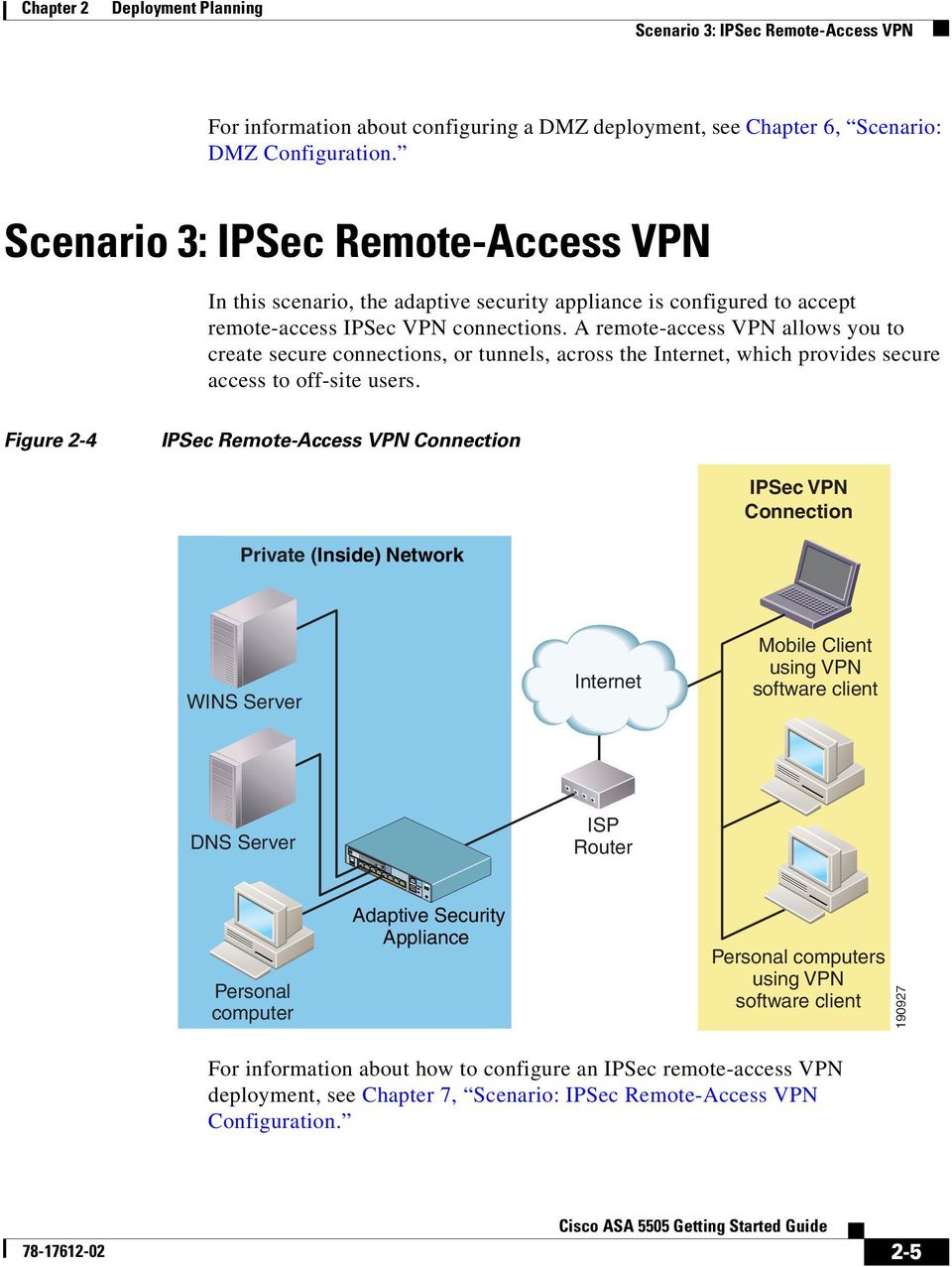
13 POWER 48VDC Security Services Card Slot console 1 2 RESET Chapter 2 Deployment Planning Scenario 3: IPSec Remote-Access VPN For information about configuring a DMZ deployment, see Chapter 6, Scenario: DMZ Configuration. Scenario 3: IPSec Remote-Access VPN In this scenario, the adaptive security appliance is configured to accept remote-access IPSec VPN connections. A remote-access VPN allows you to create secure connections, or tunnels, across the Internet, which provides secure access to off-site users. Figure 2-4 IPSec Remote-Access VPN Connection IPSec VPN Connection Private (Inside) Network WINS Server Internet Mobile Client using VPN software client DNS Server ISP Router Cisco ASA SSC-05 Status 7 POWER over ETHERNET Personal computer Adaptive Security Appliance Personal computers using VPN software client For information about how to configure an IPSec remote-access VPN deployment, see Chapter 7, Scenario: IPSec Remote-Access VPN Configuration. 2-5
14 POWER 48VDC Security Services Card Slot console 1 2 RESET POWER 48VDC Security Services Card Slot console 1 2 RESET Scenario 4: Site-to-Site VPN Chapter 2 Deployment Planning Scenario 4: Site-to-Site VPN In this scenario, two adaptive security appliances are configured to create a site-to-site VPN. Deploying a site-to-site VPN enables businesses to extend their networks across low-cost public Internet connections to business partners and remote offices worldwide while maintaining their network security. A VPN connection enables you to send data from one location to another over a secure connection, or tunnel, first by authenticating both ends of the connection, and then by automatically encrypting all data sent between the two sites. Figure 2-5 Network Layout for Site-to-Site VPN Configuration Scenario ISP Router Internet Site A Site B Cisco ASA SSC-05 Status Cisco ASA SSC-05 Status 7 POWER over ETHERNET POWER over ETHERNET Adaptive Security Appliance 1 Adaptive Security Appliance 2 Printer Personal computers Printer Personal computers For information about configuring a site-to-site VPN deployment, see Chapter 8, Scenario: Site-to-Site VPN Configuration. 2-6

15 Chapter 2 Deployment Planning Scenario 5: ASA 5505 Deployed as a Hardware VPN Client Scenario 5: ASA 5505 Deployed as a Hardware VPN Client In this scenario, an ASA 5505 is deployed as a hardware client (sometimes called a remote device). Deploying one or more VPN hardware clients in conjunction with a VPN headend device enables companies with multiple sites to establish secure communications among them and share network resources. Deploying an Easy VPN solution with hardware clients simplifies the deployment and management of a VPN in the following ways: Hosts at remote sites no longer have to run VPN client software. Security policies reside on a central server and are pushed to the remote hardware clients when a VPN connection is established. Few configuration parameters need to be set locally, minimizing the need for on-site administration. Figure 2-6 illustrates how the different Easy VPN components can be deployed. 2-7

16 POWER 48VDC Security Services Card Slot console 1 2 RESET POWER 48VDC Security Services Card Slot console 1 2 RESET Configuration Procedures for Scenarios Chapter 2 Deployment Planning Figure 2-6 ASA 5505 Installed as VPN Hardware Client Push remote configuration ISP router Cisco ASA SSC-05 Status 7 POWER over ETHERNET VPN Headend Device ISP Router Internet ASA Cisco ASA SSC-05 Status 7 POWER over ETHERNET ASA 5500 series Cisco VPN 30XX, Cisco IOS 12.2(8)T Central LAN For information about how to configure the ASA 5505 as a VPN hardware client, see Chapter 9, Scenario: Easy VPN Hardware Client Configuration. Configuration Procedures for Scenarios Each deployment scenario in this chapter has a corresponding configuration chapter in this document that describes how to configure the ASA 5505 for that type of deployment. 2-8

17 Chapter 2 Deployment Planning What to Do Next To Configure the ASA 5505 For This Scenario... Scenario 1: Private Network with External Connectivity Scenario 2: Basic Installation with DMZ Scenario 3: IPSec Remote-Access VPN Scenario 4: Site-to-Site VPN Scenario 5: ASA 5505 Deployed as a Hardware VPN Client See This Chapter... Chapter 5, Configuring the Adaptive Security Appliance Chapter 6, Scenario: DMZ Configuration Chapter 7, Scenario: IPSec Remote-Access VPN Configuration Chapter 8, Scenario: Site-to-Site VPN Configuration Chapter 9, Scenario: Easy VPN Hardware Client Configuration What to Do Next Continue with Chapter 3, Planning for a VLAN Configuration. 2-9

18 What to Do Next Chapter 2 Deployment Planning 2-10

19 CHAPTER 3 Planning for a VLAN Configuration Grouping ports into logical VLANs on the ASA 5505 enables you to segment large private networks and provide additional protection to critical network segments that may host resources such as servers, corporate computers, and IP phones. This chapter describes the options of deploying the ASA 5505 in a VLAN configuration and how to determine how many VLANs you need. It also describes allocating ports for each of the VLANs. This chapter includes the following sections: Understanding VLANs on the ASA 5505, page 3-1 Deployment Scenarios Using VLANs, page 3-4 What to Do Next, page 3-9 Understanding VLANs on the ASA 5505 After you have made a decision about how to deploy the ASA 5505 in your network, you must decide how many VLANs you need to support that deployment and how many ports to allocate to each VLAN. This section describes how VLANs work on the ASA 5505 to help you make those decisions. This section includes the following topics: About Physical Ports on the ASA 5505, page 3-2 About VLANs, page

20 Understanding VLANs on the ASA 5505 Chapter 3 Planning for a VLAN Configuration Maximum Number and Types of VLANs, page 3-3 Basic Deployment Using Two VLANs, page 3-5 DMZ Deployment, page 3-7 Teleworker Deployment Using Three VLANs, page 3-8 About Physical Ports on the ASA 5505 The ASA 5505 has a built-in switch with eight Fast Ethernet ports, called switch ports. Two of the eight physical ports are Power Over Ethernet (PoE) ports. You can connect PoE ports directly to user equipment such as PCs, IP phones, or a DSL modem. You can also connect to another switch. For more information, see Ports and LEDs, page 4-9. About VLANs You can divide the eight physical ports into groups, called VLANs, that function as separate networks. This enables you to improve the security of your business because devices in different VLANs can only communicate with each other by passing the traffic through the adaptive security appliance where relevant security policies are applied. The ASA 5505 comes preconfigured with two VLANs: VLAN1 and VLAN2. By default, Ethernet switch port 0/0 is allocated to VLAN2. All other switch ports are allocated by default to VLAN1. Physical ports on the same VLAN communicate with each other using hardware switching. VLANs communicate with each other using routes and bridges. For example, when a switch port on VLAN1 is communicating with a switch port on VLAN2, the adaptive security appliance applies configured security policies to the traffic and routes or bridges the traffic between the two VLANs. To impose strict access control and provide protection of sensitive devices, you can apply security policies to VLANs that restrict communications between VLANs. You can also apply security policies to individual ports. You might want to apply security policies at the port level if, for example, there are two ports on the same VLAN connecting devices that you do not want to be able to communicate with each other. 3-2

21 Chapter 3 Planning for a VLAN Configuration Understanding VLANs on the ASA 5505 Before you can enable a switch port on the ASA 5505, it must be assigned to a VLAN. With the Base platform, each switch port can be assigned to only one VLAN at a time. With the Security Plus license, you can use a single port to trunk between three VLANs on an external switch, enabling you to scale your deployment for larger organizations. You can create VLANs and allocate ports in the following ways: Method of Configuring VLANs ASDM Startup Wizard ASDM GUI configuration Command-line interface For more information, see... Chapter 5, Configuring the Adaptive Security Appliance ASDM online help Cisco Security Appliance Command Reference Maximum Number and Types of VLANs Your license determines how many active VLANs that you can have on the ASA Although the ASA 5505 comes preconfigured with two VLANs, you can create a as many as three VLANs, depending on your license. For example, you could create VLANs for the Inside, Outside, and DMZ network segments. Each access switch port is allocated to a single VLAN. Trunk switch ports may be allocated to multiple VLANs. With the Base platform, communication between the DMZ VLAN and the Inside VLAN is restricted: the Inside VLAN is permitted to send traffic to the DMZ VLAN, but the DMZ VLAN is not permitted to send traffic to the Inside VLAN. The Security Plus license removes this limitation, thus enabling a full DMZ configuration. Table 3-1 lists the number and types of connections supported by each license. 3-3
22 Deployment Scenarios Using VLANs Chapter 3 Planning for a VLAN Configuration Table 3-1 License Restrictions on Active VLANs License Type Mode Connections Base Platform Transparent Mode Up to two active VLANs. Routed Mode Up to three active VLANs. The DMZ VLAN is restricted from initiating traffic to the inside VLAN. Security Plus License Transparent Mode Routed Mode Up to three active VLANs, one of which must be used for failover. Up to three active VLANs for normal traffic. One active VLAN for failover. One active VLAN as a backup link to your ISP. The backup interface does not send or receive traffic unless the route through the primary interface fails. Note The ASA 5505 adaptive security appliance supports active and standby failover, but not Stateful Failover. Deployment Scenarios Using VLANs The number of VLANs you need depends on the complexity of the network into which you are installing the adaptive security appliance. Use the scenarios in this section as a guide to help you determine how many VLANs you need and how many ports to allocate to each. This section includes the following topics: Basic Deployment Using Two VLANs, page 3-5 DMZ Deployment, page 3-7 Teleworker Deployment Using Three VLANs, page
23 POWER 48VDC Security Services Card Slot console 1 2 RESET Chapter 3 Planning for a VLAN Configuration Deployment Scenarios Using VLANs Basic Deployment Using Two VLANs For most deployments, you only need to create two VLANs: an Inside VLAN and an Outside VLAN, as shown in Figure 3-1. Figure 3-1 Deployment Using Two VLANs Power cable ASA 5505 Inside VLAN Cisco ASA SSC-05 Status 7 POWER over ETHERNET Server Outside VLAN Laptop computer Router Printer Personal computer Internet In this example, the network includes an inside VLAN that permits all devices on the VLAN to communicate with each other and an outside VLAN that permits users to communicate with devices on the Internet. The Inside VLAN may consist of up to seven physical ports that connect desktop computers, network printers, and other devices. In this scenario, the Outside VLAN consists of a single ISP connection using an external WAN router. In Figure 3-1, the Inside VLAN uses four switch ports on the ASA 5505 and the Outside VLAN uses only one. Three switch ports are unused. 3-5
24 POWER 48VDC Security Services Card Slot console 1 2 RESET Deployment Scenarios Using VLANs Chapter 3 Planning for a VLAN Configuration Note This deployment is similar to the security deployments using the PIX 501. If you already have a security deployment with PIX 501 security appliances in which devices behind the firewall can communicate internally and externally, you can keep the same deployment and replace the PIX 501 devices with ASA 5505 devices. If this same customer needed to have two Internet connections, the Outside VLAN could be allocated an additional port, as shown in Figure 3-2. This deployment includes an Inside VLAN and an Outside VLAN with two external connections to provide link redundancy if one fails. Figure 3-2 Inside VLAN with Dual ISP Connectivity IP Phone Inside VLAN Power cable ASA 5505 Cisco ASA SSC-05 Status 7 POWER over ETHERNET Server Outside VLAN Laptop computer Router Internet Backup Router Printer Personal computer Even very complex networks can be deployed with only two VLANs, one for inside and one for outside. 3-6
25 POWER 48VDC Security Services Card Slot console 1 2 RESET Chapter 3 Planning for a VLAN Configuration Deployment Scenarios Using VLANs DMZ Deployment The only deployment for which you must create three VLANs is when you have a DMZ to protect in addition to your Inside network. If you have a DMZ in your configuration, the DMZ must be on its own VLAN. Figure 3-3 Deployment Requiring Three VLANs Outside Network (Internet Connection) Internet ISP Router DMZ Adaptive Security Appliance Cisco ASA SSC-05 Status 7 POWER over ETHERNET Web Server Printer Personal computers Private (Inside) Network Server In this example, three physical switch ports are allocated to the Inside VLAN, two switch ports are allocated to the DMZ VLAN, and one switch port is allocated to the Outside VLAN. Two switch ports are left unused. 3-7
26 Deployment Scenarios Using VLANs Chapter 3 Planning for a VLAN Configuration Teleworker Deployment Using Three VLANs Although not required, using three VLANs can be useful in other situations, such as when deploying a remote VPN hardware client to support a teleworker. In Figure 3-4, an ASA 5505 is installed in a home office environment and used as a remote VPN hardware client. The ASA 5505 is configured for three VLANs: Inside (Work) VLAN that consists of all devices used to support access to the main corporate network DMZ (Home) VLAN that consists of devices that can be used by all members of the family Outside (Internet) VLAN that provides Internet connectivity for both the Inside and DMZ VLANs In this case, the ASA 5505 protects the critical assets on the Inside (Work) VLAN so that these devices cannot be infected by traffic from the DMZ (Home) VLAN. To enable devices in the Inside (Work) VLAN to establish secure connections with corporate headend devices, enable the Easy VPN hardware client functionality so that only traffic from the Inside (Work) VLAN initiates VPN connections. This configuration enables users on the DMZ (Home) VLAN to browse the Internet independently of the Inside (Work) VLAN, and the security of the Inside (Work) VLAN is not compromised. 3-8
27 POWER 48VDC Security Services Card Slot console 1 2 RESET Chapter 3 Planning for a VLAN Configuration What to Do Next Figure 3-4 Teleworker Deployment Using Three VLANs Power cable ASA 5505 Inside (Work) VLAN IP Phone Cisco ASA SSC-05 Status 7 POWER over ETHERNET Notebook computer Outside (Internet) VLAN Router Internet Printer Personal computer DMZ (Home) VLAN Game System In this example, the physical ports of the ASA 5505 are used as follows: The Inside (Work) VLAN consists of three physical switch ports, one of which is a Power over Ethernet (PoE) switch port that is used for an IP phone. The DMZ (Inside) VLAN consists of three physical switch ports. The Outside (Internet) VLAN consists of one physical switch port supporting a single ISP connection using an external WAN router or broadband modem. The printer is shared by both the Inside VLAN and the DMZ VLAN. For more information about VLANs, see the Cisco Security Appliance Command Line Configuration Guide. What to Do Next Continue with Chapter 4, Installing the ASA
28 What to Do Next Chapter 3 Planning for a VLAN Configuration 3-10
29 CHAPTER 4 Installing the ASA 5505 This chapter describes how to install the ASA 5505 adaptive security appliance. This chapter includes the following sections: Verifying the Package Contents, page 4-1 PoE Ports and Devices, page 4-3 Installing the Chassis, page 4-3 Connecting to Network Interfaces, page 4-4 Powering on the ASA 5505, page 4-5 Setting Up a PC for System Administration, page 4-6 Optional Procedures, page 4-7 Ports and LEDs, page 4-9 What to Do Next, page 4-13 Verifying the Package Contents Verify the contents of the packing box to ensure that you have received all items necessary to install your Cisco ASA 5505 adaptive security appliance, as shown in Figure
30 Verifying the Package Contents Chapter 4 Installing the ASA 5505 Figure 4-1 Contents of ASA 5505 Package POWER 48VDC Security Services Card Slot CONSOLE 7 POWER over ETHERNET Cisco ASA RESET Blue console cable Yellow Ethernet cable Power supply adapter Regulatory Compliance and Safety Information Cisco ASA 5505 Getting Started Guide Cisco ASA 5505 Firewall Product CD Cable (US shown) Documentation 4-2
31 Chapter 4 Installing the ASA 5505 PoE Ports and Devices PoE Ports and Devices On the ASA 5505, switch ports Ethernet 0/6 and Ethernet 0/7 support PoE devices that are compliant with the IEEE 802.3af standard, such as IP phones or wireless access points. If you install a non-poe device or do not connect to these switch ports, the adaptive security appliance does not supply power to the ports and the device must be powered on its own. These ports are the only ports that can provide power for IP phones or other PoE devices. However, these ports are not restricted to that use. They can also be used as Ethernet switch ports, like the Ethernet switch ports numbered 0 through 5. If a PoE device is not attached, power is not supplied to the port. When connecting PoE devices, use the following guidelines: Use straight-through cable only. Using crossover cable does not enable the ASA 5505 to provide power to the PoE ports. Do not disable auto-negotiation (force speed and duplex) on E0/6 and E0/7 when using them to connect PoE devices. If auto-negotiation is disabled, the ASA 5505 does not recognize that a PoE device is attached. In this case, power is not provided to the port. Note Be careful when connecting a Cisco PoE device to a non-poe switch port (E0/0 through E0/5). If auto-negotiation is disabled for that switch port, a network loopback might occur with some Cisco Powered Device (PD) models. Cisco IP Phone 7970 is always in low-power mode when drawing power from the ASA Installing the Chassis To install the ASA 5505, perform the following steps: Step 1 Step 2 Place the chassis on a flat, stable surface. The chassis is not rack mountable. Connect Port 0 to the public network (that is, the Internet): a. Use a yellow Ethernet cable to connect the device to a switch or hub. 4-3
32 Connecting to Network Interfaces Chapter 4 Installing the ASA 5505 b. Use one of the yellow Ethernet cables to connect the device to a cable/dsl/isdn modem. Note By default, switch port 0 is the outside port. Step 3 Connect your network devices with an Ethernet cable to one of the remaining seven switched ports (numbered 1 through 7). If you are connecting any Power over Ethernet (PoE) devices, connect them to one of the switch ports that support PoE (ports numbered 6 and 7). Connecting to Network Interfaces To connect to a network interface, perform the following steps: Step 1 Step 2 Locate an RJ-45 to RJ-45 Ethernet cable. Connect one end of the Ethernet cable to an Ethernet port (ports 0 through 7) as shown in Figure 4-2. (Typically Ethernet port 0 is used to connect to an Internet router.) 4-4
33 Chapter 4 Installing the ASA 5505 Powering on the ASA 5505 Figure 4-2 Connecting to an Ethernet Interface Security Services Card Slot Console POWER 48VDC 7 POWER over ETHERNET RESET Ethernet switch ports 2 Ethernet cable Step 3 Connect the other end of the Ethernet cable to a device, such as a router, desktop computer, or printer. Powering on the ASA 5505 To power on the ASA 5505, perform the following steps: Step 1 Step 2 Step 3 Connect the power supply with the power cable. Connect the small, rectangular connector of the power supply cable to the power connector on the rear panel. Connect the AC power connector of the power supply input cable to an electrical outlet. 4-5
34 Setting Up a PC for System Administration Chapter 4 Installing the ASA 5505 Note The ASA 5505 does not have a power switch. Completing Step 3 powers on the device. Step 4 Check the power LED; if it is solid green, then the device is powered on. For more information, see the Front Panel Components section on page 4-9. Setting Up a PC for System Administration You can perform setup, configuration, and management tasks from a PC using the Adaptive Security Device Manager (ASDM) application, which provides an intuitive graphical user interface (GUI). In addition to configuration and management capability, ASDM also provides configuration wizards for initial configuration, VPN configuration, and high-availability configuration. For more information about using ASDM for setup and configuration, see Chapter 5, Configuring the Adaptive Security Appliance. To set up a PC from which you can configure and manage the ASA 5505, perform the following steps: Step 1 Step 2 Make sure that the speed of the PC interface to be connected to one of the ASA 5505 inside ports is set to autonegotiate. This setting provides the best performance. By default, the ASA 5505 automatically negotiates the inside interface speed. If autonegotiate is not an option for the PC interface, set the speed to either 10 or 100 Mbps half duplex. Do not set the interface to full duplex; this causes a duplex mismatch that significantly impacts the total throughput capabilities of the interface. Configure the PC to use DHCP (to receive an IP address automatically from the ASA 5505), which enables the PC to communicate with the ASA 5505 and the Internet as well as to run ASDM for configuration and management tasks. Alternatively, you can assign a static IP address to your PC by selecting an address in the subnet. When you connect other devices to any of the inside ports, make sure that they do not have the same IP address. 4-6
35 Chapter 4 Installing the ASA 5505 Optional Procedures Step 3 Step 4 Use an Ethernet cable to connect the PC to a switched inside port on the rear panel of the ASA 5505 (one of the ports numbered 1 through 7). Check the LINK LED to verify that the PC has basic connectivity to the ASA When connectivity is established, the LINK LED on the front panel of the ASA 5505 lights up solid green. You can now access the ASDM and the ASDM Startup Wizard. See Chapter 5, Configuring the Adaptive Security Appliance for information about how to perform initial setup and configuration of the ASA Optional Procedures This section describes how to perform tasks that are not required for the initial setup of the ASA This section includes the following topics: Connecting to the Console section on page 4-7 Installing a Cable Lock section on page 4-8 Connecting to the Console You can access the command line for administration using the console port on the ASA To do so, you must run a serial terminal emulator on a PC or workstation as shown in Figure
36 Optional Procedures Chapter 4 Installing the ASA 5505 Figure 4-3 Connecting to the Console Security Services Card Slot Console POWER 48VDC 2 1 RESET 7 POWER over ETHERNET Console port 2 Console cable To connect a console for local, command-line administrative access, perform the following steps: Step 1 Step 2 Step 3 Step 4 Plug one end of the PC terminal adapter into a standard 9-pin PC serial port on your PC. Plug one end of the blue console cable into the PC terminal adapter. Plug the other end of the blue console cable into the CONSOLE port. Configure the PC terminal emulation software or terminal for 9600 baud, 8 data bits, no parity, and 1 stop bit. Installing a Cable Lock The ASA 5505 includes a slot that accepts standard desktop cable locks to provide physical security for small portable equipment, such as a laptop computer. The cable lock is not included. 4-8
37 Chapter 4 Installing the ASA 5505 Ports and LEDs To install a cable lock, perform the following steps: Step 1 Follow the directions from the manufacturer for attaching the other end of the cable for securing the adaptive security appliance. Step 2 Attach the cable lock to the lock slot on the back panel of the ASA Ports and LEDs This section describes the front and rear panels of the ASA This section includes the following topics: Front Panel Components, page 4-9 Rear Panel Components, page 4-12 Front Panel Components The LINK/ACT indicators on the front panel of the ASA 5505 are normally solid green when a link is established and flashing green when there is network activity. Each Ethernet interface (numbered 0 through 7) has two LEDs: one to indicate the operating speed and the other to indicate whether the physical link is established. 4-9
38 Ports and LEDs Chapter 4 Installing the ASA 5505 Figure 4-4 illustrates the front panel of the ASA Figure 4-4 ASA 5505 Front Panel LINK/ACT Power Status Active VPN SSC MBPS Cisco ASA 5505 series Adaptive Security Appliance Port / LED Color State Description 1 USB Port Reserved for future use. 2 Speed Indicators Not lit Network traffic is flowing at 10 Mbps. Green On Network traffic is flowing at 100 Mbps. 3 Link Activity Green Solid The physical link established. * Indicators Green Flashing There is network activity. 4 Power Green On The device is powered on. Off The device is powered off. 5 Status Green Flashing The power-up diagnostics are running or the system is booting. Solid The system is operational. Amber Solid The system has encountered a problem. 4-10
39 Chapter 4 Installing the ASA 5505 Ports and LEDs Port / LED Color State Description 6 Active Green Solid The system is forwarding traffic. If the system is part of a high availability setup, a solid green light indicates that the link is forwarding traffic. Amber Solid The system is on standby. If the system is part of a high availability setup, a solid amber light indicates that this is the standby unit. 7 VPN Green Solid The VPN tunnel is established. Flashing The system is initiating the VPN tunnel. Amber Solid The tunnel failed to initiate. 8 SSC An SSC card is present in the SSC slot. * If the LINK/ACT LED does not light up, the link could be down if there is a duplex mismatch. You can fix the problem by changing the settings either on the ASA 5505 or on the other end. If auto-negotiation is disabled (it is enabled by default), you might be using the wrong type of cable. Try replacing the yellow (straight-through) Ethernet cable with the orange (crossover) Ethernet cable. 4-11
40 Ports and LEDs Chapter 4 Installing the ASA 5505 Rear Panel Components Figure 4-5 illustrates the back panel of the ASA Figure ASA 5505 Rear Panel 2 3 Security Services Card Slot Console power 48VDC 7 POWER over ETHERNET RESET Port or LED Purpose 1 Power connector Attaching the power cord. 2 Security service card slot Reserved for future use. 3 Serial console port Managing the device using the CLI (command-line interface). 4 RESET button Reserved for future use 5 2 USB ports v2.0 ports Reserved for future use. 6 Ethernet switch ports 0 7 Layer 2 switch ports that provide flexible zone configuration. Note Ethernet switch ports 6 and 7 also support PoE devices. If a PoE device is not attached, power is not supplied to the port and the device must be powered on its own. 7 PoE switch ports 6 7 Can be used for PoE devices, that is, devices that can be powered by the network interface, such as IP phones. These ports are the only ports that can be used for IP phones or other PoE devices. However, these ports are not restricted to that use. They can also be used as Ethernet switch ports, as are the ports numbered 0 through 5. If a PoE device is not attached, power is not supplied to the port and the device must be powered on its own. 4-12
41 Chapter 4 Installing the ASA 5505 What to Do Next What to Do Next Continue with Chapter 5, Configuring the Adaptive Security Appliance. 4-13
42 What to Do Next Chapter 4 Installing the ASA
43 CHAPTER 5 Configuring the Adaptive Security Appliance This chapter describes the initial configuration of the adaptive security appliance. You can perform the configuration steps using either the browser-based Cisco Adaptive Security Device Manager (ASDM) or the command-line interface (CLI). The procedures in this chapter describe how to configure the adaptive security appliance using ASDM. This chapter includes the following sections: About the Factory Default Configuration, page 5-1 About the Adaptive Security Device Manager, page 5-3 Using the Startup Wizard, page 5-4 What to Do Next, page 5-7 About the Factory Default Configuration Cisco adaptive security appliances are shipped with a factory-default configuration that enables quick startup. The ASA 5505 comes preconfigured with Two VLANs: VLAN 1 and VLAN2 VLAN 1 has the following properties: Named inside Allocated switch ports Ethernet 0/1 through Ethernet 0/7 5-1
44 About the Factory Default Configuration Chapter 5 Configuring the Adaptive Security Appliance Security level of 100 Allocated switch ports Ethernet 0/1 through 0/7 IP address of VLAN2 has the following properties: Named outside Allocated switch port Ethernet 0/0 Security level of 0 Configured to obtain its IP address using DHCP Inside interface to connect to the device and use ASDM to complete your configuration. By default, the adaptive security appliance Inside interface is configured with a default DHCP address pool. This configuration enables a client on the inside network to obtain a DHCP address from the adaptive security appliance to connect to the appliance. Administrators can then configure and manage the adaptive security appliance using ASDM. For more information about CLI configuration, see the Cisco Security Appliance Command Line Configuration Guide. 5-2
45 Chapter 5 Configuring the Adaptive Security Appliance About the Adaptive Security Device Manager About the Adaptive Security Device Manager The Adaptive Security Device Manager (ASDM) is a feature-rich graphical interface that allows you to manage and monitor the adaptive security appliance. The web-based design provides secure access so that you can connect to and manage the adaptive security appliance from any location by using a web browser. In addition to complete configuration and management capability, ASDM features intelligent wizards to simplify and accelerate the deployment of the adaptive security appliance. In addition to the ASDM web configuration tool, you can configure the adaptive security appliance by using the command-line interface. For more information, see the Cisco Security Appliance Command Line Configuration Guide and the Cisco Security Appliance Command Reference. 5-3
46 Using the Startup Wizard Chapter 5 Configuring the Adaptive Security Appliance Using the Startup Wizard ASDM includes a Startup Wizard to simplify the initial configuration of your adaptive security appliance. With a few steps, the Startup Wizard allows you to configure the adaptive security appliance so that it allows packets to flow securely between the inside network and the outside network. This section describes how to use the Startup Wizard to set basic configuration parameters. This section includes the following topics: Before Launching the Startup Wizard, page 5-4 Running the Startup Wizard, page 5-5 Before Launching the Startup Wizard Before you launch the Startup Wizard, perform the following steps: Step 1 Step 2 Enable Java and Javascript in your web browser. Obtain the following information: A unique hostname to identify the adaptive security appliance on your network. The domain name. The IP addresses of your outside interface, inside interface, and any other interfaces to be configured. IP addresses for hosts that should have administrative access to this device using HTTPS for ASDM, SSH, or Telnet. The privileged mode password for administrative access. The IP addresses to use for NAT or PAT address translation, if any. The IP address range for the DHCP server. The IP address for the WINS server. Static routes to be configured. If you want to create a DMZ, you must create a third VLAN and assign ports to that VLAN. (By default, there are two VLANs configured.) 5-4
47 Chapter 5 Configuring the Adaptive Security Appliance Using the Startup Wizard Interface configuration information: whether traffic is permitted between interfaces at the same security level, and whether traffic is permitted between hosts on the same interface. If you are configuring an Easy VPN hardware client, the IP addresses of primary and secondary Easy VPN servers; whether the client is to run in client or network extension mode; and user and group login credentials to match those configured on the primary and secondary Easy VPN servers. Running the Startup Wizard To use the Startup Wizard to set up a basic configuration for the adaptive security appliance, perform the following steps: Step 1 If you have not already done so, connect a PC to a switch port on the ASA Step 2 a. Locate an Ethernet cable, which has an RJ-45 connector on each end. b. Connect one RJ-45 connector to the switch port. c. Connect the other end of the Ethernet cable to the Ethernet port on your computer or to your management network. Start ASDM. a. On the PC connected to the ASA 5505, start an Internet browser. b. In the address field of the browser, enter this URL: Note The adaptive security appliance ships with a default IP address of Remember to add the s in https or the connection fails. HTTP over SSL (HTTPS) provides a secure connection between your browser and the adaptive security appliance. Step 3 c. In the window that requires you to choose the method you want to use to run the ASDM software, choose either to download the ASDM Launcher or to run the ASDM software as a Java applet. In the dialog box that requires a username and password, leave both fields empty. Press Enter. 5-5
48 Using the Startup Wizard Chapter 5 Configuring the Adaptive Security Appliance Step 4 Click Yes to accept the certificates. Click Yes for all subsequent authentication and certificate dialog boxes. The main ASDM window appears. Step 5 Step 6 From the Wizards menu, choose Startup Wizard. Follow the instructions in the Startup Wizard to set up your adaptive security appliance. For information about any field in the Startup Wizard, click Help at the bottom of the window. 5-6
49 Chapter 5 Configuring the Adaptive Security Appliance What to Do Next Note Based on your network security policy, you should also consider configuring the adaptive security appliance to deny all ICMP traffic through the outside interface or any other interface that is necessary. You can configure this access control policy using ASDM. From the ASDM main page, click Configuration > Properties > ICMP Rules. Add an entry for the outside interface. Set the IP address to , the netmask to , and Action to deny. What to Do Next Configure the adaptive security appliance for your deployment using one or more of the following chapters: To Do This... See... Configure the adaptive security appliance to protect a DMZ web server Configure the adaptive security appliance for remote-access VPN Configure the adaptive security appliance for site-to-site VPN Configure the adaptive security appliance as an Easy VPN remote device Chapter 6, Scenario: DMZ Configuration Chapter 7, Scenario: IPSec Remote-Access VPN Configuration Chapter 8, Scenario: Site-to-Site VPN Configuration Chapter 9, Scenario: Easy VPN Hardware Client Configuration 5-7
50 What to Do Next Chapter 5 Configuring the Adaptive Security Appliance 5-8
51 CHAPTER 6 Scenario: DMZ Configuration Note Cisco ASA 5505 DMZ configurations are possible only with the Security Plus license. This chapter includes the following sections: Example DMZ Network Topology, page 6-1 Configuring the Security Appliance for a DMZ Deployment, page 6-5 What to Do Next, page 6-18 Example DMZ Network Topology The example network topology shown in Figure 6-1 is typical of many DMZ implementations of the adaptive security appliance. 6-1
52 Example DMZ Network Topology Chapter 6 Scenario: DMZ Configuration Figure 6-1 Network Layout for DMZ Configuration Scenario HTTP client (private address) inside interface (private address) Security Appliance DMZ interface (private address) outside interface (public address) Internet DNS server HTTP client HTTP client DMZ Web Server Private IP address: Public IP address: This example scenario has the following characteristics: The web server is on the DMZ interface of the adaptive security appliance. HTTP clients on the private network can access the web server in the DMZ and can also communicate with devices on the Internet. Clients on the Internet are permitted HTTP access to the DMZ web server; all other traffic is denied. The network has one routable IP address that is publicly available: the outside interface of the adaptive security appliance ( ). Figure 6-2 shows the outgoing traffic flow of HTTP requests from the private network to both the DMZ web server and to the Internet. 6-2
53 Chapter 6 Scenario: DMZ Configuration Example DMZ Network Topology Figure 6-2 Outgoing HTTP Traffic Flow from the Private Network Before an HTTP request can be sent to the DMZ web server, the URL must be resolved to an IP address HTTP client (private address) DNS request (inside interface) HTTP request Client sends HTTP request to ASA which forwards it to the DMZ web server DMZ network Security Appliance DMZ interface (private address) outside interface (public address) Internet DNS server HTTP client HTTP client DMZ Web Server Private IP address: Public IP address: In Figure 6-2, the adaptive security appliance permits HTTP traffic originating from inside clients and destined for the DMZ web server. Because the internal network does not include a DNS server, internal client requests for the DMZ web server are handled as follows: 1. A lookup request is sent to the DNS server of the ISP. The public IP address of the DMZ web server is returned to the client. 2. The internal client sends the HTTP request to the adaptive security appliance. 3. The adaptive security appliance translates the public IP address of the DMZ web server to its real address and forwards the request to the web server. 4. The DMZ web server returns the HTTP content to the adaptive security appliance with a destination address of the real IP address of the internal client. 5. The adaptive security appliance forwards the HTTP content to the internal client. 6-3
54 Example DMZ Network Topology Chapter 6 Scenario: DMZ Configuration To permit internal clients to request HTTP content from the DMZ web server, the adaptive security appliance configuration must include the following rules: A NAT rule between the DMZ and inside interfaces that translates the real IP address of the DMZ web server to the public IP address of the DMZ web server ( to ). A NAT rule between the inside and DMZ interfaces that translate the real addresses of the internal client network. In this scenario, the real IP address of the internal network is translated to itself when internal clients communicate with the web server in the DMZ ( to ). To permit traffic coming from the Internet to access the DMZ web server, the adaptive security appliance configuration includes the following: An address translation rule translating the public IP address of the DMZ web server to the private IP address of the DMZ web server. An access control rule permitting incoming HTTP traffic that is destined for the DMZ web server. Figure 6-3 shows HTTP requests originating from the Internet and destined for the public IP address of the DMZ web server. Figure 6-3 Incoming HTTP Traffic Flow From the Internet Security Appliance 2 Incoming request destined for public address of DMZ web server intercepted. 1 HTTP request sent to public address of DMZ web server. Internet HTTP client 3 Destination IP address translated to the private IP address of the web server. HTTP client DMZ Web Server 4 Web server receives request for content. Private IP address: Public IP address: The procedures for creating this configuration are detailed in the remainder of this chapter
55 Chapter 6 Scenario: DMZ Configuration Configuring the Security Appliance for a DMZ Deployment Configuring the Security Appliance for a DMZ Deployment This section describes how to use ASDM to configure the adaptive security appliance for the configuration scenario shown in Figure 6-1. The procedure uses sample parameters based on the scenario. This configuration procedure assumes that the adaptive security appliance already has interfaces configured for the inside interface, the outside interface, and the DMZ interface. Set up interfaces on the adaptive security appliance by using the Startup Wizard in ASDM. Be sure that the DMZ interface security level is set between 0 and 100. (A common choice is 50.) For more information about using the Startup Wizard, see Chapter 5, Configuring the Adaptive Security Appliance. The section includes the following topics: Configuration Requirements, page 6-5 Starting ASDM, page 6-6 Enabling Inside Clients to Communicate with Devices on the Internet, page 6-7 Enabling Inside Clients to Communicate with the DMZ Web Server, page 6-7 Configuring an External Identity for the DMZ Web Server, page 6-11 Providing Public HTTP Access to the DMZ Web Server, page 6-15 The following sections provide detailed instructions for how to perform each step. Configuration Requirements Configuring the adaptive security appliance for this DMZ deployment requires the following: Internal clients need to be able to communicate with devices on the Internet. Internal clients need to be able to communicate with the DMZ web server. External clients need to be able to communicate with the DMZ web server. The remainder of this chapter provides instructions for how to accomplish this configuration. 6-5
56 Configuring the Security Appliance for a DMZ Deployment Chapter 6 Scenario: DMZ Configuration Starting ASDM To run ASDM in a web browser, enter the factory default IP address in the address field: Note Remember to add the s in https or the connection fails. HTTP over SSL (HTTPS) provides a secure connection between your browser and the adaptive security appliance. The Main ASDM window appears. 6-6
57 Chapter 6 Scenario: DMZ Configuration Configuring the Security Appliance for a DMZ Deployment Enabling Inside Clients to Communicate with Devices on the Internet To permit internal clients to request content from devices on the Internet, the adaptive security appliance translates the real IP addresses of internal clients to the external address of the outside interface (that is, the public IP address of the adaptive security appliance). Outgoing traffic appears to come from this address. The ASA 5505 comes with a default configuration that includes the necessary address translation rule. Unless you want to change the IP address of the inside interface, you do not need to configure any settings to allow inside clients to access the Internet. Enabling Inside Clients to Communicate with the DMZ Web Server In this procedure, you configure the adaptive security appliance to allow internal clients to communicate securely with the web server in the DMZ. To accomplish this, you must configure two translation rules: A NAT rule between the DMZ and inside interfaces that translates the real IP address of the DMZ web server to its public IP address ( to ). A NAT rule between the inside and DMZ interfaces that translates the public IP address of the DMZ web server back to its real IP address ( to ). This is necessary because when an internal client sends a DNS lookup request, the DNS server returns the public IP address of the DMZ web server. Note Because there is not a DNS server on the inside network, DNS requests must exit the adaptive security appliance to be resolved by a DNS server on the Internet. This section includes the following topics: Translating Internal Client IP Addresses Between the Inside and DMZ Interfaces, page
58 Configuring the Security Appliance for a DMZ Deployment Chapter 6 Scenario: DMZ Configuration Translating the Public Address of the Web Server to its Real Address, page 6-9 Translating Internal Client IP Addresses Between the Inside and DMZ Interfaces To configure NAT to translate internal client IP addresses between the inside interface and the DMZ interface, perform the following steps: Step 1 Step 2 Step 3 Step 4 Step 5 In the main ASDM window, click the Configuration tool. In the Features pane, click NAT. From the Add drop-down list, choose Add Static NAT Rule. The Add Static NAT Rule dialog field appears. In the Real Address area, specify the IP address to be translated. For this scenario, address translation for inside clients is performed for the entire subnet. a. From the Interface drop-down list, choose the Inside interface. b. Enter the IP address of the client or network. In this scenario, the IP address of the network is c. From the Netmask drop-down list, choose the Netmask. In this scenario, the netmask is In the Static Translation area, do the following: a. From the Interface drop-down list, choose the DMZ interface. b. In the IP Address field, enter the IP address of the internal client subnet. In this scenario, the IP address is c. Click OK to add the Static NAT Rule and return to the Configuration > NAT pane. 6-8
59 Chapter 6 Scenario: DMZ Configuration Configuring the Security Appliance for a DMZ Deployment Review the configuration pane to verify that the translation rule appears as you expected. The rule should appear similar to the following: Step 6 Click Apply to complete the adaptive security appliance configuration changes. Translating the Public Address of the Web Server to its Real Address To configure NAT rule that translates the public IP address of the web server to its real IP address, perform the following steps: Step 1 Step 2 Step 3 In the main ASDM window, click the Configuration tool. In the Features pane, click NAT. From the Add drop-down list, choose Add Static NAT Rule. The Add Static NAT Rule dialog box appears. 6-9
60 Configuring the Security Appliance for a DMZ Deployment Chapter 6 Scenario: DMZ Configuration Step 4 Step 5 In the Real Address area, do the following: a. From the Interface drop-down list, choose DMZ. b. Enter or choose from the IP Address drop-down list the public address of the DMZ web server. In this scenario, the IP address is In the Static Translation area, do the following: a. From the Interface drop-down list, choose Inside. b. Enter or choose from the IP Address drop-down list the real address of the DMZ web server. In this scenario, the IP address is
61 Chapter 6 Scenario: DMZ Configuration Configuring the Security Appliance for a DMZ Deployment Step 6 Click OK to return to the Configuration > NAT pane. The configuration should look similar to the following: Configuring an External Identity for the DMZ Web Server The DMZ web server needs to be accessible by all hosts on the Internet. This configuration requires translating the private IP address of the DMZ web server to a public IP address, which allows outside HTTP clients to access the web server without being aware of the adaptive security appliance. To map the real web server IP address ( ) statically to a public IP address ( ), perform the following steps: Step 1 In the ASDM window, click the Configuration tool. 6-11
62 Configuring the Security Appliance for a DMZ Deployment Chapter 6 Scenario: DMZ Configuration Step 2 Step 3 Step 4 Step 5 In the Features pane, click NAT. From the Add drop-down list, choose Add Static NAT Rule. The Add Static NAT Rule dialog box appears. In the Real Address area, specify the real IP address of the web server: a. From the Interface drop-down list, choose the DMZ interface. b. Enter the real IP address of the DMZ web server. In this scenario, the IP address is c. From the Netmask drop-down list, choose the Netmask In the Static Translation area, specify the public IP address to be used for the web server: a. From the Interface drop-down list, choose Outside. b. From the IP Address drop-down list, choose the (Interface IP) keyword. This is the IP address for the specified interface, in this case, the outside interface. 6-12
63 Chapter 6 Scenario: DMZ Configuration Configuring the Security Appliance for a DMZ Deployment Step 6 Configure Port Address Translation. Because there is only one public IP address, it is necessary to use Port Address Translation to translate the IP address of the DMZ web server to the public Outside IP address of the adaptive security appliance. To configure Port Address Translation, perform the following steps: a. Check the Enable Port Address Translation (PAT) check box. b. From the Protocol drop-down list, choose tcp. c. In the Original Port field, enter 80. d. In the Translated Port field, enter 80. e. Click OK to add the rule and return to the list of Address Translation Rules. This rule maps the real web server IP address ( ) statically to the public IP address of the web server ( ). 6-13
64 Configuring the Security Appliance for a DMZ Deployment Chapter 6 Scenario: DMZ Configuration Step 7 Confirm that the rule was created the way you expected. The displayed configuration should be similar to the following: Step 8 Click Apply to complete the adaptive security appliance configuration changes. 6-14
65 Chapter 6 Scenario: DMZ Configuration Configuring the Security Appliance for a DMZ Deployment Providing Public HTTP Access to the DMZ Web Server By default, the adaptive security appliance denies all traffic coming in from the public network. To permit traffic coming from the Internet to access the DMZ web server, you must configure an access control rule permitting incoming HTTP traffic destined for the DMZ web server. This access control rule specifies the interface of the adaptive security appliance that processes the traffic, that the traffic is incoming, the origin and destination of the traffic, and the type of traffic protocol and service to be permitted. In this section, you create an access rule that permits incoming HTTP traffic originating from any host or network on the Internet, if the destination of the traffic is the web server on the DMZ network. All other traffic coming in from the public network is denied. To configure the access control rule, perform the following steps: Step 1 Step 2 Step 3 Step 4 In the ASDM window, do the following: a. Click the Configuration tool. b. In the Features pane, click Security Policy. c. Click the Access Rules tab, then from the Add pull-down list, choose Add Access Rule. The Add Access Rule dialog box appears. In the Interface and Action area, do the following: a. From the Interface drop-down list, choose Outside. b. From the Direction drop-down list, choose Incoming. c. From the Action drop-down list, choose Permit. In the Source area, choose the keyword Any from the Type drop-down list. This indicates that traffic originating from any host or network should be allowed. In the Destination area, do the following: a. Choose the Interface IP keyword from the Type drop-down list. b. Choose Outside from the Interface drop-down list. 6-15
66 Configuring the Security Appliance for a DMZ Deployment Chapter 6 Scenario: DMZ Configuration Step 5 In the Protocol and Service area, specify the type of traffic that you want to permit through the adaptive security appliance. a. From the Protocol drop-down list, choose tcp. b. In the Source Port area, confirm that the Service radio button is set to = (equal to), and then choose any from the next drop-down list. c. In the Destination Port area, confirm that the Service radio button is set to = (equal to), and then choose HTTP/WWW from the next drop-down list. At this point, the entries in the Add Access Rule dialog box should be similar to the following: Step 6 d. Click OK to return to the Security Policy > Access Rules pane. The displayed configuration should be similar to the following. Verify that the information you entered is accurate. 6-16
67 Chapter 6 Scenario: DMZ Configuration Configuring the Security Appliance for a DMZ Deployment Step 7 Click Apply to save the configuration changes to the configuration that the adaptive security appliance is currently running. Clients on the public network can now resolve HTTP requests for content from the DMZ web server, while keeping the private network secure. If you want the configuration changes to be saved to the startup configuration so that they are applied the next time the device starts, from the File menu, click Save. Alternatively, ASDM prompts you to save the configuration changes permanently when you exit ASDM. If you do not save the configuration changes, the old configuration takes effect the next time the device starts. 6-17
68 What to Do Next Chapter 6 Scenario: DMZ Configuration What to Do Next If you are deploying the adaptive security appliance solely to protect a web server in a DMZ, you have completed the initial configuration. You may want to consider performing some of the following additional steps: To Do This... Refine configuration and configure optional and advanced features Learn about daily operations See... Cisco Security Appliance Command Line Configuration Guide Cisco Security Appliance Command Reference Cisco Security Appliance Logging Configuration and System Log Messages You can configure the adaptive security appliance for more than one application. The following sections provide configuration procedures for other common applications of the adaptive security appliance. To Do This... Configure a remote-access VPN Configure a site-to-site VPN See... Chapter 7, Scenario: IPSec Remote-Access VPN Configuration Chapter 8, Scenario: Site-to-Site VPN Configuration 6-18
69 CHAPTER 7 Scenario: IPSec Remote-Access VPN Configuration This chapter describes how to use the adaptive security appliance to accept remote-access IPSec VPN connections. A remote-access VPN allows you to create secure connections, or tunnels, across the Internet, which provides secure access to off-site users. If you are implementing an Easy VPN solution, this chapter describes how to configure the Easy VPN server (sometimes called a headend device). This chapter includes the following sections: Example IPSec Remote-Access VPN Network Topology, page 7-1 Implementing the IPSec Remote-Access VPN Scenario, page 7-2 What to Do Next, page 7-18 Example IPSec Remote-Access VPN Network Topology Figure 7-1 shows an adaptive security appliance configured to accept requests from and establish IPSec connections with VPN clients, such as a Cisco Easy VPN software or hardware clients, over the Internet. 7-1
70 Implementing the IPSec Remote-Access VPN Scenario Chapter 7 Scenario: IPSec Remote-Access VPN Configuration Figure 7-1 Network Layout for Remote Access VPN Scenario DNS Server Security Appliance VPN client (user 1) Internal network Inside Outside Internet VPN client (user 2) WINS Server Hardware client (user 3) Implementing the IPSec Remote-Access VPN Scenario This section describes how to configure the adaptive security appliance to accept IPSec VPN connections from remote clients and devices. If you are implementing an Easy VPN solution, this section describes how to configure an Easy VPN server (also known as a headend device). Values for example configuration settings are taken from the remote-access scenario illustrated in Figure 7-1. This section includes the following topics: Information to Have Available, page 7-3 Starting ASDM, page 7-3 Configuring the ASA 5505 for an IPSec Remote-Access VPN, page 7-5 Selecting VPN Client Types, page 7-6 Specifying the VPN Tunnel Group Name and Authentication Method, page
71 Chapter 7 Scenario: IPSec Remote-Access VPN Configuration Implementing the IPSec Remote-Access VPN Scenario Specifying a User Authentication Method, page 7-8 (Optional) Configuring User Accounts, page 7-10 Configuring Address Pools, page 7-11 Configuring Client Attributes, page 7-12 Configuring the IKE Policy, page 7-13 Configuring IPSec Encryption and Authentication Parameters, page 7-15 Specifying Address Translation Exception and Split Tunneling, page 7-16 Verifying the Remote-Access VPN Configuration, page 7-17 Information to Have Available Before you begin configuring the adaptive security appliance to accept remote access IPSec VPN connections, make sure that you have the following information available: Range of IP addresses to be used in an IP pool. These addresses are assigned to remote VPN clients as they are successfully connected. List of users to be used in creating a local authentication database, unless you are using a AAA server for authentication. Networking information to be used by remote clients when connecting to the VPN, including the following: IP addresses for the primary and secondary DNS servers IP addresses for the primary and secondary WINS servers Default domain name List of IP addresses for local hosts, groups, and networks that should be made accessible to authenticated remote clients Starting ASDM To run ASDM in a web browser, enter the factory default IP address in the address field: 7-3
72 Implementing the IPSec Remote-Access VPN Scenario Chapter 7 Scenario: IPSec Remote-Access VPN Configuration Note Remember to add the s in https or the connection fails. HTTP over SSL (HTTP) provides a secure connection between your browser and the adaptive security appliance. The Main ASDM window appears. 7-4
73 Chapter 7 Scenario: IPSec Remote-Access VPN Configuration Implementing the IPSec Remote-Access VPN Scenario Configuring the ASA 5505 for an IPSec Remote-Access VPN To begin the process for configuring a remote-access VPN, perform the following steps: Step 1 In the main ASDM window, choose VPN Wizard from the Wizards drop-down menu. The VPN Wizard Step 1 screen appears. Step 2 In Step 1 of the VPN Wizard, perform the following steps: a. Click the Remote Access radio button. b. From the drop-down list, choose Outside as the enabled interface for the incoming VPN tunnels. c. Click Next to continue. 7-5
74 Implementing the IPSec Remote-Access VPN Scenario Chapter 7 Scenario: IPSec Remote-Access VPN Configuration Selecting VPN Client Types In Step 2 of the VPN Wizard, perform the following steps: Step 1 Specify the type of VPN client that will enable remote users to connect to this adaptive security appliance. For this scenario, click the Cisco VPN Client radio button. You can also use any other Cisco Easy VPN remote product. Step 2 Click Next to continue. 7-6
75 Chapter 7 Scenario: IPSec Remote-Access VPN Configuration Implementing the IPSec Remote-Access VPN Scenario Specifying the VPN Tunnel Group Name and Authentication Method In Step 3 of the VPN Wizard, perform the following steps: Step 1 Specify the type of authentication that you want to use by performing one of the following steps: To use a static preshared key for authentication, click the Pre-Shared Key radio button and enter a preshared key (for example, Cisco ). This key is used for IPSec negotiations between the adaptive security appliances. To use digital certificates for authentication, click the Certificate radio button, choose the Certificate Signing Algorithm from the drop-down list, and then choose a preconfigured trustpoint name from the drop-down list. If you want to use digital certificates for authentication but have not yet configured a trustpoint name, you can continue with the Wizard by using one of the other two options. You can revise the authentication configuration later using the standard ASDM windows. Click the Challenge/Response Authentication (CRACK) radio button to use that method of authentication. 7-7
76 Implementing the IPSec Remote-Access VPN Scenario Chapter 7 Scenario: IPSec Remote-Access VPN Configuration Step 2 Step 3 Enter a Tunnel Group Name (such as Cisco ) for the set of users that use common connection parameters and client attributes to connect to this adaptive security appliance. Click Next to continue. Specifying a User Authentication Method Users can be authenticated either by a local authentication database or by using external authentication, authorization, and accounting (AAA) servers (RADIUS, TACACS+, SDI, NT, Kerberos, and LDAP). 7-8
77 Chapter 7 Scenario: IPSec Remote-Access VPN Configuration Implementing the IPSec Remote-Access VPN Scenario In Step 4 of the VPN Wizard, perform the following steps: Step 1 Step 2 If you want to authenticate users by creating a user database on the adaptive security appliance, click the Authenticate Using the Local User Database radio button. If you want to authenticate users with an external AAA server group: a. Click the Authenticate Using an AAA Server Group radio button. b. Choose a preconfigured server group from the Authenticate using an AAA server group drop-down list, or click New to add a new AAA server group. Step 3 Click Next to continue. 7-9
78 Implementing the IPSec Remote-Access VPN Scenario Chapter 7 Scenario: IPSec Remote-Access VPN Configuration (Optional) Configuring User Accounts If you have chosen to authenticate users with the local user database, you can create new user accounts here. You can also add users later using the ASDM configuration interface. In Step 5 of the VPN Wizard, perform the following steps: Step 1 To add a new user, enter a username and password, and then click Add. Step 2 When you have finished adding new users, click Next to continue. 7-10
79 Chapter 7 Scenario: IPSec Remote-Access VPN Configuration Implementing the IPSec Remote-Access VPN Scenario Configuring Address Pools For remote clients to gain access to your network, you must configure a pool of IP addresses that can be assigned to remote VPN clients as they are successfully connected. In this scenario, the pool is configured to use the range of IP addresses In Step 6 of the VPN Wizard, perform the following steps: Step 1 Enter a pool name or choose a preconfigured pool from the Name drop-down list. Alternatively, click New to create a new address pool. The Add IP Pool dialog box appears. Step 2 In the Add IP Pool dialog box, do the following: a. Enter the Starting IP address and Ending IP address of the range. b. (Optional) Enter a subnet mask or choose a subnet mask for the range of IP addresses from the Subnet Mask drop-down list. c. Click OK to return to Step 6 of the VPN Wizard. 7-11
80 Implementing the IPSec Remote-Access VPN Scenario Chapter 7 Scenario: IPSec Remote-Access VPN Configuration Step 3 Click Next to continue. Configuring Client Attributes To access your network, each remote access client needs basic network configuration information, such as which DNS and WINS servers to use and the default domain name. Instead of configuring each remote client individually, you can provide the client information to ASDM. The adaptive security appliance pushes this information to the remote client or Easy VPN hardware client when a connection is established. Make sure that you specify the correct values, or remote clients will not be able to use DNS names for resolution or use Windows networking. 7-12
81 Chapter 7 Scenario: IPSec Remote-Access VPN Configuration Implementing the IPSec Remote-Access VPN Scenario In Step 7 of the VPN Wizard, perform the following steps: Step 1 Enter the network configuration information to be pushed to remote clients. Step 2 Click Next to continue. Configuring the IKE Policy IKE is a negotiation protocol that includes an encryption method to protect data and ensure privacy; it is also an authentication method to ensure the identity of the peers. In most cases, the ASDM default values are sufficient to establish secure VPN tunnels. 7-13
82 Implementing the IPSec Remote-Access VPN Scenario Chapter 7 Scenario: IPSec Remote-Access VPN Configuration To specify the IKE policy in Step 8 of the VPN Wizard, perform the following steps: Step 1 Choose the Encryption (DES/3DES/AES), authentication algorithms (MD5/SHA), and the Diffie-Hellman group (1/2/5/7) used by the adaptive security appliance during an IKE security association. Step 2 Click Next to continue. 7-14
83 Chapter 7 Scenario: IPSec Remote-Access VPN Configuration Implementing the IPSec Remote-Access VPN Scenario Configuring IPSec Encryption and Authentication Parameters In Step 9 of the VPN Wizard, perform the following steps: Step 1 Click the Encryption algorithm (DES/3DES/AES) and authentication algorithm (MD5/SHA). Step 2 Click Next to continue. 7-15
84 Implementing the IPSec Remote-Access VPN Scenario Chapter 7 Scenario: IPSec Remote-Access VPN Configuration Specifying Address Translation Exception and Split Tunneling Split tunneling enables remote-access IPSec clients to send packets conditionally over an IPSec tunnel in encrypted form or to a network interface in text form. The adaptive security appliance uses Network Address Translation (NAT) to prevent internal IP addresses from being exposed externally. You can make exceptions to this network protection by identifying local hosts and networks that should be made accessible to authenticated remote users. In Step 10 of the VPN Wizard, perform the following steps: Step 1 Specify hosts, groups, and networks that should be in the list of internal resources made accessible to authenticated remote users. To add or remove hosts, groups, and networks dynamically from the Selected Hosts/Networks pane, click Add or Delete, respectively. 7-16
85 Chapter 7 Scenario: IPSec Remote-Access VPN Configuration Implementing the IPSec Remote-Access VPN Scenario Note Enable split tunneling by checking the Enable Split Tunneling... check box at the bottom of the screen. Split tunneling allows traffic outside the configured networks to be sent out directly to the Internet instead of over the encrypted VPN tunnel. Step 2 Click Next to continue. Verifying the Remote-Access VPN Configuration In Step 11 of the VPN Wizard, review the configuration attributes for the new VPN tunnel. The displayed configuration should be similar to the following: 7-17
86 What to Do Next Chapter 7 Scenario: IPSec Remote-Access VPN Configuration If you are satisfied with the configuration, click Finish to apply the changes to the adaptive security appliance. If you want the configuration changes to be saved to the startup configuration so that they are applied the next time the device starts, from the File menu, click Save. Alternatively, ASDM prompts you to save the configuration changes permanently when you exit ASDM. If you do not save the configuration changes, the old configuration takes effect the next time the device starts. What to Do Next To establish end-to-end, encrypted VPN tunnels for secure connectivity for mobile employees or teleworkers, obtain the Cisco VPN client software. For more information about the Cisco Systems VPN client, see the following URL: If you are deploying the adaptive security appliance solely in a remote-access VPN environment, you have completed the initial configuration. In addition, you may want to consider performing some of the following steps: To Do This... Refine configuration and configure optional and advanced features Learn about daily operations See... Cisco Security Appliance Command Line Configuration Guide Cisco Security Appliance Command Reference Cisco Security Appliance Logging Configuration and System Log Messages You can configure the adaptive security appliance for more than one application. The following sections provide configuration procedures for other common applications of the adaptive security appliance. 7-18
87 Chapter 7 Scenario: IPSec Remote-Access VPN Configuration What to Do Next To Do This... Configure the adaptive security appliance to protect a web server in a DMZ Configure a site-to-site VPN See... Chapter 6, Scenario: DMZ Configuration Chapter 8, Scenario: Site-to-Site VPN Configuration 7-19
88 What to Do Next Chapter 7 Scenario: IPSec Remote-Access VPN Configuration 7-20
89 CHAPTER 8 Scenario: Site-to-Site VPN Configuration This chapter describes how to use the adaptive security appliance to create a site-to-site VPN. Site-to-site VPN features provided by the adaptive security appliance enable businesses to extend their networks across low-cost public Internet connections to business partners and remote offices worldwide while maintaining their network security. A VPN connection enables you to send data from one location to another over a secure connection, or tunnel, first by authenticating both ends of the connection, and then by automatically encrypting all data sent between the two sites. This chapter includes the following sections: Example Site-to-Site VPN Network Topology, page 8-1 Implementing the Site-to-Site Scenario, page 8-2 Configuring the Other Side of the VPN Connection, page 8-13 What to Do Next, page 8-13 Example Site-to-Site VPN Network Topology Figure 8-1 shows an example VPN tunnel between two adaptive security appliances. 8-1
90 POWER 48VDC Security Services Card Slot console 1 2 RESET POWER 48VDC Security Services Card Slot console 1 2 RESET Implementing the Site-to-Site Scenario Chapter 8 Scenario: Site-to-Site VPN Configuration Figure 8-1 Network Layout for Site-to-Site VPN Configuration Scenario ISP Router Internet Site A Inside Outside Cisco ASA SSC-05 Status 7 POWER over ETHERNET Adaptive Security Appliance 1 Site B Inside Outside Cisco ASA SSC-05 Status 7 POWER over ETHERNET Adaptive Security Appliance 2 Printer Personal computers Printer Personal computers Creating a VPN site-to-site deployment such as the one in Figure 8-1 requires you to configure two adaptive security appliances, one on each side of the connection. Implementing the Site-to-Site Scenario This section describes how to configure the adaptive security appliance in a site-to-site VPN deployment, using example parameters from the remote-access scenario shown in Figure 8-1. This section includes the following topics: Information to Have Available, page 8-3 Configuring the Site-to-Site VPN, page
91 Chapter 8 Scenario: Site-to-Site VPN Configuration Implementing the Site-to-Site Scenario Information to Have Available Before you begin the configuration procedure, obtain the following information: IP address of the remote adaptive security appliance peer IP addresses of local hosts and networks permitted to use the tunnel to communicate with resources on the remote site IP addresses of remote hosts and networks permitted to use the tunnel to communicate with local resources Configuring the Site-to-Site VPN Starting ASDM This section describes how to use the ASDM VPN Wizard to configure the adaptive security appliance for a site-to-site VPN. This section includes the following topics: Starting ASDM, page 8-3 Configuring the Security Appliance at the Local Site, page 8-4 Providing Information About the Remote VPN Peer, page 8-6 Configuring the IKE Policy, page 8-7 Configuring IPSec Encryption and Authentication Parameters, page 8-9 Specifying Hosts and Networks, page 8-10 Viewing VPN Attributes and Completing the Wizard, page 8-11 The following sections provide detailed instructions for how to perform each configuration step. To run ASDM in a web browser, enter the factory default IP address in the address field: Note Remember to add the s in https or the connection fails. HTTP over SSL (HTTPS) provides a secure connection between your browser and the adaptive security appliance. 8-3
92 Implementing the Site-to-Site Scenario Chapter 8 Scenario: Site-to-Site VPN Configuration The Main ASDM window appears. Configuring the Security Appliance at the Local Site Note The adaptive security appliance at the first site is referred to as Security Appliance 1 in this scenario. To configure the Security Appliance 1, perform the following steps: Step 1 In the main ASDM window, choose the VPN Wizard option from the Wizards drop-down menu. ASDM opens the first VPN Wizard screen. 8-4
93 Chapter 8 Scenario: Site-to-Site VPN Configuration Implementing the Site-to-Site Scenario In Step 1 of the VPN Wizard, perform the following steps: a. Click the Site-to-Site VPN radio button. Note The Site-to-Site VPN option connects two IPSec security gateways, which can include adaptive security appliances, VPN concentrators, or other devices that support site-to-site IPSec connectivity. b. From the VPN tunnel Interface drop-down list, choose Outside as the enabled interface for the current VPN tunnel. c. Click Next to continue. 8-5
94 Implementing the Site-to-Site Scenario Chapter 8 Scenario: Site-to-Site VPN Configuration Providing Information About the Remote VPN Peer The VPN peer is the system on the other end of the connection that you are configuring, usually at a remote site. Note In this scenario, the remote VPN peer is referred to as Security Appliance 2. In Step 2 of the VPN Wizard, perform the following steps: Step 1 Step 2 Enter the Peer IP Address (the IP address of Security Appliance 2, in this scenario ) and a Tunnel Group Name (for example Cisco ). Specify the type of authentication that you want to use by selecting one of the following authentication methods: To use a static preshared key for authentication, click the Pre-Shared Key radio button and enter a preshared key (for example, Cisco ). This key is used for IPSec negotiations between the adaptive security appliances. Note When using preshared key authentication, the Tunnel Group Name must be the IP address of the peer. To use digital certificates for authentication, click the Certificate radio button, choose the certificate signing algorithm from the Certificate Signing Algorithm drop-down list, and then choose a preconfigured trustpoint name from the Trustpoint Name drop-down list. If you want to use digital certificates for authentication but have not yet configured a trustpoint name, you can continue with the Wizard by using one of the other two options. You can revise the authentication configuration later using the standard ASDM screens. Click the Challenge/Response Authentication radio button to use that method of authentication. 8-6
95 Chapter 8 Scenario: Site-to-Site VPN Configuration Implementing the Site-to-Site Scenario Step 3 Click Next to continue. Configuring the IKE Policy IKE is a negotiation protocol that includes an encryption method to protect data and ensure privacy; it also provides authentication to ensure the identity of the peers. In most cases, the ASDM default values are sufficient to establish secure VPN tunnels between two peers. In Step 3 of the VPN Wizard, perform the following steps: Step 1 Click the Encryption (DES/3DES/AES), authentication algorithms (MD5/SHA), and the Diffie-Hellman group (1/2/5) used by the adaptive security appliance during an IKE security association. 8-7
96 Implementing the Site-to-Site Scenario Chapter 8 Scenario: Site-to-Site VPN Configuration Note When configuring Security Appliance 2, enter the exact values for each of the options that you chose for Security Appliance 1. Encryption mismatches are a common cause of VPN tunnel failures and can slow down the process. Step 2 Click Next to continue. 8-8
97 Chapter 8 Scenario: Site-to-Site VPN Configuration Implementing the Site-to-Site Scenario Configuring IPSec Encryption and Authentication Parameters In Step 4 of the VPN Wizard, perform the following steps: Step 1 Choose the encryption algorithm (DES/3DES/AES) from the Encryption drop-down list, and the authentication algorithm (MD5/SHA) from the Authentication drop-down list. Step 2 Click Next to continue. 8-9
98 Implementing the Site-to-Site Scenario Chapter 8 Scenario: Site-to-Site VPN Configuration Specifying Hosts and Networks Identify hosts and networks at the local site that are permitted to use this IPSec tunnel to communicate with hosts and networks on the other side of the tunnel. Specify hosts and networks that are permitted access to the tunnel by clicking Add or Delete. In the current scenario, traffic from Network A ( ) is encrypted by Security Appliance 1 and transmitted through the VPN tunnel. In addition, identify hosts and networks at the remote site to be allowed to use this IPSec tunnel to access local hosts and networks. Add or remove hosts and networks dynamically by clicking Add or Delete respectively. In this scenario, for Security Appliance 1, the remote network is Network B ( ), so traffic encrypted from this network is permitted through the tunnel. In Step 5 of the VPN Wizard, perform the following steps: Step 1 Step 2 Step 3 Step 4 In the Source area, choose IP Address from the Type drop-down list. Enter the local IP Address and Netmask. In the Destination area, choose IP Address from the Type drop-down list. Enter the IP address and Netmask for the remote host or network. 8-10
99 Chapter 8 Scenario: Site-to-Site VPN Configuration Implementing the Site-to-Site Scenario Step 5 Click Next to continue. Viewing VPN Attributes and Completing the Wizard In Step 6 of the VPN Wizard, review the configuration list for the VPN tunnel you just created. If you are satisfied with the configuration, click Finish to apply the changes to the adaptive security appliance. 8-11
100 Implementing the Site-to-Site Scenario Chapter 8 Scenario: Site-to-Site VPN Configuration Step 6 If you want the configuration changes to be saved to the startup configuration so that they are applied the next time the device starts, from the File menu, click Save. Alternatively, ASDM prompts you to save the configuration changes permanently when you exit ASDM. If you do not save the configuration changes, the old configuration takes effect the next time the device starts. This concludes the configuration process for Security Appliance
101 Chapter 8 Scenario: Site-to-Site VPN Configuration Configuring the Other Side of the VPN Connection Configuring the Other Side of the VPN Connection You have just configured the local adaptive security appliance. Next, you need to configure the adaptive security appliance at the remote site. At the remote site, configure the second adaptive security appliance to serve as a VPN peer. Use the procedure you used to configure the local adaptive security appliance, starting with Configuring the Security Appliance at the Local Site section on page 8-4 and finishing with Viewing VPN Attributes and Completing the Wizard section on page Note When configuring Security Appliance 2, use the same values for each of the options that you selected for Security Appliance 1, with the exception of local hosts and networks. Mismatches are a common cause of VPN configuration failures. What to Do Next If you are deploying the adaptive security appliance only in a site-to-site VPN environment, then you have completed the initial configuration. In addition, you may want to consider performing some of the following steps: To Do This... Refine configuration and configure optional and advanced features Learn about daily operations See... Cisco Security Appliance Command Line Configuration Guide Cisco Security Appliance Command Reference Cisco Security Appliance Logging Configuration and System Log Messages 8-13
102 What to Do Next Chapter 8 Scenario: Site-to-Site VPN Configuration You can configure the adaptive security appliance for more than one application. The following sections provide configuration procedures for other common applications of the adaptive security appliance. To Do This... Configure the adaptive security appliance to protect a web server in a DMZ Configure a remote-access VPN See... Chapter 6, Scenario: DMZ Configuration Chapter 7, Scenario: IPSec Remote-Access VPN Configuration 8-14
103 CHAPTER 9 Scenario: Easy VPN Hardware Client Configuration This chapter describes how to configure the ASA 5505 to function as an Easy VPN hardware client. The ASA 5505 can be used as part of an Easy VPN deployment consisting of multiple devices that make up a Virtual Private Network (VPN). This chapter includes the following sections: Using an ASA 5505 as an Easy VPN Hardware Client, page 9-1 Client Mode and Network Extension Mode, page 9-2 Configuring the Easy VPN Hardware Client, page 9-5 What to Do Next, page 9-9 Using an ASA 5505 as an Easy VPN Hardware Client A Cisco Easy VPN hardware client (sometimes called an Easy VPN remote device ) enables companies with multiple sites to establish secure communications among them and share resources. A Cisco Easy VPN solution consists of an Easy VPN server at the main site and Easy VPN hardware clients at the remote offices. The Cisco ASA 5505 can function as a Cisco Easy VPN hardware client or as a Cisco Easy VPN server (sometimes called a headend device ), but not both at the same time. 9-1
104 Client Mode and Network Extension Mode Chapter 9 Scenario: Easy VPN Hardware Client Configuration Using an Easy VPN solution simplifies the deployment and management of a VPN in the following ways: Hosts at remote sites no longer have to run VPN client software. Security policies reside on a central server and are pushed to the remote hardware clients when a VPN connection is established. Few configuration parameters need to be set locally, minimizing the need for on-site administration. Figure 9-1 illustrates how Easy VPN components can be deployed to create a VPN. Figure 9-1 Easy VPN Components in a Virtual Private Network Remote LAN Central LAN Push remote configuration Internet ASA 5505 (Easy VPN Hardware Client) ISP router Easy VPN Server (ASA 5500 Series Adaptive Security Appliance, Cisco VPN 30xx, or Cisco IOS 12.2(8)T) When used as an Easy VPN hardware client, the ASA 5505 can also be configured to perform basic firewall services, such as protecting devices in a DMZ from from unauthorized access. However, if the ASA 5505 is configured to function as an Easy VPN hardware client, it cannot establish other types of tunnels. For example, the ASA 5505 cannot function simultaneously as an Easy VPN hardware client and as one end of a standard peer-to-peer VPN deployment. Client Mode and Network Extension Mode The Easy VPN hardware client supports one of two modes of operation: Client Mode or Network Extension Mode (NEM). The mode of operation determines whether the hosts behind the Easy VPN hardware client are accessible from the enterprise network over the tunnel. 9-2
105 Chapter 9 Scenario: Easy VPN Hardware Client Configuration Client Mode and Network Extension Mode Client Mode, also called Port Address Translation (PAT) mode, isolates all devices on the Easy VPN client private network from those on the enterprise network. The Easy VPN client performs PAT for all VPN traffic for its inside hosts. IP address management is neither required for the Easy VPN client inside interface or the inside hosts. NEM makes the inside interface and all inside hosts routable across the enterprise network over the tunnel. Hosts on the inside network obtain their IP addresses from an accessible subnet (statically or with DHCP) that is preconfigured with static IP addresses. PAT does not apply to VPN traffic in NEM. This mode does not require a VPN configuration for each client. The ASA 5505 configured for NEM mode supports automatic tunnel initiation. The configuration must store the group name, username, and password. Automatic tunnel initiation is disabled if secure unit authentication is enabled. The network and addresses on the private side of the Easy VPN client are hidden, and cannot be accessed directly. The Easy VPN hardware client does not have a default mode. However, if you do not specify the mode in ASDM, ASDM automatically selects client mode. When you configure the Easy VPN hardware client using the CLI, you must specify a mode. Figure 9-2 shows a sample network topology with the ASA 5505 running in Easy VPN Client Mode. When configured in Client Mode, devices on the inside interface of the ASA 5505 cannot be accessed by devices behind the Easy VPN server. 9-3
106 Client Mode and Network Extension Mode Chapter 9 Scenario: Easy VPN Hardware Client Configuration Figure 9-2 Topology with ASA 5505 in Client Mode Remote LAN Central LAN Internet ASA 5505 ISP router (Easy VPN Hardware Client) Easy VPN Server Addresses not visible from central LAN Address not visible from remote LAN When configured in Easy VPN Network Extension Mode, the ASA 5505 does not hide the IP addresses of local hosts by substituting a public IP address. Therefore, hosts on the other side of the VPN connection can communicate directly with hosts on the local network. When configuring NEM, the network behind the Easy VPN client should not overlap your the network behind the Easy VPN server Figure 9-3 shows a sample network topology with the ASA 5505 running in Network Extension Mode. 9-4
107 Chapter 9 Scenario: Easy VPN Hardware Client Configuration Configuring the Easy VPN Hardware Client Figure 9-3 Network Topology with ASA 5505 Running in Network Extension Mode Remote LAN Central LAN Internet ASA 5505 ISP router (Easy VPN Hardware Client) Easy VPN Server Addresses visible from central LAN Address visible from remote LAN Use the following guidelines when deciding whether to configure the ASA 5505 in Easy VPN Client Mode or Network Extension Mode. Use Client Mode if: You want VPN connections to be initiated when a device behind the Easy VPN hardware client attempts to access a device on the enterprise network. You do not want devices behind the Easy VPN hardware client to be accessible by devices on the enterprise network. Use Network Extension Mode if: You want VPN connections to be established automatically and to remain open even when not required for transmitting traffic. You want remote devices to be able to access hosts behind the Easy VPN hardware client. Configuring the Easy VPN Hardware Client The Easy VPN server controls the security policies enforced on the ASA 5505 Easy VPN hardware client. However, to establish the initial connection to the Easy VPN server, you must complete some configuration locally. 9-5
108 Configuring the Easy VPN Hardware Client Chapter 9 Scenario: Easy VPN Hardware Client Configuration You can perform this configuration procedure by using ASDM or by using the command-line interface. This section describes how to perform the configuration using ASDM. To configure the ASA 5505 as an Easy VPN hardware client, perform the following steps: Step 1 At a PC that has access to the inside interface of the ASA 5505, start ASDM. a. Start a web browser. b. In the address field of the browser, enter the factory default IP address in the address field: Note Remember to add the s in https or the connection fails. HTTPS (HTTP over SSL) provides a secure connection between your browser and the adaptive security appliance. Step 2 Step 3 c. In the window that requires you to choose the method you want to use to run the ASDM software, choose either to download the ASDM Launcher or to run the ASDM software as a Java applet. In the ASDM window, click the Configuration tool. Click the VPN tool, and then check the Enable Easy VPN Remote check box. If you check the Enable Easy VPN Remote check box, Easy VPN is enabled on the device when you click Apply. If you uncheck it, when you apply the configuration changes, you are prompted to specify if you want to clear the entire Easy VPN configuration or whether you just want to disable the Easy VPN client temporarily. The Easy VPN Remote configuration pane appears. 9-6
109 Chapter 9 Scenario: Easy VPN Hardware Client Configuration Configuring the Easy VPN Hardware Client Step 4 Step 5 Step 6 Step 7 Check the Enable Easy VPN Remote check box. To specify which mode the Easy VPN remote hardware client should run in, click Client Mode or Network Extension Mode radio button. In the Group Settings area, specify the type of authentication the VPN devices should use. To specify that the VPN devices should use a text password for authentication, click the Group Password radio button and enter a Group Name and Group Password. In the User Settings area, specify the User Name and User Password to be used by the ASA 5505 when establishing a VPN connection. 9-7
110 Configuring Advanced Easy VPN Attributes Chapter 9 Scenario: Easy VPN Hardware Client Configuration Step 8 Step 9 Specify one or more Easy VPN servers from which this device obtains VPN security policies. a. In the Easy VPN server To Be Added area, enter the hostname or IP address of an Easy VPN server. b. Click Add or Remove to add or remove servers from the Easy VPN servers list. The first server on the list is used as the primary server. Other servers on the list provide redundancy. If you are using a Cisco VPN 3000 series concentrator as the headend device, the concentrator can be configured to balance the load across all servers in the list. You can specify up to nine backup servers, for a total of ten servers. Click Apply to push the configuration to the adaptive security appliance. To save the configuration, click the Save button on the top toolbar. Configuring Advanced Easy VPN Attributes You might need to perform some advanced configuration tasks if your network meets any of the following conditions: Your network includes devices that are incapable of performing authentication, and therefore are incapable of participating in individual unit authentication. Such devices include Cisco IP Phones, printers, and the like. To accommodate these devices, you can enable the device pass-through feature. Your ASA 5505 is operating behind a NAT device. In this case, you must use tunneled management attributes to specify whether device management should occur in the clear or through the tunnel and the network or networks allowed to manage the Easy VPN connection through the tunnel. Note The public address of the ASA 5505 is not accessible when behind the NAT device unless you add static NAT mappings on the NAT device. 9-8
111 Chapter 9 Scenario: Easy VPN Hardware Client Configuration What to Do Next To configure these attributes, click Advanced in the Easy VPN Remote configuration pane. See the online help for specific information about configuration settings. What to Do Next If you are deploying the adaptive security appliance only as an Easy VPN hardware client, you have completed the initial configuration. You may want to consider performing some of the following additional steps: To Do This... Configure the ASA 5505 to protect a DMZ web server Refine configuration and configure optional and advanced features Learn about daily operations See... Chapter 6, Scenario: DMZ Configuration Cisco Security Appliance Command Line Configuration Guide Cisco Security Appliance Command Reference Cisco Security Appliance Logging Configuration and System Log Messages 9-9
112 What to Do Next Chapter 9 Scenario: Easy VPN Hardware Client Configuration 9-10
113 APPENDIX A Obtaining a 3DES/AES License The Cisco ASA 5505 adaptive security appliance comes with a DES license that provides encryption. You can obtain a 3DES-AES license that provides encryption technology to enable specific features, such as secure remote management (SSH, ASDM, and so on), site-to-site VPN, and remote access VPN. You need an encryption license key to enable this license. If you are a registered user of Cisco.com and would like to obtain a 3DES/AES encryption license, go to the following website: If you are not a registered user of Cisco.com, go to the following website: Provide your name, address, and the serial number for the adaptive security appliance as it appears in the show version command output. Note You will receive the new activation key for your adaptive security appliance within two hours of requesting the license upgrade. For more information on activation key examples or upgrading software, see the Cisco Security Appliance Command Line Configuration Guide. A-1
114 Appendix A Obtaining a 3DES/AES License To use the activation key, perform the following steps: Command Purpose Step 1 hostname# show version Shows the software release, hardware configuration, license key, and related uptime data. Step 2 Step 3 hostname# configure terminal hostname(config)# activation-key activation-5-tuple-key Enters global configuration mode. Updates the encryption activation key by replacing the activation-4-tuple-key variable with the activation key obtained with your new license. The activation-5-tuple-key variable is a five-element hexadecimal string with one space between each element. An example is 0xe02888da 0x4ba7bed6 0xf1c123ae 0xffd8624e. The 0x is optional; all values are assumed to be hexadecimal. Step 4 hostname(config)# exit Exits global configuration mode. Step 5 hostname# copy Saves the configuration. running-config startup-config Step 6 hostname# reload Reboots the adaptive security appliance and reloads the configuration. A-2
Cisco PIX 515E Security Appliance Getting Started Guide
 Cisco PIX 515E Security Appliance Getting Started Guide Corporate Headquarters Cisco Systems, Inc. 170 West Tasman Drive San Jose, CA 95134-1706 USA http://www.cisco.com Tel: 408 526-4000 800 553-NETS
Cisco Registered Envelope Recipient Guide
 September 8, 2008 Americas Headquarters Cisco Systems, Inc. 170 West Tasman Drive San Jose, CA 95134-1706 USA http://www.cisco.com Tel: 408 526-4000 800 553-NETS (6387) Fax: 408 527-0883 Text Part Number:
Data Center Infrastructure Design Guide 2.1 Readme File
 Data Center Infrastructure Design Guide 2.1 Readme File Corporate Headquarters Cisco Systems, Inc. 170 West Tasman Drive San Jose, CA 95134-1706 USA http://www.cisco.com Tel: 408 526-4000 800 553-NETS
Cisco ASA 5500-X Series ASA 5512-X, ASA 5515-X, ASA 5525-X, ASA 5545-X, and ASA 5555-X
 QUICK START GUIDE Cisco ASA 5500-X Series ASA 5512-X, ASA 5515-X, ASA 5525-X, ASA 5545-X, and ASA 5555-X 1 Package Contents 1 Powering On the ASA 2 Connecting Interface Cables and Verifying Connectivity
Cisco ASA 5580 Getting Started Guide
 Cisco ASA 5580 Getting Started Guide Software Version 8.1 Americas Headquarters Cisco Systems, Inc. 170 West Tasman Drive San Jose, CA 95134-1706 USA http://www.cisco.com Tel: 408 526-4000 800 553-NETS
Scenario: IPsec Remote-Access VPN Configuration
 CHAPTER 3 Scenario: IPsec Remote-Access VPN Configuration This chapter describes how to use the security appliance to accept remote-access IPsec VPN connections. A remote-access VPN enables you to create
Cisco IP Phone 7961G/7961G-GE and 7941G/7941G-GE Enhancements
 Enhancements The purpose of this document is to provide a summary of some of the feature behavior enhancements on the new, and how they differ from the Cisco IP Phone 7960G/7940G. Complete information
Cisco Smart Care Services Questions and Answers About the Voice Quality Monitor Service
 Cisco Smart Care Services Questions and Answers About the Voice Quality Monitor Service For Qualified Cisco Partners October 2008 Americas Headquarters Cisco Systems, Inc. 170 West Tasman Drive San Jose,
Cisco Network Planning Solution 2.0.2 Documentation Guide and Supplemental License Agreement
 Cisco Network Planning Solution 2.0.2 Documentation Guide and Supplemental License Agreement June 2007 This documentation guide contains the End User Supplemental License Agreement for Cisco Systems Network
Integrating CAD with Thin Client and Virtual Desktop Environments
 Integrating CAD with Thin Client and Virtual Desktop Environments CAD for Cisco Unified Contact Center Express, releases 6.2 10.5 CAD for Cisco Unified Contact Center Enterprise, releases 7.0 10.0 First
Installation Guide for Cisco Unified ICM/Contact Center Enterprise and Hosted Release 9.0(1)
 Installation Guide for Cisco Unified ICM/Contact Center Enterprise and Hosted Release 9.0(1) First Published: June 21, 2012 Americas Headquarters Cisco Systems, Inc. 170 West Tasman Drive San Jose, CA
Scenario: Remote-Access VPN Configuration
 CHAPTER 7 Scenario: Remote-Access VPN Configuration A remote-access Virtual Private Network (VPN) enables you to provide secure access to off-site users. ASDM enables you to configure the adaptive security
Cisco PIX 501 Firewall
 Quick Start Guide Cisco PIX 501 Firewall 1 Check Items Included 2 Installing the PIX 501 3 Configuring the PIX 501 4 Optional Maintenance and Upgrade Procedures About the Cisco PIX 501 Firewall The PIX
Upgrading to the Cisco ubr7246vxr Universal Broadband Router
 Upgrading to the Cisco ubr7246vxr Universal Broadband Router This document outlines the process for upgrading an existing Cisco ubr7246 universal broadband router to a Cisco ubr7246vxr chassis, along with
Cisco 10-Gigabit Ethernet Transceiver Modules Compatibility Matrix
 Cisco 10-Gigabit Ethernet Transceiver Modules Compatibility Matrix This publication contains information about the Cisco platforms and software versions that support the 10-Gigabit Ethernet transceiver
SSL-VPN 200 Getting Started Guide
 Secure Remote Access Solutions APPLIANCES SonicWALL SSL-VPN Series SSL-VPN 200 Getting Started Guide SonicWALL SSL-VPN 200 Appliance Getting Started Guide Thank you for your purchase of the SonicWALL SSL-VPN
Release Notes for the Cisco WAN Modeling Tools, Release 15.4.00 Patch 1
 Release Notes for the Cisco WAN Modeling Tools, Release 15.4.00 Patch 1 June 2007 Rev. A0 These release notes are for use with the Cisco WAN Modeling Tools, which includes the following subsystems: NMT
Getting Started. Cisco Desktop Product Suite 4.5 (ICD)
 Getting Started Cisco Desktop Product Suite 4.5 (ICD) Corporate Headquarters Cisco Systems, Inc. 170 West Tasman Drive San Jose, CA 95134-1706 USA http://www.cisco.com Tel: 408 526-4000 800 553-NETS (6387)
Constraining IP Multicast in a Switched Ethernet Network
 Constraining IP Multicast in a Switched Ethernet Network This module describes how to configure routers to use the Cisco Group Management Protocol (CGMP) in switched Ethernet networks to control multicast
L2TP Dial-Out Load Balancing and Redundancy
 L2TP Dial-Out Load Balancing and Redundancy The L2TP Dial-Out Load Balancing and Redundancy feature enables an L2TP network server (LNS) to dial out to multiple L2TP access concentrators (LACs) When the
Cisco TelePresence VCR MSE 8220
 Cisco TelePresence VCR MSE 8220 Getting started 61-0008-05 Contents General information... 3 About the Cisco TelePresence VCR MSE 8220... 3 Port and LED location... 3 LED behavior... 4 Installing the VCR
Cisco Router and Security Device Manager Quick Start Guide
 Cisco Router and Security Device Manager Quick Start Guide Cisco Router and Security Device Manager (SDM) is an easy-to-use device management tool that allows you to configure Cisco IOS security features
FXO, FXS, and E&M Voice Interface Card Support on Cisco 1700 Series Routers
 FXO, FXS, and E&M Voice Interface Card Support on Cisco 1700 Series Routers This document describes the support on the Cisco 1751 and Cisco 1760 routers for the following new voice interface cards (VICs):
Cisco OC-3/OC-12/OC-48 SFP Transceiver Modules Compatibility Matrix
 Cisco OC-3/OC-12/OC-48 SFP Transceiver Modules Compatibility Matrix This publication contains information about the Cisco platforms and software versions that support the OC-3/OC-12/OC-48 Small Form-Factor
Quick Start Guide. Cisco Small Business. 200E Series Advanced Smart Switches
 Quick Start Guide Cisco Small Business 200E Series Advanced Smart Switches Welcome Thank you for choosing the Cisco 200E series Advanced Smart Switch, a Cisco Small Business network communications device.
Meraki MX50 Hardware Installation Guide
 Meraki MX50 Hardware Installation Guide January 2011 Copyright 2010, Meraki, Inc. www.meraki.com 660 Alabama St. San Francisco, California 94110 Phone: +1 415 632 5800 Fax: +1 415 632 5899 Copyright: 2010
Terminal Services Overview
 Terminal Services Overview This chapter provides an overview of Cisco IOS terminal services and includes the following main sections: Cisco IOS Network Access Devices Line Characteristics and s Asynchronous
Cisco Router and Security Device Manager File Management
 Application Note Cisco Router and Security Device Manager File Management Introduction Cisco Router and Security Device Manager (SDM) allows you to view and manage the file system on your Cisco router
Deploying Secure Internet Connectivity
 C H A P T E R 5 Deploying Secure Internet Connectivity This chapter is a step-by-step procedure explaining how to use the ASDM Startup Wizard to set up the initial configuration for your ASA/PIX Security
Unified Threat Management
 Unified Threat Management QUICK START GUIDE CR35iNG Appliance Document Version: PL QSG 35iNG/96000-10.04.5.0.007/250121014 DEFAULTS Default IP addresses Ethernet Port IP Address Zone A 172.16.16.16/255.255.255.0
Cisco 10-Gigabit Ethernet Transceiver Modules Compatibility Matrix
 Cisco 10-Gigabit Ethernet Transceiver Modules Compatibility Matrix This publication contains information about the Cisco platforms and software versions that support the 10-Gigabit Ethernet transceiver
Quick Start Guide. RV 120W Wireless-N VPN Firewall. Cisco Small Business
 Quick Start Guide Cisco Small Business RV 120W Wireless-N VPN Firewall Package Contents Wireless-N VPN Firewall Ethernet Cable Power Adapter Quick Start Guide Documentation and Software on CD-ROM Welcome
Cisco Registered Envelope Recipient Guide
 February, 2012 Americas Headquarters Cisco Systems, Inc. 170 West Tasman Drive San Jose, CA 95134-1706 USA http://www.cisco.com Tel: 408 526-4000 800 553-NETS (6387) Fax: 408 527-0883 Text Part Number:
Quick Start Guide. RV0xx Series Routers
 Quick Start Guide RV0xx Series Routers RV042 Dual WAN VPN Router RV042G Gigabit Dual WAN VPN Router RV082 Dual WAN VPN Router RV016 Multi-WAN VPN Router Package Contents VPN Router Power Adapter (Cisco
This feature was introduced. This feature was integrated in Cisco IOS Release 12.2(11)T.
 BGP Link Bandwidth The Border Gateway Protocol (BGP) Link Bandwidth feature is used to advertise the bandwidth of an autonomous system exit link as an extended community. This feature is configured for
How to Register, Start, and Access a Cisco Online Exam
 How to Register, Start, and Access a Cisco Online Exam Lifecycle Services and SMB Exams The process for registering and taking a Cisco online exam is different from the process for registering and taking
Installing and Configuring External Flash Memory Cards in Cisco 3600 Series Routers
 Installing and Configuring External Flash Memory Cards in Cisco 3600 Series Routers Product Numbers: MEM3600-4FC=, MEM3600-8FC=, MEM3600-16FC=, MEM3600-20FC= This document describes how to install external
Connecting Cisco Fast Ethernet ISDN PRI Network Modules to the Network
 Connecting Cisco Fast Ethernet ISDN PRI Network Modules to the Network Revised: May 1, 2008, OL-12808-01 This guide describes how to connect Cisco Fast Ethernet Integrated Services Digital Network (ISDN)
Cisco Registered Envelope Service 4.3 Recipient Guide
 Cisco Registered Envelope Service 4.3 Recipient Guide December 6, 2014 Americas Headquarters Cisco Systems, Inc. 170 West Tasman Drive San Jose, CA 95134-1706 USA http://www.cisco.com Tel: 408 526-4000
642 523 Securing Networks with PIX and ASA
 642 523 Securing Networks with PIX and ASA Course Number: 642 523 Length: 1 Day(s) Course Overview This course is part of the training for the Cisco Certified Security Professional and the Cisco Firewall
Cisco Data Center Infrastructure Design Guide 2.1 Release Notes
 Cisco Data Center Infrastructure Design Guide 2.1 Release Notes Corporate Headquarters Cisco Systems, Inc. 170 West Tasman Drive San Jose, CA 95134-1706 USA http://www.cisco.com Tel: 408 526-4000 800 553-NETS
Transferring Files Using HTTP or HTTPS
 Transferring Files Using HTTP or HTTPS First Published: May 5, 2005 Last Updated: May 14, 2009 Cisco IOS Release 12.4 provides the ability to transfer files between your Cisco IOS software-based device
Cisco IronPort Encryption Appliance 6.5.5 Release Notes
 Cisco IronPort Encryption Appliance 6.5.5 Release Notes Published: August 30, 2011 Contents These release notes contain important information about running the latest version of the IronPort Encryption
Cisco Registered Envelope Service 4.4 Recipient Guide
 Cisco Registered Envelope Service 4.4 Recipient Guide March 21, 2015 Americas Headquarters Cisco Systems, Inc. 170 West Tasman Drive San Jose, CA 95134-1706 USA http://www.cisco.com Tel: 408 526-4000 800
Voice-Over IP Monitoring Best Practices Deployment Guide for CAD 6.0/6.1
 Voice-Over IP Monitoring Best Practices Deployment Guide for CAD 6.0/6.1 Corporate Headquarters Cisco Systems, Inc. 170 West Tasman Drive San Jose, CA 95134-1706 USA http://www.cisco.com Tel: 408 526-4000
Quick Start Guide. Cisco Small Business. 300 Series Managed Switches
 Quick Start Guide Cisco Small Business 300 Series Managed Switches Welcome Thank you for choosing the Cisco 300 Series Managed Switch, a Cisco Small Business network communications device. This device
Cisco 831 Router and Cisco SOHO 91 Router Cabling and Setup Quick Start Guide
 English CHAPTER 1 Cisco 831 Router and Cisco SOHO 91 Router Cabling and Setup Quick Start Guide Cisco One-Year Limited Hardware Warranty Terms Easy Installation: Try These Steps First! (CRWS Users) Overview
Cisco Smart Business Communications System Setup
 Cisco Smart Business Communications System Setup Version 1.0 Voice Small Business Data Video Mobility Partners Start Here 2 1 The Smart Choice for Small Business Small businesses are looking for appropriately
User Guide for Cisco Unified MeetingPlace Web Conferencing
 User Guide for Cisco Unified MeetingPlace Web Conferencing Release 5.4 Revised August, 2007 Americas Headquarters Cisco Systems, Inc. 170 West Tasman Drive San Jose, CA 95134-1706 USA http://www.cisco.com
QUICK START GUIDE. Cisco S170 Web Security Appliance. Web Security Appliance
 1 0 0 0 1 1 QUICK START GUIDE Web Security Appliance Web Security Appliance Cisco S170 303417 Cisco S170 Web Security Appliance 1 Welcome 2 Before You Begin 3 Document Network Settings 4 Plan the Installation
Basic Software Configuration Using the Cisco IOS Command-Line Interface
 Basic Software Configuration Using the Cisco IOS Command-Line Interface This document describes how to use the Cisco IOS command-line interface (CLI) to perform a basic software configuration for your
Chapter 7 Troubleshooting
 Chapter 7 Troubleshooting This chapter provides troubleshooting tips and information for your ProSafe VPN Firewall 200. After each problem description, instructions are provided to help you diagnose and
Overview: Cisco Wireless Network Management Suite 1.0
 Overview: Cisco Wireless Network Management Suite 1.0 Introduction Cisco Wireless Network Management Suite 1.0 (CWNMS 1.0) is a client/server based network management application suite for Broadband Fixed
Danish Train Operator Gets Customer Service Back On Track
 Danish Train Operator Gets Customer Service Back On Track Danish Rail uses Cisco Unified Communications to sharpen its customer focus and revitalise its call centre operation EXECUTIVE SUMMARY Customer
Wireless Router Setup Manual
 Wireless Router Setup Manual NETGEAR, Inc. 4500 Great America Parkway Santa Clara, CA 95054 USA 208-10082-02 2006-04 2006 by NETGEAR, Inc. All rights reserved. Trademarks NETGEAR is a trademark of Netgear,
Cisco Unified CallConnector for Microsoft Office Troubleshooting Guide
 Cisco Unified CallConnector for Microsoft Office Troubleshooting Guide First Published: April 2007 Last Updated: April 2007 OL 13005-01 In this document you will find basic information that will help you
Chapter 10 Troubleshooting
 Chapter 10 Troubleshooting This chapter provides troubleshooting tips and information for your ProSafe Dual WAN Gigabit Firewall with SSL & IPsec VPN. After each problem description, instructions are provided
Connecting to the Internet. LAN Hardware Requirements. Computer Requirements. LAN Configuration Requirements
 Connecting to the Internet LAN Hardware Requirements Computer Requirements LAN Configuration Requirements Installation Performed by Time Warner Cable Technician Connecting via Ethernet Connecting via USB
Cisco IP Phone 7912G. At a Glance
 At a Glance Cisco IP Phone 7912G 1 Overview 2 Connecting Your Phone 3 Introducing Your Cisco IP Phone 7912G 4 Tips for Using Your Phone 5 Using Additional Features 6 Where to Find More Information 7 Safety
Accessibility Guidelines for Cisco Unified Contact Center Management Portal
 Accessibility Guidelines for Cisco Unified Contact Center Management Portal Release 8.0(1) February 2010 Corporate Headquarters Cisco System s, Inc. 170 West Tasman D riv e San Jose, CA 95134-1706 USA
White Paper: Active Directory Capacity Planning (Cisco Unity Versions 4.x, 3.1, and 3.0(3) and Later with Microsoft Exchange)
 White Paper: Active Directory Capacity Planning (Cisco Unity Versions 4.x, 3.1, and 3.0(3) and Later with Microsoft Exchange) Revised August 10, 2007 Purpose This document provides capacity planning recommendations
QUICK START GUIDE. Cisco C170 Email Security Appliance
 1 0 0 1 QUICK START GUIDE Email Security Appliance Cisco C170 303357 Cisco C170 Email Security Appliance 1 Welcome 2 Before You Begin 3 Document Network Settings 4 Plan the Installation 5 Install the Appliance
SANGFOR SSL VPN. Quick Start Guide
 SANGFOR SSL VPN Quick Start Guide This document is intended to assist users to install, debug, configure and maintain SANGFOR SSL VPN device quickly and efficiently. Please read the followings carefully
CISCO SMALL AND MEDIUM BUSINESS CLASS VOICE SOLUTIONS: CISCO CALLMANAGER EXPRESS BUNDLES
 OVERVIEW CISCO SMALL AND MEDIUM BUSINESS CLASS VOICE SOLUTIONS: CISCO CALLMANAGER EXPRESS BUNDLES COMPANY PROFILE Cisco CallManager Express (CME) promotional bundles are appropriate for small businesses
OfficeConnect Internet Firewall 25 Internet Firewall DMZ. QuickStart Guide (3C16770, 3C16771)
 OfficeConnect Internet Firewall 25 Internet Firewall DMZ QuickStart Guide (3C16770, 3C16771) Checking Package Contents Getting Started Thank you for purchasing the OfficeConnect Internet Firewall. The
Installation Guide for Cisco Unified Call Services, Universal Edition and Unified Call Studio
 Installation Guide for Cisco Unified Call Services, Universal Edition and Unified Call Studio Release 6.0(1) November 2008 Corporate Headquarters Cisco System s, Inc. 170 West Tasman D riv e San Jose,
Cisco Unified Wireless IP Phone 7925G Accessory Guide
 Cisco Unified Wireless IP Phone 7925G Accessory Guide This guide describes the accessories that you can order for your Cisco Unified Wireless IP Phone 7925G. Contents This document contains these sections:
Cisco Router and Security Device Manager USB Storage
 Application Note Cisco Router and Security Device Manager USB Storage Introduction The USB Storage feature on the Cisco Router and Security Device Manager (Cisco SDM) allows the Cisco 871 and Cisco 1800,
How to Configure a DIR-120 Broadband Router
 CONTENTS About This User s Guide...iv Before You Start...iv Installation Notes...v Installation Information...vi INTRODUCTION... 1 Router Description and Operation...1 Front Panel...3 Rear Panel...4 CONNECTING
Catalyst 6500 Series Switch and Cisco 7600 Series Router Firewall Services Module Configuration Guide
 Catalyst 6500 Series Switch and Cisco 7600 Series Router Firewall Services Module Configuration Guide Release 2.3 Corporate Headquarters Cisco Systems, Inc. 170 West Tasman Drive San Jose, CA 95134-1706
Barracuda Link Balancer
 Barracuda Networks Technical Documentation Barracuda Link Balancer Administrator s Guide Version 2.2 RECLAIM YOUR NETWORK Copyright Notice Copyright 2004-2011, Barracuda Networks www.barracuda.com v2.2-110503-01-0503
ZyWALL 5. Internet Security Appliance. Quick Start Guide Version 3.62 (XD.0) May 2004
 ZyWALL 5 Internet Security Appliance Quick Start Guide Version 3.62 (XD.0) May 2004 Introducing the ZyWALL The ZyWALL 5 is the ideal secure gateway for all data passing between the Internet and the LAN.
Cisco Unified Communications Express Historical Reporting Client Configuration Guide
 Cisco Unified Communications Express Historical Reporting Client Configuration Guide October 2007 Americas Headquarters Cisco Systems, Inc. 170 West Tasman Drive San Jose, CA 95134-1706 USA http://www.cisco.com
Unpacking the Product. Rack Installation. Then, use the screws provided with the equipment rack to mount the firewall in the rack.
 About This Guide This guide contains step-by-step instructions for setting up the D-Link DFL-260E/860E Firewall. Please note that the model you have purchased may appear slightly different from those shown
Installation and Configuration Guide Cisco Unified CRM Connector for SAP
 Installation and Configuration Guide Cisco Unified CRM Connector for SAP Release 1.0(1) September 2009 Cor pora te Headquar ters Cisco Syst em s, Inc. 170 West Tasman Drive San Jo se, CA 95134-1706 USA
Cisco Aironet 1130AG Series
 Ordering Guide Cisco Aironet 1130AG Series The Cisco Aironet 1130AG Series IEEE 802.11a/b/g Access Point is a fixed-configuration, dual-band access point. Built in to the access point are two radios each
Cisco UCS Director Payment Gateway Integration Guide, Release 4.1
 First Published: April 16, 2014 Americas Headquarters Cisco Systems, Inc. 170 West Tasman Drive San Jose, CA 95134-1706 USA http://www.cisco.com Tel: 408 526-4000 800 553-NETS (6387) Fax: 408 527-0883
Cisco Unified Web and E-Mail Interaction Manager Knowledge Base Author s Guide
 Cisco Unified Web and E-Mail Interaction Manager Knowledge Base Author s Guide For Unified Contact Center Enterprise Release 9.0(1) January 2013 Americas Headquarters Cisco Systems, Inc. 170 West Tasman
2 Setting Up the Hardware for a Wired Ethernet Network... 13. 3 Setting Up the Software for an Ethernet Network... 21
 Contents 1 Networking Basics............................................... 1 Selecting a network connection........................................ 2 Wired Ethernet network...........................................
ADMINISTRATION GUIDE Cisco Small Business
 ADMINISTRATION GUIDE Cisco Small Business SA500 Series Security Appliances Cisco and the Cisco logo are trademarks or registered trademarks of Cisco and/or its affiliates in the U.S. and other countries.
Cisco Unified Wireless IP Phone 7925G Accessory Guide
 Cisco Unified Wireless IP Phone 7925G Accessory Guide This guide describes the accessories that you can order for your Cisco Unified Wireless IP Phone 7925G. Contents This document contains these sections:
Cisco S380 and Cisco S680 Web Security Appliance
 QUICK START GUIDE Cisco S380 and Cisco S680 Web Security Appliance 1 Welcome 2 Before You Begin 3 Document Network Settings 4 Plan the Installation 5 Install the Appliance in a Rack 6 Plug In the Appliance
Disaster Recovery System Administration Guide for Cisco Unified Presence Server Release 1.0(3)
 Disaster Recovery System Administration Guide for Cisco Unified Presence Server Release 1.0(3) The Disaster Recovery System Administration Guide provides an overview of the Disaster Recovery System, describes
Configuring Switch Ports and VLAN Interfaces for the Cisco ASA 5505 Adaptive Security Appliance
 CHAPTER 5 Configuring Switch Ports and VLAN Interfaces for the Cisco ASA 5505 Adaptive Security Appliance This chapter describes how to configure the switch ports and VLAN interfaces of the ASA 5505 adaptive
Sample Configuration: Cisco UCS, LDAP and Active Directory
 First Published: March 24, 2011 Last Modified: March 27, 2014 Americas Headquarters Cisco Systems, Inc. 170 West Tasman Drive San Jose, CA 95134-1706 USA http://www.cisco.com Tel: 408 526-4000 800 553-NETS
Hardware and System Software Specification for Cisco Unified Web and E-Mail Interaction Manager
 Hardware and System Software Specification f Cisco Unified Web and E-Mail Interaction Manager F Unified Contact Center Express Release 4.2(5) October 2009 Americas Headquarters Cisco Systems, Inc. 170
Cisco RV082 Dual WAN VPN Router Cisco Small Business Routers
 Cisco RV082 Dual WAN VPN Router Cisco Small Business Routers Secure Remote Access at the Heart of the Small Business Network Highlights Dual WAN connections for load balancing and connection redundancy
Cisco Virtual Office Express
 . Q&A Cisco Virtual Office Express Overview Q. What is Cisco Virtual Office Express? A. Cisco Virtual Office Express is a solution that provides secure, rich network services to workers at locations outside
How To Set Up An Andsl Modem Router For Internet Access
 ADSL Modem Router Setup Manual NETGEAR, Inc. 4500 Great America Parkway Santa Clara, CA 95054 USA 208-10026-01 2006-2 2006 by NETGEAR, Inc. All rights reserved. Trademarks NETGEAR is a trademark of Netgear,
CISCO SFP OPTICS FOR PACKET-OVER-SONET/SDH AND ATM APPLICATIONS
 DATA SHEET CISCO SFP OPTICS FOR PACKET-OVER-SONET/SDH AND ATM APPLICATIONS The Cisco industry-standard Small Form-Factor Pluggable Interface Converter (SFP) for packet-over-sonet/sdh (POS), optical networking,
Cisco Collaboration with Microsoft Interoperability
 Cisco Collaboration with Microsoft Interoperability Infrastructure Cheatsheet First Published: June 2016 Cisco Expressway X8.8 Cisco Unified Communications Manager 10.x or later Microsoft Lync Server 2010
Building Networks For People. DIR-100 Ethernet Broadband Router User Manual
 Building Networks For People DIR-100 Ethernet Broadband Router User Manual CONTENTS About This User s Guide... iii Before You Start... iii Installation Notes... iv Installation Information... v INTRODUCTION...1
Cisco Smart Business Communications System Setup
 Cisco Smart Business Communications System Setup Version 1.2 Partners Start Here 2 1 The Smart Choice for Small Business Small- and medium-sized businesses are looking for reasonably priced products and
Enabling and Monitoring NetFlow on Subinterfaces
 Enabling and Monitoring NetFlow on Subinterfaces This module contains instructions for enabling and monitoring NetFlow on a router subinterface or a Versatile Interface Processor (VIP) controller interface.
Overview of WebMux Load Balancer and Live Communications Server 2005
 AVANU Load Balancing for Microsoft Office Live Communications Server 2005 WebMux Delivers Improved Reliability, Availability and Scalability Overview of WebMux Load Balancer and Live Communications Server
Configuring the SA 500 for Active Directory Authentication of VPN Clients 2. Establishing a SSL VPN Connection By Using a Different Port Number 35
 Application Note Configuring a Cisco SA 500 for Active Directory Authentication of SSL VPN Clients This application note document provides information on how to enable the authentication of SSL VPN Clients
Figure 1. The Cisco Aironet Power Injectors Provide Inline Power to Cisco Aironet Access Points and Bridges
 DATA SHEET CISCO AIRONET POWER INJECTOR Cisco Aironet Power Injector products increase the deployment flexibility of Cisco Aironet wireless access points and bridges by providing an alternative powering
Multi-Homing Security Gateway
 Multi-Homing Security Gateway MH-5000 Quick Installation Guide 1 Before You Begin It s best to use a computer with an Ethernet adapter for configuring the MH-5000. The default IP address for the MH-5000