
1. Requirements and Pre-install Check Server Requirements NET Framework Check Installation Process...
|
|
|
- Gertrude Wilkins
- 9 years ago
- Views:
Transcription


1

2 Contents 1. Requirements and Pre-install Check Server Requirements NET Framework Check Installation Process Installer Download Installation Long-Term Docs Settings Running the Long-term Docs Interface Account Login Account Management Folder Management Service Installation Long-Term Docs Folder Settings Long-Term Docs folder location Monitoring Conversion into PDF/A Electronic Signature settings Long-Term Maintenance Rights Settings How the Documents Are Stored


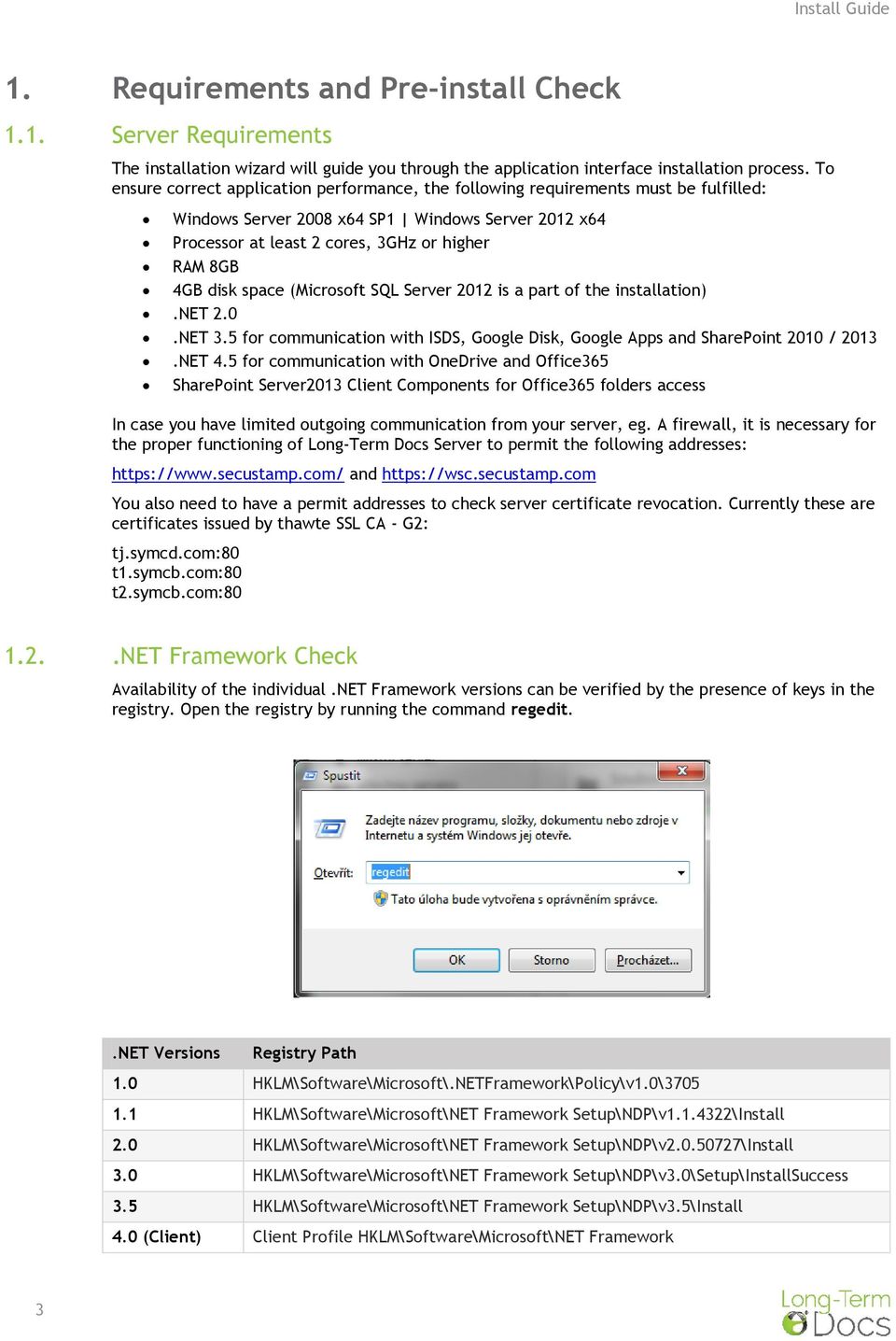
3 1. Requirements and Pre-install Check 1.1. Server Requirements The installation wizard will guide you through the application interface installation process. To ensure correct application performance, the following requirements must be fulfilled: Windows Server 2008 x64 SP1 Windows Server 2012 x64 Processor at least 2 cores, 3GHz or higher RAM 8GB 4GB disk space (Microsoft SQL Server 2012 is a part of the installation).net 2.0.NET 3.5 for communication with ISDS, Google Disk, Google Apps and SharePoint 2010 / 2013.NET 4.5 for communication with OneDrive and Office365 SharePoint Server2013 Client Components for Office365 folders access In case you have limited outgoing communication from your server, eg. A firewall, it is necessary for the proper functioning of Long-Term Docs Server to permit the following addresses: and You also need to have a permit addresses to check server certificate revocation. Currently these are certificates issued by thawte SSL CA - G2: tj.symcd.com:80 t1.symcb.com:80 t2.symcb.com: NET Framework Check Availability of the individual.net Framework versions can be verified by the presence of keys in the registry. Open the registry by running the command regedit..net Versions Registry Path 1.0 HKLM\Software\Microsoft\.NETFramework\Policy\v1.0\ HKLM\Software\Microsoft\NET Framework Setup\NDP\v \Install 2.0 HKLM\Software\Microsoft\NET Framework Setup\NDP\v \Install 3.0 HKLM\Software\Microsoft\NET Framework Setup\NDP\v3.0\Setup\InstallSuccess 3.5 HKLM\Software\Microsoft\NET Framework Setup\NDP\v3.5\Install 4.0 (Client) Client Profile HKLM\Software\Microsoft\NET Framework 3
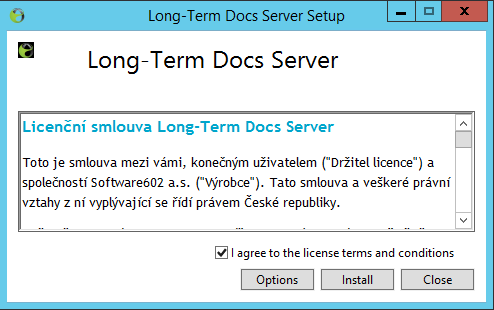
4 Setup\NDP\v4\Client\Install 4.0 (Full) HKLM\Software\Microsoft\NET Framework Setup\NDP\v4\Full\Install 4.5 (Client) HKLM\Software\Microsoft\NET Framework Setup\NDP\v4\Client\Release 4.5 (Full) HKLM\Software\Microsoft\NET Framework Setup\NDP\v4\Full\Release 2. Installation Process 2.1. Installer Download The installer is available for download directly on the Long-Term Docs portal (longtermdocs.eu), or from the following link: Installation After downloading, click the installation wizard icon: The installation process runs to display a simple installation wizard. On the first tab, read the license agreement of Long-Term Docs Server, check the "I agree to the license terms and conditions", if you agree with the license terms and conditions and click Next. Otherwise, it is possible to terminate the installation by clicking Close. 4

5 In case you want to change the installation path of Long-Term Docs Server, click "Options" and click "Browse" to select the location where Long-Term Docs will be installed. The default settings are recommended. Confirm the settings by clicking OK. (If you need to, you can always use the Back button to return to the previous tab.) After clicking the Install button, installation will be started. Installation process may take a few minutes due to the fact that Microsoft SQL Server 2012 database is a part of the full installation. If application was successfully installed, the confirmation screen appears. Note: To finish the installation, you might be required to restart the server. If you are asked to restart it, confirm the dialog. Make sure that the versions of.net Framework required for the installation are installed. 5

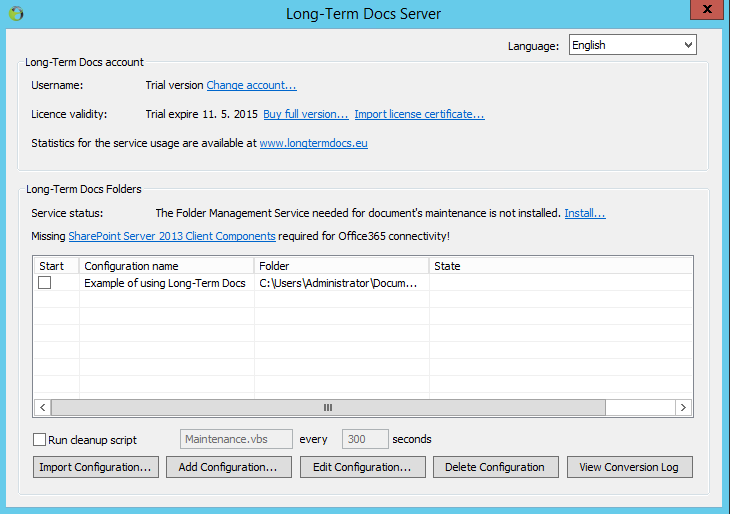
6 3. Long-Term Docs Settings 3.1. Running the Long-term Docs Interface After a successful installation, the Long-Term Docs Server icon is available on the desktop. Double-click the icon to open the Long-Term Docs Server interface Account Login Long-Term Docs Server features can be tried within a Trial account which is automatically created after first start or log on your own account that you created at longtermdocs.eu. To use your own account, click Change account... 6
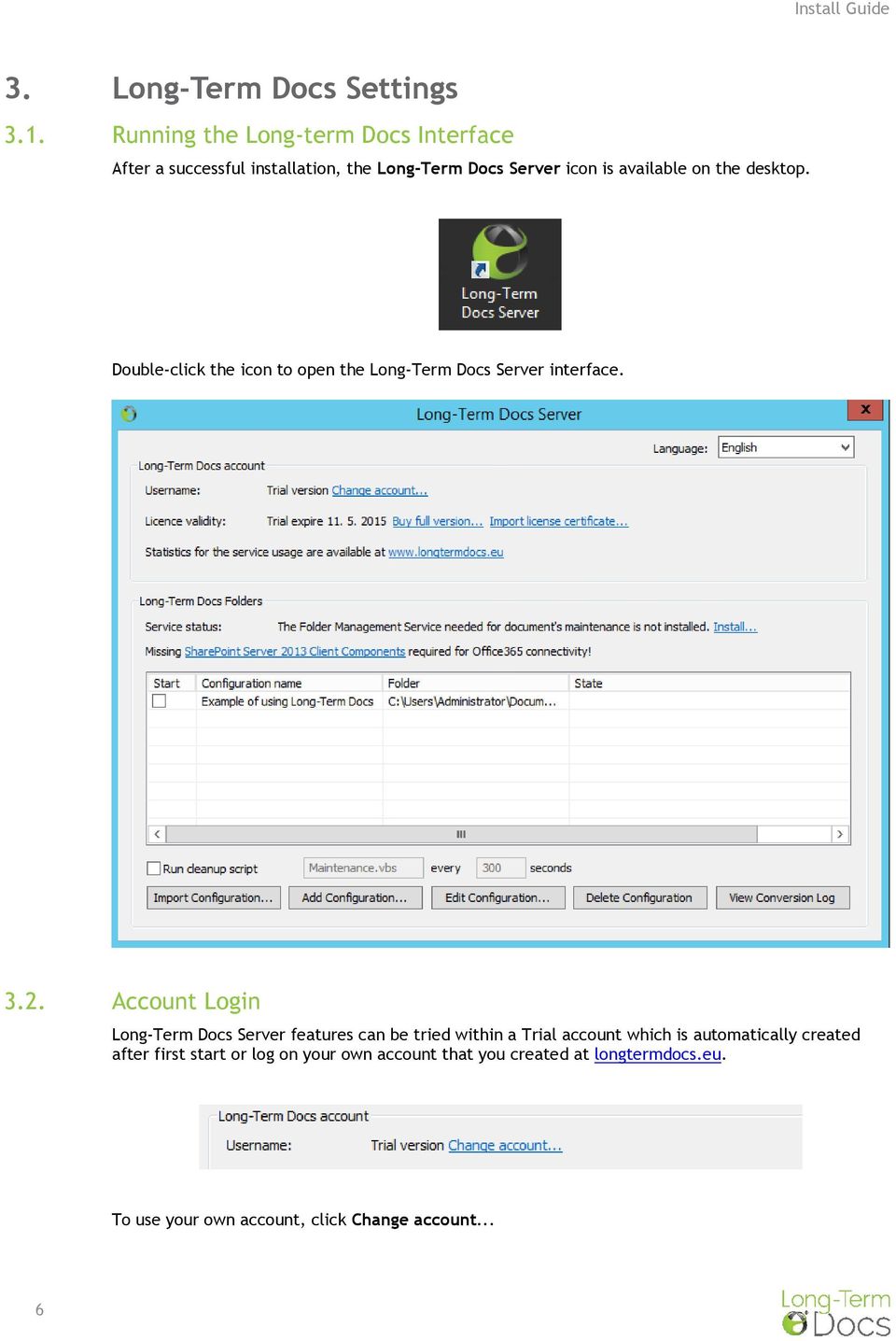

7 Enter your username ( ) and password. The license type available on your account will be automatically checked. Long-Term Docs Server can then provide services according to the licence available, within the conditions of either the Trial mode, or one of the paid distribution plans. When the license is successfully verified, the application displays a confirmation of license certificate installation for this service type Account Management When logged in, you can manage and edit your account (through the Account Management link) or to change it that is, log in as a different user (through the Change Account link) Folder Management Service Installation For the Long-Term Docs application server to function correctly, a service running at a local server must be installed to allow monitoring and management of Long-Term Docs folders. This service can be installed directly from the Long-Term Docs Server manager by clicking Install 7


8 In the dialog that follows, select a local user's account under whose permissions the service will be installed and run, and enter the access password. Then install and start the service by clicking Start. Note: If the required versions of.net Framework and SharePoint Server 2013 client components are not installed, this fact is displayed. To install a missing component, click the corresponding link Long-Term Docs Folder Settings Settings for the individual Long-Term Docs folder profiles are described in detail in the Admin Guide. To help with orientation and understanding the basics, an example default profile for one Long-Term Docs folder has been prepared. This Long-Term Docs folder is created on a local disk. Along with it, a monitored folder is prepared. Files inserted there are taken for processing and long-term archiving in the Long-Term Docs folder. 8
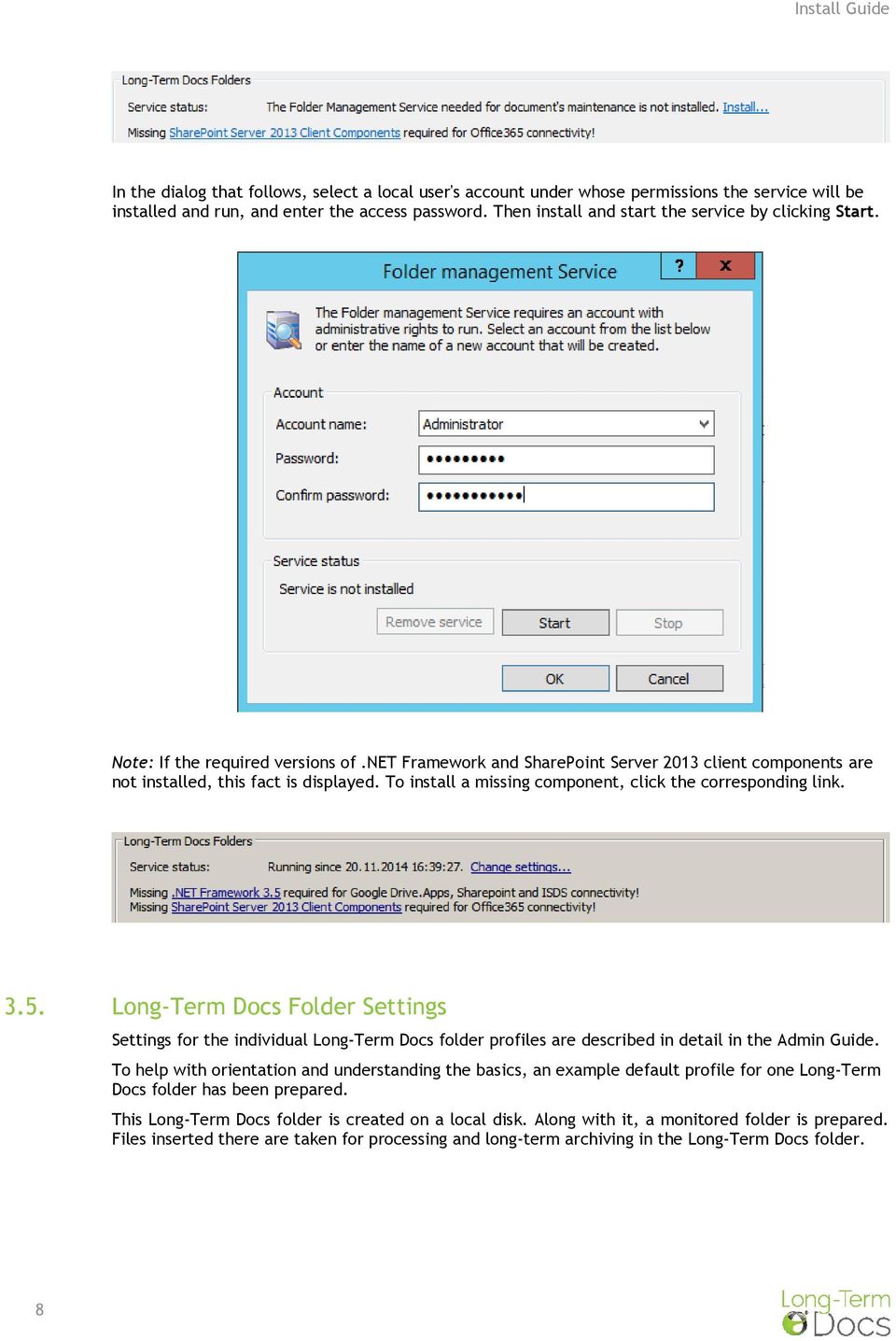

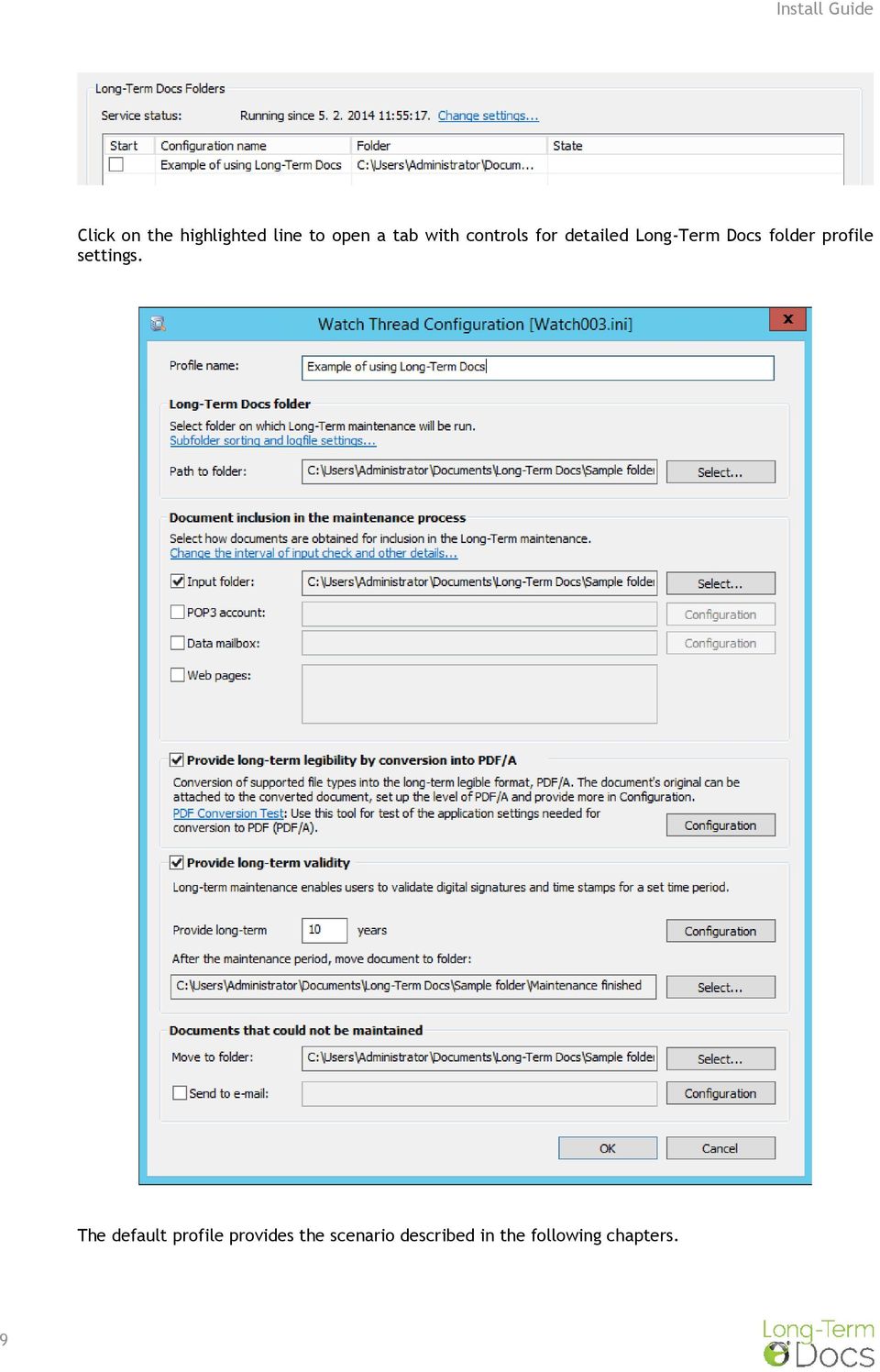
9 Click on the highlighted line to open a tab with controls for detailed Long-Term Docs folder profile settings. The default profile provides the scenario described in the following chapters. 9
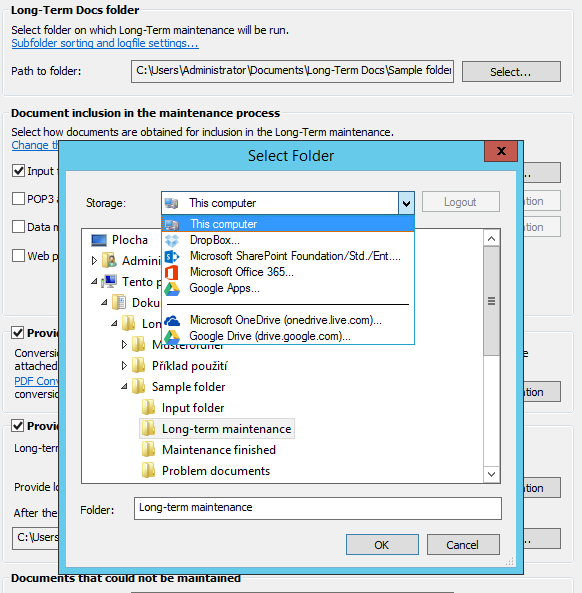
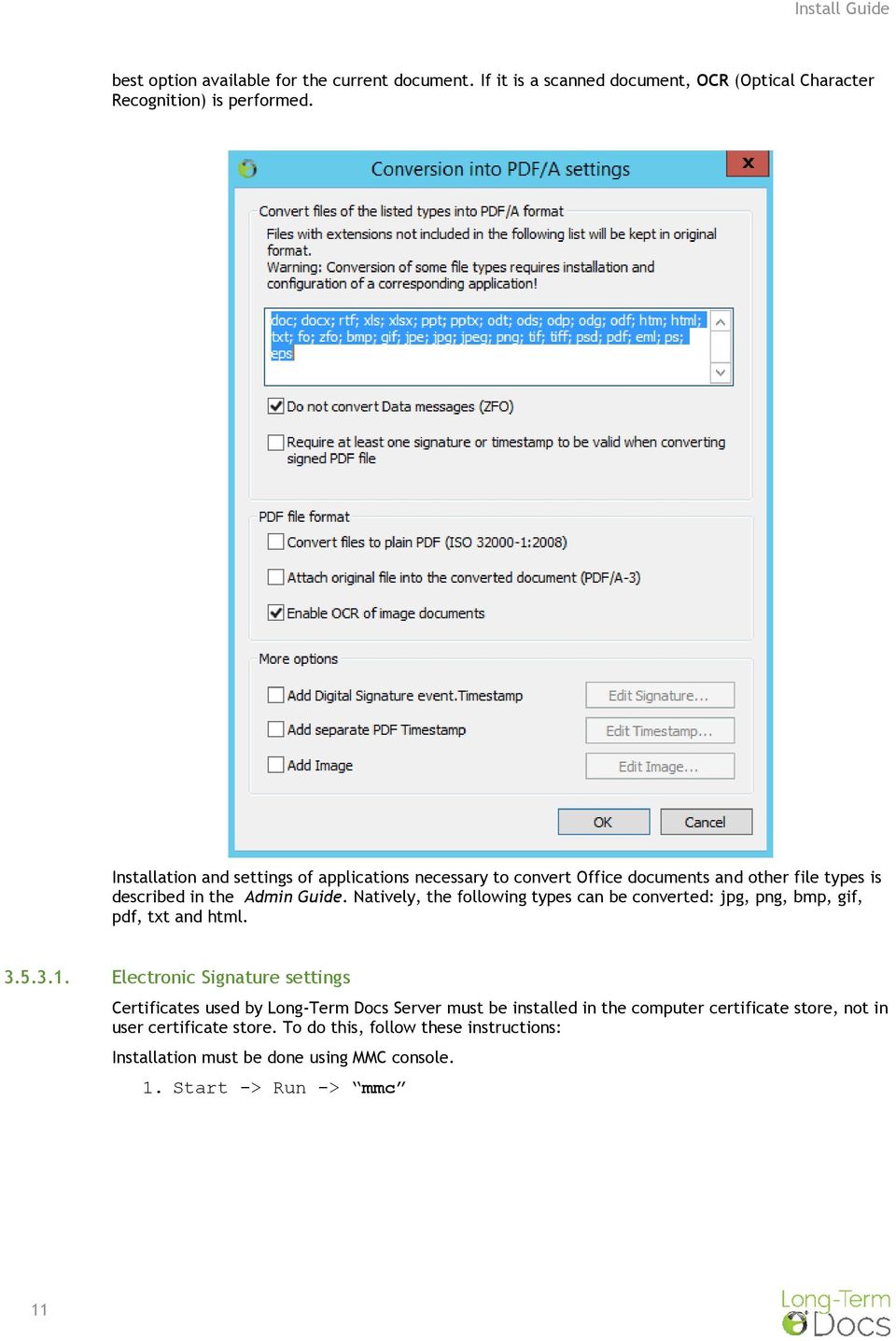
10 Long-Term Docs folder location The location of the Long-Term Docs folder should be set up to the local folder or cloud storages Microsoft, Google and DropBox. The change of the Storage and list of the folders is available under Select button Monitoring When a file is inserted into the monitored folder, now set to C:\Users\Administrator\Documents\Long-Term Docs\Input Folder the document or file is analyzed Conversion into PDF/A Conversion into PDF/A is possible, if the document meets the requirements for PDF/A conversion and the application for the document's correct visualization is available at the server. Then the document can be converted into the PDF/A format. The level of PDF/A standard compliance will be set to the 10

11 best option available for the current document. If it is a scanned document, OCR (Optical Character Recognition) is performed. Installation and settings of applications necessary to convert Office documents and other file types is described in the Admin Guide. Natively, the following types can be converted: jpg, png, bmp, gif, pdf, txt and html Electronic Signature settings Certificates used by Long-Term Docs Server must be installed in the computer certificate store, not in user certificate store. To do this, follow these instructions: Installation must be done using MMC console. 1. Start -> Run -> mmc 11
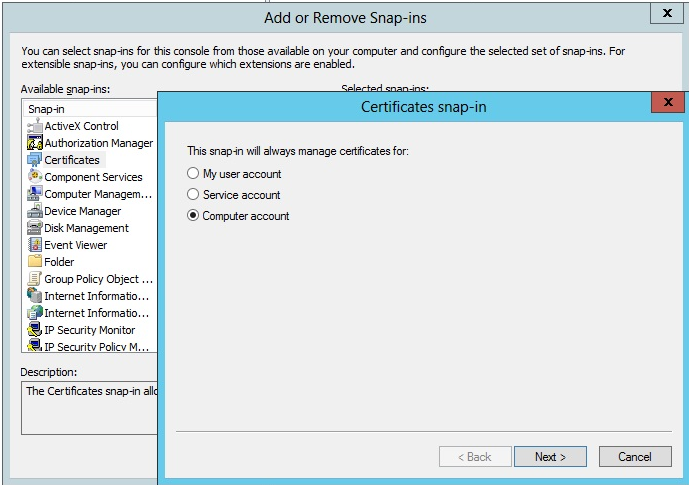
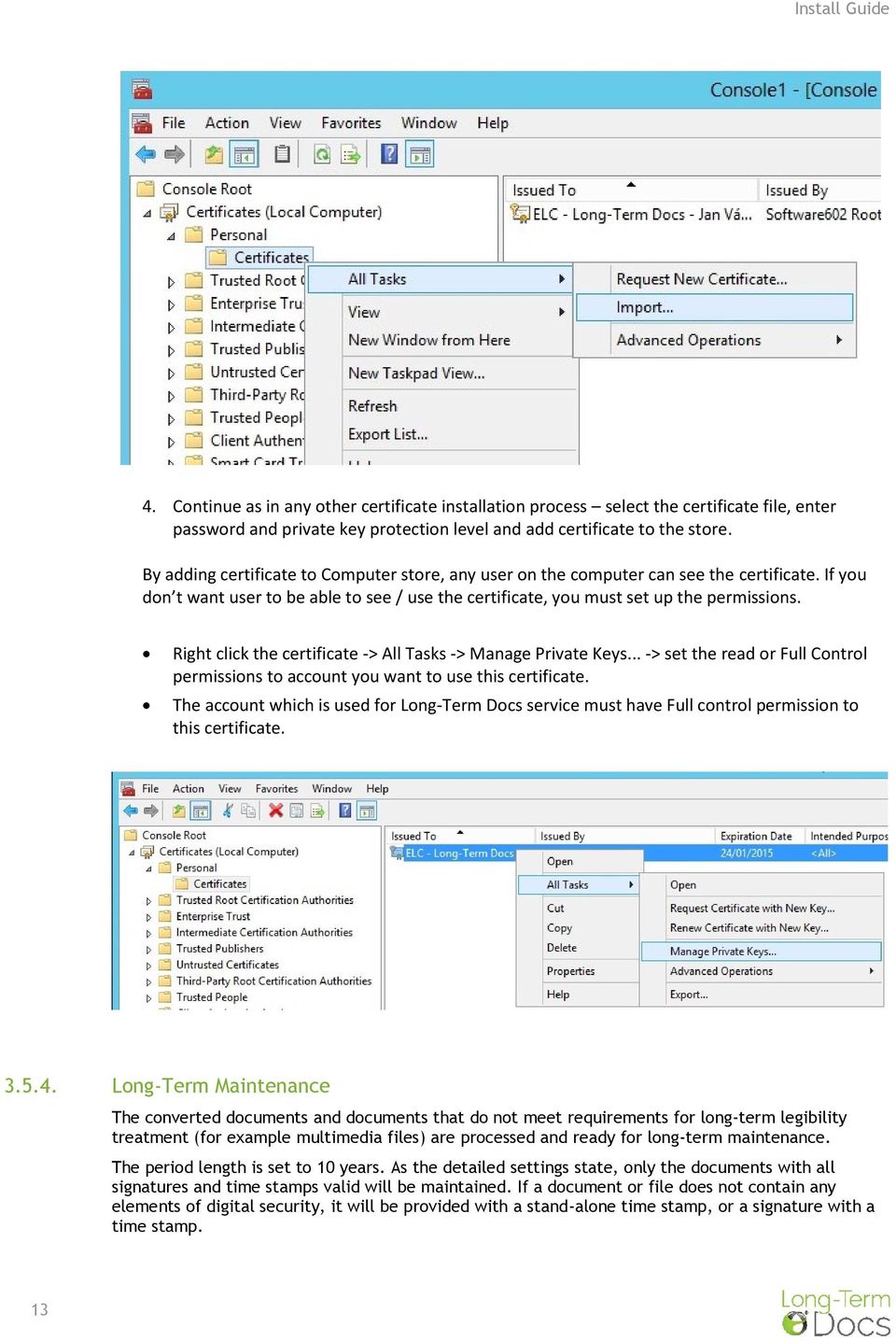
12 2. In the new opened window, click on the item File -> Add/Remove Snap-in -> Certifkáty -> Click on Add -> select Computer account -> Next -> Finish -> OK 3. In the newly added section Cerfiticates (Local Computer) continue : Open Certificates (Local Computer) -> Right click Personal -> All Tasks -> Import 12

13 4. Continue as in any other certificate installation process select the certificate file, enter password and private key protection level and add certificate to the store. By adding certificate to Computer store, any user on the computer can see the certificate. If you don t want user to be able to see / use the certificate, you must set up the permissions. Right click the certificate -> All Tasks -> Manage Private Keys... -> set the read or Full Control permissions to account you want to use this certificate. The account which is used for Long-Term Docs service must have Full control permission to this certificate Long-Term Maintenance The converted documents and documents that do not meet requirements for long-term legibility treatment (for example multimedia files) are processed and ready for long-term maintenance. The period length is set to 10 years. As the detailed settings state, only the documents with all signatures and time stamps valid will be maintained. If a document or file does not contain any elements of digital security, it will be provided with a stand-alone time stamp, or a signature with a time stamp. 13
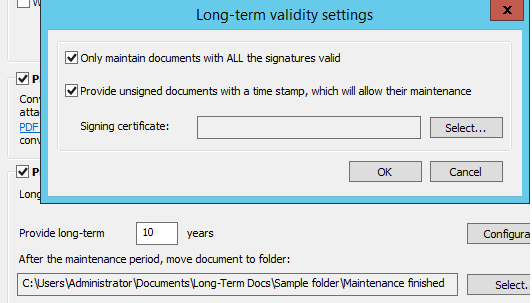
14 To allow the option of signing these documents, select a digital signature/time stamp that will be used in these cases. The maintained documents are stored in the Long-Term Maintenance folder and their long-term validity is ensured by a regular check of their signature certificates and time stamp certificates and by attaching a new time stamp before the document's validity expires. If one of a document's signatures or time stamps is violated or invalid or another problem occurs which does not comply with settings and the requirements for documents' trustworthiness and archiving, it will not be included in the long-term maintenance process. These documents are saved in the Problem Documents folder Rights Settings The Long-Term Docs folder contains documents that have been treated according to the set up processing method. These documents will be kept in the state of long-term authenticity and legibility. It is strongly recommended to provide appropriate file access permission settings to authorized users with READ rights only for each Long-Term Docs folder. Because the documents are kept in the Long-Term Docs folder and the Long-Term Docs service only registers the documents' and signatures' metadata and the document cannot be determined or restored from the metadata, minimize the risk of unauthorized access or document deletion, which cannot be restored using the Long-Term Docs service How the Documents Are Stored The documents are stored ONLY in your preset storage. The Long-Term Docs service only registers metadata related to the documents and signatures. It is not possible to determine or restore the registered document again from these metadata. We identify a file that have been prepared for long-term treatment, if contains valid signature and a time stamp, or whether file is within the so-called Grace period, in which it waits to make sure its signature certificate will not be revoked in the next 24 hours. After that a time stamp is attached to the document, identifying the time of entering the file into the long-term treatment and the file s state at the time. This moment marks the beginning of the Grace period. 14

15 The file has been registered in the Long-Term Docs folder for the long-term treatment process. According to the folder settings, it will be kept in a validable state by regular checks. File is registered to your Long-Term Docs account and checked for upcoming expiry every 24 hours. The file name and its unique identification are tied to your Long-Term Docs account, under which it has been entered for registration and long-term treatment. If renamed, it will not be possible anymore to run the validity expiry checks and long-term treatment! All information about the file is stored in a Microsoft SQL Server database. 15

1. What is Long-Term Docs... 5
 Contents 1. What is Long-Term Docs... 5 1.1. General Properties of Long-Term Docs... 5 1.2. The Features of Long-Term Docs... 5 1.2.1. Long-Term Document Validity (LTV)... 6 1.2.2. Long-Term Document Archiving
QUANTIFY INSTALLATION GUIDE
 QUANTIFY INSTALLATION GUIDE Thank you for putting your trust in Avontus! This guide reviews the process of installing Quantify software. For Quantify system requirement information, please refer to the
NSi Mobile Installation Guide. Version 6.2
 NSi Mobile Installation Guide Version 6.2 Revision History Version Date 1.0 October 2, 2012 2.0 September 18, 2013 2 CONTENTS TABLE OF CONTENTS PREFACE... 5 Purpose of this Document... 5 Version Compatibility...
STATISTICA VERSION 9 STATISTICA ENTERPRISE INSTALLATION INSTRUCTIONS FOR USE WITH TERMINAL SERVER
 Notes: STATISTICA VERSION 9 STATISTICA ENTERPRISE INSTALLATION INSTRUCTIONS FOR USE WITH TERMINAL SERVER 1. These instructions focus on installation on Windows Terminal Server (WTS), but are applicable
Wavecrest Certificate
 Wavecrest InstallationGuide Wavecrest Certificate www.wavecrest.net Copyright Copyright 1996-2015, Wavecrest Computing, Inc. All rights reserved. Use of this product and this manual is subject to license.
STATISTICA VERSION 10 STATISTICA ENTERPRISE SERVER INSTALLATION INSTRUCTIONS
 Notes: STATISTICA VERSION 10 STATISTICA ENTERPRISE SERVER INSTALLATION INSTRUCTIONS 1. The installation of the STATISTICA Enterprise Server entails two parts: a) a server installation, and b) workstation
PaperStream Connect. Setup Guide. Version 1.0.0.0. Copyright Fujitsu
 PaperStream Connect Setup Guide Version 1.0.0.0 Copyright Fujitsu 2014 Contents Introduction to PaperStream Connect... 2 Setting up PaperStream Capture to Release to Cloud Services... 3 Selecting a Cloud
Installation Instruction STATISTICA Enterprise Small Business
 Installation Instruction STATISTICA Enterprise Small Business Notes: ❶ The installation of STATISTICA Enterprise Small Business entails two parts: a) a server installation, and b) workstation installations
STATISTICA VERSION 12 STATISTICA ENTERPRISE SMALL BUSINESS INSTALLATION INSTRUCTIONS
 STATISTICA VERSION 12 STATISTICA ENTERPRISE SMALL BUSINESS INSTALLATION INSTRUCTIONS Notes 1. The installation of STATISTICA Enterprise Small Business entails two parts: a) a server installation, and b)
Installing Windows Server Update Services (WSUS) on Windows Server 2012 R2 Essentials
 Installing Windows Server Update Services (WSUS) on Windows Server 2012 R2 Essentials With Windows Server 2012 R2 Essentials in your business, it is important to centrally manage your workstations to ensure
Sophos Anti-Virus for NetApp Storage Systems startup guide
 Sophos Anti-Virus for NetApp Storage Systems startup guide Runs on Windows 2000 and later Product version: 1 Document date: April 2012 Contents 1 About this guide...3 2 About Sophos Anti-Virus for NetApp
Sharp Remote Device Manager (SRDM) Server Software Setup Guide
 Sharp Remote Device Manager (SRDM) Server Software Setup Guide This Guide explains how to install the software which is required in order to use Sharp Remote Device Manager (SRDM). SRDM is a web-based
How To Enable A Websphere To Communicate With Ssl On An Ipad From Aaya One X Portal 1.1.3 On A Pc Or Macbook Or Ipad (For Acedo) On A Network With A Password Protected (
 Avaya one X Portal 1.1.3 Lightweight Directory Access Protocol (LDAP) over Secure Socket Layer (SSL) Configuration This document provides configuration steps for Avaya one X Portal s 1.1.3 communication
INSTALLING MICROSOFT SQL SERVER AND CONFIGURING REPORTING SERVICES
 INSTALLING MICROSOFT SQL SERVER AND CONFIGURING REPORTING SERVICES TECHNICAL ARTICLE November 2012. Legal Notice The information in this publication is furnished for information use only, and does not
Cloud Services ADM. Agent Deployment Guide
 Cloud Services ADM Agent Deployment Guide 10/15/2014 CONTENTS System Requirements... 1 Hardware Requirements... 1 Installation... 2 SQL Connection... 4 AD Mgmt Agent... 5 MMC... 7 Service... 8 License
Sophos Anti-Virus for NetApp Storage Systems startup guide. Runs on Windows 2000 and later
 Sophos Anti-Virus for NetApp Storage Systems startup guide Runs on Windows 2000 and later Document date: July 2007 Contents About this guide...4 About Sophos Anti-Virus for NetApp Storage Systems...5
NETWRIX FILE SERVER CHANGE REPORTER
 NETWRIX FILE SERVER CHANGE REPORTER ADMINISTRATOR S GUIDE Product Version: 3.3 April/2012. Legal Notice The information in this publication is furnished for information use only, and does not constitute
System Administration Training Guide. S100 Installation and Site Management
 System Administration Training Guide S100 Installation and Site Management Table of contents System Requirements for Acumatica ERP 4.2... 5 Learning Objects:... 5 Web Browser... 5 Server Software... 5
Installing and Configuring WhatsUp Gold
 Installing and Configuring WhatsUp Gold This guide provides information about installing and configuring WhatsUp Gold v14.2, including instructions on how to run the WhatsUp web interface through an Internet
Introduction and Overview
 Inmagic Content Server Workgroup 10.00 Microsoft SQL Server 2005 Express Edition Installation Notes Introduction and Overview These installation notes are intended for the following scenarios: 1) New installations
Team Foundation Server 2013 Installation Guide
 Team Foundation Server 2013 Installation Guide Page 1 of 164 Team Foundation Server 2013 Installation Guide Benjamin Day [email protected] v1.1.0 May 28, 2014 Team Foundation Server 2013 Installation Guide
Installation Instruction STATISTICA Enterprise Server
 Installation Instruction STATISTICA Enterprise Server Notes: ❶ The installation of STATISTICA Enterprise Server entails two parts: a) a server installation, and b) workstation installations on each of
Table of Contents. FleetSoft Installation Guide
 FleetSoft Installation Guide Table of Contents FleetSoft Installation Guide... 1 Minimum System Requirements... 2 Installation Notes... 3 Frequently Asked Questions... 4 Deployment Overview... 6 Automating
SafeCom Smart Printing Administrator s Quick Guide
 SafeCom Smart Printing Administrator s Quick Guide D10600-08 March 2012 Trademarks: SafeCom, SafeCom Go, SafeCom P:Go, SafeCom epay and the SafeCom logo are trademarks of SafeCom a/s. Company and product
WhatsUp Gold v16.1 Installation and Configuration Guide
 WhatsUp Gold v16.1 Installation and Configuration Guide Contents Installing and Configuring Ipswitch WhatsUp Gold v16.1 using WhatsUp Setup Installing WhatsUp Gold using WhatsUp Setup... 1 Security guidelines
Upgrading from MSDE to SQL Server 2005 Express Edition with Advanced Services SP2
 Upgrading from MSDE to SQL Server 2005 Express Edition with Advanced Services SP2 Installation and Configuration Introduction This document will walk you step by step in removing MSDE and the setup and
Introduction 1-1 Installing FAS 500 Asset Accounting the First Time 2-1 Installing FAS 500 Asset Accounting: Upgrading from a Prior Version 3-1
 Contents 1. Introduction 1-1 Supported Operating Environments................ 1-1 System Requirements............................. 1-2 Security Requirements........................ 1-3 Installing Server
4cast Client Specification and Installation
 4cast Client Specification and Installation Version 2015.00 10 November 2014 Innovative Solutions for Education Management www.drakelane.co.uk System requirements The client requires Administrative rights
Metalogix SharePoint Backup. Advanced Installation Guide. Publication Date: August 24, 2015
 Metalogix SharePoint Backup Publication Date: August 24, 2015 All Rights Reserved. This software is protected by copyright law and international treaties. Unauthorized reproduction or distribution of this
Setting Up SSL on IIS6 for MEGA Advisor
 Setting Up SSL on IIS6 for MEGA Advisor Revised: July 5, 2012 Created: February 1, 2008 Author: Melinda BODROGI CONTENTS Contents... 2 Principle... 3 Requirements... 4 Install the certification authority
Active Directory Management. Agent Deployment Guide
 Active Directory Management Agent Deployment Guide Document Revision Date: June 12, 2014 Active Directory Management Deployment Guide i Contents System Requirements...1 Hardware Requirements...1 Installation...3
DESLock+ Basic Setup Guide Version 1.20, rev: June 9th 2014
 DESLock+ Basic Setup Guide Version 1.20, rev: June 9th 2014 Contents Overview... 2 System requirements:... 2 Before installing... 3 Download and installation... 3 Configure DESLock+ Enterprise Server...
WatchDox SharePoint Beta Guide. Application Version 1.0.0
 Application Version 1.0.0 Confidentiality This document contains confidential material that is proprietary WatchDox. The information and ideas herein may not be disclosed to any unauthorized individuals
SQL Server 2008 R2 Express Edition Installation Guide
 Hardware, Software & System Requirements for SQL Server 2008 R2 Express Edition To get the overview of SQL Server 2008 R2 Express Edition, click here. Please refer links given below for all the details
CONFIGURING MICROSOFT SQL SERVER REPORTING SERVICES
 CONFIGURING MICROSOFT SQL SERVER REPORTING SERVICES TECHNICAL ARTICLE November/2011. Legal Notice The information in this publication is furnished for information use only, and does not constitute a commitment
etoken Enterprise For: SSL SSL with etoken
 etoken Enterprise For: SSL SSL with etoken System Requirements Windows 2000 Internet Explorer 5.0 and above Netscape 4.6 and above etoken R2 or Pro key Install etoken RTE Certificates from: (click on the
Central Management System
 Central Management System Software Installation Guide Ver. 1.5.0.101115.001 ... ii System Introduction... 3 Client/Server Architecture...3 System Requirements... 4 System Setup...4 Multiple Monitor Configuration...5
Desktop Surveillance Help
 Desktop Surveillance Help Table of Contents About... 9 What s New... 10 System Requirements... 11 Updating from Desktop Surveillance 2.6 to Desktop Surveillance 3.2... 13 Program Structure... 14 Getting
BIGPOND ONLINE STORAGE USER GUIDE Issue 1.1.0-18 August 2005
 BIGPOND ONLINE STORAGE USER GUIDE Issue 1.1.0-18 August 2005 PLEASE NOTE: The contents of this publication, and any associated documentation provided to you, must not be disclosed to any third party without
VMware Horizon FLEX User Guide
 Horizon FLEX 1.5 This document supports the version of each product listed and supports all subsequent versions until the document is replaced by a new edition. To check for more recent editions of this
METAmessage Server and Domain Requirements
 METAmessage Server and Domain Requirements Hardware 1Ghz Pentium processor or higher 512MB RAM. (1 GB recommended) 2GB free hard disk space. Network Interface Card connected to a Microsoft Domain. Minimum
Sophos for Microsoft SharePoint startup guide
 Sophos for Microsoft SharePoint startup guide Product version: 2.0 Document date: March 2011 Contents 1 About this guide...3 2 About Sophos for Microsoft SharePoint...3 3 System requirements...3 4 Planning
Ekran System Help File
 Ekran System Help File Table of Contents About... 9 What s New... 10 System Requirements... 11 Updating Ekran to version 4.1... 13 Program Structure... 14 Getting Started... 15 Deployment Process... 15
Administration GUIDE. SharePoint Server idataagent. Published On: 11/19/2013 V10 Service Pack 4A Page 1 of 201
 Administration GUIDE SharePoint Server idataagent Published On: 11/19/2013 V10 Service Pack 4A Page 1 of 201 Getting Started - SharePoint Server idataagent Overview Deployment Configuration Decision Table
Symantec Backup Exec TM 11d for Windows Servers. Quick Installation Guide
 Symantec Backup Exec TM 11d for Windows Servers Quick Installation Guide September 2006 Symantec Legal Notice Copyright 2006 Symantec Corporation. All rights reserved. Symantec, Backup Exec, and the Symantec
Advantage for Windows Copyright 2012 by The Advantage Software Company, Inc. All rights reserved. Client Portal blue Installation Guide v1.
 Advantage for Windows Copyright 2012 by The Advantage Software Company, Inc. All rights reserved Client Portal blue Installation Guide v1.1 Overview This document will walk you through the process of installing
Microsoft Exchange 2010 and 2007
 Microsoft Exchange 2010 and 2007 Download the server certificate and intermediate certificates. Perform the following procedure for each of the intermediate certificates and then for the server certificate.
UNICORN 6.4. Administration and Technical Manual
 UNICORN 6.4 Administration and Technical Manual Page intentionally left blank Table of Contents Table of Contents 1 Introduction... 1.1 Administrator functions overview... 1.2 Network terms and concepts...
BSD SpecLink-E Installation Instructions For. Professional and Corporate Editions
 BSD SpecLink-E Installation Instructions For Professional and Corporate Editions BSD SpecLink-E (SLE) can be installed on a standalone computer for individual use or on a network for multiple users. For
OneDrive for Business User Guide
 OneDrive for Business User Guide Contents About OneDrive for Business and Office 365... 2 Storing University Information in the Cloud... 2 Signing in... 2 The Office 365 Interface... 3 The OneDrive for
Getting Started with Attunity CloudBeam for Azure SQL Data Warehouse BYOL
 Getting Started with Attunity CloudBeam for Azure SQL Data Warehouse BYOL Overview This short guide explains how to use Attunity CloudBeam to replicate data from your on premises database to Microsoft
Windows Server Update Services 3.0 SP2 Step By Step Guide
 Windows Server Update Services 3.0 SP2 Step By Step Guide Microsoft Corporation Author: Anita Taylor Editor: Theresa Haynie Abstract This guide provides detailed instructions for installing Windows Server
Sophos Anti-Virus for NetApp Storage Systems user guide. Product version: 3.0
 Sophos Anti-Virus for NetApp Storage Systems user guide Product version: 3.0 Document date: May 2014 Contents 1 About this guide...3 2 About Sophos Anti-Virus for NetApp Storage Systems...4 3 System requirements...5
Premier Installation 2013.1 Guide for SQL Server Administrators
 for Depreciation, Tracking, Planning, and Reporting Premier Installation 2013.1 Guide for SQL Server Administrators Premier Installation Guide Version 2013.1 Contents Chapter 1. Introduction Supported
Installation & Configuration Guide
 Installation & Configuration Guide Bluebeam Studio Enterprise ( Software ) 2014 Bluebeam Software, Inc. All Rights Reserved. Patents Pending in the U.S. and/or other countries. Bluebeam and Revu are trademarks
WatchDox for Mac User Guide
 WatchDox for Mac User Guide Version 2.3.0 Confidentiality This document contains confidential material that is proprietary to WatchDox. The information and ideas herein may not be disclosed to any unauthorized
Manuals for This Product
 Installation Guide Manuals for This Product Manuals for this product have the following structure. Read the manual according to your purpose for using this product. Disc Guides with this symbol are PDF
Lepide Event Log Manager. Users Help Manual. Lepide Event Log Manager. Lepide Software Private Limited. Page 1
 Users Help Manual Lepide Event Log Manager Lepide Software Private Limited. Page 1 Users Help Manual for Lepide Event Log Manager Lepide Software Private Limited, All Rights Reserved This User Guide and
Linko Software Express Edition Typical Installation Guide
 Linko Software Express Edition Typical Installation Guide Install Database Service Components and Database...1 Install Workstation Components...4 Install DB Administration Tool...6 Office 2003 Security
1. Application Overview... 3. 2. System Requirements... 3. 3. Installation... 3. 4. Splash Screen... 4. 5. Registration Screen...
 1 P a g e Table of Contents 1. Application Overview... 3 2. System Requirements... 3 3. Installation... 3 4. Splash Screen... 4 5. Registration Screen... 5 5.1 Registration... 5 6. Login Screen... 7 6.1
User Manual. Onsight Management Suite Version 5.1. Another Innovation by Librestream
 User Manual Onsight Management Suite Version 5.1 Another Innovation by Librestream Doc #: 400075-06 May 2012 Information in this document is subject to change without notice. Reproduction in any manner
Advanced Event Viewer Manual
 Advanced Event Viewer Manual Document version: 2.2944.01 Download Advanced Event Viewer at: http://www.advancedeventviewer.com Page 1 Introduction Advanced Event Viewer is an award winning application
Netwrix Auditor for Exchange
 Netwrix Auditor for Exchange Quick-Start Guide Version: 8.0 4/22/2016 Legal Notice The information in this publication is furnished for information use only, and does not constitute a commitment from Netwrix
ADFS Integration Guidelines
 ADFS Integration Guidelines Version 1.6 updated March 13 th 2014 Table of contents About This Guide 3 Requirements 3 Part 1 Configure Marcombox in the ADFS Environment 4 Part 2 Add Relying Party in ADFS
How To Upgrade Your Microsoft SQL Server for Accounting CS Version 2012.1
 How To Upgrade Your Microsoft SQL Server for Version 2012.1 The first step is to gather important information about your existing configuration. Identify The Database Server and SQL Server Version The
Manual POLICY PATROL SECURE FILE TRANSFER
 Manual POLICY PATROL SECURE FILE TRANSFER MANUAL Policy Patrol Secure File Transfer This manual, and the software described in this manual, are copyrighted. No part of this manual or the described software
LAB 1: Installing Active Directory Federation Services
 LAB 1: Installing Active Directory Federation Services Contents Lab: Installing and Configuring Active Directory Federation Services... 2 Exercise 1: installing and configuring Active Directory Federation
4.0 SP1 (4.0.1.0) November 2014 702P03296. Xerox FreeFlow Core Installation Guide: Windows Server 2008 R2
 4.0 SP1 (4.0.1.0) November 2014 702P03296 Installation Guide: Windows Server 2008 R2 2014 Xerox Corporation. All rights reserved. Xerox, Xerox and Design, FreeFlow, and VIPP are trademarks of Xerox Corporation
Sophos Mobile Control Installation guide. Product version: 3
 Sophos Mobile Control Installation guide Product version: 3 Document date: January 2013 Contents 1 Introduction...3 2 The Sophos Mobile Control server...4 3 Set up Sophos Mobile Control...16 4 External
NetWrix Exchange Change Reporter
 NetWrix Exchange Change Reporter Version 7 Administrator s Guide Contents NetWrix Exchange Change Reporter Administrator s Guide 1. INTRODUCTION... 4 1.1 KEY FEATURES... 5 1.2 LICENSING... 6 1.3 HOW IT
File Share Navigator Online 1
 File Share Navigator Online 1 User Guide Service Pack 3 Issued November 2015 Table of Contents What s New in this Guide... 4 About File Share Navigator Online... 5 Components of File Share Navigator Online...
Lepide Active Directory Self Service. Installation Guide. Lepide Active Directory Self Service Tool. Lepide Software Private Limited Page 1
 Installation Guide Lepide Active Directory Self Service Tool Lepide Software Private Limited Page 1 Lepide Software Private Limited, All Rights Reserved This User Guide and documentation is copyright of
Laptop Backup - User Guide (Windows)
 Laptop Backup - User Guide (Windows) Page 1 of 14 Page 2 of 14 Laptop Backup - User Guide - (Windows) TABLE OF CONTENTS INSTALLATION MONITOR RESTORE ADVANCED OPTIONS Adding Backup Content Filtering Contents
Activity 1: Scanning with Windows Defender
 Activity 1: Scanning with Windows Defender 1. Click on Start > All Programs > Windows Defender 2. Click on the arrow next to Scan 3. Choose Custom Scan Page 1 4. Choose Scan selected drives and folders
vcenter Chargeback User s Guide vcenter Chargeback 1.0 EN-000186-00
 vcenter Chargeback 1.0 EN-000186-00 You can find the most up-to-date technical documentation on the VMware Web site at: http://www.vmware.com/support/ The VMware Web site also provides the latest product
Creating and Issuing the Workstation Authentication Certificate Template on the Certification Authority
 In this post we will see the steps for deploying the client certificate for windows computers. This post is a part of Deploy PKI Certificates for SCCM 2012 R2 Step by Step Guide. In the previous post we
Netwrix Auditor for Active Directory
 Netwrix Auditor for Active Directory Quick-Start Guide Version: 7.1 10/26/2015 Legal Notice The information in this publication is furnished for information use only, and does not constitute a commitment
Password Reset Server Installation Guide Windows 8 / 8.1 Windows Server 2012 / R2
 Password Reset Server Installation Guide Windows 8 / 8.1 Windows Server 2012 / R2 Last revised: November 12, 2014 Table of Contents Table of Contents... 2 I. Introduction... 4 A. ASP.NET Website... 4 B.
Pearl Echo Installation Checklist
 Pearl Echo Installation Checklist Use this checklist to enter critical installation and setup information that will be required to install Pearl Echo in your network. For detailed deployment instructions
AvePoint Meetings 3.2.2 for SharePoint On-Premises. Installation and Configuration Guide
 AvePoint Meetings 3.2.2 for SharePoint On-Premises Installation and Configuration Guide Issued August 2015 Table of Contents About AvePoint Meetings for SharePoint... 4 System Requirements... 5 2 System
Xerox EX Print Server, Powered by Fiery, for the Xerox 700 Digital Color Press. Printing from Windows
 Xerox EX Print Server, Powered by Fiery, for the Xerox 700 Digital Color Press Printing from Windows 2008 Electronics for Imaging, Inc. The information in this publication is covered under Legal Notices
Installation Guide. Your FedEx Ship Manager system number. Before you start
 Installation Guide Your FedEx Ship Manager system number Installation Guide During registration, you receive a FedEx Ship Manager system number. Write the number here so you have it on hand whenever you
ACTIVE DIRECTORY DEPLOYMENT
 ACTIVE DIRECTORY DEPLOYMENT CASAS Technical Support 800.255.1036 2009 Comprehensive Adult Student Assessment Systems. All rights reserved. Version 031809 CONTENTS 1. INTRODUCTION... 1 1.1 LAN PREREQUISITES...
BitDefender Security for Exchange
 Quick Start Guide Copyright 2011 BitDefender 1. About This Guide This guide will help you install and get started with BitDefender Security for Exchange. For detailed instructions, please refer to the
Integrated Cloud Environment Google Drive User s Guide
 Integrated Cloud Environment Google Drive User s Guide 2012-2015 Ricoh Americas Corporation It is the reader's responsibility when discussing the information contained this document to maintain a level
LepideAuditor Suite for File Server. Installation and Configuration Guide
 LepideAuditor Suite for File Server Installation and Configuration Guide Table of Contents 1. Introduction... 4 2. Requirements and Prerequisites... 4 2.1 Basic System Requirements... 4 2.2 Supported Servers
NetWrix USB Blocker Version 3.6 Quick Start Guide
 NetWrix USB Blocker Version 3.6 Quick Start Guide Table of Contents 1. Introduction...3 1.1. What is NetWrix USB Blocker?...3 1.2. Product Architecture...3 2. Licensing...4 3. Getting Started...5 3.1.
Nexio Connectus with Nexio G-Scribe
 Nexio Connectus with Nexio G-Scribe 2.1.2 3/20/2014 Edition: A 2.1.2 Publication Information 2014 Imagine Communications. Proprietary and Confidential. Imagine Communications considers this document and
Kaspersky Security 9.0 for Microsoft SharePoint Server Administrator's Guide
 Kaspersky Security 9.0 for Microsoft SharePoint Server Administrator's Guide APPLICATION VERSION: 9.0 Dear User! Thank you for choosing our product. We hope that this document will help you in your work
WhatsUp Gold v16.2 Installation and Configuration Guide
 WhatsUp Gold v16.2 Installation and Configuration Guide Contents Installing and Configuring Ipswitch WhatsUp Gold v16.2 using WhatsUp Setup Installing WhatsUp Gold using WhatsUp Setup... 1 Security guidelines
Treeno File Monitor. Installation and Configuration Guide
 Treeno File Monitor Installation and Configuration Guide Contents Introduction... 3 About This Guide... 3 About Treeno... 3 Monitored Folders... 4 Monitored Folder Types... 4 Installing Treeno File Monitor...
Install the Production Treasury Root Certificate (Vista / Win 7)
 Install the Production Treasury Root Certificate (Vista / Win 7) The Production Treasury Root Certificate should be maintained on your local workstations to use OTCnet Check Capture and Deposit Reporting.
Installing and Configuring vcenter Multi-Hypervisor Manager
 Installing and Configuring vcenter Multi-Hypervisor Manager vcenter Server 5.1 vcenter Multi-Hypervisor Manager 1.1 This document supports the version of each product listed and supports all subsequent
Installing GFI MailArchiver
 Installing GFI MailArchiver Introduction This chapter highlights important points you should take into consideration before installing GFI MailArchiver on your network, so that you can make the best decisions
HarePoint Password Change Manual
 HarePoint Password Change Manual For SharePoint Server 2013, SharePoint Foundation 2013, SharePoint Server 2010, SharePoint Foundation 2010, Microsoft Office SharePoint Server 2007 and Microsoft Windows
Administrators Help Manual
 Administrators Help Manual Lepide Active Directory Self Service Lepide Software Private Limited Page 1 Administrators Help Manual for Active Directory Self-Service Lepide Active Directory Self Service
3 Setting up Databases on a Microsoft SQL 7.0 Server
 3 Setting up Databases on a Microsoft SQL 7.0 Server Overview of the Installation Process To set up GoldMine properly, you must follow a sequence of steps to install GoldMine s program files, and the other
PC Monitor Enterprise Server. Setup Guide
 PC Monitor Enterprise Server Setup Guide Prerequisites Server Requirements - Microsoft Windows Server 2008 R2 or 2012-2GB RAM - IIS 7.5 or IIS 8.0 (with ASP.NET 4.0 installed) - Microsoft SQL Server 2008
UNICORN 7.0. Administration and Technical Manual
 UNICORN 7.0 Administration and Technical Manual Page intentionally left blank Table of Contents Table of Contents 1 Introduction... 1.1 Administrator functions overview... 1.2 Network terms and concepts...