
Ethernet controller TCW241
|
|
|
- Homer Blair
- 9 years ago
- Views:
Transcription
1

2 Ethernet controller TCW Introduction TCW241 is a multi-functional device for monitoring and control in Ethernet based networks. It has 4 digital inputs, 4 analog inputs, 1-Wire interface for up to 8 Teracom 1-Wire sensors like temperature, humidity, CO2, current, 4/20mA, galvanic isolated analog voltage etc. It also has 4 relays with normally open and normally close contacts. The relays can be activated either remotely (WEB, SNMP, HTTP API, MODBUS etc.) or locally from the status of a monitored parameter (1 Wire sensor, analog voltage and dry contact). XML/JSON file with all monitored parameters can periodically uploaded on dedicated server by HTTP Post. Like answer server can return commands for relay's control. This is a way for building SCADA system. For every parameter s and SNMP traps for up to 5 recipients can be sent. Alarm alert also can be sent by HTTP Post with XML/JSON status files. An Embedded real time clock provides scheduled time control of selected outputs: the tasks can be either single or with weekly repetition. 2. Features 10/100 Mb Ethernet connectivity; Auto-MDIX; Password protected, web based configuration and control; 4 digital inputs with " dry contact" and "logic level" modes; 4 analog inputs with 0 to 60VDC range; Multiplier and offset for analog inputs 4 relays with NO and NC contacts; 1-Wire interface for up to 8 temperature (TST1XX), temperature/humidity (TSH2xx) or other Teracom sensors; SNMP v.2 support; SNMP traps and/or sending for alert conditions; SMTP with authentication; 2K SSL support; HTTP and SNMP port changing; HTTP API commands; Periodical HTTP Post of XML/JSON status files for client-server systems; MODBUS support; NTP protocol support; Real time clock for scheduled control; Extended working temperature range; Wide power supply voltage range; Remote firmware update. TCW241_R1.0 - January 2016 Page 2

3 3. Applications TCW241 is suitable for environmental monitoring and local control of electrical and non-electrical parameter, industrial and building automation, data acquisition systems, general remote control and monitoring. It works very well as a standalone device that can be controlled using a web browser or as a part of small and medium industrial control systems for SCADA (supervisory control and data acquisition). A few example applications include: Temperature and humidity control in data centers; Building management system; Industrial cooling/heating control; Home automation; Alarm systems; Mushroom plant automation; Process monitor; 4. Technical parameters Supply voltage, VDC Maximum current ( with all relays ON), ma 350@12VDC Weight, g 230 Dimensions, mm 145 x 90 x 40 Operating temperature, C -20 to +55 Maximum humidity, %RH 70 Minimum high level input voltage for digital inputs, VDC +2.5 Maximum low level input voltage for digital inputs, VDC +0.8 Maximum input voltage for digital inputs, VDC +5.5 Supply voltage for 1-Wire bus (VDD), VDC 5.0 ± 0.3 Maximum output current for 1-Wire bus (VDD), A 0.2 Analog inputs range, VDC 0 to 60 Analog inputs resolution, VDC 0.01 Analog inputs accuracy, % ± 1 Maximum switchable current, А 3 Maximum switchable voltage, VAC/VDC 30/24 5. LED indicators The following indicators show the status of the controller: Relay1-Relay4 (green) these LEDs are illuminated whenever the corresponding relay is activated (the NO contact is closed and the NC contact is open); PWR (red) in working mode shines, blinks together with STS if there is a hardware error; STS (yellow) flashes when the main program of controller is executed; Link (green) located on the Ethernet connector, indicates that the device is connected to the network; Act (yellow) located on the Ethernet connector, flashes when activity is detected on the network. TCW241_R1.0 - January 2016 Page 3

4 6. Installation and setup This device must be installed by qualified personnel. This device must not be installed directly outdoors. Installation consists of mounting the device, connecting to an IP network, connecting inputs and outputs, providing power and configuring via a web browser Mounting TCW241 should be mounted in a clean and dry location on not flammable surface. Ventilation is recommended for installations where ambient air temperature is expected to be high. Mount the device to a wall by using two plastic dowels 8x60mm (example Würth GmbH ) and two dowel screws 6x70mm (example Würth GmbH ). Attach the screws to the surface vertically. See Appendix-A, fig. 1 for mechanical details. Maintain spacing from adjacent equipment. Allow 50 mm of space on all sides, as shown on fig.2 in Appendix A, this provides ventilation and electrical isolation TCW241 can be mounted to a standard (35mm by 7.55mm) DIN rail. Attach the controller to the DIN rail by hooking the hook on the back of the enclosure to the DIN rail and then snap the bottom hook into place Connection Attention! Disconnect power supply before wiring. The correct wiring procedure is as follows: Make sure power is turned off; Make wiring connections to the terminals; Apply power. It is recommended to test and configure TCW241 without any controlled device. In this case unexpected turn on will be avoided. Make sure that wires are properly attached to the terminals and that the terminals are tighten. Not proper wiring and configuration can cause permanent damage of TCW241 or the equipment to which it is connected or both. TCW241_R1.0 - January 2016 Page 4

5 Connector 1 Ethernet - RJ45 Connector 6 Pin1 GND (most left) Connector 2 Power - central positive Pin2 GND Connector 3 Pin1 Power positive Pin3 1-Wire Data Pin2 Power negative Pin4 1-Wire GND Connector 4 Pin1 NC Relay4 Pin5 1-Wire +VDD Pin2 COM Relay4 Pin6 1-Wire +VDD (most right) Pin3 NO Relay4 Connector 7 Pin1 Digital In 1 Pin4 NC Relay3 Pin2 GND Pin5 COM Relay3 Pin3 Digital In 2 Pin6 NO Relay3 Pin4 Digital In 3 Pin7 NC Relay2 Pin5 GND Pin8 COM Relay2 Pin6 Digital In 4 Pin9 NO Relay2 Connector 8 Pin1 Analog In 1 Pin10 NC Relay1 Pin2 GND Pin11 COM Relay1 Pin3 Analog In 2 Pin12 NO Relay1 Pin4 Analog In 3 Connector 5 Pin1 1-Wire GND Pin5 GND Pin2 1-Wire Data Pin6 Analog In 4 Pin3 1-Wire +VDD Power supply connection TCW241 is designed to be supplied by adapter SYS W2E or similar, intended for use in the conditions of overvoltage category II, and priory assessed for compliance with safety requirements. The power supply equipment shall be resistant to short circuit and overload in secondary circuit. When in use, do not position the equipment so that it is difficult to disconnect the device from the power supply. TCW241_R1.0 - January 2016 Page 5

6 Digital inputs connection Attention! Digital inputs are NOT galvanic isolated. The TCW241 Digital inputs can be used in two modes dry contact and logic level. The mode is determined by the jumper, close to the corresponding input. Closed jumper determines dry contact mode while open logic level. By default digital inputs are in dry contact mode. In dry contact mode digital inputs can be used to monitor the state of a discrete device door contact switch, push button, PIR detector etc. Following picture illustrates how a dry contact switch can be connected to the input (or inputs) of TCW241. One side of the contact is connected to Digital In and the other side is connected to GND terminals. The total cable length should be up to 30 meters Analog inputs connection Attention! Analog inputs are NOT galvanic isolated. Analog inputs of TCW241 can be used for monitoring of DC voltage up to 60VDC. They can be connected directly to batteries, solar panels, power supplies etc. Built in functionality Multiplier, Offset and Dimension for every analog input gives possibility to monitor sensors with analog outputs and see directly measured parameter. It is also possible to monitor voltages bigger than 60 VDC with external resistive dividers. Following picture illustrates how a battery can be connected to the analog input of TCW241. One side of the contact is connected to Analog In and the other side is connected to GND terminals. The total cable length should be up to 30 meters. TCW241_R1.0 - January 2016 Page 6

7 Sensor connection Up to 8x1-Wire sensors can be connected to TCW241. The device supports following sensors - temperature, temperature/humidity, CO2, DC current, AC current, 4/20mA, galvanic isolated analog voltage, atmospheric pressure etc. Connected sensors are automatically detected and appropriate dimension is assigned. 1-Wire is a registered trademark of Maxim Integrated Products, Inc. It is designed to connect several sensors over a short wiring. It is not suitable for long distances or environments with EMC interference. We recommend reading Maxim s 1-Wire tips at The sensors have three wires positive voltage (+VDD), ground (GND) and bidirectional data (Data). The colors of wires for every sensor are specified in its user manual. It is strongly recommended to use daisy chained (linear topology) for multiple sensors: Star topology can be used only as a last resort for up to 4 sensors and total cable length up to 10 meters: Connections can be realized either by screw terminal connector or by standard RJ-11 connector. There are many parameters which determine the maximum length of the wires - type of cable, the number of sensors, ambient electromagnetic noise and sensor network topology. It is strongly recommended to use only UTP/FTP cables and keep total cable length up to 30 m. Although functionality has been achieved in longer distance, we cannot guarantee error-free operation over mentioned wiring length. We guarantee proper operation only with Teracom 1-Wire sensors. TCW241_R1.0 - January 2016 Page 7

8 Relay connection The relay contacts are internally connected directly to the terminal connectors. For all relays normally open, normally close and common contacts are available. For loads with higher switchable current/voltage than specified, an external relay should be used. When mechanical relays switch inductive loads such as motors, transformers, relays, etc., the current will arc across the relay contacts each time the contacts open. Over time, this cause wears on the relay contacts which shorten their life. When switching an inductive load, it is recommended that relay contact protection devices are used. TCW241_R1.0 - January 2016 Page 8

9 Network connection The Ethernet port of TCW241 should be connected to 10/100 Base-T Ethernet hub, switch or router. For configuration, TCW241 may be connected directly to the Ethernet port on a computer. The device support Auto-MDIX and it is not necessary to use crossover cable, standard straight-through can be also used. TCW241 can be used in a wireless network by connecting through a wireless router Communication setup By default TCW241 is delivered with the following network settings: IP address: , Subnet Mask: , Default Gateway: Communication with TCW241 can be established by assigning a temporary IP address to the computer. For computers with Windows OS assigning of IP address is made in Local area connection properties : TCW241_R1.0 - January 2016 Page 9


10 This address should be in the same network - for example : To get access to the web interface, you should type into the browser. TCW241_R1.0 - January 2016 Page 10

11 If the network settings are correct, the login pop-up window will appear: All TCW controllers connected to LAN can be easily found by free tool TCW discoverer. It is available for Win and Mac operating systems and can be downloaded from 7. Web interface The web interface allows configuration, monitoring and control. All pages are UTF-8 encoded. If the controller is properly addressing, login pop-up window appears. Authorization data must be entered (by default username=admin, password=admin). It is recommended to change the username and password to prevent unauthorized access to the controller The controller supports a few active session Monitoring page Monitoring page displays current state of TCW241. There are buttons for relays activation. The page has 4 sections Sensors, Digital inputs, Analog inputs and Relays. All they can be added/removed from monitoring page independently by appropriate setup - see Setup-System- Display section. For every parameter (sensor, input, relay) there is a description of up to 15 characters. Default ones can be changed in Setup-Input/Output. The Monitoring page can be automatically refreshed on an interval of 0 to 253 seconds. Zero means no automatic refresh. This parameter is set in section Setup-System-Monitoring page automatic refresh. By default it is 1 second Sensors section All detected 1-Wire sensors are shown in this section. Detection is made either after power on or by button Scan for new sensors. All found sensors are shown in ascending order refer their unique ID number. TCW241_R1.0 - January 2016 Page 11


12 For every sensor there are description, value, and ID information. Teracom 1-Wire sensors readings are shown in the Value 1 column. Dual sensors such as the (TSH2xx) temperature/humidity sensors have the 2-nd parameter shown on the Value 2 column. It is possible to lock sensors in a specific position. To do this all sensors should be added one by one. After every addition new scan should be made and newly found sensor should be locked in its position. If all sensors are locked, removing one in the middle will not change the positions of other sensors after reset. This option is very useful when TCW241 is used like a part of monitoring and control system managed either by SNMP or HTTP API commands. For some sensors Unit, Multiplier and Offset can be set in section Setup-Input/Output Digital inputs section Digital inputs can be used for monitoring the state of discrete devices motion sensor, door contact, relay contact, alarm output etc. All digital inputs are not galvanic isolated. One side of the contact is connected to Digital In and the other side is connected to GND pins. Digital inputs are sampled every 10mS. The change of input status is considered valid if the same value is read in 5 consecutive samples (50mS). Status of every input is shown by text and by color. The color is red if the input is in alarm condition. Default descriptions can be changed in Setup-Input/Output. TCW241_R1.0 - January 2016 Page 12

13 Analog inputs section Analog inputs can be used for monitoring of analog sensors with 0-5 or 0-10 voltage outputs. All analog inputs are not galvanic isolated. One side of source is connected to Analog In and the other side is connected to GND pins. For every analog input 3 variables Unit, Multiplier and Offset can be set in section Setup- Input/Output Relay section The section displays the current state of relays and presents buttons that can be used to change their status. Each relay can be activated either remotely by the WEB interface, HTTP API and SNMP or locally, from the status of a monitored parameter (1 Wire sensor, analog voltage and dry contact). Locally relay can be controlled either by one parameter or by any alarm condition. For WEB control every relay has On, Off and Pulse buttons. There are also All On, All Off and Pulse All for common control of relays. Pulse duration in seconds can be set separately for each relay in Setup-Input/Output-Relay Outputs. For locally activated relays a text description of the controlling parameter is displayed rather than buttons. Parameters for local relay activation can be set in Setup-Input/Output-Relay Outputs. Control of relays follows conditions set in Setup-Alarm conditions Setup page Network The network parameters are set in this section. The controller supports static and dynamic IP addresses. It is good practice to change the default IP address of controller immediately after first power-on. This will avoid collisions if many devices are used in the same network. TCW241_R1.0 - January 2016 Page 13

14 It may be necessary to clear the arp cache, each time you connect a new device to the network. This is done by typing arp -d in the command prompt window of computer. The Host name is up to 15 characters. It is shown in search results of TCW discoverer SMTP This page is used to enter valid SMTP settings for alerts and recipients addresses SMTP setup Mail server address can be set either by host name ( or IP address. By default, without SSL authorization, SMTP port is 25. Ask ISP if default port doesn t work. SSL is used for security authorization for some public mail servers like gmail. Sender , user name and password are standard authentication details. For most SMTP servers sender and user name are the same. There is a button for server settings test with a feedback. In this test sender and recipient of e- mail is the same Alarm destination Alarm s can be send on up to 5 recipients. All they can be activated independently by check box. Header and body of these s are user defined. Both field can consist of 36 characters. There is a button for test . There is no feedback form this test. All recipients mail boxes should be checked manually for available . TCW241_R1.0 - January 2016 Page 14


15 Input/Output Wire sensors For every 1-Wire sensor up to 15 characters description can be set. For all sensors Offset field is enabled. Number from this field is used for simple correction of displayed value. For some specific sensor, like TSA200, TSV200 etc., fields Unit and Multiplier are also available Digital inputs For every digital input up to 15 characters description can be set. Text written in Low level and High level is displayed on monitoring page for this input. These field accept up to 15 characters Analog inputs For every analog input up to 15 characters description can be set. For every analog input fields Unit, Multiplier and Offset are available. They can be used to convert the raw voltage input to meaningful engineering units if required. The shown value is calculated by: DV[Un] = (AV OF) * MU TCW241_R1.0 - January 2016 Page 15

![Where: DV displayed value; Un unit; AV real analog voltage from source; MU multiplier in dimension [parameter/volt]; OF offset.](/docs-images/39/19364099/images/16-0.png "Example: For humidity sensor HIH-4000-003 following parameter (coming from data sheet) should be set for fine work: Unit - %RH Offset - 0.826 Multiplier - 31.")
16 Where: DV displayed value; Un unit; AV real analog voltage from source; MU multiplier in dimension [parameter/volt]; OF offset. Example: For humidity sensor HIH following parameter (coming from data sheet) should be set for fine work: Unit - %RH Offset Multiplier , the value is inversed of slope parameter (1/0.0315); If the output voltage of this sensor is 3.198V on the monitoring page will be shown 75.28% RH: = ( ) * By default and after Factory default settings procedure: Unit - V Offset Multiplier Relay outputs For every relay up to 15 characters description can be set. For every relay different time for pulse duration can be set. The resolution is 1 second. Every relay can be activated remotely or locally by value of monitored parameter. By default all relays are activated remotely, by WEB interface and in field Activated from is written manual. For local activation, alarm conditions for different sources are used. They are set up in section Setup-Alarm conditions. To assign parameter to relay, following choices are possible: Sxy S stands for Sensor 1-Wire, x is number from 1 to 8, y is number from 1 to 2. The relay is activated from value measured from specified 1-Wire sensor and rules for ranges specified in Setup-Alarm conditions ; Analog input? - the relay is activated from value measured from specified analog input and rules for ranges specified in Setup-Alarm conditions. Question mark masks number from 1 to 2; Digital input? - the relay follows the state of specified digital input. Question mark masks number from 1 to 2; Any alarm - the relay is activated from any of set alarm conditions. TCW241_R1.0 - January 2016 Page 16


17 Conditions This section is used for parameterization of trigger and alert conditions for 1-Wire sensors, analog and digital inputs Wire sensors and analog inputs For every sensor two type of fields are presented one for set of trigger conditions ( Min, Max and Hys. ) and other one for alert ( If out of range ). Min and Max indicate border of working range for observed parameter. A Max trigger condition occurs when the value exceeds the trigger set point. A Min trigger condition occurs when the value is lower than the trigger set point. In both cases the monitored parameter goes out of range. Coming back in range for observed parameter is considered when the value goes higher than (Min + Hys) or lower than (Max Hys). Hysteresis ( Hys ) is used to prevent from excessively triggering when the value vacillates around trigger point. TCW241_R1.0 - January 2016 Page 17

18 Example: TCW241, TST100 and appropriate heater are used to control the room temperature. The wanted minimum temperature is 19 C. The initial temperature is 17 C. TST100 is assigned on the first position for 1-Wire sensors. For Relay1 local activation from Sensor1 is set. Following parameters are set for Sensor1: Min=19, Max=85 and Hys=0.5. When the controller is switched on, Relay1 is immediately activated because the monitored temperature is out of range. This switches the heater on. The temperature is going higher. When temperature reaches 19.5 C ( ) it goes in range (trigger condition) and Relay1 is deactivated. The heater is switched off. The temperature falls and when it reached 19 C it goes out of range (trigger and alert conditions). The relay is activated (heater is switched on) and is sent. TCW241_R1.0 - January 2016 Page 18


19 The Max value is set far enough from the wanted temperature to avoid trigger/alert conditions around it. For every sensor or analog input there are 3 independent way of alert when there is an alarm condition , SNMP trap and push (HTTP post of XML file). Each alarm notification method is activated by check box. Globally for all sensors and for all analog inputs there are check box Return notification. If this option is chosen there will be notification also when parameter returns in range. Globally for all sensors and for all analog inputs there are Notification delay parameter. It is very useful like a filter for short alarm conditions Digital inputs For every digital inputs alarm state is chosen Open or Close. When the input goes in alarm state 3 independent way of alert are possible , SNMP trap and push (HTTP post of XML file). In the time when the input is in alarm state, on Monitoring page appropriate input will be colored in red. TCW241_R1.0 - January 2016 Page 19

20 Globally for all digital inputs there is a check box Return notification. If this option is chosen there will be notification also when parameter returns in range. Globally for all digital inputs there is Notification delay parameter. It is very useful like a filter for short alarm conditions System On this page some general settings can be made General In this section some general parameter for identification of device can be set WEB access In this section WEB access authentication can be deactivated. By default it is activated with admin/admin authentication details. HTTP port for WEB access can be changed. This is useful for some routers which don t support different outside/inside ports for port forwarding. By default HTTP port is HTTP API In this section HTTP API access authentication can be activated/deactivated. By default it is active. Authentication details are same like WEB access. The controller support two types of authentication see explanation for HTTP API below Monitoring page automatic refresh Monitoring page refresh interval can be set between 0 and 253 seconds. Zero means no automatic refresh Display The unit for observed temperatures can be selected between Celsius and Fahrenheit temperature scales. All four sections on Monitoring page can be added or removed independently by appropriate setup here. TCW241_R1.0 - January 2016 Page 20


21 NTP Internal RTC (Real Time clock) of controller can be set either manually or automatically. For automatic clock synchronization, the controller supports NTP (Network Time Protocol) and all necessary parameters for automatic synchronization are available in this section. By default NTP synchronization is enabled, server pool.ntp.org, Time zone +2 and interval of 12 hours Services Modbus TCW241 supports Modbus/TCP. By default Modbus is disabled. Standard port for this protocol is SNMP The TCW241 supports SNMP v.2. This enables the device to be part of monitoring and control systems over SNMP protocol. In this section all necessary parameters for proper operation of SNMP can be set. TCW241_R1.0 - January 2016 Page 21
22 By default SNMP is disabled, port is 161, read community is public and write community is private. In alarm condition SNMP trap can be send up to 5 independent recipients. All they can be with different port and community. There is independent button for trap test. SNMP traps can be sent if: event occurs (status change) on Digital Inputs; measured parameter on Analog Inputs goes outside the range; measured parameter on 1-Wire bus goes outside the range; restart condition; SNMP trap is sent after reset. Actual MIB file can be downloaded from here. All changed information in above sections is saved with button Save HTTP post TCW241 can periodically upload file to dedicated server, using HTTP Post. The post period is between 10 and 3600 seconds. The file format can be XML or JSON. In addition to periodically post, file can be uploaded at any alarm condition. In this case Connect on any alarm should be checked. The Key field value is sent in the XML/JSON and can be used for device identification. If Process Answer option is enabled, the TCW241 will process the answer of the remote server. List of valid commands are described in section HTTP API commands TCW241_R1.0 - January 2016 Page 22

23 Schedule TCW241 supports four schedules. In every schedule up to four different tasks can be set. The schedules are useful for creating tasks that vary with calendar dates. It is possible to combine two relays in control of one device - one relay follows monitored parameter and other follows schedule. In this case more complex control can be arranged. There are four type of schedule depending of repetition and duration: Single task for time period: With above setting there will be event on starts in 00:00 and ends in 00:01. Single pulse task: With above setting there will be pulse event on in 13:00:00. The pulse duration is depends of chosen relay s setting section Setup-Inputs/Outputs-Relay outputs. Weekly task for time period: With above setting there will be event every working day of the week starts in 08:00 and ends in 17:00. Weekly pulse task: TCW241_R1.0 - January 2016 Page 23
24 With above setting there will be pulse event every Saturday and Sunday 12:00:00. The pulse duration can be set in section Setup-Inputs/Outputs-Relay outputs. All changed information in above sections is saved with button Save Functions. In this section four independent function can be arranged. In every function up to four monitored parameters can be logical combined with AND and OR operators. The brackets determine the order of execution. These functions are available in drop down menu for local relays activation Administration User/Pass The TCW241 supports one user only. It has administrative rights. The user and password can be up to 31 characters long Backup/Restore The TCW241 supports backup and restore of all user setting. All settings are saved in XML backup file. This file can be used after this for restore on many devices. This is very useful for multiply similar settings to batch of controllers FW update The TCW241 can be updated via WEB interface. TCW241_R1.0 - January 2016 Page 24
25 To update the device follow the steps below: Go to and download the latest firmware; From Administration->FW update select downloaded.cod file and press upload button; After the firmware update is completed, Login page will appears. Attention! Don t turn off the power supply during the update. Turning off the power supply will damage the device Logout The TCW241 support multisession, but the good practice is to logout after finish the work. 8. Protocols and API 8.1. SNMP Simple Network Management Protocol (SNMP) is a standard internet protocol for managing devices on IP networks. In typical uses of SNMP, one or more administrative computers, called managers, monitor and control devices on LAN. Each controlled device, at all times, executes a software component called an agent which reports information via SNMP to the manager. The TCW241 can be configured and monitored through SNMP. This could be done using every SNMP v.2 compatible program. Parameters that can be changed, are grouped according to their functions in the tables below. To obtain a valid OID number it is necessary to replace the x symbol with To save the changes configurationsaved (OID x ) should be set to "1". product x name read-only Device name DisplayString x version read-only Firmware version DisplayString x date read-only Release date DisplayString setup -> network x deviceid read-only Device ID (default MAC address) MacAddress x hostname read-only Hostname DisplayString x deviceip read-only Device IP address IpAddress setup -> io -> sensorssetup -> sensor1setup x s1description read-write Sensor 1 description DisplayString x s11maxint read-write S11 maximum value x1000 in Integer format Integer32 x s11minint read-write S11 minimum value x1000 in Integer format Integer32 x s11hystint read-write S11 hysteresis value x1000 in Integer format Integer32 x s12maxint read-write S12 maximum value x1000 in Integer format Integer32 x s12minint read-write S12 minimum value x1000 in Integer format Integer32 x s12hystint read-write S12 hysteresis value x1000 in Integer format Integer32 setup -> io -> sensorssetup -> sensor2setup x s2description read-write Sensor2 description DisplayString x s21maxint read-write s21 maximum value x1000 in Integer format Integer32 x S21MINInt read-write S21 minimum value x1000 in Integer format Integer32 x S21HYSTInt read-write S21 hysteresis value x1000 in Integer format Integer32 x S22MAXInt read-write S22 maximum value x1000 in Integer format Integer32 x S22MINInt read-write S22 minimum value x1000 in Integer format Integer32 x S22HYSTInt read-write S22 hysteresis value x1000 in Integer format Integer32 TCW241_R1.0 - January 2016 Page 25
26 setup -> io -> sensorssetup -> sensor3setup x S3description read-write Sensor 3 description DisplayString x S31MAXInt read-write S31 maximum value x1000 in Integer format Integer32 x S31MINInt read-write S31 minimum value x1000 in Integer format Integer32 x S31HYSTInt read-write S31 hysteresis value x1000 in Integer format Integer32 x S32MAXInt read-write S32 maximum value x1000 in Integer format Integer32 x S32MINInt read-write S32 minimum value x1000 in Integer format Integer32 x S32HYSTInt read-write S32 hysteresis value x1000 in Integer format Integer32 setup -> io -> sensorssetup -> sensor4setup x S4description read-write Sensor 4 description DisplayString x S41MAXInt read-write S41 maximum value x1000 in Integer format Integer32 x S41MINInt read-write S41 minimum value x1000 in Integer format Integer32 x S41HYSTInt read-write S41 hysteresis value x1000 in Integer format Integer32 x S42MAXInt read-write S42 maximum value x1000 in Integer format Integer32 x S42MINInt read-write S42 minimum value x1000 in Integer format Integer32 x S42HYSTInt read-write S42 hysteresis value x1000 in Integer format Integer32 setup -> io -> sensorssetup -> sensor5setup x S5description read-write Sensor 5 description DisplayString x S51MAXInt read-write S51 maximum value x1000 in Integer format Integer32 x S51MINInt read-write S51 minimum value x1000 in Integer format Integer32 x S51HYSTInt read-write S51 hysteresis value x1000 in Integer format Integer32 x S52MAXInt read-write S52 maximum value x1000 in Integer format Integer32 x S52MINInt read-write S52 minimum value x1000 in Integer format Integer32 x S52HYSTInt read-write S52 hysteresis value x1000 in Integer format Integer32 setup -> io -> sensorssetup -> sensor6setup x S6description read-write Sensor 6 description DisplayString x S61MAXInt read-write S61 maximum value x1000 in Integer format Integer32 x S61MINInt read-write S61 minimum value x1000 in Integer format Integer32 x S61HYSTInt read-write S61 hysteresis value x1000 in Integer format Integer32 x S62MAXInt read-write S62 maximum value x1000 in Integer format Integer32 x S62MINInt read-write S62 minimum value x1000 in Integer format Integer32 x S62HYSTInt read-write S62 hysteresis value x1000 in Integer format Integer32 setup -> io -> sensorssetup -> sensor7setup x S7description read-write Sensor 7 description DisplayString x S71MAXInt read-write S71 maximum value x1000 in Integer format Integer32 x S71MINInt read-write S71 minimum value x1000 in Integer format Integer32 x S71HYSTInt read-write S71 hysteresis value x1000 in Integer format Integer32 x S72MAXInt read-write S72 maximum value x1000 in Integer format Integer32 x S72MINInt read-write S72 minimum value x1000 in Integer format Integer32 x S72HYSTInt read-write S72 hysteresis value x1000 in Integer format Integer32 TCW241_R1.0 - January 2016 Page 26
27 setup -> io -> sensorssetup -> sensor8setup x S8description read-write Sensor 8 description DisplayString x S81MAXx10Int read-write S81 maximum value x1000 in Integer format Integer32 x S81MINx10Int read-write S81 minimum value x1000 in Integer format Integer32 x S81HYSTx10Int read-write S81 hysteresis value x1000 in Integer format Integer32 x S82MAXx10Int read-write S82 maximum value x1000 in Integer format Integer32 x S82MINx10Int read-write S82 minimum value x1000 in Integer format Integer32 x S82HYSTx10Int read-write S82 hysteresis value x1000 in Integer format Integer32 setup -> io -> analogsetup -> analog1setup x voltage1description read-write Voltage 1 description DisplayString x voltage1max read-write Voltage 1 maximum Integer32 x voltage1min read-write Voltage 1 minimum Integer32 x voltage1hyst read-write Voltage 1 hysteresis Integer32 setup -> io -> analogsetup -> analog2setup x voltage2description read-write Voltage 2 description DisplayString x voltage2max read-write Voltage 2 maximum Integer32 x voltage2min read-write Voltage 2 minimum Integer32 x voltage2hyst read-write Voltage 2 hysteresis Integer32 setup -> io -> analogsetup -> analog3setup x voltage3description read-write Voltage 3 description DisplayString x voltage3max read-write Voltage 3 maximum Integer32 x voltage3min read-write Voltage 3 minimum Integer32 x voltage3hyst read-write Voltage 3 hysteresis Integer32 setup -> io -> analogsetup -> analog4setup x voltage4description read-write Voltage 4 description DisplayString x voltage4max read-write Voltage 4 maximum Integer32 x voltage4min read-write Voltage 4 minimum Integer32 x voltage4hyst read-write Voltage 4 hysteresis Integer32 setup -> io -> digitalsetup x digitalinput1description read-write Digital Input 1 description" DisplayString x digitalinput2description read-write Digital Input 2 description DisplayString x digitalinput3description read-write Digital Input 3 description DisplayString x digitalinput3description read-write Digital Input 4 description DisplayString TCW241_R1.0 - January 2016 Page 27
28 setup -> io -> relayssetup -> relay1setup x relay1description read-write Relay 1 description DisplayString x relay1pulsewidth read-write Relay1 Pulse x100ms Integer32 x relay1controlledby read-write Relay1 control logic Integer32 { manual(0),sensor11(1), sensor21(2),sensor31(3 ),sensor41(4),sensor51( 5),sensor61(6),sensor7 1(7),sensor81(8),sensor 12(9),sensor22(10),sens or32(11),sensor42(12),s ensor52(13),sensor62(1 4),sensor72(15),sensor 82(16),analog1(17),anal og2(18),analog3(19),an alog4(20),digital1(21),di gital2(22),digital3(23),di gital4(24),anyalarm(25),anysensor(26),anyanal og(27),anydigital(28),fu nc1(29), func2(30), shedule1(31),shedule2( 32),shedule3(33),shedu le4(34) } setup -> io-> relayssetup -> relay2setup x relay2description read-write Relay 2 description DisplayString x relay2pulsewidth read-write Relay 2 Pulse x100ms Integer32 x relay2controlledby read-write Relay 2 control logic Integer32 { manual(0),sensor11(1), sensor21(2),sensor31(3 ),sensor41(4),sensor51( 5),sensor61(6),sensor7 1(7),sensor81(8),sensor 12(9),sensor22(10),sens or32(11),sensor42(12),s ensor52(13),sensor62(1 4),sensor72(15),sensor 82(16),analog1(17),anal og2(18),analog3(19),an alog4(20),digital1(21),di gital2(22),digital3(23),di gital4(24),anyalarm(25),anysensor(26),anyanal og(27),anydigital(28),fu nc1(29), func2(30), shedule1(31),shedule2( 32),shedule3(33),shedu le4(34) } TCW241_R1.0 - January 2016 Page 28
29 setup -> io-> relayssetup -> relay3setup x relay3description read-write Relay 3 description DisplayString x relay3pulsewidth read-write Relay 3 Pulse x100ms Integer32 x relay3controlledby read-write Relay 3 control logic Integer32 { manual(0),sensor11(1), sensor21(2),sensor31(3 ),sensor41(4),sensor51( 5),sensor61(6),sensor7 1(7),sensor81(8),sensor 12(9),sensor22(10),sens or32(11),sensor42(12),s ensor52(13),sensor62(1 4),sensor72(15),sensor 82(16),analog1(17),anal og2(18),analog3(19),an alog4(20),digital1(21),di gital2(22),digital3(23),di gital4(24),anyalarm(25),anysensor(26),anyanal og(27),anydigital(28),fu nc1(29), func2(30), shedule1(31),shedule2( 32),shedule3(33),shedu le4(34) } setup -> io-> relayssetup -> relay4setup x relay4description read-write Relay 4 description DisplayString x relay4pulsewidth read-write Relay 4 Pulse x100ms Integer32 x relay4controlledby read-write Relay 4 control logic Integer32 { manual(0),sensor11(1), sensor21(2),sensor31(3 ),sensor41(4),sensor51( 5),sensor61(6),sensor7 1(7),sensor81(8),sensor 12(9),sensor22(10),sens or32(11),sensor42(12),s ensor52(13),sensor62(1 4),sensor72(15),sensor 82(16),analog1(17),anal og2(18),analog3(19),an alog4(20),digital1(21),di gital2(22),digital3(23),di gital4(24),anyalarm(25),anysensor(26),anyanal og(27),anydigital(28),fu nc1(29), func2(30), shedule1(31),shedule2( 32),shedule3(33),shedu le4(34) } monitorncontrol -> sensors -> sensor1 x s11int read-only S11 value x1000 in Integer format Integer32 x s12int read-only S12 value x1000 in Integer format Integer32 x s1id read-only S1 ID value Mac Address monitorncontrol -> sensors -> sensor2 x s21int read-only S21 value x1000 in Integer format Integer32 x s22int read-only S22 value x1000 in Integer format Integer32 x s2id read-only S2 ID value OCTET STRING (SIZE (16)) TCW241_R1.0 - January 2016 Page 29
30 monitorncontrol -> sensors -> sensor3 x s31int read-only S31 value x1000 in Integer format Integer32 x s32int read-only S32 value x1000 in Integer format Integer32 x s3id read-only S3 ID value monitorncontrol -> sensors -> sensor4 OCTET STRING (SIZE (16)) x s41int read-only S41 value x1000 in Integer format Integer32 x s42int read-only S42 value x1000 in Integer format Integer32 x s4id read-only S4 ID value monitorncontrol -> sensors -> sensor5 OCTET STRING (SIZE (16)) x s51int read-only S51 value x1000 in Integer format Integer32 x s52int read-only S52 value x1000 in Integer format Integer32 x s5id read-only S5 ID value monitorncontrol -> sensors -> sensor6 OCTET STRING (SIZE (16)) x s61int read-only S61 value x1000 in Integer format Integer32 x s62int read-only S62 value x1000 in Integer format Integer32 x s6id read-only S6 ID value monitorncontrol -> sensors -> sensor7 OCTET STRING (SIZE (16)) x s71int read-only S71 value x1000 in Integer format Integer32 x s72int read-only S72 value x1000 in Integer format Integer32 x s7id read-only S7 ID value monitorncontrol -> sensors -> sensor8 OCTET STRING (SIZE (16)) x s81int read-only S81 value x1000 in Integer format Integer32 x s82int read-only S82 value x1000 in Integer format Integer32 x s8id read-only S8 ID value monitorncontrol -> analog OCTET STRING (SIZE (16)) x voltage1int read-only Voltage1 x1000 in Integer format Integer32 x voltage2int read-only Voltage2 x1000 in Integer format Integer32 x voltage3int read-only Voltage3 x1000 in Integer format Integer32 x voltage4int read-only Voltage4 x1000 in Integer format Integer32 monitorncontrol -> digital x digitalinput1state read-only Digital1 Input State x digitalinput2state read-only Digital2 Input State x digitalinput3state read-only Digital3 Input State x digitalinput4state read-only Digital4 Input State INTEGER {closed(0), open(1)} INTEGER {closed(0), open(1)} INTEGER {closed(0), open(1)} INTEGER {closed(0), open(1)} TCW241_R1.0 - January 2016 Page 30
31 monitorncontrol -> relays -> relay1 x relay1state read-write Relay1 State INTEGER {off(0), on(1)} x relay1pulse read-write Relay1 Pulse INTEGER {off(0), on(1)} monitorncontrol -> relays -> relay2 x relay2state read-write Relay2 State INTEGER {off(0), on(1)} x relay2pulse read-write Relay2 pulse length INTEGER {off(0), on(1)} monitorncontrol -> relays -> relay3 x relay3state read-write Relay3 State INTEGER {off(0), on(1)} x relay3pulse read-write Relay3 pulse length INTEGER {off(0), on(1)} monitorncontrol -> relays -> relay4 x relay4state read-write Relay4 State INTEGER {off(0), on(1)} x relay4pulse read-write Relay4 pulse length INTEGER {off(0), on(1)} monitorncontrol x configurationsaved read-write Configuration save status SAVED/UNSAVED x restartdevice read-write Restart Device x temperatureunit read-only Unit of the all temperature values x hardwareerr read-only Hardware Error INTEGER { unsaved(0), saved(1) } INTEGER { cancel(0), restart(1) } INTEGER { celcius(0), fahrenheit(1) } INTEGER { noerr(0), owerr(1), hwerr(2) } 8.2. HTTP API HTTP Post TCW241 can execute HTTP Post to upload XML/JSON file to dedicated server. This functionality is very useful if the controller is behind the router without public IP address or the user don t have access to router configuration. The server should have public IP address. Typical monitoring application is shown on the picture below: HTTP post can be send periodically or periodically plus on alarm condition. As an answer, server can send HTTP Get with appropriate command see HTTP commands TCW241_R1.0 - January 2016 Page 31
32 To test HTTP Post follow the steps below: Save following code like post.php: <?php define("filename", 'status.xml'); define("folder", ''); define("separator", ''); define("str_success", 'set FIN'); define("str_error", 'error'); if($_server['request_method'] == 'POST'){ $dateprefix = date('ymdhis', strtotime('now')); $pathname = FOLDER.SEPARATOR.$datePrefix.'_'.FILENAME; $postdata = file_get_contents("php://input"); $handle = fopen($pathname, 'w+'); $content = var_export($postdata, true); fwrite($handle, substr($content, 1, strlen($content)-2)); fclose($handle); echo (($handle === false)? STR_ERROR : STR_SUCCESS)."\r\n"; } else { echo "The PHP script is working!"; }?> Copy the post.php file on public web server with PHP support. To verify that the script is working properly, you can type the URL ( for example: ) in your web browser. If all is OK, a webpage with The PHP script is working! will be shown. Set the controller to send HTTP POST to your webserver. Enter the address (yourserverurl.com/post.php) in the URL field. Click on Test HTTP Post button. If the HTTP POST is received and processed, OK will be shown close to the button. Along with this a XML file will be created in the same directory, where post.php is located. The file name will contain time information and looks as _status.xml HTTP Get HTTP Get can be used to monitor TCW241 via XML or JSON files. The format is as follows: See sections XML file structure and JSON file structure for details of files. The device supports basic access authentication. This should be count if HTTP API authentication is enabled. HTTP Get can be sent in any time to TCW241 if it is in same network or it has appropriate routing. If there isn t direct access to device, HTTP Get can be sent immediately after HTTP Post receiving from same device HTTP commands TCW241 supports following commands for relay activation, sent as HTTP GET: Command Description Turn Relay 1 ON Turn Relay 1 OFF Turn Relay 2 ON Turn Relay 2 OFF Turn Relay 3 ON Turn Relay 3 OFF Turn Relay 4 ON Turn Relay 4 OFF Toggle Relay 1 state Toggle Relay 2 state TCW241_R1.0 - January 2016 Page 32
33 Pulse Relay 1 Pulse Relay 2 Pulse Relay 3 Pulse Relay 4 Toggle Relay 3 state Toggle Relay 4 state Turn four relays ON Turn four relays OFF The device supports basic access authentication. This should be count if HTTP API authentication is enabled XML file structure <Monitor> <DeviceInfo> <DeviceName>TCW241</DeviceName> <HostName>TCW241</HostName> <ID>D </ID> <FwVer>tcw-v1.000</FwVer> <MnfInfo> </DeviceInfo> <S> <S1> <description>s1:tst100/1/2/3</description> <id>28c4c c5</id> <item1> <value>12.7</value> <unit> C</unit> <alarm>0</alarm> </item1> <item2> <value>---</value> <unit>---</unit> <alarm>0</alarm> </item2> </S1> <S2> <description>s2:tst100/1/2/3</description> <id>2819d fa</id> <item1> <value>12.8</value> <unit> C</unit> <alarm>0</alarm> </item1> <item2> <value>---</value> <unit>---</unit> <alarm>0</alarm> </item2> </S2> <S3> <description>s3:tst100/1/2/3</description> <id> f </id> <item1> <value>13.0</value> <unit> C</unit> <alarm>0</alarm> </item1> <item2> <value>---</value> <unit>---</unit> <alarm>0</alarm> </item2> </S3> <S4> <description>s4:tsh201/2/3</description> <id>01d01fb71700fff8</id> <item1> TCW241_R1.0 - January 2016 Page 33
34 <value>12.9</value> <unit> C</unit> <alarm>0</alarm> </item1> <item2> <value>57.2</value> <unit>%rh</unit> <alarm>0</alarm> </item2> </S4> <S5> <description>s5</description> <id> </id> <item1> <value>---</value> <unit>---</unit> <alarm>0</alarm> </item1> <item2> <value>---</value> <unit>---</unit> <alarm>0</alarm> </item2> </S5> <S6> <description>s6</description> <id> </id> <item1> <value>---</value> <unit>---</unit> <alarm>0</alarm> </item1> <item2> <value>---</value> <unit>---</unit> <alarm>0</alarm> </item2> </S6> <S7> <description>s7</description> <id> </id> <item1> <value>---</value> <unit>---</unit> <alarm>0</alarm> </item1> <item2> <value>---</value> <unit>---</unit> <alarm>0</alarm> </item2> </S7> <S8> <description>s8</description> <id> </id> <item1> <value>---</value> <unit>---</unit> <alarm>0</alarm> </item1> <item2> <value>---</value> <unit>---</unit> <alarm>0</alarm> </item2> </S8> </S> <AI> <AI1> <description>analog Input 1</description> <value>10.49</value> <unit>v</unit> <multiplier>1.000</multiplier> <offset>0.000</offset> <alarm>1</alarm> </AI1> <AI2> <description>analog Input 2</description> TCW241_R1.0 - January 2016 Page 34
35 <value>10.50</value> <unit>v</unit> <multiplier>1.000</multiplier> <offset>0.000</offset> <alarm>1</alarm> </AI2> <AI3> <description>analog Input 3</description> <value>5.09</value> <unit>v</unit> <multiplier>1.000</multiplier> <offset>0.000</offset> <alarm>1</alarm> </AI3> <AI4> <description>analog Input 4</description> <value>5.10</value> <unit>v</unit> <multiplier>1.000</multiplier> <offset>0.000</offset> <alarm>1</alarm> </AI4> </AI> <DI> <DI1> <description>digital Input 1</description> <value>open</value> <valuebin>1</valuebin> <alarmstate>closed</alarmstate> <alarm>0</alarm> </DI1> <DI2> <description>digital Input 2</description> <value>open</value> <valuebin>1</valuebin> <alarmstate>closed</alarmstate> <alarm>0</alarm> </DI2> <DI3> <description>digital Input 3</description> <value>open</value> <valuebin>1</valuebin> <alarmstate>closed</alarmstate> <alarm>0</alarm> </DI3> <DI4> <description>digital Input 4</description> <value>open</value> <valuebin>1</valuebin> <alarmstate>closed</alarmstate> <alarm>0</alarm> </DI4> </DI> <R> <R1> <description>relay 1</description> <value>off</value> <valuebin>0</valuebin> <pulsewidth>1</pulsewidth> <control>0</control> </R1> <R2> <description>relay 2</description> <value>off</value> <valuebin>0</valuebin> <pulsewidth>1</pulsewidth> <control>0</control> </R2> <R3> <description>relay 3</description> <value>off</value> <valuebin>0</valuebin> <pulsewidth>1</pulsewidth> <control>0</control> </R3> <R4> <description>relay 4</description> <value>off</value> TCW241_R1.0 - January 2016 Page 35
36 <valuebin>0</valuebin> <pulsewidth>1</pulsewidth> <control>0</control> </R4> </R> <HTTPPush> <Key/> <PushPeriod>300</PushPeriod> </HTTPPush> <hwerr/> <Alarmed>1</Alarmed> <Time> <Date> </Date> <Time>08:07:23</Time> </Time> </Monitor> Where: <value>--- </value> and <unit>--- </unit> means no 1-Wire sensor on this position; <alarm>1</alarm> means there is trigger condition JSON file structure { "Monitor": { "DeviceInfo": { "DeviceName": "TCW241", "HostName": "TCW241 ", "ID": "D ", "FwVer": "tcw-v1.000", "MnfInfo": " }, "S": { "S1": { "description": "S1:TST100/1/2/3", "id": "28C4C C5", "item1": { "value": "14.9", "unit": "В C", "alarm": "0" }, "item2": { "value": "---", "unit": "---", "alarm": "0" } }, "S2": { "description": "S2:TST100/1/2/3", "id": "2819D FA", "item1": { "value": "15.1", "unit": "В C", "alarm": "0" }, "item2": { "value": "---", "unit": "---", "alarm": "0" } }, "S3": { "description": "S3:TST100/1/2/3", "id": " F ", "item1": { "value": "15.0", "unit": "В C", "alarm": "0" }, "item2": { "value": "---", "unit": "---", "alarm": "0" } TCW241_R1.0 - January 2016 Page 36
37 }, "S4": { "description": "S4:TSH201/2/3", "id": "01D01FB71700FFF8", "item1": { "value": "15.9", "unit": "В C", "alarm": "0" }, "item2": { "value": "58.8", "unit": "%RH", "alarm": "0" } }, "S5": { "description": "S5", "id": " ", "item1": { "value": "---", "unit": "---", "alarm": "0" }, "item2": { "value": "---", "unit": "---", "alarm": "0" } }, "S6": { "description": "S6", "id": " ", "item1": { "value": "---", "unit": "---", "alarm": "0" }, "item2": { "value": "---", "unit": "---", "alarm": "0" } }, "S7": { "description": "S7", "id": " ", "item1": { "value": "---", "unit": "---", "alarm": "0" }, "item2": { "value": "---", "unit": "---", "alarm": "0" } }, "S8": { "description": "S8", "id": " ", "item1": { "value": "---", "unit": "---", "alarm": "0" }, "item2": { "value": "---", "unit": "---", "alarm": "0" } } }, "AI": { "AI1": { "description": "Analog Input 1", "value": "10.49", "unit": "V", "multiplier": "1.000", TCW241_R1.0 - January 2016 Page 37
38 "offset": "0.000", "alarm": "1" }, "AI2": { "description": "Analog Input 2", "value": "10.50", "unit": "V", "multiplier": "1.000", "offset": "0.000", "alarm": "1" } "AI3": { "description": "Analog Input 3", "value": "5.09", "unit": "V", "multiplier": "1.000", "offset": "0.000", "alarm": "1" } "AI4": { "description": "Analog Input 4", "value": "5.10", "unit": "V", "multiplier": "1.000", "offset": "0.000", "alarm": "1" } }, "DI": { "DI1": { "description": "Digital Input 1", "value": "OPEN", "valuebin": "1", "alarmstate": "CLOSED", "alarm": "0" }, "DI2": { "description": "Digital Input 2", "value": "OPEN", "valuebin": "1", "alarmstate": "CLOSED", "alarm": "0" } "DI3": { "description": "Digital Input 3", "value": "OPEN", "valuebin": "1", "alarmstate": "CLOSED", "alarm": "0" } "DI3": { "description": "Digital Input 4", "value": "OPEN", "valuebin": "1", "alarmstate": "CLOSED", "alarm": "0" } }, "R": { "R1": { "description": "Relay 1", "value": "OFF", "valuebin": "0", "pulsewidth": "1", "control": "0" }, "R2": { "description": "Relay 2", "value": "OFF", "valuebin": "0", "pulsewidth": "1", "control": "0" } "R3": { "description": "Relay 3", "value": "OFF", "valuebin": "0", "pulsewidth": "1", TCW241_R1.0 - January 2016 Page 38
39 } "control": "0" } "R4": { "description": "Relay 4", "value": "OFF", "valuebin": "0", "pulsewidth": "1", "control": "0" } }, "HTTPPush": { "Key": "", "PushPeriod": "300" }, "hwerr": "", "Alarmed": "1", "Time": { "Date": " ", "Time": "08:56:00" } } 8.3. MODBUS Modbus protocol is a serial communications protocol originally published by Modicon in It is used to establish master-slave/client-server communication between intelligent devices. Modbus is often used to connect a supervisory computer with remote terminal unit (RTU) in supervisory control and data acquisition (SCADA) systems Codes and answers Read Coil Status (FC=01) Request This command is requesting the ON/OFF status of discrete coils on address : The Function Code 1 (read Coil Status) 0064: The Data Address of the coil to read ( 0064 hex = 100) 0001: The total number of coils requested. (01 hex = 1) Response : The Function Code 1 (read Coil Status) 01: The number of data bytes to follow 01: 7 space holders & Coils 1 ( ) Due to the number of coils requested, the last data field 01 contains the status of only 1 coil. The 7 most significant bits in this data field are filled in with zeroes. Activated relay is Force Single Coil (FC=05) Request This command is writing the contents of discrete on address 100 to ON FF00 05: The Function Code 5 (Force Single Coil) 0064: The Data Address of the coil. ( 0064 hex = 100) FF00: The status to write ( FF00 = ON, 0000 = OFF ) Response The normal response is an echo of the query, returned after the coil has been written FF00 TCW241_R1.0 - January 2016 Page 39
40 05: The Function Code 5 (Force Single Coil) 0064: The Data Address of the coil. (0064 hex = 100) FF00: The status written ( FF00 = ON, 0000 = OFF ) Read Input Status (FC=02) Request This command is requesting the ON/OFF status of discrete inputs # : The Function Code 2 (read Input Status) 0064: The Data Address of the input to read ( 0064 hex = 100 ) 0001: The total number of coils requested. Response : The Function Code 2 (read Input Status) 01: The number of data bytes to follow 01: 7 space holders & Discrete Input 100 ( ) The 7 most significant bits are filled in with zeroes Read Holding Registers (FC=03) Request This command is requesting the content of holding registers : The Function Code 3 (read Holding Registers) 0064: The Data Address of the first register requested (0064 hex = 100) 0002: The total number of registers requested. (read 2 registers each 2 byte = 4 bytes) Response : The Function Code 3 (read Analog Output Holding Registers) 04: The number of data bytes to follow (2 registers x 2 bytes each = 4 bytes) : 4 bytes value All holding registers with float value are sent in big-endian. In the example above value of is sent. Request This command is requesting the content of holding registers C : The Function Code 3 (read Holding Registers) 0064: The Data Address of the first register requested (00C8 hex = 200) 0020: The total number of registers requested (read 32 registers each 2 byte = 64 bytes) Response E73 6F TCW241_R1.0 - January 2016 Page 40
41 03: The Function Code 3 (read Analog Output Holding Registers) 40: The number of data bytes to follow (32 registers x 2 bytes each = 64 bytes) e73 6f : 64 bytes value All holding registers with strings are sent in big-endian. The answer is padded with 0. In the example above string Sensor1 is sent Exception codes All exceptions are signaled by adding 0x80 to the function code of the request, and following this byte by a single reason byte for example as follows: 01 Illegal functlon The function code received in the query is not an allowable action for the controller. 02 Illegal data address Address table The data address received in the query is not an allowable address for the slave. More specifically, the combination of reference number and transfer length is invalid. For a controller with 100 registers, a request with offset 96 and length 4 would succeed, a request with offset 96 and length 5 will generate exception 02. Parameter FC Address (Decimal) Data size Read Relay Discrete Read Relay Discrete Read Relay Discrete Read Relay Discrete Write Relay Discrete Write Relay Discrete Write Relay Discrete Write Relay Discrete Read Digital Input Discrete Read Digital Input Discrete Read Digital Input Discrete Read Digital Input Discrete Number of installed sensors bit Integer Read Sensor bit Float Read Sensor bit Float Read Sensor bit Float Read Sensor bit Float Read Sensor bit Float Read Sensor bit Float TCW241_R1.0 - January 2016 Page 41
42 Read Sensor bit Float Read Sensor bit Float Read Sensor bit Float Read Sensor bit Float Read Sensor bit Float Read Sensor bit Float Read Sensor bit Float Read Sensor bit Float Read Sensor bit Float Read Sensor bit Float Read Analog Input bit Float Read Analog Input bit Float Read Analog Input bit Float Read Analog Input bit Float Relay 1 Description bytes UTF-8 Relay 2 Description bytes UTF-8 Relay 3 Description bytes UTF-8 Relay 4 Description bytes UTF-8 Digital Input 1 Description bytes UTF-8 Digital Input 2 Description bytes UTF-8 Digital Input 3 Description bytes UTF-8 Digital Input 4 Description bytes UTF-8 Sensor 1 Description bytes UTF-8 Sensor 2 Description bytes UTF-8 Sensor 3 Description bytes UTF-8 Sensor 4 Description bytes UTF-8 Sensor 5 Description bytes UTF-8 Sensor 6 Description bytes UTF-8 Sensor 7 Description bytes UTF-8 Sensor 8 Description bytes UTF-8 Analog Input 1 Description bytes UTF-8 Analog Input 2 Description bytes UTF-8 Analog Input 2 Description bytes UTF-8 Analog Input 2 Description bytes UTF-8 Sensor 11 Dimension bytes UTF-8 Sensor 12 Dimension bytes UTF-8 Sensor 21 Dimension bytes UTF-8 Sensor 22 Dimension bytes UTF-8 Sensor 31 Dimension bytes UTF-8 Sensor 32 Dimension bytes UTF-8 Sensor 41 Dimension bytes UTF-8 Sensor 42 Dimension bytes UTF-8 Sensor 51 Dimension bytes UTF-8 TCW241_R1.0 - January 2016 Page 42
43 Sensor 52 Dimension bytes UTF-8 Sensor 61 Dimension bytes UTF-8 Sensor 62 Dimension bytes UTF-8 Sensor 71 Dimension bytes UTF-8 Sensor 72 Dimension bytes UTF-8 Sensor 81 Dimension bytes UTF-8 Sensor 82 Dimension bytes UTF-8 Analog Input 1 Dimension bytes UTF-8 Analog Input 2 Dimension bytes UTF-8 Analog Input 3 Dimension bytes UTF-8 Analog Input 4 Dimension bytes UTF-8 9. Firmware update TCW241 can be updated via WEB interface. To update the device follow the steps below: Go to and download the latest firmware; From Administration->FW update select downloaded.cod file and press upload button; After the firmware update is completed, Login page will appears. Attention! Don t turn off the power supply during the update. Turning off the power supply will damage the device. 10. Factory default settings TCW241 can be restored to its original factory default settings in 3 different ways Factory default from WEB interface If the button Factory default from Administration->Backup/Restore is pressed, all parameters return to factory default except Network settings Factory default with reset button If the reset button is pressed for more than 5 seconds, while the device is working, all Network settings go factory default General factory default with reset button For factory default reset of all parameters following steps should be executed: Press and hold the RESET button, then turn on the power supply; Yellow LED shines and red LED blinks about 5 time on а second; After about 5 seconds red LED will turn off, button can be released; Yellow LED flashes on 1 second and red LED shines device is in working mode, with factory default settings. TCW241_R1.0 - January 2016 Page 43
44 The factory default settings are: User Name admin Password admin IP Address Subnet Mask Default Gateway SNMPConfiguration disabled readcommunity public writecommunity private Analog inputs unit voltage Analog inputs multiplier Analog inputs ofset Environment information This equipment is intended for use in a Pollution Degree 2 environment, at altitudes up to 2000 meters. When the controller is a part of a system, the other elements of the system shall comply with the EMC requirements and shall be intended for use in the same ambient conditions. 12. Safety This device must not be used for medical, life saving purposes or for any purpose where its failure could cause serious injury or the loss of life. To reduce the risk of fire, only flexible stranded wire, with cross section 0.5mm² or larger for wiring of digital and analog inputs and relay output of the device should be used. To avoid electric shock and fire hazard, do not expose this product to liquids, rain, or moisture. Objects filled with liquids, such as vases, should not be placed on this device. There is a risk of overheating (damage) of controller, if recommended free spaces to adjacent devices are not ensured. Joint part with external component shall have space for attachment/removal of the cable after installation. Teracom does not guarantee successful operation of the product if the product was used under conditions deviating from the product specifications. To ensure that the device works correctly follow the steps below: ensure that the device is installed correctly, refer this user manual; log in to the devices via browser program; make proper set up; TCW241_R1.0 - January 2016 Page 44
45 set up the digital inputs to work in dry contact mode; short the Din1 and GND ; install sensor TSH1XX or TST1XX on 1-Wire bus; go to Monitoring page of WEB interface proper parameters value should be displayed in the same time flashing STS led should indicate the proper operation. If the equipment is used in a manner not specified by the manufacturer, the protection provided by the equipment may be impaired. In no event will Teracom Ltd. be responsible or liable for indirect or consequential damages resulting from the use or application of this equipment. 13. Maintenance Upon completion of any service or repairs to the device or once per year, safety check must be perform to determine that this product is in proper operating condition. Clean the device only with dry cloth. Do not use a liquid cleaner or an aerosol cleaner. Do not use a magnetic/static cleaning device (dust remover) or any kind of abrasive materials to clean the device. TCW241_R1.0 - January 2016 Page 45
46 Appendix A Fig.1 Fig.2 TCW241_R1.0 - January 2016 Page 46
Users manual. TCW181B-CM_R1 Page 1
 Ethernet controller TCW181B-CM Users manual 1. Short description TCW181B-CM is 8-channel Ethernet relay board, which is designed to work in IP-based networks and managed by WEB interface or SNMP programs.
Ethernet controller TCW122B-CM (Firmware version 2.xx) User manual
 Ethernet controller TCW122B-CM (Firmware version 2.xx) User manual 1. Short description TCW122B-CM is an Ethernet controller, based on TCW122 hardware. It has 2 digital and 2 analog inputs, 1-Wire interface
Manual. IP Sensor and Watchdog IPSW2210. I P S W 2 2 1 0 M a n u a l P a g e 1. Relay Output. Power input. 12VDC adapter LED Indicators. 2 Dry.
 IP Sensor and Watchdog IPSW2210 Manual Relay Output Power input 12VDC adapter LED Indicators 1 wire 2 Dry Output Green : Power Yellow: Link temperature & humidity contact inputs LED indicator sensor input
Poseidon2 3268 MANUAL
 Poseidon2 3268 MANUAL Safety information The device complies with regulations and industrial standards in force in the Czech Republic and the European Union. The device has been tested and is supplied
HWg-STE HWg-STE PoE MANUAL
 HWg-STE HWg-STE PoE MANUAL www.hw-group.com Page 2 HWg-STE connectors LED indicators Green: Power & Mode Yellow: Link & Activity SENSORS S1 and S2 ports for connecting temperature or humidity sensors.
Recommended Tools and Supplies: Small Flat Blade Screwdriver, 35mm x 7.5mm DIN Rail. Qwik Install
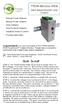 TPDIN-Monitor-WEB Web Based Monitor and Control Remote Power Stations Backup Power Systems Solar Systems Wind Powered Systems Industrial Sense & Control Process Automation Congratulations! on your purchase
Network Management Card. User Manual
 User Manual 1 Contents Contents 2 Chapter 1 Overview 3 1.1 NMC package contents 4 1.2 NMC CD Resources 4 1.3 Features 4 1.4 NMC Applications 5 Chapter 2 NMC parameters setting via serial COM port 6 2.1
SNMP Web Management. User s Manual For SNMP Web Card/Box
 SNMP Web Management User s Manual For SNMP Web Card/Box Management Software for Off-Grid Inverter Version: 1.2 Table of Contents 1. Overview... 1 1.1 Introduction... 1 1.2 Features... 1 1.3 Overlook...
User s Manual UPS SERIES. Network Interface Card UPS-IPCARD. I-00453 Rev B
 User s Manual UPS SERIES Network Interface Card UPS-IPCARD I-00453 Rev B TABLE OF CONTENTS INTRODUCTION............................................................. 3-4 INSTALLATION GUIDE.......................................................
NetProbe Lite. Web Based 8 Channel Sensor Collector. User Manual. Version 1.2
 NetProbe Lite Web Based 8 Channel Sensor Collector User Manual Version 1.2 Copyright Information Copyright 2004-2005, Mega System Technologies, Inc. All rights reserved. Reproduction without permission
The data between TC Monitor and remote devices is exchanged using HTTP protocol. Monitored devices operate either as server or client mode.
 1. Introduction TC Monitor is easy to use Windows application for monitoring and control of some Teracom Ethernet (TCW) and GSM/GPRS (TCG) controllers. The supported devices are TCW122B-CM, TCW181B- CM,
Starting Guide - Poseidon 3265 First steps for remote monitoring with Poseidon & GSM
 Poseidon 3265 starting guide Poseidon 3265 Starting Guide - Poseidon 3265 First steps for remote monitoring with Poseidon & GSM 1) Connecting Poseidon 3265 1.1) Check DIP switches settings. For installation
3.5 EXTERNAL NETWORK HDD. User s Manual
 3.5 EXTERNAL NETWORK HDD User s Manual Table of Content Before You Use Key Features H/W Installation Illustration of Product LED Definition NETWORK HDD Assembly Setup the Network HDD Home Disk Utility
Innovative Electronics for a Changing World INDEX
 Innovative Electronics for a Changing World INDEX 1. SYSTEM DESCRIPTION 2. BOARD CONNECTIONS terminals and indicators 3. CONNECTION DIAGRAM 4. START UP GUIDE and passwords 5. HOME PAGE 6. STATUS PAGE 7.
Quick Installation Guide
 V48.01 Model: FI8919W Quick Installation Guide Outdoor Pan/Tilt Wireless IP Camera For Windows OS ------- Page 1 For MAC OS ------- Page 15 ShenZhen Foscam Intelligent Technology Co., Ltd Quick Installation
User Manual. EtherUSB
 User Manual EtherUSB USB Ethernet Access Point for PDA V 2.0 Clarinet Systems, Inc. Clarinet Systems, Inc. http://www.clarinetsys.com Page 1 Publication Revision No. Control Table Rev. No. Date Contents
Table of Contents. 1. Introduction...1. 2. PDU Package...2. 3. Function...3. 4. Installation...5. 5. Web Interface...7
 PDU User Manual Table of Contents 1. Introduction...1 2. PDU Package...2 3. Function...3 4. Installation...5 5. Web Interface...7 1. Introduction The PDU is an Internet ready device designed and is equipped
TCP/IP MODULE CA-ETHR-A INSTALLATION MANUAL
 TCP/IP MODULE CA-ETHR-A INSTALLATION MANUAL w w w. c d v g r o u p. c o m CA-ETHR-A: TCP/IP Module Installation Manual Page Table of Contents Introduction...5 Hardware Components... 6 Technical Specifications...
Steps for Basic Configuration
 1. This guide describes how to use the Unified Threat Management appliance (UTM) Basic Setup Wizard to configure the UTM for connection to your network. It also describes how to register the UTM with NETGEAR.
Temperature & Humidity SMS Alert Controller
 Temperature & Humidity Alert Controller METERS 3 simple steps starting the unit: Insert the SIM card Plug in the sensors connectors Connect the AC power cord. Specifications: AC 90~260V Auto Select Internal
Quick Start Guide. WRV210 Wireless-G VPN Router with RangeBooster. Cisco Small Business
 Quick Start Guide Cisco Small Business WRV210 Wireless-G VPN Router with RangeBooster Package Contents WRV210 Router Ethernet Cable Power Adapter Product CD-ROM Quick Start Guide Welcome Thank you for
BIT COMMANDER. Serial RS232 / RS485 to Ethernet Converter
 BIT COMMANDER Serial RS232 / RS485 to Ethernet Converter (Part US2000A) Copyrights U.S. Converters 1 Contents Overview and Features... 3 Functions..5 TCP Server Mode... 5 Httpd Client Mode.5 TCP Auto mode....6
On the M-BUS Interface you can add up to 60 M-BUS Devices (60 unit loads).
 EMU M-BUS Logger Index Introduction... 3 Installation... 3 M-BUS Interface... 3 Power supply... 3 LAN... 3 Beginning of operation... 4 Configuration... 7 General Settings... 7 M-BUS Configuration... 9
GPS NTP Time Server for Intranet Networks DIN RAIL Version
 GPS NTP Time Server for Intranet Networks DIN RAIL Version Description: GPS NTP time server is very simple low cost solution for Ethernet / Intranet time synchronization. Each computer or devices with
Networking Guide Redwood Manager 3.0 August 2013
 Networking Guide Redwood Manager 3.0 August 2013 Table of Contents 1 Introduction... 3 1.1 IP Addresses... 3 1.1.1 Static vs. DHCP... 3 1.2 Required Ports... 4 2 Adding the Redwood Engine to the Network...
User s Manual Network Management Card
 User s Manual Network Management Card RMCARD202 Intelligent Network Management Card allows a UPS system to be managed, monitored, and configured Version 1.0 E-K01-SNMP005-0 TABLE OF CONTENTS Introduction
Wifi Pan/Tilt IP Camera User Manual
 Wifi Pan/Tilt IP Camera User Manual Rev. 3.0 Software Version 3.00 May. 25 th.2009 Table of Contents 1. PRODUCT VIEWS...3 1.1. PRONT PANEL...3 1.2. BACK PANEL...3 1.3. ACCESSORIES...4 2. SETUP AND STARTUP...5
Temperature Alert. LAN-based Temperature and Humidity Data Logger
 Temperature Alert LAN-based Temperature and Humidity Data Logger LAN-based Temperature and Humidity Monitoring - Supports Simultaneous WiFi and Hardwired Interfaces -20 C to +60 C (-4 F to +140 F) Standard
TENVIS Technology Co., Ltd. User Manual. For H.264 Cameras. Version 2.0.0
 TENVIS Technology Co., Ltd User Manual For H.264 Cameras Version 2.0.0 Catalogue Basic Operation... 3 Hardware Installation... 3 Search Camera... 3 Get live video... 5 Camera Settings... 8 System... 8
Gigabyte Content Management System Console User s Guide. Version: 0.1
 Gigabyte Content Management System Console User s Guide Version: 0.1 Table of Contents Using Your Gigabyte Content Management System Console... 2 Gigabyte Content Management System Key Features and Functions...
Vantage RADIUS 50. Quick Start Guide Version 1.0 3/2005
 Vantage RADIUS 50 Quick Start Guide Version 1.0 3/2005 1 Introducing Vantage RADIUS 50 The Vantage RADIUS (Remote Authentication Dial-In User Service) 50 (referred to in this guide as Vantage RADIUS)
2012 uptimedevices.com
 2012 uptimedevices.com Contents Product Overview...3 Installation...4 Web Interface Orientation...5 Web Interface (Login Screen)...6 Summary Screen...7 Sensors Screen...8 Sensor Names...9 Graph...10 Alerts
Medical Vacuum Systems-PXMI
 Medical Vacuum Systems-PXMI Please read and save these instructions. Read carefully before attempting to assemble, install, operate or maintain the product described. Protect yourself and others by observing
Olson Electronics Remote Power Monitoring Meter
 Olson Electronics Remote Power Monitoring Meter Operation Guide Key Features Amps: 00.00 to 32.00A True RMS (rated short period to 40A) Volts: 200.0 to 250.0V True RMS Watts: 0000 to 9999W KWh: 000000.0
ETHERNET IRRIGATION CONTROLLER. Irrigation Caddy Model: ICEthS1. User Manual and Installation Instructions
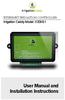 ETHERNET IRRIGATION CONTROLLER Irrigation Caddy Model: ICEthS1 User Manual and Installation Instructions I R R I G A T I O N C A D D Y M O D E L : I C E T H S 1 User Manual and Installation Instructions
The GV-I/O Box 8 Ports provides 8 inputs and 8 relay outputs, and supports both DC and AC output voltages.
 GV-I/O Box 8 Ports The GV-I/O Box 8 Ports provides 8 inputs and 8 relay outputs, and supports both DC and AC output voltages. Key Features 8 inputs and 8 outputs are provided. Up to 9 pieces of GV-I/O
Quick Start Guide. Cisco SPA232D Mobility Enhanced ATA
 Quick Start Guide Cisco SPA232D Mobility Enhanced ATA Package Contents Analog Telephone Adapter Ethernet Cable Phone Cable Power Adapter Quick Start Guide Product CD-ROM Welcome Thank you for choosing
User Manual. EtherUSB
 User Manual EtherUSB USB Ethernet Access Point for PDA V 1.6 Page 1 Publication Revision No. Control Table Rev. No. Date Contents 1.6 8/22/07 Support connection of multiple WM5.0 devices 1.5 6/18/07 Support
EMBEDDED ACCESS CONTROL Hardware Installation Guide
 EMBEDDED ACCESS CONTROL Hardware Installation Guide Lenel goentry Hardware Installation Guide, product version 1.00. This guide is item number DOC- ENHW-ENU, revision 1.003, April 2009 Copyright 2009 Lenel
SNMP Web card. User s Manual. Management Software for Uninterruptible Power Supply Systems
 SNMP Web card User s Manual Management Software for Uninterruptible Power Supply Systems Table of Contents 1. Overview... 3 1.1 Introduction... 3 1.2 Features... 3 1.3 Overlook... 3 1.4 Installation and
This section will focus on basic operation of the interface including pan/tilt, video, audio, etc.
 Catalogue Basic Operation... 2 For Internet Explorer... 2 For Other Non-IE Web Browsers... 5 Camera Settings... 6 System... 6 About... 6 PT Setting... 7 Backup and Restore Setup... 8 NTP Setting... 8 System
Multifunctional Broadband Router User Guide. Copyright Statement
 Copyright Statement is the registered trademark of Shenzhen Tenda Technology Co., Ltd. Other trademark or trade name mentioned herein are the trademark or registered trademark of above company. Copyright
Ethernet Interface Manual Thermal / Label Printer. Rev. 1.01 Metapace T-1. Metapace T-2 Metapace L-1 Metapace L-2
 Ethernet Interface Manual Thermal / Label Printer Rev. 1.01 Metapace T-1 Metapace T-2 Metapace L-1 Metapace L-2 Table of contents 1. Interface setting Guiding...3 2. Manual Information...4 3. Interface
User manual BS1000 LAN base station
 1/18 Contents 1.Introduction 2.Package of the LAN Base Station 3.Software installation 4.Installation of the Receiver 5.Sensor operation 6.Software operation Introduction The BS1000 is a receiver station
RC8061 Pan and Tilt Camera Installation Guide
 RC8061 Pan and Tilt Camera Installation Guide P/N: 956YM801GJ Document Version: 1.07 Copyright 2011 All Rights Reserved. All trademarks and trade names are the properties of their respective owners. i
Quick Installation Guide
 V2.01 Model: FI9821W Quick Installation Guide Indoor HD Pan/Tilt Wireless IP Camera Black White For Windows OS ------- Page 1 For MAC OS ------- Page 16 ShenZhen Foscam Intelligent Technology Co., Ltd
WxGoos-1 Climate Monitor Installation Instructions Page 1. Connections. Setting an IP Address
 Instructions Page 1 Connections The WxGoos-1 is a self-contained web server and requires 6vdc of power at 300ma. A center-positive 2.1 mm plug is used. There are five ports: 1. 10/100 Ethernet RJ-45 receptacle
The GV-I/O Box 16 Ports provides 16 inputs and 16 relay outputs, and supports both DC and AC output voltages.
 GV-I/O Box 16 Ports The GV-I/O Box 16 Ports provides 16 inputs and 16 relay outputs, and supports both DC and AC output voltages. Key Features 16 inputs and 16 outputs are provided. Up to 9 pieces of GV-I/O
Expert Power Control NET 4x 8212 / 8213
 2010 Gude Analog- und Digitalsysteme GmbH 2010 Gude Analog- und Digitalsysteme GmbH 23.08.2010 Content 3 Table of content Kapitel 1 Security Advise 5 Kapitel 2 Description 5 Kapitel 3 Hardware 6 3.1 Content
Product Description... 1 Internal Management Features... 3 Front Panel... 5 Watchdog Features... 7
 Contents Introduction--1 Product Description.................................. 1 Internal Management Features........................... 3 Front Panel........................................ 5 Watchdog
DNS-312H Network Attached Storage
 This product can be set up using any current web browser, i.e., Internet Explorer 5x, and Netscape Navigator 4x or above. DNS-312H Network Attached Storage Before You Begin 1. If you purchased this storage
Chapter 10 Troubleshooting
 Chapter 10 Troubleshooting This chapter provides troubleshooting tips and information for your ProSafe Dual WAN Gigabit Firewall with SSL & IPsec VPN. After each problem description, instructions are provided
User Manual of Web Client
 User Manual of Web Client 1 Index Chapter 1 Software Installation... 3 Chapter 2 Begin to Use... 5 2.1 Login and Exit... 5 2.2 Preview Interface Instruction... 6 2.3 Preview Image... 7 Chapter 3 Playback...
Chapter 8 Router and Network Management
 Chapter 8 Router and Network Management This chapter describes how to use the network management features of your ProSafe Dual WAN Gigabit Firewall with SSL & IPsec VPN. These features can be found by
Chapter 3 Management. Remote Management
 Chapter 3 Management This chapter describes how to use the management features of your ProSafe 802.11a/g Dual Band Wireless Access Point WAG102. To access these features, connect to the WAG102 as described
Business/Home GSM Alarm System. Installation and User Manual
 Business/Home GSM Alarm System Installation and User Manual Brief Introduction: GSM 900/1800/1900 bands, can be used in most parts of the world Full duplex communication with the host Monitor the scene
SX-3000EDM Integration Guide
 SX-3000EDM Integration Guide SX-3000EDM Integration Guide PN: 140-20116-110 Rev. A 1 Table of Contents SX-3000EDM Integration Guide Product Overview... 3 Introduction... 3 Features... 4 Block Diagram...
Intelligent power sockets IQsocket tm IQSB-PicoIP. makes your life more comfortable. User guide. IQSB-PicoIP documentation v1.0 R1
 Intelligent power sockets IQsocket tm IQSB-PicoIP makes your life more comfortable User Guide IQSB-PicoIP documentation v1.0 R1 User guide www.iqsocket.eu Important information... 2 1 Introduction... 4
JNIOR. Overview. Get Connected. Get Results. JNIOR Model 310. JNIOR Model 312. JNIOR Model 314. JNIOR Model 410
 The INTEG is an Ethernet I/O (digital, analog) device that monitors and controls a small set of process signals. functions as both basic I/O for integration with another application or system AND as a
Hands-on MESH Network Exercise Workbook
 Hands-on MESH Network Exercise Workbook Santa Clara County RACES Date: 18 March 2015 Version: 1.0 scco_wifi_intro_exonly_v150318.docx 1 Table of Contents HANDS ON! Exercise #1: Looking at your Network
Welcome. Unleash Your Phone
 User Manual Welcome Unleash Your Phone For assistance with installation or troubleshooting common problems, please refer to this User Manual or Quick Installation Guide. Please visit www.vonage.com/vta
Quick Installation Guide
 Model: FI8905E Quick Installation Guide Ourdoor POE Network Camera For Windows OS ------- Page 1 For MAC OS ------- Page 14 ShenZhen Foscam Intelligent Technology Co., Ltd Quick Installation Guide - For
ABB solar inverters. User s manual ABB Remote monitoring portal
 ABB solar inverters User s manual ABB Remote monitoring portal List of related manuals Title ABB Remote monitoring portal User s manual NETA-01 Ethernet adapter module User s manual Code (English) 3AUA0000098904
HC Products ILF-100WD User Manual
 Internet Line Fault Monitor 2012 HC Security Products Patent Pending 7711 Idlewild RD. Indian Trail, NC 28079 www.hcproductlines.com Tel: 877-908-CCTV (2288) Fax: 888-801-8295 Rev. 2.00 03/22/2012 Table
Firmware version: 1.10 Issue: 7 AUTODIALER GD30.2. Instruction Manual
 Firmware version: 1.10 Issue: 7 AUTODIALER GD30.2 Instruction Manual Firmware version: 2.0.1 Issue: 0.6 Version of the GPRS transmitters configurator: 1.3.6.3 Date of issue: 07.03.2012 TABLE OF CONTENTS
sensorprobe2 / sensorprobe8/ sensorprobe8-x20 User Manual
 www.akcp.com sensorprobe2 / sensorprobe8/ sensorprobe8-x20 User Manual Help Version updated till firmware 413 Copyright 2009, AKCP Co., Ltd.. 1) Introduction 1. What is sensorprobe? 2. What s the difference
PN5212/PN5320/PN7212/PN7320
 PN522/PN5/PN722/PN7 Over the NET Distribution Units ALTUSEN Over the NET products are Distribution Units that offer outlet level control combined with remote access to give IT administrators the ability
Wireless Router Setup Manual
 Wireless Router Setup Manual NETGEAR, Inc. 4500 Great America Parkway Santa Clara, CA 95054 USA 208-10082-02 2006-04 2006 by NETGEAR, Inc. All rights reserved. Trademarks NETGEAR is a trademark of Netgear,
1 Serial RS232 to Ethernet Adapter Installation Guide
 Installation Guide 10/100 Mbps LED (amber color ) Link/Activity LED (green color ) 1. Introduction Thank you for purchasing this 1-port RS232 to Ethernet Adapter (hereinafter referred to as Adapter ).
Ethernet. Customer Provided Equipment Configuring the Ethernet port.
 Installing the RDSP-3000A-NIST Master Clock. Ethernet Connect the RJ-45 connector to a TCP/IP network. Equipment The following equipment comes with the clock system: RDSP-3000A-NIST Master Clock Module.
Web Power Switch III User s Guide Revision LPC-3
 Web Power Switch III User s Guide Revision LPC-3 Web Power Switch III Features Congratulations on your purchase. The Web Power Switch III is a cost-effective AC power switch for remote control and reboot.
SOHO 6 Wireless Installation Procedure Windows 95/98/ME with Internet Explorer 5.x & 6.0
 SOHO 6 Wireless Installation Procedure Windows 95/98/ME with Internet Explorer 5.x & 6.0 Before You Begin Before you install the SOHO 6 Wireless, you must have: A computer with a 10/100BaseT Ethernet card
3.1 RS-232/422/485 Pinout:PORT1-4(RJ-45) RJ-45 RS-232 RS-422 RS-485 PIN1 TXD PIN2 RXD PIN3 GND PIN4 PIN5 T+ 485+ PIN6 T- 485- PIN7 R+ PIN8 R-
 MODEL ATC-2004 TCP/IP TO RS-232/422/485 CONVERTER User s Manual 1.1 Introduction The ATC-2004 is a 4 Port RS232/RS485 to TCP/IP converter integrated with a robust system and network management features
N300 WiFi Range Extender WN2000RPT User Manual
 N300 WiFi Range Extender WN2000RPT User Manual December 2013 202-11333-01 350 East Plumeria Drive San Jose, CA 95134 USA Support Thank you for selecting NETGEAR products. After installing your device,
Sensatronics Senturion Environmental Monitor Operations Manual
 Sensatronics Senturion Environmental Monitor Operations Manual Farrall Hall Annex installation Developed by: Zach Andrews Eric Barr Brandon White 1 Opening disclaimer: This is not the official manual of
PCS0100en 02.2008. Persy Control Services B.V. Netherlands
 P-Bus Gateway PBGW2.128 Universal gateway between the P-bus protocol and open standard protocols. The variety of available electrical interfaces on the gateway offers a wide range of possibilities for
JKW-IP. IP Video Entry System. QuikStart Guide
 1210 JKW-IP IP Video Entry System QuikStart Guide This is an abbreviated instruction manual for installation purposes. Please see the JKW-IP Installation Manual and JKW-IP Operation Manual for complete
Chapter 6 Using Network Monitoring Tools
 Chapter 6 Using Network Monitoring Tools This chapter describes how to use the maintenance features of your Wireless-G Router Model WGR614v9. You can access these features by selecting the items under
WIRED/WIRELESS IP CAMERA USER MANUAL V1.0
 WIRED/WIRELESS IP CAMERA USER MANUAL V1.0 CATALOGUE 1.DESCRIPTION OF PRODUCT -------------------------------------------------------------------------1 1.1 Packing ------------------------------------------------------------------------------------------------------2
IP Power Stone 4000 User Manual
 IP Power Stone 4000 User Manual Two Outlet Remote AC Power Controller Multi Link, Inc. 122 Dewey Drive Nicholasville, KY 40356 USA Sales and Tech Support 800.535.4651 FAX 859.885.6619 techsupport@multi
Quick Installation Guide
 V46.01 Model: FI8918W Quick Installation Guide Indoor Pan/Tilt Wireless IP Camera Black White For Windows OS ------- Page 1 For MAC OS ------- Page 11 ShenZhen Foscam Intelligent Technology Co., Ltd Quick
N300 WiFi Range Extender
 Model EX2700 User Manual July 2014 202-11395-01 350 East Plumeria Drive San Jose, CA 95134 USA Support Thank you for selecting NETGEAR products. After installing your device, locate the serial number on
CHAPTER 2: USING THE CAMERA WITH THE APP
 TABLE OF CONTENTS OVERVIEW... 1 Front of your camera... 1 Back of your camera... 2 ACCESSORIES... 3 CHAPTER 1: Navigating the Mobile Application... 4 Device List: How to Use this Page... 4 My Messages:
VTO6xxx. IP door stations. User manual
 VTO6xxx IP door stations User manual Table of Contents 1 Product Appearance 2 Basic Function Introduction 2.1 Call Manager Center 2.2 Call User 2.2.1 Connecting Status 2.2.2 Calling Status 2.3 Monitor
NMS300 Network Management System
 NMS300 Network Management System User Manual June 2013 202-11289-01 350 East Plumeria Drive San Jose, CA 95134 USA Support Thank you for purchasing this NETGEAR product. After installing your device, locate
Chapter 9 Monitoring System Performance
 Chapter 9 Monitoring System Performance This chapter describes the full set of system monitoring features of your ProSafe Dual WAN Gigabit Firewall with SSL & IPsec VPN. You can be alerted to important
EPND-2A. Gebruikershandleiding/Manual. ATAL B.V. Ampèrestraat 35-37 NL-1446 TR PURMEREND. Postbus 783 NL-1440 AT PURMEREND
 EPND-2A Gebruikershandleiding/Manual ATAL B.V. Ampèrestraat 35-37 NL-1446 TR PURMEREND Postbus 783 NL-1440 AT PURMEREND T (+31) 0299 630 610 F (+31) 0299 630 611 E [email protected] I www.atal.nl Inhoud Introduction...
TDP43ME NetPS. Network Printer Server. Control Center. for Ethernet Module
 Panduit Corp. 2010 TDP43ME NetPS PA26306A01 Rev. 01 11-2010 Network Printer Server Control Center for Ethernet Module NOTE: In the interest of higher quality and value, Panduit products are continually
* DISCLAIMER: Contents. How to Use This Guide: COMMERCIAL INSTALL GUIDE 2
 COMMERCIAL INSTALL GUIDE 2 Contents How to Use This Guide: The first section of this guide is designed to assist you with the installation of your DECK Monitoring hardware. The revenue grade meter and
COMET SYSTEM. www.cometsystem.cz. P2520 two-channel current loop converter USER GUIDE
 COMET SYSTEM www.cometsystem.cz P2520 two-channel current loop converter USER GUIDE Copyright: COMET System, Ltd. Is prohibited to copy and make any changes in this manual, without explicit agreement of
SSL-VPN 200 Getting Started Guide
 Secure Remote Access Solutions APPLIANCES SonicWALL SSL-VPN Series SSL-VPN 200 Getting Started Guide SonicWALL SSL-VPN 200 Appliance Getting Started Guide Thank you for your purchase of the SonicWALL SSL-VPN
TR-7W Configuration Guide. Before You Start
 TR-7W Configuration Guide Before You Start Take a few moments before you start to make the following simple checks. A few moments spent before you start installing your system can save a lot of time later
Nighthawk AC1900 WiF Range Extender
 Nighthawk AC1900 WiF Range Extender Model EX7000 User Manual December 2014 202-11469-01 350 East Plumeria Drive San Jose, CA 95134 USA Nighthawk AC1900 WiF Range Extender Support Thank you for selecting
Chapter 6 Using Network Monitoring Tools
 Chapter 6 Using Network Monitoring Tools This chapter describes how to use the maintenance features of your RangeMax Wireless-N Gigabit Router WNR3500. You can access these features by selecting the items
Stratix 5700 Switch Configuration
 Quick Start Stratix 5700 Switch Configuration Important User Information Read this document and the documents listed in the additional resources section about installation, configuration, and operation
Quick Start Guide. RV0xx Series Routers
 Quick Start Guide RV0xx Series Routers RV042 Dual WAN VPN Router RV042G Gigabit Dual WAN VPN Router RV082 Dual WAN VPN Router RV016 Multi-WAN VPN Router Package Contents VPN Router Power Adapter (Cisco
NetBiter webscada Modbus User Manual
 User Manual IntelliCom Innovation AB Pilefeltsgatan 93-95 SE-302 50 Halmstad SWEDEN Phone +46 35 17 29 90 Fax +46 35 17 29 09 email [email protected] www www.intellicom.se Revision List Revision Date