
Administration guide. Océ LF Systems. Connectivity information for Scan-to-File
|
|
|
- Leslie Maxwell
- 9 years ago
- Views:
Transcription
1 Administration guide Océ LF Systems Connectivity information for Scan-to-File

2 Copyright 2014, Océ All rights reserved. No part of this work may be reproduced, copied, adapted, or transmitted in any form or by any means without written permission from Océ. Océ makes no representation or warranties with respect to the contents hereof and specifically disclaims any implied warranties of merchantability or fitness for any particular purpose. Further, Océ reserves the right to revise this publication and to make changes from time to time in the content hereof without obligation to notify any person of such revision or changes. Edition GB

3 Trademarks Océ, and its wide-format printing systems are registered trademarks of Océ. Adobe, Acrobat and Reader are registered trademarks of Adobe Systems Incorporated. Apache Jackrabbit, Jackrabbit and Apache are trademarks of The Apache Software Foundation. AutoCAD WS, and Autodesk Buzzsaw are registered trademarks or trademarks of Autodesk, Inc., in the USA and/or other countries. Box is the copyright of Box, Inc. in the USA and/or other countries. CloudSafe is the copyright of the CloudSafe GmbH & Co. KG company established in Hamburg, Germany. Macintosh, Apple and Mac OS are registered trademarks of Apple Inc., registered in the U.S. and other countries. Microsoft, Windows, Windows XP, Windows Server 2003, Windows Vista, Windows Server 2008, Windows 7, Windows 8, Windows Server 2012, Microsoft Office PowerPoint and Microsoft SharePoint are either registered trademarks or trademarks of Microsoft Corporation in the United States and/or other countries. MyDisk is the copyright of the JADS Limited company established in the United Kingdoms. Products in this publication are referred to by their general trade names. In most, if not all cases, these designations are claimed as trademarks or registered trademarks of their respective companies.

4

5 Contents Contents Chapter 1 Introduction...9 Introduction for the reader...10 Physical connections...11 Chapter 2 Configure the Scan-to-File environment on a Windows computer...13 Supported operating systems...14 Scan-to-File to an SMB destination: introduction and prerequisites...15 Configure the SMB folder in the network...15 Configure a destination folder in the network (Windows XP/Server 2003)...16 Configure a destination folder in the network (Windows Vista/ Server 2008/ 7/ 8/ Server 2012) Configure the SMB scan destination on the printer controller...26 Configure the SMB scan destination in the Océ ColorWave 550/650 R3 Express WebTools...26 Configure the SMB scan destination in the Océ ColorWave 550/650 R2 Express WebTools...28 Configure the SMB external location in the Océ PlotWave 340/360 Express WebTools...33 Configure the SMB scan destination in the Océ ColorWave 300/PlotWave Express WebTools Configure the SMB scan destination in the Océ TDS/TCS Scan Manager...38 Scan-to-File to an FTP destination...41 Prerequisites for Scan-to-File to an FTP destination in a Windows environment...41 Configure the FTP server in the network - references...43 Scan-to-File to an FTP destination (Windows XP/Server 2003)...43 Scan-to-File to an FTP destination (Windows Vista/Server 2008)...47 Scan-to-File to an FTP destination (Windows 7)...53 Configure the FTP destination on the printer controller...57 Configure the FTP external location in the Océ ColorWave 550/650 R3 Express WebTools...57 Configure the FTP scan destination in the Océ ColorWave 550/650 R2 Express WebTools...59 Configure the FTP external location in the Océ PlotWave 340/360 Express WebTools...63 Configure the FTP destination in the Océ ColorWave 300/PlotWave Express WebTools...66 Configure the FTP destination in the Océ TDS/TCS Scan Manager...68 Chapter 3 Configure the Scan-to-File environment on a Mac OS X.x computer...71 Introduction...72 Activate the FTP access on the Mac OS X workstation...73 Activate the Macintosh FTP access (from Mac OS X 10.7)...75 Configure a destination folder in the network...76 Configure the FTP destination on the printer controller...77 Configure the FTP external location in the Océ ColorWave 550/650 R3 Express WebTools...77 Configure the FTP scan destination in the Océ ColorWave 550/650 R2 Express WebTools...79 Troubleshoot the creation of an FTP destination (after an error message)...80 Define the scan file name...81 Define the scan filename counter preset...83 Configure the FTP external location in the Océ PlotWave 340/360 Express WebTools...84 Configure the FTP destination in the Océ ColorWave 300/PlotWave Express WebTools...87 Configure the FTP destination in the Océ TDS/TCS Scan Manager

6 Contents Chapter 4 Configure a Scan-to-File environment to a Cloud external location (only for Océ PlotWave 340/360 systems)...91 Scan to an External location - introduction (Océ PlotWave 340/360 only)...92 Create a Cloud external location...93 Configure the Proxy settings...94 Configure a WebDAV external location on the printer controller...96 Tips for the retrieval of Cloud locations path...99 Chapter 5 Test the validity of the Scan-to-File environment Test the validity of the remote destination Test the validity of the remote scan destination: Océ ColorWave 300/PlotWave systems Test the validity of the remote scan destination: Océ ColorWave 550/650 and Océ PlotWave 340/360 systems Chapter 6 Log in and scan to an external location Chapter 7 Retrieve scanned files Retrieve the scanned files on a Windows computer Retrieve scanned files using DOS command line interface Retrieve scanned files using a browser Retrieve the scanned files on a Mac OS X.x computer Retrieve scanned files using a Terminal command line Retrieve scanned files using a browser Chapter 8 Troubleshooting for Scan-to-File environments Troubleshooting for Windows environments Impossible to create a SMB Scan-to-File destination: Windows Server 2003/Server 2008 (Océ TDS/ TCS) Impossible to use FTP browsing to retrieve files on the controller (Océ TDS/TCS) Troubleshooting for IPv6 environments Scan-to-File to an SMB destination in an IPv6 environment Issue with SMB external location creation in an IPv6 environment IPv6 for Océ PlotWave 300/350, Océ ColorWave 300, Océ TDS/TCS/TC4 systems IPv6 for Océ ColorWave 550/6x0 R2 systems IPv6 for Océ PlotWave 340/360/750/900 and Océ ColorWave 550/650R3 systems Troubleshooting on the printer controller Impossible to create a Scan-to-File destination via SMB Impossible to create a SMB Scan-to-File destination: XPe-based Océ TDS/TCS systems Impossible to create a SMB Scan-to-File destination: Océ TCS500/TDS450/TDS7x0 systems Test the validity of the remote scan destination: Océ ColorWave 300/550/650/PlotWave systems Impossible to create a SMB Scan-to-File destination: Océ ColorWave 300/PlotWave system Impossible to deliver a scan via SMB: Océ TDS/TCS systems Impossible to deliver a scan via FTP Troubleshoot the creation of an SMB external location (after an error message) Troubleshoot the creation of an FTP external location (after an error message) Troubleshoot the creation of a WebDAV external location (after an error message) Troubleshooting on the printer user panel Impossible to login from the user panel (Océ PlotWave v1.1) Impossible to scan to a WebDAV external location Impossible to open a file scanned to an SMB external location

7 Contents Chapter 9 Appendix - You and Océ Online support for your product Reader's comment sheet Index

8 Contents 8

9 Chapter 1 Introduction

10 Introduction for the reader Introduction for the reader Introduction The Océ Large Format Systems - Scan-to-File manual describes how to configure a Scan-to-File environment from every Océ TDS/TCS/PlotWave/ColorWave systems. First, prepare the scan-to-file environment on your workstation Windows TCP/IP Macintosh Then, configure the scan destination/location on the printer controller Actually, you can also: configure a scan location in the Cloud. test the validity of any destination/location. retrieved the scanned files from your workstation. Prerequisite The TCP/IP settings on the printer controller must be properly configured according to the procedures of: the Océ LF Systems Connectivity Manual for Windows, or the Océ LF Systems Connectivity Manual for Macintosh. List of abbreviations Abbreviation CW Full expression ColorWave Océ ColorWave 6x0 Océ ColorWave 600 and Océ ColorWave 650 Océ PlotWave 3x0 PW TCS TDS TDS7x0 Océ PlotWave 300, Océ PlotWave 340, Océ PlotWave 350 and Océ Plotwave 360 PlotWave Technical Colour System Technical Document System Océ TDS700 and Océ TDS Chapter 1 - Introduction

11 Physical connections Physical connections With the Océ TDS/TCS systems, as well as with the Océ ColorWave/PlotWave systems, the following network boards are available: Standard: Ethernet (UTP) 10Mb/s, 100Mb/s and 1Gb/s with RJ45 connector Chapter 1 - Introduction 11

12 Physical connections 12 Chapter 1 - Introduction

13 Chapter 2 Configure the Scan-to-File environment on a Windows computer

14 Supported operating systems Supported operating systems The procedures described this chapter apply to destination workstations running under: Windows XP Windows Server 2003 Windows Vista Windows Server 2008 Windows Server 2008 R2 Windows 7 Windows 8 Windows Server Chapter 2 - Configure the Scan-to-File environment on a Windows computer

15 Scan-to-File to an SMB destination: introduction and prerequisites Scan-to-File to an SMB destination: introduction and prerequisites Introduction To configure a Scan-to-File environment, you must: make sure you comply with the prerequisites. configure the destination folder on the workstation where you want to store your scans. configure the SMB scan destination on the printer controller. The procedures vary according to your operating system, your network configuration and your printer model. Follow the provided links to find the adequate procedures for your needs. NOTE To create a SMB Scan-to-File destination (in a network without DNS server), make sure that you enable the SMB printing or NetBios over TCP/IP setting (according to your Océ system) on the Settings Editor (or Express WebTools) of your Océ system controller. Prerequisites for a destination workstation Before you start, make sure that domain security policy allows access from the Océ TDS/TCS/ PlotWave/ColorWave to the computer where the destination folder is located. Incoming ports for Scan-to-File using SMB To use the Scan-to-File via SMB, open the following ports on the destination workstation: UDP port 137 UDP port 138 TCP port 139 TCP port 445 NOTE Windows XP, Server 2003, Vista, Server 2008 and Windows 7 platforms include an internal Windows Firewall. This firewall is activated by default. When Windows Firewall is enabled, check that the 'File and Printer sharing' exception is enabled. Configure the SMB folder in the network Configure the destination folder Find in the next table the link to the procedure that corresponds to your operating system. The related procedure describes how to configure the folder where your documents to print are stored. If the destination workstation runs under... Then, refer to the procedure... Windows XP Configure a destination folder in the network (Windows Windows Server 2003 XP/Server 2003) on page 16 4 Chapter 2 - Configure the Scan-to-File environment on a Windows computer 15

16 Configure a destination folder in the network (Windows XP/Server 2003) If the destination workstation runs under... Windows Vista Windows Server 2008 (R2) Then, refer to the procedure... Configure a destination folder in the network (Windows Vista/ Server 2008/ 7/ 8/ Server 2012) on page 20 Windows 7 Windows 8 Windows Server 2012 Configure a destination folder in the network (Windows XP/Server 2003) Introduction This section is a prerequisite for the configuration of the destination folder in the network: PC destination is part of a domain on page 16 PC destination is part of a workgroup on page 18 Before you begin The destination folder for SMB scanning is located on a workstation connected to the customer network. We call this workstation a 'destination workstation'. Make sure that the domain security policy allows access from the printer to this destination workstation. Configure a destination folder on Windows XP/Server 2003 when the PC destination is part of a domain Procedure 1. Create or browse to the destination folder on the customer workstation. 2. Right click this destination folder and select 'Sharing and Security...'. 3. From the 'Sharing' tab of the ' Properties' window: 16 Chapter 2 - Configure the Scan-to-File environment on a Windows computer

17 Configure a destination folder on Windows XP/Server 2003 when the PC destination is part of a domain Step Action Illustration 1 Click 'Share this folder'. 2 Give a name to the shared folder (share name). 3 Click 'Permissions'. 4 Give 'Full control' to everyone. 4. From the 'Security' tab of the 'Properties' window: Step Action Remarks 1 Click 'Add' to add the user name which will be used for Scan To File 4 Chapter 2 - Configure the Scan-to-File environment on a Windows computer 17
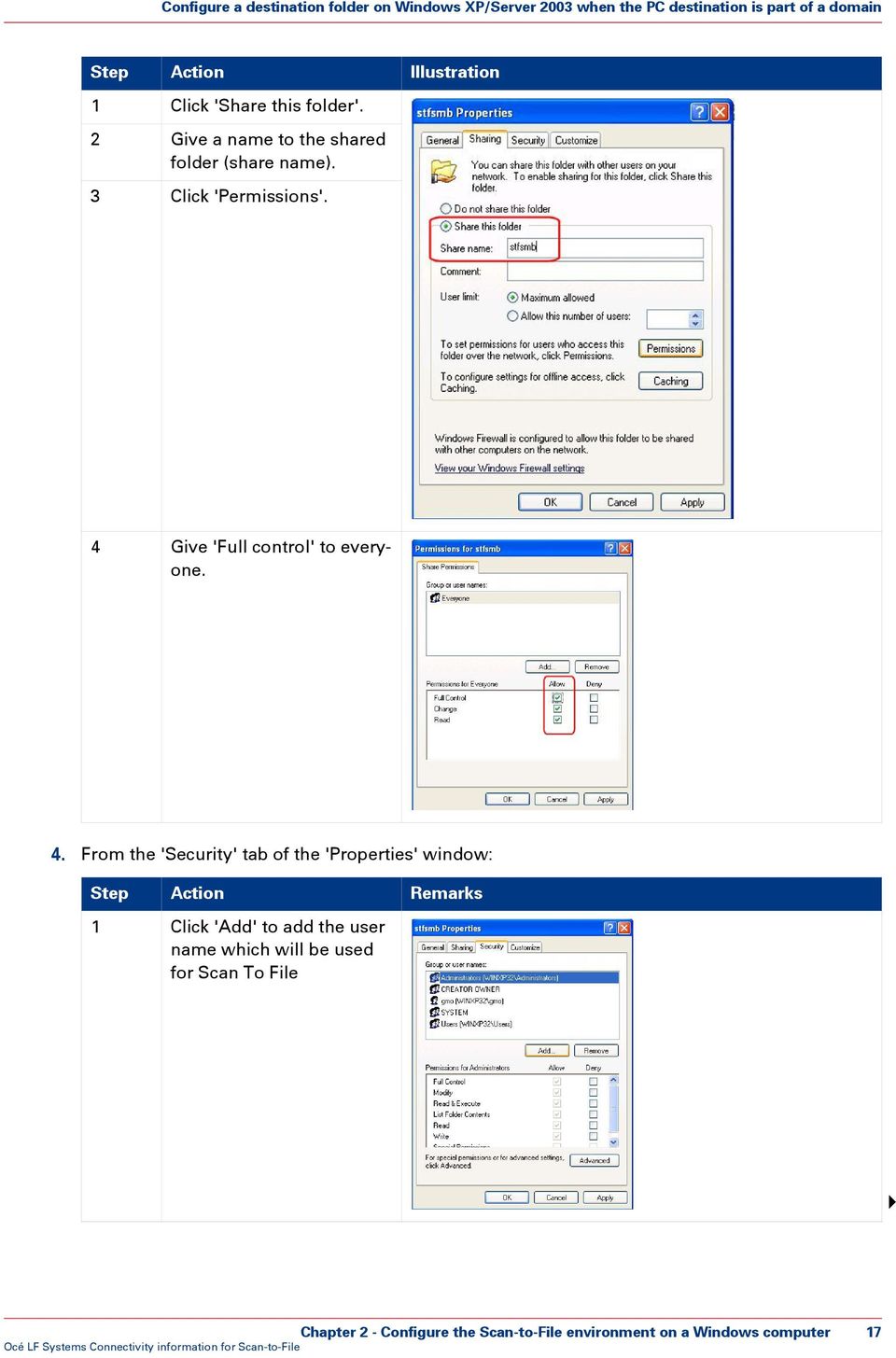
18 Configure a destination folder on Windows XP/Server 2003 when the PC destination is part of a workgroup Step Action Remarks 2 Enter the user name 'everyone'. Click 'OK' to confirm. 3 Back to the 'Security' tab, make sure the user name 'everyone' has Read and Write permissions on the destination folder. Click 'OK' to confirm. Configure a destination folder on Windows XP/Server 2003 when the PC destination is part of a workgroup Procedure 1. Create or browse to the destination folder on the customer workstation. 2. Right click this folder and select 'Sharing and Security'. 3. From the 'Sharing' tab of the 'Properties' window: 18 Chapter 2 - Configure the Scan-to-File environment on a Windows computer

19 Configure a destination folder on Windows XP/Server 2003 when the PC destination is part of a workgroup Step Action Illustration 1 Check the option 'Share this folder on the network' 2 Give a name to the shared folder ('Share name'). 3 Check the option 'Allow network users to change my files'. 4 Click 'Apply' and 'OK' to confirm. [1] 'Network sharing and security' section 4. From the Windows explorer, open the 'Tools - Folder options' menu. From the 'View' tab, make sure the 'Use simple file sharing (Recommended)' setting is checked. If not, select the check box and click 'OK' to confirm. Chapter 2 - Configure the Scan-to-File environment on a Windows computer 19
![[1] 'Network sharing and security' section 4. From the Windows explorer, open the 'Tools - Folder options' menu.](/docs-images/48/19283465/images/page_19.jpg "From the 'View' tab, make sure the 'Use simple file sharing (Recommended)' setting is checked. If not, select the check box and click 'OK' to confirm.")
20 Configure a destination folder in the network (Windows Vista/ Server 2008/ 7/ 8/ Server 2012) Configure a destination folder in the network (Windows Vista/ Server 2008/ 7/ 8/ Server 2012) Before you begin This section is a prerequisite for the configuration of the destination folder in the network: PC destination is part of a domain on page 20 PC destination is part of a workgroup on page 23 The destination folder for SMB scanning is located on a workstation connected to the customer network. We call this workstation a 'destination workstation'. Make sure that the domain security policy allows access from the printer to this destination workstation. Configure a destination folder on Windows Vista/Server 2008/7/8/Server 2012 when the PC destination is part of a domain Procedure 1. Create or browse to the destination folder on the customer workstation. 2. Right click this folder and select 'Properties'. 3. From the 'Sharing' tab, click 'Advanced Sharing'. 4. From the 'Advanced Sharing' window: 20 Chapter 2 - Configure the Scan-to-File environment on a Windows computer
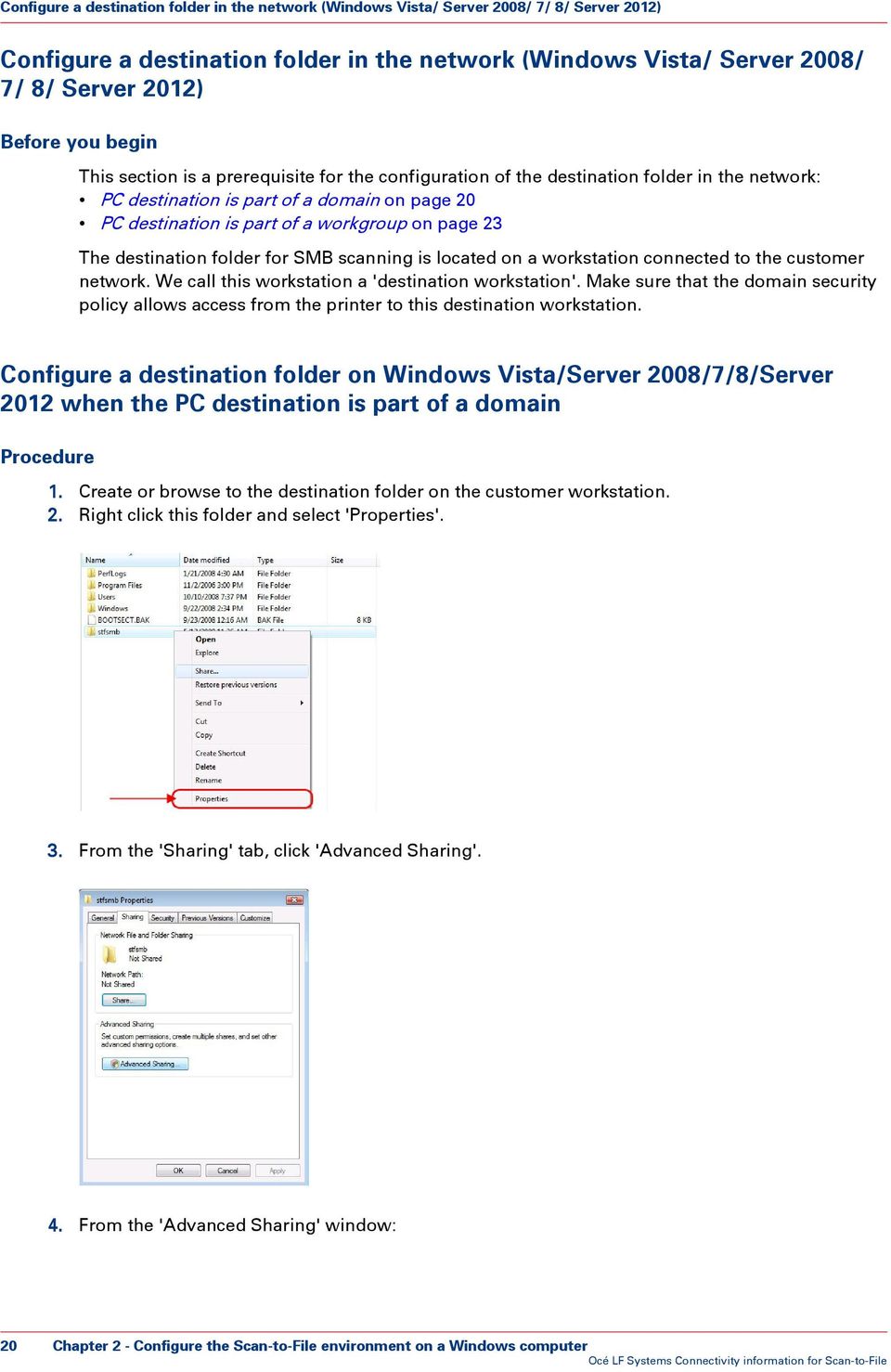
21 Configure a destination folder on Windows Vista/Server 2008/7/8/Server 2012 when the PC destination is part of a domain Step Action Illustration 1 Make sure the 'Share this folder' option is checked. Make sure there is a 'Share name'. Click 'Apply' to confirm. 2 Click 'Permissions'. 5. From the 'Permissions' window, select 'Everyone' and check the 'Full Control' option. Click 'Apply' and 'OK' to confirm. 6. Click also 'OK' to confirm and close the 'Advanced Sharing' window. 7. Back to the 'Properties' window: Step Action Remarks 1 Open the 'Security' tab. Click 'Edit'. 4 Chapter 2 - Configure the Scan-to-File environment on a Windows computer 21
22 Configure a destination folder on Windows Vista/Server 2008/7/8/Server 2012 when the PC destination is part of a domain Step Action Remarks 2 The 'Permissions' window opens. Click 'Add' to add the user name which will be used for Scan-to-File. 3 Enter the user name 'Everyone'. Click 'OK' to confirm. 4 Make sure the user name 'everyone' has Read and Write permissions on the destination folder. Click 'OK' to confirm. 22 Chapter 2 - Configure the Scan-to-File environment on a Windows computer
23 Configure a destination folder on Windows Vista/Server 2008/7/8/Server 2012 when the PC destination is part of a workgroup NOTE Under Windows 7/8/Server 2012, make sure that the option 'File and printer sharing' is enabled. To verify: 1. Open 'Control Panel' (- 'Network and Internet') - 'Network and Sharing Center' - 'Change advanced sharing settings' 2. Expand the section that corresponds to the current network profile (e.g., Domain in our example). 3. Select the 'Turn on file and printer sharing' option. Configure a destination folder on Windows Vista/Server 2008/7/8/Server 2012 when the PC destination is part of a workgroup Procedure 1. The following method is valid whatever the option 'On' or 'Off' for the 'Password protected sharing' option. 2. Create or browse to the destination folder on the customer workstation. 3. Right click this folder and select 'Properties'. Chapter 2 - Configure the Scan-to-File environment on a Windows computer 23
24 Configure a destination folder on Windows Vista/Server 2008/7/8/Server 2012 when the PC destination is part of a workgroup 4. From the 'Sharing' tab, click 'Advanced Sharing'. 5. From the 'Advanced Sharing' window: Step Action Illustration 1 Make sure the 'Share this folder' option is checked. Make sure there is a 'Share name'. 2 Click 'Permissions'. 6. From the 'Permissions' window, select 'Everyone' and check the 'Full Control' option. 24 Chapter 2 - Configure the Scan-to-File environment on a Windows computer
25 Configure a destination folder on Windows Vista/Server 2008/7/8/Server 2012 when the PC destination is part of a workgroup Click 'OK' to confirm. 7. Click also 'OK' to confirm and close the 'Advanced Sharing' window. NOTE The 'Security' tab, if present, is not used in that case (as the workstation is part of a workgroup). Chapter 2 - Configure the Scan-to-File environment on a Windows computer 25
26 Configure the SMB scan destination on the printer controller Configure the SMB scan destination on the printer controller Before you begin Open the printer controller application: Scan Manager for the Océ TDS/TCS and TC4 systems Océ Express WebTools for the Océ PlotWave/ColorWave systems References If your printer is an... Océ ColorWave 550/650 R3 Océ ColorWave 550/650 R2 Océ PlotWave 340/360 another Océ PlotWave/Colorwave system Océ TDS/TCS Then refer to the procedure... Configure the SMB external location in the Océ Color- Wave 550/650 R3 Express WebTools on page 26 Configure the SMB scan destination in the Océ Color- Wave 550/650 R2 Express WebTools on page 28 Configure the SMB external location in the Océ Plot- Wave 340/360 Express WebTools on page 33 Configure the SMB scan destination in the Océ Color- Wave 300/PlotWave Express WebTools on page 36 Configure the SMB scan destination on the Océ TDS/TCS Scan manager on page 38 Configure the SMB scan destination in the Océ ColorWave 550/650 R3 Express WebTools Before you begin Open the Océ Express WebTools. Procedure 1. Select the 'Configuration' tab. 2. Select 'External locations'. 3. Click 'Create new'. 4. Fill in the text boxes to define the SMB external location. Text box Name Content to define Enter a logical name for the destination. This logical name also appears on the scanner panel. 'Description' Enter a text that provides complementary information about the destination. Type Select the destination type SMB Chapter 2 - Configure the Scan-to-File environment on a Windows computer
27 Configure the SMB scan destination in the Océ ColorWave 550/650 R3 Express WebTools Text box User name Content to define Enter the user account name (local or domain) with Full Control to the destination folder. The user account name has the following format: - Local user name: <IP address>\<user name> (IP address of the destination workstation), or <hostname>\<user name> (hostname of the destination workstation). - Domain user name: <domain>\<user name>. Password Folder Enter the password of the user account with the Full Control permissions. Enter the path to the destination folder. Use the following syntax: \\<hostname>\<sharename>[\<path>] or, \\<IP address>\<sharename>[\<path>] NOTE You can copy-paste the path from the Windows Explorer. NOTE Within an IPv6 environment, you may need to refer to: External location creation in an IPv6 environment on page Click 'OK' to confirm. 6. Log out when you are finished. Result The printer software automatically checks the validity of the remote destination. If the creation is successful an error occurred. Then A successful message displays: 'The remote destination is valid'. The creation of the remote destination fails. An error message displays. To fix the issue, see:troubleshoot the creation of an SMB destination (after an error message) on page 29 Click 'Change' to come back to the configuration screen. Click 'Save' to save the template as you defined it. Chapter 2 - Configure the Scan-to-File environment on a Windows computer 27

28 Configure the SMB scan destination in the Océ ColorWave 550/650 R2 Express WebTools Configure the SMB scan destination in the Océ ColorWave 550/650 R2 Express WebTools Before you begin Open the Océ Express WebTools. Procedure 1. From the [Configuration] tab, open the 'Remote destinations' window. If requested, logon to Océ Express WebTools. 2. Click 'Create new'. 3. Fill in the text boxes to define the SMB remote destination. Text box Name 'Description' Type User name Content to define Enter a logical name for the destination. This logical name also appears on the scanner panel. Enter a text that provides complementary information about the destination. Select the destination type SMB. Enter the user account name (local or domain) with Full Control to the destination folder. The user account name has the following format: - Local user name: <IP address>\<user name> (IP address of the destination workstation), or <hostname>\<user name> (hostname of the destination workstation). - Domain user name: <domain>\<user name>. Password Enter the password of the user account with the Full Control permissions Chapter 2 - Configure the Scan-to-File environment on a Windows computer
29 Troubleshoot the creation of an SMB destination (after an error message) Text box Folder Content to define Enter the path to the destination folder. Use the following syntax: \\<hostname>\<sharename>[\<path>] or, \\<IP address>\<sharename>[\<path>] NOTE You can copy-paste the path from the Windows Explorer. NOTE Within an IPv6 environment, you may need to refer to: External location creation in an IPv6 environment on page Click 'OK' to confirm. 5. Log out when you are finished. Result The printer software automatically checks the validity of the remote destination. If the creation is successful an error occurred. Then A successful message displays: 'The remote destination is valid'. The creation of the remote destination fails. An error message displays. To fix the issue, see:troubleshoot the creation of an SMB destination (after an error message) on page 29 Click 'Change' to come back to the configuration screen. Click 'Save' to save the template as you defined it. Troubleshoot the creation of an SMB destination (after an error message) An error message displays to indicate that the creation of the SMB destination failed. According to the error message, perform the verifications proposed in the next table in order to fix the issue. Error message Missing or incorrect share name Action to perform Make sure the remote folder <remotefolder> syntax conforms to: \\hostname\share[\folder\...] or, \\<IP_address>\share[\folder\...] 4 Chapter 2 - Configure the Scan-to-File environment on a Windows computer 29
30 Define the scan file name Error message The remote hostname can not be resolved The remote host could not be found The remote host is not accessible The remote user name or password is incorrect Action to perform Make sure the hostname is correct and valid. Make sure the printer is connected to customer's network. Check the network settings of the printer in Océ Express WebTools: Primary DNS suffix, Preferred DNS server, Subnet mask, Default Gateway Check with the System Administrator if the DNS server can resolve the hostname to an IPv4 address If IPv6 protocol is enabled on the printer, replace the hostname by its IPv4 address (if IPv6 must be enabled). Or disable IPv6 on the printer (if IPv6 can be disabled). If any of the previously mentioned checks does not solve the problem, enter the remote host IPv4 address instead of the hostname. Make sure the hostname or IP address is correctly typed. Make sure the remote host is up and running, and that it is connected to the network. Make sure the SMB protocol is enabled on the remote host. Check that the remote host supports the SMB1 protocol. Check if the remote username and password are correct. Check the remote user name syntax: - For a remote host user: <hostname>\<username> or <IP_address>\<username> - For a domain user: <domainname>\<username> NOTE Information about the possible error messages and their solution is also available from the online help of Océ Express WebTools. Define the scan file name Procedure 1. From the 'Preferences' tab, Select 'Scan'. If requested, logon to Océ Express WebTools. 2. Select the template to be used for scanning and Click 'Edit a template' icon. 30 Chapter 2 - Configure the Scan-to-File environment on a Windows computer
31 Define the scan filename counter preset 3. Click 'File name'. 4. Type in the generic name for the scanned file of this template. Text box File name Description Enter the name of the file you scan. By default, the ### characters indicate an automatic file numbering. The 3 ### represent the 3 default digits used for the file numbering. You can define up to 10 digits (i.e.: 10 # characters). You can also remove those characters. Then, you must manually define a name and possible numbering for your scanned files. 5. Click 'OK'. 6. Repeat steps 4 to 7 for other templates, if applicable. 7. Log out when you are finished. Define the scan filename counter preset Procedure 1. From the 'Preferences' tab, select 'Scan job defaults'. Chapter 2 - Configure the Scan-to-File environment on a Windows computer 31
32 Define the scan filename counter preset 2. Click on the present value for 'Scan filename counter preset'. If requested, logon to Océ Express WebTools 3. Set the initial value for the ### number of the 'scan filename', to be used in case of automatic file numbering. 4. Click 'OK'. 5. Log out when you are finished. 32 Chapter 2 - Configure the Scan-to-File environment on a Windows computer
33 Configure the SMB external location in the Océ PlotWave 340/360 Express WebTools Configure the SMB external location in the Océ PlotWave 340/360 Express WebTools Before you begin Open the printer controller application. Procedure 1. Select the 'Configuration' tab. 2. Select 'External locations'. 3. Click 'Create new'. A new window opens. [2] Illustration of the configuration window for the SMB external location on an Océ PlotWave 340/360 v1.0.x [3] Illustration of the configuration window for the SMB external location on an Océ PlotWave 340/360 v Fill in the text boxes to define the SMB external location. Text box Name Description Content to define Enter a logical name for the destination. This logical name also appears on the printer operator panel. Enter a text that provides complementary information about the location. NOTE This field cannot be empty. Type Select the destination type 'SMB'. 4 Chapter 2 - Configure the Scan-to-File environment on a Windows computer 33
34 Configure the SMB external location in the Océ PlotWave 340/360 Express WebTools Text box Path Content to define Use the following syntax: \\<hostname>\<sharename>[\<path>] or, \\<IP address>\<sharename>[\<path>] NOTE Within an IPv6 environment, you may need to refer to: External location creation in an IPv6 environment on page 121 Credentials (only from the v1.1 of the Océ PlotWave 340/360 printer) Select one of the proposed values. 'Use the following credentials for automatic login': the credentials defined in the next fields ('User name' and 'Password') are stored permanently into the printer controller. Users can then access directly to the external location. IMPORTANT This value is compatible with the previous version v1.0.x of the printer. After an upgrade of the print system (from v1.0.x to v1.1), the value 'Use the following credentials for automatic login' automatically applies to the existing external locations. 'Prompt the user to log in on the user panel': the credentials are not stored into the printer controller. Users must enter the credentials ('User name' and 'Password') on the user panel when they want to access the external location. IMPORTANT This value is only available from the version v1.1 of the printer. To know how to log in from the user panel, refer to the dedicated section in the present guide. User name Password Access permissions Enabled functionalities Enter the user account name (local or domain). When scanning to the SMB location, this account must have the 'Full Control' permissions to the destination folder. The user account name has the following format: Local user name: <IP address>\<user name> (IP address of the destination workstation), or <hostname>\<user name> (hostname of the destination workstation). Domain user name: <domain>\<user name>. Enter the password of the user account with the 'Full Control' permissions. None, Print from only, Scan to only, Print from and Scan to 5. Click 'OK'. 34 Chapter 2 - Configure the Scan-to-File environment on a Windows computer
35 Configure the SMB external location in the Océ PlotWave 340/360 Express WebTools Result The printer software automatically checks the validity of the external location. After you finish If the creation is successful, the destination appears in the list of external locations. If an error occurred, the creation of the external location fails. An error message displays. To fix the issue, see: Troubleshoot the creation of an SMB external location on page 136. Click 'Change' to come back to the configuration screen. Click 'Save' to save the location as you defined it. Chapter 2 - Configure the Scan-to-File environment on a Windows computer 35
36 Configure the SMB scan destination in the Océ ColorWave 300/PlotWave Express WebTools Configure the SMB scan destination in the Océ ColorWave 300/PlotWave Express WebTools Procedure 1. From the [Configuration] tab, open the [Scan destinations] page to configure the Scan-to-File destinations. 2. Search for a scan destination that is not enabled yet, or that the customer wants to configure. Click 'Edit'. If requested, logon to Océ Express WebTools. NOTE The first and second scan destination are reserved for Local and USB scan. Use another scan destination. [4] Configure the SMB destination 3. Fill in the text boxes to define the SMB destination on the printer controller: Text box Name 'Enabled' Type Remote folder Content to define Enter a logical name for the destination. This logical name also appears on the scanner panel. Place a check mark in the enabled box. Select the destination type Remote via SMB. Enter the path to the destination folder. Use the following syntax: \\<hostname>\<sharename>[\<path>] or, \\<IP address>\<sharename>[\<path>] NOTE You can copy-paste the path from the Windows Explorer Chapter 2 - Configure the Scan-to-File environment on a Windows computer
37 Configure the SMB scan destination in the Océ ColorWave 300/PlotWave Express WebTools Text box Remote user name Content to define Enter the user account name (local or domain) with Full Control to the destination folder. The user account name has the following format: - Local user name: <IP address>\<user name> (IP address of the destination workstation), or <hostname>\<user name> (hostname of the destination workstation). - Domain user name: <domain>\<user name>. NOTE Within an IPv6 environment, you may need to refer to: External location creation in an IPv6 environment on page 121 Remote password File name 'Start value' Enter the password of the user account with the Full Control permissions. Confirm this password, if requested. Enter a name for the file you scan. By default, the ### characters indicate an automatic file numbering. The 3 ### represent the 3 default digits used for the file numbering. You can define up to 10 digits (i.e.: 10 # characters). You can also remove those characters. Then, you must manually define a name and possible numbering for your scanned files. Enter a start value for the scan file. Only use this field in case of automatic file numbering. 4. Click 'OK' to confirm. Result The scan destination is created. You can test its validity (for the Océ PlotWave 300 and the Océ ColorWave 300 printers, the test procedure is only available from their version 1.2.1). To do so, see: test the validity of the remote scan destination on page 102. Chapter 2 - Configure the Scan-to-File environment on a Windows computer 37
38 Configure the SMB scan destination in the Océ TDS/TCS Scan Manager Configure the SMB scan destination in the Océ TDS/TCS Scan Manager Procedure 1. Select Destinations in the tree view of the Scan Manager. NOTE For the Océ TDS7x0 printers and the Océ TC4 scanner, click Scan Jobs to open the Scan destinations window. [5] Interface for Océ TDS7x0 printers and TC4 scanner (Océ Power Logic Controller) 2. Click 'New from the toolbar. [6] Océ Scan Manager The Destination properties dialogue box appears. 3. Fill in the text boxes to define the Destination properties : Text box Name Content to define Enter a logical name for the destination. This logical name also appears on the scanner panel. Type (drop-down list) Choose destination type SMB Chapter 2 - Configure the Scan-to-File environment on a Windows computer
39 Configure the SMB scan destination in the Océ TDS/TCS Scan Manager Text box System User name Content to define Enter the host name or IP address of a computer where the destination shared folder is located. Enter the user account name (local or domain) with Full Control to the destination folder. The user account name has the following format: - Local user name: <IP address>\<user name> (IP address of the destination workstation), or <hostname>\<user name> (hostname of the destination workstation). - Domain user name: <domain>\<user name>. Password Path Enter the password of the user account with the Full Control permissions. Enter the path to the destination folder: select it from the drop-down list. NOTE You may have to wait a few seconds before content appears in the drop-down list. [7] Example of destination properties in Océ Scan Manager Chapter 2 - Configure the Scan-to-File environment on a Windows computer 39
40 Configure the SMB scan destination in the Océ TDS/TCS Scan Manager [8] Example of destination properties in Océ Power Logic Controller 4. Click OK. 40 Chapter 2 - Configure the Scan-to-File environment on a Windows computer
41 Scan-to-File to an FTP destination Scan-to-File to an FTP destination Prerequisites for Scan-to-File to an FTP destination in a Windows environment When to do In the context of Scan-to-File via FTP: the FTP Client is located on printer controller, the FTP Server on the destination workstation. NOTE The next procedures apply to the Océ TDS/TCS/ColorWave/PlotWave printers that support the Scan-to-File option, as well as the Océ TC4 scanner. NOTE Scan-to-File to an FTP location is possible under Windows XP, Server 2003, Vista, Server 2008, Windows 7, Windows 8 and Windows Server However, since Windows 8 and Windows Server 2012, we recommend you to refer to the Microsoft dedicated documentation for: the configuration of the Windows Firewall, the installation fo the FTP service, and the configuration of the FTP Server on the destination workstation. The procedures for the Windows operating systems released previously are still available in the present manual. Before you begin Windows XP, Server 2003, Vista, Server 2008 and Windows 7 platforms include an internal Windows Firewall. This firewall is activated by default. You must configure the Firewall settings on a Windows destination workstation when you use the Scan-to-File option (see next procedure). Configure the Windows firewall for Scan-to-File using FTP Procedure 1. Access the Firewall exception list. If Windows XP Windows Vista Windows Server 2008 Windows 7 Then 'Start' - 'Control Panel' - 'Windows Firewall' - 'Exceptions' 'Start' - 'Control Panel' - ('Security') - 'Windows Firewall' - 'Allow a program through Windows Firewall' 'Start' - 'Control Panel' - 'System and Security' - 'Windows Firewall' - 'Allows programs to communicate though Windows Firewall' 2. Make the necessary checks. Chapter 2 - Configure the Scan-to-File environment on a Windows computer 41
42 Prerequisites for Scan-to-File to an FTP destination in a Windows environment Example [4] Configuration of Windows firewall for a Scan-to-File using FTP If the operating system on the destination workstation is Windows XP Windows Server 2003 Windows Vista Windows 7 Then, you must Check that the FTP Server is enabled in the firewall exceptions list. Windows Server 2008 Windows Server 2008 R2 Check that the FTP Server is enabled in the firewall exceptions list. Check if the firewall is stateful. To do so, execute the following command line: netsh advfirewall show global. If the firewall setting 'StatefulFTP' is not 'enable', then you must activate it. To do so, execute the following command line: netsh advfirewall set global StatefulFtp enable. 42 Chapter 2 - Configure the Scan-to-File environment on a Windows computer
43 Configure the FTP server in the network - references Configure the FTP server in the network - references Install and configure the FTP Server on the workstation Find in the next table the link to the procedure that corresponds to your operating system. The related procedure describes how to install and configure the FTP Server on your workstation. If the destination workstation runs under... Windows XP Windows Server 2003 Windows Vista Windows Server 2008 (R2) Windows 7 Then, refer to the procedure... Scan- to-file to an FTP destination (Windows XP/Server 2003) on page 43 Scan-to-File to an FTP destination (Windows Vista/Server 2008) on page 47 Scan-to-File to an FTP destination (Windows 7) on page 53 NOTE Scan-to-File to an FTP location is possible under Windows XP, Server 2003, Vista, Server 2008, Windows 7, Windows 8 and Windows Server However, since Windows 8 and Windows Server 2012, we recommend you to refer to the Microsoft dedicated documentation for: the configuration of the Windows Firewall, the installation fo the FTP service, and the configuration of the FTP Server on the destination workstation. The procedures for the Windows operating systems released previously are still available in the present manual. Scan-to-File to an FTP destination (Windows XP/Server 2003) Introduction This section is a prerequisite for the configuration of the FTP destination. It describes how to: Install the FTP service on page 43 Configure the FTP server on the destination workstation on page 44 Install the FTP service on Windows XP/Server 2003 Procedure 1. Open the 'Add/Remove Programs' window ( Start' - 'Settings' - 'Control Panel' - 'Add/Remove Programs ). 2. Click 'Add/remove Windows Components'. Chapter 2 - Configure the Scan-to-File environment on a Windows computer 43
44 Configure the FTP server on the Windows XP/Server 2003 destination workstation 3. Click 'Internet Information Services (IIS)', then 'Details'. NOTE Under Windows Server 2003, click Application server, then 'Details'. 4. Verify if the check box 'File Transfer Protocol (FTP) Server' is checked: If Then Installation status it is checked, click 'Cancel' twice. The installation is finished. it is not checked, check it. Click 'OK', then 'Next'. Installation will start. Be ready to insert Windows CD-ROM when demanded. 5. When installation is terminated, click 'Finish'. Configure the FTP server on the Windows XP/Server 2003 destination workstation Procedure 1. Open the 'Administrative Tools' window ( Start - Settings - Control Panel - Administrative Tools ). 2. Double click 'Internet Information Services'. 3. Explore 'local computer', then 'FTP Sites'. 44 Chapter 2 - Configure the Scan-to-File environment on a Windows computer
45 Configure the FTP server on the Windows XP/Server 2003 destination workstation 4. Right click 'Default FTP Site' and select 'Properties'. 5. From the 'Properties' window: Step Action 1 Select 'Home Directory' tab Browse the FTP site directory. Ensure that the boxes 'Read' and 'Write' are checked. 2 Select 'Security Accounts' tab. If only authenticated access is required, uncheck the box 'Allow only anonymous connections'. 3 Click 'OK', then close 'Internet Information Services' and 'Administrative Tools'. Result You can now go on with the configuration of the FTP destination: Chapter 2 - Configure the Scan-to-File environment on a Windows computer 45
46 Configure the FTP server on the Windows XP/Server 2003 destination workstation in the Océ TDS Scan Manager on page 68 in the Océ ColorWave 300/PlotWave Express WebTools on page 66 in the Océ ColorWave 550/650 Express WebTools on page 59 in the Océ ColorWave 550/650 R3 printer controller on page 57 in the Océ PlotWave 340/360 Express WebTools on page Chapter 2 - Configure the Scan-to-File environment on a Windows computer
47 Scan-to-File to an FTP destination (Windows Vista/Server 2008) Scan-to-File to an FTP destination (Windows Vista/Server 2008) Introduction The installation procedure for the FTP service differs from Windows Vista to Windows Server Then, the next procedures are the same for both environments: to start the FTP service, and to configure the FTP server on the destination workstations. Install the FTP service on Windows Vista Procedure 1. Open the Programs and Features window ('Start' - 'Control Panel' (- 'Programs') - 'Programs and Features'). 2. Click Turn Windows features on or off, then Continue. 3. Expand Internet Information Service and FTP Publishing Service. 4. Verify that FTP Management Console and FTP server are checked: if they are checked, click Cancel. The installation is finished. if they are not checked, check them. 5. Click OK. Installation will start. Be ready to insert Windows CD-ROM when requested. Reboot the workstation, if requested. Install the FTP service on Windows Server 2008 Procedure 1. Open the Programs and Features window (Start - Control Panel (- Programs) - Programs and Features). 2. Click Turn Windows features on or off, then Continue. 3. Expand Internet Information Service. 4. Open the Server Manager application. Chapter 2 - Configure the Scan-to-File environment on a Windows computer 47
48 Install the FTP service on Windows Server 2008 [9] Server Manager 5. Click 'Add role'. Then click 'Next'. If a window pops-up to require 'Add features required for Web Server (IIS)?', click 'Add required features'. 6. Click 'Next' twice. 7. In the Role Services window, check the "FTP Publishing Service" and click 'Next >' The confirmation window appears. If a window pops-up to require 'Add features required for Web Server (IIS)?', click 'Add required features'. 8. Click 'Install'. When installation is finished, the following window appears. 9. Click 'Close'. 48 Chapter 2 - Configure the Scan-to-File environment on a Windows computer
49 Start the FTP service on Windows Vista/Server 2008 Start the FTP service on Windows Vista/Server 2008 Procedure 1. Open the Administrative Tools window ('Start' (- 'Control Panel' - 'Programs') - 'Administrative Tools'). 2. Double click Services, then click Continue. 3. Right click FTP Publishing Service, then select Properties. The FTP Publishing Service properties (Local Computer) window appears. 4. Set Startup type to Automatic, click Start, then OK. 5. Close Services. Chapter 2 - Configure the Scan-to-File environment on a Windows computer 49
50 Configure the FTP server on the Windows Vista/Server 2008 destination workstation Configure the FTP server on the Windows Vista/Server 2008 destination workstation Before you begin When scanning to a Windows destination workstation, you need to configure the Windows Firewall of the workstation (see Configuration of Windows firewall for Scan-to-File using FTP on page 41). Procedure 1. Open the Administrative Tools window (Start (- Control Panel - Programs) - Administrative Tools). 2. Double click Internet Information Services (IIS) 6.0 Manager, then click Continue. 3. Select your local computer - FTP sites. 4. Right click Default FTP Site, then select Properties. 5. From the 'Properties' window: 50 Chapter 2 - Configure the Scan-to-File environment on a Windows computer
51 Configure the FTP server on the Windows Vista/Server 2008 destination workstation Step Action 1 Select 'Home Directory' tab Browse the FTP Directory. Ensure that the boxes 'Read' and 'Write' are checked. 2 Select 'Security Accounts' tab. If only authenticated access is required, uncheck the box 'Allow only anonymous connections'. 3 Click OK, close Internet Information Services (IIS) 6.0 Manager and Administrative Tools. 6. Open Computer and find the directory you defined as FTP site directory local path. 7. Right click the directory, then select Properties. 8. From the Security tab: Chapter 2 - Configure the Scan-to-File environment on a Windows computer 51
52 Configure the FTP server on the Windows Vista/Server 2008 destination workstation Step Action 1 Select Users account Click Edit Click Continue 2 Select Users account again. Ensure that Write case is checked and click OK twice. 3 Click OK. Result You can now go on with the configuration of the FTP destination: in the Océ TDS Scan Manager on page 68 in the Océ ColorWave 300/PlotWave Express WebTools on page 66 in the Océ ColorWave 550/650 Express WebTools on page 59 in the Océ ColorWave 550/650 R3 printer controller on page 57 in the Océ PlotWave 340/360 Express WebTools on page Chapter 2 - Configure the Scan-to-File environment on a Windows computer
53 Scan-to-File to an FTP destination (Windows 7) Scan-to-File to an FTP destination (Windows 7) Introduction This section is a prerequisite for the configuration of the FTP destination. It describes how to: Install the FTP service on page 53 Configure the FTP server on the destination workstation on page 53 Install the FTP service on Windows 7 Procedure 1. Open the Programs window ('Start' - 'Control Panel' (- 'Programs') - 'Programs and Features'). 2. Click Turn Windows features on or off. 3. Expand Internet Information Services, FTP Server', and 'Web Management Tools'. 4. In 'FTP Server', check FTP Extensibility and FTP service. 5. In 'Internet Information services', check 'IIS Management Console'. 6. Click 'OK'. Configure the FTP server on the Windows 7 destination workstation Procedure 1. Open the Administrative Tools window ('Start' - 'Control Panel' - 'System and Security' - 'Administrative Tools'). Chapter 2 - Configure the Scan-to-File environment on a Windows computer 53
54 Configure the FTP server on the Windows 7 destination workstation 2. Double click on 'Internet Information Services (IIS) Manager'. 3. Right click on 'Default Web site' and select 'Add FTP Publishing'. 4. In the 'Add FTP Site Publishing' window: Step Action Illustration 1 Configure the Binding and SSL settings: Binding: 1 - Set the 'IP Address' to 'All Unassigned'. 2 - Indicate the value 21 to Port. Check 'Start FTP site automatically' SSL: Check ' No SSL'. 2 Click 'Next' Chapter 2 - Configure the Scan-to-File environment on a Windows computer
55 Configure the FTP server on the Windows 7 destination workstation Step Action Illustration 3 Give authorization to the User (you have identified) with Read and Write permissions. 4 Click 'Finish'. 5. In the 'Internet Information Services (IIS) Manager' window, click 'Default Web Site'. 6. Select 'Basic Settings' in the 'Actions' section. The 'Edit Site' window opens. Step Action Illustration 1 Make sure (or change, if needed) that: the Physical path exists, and that the authorized user you specified (in step 4) has Read and Write permissions on this path. 2 Click 'OK'. NOTE You can also use the 'Test Settings' button to check the FTP server. 7. Make sure (or configure, if needed) that the Windows Firewall allows 'FTP' inbound connections. Chapter 2 - Configure the Scan-to-File environment on a Windows computer 55
56 Configure the FTP server on the Windows 7 destination workstation Result You can now go on with the configuration of the FTP destination: in the Océ TDS Scan Manager on page 68 in the Océ ColorWave 300/PlotWave Express WebTools on page 66 in the Océ ColorWave 550/650 Express WebTools on page 59 in the Océ ColorWave 550/650 R3 printer controller on page 57 in the Océ PlotWave 340/360 Express WebTools on page Chapter 2 - Configure the Scan-to-File environment on a Windows computer
57 Configure the FTP destination on the printer controller Configure the FTP destination on the printer controller Before you begin Open the printer controller application: Scan Manager for the Océ TDS/TCS and TC4 systems Océ Express WebTools for the Océ PlotWave/ColorWave systems References If your printer is an... Océ ColorWave 550/650 R3 Océ ColorWave 550/650 R2 Océ PlotWave 340/360 another Océ PlotWave/Colorwave system Océ TDS/TCS Then refer to the procedure... Configure the FTP external location in the Océ Color- Wave 550/650 R3 Express WebTools on page 57 Configure the FTP scan destination in the Océ Color- Wave 550/650 Express WebTools on page 59 Configure the FTP external location in the Océ PlotWave 340/360 Express WebTools on page 63 Configure the FTP scan destination in the Océ Color- Wave 300/PlotWave Express WebTools on page 66 Configure the FTP scan destination on the Océ TDS/TCS Scan Manager on page 68 NOTE For more information about the encryption of the user names and passwords, refer to: the Océ ColorWave-PlotWave Systems Security manual, or the Océ TDS-TCS Systems Security manual. Configure the FTP external location in the Océ ColorWave 550/650 R3 Express WebTools Before you begin Open the Océ Express WebTools. Procedure 1. Select the 'Configuration' tab. 2. Select 'External locations'. 3. Click 'Create new'. 4. Fill in the text boxes to define the FTP external location. Chapter 2 - Configure the Scan-to-File environment on a Windows computer 57
58 Configure the FTP external location in the Océ ColorWave 550/650 R3 Express WebTools Text box 'Name' 'Description' 'Type' 'User name' 'Password' 'Folder' Content to define Enter a logical name for the destination. This logical name also appears on the scanner panel. Enter a text that provides complementary information about the destination. Select the destination type 'FTP'. Enter the user account name (local or domain). If Anonymous Connections are allowed, you can leave the box empty. Enter the password of the user account (local or domain). If Anonymous Connections are allowed, you can leave the box empty. Enter the name or IP address of the FTP server and the path to the destination folder. Use the following syntax: <hostname>[/<path>] or, <IP address>[/<path>] 5. Click 'OK' to confirm. 6. Log out when you are finished. Result The printer software automatically checks the validity of the remote destination. If the creation is successful an error occurred. Then A successful message displays: 'The remote destination is valid'. The creation of the remote destination fails. An error message displays. To fix the issue, see: Troubleshooting for Scanto-File environments on page 115. Click 'Change' to come back to the configuration screen. Click 'Save' to save the template as you defined it. 58 Chapter 2 - Configure the Scan-to-File environment on a Windows computer
59 Configure the FTP scan destination in the Océ ColorWave 550/650 R2 Express WebTools Configure the FTP scan destination in the Océ ColorWave 550/650 R2 Express WebTools Before you begin Open the Océ Express WebTools. NOTE For more information about the encryption of the user name and the password, refer to the Océ ColorWave-PlotWave Systems Security manual. Procedure 1. From the [Configuration] tab, open the 'Remote Destinations' window. If requested, logon to Océ Express WebTools. 2. Click 'Create new'. 3. Fill in the text boxes to define the FTP remote destination. Text box 'Name' 'Description' 'Type' 'User name' 'Password' 'Folder' Content to define Enter a logical name for the destination. This logical name also appears on the scanner panel. Enter a text that provides complementary information about the destination. Select the destination type 'FTP'. Enter the user account name (local or domain). If Anonymous Connections are allowed, you can leave the box empty. Enter the password of the user account (local or domain). If Anonymous Connections are allowed, you can leave the box empty. Enter the name or IP address of the FTP server and the path to the destination folder. Use the following syntax: <hostname>[/<path>] or, <IP address>[/<path>] 4. Click 'OK' to confirm. 5. Log out when you are finished. Result The printer software automatically checks the validity of the remote destination. Chapter 2 - Configure the Scan-to-File environment on a Windows computer 59
60 Troubleshoot the creation of an FTP destination (after an error message) If the creation is successful an error occurred. Then A successful message displays: 'The remote destination is valid'. The creation of the remote destination fails. An error message displays. See the next steps (2 or 3) to fix the issue. Click 'Change' to come back to the configuration screen. Click 'Save' to save the template as you defined it. Troubleshoot the creation of an FTP destination (after an error message) An error message displays to indicate that the creation of the FTP destination failed. According to the error message, perform the verifications proposed in the next table in order to fix the issue. Error message Missing or incorrect share name The remote hostname can not be resolved The remote host could not be found The remote host is not accessible The remote user name or password is incorrect Action to perform Make sure the remote folder <remotefolder> syntax conforms to: hostname/folder[/folder/ ] or, <IP_address>/folder[/folder/ ] Make sure the hostname is correct and valid. Make sure the printer is connected to customer's network. Check the network settings of the printer in Océ Express WebTools: Primary DNS suffix, Preferred DNS server, Subnet mask, Default Gateway Check with the System Administrator if the DNS server can resolve the hostname to an IPv4 address If any of the previously mentioned checks does not solve the problem, enter the remote host IPv4 address instead of the hostname. Make sure the hostname or IP address is correctly typed. Make sure the remote host is up and running, and that it is connected to the network. Make sure the FTP protocol is enabled on the remote host. Make sure the customer network security policy (firewall/switch) does not block FTP ports. Make sure the FTP server is using port 21. Check if the remote username and password are correct. 60 Chapter 2 - Configure the Scan-to-File environment on a Windows computer
61 Define the scan file name Define the scan file name Procedure 1. From the 'Preferences' tab, open the 'Scan' page. If requested, logon to Océ Express WebTools. 2. Select the template to be used for scanning and Click 'Edit a template' icon. 3. Click 'File name'. 4. Type in the generic name for the scanned file of this template. Text box File name Description Enter the name of the file you scan. By default, the ### characters indicate an automatic file numbering. The 3 ### represent the 3 default digits used for the file numbering. You can define up to 10 digits (i.e.: 10 # characters). You can also remove those characters. Then, you must manually define a name and possible numbering for your scanned files. 5. Click 'OK'. 6. Repeat steps 4 to 7 for other templates, if applicable. Chapter 2 - Configure the Scan-to-File environment on a Windows computer 61
62 Define the scan filename counter preset 7. Log out when you are finished. Define the scan filename counter preset Procedure 1. From the 'Preferences' tab, select 'Scan job defaults'. 2. Click on the present value for 'Scan filename counter preset'. If requested, logon to Océ Express WebTools 3. Set the initial value for the ### number of the 'scan filename', to be used in case of automatic file numbering. 4. Click 'OK'. 5. Log out when you are finished. 62 Chapter 2 - Configure the Scan-to-File environment on a Windows computer
63 Configure the FTP external location in the Océ PlotWave 340/360 Express WebTools Configure the FTP external location in the Océ PlotWave 340/360 Express WebTools Procedure 1. From the Océ Express WebTools of your Océ PlotWave 340/360 system, select the 'Configuration' tab. 2. Select 'External locations'. 3. Click 'Create new'. A new window opens. [10] Illustration of the configuration window for the FTP external location on an Océ PlotWave 340/360 v1.0.x [11] Illustration of the configuration window for the FTP external location on an Océ PlotWave 340/360 v Fill in the text boxes to define the FTP external location. Text box Name Description Content to define Enter a logical name for the destination. This logical name also appears on the printer operator panel. Enter a text that provides complementary information about the location. NOTE This field cannot be empty. Type Select the destination type 'FTP'. 4 Chapter 2 - Configure the Scan-to-File environment on a Windows computer 63
64 Configure the FTP external location in the Océ PlotWave 340/360 Express WebTools Text box Path Content to define Enter the name or the IP address of the FTP server, and the path to the destination folder. Use the following syntax: <hostname>[/<path>] or, <IP address>[/<path>]. NOTE Within an IPv6 environment, you may need to refer to: External location creation in an IPv6 environment on page 121 Credentials (only from the v1.1 of the Océ PlotWave 340/360 printer) Select one of the proposed values. 'Use the following credentials for automatic login': the credentials defined in the next fields ('User name' and 'Password') are stored permanently into the printer controller. Users can then access directly to the external location. IMPORTANT This value is compatible with the previous version v1.0.x of the printer. After an upgrade of the print system (from v1.0.x to v1.1), the value 'Use the following credentials for automatic login' automatically applies to the existing external locations. 'Prompt the user to log in on the user panel': the credentials are not stored into the printer controller. Users must enter the credentials ('User name' and 'Password') on the user panel when they want to access the external location. IMPORTANT This value is only available from the version v1.1 of the printer. To know how to log in from the user panel, refer to the section: Log in to an external location on page 107. User name Password Access permissions Enabled functionalities Enter the FTP account user name (local or domain). If Anonymous Connections are allowed, you can leave the box empty. Enter the password of the user account (local or domain). If Anonymous Connections are allowed, you can leave the box empty. None, Print from only, Scan to only, Print from and Scan to 5. Click 'OK' to confirm. Result The printer software automatically checks the validity of the external location. 64 Chapter 2 - Configure the Scan-to-File environment on a Windows computer
65 Configure the FTP external location in the Océ PlotWave 340/360 Express WebTools After you finish If the creation is successful, the destination appears in the list of external locations. If an error occurred, the creation of the external location fails. An error message displays. To fix the issue, see: Troubleshoot the creation of an FTP external location on page 138 Click 'Change' to come back to the configuration screen. Click 'Save' to save the location as you defined it. Chapter 2 - Configure the Scan-to-File environment on a Windows computer 65
66 Configure the FTP destination in the Océ ColorWave 300/PlotWave Express WebTools Configure the FTP destination in the Océ ColorWave 300/PlotWave Express WebTools Procedure 1. From the [Configuration] tab, Open the [Scan destinations] page to configure the Scan-to-File destinations. 2. Search for a scan destination that is not enabled yet, or that the customer wants to configure. Click 'Edit'. If requested, logon to Océ Express WebTools. NOTE The first and second scan destination are reserved for Local and USB scan. Use another scan destination. [12] Configure the FTP destination 3. Fill in the text boxes to define the 'Destination properties': Text box 'Name' 'Enabled' 'Type' 'Remote folder' 'Remote user name' 'Remote password' Content to define Enter a logical name for the destination. This logical name also appears on the scanner panel. Place a check mark in the enabled box. Select the destination type 'Remote via FTP'. Enter the name or IP address of the FTP server and the path to the destination folder. Use the following syntax: <hostname>[/<path>] or, <IP address>[/<path>] Enter the user account name (local or domain). If Anonymous Connections are allowed, you can leave the box empty. Enter the password of the user account (local or domain). If Anonymous Connections are allowed, you can leave the box empty Chapter 2 - Configure the Scan-to-File environment on a Windows computer
67 Configure the FTP destination in the Océ ColorWave 300/PlotWave Express WebTools Text box File name 'Start value' Content to define Enter the name of the file you scan. By default, the ### characters indicate an automatic file numbering. The 3 ### represent the 3 default digits used for the file numbering. You can define up to 10 digits (i.e.: 10 # characters). You can also remove those characters. Then, you must manually define a name and possible numbering for your scanned files. Enter a start value for the scan file. Only use this field in case of automatic file numbering. NOTE In a Japanese environment, the FTP server only supports the Shift-JIS encoding. Before you configure a Japanese FTP server, open the 'Generic' - 'Encoding for remote FTP server' setting of your Océ Express WebTools. Make sure the value is set to 'Shift-JIS'. 4. Click 'OK' to confirm. 5. Log out when you are finished. Result With the Océ PlotWave 300 and the Océ ColorWave 300 printers, from their version 1.2.1, you can test the validity of the remote scan destination on page 102. Chapter 2 - Configure the Scan-to-File environment on a Windows computer 67
68 Configure the FTP destination in the Océ TDS/TCS Scan Manager Configure the FTP destination in the Océ TDS/TCS Scan Manager Procedure 1. Select Destinations in the tree view of the Scan Manager. NOTE For the Océ TDS7x0 printers and the Océ TC4 scanner, click Scan Jobs to open the Scan destinations window. [13] Interface for Océ TDS7x0 printers and TCS scanner (Océ Power Logic Controller) 2. Click on the 'New' button of the toolbar. [14] Océ Scan Manager The 'Destination properties' dialogue box appears. 3. Fill in the text boxes to define the 'Destination properties': Text box 'Name' Content to define Enter a logical name for the destination. This logical name also appears on the scanner panel. 'Type' (drop-down list) Choose destination type 'FTP'. 'System' Enter the name or IP address of the FTP server Chapter 2 - Configure the Scan-to-File environment on a Windows computer
69 Configure the FTP destination in the Océ TDS/TCS Scan Manager Text box 'User name' 'Password' 'Path' Content to define Enter the user account name (local or domain). If Anonymous Connections are allowed, you can leave the box empty. Enter the password of the user account (local or domain). If Anonymous Connections are allowed, you can leave the box empty. Enter the path to the destination folder (if any). [15] Example of destination properties in Océ Scan Manager [16] Example of destination properties in Océ Power Logic Controller 4. Click 'OK'. Chapter 2 - Configure the Scan-to-File environment on a Windows computer 69
70 Configure the FTP destination in the Océ TDS/TCS Scan Manager 70 Chapter 2 - Configure the Scan-to-File environment on a Windows computer
71 Chapter 3 Configure the Scan-to-File environment on a Mac OS X.x computer
72 Introduction Introduction Introduction This section applies to destination workstations running under MAC OS X up to Chapter 3 - Configure the Scan-to-File environment on a Mac OS X.x computer
73 Activate the FTP access on the Mac OS X workstation Introduction You can scan a file and send it to a Mac OS X workstation. NOTE The Scan-to-File does not apply to the Océ ColorWave 600 printer. Activate the FTP access on the Mac OS X workstation Before you begin 1. Activate the FTP access to enable the FTP server on the Macintosh computer. 2. Configure the SMB destination either: in the Scan Manager of the Océ TDS/TCS controller or in the Océ Express WebTools of your Océ ColorWave/PlotWave print system. IMPORTANT To use the Macintosh computer as a FTP server, make sure that the FTP Access is activated on the 'System Preferences - Sharing' window. Activate the Macintosh FTP access (for Mac OS X up to 10.6) Procedure 1. Select File Sharing, then click Options. Chapter 3 - Configure the Scan-to-File environment on a Mac OS X.x computer 73
74 Activate the FTP access on the Mac OS X workstation 2. Select Share files and folders using FTP (Windows). 74 Chapter 3 - Configure the Scan-to-File environment on a Mac OS X.x computer
75 Activate the Macintosh FTP access (from Mac OS X 10.7) While FTP access is allowed, you can access the Macintosh files and folders using a web browser or an FTP client software. Activate the Macintosh FTP access (from Mac OS X 10.7) Introduction The FTP server has been removed from the interface of Mac OS X. However, it is still present in the system. You must activate it. The next procedure describes you how to do so. Procedure 1. Open the 'Terminal' window: [Launchpad] [Utilities] [Terminal] 2. Type in exactly the following command line: sudo -s launchctl load -w /System/ Library/LaunchDaemons/ftp.plist 3. Press the [Enter] key on the keyboard. 4. To exit the Terminal window, type in exit and press the [Enter] key. 5. Restart the Mac workstation. Result The FTP server will now always be activated by default. NOTE To deactivate the FTP server, repeat the procedure but replace load by unload in the command line (step 2). Chapter 3 - Configure the Scan-to-File environment on a Mac OS X.x computer 75
76 Configure a destination folder in the network Configure a destination folder in the network Procedure 1. Per user, create a destination folder on your Mac workstation. For instance: 'STF_folder' on the Desktop. 2. Select this folder. 3. While the folder is selected, click [File] [Get Info]. 4. At the bottom of the 'Info' window, expand the 'Sharing and permissions' section. 5. Give the appropriate privilege ('Write only (Drop box)' or 'Read & Write') to the users allowed to perform the scan-to-file operation. Result The folder you created will be the destination for your scan-to-file operations. You can now configure the FTP destination on the printer controller. 76 Chapter 3 - Configure the Scan-to-File environment on a Mac OS X.x computer
77 Configure the FTP destination on the printer controller Before you begin Open the printer controller application: Scan Manager for the Océ TDS/TCS and TC4 systems Océ Express WebTools for the Océ PlotWave/ColorWave systems Configure the FTP destination on the printer controller References If your printer is an... Océ ColorWave 550/650 R3 Océ ColorWave 550/650 R2 Océ PlotWave 340/360 another Océ PlotWave/Colorwave system Océ TDS/TCS Then refer to the procedure... Configure the FTP external location in the Océ Color- Wave 550/650 R3 Express WebTools on page 57 Configure the FTP scan destination in the Océ Color- Wave 550/650 Express WebTools on page 59 Configure the FTP external location in the Océ PlotWave 340/360 Express WebTools on page 63 Configure the FTP scan destination in the Océ Color- Wave 300/PlotWave Express WebTools on page 66 Configure the FTP scan destination on the Océ TDS/TCS Scan Manager on page 68 NOTE For more information about the encryption of the user names and passwords, refer to: the Océ ColorWave-PlotWave Systems Security manual, or the Océ TDS-TCS Systems Security manual. Configure the FTP external location in the Océ ColorWave 550/650 R3 Express WebTools Before you begin Open the Océ Express WebTools. Procedure 1. Select the 'Configuration' tab. 2. Select 'External locations'. 3. Click 'Create new'. 4. Fill in the text boxes to define the FTP external location. Chapter 3 - Configure the Scan-to-File environment on a Mac OS X.x computer 77
78 Configure the FTP external location in the Océ ColorWave 550/650 R3 Express WebTools Text box 'Name' 'Description' 'Type' 'User name' 'Password' 'Folder' Content to define Enter a logical name for the destination. This logical name also appears on the scanner panel. Enter a text that provides complementary information about the destination. Select the destination type 'FTP'. Enter the user account name (local or domain). If Anonymous Connections are allowed, you can leave the box empty. Enter the password of the user account (local or domain). If Anonymous Connections are allowed, you can leave the box empty. Enter the name or IP address of the FTP server and the path to the destination folder. Use the following syntax: <hostname>[/<path>] or, <IP address>[/<path>] 5. Click 'OK' to confirm. 6. Log out when you are finished. Result The printer software automatically checks the validity of the remote destination. If the creation is successful an error occurred. Then A successful message displays: 'The remote destination is valid'. The creation of the remote destination fails. An error message displays. To fix the issue, see: Troubleshooting for Scanto-File environments on page 115. Click 'Change' to come back to the configuration screen. Click 'Save' to save the template as you defined it. 78 Chapter 3 - Configure the Scan-to-File environment on a Mac OS X.x computer
79 Configure the FTP scan destination in the Océ ColorWave 550/650 R2 Express WebTools Configure the FTP scan destination in the Océ ColorWave 550/650 R2 Express WebTools Before you begin Open the Océ Express WebTools. NOTE For more information about the encryption of the user name and the password, refer to the Océ ColorWave-PlotWave Systems Security manual. Procedure 1. From the [Configuration] tab, open the 'Remote Destinations' window. If requested, logon to Océ Express WebTools. 2. Click 'Create new'. 3. Fill in the text boxes to define the FTP remote destination. Text box 'Name' 'Description' 'Type' 'User name' 'Password' 'Folder' Content to define Enter a logical name for the destination. This logical name also appears on the scanner panel. Enter a text that provides complementary information about the destination. Select the destination type 'FTP'. Enter the user account name (local or domain). If Anonymous Connections are allowed, you can leave the box empty. Enter the password of the user account (local or domain). If Anonymous Connections are allowed, you can leave the box empty. Enter the name or IP address of the FTP server and the path to the destination folder. Use the following syntax: <hostname>[/<path>] or, <IP address>[/<path>] 4. Click 'OK' to confirm. 5. Log out when you are finished. Result The printer software automatically checks the validity of the remote destination. Chapter 3 - Configure the Scan-to-File environment on a Mac OS X.x computer 79
80 Troubleshoot the creation of an FTP destination (after an error message) If the creation is successful an error occurred. Then A successful message displays: 'The remote destination is valid'. The creation of the remote destination fails. An error message displays. See the next steps (2 or 3) to fix the issue. Click 'Change' to come back to the configuration screen. Click 'Save' to save the template as you defined it. Troubleshoot the creation of an FTP destination (after an error message) An error message displays to indicate that the creation of the FTP destination failed. According to the error message, perform the verifications proposed in the next table in order to fix the issue. Error message Missing or incorrect share name The remote hostname can not be resolved The remote host could not be found The remote host is not accessible The remote user name or password is incorrect Action to perform Make sure the remote folder <remotefolder> syntax conforms to: hostname/folder[/folder/ ] or, <IP_address>/folder[/folder/ ] Make sure the hostname is correct and valid. Make sure the printer is connected to customer's network. Check the network settings of the printer in Océ Express WebTools: Primary DNS suffix, Preferred DNS server, Subnet mask, Default Gateway Check with the System Administrator if the DNS server can resolve the hostname to an IPv4 address If any of the previously mentioned checks does not solve the problem, enter the remote host IPv4 address instead of the hostname. Make sure the hostname or IP address is correctly typed. Make sure the remote host is up and running, and that it is connected to the network. Make sure the FTP protocol is enabled on the remote host. Make sure the customer network security policy (firewall/switch) does not block FTP ports. Make sure the FTP server is using port 21. Check if the remote username and password are correct. 80 Chapter 3 - Configure the Scan-to-File environment on a Mac OS X.x computer
81 Define the scan file name Define the scan file name Procedure 1. From the 'Preferences' tab, open the 'Scan' page. If requested, logon to Océ Express WebTools. 2. Select the template to be used for scanning and Click 'Edit a template' icon. 3. Click 'File name'. 4. Type in the generic name for the scanned file of this template. Text box File name Description Enter the name of the file you scan. By default, the ### characters indicate an automatic file numbering. The 3 ### represent the 3 default digits used for the file numbering. You can define up to 10 digits (i.e.: 10 # characters). You can also remove those characters. Then, you must manually define a name and possible numbering for your scanned files. 5. Click 'OK'. 6. Repeat steps 4 to 7 for other templates, if applicable. Chapter 3 - Configure the Scan-to-File environment on a Mac OS X.x computer 81
82 Define the scan file name 7. Log out when you are finished. 82 Chapter 3 - Configure the Scan-to-File environment on a Mac OS X.x computer
83 Define the scan filename counter preset Define the scan filename counter preset Procedure 1. From the 'Preferences' tab, select 'Scan job defaults'. 2. Click on the present value for 'Scan filename counter preset'. If requested, logon to Océ Express WebTools 3. Set the initial value for the ### number of the 'scan filename', to be used in case of automatic file numbering. 4. Click 'OK'. 5. Log out when you are finished. Chapter 3 - Configure the Scan-to-File environment on a Mac OS X.x computer 83
84 Configure the FTP external location in the Océ PlotWave 340/360 Express WebTools Configure the FTP external location in the Océ PlotWave 340/360 Express WebTools Procedure 1. From the Océ Express WebTools of your Océ PlotWave 340/360 system, select the 'Configuration' tab. 2. Select 'External locations'. 3. Click 'Create new'. A new window opens. [17] Illustration of the configuration window for the FTP external location on an Océ PlotWave 340/360 v1.0.x [18] Illustration of the configuration window for the FTP external location on an Océ PlotWave 340/360 v Fill in the text boxes to define the FTP external location. Text box Name Description Content to define Enter a logical name for the destination. This logical name also appears on the printer operator panel. Enter a text that provides complementary information about the location. NOTE This field cannot be empty. Type Select the destination type 'FTP' Chapter 3 - Configure the Scan-to-File environment on a Mac OS X.x computer
85 Configure the FTP external location in the Océ PlotWave 340/360 Express WebTools Text box Path Content to define Enter the name or the IP address of the FTP server, and the path to the destination folder. Use the following syntax: <hostname>[/<path>] or, <IP address>[/<path>]. NOTE Within an IPv6 environment, you may need to refer to: External location creation in an IPv6 environment on page 121 Credentials (only from the v1.1 of the Océ PlotWave 340/360 printer) Select one of the proposed values. 'Use the following credentials for automatic login': the credentials defined in the next fields ('User name' and 'Password') are stored permanently into the printer controller. Users can then access directly to the external location. IMPORTANT This value is compatible with the previous version v1.0.x of the printer. After an upgrade of the print system (from v1.0.x to v1.1), the value 'Use the following credentials for automatic login' automatically applies to the existing external locations. 'Prompt the user to log in on the user panel': the credentials are not stored into the printer controller. Users must enter the credentials ('User name' and 'Password') on the user panel when they want to access the external location. IMPORTANT This value is only available from the version v1.1 of the printer. To know how to log in from the user panel, refer to the section: Log in to an external location on page 107. User name Password Access permissions Enabled functionalities Enter the FTP account user name (local or domain). If Anonymous Connections are allowed, you can leave the box empty. Enter the password of the user account (local or domain). If Anonymous Connections are allowed, you can leave the box empty. None, Print from only, Scan to only, Print from and Scan to 5. Click 'OK' to confirm. Result The printer software automatically checks the validity of the external location. Chapter 3 - Configure the Scan-to-File environment on a Mac OS X.x computer 85
86 Configure the FTP external location in the Océ PlotWave 340/360 Express WebTools After you finish If the creation is successful, the destination appears in the list of external locations. If an error occurred, the creation of the external location fails. An error message displays. To fix the issue, see: Troubleshoot the creation of an FTP external location on page 138 Click 'Change' to come back to the configuration screen. Click 'Save' to save the location as you defined it. 86 Chapter 3 - Configure the Scan-to-File environment on a Mac OS X.x computer
87 Configure the FTP destination in the Océ ColorWave 300/PlotWave Express WebTools Configure the FTP destination in the Océ ColorWave 300/PlotWave Express WebTools Procedure 1. From the [Configuration] tab, Open the [Scan destinations] page to configure the Scan-to-File destinations. 2. Search for a scan destination that is not enabled yet, or that the customer wants to configure. Click 'Edit'. If requested, logon to Océ Express WebTools. NOTE The first and second scan destination are reserved for Local and USB scan. Use another scan destination. [19] Configure the FTP destination 3. Fill in the text boxes to define the 'Destination properties': Text box 'Name' 'Enabled' 'Type' 'Remote folder' 'Remote user name' 'Remote password' Content to define Enter a logical name for the destination. This logical name also appears on the scanner panel. Place a check mark in the enabled box. Select the destination type 'Remote via FTP'. Enter the name or IP address of the FTP server and the path to the destination folder. Use the following syntax: <hostname>[/<path>] or, <IP address>[/<path>] Enter the user account name (local or domain). If Anonymous Connections are allowed, you can leave the box empty. Enter the password of the user account (local or domain). If Anonymous Connections are allowed, you can leave the box empty. 4 Chapter 3 - Configure the Scan-to-File environment on a Mac OS X.x computer 87
88 Configure the FTP destination in the Océ ColorWave 300/PlotWave Express WebTools Text box File name 'Start value' Content to define Enter the name of the file you scan. By default, the ### characters indicate an automatic file numbering. The 3 ### represent the 3 default digits used for the file numbering. You can define up to 10 digits (i.e.: 10 # characters). You can also remove those characters. Then, you must manually define a name and possible numbering for your scanned files. Enter a start value for the scan file. Only use this field in case of automatic file numbering. NOTE In a Japanese environment, the FTP server only supports the Shift-JIS encoding. Before you configure a Japanese FTP server, open the 'Generic' - 'Encoding for remote FTP server' setting of your Océ Express WebTools. Make sure the value is set to 'Shift-JIS'. 4. Click 'OK' to confirm. 5. Log out when you are finished. Result With the Océ PlotWave 300 and the Océ ColorWave 300 printers, from their version 1.2.1, you can test the validity of the remote scan destination on page Chapter 3 - Configure the Scan-to-File environment on a Mac OS X.x computer
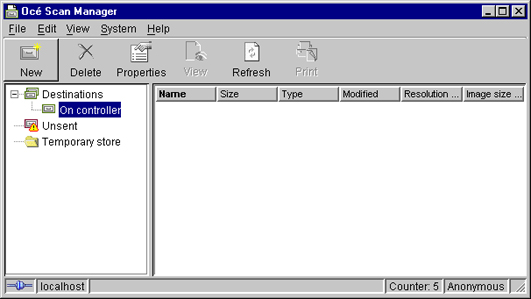
89 Configure the FTP destination in the Océ TDS/TCS Scan Manager Configure the FTP destination in the Océ TDS/TCS Scan Manager Procedure 1. Select Destinations in the tree view of the Scan Manager. NOTE For the Océ TDS7x0 printers and the Océ TC4 scanner, click Scan Jobs to open the Scan destinations window. [20] Interface for Océ TDS7x0 printers and TCS scanner (Océ Power Logic Controller) 2. Click on the 'New' button of the toolbar. [21] Océ Scan Manager The 'Destination properties' dialogue box appears. 3. Fill in the text boxes to define the 'Destination properties': Text box 'Name' Content to define Enter a logical name for the destination. This logical name also appears on the scanner panel. 'Type' (drop-down list) Choose destination type 'FTP'. 'System' Enter the name or IP address of the FTP server. 4 Chapter 3 - Configure the Scan-to-File environment on a Mac OS X.x computer 89

90 Configure the FTP destination in the Océ TDS/TCS Scan Manager Text box 'User name' 'Password' 'Path' Content to define Enter the user account name (local or domain). If Anonymous Connections are allowed, you can leave the box empty. Enter the password of the user account (local or domain). If Anonymous Connections are allowed, you can leave the box empty. Enter the path to the destination folder (if any). [22] Example of destination properties in Océ Scan Manager [23] Example of destination properties in Océ Power Logic Controller 4. Click 'OK'. 90 Chapter 3 - Configure the Scan-to-File environment on a Mac OS X.x computer
91 Chapter 4 Configure a Scan-to-File environment to a Cloud external location (only for Océ PlotWave 340/360 systems)

92 Scan to an External location - introduction (Océ PlotWave 340/360 only) Scan to an External location - introduction (Océ PlotWave 340/360 only) Introduction Whatever action you want to perform with the external location (Print from or Scan to), the configuration to create, to modify, or to delete the external location is the same. With the Océ PlotWave 340/360 systems, you can scan documents to an external location. This location can be a remote folder (SMB or FTP), or a folder located on the Cloud. Prerequisites To configure a 'Scan to' external location, you must: configure the destination folder or path on the workstation where you want to scan to configure the corresponding external location on the printer controller [24] Configuration of an external location from the Océ Express WebTools [25] View of the 'Scan to' locations from the printer panel 92 Chapter 4 - Configure a Scan-to-File environment to a Cloud external location (only for Océ PlotWave 340/360 systems)
93 Create a Cloud external location Create a Cloud external location Introduction to supported Cloud locations It is possible to create the external location on the cloud. Two types of Cloud locations are supported. WebDAV protocol compatible web services: some external sites are WebDAV compatible Sharepoint sites are WebDAV compatible ENEO. ENEO is an Océ web service. For more information, contact your Canon local representative (" WebDAV Web Distributed Authoring and Versioning (WebDAV) is an extension of the Hypertext transfer protocol in order to communicate with Web Servers for managing documents. More and more Web Servers in the Cloud supports WebDAV protocol (for instance: Microsoft SharePoint). You can print from a WebDAV location, and you can also scan to this location. The next section provides the details for scanning. List of supported WebDAV environments Here is the list of the web services supporting WebDAV protocol you can configure with your print system: Cloudsafe Box.com AutoDesk Buzzsaw AutoCAD WS MyDisk Here is the list of other WebDAV compliant repositories to which you can connect your print system: Microsoft SharePoint Apache Jackrabbit ENEO You must have an account on ENEO. To get an ENEO account, please contact your Canon local representative. From ENEO, you can print your documents but you cannot scan any document for distribution. Consequently, ENEO is out-of-scope of the current manual. To know more about how to print from ENEO, refer to the Océ LF Systems Connectivity information for Windows environment. Chapter 4 - Configure a Scan-to-File environment to a Cloud external location (only for Océ PlotWave 340/360 systems) 93

94 Configure the Proxy settings Configure the Proxy settings Before you begin Open the printer controller application. When to do A proxy may be required to configure an external location located in the Cloud (for instance, when the external location requires a connection to the Internet). Configure the proxy settings as follows. Procedure 1. From the Océ Express WebTools, select the 'Configuration' tab. 2. Select 'Connectivity - Proxy settings'. 3. Click the 'Edit' button. A new window opens. 4. Fill in the fields as described in the next table. Setting name Proxy enabled Proxy hostname Proxy port Proxy authentication on/off Proxy authentication user Proxy authentication password Proxy authentication domain Content to define Enable it if required. Enter the proxy hostname. It is recommended to enter the fully Qualified name i.e. including the correct DNS suffix (e.g. <Hostname>.<DNS.Suffix>). Enter the Proxy TCP port. Check the box if an authentication is required. User name for proxy authentication. Password for proxy authentication. Enter the user domain if required, otherwise let it blank. 94 Chapter 4 - Configure a Scan-to-File environment to a Cloud external location (only for Océ PlotWave 340/360 systems)
95 Configure the Proxy settings NOTE For more information about the encryption of the user name and the password, refer to the Océ ColorWave-PlotWave Systems Security manual. Result Now you can configure the Cloud external location. Chapter 4 - Configure a Scan-to-File environment to a Cloud external location (only for Océ PlotWave 340/360 systems) 95

96 Configure a WebDAV external location on the printer controller Configure a WebDAV external location on the printer controller Before you begin Open the printer controller application. If a proxy is required, see: Configure the Proxy settings for a Cloud external location on page 94 NOTE For more information about the encryption of the user names and passwords, refer to the Océ ColorWave-PlotWave Systems Security manual. Configure the WebDAV location from the Océ Express WebTools Procedure 1. From the Océ Express WebTools, select the 'Configuration' tab. 2. Select 'External locations'. 3. Click 'Create new'. A new window opens. [26] Illustration of the configuration window for the WebDAV external location on an Océ PlotWave 340/360 v1.0.x [27] Illustration of the configuration window for the WebDAV external location on an Océ PlotWave 340/360 v Fill in the text boxes to define the WebDAV external location. 96 Chapter 4 - Configure a Scan-to-File environment to a Cloud external location (only for Océ PlotWave 340/360 systems)
97 Configure a WebDAV external location on the printer controller Setting name Name Description Type Path Content to define Enter a logical name for the location. This logical name also appears on the printer operator panel. Enter a text that provides complementary information about the location. This field cannot be empty. Choose a location type. Here, select 'WebDAV'. Enter the complete folder access on your WebDAV. E.g.: %20Documents Consult your WebDAV server documentation on how to access to the folder access. NOTE For examples of the Folder access of WebDAV server, see: Tips for the retrieval of Cloud locations path on page 99. Use proxy settings Credentials (only from the v1.1 of the Océ PlotWave 340/360 printer) Check the box if proxy settings are required to access to the Web- DAV server over the Internet. Select one of the proposed values. 'Use the following credentials for automatic login': the credentials defined in the next fields ('User name' and 'Password') are stored permanently into the printer controller. Users can then access directly to the external location. IMPORTANT This value is compatible with the previous version v1.0.x of the printer. After an upgrade of the print system (from v1.0.x to v1.1), the value 'Use the following credentials for automatic login' automatically applies to the existing external locations. 'Prompt the user to log in on the user panel': the credentials are not stored into the printer controller. Users must enter the credentials ('User name' and 'Password') on the user panel when they want to access the external location. IMPORTANT This value is only available from the version v1.1 of the printer. To know how to log in from the user panel, refer to the dedicated section in the present guide. Username Password Access permissions Enabled functionalities Enter the user account name to access to the WebDAV server. Enter the password of the user account to access to the WebDAV server. Select the Access permissions among the proposed values: None, Print from only, Scan to only, Print from and Scan to. 5. Click 'OK'. Chapter 4 - Configure a Scan-to-File environment to a Cloud external location (only for Océ PlotWave 340/360 systems) 97

98 Configure a WebDAV external location on the printer controller Result The printer software automatically checks the validity of the external location. After you finish If the creation is successful, the destination appears in the list of external locations. If an error occurred, the creation of the external location fails. An error message displays. To fix the issue, see: Troubleshoot the creation of a WebDAV location on page 141 Click 'Change' to come back to the configuration screen. Click 'Save' to save the location as you defined it. 98 Chapter 4 - Configure a Scan-to-File environment to a Cloud external location (only for Océ PlotWave 340/360 systems)

99 Tips for the retrieval of Cloud locations path Tips for the retrieval of Cloud locations path Tip for path creation with SharePoint When using SharePoint with your Internet browser, the URL looks like this: RootFolder=%2fmns%2fRnD%2dSnS%2fShared%20Documents %2ftest&FolderCTID=&View=%7b C%2d93CB %2d4DD4%2dA776%2d63A2A4392D94%7d IMPORTANT Do not use the above folder syntax for the External location 'path' setting. Follow the next steps to define the path of the external location. 1. With your browser, go to the SharePoint location you want to print from or scan to. 2. Click 'Actions'. 3. Select 'Open with Windows Explorer'. 4. A new window opens. Right-click on the address in the address bar, and select 'Copy address as text' in the contextual menu. 5. Report this address as the path to the External location when you create the related location from the printer controller. The path now looks like this: Documents/test Tip for path creation with a Cloud WebDAV server (e.g. Box.com) Generally, the Web Access and the folder access are different. The 'path' setting must correspond to the folder access. We recommend that you consult to the documentation of the WebDAV server for the folder syntax. Example: IMPORTANT Do NOT use the next syntax. Chapter 4 - Configure a Scan-to-File environment to a Cloud external location (only for Océ PlotWave 340/360 systems) 99
100 Tips for the retrieval of Cloud locations path NOTE USE the syntax of one of the next examples Chapter 4 - Configure a Scan-to-File environment to a Cloud external location (only for Océ PlotWave 340/360 systems)
101 Chapter 5 Test the validity of the Scan-to- File environment
102 Test the validity of the remote destination Test the validity of the remote destination Make sure you created a valid folder Find in the next table the link to the procedure that corresponds to your operating system. The related procedure describes how to make sure that the remote/external folder (that you want to connect with your print system) is valid. If your printer is an... Océ ColorWave 550/650 (R2 and R3) Océ PlotWave 340/360 Océ ColorWave 300 or another Océ PlotWave system Océ TDS/TCS system Then refer to the procedure... Test the validity of the remote/external scan destination: Océ ColorWave 550/650 and Océ PlotWave 340/360 systems on page 105 Test the validity of the remote scan destination: Océ ColorWave 300/PlotWave systems on page 102 Not applicable. There is no procedure to make sure the scan destination is valid for the Océ TDS/TCS systems. In case of error, refer to: the troubleshooting chapter provided in this manual. your Canon local representative for support information: " Test the validity of the remote scan destination: Océ ColorWave 300/PlotWave systems Introduction From the version of the Océ PlotWave 300 and the Océ ColorWave 300 printers, a specific 'Test' feature has been introduced to support the creation of a scan destination. This 'Test' feature allows to check, or to troubleshoot, a remote scan destination (SMB or FTP). NOTE This feature is now also available for Océ PlotWave 350, Océ PlotWave 750 and Océ PlotWave 900 printers. Purpose The Test feature is a 'Test' button available in the 'Scan destination' window. Use it in order to test: the validity of the parameters entered when you create a scan destination the connection validity when a problem occurs during a remote Scan to File operation When to do After you configured the scan destination on the controller. Before you begin The 'Scan destination' window must be opened. If not already done: 1. Open a web browser and enter the URL of the printing system ( to open the Océ Express WebTools. 102 Chapter 5 - Test the validity of the Scan-to-File environment
103 Test the validity of the remote scan destination: Océ ColorWave 300/PlotWave systems 2. Go to 'Configuration' - 'Scan destinations'. Test the scan destination Procedure 1. Select a Scan destination and click on 'Edit'. Il requested, logon to Océ Express WebTools. NOTE You can logon as: System administrator, Key operator or Power User. The selected Scan destination window appears. 2. Click the 'Test' button. If the message 'The remote destination is valid' appears Then Click 'OK' to close the 'Scan destination' window. 4 Chapter 5 - Test the validity of the Scan-to-File environment 103
104 Test the validity of the remote scan destination: Océ ColorWave 300/PlotWave systems If something goes wrong during the test, an error message is displayed with a possible error cause. Then 1. Note the 'Error code' number generated. 2. In the 'Scan destination' window, click 'Read more detailed help' A window opens and displays the 'Configure scan destinations' section of the online help. 3. Scroll down until you reach the 'Test button' section. 4. In the table, make the corrective actions proposed in the 'Possible Causes' section that corresponds to the error code you noted. Repeat from step 2 of this procedure. 104 Chapter 5 - Test the validity of the Scan-to-File environment
105 Test the validity of the remote scan destination: Océ ColorWave 550/650 and Océ PlotWave 340/360 systems Test the validity of the remote scan destination: Océ ColorWave 550/650 and Océ PlotWave 340/360 systems When to do After you configured the scan destination on the controller. Test the scan destination validity on the Océ ColorWave 550/650 and Océ PlotWave 340/360 Procedure 1. The printer software automatically checks the validity of the remote destination. If the creation is successful an error occurred. Then A successful message displays: 'The remote destination is valid'. The creation of the remote destination fails. An error message displays. See the next steps (2 or 3) to fix the issue. NOTE On the Océ PlotWave systems, the 'remote destination' is named 'external location'. The procedures are the identical. 2. To create a valid SMB scan destination, refer to the procedure: Troubleshoot the creation of an SMB destination (after an error message) on page To create a valid FTP scan destination, refer to the procedure: Troubleshoot the creation of an FTP destination (after an error message) on page To create a valid scan destination on a Cloud location (from an Océ PlotWave 340/360), refer to the procedure: Troubleshoot the creation of a WebDAV location on page 141 Chapter 5 - Test the validity of the Scan-to-File environment 105
106 Test the validity of the remote scan destination: Océ ColorWave 550/650 and Océ PlotWave 340/360 systems 106 Chapter 5 - Test the validity of the Scan-to-File environment
107 Chapter 6 Log in and scan to an external location
108 Introduction The next section is only applicable for the Océ PlotWave 340/360 v1.1 printers. Depending on the configuration of the external locations, it is possible that a user must enter credentials from the user panel in order to access the external locations. When to do When you configured the external location, you defined the 'Credentials' value to 'Prompt the user to log in on the user panel'. Procedure 1. From the user panel, select the 'Scan' tile. 2. Select the external location where you want to scan the document. 3. Insert the original document to be scanned into the scanner. Define the needed scan settings. 4. When ready to scan, press the green button. The login window appears on the user panel. 5. Enter the credentials (as previously defined from the Océ Express WebTools). Setting name [User name] [Password] Action Tap the field named 'User name'. A keyboard appears. Enter the 'User name' value defined for this external location. Tap 'OK'. Tap the field name 'Password'. A keyboard appears. Enter the 'Password' value defined for this external location. Tap 'OK'. NOTE Make sure the syntax of the 'User name' and 'Password' values is exactly the same as the one defined from Océ Express WebTools. For an SMB external location, make sure the [User name] syntax is as follows: for a local user: <hostname>\<user name> or <IP address>\<user name> for a domain user: <domain>\<user name> 6. Tap 'OK' to log in to the external location. When the credentials are correct, a login icon appears in the top right corner of the user panel. The scanned document is sent to the external location. NOTE As long as the login icon appears on the user panel, the user can access the selected external location (without the need to log in again). A time-out forces the logout after 1 minute of inactivity. After you finish To log out from the external location, a user must tap the login icon. The logout window appears. Tap 'Yes' to log out. NOTE The login icon corresponds to the last credentials entered by a user (in case several credentials were entered on the user panel). However, when you log out, you log out from all external locations. 108 Chapter 6 - Log in and scan to an external location
109 Chapter 7 Retrieve scanned files
110 Retrieve the scanned files on a Windows computer Scope of this section The next procedures describe how to retrieve the scanned files from the following print systems: Océ TDS/TCS (except the Océ TxS300) Océ ColorWave 300 Océ ColorWave 550 Océ ColorWave 650 R2 Océ PlotWave 300 Océ PlotWave 350 Océ PlotWave 750 Océ PlotWave 900 For the Océ ColorWave 550/650 R3 and the Océ PlotWave 340/360, you can only retrieve the scanned files from the Océ Express WebTools interface. To do so, connect to the Océ Express WebTools interface of your printer. Select the scanned files to retrieve from the 'Scans' Smart Inbox. Save and download the selected files to your workstation. NOTE Scan-to-File procedures do not apply to the following print systems: Océ TDS300 Océ TCS300 Océ ColorWave 600 Retrieve the scanned files on a Windows computer Retrieve scanned files using DOS command line interface Procedure 1. Launch MS-DOS Command Prompt. 2. Type the command ftp followed by the Océ TDS/TCS/ColorWave/PlotWave hostname or IP address. For example: ftp tds600-gx260 or ftp Press 'Enter' twice for user name and password. A connection is now set to the Océ TDS/TCS/ColorWave/PlotWave FTP server for user 'anonymous'. 4. Type the command binary to set the binary transmission mode. 5. Type the command cd tempstore to enter the 'tempstore' directory of the Océ TDS/TCS/ ColorWave/PlotWave FTP server. 6. Type the command: cd scan to enter the 'scan' directory where scans to destination 'on controller' are stored. cd unsent to enter the 'unsent' directory where scans not delivered to SMB or FTP remote destination are stored. 7. Type the command lcd followed by the local directory containing the data to print (where you store the scans). For example lcd c:\my_scans. 8. Type the command get followed by the name of data file. For example: get scan001.tiff. 9. Type bye command to close the FTP session. 110 Chapter 7 - Retrieve scanned files
111 Retrieve scanned files using DOS command line interface Chapter 7 - Retrieve scanned files 111
112 Retrieve scanned files using a browser Retrieve scanned files using a browser Procedure 1. Launch the Windows Explorer or an Internet browser (e.g. Microsoft Internet Explorer). 2. Type the FTP address of your Océ TDS/TCS/ColorWave/PlotWave printer. For example 'ftp:// ' or 'ftp://tds600-gx260'. 3. Explore 'tempstore' folder. 4. Explore: 'scan' folder to retrieve scans to destination 'on controller' or 'unsent' folder to retrieve scans not delivered to SMB or FTP remote destination. 5. Select the scan file(s) you want to retrieve and copy them, for example, to the window of another session of the Windows Explorer. 112 Chapter 7 - Retrieve scanned files
113 Retrieve the scanned files on a Mac OS X.x computer Retrieve scanned files using a Terminal command line Procedure Retrieve the scanned files on a Mac OS X.x computer 1. Launch the 'Terminal' utility. 2. Type the command ftp followed by the Océ TDS/TCS/ColorWave/PlotWave hostname or IP address. For example: ftp PW300 (in our example) or ftp Press 'Enter' twice for user name and password. A connection is now set to the Océ TDS/TCS/ColorWave/PlotWave FTP server for user 'anonymous'. 4. Type the command cd tempstore to enter the 'tempstore' directory of the Océ TDS/TCS/ ColorWave/PlotWave FTP server. 5. Type the command: cd scan to enter the 'scan' directory where scans to destination 'on controller' are stored. cd unsent to enter the 'unsent' directory where scans not delivered to FTP remote destination are stored. 6. Type the command lcd followed by the local directory containing the data to print (where you store the scans). For example lcd Users/genius/Desktop/STF_folder. 7. Type the command get followed by the name of the data file. For example: get scan001.tiff. The scanned file is copied into the Mac folder. 8. Type bye command to close the FTP session. Chapter 7 - Retrieve scanned files 113
114 Retrieve scanned files using a browser Retrieve scanned files using a browser Procedure 1. Launch an Internet browser (e.g. Safari or Firefox). 2. Type the FTP address of your Océ TDS/TCS/ColorWave/PlotWave printer. For example 'ftp:// ' or 'ftp://pw300'. 3. Explore 'tempstore' folder. 4. Explore: 'scan' folder to retrieve scans to destination 'on controller' or 'unsent' folder to retrieve scans not delivered to SMB or FTP remote destination. 5. Select the scan file you want to retrieve by a <CTRL> + click on its name. A secondary menu appears. 6. Select 'Save link as...' to save this file to a local directory. 114 Chapter 7 - Retrieve scanned files
115 Chapter 8 Troubleshooting for Scan-to-File environments
116 Troubleshooting for Windows environments Find solutions to your potential issues If the problem comes from... the Windows environment the fact that the print system in integrated in an IPv6 environment an error message on the printer controller, or the impossibility to create the remote/external destination Then refer to the section... Troubleshooting for Windows environment on page 116 Troubleshooting for IPv6 environments on page 120 Troubleshooting on the printer controller on page 128 Troubleshooting for Windows environments Impossible to create a SMB Scan-to-File destination: Windows Server 2003/Server 2008 (Océ TDS/TCS) Symptom It is impossible to create a SMB Scan-to-File destination on a domain controller running under Windows Server 2003 or Windows Server Cause When a Windows Server 2003/Server 2008 is promoted to the domain controller, the default value of a registry setting (see below) changes from 0 to 1 (Enabled). As a result the domain controller s SMB server accepts only digitally signed SMB packets. This feature is not supported by the Océ SMB client used by the Océ Scan Manager. Consequently, the creation of SMB destinations fails. Diagnose You can use another workstation, member server or stand alone server for the Scan-to-File destination. You can upgrade your Océ TDS/TCS system to: - Océ TDS300 v Océ TDS320 v Océ TDS400 v Océ TDS600 v Océ TDS800 v Océ TDS860 v Océ TCS400 v2.2.9 A network administrator can modify the domain controller and disable Digitally sign communications, as explained in the following procedure: Resolution Disable Digitally sign communications (Windows Server 2003 only) 1. Open the Domain Controller Security Settings snap-in ( Start / Programs / Administrative Tools / Domain Controller Security Settings ). 2. Explore Local Policies, then Security Options. 116 Chapter 8 - Troubleshooting for Scan-to-File environments
117 Impossible to create a SMB Scan-to-File destination: Windows Server 2003/Server 2008 (Océ TDS/TCS) 3. Double-click Microsoft network server: Digitally sign communication (always) to open the setting properties window. 4. Select Disabled and click 'OK'. 5. Close the Domain Controller Security Settings snap-in. 6. After 5 minutes, the following key in the Registry Editor is automatically set to 0 (Disabled): HKEY_LOCAL_MACHINE\SYSTEM\CurrentControlSet\Services\lanmanserver \parameters Chapter 8 - Troubleshooting for Scan-to-File environments 117
118 Impossible to create a SMB Scan-to-File destination: Windows Server 2003/Server 2008 (Océ TDS/TCS) 118 Chapter 8 - Troubleshooting for Scan-to-File environments
119 Impossible to use FTP browsing to retrieve files on the controller (Océ TDS/TCS) Impossible to use FTP browsing to retrieve files on the controller (Océ TDS/TCS) Symptom It is impossible to retrieve scanned files browsing the Océ PLC controller: impossible to browse the FTP destination with Internet Explorer, using the URL ftp://<tdshostname>/tempstore/scan. NOTE Security level is set to Standard / Normal. Cause This may occur on some Océ TDS/TCS versions with Océ PLC controller based on XP SP1 version: Océ TDS300 v1.1.2 Océ TDS400 v2.1.2 Océ TDS600 v4.1.2 Océ TDS800 v2.1.2 Océ TDS860 v1.0 Océ TCS400 v2.2 Diagnose Make sure that: The 'Use Passive FTP' setting is UNCHECKED (in 'Internet options' / 'Advanced') for Internet Explorer. Internet Explorer is not blocked by your PC workstation firewall (for the Windows Firewall, Internet Explorer should be added to the exception list for this particular FTP requirement). Resolution Use another FTP client software. Do not select the FTP 'Passive mode', and add this FTP client in the firewall exceptions list. NOTE Choose this solution in case adding Internet Explorer in the firewall exception list is not allowed by the IT administrator security policy Contact your Océ local representative for an upgrade of the Océ PLC controller. NOTE This problem is not encountered with the Océ PLC based on XPe Service Pack 2 (embedding the last Microsoft Windows Firewall): Océ TDS300 v1.1.3 Océ TDS400 v2.1.3 Océ TDS600 v4.1.3 Océ TDS800 v2.1.3 Océ TDS860 v1.0.1 Océ TCS400 v2.2.2 Chapter 8 - Troubleshooting for Scan-to-File environments 119
120 Troubleshooting for IPv6 environments Troubleshooting for IPv6 environments Scan-to-File to an SMB destination in an IPv6 environment Symptom The scan to an SMB destination fails. The SMB destination is defined with a hostname, that has both an IPv4 address and an IPv6 address in the DNSv4. This happens with the following print systems: Océ TDS Océ TCS Océ TDS Océ TC4 1.6 Océ PlotWave /1.1.1 Océ PlotWave Océ PlotWave Océ ColorWave And when the scan destination is located on one of the following environments: Windows Vista Windows Server 2008 Windows 7 Resolution Disable IPv6 on the print controller. or Define the SMB destination with the IP address instead of the hostname. 120 Chapter 8 - Troubleshooting for Scan-to-File environments
121 Issue with SMB external location creation in an IPv6 environment Issue with SMB external location creation in an IPv6 environment Introduction Impossible to create an SMB external location in an IPv6 environment. This issue can happen with an Océ ColorWave 550/650 (R2 and R3), or an Océ PlotWave 340/360/750/900 R2. When you configure the printing system and the possible external locations, you cannot use the IPv6 address without a prior edition. Indeed, the traditional IPv6 address must be edited. 1. Replace the ':' sign by a '-' sign. 2. Add '.ipv6.literal.net' at the end of the address. Example The IP address of the remote destination is 2001:db8:ffff:2:224:e8ff:fe46:6cba A shared remote folder, named 'scans', is available on this external location. To access to the shared remote folder, the user must type in the following address in the Windows Explorer: \\2001-db8-ffff e8ff-fe46-6cba.ipv6-literal.net\scans Chapter 8 - Troubleshooting for Scan-to-File environments 121
122 IPv6 for Océ PlotWave 300/350, Océ ColorWave 300, Océ TDS/TCS/TC4 systems IPv6 for Océ PlotWave 300/350, Océ ColorWave 300, Océ TDS/TCS/ TC4 systems Introduction The IPv6 implementation described in this section applies to the following Océ print systems: Océ PlotWave 300 Océ PlotWave 350 Océ ColorWave 300 Océ TDS450 Océ TDS7x0 Océ TCS300 Océ TCS500 Océ TC4 Find below a description of this implementation: the settings the related features the limitations IPv6 available settings The IPv6 settings are located on the print controller (Océ Express WebTools or Océ Settings Editor, according to the printer model), generally under the 'Connectivity' tab. Possible definitions: IPv6 setting: enable / disable IPv6 manual address IPv6 manual gateway address IPv6 link local address (not changeable) IPV6 stateless address (not changeable) Features related with IPv6 The next table shows the features available in relation with the IPv6 settings. Feature Description IPv6 addresses Link local addresses (fe80: ): this address is determined automatically and cannot be changed, it can be used for local network only, since it is not routable. Stateless autoconfigured addresses (Router advertisement): this address is determined automatically and cannot be changed. It is routable. IPv6 manual address (Global unicast address) IPv6 manual gateway address Protocols supported by the system Compatibility with WPD printer discovery Compatibility with Security levels Print: FTP, LPR, HTTP, HTTPS Scan: Scan-To-File via FTP From WPD All versions of WPD2 High Medium/High Medium Normal 122 Chapter 8 - Troubleshooting for Scan-to-File environments
123 IPv6 for Océ PlotWave 300/350, Océ ColorWave 300, Océ TDS/TCS/TC4 systems Limitations A pure IPv6 network is not supported (only IPv6 + IPv4; e.g. DNS). The DHCPv6 protocol is not supported. The SNMP agent (for system supporting it) is not supported on IPv6. Scan-to-File via SMB is not supported on IPv6. NetBIOS over TCP/IP is not supported on IPv6. The IPv6 configuration is not accessible from the Printer Local Panel. An IPv6 setting change requires a reboot of the printing system. Chapter 8 - Troubleshooting for Scan-to-File environments 123
124 IPv6 for Océ ColorWave 550/6x0 R2 systems IPv6 for Océ ColorWave 550/6x0 R2 systems Introduction The Océ ColorWave 550, 600 and 650 R2 printing systems support the IPv6 implementation. Find below a description of this implementation: the settings the related features the limitations IPv6 available settings The IPv6 settings are located on the Océ Express WebTools, generally under the 'Connectivity' tab. Possible definitions: IPv6 setting: enable / disable IPv6 link local address (not changeable) IPV6 stateless address (not changeable) IPv6 manual address IPv6 default gateway address IPv6 DNS address DHCP over IPV6 IPv6 DHCP address IPv6 DNS by DHCP IPv6 gateway address by DHCP Features related with IPv6 The next table shows the features available in relation with the IPv6 settings. Feature IPv6/IPV4 configuration Description IPv6 only IPv6 and IPv4 IPv6 addresses Link local addresses (fe80: ): this address is determined automatically and cannot be changed, it can be used for local network only, since it is not routable. Stateless autoconfigured addresses (Router advertisement): this address is determined automatically and cannot be changed. It is routable. IPv6 manual address (Global unicast address) IPv6 manual gateway address Protocols supported by the system Compatibility with WPD printer discovery Print: FTP, LPR, HTTP DNS lookup DHCP over IPV6 Scan: Scan-To-File via FTP from WPD 1.20 Limitations Scan-to-File via SMB is not supported on IPv Chapter 8 - Troubleshooting for Scan-to-File environments
125 IPv6 for Océ ColorWave 550/6x0 R2 systems NetBIOS over TCP/IP is not supported on IPv6. Chapter 8 - Troubleshooting for Scan-to-File environments 125
126 IPv6 for Océ PlotWave 340/360/750/900 and Océ ColorWave 550/650R3 systems IPv6 for Océ PlotWave 340/360/750/900 and Océ ColorWave 550/650R3 systems Introduction The Océ PlotWave 340/360, Océ PlotWave 750, Océ PlotWave 900 R2, and the Océ ColorWave 550/650 R3 printing systems support the IPv6 implementation. Find below a description of this implementation: the settings the related features the limitations IPv6 available settings The IPv6 settings are located on the Océ Express WebTools, generally under the 'Connectivity' tab. Possible definitions: IPv6 and IPv4, IPv6 only IPv6 link local address (not changeable) IPV6 stateless address (not changeable) IPv6 manual address IPv6 default gateway address IPv6 DNS address DHCP over IPV6 IPv6 DHCP address IPv6 DNS by DHCP IPv6 gateway address by DHCP Features related with IPv6 The next table shows the features available in relation with the IPv6 settings. IPv6 settings Feature Description IP type IPv6 only IPv6 and IPv4 IPv4 only IPv6 addresses Link local addresses (fe80: ): this address is determined automatically and cannot be changed, it can be used for local network only, since it is not routable. Stateless autoconfigured addresses (Router advertisement): this address is determined automatically and cannot be changed. It is routable. Stateful autoconfigured (DCHPv6) addresses IPv6 manual address (Global unicast address) IPv6 manual gateway address IPsec and IPv6 Only for Océ PlotWave 340/360 and for Océ ColorWave 550/650 R3 (not yet supported for Océ PlotWave 750/900) Chapter 8 - Troubleshooting for Scan-to-File environments
127 IPv6 for Océ PlotWave 340/360/750/900 and Océ ColorWave 550/650R3 systems Feature Protocols supported by the system Compatibility with security levels (applies only to Océ PlotWave 750/900) Compatibility with WPD printer discovery Description Print: FTP, LPR, HTTP DNS lookup DHCP over IPV6 Scan: Scan-To-File via FTP Scan: Scan-To-File via SMB (except for Océ ColorWave 550/650 R3) Print from ENEO (only for Océ PlotWave 340/360) Print from Cloud (WebDAV protocol) (only for Océ PlotWave 340/360) Scan to Cloud (WebDAV protocol) (only for Océ PlotWave 340/360) High Medium/High Medium Normal from WPD2 2.7 from WPD 1.22 (only for Océ PlotWave 900) Limitations Océ ColorWave 550/650 R3 WSD discovery does not work in an IPv6 only environment Océ PlotWave 750/900 SNMP is not supported on IPv6 It is impossible to use the IPv6 address when specifying the IP address of an SMB scan destinations over IPv6 (local link address or stateful or stateless). You must use the hostname instead. Océ PlotWave 340/360: IPv6 defect on the version of the printing systems It is impossible to have a fixed DHCP configuration for IPv6 addresses. You must first create an IPv4+IPv6 configuration. Then, when done, you must set the IPv6 address manually in the printer via the Océ Express WebTools web interface (which runs on IPv4). When you configure the printing system and the possible external locations, you cannot use the IPv6 address without a prior edition. Indeed, the traditional IPv6 address must be edited: Replace the ':' sign by a '-' sign. Add '.ipv6.literal.net' at the end of the address. For example: The IP address of the remote destination is 2001:db8:ffff:2:224:e8ff:fe46:6cba A shared remote folder, named 'scans', is available on this external location. To access to the shared remote folder, the user must type in the following address in the Windows Explorer: \\2001-db8-ffff e8ff-fe46-6cba.ipv6-literal.net \scans Fixed DHCPv6 configuration is not recommended. Indeed, an upgrade can change the AID/ DUID used for the DHCPv6 server to assign the IPV6 address. Prefer: The Dynamic DHCPV6 configuration. A fixed manual IPV6 address (mixed IPV4/IPV6 is required in order to configure the IPV6 address with Océ Express WebTools). Chapter 8 - Troubleshooting for Scan-to-File environments 127
128 Troubleshooting on the printer controller Troubleshooting on the printer controller Impossible to create a Scan-to-File destination via SMB Symptom It is impossible to create a Scan-to-File destination via SMB on my printer controller. I cannot create the SMB scan destination on Océ Express WebTools. I cannot create the SMB scan destination on Océ Scan Manager. It is impossible to create a destination folder for my scanned files on my workstation. Several reasons can explain this situation: Cause It can be the consequence of problems linked to the name resolution (translation between hostname and corresponding IP addresses). This happens in the following environments: - network configuration where there is no DNS, - Operating Systems with IPv6 protocol embedded and with Océ systems embedding IPv6 protocols Resolution In these cases, try those possible solutions: Enable SMB printing on systems that support it. See: Impossible to create a SMB Scan-to-File destination: XPe-based Océ TDS/TCS systems on page 129 Enable Netbios over TCP/IP on systems that support it. See: Impossible to create a SMB Scan-to-File destination: Océ TCS500/TDS450/TCS7x0 systems on page 130 Impossible to create a SMB Scan-to-File destination: Océ ColorWave 300/PlotWave system on page 133 Whenever possible, enter the IP address instead of hostname in the 'System' field. Then, you avoid the name resolution process. Cause Some Océ TDS/TCS versions do not support digitally signed SMB packets on Windows Server 2003/2008. Resolution See: Impossible to create a SMB Scan-to-File destination: WindowsServer 2003/Server 2008 (Océ TDS/TCS) on page Chapter 8 - Troubleshooting for Scan-to-File environments
129 Impossible to create a SMB Scan-to-File destination: XPe-based Océ TDS/TCS systems Impossible to create a SMB Scan-to-File destination: XPe-based Océ TDS/TCS systems Symptom The SMB printing configuration and default value have changed, in order to increase security for: Océ TDS300 v1.1.1 and higher Océ TDS400 v2.1.1 and higher Océ TDS450 v3.0.x Océ TDS600 v4.1.1 and higher Océ TDS800 v2.1.1 and higher Océ TDS860 v1.0 and higher Océ TCS400 v2.2 and higher Océ TCS500 v1.1 and lower The default value of the 'Enable SMB' setting has been changed to 'Disabled' in the Settings Editor. As a side effect, in some network configurations (e.g. Windows workgroup without DNS), it is not possible to create a SMB Scan-to-File destination when the SMB printing is disabled. Cause This issue appears from an XPe based Océ TDS/TCS system, when the SMB printing is disabled. Resolution To create a SMB Scan-to-File destination, enable the SMB printing in the Settings Editor. Chapter 8 - Troubleshooting for Scan-to-File environments 129
130 Impossible to create a SMB Scan-to-File destination: Océ TCS500/TDS450/TDS7x0 systems Impossible to create a SMB Scan-to-File destination: Océ TCS500/ TDS450/TDS7x0 systems Symptom The SMB printing protocol is removed by default for: Océ TCS500 v1.2 and higher Océ TDS450 v3.1 and higher Océ TDS7x0 systems As a side effect, in some network configurations (e.g. Windows workgroup without DNS), it is not possible to create a SMB Scan-to-File destination when NetBios over TCP/IP is disabled. Cause This issue appears on an Océ TCS500 v1.2+, Océ TDS450 v3.1+, or Océ TDS7x0 system, when NetBIOS over TCP/IP is disabled. Resolution To create a SMB Scan-to-File destination on Océ TCS500 and TDS450, enable 'NetBios over TCP/ IP' in the Settings Editor: 1. Switch the Océ Settings Editor in SA Mode. 2. Select Connectivity - TCP/IP' - 'Adapter 1' - Enable NetBIOS over TCP/IP. 3. Select Enabled on the right window ( Enable NetBIOS over TCP/IP ). [28] NetBios over TCP/IP enabled on Océ TCS Click Apply. You are proposed to reboot the controller. Either click OK and go on with the other parameters setup, or, once all setups are done, reboot the controller. Resolution To create a SMB Scan-to-File destination on Océ TDS7x0, enable 'NetBios over TCP/IP' in Power Logic Controller: 1. From the Océ TDS7x0 Power Logic Controller application on the printer controller, click Configuration. 2. From the 'TCP/IP (IPv4)' section, click 'Edit'. 130 Chapter 8 - Troubleshooting for Scan-to-File environments
131 Impossible to create a SMB Scan-to-File destination: Océ TCS500/TDS450/TDS7x0 systems If requested, logon as Service operator. The 'Configuration.Network' window appears. 3. Select 'TCP/IP'. 4. Scroll down on the right window until you see the 'NetBIOS over TCP/IP' section. 5. Click 'Enabled'. [29] NetBios over TCP/IP enabled on Océ TDS7x0 6. Click 'Ok'. Chapter 8 - Troubleshooting for Scan-to-File environments 131
132 Test the validity of the remote scan destination: Océ ColorWave 300/550/650/PlotWave systems Test the validity of the remote scan destination: Océ ColorWave 300/550/650/PlotWave systems Test the scan destination If your printer is an Océ ColorWave 300/PlotWave system Océ ColorWave 550/650 Then use the corresponding procedure Test the validity of the remote scan destination: Océ ColorWave 300/PlotWave systems on page 102 Test the validity of the remote scan destination: Océ ColorWave 550/650 systems on page Chapter 8 - Troubleshooting for Scan-to-File environments
133 Impossible to create a SMB Scan-to-File destination: Océ ColorWave 300/PlotWave system Impossible to create a SMB Scan-to-File destination: Océ ColorWave 300/PlotWave system Symptom It is impossible to create a SMB Scan-to-File destination. From the Océ PlotWave 300, it is impossible to create a SMB Scan-to-File destination. From the Océ ColorWave 300, it is impossible to create a SMB Scan-to-File destination. How to create a Scan destination on an Océ ColorWave or PlotWave printer controller? Cause This issue occurs when the DNS is inactive. Resolution To create a SMB Scan-to-File destination on an Océ ColorWave 300/PlotWave system: 1. From the 'Configuration' menu of your print system controller, open the 'Connectivity' tab. 2. From the 'TCP/IP: IPv4' or '(Network) adapter 1' or 'Network adapter: IPv4 settings' section, click 'Edit'. If requested, logon to Océ Express WebTools. NOTE You can logon as: System administrator, Key operator or Power User. The 'TCP/IP (IPv4)' window appears. 3. Check 'Enable NetBIOS over TCP/IP'. 4. Click 'OK' to validate. You are required to restart the controller to take the changes into effect. 5. Indicate if you want to 'Restart now' or 'Restart later'. 6. Click 'OK' to validate. 7. Log out when you are finished. Chapter 8 - Troubleshooting for Scan-to-File environments 133
134 Impossible to deliver a scan via SMB: Océ TDS/TCS systems Impossible to deliver a scan via SMB: Océ TDS/TCS systems Symptom It is impossible to deliver a scan when using the Scan-to-File to an SMB destination. Cause This situation happens after an upgrade of the printer controller. Diagnose Check the 'Destination properties' of the SMB destination on the Scan Manager. Make sure the 'User name' you defined for this scan destination has the following syntax: - Local user name: IP address\username or hostname\username; - Domain user name: domain\username. NOTE See also Configure the SMB scan destination in the Océ TDS/TCS Scan manager on page Chapter 8 - Troubleshooting for Scan-to-File environments
135 Impossible to deliver a scan via FTP Impossible to deliver a scan via FTP Symptom It is possible to create a scan destination via FTP. However it is not possible to deliver a scan on the remote destination. Diagnose Check that the scan destination is writable. Check if the remote path starts with a / remove it. If it does, then remove it. Example: 'Path' value is /folder/subfolder. Replace it by the value: folder/subfolder. This situation can also occur with very old Océ TDS/TCS systems (e.g. prior to Océ TDS / ). In this case, please contact your Canon local representative (" support/"). Chapter 8 - Troubleshooting for Scan-to-File environments 135
136 Troubleshoot the creation of an SMB external location (after an error message) Troubleshoot the creation of an SMB external location (after an error message) An error message displays to indicate that the creation of the SMB external location failed. According to the error message, perform the verifications proposed in the next table in order to fix the issue. Troubleshooting table for the creation of an SMB external location Error message Action to perform The user name or password is incorrect. The remote hostname cannot be resolved. Missing or incorrect path. The remote host could not be found. Check the remote user name and the password. If the user name and password are correct, check the syntax of the external location name: For a remote host user: <hostname>\<username> or <IP_address>\<username> For a domain user: <domainname>\<username> If your printer is an Océ ColorWave 550/650 R3, or an Océ PlotWave 340/360/750/900 R2, make sure that the destination workstation accepts the NTLMv1 authentication. (Windows environment: Local Security Policy - Security Settings - Local Policies - Security Options - Network Security - LAN Manager authentication level: the setting should be set to any value except 'refuse LM' or 'refuse LM & NTLM') Make sure the hostname is correct and valid. Make sure the printer is connected to customer's network. Check the network settings of the printer in Océ Express WebTools: Primary DNS suffix, Preferred DNS server, Subnet mask, Default Gateway Check with the System Administrator if the DNS server can resolve the hostname to an IPv4 address If any of the previously mentioned checks does not solve the problem, enter the remote host IPv4 address instead of the hostname. Make sure the path syntax conforms to: \\hostname\share[\folder\...] or, \\<IP_address>\share[\folder\...] Make sure the hostname or IP address is correctly typed. Make sure the remote host is up and running, and that it is connected to the network Chapter 8 - Troubleshooting for Scan-to-File environments
137 Troubleshoot the creation of an SMB external location (after an error message) Error message The remote host is not accessible. The remote destination cannot be tested: the remote server has reached the maximum number of connections. The specified path or URL does not exist on the remote host, or the folder name is misspelled. The specified user account has no 'write' permission on this location. The external location is full. The test of the external location cannot be performed: an internal error has occurred. Action to perform Make sure the SMB protocol is enabled on the remote host. Make sure the SMB ports are allowed by the firewall. (TCP 445 for the Océ ColorWave 550/650 R3 and Océ Plot- Wave 340/360/750/900 R2; or either TCP 445 or TCP 139 for the other printers) If your printer is an Océ ColorWave 550/650 R3, or an Océ PlotWave 340/360/750/900 R2, make sure that NetBIOS over TCP/IP is enabled on the destination workstation. (Windows environment: Network and Sharing Center - Change adapter settings; Right-click on Network connection - Properties - IP V4- Properties - General - Advanced - WINS) The external location server has reached the maximum number of connections. Check with the System administrator or try again later. Check that the share is correctly typed and that the share exists on the remote host. Check that the path to the destination folder is correctly typed. Check that the destination folder exists on the remote host. For Scan-to-file check that the remote user has 'Write' permissions on the remote share. Make some space available on the external location for the 'Scan to' operations. Restart the system and try again. If your printer is an Océ ColorWave 550/650 R3, or an Océ PlotWave 340/360/750/900 R2, make sure that SMB1 is enabled on the destination workstation. (Windows environment: HKLM\System\CurrentControlSet \Services\LanmanServer\Parameters key). NOTE Information about the possible error messages and their solution is also available from the online help of Océ Express WebTools. Chapter 8 - Troubleshooting for Scan-to-File environments 137
138 Troubleshoot the creation of an FTP external location (after an error message) Troubleshoot the creation of an FTP external location (after an error message) An error message displays to indicate that the creation of the FTP external location failed. According to the error message, perform the verifications proposed in the next table in order to fix the issue. Troubleshooting table for the creation of an FTP external location Error message Action to perform The user name or password is incorrect. The remote hostname cannot be resolved. Missing or incorrect path. The remote host could not be found. The remote host is not accessible. The external location cannot be tested: the remote server has reached the maximum number of connections. Check the remote user name and the password. If the user name and password are correct, check the syntax of the external location name: For a remote host user: <hostname>\<username> or <IP_address>\<username> For a domain user: <domainname>\<username> Make sure the hostname is correct and valid. Make sure the printer is connected to customer's network. Check the network settings of the printer in Océ Express WebTools: Primary DNS suffix, Preferred DNS server, Subnet mask, Default Gateway Check with the System Administrator if the DNS server can resolve the hostname to an IPv4 address If any of the previously mentioned checks does not solve the problem, enter the remote host IPv4 address instead of the hostname. Make sure the path syntax conforms to: hostname/share[/folder/...] or, <IP_address>/share[/folder/...] Make sure the hostname or IP address is correctly typed. Make sure the remote host is up and running, and that it is connected to the network. Check that the FTP protocol is enabled on the remote host. Check that the customer network security policy (firewall/ switch) allows the FTP ports. For FTP destination: check that the FTP server uses the port 21. The external locations server has reached the maximum number of connections. Check with the System administrator or try again later Chapter 8 - Troubleshooting for Scan-to-File environments
139 Troubleshoot the creation of an FTP external location (after an error message) Error message The remote destination test is aborted, because the time-out period has expired. Action to perform Check that the Firewall on the FTP server workstation does not prevent the 'FTP passive mode' connection. NOTE To know more about the FTP passive mode connection, refer to the Océ ColorWave-PlotWave Systems Security manual. Example with FileZilla Server The error message may appear after the installation of FileZilla Server. In order to allow the FileZilla Server application through the Windows Firewall, follow the next steps: 1. Open the Windows Firewall window. 2. Click 'Allow a program or feature through Windows Firewall'. 3. Click the 'Allow another app...' (or 'Allow another program...') button. A window named 'Add an app' (or 'Add a program') appears. NOTE Do NOT select 'FileZilla Server Interface' from the list. 4. Click the 'Browse...' button. 5. Locate the directory in which you installed FileZilla Server (normally C:\Program Files (x86)\filezilla Server\). 6. Double click or select 'FileZilla server.exe'. IMPORTANT Make sure you do NOT select 'FileZilla Server Interface.exe'. 7. Click 'Open'. The 'Add an app' or 'Add a program' window displays again. 8. Scroll down the displayed list and select 'FileZilla server.exe'. 9. Click 'Add'. The Windows Firewall Allowed apps window displays again. Make sure that 'FileZilla server.exe' is added to the 'Allowed apps (or programs) and features' list. Make sure that it has a check mark in either the 'Private', or the 'Public', or the 'Domain' checkbox (depending on the type of network you want to access). 10. Click 'OK' to close the Windows Firewall window. The specified path or URL does not exist on the remote host, or the folder name is misspelled. The specified user account has no 'write' permission on this location. Check that the path to the destination folder is correctly typed. Check that the destination folder exists on the remote host. For Scan-to-file check that the remote user has 'Write' permissions on the remote share. 4 Chapter 8 - Troubleshooting for Scan-to-File environments 139
140 Troubleshoot the creation of an FTP external location (after an error message) Error message The external location is full. The test of the external location cannot be performed: an internal error has occurred. Action to perform Make some space available on the external location for the 'Scan to' operations. Restart the system and try again. NOTE Information about the possible error messages and their solution is also available from the online help of Océ Express WebTools. 140 Chapter 8 - Troubleshooting for Scan-to-File environments
141 Troubleshoot the creation of a WebDAV external location (after an error message) Troubleshoot the creation of a WebDAV external location (after an error message) An error message displays to indicate that the creation of the WebDAV external location failed. According to the error message, perform the verifications proposed in the next table in order to fix the issue. Troubleshooting table for the creation of a WebDAV external location Error message Action to perform Proxy authentication required. Please check the proxy configuration. The remote hostname cannot be resolved. The specified path or URL does not exist on the remote host, or the folder name is misspelled. Check whether a proxy is required. Check the proxy settings. Check whether a proxy is required. Make sure the path exists. Make sure that 'Proxy settings' feature is not checked if the WebDAV server does not require an internet access (local network). Check the syntax of the WebDAV external location external location. Make sure it complies with the WebDAV syntax of your Cloud. IMPORTANT With the 'Box.com' Cloud, the WebDAV syntax has changed. From the edition of the present guide, the syntax is as follows dav.box.com. This new syntax must be used. It replaces the previous one dav. Missing or incorrect path. The user name or password is incorrect. The external location cannot be tested: the remote server has reached the maximum number of connections. The specified user account has no 'write' permission on this location. Check the path and the URL syntax. There may be some strange characters in the path, or an incorrect URL. Check the remote user name and the password. If the user name and password are correct, check also the path syntax. The external locations server has reached the maximum number of connections. Check with the System administrator or try again later. For Scan to file check that the remote user has 'Write' permission on the remote host. Check the syntax of the WebDAV external location. NOTE Replace by The external location is full. The test of the external location cannot be performed: an internal error has occurred. Make some space available on the external location. Check the URL syntax entered in the Path setting. Check proxy settings is not checked if the WebDAV server does not require an internet access (local network). Restart the system and try again. Chapter 8 - Troubleshooting for Scan-to-File environments 141
142 Troubleshoot the creation of a WebDAV external location (after an error message) 142 Chapter 8 - Troubleshooting for Scan-to-File environments
143 Troubleshooting on the printer user panel Impossible to login from the user panel (Océ PlotWave v1.1) Case Troubleshooting on the printer user panel Nothing happens when the user tries to log in to the SMB external location from the printer user panel. There is no login icon and no error message. However, the creation of the external location was successful. Solution 1 1. From the user panel, tap the [Cancel] button. 2. Try to print from an external location. To do so, select the 'Print from...' tile (tap the 'Browse...' link). 3. Select an external location (if possible, select the same external location as the one to which you are trying to scan). If An error message appears and indicates: 'Contact your administrator to check the configuration of <your external location> in Océ Express WebTools' You can access to the external location and retrieve a document to print Then Check the network cable of your print system. Check the network connection of your system with the external location. 1. Open the Océ Express WebTools interface and check the configuration of the external location. 2. Save again the configuration of that external location. 3. Retry to scan to the external location. 4. If the problem persists, then proceed with the solution 2 described in the next section. Solution 2 Check if the SMB1 protocol is disabled on the SMB server (on the Windows computer). If the SMB1 protocol is disabled, then enable it. If the SMB1 protocol must remain disabled (due to the corporate policy for instance), then use the 'automatic login' feature. NOTE Action To enable SMB1 protocol To disable SMB1 protocol Value to define HKLM\SYSTEM\CurrentControlSet\services\LanmanServer\Parameters\SMB1 : DWORD = 1 HKLM\SYSTEM\CurrentControlSet\services\LanmanServer\Parameters\SMB1 : DWORD = 0 Chapter 8 - Troubleshooting for Scan-to-File environments 143
144 Impossible to scan to a WebDAV external location Impossible to scan to a WebDAV external location Case The creation of the WebDAV external location is successful on the printer controller. However, when scanning from the user panel (on the printer), the user gets an error message. The scan delivery to the external location fails. The user panel on the printer reports an error. Solution Check the configuration of the external location on the printer controller. Make sure the Cloud folder syntax is correct. Example The delivery of a scanned document to the folder can fail, while the delivery to is successful. 144 Chapter 8 - Troubleshooting for Scan-to-File environments
145 Impossible to open a file scanned to an SMB external location Impossible to open a file scanned to an SMB external location Case It is impossible to open a file successfully scanned to an SMB external location. An error massage appears: 'Contact your administrator to check the configuration of <your external location> in Océ Express WebTools'. Solution Check if the SMB1 protocol is disabled on the SMB server (on the Windows computer). If the SMB1 protocol is disabled, then enable it. If the SMB1 protocol must remain disabled (due to the corporate policy for instance), then use the 'automatic login' feature. NOTE Action To enable SMB1 protocol To disable SMB1 protocol Value to define HKLM\SYSTEM\CurrentControlSet\services\LanmanServer\Parameters\SMB1 : DWORD = 1 HKLM\SYSTEM\CurrentControlSet\services\LanmanServer\Parameters\SMB1 : DWORD = 0 Chapter 8 - Troubleshooting for Scan-to-File environments 145
146 Impossible to open a file scanned to an SMB external location 146 Chapter 8 - Troubleshooting for Scan-to-File environments
147 Chapter 9 Appendix - You and Océ
148 Online support for your product Online support for your product Introduction Océ offers comprehensive support for your product on the website: " Here you can find the latest information that can help you to take full benefit of your product. Furthermore you can also find answers to your questions. Please visit the website regularly for updates on the following topics: Downloads Support Supplies Downloads User manuals, printer drivers and other resources can change without prior notice. To stay up-todate, you are advised to download the latest resources from: " Before you use your product, you must always download the latest safety information for your product. Before you use your product, make sure that you read and understand all safety information in the manual entitled "Safety Instructions". Addresses local Océ organisations For the addresses of local Océ organisations visit: " Comments Send your comments by to: 148 Chapter 9 - Appendix - You and Océ
149 Reader's comment sheet Reader's comment sheet Questions Have you found this manual to be accurate? O Yes O No Were you able to operate the product, after reading this manual? O Yes O No Does this manual provide sufficient background information? O Yes O No Is the format of this manual convenient in size, readability and arrangement (page layout, chapter order, etc.)? O Yes O No Could you find the information you were looking for? O Always O Most of the times O Sometimes O Not at all What did you use to find the required information? O Table of contents O Index Are you satisfied with this manual? O Yes O No Thank you for evaluating this manual. If you have other comments or concerns, please explain or suggest improvements overleaf or on a separate sheet. Comments: Date: This reader's comment sheet is completed by: (If you prefer to remain anonymous, please do fill in your occupation) Chapter 9 - Appendix - You and Océ 149
150 Reader's comment sheet Name: Occupation: Company: Phone: Address: City: Country: Please return this sheet to: Océ-Technologies B.V. For the attention of ITC User Documentation. P.O. Box 101, 5900 MA Venlo The Netherlands Send your comments by to: For the addresses of local Océ organisations see: Chapter 9 - Appendix - You and Océ
151 Index Index C Cloud location Path creation...99 connection...11 Credentials E External location...92 configuration (SMB) FTP Log in Log out F Configuration FTP FTP destination configuration...43, 44, 47, 49, 50, 53 FTP server configuration...43, 44, 47, 49, 50, 53 FTP service...49 I IPv6 address IPv6 Addresses...122, 124, 126 DHCPv Features...122, 124, 126 Limitations...122, 123, 124, 126, 127 Protocols...122, 124, 126 Scan-to-File...120, 128 Security levels...122, 124, 126 Settings...122, 124, 126 SNMP L Log in M Macintosh FTP activation...73 P Path Print from R Remote folder S scan destination configuration (FTP)...57, 59, 60, 61, 62, 63, 66, 77, 79, 80, 81, 83, 84, 87 configuration (SMB)...26, 28, 29, 30, 31, 36 Scan to...92 scan to file FTP...44, 47, 49, 50, 53 Scan-to-File destination folder (SMB issue) Firewall...41 FTP...41, 43, 47, 53, 102, 105 Windows Windows Server operating system...14 SMB...15, 102, 105, 132 SMB scan destination (issue)...120, 128 test...102, 105, 132 troubleshooting...102, 105, 132 Scan delivery (FTP issue) delivery (SMB issue) Retrieve files...109, 112 SMB destination folder configuration...16, 18, 20 SMB external location SMB remote destination T Troubleshooting WebDAV external location W WebDAV Tips...99 Windows firewall 151
152 Index Configuration
153 Canon Inc. Canon U.S.A., Inc. Canon Canada, Inc. Canon Europa Inc. Canon Latin America Inc. ww.cla.canon.com Canon Australia PTY. Ltd Canon China Co., Ltd Canon Singapore PTE. Ltd Canon Hongkong Co., Ltd CANON INC. & Océ Holding B.V. 2014
Setting Up Scan to SMB on TaskALFA series MFP s.
 Setting Up Scan to SMB on TaskALFA series MFP s. There are three steps necessary to set up a new Scan to SMB function button on the TaskALFA series color MFP. 1. A folder must be created on the PC and
Quick Scan Features Setup Guide. Scan to E-mail Setup. See also: System Administration Guide: Contains details about E-mail setup.
 Quick Scan Features Setup Guide XE3024EN0-2 This guide includes instructions for: Scan to E-mail Setup on page 1 Scan to Mailbox Setup on page 6 Network Scanning Setup on page 9 Scan to PC Setup on page
Fiery EX4112/4127. Printing from Windows
 Fiery EX4112/4127 Printing from Windows 2008 Electronics for Imaging, Inc. The information in this publication is covered under Legal Notices for this product. 45083884 01 April 2009 CONTENTS 3 CONTENTS
DocuPrint C3290 FS Features Setup Guide
 DocuPrint C3290 FS Features Setup Guide Adobe and PostScript are trademarks of Adobe Systems Incorporated in the United States and/or other countries. Apple, Bonjour, ColorSync, EtherTalk, Macintosh, and
Universal Management Service 2015
 Universal Management Service 2015 UMS 2015 Help All rights reserved. No parts of this work may be reproduced in any form or by any means - graphic, electronic, or mechanical, including photocopying, recording,
Océ Windows Printer Driver. Make the link. User guide Overview and usage
 - Océ Windows Printer Driver Make the link o User guide Overview and usage Copyright 2012, Océ All rights reserved. No part of this work may be reproduced, copied, adapted, or transmitted in any form or
TOSHIBA GA-1310. Printing from Windows
 TOSHIBA GA-1310 Printing from Windows 2009 Electronics for Imaging, Inc. The information in this publication is covered under Legal Notices for this product. 45081979 04 February 2009 CONTENTS 3 CONTENTS
Xerox EX Print Server, Powered by Fiery, for the Xerox 700 Digital Color Press. Printing from Windows
 Xerox EX Print Server, Powered by Fiery, for the Xerox 700 Digital Color Press Printing from Windows 2008 Electronics for Imaging, Inc. The information in this publication is covered under Legal Notices
Fiery E100 Color Server. Welcome
 Fiery E100 Color Server Welcome 2011 Electronics For Imaging, Inc. The information in this publication is covered under Legal Notices for this product. 45098226 27 June 2011 WELCOME 3 WELCOME This Welcome
Administration guide
 Administration guide PlotWave - ColorWave Systems Security information Copyright 2014, Océ All rights reserved. No part of this work may be reproduced, copied, adapted, or transmitted in any form or by
Océ Large Format Systems. Optimizing Security. Administrator manual Security information
 - Océ Large Format Systems Optimizing Security o Administrator manual Security information Copyright 2011 Océ All rights reserved. No part of this work may be reproduced, copied, adapted, or transmitted
Important. Please read this User s Manual carefully to familiarize yourself with safe and effective usage.
 Important Please read this User s Manual carefully to familiarize yourself with safe and effective usage. About This Manual This manual describes how to install and configure RadiNET Pro Gateway and RadiCS
Networking Guide Redwood Manager 3.0 August 2013
 Networking Guide Redwood Manager 3.0 August 2013 Table of Contents 1 Introduction... 3 1.1 IP Addresses... 3 1.1.1 Static vs. DHCP... 3 1.2 Required Ports... 4 2 Adding the Redwood Engine to the Network...
Xerox Multifunction Devices
 Xerox Multifunction Devices Customer Tips July 2, 2003 Scanning to a Mac OS X Repository for the user Purpose This document describes how to scan to a repository on a Mac OS X computer from a Xerox multifunction
DIGITAL MULTIFUNCTIONAL SYSTEM
 MODEL: MX-M283N MX-M363N MX-M453N MX-M503N DIGITAL MULTIFUNCTIONAL SYSTEM Software Setup Guide BEFORE INSTALLING THE SOFTWARE SETUP IN A WINDOWS ENVIRONMENT SETUP IN A MACINTOSH ENVIRONMENT TROUBLESHOOTING
Quick Scan Features Setup Guide
 Xerox WorkCentre 7132 Quick Scan Features Setup Guide 701P45042 This guide includes instructions for: Scan to Email on page 1 Scan to Mailbox Setup (Optional) on page 5 Network Scanning Setup (Optional)
MobileStatus Server Installation and Configuration Guide
 MobileStatus Server Installation and Configuration Guide Guide to installing and configuring the MobileStatus Server for Ventelo Mobilstatus Version 1.2 June 2010 www.blueposition.com All company names,
Scan to SMB(PC) Set up Guide
 Scan to SMB(PC) Set up Guide Regarding Trade Names Windows is a registered trademark of Microsoft Corporation in the U.S.A. and/or other countries. Windows XP and Windows Vista are trademarks of Microsoft
DIGITAL FULL COLOR MULTIFUNCTIONAL SYSTEM. Software Setup Guide
 DIGITAL FULL COLOR MULTIFUNCTIONAL SYSTEM Software Setup Guide BEFORE INSTALLING THE SOFTWARE SETUP IN A WINDOWS ENVIRONMENT SETUP IN A MACINTOSH ENVIRONMENT TROUBLESHOOTING Thank you for purchasing this
Reference and Troubleshooting: FTP, IIS, and Firewall Information
 APPENDIXC Reference and Troubleshooting: FTP, IIS, and Firewall Information Although Cisco VXC Manager automatically installs and configures everything you need for use with respect to FTP, IIS, and the
HELP DOCUMENTATION E-SSOM DEPLOYMENT GUIDE
 HELP DOCUMENTATION E-SSOM DEPLOYMENT GUIDE Copyright 1998-2013 Tools4ever B.V. All rights reserved. No part of the contents of this user guide may be reproduced or transmitted in any form or by any means
Sophos for Microsoft SharePoint startup guide
 Sophos for Microsoft SharePoint startup guide Product version: 2.0 Document date: March 2011 Contents 1 About this guide...3 2 About Sophos for Microsoft SharePoint...3 3 System requirements...3 4 Planning
MULTIFUNCTIONAL DIGITAL SYSTEMS. TopAccess Guide
 MULTIFUNCTIONAL DIGITAL SYSTEMS TopAccess Guide 0 TOSHIBA TEC CORPORATION All rights reserved Under the copyright laws, this manual cannot be reproduced in any form without prior written permission of
Core Protection for Virtual Machines 1
 Core Protection for Virtual Machines 1 Comprehensive Threat Protection for Virtual Environments. Installation Guide e Endpoint Security Trend Micro Incorporated reserves the right to make changes to this
Immotec Systems, Inc. SQL Server 2005 Installation Document
 SQL Server Installation Guide 1. From the Visor 360 installation CD\USB Key, open the Access folder and install the Access Database Engine. 2. Open Visor 360 V2.0 folder and double click on Setup. Visor
Network Scanner Tool R3.1. User s Guide Version 3.0.04
 Network Scanner Tool R3.1 User s Guide Version 3.0.04 Copyright 2000-2004 by Sharp Corporation. All rights reserved. Reproduction, adaptation or translation without prior written permission is prohibited,
Setting Up a Unisphere Management Station for the VNX Series P/N 300-011-796 Revision A01 January 5, 2010
 Setting Up a Unisphere Management Station for the VNX Series P/N 300-011-796 Revision A01 January 5, 2010 This document describes the different types of Unisphere management stations and tells how to install
Acronis Backup & Recovery 11.5 Quick Start Guide
 Acronis Backup & Recovery 11.5 Quick Start Guide Applies to the following editions: Advanced Server for Windows Virtual Edition Advanced Server SBS Edition Advanced Workstation Server for Linux Server
Installation Instruction STATISTICA Enterprise Server
 Installation Instruction STATISTICA Enterprise Server Notes: ❶ The installation of STATISTICA Enterprise Server entails two parts: a) a server installation, and b) workstation installations on each of
Copyright. Disclaimer. Introduction 1. System Requirements... 3. Installing the software 4
 Digital Signatures User Guide Revision 1.2 build 1, Document Revision 1.12 Published 31. Octover 2011 ii Contents Copyright Disclaimer iii iii Introduction 1 System Requirements... 3 Installing the software
System Settings Guide
 System Settings Guide Please read this guide before operating this product. After you finish reading this guide, store it in a safe place for future reference. ENG imagerunner 2545i/2545 2535i/2535 2530i/2530
File and Printer Sharing with Microsoft Windows
 Operating System File and Printer Sharing with Microsoft Windows Microsoft Corporation Published: November 2003 Abstract File and printer sharing in Microsoft Windows allows you to share the contents of
http://docs.trendmicro.com
 Trend Micro Incorporated reserves the right to make changes to this document and to the products described herein without notice. Before installing and using the product, please review the readme files,
Automating client deployment
 Automating client deployment 1 Copyright Datacastle Corporation 2014. All rights reserved. Datacastle is a registered trademark of Datacastle Corporation. Microsoft Windows is either a registered trademark
Troubleshooting File and Printer Sharing in Microsoft Windows XP
 Operating System Troubleshooting File and Printer Sharing in Microsoft Windows XP Microsoft Corporation Published: November 2003 Updated: August 2004 Abstract File and printer sharing for Microsoft Windows
Network User's Guide for HL-2070N
 f Multi-Protocol On-board Print Server Network User's Guide for HL-2070N Please read this manual thoroughly before using the printer. You can print or view this manual from the Printer CD-ROM at any time,
Xerox 700 Digital Color Press with Integrated Fiery Color Server. Utilities
 Xerox 700 Digital Color Press with Integrated Fiery Color Server Utilities 2008 Electronics for Imaging, Inc. The information in this publication is covered under Legal Notices for this product. 45072726
USER GUIDE. Ethernet Configuration Guide (Lantronix) P/N: 2900-300321 Rev 6
 KRAMER ELECTRONICS LTD. USER GUIDE Ethernet Configuration Guide (Lantronix) P/N: 2900-300321 Rev 6 Contents 1 Connecting to the Kramer Device via the Ethernet Port 1 1.1 Connecting the Ethernet Port Directly
DameWare Server. Administrator Guide
 DameWare Server Administrator Guide About DameWare Contact Information Team Contact Information Sales 1.866.270.1449 General Support Technical Support Customer Service User Forums http://www.dameware.com/customers.aspx
Setup and Configuration Guide for Pathways Mobile Estimating
 Setup and Configuration Guide for Pathways Mobile Estimating Setup and Configuration Guide for Pathways Mobile Estimating Copyright 2008 by CCC Information Services Inc. All rights reserved. No part of
Legal Notes. Regarding Trademarks. 2012 KYOCERA Document Solutions Inc.
 Legal Notes Unauthorized reproduction of all or part of this guide is prohibited. The information in this guide is subject to change without notice. We cannot be held liable for any problems arising from
VERITAS Backup Exec 9.1 for Windows Servers Quick Installation Guide
 VERITAS Backup Exec 9.1 for Windows Servers Quick Installation Guide N109548 Disclaimer The information contained in this publication is subject to change without notice. VERITAS Software Corporation makes
UFR II Driver Guide. UFR II Driver Ver. 2.20 ENG
 UFR II Driver Guide UFR II Driver Ver. 2.20 Please read this guide before operating this product. After you finish reading this guide, store it in a safe place for future reference. ENG 0 Ot UFR II Driver
Network Setup Guide. Introduction. Setting up for use over LAN
 Network Setup Guide This manual contains the setup information required to use the machine over wired LAN. If you use the machine with USB connection, refer to your setup sheet. Introduction To use the
Operating Instructions
 Operating Instructions (For Setting up the Printer Driver and the Panasonic Document Management System) Digital Imaging Systems Model No. DP-800P / 800E / 806P Installation Table of Contents Installation
How To Manage Storage With Novell Storage Manager 3.X For Active Directory
 www.novell.com/documentation Installation Guide Novell Storage Manager 4.1 for Active Directory September 10, 2015 Legal Notices Condrey Corporation makes no representations or warranties with respect
Connection and Printer Setup Guide
 Connection and Printer Setup Guide For connection issues, see the following sections of this document: "Connection Requirements" on page 1 "Log on" on page 2 "Troubleshooting Your Connection" on page 4
Customer Tips. Configuring Color Access on the WorkCentre 7328/7335/7345 using Windows Active Directory. for the user. Overview
 Xerox Multifunction Devices Customer Tips February 13, 2008 This document applies to the stated Xerox products. It is assumed that your device is equipped with the appropriate option(s) to support the
CONNECT-TO-CHOP USER GUIDE
 CONNECT-TO-CHOP USER GUIDE VERSION V8 Table of Contents 1 Overview... 3 2 Requirements... 3 2.1 Security... 3 2.2 Computer... 3 2.3 Application... 3 2.3.1 Web Browser... 3 2.3.2 Prerequisites... 3 3 Logon...
Océ TDS450. User manual
 Océ TDS450 User manual Océ-Technologies B.V. Océ, Océ TDS450, Océ TDS450 scanner, Océ TDS450 printer, Océ Doc Exec, Océ Image Logic, Océ Scan logic, Océ Power Logic, Océ Print Exec and Océ Remote Logic
RouteFinder SOHO. Quick Start Guide. SOHO Security Appliance. EDGE Models RF825-E, RF825-E-AP CDMA Models RF825-C-Nx, RF825-C-Nx-AP
 RouteFinder SOHO SOHO Security Appliance EDGE Models RF825-E, RF825-E-AP CDMA Models RF825-C-Nx, RF825-C-Nx-AP Quick Start Guide RouteFinder RF825 Series Quick Start Guide RouteFinder SOHO Security Appliance
enicq 5 System Administrator s Guide
 Vermont Oxford Network enicq 5 Documentation enicq 5 System Administrator s Guide Release 2.0 Published November 2014 2014 Vermont Oxford Network. All Rights Reserved. enicq 5 System Administrator s Guide
Windows Domain Network Configuration Guide
 Windows Domain Network Configuration Guide Windows Domain Network Configuration Guide for CCC Pathways Copyright 2008 by CCC Information Services Inc. All rights reserved. No part of this publication may
Portions of this product were created using LEADTOOLS 1991-2009 LEAD Technologies, Inc. ALL RIGHTS RESERVED.
 Installation Guide Lenel OnGuard 2009 Installation Guide, product version 6.3. This guide is item number DOC-110, revision 1.038, May 2009 Copyright 1992-2009 Lenel Systems International, Inc. Information
ilaw Installation Procedure
 ilaw Installation Procedure This guide will provide a reference for a full installation of ilaw Case Management Software. Contents ilaw Overview How ilaw works Installing ilaw Server on a PC Installing
Version 3.8. Installation Guide
 Version 3.8 Installation Guide Copyright 2007 Jetro Platforms, Ltd. All rights reserved. This document is being furnished by Jetro Platforms for information purposes only to licensed users of the Jetro
FTP, IIS, and Firewall Reference and Troubleshooting
 FTP, IIS, and Firewall Reference and Troubleshooting Although Cisco VXC Manager automatically installs and configures everything you need for use with respect to FTP, IIS, and the Windows Firewall, the
Quick Start Guide for VMware and Windows 7
 PROPALMS VDI Version 2.1 Quick Start Guide for VMware and Windows 7 Rev. 1.1 Published: JULY-2011 1999-2011 Propalms Ltd. All rights reserved. The information contained in this document represents the
NSi Mobile Installation Guide. Version 6.2
 NSi Mobile Installation Guide Version 6.2 Revision History Version Date 1.0 October 2, 2012 2.0 September 18, 2013 2 CONTENTS TABLE OF CONTENTS PREFACE... 5 Purpose of this Document... 5 Version Compatibility...
Macintosh Clients and Windows Print Queues
 Macintosh Clients and Windows Print Queues OS X Maverick, Lion Mountain, Leopard, Tiger, and Panther Pre-Configuration Requirements Ensure Macintosh machines have a valid Host A and PTR records in your
Download/Install IDENTD
 Download/Install IDENTD IDENTD is the small software program that must be installed on each user s computer if multiple filters are to be used in ComSifter. The program may be installed and executed locally
Installing and Configuring WhatsUp Gold
 Installing and Configuring WhatsUp Gold This guide provides information about installing and configuring WhatsUp Gold v14.2, including instructions on how to run the WhatsUp web interface through an Internet
Installing and Configuring vcenter Support Assistant
 Installing and Configuring vcenter Support Assistant vcenter Support Assistant 5.5 This document supports the version of each product listed and supports all subsequent versions until the document is replaced
STATISTICA VERSION 10 STATISTICA ENTERPRISE SERVER INSTALLATION INSTRUCTIONS
 Notes: STATISTICA VERSION 10 STATISTICA ENTERPRISE SERVER INSTALLATION INSTRUCTIONS 1. The installation of the STATISTICA Enterprise Server entails two parts: a) a server installation, and b) workstation
Océ Repro Desk Professional
 Océ Repro Desk Professional S o f t w a r e Installation and Configuration Guide For IIS (Direct Transfer) 2007 Océ. Venlo, The Netherlands. All rights reserved. No part of this work may be reproduced,
User s Manual. Copyright 2010 Vantec Thermal Technologies. All Rights Reserved.
 Copyright 2010 Vantec Thermal Technologies. All Rights Reserved. User s Manual Package Contents: 1 NextStar FX Gigabit NAS Adapter x1 2 AC Adapter x1 3 Installation Guide x1 4 Rubber Feet x4 5 User s CD
WINDOWS 7 & HOMEGROUP
 WINDOWS 7 & HOMEGROUP SHARING WITH WINDOWS XP, WINDOWS VISTA & OTHER OPERATING SYSTEMS Abstract The purpose of this white paper is to explain how your computers that are running previous versions of Windows
XStream Remote Control: Configuring DCOM Connectivity
 XStream Remote Control: Configuring DCOM Connectivity APPLICATION BRIEF March 2009 Summary The application running the graphical user interface of LeCroy Windows-based oscilloscopes is a COM Automation
NovaBACKUP xsp Version 12.2 Upgrade Guide
 NovaBACKUP xsp Version 12.2 Upgrade Guide NovaStor / August 2011 Rev 20110815 2011 NovaStor, all rights reserved. All trademarks are the property of their respective owners. Features and specifications
Installation Notes for Outpost Network Security (ONS) version 3.2
 Outpost Network Security Installation Notes version 3.2 Page 1 Installation Notes for Outpost Network Security (ONS) version 3.2 Contents Installation Notes for Outpost Network Security (ONS) version 3.2...
Network Scanner Tool V3.5. User s Guide Version 3.5.01
 Network Scanner Tool V3.5 User s Guide Version 3.5.01 Copyright 2000-2016 by SHARP CORPORATION. All rights reserved. Reproduction, adaptation or translation without prior written permission is prohibited,
17 April 2014. Remote Scan
 17 April 2014 Remote Scan 2014 Electronics For Imaging. The information in this publication is covered under Legal Notices for this product. Contents 3 Contents...5 Accessing...5 Mailboxes...5 Connecting
Installing the Microsoft Network Driver Interface
 Installing the Microsoft Network Driver Interface Overview This guide explains how to install the PictureTel Live200 Microsoft Network Driver Interface (NDIS) software you have downloaded from PictureTel's
Active Directory Reporter Quick start Guide
 Active Directory Reporter Quick start Guide Software version 5.0.0.0 Jan 2016 General Information: [email protected] Online Support: [email protected] Copyright 2016 CionSystems Inc Page 1 2016
Xerox Multifunction Devices. Verify Device Settings via the Configuration Report
 Xerox Multifunction Devices Customer Tips March 15, 2007 This document applies to these Xerox products: X WC 4150 X WCP 32/40 X WCP 35/45/55 X WCP 65/75/90 X WCP 165/175 X WCP 232/238 X WCP 245/255 X WCP
Easy Setup Guide for the Sony Network Camera
 -878-191-11 (1) Easy Setup Guide for the Sony Network Camera For setup, a computer running the Microsoft Windows Operating System is required. For monitoring camera images, Microsoft Internet Explorer
Step-by-Step Setup Guide Wireless File Transmitter FTP Mode
 EOS Step-by-Step Setup Guide Wireless File Transmitter FTP Mode Ad Hoc Setup Windows XP 2012 Canon U.S.A., Inc. All Rights Reserved. Reproduction in whole or in part without permission is prohibited. 1
F-SECURE MESSAGING SECURITY GATEWAY
 F-SECURE MESSAGING SECURITY GATEWAY DEFAULT SETUP GUIDE This guide describes how to set up and configure the F-Secure Messaging Security Gateway appliance in a basic e-mail server environment. AN EXAMPLE
PAPER REUSABLE DEVICE. TopAccess Guide
 PAPER REUSABLE DEVICE TopAccess Guide 03, 04 TOSHIBA TEC CORPORATION All rights reserved Under copyright laws, this manual cannot be reproduced in any form without prior written permission of TTEC. Preface
Using Device Discovery
 2 CHAPTER You can use Active Discovery to scan your network for new monitors (Active Monitors and Performance Monitors) and devices on a regular basis. Newly discovered items are added to the Active Discovery
User Guide. Version 3.2. Copyright 2002-2009 Snow Software AB. All rights reserved.
 Version 3.2 User Guide Copyright 2002-2009 Snow Software AB. All rights reserved. This manual and computer program is protected by copyright law and international treaties. Unauthorized reproduction or
NCD ThinPATH Load Balancing Startup Guide
 NCD ThinPATH Load Balancing Startup Guide Copyright Copyright 1999 by Network Computing Devices, Inc. (NCD).The information contained in this document is subject to change without notice. Network Computing
NETWORK USER S GUIDE. HL-5250DN series HL-5270DN. Multi-Protocol On-board Ethernet Print Server
 Multi-Protocol On-board Ethernet Print Server NETWORK f USER S GUIDE HL-5250DN series HL-5270DN Please read this manual thoroughly before using the printer. You can print or view this manual from the Printer
Networking Best Practices Guide. Version 6.5
 Networking Best Practices Guide Version 6.5 Summer 2010 Copyright: 2010, CCH, a Wolters Kluwer business. All rights reserved. Material in this publication may not be reproduced or transmitted in any form
Project management - integrated into Outlook
 Project management - integrated into Outlook InLoox 5.x configuration guide for Microsoft SQL Server An IQ medialab / OptCon Whitepaper Published: February 2008 Author / copyright: 2008 Heinz-Peter Bross,
Configuration Guide. SafeNet Authentication Service. SAS Agent for Microsoft Internet Information Services (IIS)
 SafeNet Authentication Service Configuration Guide Technical Manual Template Release 1.0, PN: 000-000000-000, Rev. A, March 2013, Copyright 2013 SafeNet, Inc. All rights reserved. 1 Document Information
SQL 2014 Configuration Guide
 SQL 2014 Configuration Guide 2015 ImproMed, LLC. All rights reserved. No part of this publication may be reproduced, transmitted, transcribed, stored in a retrieval system, or translated into any language
LPR for Windows 95/98/Me/2000/XP TCP/IP Printing User s Guide. Rev. 03 (November, 2001)
 LPR for Windows 95/98/Me/2000/XP TCP/IP Printing User s Guide Rev. 03 (November, 2001) Copyright Statement Trademarks Copyright 1997 No part of this publication may be reproduced in any form or by any
Technical Brief for Windows Home Server Remote Access
 Technical Brief for Windows Home Server Remote Access Microsoft Corporation Published: October, 2008 Version: 1.1 Abstract This Technical Brief provides an in-depth look at the features and functionality
Sharp Remote Device Manager (SRDM) Server Software Setup Guide
 Sharp Remote Device Manager (SRDM) Server Software Setup Guide This Guide explains how to install the software which is required in order to use Sharp Remote Device Manager (SRDM). SRDM is a web-based
Dell Statistica 13.0. Statistica Enterprise Installation Instructions
 Dell Statistica 13.0 2015 Dell Inc. ALL RIGHTS RESERVED. This guide contains proprietary information protected by copyright. The software described in this guide is furnished under a software license or
Server Installation Guide ZENworks Patch Management 6.4 SP2
 Server Installation Guide ZENworks Patch Management 6.4 SP2 02_016N 6.4SP2 Server Installation Guide - 2 - Notices Version Information ZENworks Patch Management Server Installation Guide - ZENworks Patch
Diamond II v2.3 Service Pack 4 Installation Manual
 Diamond II v2.3 Service Pack 4 Installation Manual P/N 460987001B ISS 26APR11 Copyright Disclaimer Trademarks and patents Intended use Software license agreement FCC compliance Certification and compliance
http://docs.trendmicro.com
 Trend Micro Incorporated reserves the right to make changes to this document and to the products described herein without notice. Before installing and using the product, please review the readme files,
Contents. Before You Install... 3. Server Installation... 5. Configuring Print Audit Secure... 10
 Installation Guide Contents Before You Install... 3 Server Installation... 5 Configuring Print Audit Secure... 10 Configuring Print Audit Secure to use with Print Audit 6... 15 Licensing Print Audit Secure...
PageScope Enterprise Suite
 5 PageScope Enterprise Suite Setup & Configuration Guide Date : 09/12/2008 Written by: Tony Gliatta, Vartkes Tashjian, Rob Posenato Location: CEC Lab, HQ Ramsey, NJ Step by Step Installation Field Guide
Software Version 1.0 ConnectKey TM Share to Cloud April 2013. Xerox ConnectKey Share to Cloud User / Administrator s Guide
 Software Version 1.0 ConnectKey TM Share to Cloud April 2013 Xerox ConnectKey Share to Cloud User / Administrator s Guide 2013 Xerox Corporation. All rights reserved. Xerox, Xerox and Design, and Xerox
Network Load Balancing
 Network Load Balancing Step by Step installation of Network Load Balancing in Windows Server 2008 R2. Prerequisite for NLB Cluster 1. Log on to NODE1 Windows Server 2008 R2 system with a domain account
Windows Peer-to-Peer Network Configuration Guide
 Windows Peer-to-Peer Network Configuration Guide Windows Peer-to-Peer Network Configuration Guide for CCC Pathways Copyright 2008 by CCC Information Services Inc. All rights reserved. No part of this publication
Quick Install Guide. Lumension Endpoint Management and Security Suite 7.1
 Quick Install Guide Lumension Endpoint Management and Security Suite 7.1 Lumension Endpoint Management and Security Suite - 2 - Notices Version Information Lumension Endpoint Management and Security Suite