
Mobile Print/Scan Guide for Brother iprint&scan
|
|
|
- Solomon Morton
- 9 years ago
- Views:
Transcription
1 Mobile Print/Scan Guide for Brother iprint&scan Version K ENG

2 Definitions of notes We use the following note style throughout this user s guide: specifies the operating environment, conditions for installation, or special conditions of use. Trademarks Brother is a trademark of Brother Industries, Ltd. Google, Android, Android Market, Gmail, Google Play, Google Cloud Print and Google Chrome are trademarks of Google Inc. Use of these trademarks is subject to Google Permissions. Apple, OS X, iphone, ipod touch, ipad, itunes, Safari and AirDrop are trademarks of Apple Inc., registered in the U.S. and other countries. icloud is a service mark of Apple Inc., registered in the U.S. and other countries. App Store is a service mark of Apple Inc. Microsoft, Windows Phone, SkyDrive, Excel and PowerPoint are registered trademarks of Microsoft Corporation in the United States and/or other countries. Wi-Fi is a registered trademark of Wi-Fi Alliance. Wi-Fi Direct is a trademark of Wi-Fi Alliance. The Bluetooth word mark and logos are owned by the Bluetooth SIG, Inc. and any use of such marks by Brother Industries, Ltd. is under license. Each company whose software title is mentioned in this manual has a Software License Agreement specific to its proprietary programs. Any trade names and product names of companies appearing on Brother products, related documents and any other materials are all trademarks or registered trademarks of those respective companies Brother Industries, Ltd. All rights reserved. i

3 Table of Contents Section I For Android Devices 1 Introduction 2 Overview...2 Hardware requirements...3 Supported operating systems...3 Device connections...3 Remote Print (Google Cloud Print)...6 Downloading Brother iprint&scan from the Google Play Store app (Android Market ) Printing 8 Printing from the mobile device s memory card...8 Printing photos...8 Printing documents...11 Printing from a web browser...15 Printing web pages...15 Printing messages...20 Printing from other applications...24 Printing photos or documents...24 Printing web pages...28 Print Settings Scanning 32 Scanning documents...32 Scanning directly to your mobile device s memory card...32 Opening scanned images in other applications...36 Scan Settings...41 Section II For ios Devices 4 Introduction 43 Overview...43 Hardware requirements...44 Supported devices and operating systems...44 Device connections...44 Downloading Brother iprint&scan from the App Store Printing 49 Printing photos from your mobile device s photo album...49 For iphone and ipod touch...49 For ipad and ipad mini...51 ii

4 Printing from the document file list...53 For iphone and ipod touch...53 For ipad and ipad mini...53 Printing from a web browser...54 For iphone and ipod touch...54 For ipad and ipad mini...59 Printing data from the Clipboard...64 For iphone and ipod touch...64 For ipad and ipad mini...66 Printing photos taken with Brother iprint&scan...68 Printing photos or documents from other applications...70 For iphone and ipod touch...70 For ipad and ipad mini...72 Print Settings Scanning 75 Scanning documents...75 Scanning documents and saving them in your mobile device s photo album...75 Sending by Scanning documents and saving them to icloud...84 Managing scanned images: opening, uploading, and sharing...88 Scan Settings...93 Section III For Windows Phone Devices 7 Introduction 95 Overview...95 Hardware requirements...96 Supported operating systems...96 Device connections...96 Downloading Brother iprint&scan from the Windows Phone Store (Windows Phone Marketplace) Printing 99 Printing images stored in your mobile device...99 Printing photos taken with Brother iprint&scan Printing photos or documents from Microsoft SkyDrive Printing photos from other applications Print Settings Scanning 108 Scanning and saving documents to your mobile device or Microsoft SkyDrive Scan Settings iii

5 Section I For Android DevicesI Introduction 2 Printing 8 Scanning 32

6 1 Introduction 1 1 Overview 1 Brother iprint&scan allows you to use features of your Brother machine directly from your Android device, without using a computer. Brother iprint&scan supports the following functions: Printing Even if your machine is not connected to your computer, you can print photos, documents, web pages and messages directly from your mobile device (see Printing on page 8). Scanning Photos and documents scanned with your Brother machine can be saved directly to the memory card of your mobile device and opened with other applications. Additionally, if an application that supports JPEG and PDF files is installed on your mobile device, scanned images can be attached to outgoing messages and sent using your mobile device (see Scanning on page 32). For a list of models supported by Brother iprint&scan, please visit the Brother website at If your machine does not have a printer or scanner, you cannot use the related print functions or scan functions of Brother iprint&scan. 2

7 Introduction Hardware requirements 1 1 Supported operating systems 1 For information about the supported operating systems, please refer to the Brother iprint&scan web page on Google Play Store app (Android Market ). Device connections 1 To use Brother iprint&scan, connect your mobile device to your Brother machine using one of the following connection methods: Wi-Fi Wi-Fi Direct Bluetooth NFC (Near Field Communication) Remote Print (Google Cloud Print ) To configure your mobile device for each connection method, please refer to your mobile device s user s guide. Depending on your Brother machine and mobile device, the supported connection methods may vary. Wi-Fi connection 1 Brother iprint&scan supports wireless connections that use infrastructure mode; ad-hoc mode is not supported. To configure your Brother machine for a Wi-Fi connection, please refer to your machine s Quick Setup Guide. When the Brother machine is connected to the wireless access point/router using Wi-Fi: Mobile device 2 Wireless access point/router 3 Wireless network machine (your machine) 3

8 Introduction When the Brother machine is connected to the wireless access point/router using a network cable: Mobile device 2 Wireless access point/router 3 Network cable 4 Network machine (your machine) Wi-Fi Direct connection 1 Connect your mobile device to your Brother machine using Wi-Fi Direct. Wi-Fi Direct allows you to configure a secured wireless network between your Brother machine and a mobile device without using an access point. If your Brother machine supports Wi-Fi Direct and you want to configure your Brother machine for a Wi-Fi Direct network, please download the Wi-Fi Direct Guide from the Brother Solutions Center at Mobile device 2 Your Brother machine 4

9 Introduction Bluetooth connection 1 Connect your mobile device to your Brother machine using Bluetooth. To configure your Brother machine for a Bluetooth connection, please refer to your Brother machine s User s Guide Mobile device 2 Your Brother machine NFC (Near Field Communication) 1 If you use NFC, you can print and scan by holding your mobile device against the NFC logo on your Brother machine. A network connection is not necessary. Make sure your Brother machine's NFC function is turned on. You can confirm your machine s NFC setting in the Network menu on the control panel of your machine. Your mobile device must also support NFC. Make sure your mobile device's NFC function is turned on. 5

10 Introduction Remote Print (Google Cloud Print) 1 Remote Print function is based on Google Cloud Print. Google Cloud Print is a service offered by Google that allows you to print to your printer remotely. To configure your Brother machine for printing using Google Cloud Print, download the Google Cloud Print Guide from your model's Manuals page on the Brother Solutions Center at Your Brother Machine must support Google Cloud Print. If your Brother machine supports Google Cloud Print, your machine connects directly to the Google Cloud Print server Mobile device 2 Internet 3 Your Brother machine 4 Wired or wireless network connection 4 6

11 Introduction Downloading Brother iprint&scan from the Google Play Store app (Android Market ) 1 1 You can download and install Brother iprint&scan from the Google Play Store app (Android Market ). To take advantage of all the features supported by Brother iprint&scan, make sure you are using the latest version. To download and install or uninstall Brother iprint&scan, please refer to your mobile device's user's guide. 7

12 2 Printing 2 Printing from the mobile device s memory card 2 2 Printing photos 2 You can print JPEG images that are saved on your mobile device s memory card. a Make sure the memory card has been inserted into the mobile device. b Open the Launcher on the mobile device. c Tap the Brother iprint&scan icon. When the license agreement screen appears, carefully read and accept the terms of the agreement. d Tap Photo Print. e Thumbnail photos are displayed. Tap the desired photo. f Confirm the image on the Print Preview screen and make sure your machine is selected. Tap the screen to hide or show the operation buttons. 8

13 Printing g If a different machine is selected or if No Device selected is displayed, follow these steps: 1 Tap. 2 Tap the displayed printer. 2 3 Do one of the following: To print using the Wi-Fi connection or Bluetooth connection, make sure your Brother machine is turned on, and then tap Networked Printer or Bluetooth Printer on your mobile device. Select your Brother machine from the list. To print using the NFC function, make sure your mobile device's NFC function is turned on, and then tap NFC Printer on your mobile device. To print using Remote Print (Google Cloud Print), tap Remote Printer on your mobile device. Available machines registered with your Google Account will be displayed. Select your Brother machine. To change the Google Account, launch Brother iprint&scan and in the main menu, press the Menu button, and then tap Information. Tap Account, and then select the desired account. To change the print options, see Print Settings on page Press the Back button to exit the Print Settings screen. 9

14 Printing h Do one of the following: To print using the Wi-Fi connection, Bluetooth connection, or Remote Print (Google Cloud Print), tap Print. The print data will be sent to your Brother machine. To print using the NFC function, follow these steps: 1 When the Print Preview screen is displayed on your mobile device, hold your mobile device against the NFC logo on your Brother machine. When the mobile device connects to the Brother machine, you will hear a sound and Touch to beam will be displayed on the mobile device's screen. The screen and the message displayed may vary, depending on your mobile device. 2 2 Continue to hold your mobile device against the NFC logo on the Brother machine, and tap the center of the mobile device screen. Your Brother machine will start printing. If your mobile device is not recognized, reposition your mobile device over the NFC logo and try again. 10

15 Printing Printing documents 2 You can print documents saved on your mobile device s memory card. The following file formats are supported: PDF 2 Microsoft Word (DOC/DOCX) Microsoft Excel (XLS/XLSX) Microsoft PowerPoint (PPT/PPTX) Text Password-protected documents cannot be printed. Some encrypted PDF files cannot be printed. When printing a PDF file that uses fonts that are not embedded in the file, characters may be replaced with characters of a different font or may be garbled. When printing a PDF that includes transparent objects, the transparency setting will be ignored and the file will be printed with that setting off. a Make sure the memory card has been inserted into the mobile device. b Open the Launcher on the mobile device. c Tap the Brother iprint&scan icon. When the license agreement screen appears, carefully read and accept the terms of the agreement. d Tap Document Print. e The document list is displayed. Tap the name of the document that you want to print. 11

16 Printing f When printing a Microsoft Excel file, a list of the worksheets appears. Select the worksheet that you want to print. g Confirm the image on the thumbnail Print Preview screen and make sure your machine is selected. Pages marked with a check mark will be printed. Tap a page to remove the check mark if you do not want to print that page. 2 To select or deselect all pages, press the Menu button, and then tap to select or to deselect. 12

17 Printing h If a different machine is selected or if No Device selected is displayed, follow these steps: 1 Tap. 2 Tap the displayed printer. 2 3 Do one of the following: To print using the Wi-Fi connection or Bluetooth connection, make sure your Brother machine is turned on, and then tap Networked Printer or Bluetooth Printer on your mobile device. Select your Brother machine from the list. To print using the NFC function, make sure your mobile device's NFC function is turned on, and then tap NFC Printer on your mobile device. To print using Remote Print (Google Cloud Print), tap Remote Printer on your mobile device. Available machines registered with your Google Account will be displayed. Select your Brother machine. To change the Google Account, launch Brother iprint&scan and in the main menu, press the Menu button, and then tap Information. Tap Account, and then select the desired account. To change the print options, see Print Settings on page Press the Back button to exit the Print Settings screen. 13

18 Printing i Do one of the following: To print using the Wi-Fi connection, Bluetooth connection, or Remote Print (Google Cloud Print), tap Print. The print data will be sent to your Brother machine. To print using the NFC function, follow these steps: 1 When the Print Preview screen is displayed on your mobile device, hold your mobile device against the NFC logo on your Brother machine. When the mobile device connects to the Brother machine, you will hear a sound and Touch to beam will be displayed on the mobile device's screen. The screen and the message displayed may vary, depending on your mobile device. 2 2 Continue to hold your mobile device against the NFC logo on the Brother machine, and tap the center of the mobile device screen. Your Brother machine will start printing. If your mobile device is not recognized, reposition your mobile device over the NFC logo and try again. 14

19 Printing Printing from a web browser 2 Printing web pages 2 You can print web pages using the web browser that is installed in Brother iprint&scan. 2 a Open the Launcher on the mobile device. b Tap the Brother iprint&scan icon. When the license agreement screen appears, carefully read and accept the terms of the agreement. c Tap Web Page Print. d The web browser is displayed. You can view a web page using one of the following methods: Enter the URL directly Tap the address field, and then enter the URL of the web page that you want to view. Tap next to the address field, and then go to step e. Search for keywords Tap the address field, and then enter the keywords that you want to search for. Tap next to the address field. The search results are displayed in the web browser. 15

20 Printing Tap the web page that you want to view, and then go to step e. Tap a bookmark Tap. Tap the bookmark of the web page that you want to view, and then go to step e. Tap the history 2 If you have viewed a web page previously, tap. Tap History, and then tap the web page that you want to view. Go to step e. e The web page is displayed. Tap Print Preview. f Confirm the image on the thumbnail Print Preview screen and make sure your machine is selected. Pages marked with a check mark will be printed. Tap a page to remove the check mark if you do not want to print that page. To select or deselect all pages, press the Menu button, and then tap to select or to deselect. 16

21 Printing g If a different machine is selected or if No Device selected is displayed, follow these steps: 1 Tap. 2 Tap the displayed printer. 2 3 Do one of the following: To print using the Wi-Fi connection or Bluetooth connection, make sure your Brother machine is turned on, and then tap Networked Printer or Bluetooth Printer on your mobile device. Select your Brother machine from the list. To print using the NFC function, make sure your mobile device's NFC function is turned on, and then tap NFC Printer on your mobile device. To print using Remote Print (Google Cloud Print), tap Remote Printer on your mobile device. Available machines registered with your Google Account will be displayed. Select your Brother machine. To change the Google Account, launch Brother iprint&scan and in the main menu, press the Menu button, and then tap Information. Tap Account, and then select the desired account. To change the print options, see Print Settings on page Press the Back button to exit the Print Settings screen. 17
22 Printing h Do one of the following: To print using the Wi-Fi connection, Bluetooth connection, or Remote Print (Google Cloud Print), tap Print. The print data will be sent to your Brother machine. To print using the NFC function, follow these steps: 1 When the Print Preview screen is displayed on your mobile device, hold your mobile device against the NFC logo on your Brother machine. When the mobile device connects to the Brother machine, you will hear a sound and Touch to beam will be displayed on the mobile device's screen. The screen and the message displayed may vary, depending on your mobile device. 2 2 Continue to hold your mobile device against the NFC logo on the Brother machine, and tap the center of the mobile device screen. Your Brother machine will start printing. If your mobile device is not recognized, reposition your mobile device over the NFC logo and try again. 18
23 Printing Deleting the browsing history 2 You can delete the browsing history. a Tap. b Tap History. 2 c Do one of the following: To delete a browsing history, touch the record and hold it until the pop-up screen appears. A message will appear to confirm if you want to delete the browsing history. Tap OK. The browsing history will be cleared. To delete all of the browsing history, press the Menu button, and then tap Clear history. A message will appear to confirm if you want to delete the browsing history. Tap OK. All of the browsing history will be cleared. If you delete the browsing history, it is not available when using other web browsers. 19
24 Printing Printing messages 2 You can use Brother iprint&scan to view and print messages from your Gmail account (Google Account). To print the messages, your mobile device must be configured to access the Gmail account. 2 a Open the Launcher on the mobile device. b Tap the Brother iprint&scan icon. When the license agreement screen appears, carefully read and accept the terms of the agreement. c Tap Print. If your mobile device has been configured for multiple Gmail accounts (Google Accounts), choose the account that you want to access. d The list is displayed. Choose the message that you want to print Label button Tap this button to display other label messages. 2 Account button Tap this button to change the account. e The message is displayed. Tap Print Preview. 20
25 Printing f Confirm the image on the thumbnail Print Preview screen and make sure your machine is selected. Pages marked with a check mark will be printed. Tap a page to remove the check mark if you do not want to print that page. 2 To select or deselect all pages, press the Menu button, and then tap to select or to deselect. 21
26 Printing g If a different machine is selected or if No Device selected is displayed, follow these steps: 1 Tap. 2 Tap the displayed printer. 2 3 Do one of the following: To print using the Wi-Fi connection or Bluetooth connection, make sure your Brother machine is turned on, and then tap Networked Printer or Bluetooth Printer on your mobile device. Select your Brother machine from the list. To print using the NFC function, make sure your mobile device's NFC function is turned on, and then tap NFC Printer on your mobile device. To print using Remote Print (Google Cloud Print), tap Remote Printer on your mobile device. Available machines registered with your Google Account will be displayed. Select your Brother machine. To change the Google Account, launch Brother iprint&scan and in the main menu, press the Menu button, and then tap Information. Tap Account, and then select the desired account. To change the print options, see Print Settings on page Press the Back button to exit the Print Settings screen. 22
27 Printing h Do one of the following: To print using the Wi-Fi connection, Bluetooth connection, or Remote Print (Google Cloud Print), tap Print. The print data will be sent to your Brother machine. To print using the NFC function, follow these steps: 1 When the Print Preview screen is displayed on your mobile device, hold your mobile device against the NFC logo on your Brother machine. When the mobile device connects to the Brother machine, you will hear a sound and Touch to beam will be displayed on the mobile device's screen. The screen and the message displayed may vary, depending on your mobile device. 2 2 Continue to hold your mobile device against the NFC logo on the Brother machine, and tap the center of the mobile device screen. Your Brother machine will start printing. If your mobile device is not recognized, reposition your mobile device over the NFC logo and try again. 23
28 Printing Printing from other applications 2 Documents can also be printed directly from other applications installed on your mobile device using Brother iprint&scan. For example, you can print photos that are attached to messages from your mobile device. 2 Printing photos or documents 2 The following file formats are supported: PDF Microsoft Word (DOC/DOCX) Microsoft Excel (XLS/XLSX) Microsoft PowerPoint (PPT/PPTX) Text Images (JPEG/PNG/GIF/BMP) Password-protected documents cannot be printed. Some encrypted PDF files cannot be printed. When printing a PDF file that uses fonts that are not embedded in the file, characters may be replaced with characters of a different font or may be garbled. When printing a PDF that includes transparent objects, the transparency setting will be ignored and the file will be printed with that setting off. a Use the desired application to select the file that you want to print, and share the file with Brother iprint&scan. For example, in some applications you can share the file by tapping the share icon ( the list of applications appears, select Brother iprint&scan. ). If When the license agreement screen appears, carefully read and accept the terms of the agreement. If the text contains URLs, a web page for the URL or the text preview screen will appear. Tap Print Preview and go to step c. b When printing a Microsoft Excel file, a list of the worksheets appears. Select the worksheet that you want to print. 24
29 Printing c Depending on the data, a Print Preview screen (A) or thumbnail Print Preview screen (B) appears. Confirm the image and make sure your machine is selected. If screen (B) is displayed, make sure the pages that you want to print are marked with a check mark. Tap a page to remove the check mark if you do not want to print that page. (A) (B) 2 (For thumbnail Print Preview screen) To select or deselect all pages, press the Menu button, and then tap to select or to deselect. 25
30 Printing d If a different machine is selected or if No Device selected is displayed, follow these steps: 1 Tap. 2 Tap the displayed printer. 2 3 Do one of the following: To print using the Wi-Fi connection or Bluetooth connection, make sure your Brother machine is turned on, and then tap Networked Printer or Bluetooth Printer on your mobile device. Select your Brother machine from the list. To print using the NFC function, make sure your mobile device's NFC function is turned on, and then tap NFC Printer on your mobile device. To print using Remote Print (Google Cloud Print), tap Remote Printer on your mobile device. Available machines registered with your Google Account will be displayed. Select your Brother machine. To change the Google Account, launch Brother iprint&scan and in the main menu, press the Menu button, and then tap Information. Tap Account, and then select the desired account. To change the print options, see Print Settings on page Press the Back button to exit the Print Settings screen. 26
31 Printing e Do one of the following: To print using the Wi-Fi connection, Bluetooth connection, or Remote Print (Google Cloud Print), tap Print. The print data will be sent to your Brother machine. To print using the NFC function, follow these steps: 1 When the Print Preview screen is displayed on your mobile device, hold your mobile device against the NFC logo on your Brother machine. When the mobile device connects to the Brother machine, you will hear a sound and Touch to beam will be displayed on the mobile device's screen. The screen and the message displayed may vary, depending on your mobile device. 2 2 Continue to hold your mobile device against the NFC logo on the Brother machine, and tap the center of the mobile device screen. Your Brother machine will start printing. If your mobile device is not recognized, reposition your mobile device over the NFC logo and try again. 27
32 Printing Printing web pages 2 You can print web pages from other web browsers. a Use the desired web browser to select the web page that you want to print, and share the page with Brother iprint&scan. For example, in some applications you can share the page by pressing the Menu button, and then tap More, Share page. If the list of applications appears, select Brother iprint&scan. 2 When the license agreement screen appears, carefully read and accept the terms of the agreement. b The web page is displayed. Tap Print Preview. c Confirm the image on the thumbnail Print Preview screen and make sure your machine is selected. Pages marked with a check mark will be printed. Tap a page to remove the check mark if you do not want to print that page. To select or deselect all pages, press the Menu button, and then tap to select or to deselect. 28
33 Printing d If a different machine is selected or if No Device selected is displayed, follow these steps: 1 Tap. 2 Tap the displayed printer. 2 3 Do one of the following: To print using the Wi-Fi connection or Bluetooth connection, make sure your Brother machine is turned on, and then tap Networked Printer or Bluetooth Printer on your mobile device. Select your Brother machine from the list. To print using the NFC function, make sure your mobile device's NFC function is turned on, and then tap NFC Printer on your mobile device. To print using Remote Print (Google Cloud Print), tap Remote Printer on your mobile device. Available machines registered with your Google Account will be displayed. Select your Brother machine. To change the Google Account, launch Brother iprint&scan and in the main menu, press the Menu button, and then tap Information. Tap Account, and then select the desired account. To change the print options, see Print Settings on page Press the Back button to exit the Print Settings screen. 29
34 Printing e Do one of the following: To print using the Wi-Fi connection, Bluetooth connection, or Remote Print (Google Cloud Print), tap Print. The print data will be sent to your Brother machine. To print using the NFC function, follow these steps: 1 When the Print Preview screen is displayed on your mobile device, hold your mobile device against the NFC logo on your Brother machine. When the mobile device connects to the Brother machine, you will hear a sound and Touch to beam will be displayed on the mobile device's screen. The screen and the message displayed may vary, depending on your mobile device. 2 2 Continue to hold your mobile device against the NFC logo on the Brother machine, and tap the center of the mobile device screen. Your Brother machine will start printing. If your mobile device is not recognized, reposition your mobile device over the NFC logo and try again. 30
35 Printing Print Settings 2 You can change the following print settings when you print from a mobile device. Print Options Paper Size Media Type Borderless Copies Layout Color/Mono 2-sided Quality Density Feed Mode 2 Document Options (For Microsoft Excel files only) Scale Orientation Only settings that can be changed are displayed. a On the Print Settings screen, tap the print option that you want to change. b Choose an option. Repeat steps a and b if you want to change other options. 31
36 3 Scanning 3 Scanning documents 3 Scanning directly to your mobile device s memory card 3 Make sure there is enough available space on your mobile device s memory card. 3 a Make sure the memory card has been inserted into the mobile device. b Load your document on to your machine. c Open the Launcher on the mobile device. d Tap the Brother iprint&scan icon. When the license agreement screen appears, carefully read and accept the terms of the agreement. e Tap Scan. 32
37 Scanning f Make sure your machine is selected. If a different machine is selected or if No Device selected is displayed, follow these steps: 1 Tap. 2 Do one of the following: To scan using the Wi-Fi connection, make sure your Brother machine is turned on, and then tap Scanner on your mobile device. Select your machine from the list. To scan using the NFC function, make sure your mobile device's NFC function is turned on, and then tap NFC Scanner on your mobile device. 3 To change the scan options, see Scan Settings on page Press the Back button to exit the Scan Settings screen. 33
38 Scanning g Do one of the following: To scan using the Wi-Fi connection, tap Scan. Your Brother machine will start to scan the document. To scan using the NFC function, follow these steps: 1 When the main scan screen is displayed on your mobile device, hold your mobile device against the NFC logo on your Brother machine. When the mobile device connects to the Brother machine, you will hear a sound and Touch to beam will be displayed on the mobile device's screen. The screen and the message displayed may vary, depending on your mobile device. 3 2 Continue to hold your mobile device against the NFC logo on the Brother machine, and tap the center of the mobile device screen. Your Brother machine will start to scan the document. If your mobile device is not recognized, reposition your mobile device over the NFC logo and try again. 34
39 Scanning h The scanned image will be displayed on the screen. Confirm the scanned image. 3 Tap the screen to hide or show the operation buttons. Tap or to view the previous or next page. i Do one of the following: To crop the scanned image, tap and then go to step j. If you do not want to crop the scanned image, go to step l. j The area inside the box will be cropped. To change the size of the box, drag the edge of the box. To move the position of the box, tap inside the box and drag the box. When finished, tap Done. k Confirm the cropped image. To start over and select the size of the box again, tap back to step j. and then go l Tap Save. m Choose the file format (JPEG or PDF) used for the saved file. The scanned image will be saved on the memory card in the specified file format. 35
40 Scanning If you chose JPEG, each page is saved as a separate file. If you chose PDF, all pages of the document are saved in one file. File names are automatically created based on the current date and time. For example, the first image scanned at 10:33 PM and 55 seconds on July 1, 2011 would be named Scan _001.jpg. Note that the region setting also determines the date format of the file name. (A sequential number may not be included in the file name.) 3 Scanned images are saved in the following folder on the memory card: /sdcard/brother/scan. Opening scanned images in other applications 3 Photos and documents scanned with your Brother machine can be opened with other applications. For example, if an application that supports JPEG and PDF files is installed on your mobile device, scanned images can be attached to outgoing messages and sent using your mobile device by selecting the application. a Load your document on to your machine. b Open the Launcher on the mobile device. c Tap the Brother iprint&scan icon. When the license agreement screen appears, carefully read and accept the terms of the agreement. d Tap Scan. 36
41 Scanning e Make sure your machine is selected. If a different machine is selected or if No Device selected is displayed, follow these steps: 1 Tap. 2 Do one of the following: To scan using the Wi-Fi connection, make sure your Brother machine is turned on, and then tap Scanner on your mobile device. Select your machine from the list. To scan using the NFC function, make sure your mobile device's NFC function is turned on, and then tap NFC Scanner on your mobile device. 3 To change the scan options, see Scan Settings on page Press the Back button to exit the Scan Settings screen. 37
42 Scanning f Do one of the following: To scan using the Wi-Fi connection, tap Scan. Your Brother machine will start to scan the document. To scan using the NFC function, follow these steps: 1 When the main scan screen is displayed on your mobile device, hold your mobile device against the NFC logo on your Brother machine. When the mobile device connects to the Brother machine, you will hear a sound and Touch to beam will be displayed on the mobile device's screen. The screen and the message displayed may vary, depending on your mobile device. 3 2 Continue to hold your mobile device against the NFC logo on the Brother machine, and tap the center of the mobile device screen. Your Brother machine will start to scan the document. If your mobile device is not recognized, reposition your mobile device over the NFC logo and try again. 38
43 Scanning g The scanned image will be displayed on the screen. Confirm the scanned image. 3 Tap the screen to hide or show the operation buttons. Tap or to view the previous or next page. h Do one of the following: To crop the scanned image, tap and then go to step i. If you do not want to crop the scanned image, go to step k. i The area inside the box will be cropped. To change the size of the box, drag the edge of the box. To move the position of the box, tap inside the box and drag the box. When finished, tap Done. j Confirm the cropped image. To start over and select the size of the box again, tap back to step i. and then go k Tap. l Choose the file format (JPEG or PDF) of the file that you want to open. 39
44 Scanning m A list of applications that can open the file is displayed. Tap the desired application. For information about operating the application, refer to the application s user s guide. File names are automatically created based on the current date and time. For example, the first image scanned at 10:33 PM and 55 seconds on July 1, 2011 would be named Scan _001.jpg. Note that the region setting also determines the date format of the file name. (A sequential number may not be included in the file name.) 3 40
45 Scanning Scan Settings 3 You can change the following scan settings when you use your mobile device to scan. Document Size Scan Type 2-sided Displayed only when your machine supports 2-sided scan. Only settings that can be changed are displayed. a On the Scan Settings screen, tap the scan option that you want to change. b Choose an option. Repeat steps a and b if you want to change other options. 41
46 Section II For ios Devices II Introduction 43 Printing 49 Scanning 75
47 4 Introduction 4 Overview 4 Brother iprint&scan allows you to use features of your Brother machine directly from your iphone, ipod touch, ipad, and ipad mini. Brother iprint&scan supports the following functions: Printing Even if your machine is not connected to your computer, you can print photos, documents and web pages directly from your mobile device (see Printing on page 49). Scanning Photos and documents scanned with your Brother machine can be used as follows: Saved directly to the photo album. Attached to outgoing messages. Saved directly to icloud. Opened with other applications. Uploaded directly to online services. Shared using AirDrop (ios 7.0 or later required). For more information, see Scanning on page 75. For a list of models supported by Brother iprint&scan, please visit the Brother website at If your machine does not have a printer or scanner, you cannot use the related print functions or scan functions of Brother iprint&scan. 4 43
48 Introduction Hardware requirements 4 Supported devices and operating systems 4 For information about the supported devices and operating systems, please refer to the Brother iprint&scan web page in the App Store. Device connections 4 To use Brother iprint&scan, connect your mobile device to your Brother machine using one of the following connection methods: Wi-Fi Wi-Fi Direct (supported Brother machines only) Remote Print (Google Cloud Print ) To configure your mobile device for each connection method, please refer to your mobile device s user s guide. You can find a link to your mobile device's user's guide in Safari's Bookmarks folder. 4 Depending on your Brother machine and mobile device, the supported connection methods may vary. 44
49 Introduction Wi-Fi connection 4 Brother iprint&scan supports wireless connections that use infrastructure mode or ad-hoc mode. To configure your Brother machine for a Wi-Fi connection, please refer to your machine s Quick Setup and Network User s Guide (or Software and Network User s Guide, depending on your model). Ad-hoc mode Connect your mobile device to your machine without a wireless access point/router Mobile device 2 Wireless network machine (your machine) Infrastructure mode Connect your mobile device to your machine through a wireless access point/router. When the Brother machine is connected to the wireless access point/router using Wi-Fi: Mobile device 2 Wireless access point/router 3 Wireless network machine (your machine) 45
50 Introduction When the Brother machine is connected to the wireless access point/router using a network cable: Mobile device 2 Wireless access point/router 3 Network cable 4 Network machine (your machine) Wi-Fi Direct connection (supported Brother machines only) 4 Connect your mobile device to your Brother machine using Wi-Fi Direct. Wi-Fi Direct allows you to configure a secured wireless network between your Brother machine and a mobile device without using an access point. If your Brother machine supports Wi-Fi Direct and you want to configure your Brother machine for a Wi-Fi Direct network, please download the Wi-Fi Direct Guide from the Brother Solutions Center at Mobile device 2 Your Brother machine 46
51 Introduction Remote Print (Google Cloud Print) 4 Remote Print function is based on Google Cloud Print. Google Cloud Print is a service offered by Google that allows you to print to your printer remotely. To configure your Brother machine for printing using Google Cloud Print, download the Google Cloud Print Guide from your model's Manuals page on the Brother Solutions Center at Your Brother Machine must support Google Cloud Print. If your Brother machine supports Google Cloud Print, your machine connects directly to the Google Cloud Print server Mobile device 2 Internet 3 Your Brother machine 4 Wired or wireless network connection 47
52 Introduction Downloading Brother iprint&scan from the App Store 4 You can download and install Brother iprint&scan from the App Store. To take advantage of all the features supported by Brother iprint&scan, make sure you are using the latest version. To download and install or uninstall Brother iprint&scan, please refer to your mobile device's user's guide. A link to your mobile device s user s guide, which can be viewed on the Apple website, can be found in the Bookmarks folder of Safari by default. 4 48
53 5 Printing 5 Printing photos from your mobile device s photo album 5 You can print photos that are stored in your mobile device s photo album. For iphone and ipod touch 5 a Tap the Brother iprint&scan icon on the Home screen. If the Scan screen is displayed, switch to the print function by tapping Print. 5 b Tap Photo Albums. c Choose the photo album from the list. d Thumbnails of the photos in the selected album are displayed. Tap the desired photo. e Confirm the image on the Print Preview screen and make sure your machine is selected. Tap the screen to hide or show the operation buttons. 49
54 Printing f If a different machine is selected or if Device Is Not Selected is displayed, follow these steps: 1 Tap. 2 Do one of the following: To print using the Wi-Fi connection, make sure your Brother machine is turned on, and then tap Networked Printer on your mobile device. Select your Brother machine from the list. To print using Remote Print (Google Cloud Print), tap Remote Printer on your mobile device. Available machines registered with your Google Account will be displayed. Select your Brother machine. 5 If the Google Account setup screen is displayed, follow the on-screen instructions to sign in with your Google Account. You can change the Google Account by tapping the information button on the main Print screen. 3 Tap Print Settings. To change the print options, see Print Settings on page Tap Done to exit the Print Settings screen. g Tap Print. The print data will be sent to your machine. 50
55 Printing For ipad and ipad mini 5 a Tap the Brother iprint&scan icon on the Home screen. If the screen for another function is displayed, switch to the photo print function by tapping Photo. b Tap Photo Albums. c Choose a photo album from the list. d Thumbnails of the photos in the selected album are displayed. Tap the desired photo. e Confirm the image on the Print Preview screen and make sure your machine is selected. 5 51
56 Printing f If a different machine is selected or if Device Is Not Selected is displayed, follow these steps: 1 Tap Settings. 2 Do one of the following: To print using the Wi-Fi connection, make sure your Brother machine is turned on, and then tap Networked Printer on your mobile device. Select your Brother machine from the list. To print using Remote Print (Google Cloud Print), tap Remote Printer on your mobile device. Available machines registered with your Google Account will be displayed. Select your machine. 5 If the Google Account setup screen is displayed, follow the on-screen instructions to sign in with your Google Account. You can change the Google Account by tapping the information button on the main Print screen. 3 Tap Print Settings. To change the print options, see Print Settings on page Tap outside of the Print Settings screen to close the screen. g Tap Print. The print data will be sent to your machine. 52
57 Printing Printing from the document file list 5 You can access the following files from the document file list: Files saved to icloud using the scan functions of Brother iprint&scan Files saved to Brother iprint&scan using itunes File Sharing Files from other applications that were opened using Brother iprint&scan (maximum of the latest 10 files) (See Printing photos or documents from other applications on page 70) Files in the following formats can be displayed in the document file list. PDF Microsoft Word (DOC/DOCX) 5 Microsoft Excel (XLS/XLSX) Microsoft PowerPoint (PPT/PPTX) Text Images (JPEG/PNG/TIFF) For iphone and ipod touch 5 a Tap the Brother iprint&scan icon on the Home screen. If the Scan screen is displayed, switch to the print function by tapping Print. b Tap Documents. c The document folders appear. Tap the folder that contains the file you want to print. d The document file list appears. Tap the file that you want to print. e For the remaining procedure, go to step b in For iphone and ipod touch on page 70. For ipad and ipad mini 5 a Tap the Brother iprint&scan icon on the Home screen. b Tap Documents. c The document folders appear. Tap the folder that contains the file you want to print. d The document file list appears. Tap the file that you want to print. e For the remaining procedure, go to step b in For ipad and ipad mini on page
58 Printing Printing from a web browser 5 For iphone and ipod touch 5 Printing web pages 5 You can directly print web pages using the web browser that is installed in Brother iprint&scan. a Tap the Brother iprint&scan icon on the Home screen. If the Scan screen is displayed, switch to the print function by tapping Print. b Tap Web Page. 5 c The web browser is displayed. You can view a web page using one of the following methods: Enter the URL directly Tap the address field, and then enter the URL of the web page that you want to view. Tap Go. Search for a keyword (For ios 7 or later) Type the keywords in the address field, and then tap Go. Select the web page that you want to view from the search results. (For ios 6) Type the keywords in the search field want to view from the search results., and then tap Search. Select the web page that you 54
59 Printing Tap a bookmark If you have already added a bookmark to the web page, tap. Tap the bookmark of the web page that you want to view. Tap the history If you have viewed a web page previously, tap. Tap History, and then tap the web page that you want to view. The bookmarks and browsing history of other web browsers on your mobile device are not available. d The web page is displayed. Tap Print Preview. 5 e Confirm the image on the thumbnail Print Preview screen and make sure your machine is selected. Pages marked with a check mark will be printed. Tap a page to remove the check mark if you do not want to print that page. To select or deselect all pages, tap to select or to deselect. You can enlarge the thumbnails by tapping, and reduce them by tapping. 55
60 Printing f If a different machine is selected or if Device Is Not Selected is displayed, follow these steps: 1 Tap. 2 Do one of the following: To print using the Wi-Fi connection, make sure your Brother machine is turned on, and then tap Networked Printer on your mobile device. Select your Brother machine from the list. To print using Remote Print (Google Cloud Print), tap Remote Printer on your mobile device. Available machines registered with your Google Account will be displayed. Select your Brother machine. 5 If the Google Account setup screen is displayed, follow the on-screen instructions to sign in with your Google Account. You can change the Google Account by tapping the information button on the main Print screen. 3 Tap Print Settings. To change the print options, see Print Settings on page Tap Done to exit the Print Settings screen. g Tap Print. The print data will be sent to your machine. 56
61 Printing Adding a bookmark to a web page 5 If you add a bookmark to your favorite web page, you can access the web page simply by tapping the bookmark. a When the web page that you want to add a bookmark to is displayed, tap. b Tap Save. 5 You can change the title. However, the bookmark title cannot be blank. Editing bookmarks 5 You can edit the bookmarks. a Tap. b Tap Edit. c Do one of the following: To delete a bookmark, tap title. on the left side of the title, and then tap Delete on the right side of the 57
62 Printing To edit the title, tap it, and then edit the title. Tap Save. 5 Repeat this step to edit other bookmarks. d Tap Done. Deleting all of the browsing history 5 You can delete all of the browsing history. When deleting all of the browsing history, you cannot select and delete a single browsing history. a Tap. b Tap History. c Tap Clear. A message will appear to confirm if you want to delete the browsing history. Tap Clear History. All of the browsing history will be cleared. 58
63 Printing For ipad and ipad mini 5 Printing web pages 5 You can directly print web pages using the web browser that is installed in Brother iprint&scan. a Tap the Brother iprint&scan icon on the Home screen. If the screen for another function is displayed, switch to the web print function by tapping Web. b The web browser is displayed. 5 You can view a web page using one of the following methods: Enter the URL directly Tap the address field, and then enter the URL of the web page that you want to view. Tap Go. Search for a keyword (For ios 7 or later) Type the keywords in the address field, and then tap Go. Select the web page that you want to view from the search results. (For ios 6) Type the keywords in the search field want to view from the search results., and then tap Search. Select the web page that you 59
64 Printing Tap a bookmark If you have already added a bookmark to the web page, tap. Tap the bookmark of the web page that you want to view. Tap the history If you have viewed a web page previously, tap. Tap History, and then tap the web page that you want to view. The bookmarks and browsing history of other web browsers on your mobile device are not available. c The web page is displayed. Tap Print Preview. 5 d Confirm the image on the Print Preview screen and make sure your machine is selected. Depending on the web page, a thumbnail preview of the page appears at the top of the screen. To view a page, tap its thumbnail. Pages marked with a check mark will be printed. If you do not want to print a page, tap its check mark to remove the check mark. Tap and then Select All or Deselect All to select or deselect all pages. 60
65 Printing e If a different machine is selected or if Device Is Not Selected is displayed, follow these steps: 1 Tap Settings. 2 Do one of the following: To print using the Wi-Fi connection, make sure your Brother machine is turned on, and then tap Networked Printer on your mobile device. Select your Brother machine from the list. To print using Remote Print (Google Cloud Print), tap Remote Printer on your mobile device. Available machines registered with your Google Account will be displayed. Select your machine. 5 If the Google Account setup screen is displayed, follow the on-screen instructions to sign in with your Google Account. You can change the Google Account by tapping the information button on the main Print screen. 3 Tap Print Settings. To change the print options, see Print Settings on page Tap outside of the Print Settings screen to close the screen. f Tap Print. The print data will be sent to your machine. 61
66 Printing Adding a bookmark to a web page 5 If you add a bookmark to your favorite web page, you can access the web page simply by tapping the bookmark. a When the web page that you want to add a bookmark to is displayed, tap. b Tap Save. 5 You can change the title. However, the bookmark title cannot be blank. Editing bookmarks 5 You can edit the bookmarks. a Tap. b Tap Edit. c Do one of the following: To delete a bookmark, tap title. on the left side of the title, and then tap Delete on the right side of the 62
67 Printing To edit the title, tap it, and then edit the title. Tap Save. 5 Repeat this step to edit other bookmarks. d Tap Done. Deleting all of the browsing history 5 You can delete all of the browsing history. When deleting all of the browsing history, you cannot select and delete a single browsing history. a Tap. b Tap History. c Tap Clear. A message will appear to confirm if you want to delete the browsing history. Tap Clear History. All of the browsing history will be cleared. 63
68 Printing Printing data from the Clipboard 5 You can directly print data, such as photos, text, and selected portions of web pages, that is copied to the Clipboard by other applications. For iphone and ipod touch 5 a Use the desired application to copy the data to the Clipboard. b Tap the Brother iprint&scan icon on the Home screen. If the Scan screen is displayed, switch to the print function by tapping Print. c Tap Clipboard. The data in the Clipboard will be loaded. 5 d Depending on the data, a Print Preview screen (A) or thumbnail Print Preview screen (B) appears. Confirm the image and make sure your machine is selected. If screen (B) is displayed, make sure the pages that you want to print are marked with a check mark. Tap a page to remove the check mark if you do not want to print that page. (A) (B) To select or deselect all pages, tap to select or to deselect. You can enlarge the thumbnails by tapping, and reduce them by tapping. 64
69 Printing e If a different machine is selected or if Device Is Not Selected is displayed, follow these steps: 1 Tap. 2 Do one of the following: To print using the Wi-Fi connection, make sure your Brother machine is turned on, and then tap Networked Printer on your mobile device. Select your Brother machine from the list. To print using Remote Print (Google Cloud Print), tap Remote Printer on your mobile device. Available machines registered with your Google Account will be displayed. Select your Brother machine. 5 If the Google Account setup screen is displayed, follow the on-screen instructions to sign in with your Google Account. You can change the Google Account by tapping the information button on the main Print screen. 3 Tap Print Settings. To change the print options, see Print Settings on page Tap Done to exit the Print Settings screen. f Tap Print. The print data will be sent to your machine. 65
70 Printing For ipad and ipad mini 5 a Use the desired application to copy the data to the Clipboard. b Tap the Brother iprint&scan icon on the Home screen. If the screen for another function is displayed, switch to the Clipboard print function by tapping Clipboard. The data in the Clipboard will be loaded. Do one of the following: To print photos, go to step e in For ipad and ipad mini on page 51. To print text or a selected portion of a web page, go to the next step. c Confirm the image on the Print Preview screen and make sure your machine is selected. Depending on the data, a thumbnail preview of the page appears at the top of the screen. To view a page, tap its thumbnail. Pages marked with a check mark will be printed. If you do not want to print a page, tap its check mark to remove the check mark. 5 Tap and then Select All or Deselect All to select or deselect all pages. 66
71 Printing d If a different machine is selected or if Device Is Not Selected is displayed, follow these steps: 1 Tap Settings. 2 Do one of the following: To print using the Wi-Fi connection, make sure your Brother machine is turned on, and then tap Networked Printer on your mobile device. Select your Brother machine from the list. To print using Remote Print (Google Cloud Print), tap Remote Printer on your mobile device. Available machines registered with your Google Account will be displayed. Select your machine. 5 If the Google Account setup screen is displayed, follow the on-screen instructions to sign in with your Google Account. You can change the Google Account by tapping the information button on the main Print screen. 3 Tap Print Settings. To change the print options, see Print Settings on page Tap outside of the Print Settings screen to close the screen. e Tap Print. The print data will be sent to your machine. 67
72 Printing Printing photos taken with Brother iprint&scan 5 When using the built-in camera in your iphone or ipod touch, photos can be taken using Brother iprint&scan and printed directly. a Tap the Brother iprint&scan icon on the Home screen. If the Scan screen is displayed, switch to the print function by tapping Print. b Tap Camera. c Take a photo. d The photo is displayed. Do one of the following: 5 To print the photo, tap Use Photo, and then go to step e. To retake the photo, tap Retake, and then go back to step c. The photo is automatically added to the mobile device s photo album. e Confirm the image on the Print Preview screen and make sure your machine is selected. Tap the screen to hide or show the operation buttons. 68
73 Printing f If a different machine is selected or if Device Is Not Selected is displayed, follow these steps: 1 Tap. 2 Do one of the following: To print using the Wi-Fi connection, make sure your Brother machine is turned on, and then tap Networked Printer on your mobile device. Select your Brother machine from the list. To print using Remote Print (Google Cloud Print), tap Remote Printer on your mobile device. Available machines registered with your Google Account will be displayed. Select your Brother machine. 5 If the Google Account setup screen is displayed, follow the on-screen instructions to sign in with your Google Account. You can change the Google Account by tapping the information button on the main Print screen. 3 Tap Print Settings. To change the print options, see Print Settings on page Tap Done to exit the Print Settings screen. g Tap Print. The print data will be sent to your machine. 69
74 Printing Printing photos or documents from other applications 5 Brother iprint&scan can print files from other applications. The following file formats are supported: PDF Microsoft Word (DOC/DOCX) Microsoft Excel (XLS/XLSX) Microsoft PowerPoint (PPT/PPTX) Text Images (JPEG, PNG and TIFF) 5 For iphone and ipod touch 5 a Use the desired application to select the file that you want to print, and open it in Brother iprint&scan. For example, if you are viewing a PDF using Safari, tap Open in... and then select Brother iprint&scan from the application list. b When printing a Microsoft Excel file, a list of the worksheets appears. Select the worksheet that you want to print. c Depending on the data, a Print Preview screen (A) or thumbnail Print Preview screen (B) appears. Confirm the image and make sure your machine is selected. If screen (B) is displayed, make sure the pages that you want to print are marked with a check mark. Tap a page to remove the check mark if you do not want to print that page. (A) (B) 70
75 Printing To select or deselect all pages, tap to select or to deselect. You can enlarge the thumbnails by tapping, and reduce them by tapping. Secure PDF files that are configured to not allow printing cannot be printed. If a password-protected PDF file is opened, enter the password when prompted and tap OK. d If a different machine is selected or if Device Is Not Selected is displayed, follow these steps: 1 Tap. 2 Do one of the following: To print using the Wi-Fi connection, make sure your Brother machine is turned on, and then tap Networked Printer on your mobile device. Select your Brother machine from the list. To print using Remote Print (Google Cloud Print), tap Remote Printer on your mobile device. Available machines registered with your Google Account will be displayed. Select your Brother machine. 5 If the Google Account setup screen is displayed, follow the on-screen instructions to sign in with your Google Account. You can change the Google Account by tapping the information button on the main Print screen. 3 Tap Print Settings. To change the print options, see Print Settings on page Tap Done to exit the Print Settings screen. e Tap Print. The print data will be sent to your machine. 71
76 Printing For ipad and ipad mini 5 a Use the desired application to select the file that you want to print, and open it in Brother iprint&scan. For example, if you are viewing a PDF using Safari, tap Open in... and then select Brother iprint&scan from the application list. b Confirm the image on the Print Preview screen and make sure your machine is selected. Depending on the file, a thumbnail preview of the page appears at the top of the screen. To view a page, tap its thumbnail. Pages marked with a check mark will be printed. If you do not want to print a page, tap its check mark to remove the check mark. 5 When printing a Microsoft Excel file, a list of the worksheets appears. Select the worksheet that you want to print. Tap and then Select All or Deselect All to select or deselect all pages. Secure PDF files that are configured to not allow printing cannot be printed. If a password-protected PDF file is opened, enter the password when prompted and tap OK. 72
77 Printing c If a different machine is selected or if Device Is Not Selected is displayed, follow these steps: 1 Tap Settings. 2 Do one of the following: To print using the Wi-Fi connection, make sure your Brother machine is turned on, and then tap Networked Printer on your mobile device. Select your Brother machine from the list. To print using Remote Print (Google Cloud Print), tap Remote Printer on your mobile device. Available machines registered with your Google Account will be displayed. Select your machine. 5 If the Google Account setup screen is displayed, follow the on-screen instructions to sign in with your Google Account. You can change the Google Account by tapping the information button on the main Print screen. 3 Tap Print Settings. To change the print options, see Print Settings on page Tap outside of the Print Settings screen to close the screen. d Tap Print. The print data will be sent to your machine. 73
78 Printing Print Settings 5 You can change the following print settings when you print from a mobile device. Print Options Paper Size Media Type Borderless Copies Layout Color/Mono 2-sided 5 Document Options (For Microsoft Excel files only) Scale Orientation Only settings that can be changed are displayed. a On the Print Settings screen, tap the print option that you want to change. b Choose an option and tap Print Settings. Repeat steps a and b if you want to change other options. 74
79 6 Scanning 6 Scanning documents 6 Scanning documents and saving them in your mobile device s photo album 6 Make sure there is enough available space on your mobile device. For iphone and ipod touch 6 a Load your document on to your machine. b Tap the Brother iprint&scan icon on the Home screen. If the Print screen is displayed, switch to the scan function by tapping Scan. 6 c Make sure your machine is selected. Do one of the following: If your machine is selected, go to step f. If a different machine is selected or if Device Is Not Selected is displayed, make sure your machine is turned on and then tap the displayed scanner name or Device Is Not Selected. Go to step d. d The application will search your network and display a list of available machines. Tap your machine in the list. e Tap Scan. To change the scan options, see Scan Settings on page
80 Scanning f Tap Scan. The machine will start to scan the document. The scanned image will then be displayed on the screen. Confirm the scanned image. 6 Tap the screen to hide or show the operation buttons. Flick left or right to view the previous or next page. Tap to rotate the scanned image 90 counterclockwise. g Do one of the following: To crop the scanned image, tap and then go to step h. If you do not want to crop the scanned image, go to step j. h The area inside the box will be cropped. To change the size of the box, drag the arrows on the edge of the box. To move the position of the box, tap inside the box and drag the box. To start over and select the size of the box again, tap outside the box to clear the box, and then tap and drag to select the area of the image you want to crop. When finished, tap Done. i Confirm the cropped image. To start over and select the size of the box again, tap to step h. and then go back j Tap. k Tap Save To Photo Albums. The scanned image is saved in the photo album. 76
81 Scanning Each page is saved as a separate file. For ipad and ipad mini 6 a Load your document on to your machine. b Tap the Brother iprint&scan icon on the Home screen. If the screen for another function is displayed, switch to the scan function by tapping Scan. c Tap Settings. The Scan Settings screen appears. d Make sure your machine is selected. Do one of the following: If your machine is selected, go to step g. If a different machine is selected or if Device Is Not Selected is displayed, make sure your machine is turned on and then tap the displayed scanner name or Device Is Not Selected. Go to step e. 6 e The application will search your network and display a list of available machines. Tap your machine in the list. f Tap Scan Settings. To change the scan options, see Scan Settings on page 93. g Tap outside of the Scan Settings screen to close the screen. 77
82 Scanning h Tap Scan. The machine will start to scan the document. The scanned image will then be displayed on the screen. Confirm the scanned image. 6 Flick left or right to view the previous or next page. Tap to rotate the scanned image 90 counterclockwise. i Do one of the following: To crop the scanned image, tap and then go to step j. If you do not want to crop the scanned image, go to step l. j The area inside the box will be cropped. To change the size of the box, drag the arrows on the edge of the box. To move the position of the box, tap inside the box and drag the box. To start over and select the size of the box again, tap outside the box to clear the box, and then tap and drag to select the area of the image you want to crop. When finished, tap Done. k Confirm the cropped image. To start over and select the size of the box again, tap to step j. and then go back l Tap. m Tap Save To Photo Albums. The scanned image is saved in the photo album. Each page is saved as a separate file. 78
83 Scanning Sending by 6 For iphone and ipod touch 6 a Load your document on to your machine. b Tap the Brother iprint&scan icon on the Home screen. If the Print screen is displayed, switch to the scan function by tapping Scan. c Make sure your machine is selected. Do one of the following: If your machine is selected, go to step f. If a different machine is selected or if Device Is Not Selected is displayed, make sure your machine is turned on and then tap the displayed scanner name or Device Is Not Selected. Go to step d. 6 d The application will search your network and display a list of available machines. Tap your machine in the list. e Tap Scan. To change the scan options, see Scan Settings on page
84 Scanning f Tap Scan. The machine will start to scan the document. The scanned image will then be displayed on the screen. Confirm the scanned image. 6 Tap the screen to hide or show the operation buttons. Flick left or right to view the previous or next page. Tap to rotate the scanned image 90 counterclockwise. g Do one of the following: To crop the scanned image, tap and then go to step h. If you do not want to crop the scanned image, go to step j. h The area inside the box will be cropped. To change the size of the box, drag the arrows on the edge of the box. To move the position of the box, tap inside the box and drag the box. To start over and select the size of the box again, tap outside the box to clear the box, and then tap and drag to select the area of the image you want to crop. When finished, tap Done. i Confirm the cropped image. To start over and select the size of the box again, tap to step h. and then go back j Tap. k Tap as JPEG or as PDF. The application automatically opens, a new outgoing message is created, and the scanned image is attached to the message. 80
85 Scanning Images may not be able to be attached to an message depending on the size of the images or the number of images. If an alert is displayed, you can choose to either continue or to save the scanned images in the mobile device's photo album. File names are automatically created based on the current date. For example, the first image scanned on July 1, 2011 would be named Scan _001.jpg. Note that the region setting also determines the date format of the file name. (A sequential number may not be included in the file name.) l Enter the destination, subject, the message content, and then send the message. For information about operating the application, refer to the application s user s guide. For ipad and ipad mini 6 6 a Load your document on to your machine. b Tap the Brother iprint&scan icon on the Home screen. If the screen for another function is displayed, switch to the scan function by tapping Scan. c Tap Settings. The Scan Settings screen appears. d Make sure your machine is selected. Do one of the following: If your machine is selected, go to step g. If a different machine is selected or if Device Is Not Selected is displayed, make sure your machine is turned on and then tap the displayed scanner name or Device Is Not Selected. Go to step e. e The application will search your network and display a list of available machines. Tap your machine in the list. 81
86 Scanning f Tap Scan Settings. To change the scan options, see Scan Settings on page 93. g Tap outside of the Scan Settings screen to close the screen. h Tap Scan. The machine will start to scan the document. The scanned image will then be displayed on the screen. Confirm the scanned image. 6 Flick left or right to view the previous or next page. Tap to rotate the scanned image 90 counterclockwise. i Do one of the following: To crop the scanned image, tap and then go to step j. If you do not want to crop the scanned image, go to step l. j The area inside the box will be cropped. To change the size of the box, drag the arrows on the edge of the box. To move the position of the box, tap inside the box and drag the box. To start over and select the size of the box again, tap outside the box to clear the box, and then tap and drag to select the area of the image you want to crop. When finished, tap Done. k Confirm the cropped image. To start over and select the size of the box again, tap to step j. and then go back l Tap. 82
87 Scanning m Tap as JPEG or as PDF. The application automatically opens, a new outgoing message is created, and the scanned image is attached to the message. Images may not be able to be attached to an message depending on the size of the images or the number of images. If an alert is displayed, you can choose to either continue or to save the scanned images in the mobile device's photo album. File names are automatically created based on the current date. For example, the first image scanned on July 1, 2011 would be named Scan _001.jpg. Note that the region setting also determines the date format of the file name. (A sequential number may not be included in the file name.) n Enter the destination, subject, the message content, and then send the message. For information about operating the application, refer to the application s user s guide. 6 83
88 Scanning Scanning documents and saving them to icloud 6 Scanned images can be saved to icloud and viewed from a computer running OS X v10.7.x, 10.8.x or 10.9.x. The images saved to icloud can be viewed on an ios device from Documents in Brother iprint&scan. See Printing from the document file list on page 53. You need to enable icloud on an ios device. For iphone and ipod touch 6 a Load your document on to your machine. b Tap the Brother iprint&scan icon on the Home screen. If the Print screen is displayed, switch to the scan function by tapping Scan. c Make sure your machine is selected. Do one of the following: 6 If your machine is selected, go to step f. If a different machine is selected or if Device Is Not Selected is displayed, make sure your machine is turned on and then tap the displayed scanner name or Device Is Not Selected. Go to step d. d The application will search your network and display a list of available machines. Tap your machine in the list. e Tap Scan. To change the scan options, see Scan Settings on page
89 Scanning f Tap Scan. The machine will start to scan the document. The scanned image will then be displayed on the screen. Confirm the scanned image. 6 Tap the screen to hide or show the operation buttons. Flick left or right to view the previous or next page. Tap to rotate the scanned image 90 counterclockwise. g Do one of the following: To crop the scanned image, tap and then go to step h. If you do not want to crop the scanned image, go to step j. h The area inside the box will be cropped. To change the size of the box, drag the arrows on the edge of the box. To move the position of the box, tap inside the box and drag the box. To start over and select the size of the box again, tap outside the box to clear the box, and then tap and drag to select the area of the image you want to crop. When finished, tap Done. i Confirm the cropped image. To start over and select the size of the box again, tap to step h. and then go back j Tap. k Tap Save To icloud as JPEG or Save To icloud as PDF. The scanned image will be saved to icloud. 85
90 Scanning If you chose Save To icloud as JPEG, each page is saved as a separate file. If you chose Save To icloud as PDF, all pages of the document are saved in one file. File names are automatically created based on the current date. For example, the first image scanned on July 1, 2011 would be named Scan _001.jpg. Note that the region setting also determines the date format of the file name. (A sequential number may not be included in the file name.) For ipad and ipad mini 6 a Load your document on to your machine. b Tap the Brother iprint&scan icon on the Home screen. If the screen for another function is displayed, switch to the scan function by tapping Scan. c Tap Settings. The Scan Settings screen appears. 6 d Make sure your machine is selected. Do one of the following: If your machine is selected, go to step g. If a different machine is selected or if Device Is Not Selected is displayed, make sure your machine is turned on and then tap the displayed scanner name or Device Is Not Selected. Go to step e. e The application will search your network and display a list of available machines. Tap your machine in the list. f Tap Scan Settings. To change the scan options, see Scan Settings on page
91 Scanning g Tap outside of the Scan Settings screen to close the screen. h Tap Scan. The machine will start to scan the document. The scanned image will then be displayed on the screen. Confirm the scanned image. 6 Flick left or right to view the previous or next page. Tap to rotate the scanned image 90 counterclockwise. i Do one of the following: To crop the scanned image, tap and then go to step j. If you do not want to crop the scanned image, go to step l. j The area inside the box will be cropped. To change the size of the box, drag the arrows on the edge of the box. To move the position of the box, tap inside the box and drag the box. To start over and select the size of the box again, tap outside the box to clear the box, and then tap and drag to select the area of the image you want to crop. When finished, tap Done. k Confirm the cropped image. To start over and select the size of the box again, tap and then go back to step j. l Tap. m Tap Save To icloud as JPEG or Save To icloud as PDF. The scanned image will be saved to icloud. If you chose Save To icloud as JPEG, each page is saved as a separate file. If you chose Save To icloud as PDF, all pages of the document are saved in one file. File names are automatically created based on the current date. For example, the first image scanned on July 1, 2011 would be named Scan _001.jpg. Note that the region setting also determines the date format of the file name. (A sequential number may not be included in the file name.) 87
92 Scanning Managing scanned images: opening, uploading, and sharing 6 To open using other applications, make sure an application that can open PDF files is installed on your mobile device. To upload to online services, an online service account must be set up for your mobile device. To share using AirDrop, ios 7.0 or later must be installed on your mobile device. Also, note that AirDrop does not support all mobile devices. For iphone and ipod touch 6 a Load your document on to your machine. b Tap the Brother iprint&scan icon on the Home screen. If the Print screen is displayed, switch to the scan function by tapping Scan. c Make sure your machine is selected. Do one of the following: If your machine is selected, go to step f. If a different machine is selected or if Device Is Not Selected is displayed, make sure your machine is turned on and then tap the displayed scanner name or Device Is Not Selected. Go to step d. 6 d The application will search your network and display a list of available machines. Tap your machine in the list. e Tap Scan. To change the scan options, see Scan Settings on page
93 Scanning f Tap Scan. The machine will start to scan the document. The scanned image will then be displayed on the screen. Confirm the scanned image. 6 Tap the screen to hide or show the operation buttons. Flick left or right to view the previous or next page. Tap to rotate the scanned image 90 counterclockwise. g Do one of the following: To crop the scanned image, tap and then go to step h. If you do not want to crop the scanned image, go to step j. h The area inside the box will be cropped. To change the size of the box, drag the arrows on the edge of the box. To move the position of the box, tap inside the box and drag the box. To start over and select the size of the box again, tap outside the box to clear the box, and then tap and drag to select the area of the image you want to crop. When finished, tap Done. i Confirm the cropped image. To start over and select the size of the box again, tap to step h. and then go back j Tap. 89
94 Scanning k Do one of the following: To open using other applications, tap Open Using Another App. A list of applications that can open PDF files is displayed. Select an application. The PDF file is opened in the selected application. To upload the scanned image to online services, do the following: 1 (For ios 6 only) Tap Upload to Online Services. 2 Select a desired online service and follow the on-screen instructions. To share the scanned image using AirDrop, tap AirDrop. A list of available nearby ios mobile devices is displayed. Select a device and follow the on-screen instructions. For ipad and ipad mini 6 6 a Load your document on to your machine. b Tap the Brother iprint&scan icon on the Home screen. If the screen for another function is displayed, switch to the scan function by tapping Scan. c Tap Settings. The Scan Settings screen appears. d Make sure your machine is selected. Do one of the following: If your machine is selected, go to step g. If a different machine is selected or if Device Is Not Selected is displayed, make sure your machine is turned on and then tap the displayed scanner name or Device Is Not Selected. Go to step e. e The application will search your network and display a list of available machines. Tap your machine in the list. 90
95 Scanning f Tap Scan Settings. To change the scan options, see Scan Settings on page 93. g Tap outside of the Scan Settings screen to close the screen. h Tap Scan. The machine will start to scan the document. The scanned image will then be displayed on the screen. Confirm the scanned image. 6 Flick left or right to view the previous or next page. Tap to rotate the scanned image 90 counterclockwise. i Do one of the following: To crop the scanned image, tap and then go to step j. If you do not want to crop the scanned image, go to step l. j The area inside the box will be cropped. To change the size of the box, drag the arrows on the edge of the box. To move the position of the box, tap inside the box and drag the box. To start over and select the size of the box again, tap outside the box to clear the box, and then tap and drag to select the area of the image you want to crop. When finished, tap Done. k Confirm the cropped image. To start over and select the size of the box again, tap to step j. and then go back l Tap. 91
96 Scanning m Do one of the following: To open using other applications, tap Open Using Another App. A list of applications that can open PDF files is displayed. Select an application. The PDF file is opened in the selected application. To upload the scanned image to online services, do the following: 1 (For ios 6 only) Tap Upload to Online Services. 2 Select a desired online service and follow the on-screen instructions. To share the scanned image using AirDrop, tap AirDrop. A list of available nearby ios mobile devices is displayed. Select a device and follow the on-screen instructions. 6 92
97 Scanning Scan Settings 6 You can change the following scan settings when you use your mobile device to scan. Document Size Scan Type 2-sided 1 Skip Blank Page 1 Bleed-through Prevention 1 Displayed only when your machine supports 2-sided scan. Only settings that can be changed are displayed. a On the Scan Settings screen, tap the scan option that you want to change. 6 b Choose an option and tap Scan (iphone and ipod touch) or Scan Settings (ipad and ipad mini). Repeat steps a and b if you want to change other options. 93
98 Section III For Windows Phone Devices III Introduction 95 Printing 99 Scanning 108
99 7 Introduction 7 Overview 7 Brother iprint&scan allows you to use features of your Brother machine directly from your Windows Phone, without using a computer. Brother iprint&scan supports the following functions: Printing Even if your machine is not connected to your computer, you can print photos and documents directly from your mobile device or from an online file storage service (see Printing on page 99). Scanning Photos and documents scanned with your Brother machine can be saved directly to your mobile device or to an online file storage service (see Scanning on page 108). For a list of models supported by Brother iprint&scan, please visit the Brother website at If your machine does not have a printer or scanner, you cannot use the related print functions or scan functions of Brother iprint&scan. 7 95
100 Introduction Hardware requirements 7 Supported operating systems 7 For information about the supported operating systems, please refer to the Brother iprint&scan web page on the Windows Phone Store (Windows Phone Marketplace). Device connections 7 To use Brother iprint&scan, connect your mobile device to your Brother machine using one of the following connection methods: Wi-Fi Wi-Fi Direct (supported Brother machines only) To configure your mobile device for a Wi-Fi connection, please refer to your mobile device s user s guide. Depending on your Brother machine and mobile device, the supported connection methods may vary. 7 Wi-Fi connection 7 Brother iprint&scan supports wireless connections that use infrastructure mode; ad-hoc mode is not supported. To configure your Brother machine for a Wi-Fi connection, please refer to your machine s Quick Setup Guide. When the Brother machine is connected to the wireless access point/router using Wi-Fi: Mobile device 2 Wireless access point/router 3 Wireless network machine (your machine) 96
101 Introduction When the Brother machine is connected to the wireless access point/router using a network cable: Mobile device 2 Wireless access point/router 3 Network cable 4 Network machine (your machine) 7 Wi-Fi Direct connection (supported Brother machines only) 7 Connect your mobile device to your Brother machine using Wi-Fi Direct. Wi-Fi Direct allows you to configure a secured wireless network between your Brother machine and a mobile device without using an access point. If your Brother machine supports Wi-Fi Direct and you want to configure your Brother machine for a Wi-Fi Direct network, please download the Wi-Fi Direct Guide from the Brother Solutions Center at Mobile device 2 Your Brother machine 97
102 Introduction Downloading Brother iprint&scan from the Windows Phone Store (Windows Phone Marketplace) 7 You can download and install Brother iprint&scan from the Windows Phone Store (Windows Phone Marketplace). To take advantage of all the features supported by Brother iprint&scan, make sure you are using the latest version. To download and install or to uninstall Brother iprint&scan, please refer to the user s guide for your mobile device. 7 98
103 8 Printing 8 Printing images stored in your mobile device 8 You can print photos that are stored in your mobile device. a Display the list of applications on your mobile device and tap the Brother iprint&scan icon. When the license agreement screen appears, carefully read and accept the terms of the agreement. b Tap Pictures. c Choose the desired photo from the thumbnails. d Confirm the image on the print preview screen. 8 Tap the upper portion of your mobile devices screen to show or hide the operation buttons. e Tap. 99
104 Printing f Make sure your machine is selected. Do one of the following: If your machine is selected, go to step h. If a different machine is selected or if Device Is Not Selected is displayed, make sure your machine is turned on and then tap Printer. Go to step g. 8 g The application will search your network and display a list of available machines. Tap your machine in the list. If your machine is not displayed in the list, you may be able to find your machine by tapping entering your machine s IP address. and then h Do one of the following: To change other print settings, see Print Settings on page 107. After changing the settings, go to step i. If you do not want to change any other settings, press the Back button and go to step i. i Tap. The machine will start printing. 100
105 Printing Printing photos taken with Brother iprint&scan 8 If the mobile device features a camera, photos can be taken using Brother iprint&scan and printed directly. a Display the list of applications on your mobile device and tap the Brother iprint&scan icon. b Tap Camera. c Use the device to take a photo. d The photo is displayed. Do one of the following: To print the photo, tap accept, and then go to step e. To retake the photo, tap retake, and then go back to step c. The procedure used to handle a photo may vary by device. e Confirm the image on the print preview screen. 8 Tap the upper portion of your mobile devices screen to show or hide the operation buttons. f Tap. 101
106 Printing g Make sure your machine is selected. Do one of the following: If your machine is selected, go to step i. If a different machine is selected or if Device Is Not Selected is displayed, make sure your machine is turned on and then tap Printer. Go to step h. 8 h The application will search your network and display a list of available machines. Tap your machine in the list. If your machine is not displayed in the list, you may be able to find your machine by tapping entering your machine s IP address. and then i Do one of the following: To change other print settings, see Print Settings on page 107. After changing the settings, go to step j. If you do not want to change any other settings, press the Back button and go to step j. j Tap. The machine will start printing. 102
107 Printing Printing photos or documents from Microsoft SkyDrive 8 SkyDrive is an online file storage service. You can use Brother iprint&scan to print files saved to SkyDrive in the following file formats: PDF Microsoft Word (DOC/DOCX) Microsoft Excel (XLS/XLSX) Microsoft PowerPoint (PPT/PPTX) Images (JPEG/PNG) a Display the list of applications on your mobile device and tap the Brother iprint&scan icon. b Tap SkyDrive. c A list displays the files that are saved to SkyDrive in a file format that is supported by Brother iprint&scan. Select the desired file from the list. d Depending on the file, a thumbnail preview of the page appears. Select the desired pages from the thumbnails. 8 e Tap. f A print preview will be displayed. Confirm the image on the print preview screen. Tap the upper portion of your mobile devices screen to show or hide the operation buttons. Flick left or right to view the previous or next page. g Tap. 103
108 Printing h Make sure your machine is selected. Do one of the following: If your machine is selected, go to step j. If a different machine is selected or if Device Is Not Selected is displayed, make sure your machine is turned on and then tap Printer. Go to step i. 8 i The application will search your network and display a list of available machines. Tap your machine in the list. If your machine is not displayed in the list, you may be able to find your machine by tapping entering your machine s IP address. and then j Do one of the following: To change other print settings, see Print Settings on page 107. After changing the settings, go to step k. If you do not want to change any other settings, press the Back button and go to step k. k Tap. The machine will start printing. 104
109 Printing Printing photos from other applications 8 Photos can be printed directly from pre-installed applications on your mobile device using Brother iprint&scan. For example, you can print photos that are saved in your mobile device's Pictures hub. You cannot print photos from third-party applications. a Use the desired application to select the photo that you want to print, and share the photo with Brother iprint&scan. For example, from the Pictures hub you can share a photo by tapping the sequential dots ( ), and then tapping apps... If the list of applications appears, select Brother iprint&scan. If apps... is not displayed though you have already downloaded Brother iprint&scan, your Brother iprint&scan may be the old version. Download the latest version from the Windows Phone Store (Windows Phone Marketplace). When the license agreement screen appears, carefully read and accept the terms of the agreement. b A print preview will be displayed. Confirm the image on the print preview screen. 8 Tap the upper portion of your mobile devices screen to show or hide the operation buttons. c Tap. 105
110 Printing d Make sure your machine is selected. Do one of the following: If your machine is selected, go to step f. If a different machine is selected or if Device Is Not Selected is displayed, make sure your machine is turned on and then tap Printer. Go to step e. 8 e The application will search your network and display a list of available machines. Tap your machine in the list. If your machine is not displayed in the list, you may be able to find your machine by tapping entering your machine s IP address. and then f Do one of the following: To change other print settings, see Print Settings on page 107. After changing the settings, go to step g. If you do not want to change any other settings, press the Back button and go to step g. g Tap. The machine will start printing. 106
111 Printing Print Settings 8 You can change the following print settings when you print from a mobile device. Paper Size Media Type Copies Color/Mono Layout 2-sided Only settings that can be changed are displayed. a On the Print Settings screen, tap the print option that you want to change. b Choose an option. Repeat steps a and b if you want to change other options. c Press the Back button. 8 When you print photos (Inkjet models) Photos are printed borderless, and if the aspect ratios of the photos and the paper are different, the photos will be enlarged so that there is no margin on the printed photos. In this case, the portion of the photo that extends beyond the paper size is cut off and will not be printed. (Laser models) Photos are printed with borders, and if the aspect ratios of the photos and the paper are different, the photos will be reduced or enlarged so that the entire image is printed. Documents are printed with borders. 107
112 9 Scanning 9 Scanning and saving documents to your mobile device or Microsoft SkyDrive 9 SkyDrive is an online file storage service. Scanned images can be saved directly to your mobile device or to SkyDrive. When saving images to your mobile device, make sure there is enough storage space available on your mobile device. a Load your document on to your machine. b Display the list of applications on your mobile device and tap the Brother iprint&scan icon. When the license agreement screen appears, carefully read and accept the terms of the agreement. c Tap Scan. d Make sure your machine is selected. Do one of the following: If your machine is selected, go to step f. If a different machine is selected or if Device Is Not Selected is displayed, make sure your machine is turned on and then tap Scanner. Go to step e
113 Scanning e The application will search your network and display a list of available machines. Tap your machine in the list. If your machine is not displayed in the list, you may be able to find your machine by tapping entering your machine s IP address. and then f Do one of the following: To change other scan settings, see Scan Settings on page 110. After changing the settings, go to step g. If you do not want to change any other settings, go to step g. g Tap. The machine will start to scan the document. The scanned image will then be displayed on the screen. Confirm the scanned image. 9 Flick left or right to view the previous or next page. h Tap. i Do one of the following: To save the scanned image to your mobile device, tap JPEG in phone. The scanned image will be saved in Pictures/Saved Pictures. To save the scanned image to SkyDrive, tap JPEG in SkyDrive or PDF in SkyDrive. The scanned image will be saved in the Brother iprint&scan folder on SkyDrive. If you selected the JPEG format, each page is saved as a separate file. If you selected the PDF format, all pages of the document are saved in one file. 109
114 Scanning Scan Settings 9 You can change the following scan settings when you use your mobile device to scan. Document Size Scan Type 2-sided 1 1 Displayed only when your machine supports 2-sided scan. Only settings that can be changed are displayed. a On the Scan Settings screen, tap the scan option that you want to change. b Choose an option. Repeat steps a and b if you want to change other options
115 Visit us on the World Wide Web
Mobile Print/Scan Guide for Brother iprint&scan
 Mobile Print/Scan Guide for Brother iprint&scan Version I ENG Definitions of notes We use the following icon throughout this user s guide: Notes tell you how you should respond to a situation that may
Mobile Print/Scan Guide for Brother iprint&scan
 Mobile Print/Scan Guide for Brother iprint&scan Version G ENG Definitions of notes We use the following icon throughout this user s guide: Notes tell you how you should respond to a situation that may
Mobile Print/Scan Guide for Brother iprint&scan (Android )
 Mobile Print/Scan Guide for Brother iprint&scan (Android ) Before You Use Your Brother Machine Definitions of Notes We use the following symbol and convention throughout this User's Guide: Tips icons indicate
Brother ScanViewer Guide for ios/os X
 Brother ScanViewer Guide for ios/os X Version 0 ENG Definitions of notes We use the following note style throughout this user s guide: NOTE Notes tell you how you should respond to a situation that may
Mobile Print/Scan Guide for Brother iprint&scan (Windows Phone )
 Mobile Print/Scan Guide for Brother iprint&scan (Windows Phone ) Before You Use Your Brother Machine Definitions of Notes We use the following symbol and convention throughout this User's Guide: Tips icons
Wi-Fi Direct Guide. Version 0 ENG
 Wi-Fi Direct Guide Version 0 ENG Applicable models This User s Guide applies to the following models: HL-3140CW/3150CDW/3170CDW DCP-900CDW/MFC-9130CW/9330CDW/9340CDW Definitions of notes We use the following
Google Cloud Print Guide
 Google Cloud Print Guide Version A ENG Definitions of notes We use the following note style throughout this user s guide: Notes tell you how you should respond to a situation that may arise, or give tips
Google Cloud Print Guide
 Google Cloud Print Guide Version A ENG Definitions of notes We use the following note style throughout this user s guide: Notes tell you how you should respond to a situation that may arise or give tips
Wi-Fi Direct Guide. Version B ENG
 Wi-Fi Direct Guide Version B ENG Applicable models This User s Guide applies to the following models: DCP-J4110DW, MFC-J310/J510/J4310DW/J4410DW/J4510DW/J4610DW/J4710DW Definitions of notes We use the
Brother Image Viewer Guide for Android
 Brother Image Viewer Guide for Android Version 0 ENG Definitions of notes We use the following icon throughout this user s guide: NOTE Notes tell you how you should respond to a situation that may arise
Wi-Fi Direct Guide. Version 0 ENG
 Wi-Fi Direct Guide Version 0 ENG Applicable models This User s Guide applies to the following models. HL-5470DW(T)/6180DW(T)/MFC-8710DW/8910DW/8950DW(T) Definitions of notes We use the following icons
Web Connect Guide MFC-J825DW MFC-J835DW. Version 0 USA
 Web Connect Guide MFC-J825DW MFC-J835DW Version 0 USA Definitions of notes We use the following icon throughout this user s guide: s tell you how you should respond to a situation that may arise or give
Mobility with Eye-Fi Scanning Guide
 Mobility with Eye-Fi Scanning Guide Scan and Transfer Images Wirelessly with Eye-Fi This document is to be used in addition to the scanner s user guide located on the installation disc. The instructions
Avira Secure Backup INSTALLATION GUIDE. HowTo
 Avira Secure Backup INSTALLATION GUIDE HowTo Table of contents 1. Introduction... 3 2. System Requirements... 3 2.1 Windows...3 2.2 Mac...4 2.3 ios (iphone, ipad and ipod touch)...4 3. Avira Secure Backup
Installation Instructions
 Avira Secure Backup Installation Instructions Trademarks and Copyright Trademarks Windows is a registered trademark of the Microsoft Corporation in the United States and other countries. All other brand
WF-R5690 User's Guide
 WF-R5690 User's Guide Contents WF-R5690 User's Guide... 15 Product Basics... 16 Using the Control Panel... 16 Control Panel Buttons and Lights... 17 Status Icon Information... 18 Status Button Information...
How to Use This Manual
 Your Guide How to Use This Manual 1. Experience basic operations of Rack2-Filer Smart Let's Try (Page 8) 2. Learn useful functions of Rack2-Filer Smart Let's Learn More (Page 24) For the terms and abbreviations
Web Connect Guide. Version A USA
 Web Connect Guide Version A USA Applicable models This User s Guide applies to the following models: DCP-J152W, MFC-J285DW/J450DW/J470DW/J475DW/J650DW/J870DW/J875DW Definitions of notes We use the following
Mobile Asset Tracker
 Introduction Book Systems, Inc. provides the Mobile Asset Tracker (MAT) application for Apple iphone, ipod touch, ipad, and ipad mini devices and Android devices so that Booktracks users can circulate
PrinterOn Embedded Application For Samsung Printers and MFPs
 PrinterOn Embedded Application For Samsung Printers and MFPs Table of Contents 1. Introduction... 3 2. Setup and Service Prerequisites... 4 3. How to Purchase the PrinterOn Service... 5 4. How to install
Wi-Fi Connection Guide (Windows)
 P3PC-5672-01ENZ0 Wi-Fi Connection Guide (Windows) Contents About This Manual... 3 Trademarks...4 Manufacturer...5 Arrow Symbols in This Manual...6 Screen Examples in This Manual...7 For Windows 8.1 or
To set up your Android with Good for Enterprise:
 To set up your Android with Good for Enterprise: 1. Your IT administrator will send you a message with your email address, a PIN (and expiration date, if applicable), and a URL address. 2. Make sure your
Foxit MobilePDF for ios Quick Guide
 for ios 1 Contents Chapter 1 Description... 3 Chapter 2 Main Menu... 5 Chapter 3 File Management... 7 Chapter 4 Viewing PDF Files... 8 Chapter 5 Annotation... 13 Chapter 6 Signatures... 18 Chapter 7 Text
Premium Design Phone with Smartphone Connect
 Smartphone Connect App Guide Premium Design Phone with Smartphone Connect Model No. KX-PRW130 Thank you for purchasing a Panasonic product. This document explains how to use the Smartphone Connect app.
Cloud Print Edition Quick Start Guide
 WHAT S INSIDE Quick Start Guide xprintserver Power supply with regional adapters 3 Ethernet Cable Mounting Bracket & 2 Screws Rubber Feet (4) 1 BEFORE YOU BEGIN 1. If you intend to connect a USB printer
Worksheet - Document management and Cloud Services on the ipad
 Worksheet - Document management and Cloud Services on the ipad This worksheet requires installation of the following ipad apps: Adobe Reader, Google Drive, Chrome, Windows Skydrive, Dropbox and Goodreader.
Web Connect Guide. Version A USA
 Web Connect Guide Version A USA Applicable models This User s Guide applies to the following models: ADS-500W. Definitions of notes We use the following note style throughout this user s guide: Notes tell
March 2012. How Eye-Fi Works Overview Flowcharts
 March 2012 How Eye-Fi Works Overview Flowcharts 2012 Visioneer, Inc. (A Xerox Trademark Licensee) All rights reserved. XEROX, XEROX and Design, and DocToMe are registered trademarks of Xerox Corporation
Ricoh HotSpot. Printing App. User s Guide. HotSpot Printing App supports:
 Ricoh HotSpot Printing App Mobile Printing Solution HotSpot Printing App supports: HSPA_UQR_April192013_V1 - Apple ios devices - Android devices - BlackBerry smartphone - BlackBerry PlayBook Printing App
Cloud Services MDM. ios User Guide
 Cloud Services MDM ios User Guide 10/24/2014 CONTENTS Overview... 3 Supported Devices... 3 System Capabilities... 3 Enrollment and Activation... 4 Download the Agent... 4 Enroll Your Device Using the Agent...
Salesforce Classic Guide for iphone
 Salesforce Classic Guide for iphone Version 37.0, Summer 16 @salesforcedocs Last updated: July 12, 2016 Copyright 2000 2016 salesforce.com, inc. All rights reserved. Salesforce is a registered trademark
PrinterOn Mobile App for ios and Android
 PrinterOn Mobile App for ios and Android User Guide Version 3.4 Contents Chapter 1: Getting started... 4 Features of the PrinterOn Mobile App... 4 Support for PrinterOn Secure Release Anywhere printer
Wireless Presentation Gateway. User Guide
 User Guide Table of Contents 1 Initial Setup Present Anything Without Wires p. 3 2 From A Laptop (Windows or Mac) First, download he client p. 4 Now connect p. 5 Additional Features p. 6 3 From An ios
Getting Started. Confirm that the Wi-Fi settings on your mobile terminal are enabled. Download Canon Mobile Printing and install it.
 Getting Started Check the network connection environment. The mobile terminal must be connected to a wireless LAN access point. The access point and the Canon device you are using must be connected by
CRESTRON-APP/CRESTRON-APP-PAD Control App for Apple ios
 1 Introduction The Crestron apps CRESTRON-APP and CRESTRON-APP-PAD provide a Smart Graphics touch screen user interface on Apple devices running the ios operating system. CRESTRON-APP can also provide
Lotus Notes Traveler User and Troubleshooting Guide for ios Devices. Manage the Settings for your Mail, Calendar, and Contacts Apps
 Traveler User Tips 1. All email is accessed through the Mail app, while calendar entries are accessed through the Calendar app, and contacts can be located in the Contacts app on an ios device. 2. Your
Flexible Identity Federation
 Flexible Identity Federation User guide version 1.0.1 Publication History Date Description Revision 2015.09.25 initial release 1.0.0 2015.12.10 minor corrections 1.0.1 Copyright Orange Business Services
MULTIFUNCTIONAL DIGITAL COLOR SYSTEMS / MULTIFUNCTIONAL DIGITAL SYSTEMS. e-filing Guide
 MULTIFUNCTIONAL DIGITAL COLOR SYSTEMS / MULTIFUNCTIONAL DIGITAL SYSTEMS e-filing Guide 2012-2014 TOSHIBA TEC CORPORATION All rights reserved Under the copyright laws, this manual cannot be reproduced in
umobilecam Setup Guide All-in-One Mobile Surveillance for Android, ios, Mac, Windows Webcam, IP camera (version 1.0)
 umobilecam Setup Guide All-in-One Mobile Surveillance for Android, ios, Mac, Windows Webcam, IP camera (version 1.0) Copyright UBNTEK CO., LTD. www.ubntek.com Contents 1. Introduction... 3 2. System Requirements...
Sharing your ipad Stuff
 Sharing your ipad Stuff 2013 John Larkin. Do not use without permission. Please acknowledge use. http://www.larkin.net.au Introduction John Larkin Sharing on an ipad, Page 1 Sharing and exporting files
EOS 750D (W) Wi-Fi/NFC Function Instruction Manual ENGLISH INSTRUCTION MANUAL
 EOS 750D (W) Wi-Fi/NFC Function Instruction Manual ENGLISH INSTRUCTION MANUAL Introduction What You Can Do Using the Wireless LAN Functions This camera s wireless LAN functions let you perform a range
Office of Information Technology Connecting to Microsoft Exchange User Guide
 OVERVIEW The Office of Information Technology is migrating its messaging infrastructure from Microsoft Exchange 2003 to Microsoft Exchange 2010. Moving to the latest technology will provide many enhancements
Online User s Guide. P-touch PT-P750W
 Online User s Guide P-touch PT-P750W Before using this printer, be sure to read this Online User s Guide. We suggest that you keep this manual in a handy place for future reference. Version 0 US ENG Introduction
Advanced User s Guide
 Advanced User s Guide MFC-J650DW MFC-J870DW DCP-J552DW DCP-J752DW Version 0 UK/IRE/GEN User's Guides and where do I find them? Which Guide? What's in it? Where is it? Product Safety Guide Quick Setup Guide
Mobile App User's Guide
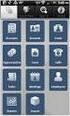 Mobile App User's Guide Copyright Statement Copyright Acronis International GmbH, 2002-2012. All rights reserved. "Acronis", "Acronis Compute with Confidence", "Acronis Recovery Manager", "Acronis Secure
ClickView app for iphone and ipad User manual for admins/teachers
 ClickView app for iphone and ipad User manual for admins/teachers Table of Contents How to download and install the ClickView app... 3 How to configure Single Sign-On (SSO) on the ClickView app... 5 How
CRESTRON-APP/CRESTRON-APP-PAD
 1 3 Introduction The free version of the app has limitations on the size and complexity of the project. For complete functionality, upgrade to the Pro version via an in-app purchase. The CRESTRON-APP and
www.novell.com/documentation User Guide Novell iprint 1.1 March 2015
 www.novell.com/documentation User Guide Novell iprint 1.1 March 2015 Legal Notices Novell, Inc., makes no representations or warranties with respect to the contents or use of this documentation, and specifically
User Guide Vodafone Pocket WiFi Pro. Designed by Vodafone
 User Guide Vodafone Pocket WiFi Pro Designed by Vodafone Welcome to the world of mobile communications 1 Welcome 2 Device overview 3 Getting started: setup 4 Getting started: use 5 Pocket WiFi online dashboard
Backups User Guide. for Webroot SecureAnywhere Essentials Webroot SecureAnywhere Complete
 Backups User Guide for Webroot SecureAnywhere Essentials Webroot SecureAnywhere Complete Webroot Software, Inc. 385 Interlocken Crescent Suite 800 Broomfield, CO 80021 www.webroot.com Version 8.0.1 Webroot
Foxit MobilePDF Business for ios Quick Guide
 for ios 1 Contents Foxit MobilePDF Business Chapter 1 Description... 3 Chapter 2 Main Menu... 5 Chapter 3 File Management... 6 Chapter 4 Viewing PDF Files... 7 Chapter 5 Annotation... 11 Chapter 6 Signatures...
ON24 MOBILE WEBCASTING USER GUIDE AND FAQ FEBRUARY 2015
 FEBRUARY 2015 MOBILE ATTENDEE GUIDE ON24 s Mobile Webcasting console allows you to bring your webcast directly to your audience, regardless of location. Users on mobile devices can register, attend, and
End User Guide. July 22, 2015
 End User Guide July 22, 2015 1 Contents Quick Start 3 General Features 4 Mac/Windows Sharing 15 Android/ ios Sharing 16 Device Compatibility Guide 17 Windows Aero Theme Requirement 18 2 Quick Start For
Novell Filr 1.0.x Mobile App Quick Start
 Novell Filr 1.0.x Mobile App Quick Start February 2014 Novell Quick Start Novell Filr allows you to easily access all your files and folders from your desktop, browser, or a mobile device. In addition,
OS X LION SET UP THE SYSTEM
 OS X LION SET UP THE SYSTEM OS X Lion Set Up the System Last Edited: 2012-07-10 1 Personalize the Interface... 3 Organize the Desktop... 3 Configure Apple Trackpad... 4 Configure Apple Magic Mouse... 6
Novell Filr. Mobile Client
 Novell Filr Mobile Client 0 Table of Contents Quick Start 3 Supported Mobile Devices 3 Supported Languages 4 File Viewing Support 4 FILES THAT CANNOT BE VIEWED IN THE FILR APP 4 FILES THAT GIVE A WARNING
Quick Installation Guide
 Quick Installation Guide (For Windows & Mac OS) Outdoor Wireless IP Camera Package Contents V1.1 IP Camera Power Adapter Resource CD Ethernet Cable Mounting Bracket(except FI8919) Wi-Fi Antenna Quick Installation
Point of View SmartTV-500 Center - Android 4.2. General notices for use...2 Disclaimer...2 Box Contents...2
 Point of View SmartTV-500 Center - Android 4.2 English Table of Contents General notices for use...2 Disclaimer...2 Box Contents...2 1.0 Product basics...3 1.1 Buttons and connections... 3 1.2 Connecting
Information Technology Services. Your mailbox is moving to the cloud. Here is what to expect.
 Your mailbox is moving to the cloud. Here is what to expect. Table of Contents Information for Outlook Web App users:... 2 Information for Office 2007 and 2010 Professional users:... 2 Information for
PDF MAPS FOR SMARTPHONES AND TABLETS
 INTRODUCTION Incident mapping often utilizes PDF documents of maps to be created for printing, archiving, and now for the ability to use these products in the field. With the release of Adobe Acrobat 9
Quick Start Guide Mobile Entrée 4
 Table of Contents Table of Contents... 1 Installation... 2 Obtaining the Installer... 2 Installation Using the Installer... 2 Site Configuration... 2 Feature Activation... 2 Definition of a Mobile Application
User Guide Vodafone Mobile Wi-Fi R210. Designed by Vodafone
 User Guide Vodafone Mobile Wi-Fi R210 Designed by Vodafone Welcome to the world of mobile communications 1 Welcome 2 Device overview 3 Getting started: Step 1 4 Getting started: Step 2 5 Mobile Wi-Fi web
Pendragon Forms Industrial
 Pendragon Forms Industrial Version 7 Installation & Reference Guide for Android Devices Contents What Is Pendragon Forms Industrial?... 2 Installing Pendragon Forms Industrial... 2 Installing Pendragon
What You Can Do with Canon Mobile Scanning for Business
 What You Can Do with Canon Mobile Scanning for Business You can scan, manage documents, and print from an iphone or ipad using a Canon multifunction device on a network. Scan Receive data scanned on a
Google Apps to Office 365 for business
 Google Apps to Office 365 for business Make the switch Office 365 for business looks different from Google Apps, so when you sign in, you ll get this view to get you started. You can choose your start
1. Application Overview... 3. 2. System Requirements... 3. 3. Installation... 3. 4. Splash Screen... 4. 5. Registration Screen...
 1 P a g e Table of Contents 1. Application Overview... 3 2. System Requirements... 3 3. Installation... 3 4. Splash Screen... 4 5. Registration Screen... 5 5.1 Registration... 5 6. Login Screen... 7 6.1
Quick Guide: ixpand Transfer
 Quick Guide: ixpand Transfer ixpand Transfer is Android application for SanDisk ixpand Flash Drive. This application enables you to back up your contacts, photos and videos in your Android smartphone or
Windows 10: A Beginner s Guide
 Windows 10: A Beginner s Guide Copyright 2014 Conceptual Kings. All are rights reserved. This book or any portion thereof may not be reproduced or used in any manner whatsoever without the express written
Internet and Email Help. Table of Contents:
 Internet and Email Help The following tips are provided to assist you in troubleshooting and managing your Plex Internet and email services. For additional issues or concerns, you may also call our Product
What You Can Do with Canon Mobile Scanning for Business
 What You Can Do with Canon Mobile Scanning for Business You can scan, manage documents, and print from an iphone or ipad using a Canon multifunction device on a network. New Functions in This Version Support
PhoneView Product Manual
 PhoneView Product Manual PhoneView is a Mac application for accessing iphone, ipad or ipod touch imessages, SMS/MMS, WhatsApp messages, contacts, call history, voicemails, shared app data, Safari web bookmarks
Software User's Guide
 Software User's Guide Brother QL-series The contents of this guide and the specifications of this product are subject to change without notice. Brother reserves the right to make changes without notice
Cloud & Mobile Printing
 Cloud & Mobile Printing 1 Agenda Intro to Mobile Printing Cortado Workplace eprint PrinterShare e-studio Web Scan & Print 2 Intro to Mobile Printing The Apple ios and Android devices were not built with
Advanced User s Guide
 Advanced User s Guide MFC-J6920DW MFC-J6925DW Version A UK/IRE/GEN User's Guides and where do I find them? Which Guide? What's in it? Where is it? Product Safety Guide Quick Setup Guide Basic User s Guide
PrinterOn Mobile Applications for ios and Android
 PrinterOn Mobile Applications for ios and Android Table of Contents 1. Key Features & Functionality... 4 1.1. Printer Discovery... 4 1.1.1. Location-Based Search... 4 1.1.2. Keyword Search... 5 1.1.3.
QQConnect Overview Guide
 QQConnect Overview Guide Last Updated: 3/20/2015 About QQConnect QQConnect is an add-on utility for QQCatalyst that makes it easy to transfer documents and e- mails from your Windows desktop or desktop
How To Use Senior Systems Cloud Services
 Senior Systems Cloud Services In this guide... Senior Systems Cloud Services 1 Cloud Services User Guide 2 Working In Your Cloud Environment 3 Cloud Profile Management Tool 6 How To Save Files 8 How To
EZ RMC Remote HMI App Application Guide for ios
 EZ RMC Remote HMI App Application Guide for ios The EZ RMC Remote HMI App is an application designed for your ios devices to enable the monitoring and control of your EZTouch HMIs from EZAutomation.net.
Microsoft Office PowerPoint 2013
 Microsoft Office PowerPoint 2013 Navigating the PowerPoint 2013 Environment The Ribbon: The ribbon is where you will access a majority of the commands you will use to create and develop your presentation.
User Guide Vodafone Mobile Wi-Fi R206-Z. Designed by Vodafone
 User Guide Vodafone Mobile Wi-Fi R206-Z Designed by Vodafone Welcome to the world of mobile communications 1 Welcome 2 Device overview 3 Getting started: Step 1 4 Getting started: Step 2 5 Mobile Wi-Fi
ShareSync Get Started Guide for Windows
 WHAT IS SHARESYNC? ShareSync Get Started Guide for Windows ShareSync is an enterprise-class cloud file backup and sharing service. ShareSync allows you to back up your files in real-time to protect against
PDF Expert for ipad User guide
 PDF Expert for ipad User guide 2011 Readdle Inc. 2 Contents Introduction Chapter 1: Copying documents to PDF Expert USB file transfer using itunes File Sharing Saving attachments from Mail and other ipad
ShareSync Get Started Guide for Mac
 ShareSync Get Started Guide for Mac WHAT IS SHARESYNC? ShareSync is an enterprise-class cloud file backup and sharing service. ShareSync allows you to back up your files in real-time to protect against
Adobe Acrobat 6.0 Professional
 Adobe Acrobat 6.0 Professional Manual Adobe Acrobat 6.0 Professional Manual Purpose The will teach you to create, edit, save, and print PDF files. You will also learn some of Adobe s collaborative functions,
Contents XP-860 User's Guide... 15 Product Basics... 16 Wi-Fi or Wired Networking... 37
 XP-860 User's Guide Contents XP-860 User's Guide... 15 Product Basics... 16 Using the Control Panel... 16 Control Panel Buttons and Lights... 16 Using the LCD Screen... 17 Adjusting Control Panel Position...
Cloud Portal for imagerunner ADVANCE
 Cloud Portal for imagerunner ADVANCE User's Guide Please read this guide before operating this product. After you finish reading this guide, store it in a safe place for future reference. ENG How This
PDF Expert Enterprise User guide
 PDF Expert Enterprise User guide 2012 Readdle Inc. 2 INTRODUCTION 3 CHAPTER 1: DOCUMENT VIEWING AND MANAGING IN PDF EXPERT ENTERPRISE 4 Reading and working with PDF documents 4 Managing files and folders
The Coast to Coast AM Podcast for itunes 11
 The Coast to Coast AM Podcast for itunes 11 System Requirements In order to run itunes 11, please see the system requirements at http://www.apple.com/itunes/download/. A Note on Downloading Directly to
genie app and genie mobile app
 genie app and genie mobile app User Manual 350 East Plumeria Drive San Jose, CA 95134 USA June 2012 202-10933-02 v1.0 2012 NETGEAR, Inc. All rights reserved No part of this publication may be reproduced,
Enterprise Analytics. (Also known as Pyramid Analytics or BI Office) Mobile Device Support
 Enterprise Analytics (Also known as Pyramid Analytics or BI Office) Mobile Device Support Mobile Device Support Overview Enterprise Analytics provides mobile support for ios, Android and Windows Phone.
How To Use The Lutron Home Control+ App On An Ipad Or Ipod
 for the Apple ipad TM, iphone TM and ipod touch revision B Page 1 1.800.523.9466 Overview... 3 What hardware and software do I need?... 4 How does the ipad/iphone/ipod Touch connect to my Lutron system?...
En Wireless Mobile Utility (Android) User s Manual. D610, D600, D7100, D5300, D5200, D3300, Df 0 2 26
 1 En Wireless Mobile Utility (Android) User s Manual Install the Wireless Mobile Utility on your smart device (smartphone or tablet) to download pictures from a camera or take pictures remotely. The Wireless
Mobile App User's Guide
 Mobile App User's Guide Copyright Statement Copyright Acronis International GmbH, 2002-2012. All rights reserved. "Acronis", "Acronis Compute with Confidence", "Acronis Recovery Manager", "Acronis Secure
Seagate Global Access User Guide
 Seagate Global Access User Guide Seagate Global Access User Guide 2012 Seagate Technology LLC. All rights reserved. Seagate, Seagate Technology, the Wave logo, and FreeAgent are trademarks or registered
FREQUENTLY ASKED QUESTIONS
 Tip for use of FAQ: Click on questions to go to answer. GETTING STARTED... 2 Which hearing devices do I need to use the app?... 2 Why do I need the ReSound Unite Phone Clip+ to use the app?... 2 I have
Remote Configuration for FileBrowser
 Remote Configuration for FileBrowser Page 1 Remote Configuration for FileBrowser Introduction The ability to create and read settings files is built into all versions of FileBrowser. At its simplest, this
User Guide Vodafone Pocket WiFi Extreme. Designed by Vodafone
 User Guide Vodafone Pocket WiFi Extreme Designed by Vodafone Welcome to the world of mobile communications 1 Welcome 2 Device overview 3 Getting started: setup 4 Getting started: use 5 Pocket WiFi online
1. You will have knowledge of all the features of Yosemite and ios 8 that allow employees and business owners to collaborate on their work.
 Collaboration Collaboration simply means to work together and that is exactly what Yosemite and ios 8 do for individuals and organisations. Quite often organisations face challenges around how to get technology,