
Barracuda & QABrowser
|
|
|
- Baldric Dixon
- 9 years ago
- Views:
Transcription

1 Barracuda & QABrowser Reference Manual - English - Version 4.3A RTI article number:

2 Welcome to Barracuda and the QABrowser The Barracuda is an X-ray Analyser/Multimeter for everybody working with Quality Assurance and Service of X-ray systems.

3 Notice III NOTICE RTI Electronics AB reserves all rights to make changes in the Barracuda, the QABrowser, and the information in this document without prior notice. RTI Electronics AB assumes no responsibility for any errors or consequential damages that may result from the use or misinterpretation of any information contained in this document. Copyright by RTI Electronics AB. All rights reserved. Content of this document may not be reproduced for any other purpose than supporting the use of the product without prior permission from RTI Electronics AB. Palm, palmone, and TUNGSTEN are trademarks of PalmOne, Inc. HotSync and Graffiti are trademarks of ACCESS CO., LTD Microsoft, Windows, Win32, Windows XP, 2003, Vista, and 7 are either registered trademarks or trademarks of Microsoft Corporation in the United States and/or other countries. BLUETOOTH is a trademark owned by Bluetooth SIG, Inc., USA. Contact Information World-Wide Contact Information United States RTI Electronics AB Flöjelbergsgatan 8 C SE MÖLNDAL Sweden RTI Electronics Inc. 33 Jacksonville Road, Bldg. 1, Towaco, NJ 07082, USA Phone: Int Phone: (Toll free) Int Fax: Int Fax: Int Sales: [email protected] Support: [email protected] Service: [email protected] Sales: [email protected] Support: [email protected] Service: [email protected] Web site: Web site:

4 IV Intended Use Intended Use of the Barracuda System Accessory to diagnostic X-ray equipment to be used as an electrometer. Together with external probes it is to be used for independent service and quality control, as well as measurements of kerma, kerma rate, kvp, tube current, exposure time, luminance, and illuminance within limitations stated below. If installed according to accompanying documents, the product is intended to be used together with all diagnostic X-ray equipment except for: - therapeutical X-ray sources. - X-ray equipment with tube potential below 20 kv. - X-ray equipment on which the instrument cannot be mounted properly, e.g. equipment where the beam field size is narrower than the active part of the detector. - specific types of X-ray equipment listed in the instructions for use or in additional information from the manufacturer. With the X-ray installation in stand-by conditions without patients present, the product is intended to be used: - to provide the operator with information on radiation beam parameters that might influence further steps in an examination but not an ongoing exposure. - for assessing the performance of the X-ray equipment. - for evaluation of examination techniques and procedures. - for service and maintenance measurements. - for quality control measurements. - for educational purposes, authority supervision etc. The product is intended to be used by hospital physicists, X-ray engineers, manufacturer's service teams, and other professionals with similar tasks and competencies. The operator needs a short training to be able to use the product as intended. This training can be achieved either by careful study of the manual, studies of the built-in help function in measurement software or, on request, in a short course ordered from the manufacturer. The product is intended to be used inside X-ray rooms ready for clinical use and can safely be left switched on and in any measuring mode in the vicinity of patients. The product is NOT intended to be used: - for direct control of diagnostic X-ray equipment performance during irradiation of a patient. - so that patients or other unqualified persons can change settings of operating parameters during and immediately before and after measurements.

5 Contents 1 Table of Contents... 6 Introduction About this Manual... Introduction... to the Barracuda PC Requirements... Palm OS Computer... Requirements Description of the Barracuda Overview... of the Barracuda Cabinet and... Modules The Multi-Purpose... Detector (MPD) Setting Up... the Barracuda for the First Time Setting Up... the Barracuda Hardware... and Specifications Waste Electrical...41 and Electronic Equipment (WEEE) Manufacturer's...42 Declaration of Conformity Intended Use...43 Maintenance Cabinet...17 General...17 Specifications,...18 Cabinet Multi-Purpose...18 Detector (MPD) General...18 Specifications,...19 MPD Typical Response,...24 MPD Angular Sensitivity,...27 MPD Signal-Extension...29 Module (MP-SEM) General...29 Specifications,...29 MP-SEM Electrometer...29 Module (EMM) General...29 Specifications,...30 EMM Optional...33 Detectors Typical Other...38 Detectors Standards... and Compliances Barracuda...44 Batteries Exchanging...44 Batteries Charging...44 the Batteries Updating the...45 Barracuda Firmware Managing...48 Detector Calibrations Transferring...49 Detector Calibrations Exchanging...50 Modules Description... of the QABrowser 55 Introduction... to the QABrowser 55

6 2 Contents Starting the... QABrowser 55 Real-time... Display and Waveforms Using the...56 Real-Time Display Waveforms Acquiring and Viewing Measurement...62 Settings Settings Conditions Settings Barracuda Settings MPD Settings Other Detectors 3.4 QABrowser... Applications Data Logging Favourites Getting Started...80 with Favourites Start here!...83 QABrowser... Setup Regulations...84 Setup Units Setup...84 Log Setup...85 Preferences...85 Setup Detector Information...86 System Info...86 System Test...87 Battery &... Power Status 87 Indicators... and Symbols 89 Installation... of Palm OS Handheld Computers The Accuracy...73 Application (single-parameter) The Accuracy...75 Application (multi-parameter) Updating QABrowser...91 on the handheld Uninstalling...93 the QABrowser Measurement... Principles & Theory Overview... of Capability for Measurement Modes 95 Measurement... Type Settings 95 Update Modes Display Messages... and Active Messages Using Timed...97 Update Mode Using Free...98 Run Update Mode Active Messages...99 Display Messages Waveforms... and Triggers Measurement... Principle for the MPD HVL & Total... Filtration Linearity... Reproducibility Measurements... with the Barracuda System 109 Introduction Very Low... Dose Rate Measurements with EMM-BiasW 110

7 Contents kvp, Time, Dose, and Dose Rate Dose Measurements with R100 or Ion Chamber HVL Application Quick-HVL and Total Filtration Cine/Pulsed... Radiography kvp, Time, Dose, and Dose Rate Pulse Measurements with R100 or Ion Chamber HVL, Quick-HVL, and Total Filtration Fluoroscopy... and Pulsed Fluoroscopy Image Intensifier Input Dose Rate kvp and Dose Rate HVL, Total Filtration, and Quick-HVL Pulsed Fluoroscopy Mammography General Setting Up the Barracuda for Mammography kvp, Time, and Dose Measurements with the MPD Dose Measurements with the R100 or Ion Chamber HVL Application Mammo Compensations and Corrections Corrections for the Compression Paddle Normalization Beam Correction Factor Corrections for Angular Sensitivity Average Glandular Dose, AGD (MGD) Mammographic Pre-pulses Scanning Beam Mammography Dental and... Panoramic Dental kvp, Time, Dose, and Dose Rate Waveforms Panoramic Systems HVL, Total Filtration, and Quick-HVL CT CT kvp CT Dose and CT Dose Index (CTDI) CT Scan Time (Exposure Time) CT mas Parameters for CT Scanner Models Definition of CTDI Quick-HVL and Total Filtration Tube Current... Probes MAS-1B, Invasive mas Probe MAS-2B, Non-invasive mas Probe MAS-3, Non-invasive mas Probe Light Measurement Radiography Luminance Monitor/Viewbox (cd/m²) Illuminance Ambient Light (lx) Optional... Accessories 178

8 4 Contents Holder &... HVL Stand Barracuda... MPD Panoramic Holder USB Serial... Port Adapter Barracuda... Bluetooth Serial Module Problems... and Solutions Troubleshooting Bluetooth Bluetooth Passkey Enable Bluetooth Passkey How To Report... a Problem 191 Glossary Index

9 Chapter 1 Introduction

10 Introduction About this Manual Introduction 1.1 About this Manual This manual is divided into a few main parts A general description of the Barracuda. A general description of the QABrowser. Some theoretical background and basic principles. Descriptions on performing measurements with the system for different modalities. Description of different accessories for the Barracuda. Troubleshooting tips, an FAQ, and a glossary Users who use the Barracuda with only a PC and ortigo are recommended to read at least the following topics: Introduction Description of the Barracuda Measurements with the Barracuda System This manual gives a short introduction to handheld computers and enough of information to get started and use it with the Barracuda. However, it is advised (if you are going to use a handheld computer) to study the manual that is included with your handheld computer to get familiar with its capabilities. Pictures in included manuals for detectors and probes may include an ADI module (a small module with a connector attached to the detector cable). ADI modules are used to store calibration data and used by other products than the Barracuda from RTI Electronics. For the Barracudasystem, calibration data is instead stored inside the system. See section Managing Detector Calibrations 48 for more information. The handheld computer is sometimes called "Palm" or "Palm computer" in this manual, this is referring to all types of handheld computers running Palm OS or Windows Mobile that currently are possible to use with the Barracuda and the QABrowser. Typographical Rules Terms in bold face are references to texts on screenshots, like buttons and texts, and menu items. Other terms are italicized. 1.2 Introduction to the Barracuda Congratulations to your purchase of a Barracuda. You have now in your hand the most powerful tool for X-ray analysis. It has been carefully designed to meet the needs of both standard QA applications as well as advanced service/repair/calibration of modern X-ray systems, while still being very simple and intuitive to use. It can measure all the required parameters such as kvp, exposure time, dose, dose/pulse, dose rate, tube current, mas, waveforms, and much more. One single detector, the unique multi-purpose detector (MPD) can be used for radiography, mammography, fluoroscopy, pulsed fluoroscopy, cine, dental, dental panoramic, and CT (not CT dose).


11 1. Introduction Introduction to the Barracuda 7 The Barracuda can be used in two different ways: As a "meter" with a handheld computer and the QABrowser. As a complete "QA-system" with a PC and the ortigo software. This manual describes the Barracuda and the QABrowser. The PC software, ortigo, is described in a separate manual. The Barracuda system's main features are: Very easy and intuitive to use Accurate No manual corrections are needed Measures on all modalities with one detector Specially designed measuring modes for pulsed waveforms Compact QABrowser or ortigo is used for control and data processing Waveform analyser with high-speed sampling and long storage time The modular design guarantee easy upgrade and enhanced serviceability RS-232 and USB interface Free upgrade of firmware (software in cabinet and modules) New and unique design The modular design makes it very simple to upgrade your Barracuda hardware if you later need more measuring capacity or when new technology requires new measuring capabilities. RTI Electronics will continuously add new functions and make improvements to the Barracuda. Free upgrades of the firmware (the software resident in the cabinet and measuring modules) are available on RTI Electronics Web site at If you have questions, comments, or feel that some functionality is missing, you are welcome to contact us at RTI Electronics at [email protected]. You can of course also call or send a fax (see notice section for details).

12 Introduction PC Requirements PC Requirements To run the RTI Updater and the QABrowser Updater the following is required: Minimum requirements Windows XP, 2003, Vista, 7 32-bit, or 7 64-bit. Pentium class 300 MHz, 64 MB RAM (24 MB free), 60 MB of HD 1 USB port or RS232 serial port Display and graphics card with at least resolution Recommended requirements Windows 7 32-bit Pentium class 500 MHz, 128 MB RAM (32 MB free), 100 MB HD USB port CD/DVD-ROM for installation Internet connection for updates (Recommended) 1: Virtual memory and available hard drive space. Microsoft recommends that you have at least 20 % of your total HD space free for virtual memory. 1.4 Palm OS Computer Requirements To run the QABrowser the following is required: Minimum requirements PalmOS v5.0 or higher 16 MB of memory Colour screen with a resolution of pixels Palm connection: Either cable with connector: - Universal (Tungsten T, T2, T3) - Multi (Tungsten E2, Tungsten T5, TX, Treo 650,...) Or Bluetooth wireless (with optional Bluetooth adapter for Barracuda). Recommended requirements RTI Handheld Display or Palm Tungsten E2/TX Bluetooth wireless (with optional Bluetooth adapter for Barracuda).

13 Chapter 2 Description of the Barracuda


14 Description of the Barracuda Overview of the Barracuda Description of the Barracuda 2.1 Overview of the Barracuda The main parts of a typical Barracuda system are: The cabinet, containing one or more modules The Multi-Purpose Detector, called MPD, measuring tube voltage, exposure time, dose, and dose rate A handheld computer with the QABrowser software and/or a PC with the ortigo software Multi-Purpose Detector (MPD) Cabinet Handheld computer (with modules) (RTI Handheld Display shown) Many different probes and detectors can be used with the Barracuda. These probes require at least one EMM (electrometer module): R100, solid-state dose detector for low dose rate measurements. R100B, solid-state dose detector for low or very low dose rate measurements. L100B, light detector for test of viewing boxes and monitor screens. MAS-1B, MAS-2B, or MAS-3, mas probes for tube current and charge measurements. DCT10 or DCT16, CT ionization chambers. Other ionization chambers with BNT, TNT, or BNC/Banana connectors. Later in this manual the different probes and detectors are described. Below a block diagram of a typical Barracuda system is shown.


15 2. Description of the Barracuda Overview of the Barracuda Cabinet and Modules The cabinet is the main part of the Barracuda to which all detectors are connected. The cabinet can be configured in different ways depending on the requirements of the user. Connectors, switches, and indicators are located both on the cabinet and on the contained modules. This section gives a brief description of the cabinet and the modules. A more detailed description of each module is found in Hardware and Specifications 17. Charging of batteries Indicates when the internal batteries are charging External power supply Power switch Indicates when the external Turns the Barracuda on and power supply is connected off The Power switch is used to turn the Barracuda on and off. Barracuda has several ways of saving power when it is inactive, but must be powered off manually since there is no auto-power off function. The indicator for Charging of batteries is lit when charging is enabled and chargeable batteries are used. Only use recommended batteries and never charge non-chargeable batteries. This may damage your Barracuda cabinet.


16 12 2. Description of the Barracuda Cabinet and Modules The indicator for External power supply is lit when the Barracuda is powered from an external power source. Use only the power supply that comes with the Barracuda. Support for Palm Holder (for old Palm models) Serial interface Connects to a handheld computer or PC USB interface Connects to a PC Power supply input (12 V) Use only approved power supply The Serial interface is an RS-232 interface and is used to connect to the handheld computer or to a PC. Here a Bluetooth adapter, the RS232 PC interface (serial cable between PC and Barracuda), or the Palm interface (serial cable between handheld and Barracuda) may be connected. The data speed is 57,6 kbit/s when using a handheld computer, and maximum 115 kbit/s when using a PC. The USB interface is used to connect the Barracuda to a PC running the QA software ortigo. Note that the USB connector cannot be used when connecting to a handheld computer. The external power supply (12 V) is connected to the Power connector. Use only the power supply recommended by the manufacturer. Country-specific plugs are available. On the rear of the cabinet all connectors for detectors and probes are found.


17 2. Description of the Barracuda Cabinet and Modules EMM Electrometer Module EMM LED indicator Indicates if the module is selected or active MPM LED indicator Indicates if the module is selected or active EMM Input Channel #2 (b) MPM Connector Connects to MPD via the MPD Cable. EMM Input Channel #1 (a) MP-SEM MPD high-speed electrometer input 13 MP-SEM Signal Expansion Module for MPD. Combined with MPM. MPM Multi-Purpose Module. Connects to MPD. Trig input To MPD Waveform out and Trig out From MPD The figure above shows a cabinet with three modules and three free slots ("dummy modules"). The number and type of modules are depending on the configuration of your Barracuda system. An orange LED indicator is located on all modules. The LED indicator is used for different purposes: Indicates that the module is selected. Used to guide the user to connect a probe or detector to the right module. The function of the LED is described more in detail in the topic Hardware and Specifications 17. The following module types are presently available MPM Multi-Purpose Module. The Multi-Purpose Detector is connected to this module via a 2 m cable (or an optional 6 m cable). MP-SEM This module is used for special measurements. The module has a signal input that can be used to acquire any kind of external signal. The module also has a Trig In and a Trig Out connector. This makes it possible to start a measurement from an external signal rather than from the measured signals. You can also supply a trig signal from the Barracuda to other systems. Five different types of EMM modules (electrometer modules) are available. EMM-1Ch One channel electrometer without bias voltage. This module is necessary for all standard measurement with solid-state dose detectors, light detector, and mas probes. EMM-2Ch Two channel electrometer without bias voltage. It is the same as

18 14 2. Description of the Barracuda Cabinet and Modules EMM-1Ch but it has two channels that can be used independent of each other allowing you to measure with two external detectors simultaneously. EMM-Bias One channel electrometer with built-in polarizing voltage supply (bias) and floating input. This module is required when using ionization chambers with LEMO connectors (BNT or TNT adapters are available). The bias can be turned off, allowing use of solid-state dose detectors, light detectors, and mas probes. The bias voltage is user selectable between 300 V and +300 V. A yellow LED is indicating when the bias is activated. Note that turning on and off the polarizing voltage (bias) takes approximately 15 seconds. Warning: Always make sure that the bias is off before connecting detectors. EMM-BiasB One channel electrometer with built-in polarizing voltage supply (bias). It is the same as EMM-Bias but the bias voltage can be output either as a floating input on the LEMO triaxial connector or on the 3 mm banana connector. This means that this module supports both ion chambers with triaxial connectors (LEMO, BNT, or TNT connectors) as well as BNC/Banana connectors. EMM-BiasW One channel electrometer with built-in polarizing voltage supply (bias). It is the same as EMM-BiasB but it can only be used with unipolar positive current detectors, like R100B, MAS-2B, and ion chambers. This module supports both ion chambers with triaxial connectors (LEMO, BNT, or TNT connectors) as well as BNC/Banana connectors. Modules can easily be uninstalled or installed by the user at any time allowing easy upgrade or solve technical problems without sending away the complete Barracuda system for service. Read more in the topic Exchange of modules The Multi-Purpose Detector (MPD) The Multi-Purpose detector is a universal detector used for all type of X-ray systems; radiography, cine, fluoroscopy, pulsed fluoroscopy, mammography, dental, panoramic dental, and CT. You can measure the following parameters in one exposure with the MPD: Tube voltage (kvp) Exposure time Dose (CT dose requires a special CT ionization chamber) Dose rate Dose/pulse and pulse rate Total filtration (radiography, fluoroscopy, dental, and CT, kv, 1.5 mm to 38 mm Al) Quick-HVL (radiography, fluoroscopy, dental, and CT, kv, 1.2 mm to 14 mm Al) kvp waveform Dose rate waveform The estimations of total filtration and Quick-HVL are done from one single exposure using a combination of detector and filters in the MPD. In situations when the total


19 2. Description of the Barracuda The Multi-Purpose Detector (MPD) 15 filtration cannot be automatically estimated, a "standard" HVL measurement may be required. All measured kvp and dose values measured with the MPD are automatically compensated for the actual beam quality. This means that no manual corrections of measured data is needed. Range indicator (on the edge as shown below) Detector area The white marking indicates where the active detector area is located. Minimum X-ray field is 3 21 mm. Range indicator (3 in this case) The MPD utilizes a completely new technology using several detectors and filters to measure. No manual filter changes are required since the filters are located inside the MPD and moved by commands from the handheld computer or the PC. A range indicator is visible on the edge at the top of the MPD. A number corresponding to each filter is shown, and this number is also used in the QABrowser and ortigo to identify different ranges. This indicator can be used to verify the mechanical function of the MPD. The active detector area is marked by a white rectangle on the top panel of the MPD. The minimum X-ray field that can be used is 3 21 mm. The actual width of the detector is 2.7 mm. The detector surface is 8 mm below the surface, as indicated by the lower edge of the range indicator opening. The MPD has a special Check function to verify the position of the MPD and compensate for small mis-alignments or inhomogenities. The MPD is very sensitive and can measure at very low output from the X-ray tube. The MPD connects to the MPM in the cabinet via a 2 m cable (an optional 6 m cable is available). The normal way to work with the Barracuda is to place the cabinet and the MPD close to the tube inside the X-ray room. The handheld computer or PC is connected with a long cable and placed in the control room together with the user. 2.4 Setting Up the Barracuda for the First Time Before you use your Barracuda for the first time, please do the following: Mount the batteries. Attach the external power supply.

20 16 2. Description of the Barracuda Setting Up the Barracuda for the First Time Charge the system for 16 hours. Then continue according to the following section. 2.5 Setting Up the Barracuda The Barracuda system comes in a customized case. Two different cases are available, one smaller carrying case (CAS-6) with space for a basic Barracuda system. The larger case (CAS-7) is a transportation case with space for a complete Barracuda system with all its accessories. The cases are designed to store typical accessories to the Barracuda, like Palmtop, probes, chargers, and cables. The figure above shows the smaller case, the CAS-6. To set up the Barracuda: 1. Pick up the cabinet, the MPD, and the handheld computer from the case. 2. Connect the MPD cable to the connector on the rear on the cabinet, see figure below. The connector has the text "TOP" on one side. This text should be pointing up when connecting the MPD cable. If there is no text use the two marks on one side. These marks should be to the right when you are looking at the cabinet from the rear. Do not use unnecessary force. To disconnect the MPD cable press the two "buttons" on each side of the connector house and gently remove it. MPD Cable with connector 3. Connect the other connector to the MPD. The connector has the text "TOP" on one side. The text should be at the same side as the MPD detector area. If there is no text let the marks (from 2 above) be on the side towards the bottom of the MPD. Do

21 2. Description of the Barracuda Setting Up the Barracuda 17 not use unnecessary force. To disconnect the MPD cable press the two "buttons" on each side of the connector house and gently remove it. 4. Place the MPD under the tube or mount the holder and HVL stand for positioning of the MPD in the X-ray field. See the figure to the left. The stand allows you to position the MPD (or the R100 dose detector) and HVL filters in any angle including upside-down. Use the light-field or other help to position the MPD in the X-ray field. The MPD detector is not sensitive for different field sizes as long as the entire sensitive detector area is irradiated, but try to keep the field size down to minimize scattering. It is also recommended to position the MPD in such a way that the detector area is orientated perpendicular to the anode/cathode axis, to avoid the heel effect. Recommended field size is mm. 5. Optionally you may connect the power supply to the cabinet. Now everything is set up with the hardware. 2.6 Hardware and Specifications Specifications are valid after a warm-up time of one minute and presuming reference conditions. All specifications are for use together with the Barracuda unless otherwise stated. All specifications can be changed without prior notice. RTI Electronics AB assumes no responsibility for any errors or consequential damages that may result from the misuse or misinterpretation of any information contained in these specifications Cabinet General The cabinet is the hub of the Barracuda system. The cabinet holds the different modules and controls their functionality. The cabinet also controls the data flow between the modules and the user interface, which can be either a handheld computer or a PC. The cabinet has six places for modules, there are several different electrometer modules, one signal extension module, and a multi-purpose module (that connects to the multi-purpose detector) available. The modular design gives a flexible system, which can be individually designed to fit almost any QA need. The Barracuda uses six 1.5 V R6 batteries (alkaline or chargeable) or an external 12 V DC power supply. The chargeable batteries can be recharged when the Barracuda is powered from the external power supply. The operation time depends on the number of modules used, and mode of operation. See the table below for approximate operation times (with Cabinet firmware v1.4a or newer). There are two ways to control the Barracuda and to present measured data; either via a handheld computer or through a PC. The cabinet has two different interfaces, RS232 and USB.
22 Description of the Barracuda Hardware and Specifications Specifications, Cabinet General Size Weight Operating temperature and relative humidity Storage temperature Operating air pressure mm, (6.1" 5.3" 2.4") Approximately 1,0 kg C at <80 % relative humidity 10 C to +50 C Minimum kpa Power Source Power supply Battery operated External power 12 V AC/DC adapter Six 1.5 V batteries type LR6 (size AA), alkaline or type HR6 chargeable NiMH. Operation time (with 1 EMM and 1 MPD), typically: 5 hours with 2100 mah NiMH batteries 6.5 hours with 2600 mah NiMH batteries 3-4 hours with alkaline batteries V AC 50/60 Hz with external adapter. Chargeable batteries can be charged in the cabinet when external power is connected. When not running the MPD motor, the system may also be supplied from a laptop computer via USB. The USB supply current is limited, so it may not work in all cases. PC Communication USB RS232 / Bluetooth Max 12 Mbit/s (USB v1.1) kbit/s Handheld Computer Communication RS232 / Bluetooth kbit/s Multi-Purpose Detector (MPD) General With this multi-purpose detector you will manage most of your measurements. Tube voltage, exposure time, dose, and dose rate are measured for all kinds of modalities: conventional radiography, fluoroscopy, pulsed fluoroscopy, cine, mammography, dental, panoramic dental, and CT (kvp only, not dose and doserate). In one exposure, the detector provides tube voltage, time, dose, dose rate, quick-hvl, and estimated total filtration on radiographic, fluoroscopic, dental, and CT exposures. On pulsed radiation and cine, also dose per pulse and pulse rate are measured. The multi-purpose detector is very sensitive and can measure peak tube voltage for as low outputs as 50 kv / ma at 50 cm.
23 2. Description of the Barracuda Hardware and Specifications 19 Typically the exposure time has to be at least 5 ms to get a kvp value but it depends on the waveform. On modern X-ray generators (high-frequency with fast rise and fall times) the peak tube voltage can normally be measured with exposure time as short as 1 ms. Dose and time values will be given for even shorter exposure times. The multi-purpose detector is connected to the multi-purpose module with a 2 m cable (an optional 6 m cable is also available), however all specifications given are for the 2 m cable Specifications, MPD The inaccuracy is here defined as the root of the square sum of systematic errors, which has not been eliminated, and random errors (dispersion around a mean value). The calculation of the inaccuracy is based on 15 different measurements and with a confidence level of 95 %. Of the total inaccuracy, random error is 20 % and general inaccuracy is 80 %. Note: Irradiation time is often called exposure time in daily use. Reference conditions Temperature Relative humidity Air pressure X-ray field size Radiation quality Radiography Mammography CT +18 C to +23 C 50 % kpa Inside the MPD top panel. Calibration is done with field size typically 5 mm less than the size of the top panel. 70 kv, 2.5 mm Al 28 kv, 30 µm Mo 120 kv, 2.5 mm Al Note: The reference conditions are given in reference to the IEC61674 standard. Physical dimensions Detector area Detector position Size Weight mm 8.13 mm below top panel, as indicated in figure below mm (4.8" 2.1" 0.55") Approximately 250 g
24 20 2. Description of the Barracuda Hardware and Specifications Parameters Tube voltage (kvp) Time Air kerma (Dose) Air kerma rate (Dose rate) Total Filtration Quick-HVL Half Value Layer kv waveform Dose rate waveform The average of all samples with compensation for the ripple (default method) Irradiation time (Exposure time) Measured air kerma (may be called dose or air kerma in this manual) Average air kerma rate (may be called dose rate or air kerma rate in this manual) Estimation of total filtration (for conventional radiography, fluoroscopy, dental, and CT) Estimation of Half Value Layer (for conventional radiography, fluoroscopy, dental, and CT) Standard HVL using filters for evaluation on radiography, fluoroscopy, dental, and mammography (all for both pulsed and conventional) Waveform is calculated based on detector signals measured after different thickness of filtration. Signal measured from radiation detector (ionization chamber or solid-state detector).
25 2. Description of the Barracuda Hardware and Specifications 21 Measuring range and inaccuracy Radiography, Fluoroscopy, and Dental Parameter kvp (standard) W / 3 mm Al kvp dental W / 3 mm Al Irradiation time BQ Air kerma (Dose) Air kerma rate (Dose rate) -Overall -Free run -High Sensitivity -Low Sensitivity 2 2 Range Inaccuracy R kv R kv 0.1 ms 2000 s pulses 15 ngy 1000 Gy (2 µr 100 kr) 15 ngy/s 450 mgy/s 1.7 µr/s 50 R/s 0.1 mr/min 3000 R/min ±1.5 % ±1.5 % Resolution 4 digits (10 or 100 V) As above ±1 % or ±0.5 ms ±1 pulse ±5 % 0.5 ms 1 pulse 3 ±5 % or ±7 ngy/s ±5 % or ±0.8 µr/s ±5 % or ±0.05 mr/min (for Irr. time >20 ms) 15 ngy/s 12 mgy/s 2 ±5 % or ±7 ngy/s 150 ngy/s 12 mgy/s 2 ±5 % or ±7 ngy/s 25 µgy/s 450 mgy/s ±5 % or ±0.1 µgy/s Typ. noise: 3 ngy/s Typ. noise: 3 ngy/s 2 Estimated total filtration mm Al ( kv) Quick-HVL mm Al ( kv) 4 ±10 % or ±0.3 mm ( kv, HF/DC) ±10 % or ±0.2 mm ( kv, HF/DC) 1 2 digits (0.1 or 1 mm) 3 digits (0.01 or 0.1 mm) Note 1: This is valid for a tube with 13 anode angle. The HVL for a 22 anode is typically 0,5 mm lower (@ 80 kv, 3 mm TF). Note 2: All kerma and kerma rate ranges, inaccuracy, and resolution figures are valid for product version 2 and higher of the MPD. Note 3: The Kerma rate is calculated as the Kerma (Dose) divided by the Irradiation time. See also Waveforms and Triggers 102. Note 4: The HVL range is valid if also the TF is within its specified range. For high TF at high kv the HVL range may be limited by this.
26 22 2. Description of the Barracuda Hardware and Specifications Mammography Parameter kvp (standard) Mo / 30 µm Mo Mo / 25 µm Rh Rh / 25 µm Rh W / 50 µm Rh W / 0.50 mm Al Mo / 1.0 mm Al W / 55 µm Ag W / 75 µm Ag W / 50 µm Rh (Gio) kvp (optional) Mo / 30 µm Mo mm Al Mo / 2.0 mm Al Rh / 1 mm Al Irradiation time Air kerma (Dose) Air kerma rate (Dose rate) -Overall 1 -Free run -High Sensitivity -Low Sensitivity 1 BQ M1 M3 M4 M6 M7 M8 M10 M11 M12 Range kv kv kv kv kv kv kv kv kv M1d kv M2 M kv kv 0.1 ms 2000 s pulses 25 ngy 1500 Gy 3 µr 150 kr 25 ngy/s 750 mgy/s 2 30 µr/s 86 R/s 1.8 mr/min 5100 R/min 25 ngy/s 20 mgy/s 0.25 µgy/s 20 mgy/s 45 µgy/s 750 mgy/s Inaccuracy Resolution ±1.5 % or ±0.7 kv ±2 % or ±1 kv ±2 % or ±1 kv ±2 % or ±1 kv ±2 % or ±1 kv ±2 % or ±1 kv ±2 % or ±1 kv ±2 % or ±1 kv ±2 % or ±1 kv 4 digits (10 V) ±2 % or ±1 kv 4 digits (10 V) ±2 % or ±1 kv ±2 % or ±1 kv ±1 % or ±0.5 ms ±1 pulse ±5 % ±5 % ±5 % or ±12 ngy/s ±5 % or ±1.5 µr/s ±5 % or ±0.1 mr/min (for Irr. time >20 ms) ±5 % or ±12 ngy/s ±5 % or ±12 ngy/s ±5 % or ±0.2 µgy/s 0.5 ms 1 pulse Typ. noise: 6 ngy/s Typ. noise: 6 ngy/s Note 1: All kerma and kerma rate ranges, inaccuracy, and resolution figures are valid for product version 2 and higher of the MPD. Note 2: The Kerma rate is calculated as the Kerma (Dose) divided by the Irradiation time. See also Waveforms and Triggers 102.
27 2. Description of the Barracuda Hardware and Specifications 23 Computed Tomography Parameter kvp (standard) W / 3.0 mm Al kvp (optional) W / 3.0 mm Al mm Cu W / 3 mm Al mm Ti (Siemens Sensation 32) 2 GECT 2, 3 Irradiation time BQ Range Inaccuracy C kv ±1.5 % C kv ±1.5 % C kv ±1.5 % C kv ±1.5 % 0.1 ms 2000 s pulses ±1 % or ±0.5 ms ±1 pulse Air kerma (Dose) Estimated total filtration Quick-HVL 4 Resolution 4 digits (10 or 100 V) 4 digits (10 or 100 V) 0.5 ms 1 pulse mm Al ( kv) mm Al ( kv) 4 ±10 % or ±0.3 mm 2 digits ( kv, HF/DC) (0.1 or 1 mm) ±10 % or ±0.2 mm 3 digits ( kv, (0.01 or 0.1 mm) HF/DC) 1 Note 1: This is valid for a tube with 13 anode angle. The HVL for a 22 anode is typically 0,5 mm lower (@ 80 kv, 3 mm TF). Note 2: The C3 and C4 calibrations are only available for product versions 2.0 or higher. Note 3: The C4 calibration may also be useful for new technology CTs, like Toshiba Aquilion 320 or Siemens Straton (when also HVL and TF is needed). Note 4: CT dose is measured with a CT ionization chamber connected to an electrometer module. See topic Specifications, EMM 30 for details. Pulses Parameter Dose/pulse Pulse dose rate Min. output peak dose rate - High Sensitivity - Low Sensitivity Pulse rate Pulse width Duty cycle Minimum pulse width - High Sensitivity - Low Sensitivity Minimum ripple (pulse top to bottom) Irradiation time Range 8 ngy/pulse - 60 kgy/pulse1 Lower limit 10 µgy/s (70 mr/min) otherwise, same as for air kerma rate. dose rate (min. pulse width) 4 µgy/s (4 ms) / 30 µgy/s (0.5 ms) 20 µgy/s (4 ms) / 160 µgy/s (0.5 ms) Hz, resolution 0.5 Hz 4 ms s 5-95 % pulse width (min. dose rate) 4 ms (4 µgy/s) / 0.5 ms (30 µgy/s) 4 ms (20 µgy/s) / 0.5 ms (160 µgy/s) 50 % pulses, resolution 1 pulse Note 1: Max dose/pulse depends on the pulse length. Note 2: All kerma and kerma rate ranges, inaccuracy, and resolution figures are valid for product version 2 and higher of the MPD.
28 2. Description of the Barracuda Hardware and Specifications Typical Response, MPD The table below shows the typical response for the MPD at standardised radiation qualities. Radiography, Fluoroscopy, and Dental (measured using RTI RQ Code R1, W/Al) Radiation quality PTB ISO 4037 IEC Mean energy air kerma (kev) DV40 DV50 DV60 DV70 DV80 DV90 DV100 DV120 DV150 RQR 2 RQR 3 RQR 4 RQR 5 RQR 6 RQR 7 RQR 8 RQR 9 RQR 10 26,38 29,14 32,14 34,84 37,88 41,1 44,33 50,86 61,47 Air kerma measurement Total Filtration (mm Al) 2,49 2,46 2,68 2,83 2,99 3,18 3,36 3,73 4,38 HVL (mm Al) Factor kq (Rel. RQR 5) 1,42 1,77 2,19 2,57 3,01 3,48 3,96 5,00 6,55 1,0186 0,9794 0, ,9976 0,9920 0,9920 0,9988 1,0199 Note: These values are typical values measured at PTB in Germany in Radiation quality PTB ISO 4037 IEC Mean energy air kerma (kev) DH50 DH60 DH70 DH80 DH90 DH100 DH120 DH150 RQA 3 RQA 4 RQA 5 RQA 6 RQA 7 RQA 8 RQA 9 RQA 10 38,02 45,02 51,27 57,71 63,27 68,57 78,83 94,32 Air kerma measurement Total Filtration (mm Al) 12,5 18,7 23,8 29,0 33,2 37,4 43,7 49,4 HVL (mm Al) Factor kq (Rel. RQR 5) 3,74 5,32 6,73 8,12 9,21 10,10 11,59 13,23 0,9997 1, ,0325 1,0309 1,0296 1,0191 1,0072 Note: These values are typical values measured at PTB in Germany in Mammography, Mo / 30 µm Mo and 30 µm Mo + 2 mm Al (measured using RTI RQ
29 2. Description of the Barracuda Hardware and Specifications 25 Code M1) Radiation quality ISO 4037 PTB IEC MMV25 RQR-M1 MMV28 RQR-M2 MMV30 RQR-M3 MMV35 RQR-M4 MMH25 MMH28 MMH30 MMH35 RQA-M1 RQA-M2 RQA-M3 RQA-M4 Mean energy air kerma (kev) 14,89 15,44 15,7 16,28 18,61 19,27 19,75 20,96 Air kerma measurement Factor kq HVL (mm Al) (Rel. RQR-M2) 0,28 0,9781 0,31 1 0,33 1,0073 0,37 1,0060 0,59 0,63 0,67 0,75 0,9840 0,9818 0,9744 0,9804 Note: These values are typical values measured at PTB in Germany in Mammography, Mo / 1 mm Al (measured using RTI RQ Code M8) Radiation quality ISO 4037 PTB IEC MAV25 MAV28 MAV30 MAV35 MAV40 - Mean energy air kerma (kev) 17,58 18,29 18,66 19,36 19,89 Air kerma measurement Factor kq HVL (mm Al) (Rel. MAV28) 0,48 1,0033 0,54 1 0,56 0,9978 0,61 0,9944 0,64 0,9915 Note: These values are typical values measured at PTB in Germany in Mammography, Mo / 25 µm Rh (measured using RTI RQ Code M3) Radiation quality ISO 4037 PTB IEC MRV25 MRV28 MRV30 MRV35 MRV40 - Mean energy air kerma (kev) 15,78 16,29 16,54 17,02 17,4 Air kerma measurement Factor kq HVL (mm Al) (Rel. MRV28) 0,34 0,9945 0,38 1 0,39 0,9980 0,43 0,9911 0,45 0,9852 Note: These values are typical values measured at PTB in Germany in 2009.
30 26 2. Description of the Barracuda Hardware and Specifications Mammography, Rh / 25 µm Rh (measured using RTI RQ Code M4) Radiation quality ISO 4037 PTB IEC RRV25 RRV28 RRV30 RRV35 RRV40 - Mean energy air kerma (kev) 15,57 16,34 16,73 17,57 18,18 Air kerma measurement Factor kq HVL (mm Al) (Rel. RRV28) 0,32 1,0018 0,37 1 0,39 1,0036 0,45 1,0089 0,49 1,0081 Note: These values are typical values measured at PTB in Germany in Mammography, W / 0.5 mm Al (measured using RTI RQ Code M7) Radiation quality ISO 4037 PTB IEC WAV25 WAV28 WAV30 WAV35 WAV40 - Mean energy air kerma (kev) 16,08 16,97 17,49 18,73 19,79 Air kerma measurement Factor kq HVL (mm Al) (Rel. WAV28) 0,35 0,9924 0,40 1 0,43 0,9974 0,51 0,9928 0,58 1,0028 Note: These values are typical values measured at PTB in Germany in Mammography, W / 50 µm Rh (measured using RTI RQ Code M6) Radiation quality ISO 4037 PTB IEC WRV25 WRV28 WRV30 WRV35 WRV40 - Mean energy air kerma (kev) 17,6 17,99 18,19 18,78 19,54 Air kerma measurement Factor kq HVL (mm Al) (Rel. WRV28) 0,48 0,9978 0,51 1 0,52 1,0009 0,56 0,9969 0,61 0,9959 Note: These values are typical values measured at PTB in Germany in Mammography, W / 50 µm Ag (measured using RTI RQ Code M10) Radiation quality ISO 4037 PTB IEC WSV25 WSV28 WSV30 WSV35 WSV40 - Mean energy air kerma (kev) 17,87 18,66 18,92 19,57 20,22 Air kerma measurement Factor kq HVL (mm Al) (Rel. WSV28) 0,50 1,0108 0,56 1 0,58 0,9983 0,63 0,9963 0,68 0,9969
31 2. Description of the Barracuda Hardware and Specifications 27 Note: These values are typical values measured at PTB in Germany in Angular Sensitivity, MPD In this section you can see graphs of the typical angular sensitivity for dose measured with the MPD at 28 and 70 kv. The setup is shown in figures below. This "directional" behaviour makes it excellent for reproducible measurements, with less influence by nearby spreading matter. This makes it possible to make accurate HVL measurements even when measuring with "bad geometry", which is especially interesting for mammography. To understand, please see the polar plot shown below. The MPD is shown to the left, and a typical mammographic ion chamber to the right. There are two different graphs, depending on the product version of your MPD. The product version is the version number you can find on the label on the bottom of the MPD. If the version of your MPD is 1.X, use the graphs marked v1. For 2.X and higher use graphs marked v2. For v1.x it is however important that you place the detector surface perpendicular to the direction of the radiation source or that you make corrections according to the tables in section Corrections for Angular Sensitivity 143. For radiography this is generally no problem, since most measurements are performed in the middle of the field, perpendicular to the incident radiation.
32 28 2. Description of the Barracuda Hardware and Specifications
33 2. Description of the Barracuda Hardware and Specifications Signal-Extension Module (MP-SEM) General The Signal Extension module is connected to the Multi-Purpose Module, and cannot therefore be used separately. Input and output signals: Analogue In Analogue Out Trig In Trig Out The Analogue In makes it possible to sample a current signal via a LEMO triaxial connector (e.g. tube current from a MAS probe, light from a L100 light detector, or tube voltage from a voltage divider). The Trig In makes it possible to trig the Barracuda from an external signal. The Analogue Out gives the analogue radiation output measured by the Multi-Purpose Detector, via a BNC connector attached to the Signal Extension Module. The Trig Out makes it possible to trig an oscilloscope from the Multi-Purpose Detector Specifications, MP-SEM General Signal Connector Analogue In Analogue Out Trig In Trig Out Signal range LEMO triaxial connector. BNC out for the radiation output signal measured with the MPD. BNC in for trig of the Barracuda from an external signal. BNC out for trig of an external instrument on the signal from the MPD. 1 na 0.05 ma 0 5V Digital levels, 0/5 V Digital levels, 0/5 V (No trig = 0 V, Trig = 5 V) Electrometer Module (EMM) General The Electrometer Module have one or two electrometers with a LEMO triaxial connectors for dose detectors, ionization chambers, mas probes, or light detectors. The module measures current, charge, time or pulses, and waveform. Five different configurations are available: EMM-1Ch, single channel electrometer module EMM-2Ch, dual channel electrometer module EMM-Bias, single channel electrometer module with polarizing voltage (bias)
34 30 2. Description of the Barracuda Hardware and Specifications between 300 to 300 V. EMM-BiasB, single channel electrometer module with polarizing voltage (bias) between 300 to 300 V on either the triaxial connector or on a banana connector. EMM-BiasW, single channel electrometer module with polarizing voltage (bias) between 300 to 300 V on either the triaxial connector or on a banana connector. Unipolar positive input only. The single channel electrometer module EMM-1Ch measures exposure time and gives the waveform with a resolution of 0.5 ms (low-speed mode). The QABrowser can show the waveform for each exposure. The dual channel electrometer module EMM-2Ch consists of two identical electrometers as the one in EMM-1Ch. It can measure two electrometer signals simultaneously. Exposure time is measured individually on the two channels. The electrometer modules with polarizing (bias) voltage supply, EMM-Bias, EMM-BiasB, and EMM-BiasW, are basically all the same electrometer as the one in EMM-1Ch, but with an added bias voltage supply. They have floating input and the bias voltage is selectable. The EMM-BiasB and EMM-BiasW also includes the option to output the bias on a banana jack, for use with BNC/Banana type ion chambers. The EMM-BiasW has a wider measurement range, but is unipolar only. All the bias modules are only available as single channel electrometers Specifications, EMM The inaccuracy is here defined as the root of the square sum of systematic errors, which has not been eliminated, and random errors (dispersion around a mean value). The calculation of the inaccuracy is based on 15 different measurements and with a confidence level of 95 %. Of the total inaccuracy, random error is 20 % and general inaccuracy is 80 %. Note: Irradiation time is often called exposure time in daily use. Reference conditions Temperature Relative humidity Air pressure Radiation quality Radiography Mammography CT +18 C to +23 C 50 % kpa 70 kv, 2.5 mm Al 28 kv, 30 µm Mo 120 kv, 2.5 mm Al Note: The reference conditions are given in reference to the IEC61674 standard. General Connector type LEMO triaxial 0S, female-female-male
35 2. Description of the Barracuda Hardware and Specifications 31 Bias voltage (valid for EMM-Bias/BiasB/BiasW) Range Ripple - Bias, BiasB - BiasW Max residual voltage (when LED off) -300 to +300 V (+20/-10 V) Max continuous output current 32 µa (at ±300 V), not touchable max 100 mv, typ. 30 mv max 30 mv, typ. 20 mv <1 V Atmospheric pressure sensor (valid for EMM-BiasW) kpa (0.6 1 bar) (resolution 0.1 kpa) ±0.7 kpa ±2.0 kpa Measuring range Inaccuracy ( kpa) Inaccuracy (80-95 kpa) The EMM is a charge integrating device, making up to 2000 integrations per second. This means that no "minimum" pulse width is needed to measure a charge, only the minimum charge range needs to be reached. Current however, is calculated as the average current for each integration cycle, see also Waveforms and Triggers 102. If the pulse width is smaller than the integration time, the EMM will not be able to calculate the peak current. Measuring range and inaccuracy for charge Parameter Effective range Total inaccuracy Charge - Unipolar (pos. or neg.) - Bipolar 50 fc >100 mc at least ±50 mc ±1 % or ±12.5 fc ±0.5 % above 100 pc Charge resolution Reading 10-6 or 50 ac Measuring range and inaccuracy for current and irradiation time Parameter Current EMM-1Ch/2Ch - Unipolar (pos. or neg.) - Bipolar Current EMM-Bias/BiasB - Unipolar (positive) - Unipolar (negative) - Bipolar Current EMM-BiasW - Unipolar (positive) Max physical input current Current resolution Effective range Total inaccuracy Noise 2 pa 10 µa -5 µa +5 µa ±1 % or ±0.5 pa ±50 fa ±0.5 % above 100 pa 2 pa 10 µa -2 pa -4.8 µa -4.8 µa +5.2 µa ±1 % or ±0.5 pa ±50 fa ±0.5 % above 100 pa 40 fa 10 µa (max neg. -40 na) ±1 % or ±4 fa ±1 fa ±0.5 % above 100 pa 500 µa
36 32 2. Description of the Barracuda Hardware and Specifications Parameter Effective range Total inaccuracy Noise Reading 10-6 or 100 fa - EMM-1Ch/2Ch/Bias/BiasB Reading 10-6 or 2.5 fa - EMM-BiasW 0.1 ms s ±1 % or ±0.5 ms Irradiation time pulses ±1 pulse Resolution 0.5 ms For Current the specified Inaccuracy is valid for Irradiation times > 100 ms. Below that, the inaccuracy of the time will also affect. This since the Current is calculated as the Charge divided by the Irradiation time. Please see section Waveforms and Triggers 102 for further description. Detailed current ranges Parameter Current EMM-1Ch/2Ch - High Sensitivity - Unipolar positive - Unipolar negative - Bipolar - Low Sensitivity - Unipolar positive - Unipolar negative - Bipolar Current EMM-Bias/BiasB - High Sensitivity - Unipolar positive - Unipolar negative - Bipolar - Low Sensitivity - Unipolar positive - Unipolar negative - Bipolar Current EMM-BiasW - Very High Sensitivity1 - Unipolar positive - Moving average - High Sensitivity - Unipolar positive - Low Sensitivity - Unipolar positive Range Total inaccuracy Typ. noise 2 pa 95 na -2 pa -90 na ±2 pa ±45 na ±1 % or ±0.5 pa ±0.5 % above 100 pa ±50 fa 1 na 10 µa -1 na -10 µa ±1 na ±5 µa ±1 % or ±10 pa ±500 fa 2 pa 95 na -2 pa -85 na ±2 pa ±47 na ±1 % or ±0.5 pa ±0.5 % above 100 pa ±50 fa 1 na 10 µa -1 na -4.8 µa 4.8 µa -1 na/ 1 na +5.2 µa ±1 % or ±10 pa ±500 fa 200 fa 2.5 na 40 fa 2.5 na ±1 % or ±20 fa ±1 % or ±4 fa ±5 fa 2 pa 95 na ±1 % or ±0.5 pa ±50 fa 1 na 10 µa ±1 % or ±10 pa ±500 fa Note 1: To get access to the wide range of the EMM-BiasW, "very high" sensitivity must be chosen. This alternative is only possible to choose in free run mode or in timed mode. See also section Update Modes 96. Pulses Parameter Min. output peak current - High Sensitivity - High Sensitivity Ion Chambers - Low Sensitivity Range current (min. pulse width) 12.5 pa (4 ms) / 100 pa (0.5 ms) 50 pa (8 ms) / 400 pa (4 ms) 500 pa (4 ms) / 4000 pa (0.5 ms)
37 2. Description of the Barracuda Hardware and Specifications Parameter 33 Range - Low Sensitivity Ion Chambers Pulse rate - Normally - Ion Chambers Pulse width Duty cycle Minimum pulse width - Normally - Ion Chambers Pulse current Smallest detectable charge/pulse Minimum ripple (pulse top to bottom) Irradiation time 500 pa (8 ms) / 4000 pa (4 ms) Hz, resolution 0.5 Hz Hz, resolution 0.5 Hz 4 ms s 5-95 % pulse width (min. peak current) 4 ms (12.5 pa) / 0.5 ms (100 pa) 8 ms (50 pa) / 4 ms (400 pa) Same as for current (see above) 6.25 fc/pulse (4 ms) / 50 fc/pulse (0.5 ms) 50 % pulses, resolution 1 pulse Note: Max dose/pulse depends on the pulse length. Waveform recording time At max sampling rate At min sampling rate 320 ms (2 ksa/s) 40 s (16 Sa/s) A total of 8 recording times are available, all separated by a factor of 2, i.e. 0.32, 0.63, 1.25, 2.5, 5.0, 10, 20, and 40 seconds. The setting for Waveform recording time does NOT affect the Irradiation time calculation from v3.0a of the firmware. This was an issue for earlier versions Optional Detectors Several different detectors, probes, and ion chambers from RTI Electronics can be connected to the electrometer module (EMM). The measuring range are different between the EMMs with bias and the two models without. The table below gives measuring ranges for the most commonly used types. The detector noise given is typical values at room temperature. The resolution can be easily calculated by dividing the charge and current resolution, given in section Specifications, EMM 30, by the typical sensitivity given for each detector below. Example: An EMM-BiasW has a charge resolution of 50 ac and R100B has a sensitivity of 55 µc/gy. Thusly the R100B will have a dose resolution of 0.9 pgy. Measuring range and inaccuracy - R100B, Dose detector (typical sensitivity +55 µc/gy) Module type EMM-BiasW Air kerma (Dose) Range 100 pgy 1.5 kgy 12 nr 170 kr Inaccuracy Typ. noise ±5 %
38 34 2. Description of the Barracuda Hardware and Specifications Module type Air kerma rate (Dose rate) Range 4 ngy/s 76 mgy/s 460 nr/s 8,7 R/s 26 µr/min 520 R/min 1.6 mr/h 31 kr/h (5 s moving average) 1 ngy/s 76 mgy/s EMM-1Ch/2Ch 1 ngy 1.5 kgy Air kerma (Dose) 0.12 µr 170 kr Air kerma rate (Dose rate) EMM-Bias/BiasB Air kerma (Dose) Air kerma rate (Dose rate) Dose/pulse Inaccuracy Typ. noise ±5 % or ±1 ngy/s ±5 % or ±100 nr/s ±5 % or ±6 µr/min ±5 % or ±360 µr/h ±500 pgy/s ±5 % or ±250 pgy/s ±100 pgy/s ±5 % µgy/s 160 mgy/s ±5 % or ±0.01 µgy/s ±5 ngy/s 4.6 µr/s 18 R/s ±5 % or ±1 µr/s 0.26 mr/min 1.1 kr/min ±5 % or ±0.06 mr/min 1 ngy 1.5 kgy 0.12 µr 170 kr ±5 % µgy/s 76 mgy/s 4.6 µr/s 8,7 R/s 0.26 mr/min 520 R/min 1 ngy/pulse - 3 kgy/pulse1 ±5 % or ±0.01 µgy/s ±5 ngy/s ±5 % or ±1 µr/s ±5 % or ±0.06 mr/min ±5 % - Note 1: Max dose/pulse depends on the pulse length. Note 2: For Kerma rate the specified Inaccuracy is valid for Irradiation times > 20 ms. Below that, the inaccuracy of the time will also affect. This since the Kerma rate is calculated as the Kerma (Dose) divided by the Irradiation time. Please see section Waveforms and Triggers 102 for further description. Note 3: The standard calibration for the R100B is W/23 mm Al. This calibration was chosen since the main use of the detector is to measure the dose to the image intensifier, after the phantom. However, you can just as well use this probe for measurements of skin dose. The detector is very linear in its energy response and will not be affected by a different filtration. Pulses Parameter Range Dose/pulse 1 ngy/pulse - 3 kgy/pulse 1 Pulse dose rate Lower limit 10 µgy/s (70 mr/min), otherwise same as for air kerma rate. Dose (min. pulse width) 0.23 µgy/s (4 ms) / 1.8 µgy/s (0.5 ms) 10 µgy/s (4 ms) / 73 µgy/s (0.5 ms) Min. output peak doserate - High Sensitivity - Low Sensitivity Pulse rate - Normally Pulse width Duty cycle Minimum pulse width Minimum ripple (pulse top to bottom) Irradiation time Hz, resolution 0.5 Hz 4 ms s 5-95 % pulse width (min. peak doserate) 4 ms (0.23 µgy/s) / 0.5 ms (1.8 µgy/s) 50 % pulses, resolution 1 pulse Note 1: Max dose/pulse depends on the pulse length.
39 2. Description of the Barracuda Hardware and Specifications 35 The table below shows the typical response for the R100B at standardised radiation qualities, measured using RTI radiation quality code R1 (W/Al). Radiation quality PTB ISO 4037 IEC Mean energy air kerma (kev) DV40 DV50 DV60 DV70 DV80 DV90 DV100 DV120 DV150 RQR 2 RQR 3 RQR 4 RQR 5 RQR 6 RQR 7 RQR 8 RQR 9 RQR 10 26,38 29,0 32,0 34,8 37,8 41,0 44,2 50,8 61,2 Air kerma measurement Total Filtration (mm Al) 2,49 2,46 2,68 2,83 2,99 3,18 3,36 3,73 4,38 HVL (mm Al) Factor kq (Rel. RQR 5) 1,42 1,77 2,19 2,57 3,01 3,48 3,96 5,00 6,55 1,087 1,044 1, ,993 0,988 0,986 0,986 1,002 Note: Note: These values are typical values measured at PTB in Germany in R100, Dose detector (typical sensitivity -55 µc/gy) Module type EMM-1Ch/2Ch Air kerma (Dose) Air kerma rate (Dose rate) EMM-Bias/BiasB Air kerma (Dose) Air kerma rate (Dose rate) EMM-BiasW Range Inaccuracy 1 ngy 1.5 kgy 0.12 µr 170 kr Typ. noise ±5 % µgy/s 160 mgy/s ±5 % or ±0.01 µgy/s ±5 ngy/s 4.6 µr/s 18 R/s ±5 % or ±1 µr/s 0.26 mr/min 1.1 kr/min ±5 % or ±0.06 mr/min 1 ngy 1.5 kgy 0.12 µr 170 kr ±5 % µgy/s 76 mgy/s 4.6 µr/s 8,7 R/s 0.26 mr/min 520 R/min ±5 % or ±0.01 µgy/s ±5 ngy/s ±5 % or ±1 µr/s ±5 % or ±0.06 mr/min N/A N/A N/A Note 1: For Kerma rate the specified Inaccuracy is valid for Irradiation times > 20 ms. See Note for R100B above. - MAS-1B, Invasive mas probe (sensitivity 1 nc/mas) Module type EMM-1Ch/2Ch/ Bias/BiasB/BiasW Tube charge Tube current Pulse tube current Range Inaccuracy mas ±1 % ma ±1 % or ±0.01 ma Lower limit 1 ma, otherwise same as for tube Typ. noise ±1.5 µa
40 36 2. Description of the Barracuda Hardware and Specifications Module type Range Inaccuracy Typ. noise current. Note 1: For Tube current the specified Inaccuracy is valid for Irradiation times > 100 ms. See Note for R100B above. - MAS-2B, Non-invasive mas probe (sensitivity 1 nc/mas) Module type EMM-1Ch/2Ch/ Bias/BiasB/BiasW Tube charge Tube current Pulse tube current Range 0.1 mas ma Inaccuracy ±5 % ±5 % or ±2 ma (±3 % at 250 ma) Typ. noise ±1 ma Lower limit 50 ma, otherwise same as for tube current. Note 1: For Tube current the specified Inaccuracy is valid for Irradiation times > 20 ms. See Note for R100B above. - MAS-3, Non-invasive mas probe (sensitivity -1 nc/mas) Module type EMM-1Ch/2Ch/ Bias/BiasB Tube charge Tube current Pulse tube current EMM-BiasW Range mas ma Lower limit 1 ma, otherwise same as for tube current. N/A Inaccuracy ±1 % ±1 % or ±0.02 ma N/A Typ. noise ±5 µa N/A Note 1: For Tube current the specified Inaccuracy is valid for Irradiation times > 20 ms. See Note for R100B above. - L100, Light detector (typical sensitivity -670 pa/nit or -200 pa/lx) Module type EMM-1Ch/2Ch/ Bias/BiasB Luminance Illuminance EMM-BiasW Range cd/m² lx N/A Inaccuracy ±5 % or ±0.006 cd/m² ±5 % or ±0.002 lx N/A Typ. noise ±3 mcd/m² ±1 mlx N/A
41 2. Description of the Barracuda Hardware and Specifications 37 - L100B, Light detector (typical sensitivity 670 pa/nit or 200 pa/lx) Module type EMM-1Ch/2Ch/ Bias/BiasB Luminance Illuminance EMM-BiasW Luminance Illuminance Range Inaccuracy Typ. noise cd/m² lx ±5 % or ±0.006 cd/m² ±5 % or ±0.002 lx ±3 mcd/m² ±1 mlx cd/m² lx ±5 % or ±0.6 mcd/m² ±5 % or ±0.2 mlx ±0.3 mcd/m² ±0.1 mlx - DCT10, CT ionization chamber (typical sensitivity 1.3 µc/gym) Module type EMM-Bias/BiasB CT air kerma (CT Dose) CT air kerma rate (CT Dose rate) EMM-BiasW CT air kerma (CT Dose) CT air kerma rate (CT Dose rate) Range Inaccuracy 0.4 µgym 700 kgym 0.04 mgycm 70 MGycm Typ. noise ±5 % ±5 % 16 µgym/s 70 Gym/s ±5 % or ±1.6 µgym/s ±0.8 µgym/s 1.6 mgycm/s 7 kgycm/s ±5 % or ±160 µgycm/s ±80 µgycm/s 12 Rcm/min 34 MRcm/min ±5 % or ±0.18 Rcm/min 40 ngym 350 kgym 4 µgycm 35 MGycm ±5 % ±5 % 1.6 µgym/s 70 Gym/s 160 µgycm/s 7 kgycm/s 1.2 Rcm/min 34 MRcm/min ±5 % or ±160 ngym/s ±0.08 µgym/s ±5 % or ±16 µgycm/s ±8 µgycm/s ±5 % or ±0.18 Rcm/min Note 1: For Kerma rate the specified Inaccuracy is valid for Irradiation times > 20 ms. See Note for R100B above. - Magna A600-MO52622 (1cc), Ionization chamber (typical sensitivity 38 nc/gy) Module type EMM-Bias/BiasB Air kerma (Dose) Air kerma rate (Dose rate) EMM-BiasW Air kerma (Dose) Air kerma rate (Dose rate) Range Inaccuracy 1.5 µgy 2 MGy 0.05 mgy/s 250 Gy/s 0.3 R/min 1500 kr/min ±5 % ±5 % or ±5 µgy/s ±5 % or ±40 µr/min 150 ngy 2 MGy ±5 % 5 µgy/s 250 Gy/s ±5 % or ±500 ngy/s 30 mr/min 1500 kr/min ±5 % or ±4 µr/min Typ. noise ±1 µgy/s ±100 ngy/s Note 1: For Kerma rate the specified Inaccuracy is valid for Irradiation times > 20 ms. See Note for R100B above. Note 2: The signal from an ion chamber is somewhat influenced by backscatter, if the chamber is placed directly on for instance a table. The table below shows the typical response for mammography of Magna
42 38 2. Description of the Barracuda Hardware and Specifications A600-MO52622 at standardised radiation qualities, measured using RTI radiation quality code M1. Radiation quality ISO 4037 PTB IEC MV20 MV25 RQR-M1 MV28 RQR-M2 MV30 RQR-M3 MV35 RQR-M4 MV40 RQR-M5 MV50 RQR-M6 Mean energy air kerma (kev) 13,53 14,89 15,44 15,7 16,28 16,71 17,3 Air kerma measurement Factor kq HVL (mm Al) (Rel. RQR-M2) 0,22 1,0018 0,28 1,0110 0,31 1 0,33 1,0196 0,37 1,0100 0,39 1,0022 0,42 0,9964 MH20 17,29 0,48 MH25 RQA-M1 18,61 0,59 MH28 RQA-M2 19,27 0,63 MH30 RQA-M3 19,75 0,67 MH35 RQA-M4 20,96 0,75 MH40 RQA-M5 22,12 0,82 MH50 RQA-M6 24,15 0,95 Note: These values are typical values measured at PTB in Germany in ,0109 0,9781 0,9873 0,9869 0,9862 0,9833 0,9877 Typical Other Detectors Several different detectors, probes, and ion chambers from other manufacturers can be connected to the electrometer module (EMM). The measuring range are different between the EMMs with bias and the two models without. The table below gives typical measuring ranges for the some commonly used types. To get the ranges in other units it is useful to know that 1 Gy corresponds to R, 1 Gy/s corresponds to R/s which equals 6846 R/min and 411 kr/h. Measuring range and inaccuracy - Radcal 6M, Ionization chamber (typical sensitivity 200 nc/gy) Module type EMM-Bias/BiasB Air kerma Air kerma rate EMM-BiasW Air kerma Air kerma rate Range Inaccuracy 250 ngy 330 kgy 0.01 mgy/s 40 Gy/s ±5 % ±5 % or ±1 µgy/s (for time > 20 ms) 25 ngy 330 kgy 1 µgy/s 40 Gy/s 5 mr/min 250 kr/min ±5 % ±5 % or ±100 ngy/s (for time > 20 ms) ±5 % or ±0.7 µr/min (for time > 20 ms)
43 2. Description of the Barracuda Hardware and Specifications 39 - Generic 1 cm³, Ionization chamber (typical sensitivity 35 nc/gy) Module type EMM-Bias/BiasB Air kerma Air kerma rate EMM-BiasW Air kerma Air kerma rate Range 1500 ngy 2 MGy 0.05 mgy/s 250 Gy/s Inaccuracy ±5 % ±5 % or ±6 µgy/s (for time > 20 ms) 150 ngy 2 MGy ±5 % 6 µgy/s 250 Gy/s ±5 % or ±600 ngy/s (for time > 20 ms) 30 mr/min 1500 kr/min ±5 % or ±4.2 µr/min (for time > 20 ms) - Generic 3 cm³, Ionization chamber (typical sensitivity 100 nc/gy) Module type EMM-Bias/BiasB Air kerma Air kerma rate EMM-BiasW Air kerma Air kerma rate Range 500 ngy 660 kgy 0.02 mgy/s 80 Gy/s Inaccuracy ±5 % ±5 % or ±2 µgy/s (for time > 20 ms) 50 ngy 660 kgy ±5 % 2 µgy/s 80 Gy/s ±5 % or ±200 ngy/s (for time > 20 ms) 10 mr/min 500 kr/min ±5 % or ±1.4 µr/min (for time > 20 ms) - Generic 6 cm³, Ionization chamber (typical sensitivity 200 nc/gy) Module type EMM-Bias/BiasB Air kerma Air kerma rate EMM-BiasW Air kerma Air kerma rate Range Inaccuracy 250 ngy 330 kgy 0.01 mgy/s 40 Gy/s ±5 % ±5 % or ±1 µgy/s (for time > 20 ms) 25 ngy 330 kgy 1 µgy/s 40 Gy/s 5 mr/min 250 kr/min ±5 % ±5 % or ±100 ngy/s (for time > 20 ms) ±5 % or ±0.7 µr/min (for time > 20 ms) - Generic 15 cm³, Ionization chamber (typical sensitivity 500 nc/gy) Module type EMM-Bias/BiasB Air kerma Air kerma rate EMM-BiasW Air kerma Air kerma rate Range Inaccuracy 100 ngy 56 kgy 4 µgy/s 16 Gy/s ±5 % ±5 % or ±0.4 µgy/s (for time > 20 ms) 10 ngy 56 kgy 0.4 µgy/s 16 Gy/s 2 mr/min 100 kr/min ±5 % ±5 % or ±40 ngy/s (for time > 20 ms) ±5 % or ±0.3 µr/min (for time > 20 ms)
44 40 2. Description of the Barracuda Hardware and Specifications - Generic 60 cm³, Ionization chamber (typical sensitivity 2 µc/gy) Module type EMM-Bias/BiasB Air kerma Air kerma rate EMM-BiasW Air kerma Air kerma rate Range Inaccuracy 25 ngy 14 kgy 1 µgy/s 4 Gy/s ±5 % ±5 % or ±0.1 µgy/s (for time > 20 ms) 2.5 ngy 14 kgy 0.1 µgy/s 4 Gy/s 0.5 mr/min 25 kr/min ±5 % ±5 % or ±10 ngy/s (for time > 20 ms) ±5 % or ±70 nr/min (for time > 20 ms) - Generic 150 cm³, Ionization chamber (typical sensitivity 5 µc/gy) Module type EMM-Bias/BiasB Air kerma Air kerma rate EMM-BiasW Air kerma Air kerma rate Range Inaccuracy 10 ngy 5.6 kgy 0.4 µgy/s 1.6 Gy/s ±5 % ±5 % or ±40 ngy/s (for time > 20 ms) 1 ngy 5.6 kgy 40 ngy/s 1.6 Gy/s 0.2 mr/min 10 kr/min ±5 % ±5 % or ±4 ngy/s (for time > 20 ms) ±5 % or ±30 nr/min (for time > 20 ms) - Generic 300 cm³, Ionization chamber (typical sensitivity 10 µc/gy) Module type EMM-Bias/BiasB Air kerma Air kerma rate EMM-BiasW Air kerma Air kerma rate Range Inaccuracy 5 ngy 2.8 kgy 0.2 µgy/s 0.80 Gy/s ±5 % ±5 % or ±20 ngy/s (for time > 20 ms) 0.50 ngy 2.80 kgy 20 ngy/s 0.8 Gy/s 0.1 mr/min 5 kr/min ±5 % ±5 % or ±2 ngy/s (for time > 20 ms) ±5 % or ±14 nr/min (for time > 20 ms) Below you can see a graph showing the typical measurement ranges for ion chambers with different volumes together with the electrometer EMM-BiasW.

45 2. Description of the Barracuda Hardware and Specifications Standards and Compliances Hereafter you can find declarations of conformity, as well as documents describing the intended use of the Barracuda system Waste Electrical and Electronic Equipment (WEEE) The European Union Directive 2002/96/EC on Waste from Electrical and Electronic Equipment (WEEE) places an obligation on manufacturers, distributors, and retailers to take back electronics products at the end of their useful life. The WEEE directive covers all RTI products being sold into the European Union (EU) as of August 13, Manufacturers, distributors, and retailers are obliged to finance the cost of recovery from municipal collection points, reuse, and recycling of specified percentages per the WEEE requirements. Instructions for disposal of WEEE by Users in the European Union The symbol, shown left, is marked on the product, which indicates that this product must not be disposed of with other waste. Instead, it is the user's responsibility to dispose of the user's waste equipment by handing it over to a designated collection point for the recycling of waste electrical and electronic equipment. The separate collection and recycling of waste equipment at the time of disposal will help to conserve natural resources and ensure that it is recycled in a manner that protects human health and the environment. For more information about where you can drop off your waste equipment for recycling, please contact your local distributor from whom you purchased the product.
46 Description of the Barracuda Standards and Compliances Manufacturer's Declaration of Conformity
47 2. Description of the Barracuda Standards and Compliances Intended Use

48 Description of the Barracuda Maintenance Maintenance Barracuda Batteries Exchanging Batteries Serial number label The battery compartment is found at the bottom of the Barracuda cabinet. To exchange batteries: 1. Unscrew the screw that holds the battery compartment lid. 2. Place the batteries in the correct polarity direction as indicated by the labels inside the battery compartment. Placing the batteries in the wrong direction will not damage the Barracuda (unless you try to charge them) but it will of course not function. Battery compartment cover Use six R6 (size AA) alkaline or NiMH rechargeable batteries 3. Put back the lid and tighten the screw. As always is the case for batteries, they should be removed if the device is not used for a long time. They may leak acid that affects the battery compartment. You will also find a label on the bottom side of the Barracuda. It tells you the manufacturer's address, device type, version, conformity markings, and the serial number of the product Charging the Batteries If you use rechargeable batteries (NiMH), charging must be enabled from the handheld computer (from the QABrowser). You should not try to charge other batteries than rechargeable and the charging function must be disabled when alkaline batteries are used. In future upgrades, the charging function will normally be turned off automatically if alkaline batteries are installed. For now, make sure that the LED indicator is off when charging is not allowed, i.e. when non-rechargeable batteries are inserted. Charging may be manually turned on or can be set to automatically charge the batteries when the external power supply is used. This you do from the QABrowser or ortigo. See section Power Status 87 for details of how to activate battery charging in the QABrowser. From version 1.3A of the Barracuda cabinet firmware, fast charging is supported. During this a number of different charging cycles are used. You can see the charging mode in use at present, by monitoring the orange charging LED, on the side of the cabinet. In version 1.4A of the Barracuda cabinet firmware the charging is improved further making it more compatible to different kinds of chargeable batteries.
49 2. Description of the Barracuda Maintenance Deep charging. When the batteries are very discharged, a slower mode is used. This is indicated by a 3 second cycle, with two short flashes. 2. Fast 1 A charging. This is indicated by a steady light from the LED. 3. Maintenance charging. A lower current is used to top the charging. This is indicated by a 2 second cycle, where the light is on for 1.5 seconds. 4. Fully charged. The charging is on, but no actual charging current is used since the batteries are fully charged. This is indicated by the LED being on for half a second during a 3 second cycle. The charging process is fully handled and monitored by the Barracuda cabinet firmware, and when the charging is activated, the Palm or the PC does not need to be attached for the charging to continue, even during the night (with chargeable batteries). 1! When you have started the software (QABrowser or ortigo) and enter a measurement screen, the charging will be turned off. This is done to minimize possible disturbances from the charging process when doing low-level measurements. The charging process is reactivated as soon as you leave the measurement screen. 2! Turning on and off the charging may give a varying battery level. Try to keep keep charging turned on all the time when using chargeable batteries. It is recommended to use chargeable batteries with 2100 mah to 2600 mah rated capacity Updating the Barracuda Firmware All firmware that is controlling the function of the Barracuda (in cabinet and modules) is stored in flash memory to allow quick and easy update. The RTI Updater with the latest firmware is always available free of charge on the RTI Electronics Web site at To update your Barracuda you must first download the latest version and install it on a PC. The PC needs to have a serial interface or an USB to serial adapter. If your system has bootloader v2.0a or newer, it can also be updated via the USB interface. A. You cannot use the Bluetooth Serial Module when updating your Barracuda. Please use the normal serial cable that came with your Barracuda. B. You will need to have access to an administrative account to install the software, see section Windows Restricted User Accounts for details. C. RTI Updater replaces the old Barracuda Updater software. To update the Barracuda firmware (or bootloader): 1. First download the latest version of the RTI Updater Setup from RTI Electronics Web site. 2. Unzip the file and run the file "RTI Updater Setup.exe" to install it on your PC. In the end of the installation process you will get the question if you want to run that updater immediately. If you have your Barracuda available you can connect it as described in step #3. Answer "Yes" and continue with step #6. 3. Connect the Barracuda. Use the serial or USB cable that came with your Barracuda to connect your Barracuda to one of the serial (COM1 to COM99 is supported) or

50 46 2. Description of the Barracuda Maintenance USB ports on the PC. Power on the Barracuda. Use the power supply to ensure that no power failure occur during the update process. If you do not have a power supply available, make sure you have fresh batteries in the Barracuda. You will get a notice about that. 4. Go to Start Menu RTI Electronics RTI Updater and select the RTI Updater. 5. The RTI Updater starts and locates the Barracuda automatically if it is connected to a COM or an USB port. 6. If the Barracuda is found, the window in the figure above is shown. The different modules are checked and after a while the start button is enabled. Click Start. If the Barracuda cannot be found, a message with suggested solutions is shown. 7. The updating process starts. The RTI Updater checks the current versions and compares with the update. Modules with old firmware are automatically updated.
51 2. Description of the Barracuda Maintenance Note that storing the new firmware in the flash memory may take several minutes for each module. The RTI Updater will indicate which modules have been updated. 9. Power off the Barracuda and disconnect the serial cable when the program indicates that everything is OK. If you have any problem with your Barracuda after updating, re-install the firmware again before contacting your local distributor or RTI Electronics. To re-install firmware repeat step 1 to 9 above, but before performing step #6 go to the menu Settings and select Always Overwrite. If you want to see more details of what is updated, use the menu Settings - Advanced, and you will see more information as shown in the figure below.

52 48 2. Description of the Barracuda Maintenance You normally also need to update the QABrowser and ortigo, when you update the firmware. See section Updating the QABrowser 91 and the ortigo manual for details Managing Detector Calibrations RTI Detector Manager is a special Windows software that gives an overview of all calibrations for the detectors and probes in your system. You will find the RTI Detector Manager on your Product CD, in the folder \Software\RTI Detector Manager\.,Start the file RTI Detector Manager.exe by double-clicking it. Select the instrument of interest (Barracuda) and click OK. If no instrument appears, check the communication cable and that the Barracuda is powered on, then click Rescan.

53 2. Description of the Barracuda Maintenance 49 Next, the available detectors are shown to the left. When clicking a detector, the available calibrations will show up to the right (In this case the MPD is highlighted). The TV and TF columns show an if there are calibrations for Tube Voltage and/or Total Filtration. The factor column shows the calibration factor (for dose in this case). Here is another example (R100). This type of detector only contains a calibration factor for dose Transferring Detector Calibrations For the Barracuda, the calibration factors for the external detectors are stored inside the cabinet. If you have access to more than one cabinet you will need to transfer the detector calibrations to the other cabinet(s) to be able to use all available detectors with all the systems. To transfer a detector: 1. Connect the cabinet, containing the calibrations, to a PC. 2. Start the RTI Detector Manager program (see Managing Detector Calibrations 48 ). 3. Choose Main File Export.

54 50 2. Description of the Barracuda Maintenance 4. A tree-view of all the external detectors is shown, with the calibrations as "leaves". Mark the detector or calibrations that you want to transfer, and click Export. Please note where your export file is located. 5. Connect the other cabinet, start the RTI Detector Manager again, and choose Main File Import. 6. The window shows all files exported, presently and earlier. Select the the proper file (the one you just exported). 7. Mark the detectors and/or calibrations to be imported and click Import. 8. Click Store to Device to save the imported data to the Cabinet. Done! You can use the same export file for importing detectors into more than one cabinet Exchanging Modules To change a Barracuda module you need only a small screwdriver. Before starting; disconnect all detectors and the power supply. Make sure that the Barracuda is powered off. Be careful not to power it on when you work with it if you have batteries installed. All modules have a specific "node" number. It is easier if this node number corresponds to the slot where the module is mounted. Electrometer modules (all types) have "2" as default node number. If more than one electrometer module is to be installed in the same cabinet the node number of one of them must be changed. Please contact your local distributor or RTI Electronics AB for guidance. 1. Power off the Barracuda and disconnect all cables.

55 2. Description of the Barracuda Maintenance Remove the side covers. Start with the side where the serial connector is located. 3. Use the screwdriver to push out the pin that locks the modules. 4. Use the screwdriver (or better, a plastic pin to avoid scratches) to carefully pull out the module that should be removed.

56 52 2. Description of the Barracuda Maintenance 5. Remove the module and insert the new one. 6. Put back the pin that locks the modules. 7. Put back the side covers. Start with the side where the power switch is located. When sliding on the rubber parts always start with the back side (near the modules). This makes sure that the "notches" around the modules are fitted properly.

57 2. Description of the Barracuda Maintenance Connect the MPD and the Palm (or PC). Power on the Barracuda. Use the QABrowser System Info 86 to verify that the new module is recognized by the system.
58 Chapter 3 Description of the QABrowser

59 3. Description of the QABrowser Introduction to the QABrowser 3 55 Description of the QABrowser 3.1 Introduction to the QABrowser The QABrowser is a program that runs on a handheld computer. It will quickly guide you through the measurements and tests of different X-ray systems. The QABrowser controls the Barracuda and provides an intuitive user-interface. The instrument is set-up based on the type of measurement you select. Two main measuring modes are available; real-time display (RTD) and application mode. In real-time display mode "virtual" meters are shown allowing you to read real-time data. Up to six values can be measured and displayed at the same time. The built-in applications allow you to do different tests such as accuracy, reproducibility, linearity, HVL, and CTDI. There are also applications for viewbox test and monitor test using the light detector. The QABrowser also allow you to look at waveforms and log data. The text in this section assumes that you purchased your Handheld Display either directly from RTI or a RTI dealer, which means that QABrowser is already installed and configured on the Handheld Display. If you have purchased your handheld on your own, then you first need to install the QABrowser to the handheld. How to do this for Palm OS handhelds is described in the installation chapter in the HTML Help file on your Product CD. 3.2 Starting the QABrowser Wireless through Bluetooth 1. If you are using the Barracuda insert the Barracuda Serial Bluetooth Module. 2. Turn on the meter. 3. Launch the QABrowser by tapping on the QABrowser icon. Please note that All needs to be selected at the top of the screen for the QABrowser icon to be visible. 4. The handheld will now search for available Bluetooth devices and show them to you, select Current Discovery to limit the list to only show devices in range. 5. Select your meter and press OK. 6. If prompted enter the passkey for the meter which is 0000.

60 56 3. Description of the QABrowser Starting the QABrowser Cable or Holder 1. Connect the cable to the Barracuda and to your handheld or connect the holder to the Barracuda and position the handheld in the holder. 2. Turn on the Barracuda 3. If the QABrowser does not automatically launch, launch it manually tapping on the QABrowser icon (see Bluetooth below). If you experience any problems connecting through Bluetooth please see the troubleshooting 188 chapter, or visit the RTI website for more information. 3.3 Real-time Display and Waveforms This section will show how to make a measurement with the Barracuda and the QABrowser. It is illustrated with an example using a radiographic X-ray unit. The operation of the QABrowser has a general structure and the described procedures applies also to other modalities. You can also follow this example using a mammography or a dental system. You must then of course make the appropriate selections of X-ray systems and your screen might look different from the screens shown in this manual. However, you will be able to learn and follow the workflow of the QABrowser. You will find specific information on how to perform different types of measurements in the Measurements section. Set up the Barracuda as described in topic Setting Up the Barracuda Using the Real-Time Display There are two main measuring modes; Real-Time Display (RTD) and Applications in the QABrowser. We will first see how to use the RTD to measure different parameters and viewing waveforms. Earlier in the topic Setting Up the Barracuda 16 was showed how to set up the Barracuda system and how to start the QABrowser. 1. A list with different type of measurements is shown. Note that the number of items in the list is depending on the configuration of your Barracuda system. Your list may have other choices than the list shown here. To view items not visible, tap the arrow or use the scroll button on the handheld computer. For this example, select Radiography.

61 3. Description of the QABrowser Real-time Display and Waveforms A list with all different parameters are shown. You can select to measure a single parameter or all at the same time. In this example select All. Note that the parameters shown here, are the ones that are available with the current configuration of your system. A graphical picture of the cabinet's back side, showing the modules, is displayed on the Select Detector screen. You can tap the different modules to view and select the detector you want to use for that module. For the MPM, only the MPD detector is available. You can also select beam quality when applicable and serial number if you have several detectors of the same type. Shows available Shows available detectors for serial numbers for the selected module selected detector type Selected module (MPM) Selected module (EMM) and input to use is indicated 3A. The next step is to select what you want to measure and what detector you want to use. The actual configuration for your Barracuda is now shown. If your Barracuda has a MAS-probe you can now decide if you want to measure mas or not. The MPD detector is selected to measure kvp, time, dose, and dose rate. If you want to measure mas, tap also the EMM (electrometer module). If you do not want to measure mas or if you do not have a mas probe, tap Select and

62 58 3. Description of the QABrowser Real-time Display and Waveforms continue to step #7. 3B. When you tap the EMM, a list with available mas probes is shown. Select the mas probe you want to use. 3C. Tap Select to continue. The Barracuda is now set up according to your choices. 4. The Real-Time Display (RTD) is now shown and you are ready to measure, see figure below. The Barracuda is set to the most suitable settings for the selected type of measurement, in this case radiography. The selected kv-range is and the beam quality (BQ) is W/3mmAl (reference beam quality). Depending on type of measurement, you may have several kv-ranges and beam qualities to choose from. For radiography, you have three different kv-ranges (35-75, , and ) to select between.you will have four displays on this screen if you do not have/use a mas-probe and six if you selected to measure mas. The manual for the mas-probe explains how to connect it. Here measurement indicators are shown. Change unit by tapping the unit text Change kv-range by tapping here Change Beam Quality by tapping here Tap here to reset detectors When you tap a unit, a list to select unit from is shown. Tap the desired unit or tap Cancel to keep the present one.
63 3. Description of the QABrowser Real-time Display and Waveforms 59 The first thing to do before starting to measure, is to verify that the Multi-Purpose Detector is placed correctly in the X-ray field. A special function is available to do this. Position the MPD under the tube as described in the topic Setting Up the Barracuda 16. The Position Check is usually not necessary for Radiography, but often essential for the other modalities, in order to get more accurate measurements. To skip go to Tap the kv-range selector, and a list will appear, as shown left. Tap Check[C] to select the MPD position check. 6. The Position Check screen is now shown. Set up the X-ray generator. Recommended kv is: Radiography: use 70 kv Mammography: use 28 kv CT: use 120 kv (or any other available kv setting). 7. Make an exposure. A message will be shown. If the detector is incorrectly aligned, the QABrowser will tell you to re-position the detector. For a small misalignment a correction factor is applied and you are allowed to continue without re-positioning the detector. This message disappears automatically if the position is OK. If the displayed number is between and the position is acceptable and a correction factor will be applied to correct the position to "1.000". The correction factor is valid until you perform this check again or until you quit the QABrowser. It is recommended to perform the position check after any repositioning of the detector or after change of target/filter combination when measuring on a mammography unit. You are now ready to make the first exposure. Set the generator to 80 kv. Make sure that the correct kv range is used, in this case "R1[4] ". When you make the first exposure, the Barracuda will evaluate what kind of waveform it is (DC/HF,

64 60 3. Description of the QABrowser Real-time Display and Waveforms 3-phase/12p, 3-phase/6p, or 1-phase) and the total filtration. This is done for all measurement types but mammography. Default values are "DC/HF" and 3.0 mm Al. 8. Make an exposure. Every time the Barracuda recognizes an exposure the RTI logo is superimposed on screen for a short while. The Barracuda analyses the waveform and shows the result automatically after the first exposure. If the result is incorrect the actual waveform type needs to be set manually, see topic Settings 62 for more information. The Barracuda measures the total filtration for each exposure (for all measurement types except mammography). It is shown automatically after the first exposure. If you want the QABrowser to lock this value and not estimate it again for the following exposures, tap Keep. You can also enter the total filtration manually under the settings, see topic Settings 62 for more information. Up to six values can be shown simultaneously. Measured kvp, dose, and dose rate values are compensated depending on actual total filtration (between mm Al) and waveform type. The display looks different depending on the type of parameter you selected in step #3 and if you are using a mas probe or not. In the pictures below you can see how the screen looks if you do not measure mas and if you select just Tube voltage.
65 3. Description of the QABrowser Real-time Display and Waveforms 61 The single parameter displays are large to allow reading from distance. In the single parameter displays complementary values may be shown (in the figure above exposure time and total filtration). Which complementary values that are shown depends on the selected parameter. Up to three complementary values can be shown. If any of the displayed values is not possible to compensate or cannot be measured with full accuracy the symbol is displayed at the top of screen. If the symbol is displayed you can tap it with the pen to display more information Waveforms - Acquiring and Viewing Waveforms are always captured for each exposure you make. Up to three waveforms are simultaneously captured and visualized with the QABrowser. The following waveforms can be measured depending on configuration and selected type of measurement: tube voltage (kvp) with the MPD dose rate with the MPD dose rate with a detector (R100 or an ion chamber) connected to an electrometer module (EMM). tube current (ma) with a mas-probe connected to an electrometer module (EMM). For the Electrometer Charge and Current measurement types, it is also possible to get the actual current input waveform. In Continuous update mode you also have the possibility to restart the waveform collection during the measurement. Every time you tap Hold, the waveforms are acquired again. When you do this, the previously acquired waveforms will be replaced. The waveforms available for viewing will be the ones from you last Hold tap. To view waveforms after the exposure:

66 62 3. Description of the QABrowser Real-time Display and Waveforms 1. Tap Wave (or press the corresponding button). The waveform screen appears and waveforms are displayed. The kv waveform takes a few seconds to calculate before it is displayed. 2. The waveforms are displayed and you can use the pen to move the cursor. Corresponding cursor values are shown under the waveforms. 3. Tap kvp, Dose, or ma once to hide/show the corresponding waveform. 4. You can now make new exposures without returning to the real-time display. The old waveforms are then erased, and the new ones are shown. If the waveform recording time is much longer than the exposure time, you may only get a part of the waveform, since the Barracuda is still capturing the waveform. Then you can go back to the RTD and tap Wave again, when the waveform recording time has passed, to get the full waveform Measurement Settings As mentioned before all settings of the Barracuda are done automatically when you select type of measurement. For example, when you choose fluoroscopy the detector sensitivity is set to high. However, there might be situations where the default settings cannot be used and settings must be adjusted. Use Settings to adjust the Barracuda when necessary. The figure below shows how to access this function. Tap this symbol to open the screen with Settings for the Barracuda and the various detectors When you tap the symbol the Settings screen is shown. This can also be
67 3. Description of the QABrowser Real-time Display and Waveforms 63 accomplished by tapping the icon on the graffiti area (or the Tungsten T3, T5, TX status bar). What is shown here is dependent on selected parameter(s) and used detectors. Conditions Shows general conditions for the measurement. Different values can be shown depending on selected measured parameter. Details about the Condition screens can be seen in Settings - Conditions 64. Tap Conditions to show the drop-down list with other settings: Barracuda: General settings for the Barracuda. MPD: Specific settings for the MPD detector. MAS-2: Specific settings for the external probe. As seen, all detectors in use will show up in this list. Barracuda Shows general settings for the Barracuda. You can find information about the different parameters in Settings Barracuda 68.
68 64 3. Description of the QABrowser Real-time Display and Waveforms MPD Shows specific settings for the MPD detector as well as the serial number. You can find information about the different parameters in Settings - MPD 70. MAS-2 Shows specific settings and the serial number for the detector that is connected to the electrometer module (EMM). In this case it is a MAS-2 probe. You can find information about the different parameters in Settings - Other Detectors 72. Default values for the settings are depending on the selected type of measurement and detector. Tap Back to return to the real-time display Settings - Conditions Here general conditions for the measurements are shown. Different values can be shown depending on selected measured parameter. Conditions - TF and Waveform These are parameters of the X-ray generator which influence the measurements. The Barracuda can measure these, or you can set them yourself. Total Filtr. Shows actual total filtration value. Estimate means that a new estimation will be performed at next exposure and the values will be displayed on screen.

69 3. Description of the QABrowser Real-time Display and Waveforms Waveform 65 Shows the actual waveform type. Determine means that a new analyse of the waveform will be performed for the next exposure. The result will be displayed on screen. The waveform types supported are: - DC/HF - Single Phase - 3-Phase 6-Pulse - 3-Phase 12-Pulse - AMX-4 - Pulsed The first four can be automatically determined when Estimate is chosen. The selected or set waveform is also shown with a symbol on the Real-Time Display, see Indicators and Symbols 89. AMX-4 The difficulties when measuring tube voltage on a GE AMX-4 is a well-known problem. Due to high kv ripple at a frequency of 2 khz it is hard for most non-invasive kvp-meters to follow the kv waveform correctly. This waveform type has an agreement with measurements made with the Keithley Triad System 37946C mobile filter pack ( kv), which is the only filter package recommended by GE. According to GE, the use of the standard Keithley 37617C W-R filter pack ( kv) is not good enough. The results have further been verified with measurements with a traceable high voltage divider that has sufficient bandwidth to accurately follow the kv ripple from the AMX-4. Therefore it is important to select the AMX-4 waveform under Settings Conditions. More about the AMX-4 correction can be found in the Application Note 1-AN from RTI Electronics AB. Pulsed This waveform type should be used for pulsed fluoroscopy especially when the pulses do not have a "good" square waveform shape. The exposure time must be longer than the selected recording time when using this waveform type. Pulsed waveform type is

70 66 3. Description of the QABrowser Real-time Display and Waveforms selected under Settings Conditions in the same way as the AMX-4 waveform type. Conditions - TP-factor If an ion chamber is used, temperature and pressure can be specified to get correct dose measurements. The MPD and other semiconductor detectors are virtually not affected by temperature and pressure. Tapping Reset will set the T and P back to its default values (101.3 kpa and 20 C) resulting in a TP Factor of The TP Factor is calculated as follows: TP = P0/P T/T0 where: P0 and T0 are the reference air pressure and absolute air temperature (normally P0=101.3 kpa and T0=293 K [20 C]) T and P are the actual absolute air temperature and pressure in the same units (kpa and K) Temperature This value is used to calculate the TP-factor when ion chambers are used. Temperature can be specified in Kelvin, degrees Celsius, or degrees Fahrenheit. Unit is chosen in the QABrowser Setup, under Units. Pressure This value is used to calculate the TP-factor when ion chambers are used. Air pressure can be specified in several different units. Unit is chosen in the QABrowser Setup, under Units. Please note that the pressure easily changes by 10 %. For the same effect from temperature, it must change 30 C (or 54 F). If you have an EMM-BiasW module, the atmospheric pressure is automatically measured when changing Type of Measurement or starting a Favourite.

71 3. Description of the QABrowser Real-time Display and Waveforms 67 Conditions - Pulse rate Conditions - Pulse rate If a pulsed mode is used, like pulsed fluoroscopy or pulsed radiography (cine) the pulse rate can be specified in pulses per second (same as Hz). This allows you to get a dose/pulse reading even if the detector used (e.g. ion chamber) is too slow for the Barracuda electrometer to detect the pulses. A solid-state detector, like the R100, is however fast enough to detect the frequency even for very low-level signals. Conditions - Compression paddle For mammography, it is sometimes easier to do measurements with the compression paddle in the field. The compression paddle will however normally affect the Barracuda kv and dose reading. With this check box, all the measured values (kv, dose and HVL) will be corrected according to what the user has selected. The default setting the first time you start the software is without the compression paddle in the field. When selected you will see the settings for Scatter factor and Equivalent thickness. The thickness is given in mm Al, if you do not know, ask the manufacturer or make a comparison with Aluminium filters. When this option is active, an indicator on the RTD screen indicates that this feature is on. Scatter factor If an ion chamber is positioned just below the compression paddle, the measured dose will rise, because of side scattering from the compression paddle material. The effect of this is depending on the ion chambers angular dependence. Since the MPD is almost insensitive to this, you can put a number here to compare readings from the MPD with readings from an ion chamber. See also section Average Glandular Dose, AGD (MGD) 144. When this is activated a red compression paddle indicator will show in the top right corner of the RTD screen ( ).
72 68 3. Description of the QABrowser Real-time Display and Waveforms Equiv. thickness The given equivalent compression paddle thickness is used to increase the accuracy of dose measurements when dose is measured below the compression paddle. It is given in equivalent thickness of aluminium. This feature can also be used if you have additional filtration in the beam. Add the equivalent thickness of aluminium. Conditions - Beam Correction Sometimes you may want to make comparable measurements with known mechanical setup. For instance if you want to emulate ion chamber measurements in a particular scattering situation. Then you can set a Beam Correction factor to get that reading. In this case the ion chamber measures an extra 25 % from side and back-scatter. Using this factor makes the readings to be the same. It is of course important that the mechanical setup in these cases are the same. When this function is activated a red horisontal indicator will show in the top right corner of the RTD screen ( ). Here you can see an example of a holder that is used for some customers to replace ion chambers in ready-made fixtures Settings - Barracuda Here general measurement settings for the Barracuda are shown. Post Delay The post delay time defines how long time the Barracuda shall wait and "look for more" after detecting what can be considered to be "the end of the exposure". Default value is 250 ms. The
73 3. Description of the QABrowser Real-time Display and Waveforms 69 post-delay is necessary when measuring on units with some kind of pre-pulse or for pulsed exposures. The post delay can be set to: Off, 25 ms, 250 ms, 1 s, or Other ( ms). The default value is set according to selected type of measurement, see section Measurement Type Settings 95. Trig source Trig level (time) This setting makes it possible to define the trig source for the electrometer module. Available settings are: Individually, each detector starts to measure individually when it detects a signal. MPD, the measurement of all parameters (all modules) start when the MPD starts to measure. Default value is always MPD when it is used. This is the recommended trig source. Here you can set the level used for irradiation time measurements. "Trig level (time)" (TL) is normally set to 50 % of the peak waveform (SPEAK), but can be set between 10 and 90 %. The irradiation time is then calculated as the end time minus the start time. The start time is the first time the signal goes above TL SPEAK. The end time is the last time the signal goes below TL SPEAK. See example below. Update This setting defines when Barracuda shall send measured values to the QABrowser. Four different alternatives are available: After exp., the QABrowser receives a new value when the exposure terminates. Continuous, the Barracuda is continuously sending data as long as radiation is detected. Displays in the QABrowser are updated about every four seconds. Typically used for Fluoroscopy. Timed, the user sets a measurement time. The user

74 70 3. Description of the QABrowser Real-time Display and Waveforms then starts the measurement and the Barracuda will measure all radiation received during the measurement time, without any trig levels. When the time has passed, a reading will be presented. Free run, the Barracuda will continuously measure the radiation without any trig levels. Default value is set according to selected type of measurement and this parameter normally never needs to be manually changed, unless really low-level measurements are to be accomplished. See the sections Measurement Type Settings 95 and Update Modes 96 for more information. Waveform rec. time The QABrowser is able to show a total of 640 samples. The sampling interval is normally 0.5 ms, giving a total measurement window of 320 ms. By increasing the sampling interval, a sampling window up to 40 seconds, or even more, can however be selected. This is very handy when longer exposure times are used and the waveforms need to be viewed. The available range is however higher for some slower detectors, typically ion chambers, and also when "Very high" sensitivity is chosen for EMM-BiasW. See section Update Modes 96 for more information. The default value is set according to selected type of measurement, see section Measurement Type Settings 95. Start after delay When this is selected, the waveform recoding will start after the set delay. This can be useful if you want to study a phenomenon that occurs after the normal waveform recording time. When this is selected the electrometer waveform will not show simultaneously and you will get a warning that the irradiation time measurement is inaccurate. The reason for this is that the Barracuda needs the waveform from start to be able to accurately calculate the irradiation time. This is a temporary setting, and it will be turned off when you exit the RTD Settings - MPD Here general measurement settings for the MPD are shown. You can find information about the different parameters below.
75 3. Description of the QABrowser Real-time Display and Waveforms 71 If Normalize to distance is checked, another section is shown. See description below. Sensitivity Dose/TF This is used to set the dose and TF sensitivity for the MPD. The sensitivity can be set to: Low, High, and Very High. Default value is set according to type of measurement. Sensitivity kv This is used to set the kv sensitivity for the MPD. The sensitivity can be set to: Low and High. Default value is set according to type of measurement selected. Delay The delay time defines how long time the Barracuda shall wait before starting to measure kvp after that radiation has been detected. The delay can be set to: Off, 5 ms, 25 ms, 100 ms, 500 ms, 1 s, 2 s, or Other ( ms) The default value is set according to selected type of measurement, see section Measurement Type Settings 95. Window This gives the possibility to define a fixed time that Barracuda measures kvp after that the delay time has expired. The window can be set to: Infinite, 5 ms, 10 ms, 25 ms, 100 ms, 200 ms, or Other ( ms) Default value is always "Infinite". Normalize to distance If Normalize to distance is checked, you have the option to normalize the dose reading to any given distance. Here you can enter your Source to Detector Distance (SDD) and a normalizing distance (SDD Norm), that you want the dose normalized to. When this is activated a blue N will show in the top right corner of the RTD screen.

76 72 3. Description of the QABrowser Real-time Display and Waveforms Settings - Other Detectors Here general measurement settings for other detectors or probes are shown. You can also see which module the detector is connected to and the detector's serial number. Note that different detectors have different options. Sensitivity This is used to set the sensitivity for the electrometer module. The sensitivity can be set to: Low, High, and Very High. The Very High option is only available for the Barracuda EMM-BiasW. Default value is set according to selected type of measurement and used detector. Threshold This is used to set the trig level. It can be set to Low (½ ), Normal, 2, 4, and 8. The default value is "Normal". The setting "Low" can be used if low signals are measured and a lower trig level is required. However, the risk for false triggering increases when "Low" is used. To avoid false triggering in a noisy environment use one of the "higher" threshold levels. Normalize to distance Note: Only for dose detectors! If Normalize to distance is checked, you have the option to normalize the dose reading to any given distance. Here you can enter your Source to Detector Distance (SDD) and a normalizing distance (SDD Norm), that you want the dose normalized to. When this is activated an "N" symbol will show on the RTD screen. 3.4 QABrowser Applications There are several built-in applications available to simplify different standard QA tests. Some applications are general and are available for many types of measurements and parameter selections, while other are very specific for a certain parameter. Applications can be used to analyse one or several parameters at the same time. The first example shows how the accuracy of kvp can be tested using the built-in application Accuracy. The second example shows a multi-parameter Accuracy application.

77 3. Description of the QABrowser QABrowser Applications The Accuracy Application (single-parameter) 1. Go to the real-time display that displays only kvp. Tap Appl or press the corresponding button to open the application list. It is recommended to make one exposure first to analyse the waveform and estimate the total filtration. 2. The Select application screen lists the available applications for selected Type of measurement and Selected parameter. For kvp, only Accuracy and Reproducibility are available. Choose Accuracy by tapping it with the pen. You can also use the scroll button to highlight Accuracy and then press the button that corresponds to Select (the right-most button). 3. The accuracy application is shown on the screen. The set values (for kvp) are stored in a Set-value list. You can modify the list or individual values. To modify an individual set value tap with the pen on it. In this case tap 60.
78 74 3. Description of the QABrowser QABrowser Applications 4. An input box is shown at the bottom of the screen allowing input of a new set value. Enter a new value using the pen on the graffiti area, then tap OK. Tap Cancel to leave without modifying the set value. If you want to, edit or view the complete set value list. Then tap, at the top of the screen, or the Menu icon (the lower icon to the left of the graffiti area) and select Options Edit Set Value List from the pull-down menu. You can now change/delete/insert values in the set value list for current application. Use the graffiti area to enter new values. Tap OK to save changes or Cancel to return to the application without changing the list. 5. Make exposures according to the set values. Measured values are shown and the inaccuracy of kvp is calculated and displayed for each exposure. You can always tap a previous row and redo that exposure. Number of exposures and maximum inaccuracy is shown at the lower part of the screen. Tap Graph to show result in a graph.
79 3. Description of the QABrowser QABrowser Applications 75 The result is plotted in a graph together with the maximum and minimum accepted limits (dotted lines) for the tested parameter. The limits are defined in the Setup, see topic QABrowser Setup/Regulations 84 for more information. You can use the pen or buttons to move the cursor to view result for individual points The Accuracy Application (multi-parameter) It is also possible to test several parameters at the same time. As an example Radiography/All/Accuracy is used. 1. Tap Appl to activate the application screen. 2. Available applications for Radiography/All are shown. Choose Accuracy by tapping it with the pen. You can also use the scroll button to highlight Accuracy and then press the button that corresponds to Select (the right-most button).

80 76 3. Description of the QABrowser QABrowser Applications 3. The multi-parameter application is shown. In this mode only one exposure at a time is shown on the screen. You can here also change individual set values or the complete list for a specific parameter. To modify an individual set value tap with the pen on it. In this case tap An input box is shown at the bottom of the screen allowing input of a new set value. Enter a new value using the pen on the graffiti area, then tap OK. Tap Cancel to leave without modifying the set value. If you want to, edit or view the complete set value list. Then tap, at the top of the screen, or the Menu icon (the lower icon to the left of the graffiti area) and select Options Edit Set Value List from the pull-down menu. You can now change/delete/insert values in the set value list for current application. Use the graffiti area to enter new values. Tap OK to save changes or Cancel to return to the application without changing the list.

81 3. Description of the QABrowser QABrowser Applications Set the generator according to the set values. Make an exposure. Measured and calculated values are shown for two seconds before the set values for the next exposure is shown. Make all exposures in the list. You can always go back to previous exposures by tapping the arrow symbols. You can at any time go back and redo a previous exposure. 6. Perform all exposures in the list. 7. You can look at the result graphically for each parameter tested. Highlight a parameter by tapping it with the pen (not the set value) and then tap Graph or press the corresponding button. The accuracy limits (dotted lines) in the graph are defined in the QABrowser Setup, see topic QABrowser Setup/Regulations Data Logging The QABrowser can log data and save data in files on the handheld computer. Prepare the data log by first entering some basic information about the measurement. Open the pull-down menu and select Setup or go to the Start Screen and tap Setup. From the Setup menu select Log.

82 78 3. Description of the QABrowser Data Logging The first thing to do is to start a log session. This is done from Options Start Log on the pull-down menu. You open the pull-down menu by tapping or by tapping the Menu icon to the left of the graffiti area. Activate the log by tapping Start Log. You will now be asked to enter a Log Note. This can be some kind of information that you want to save in the log file. Continue with OK or Don't Show if you do not want to save a note. The log is now activated and the result of each exposure is being saved in the log file. The active log is indicated with the animated black symbol at the top of the screen. This symbol is in motion as long as the data saved in the log file. Now make some exposures at some different kv stations. In After exposure or Timed update modes a value will be written to the log file each time the exposure indication is shown. For Continuous update mode a value will be stored each time you tap the Hold button. In applications, the log values are stored when you exit the application. This means that you can start the log after you have done your measurements and still get all data to the log. If you want to pause the log temporarily just select Options Pause Log on the pull-down menu. The log is still active but no data is saved in the file (the log indication "freezes"). This makes it possible to make exposures that are not saved in the log file. To resume data logging (into the same file) select Options Pause Log again. If you got bad reading, you can also use the pull-down menu time Options Delete Last Logged Value to delete single values from the log. Note that when measuring in an Application, the data will not be stored in the log file until you exit the Application. That means that even if you start the log after you have begun measuring you will still get all the application measurements in the log file.

83 3. Description of the QABrowser Data Logging 79 You can stop and save the log from the pull-down menu by selecting Options Save Log. The contents of the log file is displayed. You can now: Export (only PalmOS) Export the log file to Memo Pad (a standard application in your handheld). Read the manual for the handheld computer to get more information about the Memo Pad. Delete Delete log file. 3.6 Favourites From the beginning we sought to make the menu structure of the QABrowser very intuitive and simple to use. For a new user it is very simple to go step-by-step and perform a measurement and at the same time learn how the QABrowser works. However, once you become familiar with the interface, and find yourselves performing the same types of measurements over and over again, you may desire to move between these types of measurements more quickly. Instead of going up and down through the menu trees we found that users would like to move across the tree structure. The desire was to find a solution for this need but still be able to keep the simplicity and intuitiveness of the existing menu structure. The solution to this is a feature called "Favourites". We will recognise this term from the web browsers. This is how it works: When you find a specific RTD or application for a specific type of measurement that you perform on a regular basis you can add it to the Favourites list. You may give the Favourite a title or use the one suggested by the QABrowser. If you instead select Start Here!, a special Favourite will be created, that gets you right back to this test, the next time you start the QABrowser.

84 80 3. Description of the QABrowser Favourites Favourites are saved in a list under different groups. Different groups are created with specific names identifying those groups and then favourites are saved within those groups. You then selects one of the favourites from the list depending on what they intend to measure with the Barracuda. For the next measurement You may select another favourite from the list. If you have any favourites saved, the QABrowser will always start with the Favourites screen. When a specific type of measurement is saved in the favourites list all the important settings such as measuring mode, delay, window, post delay, sensitivity, detector type, measuring units, and much more are saved with it. If you save an application, for example "Accuracy", even the set value list is saved. That is, both an "Accuracy" table for a Siemens generator with specific set values as well as another "Accuracy" specific for a GE generator can be saved. When either of these new Favourites is selected you will have all the proper set values without having to change anything. The "Favourites" list is also always accessible from anywhere in the program in the drop/down menu or by tapping the "House" icon found on the Graffiti Pad. The "House" icon on the Palm Tungsten T3, T5, TX status bar can also be used Getting Started with Favourites A smooth way to save time and quickly get started with the measurements with the QABrowser, is by saving the settings as a favourite. Next time you do the same kind of measurement you just open the favourite and start with the measurements. Saving a Favourite

85 3. Description of the QABrowser Favourites 81 To save a favourite you have to be in RTD (realtime-display), as shown to the left. Then tap the blue menu field, in the upper left corner. The menu will be shown. Choose Options Add to Favourites... The favourite must be saved in a group and a new group is created by tapping New... Creating a group, so that the favourite can be saved in this. Saving a favourite in a certain group (Mammo in this case). The saved favourites can be found in the menu field, tap Options and then Favourites... To start the favourite that you are interested of, you have to mark the favourite and then tap Select, in the bottom right corner.

86 82 3. Description of the QABrowser Favourites Deleting a Favourite or Group When you want to delete a favourite or a group, you have to be in the Favourites window and then choose Edit in the menu. You can choose if you want to delete a group or an individual favourite. You can even add a new group by tapping Add Group. Distributing Favourites between Different Users (only Palm OS) After a HotSync between a PC and a Palm, the Palm transfers all the important files stored in the Palm, to a backup folder in the PC. This folder can normally be found in C:\<program files>\palmone\<your palm name>\backup. Note that <program files> varies depending on your Windows language version and <your palm name> is the name of your Palm device. In this case the name of the Palm is T3MW. In this folder you can find all the favourites in the groups where they were saved. The group is saved as a PDB file. By double-clicking this PDB file, it will be HotSynced in to the Palm, the next time you run the HotSync function. See picture below. This PDB file containing favourites can easily be shared between different users.

87 3. Description of the QABrowser Favourites 83 If you have more than one Palm account on your PC, then it is important to choose the right Palm during a HotSync operation. And if you use a Palm with a PC which the Palm have not been in contact before, then it is important to do a HotSync and create an account Start here! Start Here! is a function that makes it possible to define a default starting point for the QABrowser. Assume that you mostly use the QABrowser for measurement on radiography and that you use the real-time display to display all values. Go to the screen where you want the QABrowser to start. Tap Start Here! to select this screen as starting point for the QABrowser. You can now quit the QABrowser. Restart and verify that it starts up with selected screen. Actually, Start Here! is a special case of the Favourites, as described above, and can thus be found there. 3.7 QABrowser Setup The Barracuda Setup is used to define different parameters that control the function of the QABrowser and Barracuda. Open the QABrowser main menu and select Setup.
88 Description of the QABrowser QABrowser Setup Regulations Setup Regulations is used to define the acceptance limits that are used in the built-in applications. 1. Tap the value you want to change. Write a new value on the graffiti area. 2. You can change parameter by tapping the parameter name at the top of the screen Units Setup Units Setup is used to change the preferred unit of measure for dose and dose rate, as well as units for temperature and air pressure. These are then the default units for all new tests. Tap the unit you want to change and tap the desired unit in the list that pops up. When measuring in the RTD you can temporarily change a unit by tapping the unit text with the stylus.

89 3. Description of the QABrowser QABrowser Setup Log Setup The Log setup is used to define basic information about the measurement that is saved in the log file. You can also define: To display the log file automatically when it is saved. To always log data, as soon as a measurement is started. Ask for a note every time a new log is started. Additional data, such as detector setting are also logged. For further details on this see topic Data Logging Preferences Setup Sleep time defines how for how long time the handheld computer stays on when it is not used and charging is off. Stay on in Cradle defines that it should stay on as soon as it is connected to and powered from the Barracuda. Auto prompt is for the built-in applications in multi-parameter mode. It defines how long time the result from one exposure is shown before the cursor moves on to the next position. Lock unit prefixes means that the prefix of a unit is fixed and not auto-ranging. Analyse waveform means that the Barracuda automatically analyses and determines the type of waveform. Indicate trig lets you select how a trig event will be presented to you. Can be all combinations of sound and graphics. Active messages lets you enable/disable the use of active messages (the QABrowser automatically changes range or filter when the signal or tube voltage is too low/high).

90 Description of the QABrowser QABrowser Setup Detector Information The detector information screen lists all detectors available for the system. For each module you can see the available detectors and probes System Info System Info is used to get information about the Barracuda system. You can tap the module name (in this case MPM) to open a list with all modules, then select one by tapping it. You can tap the module name (in this case MPM) to open a list with all modules. In this case an electrometer module with bias is also present. Serial Number Firmware Product v. Node nbr. The serial number for the selected module. Firmware version of the internal software that is used in the system. The product version is the hardware version. This is the version printed on the product serial label. The node number normally indicates in which position the module is located. Node #1 is the first module from left when viewing the cabinet from the rear.

91 3. Description of the QABrowser QABrowser Setup System Test System Test is used to test different functions in the Barracuda system. Logo is fading the cabinet logo. Beep generates a 2 second MPD beep. Play Melody lets the MPD play the famous Swedish hit song, "The Final Countdown". Filter Test moves the MPD filter in a special sequence and makes a double beep for each position. The sequence is C C. 3.8 Battery & Power Status The battery status for the Barracuda and handheld are displayed together on a informative display, as shown below. You access this screen on the menu (tap the icon) by selecting Info - Power Status. Note that the Barracuda must be powered by the mains power supply and the handheld attached to the Barracuda with a cable in order for the handheld to be charged. The screen consists of four various types of indicator and controls. 1. Battery Level For both the Barracuda and the Palm you can monitor the charge level by the fill of the battery symbol. 2. Power Status A little power supply indicator to the right tells you when the Barracuda are powered by an external power supply. This indicator must of course be visible for the charging to commence. You can also monitor the charging cycle on the Barracuda charging LED. See section Charging the Batteries 44 for more info. 3. Charge Control Selector This selector controls whether the charging of the batteries is active or not. This is only present for the Barracuda, since the charging of the Palm batteries are fully handled by the Palm OS. Note that this only should be turned on if the Barracuda has chargeable batteries. Be careful! Charging other types of batteries may cause battery leakage and damage your Barracuda. Note also that the system may turn off the charging, if non-chargeable batteries has been detected. 4. Start-up Charging Checkbox With this you select whether the charging should be automatically enabled when the
92 88 3. Description of the QABrowser Battery & Power Status Barracuda system is powered on. For the Palm this should normally always be on. Barracuda Charging Make sure that chargeable batteries are inserted before enabling charging. Palm Startup Charging You can select the ability to have the Barracuda charge the Palm from the time the Barracuda is turned on. This feature means that if the handheld has dead batteries the Barracuda can still be used to measure. It is not necessary to bring the cradle and power supply for the handheld. With this feature a completely dead handheld can be connected to the Barracuda and it will start charging as soon as the Barracuda is turned on. The checkbox "Enable charging at startup" needs to be checked, for this to work (default on). In the figure example you can see that the charging is on and that the system is set-up to automatically commence Palm charging when the Barracuda is powered on. 2: If you have the optional Barracuda serial Bluetooth Module, make sure the Module is plugged in when powering on the Barracuda. The system will check for the Bluetooth Module, and it will indicate that it was detected by 2 flashes with the RTI logo a few seconds after power on. If this does not work, the checkbox "Enable charging at startup" needs to be checked. The Barracuda can be powered from a power supply, alkaline batteries, or chargeable batteries. If the Barracuda is powered from batteries the following warnings are displayed when the batteries are low:

93 3. Description of the QABrowser Battery & Power Status 89 When the batteries are running low a warning message will be shown. You should now connect the power supply or install new batteries as soon as possible. You typically have more than half an hour left with 2600 mah batteries. When the batteries are too low to operate the Barracuda, an error message is shown. You should not continue to work without connecting the power supply or installing new batteries. 3.9 Indicators and Symbols Different indicators (symbols) are used to indicate status and to guide you in different situations. You can tap same of the indicators to get more information: This symbol may be preceding a text or a value. It indicates that if you tap it, a drop-down list with more choices will appear, allowing you to change the corresponding value/text/setting. This symbol indicates that settings information is available. Tap this icon to open the additional information screen. Here are measurement information and settings for the Barracuda and its detectors found. This menu is accessed when you need to override the default settings of the Barracuda that are set by the QABrowser. See topic Settings 62 for more information. This "play" symbol indicates that the system has been trigged, and the continuous readings (fluoro) are being updated. When the radiation stops this symbol will disappear and a green RTI logo will briefly be superimposed over the whole screen. If you get this symbol when there is no signal press reset. If it comes over and over you may need to increase the trig level, by raising the threshold, see topic Settings 62. This "pause" symbol indicates that hold has been activated during measurement on fluoroscopy.
94 90 3. Description of the QABrowser Indicators and Symbols This symbol indicates that there are more items not visible in a list. Tap the symbol or press the up/down buttons to view not visible items. This symbol is similar to the previous. Tap to move the cursor bar up and down in the built-in applications (accuracy, linearity, reproducibility, and so on). Grey arrows indicates that the end has been reached. It may also be used to step between different "rows" in the Quickbar. This symbol is also similar to the previous ones. It is used for the built-in applications (accuracy, linearity, reproducibility, and so on), when multiple parameters is measured, i.e. "All" etc. Tap left or right to move between the different reading screens. Grey arrows indicates that the end has been reached, as indicated by the text in between. This is an animated symbol. Its "movement" indicates that the log is enabled and active. Tap it to toggle between pause and active. This icon on the top left side of the Graffiti area takes you to the Favourites, see section Favourites 79. This icon on the bottom left side of the Graffiti area is the menu icon. Tapping this symbol brings down the drop-down menu from the top of the screen. This icon on the bottom right side of the Graffiti area takes you to the settings screen, see section Measurement Settings 62. This icon is not used by the QABrowser. Measurement symbols. These are shown in the upper rightmost corner of the real-time display (RTD) and application screens. These are either attention messages, settings affecting your measurement readings, or settings you have made. Especially when using favourites they will give you a quicker overview. A surrounding square indicates the relative position of the three first, as they may be shown simultaneously. This symbol indicates that the function Beam Correction is active. The set beam correction factor can be changed under Settings 62. This symbol indicates that the function normalize to distance is active. The set distances can be changed under Settings 62. For mammography. This symbol indicates that a compression paddle is used in the beam. The doses measured by the MPD detector can then be compensated to simulate the scatter effect, that an ion chamber shows when a compression paddle is positioned directly above the detector. The equivalent thickness and scatter factor can be changed under Settings 62.
95 3. Description of the QABrowser Indicators and Symbols 91 Waveform indication. This symbol indicates that the waveform was set or determined as DC/HF. Tube voltage readings are affected by this. The waveform functionality can be changed under Settings 62. Waveform indication. This symbol indicates that the waveform was set or determined as single phase. Tube voltage readings are affected by this. The waveform functionality can be changed under Settings 62. Waveform indication. This symbol indicates that the waveform was set or determined as 3-Phase 6-Pulse. Tube voltage readings are affected by this. The waveform functionality can be changed under Settings 62. Waveform indication. This symbol indicates that the waveform was set or determined as 3-Phase 12-Pulse. Tube voltage readings are affected by this. The waveform functionality can be changed under Settings 62. Waveform indication. This symbol indicates that the waveform was set as AMX-4, from General Electric. See Settings - Conditions 64 for more information. Tube voltage readings are affected by this. The set waveform can be changed under Settings 62. This symbol indicates that one or more measured value is not displayed with maximum accuracy. This indicator is for example shown when the Barracuda is unable to apply a correction/compensation to a measured value. Tap the symbol to get a detailed description of the problem. The indicators may appear in different situations and in different places in the QABrowser but they always have the same meaning and functionality Installation of Palm OS Handheld Computers Please note that if you purchased your Handheld Display (or Palm OS or Windows mobile handheld computer) either directly from RTI or a RTI dealer, the QABrowser is already installed and configured on the handheld. So if this is the case the only reason for you to install the software on your PC is if: 1. You need to update the QABrowser software on the handheld, using the QABrowser Updater. 2. You have lost or uninstalled the QABrowser from the handheld. If you have a Windows Mobile device, please see the QABrowser for Windows Mobile User's Manual for instructions on how you install the QABrowser. For the RTI Handheld Display or Palm OS handheld computer, see the HTML help file on your Product CD for details Updating QABrowser on the handheld The QABrowser Updater helps you to install/update the QABrowser software on the handheld computer. To update/install the QABrowser: 1. First install the QABrowser Setup as described in the previous chapter.

96 92 3. Description of the QABrowser Installation of Palm OS Handheld Computers 2. In the end of the installation process you will get the question if you want to run that updater immediately. If you have your handheld computer and the cradle available you can continue directly and step #4 below can be ignored. Perform step #6 and answer "Yes". 3. Attach the HotSync cable. 4. Go to Start RTI Electronics QABrowser Updater QAB Updater to start the QABrowser Updater. 5. The QABrowser Updater starts. If the PC is used with more than one handheld computer you are asked to select user. 6. Select the user name of the handheld computer and click the OK button. 7. The QABrowser Updater is now preparing the files that should be installed on the handheld computer. A message is shown when this is completed. 8. Now press the HotSync button on the cradle/connector. A box appears on the screen indicating that the HotSync process is active. 9. All the required files are now being installed onto your handheld computer. This

97 3. Description of the QABrowser Installation of Palm OS Handheld Computers 93 process may take several minutes. When the HotSync Progress window disappears, all files have been transferred to the handheld computer. At the same time, a complete backup of your handheld has been done and saved on the PC. 10. You can now remove the handheld computer from the cradle. You may be asked to make a Reset of the handheld computer. Do that by tapping the Reset button. The update/installation of the QABrowser is now completed. Note that when you have updated you QABrowser, you may get an Attention message like one of these. Then you must also update your Barracuda firmware, see Updating the Firmware for more information Uninstalling the QABrowser There are two parts that you need to do to remove the QABrowser installation completely. 1. Remove the QABrowser on you handheld device. 2. Uninstall the QABrowser Updater on your PC. Removing the QABrowser from your handheld Simply remove by deleting the icon on the Palm. You find a Delete... menu in the Application Launcher. Removing the QABrowser Updater from your PC This is accomplished by using the Windows Control Panel "Add and Remove Programs" or by choosing Start RTI Electronics QABrowser Updater Uninstall QAB Updater.
98 Chapter 4 Measurement Principles & Theory
99 4. Measurement Principles & Theory 4 95 Measurement Principles & Theory The QABrowser has a number of measurement algorithms and applications built-in. This section describes some about the principles, how some values are calculated, and the basic use of such measurements. 4.1 Overview of Capability for Measurement Modes The following graph shows an overview of some common capabilities the different X-ray measurement types have in the QABrowser. Modality Radiography Cine/Pulsed exposure Fluoroscopy Pulsed Fluoroscopy Mammography CT Dental Panoramic Dental (OPG) 4.2 HVL Estimated TF Quick-HVL Application OK OK OK OK OK OK OK OK OK OK OK OK OK OK OK OK OK OK OK OK OK Measurement Type Settings For both the QABrowser and ortigo a number of measuring settings and update modes can be selected, some of them also determines active sensitivity range (the selected integration time etc.) and also controls the way the displays and/or electrometers are reset. The table below shows the default settings used by the QABrowser. Modality Radiography Cine/Pulsed exposure Fluoroscopy Pulsed Fluoroscopy Mammography CT Dental Panoramic Dental (OPG) Light kv Post Update WF delay delay mode (ms) (ms) (ms) AE AE C C AE AE AE C C Auto reset Yes Yes Yes Yes Abbreviations: AE=After Exposure, T=Timed, C=Continuous, FR=Free run, WF =Waveform recording time
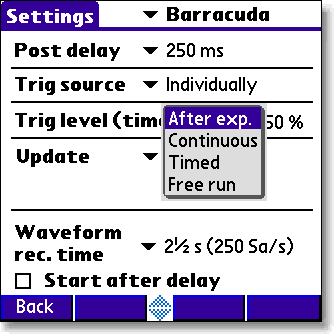
100 Measurement Principles & Theory Update Modes Update Modes As described under Measurement Type Settings 95 and seen in the figure to the left, the following four update modes are available: After exp., the QABrowser receives a new value when the exposure terminates. This means when the output goes under the trig level and stays there at least the time set by Post Delay under Settings Barracuda. Reset time is one second. Continuous, the Barracuda is continuously sending data as long as radiation is detected. Displays in the QABrowser are updated about every four seconds. Typically used for Fluoroscopy. Reset time is one second. Timed, the user sets a measurement time. The user then starts the measurement and the Barracuda will measure all radiation received during the measurement time, without any trig levels or background compensation. When the time has passed, a reading will be presented. It has a long reset time for increased accuracy, which varies with the sensitivity, as seen in the table below. Free run, the Barracuda will continuously measure the radiation without any trig levels or background compensations. No applications are available when using this mode. The mode has a feature called moving average which calculates the average of the measured values during a defined time, to increase accuracy by lowering the time resolution. This function gives a larger stability to the measurements. Free run also has a long reset time for increased accuracy, see the table below. Default value is set according to selected type of measurement and this parameter normally never needs to be manually changed, unless really low-level measurements are to be accomplished. However, to measure on real low-level signals the Timed or Free run update mode may be used, see topic Very Low Dose Rate Measurements with EMM-BiasW 110. Update mode After Exposure Timed (Low/High sens.) Timed (Very High sens.) Continuous Free run (Low/High sens.) Free run (Very High sens.) Auto reset Yes Reset time (s) Sample Min. WF Max. WF time rec. time rec. time (ms) (s) (s) Note 1: If your detector is slower (typically ion chambers) the minimum WF recording time may

101 4. Measurement Principles & Theory Update Modes 97 increase with a factor of eight. Note 2: The Sample time is the "resolution" of the waveform, i.e. time between two samples. Auto reset means that a reset is performed after each trig off. Reset time is the time it takes to perform a reset each time you hit Reset. Sample time is the time between individual data point of the waveform. Waveform recording time is the range of user selectable recording times the Barracuda allows. Note that in Timed and Free run you may get negative readings, for instance if you press reset when a signal is present on the detector Using Timed Update Mode Change mode by going into settings using the symbol or the graffiti icon. Then select the Barracuda section as shown to the right, and input the desired measuring time. Tap Back to exit settings. The measurement is started by tapping the Start button. During the measurement the time left will count down and it can be stopped by tapping the Cancel button.

102 98 4. Measurement Principles & Theory Update Modes The measured time will sometimes not be exactly what was set under settings, but the measured value is the one used for all calculations. The dose rate shown for Timed mode will always be mean dose rate during the measurement cycle, i.e. the measured dose divided by the measured time. The Timed mode can be very useful both for very low dose rate measurements as well as for long duration measurements. For extreme low-level dose measurements you can improve your reading by subtracting the background level. First do a Timed measurement without exposing the detector to radiation and then do the same with radiation. The timed mode will use the same measuring time and the first reading can be subtracted from the first. Just make sure not to tap Reset between these measurements, as the Reset button will do an offset adjustment. Note also that low-level readings may give inaccurate kv readings. For long duration measurements, cases with slowly rising and falling output, or cases with very low pulse rate, timed mode may also be useful. For instance on CT machines where the rotation cannot be stopped Using Free Run Update Mode Free run update mode works almost exactly as the ordinary Continuous update mode. There are however two differences: 1. Since there is no trig level, you will be able to measure lower, but there will be no time reading unless the signal goes over the trig level. 2. You can select a moving average function. This lets you set a time for moving average, this time acts as a averaging window, moving through time. Moving average This function is intended for low level dose rate measurements where increased sensitivity and stability is needed. The function uses a moving average algorithm where the number of seconds is selected by the user. During the reset process the user must make sure that the detector is not exposed to radiation. After the reset procedure the Barracuda will start to show a value calculated as the sum of the last X values divided by X (X is the number of seconds chosen by the user). For each new second that passes the last value in the stack will be discarded and a new value added. This means of course that it will take X seconds before the Barracuda starts to show a valid value when the detector attached is exposed to a steady radiation level. In the same way it will take X seconds for the Barracuda to show a zero value after the radiation has ended. Great care must be taken into choosing a time constant fitted to the nature of the signal. Example If you set the time to 8 seconds, each reading, will be the mean of the reading of the last 8 seconds. This means that it will take 8 seconds until the reading reaches a started set radiation level.

103 4. Measurement Principles & Theory Display Messages and Active Messages Display Messages and Active Messages Even though the range of the Barracuda measurement system is quite wide, sometimes the signal may get too low or too high. To inform you of this, there are display messages. These are mainly of two types, Active or Passive. Active messages are shown when the hardware settings can be adjusted to adapt the measurement ranges. The active message will just inform you that it is making an automatic adjustment and you can simply do another exposure/measurement. The active messages can be disabled, see the following section. The passive display messages indicate what the problem is and possible remedies for them. These will show if there are no active messages, the active messages are disabled, or when no more automatic adjustment can be done Active Messages In some rare occasions it might be helpful to disable the active messages, for instance if the detector signal is very noisy or there are pre-pulses that makes the system auto-adjust erroneously. Turning the Active messages to "Off" in Setup Preferences does this. Below the various active messages are shown. Make sure to follow the text shown, since reset may be performed automatically. Otherwise tap Reset again. High signal One or several detectors have too high signal.

104 Measurement Principles & Theory Display Messages and Active Messages Low signal The Barracuda detects a signal but it is too low to present a reliable result. High kvp Measured tube voltage is higher than that of the selected kv-range. Low kvp Measured tube voltage is lower than that of the selected kv-range Display Messages High signal One or several detectors have too high signal. Lower the set sensitivity under settings. Reduce the ma and/or increase the distance from tube to detector.
105 4. Measurement Principles & Theory Display Messages and Active Messages 101 Exp. < Delay The exposure time is too short compared to the delay time. Increase the exposure time and/or reduce the values of delay and/or window time. Keep in mind that the type of measurement sets the delay time value. The standard value for radiography use is 5 ms, but for dental it is 200 ms. See Measurement Type Settings 95. High kvp Measured tube voltage is higher than that of the selected kv-range. Change to a higher kv-range. Low kvp Measured tube voltage is lower than that of the selected kv-range. Change to a lower kv-range. Low Signal The Barracuda detects a signal but it is too low to present a reliable result. Increase the ma and/or decrease the distance from X-ray tube to detector or change the sensitivity for the dose parameter to High sensitivity or even Very High sensitivity. Also the kv sensitivity can be changed. You find these settings if you tap the symbol. Reposition Detector The radiation signal on D2 and D1 is not within 5 % (quota not between 0.95 to 1.05). The most common reason for this is that the detector area is only partially irradiated, the detector is tilted, or the filtration differs between D2 and D1 (e.g. heel effect). Change the field size or move the detector into the central beam.
106 Measurement Principles & Theory Display Messages and Active Messages Negative Signal The electrometer module detects a negative signal. Most common is that the mas-probe have been connected in the opposite direction on the HV cable. Change the polarity of the current probe. Also small negative drift created from the detector source, typically initially after reset can give this message. Special care should be taken when using ionization chambers, since it may take a few minutes before the initial drift of the electrometer and detector has stabilized. Tap Reset to clear the message. This message does not appear in the Timed and Free run update modes. 4.5 Waveforms and Triggers To get an understanding of how triggers, delays, and windows work, take a look at the waveform below. This is what happens during a standard exposure: 1. The radiation starts, i.e. it goes over the detector's lowest trig level. 2. The signal reaches 50 % of its maximum. This is the starting point for the irradiation time calculation. (The level is user adjustable.) 3. The signal reaches its maximum. 4. The Delay time is reached. (User adjustable.) kv integration window starts. 5. The Delay+Window time is reached. (User adjustable.) kv integration window stops. 6. The signal goes below 50 % of its maximum. This is the end point for the Irradiation time calculation. (The level is user adjustable.) 7. The radiation ends, i.e. it goes under the detector's lowest trig level. 8. If the signal has been below the trig level during all of Post delay, the exposure is considered finished. All exposure readings are calculated. Integrated signal (dose, mas, etc.)
107 4. Measurement Principles & Theory Waveforms and Triggers 103 Is the integration of all signal which means the area below the curve above from point 1 to 7. During the measurement (exposure) the accumulated signal (dose, etc) is displayed where applicable. Signal rate (dose rate, tube current, etc.) During the measurement the mean signal for the last second is displayed. When the measurement (exposure) is over, point 8 above, the mean signal for the whole measurement is displayed. This signal rate is calculated as all integrated signal (as described above) divided by the irradiation time. If no irradiation time is possible to calculate, the radiation time is used instead. This means that for long measurements you may see a change in the rate value (dose rate, etc) when the measurement is finished, if the signal level was changed during the measurement. 4.6 Measurement Principle for the MPD The following are the key features of the MPD design: Small size Optimized filter packages for five different kv ranges Very sensitive and wide dynamic range Check filter for measurement geometry verification Single exposure estimation of total filtration and Quick-HVL Single exposure estimation of generator waveform type The design of the detector package is very important to be able to measure kv and dose correctly in the whole range of 20 to 155 kv. The MPD design makes it possible to measure small field sizes, less than 3 mm width, and low output levels down to approximately 1 µgy/s. Basically the detector packages consist of four separate electrometer channels connected to detectors D1, D2, D3, and D4 and a moveable filter package that can change to one of six positions, each a combination of different filters for the detectors. One of these positions is used as a "check-filter". It has the same filter thicknesses for both D1 and D2. When the detector is perfectly positioned and both detectors have the same radiation the ratio between the two signals should thus be exactly "1.000". This is very useful information, and testing this makes sure that your measurement geometry is fine, giving reproducible readings. The other 5 filter pairs have different thicknesses all optimized for different ranges of the tube voltage; two (1 and 2) are used for the low mammography energy range 20 to 45 kv, and three filters (3-5) are used for the radiography range 35 to 155 kv (35-75, , and kv). Using these four signals S1-S4 (from detectors D1 to D4) the MPD can accurately calculate the corresponding tube voltage. The signal S3 is not affected by the moveable filters and is designed to measure the dose. This detector is marked by a square inside the rectangular detector area on the top panel. The reference depth for the sensitive area of the dose detector is 8 mm under the MPD top panel surface. That is indicated by the lower edge of the rectangular hole for the visual indication of the filter position on the MPD front side. The detector D4 is placed directly under D3 with additional filter in between. The ratio between S3 and S4 is used to estimate the total filtration for the radiography range. Using these signals together more accurate dose and tube voltage readings can be obtained. Since all signals is measured simultaneously and with a relative high speed, the MPD
108 Measurement Principles & Theory Measurement Principle for the MPD can thus automatically compensate the kv and dose for the dependence of the waveform and inherent/added tube filtration. 4.7 HVL & Total Filtration HVL is a method of specifying the beam quality. The half-value layer is defined as the thickness of a specified material that attenuates the X-ray beam to one-half of its value in absence of that material, usually aluminium. See also Application Note /01 that can be downloaded from RTI Electronics web page at From the HVL-value the total filtration value can be estimated. See Application Note 1-AN from RTI Electronics AB. To measure the HVL: 1. Use the Barracuda HVL stand on the table-top. 2. Set the generator to 80 kv/25 mas. 3. If the display is unstable; press the Reset button. 4. Use some form to record your measurements. 5. Begin with 3 exposures without any added aluminum filter to get the zero-point and to check the consistency of the generator. 6. Add the aluminum filters, 1, 2, 3, and 4 mm, and record the readings. Make a measurement for each thickness and use the mean value. 7. Plot the results in a semi-logarithmic graph, set the value for 0 mm of added aluminium to Join the measured points with a curve and find the value of added filtration required to reduce the exposure to We find from the semi-logarithmic plot that the measured half-value layer is 3.3 mm Al. To measure Total Filtration: In order to measure total filtration with one exposure optimally, there are some settings to be aware of. Since the highest accuracy is obtained between 60 and 120 kv, we recommend to do the measurement of the total filtration in between, at 80 kv. The MPD is also calibrated for the total filtration at this kv. Use a high signal level, i.e. 200 ma during 200 ms to get a stable result. It does not matter if you intend to do measurements at a higher or lower kv than this, this measurement aim to get a correct value of the total filtration. See the graph below for optimum choice of method. Hence, choose 80 kv, 200 ma and 200 ms and make an exposure. The total filtration

109 4. Measurement Principles & Theory HVL & Total Filtration 105 will be displayed in a pop-up screen. Tap Keep and the value is stored and will be used on all further measurements. The pop-up screen will be displayed whenever the value of the total filtration is changed. Manually you can do this by entering the settings screen by tapping the icon, as shown below. As default value the total filtration is set to Estimate. Measure the total filtration and then enter the settings window again. Now choose Set and enter the measured value. 4.8 Linearity The output in mgy/mas for different mas stations should remain constant if the kvp and distance are maintained constant. This can be checked by measuring the coefficient of linearity. The coefficient of linearity is defined as: where: X = Dose/mAs, and X1 and X2 (X1 and X2) are measured at adjacent mas settings To check the mas linearity: 1. Place the detector on the table-top. If patient-equivalent phantom should be used it is recommend to use the Barracuda HVL stand to simplify the set up. Use 2 pieces of 10 mm Al filter as "patient -equivalent" filter in the beam. 2. Set the X-ray generator to technique factors commonly used clinically. 3. If the display is unstable; press the Reset button. 4. Use some form to record your measurements. 5. Make exposures at different mas settings and both for small and large focuses. 6. Calculate the coefficient of linearity for adjacent measurements. An acceptable value for the coefficient of linearity is less than 0.10.
110 4. Measurement Principles & Theory Linearity 106 A short example: measurement 1 : X1 = 13 µgy/mas measurement 2 : X2 = 14.6 µgy/mas measurement 3 : X3 = 12.8 µgy/mas Then: and: Of which both is below the 0.10 limit. 4.9 Reproducibility Reproducibility is checked to find out how constant the output is when an X-ray exposure is repeated many times. One method is to check the coefficient of variation. The coefficient of variation is defined as: where xi n = Individual exposure readings = Number of readings = Mean value of readings To check the output reproducibility: 1. Place the dose detector on the table-top (the patient-equivalent phantom is not necessary since this measurement can be made as a relative measurement). 2. Set the X-ray generator to technique factors commonly used clinically. 3. If the display is unstable, press the Reset button. 4. Use some form to record your measurements. 5. Make 5 to 10 exposures and record the reading for each exposure. 6. Calculate the mean value, difference from mean value and square of differences.
111 4. Measurement Principles & Theory Reproducibility Add all squared values and divide by (n-1) to get the variance. In this case n= Calculate the square of the variance, i.e. the standard deviation, and divide it by the mean value of the n measurements An acceptable value for the coefficient of variation is less than 0.05.
112 Chapter 5 Measurements with the Barracuda System

113 5. Measurements with the Barracuda System Introduction Measurements with the Barracuda System 5.1 Introduction The Barracuda system has a modular design and can presently, using an MPD and an electrometer module, measure up to eight parameters simultaneously plus three waveforms from a single exposure: kvp Dose and dose rate Exposure time mas and ma Estimated total filtration and determined waveform type kv waveform Dose rate waveform ma waveform Using the MPD alone, 6 parameters and two waveforms can be measured simultaneously. At present, the analogue waveform from the detector in the MPD is only displayed in real-time on an oscilloscope connected to the analogue output of the MP-SEM.

114 Measurements with the Barracuda System Introduction Very Low Dose Rate Measurements with EMM-BiasW To get access to the wide range of the EMM-BiasW, update mode Free run or Timed needs to be selected, as shown to the left. Both these modes measure without any trig levels or background compensation. See topic Update Modes 96 for more information. Then "Very high" sensitivity must be chosen, as shown in the next figure. This is done under "Settings - XXX", where XXX is the detector you have connected to your EMM-BiasW module.

115 5. Measurements with the Barracuda System Radiography Radiography This topic will describe how to measure kvp, dose, and exposure time on a radiographic unit using the MPD. Set up the Barracuda and the handheld computer according to the description in Setting Up the Barracuda 16. Measuring the kvp on a radiographic units is straightforward since the MPD can automatically detect and compensate for variation in the beam quality. It is also easy to check that the detector area is fully and uniformly irradiated. Practically this means that the kvp value can be measured in the range 1.5 to 38 mm of total filtration. Therefore the MPD can be placed in the beam wherever you want, as long as it passes the Position Check. It also has a very wide dynamic range so it very rarely happens that the signal level is not enough to get a correct kvp value. The radiography kv range is 35 to 155 kv. To confirm what filter is used one of the characters [C], 3, 4, or 5 is displayed directly on the top edge of the MPD. You can either select the tube voltage as single parameter or together with dose, dose rate, and exposure time. As complementary information estimations of the total filtration and type of waveform are made. This feature uses the kv filter R1[4] ( kv). This is the default kv range for radiography when the Barracuda is turned on. The displayed dose value has very little energy dependence since it is automatically compensated for each exposure since both the kv, estimated filtration, and the waveform are measured. Even without compensating the dose value, the energy dependence is small in the radiography range. This is also true for the kvp value. A 10 mm Al change of the beam filtration at 70 kv increases the kv only about 3.5 kv without automatic compensation. With compensation the change in kvp is less than 0.3 kv.

116 Measurements with the Barracuda System Radiography If any of the displayed values are not possible to compensate or cannot be measured with full accuracy the symbol is displayed at the top of screen. When the symbol is shown you can tap it, to get more information. Tapping menu Main Help brings down the built-in help system text including images describing the most important aspects of the program and a few hints of how to set-up the measurement. Please note that you can measure the exposure time both in time ("ms", "s") as well as pulses. You can also change the dose and dose rate units. Tap the dark part of the display where the unit and its prefix are displayed to get the list of units, or for the supplementary data at the bottom, you tap the unit. The value for the new unit is automatically calculated and displayed. A delay of 5 ms is standard but can be changed when necessary. It is important to select an exposure time longer than the delay time to obtain a accurate reading. The settings of the sensitivity both for dose and kv are preset depending of type of measurement selected. You may get a "Lo. Signal" message if you try to measure in fluoro mode when the selected type of measure is radiography. You can then change the sensitivity by tapping the symbol and select MPD from the Conditions menu.

117 5. Measurements with the Barracuda System Radiography 113 However, if you really want to measure in fluoroscopy mode it is better to select Fluoroscopy as type of measurement. The sensitivity is then automatically set to " High". To measure kvp only, select Tube voltage instead of All as parameter for type of measure. To be able to trust the reading it is always a good practice to first do a check measurement, to verify that the whole detector area is uniformly irradiated. This is done with the Position check that can verify the uniformity of the beam. The kv and radiation waveform is always acquired together with the real-time display values and can be displayed by tapping Wave. Applications and logging of the real-time values are described earlier kvp, Time, Dose, and Dose Rate To measure on radiographic units: 1. Set up the Barracuda and the handheld computer according to the description in Setting Up the Barracuda Place the detector on the table at the distance that is clinically relevant. Place the MPD in the direction indicated in the figure below so it is easy to see the little filter indication display on the front of the MPD. Adjust the collimator so the radiation clearly covers the detector rectangle marked on the MPD top panel, but try to keep the field size inside the top panel size to minimize scatter. Recommended field size is mm. Furthermore the MPDsurface should optimally be placed perpendicular to the focal spot, see also Angular Sensitivity, MPD 27. 2B. Connect the MPD to the MPM module using the cable. 3. Selecting only one parameter enables you to see the measured values from a distance of several meters. If you select All, select only the MPD module.

118 Measurements with the Barracuda System Radiography 5. It is recommended to make a check measurement at 70 kv to confirm that the detector area is uniformly radiated. The MPD automatically changes back to the previous selected kv range. As default this is radiography range R2 indicated by a [4] on the top edge of the MPD as well as on the QABrowser screen. 6. Set kvp and mas (or ma/time) to the desired values. 7. Make an exposure. The RTI logo flashes to indicate that the MPD has detected the exposure. The Barracuda now first analyses the beam and displays the type of waveform. This is done once for every test.

119 5. Measurements with the Barracuda System Radiography 115 Then the estimated total filtration is displayed (estimated in the range of kv). Depending of the selection of display parameter different display screens may be presented. 8. Tap Wave to study the waveforms. 9. You can use the pen to move the cursor. 10. Tap Back to return to the real-time display. 11. Repeat the measurement for other generator settings or select an Application (tap Appl) to measure further.

120 Measurements with the Barracuda System Radiography Dose Measurements with R100 or Ion Chamber If the R100B is selected all types of electrometer modules can be used. For an ionization chamber only one of the EMM-Bias electrometer modules can be used, since it supports bias to an ion chamber. 1. Place the R100 or Ion Chamber in the field and connect the cable to the EMM input. 2. Set up the Barracuda and the handheld computer according to the description in Setting Up the Barracuda Follow the same steps as for the measurement with MPD, but select Dose as parameter, the EMM module instead of the MPM module, and an ionization chamber or R100B from the detector list. The EMM LED is flashing to assist you to confirm that your detector has been connected to the module of your choice. If an ionization chamber is used additional information is shown:
121 5. Measurements with the Barracuda System Radiography Set kvp and mas (or ma/time) to the desired values. 4. Make an exposure. The RTI logo flashes to indicate that the MPD has detected the exposure. 5. Read the values. As complementary information the dose rate and exposure time is also displayed below. Tap Wave to view the corresponding dose rate waveform. 6. Repeat the measurement for other generator settings or select an application to measure further HVL Application HVL is calculated in the standard way using an HVL stand and a set of aluminum filters. The general HVL method that can be used when measuring with an external detector connected to the electrometer module is described in section HVL & Total Filtration 104. Using the MPD and the built-in HVL application correct HVL value and total filtration value can be measured and calculated.

122 Measurements with the Barracuda System Radiography Set up the system the same way as described earlier to measure dose in radiography beams and select the MPD. The only difference is that you select the built-in HVL application for the dose measurement. The HVL application can be found in the Dose test (under Appl on the Quickbar). Follow the instructions in that application to change the filter in the beam according to the set values. When the dose value has been reduced to less than half the HVL and total filtration value are calculated. Tap Graph to view a graphical presentation of the result. It is recommended to use the built-in HVL application (or ortigo) to evaluate HVL Quick-HVL and Total Filtration Total filtration A quicker way to get an estimated value with acceptable accuracy is to use the "one-shot" method that is a standard complementary information feature for the MPD kvp determination (described earlier in this manual). The total inaccuracy is about ±0.3 mm in the range of 2 to 10 mm and ±10 % in the range 10 to 25 mm, see Specifications, MPD 19. The purpose of this value is to always be able to calculate correct kvp and dose value independent of beam-filtration. But it can also be used as a quick way to estimate the filtration and alert you if the filtration has changed since last measurement of the HVL value.

123 5. Measurements with the Barracuda System Radiography 119 The following examples very clearly shows the excellent independence of the beam filtration for kv and dose readings. Three exposures were made with 3 mm Al, 6 mm Al, and 12 mm Al. The MPD was used to measure kvp, exposure time, dose, and dose rate. The pictures are stored when the QABrowser shows estimated total filtration. The kvp value is also visible. As seen, the measured kvp value is within 0.4 kv for the different total filtration values. Quick-HVL If the parameter "All w. TF+HVL" is chosen, the QABrowser will display both estimated total filtration and quick-hvl values for every measurement. Below a sequence of measurements is shown displaying how the total filtration and HVL can be determined at three different kv settings with only three exposures:

124 Measurements with the Barracuda System Radiography With the initial exposure the total filtration is displayed (6.8 mm Al) before the kvp is displayed. Then the measured kvp is shown (117.0 kv) and the estimated total filtration and HVL are shown as supplementary information. The HVL is calculated to be 6.42 mm Al. The set kv was changed and the Barracuda measured kv. The HVL is calculated at 5.70 mm for this kv. The set kv is changed again and a third exposure is made. The kv is measured to be kv and the HVL is calculated to be 4.69 mm Al. Notice that all three measurements of total filtration were 6.8 mm Al. 5.4 Cine/Pulsed Radiography The cine/pulsed exposures application is aimed to check Cat-Lab and cine X-ray units that are able to deliver high output short duration X-ray pulses (in the millisecond region) and acquire each individual "pulse" as an X-ray image. The images are used to study dynamic structures in the patient body, often in combination with the injection of a contrast medium during the investigation. The same type of X-ray system also can be used for pulsed fluoroscopy where the X-ray output is much lower. Therefore, depending on type of acquisition mode, it may be better to select the "pulsed fluoroscopy" measurement type for the Barracuda. Please consult the next section of the manual if this is the case. For under-table cine measurement turn the MPD upside-down. An optional detector rod is available that can be used to put the detector in position on the image intensifier without risk for hazardous X-ray exposure when monitoring. The Position Check should be used to confirm the position. To be able to protect the image intensifier from the relative high output cine pulses a lead apron can be placed over the image intensifier input screen. The Barracuda automatically measures the number of pulses based on information from the radiation waveform. It uses a 50 % trig level based on the maximum signal level.

125 5. Measurements with the Barracuda System Cine/Pulsed Radiography kvp, Time, Dose, and Dose Rate Use the same procedure as for the normal radiography measurement but select the All... parameter. If only Tube voltage is selected: Pulse Measurements with R100 or Ion Chamber Use the same procedure as for the normal radiography measurement using ionization chamber. Note that some ion chambers cannot be used to measure pulses since they have too slow response. In that case use a manual pulse rate setting, as described under Settings 62 to get a dose per pulse reading.
126 Measurements with the Barracuda System Cine/Pulsed Radiography HVL, Quick-HVL, and Total Filtration Use the same procedure as for the normal radiography measurement. 5.5 Fluoroscopy and Pulsed Fluoroscopy For under-table fluoro measurement turn the MPD upside-down. Use the optional detector rod to be able to put the detector in the cassette holder or on the image intensifier without risk of hazardous X-ray. The Position Check should be used to confirm the position of the MPD. When you select fluoroscopy or pulsed fluoroscopy (as type of measurement) the Barracuda system automatically changes to continuously updating the display and using the highest possible sensitivity. When parameter All... is selected, kvp, exposure time, and dose rate are measured and the display is updated approximately every four seconds. If dose rate or image intensifier dose rate is selected the MPD or a detector connected to the EMM module can be used.

127 5. Measurements with the Barracuda System Fluoroscopy and Pulsed Fluoroscopy 123 Normally the R100 is used together with the electrometer module to be able to measure the lowest possible dose rate levels down to 0.1 µgy/s. Another reason to use the R100 is that the detector is much smaller than the MPD making it easier to position in front of the image intensifier without affecting the measuring field for the ma feedback loop. If the image intensifier manually can control the ma and kv, then you can use the MPD for measurements down to about 0.7 µgy/s. For pulsed fluoroscopy even lower levels can be measured. As a secondary parameter the total dose is accumulated. After you have turned off the fluoroscopy unit, this value is used to calculate the average dose rate as total dose divided by the exposure time. Note that for very low dose rate values the exposure time cannot be measured accurately and the last dose rate value cannot be stored automatically in the display. Then tap Hold to "freeze" the current value in the display. The waveform is also acquired when you tap Hold. Waveform is also automatically acquired when the selected delay time expires. Select "I.I. input dose rate" as measuring parameter to be able to measure lowest possible dose rate and tap Hold to "freeze" current value in the display. The total accumulated dose is shoved after you have switched off the fluoroscopy unit Image Intensifier Input Dose Rate Use patient equivalent phantom to measure the image intensifier input dose rate according to manufacturer's specification: 1. Connect the R100 to the EMM. 2. Set up the Barracuda and the handheld computer according to the description in Setting Up the Barracuda Select type of measurement.
128 Measurements with the Barracuda System Fluoroscopy and Pulsed Fluoroscopy 4. Select I.I. input dose rate from the menu. 5. The Select Detector screen is now displayed. Select the R100 probe. 6. Tap Select. 7. Place the R100 in front of the image intensifier but outside the measuring field for the ma feedback loop. You may use the optional detector rod that can be attached to R100 to position the detector without risk for hazardous X-ray exposure. Observe the image on the monitor. 8. The real-time display is now displayed. Set the generator. Tap Reset. Since the external dose probe (R100) is not sensitive to back scatter, a lower value compared to a transmission ion chamber is typically detected (typically in the range of 5-20 %). You may use the beam correction factor to make automatic corrections. The beam correction factor may also be stored permanently in a Favourite for easy access.

129 5. Measurements with the Barracuda System Fluoroscopy and Pulsed Fluoroscopy Start the fluoroscopy. A little triangle is displayed, indicating that the Barracuda has detected the radiation. 10. The figure to the left shows the real-time display during fluoroscopy. The image intensifier input dose rate is measured and the display is updated approximately every four seconds. Tap Hold to "freeze" the currently shown value in the display. The waveform is also acquired when Hold is activated. 11. Release hold by tapping Hold again. 12. Stop the fluoroscopy. The RTI logo flashes up and the accumulated total dose is displayed. The dose rate value changes back to zero kvp and Dose Rate Use the same procedure as for the image intensifier input dose rate measurement but select All... parameters instead. 1. The first screen shows how the continuous updated display looks like. The little black arrow indicates that the radiation is detected and the display is updating every four seconds. 2. The second screen shows that the MPD has detected that the fluoroscopy have stopped by flashing the logo and then freeze the values. Note that the last registered kv value may be lower than the one measured during the exposure. The last display update may occur when the exposure is switched off and the kvp is captured on the "falling edge". The dose rate shown after the logo flashes is the average dose rate of the entire exposure.

130 Measurements with the Barracuda System Fluoroscopy and Pulsed Fluoroscopy 3. Tap Hold to acquire waveforms. The third screen displays the waveform for the earlier screen. 4. Tap Hold again to "release" the display. 5. The last screen above shows actually the same measurement with added 10 mm filter to reduce the dose rate even further. Note that the kv value is the same since the MPD, even on this extremely low level, still makes corrections for the beam filtration. The Barracuda can measure both kv and dose rate at very low levels for instance on Mini C-arm systems. Barracuda can (as an example) successfully measure the tube voltage as low as 43 kv with a 25 µa tube current.

131 5. Measurements with the Barracuda System Fluoroscopy and Pulsed Fluoroscopy HVL, Total Filtration, and Quick-HVL HVL can be measured in a similar way as described for the radiography measurements but the dose rate value is used instead. 1. Select Dose rate. 2. Tap Appl and select HVL. 3. Use the Hold button to store a reading and move to next line when the displayed value is stable. Total Filtration and Quick-HVL The total filtration is measured continuously when the MPD is used under fluoroscopy. The following pictures illustrates this excellent feature of the Barracuda and the MPD: The fluoro is started and the total filtration is estimated and automatically displayed during two seconds.

132 Measurements with the Barracuda System Fluoroscopy and Pulsed Fluoroscopy The displays with measured values are continuously updated every four seconds. Add 10 mm of aluminum. The Barracuda will "notice" that the filtration is changed and shows a new total filtration value. The dose rate is now much lower. The added filtration does not affect measured kvp at all. Note how the Barracuda directly responds to a sudden change of the filtration. The display is continuously updated with the kv, time and dose-rate. The dose rate value decreases when the extra 10 mm Al is put in the beam but the continuously updated kv value is practically are the same.

133 5. Measurements with the Barracuda System Fluoroscopy and Pulsed Fluoroscopy 129 Furthermore, if the parameter "All w. TF+HVL" is chosen, the QABrowser will display both estimated total filtration and quick-hvl values for every measurement shown above. Conclusion: For the first time, trustable kv and filtration measurements can be made on an X-ray unit. This is of special interest where the filtration not easily can be measured with a conventional HVL method or the filtrations actually is changed during the fluoro exposure or actually even not are known before. Most other invasive kvp meters have a correction for the kvp of around 5 to 10 kv for a change of the beam filtration of 10 mm Al. The correction graphs given, does not help if the actual beam filtration are not known. The Barracuda system detects and compensates automatically for a change of beam filtration. See Specifications, MPD 19, for details of the range of beam filtration Pulsed Fluoroscopy Select type of measurement in similar way as for normal continuously fluoroscopy to setup the system. Barracuda is set-up for this application to calculate the number of pulses per second (Hz or pps), the dose/pulse, and pulse dose rate. The picture below explain the difference between the pulse dose rate and the traditional dose rate. (Note that for DC waveform, pulse dose rate and dose rate gives the same value.) When measuring tube voltage on pulsed fluoroscopy there is an additional waveform type available. This waveform type is called pulsed and is recommended for pulsed fluoroscopy measurements, especially if the pulses are not square wave shaped, since this can result in low tube voltage readings. Example of measurement on pulsed fluoroscopy The following pictures illustrates how the Barracuda system is used this type of measurement.

134 Measurements with the Barracuda System Fluoroscopy and Pulsed Fluoroscopy These pictures describes the check of the output levels in pulse fluoroscopy mode. This example shows measurements of dose/pulse, dose rate, and pulse rate on an ordinary C-arm system. Example of more measurement done using this application: The first slides are the measuring results of measuring on a 5 Hz fluoroscopy system using the R100.

135 5. Measurements with the Barracuda System Fluoroscopy and Pulsed Fluoroscopy The next two pictures shows measurement on the same type of the system but instead is the frame rate is 25 Hz. In this case a 15cc ionization chamber connected to an EMM-Bias module was used instead. Be aware that many ion chamber can be to "slow" to follow the dose rate waveform accurately, since cable and chamber capacitance is higher and the signal output is much less than that of a corresponding solid state detector, such as the R100. Hints: Pulsed fluoro screen is very handy to use for several applications and is not restricted to only measure pulsed fluoro. It has application when measuring in Cine mode with heavy filtered beam that make the signal too low to use the Cine mode or when the dose rate is extremely low. Then the noise level is too high to detect the pulses in the signal. Ion chambers with low bandwidth can still be used in this mode, as well, even if the pulses cannot be detected due to low bandwidth (e.g. Radcal flat 60cc Ion chamber). The pulsed fluoro mode works also well on X-ray generators that only have a continuous fluoro output. The Dose/pulse screen has been configured to always display the Dose rate and Pulse dose rate continuously during the measurement period, even when pulse information is lacking. Be aware of that during the fluoro the continuous dose rate value is displayed but the dose rate value that is stored in the display after the measurement is based on the total dose divided by the measured exposure time.
136 Measurements with the Barracuda System Fluoroscopy and Pulsed Fluoroscopy 1. X-ray on, momentary reading 2. X-ray on, momentary reading 3. X-ray off, mean value displayed 5.6 Mammography This topic will describe how to measure kvp, dose, HVL, AGD (MGD), and time on a mammography unit using the MPD General To measure kvp on a mammography unit is straightforward. This is true since the MPD automatically can detect whether the detector area is not fully uniformly irradiated, by means of the Position Check. The mammography kv calibrations available for the MPD is ranging from 20 to 49 kv. To confirm which range is used the digit 1 or 2 is displayed directly on the MPD itself and in square brackets on the bottom left corner of the QABrowser screen, as shown below. BQ (Beam Quality) Code Range Tube Voltage Range for this BQ Beam Quality Selector For new calibrations, only range 2 is being used. See the specifications section Specifications, MPD 19, for details about the different calibrations. Please note that: Mo/2 mm Al (M2) Rh/1 mm Al (M5) supports only kvp measurement, no dose measurement with MPD is possible. Mo/2 mm Al is not used that often but the GE DMR unit use Mo/1 mm Al so simply add one extra 1 mm Al in the beam when measuring kvp. This since the kv of the generator is the same regardless of the filtration. You can either select the Tube Voltage as single parameter mode or All and get kvp together with dose, dose rate, and time.
137 5. Measurements with the Barracuda System Mammography 133 The displayed dose value has very little energy dependence because the dose value is automatically compensated, using the tube voltage, which is measured simultaneously for each exposure. If any of the displayed values cannot be compensated or cannot be measured with full accuracy, the symbol is displayed at the top of the screen. If the symbol is displayed you can tap it to get more information. You can also change the dose and dose rate units. Tap the dark part of the display where the unit and its prefix are displayed to get the list of units. The value for the new unit is automatically calculated and updated. A delay of 5 ms is standard but can be changed. If you get a High kvp message you have probably selected a set kv value higher than the actual measuring range. Another reason may be that you have selected wrong beam quality compared to what the generator is set to. To be able to trust the kvp reading it is always very important to make the Position Check to verify that the whole detector area is uniformly irradiated. The Position Check is normally started automatically every time you change Beam Quality, but please make sure to do a Position Check every time the MPD is repositioned. The kv and radiation waveform is always stored together with the RTD values and can be displayed by tapping the Wave button. The kvp calibration for MPD is made without the compression paddle in place. The purpose of dose measurement is often to determine the ESAK, Entrance Surface Air Kerma (or ESE, Entrance Skin Exposure). It is recommended to perform dose measurements according to a mammography protocol. One is the "European Protocol on dosimetry in mammography EUR EN from the European commission". Chapter 3 in this protocol describes in detail the determination of AGD, Average Glandular Dose (or MGD, Mean Glandular Dose). The AGD is derived from measurements of the HVL and of the ESAK. Make use of tabulated conversion factors from ESAK to AGD. See Average Glandular Dose, AGD (MGD) 144.
138 Measurements with the Barracuda System Mammography Setting Up the Barracuda for Mammography To set up the Barracuda: 1. Pick up the cabinet, the MPD, and the handheld computer from the case. 2. Connect the MPD cable to the connector on the rear on the cabinet, see figure below. The connector has the text "TOP" on one side. This text should be pointing up when connecting the MPD cable. If there is no text use the two marks on one side. These marks should be to the right when you are looking at the cabinet from the rear. Do not use unnecessary force. To disconnect the MPD cable press the two "buttons" on each side of the connector house and gently remove it. MPD Cable with connector 3. Connect the other connector to the MPD. The connector has the text "TOP" on one
139 5. Measurements with the Barracuda System Mammography 135 side. The text should be at the same side as the MPD detector area. If there is no text let the marks (from 2 above) be on the side towards the bottom of the MPD. Do not use unnecessary force. To disconnect the MPD cable press the two "buttons" on each side of the connector house and gently remove it.. 4. Make sure that the image receptor is positioned at a clinically relevant distance (typically 600 mm). 5. You should place the MPD flat on the image receptor with its long axis parallel to the chest wall making sure the centre of the detector surface is placed in the centre of the light field, as shown in the pictures above (40 mm distance shown). This placement of the MPD makes the detector surface perpendicular to the cathode/anode axis, to avoid influence from the heel effect. For general mammography, it is important that the MPD connector points in the patients left direction, as shown in picture. To be able to get comparable results, please consider the position of the MPD. The MPD should be placed at a clinically relevant distance from the chest wall. Recommendations for this varies, typically between 40 and 60 mm. For Europe, 60 mm is the recommended distance (Ref. ECR EU). 6. Connect the devices. Handheld: Connect the Palm holder or the 8 m "Palm cable". For Bluetooth (wireless) nothing is needed. PC: connect the Bluetooth serial module, the 8 m serial cable, or the USB cable. 7. Optionally you may connect the power supply to the cabinet from the power outlet. 8. Power on the Barracuda using the power switch. 9. Power on the handheld computer (or the PC). Now everything is set up with the hardware. Please continue in one of the following sections, depending on what you want to measure.

140 Measurements with the Barracuda System Mammography kvp, Time, and Dose Measurements with the MPD Set up the Barracuda and the handheld computer according to the description in Setting Up the Barracuda for Mammography 134. In this picture the MPD is placed to minimize the influense of the heel effect of the tube. 1. Select Type of Measurement, Parameter, and Detector, as shown below. If you use the compression paddle, make sure that you use the correct settings, see section Corrections for the Compression Paddle Select the correct beam quality. The beam quality is shown in the lower right corner.
141 5. Measurements with the Barracuda System Mammography Make a Position Check, as shown above. It is recommended to make the check at 28 kv. After the check the MPD automatically changes back to the previously selected kv range. 4. Set kvp and mas (or ma/time) to the desired values. 5. Make an exposure. The RTI logo flashes to indicate that the MPD has detected the exposure. 6. Read the values in the RTD. 7. Repeat measurement for other generator set values. There are some mammographic units that are bit peculiar when it comes to kv measurements, for instance The Hologic Selenia and IMS Giotto. In those cases, RTI have updated Application Notes, and there may be some even for other units. Please check the RTI Electronics website ( for the latest info. For Sectra MDM, Fischer Senoscan and other scanning beam units, please see the section Scanning Beam Mammography 145.

142 Measurements with the Barracuda System Mammography Dose Measurements with the R100 or Ion Chamber If the R100 is selected (not recommended for mammography since no automatic compensation is available) all three types of electrometer modules can be used. For an ionization chamber only one of the EMM-Bias electrometer modules can be used, since it supports bias to an ion chamber. It is often more convenient to use the MPD to measure dose for a mammography tube since no manual energy compensation has to be done, as is the case with the R100 (or TP compensation for an ionization chamber). Measuring procedure 1. Place the R100 or Ion Chamber in the field and connect the cable to the EMM input, see picture below. 2. Set up the Barracuda and the handheld computer according to the description in Setting Up the Barracuda for Mammography Follow the same step as for the measurements with MPD but select Dose as parameter. You will also need to select the EMM module instead of the MPD and select an ionization chamber or R100 from the detector list, as seen below.

143 5. Measurements with the Barracuda System Mammography 139 3B. The selected EMM LED is flashing to assist you to confirm that your detector has been connected to the module of your choice. More display information will guide you if an ionization chamber is selected. The EMM-Bias bias diode is on to indicate that the bias is activated. 3C. The temperature and pressure compensation, the TP-factor, can also be defined in the Settings. Tap the symbol to show the settings. 4. Select beam quality from the detector list. 5. Set kvp and mas (or ma/time) to desired values.

144 Measurements with the Barracuda System Mammography 6. Make an exposure. The RTI logo flashes to indicate that the Barracuda has detected the exposure. 7. Read the dose value. Note that if a R100 is used the dose reading has to be corrected manually according to the R100 DETECTOR DATA manual. You may store the correction as a Beam Correction Factor in a Favourite for a specific kv, to do the correction automatically. 8. Repeat the measurement for other generator settings. To get a good HVL value, using the R100, you must correct it according to the tables in the R100 DETECTOR DATA manual. It is often more convenient to measure HVL with the MPD using the built-in HVL application HVL Application HVL is calculated in the standard way using an HVL stand and a set of Aluminium filters. Using the MPD and the built-in HVL application is recommended since a correct HVL value is then obtained without any manual corrections. Set up the system the same way as described above to measure dose in mammography beams. Depending of what protocol is used you can use the HVL stand or place the filters on the compression paddle. 1. From the dose real-time display tap the Appl button. 2. Select HVL. 3. The HVL application appears. 4. Perform exposures and add filter according to the information in the HVL application.
145 5. Measurements with the Barracuda System Mammography When the dose value has been reduced to less than half the HVL is calculated and the graph can be selected Mammo Compensations and Corrections Here various corrections and compensations are described, that are of special importance for mammography Corrections for the Compression Paddle The MPD is well collimated above its small detector area, and will measure the same whether the compression paddle is placed directly on top of the Barracuda or high above. This is NOT true for an ion chamber. A factor has been introduced which enables the MPD to take the scattered radiation into consideration and produce measurement results as if it was an ion chamber which senses the scattered radiation directly. When an ion chamber is placed directly below the compression paddle, a relatively constant scatter factor of 6 % is found. The factor is typical for ion chambers such as Radcal 6M, PTW N23344, and Standard Imaging Magna 1cc. Typically for a Mo/Mo beam energy, a 0.10 mm Al equivalent compression paddle is used. That is equal to approximately 3 mm of plexiglass (PMMA). For W/Al beam energy, an equivalent compression paddle of 0.18 mm Al is typically used instead. If you tap the symbol you can see these two settings under Conditions. Conclusion: When comparing with typical mammographic ion chambers listed above, you should multiply the MPD dose value with a scatter factor of 1.06 to make it measure as an ion chamber directly below the compression paddle. When the compression paddle is not used, the scatter factor is automatically set to This since free in air, the ion chamber measures the same as the MPD. More info about the correction for compression paddle can be found in Application

146 Measurements with the Barracuda System Mammography Note 1-AN from RTI Electronics AB. Please also see section Angular Sensitivity, MPD 27 for details on sensitivity in different directions Normalization A normalization function is available which enables all measurements to be virtually performed at the same distance, increasing productivity. According to European protocol (ECR EU, 1996), ESAK should be measured 45 mm above the breast support. The QABrowser supports calculation of the dose at a user set virtual distance. An example: 1. First readings from an exposure, where the distance from the X-ray tube to the breast support where the MPD is placed is 650 mm. 2. If the MPD is placed on the breast support, the sensitive detector surface of the MPD is situated 6.3 mm above the breast support, which makes the distance from the tube to the detector mm. ESAK is measured 45 mm above the breast support and taking the detector placement into consideration, the distance from tube to the wanted measuring position is then 605 mm. 3. When the normalizing function is used it is indicated with a blue "N", as indicated in the last figure. The dose and dose rate values are then normalized to this virtual position (at 605 mm SDD). A practical consequence of usage of the normalizing function and scatter factor is that the MPD can be kept at the same position on the breast support all the time when data is collected for AGD.
147 5. Measurements with the Barracuda System Mammography 143 For an ion chamber it is not quite as easy because of the scatter contribution that is not allowed during HVL measurement. The ion chamber and/or the compression paddle must be moved to support good geometry. More info about the correction and normalization function can be found in Application Note 1-AN from RTI Electronics AB Beam Correction Factor Sometimes you may want to make comparable measurements with a known mechanical setup. Assume that you want to emulate ion chamber measurements in a particular scattering situation. Then you can set a Beam Correction factor to get that reading like you used to. In this case the ion chamber measures an extra 3 % from side and back-scatter. Using this factor makes the readings to be the same. It is of course important that the mechanical setup in these cases are the same. When this function is activated a red horisontal indicator will show in the top right corner of the RTD screen ( ). Conclusion: You may use the Beam Correction factor to make compensations and corrections of various nature. Examples might be: energy corrections, angular corrections, field inhomogenity corrections, etc. If you save this setting as a Favourite, you can have a quick way of repeatedly making a special measurement without any manual corrections Corrections for Angular Sensitivity For mammography, the following correction table may be used at a SDD of 60 cm, if the MPD is placed flat on the breast support. (This assuming that the focal point is situated at the chest wall, which normally is the case.) You can find the product version on the label on the back side of your MPD. Distance from chest wall (cm) Correction for MPD v1.x (%) Correction for MPD v2.x (%) Rule of thumb for v1.x: add 2 % per centimeter from the chest wall at 60 cm SDD, i.e. for 4 cm use +8 % correction.

148 Measurements with the Barracuda System Mammography As seen for product version 2.X, no correction is necessary. You may use the Beam Correction Factor together with Favourites in ortigo or QABrowser to automatically do a specific correction. See Beam Correction Factor 143. See also Angular Sensitivity, MPD Average Glandular Dose, AGD (MGD) The AGD (average glandular dose) is derived from measurements of the HVL and of the ESAK, entrance surface kerma (or ESE) making use of tabulated conversion factors from ESAK (or ESE) to AGD (or MGD). The tabulated data has been derived from Monte Carlo calculations and has been verified experimentally. To determine the AGD a standard phantom should also be used when the ESAK (or ESE) value is measured with the MPD. Correct measurement of the Average Glandular Dose (AGD) with the MPD In most situations you can perform measurements for a mammographic unit with the MPD instead of a dedicated ion chamber. Since the MPD compensates for energy dependence, the readings are in direct comparison with readings from a reference class ion chamber. When measuring the AGD you should always have the compression paddle in place (indicated with a red icon ) Important quantities to measure The most common measurements for a mammographic system are conducted to determine the average glandular dose (AGD). The AGD values are based on measurements of ESAK (entrance surface air kerma) and HVL. To do the measurements correctly and according to standards, the radiation detectors should be placed directly below the compression paddle. This introduces extra scattered radiation due to the compression paddle which is important to include when determining ESAK. On the other hand, the HVL measurement should be done without any scatter contribution and with good geometry. HVL The MPD is well collimated above its small detector area. Due to this fact it registers a narrower angle of the X-ray field and thus much less scattered radiation compared to an ion chamber. It has built-in good geometry and is therefore ideal for HVL measurements. Hence, the HVL filter can be placed on top of the compression paddle without any extra collimation even at close distance to the MPD. The Barracuda has a built-in HVL application which should be used to get accurate HVL readings.

149 5. Measurements with the Barracuda System Mammography 145 In the following examples, shown below, HVL is calculated for a W/0.5 mm Al beam quality Mammographic Pre-pulses Some mammography systems (e.g. GE DMR system) use a pre-pulse to determine what beam quality to use for a specific patient. The time elapsing between the pre-pulse and the real exposure is usually about one second. Therefore the default post-delay of 250 ms will not cover both the pre-pulse and the real exposure. To get an overview of the signal output, set the post-delay to at least 1 s and the waveform recording time to a corresponding time. It is important to cover both signals. In this measurement setup, the Barracuda will add the dose from both pulses. This is OK if the beam quality is not changed between the signals. If the Mammography unit changes the beam quality after the pre-pulse however, the kv and dose is affected and the pulses should be treated separately. To collect data from real exposure, set the delay (not the post-delay) to exclude the pre-pulse. When the data has been acquired, change the beam quality to the one chosen by the system and the measured data is automatically corrected. For the time being, this feature is only present in the QABrowser software. With ortigo a new exposure has to be made with the correct beam quality using the same delay setting Scanning Beam Mammography When measuring on scanning beam mammographic equipment, like for instance Sectra MDM or Fischer Senoscan, two factors are very important. 1. You should place the MPD flat on the image receptor with its long axis perpendicular to the scanning direction. See pictures below. 2. Always perform a position check. This makes sure than any field imbalances are corrected for. 3. If you use the compression paddle, make sure that you use the correct settings, see section Corrections for the Compression Paddle 141. Please also see the CT section for measurement tips on scanning beams. For Sectra L30, see special application note on the RTI Electronics website ( ).

150 Measurements with the Barracuda System Mammography Dental and Panoramic Dental This topic will describe how to measure kvp, dose, and time for a Dental and Panoramic Dental X-ray units using the MPD only. Set up the Barracuda and the handheld computer according to the description in Setting Up the Barracuda 16. To measure kvp for a dental unit is similar to measuring for a radiography units with the difference that the output level is much lower and the total filtration is normally around 2 mm Al. The setup is straightforward and also to get the measured value. Most dental units is still single phase self-rectified and has 100 % radiation and kv ripple. In the case of one-phase dental units it is common that only the exposure time can be changed. In most cases the set tube voltage and current is fixed to about 65 kvp and 8 ma. A challenge can exist how to find a definition what measured value should be used. Furthermore the radiation output and the kv waveform are not stable for the first 200 ms or so, because that the tube filament current in most cases is not regulated.

151 5. Measurements with the Barracuda System Dental and Panoramic Dental 147 The definition of both what is the true kvp and exposure time cannot be as easily determined without study the waveform and select appropriate measurement parameters as delay and window. Introducing small CCD detectors instead of film also demands carefully calibration of single phase dental systems. The tube voltage waveform is collected from 200 ms after start trig and the kvp is calculated based on the measuring window equal the remaining part of the exposure time. The dose value is collected for the whole exposure time. If you need to change the sensitivity, delay, or/and measuring window, tap to show the settings and make your choices. In the case of dental panoramic system the situation is somewhat different. Here the kv and radiation waveform often is very well regulated. The challenges instead arise for the mechanical setup needed to position the detector in right position. The small and narrow field is only a few millimetres. The MPD detector has very narrow detector area and is very thin and a special holder (optional) can be used to position the MPD without any problem. The panoramic holder consist of the MPD holder itself and three fixation holders for the cable. Magnets or "tape" can be used to attach the holder system. Panoramic units that use digital detectors have much smaller detector area and magnets cannot and should not be used close to the detector area.

152 Measurements with the Barracuda System Dental and Panoramic Dental Moreover, since the detector during the scan often moves more than 180 degrees relative to the Barracuda cabinet, this also makes the way the cable is attached very important. Special fixation rods for the head should be placed so that they are not in the beam during the scan or can hit the detector. In most cases the control panel have a special scan mode without X-ray so the mechanical set up can be tested. Another important issue to be aware of is that a dental panoramic system normally compensates the for the thicker penetrating neck region in the patient when it makes
153 5. Measurements with the Barracuda System Dental and Panoramic Dental 149 its scan. This means that some units actually increase its tube voltage a short moment during the scan, other use different ma or scan speeds when the scanning beam passes the neck region. Newer digital system can actually measure patients X-ray beam attenuation dynamically and change the output level automatically during the scan. The Barracuda has addressed these challenges. Since the panoramic scan has an exposure time of about 10 to 20 seconds, the Barracuda is set up to continuously update the display during the scan. It is preferable to select a single parameter display and angle the Palm holder, making it easy to read the values during the scan, from a distance. You can always trust the kv reading of a dental measurement. This is true since MPD can automatically detect whether the detector area is not fully uniformly radiated or not by means of the Position Check, and also compensates for the beam filtration during the scan. You can either select the tube voltage as single parameter or together with dose, dose rate, and exposure time. As complementary information an estimation of the total filtration in the beam and type of waveform are made. This features use the kvp filter R1[4] that also is the default kv range kv when the instrument is turned on. The displayed dose value has very little energy dependence since it is automatically compensated for each exposure since the kv, estimated filtration and the waveform are measured kvp, Time, Dose, and Dose Rate Use the same procedure as for the normal radiography measurement but select Dental instead of radiography and select Tube voltage as parameter. A 200 ms delay is default. 1. Set up the Barracuda and the handheld computer according to the description in Setting Up the Barracuda 16. Selecting one parameter mode enables you to see the measured values from a distance of several meters.
154 Measurements with the Barracuda System Dental and Panoramic Dental If you want to measure the exposure time in number of pulses you can do so. 2. Place the detector on the table at the distance that is clinically relevant. As default, the kv-filter for kv is selected automatically. Furthermore the MPD surface should optimally be placed perpendicular to the focal spot, see also Angular Sensitivity, MPD It is recommended to make a check measurement to confirm that the detector area is uniformed radiated. Select a exposure time of at least 400 ms. The MPD automatically changes back to the previous selected kv-filter after the check exposure. As default, this is radiography filter R2 indicated by a [4] on the front of the MPD case as well as on the QABrowser screen. 4. Set the kv and ma/time (or mas) to desired values. Select a exposure time to near 400 ms since the delay is set to 200 ms.

155 5. Measurements with the Barracuda System Dental and Panoramic Dental Make an exposure. The RTI logo flashes to indicate that the MPD has detected the exposure. The Barracuda now first analyses the beam and displays the type of waveform. This is done once. Then the estimated total filtration is displayed. Read the measured values from the display. 6. Repeat the measurement for other generator settings or select an application to measure further.
156 Measurements with the Barracuda System Dental and Panoramic Dental Waveforms The example below explains why a change of delay change the value of measured kvp and the kv and radiation waveform on a one phase dental unit. Delay = 0 ms Delay = 200 ms Delay = 500 ms From the study of the above three screens several conclusions can be made: 1. A stable output level is not reached until after approximately 200 to 300 ms (20 to 30 pulses for a 50 Hz main based dental unit). 2. The exposure time is depending on the definition of the trig level. 3. The kvp value in the RTD is related to selected delay and window and is several kv higher in the beginning of the exposure at the same time as the radiation level is relative low here. Therefore a delay of 200 ms is default for the Barracuda. If the signal to the detector is too low to give a correct kv value, this part of the waveform will be blank. This is the reason why only the upper parts of the kv waveform is displayed. To see more of the waveform, change the kv range Panoramic Systems Use the same procedure as for the normal dental measurement but select Panoramic Dental instead of radiographic and select Tube Voltage as parameter. A 200 ms delay is default.
157 5. Measurements with the Barracuda System Dental and Panoramic Dental Set up the Barracuda and the handheld computer according to the description in Setting Up the Barracuda 16. Selecting one parameter mode enables you to see the measured values from a distance of several meters. 2. Mount the MPD using the Pan dental holder and fixate the cable as described earlier in this section. Connect the MPD to the MPM module using the cable and power on the Barracuda. 3. The real-time display for Tube voltage is now displayed. 4. It is strongly advised to make Position Check to confirm that the detector area is uniformed irradiated if you want reliable kvp readings. Select the Check[C] filter and leave the room to make the first panoramic scan. 5. Start the exposure. You do not need to use the whole scan exposure to make a check measurement since the display is continuously updated during the scan. When the value is stable within 1.00 ±0.05 release the exposure button. If the QABrowser tells you Reposition Detector, please move the detector to the centre of the beam and try again. You may need to use a film or other beam alignment tools if the narrow beam is several mm outside the expected centreline. The dental film image below shows that in the bottom part of the image you can see a part of X-ray slit image.

158 Measurements with the Barracuda System Dental and Panoramic Dental In this case the radiation beam centre is about 4 mm from the centre line indicated by the thin centre black line. Move the detector about 4 mm to get it in the beam was the cure for this case, to be able to pass check measurement criteria. 6. Press the rewind button on the panoramic unit to take back the unit to start position after each scan that not make a successfully check. When the system passes the test, you can trust the kv reading. 7. The MPD changes automatically back to the previous selected kv range after the Position Check. As default this is range kv, R2[4] as indicated by a [4] on the front of the MPD case as well as on the QABrowser screen. 8. Press the rewind button on the panoramic unit to take back the unit to start position. 9. Select kv, ma, and scan time. 10. Start the scan. A little triangle in the RTD indicates that the Barracuda detects the radiation. It is not needed to use the whole scan for the purpose of measure the kv

159 5. Measurements with the Barracuda System Dental and Panoramic Dental 155 since the display is continuously updated. 11. Stop the panoramic dental unit. The RTI logo flashes and the last kvp value is displayed. As complementary information the estimated total filtration is measured as well as the scan time. The figure shows the RTD after a complete scan. The waveform is also automatically stored after the delay time in the beginning of the scan or acquired when Hold is activated during the scan HVL, Total Filtration, and Quick-HVL It is not unusual that the total filtration is as low as 2.0 mm Al on an dental unit, compared to 2.5 to 3.5 mm on an normal radiography unit. The method that the MPD uses to estimate the total filtration in the range of 1.2 to 38 mm has an absolute inaccuracy in order of ±0.3 mm, but is very straightforward to find an "unknown" filter in the beam. You can always use the standard HVL method adding extra filter in the beam. In that case, use the same procedure as described in the section for the normal radiography measurement. 5.8 CT This topic will describe how to measure kvp, dose (CTDI), and exposure time (scan time) on a CT. To measure CT dose and CTDI a Barracuda with an electrometer module with bias, a CT ion chamber, and a CT phantom are required.

160 Measurements with the Barracuda System CT CT kvp To measure kvp on a CT is many times difficult since with most meters it is required to stop the tube in the top position at the same time as the table is not moving. This can normally not be obtained using an available standard clinical program. Instead a service mode must be used. Another problem is to "find" the beam, especially when using a small slice width. All these problems are minimized when using the MPD since it can "move with the table" through the beam while the tube is in the top position. This is can easily be obtained by measuring while a topogram (scout/pilot image) is taken. A topogram is obtained with a moving table and a stationary tube, normally in the top position. The topogram is normally used to provide information for the actual CT scan. It is recommended to use a slice width of 3 mm or wider. That is, if selectable use as large slice width as possible. You may also want to use the Timed mode to allow measurements on moving CT machines, see section Update Modes 96. To measure CT kvp: 1. Set up the Barracuda and the handheld computer according to the description in Setting Up the Barracuda Place the detector on the patient bed in a region that is irradiated during the topogram process. Place the MPD in the direction indicated by the figure below. That is, the MPD detector surface rectangle should be placed perpendicular to the scanning direction. You may use the lasers to align the MPD correctly. 3. Start the QABrowser and select CT from the Select type of measurement menu.

161 5. Measurements with the Barracuda System CT Select Tube voltage. 5. The real-time display for tube voltage is now shown. At the bottom of the screen you can select kv range and calibration. Three different calibrations are available: C1 = W/3.0 mm Al C2 = W/3.0 mm Al mm Cu (optional) C3 = W/3.0 mm Al mm Ti (optional) In earlier software versions, the MPD could not measure total filtration in the CT application. Therefore, an extra beam quality (C2) corresponding to measurements inside a phantom, was necessary in order to get a correct kv. Now this is taken care of automatically, since the total filtration is measured also for CT. 2: C3 is a special calibration for kv only. You cannot measure TF and HVL with it. For work-around see FAQ at RTI's webpage. 6. First make a check of the position of the MPD by using the Position Check function. Tap the kv range and select Check[0].

162 Measurements with the Barracuda System CT 7. Set up the CT to make a topogram. 8. Start the topogram program. If the procedure includes more than one topogram you may abort after the one taken with the tube in the top position. If the MPD is positioned in a correct way, the position is accepted and the real-time display is shown again. If not check the position of the MPD and/or increase the slice width if possible. 9. You are now ready to measure. Repeat the topogram program to measure kvp. The exposure time you measure is not related to the actual "radiation time". It is the time it takes for the detector to "pass through" the CT X-ray field when the table moves when it is acquiring the topogram CT Dose and CT Dose Index (CTDI) This topic will show how to measure CT dose and the CTDI. Measurements of CTDI are performed parallel to the axis of rotation during one or several complete gantry rotations while the table position remains stationary. It is normally measured in a phantom but can also be measured free in air. In this example we will use a five hole head phantom and a 10 cm CT ion chamber. We will use the QABrowser application CTDI to measure and calculate CTDI. Read the topic Definition of CTDI 164 to get information on how it is calculated. To measure CTDI:

163 5. Measurements with the Barracuda System CT Place the CT phantom on the patient bed in that region that is irradiated. Place the CT chamber in the centre of the phantom. Connect the CT chamber to the Barracuda cabinet. Make sure that the bias voltage is off by checking the yellow LED on the EMM-Bias module. Do not connect the CT chamber if the LED is on without first turning off the bias. 2. Set up the Barracuda and the handheld computer according to the description in Setting Up the Barracuda 16. Place the phantom with the one of the peripheral holes at "12 o'clock". Use the laser alignment tool on the CT to centre the phantom in both vertical and horizontal direction. 3. Start the QABrowser and select CT from the Type of measurement menu. 4. Select CT-Dose.
164 Measurements with the Barracuda System CT 5. Next the detector selection screen is shown. Tap the electrometer module and select the CT chamber you want to use, in this example "DCT10". 6. Tap Select and confirm that bias can be turned on. It takes approximately 20 seconds for the bias to stabilize. The setup may look like the picture below. In this case the measurement is performed on a CT that is used exclusively for investigations of the head region. The available clinical programs are only covering the head and the phantom has therefore been placed on the head of the patient bed. 7. The Barracuda is now ready to measure CT dose. 8. First make a topogram (scout/pilot image) to determine where to make the CT scan for the CT dose measurement. The Barracuda might not trig on the topogram since it often uses a lower ma than when acquiring "normal" CT images. 9. Make sure to reset Barracuda after the topogram has been acquired. Tap Reset. 10. Setup the CT based on the topogram to make one scan in the middle of the CT phantom.

165 5. Measurements with the Barracuda System CT You can now make one scan to verify that everything works before you go on to the CTDI application. You can also read the scan time, in this case s. 12. Now tap Appl and select CTDI. The CTDI application will help you to measure and calculate the CTDI. It calculates a weighted CTDI based on a measurement in each of the five positions. 13. Tap Slice thickness and specify the actual value. If you are measuring a multi-slice CT you must use the total slice width that is: (number of slices) (individual slice width) 14. Make a scan with the CT chamber in the centre. The value is recorded and a message box is displayed. Do not click OK until the CT chamber is moved to the next position. 15. Move the CT chamber to position B.

166 Measurements with the Barracuda System CT 16. Measure with the CT chamber in all positions. 17. The weighted CTDI is shown. It is calculated according to the definition in the topic Definition of CTDI 164. If you move the CT chamber when the message box is not shown a false trig will most likely occur. This is normal and just tap Reset after repositioning the CT chamber. In the topic Typical Parameters for CT Scanner Models 163 you can find references to finding out standard TF and CTDI values for many different CT models. Return to the real-time display by tapping Back. It is also possible to look at the waveform to study how the dose rate varies during the scan. 1. Place the chamber in a peripheral hole. 2. With the CT dose real-time display active tap Reset. 3. Make one scan. 4. You will get a CT dose value in the display. Tap Wave to get the waveform. 5. You will now see the dose rate intensity in the phantom position you selected. The shape of the waveform will depend on which position you selected and starting position for the gantry. It may look like in the figure below.
167 5. Measurements with the Barracuda System CT CT Scan Time (Exposure Time) You must use a CT chamber when measuring the exposure time or scan time. You can follow the point #1 to #11 in the description of how to measure CTDI to measure the scan time. Read previous topic CT Dose and CT Dose Index (CTDI) to get a detailed description. Of course is the CT phantom not required if only the scan time is of interest. The scan time is given as an complementary parameter when CT dose is measured CT mas How to measure mas is described in the topic mas Measurement Parameters for CT Scanner Models The Barracuda kv CT calibrations are specified as follows: C1 = W/3.0 mm Al C2 = W/3.0 mm Al Cu (optional) C3 = W/3 mm Al mm Ti (optional) (for Siemens Somatom Definition 32 and similar) With the calibration C1 the total filtration can be measured and the Barracuda automatically corrects the kv value accordingly. It is optional to set a known total filtration instead, see the table below. To achieve optimal measurements of the total filtration, first perform a measurement at a low kv, preferable kv. The measured total filtration is displayed on the screen. Press "Keep" to store the value and carry on with measurements. Now you can be certain to have a correct total filtration and kv-value throughout the measurements. Further information about the total filtration can be found in section HVL & Total Filtration 104 or in the Application Note 1-AN from RTI Electronics AB, see your product CD or Essential for correct measurements are correct settings of the CT. The book "Radiation Exposure in Computed Tomography" by H.D. Nagel, contains useful information about how correct settings are done on different types of CT scanners. A computer application CT-Expo based on the book may also be of great help. CT-Expo is an MS Excel application written in Visual Basic used to calculate patient dose values resulting from CT examinations. The program is applicable for all existing scanner models and can be of assistance to make correct settings. References 1. Nagel, H. D. Radiation Exposure in Computed Tomography. Fundamentals, Influencing
168 5. Measurements with the Barracuda System CT parameters, Dose Assessment, Optimisation, Scanner Data, Terminology. 4th Edition, Hamburg, Germany, December 2002, CTB Publications, D Hamburg, 2. Stamm, G., Nagel, H. D. Software CT-Expo, Medizinische Hockschule Hannover, D Hannover, Definition of CTDI The CTDI is calculated as described below. Calculations: CTDI for an individual position is calculated as: CTDI(100,A(or B C D E)) = Measured CT dose / h where h = slice thickness (cm) The central CTDI is calculated as: CTDI(100,c) = CTDI(100,A) The peripheral CTDI is calculated as: CTDI(100,p) = [CTDI(100,B) + CTDI(100,C) + CTDI(100,D) + CTDI(100,E)] / 4 The weighted CTDI is calculated as: CTDI(100,w) = 1/3 CTDI(100,c) + 2/3 CTDI(100,p) The volume CTDI for a helical (spiral) scanning is calculated as: CTDI(100,vol) = CTDI(100,w)/Pitch where the Pitch is the table movement per gantry rotation. See the CT-SD16 manual for more information. For more information on CTDI read the report "Radiation Exposure in Computed Tomography". See section Parameters for CT Scanner Models 163 for reference Quick-HVL and Total Filtration Use the same procedure as for the normal radiography measurement, however see section CT kvp 156 about using the topogram program.
169 5. Measurements with the Barracuda System Tube Current Probes Tube Current Probes Three different mas probes can be used with the Barracuda. One invasive and two non-invasive types are available. The description of the mas probes is valid for all different type of X-ray systems. The mas probes are used to measure mas (current time product) and ma (tube current). Tube current is normally measured only for fluoroscopy or when long exposure times are possible to allow read-out during the exposure. When tube current is presented for exposures it has been calculated from the measured mas and from measured exposure time. For pulsed fluoroscopy it is possible to measure pulse ma in addtion to the ma value. The difference between the pulse ma and the traditional ma is explained in the picture below. (Note that for DC waveform, pulse ma and ma gives the same value.) You can measure mas as a single parameter or multi-parameter together with the MPD. When using only the mas-probe the measurement always starts when the mas-probe detects a signal. When using multi-parameter you can choose to trig individually or to trig with the MPD: Individually: The mas-probe starts to measure as soon as the tube current is detected. The MPD starts to measure as soon as it detects the radiation. Normally will the mas-probe start to measure first since tube current first charges the HV cables before it "reaches" the tube and radiation is generated. MPD: Both the mas-probe and the MPD starts to measure at the same time; when the MPD detects radiation. This is the easiest way to measure since there is almost no risk for false triggering. It is important to be aware of that measured mas-values may differ depending on which trig method is used. Especially when measuring low mas values the difference may be significant when comparing the two methods or comparing to "traditional" mas meters. The value you get when triggering on the tube current (Individual trig) corresponds to the total mas supplied from the generator. A part of that has been used to charge the cables and the rest has reached the tube and contributed to the exposure and the image. When you use MPD trig you measure only the mas that actually contributes to the exposure and the generation of the image. The discussion above is generally true for the invasive MAS-1B probe since it is connected in the transformer and measures "all" current. The non-invasive probes, MAS-2B and MAS-3, can be placed anywhere on the HV cable. If they are placed close to the tube they will measure only the current that floats through the tube and contributes to the radiation and the choice of trig source will have limited influence on the measured values. When measuring on fluoroscopy the trig source has no influence and it is recommended to trig on the MPD.

170 Measurements with the Barracuda System Tube Current Probes MAS-1B, Invasive mas Probe This section describes how to measure the tube current and charge as a single parameter. This means that the measurement starts when the mas-probe detects the tube current. The measurement is performed in the same way if you use a multi-parameter display. In that case the default trig is the MPD and what is said below about false triggering can be ignored. The MAS-1B probe provides an invasive way to measure ma and mas on X-ray generators. The MAS-1B probe should be connected to the X-ray generator mas socket. The figure to the left shows the MAS-1B. Read the MAS-1BUser's Manual for a detailed description on how to connect it. To measure tube charge (mas) with the MAS-1B 1. Connect the MAS-1B probe to the X-ray generator as described in the MAS-1B User's Manual. 2. Connect the MAS-1B probe to the EMM module. 3. Set up the Barracuda and the handheld computer according to the description in Setting Up the Barracuda In the QABrowser select type of measurement. 5. Select mas from the menu. 5A. The Select Detector screen is now displayed. Select the MAS-1B probe as shown left, and tap Select.

171 5. Measurements with the Barracuda System Tube Current Probes The real-time display for mas is now displayed. Set the generator. Tap Reset. Make an exposure. 7. The figure to the left shows the result from an exposure with 80 kv, 50 ms, and 100 ma. The exposure time is measured with the electrometer module (EMM). If you would get a message as shown in the figure to the left, the current is floating in the wrong direction in the mas probe. Switch the two connectors that are connected in the mas measuring socket, tap Reset and make a new exposure. Since the MAS-1B probe is connected in the X-ray generator false triggering may occur due to electrical noise when the pre-heat is started and the anode starts to rotate. If you get incorrect or inconsistent results try the following: First start anode rotation without firing the exposure. While the anode is rotating tap Reset or press the corresponding button. Make the exposure when the reset procedure is finished. 8. Tap Wave to view that ma waveform. The figure to the left shows the ma waveform. You can use the cursor to analyse the waveform and read the ma value as well as estimate the exposure time. The MAS-1B probe can also be used for measurement of tube current during fluoroscopy.

172 Measurements with the Barracuda System Tube Current Probes To measure tube current with the MAS-1B 1. Setup the Barracuda according to the description earlier in this manual. 2. Connect the MAS-1B probe to the X-ray generator as described in the MAS-1B User's Manual. 3. Connect the MAS-1B probe to the EMM module. 4. In the QABrowser select type of measurement. 5. Select Tube Current from the menu. 5A. The Select Detector screen is now displayed. Select the MAS-1B probe. Tap Select. 6. The real-time display for tube current is now displayed. Set the generator. Tap Reset. 7. Start the fluoroscopy. 8. The figure to the left shows the real-time display during fluoroscopy. The tube current is measured and the display is updated approximately every four seconds. Note that for low ma values the mas and the exposure time may not be measured. Tap Hold to "freeze" current value in the display. The waveform is also acquired when Hold is activated MAS-2B, Non-invasive mas Probe This section describes how to measure mas as single parameter. This means that the measurement starts when the mas-probe detects the tube current. The measurement is performed in the same way if you use a multi-parameter display. If the MPD is selected as the trig source the section about false triggering can be ignored. The procedure is basically the same if you have an old MAS-2 probe (with the adapter box). The MAS-2B probe uses a current clamp probe connected to an adapter box to measure mas and ma non-invasively.
173 5. Measurements with the Barracuda System Tube Current Probes 169 The MAS-2B probe is mostly used for mas measurements since it is not sensitive enough to measure tube current on fluoroscopy. The lowest tube current that can be measured with MAS-2B is 10 ma. The figure to the left shows the MAS-2B probe without the cable. Read the MAS-2B User's Manual for a detailed description and instructions on how to set up and connect it. The parameter mas is available for most type of measurements but mas is normally measured only for X-ray exposures. To measure tube charge (mas) with the MAS-2B 1. Connect the MAS-2B probe to the X-ray generator as described in the MAS-2B User's Manual. 2. Connect the MAS-2B adapter cable to the EMM. 3. Set up the Barracuda and the handheld computer according to the description in Setting Up the Barracuda In the QABrowser select type of measurement. 5. Next select parameter mas from the menu. The Select Detector screen is now displayed. Select the MAS-2B probe, and tap Select. 6. The real-time display for mas is now displayed. Set the generator. Tap Reset. Make an exposure.

174 Measurements with the Barracuda System Tube Current Probes 7. The figure to the left shows the result from an exposure with 80 kv, 100 ms, and 25 ma. The exposure time is measured with the MAS-2B probe. If you would get a message as shown in the figure to the left, the mas probe is probably connected in the wrong direction. Change the direction of the mas probe, press the reset button on the mas probe, tap Reset, and make a new exposure. Since the MAS-2B probe is based on measurement of magnetic flux, false triggering may occur due to electrical noise when the pre-heat is started and the anode starts to rotate. If you get incorrect or inconsistent results try the following: First start anode rotation without firing the exposure. While the anode is rotating tap Reset or press corresponding button. Make the exposure when the reset procedure is finished. 8. Tap Wave to view that ma waveform. The figure to the left shows the ma waveform. You can use the cursor to analyse the waveform and read the ma value as well as estimate the exposure time.

175 5. Measurements with the Barracuda System Tube Current Probes 171 Note that we are relatively close to the lower limit for the MAS-2B probe and the signal may look "noisy". The figure to the left shows the waveform when the tube current has been increased to 100 ma MAS-3, Non-invasive mas Probe This section describes how to measure mas as single parameter. This means that the measurement starts when the mas-probe detects the tube current. The measurement is performed in the same way if you use a multi-parameter display. In that case the default trig is the MPD and what is said below about false triggering can be ignored. The MAS-3 probe uses a current probe connected to an adapter box to measure mas and ma non-invasively. The MAS-3 can be used for both mas and tube current measurements. It is sensitive enough to measure tube current on fluoroscopy. The lowest tube current that can be measured with MAS-3 is 0.1 ma. The figure above shows the MAS-3 probe and the adapter box. Read the MAS-3 User's Manual for a detailed description and instructions how to set up and connect it. The parameter mas is available for most type of measurements but mas is normally measured only for X-ray exposures. To measure mas with the MAS-3: 1. Set up the Barracuda and the handheld computer according to the description in Setting Up the Barracuda Connect the MAS-3 probe to the X-ray generator as described in the MAS-3 User's Manual. 3. Connect the MAS-3 adapter box to the EMM module.
176 Measurements with the Barracuda System Tube Current Probes 4. In the QABrowser select type of measurement. 5. Next select parameter mas from the menu. 6. The Select Detector screen is now displayed. Select the MAS-3 probe. 7. Tap Select. 8. The real-time display for mas is now displayed. Set the generator. Tap Reset. Make an exposure. 9. The figure to the left shows the result from an exposure with 80 kv, 100 ms, and 100 ma. The exposure time is measured with the electrometer module (EMM). If you would get a message as shown in the figure to the left, the mas probe is probably connected in the wrong direction. Change the direction of the mas probe, tap Reset and make a new exposure. Since the MAS-3 probe is based on measurement of magnetic flux, false triggering may occur due to electrical noise when the pre-heat is started and the anode starts to rotate. If you get incorrect or inconsistent results try the following: First start anode rotation without firing the exposure. While the anode is rotating tap Reset or press corresponding button. Make the exposure when the reset procedure is finished.

177 5. Measurements with the Barracuda System Tube Current Probes Tap Wave to view that ma waveform. The figure to the left shows the ma waveform. You can use the cursor to analyse the waveform and read the ma vale as well as estimate the exposure time. The MAS-3 probe can also be used for measurement of tube current during fluoroscopy. To measure tube current with the MAS-3: 1. Setup the Barracuda according to the description earlier in this manual. 2. Connect the MAS-3 probe to the X-ray generator as described in the MAS-3 User's Manual. 3. Connect the MAS-3 probe to the EMM module. 4. In the QABrowser select type of measurement. 5. Next select parameter Tube Current from the menu. 6. The Select Detector screen is now displayed. Select the MAS-3 probe. 7. Tap Select. 8. The real-time display for tube current is now displayed. Set the generator. Tap Reset. 9. Start the fluoroscopy. 10. The figure to the left shows the real-time display during fluoroscopy. The tube current is measured and the display is updated approximately every four second. Note that for low ma values the mas and the exposure time may not be measured. Tap Hold to "freeze" current value in the display. The waveform is also acquired when Hold is activated.
178 Measurements with the Barracuda System Light Measurement Light Measurement The L100 is a highly sensitive light detector. It has two different adapters to measure the quantities luminance and illuminance. The most common applications for the L100 are luminance (cd/m²) measurements on CRTs (monitors) and viewing boxes, and illuminance (lx) measurements of ambient light in a room or in front of a CRT. Read the L100 User's Manual for a detailed description of practical use and explanation of the theory behind the units and quantities of light. The monitor adapter is shown to the left and the lux adapter to the right Luminance - Monitor/Viewbox (cd/m²) Read the L100 User's Manual to get information about how to do different type of measurements and how to use the different adapters. To measure luminance (cd/m²): 1. Attach the monitor adapter to the L100 as described in the L100 User's Manual. 2. Connect the L100 to the EMM. 3. Set up the Barracuda and the handheld computer according to the description in Setting Up the Barracuda In the QABrowser select Monitor or Viewing box from the Type of Measurement menu. 5. Next select parameter Luminance from the menu. 6. The Select Detector screen is now displayed. Select the <%L100-NAME%-M (the M stands for monitor).
179 5. Measurements with the Barracuda System Light Measurement Tap Select. 8. The real-time display for luminance is now displayed. Tap Reset. Place the light detector on the surface where you want to measure the light. 9. Press and hold the shutter. Read the value on the real-time display. You can now move the L100 to other points and measure the light. If you are measuring very low light intensities it may occur that the Barracuda does not "start" to measure. You should then do as follows: 1. Do as described in step 1 to 8 above. 2. Press and hold the shutter. If the Barracuda does not start to measure, lift the L100 and direct it towards a bright spot (with the shutter button pressed). Do not release the shutter button. 3. Place the L100 on the spot where you want to measure. Do not release the shutter button. 4. Read the result on the display. Do not release the shutter button. 5. Move the L100 to the next spot where you want to measure. Do not release the shutter button. 6. Read the result on the display. Do not release the shutter button. 7. Continue and do not release the shutter button Illuminance - Ambient Light (lx) Read the L100 User's Manual to get information about how to do different type of measurements and how to use the different adapters. To measure illuminance (lx): 1. Attach the lux adapter to the L100 as described in the L100 User's Manual. 2. Connect the L100 to the EMM. 3. Set up the Barracuda and the handheld computer according to the description in Setting Up the Barracuda 16.

180 Measurements with the Barracuda System Light Measurement 4. In the QABrowser select Ambient light from the Type of Measurement menu. 5. Next select parameter Illuminance from the menu. 6. The Select Detector screen is now displayed. Select the L100-L probe. 7. Tap Select. 8. The real-time display for illuminance is now displayed. Cover the white light-sensitive area of the L100 to shield off all light (you may use the rubber part that comes with the L100-M if available). It is very important that you shield off all light. Then tap Reset. After that you can remove the shield and place the light detector where you want to measure. 9. Read the value on the real-time display. The figure to the left shows the result. You can now move the L100-L to other points and measure the ambient light. If you are measuring very low light intensities it may occur that the Barracuda does not "start" to measure. You should then do as follows: 1. Do as described in step 1 to 8 above. 2. If the Barracuda does not start to measure, lift the L100-L and direct it towards a bright spot. 3. Place the L100 detector on the spot where you want to measure. 4. Read the result on the display.
181 Chapter 6 Optional Accessories
182 Optional Accessories Optional Accessories Optional accessories and tools available for the Barracuda. 6.1 Holder & HVL Stand Measuring HVL using the classic method? Then the MPD holder and HVL stand together with a filter kit may be handy. The stand features a camera screw that fits perfectly into the camera thread of the MPD. The stand allows you to position the MPD or the R100 and HVL filters in any angle including upside-down. Use the light-field or other help to position the MPD in the X-ray field. The MPD detector is not sensitive for different field sizes as long as the entire sensitive detector area is irradiated, but try to keep the field size down to minimize scattering. Recommended field size for MPD is mm (at the MPD surface). 6.2 Barracuda MPD Panoramic Holder Measuring on an orthopantomographic dental machine may be practically difficult. Use of the MPD Panoramic Holder may help a bit. The idea of how to use it is as follows: Position the Holder (without the MPD) to the X-ray output slot. Use the "pointy" shapes of the Holder (in the holes on the centre line), as shown above, to position it right on the slot. Fixate the Holder using the magnets or, if no magnets are allowed, adhesive tape to the surface.

183 6. Optional Accessories Barracuda MPD Panoramic Holder If needed use the bendable plate to fit it "around a corner", as shown below. Magnet or tape position Bend the included plate here Fasten the included plate with the base with this screw. Magnet or tape position Insert the MPD in the Holder, lock it with the rubber strap and perform the measurement. The extra magnet may be used for hanging the MPD cable "out of the way".
184 Optional Accessories Barracuda MPD Panoramic Holder USB Serial Port Adapter The USB serial port adapter can be used if you do not have any serial ports on your PC, or just need an extra. It can be used both with the RTI Updater and ortigo software for the Barracuda. Installation and use procedures for the USB serial port adapter is shown below. Installing the Adapter 1. With the computer booted up, plug the serial port adapter into the computer's USB port; the New Hardware Wizard appears; click Next to continue. 2. In the dialogue box that comes up, leave the default choice (Search for the best drivers for your device); click Next to continue. 3. In the dialogue box that comes up, first put the Product CD into your CD ROM drive; choose Specify a Location; Browse to the folder Utilities\UC-232A USB-Serial Driver\ and then into folder on the disk that corresponds to your version of Windows; Click Next to continue. 4. In the Ready to install... dialogue box that comes up, click Next to continue. Files are now copied to your hard disk. 5. After the driver files have been copied to the hard disk, a dialogue box appears to tell you that the installation has finished. Click Finish. Windows now finishes up the installation. If your new serial port gets a very high port number, you may have older drivers blocking. Try to delete them if possible and reinstall the USB serial port adapter. Checking the Installation To check that the adapter was correctly installed: 1. Open the System folder: (My Computer Control Panel System) 2. Click the Device Manager tab at the top of the dialogue box. 3. Click the Plus Sign in front of the Universal Serial Bus Controller heading to see the Universal Serial Bus Controller listing. If the installation completed successfully, you should see an entry for ATEN USB to Serial Cable. Uninstalling the Driver Windows 98 and ME: 1. Put the Product CD in your CD ROM drive 2. Open the folder Utilities\UC-232A USB-Serial Driver\Win98-ME\ 3. Click DRemover98_2K.exe Windows 2000 and XP: 1. Open the System folder: (My Computer Control Panel System) 2. Click the Device Manager tab at the top of the dialogue box 3. Click the Plus Sign in front of the Universal Serial Bus Controller heading to see the Universal Serial Bus Controller listing. 4. Select ATEN USB to Serial Cable. 5. Click the Remove button. Connection to the Barracuda With the computer booted up, and the USB serial port adapter already plugged into the computer's USB port, plug the Barracuda into the serial port; then power on the
185 6. Optional Accessories USB Serial Port Adapter 181 Barracuda. Always exit Barracuda applications before disconnecting the USB cable.
186 Optional Accessories USB Serial Port Adapter Barracuda Bluetooth Serial Module The optional Barracuda Bluetooth Serial Module is especially designed for wireless communication between your Palm OS handheld and your Barracuda. Requirements QABrowser 1.5A or later is recommended (updates are available for download from the RTI web site, A Bluetooth enabled Palm OS handheld. The Tungsten T3 or T5 is recommended. You cannot use the Bluetooth Serial Module when upgrading your Barracuda. Please use the normal serial cable or a USB cable. Getting Started 1. Make sure that you have v1.3a or newer of the Barracuda Cabinet firmware (if not, make sure that you have not disabled your Palm startup charging (described below). 2. Connect the Barracuda Bluetooth Serial Module to the serial interface of your Barracuda. 3. Power-on your Barracuda. The cabinet's green logotype will flash two times a few seconds after power-on, if the module was recognized. 4. Manually start the QABrowser application as described earlier in this manual. If you use the Bluetooth connection every time, the QABrowser will remember the last used module, so you do not need to select the device to connect with. However, if your module is not attached or the Barracuda is not powered on when you start the QABrowser, you will have to go through the selection again. Palm Startup Charging If the module was not automatically detected, in step 3 above, you can enable Palm Startup Charging by following the steps below: 1. Start the QABrowser and your Barracuda the regular way with your standard serial connection (cable or Palm holder). 2. Go to the main menu and display the drop-down menu, usually done by tapping the title of the form or the bottom left button of the Graffiti area. 3. Select Info Power Status. 4. Check the Enable charging at startup checkbox under Palm. 5. Quit the QABrowser.

187 6. Optional Accessories Barracuda Bluetooth Serial Module 183 Disabling the Palm Bluetooth Communication If you by mistake enable Bluetooth and will not use it, you may want to disable the Bluetooth communication. It will have some impact on the power consumption and battery life. 1. Either tap the B symbol on the Palm Tungsten T3 or T5 status bar, see picture below, or go to the Main Menu and tap Prefs, then select Bluetooth under the Communication section. 2. Select Off on the screen shown in the leftmost picture below. If you only use the Bluetooth connection in the Palm for communicating with the Barracuda, you may want to disable the Discoverable feature under Prefs, see above. Disabling this will also increase the battery life of your handheld.
188 Optional Accessories Barracuda Bluetooth Serial Module
189 Chapter 7 Problems and Solutions
190 Problems and Solutions Problems and Solutions 7.1 Troubleshooting Before contacting your distributor or RTI Electronics, please check the following tips. A. Check the RTI web page for updates B. Run through the checklist below. The cabinet does not start Check: 1. That the right power supply is used? 2. That the green LED lights up on the left side? 3. When powering on the cabinet, does the front logo light up? 4. When powering on the cabinet without the MPD attached, does the front logo light up? 5. That the batteries are correctly mounted? 6. Try running the RTI updater, to restore the firmware. The cabinet batteries does not last very long Check: 1. Have you updated the Barracuda Cabinet software to version 1.4A or newer? 2. Have you tried with a different set of batteries? With 2600 mah batteries a typical system (with one EMM and one MPD) should typically run for 6.5 hours. My Barracuda cabinet flashes its logo indicator slowly and does not measure Your system is in Bootloader mode. Please run RTI Updater to correct this. The MPD does not work Check: 1. That the cable between the MPM and MPD is fully inserted. 2. If using the long MPD cable, test also with the short (2 m). 3. Check that the motor moves properly or can beep. (QABrowser: Setup System Test). The MPD filter seem to have stuck 1. Start the QABrowser and run the filter test. (QABrowser: Setup System Test) 2. Hold the MPD in you right hand by the cable edge. 3. When the motor is trying to move, tap the MPD's left long edge in the palm of your left hand until it comes free. The electrometer does not give a reading Check: 1. That the correct input connector is used and connected. 2. That probe cables look healthy. 3. If using an ion chamber, check that the bias indicator is lit. The electrometer gives numerous trig indications
191 7. Problems and Solutions Troubleshooting 187 If you get the trig indicator ("play" symbol) when there is no signal: 1. Press reset. 2. If it comes over and over you may need to increase the trig level, by raising the threshold, see topic Settings 62. The electrometer or MPD gives too low dose rate If you get to low dose rate readings or too short irradiation times for short exposures: 1. Check that you are measuring with a good geometry, where the incoming radiation is perpendicular to the detector surface. See Specifications, MPD 19 for details. The QABrowser does not show the Bluetooth "Discovery Results" screen Try the following: 1. Exit the QABrowser. 2. Do a hardware reset of your Tungsten (using the reset hole on the back of the Palmtop). 3. Restart the QABrowser. A HotSync was performed to install a new version of QABrowser but it does not seem to have been installed The reason can be that wrong Palm user name has been used. 1. Open Palm Desktop and select edit users in the upper right corner. 2. Tap the HotSync icon on the Palm, the user name can be seen in the upper right corner. 3. If the user name is not in the list in Palm Desktop, perform a HotSync to automatically add the user name. If it is in the list, go to number Restart the QABrowser Updater and select the Palm user name corresponding to the Palm that you intend to use. Installation or upgrade of RTI Updater failed Make sure you are not having a restricted user account (on Windows XP or 2000). You will need to have access to an administrative account to install the software, see section Windows Restricted User Accounts for details. I get a blank white screen when running the QABrowser Click the Back button (leftmost) to get out and then re-enter the test again. Bluetooth unable to reconnect using Retry Tap Exit and restart the Barracuda and then re-start the QABrowser again. Bluetooth only shows "Unknown device" when trying to connect Depending on Palm model it may take a little while for the serial number to appear, the Barracuda will appear as "Unknown device". Normally it will show the serial number if you wait a while. How do I change from Gray to Röntgen units? You can set this for all tests (pull-down menu Setup Units), see Units Setup 84. It is also possible to set mixed units for a test and save as Favourites 79. All measurements settings, QABrowser settings, set values, and selected units will be saved with the Favourite. How do I stop the units from autoscaling its prefixes?
192 Problems and Solutions Troubleshooting There is a preference setting for this (pull-down menu Setup Preferences), see Preferences Setup 85. Can I set the time before the Handheld powers off automatically? Yes, there is a preference setting for this (pull-down menu Setup Preferences), see Preferences Setup 85. How do I reset the Handheld computer? There is a small reset hole on the back of the Handheld computer, use the stylus (pointer) to reset. How do I use Bluetooth with Windows Vista? Please see the following section on Bluetooth Passkey 188. C. Contact your local representative or see Notice for contact information to RTI Electronics AB. The more information you supply will help us to get a quick solution to your problem. Examples of useful information is screen dump pictures, exact error message texts, log files, etc. You may also use the auto-report function described in the section How To Report a Problem Bluetooth Bluetooth is a wireless way of communication between your PC/handheld and your meter. The Piranha has built-in support for this, but with the Barracuda you need the Barracuda Serial Bluetooth Module accessory. A Palm OS handheld also has built-in support for Bluetooth but a PC may or may not have built-in support for Bluetooth. If the PC does not have built-in Bluetooth support you will need a Bluetooth adapter (that you connect to the USB port) for instance the D-Link DBT-120 or DBT-122. The range of Bluetooth is about 10 meters (32 feet) in free air for a class 2 Bluetooth adapter (like the D-Link DBT-122), for a class 1 Bluetooth adapter (like the Targus ACB20EU) the theoretical range is up to 100 metres. This can be significantly shorter if there are walls and other objects obstructing the signal. Bluetooth and a Palm OS handheld works out of right out of the box, while using Bluetooth and PC usually requires some work. If it is possible for you to use a USB cable with your PC and meter then this is recommended Bluetooth Passkey There are two different ways to use Bluetooth with you meter, without a passkey and with a passkey (also called PIN code, authentication, and Bluetooth security code). All meters and accessories that are delivered from RTI Electronics from the first quarter of 2010 are configured to use a passkey (0000). Drawbacks of using a Passkey If you enable a passkey you might experience some drawbacks. If you use your meter (with Bluetooth communication) with more than one PC or with a PC and a Palm OS handheld you might need (depending on your hardware) to add the meter (also called to pair a device, or to add as a trusted device) with the PC/handheld every time you have used another PC or handheld with the meter. With a Palm OS handheld you cannot just simply start the QABrowser with Bluetooth. You need to first add the meter as a trusted device. And if you have used

193 7. Problems and Solutions Bluetooth 189 the meter with another handheld or PC (using Bluetooth) you will need to add the meter as a trusted device again. New hardware which supports multiple devices Piranha with product version 3.0 (which started shipping around spring 2009) and higher, and product version supports multiple Bluetooth devices, which means that you can use it with both a PC and handheld without additional steps. The new Barracuda serial to Bluetooth adapter below can also be used with multiple Bluetooth devices. New adapter Previous adapter Advantages of using a Passkey Works with Windows Vista and Windows 7. Increased security The main reason to change so that you use a passkey is if you are going to use Bluetooth communication and Windows 7, Vista, or Windows XP and a Bluetooth adapter where you cannot disable authentication. But we recommend that you use a USB cable if you can. If you want to use a passkey and have previously not been using one, you need to reconfigure your Piranha/Barracuda Serial Bluetooth module. Detailed instructions are available later on in this manual. Bluetooth Passkey and Palm OS If your meter is configured to use a Bluetooth passkey you need to add the meter as a trusted device before you can use it with your handheld. Due to a problem in Palm OS this requires that you perform some additional steps. If you have already launched the QABrowser and you are asked for a passkey then you can enter the following passkey: With some hardware the handheld might ask for the passkey again (and again), then you can do one of the following: 1. Enter the passkey (0000) again, and again (will usually work after five times). 2. Cancel after it asks for the passkey the second time, cancel the next window ( Connecting...), and then you will be presented with the Bluetooth device list again. This time your meter will have a key next to it and it will work properly. 3. Quit the QABrowser (by for instance a soft reset) and add the meter as a trusted device. It is recommended that you do this before you launch the QABrowser after having used the meter with Bluetooth and another device (handheld/pc).

194 Problems and Solutions Bluetooth Add as a Trusted Device on Palm OS If you have not yet launched the QABrowser you can do the following: 1. Launch Prefs. 2. Select Bluetooth. Depending of the Palm model this is either available directly on the screen or as a drop-down option in the upper right corner of the display. 3. On some Palm OS models you now need to click Setup Devices, on other models a Trusted Devices button is available in this screen. 4. Click the Trusted Devices button. 5. If you have already added your device before, then remove it by selecting it, then click the Details... button, and then click Delete Device. 6. Click Add Device and select your meter from the list. 7. When prompted for a passkey enter Now launch the QABrowser as described above. If your Piranha/Barracuda hardware does not support multiple Bluetooth devices (see above), and you use Bluetooth (with passkey) with more than one handheld, or if you are using Bluetooth with a handheld and a PC you will need to re-add the meter as a trusted device whenever you have used it with another PC or handheld (using a Bluetooth connection) Enable Bluetooth Passkey Before you enable the use of a Bluetooth passkey please read the section about Bluetooth passkeys and the drawbacks of using a passkey. You enable and disable passkeys by using the RTI Updater application (requires version A or later) which is available on your RTI Software & Documentation CD and the RTI website ( 1. Connect your meter using the USB cable. If you are using a Barracuda then also connect the Barracuda Serial Bluetooth Module. 2. Launch RTI Updater from the RTI Electronics folder in the Windows start menu. 3. Select the USB connection. You cannot use a Bluetooth connection when you want to change the Bluetooth configuration. A Bluetooth connection is shown as COMxx. 4. Wait for RTI Updater to finish with the startup procedure. After a while when it is ready the Start button will be enabled. 5. Select Settings Advanced from the menu. 6. Now select the Tools menu. 7. If you want to enable the use of a passkey select Enable Bluetooth Passkey. If you experience problems with this, then you probably need to update you meter firmware before you can enable the Bluetooth passkey. Please run the available updates (by pressing Start) and then restart the application again to enable the Bluetooth passkey. 8. Follow the onscreen instructions.
195 7. Problems and Solutions Bluetooth 191 If you want to disable the Bluetooth passkey do the same thing but select Disable Bluetooth Passkey instead. If you are asked for a PIN code during the startup do not enter a PIN code, just cancel instead. Because if you do, you will have activated your Bluetooth and RTI Updater cannot reconfigure the Bluetooth module when it is active. 7.3 How To Report a Problem There is a way of automatically sending technical support information to RTI Electronics AB when you are experiencing problems with the QABrowser. This is how you use that functionality: 1. HotSync the Palm handheld that you are experiencing the problem with. 2. On your PC, go to Start Menu All Programs RTI Electronics QABrowser Updater and click Send Support Information. 3. A dialogue window will be shown. Please enter a description of the problem. The more information you give, we will have better chances of reproducing the problem and finding a solution to it. 4. Click Send to send the auto-generated .
196 Chapter 8 Glossary
197 8. Glossary Glossary Absorbed dose (D) The energy imparted per unit mass by ionizing radiation to matter at a specified point. The SI unit of absorbed dose is joule per kilogram (J/kg). The special name for this unit is gray (Gy). The previously used special unit of absorbed dose was the rad. 1 rad = 0.01 Gy. 1 Gy = 100 rad. (See Report No. 82, NCRP, 1985b.) SI unit: Gy = J/kg Absorbed dose rate (D') absorbed dose per unit time. Absorbed dose rate is determined as the quotient of dd by dt, where dd is the increment of absorbed dose in the time interval dt: D'=dD/dt. A unit of absorbed dose rate is any quotient of the gray or its multiples or submultiples by a suitable unit of time (Gy/s, mgy/h, etc.). SI unit: Gy/s = J/kg s Absorption, energy Phenomenon in which incident radiation transfers to the matter which it traverses some or all of its energy. Activity The number of nuclear transitions occurring in a given quantity of radioactive material per unit time. The SI unit of activity is s-1. The special name for the unit of activity is becquerel (Bq). The previously used special unit of activity was the curie (Ci). 1 Bq = 2.7 x 10¹⁰ Ci. 1 Ci = 3.7 x 10¹⁰ Bq. (See Report No. 82, NCRP, 1985b.) SI unit: Bq = s-1 Additional filtration ADDED FILTERS and other removable materials in the RADIATION BEAM which are between the RADIATION SOURCE and the PATIENT or a specified plane. See also filter. Air kerma See kerma. Aluminium equivalent or Aluminium Attenuation Equivalent (AAE) The thickness of aluminum affording the same attenuation, under specified conditions, as the material in question. Anode In a X-ray tube, electrode to which electrons forming a beam are accelerated and which usually contains the target. Aperture (e.g., for computed tomography) - the opening in the collimation that allows radiation to reach the detector. Area exposure product Product of the area of a cross-section of a radiation beam and the averaged exposure over that cross-section. SI unit: Gy m² Attenuation The reduction of radiation intensity upon passage of radiation through matter.
198 Glossary Automatic exposure control (AEC) In an X-ray generator, mode of operation in which one or more loading factors are controlled automatically in order to obtain at a preselected location a desired quantity of radiation. Automatic exposure rate control In an X-ray generator, mode of operation in which the rate of emitted radiation is controlled automatically by control of one or more loading factors in order to obtain at a preselected location and in a preselected loading time a desired quantity of radiation. Beam limiting device Device to limit the radiation field. Becquerel (Bq) The special name for the SI unit of activity. One becquerel is one reciprocal second or 1 s Bq = 1 Ci. Bootloader General: a program that does the job of loading the OS kernel of a computer. Barracuda bootloader: Miniature program stored in cabinet and modules which normally just starts the Firmware. It is used more when the Firmware is updated. See Firmware. Centigray 0.01 gray. 1 cgy equals one rad. Cinefluorography The production of motion picture photographic records of the image formed on the output phosphor of an image intensifier by the action of X-rays transmitted through the patient (often called cineradiography). Cineradiography Indirect radiography of moving objects usually in rapid series on cine film. Collimator See beam limiting device. Compensating filter Filter used in order to modify the distribution of absorbed dose rate over the radiation field. Computed tomography (CT) An imaging procedure that uses multiple X-ray transmission measurements and a computer program to generate tomographic images of the patient. Continuous mode For an X-ray generator, mode of loading an X-ray tube continuously as in radiotherapy or in radioscopy. Conversion factor (of an image intensifier) The quotient of the luminance of the output phosphor of the image intensifier divided by the kerma rate at the input phosphor. SI unit: cd/m² / Gy/s = cd s/gy m²
199 8. Glossary 195 CT See Computed Tomography CT number One of a set of numbers on a linear scale which are related to the linear attenuation coefficients calculated by a computed tomographic device. One of the specific set of CT numbers on a scale from for air to for bone, with water equal to zero, which is called a Hounsfield unit. Curie (Ci) The previously used special unit of activity equal to per second. 1 Ci = Bq. Dead man switch A switch so constructed that a circuit-closing contact can be maintained only by continuous pressure on the switch. Dental panoramic radiographic Direct radiography of a part of or the complete dentition by the use of an intra-oral X-ray tube. See also Orthopantomography. Diagnostic source assembly A diagnostic source housing (X-ray tube housing) assembly with a beam limiting device attached. This assembly shall be so constructed that the leakage radiation air kerma measured at a distance of one meter from the source does not exceed 1 mgy (0.1 rad) in one hour when the source is operated at its leakage technique factors. (See definition). Digital radiography A diagnostic procedure using an appropriate radiation source and an imaging system which collects processes, stores, recalls, and presents image information in a digital rather than analogue fashion. Digital subtraction An image processing procedure used to improve image contrast by subtracting one digitized image from another. Dose equivalent (H) A quantity, defined for radiation protection purposes, which is the product of the absorbed dose to the tissue and a quality factor "Q" determined by the properties of the radiation that produced the absorbed dose. For X-rays, gamma rays, and electrons, Q = 1 and dose equivalent values are numerically equal to absorbed dose values when consistent units are used for both quantities. The SI unit for dose equivalent is joule per kilogram. The special name for the SI unit of dose equivalent is sievert (Sv). The previous special unit of dose equivalent was the rem. One sievert equals 100 rem. SI unit: Sv = J/kg Dose rate meter Radiation meter intended to measure absorbed dose per unit time. Dosemeter Radiation meter intended to measure absorbed dose.
200 Glossary Effective dose equivalent (HE) Quantity used to express the weighted DOSE EQUIVALENT to the whole body when it is irradiated non uniformly or partially. Exposure (X) A measure of the quantity of X-ray or gamma radiation based upon its ability to ionize air through which it passes. The SI unit of exposure is coulomb per kilogram. The previously used special unit of exposure was röntgen (R). 1 R = C kg-1 (exactly). The physical quantity exposure is now replaced by the quantity kerma in air. An exposure of R is equal to an Air Kerma of 1 Gy. That means that the value in R should be multiplied by 8.76 to get the Air Kerma in mgy. SI unit: C/kg Exposure rate (X') Exposure per unit time. Exposure rate is determined as the quotient of dx by dt, where dx is the increment of exposure in the time interval dt: X' = dx/dt. A unit of exposure rate is any quotient of the unit of exposure or its multiples or submultiples by a suitable unit of time ((C/kg)/s, (mc/kg)/h, etc.). SI unit: C/kg s Filter In radiological equipment, material or device provided to effect filtration of the radiation beam. SI unit: mm Filter: Inherent filter The filter permanently in the useful beam; it includes the window of the X-ray tube and any permanent enclosure for the tube or source. Filter: Added filter Filter in addition to the inherent filtration. Filter: Total filter The sum of the inherent and added filters. Firmware General: The operating system and software installed on a small device. Sometimes called embedded software. Barracuda firmware: Program stored in cabinet and modules which handles all control of measurement electronics. Can be updated, then a special part of the firmware called bootloader, is used. See Bootloader. Fluorography The production of a photographic record of the image formed on the output phosphor of an image intensifier by the action of X-rays transmitted through the patient. Fluoroscopy Technique of radioscopy by means of a fluorescent screen. Focal spot, effective The apparent size of the radiation source region in a source assembly when viewed from the central axis of the useful radiation beam. SI unit: dimensionless (corresponding to a dimension in mm)
201 8. Glossary 197 Framing In cinefluorography, the registration of the circular image of the output phosphor on the rectangular film element or frame. Gantry The moveable patient table used for CT. Geometric unsharpness Unsharpness of the recorded image due to the combined optical effect of finite size of the radiation source and geometric separation of the anatomic area of interest from the image receptor and the collimator. Gray (Gy) The special name for the SI unit of absorbed dose, kerma, and specific energy imparted equal to one joule per kilogram. One gray equals one joule per kilogram. The previous unit of absorbed dose, rad, has been replaced by the gray. One gray equals 100 rad. Half-value layer (HVL) Thickness of a specified substance which, when introduced into the path of a given beam of radiation, reduces the kerma rate by one-half. SI unit: mm Heel effect Non-uniform intensity observed because a small fraction of the X-ray beam emitted in a direction nearly parallel to the angled target surface must pass through more target material before escaping from the target than does the major portion of the beam which is emitted more perpendicularly. (Note: In addition to the non-uniform intensity the angled target also produces non-uniform image resolution due to variations in apparent focal spot size as viewed from various positions on the film). Hounsfield units See CT number. Image intensifier An X-ray image receptor which increases the brightness of a fluoroscopic image by electronic amplification and image minification. Image receptor A system for deriving a diagnostically usable image from the X-rays transmitted by the patient. Examples: screen film system; stimulable phosphor; solid state detector. Inherent filtration Filter between the radiation source and the output window of the X-ray equipment. See filter. Initial X-ray tube voltage In a capacitor discharge X-ray generator, X-ray tube voltage at the beginning of the loading of the X-ray tube. Installation A radiation source with associated equipment, and the space in which it is located. Interlock A device used to assure proper and safe use of a radiation installation by monitoring
202 Glossary (usually by electrical devices) the status, presence or position of various associated devices such as source position, collimator opening, beam direction, door closure, filter presence, and preventing the production or emission of radiation if the potential for an unsafe condition is detected. Ionization Formation of ions by the division of molecules or by the addition or removal of electrons from atoms or molecules. SI unit: C, Coloumb Ionization chamber Ionization detector consisting of a chamber filled with a suitable gas, in which an electric field, insufficient to induce gas multiplication, is provide for the collection at the electrodes of charges associated with ions and the electrons produced in the sensitive volume of the detector by ionizing radiation. Ionization constant For air the ionization constant W/e = 33,97 J/C. The ionization constant is used to get the correspondence between exposure and air kerma. See Roentgen and Gray for more information. Ionization detector Radiation detector based on the use of ionization in the sensitive volume of the detector. Irradiation time Irradiation time is usually the time a rate of a RADIATION QUANTITY exceeds a specified level. Irradiation time is sometimes called Exposure time. SI unit: s, second Kerma (K) The sum of the initial kinetic energies of all the charged ionizing particles liberated by uncharged ionizing particles per unit mass of a specified material. Kerma is measured in the same unit as absorbed dose. The SI unit of kerma is joule per kilogram and its special name is gray (Gy). Kerma can be quoted for any specified material at a point in free space or in an absorbing medium. Typically the kerma is specified in air. SI unit: Gy = J/kg Kerma rate (K') Kerma per unit time. Kerma rate is determined as the quotient of dk by dt, where dk is the increment of kerma in the time interval dt: K'=dK/dt. A unit of kerma rate is any quotient of the Gray or its multiples or submultiples by a suitable unit of time (Gy/s, mgy/h, etc.). SI unit: Gy/s = J/kg s Kilovolt (kv) A unit of electrical potential difference equal to 1000 volts. kvp See Peak tube voltage Lead equivalent The thickness of lead affording the same attenuation, under specified conditions, as the material in question.
203 8. Glossary 199 Leakage radiation See radiation Magnification imaging An imaging procedure carried out with magnification usually produced by purposeful introduction of distance between the subject and the image receptor. Measured value Estimate of the true value of a quantity, derived from the indicated value of a meter after applying all relevant correction factors. Medical diagnostic radiology Medical diagnosis using ionizing radiation. Modulation transfer function (MTF) A mathematical entity that expresses the relative response of an imaging system or system component to sinusoidal inputs as a function of varying spatial frequency, which is often expressed in linepairs per millimetre (lp/mm), the correct unit is however m-1 (or often mm-1). The reference value most commonly used is that for zero frequency. The MTF can be thought of as a measure of spatial resolution of the detector system. SI unit: m-1 Monitor, personnel See personnel monitor. Occupancy factor (T) The factor by which the workload should be multiplied to correct for the degree of occupancy (by any one person) of the area in question while the source is in the "ON" condition and emitting radiation. This multiplication is carried out for radiation protection purposes to determine compliance with the dose equivalent limits. Operator Any individual who personally utilizes or manipulates a source of radiation. Orthopantomography Orthopantomography (also called OPG or Panorama) is a radiographic procedure that produces a single image of facial structures including the upper and lower dentition jaws and their supporting structures and bones. Mostly used in dental applications. An OPG ("orthopantomogram") gives a panoramic view of the mouth, giving information on the teeth and the bones of the upper and lower jaw. Particle fluence Number of particles incident on a sphere, divided by the cross-sectional area of the sphere. SI unit: m-2 Personnel monitor Also known as personal monitor. An appropriately sensitive device used to estimate the absorbed dose received by an individual. Peak tube voltage Ûo (kvp) The peak value of the tube voltage (corresponding to the highest available radiation energy).
204 Glossary Phantom In medical radiology, object behaving in essentially the same manner as tissue, with respect to absorption or scattering of the ionizing radiation in question. Phantom are used, for example, for simulating practical conditions of measurement: - for purposes of radiation protection, - for evaluating the performances to the diagnostic systems with respect to the radiation or to the object, - for dosimetry. Pixel A two-dimensional picture element in the presented image. Practical Peak Voltage (PPV) The PPV is the constant potential producing the same image contrast as the waveform under test. PPV is defined in the IEC standard as: "The PRACTICAL PEAK VOLTAGE is based on the concept that the radiation generated by a high voltage of any waveform produces the same AIR KERMA contrast behind a specified PHANTOM as a radiation generated by an equivalent constant potential. The constant potential producing the same contrast as the waveform under test is defined as PRACTICAL PEAK VOLTAGE". Primary protective barrier See protective barrier Protective apron An apron made of radiation absorbing materials, used to reduce radiation exposure. Protective barrier A barrier of radiation absorbing material(s) used to reduce radiation exposure. Protective glove A glove made of radiation absorbing materials used to reduce radiation exposure. Rad The previously used special unit of absorbed dose. It is equal to 100 ergs per gram. 1 rad = 0.01 Gy (10-2 gray). Radiation (ionizing) Any electromagnetic or particulate radiation capable of producing ions, directly or indirectly, by interaction with matter. Examples are X-ray photons, charged atomic particles and other ions, and neutrons. Ripple factor The variation in the high-voltage expressed as the percentage of the maximum high-voltage across the X-ray tube during X-ray production: Ripple factor (%) = 100 x (Vmax - Vmin)/Vmax Leakage radiation All radiation coming from within the source assembly except for the useful beam. (Note: Leakage radiation includes the portion of the radiation coming directly from the source and not absorbed by the source assembly, as well as the scattered radiation produced within the source assembly). Scattered radiation Radiation that, during passage through matter is changed in direction. (It is usually
205 8. Glossary 201 accompanied by a decrease in energy.) Stray radiation The sum of leakage and scattered radiation. Useful beam The radiation which passes through the opening in the beam limiting device and which is used for imaging or treatment. Radiation protection survey An evaluation of the radiation safety in and around an installation, that includes radiation measurements, inspections, evaluations, and recommendations. Radiation receptor Any device that absorbs a portion of the incident radiation energy and converts this portion into another form of energy which can be more easily used to produce desired results (e.g., production of an image). See image receptor. Radiation source The region and/or material from which the radiation emanates. Radiogram A film or other record produced by the action of X-rays on a sensitized surface. Radiography The production of images on film/image detector by the action of X-rays transmitted through the patient. Receptor See radiation receptor. Receptor assembly A radiation receptor in the specialized container necessary for the proper operation of the receptor. Rem The previously used special unit of dose equivalent. One rem equals 10-2 sievert (Sv). Resolution In the context of an image system, the output of which is finally viewed by the eye, it refers to the smallest size or highest spatial frequency of an object of given contrast that is just perceptible. The intrinsic resolution, or resolving power, of an imaging system is measured in mm-1 or line pairs per millimeter (lp/mm), ordinarily using a resolving power target. The resolution actually achieved when imaging lower contrast objects is normally much less, and depends upon many variables such as subject contrast levels and noise of the overall imaging system. Roentgen (R) (or Röntgen) The previously used special unit of exposure. An exposure of one Roentgen will produce 2, coulomb of ions of either sign per kilogram in air. Here the previously used physical quantity exposure has been replaced by kerma in air. See kerma. One R does not equal 1 cgy as the units C/kg and J/kg are different. To do this conversion the ionization constant for air must be used, which is 33,97 J/C. This is how its calculated: 1 Gy = 1 J/kg Û 1 J/kg/(2, C/kgR 33,97 J/C) = 114,1 R. An exposure of 114,1 R thus equals an Air Kerma of 1 Gy. That also means that the value in R should be multiplied by 8,76 to get the Air Kerma in mgy. (See also Exposure.)
206 Glossary Scattered radiation See radiation. Serial radiography A radiographic procedure in which a sequence of radiographs is made rapidly by using an automatic cassette changer, image intensifier/tv chain, etc. Shutter In beam therapy equipment, a device, attached to the X-ray or gamma-ray source housing to control the "ON" or "OFF" condition of the useful beam. Sievert (Sv) The special name for the SI unit of dose equivalent. One sievert equals one joule per kilogram. The previously used unit was the rem. One sievert is equal to 100 rem. Signal-to-noise ratio For video cameras, the ratio of input signal to background interference. The greater the ratio, the clearer the image. Simulator Diagnostic energy X-ray equipment used to simulate a therapy treatment plan outside the treatment room. Slice The single body section imaged in a tomography procedure. Source See radiation source. Source-detector distance (SDD) The distance measured along the central ray from the centre of the front surface of the source (X-ray focal spot or sealed radioactive source) to the active surface of the detector. Source-to-image-distance (SID) The distance measured along the central ray from the centre of the front of the surface of the source (X-ray focal spot of sealed radioactive source) to the surface of the image detector. Source-surface distance (source-skin distance) (SSD) The distance measured along the central ray from the centre of the front surface of the source (X-ray focal spot or sealed radioactive source) to the surface of the irradiated object or patient. Spot film A radiograph taken during a fluoroscopic examination for the purpose of providing a permanent record of an area of interest of to verify the filling of a void with contrast media. Stray radiation See radiation. Survey See radiation protection survey.
207 8. Glossary 203 Target The part of an X-ray tube anode assembly impacted by the electron beam to produce the useful X-ray beam. Tenth value layer (TVL) Thickness of a specified substance which, when introduced into the path of a given beam of radiation, reduces the kerma rate to one-tenth of its original rate. Tomography A special technique to show in detail images of structures lying in a predetermined plane of tissue, while blurring or eliminating detail in images of structures in other planes. Topogram For CT, prior to making the cross-sectional scans, the CT scanner is normally used to obtain one or more radiograph-like reference images, as a way of identifying and documenting where the scans are to be made. These so-called topograms are prepared by keeping the X-ray source and the detectors stationary, and dragging the specimen through the fan-beam by moving the table. Also called scout scans, pilot scans, or scanograms. Total filtration The total of inherent filtration and additional filtration. User Physicians and other responsible for the radiation exposure of patients. Voxel A volume element in the object being imaged. The mean attenuation coefficient of the voxel determines the CT (Hounsfield) number of the pixel. Whole body dose equivalent (Hwb) The dose equivalent associated with the uniform irradiation of the whole body. Workload (W) The degree of use of a radiation source. For X-ray machines operating at tube potentials below 500 kv, the workload is usually expressed in milliampere minutes per week. For gammabeam therapy sources and for photon-emitting equipment operation at 500 kv or above, the workload is usually stated in terms of the weekly kerma of the useful beam at one meter from the source and is expressed in grays per week at one meter. Xeroradiography The production of an image on a xerographic plate (e.g., electrically charged selenium) by the action of X-rays transmitted through the patient. (xeromammography: Mammography carried out by the xeroradiographic process.) X-ray tube Evacuated vessel for the production of x-radiation by the bombardment of a target, usually contained in an anode, with electrons accelerated from a cathode by an electric field. Thus: Rotating anode X-ray tube. Double focus X-ray tube.
208 204 Index Index Note! Page references in this Index points to the first page of the section it is mentioned, not the exact page. Atmospheric pressure sensor 30 Authentication, Bluetooth 188 Auto prompt 85 Auto reset 95, 96 Automatic exposure control 193 Auto-power off 186 Autoscaling 186 Average Glandular Dose 138, 144 -B-22002/96/EC 41 -AAbout 6 Absorbed dose 193 Absorption 193 Accessories 178 MPD holder & HVL stand 178 Serial Bluetooth Module 182 USB Serial Port Adapter 180 Active display messages 99 Active Messages 85, 99 Activity 193 Add as trusted device, Bluetooth 190 Additional filtration 193 Additional filtration (mammo) 67 Advantages of using a Passkey 189 AEC 193 After exposure 96 After exposure update mode 68 AGD 138, 144 Air kerma 193 Air kerma (Dose) 21 Air kerma rate (Dose rate) 21 Aluminium equivalent 193 Ambient light 175 AMX-4 65 Analogue Out 109 Analyse waveform 85 Anode 193 Anode/Filter combination 132 Mo/Mo 132 Mo/Rh 132 Rh/Rh 132 W/Rh 132 Aperture 193 Application HVL 117, 140 Applications 72 Multi-parameter 75 Single-parameter 73 Atmospheric pressure 66 Barracuda MPD holder & HVL stand 178 Barracuda settings 62, 68 Batteries Charging 44 Exchange 44 Type 44 Battery charging 87 indicator 87 level 87 status 87 warning 87 Battery time 18 Beam Correction 90 Beam Correction Factor 68, 143 Beam quality 56, 111, 132 Becquerel 193 Bias voltage 30 Blank screen 186 Block diagram 10 Bluetooth 55, 182, 186, 188 Passkey 188 Passkey advantages 189 Passkey and Palm OS 189 Passkey disadvantages 188 PIN code advantages 189 PIN code disadvantages 188 Security code 188 BNC/Banana connector 11 Bootloader 45, 193 Built-in applications 72 -CCabinet Connectors 11 Indicators 11 Calibrations View 48 CAS-6 16 CAS-7 16 cd/m² 174 CE Declaration 42
209 Index CE Declaration 42 Intended Use 43 CE Mark 42 Change Unit of measure 56 Charge 30 Charge resolution 30 Charging Batteries 87 Charging of batteries 44 Charging the Palm 182 Checking battery status 87 Chest wall distance 132 Cine 120 HVL 122 Quick-HVL 122 Total filtration 122 Cine/Pulsed exposure Default settings 95 Compensation 111 Compliances 41 Compression paddle 67 Equivalent thickness 62, 141 Compression paddle indicator 90 Computed tomography 155 Conditions 62, 64, 111 Conformity Declaration 42 Connector type 30 Continuous 96 Continuous update mode 68 Conversion HVL to TF 104 TF to HVL 104 CT 155 Calibration 163 Default settings 95 kvp 156 mas 163 Quick-HVL 164 Scan time 163 Total filtration 164 CT Dose Index 158 CT ionization chamber 37 CT number 193 CT topogram 156 CTDI 158 Definition 164 CTDI values Typical 163 CT-Expo software 163 Current 30 Current waveform 61 -DData logging DCT10 37 Declaration of Conformity 42 Default settings 95 Default Unit 186 Definition CTDI 164 Delay 70, 72, 95, 102, 152 Start efter 68 Waveform 68 Delay time 100 Deleting a Favourite 80 Demo 55 Dental 146 Default settings 95 HVL 155 Quick-HVL 155 Total filtration 155 Dental panoramic 152 Dental waveforms 152 Detector 56 Export 49 Import 49 Transferring 49 Detector area 14, 19 Detector Information 86 Detector Manager 48 Detector settings 72 Detectors Managing 48 Viewing 48 Disable Bluetooth passkey 190 Display messages 99 Active 99 Passive 100 Distributing Favourites 80 Dose 116 Mammography 138 Dose detector 33, 35 Dose rate Very low 110 Dose Sensitivity 70 Dose/Pulse 23, 121 Drawbacks of using a Passkey 188 Driver USB Serial Port Adapter 180 Drop-down menu 90 -EElectrometer Module 10, 29 Electrometer waveform 61 EMM 10 EMM-1Ch/2Ch 11 EMM-Bias/BiasB 11 EMM-BiasW 11, 110
210 206 Index Enable Bluetooth passkey 190 Entrance Skin Exposure 138, 144 Entrance Surface Air Kerma 138, 144 Equivalent thickness Compression paddle 62, 141 Error 186 Error messages 99 ESAK 138, 144 ESE 138, 144 Estimated total filtration 21 EU Directive 41, 42 Exchange Battery 44 Exclamation indicator 91 Exp. < Delay 100 Export Detector calibration 49 Exposure 193 -FFavourites 79, 90 Delete 80 Distribute 80 Getting Started 80 Save 80 Field size 14 Filter 193 Filtration Additional(mammo) Firmware 6, 45, 193 Fluoroscopy 122 Default settings 95 Dose rate 125 HVL 125, 127 kvp 125 Quick-HVL 127 Total filtration 127 Free run 96, 98 Free run update mode 68 Using 98 Handheld Reset 186 Heel effect 16, 193 Help 111 High kvp 99, 100 High signal 99, 100 Hold indicator 89 Holder 178 MPD 16 HotSync 55, 77, 91, 186 House Icon 90 How To Report a Problem 191 HVL 104, 117 Application 117 Cine 122 Dental 155 Fluoroscopy 127 Good geometry 142 Stand 16, 117, 178 -I- 67 -GGeneric ion chambers 38 Geometric unsharpness 193 Glossary 193 Good geometry HVL 142 Gray 193 -HHalf Value Layer Theory 104 Half-value layer 193 Handheld computer 10 IEC , 33 IEC II dose rate 123 Illuminance 175 Image intensifier 123, 193 Import Detector calibration 49 Indicate trig 85 Indicators Battery level 87 Beam Correction 90 Compression paddle 90 Exclamation indicator 91 Hold 89 Logging active 90 Measurement 56 Normalize 90 Pause 89 Play 89 RTD 56 Trig 89 Warning 91 Waveform indicator 91 Inherent filtration 193 Input dose rate 123 Intended Use 43 Introduction 6 Invasive mas probe 35 ion chamber 116 Ionization chamber 37, 193 Ionization constant 193 Irradiation time 21, 30, 102, 193 ISO , 33
211 Index -KKerma 193 kv Sensitivity kvp 21 kvp waveform LL100 36, 174, 175 L100B 37 Light Default settings 95 Light detector 36, 37 Light measurment 174 Light probe 175 Linearity 105 Lock unit prefixes 85 Log 85 Logging 77 Logging indicator 90 Low battery warning 87 Low kvp 99, 100 Low Signal 99, 100 Luminance 174 lux 175 lx 175 -MMagna 1cc 37 Magna A Maintenance 44 Mammography 132 Default settings 95 Dose 138 HVL Application 140 Positioning MPD 132 Manufacturer's Declaration of Conformity 42 mas 166, 168, 171 MAS-1B 35, 166 MAS-2 Current Probe 168 MAS-2B 36 MAS-2B Current Probe 168 MAS-3 36, 171 mas-probe 35 Mean Glandular Dose 138, 144 Measurement Cine 120 Dental 149 Dose 116 Dose per pulse 120, 129 Fluoroscopy 122 Image intensifier Mammography 136 Number of pulses 120 Panoramic dental 152 Pulse rate 129 Pulsed fluoroscopy 129 Pulsed radiography 120 Radiography 111, 113 Measurement Modes Overview 95 Measuring principle MPD 103 Menu icon 90 MGD 138, 144 Min. output peak current 30 Min. output peak dose rate 23 Minimum pulse width 23, 30 Minimum ripple 23, 30 Mo/Mo Anode/Filter combination 132 Mo/Rh Anode/Filter combination 132 Modes Of Measurement 95 Modulation transfer function 193 Module 56 Monitor 174 Moving average 98 MPD 10, 14, 103 Cable 16 Holder 16 Mammography positioning 132 Physical dimensions 19 Specifications 19 MPD holder 178 MPD position check 56 MPD settings 62, 70 MP-SEM 11 MTF 193 Multi-Purpose Detector 10, 14, 103 -NNegative Signal 100 Non-invasive mas probe 33, 36 Normalization distance 62, 142 Normalize indicator 90 -OOccupancy factor 193 Operating air pressure 19 Operating temperature 19 OPG 146, 193 Optional Accessories 178 Orthopantomography 178, 193 Oscilloscope 109 Overview of Measurement Modes 95
212 208 Index -PPalm computer requirements 8 Palm holder 11 Palm OS and Bluetooth Passkeys 189 Palm startup charging 182 Panoramic 152 Panoramic dental 146 Panoramic Dental (OPG) Default settings 95 Panoramic Holder 178 Passive display messages 100 Passkey advantages 189 Passkey and Palm OS, Bluetooth 189 Passkey drawbacks, Bluetooth 188 Pause indicator 89 PC requirements 8 Physical dimensions MPD 19 PIN code advantages 189 PIN code drawbacks, Bluetooth 188 PIN code, Bluetooth 188 Pixel 193 Play indicator 89 Position check 120, 136, 145 of MPD 56 Post delay 68, 95, 102 Power Management 87 Power supply 87 PPV 56, 193 PPV waveform 61 Practical Peak Voltage 56, 193 Preferences 85 Prefixes Lock 85 Prefixes, Unit 186 Pre-pulse mammography 145 Pressure Atmospheric 66 Probes Managing 48 Viewing 48 Problem Report 186, 191 Pulse Measurements 121 Pulse Rate 23, 30, 67, 121 Pulsed fluoroscopy 122, 129 Default settings 95 Pulsed radiography 120 -QQABrowser 55 Setup 83 Uninstallation 93 Updating 91 Quick-HVL Cine 122 CT 164 Dental 155 Fluoroscopy 127 Radiography 118 -RR R100B 33 Radcal 6M measurement range 38 Radiation quality 24, 33, 56 Radiation time 102 Radiogram 193 Radiography 113 Default settings 95 Quick-HVL 118 Total filtration 118 Range indicator 14 Real-Time Display 55, 56 Recording time 95, 96 Reference conditions 19 Regulations 84 Rem 193 Report a Problem 191 Reposition Detector 100 Reproducibility 106 Requirements, Palm computer 8 Requirements, PC 8 Reset Barracuda 56 Bluetooth 186 Handheld 186 Reset time 96 Resolution 193 Retry 55 Rh/Rh Anode/Filter combination 132 Ripple factor 193 Roentgen 193 Röntgen 193 Röntgen Unit 186 RTD 56 Indicators 56 RTI Detector Manager 48, 49 RTI Updater 45 -SSaving a Favourite 80 Scan time 163 Scanning Beam Mammography Scatter factor 62, 142 SDD 145
213 Index SDD Normalization 62, 142 Search button 90 Select Beam quality 56 Detector 56 Module 56 Unit of measure 56 Send Support Information 191 Sensitivity 72 Dose/TF 70 kv 70 Serial Bluetooth Module 182 Serial number 44, 56 Serial Port USB Adapter 180 Settings 90, 111 Barracuda 62, 68 Beam correction factor 68 Compression paddle 67 Conditions 62, 64 Delay 70, 72 Detector 72 MPD 62, 70 Post delay 68 Pulse rate 67 Sensitivity 70, 72 Threshold 70, 72 Total Filtration 64 Trig level (time) 68 Trig source 68 Update mode 68 Waveform recording time 68 Waveform type 65 Window 70, 72 Setup Log 85 Power Management 87 Preferences 85 QABrowser 83 Regulations 84 System Info 86 System Test 87 Units 84 Signal Extension Module 11, 29, 109 Signal-to-noise ratio 193 Size 19 Sleep time 85 Smallest detectable charge/pulse 30 Specifications Air kerma (Dose) 21 Air kerma rate (Dose rate) 21 Atmospheric pressure sensor 30 Bias voltage 30 Cabinet Charge 30 Charge resolution 30 Connector type 30 Current 30 Dose/pulse 23 EMM 29, 30 Estimated total filtration 21 General 17 IEC Irradiation time 21, 30 kvp 21 Min. output peak current 30 Min. output peak dose rate 23 Minimum pulse width 23, 30 Minimum ripple 23, 30 MPD 19 MP-SEM 29 Pulse rate 23, 30 Size 19 Smallest detectable charge/pulse 30 Waveform recording time 33 Weight 19 Spot film 193 Stand 16 Standards and Compliances 41 Start 45 Start after delay 68 Start Here! 79, 83 Starting the QABrowser 55 Stay on in Cradle 85 Storage temperature 19 Support 186 Support Information 191 Symbols 89 System Info 86 System Test 87 -TTemperature 66 Terms 193 TF 104 TF Sensitivity 70 Theory Current reading 102 Delay 102 Dose rate reading 102 Half Value Layer 104 Irradiation time 102 Linearity 105 Post delay 102 Radiation time 102 Reproducibility 106 TF and HVL conversion 104
214 210 Index Theory Total Filtration 104 Waveform 102 Window 102 Threshold 70, 72 Timed 96, 97 Timed update mode 68 Using 97 Topogram 156, 193 Total filtration 64, 104, 111, 113, 193 Cine 122, 127 CT 164 Dental 155 Fluoroscopy 127 Radiography 118 TP factor 66 Transferring detectors 49 Trig Visual indication 85 Trig indicator 89 Trig level (time) 68 Trig source 68 Trigger 102 Troubleshooting 186 Trusted device, Bluetooth 190 Tube current Invasive 166 Non-invasive 168, 171 Tube current measurements 165 Typical CTDI values 163 Typical Response 24, 33 Typographical Rules 6 -U- -VVery low dose rate 110 View Calibrations 48 Viewbox 174 Voxel 193 -WW/Rh Anode/Filter combination 132 Warning indicator 91 Waste Electrical and Electronic Equipment 41 Waveform 102 Activating 85 Dental 152 Waveform delay 68 Waveform indicator 56, 91 Waveform recording time 68, 95, 96 Waveform recording time Specifications 33 Waveform type 65, 113 Waveforms 61 WDCT10 37 WEEE 41 Weight 19 White screen 186 Window 70, 72, 102 Window time 100 Workload 193 -XXeroradiography X-ray tube Uninstallation QABrowser 93 Unit Default 186 Gray 186 Prefixes 186 Röntgen 186 Unit of measure Change 56 Units 84, 186 Unknown device 186 Update Firmware 45 Update Mode 68, 95, 97, 98 Update modes 96 Update of Barracuda 45 Updating QABrowser 91 Upgrading 91 USB Serial Port Adapter 180
User's Guide. Integrating Sound Level Datalogger. Model 407780. Introduction
 User's Guide 99 Washington Street Melrose, MA 02176 Phone 781-665-1400 Toll Free 1-800-517-8431 Visit us at www.testequipmentdepot.com Back to the Extech 407780 Product Page Integrating Sound Level Datalogger
3D SCANNERTM. 3D Scanning Comes Full Circle. s u n. Your Most Valuable QA and Dosimetry Tools A / B / C. The 3D SCANNER Advantage
 3D SCANNERTM 3D Scanning Comes Full Circle Relative 3D Dosimetry offering the easiest setup, most objectivity, and best consistency available The 3D SCANNER Advantage Advanced Design Ring and diameter
Product Data. Thermal Comfort Data Logger Type 1221. Including Application Software Type 7301
 Product Data Thermal Comfort Data Logger Type 1221 Including Application Software Type 7301 USES: For measuring all physical parameters necessary to evaluate heat stress and thermal comfort For evaluating
Daker DK 1, 2, 3 kva. Manuel d installation Installation manual. Part. LE05334AC-07/13-01 GF
 Daker DK 1, 2, 3 kva Manuel d installation Installation manual Part. LE05334AC-07/13-01 GF Daker DK 1, 2, 3 kva Index 1 Introduction 24 2 Conditions of use 24 3 LCD Panel 25 4 Installation 28 5 UPS communicator
1 Technical Description Lokal-200PC
 1 Technical Description Lokal-200PC 1.1 Overview laptop with in-built accummulator USB connection correlator box internal power supply laptop (if the device has been supplied by F.A.S.T.) BNC aerial connection
Physical Specifications (Custom design available.)
 Helmholtz Coils A useful laboratory technique for getting a fairly uniform magnetic field, is to use a pair of circular coils on a common axis with equal currents flowing in the same sense. For a given
4-Channel Thermometer / Datalogger
 USER GUIDE 4-Channel Thermometer / Datalogger RTD and Thermocouple Inputs Model SDL200 Introduction Congratulations on your purchase of the Extech SDL200 Thermometer, an SD Logger Series meter. This meter
Quick Connect. quick - simple - efficient. www.g-mw.de
 Quick Connect quick - simple - efficient www.g-mw.de Phone: +49 9103 7129-0 Fax: +49 9103 7129-207 Innovative connection technology to plug three single-phase current transformers to multifunctional power
1. Open the battery compartment as shown in the image.
 This Quick User Guide helps you get started with the IRIScan Book 3 scanner. This scanner is supplied with the software applications Readiris Pro 12, IRIScan Direct and IRISCompressor. Corresponding Quick
M3 ORANGE Snap-On. User Guide. Product Model: A-SNO-ATYP-060-R00. Compatible Device: M3 ORANGE. Version 2.2 Released in March 2013
 M3 ORANGE Snap-On User Guide Product Model: A-SNO-ATYP-060-R00 Compatible Device: M3 ORANGE Version 2.2 Released in March 2013 Contents Copyright and Agreement... 3 Notice. 4 Warnings and Cautions for
Study the Quality Assurance of Conventional X-ray Machines Using Non Invasive KV meter
 Study the Quality Assurance of Conventional X-ray Machines Using Non Invasive KV meter T.M.Taha Radiation Protection Department, Nuclear Research Center, Atomic Energy Authority, Cairo.P.O.13759 Egypt.
Current Monitoring Kit
 Current Monitoring Kit QUICK START GUIDE DO090-6 CONTENTS Issues: 1) 2.10.02 WP A4 format 2) 2.10.02 Added safety warning 3) 17.3.06 Word A5 format. S1: Removed relay modules. S2: Added MI010. S4.1: added
FREJA 300 Relay Testing System
 Relay Testing System A Megger Group Company FREJA 300 Relay testing system The FREJA 300 relay testing system is a computer-aided relay testing and simulation system. The weight of FREJA 300 is only 15
Automation System TROVIS 6400 TROVIS 6493 Compact Controller
 Automation System TROVIS 6400 TROVIS 6493 Compact Controller For panel mounting (front frame 48 x 96 mm/1.89 x 3.78 inch) Application Digital controller to automate industrial and process plants for general
Designing the Solution for Electrochemistry Potentiostat/Galvanostat І Battery Cycler І Fuel Cell Test Station +82-2-578-6516 І sales@wonatech.
 ZIVE Electrochemical Workstations ZIVE SP2 Designing the Solution for Electrochemistry Potentiostat/Galvanostat І Battery Cycler І Fuel Cell Test Station +82-2-578-6516 І [email protected] www.wonatech.com
Disturbance Recoder SPCR 8C27. Product Guide
 Issued: April 1999 Status: Updated Version: C/26.04.2006 Data subject to change without notice Features Versatile digital disturbance recorder module for recording various phenomena in the electric power
SECTION 1: REQUIREMENTS FOR CERTIFICATES OF COMPLIANCE FOR CLASSES OF RADIATION APPARATUS
 Department of Health and Human Services Population Health Radiation Protection Act 2005 Section 17 CERTIFICATE OF COMPLIANCE: STANDARD FOR RADIATION APPARATUS - X-RAY MEDICAL DIAGNOSTIC (MOBILE RADIOGRAPHY)
USB-500/600 Series Low-Cost Data Loggers and Accessories
 Low-Cost Data Loggers and Accessories Features Stand-alone, remote data loggers and portable logger assistant Measure temperature, humidity, voltage, current, or event/state change 1 or 2 channels Low
Portal Software GSM-PRO Run LED displays module activity Com LED displays activity on the GSM network GSM-PRO
 GSM-PRO GSM-PRO perfect for communication CONTA-CLIP s GSM-PRO module offers a remote control and maintenance solution which allows you to monitor and control decentralized facilities. The GSM-PRO module
1. SAFETY INFORMATION
 RS-232 Sound Level Meter 72-860A INSTRUCTION MANUAL www.tenma.com 1. SAFETY INFORMATION Read the following safety information carefully before attempting to operate or service the meter. Use the meter
Use of the VALIDATOR Dosimetry System for Quality Assurance and Quality Control of Blood Irradiators
 Technical Note: 9 Use of the VALIDATOR Dosimetry System for Quality Assurance and Quality Control of Blood Irradiators 1- Introduction The VALIDATOR, model TN-ID-60, is a compact, and stand-alone dosimetry
R60 USB to CAN interface Manual (1.5 EN)
 R60 USB to CAN interface Manual (1.5 EN) General information R60 USB to CAN interface Manual Version 1.5 EN, 02/2010, DOC01586 Copyright 2010 by ; all rights reserved. Eugen-Adolff-Strasse 134, D-71522
JNIOR. Overview. Get Connected. Get Results. JNIOR Model 310. JNIOR Model 312. JNIOR Model 314. JNIOR Model 410
 The INTEG is an Ethernet I/O (digital, analog) device that monitors and controls a small set of process signals. functions as both basic I/O for integration with another application or system AND as a
Mobile Communications DC Sources 40-100 W
 40-100 W 66319B/D, 66321B/D Ideal for testing wireless and battery powered devices Several times improvement in measurement throughput over general purpose DC sources Superior output transient performance
PERFORM-X DIGITAL X-RAY SYSTEM PERFORM-X. with ceiling mounted tube support PERFORM-X
 DIGITAL X-RAY SYSTEM with ceiling mounted tube support Universal Digital Radiographic System Conventional system, full DR components Best-in-class image quality Flexible connectivity to PACS systems General
EL-USB-2-LCD FEATURES WINDOWS CONTROL SOFTWARE DISPLAY FUNCTIONS. www.lascarelectronics.com Page 1 of 5
 This standalone data logger measures and stores up to 16,379 relative humidity and 16,379 temperature readings over 0 to 100%RH and -35 to +80 C (-31 to +176 F) measurement ranges. The user can easily
Agilent 4339B/4349B High Resistance Meters
 Agilent 4339B/4349B High Resistance Meters Technical Overview Within Budget Without Compromise Introducing the Agilent Technologies 4339B and 4349B High Resistance Meters Used for Making Ultra- High Resistance
WEATHER STATION FOR SOLAR FARM MONITORING
 WEATHER STATION FOR SOLAR FARM MONITORING SOLAR FARM MONITORING SYSTEM: Measures global, horizontal, & background irradiance. Measures wind speed, wind direction, ambient temperature, and relative humidity.
Technical Datasheet Scalar Network Analyzer Model 8003-10 MHz to 40 GHz
 Technical Datasheet Scalar Network Analyzer Model 8003-10 MHz to 40 GHz The Giga-tronics Model 8003 Precision Scalar Network Analyzer combines a 90 db wide dynamic range with the accuracy and linearity
DDX 7000 & 8003. Digital Partial Discharge Detectors FEATURES APPLICATIONS
 DDX 7000 & 8003 Digital Partial Discharge Detectors The HAEFELY HIPOTRONICS DDX Digital Partial Discharge Detector offers the high accuracy and flexibility of digital technology, plus the real-time display
Remote RadEye Product Family
 Remote RadEye Product Family Overview The Remote RadEye x-ray camera provides the ultimate flexibility in design and product options for your complex imaging applications. Our unique camera design separates
M3 ORANGE single-slot Cradle. User Guide. Product Number: A-1CR-US0D-030-R00, A-1CR-U0ED-030-R00. Compatible Device(s): M3 ORANGE
 M3 ORANGE single-slot Cradle User Guide Product Number: A-1CR-US0D-030-R00, A-1CR-U0ED-030-R00 Compatible Device(s): M3 ORANGE Version 2.0 Released in January 2011 Contents Copyright and Agreement... 3
VOICE RECORDING SYSTEM ISDN PRI / BRI
 Sense Box VOICE RECORDING SYSTEM ISDN PRI / BRI / Analog SUB-SYSTEM ISDN2, ISDN30 Sense Box USER MANUAL TABLE OF CONTENTS 1. STATUTORY INFORMATION... 3 1.1 SAFETY WARNING... 3 1.2 SAFETY EXTRA LOW VOLTAGE
Hand-held thermometer Model CTH7000
 Calibration technology Hand-held thermometer Model CTH7000 WIKA data sheet CT 55.50 Applications Precision thermometer for very accurate temperature measurements in a range of -200... +962 C Reference
Integrating Sound Level Meter and Datalogger
 USER GUIDE Integrating Sound Level Meter and Datalogger Model 407780A Introduction Thank you for selecting the Extech Instruments Model 407780A. This device is shipped fully tested and calibrated and,
USB-500 Series Low-Cost Data Loggers and Accessories
 Low-Cost Data Loggers and Accessories Features Stand-alone, remote data loggers and portable logger assistant Measure temperature, humidity, voltage, current, or event/state change 1 or 2 channels Low
DR Retrofit Kit 1417 WL Configuration Integrated PACS
 DR Retrofit Kit 1417 WL Configuration Integrated PACS Description: The DR Retrofit Kit 1417WL - Configuration Integrated PACS makes the use of CR Cassettes/Imaging Plates or the use of analogue x-ray films,
USB 2.0 VGA ADAPTER USER MANUAL
 USB 2.0 VGA ADAPTER USER MANUAL CONTENTS INTRODUCTION... 3 FEATURES... 3 SYSTEM REQUIREMENTS... 3 PACKAGE CONTENTS... 3 SUPPORTED COMMON DISPLAY RESOLUTION... 4 TECHNICAL SPECIFICATIONS... 4 INSTALLATION
SA-9600 Surface Area Software Manual
 SA-9600 Surface Area Software Manual Version 4.0 Introduction The operation and data Presentation of the SA-9600 Surface Area analyzer is performed using a Microsoft Windows based software package. The
DRTS 33. The new generation of advanced test equipments for Relays, Energy meters, Transducers and Power quality meters
 The new generation of advanced test equipments for Relays, Energy meters, Transducers and Power quality meters Testing all relay technologies: electromechanical, solid state, numerical and IEC61850 Manual
Cross-beam scanning system to detect slim objects. 100 mm 3.937 in
 891 Object Area Sensor General terms and conditions... F-17 Related Information Glossary of terms... P.1359~ Sensor selection guide...p.831~ General precautions... P.1405 PHOTO PHOTO Conforming to EMC
1. Check the Accessories
 This Quick User Guide helps you get started with the IRIScan Book Executive 3 scanner. This scanner is supplied with the software applications Readiris Pro 14 (Windows and Mac ), IRIScan Direct and IRISCompressor
VeHiCle diagnostics the autocom way
 VeHiCle diagnostics the autocom way CaRs trucks generic a Complete diagnostic solution CDP+ is a quick and reliable diagnostic tool serving as a link between vehicle and computer. It works on both old
THERMAL ANEMOMETRY ELECTRONICS, SOFTWARE AND ACCESSORIES
 TSI and TSI logo are registered trademarks of TSI Incorporated. SmartTune is a trademark of TSI Incorporated. THERMAL ANEMOMETRY ELECTRONICS, SOFTWARE AND ACCESSORIES IFA 300 Constant Temperature Anemometry
www.viewsonic.com CDE5501-TL Scan for more information
 The CDE5501-TL interactive flat panel display is the ideal insteractive solution for classrooms and meeting room display. Its multi-touch capabilities facilitate interaction and collaboration, allowing
Highly efficient flue gas analyzer
 Highly efficient flue gas analyzer testo 320 Just a few clicks away from a heating system diagnosis O 2 High-resolution colour graphic display Quick and easy menu structure Storage space for 500 measurement
Current Monitoring Kit QUICK START GUIDE
 Current Monitoring Kit QUICK START GUIDE Pico Technology EL040 Current Monitoring Kit Quick Start Guide CONTENTS 1 Introduction... 1 2 Kit contents... 3 3 Installation... 3 3.1 Connecting the system together...
Impedance 50 (75 connectors via adapters)
 VECTOR NETWORK ANALYZER PLANAR TR1300/1 DATA SHEET Frequency range: 300 khz to 1.3 GHz Measured parameters: S11, S21 Dynamic range of transmission measurement magnitude: 130 db Measurement time per point:
Building a Simulink model for real-time analysis V1.15.00. Copyright g.tec medical engineering GmbH
 g.tec medical engineering GmbH Sierningstrasse 14, A-4521 Schiedlberg Austria - Europe Tel.: (43)-7251-22240-0 Fax: (43)-7251-22240-39 [email protected], http://www.gtec.at Building a Simulink model for real-time
GETTING TO KNOW YOUR PRE-PAID TELSTRA WI-FI 4G
 GETTING TO KNOW YOUR PRE-PAID TELSTRA WI-FI 4G LET S GET THIS SHOW ON THE ROAD You must be excited about your brand new Pre-Paid Telstra Wi-Fi 4G. This guide will help you get connected as quickly and
USB-500/600 Series Low-Cost Data Loggers and Accessories
 Low-Cost Data Loggers and Accessories Features Stand-alone, remote data loggers and portable logger assistant Measure temperature, humidity, voltage, current, or event/state change 1 or 2 channels Low
Micro-CT for SEM Non-destructive Measurement and Volume Visualization of Specimens Internal Microstructure in SEM Micro-CT Innovation with Integrity
 Micro-CT for SEM Non-destructive Measurement and Volume Visualization of Specimens Internal Microstructure in SEM Innovation with Integrity Micro-CT 3D Microscopy Using Micro-CT for SEM Micro-CT for SEM
Frequency selective monitoring and logging of environmental electromagnetic fields
 FREQUENCY SELECTIVE EMF AREA MONITOR AMS-8060 Frequency selective monitoring and logging of environmental electromagnetic fields Up to 20 fully programmable frequency bands Real built-in spectrum analyser
We bring quality to light. MAS 40 Mini-Array Spectrometer. light measurement
 MAS 40 Mini-Array Spectrometer light measurement Features at a glance Cost-effective and robust CCD spectrometer technology Standard USB interface Compatible with all Instrument Systems measuring adapters
Laser Measurement Systems of the LMS100 Product Family
 ONLINE HELP Laser Measurement Systems of the LMS100 Product Family In full view in all weathers compact and economical Software version Online Help Laser Measurement Systems of the LMS100 Product Family
PicoScope 6000A/B Series
 PicoScope 6000A/B Series PC Oscilloscopes User's Guide -1 PicoScope 6000A/B Series User's Guide I Contents 1 Welcome...1 2 Introduction...2 1 Using this guide 2 Safety symbols 3 Safety warnings 4 FCC
SMS GSM Alarm Messenger
 SMS GSM Alarm Messenger Data Logging Alarm Input Relay Output Voice Temperature Humidity Analog Input Capture and Send Data via SMS Report triggered alarm via SMS Output triggered via SMS Auto pick up
User Manual. Humidity-Temperature Chart Recorder. Model RH520
 User Manual Humidity-Temperature Chart Recorder Model RH520 Introduction Congratulations on your purchase of the Extech RH520 Temperature + Humidity Chart Recorder. The RH520 measures and displays Temperature,
A compact, lightweight, portable optical spectrum analyzer for DWDM system installation and maintenance.
 A compact, lightweight, portable optical spectrum analyzer for DWDM system installation and maintenance. Bulletin -01E http://www.yokogawa.com/tm/... Visit our website to sign for e-mail updates Compact,
Digital input modules
 8 172 TX-I/O Digital input modules TXM1.8D TXM1.16D Two fully compatible versions: TXM1.8D: 8 inputs, each with a three-color LED (green, yellow or red) TXM1.16D: As TXM1.8X, but 16 inputs, each with a
Industrial Bar Code Scanners
 DS4800 Industrial Bar Code Scanners Enhanced Connectivity Ease of use Configuration SW Tool ACR4 technology Smart focus adjustment APPLICATIONS Automated warehousing Reading on pallets Picking systems
R4D0-FB-IA* FieldBarrier. Features. Assembly. Function. Connection IN + - S OUT ... ... Spur 2. Spur 1. Zone 1. Zone 0
 FieldBarrier Features Assembly 8... 12 outputs Ex ia IIC, FISCO and Entity Advanced fault isolation and diagnostics at the spur FieldBarrier in Zone 1/Div. 2 Instruments in Zone 0...1/Div. 1 For FOUNDATION
Online Infrared Flue Gas Analyzer Gasboard 3000
 Online Infrared Flue Gas Analyzer Gasboard 3000 O 2 CO CO2 SO 2 NO NO x Use of measurement methods Proprietary Infrared NDIR Detectors - Micro-flow in ppm range: CO, NO, SO2, CO2 - Dual beam in % volume
Pen Drive 2.0 Specification
 Pen Drive 2.0 Specification Table of Contents A. General Description..2 B. Controller Outline..3 C. Features.3 D. Capacity Specification.4 E. Power Consumption.5 F. Absolute Maximum Rating...5 G. Installation
DP800. Programmable Linear DC Power Supply RIGOL TECHNOLOGIES, INC.
 DP800 Programmable Linear DC Power Supply DP832A/832:3 Outputs, CH CH2,CH3,Total Power up to 95W DP83A:3 Outputs, CH CH2,CH3,Total Power up to 60W DP8A: Output, 40V/5A or 20V/0A, with Remote Sense, Total
Back-UPS Pro 1300/1500 Installation and Operation
 Back-UPS Pro 1300/1500 Installation and Operation Inventory Safety Do not install the Back-UPS in direct sunlight, in excessive heat, humidity, or in contact with fluids. Connect the battery bu059a bu058a
SECTION 1: REQUIREMENTS FOR CERTIFICATES OF COMPLIANCE FOR CLASSES OF RADIATION APPARATUS
 Department of Health and Human Services Population Health Radiation Protection Act 2005 Section 17 CERTIFICATE OF COMPLIANCE: STANDARD FOR RADIATION APPARATUS - X-RAY MEDICAL DIAGNOSTIC (BIOPSY) SECTION
M3 Single-Slot Cradle. User Guide. Cradle Model: A-1CR-U002-040-R00, A-1CR-U00D-040-R00, A-1CR-US02-110-R00, A-1CR-U0ED-110-R00
 M3 Single-Slot Cradle User Guide Cradle Model: A-1CR-U002-040-R00, A-1CR-U00D-040-R00, A-1CR-US02-110-R00, A-1CR-U0ED-110-R00 Compatible Device: M3 RED, GREEN and SKY Version 2.3 Released in March 2013
PicoScope 3000 A and B Series
 PicoScope 3000 A and B Series PC Oscilloscopes and MSOs User's Guide PicoScope 3000 A and B Series PC Oscilloscopes and MSOs User's Guide I Contents 1 Welcome...1 2 Introduction...2 1 Safety symbols 2
RIEGL VQ-480. Airborne Laser Scanning. Airborne Laser Scanner with Online Waveform Processing. visit our website www.riegl.com
 Airborne Laser Scanner with Online Waveform Processing RIEGL VQ-48 high-accuracy ranging based on echo digitization and online waveform processing high laser repetition rate - fast data acquisition multiple
EPA Protocols: Compliance testing of dental X-ray apparatus used for plain radiography
 Environment Protection Authority EPA Protocols: Compliance testing of dental X-ray apparatus used for plain radiography Doc. No. RP91 Prepared by the Radiation Protection Branch For further information
Low and High Voltage Power Supplies
 Low and High Voltage Power Supplies We work according to ISO 9001: 2008 Since 1994 Fug works according to the quality assurance system ISO 9001. All shipped units are checked and documented in our testing
One Port Network Analyzer
 99 Washington Street Melrose, MA 02176 Phone 781-665-1400 Toll Free 1-800-517-8431 Visit us at www.testequipmentdepot.com One Port Network Analyzer 5.4GHz Impendance : 50Ω(75Ωconnectors via adapters) Test
Voltage Regulator SPAU 341 C. Product Guide
 Issued: July 1998 Status: Updated Version: D/25.04.2006 Data subject to change without notice Features Comprehensive voltage regulation for power transformers with on-load tapchangers in distribution substations
Measuring static magnetic fields
 3-AXIS HALL MAGNETOMETER THM1176 THM1176-PDA A Complementary Product From Measuring static magnetic fields ranging from low fields up to 20 Tesla Non-directional measurement using an isotropic 3-axis HALL
mdm-mp3 minidirector with MP3 Player
 minidirector with MP3 Player User Manual December 15, 2014 V1.02 Copyright Light O Rama, Inc. 2007, 2008 Table of Contents Introduction... 4 What s in the Box... 4 Hardware Utility Version... 5 Important
SECTION 1: REQUIREMENTS FOR CERTIFICATES OF COMPLIANCE FOR CLASSES OF RADIATION APPARATUS
 Department of Health and Human Services Population Health Radiation Protection Act 2005 Section 17 CERTIFICATE OF COMPLIANCE: STANDARD FOR RADIATION APPARATUS - X-RAY MEDICAL DIAGNOSTIC (MOBILE RADIOSCOPY)
Diagnostics Tools. for All Makes of agricultural machinery
 Diagnostics Tools for All Makes of agricultural machinery Including: John Deere New Holland Massey Ferguson Case Fendt Deutz-Fahr Claas McCormick Landini Fiat JCB and many others... www.vapormatic.com
User's Manual. Heavy Duty Dissolved Oxygen Meter Model 407510
 User's Manual Heavy Duty Dissolved Oxygen Meter Model 407510 Introduction Congratulations on your purchase of Extech's Heavy Duty Dissolved Oxygen / Temperature Meter which simultaneously displays Dissolved
Agilent N8973A, N8974A, N8975A NFA Series Noise Figure Analyzers. Data Sheet
 Agilent N8973A, N8974A, N8975A NFA Series Noise Figure Analyzers Data Sheet Specifications Specifications are only valid for the stated operating frequency, and apply over 0 C to +55 C unless otherwise
U1602A Handheld Oscilloscopes, 20 MHz
 Products & Services Technical Support Buy Industries About Agilent United States Home >... > Oscilloscopes > U1600A Series handheld oscilloscopes (2 models) > U1602A Handheld Oscilloscopes, 20 MHz Product
How To Use A Detector 2
 Technical Information TI No. WL 80-62 E January 2003 Detector II the mobile phone among the data collectors Maintenance Products Application Condition-based maintenance Principle of operation Application
Technical data. General specifications. Indicators/operating means. 30 Hz Multiplex operation 30 Hz / n, n = number of sensors, n 5
 Model Number Single head system Features Parameterization interface for the application-specific adjustment of the sensor setting via the service program ULTRA 000 programmable switch outputs Hysteresis
DC Electronic Loads 8500 series
 Data Sheet DC Electronic Loads 8500 series 2400W 600 W - 1200 W 300 W Versatile & Economical DC Electronic Loads The 8500 series Programmable DC Electronic Loads can be used for testing and evaluating
Power-monitoring unit PowerLogic System. Technical data sheet. Power Meter Series 800
 Power-monitoring unit PowerLogic System Technical data sheet 2003 Power Meter Series 800 Function and characteristics PB100313 The PowerLogic Power Meter Series 800 offers all the high-performance measurement
NIM High Voltage Power Supplies
 NIM High Voltage Power Supplies NIM High Voltage Power Supplies are the best choice for small experiments in which a really low noise feature is expected. offer a new generation of NIM Power Supplies that
Bluetooth to Serial Adapter
 Bluetooth to Serial Adapter Third Edition, Oct 2007 Version 3.0 771-BTS1009C3-001 Contents 1.0 Features....P.2 2.0 Package Content....P.2 3.0 Hard Drives Requirement.P.2 4.0 Specifications.P.3 5.0 Pin
MS9500 SERIES VOYAGER PRODUCT GUIDE. Single Line, Hand-Held, 1D, High-Density 1D, PDF-417 2D and Wireless Laser Bar Code Scanners
 MS9500 SERIES VOYAGER PRODUCT GUIDE Single Line, Hand-Held, 1D, High-Density 1D, PDF-417 2D and Wireless Laser Bar Code Scanners Contents About Voyager Scanners Voyager Selection Chart MS9520 Voyager MS9540
User Guide. Heavy Duty Dissolved Oxygen Meter. Model 407510
 User Guide Heavy Duty Dissolved Oxygen Meter Model 407510 Introduction Congratulations on your purchase of Extech's Heavy Duty Dissolved Oxygen / Temperature Meter which simultaneously displays Dissolved
Residual Gas Analyzers
 Residual Gas Analyzers RGA100/200/300 100 amu, 200 amu and 300 amu systems SRS Residual Gas Analyzers 100, 200 and 300 amu systems Better than 1 amu resolution 6 decades of dynamic range 5 10 14 Torr detection
Interface Adapters PS/2 Interface Adapter 1 pack 262588-B21 PS/2 Interface Adapter 8 pack 262587-B21 USB Interface Adapter 1 pack 336047-B21
 Overview Models HP Server Console Switches 1X8-Port KVM 336044-B21 2X16-Port KVM 336045-B21 CAT5e Cables 3 Foot (1 m) 4 pack 263474-B21 6 Foot (2 m) 8 pack 263474-B22 12 Foot (4 m) 8 pack 263474-B23 20
Temperature & Humidity SMS Alert Controller
 Temperature & Humidity Alert Controller METERS 3 simple steps starting the unit: Insert the SIM card Plug in the sensors connectors Connect the AC power cord. Specifications: AC 90~260V Auto Select Internal
PROFORMA ACCEPTANCE / QUALITY ASSURANCE TESTS OF REMOTE AFTERLOADING BRACHYTHERAPY UNIT
 RP&AD /Remote QA/ 01 PROFORMA FOR ACCEPTANCE / QUALITY ASSURANCE TESTS OF REMOTE AFTERLOADING BRACHYTHERAPY UNIT BHABHA ATOMIC RESEARCH CENTRE Radiological Physics & Advisory Division CT & CRS Building,
125 8880 telstra.com/ppmbb visit a telstra store or partner GETTING TO KNOW YOUR
 FOR MORE INFORMATIoN: 125 8880 telstra.com/ppmbb visit a telstra store or partner GETTING TO KNOW YOUR Telstra PRE-paid 4G wi-fi LET S GET THIS SHOW ON THE ROad WHAT S INSIDE Your Telstra Pre-Paid 4G Wi-Fi
Orbit PCI Mk 2 Network Card. User Manual. Part No. 502566 Issue 4
 Orbit PCI Mk 2 Network Card User Manual Part No. 502566 Issue 4 Information in this document is subject to change without notice. Companies, names and data used in examples herein are fictitious unless
AC3200 INTELLIGENT BROADBAND AMPLIFIER
 Kari Mäki 9.4.2013 1(7) AC3200 INTELLIGENT BROADBAND AMPLIFIER AC3200 is the latest leading-edge addition to AC family with extended frequency and gain ranges and integrated electrical controls in both
Appearance Type Setting distance Sensing area Model Remarks Camera with lighting. 34mm to 49mm 5mm x 4.9mm to 9mm x 8.
 ZFX-C/25-CD Easy Vision Touch, Connect & Go Easy vision intuitive teach & go user interfaces Live built-in LCD touch monitors for setup and iediate feedback Counication centralized setup & inspection via
Manual. CANcaseXL CANcaseXL log. Version 5.1 English
 Manual CANcaseXL CANcaseXL log Version 5.1 English Imprint Vector Informatik GmbH Ingersheimer Straße 24 D-70499 Stuttgart The information and data given in this user manual can be changed without prior
Role of the Medical Physicist in Clinical Implementation of Breast Tomosynthesis
 Role of the Medical Physicist in Clinical Implementation of Breast Tomosynthesis Bob Liu, Ph.D. Department of Radiology Massachusetts General Hospital And Harvard Medical School Digital Breast Tomosynthesis