
Front Office Server 3.0
|
|
|
- Coleen Jefferson
- 9 years ago
- Views:
Transcription
1 Kofax Front Office Server 3.0 Administrator s Guide
2 Kofax, Inc., 15211Laguna Canyon Road, Irvine, California 92618, U.S.A. All rights reserved. Use is subject to license terms. Third-party software is copyrighted and licensed from Kofax s suppliers. For information on third-party software included in this product, see KFSTHIRDPARTYLICENSEREADME.txt. This product is protected by U.S. Patent No. 6,370,277. THIS SOFTWARE CONTAINS CONFIDENTIAL INFORMATION AND TRADE SECRETS OF KOFAX, INC. USE, DISCLOSURE OR REPRODUCTION IS PROHIBITED WITHOUT THE PRIOR EXPRESS WRITTEN PERMISSION OF KOFAX, INC. Kofax, the Kofax logo, VirtualReScan, the VRS VirtualReScan logo, and VRS are trademarks or registered trademarks of Kofax, Inc. in the U.S. and other countries. All other trademarks are the trademarks or registered trademarks of their respective owners. U.S. Government Rights Commercial software. Government users are subject to the Kofax, Inc. standard license agreement and applicable provisions of the FAR and its supplements. You agree that you do not intend to and will not, directly or indirectly, export or transmit the Software or related documentation and technical data to any country to which such export or transmission is restricted by any applicable U.S. regulation or statute, without the prior written consent, if required, of the Bureau of Export Administration of the U.S. Department of Commerce, or such other governmental entity as may have jurisdiction over such export or transmission. You represent and warrant that you are not located in, under the control of, or a national or resident of any such country. DOCUMENTATION IS PROVIDED AS IS AND ALL EXPRESS OR IMPLIED CONDITIONS, REPRESENTATIONS AND WARRANTIES, INCLUDING ANY IMPLIED WARRANTY OF MERCHANTABILITY, FITNESS FOR A PARTICULAR PURPOSE OR NON-INFRINGEMENT, ARE DISCLAIMED, EXCEPT TO THE EXTENT THAT SUCH DISCLAIMERS ARE HELD TO BE LEGALLY INVALID.
3 Contents Preface...5 About the Configuration Folder Location in this Guide...5 Related Documentation...5 Kofax Front Office Server Installation Guide...6 Multifunction Peripheral (MFP) Administrator Guides...6 Help for Kofax Front Office Server Applications...6 Developer Resources...6 Release Notes...7 Training...7 Technical Assistance for your Kofax Product...7 Overview...7 Integration with Kofax Capture...7 User Authentication...7 Licensing...8 Shared Folder in Kofax Capture Server Files Location...8 Validation...8 Volume Licensing...9 Starting the Kofax Front Office Server Applications...9 Starting the Administration Console...9 Starting the Web Client...10 Identifying the URLs for Kofax Front Office Server Applications...11 Stopping and Restarting Kofax Front Office Server...12 Changing Host Names...12 Security Options...12 LDAP Signing Requirement...12 Enabling Security with SSL...12 About Single Sign On...13 Examples of Possible Configurations...15 Single Server Installation (Department or Enterprise)...15 Enterprise Cluster with Proxy Server...16 Enterprise Cluster with NLB...17 Managing Free Drive Space...18 Blocking Requests when Drive Space is Limited...19 Backing Up and Restoring...19 Departmental Configurations...19 Enterprise Configurations...20 Kofax, Inc. 3
4 Contents Setting Options for the Web Client...21 Defining the Page Size for the Web Client List of Documents...21 Setting Up to Scan Directly from the Web Client...21 Setting Up to Scan with a Certified Scanner...22 Setting Up to Use a Kofax Document Scan Server...29 Configuring Retries...30 Configuring Retries for Failed Scan Jobs...30 Configuring Database Retries...31 Configuring Retries to Storage Destinations...31 Changing the Default VRS Settings...32 Changing SQL Server Database Authentication...33 Information Updates to Kofax Capture...33 Batch Names...35 Custom Batch Names...35 Tracking Document Activity...36 Managing Document Tracking Data...36 Customizing a Connector, Data Validation, and Field Lookup...37 Customizing Data Validation and Field Lookup...37 Customizing with a Kofax Capture Validation Script...38 Customizing with a Validation Class for Kofax Front Office Server (Deprecated)...40 Setting Up Kofax Capture...41 Setting Up User Accounts...41 Setting Up Batch Classes, Document Classes, and Form Types...41 Adding Fax Number and Address Lookup Fields...42 Database Table Lookup...43 Active Directory or LDAP Lookup...44 Contacts List Lookup...44 Changing the Kofax Capture Server Files Location...45 Troubleshooting Failed Batches...46 Identifying and Correcting Release Errors...46 Using the Kofax Front Office Server Utilities...47 Switching Between Supported Databases...47 Managing Document Tracking Data...48 Reviewing the Log Files...48 Index Kofax, Inc.
5 Preface This guide is intended to be used by the administrator who will configure and maintain the Kofax Front Office Server installation. This guide assumes that you have a thorough understanding of application servers, Internet technologies and Web servers, your network configuration, and Kofax Capture. About the Configuration Folder Location in this Guide There are several shared configuration files you can edit to change product behavior. During Kofax Front Office Server installation, the location of the Kofax Capture server installation is identified, and a subfolder structure \KFS\Config is created to hold the configuration files for Kofax Front Office Server. By default, the full path is: Windows Server 2003 For standalone installations: C:\Documents and Settings\All Users\Application Data\Kofax\Capture\KFS\Config For Enterprise installations: C:\Documents and Settings\All Users\Application Data\Kofax\CaptureSV\KFS\Config Windows Server 2008 For standalone installations: C:\ProgramData\Kofax\Capture\KFS\Config For Enterprise installations: C:\ProgramData\Kofax\CaptureSV\KFS\Config In the rest of this guide, references will use just the folder names \KFS and \KFS\Config without the additional path details. Related Documentation In addition to this guide, Kofax Front Office Server includes the following documentation. Except for the Help and release notes, you can select to view any of the documentation by opening guides.html in the product files or in \Documentation\KFSguides.html after installation. For instructions on using Kofax Capture, refer to the Kofax Capture guides and Help. Kofax, Inc. 5

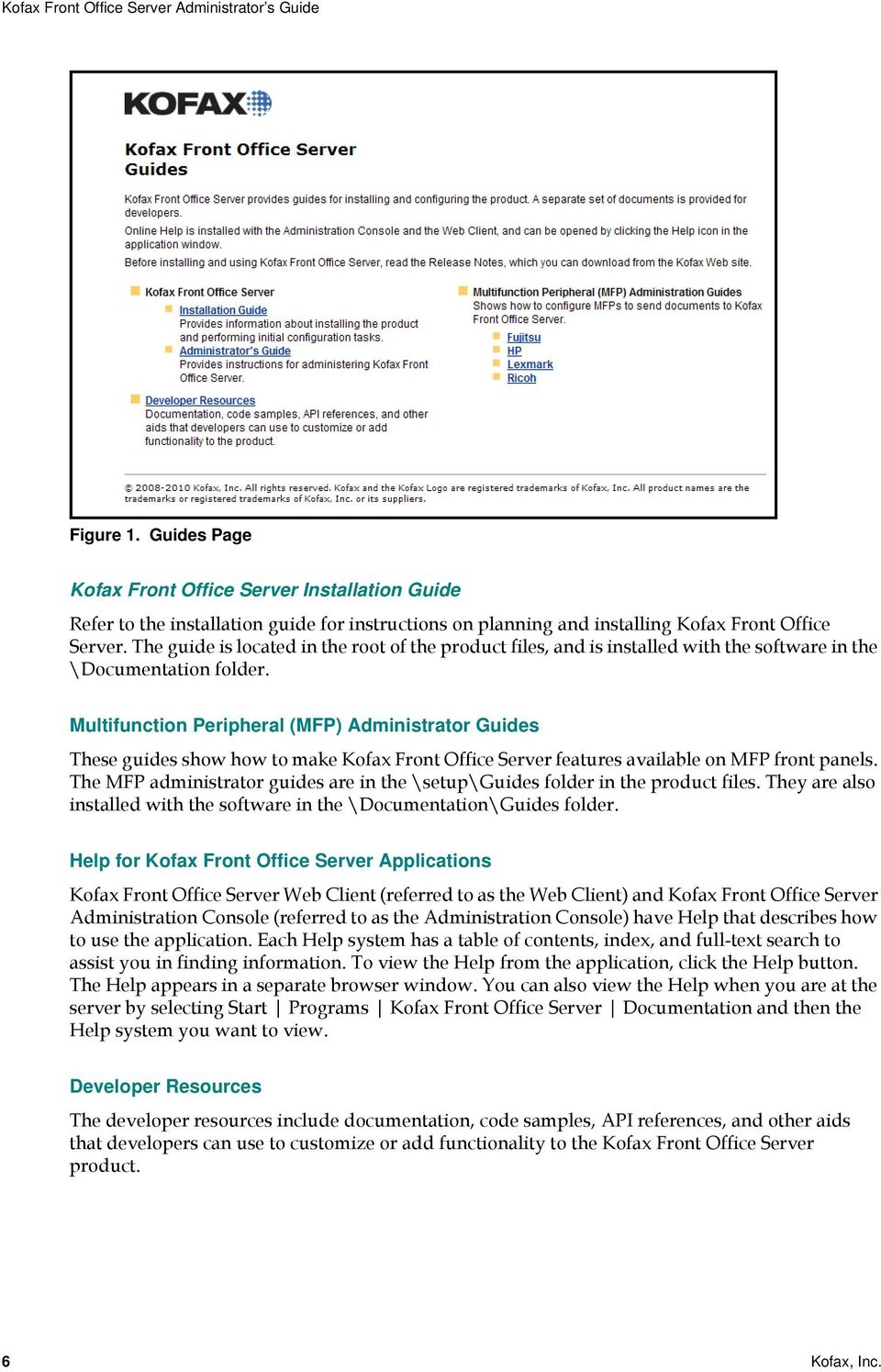
6 Figure 1. Guides Page Kofax Front Office Server Installation Guide Refer to the installation guide for instructions on planning and installing Kofax Front Office Server. The guide is located in the root of the product files, and is installed with the software in the \Documentation folder. Multifunction Peripheral (MFP) Administrator Guides These guides show how to make Kofax Front Office Server features available on MFP front panels. The MFP administrator guides are in the \setup\guides folder in the product files. They are also installed with the software in the \Documentation\Guides folder. Help for Kofax Front Office Server Applications Kofax Front Office Server Web Client (referred to as the Web Client) and Kofax Front Office Server Administration Console (referred to as the Administration Console) have Help that describes how to use the application. Each Help system has a table of contents, index, and full-text search to assist you in finding information. To view the Help from the application, click the Help button. The Help appears in a separate browser window. You can also view the Help when you are at the server by selecting Start Programs Kofax Front Office Server Documentation and then the Help system you want to view. Developer Resources The developer resources include documentation, code samples, API references, and other aids that developers can use to customize or add functionality to the Kofax Front Office Server product. 6 Kofax, Inc.
7 Release Notes Late-breaking product information is available from the release notes. Read the release notes carefully, because they contain information that may not be included in other Kofax Front Office Server documentation. Training Kofax offers both classroom and computer-based training that will help you make the most of your Kofax Front Office Server solution. Visit the Kofax Web site at for complete details about the available training options and schedules. Technical Assistance for your Kofax Product Support for your Kofax product is provided by your primary application support provider, which is specified as part of the maintenance agreement associated with your purchase. Please contact your Kofax application support provider for technical assistance. For more information about your product, visit the Kofax Support pages at for: Product information and release news Access to the Kofax Knowledgebase Access to the online Case Management System (for eligible customers) Downloadable product documentation Before contacting your Kofax application support provider, please gather the following information where applicable: Product name, version, and serial number Log files Product license Exact error message(s) Reproduction scenario Overview Kofax Front Office Server, an add in for Kofax Capture, enables documents from a variety of sources, including multifunction peripherals (MFPs), to be delivered directly to Kofax Capture, or to the Web Client application for additional processing before release to Kofax Capture. Integration with Kofax Capture Kofax Front Office Server integrates with Kofax Capture and takes advantage of the following features. User Authentication Kofax Front Office Server uses the Kofax Capture user profile and group membership authentication on MFP devices and in both the Web Client and the Administration Console applications. You can configure Kofax Front Office Server so that once users have logged on to the computer where they launch the browser, users will not have to log on to either the Web Client or the Administration Console (this is also called single sign on). Kofax, Inc. 7

8 Note Access to the Administration Console is restricted to Kofax Capture users who have rights to the Kofax Capture Administration module. All Kofax Capture users can be assigned permission to access the Web Client without special Kofax Capture rights. Licensing Kofax Front Office Server integrates with the Kofax Capture centralized license management scheme. System Licenses Kofax Front Office Server System license to run Kofax Front Office Server standard installations using the Microsoft SQL Server Express database. Kofax Front Office Server Enterprise System license to run Kofax Front Office Server Enterprise installations using a SQL Server or Oracle database. Station Licenses Kofax Front Office Server Device Limits the number of devices that can be added to the Administration Console. When no more device licenses are available, no more devices can be added. You can either remove devices, or purchase additional licenses. Kofax Front Office Server Web Client Limits the number of concurrent open sessions of the Web Client. When no more station licenses are available, users cannot log on. You can either have current users log off, or purchase additional licenses. Volume Licensing and MFPs Volume licensing for the following Kofax Capture licenses is not affected (page count is not decremented) for any documents that are scanned at an MFP and come through Kofax Front Office Server: Scan/Import page count Kofax PDF Image+Text page count Any documents that did not originate at an MFP (for example, scanned or uploaded into the Web Client and then released) also decrement page count. Shared Folder in Kofax Capture Server Files Location The Kofax Front Office Server installation detects the location of the Kofax Capture server files, and creates a \KFS subfolder where users inboxes, scanjob images, and configuration files (among other items) are stored. Warning If the location of the Kofax Capture server files is ever changed after Kofax Front Office Server installation, you must follow the instructions in Validation Kofax Capture batch class information is used to validate batches released from MFPs or the Web Client. 8 Kofax, Inc.

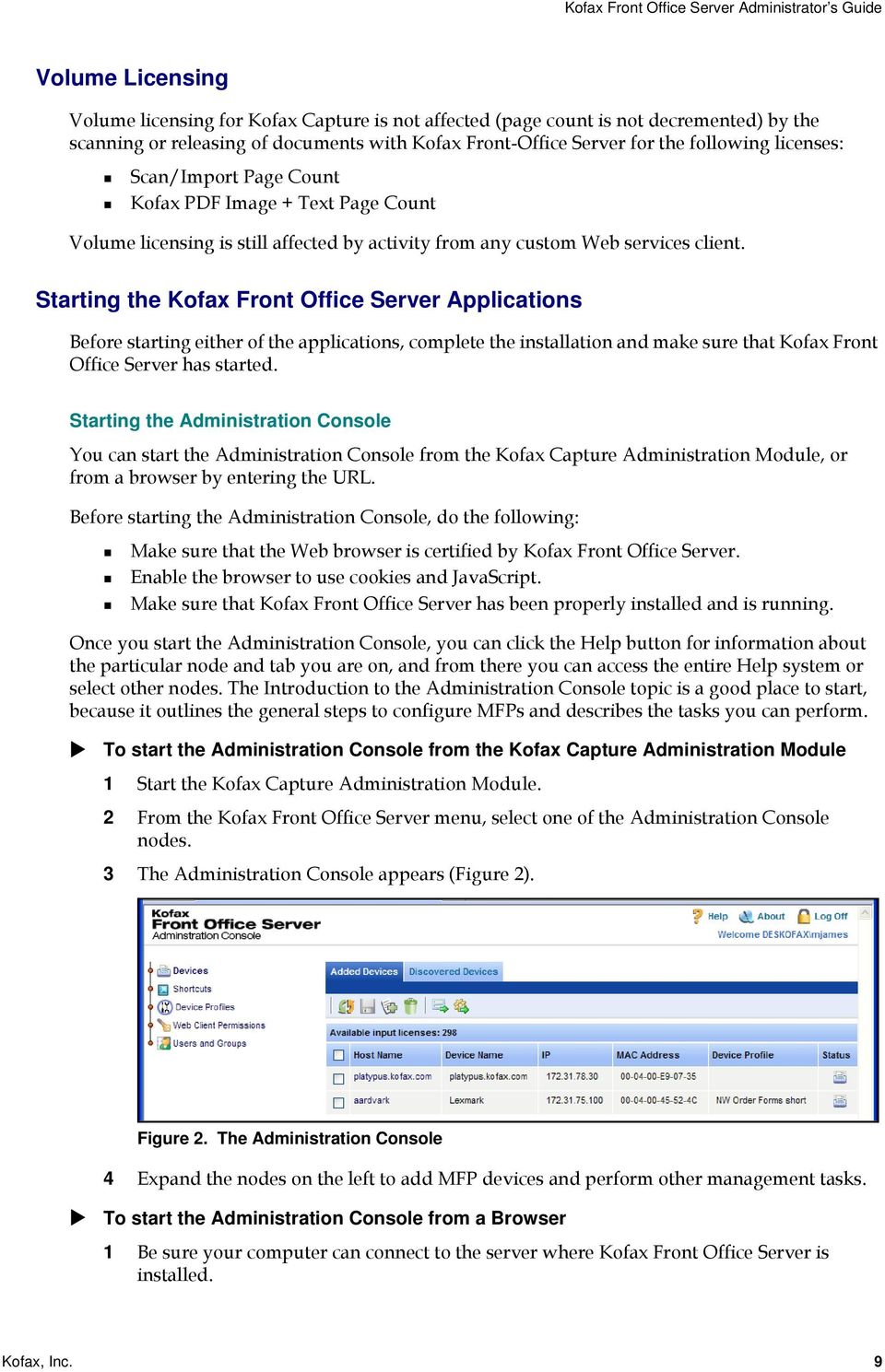
9 Volume Licensing Volume licensing for Kofax Capture is not affected (page count is not decremented) by the scanning or releasing of documents with Kofax Front-Office Server for the following licenses: Scan/Import Page Count Kofax PDF Image + Text Page Count Volume licensing is still affected by activity from any custom Web services client. Starting the Kofax Front Office Server Applications Before starting either of the applications, complete the installation and make sure that Kofax Front Office Server has started. Starting the Administration Console You can start the Administration Console from the Kofax Capture Administration Module, or from a browser by entering the URL. Before starting the Administration Console, do the following: Make sure that the Web browser is certified by Kofax Front Office Server. Enable the browser to use cookies and JavaScript. Make sure that Kofax Front Office Server has been properly installed and is running. Once you start the Administration Console, you can click the Help button for information about the particular node and tab you are on, and from there you can access the entire Help system or select other nodes. The Introduction to the Administration Console topic is a good place to start, because it outlines the general steps to configure MFPs and describes the tasks you can perform. To start the Administration Console from the Kofax Capture Administration Module 1 Start the Kofax Capture Administration Module. 2 From the Kofax Front Office Server menu, select one of the Administration Console nodes. 3 The Administration Console appears (Figure 2). Figure 2. The Administration Console 4 Expand the nodes on the left to add MFP devices and perform other management tasks. To start the Administration Console from a Browser 1 Be sure your computer can connect to the server where Kofax Front Office Server is installed. Kofax, Inc. 9
10 2 Start the Administration Console by doing either of the following: Open a certified Web browser and type the URL for Kofax Front Office Server Administration Console. For the URL, refer to Identifying the URLs for Kofax Front Office Server Applications. If you are at the server, select Start Programs Kofax Front Office Server Administration Console. 3 The Administration Console Log On screen appears (Figure 3). If automatic log on (also called single-sign on) does not occur, the Administration Console Log On screen appears. Figure 3. The Administration Console Log On Screen Tip Bookmark the Administration Console Log On screen to make it convenient to start it each time. 4 Type your Kofax Capture user ID and password. Passwords are case-sensitive. 5 After you have logged on successfully, the Administration Console appears (Figure 2). Expand the nodes in the menu on the left to add MFP devices and perform other management tasks. Starting the Web Client Before you can log on to the Web Client, you need the following: The URL of the Web Client. For the URL, refer to Identifying the URLs for Kofax Front Office Server Applications. A user name and password if you are prompted for lon on credentials A Web browser supported by the Web Client. Cookies and JavaScript enabled on the browser. Tip Bookmark the Web Client Log On page to make it convenient to start it each time. To log on to the Web Client 1 In the browser s Address field, type the URL for the Web Client. If automatic log on (also called single-sign on) does not occur, the Web Client Log On screen appears. 10 Kofax, Inc.

11 Figure 4. The Web Client Log On Screen 2 Type your Kofax Capture user ID and password. Passwords are case-sensitive. 3 Click Log On. The Web Client window appears. Identifying the URLs for Kofax Front Office Server Applications Provide all users of Kofax Front Office Server applications with the URL they need to connect from a Web browser. For Kofax Front Office Server Administration Console, type the URL as follows: If security is not enabled with an SSL certificate: If security is enabled with an SSL certificate: For Kofax Front Office Server Web Client, type the URL as follows: Where: If security is not enabled with an SSL certificate: If security is enabled with an SSL certificate and you are not using WebScan: If security is enabled with an SSL certificate and you are using WebScan: server is the IP address or host name of: The computer with a departmental installation of Kofax Front Office Server An NLB cluster or IIS server in an Enterprise installation servername is the host or DNS name of: The computer with a departmental installation of Kofax Front Office Server The proxy server in an Enterprise installation 8443 is the port used by Kofax Front Office Server for transmitting secure data. Kofax, Inc. 11

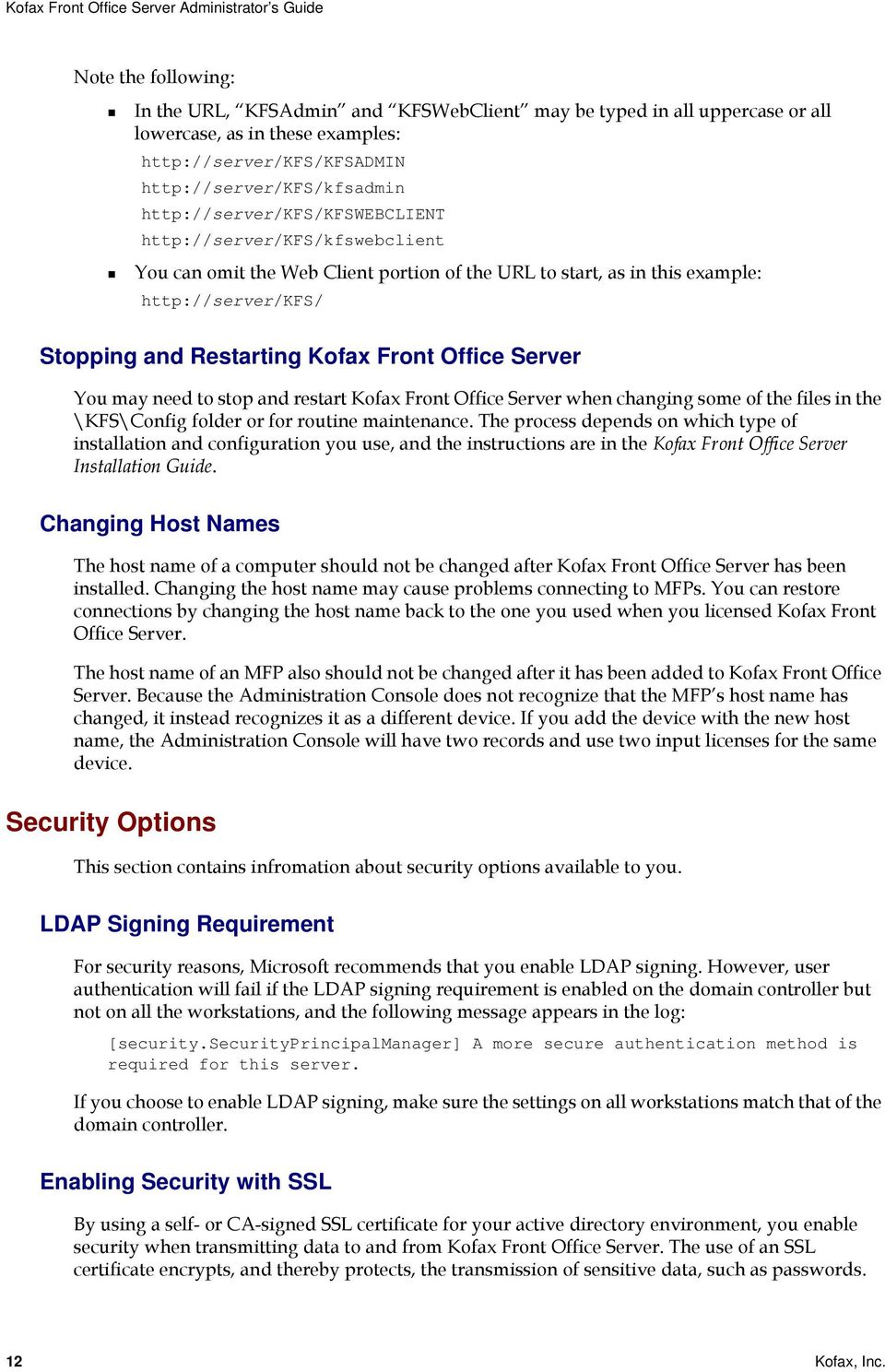
12 Note the following: In the URL, KFSAdmin and KFSWebClient may be typed in all uppercase or all lowercase, as in these examples: You can omit the Web Client portion of the URL to start, as in this example: Stopping and Restarting Kofax Front Office Server You may need to stop and restart Kofax Front Office Server when changing some of the files in the \KFS\Config folder or for routine maintenance. The process depends on which type of installation and configuration you use, and the instructions are in the Kofax Front Office Server Installation Guide. Changing Host Names The host name of a computer should not be changed after Kofax Front Office Server has been installed. Changing the host name may cause problems connecting to MFPs. You can restore connections by changing the host name back to the one you used when you licensed Kofax Front Office Server. The host name of an MFP also should not be changed after it has been added to Kofax Front Office Server. Because the Administration Console does not recognize that the MFP s host name has changed, it instead recognizes it as a different device. If you add the device with the new host name, the Administration Console will have two records and use two input licenses for the same device. Security Options This section contains infromation about security options available to you. LDAP Signing Requirement For security reasons, Microsoft recommends that you enable LDAP signing. However, user authentication will fail if the LDAP signing requirement is enabled on the domain controller but not on all the workstations, and the following message appears in the log: [security.securityprincipalmanager] A more secure authentication method is required for this server. If you choose to enable LDAP signing, make sure the settings on all workstations match that of the domain controller. Enabling Security with SSL By using a self- or CA-signed SSL certificate for your active directory environment, you enable security when transmitting data to and from Kofax Front Office Server. The use of an SSL certificate encrypts, and thereby protects, the transmission of sensitive data, such as passwords. 12 Kofax, Inc.
13 Tip If you use the DSA algorithm when creating a self-signed certificate for use with SSL, users will not be able to connect to the HP MFP. To use SSL with the HP, you must create the certificate using the RSA algorithm. We recommend you use the RSA algorithm when generating self-signed certificates. In preparing to enable security with SSL, note the following: Kofax Front Office Server ships with a default self-signed SSL certificate, with the file avalin.keystore which specifies avalin as the host name for the installation. The avalin.keystore file is located in the \Kofax\Front Office Server\Avalin\jboss\server\avalin\conf folder where Kofax Front Office Server is installed. You can replace the file avalin.keystore, using the same file name to ensure a smooth implementation and to avoid having to edit other server and/or network properties. If replacing the file avalin.keystore using the same file name, note the following: Keystore password=avalin Host name=the full name for the server where Kofax Front Office Server is installed. For example: or Server01. Key password=avalin Kofax Front Office Server by default uses port 8443 for the secured transmittal of encrypted data. The URL for accessing the Administration Console or the Web Client requires https instead of http. For more information, see Identifying the URLs for Kofax Front Office Server Applications. About Single Sign On Kofax Front Office Server supports single sign on for Kofax Capture linked users. If users log on to a computer using a user account that is linked in Kofax Capture and have the appropriate access rights, users can start the Administration Console or the Web Client without being prompted to log on.when authentication fails, or if the user is not authorized to log on, a log on screen appears to allow users to manually enter credentials. This section assumes you are familiar with Group Policy configuration and using and registering a Service Principal Name (SPN). To use the single sign-on feature, the following conditions have to be met: If using IIS, the IIS authentication method must be set to Enable anonymous access. Clients must use Internet Explorer 7 or 8. Clients and Kofax Front Office Server must be on the same domain. Internet Explorer must have the Enable Integrated Windows Authentication option turned on. If users are using the Fully Qualified Domain Name (FQDN, Internet Explorer must have the Kofax Front Office Server computer added to the Local intranet zone or the Trusted zone. To avoid setting this up for each user individually, your domain administrator can create a Group Policy and add it to the desired organizational units. Kofax, Inc. 13

14 Important When adding to the Trusted zone, the IE Security Settings option User Authentication Logon must be set to Automatic logon with current user name and password. The user you specify with SPN must be in the Administrators group on the computer registered with DNS. To enable single sign on 1 In the \KFS\Config folder, open kfs.properties in a text editor. 2 Change the EnableSingleSignOn to true as shown: EnableSingleSignOn=true 3 Save and close the file. The change takes effect automatically in less than a minute. In the following section Examples of Possible Configurations, there are some additional configuration tasks listed in the tables to register DNS and SPN. Although it is expected that system administrators will know how to perform those tasks, we include the following instructions. To register DNS entry pointing to some machine to hosting the physical server Note You do this before you register the SPN because you need to use the URL that you will create as part of the SPN command line entry when you register SPN in the next set of steps. Note also that you must create a DNS entry for all configurations, including a standalone (Departmental), that will not use the host name in the URL. 1 On your domain controller, open Administrative Tools DNS. 2 Expand Forward Lookup Zones, select your domain, then right-click and select New Host (A). 3 In the Name field, type a name that will be the first part of the URL (for example, wwwkfs). This will be the URL address. Be sure the name you enter is not already used on the domain. 4 In the IP address field, enter your standalone IP or the IP of your proxy IIS, IBM HTTP for WebSphere, or NLM cluster host. 5 Click Add Host. To register SPN (service Principal Name) under the user account running the KofaxServer service. Note This is to enable Kerberos authentication: you are using a domain account to run the KofaxServer service, and that domain user must be registered. (The Local System account is automatically registered by the server.) 14 Kofax, Inc.

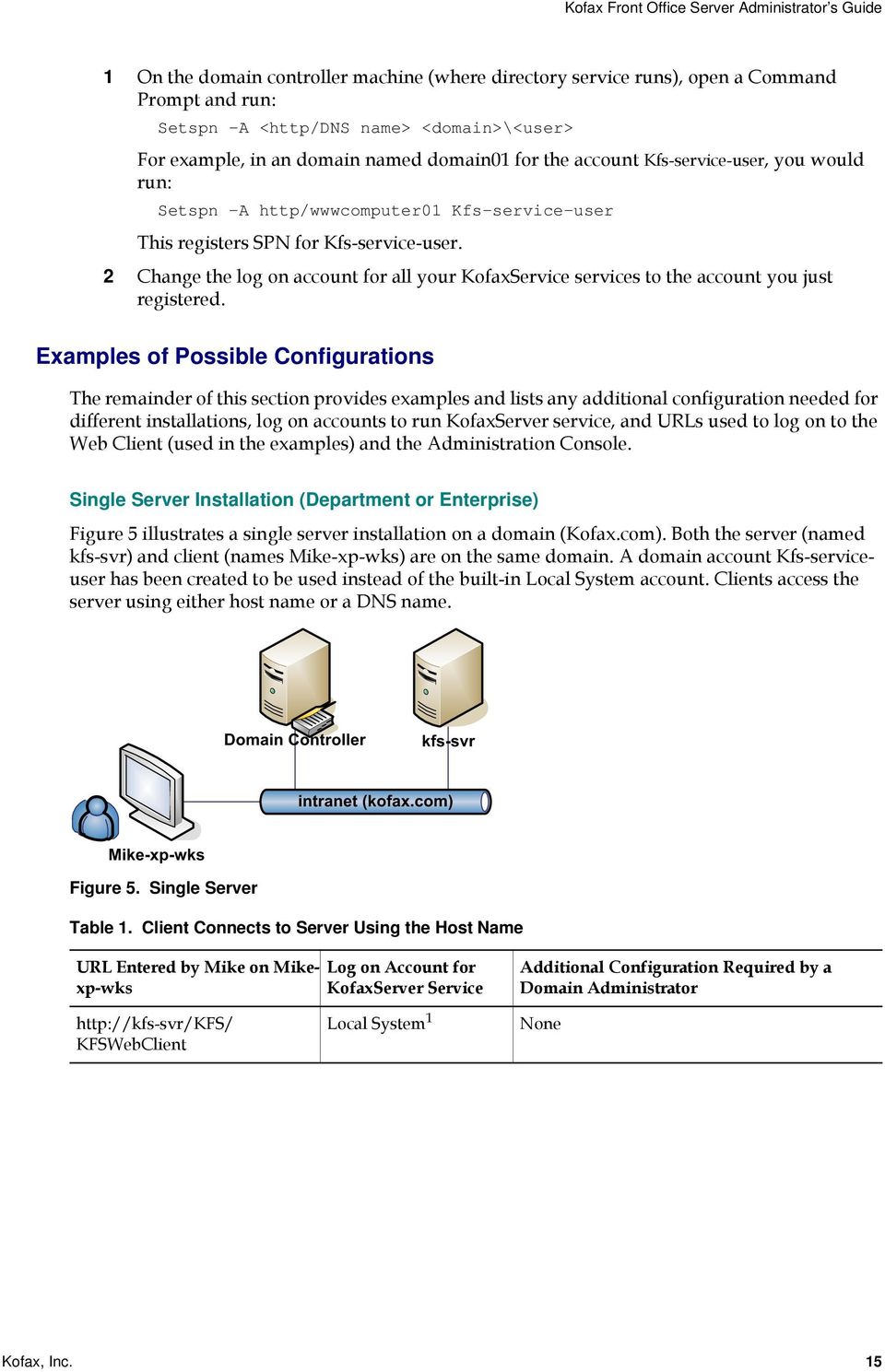
15 1 On the domain controller machine (where directory service runs), open a Command Prompt and run: Setspn -A <http/dns name> <domain>\<user> For example, in an domain named domain01 for the account Kfs-service-user, you would run: Setspn -A http/wwwcomputer01 Kfs-service-user This registers SPN for Kfs-service-user. 2 Change the log on account for all your KofaxService services to the account you just registered. Examples of Possible Configurations The remainder of this section provides examples and lists any additional configuration needed for different installations, log on accounts to run KofaxServer service, and URLs used to log on to the Web Client (used in the examples) and the Administration Console. Single Server Installation (Department or Enterprise) Figure 5 illustrates a single server installation on a domain (Kofax.com). Both the server (named kfs-svr) and client (names Mike-xp-wks) are on the same domain. A domain account Kfs-serviceuser has been created to be used instead of the built-in Local System account. Clients access the server using either host name or a DNS name. Domain Controller kfs-svr intranet (kofax.com) Mike-xp-wks Figure 5. Single Server Table 1. Client Connects to Server Using the Host Name URL Entered by Mike on Mikexp-wks KFSWebClient Log on Account for KofaxServer Service Local System 1 Additional Configuration Required by a Domain Administrator None Kofax, Inc. 15
16 Table 1. Client Connects to Server Using the Host Name (continued) 1 If you need to use a domain user account, then you must use a DNS name. See the next table for information.. URL Entered by Mike on Mikexp-wks KFS/KFSWebClient Log on Account for KofaxServer Service Local System 1 Table 2. Client Connects to Server Using a DNS Name Additional Configuration Required by a Domain Administrator Add the FQDN (kfs-svr.kofax.com) to the Intranet zone or Trusted zone in Internet Explorer. This can be done individually on each client browser, or it can be done on the domain controller with Group Policies so that the setting will be applied to all clients in the domain. Note that the DNS and SPN steps in the following configurations are not necessary since they are done automatically for server host names. URL Entered by Mike on Mikexp-wks Log on Account for KofaxServer Service Additional Configuration Required by a Domain Administrator KFSWebClient KFS/KFSWebClient Kfs-service-user Kfs-service-user On the domain controller, register DNS entry pointing www-kfs.kofax.com to host machine kfs-svr. On the domain controller, register SPN HTTP/ www-kfs-svr.kofax.com under user account Kfs-service-user. Then, configure the computer to use Kfs-service-user as the KofaxService log on account Same two steps above plus: Add the FQDN (kfs-svr.kofax.com) to the Intranet zone or Trusted zone in Internet Explorer. This can be done individually on each client browser, or it can be done on the domain controller with Group Policies so that the setting will be applied to all clients in the domain. Enterprise Cluster with Proxy Server Figure 6 illustrates an Enterprise installation using a proxy. The cluster is configured to include kfs-svr-node1, kfs-svr-node2 and the proxy server kfs-svr-proxy. All servers and clients are on the same domain. Clients access the cluster through the proxy server s designated DNS name. 16 Kofax, Inc.

17 Domain Controller kfs-svr-node1 kfs-svr-node2 kfs-svr-proxy Intranet (kofax.com) Jack-xp-wks Figure 6. Cluster with Proxy Server. Table 3. Client Connects to Proxy Server Using DNS Name URL Entered by Jack on Jackxp-wks KFSWebClient KFS/KFSWebClient Log on Account for KofaxServer Service Kfs-service-user Kfs-service-user Additional Configuration Required by a Domain Administrator On the domain controller, register DNS entry pointing www-kfs.kofax.com to host machine kfs-svr-proxy. On the domain controller, register SPN HTTP/ www-kfs.kofax.com under user account Kfsservice-user. Then, configure every Kofax Front Office Server in the cluster to use Kfs-serviceuser as the KofaxService log on account Same two steps above plus: Add the FQDN (kfs-svr-proxy.kofax.com) to the Intranet zone or Trusted zone in Internet Explorer. This can be done individually on each client browser, or it can be done on the domain controller with Group Policies so that the setting will be applied to all clients in the domain. Enterprise Cluster with NLB Figure 7 illustrates an enterprise installation using NLB. The NLB cluster is configured to include kfs-svr-worker1 and kfs-svr-worker2. The cluster name is www-kfs.kofax.com. All servers and clients are on the same domain. Clients access the cluster through the cluster s DNS name. Kofax, Inc. 17

18 Domain Controller kfs-svr-worker1 kfs-svr-worker2 NLB www-kfs.kofax.com Intranet (kofax.com) Jill-xp-wks Figure 7. Cluster with Microsoft NLB Table 4. Client Connects to Server (NLB Cluster) Using DNS Name URL Entered by Jill on Jill-xpwks KFSWebClient KFS/KFSWebClient Log on Account for KofaxServer Service Kfs-service-user Kfs-service-user Additional Configuration Required by a Domain Administrator On the domain controller, register DNS entry www-kfs.kofax.com as NLB cluster name pointing to the static IP address assigned to the NLB cluster. On the domain controller, register SPN HTTP/ www-kfs.kofax.com under user Kfs-serviceuser. Then, configure every Kofax Front Office Server in the cluster to use Kfs-service-user as the KofaxService log on account. Same two steps above plus: Add the FQDN (www-kfs.kofax.com) to the Intranet zone or Trusted zone in Internet Explorer. This can be done individually on each client browser, or it can be done on the domain controller with Group Policies so that the setting will be applied to all clients in the domain. Managing Free Drive Space The Kofax Front Office Server database expands in size as it accumulates logs and document tracking records. If destination types go offline for a prolonged period of time, requests are queued on the server, which also consumes hard drive space. If the hard drive runs out of space, Kofax Front Office Server may operate unpredictably. Tip You can monitor the KFS.log file for any drive space errors. 18 Kofax, Inc.

19 Blocking Requests when Drive Space is Limited When drive space reaches a minimum threshold (the default minimum threshold is 5 GB), Kofax Front Office Server blocks requests until more drive space is made available. You can adjust this amount by editing the system.resource.checker.properties file. It is located in the \conf folder. Modify the following properties in a text editor: enabled limits check.frequency.millis accept.requests.on.disk.check.error When you have finished modifying the file, stop and restart Kofax Front Office Server. Backing Up and Restoring This section provides instructions for backing up and restoring Standard and Enterprise configurations. Departmental Configurations This section provides instructions for gathering backup data and restoring a Departmental configuration. You may want to back up important data before upgrading, and regularly to be able to restore a failed system to a certain state. Make sure that you have your original Kofax Front Office Server installation media (or installation media of the same version) before proceeding. To backup data 1 In the Services console, stop the SQL Server (KFS) service. 2 Create backup copies of the following folders: <Kofax Capture Server folder>\kfs \Avalin, \Resources, and \SQLServer at the root of the Kofax Front Office Server installation 3 Verify that the backup was successful, and store in a safe location. To restore Kofax Front Office Server 1 Remove the non-functional Kofax Front Office Server installation from the computer. This can be done by uninstalling the software or restoring the computer a state before Kofax Front Office Server was installed. Be sure that all Kofax Front Office Server software is removed from the computer. 2 Install the same version of Kofax Front Office Server as you previously backed up, because the installer versions must match. If possible, install to the same path as the original installation. 3 In the Services console, stop the following services: KofaxServer SQL Server (KFS) 4 If you have a 32-bit computer with the Kofax Server Monitor running in the system tray, right-click the icon and select Exit. 5 Delete the following folders: Kofax, Inc. 19

20 <Kofax Capture Server folder>\kfs \Avalin, \Resources, and \SQLServer at the root of the Kofax Front Office Server installation 6 Replace the deleted folders with the backup data folders. 7 Set the Security permissions of the following folders to grant Full Control to the Windows user that was specified for the Kofax Front Office Server service during installation: <Kofax Capture Server folder>\kfs \Avalin and \Resources at the root of the Kofax Front Office Server installation folder. 8 Set the Security permissions of the \SQLServer at the root of the Kofax Front Office Server installation to grant Full Control to the NETWORK SERVICE user. 9 In the Services console, start the following services: KofaxServer SQL Server (KFS) 10 On 32-bit computers, you can display the Kofax Server Monitor in the system tray by selecting Start Programs Kofax Front Office Server Kofax Server Monitor. Enterprise Configurations This section provides instructions for gathering backup data and restoring an Enterprise configuration. You may want to back up important data before upgrading, and regularly to be able to restore a failed system to a certain state. Make sure that you have your original Kofax Front Office Server installation media (or installation media of the same version) before proceeding. To backup data 1 Create backup copies of the following folders: <Kofax Capture Server folder>\kfs \Avalin and \Resources at the root of the Kofax Front Office Server installation 2 Verify that the backup was successful, and store in a safe location. 3 Backup your SQL Server or Oracle database state. To restore Kofax Front Office Server 1 Remove the non-functional Kofax Front Office Server installation from all computers in the cluster. This can be done by uninstalling the software or restoring the computers a state before Kofax Front Office Server was installed. Be sure that all Kofax Front Office Server software is removed from the computer. 2 Install the same version of Kofax Front Office Server as you previously backed up, because the installer versions must match. If possible, install to the same path as the original installation. 3 In the Services console, stop the KofaxServer service. 4 If you have a 32-bit computer with the Kofax Server Monitor running in the system tray, right-click the icon and select Exit. 5 Delete the following folders: <Kofax Capture Server folder>\kfs \Avalin and \Resources at the root of the Kofax Front Office Server installation 20 Kofax, Inc.

21 6 Replace the deleted folders with the backup data folders. 7 Set the Security permissions of the following folders to grant Full Control to the Windows user that was specified for the Kofax Front Office Server service during installation: <Kofax Capture Server folder>\kfs \Avalin and Resources at the root of the Kofax Front Office Server installation 8 Restore your backed-up SQL Server or Oracle database state. 9 In the Services console, start the KofaxServer service. 10 On 32-bit computers, you can display the Kofax Server Monitor in the system tray by selecting Start Programs Kofax Front Office Server Kofax Server Monitor. Setting Options for the Web Client This section contains instructions on how to set up some options related to the Web Client. Defining the Page Size for the Web Client List of Documents When you are viewing a list of documents in the Inbox, only a certain number of these documents display at one time, on a page of the list. If the number of documents in the Inbox exceed a defined maximum for a page, you can view additional pages of the list. The Web Client installs with a default page size for the list of documents. If you have a preference, you can change the maximum number of documents to display on a single page of the list. You can set the page to display from 1 to 150 listed documents. To define the page size of the list of documents 1 In the \KFS\Config folder, locate the KFSportal.properties file and open it in a text editor. 2 Edit the following property to specify the desired maximum number documents for a page of the list of documents: paging.page.size For example, to set the maximum number to 25, define the property as follows: paging.page.size=25 3 Save the file. For the change to take effect, users need to log out of and log in to the the Web Client. Setting Up to Scan Directly from the Web Client Users can scan directly to the Inbox by doing one of the following: Scanning with a certified scanner connected to a client workstation You can connect a certified scanner to a client workstation installed with Kofax VRS 4.2, Kofax VRS 4.5, or the manufacturer s TWAIN driver. Then, using a feature (referred to as WebScan) included in Kofax Front Office Server Web Client with the installation of Kofax Front Office Server, you can set up an option that enables you to scan a document directly from the Web Client. To ensure the best image quality, it is recommended that you use WebScan with VRS. Scanning with a Kofax Document Scan Server Kofax, Inc. 21
22 You can set up a connection between the Web Client and a Kofax Document Scan Server that is in turn connected to a certified scanner. With this connection set up in the Web Client, you can scan a document directly from the Web Client. Note Effective January 2010, Kofax Document Scan Server is a retired product and is no longer supported. You can continue to use Kofax Document Scan Server with Kofax Front Office Server 3.0, but no further development will occur and any reported defects will not be fixed. For each logged on user, only one of these options can be used at a time. When you have successfully connected to either a certified scanner or Kofax Document Scan Server, buttons for scanning documents are enabled in the Web Client. For a list of certified scanners, go to the Kofax Web site ( Setting Up to Scan with a Certified Scanner To successfully scan with a certified scanner connected to a client workstation, the following criteria must be met: Internet Explorer 6.0 or 7.0 on the Client Workstation Make sure Internet Explorer 6.0 or 7.0 is available on the client workstation and is used to log on to the Web Client. Microsoft.NET Framework 2.0 on the Client Workstation If the client workstation is using Windows XP, make sure Microsoft.NET Framework 2.0 is installed. If the client workstation is using Windows Vista, Microsoft.NET Framework 2.0 is not required. Note If you have a later version of Microsoft.NET Framework, use the instructions presented later in this section as described for Microsoft.NET Framework 2.0. Scanner Setup on the Client Workstation Connect a certified scanner to the client workstation. Make sure VRS or the manufacturer s TWAIN driver is installed on the client workstation. For more information, see Setting Up the Scanner. Security Policy for Your Enterprise (or the Client Workstation) Make sure the appropriate security policy is set up for your enterprise. For more information, see Setting Up the Appropriate Security Policy for an Enterprise. As an alternative, you can also set up the security policy for an individual client workstation. For instructions, see Setting Up the Appropriate Security Policy on a Client Workstation. However, it is recommended that you set up the security policy for your enterprise. KFS WebScan Permission for the Applicable Users or Groups In the Administration Console, associate the Web Client Permission KFS WebScan with each applicable user or group. This association is required to enable a user to use 22 Kofax, Inc.
23 WebScan. For more information about assigning Web Client Permissions, see the the Administration Console Help. Optionally, modify the KFS WebScan permission and associate the activity Change Scanner Settings in WebScan that permits changing the scanner settings directly in the Web Client when using WebScan. Scanner Settings in the Web Client Prior to scanning with the scanner connected to your client workstation, access Kofax Front Office Server Web Client, click Set Inbox options. On the Scanner Settings tab, specify one of the following: Kofax Software VRS - TWAIN If you are scanning with VRS for the connected scanner Scanner model If you are scanning with the manufacturer s TWAIN driver, and not VRS, for the connected scanner For more information about scanner settings in the Web Client, see the the Web Client Help. Scanner Profile (Optional) When Scanning with VRS or the TWAIN Driver Optionally, define a scanner profile to be used by the selected scanner when scanning. For more information, see Setting Up a Scanner Profile. Setting Up the Scanner When setting up the desired scanner, use the following summarized procedures after connecting the scanner to your client workstation. To set up the scanner if you will be scanning with VRS 1 Install Kofax VRS on the client workstation. For details, see the user documentation for Kofax VRS. 2 During the installation, select the scanner you will be scanning with. If the appropriate scanner is not available for selection, select I will configure my scanner later. Complete the VRS installation. 3 If the scanner was available during the installation of VRS, skip to Step 4. If the scanner was not available during the installation of VRS, install the scanner driver provided by VRS from another source (such as the Scanner Configuration Utility installed with VRS or the Kofax Web site). If a driver is not available by VRS, install the TWAIN driver supplied by the manufacturer. (For details, see the manufacturer s user documentation.). 4 To complete the setup, configure the scanner in Windows. To set up the scanner if you will not be scanning with VRS 1 Install the manufacturer s TWAIN driver supplied by the manufacturer. For details, see the manufacturer s user documentation. 2 To complete the setup, configure the scanner in Windows. Typically, at this point, the scanner is set up for successful operation. However, see the user documentation for your scanner for any additional setup required or recommended. Kofax, Inc. 23
24 Setting Up the Appropriate Security Policy for an Enterprise To ensure all users within your enterprise can successfully scan with a connected scanner, the following items need to be completed: Kofax Front Office Server As a Trusted Site Define a group policy in Active Directory to specify the Kofax Front Office Server URL as a trusted site. Code Access Security Policy Create a security policy deployment package and distribute the package across your enterprise. For more information, see Creating and Distributing a Security Policy Deployment Package. Creating and Distributing a Security Policy Deployment Package Use the following summarized instructions to create and distribute the security policy deployment package (as a Microsoft Installer or MSI) to the client workstations in your domain. For more information, see the.net Framework Enterprise Security Policy Administration and Deployment document on the Microsoft Developer s Network (MSDN). The distributed package installs the.net machine-level, run-time security policy for KofaxDesktopScan. To create the security policy deployment package (or MSI) 1 Create a template for your enterprise-wide.net security policy. To do so, on a server or client workstation that is installed with.net Framework 2.0, in a command prompt window, enter the following command: C:\Windows\Microsoft.NET\Framework\v \caspol -machine -addgroup All_Code -zone Trusted FullTrust -name KofaxDesktopScan Where: C:\Windows\Microsoft.NET\Framework\v is the path where Microsoft.NET Framework 2.0 is installed. When prompted, confirm that you want to perform the operation. 2 Create and store the MSI. To do so, run the Microsoft.NET Framework Configuration tool, which is available in the Microsoft.NET Framework 2.0 SDK. Under Tasks, select Code Access Security Policy Create Deployment Package. In the Deployment Package Wizard, under Select the security policy level to deploy, select Machine. Then, browse to a domain-accessible, shared folder in which to store the MSI. Complete the wizard instructions. 24 Kofax, Inc.
25 Figure 8. Microsoft.NET Framework 2.0 Configuration Tool To distribute the MSI, assign the MSI to a group policy. To do so, on the domain controller, for the appropriate group policy, open the Group Policy Object Editor. Select Computer Configuration Software Settings. Right-click Software Installation. Select New Package. Then, browse to the MSI you created previously. Deploy the software. Figure 9. Group Policy Object Editor To have the group security policy take effect, restart any applicable servers and client workstations. Kofax, Inc. 25
26 Setting Up the Appropriate Security Policy on a Client Workstation Although it is recommended that you set up the security policy for your enterprise, you can set up the security policy for individual client workstations. To do so, you need to set up Kofax Front Office Server as a trusted site and a code access security policy on each applicable client workstation. To set up Kofax Front Office Server as a trusted site, in Internet Explorer, specify the Kofax Front Office Server URL as a trusted site in Internet Options. For example, on the Tools menu, select Internet Options. Then, on the Security tab, select Trusted sites and click Sites. In the Trusted sites window, enter the URL for Kofax Front Office Server and click Add. For example, enter Where: kfs.company.com is the host name registered with DNS or IP address for Kofax Front Office Server. Note If security is enabled with an SSL certificate, you must specify the trusted site with the host name. Figure 10. Setting Kofax Front Office Server As a Trusted Site To set up the code access security policy (with caspol.exe) 1 On your client workstation, open a Command Prompt window. For example, on the Windows desktop, go to Start All Programs Accessories Command Prompt. 2 Enter the following command: C:\Windows\Microsoft.NET\Framework\v \caspol -machine -addgroup All_Code -zone Trusted FullTrust -name KofaxDesktopScan Where: C:\Windows\Microsoft.NET\Framework\v is the path where Microsoft.NET Framework 2.0 is installed. 26 Kofax, Inc.
27 When prompted, confirm that you want to perform the operation. Note As an alternative to using caspol.exe (Code Access Security Policy Tool), you can use the Microsoft.NET Framework Configuration tool, if installed on the client workstation. To ensure that the security policy setup takes effect, it is recommended that you close and then open Internet Explorer before using WebScan for the first time. Setting Up a Scanner Profile When you scan from the Web Client using WebScan, scanning is performed with the following: Scan settings (such as resolution or color mode) resident on the scanner, either pre-defined by the manufacturer or user-defined on the scanner as an override to the manufacturer s setting If you are using VRS, image quality (or advanced) settings available in a default profile installed with VRS If you prefer to specify scanner settings for WebScan, you can optionally set up a scanner profile based on whether you are scanning with VRS or the manufacturer s TWAIN driver (not VRS): When scanning with VRS Set up a scanner profile, including advanced image quality settings, using a utility called Twacker. This utility is available with the installation of VRS. For more information, see To set up a scanner profile when scanning with VRS. When scanning with the manufacturer s TWAIN driver (not VRS) Create a scanner profile XML file, based on the scanner profile schema and a sample scanner profile XML installed with Kofax Front Office Server. With a valid scanner profile XML file saved in the appropriate location on the server, the defined scanner settings are used automatically when scanning from Kofax Front Office Server Web Client. For more information, see To set up a scanner profile when scanning with a TWAIN driver (not VRS). A scanner profile XML file needs to be created for each applicable scanner model with which you want to use a scanner profile. To set up a scanner profile when scanning with VRS 1 Make sure VRS is not currently in use on your client workstation. This includes logging off the Web Client if Kofax Software VRS - TWAIN is the selected scanner setting for WebScan. 2 On the client workstation, locate and open the Twack_32.exe file. The file is typically located in the \Windows\Twain_32\Kofax folder. 3 In Twacker, select File Select Source. 4 In the Sources list, select Kofax Software VRS - TWAIN, and click Select. 5 Select File Setup. 6 Specify your scanner settings. The settings you specify are used each time you scan with WebScan. It is not necessary to save the settings as a profile. Kofax, Inc. 27
28 Figure 11. Scanner Settings in Twacker 7 If you want to specify image quality settings with VRS, click Advanced. In the VirtualReScan Interactive Viewer, specify your image quality settings. Then, save the settings as a new profile. Click OK to return to Twacker. Figure 12. Interactive Viewer The image quality settings that are used when you scan are those saved for the named profile that appears in the drop-down list in the Viewer. For details about specifying image quality settings and profiles in VRS, see the VRS user documentation. 8 Click OK to save your scanner settings and exit Twacker. To set up a scanner profile when scanning with a TWAIN driver (not VRS) 1 Determine the appropriate name to use when you save the scanner profile XML file. The file name must match the scanner name as it appears in the Web Client. 28 Kofax, Inc.
29 To view the name: On a client workstation that the scanner is connected to, in the Web Client, go to Inbox Options Scanner Settings tab. The name appears in the list box for the selected scanner. For naming the XML file, use only the following characters that appear in the displayed scanner name: letters and numbers, period (.), and hyphen (-). For any other character, such as a space, replace the character with an underscore character (_). For example, to create a scanner profile XML file for the scanner name that appears as Canon DR-2010C TWAIN, name the file Canon_DR-2010C_TWAIN.xml. 2 In the \KFS\Config\ScannerProfiles folder, locate and copy the sample_profile.xml file. Then, rename the copied file with the name determined in Step 1. Important The sample_profile.xml file must remain in the \KFS\Config\ScannerProfiles folder for WebScan to read scanner-specific files. The scanner profile schema, WebScanProfiles.xsd, is located in the \KFS\Config\schemas\ScannerProfiles folder. Refer to the schema to review the valid elements, attributes, and settings for the scanner profile XML file. 3 With an appropriate editor, open the scanner profile XML file and edit the settings. Then, save the file. Important Changes made to a scanner profile while a user is logged on to the Web Client are not available until the user logs out and logs on again. The following is an example of a scanner profile XML file. <?xml version="1.0" encoding="utf-8"?> <Profile xmlns=" xmlns:xsi=" <CurrentSettings> <ColorMode Value="Grayscale" /> <PageSize Value="LETTER" /> <ScanDPI Value="200" /> </CurrentSettings> </Profile> Note Although you can use a scanner profile XML file when scanning with VRS, it is recommended that you use Twacker to set up the scanner profile. Setting Up to Use a Kofax Document Scan Server To successfully scan with a Kofax Document Scan Server, you need to establish the connection with the Web Client. Tip You can change some scan settings in the \KFS\Config\vrs-dss.properties file. See Changing the Default VRS Settings for Document Scan Server for instructions. To set up to use to a Kofax Document Scan Server 1 Connect the Kofax Document Scan Server to a network that is available to Kofax Front Office Server. Then, connect a certified scanner to the Kofax Document Scan Server. Refer to the Kofax Document Scan Server documentation for instructions. Kofax, Inc. 29
30 2 Create scan profiles for the Kofax Document Scan Servers. All of the Web Client users can select the scan profile they want to use. 3 In the \KFS\Config folder, locate the DSSConfiguration.properties file and open it in a text editor. 4 Edit the following properties: username password 5 Save the file. 6 Stop and restart Kofax Front Office Server. Restarting encrypts the password. 7 Prior to scanning, set up the connection to the Kofax Document Scan Server in the Web Client. You need to enter the IP address or host name of the device. For instructions, see the the Web Client Help. Changing the Default VRS Settings for Document Scan Server When you scan with Kofax Document Scan Server, certain VRS settings are used and they take precedence over the settings in the Kofax Document Scan Server scan profile. For example, if you select a scan profile that is set up to scan in color, and the properties file is set for black/white, the scanned images will be in black/white. The settings are stored as properties in the vrs-dss.properties file in the \KFS\Config folder, and you can change the property values. Acceptable values for each property are documented in the comments for each property directly in the file. To change the VRS property settings 1 In the \KFS\Config folder, locate the vrs-dss.properties configuration file and open it in a text editor. 2 Modify the values of the properties you want to change. For example, the ColorMode property controls the color format of the image: # Specifies the color format of the output image. # 1=color, 2=grayscale, 3=black/white ColorMode=3 So, if you want to change to color scanning and your scanner supports color, change the value to 1. 3 Save the file. 4 You don t have to restart Kofax Front Office Server or have users log off of the Web Client: when you save the file the changes are applied to the next scan. Configuring Retries This section contains instructions on how to configure retries related to failover. Configuring Retries for Failed Scan Jobs If a scan job should fail, a series of retries begins. If you are using the default settings, the retries will continue every 30 seconds for a maximum of 3 tries. If a scan job fails on all retries, it is moved to an Errors subfolder in the \scanjobs folder. To retry failed scan jobs, move the folder for the 30 Kofax, Inc.
31 scan job files from the \Errors subfolder to the \Unprocessed folder. Kofax Front Office Server then starts processing the scan job. You can change the properties for retry frequency and the maximum number of retries. To change the frequency and number of retries 1 In the \KFS\Config folder, locate the shared_resources.properties configuration file and open it with a text editor. 2 Locate the following properties and change the values as follows. Both properties are optional. scanjob.server.retry.frequency Specify the time to wait between retries for a scan job, in seconds. If this property is unspecified, the default 30 will be used. scanjob.server.retry.limit Specify the number of retries for a scan job. If this property is unspecified, the default 3 will be used. 3 Save the file. 4 Stop and restart Kofax Front Office Server. Configuring Database Retries The database retry applies when a database operation (for example insert, query, update, etc.) fails. Based on the retry settings, the failed operation will be retried. You can change the properties for the maximum number of retries and for retry frequency, and you can also change those values specifically for the Web Client transactions (you may want to make the values smaller so you limit any possible wait time for the Web Client users. To change the number and frequency of retries 1 In the \KFS\Config folder, locate the shared_resources.properties configuration file and open it in a text editor. 2 Locate the following properties and change the values as follows. db.failover.retry.count Specify the time to wait between retries, in seconds. If this property is unspecified, the default 10 will be used. db.failover.retry.interval Specify the number of retries. If this property is unspecified, the default 1 will be used. kde.db.failover.retry.count Specify the time to wait between retries, in seconds. If this property is unspecified, the default 10 will be used. kde.db.failover.retry.interval Specify the number of retries. If this property is unspecified, the default 1 will be used. 3 Save the file. 4 Stop and restart Kofax Front Office Server. Configuring Retries to Storage Destinations If a destination folder is not available to receive a document or file, by default a series of retries begins and continues every 500 milliseconds for milliseconds. You can change the properties for retry timeout and interval between retries. Kofax, Inc. 31
32 To change the timeout and interval between retries 1 In the \KFS\Config folder, locate the shared_resources.properties file and open it in a text editor. 2 Locate the following properties and change the values as follows. All properties are optional. filesys.retry.timeout.millis Specify a timeout period before stopping retries if a file cannot be delivered to the storage destination, in milliseconds. If this property is unspecified, the default will be used. filesys.retry.wait.millis Specify the time to wait between retries if a file cannot be delivered to the storage destination, in milliseconds. If this property is unspecified, the default of 500 will be used. 3 Save the file. 4 Stop and restart Kofax Front Office Server. Changing the Default VRS Settings All documents scanned at an MFP are processed by Kofax VirtualReScan (VRS) based on numerous VRS settings. Which settings are used depends on where the document is sent: Documents sent to Inbox, Send to Me, or Coversheets all use the settings in the vrsdefault.properties file. Instructions for changing the settings follows. Documents sent to Global or Personal shortcuts use the settings specified for the shortcut (on the Scan Time Image Processing tab, shown in Figure 13), and then use the other settings in vrs-default.properties. Note Documents imported into the Web Client do not undergo VRS processing, and WebScan and DSS scan documents use their own VRS settings. Figure 13. Shortcuts - Scan Time Image Processing Tab VRS Image Settings To change the VRS default property settings 1 In the \KFS\Config folder, locate the vrs-default.properties configuration file and open it in a text editor. 32 Kofax, Inc.
33 2 Modify the values of the properties you want to change. Acceptable values for each property are documented in the comments for each property directly in the file. For example, the ColorMode property controls the color format of the image: # Specifies the color format of the output image. # 1=color, 2=grayscale, 3=black/white (Bitonal) ColorMode=3 So, if you want to change to color scanning and your scanner supports color, change the value to 1. 3 Save the file. You don t have to restart Kofax Front Office Server or have users log off of the Web Client When you save the file the changes are applied to the next scan. Changing SQL Server Database Authentication If your SQL Server database authentication username or password is changed after installation, you need to change the database authentication credentials in both Kofax Capture and Kofax Front Office Server. To change the database authentication 1 In the database management console, make the changes to the database credentials. 2 For Kofax Capture, do the following: a On the Kofax Capture server, on the Windows Taskbar, select Start Run, and type DBUtil in the text field. Click OK. The Database Utility will start. b If you are prompted for credentials for a Kofax Capture user, enter credentials of a user with administration utilities rights and click OK. c Connection to the database cannot be made, so the Kofax Capture - Password screen appears, where you enter the new database access credentials. d Click OK. A message that the credentials have been changed briefly appears. 3 For Kofax Front Office Server, do the following: a Stop Kofax Front Office Server on the local host and, if you have a cluster installation, all other hosts in the cluster. b On the local Kofax Front Office Server host or any host machine in a cluster, run <installation path>\kofax\front Office Server\OtherResources\Utilities\kfsutil.bat. c If you are prompted for credentials for a Kofax Capture user, enter credentials of a user with administration utilities rights and click OK. d Connection to the database cannot be made, so the Kofax Front Office Server Utilities - Database Authentication screen appears, where you enter the new database access credentials. e Click OK. A message that the credentials have been changed briefly appears. f Restart Kofax Front Office Server on the local host and, if you have a cluster installation, all other hosts in the cluster Information Updates to Kofax Capture In Kofax Capture, you can view and/or use information about scan jobs that are processed by Kofax Front Office Server. These scan jobs are for documents that are scanned from an MFP or exported from the Web Client to Kofax Capture. Kofax, Inc. 33
34 The following information generated by document activity in Kofax Front Office Server is updated to the following information in Kofax Capture. Table 5. Kofax Front Office Server Information Updates to Kofax Capture Kofax Front-Office Server Kofax Capture Document Activity Information User Tracking Kofax Capture Values Batch History MFP host name (if documents are submitted from an MFP) For Batch: Creation station ID {Batch Creator s Station ID} {Scan Operator s Station ID} Station ID Source type (if documents are submitted from a source other than an MFP, such as KFSWC (Kofax Front Office Server Web Client) or WebScan) User ID (entered for Kofax Front Office Server) For Batch: Creation user ID Creation user name {Scan Operator s User ID} (not applicable) For Module Launch: User ID User name Number of pages scanned For Batch Module: Pages scanned (not applicable) (not applicable) Date and time the pages were scanned For Batch Module and Module Launch: Start date and time {Batch Creation Date} {Batch Creation Time} For scan queue: Start date & time End date & time In addition, the following is true: The {Scan Operator's User ID} resolves to: MFP user name if authenticated on the device [Anonymous] if not authenticated on the device Coversheets: the user that created the coversheet {Scan Operator's Station ID} resolves to: MFP host name if the host name is non-empty MFP IP address if the host name is empty (or unattainable) Client IP address if originating from the Web Client (file upload, web scan) If you are upgrading to Kofax Front Office Server from a previous version, and there are existing documents in the Web Client, information for these documents is not updated to Kofax Capture when the documents are exported following the upgrade. Note For tracking user information in Kofax Capture, be sure that User Tracking is enabled in Kofax Capture. For more information, see the Kofax Capture documentation. 34 Kofax, Inc.
35 Batch Names Batches are created from documents that are exported from the Web Client and MFPs. By default, batches are named in the following formats: For documents exported from the Web Client: [User name]-[web Client host name (or IP address if host name is unavailable)]-[mm/dd/yyyy HH:MM:SS.ms (UTC offset)] For documents exported from an MFP: If user is logged on or a coversheet is used: [User name]-[mfp host name]-[mm/dd/yyyy HH:MM:SS.ms (UTC offset)] If there is no user logged on: -[MFP host name]-[mm/dd/yyyy HH:MM:SS.ms (UTC offset)] If you use a coversheet, User name indicates the user who created the coversheet. The time stamp is based on the local time zone of the server where Kofax Front Office Server is installed. The time is followed by the local time UTC offset, such as (-5:00). The time is shown to the nearest millisecond. For example, if a document is sent from host name myserver by user jill at 2:45 p.m. on August 18, 2009, the batch is named as follows: [jill]-[myserver]-[08/18/2009 2:45: PM (-8:00)] If a user name is not provided (such as if you use a global shortcut at an MFP without logging on), it is omitted from the batch name as shown: -[MFP hostname]-[08/18/2009 2:45: PM (-8:00)] Documents submitted from an MFP to the Web Client, then from the Web Client to a final destination are treated as MFP documents, and will have the MFP hostname. Custom Batch Names You can also define your own batch names by setting property values in the kc.properties file in the \KFS\Config folder: batchname.kofaxcapture.usedefault If the property value is set to true, batches are named using the Kofax Capture batch name format (defaults to false). If this property is enabled, the document tracking entries for backenddocumentid are blank, so for reporting statistics, use Kofax Capture User Tracking. batchname.indexfield In Kofax Capture, create an index field where users can enter the name for the generated batch. Assign the index field to the batch class, and use the index field name as the value for this property. Note that this property is ignored if batchname.kofaxcapture.usedefault is set to true. Important If the batch class contains a batch field with the same name as an index field, the batch field value is used for the batch name instead of the index value. Kofax, Inc. 35
36 Tracking Document Activity Information about the following document activity is stored in the Kofax Front Office Server database in the table doctracking_scanjob: Documents scanned with an MFP Scanned documents sent from an MFP Documents sent from the Web Client Note Departmental installations that use the embedded standard database do not have access to the database. To view database information, you need to move to a database that an administrator can edit. See Using the Kofax Front Office Server Utilities on page 47 for instructions. This information can be used for chain of custody tracking or to determine which records are no longer needed and can be deleted. The database records information related to creating and releasing documents. This information includes the following: Device name Form type Destination User Creation and release times The following entity diagram shows the view into the Kofax Front Office Server database, with the columns and primary key (PK). Bold text indicates columns for required data. Figure 14. Entity Diagram: Kofax Front Office Server Database View Managing Document Tracking Data Old document tracking records should be deleted periodically to prevent the Kofax Front Office Server database from growing too large and affecting performance. For Enterprise configurations using Oracle or SQL Server databases, you can use an administration tool to delete the desired records. You can, for example, delete records with backenddocumentid entries which indicate the documents were successfully released. 36 Kofax, Inc.
37 For configurations using the Standard database (SQL Server Express), there is no direct way to access the database, so the Kofax Front Office Server Utilities provides two Document Tracking menu options: Export This option exports all the data to a file as CSV (comma separated values). As a product of the export, four files will be placed in a folder you select during the export process: doctracking_event.csv doctracking_eventsource.csv doctracking_eventtype.csv doctracking_scanjob.csv Delete This option deletes all the data without exporting any records. Note These options can also be used for exporting or deleting document tracking data from other databases, but they are the only way to do so for SQL Express. See Using the Kofax Front Office Server Utilities on page 47 for instructions on running the utilities. Customizing a Connector, Data Validation, and Field Lookup Resources for developing and implementing a custom Web services connector, data validation, and field lookup are provided for Kofax Front Office Server. To view instructions for using these resources, go to \OtherResources\DeveloperResources\devindex.html in the program files or in the location of the installed software. Figure 15. Developer Resources as Viewed in devindex.html Customizing Data Validation and Field Lookup For the Web Client and MFPs, any data entered for index fields is validated for an appropriate data type and data length. Additionally, for the Web Client and an HP MFP, you can customize validation and a variety of field lookup options for Kofax Front Office Server as follows: Field validation and selection: Each field value is validated as soon as it has been changed. You can determine which fields to validate, and whether other fields will be filled in automatically or provide a selection list after successful validation. For selection lists, you Kofax, Inc. 37
38 can additionally define whether users will have to select a value from the list or whether they can also type a value which is not in the list. Form validation: All the field values of a form and their interdependencies can be validated. Customizing with a Kofax Capture Validation Script You can create or edit a Visual Basic.NET validation script in Kofax Capture to validate data provided for index fields in Kofax Front Office Server Web Client or an HP MFP. The data is validated for index fields for documents in a particular Kofax Capture document class. Validation occurs when the user exits the index fields. The validation script implemented in Kofax Capture is used for both Kofax Capture and Kofax Front Office Server. The validation script determines in which context it was called (Kofax Capture or Kofax Front Office Server), and in which context for Kofax Front Office Server it was called (the Web Client or an HP MFP). This method of customizing data validation can be used instead of, and not in conjunction with, creating a validation class for Kofax Front Office Server (as described in Customizing with a Validation Class for Kofax Front Office Server (Deprecated)). Note This feature requires Kofax Capture 9, or Kofax Capture 8 with Service Pack 5. To create a new or edit an existing VB.NET validation script, go to the Kofax Capture Administration module. Then, on the Scripts menu, select Document Validation. (For additional information, see the Kofax Capture user documentation.) Figure 16. Kofax Capture Document Validation Script Window When preparing the validation script, note the following: For the scripting language, be sure VB.NET is selected. The VB.NET project for the validation script contains the following: A class that inherits from Kofax.AscentCapture.Scripting.DocumentValidationScript Members for each field in the document class, tagged with an attribute indicating the field name it represents Create or edit the validation script using a sample validation script, and the API reference and Readme. Links are provided to the sample validation script, API reference, and README in Data Validation and Lookup Customization for Developer Resources. 38 Kofax, Inc.
39 Figure 17. Data Validation and Lookup Customization for Developer Resources To implement Kofax Front Office Server-specific functionality, add a reference to Kofax.KFSLib.KFSValidation.dll, the assembly that contains classes necessary to handle Kofax Front Office Server behavior. The file is located in the \Bin\KFS folder, where Kofax Capture is installed. This reference must maintain the Copy Local property, to ensure that other validation stations can perform properly if the appropriate version of Kofax Capture is not installed. Add the attribute KFSIndexFieldAttribute to each field, specifying the following parameters: Validate (true or false) ReadOnly (true or false) Optionally, use a static property in the ValidationContext class that indicates if the script is called through Kofax Front Office Server or Kofax Capture validation. Be aware that only FieldPostProcessing is called from within Kofax Front Office Server. FieldPreProcessing is ignored. Optionally, implement a single event handler from one of the following: DocumentPreProcessing: Called each time a new document is opened DocumentPostProcessing: Called when a document is closed When FatalErrorException or RejectAndSkipDocumentException is encountered in your validation script, the exception is handled the same as ValidationErrorException. Unique to Kofax Front Office Server, a utility method is provided that allows you to specify value lists for a given field. Currently, dynamic value lists are supported for Kofax Front Office Server only, and not Kofax Capture. Be aware of the following about batch fields: You cannot populate or read batch field values in the validation script. In Kofax Front Office Server, the validation script cannot detect that the value of a batch field has changed in Kofax Capture. Kofax, Inc. 39
40 Validation will not perform as desired if a batch field and document index field have the same name. Customizing with a Validation Class for Kofax Front Office Server (Deprecated) You can create a validation class, using a Java-based API, to validate data provided for index fields in the Web Client or an HP MFP. This method of customizing data validation can be used instead of, and not in conjunction with, creating a validation script in Kofax Capture (as described in Customizing with a Kofax Capture Validation Script). Note This feature is deprecated for Kofax Front Office Server 3.0. To create a validation class 1 Create a validation class using the Data Validation SDK, located in the \OtherResources\DeveloperResources\DataValidation folder. The corresponding methods are: For field validation, implement validatefield. To define which fields to validate, implement getfieldstovalidate. For form validation, implement validateform. Tip If you want to use only one of these validation methods, modify the one you do not need so that the validation method will always return null. For more information about how to develop and deploy your data validation class, refer to the readme and Javadoc that is part of the SDK. 2 To enable validation for the Web Client, open the \KFS\Config\KFSportal.properties file, in a text editor. Then, for the validation.class element, specify the fully-qualified name of the validation class. For example, if the name of the validation class is FormValidation and the package is com.company, the file will contain the following: validation.class=com.company.formvalidation 3 To enable validation for an HP MFP, open the \KFS\Config\mfp.validation.properties file, in a text editor. Then, for the validation.class element, specify the fully-qualified name of the validation class. For example, if the name of the validation class is FormValidation and the package is com.company, the file will contain the following: validation.class=com.company.formvalidation 4 Save and close the file. For the changes to take effect, stop and restart Kofax Front Office Server. Note For later changes to take effect, it is sufficient to save and close the file. When preparing a validation class, note the following, particularly if you want to continue using a validation class that was prepared for a previous version of Kofax Front Office Server: The backend ID is identified as KofaxCapture and the form type is the actual name of the form type in Kofax Capture. 40 Kofax, Inc.
41 Update any validation class, where the backend ID is the fully-qualified package name and the form type is [Batch Class] [Form Type], to conform to the revised values. Batch fields are no longer prefixed with Batch Field -. Update any validation class that uses that naming convention. Be aware that validation will not perform as desired if a batch field and document index field have the same name. Setting Up Kofax Capture If you have defined index fields for a document class, they are retrieved by Kofax Front Office Server. Users can enter values for them in the Web Client or at the MFP front panel. If you have defined values for these fields, users can select them from a drop-down field in the Web Client. If you have hidden index fields, they are also hidden in Kofax Front Office Server. If you are creating global shortcuts in the Administration Console, you can enter default values for the index fields that display when users send documents through a shortcut. Setting Up User Accounts Kofax Front Office Server uses user accounts and groups defined in Kofax Capture user profiles. In the Administration Console, you can assign these users or groups to Web Client Permissions to control access to Kofax Front Office Server features. If you remove a user from Kofax Capture, the user s access to Kofax Front Office Server is also removed, but the user s inbox folder and its contents are not deleted. For instructions on adding users and groups, including how to link to those from Active Directory, refer to the Kofax Capture documentation. For information about assigning roles and Web Client permissions, refer to the Administration Console Help. Note the following: The following characters cannot be used in user IDs: / \ " If you are using Kofax Capture 8, you are limited to the first 128 ASCII characters for passwords. Setting Up Batch Classes, Document Classes, and Form Types Note the following when setting up batch classes, document classes, and form types in Kofax Capture: When configuring a batch class, select Allow import of edocument files on the Advanced tab if you are using documents in formats other than TIFF. The Treat imported PDF files as TIFF images option should not be used for PDF files with text. This may cause Kofax Capture to generate an error when it processes a PDF file that contains text. Do not use DataStore and Formtype as index field names. Do not use the following characters in the names of batch classes, document classes, and form types: / \ " If you have defined fields for a batch or document class, they are retrieved by Kofax Front Office Server. Users can enter values for them at the MFP or in the Web Client. If you have defined values for these fields, users can select them from drop-down fields. Kofax, Inc. 41
42 The form type name appears in the Administration Console and the Web Client as follows: If a form type exists in only one batch class, only the form type name appears. If a form type exists in multiple batch classes, the batch class name appears in parentheses after the form type name, such as Form Type (Batch Class). Loose pages, used for submitting documents directly to a batch class, appear as follows, [Loose Pages] (Batch Class). Adding Fax Number and Address Lookup Fields Fax number and addresses fields can be configured so that they are lookup fields in the Web Client and HP MFPs (see Figure 18 for an example of the Web Client Lookup list with returned data). The Lookup fields retrieve addresses and fax numbers from these sources as follows: The custom faxlookup table in the Kofax Front Office Server database: users whose records contain data for the particular search (either address or fax number) will be returned in the results list. This search is automatically enabled: no configuration is needed. Note Departmental installations that use the embedded standard database do not have access to the database, and therefore cannot edit the custom faxlookup table. To be able to use this table as a lookup source, you need to move to a database that an administrator can edit. See Using the Kofax Front Office Server Utilities on page 47 for instructions. Users and groups in a connected directory service: records that contain data for the particular search (either address or fax number) will be returned in the results list. This search is automatically enabled: no configuration is needed. The Microsoft Outlook Contacts list of the logged on user: Contacts whose records contain data for the particular search (either address or fax number) will be returned in the results list. To enable the Contacts search, follow the instructions in Contacts List Lookup below. The data retrieved from the Kofax Front Office Server database, directory service, and Contacts list is combined to create the results list that appears in the Web Client and HP MFPs. 42 Kofax, Inc.
43 Figure 18. Address Lookup List Window in the Web Client To create an address or fax number lookup field in Kofax Capture 1 In the Kofax Capture Administration module, create a new field type. Refer to the Kofax Capture documentation for instructions. 2 As you complete the information for your field type, select either CHAR or VARCHAR as the data type, depending on which data type you use in your target database. 3 Enter the maximum number of characters in the Number of characters field. 4 In the Subtype field, select ADDRESS or FAXNUMBER. 5 Click Save when you are finished defining the field type. Refer to the Kofax Capture documentation for instructions on using the field type with batch class or document class fields. Database Table Lookup For Enterprise installations, you can either manually edit the custom faxlookup table or use a tool to import addresses and fax numbers. Figure 19 shows the table columns. Kofax, Inc. 43
44 Figure 19. Database table: custom faxlookup Active Directory or LDAP Lookup When searching an Active Directory or LDAP database, the lookup will return user and group entries that contain either addresses or fax numbers (depending on which one was searched for). If you use Active Directory, there are no configuration steps: connection and lookup capability is automatic. If you use LDAP, follow the instructions below to configure an LDAP server connection. To configure an LDAP server connection 1 In the \KFS\Config folder, locate the avalin_security.properties file and open it in a text editor. a Comment out the property: #type=activedirectory b Uncomment the property: type=ldap 2 Edit the url property to change localhost to the LDAP computer. 3 Following the commented information in the file, change any other properties to reflect your configuration, including whether you want users to log on using the common name (the default) or uncomment useattrasusername=samaccountname. 4 Specify the name of the attributes that contain address and fax number. userfaxattribute= user attribute= groupfaxattribute= group attribute= 5 Save the file. 6 Stop and restart Kofax Front Office Server. Restarting encrypts the password. Contacts List Lookup If Contacts search is enabled, users can search their Microsoft Exchange Contacts list if the user is logged on using their directory service account. When the user attempts to submit or send a document, a log on is attempted using the current credentials used to log on to the Web Client or HP MFP. If those credentials fail authentication, the search will not include Contacts. For example, user Max James logs on to the Web Client using his samaccount name mjames, and his company s Microsoft Exchange log on also uses the samaccount name. His Lookup List search will include his Contacts. However, if his company uses the first.last convention for user name, then the search will not include his Contacts. Of course if user mjames were to log on to the Web Client using another user s credentials, a Lookup List search would not include Max's 44 Kofax, Inc.
45 Contacts list, but would instead include any Contacts from the other user account that is currently logged on. Important For the Contacts list lookup to work, Outlook must be configured with the Microsoft Exchange Server account type, and Use Cached Exchange Mode must be enabled. Any newly added Contacts will become available the next time the user s Outlook client synchronizes with the Exchange Server. Also note that this feature is not available for users who authenticate using single sign on. To enable Microsoft Outlook Contacts search 1 In the \KFS\Config folder, locate the KFSportal.properties file and open it in a text editor. 2 Modify the following properties, and then save and close the file: conf.exchange.domain conf.exchange.server 3 Stop and restart Kofax Front Office Server. Changing the Kofax Capture Server Files Location The default location of the Kofax Capture server files (the shared folder that contains various database, XML, and other files used by Kofax Capture) is C:\Documents and Settings\All Users\Application Data\Kofax\CaptureSV. During Kofax Front Office Server installation, a \KFS folder is created which holds all the shared files for Kofax Front Office Server. If the location of the Kofax Capture server files changes (for example, if the Kofax Capture server is duplicated on a second computer, or the location of the shared server files changes), the Kofax Capture ACDeployutil utility can be used to automatically configure Kofax Capture for the new locations. However, there are some manual steps you must perform to enable Kofax Front Office Server to recognize the changes. To reconfigure a new share location 1 Stop all Kofax Capture components and stop all Kofax Front Office Servers. 2 Make a registry change to update the Classpath (-Djava.class.path) to reflect the new location of the Kofax Capture server files: HKEY_LOCAL_MACHINE\SYSTEM\CurrentControlSet\Services\KofaxServer\Paramete rs\ JVM Option Number 3 For example: -Djava.class.path=\\<new server hostname if it changed>\<additional path folders if changed>\capturesv\kfs\config;c:\program Files\Kofax\Front Office Server\Avalin\jboss\bin\run.jar;C:\Program Files\Kofax\Front Office Server\Avalin\jboss\server\avalin\lib;C:\Program Files\Kofax\Front Office Server\Avalin\WindowsService\KFSService.jar 3 In the \KFS\Config folder, locate the shared_resources.properties file and open it in a text editor. Modify the following properties, and then save and close the file: scanjobsdir inboxdir 4 If you will be adding additional servers to a Kofax Front Office Server cluster: Kofax, Inc. 45
46 In the \KFS folder, locate the MasterConfig.properties file and open it in a text editor. Modify the value(s) of any changed host names in the loadbalanceservers property (the first server listed is the first server installed in the cluster), and then save and close the file. 5 Start all Kofax Capture components and all Kofax Front Office Servers. Troubleshooting Failed Batches If a batch is not generated from documents released from the Web Client or the MFP, check the release_errors.log file in the Kofax Front Office Server log folder (Avalin\jboss\server\avalin\log where Kofax Front Office Server is installed). The file includes messages that indicate the type of error. Errors may be caused by the following: Users changing batch classes in Kofax Capture while other users are releasing documents in Kofax Front Office Server. For example, a user can delete a batch class or change an index field from optional to required. This would cause a document to fail even if it passed validation at the Web Client. We recommend that changes to Kofax Capture batch classes take place when users are not actively releasing documents. Faint pages being deleted from documents when blank page removal is enabled. Kofax Front Office Server cannot create a batch for a document without images. If a page is too faint to be detected, it will be deleted by blank page removal and could generate a document without images. If you have faint pages to scan, adjust the image quality of the device or disable blank page removal. Identifying and Correcting Release Errors If there is an error releasing a batch, an XML file containing the description of the error and the batch information is created in the \KFS\ReleaseError folder, along with a subfolder containing any document images. The XML file is readable by the Kofax Capture XML Import Connector, which can be used to import the batch after any errors are corrected. See the Kofax Capture Getting Started Guide appendix Using the XML Import Connector Feature for instructions. To run the XML Import Connector, the user must have rights to the Scan module and the batch classes listed in the XML file. The Scan module must also be added to the batch class. In addition, one of the following must be true: You are logged on to the computer as one of the linked users. You add the UserID and Password attributes of a Kofax Capture local user to the <ImportSession> element in the XML file. The example below illustrates the second bullet above: adding an Admin user credentials (shown in bold) to the element. <ImportSession xmlns:xsi=" xmlns:xsd=" DeleteBatchOnError="1" UserID="Admin" Password=""> Note If a database operation fails during initial release but succeeds on retry, it is possible for batch information to be created in the \KFS\ReleaseErrors folder even though the batch was successfully created. In this case, a duplicate batch will be created once the XML Import Connector is run, and duplicate batch names are logged in the errors log file. 46 Kofax, Inc.
47 Using the Kofax Front Office Server Utilities Kofax Front Office Server Utilities is a standalone application that allows you to do the following tasks, which are described in the remainder of this section: Switch between supported databases Manage document tracking data To run the Kofax Front Office Server Utilities 1 Stop Kofax Front Office Server on the local host and, if you have a cluster installation, all other hosts in the cluster. 2 On the local host or any host machine in a cluster, locate <installation path>\kofax\front Office Server\OtherResources\Utilities\kfsutil.bat. Then, do either of the following: For Windows Server 2008, right click on kfsutil.bat and select Run as administrator. For Windows Server 2003, run kfsutil.bat. 3 Log on if prompted. The Kofax Front Office Server Utilities screen appears. Figure 20. Kofax Front Office Server Utilities Screen 4 The utility comes with its own Help system. Click the Help button and follow the instructions for the task you want to perform. Switching Between Supported Databases The Database utility migrates data between the database types supported by Kofax Front Office Server. To run the utility, you must be a user with rights to use the Kofax Capture administrative utilities. See the Kofax Capture Help topic Using Administrative Utilities for more information. The Database tab allows you to select which database configuration to use with Kofax Front Office Server. Configurations on a single server use the Microsoft SQL Server 2005 Express Edition database by default. If desired, you can switch to a SQL Server or an Oracle database to actively administer the database, or for scalability and availability. Kofax, Inc. 47
48 You can switch databases as often as you like. The rest of this section describes the additional database options. Important The database to use for Kofax Front Office Server needs to be created by the database administrator before you can switch to it. The utility will not create the database for you. Managing Document Tracking Data The Document Tracking menu options allow you to export data to CSV (comma separated values) files or delete data. The options work on all the current document tracking data: There are no options for constraints. See the Help for instructions. See Tracking Document Activity for information about what data is generated for document tracking. Reviewing the Log Files Kofax Front Office Server generates log files when certain events occur. Besides the log files generated during installation (and mentioned in the Kofax Front Office Server Installation Guide), log files are generated and updated during processing. The log files are located in \Avalin\jboss\server\avalin\log folder where Kofax Front Office Server is installed, and they can be viewed in any text editor. bad_mfp_requests.log Contains information about bad requests coming from MFPs. doctracking.log Contains document tracking entries for all documents that are released to a destination. errors.log Gives a quick overview of all errors that have been logged by Kofax Front Office Server. Note that these same log entries can be found in the kfs.log file as well. kfs.log Contains information for all of Kofax Front Office Server, including some content you will see in other log files such as errors.log. kfslib.log Contains information captured during interact and processing activities between Kofax Front Office Server and Kofax Capture. kfsutil.log Contains warning and error information for the Kofax Front Office Server Utility. This log file is created the first time the utility is run. kfsutilauth.log Contains warning and error information for the Kofax Front Office Server Utility when authenticating Kofax Capture users. This log file is created the first time the utility is run. mfp.log Contains basic information about all documents sent from an MFP to Kofax Front Office Server. release_errors.log Contains information about errors that occur when documents fail to be released. stderr.log and stdout.log Contain information related to the functioning of the KofaxServer service. 48 Kofax, Inc.
49 Index A Administration Console starting, 9 URL, 11 using, 9 B backing up and restoring a Departmental configuration, 19, 21 backing up and restoring an Enterprise configuration, 20 batch classes setting up, 41 batch names format, 35 C configuration file locations, 5 D database for tracking document activity, 36 managing document tracking data, 36 database connection credentials changing, 33 databases switching, 47 destinations configuring retries for storage, 31 doctracking database for tracking document activity, 36 document activity tracking, 36 document classes setting up, 41 document tracking data managing, 36, 48 drive space freeing, 18 DSS changing VRS settings, 30 setting up to use, 29 F failed batches troubleshooting, 46 field lookup implementing custom, 37 form types setting up, 41 I information updates to Kofax Capture, 33 integration with Kofax Capture, 7 K Kofax Document Scan Server setting up to scan directly from the Web Client, 29 Kofax Front Office Server stopping and restarting, 12 Kofax Front Office Server database tracking document activity, 36 Kofax Front Office Utilities how to run, 47 L LDAP signing requirement, 12 license management, 8 log files reviewing, 48 lookup fields adding, 42 customizing, 37 P password changing database connection password, 33 purging database, 36 R related documentation, 5 release errors identifying and correcting, 46 restarting Kofax Front Office Server, 12 retries Kofax, Inc. 49
50 Index S configuring for destinations, 31 for database access, 31 for failed scan jobs, 30 scan jobs configuring retries for failed, 30 scanner setting up to use, 22 scanning directly from the Web Client setting up, 21 security enabling with SSL, 12 security policy setting up to scan directly from the Web Client, 24 single sign on, 13 SSL enabling security, 12 stopping Kofax Front Office Server, 12 system requirements when setting up to scan directly from the Web Client, 22 T technical assistance, 7 training, 7 U URLs, Kofax Front Office Server applications, 11 user accounts setting up, 41 V validation implementing custom, 37 volume licensing for Kofax Capture, 8, 9 VRS settings changing, 32 changing for DSS, 30, 32 W Web Client scanning directly from, 21 URL, 11 WebScan when scanning directly from the Web Client, Kofax, Inc.
Front-Office Server 2.7
 KOFAX Front-Office Server 2.7 Administrator s Guide 10300835-000 2007-2009 Kofax, Inc., 15211Laguna Canyon Road, Irvine, California 92618, U.S.A. All rights reserved. Use is subject to license terms. Third-party
Kofax Front Office Server 3.5.1. Administrator's Guide
 Kofax Front Office Server 3.5.1 Administrator's Guide August 12, 2011 2007-2011 Kofax, Inc., 15211 Laguna Canyon Road, Irvine, California 92618, U.S.A. All rights reserved. Use is subject to license terms.
Document Exchange Server 2.5
 KOFAX Document Exchange Server 2.5 Configuration Guide for Kofax Capture 10300812-000 2007 2009 Kofax, Inc., 16245 Laguna Canyon Road, Irvine, California 92618, U.S.A. All rights reserved. Use is subject
Front-Office Server 2.7
 This release connector is deprecated. Use Kofax Capture and the appropriate Kofax Capture release script to release documents to a specific destination. KOFAX Front-Office Server 2.7 Configuration Guide
Document Exchange Server 2.5
 KOFAX Document Exchange Server 2.5 Administrator s Guide for Fujitsu Network Scanners 10001820-000 2008-2009 Kofax, Inc., 16245 Laguna Canyon Road, Irvine, California 92618, U.S.A. All rights reserved.
KofaxExpress. Installation Guide 3.1.0 2012-05-01
 KofaxExpress 3.1.0 Installation Guide 2012-05-01 2008-2012 Kofax, Inc., 15211 Laguna Canyon Road, Irvine, California 92618, U.S.A. All rights reserved. Use is subject to license terms. Third-party software
Front-Office Server 2.7
 KOFAX Front-Office Server 2.7 Installation Guide 10300836-000 2007 2009 Kofax, Inc., 15211 Laguna Canyon Road, Irvine, California 92618, U.S.A. All rights reserved. Use is subject to license terms. Third-party
Business Interaction Server. Configuration Guide. 10300685-000 Rev A
 Business Interaction Server Configuration Guide 10300685-000 Rev A 2008 Kofax Image Products, Inc., 16245 Laguna Canyon Road, Irvine, California 92618, U.S.A. All rights reserved. Use is subject to license
Kofax Export Connector 8.3.0 for Microsoft SharePoint
 Kofax Export Connector 8.3.0 for Microsoft SharePoint Administrator's Guide 2013-02-27 2013 Kofax, Inc., 15211 Laguna Canyon Road, Irvine, California 92618, U.S.A. All rights reserved. Use is subject to
Document Exchange Server 2.5
 KOFAX Document Exchange Server 2.5 Installation Guide for WebLogic 10001816-000 2007-2009 Kofax, Inc., 16245 Laguna Canyon Road, Irvine, California 92618, U.S.A. All rights reserved. Use is subject to
KOFAX. Capture 8. Installation Guide. 10300627-000 Rev A
 KOFAX Capture 8 Installation Guide 10300627-000 Rev A 1994-2008 Kofax Image Products, Inc., 16245 Laguna Canyon Road, Irvine, California 92618, U.S.A. All rights reserved. Use is subject to license terms.
Third-party software is copyrighted and licensed from Kofax s suppliers.
 2006-2008 Kofax, Inc., 16245 Laguna Canyon Road, Irvine, California 92618, U.S.A. All right reserved. Portions 2002-2006 Kofax Development GmbH. Portions 1997-2006 Kofax Development UK Ltd. All Rights
Capture 8. Import Connector - Web Services SDK Developer s Guide. 10300671-000 Rev A
 KOFAX Capture 8 Import Connector - Web Services SDK Developer s Guide 10300671-000 Rev A 2008 Kofax Image Products, Inc., 16245 Laguna Canyon Road, Irvine, California 92618, U.S.A. All rights reserved.
1.0 Getting Started Guide
 KOFAX Transformation Modules Invoice Packs 1.0 Getting Started Guide 10300805-000 Rev 1.0 2008 Kofax, Inc., 16245 Laguna Canyon Road, Irvine, California 92618, U.S.A. All rights reserved. Use is subject
TIBCO Spotfire Web Player 6.0. Installation and Configuration Manual
 TIBCO Spotfire Web Player 6.0 Installation and Configuration Manual Revision date: 12 November 2013 Important Information SOME TIBCO SOFTWARE EMBEDS OR BUNDLES OTHER TIBCO SOFTWARE. USE OF SUCH EMBEDDED
Server Installation Guide ZENworks Patch Management 6.4 SP2
 Server Installation Guide ZENworks Patch Management 6.4 SP2 02_016N 6.4SP2 Server Installation Guide - 2 - Notices Version Information ZENworks Patch Management Server Installation Guide - ZENworks Patch
NETWRIX USER ACTIVITY VIDEO REPORTER
 NETWRIX USER ACTIVITY VIDEO REPORTER ADMINISTRATOR S GUIDE Product Version: 1.0 January 2013. Legal Notice The information in this publication is furnished for information use only, and does not constitute
KofaxReporting. Administrator's Guide 1.0.0 2012-04-13
 KofaxReporting 1.0.0 Administrator's Guide 2012-04-13 2012 Kofax, Inc. All rights reserved. Use is subject to license terms. Third-party software is copyrighted and licensed from Kofax s suppliers. THIS
Sage 300 ERP 2014. Sage CRM 7.2 Integration Guide
 Sage 300 ERP 2014 Sage CRM 7.2 Integration Guide This is a publication of Sage Software, Inc. Version 2014 Copyright 2013. Sage Software, Inc. All rights reserved. Sage, the Sage logos, and the Sage product
Legal Notes. Regarding Trademarks. 2011 KYOCERA MITA Corporation
 Legal Notes Unauthorized reproduction of all or part of this guide is prohibited. The information in this guide is subject to change without notice. We cannot be held liable for any problems arising from
Technical Brief for Windows Home Server Remote Access
 Technical Brief for Windows Home Server Remote Access Microsoft Corporation Published: October, 2008 Version: 1.1 Abstract This Technical Brief provides an in-depth look at the features and functionality
WhatsUp Gold v16.3 Installation and Configuration Guide
 WhatsUp Gold v16.3 Installation and Configuration Guide Contents Installing and Configuring WhatsUp Gold using WhatsUp Setup Installation Overview... 1 Overview... 1 Security considerations... 2 Standard
For Active Directory Installation Guide
 For Active Directory Installation Guide Version 2.5.2 April 2010 Copyright 2010 Legal Notices makes no representations or warranties with respect to the contents or use of this documentation, and specifically
Third-party software is copyrighted and licensed from Kofax s suppliers. This product is protected by U.S. Patent No. 5,159,667.
 2006-2008 Kofax, Inc., 16245 Laguna Canyon Road, Irvine, California 92618, U.S.A. All right reserved. Portions 2002-2006 Kofax Development GmbH. Portions 1997-2006 Kofax Development UK Ltd. All Rights
Sharp Remote Device Manager (SRDM) Server Software Setup Guide
 Sharp Remote Device Manager (SRDM) Server Software Setup Guide This Guide explains how to install the software which is required in order to use Sharp Remote Device Manager (SRDM). SRDM is a web-based
Click Studios. Passwordstate. Installation Instructions
 Passwordstate Installation Instructions This document and the information controlled therein is the property of Click Studios. It must not be reproduced in whole/part, or otherwise disclosed, without prior
RSA Authentication Manager 7.1 Basic Exercises
 RSA Authentication Manager 7.1 Basic Exercises Contact Information Go to the RSA corporate web site for regional Customer Support telephone and fax numbers: www.rsa.com Trademarks RSA and the RSA logo
Portions of this product were created using LEADTOOLS 1991-2009 LEAD Technologies, Inc. ALL RIGHTS RESERVED.
 Installation Guide Lenel OnGuard 2009 Installation Guide, product version 6.3. This guide is item number DOC-110, revision 1.038, May 2009 Copyright 1992-2009 Lenel Systems International, Inc. Information
TIBCO Spotfire Automation Services 6.5. Installation and Deployment Manual
 TIBCO Spotfire Automation Services 6.5 Installation and Deployment Manual Revision date: 17 April 2014 Important Information SOME TIBCO SOFTWARE EMBEDS OR BUNDLES OTHER TIBCO SOFTWARE. USE OF SUCH EMBEDDED
Installation Guide for Pulse on Windows Server 2008R2
 MadCap Software Installation Guide for Pulse on Windows Server 2008R2 Pulse Copyright 2014 MadCap Software. All rights reserved. Information in this document is subject to change without notice. The software
Sage HRMS 2014 Sage Employee Self Service
 Sage HRMS 2014 Sage Employee Self Service Pre-Installation Guide October 2013 This is a publication of Sage Software, Inc. Document version: October 17, 2013 Copyright 2013. Sage Software, Inc. All rights
enicq 5 System Administrator s Guide
 Vermont Oxford Network enicq 5 Documentation enicq 5 System Administrator s Guide Release 2.0 Published November 2014 2014 Vermont Oxford Network. All Rights Reserved. enicq 5 System Administrator s Guide
Installing and Configuring vcloud Connector
 Installing and Configuring vcloud Connector vcloud Connector 2.7.0 This document supports the version of each product listed and supports all subsequent versions until the document is replaced by a new
Installing RMFT on an MS Cluster
 Installing RMFT on an MS Cluster RMFT Software Version 2.4.3 Supported on: Windows Server 2003 Enterprise Edition Windows Server 2000 Advanced Windows Server 2003 Datacenter Edition Windows Server 2008
System Administration Training Guide. S100 Installation and Site Management
 System Administration Training Guide S100 Installation and Site Management Table of contents System Requirements for Acumatica ERP 4.2... 5 Learning Objects:... 5 Web Browser... 5 Server Software... 5
Customer Tips. Xerox Network Scanning TWAIN Configuration for the WorkCentre 7328/7335/7345. for the user. Purpose. Background
 Xerox Multifunction Devices Customer Tips dc07cc0432 October 19, 2007 This document applies to these Xerox products: X WC 7328/7335/7345 for the user Xerox Network Scanning TWAIN Configuration for the
Installation Guide for Pulse on Windows Server 2012
 MadCap Software Installation Guide for Pulse on Windows Server 2012 Pulse Copyright 2014 MadCap Software. All rights reserved. Information in this document is subject to change without notice. The software
Installation Instructions Release Version 15.0 January 30 th, 2011
 Release Version 15.0 January 30 th, 2011 ARGUS Software: ARGUS Valuation - DCF The contents of this document are considered proprietary by ARGUS Software, the information enclosed and any portion thereof
Getting Started with. Ascent Capture Internet Server 5. 10300260-000 Revision A
 Ascent Capture Internet Server 5 Getting Started with Ascent Capture Internet Server 5 10300260-000 Revision A Copyright Copyright 2001 Kofax Image Products. All Rights Reserved. Printed in USA. The information
NSi Mobile Installation Guide. Version 6.2
 NSi Mobile Installation Guide Version 6.2 Revision History Version Date 1.0 October 2, 2012 2.0 September 18, 2013 2 CONTENTS TABLE OF CONTENTS PREFACE... 5 Purpose of this Document... 5 Version Compatibility...
Chapter 2 Editor s Note:
 [Editor s Note: The following content was excerpted from the free ebook The Tips and Tricks Guide to Securing Windows Server 2003 (Realtimepublishers.com) written by Roberta Bragg and available at http://www.netiq.com/offers/ebooks.]
ACTIVE DIRECTORY DEPLOYMENT
 ACTIVE DIRECTORY DEPLOYMENT CASAS Technical Support 800.255.1036 2009 Comprehensive Adult Student Assessment Systems. All rights reserved. Version 031809 CONTENTS 1. INTRODUCTION... 1 1.1 LAN PREREQUISITES...
Administration Quick Start
 www.novell.com/documentation Administration Quick Start ZENworks 11 Support Pack 3 February 2014 Legal Notices Novell, Inc., makes no representations or warranties with respect to the contents or use of
User Document. Adobe Acrobat 7.0 for Microsoft Windows Group Policy Objects and Active Directory
 Adobe Acrobat 7.0 for Microsoft Windows Group Policy Objects and Active Directory Copyright 2005 Adobe Systems Incorporated. All rights reserved. NOTICE: All information contained herein is the property
File Management Utility User Guide
 File Management Utility User Guide Legal Notes Unauthorized reproduction of all or part of this guide is prohibited. The information in this guide is subject to change without notice. We cannot be held
WebSpy Vantage Ultimate 2.2 Web Module Administrators Guide
 WebSpy Vantage Ultimate 2.2 Web Module Administrators Guide This document is intended to help you get started using WebSpy Vantage Ultimate and the Web Module. For more detailed information, please see
DESLock+ Basic Setup Guide Version 1.20, rev: June 9th 2014
 DESLock+ Basic Setup Guide Version 1.20, rev: June 9th 2014 Contents Overview... 2 System requirements:... 2 Before installing... 3 Download and installation... 3 Configure DESLock+ Enterprise Server...
WhatsUp Gold v16.2 Installation and Configuration Guide
 WhatsUp Gold v16.2 Installation and Configuration Guide Contents Installing and Configuring Ipswitch WhatsUp Gold v16.2 using WhatsUp Setup Installing WhatsUp Gold using WhatsUp Setup... 1 Security guidelines
How To Manage Storage With Novell Storage Manager 3.X For Active Directory
 www.novell.com/documentation Installation Guide Novell Storage Manager 4.1 for Active Directory September 10, 2015 Legal Notices Condrey Corporation makes no representations or warranties with respect
User Manual. Onsight Management Suite Version 5.1. Another Innovation by Librestream
 User Manual Onsight Management Suite Version 5.1 Another Innovation by Librestream Doc #: 400075-06 May 2012 Information in this document is subject to change without notice. Reproduction in any manner
Administration Guide. Novell Storage Manager 3.1.1 for Active Directory. Novell Storage Manager 3.1.1 for Active Directory Administration Guide
 Novell Storage Manager 3.1.1 for Active Directory Administration Guide www.novell.com/documentation Administration Guide Novell Storage Manager 3.1.1 for Active Directory October 17, 2013 Legal Notices
FileMaker Server 13. Getting Started Guide
 FileMaker Server 13 Getting Started Guide 2007 2013 FileMaker, Inc. All Rights Reserved. FileMaker, Inc. 5201 Patrick Henry Drive Santa Clara, California 95054 FileMaker and Bento are trademarks of FileMaker,
Abila MIP. Installation Guide
 This is a publication of Abila, Inc. Version 2015.x Copyright 2014 Abila, Inc. All rights reserved. Abila, the Abila logos, and the Abila product and service names mentioned herein are registered trademarks
Xerox Multifunction Devices. Verify Device Settings via the Configuration Report
 Xerox Multifunction Devices Customer Tips March 15, 2007 This document applies to these Xerox products: X WC 4150 X WCP 32/40 X WCP 35/45/55 X WCP 65/75/90 X WCP 165/175 X WCP 232/238 X WCP 245/255 X WCP
Acronis Backup & Recovery 11.5 Quick Start Guide
 Acronis Backup & Recovery 11.5 Quick Start Guide Applies to the following editions: Advanced Server for Windows Virtual Edition Advanced Server SBS Edition Advanced Workstation Server for Linux Server
InventoryControl for use with QuoteWerks Quick Start Guide
 InventoryControl for use with QuoteWerks Quick Start Guide Copyright 2013 Wasp Barcode Technologies 1400 10 th St. Plano, TX 75074 All Rights Reserved STATEMENTS IN THIS DOCUMENT REGARDING THIRD PARTY
WhatsUp Gold v16.1 Installation and Configuration Guide
 WhatsUp Gold v16.1 Installation and Configuration Guide Contents Installing and Configuring Ipswitch WhatsUp Gold v16.1 using WhatsUp Setup Installing WhatsUp Gold using WhatsUp Setup... 1 Security guidelines
Appendix E. Captioning Manager system requirements. Installing the Captioning Manager
 Appendix E Installing and configuring the Captioning Manager The Mediasite Captioning Manager, a separately sold EX Server add-on, allows users to submit and monitor captioning requests through Automatic
Third-party software is copyrighted and licensed from Kofax s suppliers. This product is protected by U.S. Patent No. 5,159,667.
 2006-2008 Kofax, Inc., 16245 Laguna Canyon Road, Irvine, California 92618, U.S.A. All right reserved. Portions 2002-2006 Kofax Development GmbH. Portions 1997-2006 Kofax Development UK Ltd. All Rights
Dell Statistica 13.0. Statistica Enterprise Installation Instructions
 Dell Statistica 13.0 2015 Dell Inc. ALL RIGHTS RESERVED. This guide contains proprietary information protected by copyright. The software described in this guide is furnished under a software license or
Abila MIP. Installation User's Guide
 This is a publication of Abila, Inc. Version 2014.x Copyright 2013 Abila, Inc. All rights reserved. Abila, the Abila logos, and the Abila product and service names mentioned herein are registered trademarks
[The BSD License] Copyright (c) 2004-2011 Jaroslaw Kowalski [email protected]
![[The BSD License] Copyright (c) 2004-2011 Jaroslaw Kowalski jaak@jkowalski.net](/thumbs/20/970627.jpg "[The BSD License] Copyright (c) 2004-2011 Jaroslaw Kowalski jaak@jkowalski.net") Software used by portions of this application require the following license statement: [The BSD License] Copyright (c) 2004-2011 Jaroslaw Kowalski [email protected] All rights reserved. Redistribution
Software used by portions of this application require the following license statement: [The BSD License] Copyright (c) 2004-2011 Jaroslaw Kowalski [email protected] All rights reserved. Redistribution
AD RMS Step-by-Step Guide
 AD RMS Step-by-Step Guide Microsoft Corporation Published: March 2008 Author: Brian Lich Editor: Carolyn Eller Abstract This step-by-step guide provides instructions for setting up a test environment to
Customer Tips. Xerox Network Scanning HTTP/HTTPS Configuration using Microsoft IIS. for the user. Purpose. Background
 Xerox Multifunction Devices Customer Tips June 5, 2007 This document applies to these Xerox products: X WC Pro 232/238/245/ 255/265/275 for the user Xerox Network Scanning HTTP/HTTPS Configuration using
Oracle Enterprise Single Sign-on Provisioning Gateway. Administrator Guide Release 10.1.4.1.0 E12613-01
 Oracle Enterprise Single Sign-on Provisioning Gateway Administrator Guide Release 10.1.4.1.0 E12613-01 March 2009 Oracle Enterprise Single Sign-on Provisioning Gateway, Administrator Guide, Release 10.1.4.1.0
DameWare Server. Administrator Guide
 DameWare Server Administrator Guide About DameWare Contact Information Team Contact Information Sales 1.866.270.1449 General Support Technical Support Customer Service User Forums http://www.dameware.com/customers.aspx
How To Install Powerpoint 6 On A Windows Server With A Powerpoint 2.5 (Powerpoint) And Powerpoint 3.5.5 On A Microsoft Powerpoint 4.5 Powerpoint (Powerpoints) And A Powerpoints 2
 DocAve 6 Service Pack 1 Installation Guide Revision C Issued September 2012 1 Table of Contents About the Installation Guide... 4 Submitting Documentation Feedback to AvePoint... 4 Before You Begin...
Symantec Backup Exec TM 11d for Windows Servers. Quick Installation Guide
 Symantec Backup Exec TM 11d for Windows Servers Quick Installation Guide September 2006 Symantec Legal Notice Copyright 2006 Symantec Corporation. All rights reserved. Symantec, Backup Exec, and the Symantec
Dell Recovery Manager for Active Directory 8.6. Quick Start Guide
 Dell Recovery Manager for Active Directory 8.6 2014 Dell Inc. ALL RIGHTS RESERVED. This guide contains proprietary information protected by copyright. The software described in this guide is furnished
FileMaker Server 15. Getting Started Guide
 FileMaker Server 15 Getting Started Guide 2007 2016 FileMaker, Inc. All Rights Reserved. FileMaker, Inc. 5201 Patrick Henry Drive Santa Clara, California 95054 FileMaker and FileMaker Go are trademarks
Click Studios. Passwordstate. Installation Instructions
 Passwordstate Installation Instructions This document and the information controlled therein is the property of Click Studios. It must not be reproduced in whole/part, or otherwise disclosed, without prior
NETASQ SSO Agent Installation and deployment
 NETASQ SSO Agent Installation and deployment Document version: 1.3 Reference: naentno_sso_agent Page 1 / 20 Copyright NETASQ 2013 General information 3 Principle 3 Requirements 3 Active Directory user
XenClient Enterprise Synchronizer Installation Guide
 XenClient Enterprise Synchronizer Installation Guide Version 5.1.0 March 26, 2014 Table of Contents About this Guide...3 Hardware, Software and Browser Requirements...3 BIOS Settings...4 Adding Hyper-V
Portions of this product were created using LEADTOOLS 1991-2010 LEAD Technologies, Inc. ALL RIGHTS RESERVED.
 Installation Guide Lenel OnGuard 2010 Installation Guide, product version 6.4. This guide is item number DOC-110, revision 1.045, May 2010 Copyright 1995-2010 Lenel Systems International, Inc. Information
DriveLock Quick Start Guide
 Be secure in less than 4 hours CenterTools Software GmbH 2012 Copyright Information in this document, including URL and other Internet Web site references, is subject to change without notice. Unless otherwise
IDENTIKEY Server Windows Installation Guide 3.2
 IDENTIKEY Server Windows Installation Guide 3.2 Disclaimer of Warranties and Limitations of Liabilities Disclaimer of Warranties and Limitations of Liabilities The Product is provided on an 'as is' basis,
Reconfiguring VMware vsphere Update Manager
 Reconfiguring VMware vsphere Update Manager vsphere Update Manager 6.0 This document supports the version of each product listed and supports all subsequent versions until the document is replaced by a
http://docs.trendmicro.com
 Trend Micro Incorporated reserves the right to make changes to this document and to the products described herein without notice. Before installing and using the product, please review the readme files,
Table of Contents. CHAPTER 1 About This Guide... 9. CHAPTER 2 Introduction... 11. CHAPTER 3 Database Backup and Restoration... 15
 Table of Contents CHAPTER 1 About This Guide......................... 9 The Installation Guides....................................... 10 CHAPTER 2 Introduction............................ 11 Required
Bosch ReadykeyPRO Unlimited Installation Guide, product version 6.5. This guide is item number DOC-110-2-029, revision 2.029, May 2012.
 Bosch ReadykeyPRO Unlimited Installation Guide, product version 6.5. This guide is item number DOC-110-2-029, revision 2.029, May 2012. Copyright 1995-2012 Lenel Systems International, Inc. Information
AIMS Installation and Licensing Guide
 AIMS Installation and Licensing Guide Version 9 2603 Camino Ramon Suite 110 San Ramon, CA 94583 Toll Free: 800-609-8610 Direct: 925-217-5170 FAX: 925-217-0853 Email: [email protected] Limited Warranty
File Auditor for NAS, Net App Edition
 File Auditor for NAS, Net App Edition Installation Guide Revision 1.2 - July 2015 This guide provides a short introduction to the installation and initial configuration of NTP Software File Auditor for
Sage 300 ERP 2012. Sage CRM 7.1 Integration Guide
 Sage 300 ERP 2012 Sage CRM 7.1 Integration Guide This is a publication of Sage Software, Inc. Version 2012 Copyright 2012. Sage Software, Inc. All rights reserved. Sage, the Sage logos, and the Sage product
XIA Configuration Server
 XIA Configuration Server XIA Configuration Server v7 Installation Quick Start Guide Monday, 05 January 2015 1 P a g e X I A C o n f i g u r a t i o n S e r v e r Contents Requirements... 3 XIA Configuration
PC-Duo Web Console Installation Guide
 PC-Duo Web Console Installation Guide Release 12.1 August 2012 Vector Networks, Inc. 541 Tenth Street, Unit 123 Atlanta, GA 30318 (800) 330-5035 http://www.vector-networks.com Copyright 2012 Vector Networks
SafeGuard Enterprise Web Helpdesk. Product version: 6 Document date: February 2012
 SafeGuard Enterprise Web Helpdesk Product version: 6 Document date: February 2012 Contents 1 SafeGuard web-based Challenge/Response...3 2 Installation...5 3 Authentication...8 4 Select the Web Helpdesk
CA VPN Client. User Guide for Windows 1.0.2.2
 CA VPN Client User Guide for Windows 1.0.2.2 This Documentation, which includes embedded help systems and electronically distributed materials, (hereinafter referred to as the Documentation ) is for your
Adobe Acrobat 9 Deployment on Microsoft Windows Group Policy and the Active Directory service
 Adobe Acrobat 9 Deployment on Microsoft Windows Group Policy and the Active Directory service white paper TABLE OF CONTENTS 1. Document overview......... 1 2. References............. 1 3. Product overview..........
RSA Authentication Manager 8.1 Virtual Appliance Getting Started
 RSA Authentication Manager 8.1 Virtual Appliance Getting Started Thank you for purchasing RSA Authentication Manager 8.1, the world s leading two-factor authentication solution. This document provides
Active Directory Rights Management Service Integration Guide
 Active Directory Rights Management Service Integration Guide Preface Preface 2013 SafeNet, Inc. All rights reserved. Part Number: 007-011230-001 (Rev F, 07/2013) All intellectual property is protected
Identikey Server Windows Installation Guide 3.1
 Identikey Server Windows Installation Guide 3.1 Disclaimer of Warranties and Limitations of Liabilities Disclaimer of Warranties and Limitations of Liabilities The Product is provided on an 'as is' basis,
FileMaker Server 14. FileMaker Server Help
 FileMaker Server 14 FileMaker Server Help 2007 2015 FileMaker, Inc. All Rights Reserved. FileMaker, Inc. 5201 Patrick Henry Drive Santa Clara, California 95054 FileMaker and FileMaker Go are trademarks
DIGIPASS CertiID. Getting Started 3.1.0
 DIGIPASS CertiID Getting Started 3.1.0 Disclaimer Disclaimer of Warranties and Limitations of Liabilities The Product is provided on an 'as is' basis, without any other warranties, or conditions, express
Nexio Connectus with Nexio G-Scribe
 Nexio Connectus with Nexio G-Scribe 2.1.2 3/20/2014 Edition: A 2.1.2 Publication Information 2014 Imagine Communications. Proprietary and Confidential. Imagine Communications considers this document and
How-to: Single Sign-On
 How-to: Single Sign-On Document version: 1.02 nirva systems [email protected] nirva-systems.com How-to: Single Sign-On - page 2 This document describes how to use the Single Sign-On (SSO) features
SafeGuard Enterprise Web Helpdesk. Product version: 6.1
 SafeGuard Enterprise Web Helpdesk Product version: 6.1 Document date: February 2014 Contents 1 SafeGuard web-based Challenge/Response...3 2 Scope of Web Helpdesk...4 3 Installation...5 4 Allow Web Helpdesk