
IT Service Manager Agent Guide
|
|
|
- Eustacia Black
- 9 years ago
- Views:
Transcription
1 IT Service Manager Agent Guide Issue Training - Online Tutorials & Guides IT Service Manager Login Page Contents Create a New Issue Open Existing Issue Update Issue To Change Assignment Group or Assignee Update an Issue Update Issue with Correspondence to Customer Complete an Issue Search for an Issue

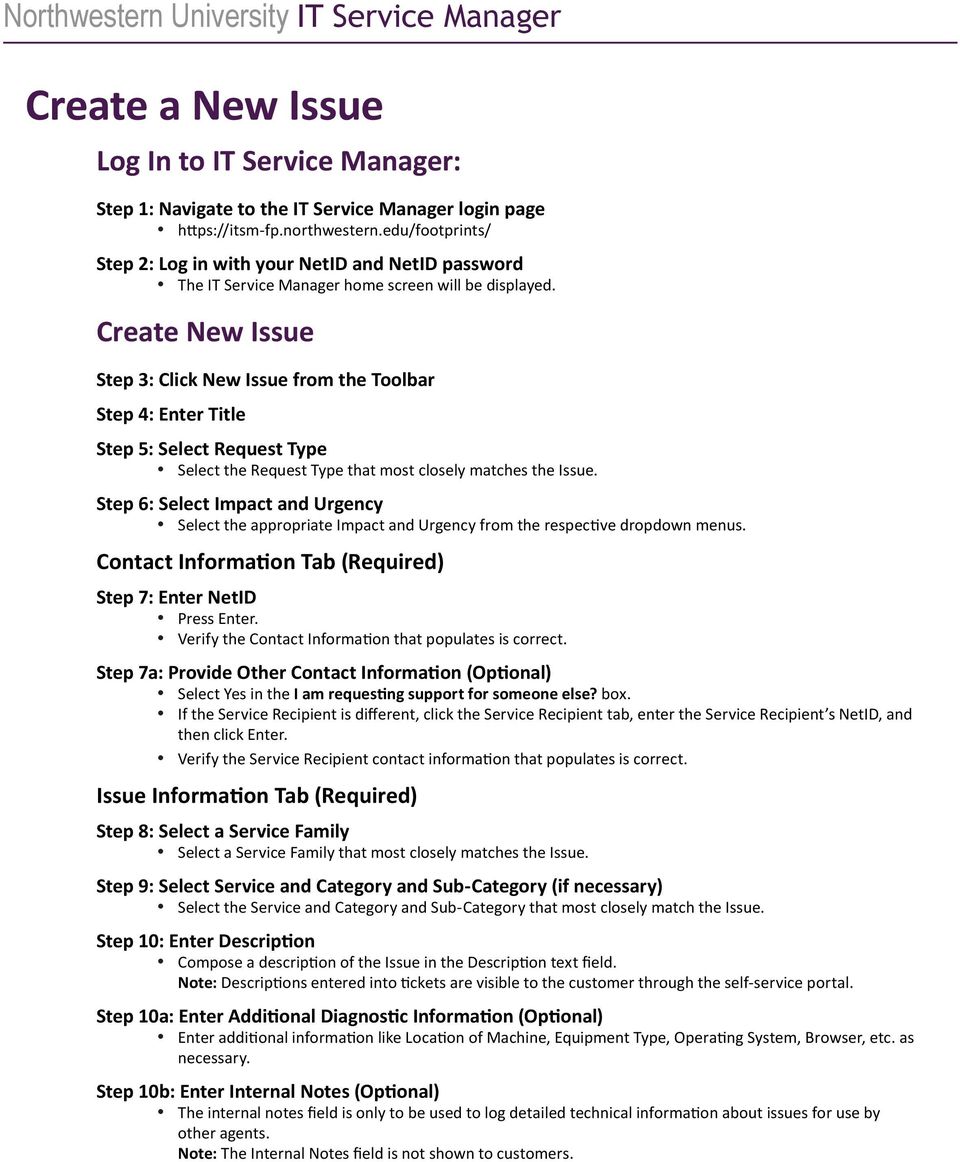
2 Create a New Issue Log In to IT Service Manager: Create New Issue Step 3: Click New Issue from the Toolbar Step 4: Enter Title Step 5: Select Request Type Select the Request Type that most closely matches the Issue. Step 6: Select Impact and Urgency Select the appropriate Impact and Urgency from the respective dropdown menus. Contact Information Tab (Required) Step 7: Enter NetID Press Enter. Verify the Contact Information that populates is correct. Step 7a: Provide Other Contact Information (Optional) Select Yes in the I am requesting support for someone else? box. If the Service Recipient is different, click the Service Recipient tab, enter the Service Recipient s NetID, and then click Enter. Verify the Service Recipient contact information that populates is correct. Issue Information Tab (Required) Step 8: Select a Service Family Select a Service Family that most closely matches the Issue. Step 9: Select Service and Category and Sub-Category (if necessary) Select the Service and Category and Sub-Category that most closely match the Issue. Step 10: Enter Description Compose a description of the Issue in the Description text field. Note: Descriptions entered into tickets are visible to the customer through the self-service portal. Step 10a: Enter Additional Diagnostic Information (Optional) Enter additional information like Location of Machine, Equipment Type, Operating System, Browser, etc. as necessary. Step 10b: Enter Internal Notes (Optional) The internal notes field is only to be used to log detailed technical information about issues for use by other agents. Note: The Internal Notes field is not shown to customers.
3 Attachments Tab Step 10c: Add Attachments (Optional) Click Attach Files. Click Browse. Select the appropriate file and click Open. Click GO to complete the attachment upload. Assignees and Notifications Tab Step 11: Select Assignment Group and Assignees To Assign Issues to a Team (Recommended) Click the appropriate Assignment Group. Click Assign Team, use the left facing arrow to move the selected team into the Assignees section box. To Assign Issues to a Team and Agent (Not Recommended) Click the appropriate Assignment Group. Click Assign Team, use the left facing arrow to move the selected team into the Assignees section box. Click the Agent name, use the left facing arrow to move the selected team into the Assignees section box. To Assign Issues to an Agent (Not Recommended) Click the appropriate Assignment Group. Click the Agent name, use the left facing arrow to move the selected team into the Assignees section box. Step 11a: Send To: (Optional) Use these check boxes to control who sees system generated notifications from IT Service Manager. Select Assignees to have messages sent to Teams and Agents in the Assignees box. Select Contact to have messages sent to the people listed on the Contact Information and Service Recipient tabs. Add additional address to the CC: field to add additional people to the system generated notifications that are sent. Step 12: Click Save A confirmation of the Issues creation will appear.

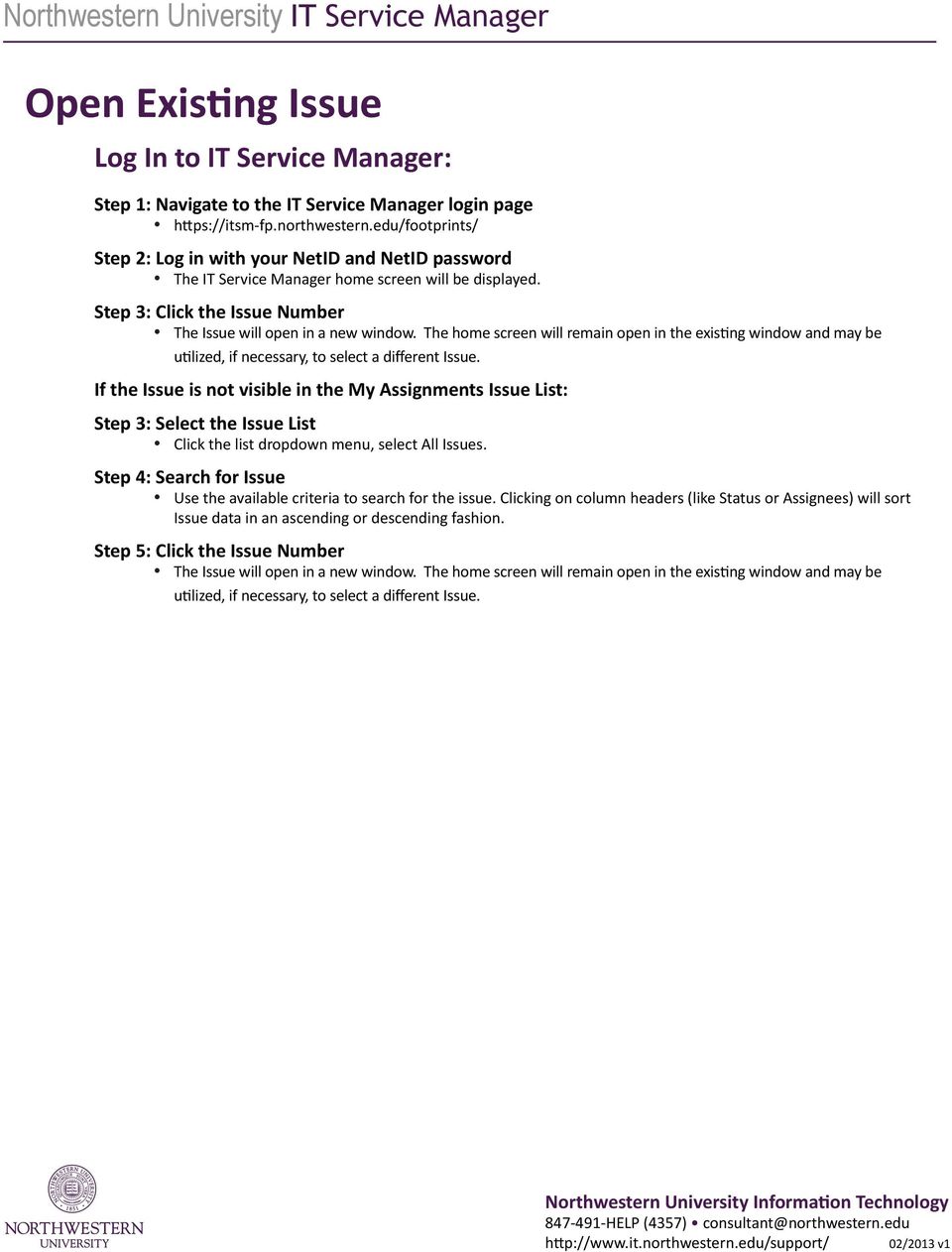
4 Open Existing Issue Log In to IT Service Manager: Step 3: Click the Issue Number The Issue will open in a new window. The home screen will remain open in the existing window and may be If the Issue is not visible in the My Assignments Issue List: Step 4: Search for Issue Use the available criteria to search for the issue. Clicking on column headers (like Status or Assignees) will sort Issue data in an ascending or descending fashion. Step 5: Click the Issue Number The Issue will open in a new window. The home screen will remain open in the existing window and may be
5 Update Issue To Change Assignment Group or Assignee Log In to IT Service Manager Open Existing Issue Step 3: Click the Issue Number Step 3a: Click the Issue Number Change Assignment Group (if applicable) Step 4: Update Description Field (Required) Step 5: Click on the Assignees and Notifications tab Step 6: Select new Assignment Group Clear text from Assignees field by selecting the current group name or Agent and clicking the left facing arrow. Select the appropriate Assignment Group. Click the right facing arrow to move the selection into the Assignees field. Step 7: Click Save A confirmation of the Issue update will appear. Click Close Window.

6 Change Assignee Step 4: Update Description Field Step 5: Click on the Assignees and Notifications tab Step 6: Select new Assignee Clear text from Assignees field by selecting the current group name or Agent and clicking the left facing arrow. Select the appropriate Assignment Group. Select the appropriate Agent from the Assignment Group. Click the right facing arrow to move the Agent selection into the Assignees field. Step 7: Click Save A confirmation of the Issue update will appear. Click Close Window.

7 Update an Issue Log In to IT Service Manager Open Existing Issue Step 3: Click the Issue Number Step 3a: Click the Issue Number Update an Issue Step 4a: Update Status, Update Impact, Update Urgency (Optional) Step 4b: Click on the Contact Information Tab (Optional) Update Contact Information as necessary. Step 4c: Click on the Service Recipient Tab (Optional) Update Service Recipient information as necessary. Step 5: Click on the Issue Information tab Enter new information into the Append New Description field. Step 6: Click Save A confirmation of the Issue update will appear. Click Close Window.

8 Update Issue with Correspondence to Customer Log In to IT Service Manager Open Existing Issue Step 3: Click the Issue Number Step 3a: Click the Issue Number Send Outgoing Correspondence Step 4: Change the Status dropdown to Pending Customer Step 5: Click on the Issue Information tab Step 6: Enter a Message in the Append New Description box This text will be ed to the end user. The end user can reply to the message to provide the requested additional information. Step 7: Click Save A confirmation of the Issue update will appear. Click Close Window.

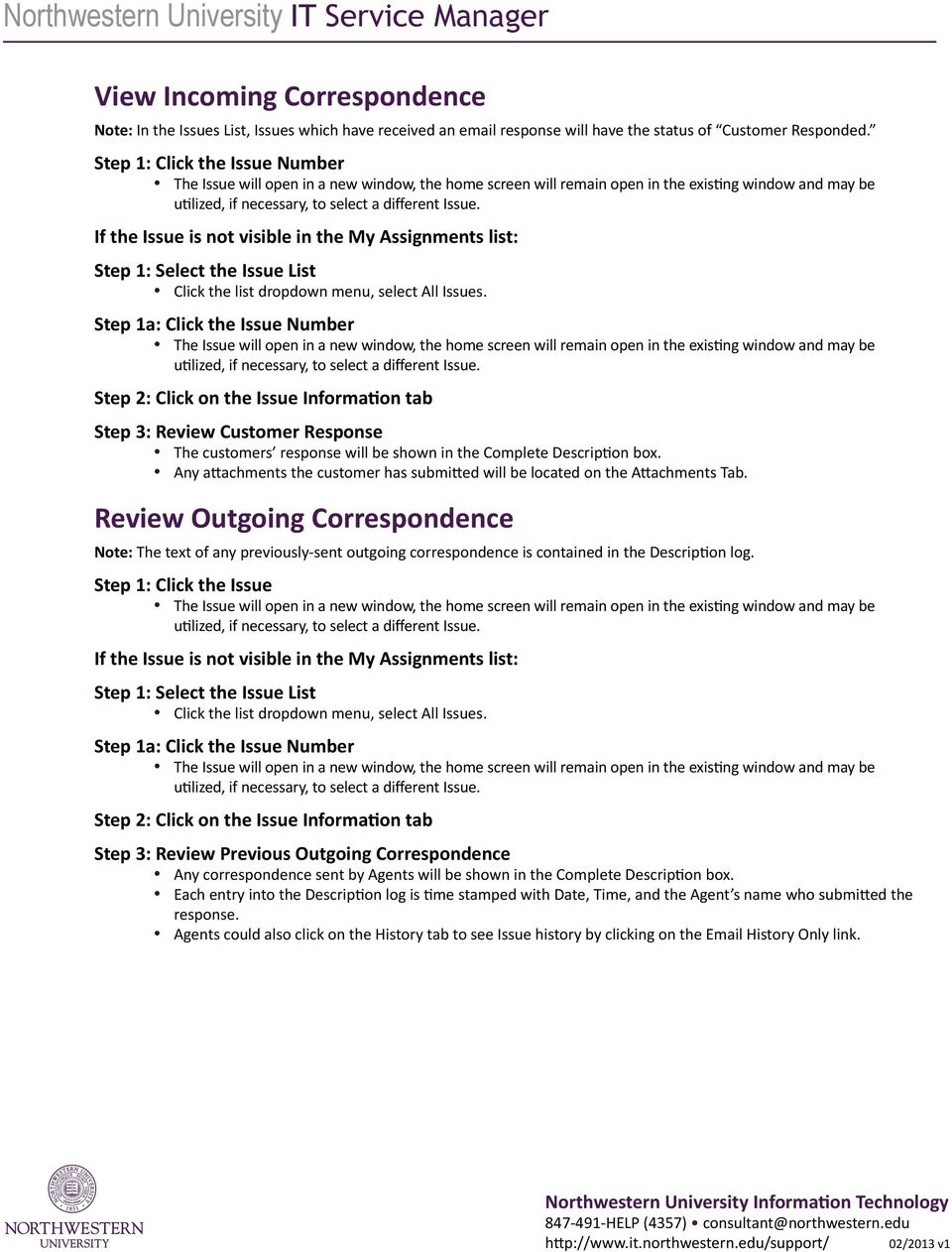
9 View Incoming Correspondence Note: In the Issues List, Issues which have received an response will have the status of Customer Responded. Step 1: Click the Issue Number Step 1: Select the Issue List Step 1a: Click the Issue Number Step 2: Click on the Issue Information tab Step 3: Review Customer Response The customers response will be shown in the Complete Description box. Any attachments the customer has submitted will be located on the Attachments Tab. Review Outgoing Correspondence Note: The text of any previously-sent outgoing correspondence is contained in the Description log. Step 1: Click the Issue Step 1: Select the Issue List Step 1a: Click the Issue Number Step 2: Click on the Issue Information tab Step 3: Review Previous Outgoing Correspondence Any correspondence sent by Agents will be shown in the Complete Description box. Each entry into the Description log is time stamped with Date, Time, and the Agent s name who submitted the response. Agents could also click on the History tab to see Issue history by clicking on the History Only link.
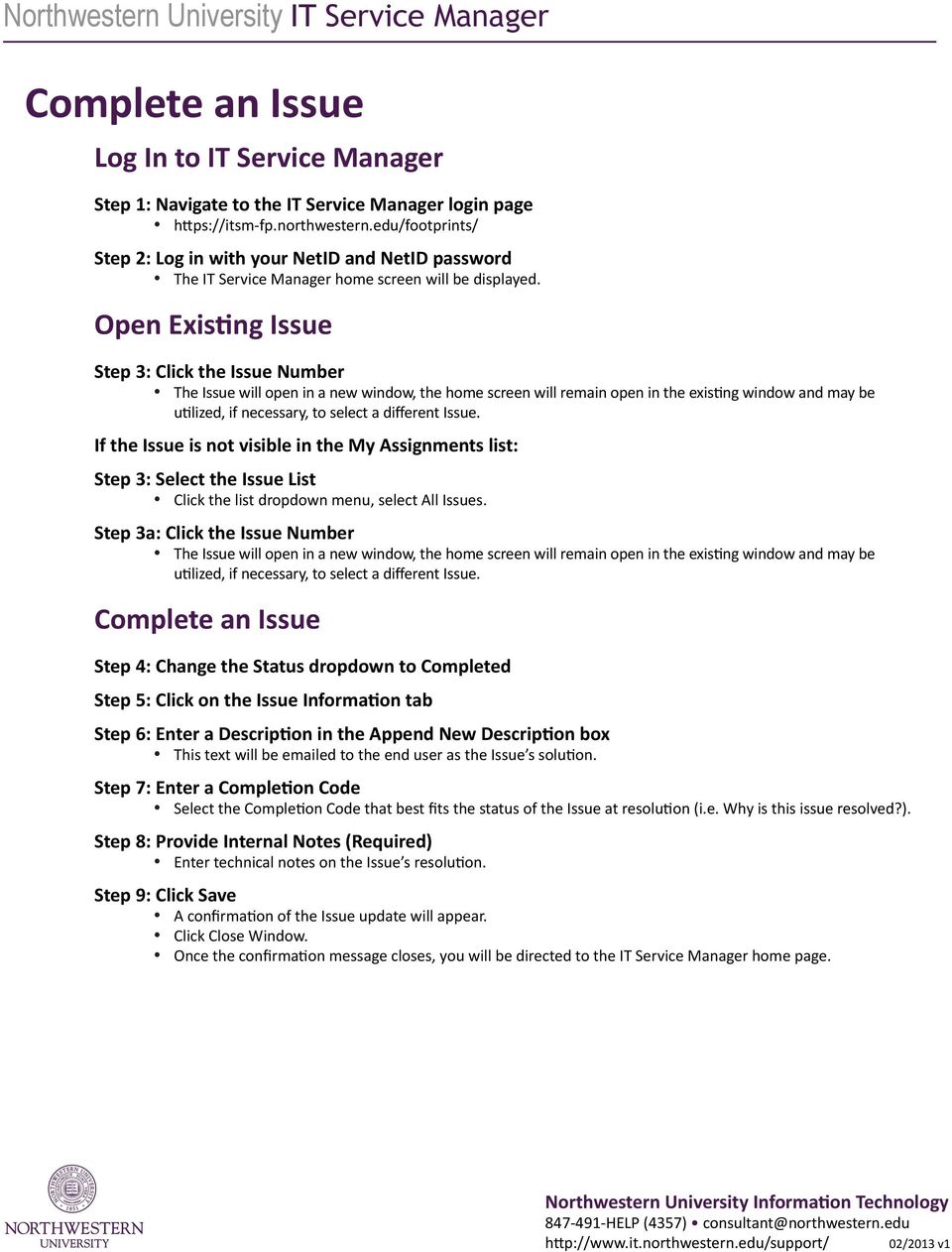
10 Complete an Issue Log In to IT Service Manager Open Existing Issue Step 3: Click the Issue Number Step 3a: Click the Issue Number Complete an Issue Step 4: Change the Status dropdown to Completed Step 5: Click on the Issue Information tab Step 6: Enter a Description in the Append New Description box This text will be ed to the end user as the Issue s solution. Step 7: Enter a Completion Code Select the Completion Code that best fits the status of the Issue at resolution (i.e. Why is this issue resolved?). Step 8: Provide Internal Notes (Required) Enter technical notes on the Issue s resolution. Step 9: Click Save A confirmation of the Issue update will appear. Click Close Window.
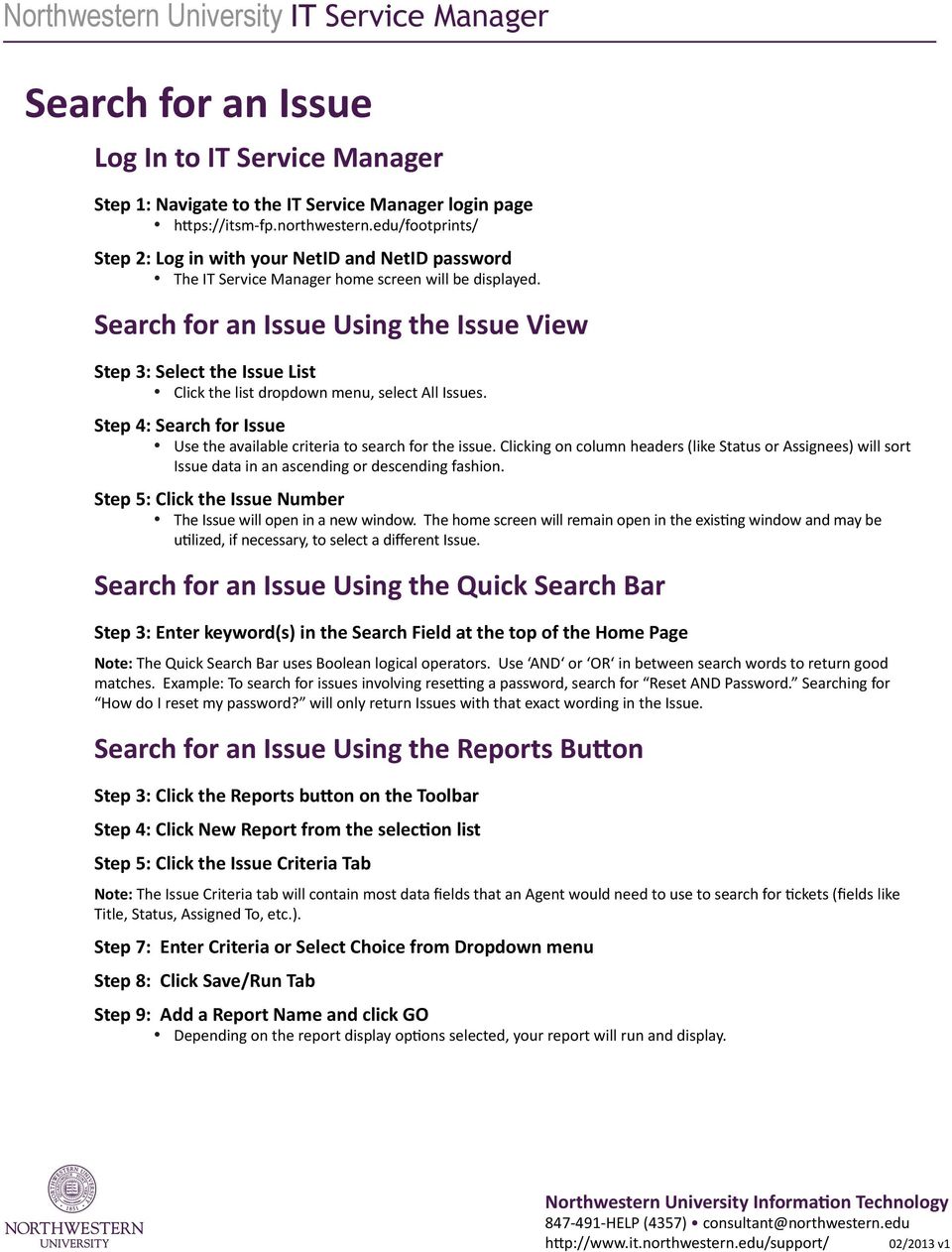
11 Search for an Issue Log In to IT Service Manager Search for an Issue Using the Issue View Step 4: Search for Issue Use the available criteria to search for the issue. Clicking on column headers (like Status or Assignees) will sort Issue data in an ascending or descending fashion. Step 5: Click the Issue Number The Issue will open in a new window. The home screen will remain open in the existing window and may be Search for an Issue Using the Quick Search Bar Step 3: Enter keyword(s) in the Search Field at the top of the Home Page Note: The Quick Search Bar uses Boolean logical operators. Use AND or OR in between search words to return good matches. Example: To search for issues involving resetting a password, search for Reset AND Password. Searching for How do I reset my password? will only return Issues with that exact wording in the Issue. Search for an Issue Using the Reports Button Step 3: Click the Reports button on the Toolbar Step 4: Click New Report from the selection list Step 5: Click the Issue Criteria Tab Note: The Issue Criteria tab will contain most data fields that an Agent would need to use to search for tickets (fields like Title, Status, Assigned To, etc.). Step 7: Enter Criteria or Select Choice from Dropdown menu Step 8: Click Save/Run Tab Step 9: Add a Report Name and click GO Depending on the report display options selected, your report will run and display.
IT Service Desk Manual Ver. 2.0. Document Prepared By: IT Department. Page 1 of 12
 Document Prepared By: Page 1 of 12 INDEX 1. Introduction. 3 2. Home Page..... 4 2.1 My Request Summary..... 4 2.2 Announcement....... 5 2.3 Submit your Request...... 5 2.4 Report a Problem...... 6 2.5
How To Log On To The Help Desk On Manageengine Service Desk Plus On Pc Or Mac Or Macbook Or Ipad (For Pc Or Ipa) On Pc/ Mac Or Ipo (For Mac) On A Pc Or Pc Or Mp
 Service Desk Plus: User Guide Introduction ManageEngine ServiceDesk Plus is comprehensive help desk and asset management software that provides help desk agents and IT managers, an integrated console to
Table of Contents INTRODUCTION...2 HOME PAGE...3. Announcements... 6 Personalize... 7 Reminders... 9 Recent Items... 11 SERVICE CATALOG...
 Table of Contents INTRODUCTION...2 HOME PAGE...3 Announcements... 6 Personalize... 7 Reminders... 9 Recent Items... 11 SERVICE CATALOG...12 REQUEST...14 Request List View... 15 Creating a New Incident...
AdventNet ManageEngine SupportCenter Plus :: User Guide. Table Of Contents INTRODUCTION... 3 REQUEST... 4. Creating a New Request...
 Table Of Contents INTRODUCTION... 3 REQUEST... 4 Creating a New Request... 5 Quick Create...5 Contact Details...5 Classifying Request Category...5 Prioritizing Request...6 Describe Request...6 Add Attachments
Support System User Guide
 Support System User Guide The Virtual Office support system provides users with a useful way to submit and track issues and resolutions. This feature- rich system is one more way that VO provides customers
CA Service Desk Manager (SDM) r12.6 SDM Basic Navigation and Functionality
 CA Service Desk Manager (SDM) r12.6 SDM Basic Navigation and Functionality Analyst Training Last Updated: February 4, 2013 Created by: Administrative Information Technology Services (AITS) University of
Table of Contents INTRODUCTION... 2 HOME PAGE... 3. Announcements... 7 Personalize & Change Password... 8 Reminders... 9 SERVICE CATALOG...
 Table of Contents INTRODUCTION... 2 HOME PAGE... 3 Announcements... 7 Personalize & Change Password... 8 Reminders... 9 SERVICE CATALOG... 11 Raising a Service Request... 12 Edit the Service Request...
Table of Contents INTRODUCTION... 2 HOME... 3. Dashboard... 5 Reminders... 8 Announcements... 12 Preferences... 13 Recent Items... 15 REQUESTS...
 Table of Contents INTRODUCTION... 2 HOME... 3 Dashboard... 5 Reminders... 8 Announcements... 12 Preferences... 13 Recent Items... 15 REQUESTS... 16 Request List View... 17 Requests based on Filters...
Help Desk Web User Guide
 Help Desk Web User Guide 1 P age Contents Create an Incident... 3 Classifying Category... 3 Describe Incident Request... 3 Add Attachments to the Request... 4 Requests... 4 Request List View... 5 Modes
HEAT Quick Reference Guide
 HEAT Quick Reference Guide How to Log In 1. In a browser, enter the URL for the HEAT system (https://heat.nd.gov/heat). HEAT opens to the login page. 2. Enter your user name and password (this will be
Partner Portal DOCUMENT. Ticketing User Guide. NTT Communications
 DOCUMENT Partner Portal Ticketing User Guide PREPARED BY NTT Communications Copyright of this document is owned by NTT Communications Corporation. Copying a part of or whole of this document without our
The LSUHSC N.O. Email Archive
 The LSUHSC N.O. Email Archive Introduction The LSUHSC N.O. email archive permanently retains a copy of all email items sent and received by LSUHSC N.O. Academic email users. Email items will be accessible
TriCore Secure Web Email Gateway User Guide 1
 TriCore Secure Web Email Gateway User Guide This document provides information about TriCore Secure Web Email Gateway. This document is for users who are authorized to send and receive encrypted email
TigerTracks Incident Management Customer Guide Revision: 0.2
 TigerTracks Incident Management Customer Guide Revision: 0.2 May 14, 2010 Version 0.2 Page 1 of 16 Contents Contents... 2 1.0 TigerTracks Incident Management... 3 1.1 Create an account... 3 1.2 Log into
Customer Self-Service (CSS) For Food Services Division Employees. Food Services CMS Help Desk Phone 213.241.3388
 Customer Self-Service (CSS) For Food Services Division Employees Food Services CMS Help Desk Phone 213.241.3388 1 Customer Self-Service (CSS) For LAUSD Food Services Employees The following instructions
Helpdesk Portal End User Guide
 Helpdesk Portal End User Guide Contents Using the Portal... 3 Portal web page... 3 Log in... 3 Log out... 3 Managing your account... 4 Terminology... 4 Submit a ticket... 5 Help us to Help you... 6 Upload
Help Desk Documentation
 Help Desk Documentation Welcome Submitting a Request Online Submitting a Request via Email Copying Other Users on Your Requests Creating an Account 5 Accessing Your Account 6 Tracking the Progress of a
CONTENTS 1 Introduction... 2 Public user access... 3 Complaint submission and resolution process... 4 Accessing the system... 5
 CONTENTS 1 Introduction... 2 2 Public user access... 3 3 Complaint submission and resolution process... 4 4 Accessing the system... 5 4.1 How to access the NTB website... 5 4.2 How to create a new user
MSGCU SECURE MESSAGE CENTER
 MSGCU SECURE MESSAGE CENTER Welcome to the MSGCU Secure Message Center. Email is convenient, but is it secure? Before reaching the intended recipient, email travels across a variety of public servers and
Overview. Table of Contents. isupport Incident Management
 Overview The isupport software is a powerful and flexible help desk/desktop support solution used by San José State to manage information technology tickets, or incidents. While isupport has many tools
Guidelines for Using the Web Help Desk
 Guidelines for Using the Web Help Desk Technology Department 7/15/2013 The purpose of this document is to provide guidance on how to navigate the School Association for Special Education in DuPage County
Rational Software. Getting Started with Rational Customer Service Online Case Management. Release 1.0
 Rational Software Getting Started with Rational Customer Service Online Case Management Release 1.0 Table of Contents 1. Introduction 1 2. Site Capabilities 1 2.1 Service Requests 1 2.2 Solutions Knowledge
User Guide for Kelani Mail
 User Guide for Kelani Mail Table of Contents Log in to Kelani Mail 1 Using Kelani Mail 1 Changing Password 2 Using Mail Application 3 Using email system folders 3 Managing Your Mail 4 Using your Junk folder
Receiving Email: Managing Email Messages. How do I get new email messages?
 Receiving Email: Managing Email Messages Using Zimbra, there are several ways to manage the email messages you receive: How do I get new email messages? How do I see the number of email messages in my
Faculty Introduction to Self-Service
 Faculty Introduction to Self-Service This user guide focuses on how faculty members can use Self-Service to access and update their information. Using a Web browser, faculty members can enter student grades,
Trouble Ticket Express
 Trouble Ticket Express Operator Manual rev. 1.0. 2006 by United Web Coders www.unitedwebcoders.com 1. System Overview 1.1. Concepts The Trouble Ticket Express is a web based help desk system. The program
Sign in. Select Search Committee View
 Applicant Tracking for Search Committees Thank you for agreeing to serve on a search committee at Youngstown State University. The following information will enable you to utilize our online applicant
Emporio Helpdesk UserGuide
 Emporio Helpdesk UserGuide Updated 8/03/13 Applicable to Microsoft Dynamics RMS & Microsoft Dynamics POS2009 1.0 Helpdesk Overview The Emporio Client Helpdesk is the simple way for you to log and track
Ticket Center Quick Start
 AdNovum Informatik AG. May 13 2 What is the purpose of the? By continuously submitting your software error messages, requests and suggestions to, you are helping us to file and manage the information from
HelpDesk Connect Operator Manual rev. 1.0.
 HelpDesk Connect Operator Manual rev. 1.0. 2003-2009 Eastwright Corp. www.eastwright.com 1 1.System Overview 1.1. Concepts The HelpDesk Connect is a web based help desk system. The program allows efficient
Process Owner: Change Manager Version: 1.0
 BMC REMEDY 8.1 CHANGE MANAGEMENT USER GUIDE Process Owner: Change Manager Version: 1.0 DOCUMENT REVISION HISTORY Revision Description Date Approved by Number V1.0 Initial Release 6/25/2015 6/25/2015 Page
GUIDEWIRE. Introduction to Using WebMail. macrobatix. Learn how to: august 2008
 macrobatix GUIDEWIRE august 2008 Introduction to Using WebMail Learn how to: Manage Your Inbox Compose a Message Activate Spam Filter Modify Spam Settings Check Held Messages *To download the complete
Client Helpdesk Version 1.0.0. Customer Support Portal Login procedures 1. CAD Services Ltd
 CAD Services Limited Client Helpdesk Version 1.0.0 1 Introduction The purpose of the helpdesk is to provide a central location for our Customers to interact with CAD Services Staff to resolve any problems,
CUSTOMER PORTAL USER GUIDE FEBRUARY 2007
 CUSTOMER PORTAL USER GUIDE FEBRUARY 2007 CONTENTS INTRODUCTION 1. Access to the system 2. Case Management 2.1 Create a case 2.2 Review & Access existing cases 2.3 Update a Case 2.4 Resolve and Close a
Self-Service Portal Getting Started Guide
 Self-Service Portal Getting Started Guide 1 Copyright 2014 Samanage www.samanage.com Table of Contents: 1. Introduction 2. Home Page 3. My Requests 4. Services 5. Knowledge Base 6. New Incident 2 Copyright
INFORMATION SERVICES TECHNOLOGY GUIDE RHS STUDENT EMPLOYMENT WEB APPLICATION
 Overview The RHS Student Employment Web Application provides a central system where MSU students can apply for RHS jobs and where RHS Administrators can review and process those applications. System Access
Host Excellence. Client Helpdesk. Version 1.0
 Host Excellence Client Helpdesk Version 1.0 1 Table of Contents 1 Accessing the Helpdesk... 3 2 What Is A Helpdesk Ticket?... 3 3 Ticket Overview... 3 3.1 Ticket Status... 4 3.2 Ticket Category... 4 3.3
IT HELP Desk Dashboard ManageEngine Service Desk Plus User Guide
 Create an Incident When you need to report a failure or problem of your system to the IT help desk team, then send a request to the team. There are different modes of placing a request, such as submitting
Genesee Intermediate School District Technology & Media Services 2413 West Maple Avenue Flint, Michigan 48507. GenNET Self-Service Helpdesk Tipsheet
 Genesee Intermediate School District Technology & Media Services 2413 West Maple Avenue Flint, Michigan 48507 GenNET Self-Service Helpdesk Tipsheet The GenNET Self-Service Help Desk is an innovative, web-based
Table of Contents INTRODUCTION... 2 HOME PAGE... 3. Announcements... 7. Personalize & Change Password... 8. Reminders... 10 SERVICE CATALOG...
 Table of Contents INTRODUCTION... 2 HOME PAGE... 3 Announcements... 7 Personalize & Change Password... 8 Reminders... 10 SERVICE CATALOG... 12 Raising a Service Request... 12 Edit the Service Request...
Outlook Web App User Guide
 Outlook Web App Table of Contents QUICK REFERENCE... 2 OUTLOOK WEB APP URL... 2 Imagine! Help Desk...... 2 OUTLOOK WEB APP MAIN WINDOW... 2 KEY NEW FEATURES... 3 GETTING STARTED WITH OUTLOOK... 4 LOGGING
Client Ticketing System
 Reporting Issues to Empower Software 16 March, 2009 Table of Contents Introduction... 3 Accessing the System... 3 Creating a User Account... 4 Logging in with an Existing User Account... 6 Create New Ticket...
Receiving Secure Emails
 Receiving Secure Emails This document explains how you can access emails that have been sent to you through CyberArk s Secure Email system in several simple steps. When you receive a secure email, you
Kaseya 2. User Guide. for VSA 6.3
 Kaseya 2 Ticketing User Guide for VSA 6.3 September 17, 2013 Agreement The purchase and use of all Software and Services is subject to the Agreement as defined in Kaseya s Click-Accept EULA as updated
1.1 What is FootPrints?... 1 1.2 FootPrints Application Support... 1 1. INTRODUCTION... 1
 Table of Contents 1. INTRODUCTION... 1 1.1 What is FootPrints?... 1 1.2 FootPrints Application Support... 1 2. GETTING STARTED WITH THE OIT FOOTPRINTS APPLICATION... 1 2.1 Logging In and Accessing FootPrints...
Kaseya 2. User Guide. Version 7.0. English
 Kaseya 2 Ticketing User Guide Version 7.0 English September 3, 2014 Agreement The purchase and use of all Software and Services is subject to the Agreement as defined in Kaseya s Click-Accept EULATOS as
Using YSU Password Self-Service
 Using YSU Password Self-Service Using YSU Password Self-Service Password Self-Service Web Interface Required Items: YSU (MyYSU) Directory account, Web browser This guide will assist you with using the
User Guide BMC Remedy Support System
 United Arab Emirates Federal Authority For Government Human Resources User Guide BMC Remedy Support System User Guide BMC Remedy Support System Releases: Bayanati Self-Service User Guide Version 1.0 Bayanati
Guide to Training Teachers on the Co-op Dashboard
 Guide to Training Teachers on the Co-op Dashboard https://www.hourrepublic.com Hour Republic is a tool used by (i) students to track co-op hours, activities, skills and more, and (ii) teachers to monitor
91.527 - Human Computer Interaction Final Project Tutorial. Hardware Inventory Management System (HIMS) By M. Michael Nourai
 91.527 - Human Computer Interaction Final Project Tutorial Hardware Inventory Management System (HIMS) By Table of Contents Introduction... 3 Running HIMS... 3 Successful Login to HIMS... 4 HIMS Main Screen...
UTech Services Announces New Helpdesk Service Request System!!
 Contents UTech Services Announces New Helpdesk Service Request System!!... 2 Requesting Assistance from Utech Services using Footprints... 3 3 Ways to Request Support... 3 HOW TO USE THE SELF SERVICE PORTAL...
Stewart Secure Email User Guide. March 13, 2015
 Stewart Secure Email User Guide March 13, 2015 Table of Contents Introduction... 1 What is secure email?... 1 Why secure email?... 1 What is personal, non-public information?... 1 How is my data protected?...
Does the GC have an online document management solution?
 This FAQ contains: Web File Services definition Access web file services Create a WFS folder Upload a document Email a link to a document folder Create WFS subscription Cancel existing subscription Create
How to Use Boston Private Bank s Secure Mail Service
 1. ONE-TIME REGISTRATION PROCESS Prior to using the Secure Mail service for the first time, a user must initially register with the service by completing steps A thru E below: A. When a Secure Mail encrypted
USERS MANUAL FOR OWL A DOCUMENT REPOSITORY SYSTEM
 USERS MANUAL FOR OWL A DOCUMENT REPOSITORY SYSTEM User Manual Table of Contents Introducing OWL...3 Starting to use Owl...4 The Logging in page...4 Using the browser...6 Folder structure...6 Title Bar...6
Using CRM. Quick Reference. August 4, 2009. CRM Use for Agents Page 1 of 31
 Quick Reference August 4, 2009 CRM Use for Agents Page 1 of 31 Table of Contents GETTING STARTED IN CRM...3 WHAT IS CRM?... 4 ACCESSING CRM... 5 CUSTOMIZE YOUR CASE VIEW... 6 SHOW MY CASES ON HOME PAGE...
Webmail with. Sun Convergence
 Webmail with 09 08 1 TABLE OF CONTENTS TABLE OF CONTENTS 1 2 1.1 Getting started 2 1.2 Reading E-mail 4 Sorting 4 Searching 4 Opening a message 5 Writing a message 6 1.3 Sending E-mail 6 Message with an
Using Outlook Web App
 Using Outlook Web App About Outlook Web App Using a web browser and the Internet, Outlook Web App (OWA) provides access to your Exchange mailbox from anywhere in the world at any time. Outlook Web App
ACCELLOS HELPDESK CUSTOMER GUIDE
 ACCELLOS HELPDESK CUSTOMER GUIDE Version: 2.0 Date: December 2011 Copyright Accellos, Inc. All rights reserved The information contained in this document is confidential and is intended only for the persons
Welcome to MaxMobile. Introduction. System Requirements. MaxMobile 10.5 for Windows Mobile Pocket PC
 MaxMobile 10.5 for Windows Mobile Pocket PC Welcome to MaxMobile Introduction MaxMobile 10.5 for Windows Mobile Pocket PC provides you with a way to take your customer information on the road. You can
Footprints Customer Interface Guide
 Footprints Customer Interface Guide Introduction Each support group in MIS has its own Service Desk within the Footprints System, and each service desk has its own colors and banner. Within each service
FACILITES MANAGEMENT SERVICES PORTAL
 FACILITES MANAGEMENT SERVICES PORTAL Table of Contents Overview Accessing the Facilitates Management Portal 2 Common Icons 2 Basic Navigation 2 Portal Features 3 Portal Sections 4 HOW-TOs HOW-TO Access
How to... Send and Receive Files with DropBox
 How to... Send and Receive Files with DropBox Overview The Cornell DropBox is a secure method for transferring files to the people you specify. Files are encrypted during transport. DropBox can also be
Performance and Contract Management System Data Submission Guide
 This guide is a review of how to submit data into the Performance and Contract Management System (PCMS). Contents Logging in... 2 Performance Reporting - Accessing Contract Deliverables... 2 Deliverable
Outlook Web Application (OWA) Basic Training
 Outlook Web Application (OWA) Basic Training Requirements to use OWA Full Version: You must use at least version 7 of Internet Explorer, Safari on Mac, and Firefox 3.X (these two achieve 99 percent feature
COSTARS Sales Reporting Manual December 2013
 COSTARS Sales Reporting Manual December 2013-1 - DGS/COSTARS website Suppliers access the COSTARS website through the DGS website. Follow the steps below to navigate to the COSTARS website. 1. Navigate
Employer Online Access Documentation
 Employer Online Access Documentation BBCS Payroll Services Online Portal The following has been provided as a brief introduction to the Online Access Portal for BBCS Payroll Customers. It is to help you
Secure Messaging Service
 Human Resources Secure Messaging Service Receiving Secure Emails from West Berkshire Council Table of Contents What are Secure Messaging notifications?... 3 How do I set up my Secure Messaging account?...
Table of Contents. Welcome... 2. Login... 3. Password Assistance... 4. Self Registration... 5. Secure Mail... 7. Compose... 8. Drafts...
 Table of Contents Welcome... 2 Login... 3 Password Assistance... 4 Self Registration... 5 Secure Mail... 7 Compose... 8 Drafts... 10 Outbox... 11 Sent Items... 12 View Package Details... 12 File Manager...
Unicenter Service Desk v11 (USD) Training Materials for Analysts
 Unicenter Service Desk v11 (USD) Training Materials for Analysts 1 Table of Contents Introduction... 3 Logging In as an Analyst... 4 Reading the Scoreboard... 5 My Requests...5 Viewing My Group Unassigned
Secure Message Center User Guide
 Secure Message Center User Guide Using the Department of Banking Secure Email Message Center 2 Receiving and Replying to Messages 3 Initiating New Messages 7 Using the Address Book 9 Managing Your Account
GroupWise Web Access 8.0
 GroupWise Web Access 8.0 How to check your email via the Internet For More Information, please contact: Administrative Office of the Courts Technology Help Desk (615) 532 9503 or (800) 448-7980 Table of
Your Archiving Service
 It s as simple as 1, 2, 3 This email archiving setup guide provides you with easy to follow instructions on how to setup your new archiving service as well as how to create archiving users and assign archiving
Nationstar Mortgage Secure Email Client User Guide
 Nationstar Mortgage Secure Email Client User Guide A Guide to Exchanging Secure Emails Using the Nationstar Mortgage Secure Email Message Center Version 1.0 July 2010 1 Nationstar Public Copyright Information
SEC External Guide for Using Accellion
 Securities and Exchange Commission Office of Information Technology SEC External Guide for Using Accellion The Securities and Exchange Commission National Exam Program Hotline (202) 551-3925 Washington,
BIG LOTS VENDOR COMPLIANCE WEB PORTAL USER GUIDE - VENDOR 300 PHILLIPI RD. COLUMBUS, OH 43228
 BIG LOTS VENDOR COMPLIANCE WEB PORTAL USER GUIDE - VENDOR 300 PHILLIPI RD. COLUMBUS, OH 43228 Contents Getting Started...4 Tips for Using Actionable Intelligence... 4 Logging into Actionable Intelligence...
Help Desk Self Service Quick Start Guide
 Help Desk Self Service Quick Start Guide Introduction Faculty and Staff can submit support tickets via Help Desk Self- Service. This will give users more control over how they submit helpdesk tickets and
Reference Manual. FootPrints version 5.5. UniPress Software Inc.
 Reference Manual FootPrints version 5.5 UniPress Software Inc. FootPrints Reference Manual FootPrints Reference Manual FootPrints version 5.5 from UniPress Software FootPrints Reference Manual: Rev 5.5
FDIC Secure Email Procedures for External Users April 23, 2010
 FDIC Secure Email Procedures for External Users April 23, 2010 This document contains information proprietary to the Federal Deposit Insurance Corporation. Table of Contents 1. Introduction...2 2. Receiving
HDAccess Administrators User Manual. Help Desk Authority 9.0
 HDAccess Administrators User Manual Help Desk Authority 9.0 2011ScriptLogic Corporation ALL RIGHTS RESERVED. ScriptLogic, the ScriptLogic logo and Point,Click,Done! are trademarks and registered trademarks
Accept And Refund Payments In A PayPal Personal Account
 Accept And Refund Payments In A PayPal Personal Account If you run a PayPal personal account, when payment is received, it does not get credited automatically to your account. The merchant has to Login
Secure Email Actions for Email Recipients
 Secure Email Actions for Email Recipients Actions for Email Recipients The recipient cannot forward encrypted email outside the secure system. Each email will only be available to the recipient for 30
Guidelines for Using the Web Help Desk
 BURBANK SCHOOL DISTRICT 111 Guidelines for Using the Web Help Desk Technology Department 1/7/2013 The purpose of this document is to provide guidance on how to navigate the Burbank School District 111
Hatco Lead Management System: http://hatco.scangroup.net/
 Hatco Lead Management System User Guide General Notes: The Hatco Lead Management System (HLMS) is designed to work with modern web browsers, such as Internet Explorer 9 or newer, Firefox, Chrome & Safari.
Using the Help Desk. Logging into Help Desk. Creating a New Help Desk Ticket
 powered by Logging into Help Desk 1. Go to http://helpdesk.hslc.org. 2. Login using your username and password. 3. Are you creating a new Help Desk ticket? If yes, see Creating a New Help Desk Ticket.
U.S. Bank Secure Mail
 U.S. Bank Secure Mail @ Table of Contents Getting Started 3 Logging into Secure Mail 5 Opening Your Messages 7 Replying to a Message 8 Composing a New Message 8 1750-All Introduction: The use of email
Using Outlook Web Access
 Using Outlook Web Access Log on JTSA Outlook Web Access 1. Enter the following URL into the address bar on your web browser (Internet Explorer recommended) and press enter http://exweb.jtsa.edu 2. The
Getting Started Guide - Desktop
 Getting Started Guide - Desktop 1. Sign Up PERSONAL OPENTEXT CORE ACCOUNT To get started sharing and collaborating on your files from a Mac or Windows browser, you ll need to sign up for your OpenText
Proofpoint provides the capability for external users to send secure/encrypted emails to EBS-RMSCO employees.
 Proofpoint provides the capability for external users to send secure/encrypted emails to EBS-RMSCO employees. To create a new email message to be sent securely to an EBS-RMSCO employee: 1. Click on the
Project Management Software Getting Started Guide
 Project Management Software Getting Started Guide + For additional support e-mail us at [email protected] call us at 706-395-8400 Contents 1.1 Welcome Email... 3 1.2 Login Screen... 3 2.1 Home Toolbar...
Cloud. Hosted Exchange Administration Manual
 Cloud Hosted Exchange Administration Manual Table of Contents Table of Contents... 1 Table of Figures... 4 1 Preface... 6 2 Telesystem Hosted Exchange Administrative Portal... 7 3 Hosted Exchange Service...
Connecting to LUA s webmail
 Connecting to LUA s webmail Effective immediately, the Company has enhanced employee remote access to email (Outlook). By utilizing almost any browser you will have access to your Company e-mail as well
Directory and Messaging Services Enterprise Secure Mail Services
 Title: Directory and Messaging Services Enterprise Secure Mail Services Enterprise Secure Mail Services for End Users Attention: Receivers of Secure Mail Retrieval of Secure Mail by the Recipient Once
BCSD WebMail Documentation
 BCSD WebMail Documentation Outlook Web Access is available to all BCSD account holders! Outlook Web Access provides Webbased access to your e-mail, your calendar, your contacts, and the global address
Introduction... 4. Purpose... 4 Scope... 4 Manitoba ehealth Incident Management... 4 Icons... 4
 Remedy Incident Management Version 3.0 Modified: 08/20/2015 TABLE OF CONTENTS Introduction... 4 Purpose... 4 Scope... 4 Manitoba ehealth Incident Management... 4 Icons... 4 Incident Stages Overview...
How To Use The Mail Control Console On A Pc Or Macbook 2.5.3 (For A Macbook)
 MX Control Console & Spam Quarantine Report User Guide Product Version: 2.5 Release Date: Document Version: ed_eug_2.5.3_gr Copyright 2004 MX Logic, Inc. RESTRICTION ON USE, PUBLICATION, OR DISCLOSURE