
Oracle Beehive. Using Windows Mobile Device Release 2 ( )
|
|
|
- Avice Webb
- 9 years ago
- Views:
Transcription
1 Oracle Beehive Using Windows Mobile Device Release 2 ( ) E July 2012 Document updated July, 2012 This document describes how to access Oracle Beehive from your Windows Mobile device using Oracle Beehive Client and Oracle Beehive Communicator. The following Oracle Beehive functionality is available for Windows Mobile device users. Oracle Beehive Mobile Outlook plug-in provides true push mail experience and can be used to keep calendar, tasks, and contacts fully up-to-date. Mobile Instant Messaging possible using Oracle Beehive Mobile Communicator Online Documents accessible using Mobile Explorer using WebDAV Mobile SMS Alerts Note: These instructions pertain to Windows Mobile Professional (Pocket PC) and Smartphone users only. For information about accessing Oracle Beehive from your iphone or Blackberry, see the following documents: Oracle Beehive Using iphone or ipad Oracle Beehive Using BlackBerry 1
2 Using Oracle Beehive Mobile Client About Oracle Beehive Mobile Client Using Oracle Beehive Mobile Client on your Pocket PC Using Oracle Beehive Mobile Client on your Smartphone Using Oracle Beehive Communicator About Oracle Beehive Communicator Before Running Oracle Beehive Communicator on your Windows Mobile Device Getting Started with Oracle Beehive Communicator on your Windows Mobile Device Using the People List Viewing and Managing Chats Searching the Directory Set Presence View Account Information (Save Password) Troubleshooting and Limitations Troubleshooting Oracle Beehive Mobile Client Troubleshooting Oracle Beehive Communicator Known Issues Optional Attendee Status in Meeting Invitations Appear as Required Documentation Accessibility Using Oracle Beehive Mobile Client Before you begin using your Beehive Mobile software on your mobile device, ensure that you have successfully installed and configured Oracle Beehive on your Windows Mobile Professional (Pocket PC) or Windows Mobile Smartphone. See Oracle Beehive Registering and Configuring Mobile Devices for more information. This section consists of the following topics: About Oracle Beehive Mobile Client Using Oracle Beehive Mobile Client on your Pocket PC Using Oracle Beehive Mobile Client on your Smartphone About Oracle Beehive Mobile Client For Windows Mobile Professional and Windows Mobile Smartphone users, Oracle Beehive Mobile Client provides the following options: To access your To synchronize your calendar, tasks and contacts Note: For quick reference throughout this guide, Windows Mobile Professional (Pocket PC) and Windows Mobile Smartphone will be referred to as Pocket PC and Smartphone respectively. This section consists of the following topics: Supported Pocket PCs and Smartphone Devices 2

3 Oracle Beehive Mobile Client Components Connectivity Modes Supported Pocket PCs and Smartphone Devices For a list of Oracle Beehive-supported Pocket PCs and Smartphones, see the Oracle Beehive Mobile Device Certification Matrix at: Oracle Beehive Mobile Client Components Oracle's Beehive Mobile Client consists of both platform and application components. Upon download, Oracle Beehive Mobile Client installs the Oracle Beehive mobile platform, the Oracle Beehive mobile management console. The console, in cooperation with the Oracle Beehive Device Management service, installs all necessary application components (Mobile Mail, Mobile Organizer plug-ins, and Oracle Beehive Mobile Communicator) and configures any needed settings. After the installation process is complete the console continues to work with the device management service to ensure that the mobile software image on the device remains up-to-date. Connectivity Modes There are two modes of connectivity associated with how your mobile device connects to the Oracle Beehive server: Online Mode Offline Mode Occasionally, you may want to switch modes, depending on available connectivity and network services. Online Mode In Online mode, Oracle Beehive Mobile Client remains connected to Oracle Beehive Mobile Services and updates your data automatically. If network connectivity becomes unavailable, Oracle Beehive Mobile Client will continuously attempt to re-establish contact with Oracle Beehive Mobile Services. Offline Mode In Offline mode, Oracle Beehive Mobile Client is not connected to the server, even when network connectivity is available. You can choose offline mode when you know service coverage or network connectivity is unavailable. Doing so helps conserve your battery and save on wireless networking roaming charges. You can configure your device to synchronize your data the next time the device is online and connected. For more information, see General: Changing Connectivity Modes. Using Oracle Beehive Mobile Client on your Pocket PC You can use Oracle Beehive Mobile Client to access your Oracle Beehive , manage and synchronize your data, and set preferences at any time, directly from your Pocket PC. This section contains the following topics: Getting Started on your Windows Pocket PC 3

4 Changing Connectivity Modes on Your Pocket PC (Go Online/Offline) Synchronizing/Checking for Messages on Your Pocket PC Checking Oracle Beehive Status on Your Pocket PC Changing Your Oracle Beehive User Preferences on Your Pocket PC Installing/Updating/Removing Oracle Beehive Mobile Client Components Note: These instructions pertain to Windows Mobile Professional (Pocket PC). This same information is available for Smartphone users, see Using Oracle Beehive Mobile Client on your Smartphone. Getting Started on your Windows Pocket PC Ensure you have successfully installed Oracle Beehive Mobile Client. See Oracle Beehive Registering and Configuring Mobile Devices for more information. Starting Oracle Beehive Mobile Client Oracle Beehive Mobile Client starts up automatically following its installation. A message appears alerting you that the Mobile Client is started. Oracle Beehive Mobile Client also starts automatically whenever your device is turned on (though no message appears.) Start Oracle Beehive Mobile Client anytime by selecting the Beehive icon in Programs. (This displays the Settings menu). See Changing Your Oracle Beehive User Preferences on Your Pocket PC. Follow the steps below to open the Oracle Beehive Mobile Client main menu. To open the Oracle Beehive Mobile Client main menu: 1. Click the Oracle Beehive Mobile Client icon in your Windows Pocket PC's system tray. Note: If this is the first time you are running Oracle Beehive Mobile Client, then a dialog appears alerting you that initial synchronization may take some time. 2. Select an action from the menu, and follow steps described in the corresponding section for your Pocket PC in this guide. Changing Connectivity Modes on Your Pocket PC (Go Online/Offline) If you are currently in Manual mode and want to connect to, or disconnect from Oracle Beehive, you can go online or offline at anytime from the main Beehive menu. (See Changing Your Oracle Beehive User Preferences on Your Pocket PC.) To go online: If you are currently offline (icon's white beehive stripes appear gray), click the Oracle Beehive icon and select Go Online. A yellow warning symbol appears next to the icon while it is connecting. To go offline: If you are currently online (icon shows white beehive stripes), click the Oracle Beehive icon and select Go Offline. The beehive icon's stripes appear gray. 4
5 Synchronizing/Checking for Messages on Your Pocket PC Anytime you want to synchronize your Oracle Beehive , calendar, tasks, or contacts, click the Oracle Beehive icon and select Synchronize. Oracle Beehive will automatically search for and retrieve any new messages available on the server. Note: Whenever you are in online mode, synchronization will happen automatically. In offline mode, you can follow these steps to synchronize your data on demand. To check the status of your synchronization, or check for delivery details and connection issues, see Checking Oracle Beehive Status on Your Pocket PC. Checking Oracle Beehive Status on Your Pocket PC The Status menu displays logs showing the status (time, date, and a brief description) for each of the following areas: General: Connectivity/Connection Status Mail: Message Status Organizer: Tasks, Events, Contacts Synchronization Status; Server Reports You can view these logs to determine if your device is communicating properly with the Oracle Beehive server. If you have issues, then you can send these logs to the Oracle Beehive Mobile Client server to help in troubleshooting. See Troubleshooting Oracle Beehive Mobile Client. You may want to check status periodically if, for example, you are not receiving , or if your calendar items do not appear updated. The status menu displays any errors or warnings which can help determine your issue Click the Oracle Beehive icon in your system tray, and select Status. From the Oracle Beehive Mobile Client Status menu, you can check the time, date, and description of the following items: General: Connectivity/Connection Status Mail: Message Status Organizer: Tasks, Events, Contacts Synchronization Status; Server Reports General: Connectivity/Connection Status View General status if you want to view changes in device connectivity, server connection, or any errors that may have occurred. This can also be helpful in troubleshooting any issues you may experience. Note: In Oracle Beehive Mobile Client, connectivity refers to your device's ability to establish a connection. For example, if you are offline, there is no connectivity. A connection is when Oracle Beehive Mobile Client connects to the Oracle Beehive server. For example, if you are online, but no connection can be made, the Oracle Beehive server may be temporarily unavailable. To check General status: 5

6 1. In the Oracle Beehive Status menu, click the General tab (open by default). 2. Click any general status item to view a full detailed description in the box below. (Click the arrows on the scroll bar, or slide the bar to move up or down.) 3. When finished, click OK (far right on the Status title bar) to return to the main Start screen Mail: Message Status Use the Mail Status menu whenever you want to check if new messages have been downloaded, or outgoing messages were sent. If an outgoing message failed, the mail status list displays the item and cause. To check Mail status: 1. In the Oracle Beehive Status menu, click the Mail tab. 2. Click any mail status item to view a full detailed description in the box below. (Click the arrows on the scroll bar, or slide the bar to move up or down.) 3. When finished, click OK (far right, on the Status title bar) to return to the main Start screen. Organizer: Tasks, Events, Contacts Synchronization Status; Server Reports You can check Organizer status to help ensure your tasks, events, and contacts are up to date, by viewing the status of their synchronization. You can also check Oracle Beehive Mobile Client server status and view server reports. To check Organizer status: 1. In the Oracle Beehive Status menu, click the Organizer tab. 2. Click any organizer status item to view a full detailed description in the box below. (Click the arrows on the scroll bar, or slide the bar to move up or down.) 3. When finished, click OK (far right, on the Status title bar) to return to the main Start screen. Changing Your Oracle Beehive User Preferences on Your Pocket PC Click the Oracle Beehive icon in your system tray, and select Settings. The Settings screen contains the following four main options through which you can set or change Oracle Beehive Mobile Client user preferences on your Pocket PC: General: Changing Connectivity Modes Mail: Changing Inbox Settings Organizer: Changing Organizer Settings Account: Changing User Credentials General: Changing Connectivity Modes Depending on your carrier, most mobile devices are configured to connect to a service network automatically. However, in Automatic mode, you can specify when you want to go online or offline, based on the preferences you set. You can also specify times when your data will be automatically synchronized. If you prefer to control your connectivity and synchronization, and manually go offline (such as when traveling, or to save battery power), then you can select Manual mode. Manual mode lets you choose when you want to go online/offline, and to synchronize your data. 6
7 To change connectivity mode, in the Oracle Beehive Settings menu, click the General tab (open by default).: To change to manual mode: 1. Click Manual. To go offline now, click Go Offline. Or, simply select Go Offline directly from the main Oracle Beehive menu anytime you want to go offline (appears only when manual mode is selected) 2. Click OK to return to the General tab on the Settings screen. To change to automatic mode: 1. Click Automatic. To check offline and online settings, click Settings. For offline settings, select your battery level and roaming preferences. For online settings, select day and time preferences. (For example, you may want to set a time to go offline automatically, when battery life gets too low, or when roaming.) 2. Click OK to return to the General tab on the Settings screen. When finished, click OK to return to the main Start screen. Mail: Changing Inbox Settings When receiving mail on your Pocket PC, you can specify message size and storage limits, automatic or manual download of attachments, and to which folders your sent and deleted items should be stored. To change Mail settings: 1. In the Oracle Beehive Settings menu, click the Mail tab. 2. For Inbox settings, select the number, and size limit of messages contained in your inbox. 3. (Optional) For Attachment settings, if you want Oracle Beehive to automatically download any attachments included with a message, select Automatic download (selected by default). If Automatic download is selected, choose the size limit of attachments to be downloaded. 4. For Manual download, select the size limit of attachments you want to download. 5. (Optional) For Sent and Deleted message settings, or to reset your inbox, click Advanced. 1. By default, your sent messages are stored in the Sent Items folder, and your deleted items are stored in the Deleted Items folder. To change these folders, click the keyboard icon below and type the name of another folder. 2. To reset (reload) your Inbox, click Reset Inbox. 6. Click OK to return to the Mail tab on the Settings screen. Organizer: Changing Organizer Settings In the Organizer tab, you can set or change which data stores you want to synchronize, set the sync range, and reload any data stores from the server to replace on your Pocket PC. To change Organizer settings: 1. In the Oracle Beehive Settings menu, click the Organizer tab. 2. Select which data stores (such as Tasks, Events, Contacts) you want to synchronize. 3. To set the date range for which data should be synchronized, click Sync Range. 7

8 1. Under sync range for Events, set the number of days before/after today that you want to synchronize for events. By default, the Remove events outside of the sync Range option is selected. To keep these events on your device, clear this option. 2. Under sync range for Tasks, set the number of days before/after today that you want to synchronize for tasks. By default, the Remove tasks outside of the sync Range option is selected. To keep these tasks on your device, clear this option. Note: The default options to remove data outside of the sync range are meant to help keep your device from running out of space. These items never get cleared from the server, the date range simply acts as a moving window view of your server-side data store. 4. To reload data stores on your device, click Reload Device. Under data stores to reload, select one more data stores to be refreshed from the server on your next synchronization. The selected data store will only be reloaded when Oracle Beehive Mobile Client is online and connected. If Oracle Beehive Mobile Client is offline, then the data store you select will be reloaded the next time Oracle Beehive Mobile Client is back online and connected. 5. When finished, click OK to return to the Organizer tab on the Settings screen. Account: Changing User Credentials Use the Account tab anytime you want to change your user name and password, or choose to save your password. To change Account settings: 1. Type (or change) your user name. 2. Enter a new password. 3. By default, the Save password option is selected. If you do not want to save your password, then clear this option. 4. When finished, click OK to return to the Start screen. Installing/Updating/Removing Oracle Beehive Mobile Client Components Click the Oracle Beehive icon in your system tray, and select About. On the About screen, you can view your user name, date of last Oracle Beehive Mobile Client update, and a list of installed components. From the About menu, you can access the Management menu to install, update, or remove applications. This section contains the following topics: About Installing/Updating/Removing Applications - Install/Update Applications - Remove Applications Checking License Information 8

9 About Installing/Updating/Removing Applications Oracle Beehive Mobile Client includes a device manager that installs, removes, provisions, and updates both the foundation and application components of your Oracle Beehive Mobile Client installation. Install/Update Applications During the initial installation, you can choose to install any available updates or applications. After installation, if there is a new application available on the server, you are automatically prompted whether you want to install the newly available applications. Alternatively, you can manually install an application by checking for updates. To install/update applications on your Oracle Beehive Mobile Client: 1. From the Oracle Beehive Mobile Client main menu, select About. 2. At the bottom of the About screen, click Menu, and select Management. A list of currently installed applications appears. 3. Click Check for Updates. If you are connected to the network, then Oracle Beehive Mobile Device Management client logs in and checks for available updates. If there are any applications available on the server, then they will also be available for install. 4. Select the application(s) you want to install or update, and click Next. 5. On the Confirmation screen, a summary of applications selected to be installed or upgraded appears. Click OK to install. 6. After the application has been installed, on the Summary screen, click Done. If you want to remove the application later, then follow the steps described in Remove Applications. Remove Applications You can remove any applications previously installed on your Oracle Beehive Mobile Client through the About > Management menu. To remove applications from your Oracle Beehive Mobile Client: 1. From the Oracle Beehive Mobile Client main menu, select About. 2. At the bottom of the About screen, click Menu, and select Management. A list of currently installed applications appears. 3. Select the application(s) you want to remove, and click Remove Selected Applications. The Confirmation screen appears listing the selected to be removed. 4. Click OK to remove. The Summary screen appears listing the applications removed. 5. Click Done to return to the Management screen. To reinstall the application later, follow the steps described in Install/Update Applications. 9

10 Checking License Information To view software licensing restrictions, warranty, and trademark information for Oracle Beehive Mobile Client, from the About, click Menu, and select License. When finished viewing, click Done. Using Oracle Beehive Mobile Client on your Smartphone You can use Oracle Beehive Mobile Client to access your Oracle Beehive , manage and synchronize your data, and set preferences at any time, directly from your Windows Smartphone. This section contains the following main topics: Getting Started on your Windows Smartphone Changing Connectivity Modes on Your Smartphone (Go Online/Offline) Synchronizing/Checking for Messages on Your Smartphone Checking Oracle Beehive Status on Your Smartphone Changing Your Oracle Beehive User Preferences on Your Smartphone Installing/Updating/Removing Beehive Mobile Client Components on Your Smartphone Note: These instructions pertain to Windows Mobile Standard (Smartphone). This same information is available for PocketPC users, see Using Oracle Beehive Mobile Client on your Pocket PC. Getting Started on your Windows Smartphone Ensure you have successfully installed Oracle Beehive Mobile Client. See Oracle Beehive Registering and Configuring Mobile Devices for more information. Starting Oracle Beehive Mobile Client Oracle Beehive Mobile Client starts up automatically following its installation. A message appears alerting you that the Mobile Client is started. Oracle Beehive Mobile Client will also start automatically when your device is turned on (though no message appears.) Follow the steps below to start Oracle Beehive Mobile Client and open the main menu. To start Oracle Beehive Mobile Client: 1. Click Start and select the Beehive icon for the Oracle Beehive Mobile Client application, on your Windows Smartphone. Note: If you are upgrading the Oracle Beehive Mobile Client, a new Oracle Beehive logo (red beehive icon) may be displayed in your Smartphone's list of applications. If this is the first time you are running Beehive Mobile Client, then a dialog appears alerting you that initial synchronization may take some time. 2. Select an action from the menu, and follow steps described in the corresponding section for your Smartphone in this guide 10

11 Changing Connectivity Modes on Your Smartphone (Go Online/Offline) If you are currently in Manual mode (see Changing Your Oracle Beehive User Preferences on Your Smartphone), and want to connect to, or disconnect from Oracle Beehive, you can go online or offline at anytime from the Oracle Beehive main menu. To go online: If you are currently offline (as shown by the Current working mode), in Oracle Beehive, click Menu and select Go Online. Your current working mode changes to Online connected. To go offline: If you are currently online (as shown by the Current working mode), click the Beehive icon and select Go Offline. Your current working mode changes to Offline disconnected. Synchronizing/Checking for Messages on Your Smartphone Anytime you want to synchronize your Oracle Beehive , calendar, tasks, or contacts, click the Oracle Beehive icon and select Menu, then Synchronize. Oracle Beehive will automatically search for and retrieve any new messages available on the server. Note: Whenever you are in online mode, synchronization will happen automatically. In offline mode, you can follow these steps to synchronize your data on demand. To check the status of your synchronization, or check for delivery details and connection issues, see Checking Oracle Beehive Status on Your Smartphone. Checking Oracle Beehive Status on Your Smartphone The Status menu displays logs showing the status (time, date, and a brief description) for each of the following areas: General: Connectivity/Connection Status Mail: Message Status Organizer: Tasks, Events, Contacts Synchronization Status; Server Reports You can view these logs to determine if your device is communicating properly with the Oracle Beehive server. If you have issues, you can send these logs to the Oracle Beehive Mobile Client server to help in troubleshooting. See Troubleshooting Oracle Beehive Mobile Client. You may want to check status periodically if, for example, you are not receiving , or if your calendar items do not appear updated. The status menu displays any errors or warnings which can help determine your issue. Click the Oracle Beehive icon in your system tray, and select Status. General: Connectivity/Connection Status View General status if you want to view changes in device connectivity, server connection, or any errors that may have occurred. This can also be helpful in troubleshooting any issues you may experience. 11

12 Note: In Oracle Beehive Mobile Client, connectivity refers to your device's ability to establish a connection. For example, if you are offline, there is no connectivity. A connection is when Oracle Beehive Mobile Client connects to the Oracle Beehive server. For example, if you are online, but no connection can be made, the Oracle Beehive server may be temporarily unavailable. To check General status: 1. In the Oracle Beehive Status menu, select General (highlighted by default). A screen showing a list of general status items appears. 2. For a longer list of entries, use the scroll bar to move up or down the list to view all general status entries. Click Refresh to refresh the list. 3. When finished, click Done to return to the Status screen. Mail: Message Status Use the Mail Status menu whenever you want to check if new messages have been downloaded, or outgoing messages were sent. If an outgoing message failed, the mail status list displays the item and cause. To check Mail status: 1. In the Oracle Beehive Status menu, select Mail. A screen showing a list of general status items appears 2. For a longer list of entries, use the scroll bar to move up or down the list to view all general status entries. Click Refresh to refresh the list. 3. When finished, click Done to return to the Status screen. Organizer: Tasks, Events, Contacts Synchronization Status; Server Reports You can check Organizer status to help ensure your tasks, events, and contacts are up to date, by viewing the status of their synchronization. You can also check Oracle Beehive Mobile Client server status and view server reports. To check Organizer status: 1. In the Oracle Beehive Status menu, click the Organizer tab. 2. For a longer list of entries, use the scroll bar to move up or down the list to view all general status entries. Click Refresh to refresh the list. 3. When finished, click Done to return to the Status screen. Changing Your Oracle Beehive User Preferences on Your Smartphone Click the Beehive icon and select Menu, then Settings. The Settings screen contains the following four main options through which you can set or change Oracle Beehive Mobile Client user preferences on your Smartphone: General: Changing Connectivity Modes Mail: Changing Inbox Settings Organizer: Changing Organizer Settings Account: Changing User Credentials 12

13 General: Changing Connectivity Modes Depending on your carrier, most mobile devices are configured to connect to a service network automatically. However, in Automatic mode, you can specify when you want to go online or offline, based on the preferences you set. You can also specify times when your data will be automatically synchronized. If you prefer to control your connectivity and synchronization, and manually go offline (such as when traveling, and to save battery power), you can select Manual mode. Manual mode lets you choose when you want to go online/offline, and to synchronize your data. To change connectivity mode: 1. In the Beehive Settings menu, click General (highlighted by default). 2. In the Mode Control box: 1. To change to Manual mode: a. Click the arrows to select Manual. b. To stay online, click Done. c. To go offline now, click Menu and select Go Offline. d. Click Done to return to the Settings screen. e. To go offline/online at anytime, from the main Beehive menu, select Go Offline (or Go Online). This option appears only when you are in Manual mode). 2. To change to Automatic mode: a. Click the arrows to select Automatic. b. To change automatic settings, click Menu, then Automatic Settings. c. On the Automatic Settings screen, select the Online Period option (selected by default) to choose a time range in which you want to be online. (Click on the hour, minutes, and AM /PM to change it.) d. For offline settings, select the Offline if battery level is option, and select the level (Low, by default). Note: Setting these preferences may be helpful if you want to control when to be online to synchronize your data only on demand, and choose when to go offline, such as when roaming, which helps conserve battery life. e. Click Done to return to the Settings screen 3. When finished, click Done to return to the main Oracle Beehive screen, showing your current working mode. Mail: Changing Inbox Settings When receiving mail on your Smartphone, you can specify message size and storage limits, automatic or manual download of attachments, and to which folders your sent and deleted items should be stored. To change Mail settings: 1. In the Oracle Beehive Settings menu, select Mail. 13

14 2. For Inbox settings, select the number, and size limit of messages contained in your inbox. 3. (Optional) For Attachment settings, if you want Oracle Beehive to automatically download any attachments included with a message, select Automatic download (selected by default). If Automatic download is selected, choose the size limit of attachments to be downloaded. 4. For Manual download, select the size limit of attachments you want to download. 5. (Optional) For Sent and Deleted message settings, or to reset your inbox, click Menu and select Advanced. 1. By default, your sent messages are stored in the Sent Items folder, and your deleted items are stored in the Deleted Items folder. To change these folders, click on the folder name and type another folder. 2. To reset (reload) your Inbox, click Menu, then select Reset Inbox. 6. Click Done to return to the Mail screen. Click Done again to return to the Settings screen. Organizer: Changing Organizer Settings In the Organizer tab, you can set or change which data stores you want to synchronize, set the sync range, and reload any data stores from the server to replace on your Pocket PC. To change Organizer settings: 1. In the Oracle Beehive Settings menu, select Organizer. 2. Select which data stores (Contacts, Tasks, and/or Events) you want to synchronize. (All are selected, by default.) 3. To set the day and time for synchronization, click Menu, and select Sync Range. 1. For Events, click to select the number of days before/after today that you want to check/synchronize for new events. By default, the Remove events outside of the sync range option is selected. To keep these events, clear this option. 2. For Tasks, set the number of days before/after today that you want to check/synchronize for new tasks. By default, the Remove tasks outside of the sync range option is selected. To keep these tasks, clear this option. 4. To reload data stores on your device, from the Organizer screen, click Menu, and select Reload Device. Under data stores to reload, select one more data stores (Contacts, Events, Tasks) to be refreshed from the server on your next synchronization. The selected data store(s) will only be reloaded when Oracle Beehive Mobile Client is online and connected. If Oracle Beehive Mobile Client is offline, the data store you select will be reloaded the next time Oracle Beehive Mobile Client is back online and connected. 5. When finished, click Done to return to the Organizer screen. Click Done again to return to the Settings screen. 14
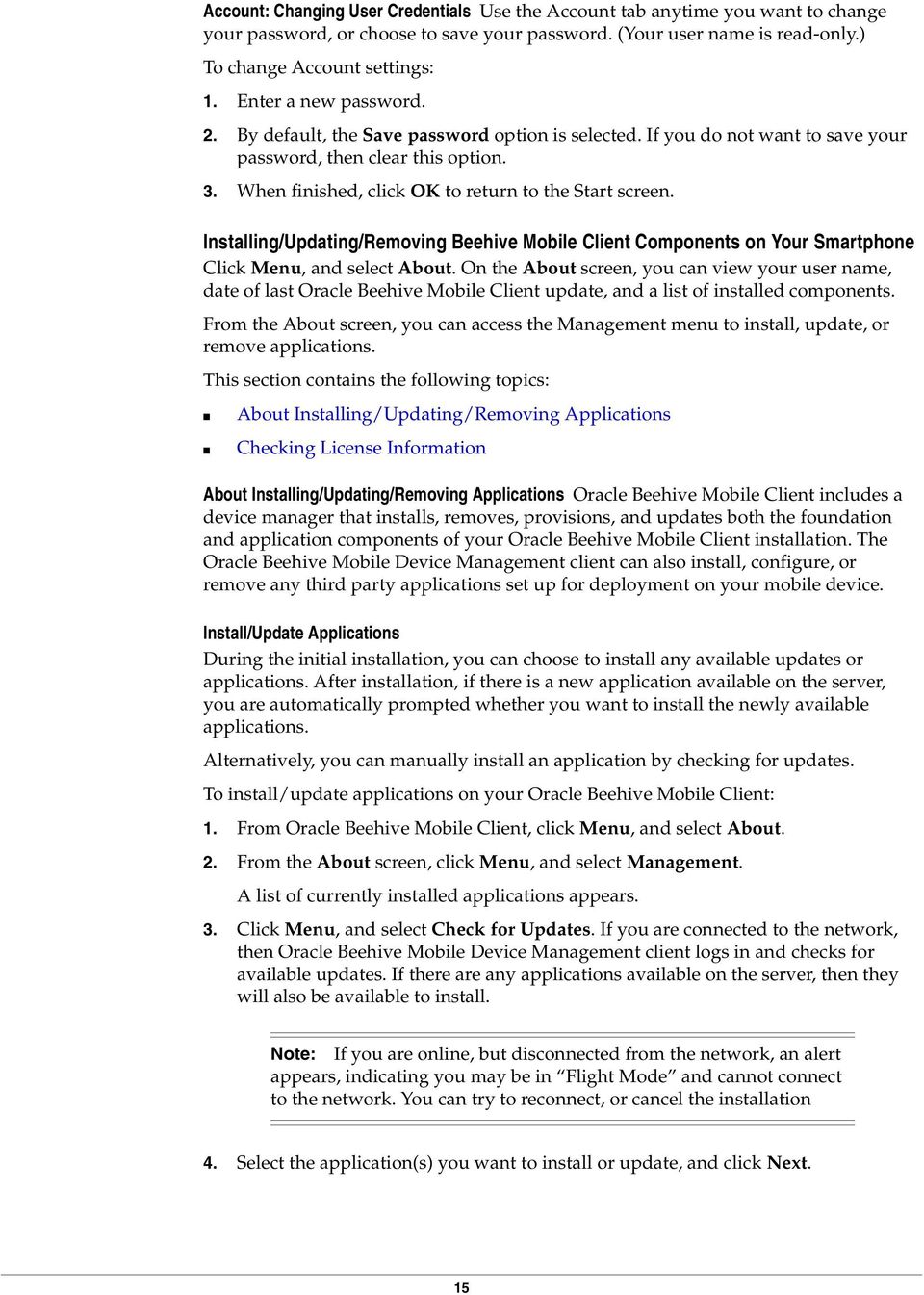
15 Account: Changing User Credentials Use the Account tab anytime you want to change your password, or choose to save your password. (Your user name is read-only.) To change Account settings: 1. Enter a new password. 2. By default, the Save password option is selected. If you do not want to save your password, then clear this option. 3. When finished, click OK to return to the Start screen. Installing/Updating/Removing Beehive Mobile Client Components on Your Smartphone Click Menu, and select About. On the About screen, you can view your user name, date of last Oracle Beehive Mobile Client update, and a list of installed components. From the About screen, you can access the Management menu to install, update, or remove applications. This section contains the following topics: About Installing/Updating/Removing Applications Checking License Information About Installing/Updating/Removing Applications Oracle Beehive Mobile Client includes a device manager that installs, removes, provisions, and updates both the foundation and application components of your Oracle Beehive Mobile Client installation. The Oracle Beehive Mobile Device Management client can also install, configure, or remove any third party applications set up for deployment on your mobile device. Install/Update Applications During the initial installation, you can choose to install any available updates or applications. After installation, if there is a new application available on the server, you are automatically prompted whether you want to install the newly available applications. Alternatively, you can manually install an application by checking for updates. To install/update applications on your Oracle Beehive Mobile Client: 1. From Oracle Beehive Mobile Client, click Menu, and select About. 2. From the About screen, click Menu, and select Management. A list of currently installed applications appears. 3. Click Menu, and select Check for Updates. If you are connected to the network, then Oracle Beehive Mobile Device Management client logs in and checks for available updates. If there are any applications available on the server, then they will also be available to install. Note: If you are online, but disconnected from the network, an alert appears, indicating you may be in Flight Mode and cannot connect to the network. You can try to reconnect, or cancel the installation 4. Select the application(s) you want to install or update, and click Next. 15
16 5. On the Confirmation screen, a summary of applications selected to be installed or upgraded appears. Click OK to install. The Summary screen appears listing the applications installed. 6. Click Done to return to the previous screen, or click Exit. To remove the application, follow the steps described in Remove Applications. Remove Applications You can remove any applications previously installed on your Oracle Beehive Mobile Client through the About > Management menu. To remove applications from your Oracle Beehive Mobile Client: 1. From Beehive Mobile Client, click Menu, and select About. 2. From the About screen, click Menu, and select Management. A list of currently installed applications appears. 3. Select the application(s) you want to remove and click Menu, then select Remove Selected. 4. On the Confirmation screen, a summary of applications selected to be removed appears. Click OK to remove. The Summary screen appears listing the applications removed. 5. Click Done to return to the previous screen, or click Exit. To reinstall the application, follow the steps described in Install/Update Applications. Checking License Information To view software licensing restrictions, warranty, and trademark information for Oracle Beehive Mobile Client, from the About, click Menu, and select License. When finished viewing, click Done. Using Oracle Beehive Communicator Before you begin using your Oracle Beehive Mobile software on your mobile device, ensure that you have successfully installed and configured Oracle Beehive on your Windows Mobile Professional (Pocket PC) or Windows Mobile Smartphone. See Oracle Beehive Registering and Configuring Mobile Devices for more information. This section consists of the following topics: About Oracle Beehive Communicator Before Running Oracle Beehive Communicator on your Windows Mobile Device Getting Started with Oracle Beehive Communicator on your Windows Mobile Device Using the People List Viewing and Managing Chats Searching the Directory Set Presence View Account Information (Save Password) 16

17 About Oracle Beehive Communicator Oracle Beehive Mobile Communicator provides the following options to Windows Mobile Professional and Windows Mobile Smartphone users: To access your instant message contacts To start and track ongoing chats To send and text messages To receive and respond to meetingt invitations, event reminders, and notifications To search the corporate directory To browse your organization s reporting structure To view user profiles This section consists of the following topics: Oracle Beehive Communicator Features Supported Pocket PCs and Smartphone Devices Oracle Beehive Communicator Features The following features are available on this version of Oracle Beehive Communicator for Windows Mobile devices: View People list and Presence of contacts Exchange Instant Messages with other Oracle Beehive users online Send , and text messages (SMS) (using Windows applications) Receive and respond to notifications (if enabled) Note: If you have Instant Message notifications, you will receive them through Oracle Beehive Communicator as you would any other Instant Message. To enable notifications, see Oracle Beehive Central Help. Search for users in the Corporate directory Navigate through the organizational structure Customize Instant Messages settings Main Menu Selections Oracle Beehive Communicator features are organized by menu selections, depending on which screen you are viewing. When you first sign on, the People screen appears. This is your People list expanded (by default) to show all users and groups you have identified as Instant Message contacts. The People list displays users (by group), and their availability. See Using the People List. From the People list (when a user is highlighted), you can select: Actions select an action from the submenu to do the following: - Start Chat start a chat with the selected user; if you have a current conversation with one or more users, you can also select Ongoing Chats. (This 17

18 menu item only appears when there are one or more chat sessions with users.) See Viewing and Managing Chats. - Send create new message and send to selected user. See Send to a User. - Call Work instantly contact selected user by phone. (This selection only appears if a work number is listed in the user's profile.) - View Profile view selected user's contact information (including map their location if an address is provided and your Map application is available), and organization details. See View a User's Profile. Search Directory search users in the directory, view results, and contact user. See Searching the Directory. Set Presence change your presence (availability), edit your status message. See Set Presence. Full/Compact View change views to display more or less information Sign In/Out sign in or out of Oracle Beehive Communicator, depending on whether you are offline or online. See Connectivity on Your Windows Mobile Device. About view copyright, user and server information, list of installed components. See View Account Information (Save Password) Collapse/Expand (Available when a group is highlighted) hide or show all users in a group Supported Pocket PCs and Smartphone Devices For a list of Oracle Beehive-supported Pocket PCs and Smartphones, see the Oracle Beehive Mobile Device Certification Matrix at: Before Running Oracle Beehive Communicator on your Windows Mobile Device After installation, it is recommended to verify that your device is configured correctly, and review how Oracle Beehive Communicator manages memory usage on your Windows Mobile device: This section consists of the following topics: Verify your Installation Understand Memory Usage Verify your Installation Follow these steps to verify your installation and setup before starting the Oracle Beehive Communicator application on your Windows Mobile device. To verify your installation and setup: 1. From the main People list menu, select About. If your device was provisioned successfully, your user and server information should already show on this screen. After the copyright, check for the following information: 18
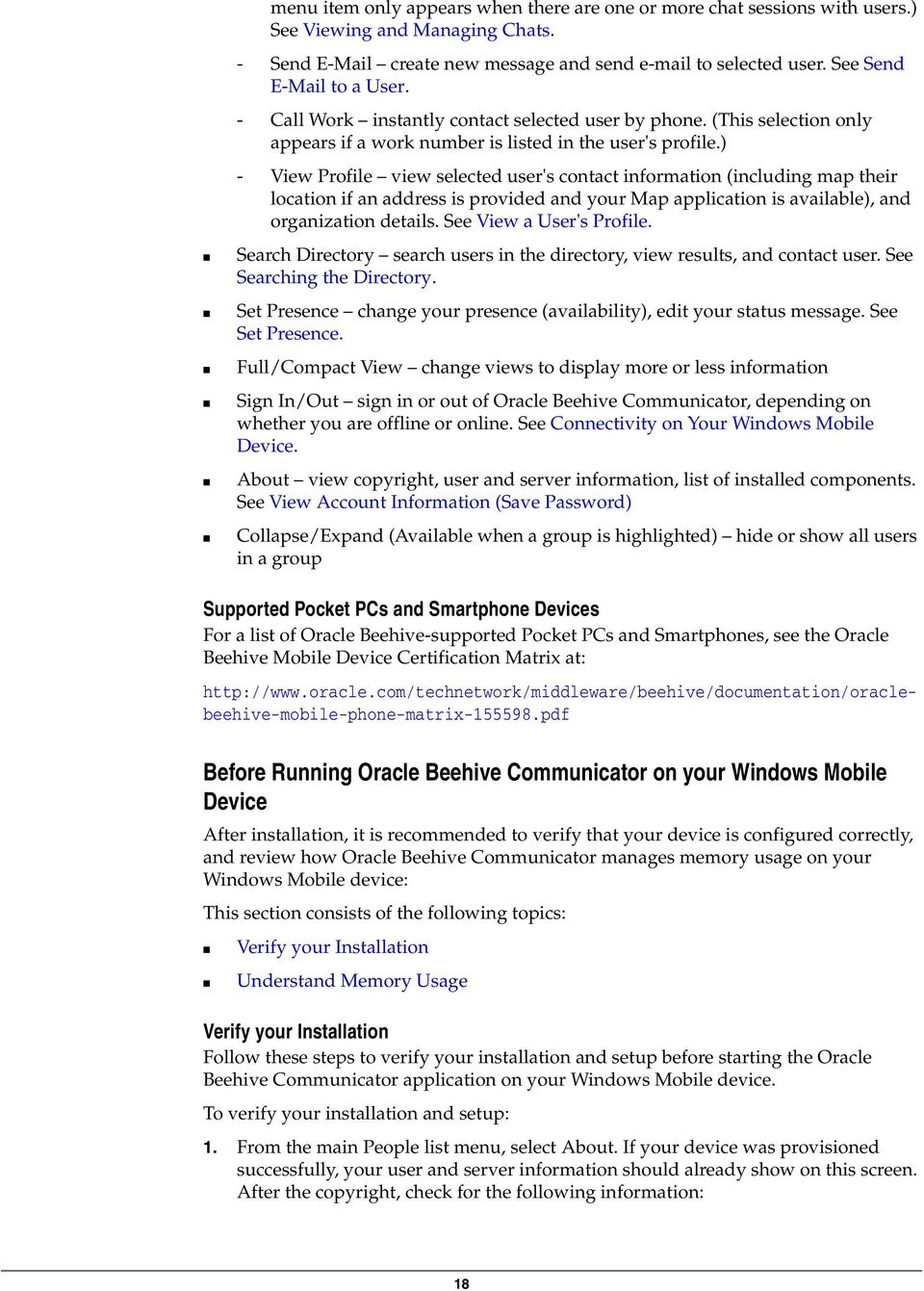
19 User name (your Oracle Beehive user name) Server name (Oracle Beehive server address) Last updated on (date and time) Installed components (lists Oracle Beehive applications installed on your device) Note: If necessary, check with your administrator to verify your organization's server address, and your user information. 2. Enter your password for the first time, you can save it so that you can be signed in automatically, without entering your password each time. See View Account Information (Save Password). Note: To view, set, or change additional account preferences and device settings, see Using Oracle Beehive Mobile Client. Understand Memory Usage Memory on your Windows Mobile device can affect how the Oracle Beehive server saves chats and other information you have stored using Oracle Beehive Communicator. In rare cases, if memory consumption falls below its limit (determined by your Windows Mobile device), Oracle Beehive Communicator will close, and you will be prompted to reboot your device. (Chats are not saved after a device reboot.) Getting Started with Oracle Beehive Communicator on your Windows Mobile Device Use Oracle Beehive Communicator to chat with other Oracle Beehive users directly from your Windows Mobile device, as well as send , text messages, call a user, view user profiles, and search the directory. Note: The procedures in this guide reflect user actions on Windows Mobile Standard (Smartphone) devices. The menus on a Windows Mobile Professional (Pocket PC) device may differ slightly; however, the same features and actions are available on both Windows Mobile device types. This section contains the following topics: Start Oracle Beehive Communicator Connectivity on Your Windows Mobile Device Note: Ensure you have successfully installed and registered Beehive Communicator first. See About Oracle Beehive Communicator. 19

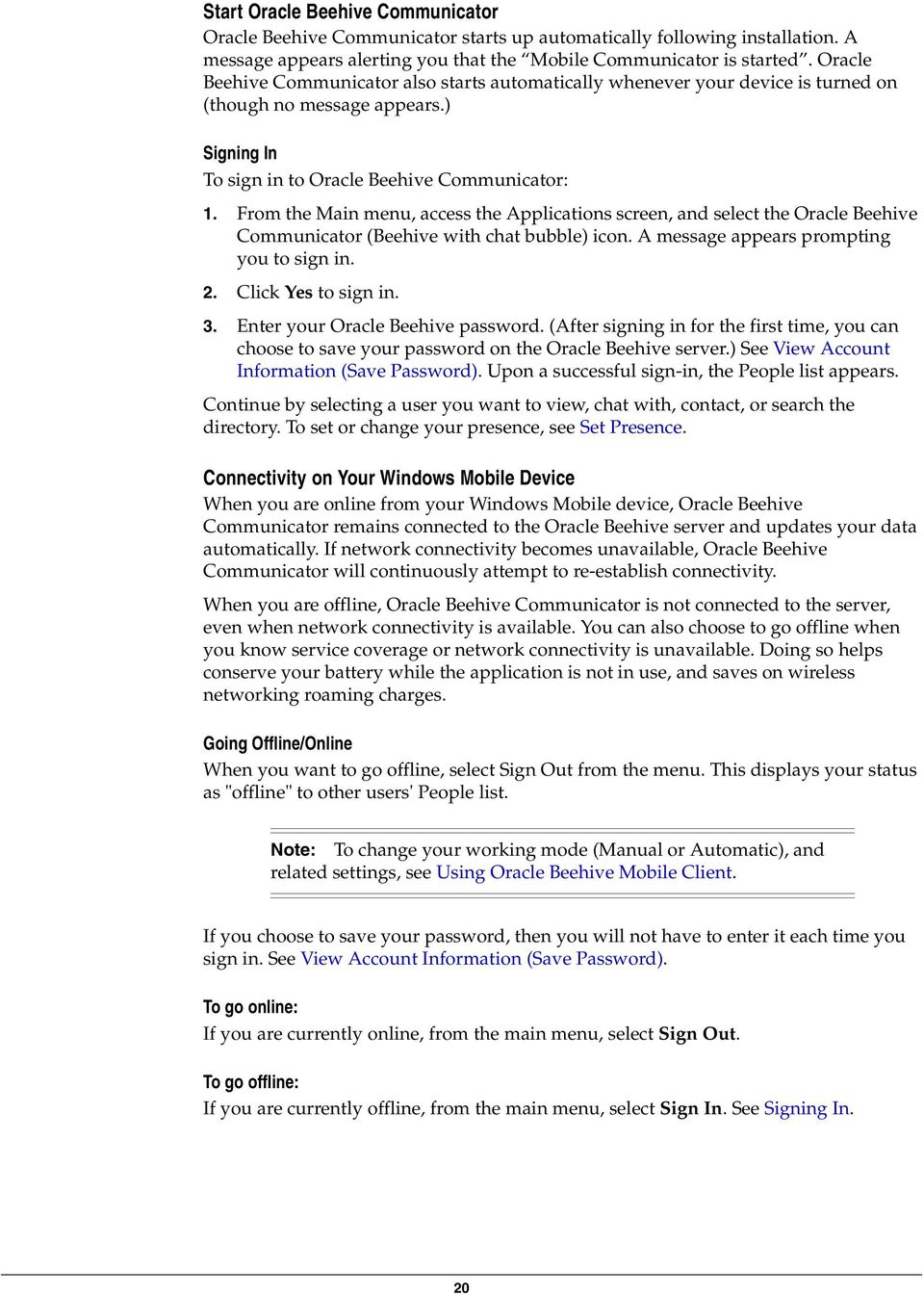
20 Start Oracle Beehive Communicator Oracle Beehive Communicator starts up automatically following installation. A message appears alerting you that the Mobile Communicator is started. Oracle Beehive Communicator also starts automatically whenever your device is turned on (though no message appears.) Signing In To sign in to Oracle Beehive Communicator: 1. From the Main menu, access the Applications screen, and select the Oracle Beehive Communicator (Beehive with chat bubble) icon. A message appears prompting you to sign in. 2. Click Yes to sign in. 3. Enter your Oracle Beehive password. (After signing in for the first time, you can choose to save your password on the Oracle Beehive server.) See View Account Information (Save Password). Upon a successful sign-in, the People list appears. Continue by selecting a user you want to view, chat with, contact, or search the directory. To set or change your presence, see Set Presence. Connectivity on Your Windows Mobile Device When you are online from your Windows Mobile device, Oracle Beehive Communicator remains connected to the Oracle Beehive server and updates your data automatically. If network connectivity becomes unavailable, Oracle Beehive Communicator will continuously attempt to re-establish connectivity. When you are offline, Oracle Beehive Communicator is not connected to the server, even when network connectivity is available. You can also choose to go offline when you know service coverage or network connectivity is unavailable. Doing so helps conserve your battery while the application is not in use, and saves on wireless networking roaming charges. Going Offline/Online When you want to go offline, select Sign Out from the menu. This displays your status as "offline" to other users' People list. Note: To change your working mode (Manual or Automatic), and related settings, see Using Oracle Beehive Mobile Client. If you choose to save your password, then you will not have to enter it each time you sign in. See View Account Information (Save Password). To go online: If you are currently online, from the main menu, select Sign Out. To go offline: If you are currently offline, from the main menu, select Sign In. See Signing In. 20
21 Using the People List After signing in, your contacts automatically appear on the People list. Contacts are grouped alphabetically. You may have a "Manager and Peers" group listed at the top, unless you are a manager, in which case your "Direct Reports" group would appear first. All members of a group are displayed together under the group to which they belong. Each row of the list displays a user's name, availability (icon), (and the user's status message, in Full View). Note: A status message is optional, and will only appear on the People list if that user has set a status message. From the People list (with a user highlighted), you can: Start a Chat Send to a User Call or Text a User View a User's Profile Start a Chat There are two ways to start a chat with another user. You can highlight a user on your People list, or view a user's profile, then decide to start a chat. Note: You can also chat with any user not on your People list by searching the directory and selecting a user from the results. See Searching the Directory. If you have ongoing chats with one or more users, you may want to start managing those conversations. See View Ongoing Chats and Read/Respond to Chats. To select a user and start a chat from the People list: 1. From the People list, (or from your search results), highlight a user with whom you want to start a chat. 2. Do one of the following: Click to start a chat. (Alternatively, from the menu, select Actions, then Start Chat.) From the People list menu (or from a Search Directory result), select View Profile. From the Profile menu for that user, select Start Chat. (See also Searching the Directory.) 3. A chat screen displays with the name of the selected user at the top, and their presence icon. 4. From a chat screen, type your message. 5. When finished, click (or select Send from the menu) to send the message. (The user's responses will appear in Bold type.) Whether or not the user responds, the chat session is captured on the Chats list. To view, read, or respond to chats, see Viewing and Managing Chats. 21
22 At any point in a conversation, you can return to view other users in the group on the People list by highlighting the user's name in the list. To search for other users, from the People list menu, select Search Directory to search the corporate directory. See Searching the Directory. Note: The Search Directory option is also available from the Ongoing Chats menu. See View Ongoing Chats. All messages exchanged since you first opened Oracle Beehive Communicator are saved and displayed until you choose to end the conversation. See View Ongoing Chats and End Chats. Send to a User From the People list, you can send an message to either a member of a group, or any other user whose profile includes an address. Note: You can also any user not on your People list, by searching the directory and selecting a user from the results. (The user must have an address to use this option.) See Searching the Directory. To send an 1. From the People list (or from your search results), highlight a user. 2. From the menu, select Send . (This option is only available for users that have an address listed in their profile.) An screen appears with the name of the user in the "To" line. (Add additional recipients in the next "To" or "Cc" lines.) 3. Type a subject and a message, then click (or select Send from the menu) to send the message. Send an from a User's Profile If a user's profile contains an address, you can select that address to open a message window and send an . To send an from a user's profile: 1. From the People list, highlight a user and select View Profile. The user's profile appears. (The user's profile must contain an address.) 2. Click to open the menu, and select Send . Your Windows Mobile device's application opens. 3. Complete the subject and body of the message and click (or select Send from the menu) to send the message Call or Text a User When you want to reach a user faster than sending an instant message or , you can instantly contact any user on your People list (that has a phone number listed in their profile) by selecting the Call Work option. (This option is only available when the selected user's profile includes this phone number.) To call a user: 22
23 1. From the People list, select a user you want to call. 2. From the menu, select Actions, then Call Work. (This option is only available when the selected user's profile includes this phone number.) A screen appears showing your device dialing the user's phone number (as listed in the user's profile). With the user selected, you can also view the user's profile, start a chat, or send an . See View a User's Profile, Viewing and Managing Chats and Send to a User.) Call or Text a User from a User's Profile When a user's profile includes a phone number, you can dial, or send a text message by selecting the number. To call or text a user from a user's profile: 1. From the People list, highlight a user and select View Profile. The user's profile appears. (The user's profile must contain a phone number. If the number does not include an area code, your local area code is used.) 2. Click, or open the menu and select SMS to send a text message, or Call Work to dial the phone number. If you choose to call the user, and the phone number is already stored in your list of contacts, the name of the person you are dialing appears on screen. If the number is not stored in your local contacts, the screen displays the number instead of the user's name. 3. To end your call, click the End Call button. You are redirected back to the Oracle Beehive Communicator application. View a User's Profile When you want to see more detail or get additional contact information for someone, you can view the profile of any user in your People list. Note: You can also view the profile of any user not on your People list, by searching the directory and selecting a user from the results. See Searching the Directory. A user's profile shows their contact information, such as work phone number, and business address, and a view of their role/position within the organization. You can also choose how you want to communicate with that user from the user's profile screen. To view a user's profile: 1. From the People list, (or search results) select a user and click to open the menu. 2. Select Actions, then (or from the Search menu, select) View Profile. After loading, a screen appears with the user's title, and local time at the top, along with the user's availability and status message (if any). 3. Scroll to any portion of the user's profile to view contact information, and organization details. From the user's profile, you can also start a chat, call the user's work number, or send an . See Viewing and Managing Chats. 23
24 Viewing and Managing Chats After you have started and exchanged chats with one or more users, you can view your chat with a selected user, or view all your ongoing chats with different users. Selecting a chat to view allows you to read and respond to the last chat, or end the chat session with that user. At a glance, a "chat bubble" icon that appears on the People list to the right of a user's name indicates your chat status. (See More About Chats.) For further detail, you can view the conversation with each user from the Ongoing Chats screen. At a glance, a "chat bubble" icon that appears on the People list to the right of a user's name indicates your chat status. (See More About Chats.) For further detail, you can view the conversation with each user from the Ongoing Chats screen. To manage chat sessions, you can: View Ongoing Chats Read/Respond to Chats End Chats View Ongoing Chats Users with whom you have exchanged chats are indicated by "chat" icons that appear to the right of the user's name on the People list. To view your ongoing chats: From the People list, click to open the menu and select Ongoing Chats. A list of all chats (current conversations) you have with users appears on screen. (The user with the most recent reply appears at the top.) Use the Ongoing Chats list to monitor all your ongoing chat sessions with multiple users. From the Ongoing Chats list, at a glance, you can: view users' availability (online/offline status) view a list of users with whom you have exchanged chats check whether a user has responded read the first line of text of the last message sent select the option to search the directory More About Chats Similar to the People list, a user's availability status will always be displayed. On the Ongoing Chats list, the same status icon appears to the left of the user's name, indicating their presence and whether or not the user is currently online. The chat icon can vary, depending on the chat session status: Star over the chat icon indicates new message from the user Green chat icon indicates ongoing chat with that user Gray chat icon indicates you are offline. You have an ongoing chat with that user You can chat with any user currently online. However, you can still send messages to users who are offline. Users will receive, and be able to view your messages as soon as 24
25 they are back online. They can return a message to you and you can resume the chat session at that time, if you are still online. For more information about starting a new chat session with a user, see Start a Chat. Read/Respond to Chats You can monitor your ongoing conversations or check new messages from the Ongoing Chats list. This is helpful when you want to check for messages you received while you have been offline. From the Ongoing Chats list, you can view the sender's name, and last message. New messages are listed by most recent appearing at the top. (If you received multiple unread messages from the same user, only the most recent text and arrival time is displayed.) The date shows only if the message was received before the current day. To read/respond to a chat by sending a reply message: 1. From the People list menu, select Ongoing Chats. 2. On the Ongoing Chats list, click to open the chat session to view the message screen. The message screen appears with the name of the user you want to respond to at the top. 3. Type your message then click (or select Send from the menu) to send the message. End Chats Managing multiple ongoing chats may be difficult to track. The conversations may have ended, but the chat session still remains in your Ongoing Chats list until you choose to end the chats. You can end a chat from the Ongoing Chats list menu, or from the message screen menu when a chat session is open. To end a chat: 1. From the People list menu, select Ongoing Chats. (Alternatively, click the anywhere on the line of the user on the People list with whom you have a current chat session.) 2. From Ongoing Chats list, select a chat (or with the chat screen open), select End Chat. Selecting End Chat returns you to the People list. The icon indicating an ongoing chat with the selected user disappears. Searching the Directory When you want to contact someone that does not appear on your People list, you can search the corporate directory to find any user, along with instant access to that user's contact information. From your search results, you can view the user's phone number, address, and place in the organization through their profile information. See View a User's Profile and Call or Text a User. To search the directory: 1. From the People list menu, select Search Directory. The Directory Search screen opens with a text box at the top. You can search for any user by typing the full name, or part of the user's first name, or last name. You can also search by address. 25
26 2. Depending on your device, use your keyboard or on-screen touch keypad to enter the user's name (first or last) or address in the text box at the top. 3. When finished entering your information, click (or select Search from the menu) to begin the search. A maximum of 20 results can be shown on screen. If your results set exceeds the maximum, try narrowing your search with a different entry. 4. When you find the user you were looking for, highlight the user and from the menu, select View Profile. From the profile screen, you can view the user's contact information, and choose to instantly connect with that user by calling; or sending a text, or chat. You can also view the profiles of other users in the same group as the user you searched. See View a User's Profile. For each profile page displayed, you can communicate with that user by phone, text, chat, or . Set Presence From the main menu, select Set Presence to set or change your status. In Oracle Beehive Communicator, your presence is your availability to exchange information with any other (subscribed) Oracle Beehive user. When you want to let other Oracle Beehive users know your availability, you can select a default status, or type a custom status message to display. To set your presence: 1. From the main menu, select Set Presence. 2. On the Presence screen, highlight the default status you want to display: I am available You are online (signed in), and appear available to all other users online. I am away You are online, but not available or able to respond Do not disturb You are online, but do not want to be contacted, or are unavailable or unable to respond 3. From the menu, select Select. A checkmark appears next to the status you have selected. Your presence status is now available to all (subscribed) users. This status will display until you change it in this application either in the current, or a future session. 4. When finished, click Done. To edit the status message: 1. On the Presence screen, highlight the default status you want to edit. 2. From the menu, select Edit. 3. Enter a new message for the selected status. For example, if you have just returned from a meeting in which you were unavailable, for the I am available presence status you can type: I'm back. 4. When finished, click Done. Your presence with the status and message is now available to all (subscribed) users. This status and message will display until you change it in this application; either in the current, or a future session. View Account Information (Save Password) After installation, you can access your Oracle Beehive account any time you want to check your Oracle Beehive account information and user preferences. 26
27 To check your account information: 1. From the People list menu, select About. 2. View your user and server names, the date and time of the last update, and a list of Oracle Beehive components you currently have installed, along with the version. 3. When finished viewing, click Done. Alternatively, in the upper right corner, click OK. Note: To view, set, or change additional account preferences or device settings to work with Oracle Beehive, see Using Oracle Beehive Mobile Client. After you sign in for the first time, you can choose to save your password on the Oracle Beehive server. Note: On your account screen, change only the "Save Password" setting. Only your administrator should change your server and user information. Contact your Oracle Beehive administrator for more information. To check your account information/save your password: 1. From the application screen, select Beehive Client. 2. Select the Account tab. 3. Select Save Password. Selecting this option enables you to sign in without entering your password each time. 4. When finished, in the upper right corner, click OK. If you were in Oracle Beehive Communicator before viewing your account information, clicking OK returns you to the last screen you were viewing before you selected Oracle Beehive Client. Troubleshooting and Limitations This section consists of the following topics: Troubleshooting Oracle Beehive Mobile Client Troubleshooting Oracle Beehive Communicator Troubleshooting Oracle Beehive Mobile Client You can use the Send Logs function to upload logs to the Oracle Beehive server so that your local system administrator or development team can diagnose and help troubleshoot any issues you may be having with the Oracle Beehive Mobile Client. To send logs to the Oracle Beehive Mobile Client server: 1. From the Oracle Beehive Mobile Client main menu, select About. 2. At the bottom of the About screen, click Menu, and select Management. 27
28 3. Click Send Logs. If you are connected to the network, Oracle Beehive Mobile Device Management client will log in and upload your logs to the server. 4. Click Done to return to the previous menu. This section contains the following troubleshooting topics and limitations related to Oracle Beehive Mobile Client: Connection/Connectivity Issues Synchronization Issues Issues Calendar/Event Issues Battery Conservation Issues Connection/Connectivity Issues The following issues and workarounds are related to your Windows Mobile device's connection to the Oracle Beehive server, and your mode of connectivity: I see multiple entries in the status log: The Server has terminated the connection It appears Oracle Mobile Mail Client stops delivering new after running for a few days. Why does the Oracle Beehive Mobile Client switch itself to manually-controlled Offline mode? Why does Oracle Mobile Mail Client switch to Offline mode even if my device is not roaming? I see multiple entries in the status log: The Server has terminated the connection This is most likely due to your carrier interrupting the wireless connection between your device and the Oracle Beehive server. Oracle Mobile Mail Client will seamlessly recover without loss of functionality. It appears Oracle Mobile Mail Client stops delivering new after running for a few days. When this happens, it is possible the status log reports the following entry consecutively: Failed in connecting to MX end point. In such cases the Microsoft radio stack or TCP/IP stack is preventing the Oracle Client from establishing a wireless connection. Try the following workarounds: 1. First, turn on flight mode on your device, wait 5 seconds, and then turn off flight mode. This may reset the radio layer code, and Oracle Mobile Mail Client should self-recover after about 3-6 minutes. 2. If unsuccessful, then try to perform a soft reset of your device. Oracle Mobile Mail Client will automatically start and self-recover when the device boots up. (In this case, a simple restart of Oracle Mobile Mail Client alone may not resolve the issue.) Why does the Oracle Beehive Mobile Client switch itself to manually-controlled Offline mode? There are a few reasons why Oracle Beehive Mobile Client switches itself to manually-controlled Offline mode. Most commonly, after Oracle Beehive Mobile Client tries to connect to the Oracle Beehive server for a long time without success, it 28
29 switches to Offline mode to save battery life. Another reason for the switch is when an incorrect password is entered after three attempts. Why does Oracle Mobile Mail Client switch to Offline mode even if my device is not roaming? Typically, after enabling roaming on your device, Oracle Mobile Mail Client will work in Offline mode when your device is roaming. However, the Oracle Mobile Mail Client may switch to Offline mode even when your device is not roaming. This may be caused by inaccuracies in API communication. Essentially, Oracle Mobile Mail Client is notified by Microsoft code when the device's roaming status changes. Microsoft code, in turn, relies on device driver code. This API call is not always accurate. If this occurs, you may need to disable the roaming rule and manually switch working modes depending on whether or not your device is currently roaming. Synchronization Issues The following issues and workarounds are related to synchronizing your data with the Oracle Beehive server: Can I exclude my personal contacts from being synchronized and stored on the Oracle Beehive server? Why are there duplicate contact entries on my device after synchronizing with Oracle Beehive? How do I get rid of the duplicate contact entries? After deleting certain items on my mobile device, they reappear after synchronization. Can I do a slow synchronization using the SyncML client? Why are my SIM contacts not synchronized? What if I already have another sync client installed on my Windows Mobile device? Can I exclude my personal contacts from being synchronized and stored on the Oracle Beehive server? Oracle Beehive Mobile Client does not currently support the ability to filter out certain categories (such as those marked Personal ) on your device. If the option to synchronize contacts is enabled, the Mobile Organizer plug-in synchronizes all contacts on the device so that they will appear on the Oracle Beehive server. Why are there duplicate contact entries on my device after synchronizing with Oracle Beehive? You may notice that there are duplicate entries in your list of contacts after synchronizing with the Oracle Beehive server. On an initial synchronization, the Mobile Organizer plug-in relies on the Mobile Synchronization Service to determine which contacts should be added/modified/removed from the device. In some cases, the Mobile Synchronization Service cannot detect both entries as being the same contact. How do I get rid of the duplicate contact entries? If you have duplicate entries in your list of contacts after synchronizing with the Oracle Beehive server and want to delete them, follow these steps: 1. From your list of identical entries, determine which contacts you want to keep and which ones you want to delete. 29
30 2. Either delete the selected duplicates from your mobile device, or delete them from your desktop (using Oracle Beehive Extensions for Outlook, or Oracle Beehive Webmail), then synchronize your data with the Oracle Beehive server. Note: Some contact entries are automatically created by the Oracle Beehive server and cannot be deleted. For more information, see After deleting certain items on my mobile device, they reappear after synchronization. After deleting certain items on my mobile device, they reappear after synchronization. If you have previously deleted items on your mobile device, such as a duplicate contact entry, the contact may reappear after synchronizing with the Oracle Beehive server. This occurs because certain contacts (such as your manager, directs, and peers) are automatically created. Thus, you will not be able to delete them from your device. Can I do a slow synchronization using the SyncML client? In general, the Mobile Organizer and Mobile Synchronization Server work together to determine the best way to keep server-side data and device-side data synchronized. Therefore, you are not offered the capability to force a slow synchronization directly. However, if you prefer to refresh your data, the Mobile Organizer does support the reload-device feature. If you choose to reload your device the device-side data store will be deleted and a fresh copy will be uploaded from the server. Why are my SIM contacts not synchronized? When you start up a device with a new SIM card you may be prompted whether you want to upload your contacts on the SIM card to the smartphone's address book. The Oracle Beehive Mobile Client goes through the Pocket Outlook Object Model to access the contacts in the address book and not those on the SIM card. Therefore, only contacts available from the Mobile Outlook address book are synchronized with the Oracle Beehive server. What if I already have another sync client installed on my Windows Mobile device? Due to a limitation in the Microsoft Windows Mobile software, which supports only one PIM data store, having multiple sync clients installed on the same device will interfere with each other, resulting in PIM data inaccuracies. Thus, all third party sync clients must be uninstalled for Oracle Beehive Mobile Organizer to function properly on your Windows Mobile device. Issues The following issues are related to sending/receiving and opening/displaying messages on your Windows Mobile device: Why does the size of my messages appear much larger than they actually are? Why isn't the message body of my displayed? Why does the time stamp on some messages I sent appear incorrect? Nothing happens when I do a Send/Receive from within Pocket Outlook. When I click on an , I get the following message: Get the rest of this message, and there's no content. 30
31 I've waited a long time, and it still has not yet downloaded the rest of the message content. I get the follow-up message: Message will download next time you connect and receive mail. Why is the Sent time shown in my Outlook message different from the actual time sent? Sometimes when I open Pocket Outlook, the Oracle Beehive account disappears. Why does the size of my messages appear much larger than they actually are? The Oracle Beehive Mobile Push Mail client uses Unicode to display messages on users' mobile devices. Therefore, in terms of the size measured in total bytes, messages displayed by the Oracle Beehive Mobile Push Mail client will typically be twice as large as those displayed by other supported Oracle Beehive clients. Why isn't the message body of my displayed? If an message's headers are available but its content has not yet downloaded, Pocket Outlook shows a special icon for the message. If you view the , the message: Click here to download message content is shown as the temporary content. If you click to download, the content will be downloaded and saved to Outlook. However, due to a known issue in Pocket Outlook, the saved attachment may not be displayed. As a workaround, you may need to switch to the message-list window or view other messages first, before returning to view this message. See When I click on an , I get the following message: Get the rest of this message, and there's no content.. Why does the time stamp on some messages I sent appear incorrect? AT&T Blackjack devices running Microsoft Windows Mobile 5 sometimes adjust their clock erratically in an attempt to sync their time per the carrier signal. This is a known issue confirmed by AT&T, which can cause problems with your . For example, an outgoing message might be tagged with a wrong sent time, or time-based rules may not be enforced correctly. See also Why is the Sent time shown in my Outlook message different from the actual time sent? Nothing happens when I do a Send/Receive from within Pocket Outlook. The Send/Receive function in Outlook is not being processed. You can control Oracle Client behavior from within Start > Oracle Beehive Client. When I click on an , I get the following message: Get the rest of this message, and there's no content. A delay in downloading messages to device can cause the message: Get the rest of this message to appear when you open a new and read the content (which is not yet displayed). Oracle Mobile Mail Client downloads new messages in two phases: First, multiple message headers are downloaded, to populate the message list quickly; then second, the content and attachments of each message are downloaded one by one. A partial envelope icon appears until the message and content are fully downloaded and available. 31
32 I've waited a long time, and it still has not yet downloaded the rest of the message content. In some cases, even after a long period of time, the message will still show the partial message icon, with no message content. This occurs because Oracle Mobile Mail Client did not complete the second phase download successfully. This may be caused by a lost wireless connection during the second phase. As a workaround, you can use the Message On-Demand Download feature. Click Get the rest of this message, and Oracle Mobile Mail Client will download the content and save it to Outlook. I get the follow-up message: Message will download next time you connect and receive mail. If you click Get the rest of this message you may see the response Message will download next time you connect and receive mail. Even if you click the response, Pocket Outlook still may not load the content even after Oracle Mobile Mail Client has downloaded and saved the content. (This does not tend to occur with Windows Mobile 6 devices.) Note: Due to a known issue in Pocket Outlook, the saved content will not be displayed. You may need to switch to the message-list window, view other messages first, then return to the message. This will allow Outlook to re-load the message content. See Why isn't the message body of my displayed? Why is the Sent time shown in my Outlook message different from the actual time sent? If a message displayed in your Outlook message window shows a sent time different (such as one hour later) from the actual sent time, it is most likely related to time zone setting issues with Windows Mobile devices. You can change the time zone settings (for example, from GMT-8 Pacific to GMT-7 ), then change it back to your original setting (such as GMT-8 Pacific ). This should prompt Outlook to re-detect the correct time zone. Sometimes when I open Pocket Outlook, the Oracle Beehive account disappears. In certain Smartphone devices, the Oracle Beehive account may disappear occasionally even if the account is created and used. As a workaround, close your Pocket Outlook using Task Manager and then restart Outlook. Each device should have a utility to view running processes and terminate a process. For example, in Verizon MotoQ, the utility can be accessed by going to Start > System Tools > Task Manager. Calendar/Event Issues The following issues and workarounds are related to scheduling, receiving, and viewing meetings on your Windows Mobile device: My optional meeting invitations are listing me as a Required attendee on my Windows Mobile device. I'm not seeing all recurring meetings in the meeting series I set up on my device. My optional meeting invitations are listing me as a Required attendee on my Windows Mobile device. When viewed through Microsoft Windows Mobile software on supported mobile devices, meeting or event attendees will appear as required, even if they were designated as optional when the meeting was created. This limitation applies to all supported versions of Microsoft Windows Mobile when used with Oracle Beehive. See 32
33 the known issue Optional Attendee Status in Meeting Invitations Appear as Required. I'm not seeing all recurring meetings in the meeting series I set up on my device. Your Mobile Organizer settings may be limiting your viewing options. For example, you may have scheduled a weekly meeting for the next three months on your device, but then after synchronizing, only the meetings for the next month appear. This is because after each time you synchronize, the device only shows events that fall within the range specified on the Mobile Organizer Settings screen. To change the specified range, see Changing Your Oracle Beehive User Preferences on Your Pocket PC or Changing Your Oracle Beehive User Preferences on Your Smartphone depending on your device. Battery Conservation Issues The following issues and workarounds are related to battery level and extending the life of your battery on your Windows Mobile device: My Pocket PC's battery still dies even if I have the battery level rule enabled. How can I improve the battery life in my device? My Pocket PC's battery still dies even if I have the battery level rule enabled. As a battery-saving feature, Oracle Mobile Mail Client should continue to work in Offline mode even if the device's battery level drops below your specified threshold setting. However, you may experience your device battery dying even with the battery level rule enabled. For certain devices, if the battery rule is enabled, Oracle Mobile Mail Client may not catch the battery change promptly and accurately, due to API calls. (See Why does Oracle Mobile Mail Client switch to Offline mode even if my device is not roaming?). The battery device driver ultimately provides the battery level, by estimation, and never in real-time. In extreme cases, Oracle Mobile Mail Client may stay online, causing your device to deplete the battery even if you enabled the battery-level rule. This is more likely to occur in Pocket PC devices, which suspend themselves after a few minutes without user activity. When a Pocket PC device is suspended, Microsoft does not alert Oracle Mobile Mail Client of the correct battery level. How can I improve the battery life in my device? Many factors contribute to battery consumption. The primary factors are network type/speed, and duration of the connection. Oracle Client attempts to maintain a wireless connection when working in Online mode. Connecting to 3G network uses more battery power than connecting to slower network. Yet, a Windows Mobile Blackjack device on a Cingular GPRS network conserves more battery life than the same device on a UMTS network. Since Mobile Mail always works in the background, one way you can improve your device's battery life is to downgrade your wireless network if you do not need to browse the Internet frequently, as there is little impact on your Mobile Mail user experience. Another way to extend battery life is to set a time-out period for the backlight and LCD screen. You can also use the time-based rule rather than allowing Oracle Client to always work in Online mode. You may also want to change connection settings when your device in not in use, such as during your hours of sleep. 33
34 Troubleshooting Oracle Beehive Communicator This section contains the following troubleshooting topics and limitations related to Oracle Beehive Communicator. Troubleshooting and Limitations Oracle Beehive Communicator will automatically report the following communication errors if the application is unable to complete an operation: Lost communication with the Instant Message server Incorrect configuration setting Incompatible product version User authenticate failure For more information related to troubleshooting Oracle Beehive application issues, contact your system administrator. For information related to troubleshooting device issues, refer to the user information that accompanied your Windows Mobile product. Why do my contacts in Oracle Beehive Communicator appear offline when they are actually online? This limitation impacts all mobile devices using Oracle Beehive Mobile Communicator (iphone, BlackBerry, and Windows Mobile devices.) Contacts you added in your desktop instant message application, who are actually online, may appear offline when accessed from your Windows Mobile device. Thus, messages cannot be delivered to, or received from offline contacts. This is due to a configuration in the Oracle Beehive Mobile Instant Messaging (MIM) server which provides instant messaging functionality. The MIM server considers only instant messaging addresses of type BUSINESS_1. Thus, when adding addresses, your administrator must ensure that users' instant message addresses are the BUSINESS_1 type. Known Issues This section contains known issues related to either Windows Pocket PC or Windows Smartphone, or both. Optional Attendee Status in Meeting Invitations Appear as Required Bug When a Oracle Beehive Mobile Client user receives a meeting invitation in which attendance is optional, attendance may appear as required. This occurs despite the fact that the meeting organizer has added the user as an optional attendee to the meeting. The required/optional attendees feature is not supported in Microsoft Windows Mobile versions prior to 6.0. However, if you are using Windows Mobile 6.0, for either your Pocket PC or Smartphone, although attendee fields are visible, the required/optional attendee field is not exposed. If you are using Windows Mobile 5.0 for your Smartphone, you will not see any attendee field. If you are using Windows Mobile 5.0 for your Pocket PC, you will see an attendee field, but not the required/optional field. 34
35 Documentation Accessibility For information about Oracle's commitment to accessibility, visit the Oracle Accessibility Program website at Access to Oracle Support Oracle customers have access to electronic support through My Oracle Support. For information, visit or visit if you are hearing impaired. Oracle Beehive Using Windows Mobile Device, Release 2 ( ) E Copyright 2008, 2012, Oracle and/or its affiliates. All rights reserved. This software and related documentation are provided under a license agreement containing restrictions on use and disclosure and are protected by intellectual property laws. Except as expressly permitted in your license agreement or allowed by law, you may not use, copy, reproduce, translate, broadcast, modify, license, transmit, distribute, exhibit, perform, publish, or display any part, in any form, or by any means. Reverse engineering, disassembly, or decompilation of this software, unless required by law for interoperability, is prohibited. The information contained herein is subject to change without notice and is not warranted to be error-free. If you find any errors, please report them to us in writing. If this is software or related documentation that is delivered to the U.S. Government or anyone licensing it on behalf of the U.S. Government, the following notice is applicable: U.S. GOVERNMENT END USERS: Oracle programs, including any operating system, integrated software, any programs installed on the hardware, and/or documentation, delivered to U.S. Government end users are "commercial computer software" pursuant to the applicable Federal Acquisition Regulation and agency-specific supplemental regulations. As such, use, duplication, disclosure, modification, and adaptation of the programs, including any operating system, integrated software, any programs installed on the hardware, and/or documentation, shall be subject to license terms and license restrictions applicable to the programs. No other rights are granted to the U.S. Government. This software or hardware is developed for general use in a variety of information management applications. It is not developed or intended for use in any inherently dangerous applications, including applications that may create a risk of personal injury. If you use this software or hardware in dangerous applications, then you shall be responsible to take all appropriate fail-safe, backup, redundancy, and other measures to ensure its safe use. Oracle Corporation and its affiliates disclaim any liability for any damages caused by use of this software or hardware in dangerous applications. Oracle and Java are registered trademarks of Oracle and/or its affiliates. Other names may be trademarks of their respective owners. Intel and Intel Xeon are trademarks or registered trademarks of Intel Corporation. All SPARC trademarks are used under license and are trademarks or registered trademarks of SPARC International, Inc. AMD, Opteron, the AMD logo, and the AMD Opteron logo are trademarks or registered trademarks of Advanced Micro Devices. UNIX is a registered trademark of The Open Group. This software or hardware and documentation may provide access to or information on content, products, and services from third parties. Oracle Corporation and its affiliates are not responsible for and expressly disclaim all warranties of any kind with respect to third-party content, products, and services. Oracle Corporation and its affiliates will not be responsible for any loss, costs, or damages incurred due to your access to or use of third-party content, products, or services. 35
36 36
Oracle Beehive. Using iphone or ipad with Oracle Beehive Release 2 (2.0.1.6)
 Oracle Beehive Using iphone or ipad with Oracle Beehive Release 2 (2.0.1.6) November 2011 Document updated November 4, 2011 This page contains instructions on how to access Oracle Beehive from your iphone
Installing Lync. Configuring and Signing into Lync
 Microsoft Lync 2013 Contents Installing Lync... 1 Configuring and Signing into Lync... 1 Changing your Picture... 2 Adding and Managing Contacts... 2 Create and Manage Contact Groups... 3 Start an Instant
Windows Mobile from Vodafone
 Windows Mobile from Vodafone 1 Getting Started 2 1.1 Introduction 2 1.2 Conditions 2 1.3 Compatible devices for Windows Mobile solution 2 1.4 Device Configuration 2 1.4.1 Automatic device configuration
Xythos on Demand Quick Start Guide For Xythos Drive
 Xythos on Demand Quick Start Guide For Xythos Drive What is Xythos on Demand? Xythos on Demand is not your ordinary online storage or file sharing web site. Instead, it is an enterprise-class document
Amazon WorkMail. User Guide Version 1.0
 Amazon WorkMail User Guide Amazon WorkMail: User Guide Copyright 2016 Amazon Web Services, Inc. and/or its affiliates. All rights reserved. Amazon's trademarks and trade dress may not be used in connection
Adding Outlook to a Blackberry, Downloading, Installing and Configuring Blackberry Desktop Manager
 Adding Outlook to a Blackberry, Downloading, Installing and Configuring Blackberry Desktop Manager The following instructions work for the District provided Blackberrys from Sprint, but I think it should
Introduction to the Oracle Connector for Outlook
 Introduction to the Oracle Connector for Outlook 1. Introduction to the Oracle Connector for Outlook c. System Requirements for the Oracle Connector for Outlook d. Entry Differences between Oracle Calendar
Welcome to MaxMobile. Introduction. System Requirements
 MaxMobile 10.5 for Windows Mobile Smartphone Welcome to MaxMobile Introduction MaxMobile 10.5 for Windows Mobile Smartphone provides you with a way to take your customer information on the road. You can
Setting up RDP on your ipad
 This document will show you how to set up RDP (Remote Desktop Protocol) on your ipad. It will cover the following: Step 1: Creating an itunes account (if necessary) Step 2: Using the App Store Step 3:
Zimbra Connector for Outlook User Guide. Release 6.0
 Zimbra Connector for Outlook User Guide Release 6.0 Network Edition August 2010 Legal Notices Copyright 2005-2010 Zimbra, Inc. All rights reserved. Zimbra and the Zimbra logo are trademarks of Zimbra.
Information Systems. Connecting Smartphones to NTU s Email System
 Information Systems Connecting Smartphones to NTU s Email System Connecting Smartphones to NTU s Email System Contents Things to be aware of before you start 3 Connecting a Windows Mobile 6 (6.0-6.5) Phone
Quick Start Guide. Web Conferencing & Secure Instant Messaging via Microsoft Office Communications Server 2007. Apptix Live Support: 866-428-0128
 Quick Start Guide Web Conferencing & Secure Instant Messaging via Microsoft Office Communications Server 2007 Apptix Live Support: 866-428-0128 Quick Start Guide / Introduction Page 2 of 6 Quick Start
GO!Enterprise MDM Device Application User Guide Installation and Configuration for Android with TouchDown
 GO!Enterprise MDM Device Application User Guide Installation and Configuration for Android with TouchDown GO!Enterprise MDM for Android, Version 3.x GO!Enterprise MDM for Android with TouchDown 1 Table
BOTTOM UP THINKING EMAIL SETUP INSTRUCTIONS. Unique businesses require unique solutions CLIENT GUIDE
 BOTTOM UP THINKING Unique businesses require unique solutions EMAIL SETUP INSTRUCTIONS CLIENT GUIDE INDEX How to connect a. Deciding on best method (POP or IMAP) Setting up email on devices Webmail a.
Oracle Beehive. Oracle Beehive Central Help Release 2 (2.0.1.6) for Windows, Linux, and Solaris
 Oracle Beehive Oracle Beehive Central Help Release 2 (2.0.1.6) for Windows, Linux, and Solaris November 2011 Last updated on November 4, 2011 Oracle Beehive Central provides Web-based single-point access
Getting Started with Microsoft Outlook with Exchange Online Software from Time Warner Cable Business Class
 Getting Started with Microsoft Outlook with Exchange Online Software from Time Warner Cable Business Class A Guide for Administrators Table of Contents Requirements... 3 1. Activate & Setup Online Software
Place a Call on Hold 1) In Call Control Area, click to select call to hold. 2) Click Hold button.
 User s Name and Number Enter Phone Number CommPilot Profile in Use Call Control Buttons Tabs or Phone List Links Initiate a Call 1) Select a phone list. Click Tab to display list. NOTE: To create a phone
Android App User Guide
 www.novell.com/documentation Android App User Guide ZENworks Mobile Management 2.7.x August 2013 Legal Notices Novell, Inc., makes no representations or warranties with respect to the contents or use of
GO!Enterprise MDM Device Application User Guide Installation and Configuration for ios with TouchDown
 GO!Enterprise MDM Device Application User Guide Installation and Configuration for ios with TouchDown GO!Enterprise MDM for ios Devices, Version 3.x GO!Enterprise MDM for ios with TouchDown 1 Table of
MiVoice Integration for Salesforce
 MiVoice Integration for Salesforce USER GUIDE MiVoice Integration for Salesforce User Guide, Version 1, April 2014. Part number 58014124 Mitel is a registered trademark of Mitel Networks Corporation. Salesforce
Configuring Outlook 2013 For IMAP Connections
 Configuring Outlook 2013 For IMAP Connections VERSION 1.0 1 P a g e U A C o n n e c t C o n f i g u r i n g O u t l o o k 2013 f o r I M A P 12/2013 Configuring Outlook 2013 for IMAP Connections Overview
Setting Up and Using the Funambol Windows Mobile Sync Client v7.1
 Setting Up and Using the Funambol Windows Mobile Sync Client v7.1 (For use in both Pocket PCs and Smartphones) Contents Introduction.......................................... 2 Requirements for PC-to-Device
WatchDox Administrator's Guide. Application Version 3.7.5
 Application Version 3.7.5 Confidentiality This document contains confidential material that is proprietary WatchDox. The information and ideas herein may not be disclosed to any unauthorized individuals
CHAPTER 1 Exploring Mobile Devices with IMail 1
 Contents CHAPTER 1 Exploring Mobile Devices with IMail 1 CHAPTER 2 Windows Mobile... 2 Configuring Microsoft Exchange ActiveSync... 2 Setting up Mail Account... 8 CHAPTER 3 BlackBerry... 13 Configuring
Using Entrust certificates with Microsoft Office and Windows
 Entrust Managed Services PKI Using Entrust certificates with Microsoft Office and Windows Document issue: 1.0 Date of issue: May 2009 Copyright 2009 Entrust. All rights reserved. Entrust is a trademark
RESCO MOBILE CRM USER GUIDE. Access your CRM data on any mobile platform ipad, iphone, Android, Windows Phone or Win XP/Vista/7/8
 RESCO MOBILE CRM USER GUIDE Access your CRM data on any mobile platform ipad, iphone, Android, Windows Phone or Win XP/Vista/7/8 Contents Synchronization... 1 1.1. How to synchronize your device... 1 1.2.
Vodafone Email Plus. User Guide for Windows Mobile
 Vodafone Email Plus User Guide for Windows Mobile 1 Table of Contents 1 INTRODUCTION... 4 2 INSTALLING VODAFONE EMAIL PLUS... 4 2.1 SETUP BY USING THE VODAFONE EMAIL PLUS ICON...5 2.2 SETUP BY DOWNLOADING
Apple Mail... 36 Outlook Web Access (OWA)... 38 Logging In... 38 Changing Passwords... 39 Mobile Devices... 40 Blackberry...
 Contents Email Accounts... 3 Adding accounts... 3 Account Modifications... 6 Adding Aliases... 7 Primary E-mail Addresses... 10 Mailbox Quotas... 12 Removing accounts... 13 Mail Forwarding and Distribution
BlackBerry Desktop Software User Guide
 BlackBerry Desktop Software User Guide Version: 2.4 SWD-1905381-0426093716-001 Contents Basics... 3 About the BlackBerry Desktop Software... 3 Set up your smartphone with the BlackBerry Desktop Software...
To install ZCO. Once you have the above information and the ZCO.msi installation file, use the following instructions to install ZCO.
 How to Install and Use Zimbra Connector for Outlook The Zimbra Connector for Outlook (ZCO) provides real time two-way synchronization of email messages, folders including the Chats folder, tags, contacts,
Abila Grant Management. Document Management
 Abila Grant Management This is a publication of Abila, Inc. Version 2014 2014 Abila, Inc. and its affiliated entities. All rights reserved. Abila, the Abila logos, and the Abila product and service names
Using Outlook WebAccess
 Using Outlook WebAccess Outlook Toolbars - Terminology Update all folders New Move/Copy Reply Forward Check for New Messages Help Show/Hide Folders Delete Reply to All Show/Hide Reading Pain Search Address
Contents First Time Setup... 2 Setting up the Legal Vault Client (KiteDrive)... 3 Setting up the KiteDrive Outlook Plugin... 10 Using the Legal Vault
 Contents First Time Setup... 2 Setting up the Legal Vault Client (KiteDrive)... 3 Setting up the KiteDrive Outlook Plugin... 10 Using the Legal Vault Outlook Plugin... 13 Using KiteDrive to Send Large
Verizon Wireless Field Force Manager. Windows Mobile Devices
 Verizon Wireless Field Force Manager User Guide for Windows Mobile Devices Verizon Wireless Field Force Manager User Guide for Windows Mobile Devices Table of Contents Application Requirements...3 Windows
Welcome to MaxMobile. Introduction. System Requirements. MaxMobile 10.5 for Windows Mobile Pocket PC
 MaxMobile 10.5 for Windows Mobile Pocket PC Welcome to MaxMobile Introduction MaxMobile 10.5 for Windows Mobile Pocket PC provides you with a way to take your customer information on the road. You can
SonicWALL SSL VPN 3.5: Virtual Assist
 SonicWALL SSL VPN 3.5: Virtual Assist Document Scope This document describes how to use the SonicWALL Virtual Assist add-on for SonicWALL SSL VPN security appliances. This document contains the following
OmniTouch 8600 My Instant Communicator Mobile Edition for BlackBerry Release 4.1. User guide. OpenTouch (OpenTouch User)
 OmniTouch 8600 My Instant Communicator Mobile Edition for BlackBerry Release 4.1 User guide OpenTouch (OpenTouch User) June 2012 Table of content 1 INTRODUCTION... 3 1.1 BUSINESS MODE... 3 1.2 PRIVATE
Produced by: Flinders University Centre for Educational ICT
 Produced by: Flinders University Centre for Educational ICT Introduction to Outlook 2010 Contents Microsoft Online Services Sign-in to Outlook/Exchange... 2 Key Features... 3 Outlook Screen... 4 To-Do
Zimbra Connector for Microsoft Outlook User Guide. Network Edition 7.0
 Zimbra Connector for Microsoft Outlook User Guide Network Edition 7.0 February 2011 Legal Notices Copyright 2005-2011 VMware, Inc. All rights reserved. This product is protected by U.S. and international
Microsoft Outlook Setup With Exchange Server. Outlook 2007 2010 2013
 Microsoft Outlook Setup With Exchange Server Outlook 2007 2010 2013 Revised 12/1/2014 CONTENTS SUMMARY... 3 I. OUTLOOK SETUP... 4 II. PERSONAL FOLDERS SETUP... 7 III. RULES SETUP... 9 Rule #1: Move Inbox
GO!Enterprise MDM Device Application User Guide Installation and Configuration for Android
 GO!Enterprise MDM Device Application User Guide Installation and Configuration for Android GO!Enterprise MDM for Android, Version 3.x GO!Enterprise MDM for Android 1 Table of Contents GO!Enterprise MDM
TABLE OF CONTENTS. Legend:
 user guide Android Ed. 1.1 TABLE OF CONTENTS 1 INTRODUCTION... 4 1.1 Indicators on the top tool bar... 5 1.2 First control bar... 7 1.3 Second control bar... 7 1.4 Description of the icons in the main
Neoteris IVE Integration Guide
 Neoteris IVE Integration Guide Published Date July 2015 The Secure Email Client upgrade option enables Neoteris IVE users to use standards based email clients to access corporate email from remote locations.
Microsoft Outlook 2010. Reference Guide for Lotus Notes Users
 Microsoft Outlook 2010 Reference Guide for Lotus Notes Users ContentsWelcome to Office Outlook 2010... 2 Mail... 3 Viewing Messages... 4 Working with Messages... 7 Responding to Messages... 11 Organizing
AV Management Dashboard
 LabTech AV Management Dashboard AV MANAGEMENT DASHBOARD... 1 Overview... 1 Requirements... 1 Dashboard Overview... 2 Clients/Groups... 2 Offline AV Agents... 3 Threats... 3 AV Product... 4 Sync Agent Data
NotifyMDM Device Application User Guide Installation and Configuration for Windows Mobile 6 Devices
 NotifyMDM Device Application User Guide Installation and Configuration for Windows Mobile 6 Devices End-of-Life Notice Please note that GO!Enterprise MDM server version 3.6.3 is the last to officially
Zimbra Connector for Outlook User Guide. Release 6.0
 Zimbra Connector for Outlook User Guide Release 6.0 Network Edition August 2009 Legal Notices Copyright 2009. Yahoo! Inc. All rights reserved. Zimbra is a trademark of Yahoo!. No part of this document
How to install and use the File Sharing Outlook Plugin
 How to install and use the File Sharing Outlook Plugin Thank you for purchasing Green House Data File Sharing. This guide will show you how to install and configure the Outlook Plugin on your desktop.
Understanding offline files
 Understanding offline files Introduction If you've ever needed to access important files stored in a shared folder on your network but couldn't because the network connection was unavailable, then you
Neoteris IVE Integration Guide
 Neoteris IVE Integration Guide NESD-00090-00 CAY051402 The Secure Email Client upgrade option enables Neoteris IVE users to use standardsbased email clients to access corporate email from remote locations.
MyPBX Client User Manual
 MyPBX Client User Manual Version 1.0.0.4 Yeastar Information Technology Co. Ltd Table of Contents PART 1 HOW TO ACTIVATE MYPBX CLIENT ADDON... 4 1 ACTIVATE MYPBX CLIENT ADDON... 4 2 MYPBX CLIENT ADDON
Setting Up Email on Your Palm. Treo 700wx Smartphone
 Setting Up Email on Your Palm Treo 700wx Smartphone Intellectual property notices 2006 Palm, Inc. All rights reserved. Trademark, copyright, patent, and other intellectual property notices are set forth
PROMISE ARRAY MANAGEMENT (PAM) for
 PROMISE ARRAY MANAGEMENT (PAM) for FastTrak SX4030, SX4060 and S150 SX4-M User Manual Version 1.1 PAM for FastTrak SX4030, SX4060 and S150 SX4-M User Manual Copyright 2004 Promise Technology, Inc. All
Mobility with Eye-Fi Scanning Guide
 Mobility with Eye-Fi Scanning Guide Scan and Transfer Images Wirelessly with Eye-Fi This document is to be used in addition to the scanner s user guide located on the installation disc. The instructions
Yeastar Technology Co., Ltd.
 Client Manual 1.0.0.4 (English Version) Yeastar Technology Co., Ltd. Table of Contents MyPBX Client Manual Part 1 How To Activate MyPBX Client Addon 4 1 Activate MyPBX Client Addon 4 2 MyPBX Client Addon
OpenTouch Conversation for Android Smartphone Release 2.1
 OpenTouch Conversation for Android Smartphone Release 2.1 OmniPCX Office Rich Communication Edition OpenTouch Business Edition OpenTouch Multimedia Services User guide 8AL90640USAB ed01 1514 1 README FIRST
How Do I Remove My Office 365 Account From An iphone, ipad or ipod Touch?... 1
 How Do I Remove My Office 365 Account From An iphone, ipad or ipod Touch?... 1 How Do I Set Up My Office 365 Account On An iphone, ipad or ipod Touch?... 3 How Do I Remove My Office 365 Account From A
OCS Client Installation - Quick Start Guide. Web Conferencing & Secure Instant Messaging via Microsoft Office Communications Server 2007
 OCS Client Installation - Quick Start Guide Web Conferencing & Secure Instant Messaging via Microsoft Office Communications Server 2007 MailStreet Live Support: 866-461-0851 Document Revision: March, 2010
WebEx Meeting Center User Guide
 WebEx Meeting Center User Guide For Hosts, Presenters, and Attendees 8.17 Copyright 1997 2010 Cisco and/or its affiliates. All rights reserved. WEBEX, CISCO, Cisco WebEx, the CISCO logo, and the Cisco
Amicus Mobile Guide. Applies to: Contents. Amicus Mobile
 Amicus Mobile Guide Applies to: Amicus Mobile Contents About Amicus Mobile... 2 What you need... 2 How it works... 3 For Administrators - Installation and configuration... 4 Configuring Firm Settings for
Telephony Toolbar Corporate. User Guide
 Telephony Toolbar Corporate User Guide Release 7.1 March 2011 Table of Contents 1 About This Guide...7 1.1 Open Telephony Toolbar - Corporate... 7 1.2 First Time Login... 8 1.3 Subsequent Use... 11 2 Using
Active Directory Management. User Interface Guide
 Active Directory Management User Interface Guide Document Revision Date: April 15, 2013 Active Directory Management User Interface Guide i Contents Launching the Hosted Exchange Tab - Active Directory
Intel Unite Solution. Standalone User Guide
 Intel Unite Solution Standalone User Guide Legal Disclaimers & Copyrights All information provided here is subject to change without notice. Contact your Intel representative to obtain the latest Intel
Skype for Business User Guide
 Skype for Business User Guide Contents Accessing Skype for Business... 2 Starting Skype for Business for the first time... 2 Subsequent access to Skype for Business... 3 Customising Skype for Business
DESKTOP CLIENT CONFIGURATION GUIDE BUSINESS EMAIL
 DESKTOP CLIENT CONFIGURATION GUIDE BUSINESS EMAIL Version 2.0 Updated: March 2011 Contents 1. Mac Email Clients... 3 1.1 Configuring Microsoft Outlook 2011... 3 1.2 Configuring Entourage 2008... 4 1.3.
Lotus Notes Traveler User and Troubleshooting Guide for ios Devices. Manage the Settings for your Mail, Calendar, and Contacts Apps
 Traveler User Tips 1. All email is accessed through the Mail app, while calendar entries are accessed through the Calendar app, and contacts can be located in the Contacts app on an ios device. 2. Your
Grapevine Mail User Guide
 Grapevine Mail User Guide Table of Contents Accessing Grapevine Mail...2 How to access the Mail portal... 2 How to login... 2 Grapevine Mail user guide... 5 Copying your contacts to the new Grapevine Mail
OpenTouch Conversation for iphone Release 2.1
 OpenTouch Conversation for iphone Release 2.1 OpenTouch Business Edition OpenTouch MultiMedia Services User guide 8AL90884USACed01 1504 1 README FIRST 3 2 START OPENTOUCH CONVERSATION 4 2.1 START THE APPLICATION
Lepide Software. LepideAuditor for File Server [CONFIGURATION GUIDE] This guide informs How to configure settings for first time usage of the software
![Lepide Software. LepideAuditor for File Server [CONFIGURATION GUIDE] This guide informs How to configure settings for first time usage of the software](/thumbs/33/16328811.jpg "Lepide Software. LepideAuditor for File Server [CONFIGURATION GUIDE] This guide informs How to configure settings for first time usage of the software") Lepide Software LepideAuditor for File Server [CONFIGURATION GUIDE] This guide informs How to configure settings for first time usage of the software Lepide Software Private Limited, All Rights Reserved
Lepide Software LepideAuditor for File Server [CONFIGURATION GUIDE] This guide informs How to configure settings for first time usage of the software Lepide Software Private Limited, All Rights Reserved
ConnectMail Mobile Email Configuration
 ConnectMail Mobile Email Configuration Introduction/Utility ConnectMail allows you to use your mobile phone to access information in your account. This includes e mail messages, calendar, and contacts.
Microsoft Outlook 2007 Calendar Features
 Microsoft Outlook 2007 Calendar Features Participant Guide HR Training and Development For technical assistance, please call 257-1300 Copyright 2007 Microsoft Outlook 2007 Calendar Objectives After completing
Initial Setup of Microsoft Outlook with Google Apps Sync for Windows 7. Initial Setup of Microsoft Outlook with Google Apps Sync for Windows 7
 Microsoft Outlook with Initial Setup of Concept This document describes the procedures for setting up the Microsoft Outlook email client to download messages from Google Mail using Internet Message Access
CLIENT APPLICATION USER GUIDE
 CLIENT APPLICATION USER GUIDE NOTICE The information contained in this document is believed to be accurate in all respects but is not warranted by Mitel Networks Corporation (MITEL ). The information is
IceWarp Outlook Connector 4 User Guide
 IceWarp Unified Communications IceWarp Outlook Connector 4 User Guide Version 10.3 Printed on 23 February, 2011 Contents IceWarp Outlook Connector 4 1 Installing IceWarp Connector... 2 Pre-Installation
Vodafone Text Centre User Guide for Microsoft Outlook
 Vodafone Text Centre User Guide for Microsoft Outlook 1 Contents Introduction 1 System requirements 2 Installation 3 The installation guide 3 First use 5 Send a message 8 Select recipient 8 Enter the message
Outlook 2010 Essentials
 Outlook 2010 Essentials Training Manual SD35 Langley Page 1 TABLE OF CONTENTS Module One: Opening and Logging in to Outlook...1 Opening Outlook... 1 Understanding the Interface... 2 Using Backstage View...
MS Live Communication Server managed by TELUS. Getting Started Guide. v. 1.0
 MS Live Communication Server managed by TELUS Getting Started Guide v. 1.0 Table of Contents Getting Connected...1 Managing Contacts...2 Searching for a Contact...2 Adding a Contact to Your Contacts List...2
Email client configuration guide. Business Email
 Email client configuration guide Business Email August 2013 Contents 1. Mac Email Clients 1.1 Downloading Microsoft Outlook (Professional Plan Users) 1.2 Configuring Microsoft Outlook (Full Exchange Server
Zimbra Connector for Microsoft Outlook User Guide 7.1
 Zimbra Connector for Microsoft Outlook User Guide 7.1 March 2011 Legal Notices Copyright 2005-2011 VMware, Inc. All rights reserved. This product is protected by U.S. and international copyright and intellectual
Millennium SMS. Setup Guide. Version 1.01
 Millennium SMS Setup Guide Version 1.01 Copyright Information 2013 Millennium by Harms Software Inc. All rights reserved. Every effort has been made to ensure that the information in this guide is accurate.
Corporate Telephony Toolbar User Guide
 Corporate Telephony Toolbar User Guide 1 Table of Contents 1 Introduction...6 1.1 About Corporate Telephony Toolbar... 6 1.2 About This Guide... 6 1.3 Accessing The Toolbar... 6 1.4 First Time Login...
Microsoft Office Communicator 2007 R2 Getting Started Guide. Published: December 2008
 Microsoft Office Communicator 2007 R2 Getting Started Guide Published: December 2008 Information in this document, including URL and other Internet Web site references, is subject to change without notice.
Outlook Email. User Guide IS TRAINING CENTER. 833 Chestnut St, Suite 600. Philadelphia, PA 19107 215-503-7500
 Outlook Email User Guide IS TRAINING CENTER 833 Chestnut St, Suite 600 Philadelphia, PA 19107 215-503-7500 This page intentionally left blank. TABLE OF CONTENTS Getting Started... 3 Opening Outlook...
Microsoft Office Skype for Business
 Microsoft Office Skype for Business Division of Information Technology Copyright 2015, Charles Sturt University No part of this document may be reproduced, altered or sold without prior written permission
Before You Begin: NOTE: Please read each step of these instructions carefully as not all steps include accompanying pictures.
 This document will walk you through the process of migrating your existing mail, contacts, and calendar from WOU s Webmail system to the WOU Gmail system. If you are not interested in migrating your mail,
Scheduling WebEx Meetings
 Scheduling WebEx Meetings Instructions for ConnSCU Faculty and Staff using ConnSCU WebEx BEFORE YOU BEGIN PLEASE READ! On 7/30/15, the ConnSCU WebEx site was upgraded to a new version. Although the new
Using MioNet. 2006 Senvid Inc. User Manual Version 1.07
 Using MioNet Copyright 2006 by Senvid, Inc. All rights reserved. 2445 Faber Place, Suite 200, Palo Alto, CA 94303 Voice: (650) 354-3613 Fax: (650) 354-8890 1 COPYRIGHT NOTICE No part of this publication
BounceBack User Guide
 Table Of Contents 1. Table of Contents... 2 2. 1-0 Introduction... 3 2.1 1-0: Introduction... 4 2.2 1-1: BounceBack Software Overview... 6 3. 2-0 Navigating the BounceBack Control Center... 9 3.1 2-0:
AT&T Voice DNA User Guide
 AT&T Voice DNA User Guide Page 1 Table of Contents GET STARTED... 4 Log In... 5 About the User Dashboard... 9 Manage Personal Profile... 15 Manage Messages... 17 View and Use Call Logs... 22 Search the
UniCom with Office Communicator and Live Meeting. Quick Start Guide
 UniCom with Office Communicator and Live Meeting Quick Start Guide Table of Contents Understanding UniCom and Office Communicator... 1 What is UniCom?... 1 What Is Office Communicator?... 1 Who Can Use
Aventail Connect Client with Smart Tunneling
 Aventail Connect Client with Smart Tunneling User s Guide Windows v8.7.0 1996-2006 Aventail Corporation. All rights reserved. Aventail, Aventail Cache Control, Aventail Connect, Aventail Connect Mobile,
User Guide. Laplink Software, Inc. User Guide MN-LLE-EN-05 (REV. 2/2010) h t t p : / / w w w. l a p l i n k. c o m / h e l p
 1 Laplink Software, Inc. Customer Service/Technical Support: Web: http://www.laplink.com/help E-mail: [email protected] User Guide Laplink Software, Inc. 14335 NE 24th Street, Suite 201 Bellevue,
Getting Started on the PC and MAC
 Getting Started on the PC and MAC Click on the topic you want to view. Download the Desktop App Download the ios or Android App Desktop App Home Screen Home Screen Drop Down Menu Home Screen: Upcoming
Install and Configure Oracle Outlook Connector
 Install and Configure Oracle Outlook Connector To install and configure Oracle Outlook Connector for Outlook to send and receive e-mail and to access your TechTime TM calendar, do the following. 1. Run
LYNC 2010 USER GUIDE
 LYNC 2010 USER GUIDE D O C U M E N T R E V I S O N H I S T O R Y DOCUMENT REVISION HISTORY Version Date Description 1.0 6/25/2013 Introduction of the Lync 2010 to product line. 2 Lync 2010 User Guide 401
Globalstar 9600. User Guide for Mac
 Globalstar 9600 User Guide for Mac This guide is based on the production version of the Globalstar 9600 and Sat-Fi Apps. Software changes may have occurred after this printing. Globalstar reserves the
WatchDox for Windows. User Guide. Version 3.9.5
 WatchDox for Windows User Guide Version 3.9.5 Notice Confidentiality This document contains confidential material that is proprietary WatchDox. The information and ideas herein may not be disclosed to
FOR WINDOWS FILE SERVERS
 Quest ChangeAuditor FOR WINDOWS FILE SERVERS 5.1 User Guide Copyright Quest Software, Inc. 2010. All rights reserved. This guide contains proprietary information protected by copyright. The software described
Core Essentials. Outlook 2010. Module 1. Diocese of St. Petersburg Office of Training [email protected]
 Core Essentials Outlook 2010 Module 1 Diocese of St. Petersburg Office of Training [email protected] TABLE OF CONTENTS Topic One: Getting Started... 1 Workshop Objectives... 2 Topic Two: Opening and Closing