
IPScan V3.5 User s Guide
|
|
|
- Annabelle Cole
- 9 years ago
- Views:
Transcription
1 IPScan V3.5 User s Guide ViaScope Int. Tel Technical Support: [email protected]

2 ViaScope IPScan Version 3.5 Copyright by ViaScope Int.. 4th Floor Nasung Bldg Suseo-dong, Kangnam-ku Seoul, Korea Printed in Republic of Korea. No part of this publication may be reproduced, photocopied, or transmitted without express, written consent of ViaScope Int.. 2

3 Contents PREFACE... 6 CHAPTER 1. INTRODUCTION PRODUCT OVERVIEW Features and Functions What s New and Changes in IPScan V New Released Feature... 9 CHAPTER 2. COMPULSORY CONFIGURATION OF IPSCAN SERVER AND CONSOLE IPSCAN SERVER CONFIGURATION Server Monitor ODBC configuration Server Configuration IPSCAN CONSOLE CONFIGURATION Probe Monitoring Range CHAPTER 3. GENERAL FEATURES OF IPSCAN CONSOLE DESCRIPTION OF IPSCAN CONSOLE WINDOW Probe Tree / Group Tree User List ICON States Event Log Viewer Event Log Event Log Description Login User Activity Details Current Login User Search Results CHAPTER 4. SAFE MODE AND PROBE MANAGEMENT TOOLS SAFE MODE PROBE MANAGEMENT TOOLS Properties User Login ID Configuration Search Information Dos Commands Import User Defined Column Batch File Option

4 Check Probe Connections Check All IP Status Check All IP Status Add New Probe Group Delete All Groups Rename Probe Delete Probe Create C Class Groups Telnet to Probe Change Probe CHAPTER 5. IP MANAGEMENT TOOLS GROUP TREE Add User Group and IP Grouping IP/MAC CONTROL IP Authorization IP/MAC Return Delete Row CHAPTER 6. DHCP SERVER DHCP SERVER CONFIGURING DHCP SERVER DHCP FEATURES Manage New MAC Temporary Access Period for Unauthorized MAC Authorize DHCP MAC Define MAC Lease for Unauthorized MAC DHCP IP Registration / DHCP Multiple IP Registration Automate Static IP Blocking CHAPTER 7. PROBE LEVEL BLOCKING MANAGE NEW IP/MAC MANAGE UNUSED IP MANAGE OFF RANGE IP AUTOMATE EXPIRED IP/MAC Expire Policy Free Device MANAGE BROADCAST PACKET CHAPTER 8. IP/MAC LEVEL BLOCKING MANAGE HOST IP/MAC APPLY IP/MAC & HOST NAME REGISTRATION

5 8.3. APPLY MULTIPLE IP/MAC REGISTRATION GLBP (Gateway Load Balancing Protocol) Registration TIME CONTROL SYSTEM DEVICE CHAPTER 9. DATABASE MANAGEMENT BACKUP AND RESTORE IPSCAN DATABASE MSSQL Server Backup Database MSSQL Server Restore Database MySQL Server - Backup Database MySQL Server - Restore Database CHAPTER 10. REPORT DATA EXPORT REPORT VIEWER Report Viewer Configuration and Execution Configure Report Group Report Viewer Execution Define Author

6 IP/MAC resource Management and network security solution Preface Conventions Convention [Bold font] [command] Bold font Blue small font Item Feature Names Commands and keywords Emphatic sentences References Note Means the following information will help you to apply functions T I P Means the following information shold be consiered when you apply the functions Obtaining Technical Support ViaScope Int. provides you the high quality technical support. The Technical Support Team is available on the day time, and for immediate response, please contact your reseller. Contact Details ViaScope International Int. Tel FAX : / Technical Support: [email protected] 6

7 IP/MAC resource Management and network security solution Chapter 1. Introduction This chapter describes the overview of the IPScan V3.5 with its new features. Network sizes have been expanded and upgraded rapidly to accommodate the increasing number of IP users in the network. Especially for large corporations and organizations, it is almost impossible to assign and keep track of IP addresses from a central location. Managing IP users is time consuming and can be very aggravating. IPScan, developed by ViaScope Int. is an IP address management and control solution that enables IT managers to manage the entire network s IP addresses from a central location. This chapter contains the following sections 1.1. Product Overview Features and Functions What s New and Changes in IPScan New Released Feature

8 1.1. Product Overview IPScan is the most successful IP management solution in IT industry. It provides the central managing and enforcing control over fundamental network access and IP address allocation. It is the integrated solution to streamline various tasks for IP managers. Also for the organization, it is the best way to enhance their management power with one solution Features and Functions. Secure IP Address Management Automatic IP/MAC resource monitoring IP address reservation IP-MAC binding Real-time IP/MAC inventory IP/MAC description column & quick search Event detection and log Network Access Control Layer 2 level blocking Network based IP/MAC blocking Visitor access time control Host name control Expired IP/MAC control Wireless access point security IP grouping IP conflicts Management Mission critical Server protection from IP conflict Ideal for static IP address device Built in DHCP Server Wireless access point security MAC authentication Reserved IP for a particular MAC Lease time for the unauthorized IP/MAC Secure Static IP What s New and Changes in IPScan V3.5 Function Upgrade DHCP features Manage Expired User License Policy Manage Off Range User Data Export Report Viewer Chat board Console Upgrade Assign GLBP device Description Unauthorized MAC can be managed. Can manage the Expired MAC user as well. Intensify the License policy Can manage the Off Range User and define the range of users as the Off range. Exported file can be saved as HTML type Upgrade the function of the User define field Chat board is available between the Console users. Automate the Console Upgrade procedure. The Gateway in use of GLBP (Gateway Load Balancing Protocol) can be assigned to secure its network connection, and its related event message can be managed. 8

9 New Released Feature Advanced Pack for IPScan V3.5 The Advanced Pack offers various add-on functions to extend management capabilities. The Advanced Pack V2.0 which is compatible with IPScan V3.5 is composed of following features. Function Unregistered Service Port Blocking Switch Port Management Description User defined TCP Port can be scanned and blocked. Switch port can be managed. Selected Switch Port blocking Router Conflicting Switch Port Blocking 9

10 IP/MAC resource Management and network security solution Chapter 2. Compulsory Configuration of IPScan Server and Console The IPScan Server is the core element to manage the Probes and Database Server. After the Probe has been installed in right position, the Server and the Probe will establish the connections between them. This chapter explains the must configuration of the IPScan Server and Console IPScan Server Configuration IPScan Server Monitor ODBC Configuration Server Configuration 2.2. IPScan Console Configuration Probe Monitoring Range

11 2.1. IPScan Server Configuration In order to activate IPScan Server, you need to configure ODBC configuration and Server configuration. Using IPScan Server Monitor, you can monitor the server status and probe connection status and data transmission status Server Monitor To manage the Probes and network users with the IPScan Console, the IPScan Server should be executed. If there are any changes in the configurations of the Server, you should stop the Server service and change configurations. Otherwise, the changed configuration could not be applied. Below is the main viewer of IPScan Server. You can change the ODBC Configuration and Server Configuration when you need to change. Select [Start Server] button from bottom of the IPScan Server Monitor screen. a b The IPScan Server starts service and gathers the information from the IPScan Probes from now on. a. IPScan Server Connection information Start Time : IPScan Server start time All Probes : all probes (On/Off line) detected by IPScan Server Disconnected Probe(s) : Number of Off line Probe(s) among the logged Probe(s) Current Console(s) : Number of IPScan Console connected to IPScan Server at the current time Current Agent(s) : Number of IPScan related applications such as Server application (If the manager defined the Server option for sending an event log to the manager), Warmsaver Agent and etc. Version : Version of IPScan Server. b. Database configuration information. c. It shows the log list to identify active status and other connection information of IPScan Server. Select [Start Server] to execute the IPScan Server. Note When the Server stops its service, the Probe will also stop to gathering data after the predefined time out period. 11

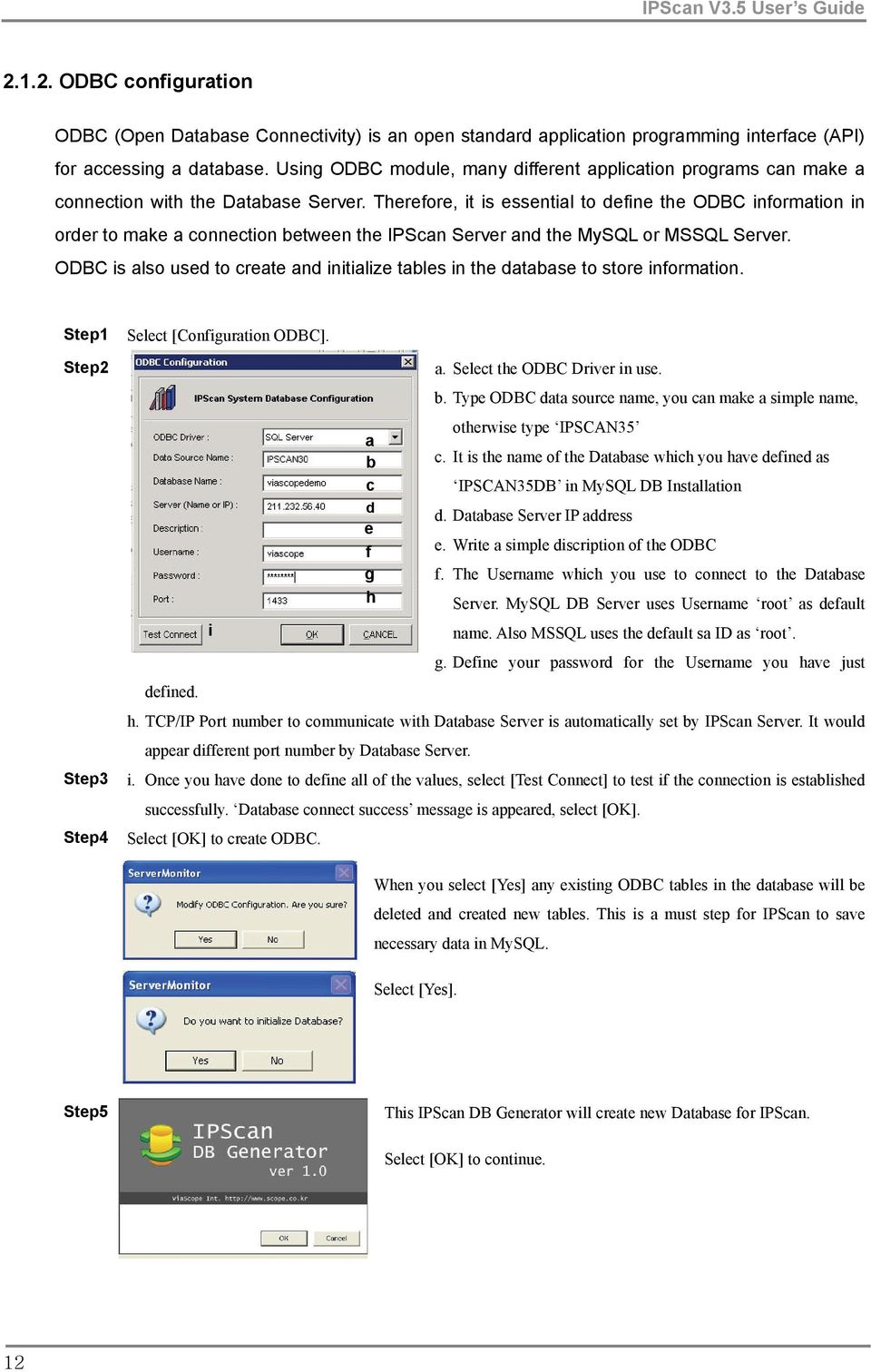
12 ODBC configuration ODBC (Open Database Connectivity) is an open standard application programming interface (API) for accessing a database. Using ODBC module, many different application programs can make a connection with the Database Server. Therefore, it is essential to define the ODBC information in order to make a connection between the IPScan Server and the MySQL or MSSQL Server. ODBC is also used to create and initialize tables in the database to store information. Select [Configuration ODBC]. a. Select the ODBC Driver in use. i a b c d e f g h b. Type ODBC data source name, you can make a simple name, otherwise type IPSCAN35 c. It is the name of the Database which you have defined as IPSCAN35DB in MySQL DB Installation d. Database Server IP address e. Write a simple discription of the ODBC f. The Username which you use to connect to the Database Server. MySQL DB Server uses Username root as default name. Also MSSQL uses the default sa ID as root. g. Define your password for the Username you have just defined. h. TCP/IP Port number to communicate with Database Server is automatically set by IPScan Server. It would appear different port number by Database Server. i. Once you have done to define all of the values, select [Test Connect] to test if the connection is established successfully. Database connect success message is appeared, select [OK]. Step4 Select [OK] to create ODBC. When you select [Yes] any existing ODBC tables in the database will be deleted and created new tables. This is a must step for IPScan to save necessary data in MySQL. Select [Yes]. Step5 This IPScan DB Generator will create new Database for IPScan. Select [OK] to continue. 12
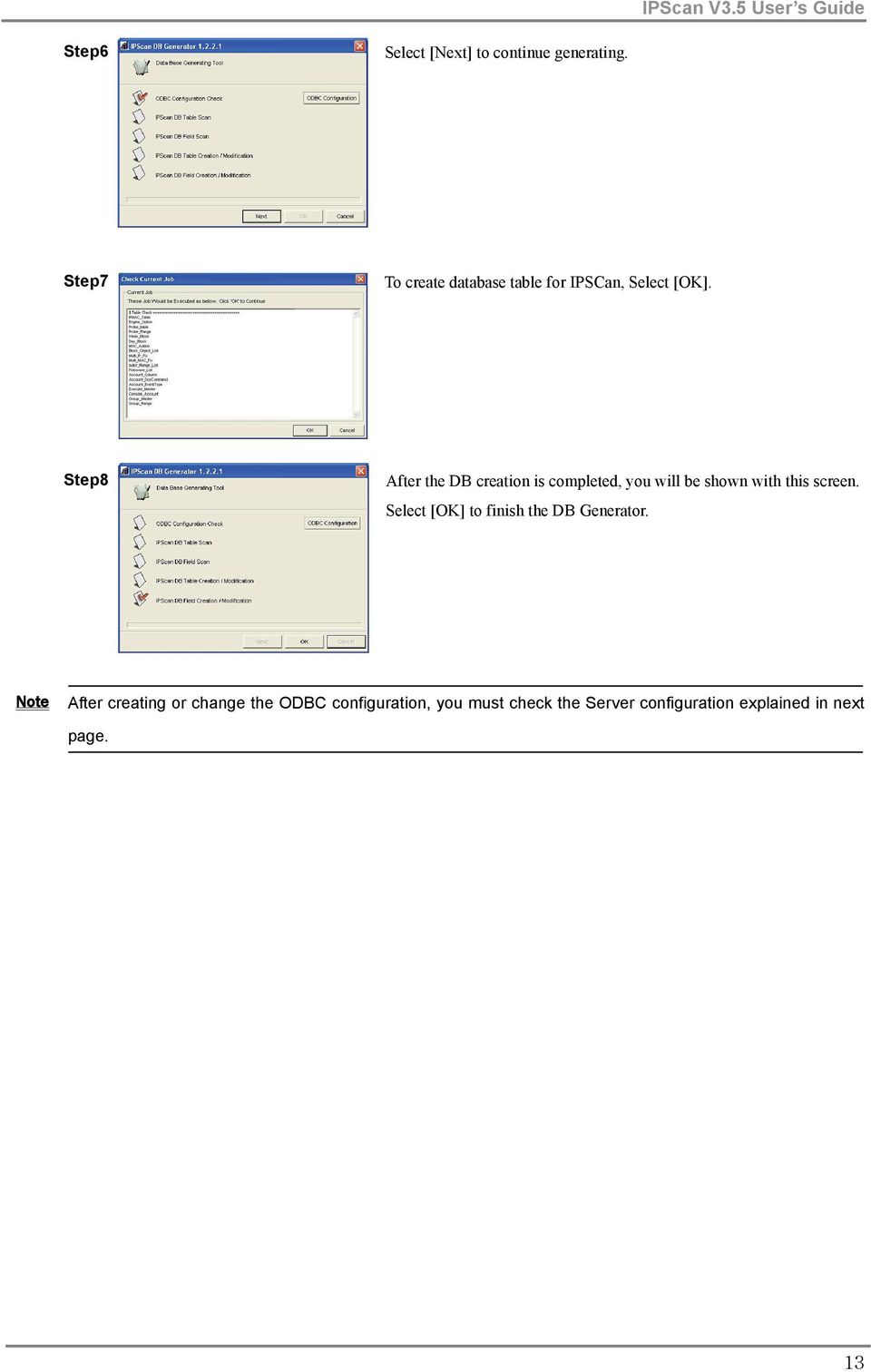
13 Step6 Select [Next] to continue generating. Step7 To create database table for IPSCan, Select [OK]. Step8 After the DB creation is completed, you will be shown with this screen. Select [OK] to finish the DB Generator. Note After creating or change the ODBC configuration, you must check the Server configuration explained in next page. 13
14 Server Configuration Before you start the IPScan Server, the Server Configuration must be set to manage this Server. Note Before you set this option, the IPScan Server should be unloaded (stop) its service. Otherwise, the configuration can not be defiend. If the IPScan Server is on service, select [Stop Server] button from bottom of the IPScan Server Monitor screen Select [Configuration Server]. a. Database : Select Database you have installed for IPScan Server b. History Option : History means that IPScan Server will manage the history of all IP addresses information. If you do not want to keep the history of it, select [No History]. Default is [History]. c. IPScan System Language : Select a language you wish to use on IPScan Server Monitor. d. User Added Field Data : This option is related to Import Column of IPScan Console. If you choose [IP Base], the imported column will be listed by IP addresses, and if you use the DHCP Server feature, choose [MAC Base], the imported column will be listed by MAC addresses. e. Probe DHCP : If you use the IPScan Probe as a DHCP Server, this option must be selected. Even if the IPScan Probe offers the DHCP function, without this configuration, the IPScan Console can not manage that DHCP features. Since the IPScan Server detects the IPScan Probe s configuration, and manage it using the IPScan Console, the IPScan Server should match its configuration to the IPScan Probe. f. Control Switch Port : From IPScan V3.5, it is available to control Switch Port. If you want to use this function, click the box. Otherwise, the [Control Switch Port] function will not be appeared in the Console viewer. (Available with Advanced Pack V2.0 or higher version) g. Scan Host Port : From IPScan V3.5, it is also available to [Block Unregistered Service Port]. In other word, IPScan Probe detects and blocks the user who does not use the compulsory official application by the TCP port connection. It is also must selection if you wish to use this function in the Console viewer. Otherwise, the [Block Unregistered Service Port] function will not be appeared in the Console viewer. (Available with Advanced Pack V2.0 or higher version) h. Console Control Port : TCP port number for the connection between the Server and the Console. i. Console Event Port : TCP port number for the connection between the Server and the Console (foe Event) j. Communication Time Out (sec) : Time out checking interval between the Server and the Probe. Note When you change TCP port number in h,i,j, you should change that port number in the Probe configuration. See the Probe Installation Guide to change the configuration. 14
![If the IPScan Server is on service, select [Stop Server] button from bottom of the IPScan Server Monitor screen Select [Configuration Server]. a.](/docs-images/44/16023115/images/page_14.jpg "Database : Select Database you have installed for IPScan Server b. History Option : History means that IPScan Server will manage the history of all IP addresses information.")
15 k. Service Port Information : Display the TCP ports status of the IPScan Server machine to show the TCP Ports in use. You should define those TCP ports to the firewall. Otherwise, the IPScan product family cannot connect each other and/or other problems could be caused. To get more detailed information about the TCP Ports, see the IPScan V3.5 Installation Guide. Select [OK] to save the configuration. 15

16 2.2. IPScan Console Configuration Probe Monitoring Range This configuration is explained in the Installation Guide as well. When you execute IPScan Console for the first time, although the IPScan Console can automatically detect IPScan Probes on the network and displays its IP addresses on the Probe Tree without any configuration, there would be no data information from the Probes. Since the Probe cannot gather the user data without the monitoring range which should be sent by the Console to the Server, and the Probe. To monitor and manage the data information for each probe, Monitoring Range must be configured by each probe. Select a Probe to assign the monitoring range from the Probe Tree and right mouse click. Select [Probe Monitoring Range]. The configuration box is appeared. a b d e f c Step4 a. It is automatically defined the IPScan Probe s IP address. If there is no VLAN on the network, define IP address of the IPScan Probe. If there are several VLAN ranges on the network, you should define individual monitoring range for each VLAN. When you define the VLAN monitoring range which the Probe s actual IP is involved in, [Host IP] should be the actual Probe IP address, and for other rest of the VLAN monitoring ranges, [Host IP] should be a virtual IP address for the IPScan Probe. This virtual IP address should not be allocated to other network machine. b. Define the start IP address of the monitoring range. c. Define the end IP address of the monitoring range. d. If there is a DHCP server to allocate IP addresses on the network, click the box. When you use the DHCP Server, the monitoring range should be defined in different way. For instance, the IP ranges are divided into three groups. From xxx.xxx.xxx.1 to xxx.xxx.xxx.90 IP range is for static IP addresses, and from xxx.xxx.xxx.91 to xxx.xxx.xxx.150 IP range is for DHCP IP addresses. Finally, from xxx.xxx.xxx.151 to xxx.xxx.xxx.254 IP range is for static IP addresses. In this case, you will have three different IP ranges. Add the first static IP range without clicking DHCP box, and add the DHCP IP range with clicking DHCP box. At the last, define the second static IP address range without DHCP. e. If you have VLAN on your network, define VLAN ID, and add each VLAN IP range. f. The number of Ethernet ports on the IPScan Probe. Depending on model the IPScan Probe, the number of ports could be different. Select actual number of IPScan Probe on the configuration. Select [Save] to and the message box will be shown to restart IPScan Probe automatically. Select [OK] Step5 To modify the configuration, double click the filed you wish to modify and enter vlaues. Select [Save]. 16

17 IP/MAC resource Management and network security solution Chapter 3. General Features of IPScan Console The IPScan Console is the actual user interface to control the Server and the Probe. You can apply policies and change configurations using the Console viewer. With the IPScan Console, the IT manager can manage the network from anywhere at anytime. This chapter describes general features and composition of the Console main screen Description of IPScan Console Window Probe Tree/Group Tree User List ICON States Column States Event Log Viewer Event Log Event Log Description Login User Activity Details Current Login User Search Results

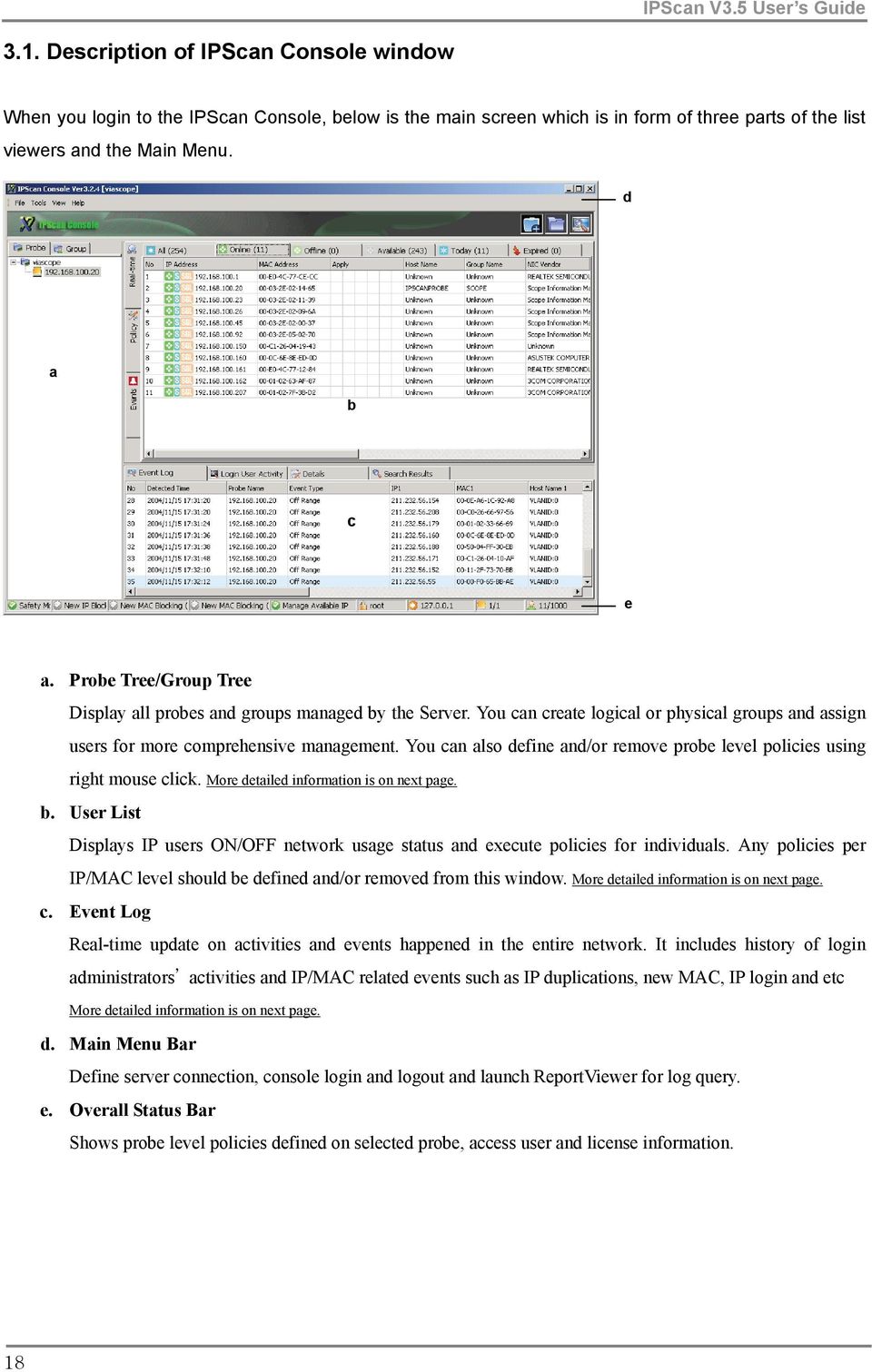
18 3.1. Description of IPScan Console window When you login to the IPScan Console, below is the main screen which is in form of three parts of the list viewers and the Main Menu. d a b c e a. Probe Tree/Group Tree Display all probes and groups managed by the Server. You can create logical or physical groups and assign users for more comprehensive management. You can also define and/or remove probe level policies using right mouse click. More detailed information is on next page. b. User List Displays IP users ON/OFF network usage status and execute policies for individuals. Any policies per IP/MAC level should be defined and/or removed from this window. More detailed information is on next page. c. Event Log Real-time update on activities and events happened in the entire network. It includes history of login administrators activities and IP/MAC related events such as IP duplications, new MAC, IP login and etc More detailed information is on next page. d. Main Menu Bar Define server connection, console login and logout and launch ReportViewer for log query. e. Overall Status Bar Shows probe level policies defined on selected probe, access user and license information. 18
19 Probe Tree / Group Tree All probes and probe groups are listed. To apply any policy in Probe level, right mouse click. You will get the drop-down menu. The detailed features will be explained in Chapter 4 and Chapter 7. You can create logical group by user defined name. It is useful when you want to manage the IP/MAC addresses by distinguished logical area such as division, location, etc. The detailed features will be explained Chapter User List Real time The real time status for each IP/MAC address Display all users usage status. You can identify the user status by the color of the status Icons. Also the policy Icons are appeared when the policy is applied to each user s address. Policy The applied policy status for each IP/MAC address Event The event log for each IP/MAC address 19

20 ICON States Icon Features and Policies Icon Features and Policies IP/MAC is online IP/MAC is offline IP/MAC is never been used IP/MAC is used today Uses static IP Unauthorized IP IP assigned from DHCP serer Uses only one IP/MAC Uses multiple IP/MAC [IP Blocking] [Auto Expired IP Blocking] [IP/MAC based Time Control] [DHCP IP Registration] [Host Name Registration Blocking] [IP Registration Blocking] [MAC Registration Blocking] [Multiple IP Registration Blocking] [System Device Based on MAC] [Broadcast Limit Free Device] [Expire Free Device based on IP] IP expiry notification (Yellow Color) MAC expiry notification (Yellow Color) IP/MAC expiry notification (Yellow Color) Auto block expired IP defined (Green Color) Auto block expired MAC defined (Green Color) Auto block expired IP/MAC defined (Green Color) Expired IP/MAC blocked (Red Color) Expired MAC blocked (Red Color) Expired IP blocked (Red Color) [Mac Blocking] [Auto Expired MAC Blocking] Configured as a Router [Multiple DHCP IP Registration] Host Name Registration Log [IP Registration Log] [MAC Registration Log] [Multiple MAC Registration Blocking] [System Device based on IP] [Port Scan Free Device] [Expire Free Device based on MAC] IP/MAC Status Examples ICON Status ICON Status On + Static + Single IP On + Static + Multi IP On + DHCP Unknown + Static + Single IP Unknown + DHCP On + Illegal + DHCP On + Illegal +Static + Multi IP Off + Illegal + Static + Single IP On + GLBP Off + Static + Single IP Off + Static + Multi IP Off + DHCP Unknown + Static Multi IP Unused On + Illegal + Static + Single IP Off + Illegal + DHCP Off + Illegal + Static + Multi IP Off + GLBP Unknown + GLBP 20
![Registration Blocking] [MAC Registration Blocking] [Multiple IP Registration Blocking] [System Device Based on MAC] [Broadcast Limit Free Device] [Expire Free Device based on IP] IP expiry](/docs-images/44/16023115/images/page_20.jpg "notification (Yellow Color) MAC expiry notification (Yellow Color) IP/MAC expiry notification (Yellow Color) Auto block expired IP defined (Green Color) Auto block expired MAC defined (Green Color)")
21 Column States Column IP Address MAC Address Apply Host Name Group Name NIC Vendor Time Control Port Scan Service Description and Applied Features User s IP Address User s MAC Address Display Icons of applied policies User s NetBIOS name User s Group name Network Interface Card information [Time Control] policy is applied. Display temporary access period. Display blocking status of unregistered service port user Status Switch information Port State Port No. Port Name [Type] Last IP State Last MAC State Login Time Logout Time Display defined Managing Name of Switch. [Control Switch Port] policy is applied. Display port Up/Down status. Switch port number Switch port name [Switch Port Type : G=General U=Uplink D=Downlink] Display event state of IP address at last. Display event state of MAC address at last. Login time of IP/MAC address Logout time of IP/MAC address 21
22 Event Log Viewer Event Log Event Log : The real-time event log list. Display all event logs from the Probe. Right mouse click on the Event log screen, and select [Event Display Options] on the drop-down menu to control the display options and pop-up event. You can save the information shown in this screen to CSV or HTML file. Right mouse click on the Login User Activity screen and select [Save as a CSV File] -> [CSV] or [HTML] [Event Log Display Options] is shown. [Evnet] tab shows the all available commands and policies of IPScan. You can enable or disable the Event Name for the Display, the Pop Up and the option Display : Display status of enabled Event name Pop Up : Pop up evnet message Box is shown when the enabled Event has occurred. Send the event log of enabled Event to the manager by . [Probes] tab shows the all Probe list and its display option. If you want to display all Event from the selected Probe, double click the Display option to be green. 22
23 Event Log Description Event MAC Movement Description and Applied Features MAC has been moved to the other Probe when New MAC Blocking feature has been applied. Probe Exit Probe Login Multiple IP Login Single IP Login DHCP IP Enter Probe s connection with server has been lost. Probe s connection with server has been established. Device using more than one IP has entered the network. Device using a single IP has entered the network. IP addresses have been allocated by DHCP Server (the Probe DHCP Server or other DHCP Server) New IP IP Logoff IP Conflict Multiple IP Change Single IP Change DHCP IP Change IP Change (New IP) IP Blocking Time Control Blocking (IP) Automate Static IP Blocking Server Level New MAC Blocking (DHCP) Probe Level New MAC Blocking (DHCP) Unauthorized MAC Blocking Unregistered IP Blocking Off Range Blocking Time Control Blocking (MAC) Expired IP Blocking Expired MAC Blocking Block Broadcast Violation IP MAC Blocking Apply Port Scan violation Blocking IP Reg. Blocking New IP, not in DB, has been detected. Device using a single IP has disconnected from the network. IP conflict has occurred (more than one device is using a same IP) Device using more than one IP has changed IP. Device using a single IP has changed IP address. Device with IP assigned from DHCP, has changed IP Used IP changed its IP address to a new IP User has attempted to access the network using a blocked IP. Expire the temporary access period of IP. Unregistered Static IP has been detected in the DHCP environment. New MAC has been detected under the Probe in DHCP environment New MAC has been detected under the Probe Group in DHCP environment. Unauthorized MAC has been detected on the network. Unregistered IP has been attempted to access the network. IP out of the Probe Monitoring Range has been detected and blocked. Expire the temporary access period of MAC Expired IP has attempted to access the network Expired MAC has attempted to access the network. A particular IP has exceeded its broadcast packets over defined threshold value. Blocked MAC has attempted to access the network. A violation IP which did not use the defined TCP Ports has been blocked. MAC has been matched with particular IP(s), but the MAC attempted to access the network using a different IP. The access is denied. MAC Reg. Blocking IP has been matched with particular MAC(s), and another MAC has attempted to access the network using matched IP. The access is denied. Host Name Reg, Blocking IT manager has registered particular host name for the device, but the device attempted to access the network using a different host name. The access is denied. 23
24 Event Block New IP New MAC Host/Group Name Change Group Name Change Host Name Change Manage Off Range IP Manage Broadcast Packet MAC Reg. Log Description and Applied Features New IP, not in DB, has been blocked. New MAC, not in DB, has been detected. Host and Group names have been changed. Group name has been changed. Host name (collected from NetBIOS) has been changed IP not registered within the monitoring range has been detected. IP had exceeded allowed broadcast threshold (bytes per second). IP has been matched with particular MAC(s), and another MAC has attempted to access the network using matched IP. The access is allowed, but the history is logged. IP Reg. Log MAC has been matched with particular IP(s), but the MAC attempted to access the network using a different IP. The access is allowed, but the history is logged. Host Name Reg. Log IT manager has registered particular host name for the device, but the device attempted to access the network using a different host name. The access is allowed, but the history is logged. Probe fail over DHCP fail over Unknown DHCP Server detected IP Allocation Failure Gather Port Information Apply Router Conflicting Port Blocking Secondary Probe has taken over the Master Probe. Secondary DHCP Server has taken over the Master DHCP Server. Unauthorized DHCP Server has been detected. DHCP Server has failed to allocate IP addresses. The Probe has gathered the Switch Port Information. An IP user has duplicated its IP with the Router, and the Switch Port of that IP has been blocked Block Switch Port Switch Monitoring Status Switch port has been blocked. The Probe has failed to query SNMP MIB for the Switch Login User Activity It shows the applied policy in real-time for each IP/MAC user. You can save the information shown in this screen to CSV or HTML file. Right mouse click on the Login User Activity screen and select [Save as a CSV File] -> [CSV] or [HTML] 24
25 Details It shows the detailed information about the system and policies applied. If you execute the [Control Switch Port], the Switch Port information will be displayed as well Current Login User It shows the currently login users. If you have multiple Login users, you can have a chat to share information each other. Double click the Login user you wish to send a message The chat box will be shown. Type message and click [Send] Search Results It shows the searched results by [Search] on the Main Menu Bar. The searched results are shown as below. 25
26 IP/MAC resource Management and network security solution Chapter 4. Safe Mode and Probe Management Tools IPScan provides the simulation mode which is called Safe Mode to help the manager to practice IPScan features. This chapter describes the Safe mode and the basic management tools Safe Mode Probe Management Tools Properties User Log in ID configuration Search information Dos Command Import User defined column Batch File Option Check Probe Connections Check All IP Status Add New Probe Groups Delete All Groups Rename Probe Delete Probe Create C Class Groups Telnet to Probe Change Probe
27 4.1. Safe Mode Safe mode freezes defined blocking policies for the selected probes. You can execute [Safe Mode] to be applied to the entire network by running the feature from the very top (usually the licensed company name) level from the probe tree. It is useful when pausing all blocking features or other policies for a brief period of time to check the system. However, even under safety mode, if any violations against the defined policies occur, it will be shown on console and the log will be saved on database. T I P If the Probe is act as a DHCP Server, the Probe will allocate the IP addresses to the users even in [Save Mode]. However, the blocking functions and other policies are not applied. From the Probe Tree, choose the probe which you want to simulate all policies to be applied, and right mouse click. Choose [Safe Mode]. The message box is shown to execute the mode. Select [OK] to execute. The check mark will appear in front of the menu If you wish to release the [Safe Mode], do the same steps as the above, the check mark will disappear Probe Management Tools The Probe Management Tools are for configuring and managing the Probes with one integrated user interface. With these tools you could have time controlled management effect. The tools are such as User Login ID authorization, execution of Dos Command in the Console viewer, real-time check of IPs and the Probes status, telnet connection to the Probes in the Console viewer, and so on. 27
28 Properties It is the management tool that configures general configurations such as Mail Server configuration, user list display option and so on.. Step4 Step5 Choose [Options] from the Main Menu Bar on top of the Main view. Choose [Properties]. You will be bypassed to the Properties configuration box, and prompted to enter the value. Select [General]. a. You can define the number of rows for displaying searched list to be displayed at once. The default value is 1000 row that the searched list will not be displayed over 1000 rows at a once. You can define 0 that there is no limit to show the searched list at once. b. Define the connection waiting period between IPScan Server and the Console. If the Server is b not answer to the Console within the c [Timeout] period, the Console will regard the connection has been disconnected by the Server. The default value is 30 seconds. Depending on the network, the waiting period should be defined little more higher than 30 seconds. Otherwise, the Server and Console could be disconnected frequently. c. Define the connection waiting period between the Console and the Database Sever. If the database server is not answer to the Console within that period, the Console will consider the connection has been disconnected by the Database Server Select [Mail Server]. This is the configuration for sending event log by to the manager. If you do not define the Mail Server information, you will not receive the event log, and should check it manually. e f g h. Select [OK] or [Apply] to save the configuration. h a b c d a. Enter Outgoing mail server IP address or name. b. Enter the ID of the mail server with its password. c. Enter the Sender s address d. Enter the Receiver s address. You can enter multiple addresses using ;. e. Enter sending interval in minute, the event log will be sent by every defined interval to the manager. f. Select the type of event log file. g. Enter the number of maximum Lines for the sent event log at once. 28
29 Step6 Select [Expired]. This configuration relates to the [Automate Expire IP/MAC] funcion from the Probe Tree. When you execute that function, assign the expiration period, so that IP/MAC addresses are blocked from the network if they are not in use on the network for the expiration period. a b a. Enter the number of days you want to be notified before the expiration. Before IP/MAC expires, the manager can be notified prior to expiry. b. Enter the number of days to determine blocking of IP/MAC from the network. If there is no in use of that IP/MAC within the expiration period, the Probe will block the IP/MAC. Step5 Select [Data Backup]. This backup database contains the event log statistics which is related with the Report Viewer explained in Chapter 10. Report Viewer. b a. Select the saving period If you define 4months, the database within 4months from today will be saved in IPScan database and other previous database will be moved to the backup database (ips30_backup). b. Select the delete interval If you define 5months, the backup database within 5months from today will be saved in the backup database, and the previous bacup database will be removed. c. Execute DB Backup The IP/MAC data information will be stored in backup db everyday at midnight. If you do not click the box, which means that the data will not be saved, and there would be no data to view in the Report Viewer. 29
30 User Login ID Configuration Creating login user ID and assigning access authority can be executed by root account user. The menu will not be available if you have logged in under different user ID. If you have multiple managers in the network, you can create login ID and assign access authority. Select [Users] from the Main Menu Bar on top of the Main screen. Choose [Login ID] to create and/or modify Login ID authority. The following configuration box is shown. Select [Add] to bypass to the User Registration box to create new Login ID. You will be prompted to enter the values. a b c d e a. Enter a Login ID for new User ID. b. Enter a User Name c. Enter description for the new ID d. Enter an address of receiver. e. Enter password for the new ID Step4 Choose a login user on the login user list to assign access authority and select [Permission]. Step5 Assign Read/Write permission to the probe or the group by double clicking green/red symbol. Select the permission level which is created by the [User Group] from the [Users] menu. You can view the permission level and configure the Policy Execution Level for each Permission Level by clicking View Permission Level. T I P It is recommended to assign the Read/Write permission carefully to the Administator and the limited user to avoid any trouble from changing configuration and policies. Step6 Select [OK] to apply the changed configuration. 30
31 You can create and/or modify the Permission Level and its Policy Execution Level which is a list of the available policies applied by executing function. T I P It is recommended that you limit the policy definition authority since each login user can define policies conflicting to each other. Thus only one user ID, which could be the root the Administrator, should have a permission to assign some of critical functions such as Blocking and any Authorization of IP/MAC in order to streamline management capabilities and avoid any complexity. Therefore, you should define cautiously the Policy Execution Level for each Permission Level for each User ID. Select [Users] from the Main Menu Bar on top of the Main screen. Choose [Login User Group] to create and/or modify the Permission Level and its Policy Execution Level. You can assign the Policy Execution Lever for each Permission Level by double clicking the green/red symbol of the commands. The Commands are the functions available to be applied. Step4 Select [Add] to create new permission level. Enter the name of the Permission Level, and description Select [OK] to create. Step5 The left window will be shown. You can define the authorized functions to add User ID by double clicking the green/red symbol of command. Note This commands and user functions are corelated, thus if you deactivate any of these commands, the related functions will not be able to use on the Console menu. Also, if you delete any authority from the Permission Level, the related users will not be able to manage the Console viewer. Step6 Select [OK] to apply the changed configuration. 31
32 Search Information This function provides easy way to search the user information on the User List. Select [Tools] from the Main Menu Bar on top of the Main screen. Choose [Search] a. Contents in search : Enter the key word to search b. Key field : Select a column to search c. Search area : Select a Search area. d. Search display option Display the search results on current windows : If you select this option, the searched field will be marked on the currunt User List. Display the search results on Search Results windows : If you select this option, the searched results will be shown on the [Search Results] on the Event Log Viewer. e. Display recent update only : If you click the box, the search area will be the recent DB. Otherwise the search area will be all DB. Select [Search] to start search the key word on the selected column from the selected search area Dos Commands The IPScan Console provides you to execute the Dos Command in the Console window. It is useful to use the Dos commands to verify the status of IP address such as Telnet, Ping and so on. Select [Tools] from the Main Menu Bar on top of the Main screen. Choose [Add Dos Commands]. Or choose an IP address from the User List, and choose [DOS Command] -> [Add Dos Command] a. Name : Enter a name of the command to identify b. Command : Enter a command you wish to add c. Option : Enter a option for the command if it has. For example, Ping 211.xxx.xxx.xxx t. Default provided Dos Commands are Nbtstat (NetBIOS name service) and Ping. Step4 Select [OK] to apply the changed configuration. Choose an IP address to run the Dos command on the User List and right mouse click. Select [Dos Commands] and select any Dos Command you added. 32
33 Import User Defined Column The manager can create user definable column on the User List in order to organize the address information matched with user s information such as telephone number, division, position and so on. Select [Tools] from the Main Menu Bar on top of the Main screen. Choose [Add User Defined Columns]. You can add new column for user s information you wish to manage or identify. It is useful when you organize IP/MAC group by the user definable column. a. Name : Enter a name of column b. Description : Enter description for the column Select [Add] to apply the changed configuration, and select [OK]. You can verify the add columns on the [Import Column Data]. This imported column information will be displayed on the User List. Select [Tools] from the Main Menu Bar on top of the Main screen. Choose [Import Column Data]. b a d a. Depending on this selection, the user definable column will be imported based on the IP Address or MAC Address. If you use DHCP environment, default is MAC Address base, otherwise IP Address base is the c default selection. This is not selectable. b. Click the column name you wish to import to the User List. c. Import the CSV file contains the column information with IP/MAC address. d. The column list is displayed from the CSV file. Select [Save] to apply the changed configuration, and select [OK]. 33
34 Batch File Option This is very useful when the monitoring range is wide, since it is very complicate task to organize many of IP/MAC addresses and assign policies for each IP/MAC. Thus the Console offers you a simply function to minimize your work using CSV file. With this file you simply import the file which contains the IP/MAC addresses, and assign policies for them with one clicking. Select [Tools] from the Main Menu Bar on top of the Main screen. Choose [Batch File Options] a. Select the Probe to apply policy. If you are b not selecting the Probe, the Probe is automatically selected. Also If the IP/MAC a information c addresses to apply the policy are dispersed in several probes, you should not select the Probe. It will be automatically searched. b. Select the commands you wish to apply by clicking c. Load the CSV file which contains IP/MAC d. The IP/MAC list of CSV file is shown on the view. e. Select [Save] to apply the selected command to the listed IP/MAC list. The success message will be shown on the Result Column. Note If the IP/MAC you wish to apply the command is in several different Probe Monitoring Ranges, you should not select the Probe. Leave the box as blank. Select [Close] Check Probe Connections It is useful function that the Console checks the connection between the Probe and the Server. You can you this function when the Probe is unexpectedly disconnected or the Console cannot view the real time gathered data. Choose the Probe you wish to check its status and right mouse click. Select [Check Probe Connections] on the drop-down menu. The message box is shown to run this function. Select [OK] to run. If the connection has been disconnected, the message box will show you the connection status. Note When the connection is disconnected between the Probe and the Server, 1. Try Ping to the Probe. If there is no request from the Probe, please check the phisical status of the Probe, or check the network condition between the Server and the Probe. 2. If there is a request from the Probe, try telnet to the Probe and check any configuration changes and its System Status. 34
35 Check All IP Status This is the function that you can verify the all IP addresses current on/off status. If you manage the wide range of the network with huge numbers of IP, it takes time to check the IP on/off status by the ARP check from the Probe. Thus if you need to be sure of the IP status for the particular Probe at current, it is very useful to refresh the status quickly rather than to wait to be checked by the checking interval. Choose the Probe you wish to check its status and right mouse click. Select [Check All IP Status] on the drop-down menu. The message box is shown to run this function. Select [OK] to run Add New Probe Group To add new Probe Group Choose the Probe you wish to add new probe group and right mouse click. Select [Add New Probe Group] on the drop-down menu. Enter the name of new group. Select [OK] to create the new group Delete All Groups To delete all probe groups Choose the Probe you wish to delete all probe groups and right mouse click. Select [Delete All Groups] on the drop-down menu. The message box is shown to run this function. Select [OK] to run Rename Probe To rename probe Choose the Probe you wish to rename and right mouse click. Select [Rename Probe] on the drop-down menu. Enter new probe name. Select [OK] to run Delete Probe To delete one Probe (the Probe you want to delete should be switched off.) Choose the Probe you wish to delete and right mouse click. Select [Delete Probe] on the drop-down menu. The message box is shown to run this function. Select [OK] to run. 35
36 Create C Class Groups This is very useful function if there are several VLAN in use in the network. For example, if the Probe Monitoring Range is from to with multiple VLAN, there are 10 different C class ranges on this monitoring range. Thus, if you execute this function, 10 different C class groups will be created automatically as shown below. To create C class groups Choose the Probe you create C class groups and right mouse click. Select [Create C Class Groups] on the drop-down menu. The message box is shown to run this function. Select [OK] to run Telnet to Probe If you want to get into the Probe you can simply use this function. Choose the Probe you wish to connect and right mouse click. Select [Telnet to Probe] on the drop-down menu. You will get into the telnet screen of the selected Probe Change Probe When you need to change the Probe, the Probe should be logged out and turned off the power switch first. Choose the Probe you wish to change its H/W and right mouse click. Select [Change Probe] on the drop-down menu. Enter the serial number of the Probe you wish to change. The Serial number is unique by each Probe and/or each Ethernet Port (in case of Probe 200, 600). You can identify it using [Telnet to Probe] to connect to the Probe and select [2. LAN] from the Main Menu of the Probe. You can find a serial number of the Probe or Ethernet Port. Otherwise see the bottom of the Probe and you will fine 16 digit numbers. Select [Yes] to change the Probe. 36
37 IP/MAC resource Management and network security solution Chapter 5. IP Management Tools IPScan Provides IP Management Tools to organize user list. This chapter explains how to make a user group and authorize individual user Group Tree Add User Group and IP Grouping 5.2. IP/MAC Control IP Authorization IP/MAC Return Delete Row
38 5.1. Group Tree You can create logical group by user defined name. It is useful when you want to manage the IP/MAC addresses by distinguished logical area such as division, location, etc Add User Group and IP Grouping To add new user group Choose [Ungroup] and right mouse click Select [Add User Group] from the drop down menu. You will be prompted to enter the new group name. Enter New User Group name, for example Sales, and select [OK]. Once you create a User Group, you need to put IP/MAC Users into the Group. Choose [Sales] the user group and right mouse click Select [IP Grouping] from the drop down menu, and choose [By Selection] or [By Range] If you choose [By Selection], you can select users on the user list to put into the User Group. Step4 Double click [Ungroup] or [Probe Mode] to list user list. Ste5 Choose IP(s) or MAC(s) (use Shift or Ctrl key to select multiple users) that you want to put into the User Group Sales, and drag it into the group. Step6 Step7 Step8 Step9 Select [OK] to complete. If you choose [By Range], you can add IP ranges to the User Group. Enter the start IP and end IP of an IP range, and select [Add]. Select [OK] to complete. You can create the User Group to distinguish users by the logical group name. It is useful to manage and apply the policies to users with this group name. You can simply manage this user group with [Add User Group], [Delete Group] and [Rename]. In addition, you can define and apply all IP/MAC Level Blocking functions in the Group Tree with [Set Host Policy] from the drop-down menu. 38
39 5.2. IP/MAC Control IP/MAC addresses could be controlled with those IP/MAC control features IP Authorization As the [Manage New IP/MAC] feature authorize and/or block the unauthorized new IP/MAC address by the Probe level, this feature authorize the individual IP address. With this assignment, the assigned IP address will not be blocked by the [Block New IP] feature, even if the IP is a new on the network. It is disabled from the drop-down menu when the selected IP was assigned as an Unused IP. Choose an IP/MAC to authorize from the User List, and right mouse click Select [IP Authorization] from the drop down menu. The message box is appeared to execute the feature. Select [Yes] IP/MAC Return If an IP/MAC is no longer active in the network, you can return the IP to the Unused IP list, and delete the MAC from the User List. The returned IP/MAC address information will be deleted from the database, thus you can only have history information of the IP/MAC from the Backup DB. If the selected IP/MAC address is assigned as a System Device, this IP/MAC cannot be returned. Choose an IP/MAC to return to the Unused IP list form the User List, and right mouse click Select [IP Return] or [MAC Return] from the drop down menu. The message box is appeared to execute the feature. Select [Yes] Delete Row You can delete an off line IP/MAC address row from the User List to organize the User List. If the selected IP/MAC is in on line, the row cannot be deleted. It is just deleting the information from the viewer; the actual information is stored in the DB. Choose an IP/MAC to delete the row from the User List, and right mouse click Select [Delete Row] from the drop down menu. The message box is appeared to execute the feature. Select [Yes]. 39
40 IP/MAC resource Management and network security solution Chapter 6. DHCP Server IPScan V3.5 offers DHCP Server feature which allow the manager can have the integrated cost-effective management tool to streamline diverse management tasks. This chapter describes the DHCP Server, and its configurations and features for DHCP environment DHCP Server 6.2. Configuring DHCP Server 6.3. DHCP Features Manage New MAC Temporary Access Period for Unauthorized MAC Authorize DHCP MAC DHCP IP Registration / DHCP Multiple IP Registration Automate Static IP Blocking
41 6.1. DHCP Server IPScan V3.5 has a built in DHCP server in order to reduce the complexity and amount of administrator work involved in reconfiguring computers. Dynamic Host Configuration Protocol (DHCP) is a TCP/IP standard based on RFC 2131 for simplifying management of host IP configuration. The manager can centrally manage IP addresses and automate the assignment of IP addresses in an organization's network. The concept of a lease, that a given IP address will be valid for a computer, is very useful in a network where users change frequently, and there are more computers than available IP addresses. The IPScan DHCP Server offers the following benefits. Cost Effective way to manage the wide range of network IPScan integrates multi network segments, thus you do not need to have DHCP Server for each network segment. Centralized Management with IPScan Console IPScan Console can monitor and configure all assigned IPScan Probes, the manager only need to control one console to manage wide range of network. Unauthorized IP/MAC Blocking IPScan offers the superior blocking function for unauthorized IP or MAC address in the DHCP environment. Static IP address allocating For the particulare MAC address, it is possible to give a static IP addresses depending on IP address range. In other words, even if the user changes its location on the network, IPScan detects the MAC address and give a static IP address from the IP address range where the user is belong to IPScan DHCP Server supports following mechanisms for IP address allocation Automatic allocation DHCP assigns a permanent IP address to a client Dynamic allocation DHCP assigns an IP address to a client for a limited period of time The operating procedure is down below. IP Scan Server DB Server IP Scan Console 1. The IPScan Probe acts as a DHCP Server. IPScan Probe 100A, 200 and 600 are eligible for DHCP Server. 2. The IPScan Console, which is the actual user interface for the DHCP Server, connects to the IPScan Server and sets up the DHCP configuration. 3. The IPScan Server keeps the DHCP configuration, which is set by the IPScan Console, and sends this configuration to the IP Scan Probe Built in DHCP Server IPScan Probe. 4. The IPScan Probe sends packets to allocate IP addresses and watch over the defined IP address pool. 41
42 6.2. Configuring DHCP Server To execute the DHCP Server, the IP Pool Range should be assigned. Depending on the network configuration or the organization policy, several functions could be applied. Choose the probe to act as DHCP Server from the Probe Tree and right mouse click. Select [DHCP Server Configuration]. Please follow the steps to configure the IP address Pool. a. Default Property : First, enter subnet,subnet mask and Gateway IP addresses. You must define this Default Property at first, otherwise the IP pool can not be added. b. DNS : Enter the DNS Server IP address. c. WINS : Enter the WINS Server IP address.. d. Select [Add]. The Default Network Configuration is defined. e. Pool Configuration : Enter the IP address range to assign the Scope range. Select [Authoriazed] for Scope range. The Pooled addresses are eligible for dynamic assignment by the Probe to DHCP clients. Select [Unauthoriazed] for exclusion Range. The unauthorized addresses are excluded from the DHCP Service offering. When the unauthorized MAC attempts to access to the network, the temporary IP address is allocated from this [Unauthorized] range. f. Basic Lease Time : A lease is a length of time that a DHCP server specifies, during which a MAC address can be used. Define lease time for the assigned pool range in minute. Default value is 10 minutes, which means that every 10 minutes, the Probe will allocate new IP address to each IP user. There are three types of access period for the unauthoriazed pool range. The temporary access period defined by [Temporary Access Period for Unauthorized MAC] is applied to the whole monitoring range of IPScan Server. Therfore, even if the Basic lease time is defined in this [DHCP Server Configuration], the unauthorized MAC will be allowed for this temporary access period. The temporary access period defined by [DHCP Server Configuration] is applied to the monitoring range of selected Probe. If you want to apply this value to the selected pool range, the [Temporary Access Period for Unauthorizsed MAC] should not be defined. The temporary access period defined by [Define MAC Lease] is applied to the selected unauthorized MAC. T I P 1. SubNet : In case the Subnet Mask is , the SubNet will be and For network devices or server machines, which should not be changed its IP addresses, should not be assinged its IP addresses in the IP Pool, since the IP address could be changed by the DHCP Server. In this case, the devices should be assinged as a reserved IP address by using [DHCP IP registration] function. Step4 Step5 Select [Add] to add the Pool. The assigned IP Pool is shown on the screen. Select [Next] to apply the configuration. The message box will be shown to execute DHCP Server. Select [OK]. 42
43 6.3. DHCP Features Once you have defined the DHCP Server configuration, it is ready to execute the DHCP Server. The following functions and configurations could be useful depending on the network configuration or organization s network policy Manage New MAC In the DHCP environment, MAC address is the key to find out the unauthorized user in the network. Since the unknown new MAC (network devices or machines) could be vulnerability or threat to the organization, it is important to monitor and manage the New MAC addresses. [Manage New MAC] is the function to block or add on new MAC addresses to authorize. T I P Before you begin the configuration process, MAC addresses on your network should be listed at least once, so that the Probe can verify the new MAC address comparing with listed addresses. Step4 Step5 On the Probe Tree, choose the probe which is the DHCP Server and right mouse click. Choose [Manage New MAC]. To manage the new MAC addresses under the probe you ve chosen, select [Block New MAC (Probe)]. To manage the new MAC addresses under all probe groups, select [Block New MAC {Probe Group}]. Select [Assign Temporary IP]. The Probe will allocate a temporary IP to the new MAC for a limited time only. After doing so, define the [Temporary Access Period for Unauthorized MAC]. Select [Block]. You can block the new MAC immedietly when the Probe detects new MAC addresses. Select [OK] to execute the function. You can add the new MAC addresses manually in order to secure that MAC from the New MAC blocking policy. Due to the fact that some of network devices or user machines are portable or temporarily in use, their MAC addresses would not be in the list of the IPScan DB. Therefore, that kind of MAC addresses should be added on before the New MAC blocking policy is applied. On the Probe Tree, choose the probe which is the DHCP Server and right mouse click. Choose [Manage New MAC], and select [Add MAC] to bypass to the Add New MAC configuration wizard. a. MAC address : Enter the MAC address you wish to add b. File Trace : If there is a CSV file of MAC addresses, search or enter the path of file c. Colum Identifier : The column identifyer should be selected d. Column : The number of column should be matched with the CSV file s. e. Select [Open] to import the CSV file. f. The MAC addresses list is shown. g. Select [Add] to add on the MAC addresses and select [OK] to apply the changes. 43
44 Temporary Access Period for Unauthorized MAC If the [Assign Temporary IP] is configured to allocate a temporary IP to the new MAC, the temporary access period should be defined. This policy is applied to the whole monitoring range of IPScan Server. Thus all unauthorized MAC will be allowed to access for this defined temporary period of time. Choose [Options] on the menu bar, select [Configure DHCP] -> [Temporary Access Period for Unauthorized MAC]. You will be prompted to enter the period in minute. Default value is 60 minutes. Select [OK] to apply the value Authorize DHCP MAC You can authorize detected new MAC address to allow access. The new MAC will be assigned IP address from the Authorized Pool. Step4 Choose the MAC address to authorize from the User List and right mouse click. Go to [Autorize DHCP MAC] and select [Authorize MAC] to authorize the MAC address. This MAC will be allowed to be used on the network. If you want to release authorization of the MAC, simply choose the MAC address for that and right mouse click. Go to [Unauthorized MAC]. the Unauthorized MAC will be blocked from the network. The message box is shown to activate authorization. Select [OK] to apply the value Define MAC Lease for Unauthorized MAC You can define temporary access period for the particular unauthorized MAC address, Before the lease expires, the MAC address is needed to be renewed its address lease assignment with the server. A lease becomes inactive when it expires and the MAC address can not be used. You will get the Event log of expiration. To define the temporary access period for the particular unauthorized MAC Step4 Choose the authorized MAC address on the User List and right mouse click. Go to [Define MAC Lease]. You will be prompted to enter a time value in minute. The message box is shown to activate authorization. Select [OK] to apply the value. 44
45 DHCP IP Registration / DHCP Multiple IP Registration In DHCP environment, the network devices and server machines are likely to be assigned permanent IP addresses to avoid any IP duplication. T I P If you assign permanent IP addresses to those particular devices without this configuration, these IP addresses could be blocked if the [Automate Static IP Blocking] function is executed. Therefore, before offering the DHCP Service, the [Automate Static IP Blocking] feature should be considered. To assign the permanent IP address Choose the device or server MAC address on the User List, and right mouse click. Go to [Apply MAC/IP Registration], and select [DHCP IP Reg.]. The message box is shown to assign a permanent IP address to a particular MAC. Step4 Select [OK] to apply the value. If there is a network device or server machine needs to be assigned multiple IP addresses, you should manually add the multiple IP addresses to the MAC address of the device. Choose the device or server MAC address on the User List and double click. [Host Detail] is shown. a b c a. Select [Multipul IP/MAC Reg] tab b. Determine which function you wish to apply. Multiple IP Registration c. Double click the blank line under IP and you will propmted to enter the addresses. d. Select [Defined (DHCP)] to apply the policies or Select [Remove (DHCP)] the policy from the address. d Step4 Select [OK] to apply the policy Automate Static IP Blocking With this configuration, unauthorized static IP address will be blocked by the Probe unless the IP address was assigned as a permanent IP address. However, if you do not activate this blocking function, the unauthorized static IP address could be used in the network, and you will only receive the event log that the New IP is in use. The Probe will detect the static IP address in the assigned Pool range. Step4 Choose the Probe on the Probe Tree and right mouse click. Select [Automate Static IP Blocking]. The message box is shown to activate the blocking function. Select [OK] if you want to block static IP in use in DHCP environment. 45
46 IP/MAC resource Management and network security solution Chapter 7. Probe Level Blocking IPScan offers two levels of blocking mode. The Probe Level Blocking is that the all IP/MAC users under the Probe or the Probe Group will be applied policies. Whereas the IP/MAC Level Blocking is that the only selected IP/MAC will be applied policies. The Probe Level Blocking is executed by running blocking functions from the drop-down menu of the Probe Tree. This chapter describes how the blocking function works and its configurations Manage New IP/MAC 7.2. Manage Unused IP 7.3. Manage Off Range IP 7.4. Automate Expired IP/MAC Expire Policy Free Device 7.5. Manage Broadcast Packet
47 7.1. Manage New IP/MAC Once you have done to list all IP/MAC addresses in the network, you can apply the policy to block any new IP/MAC try to access to your network. However, if the new IP/MAC is reasonably access to the network, you can authorize the new IP/MAC address to allow its access. T I P Before the Probe verifies the new IP/MAC, it checks the IPScan Server Database whether the IP/MAC is in the DB or not. Therefore, it is recommended to monitor the network for at least two weeks and notify internal users of the network access policy before executing the features. T I P Before you execute this function, please check the [IP Authorization] feature and [Add New Authorized IP] have been configured. Otherwise, there would be unexpected blocking on your network. To block the new IP addresses Step4 Choose the Probe on the Probe Tree and right mouse click. Select [Manage New IP]. Choose [Block New IP]. The message box is shown to apply this policy to the IP/MAC under the selected Probe or th eprobe Group. To add the new IP addresses to authorize Step4 Choose the Probe on the Probe Tree and right mouse click. Select [Manage New IP]. Choose [Add New Authorized IP] -> [Range] or [IP] to bypass to the configuration wizard. You will be prompted to enter the New IP range or individual IP.. a. Start : Enter the start IP of the range. b. End : Enter the end IP of the range c. Select [Add] to add the new IP range. d. Select [Apply] to apply the changed policy. a. IP : Enter the new IP address b. MAC : Enter the MAC for the new IP address. If you define a MAC address for the new IP address, the MAC will only be authorized when it access the network with that new IP. If the MAC attempts to access to the network with other IP, the access will be denied. c. Select [Add] d. Select [OK] to apply the changed policy. 47
48 To block the new MAC addresses Choose the Probe on the Probe Tree and right mouse click. Select [Manage New MAC]. Choose [Block New MAC (Probe)].which the policy will be applied to the new MAC under the selected Probe. Choose [Block New MAC (Probe Group)].which the policy will be applied to the new MAC under the all Probe Groups. Step4 The message box is shown to apply this policy to the IP/MAC under the selected Probe or th eprobe Group. To add the new MAC addresses to authorize Choose the Probe on the Probe Tree and right mouse click. Select [Manage New MAC]. Choose [Add NewAuthorized MAC] to bypass to the configuration wizard. Step4 You will be prompted to enter the New MAC address. a. MAC Address : Enter the MAC address you wish to add b. File Trace : If there is a CSV file of MAC addresses, search or enter the path of file c. Column Identifier : The column identifyer should be selected d. Column : The number of column should be matched with the CSV file s. e. Select [Open] to import the CSV file. f. The MAC addresses list is shown. g. Select [Add] to add on the MAC addresses and select [OK] to apply the changes Manage Unused IP This function is for displaying Unused IP on the User List. If you do not apply this function, the Unused IP will not be displayed. If the assigned Probe Monitoring Range is so wide such as using B class Monitoring range, and there are lots of Unused IP addresses in the network, it takes time to load and display all the Unused IP. Therefore, you can use this function to disable display mode of the Unused IP. To display the Unused IP addresses Choose the Probe on the Probe Tree and right mouse click. Select [Manage Unused IP]. The massabe box is shown to display the Unsed IP on the User List To disable the display mode of the Unused IP addresses, execute [Manage Unused IP] once more. 48
49 7.3. Manage Off Range IP This function is to block the IP which is out of the Probe Monitoring Range. In the case of the virtual network and/or unauthorized IP in the network can be blocked. Also it is useful to organize the user group as a small group. In other word, if you have wide range of IP addresses, you only define few C class ranges for the Probe Monitoring Range, and apply this policy to block the unallocated user, On the other hand, depending on the organization s policy or the network configuration you can make an exception from the Off Range IP. To block the Off Range IP Step4 Choose the Probe on the Probe Tree and right mouse click. Select [Manage Off Range IP]. Choose [Block Off Range IP]. The message box is shown to apply this policy to th e selected Probe. Select [Yes] to apply. To make an exception for the detected off range IP Choose the Probe on the Probe Tree and right mouse click. Select [Manage Off Range IP]. Choose [Set Off Range Exception] to bypass to the configuration box.. Step4 a. Register Authorized IP : Enter the IP range to make an exception b. Description : Enter the description to indentify c. Select [Add] to add the IP range d. The added IP rang e will be shown. e. Select [Apply] to apply the changed configuration. 49
50 7.4. Automate Expired IP/MAC IPScan V3.5 User s Guide In case the users are very flexible to access the network and there are more users than the allocated IP addresses, the manager can define a condition that if the IP is not in use for predefined expiration period, the Probe will expire that IP. [Block Expired IP] : the expired IP will be blocked. Once the IP has been blocked, the blocked IP is not retuned to the Unused IP list, but the event log is displayed. [Release Expired IP] : the expired IP will not be blocked, but will be returned to the Unused IP list, and the information of that IP such as MAC address, User name and other rest of data except IP address will be deleted from the User List. If you did not execute the [Manage Unused IP] function to display the Unused IP, the returned IP also will not be displayed. [Block Expired MAC (Probe)] : the expired MAC, which is under the selected Probe, will be blocked, and the event log is displayed. [Release Expired MAC (Probe)] : the expired MAC, which is under the selected Probe, will be deleted from the User List. Unless the MAC is used with other IP, the IP will be returned to the Unused IP list. [Block / Release Expired MAC (Server)]is the same feature as [Block/Release Expired MAC (Probe)], but the applied area is extended to whole management range of IPScan Server. T I P To define the expiry period, go to [Options] ->[Properties] -> [Expired] tab from the Main Menu Bar. To block the expired IP Choose the Probe on the Probe Tree and right mouse click. Select [Automate Expired IP/MAC]. Choose [Block Expired IP ]. Step4 The message box is shown to apply this policy to the selected Probe. Select [Yes] to apply. To return the expired IP to the Unused IP list Choose the Probe on the Probe Tree and right mouse click. Select [Automate Expired IP/MAC]. Choose [Release Expired IP ]. Step4 The message box is shown to apply this policy to the selected Probe. Select [Yes] to apply. To block the expired MAC of the selected Probe Choose the Probe on the Probe Tree and right mouse click. Select [Automate Expired IP/MAC]. Choose [Block Expired MAC (Probe) ]. Step4 The message box is shown to apply this policy to the selected Probe. Select [Yes] to apply. 50
51 To delete the expired MAC of the selected Probe Choose the Probe on the Probe Tree and right mouse click. Select [Automate Expired IP/MAC]. Choose [Release Expired MAC (Probe) ]. Step4 The message box is shown to apply this policy to the selected Probe. Select [Yes] to apply. To block the expired MAC of whole management range of IPScan Server Choose the Probe on the Probe Tree and right mouse click. Select [Automate Expired IP/MAC]. Choose [Block Expired MAC (Server) ]. Step4 The message box is shown to apply this policy to the selected Probe. Select [Yes] to apply. To delete the expired MAC of whole management range of IPScan Server Choose the Probe on the Probe Tree and right mouse click. Select [Automate Expired IP/MAC]. Choose [Release Expired MAC (Server) ]. Step4 The message box is shown to apply this policy to the selected Probe. Select [Yes] to apply Expire Policy Free Device Sometimes the Probe cannot detect some of network devices as below for predefined period of time. A special network device changes its on/off line status frequently A firewall which is to bypass/filter packet on the network In addition, there could be some of special cases that users are on a business trip for a long time or some network machines are used occasionally to check or maintenance the network In the above cases, it is recommended to apply the [Expire Policy Free Device] to that particular devices in order to secure that devices to be blocked by the [Automate Expired IP/MAC] policy. To apply this policy Choose the IP/MAC address you wish to set as an expire policy free device on the User List. Choose the [Expire Policy Free Device]. Select [Apply Expire Policy Free Device Based on IP] or. [Apply Expire Policy Free Device Based on MAC] Step4 The message box is shown to apply this policy to th e selected IP/MAC. Select [Yes] to apply. To release this policy from the selected IP/MAC Choose the IP/MAC address which has been assigned for the free device policy Choose the [Expire Policy Free Device]. Select [Release Expire Policy Free Device Based on IP] or. [Release Expire Policy Free Device Based on MAC] Step4 The message box is shown to apply this policy to the selected IP/MAC. Select [Yes] to apply. 51
52 7.5. Manage Broadcast Packet Since some of violent network users intentionally generates excessive broadcasting packets for attacking the network, and network devices could generate broadcasting packets excessively as well, IPScan offers the [Manage Broadcast Packet] to block any users generating excessive broadcasting packets in the network in order to manage network overload. Before applying this policy to your network, you need to first define the broadcasting packet threshold. Note It is recommended to define the threshold based on the device generating the most broadcasting packets in the network. If the threshold is too low, [Broadcasting Violation Blocking] can impact the network performance. Choose the Probe on the Probe Tree and right mouse click. Select [Manage Broadcast Packet]. Choose [Set Threshold Value]. You will be prompted to enter the threshold value. Default value is 1000 packets. Step4 Select [OK] to apply the value. To apply this policy to the network Choose the Probe on the Probe Tree and right mouse click. Select [Manage Broadcast Packet]. Choose [Block Broadcast Violation IP]. Step4 The message box is shown to apply the policy. Select [OK] to apply the policy to the network. Step5 If you release the blocking policy, simply select [Block Broadcast violation IP] once again. 52
53 IP/MAC resource Management and network security solution Chapter 8. IP/MAC Level Blocking As it explained in the Probe Level Blocking, IPScan offers two levels of blocking mode. The Probe Level Blocking is that the all IP/MAC users under the Probe or the Probe Group will be applied policies. Whereas the IP/MAC Level Blocking is that the only selected IP/MAC will be applied policies. The IP/MAC Level Blocking is executed by running functions from the dropdown menu of the User List. This chapter describes how the blocking function works and its configurations Manage Host IP/MAC 8.2. Apply IP/MAC Registration 8.3. Apply Multi IP Registration GLBP (Gateway Load Balancing Protocol) 8.4. Time Control 8.5. System Device
54 8.1. Manage Host IP/MAC This function is for immediate blocking of particular IP/MAC address to prevent any violation or trouble cause by that IP/MAC. When you install the IPScan for the first time, there could be unauthorized IP/MAC in use. With this simple function you can block that IP/MAC immediately and assign other policies to that address. Even if the user can change its IP address to reconnect to the network, its MAC address can be blocked by the [Block Host MAC]. Thus you can completely block the unauthorized user. To block particular IP/MAC addresses Choose IP(s) or MAC(s) (use Shift or Ctrl key to select multiple users) that you want to block and right mouse click. Select [Manage Host IP/MAC] from the drop-down menu and select [Block Host IP] or [Block Host MAC] The message box is shown to apply the function. Step4 Select [OK] to apply the policy. To release blocked IP/MAC addresses Choose IP(s) or MAC(s) (use Shift or Ctrl key to select multiple users) that you want to release and right mouse click. Select [Release Host IP/MAC] from the drop-down menu and select [Release Host IP] or [Release Host MAC] The message box is shown to apply the function. Step4 Select [OK] to apply the policy. 54
55 8.2. Apply IP/MAC & Host Name Registration IP/MAC registration enables IT managers to control users from changing IP addresses and protect IP address of important system devices. IP registration (blocking/log) matches MAC with an IP and user name to manage users from changing IP address without IT manager s authorization. [Apply IP/MAC Reg. Blocking] controls users by blocking the network access if the users attempts to change IP/MAC addresses. [Apply IP/MAC Reg. Log Only] allows the access, but the access history will be saved in the database. [Apply Host Name Reg. Blocking] is that if the user attempts to change its Host Name, the user is blocked from the network. [Apply Host Name Reg. Log Only] is that within the same situation above, the user is not blocked but the access history will be saved in the database. Note For DHCP network, DO NOT USES THIS FUNCTION. There is [DHCP IP/MAC Registration] for DHCP network. To block registered IP/MAC addresses when they attempt to change its IP/MAC addresses Choose IP(s) or MAC(s) (use Shift or Ctrl key to select multiple users) that you want to block and right mouse click. Select [Apply MAC/IP Registration] from the drop-down menu and select [Apply IP Reg. Blocking] or [Apply MAC Reg. Blocking]. The message box is shown to apply the function. Step4 Select [OK] to apply the policy. To release the blocked IP/MAC addresses Choose IP(s) or MAC(s) (use Shift or Ctrl key to select multiple users) that you want to release and right mouse click. Select [Release MAC/IP Registration] from the drop-down menu and select [Release IP Reg. Blocking] or [Release MAC Reg. Blocking]. The message box is shown to apply the function. Step4 Select [OK] to apply the policy. To save the Event log of the access history of registered IP/MAC addresses when they attempt to change its IP/MAC addresses Choose IP(s) or MAC(s) (use Shift or Ctrl key to select multiple users) that you want to save the Event Log for the accessed history and right mouse click. Select [Apply MAC/IP Registration] from the drop-down menu and select [Apply IP Reg. Log Only] or [Apply MAC Reg. Log Only]. The message box is shown to apply the function. Step4 Select [OK] to apply the policy. 55
56 To release the Log Only policy to registered IP/MAC addresses Choose IP(s) or MAC(s) (use Shift or Ctrl key to select multiple users) that you want to release the Log Only policy and right mouse click. Select [Apply MAC/IP Registration] from the drop-down menu and select [Release Host Name Reg. Log Only] or [Release Host Name Reg. Log Only]. The message box is shown to apply the function. Step4 Select [OK] to apply the policy. To block registered IP/MAC when they attempt to change its Host Name Choose IP(s) or MAC(s) (use Shift or Ctrl key to select multiple users) that you want to block and right mouse click. Select [Apply MAC/IP Registration] from the drop-down menu and select [Apply Host Name Reg. Blocking] or [Apply Host Name Reg. Blocking]. The message box is shown to apply the function. Step4 Select [OK] to apply the policy. To release the blocked IP/MAC addresses Choose IP(s) or MAC(s) (use Shift or Ctrl key to select multiple users) that you want to release and right mouse click. Select [Release MAC/IP Registration] from the drop-down menu and select [Release Host Name Reg. Blocking] or [Release Host Name Reg. Blocking]. The message box is shown to apply the function. Step4 Select [OK] to apply the policy. 56
57 8.3. Apply Multiple IP/MAC Registration Using Multiple IP/MAC registration feature, you can register multiple IP/MAC addresses to a single MAC/IP address. It can be used to protect IP/MAC of important servers and system devices. Note For DHCP network, DO NOT USES THIS FUNCTION. There is [DHCP Multiple IP/MAC Registration] for DHCP network. Note If there is a IP/MAC has multipul MAC/IP addresses, you should add all the IP/MAC addresses. Otherwise, there could be unexpected blocking for that IP/MAC addresses. Note The following cases are examples of using multiple MAC addresses. 1. Active/Standby : there are two LAN cards in a machine and only one IP addresse has been assigned. Thereby, if one LAN card is online, the other one is offline. Thus, you must assign both MACs addresses to that IP address using [Multiple MAC Registration] feature in order to avoid to be blocked when the unregistered (on the IPScan DB) MAC attempts to access to the network. 2. Load Balancing : Using two LAN cards and running load balancing over two LAN cards. In this case, both MACs attempt to access to the network with one IP address, the Probe will block both MAC addresses.. Thus, you must assign two MACs to an IP address using [Multiple MAC Registration] feature. 3. In Active/Standby situation, if there is an virtual IP in use, you must assign each IP to the detected MAC using [MAC Registration] feature. IP registration needs to be assigned manually. Choose IP or MAC that you want to resister multiple IPs or MACs to a MAC or an IP, and double click the address from the User List. The [Host Details] configruation box is shown. d a b c a. Select [Multipul IP/MAC Reg] tab b. Determine which function you wish to apply. [Multiple MAC Registration] or [IP Registration]. c. Double click the blank line under IP or MAC address and you will propmted to enter the addresses. d. Select [Defined] to apply the policies or Select [Remove] the policy from the address. Step4 Select [OK] to apply the policy. To release the registered multiple IP/MAC Choose IP or MAC that you want to release and right mouse click. Step4 Select [Release MAC/IP Registration] from the drop-down menu and select [Release Multiple IP Reg. Blocking] or [Release Multiple MAC Reg. Blocking]. The message box is shown to apply the function. Select [OK] to apply the policy. 57
58 GLBP (Gateway Load Balancing Protocol) Registration This feature supports the gateway which is in use of GLBP (Gateway Load Balancing Protocol) standardized by Cisco Networks ( If the gateway of the network is in use of GLBP, even if the gateway has been assigned for the [Multiple MAC Registration], you could get the IP duplication event log frequently from the Probe. Due to the fact that GLBP provides load balancing over multiple routers (gateways) using a single virtual IP address and multiple virtual MAC addresses in order to share the traffic from the network users by multiple routers. Thereby the IPScan Probe detects the IP duplication of that virtual IP address when those multiple activated MAC addresses are in use of load balancing mode. Therefore, the IPScan Console will show the same IP duplication event log, even if you assign that gateway to the [Multiple MAC Reg. Blocking] function. To ignore the IP duplication event log for that particular gateway, you should define the GLBP Registration to that IP address. Choose the gateway IP address in use of GLBP or other similar load balancing protocols. a b c a. Select the Probe which the gateway is in. b. The gateway IP address is shown c. Enter the multiple MAC addresses. d. Select [Add]. You can add on MAC addresses as many as you need. The added MAC addresses will be shown. d Select [OK] to apply the policy. Note You can assign this feature to the gateway which is in use of other load balancing protocol as well, because the GLBP is standized by Cisco Networks, and other gateway providers offering the simillar load balancing protocol. 58
59 8.4. Time Control IPScan V3.5 User s Guide You can pre-define the access period for particular IP and/or MAC users. It is to effectively control internal and external guests who require accessing the network for a limited time. When the temporary access period is over, the IP/MAC will be blocked automatically. Choose the IP/MAC address to assign a temporary access period from the Uer List and right mouse click. Choose [Apply IP Based Time Control] or [Apply MAC Based Time Control]. a d b a. Define the logon date and time b. Define the logout date and time c. Select [Add] to add the time period d. The added time table will be listed. c Step4 Select [OK] to apply the policy. To release the assigned policy Choose the IP/MAC address assigned a temporary access period from the User List and right mouse click. Choose [Remove Time Control] and select [Remove IP Based Time Control] or [Remove MAC Based Time Control] The message box is shown to release the policy, select [Yes] to release System Device If you define an IP/MAC to system device, It prevents IT manager from blocking features for system and network devices. The assigned system device will not be blocked by other applied policies such as Broadcasting violation IP blocking and so on. Step4 Choose IP(s) or MAC(s) (use Shift or Ctrl key to select multiple users) that you want to assign the policy from the User List and right mouse click. Select [System Device Group] from the drop-down menu and select [Apply System Device (Based on IP)] or [Apply System Device (Based on MAC)]. The message box is shown to apply the function. Select [Yes] to apply the policy. To release the system device Choose IP(s) or MAC(s) (use Shift or Ctrl key to select multiple users) that you assigned the policy from the User List and right mouse click. Select [Remove From System Device Group] from the drop-down menu and select [ Remove System Device (Based on IP)] or [Remove System Device (Based on MAC)]. The message box is shown to apply the function. Step4 Select [Yes] to apply the policy. 59
60 IP/MAC resource Management and network security solution Chapter 9. Database Management IPScan Server is operated with Database Server such as MySQL, MS SQL or Oracle. The Database Server contains two DB tables for IPScan database, IPScan35DB and IPS30_Backup. This chapter describes how to backup and restore those databases Backup and Restore IPScan Database MSSQL Server - Backup Database MSSQL Server - Restore Database MySQL Server - Backup Database MySQL Server - Restore Database
61 9.1. Backup and Restore IPScan DataBase The Database Server contains two DB tables for IPScan database, IPScan35DB and IPS30_Backup. 1. IPScan35DB : All collected data from the Probe by IP/MAC users and each Probe including applied policies information. The database table name is defined when you install the DB server. It was recommended DB name for the IPScan. See IPScan V3.5 Installation Guide for more detail information. 2. IPS30_Backup : The statistics data information shown on the Report Viewer. It is automatically created by IPScan Server as ips30_backup. You can define delete interval for this db table from [Options] -> [Properties] -> Data Backup tab. See Chapter 4, Properties for more detail information. It is recommended to backup those DBs periodically. The backup and restore procedure for those DBs are the same MSSQL Server Backup Database The backup and restore procedure Select [Start] -> [All Programs] -> [Microsoft SQL Server] -> [Enterprise Manager] Select the DB of IPScan you wish to backup and right mouse click. Step4 Select All tasks from the drop-down menu and select Backup Database Select [General] tab. Database : Select DB you wish to backup. IPScan35DB. Name : The DB name for backup DB. It is automatically assigned. Description : Wirte a description to idendentify the Backup DB Backup : Select Database complete to backup all data information completely. Destination : Select [Add] to define file path Find the file path. 61
62 Step5 To create the backup file, select folder to create backup db file and enter the backup db file name. IPScan35Backup Select [OK] to begin the backup procidure. Step6 The backup procidure is on the way. After the procidure is finished, following message will be shown. The follow message box is appered when the backup operation has been completed. Selet [OK] 62
63 MSSQL Server Restore Database It is essential that when you backup the IPScan DB, the restored DB file name should be the same as the IPScan DB. If you do not have the IPScan35DB DB, you should create it first. Select [Start] -> [All Programs] -> [Microsoft SQL Server] -> [Enterprise Manager] Select the DB to restore and right mouse click. Select IPScan35DB. Select All tasks and select Restore Database Select [General] tab Restore as Database : Select the DB name to restore as IPScan35DB Restore : Click From Device to load the backup database file Restore Backup set : Click Database complete to load the whole database completely. Parameters : Select Select Device to find file path Select [Add] to add the backup DB file restore. Step4 The file path is shown. Select the DB to restore the backup db. IPScan35Backup Select [OK]. Step5 Select [Options] tab. Click [Force restore over existing database]. Go to Move to physical file name and double click the file name. The file name should be IPScan35DB_Data.mdf and IPScan35DB_log.ldf. Select [OK] to begin restore procidure. The successful message will be shown. Select [OK]. 63
64 MySQL Server - Backup Database Select [Start] -> [All Programs] -> [MySQL] -> [MySQL Administrator] The connection wizard is appeared. Server Host : Enter the Database Server IP address Username : Enter the Username Password : Enter the Password fot the Username Select [OK] Select [Catalogu] and the DB list will be shown. Select DB of IPScan you wish to backup. IPScan35DB. You can identify the db tables and data informations of the database. Step4 Step5 Select [Backup]. The backup window will be shown. Select [New Project]. The backup window will be activated as shown left. Select [Backup Project] tab. Project Name : Enter the new backup project name. IPScan35_backup. Schemata : Select the database you wish to backup, and add to the [Backup Content] on the right side. IPScan35DB Backup Content : Display the added database and its tables. 64
65 Step6 Select [Advanced Option] tab. Click Complete backup to backup all tables. Select [Execute Backup Now], then enter the file name to backup DB. The file name is automatically defined with date. Step7 Select [Start Project] then the backup processer is running, and the message box is shown. Select [OK]. The Backup is completed. You can identify the backup file name. 65
66 MySQL Server - Restore Database Select [Start] -> [All Programs] -> [MySQL] -> [MySQL Administrator] Select [Restore]. The restore window is shown. Select [Open Backup File] then the windows will be activated. Choose the backup file to restore. Select [General] tab. File to Restore : Enter the file name of the backup file to restore it. Target Schema : Select the restore DB name to be restor the backup DB. IPScan35DB Backup Type : SQL File Step4 Select [Restore Content] tab. Select [Analyze Backup File Contents]. The analyzing procidure is done, select [Close]. You can identify the tables of the database to restore. You can select tables to restore. Select [Start Restore] to begin the procedure. Step5 After completing restore database, you can identify the new db Schema created and restored the backup db. 66
67 Chapter 10. Report IPScan Provides the Report Viewer. It shows all data information by selected date, range, group and so on. Also you can save the User List or other Event log to CSV or HTML files. This chapter describes how to save CSV or HTML files and manage the Report Viewer Data Export Report Viewer Dashboard
68 10.1. DATA Export From the User List or Event Log Viewer, you can export listed user data to CSV or HTML file. Step4 Step5 Choose IP(s) or MAC(s) (use Shift or Ctrl key to select multiple users) from the User List that you want to save the data information, and right mouse click. Select [Save as a CSV File] form the drop-down menu. Choose [CSV] or [HTML] Choose [Save All] to save all listed users information, or choose [Save Selected portions Only] Enter a file name, and select [OK] to save Report Viewer IPScan Report Viewer shows the saved data from the Database Server. Therefore, depending on your configuration of the Data Backup, you can only get the data for defined period of time. To execute the Report Viewer, go to [File] -> [Run Report Viewer] from the Main Menu Bar Report Viewer Configuration and Execution Configure Report Group This is the configuration to add report type and/or contents to make a report list. Select [File]->[Report Viewer] from the Main Menu of the Console. When you execute the Report Viewer for the first time, the [Group Configuration] window will be appeared. This is the must configuration to execute the Report Viewer. Once you have configured this configuration, you will be able to get into the main viewer after all. Also It is possible to change the [Group Configuration] in selection of [Apply]->[Report Group] from the Main Menu of the Report Viewer. 68
69 Step4 Step5 Select Report group from the User Tree, and right mouse click. Select [Add Group] and enter the new report group. This report group is the list of the report type and/or contents will be used to view and print the report. Select the created new report group, and go to the Base Tree. Select UnGroup, and click the arrow Icon to add the report list of UnGroup to the new report group. Or you can choose the report list as you want to get a report. Select [Apply] to apply the configuration and select [Close]. The main window of the Report Viewer will be executed Report Viewer Execution Select [File]->[Report Viewer] from the Main Menu of the Console. Once you have configured the [Group Configuration], the main window of the Report Viewer will be appeared. 1. Export : Export the searched data to a CSV file. 2. Print : Print the searched data to the default printer of the PC. 3. View : Start to search the data. Search Condition Search Term : Search period. Search Area : Select the IPScan Probe or the Server to search information. Event Type : Select the event to search by double clicking the Icon. The event means the policy and/or the event log. The event with green icon will be the search target. Search IP : Enter IP or IP range to search the information. Search MAC : Enter MAC to search the information. User ID : Select User ID to search the information. Depending on the User s authorization, the available information will be different. Search IP range : Select IP range to search the information. All IP List : Search from all IP range. Active IP List : Search from used IP list. On Line/ Off Line : Search from on/off line IP list. All available IP : Search from all available IP list. Available IP List : Search from Unused or returend IP list. Block/Available IP List : Search from Unused and blocked IP list. Block IP List : Search from blocked IP list. 69
70 Log : Search all Event logs. To view this tree, select [Report]->[Report Log] from the Main Menu. Admin Log Apply Policy : Show the applied policies of IP/MAC. Admin Login Log : Show the information of the Console Users (managers). Daily admin apply status : Show the applied or changed information of policies by daily. Block/Host Event Log Blocking Log : Show the blocking event log of IP/MAC. Probe State Log : Show the connection status between the Probe and the IPScan Server. Host Monitoring Log : Show the event log of IP/MAC except blocking event log. Event Log : Swho the whole event log of IP/MAC. IP List IP Usage List : Show the used IP/MAC list or IP range for the searched period. Use MAC address list by IP : Show the use of IP. If an IP used muliple MAC or host name, double click the IP, then the detailed multiple MAC and host name usage will be shown on the bottom of the window. Report : To print out the searched report data in grape or chart. Probe Policy Details : Show the status of applied policies by Probe Monitoring Ranges : Show the monitoring range of each Probe Offline Probe : Show the offline Probe list. IP Change Status (Probe) : Show the number of occurrence of IP change/add IP/ IP duplication/ New IP events by Probe. IP Change Status (Group) : Show the number of occurrence of IP change/add IP/ IP duplication/ New IP events by Group (which is on the Group Tree of the Console.) Host Policy Details : Show the status of applied policies by IP/MAC. Monthly IP Usage Status : Show the monthly IP usage. Monthly IP Usage Trend : Show the number of used IP of the selected month. Weekly IP Usage Trend : Show the number of used IP of the selected week. Monthly Host Event Status : Show the number of event occurrence by IP/MAC of the selected month. Weekly Host Event Status : Show the number of event occurrence by IP/MAC of the selected week. Monthly Probe Event Status : Show the number of event occurrence by Probe of the selected month. Weely Probe Event Status : Show the number of event occurrence by Probe of the selected week Define Author Select [Apply]->[Author] form the Main Menu. Enter the related information. This added information will be printed top of the report. Select [Apply] to save, and select [Close]. 70
NETWORK PRINT MONITOR User Guide
 NETWORK PRINT MONITOR User Guide Legal Notes Unauthorized reproduction of all or part of this guide is prohibited. The information in this guide is subject to change without notice. We cannot be held liable
Xerox Secure Access Unified ID System 5.4 Administration Guide
 2014 Xerox Secure Access Unified ID System 5.4 Administration Guide Xerox Secure Access Unified ID System 5.4 Administration Guide Document Revision History Revision Date Revision List September 12, 2014
PRINT FLEET MANAGER USER MANUAL
 PRINT FLEET MANAGER USER MANUAL 1 Disclaimer of warranties and limitation of liabilities ( YES ) reserves all rights in the program as delivered. The program or any portion thereof may not be reproduced
Secure IP Address Management Layer 2 Network Access Control Solution
 Secure IP Address Management Layer 2 Network Access Control Solution Integrated DHCP & IP Address Management Solution Providing Superior Layer 2 Network Access Control Solution Overview Layer 2 Network
Pharos Control User Guide
 Outdoor Wireless Solution Pharos Control User Guide REV1.0.0 1910011083 Contents Contents... I Chapter 1 Quick Start Guide... 1 1.1 Introduction... 1 1.2 Installation... 1 1.3 Before Login... 8 Chapter
Legal Notes. Regarding Trademarks. 2012 KYOCERA Document Solutions Inc.
 Legal Notes Unauthorized reproduction of all or part of this guide is prohibited. The information in this guide is subject to change without notice. We cannot be held liable for any problems arising from
HP Intelligent Management Center v7.1 Virtualization Monitor Administrator Guide
 HP Intelligent Management Center v7.1 Virtualization Monitor Administrator Guide Abstract This guide describes the Virtualization Monitor (vmon), an add-on service module of the HP Intelligent Management
3.5 EXTERNAL NETWORK HDD. User s Manual
 3.5 EXTERNAL NETWORK HDD User s Manual Table of Content Before You Use Key Features H/W Installation Illustration of Product LED Definition NETWORK HDD Assembly Setup the Network HDD Home Disk Utility
Ethernet Interface Manual Thermal / Label Printer. Rev. 1.01 Metapace T-1. Metapace T-2 Metapace L-1 Metapace L-2
 Ethernet Interface Manual Thermal / Label Printer Rev. 1.01 Metapace T-1 Metapace T-2 Metapace L-1 Metapace L-2 Table of contents 1. Interface setting Guiding...3 2. Manual Information...4 3. Interface
Using WhatsUp IP Address Manager 1.0
 Using WhatsUp IP Address Manager 1.0 Contents Table of Contents Welcome to WhatsUp IP Address Manager Finding more information and updates... 1 Sending feedback... 2 Installing and Licensing IP Address
User Manual. Onsight Management Suite Version 5.1. Another Innovation by Librestream
 User Manual Onsight Management Suite Version 5.1 Another Innovation by Librestream Doc #: 400075-06 May 2012 Information in this document is subject to change without notice. Reproduction in any manner
CPEi 800/825 Series. User Manual. * Please see the Introduction Section
 CPEi 800/825 Series User Manual * Please see the Introduction Section Contents Introduction...iii Chapter 1: CPEi 800/825 User Guide Overview... 1-1 Powerful Features in a Single Unit... 1-2 Front of the
SNMP Manager User s Manual
 SNMP Manager User s Manual Table of Contents 1. Introduction...2 2. SNMP Manager Install, Quick Start and Uninstall...2 2.1. Software Installation...2 2.2. Software Quick Start...2 2.3. Software Uninstall...2
Net Protector Admin Console
 Net Protector Admin Console USER MANUAL www.indiaantivirus.com -1. Introduction Admin Console is a Centralized Anti-Virus Control and Management. It helps the administrators of small and large office networks
Chapter 9 Monitoring System Performance
 Chapter 9 Monitoring System Performance This chapter describes the full set of system monitoring features of your ProSafe Dual WAN Gigabit Firewall with SSL & IPsec VPN. You can be alerted to important
Barracuda Link Balancer Administrator s Guide
 Barracuda Link Balancer Administrator s Guide Version 1.0 Barracuda Networks Inc. 3175 S. Winchester Blvd. Campbell, CA 95008 http://www.barracuda.com Copyright Notice Copyright 2008, Barracuda Networks
LogMeIn Network Console Version 8 Getting Started Guide
 LogMeIn Network Console Version 8 Getting Started Guide April 2007 1. About the Network Console... 2 2. User Interface...2 3. Quick Start... 2 4. Network & Subnet Scans...3 5. Quick Connect...3 6. Operations...
Architecture and Data Flow Overview. BlackBerry Enterprise Service 10 721-08877-123 Version: 10.2. Quick Reference
 Architecture and Data Flow Overview BlackBerry Enterprise Service 10 721-08877-123 Version: Quick Reference Published: 2013-11-28 SWD-20131128130321045 Contents Key components of BlackBerry Enterprise
Chapter 1 Configuring Basic Connectivity
 Chapter 1 Configuring Basic Connectivity This chapter describes the settings for your Internet connection and your wireless local area network (LAN) connection. When you perform the initial configuration
HP IMC Firewall Manager
 HP IMC Firewall Manager Configuration Guide Part number: 5998-2267 Document version: 6PW102-20120420 Legal and notice information Copyright 2012 Hewlett-Packard Development Company, L.P. No part of this
SecuraLive ULTIMATE SECURITY
 SecuraLive ULTIMATE SECURITY Home Edition for Windows USER GUIDE SecuraLive ULTIMATE SECURITY USER MANUAL Introduction: Welcome to SecuraLive Ultimate Security Home Edition. SecuraLive Ultimate Security
FileMaker Server 11. FileMaker Server Help
 FileMaker Server 11 FileMaker Server Help 2010 FileMaker, Inc. All Rights Reserved. FileMaker, Inc. 5201 Patrick Henry Drive Santa Clara, California 95054 FileMaker is a trademark of FileMaker, Inc. registered
email-lead Grabber Business 2010 User Guide
 email-lead Grabber Business 2010 User Guide Copyright and Trademark Information in this documentation is subject to change without notice. The software described in this manual is furnished under a license
Management Software. Web Browser User s Guide AT-S106. For the AT-GS950/48 Gigabit Ethernet Smart Switch. Version 1.0.0. 613-001339 Rev.
 Management Software AT-S106 Web Browser User s Guide For the AT-GS950/48 Gigabit Ethernet Smart Switch Version 1.0.0 613-001339 Rev. A Copyright 2010 Allied Telesis, Inc. All rights reserved. No part of
BioStar Config Guide V1.0
 BioStar Config Guide V1.0 Suprema Inc. 16F Parkview Tower 6 Jeongja, Bundang Seongnam 463-863 Korea www.supremainc.com Last edited: 27 December 2011 This document is copyright 27 December 2011 by Suprema
ImagineWorldClient Client Management Software. User s Manual. (Revision-2)
 ImagineWorldClient Client Management Software User s Manual (Revision-2) (888) 379-2666 US Toll Free (905) 336-9665 Phone (905) 336-9662 Fax www.videotransmitters.com 1 Contents 1. CMS SOFTWARE FEATURES...4
LockView 4.3.1 CompX Database & Network Configuration & Installation Manual
 LockView 4.3.1 CompX Database & Network Configuration & Installation Manual Table of Contents CompX Database & Network Configuration & Installation Manual Introduction... 4 Installation Requirements...
HP A-IMC Firewall Manager
 HP A-IMC Firewall Manager Configuration Guide Part number: 5998-2267 Document version: 6PW101-20110805 Legal and notice information Copyright 2011 Hewlett-Packard Development Company, L.P. No part of this
StarWind iscsi SAN Software: Tape Drives Using StarWind and Symantec Backup Exec
 StarWind iscsi SAN Software: Tape Drives Using StarWind and Symantec Backup Exec www.starwindsoftware.com Copyright 2008-2011. All rights reserved. COPYRIGHT Copyright 2008-2011. All rights reserved. No
NVMS-1200. User Manual
 NVMS-1200 User Manual Contents 1 Software Introduction... 1 1.1 Summary... 1 1.2 Install and Uninstall... 1 1.2.1 Install the Software... 1 2 Login Software... 3 2.1 Login... 3 2.2 Control Panel Instruction...
enicq 5 System Administrator s Guide
 Vermont Oxford Network enicq 5 Documentation enicq 5 System Administrator s Guide Release 2.0 Published November 2014 2014 Vermont Oxford Network. All Rights Reserved. enicq 5 System Administrator s Guide
Monitoring and Analyzing Switch Operation
 B Monitoring and Analyzing Switch Operation Contents Overview..................................................... B-3....................................... B-4 Menu Access To Status and Counters.........................
Network FAX Driver. Operation Guide
 Network FAX Driver Operation Guide About this Operation Guide This Operation Guide explains the settings for the Network FAX driver as well as the procedures that are required in order to use the Network
PowerLogic ION Enterprise 6.0
 70002-0298-00 06/2009 PowerLogic ION Enterprise 6.0 Power management software User guide Notices This section describes the symbols used in this guide. Danger This alerts you to things that may cause
User s Manual Network Management Card
 User s Manual Network Management Card RMCARD202 Intelligent Network Management Card allows a UPS system to be managed, monitored, and configured Version 1.0 E-K01-SNMP005-0 TABLE OF CONTENTS Introduction
DiskPulse DISK CHANGE MONITOR
 DiskPulse DISK CHANGE MONITOR User Manual Version 7.9 Oct 2015 www.diskpulse.com [email protected] 1 1 DiskPulse Overview...3 2 DiskPulse Product Versions...5 3 Using Desktop Product Version...6 3.1 Product
Volume AGKSOFT. Wayne Nucleus Back Office Software. Nucleus Guide
 Volume N AGKSOFT Wayne Nucleus Back Office Software Nucleus Guide Configuring Your Back Office PC The Back Office PC requires 2 network cards to connect to the Nucleus & internet at the same time. On some
Remote Client Program... 3. Web Client... 39
 Remote Client / Web Client USER MANUAL T Series Digital Video Recorder Remote Client Program... 3 Remote Client Program Installation... 4 Remote Client... 6 Main Window... 6 Site Registration... 7 Group
iview (v2.0) Administrator Guide Version 1.0
 iview (v2.0) Administrator Guide Version 1.0 Updated 5/2/2008 Overview This administrator guide describes the processes and procedures for setting up, configuring, running and administering the iview Operator
How To Understand and Configure Your Network for IntraVUE
 How To Understand and Configure Your Network for IntraVUE Summary This document attempts to standardize the methods used to configure Intrauve in situations where there is little or no understanding of
LockView 4.2 CompX Database & Network Configuration & Installation Manual
 LockView 4.2 CompX Database & Network Configuration & Installation Manual Table of Contents CompX Database & Network Configuration & Installation Manual Introduction... 4 Installation Requirements... 5
NetBrain Discovery Appliance Manual
 NetBrain Discovery Appliance Manual NetBrain Technologies, Inc. 2009-07-20-1 - Table of Contents 1. Overview... 4 2. Installation... 5 2.1 Installation Software... 5 2.1.1 Install ActivePerl... 5 2.1.2
Application Notes for Configuring Dorado Software Redcell Enterprise Bundle using SNMP with Avaya Communication Manager - Issue 1.
 Avaya Solution & Interoperability Test Lab Application Notes for Configuring Dorado Software Redcell Enterprise Bundle using SNMP with Avaya Communication Manager - Issue 1.0 Abstract These Application
FileMaker Server 10 Help
 FileMaker Server 10 Help 2007-2009 FileMaker, Inc. All Rights Reserved. FileMaker, Inc. 5201 Patrick Henry Drive Santa Clara, California 95054 FileMaker, the file folder logo, Bento and the Bento logo
CIMHT_006 How to Configure the Database Logger Proficy HMI/SCADA CIMPLICITY
 CIMHT_006 How to Configure the Database Logger Proficy HMI/SCADA CIMPLICITY Outline The Proficy HMI/SCADA CIMPLICITY product has the ability to log point data to a Microsoft SQL Database. This data can
Avalanche Remote Control User Guide. Version 4.1.3
 Avalanche Remote Control User Guide Version 4.1.3 ii Copyright 2012 by Wavelink Corporation. All rights reserved. Wavelink Corporation 10808 South River Front Parkway, Suite 200 South Jordan, Utah 84095
Server Installation, Administration and Integration Guide
 Server Installation, Administration and Integration Guide Version 1.1 Last updated October 2015 2015 sitehelpdesk.com, all rights reserved TABLE OF CONTENTS 1 Introduction to WMI... 2 About Windows Management
IP Power Stone 4000 User Manual
 IP Power Stone 4000 User Manual Two Outlet Remote AC Power Controller Multi Link, Inc. 122 Dewey Drive Nicholasville, KY 40356 USA Sales and Tech Support 800.535.4651 FAX 859.885.6619 techsupport@multi
Prestige 202H Plus. Quick Start Guide. ISDN Internet Access Router. Version 3.40 12/2004
 Prestige 202H Plus ISDN Internet Access Router Quick Start Guide Version 3.40 12/2004 Table of Contents 1 Introducing the Prestige...3 2 Hardware Installation...4 2.1 Rear Panel...4 2.2 The Front Panel
Internet Access to a DVR365
 Configuration Details : Internet Access to DVR365 Page : 1 Internet Access to a DVR365 These instructions will show you how to connect your DVR365 to the internet via an ADSL broadband modem/router. The
ACP ThinManager Tech Notes Troubleshooting Guide
 ACP ThinManager Tech Notes Troubleshooting Guide Use the F1 button on any page of a ThinManager wizard to launch Help for that page. Visit www.thinmanager.com/technotes/ to download the manual, manual
Lab 8.4.2 Configuring Access Policies and DMZ Settings
 Lab 8.4.2 Configuring Access Policies and DMZ Settings Objectives Log in to a multi-function device and view security settings. Set up Internet access policies based on IP address and application. Set
ShoreTel Enterprise Contact Center Using Agent Toolbar
 ShoreTel Enterprise Contact Center Using Agent Toolbar USER GUIDES RELEASE 7 Document and Software Copyrights Copyright 1998 2011 ShoreTel, Inc. All rights reserved. Printed in the United States of America.
Scan to E-mail Quick Setup Guide
 Xerox WorkCentre M118i Scan to E-mail Quick Setup Guide 701P42574 This guide provides a quick reference for setting up the Scan to E-mail feature on the Xerox WorkCentre M118i. It includes procedures for:
ShoreTel Contact Center Using ShoreWare Agent Toolbar
 ShoreTel Contact Center Using ShoreWare Agent Toolbar USER GUIDES RELEASE 6 Document and Software Copyrights Copyright 1998 2010 ShoreTel, Inc. All rights reserved. Printed in the United States of America.
Plesk 11 Manual. Fasthosts Customer Support
 Fasthosts Customer Support Plesk 11 Manual This guide covers everything you need to know in order to get started with the Parallels Plesk 11 control panel. Contents Introduction... 3 Before you begin...
Administrator s Guide
 Administrator s Guide Citrix Network Manager for MetaFrame XPe Version 1.0 Citrix Systems, Inc. Information in this document is subject to change without notice. Companies, names, and data used in examples
Enterprise Remote Control 5.6 Manual
 Enterprise Remote Control 5.6 Manual Solutions for Network Administrators Copyright 2015, IntelliAdmin, LLC Revision 3/26/2015 http://www.intelliadmin.com Page 1 Table of Contents What is Enterprise Remote
Assets, Groups & Networks
 Complete. Simple. Affordable Copyright 2014 AlienVault. All rights reserved. AlienVault, AlienVault Unified Security Management, AlienVault USM, AlienVault Open Threat Exchange, AlienVault OTX, Open Threat
How To Create An Easybelle History Database On A Microsoft Powerbook 2.5.2 (Windows)
 Introduction EASYLABEL 6 has several new features for saving the history of label formats. This history can include information about when label formats were edited and printed. In order to save this history,
NMS300 Network Management System
 NMS300 Network Management System User Manual June 2013 202-11289-01 350 East Plumeria Drive San Jose, CA 95134 USA Support Thank you for purchasing this NETGEAR product. After installing your device, locate
RPM Utility Software. User s Manual
 RPM Utility Software User s Manual Table of Contents 1. Introduction...1 2. Installation...2 3. RPM Utility Interface...4 1. Introduction General RPM Utility program is an RPM monitoring, and management
Site Monitor. Version 5.3
 Site Monitor Version 5.3 1 1 Table of contents 1 Table of contents... 2 2 Installation... 3 2.1 Components... 3 2.1.1 Monitoring Service... 3 2.1.2 Desktop User Interface... 3 2.1.3 Web User Interface...
Steltronic Focus. Main Desk Internet connection
 Steltronic Focus Main Desk Steltronic S.p.A. Via Artigianale 34, 25082 Botticino Sera Brescia - Italy Tel: +39 030 2190811 fax: +39 030 2190798 Service: + 39 030 2190830 http: www.steltronic.com Service:
D-Link Central WiFiManager Configuration Guide
 Table of Contents D-Link Central WiFiManager Configuration Guide Introduction... 3 System Requirements... 3 Access Point Requirement... 3 Latest CWM Modules... 3 Scenario 1 - Basic Setup... 4 1.1. Install
Vantage RADIUS 50. Quick Start Guide Version 1.0 3/2005
 Vantage RADIUS 50 Quick Start Guide Version 1.0 3/2005 1 Introducing Vantage RADIUS 50 The Vantage RADIUS (Remote Authentication Dial-In User Service) 50 (referred to in this guide as Vantage RADIUS)
FileMaker Server 14. FileMaker Server Help
 FileMaker Server 14 FileMaker Server Help 2007 2015 FileMaker, Inc. All Rights Reserved. FileMaker, Inc. 5201 Patrick Henry Drive Santa Clara, California 95054 FileMaker and FileMaker Go are trademarks
Configuration Information
 This chapter describes some basic Email Security Gateway configuration settings, some of which can be set in the first-time Configuration Wizard. Other topics covered include Email Security interface navigation,
6.0. Getting Started Guide
 6.0 Getting Started Guide Netmon Getting Started Guide 2 Contents Contents... 2 Appliance Installation... 3 IP Address Assignment (Optional)... 3 Logging In For the First Time... 5 Initial Setup... 6 License
Lab 8.4.2 Configuring Access Policies and DMZ Settings
 Lab 8.4.2 Configuring Access Policies and DMZ Settings Objectives Log in to a multi-function device and view security settings. Set up Internet access policies based on IP address and application. Set
1. MOXA NPort Express TCP/IP to RS-232 server
 GS_GSR_GCR_UserManual_App_E_MOXA_V01.doc / 17.08.2009 GeoSIG Ltd. Appendix E Page E-1 1. MOXA NPort Express TCP/IP to RS-232 server 1.1. General Explanations The NPort Express RS-232/422/485 Device server
Chapter 1 Configuring Internet Connectivity
 Chapter 1 Configuring Internet Connectivity This chapter describes the settings for your Internet connection and your wireless local area network (LAN) connection. When you perform the initial configuration
TECHNICAL BULLETIN. Configuring Wireless Settings in an i-stat 1 Wireless Analyzer
 i-stat TECHNICAL BULLETIN Configuring Wireless Settings in an i-stat 1 Wireless Analyzer Before configuring wireless settings, please enable the wireless functionality by referring to the Technical Bulletin
CS 326e F2002 Lab 1. Basic Network Setup & Ethereal Time: 2 hrs
 CS 326e F2002 Lab 1. Basic Network Setup & Ethereal Time: 2 hrs Tasks: 1 (10 min) Verify that TCP/IP is installed on each of the computers 2 (10 min) Connect the computers together via a switch 3 (10 min)
Endpoint Security Console. Version 3.0 User Guide
 Version 3.0 Table of Contents Summary... 2 System Requirements... 3 Installation... 4 Configuring Endpoint Security Console as a Networked Service...5 Adding Computers, Groups, and Users...7 Using Endpoint
Getting Started. A Getting Started Guide for Locum RealTime Monitor. Manual Version 2.1 LOCUM SOFTWARE SERVICES LIMITED
 Getting Started A Getting Started Guide for Locum RealTime Monitor Manual Version 2.1 LOCUM SOFTWARE SERVICES LIMITED Locum House, 84 Brown Street, Sheffield, S1 2BS, England Telephone: +44 (0) 114 252-1199
Broadband Router ESG-103. User s Guide
 Broadband Router ESG-103 User s Guide FCC Warning This equipment has been tested and found to comply with the limits for Class A & Class B digital device, pursuant to Part 15 of the FCC rules. These limits
How to Install Windows 7 software
 Connecting Windows 7 to the network This document outlines the procedure for setting up Windows 7 to use the College and University network. It assumes that the computer is set up and working correctly
Addonics T E C H N O L O G I E S. NAS Adapter. Model: NASU2. 1.0 Key Features
 1.0 Key Features Addonics T E C H N O L O G I E S NAS Adapter Model: NASU2 User Manual Convert any USB 2.0 / 1.1 mass storage device into a Network Attached Storage device Great for adding Addonics Storage
TW100-BRF114 Firewall Router. User's Guide. Cable/DSL Internet Access. 4-Port Switching Hub
 TW100-BRF114 Firewall Router Cable/DSL Internet Access 4-Port Switching Hub User's Guide Table of Contents CHAPTER 1 INTRODUCTION...1 TW100-BRF114 Features...1 Package Contents...3 Physical Details...
2X ApplicationServer & LoadBalancer & VirtualDesktopServer Manual
 2X ApplicationServer & LoadBalancer & VirtualDesktopServer Manual 2X VirtualDesktopServer Contents 1 2X VirtualDesktopServer Contents 2 URL: www.2x.com E-mail: [email protected] Information in this document
Guideline for setting up a functional VPN
 Guideline for setting up a functional VPN Why do I want a VPN? VPN by definition creates a private, trusted network across an untrusted medium. It allows you to connect offices and people from around the
Chapter 2 Connecting the FVX538 to the Internet
 Chapter 2 Connecting the FVX538 to the Internet Typically, six steps are required to complete the basic connection of your firewall. Setting up VPN tunnels are covered in Chapter 5, Virtual Private Networking.
Dell SupportAssist Version 2.0 for Dell OpenManage Essentials Quick Start Guide
 Dell SupportAssist Version 2.0 for Dell OpenManage Essentials Quick Start Guide Notes, Cautions, and Warnings NOTE: A NOTE indicates important information that helps you make better use of your computer.
Manual Password Depot Server 8
 Manual Password Depot Server 8 Table of Contents Introduction 4 Installation and running 6 Installation as Windows service or as Windows application... 6 Control Panel... 6 Control Panel 8 Control Panel...
Steps for Basic Configuration
 1. This guide describes how to use the Unified Threat Management appliance (UTM) Basic Setup Wizard to configure the UTM for connection to your network. It also describes how to register the UTM with NETGEAR.
Allworx OfficeSafe Operations Guide Release 6.0
 Allworx OfficeSafe Operations Guide Release 6.0 No part of this publication may be reproduced, stored in a retrieval system, or transmitted, in any form or by any means, electronic, mechanical, photocopy,
OfficeServ Link. User Guide. Version 2.1 June 2005
 OfficeServ Link User Guide Version 2.1 June 2005 OfficeServ Link Version 2.1 User Guide This manual should be read before the installation and operation of the OfficeServ Link Software. COPYRIGHT This
Easy Data Centralization with Webster. User Guide
 Easy Data Centralization with Webster User Guide CONTENTS 3-4 1 Introducing Webster Webster - An Introduction 5-14 2 Installing & Configuring Webster Installing the System Configuring Webster 15-18 3 Managing
NovaBACKUP. Storage Server. NovaStor / May 2011
 NovaBACKUP Storage Server NovaStor / May 2011 2011 NovaStor, all rights reserved. All trademarks are the property of their respective owners. Features and specifications are subject to change without notice.
Chapter 6 Using Network Monitoring Tools
 Chapter 6 Using Network Monitoring Tools This chapter describes how to use the maintenance features of your Wireless-G Router Model WGR614v9. You can access these features by selecting the items under
GETTING STARTED GUIDE. FileAudit VERSION. www.isdecisions.com
 GETTING STARTED GUIDE FileAudit 5 VERSION www.isdecisions.com Introduction FileAudit monitors access or access attempts to sensitive files and folders on Microsoft Windows servers. FileAudit allows you
Initial Access and Basic IPv4 Internet Configuration
 Initial Access and Basic IPv4 Internet Configuration This quick start guide provides initial and basic Internet (WAN) configuration information for the ProSafe Wireless-N 8-Port Gigabit VPN Firewall FVS318N
2X ApplicationServer & LoadBalancer Manual
 2X ApplicationServer & LoadBalancer Manual 2X ApplicationServer & LoadBalancer Contents 1 URL: www.2x.com E-mail: [email protected] Information in this document is subject to change without notice. Companies,
Strategic Asset Tracking System User Guide
 Strategic Asset Tracking System User Guide Contents 1 Overview 2 Web Application 2.1 Logging In 2.2 Navigation 2.3 Assets 2.3.1 Favorites 2.3.3 Purchasing 2.3.4 User Fields 2.3.5 History 2.3.6 Import Data
FileMaker Server 13. FileMaker Server Help
 FileMaker Server 13 FileMaker Server Help 2010-2013 FileMaker, Inc. All Rights Reserved. FileMaker, Inc. 5201 Patrick Henry Drive Santa Clara, California 95054 FileMaker and Bento are trademarks of FileMaker,
Networking Guide Redwood Manager 3.0 August 2013
 Networking Guide Redwood Manager 3.0 August 2013 Table of Contents 1 Introduction... 3 1.1 IP Addresses... 3 1.1.1 Static vs. DHCP... 3 1.2 Required Ports... 4 2 Adding the Redwood Engine to the Network...
PC/POLL SYSTEMS Version 7 Polling SPS2000 Cash Register TCP/IP Communications
 PC/POLL SYSTEMS Version 7 Polling SPS2000 Cash Register TCP/IP Communications PC/POLL SYSTEMS supports native TCP/IP polling for the SPS2000 cash register. It is recommended users have the register updated
Diamond II v2.3 Service Pack 4 Installation Manual
 Diamond II v2.3 Service Pack 4 Installation Manual P/N 460987001B ISS 26APR11 Copyright Disclaimer Trademarks and patents Intended use Software license agreement FCC compliance Certification and compliance
USER MANUAL APPLICATION MONITOR. Version 1.5 - March 2015
 USER MANUAL APPLICATION MONITOR Version 1.5 - March 2015 USER MANUAL IP2Archive 1.5 Application Monitor Disclaimer This manual and the information contained herein are the sole property of EVS Broadcast