
DSAM Product Family Series Complete DSAM Meter Functionality
|
|
|
- Noah Lucas
- 10 years ago
- Views:
Transcription
1 DSAM Product Family Series Complete DSAM Meter Functionality User Guide

2

3 DSAM Product Family Series Complete DSAM Meter Functionality User Guide

4

5 Notice Copyright Every effort was made to ensure that the information in this document was accurate at the time of printing. However, information is subject to change without notice, and JDS Uniphase Corporation reserves the right to provide an addendum to this document with information not available at the time that this document was created. Copyright 2009 JDS Uniphase Corporation. All rights reserved. JDS Uniphase Corporation, Enabling Broadband & Optical Innovation, and its logo are trademarks of JDS Uniphase Corporation. All other trademarks and registered trademarks are the property of their respective owners. No part of this guide may be reproduced or transmitted electronically or otherwise without written permission of the publisher. Trademarks JDS Uniphase Corporation and DSAM Product Family Series are trademarks or registered trademarks of JDS Uniphase Corporation in the United States and/or other countries. Microsoft, Windows, Windows CE, Windows NT, and Microsoft Internet Explorer are either trademarks or registered trademarks of Microsoft Corporation in the United States and/or other countries. Specifications, terms, and conditions are subject to change without notice. All trademarks and registered trademarks are the property of their respective companies. Ordering information EMC Directive Compliance WEEE Directive Compliance This guide is a product of JDS Uniphase Corporation's Technical Information Development Department, issued as part of the DSAM Help User Guide. The ordering number for a published guide is This product was tested and conforms to the EMC Directive, 89/336/ EEC as amended by 92/31/EEC and 93/68/EEC for electromagnetic compatibility. JDS Uniphase Corporation has established processes in compliance with the Waste Electrical and Electronic Equipment (WEEE) Directive, 2002/96/EC. DSAM Help User Guide Rev. 001 i
6 This product should not be disposed of as unsorted municipal waste and should be collected separately and disposed of according to your national regulations. In the European Union, all equipment purchased from JDS Uniphase Corporation after can be returned for disposal at the end of its useful life. JDS Uniphase Corporation will ensure that all waste equipment returned is reused, recycled, or disposed of in an environmentally friendly manner, and in compliance with all applicable national and international waste legislation. It is the responsibility of the equipment owner to return the equipment to JDS Uniphase Corporation for appropriate disposal. If the equipment was imported by a reseller whose name or logo is marked on the equipment, then the owner should return the equipment directly to the reseller. Instructions for returning waste equipment to JDS Uniphase Corporation can be found in the Environmental section of JDS Uniphase Corporation s web site at If you have questions concerning disposal of your equipment, contact JDS Uniphase Corporation s WEEE Program Management team at [email protected]. ii DSAM Help User Guide Rev. 001

7 Table of Contents About This Guide xxxi Purpose and Scope xxxii Assumptions xxxii Related Information xxxii Technical Assistance xxxii Conventions xxxiv Chapter 1 DSAM Product Family Series Overview 1 About DSAM Product Family Series Meter Information Mode Keys Shift Keys Softkey Shortcuts with Function Keys Additional Functions Chapter 2 DSAM Navigation 7 The Keypad Softkeys Exit Key Enter Key Arrow Keys Mode Keys DSAM Help User Guide Rev. 001 iii
8 Table of Contents Alphanumeric Keypad Shift Key Power Key The User Interface Active Channel Plan Name AC Power Icons Accessing Help Introduction Accessing Help from a Mode Menu Accessing Help from a Submode Navigating Help Chapter 3 Battery Installation 13 Installing and Maintaining the EZ Charge Battery Installing the Battery Removing the Battery Connecting the Power Components High Capacity Battery to External Power Connection Connecting the RF Cable Installing and Maintaining the Standard Capacity Battery Installing the Battery Removing the Battery Connecting the Power Components (Standard Capacity Battery) Making Additional Connections Chapter 4 Powering the DSAM 21 Powering the Meter Choosing a Power Option Charging the Battery Understanding the Standard Capacity Battery LED s Understanding the High Capacity Battery LED s Charging Temperature Range Chapter 5 Configuring the Meter 27 Overview Configure General Tab iv DSAM Help User Guide Rev. 001
9 Table of Contents Contrast Configuring Screen Contrast Sound Configuring Sounds Battery Conservation Configuring Battery Conservation About Me Configuring About Me Date and Time Configuring Date and Time Printer Configuring the Printer Ethernet Network Configuring Ethernet Settings RF Network Configuring RF Network Settings RF Network Parameters Port Connections Configuring Connection Settings Regional Preferences Configuring Regional Preferences Security Setting Your PIN Enabling/Disabling Security Protection Choose a Utility Clear All Files Restore Factory Defaults Reset Meter Clone Sending Settings Receiving Settings Diagnostic Testing the Keypad Using Virtual DSAM Configure Measure Tab Sweep Settings Configuring Sweep Settings Limit Sets Configuring Limit Sets DOCSIS Throughput Configuring DOCSIS Throughput FDR Settings Configuring FDR Settings DSAM Help User Guide Rev. 001 v

10 Table of Contents Other Settings Configuring Other Settings VoIP Check Configuring VoIPCheck Return QAM Generator Configuring Return QAM Generator Test Point Compensation Adding a TPC Plan Editing a TPC Plan Renaming a TPC Plan Deleting a TPC Plan Viewing a Graphical Summary Configure Channel Plan Tab Overview Downstream Plans Choosing a Channel Plan Editing a Channel Plan Configuring Channels for MiniScan Configuring Channels for Tilt Configuring Access Channels Configuring Telemetry Frequency AutoTests Configuring AutoTest for Cable Modem Configuring AutoTest for Video Channels Build New Plan Building a New Channel Plan Location Settings Configuring Location Settings Location Settings Parameters Configure Access Tab PC Connection Configuring a PC Connection WFA Browser Settings Configuring WFA Browser Settings Chapter 6 Access Mode 101 Overview Access Files Tab Work Folders Opening a File in Folder Creating a Folder Deleting a Folder vi DSAM Help User Guide Rev. 001

11 Table of Contents Purging Synchronized Folders Renaming a Folder Viewing Folder Properties Synchronization Configuring for Synchronization Synchronizing Files Access Browser Tab Overview WFA Browser Configuring Web Access Accessing the WFA Browser Graphical Pointer Softkeys Error Messages Local Browser Accessing the Local Browser Web Access Test Configuring Web Access Testing Web Access Chapter 7 AutoTest Mode 115 AutoTest Overview Combo Test Video Channels Home Certification Proof of Performance Cable Modem AutoTests Tab Combo Test Running a Combo Test Understanding Combo Test Results Viewing Combo Test Results Video Summary View (Default) DOCSIS Summary View DOCSIS Status View Video Channels Test Running a Video Channels Test Understanding Video Channels Results Home Certification Test Running a Home Certification Test Understanding Home Certification Test Results Viewing Home Certification Results DSAM Help User Guide Rev. 001 vii

12 Table of Contents Video Summary View (Default) DOCSIS Summary View DOCSIS Details View Registration View VoIPCheck View DOCSIS Status View Synchronizing Home Certification Results with TPP Proof of Performance Test Running a Proof of Performance Test Understanding Proof of Performance Results Cable Modem Test Running a Cable Modem Test Understanding Cable Modem Test Results Viewing Cable Modem Results DOCSIS Status View Chapter 8 Measure Mode Basic Tab 149 Basic Measurement Modes Level MiniScan Full Scan Tilt Constellation FDR Return QAM Generator QAM Ingress Hum DQI Return Loopback Level Frequency Tuning Channel Tuning Running a Level Measurement Understanding Level Results Digital Channel Display Measurement Information Area High Sensitivity Indicator Digital Performance Interleaver Depth Errored Seconds Analog Channel Display Measurement Information Area viii DSAM Help User Guide Rev. 001

13 Table of Contents Video Information Audio Information Secondary Audio Information C/N Changing the Tuning Mode Viewing Level Measurement Results MiniScan Running a MiniScan Understanding MiniScan Results Measurement Information Area Graph Graph Information Bar Channel Status Area Choosing MiniScan Channels Viewing MiniScan Results Full Scan Running a Full Scan Understanding Full Scan Results (graph) Measurement Information Area Graph Graph Information Bar Channel Status Area Understanding Full Scan Results (table) Measurement Information Area Setting the Full Scan Speed Enabling Channels for Full Scan Enabling Audio Carrier Level for Full Scan Viewing Full Scan Results Tilt Measuring Tilt Understanding Tilt Results Measurement Information Area Tilt Graph Bar Widths Graph Information Bar Marker Information Area Enabling Tilt Channels Setting High and Low Pilot Channels Viewing Tilt Results Constellation Running a Constellation Test Understanding Constellation Results Measurement Information Area Digital Performance DSAM Help User Guide Rev. 001 ix

14 Table of Contents Interleaver Depth Impairments Thermal (system) Noise Phase Noise Coherent Interference Gain Compression I/Q Imbalance Editing the Channel Plan Setting the Sample Refresh Rate Using Zoom Interleaver Depth Viewing Constellation Results FDR Running an FDR Scan Understanding FDR Results Measurement Information Area Resolution of Measurement Graph Vertical Distance Marker Progress Bar Status Using Zoom Modifying FDR Configuration Settings Viewing FDR Results Return QAM Generator Using the Return QAM Generator Enable/Disable Transmit Changing the Mod Type Changing the Msym/s Understanding Return QAM Generator Results Measurement Information Area Graph Symbol Rate Transmit Status Accessing Other Modes from Return QAM Generator QAM Ingress Using QAM Ingress Understanding QAM Ingress Results Measurement Information Area Graph Graph Information Bar Marker Status Area x DSAM Help User Guide Rev. 001

15 Table of Contents Viewing QAM Ingress Results Hum Analysis Performing Hum Analysis Understanding Hum Analysis Results Measurement Information Area Total Hum Frequency and Hum Editing the Channel Plan DQI Performing DQI Analysis Understanding DQI Results Measurement Information Area DQI Min Graph Graph Information Bar Changing/Editing the Channel Plan Viewing DQI Results Return Loopback Performing Return Loopback Enabling/Disabling Transmit Setting the Transmit Level Performing a Transmit Reference Reading Measurement Graphs Reading Bar Graphs White Gray Black/White Diagonal Hash Lines Black Reading Line Graphs White Black/White Diagonal Hash Lines Black Saving Results Saving Results Creating a New Folder Changing the Default Folder Opening a Saved File Chapter 9 Measure Mode Service Tab 203 Service Measurement Modes DOCSIS DSAM Help User Guide Rev. 001 xi

16 Table of Contents Ethernet CM Diagnostics Page VoIP DOCSIS Introduction Configuring DSAM for DOCSIS Tests Running a DOCSIS Test DOCSIS Test Steps Step Step Step Step Understanding Range Results Measurement Information Area Test Complete Results High Sensitivity Mode MER Headroom Downstream/Upstream Pass/Fail Results LEVEL Headroom Selecting a Different Channel Plan Selecting a Different DOCSIS Channel Viewing Registration Results Viewing Throughput Results Throughput Graphs Viewing Packet Loss Results Packet Loss Viewing Packet Loss Results with SNMP Community Strings Upstream Modulation Running Ping Results Restoring Ping Test Defaults Adding Ping IP Addresses Modifying Ping IP Addresses Deleting Ping IP Addresses Viewing VoIPCheck Results Measurement Information Area Packet Loss Jitter Delay MOS R-Value Viewing VoIPCheck Segmentation Results Changing the Data Display xii DSAM Help User Guide Rev. 001

17 Table of Contents Ethernet Throughput Test Packet Loss Test Ping Test Configuring DSAM for Ethernet Tests Displaying IP Information Network Assignments Meter Information Displaying Throughput Results Throughput Graphs Displaying Packet Loss Results Running Ping Results Restoring Ping Test Defaults Adding Ping IP Addresses Modifying Ping IP Addresses Deleting Ping IP Addresses CM Diagnostics Page Testing CM Diagnostics Navigating the Cable Modem Information System Screen VoIP Configuring DSAM for VoIP Tests Running a VoIP Test Accepting a Call Declining a Call Selecting the Limit Sets Selecting the Settings Softkey Options Viewing VoIP MOS Results VoIP MOS Definitions Viewing VoIP Data Results View Data Definitions Chapter 10 Measure Mode Spectrum Tab 247 Spectrum Measurement Modes Upstream Spectrum Downstream Spectrum Field View Ingress Resistance Upstream Spectrum Running an Upstream Spectrum Understanding Upstream Spectrum Results Measurement Information Area DSAM Help User Guide Rev. 001 xiii

18 Table of Contents Noise Peak Frequency Range Graph Information Bar Limit Check Viewing Upstream Spectrum Results Downstream Spectrum Running a Downstream Spectrum Understanding Downstream Spectrum Results Measurement Information Area Graph Graph Information Bar Marker Information Area Setting the Center Frequency Using the Low Pass Filter Setting the Dwell Time Viewing Downstream Spectrum Results Field View Running a Field View Understanding Field View Results Graph Graph Information Bar Marker Information Area Viewing Field View Results Ingress Resistance Measuring Ingress Resistance Understanding Ingress Resistance Results Measurement Information Area Graph Graph Information Bar Marker Information Area Viewing Ingress Resistance Results Chapter 11 Measure Mode Sweep Tab 271 Sweep Measurement Modes Forward Sweep Reverse Sweep Sweepless Sweep Reverse Alignment Forward Sweep Running a Forward Sweep Understanding Forward Sweep Results Measurement Information Area xiv DSAM Help User Guide Rev. 001

19 Table of Contents Graph Graph Information Bar Marker Status Area Toggling Between Forward and Reverse Sweep Viewing Forward Sweep Results Saving and Loading Reference and Measurement Files Reverse Sweep Running a Reverse Sweep Understanding Reverse Sweep Results Measurement Information Area Graph Graph Information Bar Marker Status Area Toggling Between Reverse and Forward Sweep Viewing Reverse Sweep Results Saving and Loading Reference and Measurement Files Sweepless Sweep Running a Sweepless Sweep Understanding Sweepless Sweep Results Measurement Information Area Graph Graph Information Bar Marker Status Area Viewing Sweepless Sweep Results Saving and Loading Reference and Measurement Files Reverse Alignment Running a Reverse Alignment Understanding the Reverse Alignment Graph Measurement Information Area Graph Graph Information Bar Marker Status Area Viewing Reverse Alignment Results Saving and Opening Measurement Files Appendix A Specifications 295 DSAM Product Family Series-1500, -2500, -2600, -3500, -3600, Specifications Power Component Specifications DSAM Help User Guide Rev. 001 xv

20 Table of Contents Appendix B Safety Instructions 303 Important Safety Instructions Meter Safety Battery Safety Battery Power Supply Module Safety Appendix C Customer Services 307 About Our Services Customer Care Technical Assistance (Business Hour) Instrument Repair Equipment Return Instructions Warranty information Global Services and Solutions System Deployment and Field Engineering Training Instructor-led Training Public Courses (JDS Uniphase Corporation Sites) On-site Training (Customer Site) Alternative Learning Courseware Licensing Program and Train-the-Trainer Computer-Based Training (CBT) Product Support Consulting Services Glossary 317 xvi DSAM Help User Guide Rev. 001

21 List of Figures Figure 1 DSAM Product Family Series Field Meter Front Panel Layout Figure 2 Meter Info Figure 3 DSAM Mode Keys Figure 4 Shift Key - Softkey Options Figure 5 Example: User Interface Figure 6 Help Menu for AutoTest Mode Figure 7 Help Menu for AutoTest Figure 8 Help Main Menu Figure 9 DSAM Product Family Series Field Meter (Rear View) Figure 10 High Capacity External Power Components Figure 11 Standard Capacity External Power Components Figure 12 DSAM Product Family Series Field Meter (Bottom View) Figure 13 Configure General Tab: Contrast Adjustment Figure 14 Configure Adjust Contrast Figure 15 Configure General Tab: Sounds Figure 16 Configure Adjust Sounds Figure 17 Configure General Tab: Battery Conservation Figure 18 Configure Optimize Battery Life Figure 19 Configure General Tab: About Me DSAM Help User Guide Revision 001 xvii
22 List of Figures Figure 20 Configure Enter Your Info Figure 21 Configure General Tab: Date and Time Figure 22 Configure Set Date and Time Figure 23 Configure General Tab: Printer Figure 24 Configure Configure Printer Figure 25 Configure General Tab: Ethernet Network Figure 26 Configure Mode Configure Ethernet Figure 27 Configure General Tab: RF Network Figure 28 Configure Configure RF Network Figure 29 Configure General Tab: Connection Figure 30 Configure Configure Ports Figure 31 Configure General Tab: Regional Preferences Figure 32 Configure Set Local Preferences Figure 33 Configure General Tab: Security Figure 34 Configure Administer Security Figure 35 Configure General Tab: Choose a Utility Figure 36 Configure Choose a Utility Figure 37 Configure General Tab: Clone Figure 38 Configure Clone Figure 39 Configure General Tab: Diagnostic Figure 40 Configure Choose a Diagnostic Figure 41 Configure Keypad Test Figure 42 Configure Bind Results Figure 43 TPP DSAM Remote Access Figure 44 TPP JDSU Remote DSAM Figure 45 TPP JDSU Remote DSAM Figure 46 Configure Measure Tab: Sweep Settings Figure 47 Configure Sweep Settings Figure 48 Configure Measure Tab: Limit Sets Figure 49 Configure Limit Sets Figure 50 Configure Edit Cable Modem Figure 51 Configure Measure Tab: DOCSIS Throughput Figure 52 Configure DOCSIS Throughput xviii DSAM Help User Guide Revision 001
23 List of Figures Figure 53 Configure Measure Tab: FDR Settings Figure 54 Configure FDR Settings Figure 55 Configure Measure Tab: Other Settings Figure 56 Configure Other Settings Figure 57 Configure Measure Tab: VoIP Check Figure 58 Configure VoIPCheck Figure 59 Configure Measure Tab: Return QAM Generator Figure 60 Configure Return QAM Generator Figure 61 Configure Measure Tab: Test Point Compensation Figure 62 Configure Test Point Compensation Figure 63 Configure Create a New TPC Plan Figure 64 Configure Edit TPC Plan Figure 65 Configure TPC Summary Figure 66 Configure TPC Summary Figure 67 Configure Channel Plan Tab: Downstream Plans Figure 68 Configure Downstream Plans Figure 69 Configure Select a Channel to Edit Figure 70 Configure Edit Channel Figure 71 Configure Select MiniScan Channels Figure 72 Configure Select Tilt Channels Figure 73 Configure Select Access Channels Figure 74 Configure Telemetry Settings Figure 75 Configure Channel Plan Tab: Autotests Figure 76 Configure Select an Autotest Figure 77 Configure Mode Cable Modem AutoTest Figure 78 Configure Channel Plan Tab: AutoTests Figure 79 Configure Select an Autotest Figure 80 Configure Mode Video Channels AutoTest Figure 81 Configure Channel Plan Tab: Build New Plan Figure 82 Configure Build a New Plan (step 1) Figure 83 Configure Build a New Plan (step 2) Figure 84 Configure Build a New Plan (step 3) Figure 85 Configure Build a New Plan (step 4) DSAM Help User Guide Revision 001 xix
24 List of Figures Figure 86 Configure Build a New Plan (searching) Figure 87 Configure Build a New Plan (complete) Figure 88 Configure Channel Plan Tab: Location Settings Figure 89 Configure Edit Location Settings Figure 90 Configure Access Tab: PC Connection Figure 91 Configure PC Connection Figure 92 Configure Access Tab: WFA Browser Settings Figure 93 Configure Browser Settings Figure 94 Access Files Tab: Work Folders Figure 95 Access Work Folders Figure 96 Access Open a File Figure 97 Access Create New Work Folder Figure 98 Access Purge Confirmation Figure 99 Access Folder Rename Figure 100 Access Files Tab: Synchronize Figure 101 Access Synchronize Figure 102 Access Browser Tab: WFA Browser Figure 103 Access WFA Browser Figure 104 Access Browser Tab: Local Browser Figure 105 Access Local Browser Figure 106 Access Browser Tab: WFA Browser Figure 107 Access DSAM Web Access Test Figure 108 AutoTest AutoTests Tab Figure 109 AutoTest Configure AutoTest Figure 110 AutoTest AutoTest in Progress Figure 111 AutoTest Combo AutoTest Results Figure 112 AutoTest Combo AutoTest: Video Summary Figure 113 AutoTest Combo AutoTest: DOCSIS Summary Figure 114 AutoTest Combo AutoTest: DOCSIS Status Figure 115 AutoTest Video AutoTest Figure 116 AutoTest AutoTest in Progress Figure 117 AutoTest Video AutoTest Figure 118 AutoTest Video AutoTest Results xx DSAM Help User Guide Revision 001
25 List of Figures Figure 119 AutoTest Work Folders Figure 120 AutoTest Certification in Progress Figure 121 AutoTest Home Certification Figure 122 AutoTest Video AutoTest Results Figure 123 AutoTest Home Certification: Video Summary Figure 124 AutoTest Home Certification: DOCSIS Summary Figure 125 AutoTest Home Certification: DOCSIS Channel Details Figure 126 AutoTest Home Certification Registration Figure 127 AutoTest Home Certification VoIPCheck Figure 128 AutoTest Home Certification DOCSIS Status Figure 129 AutoTest Configure Proof of Performance Figure 130 AutoTests Configure Scheduling Figure 131 AutoTest Edit Location Settings Figure 132 AutoTest AutoTest in Progress Figure 133 AutoTest Proof of Performance Figure 134 AutoTest Video AutoTest Results Figure 135 AutoTest DOCSIS in Progress Figure 136 AutoTest DOCSIS AutoTest Figure 137 AutoTest Video AutoTest Results Figure 138 AutoTest Cable Modem Test: DOCSIS Channel Status Figure 139 Measure Mode Level Frequency Figure 140 Measure Mode Level Channel Figure 141 Measure Mode Basic Tab Figure 142 Measure Mode Level Figure 143 Measure Mode Level (digital channel) Figure 144 Measure Mode Level (analog channel) Figure 145 Measure Mode Basic Tab Figure 146 Measure Mode MiniScan Figure 147 Measure Mode MiniScan Channels Figure 148 Measure Mode Basic Tab Figure 149 Measure Mode Full Scan Graph Figure 150 Measure Mode Full Scan Table Figure 151 Measure Mode Downstream Plans DSAM Help User Guide Revision 001 xxi
26 List of Figures Figure 152 Measure Mode Enable/Disable Channels Figure 153 Measure Mode Basic Tab Figure 154 Measure Mode Tilt Figure 155 Measure Mode Downstream Plans Figure 156 Measure Mode Select Tilt Channels Figure 157 Measurement Mode Basic Tab: Constellation Figure 158 Measure Mode Constellation Figure 159 Constellation Thermal (system) Noise Figure 160 Constellation Phase Noise Figure 161 Constellation Coherent Interface Figure 162 Constellation Gain Compression Figure 163 Constellation I/Q Imbalance Figure 164 Measure Mode Constellation Refresh Rates Figure 165 Measure Mode Basic Tab: FDR Figure 166 Measure Mode FDR Locate Figure 167 Configure FDR Settings Figure 168 Measure Mode Basic Tab: Return QAM Generator Figure 169 Measure Mode Return QAM Generator Figure 170 Measure Mode Basic Tab: QAM Ingress Figure 171 Measure Mode QAM Ingress Figure 172 Measure Mode Basic Tab: Hum Figure 173 Measure Mode Hum Analysis Figure 174 Measure Mode Basic Tab: DQI Figure 175 Measure Mode DQI Figure 176 Measure Return Loopback Figure 177 Measure Mode Loopback Figure 178 Measure Mode Level Channel Figure 179 Measure DQI Results Figure 180 Save a File screen Figure 181 AutoTest Edit Location Settings Figure 182 Create a New Work Folder screen Figure 183 Measure Mode Service Tab Figure 184 Configure Mode Other Settings xxii DSAM Help User Guide Revision 001
27 List of Figures Figure 185 Measure Mode Select a DOCSIS Channel to Test Figure 186 Measure Mode Cable Modem MAC Address Figure 187 Measure Mode DOCSIS Test in Progress Figure 188 Measure Mode DOCSIS Figure 189 Measure Mode DOCSIS Test in Progress Figure 190 Measure Mode DOCSIS Figure 191 Measure Mode Downstream Plans Figure 192 Measure Mode DOCSIS Registration Figure 193 Measure Mode DOCSIS Throughput Figure 194 Measure Mode DOCSIS Packet Loss Test Figure 195 Measure Mode Packet Loss Test Figure 196 Measure Mode DOCSIS Ping Test Figure 197 Measure Mode DOCSIS Ping Test Figure 198 Measure Mode DOCSIS CMTS Loop Figure 199 Measure Mode VoIP Check Segmentation Figure 200 Measure Mode DOCSIS (Quality view) Figure 201 Measure Mode Service Tab: Ethernet Figure 202 Measure Bind Results Figure 203 Measure Mode Ethernet Figure 204 Measure Mode Packet Loss Test Figure 205 Measure Mode Ethernet Ping Test Figure 206 Measure Mode Ethernet Ping Test Figure 207 Measure Mode Service Tab: CM Diagnostics Figure 208 Measure Mode Cable Modem Information System Figure 209 Measure Mode Service Tab: VoIP Figure 210 Measure Mode VoIP Channel to Test Figure 211 Measure Mode Cable Modem MAC Address Figure 212 Measure Mode MTA MAC Address Figure 213 Measure Mode Test in Progress Figure 214 Measure Mode VoIP Ready Figure 215 Measure Mode VoIP Telephone Number Figure 216 Measure Mode VoIP Ongoing Call Figure 217 Measure Mode VoIP EMTA Network Assignments DSAM Help User Guide Revision 001 xxiii
28 List of Figures Figure 218 Measure Mode VoIP Incoming Call Figure 219 Measure Mode VoIP Telephone Number Figure 220 Measure Mode VoIP Ongoing Call Figure 221 Measure Mode VoIP Ready Figure 222 Measure Mode VoIP Telephone Number Figure 223 Measure Mode VoIP Ongoing Call Figure 224 Measure Mode VoIP Ongoing Call Figure 225 Spectrum Upstream Spectrum Figure 226 Spectrum Upstream Spectrum Figure 227 Configure Select a Limit Set to Edit Figure 228 Measure Upstream Spectrum Figure 229 Spectrum Downstream Spectrum Figure 230 Spectrum Downstream Spectrum Figure 231 Spectrum Center Frequency Figure 232 Spectrum Downstream Spectrum Figure 233 Spectrum Downstream Spectrum Figure 234 Downstream Spectrum Center Frequency Figure 235 Downstream Spectrum Dwell Time Figure 236 Measure Mode Field View Figure 237 Measure Mode Field View Figure 238 Measure Mode Field View Telemetry Figure 239 Measure Mode Broadcast Nodes Figure 240 Measure Mode Node Info Figure 241 Measure Mode Field View Figure 242 Measure Mode Return Signal Generator Figure 243 Measure Mode Field View Figure 244 Spectrum Ingress Resistance Figure 245 Spectrum Ingress Resistance Figure 246 Spectrum Ingress Resistance Figure 247 Measure Mode Sweep Tab Figure 248 Measure Mode Sweep Tab Figure 249 Measure Mode Forward Sweep Figure 250 Measure Mode Forward Sweep xxiv DSAM Help User Guide Revision 001
29 List of Figures Figure 251 Measure Mode Sweep Tab Figure 252 Measure Mode Reverse Sweep Figure 253 Measure Mode Reverse Sweep Figure 254 Measure Mode Sweepless Sweep Figure 255 Measure Mode Sweep Tab Figure 256 Measure Mode Sweepless Sweep Figure 257 Measure Mode Sweepless Sweep Figure 258 Measure Mode Sweep Tab Figure 259 Measure Mode Reverse Alignment Figure 260 Measure Mode Reverse Alignment DSAM Help User Guide Revision 001 xxv
30 List of Figures xxvi DSAM Help User Guide Revision 001
31 List of Tables Table 1 Technical Assistance Centers xxxii Table 2 Typographical Conventions xxxiv Table 3 Keyboard and Menu Conventions xxxiv Table 4 Symbol Conventions xxxv Table 5 Safety Definitions xxxv Table 6 Obtaining DSAM Information Table 7 Shift Key Shortcuts Table 8 Function Shift Key Shortcuts Table 9 Title Bar Icons Table 10 Battery Charge and Operation Values Table 11 Standard Capacity Charge LED Indications Table 12 High Capacity Charge LED Indications Table 13 Sound Parameters Table 14 Battery Conservation Parameters Table 15 About Me Parameters Table 16 Date and Time Parameters Table 17 Printer Parameters Table 18 Ethernet Settings Parameters Table 19 Connection Parameters DSAM Help User Guide Revision 001 xxvii
32 List of Tables Table 20 Regional Preferences Parameters Table 21 Sweep Settings Parameters Table 22 Limit Set Parameters Table 23 DOCSIS Throughput Parameters Table 24 FDR Parameters Table 25 Other Settings Parameters Table 26 VoIPCheck Parameters Table 27 Return QAM Generator Parameters Table 28 TPC Plan Parameters Table 29 Common Channel Parameters Table 30 TV Channel Parameters Table 31 Single Channel Parameters Table 32 Dual Channel Parameters Table 33 Digital Channel Parameters Table 34 DOCSIS Channel Parameters Table 35 Telemetry Settings Parameters Table 36 PC Connection Parameters Table 37 WFA Browser Settings Parameters Table 38 WFA Browser Graphical Pointer Table 39 Browser Softkeys Table 40 Home Certification Test Results Table 41 Home Certification Test Results Table 42 Home Certification Test Results Table 43 Home Certification Test Results Table 44 Home Certification Test Results Table 45 Ping Parameters Table 46 Ping Test Parameters Table 47 Product Specifications Table 48 Power Component Specifications xxviii DSAM Help User Guide Revision 001
33 List of Tables DSAM Help User Guide Revision 001 xxix
34 List of Tables xxx DSAM Help User Guide Revision 001
35 About This Guide Purpose and Scope on page xxxii Assumptions on page xxxii Related Information on page xxxii Technical Assistance on page xxxii Conventions on page xxxiv DSAM Help User Guide Rev. 001 xxxi
36 About This Guide Purpose and Scope Purpose and Scope The purpose of this guide is to help you successfully use the DSAM Product Family Series features and capabilities. This guide includes task-based instructions that describe how to install, configure, use, and troubleshoot the DSAM Product Family Series. Additionally, this guide provides a complete description of JDS Uniphase Corporation s warranty, services, and repair information, including terms and conditions of the licensing agreement. Assumptions This guide is intended for novice, intermediate, and experienced users who want to use the DSAM Product Family Series effectively and efficiently. We are assuming that you have basic computer and mouse/ track ball experience and are familiar with basic telecommunication concepts and terminology. Related Information Use this guide in conjunction with the following information: JDS Uniphase Corporation DSAM Product Family Quick Start Guide Technical Assistance If you need assistance or have questions related to the use of this product, call or JDS Uniphase Corporation s Technical Assistance Center (TAC) for customer support. Table 1 Region Technical Assistance Centers Phone Number Americas (America) (World Wide) [email protected] xxxii DSAM Help User Guide Rev. 001
37 About This Guide Technical Assistance Table 1 Region Technical Assistance Centers (Continued) Phone Number Cable TV/Multimedia Products Europe, Africa, and Mid- East Ext (America) Ext (World Wide) +49 (0) (Europe) (European Freephone) +49 (0) (JDS Uniphase Corporation Germany) +33 (0) (JDS Uniphase Corporation France) [email protected] [email protected] [email protected] [email protected] [email protected] Asia Pacific (Hong Kong) (Beijing-China) All others [email protected] During off-hours, you can request assistance by doing one of the following: leave a voice mail message at the Technical Assistance number in your region; North American Technical Assistance Center, [email protected], or European Technical Assistance Center, [email protected]; or submit your question using our online Technical Assistance Request form at DSAM Help User Guide Rev. 001 xxxiii
38 About This Guide Conventions Conventions This guide uses naming conventions and symbols, as described in the following tables. Table 2 Typographical Conventions Description User interface actions appear in this typeface. Buttons or switches that you press on a unit appear in this Typeface. Code and output messages appear in this typeface. Text you must type exactly as shown is displayed in this typeface. Variables appear in this typeface. Book references appear in this typeface. A vertical bar means or : only one option can appear in a single command. Square brackets [ ] indicate an optional argument. Slanted brackets < > group required arguments. Example Press Enter. Press the On switch. All results okay Type: a:\set.exe in the dialog box Type the new hostname. Refer to Newton s Telecom Dictionary platform [a b e] login [platform name] <password> Table 3 Keyboard and Menu Conventions Description A plus sign + indicates simultaneous keystrokes. A comma indicates consecutive key strokes. Example Press Ctrl+s Press Alt+f,s xxxiv DSAM Help User Guide Rev. 001
39 About This Guide Conventions Table 3 Keyboard and Menu Conventions (Continued) Description A slanted bracket indicates choosing a submenu from menu. Example On the menu bar, click Start > Program Files. Table 4 Symbol Conventions This symbol represents a general hazard. This symbol represents a risk of electrical shock. This symbol represents a Note indicating related information or tip. Table 5 Safety Definitions WARNING Indicates a potentially hazardous situation which, if not avoided, could result in death or serious injury. CAUTION Indicates a potentially hazardous situation which, if not avoided, may result in minor or moderate injury. DSAM Help User Guide Rev. 001 xxxv
40 About This Guide Conventions xxxvi DSAM Help User Guide Rev. 001
41 Chapter 1 DSAM Product Family Series Overview 1 This chapter provides a general description of the DSAM Product Family Series. Topics discussed in this chapter include the following: About DSAM Product Family Series on page 2 Mode Keys on page 4 Shift Keys on page 4 Additional Functions on page 6 DSAM Help User Guide Rev
42 Chapter 1 DSAM Product Family Series Overview About DSAM Product Family Series About DSAM Product Family Series Display Screen Exit key Arrow keys Display Softkeys Enter key Mode keys Alphanumeric keys Power key Shift key Figure 1 DSAM Product Family Series Field Meter Front Panel Layout 2 DSAM Help User Guide Rev. 001
43 Chapter 1 DSAM Product Family Series Overview About DSAM Product Family Series Meter Information To view meter information 1 To view meter information, press Shift, 6. Figure 2 Meter Info The following information about the meter is available: Table 6 General Status Details Obtaining DSAM Information Channel Plan Limit Set User Name Date Last Synchronized Time Date Date Calibrated Temperature Memory Available Serial Number Software Version Hardware Version Battery Type QAM Conformance Meter MAC Address Cable Modem MAC Address Media Terminal Adapter MAC Address Options Information about installed options. DSAM Help User Guide Rev
44 Chapter 1 DSAM Product Family Series Overview Mode Keys Mode Keys Figure 3 DSAM Mode Keys Use the mode keys (Figure 3) to access the top level menu of features associated with each mode. AutoTest Measure Access Configure Shift Keys Press the blue Shift key in the following sequences to quickly access configuration settings and frequently used measurement modes. (Shift, 3 means that you press the Shift key and then press the 3 key.) Table 7 Shift Key Shortcuts Function Key Sequence Icon Description Speaker Volume Shift, 3 Displays Configure Adjust Sounds screen. Test Point Compensation Shift, 4 Displays Configure Test Point Compensation screen. Help System Shift, 5 Displays topic related help text. Meter Information Shift, 6 Displays Meter Info screen. 4 DSAM Help User Guide Rev. 001
45 Chapter 1 DSAM Product Family Series Overview Shift Keys Table 7 Shift Key Shortcuts (Continued) Function Key Sequence Icon Description Screen Contrast Shift,7 Displays Configure Adjust Contrast screen. Pause Measurement Function Shift,8 Pause (used in some measurement modes). Apply Best Reference Setting Shift,9 Automatically adjust the analog meter to the best reference setting, when applicable. Use the arrow keys to adjust the setting by one (1) db per key. No function at this time Shift,. Not Currently Used. Change Polarity (+/-) of a Numeric Entry Shift, 0 Allows you to enter a + (positive) or - (negative) numeric value. No function at this time Shift, CLEAR Not Currently Used. Backlight On/Off Shift, Shift Power the display backlight on or off. Softkey Shortcuts with Function Keys A quick way to access the Level, Mini Scan, Spectrum, and DOCSIS is to press the Shift key to display the options above each softkey and press the softkey directly under the option of your choice. Refer to Figure 4 and Table 8. Figure 4 Shift Key - Softkey Options DSAM Help User Guide Rev
46 Chapter 1 DSAM Product Family Series Overview Additional Functions Table 8 Function Shift Key Shortcuts Function Key Sequence Description Level Shift, Softkey #1 Displays Level screen. Miniscan Shift, Softkey #2 Displays Miniscan screen. Upstream Spectrum Shift, Softkey #3 Displays Upstream Spectrum screen DOCSIS Shift, Softkey #4 Displays DOCSIS screen Additional Functions The following functions may require additional purchase depending on your DSAM model (this list is not exhaustive): Home Certification Return QAM Generator VoIPCheck Ethernet CM Diagnostics Page VoIP Downstream Spectrum Sweep Field View WFA Browser Local Browser Digital Quality Index (DQI) 6 DSAM Help User Guide Rev. 001
47 Chapter 2 DSAM Navigation 2 This chapter describes navigating the DSAM interface and the functionality of the keys. The topics discussed in this chapter are: The Keypad on page 8 The User Interface on page 9 Accessing Help on page 10 DSAM Help User Guide Rev
48 Chapter 2 DSAM Navigation The Keypad The Keypad Softkeys To open the menu item (on the screen), press any of the four softkeys located under the screen. Press the blue Shift key to change these menu items to measurement mode softkeys, then press the corresponding softkey to go directly to that measurement mode. For more information, see Shift Key on page 8. Exit Key Enter Key Arrow Keys Mode Keys Alphanumeric Keypad Shift Key To leave the screen or function you are currently viewing, press the crescent-shaped EXIT key (located to the left of the arrow keys). To affirm or input data and to execute tasks in each mode, press the crescent-shaped ENTER key (located to the right of the arrow keys). Using the arrow keys, select softkey pop-up menu options, select mode options, move the cursor, and adjust the view (on some screens). To directly access functions within one of the following modes, press one of the round mode keys. AutoTest Measure Access Configure Use the alphanumeric keys to enter numeric values, letters, and spaces. Where applicable, repeat presses of the same key cycle through the characters (such as 2, then a, then b, then c, then 2, etc.). Press the blue shift key before pressing an alphanumeric key to access the shortcut option associated with the alphanumeric key. Icons associated with each shortcut are located below the alphanumeric key. 8 DSAM Help User Guide Rev. 001
49 Chapter 2 DSAM Navigation The User Interface The blue shift key also shifts the functions of the softkeys to enable access to the following: Level Miniscan Spectrum DOCSIS Power Key To display the Standby screen, press the green power key. The Standby screen lets you place the DSAM in Standby mode up to 45 minutes, or turn the meter off. The User Interface The title bar at the top of the screen displays status indicators during certain conditions. These indicator symbols flash to inform you that the meter is: Conducting a repetitive measurement Paused (the measurement is not updated) Displaying a file In need of a charge Receiving a charge In need of service Figure 5 Example: User Interface DSAM Help User Guide Rev
50 Chapter 2 DSAM Navigation Accessing Help Active Channel Plan Name The active channel plan name is displayed in the far right corner of the title bar, directly under the battery level indicator. The battery symbol to the left of the battery level indicator begins to flash when the battery charge condition is extremely low. AC Power A lightning bolt flashes when the unit is plugged in to AC power. Table 9 Icons Title Bar Icons On the left side of the title bar (just to the left of the mode title), look for the following symbols to appear when you are using the meter: Name Symbol Description Heartbeat Triangle A triangular heartbeat icon indicates the beginning of each measurement cycle on screens where measurements are repetitive. Pause Two thick vertical lines A pause icon (two thick vertical lines) indicates you have enabled the pause function and the measurement is not updated. File File folder A file icon indicates that a file is being viewed. Measurement Failure! An exclamation point indicates measurement failure. Check all of your settings and connections and try again. If the exclamation point is still displayed, contact you nearest JDS Uniphase Corporation Technical Assistance Center (TAC) for further instructions. Accessing Help Introduction The DSAM is equipped with on-board Help designed to answer many of the questions you may have about the proper configuration of the meter and the purpose and use of its measurement functions. You can access Help text as questions occur or easily review all of the text associated with a particular function as a short tutorial before attempting a task. To access Help, press (Shift,?) or (Shift, 5) on the alphanumeric keypad (Figure 1 on page 2). 10 DSAM Help User Guide Rev. 001
51 Chapter 2 DSAM Navigation Accessing Help Accessing Help from a Mode Menu When you access the Help system from one of the mode menus (such as AutoTest or Measure), the DSAM displays a mode-level Help menu that enables you to select the general topic you would like to research within that mode (Figure 6 on page 11). 1 Using the arrow keys, select a topic. 2 Press ENTER. The Help submode menu for that topic is displayed (Figure 7). 3 To specify the Help text you would like to review, use the arrow keys again to select a topic. 4 Press ENTER. Figure 6 Help Menu for AutoTest Mode Accessing Help from a Submode When you access the Help system from any screen within one of the submodes (such as Combo AutoTest, DOCSIS, or Level), DSAM displays a submode-level menu of specific Help topics (Figure 7). 1 Using the arrow keys, select a menu item. 2 Press ENTER. DSAM Help User Guide Rev
52 Chapter 2 DSAM Navigation Accessing Help Figure 7 Help Menu for AutoTest Navigating Help Use the Help screen softkeys (Figure 7 on page 12) to move forward to the selected menu option or backward to the last viewed Help screen. 1 To return to the beginning of the last active mode, press the Exit softkey. 2 To display the Help main menu (Figure 8), use the Menu softkey. Figure 8 Help Main Menu 12 DSAM Help User Guide Rev. 001
53 Chapter 3 Battery Installation 3 This chapter describes how to install and maintain a DSAM Product Family Series battery. The topics discussed in this chapter are: Installing and Maintaining the EZ Charge Battery on page 14 Installing and Maintaining the Standard Capacity Battery on page 17 Making Additional Connections on page 19 DSAM Help User Guide Rev
54 Chapter 3 Battery Installation Installing and Maintaining the EZ Charge Battery Installing and Maintaining the EZ Charge Battery Installing the Battery To install the battery 1 Hold the meter securely with the display screen facing away from you and the keypad in the palm of your hand. 2 Holding the battery in your other hand with its label facing away from you, rest the lower (contact) edge of the battery against the raised edge at the bottom of the meter. 3 Gently lower the battery into the cavity of the meter until the top edge of the battery latches into place. Removing the Battery To remove the battery 1 Ensure the power is off. CAUTION INSTRUMENT DAMAGE Failure to turn the power off before removing the batteries from the DSAM Product Family Series Complete DSAM Meter Functionality could damage internal components and/or corrupt the software. Always power down the unit before removing the batteries. 2 Hold the meter securely with the display screen facing away from you and the keypad in the palm of your hand. 3 Press the release button (Figure 9) located directly above the battery in the center of the back of the meter. 14 DSAM Help User Guide Rev. 001
55 Chapter 3 Battery Installation Installing and Maintaining the EZ Charge Battery Battery Release Button Battery Figure 9 DSAM Product Family Series Field Meter (Rear View) 4 When released, gently pull the battery out of the cavity in the back of the meter. Connecting the Power Components In addition to the battery, the following power components are supplied with the DSAM Product Family Series: Charger module Power cord IMPORTANT Read all safety instructions in the front of this guide before attempting to power the meter or charge the battery ( Important Safety Instructions on page 304). High Capacity Battery to External Power Connection If a high capacity battery was provided with your DSAM you also receive three additional power components with your DSAM Product Family Series -- a 12 volt DC universal power supply module, a power cord, and a 12-volt DC in-vehicle power cable. IMPORTANT Read all safety instructions in the front of this guide before attempting to power the meter or charge the battery ( Important Safety Instructions on page 304). To connect the external power components (Figure 10 on page 16) to the DSAM Product Family Series battery DSAM Help User Guide Rev
56 Chapter 3 Battery Installation Installing and Maintaining the EZ Charge Battery 1 Align the 12 volt DC universal power supply module connector (or DC connector) with the DC connection port in the battery. 2 Insert the connector into the connection port. 3 Align the power cord female connector with the 12 volt DC universal power supply connection port. 4 Insert the connector into the connection port. WARNING ELECTRICAL SHOCK Electrical shock may result in serious injury or death. Be sure the AC cord is connected to the correct voltage mains. Do not use outdoors or in wet locations. Use only the universal power supply supplied with the test set. 5 Insert power cord male plug to an AC power source when you are ready to power the meter or charge the battery. (If you are using the DC connector, connect it to an appropriate 12-volt DC power source.) Figure 10 High Capacity External Power Components 16 DSAM Help User Guide Rev. 001
57 Chapter 3 Battery Installation Installing and Maintaining the Standard Capacity Battery Connecting the RF Cable To conduct measurements with your DSAM Product Family Series, connect the RF cable of the system you are servicing to the RF connection port on the back panel of the meter. Installing and Maintaining the Standard Capacity Battery Installing the Battery To install the battery 1 Hold the meter securely with the display screen facing away from you and the keypad in the palm of your hand. 2 Holding the battery in your other hand with its label facing away from you, rest the lower (contact) edge of the battery against the raised edge at the bottom of the meter. 3 Gently lower the battery into the cavity of the meter until the top edge of the battery latches into place. Removing the Battery To remove the battery 1 Hold the DSAM securely with the display screen facing away from you and the keypad in the palm of your hand. 2 Press the release button located directly above the battery in the center of the back of the meter. 3 Gently pull the battery out of the cavity. For information about optimizing battery life, refer to Battery Conservation on page 32. Connecting the Power Components (Standard Capacity Battery) In addition to the battery, the following power components are supplied with the DSAM Product Family Series: Charger module Universal power supply module Power cord 12-volt DC in-vehicle power cable DSAM Help User Guide Rev
58 Chapter 3 Battery Installation Installing and Maintaining the Standard Capacity Battery IMPORTANT Read all safety instructions in the front of this guide before attempting to power the meter or charge the battery ( Important Safety Instructions on page 304). Figure 11 Standard Capacity External Power Components Connect the power components in the manner displayed in Figure 10 on page DSAM Help User Guide Rev. 001
59 Chapter 3 Battery Installation Making Additional Connections Follow these steps to connect the power components to the DSAM Product Family Series battery (the battery can be in or out of the meter): 1 Align the tabs of the charger module connector to the slots in the battery and gently insert the connector tabs into the battery slots. 2 Align the universal power supply module connector (or DC connector) with the DC connection port in the charger module and gently insert the connector into the connection port. 3 Align the power cord connector with the universal power supply connection port and gently insert the connector into the connection port. Connect the power cord plug to an AC power source when you are ready to power the meter or charge the battery. (If you are using the DC connector, connect it to an appropriate 12- volt DC power source.) WARNING ELECTRICAL SHOCK Electrical shock may result in serious injury or death. Be sure the AC cord is connected to the correct voltage mains. Do not use outdoors or in wet locations. Use only the universal power supply supplied with the test set. Making Additional Connections Use the Ethernet port located on the top of the meter to clone settings with other DSAM Product Family Series meters ( Clone on page 48) or to synchronize your data with optional TPP utility software ( Synchronization on page 106). The headphone jack and USB port are located on the top of the meter. The headphone jack is for VoIP and the USB port is for future features. DSAM Help User Guide Rev
60 Chapter 3 Battery Installation Making Additional Connections 20 DSAM Help User Guide Rev. 001
61 Chapter 4 Powering the DSAM 4 This chapter describes the test results that you gather when running a test. Test results described in this chapter are as follows: Powering the Meter on page 22 DSAM Help User Guide Rev
62 Chapter 4 Powering the DSAM Powering the Meter Powering the Meter IMPORTANT Read all safety instructions in the front of this guide before attempting to power the meter or charge the battery ( Important Safety Instructions on page 304). Choosing a Power Option Charging the Battery There are three ways to provide power to your DSAM Product Family Series. Select the method that best suits your working conditions: DC power from the universal power supply connected to an AC power source DC power from the battery alone DC power using the 12-volt DC in-vehicle cable connected to 12- volt DC power source With the power components properly connected, the DSAM Product Family Series battery can be charged when outside of the meter or when installed in the meter. You can power the DSAM and recharge the batteries at the same time. If you do not want to interrupt the current test, you may leave the power on and connect the AC power adaptor. 1 For typical battery charging (fast charge or maximum capacity) and normal operational values. Table 10 Battery Charge and Operation Values Item Charge Time High Capacity Battery 11 AH (Amp Hour) Fast Charge Period Normal Operation Complete Charge > 7.0 Hours 5.0 Hours typical Approximately 10 to 12 Hours Standard Capacity Battery 6.6 AH (Amp Hour) Fast Charge Period > 4.0 Hours 22 DSAM Help User Guide Rev. 001
63 Chapter 4 Powering the DSAM Powering the Meter Table 10 Battery Charge and Operation Values (Continued) Item Normal Operation Complete Charge Charge Time 3.0 Hours typical Approximately 6 to 7 Hours 2 For standard capacity battery charge LED indications, refer to Table 11 on page 23. OR 3 For high capacity battery charge LED indications, refer to Table 12 on page 25. The charging time is be the same whether the power is on or off. When you power the meter directly with an AC or a DC power source, this source automatically charges the battery while providing power on a separate path with no degradation to the meter s direct power. When the battery is fully charged, the charger module provides a maintenance charge from the power source. The charger module automatically identifies the type of battery being charged. No battery configuration is required. Understanding the Standard Capacity Battery LED s There are two LED indicator lights on your DSAM Product Family Series standard capacity charger module -- the Power LED and the Charge LED. The green Power LED illuminates to indicate that the charger module is receiving power. The Charge LED illuminates in red, green, or orange to indicate the present battery and charge condition. It may remain on constantly, or it may begin to flash. To interpret the Charge LED indications, review Table 11. Table 11 Standard Capacity Charge LED Indications LED color LED activity Battery and charge condition Red On (constant) Charger module is in fast charge mode; maximum charge is delivered to battery DSAM Help User Guide Rev
64 Chapter 4 Powering the DSAM Powering the Meter Table 11 Standard Capacity Charge LED Indications LED color LED activity Battery and charge condition Green On (constant) Fast charge cycle is complete; battery is ready for use and in maintenance charge mode while attached to the charger module Red Flashing Battery-related error or defect detected; min/max cell voltage or battery temperature is out of range) Orange Flashing DC input voltage is out of range. For information about the charger module s specifications, see Table 48 on page 302. Understanding the High Capacity Battery LED s There are two LED indicator lights located on the bottom of your high capacity DSAM Product Family Series battery (refer to Figure 12 on page 24) -- the red CHARGE LED and the green OK LED. 12 Volt DC Port Charge Indicator LEDS Figure 12 DSAM Product Family Series Field Meter (Bottom View) The green OK LED illuminates to indicate that the battery is completely charged. The red CHARGE LED illuminates to indicate the present charge condition. Under normal charging conditions, this LED should remain on constantly. A flashing LED is indicative of a fault condition. To interpret the CHARGE LED indications, review Table DSAM Help User Guide Rev. 001
65 Chapter 4 Powering the DSAM Powering the Meter Table 12 High Capacity Charge LED Indications LED color State Battery and charge condition Red (CHARGE) Steady Flashing Charging Charge fault check: Temp too high/low or, DC too high/low or, Internal fault Green (OK) Steady Charge Complete For information about the charger module s specifications, see Table 48 on page 302. Charging Temperature Range Your DSAM Product Family Series charger module does not allow the charge mode to begin if the battery temperature is not within a safe range for charging. To begin and maintain the charge mode, the battery temperature should be approximately between 0 C (32 F) and 50 C (122 F). The charge mode automatically resumes when the battery temperature returns within this range. DSAM Help User Guide Rev
66 Chapter 4 Powering the DSAM Powering the Meter 26 DSAM Help User Guide Rev. 001
67 Chapter 5 Configuring the Meter 5 This chapter describes the functionality of the instrument. Topics discussed in this chapter are as follows: Overview on page 28 Configure General Tab on page 28 Configure Measure Tab on page 55 Configure Channel Plan Tab on page 77 Configure Access Tab on page 96 DSAM Help User Guide Rev
68 Chapter 5 Configuring the Meter Overview Overview This chapter describes general meter functionality configuration. Later chapters in this manual describe the AutoTest and Measure modes and the corresponding configuration information for each mode. To take full advantage of the many features your DSAM Product Family Series offers, be sure to properly configure the meter to respond effectively to your working conditions and meet your data management needs. Configure General Tab The Configure mode General tab enables you to edit the following configuration areas for the DSAM: Adjust contrast Adjust sounds Optimize battery life Enter your personal information Set date and time Configure printer Configure Ethernet Configure RF network Configure ports Set locale preferences Administer security Perform meter maintenance Clone settings with other DSAM Product Family Series meters Run meter diagnostics Contrast The contrast adjustment function provides two modes of contrast adjustment Auto and Manual. 28 DSAM Help User Guide Rev. 001
69 Chapter 5 Configuring the Meter Configure General Tab Contrast is not applicable to DSAM XT models. Auto adjustment provides a limited contrast adjustment based on the sensed temperature range. Manual adjustment provides full contrast adjustment across the entire operational temperature range (0 to +120 degrees Fahrenheit or -20 to +50 degrees Celsius). The factory default for screen contrast is 50%. When working in extreme temperatures, JDSU recommends using Manual mode. Configuring Screen Contrast To configure screen contrast 1 Press Configure. 2 Press the General softkey. Figure 13 Configure General Tab: Contrast Adjustment 3 Using the arrow keys, select Contrast. 4 Press ENTER. DSAM Help User Guide Rev
70 Chapter 5 Configuring the Meter Configure General Tab Figure 14 Configure Adjust Contrast 5 To switch between contrast modes, press the Manual/Auto softkey. When the Auto softkey is displayed, the DSAM contrast function is in Manual mode and vice versa. The factory default mode is Auto. 6 Adjust the degree of difference between the lightest and darkest areas of the screen by using the left and right arrow keys to move the contrast indicator (slider). The Auto mode allows a limited amount of adjustment. To perform a repetitive contrast adjustment, press and hold the left or right arrow key. 7 Press the Done softkey. Sound Configuring Sounds Use the Adjust Sounds screen to change the volume of sounds and the sensitivity of the microphone. To configure sounds 1 Press Configure. 2 Press the General softkey. 30 DSAM Help User Guide Rev. 001
71 Chapter 5 Configuring the Meter Configure General Tab Figure 15 Configure General Tab: Sounds 3 Using the arrow keys, select Sounds. 4 Press ENTER. Figure 16 Configure Adjust Sounds 5 Using the arrow keys, select the parameter you want to edit. 6 Press ENTER. 7 Using the arrow keys, select an option. 8 Press ENTER. 9 Press the OK softkey. Press (Shift, 3) to access the Adjust Sounds screen from a measurement screen. DSAM Help User Guide Rev
72 Chapter 5 Configuring the Meter Configure General Tab Table 13 Sound Parameters Name System Sounds System Speaker Level System Microphone Level Description The sound level of beeps and other noises made by the meter. Valid options are Off, Quiet, Medium and Loud. The default option is Medium. The sound level of the speaker. Valid options are one through ten. The default option is nine. The sensitivity of the microphone. Valid options are one through ten. The default option is four. Battery Conservation By configuring the battery conservation parameters for the meter and backlight shutdown, you can optimize your most recent battery charge to suit your work practices. The factory default time for meter shut off is 10 minutes. The factory default time for backlight shut off is always. Configuring Battery Conservation To configure battery conservation settings 1 Press Configure. 2 Press the General softkey. Figure 17 Configure General Tab: Battery Conservation 3 Using the arrow keys, select Battery Conservation. 4 Press ENTER. 32 DSAM Help User Guide Rev. 001
73 Chapter 5 Configuring the Meter Configure General Tab Figure 18 Configure Optimize Battery Life 5 Using the arrow keys, select the parameter you want to edit. 6 Press ENTER. 7 Using the arrow keys, select an option. 8 Press ENTER. 9 Press the OK softkey. Press Shift, Shift to turn the backlight on or off. Table 14 Battery Conservation Parameters Name Meter Off Description The number of minutes of non-activity before the meter powers off. Valid options are: After 5 minutes After 10 minutes After 15 minutes Never The default option is After 15 minutes. DSAM Help User Guide Rev
74 Chapter 5 Configuring the Meter Configure General Tab Table 14 Battery Conservation Parameters (Continued) Name Backlight Off Description The number of seconds of non-activity before the screen dims. Valid options are: Always After 5 seconds After 15 seconds After 30 seconds Never The default option is After 15 seconds. About Me Configuring About Me You can personalize your meter by entering your name on the Enter Your Info screen. (The Employee ID is set by TPP.) To personalize your meter 1 Press Configure. 2 Press the General softkey. Figure 19 Configure General Tab: About Me 3 Using the arrow keys, select About Me. 4 Press ENTER. 34 DSAM Help User Guide Rev. 001
75 Chapter 5 Configuring the Meter Configure General Tab Figure 20 Configure Enter Your Info 5 Using the arrow keys, select My Name. 6 Press ENTER. 7 Using the arrow keys and the alphanumeric keypad, edit the value. 8 Press ENTER. Press the 1 key repeatedly to access a variety of special characters (- + * etc.), then press ENTER. 9 Press the OK softkey. Table 15 About Me Parameters Name My Name My Employee ID Description Your name as it will appear in TPP. Your employee ID as assigned in TPP. Date and Time Use the Set Date and Time screen to set the current date and time. The Set Date and Time screen may be locked by TPP. Also, TPP may be configured to update the date and time upon synchronization. DSAM Help User Guide Rev
76 Chapter 5 Configuring the Meter Configure General Tab Configuring Date and Time To set the meter date and time 1 Press Configure. 2 Press the General softkey. Figure 21 Configure General Tab: Date and Time 3 Using the arrow keys, select Date and Time. 4 Press ENTER. 5 Using the arrow keys, select the parameter you want to edit. 6 Press ENTER. Figure 22 Configure Set Date and Time 7 Using the arrow keys and the alphanumeric keypad, edit the value. 8 Press ENTER. 36 DSAM Help User Guide Rev. 001
77 Chapter 5 Configuring the Meter Configure General Tab To change the date format see Regional Preferences on page Press the OK softkey. Table 16 Date and Time Parameters Name Current Date Current Time Description The current date. The current time in 24-hour format. Printer Configuring the Printer Use the Configure Printer screen to select a printer or edit the lines printed per page. To configure the printer 1 Press Configure. 2 Press the General softkey. Figure 23 Configure General Tab: Printer 3 Using the arrow keys, select Printer. 4 Press ENTER. DSAM Help User Guide Rev
78 Chapter 5 Configuring the Meter Configure General Tab Figure 24 Configure Configure Printer 5 Using the arrow keys, select the parameter you want to edit. 6 Press ENTER. 7 Using the arrow keys and the alphanumeric keypad, edit the value. 8 Press ENTER. 9 Press the OK softkey. Table 17 Printer Parameters Name Type Lines Per Page Description The type of printer. Options are Epson (serial) and Citizen (serial). The default option is Epson (serial). The number of lines printed per page. The default value is 66. The maximum value for a Citizen printer is 255. Only serial printers are supported. Ethernet Network The DSAM uses a DHCP (Dynamic Host Configuration Protocol) server as its default network setting. Use the Configure Ethernet Network screen to specify an alternate IP address, subnet mask, default gateway and DNS server. 38 DSAM Help User Guide Rev. 001
79 Chapter 5 Configuring the Meter Configure General Tab Configuring Ethernet Settings To configure Ethernet settings 1 Press Configure. 2 Press the General softkey. Figure 25 Configure General Tab: Ethernet Network 3 Using the arrow keys, select Ethernet Network. 4 Press ENTER. Figure 26 Configure Mode Configure Ethernet 5 Using the arrow keys, select the parameter you want to edit. 6 Press ENTER. 7 Using the arrow keys and the alphanumeric keypad, edit the value. 8 Press ENTER. DSAM Help User Guide Rev
80 Chapter 5 Configuring the Meter Configure General Tab 9 Press the OK softkey. Table 18 Ethernet Settings Parameters Parameter Obtain IP Address From IP Address Subnet Mask Default Gateway DNS Server DHCP Option-12 Computer Name Description Where the meter should obtain the IP address from. Options are DHCP Server and Let Me Specify Below. The default option is DHCP Server. All IP addresses are numeric only. : When the meter is configured for DHCP, no additional configuration is required. The numerical identification (logical address) assigned to the meter that identifies it to the network. The valid range for this value is to All IP addresses are numeric only. The subnet mask for the meter. A subnet mask is used in the IP addressing system which divides the IP address in two parts: the network part and the host part. The subnet mask works by masking out the network part from the full IP address. The valid range for this value is to All IP addresses are numeric only. The default gateway for the meter. A default gateway is a node (such as a router) on a computer network that serves as an access point to another network. The valid range for this value is to All IP addresses are numeric only. The DNS server for the meter. The Domain Name System (DNS) associates various information with domain names; most importantly, it serves as the phone book for the Internet by translating human-readable computer host names, e.g. into IP addresses, for example, , which networking equipment needs to deliver information.the valid range for this value is to All IP addresses are numeric only. The DHCP name of the meter on the network. RF Network Configuring RF Network Settings This meter uses a DHCP (Dynamic Host Configuration Protocol) server as its default network setting. Use the Configure RF Network screen to specify an alternate IP address, subnet mask, default gateway and DNS server. To configure RF network settings 1 Press Configure. 2 Press the General softkey. 40 DSAM Help User Guide Rev. 001
81 Chapter 5 Configuring the Meter Configure General Tab Figure 27 Configure General Tab: RF Network 3 Using the arrow keys, select RF Network. 4 Press ENTER. Figure 28 Configure Configure RF Network 5 Using the arrow keys, select the parameter you want to edit. 6 Press ENTER. 7 Using the arrow keys and the alphanumeric keypad, edit the value. 8 Press ENTER. 9 Press the OK softkey. RF Network Parameters RF network parameters are the same as Ethernet parameters. Refer to Ethernet Settings Parameters on page 40. DSAM Help User Guide Rev
82 Chapter 5 Configuring the Meter Configure General Tab Port Connections Configuring Connection Settings This screen enables you to configure the baud rate of the RS-232 port. To configure connection settings 1 Press Configure. 2 Press the General softkey. Figure 29 Configure General Tab: Connection 3 Using the arrow keys, select Connection. 4 Press ENTER. Figure 30 Configure Configure Ports 5 Press ENTER. 6 Using the arrow keys, select an option. 7 Press ENTER. 42 DSAM Help User Guide Rev. 001
83 Chapter 5 Configuring the Meter Configure General Tab 8 Press the OK softkey. Table 19 Connection Parameters Name RS-232 Baud Rate Description The signaling rate of the RS-232 port. The default option is Regional Preferences Configuring Regional Preferences Use the Set Local Preferences screen to specify the type of language, date format, signal level units, temperature units, and digital performance units. To configure regional settings 1 Press Configure. 2 Press the General softkey. Figure 31 Configure General Tab: Regional Preferences 3 Using the arrow keys, select Regional Preferences. 4 Press ENTER. DSAM Help User Guide Rev
84 Chapter 5 Configuring the Meter Configure General Tab Figure 32 Configure Set Local Preferences 5 Using the arrow keys, select the parameter you want to edit. 6 Press ENTER. You can save time by choosing the Preset To parameter first. The Preset To value determines the corresponding defaults for the other options. 7 Using the arrow keys, select an option. 8 Press ENTER. 9 Press the OK softkey. Table 20 Regional Preferences Parameters Name Language Preset To Description The language displayed in the user interface. Options are English, French, German and Spanish. (Other languages may be installed on your particular meter by the factory.) The default option is English. : You must restart the meter after changing the language for the new language to take effect. The country where the meter is used. The Preset To value determines the corresponding defaults for the other options. The default option is United States. 44 DSAM Help User Guide Rev. 001
85 Chapter 5 Configuring the Meter Configure General Tab Table 20 Regional Preferences Parameters (Continued) Name Date Format Signal Level Units Temperature Units Distance Units Digital Performance Units Hum Result Units Hum Power Grid Description The syntax for displaying dates in the user interface. The default option is MM/DD/YY. The unit of measure used to select the signal level unit options. Valid options are dbmv, dbµv, and dbm. The default option is dbmv. The unit of measure used to select the temperature options. Valid options are Fahrenheit or Celsius. The default option is Fahrenheit. The unit of measure used to select the distant or length options. Valid options are Feet or Meters. The default option is Feet. The unit of measure used to select the performance rating options. Valid options are MER (modulation error ratio) or EVM (error vector magnitude or MER presented in percentage format). The default option is MER. The unit of measure used to select the Hum options. Valid options are Percent (%) or Decibels (db). The default option is Percent (%). The frequency at which the electric network operates. Valid options are 50 Hz and 60 Hz. The default option is 60 Hz. Security Setting Your PIN Use the Administer Security screen to set your personal identification number (PIN) or to enable/disable security protection on the meter. When security protection is enabled, you must enter your PIN to select or modify a channel plan, and to select or modify limit sets. To set your PIN 1 Press Configure. 2 Press the General softkey. DSAM Help User Guide Rev
86 Chapter 5 Configuring the Meter Configure General Tab Figure 33 Configure General Tab: Security 3 Using the arrow keys, select Security. 4 Press ENTER. Figure 34 Configure Administer Security 5 Using the arrow keys, select Set your personal identification number (PIN). 6 Press ENTER. 7 Type your four-digit PIN using only digits 0 through 9. 8 Press the Next softkey. 9 Type your PIN again to confirm it. 10 Press the OK softkey. 46 DSAM Help User Guide Rev. 001
87 Chapter 5 Configuring the Meter Configure General Tab Enabling/Disabling Security Protection To enable/disable security protection 1 Press Configure. 2 Press the General softkey. 3 Using the arrow keys, select Security. 4 Press ENTER. 5 Using the arrow keys, select Enable/disable security protection. 6 Press ENTER. 7 Press ENTER. 8 Using the arrow keys, select Enable or Disable. 9 Press ENTER. 10 Press the OK softkey. The default setting for security is Disabled. Choose a Utility Clear All Files Restore Factory Defaults Reset Meter Use the Choose a Utility screen to: This utility deletes all measurement files and channel plans currently stored in your meter, including protected files. This utility restores all configuration parameters to their factory-preset values. This utility returns all parameters to the factory default values. It also disables security protection and removes the existing personal identification number (PIN). Even protected files are affected. Reset Meter deletes all measurement files and channel plans. To choose a utility 1 Press Configure. 2 Press the General softkey. DSAM Help User Guide Rev
88 Chapter 5 Configuring the Meter Configure General Tab Figure 35 Configure General Tab: Choose a Utility 3 Using the arrow keys, select Choose a Utility. 4 Press ENTER. Figure 36 Configure Choose a Utility 5 Using the arrow keys, select the task you want to perform. 6 Press the Select softkey. Clone Sending Settings Use the Clone screen to copy configuration parameters, channel plans, and limit plans between meters. To send settings 1 Connect the meters via Ethernet cable. The Ethernet port is located at the top of each meter. Use an Ethernet crossover cable or a standard ethernet cable with a crossover adapter to connect meters. 48 DSAM Help User Guide Rev. 001
89 Chapter 5 Configuring the Meter Configure General Tab 2 Press Configure. 3 Press the General softkey. Figure 37 Configure General Tab: Clone 4 Using the arrow keys, select Clone. 5 Press ENTER. Figure 38 Configure Clone 6 Using the arrow keys, select Send settings from this meter. 7 Press the Select softkey. 8 Using the arrow keys and the Select softkey, select (or deselect) the configuration group(s) you want to clone. 9 Press the OK softkey. 10 Press the Done softkey. DSAM Help User Guide Rev
90 Chapter 5 Configuring the Meter Configure General Tab 11 Using the arrow keys, select receive settings from another meter. 12 Press the Select softkey. 13 If cloning to multiple meters, attach the Ethernet cable to a different meter and repeat. Receiving Settings To receive settings 1 Connect the meters via Ethernet cable. The Ethernet port is located at the top of each meter. Use an Ethernet crossover cable or a standard ethernet cable with a crossover adapter to connect meters. 2 Press Configure. 3 Press the General softkey. 4 Using the arrow keys, select Clone. 5 Press ENTER. 6 Using the arrow keys, select receive settings from another meter. Diagnostic Testing the Keypad Use the Diagnostic screen to test the keypad and/or connect to the TPP network and control the DSAM from your computer. To test the keypad 1 Press Configure. 2 Press the General softkey. 50 DSAM Help User Guide Rev. 001
91 Chapter 5 Configuring the Meter Configure General Tab Figure 39 Configure General Tab: Diagnostic 3 Using the arrow keys, select Diagnostic. 4 Press ENTER. Figure 40 Configure Choose a Diagnostic 5 Using the arrow keys, select Test the Keypad. 6 Press ENTER. An image of the keypad is displayed. When you press each key on the pad, it is highlighted on the screen if functioning properly. The key should remain highlighted as long as you press it. DSAM Help User Guide Rev
92 Chapter 5 Configuring the Meter Configure General Tab Figure 41 Configure Keypad Test 7 If the keypad fails to function properly, contact your JDS Uniphase Corporation Customer Service Representative. 8 Press the Done softkey. During the test, the only keys that function normally are the Power key and the Done softkey. Using Virtual DSAM To use Virtual DSAM 1 Connect an Ethernet cable to the DSAM. In order to use Virtual DSAM, your computer and the Ethernet cable must be connected to the same IP network or a public IP network. 2 Press Configure. 3 Press the General softkey. 4 Using the arrow keys, select Diagnostic. 5 Press ENTER. 6 Using the arrow keys, select Use Virtual DSAM. 7 Press the Select softkey. 52 DSAM Help User Guide Rev. 001
93 Chapter 5 Configuring the Meter Configure General Tab The DSAM searches for an IP address. Once the meter obtains an IP address, the Bind Results screen is displayed. The Bind Results screen displays network assignments (IP address, Subnet address, and Default Gateway) and meter information (CPE MAC address). Figure 42 Configure Bind Results 8 Launch the TPP Client application from your PC. Figure 43 TPP DSAM Remote Access 9 Click DSAM Remote Access. The JDSU Remote DSAM window is displayed. DSAM Help User Guide Rev
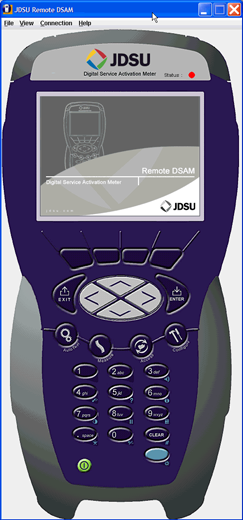
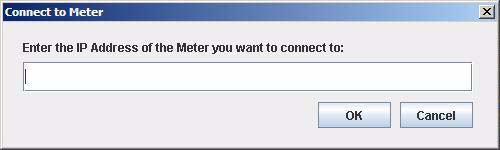
94 Chapter 5 Configuring the Meter Configure General Tab Figure 44 TPP JDSU Remote DSAM 10 From the Connection menu, select Connect to Meter. The Connect to Meter window is displayed. Figure 45 TPP JDSU Remote DSAM 11 From the Bind Results screen (Figure 42), type the IP address. 12 Press the OK softkey. 54 DSAM Help User Guide Rev. 001
95 Chapter 5 Configuring the Meter Configure Measure Tab Configure Measure Tab The Configure mode Measure tab enables you to edit the following configuration areas for the DSAM: Sweep Settings Limit Sets DOCSIS Throughput FDR Settings Other Settings Return QAM Generator Test Point Compensation Sweep Settings Configuring Sweep Settings The Sweep Settings screen enables you to set the sweep, tilt, limit, and reverse sweep port parameters. To configure sweep settings 1 Press Configure. 2 Press the Measure softkey. Figure 46 Configure Measure Tab: Sweep Settings 3 Using the arrow keys, select Sweep Settings. 4 Press ENTER. DSAM Help User Guide Rev
96 Chapter 5 Configuring the Meter Configure Measure Tab Figure 47 Configure Sweep Settings 5 Using the arrow keys, select the parameter you want to edit. 6 Press ENTER. 7 Using the arrow keys and the alphanumeric keypad, edit the value. OR 8 Using the arrow keys, select an option. 9 Press ENTER. 10 Press the OK softkey. Table 21 Sweep Settings Parameters Name Tilt Compensation Low Tilt Frequency Description Sweep Tilt Compensation is different from the standard DSAM Tilt mode. Typically, Tilt Compensation is used to adjust the sweep response on a branch of a network where the branch tilt is not the same as the mainline network. Valid options are On and Off. The default option is Off. Use the up and down arrow keys to increase or decrease the value in 10 khz increments. The valid range is 5.0 to MHz. The default value is 5.0 MHz. 56 DSAM Help User Guide Rev. 001
97 Chapter 5 Configuring the Meter Configure Measure Tab Table 21 Sweep Settings Parameters (Continued) Name High Tilt Frequency Tilt Amount Sweep Limit Sweep Limit Value Reverse Sweep Port Description Use the up and down arrows to increase or decrease the value in 10 khz increments. The valid range is 6.00 to 1, MHz. The default value is 1, MHz. The tilt adjustment required (positive or negative), that adds to or subtracts from the mainline network tilt represented in the sweep reference file (which is typically captured at the output of the node amp). Use the up and down arrows to increase or decrease the value in.01 db increments. The valid range is to db. The default value is 0.0 db. Valid options are On and Off. The default option is Off. The greatest deviation allowed for a passing sweep response. The measured deviation is referred to as the sweep max-min value or sweep peak-to-valley value, both in db delta. Thus, a Sweep Limit Value of 2.0 db allows a sweep max-min value in the DSAM sweep display no greater than +1.0 to -1.0 db on either side of the ideal sweep response. The valid range is 0.00 to 5.0 db. The default value is 2.00 db. Valid options are Port 1 - Bidirectional and Port 2 - Reverse Only. If you select Port 2, both ports are functional for connecting to directional test points. Port 1 handles the downstream or forward traffic while Port 2 handles upstream or reverse traffic. Two-way test modes other than sweep may use this configuration as well, such as DOCSIS and VoIP testing on directional test points. The default option is Port 2 - Reverse Only. : If Port 1 is selected, both upstream and downstream traffic is handled through Port 1. Reverse Sweep Port only applies to DSAM 6000 models. DSAM Help User Guide Rev
98 Chapter 5 Configuring the Meter Configure Measure Tab Limit Sets Configuring Limit Sets Use Limit Sets to configure the limit sets for measurements for tap, ground block, TV, cable modem, proof, and up to three custom limits. The limit set parameters you define remain constant for all channel plans and measurement modes. To configure limit sets 1 Press Configure. 2 Press the Measure softkey. Figure 48 Configure Measure Tab: Limit Sets 3 Using the arrow keys, select Limit Sets. 4 Press ENTER. Figure 49 Configure Limit Sets 5 Using the arrow keys, select the limit set you want to edit. 6 Press the Edit softkey. 58 DSAM Help User Guide Rev. 001
99 Chapter 5 Configuring the Meter Configure Measure Tab Figure 50 Configure Edit Cable Modem 7 Using the arrow keys, select the parameter you want to edit. 8 Press ENTER. 9 Using the arrow keys and the alphanumeric keypad, edit the value. 10 Press ENTER. 11 Press ENTER. 12 Press the OK softkey. 13 Press the Done softkey. If a key icon is displayed to the left of a limit set, it indicates that the limit set is locked and requires a PIN entry prior to editing. To reset the currently selected parameter to its factory default value, press the Default softkey. Table 22 Limit Set Parameters Name Min Video Level Max Video Level Description The minimum video signal level before it exceeds your set limit. The default value is 0.0. The maximum video signal level before it exceeds your set limit. The default value is DSAM Help User Guide Rev
100 Chapter 5 Configuring the Meter Configure Measure Tab Table 22 Limit Set Parameters (Continued) Name Min Delta V/A (db) Max Delta V/A (db) Max Adj. Chan. Delta (db) Max Peak to Valley (db) Max Video to Digital Delta (db) Min Digital Level Max Digital Level Signal Quality 64 QAM Description The minimum delta video to audio before it exceeds your set limit. Delta V/A is calculated by subtracting the audio carrier level (first if DUAL) from the video carrier level (for analog TV and DUAL type channels only). The valid range is 0.0 to The default value is The maximum delta video to audio before it exceeds your set limit. Delta V/A is calculated by subtracting the audio carrier level (first if DUAL) from the video carrier level (for analog TV and DUAL type channels only). The valid range is 0.0 to The default value is (An adjacent channel is the next channel up to 9 MHz in front of the current channel. This limit check is only applicable in AutoTests.) The maximum adjacent channel delta before it exceeds your set limit. The valid range is 0.0 to The default value is 3.0. (The peak-to-valley is the highest level in the channel plan less the lowest level in the channel plan or, the delta between the highest and lowest levels in the channel plan.) The maximum peak to valley before it exceeds your set limit. The valid range is 0.0 to The default value is The maximum video to digital delta before it exceeds your set limit. The valid range is 0.0 to The default value is The minimum digital level (in decibels) before it exceeds your set limit. The valid range is to The default value is The maximum digital level before it exceeds your set limit. The valid range is to The default value is The minimum signal quality at 64 QAM. before it falls below your set limit. The default value is 28.0 db if digital the performance unit is set to MER in Regional Preferences. The default value is 2.61 if the digital performance unit is set to EVM in Regional Preferences. 60 DSAM Help User Guide Rev. 001
101 Chapter 5 Configuring the Meter Configure Measure Tab Table 22 Limit Set Parameters (Continued) Name Signal Quality 128 QAM Signal Quality 256 QAM Max Pre BER Max Post BER Min CM Headroom (db) Max Ingress Min CN Level Max Hum Level Description The minimum signal quality at 128 QAM before it falls below your set limit. The default value is 32.0 db if digital the performance unit is set to MER in Regional Preferences. The default value is 1.08 if the digital performance unit is set to EVM in Regional Preferences. The minimum signal quality at 256 QAM before it falls below your set limit. The default value is 32.0 db if digital the performance unit is set to MER in Regional Preferences. The default value is 1.55 if the digital performance unit is set to EVM in Regional Preferences. The maximum bit error rate prior to forward error correction before it exceeds your set limit. The default value is 1.0E-7. The maximum bit error rate after forward error correction before it exceeds your set limit. The default value is 1.0E-9. The minimum cable modem headroom (in decibels) before it exceeds your set limit. The default value is 5.0. The maximum amount of noise before it exceeds your set limit. The default value is The minimum carrier-to-noise before it exceeds your set limit. The default value is The maximum undesired modulation before it exceeds your set limit. The default value is 3.0% (-30.5dB) per FCC limit. DOCSIS Throughput Configuring DOCSIS Throughput Use the DOCSIS Throughput screen to: Set a downstream HTTP server IP address Define a relative path to the file and file name to be transferred by the meter To configure DOCSIS throughput 1 Press Configure. DSAM Help User Guide Rev
102 Chapter 5 Configuring the Meter Configure Measure Tab 2 Press the Measure softkey. Figure 51 Configure Measure Tab: DOCSIS Throughput 3 Using the arrow keys, select DOCSIS Throughput. 4 Press ENTER. Figure 52 Configure DOCSIS Throughput 5 Using the arrow keys, select the parameter you want to edit. 6 Press ENTER. The default values for the server IP address and file to be transferred are maintained by JDS Uniphase Corporation. For more accurate results, JDS Uniphase Corporation recommends that you set up your own throughput server close to your gateway. 62 DSAM Help User Guide Rev. 001
103 Chapter 5 Configuring the Meter Configure Measure Tab 7 Using the arrow keys and the alphanumeric keypad, edit the value. 8 Press ENTER. 9 Press the OK softkey. Table 23 DOCSIS Throughput Parameters Name Downstream HTTP Server IP Address File to be Transferred by the Meter Description A numeric, static IP address for the HTTP server. The name of the file to download. The recommended file size is 20MB). FDR Settings Configuring FDR Settings Use the FDR Settings screen to configure the following components of the LST1700. To configure FDR settings 1 Press Configure. 2 Press the Measure softkey. Figure 53 Configure Measure Tab: FDR Settings 3 Using the arrow keys, select FDR Settings. 4 Press ENTER. DSAM Help User Guide Rev
104 Chapter 5 Configuring the Meter Configure Measure Tab Figure 54 Configure FDR Settings 5 Using the arrow keys, select the parameter you want to edit. 6 Press ENTER. 7 Using the arrow keys and the alphanumeric keypad, edit the value. OR 8 Using the arrow keys, select an option. 9 Press ENTER. 10 Press the OK softkey. Table 24 FDR Parameters Name Resolution of Measurement Description The resolution of measurement determines the number of data points, maximum distance of, and distance resolution/accuracy of the measurement. This setting affects the time per measurement cycle, with LOW being fast (least accurate) and ULTRA being slow (most accurate). Valid options are: LOW (64pts) MEDIUM (128pts) HIGH (256pts) ULTRA (512pts) The default option is LOW (64pts). 64 DSAM Help User Guide Rev. 001
105 Chapter 5 Configuring the Meter Configure Measure Tab Table 24 FDR Parameters (Continued) Name Velocity of Propagation Cable Compensation Cable Attenuation Description The velocity of propagation (VOP) is a property of the cable in use and greatly affects the measurement accuracy. Possible values are 0.3 through 1.0. The default value is.820. Valid options are On and Off. The default option is On. The cable attenuation parameter is only used if Cable Compensation is set to ON. Cable Attenuation calibrates the distance measurement for distant breaks. The valid range is 0.01 through 3.5. The default value is 2.1. Other Settings Configuring Other Settings Use the Other Settings screen to select or define the best measurement parameters for your current work practices. To configure other settings 1 Press Configure. 2 Press the Measure softkey. Figure 55 Configure Measure Tab: Other Settings 3 Using the arrow keys, select Other Settings. 4 Press ENTER. 5 Using the arrow keys, select the parameter you want to edit. DSAM Help User Guide Rev
106 Chapter 5 Configuring the Meter Configure Measure Tab 6 Press ENTER. Figure 56 Configure Other Settings 7 Using the arrow keys and the alphanumeric keypad, edit the value. OR 8 Using the arrow keys, select an option. 9 Press ENTER. 10 Press the OK softkey. Table 25 Other Settings Parameters Name CPE Roving MAC Address Cable Modem Roving MAC Address MTA Roving MAC Address DOCSIS Configuration Description The roving MAC (Media Access Control) address for the Customer Premises Equipment (CPE) in hexadecimal format. The roving MAC address for the Cable Modem in hexadecimal format. The roving MTA (Multimedia Terminal Adapter) MAC address for VoIP in hexadecimal format. Select Range Only, Range and Registration, or Registration with CPE Initialization for DOC- SIS configuration. The default value is Registration with CPE Initialization. 66 DSAM Help User Guide Rev. 001
107 Chapter 5 Configuring the Meter Configure Measure Tab Table 25 Other Settings Parameters (Continued) Name DOCSIS Version DOCSIS Security Mode Channel Order for Lists and Tuning When Tuning with Arrows, Increment by (MHz) TruPacket SNMP (On/Off) QAM Sensitivity Description The version of DOCSIS on the CMTS. Valid options are DOCSIS 1.0, DOCSIS 1.1, or DOCSIS 2.0. The default option is DOCSIS 1.1. The compatible DOC- SIS version depends on the DOCSIS version of the meter. The version of BPI (Baseline Privacy Initialization) for DOCSIS. Valid options are BPI or BPI+. The default value is BPI. Select an option to sort by channel or frequency for lists and tuning. Valid options are Channel and Frequency. The default value is Channel. Use the up and down arrow keys to define the amount of increase or decrease (in 0.01 MHz increments) the amount by which the meter uses to tune. The valid range is.01 to 100 MHz. The default value is Valid options are On and Off. The default option is Off. Valid options are Normal and High. The default option is High. VoIP Check Configuring VoIPCheck Use the VoIPCheck screen to indicate the server IP address, ethernet port, codec, and jitter size. To configure VoIPCheck 1 Press Configure. 2 Press the Measure softkey. DSAM Help User Guide Rev
108 Chapter 5 Configuring the Meter Configure Measure Tab Figure 57 Configure Measure Tab: VoIP Check 3 Using the arrow keys, select the parameter you want to edit. 4 Press ENTER. For more accurate results, JDS Uniphase Corporation recommends that you set up your own VoIPCheck server close to your gateway. Figure 58 Configure VoIPCheck 5 Using the arrow keys and the alphanumeric keypad, edit the value. OR 6 Using the arrow keys, select an option. 7 Press the OK softkey. 68 DSAM Help User Guide Rev. 001
109 Chapter 5 Configuring the Meter Configure Measure Tab Table 26 VoIPCheck Parameters Name Server IP Address Ethernet Port of the Server Codec to Simulate Size (ms) of the Jitter Buffer Description The numerical identification (logical address) assigned to the server that identifies it to the network. The valid range for this value is to All IP addresses are numeric only. The 4-digit port number on the Ethernet server. The ID of the device used to convert analog signals to digital signals. The default option is G.711u. Size (or time in ms) to be used to buffer temporary effects caused by instability in transmission. The default value is 40. Return QAM Generator Configuring Return QAM Generator Use the Return QAM Generator screen to select or define the best measurement parameters for your current work practices. To configure Return QAM Generator 1 Press Configure. 2 Press the Measure softkey. Figure 59 Configure Measure Tab: Return QAM Generator 3 Using the arrow keys, select Return QAM Generator. 4 Press ENTER. DSAM Help User Guide Rev
110 Chapter 5 Configuring the Meter Configure Measure Tab Figure 60 Configure Return QAM Generator 5 Using the arrow keys, select the parameter you want to edit. 6 Press ENTER. 7 Using the arrow keys and the alphanumeric keypad, edit the value. OR 8 Using the arrow keys, select an option. 9 Press ENTER. 10 Press the OK softkey. Table 27 Return QAM Generator Parameters Name Frequency Level Modulation Type Symbol Rate Description The valid range is 5.00 to MHz. The default value is The valid range is 8.0 to 58.0 dbmv. The default value is The type of modulation used to transmit signals. Valid options are CW (carrier wave), 16 QAM, or 64 QAM. The default option is CW. The number of symbol changes (signalling events) made to the transmission medium per second using a digitally modulated signal or a line code. The Symbol rate is measured in baud (Bd) or symbols/ second. Valid QAM symbol rates are 1.28, 2.56, 3.84, or The default value is DSAM Help User Guide Rev. 001
111 Chapter 5 Configuring the Meter Configure Measure Tab Test Point Compensation Use the Test Point Compensation (TPC) screen, to mathematically adjust DSAM level readings. TPC better represents the level value at a common point of reference. For example, adding 10 db automatically to level readings taken at a 10 db down tap better represents the level value on the main distribution hard line. TPC affects the measurement levels of most measurement modes on the DSAM. A graphical representation of the way the user-entered TPC values affect the level readings is available by pressing the Summary softkey while in the configuration mode. TPC values are saved inside each saved measurement file and permanently associated with the file. Also, TPC icons display for each mode. If a mode is created that has a total effect of 0 db on the current mode, the icon does not appear. The default setting of Off has an effect of 0 db. The total effect of the current Test Point Compensation file (if nonzero) is displayed to the right of the icon. The Test Point Compensation screen can be reached within each of these modes by pressing the keypad shortcut of Shift, 4. When finished with the Test Point Compensation configuration, press Done to return to the original measurement mode. Test point compensation applies to the following modes: Level MiniScan Full Scan Tilt Constellation DOCSIS Range (downstream results only) Upstream Spectrum Downstream Spectrum Ingress Resistance DSAM Help User Guide Rev
112 Chapter 5 Configuring the Meter Configure Measure Tab Forward Sweep Reverse Sweep Combo Autotest Video Autotest CM Autotest Home Certification Forward TPC values are applied to all modes except Reverse Sweep and Reverse Alignment modes. Reverse TPC values are only applied to Reverse Sweep and Reverse Alignment modes. Adding a TPC Plan To add a TPC plan 1 Press Configure. 2 Press the Measure softkey. Figure 61 Configure Measure Tab: Test Point Compensation 3 Using the arrow keys, select Test Point Compensation. 4 Press ENTER. If you select Off, no TPC is applied and you can only modify the Reverse Telemetry Level and Reverse Sweep Insertion Level. 72 DSAM Help User Guide Rev. 001
113 Chapter 5 Configuring the Meter Configure Measure Tab Figure 62 Configure Test Point Compensation 5 Press the File softkey. 6 Using the arrow keys, select New. 7 Press ENTER. Figure 63 Configure Create a New TPC Plan 8 Using the arrow keys and the alphanumeric keypad, edit the value. 9 Press the OK softkey. Editing a TPC Plan To edit a TPC plan 1 Using the arrow keys, select the TPC plan you want to edit. 2 Press the File softkey. 3 Using the arrow keys, select Edit. DSAM Help User Guide Rev
114 Chapter 5 Configuring the Meter Configure Measure Tab 4 Press ENTER. Figure 64 Configure Edit TPC Plan 5 Using the arrow keys, select the parameter you want to edit. 6 Press ENTER. OR 7 To set each parameter to its default value, press the Default softkey. 8 Using the arrow keys and the alphanumeric keypad, edit the value. 9 Press ENTER. The sum of the Reverse Internal Loss, Reverse External Loss, Reverse Probe Loss, and Reverse Telemetry Level must be between -100 dbmv and +55 dbmv; however, this number changes based on the active units. The sum of the Reverse Internal Loss, Reverse External Loss, Reverse Probe Loss and Reverse Sweep Insertion Level must be less than -100 dbmv and +55 dbmv; however, this number changes based on the active units. 10 Press the OK softkey. 74 DSAM Help User Guide Rev. 001
115 Chapter 5 Configuring the Meter Configure Measure Tab Table 28 TPC Plan Parameters Name Forward External Loss Forward Probe Loss Reverse Internal Loss Reverse External Loss Reverse Probe Loss Reverse Telemetry Level Reverse Sweep Insertion Level Description Example: A distribution tap value on a drop. The valid range is to 50.0 db. The default value is 0.0 db. Example: Attenuator added inline with test lead. The valid range is to 50.0 db. The default value is 0.0 db. Example: Attenuation pad within an amplifier under test. The sum of the internal, external and probe losses plus the Telemetry level must be greater than or equal to 10 dbmv. The default value is 0.0 db. Example: A distribution tap value on a drop. The sum of the internal, external and probe losses plus the Telemetry level must be greater than or equal to 10 dbmv. The default value is 0.0 db. Example: Attenuator added inline with test lead. The sum of the internal, external and probe losses plus the Telemetry level must be greater than or equal to 10 dbmv. The default value is 0.0 db. The sum of the internal, external and probe losses plus the Telemetry level must be greater than or equal to 10 dbmv. The default value is 20 dbmv. The sum of the internal, external and probe losses plus the Telemetry level must be greater than or equal to 10 dbmv. The default value is 20 dbmv. Renaming a TPC Plan To rename a TPC plan 1 Using the arrow keys, select the TPC plan you want to rename. 2 Press the File softkey. 3 Using the arrow keys, select Rename. 4 Press ENTER. If the TPC plan is set to Off, the Rename option is disabled. DSAM Help User Guide Rev
116 Chapter 5 Configuring the Meter Configure Measure Tab 5 Using the arrow keys and the alphanumeric keypad, edit the value. 6 Press the OK softkey. Deleting a TPC Plan To delete a TPC plan 1 Using the arrow keys, select the TPC plan you want to delete. 2 Press the File softkey. 3 Using the arrow keys, select Delete. 4 Press ENTER. If the TPC plan is set to Off, the Delete option is disabled. 5 Press the Yes softkey to confirm. Viewing a Graphical Summary To view a graphical summary 1 Using the arrow keys, select the TPC plan you want to view. 2 Press the Summary softkey. The TPC Summary screen is displayed. Figure 65 Configure TPC Summary 3 Press the Forward softkey to view more of the plan. 76 DSAM Help User Guide Rev. 001
117 Chapter 5 Configuring the Meter Configure Channel Plan Tab Figure 66 Configure TPC Summary 4 Press the OK softkey. Configure Channel Plan Tab Overview A CATV (Community Antenna Television or Cable TV) system consists of channels that represent the channel plan for that system. Each channel is identified by its carrier type, frequency, and other parameters. You can edit the parameters of individual channels within a plan to meet a variety of measurement objectives. The default channel plan is NCTA. You can build, clone, or synchronize (through TPP) other plans. Use channel plan configuration to: Select a channel plan Edit a channel plan Enable/disable channels in a channel plan Configure MiniScan channels Configure AutoTest parameters for the currently selected plan Build a new, custom channel plan Configure telemetry settings for sweep or field view Select browser and synchronization channels DSAM Help User Guide Rev
118 Chapter 5 Configuring the Meter Configure Channel Plan Tab Configure location settings Downstream Plans Choosing a Channel Plan Each channel is identified by its carrier type, frequency, and other parameters. You can edit the parameters of individual channels within a plan to meet a variety of measurement objectives. To select a channel plan 1 Press Configure. 2 Press the Chan Plan softkey. Figure 67 Configure Channel Plan Tab: Downstream Plans 3 Using the arrow keys, select Downstream Plans. 4 Press ENTER. Figure 68 Configure Downstream Plans 78 DSAM Help User Guide Rev. 001
119 Chapter 5 Configuring the Meter Configure Channel Plan Tab 5 Using the arrow keys, select the plan you want to use for the network you are servicing. 6 Press ENTER or the Done softkey. The plan name is displayed in the title bar for all subsequent screens until you change plans. Before you conduct measurements or configure other parameters, confirm that the correct plan name is displayed in the title bar. 7 Using the arrow keys, select a menu option. 8 Press ENTER. Each option is described in the following pages. Editing a Channel Plan To edit a channel plan You can edit an existing channel plan to meet your needs by editing the channels within the plan. You can change the parameters of individual channels or add and delete channels from the plan. 1 Press Configure. 2 Press the Chan Plan softkey. 3 Using the arrow keys, select Downstream Plans. 4 Press ENTER. 5 Using the arrow keys, select a plan. 6 Press the Plan softkey. 7 Using the arrow keys, select Edit. 8 Press ENTER. DSAM Help User Guide Rev
120 Chapter 5 Configuring the Meter Configure Channel Plan Tab Figure 69 Configure Select a Channel to Edit 9 Using the arrow keys, select a channel then: 10 Press the Edit softkey and edit the channel parameters. OR 11 Press the Channel softkey, highlight. Find To enter a channel number. Add To add a new channel. Delete To delete the selected channel. Enabled(/Disabled) To enable/disable the current channel. A disabled channel does not appear in any measurements but remains in your channel plan until you delete it. You cannot disable all channels in a plan; at least one channel must be enabled. Delete All Disabled To delete all disabled channels from the plan. 80 DSAM Help User Guide Rev. 001
121 Chapter 5 Configuring the Meter Configure Channel Plan Tab Figure 70 Configure Edit Channel Table 29 Common Channel Parameters Name Enabled Type Channel Number Label Frequency Description Whether or not the channel is enabled. Options are Yes and No. The channel type. Options are TV, Single, Dual, DIG and DOCSIS. The number assigned to the frequency. You can create a distinctive label to identify the channel. The label associates the channel s number to programming. The label is displayed to the left of the channel number on most screens. The rate at which the signal pattern is repeated. Table 30 TV Channel Parameters Name Description Video Signal The video signal type. Valid options are NTSC, B/ Pal, B/SECAM, B1/PAL. The default option is NTSC. Scrambled CN Enabled Audio 1 Offset An indication of whether the channel is scrambled or not. Valid options are Yes and No. (Carrier-to-noise enabled) Valid options are Yes and No. Carrier to noise offset for the first audio frequency. DSAM Help User Guide Rev
122 Chapter 5 Configuring the Meter Configure Channel Plan Tab Table 30 TV Channel Parameters (Continued) Name CN Offset CN BW Description (Carrier-to-noise offset) The difference between the carrier frequency and noise frequency. (Carrier-to-noise bandwidth) The difference between the carrier frequency and bandwidth. Table 31 Single Channel Parameters Name Single Channel Parameters Description The list of single channel parameters are the same as the list of common channel parameters on page 81. Table 32 Dual Channel Parameters Name Description Video Signal The video signal type. Valid options are NTSC, B/ Pal, B/SECAM, B1/PAL. The default option is NTSC. Scrambled CN Enabled Audio 1 Offset Audio 2 Offset CN Offset CN BW An indication of whether the channel is scrambled or not. Valid options are Yes and No. (Carrier-to-noise enabled) Valid options are Yes and No. Carrier to noise offset for the first audio frequency. Carrier to noise offset for the second audio frequency. (Carrier-to-noise offset) The difference between the carrier frequency and noise frequency. (Carrier-to-noise bandwidth) The difference between the carrier frequency and bandwidth. 82 DSAM Help User Guide Rev. 001
123 Chapter 5 Configuring the Meter Configure Channel Plan Tab Table 33 Digital Channel Parameters Name Modulation QAM Standard Symbol Rate Inverted Spectrum Description The process whereby a transmission signal is modified to carry information. Options are 256 QAM, 128 QAM, 64 QAM and Other. A method of combining amplitude modulation with phase shift modulation that allows for the transfer of several bits of information at the same time. Options are DOCSIS and EuroDOCSIS. The symbol rate corresponds to the size and shape (bandwidth) of the digital signal. The symbol rate changes to carrier bandwidth if you select Other for Modulation. Designates whether or not the signal is inverted. Valid options are Yes and No. The default option is No. Table 34 DOCSIS Channel Parameters Name Enabled Type Channel Number Label Frequency Modulation QAM Standard Description Whether or not the channel is enabled. Options are Yes and No. The channel type. Options are TV, Single, Dual, DIG and DOCSIS. The number assigned to the frequency. A user-defined distinctive label used to identify the channel. The label associates the channel s number to programming. The label is displayed to the left of the channel number on most screens. The rate at which the signal pattern is repeated. The process whereby a transmission signal is modified to carry information. Options are 256 QAM, 128 QAM, 64 QAM and Other. A method of combining amplitude modulation with phase shift modulation that allows for the transfer of several bits of information at the same time. Options are DOCSIS and EuroDOCSIS. DSAM Help User Guide Rev
124 Chapter 5 Configuring the Meter Configure Channel Plan Tab Table 34 DOCSIS Channel Parameters (Continued) Name Symbol Rate Inverted Spectrum Description The symbol rate corresponds to the size and shape (bandwidth) of the digital signal. The symbol rate changes to carrier bandwidth if you select Other for Modulation. Designates whether or not the signal is inverted. Valid options are Yes and No. The default option is No. Configuring Channels for MiniScan To configure channels for MiniScan 1 Press Configure. 2 Press the Chan Plan softkey. 3 Using the arrow keys, select Downstream Plans. 4 Press ENTER. 5 Using the arrow keys, select the plan you want to work with. 6 Press the Plan softkey. 7 Using the arrow keys, select MiniScan Channels. 8 Press ENTER. Figure 71 Configure Select MiniScan Channels 9 Using the arrow keys, select a channel you want to include. 10 Press the Select softkey. 84 DSAM Help User Guide Rev. 001
125 Chapter 5 Configuring the Meter Configure Channel Plan Tab The minimum number of channels is one. The maximum number of channels is twelve. 11 Press the Done softkey. Configuring Channels for Tilt To configure channels for Tilt 1 Press Configure. 2 Press the Chan Plan softkey. 3 Using the arrow keys, select Downstream Plans. 4 Press ENTER. 5 Using the arrow keys, select the plan you want to work with. 6 Press the Plan softkey. 7 Using the arrow keys, select Tilt Channels. 8 Press ENTER. Figure 72 Configure Select Tilt Channels 9 Using the arrow keys, select each channel you want to include. 10 Press the Select softkey. The minimum number of channels is one. The maximum number of channels is Press the Done softkey. Configuring Access Channels This function lists all DOCSIS channels and lets you indicate which channels to use when browsing and which to use for synchronization. DSAM Help User Guide Rev
126 Chapter 5 Configuring the Meter Configure Channel Plan Tab To configure access channels 1 Press Configure. 2 Press the Chan Plan softkey. 3 Using the arrow keys, select Downstream Plans. 4 Press ENTER. 5 Using the arrow keys, select the plan you want to work with. 6 Press the Plan softkey. 7 Using the arrow keys, select Access Channels. 8 Press ENTER. Figure 73 Configure Select Access Channels 9 Using the arrow keys, select the channel you want to include. 10 Press the Select softkey. Configuring Telemetry Frequency The Telemetry frequency is the frequency used to transmit data from the headend modem to the DSAM. Telemetry frequency on the DSAM must match the frequency at which the headend modem (HSM 1000) is broadcasting. The valid frequency range is between 50 MHz and 1000 MHz. To configure telemetry frequency 1 Press the Plan softkey. 2 Using the arrow keys, select Telemetry. 86 DSAM Help User Guide Rev. 001
127 Chapter 5 Configuring the Meter Configure Channel Plan Tab 3 Press ENTER. Figure 74 Configure Telemetry Settings 4 Using the arrow keys, select a parameter. 5 Press ENTER. 6 Using the arrow keys and the alphanumeric keypad, enter a telemetry frequency between 50 MHz and 1000 MHz. 7 Press ENTER. 8 Press the OK softkey. Table 35 Telemetry Settings Parameters Name SDA 5500 Telemetry Frequency (MHz) SDA 5510 Telemetry Frequency (MHz) Single/Multi User Reverse Sweep Field View Telemetry Frequency (MHz) Description The transmission frequency of the SDA The transmission frequency of the SDA Valid options are Single User (for SDA 5500) and Multi User (for SDA5510). The transmission frequency of the HSM. When you configure a telemetry setting, the parameters apply only to the current active plan. Other channel plans require their own telemetry configuration. DSAM Help User Guide Rev
128 Chapter 5 Configuring the Meter Configure Channel Plan Tab AutoTests Use the Select an AutoTest screen to configure how AutoTests function using the active channel plan. When you configure an AutoTest, the parameters apply only to the current active plan. Other channel plans require their own AutoTest configuration. At least one DOCSIS channel must be enabled in your active channel plan before you can conduct a Cable Modem AutoTest or Home Certification test. Configuring AutoTest for Cable Modem To configure AutoTest for cable modems 1 Press Configure. 2 Press the Chan Plan softkey. Figure 75 Configure Channel Plan Tab: Autotests 3 Using the arrow keys, select AutoTests. 4 Press ENTER. 88 DSAM Help User Guide Rev. 001
129 Chapter 5 Configuring the Meter Configure Channel Plan Tab Figure 76 Configure Select an Autotest 5 Using the arrow keys, select Cable Modem. 6 Press the Configure softkey. Figure 77 Configure Mode Cable Modem AutoTest 7 Using the arrow keys, select a DOCSIS channel you want to include or exclude. 8 Press the Select softkey. 9 Press the Done softkey. Configuring AutoTest for Video Channels To configure AutoTest for video channels 1 Press Configure. 2 Press the Chan Plan softkey. DSAM Help User Guide Rev
130 Chapter 5 Configuring the Meter Configure Channel Plan Tab Figure 78 Configure Channel Plan Tab: AutoTests 3 Using the arrow keys, select AutoTests. 4 Press ENTER. Figure 79 Configure Select an Autotest 5 Using the arrow keys, select Video Channels. 6 Press the Configure softkey. 90 DSAM Help User Guide Rev. 001
131 Chapter 5 Configuring the Meter Configure Channel Plan Tab Figure 80 Configure Mode Video Channels AutoTest 7 Using the arrow keys, select a channel you want to include or exclude. 8 Press the Select softkey. 9 Press the MER softkey to include the measurement as a part of the AutoTest. (The MER softkey is enabled when modulation error ratio measurements are available on certain digital channels.) 10 Press the BER softkey to include the measurement as a part of the AutoTest. (The BER softkey is enabled when bit error ratio measurements are available on certain digital channels.) 11 Press the Done softkey. Build New Plan Use the Build New Plan option to let the meter identify and characterize the channels in your system. The built plan will consist of only analog TV channels. Building a New Channel Plan To build a new channel plan 1 Press Configure. 2 Press the Chan Plan softkey. DSAM Help User Guide Rev
132 Chapter 5 Configuring the Meter Configure Channel Plan Tab Figure 81 Configure Channel Plan Tab: Build New Plan 3 Using the arrow keys, select Build New Plan. 4 Press ENTER. Figure 82 Configure Build a New Plan (step 1) 5 Using the arrow keys and the alphanumeric keypad, type the plan name. 6 Press the Next softkey. 7 Press ENTER. 92 DSAM Help User Guide Rev. 001
133 Chapter 5 Configuring the Meter Configure Channel Plan Tab Figure 83 Configure Build a New Plan (step 2) 8 Using the arrow keys, select a template plan. 9 Press ENTER. 10 Press the Next softkey. Figure 84 Configure Build a New Plan (step 3) 11 Using the arrow keys and the alphanumeric keypad, enter the stop frequency (up to 1000 MHz). 12 Press the Next softkey. DSAM Help User Guide Rev
134 Chapter 5 Configuring the Meter Configure Channel Plan Tab Figure 85 Configure Build a New Plan (step 4) 13 Connect to cable plant. 14 Press the Start softkey. Figure 86 Configure Build a New Plan (searching) The meter searches the cable system for active channels and displays the following: the plan name you entered the template you used the stop frequency the number of channels found 94 DSAM Help User Guide Rev. 001
135 Chapter 5 Configuring the Meter Configure Channel Plan Tab Figure 87 Configure Build a New Plan (complete) Location Settings The Test Productivity Pack (TPP) software determines what parameters appear on the Location Settings screen. Use the Location Settings screen to create or edit a location setting. The Location Settings screen can be disabled on your meter from TPP. Configuring Location Settings To configure location settings 1 Press Configure. 2 Press the Chan Plan softkey. Figure 88 Configure Channel Plan Tab: Location Settings 3 Using the arrow keys, select Location Settings. DSAM Help User Guide Rev
136 Chapter 5 Configuring the Meter Configure Access Tab 4 Press ENTER. Figure 89 Configure Edit Location Settings 5 Using the arrow keys, select the parameter you want to edit. 6 Press ENTER. 7 Using the arrow keys and the alphanumeric keypad, edit the value. 8 Press ENTER. 9 Press the OK softkey. Location Settings Parameters Location Settings parameters are uniquely defined in TPP. Configure Access Tab The Access tab enables you to select a PC connection (Ethernet or RF) and to define the IP address. The Access tab also provides WFA browser parameters to enter the preferred ethernet or RF connection, home URL, proxy server parameters (optional) and CM diagnostic web page information. PC Connection Use the PC Connection screen to select which network interface to use (Ethernet or RF) to connect to a PC, and the IP address at which the PC is located. The default connection is Ethernet and the valid IP address range is from to (This is for connecting to a PC with TPP or FDM100 installed.) 96 DSAM Help User Guide Rev. 001
137 Chapter 5 Configuring the Meter Configure Access Tab Configuring a PC Connection To configure a PC connection 1 Press Configure. 2 Press the Access softkey. Figure 90 Configure Access Tab: PC Connection 3 Using the arrow keys, select PC Connection. 4 Press ENTER. Figure 91 Configure PC Connection 5 Using the arrow keys, select the parameter you want to edit. 6 Press ENTER. DSAM Help User Guide Rev
138 Chapter 5 Configuring the Meter Configure Access Tab The Secure Synchronization parameters can be disabled on your meter from TPP. If the Secure Synchronization parameters are disabled, you cannot change them from your meter. 7 Using the arrow keys and the alphanumeric keypad, edit the value. 8 Press ENTER. 9 Press the OK softkey. Table 36 PC Connection Parameters Name Preferred Connection IP Address Secure Sync Port With Certificates Secure Sync Port Without Certificates Description The connection type. Valid options are Ethernet and RF. The default value is Ethernet. The numerical identification (logical address) assigned to the PC that identifies it to the network. The valid range for this value is to All IP addresses are numeric only. The 4-digit port number of the secure Sync Port with certificates. The 4-digit port number of the secure Sync Port without certificates. WFA Browser Settings Configuring WFA Browser Settings Use the Browser Settings screen (additional purchase required) to configure browser parameters. To configure WFA browser settings 1 Press Configure. 2 Press the Access softkey. 98 DSAM Help User Guide Rev. 001
139 Chapter 5 Configuring the Meter Configure Access Tab Figure 92 Configure Access Tab: WFA Browser Settings 3 Using the arrow keys, select WFA Browser Settings. 4 Press ENTER. Figure 93 Configure Browser Settings 5 Using the arrow keys, select the parameter you want to edit. 6 Press ENTER. 7 Using the arrow keys or the alphanumeric keypad, edit the value. 8 Press ENTER. 9 Press the OK softkey. DSAM Help User Guide Rev
140 Chapter 5 Configuring the Meter Configure Access Tab Table 37 WFA Browser Settings Parameters Name Preferred Connection Home URL Proxy Usage Proxy Server Proxy Port Description The type of connection. Valid options are Ethernet and RF. The default value is Ethernet. This parameter is view only from the DSAM meter. It is changed via the JDS Uniphase Corporation Test Productivity Pack (TPP) software. The home URL address may vary for each network. The DSAM allows a proxy server within the Browser and Web Access Test. A proxy can be used as a caching mechanism or as a part of a back-end firewall. To enable a proxy server for use with the Browser mode or Web Access Test, select Use a Proxy Server. If you have enabled proxy usage, enter the proxy server IP address. The valid IP address ranges are to If you have enabled proxy usage, enter the 4-digit proxy server port number. The default value is DSAM Help User Guide Rev. 001
141 Chapter 6 Access Mode 6 This chapter provides task-based instructions for using the DSAM Product Family Series Access Mode features. Topics discussed in this chapter are as follows: Overview on page 102 Access Files Tab on page 102 Access Browser Tab on page 108 DSAM Help User Guide Rev
142 Chapter 6 Access Mode Overview Overview Use the Access mode to efficiently manage your measurement files and folders. You can also use the Access mode to synchronize your data with optional TPP software. Access Files Tab Work Folders Opening a File in Folder The Work Folders function enables you to: Create a new folder for your measurement files Open a file within a folder Rename or examine the properties of a folder (you cannot rename the Default Folder) Delete a selected folder (you cannot delete the Default Folder) Purge all folders that have been synchronized with JDS Uniphase Corporation Test Productivity Pack (TPP) software (you cannot purge the Default folder) To open a folder 1 Press Access. 2 Press the Files softkey. Figure 94 Access Files Tab: Work Folders 3 Using the arrow keys, select Work Folders. 102 DSAM Help User Guide Rev. 001
143 Chapter 6 Access Mode Access Files Tab 4 Press ENTER. Figure 95 Access Work Folders 5 Using the arrow keys, select a folder. 6 Press the Open softkey or ENTER. Figure 96 Access Open a File 7 Using the arrow keys, select a file. 8 Press the Open softkey or ENTER. Creating a Folder To create a new folder 1 Press Access. 2 Press the Files softkey (Figure 94 on page 102). 3 Using the arrow keys, select Work Folders. DSAM Help User Guide Rev
144 Chapter 6 Access Mode Access Files Tab 4 Press ENTER (Figure 95 on page 103). 5 Press the Folders softkey. 6 Using the arrow keys, select New. 7 Press ENTER. Figure 97 Access Create New Work Folder 8 Using the arrow keys and alphanumeric keypad, type the new folder name. 9 Press the OK softkey. Deleting a Folder To delete a folder 1 Press Access. 2 Press the Files softkey (Figure 94 on page 102). 3 Using the arrow keys, select Work Folders. 4 Press ENTER (Figure 95 on page 103). 5 Press the Folders softkey. 6 Using the arrow keys, select the folder you wish to delete. 7 Using the arrow keys, select Delete. 8 Press ENTER. The folder name is removed from the list. Purging Synchronized Folders You can purge synchronized folders (folders with a synchronize icon) all at once. To purge synchronized folders 1 Press Access. 104 DSAM Help User Guide Rev. 001
145 Chapter 6 Access Mode Access Files Tab 2 Press the Files softkey (Figure 94 on page 102). 3 Using the arrow keys, select Work Folders. 4 Press ENTER (Figure 95 on page 103). 5 Press the Folders softkey. 6 Using the arrow keys, select Purge. 7 Press ENTER. A confirmation screen is displayed. Figure 98 Access Purge Confirmation 8 Press the Yes softkey. All synchronized folders disappear from the list. Renaming a Folder To rename a folder 1 Press Access. 2 Press the Files softkey (Figure 94 on page 102). 3 Using the arrow keys, select Work Folders. 4 Press ENTER (Figure 95 on page 103). 5 Using the arrow keys, select the folder you want to work with. 6 Press the Folders softkey. 7 Using the arrow keys, select Rename. 8 Press ENTER. DSAM Help User Guide Rev
146 Chapter 6 Access Mode Access Files Tab The folder rename screen is displayed. Figure 99 Access Folder Rename 9 Using the arrow keys and the alphanumeric keypad, type a new name. 10 Press the OK softkey. Viewing Folder Properties To view folder properties 1 Press Access. 2 Press the Files softkey (Figure 94 on page 102). 3 Using the arrow keys, select Work Folders. 4 Press ENTER (Figure 95 on page 103). 5 Using the arrow keys, select the folder you want to work with. 6 Press the Folders softkey. 7 Using the arrow keys, select Properties. 8 Press ENTER. Synchronization The Synchronize function enables you to synchronize your folders (and the files in them) with optional JDS Uniphase Corporation Test Productivity Pack (TPP) software. Through synchronization, this software can receive, transfer, manage, and archive the measurement data of multiple DSAM meters. 106 DSAM Help User Guide Rev. 001
147 Chapter 6 Access Mode Access Files Tab Firmware upgrades are only supported via the Ethernet port. When you perform a firmware upgrade, the DSAM must be connected through the charger to a power outlet. If it is not connected to a power outlet, the firmware upgrade will fail. You can also use the synchronization function to receive firmware upgrades to your meter. After initial setup and configuration you can synchronize your data with JDS Uniphase Corporation Test Productivity Pack (TPP) software using an Ethernet connection or an RF connection. Configuring for Synchronization To configure for synchronization 1 Configure the DSAM for PC access via Ethernet or RF cable. For more information, see PC Connection on page Connect an Ethernet cable to a computer or network device and to the Ethernet port on the top of the meter. OR 3 Connect a Coax cable to an RF connection and to RF connection 1 on the back of the meter. When connecting directly to a PC (not through a network), use an Ethernet crossover cable. When connecting to a network, use a standard Ethernet patch cable. Synchronizing Files To synchronize files 1 Press Access. 2 Press the Files softkey. DSAM Help User Guide Rev
148 Chapter 6 Access Mode Access Browser Tab Figure 100 Access Files Tab: Synchronize 3 Using the arrow keys, select Synchronize. 4 Press ENTER. Figure 101 Access Synchronize Once synchronization begins you cannot cancel it. It must complete or time out on its own. Once synchronization is complete, the DSAM does not reboot if it only file synchronization was performed. The DSAM does reboot if synchronization included a firmware upgrade. Access Browser Tab Overview The Browser tab provides access to the following browser modes: 108 DSAM Help User Guide Rev. 001
149 Chapter 6 Access Mode Access Browser Tab WFA Browser (additional purchase required) Local Browser (additional purchase required) Web Access Test WFA Browser Configuring Web Access Use the WFA Browser (additional purchase required) as a web browser. To configure web access 1 To select your connection type and enter proxy information, follow the instructions under Configuring WFA Browser Settings on page To select a DOCSIS channel, follow the instructions under Configuring Access Channels on page 85. Accessing the WFA Browser To access the WFA browser 1 Press Access. 2 Press the Browser softkey. Figure 102 Access Browser Tab: WFA Browser 3 Using the arrow keys, select WFA Browser. 4 Press ENTER. DSAM Help User Guide Rev
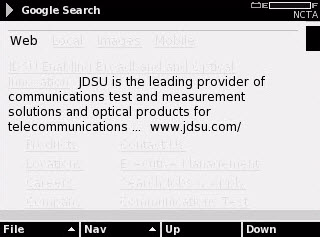
150 Chapter 6 Access Mode Access Browser Tab Figure 103 Access WFA Browser Graphical Pointer A graphical pointer is displayed on the browser screen. Use Table 38 on page 110 to understand how the graphical pointer works. You can connect a USB mouse to the meter instead of using the graphical pointer. Table 38 WFA Browser Graphical Pointer Pointer Motion The pointer motion is controlled by the arrow keys. To move the pointer in the same direction as an arrow s direction, press the corresponding arrow key. The pointer may be moved diagonally by pressing two arrow keys. Mouse Buttons The ENTER key functions as the left mouse button. The DSAM keypad mouse only supports the left mouse button. Softkeys The softkeys change function and use based on the HTML mode. The HTML modes are: Normal mode (includes File and Nav options) Alphabetic mode List Box mode 110 DSAM Help User Guide Rev. 001
151 Chapter 6 Access Mode Access Browser Tab Table 39 on page 111 describes softkey use and behavior for each mode. Table 39 Browser Softkeys Normal Mode Softkeys FILE Menu Options Save Saves the current page. (You can save only the most current page. You cannot save multiple pages.) Open Opens the saved page. NAV MENU Options Back Displays the previous page. Forward Displays the next page. Home Displays the home page. Refresh Reloads the most recent version of the current page. Alpha Only Toggles from normal mode to text only mode. Up (softkey) Down (softkey) Scrolls toward the top of the page. Scrolls toward the bottom of the page. Alphabetic Mode Softkeys ABC 123 / ABC Toggles between alphabetic and alphanumeric mode. <== Backspace > End of line. New Line Skips to the next line in a multi-line text box. List Box Softkeys Ctrl Up (softkey) Down (softkey) Selects an item in a multi-select list box. (Use Ctrl and the arrow keys to select multiple items.) Scrolls toward the top of the page. Scrolls toward the bottom of the page. DSAM Help User Guide Rev
152 Chapter 6 Access Mode Access Browser Tab Error Messages Local Browser When an error occurs in WFA Browser mode, one of the following error messages appear: Could not lock to the downstream channel The meter could not range over the browser DOCSIS channel The meter was unable to register with the CMTS An internal DOCSIS error occurred The meter lost communication with the CMTS The Local Browser function enables you to open a saved browser page. Since it does not connect to an Ethernet or RF network, no network or server configurations are required. Keypad and pointer functions in the Local Browser are the same as those in the WFA Browser. See Graphical Pointer on page 110 and Softkeys on page 110 for a full description how to use the interface. Accessing the Local Browser To access the local browser 1 Press Access. 2 Press the Browser softkey. Figure 104 Access Browser Tab: Local Browser 3 Using the arrow keys, select Local Browser. 4 Press ENTER. 112 DSAM Help User Guide Rev. 001

153 Chapter 6 Access Mode Access Browser Tab Figure 105 Access Local Browser Web Access Test Configuring Web Access The Web Access Test enables you to connect to a JDS Uniphase Corporation test page on the internet to ensure internet connectivity. It accesses a single screen for view only. To configure web access 1 To select your connection type and enter proxy information, follow the instructions under Configuring WFA Browser Settings on page To select a DOCSIS channel, follow the instructions under Configuring Access Channels on page 85. Testing Web Access To test web access 1 Press Access. 2 Press the Browser softkey. DSAM Help User Guide Rev
154 Chapter 6 Access Mode Access Browser Tab Figure 106 Access Browser Tab: WFA Browser 3 Using the arrow keys, select Web Access Test. 4 Press ENTER. If the test is successful, the DSAM Web Access Test screen is displayed. Figure 107 Access DSAM Web Access Test 114 DSAM Help User Guide Rev. 001
155 Chapter 7 AutoTest Mode 7 This chapter describes how to configure, execute, and interpret the results of automated test sequences available on the DSAM. AutoTest Overview on page 116 AutoTests Tab on page 116 DSAM Help User Guide Rev
156 Chapter 7 AutoTest Mode AutoTest Overview AutoTest Overview AutoTests are automated test sequences. The following AutoTests are available: Combo Test Video Channels Home Certification Proof of Performance Cable Modem A user-configured sequential combination of analog and digital video channels, as well as DOCSIS connectivity tests. A user-configured level measurements of a series of analog and/or digital video channels. (additional purchase required) A user-configured sequential combination of analog and digital video channels, as well as DOCSIS connectivity and data tests. (DOCSIS data tests must be enabled through TPP.) A video channels test that can be configured to run at a scheduled interval and automatically save results. A user-configured verification of upstream/downstream connectivity, ranging emulation, and quality parameter measurements of a series of DOCSIS channels. AutoTests Tab Combo Test A Combo Test is a user-configured sequential combination of analog and digital video channels, as well as DOCSIS connectivity tests. 116 DSAM Help User Guide Rev. 001
157 Chapter 7 AutoTest Mode AutoTests Tab Figure 108 AutoTest AutoTests Tab Running a Combo Test To run a combo test 1 If necessary, configure the limit sets to meet your needs for tap, ground block, TV, cable modem, proof, or custom limits 1-3. The limit set parameters you set remain constant for all channel plans and measurement modes. 2 Press AutoTest. 3 Using the arrow keys, select Combo Test. 4 Press ENTER. Figure 109 AutoTest Configure AutoTest 5 Using the arrow keys, select Channel Plan. DSAM Help User Guide Rev
158 Chapter 7 AutoTest Mode AutoTests Tab 6 Press ENTER. 7 Using the arrow keys, select an option. 8 Press ENTER. 9 Using the arrow keys, select Limit Plan. 10 Press ENTER. To perform the test without checking the results against limit values, select Off. If you select Off as the limit plan value, no pass/fail information is displayed in the test results. 11 Using the arrow keys, select an option. 12 Press ENTER. Use Regional Preferences on page 43 to specify the type of signal level units and digital performance units to display. Use Limit Sets on page 58 to edit limit set parameters to meet your needs. Use Other Settings on page 65 to define the best measurement settings (such as DOCSIS settings) for your current work practices. 13 Press the Settings softkey. 14 Using the arrow keys, select the following options: Edit Test Point Compensation See page 71. Edit MAC Address See page 65. Edit AutoTest Settings When the select an AutoTest screen is displayed, use the arrow keys to select one of the following options then press the Configure softkey. Video Channels See Configuring AutoTest for Video Channels on page 89. Cable Modem See Configuring AutoTest for Cable Modem on page Press ENTER. 118 DSAM Help User Guide Rev. 001
159 Chapter 7 AutoTest Mode AutoTests Tab 16 Press the Done softkey. 17 Press the Start softkey. The AutoTest in Progress screen is displayed, then the results are displayed. Figure 110 AutoTest AutoTest in Progress The Help system is disabled during all tests while they are in progress. To stop the Combo Test, press the Stop softkey. To save the results to a file, press the Save softkey then follow step 4 through step 13 under Saving Results on page 198. If you chose the wrong limit set before conducting the test, press the Limits softkey and select a different limit set to view your test results in relation to a different limit set without rerunning the test. DSAM Help User Guide Rev
160 Chapter 7 AutoTest Mode AutoTests Tab Understanding Combo Test Results Overall Results Individual Test Results Overall Channel Results Figure 111 AutoTest Combo AutoTest Results Table 40 Home Certification Test Results Name Overall Results Individual Test Results Channel Results Description This area displays the overall pass/fail results for the test, the limit set applied (if applicable), and the currently selected channel. This area displays the results of individual tests for the currently selected channel. When a measurement falls outside the acceptable range, an arrow to the right of the numeric value indicates the direction in which the failure occurred. An up arrow indicates a measurement over the limit range. A down arrow indicates a measurement below the limit range. A symbol indicating whether the channel passed or failed the overall test. Only valid measurements resulting from completed tests are displayed. When an error occurs prohibiting a valid measurement, a dash indicates an invalid numeric value. Viewing Combo Test Results Video Summary View (Default) To display the video summary view 1 Press the View softkey. 2 Using the arrow keys, select Video Summary. 120 DSAM Help User Guide Rev. 001
161 Chapter 7 AutoTest Mode AutoTests Tab 3 Press ENTER. Figure 112 AutoTest Combo AutoTest: Video Summary DOCSIS Summary View To display the DOCSIS summary view 1 Press the View softkey. 2 Using the arrow keys, select DOCSIS Summary. 3 Press ENTER. Figure 113 AutoTest Combo AutoTest: DOCSIS Summary DOCSIS Status View To display the DOCSIS status view 1 From the DOCSIS summary view, use the arrow keys to highlight the DOCSIS channel you wish to view. DSAM Help User Guide Rev
162 Chapter 7 AutoTest Mode AutoTests Tab 2 Press the View softkey. 3 Using the arrow keys, select DOCSIS Status. 4 Press ENTER. Figure 114 AutoTest Combo AutoTest: DOCSIS Status Video Channels Test Running a Video Channels Test A Video Channels test is an automated test sequence designed to assess the signal performance of a user-configured series of analog and/or digital video channels. An RF plant that passes this test meets the minimum requirements for the delivery of video services. When necessary, you can troubleshoot an installation by performing this test at various locations to determine which components require repair or replacement. You can store the test results for later reference. To run a video channels test 1 If necessary, configure the limit sets to meet your needs for tap, ground block, TV, cable modem, proof, or custom limits 1-3. The limit set parameters you set remain constant for all channel plans and measurement modes. 2 Press the AutoTest button. 3 Using the arrow keys, select Video Channels. 4 Press ENTER. 122 DSAM Help User Guide Rev. 001
163 Chapter 7 AutoTest Mode AutoTests Tab Figure 115 AutoTest Video AutoTest 5 Using the arrow keys, select Channel Plan. 6 Press ENTER. 7 Using the arrow keys, select an option. 8 Press ENTER. 9 Using the arrow keys, select Limit Plan. 10 Press ENTER. To perform the test without checking the results against limit values, select Off. If you select Off as the Limit Plan value, no pass/fail information is displayed in the test results. 11 Using the arrow keys, select an option. 12 Press ENTER. Use Regional Preferences on page 43 to specify the type of signal level units and digital performance units to display. Use Limit Sets on page 58 to edit limit set parameters to meet your needs. Use Other Settings on page 65 to define the best measurement settings (such as DOCSIS settings) for your current work practices. DSAM Help User Guide Rev
164 Chapter 7 AutoTest Mode AutoTests Tab 13 Press the Settings softkey. 14 To select Edit Test Point Compensation, press ENTER. (For detailed instructions on choosing a TPC plan see page 71.) 15 Using the arrow keys, select a TPC plan. 16 Press the Done softkey. 17 Press the Start softkey. The AutoTest in Progress screen is displayed. Figure 116 AutoTest AutoTest in Progress The Help system is disabled during all tests while they are in progress. To stop the test, press the Stop softkey. To save the results to a file, press the Save softkey then follow step 4 through step 13 under Saving Results on page 198. If you chose the wrong limit set before conducting the test, press the Limits softkey and select a different limit set to view your test results in relation to a different limit set without rerunning the test. The results appear on the Video AutoTest screen. 124 DSAM Help User Guide Rev. 001
165 Chapter 7 AutoTest Mode AutoTests Tab Figure 117 AutoTest Video AutoTest Understanding Video Channels Results Overall Results Individual Test Results Overall Channel Results Figure 118 AutoTest Video AutoTest Results Table 41 Home Certification Test Results Name Overall Results Individual Test Results Description This area displays the overall pass/fail results for the test, the limit set applied (if applicable), and the currently selected channel. This area displays the results of individual tests for the currently selected channel. When a measurement falls outside the acceptable range, an arrow to the right of the numeric value indicates the direction in which the failure occurred. An up arrow indicates a measurement over the limit range. A down arrow indicates a measurement below the limit range. DSAM Help User Guide Rev
166 Chapter 7 AutoTest Mode AutoTests Tab Table 41 Home Certification Test Results Name Channel Results Description A symbol indicating whether the channel passed or failed the overall test. Only valid measurements resulting from completed tests are displayed. When an error occurs prohibiting a valid measurement, a dash indicates an invalid numeric value. Home Certification Test Running a Home Certification Test A Home Certification test (additional purchase required) is a userconfigured sequential combination of analog and digital video channels, as well as DOCSIS connectivity and data tests. (DOCSIS data tests must be enabled through TPP.) The test configuration must be deployed to the meter before you can run a Home Certification test. To run a Home Certification test 1 If necessary, configure the limit sets to meet your needs for tap, ground block, TV, cable modem, proof, or custom limits 1-3. The limit set parameters you set remain constant for all channel plans and measurement modes. 2 Press AutoTest. 3 Using the arrow keys, select Home Certification. 4 Press ENTER. 126 DSAM Help User Guide Rev. 001
167 Chapter 7 AutoTest Mode AutoTests Tab Figure 119 AutoTest Work Folders 5 Using the arrow keys, select the folder you want to work with. 6 Press the Open softkey or ENTER. 7 Using the arrow keys, select Channel Plan. 8 Press ENTER. 9 Using the arrow keys, select an option. 10 Press ENTER. 11 Using the arrow keys, select Limit Plan. 12 Press ENTER. Note the name of the folder in the Active Work Folder box. If the folder name is incorrect, press the Back softkey and select a different folder. To perform the test without checking the results against limit values, choice Off. If you select Off as the limit plan value, no pass/fail information is available in the test results. Data plans are deployed to the DSAM through TPP. 13 Using the arrow keys, select an option. DSAM Help User Guide Rev
168 Chapter 7 AutoTest Mode AutoTests Tab 14 Press ENTER. 15 Using the arrow keys, select Data Plan. 16 Press ENTER. 17 Using the arrow keys, select an option. 18 Press ENTER. Use Regional Preferences on page 43 to specify the type of signal level units and digital performance units you prefer. Use Limit Sets on page 58 to edit limit-set parameters to meet your needs. Use Other Settings on page 65 to define the best measurement settings (such as DOCSIS settings) for your current work practices. 19 Press the Settings softkey. 20 Using the arrow keys, select the following options. Edit Test Point Compensation See page 71. Edit MAC Address See page 65. Edit AutoTest Settings When the Choose an AutoTest screen is displayed, use the arrow keys to select one of the following options then press the Configure softkey. Video Channels See Configuring AutoTest for Video Channels on page 89. Cable Modem See Configuring AutoTest for Cable Modem on page Press ENTER. 22 Press the Done softkey. 23 Press the Start softkey. The Certification in Progress screen is displayed. 128 DSAM Help User Guide Rev. 001
169 Chapter 7 AutoTest Mode AutoTests Tab Figure 120 AutoTest Certification in Progress The Help system is disabled during all tests while they are in progress. To stop the test, press the Stop softkey. Figure 121 AutoTest Home Certification To save the results to a file, press the Save softkey then follow step 4 through step 13 under Saving Results on page 198. If you chose the wrong limit set before conducting the test, press the Limits softkey and select a different limit set to view your test results in relation to a different limit set without rerunning the test. DSAM Help User Guide Rev
170 Chapter 7 AutoTest Mode AutoTests Tab Understanding Home Certification Test Results Overall Results Individual Test Results Overall Channel Results Figure 122 AutoTest Video AutoTest Results Table 42 Home Certification Test Results Name Overall Results Individual Test Results Channel Results Description This area displays the overall pass/fail results for the test, the limit set applied (if applicable), and the currently selected channel. This area displays the results of individual tests for the currently selected channel. When a measurement falls outside the acceptable range, an arrow to the right of the numeric value indicates the direction in which the failure occurred. An up arrow indicates a measurement over the limit range. A down arrow indicates a measurement below the limit range. A symbol indicating whether the channel passed or failed the overall test. Only valid measurements resulting from completed tests are displayed. When an error occurs prohibiting a valid measurement, a dash indicates an invalid numeric value. Viewing Home Certification Results Video Summary View (Default) To display the video summary view 1 Press the View softkey. 2 Using the arrow keys, select Video Summary. 130 DSAM Help User Guide Rev. 001
171 Chapter 7 AutoTest Mode AutoTests Tab 3 Press ENTER. Figure 123 AutoTest Home Certification: Video Summary N To save the results to a file, press the Save softkey then follow step 4 through step 13 under Saving Results on page 198. DOCSIS Summary View To display the DOCSIS summary view 1 Press the View softkey. 2 Using the arrow keys, select DOCSIS Summary. 3 Press ENTER. Figure 124 AutoTest Home Certification: DOCSIS Summary DSAM Help User Guide Rev
172 Chapter 7 AutoTest Mode AutoTests Tab N To save the results to a file, press the Save softkey then follow step 4 through step 13 under Saving Results on page 198. DOCSIS Details View To display the DOCSIS details view 1 From the DOCSIS summary view, use the arrow keys to highlight the DOCSIS channel you wish to view. 2 Press the View softkey. 3 Using the arrow keys, select DOCSIS Details. 4 Press ENTER. Figure 125 AutoTest Home Certification: DOCSIS Channel Details N To save the results to a file, press the Save softkey then follow step 4 through step 13 under Saving Results on page 198. Registration View To view registration detail for the selected channel 1 Using the arrow keys, select the channel you wish to view. 2 Press the View softkey. 3 Using the arrow keys, select Registration. 132 DSAM Help User Guide Rev. 001
173 Chapter 7 AutoTest Mode AutoTests Tab 4 Press ENTER. Figure 126 AutoTest Home Certification Registration N To save the results to a file, press the Save softkey then follow step 4 through step 13 under Saving Results on page 198. VoIPCheck View To view VoIPCheck detail for the selected channel 1 Using the arrow keys, select the channel you wish to view. 2 Press the View softkey. 3 Using the arrow keys, select VoIPCheck. 4 Press ENTER. Figure 127 AutoTest Home Certification VoIPCheck DSAM Help User Guide Rev
174 Chapter 7 AutoTest Mode AutoTests Tab N To save the results to a file, press the Save softkey then follow step 4 through step 13 under Saving Results on page 198. DOCSIS Status View To view DOCSIS status 1 Using the arrow keys, select the DOCSIS channel you wish to view. 2 Press the View softkey. 3 Using the arrow keys, select DOCSIS Status. 4 Press ENTER. Figure 128 AutoTest Home Certification DOCSIS Status Only valid measurements resulting from completed tests are displayed. When an error occurs prohibiting a valid measurement, a dash indicates an invalid numeric value. Synchronizing Home Certification Results with TPP To synchronize the meter with the JDS Uniphase Corporation Test Productivity Pack (TPP) software 1 Press the Save softkey. 2 Using the arrow keys and the alphanumeric keypad, type the file name in the File Name box. 3 Press the Save softkey. 134 DSAM Help User Guide Rev. 001
175 Chapter 7 AutoTest Mode AutoTests Tab 4 Press the Sync softkey. If you do not save the results before you press the Sync softkey, the DSAM will automatically prompt you to save the results to a file. Proof of Performance Test The Proof of Performance test is a video channels test that can be configured to run at a scheduled interval. An RF plant that passes this test meets the minimum requirements for the delivery of video services. When necessary, you can troubleshoot an installation by performing this test at various locations to determine which components require repair or replacement. You can save test results for later reference. Use scheduled tests for: 24 Hour AutoTests (per FCC) AutoTests with C/N, Hum & BER AutoTests that automatically run at a scheduled interval Running a Proof of Performance Test To run a Proof of Performance test 1 If necessary, configure the limit sets to meet your needs for tap, ground block, TV, cable modem, proof, or custom limits 1-3. The limit set parameters you set remain constant for all channel plans and measurement modes. 2 Press AutoTest. 3 Using the arrow keys, select Proof of Performance. 4 Press ENTER. DSAM Help User Guide Rev
176 Chapter 7 AutoTest Mode AutoTests Tab Figure 129 AutoTest Configure Proof of Performance 5 Using the arrow keys, select Channel Plan. 6 Press ENTER. 7 Using the arrow keys, select an option. 8 Press ENTER. 9 Using the arrow keys, select Limit Plan. 10 Press ENTER. 11 Using the arrow keys, select an option. 12 Press ENTER. To perform the test without checking the results against limit values, select Off. If you select Off as the limit plan value, no pass/fail information is available in the test results. 13 Using the arrow keys, select Filename to Save to. 14 Press ENTER. 136 DSAM Help User Guide Rev. 001
177 Chapter 7 AutoTest Mode AutoTests Tab The DSAM automatically creates a folder with the name you specified. If you run a single immediate test, the meter saves the results to a file of the same name in the created folder. If you set up a series of scheduled tests, the saves the results of each test to a file of the same name with an appended sequential number (test1_, test_2, etc.) in the created folder. 15 Using the arrow keys and alphanumeric keypad, enter the file name for the test results. 16 Press ENTER. 17 Using the arrow keys, select Ambient Temp. 18 Press ENTER. The DSAM automatically populates the Ambient Temp field with it s own temperature reading. The DSAM automatically appends a C (Centigrade), or an F (Farenheight), based on your regional preferences. 19 Using the arrow keys and alphanumeric keypad, enter the ambient temperature. 20 Press ENTER. Use Regional Preferences on page 43 to specify the type of signal level units and digital performance units you prefer. Use Limit Sets on page 58 to edit limit-set parameters to meet your needs. Use Other Settings on page 65 to define the best measurement settings (such as DOCSIS settings) for your current work practices. 21 Press the Settings softkey. 22 Using the arrow keys, select the following option. Edit Test Point Compensation See page 71. DSAM Help User Guide Rev
178 Chapter 7 AutoTest Mode AutoTests Tab 23 Press ENTER. 24 To run a single, immediate Proof of Performance test, press the Immediate softkey, use the arrow keys to highlight the location settings parameters then press the ENTER key, edit the entry, then press the OK softkey. OR 25 To schedule a sequential series of tests, press the Scheduled softkey. The Configure Scheduling screen is displayed. Figure 130 AutoTests Configure Scheduling 26 Using the arrow keys, select Interval Between Tests (in minutes). 27 Press ENTER. 28 Using the numeric keys, type the number of minutes between when the meter shuts down after a test and when it starts up for the next test. 29 Press ENTER. 30 Using the arrow keys, select Test Start Time. 31 Press ENTER. 32 Using the numeric keys, type the start time of the first test. 33 Press ENTER. 34 Using the arrow keys, select Test Start Date. 138 DSAM Help User Guide Rev. 001
179 Chapter 7 AutoTest Mode AutoTests Tab 35 Press ENTER. 36 Using the numeric keys, type the start time of the first test. 37 Press ENTER. 38 Using the arrow keys, select Test Stop Time. 39 Press ENTER. 40 Using the numeric keys, type the start time of the first test. 41 Press ENTER. 42 Using the arrow keys, select Test Stop Date. 43 Press ENTER. 44 Using the numeric keys, type the start time of the first test. 45 Press ENTER. 46 Using the arrow keys and the alphanumeric keypad, enter the value. 47 Press ENTER. 48 Press the Start softkey. If Location Settings is enabled through TPP, the Edit Location Settings screen is displayed. Figure 131 AutoTest Edit Location Settings 49 Using the arrow keys, select the parameter you want to edit. 50 Press ENTER. DSAM Help User Guide Rev
180 Chapter 7 AutoTest Mode AutoTests Tab OR 51 To use the default Location settings, press the Default softkey. 52 Using the arrow keys and the alphanumeric keypad, edit the entry. 53 Press the OK softkey. Figure 132 AutoTest AutoTest in Progress The Help system on this meter is disabled during all tests while they are in progress. To stop the test, press the Stop softkey. If you are running a series of scheduled Proof of Performance tests, the Completed Test Statistics displays the number of passed and failed tests in the series. The counts reset when you select a new file name. Once the first test in a series is complete, the meter shuts down until the next scheduled test. If you attempt to power up the meter while it is running a series of Proof of Performance tests, it prompts you to cancel the test or resume by powering the meter down until the next scheduled test. After the last scheduled test, the meter does not power down. 140 DSAM Help User Guide Rev. 001
181 Chapter 7 AutoTest Mode AutoTests Tab Figure 133 AutoTest Proof of Performance If you chose the wrong limit set before conducting the test, press the Limits softkey and select a different limit set to view your test results in relation to a different limit set without rerunning the test. Understanding Proof of Performance Results Overall Results Individual Test Results Overall Channel Results Figure 134 AutoTest Video AutoTest Results Table 43 Home Certification Test Results Name Overall Results Description This area displays the overall pass/fail results for the test, the limit set applied (if applicable), and the currently selected channel. DSAM Help User Guide Rev
182 Chapter 7 AutoTest Mode AutoTests Tab Table 43 Home Certification Test Results Name Individual Test Results Channel Results Description This area displays the results of individual tests for the currently selected channel. When a measurement falls outside the acceptable range, an arrow to the right of the numeric value indicates the direction in which the failure occurred. An up arrow indicates a measurement over the limit range. A down arrow indicates a measurement below the limit range. A symbol indicating whether the channel passed or failed the overall test. When a measurement fails, an arrow to the right of the numeric value indicates the direction in which the failure occurred. An up arrow indicates a measurement over the limit range. A down arrow indicates a measurement below the limit range. The results are automatically saved in the file you named on the Configure AutoTest screen (Figure 129). Only valid measurements resulting from completed tests are displayed. When an error occurs prohibiting a valid measurement, a dash indicates an invalid numeric value. Cable Modem Test Running a Cable Modem Test A Cable Modem test is a user-configured verification of upstream/ downstream connectivity, ranging emulation, and quality parameter measurements of a series of DOCSIS channels. When necessary, you can troubleshoot an installation by performing this test at various locations to determine which components require repair or replacement. You can store the test results for later reference. To run a Cable Modem test 1 If necessary, configure the limit sets to meet your needs for tap, ground block, TV, cable modem, proof, or custom limits DSAM Help User Guide Rev. 001
183 Chapter 7 AutoTest Mode AutoTests Tab The limit set parameters you set remain constant for all channel plans and measurement modes. 2 Press AutoTest. 3 Using the arrow keys, select Cable Modem. 4 Press ENTER. 5 Using the arrow keys, select Channel Plan. 6 Press ENTER. 7 Using the arrow keys, select an option. 8 Press ENTER. 9 Using the arrow keys, select Limit Plan. 10 Press ENTER. 11 Using the arrow keys, select an option. 12 Press ENTER. To perform the test without checking the results against limit values, select Off. If you select Off as the limit plan value, no pass/fail information is available in the test results. Use Regional Preferences on page 43 to specify the type of signal level units and digital performance units you prefer. Use Limit Sets on page 58 to edit limit set parameters to meet your needs. Use Other Settings on page 65 to define the best measurement settings (such as DOCSIS settings) for your current work practices. 13 Using the arrow keys, select the following options. Edit Test Point Compensation See page 71. Edit MAC Address See page 65. DSAM Help User Guide Rev
184 Chapter 7 AutoTest Mode AutoTests Tab Edit AutoTest Settings When the Choose an AutoTest screen is displayed, use the arrow keys to select the following options then press the Configure softkey. Video Channels See Configuring AutoTest for Video Channels on page 89. Cable Modem See Configuring AutoTest for Cable Modem on page Press ENTER. 15 Press the Start softkey. Figure 135 AutoTest DOCSIS in Progress The Help system on this meter is disabled during all tests while they are in progress. To stop the test, press the STOP softkey. The results appear on the DOCSIS AutoTest screen. 144 DSAM Help User Guide Rev. 001
185 Chapter 7 AutoTest Mode AutoTests Tab Figure 136 AutoTest DOCSIS AutoTest To save the results to a file, press the Save softkey then follow step 4 through step 13 under Saving Results on page 198. If you chose the wrong limit set before conducting the test, press the Limits softkey and select a different limit set to view your test results in relation to a different limit set without rerunning the test. Understanding Cable Modem Test Results Overall Results Individual Test Results Overall Channel Results Figure 137 AutoTest Video AutoTest Results Table 44 DOCSIS AutoTest Results Name Overall Results Description This area displays the overall pass/fail results for the test, the limit set applied (if applicable), and the currently selected channel. DSAM Help User Guide Rev
186 Chapter 7 AutoTest Mode AutoTests Tab Table 44 DOCSIS AutoTest Results (Continued) Name Individual Test Results Channel Results Description This area displays the results of individual tests for the currently selected channel. When a measurement falls outside the acceptable range, an arrow to the right of the numeric value indicates the direction in which the failure occurred. An up arrow indicates a measurement over the limit range. A down arrow indicates a measurement below the limit range. A symbol indicating whether the channel passed or failed the overall test. When a measurement fails, an arrow to the right of the numeric value indicates the direction in which the failure occurred. An up arrow indicates a measurement over the limit range. A down arrow indicates a measurement below the limit range. Only valid measurements resulting from completed tests are displayed. When an error occurs prohibiting a valid measurement, a dash indicates an invalid numeric value. Viewing Cable Modem Results DOCSIS Status View To display the DOCSIS status view 1 Using the arrow keys, select the DOCSIS channel you wish to view. 2 Press the View softkey. 3 Using the arrow keys, select DOCSIS Status. 4 Press ENTER. The status of the DOCSIS channel is displayed. 146 DSAM Help User Guide Rev. 001
187 Chapter 7 AutoTest Mode AutoTests Tab Figure 138 AutoTest Cable Modem Test: DOCSIS Channel Status Successful Figure 139 AutoTest Cable Modem Test: DOCSIS Channel Status Error DSAM Help User Guide Rev
188 Chapter 7 AutoTest Mode AutoTests Tab 148 DSAM Help User Guide Rev. 001
189 Chapter 8 Measure Mode Basic Tab 8 This chapter describes the Measure Mode Basic tab functionality. Topics discussed in this chapter are as follows: Basic Measurement Modes on page 150 Level on page 151 MiniScan on page 158 Full Scan on page 161 Tilt on page 168 Constellation on page 174 FDR on page 180 Return QAM Generator on page 184 QAM Ingress on page 187 Hum Analysis on page 190 DQI on page 192 Return Loopback on page 194 Reading Measurement Graphs on page 196 Saving Results on page 198 DSAM Help User Guide Rev
190 Chapter 8 Measure Mode Basic Tab Basic Measurement Modes Basic Measurement Modes The functions under the Basic tab of the DSAM Measure mode provide the following measurement modes for viewing and analyzing CATV channels: Level MiniScan Full Scan Tilt Constellation FDR Return QAM Generator QAM Ingress Hum Views and analyzes the signal level of each carrier within a channel (as defined by the active channel plan). Views and analyzes the carrier levels of up to twelve channels and displays the results on a single screen. Views and analyzes the carrier levels of the entire channel plan at a time and displays the video and audio levels of a carrier on a single screen. Analyzes and displays the signal level and tilt calculation of up to twelve channels and displays the results on a single screen. Displays a constellation grid of the demodulated digital Quadrature Amplitude Modulation (QAM) type (64 QAM, 128 QAM or 256 QAM) signal prior to error correction. This option is only available on specific DSAM models. Provides a means of characterizing impedance mismatches in the home wiring and is used to detect potential faults that could disrupt signal transmission. This mode requires an LST DSAM is equipped with this mode so you can evaluate problems in the network arising due to phase and amplitude distortions. Generally these problems need attention to take advantage of the higher capacity of the 16 QAM or 64 QAM. The QAM Ingress mode is a line plot which graphs signal error versus frequency of QAM signals. This mode supports Ingress Under Carrier for QAM 64 and QAM 256 signals. (Additional purchase required.) Displays the total hum percentage for a specified channel over a 1 khz span. (Additional purchase required.) 150 DSAM Help User Guide Rev. 001
191 Chapter 8 Measure Mode Basic Tab Level DQI Return Loopback A real-time measurement that detects intermittent impairments within a downstream digital QAM carrier. The Return Loopback mode enables you to quickly perform frequency response measurements of active or passive field devices using a single meter. A CW signal may be generated from the DSAM unit and injected to the input of a device under test. The DSAM can then measure the output, providing valuable information such as gain, loss, roll-off, or frequency response. Level A Level measurement views and analyzes the signal level of each carrier within a channel (as defined by the active channel plan). You can tune level measurements by frequency or channel. Frequency Tuning measures signal levels at one specific frequency and signal levels can be measured at any discrete frequency within the tuning range. Channel Tuning measures the signal levels of carriers within a channel and carrier levels can be checked in relation to userconfigured limit sets. In each tuning mode, level measurements are continuously updated on the screen. When necessary, you can troubleshoot an installation by performing this test at various locations to determine which components require repair or replacement. You can store test results for later reference. Frequency Tuning With Frequency Tuning, the signal level is displayed on a graph and as a numeric value. You use the alphanumeric keypad to tune directly to a frequency. DSAM Help User Guide Rev
192 Chapter 8 Measure Mode Basic Tab Level Figure 139 Measure Mode Level Frequency The arrow keys provide an alternate method to tune your meter. You use the left and right arrow keys to increment or decrement the frequency by the configured step size. (For information about changing the step size, see Other Settings on page 65.) You use the up and down arrow keys to adjust the graph for the best viewing, or press the View softkey, and use the arrow keys to highlight Auto Reference (Shift, 9), then press the ENTER key to automatically view measurement results in the best reference setting. Channel Tuning With Channel Tuning, the signal level measurements are displayed on a graph and as a numeric value for each carrier within the channel. Relationships between carriers, such as the delta between video and audio levels, are automatically calculated and displayed. You use the alphanumeric keys to tune directly to a specific channel. Figure 140 Measure Mode Level Channel 152 DSAM Help User Guide Rev. 001
193 Chapter 8 Measure Mode Basic Tab Level The arrow keys provide an alternate method to tune the meter. Use the left and right arrow keys to move to the next or previous channel as defined in the current channel plan. Use the up and down arrow keys to adjust the graph for the best viewing, or press the View softkey and use the arrow keys to highlight Auto Reference (Shift, 9) then press the ENTER key to automatically view measurement results in the best reference setting. Running a Level Measurement To run a level measurement 1 Press Measure. 2 Press the Basic softkey. Figure 141 Measure Mode Basic Tab 3 Using the arrow keys, select Level. 4 Press ENTER. Figure 142 Measure Mode Level DSAM Help User Guide Rev
194 Chapter 8 Measure Mode Basic Tab Level To save the results to a file, refer to Saving Results on page 198. If you chose the wrong limit set before conducting the test, press the Limits softkey and select a different limit set to view your test results in relation to a different limit set without rerunning the test. Understanding Level Results Digital Channel Display You can display level results in two ways: Digital or Analog. Measurement Information Area High Sensitivity Indicator Digital Performance Interleaver Depth Errored Seconds Figure 143 Measure Mode Level (digital channel) Measurement Information Area High Sensitivity Indicator This area displays information about the current channel. Information that is displayed in this area includes: Overall pass/fail indicator Channel label Channel type (Single, TV, Dual, Digital, or DOCSIS) Channel number Test point compensation (if applicable) High sensitivity indicator (for some modes) This icon is displayed if QAM Sensitivity is set to high on the Other Settings configuration screen. (Refer to Other Settings Parameters on page 66.) 154 DSAM Help User Guide Rev. 001
195 Chapter 8 Measure Mode Basic Tab Level Digital Performance Interleaver Depth The screen displays the modulation error ratio (MER) and bit error rate (BER) before and after (pre/post) forward error correction (FEC). For analog performance, refer to Figure 144 on page 156. Interleaver depth is displayed immediately to the right of the BER lock. The DSAM supports the following interleaver depth values: 1,128 2,64 4,32 8,16 16,8 32,4 64,2 128,1 128,4 (additional purchase required) Deep interleaver channels (such as 128,4) require DSAM model 2600, 3600 or If you are using a different model, only the level and MER appear. If the displayed interleaver depth is greater than the interleaver depth supported, the BER values are displayed as dashes (-----). The frequency, level, MER and bar graph display remain accurate. Errored Seconds The number of one second intervals in which the DSAM detected post- FEC bit errors since acquiring QAM lock. For information about how to read the graph, refer to Reading Measurement Graphs on page 196. DSAM Help User Guide Rev
196 Chapter 8 Measure Mode Basic Tab Level Analog Channel Display Measurement Information Area Video Information Audio Information Secondary Audio Information C/N Figure 144 Measure Mode Level (analog channel) For information about how to read the graph, see Reading Measurement Graphs on page 196. Measurement Information Area Video Information Audio Information Secondary Audio Information C/N This area displays information about the current channel. Information that is displayed in this area includes: Overall pass/fail indicator Channel label Channel type (Single, TV, Dual, Digital, or DOCSIS) Limit Channel number Test point compensation (if applicable) This area displays the channel s video frequency and level. This area displays the channel s primary audio frequency and level as well as the delta between the video and audio levels. This area (if broadcast) displays the channel s secondary audio frequency and level as well as the delta between the video and audio levels. Carrier-to-noise ratio in decibels if the hardware supports it. 156 DSAM Help User Guide Rev. 001
197 Chapter 8 Measure Mode Basic Tab Level Changing the Tuning Mode To change the tuning mode 1 Press the Settings softkey. 2 Using the arrow keys, select Channel Tuning or Frequency Tuning. 3 Press ENTER. For more information, see Frequency Tuning on page 151 and Channel Tuning on page 152. Viewing Level Measurement Results To view level measurement results in different ways 1 Press the View softkey. 2 Using the arrow keys, select one of the following options: Auto Reference (Shift, 9) Enables you to automatically view measurement results in the best reference setting on the graph. For best reference setting results you may need to press the Auto Reference button up to three times. 5 db/div or 10 db/div Enables you to adjust the vertical resolution of the graph for the best viewing. DQI Enables you to view a time-elapsed view of DQI measurements on digital channels only (if the hardware supports it). MiniScan Displays the MiniScan screen. Tilt Displays the Tilt screen. Full Scan Displays the Full Scan screen. Constellation Displays the Constellation screen. QAM Ingress Displays the QAM Ingress screen. Hum Displays the total hum percentage for a specified channel over a 1 khz span on digital channels only (if the hardware supports it). Pause (Shift, 8) Suspends measurement updates. 3 Press ENTER. DSAM Help User Guide Rev
198 Chapter 8 Measure Mode Basic Tab MiniScan MiniScan A MiniScan analyzes and displays the carrier levels of up to twelve channels and displays the results on a single screen. You can view the results in graph or table form and measure them in relation to preconfigured limit sets. You can save test results for later reference. MiniScan measurement channels are user-defined and correspond to a single Channel Plan. You can select up to twelve channels within each Channel Plan. See Configuring Channels for MiniScan on page 84 for more information. If no channels are enabled for MiniScan, an error message is displayed. Running a MiniScan To run a MiniScan 1 Press Measure. 2 Press the Basic softkey. Figure 145 Measure Mode Basic Tab 3 Using the arrow keys, select MiniScan. 4 Press ENTER. 158 DSAM Help User Guide Rev. 001
199 Chapter 8 Measure Mode Basic Tab MiniScan To save the results to a file, refer to Saving Results on page 198. If you chose the wrong limit set before conducting the test, press the Limits softkey and select a different limit set to view your test results in relation to a different limit set without rerunning the test. Understanding MiniScan Results Measurement Information Area Graph Graph Information Bar Channel Status Area Figure 146 Measure Mode MiniScan For information about how to read the graph, see Reading Measurement Graphs on page 196. Measurement Information Area This area displays information about the current channel. Information that is displayed in this area includes: Overall pass/fail indicator Channel label Channel type (Single, TV, Dual, Digital, or DOCSIS) Channel number Test point compensation (if applicable) Graph Graph Information Bar The graph displays channel numbers along the x-axis and signal level on the y-axis. A vertical bar is displayed above each channel number and the height of the bar represent the signal level of that channel. This bar displays the highest and lowest frequencies of the MiniScan channels. DSAM Help User Guide Rev
200 Chapter 8 Measure Mode Basic Tab MiniScan Channel Status Area Choosing MiniScan Channels This area of the screen displays the channel type icon, channel frequency, and level. To select MiniScan channels 1 Press the Settings softkey. 2 Using the arrow keys, select MiniScan Channels. 3 Press ENTER. 4 Using the arrow keys and the Select softkey, select up to twelve channels to include in the scan. Figure 147 Measure Mode MiniScan Channels 5 Press the Done softkey. You can also select channels for MiniScan from Configuring Channels for MiniScan on page 84. When changing the channel plan using the Settings softkey, refer to Downstream Plans on page 78. Viewing MiniScan Results To view MiniScan results in different ways 1 Press the View softkey. 2 Using the arrow keys, select one of the following options: Auto Reference (Shift, 9) Enables you to automatically view measurement results in the best reference setting on the graph. 160 DSAM Help User Guide Rev. 001
201 Chapter 8 Measure Mode Basic Tab Full Scan For best reference setting results you may need to press the Auto Reference button up to three times. 5 db/div or 10 db/div Enables you to adjust the vertical resolution of the graph for the best viewing. Graph (default)/table Displays the measurements in graph or table form. Measurements are continually updated in this graph view, but static in table view. Single Channel Displays the measurements one channel at a time. Tilt Displays the Tilt screen. Full Scan Displays the Full Scan screen. Pause (Shift, 8) Suspends measurement updates. 3 Press ENTER. Full Scan Full Scan measurement displays the carrier levels of the entire channel plan (up to 999 channels at a time) and displays the audio and video levels of a carrier on a single screen. You can view results in graph or table form and results can be measured in relation to userdefined limit sets. Results can also be stored for later reference. Running a Full Scan To run a Full Scan 1 Press Measure. 2 Press the Basic softkey. DSAM Help User Guide Rev
202 Chapter 8 Measure Mode Basic Tab Full Scan Figure 148 Measure Mode Basic Tab 3 Using the arrow keys, select Full Scan. 4 Press ENTER. To save the results to a file, refer to Saving Results on page 198. If you chose the wrong limit set before conducting the test, press the Limits softkey and select a different limit set to view your test results in relation to a different limit set without rerunning the test. Understanding Full Scan Results (graph) The Full Scan measurement mode provides two views (Graph and Table). Both views continuously update measurements for all the channels. Both views also display all signal level measurements in the current user-selected signal level units as specified in Regional Preferences on page 43. Measurement Information Area Graph Graph Information Bar Channel Status Area Figure 149 Measure Mode Full Scan Graph 162 DSAM Help User Guide Rev. 001
203 Chapter 8 Measure Mode Basic Tab Full Scan For information about how to read the graph, see Reading Measurement Graphs on page 196. Measurement Information Area Graph Graph Information Bar Channel Status Area This area displays information about the current channel. Information that is displayed in this area includes: Overall pass/fail indicator Channel label Channel type (Single, TV, Dual, Digital, or DOCSIS) Channel number Test point compensation (if applicable) The graph displays channel numbers along the x-axis and signal level on the y-axis. A vertical bar is displayed above each channel number and the height of the bar represent the signal level of that channel. This bar displays the highest and lowest frequencies of the Full Scan channels. The Channel Status area is displayed below the graph. This area displays the following information for the current channel: Channel type (Single, TV, TV (scrambled), Dual, Digital, or DOCSIS) Carrier frequency (in MHz), and measured signal level for the channel Audio icon, audio carrier frequency (in MHz), and the delta value (in db) between the video and audio levels (only if audio level measurement is enabled) If the channel is of dual type, the second audio level value reading is displayed, instead of the delta value. If the level reading is above or below the selected limits, an up or down arrow is displayed after the measurement unit for video level and the delta, not for the first and second audio levels. The height of the bar represents the signal level of that channel and a vertical marker is provided to designate the active channel. DSAM Help User Guide Rev
204 Chapter 8 Measure Mode Basic Tab Full Scan When the marker is on a channel, the top of the marker is dark, and overstrike portion of the channel is light gray. 1 To move the marker, use the left and right arrow keys. With each non-continuous key press, the marker moves left or right to the next channel. You can also use the keypad to type the channel number. 2 Press ENTER. 3 To adjust the graph for best viewing of the signal level measurements, use the up and down arrows. Each arrow key press changes the reference setting by one (1) db. Reference level ranges are -40 to +60 dbmv. To perform a repetitive movement of the marker, press and hold the left or right arrow key. An audio reading is not applicable to single type, DOCSIS or digital channels. Understanding Full Scan Results (table) The Full Scan measurement mode provides two views (Graph and Table). Both views continuously update measurements for all the channels. Both views also display all signal level measurements in the current user-selected signal level units as specified in Regional Preferences on page 43. The Full Scan Table view displays each available channel number, their video level readings, and available first and second video audio deltas. The highlighted channel in the Table view corresponds to the marked channel from the Graph view and vice-versa. When a channel reading is outside the limit boundaries, a Fail icon is displayed and an up or down arrow is displayed to the right of the Channel Status area below. When you press the up or down arrows continuously, the highlight bar moves faster. 164 DSAM Help User Guide Rev. 001
205 Chapter 8 Measure Mode Basic Tab Full Scan Measurement Information Area Figure 150 Measure Mode Full Scan Table For information about how to read the graph, see Reading Measurement Graphs on page 196. Measurement Information Area Setting the Full Scan Speed This area displays information about the current channel. Information that is displayed in this area includes: Overall pass/fail indicator Channel label Channel type (Single, TV, Dual, Digital, or DOCSIS) Channel number Test point compensation (if applicable) High sensitivity indicator To set the scan speed 1 Press the Settings softkey. 2 Using the arrow keys, select Normal Scan or Fast Scan. 3 Press ENTER. A normal scan spends more time analyzing each channel, which provides the most accurate measurement. DSAM Help User Guide Rev
206 Chapter 8 Measure Mode Basic Tab Full Scan Enabling Channels for Full Scan To enable channels 1 Press the Settings softkey. 2 Using the arrow keys, select Channel Plans. 3 Press ENTER. Figure 151 Measure Mode Downstream Plans 4 Press the Plan softkey. 5 Using the arrow keys, select a channel plan. 6 Press the Done softkey. The channel plan must include at least one channel. 7 Press the Plan softkey. 8 Using the arrow keys, select Enabled Channels. 9 Press ENTER. 166 DSAM Help User Guide Rev. 001
207 Chapter 8 Measure Mode Basic Tab Full Scan Figure 152 Measure Mode Enable/Disable Channels 10 Using the arrow keys and the Enable softkey, select channels to include in the scan. 11 Press the Done softkey. Enabling Audio Carrier Level for Full Scan When audio carrier level measurement is enabled, each vertical bar that represents a channel level reading has two colors (if that channel has audio level reading). The audio level part of the bar is gray and video level part is black, so the delta portion is clearly displayed. Audio level measurement is not applicable to single type, DOCSIS, or digital channels. To enable audio carrier level measurement 1 Press the Settings softkey. 2 Using the arrow keys, select Show Audio. 3 Press ENTER. View Menu To access different functions and shortcuts to other tests 1 Press the View softkey. 2 Using the arrow keys, select one of the following options: Auto Reference (Shift, 9) Enables you to automatically view measurement results in the best reference setting on the graph. DSAM Help User Guide Rev
208 Chapter 8 Measure Mode Basic Tab Tilt For best reference setting results you may need to press the Auto Reference button up to three times. 1 db/div, 2 db/div, 5 db/div or 10 db/div Enables you to adjust the vertical resolution of the graph for the best viewing. Graph (default)/table Displays the measurements in graph or table form. Measurements are continually updated in these views for a Full Scan. Single Channel Displays the measurements one channel at a time. First, use the arrow keys to move the marker to the preferred channel then select this option from the View menu. MiniScan Displays the MiniScan screen. Tilt Displays the Tilt screen. Pause (Shift, 8) Suspends measurement updates. Zoom 1x, Zoom 2x, Zoom 4x Magnifies the display to display increasing detail centered on the marker (active channel). 3 Press ENTER. Tilt Tilt is transmission loss in a coaxial cable. Transmission loss increases in proportion to the square root of frequency, thus affecting the tilt. As displayed by the DSAM, Tilt measurement displays levels across a band of channels. Tilt is displayed as the slope between lowest to highest channel. Levels for each intermediate channel should reach the line. A marker provides channel number, channel type, and channel label in the sub title area. Tilt measurements appear in order of frequency, with start and stop channels indicated on the horizontal axis at the bottom of the graph. Results are continually updated. Channel assignments are designated by the currently channel plan. You can save results for later reference. Measuring Tilt To measure Tilt signals 168 DSAM Help User Guide Rev. 001
209 Chapter 8 Measure Mode Basic Tab Tilt 1 Press Measure. 2 Press the Basic softkey. Figure 153 Measure Mode Basic Tab 3 Using the arrow keys, select Tilt. 4 Press ENTER. N To save the results to a file, refer to Saving Results on page 198. If no channels are enabled for tilt in the channel plan, an error message is displayed. If you chose the wrong limit set before conducting the test, press the Limits softkey and select a different limit set to view your test results in relation to a different limit set without rerunning the test. DSAM Help User Guide Rev
210 Chapter 8 Measure Mode Basic Tab Tilt Understanding Tilt Results Measurement Information Area Tilt Graph Bar Widths Graph Information Bar Marker Information Area Figure 154 Measure Mode Tilt For information about how to read the graph, see Reading Measurement Graphs on page 196. Measurement Information Area Tilt Graph Bar Widths Graph Information Bar Marker Information Area This area displays information about the current channel. Information that is displayed in this area includes: Channel label Channel type (Single, TV, Dual, Digital, or DOCSIS) Channel number Test point compensation (if applicable) The Tilt graph displays up to twelve gray vertical bars. Depending on the channel type, a narrow or wide vertical bar is displayed above each channel number and the height of the bar represents the signal level of that channel. A narrow bar width represents a single, TV, or dual channel type. A wide bar width represents a digital or DOCSIS channel type. This bar displays the highest and lowest frequencies of the tilt scan channels. This area is located below the graph and displays the following: Channel number Carrier frequency (in MHz) Measured carrier signal level for the low and high pilot channels 170 DSAM Help User Guide Rev. 001
211 Chapter 8 Measure Mode Basic Tab Tilt Tilt value (in db) JDSU does not recommend comparing tilt between analog and digital carriers. This practice could result in artificial tilt. Enabling Tilt Channels To enable tilt channels Tilt measurement channels are user-defined and correspond to the current channel plan. You can select up to twelve channels within each channel plan. A minimum of two channels are required to perform a tilt test. 1 Press the Settings softkey. 2 Using the arrow keys, select Channel Plans. 3 Press ENTER. Figure 155 Measure Mode Downstream Plans 4 Using the arrow keys, select a channel plan. 5 Press the Plan softkey. 6 Using the arrow keys, select Tilt Channels. 7 Press ENTER. DSAM Help User Guide Rev
212 Chapter 8 Measure Mode Basic Tab Tilt Figure 156 Measure Mode Select Tilt Channels 8 Using the arrow keys and the Select softkey, select up to twelve channels for tilt measurement. 9 Press the Done softkey. 10 Press the Done softkey. You can also change the channels in the channel plans from Downstream Plans on page 78 Setting High and Low Pilot Channels To set the high and low pilot channels 1 To move the marker horizontally to the low pilot channel, use the left and right arrow keys. 2 Press the Markers softkey. 3 Using the arrow keys, select Low. If the marker is on a channel that is the high pilot or is greater in frequency than the high pilot, Low is disabled. 4 Press ENTER. 5 To move the marker horizontally to the high pilot channel, use the left and right arrow keys. 6 Press the Markers softkey. 7 Using the arrow keys, select High. 172 DSAM Help User Guide Rev. 001
213 Chapter 8 Measure Mode Basic Tab Tilt If the marker is on a channel that is the low pilot or is greater in frequency than the low pilot, High is disabled. 8 Press ENTER. If a digital channel is selected as either the low or high pilot to be compared to an analog channel, a warning dialog is displayed with the following prompt: Are you sure you want to set a digital channel as a pilot channel? If you answer Yes, that channel is set as the new low or high pilot. If you answer No, the pilot settings are not changed. View Menu To access different functions and shortcuts to other tests 1 Press the View softkey. 2 Using the arrow keys, select one of the following options: Auto Reference (Shift, 9) Enables you to automatically view measurement results in the best reference setting on the graph. For best reference setting results you may need to press the Auto Reference button up to three times. 5 db/div or 10 db/div Enables you to adjust the vertical resolution of the graph for the best viewing. MiniScan Displays the MiniScan screen. Single Channel Displays measurements one channel at a time. First, use the arrow keys to move the marker to the preferred channel then highlight this option from the View menu. Full Scan Displays the Full Scan screen. Pause (Shift, 8) Suspends measurement updates. Use the left and right arrow keys to move the marker horizontally to the previous or to the next channel. You can also use the keypad to type the channel number. DSAM Help User Guide Rev
214 Chapter 8 Measure Mode Basic Tab Constellation 3 Press ENTER. 4 To adjust the reference level by (1) db increments, use the up and down arrow keys. The reference level range is -40 to +60 dbmv. 5 Press ENTER. Constellation The Constellation measurement displays a constellation graph of the demodulated digital Quadrature Amplitude Modulation (QAM) type (64 QAM, 128 QAM, or 256 QAM) signal prior to error correction. The channel of interest must be defined as either digital or DOCSIS type, 64 QAM, 128 QAM, or 256 QAM, within the active channel plan. The Constellation measurement also displays: Channel number Channel frequency level information Modulation Error Ratio (MER) Bit Error Ratio (BER) Pre and Post data Identifying a specific constellation pattern on the grid and associating this pattern with a specific type of impairment quickly leads to troubleshooting options that minimize or eliminate the impairment. A good QAM signal displays a tight grouping of dots in the center of each square on the grid. The current zoom level is displayed in the lower right corner of screen. Zoom:1 indicates that the entire constellation is displayed with no zoom applied. Running a Constellation Test To run a Constellation test 1 Press Measure. 2 Press the Basic softkey. 174 DSAM Help User Guide Rev. 001
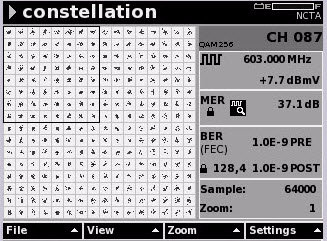
215 Chapter 8 Measure Mode Basic Tab Constellation Figure 157 Measurement Mode Basic Tab: Constellation 3 Using the arrow keys, select Constellation. 4 Press ENTER. N To save the results to a file, refer to Saving Results on page 198. Only digital and DOCSIS channels defined in the downstream (forward path) channel plan are available for Constellation testing. Understanding Constellation Results Measurement Information Area Digital Performance Interleaver Depth Figure 158 Measure Mode Constellation Measurement Information Area The QAM type (64 QAM, 128 QAM, or 256 QAM) and channel number appear at the top of the screen in the right corner. Directly below the channel number is the channel frequency and channel level information. DSAM Help User Guide Rev
216 Chapter 8 Measure Mode Basic Tab Constellation Digital Performance Interleaver Depth The area displays the high sensitivity indicator, modulation error ratio (MER) and bit error rate (BER) before and after (pre/post) forward error correction (FEC). Interleaver depth is displayed immediately to the right of the BER lock. The DSAM supports the following interleaver depth values: 1,128 2,64 4,32 8,16 16,8 32,4 64,2 128,1 128,4 (additional purchase required) Deep interleaver channels (such as 128,4) require DSAM model 2600, 3600 or If you are using a different model, only the level and BER appear. If the displayed interleaver depth is greater than the interleaver depth supported, the BER values are displayed as dashes (-----). The frequency, level, MER and constellation display remain accurate. Impairments The dots representing QAM symbols on the constellation grid should be well within the grid lines (decision boundaries). When the dots approach or exceed these boundaries, significant errors are occurring in the transmission of the signal. Impairment types are described as follows. Thermal (system) Noise Thermal noise impairments cause the dots on the graph to spread out toward the grid lines (decision boundaries), indicating significant errors such as low levels into amplifiers or too many amplifiers in cascade. The zoom feature would display more detail about the position of these dots in relation to the grid lines 176 DSAM Help User Guide Rev. 001
217 Chapter 8 Measure Mode Basic Tab Constellation Figure 159 Constellation Thermal (system) Noise Phase Noise Phase noise impairments cause the dots on the graph to form a circular pattern possibly caused by faulty modulators. Phase noise is best seen on the grid without the use of the zoom feature. Figure 160 Constellation Phase Noise Coherent Interference Coherent interference impairments such as CTB, CSO, and spurs cause the dots on the graph to cluster with an empty space in the middle. Figure 161 Constellation Coherent Interface DSAM Help User Guide Rev
218 Chapter 8 Measure Mode Basic Tab Constellation Gain Compression Gain compression impairment, possibly caused by over-driven amplifiers, cause the dots on the graph to be pulled in at the corners. Figure 162 Constellation Gain Compression I/Q Imbalance I/Q imbalance, possibly caused by intermittent ingress or a misplaced sweep point, cause a few pixels to be thrown from the center. Figure 163 Constellation I/Q Imbalance Editing the Channel Plan Setting the Sample Refresh Rate To edit the channel plan see Downstream Plans on page 78. To set the number of samples to be processed before refreshing the screen 1 Press the Settings softkey. 2 Using the arrow keys, select Samples. 3 Press ENTER. 4 Using the arrow keys, select an option. 5 Press ENTER. 178 DSAM Help User Guide Rev. 001
219 Chapter 8 Measure Mode Basic Tab Constellation Figure 164 Measure Mode Constellation Refresh Rates 6 Press ENTER. 7 Press the OK softkey. Using Zoom To zoom in on a quadrant 1 Using the arrow keys, select one of the four quadrants. 2 Press the Zoom softkey. 3 Using the arrow keys, select Zoom+ to zoom in one level, Zoomto zoom out one level, or Zoom 1x to reset to 1:1. 4 Press ENTER. In 64 QAM, the following zoom levels are available for viewing: Zoom Level 1-8x8 Zoom Level 2-4x4 Zoom Level 3-2x2 In 128 QAM and 256 QAM, the following zoom levels are available for viewing: Zoom Level 1-16x16 Zoom Level 2-8x8 Zoom Level 3-4x4 Zoom Level 4-2x2 Within each zoom level you can navigate to the specific target quadrant of interest to focus the next zoom operation. The zoom level is represented in the lower right portion of the screen. DSAM Help User Guide Rev
220 Chapter 8 Measure Mode Basic Tab FDR Interleaver Depth When viewing a locked digital signal the interleaver depth is displayed in the BER area. If the displayed interleaver depth is greater than the interleaver depth supported, the BER values are displayed as dashes (-----). The frequency, level, MER and constellation display remain accurate. View Menu To access different functions and shortcuts to other tests 1 Press the View softkey. 2 Using the arrow keys, select one of the following options: Reset Manually resets the Constellation function. Pause (Shift, 8) Suspends measurement updates. Single Channel Displays measurements one channel at a time. First, use the numeric keypad to enter the channel number then highlight this option from the View menu. DQI Enables you to view a time-elapsed view of DQI measurements on digital channels only (if the hardware supports it). QAM Ingress Displays the QAM Ingress screen. 3 Press ENTER. FDR A frequency domain reflectivity (FDR) test displays the location and severity of faults and breaks in a length of cable. This enables you to replace or repair faulty cables and components. To use FDR, you must have a JDS Uniphase Corporation LST-1700 Signal Transmitter, which provides a source for a frequency domain reflectometry test (FDR) of home wiring. Running an FDR Scan 1 Connect the cable you want to test to the LST DSAM Help User Guide Rev. 001
221 Chapter 8 Measure Mode Basic Tab FDR 2 Connect the LST-1700 to the DSAM using one of the following cables: Part Number C (for DSAM with standard battery) Part Number (for DSAM with high capacity battery) 3 Apply power to both devices. 4 Press Measure. 5 Press the Basic softkey. Figure 165 Measure Mode Basic Tab: FDR 6 Using the arrow keys, select FDR. 7 Press ENTER. 8 Using the arrow keys, position the distance marker over a reflection to pinpoint its distance and amplitude. (The corresponding information is displayed directly below the graph.) N To save the results to a file, refer to Saving Results on page 198. Understanding FDR Results The FDR graphs distance on the X-axis and amplitude on the Y-axis as the LST-1700 transmits signals down the cable and looks for RF energy being reflected back. Reflections occur when there is a change in impedance possibly caused by such things as cable damage, unterminated ports, or improper installation. DSAM Help User Guide Rev
222 Chapter 8 Measure Mode Basic Tab FDR A reflection is displayed on the graph as a peak in amplitude located at the distance where the impedance has changed. The amplitude of the reflection indicates the severity of the impedance change. For example, a large reflection results if the cable is broken or un-terminated. Measurement Information Area Sensitivity Graph Vertical Distance Marker Progress Bar Status Figure 166 Measure Mode FDR Locate For information about how to read the graph, see Reading Measurement Graphs on page 196. Measurement Information Area This area displays the following information: VOP (Velocity of Propagation) is the speed at which signals travel the length of a cable. VOP is determined by the dielectric material used to separate the two conductors and is usually specified by the manufacturer. Max Precision The maximum precision is the cable attenuation. Resolution of Measurement The resolution of measurement determines the number of data points, maximum distance of, and distance resolution/accuracy of the measurement. This setting affects the time per measurement cycle, with LOW being fast (least accurate) and ULTRA being slow (most accurate). Valid options are: LOW (64pts) = 1 bar MEDIUM (128pts) = 2 bars HIGH (256pts) = 3 bars ULTRA (512pts) = 4 bars 182 DSAM Help User Guide Rev. 001
223 Chapter 8 Measure Mode Basic Tab FDR To set the resolution of measurement, refer to FDR Settings on page 63. Graph Vertical Distance Marker Progress Bar Status Using Zoom The graph presents a view of distance on the X-axis and amplitude on the Y-axis. Position the vertical distance marker over a reflection so to pinpoint its distance and amplitude. You can see the marker information directly beneath the graph. Displays the status of the measurement cycle. This area consists of the following: Horizontal status dbrl Zoom level Cable compensation status (ON or OFF) To use the zoom feature 1 After scanning a few times, press Shift, 8 to pause the scan. 2 Press the Zoom softkey. 3 Using the arrow keys, select Zoom+ to zoom in one level, Zoomto zoom out one level, or Zoom 1x to reset to 1:1. 4 Press ENTER. Modifying FDR Configuration Settings To modify FDR configuration settings 1 Press the Settings softkey. DSAM Help User Guide Rev
224 Chapter 8 Measure Mode Basic Tab Return QAM Generator Figure 167 Configure FDR Settings 2 See FDR Parameters on page 64. Viewing FDR Results To view FDR results in different ways 1 Press the View softkey. 2 Using the arrow keys, select one of the following options: Auto Reference (Shift, 9) Enables you to automatically view measurement results in the best reference setting on the graph. For best reference setting results you may need to press the Auto Reference button up to three times. 5 db/div or 10 db/div Enables you to adjust the vertical resolution of the graph for the best viewing. Pause (Shift, 8) Suspends measurement updates. 3 Press ENTER. Return QAM Generator DSAM is equipped with this mode so you can evaluate problems in the network arising due to phase and amplitude distortions. Generally these problems need attention to take advantage of the higher capacity of the 16 QAM or 64 QAM. 184 DSAM Help User Guide Rev. 001
225 Chapter 8 Measure Mode Basic Tab Return QAM Generator The Return QAM Generator function generates an upstream signal of a desired frequency, desired level and desired modulation type (16 QAM, 64 QAM, or CW). The DSAM generates the signal and a signal demodulator can be used to demodulate/detect the signal. Using the Return QAM Generator To use the return QAM generator 1 Press Measure. 2 Press the Basic softkey. Figure 168 Measure Mode Basic Tab: Return QAM Generator 3 Using the arrow keys, select Return QAM Generator. 4 Press ENTER. Enable/Disable Transmit To enable/disable transmit 1 To disable transmit, press the Disable Tx softkey. The softkey turns to Enable Tx. 2 To enable transmit, press the Enable Tx softkey. The softkey turns to Disable Tx. Changing the Mod Type To change the mod type 1 Press the Settings softkey. DSAM Help User Guide Rev
226 Chapter 8 Measure Mode Basic Tab Return QAM Generator 2 Using the arrow keys, select one of the following: CW QAM16 QAM64 3 Press ENTER. The symbol rate is only configurable if you are in a QAM mode. Changing the Msym/s To change the Msym/s 1 Press the Settings softkey. 2 Using the arrow keys, select one of the following: 1.28 Msym/s 2.56 Msym/s 3.84 Msym/s 5.12 Msym/s 3 Press ENTER. Understanding Return QAM Generator Results Figure 169 Measure Mode Return QAM Generator Measurement Information Area This area displays information about the current channel. Information that is displayed in this area includes: 186 DSAM Help User Guide Rev. 001
227 Chapter 8 Measure Mode Basic Tab QAM Ingress Graph Symbol Rate Transmit Status Displays signal level on the Y-axis. A vertical bar is displayed and the height of the bar represents the signal level. The number of symbol changes (signaling events) made to the transmission medium per second using a digitally modulated signal or a line code. The Symbol Rate is measured in baud (Bd) or symbols/second. The default value is Indicates whether Tx is enabled or disabled. For information about how to read the graph, see Reading Measurement Graphs on page 196. View Menu To access different functions and shortcuts to other tests 1 Press the View softkey. 2 Using the arrow keys, select one of the following options: Single Channel Displays measurements one channel at a time. First, use the numeric keypad to enter the channel number then highlight this option from the View menu. Constellation Displays the Constellation screen. Upstream Spectrum Displays the Upstream Spectrum measurement mode. Downstream Spectrum Displays the Downstream Spectrum measurement mode. 3 Press ENTER. QAM Ingress The QAM Ingress mode is a line plot which graphs signal error versus frequency of QAM signals. This mode supports Ingress Under Carrier for 64 QAM and 256 QAM signals. (Additional purchase required.) The QAM Ingress mode enables you to: View a graphic depiction of the signal View the QAM type (64 or 256) View the channel number DSAM Help User Guide Rev
228 Chapter 8 Measure Mode Basic Tab QAM Ingress View the channel frequency level information Examine Modulation Error Ratio (MER) The QAM Ingress mode continuously updates the graphic depiction of the signal along with the MER and BER data. Using QAM Ingress To use QAM ingress 1 Press Measure. 2 Press the Basic softkey. Figure 170 Measure Mode Basic Tab: QAM Ingress 3 Using the arrow keys, select QAM Ingress. 4 Press ENTER. Understanding QAM Ingress Results Measurement Information Area Graph Graph Information Bar Marker Status Area Figure 171 Measure Mode QAM Ingress 188 DSAM Help User Guide Rev. 001
229 Chapter 8 Measure Mode Basic Tab QAM Ingress For information about how to read the graph, see Reading Measurement Graphs on page 196. Measurement Information Area The QAM type (64 or 256) and channel number appear at the top of the screen in the right corner. Directly below the channel number is the channel frequency and channel level information. In the right corner under the selected channel plan the QAM type (64 or 256) and channel number is displayed. Directly below the channel number is the channel frequency and channel level information. Graph Graph Information Bar Marker Status Area View Menu The trace changes only if levels are different from the levels of the previous trace. This area consists of the start, stop and center frequency. The QAM ingress measurement mode also contains an area referred to as the Marker Status area (below the Graph Information Bar). This area consists of the marker name (A or B), marker frequency (in MHz), and measured signal level for the frequencies which the markers are on. The black square around the letter A or B below the graph displays the active marker. The delta value (in db) between the markers is also displayed. To access different functions and shortcuts to other tests 1 Press the View softkey. 2 Using the arrow keys, select one of the following options: Auto Reference (Shift, 9) Enables you to automatically view measurement results in the best reference setting on the graph. For best reference setting results you may need to press the Auto Reference button up to three times. 5 db/div or 10 db/div Enables you to adjust the vertical resolution of the graph for the best viewing. Peak Hold When Peak Hold is enabled, peak values are reset. DSAM Help User Guide Rev
230 Chapter 8 Measure Mode Basic Tab Hum Analysis Reset Manually resets the QAM Ingress function. (Only enabled if Peak Hold is enabled.) Single Channel Displays measurements one channel at a time. First, use the arrow keys to move the marker to the preferred channel then highlight this option from the View menu. MiniScan Displays the MiniScan screen. Constellation Displays the Constellation screen. Pause (Shift, 8) Suspends measurement updates. Marker A Sets Marker A as the active marker. Using the arrow keys, move the marker on the grid. Marker B Sets Marker B as the active marker. Using the arrow keys, move the marker on the grid. 3 Press ENTER. Hum Analysis Hum is the undesirable modulation of the television video carrier by power line frequencies and harmonics, or other low frequency disturbances (FCC Limit: < 1 khz) The Hum mode displays the total amount of hum for an analog channel over a 1 khz span. An evenly spaced breakdown of hum percentages is displayed in a graph with bars at either a 50 or 60 Hz spacing. Hum measurements are displayed on a graph and as a numeric value for each carrier within the channel. 1 To tune directly to a specific channel, use the alphanumeric keys. 2 Press ENTER. Hum measurements are continuously updated on the screen. Performing Hum Analysis To perform hum analysis 1 Press Measure. 2 Press the Basic softkey. 190 DSAM Help User Guide Rev. 001
231 Chapter 8 Measure Mode Basic Tab Hum Analysis Figure 172 Measure Mode Basic Tab: Hum 3 Using the arrow keys, select Hum. 4 Press ENTER. If you chose the wrong limit set before conducting the test, press the Limits softkey and select a different limit set to view your test results in relation to a different limit set without rerunning the test. Understanding Hum Analysis Results Measurement Information Area Total Hum for Bandwidth Frequency and Frequency Hum Figure 173 Measure Mode Hum Analysis For information about how to read the graph, see Reading Measurement Graphs on page 196. DSAM Help User Guide Rev
232 Chapter 8 Measure Mode Basic Tab DQI Measurement Information Area Total Hum Frequency and Hum Editing the Channel Plan The channel type and number appear at the top right hand corner of the screen. Directly below the channel number is the channel frequency and hum information. This is the total sum of hum for the channel. The hum frequency within the channel and the hum for that frequency. To edit the channel plan 1 Press the Settings softkey. 2 Using the arrow keys, select Channel Plan. 3 Press ENTER. 4 Refer to step 3 under Editing a Channel Plan on page 79. DQI Digital Quality Index (DQI) (additional purchase required for certain models) is a real-time measurement that detects intermittent impairments within a downstream digital QAM carrier. The DQI measurement uses error magnitude information from the output of the QAM demodulator within DSAM, including error magnitudes that do not result in either pre or post BER errors. Measurement response is considerably faster and more sensitive to transient and intermittent issues than the MER measurement. DQI only works on digital channels configured in the active channel plan as channel types DIG (digital QAM) or DOCSIS. Performing DQI Analysis To perform analysis 1 Press Measure. 2 Press the Basic softkey. 192 DSAM Help User Guide Rev. 001
233 Chapter 8 Measure Mode Basic Tab DQI Figure 174 Measure Mode Basic Tab: DQI 3 Using the arrow keys, select DQI. 4 Press ENTER. Understanding DQI Results Measurement Information Area DQI Min Graph Information Bar Figure 175 Measure Mode DQI For information about how to read the graph, see Reading Measurement Graphs on page 196. To save the results to a file, refer to Saving Results on page 198. To open a saved measurement file, see Opening a Saved File on page 201. Measurement Information Area The channel type (QAM 64 or QAM 256) and channel number appear at the top of the screen in the right corner. Directly below the channel number is the channel frequency and channel level information. DSAM Help User Guide Rev
234 Chapter 8 Measure Mode Basic Tab Return Loopback DQI Min Graph Graph Information Bar Changing/Editing the Channel Plan Digital Quality Index where 0 = worst and 10 = best. The lowest DQI value generated since starting the node. Changes only if the levels are different from the levels of the previous trace. This area consists of the total time in seconds it takes to display a complete trace and the number of seconds per division. To change the channel plan 1 Press the Settings softkey. 2 Refer to Downstream Plans on page 78. View Menu To access different functions and shortcuts to other tests 1 Press the View softkey. 2 Using the arrow keys, select one of the following options: Single Channel Displays measurements one channel at a time. First, use the arrow keys to move the marker to the preferred channel then highlight this option from the View menu. MiniScan Displays the MiniScan screen. Tilt Displays the Tilt screen. Full Scan Displays the Full Scan screen. Constellation Displays the Constellation screen. QAM Ingress Displays the QAM Ingress screen. Pause (Shift, 8) Suspends measurement updates. 3 Press ENTER. Return Loopback The Return Loopback mode enables you to quickly perform frequency response measurements of active or passive field devices using a single meter. A CW signal may be generated from the DSAM unit and 194 DSAM Help User Guide Rev. 001
235 Chapter 8 Measure Mode Basic Tab Return Loopback injected to the input of a device under test. The DSAM can then measure the output, providing valuable information such as gain, loss, roll-off, or frequency response. Performing Return Loopback To perform return loopback 1 Press Measure. 2 Press the Basic softkey. Figure 176 Measure Return Loopback 3 Using the arrow keys, select Return Loopback. 4 Press ENTER. Figure 177 Measure Mode Loopback DSAM Help User Guide Rev
236 Chapter 8 Measure Mode Basic Tab Reading Measurement Graphs Enabling/ Disabling Transmit To enable/disable transmit 1 To disable transmit, press the Disable Tx softkey. The softkey turns to Enable Tx. 2 To enable transmit, press the Enable Tx softkey. The softkey turns to Disable Tx. Setting the Transmit Level To set the transmit level 1 Press the Settings softkey. 2 Using the arrow keys, select Transmit Level. 3 Press ENTER. The Transmit Level Setting screen is displayed. 4 Using the arrow keys and numeric keypad, enter a transmit level between 8 and Press the OK softkey. Performing a Transmit Reference To Perform a Transmit Reference 1 Connect a short cable between port 1 and port 2. 2 Press the Settings softkey. 3 Using the arrow keys, select Reference. 4 Press ENTER. 5 Press the Reference softkey. Reading Measurement Graphs Reading Bar Graphs White Bar graphs are comprised of up to four contrasting shades: The background color of the graph when limit check is disabled. Also the background area within limit boundaries when limit check is enabled. 196 DSAM Help User Guide Rev. 001
237 Chapter 8 Measure Mode Basic Tab Reading Measurement Graphs Gray Black/White Diagonal Hash Lines Black The color of the measurement bar when limit check is disabled. Also the color of the measurement bar when limit check is enabled and the signal level is within the configured boundaries. The area above and below the configured limit boundaries (also described as the area out of range ). The color of the measurement bar when the signal level is not within the limit set range. This occurs when the top of the measurement bar overlaps the area of black/white diagonal hash lines, indicating measurement failure in relation to the selected limit set. Figure 178 Measure Mode Level Channel Reading Line Graphs White Black/White Diagonal Hash Lines Black Bar graphs are comprised of up to three contrasting shades: The background color of the graph when limit check is disabled. Also the background area within limit boundaries when limit check is enabled. The area above and below the configured limit boundaries (also described as the area out of range ). The trace line is typically black. However, if Peak Hold is enabled, the peak trace is displayed in black and the normal line trace is gray. When viewing this type of sweep results, the area under the trace is also black. DSAM Help User Guide Rev
238 Chapter 8 Measure Mode Basic Tab Saving Results Figure 179 Measure DQI Results Saving Results Saving Results The File softkey enables you to save your results and manage saved file folders. To freeze any live fluctuating data, pause the meter by pressing Shift, 8 before you save your results to a file. To save your results 1 Press the File softkey. 2 Using the arrow keys, select Save. 3 Press ENTER. 198 DSAM Help User Guide Rev. 001
239 Chapter 8 Measure Mode Basic Tab Saving Results Figure 180 Save a File screen 4 Using the arrow keys and the alphanumeric keypad, enter a file name for your results. 5 Press the Save softkey. If Location Settings is enabled through TPP, the Edit Location Settings screen is displayed. Figure 181 AutoTest Edit Location Settings 6 Using the arrow keys, select the parameter you want to edit. 7 Press ENTER. OR 8 To use the default location settings, press the Default softkey. 9 Press the OK softkey. OR DSAM Help User Guide Rev
240 Chapter 8 Measure Mode Basic Tab Saving Results 10 Press the Skip. 11 Using the arrow keys and the alphanumeric keypad, edit the entry. 12 Press ENTER. 13 Press the OK softkey. Creating a New Folder To create a new folder 1 Press the Folder softkey. 2 Using the arrow keys, select New. 3 Press ENTER. Figure 182 Create a New Work Folder screen 4 Using the alphanumeric keypad, enter the folder name. 5 Press the OK softkey. Changing the Default Folder To change the default folder 1 Press the Folder softkey. 2 Using the arrow keys, select Change. 3 Press ENTER. 4 Using the arrow keys, select a different folder. 5 Press ENTER. 6 Press the OK softkey. 200 DSAM Help User Guide Rev. 001
241 Chapter 8 Measure Mode Basic Tab Saving Results Opening a Saved File Opening a saved file is not applicable to AutoTest results. To open a saved file 1 Press the File softkey. 2 Using the arrow keys, select Open. 3 Press ENTER. 4 Using the arrow keys, select the folder that contains the file you want to open. 5 Press the Open softkey. 6 Using the arrow keys, select the file you want to open. 7 Press the Open softkey. When you attempt to open a file within a mode, only saved files of that mode type are displayed in the file folder. DSAM Help User Guide Rev
242 Chapter 8 Measure Mode Basic Tab Saving Results 202 DSAM Help User Guide Rev. 001
243 Chapter 9 Measure Mode Service Tab 9 This chapter describes the Measure Mode Service tab functionality. Topics discussed in this chapter are as follows: Service Measurement Modes on page 204 DOCSIS on page 204 Ethernet on page 225 CM Diagnostics Page on page 232 VoIP on page 234 DSAM Help User Guide Rev
244 Chapter 9 Measure Mode Service Tab Service Measurement Modes Service Measurement Modes The functions under the Service tab of the DSAM Measure Mode provide the following modes for viewing and analyzing CATV channels: DOCSIS Ethernet CM Diagnostics Page VoIP Analyzes the digital performance of a DOCSIS channel to verify upstream and downstream connectivity. Analyzes the internet protocol (IP) performance through the Ethernet. (Additional purchase required.) Displays a cable modem's internal web page. (Additional purchase required.) Enables you to measure voice quality of your PacketCable VoIP networks and gateway, internet protocol (IP) phones and other end point devices. (Additional purchase required.) Figure 183 Measure Mode Service Tab DOCSIS Introduction The DOCSIS (Data Over Cable Service Interface Specification) test analyzes the digital performance of selected DOCSIS channels to verify downstream and upstream connectivity. 204 DSAM Help User Guide Rev. 001
245 Chapter 9 Measure Mode Service Tab DOCSIS Only DOCSIS channels defined in the downstream (forward path) channel plan are available for DOCSIS measurement testing. You must build a channel plan prior to running a DOCSIS test. Configuring DSAM for DOCSIS Tests The first thing to check before you run a DOCSIS test is to make sure the CM MAC Address has been provisioned to your Cable Modem Terminal System (CMTS). To configure DSAM for DOCSIS tests 1 Press Configure. 2 Press the Measure softkey. 3 Using the arrow keys, select the DOCSIS Configuration option. 4 Press ENTER. Figure 184 Configure Mode Other Settings DSAM Help User Guide Rev
246 Chapter 9 Measure Mode Service Tab DOCSIS 5 Using the arrow keys, select one of the following: Range Only: If the DOCSIS Configuration field is set to Range Only, only the range results on the DOCSIS results screen is displayed after you run a DOCSIS test. Range and Registration: If the DOCSIS Configuration field is set to Range and Registration, the DOCSIS results screen is displayed after you run a DOCSIS test. In addition, you can display the Registration screen from the View menu. Registration with CPE Initialization: If the DOCSIS Configuration field is set to Registration with CPE Initialization, the DOCSIS results screen is displayed after you run a DOCSIS test. In addition, you can run data service tests. 6 Verify that the value in the DOCSIS Version field matches the CMTS you are testing. 7 Verify that the value in the DOCSIS Security Mode field matches the security mode for the CMTS you are testing. 8 Press the OK softkey. Running a DOCSIS Test You must build a channel plan prior to running a DOCSIS test. To run a DOCSIS test 1 Check your preliminary configurations ( Configuring DSAM for DOCSIS Tests on page 205). 2 Press Measure. 3 Press the Service softkey. 206 DSAM Help User Guide Rev. 001
247 Chapter 9 Measure Mode Service Tab DOCSIS Figure 185 Measure Mode Select a DOCSIS Channel to Test 4 Using the arrow keys, select a channel plan. 5 Press the Next softkey. Only DOCSIS channels defined in the downstream (forward path) channel plan are available for DOCSIS measurement testing. Figure 186 Measure Mode Cable Modem MAC Address 6 To set the roving MAC address as the default, press the Default softkey. DSAM Help User Guide Rev
248 Chapter 9 Measure Mode Service Tab DOCSIS The roving MAC address must be recognized by your CMTS to achieve DOCSIS ranging. A MAC address is not required if the DOCSIS Configuration is set to Range Only. (See Configuring DSAM for DOCSIS Tests on page 205.) 7 Press the Start softkey. For instructions on how to save measurement results, see Saving Results on page 198. For detailed information about what happens in the different stages of the DOCSIS test, see DOCSIS Test Steps on page 209. Figure 187 Measure Mode DOCSIS Test in Progress The results appear on the DOCSIS Results screen. 208 DSAM Help User Guide Rev. 001
249 Chapter 9 Measure Mode Service Tab DOCSIS Figure 188 Measure Mode DOCSIS To save the results to a file, refer to Saving Results on page 198. If you chose the wrong limit set before conducting the test, press the Limits softkey and select a different limit set to view your test results in relation to a different limit set without rerunning the test. Use the Edit option to edit limit set parameters for tap, ground block, TV, cable modem, proof, or custom limits 1 through 3. The limit set parameters you set remain constant for all channel plans and measurement modes. When limit check is enabled, an overall pass or fail symbol and the name of the selected limit set are displayed directly above the results. When a measurement falls outside the selected limit set range, an up or down arrow is displayed to the right of the measurement indicating that the value is too high or too low. No pass/fail information is available when limit check is disabled. DOCSIS Test Steps This section provides detailed information of a DOCSIS test. While the test is in progress, the steps are counted and annotated on the Test in Progress screen. DSAM Help User Guide Rev
250 Chapter 9 Measure Mode Service Tab DOCSIS Figure 189 Measure Mode DOCSIS Test in Progress Step 1 Step 2 Step 3 During Step 1 of the DOCSIS Test process, DSAM attempts to tune in to and measure the downstream DOCSIS channel attributes and displays the following text next to the first box: Loading DOCSIS application Locking on to downstream Analyzing downstream DOCSIS channel found During Step 2 of the DOCSIS Test process, DSAM captures the system timing (SYNCs), upstream channel information (UCDs), and time slots (MAPs) and displays the following text next to the second box: Acquiring upstream channel data Upstream channel data acquired During step 3 of the DOCSIS Test process, DSAM establishes the optimum cable modem transmitter output power level through a process defined in the DOCSIS specification and displays the following text next to the third box: Ranging with CMTS Ranging complete 210 DSAM Help User Guide Rev. 001
251 Chapter 9 Measure Mode Service Tab DOCSIS Step 4 Understanding Range Results During step 4 of the DOCSIS Test process, DSAM establishes registration activities for the cable modem as defined by the DOCSIS specification and displays the following text next to the third box: Connecting to DHCP server Connected to DHCP server Registering with CMTS Connecting to TFTP server Connected to TFTP server The DOCSIS screen displays resulting ranging and displays measurement performance data on the upstream and downstream signal level, downstream modulation error ratio (MER) or EVM, as configured, and the estimated downstream bit error rate (BER) before and after forward error correction (FEC). You can view the range measurement data in relation to user-configured limits to determine the pass/fail status of the DOCSIS channel. Values are continuously updated. Only valid measurements and parameters appear. When incomplete measurements occur due to system errors or a manual termination of the measurement procedure, dashes (---) appear instead of invalid numeric values. When limit test results are incomplete, a question mark (?) is displayed. Measurement Information Area Test Complete Results High Sensitivity Mode MER Headroom Downstream/Upstream Pass/Fail Results LEVEL Headroom Figure 190 Measure Mode DOCSIS Measurement Information Area The overall pass/fail result is displayed in the top left corner next to the selected limit set. The failure of any one item produces an overall failure. DSAM Help User Guide Rev
252 Chapter 9 Measure Mode Service Tab DOCSIS Test Complete Results High Sensitivity Mode MER Headroom Directly below the overall pass/fail result is an indication that the test was completed successfully (Test Complete), or an indication of what error occurred. This icon is displayed if QAM Sensitivity is set to high on the Other Settings configuration screen. (See Other Settings Parameters on page 66.) The DSAM default limits are set at the recommended minimum MER values for a TV/Modem. The default limit for 64 QAM carriers is 28 db. The default limit for 256 QAM carriers is 32 db. You can set other limit sets at the Limit Sets screen ( Limit Sets on page 58). If limits is set to Off, the MER Headroom reading is not applicable. EXAMPLE 1 A MER reading of 36 db is obtained from a 64 QAM DOCSIS carrier when your limits are set to Cable Modem and you are using the DSAM factory default limits. The MER Headroom calculation results display a reading of 8 db (36 db - 28 db = 8 db). EXAMPLE 2 An MER reading of 36 db is obtained from a 256 QAM DOCSIS carrier when your limits are set to Cable Modem and you are using the DSAM factory default limits. The MER Headroom calculation results display a reading of 4 db (36 db - 32 db = 4 db). Downstream/ Upstream Pass/Fail Results A column to the far left of the downstream and upstream sections indicates the pass/fail status for each item tested. When a measurement falls outside the selected limit set range, an up or down arrow head is displayed to the right of the measurement indicating that the value is too high or too low. Numeric values that are out-of-range appear in bold. No pass/fail information is available when limit check is disabled. LEVEL Headroom LEVEL Headroom is the difference between the maximum output possible (58 dbmv for QPSK or 55 dbmv for 16 QAM) and the LEVEL transmitted. Upon successful ranging with the network CMTS, DSAM displays the resultant upstream transmit LEVEL required out of the DSAM. This LEVEL Headroom is tested against the Min CM Headroom limit value if limits is set to On. 212 DSAM Help User Guide Rev. 001
253 Chapter 9 Measure Mode Service Tab DOCSIS The factory default Min CM Headroom value is 5 db. EXAMPLE 3 You successfully range with the CMTS. Results show that the CMTS instructed the DSAM to transmit a QSPK carrier and the successful transmit level is 42 dbmv. The LEVEL Headroom shown is the maximum specified level for QSPK of = 16 db. Since 16 db is greater than the 5 db limit, the measurement passes. Selecting a Different Channel Plan To select a different channel plan 1 Press the Settings softkey. 2 Using the arrow keys, select Channel Plans. 3 Press ENTER. Figure 191 Measure Mode Downstream Plans 4 Using the arrow keys, select a channel plan. 5 Press ENTER. See Editing a Channel Plan on page 79 for instructions on how to edit a channel plan. 6 Press the Done softkey. DSAM Help User Guide Rev
254 Chapter 9 Measure Mode Service Tab DOCSIS Selecting a Different DOCSIS Channel To select a different DOCSIS channel 1 Press the Settings softkey. 2 Using the arrow keys, select DOCSIS Channels. 3 Press ENTER. 4 Using the arrow keys, select an option. 5 Press ENTER. 6 Press the OK softkey. The DOCSIS test automatically runs through the processing steps again. Viewing Registration Results During DOCSIS, the meter performs registration and displays the internet protocol (IP) addresses of the dynamic host configuration protocol (DHCP), trivial file transfer protocol (TFTP) and time of day (TOD) servers and gateway. The registration test also provides the modems internet protocol (IP) address, configuration file, and Service IDentifier (SID). To view registration results 1 Press the View softkey. 2 Using the arrow keys, select Register. 3 Press ENTER. Figure 192 Measure Mode DOCSIS Registration 214 DSAM Help User Guide Rev. 001
255 Chapter 9 Measure Mode Service Tab DOCSIS When using a customer's CM MAC address, the config file name may indicate the grade of service the customer gets. A file name containing default generally means that the CM MAC address used for the test is not provisioned. Viewing Throughput Results To view Throughput results 1 Press the View softkey. 2 Using the arrow keys, select Throughput. 3 Press ENTER. Throughput Graphs Figure 193 Measure Mode DOCSIS Throughput Since Throughput can only be measured after the meter has successfully ranged and registered with the CMTS, Throughput results are not available if Ranging Only is set in the DOCSIS Configuration field ( Configuring DSAM for DOCSIS Tests on page 205) or if registration with the CMTS failed. Throughput Graphs Viewing Packet Loss Results The DOCSIS Throughput screen displays an upstream graph and a downstream graph. The height of the gray bars represents the throughput number displayed in a numerical value beside each bar. Both the graphs and numerical values are continuously updated. The DOCSIS Packet Loss Test screen displays packet loss (round trip, upstream, and downstream) and upstream signal-to-noise ratio (SNR) results. DSAM Help User Guide Rev
256 Chapter 9 Measure Mode Service Tab DOCSIS To view packet loss results 1 Press the View softkey. 2 Using the arrow keys, select Packet Loss. 3 Press ENTER. Packet Loss Figure 194 Measure Mode DOCSIS Packet Loss Test Packet Loss The packets loss results statistics on how many packets were sent and lost. If SNMP is enabled, both sent and lost statistics appear. If the read community string is provided the DSAM displays separate counts for the upstream and downstream paths as follows: Round trip or loop sent packets, lost packets, and lost ratio Upstream sent packets, lost packets, and lost ratio Downstream sent packets, lost packets, and lost ratio Viewing Packet Loss Results with SNMP Community Strings A DSAM can receive up to four SNMP read community strings through synchronization with JDS Uniphase Corporation Test Productivity Pack (TPP) software. For security purposes, these strings are locked and hidden on the meter. 216 DSAM Help User Guide Rev. 001
257 Chapter 9 Measure Mode Service Tab DOCSIS If your upstream and downstream packet loss and upstream SNR test results are consistently displayed as dashes (---), consult your JDS Uniphase Corporation Test Productivity Pack (TPP) administrator about the accuracy of the SNMP strings you have received. Your meter requires accurate SNMP read community strings to gain read-only access to the Management Information Base (MIB) of the Cable Modem Termination System (CMTS) and to perform these DOCSIS measurements. To view register results 1 Press the View key. 2 Using the arrow keys, select Packet Loss. 3 Press ENTER. Upstream Modulation Figure 195 Measure Mode Packet Loss Test Upstream Modulation Running Ping Results The upstream modulation portion of the screen displays the upstream SNR. Ping results verify the overall downstream/upstream communication route and connectivity of a DSAM within the cable system. The Ping Test screen enables you to select the IP address, packet size, and time between pings. It also displays ping result data, including: Round trip time Time-to-live (TTL) DSAM Help User Guide Rev
258 Chapter 9 Measure Mode Service Tab DOCSIS Packets sent and lost Average round trip time Loss to sent ratio To run a ping test 1 Press the View softkey. 2 Using the arrow keys, select Ping. 3 Press ENTER. Figure 196 Measure Mode DOCSIS Ping Test 4 Using the arrow keys, select the IP Address option. 5 Press ENTER. 6 Using the arrow keys, select the IP address you want to ping. 7 Press ENTER. To add, modify or delete an IP address, see Adding Ping IP Addresses on page 220, Modifying Ping IP Addresses on page 220, or Deleting Ping IP Addresses on page Using the arrow keys, select Packet Size (bytes). 9 Press ENTER. 10 Using the arrow keys, select the packet size you want to send. 11 Press ENTER. 218 DSAM Help User Guide Rev. 001
259 Chapter 9 Measure Mode Service Tab DOCSIS 12 Using the arrow keys, select the Time Between Pings option. 13 Press ENTER. Since ping time can only be measured after the meter has successfully ranged and registered with the CMTS, ping results are not available if Ranging Only is set in the DOCSIS Configuration field ( Configuring DSAM for DOCSIS Tests on page 205) or if the DSAM fails to register with the CMTS. 14 Using the arrow keys, select the time span between pings. 15 Press ENTER. 16 Press the Start softkey. When a ping test starts, response results begin scrolling upward in the response box (upper right corner of the screen). The most recent ping result is displayed at the bottom of the list. The status box (lower right corner of the screen) displays the reply statistics, including: Number of pings sent Average return time Number of pings lost Ratio of lost to sent pings Ping data is continuously updated. Figure 197 Measure Mode DOCSIS Ping Test DSAM Help User Guide Rev
260 Chapter 9 Measure Mode Service Tab DOCSIS Table 45 Ping Parameters Name IP Address Packet Size (bytes) Time Between Pings Description Select from a list of up to ten of the most recently used IP addresses. Options are 64, 128, 256, 512, 1024, or 1518 (in bytes). The default value is 64 bytes. Options are 0 ms, 10 ms, 25 ms, 50 ms, 100 ms, 1 sec, 2 sec, or 5 sec. The default value is 1 second. Restoring Ping Test Defaults To restore the default values for Packet Size and Time Between Pings. 1 Press the Settings softkey. 2 Using the arrow keys, select Restore Defaults. 3 Press ENTER. The ten stored IP Addresses are not affected by the Restore Defaults menu item. Adding Ping IP Addresses To add an IP address 1 Press the Settings softkey. 2 Using the arrow keys, select Add IP. 3 Press ENTER. 4 Using the arrow keys and the alphanumeric keypad, type an IP address. 5 Press the OK softkey. The last added IP address is placed on the top of the option list. Modifying Ping IP Addresses To modify an IP address 1 Using the arrow keys, select IP Address. 2 Press ENTER. 220 DSAM Help User Guide Rev. 001
261 Chapter 9 Measure Mode Service Tab DOCSIS 3 Using the arrow keys, select the IP address you want to edit. 4 Press ENTER. 5 Press the Settings softkey. 6 Using the arrow keys, select Modify IP. 7 Press ENTER. 8 Using the arrow keys and the alphanumeric keypad, edit the IP address. 9 Press the OK softkey. The last edited IP address is placed on the top of the option list. Deleting Ping IP Addresses To delete an IP address 1 Using the arrow keys, select IP Address. 2 Press ENTER. 3 Using the arrow keys, select the IP address you want to delete. 4 Press ENTER. 5 Press the Settings softkey. 6 Using the arrow keys, select Delete IP. 7 Press ENTER. Viewing VoIPCheck Results The VoIPCheck CMTS Loop test (additional purchase required) displays VoIP call statistics without MTA provisioning. The VoIPCheck CMTS Loop test is a continuous test. During a VoIPCheck, packet loss, jitter, delay, R-Value and MOS values are displayed in table format. Since you can only run VoIPCheck after the meter has successfully ranged and registered with the CMTS and the MTAs have successfully initialized, results are not available if Ranging Only is set in the DOCSIS Configuration field ( Configuring DSAM for DOCSIS Tests on page 205) or if the DSAM failed to register with the CMTS. DSAM Help User Guide Rev
262 Chapter 9 Measure Mode Service Tab DOCSIS To view VoIPCheck results 1 Press the View softkey. 2 Using the arrow keys, select VoIPCheck. 3 Press ENTER. The CMTS Loop screen displays Packet and Quality measurement data. Packet loss, delay and jitter are factors that affect voice quality on a VoIP network. The data is captured and continuously updated. Measurement Information Area Packet Loss Jitter Delay MOS R- Figure 198 Measure Mode DOCSIS CMTS Loop Measurement Information Area Packet Loss Jitter The Measurement Information area (area above the graph) displays information about the limit plan, channel number, channel type, and channel label. Significant packet loss degrades voice quality. Packet loss occurs when packets are lost on a network, when packets are delayed too long, or when packets arrive out of order. Packet loss can cause reconstructed speech to sound choppy and distorted. Jitter occurs when packets are sent at equal intervals, but received at uneven time intervals, this can cause audible pops, clicks and a greater delay of audio communications. Gateways compensate for this by accumulating the received packets into an internal buffer and playing them out at the proper time intervals and in packet order. The more jitter buffer available, the more the network can reduce the effects of jitter. 222 DSAM Help User Guide Rev. 001
263 Chapter 9 Measure Mode Service Tab DOCSIS Delay MOS R-Value Viewing VoIPCheck Segmentation Results Total end-to-end packet delays severely degrade voice quality by causing long delays between callers and causing echo problems. Any packet delays less than 150 ms provide acceptable speech quality. Delays greater than 150 ms begin to interfere with conversations and cause noticeable degradation. The Mean Opinion Score (MOS) Listening value is a conversion of the Listening R-Value based on the ITU G.107 conversion formula. The Mean Opinion Score (MOS) for listening represents a quantitative value base solely on the local packet loss, jitter and delay measurements. The value range for MOS is 0.0 to 5.0. MOS is computed using the packet loss, jitter and delay results. The R-Value number represents a quantitative measurement value based solely on the packet loss, jitter and delay measurements. The value range for R-Value is 0 to 93. R-Value is computed using the packet loss, jitter and delay results. The VoIPCheck Segmentation test is a continuous test and displays VoIP call statistics without MTA provisioning. During a VoIPCheck Segmentation test packet loss, jitter, and delay or R-Value and MOS values are displayed in a flow diagram graphic. To view VoIP segmentation results 1 Press the View softkey. 2 Using the arrow keys, select Segmentation. 3 Press ENTER. Packet Loss Jitter Delay Figure 199 Measure Mode VoIP Check Segmentation DSAM Help User Guide Rev
264 Chapter 9 Measure Mode Service Tab DOCSIS 4 See Measurement Information Area on page 222 for the following definitions: Packet Loss, Delay, Jitter, MOS, and R- Value. Changing the Data Display To change the data display 1 Press the Data softkey. 2 Using the arrow keys, select an option. Live Displays continuous live values of VoIP segmentation Average Displays the average value of continuous live VoIP segmentation Extreme Displays the highest or lowest values detected during VoIP segmentation Packet Stats Displays packet loss, delay and jitter values Quality Displays continuous MOS and R-Value values 3 Press ENTER. MOS R-value Figure 200 Measure Mode DOCSIS (Quality view) If necessary, you user can troubleshoot an installation by performing these tests at various locations to determine which components require repair or replacement. You can save test results for later reference. 224 DSAM Help User Guide Rev. 001
265 Chapter 9 Measure Mode Service Tab Ethernet Ethernet The Ethernet measurement mode (additional purchase required) enables you to analyze internet protocol (IP) performance through the Ethernet. To perform and display Ethernet measurement data, use the following tests: Throughput Test Packet Loss Test Ping Test Configuring DSAM for Ethernet Tests Displays throughput (upstream and downstream) test results. (See Displaying Throughput Results on page 227.) Displays packet loss (round trip) test results. (See Displaying Packet Loss Results on page 228.) A ping test verifies the overall downstream/upstream communication route and connectivity of a DSAM within the Ethernet system. The ping test enables you to select the IP address, packet size, and time between pings and displays ping test result data that includes; round trip time, time-to-live (TTL), packets sent and lost, average round trip time, and loss to sent ratio. (See Running Ping Results on page 228.) Typically, an Ethernet test is conducted using the DHCP server on the network to assign an IP address to DSAM. If the network is expecting a specific fixed IP address (no DHCP assignment available), you must configure the Ethernet network settings in the DSAM configuration. See Configuring Ethernet Settings on page 39 for detailed instructions. IMPORTANT Be sure to return the Obtain IP Address From setting to DHCP after your test to avoid any conflicts on a different network. It may be necessary to emulate a subscriber's CPE (customer premises equipment, such as the subscriber's PC or gaming device). If so, connect the DSAM in place of the device and inserting the MAC address of the device in the DSAM configuration. See Other Settings on page 65. DSAM Help User Guide Rev
266 Chapter 9 Measure Mode Service Tab Ethernet To save the results to a file, refer to Saving Results on page 198. You can terminate the Ethernet test process at any time by pressing the Cancel softkey. Displaying IP Information To display IP information 1 Press Measure. 2 Press the Service softkey. Figure 201 Measure Mode Service Tab: Ethernet 3 Using the arrow keys, select Ethernet. 4 Press ENTER. When the IP connection activity is complete, the Bind Results screen is displayed with detailed results. 226 DSAM Help User Guide Rev. 001
267 Chapter 9 Measure Mode Service Tab Ethernet Network Assignments Meter Information Figure 202 Measure Bind Results Network Assignments Meter Information Displaying Throughput Results The Network Assignment area displays the IP Address, Subnet Mask and Default Gateway. The meter information area displays the CPE MAC Address. The Throughput view displays Ethernet throughput (upstream and downstream) test results. To display the Throughput view 1 Press the View softkey. 2 Using the arrow keys, select Throughput. 3 Press ENTER. Throughput Graphs Figure 203 Measure Mode Ethernet DSAM Help User Guide Rev
268 Chapter 9 Measure Mode Service Tab Ethernet Throughput Graphs Displaying Packet Loss Results The DOCSIS Throughput screen displays an upstream graph and a downstream graph. The height of the gray bars represents the throughput number displayed in a numerical value beside each bar. Both the graphs and numerical values are continuously updated. The Packet Loss test displays round trip (upstream and downstream) packet loss test results. Data is captured and continuously updated. To display Packet Loss results 1 Press the View softkey. 2 Using the arrow keys, select Packet Loss. 3 Press ENTER. Packet Loss Figure 204 Measure Mode Packet Loss Test Running Ping Results Ping results verify the overall downstream/upstream communication route and connectivity of a DSAM within the cable system. The Ping Test screen enables you to select the IP address, packet size, and time between pings. It also displays ping result data, including: Round trip time Time-to-live (TTL) Packets sent and lost Average round trip time Loss to sent ratio To run a ping test 228 DSAM Help User Guide Rev. 001
269 Chapter 9 Measure Mode Service Tab Ethernet 1 Press the View softkey. 2 Using the arrow keys, select Ping. 3 Press ENTER. Figure 205 Measure Mode Ethernet Ping Test 4 Using the arrow keys, select the IP Address option. 5 Press ENTER. 6 Using the arrow keys, select the IP address you want to ping. 7 Press ENTER. To add, modify or delete an IP address, see Adding Ping IP Addresses on page 231, Modifying Ping IP Addresses on page 231 or Deleting Ping IP Addresses on page Using the arrow keys, select Packet Size (bytes). 9 Press ENTER. 10 Using the arrow keys, select the packet size you want to send. 11 Press ENTER. 12 Using the arrow keys, select the Time Between Pings option. 13 Press ENTER. 14 Using the arrow keys, select the time span between pings. DSAM Help User Guide Rev
270 Chapter 9 Measure Mode Service Tab Ethernet 15 Press ENTER. 16 Press the Start softkey. When a ping test starts, response results begin scrolling upward in the response box (upper right corner of the screen). The most recent ping result is displayed at the bottom of the list. The status box (in the lower right corner of the screen) displays the reply statistics, including: Number of pings sent Average return time Number of pings lost Ratio of lost to sent pings Ping data is continuously updated. Figure 206 Measure Mode Ethernet Ping Test Table 46 Ping Test Parameters Name IP Address Packet Size (bytes) Time Between Pings Description Select from a list of up to ten of the most recently used IP addresses. Options are 64, 128, 256, 512, 1024, or 1518 (in bytes). The default value is 64 bytes. Options are 0 ms, 10 ms, 25 ms, 50 ms, 100 ms, 1 sec, 2 sec, or 5 sec. The default value is 1 second. Restoring Ping Test Defaults To restore the default values for Packet Size and Time Between Pings. 230 DSAM Help User Guide Rev. 001
271 Chapter 9 Measure Mode Service Tab Ethernet 1 Press the Settings softkey. 2 Using the arrow keys, select Restore Defaults. 3 Press ENTER. The ten stored IP Addresses are not affected by the Restore Defaults menu item. Adding Ping IP Addresses To add an IP address 1 Press the Settings softkey. 2 Using the arrow keys, select Add IP. 3 Press ENTER. 4 Using the arrow keys and the alphanumeric keypad, type an IP address. 5 Press the OK softkey. The last added IP address is placed on the top of the option list. Modifying Ping IP Addresses To modify an IP address 1 Using the arrow keys, select the IP Address option. 2 Press ENTER. 3 Using the arrow keys, select the IP address you want to edit. 4 Press ENTER. 5 Press the Settings softkey. 6 Using the arrow keys, select Modify IP. 7 Press ENTER. 8 Using the arrow keys and the alphanumeric keypad, edit the IP address. 9 Press the OK softkey. DSAM Help User Guide Rev
272 Chapter 9 Measure Mode Service Tab CM Diagnostics Page The last edited IP address is placed on the top of the option list. Deleting Ping IP Addresses To delete an IP address 1 Using the arrow keys, select the IP Address option. 2 Press ENTER. 3 Using the arrow keys, select the IP address you want to delete. 4 Press ENTER. 5 Press the Settings softkey. 6 Using the arrow keys, select Delete IP. 7 Press ENTER. CM Diagnostics Page The CM Diagnostics mode (additional purchase required) is based on the Ethernet network configuration. The cable modem should be connected to the RF network. The DSAM must be connected to the cable modem through an Ethernet port. The CM Diagnostics screen should display the cable modem's internal web page. This indicates that the cable modem is connected to your local CMTS and functioning properly. Testing CM Diagnostics To test CM Diagnostics 1 Press Measure. 2 Press the Service softkey. 232 DSAM Help User Guide Rev. 001
273 Chapter 9 Measure Mode Service Tab CM Diagnostics Page Figure 207 Measure Mode Service Tab: CM Diagnostics 3 Using the arrow keys, select CM Diagnostics Page. 4 Press ENTER. Figure 208 Measure Mode Cable Modem Information System Navigating the Cable Modem Information System Screen To navigate the Cable Modem Information System screen 1 To scroll up, press the Up softkey. OR DSAM Help User Guide Rev
274 Chapter 9 Measure Mode Service Tab VoIP 2 To scroll down, press the Down softkey. OR 3 Press the Nav softkey. 4 If you pressed the Nav softkey, use the arrow keys to highlight one of the following options: Back Displays the previous page Forward Displays the next page Home Displays the home page Refresh Reloads the most recent version of the current page 5 Press ENTER. VoIP The VoIP (additional purchase required) tests the voice quality of your VoIP networks, gateway, internet protocol (IP) phones, and other endpoint devices. After the meter has successfully ranged and registered with the Cable Modem Termination System (CMTS), the PacketCable multimedia terminal interfaces, and the Multimedia Terminal Adapter (MTA) has been successfully initialized, you are provided the ability to place and receive a phone call with the meter. After a call is placed or received, test results are displayed. VoIP test can only be initiated after the DSAM has successfully registered with the CMTS, and the MTA has successfully initialized. If Ranging Only is the selected configuration option, VoIP mode does not initiate. A call cannot be placed or received if registration with the CMTS has failed. If more than one VoIP DOCSIS channel is discovered in a downstream channel plan, the meter prompts you to select a DOCSIS channel. Use the up and down arrow keys to highlight a DOCSIS channel then press the ENTER key or the Start softkey. 234 DSAM Help User Guide Rev. 001
275 Chapter 9 Measure Mode Service Tab VoIP Configuring DSAM for VoIP Tests Running a VoIP Test To configure DSAM for VoIP tests 1 If necessary, a b adjust the Sounds parameters ( Configuring Sounds on page 30). select a channel plan with at least one DOCSIS channel ( Choosing a Channel Plan on page 78) To run a VoIP test If no enabled downstream DOCSIS channels are available in the channel plan during a VoIP Test, a warning is displayed to indicate there is no DOCSIS channel enabled in the channel plan. Press the OK softkey then select a downstream plan with at least one enabled DOCSIS channel. 1 Press Measure. 2 Press the Service softkey. Figure 209 Measure Mode Service Tab: VoIP 3 Using the arrow keys, select VoIP. 4 Press ENTER. DSAM Help User Guide Rev
276 Chapter 9 Measure Mode Service Tab VoIP Figure 210 Measure Mode VoIP Channel to Test 5 If more than one DOCSIS channel is found in the channel plan, use the arrow keys to highlight the channel you want to test. 6 Press the Next softkey. Figure 211 Measure Mode Cable Modem MAC Address 7 Using the arrow keys and the alphanumeric keypad, enter or select the roving MAC address. 8 Press the Next softkey. OR 9 To use the default roving MAC address, press the Default softkey 10 Press the Next softkey. 236 DSAM Help User Guide Rev. 001
277 Chapter 9 Measure Mode Service Tab VoIP The roving MAC address must be recognized by your CMTS to achieve VoIP ranging. Figure 212 Measure Mode MTA MAC Address 11 Using the arrow keys and the alphanumeric keypad, enter or select the MTA MAC address. 12 Press the Start softkey. OR 13 To use the default MTA MAC address, press the Default softkey. 14 Press the Start softkey. This address must be recognized by your CMTS to achieve VoIP measurement. DSAM Help User Guide Rev
278 Chapter 9 Measure Mode Service Tab VoIP Figure 213 Measure Mode Test in Progress The VoIP Ready screen is displayed. For instructions on how to save measurement results, see Saving Results on page 198. Figure 214 Measure Mode VoIP Ready 15 Press the View softkey. 16 Using the arrow keys, select Call. 17 Press ENTER. 238 DSAM Help User Guide Rev. 001
279 Chapter 9 Measure Mode Service Tab VoIP Figure 215 Measure Mode VoIP Telephone Number 18 Using the arrow keys and the alphanumeric keypad, enter or select a telephone number. 19 Press the OK softkey. A list of the most recently used phone numbers is available from the drop-down list box. Figure 216 Measure Mode VoIP Ongoing Call If the other party accepts the call, DSAM establishes a conversation. 20 Press the View softkey. DSAM Help User Guide Rev
280 Chapter 9 Measure Mode Service Tab VoIP 21 Highlight one of the following options: On Hook - Terminates the call. Off Hook - Enables you to verify a dial tone. Server Info - Displays the Embedded Multimedia Terminal Adaptor (EMTA) network assignments. Figure 217 Measure Mode VoIP EMTA Network Assignments View MOS - Displays the Current, Maximum, and Average results of the R-Value Listening, R-Value Conversational, MOS Listening, and MOS Conversational values. View Data - Displays the Current, Maximum, and Average results of the Local and Remote packet loss, jitter (ms), and Delay (ms) values. Restart - Restarts the VoIP initialization process. 22 Press ENTER. Accepting a Call When there is an incoming call, the DSAM displays Incoming Call with Accept and Ignore softkeys. 240 DSAM Help User Guide Rev. 001
281 Chapter 9 Measure Mode Service Tab VoIP Figure 218 Measure Mode VoIP Incoming Call To accept a call 1 Press the Accept softkey. Declining a Call To decline a call 1 Press the Ignore softkey. ( Incoming call continues to display until the other party hangs up.) After you press the Accept or Ignore softkey, the original softkeys reappear. Selecting the Limit Sets To select the limits sets 1 Using the arrow keys, select a set of measurement limits Tap, Ground Block, TV, Cable Modem, Proof, or custom limits 1-3. OR 2 To access the Limit Sets screen, select Edit. This allows you to edit limit set parameters to meet your needs. 3 Using the arrow keys, select a menu option. 4 Press ENTER. DSAM Help User Guide Rev
282 Chapter 9 Measure Mode Service Tab VoIP The limit set parameters you define remain constant for all channel plans and measurement modes. Selecting the Settings Softkey Options To select the Settings softkey options 1 To display the Downstream Plans screen, use the arrow keys and select Channel Plans. 2 Press ENTER. OR 3 To display the Adjust Sounds screen, use the arrow keys and select Audio. 4 Press ENTER. Viewing VoIP MOS Results R-Value Listening, R-Value Conversational, MOS Listening, and MOS Conversational values are computed using the packet loss, jitter and delay results. These values are intended to give a quantitative assessment of the call quality. The VoIP MOS screen enables you to place and receive calls and measure these values. To view VoIP MOS results 1 Press the View softkey. 2 Using the arrow keys, select Call. 3 Press ENTER. Figure 219 Measure Mode VoIP Telephone Number 242 DSAM Help User Guide Rev. 001
283 Chapter 9 Measure Mode Service Tab VoIP 4 Using the arrow keys and the alphanumeric keypad, enter or select a telephone number. 5 Press the OK softkey. Figure 220 Measure Mode VoIP Ongoing Call If the other party accepts the call, DSAM establishes a conversation. 6 Press the View softkey. 7 Using the arrow keys, select View MOS. 8 Press ENTER. Figure 221 Measure Mode VoIP Ready VoIP MOS Definitions See Measurement Information Area on page 222 for the following definitions: Packet Loss, Delay, Jitter, MOS, and R-Value. DSAM Help User Guide Rev
284 Chapter 9 Measure Mode Service Tab VoIP Viewing VoIP Data Results Packet loss, delay and jitter are factors that affect voice quality on a VoIP network. The VoIP Data screen enables you to place and receive calls and measure packet loss, delay, and jitter. To view VoIP data results 1 Press the View softkey. 2 Using the arrow keys, select Call. 3 Press ENTER. Figure 222 Measure Mode VoIP Telephone Number 4 Using the arrow keys and the alphanumeric keypad, enter or select a telephone number. 5 Press the OK softkey. Figure 223 Measure Mode VoIP Ongoing Call 244 DSAM Help User Guide Rev. 001
285 Chapter 9 Measure Mode Service Tab VoIP If the other party accepts the call, DSAM establishes a conversation. 6 Press the View softkey. 7 Using the arrow keys, select View Data. 8 Press ENTER. Figure 224 Measure Mode VoIP Ongoing Call View Data Definitions See Measurement Information Area on page 222 for the following definitions: Packet Loss, Delay, Jitter, MOS, and R-Value. DSAM Help User Guide Rev
286 Chapter 9 Measure Mode Service Tab VoIP 246 DSAM Help User Guide Rev. 001
287 Chapter 10 Measure Mode Spectrum Tab 10 This chapter describes the Measure Mode Spectrum tab functionality. Topics discussed in this chapter are as follows: Spectrum Measurement Modes on page 248 Upstream Spectrum on page 248 Downstream Spectrum on page 252 Field View on page 258 Ingress Resistance on page 266 DSAM Help User Guide Rev
288 Chapter 10 Measure Mode Spectrum Tab Spectrum Measurement Modes Spectrum Measurement Modes High levels of ingress noise enter a CATV system through damaged or otherwise improperly shielded coaxial cable or related components. Ingress can reduce signal quality and prevent an effective installation. The Spectrum tab provides Upstream Spectrum, Downstream Spectrum, Field View, and Ingress Resistance measurement modes that analyze CATV channels. Upstream Spectrum Downstream Spectrum Field View Ingress Resistance Surveys and analyzes ingress and distortion on the upstream path (return path). It can be used to identify the frequency at which ingress occurs and displays the level value. This level measurement can be checked in relation to a user-configured limit to determine a pass or fail status. (additional purchase required) Surveys the entire CATV downstream spectrum frequency range (4 MHz to 1 GHz) in 50 MHz frequency spans with a dynamic range of 60 db. (additional purchase required) Analyzes and displays ingress and distortion on the upstream path (return path) as viewed by PathTrak or Phasor system at the node and the headend. It identifies the frequency at which ingress occurs and displays the level value. Allows for a 20 MHz fixed span. Within each frequency span, the DSAM forms and continuously updates a graph with 201 frequency points. The total Downstream Spectrum frequency range extends from 88 MHz to 108 MHz. Upstream Spectrum The Upstream Spectrum measurement mode surveys and analyzes ingress and distortion on the upstream path (return path). It can be used to identify the frequency at which ingress occurs and displays the level value. This level measurement can be checked in relation to a user-configured limit to determine a pass or fail status. You can save test results for later reference. 248 DSAM Help User Guide Rev. 001
289 Chapter 10 Measure Mode Spectrum Tab Upstream Spectrum Initial measurements typically occur at the ground block with the home disconnected from the network. Prior to an installation, use upstream spectrum measurements to verify that the system does not exceed the maximum acceptable level for ingress noise. After an installation, check the noise level again to compare the previous reading and confirm that install procedures or components did not create new sources of ingress noise. Running an Upstream Spectrum To run an upstream spectrum 1 Press Measure. 2 Press the Spectrum softkey. Figure 225 Spectrum Upstream Spectrum 3 Using the arrow keys, select Upstream Spectrum. 4 Press ENTER. Figure 226 Spectrum Upstream Spectrum DSAM Help User Guide Rev
290 Chapter 10 Measure Mode Spectrum Tab Upstream Spectrum 5 Press the Limits softkey. 6 Using the arrow keys, select Off or a limit set (Tap, Ground Block, TV, Cable Modem, Proof, or custom limits 1-3). 7 Press ENTER. 8 To edit the limit value, press the Limits softkey. When you select Edit, the limit-set parameters you define remain constant for all channel plans and measurement modes. 9 Using the arrow keys, select the Edit option. 10 Press ENTER. Figure 227 Configure Select a Limit Set to Edit See Limit Sets on page 58 for instructions on editing limit sets. If you chose the wrong limit set before conducting the test, press the Limits softkey and select a different limit set to view your test results in relation to a different limit set without rerunning the test. Understanding Upstream Spectrum Results The graph continuously updates as each frequency is measured. This forms a graph across the entire frequency range. When excessive ingress noise occurs at a specific frequency, the measurement line develops a peak on the graph. 250 DSAM Help User Guide Rev. 001
291 Chapter 10 Measure Mode Spectrum Tab Upstream Spectrum Measurement Information Area Noise Peak Frequency Range Graph Information Bar Limit Check Figure 228 Measure Upstream Spectrum Measurement Information Area Noise Peak The Measurement Information Area displays the overall pass/fail indicator and information about the frequency currently selected by the active marker. If Peak Hold is active, a Peak Hold icon is displayed. If zoom is active, a zoom icon is also displayed. The right side of the Measurement Information area displays the marker frequency. The Noise Peak is the highest point in the trace over the duration of the measurement. If measurements (including peaks) at all frequencies appear below the hash lines, a Pass icon is displayed at the top of the screen. Frequency Range The Frequency Range in this mode is 4-45MHz (North America) or 4-65MHz (International), with the start and stop frequencies indicated on the horizontal bar at the bottom of the screen. As you move the marker across the frequency range with the left or right arrow key, the numeric frequency and level value is displayed below the graph. Use the up and down arrow keys to adjust the reference level from -70 to +65 dbmv in 1dB increments. Graph Information Bar Limit Check Viewing Upstream Spectrum Results This bar displays the lowest and highest frequencies measured. When limit check is enabled, black/white diagonal hash lines indicate the configured limit boundary area. To view upstream spectrum results 1 Press the View softkey. DSAM Help User Guide Rev
292 Chapter 10 Measure Mode Spectrum Tab Downstream Spectrum 2 Using the arrow keys, select one of the following options: Auto Reference (Shift, 9) Enables you to automatically view measurement results in the best reference setting on the graph. For best reference setting results you may need to press the Auto Reference button up to three times. 5 db/div or 10 db/div Enables you to adjust the vertical resolution of the graph for the best viewing. Zoom Turns Zoom on and off. When zoom is on, it displays a 10MHz span centered around the current position of the active marker. Peak Hold Turns Peak Hold on and off. When Peak Hold is turned on, it displays the highest level trace at each frequency for an extended view of the noise isolation. Reset Manually resets the Peak Hold function. Field View Displays results in Field View measurement mode. Downstream Spectrum Displays the Downstream Spectrum screen. Pause (Shift, 8) Suspends measurement updates. 3 Press ENTER. Downstream Spectrum The Downstream Spectrum measurement mode (additional purchase required, depending on the model type) enables you to view the entire CATV downstream spectrum frequency range (4 MHz to 1 GHz) in 50 MHz span, and can zoom to a 10 MHz span. The frequency span is determined by the center frequency you select. Within each frequency span, the DSAM forms and continually updates a graph with 201 frequency points. Downstream Spectrum provides a view over six (6) vertical subdivisions that contain a dynamic range of 60 db and the ability to view the entire CATV downstream spectrum frequency range in 10 or 50 MHz 252 DSAM Help User Guide Rev. 001
293 Chapter 10 Measure Mode Spectrum Tab Downstream Spectrum frequency spans. The Downstream Spectrum measurement mode allows for a very comprehensive troubleshooting utility that reveals ingress spikes on the forward path as brief as 1 ms. Running a Downstream Spectrum To run a downstream spectrum 1 Press Measure. 2 Press the Spectrum softkey. Figure 229 Spectrum Downstream Spectrum 3 Using the arrow keys, select Downstream Spectrum. 4 Press ENTER. Figure 230 Spectrum Downstream Spectrum 5 Press the Settings softkey. 6 Using the arrow keys, select Center Frequency. DSAM Help User Guide Rev
294 Chapter 10 Measure Mode Spectrum Tab Downstream Spectrum 7 Press ENTER. Figure 231 Spectrum Center Frequency 8 Using the arrow keys and alphanumeric keypad, enter a telemetry frequency (between 4 MHz and 1000 MHz). 9 Press ENTER. Figure 232 Spectrum Downstream Spectrum 10 To move the marker, use the left and right arrow keys. With each non-continuous key press, the marker increments or decrements to the next or previous frequency point in the span. When in zoomed out, the arrow keys move in increments of.25 MHz per key press. When in zoomed in, the arrow keys move in increments of.05 MHz per key press. 11 To adjust the graph for best viewing of the signal level measurements, use the up and down arrow keys. 254 DSAM Help User Guide Rev. 001
295 Chapter 10 Measure Mode Spectrum Tab Downstream Spectrum Each arrow key press changes the reference setting by a single db. The reference level range is -100 to +60 dbmv. Understanding Downstream Spectrum Results The Downstream Spectrum screen displays a 50 MHz or 10 MHz (zoom) frequency span. Each frequency span is determined by the center frequency. Within each frequency span, the DSAM forms and continuously updates a graph with 201 frequency points. The total Downstream spectrum frequency range extends from 4 MHz to 1 GHz. Measurement Information Area Graph Graph Information Bar Marker Information Area Figure 233 Spectrum Downstream Spectrum Measurement Information Area Graph Graph Information Bar The Measurement Information area (area above the graph) displays information about the frequency currently selected by the active marker. The left side of the Measurement Information Area displays the RBW and VBW values. If Peak Hold is active, a Peak Hold icon is displayed. If zoom is active, a zoom icon is also displayed. The right side of the Measurement Information area displays the active marker frequency. As multiple updates occur, the maximum level trace changes only if new levels exceed the levels of the current trace. A gray trace shows you the current data when Peak Hold is on. If Peak Hold is turned on, it ensures that the highest amplitude at each frequency point over multiple sweeps is captured. The thick black vertical line is the active marker; the gray vertical line is the inactive marker and does not move. This bar displays the start and stop frequencies as well as the center frequency and duration of the dwell. DSAM Help User Guide Rev
296 Chapter 10 Measure Mode Spectrum Tab Downstream Spectrum Marker Information Area Setting the Center Frequency The Downstream Spectrum measurement mode also contains an area referred to as the Marker Information Area (area below the graph). This area consists of the marker name, carrier frequency (in MHz), and measured signal level for the frequencies which the markers are on. The black square around the letter A or B below the graph displays the active marker. The Peak Hold levels and the delta value (in db) between the peak hold levels are also displayed. If Peak Hold is disabled, the live levels and the delta value (in db) between the live levels are displayed. To set the center frequency 1 Press the Settings softkey. 2 Using the arrow keys, select Center Frequency. 3 Press ENTER. Figure 234 Downstream Spectrum Center Frequency 4 Using the arrow keys and the alphanumeric keypad, enter the center frequency in MHz. 5 Press the OK softkey. Using the Low Pass Filter The Low Pass Filter produces more accurate readings in the upstream path when it is turned on. When the Low Pass Filter is on, it filters out all of the downstream channels. JDSU does not recommend using the Low Pass Filter for the downstream frequencies. To use the Low Pass Filter 1 Press the Settings softkey. 2 Using the arrow keys, select Low Pass Filter. 3 Press ENTER. The Low Pass Filter toggles on. 256 DSAM Help User Guide Rev. 001
297 Chapter 10 Measure Mode Spectrum Tab Downstream Spectrum Setting the Dwell Time Increasing the Dwell Time increases the chance of capturing more transient noise. To set the Dwell Time 1 Press the Settings softkey. 2 Using the arrow keys, select Dwell Time. 3 Press ENTER. Figure 235 Downstream Spectrum Dwell Time 4 Using the arrow keys and the alphanumeric keypad, enter the dwell time in milliseconds (ms). 5 Press the OK softkey. Viewing Downstream Spectrum Results To view Downstream Spectrum results 1 Press the View softkey. 2 Using the arrow keys, select one of the following options: Auto Reference (Shift, 9) Enables you to automatically view measurement results in the best reference setting on the graph. For best reference setting results you may need to press the Auto Reference button up to three times. DSAM Help User Guide Rev
298 Chapter 10 Measure Mode Spectrum Tab Field View 5 db/div or 10 db/div Enables you to adjust the vertical resolution of the graph for the best viewing. Zoom Turns Zoom on and off. When zoom is on, it displays a 10MHz span centered around the current position of the active marker. Peak Hold Turns Peak Hold on and off. When Peak Hold is turned on, it displays the highest level trace at each frequency for an extended view of the noise isolation. Reset Manually resets the Peak Hold function. Upstream Spectrum Displays the Upstream Spectrum screen. Pause (Shift, 8) Suspends measurement updates. Marker A Sets Marker A as the active marker. (Use the left and right arrow keys to move the marker.) Marker B Sets Marker B as the active marker. (Use the left and right arrow keys to move the marker.) 3 Press ENTER. Field View The Field View measurement mode (additional purchase required) is provided for use with PathTrack or Phasor monitoring systems. It yields: Remote spectrum display of the upstream (return) path as selected for broadcast Increased troubleshooting accuracy by allowing you to compare spectrum measurements at the node with the current conditions at the headend A Return Signal Generator (RSG) can be requested at time of purchase The RSG provides a continuous wave (CW) signal on the upstream path that is frequency and level configurable. This signal enables you to verify the Field View two-way functionality and may be used to determine the return path viewed by PathTrak or Phasor monitoring system. 258 DSAM Help User Guide Rev. 001
299 Chapter 10 Measure Mode Spectrum Tab Field View The DSAM displays the spectrum of any node that is currently monitored by the PathTrak or Phasor System and is selected for broadcast. The PathTrak or Phasor user can select the frequency range in this mode with the start and stop frequencies indicated on the horizontal bar at the bottom of the screen. As you move the marker across the frequency range with the left or right arrow key, the numeric frequency and level value is displayed below the graph. Use the up and down arrow keys to adjust the reference level in 1 db increments. Running a Field View To run a Field View 1 Press Measure. 2 Press the Spectrum softkey. Figure 236 Measure Mode Field View 3 Using the arrow keys, select Field View. 4 Press ENTER. DSAM Help User Guide Rev
300 Chapter 10 Measure Mode Spectrum Tab Field View Figure 237 Measure Mode Field View 5 Press the Settings softkey. 6 Using the arrow keys, select Telemetry Frequency. 7 Press ENTER. Figure 238 Measure Mode Field View Telemetry 8 To set the telemetry frequency between 50 MHz and 1000 MHz, use the alphanumeric keypad. 9 Press ENTER. You must set the telemetry frequency to match the frequency at which the headend modem is broadcasting data. 260 DSAM Help User Guide Rev. 001
301 Chapter 10 Measure Mode Spectrum Tab Field View The RSG is not operational if Telemetry Frequency is set below 200 MHz. 10 Press ENTER. 11 Press the OK softkey. 12 Press the Settings softkey. 13 Using the arrow keys highlight Broadcast Nodes to view only the broadcast nodes in the PathTrak or Phasor system. 14 Press ENTER. OR 15 Using the arrow keys highlight All Nodes to view all nodes in the PathTrak or Phasor system that you have access. 16 Press ENTER. If the node you want to view is not being broadcast, contact the PathTrak or Phasor system administrator to request activation. You must provide the PathTrak or Phasor system administrator with the unique identifier (UID) of the requested node. The UID number is located on the bottom of the screen. 17 To select a node to view, use the arrow keys to highlight the broadcast node you wish to view. Node measurement parameters are established by the PathTrak or Phasor System Administrator and cannot be changed locally. You can only work with one node at a time. DSAM Help User Guide Rev
302 Chapter 10 Measure Mode Spectrum Tab Field View Figure 239 Measure Mode Broadcast Nodes 18 Press the Select softkey. 19 Press the Info softkey. Figure 240 Measure Mode Node Info 20 Press the OK softkey. 262 DSAM Help User Guide Rev. 001
303 Chapter 10 Measure Mode Spectrum Tab Field View Figure 241 Measure Mode Field View 21 Press the Settings softkey. 22 Using the arrow keys, select RSG Setup. 23 Press ENTER. Figure 242 Measure Mode Return Signal Generator 24 To set the Return Signal Generator Frequency between 5 and 55 MHz (Annex B) or 5 and 65 MHz (Annex A and Annex C), use the arrow keys to highlight the Enter Desired Frequency field and press ENTER. Using the arrow keys, step the frequency up or down, or use the alphanumeric keypad to enter the frequency, then press ENTER. OR DSAM Help User Guide Rev
304 Chapter 10 Measure Mode Spectrum Tab Field View 25 To set the Return Signal Generator Level to between 8 and 58 dbmv (68 to 118 dbµv) (-40.8 to 9.2 dbm), use the arrow keys to highlight the Enter Desired Level field and press ENTER. Using the arrow keys, step the level up or down, or use the alphanumeric keypad to enter the level, then press ENTER. 26 Press the OK softkey. 27 To enable or disable RGS Setup, press the Settings softkey. To enable the Return Signal Generator the setting for the receiving telemetry frequency must be 200 MHz or higher. The Return Signal Generator CW output is a pulsing signal if a telemetry carrier is not present. 28 Using the arrow keys, select RSG On/Off. 29 Press ENTER. Understanding Field View Results Field View measurement mode views and analyzes ingress and distortion on the upstream path (return path) as captured at a node return at the headend or hub. It identifies the frequency at which ingress occurs and displays the level value. The Field View measurement mode graph continuously updates the spectrum from the PathTrak or Phasor System as each frequency is measured. This forms a graph across the entire frequency range. When excessive ingress noise occurs at a specific frequency, the measurement line develops a peak on the graph. Graph Graph Information Bar Marker Information Area Figure 243 Measure Mode Field View 264 DSAM Help User Guide Rev. 001
305 Chapter 10 Measure Mode Spectrum Tab Field View Field View measurement mode provides increased troubleshooting accuracy by allowing you to compare spectrum measurements at the test point with the current conditions at the headend. In the Field View measurement mode, the DSAM displays all or part of the return path spectrum which can be in the 40, 50, or 60MHz range. Graph Graph Information Bar Marker Information Area Viewing Field View Results As multiple updates occur, the maximum level trace changes only if new levels exceed the levels of the current trace. A gray trace shows you the current data when Peak Hold is on. If Peak Hold is turned on, it ensures that the highest amplitude at each frequency point over multiple sweeps is captured. The thick black vertical line is the active marker; the gray vertical line is the inactive marker and does not move. This bar displays the start and stop frequencies as well as the dwell time and telemetry level. The Downstream Spectrum measurement mode also contains an area referred to as the Marker Information Area (area below the graph). This area consists of the marker name, carrier frequency (in MHz), and measured signal level for the frequencies which the markers are on. The black square around the letter A or B below the graph displays the active marker. The Peak Hold levels and the delta value (in db) between the peak. To view Field View results 1 Press the View softkey. 2 Highlight one of the following: Auto Reference (Shift, 9) to automatically view measurement results in the best reference setting on the graph. For best reference setting results you may need to press the Auto Reference button up to three times. 5 db/div or 10 db/div Enables you to adjust the vertical resolution of the graph for the best viewing. Peak Hold Turns Peak Hold on and off. When Peak Hold is turned on, it displays the highest level trace at each frequency for an extended view of the noise isolation. DSAM Help User Guide Rev
306 Chapter 10 Measure Mode Spectrum Tab Ingress Resistance JDSU recommends using the Peak Hold option to verify the Return Signal Generator Field View gain/loss. Reset Manually resets the Peak Hold function. Spectrum Displays the local Upstream Spectrum measurement mode. Pause (Shift, 8) Suspends measurement updates. Marker A Sets Marker A as the active marker. (Use the left and right arrow keys to move the marker.) Marker B Sets Marker B as the active marker. (Use the left and right arrow keys to move the marker.) 3 Press ENTER. Ingress Resistance The Ingress Resistance measurement mode displays a 20 MHz fixed span. Within each frequency, the DSAM forms and continuously updates a graph with 201 frequency points. The total ingress resistance frequency range extends from 88 MHz to 108 MHz. Initial measurements typically occur at the ground block with the home disconnected from the network. Prior to an installation, use upstream spectrum measurements to verify that the system does not exceed the maximum acceptable level for ingress noise. After an installation, check the noise level again to compare the previous reading and confirm that install procedures or components did not create new sources of ingress noise. Measuring Ingress Resistance To run Ingress Resistance 1 Press Measure. 2 Press the Spectrum softkey. 266 DSAM Help User Guide Rev. 001
307 Chapter 10 Measure Mode Spectrum Tab Ingress Resistance Figure 244 Spectrum Ingress Resistance 3 Using the arrow keys, select Ingress Resistance. 4 Press ENTER. Figure 245 Spectrum Ingress Resistance 5 Use the left and right arrow keys to move the marker in 0.1 MHz increments. With each non-continuous key press, the marker moves to the next or previous frequency point in the span. A continual press moves the marker faster. 6 Use the up and down arrows to adjust the graph for best viewing of the signal level measurements. DSAM Help User Guide Rev
308 Chapter 10 Measure Mode Spectrum Tab Ingress Resistance Each press changes the reference setting by a single db. The reference level range is -100 to +60 dbmv. Understanding Ingress Resistance Results The Ingress Resistance measurement mode allows for a 20 MHz frequency span. Within each frequency, the DSAM forms and continuously updates a graph with 201 frequency points. The total Ingress Resistance frequency range extends from 88 MHz to 108 MHz. Measurement Information Area Graph Graph Information Bar Marker Information Area Figure 246 Spectrum Ingress Resistance Measurement Information Area Graph Graph Information Bar Marker Information Area The Measurement Information Area displays the current frequency (defined by the active marker). The left side of the Measurement Information area displays the RBW and VBW values. If Peak Hold is active, a Peak Hold icon is displayed. The right side of the Measurement Information area displays the active marker frequency. As multiple updates occur, the maximum level trace changes only if new levels exceed the levels of the current trace. A gray trace shows you the current data when Peak Hold is on. If Peak Hold is turned on, it ensures that the highest amplitude at each frequency point over multiple sweeps is captured. The thick black vertical line is the active marker; the gray vertical line is the inactive marker and does not move. This bar displays the start and stop frequencies as well as dwell time. The Ingress Resistance measurement mode also contains an area referred to as the Marker Information Area (area below the graph). This area consists of the marker name, carrier frequency (in MHz), and 268 DSAM Help User Guide Rev. 001
309 Chapter 10 Measure Mode Spectrum Tab Ingress Resistance measured signal level for the frequencies which the markers are on. The black square around the letter A or B below the graph displays the active marker. The peak hold levels and the delta value (in db) between the peak hold levels are also displayed. If Peak Hold is disabled, the live levels and the delta value (in db) between the live levels are displayed. Viewing Ingress Resistance Results To view Ingress Resistance results 1 Press the View softkey. 2 Highlight one of the following: Auto Reference (Shift, 9) to automatically view measurement results in the best reference setting on the graph. For best reference setting results you may have to select the Auto Reference button more than once (up to three times). 5 db/div or 10 db/div Enables you to adjust the vertical resolution of the graph for the best viewing. Peak Hold Turns Peak Hold on and off. When Peak Hold is turned on, it displays the highest level trace at each frequency for an extended view of the noise isolation. Reset Manually resets the Peak Hold function. Pause (Shift, 8) Suspends measurement updates. Marker A Sets Marker A as the active marker. (Use the left and right arrow keys to move the marker.) Marker B Sets Marker B as the active marker. (Use the left and right arrow keys to move the marker.) 3 Press ENTER. DSAM Help User Guide Rev
310 Chapter 10 Measure Mode Spectrum Tab Ingress Resistance 270 DSAM Help User Guide Rev. 001
311 Chapter 11 Measure Mode Sweep Tab 11 This chapter describes the Measure Mode Sweep tab functionality. Topics discussed in this chapter are as follows: Sweep Measurement Modes on page 272 Forward Sweep on page 273 Reverse Sweep on page 279 Sweepless Sweep on page 285 Reverse Alignment on page 290 DSAM Help User Guide Rev
312 Chapter 11 Measure Mode Sweep Tab Sweep Measurement Modes Sweep Measurement Modes The DSAM Sweep measurement displays the difference (delta) in level from the headend to the field DSAM or vice versa. The main goal is to measure the frequency response of the cable system distribution network. This is done by injecting active sweep points (momentary narrow test carriers) over a range of frequencies at the input of the system. The level of each sweep point is measured at both the input and the output of the system. At the receiving end (output) the two values are compared and the difference is displayed on the DSAM, thereby emphasizing any deviation caused by the network. As an alternative to active test sweep points injected around a channel, the actual broadcast video carrier can be used as a reference carrier for that frequency. An optimized sweep plan includes both active sweep points (representing unused frequency bands within the network's spectrum), as well as reference carriers. This exclusive Stealth Sweep technology is patented by JDSU and minimizes any possibility of service interference. Both directions of the network can be swept. A forward sweep is performed with a transceiver and measurement system in the headend or hub site, such as the SDA-5500 Stealth Sweep Transceiver. It transmits and measures active sweep points as well as measures reference carriers. Forward Sweep Reverse Sweep You can use multiple field DSAMs at the same time with a common SDA Typically, the Headend Technician or Network Engineer is responsible for an accurate forward sweep plan within the SDA-5500 transceiver. Reverse sweep is similar to forward sweep except that only active sweep points are transmitted and measured by the DSAM field meter and the SDA-5500 receives and measures the sweep points at the headend or hub site. Only one field user at a time can perform reverse sweep with the SDA Larger networks typically use a SDA-5510 Stealth Reverse Sweep Manager to handle only reverse sweep for multiple field users and configure the SDA-5500 for only forward sweep requirements. 272 DSAM Help User Guide Rev. 001
313 Chapter 11 Measure Mode Sweep Tab Forward Sweep Sweepless Sweep Reverse Alignment Sweepless Sweep (additional purchase required) enables you to retrieve sweep information without a transmitter. Carrier levels derived from the channel plan are measured and recorded to compare with the levels of the same carriers at a different point in the network. Reverse Alignment (available only on DSAM-6000) enables signals to be transmitted in the upstream spectrum and the levels to be read when received at the SDA sweep transceiver in the headend. It is especially useful for measuring the tilt in the spectrum. Figure 247 Measure Mode Sweep Tab Forward Sweep Forward Sweep (additional purchase required and only applicable for DSAM-6000) uses a headend transceiver to measure carrier levels and, when necessary, to inject short sweep pulses. When stable carriers are present, they can be referenced to create a sweep response without injecting any sweep pulses. This minimizes any subscriber interference as a result of sweep testing. In Forward Sweep, the headend transceiver communicates with the field DSAM by telemetry transmitted on a forward frequency. The telemetry provides the sweep level results, as measured in the headend, downstream to the DSAM which compares the results to the local sweep results. The final display is the difference between the two measurements resulting in a delta graph. A reference file is captured, typically at the node amp output, before moving to the next amp. The DSAM compares the delta between the reference file and the current sweep measurement and displays the difference. DSAM Help User Guide Rev
314 Chapter 11 Measure Mode Sweep Tab Forward Sweep The ideal sweep results at the output of each amp is a flat response graph centered at 0 db delta reference, assuming the goal is zero gain across the entire distribution network. With Forward Sweep, the DSAM performs as a passive analysis receiver. It does not transmit any sweep pulses or telemetry. The headend transceiver does all the active work and communicates the headend measurement results over telemetry to the field DSAM for comparison to the local measurements on DSAM. Forward Sweep is accomplished with a transceiver and measurement system in the headend or hub site, such as the SDA-5500 Stealth Sweep Transceiver. It transmits and measures active sweep points as well as measures reference carriers. Multiple field DSAMs can be used at the same time with a common SDA Typically, the headend technician or network engineer is responsible for an accurate forward sweep plan within the SDA-5500 transceiver. Running a Forward Sweep To run a forward sweep 1 Press Measure. 2 Press the Sweep softkey. Figure 248 Measure Mode Sweep Tab 3 Using the arrow keys, select Forward Sweep. 4 Press ENTER. 274 DSAM Help User Guide Rev. 001
315 Chapter 11 Measure Mode Sweep Tab Forward Sweep Figure 249 Measure Mode Forward Sweep 5 Press the Settings softkey. 6 Using the arrow keys, select one of the following options: Test Point Comp Displays the Test Point Compensation screen ( Test Point Compensation on page 71). Telemetry Frequency Displays the Telemetry Settings screen ( Configuring Telemetry Frequency on page 86). Sweep Tilt and Limit Displays the Sweep Settings screen ( Sweep Settings on page 55). 7 Using the arrow keys and the alphanumeric keypad, highlight and edit the parameters as needed. 8 Press the OK softkey. All settings made in the Telemetry Settings screen are saved in the active channel plan identified in the upper right-hand corner of the screen. Be sure to select the appropriate channel plan for the network you are working with. Understanding Forward Sweep Results The Forward Sweep measurement mode provides signal levels of all frequency points which are then displayed on a graph. DSAM Help User Guide Rev
316 Chapter 11 Measure Mode Sweep Tab Forward Sweep Measurement Information Area Graph Graph Information Bar Marker Status Area Figure 250 Measure Mode Forward Sweep Measurement Information Area The reference filename, test point compensation icon/value, and the tilt compensation value appear in this area above the graph. The sweep attempts to use the last used reference file. If the last reference file is incompatible with the current sweep plan, or if there is no reference file, the entry REF field displays NONE. When a sweep limit value is entered, a pass/fail indicator also is displayed on the far left side of the subtile bar above the graph. Graph Graph Information Bar Marker Status Area The graph updates with each new set of sweep data received by the meter. If Sweep Limit is turned ON, a pair of horizontal markers appear on the screen to indicate the limit boundaries based on the limit value entered. These appear only when sweep limit value is ON within Sweep Settings. An error message automatically is displayed if the sweep telemetry level is too low. This area consists of the start and stop frequencies (as provided by the sweep plan transmitted from the headend transceiver) and the sweep telemetry level. The sweep telemetry level can be converted to dbmv, dbm, etc., from the configuration settings of the DSAM. If zoom is active, a zoom icon also is displayed and the start and stop frequencies are updated to match the zoom view. The Forward Sweep measurement mode also contains an area referred to as the Marker Status area (below the Graph Information bar). This area consists of the marker name (A or B), marker frequency (in MHz), and measured signal level for the frequencies which the 276 DSAM Help User Guide Rev. 001
317 Chapter 11 Measure Mode Sweep Tab Forward Sweep markers are on. The black square around the letter A or B indicates the active marker. The delta label (in db) and the delta frequency (in MHz) between the markers is also displayed. The sweep maximumminimum db level (difference between the highest and lowest points in the sweep graph) is displayed next to the marker status. Toggling Between Forward and Reverse Sweep To toggle between Forward Sweep and Reverse Sweep 1 To sweep in the opposite direction, press the Rev Swp softkey. (See Running a Reverse Sweep on page 280 for more information.) If you are testing on directional test points in the system, you must have both ports 1 and 2 on the DSAM connected to the test points to toggle between the Forward Sweep and Reverse Sweep. Viewing Forward Sweep Results To view Forward Sweep results in different ways 1 Press the View softkey. 2 Using the arrow keys, select one of the following: Auto Reference (Shift, 9) Enables you to automatically view measurement results in the best reference setting on the graph. For best reference setting results you may need to press the Auto Reference button up to three times. 1 db/div, 2 db/div, 5 db/div or 10 db/div Enables you to adjust the vertical resolution of the graph for the best viewing. Zoom Turns graph magnification on and off. The Zoom feature produces a display that has a frequency span defined by the position of the markers in the original non-zoomed view. Pause (Shift, 8) Suspends measurement updates. 3 Press ENTER. DSAM Help User Guide Rev
318 Chapter 11 Measure Mode Sweep Tab Forward Sweep Saving and Loading Reference and Measurement Files When you save a reference, it is automatically appended to the measurement. To save and load reference and measurement files 1 Press the File softkey. 2 Using the arrow keys, select one of the following options: Save Reference Saves the current measurement as a reference file for use as a reference against live measurements. Since a reference file is essentially an average of the data obtained from four sequential traces, at least four sequential traces must occur before you can save a file to be used as a reference file. If you attempt to save a reference file before enough data has been collected, the Not Enough Data error message is displayed. The maximum file name length is twelve (12) characters. Save File Saves the current measurement as a static measurement file. To assure exact measurement recording of current display, always pause (Shift, 8) measurement updates before saving. Load Reference Proceeds to a work folder associated with sweep reference files. Select a reference file from the work folder. If the selected file is not compatible with the current received sweep plan, a message is displayed. This feature enables you to view the difference between the live data and the data stored in the file. When you select a reference file, the file name is displayed in the subtitle bar in place of 'REF: NONE'. 278 DSAM Help User Guide Rev. 001
319 Chapter 11 Measure Mode Sweep Tab Reverse Sweep When you save an additional file, the file name field in the save a file display contains the last label saved, which you can append, alter, clear, or simply save unchanged. If you do not change the label for a file of the same mode type, an overwrite? warning is displayed. Open File Enables you to select and open a saved Forward Sweep measurement file. Clear Reference Removes the reference file from measurement and returns the subtitle bar to REF: NONE. 3 Press ENTER. Reverse Sweep For a Reverse Sweep (additional purchase required and only applicable for DSAM-6000), the DSAM transmits a range of sweep points upstream to the headend and communicates with the headend transceiver over a reverse telemetry frequency. The headend transceiver controls the sweep points transmitted from the DSAM with a reverse sweep plan configured in the transceiver and transmitted by telemetry on a forward frequency. Reverse sweep uses sweep carriers transmitted from DSAM to the headend transceiver. The transceiver measures the sweep carriers and transmits the results over forward telemetry back to DSAM which calculates return path frequency response by comparing the results to the local measurement of the same carriers. With Reverse Sweep, DSAM performs both as an active transceiver and as an analysis receiver. Active sweep points are transmitted and measured by the DSAM field meter and the SDA-5500 or SDA-5510 receives and measures the sweep points at the headend or hub site. The measured results are returned to the field DSAM over forward telemetry for comparison with the local DSAM measurements. Only a single field user at a time can perform Reverse Sweep with the SDA Larger networks typically use a SDA-5510 Stealth Reverse Sweep Manager to handle only Reverse Sweep for multiple field users and configure the SDA-5500 for only forward sweep requirements. DSAM Help User Guide Rev
320 Chapter 11 Measure Mode Sweep Tab Reverse Sweep The Reverse Sweep plan, like the forward sweep plan, is configured in the SDA headend/hub units and communicated to the DSAM field unit over forward telemetry. Sweeping the reverse path is a little different from sweeping the forward path. The lower reverse frequencies are not attenuated in cable as much as the higher forward frequencies. In sweeping the forward path, the amplifier is aligned so the amplifier compensates for the cable before it, i.e. the cable segment between test point (the output of the amp) and the next amp down the network. Sweeping the reverse path, the amplifier is aligned so the response at the headend is within certain limits set by engineering. The amplifier is aligned to compensate for loss characteristics in the cable between the test point (input to amp) and the next amp closest to the headend. There are two sweep configuration possibilities to consider: Bi-directional If Reverse Sweep is configured to use one port, be sure to connect the cable to Port 1. Reverse Port If Reverse Sweep is configured to use both ports, be sure to connect both cables to the test points. See Sweep Settings on page 55 for more information. Running a Reverse Sweep To run a Reverse Sweep 1 Press Measure. 2 Press the Sweep softkey. Figure 251 Measure Mode Sweep Tab 280 DSAM Help User Guide Rev. 001
321 Chapter 11 Measure Mode Sweep Tab Reverse Sweep 3 Using the arrow keys, select Reverse Sweep. 4 Press ENTER. Figure 252 Measure Mode Reverse Sweep 5 Press the Settings softkey. 6 Using the arrow keys, select one of the following options: Test Point Comp Displays the Test Point Compensation screen ( Test Point Compensation on page 71). Telemetry Frequency Displays the Telemetry Settings screen ( Configuring Telemetry Frequency on page 86). Sweep Tilt and Limit Displays the Sweep Settings screen ( Sweep Settings on page 55). 7 Using the arrow keys and the alphanumeric keypad, highlight and edit the parameters as needed. 8 Press the OK softkey. All settings made in the Telemetry Settings screen are saved in the active channel plan identified in the upper right-hand corner of the screen. Be sure to select the appropriate channel plan for the network you are working with. Understanding Reverse Sweep Results The Reverse Sweep measurement mode provides signal levels of all frequency points which are then displayed on a graph. DSAM Help User Guide Rev
322 Chapter 11 Measure Mode Sweep Tab Reverse Sweep Measurement Information Area Graph Graph Information Bar Marker Status Area Figure 253 Measure Mode Reverse Sweep Measurement Information Area The reference filename, test point compensation icon/value, and the number of users using (if reverse sweep) appear in this area above the graph. The sweep attempts to use the last used reference file. If the last reference file is incompatible with the current sweep plan, or if there is no reference file, the entry REF field displays NONE. When a sweep limit value is entered, a pass/fail indicator also is displayed on the far left side of the subtile bar above the graph. Graph Graph Information Bar Marker Status Area The graph updates with each new set of sweep data received by the meter. If Sweep Limit is turned ON, a pair of horizontal markers appear on the screen to indicate the limit boundaries based on the limit value entered. These appear only when sweep limit value is ON within Sweep Settings. An error message automatically is displayed if the sweep telemetry level is too low. This area consists of the start and stop frequencies (as provided by the sweep plan transmitted from the headend transceiver) and the sweep telemetry level. The sweep telemetry level can be converted to dbmv, dbm, etc., from the configuration settings of the DSAM. If zoom is active, a zoom icon also is displayed and the start and stop frequencies are updated to match the zoom view The Reverse Sweep measurement mode also contains an area referred to as the Marker Status area (below the Graph Information bar). This area consists of the marker name (A or B), marker frequency 282 DSAM Help User Guide Rev. 001
323 Chapter 11 Measure Mode Sweep Tab Reverse Sweep (in MHz), and measured signal level for the frequencies which the markers are on. The black square around the letter A or B indicates the active marker. The delta label (in db) and the delta frequency (in MHz) between the markers is also displayed. The sweep maximumminimum db level (difference between the highest and lowest points in the sweep graph) is displayed next to the marker status. Toggling Between Reverse and Forward Sweep Viewing Reverse Sweep Results To toggle between Reverse Sweep and Forward Sweep 1 To sweep in the opposite direction, press the Fwd Swp softkey. (See Forward Sweep on page 273 for more information.) To view reverse sweep results in different ways 1 Press the View softkey. 2 Using the arrow keys, select one of the following: Auto Reference (Shift, 9) to automatically view measurement results in the best reference setting on the graph. For best reference setting results you may have to select the Auto Reference button more than once (up to three times). 1 db/div, 2 db/div, 5 db/div or 10 db/div Enables you to adjust the vertical resolution of the graph for the best viewing. Zoom Turns Zoom on and off. Pause (Shift, 8) Suspends measurement updates. Marker A Sets Marker A as the active marker. (Use the left and right arrow keys to move the marker.) Marker B Sets Marker B as the active marker. (Use the left and right arrow keys to move the marker.) 3 Press ENTER. Saving and Loading Reference and Measurement Files When you save a reference, it is automatically appended to the measurement. To save and load reference and measurement files 1 Press the File softkey. DSAM Help User Guide Rev
324 Chapter 11 Measure Mode Sweep Tab Reverse Sweep 2 Using the arrow keys, select one of the following options: Save Reference Saves the current measurement as a reference file for use as a reference against live measurements. Since a reference file is essentially an average of the data obtained from four sequential traces, at least four sequential traces must occur before you can save a file to be used as a reference file. If you attempt to save a reference file before enough data has been collected, the Not Enough Data error message is displayed. The maximum file name length is twelve (12) characters. Save File Saves the current measurement as a static measurement file. To assure exact measurement recording of current display, always pause (Shift, 8) measurement updates before saving a measurement file. Load Reference Proceeds to a work folder associated with sweep reference files. Select a reference file from the work folder. If the selected file is not compatible with the current received sweep plan, a message is displayed. This feature enables you to view the difference between the live data and the data stored in the file. When you select a reference file, the file name is displayed in the subtitle bar in place of 'REF: NONE'. When you save an additional file, the file name field in the save a file display contains the last label saved, which you can append, alter, clear, or simply save unchanged. If you do not change the label for a file of the same mode type, an overwrite? warning is displayed. 284 DSAM Help User Guide Rev. 001
325 Chapter 11 Measure Mode Sweep Tab Sweepless Sweep Open File Enables you to select and open a saved reverse sweep measurement file. Clear Reference Removes the reference file from measurement and returns the subtitle bar to REF: NONE. 3 Press ENTER. Sweepless Sweep Sweepless Sweep (additional purchase may be required) enables you to retrieve sweep information without a transmitter. Carrier levels derived from the channel plan are measured and recorded to compare with the levels of the same carriers at a different point in the network. Figure 254 Measure Mode Sweepless Sweep Running a Sweepless Sweep To run a sweepless sweep 1 Press Measure. 2 Press the Sweep softkey. DSAM Help User Guide Rev
326 Chapter 11 Measure Mode Sweep Tab Sweepless Sweep Figure 255 Measure Mode Sweep Tab 3 Using the arrow keys, select Sweepless Sweep. 4 Press ENTER. Figure 256 Measure Mode Sweepless Sweep 5 Press the Settings softkey. 6 Using the arrow keys, select one of the following options: Show Audio Shows/hides audio points. Test Point Comp Displays the Test Point Compensation screen ( Test Point Compensation on page 71). Sweep Tilt and Limit Displays the Sweep Settings screen ( Sweep Settings on page 55). 7 Using the arrow keys and the alphanumeric keypad, highlight and edit the parameters as needed. 286 DSAM Help User Guide Rev. 001
327 Chapter 11 Measure Mode Sweep Tab Sweepless Sweep 8 Press the OK softkey. Understanding Sweepless Sweep Results The Sweepless Sweep measurement mode provides signal levels of all frequency points which are then displayed on a graph. Measurement Information Area Graph Graph Information Bar Marker Status Area Figure 257 Measure Mode Sweepless Sweep Measurement Information Area The reference filename, test point compensation icon/value, and the tilt compensation value appear in this area above the graph. The sweep attempts to use the last used reference file. If the last reference file is incompatible with the current sweep plan, or if there is no reference file, the entry REF field displays NONE. When a sweep limit value is entered, a pass/fail indicator also is displayed on the far left side of the subtile bar above the graph. Graph Graph Information Bar The graph updates with each new set of sweep data received by the meter. If Sweep Limit is turned ON, a pair of horizontal markers appear on the screen to indicate the limit boundaries based on the limit value entered. These appear only when sweep limit value is ON within Sweep Settings. An error message automatically is displayed if the sweep telemetry level is too low. This area consists of the start and stop frequencies (as provided by the sweep plan transmitted from the headend transceiver and telemetry level). If zoom is active, a zoom icon also is displayed and the start and stop frequencies are updated to match the zoom view. DSAM Help User Guide Rev
328 Chapter 11 Measure Mode Sweep Tab Sweepless Sweep Marker Status Area Viewing Sweepless Sweep Results The Sweepless Sweep measurement mode also contains an area referred to as the Marker Status area (below the Graph Information bar). This area consists of the marker name (A or B), marker frequency (in MHz), and measured signal level for the frequencies which the markers are on. The black square around the letter A or B indicates the active marker. The delta label (in db) and the delta frequency (in MHz) between the markers is also displayed. The sweep maximumminimum db level (difference between the highest and lowest points in the sweep graph) is displayed next to the marker status. To view sweepless sweep results in different ways 1 Press the View softkey. 2 Using the arrow keys, select one of the following: Auto Reference (Shift, 9) to automatically view measurement results in the best reference setting on the graph. For best reference setting results you may have to select the Auto Reference button more than once (up to three times). 1 db/div, 2 db/div, 5 db/div or 10 db/div Enables you to adjust the vertical resolution of the graph for the best viewing. Zoom Turns Zoom on and off. Pause (Shift, 8) Suspends measurement updates. Marker A Sets Marker A as the active marker. (Use the left and right arrow keys to move the marker.) Marker B Sets Marker B as the active marker. (Use the left and right arrow keys to move the marker.) 3 Press ENTER. Saving and Loading Reference and Measurement Files When you save a reference, it is automatically appended to the measurement. To save and load reference and measurement files 1 Press the File softkey. 288 DSAM Help User Guide Rev. 001
329 Chapter 11 Measure Mode Sweep Tab Sweepless Sweep 2 Using the arrow keys, select one of the following options: Save Reference Saves the current measurement as a reference file for use as a reference against live measurements. Since a reference file is essentially an average of the data obtained from four sequential traces, at least four sequential traces must occur before you can save a file to be used as a reference file. If you attempt to save a reference file before enough data has been collected, the Not Enough Data error message is displayed. The maximum file name length is twelve (12) characters. Save File Saves the current measurement as a static measurement file. To assure exact measurement recording of current display, always pause (Shift, 8) measurement updates before saving a measurement file. Load Reference Proceeds to a work folder associated with sweep reference files. Select a reference file from the work folder. If the selected file is not compatible with the current received sweep plan, a message is displayed. This feature enables you to view the difference between the live data and the data stored in the file. When you select a reference file, the file name is displayed in the subtitle bar in place of 'REF: NONE'. When you save an additional file, the file name field in the save a file display contains the last label saved, which you can append, alter, clear, or simply save unchanged. If you do not change the label for a file of the same mode type, an overwrite? warning is displayed. DSAM Help User Guide Rev
330 Chapter 11 Measure Mode Sweep Tab Reverse Alignment Open File Enables you to select and open a saved sweepless sweep measurement file. Clear Reference Removes the reference file from measurement and returns the subtitle bar to REF: NONE. 3 Press ENTER. Reverse Alignment Using constant inputs, Reverse Alignment mode enables you to correctly align the amplifiers to maintain unity gain. This mode also minimizes noise and ingress so the digital signals are not clipped or compressed. Running a Reverse Alignment To run a reverse alignment 1 Press Measure. 2 Press the Sweep softkey. Figure 258 Measure Mode Sweep Tab 3 Using the arrow keys, select Reverse Alignment. 4 Press ENTER. 290 DSAM Help User Guide Rev. 001
331 Chapter 11 Measure Mode Sweep Tab Reverse Alignment Figure 259 Measure Mode Reverse Alignment 5 Press the Settings softkey. 6 Using the arrow keys, select one of the following options: Test Point Comp Displays the Test Point Compensation screen ( Test Point Compensation on page 71). Telemetry Frequency Displays the Telemetry Settings screen ( Configuring Telemetry Frequency on page 86). Sweep Settings Displays the Sweep Settings screen ( Sweep Settings on page 55). 7 Using the arrow keys and the alphanumeric keypad, highlight and edit the parameters as needed. 8 Press the OK softkey. Understanding the Reverse Alignment Graph The Reverse Alignment measurement mode provides signal levels of all frequency points which are then displayed on a graph. DSAM Help User Guide Rev
332 Chapter 11 Measure Mode Sweep Tab Reverse Alignment Measurement Information Area Graph Graph Information Bar Marker Status Area Figure 260 Measure Mode Reverse Alignment Measurement Information Area Graph Graph Information Bar Marker Status Area Viewing Reverse Alignment Results This area includes the test point compensation icon/value, the tilt value, and the number of users (if using multi-user reverse alignment). The graph updates with each new set of sweep data received by the meter. A tilt line is displayed between the levels at each marker. An error message automatically is displayed if the sweep telemetry level is too low. This area consists of the start and stop frequencies (as provided by the sweep plan transmitted from the headend transceiver). If zoom is active, a zoom icon also is displayed and the start and stop frequencies are updated to match the zoom view. The Marker Status area displays the marker frequency in MHz, the meter-generated signal level, and the headend measured signal level frequencies for which the markers are on. The black square around the frequency indicates the active marker. The delta label between the level at the meter and the headend is also displayed. To view reverse alignment results in different ways 1 Press the View softkey. 2 Using the arrow keys, select one of the following: Auto Reference (Shift, 9) to automatically view measurement results in the best reference setting on the graph. 292 DSAM Help User Guide Rev. 001
333 Chapter 11 Measure Mode Sweep Tab Reverse Alignment For best reference setting results you may have to select the Auto Reference button more than once (up to three times). 1 db/div, 2 db/div, 5 db/div or 10 db/div Enables you to adjust the vertical resolution of the graph for the best viewing. Zoom Turns Zoom on and off. Pause (Shift, 8) Suspends measurement updates. Marker A Sets Marker A as the active marker. (Use the left and right arrow keys to move the marker.) Marker B Sets Marker B as the active marker. (Use the left and right arrow keys to move the marker.) 3 Press ENTER. Saving and Opening Measurement Files To save and load reference and measurement files 1 Press the File softkey. 2 Using the arrow keys, select one of the following options: Save File Saves the current measurement as a static measurement file. To assure exact measurement recording of current display, always pause (Shift, 8) measurement updates before saving a measurement file. When you save an additional file, the file name field in the save a file display contains the last label saved, which you can append, alter, clear, or simply save unchanged. If you do not change the label for a file of the same mode type, an overwrite? warning is displayed. Open File Enables you to select and open a saved reverse alignment measurement file. 3 Press ENTER. DSAM Help User Guide Rev
334 Chapter 11 Measure Mode Sweep Tab Reverse Alignment 294 DSAM Help User Guide Rev. 001
335 Appendix A Specifications A This appendix describes the DSAM Product Family Series specifications. Topics discussed in this appendix are as follows: DSAM Product Family Series-1500, -2500, -2600, -3500, -3600, Specifications on page 296 Power Component Specifications on page 302 DSAM Help User Guide Rev
336 Appendix A Specifications DSAM Product Family Series-1500, -2500, -2600, -3500, -3600, Specifications DSAM Product Family Series-1500, -2500, -2600, -3500, -3600, Specifications Table 47 Product Specifications Item Description Frequency Range 4 to 1,000 MHz Accuracy ±10 ppm at 25 C (77 F) Tuning Resolution Channel Bandwidth Analog 10 khz Digital 50 khz Models ending in A, 8 MHz Models ending in B, 6 MHz Analog Level Measurement Signal Types Range a Resolution Resolution Bandwidth CW, video and audio (NTSC, PAL, and SECAM) -40 to +60 dbmv (typical) 0.1 db 280 khz Accuracy b ± 1.5 db typical at 25 C (77 F) Digital Level Measurement Modulation Types Range a Resolution Resolution Bandwidth QPR, QPSK, QAM (DVB/ACTS) -40 to +50 dbmv (typical) 0.1 db 280 khz Accuracy b ± 2.0 db typical at 25 C (77 F) 296 DSAM Help User Guide Rev. 001
337 Appendix A Specifications DSAM Product Family Series-1500, -2500, -2600, -3500, -3600, Specifications Table 47 Product Specifications (Continued) Item Description Upstream Spectrum (Ingress Scan) Spans Sweep Rate Display Scaling and Range Resolution Bandwidth Sensitivity a Models ending in A, 4 to 65 MHz Models ending in B, 4 to 45 MHz Less than 2 seconds 5 and 10 db/division; 6 vertical divisions 280 khz -40 to +60 dbmv (typical) Two-way Ranging Test DOCISIS Based DOCSIS 1.0, 1.1, and 2.0 Upstream Transmit Range and Diplexer Crossover (DOCSIS modes only) Upstream Modulation Transmitter Output Models ending in A, 5 to 65 MHz 65/ 96 MHz (min. downstream DOCSIS center freq. 100 MHz) Models ending in B, 5 to 42 MHz 42/ 88 MHz (min. downstream DOCSIS center freq. 91 MHz) QPSK, 16 QAM, and 64 QAM as instructed by CMTS At 25 C (77 F) maximum, +52 dbmv with 64 QAM, +55 dbmv with 16 QAM, and +58 dbmv with QPSK (typical) Downstream QAM Demodulation Modulation Type 64, 128 c, and 256 QAM, ITU-T J.83 Annex A, B, or C (selectable) Input Range (Lock Range) d -15 to +50 dbmv total integrated power from 55 to 1000 MHz BER (Bit Error Rate) e Pre and Post FEC: 10-4 to 10-9 DSAM Help User Guide Rev
338 Appendix A Specifications DSAM Product Family Series-1500, -2500, -2600, -3500, -3600, Specifications Table 47 Product Specifications (Continued) Item MER (Modulation Error Ratio) f Description Range 64 QAM: 21 to 35 db Accuracy: ± 2 db (typical) Range 128 QAM: 25 to 35 db Accuracy: ± 2 db (typical) Range 256 QAM: 28 to 35 db Accuracy: ± 2 db (typical) EVM (Error Vector Magnitude) g Range 64 QAM: 1.2% to 5.8% Accuracy: ± 0.5% (1.2% to 2.0%) ± 1.0% (2.1% to 4.0%) ± 1.4% (4.1% to 5.8%) Range 128/256 QAM: 1.1% to 2.4% Accuracy: ± 0.6% Symbol Rate Annex A, to MSPS for 64, 128, and 256 QAM Annex B, MSPS for 64 QAM and MSPS for 256 QAM Annex C, MSPS for 64 QAM, and MSPS for 256 QAM Interfaces RF Maximum Sustained Voltage RS232 Printer Compatibility Ethernet USB 75 ohm, F81 or BNC option 100V AC and 140V DC Standard via DB9 on charger module or optional direct cable Epson and Citizen RJ45, 10/100 base T, TCP/IP, and UDP supported v1.1 host mode, 150 ma maximum slave (future firmware release) 298 DSAM Help User Guide Rev. 001
339 Appendix A Specifications DSAM Product Family Series-1500, -2500, -2600, -3500, -3600, Specifications Table 47 Product Specifications (Continued) Item Description Standards Compliance Shock and vibration IEC Drop EC Handle Stress IEC Water Resistance Safety - emissions Safety - immunity MIL-STD-810E EN 55022, CE, FCC EN 61000, CE, FCC General Display Language Support (User interface and Help System) Dimensions (Models 1500, 2500, and 3500) Dimensions (Model 2600, 3600 and 6000) Weight (Models 1500, 2500, and 3500) Weight (Model 2600, 3600 and 6000) Storage and Operating Temperature Range 320 x 240 pixels, gray scale or TFT color display English in all models. No-charge second language option of Chinese, French, German, Hungarian, Japanese, Korean, Polish, or Spanish. 12 cm (W) 25 cm (H) 7 cm (D) 4.75" (W) 9.75" (H) 2.75" (D) 12 cm (W) 25 cm (H) 8.25 cm (D) 4.75" (W) 9.75" (H) 3.25" (D) 2 pounds, 12 ounces (1.3kg) 3 pounds, 4 ounces (1.5kg) -20 to +50 C (-4 to +122 F) DSAM Help User Guide Rev
340 Appendix A Specifications DSAM Product Family Series-1500, -2500, -2600, -3500, -3600, Specifications Table 47 Product Specifications (Continued) Item Description DSAM-3500, , and Additional Specifications Downstream Spectrum (forward scan) Frequency range Sweep rate Display scaling and range Resolution bandwidth Span Sensitivity a 4 to 1000 MHz Less than 2.5 seconds (display) 5 and 10 db/division; 6 vertical divisions 30 or 330 khz 10 MHz or 50 MHz -35 to 60 dbmv (typical) Constellation (optional) Modulation type Constellation points Zoom 64, 128, and 256 QAM 2000, 4000, 8000, 16000, 32000, or up to 4 levels Cable Modem Diagnostic Page IP address g Return QAM Generator Signal Modulations CW, 16 QAM, 64 QAM Symbol Rates (MSPS) 1.28, 2.56, 3.84, 5.12 Frequency Range Supported Levels 5-55 MHz US, 5-65 MHz EURO dbmv DSAM-6000 Sweep Specifications Forward Sweep Reverse Sweep and Reverse Alignment Requires SDA-5500 (SDA compatible mode) Requires SDA-5500 (Single Reverse) or SDA-5510 (Multiple Reverse) (SDA compatible mode) 300 DSAM Help User Guide Rev. 001
341 Appendix A Specifications DSAM Product Family Series-1500, -2500, -2600, -3500, -3600, Specifications Table 47 Product Specifications (Continued) Item Description Sweep Modes Frequency Range Display Span Display Scale/Range Sweep Pulse Occupied Bandwidth Stability Sweep Rate Channel Plan Templates (user editable on SDA Headend gear) 5 to 1000 MHz User definable 6 vertical divisions 1, 2, 5, or 10 db/division 30 khz ± 0.5 db, normalized (dependent on stability of referenced carriers) ~1 second (78 channels, including scrambled and digital signal types) China-1; China-2; France; HDTP-NL; Ireland; Japan; Jerold; Jerold-HRC; Jerold-IRC; NCTA; NCTA-HRC; NCTA-SUB; NCTA-IRC; NTSC- Broadcast; OIRT-D/K; PL-B/G; PAL-UK Return Loopback Frequency Range Transmit Level 5-55MHz US, 5-65 MHz EURO 8-58 dbmv a. Total integrated power, detectable range. b. Accuracy for analog levels between -20 to +55 dbmv. Accuracy for digital levels between -20 to +50 dbmv. Additional uncertainty of ± 1.0 db from 4 MHz to 15 MHz. Additional uncertainty of ± 0.5 db across -20 C to +50 C. c. 128 QAM not defined for Annex B ITU-T J83. d. Total integrated power, At 64 QAM. e. DSAM1500, 2500 and 3500 can support up to (I,J) = (128,1) interleave for ITU-T J.83 Annex B DSAM 2600 and 3600 can support up to (I,J) = (128, 4) interleave for ITU-T J.83 Annex B. f. Accuracy and behavior from 100 MHz to 1000 MHz for levels between 5 to +50 dbmv (typical). g. IP address is specified in the DOCSIS 1.1 and 2.0 operations support system interface (OSSI) specifications. DSAM Help User Guide Rev
342 Appendix A Specifications Power Component Specifications Power Component Specifications Table 48 Power Component Specifications Item Description Environmental Operational temperature range -20 to +50 C (-4 to +122 F) Storage temperature range Short Term (30 days or less) -20 to +60 C (-4 to +140 F) High fast-charge inhibit range 55 C (± 5 C) (140 F) Low fast charge inhibit range 0 C (± 5 C) (+32 F) Humidity range 0 to 95% RH (non-condensing) Output - Li-Ion Battery Battery life 5 Hours typical* (standard capacity) 8 Hours typical* (high capacity) * actual life may vary with usage Fast charge rate 1250mA ± 10% Maximum charge time Up to 7 hours (standard capacity) Up to 12 hours (high capacity) Power Supply Module Input AC Input Voltage Range AC Input Frequency VAC Hz Output Output Power Output Voltage 36 Watt +12VDC Maximum Load Current 3.0A These specifications also apply to other models. 302 DSAM Help User Guide Rev. 001
343 Appendix B Safety Instructions B This appendix describes battery safety instructions for your DSAM. The topics discussed in this appendix are as follows: Important Safety Instructions on page 304 DSAM Help User Guide Rev
344 Appendix B Safety Instructions Important Safety Instructions Important Safety Instructions Follow these safety precautions to reduce the risk of fire, shock, or personal injury and to avoid damage to the DSAM Product Family Series meter and its power components. 1 Read all instructions in this section regarding the meter, battery and universal power supply. 2 Keep these instructions for future reference. 3 Pay attention to all warnings and safety precautions. Meter Safety Follow these safety precautions to reduce the risk of fire, shock, or personal injury and to avoid damage to the DSAM Product Family Series meter: 1 Use the meter and its power components only as directed by the instructions in this guide or as directed by other resources provided by JDS Uniphase Corporation. 2 When powering the meter, maintain the secure connection of each power component. 3 Use only JDS Uniphase Corporation-specified components to power and conduct measurements with this meter. 4 Keep the meter cavity that holds the battery and its battery contacts clean. 5 Use only a dry cloth to clean the meter. 6 Avoid using the meter or its power components during an electrical storm. WARNING Do not disassemble the meter. Do not attempt to service this product yourself. There are no user-serviceable parts inside. Contact the appropriate JDS Uniphase Corporation representative for meter repair or calibration. 304 DSAM Help User Guide Rev. 001
345 Appendix B Safety Instructions Important Safety Instructions Battery Safety Follow these safety precautions to reduce the risk of fire, shock, or personal injury and to avoid damage to the DSAM Product Family Series battery: These safety precautions apply to the use of the Li-Ion battery supporting the DSAM Product Family Series meter. 1 Power the meter only with battery types approved for use by JDS Uniphase Corporation. 2 Do not disassemble or attempt to service the battery. 3 Do not place the battery on a conductive surface. 4 Do not allow metal objects to touch the battery contacts. 5 Charge the battery only with the specified charger. 6 Keep the battery away from heat sources near or above 60 C (140 F). 7 Operate and store the battery only within the following ranges: Li-Ion Charging 0 to +45 C (+32 to +113 F) Discharge -20 to +60 C (-4 to +140 F) Short term storage (30 days or less) -20 to +60 C (-4 to +140 F) Long term storage (90 days or less) -20 to +45 C (-4 to +113 F) Long term storage (1 year +) -20 to +20 C (-4 to +68 F) WARNING Do not crush, penetrate, mutilate, or dismember the battery in any way. DSAM Help User Guide Rev
346 Appendix B Safety Instructions Important Safety Instructions WARNING Handle damaged or leaking batteries with extreme caution. Avoid contact with the electrolyte. WARNING Do not dispose of the battery in fire or in water. Follow all local restrictions regarding the proper disposal or recycling of the battery. Battery Power Supply Module Safety Follow these safety precautions to reduce the risk of fire, shock, or personal injury and to avoid damage to the DSAM Product Family Series power supply module: 1 When powering the meter, maintain the secure connection of each power component. 2 Use only JDS Uniphase Corporation-specified components to power and conduct measurements with this meter. 3 Do not damage the power cords. 4 Avoid using the meter or its power components during an electrical storm. 5 Follow all basic safety practices associated with the use of electrical equipment. WARNING Do not use this product in the vicinity of a gas leak or in any other explosive environment. 306 DSAM Help User Guide Rev. 001
347 Appendix C Customer Services C This chapter describes the customer services available through JDS Uniphase Corporation. Topics discussed in this chapter include the following: About Our Services on page 308 Customer Care on page 308 Global Services and Solutions on page 312 DSAM Help User Guide Rev
348 Appendix C Customer Services About Our Services About Our Services JDS Uniphase Corporation offers an unmatched portfolio of services to deploy, support and innovate purchased equipment through its Customer Care and Global Services and Solutions organizations. Customer Care is standard with every product sale and consists of business hour technical assistance, in-warranty repair, calibration, and upgrade services. Global Services and Solutions provides professional services to optimize product capabilities and maximize efficiencies, including field engineering and deployment, technical training, product support, consulting and custom software development. Together these organizations supply the services necessary successfully utilize purchased equipment. Customer Care Customer Care is accompanied with the sale of every JDS Uniphase Corporation product. Customer Care services include: Needs Analysis on Products and Services Comprehensive Product and Service Literature Pre-Sales Consulting Technical Assistance (Business Hour) Instrument Repair (Under Warranty Repair and Calibration Services) Immediate Return Authorizations Contact a Customer Care representative through your local distributor or by accessing for information on upgrades, calibration, warranty policies or any of Global Services and Solutions offerings. Representatives also provide assistance with product repairs and returns. Technical Assistance (Business Hour) Expert business hour technical support, including help with product configuration, circuit qualification, and complete network trouble sectionalization is provided with your product (see Technical Assistance on page xxxii). 308 DSAM Help User Guide Rev. 001
349 Appendix C Customer Services Customer Care Instrument Repair Our service centers provide repair, calibration and upgrade services for under warranty equipment. JDS Uniphase Corporation understands the impact of equipment down time on operations and is staffed to ensure a quick turnaround. Available services include the following: Product Repair All equipment returned for service is tested to the same rigorous standards as newly manufactured equipment. This ensures products meet all published specifications, including any applicable product updates. Calibration JDS Uniphase Corporation s calibration methods are ISO 9001 approved and based on NIST standards. Factory Upgrades Any unit returned for a hardware feature enhancement will also receive applicable product updates and will be thoroughly tested, ensuring peak performance of the complete feature set. Additional repair, calibration and upgrade services are available for purchase through Global Services and Solutions ( Product Support on page 315). Equipment Return Instructions Please contact your local Customer Care location via telephone or web site for Return or Reference Authorization to accompany your equipment. For each piece of equipment returned for repair, attach a tag that includes the following information: Owner s name, address, and telephone number The serial number, product type, and model Warranty status (If you are unsure of the warranty status of your instrument, contact JDS Uniphase Corporation Customer Care.) A detailed description of the problem or service requested The name and telephone number of the person to contact regarding questions about the repair The return authorization (RA) number (US customers), or reference number (European Customers) DSAM Help User Guide Rev
350 Appendix C Customer Services Customer Care If possible, return the equipment using the original shipping container and material. If the original container is not available, the unit should be carefully packed so that it will not be damaged in transit; when needed, appropriate packing materials can be obtained by contacting JDS Uniphase Corporation Customer Care. JDS Uniphase Corporation is not liable for any damage that may occur during shipping. The customer should clearly mark the JDS Uniphase Corporation-issued RA or reference number on the outside of the package and ship it prepaid and insured to JDS Uniphase Corporation. Warranty information The warranties described herein shall apply to all commercially available JDSU Communications Test and Measurement products. Any additional or different warranties shall apply only if agreed to by JDS Uniphase Corporation in writing. These warranties are not transferable without the express written consent of JDS Uniphase Corporation. Hardware Warranty JDS Uniphase Corporation warrants that Hardware Product sold to customer shall, under normal use and service, be free from defects in materials and workmanship. Information regarding the specific warranty period for this product can be obtained by contacting your local JDS Uniphase Corporation Customer Service Representative, or at our web site If installation services have been ordered, the warranty period shall begin on the earlier of (1) completion of installation, or (2) thirty (30) days after shipment to Customer. If Installation Services have not been ordered, the warranty period shall begin upon shipment to Customer. Hereafter these periods of time shall be collectively referred to as the Initial Warranty Period. JDS Uniphase Corporation s obligation and customer s sole remedy under this Hardware Warranty is limited to the repair or replacement, at JDS Uniphase Corporation s option, of the defective product. JDS Uniphase Corporation shall have no obligation to remedy any such defect if it can be shown: (a) that the Product was altered, repaired, or reworked by any party other than JDS Uniphase Corporation without JDS Uniphase Corporation s written consent; (b) that such defects were the result of customer s improper storage, mishandling, abuse, or misuse of Product; (c) that such defects were the result of customer s use of Product in conjunction with equipment electronically or mechanically incompatible or of an inferior quality; or (d) that the defect was the result of damage by fire, explosion, power failure, or any act of nature. 310 DSAM Help User Guide Rev. 001
351 Appendix C Customer Services Customer Care JDS Uniphase Corporation performed repairs shall be warranted from defective material and workmanship for a period of one-hundredeighty (180) days, or until the end of the Initial Warranty Period, whichever is longer. Risk of loss or damage to Product returned to JDS Uniphase Corporation for repair or replacement shall be borne by customer until delivery to JDS Uniphase Corporation. Upon delivery of such product, JDS Uniphase Corporation shall assume the risk of loss or damage until that time that the product being repaired or replaced is returned and delivered to customer. Customer shall pay all transportation costs for equipment or software shipped to JDS Uniphase Corporation for repair or replacement. JDS Uniphase Corporation shall pay all transportation costs associated with returning repaired or replaced product to customer. Software Warranty JDS Uniphase Corporation warrants that Software Products licensed to Customer shall, under normal use and service, and for a period of ninety (90) days from the date of shipment of the Software to Licensee (the Warranty Period ), perform in all material respects in accordance with the published specifications for such Software as established by JDS Uniphase Corporation. However, JDS Uniphase Corporation does not warrant that the Software will operate uninterrupted or error free, operate in the combination with other software, meet Customer s requirements, or that its use will be uninterrupted. JDS Uniphase Corporation s obligation and Customer s sole and exclusive remedy under this Software Warranty is limited to, at JDS Uniphase Corporation s option, either (i) correcting the material errors reported to JDS Uniphase Corporation in writing by Customer during the Warranty Period and which JDS Uniphase Corporation is able to reproduce, (ii) replacing such defective Software, provided that JDS Uniphase Corporation received written notice of such defect within the Warranty Period, or (iii) provided that JDS Uniphase Corporation received written notice of such defect within the Warranty Period, terminating the License and, upon return to JDS Uniphase Corporation of the Software, Documentation and all other materials provided by JDS Uniphase Corporation under the applicable License, providing Customer with a refund of all charges paid with respect thereto. JDS Uniphase Corporation shall have no warranty obligations hereunder if (a) the Software is altered or modified or is merged with other software by Customer or any third party or (b) all or any part of the Software is installed on any computer equipment other than the Designated Server or used with any operating system for which the Software is not designed. DSAM Help User Guide Rev
352 Appendix C Customer Services Global Services and Solutions Services Warranty JDS Uniphase Corporation warrants that the Services provided by JDS Uniphase Corporation, if any, shall be performed promptly, diligently and in a professional manner in accordance with the commercial standards of the industry. JDS Uniphase Corporation shall not, however, be responsible for any delays that are not due to JDS Uniphase Corporation s fault or negligence or that could not have reasonably been foreseen or provided against. WARRANTY DISCLAIMER FOR HARDWARE, SOFTWARE, AND/OR SERVICES FURNISHED BY JDS Uniphase Corporation, THE FOREGOING WARRANTIES ARE IN LIEU OF ALL OTHER WARRANTEES AND CONDITIONS, EXPRESS OR IMPLIED. JDS Uniphase Corporation SPECIFICALLY DISCLAIMS ALL OTHER WARRANTIES, EITHER EXPRESS OR IMPLIED, ON ANY HARD- WARE, SOFTWARE, DOCUMENTATION OR SERVICES INCLUDING BUT NOT LIMITED TO WARRANTIES RELATING TO QUALITY, PERFORMANCE, NONINFRINGEMENT, MERCHANT- ABILITY OR FITNESS FOR A PARTICULAR PURPOSE, AS WELL AS THOSE ARISING FROM ANY COURSE OF DEALING, USAGE OR TRADE PRACTICE. UNDER NO CIRCUMSTANCES WILL JDS Uniphase Corporation BE LIABLE FOR ANY INDIRECT OR CONSE- QUENTIAL DAMAGES RELATED TO BREACH OF THIS WARRANTY. Global Services and Solutions Global Services and Solutions markets a broad portfolio of services to enable customers to aggressively build their competitive advantage within the markets they serve. Global Services and Solutions innovative offerings respond to our customers dynamic needs: System deployment and field engineering services Technical training Product support Consulting Custom software development Integrated service programs Additional information can also be found on our web site under Services. 312 DSAM Help User Guide Rev. 001
353 Appendix C Customer Services Global Services and Solutions System Deployment and Field Engineering JDS Uniphase Corporation offers a range of support services for our centralized test systems, designed around the needs of the customer s network. Field engineering and deployment services provide a variety of options for implementing the test system into the network. Deployment Thorough deployment process covers the initial site survey through hardware and software installation, allowing rapid integration of systems product into customers environment without the use of their own resources. Deployment includes survey, configuration, installation of hardware and software, site planning, cabling, acceptance testing, staging, certification and system documentation. Basic Service for Systems In today s fast-paced world of communications, network operators are deploying increasingly complex communications test and management systems. JDS Uniphase Corporation s Basic Service for Systems is designed to provide the system experts, support and methodologies to facilitate the integration of systems products into customers environments. Basic Service for Systems encompasses system deployment, training, software upgrades, technical assistance and repair. This service is subject to availability, please visit or contact Customer Care for additional information. Training Instructor-led Training JDS Uniphase Corporation delivers training in instructor-led or alternative learning formats that are flexible, convenient, and timely. Our training solutions portfolio consists of network-specific test and management tools for optical transport, cable, access, data, and wireless environments. Public Courses (JDS Uniphase Corporation Sites) Public courses help participants quickly acquire fundamental skills or broaden their communications knowledge with advanced instruction. Our courses deliver the ideal mix of theory and practice. On-site Training (Customer Site) JDS Uniphase Corporation provides practical, customized instruction at the customer s designated site. Whether your goal is to shorten turn-up times or increase operation-wide efficiency, on-site training can be a cost-effective way to train from one to 10 participants. Prior DSAM Help User Guide Rev
354 Appendix C Customer Services Global Services and Solutions to training, the instructor contacts the customer to ensure the course content is aligned with the organization s training needs. We conduct step-by-step reviews of current technologies and products to help both new and experienced technicians translate theory into practical, hands-on expertise. When scheduling an on-site course, please note that JDS Uniphase Corporation requires a minimum commitment of two consecutive days of training. Courses that are only one day in duration may either be paired with another course for a minimum total of two training days, or presented on two consecutive days to different groups of participants. Alternative Learning Courseware Licensing Program and Train-the-Trainer Recommended for customers with internal training departments, JDS Uniphase Corporation s Courseware Licensing Program is a fast, affordable alternative that allows our customers to train their own staff using JDS Uniphase Corporation s courseware. Each course provides comprehensive instructor and participant materials to ensure consistent content delivery for the length of the agreement. A critical part of Courseware Licensing is the Train-the-Trainer program, which prepares the organization s own instructors to deliver JDS Uniphase Corporation training courses. Courseware Licensing is sold in increments of one, two, or three years. Computer-Based Training (CBT) By blending learning with technology, JDS Uniphase Corporation s CBT program provides our customers with a cost-effective way to learn technology fundamentals and product applications. Topics include ATM, Frame Relay, ISDN, LAN Basics, Fiber Optics, and more. CBTs are designed to complement both public and on-site training; they can serve to prepare students for classroom JDS Uniphase Corporation courses or be used after instructor-led training to reinforce learning. In addition to our pre-packaged CBTs, JDS Uniphase Corporation custom-develops CBTs to meet your organization s training needs. To enroll in a course or for more information on the variety of JDS Uniphase Corporation training programs available, call or visit and complete the Training Requirement Form. 314 DSAM Help User Guide Rev. 001
355 Appendix C Customer Services Global Services and Solutions Product Support To continue repair, maintenance and upgrades after a product s warranty expires, JDS Uniphase Corporation offers a variety of product support plans. FleetCare Designed for customers with ten or more JDS Uniphase Corporation products, FleetCare extends each product s initial factory warranty to include repair parts, labor and one-way shipping. FleetCare allows customers to upgrade the base package with a variety of options, including Calibration Plans, Calibration Plan with Manager, Loaners, 7x24 Technical Assistance and Software Enhancement Agreements. Product Maintenance Agreements Yearly repair and calibration maintenance agreements simplify billing and help ensure equipment is always operating at optimum levels. Product maintenance agreements can be used to extend a current warranty or provide protection for out-of-warranty units. Consulting Services To quickly improve our customer s efficiency and productivity, JDS Uniphase Corporation offers personalized consulting programs designed to meet specific client needs. Our consulting staff will work as part of your team, providing a valuable blend of subject matter proficiency, an in-depth test and measurement systems perspective, and trusted telecommunications industry vision. Methods and Procedure Development JDS Uniphase Corporation's Methods and Procedure Development services include consulting with your staff and assessing your network plant s current test and turn-up procedures. After evaluating the skill level of your workforce in specific technologies and procedures, an JDS Uniphase Corporation team of experts identifies potential areas of improvement and makes appropriate recommendations in a formal implementation plan. Depending on your staff 's level of expertise, test procedures can be written to any level of detail, from general methods and procedures to detailed button-by-button test and network equipment-specific procedures. In addition, JDS Uniphase Corporation s experts offer hands-on training for your field technicians and can resolve specific problems at the central office. JDS Uniphase Corporation develops test plans and procedures for Service Providers, Endusers and Manufacturers of Network Equipment. Test Automation DSAM Help User Guide Rev
356 Appendix C Customer Services Global Services and Solutions With JDS Uniphase Corporation s Test Automation Development, a team of experts can develop customized automated and remote testing solutions so that you can keep your network functioning at peak levels. After consulting with you, the JDS Uniphase Corporation team can determine which of JDS Uniphase Corporation s test and analysis equipment and automation platforms can best streamline your testing processes, data analysis, and test result storage methods. The consulting team can develop and integrate automated testing applications on customers currently installed computer platforms that match existing methods and procedures. A JDS Uniphase Corporation team of consultants can assist customers throughout every stage of the development and implementation of automated and remote testing solutions. Services range from developing automated scripts to integrating customized software applications to developing drivers to automated manufacturing tests. On-Site Test and Measurement Service JDS Uniphase Corporation On-site Test and Measurement Service provides testing expertise to expedite the implementation, turn-up, and provisioning of network services. Applying their knowledge to your specific network requirements, JDS Uniphase Corporation s network consultants can quickly verify transmission systems implementation, assess a fiber plant s suitability for advanced services, future-proof your system. Because incomplete testing often results in crippling losses of revenue, carriers and providers must operate their networks with a very low margin of error. Difficulties in ensuring network performance are further compounded when technicians must employ unfamiliar yet critical test and measurement processes. But with JDS Uniphase Corporation s dedicated, highly skilled team of professionals providing communications test and measurement solutions, your staff can concentrate on performing value-added services that will maximize your profitability. 316 DSAM Help User Guide Rev. 001
357 Glossary B BCM Broadcom BER Bit Error Rate C CATV Community Antenna Television or Cable TV CM Cable Modem CMTS Cable Modem Termination System C/N Carrier-to-Noise ratio CPE Customer Premises Equipment CW Carrier Wave D db Debcibel dbm Decibels referenced to one milliwatt dbmv Decibels referenced to one millivolt dbrl Decibels of return loss dbµv Decibels referenced to one microvolt Delta V/A Delta Video to Audio -- Calculated by subtracting the (first if DUAL) audio carrier level from the video carrier level (for analog TV and DUAL type channels only) DHCP Dynamic Host Configuration Protocol DOCSIS Data Over Cable Service Interface Specification (DOCSIS is a trademark or regis- DSAM Help User Guide Rev
358 Glossary tered trademark of CableLabs in the United States and/or other countries.) DQI Digital Quality Index DSAM Digital Service Activation Meter DSP Digital Signal Processing E EMTA Embedded Multimedia Terminal Adaptor EVM Error Vector Magnitude F FEC Forward Error Correction G GUI Graphical User Interface. Layout of commands in a userfriendly environment. See also UI (user interface). H Headroom (also called Overhead or Margin) The number of decibels (db) by which a measurement exceeds the minimum defined requirements. The benefit of headroom is that it reduces the bit-error rate (BER), and provides a performance 'safety net' to help ensure that current and future high speed applications run at peak accuracy, efficiency and throughput regardless of seasonal temperature changes on the HFC distribution system. HFC Hybrid Fiber Coax I IP Internet Protocol K kb/s kilobytes per second khz Kilohertz M MAC Media Access Control MER Modulation Error Ratio MHz Megahertz ms millisecond MSO Multiple Systems Operator MTA Multimedia Terminal Adapter P Pre BER Bit Error Rate before Forward Error Correction Post BER Bit Error Rate after Forward Error Correction 318 DSAM Help User Guide Rev. 001
359 Glossary Q QAM Quadrature Amplitude Modulation QPSK Quadrature Phase Shift Keying R RBW Resolution Bandwidth S SID Service IDentifier S/N Signal to Noise Ratio SNMP Simple Network Management Protocol SNR Signal to Noise Ratio T TCP/IP Transmission Control Protocol/Internet Protocol TFTP Trivial File Transfer Protocol TOD Time of Day TTL Time to Live U UI User interface. Layout of commands in a user friendly environment. See also GUI (graphical user interface). V VBW Video Bandwidth VoIP Voice over Internet Protocol VOP Velocity of Propagation DSAM Help User Guide Rev
360 Glossary 320 DSAM Help User Guide Rev. 001
361
362 Test and Measurement Regional Sales North America Toll Free: Tel: Fax: Latin America Tel: Fax: Asia Pacific Tel: Fax: EMEA Tel: Fax: Doc Rev. 001 February English
DSAM Digital Services Activation Meter
 DSAM Digital Services Activation Meter Designed for your business All-in-one tester incorporating state-of-the-art DSP and DOCSIS technologies to test cable modem service, digital video, analog video and
Pathtrak Return Path Monitoring System
 Pathtrak Return Path Monitoring System Introduction Early fault detection in a superior return path monitoring system saves maintenance time and costs: Ultra fast parallel scanning and thousands of measurements
CX380X Advanced Spectrum and Burst QAM Analyzer
 Advanced Spectrum and Burst QAM Analyzer Preventative Network Monitoring With VeEX s VeSion system, the s advanced Spectrum Analyzer and Bursty Demodulator captures rogue cable modems and provides proactive
DSAM VoIP Offerings App Note
 JDSU 5808 CHURCHMAN BYPASS INDIANAPOLIS, INDIANA, 46203 TELEPHONE: 317.788.9351 DSAM VoIP Offerings App Note DSAM VoIP Offerings DSAM VoIP Revision: 1.0 Date: October 25, 2005 Author: millerwa Copyright
Digital Services Activation Meter (DSAM)
 Digital Services Activation Meter (DSAM) Brochure DSAM An All-in-One Tester Designed for Your Business Simply being able to test complete digital and internet protocol (IP) services is not enough in today
WebEx Event Center User's Guide
 WebEx Event Center User's Guide Copyright 1997-2013 Cisco and/or its affiliates. All rights reserved. WEBEX, CISCO, Cisco WebEx, the CISCO logo, and the Cisco WebEx logo are trademarks or registered trademarks
WebEx Meeting Center User Guide
 WebEx Meeting Center User Guide For Hosts, Presenters, and Attendees 8.17 Copyright 1997 2010 Cisco and/or its affiliates. All rights reserved. WEBEX, CISCO, Cisco WebEx, the CISCO logo, and the Cisco
1. Installing The Monitoring Software
 SD7000 Digital Microphone Monitor Software manual Table of Contents 1. Installing The Monitor Software 1.1 Setting Up Receivers For Monitoring 1.2 Running The Application 1.3 Shutdown 2. The Detail Monitoring
Technical Training Seminar on Troubleshooting the Triple Play Services for CCTA Member Companies August 24, 25, 26, 2010 San Juan, Puerto Rico
 Technical Training Seminar on Troubleshooting the Triple Play Services for CCTA Member Companies August 24, 25, 26, 2010 San Juan, Puerto Rico Mario Sebastiani Tony Holmes Seminar Overview Digital Troubleshooting
DAS202Tools v1.0.0 for DAS202 Operating Manual
 DAS202Tools v1.0.0 for DAS202 Operating Manual DAT102Tools 1.0.0 Manual Table of context 2 Table of Contents 1 General Information... 3 2 PC... Configuration Requirements 3 3 Software Installation... 3
Beginning Windows 8. Mike Halsey Microsoft MVP for Windows. Apress*
 Beginning Windows 8 Mike Halsey Microsoft MVP for Windows Apress* Contents at a Glance About the Author About the Technical Reviewers Acknowledgments Introduction xxi xxiii xxv xxvii Chapter 1: Introducing
Technical Training Seminar on Practical Field Testing DOCSIS 3.0 for CCTA Member Companies August 24, 25 and 26, 2010 San Juan, Puerto Rico
 Technical Training Seminar on Practical Field Testing DOCSIS 3.0 for CCTA Member Companies August 24, 25 and 26, 2010 San Juan, Puerto Rico Mario Sebastiani Tony Holmes Overview Quick discussion of DOCSIS
Introduction to Windchill PDMLink 10.0 for Heavy Users
 Introduction to Windchill PDMLink 10.0 for Heavy Users Overview Course Code Course Length TRN-3146-T 2 Days In this course, you will learn how to complete the day-to-day functions that enable you to create
Management Software. Web Browser User s Guide AT-S106. For the AT-GS950/48 Gigabit Ethernet Smart Switch. Version 1.0.0. 613-001339 Rev.
 Management Software AT-S106 Web Browser User s Guide For the AT-GS950/48 Gigabit Ethernet Smart Switch Version 1.0.0 613-001339 Rev. A Copyright 2010 Allied Telesis, Inc. All rights reserved. No part of
Workflow Administration of Windchill 10.2
 Workflow Administration of Windchill 10.2 Overview Course Code Course Length TRN-4339-T 2 Days In this course, you will learn about Windchill workflow features and how to design, configure, and test workflow
DSAM Digital Quality Index (DQI) A New Technique for Assessing Downstream Digital Services
 Application Note DSAM Digital Quality Index (DQI) A New Technique for Assessing Downstream Digital Services Overview As cable operators move to digital simulcast and all digital networks, the majority
DS2800. Broadband. Spectrum Analyzer. Key Benefits CUSTOMER PREMISE HFC DS2800. www.deviserinstruments.com
 Broadband DS2800 Spectrum Analyzer Key Benefits An all-in-one tool for installation, verification and maintenance of cable networks Ensure proper installation on the first visit reducing service calls
Chapter 1 Installing the Gateway
 Chapter 1 Installing the Gateway This chapter describes how to set up the wireless voice gateway on your Local Area Network (LAN), connect to the Internet, and perform basic configuration. For information
Advanced Network Monitoring ANM
 Data Sheet Advanced Network Monitoring ANM Intraway Advanced Network Monitor allows Cable Operators to assure service availability and performance in real time. Using pre-equalization monitoring & spectrum
Cisco Cable Radio Frequency (RF) FAQs
 Table of Contents Cable Radio Frequency (RF) FAQs...1 Questions...1...1 Related Information...8 i Cable Radio Frequency (RF) FAQs Questions How do I measure the upstream RF signal? How do I measure the
The Recommended Testing Process for PacketCableTM Voice Service at a Customer Premises
 The Recommended Testing Process for PacketCableTM Voice Service at a Customer Premises The current generation of cable systems supports voice, video, and data services. Video and data services have been
ARIS Design Platform Getting Started with BPM
 Rob Davis and Eric Brabander ARIS Design Platform Getting Started with BPM 4y Springer Contents Acknowledgements Foreword xvii xix Chapter 1 An Introduction to BPM 1 1.1 Brief History of Business Process
Technical Support. Package Contents. D6300 WiFi ADSL Modem Router Installation Guide
 Technical Support Thank you for selecting NETGEAR products. After installing your device, locate the serial number on the label of your product and use it to register your product at NETGEAR.com/register.
Protecting the Home Network (Firewall)
 Protecting the Home Network (Firewall) Basic Tab Setup Tab DHCP Tab Advanced Tab Options Tab Port Forwarding Tab Port Triggers Tab DMZ Host Tab Firewall Tab Event Log Tab Status Tab Software Tab Connection
Cisco Model DPC3010 DOCSIS 3.0 8x4 Cable Modem
 Cisco Model DPC3010 DOCSIS 3.0 8x4 Cable Modem The Cisco Model DPC3010 DOCSIS 3.0 8x4 Cable Modem (DPC3010) provides DOCSIS broadband service providers with a cost-effective solution for delivering high-speed
1019-00-1528 GBIC-Optical SX 850nm (Multi Mode) 1019-00-1529 GBIC-Optical LX 1310nm (Single Mode) 1019-00-1530 GBIC-Electrical TX 1000 BaseT (RG-45)
 Initial Instructions Before reading the Gigabit Ethernet (GbE) quick start guide, please refer to the DTS-330 or MVP-200 quick start guide that came with your test instrument. Preparing the GbE For Use
2010 MegaPath Inc. All rights reserved. Confidential and Proprietary 2
 Polycom SIP Phones Base Configuration for MegaPath Duet Hosted Voice Service Contents Summary... 3 Configuration Settings Overview... 3 Restarting the Phone... 5 Rebooting the Phone... 6 Uploading Log
Windchill Service Information Manager 10.2. Curriculum Guide
 Windchill Service Information Manager 10.2 Curriculum Guide Live Classroom Curriculum Guide Introduction to Windchill Service Information Manager 10.2 Building Information Structures with Windchill Service
Operation Guide <Functions Edition> Click on the button to jump to the desired section.
 Operation Guide Click on the button to jump to the desired section. Using the Scanner Function Sending Scanned Image Data to Your Computer Sending Scanned Image Data by Email Using
Broadband 101: Installation and Testing
 Broadband 101: Installation and Testing Fanny Mlinarsky Introduction Today the Internet is an information superhighway with bottlenecks at every exit. These congested exits call for the deployment of broadband
Cisco Model EPC2100 EuroDOCSIS 2.0 Cable Modem
 Cisco Model EPC2100 EuroDOCSIS 2.0 Cable Modem The Cisco Model EPC2100 EuroDOCSIS 2.0 Cable Modem provides EuroDOCSIS broadband network operators with a cost-effective solution for delivering standardsbased,
Cisco Model DPC3000 DOCSIS 3.0 Cable Modem
 Cisco Model DPC3000 DOCSIS 3.0 Cable Modem The Cisco Model DPC3000 DOCSIS 3.0 Cable Modem (DPC3000) provides DOCSIS broadband service providers with a cost-effective solution for delivering high-speed
Release Notes. R&S ZVH4/ZVH8 Cable and Antenna Analyzer
 Release Notes Revision: 01 R&S ZVH4/ZVH8 Cable and Antenna Analyzer Firmware Release V1.50 These Release Notes describe the following models and options of the R&S Cable and Antenna Analyzer: R&S Cable
Wireless Router Setup Manual
 Wireless Router Setup Manual NETGEAR, Inc. 4500 Great America Parkway Santa Clara, CA 95054 USA 208-10082-02 2006-04 2006 by NETGEAR, Inc. All rights reserved. Trademarks NETGEAR is a trademark of Netgear,
WebEx Meeting Center User s Guide
 WebEx Meeting Center User s Guide Version 8 Copyright WebEx Communications, Inc. reserves the right to make changes in the information contained in this publication without prior notice. The reader should
How To Use An Easymp Network Projector On A Computer Or Network Projection On A Network Or Network On A Pc Or Mac Or Ipnet On A Laptop Or Ipro Or Ipo On A Powerbook On A Microsoft Computer On A Mini
 EasyMP Network Projection Operation Guide Contents 2 Before Use Functions of EasyMP Network Projection....................... 5 Sharing the Projector....................................................
Windchill PDMLink 10.2. Curriculum Guide
 Windchill PDMLink 10.2 Curriculum Guide Live Classroom Curriculum Guide Update to Windchill PDMLink 10.2 from Windchill PDMLink 9.0/9.1 for the End User Introduction to Windchill PDMLink 10.2 for Light
Quick Start Guide. WRV210 Wireless-G VPN Router with RangeBooster. Cisco Small Business
 Quick Start Guide Cisco Small Business WRV210 Wireless-G VPN Router with RangeBooster Package Contents WRV210 Router Ethernet Cable Power Adapter Product CD-ROM Quick Start Guide Welcome Thank you for
GW400 VoIP Gateway. User s Guide
 GW400 VoIP Gateway User s Guide P/N: 956YD30001 Copyright 2006. All Rights Reserved. Document Version: 1.0 All trademarks and trade names are the properties of their respective owners. i Table of Contents
Coax Mapping Tester User's Guide. www.jdsu.com/know
 Coax Mapping Tester User's Guide www.jdsu.com/know Tone On LED Testing LED Open/Short LEDs Remote I.D. detected LEDs Test Button (Hold for Tone Mode) Voltage/Battery Low LED (Flashes when Battery is Low)
How To Program A Talkswitch Phone On A Cell Phone On An Ip Phone On Your Ip Phone (For A Sim Sim) On A Pc Or Ip Phone For A Sim Phone On Iphone Or Ipro (For An Ipro) On
 TALKSWITCH DOCUMENTATION ADDING IP PHONES TO TALKSWITCH RELEASE 6.50 CT.TS005.008104 ANSWERS WITH INTELLIGENCE COPYRIGHT INFORMATION Copyright 2011 Fortinet, Inc. All rights reserved. Fortinet, FortiGate,
Linksys WAP300N. User Guide
 User Guide Contents Contents Overview Package contents 1 Back view 1 Bottom view 2 How to expand your home network 3 What is a network? 3 How to expand your home network 3 Where to find more help 3 Operating
IDIS Solution Suite. Backup Service. Software Manual. Powered by
 Solution Suite Software Manual Backup Service Powered by Before reading this manual This Operation Manual provides instructions for using Solution Suite, a network integration solution enabling remote
IDIS Solution Suite. Backup Service. Software Manual. Powered by
 Solution Suite Software Manual Backup Service Powered by Before reading this manual This Operation Manual provides instructions for using Solution Suite, a network integration solution enabling remote
User Manual 2-Port USB KVM Switch with Audio GCS632U PART NO. M0104
 User Manual 2-Port USB KVM Switch with Audio 1 GCS632U PART NO. M0104 Welcome Thank you for purchasing one of the most feature-rich keyboard, video, and mouse switches on the market. IOGEAR s MiniView
System Administration of Windchill 10.2
 System Administration of Windchill 10.2 Overview Course Code Course Length TRN-4340-T 3 Days In this course, you will gain an understanding of how to perform routine Windchill system administration tasks,
Chapter 20: Workflow
 Chapter 20: Workflow 1 P a g e Table of Contents 1. About Workflow... 5 2. About this Guide... 5 3. Vital Information... 5 4. Security... 5 5. Activity... 5 6. Accessing Workflow... 6 7. Adding a Workflow...
WebEx Event Center User's Guide
 WebEx Event Center User's Guide Version 6.5 Copyright 1997 2010 Cisco and/or its affiliates. All rights reserved. WEBEX, CISCO, Cisco WebEx, the CISCO logo, and the Cisco WebEx logo are trademarks or registered
Dealer Tutorial. Uplink Customer Service 1-888-9UPLINK [email protected]. 2010 Uplink Security, LLC. All rights reserved.
 Welcome to the u-traq Dealer Tutorial Uplink Customer Service 1-888-9UPLINK [email protected] 2010 Uplink Security, LLC. All rights reserved. Table of Contents I. Device Overview Introduction to u-traq
Business Administration of Windchill PDMLink 10.0
 Business Administration of Windchill PDMLink 10.0 Overview Course Code Course Length TRN-3160-T 3 Days After completing this course, you will be well prepared to set up and manage a basic Windchill PDMLink
How To Use An Easymp Network Projection Software On A Projector On A Computer Or Computer
 EasyMP Network Projection Operation Guide Contents 2 Before Use Functions of EasyMP Network Projection....................... 5 Sharing the Projector....................................................
IP Talk Hosted VoIP Solutions Small Office/Home Office (SOHO) Setup Guide
 IP Talk Hosted VoIP Solutions Small Office/Home Office (SOHO) Setup Guide 10.6.09 1 Table of Contents IP Talk Hosted VoIP Solutions... 1 Small Office/Home Office (SOHO) Setup Guide... 1 IP Talk SOHO Definition...
PePWave Surf Series PePWave Surf Indoor Series: Surf 200, AP 200, AP 400
 PePWave Surf Series PePWave Surf Indoor Series: Surf 200, AP 200, AP 400 PePWave Surf Outdoor Series: Surf AP 200/400-X, PolePoint 400-X, Surf 400-DX User Manual Document Rev. 1.2 July 07 COPYRIGHT & TRADEMARKS
MoCA Testing for triple play and Whole Home DVR. Jim Carvajal Applications Specialist, Cable MSO Caribbean & Latin America
 MoCA Testing for triple play and Whole Home DVR Jim Carvajal Applications Specialist, Cable MSO Caribbean & Latin America Agenda What is MoCA? Home Troubleshooting JDSU troubleshooting SmartID 2012 JDS
How To Use An Ip Phone With A Sim Sim Sims 2 (Iphone) Or Ip Phone (Ip Phone) With A Microsoft Ip Phone 2 (Ipphone) With An Ipro (Ipro) Or Sims 1 (Ip
 Thomson Telecom S.A.S with a capital of 130 037 460 RCS 390 546 059 Copyright THOMSON 2005 All rights reserved 09/2005-1 www.speedtouchpartner.com ST2030 TM SIP European Community Declaration of Conformity
TC-7620 DOCSIS 3.0 High Speed Cable Modem
 C-7620 DOCSIS 3.0 High Speed Cable Modem REV1.0.1 1910011521 COPYRIGHT & TRADEMARKS Specifications are subject to change without notice. is a registered trademark of TP-LINK TECHNOLOGIES CO., LTD. Other
Frequently Asked Questions: Home Networking, Wireless Adapters, and Powerline Adapters for the BRAVIA Internet Video Link
 Frequently Asked Questions: Home Networking, Wireless Adapters, and Powerline Adapters for the BRAVIA Internet Video Link What is a home network? A home network is a way of connecting your BRAVIA Internet
A6210 WiFi USB Adapter 802.11ac USB 3.0 Dual Band User Manual
 802.11ac USB 3.0 Dual Band User Manual August 2014 202-11373-01 350 East Plumeria Drive San Jose, CA 95134 USA Support Thank you for selecting NETGEAR products. After installing your device, locate the
CM500 High Speed Cable Modem User Manual
 User Manual February 2015 202-11472-04 350 East Plumeria Drive San Jose, CA 95134 USA Support Thank you for selecting NETGEAR products. After installing your device, locate the serial number on the label
USER MANUAL GUIMGR Graphical User Interface Manager for FRM301/FRM401 Media Racks
 USER MANUAL GUIMGR Graphical User Interface Manager for FRM301/FRM401 Media Racks CTC Union Technologies Co., Ltd. Far Eastern Vienna Technology Center (Neihu Technology Park) 8F, No. 60 Zhouzi St. Neihu,
Get to Know Your Device 4G LTE BROADBAND ROUTER WITH VOICE
 Get to Know Your Device 4G LTE BROADBAND ROUTER WITH VOICE FRONT VIEW The Verizon 4G LTE Broadband Router with Voice is a wireless device that delivers Internet connectivity and telephone service. You
N600 WiFi USB Adapter
 Model WNDA3100v3 User Manual December 2014 202-11470-01 350 East Plumeria Drive San Jose, CA 95134 USA Support Thank you for selecting NETGEAR products. After installing your device, locate the serial
Introduction to Windchill Projectlink 10.2
 Introduction to Windchill Projectlink 10.2 Overview Course Code Course Length TRN-4270 1 Day In this course, you will learn how to participate in and manage projects using Windchill ProjectLink 10.2. Emphasis
Almond. Quick Setup Guide
 Almond Quick Setup Guide 2 Contents 1 Introduction 1.1 Getting to know your Almond 2 Connecting your Almond as a Range Extender (Repeater) 3 Connecting your Almond as a Router 3.1 Using your Almond with
GV-Keyboard. User's Manual V2.0
 GV-Keyboard User's Manual V2.0 Before attempting to connect or operate this product, please read these instructions carefully and save this manual for future use. 2007 GeoVision, Inc. All rights reserved.
Scheduler Job Scheduling Console
 Tivoli IBM Tivoli Workload Scheduler Job Scheduling Console Feature Level 1.3 (Revised December 2004) User s Guide SC32-1257-02 Tivoli IBM Tivoli Workload Scheduler Job Scheduling Console Feature Level
F454. Web Server. User Manual 05/12-01 PC
 F454 Web Server User Manual 05/2-0 PC 2 Web Server Contents Introduction and basic functions 5. Connection modes 6.. Connection to the data network 6..2 Remote connection 6.2 Using the Web Server with
Link Link sys E3000 sys RE1000
 User Guide High Performance Extender Wireless-N Router Linksys Linksys RE1000 E3000Wireless-N Table of Contents Contents Chapter 1: Product Overview 1 Front 1 Top 1 Bottom 1 Back 2 Chapter 2: Advanced
BSM 9.0 ESSENTIALS. Instructor-Led Training
 BSM 9.0 ESSENTIALS Instructor-Led Training INTENDED AUDIENCE New users of Business Service Management (BSM) 9.0, including: Database Administrators System Administrators Network Administrators Operations
A Division of Cisco Systems, Inc. GHz 2.4 802.11g. Wireless-G. USB Network Adapter with RangeBooster. User Guide WIRELESS WUSB54GR. Model No.
 A Division of Cisco Systems, Inc. GHz 2.4 802.11g WIRELESS Wireless-G USB Network Adapter with RangeBooster User Guide Model No. WUSB54GR Copyright and Trademarks Specifications are subject to change without
CX Series. Video Recording Server. Quick Start Guide CX784 / CX788 / CX7816. Version 1.05.00
 CX Series Video Recording Server CX784 / CX788 / CX7816 Quick Start Guide Version 1.05.00 Contents 1.Introduction...1 1.1.Packages Contents...1 1.2.Hardware Features...2 1.3.Functional Features...4 1.4.Hard
ADSL Router Quick Installation Guide Revised, edited and illustrated by Neo
 ADSL Router Quick Installation Guide Revised, edited and illustrated by Neo A typical set up for a router PCs can be connected to the router via USB or Ethernet. If you wish to use a telephone with the
1. Make sure that no client accounts are open. 2. Click on Setup, then click Modem. The Modem Setup window will appear.
 SECURITY SYSTEM MANAGEMENT SOFTWARE FOR WINDOWS WINLOAD MODEM SETUP The modem setup is a very important step in the connection process. If the modem setup is not properly completed communication between
AT-S105 Version 1.2.0 Management Software Release Notes AT-FS750/24POE and AT-FS750/48 Fast Ethernet WebSmart Switches
 AT-S105 Version 1.2.0 Management Software Release Notes AT-FS750/24POE and AT-FS750/48 Fast Ethernet WebSmart Switches Please read this document before you begin to use the management software. NOTE This
JDSU PathTrak. HCU200 Install User s Guide
 JDSU PathTrak HCU200 Install User s Guide Notice Copyright System Requirements The information contained in this document is the sole property of JDSU and may not be reproduced, copied, or communicated
Subscriber Networks Explorer 4250C and 4250HDC Digital Interactive Set-Top with Multi-Stream CableCARD Interface
 Subscriber Networks Explorer 4250C and 4250HDC Digital Interactive Set-Top with Multi-Stream CableCARD Interface Description Scientific Atlanta s Explorer 4250C Digital Interactive Set-Top provides standard-definition
management and configuration guide hp procurve series 2500 switches www.hp.com/go/procurve
 management and configuration guide hp procurve series 2500 switches www.hp.com/go/procurve HP ProCurve Switches 2512 and 2524 Software Release F.01or Greater Management and Configuration Guide Copyright
Deviser DS2800 Handheld Digital TV Spectrum Analyser
 Deviser DS2800 Handheld Digital TV Spectrum Analyser Cost-Effective Tough & Durable Easy to Use Long Battery Life The Deviser DS2800 Series Spectrum Analyser is packed full of new technologies designed
WebEx Meeting Center User Guide
 WebEx Meeting Center User Guide For Hosts, Presenters, and Participants 8.23 Copyright 1997 2011 Cisco and/or its affiliates. All rights reserved. WEBEX, CISCO, Cisco WebEx, the CISCO logo, and the Cisco
Broadband Router ESG-103. User s Guide
 Broadband Router ESG-103 User s Guide FCC Warning This equipment has been tested and found to comply with the limits for Class A & Class B digital device, pursuant to Part 15 of the FCC rules. These limits
PowerLogic ION Enterprise 5.6
 PowerLogic ION Enterprise 5.6 Power Management Software User Guide April 2007 Notices This section describes the symbols used in this guide. Danger This alerts you to things that may cause serious injury
VERITAS NetBackup TM 6.0
 VERITAS NetBackup TM 6.0 System Administrator s Guide, Volume II for UNIX and Linux N15258B September 2005 Disclaimer The information contained in this publication is subject to change without notice.
CPEi 800/825 Series. User Manual. * Please see the Introduction Section
 CPEi 800/825 Series User Manual * Please see the Introduction Section Contents Introduction...iii Chapter 1: CPEi 800/825 User Guide Overview... 1-1 Powerful Features in a Single Unit... 1-2 Front of the
Universal Push2TV HD Adapter PTVU1000 Installation Guide
 Universal Push2TV HD Adapter PTVU1000 Installation Guide 2011 NETGEAR, Inc. All rights reserved. No part of this publication may be reproduced, transmitted, transcribed, stored in a retrieval system, or
SMART Ink 1.5. Windows operating systems. Scan the following QR code to view the SMART Ink Help on your smart phone or other mobile device.
 SMART Ink 1.5 Windows operating systems User s guide Scan the following QR code to view the SMART Ink Help on your smart phone or other mobile device. Trademark notice SMART Ink, SMART Notebook, SMART
Global Water Instrumentation, Inc.
 Global Water Instrumentation, Inc. 151 Graham Road P.O. Box 9010 College Station, TX 77842-9010 Telephone : 800-876-1172 International : (979) 690-5560, Fax : (979) 690-0440 e-mail : [email protected]
User Guide. SURFboard SB6183. DOCSIS 3.0 Cable Modem
 User Guide SURFboard SB6183 DOCSIS 3.0 Cable Modem 2014 ARRIS Enterprises, Inc. All rights reserved. No part of this publication may be reproduced in any form or by any means or used to make any derivative
Hitachi U-4100 UV-vis-NIR spectrophotometer (341-F)
 Hitachi U-4100 UV-vis-NIR spectrophotometer (341-F) Please contact Dr. Amanda Young for training requests and assistance: 979-862-6845, [email protected] Hardware Our spectrophotometer is made up of
Channel Bandwidth, MHz. Symbol Rate, Msym/sec
 APPENDIXB Information in the following tables is from the DOCSIS and EuroDOCSIS Radio Frequency Interface Specification, and should be considered minimum recommended performance criteria for reliable data
Getting Started with IntelleView POS Administrator Software
 Getting Started with IntelleView POS Administrator Software Administrator s Guide for Software Version 1.2 About this Guide This administrator s guide explains how to start using your IntelleView POS (IntelleView)
Digital Signals and Testing
 Digital Signals and Testing My Business Card Jerry Green Regional Sales/Support Engineer 707-694-9672 Phone 800-297-9726 tech support [email protected] www.sunrisetelecom.com/broadband Agenda and
Connect to a remote PC via Ethernet with a monitor, keyboard, and mouse. This network monitor offers both long distance and wireless transmission.
 17" (43 cm) LCD Monitor Connect to a remote PC via Ethernet with a monitor, keyboard, and mouse. This network monitor offers both long distance and wireless transmission. Long Distance Transmission Easily
WiFi Cable Modem Router C3700
 User Manual Note: This document is for certification purposes only. Images are for position only and might differ from the actual product. October 2013 350 East Plumeria Drive San Jose, CA 95134 USA Support
Table of Contents. Chapter 5 Backed-up Video Playback & Exportation... 29 5.1 Playing back Backed-up Video... 29 5.2 Exporting Backed-up Video...
 inex Backup Table of Contents Chapter 1 Introduction... 1 1.1 System Diagram... 2 Backup Service Registered on Administration Service... 2 Backup Service Registered on Federation Service... 3 Chapter 2
AudioCodes. MP-20x Telephone Adapter. Frequently Asked Questions (FAQs)
 AudioCodes MP-20x Telephone Adapter Frequently Asked Questions (FAQs) Page 2 AudioCodes Customer Support Table of Contents Introduction... 6 Frequently Asked Questions... 7 Web Access... 7 Q1: How must
T-BERD MTS 5800 Handheld Network Test Family
 T-BERD MTS 5800 Handheld Network Test Family Ethernet, Fibre Channel, IP, and TCP/UDP Testing Manual T-BERD MTS 5800 Handheld Network Test Family Ethernet, Fibre Channel, IP, and TCP/UDP Testing Manual
WA Manager Alarming System Management Software Windows 98, NT, XP, 2000 User Guide
 WA Manager Alarming System Management Software Windows 98, NT, XP, 2000 User Guide Version 2.1, 4/2010 Disclaimer While every effort has been made to ensure that the information in this guide is accurate
Device Upgrade Procedure for NTC/21xx, NTC/22xx, AZxxx and ELxxx device series
 Device Upgrade Procedure for NTC/21xx, NTC/22xx, AZxxx and ELxxx device Device Upgrade Procedure for NTC/21xx, NTC/22xx, AZxxx and ELxxx device 2011 Newtec cy. The material contained in this document is
ivms-4200 Client Software Quick Start Guide V1.02
 ivms-4200 Client Software Quick Start Guide V1.02 Contents 1 Description... 2 1.1 Running Environment... 2 1.2 Surveillance System Architecture with an Performance of ivms-4200... 3 2 Starting ivms-4200...