
Go!Control Panel Installation & Programming Guide
|
|
|
- Megan Houston
- 10 years ago
- Views:
Transcription
1 Go!Control Panel Installation & Programming Guide Firmware Version 1.12 ENGLISH WARNING: OWNER S INSTRUCTION NOTICE Not to be removed by anyone except occupant

2 THIS PAGE INTENTIONALLY LEFT BLANK

3 CONTENTS Copyright 2014 Linear LLC i Introduction About this Guide About the 2GIG Go!Control System Important Information Installing the System in Residential Settings Installing the System in Commercial Settings System Features Optional Features and Accessories System Configuration Control Panel Features External Features Internal Features Installation Outline Wireless Installation Tips Sensors and Accessories Wireless System Sensors System Accessories Installation Control Panel Mounting Plate Wireless Sensors Hardwire Loops Wiring Remote Alarm Sounder Solid State Output Optional 2GIG Go!Control POTS Module GSM (Cellular) Radio Module Control Panel Wiring Control Panel Wiring Terminal Block Wiring Diagram Backup Battery Connection and Power Supply Wiring Wire Size and Length Control Panel and Power Supply Mounting Commercial Installations NFPA Standard Main Display Screens Home Screen Security Screen Arming Screen Menu Screen System Status Screen Toolbox and Installer Toolbox Toolbox Screens Accessing the Toolbox Installer Toolbox Screens Accessing the Installer Toolbox Accessing the System Configuration for System and Sensor Programming System Configuration Screens System Status Icons AC Power On/OFF Phone Line Failure Sounder Disabled Low Backup Battery Test Mode Touch Screen Keypad Traffic Cell Radio Interior sensor open Programming Navigation Navigation Arrows & Go To Button Questions without Sub Options Questions with Sub Options Questions with Data Entry Additional buttons Programming Outline ANSI/SIA CP 01 Compliance Programming Question Table Sensor Types (Zones) Voice Descriptors Equipment Codes Installer Programming Account Registration Wireless (RF) Sensor Programming Q1: RF Sensor Programming Outline Summary of RF Sensor # Screen RF Sensor Programming Questions Q1: Select RF Sensor # (01 48)

4 Go!Control Wireless Security System Installation and Programming Guide ii Copyright 2014 Linear LLC Wired Sensor Programming Q2: Wired Sensor Programming Outline Summary of Wired Sensor # Screen Wired Sensor Programming Questions Q2: Select Wired Sensor # (1 2) Q: Select Wired Sensor# Dialer Delay (0 to 1) Q: Construct Wired Sensor # Voice Descriptor Q: Select Wired Sensor# Reports (0 to 1) Q: Select Wired Sensor# Chime (00 to 13) Wireless (RF) Key Fob Programming Key Fob Programming Outline Summary of RF Key Fob # Screen RF Key Fob Programming Questions Q3: Select Fob # (1 to 8) Q: Select Fob # Used (0 to 1) Q: Select Key Fob # Equipment Code (0 9999) Q: Enter Key Fob # Other Equipment Code (0 9999) Q: Enter Fob # Serial Number(7 Digits) Q: Select Fob # Equipment Age (0 to 1) Q: Select Fob # Emergency Key (0 to 4) Q: Select Fob# Key # Can Disarm (0 to 1) Q: Construct Fob# Voice Descriptor Q: Select Fob (#) Arm No Delay (0 to 1) Q: Select Fob# Key 4 Output (0 2) Wireless (RF) Keypad Programming RF Keypad Programming Outline Summary of RF Keypad Screen RF Keypad Programming Questions Q4: Select RF Keypad # (1 to 4) Control Panel Programming Programming Questions Q1: RF Sensor Programming Q2: Wired Sensor Programming Q3: RF Key Fob Programming Q4: RF Keypad Programming Q5: Exit Delay, in Seconds (45 120) Q6: Entry Delay 1, in Seconds (30 240) Q7: Entry Delay 2, in Seconds (30 240) Q8: Dialer (0 1) Q9: Dialing Prefix (0 4 Digits) Q10: Call Waiting Disable Code (0 6 Digits) Q11: CS #1 Phone Number (0 25 Digits) Q12: CS #1 Account Number (4 Digits) Q13: 2 Way Voice (0 2) Q14: Silent Panic/Burglary Listen Only Q15: Dialing Type (0 1) Q16: Police Emergency Key (0 2) Q17: Fire Emergency Key (0 1) Q18: Emergency Key (0 1) Q19: Quick Arming (0 1) Q20: Swinger Shutdown Count (1 6) Q21: Siren Supervision Time (0 3) Q22: CS Lack of Usage Notification Time (0 255) Q23: Radio Modem Network Failure Time (0 255) Q24: Radio Modem Network Failure Causes Trouble (0 1) Q25: Radio Modem Network Failure Reports (0 1) Q26: Auto Stay (0 1) Q27: Exit Delay Restart (0 1) Q28: Quick Exit (0 1) Q29: Periodic Test, in Days (0 255) Q31: Cancel Time, in Minutes (5 255) Q32: Cancel Display (0 1) Q33: Cross Sensor (0 1) Q34: Cross Sensor Timeout, in Seconds (10 120) Q35: Abort Window Dialer Delay (0 2) Q36: Burglary Bell Cutoff (0 to 4) Q37: Fire Bell Cutoff (0 4) Q38: Time to Detect AC Loss, in Minutes (0 30) Q39: Random AC Loss Report Time (0 1) Q40: CS #2 Phone Number (0 25 digits) Q41: CS #2 Account Number (4 Digits) Q42: Remote Control Phone (0 3) Q43: Installer Code (4 Digits) Q44: Lock Installer Programming (0 2) Q45: Lock Default Programming (0 2) Q46: Trouble Doesn t Sound at Night (0 1) Q47: Trouble Resound After Hold Off (0 7) Q48: Download CSID (6 Digits) Q49: Programming Mode Entry Reports to CS (0 1) Q50: Trouble Reports to CS (0 1)

5 Copyright 2014 Linear LLC iii Q51: Manual Bypass Reports to CS (0 1) Q52: AC Loss Reports to CS (0 1) Q53: System Low Battery Reports to CS (0 1) Q54: RF Low Battery Reports to CS (0 1) Q55: Opening Reports to CS (0 1) Q56: Closing Reports to CS (0 1) Q57: Alarm Restore Reports to CS (0 1) Q58: Trouble Restore Reports to CS (0 1) Q59: Bypass Restore Reports to CS (0 1) Q60: AC Restore Reports to CS (0 1) Q61: System Low Battery Restore Reports to CS (0 1) Q62: RF Low Battery Restore Reports to CS (0 1) Q63: Phone Fail Detect (0 1) Q64: Smart Test Reports Q65: RF Jam Causes Trouble (0 1) Q66: Daylight Saving (0 1) Q67: Daylight Saving Start Month (01 12) Q68: Daylight Saving Start Monday (1 7) Q69: Daylight Saving End Month (01 12) Q70: Daylight Saving End Sunday (1 7) Q71: System Tamper Causes Trouble (0 1) Q72: Quick Bypass (0 1) Q73: Disarming Keyfob After Alarm (Alert) (0 1) Q74: Keyfob Arm/Disarm Confirmation (0 1) Q75: Auto Un Bypass for Manual Bypass (0 1) Q76: Force Bypass Reports (0 1) Q77: Event Log (0 3) Q78: Output Q79: Z Wave Feature (0 3) Q80: Z Wave Switches Feature (0 to 1) Q81: Z Wave Thermostats Feature (0 to 1) Q82: Z Wave Door Locks Feature (0 1) Q83: Select Temperature Display Units (0 1) Q84: Services Require Master Code (0 to 1) Q85: Master User Access to Z Wave Toolbox (0 1) Q86: Disable Siren After Two Way Audio (0 1) Q87: Keyfob/Remote Arming Mode on System Not Ready (0 2) Q88: Siren Mode (0 1) Q89: Allow Backlight Always On (Demo Mode) (0 1) Q90: Energy Feature (0 to 1) Q91: Radio Modem Supplier Q92: Network Device (0 to 1) Q: Port # (1 to 8) Q: Used (0 to 1) Q: Port Value (0 to 65535) Q: Port Forward IP Address Q93: Enter Broadband Network Failure Time (1 255) Q94: Select Broadband Network Failure Causes Trouble (0 to 1) Q95: Select Broadband Network Failure Reports (0 to 1) Final Installation Setup Exiting Programming (System Configuration) Customizing the Installation Installer Testing Access the Installer Toolbox Disable/Enable Status Disable the Sounder Enable the Sounder Sensor Type (Zone) Report Test Walk Test Signal Strength Indicators Performing a Walk Test Radio Status Test Cell Phone Test Telephone Test Restore Default System Configuration Soft Reset Hard Reset Regulatory Information Wireless Product Notice FCC Notice FCC Telephone Rules and Regulations Industry Canada Notices Commercial Regulatory Listings Limited Warranty

6 Go!Control Wireless Security System Installation and Programming Guide THIS PAGE INTENTIONALLY LEFT BLANK iv Copyright 2014 Linear LLC

7 INTRODUCTION ABOUT THIS GUIDE This guide provides distributors, dealers, and authorized installation personnel with information about installing, testing, and maintaining the 2GIG Go!Control system. 2GIG by Linear products are not sold directly to consumers and can only be obtained from authorized distribution channels. For a list of authorized distributors, visit: adistributor. ABOUT THE 2GIG GO!CONTROL SYSTEM Depending on the options set during the installation, the 2GIG Go!Control system has the ability to provide three forms of protection: burglary, fire, and emergency, The system consists of the 2GIG Control Panel, wireless sensors for perimeter and interior burglary protection, and wireless smoke and carbon monoxide detectors. In addition, optional remote control key fobs, wireless panic buttons, and keypads may also be installed. The system monitors all protection sensor types (a.k.a., zones ) and the system s status. The Control Panel displays monitoring information and controls the alarm siren. The system can also be setup to send alarm and status reports to a Central Station and has the capability for two (2) way voice communications with the Remote Service Provider (RSP). When a security system is installed, insurers may offer discounts on the homeowners or renters insurance policy. Although the requirements and discount credits vary for each different insurer, users can generally save money as the level of protection increases. It is recommended that you inform the end user to check with their insurance agent to determine if the insurer has specific requirements and/or offers any discount(s). IMPORTANT INFORMATION The 2GIG Go!Control security system conforms to the Security Industry Alarm Coalition s ANSI/SIA CP 01: Control Panel Standard Features for False Alarm Reduction. It also meets the residential security system certification criteria for the ETL Listed Mark. The recommended storage temperature for all Control Panels is 10 C to 60 C (14 F to 140 F). For optimal Control Panel use, operation temperature is 0 C to 49 C (32 F to 120 F). No altitude range limitations have been reported while transporting Control Panel. Installing the System in Residential Settings When installing the system in a residential setting, be aware of the following: Fire warning systems must be installed in accordance with national codes. In the United States, fire warning systems must be installed in accordance with ANSI/NFPA 72 National Fire Alarm and Signaling Code and ANSI/NFPA 70 National Electric Code. A permit may be required for this alarm system. Some cities and municipalities may require an alarm system permit. Before installing this system, always ensure that you are in compliance with any national, regional, and local laws, rules, and/or guidelines. This system is intended for use with approved model smoke alarms only. For use as a smoke alarm system, there must be at least one (1) smoke alarm programmed into the Control Panel and must use only approved model smoke alarms. Visit the 2GIG Dealer Web Site at dealer.2gig.com. Failure to follow ETL requirements voids this system s ETL Listed mark. Failure to install the Control Panel and accessories in accordance with the ETL requirements documented in this manual voids its ETL Listed Mark. Installing the System in Commercial Settings When installing the system in a commercial setting, be aware of the following: The system cannot be used for fire protection in commercial settings. In a commercial setting, it is important to know that the Control Panel is neither designed nor intended for use as a fire protection system. The system is intended only for security protection of premises. In a commercial setting, this system is only intended for protection of commercial premises, such as a mercantile or office. It is neither designed nor intended to protect commercial bank vaults. A permit may be required for this alarm. Some cities and municipalities may require an alarm system permit. Before installing this system, always ensure that you are in compliance with any national, regional, and local laws, rules, and/or guidelines. Copyright 2014 Linear LLC 5

8 Go!Control Wireless Security System Installation and Programming Guide SYSTEM FEATURES The 2GIG Go!Control system offers security protection for your property, 24 hour emergency monitoring, and can optionally be used for fire detection in the home. Features include: Full Voice Response. The panel gives clear notifications that indicate system status, zone descriptions, alarms, and emergencies. Date, Time, and Weather Display.* Scroll through the date, time, and daily weather forecast. Provides the ability to receive messages, including severe weather warnings. Quick Access. The one touch access buttons allow the quickest help possible in an emergency. The front panel and buttons serve as controls as well as indicators. Pressing the button displays emergency icons on the display for Panic, Fire, and Emergency alarm activation (each has programmable options and can be enabled or disabled). Pressing the button changes the system display to the Home screen Full Color Touch Screen. Control all system functions with an easy to use color touch screen puts a wide range of security and home automation controls at your fingertips. Multiple Arming Options. Secure your home by arming your system AWAY or STAY. The Quick Arm/Exit and Bypass features offer added convenience. Home Automation Radio Module. The built in Z Wave radio enables various home automation functions including HVAC, appliances, lighting, and lock control. Two (2) way Response Over Cellular.* Two way voice lets central station operators listen in and talk to you when a signal is received, ensuring that the proper emergency response personnel will be dispatched if necessary. Fully Self Contained. The fully self contained panel contains a backup battery, and allows 32 user codes to monitor up to 48 wireless zones including eight (8) key fobs, four (4) keypads, It also provides two (2) hardwire loops, 15 sensor types (a.k.a., zones), a supervised bell output, and a programmable solid state control output. Over The Air (OTA) Updates.* There s no need to worry about the panel s software becoming outdated. With the OTA function, the panel can be remotely updated with the latest software. Remote Control Options.* Always be in control by remotely managing your system from a computer or webenabled mobile phone (iphone, Android, etc,). * Feature requires the optional GSM (Cellular) Radio module and an active account with an Remote Service Provider. 6 Copyright 2014 Linear LLC

9 Introduction Optional Features and Accessories Optional features that can be purchased to enhance the system include: 2GIG GSM (Cellular) Radio Module. An on board digital communicators reports alarms and trouble to a Central Station receiver via the standard telephone network and a two (2) way voice communication with the Central Station. It also supports OTA updates and remote control of the system using telephone or a Web enabled device through the Internet. 2GIG 900 MHz Transceiver Module. it sends and receives signals with wireless touch screen keypads and image sensors. Touch screen keypads allow remote control of the system through the same graphic interface design as the 2GIG Control Panel. Note that the 2GIG 900 MHz Transceiver Module, touch screen keypad, and image sensor are only available in some regions. 2GIG Wireless Touch Screen Keypad. A wall mounted, full color, touch screen interface that provides many of the same easy to use keypad functions available on the Control Panel. It is designed for indoor use only and gives users the ability to control lights, thermostats, and door locks, as well as to view the status of every sensor zone. When the 2GIG 900 MHz Transceiver Module is installed in the Control Panel, the system can be programmed to communicate with up to four (4) Wireless Touch Screen Keypads. 2GIG Go!Control POTS Module. The POTS (Plain Old Telephone Service) module offers the same features and the cellular module only over a land line (instead of cellular), such as two (2) way voice communication with the remote monitoring service. 2GIG Go!Bridge IP Communicator. The Go!Bridge provides Internet connectivity between the monitoring service s Central Station and the Go!Control Panel (requires the 2GIG 900 MHz Transceiver Module and supports automatic firmware updates, provides interactive security services, and increases supervision using signal forwarding to the Central Station. 2GIG Super Switch Takeover Module. The takeover module communicates with the 2GIG Control Panel and is designed to convert up to eight (8) pre wired zones to supervised wireless zones. 2GIG Hardwire Conversion Kit. This kit provides installers with an easy way to convert the zones of a pre wired security alarm system to 2GIG wireless zones. The kit includes one (1) Super Switch Takeover Module (Wireless Takeover of an Alarm System, US Patent No. 8,638,218). You can also install two (2) additional modules, which provides installers with the capability to convert up to 24 pre wired security zones to wireless zones. Copyright 2014 Linear LLC 7

10 SYSTEM CONFIGURATION This illustration details the entire system configuration (including optional features). See "Optional Features and Accessories" on page 7.12 Figure 1 Complete System Configuration 8 Copyright 2014 Linear LLC

11 CONTROL PANEL FEATURES EXTERNAL FEATURES Figure 2 Control Panel External Features A Alarm Sounder and Speaker Sounds all system local alarms, voice prompts, system sounds, and audio for two (2) way voice communications with the Central Station B Color Display with Touchscreen Shows all system information, status, programming, and functions as the keypad. Display cycles clock, calendar, and weather with an Alarm.com account (press manually to change) C Microphone For voice communication with the Central Station D Emergency Button/Indicator Lights WHITE when enabled for emergency alarms and flashes during emergency alarms E Home Button/Indicator Sensor Status Lights GREEN when all sensors are closed (ready to arm) Not lit when any sensor is open (not ready to arm) Arming Status Lights RED when system is armed Flashes RED during the Entry Delay Alarm Memory Flashes RED during an alarm Flashes RED after an alarm while system is still armed Power Outage Flashes WHITE during power outage (system on battery backup) Flashes GREEN when all sensors are closed (ready to arm) Flashes ORANGE when any sensor is open (not ready to arm) Flashes RED while system is armed Copyright 2014 Linear LLC 9

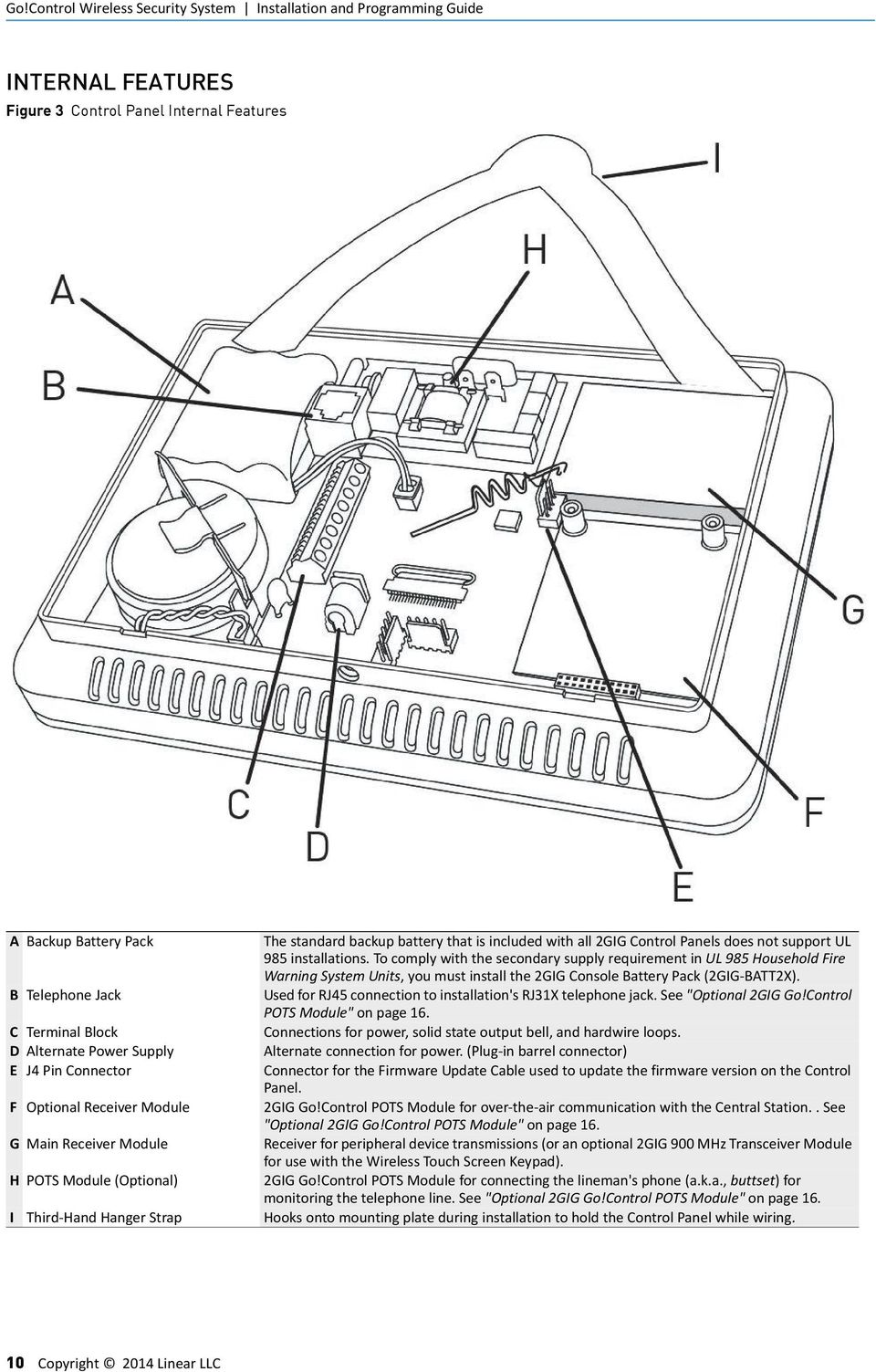
12 Go!Control Wireless Security System Installation and Programming Guide INTERNAL FEATURES Figure 3 Control Panel Internal Features A Backup Battery Pack The standard backup battery that is included with all 2GIG Control Panels does not support UL 985 installations. To comply with the secondary supply requirement in UL 985 Household Fire Warning System Units, you must install the 2GIG Console Battery Pack (2GIG BATT2X). B Telephone Jack Used for RJ45 connection to installation's RJ31X telephone jack. See "Optional 2GIG Go!Control POTS Module" on page 16. C Terminal Block Connections for power, solid state output bell, and hardwire loops. D Alternate Power Supply Alternate connection for power. (Plug in barrel connector) E J4 Pin Connector Connector for the Firmware Update Cable used to update the firmware version on the Control Panel. F Optional Receiver Module 2GIG Go!Control POTS Module for over the air communication with the Central Station.. See "Optional 2GIG Go!Control POTS Module" on page 16. G Main Receiver Module Receiver for peripheral device transmissions (or an optional 2GIG 900 MHz Transceiver Module for use with the Wireless Touch Screen Keypad). H POTS Module (Optional) 2GIG Go!Control POTS Module for connecting the lineman's phone (a.k.a., buttset) for monitoring the telephone line. See "Optional 2GIG Go!Control POTS Module" on page 16. I Third Hand Hanger Strap Hooks onto mounting plate during installation to hold the Control Panel while wiring. 10 Copyright 2014 Linear LLC
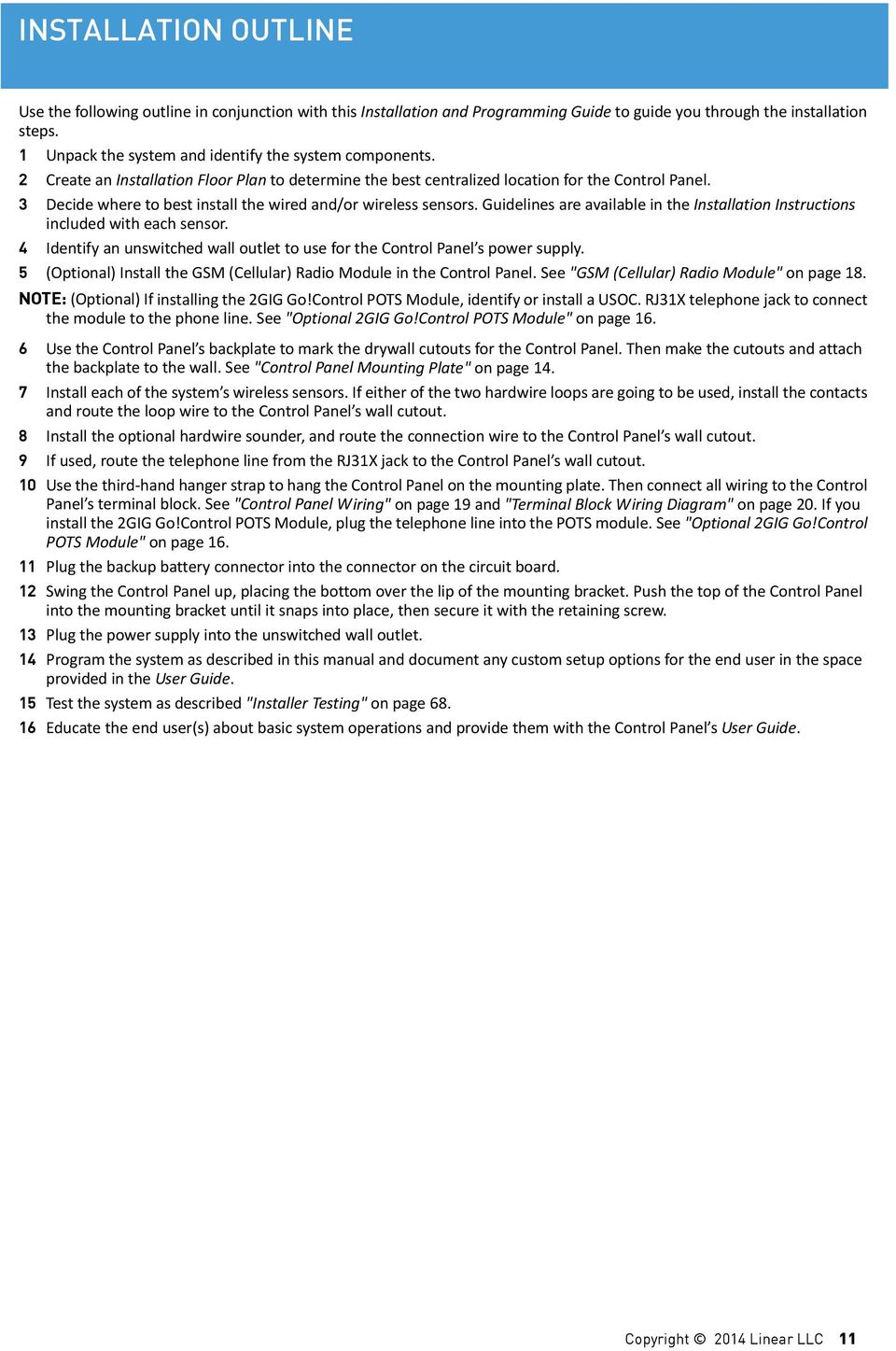
13 INSTALLATION OUTLINE Use the following outline in conjunction with this Installation and Programming Guide to guide you through the installation steps. 1 Unpack the system and identify the system components. 2 Create an Installation Floor Plan to determine the best centralized location for the Control Panel. 3 Decide where to best install the wired and/or wireless sensors. Guidelines are available in the Installation Instructions included with each sensor. 4 Identify an unswitched wall outlet to use for the Control Panel s power supply. 5 (Optional) Install the GSM (Cellular) Radio Module in the Control Panel. See "GSM (Cellular) Radio Module" on page 18. NOTE: (Optional) If installing the 2GIG Go!Control POTS Module, identify or install a USOC. RJ31X telephone jack to connect the module to the phone line. See "Optional 2GIG Go!Control POTS Module" on page Use the Control Panel s backplate to mark the drywall cutouts for the Control Panel. Then make the cutouts and attach the backplate to the wall. See "Control Panel Mounting Plate" on page Install each of the system s wireless sensors. If either of the two hardwire loops are going to be used, install the contacts and route the loop wire to the Control Panel s wall cutout. 8 Install the optional hardwire sounder, and route the connection wire to the Control Panel s wall cutout. 9 If used, route the telephone line from the RJ31X jack to the Control Panel s wall cutout. 10 Use the third hand hanger strap to hang the Control Panel on the mounting plate. Then connect all wiring to the Control Panel s terminal block. See "Control Panel Wiring" on page 19 and "Terminal Block Wiring Diagram" on page 20. If you install the 2GIG Go!Control POTS Module, plug the telephone line into the POTS module. See "Optional 2GIG Go!Control POTS Module" on page Plug the backup battery connector into the connector on the circuit board. 12 Swing the Control Panel up, placing the bottom over the lip of the mounting bracket. Push the top of the Control Panel into the mounting bracket until it snaps into place, then secure it with the retaining screw. 13 Plug the power supply into the unswitched wall outlet. 14 Program the system as described in this manual and document any custom setup options for the end user in the space provided in the User Guide. 15 Test the system as described "Installer Testing" on page Educate the end user(s) about basic system operations and provide them with the Control Panel s User Guide. Copyright 2014 Linear LLC 11
14 WIRELESS INSTALLATION TIPS When installing any wireless system, consider certain limitations. Low power wireless transmitter signals do NOT broadcast equally through all types of construction materials. However, the Control Panel does contain a sensitive receiver that typically allows for placement of transmitters in nearly all locations. To determine the best possible placement for wireless sensors, review the following illustration. Figure 4 Wireless Installation Tips 12 Copyright 2014 Linear LLC

15 SENSORS AND ACCESSORIES WIRELESS SYSTEM SENSORS Thin Door/Window Contact Recessed Door Contact Passive Infrared (PIR) Motion Detector Four (4) Button Keyfob Remote Panic Button Remote Glass Break Detector Wireless Smoke/Heat Alarm Wireless Touch Screen Keypad Wireless Touch Screen Keypad Super Switch Takeover Module (Wireless Takeover of an Alarm System, US Patent No. 8,638,218) SYSTEM ACCESSORIES GSM (Cellular) Radio Module Internal Antenna External In Wall Antenna External Attic Mount Antenna Standard Battery Pack (UL 1023) Console Battery Pack (UL 985) Replacement Power Supply Go!Bridge IP Communicator Hardwire Conversion Kit Copyright 2014 Linear LLC 13

16 INSTALLATION CONTROL PANEL MOUNTING PLATE Mount the Control Panel on the wall in a convenient location (or use the optional desk mount). These tools may be required to mount the Control Panel onto the wall: Screwdriver Wire Stripper Staple Gun Drywall Saw (or equivalent) Ladder 1 Remove the locking screw from the top of the Control Panel case and remove the mounting plate. 2 Use the mounting plate as a template to mark the wall for the wiring cutout slot. Use a drywall saw to cut the slot. 3 If using the optional GSM (Cellular) Radio Module with an external antenna, remove the plastic knockout labeled EXTERNAL ANTENNA on the mounting plate. Mark and cut a slot in the drywall for the external antenna. 4 Attach the mounting plate to the wall using three (3) screws. Figure 5 Control Panel Mounting Plate A B C D E Mounting plate Remove case screw and mounting plate If using external antenna, remove knockout plate. Use mounting plate as a template to mark wire cutout hole in dry wall. Mount plate with three (3) screws. 14 Copyright 2014 Linear LLC

17 Installation WIRELESS SENSORS Install wireless sensors in the appropriate location using the Install Instructions as your guide. Instructions are included with each wireless sensor. REMOTE ALARM SOUNDER The Control Panel provides two (2) terminals for an optional connection to a remote electronic alarm sounder. Figure 7 Remote Alarm Sounder HARDWIRE LOOPS Hardwire loops can be programmed either Normally Open (N/O) or Normally Closed (N/C). End of Line Resistors (EOLR) can also be used to supervise the loops. Only contacts should be used with the hardwire loops. NOTE: The Control Panel does not support powering external devices (PIR s, etc.). NOTE: Hardwire loops cannot be used for a CO or Fire sensor loop. 1 If either of the two (2) hardwire loops are going to be used, install the contacts and then route the loop wire to the Control Panel s wall cutout. 2 If end of line supervision is required for the loop, install a 2.2kΩ resistor (not supplied) as shown in Figure 6 Hardwire Loop Wiring. Wiring Hardwire loops need to be programmed for contact type. Figure 6 Hardwire Loop Wiring WARNING: To avoid damage to the output, do NOT connect an electromechanical bell to these terminals. The bell terminals can be supervised. If Q21: Siren Supervision Time is set to (1) Enabled, and the wire between the Control Panel and sounder is cut, the Control Panel displays a trouble alert message for siren supervision and sends a bell trouble report to the Central Station. 1 Install the remote sounder in a secure location where it will be easily heard by occupants. 2 Route wiring from the remote sounder location to the Control Panel s wall cutout. NOTE: If the piezo alarm siren for the remote sounder has an extremely low current draw or the sounder produces hum or noise, install an 820Ω resistor in parallel with the sounder. WARNING: Stranded conductors clamped under wirebinding screws or similar parts shall have the individual strands soldered together or arranged in a construction that has been determined to be the equivalent. Copyright 2014 Linear LLC 15

18 Go!Control Wireless Security System Installation and Programming Guide SOLID STATE OUTPUT The Control Panel provides one (1) solid state output that can be programmed to activate during various conditions. The output can switch up to VDC to ground. NOTE: For ETL Listing, an external DC Backup Power Supply is required for a load connected to Terminal 4. NOTE: When the Control Panel is connected with an AC power source, Terminal 1 provides DC Power only. Figure 8 Solid State Output OPTIONAL 2GIG GO!CONTROL POTS MODULE To use the telephone jack, you must install the 2GIG Go!Control POTS Module. Both the incoming and outgoing telephone line can be connected. Figure 9 2GIG Go!Control POTS Module When the digital communicator activates, all local telephones are disconnected to prevent an off hook telephone on the premises from blocking the digital communicator s call. Figure 10 2GIG Go!Control POTS Module Installation This output only functions while the Control Panel is receiving power from the wall power supply. 1 Install the device to be controlled by the solid state output. 2 Route wiring from the device location to the Control Panel s wall cutout. WARNING: To avoid damage to the output, do NOT connect an electromechanical bell to these terminals. 16 Copyright 2014 Linear LLC

19 Installation See "Wire Size and Length" on page 21 for wire size and maximum length. 1 Run a four (4) conductor telephone cable from the telephone company s demarcation point to the Control Panel mounting plate. 2 Install the 2GIG Go!Control POTS Module into the Control Panel. WARNING: To reduce the risk of fire, use only No. 26 AWG or larger telecommunication line cord for phone line communications. IMPORTANT: You must program the module in order to use it with the Control Panel. Figure 11 Control Panel with 2GIG Go!Control POTS Module 3 At the demarcation point, do the following: 3a Disconnect only the house telephones that are wired to the box output. Do not disturb the telco input drop side of the box or any earth grounds. 3b Connect the RED cable wire to the box Ring, and the GREEN cable wire to the box Tip. 3c Connect the BLACK cable wire to the house telephone Ring wire(s), and the YELLOW cable wire to the house telephone Tip wire(s). 4 At the Control Panel, do the following: 4a Connect the cable s RED wire to the RJ31X jack s Ring in terminal, and the GREEN wire to the RJ31Xjack s Tip in terminal. 4b Connect the cable s BLACK wire to the RJ31X jack s Ring out terminal, and the YELLOW wire to the RJ31Xjack s Tip out terminal. 4c Snap the cover on the jack. 4d Plug one end of the modular cable into the jack and slide it through the hole in the mounting plate into the wall. 5 Power ON the Control Panell. 6 Access the System Configuration screen as follows: 6a At the Home screen, tap the system logo in the lower right corner. 6b At the Enter Your Code screen, enter the master installer code (the default code is 1561). 6c At the Installer Toolbox screen, press System Configuration. 6d Press Go To and then enter the code shown below to respond to these programming questions: Enter 08. For details, see"q8: Dialer (0 1)" on page 54. Enter 11. For details, see "Q11: CS #1 Phone Number (0 25 Digits)" on page 55. Enter 12. For details, see "Q12: CS #1 Account Number (4 Digits)" on page 55. Copyright 2014 Linear LLC 17

20 Go!Control Wireless Security System Installation and Programming Guide GSM (CELLULAR) RADIO MODULE If installing the GSM (Cellular) Radio Module, see below: Figure 12 In-Wall Antenna Installation The GSM (Cellular) Radio Module should already be activated by the factory. If not, contact the Remote Service Provider. For the GSM (Cellular) Radio Module to function, it must be activated before it can be enrolled. Enrollment is accomplished by creating an account with the provider. A GSM (Cellular) Radio Module Connector B End of antenna hangs down inside the wall NOTE: The routing of the antenna wire is critical. You must route the wire exactly as directed or cell radio interference will occur. 1 When using external antennas, plug the antenna connector into the GSM (Cellular) Radio Module. The antenna drops into the wall or mounts in the attic with the cable passing through the slot in the Control Panel s mounting plate. Figure 13 Attic Antenna Installation A Attic antenna mounted as high as possible B Coaxial cable to Control Panel 18 Copyright 2014 Linear LLC

21 Installation CONTROL PANEL WIRING The following diagram shows you the Control Panel wiring. Figure 14 Control Panel Wiring Diagram Copyright 2014 Linear LLC 19
22 Go!Control Wireless Security System Installation and Programming Guide Control Panel Wiring The third hand hanging strap allows you to hang the Control Panel on the mounting plate during installation. 1 Hang the Control Panel on the mounting plate by the third hand hanger strap. 2 Connect the hardwire loop, external sounder, and open collector output wiring (if used) to the Control Panel s terminal block. 3 Plug the telephone line (if used) into the telephone jack on the POTS Module. Figure 15 Third-Hand Hanging Strap A Third hand hanging strap B Hardwire loops, external sounder, and open collector output connected to terminals. C Telephone jack on the POTS module Terminal Block Wiring Diagram Figure 16 Terminal Block Wiring Diagram BACKUP BATTERY CONNECTION AND POWER SUPPLY WIRING The backup battery connects to the Control Panel s circuit board with a two (2) pin header assembly. The power supply features a two (2) position terminal block for connecting the power supply to the Control Panel power terminals (connection wire not included). 1 Locate an unswitched wall outlet for the plug in power supply. WARNING: Never connect the power supply to switchcontrolled outlet. 2 Route two (2) conductor wire from the power supply location to the Control Panel mounting plate. For wire size and maximum length, see "Wire Size and Length" on page Being careful to observe polarity, connect the wire to the power supply s DC+ and DC terminals. Do NOT plug the power supply into an outlet at this time. 4 Being careful to observe polarity, connect the wire to the Control Panel input terminals 14VDC (+) Terminal 1 and 14VDC ( ) Terminal 2. NOTE: Grounding of the Control Panel is NOT required for proper operation. 5 Plug the backup battery pack s connector into the connector on the Control Panel s circuit board. The Control Panel does not recognize that the battery is connected until AC power is connected to the power supply. NOTE: The standard backup battery that is included with all 2GIG Control Panels does not support UL 985 installations. To comply with the secondary supply requirement in UL 985: Household Fire Warning System Units, install the 2GIG Console Battery Pack (This is a high capacity 2600mAh Ni MH replacement battery pack) VDC Power Input (+) 2 14 VDC Power Input ( ) 3 Ground 4 Open Collector 5 Bell (+) 6 Bell ( ) 7 Hardwire Loop 1 8 Hardwire Loop 2 20 Copyright 2014 Linear LLC
23 Installation Wire Size and Length To ensure proper operation, do NOT exceed the following maximum length for the wire size installed: Wire Size Maximum Length 22 AWG 55 ft (16.8 m) 20 AWG 85 ft (25.9 m) 22 AWG 2 pairs 110 ft (33.5 m) (19 AWG equivalent) 18 AWG 135 ft (41.1 m) TIP: To ensure that the appropriate wire size and length is installed, measure the voltage between the power connection terminals at the back of the Control Panel. The voltage measured must not fall below 11 volts DC or the Control Panel may display nuisance AC Power Loss messages and send AC Loss Reports to the Central Station. See "Q52: AC Loss Reports to CS (0 1)" on page 61. NOTE: In the United States, wiring routed inside walls, ceilings, and floors must comply with requirements of ANSI/NFPA 70: National Electrical Code (NEC) and local building codes. For wiring from the output of the 2GIG Class II Power Supply, wiring rated CL2, CL2X, CL2R, or PLTC is recommended to satisfy these requirements. If this wiring is installed in an air plenum (space used for environmental air exchange) it must be rated CL2P (plenum rated). Figure 17 Power Supply Wiring A Left Terminal 14 VDC (+) C 14 VDC (+) Terminal 1 B Right Terminal 14 VDC ( ) D 14 VDC ( ) Terminal 2 Copyright 2014 Linear LLC 21
24 Go!Control Wireless Security System Installation and Programming Guide CONTROL PANEL AND POWER SUPPLY MOUNTING After all the wiring complete, follow these steps to power up the Control Panel: 1 Place the bottom of the Control Panel over the lower lip of the backplate and flip the Control Panel upwards. Then push the Control Panel over the mounting bracket until it snaps into place. it with the retaining screw. 2 Peel off the adhesive backing from the power supply retaining bracket and attach the bracket to the outlet with a wall plate screw. Figure 18 Connecting Battery and Closing Panel A B C D Connect battery Align mounting plate inside of console bottom edge Swing console up and snap into the mounting plate Secure console with screw in retaining hole 3 Spread the retaining bracket ears and plug the Control Panel s power supply into the unswitched wall outlet. Slots are provided on the bracket to secure the power supply with a zip tie. 4 After about five (5) seconds, the Control Panel indicates that power has been applied. If the Control Panel does not power up, check the power supply polarity. Figure 19 Securing the Power Supply 1 Place the screw here for a bracket on a standard style outlet. 2 Place the screw here for a bracket on a decora style outlet. NOTE: In the United States (and other countries where it is required), use the power supply retaining bracket. In Canada, the power supply retaining bracket is not required. 22 Copyright 2014 Linear LLC
25 COMMERCIAL INSTALLATIONS For commercial installations, the Control Panel is designed for use only as a burglary alarm system, and not for fire protection. Installation location and wiring methods shall be in accordance with ANSI/NFPA 70: National Electric Code, UL 681: Installation and Classification of Burglar and Holdup Alarm Systems, and UL 827: Central Station Alarm Services. NOTE: All entries and exits within a commercial installation setup must be protected according to the criteria provided by UL 681: Installation and Classification of Burglar and Holdup Alarm Systems. Figure 20 Commercial Installations Copyright 2014 Linear LLC 23
26 NFPA STANDARD 72 Smoke detectors must be installed in accordance with National Fire Protection Association (NFPA) Standard 72: National Fire Alarm and Signaling Code, which reads as follows: Smoke alarms shall be installed outside of each separate sleeping area in the immediate vicinity of the bedrooms and on each additional story of the family living unit including basements and excluding crawl spaces and unfinished attics. In new construction, a smoke alarm shall be installed in each sleeping room For family living units with one or more split levels (i.e., adjacent levels with less than one full story separation between levels), a smoke alarm shall suffice for an adjacent lower level, including basements. (Exception: Where there is an intervening door between one level and the adjacent lower level, a smoke alarm shall be installed on the lower level.) Ceiling mounted smoke alarms should be located in the center of the room or hall, or not less than 4 inches from any wall. When the alarm is mounted on a wall, the top of the alarm should be 4 to 12 inches from the ceiling. Do not install smoke alarms where normal ambient temperatures are above 100 F (37.8 C), or below 40 F (4 C). Also, do not locate alarm in front of air conditioners, heating registers, or other locations where normal air circulation will keep smoke from entering the detector. A Smoke Detection Are More Smoke Alarms Desirable? The required number of smoke alarms might not provide reliable early warning protection for those areas separated by a door from the areas protected by the required smoke alarms. For this reason, it is recommended that the residential user consider the use of additional smoke alarms for those areas for increased protection. The additional areas include the basement, bedrooms, dining room, furnace room, utility room, and hallways not protected by the required smoke alarms. The installation of smoke alarms in kitchens, attics (finished or unfinished), or garages is not normally recommended, as these locations occasionally experience conditions that can result in improper operation or false alarms. NOTE: Smoke alarms are not to be used with detector guards unless the combination has been evaluated and found suitable for the purpose. Figure 21 Recommended Smoke Alarm Locations 24 Copyright 2014 Linear LLC
27 MAIN DISPLAY SCREENS HOME SCREEN To go to the Home screen, press the Home button on the Control Panel. The Home screen reveals: System Status. The status of the system appears at the top left of the screen. For example, System Armed or System Ready, Not Armed. Conditional Messages. A variety of conditional messages will also appear under the System Status. Time, Date and Weather. The current time, date, and daily weather forecast (when the system includes the GSM (Cellular) Radio Module and has an active account with a Remote Services Provider) System Status Icons. Icons in the top right corner reveal a variety of conditions. See "System Status Icons" on page 29. Buttons on this page include: Security. Opens the Security screen. See Security Screen. Services. Opens the Services screen. See the Control Panel s User Guide for more information. Silent Control. Opens the Bypass screen. See the Control Panel s User Guide for more information. Display OFF. Turn OFF the Control Panel screen. Figure 22 Home Screen For information about the Silent Control button, see the Control Panel s User Guide. ARMING SCREEN The Arming screen lets users arm the security portion of the system. It displays the system status and arming buttons for Stay and Away mode. It also includes these options: Entry Delay Select this check box to arm the system with an entry delay. Clear the check box to arm the system without an entry delay. See "(01) Exit/Entry 1" on page 36 and "(02) Exit/Entry 2" on page 36. Silent Exit Select this check box to silently arm the system without sounding the exit delay beeps. Arming the system in Stay mode always uses silent exit. Figure 24 Arming Screen MENU SCREEN The Menu screen includes the Arm and Toolbox buttons. Figure 25 The Menu Screen SECURITY SCREEN The Security screen displays three (3) buttons for Arm, Menu, and Status. It also shows the time, date, and weather display. Figure 23 Security Screen If any of the 24 hour emergency options are enabled, an Emergency button also appears. It also includes these options: Chime Select this check box to enable system chimes and clear the check box to disable system chimes. Note that chimes can also be enabled or disabled for each sensor number by pressing Toolbox > Chimes Setup. Voice Select this check box to enable voice announcements for the system. Voice announcements always sound during alarm conditions. Under the appropriate conditions, additional buttons include: Trouble Alerts. Displays when trouble alerts are pending. Messages. Displays when messages are pending. Alarm Memory. Displays when alarms are pending. Copyright 2014 Linear LLC 25
28 Go!Control Wireless Security System Installation and Programming Guide SYSTEM STATUS SCREEN The System Status screen lists system status and any alerts. The date and time of alerts are listed in the displayed log. One option button for Silence is displayed; it temporarily stops the announcement of the system status during the status display. Figure 26 System Status Screen 26 Copyright 2014 Linear LLC
29 TOOLBOX AND INSTALLER TOOLBOX The Control Panel includes two (2) different toolboxes for programming the system: User Toolbox. Individuals with a user code can access basic programming functions. The user toolbox is simply called, the Toolbox. Installer Toolbox. Individuals with the installer code can access both the basic programming functions of the user Toolbox and the more advanced programming functions of the Installer Toolbox. TOOLBOX SCREENS The Toolbox provides individuals who posses a user code with the ability to access basic programming functions. Figure 28 Toolbox (1 of 3) Figure 29 Toolbox (2 of 3) Accessing the Toolbox To access the basic Toolbox screens: 1 At the Home screen, press Security, then Menu, and then Toolbox. 2 At the Enter Your Code to Access the Toolbox screen, enter a user code. The default user code is Figure 27 Enter Your Code Screen Figure 30 Toolbox (3 of 3) 3 When the Toolbox (1 of 3) screen appears, press the left and right arrows to scroll between the different screens. Each screen provides different buttons for accessing different features. INSTALLER TOOLBOX SCREENS The Installer Toolbox screen provides individuals who possess the installer code with the ability to access a variety of system configuration and testing buttons. NOTE: The Installer Toolbox is only accessible when the system is disarmed. The installer code does NOT disarm the system. You must know the user code to disarm the system. Accessing the Installer Toolbox Accessing the Installer Toolbox There are two (2) ways to access the Installer Toolbox on the Control Panel: 1 At the Home screen, press the system logo in the lower right corner and then press the Installer Toolbox button. Finally, enter the installer code. OR 2 At the Home screen, press Security > Menu > Toolbox. Then press the Installer Toolbox button and enter the installer code. The default installer code is To learn how to change this code, see Q43: Installer Code (4 Digits). Copyright 2014 Linear LLC 27
30 Go!Control Wireless Security System Installation and Programming Guide Accessing the System Configuration for System and Sensor Programming To access the system configuration screens for programming sensors into the system: 1 Disarm the system by pressing Disarm and entering a user code. The default user code is Access the Installer Toolbox. See Accessing the Installer Toolbox above. 3 At the Installer Toolbox screen, press the System Configuration button. NOTE: The other buttons let you restore the default Control Panel settings and provides access to a variety of system tests. Figure 31 Installer Toolbox Screen After pressing the System Configuration button, the first programming question appears. To learn more, see System Configuration Screens. SYSTEM CONFIGURATION SCREENS Use the System Configuration screens to program sensors into the system. Installers can access the System Configuration screens as described in Accessing the System Configuration for System and Sensor Programming. The System Configuration screens present installers with a sequential list of programming questions. For a list of all available programming questions, see "Programming Question Table" on page 33. Figure 32 Q1: Select RF Sensor # (01 to 48). TIP: To simplify programming, questions are arranged so that commonly used values appear early in the question sequence. 28 Copyright 2014 Linear LLC
31 SYSTEM STATUS ICONS The top line of the Control Panel s display is the status bar that shows the current system mode, the status of the sensors, and any current system trouble alerts. Special icons are displayed on the right side to provide visual indications of the system s current condition. Figure 33 System Status Icons A B Status Bar Status Icons AC POWER ON/OFF Figure 34 AC Power ON The AC Power icon shows the status of the AC power to the Control Panel. A WHITE plug appears when AC power is present. TEST MODE Figure 39 Test Mode This icon displays when the system is in Walk Test mode. TOUCH SCREEN KEYPAD TRAFFIC CELL RADIO Figure 40 Touch Screen Keypad Traffic An up arrow indicates the panel is sending information to the touch screen keypad (if installed). A down arrow indicates the touch screen keypad is sending information to panel. Figure 41 Cell Radio If the option GSM (Cellular) Radio Module is installed, the Cell Radio icon appears while the Control Panel is receiving Over the Air (OTA) firmware updates. INTERIOR SENSOR OPEN Figure 42 Interior Sensor Open If an interior sensor is open (or a motion detector has just been activated) this icon appears. As a warning, the icon flashes during arming. Figure 35 AC Power OFF The AC Power icon shows the status of the AC power to the Control Panel. A RED X appears over the WHITE plug when AC power is absent. PHONE LINE FAILURE Figure 36 Phone Line Failure If the Control Panel detects that the telephone line is disconnected, the phone line failure icon appears. SOUNDER DISABLED Figure 37 Sounder Disabled If the system s internal sounder has been lowered and external sounder has been disabled by the installer for testing, the sounder disabled icon appears. It also flashes to indicate silent arming. LOW BACKUP BATTERY Figure 38 Low Backup Battery If the Control Panel s backup battery tests low, the low backup battery icon appears. Copyright 2014 Linear LLC 29
32 PROGRAMMING NAVIGATION When the installer is using the System Configuration menus, the Control Panel will present each programming question sequentially. Most programming questions have a single numeric value response or a simple enabled/ disabled selection. Some programming questions have suboptions that can be set. These sub options are displayed for the question selected and can be accessed through navigation keys on the display. NAVIGATION ARROWS & GO TO BUTTON The programming question screens display up, down, left, and right navigation arrows. Use these arrows to scroll through the programming questions and to select suboptions. Press the Go To button and then enter a two (2) digit code to jump directly to a programming question. See Programming Question Table on page 33. The Go To button changes to Cancel when waiting for you to enter a question number. Press Cancel to back out. Figure 43 Navigation Arrows & Go To Button QUESTIONS WITH SUB-OPTIONS Some of the programming questions have sub options. They navigate as follows. Questions with sub options display a Skip button during the question. The Skip button advances to the next programming question/section. The and arrows select the next or previous programming sub question. The and arrows choose values for the ques on or move the cursor left and right along the white data entry field. Figure 45 Questions with Sub-options QUESTIONS WITHOUT SUB-OPTIONS Most of the programming questions do not have suboptions. They navigate as follows. Questions without suboptions do not display a Skip button. Figure 44 Questions without Sub-options The and arrows select the next or previous programming question. The and arrows choose values for the ques on or move the cursor left and right along the white data entry field. 30 Copyright 2014 Linear LLC
33 Programming Navigation QUESTIONS WITH DATA ENTRY Some of the programming questions require entering numeric or alphabetic data. For devices that can be named, the Control Panel contains a large vocabulary with words to choose from. See "Voice Descriptors" on page 38. The Insert button displays a word from the vocabulary. Use the and arrows to scroll through the word list, or enter the corresponding three (3) digit code. See "Voice Descriptors" on page 38. The Backspace button moves the cursor to the left, deleting one (1) character at a time. The Delete button deletes a character to the right of the cursor, or any characters that are highlighted. The Forward button highlights the next word in multi word data fields. The Back button highlights the previous word in multi word data fields. The Back button displays the previous screen in some cases. When the Shift button is displayed, pressing it will display alternate characters on the keypad that can be used for data entry. Figure 46 Questions with Data Entry ADDITIONAL BUTTONS Depending on the programming question, additional buttons may be displayed on screen: The Esc (Escape) button serves as an undo. Pressing Esc restores the value that was previously stored for the question or sub question. The Sum (Summary) button displays a summary of the values stored for the programming question and sub options. The End button displays a summary of the values stored for the entire Control Panel memory. The Learn button is used to set the system to receive a sensor s serial number during programming. The Paste button repeats the last sensor serial number entered. The Exit button exits programming. Figure 47 Other Buttons Displayed Copyright 2014 Linear LLC 31
34 PROGRAMMING OUTLINE Each system installed will require programming. Most installations being performed by the professional alarm installer for a specific organization will have common values set in every Control Panel that is reporting to the Central Station. Other programming values, such as the account number and sensor setup, may be unique for each installation. Use the following outline to guide you through the installation process. Understanding the Control Panel s programming structure will help to save time during each installation. At this stage the following should be already completed: All wired sensors installed All wireless sensors installed Control Panel mounted, connected, and powered up 1 At the Home screen, press the system logo in the lower right corner. Figure 48 The Home Screen NOTE: You can also click the Installer Toolbox button from the system s Toolbox (3 of 3) screen. 2 Enter the installer code (the default installer code is 1561) in the Enter Your Code to Access the Toolbox screen. 3 At the Installer Toolbox, press System Configuration. Then begin the "RF Sensor Programming Questions" on page After programming all of the required sensors into the Control Panel, press End, then Exit, to save the changes. 5 After the Control Panel restarts, press Security > Menu > Toolbox. 6 When prompted, enter the master user code. The default master user code is Press the User Management button and then setup the user codes. Be sure to set up the Duress Code as User #8. Press Back when finished. 8 Press Brightness/Volume and set the levels for the installation. 9 The volume setting does not affect the volume of alarm sounds. 10 Press to view the second toolbox screen. 11 Press Back Light Timeout and set the display lighting timeout. 12 Press Set Date and Set Time and set the calendar and clock. If the GSM (Cellular) Radio Module is installed, the date and time sets automatically. 13 Press the button to return to the Home screen. After completing all setup and programming tasks, refer to the Control Panel s User Guide for information about operating the system. Check off the programmed options for the system in the User Guide. NOTE: Instruct the end user about proper system operations, and leave the User Guide at the installation site for reference. ANSI/SIA CP-01 COMPLIANCE Several programmable options have the defaults pre set to provide compliance with the American National Standards Institutes/Security Industry Association CP 01 Control Panel Standard. The table below details the settings that comply with ANSI/SIA CP 01 and permanently programmed into the Console. The ANSI/SIA CP 01 settings documented in the table below cannot be changed: Programming Question ANSI/SIA CP 01 Range Setting Q1 Select RF Sensor # Dialer Delay 30 Seconds (0) Disabled or (1) Enabled Q2 Select Wired Sensor Dialer Delay (0 to 1) 30 Seconds (0) Disabled or (1) Enabled Q5 Enter Exit Delay, in 60 Seconds Seconds Seconds (45 120) Q6 Enter Entry Delay 1, in 30 Seconds Seconds seconds (45 120) Q7 Enter Entry Delay 2, in 45 Seconds Seconds seconds (45 120) Q10 Enter Call Waiting No Default Code 0 6 Digits Disable Code (0 6 digits) Q20 Select Swinger Shutdown (2) Two Trips 1 6 Trips Count (1 to 6) Q26 Select Auto Stay (0 to 1) (1) Enabled (0) Disabled or (1) Enabled Q27 Exit Delay Restart (0 to 1) (1) Enabled (0) Disabled or (1) Enabled Q31 Enter Cancel Time, in 5 Minutes Minutes Minutes (5 255) Q32 Select Cancel Display (0 to 1) (1) Enabled (0) Disabled or (1) Enabled Q35 Select Abort Window 30 Seconds 15 or 45 Seconds Dialer Delay (0 to 2) Q78 Select Output (11) Follows Internal Sounder Alarm NOTE: See "Q78: Output" on page Copyright 2014 Linear LLC
35 PROGRAMMING QUESTION TABLE Q# Question Default Q1 Select RF Sensor # (01 to 48) Select RF Sensor # Type (00) Unused Select RF Sensor # Equipment Type Varies by RF sensor type Only shown for some sensor types Select RF Sensor # Equipment Code (0000) Other Enter RF Sensor # Other Equipment Code (0 9999) 0 NOTE: Only shown if (0000) Other is selected as the RF Sensor # Equipment Code Enter RF Sensor # Serial Number (7 digits) Select RF Sensor # Equipment Age (0 to 1) (0) New Select RF Sensor # Loop Number (1 to 3) Varies with sensor model selected Select RF Sensor # Dialer Delay (0 to 1) (1) Enabled (2) Disabled (for Fire and CO only) Construct RF Sensor # Voice Descriptor No Default Setting Select RF Sensor # Reports (0 to 1) (1) Enabled Select RF Sensor # Supervised (0 to 1) (1) Enabled Select RF Sensor # Chime (0 to 13) (0) Disabled Q2 Select Wired Sensor # (1 to 2) Select Wired Sensor # Type (00) Unused Select Wired Sensor # Equipment Age (0 to 1) (0) New Select Wired Sensor # Normal State (0 to 3) (0) Not Used Select Wired Sensor # Dialer Delay (0 to 1) (1) Enabled Construct Wired Sensor # Voice Descriptor (0 to 1) No default Select Wired Sensor # Reports (0 to 1) (1) Enabled Select Wired Sensor # Chime (0 to 13) (0) Disabled Q3 Select Fob # (1 to 8) Select Fob # Used (0 to 1) (0) Unused Select Fob # Equipment Code (0000) (0000) Other Enter Fob # Other Equipment Code (0 to 9999) 0 NOTE: Only shown when (0000) other is selected as the Fob # Equipment Code Enter Fob # Serial Number (7 digits) Select Fob # Equipment Age (0 to 1) (0) New Select Fob # Emergency Key (0 to 4) (0) Disabled Select Fob # Key 2 Can Disarm (0 to 1) (1) Enabled Construct Fob # Voice Descriptor Keyfob # Select Fob # Arm No Delay (0 to 1) (0) Disabled Select Fob # Key 4 Output (0 to 2) (0) Disabled Q4 Select RF Keypad # (1 to 4) Select RF Keypad # Used (0 to 1) (0) Unused Select RF Keypad # Equipment Code (0000) Other Enter RF Keypad # Other Equipment Code (0 to 9999) 0 NOTE: Only shown if (0000) Other is selected as the RF Keypad # Equipment Code Enter RF Keypad # Serial Number (7 digits) Select RF Keypad # Emergency Age (01) (0) New Select RF Keypad # Emergency Keys (01) (1) Enabled Construct RF Keypad # Voice Descriptor Keypad # Q5 Enter Exit Delay, in Seconds (45 to 120) 60 seconds Q6 Enter Entry Delay 1, in Seconds (30 to 240) 30 seconds Q7 Enter Entry Delay 2, in Seconds (30 to 240) 45 seconds Q8 Select Dialer (0 to 1) (0) disabled Q9 Enter Dialing Prefix (0 to 4 digits) No default Q10 Enter Call Waiting Disable Code (0 to 6 digits) No default Q11 Enter CS #1 Phone Number (0 to 25 digits) No default Q12 Enter CS #1 Account Number (4 digits) No default Q13 Select Two Way Voice (0 to 2) (1) Stay Online Q14 Select Silent Panic/Burglary Listen Only (1 to 1) (1) Enabled Q15 Select Dialing Type (0 to 1) (0) Touch Tone Q16 Select Police Emergency Key (0 to 2) (1) Audible Q17 Select Fire Emergency Key (0 to 1) (1) Audible Copyright 2014 Linear LLC 33
36 Go!Control Wireless Security System Installation and Programming Guide Q# Question Default Q18 Select Emergency Key (0 to 1) (1) Audible Q19 Select Quick Arming (0 to 1) (1) Enabled Q20 Select Swinger Shutdown Count (1 to 6) (2) Two Trips Q21 Select Siren Supervision Time (0 to 3) (0) Disabled Q22 Enter CS Lack of Usage Notification Time, in Days (0 255) 7 Days Q23 Enter Radio Modem Network Failure Time (0 255) 30 Minutes Q24 Select Radio Network Failure Causes Trouble (0 to 1) (1) Enabled Q25 Select Radio Modem Network Failure Reports (0 to 1) (1) Enabled Q26 Select Auto Stay (0 to 1) (1) Enabled Q27 Select Exit Delay Restart (0 to 1) (1) Enabled Q28 Select Quick Exit (0 to 1) (1) Enabled Q29 Enter Periodic Test, in Days (0 255) 30 Days Q31 Enter Cancel Time, in Minutes (5 255) 5 Minutes Q32 Select Cancel Display (0 to 1) (1) Enabled Q33 Select Cross Sensor (0 to 1) (0) Disabled Q34 Enter Cross Sensor Timeout, in Seconds (10 120) 10 Seconds Q35 Select Abort Window Dialer Delay (0 to 2) (1) 30 Seconds Q36 Select Burglary Bell Cutoff (0 to 4) (0) 4 Minutes Q37 Select Fire Bell Cutoff (0 to 4) (0) 4 Minutes Q38 Enter Time to Detect AC Loss, in Minutes (1 30) 10 Minutes Q39 Select Random AC Loss Report Time (0 to 1) (1) Enabled Q40 Enter CS #2 Phone Number (0 25 digits) No Default Q41 Enter CS #2 Account Number (4 digits) No Default Q42 Select Remote Control Phone (0 to 3) (3) Data and Voice Q43 Enter Installer Code (4 digits) 1561 Q44 Select Lock Installer Programming (0 to 2) (0) Disabled Q45 Select Lock Default Programming (0 to 2) (0) Default All Q46 Select Trouble Doesn t Sound at Night (0 to 1) * (1) Enabled Q47 Select Troubles Resound After Holdoff (0 to 7) (0) Disabled Q48 Enter Download CSID (6 digits) Q49 Select Programming Mode Entry Reports to CS (0 to 1) (0) Disabled Q50 Select Trouble Reports to CS (0 to 1) (1) Enabled Q51 Select Manual Bypass Reports to CS (0 to 1) (0) Disabled Q52 Select AC Loss Reports to CS (0 to 1) (1) Enabled Q53 Select System Low Battery Reports to CS (0 to 1) (1) Enabled Q54 Select RF Low Battery Reports to CS (0 to 1) (1) Enabled Q55 Select Opening Reports to CS (0 to 1) (0) Disabled Q56 Select Closing Reports to CS (0 to 1) (0) Disabled Q57 Select Alarm Restore Reports to CS (0 to 1) (0) Disabled Q58 Select Trouble Restore Reports to CS (0 to 1) (1) Enabled Q59 Select Bypass Restore Reports to CS (0 to 1) (0) Disabled Q60 Select AC Restore Reports to CS (0 to 1) (1) Enabled Q61 Select System Low Battery Restore Reports to CS (0 to 1) (1) Enabled Q62 Select RF Low Battery Restore Reports to CS (0 to 1) (1) Enabled Q63 Select Phone Fail Detect (0 to 1) (0) Disabled Q64 Select Smart Test Reports (0 to 1) (0) Disabled Q65 Select RF Jam Causes Trouble (0 to 1) (0) Disabled Q66 Select Daylight Saving (0 to 1) (1) Enabled Q67 Select Daylight Saving Start Month (01 to 12) (03) March Q68 Select Daylight Saving Start Sunday (1 to 7) (2) 2nd Q69 Select Daylight Saving End Month (01 to 12) (11) November Q70 Select Daylight Saving End Sunday (1 to 7) (1) 1st Q71 Select System Tamper Causes Trouble (0 to 1) (1) Enabled Q72 Select Quick Bypass (0 to 1) (0) Disabled Q73 Select Disarming Keyfob After Alarm Alert (0 to 1) (0) Disabled Q74 Select Keyfob Arm/Disarm Confirmation (0 to 1) (0) Disabled Q75 Select Auto Unbypass for Manual Bypass (0 to 1) (1) Enabled Q76 Select Force Bypass Reports (0 to 1) (0) Disabled Q77 Select Event Log (0 to 3) (3) All Events Q78 Select Output (00 12) (11) Follows Internal Sounder Alarm Q79 Select Z Wave Feature (0 to 3) (1) Disabled but Visible Q80 Select Z Wave Switches Feature (0 to 1) (0) Disabled Q81 Select Z Wave Thermostats Feature (0 to 1) (0) Disabled 34 Copyright 2014 Linear LLC
37 Programming Question Table Q# Question Default Q82 Select Z Wave Door Locks Feature (0 to 1) (0) Disabled Q83 Select Temperature Display Units (0 to 1) (0) Degrees Fahrenheit Q84 Select Services Require Master Code (0) Disabled Q85 Select Master User Access to Z Wave Toolbox (0 to 1) (0) Disabled Q86 Select Disable Siren After Two Way Audio (0 to 1) (0) Disabled Q87 Select Keyfob/Remote Arming Mode on System Not Ready (0 (0) Auto Bypass with Zone Participation on Restore to 2) Q88 Select Z Wave Siren Mode (0 to 1) (0) Sound for Burglary and Fire/CO Q89 Select Allow Backlight Always On (Demo Mode) (0) Disabled Q90 Select Energy Feature (0 to 2) (0) Disabled and Hidden Q91 Select Radio Modem Supplier Varies by Supplier Q92 Select Network Device (0 to 1) (0) none Network Device ID (Read Only) 0 NOTE: Only appears if (1) Go!Bridge is selected in Q92 Select Network Device (0 to 1) Select Port # (1 to 8) (1) Port 1 NOTE: Typically, you will skip this question unless additional programming is required. Select Used (0 to 1) (0) Disabled NOTE: Typically, you will skip this question unless additional programming is required. Enter Port Value ( ) 0 NOTE: Only appears if (1) Enabled is selected in Select Used (0 to 1) Enter Port Forward IP Address NOTE: Only appears if (1) Enabled is selected in Select Used (0 to 1). NOTE: Typically, you will accept the default IP address value that appears. Q93 Enter Broadband Network Failure Time (1 255) 30 Q94 Select Broadband Network Failure Causes Trouble (0 to 1) (1) Enabled Q95 Select Broadband Network Failure Reports (0 to 1) (1) Enabled Indicates the default se ng for ANSI/SIA CP 01 compliance * To comply with UL 985:Household Fire Warning System Units, the setting for Q46: Select Trouble Doesn t Sound at Night must be set to (0) Disabled. Copyright 2014 Linear LLC 35
38 SENSOR TYPES (ZONES) Each sensor (wireless or wired) installed in the system is programmed to a specific sensor number and sensor type (zone). The sensor number identifies the specific sensor when it is displayed on the Control Panel, recorded in the event log, or reported to the Central Station. This allows pin point information about any sensor in the system. The sensor type determines how and when the Control Panel responds to signals from the sensor. Some sensors are armed all the time, others are armed only in certain arming levels, some cause Central Station Reports anytime they are activated. The sensor s type, along with other programming options, determine this. (00) Unused This is the setting for unused sensor numbers that do not have a sensor programmed into them. No system action occurs at any time from this sensor type. (01) Exit/Entry 1 This sensor type is reserved for doors that are used for exit and entry of the protected premises. When the system is armed in the Stay or Away mode, the exit delay timer starts. There is an exit delay regardless of whether the system is armed in Stay or Away mode. When the exit delay timer expires, the system is fully armed. With the system fully armed, when this type of sensor is triggered, the Entry Delay 1 timer starts. The system must be disarmed before the Entry Delay 1 timer expires, or an alarm will occur. If the entry delay timer is turned OFF during arming, the exit/entry delay sensors will act as non delayed instant sensors at the end of exit delay. (02) Exit/Entry 2 This sensor type operates the same as the Exit/Entry 1 sensor type except it starts the Entry Delay 2 timer. This provides a method of having a longer entry delay on certain openings, such as a garage door, to provide the end user more time to disarm the system. (03) Perimeter This sensor type is for perimeter doors and windows that will not be used to enter or exit the protected premises while the system is armed. An instant alarm will occur when this type of sensor is triggered with the system armed in either the Stay or Away mode. (04) Interior Follower This sensor type is for interior sensors such as motion detector, interior doors, and other sensors that detect human presence inside the protected premises. This type of sensor is called a follower due to its action when the system is armed in the Away mode. After the exit delay expires and the system is armed, if an interior follower sensor is triggered, an instant alarm will occur. If an exit/ entry delay sensor is triggered first, the interior follower sensor will also be delayed. Interior follower sensors are always bypassed and not active when the system is armed in Stay mode. This allows the premises to be occupied while still protecting the perimeter. (05) Day Zone This sensor type is the same as a perimeter zone, except when the system is disarmed, a violation displays a trouble alert on the Console s display. Common uses for this sensor type are protection of sensitive areas that require notification and possibly a Central Station trouble report, but not an alarm when the system is disarmed. (06) 24-Hour Silent Alarm This sensor type is active independent of the system arming status. The code for silent panic is sent to the Central Station, but for safety, there are no visual or audible indications locally that this sensor type has been triggered. (07) 24-Hour Audible Alarm This sensor type is continuously armed 24 hours a day. A sensor programmed to this type will trigger a local alarm and the bell output regardless of the mode the system is in. Typical use would be an audible panic alarm. (08) 24-Hour Auxiliary Alarm This sensor type is continuously armed 24 hours a day. A sensor programmed to this type will trigger an alarm regardless of the mode the system is in. The bell output will not activate, but the local sounder will continue until it s acknowledged at the Control Panel. Typical use would be for a monitoring device such as a flood or temperature sensor. There is no time out for the internal sounder, it will continue until a user code is entered. (09) 24-Hour Fire This sensor type is continuously armed 24 hours a day. A sensor programmed to this type will trigger the local alarm fire sounder and the bell output regardless of the mode the system is in.typical use would be for wireless smoke detectors. This sensor type is always active and cannot be bypassed. (10) Interior with Delay This sensor type operates as a delayed sensor when the system is armed in the Away mode, and when triggered, will start the Entry Delay 1 timer. If the system is armed in Away mode with no Entry Delay (armed instant), this sensor type will trigger an instant alarm. If the system is armed in Stay mode (or Stay mode with no Entry Delay), this sensor type will be bypassed. (14) 24-Hour Carbon Monoxide This sensor type is continuously armed 24 hours a day. A sensor programmed to this type will trigger the local alarm pulse sounder and the bell output regardless of the mode the system is in. Typical use would be for wireless carbon monoxide detectors. This sensor type is always active and cannot be bypassed. 36 Copyright 2014 Linear LLC
39 Sensor Types (Zones) (16) 24-Hour Fire with Verification This sensor type is continuously armed 24 hours a day. A sensor programmed to this type can trigger the local alarm fire sounder and the bell output regardless of the mode the system is in. Typical use would be for wireless smoke detectors. This sensor type is always active and cannot be bypassed. For verification, this sensor type must be violated twice in two (2) minutes, or remain violated for 30 seconds. If any other fire sensor (verified sensor type or not) violates within two minutes, both sensors will cause a fire alarm. (23) No Response Type This sensor type is a special zone that can be monitored for activity or inactivity by the Central Station. It does not affect security system status. (24) Silent Burglary This sensor type is for silent triggering the burglary alarm with perimeter doors and windows that will not be used to enter or exit the protected premises while the system is armed. The Control Panel s sounder and the bell output will not activate. An instant silent alarm will occur when this type of sensor is triggered with the system armed in either the Stay or Away mode. Indicates Sensor types that are not allowed for hardwire loops. Copyright 2014 Linear LLC 37
40 VOICE DESCRIPTORS The Control Panel includes a system vocabulary. When programming sensors when using firmware version 1.12, you can use the codes detailed in this table: Figure 49 List of Voice Descriptors Code Word Code Word 002 ABORT 070 ENTRY 003 AC 071 ERROR 004 ACCESS 072 EXERCISE 005 ALARM 073 EXIT 006 AND 074 EXIT NOW 007 ANNOUNCEMENT 075 EXTERIOR 008 AREA 076 EXTERNAL 009 ARM 077 FAILURE 010 ARMED 078 FAMILY 011 ARMING 079 FAN 012 AT 080 FIFTEEN 013 ATTIC 081 FIFTY 014 AUDIO 082 FIRE 015 AUTO 083 FIRE ALERT 016 AUTOMATION 084 FIRE DETECTOR 017 AUXILIARY 085 FIRST 018 AWAY 086 FIVE 019 BABY S 087 FLOOD 020 BACK 088 FLOOR 021 BASEMENT 089 FLUID 022 BATHROOM 090 FOIL 023 BATTERY 091 FOR 024 BEDROOM 092 FORTY 025 BONUS 093 FOUR 026 BREAK 094 FOURTEEN 027 BUTTON 095 FOURTH 028 BYPASS 096 FREEZE 029 BYPASSED 097 FREEZER 030 CABINET 098 FRONT 031 CANCEL 099 FURNACE 032 CARBON MONOXIDE 100 GAME 033 CELLAR 101 GARAGE 034 CELLULAR 102 GAS 035 CELL RADIO 103 GLASS 036 CENTER 104 GLASS BREAK 037 CHECK 105 GUEST 038 CHEST 106 GUN 039 CHILDREN T 107 HALL 040 CHIME 108 HALLWAY 041 CLOSET 109 HANGING 042 CODE 110 HANG UP 043 COMMUNICATIONS 111 HEAT 044 COMPUTER 112 HIGH 045 CONTROL 113 HOME 046 COOL 114 HOUSE 047 CRAWL 115 ICE 048 CURRENT 116 INSIDE 049 DAY 117 INSTANT 050 DEGREES 118 INTERIOR 051 DEN 119 INTRUSION 052 DETECTOR 120 IS 053 DIM 121 KEY 054 DINING 122 KEYFOB 055 DISARM 123 KEYPAD 056 DISARMED 124 KIDS 057 DOCK 125 KITCHEN 058 DOOR 126 LAUNDRY 059 DOWNSTAIRS 127 LEFT 060 DRIVEWAY 128 LEVEL 061 EAST 129 LIBRARY Code Word Code Word 062 EIGHT 130 LIGHT 063 EIGHTEEN 131 LIGHTS 064 EIGHTY 132 LIQUOR 065 ELECTRIC 133 LIVING 066 ELEVEN 134 LOADING 067 EMERGENCY 136 LOCK 068 ENTER 136 LOFT 069 ENTRANCE 137 LOW # WORD # WORD 138 MAIN 206 SKYLIGHT 139 MAINTENANCE 207 SLIDING 140 MASTER 208 SMOKE 141 MEDICAL 209 SOUNDER 142 MEDICINE 210 SOUTH 143 MENU 221 SPACE 144 MIDDLE 212 SPARE 145 MONITOR 213 STAIRS 146 MOTION 214 STAR 147 MOTION DETECTOR 215 STATUS 148 MUD 216 STAY 149 NINE 217 STOP 150 NINETEEN 218 STORAGE 151 NINETY 219 STUDY 152 NORTH 220 SUMP 153 NOT 221 SUPERVISION 154 NOT READY 222 SYSTEM 155 NO DELAY 223 TAMPER 156 NO ENTRY DELAY 224 TEMPERATURE 157 NURSERY 225 TEN 158 OFF 226 TERMINATED 159 OFFICE 227 THERMOSTAT 160 ON 228 THIRD 161 ONE 229 THIRTEEN 162 ONE HUNDRED 230 THIRTY 163 OUTPUT 231 THREE 164 OUTSIDE 232 TO 165 PANEL 233 TOOL 166 PANIC 234 TRANSMITTED 167 PANTRY 235 TRANSMITTER 168 PATIO 236 TROUBLE 169 PERIMETER 237 TURN 170 PHONE LINE 238 TWELVE 171 PLAY 239 TWENTY 172 POLICE 240 TWO 173 POOL 241 UNLOCK 174 POUND 242 UPPER 175 POWER 243 UPSTAIRS 176 PRESS 244 USER 177 PREVIOUS 245 UTILITY 178 PUMP 246 VALVE 179 RADIO 247 VOICE 180 READY 248 WALL 181 REAR 249 WATER 182 RELAY 250 WEST 183 REMOTE 251 WINDOW 184 REPEAT 252 WIRELESS 185 RF JAM 253 YARD 186 RIGHT 254 ZERO 187 ROOM 255 ZONE 188 SAFE 256 BALCONY 189 SECOND 257 COURTYARD 190 SECURITY 258 DECK 191 SENSOR 259 DETACHED 192 SENSORS 260 OVERHEAD 193 SESSION 261 REFRIGERATOR 38 Copyright 2014 Linear LLC
41 Voice Descriptors Code Word Code Word 194 SET 262 SERVICE 195 SEVEN 263 SUNROOM 196 SEVENTEEN 264 WAREHOUSE 197 SEVENTY 265 GATE 198 SHED 266 APARTMENT 199 SHOP 267 FOYER 200 SIDE 268 TV 201 SILENT 269 VIDEO 202 SIREN 270 PORCH 203 SIX 271 CORNER 204 SIXTEEN 205 SIXTY Copyright 2014 Linear LLC 39
42 EQUIPMENT CODES The table below details the available equipment codes in firmware version Code Equipment (0000) Other (0862) DW10 345Thin Door/Window Contact (0863) DW20R 345 Recessed Door Contact (0869) PIR1 345 PIR with Pet Immunity (0864) GB1 345 Glass break detector (0895) SMTK2 345 GE Smoke/Heat detector (USA/Canada) (1058) SMTK GIG Smoke Detector (0872) SMKE1 345 Smoke Detector (USA) (0871) SMKE1 345C Smoke Detector (Canada) (0868) PANIC1 345 Panic Button Remote (0860) CO1 345 CO Detector (USA) (0859) CO1 345 CO Detector (Canada) (1026) CO GIG CO Detector (USA/Canada) (0873) TAKE 345 Takeover Module (0637) HWD/W 5816 (0470) HW R D/W 5818MNL (0533) HW PIR 5890 (0530) HW PIR 5894Pi (0519) HW Glass Break 5853 (0589) HW Smoke 5808W3 (0557) HW Heat Sensor 5809 (0624) HW Flood Sensor 5821 (0491) HW Panic Pendant 5802MN2 (0655) Existing Door/Window Contact (0609) Existing Motion Detector (0475) Existing Glass Break Detector (0616) Existing Smoke Detector (0692) Existing CO Detector (0708) Existing Heat Sensor (0556) Existing Flood/Temp Sensor (1061) Garage01 Resolution Products Tilt Sensor (1063) DBELL GIG Doorbell (9999) Alarm.com Image Sensor 40 Copyright 2014 Linear LLC
43 INSTALLER PROGRAMMING ACCOUNT REGISTRATION The account registration process is used to enroll the Control Panel with remote service provider s Central Station. Typically, the account registration data is created with the service installation contract and then stored in a database managed by the Central Station. The data includes items such as the customer name, address, and the Central Station telephone number and account number assigned to the Control Panel. If you will be installing the 2GIG Go!Bridge IP Communicator, additional registration information required. For details, see the Installation Instructions included with the Go!Bridge IP Communicator. Q: Select RF Sensor # Supervised. Control Panel checks for status reports from the sensor, or does not check for status reports] Q: RF Sensor # Chime. Select voice announcement and chime options for the sensor. Q1: RF Sensor Programming Outline Figure 50 RF Sensor Programming Outline WIRELESS (RF) SENSOR PROGRAMMING The Control Panel can be programmed with up to 48 RF sensors of different types. In addition to the 48 multipurpose RF sensors, you can also program eight (8) RF remote control key fobs and four (4) RF remote control keypads into the system. RF sensors # report as system sensors Programming questions for RF sensor programming include: Q1: Select RF Sensor Number. Select sensor number Q: Select RF Sensor # Type. Select (01) Exit/Entry 1, (02) Exit/Entry 2, (03) Perimeter, and so on. For options, see "Sensor Types (Zones)" on page 36. Q: Select RF Sensor # Equipment Type. Some sensor types ask for the equipment type, others do not. See "Q: Select RF Sensor # Equipment Type" on page 43. Q: Select RF Sensor # Equipment Code. Select the four (4) digit equipment code for the sensor model. See "Equipment Codes" on page 40. Q: Select RF Sensor # Other Equipment Code. If you select (0000) Other in the previous question, you must enter this code. Q: Enter RF Sensor # Serial #. Enter the serial number (typically a label on the sensor or its packaging) or press Shift then Learn on the panel. Then trip the sensor to transmit the serial number to the panel. Q: Select RF Sensor # Equipment Age. Specify whether the sensor is (0) New or (1) Existing. Q: Select RF Sensor # Loop Number. Specify the appropriate loop number(s) for the sensor. See "Q: Select RF Sensor # Loop Number (1 to 3)" on page 44. Q: Select RF Sensor # Dialer Delay. Delayed or instant digital communicator reports for the sensor. The delay time is set using the Dialer Abort screen. Q: Construct RF Sensor # Voice Descriptor. Name assigned to the sensor and announced if programmed. Q: Select RF Sensor # Reports. Specify (0) Disabled or (1) Enabled whether RF sensors trigger a report to the Central Station or not. Copyright 2014 Linear LLC 41
44 Go!Control Wireless Security System Installation and Programming Guide Scroll between op ons using the and arrows. Move to the previous or next prompt by pressing the and arrows. 1 To program another sensor click Next. 2 To exit programming, click Skip then End and Exit. Upon exit, the panel takes several seconds to restart. *Only used for other equipment **Press Insert for each word. To select from the list, you can use the keypad or press the or arrows. Summary of RF Sensor # Screen After setting all the options for a sensor, the RF sensor summary screen is displayed. The screen can also be displayed for programmed sensors during RF sensor program editing by pressing the Sum button. While programming each RF sensor remember that the and arrow bu ons step through each of the RF sensor numbers. To return to programming, click the Edit Current or Edit Next buttons. Pressing Skip goes to question number Q2 (Wired Sensor Programming). See "Wired Sensor Programming" on page 45. Figure 51 Summary of RF Sensor # Screen RF Sensor Programming Questions Q1: Select RF Sensor # (01-48) Up to 48 wireless RF sensors can be used with each Control Panel. The options for each sensor are programmed with sub option questions. 1 Enter the RF sensor number or press the or arrows to select it. 2 Program the sensor details by using the and arrows to select each of the sub options. NOTE: To skip Q1 and jump directly to Q2 for Wired Sensor Programming, press Skip. Q: Select RF Sensor # Type DEFAULT: (00) Unused Answer this question to define the sensor type (zone). Simply enter the appropriate code (see table below) or press the or arrows to select the desired zone. In the table below, a Y indicates the sensor type can be assigned. A N indicates the sensor type is not used, and an asterisk (*) denotes that selecting this sensor type also requires you to answer the Q: Select RF Sensor # Equipment Type question. Sensor Types (Zones) RF Wired (00) Unused Y Y (01) Exit/Entry 1 Y Y (02) Exit/Entry 2 Y Y (03) Perimeter Y Y (04) Interior Follower* Y Y (05) Day Zone Y Y (06) 24 Hour Silent Alarm* Y Y (07) 24 Hour Audible Alarm* Y Y (08) 24 Hour Auxiliary Alarm* Y Y (09) 24 Hour Fire Y N (10) Interior with Delay* Y Y (14) 24 Hour Carbon Monoxide Y N (16) 24 Hour Fire Verification Y N (23) No Response Type* Y Y (24) Silent Burglary Y Y 42 Copyright 2014 Linear LLC
45 Installer Programming Q: Select RF Sensor # Equipment Type DEFAULT: Varies by RF Sensor Type NOTE: Some sensor types (zones) will require you to specify an equipment type selection, which affects the sensor s extended reporting code. Simply enter the appropriate equipment type code (see table below) or press the or arrows to select the appropriate equipment type. The table below shows the Equipment Types available for each Sensor Type (Zone): Sensor Type (Zone) Equipment Types (04) Interior Follower (1) Motion (2) Contact (06) 24 Hour Silent Alarm (1) Contact (11) Emergency (07) 24 hour Audible Alarm (1) Contact (11) Emergency (08) 24 Hour Auxiliary (1) Contact (6) Freeze (8) Water (10) Temperature (11) Emergency (10) Interior with Delay (1) Motion (2) Contact (23) No Response Type (1) Contact (2) Motion Q: Select RF Sensor # Equipment Code DEFAULT: (0000) Other Select the four (4) digit equipment code that corresponds to the appropriate sensor model. See "Equipment Codes" on page 40. Q: Select RF Sensor # Other Equipment Code NOTE: This sub question is only displayed if (0000) Other is selected as the RF Sensor # Equipment Code. Enter the equipment code number directly on the keypad for the RF sensor. Enter 0 if the new equipment code is unknown. Q: Enter RF Sensor # Serial Number (7 Digits) DEFAULT: RF sensor serial numbers can be manually entered or automatically transmitted from the sensor to the Control Panel. For manual entry. Enter the sensor number that was logged for the sensor being programmed. Press Shift to access alphabetic characters. For automatic entry. Press Shift, then press Learn to place the Control Panel into learning mode. Then trigger the RF sensor. The Control Panel will beep four (4) times and learn the sensor s serial number. If the sensor being learned is already in memory, the Control Panel will display a sensor learning failure screen when the programming changes are being saved. For certain sensors with more than two loops, the tamper switch must be used to send a signal to the Control Panel during sensor learning. First press of tamper switch will learn as Loop #1, the second press of tamper switch will learn as Loop #2, the third press of tamper switch will learn as Loop #3. Wait 15 seconds between each press of the tamper switch. The programmed loop number of the sensor in the Control Panel may need changing to suit the operation of the device. For details, see the Install Instructions for the sensor. Q: Select RF Sensor # Equipment Age (0 to 1) DEFAULT: (0) New The Control Panel can be used with new or existing RF sensors. If this RF sensor is new for the installation, leave the default setting of (0) New. If this RF sensor is already installed, select (1) Existing. NOTE: If the RF sensor has more than one loop and is being programmed into multiple sensor numbers to support the loops, set only one loop as new and the other loops as existing. This will prevent incorrect inventory of the installed sensors. Copyright 2014 Linear LLC 43
46 Go!Control Wireless Security System Installation and Programming Guide Q: Select RF Sensor # Loop Number (1 to 3) DEFAULT: Varies with sensor model selected The 2GIG Door/Window Contact sensors have two (2) inputs: an internal magnetic contact and an external Normally Closed (N/C) hardwire input. Either or both sensor inputs can be used. TIP: Some sensors are capable of three (3) loop inputs. NOTE: When using both the internal magnetic contact and the external input, the magnet contact AND the external contact must be assigned a different RF sensor number. Both sensor numbers will share the same sensor serial number. When programming the sensor to use the built in magnetic contact, set the loop number to (2). When programming the sensor to use its hardwire input, set the loop number as (1). When programming a three (3) loop sensor to use an additional input, set the loop number as (3). When entering the sensor number for the sensor s loop 2 or 3, the Paste button can be used to recall the last programmed sensor s serial number. (The sensor number will be filled in automatically if Learn is used.) Q: Select RF Sensor # Dialer Delay (0 to 1) DEFAULT: (1) Enabled If this feature is enabled, the delay time must be set to a minimum of 30 seconds for ANSI/SIA compliance. To set the delay time, see "Q35: Abort Window Dialer Delay (0 2)" on page 58. RF sensors can trigger the digital communicator immediately or after a delay. The default setting (1) Enabled causes delayed dialing for this RF sensor number. For immediate dialing for this RF sensor number, select (0) Disabled. NOTE: This setting for CO and Smoke Alarms is automatically set to (0) Disabled, and this sub question is skipped for these sensor types. Q: Construct RF Sensor # Voice Descriptor DEFAULT: No Default NOTE: For a list of available voice descriptors, see "Voice Descriptors" on page 38. The voice descriptors are the words the Control Panel will announce for this RF sensor if this sensor is programmed for voice annunciation. Up to five(5) words are allowed. 1 Press Insert to place a word from the vocabulary into the data entry field. 2 Press the or arrows to scroll through the words, or enter the word s three (3) digit index number. 3 Press Insert again for the next word. Up to five words are allowed. 4 To move between words, press the Fwd and Back buttons. To remove a word, press Delete. Q: Select RF Sensor # Reports (0 to 1) DEFAULT: (1) Enabled RF sensors can be programmed to trigger a report to the Central Station or not. The default setting (1) Enabled enables reporting for this RF sensor number. To prevent reporting for this RF sensor number, select (0) Disabled. Q: Select RF Sensor # Supervised (0 to 1) DEFAULT: (1) Enabled When a sensor is set to supervised, the Control Panel will expect regular timed signals from this sensor or else a sensor supervisory trouble alert will occur. The default setting (1) Enabled allows supervision for this RF sensor. To turn off supervision for this RF sensor, select (0) Disabled. NOTE: Portable sensors such as panic buttons should not be set as supervised if the sensor will be removed from the premises at times. Q: Select RF Sensor# Chime (00 to 13) DEFAULT: (0) Disabled Each RF sensor can be set to sound a ding dong chime and/or sound its voice descriptor when the sensor is triggered. This step determines the initial setting for the sensor. The end user can change the chime setting for sensors using Chime Setup in the User Toolbox. The default setting (0) Disabled disables the chime for this RF sensor. If a chime and/or voice is required for this RF sensor, choose one of the other chime options: Code Sensor Chime (0) Disabled (1) Voice Only (2) Ding Dong with Voice #1 (3) Ding Dong #2 (4) Ding Dong with Voice #2 (5) Ding Dong #1 (6) Ding Ding (7) Ding Ding with Voice (8) Ding Dong #3 (9) Ding Dong with Voice #3 (10) Chime #1 (11) Chime #1 with Voice #1 (12) Chime #2 (13) Chime #2 with Voice #2 44 Copyright 2014 Linear LLC
47 Installer Programming WIRED SENSOR PROGRAMMING The Control Panel can be programmed with up to two (2) wired sensors. The wired sensors are hardwire contact loops connected to the loop input terminals on the Control Panel s terminal strip. To see where the two (2) hardwire sensors can be wired into the Terminal Block, see the "Terminal Block Wiring Diagram" on page 20. CAUTION: Wired sensors cannot be used for a CO or Fire sensor loop. IMPORTANT: Note that Wired Sensor reports as below: Wired Sensor #1 = Reports as Sensor #49 Wired Sensor #2 = Reports as Sensor #50 See Figure 52 "Wired Sensor Programming Outline" on page 45 on the next page for the steps required to program wired sensors into the Control Panel. The options that can be set for each wired sensor are: Q2: Wired Sensor Number. Select 1 or 2. Q: Wired Sensor # Type. Select the zone. For example, (01) Exit/Entry 1, (02) Exit/Entry 2, (03) Perimeter, and so on. See "Sensor Types (Zones)" on page 36. Q: Wired Sensor # Equipment Type. Some sensor type (zones) will prompt you to specify the equipment type. Other sensor types will not prompt you for an equipment type. Q: Wired Sensor # Equipment Code. Select the four (4) digit equipment code that corresponds to the appropriate sensor model. See "Equipment Codes" on page 40 Q: Wired Sensor # Equipment Age. Specify whether the sensor is a (0) New or (1) Existing. Q: Wired Sensor # Normal State. Choose between (0) Not Used, (1) Closed, (2) Open, (3) End Of Line Resistor. Q: Wired Sensor # Dialer Delay. Delayed or instant digital communicator reports for the sensor. The delay time is set by Dialer Abort screen. Q: Wired Sensor # Voice Descriptor. Name assigned to the sensor and announced if programmed. Q: Wired Sensor # Reports. Send or do not set digital communicator reports for the sensor. Q: Wired Sensor # Chime. Select voice announcement and chime options for the sensor. Q2: Wired Sensor Programming Outline Figure 52 Wired Sensor Programming Outline Scroll between op ons using the and arrows. Move to the previous or next prompt by pressing the and arrows. 1 To program another sensor click Next. 2 To exit programming, click Skip then End and Exit. Upon exit, the panel takes several seconds to restart. Copyright 2014 Linear LLC 45
48 Go!Control Wireless Security System Installation and Programming Guide Summary of Wired Sensor # Screen After setting all the options for a sensor, the wired sensor summary screen is displayed. The screen can also be displayed for programmed sensors during wired sensor program editing by pressing the Sum button. While programming each wired sensor remember that the and arrow bu ons step through each of the wired sensor numbers. To return to programming, click the Edit Current or Edit Next buttons. Pressing Skip goes to question number Q3 (RF Key Fob Programming). See "Wireless (RF) Key Fob Programming" on page 48. Figure 53 Summary of Wired Sensor # Screen NOTE: For the detailed steps of programming a wired sensor, see "Wired Sensor Programming Questions" on page 46. Wired Sensor Programming Questions Q2: Select Wired Sensor # (1-2) Two hardwire loops can be used as sensors with each Control Panel. The options for each wired sensor are programmed with sub option questions. Begin by entering the wired sensor number or select it using the or arrows. After selecting the wired sensor number, program the wired sensor details by using the and arrows to select each of the sub options. NOTE: To skip wired sensor programming, press Skip to jump from question Q2 to question Q3. See "Wireless (RF) Key Fob Programming" on page 48. Q: Select Wired Sensor# Type DEFAULT: (00) Unused Each wired sensor needs to be assigned to a sensor type. Select the sensor type that matches the wired sensor s func on using the or arrows or enter the sensor type number directly on the keypad. In the table below, a YES indicates the sensor type can be used for the wired sensor. An NO indicates the sensor type is not used. Sensor Types (Zones) RF Wired Sensors Sensors (00) Unused Yes Yes (01) Exit/Entry 1 Yes Yes (02) Exit/Entry 2 Yes Yes (03) Perimeter Yes Yes (04) Interior Follower Yes Yes (05) Day Zone Yes Yes (06) 24 Hour Silent Alarm Yes Yes Sensor Types (Zones) RF Wired Sensors Sensors (07) 24 Hour Audible Alarm Yes Yes (08) 24 Hour Auxiliary Alarm Yes Yes (09) 24 Hour Fire Yes No (10) Interior with Delay Yes Yes (14) 24 Hour Carbon Monoxide Yes No Q: Select Wired Sensor# Equipment Type DEFAULT: Varies by wired sensor type This question is only displayed when certain sensor types are selected. The equipment type selection will affect the sensor s extended reporting code. The following sensor types require equipment type selection: Sensor Type Equipment Types Available (04) Interior Follower (1)=motion (2)=contact (06) 24 Hour Silent Alarm (1)=contact (11)=emergency (07) 24 Hour Audible (1)=contact( Alarm 11)=emergency (08) 24 Hour Auxiliary (1)=contact (6)=freeze (8)=water (10)=termperature (11)=emergency (10) Interior with Delay (1)=motion (2)=contact (23) No Response Type (1)=contact (2)=motion Select the equipment type that matches the sensor equipment using the or arrows, or enter the equipment type number directly on the keypad. NOTE: This Control Panel does not provide auxiliary accessory output power. Connecting a hardwire PIR using equipment type motion will require an external stand alone battery backed up power supply for the PIR. Q: Select Wired Sensor# Equipment Code (0-9999) DEFAULT: (0) Select the four (4) digit equipment code that corresponds to the appropriate sensor model. See "Equipment Codes" on page 40. Q: Select Wired Sensor# Equipment Age (0 to 1) DEFAULT: (0) New The Control Panel can be used with new or existing wired sensors. If this wired sensor is new for the installation, leave the default setting of (0) New. If this wired sensor is already installed, select (1) Existing. 46 Copyright 2014 Linear LLC
49 Installer Programming Q: Select Wired Sensor# Normal State DEFAULT: (0) Not Used The two hardwire loops can be wired for normally open (N/ O) or normally closed (N/C) contacts, or for end of line (EOL) resistor. The default setting (0) Not Used disables this wired sensor. To use this wired sensor, select the way the loop is wired: Wired Sensor Normal State (0) Not Used (1) Closed (2) Open (3) End of Line Resistor Q: Select Wired Sensor# Dialer Delay (0 to 1) DEFAULT: (1) Enabled If this feature is enabled, the delay time must be set to a minimum of 30 seconds for ANSI/SIA compliance. To set the delay time, see "Q35: Abort Window Dialer Delay (0 2)" on page 58. Wired sensors can trigger the digital communicator immediately or after a delay. The default setting (1) Enabled causes delayed dialing for this wired sensor number. For immediate dialing for this wired sensor number, select (0) Disabled. Q: Select Wired Sensor# Chime (00 to 13) DEFAULT: (0) Disabled Each wired sensor can be set to sound a ding dong chime and/or sound its voice descriptor when the sensor is triggered. The default setting (0) Disabled inactivates the chime for this wired sensor. If a chime and/or voice is required for this wired sensor, choose one of the other chime options: Sensor Chime Code Sensor Chime (0) Disabled (1) Voice Only (2) Ding Dong with Voice #1 (3) Ding Dong #2 (4) Ding Dong with Voice #2 (5) Ding Dong #1 (6) Ding Ding (7) Ding Ding with Voice (8) Ding Dong #3 (9) Ding Dong with Voice #3 (10) Chime #1 (11) Chime #1 with Voice #1 (12) Chime #2 (13) Chime #2 with Voice #2 Q: Construct Wired Sensor # Voice Descriptor DEFAULT: No Default NOTE: For a list of voice descriptors, see "Voice Descriptors" on page 38. The voice descriptors are the words the Control Panel will announce for this wired sensor if this wired sensor is programmed for voice annunciation. Up to five words are allowed. 1 Press Insert to place a word from the vocabulary into the data entry field. 2 Use the or arrows to scroll through the words, or enter the word s three (3) digit number. 3 Press Insert again for the next word. Up to five words are allowed. 4 To move between words, press the Fwd and Back buttons. 5 To remove a word, press Delete. Q: Select Wired Sensor# Reports (0 to 1) DEFAULT: (1) Enabled Wired sensors can be programmed to trigger a report to the Central Station or not. The default setting (1) Enabled activates reporting for this wired sensor number. To prevent reporting for this wired sensor number, select (0) Disabled. Copyright 2014 Linear LLC 47
50 Go!Control Wireless Security System Installation and Programming Guide WIRELESS (RF) KEY FOB PROGRAMMING The Control Panel can be programmed with up to eight (8) RF key fobs. Programming the fobs into the Control Panel involves selecting the sensor number for a particular device, setting or learning the serial number, and selecting the other options for the sensor. IMPORTANT: RF key fobs 1 8 report to the Control Panel as sensors (opening/closing, emergency, and low battery reports). Fob # Reports as Sensor # See Figure 54 Key Fob Programming Outline for the steps required to program fobs into the Control Panel. The options that can be set for each fob are: Q3: Select Fob Number. Select key fob number 1 8. Q: Select Fob # Used. Select (0) Disabled or (1) Enabled. Q: Select Fob # Equipment Code. Select the four (4) digit equipment code that corresponds to the appropriate keyfob. See "Equipment Codes" on page 40. Q: Enter Fob # Other Equipment Code. Enter the special equipment code. This is only required when the Key Fob # Equipment Code is set to (0000) Other. Q: Enter Fob # Serial #. Enter the serial number (typically a label on the sensor or the sensor packaging) or press Shift then Learn to place the panel into learning mode. Then trip the sensor to transmit the serial number to the panel. Q: Select Fob # Equipment Age. Specify whether the sensor is a (0) New or (1) Existing sensor. Q: Select Fob # Emergency Key. Choose the function of double pressing the top buttons (0) Disabled, (1) Auxiliary Alarm, (2) Audible Alarm, (3) Silent Panic, or (4) Fire. Q: Select Fob # Key # Can Disarm. Choose (0) Disabled or (1) Enabled to specify if the key fob is allowed to disarm the system. Q: Construct Fob # Voice Descriptor. Construct the name assigned for the sensor announcement. See "Voice Descriptors" on page 38. Q: Select Fob # Arm No Delay. Choose if keyfob will arm instantly without an exit delay. Q: Select Fob # Key # Output. Select action for key fob auxiliary button. Key Fob Programming Outline Figure 54 Key Fob Programming Outline Scroll between op ons using the and arrows. Move to the previous or next prompt by pressing the and arrows. 1 To program another sensor click Next. 2 To exit programming, click Skip, then End, and then Exit. Upon exit, the panel takes several seconds to restart. TIP: Press Skip to jump to question Q4. See "RF Keypad Programming Questions" on page Copyright 2014 Linear LLC
51 Installer Programming Summary of RF Key Fob # Screen After setting all the options for a key fob, the Summary of Fob # screen is displayed. The screen can also be displayed for programmed sensors during wired sensor program editing by pressing the Sum button. While programming each key fob remember that the and arrow bu ons step through each of the key fob numbers. To return to programming, click the Edit Current or Edit Next buttons. Pressing Skip goes to question number Q4 (RF Keypad Programming). See "Wireless (RF) Keypad Programming" on page 51. RF Key Fob Programming Questions Q3: Select Fob # (1 to 8) Up to eight (8) wireless four (4) button key fobs can be used with each Control Panel. Key fobs reports as sensors The options for each fob are programmed with sub option questions. Begin by entering the fob number or select it using the or arrows. Program the key fobs by using and arrows to select the sub options. NOTE: To skip RF key fob programming, press Skip to jump from question Q3 to question Q4 (RF keypad programming). See "RF Keypad Programming Questions" on page 52. Q: Select Fob # Used (0 to 1) DEFAULT: (0) Unused Key fobs can be used with the Control Panel or not. The default setting (0) Unused sets all key fobs as unused. To enable programming for this key fob, select (1) Used. Q: Select Key Fob # Equipment Code (0-9999) DEFAULT: (0000) Other The key fob equipment code defines the sensor s manufacturer and type. The default setting is (0000) Other. Select (0866) 2GIG 4 button Key Fob remote for a 2GIG KEY2 key fob remote. Select (0577) Existing Key Fob remote for an existing key fob remote. NOTE: Only 2GIG 4 Button Key Fob Remotes are compatible with this system. Q: Enter Key Fob # Other Equipment Code (0-9999) DEFAULT: 0 NOTE: This question is only displayed if (0000) Other is selected for a key fob s equipment code. The equipment code is a four (4) digit code that is assigned to the model of key fob being used. Enter the equipment code number for the key fob. Q: Enter Fob # Serial Number(7 Digits) DEFAULT: Key fob serial numbers can be manually entered or learned from the fob. For manual entry, enter the fob number that was logged for the fob being programmed. Use the Shift button to access alpha characters. For automatic entry, press Shift, then press Learn. The Control Panel will wait for a fob transmission. Trigger the fob being programmed and the Control Panel will learn the fob s serial number. Q: Select Fob # Equipment Age (0 to 1) DEFAULT: (0) New The Control Panel can be used with new or existing key fobs. If this fob is new for the installation, leave the default setting of (0) New. If this fob is already installed, select (1) Existing. Q: Select Fob # Emergency Key (0 to 4) DEFAULT: (0) Disabled Pressing the and buttons on a key fob at the same time for 5 seconds can trigger an emergency alarm. The default setting (0) Disabled inactivates the emergency function the fob #. To enable the emergency function for this fob, select one (1) of the four (4) options: (1) Auxiliary Alarm (2) Audible Alarm (3) Silent Panic (4) Fire Q: Select Fob# Key # Can Disarm (0 to 1) DEFAULT: (1) Enabled As an installer, consult the user as to whether to set the key fob to allow disarming the Control Panel with the key fob s button. If the user wants the key fob used as a stationary wall fob, it can also be set to prevent using the key fob to disarm the system. The default setting (1) Enabled allows the fob to disarm the system. To not allow the fob to disarm the system, select (0) Disabled. Q: Construct Fob# Voice Descriptor DEFAULT: (#) Keyfob The voice descriptor are the actual the words that the Control Panel use for this fob for low battery announcements and log entries. Up to five (5) words are allowed. 1 Press Insert to place a word from the vocabulary into the data entry field. 2 Use the or arrows to scroll through the words, or enter the word s three (3) digit index number. 3 Press Insert again for the next word. Up to five words are allowed. 4 To remove a word, press Delete. Copyright 2014 Linear LLC 49
52 Go!Control Wireless Security System Installation and Programming Guide Q: Select Fob (#) Arm No Delay (0 to 1) DEFAULT: (0) Disabled Key fobs can be set to arm the Control Panel with or without an entry delay. The default setting (0) Disabled sets this fob to arm the system with an entry delay. To set this fob to arm the system without an entry delay, select (1) Enabled. Q: Select Fob# Key 4 Output (0-2) DEFAULT: (0) Disabled The key fob s auxiliary button can be used to trigger the Control Panel s open collector output. The default setting (0) Disabled deactivates the fob s auxiliary button. To use this fob s auxiliary button, select the output function: (0) Disabled (1) Toggle Output (2) Momentary Output 50 Copyright 2014 Linear LLC
53 Installer Programming WIRELESS (RF) KEYPAD PROGRAMMING The Control Panel can be programmed with up to four (4) RF keypads or RF touch screen keypads. NOTE: RF Keypads 1 4 report to the Control Panel as sensors (for emergency, and low battery reports). RF Keypad Reporting Codes Keypad 1 Reports as sensor #59 Keypad 2 Reports as sensor #60 Keypad 3 Reports as sensor #61 Keypad 4 Reports as sensor #62 User Codes #1 #8 are reported for openings and closings User Code #0 is reported for Quick Arming The following options can be set for each RF keypad: Select RF Keypad Number. Select keypad number 1 4. Select RF Keypad # Used. Enable or disable the keypad. Select RF Keypad # Equipment Code. Select the sensor model for the keypad. See "Equipment Codes" on page 40. Select RF Keypad # Other Equipment Code. If you selected (0000) Other, enter the special equipment code. Select RF Keypad # Serial #. Enter the serial number from the keypad or learn by sending signal. Select RF Keypad # Equipment Age. Select (0) New or (1) Existing. Select RF Keypad # Emergency Keys. Select (1) Enabled or (0) Disabled. Construct RF Keypad # Voice Descriptor. RF Keypad Programming Outline Figure 55 Keypad Programming Outline Scroll between op ons using the and arrows. Move to the previous or next prompt by pressing the and arrows. 1 To program another sensor click Next. 2 To exit programming, click Skip, then End, and then Exit. Upon exit, the panel takes several seconds to restart. 3 Press Skip to jump to question Q4. See "RF Keypad Programming Questions" on page 52 Copyright 2014 Linear LLC 51
54 Go!Control Wireless Security System Installation and Programming Guide Summary of RF Keypad Screen After setting all the options for a sensor, the RF keypad summary screen is displayed. The screen can also be displayed for programmed RF keypads by pressing the Sum button. To return to programming, click the Edit Current or Edit Next buttons. Pressing Skip goes to question Q5 (Control Panel programming). To exit programming, click Skip then End and Exit. Upon exit, the Control Panel takes several seconds to restart. RF Keypad Programming Questions Q4: Select RF Keypad # (1 to 4) Up to four (4) wireless keypads can be programmed for use with each Control Panel. The options for each sensor are programmed with sub option questions: Begin by entering the RF Keypad number or select it using the or arrows. Program the RF keypads by using the and arrows to select the sub options. To skip RF Keypad programming, press Skip to jump from question Q4 to question Q5 (Exit Delay programming). Q: Select RF Keypad (#) Used (0 to 1) DEFAULT: (0) Unused Users can use RF keypads together with a Control Panel or not. The default setting (0) Unused sets all RF keypads as unused. To enable programming for this RF keypad, select (1) Used. Q: Select RF Keypad (#) Equipment Code (0-9999) DEFAULT: (0000) Other The RF keypad equipment code defines the sensor s manufacturer and type. The default setting is (0000) Other. Select (0867) 2GIG Wireless Keypad. Select (1059) 2GIG TS1 Wireless Touchscreen Keypad. NOTE: The 2GIG Wireless Touch Screen Keypad is not intended for UL 985: Household Burglar Alarm System Units installations. Q: Enter RF Keypad# Serial Number (7 Digits) DEFAULT: or RF Keypad (#) Keypad ID (read only) Serial numbers for standard wireless keypads can be manually entered or learned from the keypad. For Wireless Touch Screen Keypads, serial numbers can only be learned from the keypad. Read only with Keypad ID s refer to the installer being unable to manually input an id. Standard Keypads: For manual entry, enter the Wireless Keypad that was logged for the keypad being programmed. Press the Shift button to access alpha characters. For automatic entry, press Shift and then Learn. This places the Control Panel into learning mode. When you trigger the keypad the sensor for the keypad being programmed, it sends its serial number to the Control Panel. Wireless Touch Screen Keypads (only available in some regions): For Wireless Touch Screen Keypads press Learn.The Control Panel displays the Pair with TS 1. Initiating learning process. Press the keypad s Pair with Panel button. When complete, the keypad and the Control Panel display The learn operation succeeded message. The Control Panel displays RF Keypad (#1 4) to identify the keypad. The keypad displays Network ID: xxxx which is its unique serial number. Press OK on both the Control Panel and the Wireless Touch Screen Keypad to continue. NOTE: The Wireless Touch Screen Keypad will display The security system is temporarily not operational after learning the Keypad. This is normal, and will be displayed anytime the Control Panel is in system configuration (programming) mode. Q: Select RF Keypad# Equipment Age (0 to 1) DEFAULT: (0) New The Control Panel can be used with new or existing RF keypads. If this RF Keypad is new for the installation, leave the default of (0) New. If this RF Keypad is already installed, select (1) Existing. Q: Enter RF Keypad # Other Equipment Code (0-9999) DEFAULT: 0 NOTE: This question is only displayed if (0000) Other is selected as the RF keypad s equipment code. IMPORTANT: The equipment code is a four (4) digit code that is assigned to the appropriate keypad model being used. Enter the equipment code number for the RF Keypad. 52 Copyright 2014 Linear LLC
55 Installer Programming Q: Select RF Keypad# Emergency Keys (0 to 1) DEFAULT: (1) Enabled NOTE: This step is not displayed for Wireless Touch Screen keypads. Standard wireless keypads have 24 hour emergency buttons labeled Fire and Police. The default (1) enables this RF Keypad s emergency keys. To disable this RF Keypad s emergency keys, select disabled (0), the keys will not be able to trigger an alarm or report. NOTE: The RF Keypad s POLICE button triggers a silent alarm if programming question Q16: Police Emergency Key (0 2) is set to (2) Silent Panic. IMPORTANT: To ensure that a signal is sent, instruct the end user to press and hold down the emergency key on the keypad until its indicator light illuminates. Q: Construct RF Keypad# Voice Descriptor DEFAULT: (#) Keypad The voice descriptor is the words the Control Panel will announce for this RF Keypad. Up to five words are allowed. 1 Press Insert to place a word from the vocabulary into the data entry field. 2 Use the or arrows to scroll through the words, or enter the word s 3 digit index number. 3 Press Insert again for the next word. Up to five words are allowed. 4 To remove a word, press Delete. Copyright 2014 Linear LLC 53
56 CONTROL PANEL PROGRAMMING PROGRAMMING QUESTIONS Q1: RF Sensor Programming To learn about RF sensor programming, see "Wireless (RF) Sensor Programming" on page 41 Q2: Wired Sensor Programming To learn about wired sensor programming, see "Wired Sensor Programming" on page 45 Q3: RF Key Fob Programming To learn about RF key fob programming, see "Wireless (RF) Key Fob Programming" on page 48. Q4: RF Keypad Programming To learn about RF keypad programming, see "Wireless (RF) Keypad Programming" on page 51 Q5: Exit Delay, in Seconds (45-120) DEFAULT: 60 seconds The default minimum setting of 60 seconds is required for ANSI/SIA CP 01 compliance. The delay time can be increased without affecting compliance. The exit delay timer can be set to a value between 45 to 120 seconds. The default setting 60 sets the exit delay to 60 seconds. To change the exit delay timer, enter a value between seconds. Q6: Entry Delay 1, in Seconds (30-240) DEFAULT: 30 seconds The default minimum setting of 30 seconds is required for ANSI/SIA CP 01 compliance. NOTE: For compliance with ANSI/SIA CP 01, the total number of minutes for the combination of Q6: Entry Delay 1 and Q35: Abort Window Dialer Delay cannot exceed one (1) minute. The timer for Entry Delay 1 can be set to a value between 30 to 240 seconds. The default setting 30 sets the timer to 30 seconds. To change the setting, enter a value between seconds. Q7: Entry Delay 2, in Seconds (30-240) DEFAULT: 45 seconds The default minimum setting of 45 seconds is required for ANSI/SIA CP 01 compliance. NOTE: For compliance with ANSI/SIA CP 01, the total number of minutes for the combination of Q7: and Q35: Abort Window Dialer Delay cannot exceed one (1) minute. The timer for Entry Delay 1 can be set to a value between seconds: The default setting of 45 sets the timer to 45 seconds. To change the timer setting, enter a value between seconds. Q8: Dialer (0-1) DEFAULT: (0) Disabled The dialer (digital communicator) can be enabled for a monitored system or disabled for a local alarm or when the GSM (Cellular) Radio Module is used exclusively for reporting. The default setting (0) Disabled turns the dialer OFF. To turn the dialer ON, select (1) Enabled. IMPORTANT: If (0) Disabled is selected in Q8: Dialer, telephone line failure detection is also disabled regardless of the setting specified in Q63: Phone Fail Detect. Q9: Dialing Prefix (0-4 Digits) DEFAULT: No Default Some telephone PBX systems require a dialing prefix to acquire a dial tone. If the telephone system that the Control Panel is connected to requires a dialing prefix, enter up to four (4) digits. The Shift button accesses the pound and star symbols. The P button adds a three (3) second pause to the dialing. Q10: Call Waiting Disable Code (0-6 Digits) DEFAULT: No default For ANSI/SIA compliance, do not enter a disable code. If the subscriber s telephone line has call waiting, incoming call tones on the line can interfere with reports to the Central Station. To prevent this, the system can be programmed to enter the code to deactivate call waiting before sending a report to the Central Station: If call waiting is active on the telephone line, enter the code to deactivate call waiting. The Shift button accesses the pound and star symbols. The P button adds a three (3) second pause to the dialing. NOTE: If the first attempt fails, this code will be ignored on the rest of the attempts. 54 Copyright 2014 Linear LLC
57 Control Panel Programming Q11: CS #1 Phone Number (0-25 Digits) DEFAULT: No Default Enter the telephone number for the Central Station #1. You can enter up to 25 digits. Enter the Central Station #1 telephone number. Access the pound and star symbols by pressing the Shift button. The P button adds a three (3) second pause to the dialing. NOTE: If a second Central Station telephone number is programmed with question Q41: CS #2 Account Number, the Control Panel alternates between the two Central Station telephone numbers. After two failed telephone dialing attempts, the Control Panel attempts to connect using the GSM (Cellular) Radio Module if it is installed. If the GSM (Cellular) Radio Module is not installed, the Control Panel will make eight (8) dialing attempts. Q12: CS #1 Account Number (4 Digits) DEFAULT: No Default Enter the account number for Central Station #1. This number is always four (4) digits and can include some alpha characters. Enter the four (4) digit for the Central Station #1 account number. The Shift button accesses B, C, D, E, and F characters. Q13: 2-Way Voice (0-2) DEFAULT: (1) Stay On Line The Control Panel supports two (2) way voice communications between the subscriber and the Central Station operator over the telephone line or the GSM (Cellular) Radio Module (if installed) after an alarm has been reported. The (1) Stay On Line allows two (2) way audio over the telephone line or cell radio. Selecting (2) Stay On Line, Including Fire and CO Alarms allows 2 way audio over the telephone line or cell radio during fire and CO alarms. To turn off the two (2) way audio feature OFF, select (0) Disabled. When the Control Panel connects with the operator, it will beep once per second (every 6 seconds with a cell radio connection). The beep alternates between two tones and indicates the Control Panel is waiting for a session command. If the operator fails to issue a command within one (1) minute (or three (3) minutes if using the cell radio connection), the call is terminated. Once the operator presses a command option, the beeps will stop and a five (5) minute audio session will start (or three (3) minute audio session if using the cell radio connection). When two (2) way voice communications have been established, the Central Station operator can use the following telephone keys to control the communications. Each time the operator uses a command key, the session is extended for five additional minutes (three minutes with a cell radio connection). During the last minute of communications, the system beeps two (2) times every 15 seconds to indicate that time is running out. Press 1 to enable Talk mode one (1) way communication from the Central Station to the premises and allows the operator to talk. Press 2 to enable VOX mode two (2) way communications from the Central Station to the premises. Press 3 to enable Listen mode one (1) way communication from the premises to the Central Station. Press 7 to extend the session five (5) minutes without changing the mode of operation. Press 9 to end the audio session an terminate the call. Q14: Silent Panic/Burglary Listen Only DEFAULT: (1) Enabled The Control Panel supports audio listen in of the subscriber premises from the Central Station over the telephone line after a silent panic (police emergency), silent burglary, or duress alarm has been reported. The default setting (1) Enabled allows the Central Station to use listen in over audio after a silent panic, silent burglary, or duress alarm. This option is permanently set and cannot be disabled. Q15: Dialing Type (0-1) DEFAULT: (0) Touch Tone The digital communicator uses tones or pulses. The default setting (0) Touch Tone is for Dual Tone Multi Frequency (DTMF) dialing. For rotary dialing, select (1) Pulse. Q16: Police Emergency Key (0-2) DEFAULT: (1) Audible The Control Panel s panic emergency button action can be programmed. The panic emergency button is displayed by pressing the button. The default (1) Audible allows the panic emergency button to sound an audible alarm. For silent activation, select (2) Silent Panic. To disable and not display the panic emergency button, select (0) Disabled. NOTE: Setting this programming question for (2) Silent Panic makes the Police button on all RF keypads silent also. Q17: Fire Emergency Key (0-1) DEFAULT: (1) Audible The Control Panel s fire emergency button can be enabled or disabled. The fire emergency button is displayed by pressing the Control Panel s button. The default setting (1) Audible allows the fire emergency button to sound an audible alarm. To disable and not display the fire emergency button, select (0) Disabled. Copyright 2014 Linear LLC 55
58 Go!Control Wireless Security System Installation and Programming Guide Q18: Emergency Key (0-1) DEFAULT: (1) Audible The Control Panel s emergency button can be enabled or disabled. The panel s emergency button is displayed by pressing the Emergency button on the panel. The default setting (1) Audible sounds an audible alarm when the button is pressed. To disable this button, select (0) Disabled. NOTE: If all three (3) Emergency buttons are disabled, the Control Panel displays a message when its Emergency button is pressed. Q19: Quick Arming (0-1) DEFAULT: (1) Enabled Quick arming allows the subscriber to arm the system without having to enter a user code. If Open/Close Reports are being sent, quick arming is reported as User 0. The default (1) Enabled allows quick arming. To turn off quick arming, select (0) Disabled. Q20: Swinger Shutdown Count (1-6) DEFAULT: (2) Two Trips The minimum setting of (2) Two Trips is required for ANSI/ SIA CP 01 compliance. This default setting can be increased to three or more trips without affecting ANSI/SIA CP 01 compliance. An unwanted series of multiple faults (usually caused by a bad contact or sensor) is called a swinger. Swinger shutdown sets the maximum number of alarms that any sensor or hardwire loop can trigger during a single arming period. NOTE: CO and Smoke detector alarms are not limited by the swinger shutdown count. Other types of 24 hour zones are limited by the swinger shutdown count. The default setting (2) Two Trips sets the swinger shutdown count at two (2) trips. To change this count, select (1 6). Q21: Siren Supervision Time (0-3) DEFAULT: (0) Disabled The wiring connection to the external sounder can be supervised. If the wiring to the sounder is cut for 15, 30, or 45 seconds, a bell trouble report can be sent to the Central Station. The default setting (0) Disabled turns external sounder supervision OFF. To supervise the external sounder wiring, select: (1) 15 Seconds (2) 30 Seconds (3) 45 Seconds Q22: CS Lack of Usage Notification Time (0-255) DEFAULT: (7) Seven Days If this system has not been armed for a specified number of days, inactivity reports can be sent to the Central Station. The default setting is (7) Seven Days. To change the duration, select a value between 1 to 255 days. To turn this feature OFF, select (0) Disabled. Q23: Radio Modem Network Failure Time (0-255) DEFAULT: 30 Minutes NOTE: GSM (Cellular) Radio Module must be installed to use this function. If the optional GSM (Cellular) Radio Module loses its cellular connection, specify the amount of down time that must pass before triggering a trouble condition. The default setting is 30 minutes. To specify a different amount of time, enter a value between one (1) to 255 minutes. NOTE: After cellular service is restored for five (5) minutes, the trouble condition automatically clears. Q24: Radio Modem Network Failure Causes Trouble (0-1) DEFAULT: (1) Enabled NOTE: GSM (Cellular) Radio Module must be installed to use this function. Selects whether the Control Panel will sound and display trouble if the optional GSM (Cellular) Radio Module has lost its cellular connection. The trouble sounder can be silenced by the user at the Control Panel (cell radio trouble is logged regardless of this setting). When the cellular radio module connection is restored, the trouble indications automatically clear. The default (1) Enabled allows radio module failure trouble indications. To turn off radio module failure trouble indications, select (0) Disabled. Q25: Radio Modem Network Failure Reports (0-1) DEFAULT: (1) Enabled NOTE: GSM (Cellular) Radio Module must be installed to use this function. If the optional GSM (Cellular) Radio Module loses its cellular connection, the Control Panel can report the fault and restore via land line if telephone reporting is enabled. The default (1) Enabled allows radio module failure/ restore reporting. To turn off radio module failure/restore reporting, select (0) Disabled. 56 Copyright 2014 Linear LLC
59 Control Panel Programming Q26: Auto Stay (0-1) DEFAULT: (1) Enabled This feature must be enabled for ANSI/SIA CP 01 compliance When auto stay is enabled and the system is armed in the Away mode, if an exit/ entry sensor is not violated during the Exit Delay, the system will arm in the Stay mode. The default setting is (1) Enabled which turns the auto stay feature ON. To turn this feature off, select (0) Disabled. NOTE: If the system is remotely armed in Away mode using a key fob, telephone, mobile app, or computer, the auto stay feature will not switch the system to Stay mode. Q27: Exit Delay Restart (0-1) DEFAULT: (1) Enabled This feature must be enabled for ANSI/SIA CP 01 compliance. When Exit Delay restart is enabled, re entering the premises through an exit/ entry door during the Exit Delay will restart the Exit Delay. The restart of the Exit Delay will only occur one time; further violations of an exit/entry sensor will not extend the Exit Delay. The default setting (1) Enabled turns this feature ON. To turn this feature OFF, select (0) Disabled. Q28: Quick Exit (0-1) DEFAULT: (1) Enabled The quick exit feature allows the user to start the Exit Delay while the system is armed. When this feature is enabled, a Quick Exit button appears on the Security screen. Pressing Quick Exit while the system is armed allows the user to leave through an exit/entry door. After the Exit Delay expires, the system will return to being armed in the mode it was in before (either Stay or Away mode). The default setting (1) Enabled turns this feature ON. To turn this feature OFF, select (0) Disabled. Q29: Periodic Test, in Days (0-255) DEFAULT: 30 Days Recurring test reports can be automatically sent to the Central Station at a specified number of days. The default setting is 30. This sends an automatic test report to the Central Station every 30 days. To change the number of days, enter a value between one (1) to 255 days. To disable this feature, select (0) Disabled. Q31: Cancel Time, in Minutes (5-255) DEFAULT: 5 minutes The minimum setting for ANSI/SIA CP 01 compliance is 5 minutes. The number of minutes can be increased without affecting ANSI/SIA CP 01 compliance. A cancel report will be sent to the Central Station after an alarm, if the system is disarmed within the programmed time. The default setting for the cancellation time is five (5) minutes. To extend this time interval, enter a value between six (6) to 254 minutes. To always send a cancel report when the system is disarmed after an alarm, enter 255. NOTE: See Q32: Cancel Display for information on displaying when a cancel report is sent. Q32: Cancel Display (0-1) DEFAULT: (1) Enabled This feature must be enabled for ANSI/SIA CP 01 compliance. A cancel report will be sent to the Central Station after an alarm, if the system is disarmed within the programmed time. The Control Panel can also display that a cancel report was sent. The default setting (1) Enabled enables the cancel display feature. To turn off the cancel display feature, select (0) Disabled. NOTE: See Q31: Cancel Time, in Minutes for information on setting the cancel report trigger time. Q33: Cross Sensor (0-1) DEFAULT: (0) Disabled The Control Panel can be programmed so sensors 47 and 48 must both be violated during a set time to trigger an alarm. This is called cross sensor verification. When enabled, if only one sensor (47or 48) is violated, the alarm will not trigger, but a trouble report will be sent for the sensor that triggered. NOTE: CO and Fire zone cannot be used for cross sensors. The default setting (0) Disabled turns the cross sensor feature OFF. To turn the cross sensor feature ON, select (1) Enabled. NOTE: See Q34: Cross Sensor Timeout, in Seconds for information on setting the cross sensor timeout. Copyright 2014 Linear LLC 57
60 Go!Control Wireless Security System Installation and Programming Guide Q34: Cross Sensor Timeout, in Seconds (10-120) DEFAULT: 10 Seconds The cross sensor timeout is the maximum period of time allowed between violation of sensors 47 and 48 that will trigger an alarm. If both sensors are violated within this time period, an alarm will be triggered. If both sensors are not violated within this time period, an alarm will not be triggered. NOTE: Cross sensor verification must be enabled with Q33: Cross Sensor for this feature to function. The default setting for the cross sensor timeout is 10 seconds. To change the timeout duration, enter a valued between 11 to 120 seconds. Q35: Abort Window Dialer Delay (0-2) DEFAULT: (1) 30 Seconds The default minimum setting for ANSI/SIA CP 01 compliance is 30 seconds. The delay time can be increased to 45 seconds without affecting ANSI/SIA CP 01 compliance only if the combination of Q35 and Q6 or Q7 does not exceed one (1) minute. NOTE: The dialer delay can be disabled for each sensor without affecting ANSI/SIA CP 01 compliance. See "RF Sensor Programming Questions" on page 42. The dialer (digital communicator) delays calling the Central Station to allow the user enough time to cancel a false alarm before it is reported. The default setting is (1) 30 Seconds. To change the setting, select (0) 15 Seconds or (2) 45 Seconds. Q36: Burglary Bell Cutoff (0 to 4) DEFAULT: (0) 4 Minutes When a burglary alarm is triggered, the bell will sound until the burglary bell cutoff time expires. The default setting for the burglary bell cutoff is (0) 4 Minutes. To change the cutoff time, select an option below. Burglary Bell Cutoff Time (0) 4 Minutes (1) 8 Minutes (2) 12 Minutes (3) 16 Minutes (4) Unlimited NOTE: The 24 hour Auxiliary Alarm Zone (08) does not follow the burglary bell cutoff time and will sound the Control Panel s local alarm until a User Code is entered. The Auxiliary Alarm Zone does not trigger the external siren (if used). Q37: Fire Bell Cutoff (0-4) DEFAULT: (0) 4 Minutes When a fire alarm is triggered, the bell sounds until the fire bell cutoff time expires. The default setting (0) 4 Minutes sets the burglary bell cutoff to four (4) minutes. To change the fire bell cutoff time, select an option below Fire Bell Cutoff Time (0) 4 minutes (1) 8 minutes (2) 12 minutes (3) 16 minutes (4) Unlimited Q38: Time to Detect AC Loss, in Minutes (0-30) DEFAULT: (10) 10 Minutes When AC power is lost, they system displays a power loss alert after the specified time length. When power is restored, the alert is automatically cleared after one (1) minute. The default detection timer for displaying the alert message is (10) 10 Minutes. To change the detection timer, enter a value between 0 to 30 minutes. NOTE: After the AC power alert is displayed or clears, the AC power loss report or AC power restore report can be sent to the Central Station immediately, or at a random time, see Q39: Random AC Loss Report Time. NOTE: The Control Panel s AC Power Icon immediately displays the power status. See AC Power On/OFF on page Copyright 2014 Linear LLC
61 Control Panel Programming Q39: Random AC Loss Report Time (0-1) DEFAULT: (1) Enabled This feature allows the system to report AC power loss and AC power restore at a random time of up to 45 minutes after the event occurs. This helps to reduce Central Station congestion due to a wide spread power outage affecting many Control Panels at once. The random AC power status report timer is triggered based on the time set by Q38: Random AC Loss Report Time. The default setting (1) Enabled turns this feature ON. To turn this feature OFF, select (0) Disabled. Q40: CS #2 Phone Number (0-25 digits) DEFAULT: No Default The telephone number for Central Station #2 can be up to 25 digits. Central Station telephone #2 is dialed as backup in case telephone #1 does not connect. Enter the Central Station #2 telephone number. The Shift button accesses the pound and star symbols. The P button adds a 3 second pause to the dialing. Q41: CS #2 Account Number (4 Digits) DEFAULT: No Default The account number for Central Station #2 is always four digits and can include some alpha characters. Enter four (4) digits for the Central Station #2 account number. The Shift button accesses B, C, D, E, and F characters. When the panel answers the phone, the user will be prompted to enter their code. If a valid code is entered, the system will announce the current system status. If an invalid code is entered, the panel will ask for the code again. After two invalid attempts, the panel will disconnect. After two calls, with two invalid attempts each, the panel will lock out. The lock out will last for 30 minutes. The default setting is (3) Data and Voice. To use data access only, select (1) Data Only. To use voice access only, select (2) Voice Only. To turn the remote access feature OFF, select (0) Disabled. Telephone Remote Control Phone Key Mode 1 System status report 2 Arm the system in Away mode 3 Arm the system in Stay mode 4 Disarm the system 5 Turn on the auxiliary output 6 Turn off the auxiliary output 7 Stop the system status report 8 Disconnect (hang up) 9 Repeat command menu # Bypass all open sensors and arm system NOTE: Remotely arming the system to Away mode will not start an Exit Delay or activate Auto Stay mode (if enabled). Q42: Remote Control Phone (0-3) DEFAULT: (3) Data and Voice This setting controls remote telephone access to the system. The data option is for the installer. It allows access for programming and operating the system with custom PC downloader software. The voice option is for the subscriber. It allows the subscriber to call the system from an off site phone, to get the status of the system, and to perform remote commands. These commands are executed by entering touch tones. The status is reported back via voice prompts. A valid User Code is required for remote telephone access. The user can perform the following functions: arm in any mode, disarm, bypass, get system status, and turn on or turn off the open collector output. If voice access is enabled, to connect to the panel, the subscriber will need to call the telephone number that the Control Panel is connected to, wait for one or two rings, then hang up. The subscriber needs to call again, within seconds. The Control Panel answers the call. Copyright 2014 Linear LLC 59
62 Go!Control Wireless Security System Installation and Programming Guide Q43: Installer Code (4 Digits) DEFAULT: 1561 The installer code is a unique code that installation technicians use to access the Installer Toolbox on the Control Panel. The default installer code is To change the installer code, enter a new four (4) digit code. IMPORTANT: If you change the installer code, always write it down so you can access the system later. NOTE: The installer code must be unique from the master user code and all other user codes. Q44: Lock Installer Programming (0-2) DEFAULT: (0) Disabled The installer programming lockout feature is provided to prevent takeovers. The Control Panel can be set to limit an installer s access to programming questions after a period of 48 hours. The 48 Hour Lockout timer starts when the installer exits System Configuration mode. Three (3) options are available: Unlimited full access to programming (no lockout) Limited access to programming after 48 hours No access to programming after 48 hours The default setting (0) Disabled selects unlimited full access to programming (no lockout). To deny access to programming after 48 hours, select (1) No Access to Programming. If you select (2) Limited Access to Programming the installer will be able to view, but not change the following attributes after the system has run for 48 hours, the Central Station phone number, Central Station account number, lock installer programming, download ID, and default lockout fields. After the 48 hour lockout timer has locked out the system, the timer can be reset through the cell radio or PC download by remotely setting this question to (0) or (2). Setting the option to (0) or (2) will restart the 48 hour lockout timer. Q45: Lock Default Programming (0-2) DEFAULT: (0) Default All The Control Panel may be able to be hard reset (or soft reset from the Installer Toolbox) to its factory default values depending on the value entered for this programming question. The Control Panel is hard reset by pressing and holding the and buttons while applying power to the Control Panel. The default lockout feature is provided to prevent takeovers. Three options are available: allow default of all options, allow default of some but not all options, not allow default of any options. The default setting of (0) Default All allows resetting the Control Panel to all its factory defaults. To allow resetting the Control Panel to all its factory defaults except the Central Station phone number, Central Station account number, lock installer programming, download ID, and default lockout fields, select (1) Default All Except CSID, Account/ Phone, Lockouts. To deny hard and soft resetting of the Control Panel, select (2) Default None. If option 1 or 2 is selected, the option takes effect after the system runs for 48 hours. This allows the installer to go back and make changes if required. Q46: Trouble Doesn t Sound at Night (0-1) DEFAULT: (1) Enabled NOTE: For UL 985: Household Fire Warning System Units installations, this setting must be set to (0) Disabled The Control Panel will sound trouble beeps caused by AC loss, system low battery, sensor low battery or RF supervision, failure to communicate, Control Panel tamper while disarmed, and cell radio faults. To prevent annoying the subscriber, the system can be set to suppress trouble beeps from sounding from 10 PM to 9 AM. The trouble alerts are still displayed and immediately reported to the Central Station, and can be acknowledged, but they won t sound beeps until after 9 AM. If the trouble condition(s) self clear or are acknowledged before 9 AM, no trouble beeps sound after 9 AM (the conditions are still recorded in the event log). The default setting (1) Enabled suppresses trouble beeps from 10 PM to 9 AM To allow trouble beeps at any time, select (0) Disabled.. Q47: Trouble Resound After Hold Off (0-7) DEFAULT: (0) Disabled Fire and CO sensors are required to re sound trouble beeps every four hours until the trouble is resolved, even if the trouble is acknowledged at the Control Panel. The Control Panel can be set to delay re sounding these types of trouble beeps for 1 7 days. NOTE: This feature is not allowed in UL 985 installations. The setting must be (0) Disabled in this grade of installation. The default setting (0) Disabled allows trouble beeps for CO and fire sensors to re sound every four (4) hours after being acknowledged To delay re sounding trouble beeps for CO and Fire sensors, select (1 7) days 60 Copyright 2014 Linear LLC
63 Control Panel Programming Q48: Download CSID (6 Digits) DEFAULT: The system supports a six (6) digit CSID code that is used for remote telephone programming of the Control Panel. This code is verified when the Control Panel connects with the downloading software. If the CSID code doesn t match the downloading software, the Control Panel will deny the connection. The CSID code can be entered manually with this programming question. If this field is left with the default (000000), the first time the downloading software connects with the Control Panel, the field will be filled with the software s CSID. Q49: Programming Mode Entry Reports to CS (0-1) DEFAULT: (0) Disabled A report can be sent to the Central Station any time installer programming mode is entered and exited. The default setting (0) Disabled prevents reporting programming mode entry and exit. To report programming mode entry and exit, select (1) Enabled. NOTE: This report can only be sent through the telephone dialer. It is not supported through the GSM (Cellular) Radio Module. Q50: Trouble Reports to CS (0-1) DEFAULT: (1) Enabled Trouble reports can be sent to the Central Station when any sensor trouble condition occurs. The default setting (1) Enabled allows reporting sensor trouble conditions. To not report sensor trouble conditions, select (0) Disabled. NOTE: This setting does not affect trouble reports caused by Control Panel conditions, only trouble reports caused by sensors. Q51: Manual Bypass Reports to CS (0-1) DEFAULT: (0) Disabled Manual bypass reports can be sent to the Central Station when any sensor has been manually bypassed by the user. The default setting (0) Disabled prevents sending manual bypass reports. To allow sending manual bypass reports, select (1) Enabled. Q52: AC Loss Reports to CS (0-1) DEFAULT: (1) Enabled AC power loss reports can be sent to the Central Station if the Control Panel loses AC power. The default setting (1) Enabled allows AC power loss reports. To turn off AC power loss reports, select (0) Disabled. NOTE: The AC power will have to be absent from the Control Panel for the time set by programming question Q38 before the AC power loss trouble alert is displayed (the default is 10 minutes). If programming question Q39 is enabled, the actual AC power loss report will occur at a random time of up to four hours after the AC power loss trouble alert is displayed. NOTE: The Control Panel s AC power icon displays the power status immediately. A red X over the icon indicates no AC power. Q53: System Low Battery Reports to CS (0-1) DEFAULT: (1) Enabled Low battery reports can be sent to the Central Station if the Control Panel s battery tests low. The default (1) Enabled allows Control Panel low battery reports. To turn off Control Panel low battery reports, select (0) Disabled. Q54: RF Low Battery Reports to CS (0-1) DEFAULT: (1) Enabled Sensor low battery reports can be sent to the Central Station if a sensor battery tests low and sends a low battery transmission to the Control Panel. The default setting is (1) Enabled and allows the system to send low battery reports for sensors. To turn this feature OFF, select (0) Disabled. Q55: Opening Reports to CS (0-1) DEFAULT: (0) Disabled Opening reports can be sent to the Central Station each time the system is disarmed. The user or key fob number is indicated in the opening report. The default setting (0) Disabled prevents opening reports. To allow opening reports, select (1) Enabled. Q56: Closing Reports to CS (0-1) DEFAULT: (0) Disabled Closing reports can be sent to the Central Station each time the system is armed. The user or key fob number is indicated in the closing report. If Quick Arming is enabled, User #0 is indicated for the closing report. The default setting (0) Disabled prevents closing reports. To allow closing reports, select (1) Enabled. Copyright 2014 Linear LLC 61
64 Go!Control Wireless Security System Installation and Programming Guide Q57: Alarm Restore Reports to CS (0-1) DEFAULT: (0) Disabled Alarm restore reports can be sent to the Central Station after an alarm when either the bell timeout has been reached or the system is disarmed. If alarm restores are enabled and swinger shutdown is set to two, a restore will be reported if the sensor is closed (normal state) at bell cutoff or becomes closed after bell cutoff. If swinger shutdown is set to one, a restore will only be sent if the sensor is closed at the time of disarm. Restores are not sent if a sensor is in swinger shutdown until the time of disarm and the sensor is closed. The default setting (0) Disabled prevents alarm restore reports. To allow alarm restore reports, select (1) Enabled. Q58: Trouble Restore Reports to CS (0-1) DEFAULT: (1) Enabled Trouble restore reports can be sent to the Central Station when any sensor trouble condition clears. The default setting (1) Enabled allows the system to send reports when trouble conditions are restored. To turn this feature OFF, select (0) Disabled. Q59: Bypass Restore Reports to CS (0-1) DEFAULT: (0) Disabled Bypass restore reports can be sent to the Central Station when any sensor that was force bypassed or manually bypassed gets restored. The default setting (0) Disabled prevents bypass restore reports. To allow bypass restore reports, select enabled (1) Enabled. Q60: AC Restore Reports to CS (0-1) DEFAULT: (1) Enabled AC power restore reports can be sent to the Central Station when the Control Panel regains AC power after an AC power loss. The default setting (1) Enabled allows AC power restore reports. To turn off AC power restore reports, select (0) Disabled. NOTE: The AC power will have to be restored to the Control Panel for one minute before the AC power loss trouble alert automatically clears. If programming question Q39 is enabled, the actual AC power restore report will occur at a random time of up to four hours after the AC power loss trouble alert has cleared. NOTE: The Control Panel s AC power icon displays the power status. A red X over the icon indicates no AC power. Q61: System Low Battery Restore Reports to CS (0-1) DEFAULT: (1) Enabled When a low battery condition is restored on the Control Panel, the system can send a restore report to the Central Station. The default setting (1) Enabled allows the system to send reports when low battery conditions are restored. To turn this feature OFF, select (0) Disabled. Q62: RF Low Battery Restore Reports to CS (0-1) DEFAULT: (1) Enabled Sensor low battery restore reports can be sent to the Central Station if a sensor battery had tested low and is now OK. The default setting (1) Enabled allows sensor low battery restore reports. To turn off sensor low battery restore reports, select (0) Disabled. Q63: Phone Fail Detect (0-1) DEFAULT: (0) Disabled The system can monitor the telephone line connected to the Control Panel. If the telephone line is shorted or cut, the Control Panel will indicate telephone line trouble by sounding trouble beeps and displaying the no phone icon. If the optional GSM (Cellular) Radio Module is installed, the telephone line failure will still be reported if this question is enabled. The default setting (0) Disabled turns this feature OFF. To turn on this feature, select (1) Enabled. NOTE: If (0) Disabled is selected in Q8: Dialer, telephone line failure detection is also disabled regardless of the setting specified here in Q63: Phone Fail Detect. Q64: Smart Test Reports DEFAULT: (0) Disabled Smart test reports are a way to reduce Central Station traffic. If smart test reports are enabled and regular periodic test reports are enabled, any non test report to the Central Station (alarm, restore, trouble, etc.) during the normal operation of the system will reset the periodic test report timer. Periodic test reports would only be sent if the Control Panel has not reported in any way to the Central Station. The default setting (0) Disabled prevents smart test reports. To allow smart test reports, select (1) Enabled. 62 Copyright 2014 Linear LLC
65 Control Panel Programming Q65: RF Jam Causes Trouble (0-1) DEFAULT: (0) Disabled The system can monitor the Control Panel s sensor receiver and detect whether a transmitter is stuck on the air causing jamming. When jam detect is enabled, the Control Panel will indicate a trouble condition if RF jamming is detected. NOTE: This programming question only functions if trouble reports are enabled with programming question Q50. The default setting (0) Disabled turns RF jam detection OFF. To turn on RF jam detection, select (1) Enabled. Q66: Daylight Saving (0-1) DEFAULT: (1) Enabled The Control Panel can adjust its displayed clock and internal clock for Daylight Saving Time (DST). If the cell radio is used, the time will be automatically adjusted regardless of this setting. The system default is set to use the current start (March) and end (November) dates for the United States. The DST start and end dates can be adjusted as follows: The default setting (1) Enabled turns ON the DST clock for the system. To turn off the DST clock, select (0) Disabled. NOTE: If enabled, respond to programming questions Q67, Q68, Q69, and Q70 to modify the start and stop values for DST. Q67: Daylight Saving Start Month (01-12) DEFAULT: (03) March The default DST start month is set to (03) March. To change the start month for your country, region, or state, enter the desired month, (01 12) January December: Q68: Daylight Saving Start Monday (1-7) DEFAULT: (2) 2nd Sunday The default (2) sets the second Sunday as the daylight saving start week. To change the start week, enter the 1st, 2nd, 3rd, 4th, last, second from last, third from last (1 7) as the daylight saving start week. Q69: Daylight Saving End Month (01-12) DEFAULT: (11) November The default (11) November defines the daylight saving end month. To change the end month for your country, region, or state, enter the desired month, (01 12) January December. Q70: Daylight Saving End Sunday (1-7) DEFAULT: (1) 1st Sunday The default setting (1) 1st Sunday defines the daylight saving end week. To change the end week, enter the 1st, 2nd, 3rd, 4th, last, second from last, third from last (1 7) as the daylight saving end week. Q71: System Tamper Causes Trouble (0-1) DEFAULT: (1) Enabled A tamper switch on the Control Panel detects if the case has been opened. The system can be programmed so that a tamper switch activation will cause a trouble indication if the system is disarmed, and an alarm if the system is armed. The default (1) allows the Control Panel tamper switch to trigger trouble when the system is disarmed, and alarm when the system is armed. To have the system ignore the Control Panel tamper switch, select (0) Disabled. Q72: Quick Bypass (0-1) DEFAULT: (0) Disabled Normally, sensors that are violated (open) at the time the system is armed will require the user to enter their code to force bypass them. The Control Panel can be programmed so that when the system is armed with open sensors, a code is not required to bypass the open sensor(s) and complete the arming. The default setting (0) Disabled requires entering a code to bypass sensors. To allow bypassing sensors without a code, select (1) Enabled. Q73: Disarming Keyfob After Alarm (Alert) (0-1) DEFAULT: (0) Disabled The system can produce a unique sound when it s disarmed with a key fob after an alarm has occurred. Four beeps will sound from the Control Panel s speaker, four chirps will sound from the external sounder (if installed). This feature serves as a safety alert to the user so they can enter the protected premises with caution. The default setting (0) Disabled will not cause a unique sound when disarming after an alarm. To cause unique sound when disarming after an alarm, select (1) Enabled. Q74: Keyfob Arm/Disarm Confirmation (0-1) DEFAULT: (0) Disabled The system can produce a unique sound when it s armed or disarmed with a key fob. The Control Panel s speaker will sound one beep when arming and two beeps when disarming. The external sounder (if installed) will sound one chirp when arming and two chirps when disarming (four beeps after an alarm if Q73 is enabled). This feature indicates to the user that their key fob signal was received by the Control Panel in case other arm/disarm indications (armed LED, etc.) are not available or visible to the user. The default setting (0) Disabled will not cause a unique sound when controlled by a key fob. To cause a unique sound when controlled by a key fob, select (1) Enabled. Copyright 2014 Linear LLC 63
66 Go!Control Wireless Security System Installation and Programming Guide Q75: Auto Un Bypass for Manual Bypass (0-1) DEFAULT: (1) Enabled Violated (open) sensors can be manually bypassed by the user through the User Toolbox or force bypassed at the time of arming. Force bypassed sensors automatically have their bypasses removed when the system is disarmed. Manually bypassed sensors can have their bypass automatically removed at disarming or have their bypasses remain in place. The default setting (1) Enabled automatically removes bypasses from manually bypassed sensors when the system is disarmed. To have manually bypassed sensors remain bypassed when the system is disarmed, select (0) Disabled. Q76: Force Bypass Reports (0-1) DEFAULT: (0) Disabled The system can report which sensors have been force bypassed by the user when the system is armed. Forced bypassed sensors are always recorded in the event log, regardless of the setting of this programming question. The default setting (0) Disabled prevents reporting forced bypassed sensors. To report forced bypassed sensors, select (1) Enabled. Q77: Event Log (0-3) DEFAULT: (3) All Events To control the amount of event log entries, the events that get recorded into the system s event log can be selected by type. This setting filters the events that populate the event log. The default setting (3) All Events records all events in the event log. To choose different options, select one of these filters: Event Log Filters (0) Disabled (no events logged) (1) All Events Except Open, Closing, and Bypass (2) All Events Except Open and Closing (3) All Events Q78: Output DEFAULT: (11) Follows Internal Sounder Alarm The default setting for ANSI/SIA CP 01 is (11) Follows Internal Sounder Alarm. The system s open collector output is available on the Control Panel s terminal block to connect to an external device. The conditions that will cause the open collector output to activate are programmable. Select one of the settings below: Open Collector Output Mode (00) Disabled (01) Activated When Armed (02) Activated When Disarmed Open Collector Output Mode (03) Activated on FTC (Failure to Communicate) (04) Activated on Siren Supervision (05) Activated on Radio Fault (06) Activated on Burglary Alarm (07) Activated on Fire Alarm (08) Activated on Any Alarm (09) Activated on Any System Trouble (10) Z Wave activation (Option #10 not currently active) (11) Follows Internal Sounder Alarm (12) Follows Exit/Entry Beeps Q79: Z-Wave Feature (0-3) DEFAULT: (1) Disabled but Visible The Z Wave home services feature can be enabled or disabled with various remote control access options. The default setting (1) Disabled but Visible displays the Services button, but will show a message that the feature is currently disabled and the user should call the installer. To hide the Services button, select (0) Disabled and Hidden. To show the Services button and disable off site remote control, select (2) Enabled on Panel, Remote Access Disabled. To show the Services button, with Z Wave rules disabled and off site remote control enabled, select (3) Enabled on Panel, Rules Disabled, Remote Access Enabled. Q80: Z-Wave Switches Feature (0 to 1) DEFAULT: (0) Disabled Display of the Home Service s Switches button can be enabled or disabled. NOTE: This programming question only functions if Q79: Z Wave Feature is set to (2) or (3). The default setting (0) Disabled hides the Switches button. To show the Switches button, select (1) Enabled. Q81: Z-Wave Thermostats Feature (0 to 1) DEFAULT: (0) Disabled Show or hide the Home Service s Thermostats button on the Control Panel. NOTE: This programming question only functions if Q79: Z Wave Feature is set to (2) or (3). The default setting (0) Disabled hides the Thermostats button. To display the Thermostats button, select (1) Enabled. 64 Copyright 2014 Linear LLC
67 Control Panel Programming Q82: Z-Wave Door Locks Feature (0-1) DEFAULT: (0) Disabled Display of the Home Service s Door Locks button can be enabled or disabled. This programming question only functions if the Z Wave feature enable question Q79: Z Wave Feature is set to (2) or (3). The default setting (0) Disabled hides the Door Locks button. To display the Door Locks button, select (1) Enabled. Q83: Select Temperature Display Units (0-1) DEFAULT: (0) Degrees Fahrenheit The Home Service s Z Wave thermostat display screens can show the temperature in degrees Fahrenheit or degrees Celsius. NOTE: This programming question only functions if Q79: Z Wave Feature is set to (2) or (3) and Q81: Z Wave Thermostats Feature is set to (1) Enabled. The default setting is (0) Degrees Fahrenheit. To change the setting, select (1) Celsius. NOTE: The setting you select here also changes the display units shown on the weather forecast on the Control Panel s Home screen. Q84: Services Require Master Code (0 to 1) DEFAULT: (0) Disabled The Services button can be configured to require the use of the master user code to access Services. The default setting (0) Disabled overrides the requirement to enter a master user code to access the Services menu. To require the use of the master user code to access the Services menu, select (1) Enabled. When enabled then the master user code is required to access the Services and the Z Wave device configurations. This keeps unauthorized users from being able to change Z Wave settings, such as temperature, lights and locks. Q85: Master User Access to Z-Wave Toolbox (0-1) DEFAULT: (0) Disabled The Z Wave Toolbox menu can be set to require the use of the master user code or the installer code. By default, the installer code is required for users to access the Z Wave Toolbox. The default setting (0) Disabled requires users to enter the installer code to access the Z Wave Toolbox menu and all of its features, including the Advanced Toolbox. To require the use of the master user code or the installer code to access the Z Wave Toolbox menu, select (1) Enabled. NOTE: When (1) Enabled, the Installer code will still be required to access the Advanced Toolbox menu. This prevents end users from adding or removing Z Wave devices. Q86: Disable Siren After Two-Way Audio (0-1) DEFAULT: (0) Disabled This setting enhances system operation in personal emergency applications and also provides the dealer with the option of the siren sounding until the bell cut off or to the end of a two way voice session. The default setting (0) Disabled will cause the siren to resume after two way audio (if the bell cut off timer has not expired). (1) Enabled will cause the siren to shut off after a twoway audio session. Q87: Keyfob/Remote Arming Mode on System Not Ready (0-2) DEFAULT: (0) Auto Bypass with Zone Participation on Restore This setting controls how the system will react when there are open sensors and the system is armed remotely. The default setting (0) Disabled will automatically bypass all sensors that are open when the system is armed remotely. If a sensor restores while the system is armed, the sensor s bypass will be removed, and the sensor will be ready to trigger an alarm. To automatically bypass all sensors that are open when the system is armed remotely, and keep all bypasses in place during the arming cycle, even if a sensor restores, select (1) Auto Bypass. To prevent arming remotely when any sensor is open, select (2) Arm Only When Ready. Q88: Siren Mode (0-1) DEFAULT: (0) Sound for Burglary and Fire/CO This setting selects which alarm types will activate a Z Wave siren linked to the system. The default setting (0) Sound for Burglary and Fire/CO causes a Z Wave siren to sound during burglary and Fire/CO alarms. To have a Z Wave siren sound only during burglary alarms, select (1) Sound for Burglary Only. Q89: Allow Backlight Always On (Demo Mode) (0-1) NOTE: May cause ghost/image retention. DEFAULT: (0) Disabled When set to (1) Enabled the customer can program the always on option for backlight programming. Due to a small percentage of image ghosting on the panel (because the backlight never goes off), this question was been created but has been defaulted to (0) Disabled. Copyright 2014 Linear LLC 65
68 Go!Control Wireless Security System Installation and Programming Guide Q90: Energy Feature (0 to 1) DEFAULT: (0) Disabled and Hidden Select (1) Disabled but Visible to show but not activate the energy features. You can also select (2) Enabled to turn the energy feature ON. Q91: Radio Modem Supplier DEFAULT: (0) None NOTE: If you enable Q44: Select Lock Installer Programming, you will not be able to change this setting. Select the option that corresponds to the appropriate supplier. Options include: (1) Radio Modem Supplier 1. Select this option if the radio modem is supplied by Alarm.com. (2) Radio Modem Supplier 2. Select this option if the radio modem is supplied by the Telular Corporation. Q92: Network Device (0 to 1) DEFAULT: (0) None When enabled, the (1) Go!Bridge option provides the installer to program the Go!Bridge IP Communicator settings into the Control Panel. Q: Port # (1 to 8) DEFAULT: (1) Port 1 NOTE: Typically, you will skip this question unless additional programming is required. Enter the port number for the backend server. Q: Used (0 to 1) DEFAULT: (0) Disabled NOTE: Typically, you will skip this question unless additional programming is required. It is recommended that you always select the default setting (0) Disabled. If you choose (1) Enabled, you will be prompted to enter the port value as shown in the next question. Q: Port Value (0 to 65535) DEFAULT: (0) Disabled NOTE: Typically, you will skip this question unless additional programming is required. It is recommended that you always select the default setting (0) Disabled. However, if you select (1) Enabled in Q: Select Used (0 to 1), enter the port value. The port value is the port number that must be specified to communicate over the Transmission Control Protocol (TCP). Port numbers can range from 0 to Q93: Enter Broadband Network Failure Time (1-255) DEFAULT: 30 Minutes NOTE: The Go!Bridge IP Communicator must be installed to use this function. Sets the amount of time required for triggering a trouble condition if the system detects that the broadband network has lost its connection. After the connection has been restored, the trouble condition clears. The default failure detection setting is 30 minutes. To choose a different failure detection time, enter the number of minutes between Q94: Select Broadband Network Failure Causes Trouble (0 to 1) DEFAULT: (1) Enabled NOTE: The Go!Bridge IP Communicator must be installed to use this function. Selects whether the Control Panel will sound and display a trouble alert if the Go!Bridge IP Communicator loses its broadband connection. The trouble alert can be silenced by the user at the Control Panel (broadband trouble is logged regardless of this setting). When the broadband connection is restored, the trouble indications automatically clear. The default setting (1) Enabled allows Go!Bridge network failure trouble indications. To turn off Go!Bridge trouble indications, select (0) Disabled. Q95: Select Broadband Network Failure Reports (0 to 1) DEFAULT: (1) Enabled NOTE: The Go!Bridge IP Communicator must be installed to use this function. If the Go!Bridge IP Communicator loses its broadband connection, the Control Panel can report the fault. The default setting is (1) Enabled which turns broadband network failure reporting ON. To turn broadband network failure reporting OFF, select (0) Disabled. Q: Port Forward IP Address DEFAULT: Typically, you will simply accept the default IP Address value that appears. 66 Copyright 2014 Linear LLC
69 Control Panel Programming FINAL INSTALLATION SETUP Exiting Programming (System Configuration) After programming the Control Panel, all the changes need to be saved in memory. After saving, the programmed settings will remain in memory, even after a total power loss. 1 After setting all the required programming values for the sensors and the Control Panel, press End. 2 Review the Summary of System Configuration screen. Use the and arrows to scroll through the lis ng. Verify that each option is set correctly. or not, or to have conditional validity. Refer to the User Guide for details on setting User Code Access Schedules. When done, press Back. 8 Press Brightness/Volume. Set the level for the display brightness. Set the chime & voice volume. When done, press OK. 9 To view the 2nd Toolbox screen, press. To set the display lighting timeout, press Back Light Timeout. Choose the length of time that the display will remain lit after it is idle. When done, press OK. 10 To set the calendar and the clock press Set Date and Set Time. 3 To save the programming changes, be sure the Save Changes option is checked. To exit without saving programming changes un check the Save Changes option (for verification, an additional confirmation screen appears). Press Exit. 4 The Control Panel takes a few seconds to restart and display the Home screen. Customizing the Installation After programming the Control Panel, go to the User Toolbox and customize the system to suit the installation. To access the User Toolbox, do the following: 1 From the Home screen, press Security. 2 From the Security screen, press, Menu. 3 From the Menu screen, Press Toolbox. 4 Enter the master user code (the default master user code is 1111). 5 Press User Management. 6 To add, change, or delete a user code, press a User # button. The system asks to confirm the code entered. Be sure to set a Duress Code as User #8. On the Set Date screen, use the and arrows to set the month, day, and year. On the Set Time screen, use the and arrows to set the hours, minutes, and AM/PM. When done, press OK. A confirmation screen appears. Verify the time and date, then press OK again. 11 If the GSM (Cellular) Radio Module is properly installed and registered, the system automatically sets the date and time. To return to the Security screen, press Back. OR To return to the Home screen, press the button. NOTE: User codes 0000, 0001, and the Installer Code are not permitted. 7 Setup each user code with the User Access Option screen. Each User Code can be set to be currently valid Copyright 2014 Linear LLC 67
70 INSTALLER TESTING When installation and programming is complete, use the option in the Installer Toolbox to test for proper system operations. ACCESS THE INSTALLER TOOLBOX To access the Installer Toolbox: 1 At the Home screen, press the logo in the lower right corner. 2 At the Enter a Code screen, enter the installer code (the default installer code is 1561). The Installer Toolbox (1 of 3) screen appears. DISABLE/ENABLE STATUS When testing the Control Panel, both the internal and external sounder (if installed) will be activated. To limit noise during the testing process, the Control Panel offers an option to disable the sounder. Disable the Sounder To disable the sounder: 1 At the Installer Toolbox screen, press Disable Sounder. 2 At the Disable Sounder screen, press OK. NOTE: The internal sounder emits a siren for two (2) seconds. If an external sounder is connected, four (4) chirps are emitted. 3 At the Sounder Disabled screen, press OK. The sounder will be automatically re enabled in 30 minutes or you can manually enable it. See "Enable the Sounder" on page While disabled, the Sounder Disabled icon appears in the status bar. Figure 56 Enable Sounder button 2 Fire Test. Trigger a 24 Hour fire sensor (if installed) or press the Control Panel s Emergency button and then press the Fire button (if enabled). Wait for approximately 45 seconds for the report to complete, then disarm the console. 3 Panic Test. Trigger a 24 Hour Panic sensor (if installed) or press the Control Panel s Emergency button and then press the Panic button (if enabled). Wait about 45 seconds for the report to complete, then disarm the console. 4 Emergency Test. Trigger a 24 Hour emergency sensor (if installed) or press the Emergency button (if enabled), wait about 45 seconds for the report to complete, then disarm the console. 5 Burglary Test. Arm the system, then trigger a burglary sensor, wait for the system to go into alarm mode, then wait about 45 seconds for the report to complete, and then disarm the console. 6 Verify Tests with Central Station. Check with the Central Station that each zone (sensor type) was reported, then inform the Central Station that the testing is complete. WALK TEST Place the Control Panel into Walk Test mode to verify and test RF reception and signal strength for each sensor. A Walk Test also checks the Control Panel s indicators and sounder. NOTE: Walk Test mode automatically ends after 25 minutes. Signal Strength Indicators While the Control Panel s RF receiver is highly sensitive, reception quality can vary at times due to the amount of background RF noise on the receiver s operating frequency. To determine the best location for mounting the sensors, perform a Walk Test to view the signal strength indicators. Enable the Sounder If the sounder is disabled, you can manually re enable it as follows: 1 At the Installer Toolbox screen, press Enable Sounder. See Figure 56 Enable Sounder button. 2 At the Sounder Enabled screen, press OK. SENSOR TYPE (ZONE) REPORT TEST To verify that the Central Station correctly receives reports from each zone (sensor type): 1 Notify the Central Station. Because the system sends test signals, notify the Central Station that you will be testing the system. To identify sensors with weak signals, perform a Walk Test to show the signal strength from each sensor s RF transmission. For best results, it is recommended that you perform the test and then mount or re mount each sensor in a location showing higher signal strength. NOTE: Starting Walk Test mode sends a Start Test report to the Central Station. Stopping the Walk Test mode sends a Stop Test report to the Central Station. 68 Copyright 2014 Linear LLC
71 Installer Testing Performing a Walk Test To perform a Walk Test: 1 At the Installer Toolbox screen, press the Walk Test button. NOTE: For the 25 minutes that the system is in Walk Test mode, the system beeps once every 30 seconds. During the last five (5) minutes, the system beeps two (2) times every 30 seconds. The icon also flashes in the status bar. 2 Press the and arrows to scroll through the sensor list. 3 Activate the first sensor in the list and review the result on the screen: When a sensor is received by the Control Panel, three (3) beeps occur and the display lights a green bar to the left of the sensor s name. The received signal strength of the sensor displays as one to five green bars. The more bars, the higher the signal strength. If the signal level is sufficient, a check mark displays for that sensor. If the signal level is insufficient or the signal test fails, the display lights a red bar, and an x displays for that sensor. RADIO STATUS TEST If the GSM (Cellular) Radio Module is installed in the Control Panel, use the Radio Status screen to view signal strength, serial number, registration status, and other information for the cellular connection. The is a helpful tool to use when troubleshooting the installation. Cell Phone Test To perform a cell phone test: 1 At the Installer Toolbox screen, press the Radio Status button. 2 In the Radio Status screen, press the Cell Phone Test button. 3 At the Enter Master Code to Access Cell Phone Test screen, enter the master user code. The Cell Phone Test screen appears For sensors with multiple loops, wait 15 seconds between triggering each loop. 4 Continue testing with each of the other sensors listed. After all the sensors have been tested, press OK to test the Control Panel s indicators and sounder. 5 Press each test item displayed, observe the Control Panel item being tested, and answer the YES/NO test question. 6 When all sensors and devices have been tested, press OK. The Control Panel displays a summary of the test results. To return to the Installer Toolbox screen, press OK. The top area of the Telephone Test screen shows the Control Panel actions and the bottom area shows the results. 4 Press the and arrows to review the ac ons and results: RED text indicates the tested signal strength is zero, too low, or that the GSM (Cellular) Radio Module is unregistered. ORANGE text indicates the connection is idle and the GSM (Cellular) Radio Module is registered. GREEN text indicates good signal strength is good and the GSM (Cellular) Radio Module is registered. 5 When successful, press OK to return to the Toolbox (3 of 3) screen. Copyright 2014 Linear LLC 69
72 Go!Control Wireless Security System Installation and Programming Guide Telephone Test Use this test to verify the land line connection from the panel s built in digital communicator and Central Station. 1 At the Toolbox (3 of 3) screen, press the Telephone Test button. 2 At the Enter Master Code to Access Telephone Test screen, enter the master code. The top area of the Telephone Test screen shows the Control Panel actions and the bottom area shows the results. 3 Press the and arrows to review the ac ons and results. 4 When complete, press OK to return to the Toolbox (3 of 3) screen. IMPORTANT: This action does not restore factory default settings for Z Wave questions Q79 Q83. Hard Reset A hard reset restores all of the programming settings back to the factory defaults. NOTE: Before performing a hard reset, Q44: Lock Installer Programming must be set to option (1) or (2) and Q45: Lock Default Programming must be set to (0). See "Q44: Lock Installer Programming (0 2)" on page 60. To perform a hard reset: 1 Remove the Control Panel cover and completely disconnect all power to the Control Panel. 2 On the inside back of the Control Panel, plug in the backup battery. 3 Press and hold down the Emergency and Home buttons. 4 Continue to hold down the Emergency and Home buttons and then connect DC Power to the Control Panel. 5 Release the buttons only after both the Emergency and Home buttons are lit and the Control Panel screen appears. RESTORE DEFAULT SYSTEM CONFIGURATION You can restore the Control Panel settings back to its factory defaults. There are two (2) types of reset options: Soft and hard. Soft Reset A soft reset lets you select which settings to restore back to the factory defaults. To perform a soft reset: 1 At the Installer Toolbox screen, press the Restore Default button. The Restore Default System Configuration screen appears. 2 At the Restore Default System Configuration screen, select one or both checkboxes: 2a Zones. Place a checkmark in this box to replace data for ALL sensors with the factory default values. AND/OR 2b Console. Place a checkmark in this box to replace all of the programming answers with the factory defaults. This erases the user codes, resets the backlight timeout to five (5) minutes, and resets the Brightness/Volume settings. 70 Copyright 2014 Linear LLC
73 REGULATORY INFORMATION WIRELESS PRODUCT NOTICE Radio controls provide a reliable communications link and fill an important need in portable wireless signaling; however, there are some limitations which must be observed. For U.S. installations only: The radios are required to comply with FCC Rules and Regulations as Part 15 devices. As such, they have limited transmitter power and therefore limited range. A receiver cannot respond to more than one transmitted signal at a time and may be blocked by radio signals that occur on or near their operating frequencies, regardless of code settings. Changes or modifications to the device may void FCC compliance. Infrequently used radio links should be tested regularly to protect against undetected interference or fault. A general knowledge of radio and its vagaries should be gained prior to acting as a wholesale distributor or dealer, and these facts should be communicated to the end users. FCC NOTICE This equipment generates and uses radio frequency energy and if not installed and used properly, that is, in strict accordance with the manufacturer s instructions, may cause interference to radio and television reception. It has been type tested and found to comply with the limits for a Class B computing device in accordance with Part 15 of FCC Rules, which are designed to provide reasonable protection against such interference in a residential installation. However, there is no guarantee that interference will not occur in a particular installation. If this equipment does cause interference to radio or television reception, which can be determined by turning the equipment off and on, the user is encouraged to try to correct the interference by one or more of the following measures: Relocate the Console away from the TV/radio receiver. Plug the Console into a different wall outlet so that the Console is on a different branch circuit. Re orient the TV/radio antenna. If necessary, the user should consult the dealer or an experienced radio/television technician for additional suggestions. FCC Telephone Rules and Regulations The FCC requires that this alarm dialer system not make more than 15 repetitive dialing attempts to a single telephone number. There are no limitations when the calls are made sequentially to two or more alternative numbers, or when these calls are spaced 10 minutes apart to a single number. The FCC Rules and Regulations do not specify the re attempt period as this can vary for specific applications. When setting this period, take into consideration local, interstate, foreign and special network call completion characteristics, network processing time, a sufficient number of rings and busy/don t answer modes. Industry Canada Notices NOTICE: The Ringer Equivalence Number (REN) assigned to each terminal device provides an indication of the maximum number of terminals allowed to be connected to a telephone interface. The termination on an interface may consist of any combination of devices subject only to the requirement that the sum of the ringer equivalence numbers of all the devices does not exceed five (5). NOTICE: The Industry Canada label identifies certified equipment. This certification means that the equipment meets certain telecommunications network protective, operational and safety requirements. The Department does not guarantee the equipment will operate to the user s satisfaction. Before installing this equipment, users should ensure that it is permissible to be connected to the facilities of the local telecommunications company. The equipment must also be installed using an acceptable method of connection. The customer should be aware that compliance with the above conditions may not prevent degradation of service in some situations. Repairs to certified equipment should be made by an authorized Canadian maintenance facility designated by the supplier. Any repairs or alterations made by the user to this equipment, or equipment malfunctions, may give the telecommunications company cause to request the user to disconnect the equipment. Users should ensure for their own protection that the electrical ground connections of the power utility, telephone lines and internal metallic water pipe system, if present, are connected together. This precaution may be particularly important in rural areas. CAUTION: Users should not attempt to make such connections themselves, but should contact the appropriate electric inspection authority, or electrician, as appropriate. Commercial Regulatory Listings IMPORTANT: If this installation is a commercial installation, please inform the customer (or end user) that commercial Control Panels are for use only as burglar alarm systems and not for fire protection. Copyright 2014 Linear LLC 71
74 Go!Control Wireless Security System Installation and Programming Guide NOTE: The standard backup battery that is included with all 2GIG Control Panels does not support UL 985 installations. To comply with the secondary supply requirement in UL 985 Household Fire Warning System Units, you must install the 2GIG Console Battery Pack (2GIG BATT2X). IMPORTANT: All conductors and attachments are manufactured in accordance with the Standard for UL 681: Installation and Classification of Burglar and Holdup Alarm Systems. The Control Panel contains hard wiring that is protected and not exposed. All conductors and attachments are manufactured in accordance with the UL 681: Installation and Classification of Burglar and Holdup Alarm Systems. Stranded conductors clamped under wire binding screws or similar parts shall have the individual strands soldered together or arranged in a construction that has been determined to be the equivalent. IMPORTANT: A local alarm sounding device, alarm housing, and control unit shall comply with the mercantile requirements in UL 365: Police Station Connected Burglar Alarm Units and Systems. 72 Copyright 2014 Linear LLC
75 LIMITED WARRANTY This Linear product is warranted against defects in material and workmanship for one (1) year. This warranty extends only to wholesale customers who buy direct from Linear LLC or through Linear LLC s normal distribution channels. Linear LLC does not warrant this product to consumers. Consumers should inquire from their selling dealer as to the nature of the dealer s warranty, if any. There are no obligations or liabilities on the part of Linear LLC for consequential damages arising out of or in connection with use or performance of this product or other indirect damages with respect to loss of property, revenue, or profit, or cost of removal, installation, or reinstallation. All implied warranties for functionality, are valid only until the warranty expires. This Linear LLC Warranty is in lieu of all other warranties expressed or implied. 2GIG by Linear 1950 Camino Vida Roble, Suite 150 Carlsbad, CA USA For technical support in the USA and Canada: 855 2GIG TECH ( ) [email protected] Visit web site for technical support hours of operation For technical support outside of the USA and Canada: Contact your regional distributor Visit dealer.2gig.com for a list of distributors in your region Rev. A Copyright 2014 Linear LLC 73
76 Go!Control Wireless Security System Installation and Programming Guide THIS PAGE INTENTIONALLY LEFT BLANK 74 Copyright 2014 Linear LLC
77 THIS PAGE INTENTIONALLY LEFT BLANK
78 TECHNICAL SUPPORT 855.2GIG.TECH ( ) YOUR LOCAL ALARM AND SERVICE PROFESSIONAL: Rev. A Copyright 2014 Linear LLC
Go!Control INSTALL GUIDE WIRELESS SECURITY SYSTEM. Installation and Programming
 INSTALL GUIDE Go!Control Installation and Programming WIRELESS SECURITY SYSTEM WARNING: OWNER S INSTRUCTION NOTICE Not to be removed by anyone except occupant TABLE OF CONTENTS Introduction..............................
GC2 Panel User Guide
 GC2 Panel User Guide ENGLISH (International) WIRELESS SECURITY SYSTEM WARNING: OWNER S I NSTRUCTION NOTICE Not to be removed by anyone except occupant THIS PAGE INTENTIONALLY LEFT BLANK CONTENTS System
Wireless Security System
 Wireless Security System 2GIG-CNTRL2 Installation & Programming Instructions Technical Support 866-670-1591 www.2gig.com National Fire Protection Association Standard #72 Recommendations for Smoke Detectors
Wireless Security System
 Wireless Security System 2GIG-CNTRL2 (2GIG-CP2) User s Guide WARNING: Owner s Instruction Notice Not to be removed by anyone except occupant The Go!Control Security System Congratulations on your ownership
Wireless Security System
 Wireless Security System 2GIG-CNTRL2 (2GIG-CP2) Installation & Programming Instructions National Fire Protection Association Standard #72 Recommendations for Smoke Detectors STANDARD F ALARM LOCATION Smoke
Wireless Security System
 Wireless Security System 2GIG-CP2 User s Guide WARNING: Owner s Instruction Notice Not to be removed by anyone except occupant The Go!Control Security System Congratulations on your ownership of a Go!Control
GE Concord 4 Quick User Guide
 GE Concord 4 Quick User Guide GE Concord 4 Quick User Guide Page 1 Before Calling Is the keypad beeping? Press *. This will silence the beeping and let you know where the trouble is. Is there a flashing
Simon XTi Installation Guide
 Simon XTi Installation Guide Content Contact information... 1 Description... 1 Installation... 1 Connecting hardwired devices... 2 Wiring phone lines... 3 Wiring the power transformer... 4 Resetting memory
ADEMCO LYNXR-I Security Systems
 K14117 3/06 Rev. A ADEMCO LYNXR-I Security Systems Quick Start Guide UL LYNXR-I is not intended for UL985 Household Fire applications unless a 24-hour backup battery (P/N LYNXRCHKIT-HC or LYNXRCHKIT-SHA)
tattletale User Guide Consumer unit version 2.48 1 P a g e
 tattletale User Guide Consumer unit version 2.48 1 P a g e Contents Basic 1... 4 Base Unit Features... 4 Initial Setup... 4 Arming... 5 Disarming... 5 Quiet Button... 5 Settings... 5 Settings 2... 6 Quick
SECTION 13850 DETECTION AND ALARM
 SECTION 13850 DETECTION AND ALARM PART 1 GENERAL 1.01 SUMMARY A. Section Includes 1. Control Panel 2 Associated Equipment B. Products Installed But Not Supplied Under This Section 1. Section 16140 - Wiring
466-1936 Rev E October 2004 ZZZ*(6HFXULW\FRP. Part No: 60-883-95R. CareGard. User Guide
 ) *(6HFXULW\ 466-1936 Rev E October 2004 ZZZ*(6HFXULW\FRP Part No: 60-883-95R CareGard User Guide FCC Notices FCC Part 15 Information to the User Changes or modifications not expressly approved by GE Security
PK5500 v1.1 Installation Instructions
 PK5500 v1.1 Installation Instructions 1 2 3 4 5 6 7 8 9 * 0 # WARNING: Please refer to the System Installation Manual for information on limitations regarding product use and function and information on
Welcome to a whole new level of interactive home security
 Welcome to a whole new level of interactive home security User Manual TouchScreen Key Fob Keychain Remote Web Access Mobile Access ReadyHome User Manual Introducing a whole new level of security for the
Simon XTi Quick Operation Guide
 Simon XTi Quick Operation Guide This is the Quick Operation Guide for the Simon XTi system (models 600-1054-95R-12 & 600-1054-95R-12-CN). The Simon XTi provides a graphical user interface for programming
Wireless Security System
 Wireless Security System 2GIG-CNTRL2 Operation & User s Guide WARNING: Owner s Instruction Notice Not to be removed by anyone except occupant Technical Support 866-670-1591 www.2gig.com The GO!control
TX GSM SMS Auto-dial Alarm System. Installation and User Manual
 TX GSM SMS Auto-dial Alarm System Installation and User Manual Product Features: 1. 16 wireless zones, 3 wired zones alarm system, suitable for small to medium size offices and homes. 2. The system uses
GUIDE GETTING STARTED IMPORTANT SUPPORT RESOURCES
 IMPORTANT SUPPORT RESOURCES Subscriber Portal Go to https://portal.coxhomelife.com to log in to your account and manage your system features online. Online Support Go to www.cox.com/homelifesupport to
LYNX Touch L7000 Series Security System
 LYNX Touch L7000 Series Security System User Guide 800-16084 12/13 Rev. A LYNX Touch L7000 Series Your Honeywell security system is designed for use with devices manufactured or approved by Honeywell for
LYNX Touch L5210 Series Security System
 LYNX Touch L5210 Series Security System User Guide 800-19975 12/14 Rev. A LYNX Touch L5210 Series Your Honeywell security system is designed for use with devices manufactured or approved by Honeywell for
LYNX Touch L5200 Series Security System
 LYNX Touch L5200 Series Security System User Guide 800-16083V1 12/14 Rev. A LYNX Touch L5200 Series Your Honeywell security system is designed for use with devices manufactured or approved by Honeywell
Rogers Smart Home Monitoring QUICK START GUIDE ROG_6093_QST_GDE_EN.indd 1 9/22/12 8:29 AM
 Rogers Smart Home Monitoring QUICK START GUIDE STAY CONNECTED TO YOUR HOME AND YOUR FAMILY. This Quick Start Guide is designed to help you get the most out of your new system right away and help ensure
Personal Assistance System Owner's Guide
 Owner's Guide PSC07 READ THIS FIRST This equipment generates and uses radio frequency energy, and if not installed and used properly, that is, in strict accordance with the manufacturers instructions,
GSM ALARM SYSTEM USER MANUAL
 GSM ALARM SYSTEM USER MANUAL 1. Instruction The alarm system is based on GSM network. With a GSM SIM card, it can be used wherever you want and no need to connect any wire, which is convenient and easy
Home Security and Control
 Bright House Networks Home Security and Control Product Description Table of Contents Introduction... 3 Understanding Basic Security Terms and Functionality... 4 Security Zones... 4 Arming Modes... 4 Arm
LYNX Touch Security System
 LYNX Touch Security System User Guide 800-10615V1 12/12 Rev. A LYNX Touch L5100 Series Your Honeywell security system is designed for use with devices manufactured or approved by Honeywell for use with
LYNX Touch Security System
 LYNX Touch Security System User Guide 1:35 2 PM October 26, 2011 72 Mostly Sunny 68 F F Feels Like 71 Security Messages Automation 5-Day Forecast News Traffic 800-10615 1/12 Rev. A LYNX Touch L5100 Series
CAD-05 Kit GSM Auto Dialer. Owner s Manual
 CAD-05 Kit GSM Auto Dialer Owner s Manual CAD-05 Kit Manual.indd 1 Warnings: This device complies with Part 15 of the FCC rules, Operation of this device is subject to the following conditions: 1. This
Go!Control Panel User Guide
 Go!Control Panel User Guide ENGLISH (International) WIRELESS SECURITY SYSTEM WARNING: OWNER S I NS TRUCTION NOTICE Not to be removed by anyone except occup ant CONTENTS System Overview..................
FA701 Series. User s Guide. K6249-2V2 5/09 Rev. A
 FA701 Series TouchCenter Keypads User s Guide K6249-2V2 5/09 Rev. A Table of Contents ABOUT THE TOUCHCENTER... 5 Introduction... 5 2 The TouchCenter Interface... 5 Navigating through the TouchCenter...
HONEYWELL COMMERCIAL FIRE/BURG PANEL UL LISTING REQUIREMENTS (Compiled from VistaFBPT Installation Instructions 800-09617V1 Rev A 11/12)
 HONEYWELL COMMERCIAL FIRE/BURG PANEL UL LISTING REQUIREMENTS (Compiled from VistaFBPT Installation Instructions 800-09617V1 Rev A 11/12) UL864 (Commercial Fire) Compliance General Requirements The VISTA-128FBPT/VISTA250FBPT
WIRELESS ALARM SYSTEM WITH TELEPHONE AUTO DIALER
 BAT.LOW AC WIRELESS ALARM SYSTEM WITH TELEPHONE AUTO DIALER THE SYSTEM THAT CALLS YOU! Our WIRELESS ALARM SYSTEM WITH TELEPHONE AUTO DIALER is designed to allow you to create your own security system.
WIRELESS ALARM SYSTEM WITH TELEPHONE AUTO DIALER
 BAT.LOW AC WIRELESS ALARM SYSTEM WITH TELEPHONE AUTO DIALER THE SYSTEM THAT CALLS YOU! Our WIRELESS ALARM SYSTEM WITH TELEPHONE AUTO DIALER is designed to allow you to create your own security system.
Total Protection Alarm System
 www.skylinkhome.com Total Protection Alarm System MODEL: SC-10 101A073-001 AUG, 2005. CUSTOMER SERVICE 17 Sheard Avenue, Brampton, Ontario, Canada L6Y 1J3 Tel : (800) 304-1187 Fax : (800) 286-1320 Email
Firmware version: 1.10 Issue: 7 AUTODIALER GD30.2. Instruction Manual
 Firmware version: 1.10 Issue: 7 AUTODIALER GD30.2 Instruction Manual Firmware version: 2.0.1 Issue: 0.6 Version of the GPRS transmitters configurator: 1.3.6.3 Date of issue: 07.03.2012 TABLE OF CONTENTS
Emergency Dialer DIAL-ALERT MODEL: AD-105. www.skylinkhome.com
 www.skylinkhome.com Emergency Dialer TM DIAL-ALERT MODEL: AD-105 If you would like to order Skylink s products or have difficulty getting them to work or download information and user manual, please :
ICP-CC488. Installation Guide ICP-CC488 Control Panel
 ICP-CC488 EN Installation Guide ICP-CC488 Control Panel ICP-CC488 Installation Guide Notices EN 2 Copyright Notice Unless otherwise indicated, this publication is the copyright of Bosch Security Systems,
Welcome to a whole new level of interactive home security.
 Welcome to a whole new level of interactive home security. User Manual Touchscreen Key Fob Keychain Remote Web Access iphone /ipod touch / ipad / Android TM Device Access USER MANUAL Introducing a whole
Wireless Home Security System Product Manual (Model #80355)
 Wireless Home Security System Product Manual (Model #80355) Installation Instructions During set-up, if no key is pressed for 15 seconds it will come out of the setup mode and you will have to start over.
PCS300 Universal IP Reporting Module V1.0
 PCS300 Universal IP Reporting Module V1.0 Reference and Installation Manual Patents: One or more of the following US patents may apply: 7046142, 6215399, 6111256, 6104319, 5920259, 5886632, 5721542, 5287111,
NetworX Series. NX- 4/8 Code Pad. User Manual (Australian Version)
 NetworX Series NX- 4/8 Code Pad User Manual (Australian Version) Table Of Contents Code Pad Diagram... Inside Front Glossary of Terms...2 Understanding the Code Pad lights...3 Code Pad Tones...4 Fully
Welcome to Bell Aliant NextGen Home Security
 Quick Start Guide Welcome to Bell Aliant NextGen Home Security Congratulations! Your home is now protected by the most advanced security technology available. This guide is intended to familiarize you
HILLS Series LED Code Pad User Manual
 HILLS Series LED Code Pad User Manual Not all features may be available on your system Check with your installer to find out which features are programmed Page 2 TABLE OF CONTENTS Code Pad Diagrams...2
Ademco Vista-20P/First Alert FA-168C Basic Commands
 Zones 64 total Ademco Vista-20P/First Alert FA-168C Basic Commands Wireless Yes, Zones 09 to 48 + 16 Keyfob Zones (Zones 49 to 64) Batteries Downloadable Partitions 2 12 volt Rechargable inside main Panel,
Using your LED Plus keypad
 Using your LED Plus keypad System 238 System 2316 System 238i System 2316i Part Number 5-051-372-00 Rev B Thank you for purchasing this C&K alarm system Your system is one of the most powerful and advanced
ERS-2400B. PERS-2400B Personal Emergency Reporting System
 PERS-2400B Personal Emergency Reporting System ERS-2400B Durability and Versatility for Emergency Reporting Solutions Create a customized and comprehensive Personal Emergency Reporting System with the
SECURITY SYSTEM NOTES
 SECURITY SYSTEM NOTES Installing/Service Company For Service Call Central Station Duress Code FUNCTION CODES Function Code Controls Function EMERGENCY ACTIVATION KEYS (check if enabled) Fire Auxiliary
DESTINY OWNER S MANUAL
 DESTINY OWNER S MANUAL DESTINY You have made a wise decision to protect your family and property with the DESTINY Security System. The DESTINY has been designed to provide you with a maximum level of security
Simon XTi User Manual
 Simon XTi User Manual Simon XTi P/N 466-2452 REV A 15MAR12 Copyright Trademarks and patents Manufacturer FCC compliance Contact information Customer support 2012 UTC Fire & Security. All rights reserved.
Quick Setup Guide DIRECTV Cellular System
 Quick Setup Guide DIRECTV Cellular System 1 Welcome You ve made a great decision to protect your family and home with LifeShield, so use it to the fullest! Arming your system daily gives you peace of mind
PiSector Land Line Auto Dial Professional Wireless Alarm System
 PiSector Land Line Auto Dial Professional Wireless Alarm System User Manual ( PS03 ) Read manual fully before use. PiSector Inc., USA, www.pisector.com Welcome to PiSECTOR Thank you for choosing PiSECTOR.
LYNX Touch 5100 GRAPHIC TOUCHSCREEN WITH 4G/WI-FI COMMUNICATIONS, ANDROID TABLET AND Z-WAVE AUTOMATION. A Brilliant Way to Build Your Business!
 LYNX Touch 5100 GRAPHIC TOUCHSCREEN WITH 4G/WI-FI COMMUNICATIONS, ANDROID TABLET AND Z-WAVE AUTOMATION A Brilliant Way to Build Your Business! New Technology Breakthrough from Honeywell! The industry s
User Manual GSM Alarm System. www.deltasecurity.cn. All rights reserved by Delta Security Co., Ltd
 User Manual GSM Alarm System All rights reserved by Delta Security Co., Ltd Dear Clients, Thank you for using our GSM Alarm System. We are committed to giving you the best home security available today
HILLS Series LED Code Pad User Manual
 HILLS Series LED Code Pad User Manual Not all features may be available on your system Check with your installer to find out which features are programmed Page 2 TABLE OF CONTENTS Code Pad Diagrams...2
Control/Communicator Installation Manual
 DAS NETWORX NX-8 Control/Communicator Installation Manual Page General Description... 2 Ordering Information... 2 Option Definitions... 2 Programming the LED Code Pads... 4 Programming the NX-8... 8 Types
LW-2000-3A. Wireless Auto Dial Alarm System. Sentry Plus User Manual By Global Gadgets
 LW-2000-3A Wireless Auto Dial Alarm System Sentry Plus User Manual By Global Gadgets Main Features Simple to use keypad for operation and control. The system can store up to 9 telephone numbers: positions
USER GUIDE. Go!Control WIRELESS SECURITY SYSTEM. WARNING: OWNER S INSTRUCTION NOTICE Not to be removed by anyone except occupant
 Go!Control USER GUIDE WIRELESS SECURITY SYSTEM WARNING: OWNER S INSTRUCTION NOTICE Not to be removed by anyone except occupant CONTENTS System Overview...................3 Features................................3
SECURITY SYSTEM NOTES
 SECURITY SYSTEM NOTES Installing/Service Company For Service Call Central Station Duress Code FUNCTION CODES Function Code Controls Function This system is is not partitioned. EMERGENCY ACTIVATION KEYS
Two-way communication, keep checking the commnunication between the panel and accessories, make sure the system safer.
 Innovative GSM & WIFI dual network operating platform. On WIFI network, the alarm system will work without any fee. If no WIFI, it will work on GSM automatically. With state-of-the-art WIFI network technology,
Understanding the Code Pad lights...4. Code Pad tones...5. Fully arming the system On MODE...6. Fully arming the system - Quick Arm MODE...
 TABLE OF CONTENTS...Glossary of terms...2...code Pad Diagram...3 Understanding the Code Pad lights...4 Code Pad tones...5 Fully arming the system On MODE...6 Fully arming the system - Quick Arm MODE...6
Simon XTi Installation Guide
 Simon XTi Installation Guide Content Contact information... 1 Description... 1 Installation... 1 Connecting hardwired devices... 2 Wiring phone lines... 3 Wiring the power transformer... 4 Resetting memory
Destiny 4100. Destiny 4100. Owners Manual
 Destiny 4100 Destiny 4100 Owners Manual TABLE OF CONTENTS INTRODUCTION Control Panel...3 Detection Devices...3 Telephone Keypads...3 GLOSSARY... 4-5 LOCAL PHONE ACCESS Using Your Telephones As Keypads...6
AC-115 Compact Networked Single Door Controller. Installation and User Manual
 AC-115 Compact Networked Single Controller Installation and User Manual December 2007 Table of Contents Table of Contents 1. Introduction...5 1.1 Key Features... 6 1.2 Technical Specifications... 7 2.
TouchScreen User Guide
 TouchScreen User Guide Technicolor TCA203 Android Release 5.1 Hawaii SU1 December 19, 2012 TouchScreen User Guide 2006, 2007, 2008, 2009, 2010, 2011, 2012, 2013 icontrol Networks, Inc., the icontrol logo,
NetworX NX-6V2. LED Keypad User Manual
 NetworX NX-6V2 LED Keypad User Manual POWER Light is on when AC power is present; flashes to indicate a low battery condition. ARMED Light is on when armed; off when disarmed; flashes to indicate a previous
PiSector GSM Cellular Wireless Alarm System
 PiSector GSM Cellular Wireless Alarm System User Manual ( GS08 ) Read manual fully before use. PiSector Inc., USA, www.pisector.com Welcome to PiSECTOR Thank you for choosing PiSECTOR. Everyone at PiSECTOR
Simon XT User Manual. 600-1054-95R-11 and 600-1054-95R-11-CN P/N 466-2266-02 REV B ISS 13JAN11
 Simon XT User Manual 600-1054-95R-11 and 600-1054-95R-11-CN P/N 466-2266-02 REV B ISS 13JAN11 Copyright Trademarks and patents Manufacturer FCC compliance Contact information 2011 UTC Fire & Security.
XFINITY HOME SECURITY
 XFINITY HOME SECURITY User CT1440_HomeS2 BR_WIP.indd 1 WELCOME TO XFINITY HOME SECURITY Whether you re home or away at work or on the go XFINITY Home Security makes it easy for you to stay connected to
SECURITY SYSTEM NOTES. EMERGENCY ACTIVATION KEYS (check if enabled) PROGRAMMED FUNCTIONS
 SECURITY SYSTEM NOTES Installing/Service Company For Service Call Installation Date / / Central Station Duress Code EMERGENCY ACTIVATION KEYS (check if enabled) Fire Auxiliary Emergency Police PROGRAMMED
SIMPLIFIED HOME SECURITY AND CONTROL
 SIMPLIFIED HOME SECURITY AND CONTROL HOME CONTROLLER USER GUIDE HOME CONTROLLER Medicom indroduces a whole new level of security for the things that matter most in your life. Whether you re home or away,
GSM WIRELESS DIGITAL ALARM SYSTEM USER GUIDE. Please read it carefully before installation and operation
 GSM WIRELESS DIGITAL ALARM SYSTEM USER GUIDE Please read it carefully before installation and operation Your New Diamond Designs Alarm works with a GSM SimCard via the cellular phone,system to call up
FIRST ALERT INSTRUCTION MANUAL FOR FA 270 KEYPADS SECURITY SYSTEM
 FIRST ALERT INSTRUCTION MANUAL FOR FA 270 KEYPADS SECURITY SYSTEM Page 0 Table of Contents Introduction 1 System Basics.. 1 Burglary Protection.. 1 Fire Protection.. 1 Security Codes. 1 Zones and Partitions
PROFESSIONAL HOME ALARM SYSTEM. Important! Please read these instructions carefully.
 WIRELESS AUTODIAL HOME ALARM SYSTEM AM2000 Instructions for use Important! Please read these instructions carefully. IMPORTANT 1 IDENTIFICATION PLEASE CONTACT BEFORE RETURNING THIS PRODUCT TO THE RETAILER
BURGLAR ALARM SYSTEMS BURGLAR ALARM SYSTEMS BURGLAR ALARM SYSTEM EURO ALARM WIRELESS BURGLAR ALARM SYSTEM OASIS
 BURGLAR ALARM SYSTEMS BURGLAR ALARM SYSTEMS BURGLAR ALARM SYSTEM EURO ALARM WIRELESS BURGLAR ALARM SYSTEM OASIS BURGLAR ALARM SYSTEM EURO ALARM Six zones with the following connection capabilities: One
Simon XT Installation Guide
 Simon XT Installation Guide This is the Installation Guide for the Simon XT control panel (models 600-1054-95R-11 and 600-1054-95R-11-CN). The system can monitor up to 40 sensors including: Door/Window
Home Security Alarm System
 Home Security Alarm System User Manual (ALM-S02) Read manual carefully before use. PiSector Inc., USA www.pisector.com Thank you for purchasing this home security alarm system. For your safety and better
PC Tab INSTALLATION MANUAL SECURE-IT, INC. EAST LONGMEADOW, MA 01028. 800-451-7592 / 413-525-7039 (fax) 413-525-8807 http://www.secure-it.
 PC Tab INSTALLATION MANUAL SECURE-IT, INC. EAST LONGMEADOW, MA 01028 800-451-7592 / 413-525-7039 (fax) 413-525-8807 http://www.secure-it.com IMPORTANT READ ENTIRE MANUAL BEFORE STARTING!!! System Overview
Protect and connect. Home and away.
 Protect and connect. Home and away. User Guide Welcome to enhanced security for your home. Whether you re at home or away, at your desk or on the go, the Cox Home Security SM system makes it simple to
NOTE: The home screen always displays the day and month, time, & P1 (Partition 1)
 GE Concord 4 System NOTE: The home screen always displays the day and month, time, & P1 (Partition 1) STAY AWAY DISARM The Asterisk key on your user interface pad is the most commonly used key. This is
IDS. Users Guide to Keypad Functions S E C U R I T Y MANUAL NO. 700-171-01B ISSUED AUG 2002 VERSION 1.18
 INHEP DIGITAL IDS S E C U R I T Y Users Guide to Keypad Functions MANUAL NO. 700-171-01B ISSUED AUG 2002 VERSION 1.18 Summary of Operation A rm/ disarm [#] + [USER CODE] Quick Quick Quick Away Arm Stay
Solution Ultima ICP-CC488 Home security you can rely on
 Solution Ultima ICP-CC488 Home security you can rely on Keeping your home and family safe doesn t need to be complicated. That s why we ve made the Ultima security system so easy to use all it takes is
LYNX. The Best in Wireless Home Security...
 LYNX The Best in Wireless Home Security... ...without compromise. Sleek, smart and sophisticated, LYNX provides the installation ease you need with the features your customers want. Designed with both
SECURITY & MONITORING QUICK GUIDE
 SECURITY & MONITORING QUICK GUIDE Now that you have your security system installed, use it regularly. Regular usage will increase your comfort with operating the system and reduce the likelihood of false
466-1821 Rev D March 2004 ZZZ*(6HFXULW\FRP. Part No: 60-874-95R. Allegro. Installation Instructions
 ) (6HFXULW\ 466-1821 Rev D March 2004 ZZZ(6HFXULW\FRP Part No: 60-874-95R Allegro Installation Instructions Notices FCC Part 15 Information to the User Changes or modifications not expressly approved by
GE Simon XT Quick User Guide
 GE Simon XT Quick User Guide GE Simon XT Quick User Guide Page 1 Before Calling Is the keypad beeping? Press STATUS. This will silence the beeping and let you know where the trouble is. Is there a flashing
Changes or modifications not expressly approved by Interactive Technologies, Inc. can void the user s authority to operate the equipment.
 0 FCC Notices FCC Part 15 Information to the User Changes or modifications not expressly approved by Interactive Technologies, Inc. can void the user s authority to operate the equipment. FCC Part 15 Class
Simon XT V2 User Manual
 GE Security Simon XT V2 User Manual P/N 466-2266-01 REV A ISS 24FEB10 Copyright Disclaimer Trademarks and patents 2010 GE Security, Inc. This document may not be copied in whole or in part or otherwise
Wireless Alarm system s manual
 MOUNTVIEW TECH AUSTRALIA PTY LTD Wireless Alarm system s manual ADS A180 Series ADS Security 1/11/2011 1. Before You Begin For your safety and the safety of others, and to ensure that you get the most
Changes or modifications not expressly approved by Interlogix, Inc. can void the user s authority to operate the equipment.
 9-4 5 ) 7 ) 8 A HI E = @ = JA H 6 D A 2 A =? A A A F A H 1 FCC Notices FCC Part 15 Information to the User Changes or modifications not expressly approved by Interlogix, Inc. can void the user s authority
CAPTAIN 6. USER GUIDE System ver. 6.0. 6 Zones Intruder Alarm System. PIMA Electronic Systems Ltd. www.pima-alarms.com
 CAPTAIN 6 6 Zones Intruder Alarm System USER GUIDE System ver. 6.0 PIMA Electronic Systems Ltd. www.pima-alarms.com P/N 4410049, G2 XX en, Jan. 2010 2 CAPTAIN 6 User Guide SAFETY INSTRUCTIONS Your CAPTAIN-i
Solution Ultima ICP-CC488 Home security you can rely on
 Solution Ultima ICP-CC488 Home security you can rely on Keeping your home and family safe doesn t need to be complicated. That s why we ve made the Ultima security system so easy to use all it takes is
SUPERVISED WIRELESS SECURITY CONTROL PANEL
 SUPERVISED WIRELESS SECURITY CONTROL PANEL DUAL 824 Installation & Programming Instructions USA & Canada (800) 421-1587 & (800) 392-0123 (760) 438-7000 - Toll Free FAX (800) 468-1340 www.linearcorp.com
XP-600 Programming Instructions
 Hexadecimal Data Entry To Enter a hexadecimal digit enter the following A= A1 D= A4 B= A2 E= A5 C= A3 F= A6 XP-600 Programming Instructions Note These Programming Instructions are intended to be used in
Bright House Networks Home Security and Control. Peace of mind included. QUICK START GUIDE
 Bright House Networks Home Security and Control Peace of mind included. QUICK START GUIDE Your System Components BASIC HOME SECURITY EQUIPMENT INCLUDED IN YOUR WIRELESS PACKAGE Touchscreen Wireless Motion
Spectra SP Expandable Security Systems
 Spectra SP Expandable Security Systems Control Panels Feature Comparison between Spectra SP Control Panels Feature SP4000 SP65 SP5500 SP6000 SP7000 StayD Maximum Zones 32 32* 32* 32* 32* On-board Zones
Wireless Alarm System. Alarm Siren. User s Manual. Choice ALERT. Control all Sensors & accessories from one location
 45136 Wireless Alarm System Alarm Siren User s Manual Low Batt On Armed ON/OFF LEARN Choice ALERT Control all Sensors & accessories from one location Table of Contents Important Safeguards 4 Introduction
Auto Dialer. Manual E-921APQ E-921GPQ
 Troubleshooting: Auto dialer will not arm/disarm Auto dialer will not dial out Unit doesn t respond to a call-back Difficulty in activating room monitor by telephone remote control Make sure that you have
Security System Proposal
 Security System Proposal 11/11/2015 Page 1 of 13 Thank you for the opportunity to present this proposal for a complete security and installation for your home. Our family has been selling security systems,
GSM Alarm System User Manual
 GSM Alarm System User Manual For a better understanding of this product, please read this user manual thoroughly before using it. Quick Guider After getting this alarm system, you need to do the following