
Manager s Guide. power, speed, and flexibility for retailers
|
|
|
- Gregory Barrett
- 10 years ago
- Views:
Transcription
1 Manager s Guide power, speed, and flexibility for retailers
2 Information in this document, including URL and other Internet Web site references, is subject to change without notice. Unless otherwise noted, the example companies, organizations, products, domain names, addresses, logos, people, places, and events depicted herein are fictitious, and no association with any real company, organization, product, domain name, address, logo, person, place, or event is intended or should be inferred. Complying with all applicable copyright laws is the responsibility of the user. Without limiting the rights under copyright, no part of this document may be reproduced, stored in or introduced into a retrieval system, or transmitted in any form or by any means (electronic, mechanical, photocopying, recording, or otherwise) or for any purpose, without the express written permission of Microsoft Corporation. Notwithstanding the foregoing, the licensee of the software with which this document was provided may make a reasonable number of copies of this document solely for internal use. Microsoft may have patents, patent applications, trademarks, copyrights, or other intellectual property rights covering subject matter in this document. Except as expressly provided in any written license agreement from Microsoft, the furnishing of this document does not give you any license to these patents, trademarks, copyrights, or other intellectual property Microsoft Corporation. All rights reserved. Microsoft, Microsoft Dynamics, and Windows are either registered trademarks or trademarks of Microsoft Corporation in the United States and/or other countries. The names of actual companies and products mentioned herein may be the trademarks of their respective owners.

3 Contents You can also use the Index at the end of this manual to find information alphabetically. 1 First steps Welcome... 1 What s new... 4 Start and exit Microsoft Dynamics POS... 6 Introducing Manager View Basic settings Road map: Quickly set up your store Checklist: Complete store setup Set up inventory Customize Manager View FAQ: About basic settings Store settings Payment methods Payment processing Sales taxes Gift cards and other vouchers Sharing information with Intuit QuickBooks Prompting for reasons for actions Offline mode Currencies and exchange rates FAQ: Store settings Customers Tracking customer information Contacting customers Charge accounts FAQ: Customers Contents i
4 5 Employees About employees Use the time clock Control cashier work flow Assign employee roles Customize POS View for each employee Manage sales reps and commissions FAQ: Employees Inventory About inventory Items Departments and categories Matrix items Purchase orders Discounts Customer orders Physical inventories Inventory locations Inventory transfers FAQ: Inventory Registers About registers Customize registers Manage POS hardware Manage receipts FAQ: Registers Transactions and batches About transactions and batches Settle credit and debit card transactions Manage transactions and batches FAQ: Transactions and batches Contents ii
5 9 Reports About reports Report display options Report filters Custom reports FAQ: Reports Security Physical security Employee policies and loss prevention Network security Tools Use the calculators Print labels Use File Center Maintain the database Index Index Contents iii

6 1 First steps Welcome 1 What s new 4 Start and exit Microsoft Dynamics POS 6 Introducing Manager View 8
7 First steps Welcome Where to find more information and product support Welcome to Microsoft Dynamics POS 2009 and to the Manager s Guide. The suggestions below can help you get started ringing up sales in no time. Also, a wide variety of additional resources are available to assist you in managing your store. Manager s Guide Comprehensive and easy to use, this Manager s Guide describes the main features, capabilities, and general use of Manager View, with pointers to additional information. If you are new to Microsoft Dynamics POS, get acquainted by looking through the first two chapters, First steps and Basic settings. Manager View Help Find detailed information about Manager View in Manager View Help: For information about the My Store view and the capsule reports that you see when you first open Manager View, see About My Store and capsule reports. For feature highlights of this release of Microsoft Dynamics POS, see Feature highlights. For help using Manager View Help, see Move around in Help. For instructions for viewing the tutorials that accompany Microsoft Dynamics POS, see Learn to use Microsoft Dynamics POS. For information about product support options, see Product support. For answers to frequently asked questions, see Frequently asked questions. In many parts of Manager View, Help is context sensitive, providing detailed explanations of the specific controls and options that you see on the screen. On the Help menu, click Microsoft Dynamics POS Help. -or- Press F1. -or- On the toolbar, click the Help button. Practice mode You can use practice mode to practice with Manager View without affecting any of the store s actual information. Manager View Help Use practice mode Getting Started See the installation and setup guide, Getting Started, for detailed information about installing Microsoft Dynamics POS on the main computer and on additional computers. Quick Reference card Microsoft Dynamics POS includes a Quick Reference card for cashiers. The card provides keyboard shortcuts and step-by-step instructions for common POS View tasks. Welcome 1

8 Tutorial "Setting Up POS Hardware" can assist you in connecting and setting up your point-of-sale devices, such as a receipt printer and scanner. In the C:\Program Files\Microsoft Dynamics - Point of Sale\en-US\Help\ folder, double-click Hardware_Demo.exe. Cashier s Guide The Cashier s Guide provides an overview of the features and capabilities of POS View. The Cashier s Guide (in PDF format) can be read on screen or printed for easy reference. If you are new to Microsoft Dynamics POS, get acquainted by looking through the first two chapters, First steps and Sales transactions. Microsoft Certified Partners You can also take advantage of an ongoing relationship with a Microsoft Certified Partner who understands the unique service needs of your business. To find a partner near you, visit the Microsoft Dynamics POS Web site at On the Web You can find information about Microsoft Dynamics POS 2009 at the Microsoft Dynamics Web site, including product information, updates, tips for retailers, demos, customer stories, and additional training. Community The active newsgroup community is a great way to share information and learn from other retailers using Microsoft Dynamics POS. Microsoft Dynamics POS Newsgroup Microsoft product support Business Ready Enhancement Plan Your Microsoft Dynamics POS Business Ready Enhancement Plan provides a number of exciting benefits: Version upgrades and product updates Service packs and hot fixes Access to CustomerSource and the Microsoft Knowledge Base Unlimited online training Lifecycle support (see Protected list price The phone number for the support line is For more information, contact your Microsoft Certified Partner or see Welcome 2
9 Microsoft Services Premier Support Microsoft Services Premier Support is also available. For more information, see Professional Paid per Incident Support Finally, you can obtain Professional Paid per Incident support. For more information, see Microsoft CustomerSource CustomerSource is a Microsoft Web site that provides Microsoft customers around-the-clock access to support resources and a multitude of tools to improve their business processes and practices. Information (and site access for Microsoft customers currently on a service plan) is available at Product information For product information about Microsoft Dynamics POS and other Microsoft retail, business, and accounting software, visit the Microsoft Dynamics Web site at Welcome 3

10 First steps What s new Many new features in Microsoft Dynamics POS Microsoft Dynamics POS offers a wide range of features and powerful tools for managing your business with efficiency and creativity. Here are some highlights. Layaways, quotes, and work orders In addition to sales and returns, you can now process layaways, quotes, and work orders, and generate reports specifically for these transaction types. To start a new layaway, quote, or work order, select from the new dropdown on the POS View screen. Back orders and special orders When an item is out-of-stock, cashiers now have the option to put the item on back order or special order. Vouchers Microsoft Dynamics POS now offers vouchers, a payment method that can be used for gift cards, store credit, or other custom payment options. Kits A kit is a bundle of items that are sold together as a single item, such as a first-aid kit or a gift basket. The items within a kit are known as component items. A kit is built from available stock of the component items and can be broken out into its component items if needed. Inventory locations An inventory location can be an actual physical location (such as Back Room, Warehouse, or Under the Stairs), or it can be a conceptual grouping of items (such as Damaged, Reserved, or Not Yet Shelved). Price-embedded barcodes A price-embedded bar code is a bar code that contains both an item number and a price. These bar codes are typically used on items that are weighed or measured. The bar code labels can be printed and applied to items by a packager or supplier, or right in the store, such as with a scale that is used to weigh deli items. Offline mode With offline mode, you can continue to ring up sales and perform other register tasks even if the connection to the main store database is not available. Charge accounts Set up charge accounts so customers can charge their purchases and make payments, with the store collecting interest amounts that might otherwise go to a credit-card company. Employee roles Add security to the store by creating roles for employees and assigning permissions, feature by feature. What s new 4
11 Matrix items Group, sell, and order related items such as different sizes, colors, and styles for apparel items by using matrix items. Supplier lots By adding supplier lots to items, you can order using one size package and sell using another. New reports In addition to the reports included with previous releases, take advantage of new reports. Manager View Help What s new Manager View Help About customer orders Manager View Help About gift cards, gift certificates, and store credit vouchers Manager View Help About kits Manager View Help About inventory locations Manager View Help About price-embedded bar codes Manager View Help About offline mode Manager View Help About charge accounts Manager View Help About roles and role settings Manager View Help About matrix items and style numbers Manager View Help About supplier lots Manager View Help About reports What s new 5

12 First steps Start and exit Microsoft Dynamics POS Get started quickly Before you can start Microsoft Dynamics POS, your name, employee ID, and password must have been set up in the Store Setup Wizard or in Manager View. Start Microsoft Dynamics POS 1 On the Start menu, point to Programs or All Programs, point to Microsoft Dynamics POS, and then click Microsoft Dynamics POS. 2 In the Logon dialog box, type your employee ID and password. Tip If you are logging on using a touch-screen, press the touch-screen keyboard button to display the touch-screen keyboard. Microsoft Dynamics POS starts in POS View. Start Microsoft Dynamics POS as an administrator On the Start menu, point to Programs or All Programs, click Microsoft Dynamics POS 2009, right-click Microsoft Dynamics POS, and then click Run as administrator. Exit Manager View and Microsoft Dynamics POS On the File menu, click Exit (ALT+F4). -or- Click the Exit button on the left side of Manager View. Note Depending on your employee role settings, you might not be able to exit Microsoft Dynamics POS. Switch between POS View and Manager View Switch to Manager View Press F7 (Tools), and then press 8 (Manager View). -or- Start and exit Microsoft Dynamics POS 6


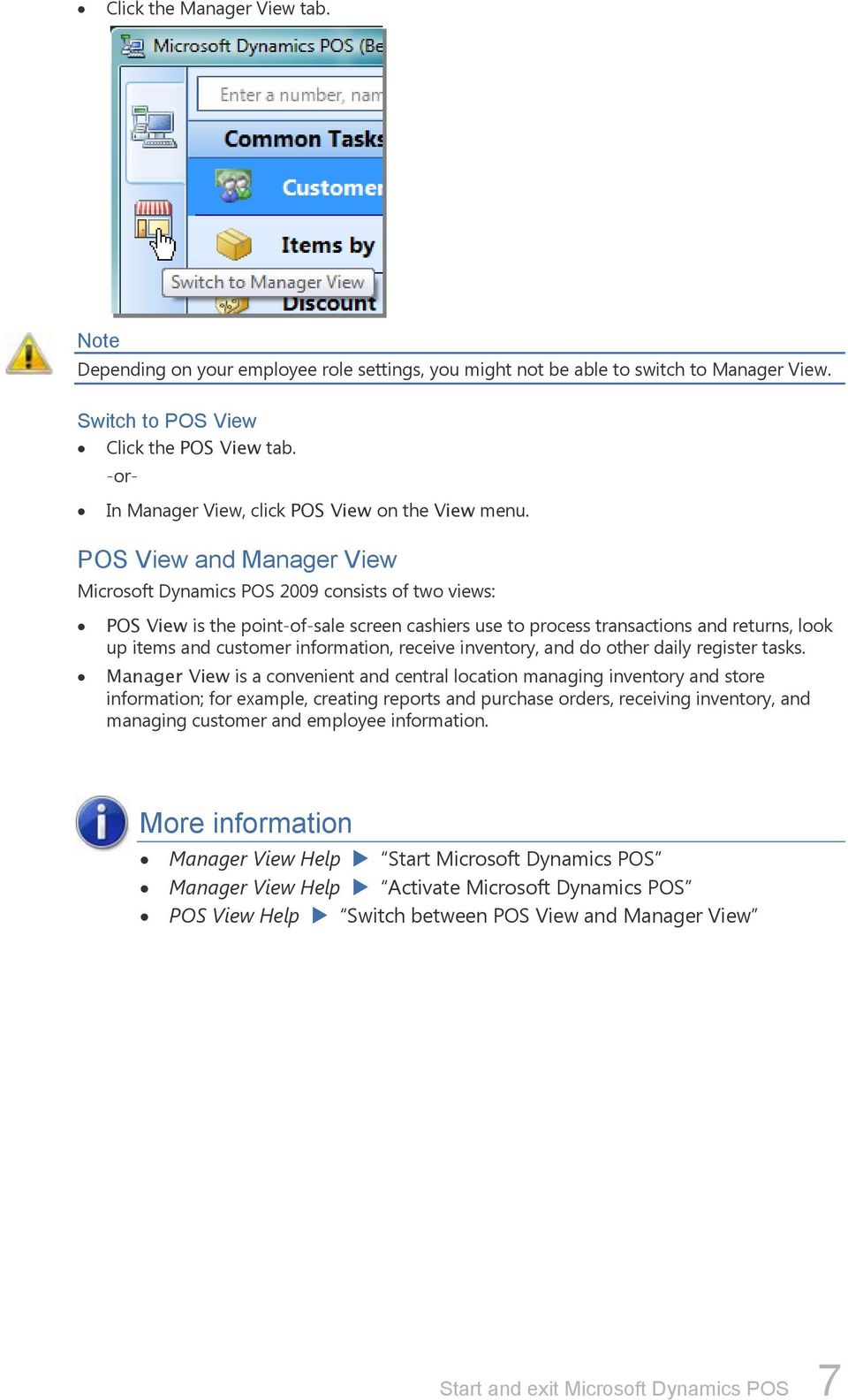
13 Click the Manager View tab. Note Depending on your employee role settings, you might not be able to switch to Manager View. Switch to POS View Click the POS View tab. -or- In Manager View, click POS View on the View menu. POS View and Manager View Microsoft Dynamics POS 2009 consists of two views: POS View is the point-of-sale screen cashiers use to process transactions and returns, look up items and customer information, receive inventory, and do other daily register tasks. Manager View is a convenient and central location managing inventory and store information; for example, creating reports and purchase orders, receiving inventory, and managing customer and employee information. Manager View Help Start Microsoft Dynamics POS Manager View Help Activate Microsoft Dynamics POS POS View Help Switch between POS View and Manager View Start and exit Microsoft Dynamics POS 7
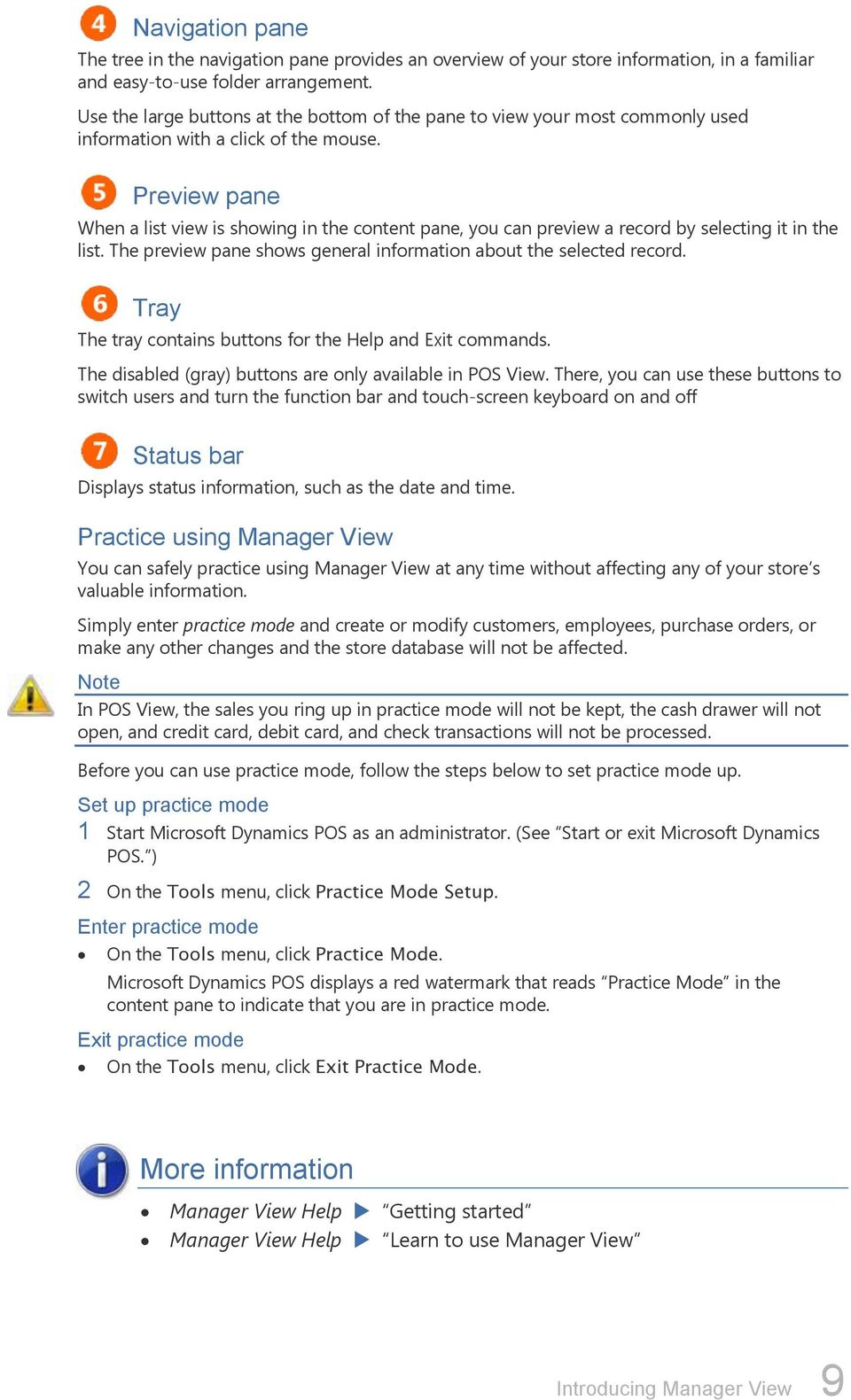
14 First steps Introducing Manager View Get acquainted with its main parts and practice using Manager View If Manager View on your computer doesn t look quite like the Manager View pictured here, don t worry. Some parts of Manager View might have been customized to work the way your store does. View tabs Click a tab to display either POS View or Manager View. Menus and toolbar The menus provide access to all store information and to tools and wizards that help you manage that information and run your store. The toolbar is most useful when there's a list of information in the content pane (such as the Items list shown above). For example, with one click you can create and delete records in the current list. Content pane In the content pane, you can view task centers, lists of the information in your store database, or view My Store to get an overview of the activity in your store. To view a task center, click the folder or navigation button for the task center you want. To view a list, click a task center button, menu command, or subfolder for the list you want. To view My Store, click My Store in the navigation pane. The picture on the previous page shows the Items list, a complete list of your items, where you can create, modify, or delete items. Introducing Manager View 8

15 Navigation pane The tree in the navigation pane provides an overview of your store information, in a familiar and easy-to-use folder arrangement. Use the large buttons at the bottom of the pane to view your most commonly used information with a click of the mouse. Preview pane When a list view is showing in the content pane, you can preview a record by selecting it in the list. The preview pane shows general information about the selected record. Tray The tray contains buttons for the Help and Exit commands. The disabled (gray) buttons are only available in POS View. There, you can use these buttons to switch users and turn the function bar and touch-screen keyboard on and off Status bar Displays status information, such as the date and time. Practice using Manager View You can safely practice using Manager View at any time without affecting any of your store s valuable information. Simply enter practice mode and create or modify customers, employees, purchase orders, or make any other changes and the store database will not be affected. Note In POS View, the sales you ring up in practice mode will not be kept, the cash drawer will not open, and credit card, debit card, and check transactions will not be processed. Before you can use practice mode, follow the steps below to set practice mode up. Set up practice mode 1 Start Microsoft Dynamics POS as an administrator. (See Start or exit Microsoft Dynamics POS. ) 2 On the Tools menu, click Practice Mode Setup. Enter practice mode On the Tools menu, click Practice Mode. Microsoft Dynamics POS displays a red watermark that reads Practice Mode in the content pane to indicate that you are in practice mode. Exit practice mode On the Tools menu, click Exit Practice Mode. Manager View Help Getting started Manager View Help Learn to use Manager View Introducing Manager View 9
16 2 Basic settings Road map: Quickly set up your store 11 Checklist: Complete store setup 13 Set up inventory 15 Customize Manager View 17 FAQ: About basic settings 18

17 Basic settings Road map: Quickly set up your store A direct route to productivity and sales The first time you start Microsoft Dynamics POS, a series of short wizards walk you through specifying initial settings. You can then begin ringing up sales right away, while specifying more detailed settings later as time permits. Install and start Microsoft Dynamics POS See the Getting Started: Installation Guide for complete instructions. You can start the program automatically at the end of the Installation Wizard. Otherwise, click the Windows Start menu, click All Programs, and then click Microsoft Dynamics POS. Getting Started Wizard In this required wizard, you: Agree or disagree to the terms of license agreement. Specify whether you want to create a database or connect to one you already have. Indicate whether or not you want to participate in the Customer Experience Improvement Program. Create Database Wizard If you chose to create a new database, Microsoft Dynamics POS displays the Create Database Wizard to help you create an initial store database. You can create a blank database or you can start with one of two sample databases included with Microsoft Dynamics POS; one for a fictitious toy store and the other, for a fictitious coffee shop. Each sample database includes inventory, employees, customers, task pads, extensive settings, and examples of various features as they would be set up in typical stores. Offline Mode Wizard This required wizard can help you set up offline mode, which you can use to keep your store operational during network downtime. Roadmap: Quickly set up your store 11

18 Store Setup Wizard Store Settings If you chose to create a new database, The Store Setup Wizard helps you specify a few important settings, such as sales tax and payment methods. Create Password Wizard If you chose to create one of the sample databases, Microsoft Dynamics POS displays the Create Password Wizard to help you create temporary passwords for the sample employees in the database. Store Setup Wizard Checklist From the Store Setup Wizard s Checklist, the wizard can help you set initial settings for basic store information, employees, importing existing items or customers, creating departments and categories, and sharing information with accounting programs. Activation Wizard In this required step, use the Activation Wizard to activate Microsoft Dynamics POS. You must activate the program to be able to use it. Activation reduces software piracy by authenticating your software as a genuine, fully licensed copy. Each copy of Microsoft Dynamics POS can only be activated on a single computer, so you will need a separate copy of the software for each computer where you want to use Microsoft Dynamics POS. The one exception to the activation requirement is this: you can install and use Microsoft Dynamics POS on a back-office computer without activating, if the computer will not be used to process transactions. When asked if you want to open in Manager View without activating, click Yes. After that, Microsoft Dynamics POS will always open in Manager View; you will not be able to switch to POS View unless you activate the software from the Help menu. Checklist for quick store setup Use this checklist to make sure you have specified the minimum store settings to start ringing up sales. You can specify most of the basic settings in the Store Setup Wizard. Owner information Basic store information Employees Payment methods Sales taxes Registers and hardware Install Microsoft Dynamics POS, specify register settings, and set up POS hardware on each register in a multiple-computer store. Items Cashiers can add items as they are sold to inventory at the registers. Or you can import an existing item list. Manager View Help Set up your store Manager View Help Import information into the store database Roadmap: Quickly set up your store 12
19 Basic settings Checklist: Complete store setup A comprehensive plan for store productivity You can use this comprehensive checklist to make sure you are taking full advantage of all the powerful features in Microsoft Dynamics POS. Set up your store information in the order shown, since setting up some features depends on others. Specify owner information Specify this in the Store Setup Wizard. Specify store information On the Settings menu, point to Store Settings, and then click Store Information. Set store options, policies, and procedures On the Settings menu, point to Store Settings, and then click Options. Create task pads On the Settings menu, point to Register Settings, and then click Task Pads. Create employee roles On the Settings menu, point to Store Settings, and then click Roles. Create employees On the People menu, click Employees. Create or customize receipt formats On the Settings menu, point to Register Settings, and then click Receipt Formats. Create line display messages On the Settings menu, point to Register Settings, and then click Line Display Messages. Set up registers and hardware Install Microsoft Dynamics POS, specify register settings, and set up POS hardware on each register in a multiple-computer store. Set up sharing information with accounting On the Settings menu, click Configure QuickBooks. Set up currencies On the Settings menu, point to Store Settings, and then click Currencies. Create payment methods On the Settings menu, point to Store Settings, and then click Payment Methods. Set up payment processing On the Settings menu, point to Store Settings, click Options, and then click the Payment tab. Set up destination-based taxes On the Settings menu, point to Store Settings, click Options, and then on the Sales Tax tab, select the Use destination-based taxes check box. Specify tax authorities On the Settings menu, point to Store Settings, and then click Tax Authorities. Set up tax locations On the Settings menu, point to Store Settings, and then click Tax Locations. Checklist: Complete store setup 13

20 Set up sales taxes On the Settings menu, point to Store Settings, and then click Sales Taxes. Set the default sales tax On the Settings menu, point to Store Settings, click Options, and then click the Sales Tax tab. Create departments and categories On the Inventory menu, click Tax Locations or Categories. Create suppliers On the Inventory menu, click Suppliers. Create inventory locations On the Inventory menu, click Inventory Locations. Specify item and preset discounts On the Inventory menu, click Discounts. Create item messages On the Inventory menu, click Item Messages. Add pictures of items to File Center On the Tools menu, click File Center. Create items On the Inventory menu, click Items. Or on the File menu, click Import Wizard. Assign items to departments and categories On the Inventory menu, click Items. Select sales taxes for items On the Inventory menu, click Items. Select item messages for items On the Inventory menu, click Items. Select item discounts On the Inventory menu, click Items. Select pictures for items On the Inventory menu, click Items. Add pictures of customers to File Center On the Tools menu, click File Center. Set up custom fields for customer information On the Settings menu, point to Store Settings, click Options, and then click the Customer tab. Create customers On the People menu, click Customers. Manager View Help Set up your store Manager View Help Import information into the store database Checklist: Complete store setup 14

21 Basic settings Set up inventory Use a variety of ways to set up your store s inventory Use the Import Wizard to bring existing inventory information into Microsoft Dynamics POS. You can also add items to inventory as you receive them, or at the register as they are sold, or you can modify one of the included sample databases. Use the Import Wizard You can use the Import Wizard to bring your existing inventory information into Microsoft Dynamics POS. You can import items, customers, suppliers, and inventory counts. You can create new records in the database or update existing ones. Import inventory in three steps: 1 Prepare the import file in the other program Use the source program (such as Microsoft Office Excel) to prepare the import file so it is in a format the Import Wizard can read. Make sure it contains: All of the information you want to import All of the information the wizard needs to create or update the records in the store database The more complete and accurate the import file is, the easier importing will be. 2 Save or export the import file as a text file Use the source program (such as Microsoft Office Excel) to save or export the information into a text file. A text file typically has a.txt or.csv file extension. If needed, you can make changes directly to the text file that will make the import more efficient. For example, you can remove any stray quotation marks that might have been added to the file when it was created, and you can add text qualifier characters where needed. 3 Start the Import Wizard On the File menu in Manager View, click Import Wizard. In the Import Wizard, specify the type of information you want to import, the name of the import file, and whether you want to update existing database records using the information in the file. Then enter information about how the import file is organized. For example, you will need to indicate whether the columns of information in the file are delimited (separated by characters such as tabs or commas and if so, what character is used) or fixed width (meaning a certain consistent number of characters wide). Tip For best results, do a bit of research before you import. Become familiar with the type of information the Import Wizard requires, and make sure your import file is set up correctly. Consider doing a test run in the wizard to see the options that are available. To avoid actually importing your test file into your database, be sure to click Cancel on the Preview page of the wizard. You can save the settings you enter in the Import Wizard for use in later imports. Add items to inventory as you receive them A common practice in many retail stores is adding items to inventory as they are received. You can do this easily in either Manager View or POS View, with or without an associated purchase order. Using a scanner and having other information about the items at hand, such as their prices, can speed the process. Set up inventory 15
22 Add items to inventory as they are sold You can add items to inventory in POS View as they are sold. When you scan an item that isn t in the store database, Microsoft Dynamics POS asks if you want to add it. Modify a sample database Microsoft Dynamics POS comes with two sample databases; one for a coffee shop and one for a toy store. Each sample database includes fictitious items, customers, suppliers, and other information and settings that can modify or view to help you get started setting up your own store. Manager View Help Import information into the store database Manager View Help About managing your inventory Import Wizard Help Click Help on any page in the wizard. POS View Help Add an item to inventory Set up inventory 16
23 Basic settings Customize Manager View Set up Manager View to work the way you do You can customize Manager View to suit your needs. Select the screen elements and features that are useful to you, and display the information that you want. Show or hide screen elements Show or hide the navigation pane On the View menu, click Navigation Pane. Show or hide the toolbar On the View menu, click Toolbar. Show or hide the preview pane On the View menu, click Preview Pane. Show or hide the status bar On the View menu, click Status Bar. Arrange columns and panes Arrange the columns of a list Drag the column header to its new location. Change the sort order of a list Click a column header. Change the layout of capsule reports On the View menu, point to Content Pane, and then click the layout that you want to use. Size a column in the content pane Drag the border of a column header. Size a pane Drag the border of a pane. Change between small and large toolbar icons On the View menu, click Large Toolbar Icons. Customize capsule reports Change the capsule report layout On the View menu, point to Layout, and then click the layout that you want to use. Manager View Help Customize Manager View Manager View Help The Manager View window Customize Manager View 17
24 Basic settings FAQ: About basic settings Frequently asked questions This topic provides answers to some of the questions most frequently asked about setting up and managing a Microsoft Dynamics POS store. What is the best order for entering store information? Certain records in Microsoft Dynamics POS will not be complete until the records they depend upon have been created. You can save yourself a lot of data entry time by creating prerequisite records first. How do I set up devices on my registers? The "Setting Up POS Hardware" tutorial walks you through connecting various devices and making them work with Microsoft Dynamics POS. I have store information in another program or file. How do I get that information into Microsoft Dynamics POS? You can import data into Dynamics POS by using the Import Wizard. How do I customize the Manager View window? You can customize Manager View by choosing your own capsule reports and changing their layout, showing or hiding certain screen elements, sizing the buttons on the toolbar, and arranging columns and panes. See Checklist: Complete store setup in this chapter. In Manager View Help, see Learn to use Microsoft Dynamics POS and About devices on a register. In Manager View Help, see About importing information into the store database. In Manager View Help, see About customizing Manager View. FAQ: About basic settings 18
25 3 Store settings Payment methods 20 Payment processing 21 Sales taxes 22 Gift cards and other vouchers 25 Share information with Intuit QuickBooks 26 Prompt for reasons for actions 27 Offline mode 29 Currencies and exchange rates 30 FAQ: Store settings 31
26 Store settings Payment methods The types of payment that your store accepts Payment methods control and individually track the different types of payments that come into the store. Customized to the needs of your store, payment methods can also help you set and enforce store policies. In addition to a cash payment method, you might have payment methods for checks, gift cards, debit cards, charge accounts, and one payment method for each credit card that you accept (MasterCard, Visa, and so on). The options that you set for your payment methods control how each type of payment is handled by cashiers. For example, you can set the maximum amount that can be accepted under a payment method, or you can choose to prompt cashiers to enter information about customer checks. Payment method formats Each payment method you set up must be one of seven formats: Account (charge accounts) Cash Check Credit card Debit card Other Voucher (gift cards, gift certificates, and store credit vouchers) Tip For credit and debit payment methods, set up validation formats (in the Advanced Options dialog box) so that Microsoft Dynamics POS can make sure the number on a card matches the numbering scheme used by the issuing company. Manager View Help About payment methods Manager View Help About store options Payment methods 20
27 Store settings Payment processing Accept credit and debit cards and electronic checks If your store accepts credit card, debit card, gift card, or check payments, Microsoft Dynamics POS includes integrated payment processing that you can easily set up to authorize and settle those payments. Payment processing, sometimes referred to as electronic draft capture or EDC, includes both authorization at the time of purchase and settlement of transactions with the credit card associations, transaction processors, and acquiring banks. While payment processing can be done using a standalone terminal (a small device that connects with your payment processor or acquiring bank), you can save time by using the payment processing features that are built into Microsoft Dynamics POS. Cashiers use Microsoft Dynamics POS for every step of the transaction: adding items, accepting payment, contacting the payment processor, and entering authorization codes. And when you are ready to settle the day's card transactions, you can do that with a click of the mouse in Manager View. Microsoft has made arrangements with a number of preferred acquirers (acquiring banks) to offer easy integration with the payment processing services offered by these acquirers. After you choose a preferred acquirer, setting up payment processing involves these steps: 1 Create credit and debit card payment methods 2 Set up any hardware you will be using, such as magnetic stripe readers, signature capture devices, and PIN pads 3 Set up Microsoft Dynamics POS for payment processing Once integration is in place, you can perform daily settlement of your credit and debit transactions quickly and easily. Manager View Help About payment processing Manager View Help About payment methods Payment processing 21
28 Store settings Sales taxes Flexibility to accommodate tax requirements Microsoft Dynamics POS has been designed to accommodate the tax requirements that your store is subject to, from simple percentage taxes to complex compound taxes and partial dollar amounts. Sales taxes Setting up sales taxes correctly for your store can save you time and money in several ways. You can: Easily control the accuracy and accounting of the taxes you collect. Quickly change tax rates and authorities to comply with new laws. Generate tax reports that can give you valuable insight and save time. Make it easy for cashiers to modify transactions for varying tax requirements. Setting up sales taxes When you set up the sales taxes that are collected by your store, there are five things to consider: 1 Choose your method of taxation Choose between a tax-exclusive system (typical in the United States and Canada) and a taxinclusive system (such as VAT in Europe or GST in Australia). 2 Set up destination-based taxes and tax locations If the taxes you collect for shipped goods vary depending on the addresses you are shipping to, you will need to set up destination-based taxes and tax locations. 3 Create tax authorities Enter information about the tax authorities that assess the taxes. For example, you might have one tax authority representing the taxes assessed by the city where your store is located and another representing the taxes assessed by the state or province. Note To change a sales tax rate, modify the tax authority that assesses the tax. 4 Create sales taxes Once tax authorities are in place, you create the sales taxes that incorporate these tax authorities. You will want one sales tax for every combination of tax authority taxes that must be assessed. For example, food items might incur a different combination of taxes than non-food items. In that case, you might have a Food sales tax (containing the tax authorities that assess taxes on food items) and a Non-food sales tax (containing the tax authorities that assess taxes on nonfood items). 5 Assign sales taxes to items You set the default sales tax that will be used for new items and their shipping charges when you create new items, and then set the sales taxes for the appropriate items in your store. You can use the Inventory Wizard to change the sales tax that is assigned to a group of items. Set up destination-based taxes 1 On the Settings menu, point to Store Settings, and then click Options. 2 Click the Sales Tax tab. Sales taxes 22
29 3 Under Tax calculations for shipped items, select the Use destination-based taxes check box. 4 In the Shipping Address Field column in the table, select the address fields that will match the tax locations that you set up. For example, if you collect taxes based on the county you are shipping to, select County in the first box. Select additional fields if other address fields should be compared to your tax locations when there are no matches for the field in the first box. 5 To save your changes, click OK. Create a tax location 1 On the Settings menu, point to Store Settings, and then click Tax Locations. 2 On the toolbar, click New. 3 Enter a code and description for this tax location. The code should be a unique identifier or abbreviation, such as "ALB" for Albany or "INST" for "in-state sale." 4 In the Location type box, select the address field that this location corresponds to. For example, if this tax location is for a county, select County. Note Only tax locations with types that match the address fields you selected when you set up destination-based taxes will be used for tax calculations. 5 For each place name that is included in this tax location, click Add, and then type the place name in the new box in the list. Tip To improve the accuracy of tax calculations, create as many place names as you can think of for each tax location. Be sure to add common (and not so common) abbreviations, misspellings, and nicknames. Keep in mind that what the cashier types in the shipping address must exactly match one of the place names listed here. 6 To save this tax location and begin entering information for another, click Save and New. If this is the only tax authority that you want to create, click Save and Close. Create a tax authority 1 On the Settings menu, point to Store Settings, and then click Tax Authorities. 2 On the toolbar, click New. Create a sales tax 1 On the Settings menu, point to Store Settings, and then click Sales Taxes. 2 On the toolbar, click New. Set the default sales tax for new items 1 On the Settings menu, point to Store Settings, and then click Options. 2 Click the Sales Tax tab. 3 In the Sales tax on items box, select the sales tax that will be assigned to new items by default. This will not affect items that already exist in the store database. 4 In the Sales tax on shipping charges box, select the sales tax on any shipping charge for an item. This setting will be applied to new items and will not affect items that already exist in the store database. 5 To save your changes, click OK. Sales taxes 23
30 Set the sales tax for an item 1 On the Inventory menu, click Items. 2 Double-click the item that you want to set the sales tax for. 3 In the Sales tax box, select the appropriate sales tax. Manager View Help About taxes Manager View Help Set the method of taxation Manager View Help Set up destination-based taxes Manager View Help Create a tax location Manager View Help Create a tax authority Manager View Help Create a sales tax Manager View Help Assign sales taxes to items Manager View Help Options - Sales Tax tab Sales taxes 24
31 Store settings Gift cards and other vouchers Improve customer service and your cash flow With Microsoft Dynamics POS, customers can use vouchers (such as gift cards, gift certificates, and store credit vouchers) as payment instead of money, which has several benefits for your store. Benefits for your store Increase sales and broaden your customer base. Improve customer service and encourage repeat business. Speed up your lanes by taking advantage of touchless transactions. Keep money in your store by issuing vouchers instead of cash refunds. Note Before you can use vouchers at the register, you must set them up in Manager View. Gift cards Use gift cards for customers to use themselves or give to others as gifts. You can issue and accept gift cards using Microsoft Dynamics POS in two ways: Service-managed gift cards - A third-party processing service manages your store's gift cards. You first sign up with a gift card processing service that provides custom gift cards, authorization, and tracks balances and payments. You then use Microsoft Dynamics POS to sell and redeem the gift cards. Store-managed gift cards - Your store uses Microsoft Dynamics POS to track and manage the cards, balances, purchases, and so on. You typically buy gift cards from a vendor that provides custom gift cards with your store's name, logo, and other information. Gift certificates Customers can purchase gift certificates that they can give to others to use for purchases in your store. You use Microsoft Dynamics POS to sell and redeem the certificates. Microsoft Dynamics POS also keeps track of the balances and purchases. Typically, your store would use another program, such as Microsoft Office Word, to design and print gift certificates that include your store's name, address, and logo, and blank spaces where the cashier can write in the amount, tracking number, date, and any other information your store might require. Store credit vouchers Use store credit vouchers to give store credit to customers for refunds or as change. Typically, your store would use another program, such as Microsoft Office Word, to design and print store credit vouchers that include your store's name, address, and logo, and blank spaces where the cashier can write in the amount, tracking number, date, and any other information your store might require. Note Store credit vouchers are different than customer charge accounts. Manager View Help About gift cards, gift certificates, and store credit vouchers Gift cards and other vouchers 25
32 Store settings Share information with Intuit QuickBooks Track each register s activity accurately You can easily share accounting information between Microsoft Dynamics POS offers and Intuit QuickBooks. Share information with Intuit QuickBooks With QuickBooks, you choose regular times to post your Microsoft Dynamics POS data to your QuickBooks accounts. QuickBooks versions Microsoft Dynamics POS can exchange information with QuickBooks 2007 or later. You set up information sharing with QuickBooks by starting the Accounting Integration Wizard. In the wizard, you will retrieve your QuickBooks company file and chart of accounts, and then assign the posting categories in Microsoft Dynamics POS to the appropriate accounts in your QuickBooks chart of accounts. You can, if desired, import QuickBooks information about items, customers, or suppliers into the Microsoft Dynamics POS store database. Once accounting integration is set up, QuickBooks commands will be added to the Settings menu in Manager View. You can use those commands to post closed Microsoft Dynamics POS batches and item receipts to QuickBooks on whatever schedule works best for your store. You can also periodically import QuickBooks information about items, customers, or suppliers into the store database. Manager View Help About sharing information with Intuit QuickBooks Manager View Help Options - Payment Tab Share information with Intuit QuickBooks 26
33 Store settings Prompt for reasons for actions Accurately control and track register activity Microsoft Dynamics POS can prompt or require cashiers to select a reason for specific types of actions, such as price changes, returns, or discounts. About reasons Reason A reason in Microsoft Dynamics POS is an identifier that you can use to track and explain various actions, such as why an item was returned or price changes made. To use reasons, first create the reasons that your store needs. For example, you might have a reason called "Defective" that cashiers can specify when a customer returns defective merchandise. This can help you identify the item so you can take it out of inventory. You can also include reasons on reports to help you track additional information and control inventory. Then, after you create a reason, specify that Microsoft Dynamics POS prompt or require selecting a reason for specific types of actions, such as price changes, returns, or discounts. You can also specify start and end dates for a reason to be in effect. To prevent problems in the store's transaction history, reasons cannot be deleted. If you no longer want to use a particular reason, you can set the reason's end date, after which, it will not be displayed. Create a reason 1 On the Settings menu, point to Store Settings, and then click Reasons. 2 On the toolbar, click New. 3 In the Code box, enter a unique code (a number or abbreviation) for the reason. This code will appear on line items in POS View. 4 In the Description box, enter a description. For example, if you want cashiers to identify discounts given during an annual sale, you could create a reason with the description "Annual Sale." 5 In the Type box, select a type for the reason. When Microsoft Dynamics POS prompts or requires a reason, reasons of the same type are displayed as choices. For example, for the Annual Sale reason, you would select Discount for the type. Then, when a cashier applies a discount and is prompted for a reason, Microsoft Dynamics POS displays the Annual Sale reason and any other reasons with the Discount type as choices for the cashier to select from. 6 If you want to specify dates during which the reason is in effect, select the Start date and End date check boxes and then specify the dates. 7 If you want to allow an employee to enter a comment when the reason is selected, select the Allow comment check box. Specify when to prompt for or require a reason 1 On the Settings menu, point to Store Settings, and then click Options. 2 Click the Reasons tab. Prompt for reasons for actions 27
34 3 For each action, select one of the following. None - Microsoft Dynamics POS will neither prompt for nor require a reason. Prompt for a reason - Microsoft Dynamics POS will prompt for a reason. Selecting a reason is optional. Require a reason - Microsoft Dynamics POS will require selecting a reason before the action is completed. Note You should also create at least one reason for each action that prompts for or requires a reason. For example, if you want to require a reason when cashiers apply preset discounts, you could create reasons to identify them, such as "Annual Sale" or "Employee Discount." Stop using a reason 1 On the Settings menu, point to Store Settings, and then click Reasons. 2 Double-click the reason that you no longer want to use. 3 Under Options, select the End date check box, and then select a date. Manager View Help About reasons Manager View Help Options - Reasons tab Prompt for reasons for actions 28
35 Store settings Offline mode Keep your store operating when your network is down With offline mode, you can continue to ring up sales and perform other register tasks even if the connection to the store database is not available. About offline mode First, set up offline mode for the store on the main computer with the store database. This involves using the Offline Mode Wizard create the password for offline mode synchronization. Second, set up offline mode on each register. This is also done using a wizard and involves entering the synchronization password for the store, selecting the times when synchronization with the main database should occur, and creating an offline database on each register. Once offline mode is set up, it is available whenever the register is not able to communicate with the main store database. Microsoft Dynamics POS detects the lost connection and offers the option of switching to offline mode. You can also switch a register to offline mode manually, such as when you are preparing to do maintenance on the database computer. Microsoft Dynamics POS also detects when the connection to the main store database becomes available again and offers the option of switching back to the main database. The register s activity while in offline mode with be synchronized into the main database. At the completion of this synchronization, a report appears that details these changes and the results of the synchronization. You can also switch a register out of offline mode manually, such as when maintenance on the database computer is complete. Note To ensure the security of the store database, the store owner or manager should set up offline mode and keep the offline mode password in a safe place. Manager View Help About offline mode Offline mode 29
36 Store settings Currencies and exchange rates Extend payment flexibility for your store and your customers Currencies in Microsoft Dynamics POS represent the different forms of currency that you accept. A cashier can select a different currency and instantly see transaction amounts adjusted using the exchange rate you specify. About currencies and exchange rates When you define currencies in Microsoft Dynamics POS, you set up the currencies that your store will accept. If you will accept currency from another country, such as a store in the United States accepting Canadian currency, the exchange rate will be stored with the currency you create for this purpose. Every computer using Windows has a default currency set in Control Panel. To ensure accurate accounting, Microsoft recommends that all registers in the store use the same default currency. The exchange rates for your other currencies will be calculated against this default currency. Once you have currencies defined, you can assign them to payment methods. In effect, doing this enables the exchange rate for the currency, since amounts due are adjusted automatically when a cashier selects a payment method that uses the currency. You can also assign currencies to suppliers, enabling exchange rates in purchase orders and inventory transfers. Manager View Help About currencies and exchange rates Manager View Help About payment methods Currencies and exchange rates 30
37 Store settings FAQ: Store settings Frequently asked questions Here are answers to some of the most frequently asked questions about specifying store settings. How do I set up payment processing so the store can accept credit, debit, and gift cards? Setting up payment processing involves signing up with a payment processor, creating payment methods for the types of payments your store will accept, and configuring payment processing for those payment methods. How do I control cashier workflow? You can use a variety of methods to control what cashiers can do, must do, and cannot do. Do I set up one tax authority for each governing agency that assesses a sales tax? Some governing bodies assess different tax rates on different types of goods. For example, a state might assess an additional tax against liquor or cigarettes. If a single agency assesses more than one tax rate, you will need to set up a tax authority for each rate. If there is a network problem, can I still ring up sales? The registers in the store can switch to offline mode and continue to perform many (but not all) transactions and register operations. In Manager View Help, see About payment methods and About payment processing. In Manager View Help, see these topics: About employees Control the way cashiers work About task pads See About taxes in Manager View Help. See Offline mode, in this chapter. FAQ: Store settings 31
38 4 Customers Track customer information 33 Contact customers 35 Charge accounts 37 FAQ: Customers 39
39 Customers Track customer information Use customer information to increase sales and improve service Microsoft Dynamics POS offers several ways to record and track customer information and many features that you can use to improve customer satisfaction, market more effectively, and build relationships with customers. Create and track basic customer information and purchase history. Track custom information such as birthdays, club memberships, and so on. Set discounts and price levels for specific customers. Set up charge accounts for customers with flexible accounts receivable options. Generate reports on customer activity. If your store is part of a chain of networked stores that use Microsoft Dynamics POS, customers can be either global customers or local customers. A global customer is available to all stores in the chain, while a local customers is available only to the store where the customer account was created. Create a customer 1 On the People menu, click Customers. 2 On the toolbar, click New. 3 Enter a unique customer number for this customer, or use the customer number supplied by Microsoft Dynamics POS. 4 Enter a first name, last name, or both. 5 Enter other information about this customer. 6 To save this customer and begin entering information for another, click Save and New. If this is the only customer that you want to create, click Save and Close. Tip If you have an existing customer list, you can import it. For details, see Using the Import Wizard. View a customer's purchase history 1 On the People menu, click Customers. 2 Double-click the customer that you want to view. 3 Click the Purchase History tab. Track custom information about a customer Microsoft Dynamics POS provides 15 fields (boxes) where you can type custom information about a customer. These fields are located on the Additional Information tab in the customer window: Five text fields for names, color preferences, or loyalty-program membership information. Five numeric fields for sizes or the number of children the customer has. Five date fields for birthdays, anniversaries, or expiration dates. First set up these fields by giving them names, and then use them to record whatever information is useful to you. Track customer information 33
40 Set a discount for a specific customer 1 On the People menu, click Customers. 2 Double-click the customer that you want to modify. 4 In the Discount box, type the discount percentage that you want this customer to have. For example, to give the customer a 10% discount, type 10. Note Once a discount has been set for a customer, each item sold to that customer will automatically ring up at its discounted price. Assign a customer to a price level 1 On the People menu, click Customers. 2 Double-click the customer that you want to modify. 4 In the Price level box, select the price level that you want to apply to this customer. Set up charge accounts You can create charge accounts for individual customers, set credit limits, and receive payments to the account. Microsoft Dynamics POS makes it easy to handle accounts receivable, interest charges, and billing in any of several ways: Through Microsoft Dynamics POS By sharing information with Intuit QuickBooks Through your store's existing manual procedures Generate the Customer List report 1 On the Reports menu, point to Customer, and then click Customer List. 2 Make selections in the report window to specify the customer information that you want to view. Manager View Help About customers Manager View Help About setting up your store Manager View Help About importing information into the store database Track customer information 34
41 Customers Contact customers Market more effectively and build customer relationships Acquire new customers and build loyalty. Target customer preferences and create customer mailings based on buying preferences and purchase histories. Provide customers with gift shipping and other delivery options. Send an message to a customer 1 On the People menu, click Customers. 2 Double-click the customer that you want to contact. 3 If you haven't already, type the customer's address in the box. 4 Click the button. 5 Compose and send your message as you normally would. Look up a customer's phone number 1 On the People menu, click Customers. 2 Sort or scroll through the list of customers until you find the one that you want. 3 View the customer's phone number in the Phone column. Manage a customer's shipping addresses In Microsoft Dynamics POS, you can store one or more shipping addresses for each customer. This makes it easy for you to offer gift shipping and other delivery alternatives to your customers. 1 On the People menu, click Customers. 2 Double-click the customer whose shipping addresses you want to manage. 3 Click the Shipping Addresses tab. 4 Take one or more of the following actions: Create a shipping address Click New, and then fill in the new shipping address. Copy the customer's main address Click New, click Use Customer Address, and then make any desired changes. For example, you can ship items to another resident of the customer's house, such as a spouse, child, or roommate, simply by changing the name in the shipping address. Modify an existing shipping address Select the shipping address that you want to change, click Edit, and then make your changes. Set a shipping address as the primary shipping address Select the shipping address that you want to make primary, and then click Set As Primary. Delete a shipping address Select the shipping address that you want to delete, and then click Delete. Contact customers 35
42 Print address labels 1 On the Tools menu, click Print Labels, and then click the Address Labels tab. 2 In the Choose who to print labels for box, select Customers or Suppliers, as appropriate. 3 Click Filter. 4 In the Find dialog box, perform a basic or advanced search to locate customers or suppliers meeting likely criteria, select the customers or suppliers you want to print address labels for, and then click Select. The selected customers or suppliers will be added to the print list. To add more customers or suppliers to the print list, perform additional searches as needed. When the print list is complete, close the Find dialog box. For more help with the Find dialog box, click Help on the Help menu there (or press F1). 5 Review the list of customer or supplier labels that will be printed. If you want to remove a customer or supplier from the print list, select it, and then click Remove. 6 Under Label format, select the label format. If you are using a label printer, be sure to select a compatible label format. 7 Under Number of labels per item, select the number of labels that you want to print for each item, and then click Print. 8 To preview the labels you will be printing, click Print Preview. Manager View Help About customers Manager View Help Print address labels Contact customers 36
43 Customers Charge accounts Create charge accounts for valued customers Setting up charge accounts for certain customers can increase sales, improve customer service, and build relationships with customers. Charge accounts You can create charge accounts for individual customers, set credit limits, and receive payments to the account. Microsoft Dynamics POS makes it easy to handle accounts receivable, interest charges, and billing in any of several ways: In Microsoft Dynamics POS, through an Accounts Receivable add-in program available from Microsoft Certified Partners. By sharing information with Intuit QuickBooks. Through your store's existing manual procedures. Set up charge accounts There are two steps to setting up a charge account for a customer. First, you specify account information for the customer. Then, you set up a charge account payment method for cashiers to use when they total a transaction. Specify account information 1 On the People menu, click Customers. 2 Double-click the customer you want to set up a charge account for. 3 On the General tab, under Account, select the Allow purchases on account check box. 4 In the Credit limit box, enter the maximum amount you want the customer to be able to charge. 5 Click Save and Close. Set up a charge account payment method 1 On the Settings menu, point to Store Settings, and then click Payment Methods. 2 On the toolbar, click New. 3 Enter a unique code and description, such as "CA" and "Charge account. 4 In the Format box, select Account. 5 Set the quick key, maximum amount, and other options as you want them. For more information, click the Help button on the toolbar of the Payment Method window. 6 Click Advanced. 7 In the Advanced Options dialog box, do the following: Select the Prevent overtendering check box if you will only accept the exact amount due for this payment method. In the Terms and conditions box, enter any terms and conditions of the account that you want to print on receipts when this payment method is used. Click OK to save the advanced options Charge accounts 37
44 8 Save the payment method. If you do not save, the advanced options you set will be lost. 9 Run a Z report on each register. Manager View Help About charge accounts Charge accounts 38
45 Customers FAQ: Customers Frequently asked questions This topic provides answers to some of the questions most frequently asked about tracking customers in Microsoft Dynamics POS. How can I keep customer numbers from being confused with item numbers? You can set up Microsoft Dynamics POS to automatically assign customers an easily recognizable custom number format. Why are there gaps in my customer numbering? When you create a new customer, the customer number that is automatically filled in for you will not be used again, even if you close the customer record without saving. For this reason, you might see gaps in your customer numbering. What happens to the purchase history for a deleted customer? Deleting a customer deletes the purchase history for that customer. This information cannot be recovered once it has been deleted. The transactions involving a deleted customer will still exist, but they will no longer be associated with the customer. See Use automatic customer numbering in Manager View Help. See Use automatic customer numbering in Manager View Help. See Delete a customer in Manager View Help. FAQ: Customers 39
46 5 Employees About employees 41 Use the time clock 43 Control cashier work flow 44 Assign employee roles 45 Customize POS View for each employee 47 Manage sales reps and commissions 48 FAQ: Employees 49
47 Employees About employees Let Microsoft Dynamics POS help you manage your employees Managing retail employees brings many rewards and challenges. Microsoft Dynamics POS can help you manage your employees, accurately and efficiently, while helping to ensure the security of your store s information. Manage employees Microsoft Dynamics POS can help you mange employees in several important ways. You can: Store basic information about each employee. Generate reports on your employees' register activity. Record the hours each employee works. Manage the security of your store s information by regulating employee access with employee roles. Set options that control employee workflow. Customize POS View for each employee. Specify sales reps and commissions. Tip You can generate reports to track employee performance, activity, and hours worked. These include the Daily Sales by Employee, Top Performer by Employee, Cashier Log, and Time Clock reports. For details, see, opposite. Manage employee information Create or view employee information 1 On the People menu, click Employees. 2 On the toolbar, click New, and then enter Windows Administrator credentials if prompted. 3 Under Contact information, type the employee's name and contact information. 4 Under Role and task pad, select the employee's role and the task pad that the employee will see first in POS View. 5 Under Logon information, type a unique Employee ID, and then type the Password and Confirm password for the employee. 6 Under System administration, select the check boxes for the tasks that this employee is allowed to perform, and clear the check boxes for the tasks that this employee is not allowed to perform. 7 To save this employee, click OK. Create or change an employee s ID or password Note You can also change an employee s password on the logon screen. 1 On the People menu, click Employees. 2 Double-click the employee that you want to modify. 3 Click Manage, and then enter Windows Administrator credentials if prompted. About employees 41
48 4 To change the employee's ID, type the new ID in the Employee ID box. To change the employee's password, click Password, type the password in both the Password and Confirm password boxes, and then click OK. Note For tasks involving an employee's user account such as when you create a new employee or make ID, password, or role changes for an existing employee you will need to provide Windows Administrator credentials for the computer where you are performing the task. If you are using Windows Vista and you are not logged on as an Administrator, you will be prompted for Administrator credentials. If you are using Windows XP and you are not logged on as an Administrator, you will need to restart Microsoft Dynamics POS. For more information, see Start Microsoft Dynamics POS as an Administrator in Manager View Help. If you are performing these tasks from an additional (register) computer in the store, special considerations come into effect. For more information, see About system administration from a register computer in Manager View Help Manager View Help About employees Manager View Help About reports Manager View Help About the time clock About employees 42
49 Employees Use the time clock Record the hours worked by each employee Employees clock in and out in POS View, and then you can view, edit, and create reports about their work hours in Manager View. Use the time clock The daily work hours for each employee are saved as separate time clock entries. The entries are listed together in Manager View, so you have a fast and easy way to monitor employee time. You can also generate the Time Clock report. View time clock entries 1 On the People menu, click Time Clock. 2 Do one of the following: To view entries for a specific role, click the header of the Role column, and then scroll to the role you want. To view entries for a specific employee, click the header of the First Name or Last Name column, and then scroll to the employee you want. To view entries for a specific day, click the header of the Time In or Time Out column, and then scroll to the day you want. To create a new time clock entry, on the toolbar, click New. To modify an existing time clock entry, double-click the time clock entry that you want to modify. To delete a time clock entry, select the time clock entry that you want to delete, and then click Delete. Generate the Time Clock report 1 On the Reports menu, point to Miscellaneous, and then click Time Clock. 2 Make selections in the report window to specify the time clock information that you want to view. Manager View Help About the time clock Use the time clock 43
50 Employees Control cashier work flow Ensure that your register work flow is easy and efficient With the store options in Microsoft Dynamics POS, you can be very specific about what cashiers can do, cannot do, and must do, especially when combined with the controls that you specify by carefully assigning your employees to roles. Cashier work flow options You can specify settings that: Prompt cashiers to add a customer on each transaction. Display a message when an out-of-stock item is added to a transaction. Prevent the sale of items that are out of stock. Require cashiers to log on before each transaction. Require opening and closing amounts to be entered before a batch can be closed. Prompt cashiers for transaction details on each transaction. Automatically start the next transaction when the cash drawer is closed. Prompt cashiers to select a reason for certain actions, such as discounts or returns. Set options to control the way cashiers work 1 On the Settings menu, point to Store Settings, and then click Options. 2 On the POS tab, click Workflow. 3 Select or clear the options that are appropriate for your store. 4 On the Reasons tab, specify None, Prompt for a reason, or Require a reason for each type of action. Control the way specific items are sold 1 On the Inventory menu, click Items. 2 Double-click the item that you want to modify. 3 Click the Options tab. 4 Select or clear the options that are appropriate for the item. Manager View Help About store options Manager View Help About items Control cashier work flow 44
51 Employees Assign employee roles Help secure your store s information Employee roles can help you secure your store's information by restricting access to certain features in Microsoft Dynamics POS. They can also help you enforce store policies by preventing certain actions from being taken. Employee roles Microsoft Dynamics POS includes three predefined employee roles: Manager, Supervisor, and Cashier. Each role has settings that allow or deny access to features in Microsoft Dynamics POS. You can change these settings to customize these predefined roles, or you can create your own roles. Denying access to certain rights automatically denies associated access. For example, if an employee is not allowed to view customers, that employee will also not be allowed to modify or delete customers. Similarly, some role settings have an effect in more than one place in the program. For example, an employee who cannot view item costs will not be able to view supplier prices for the item, either. Unless you customize the settings for a specific employee, all of the employees assigned to a role have the same rights. For this reason, you might assign an employee to a role despite a difference between the employee's actual job title and the name of the role. For example, you might assign a trusted cashier to the Supervisor role to give the cashier access to more features than you give to other cashiers, even though their job titles are the same. Conversely, you might assign an assistant manager to a Cashier or Supervisor role to prevent access to Manager View or other Microsoft Dynamics POS features. Tip Assign a unique task pad to each role to give the employees assigned to the role quick access to the register tasks they perform most. Assign employee roles There are two steps to assigning employee roles. Review the settings of preset roles, and then change their settings or create new roles, if necessary. Assign each employee to a role. Change a role s settings 1 On the Store menu, point to Store Settings, and then click Roles. 2 Double-click the role that you want to modify. 3 Make changes in the Name and Description boxes, as desired. 4 To select a different default task pad for the role, select the new task pad in the Default task pad box. 5 To change which features can be accessed by the employees assigned to this role, select or clear check boxes in the Customization settings for this role list. To allow access to a feature, select the check box for that feature. To deny access, clear the check box. Assign employee roles 45
52 Create a new role 1 On the Store menu, point to Store Settings, and then click Roles. 2 On the toolbar, click New. 3 Enter a name and description for the role. 4 In the Default task pad box, select the task pad that employees in this role should see first. 5 To set the features that can be accessed by the employees assigned to this role, select or clear check boxes in the Customization settings for this role list. To allow access to a feature, select the check box for that feature. To deny access, clear the check box. 6 To save this role and begin entering information for another, click Save and New. If this is the only role that you want to create, click Save and Close. Assign an employee to a role 1 On the People menu, click Employees. 2 Double-click the employee that you want to modify. 3 In the Role box, select the new role for this employee. Assign a task pad to a role 1 On the Settings menu, point to Store Settings, and then click Roles. 2 Double-click the role that you want to modify. 3 In the Default task pad box, select the task pad for this role. Note Changing the task pad setting for a role does not change the task pad assigned to an existing employee in the role. The setting only applies to employees created from now on. You can override this setting for a specific employee in the role. Manager View Help About roles and role settings Manager View Help About employees Assign employee roles 46
53 Employees Customize POS View for each employee POS View can work the way cashiers do When you customize POS View for each employee, you can maximize productivity while speeding operations at the register. Customizing POS View can also accommodate employees with special accessibility needs. Make POS View more accessible for a specific employee 1 On the People menu, click Employees, and then double-click the employee that you want. 2 On the Register tab, under Accessibility: Select the font and button size, Normal or Large, that will best meet this employee's needs. Select the task pane alignment, Left or Right, that will best meet this employee's needs. Note You can further modify the display from within POS View. Select a task pad for a specific employee You can choose which task pad each employee sees first when they log on to POS View. 1 On the People menu, click Employees, and then double-click the employee that you want. 2 In the Task pad box, select the task pad for this employee. Change the task pane alignment for a specific employee 1 On the People menu, click Employees, and then double-click the employee that you want. 2 Under Accessibility, in the Task pane alignment box, select the alignment, Left or Right, that will best meet this employee's needs. Manager View Help About employees Customize POS View for each employee 47
54 Employees Manage sales reps and commissions Designate an employee as a sales rep and specify commission rates Commissions can be calculated as a fixed amount per item sold, a percent of a line item's extended sales price, a percent of a line item's extended profit, or a combination of the three. You can also specify an employee as a sales rep without any commission, so that the sales rep can simply be associated with transactions. You can specify commission rates for individual items that override a sales rep's commission schedule. Cashiers specify sales reps when ringing up individual line items at the register. You can set up Microsoft Dynamics POS to prompt cashiers to select a sales rep. Specify sales reps and commissions 1 On the People menu, click Employees, and then double-click the employee that you want. 2 On the Commission tab, select the Eligible for commission check box, and then specify a commission. If you want cashiers to be able to simply associate sales reps with sales without earning a commission, make sure the Fixed amount, Percent of sales, and Percent of profit boxes all have zero amounts. Specify commissions for individual items 1 On the Inventory menu, click Items, and then double-click the item that you want. 2 On the Commission tab, under Commission basis, specify the commission that applies to the item. Manager View Help About sales reps and commissions Manager View Help About items Manage sales reps and commissions 48
55 Employees FAQ: Employees Frequently asked questions Here are answers to some of the questions most frequently asked about managing employee information in Microsoft Dynamics POS. Does an employee s role have to match the employee s actual title? No, you can create new roles with specialized settings to enable or restrict access to specific features in Microsoft Dynamics POS. You can also customize for each employee the roles that are already included in Microsoft Dynamics POS. Why assign different task pads to different employee roles? You can create custom task pads to meet the specific needs of your employees. You might even decide to create a series of task pads that define workflows for your cashiers, making what they're supposed to do at the register easier and less ambiguous. Additionally, you can use different task pads for different employees by assigning a unique task pad to each employee role. You'll find that task pads reduce keystrokes and speed up transaction time by giving cashiers faster access to the tasks they use most often. Some employees don t have access to a register, so how do they clock in? Time clock entries are usually created in POS View when employees clock in and out on their registers. But, you can also create time clock entries in Manager View if some employees, such as stockers, don't have access to a register. See About roles and role settings in Manager View Help. See About task pads in Manager View Help. See About the time clock in Manager View Help. FAQ: Employees 49
56 6 Inventory About inventory 51 Items 52 Departments and categories 53 Matrix items 54 Purchase orders 55 Discounts 56 Customer orders 58 Physical inventories 59 Inventory locations 60 Inventory transfers 61 FAQ: Inventory 62
57 Inventory About inventory Streamline and automate inventory management Each thing for sale in your store is represented by an item record in Microsoft Dynamics POS, making it easy to organize, track, sell, and account for your inventory, whether you sell products or services. Item records contain a lot of information, from the most basic information such as item number and description to detailed quantity and pricing information, to settings that regulate how the item is ordered and sold. If you want, you can group similar items (such as apparel items) into matrix items, or order and sell items using different package sizes. For easier management, organize items into departments and categories. Departments provide the major divisions in your inventory, with categories dividing departments into smaller groups. Using departments and categories can make it easier to order, monitor, and even sell your stock. Control the flow of stock into and out of your store by using purchase orders, item receipts, and inventory transfers. These documents make ordering, receiving, and returning stock faster and easier, with automatic quantity detection and adjustments, "primary supplier" selection, and, if desired, price and cost changes. Handy wizards make creating purchase orders and inventory transfers fast and easy. Speed up inventory counts using physical inventory count sheets. With the click of a button, you can compare counted quantities to expected quantities. You can also instantly update the database quantities with the reconciled counted quantities. Save hours of data entry time by importing inventory information into the store database. The Import Wizard makes import operations quick and easy. Manager View Help About managing your inventory Manager View Help About receiving inventory About inventory 51
58 Inventory Items Look up item information quickly and easily Simply stated, an item is a product sold by your store. It refers to actual physical items, of course, but it can also mean intangible products, such as services offered by your store or handling fees that you charge. In addition to item and bar code numbers and descriptive information about the item, each item record contains quantities (such as number in stock and number on order) and tax, cost, price, discount, and supplier information. It also contains options and settings that regulate how that particular item is sold and ordered. Here are some of the things you can do with items: Create, modify, and delete items, one or many at a time Import existing inventory Print item labels Generate reports about items Organize items into departments and categories Organize similar items into matrix items Create kit items Assign specific sales taxes to items Automatically reorder items Create packaging units for ordering Put items on sale Discount specific items Set multiple price levels for specific items Specify substitutes for out-of-stock items Manage serial numbered items Create messages to cashiers for items Move items between inventory locations Use price-embedded bar codes for weighed items Use noninventory items Manager View Help About items Items 52
59 Inventory Departments and categories Organize your inventory Organizing your inventory into departments and categories can help you manage inventory, help cashiers locate items at the register, and streamline your reporting. In a large store, the benefits of organizing inventory into departments and categories might seem obvious. For example, a department store might have a Juniors department, with categories within that department for Clothing, Accessories, Footwear, and Sleepwear. Even small stores can take advantage of these benefits, though. For example, a wine shop might create departments for wine groups, such as Reds and Whites, with categories for varieties such as Cabernet and Riesling. Alternatively, the owner might prefer a department for each wine-producing region, such as Washington, Italy, and France, with categories for specific vineyards. When creating your departments and categories, keep in mind that the Inventory Wizard and other features in Microsoft Dynamics POS provide ways to automate tasks by department or category. For example, you can organize report data by department and category so you can track sales and other information for very specific groups of items. Once items are organized in departments and categories, you can: Manager View Help About departments and categories Manager View Help About items Departments and categories 53
60 Inventory Matrix items Power and convenience for managing related items Especially useful for items like apparel, you can group items into a matrix by assigning the same style number to each item. If the individual items do not exist in the database yet, you can quickly create the entire group of items at once. A matrix is a group of related items, such as items that are sold in a variety of colors, sizes, flavors, or models. For example, a T-shirt that comes in four sizes and three colors can be represented by twelve items in one matrix, each item with its own quantities and other properties. In this case, the dimensions in the matrix are Size and Color. Each dimension has attributes; for example, Size might have attributes of Small, Medium, and Large. You can save dimensions independently for use with other matrix items. Matrix items can be managed as individual items, but you also have access to detailed inventory information about the whole matrix. You can create matrix items from items already in your inventory or create new ones all at once. Manager View Help About matrix items and style numbers Manager View Help About lots Matrix items 54
61 Inventory Purchase orders Flexibility for a variety of purchasing processes You can continue your current process perhaps replacing some manual steps with Microsoft Dynamics POS automation or you can start from scratch, taking full advantage of the features in Microsoft Dynamics POS to streamline your ordering. Microsoft Dynamics POS can accommodate a variety of purchase ordering processes. For example, some managers might prefer to do all of their ordering over the Internet or by phone, only entering purchase order information into Microsoft Dynamics POS when a shipment is received. Others might want to manage every aspect of ordering from creating the purchase order to printing labels for the items received from within Microsoft Dynamics POS. Microsoft Dynamics POS easily accommodates either of these approaches, or something in between. Basic purchase order process First, create a purchase order, either manually or by using the Purchase Order Wizard. With the wizard, you can create purchase orders automatically, based on stock levels or sales. Second, mark the purchase order as placed and send it to the supplier. You can the purchase order from Microsoft Dynamics POS, or print it and either fax or mail it. Third, when the shipment comes in, receive the items using an item receipt, either at the register or in the back office, in Manager View or POS View. Powerful features such as item scanning and on-the-fly addition and pricing of ordered or received items give you maximum efficiency. Additional purchasing features Microsoft Dynamics POS includes many more features that can speed and improve your store s purchasing. Some of these are listed below. For details, see. Generate the Purchase Orders report. View the history of a purchase order. Specify reorder and restock settings for ordering. Specify the primary supplier for items. Specify supplier-specific reorder information Apply a formula to the information in a purchase order Specify different delivery addresses Send a purchase order in an message Print a purchase order Export a purchase order to a file or to another program Receive partial shipments against a purchase order Print labels for items in a purchase order Prevent items from being added to purchase orders Manager View Help About purchase orders Purchase orders 55
62 Inventory Discounts Many ways to offer discounts to your customers Microsoft Dynamics POS includes several discounts in addition to a variety of prices that you can assign to each item. You can design a pricing and discount scheme for your store that is as simple or as sophisticated as you need it to be. Customer discount Automatically discount all transactions for a specific customer. Examples A certain contractor is a home improvement store's best customer. The store owner sets a 15% customer discount that is applied automatically to all of the contractor's transactions. To encourage a dissatisfied customer to come back another time, a florist sets a 10% discount for the customer. Item discount (Mix and Match, unit pricing, and Buy X, Get Y) Examples Discount an item automatically when it is added to a transaction that meets the conditions of the discount. A store owner wants to offer a Buy 2, Get 1 Free special on certain candy bars. To reduce overstock, a store owner offers unit pricing on several styles of glassware. A bookstore offers a 20% discount to customers who purchase more than four paperbacks in a single transaction. Quantity discount pricing schedule As with a Mix and Match item discount, discount a single item when purchased in quantity. Preset discount Make a discount available to cashiers when a certain item is added to a transaction. Transaction discount Manually apply a discount to a transaction in progress. Example To encourage sales, a store owner sets up a quantity discount pricing schedule for a discontinued item. Examples A store owner sets up a 30% preset discount for damaged merchandise and makes it available for all items in the store. Every Tuesday, the cashiers in a wine shop apply a preset discount that sells local wines at 10% over cost. Example Faced with an angry customer, a supervisor applies a 10% discount to the customer's current transaction. Discounts 56
63 Line item discount Manually apply a discount to a line item in a transaction in progress. Example An antiques dealer convinces a customer to buy two pieces by discounting the price of one piece. Price level Example Provide varying prices for an item. The owner of a crafts shop sets up price levels for her walk-in, Internet, and business customers. Price adjustment Manually change the price of a line item in a transaction in progress. Sale price Put a specific item on sale for a set period of time. Example To avoid being undersold, an electronics store manager types a one-time lower price for a television into the transaction pane. Example A department store owner preparing for a Labor Day sale uses the Inventory Wizard to set sale prices for all items in the House wares department. Manager View Help About discounts Manager View Help About items Discounts 57
64 Inventory Customer orders Order merchandise or services for your customers In Microsoft Dynamics POS, you can create several kinds of orders when, for example, something is out-of-stock, a customer needs work done, or wants to put something on layaway. Orders can both increase sales and improve customer service. You create these orders for customers in POS View. In Manager View, you can specify various settings for the new orders that you create; for example, a layaway's next payment date or the minimum deposit for special orders. Back order When an item is out of stock, you can create a back order for a particular customer. This order is added and tracked with your regular purchase order schedule. Layaway A customer makes payments for a sale and the store holds the item until payment is complete. Quote Also called an estimate, use a quote to estimate the price of particular goods and services. Special order When you create a special order for a customer, it creates an immediate purchase order for the desired item. This can be useful either when the customer wants the item quickly or the item is not something you normally carry. Work order The primary transaction type for service-based retailers for work performed. Manager View Help About customer orders Customer orders 58
65 Inventory Physical inventories Quickly know what stock you have and where it is In Microsoft Dynamics POS, physical inventory refers to a list of the items that you plan to count, as well as the process of performing an inventory count of what items you actually have in your store. A physical inventory, sometimes called a count sheet, can be printed or exported to another program for use during a physical inventory count. After the count is complete, you can return to Manager View and use this list to enter the counted quantities, calculate any discrepancies, and update the in-stock quantities in your store database. Perform regular counts of the actual inventory in your store to monitor shrinkage, the difference between the recorded value of your inventory and the retail value of the actual inventory of the store. You have shrinkage when your recorded item counts are less than your actual item counts. With the automation it provides, Microsoft Dynamics POS can help you perform these counts more frequently so that you are able to respond to shrinkage problems as they occur. Manager View Help About physical inventories Manager View Help Items Physical inventories 59
66 Inventory Inventory locations Accurate and flexible inventory tracking An inventory location can be an actual physical location (such as Back Room, Warehouse, or Under the Stairs), or it can be a conceptual grouping of items (such as Damaged, Reserved, or Not Yet Shelved). The quantities of an item that are in an inventory location are not available for sale. For example, a sporting goods store might have 12 footballs in stock, but with 1 in the Damaged inventory location and 3 in the Not Yet Shelved inventory location, only 8 will show as available. If you want, the quantities of an item that are in an inventory location can be factored into the reordering calculations made by the Purchase Order Wizard. For example, you could have items that are in the Not Yet Shelved location counted so that reordering doesn't happen too soon, while having the items that are in the Damaged location ignored by the Purchase Order Wizard so that they'll be replaced promptly. You can move item quantities into and out of inventory locations in the following ways: From available to an inventory location From an inventory location to available From one inventory location to another From an inventory location to an inventory transfer out From a return transaction to an inventory location You can also make a manual adjustment to the quantity in any inventory location. Keep in mind, though, that this will affect your total inventory quantity, since there won't be a balancing quantity change in another location. Manager View Help About inventory locations Manager View Help About items Inventory locations 60
67 Inventory Inventory transfers Move inventory into and out of your store Use inventory transfers to track inventory that you move into and out of your store without processing sales or purchase orders. Inventory transfers are most commonly done when transferring inventory from one store to another, but you might also use inventory transfers to return stock to a supplier, to move stock into the store from storage or a warehouse, or to move seasonal or damaged stock out of the store. You can create inventory transfers manually or with the Inventory Transfer Wizard. The inventory transfer window has two modes; Edit and Issue/Receive. The available toolbar buttons, menu commands, and summary fields (statistics) will vary depending on which mode you're in. Additional transfer features Microsoft Dynamics POS includes many more features that can speed and improve your transfers. Generate an Inventory Transfers report. View the history of a purchase order. Apply a formula to the information in a transfer Specify different addresses in a transfer Send an inventory transfer in an message Print a an inventory transfer Export an inventory transfer to a file or to another program Receive partial inventory transfers Print labels for items in an inventory transfer Manager View Help About inventory transfers Manager View Help About reports Inventory transfers 61
68 Inventory FAQ: Inventory Frequently asked questions This topic provides answers to some of the questions most frequently asked about managing inventory in Microsoft Dynamics POS. What different kinds of items can I have in Microsoft Dynamics POS? Standard items are tracked in inventory and are usually assigned a department and category to assist in analyzing productivity and profits. Serial numbered items are inventory items that have one or more serial numbers assigned, such as bicycles. Noninventory items, such as shipping charges or gift wrapping charges, are not tracked in inventory. Are there any special requirements for item numbers? A unique item number and description, each up to 35 characters long, is required for each item. If your store uses a scanner, make sure your item numbers are at least 3 characters long, or they will not scan properly. Can I delete items when the store no longer carries them? Deleting items can adversely affect past transactions and accounting information. It s better to make these items inactive when you no longer carry them. See About items in Manager View Help. See About items in Manager View Help. See Make an item inactive in Manager View Help. FAQ: Inventory 62
69 7 Registers About registers 64 Customize registers 65 Manage POS hardware 66 Manage receipts 67 FAQ: Registers 68
70 Registers About registers The points of sale in your store Any computer in the store that has Microsoft Dynamics POS installed can be a register. For example, a store might have a register for each of four lanes, a register in the back office for mail orders, and the main computer in the back office for managerial work a total of six registers. The first register in your store, Register 1, is created automatically when you start Microsoft Dynamics POS for the first time. Register 1 is usually your store's main computer and the location of the store database. It is considered a register even though it might not be used to process transactions. In Microsoft Dynamics POS, the word register refers not only to the lane and computer equipment in your store, but also to the database records that contain the settings for the register. These settings include the register number and description, the hardware devices in use at the register, and any receipt formats and line display messages being used by those devices. See the topics on the following pages and in, below, for ways to make your registers productive and easy to use; for example, Customize registers Manage POS hardware Manage receipts Assign a task pad to a register Use a line display message at a register Manager View Help About registers Manager View Help About devices on a register About registers 64
71 Registers Customize registers Set up your registers to work the way you do You can customize your Microsoft Dynamics POS registers in a variety of ways that can make them more productive and easier to use. See, below, for details about the many ways that you can customize your registers for your store and your cashiers. Customize the register function keys Use sounds at the register Change the payment method display order Change the POS View task pane alignment for a specific employee Make POS View more accessible for a specific employee About task pads Assign a task pad to a role About the currency calculator About touchless transactions About registers About devices on a register Manager View Help About customizing your registers Manager View Help About task pads Customize registers 65
72 Registers Manage POS hardware Change device settings for any register from the main computer Once a device is installed and available on a register in your store, you can change its settings in Manager View from the main computer or any other register. Change a register s device settings 1 On the Settings menu, point to Register Settings, and then click View/Edit Registers. 2 Double-click the register where the new device is located. 3 In the Available devices list, select the new device, and then click the right-arrow button to add the device to the Selected devices list. 4 If desired, click Properties, and then change the settings for this device. For help setting device properties, click Help in the Device Properties dialog box. Note If a register's device does not appear in the Available devices list, you need to start Microsoft Dynamics POS on the register and install and set up the device there. After that, you'll be able to change the device s settings from the main computer or any register. Manager View Help About devices on a register Microsoft Dynamics POS 2009 CD Tutorial: Setting Up POS Hardware Manage POS hardware 66
73 Registers Manage receipts Use preset receipts or create your own Microsoft Dynamics POS comes with two receipt formats that you can use out-of-the-box; a 40-column format for receipt printers and a fullpage format for regular printers. When you install and set up a printer for a register, you tell Microsoft Dynamics POS which format to use. You can modify the preset formats or create your own and then assign them to the printers that your registers use. Each receipt format can contain several different receipt templates. These templates provide the layout, content, and formatting for the following types of documents: Receipts for sales transactions Receipts for cancelled transactions Receipts for cash drops Receipts for cash payouts X, Z, and ZZ reports You can modify an existing receipt format either by selecting different templates for each of the document types or by changing attribute values. You can save electronic copies of your store's receipts and X, Z, and ZZ reports in your store database. You can then view or reprint those receipts or view detailed payment information for a transaction. Manager View Help About receipt formats Manager View Help Turn on receipt journaling Manage receipts 67
74 Registers FAQ: Registers Frequently asked questions Here are answers to some of the most frequently asked questions about managing registers in Microsoft Dynamics POS. When setting up additional registers, do I need to create each one from scratch? You can duplicate an existing register. Any device assignments will be copied over, as well as any device properties, such as receipt journaling. You can modify these settings after the register is duplicated. Why don t I see the device that I want to make available to a register in the Available devices list? If the register's devices do not appear in the Available devices list, you need to start Microsoft Dynamics POS on the register and set up the devices there. After that, you'll be able to manage the devices from Manager View on any register. Why am I getting a beep for each event after adding audio feedback with full sounds? If no sound card is installed on the register s computer, the system beep will be played instead of full sounds. See Duplicate a register in Manager View Help. See About registers in Manager View Help. See Use sounds at the register in Manager View Help. FAQ: Registers 68
75 8 Transactions and batches About transactions and batches 70 Settle credit and debit card transactions 71 Manage transactions and batches 72 FAQ: Transactions and batches 74
76 Transactions and batches About transactions and batches Keep detailed track of your sales Microsoft Dynamics POS transactions are organized into batches. A batch is a collection of transactions processed on a single register. Typically, there will be one batch for every active cashier or register on a given day. For example, a busy 5-lane store with two shifts of cashiers would generate 10 batches each day, plus one more for the back-office computer where administrative tasks are handled. Manager View offers you two ways to see your transaction data: Batches list. To open this list, click View Batches on the Transactions menu. Transactions with Journaled Receipts list. If you have chosen to save electronic copies of your store's receipts, these journaled receipts will appear in the Transactions with Journaled Receipts list. To open this list, click View Journaled Receipts on the Transactions menu. You can also open these lists from the Transaction Center. Use the subfolders in the navigation pane to view only the batches or transactions for a specific time period. You can use these lists of batches to monitor open and closed batches, and to view batch properties. To view more detailed information about one of the records in the list, double-click it. Manager View Help About batches and transactions Manager View Help About payment processing About transactions and batches 70
77 Transactions and batches Settle credit and debit card transactions Settle transactions daily Once you have set up payment processing for your store and start processing electronic transactions, you can settle these transactions and receive payment. It s a good idea to settle credit, debit, and other electronically processed transactions every day, since the approval you received at the time of the transaction only confirmed that the customer s account had enough funds to cover the transaction s total. The customer s funds are not transferred to your store s account until you settle the transaction. 1 On each register, close the batch by running a Z report, and then exit Microsoft Dynamics POS. This ensures that no additional transactions will be processed while you are settling transactions and reduces the likelihood of conflicts or other problems. 2 On the computer where you want to settle transactions, close the batch by running a Z report, and then switch to Manager View. 3 On the Transactions menu, click Settle Transactions. 4 To view the details of a transaction, double-click the transaction that you want to view. 5 Click Settle. If you have a lot of transactions, this could take several minutes. A message will appear when settlement is complete. If there were any errors during settlement, you have the option of viewing the Transaction Settlement report. Click Yes to view the report. If you want to view the report even when there were no errors, you can do so from the Reports menu. Point to Miscellaneous, and then click Transaction Settlement. Manager View Help About payment processing Settle credit and debit card transactions 71
78 Transactions and batches Manage transactions and batches Take control of your transactions View a list of certain batches of transactions and the details of each batch. You can also turn on receipt journaling to save electronic copies of receipts and then view past receipts at any time. View the list of batches 1 In the navigation pane, click Transactions, and then click Batches. 2 In the navigation pane under Batches, select a subfolder to control which transactions appear in the list. For example, if no transactions appear in your list, you might want to select All Dates. 3 Double-click a batch in the list to view batch properties. View batch properties 1 On the Transactions menu, click Batches. 2 In the navigation pane under Batches, select a subfolder to control which batches appear in the list. For example, if no batches appear in your list, you might want to select All Dates. 3 Double-click the batch that you want to view. The Batch Detail tab shows you payment and opening and closing amount information for the batch. The Transactions tab shows you the transactions and reports that are included in the batch. 4 Do one or both of the following: Copy batch detail information to a file: Use the SHIFT, CTRL, and the arrow keys to select the rows that you want to copy, and then click Copy on the Edit menu. In the file where you want the information, click Paste on the Edit menu or press CTRL+V. Open a transaction in the Receipt Viewer: Click the Transactions tab. Double-click the receipt or report that you want to view. Turn on receipt journaling You can save electronic copies of your store's receipts and X, Z, and ZZ reports in your store database. You can then view or reprint those receipts or view detailed payment information for a transaction. 1 On the Settings menu, point to Register Settings, and then click View/Edit Registers. 2 Double-click the register that you want to modify. 3 To turn on receipt journaling for this register, select the Save electronic copies of receipts check box. - or - To turn on receipt journaling for a specific receipt printer, select the printer in the Selected devices list, click Properties, select the Save receipts to database check box, and then click OK. Manage transactions and batches 72
79 4 Click Save and Close. 5 Restart Microsoft Dynamics POS on the modified register. Open a journaled receipt in the Receipt Viewer A journaled receipt is an electronic copy of a receipt or report that has been saved to the store database. 1 On the Transactions menu, click Journaled Receipts. 2 Double-click the receipt or report that you want to view. Note Use the folders in the navigation pane to control what receipts appear in the Transactions with Journaled Receipts list. Expand the Transactions folder, expand the Journaled Receipts folder, and then select the date folder that meets your needs. For example, to see all journaled receipts, click All Dates. If the Transactions with Journaled Receipts list is empty, receipt journaling is probably not turned on. Manager View Help About batches and transactions Manager View Help Open a journaled receipt in the Receipt Viewer Manager View Help Turn on receipt journaling Manage transactions and batches 73
80 Transactions and batches FAQ: Transactions and batches Frequently asked questions This topic provides answers to some of the most frequently asked questions about transactions and batches in Microsoft Dynamics POS. How do I set up payment processing so the store can accept credit, debit, and gift cards? Setting up payment processing involves signing up with a payment processor, creating payment methods for the types of payments your store will accept, and configuring payment processing for those payment methods. In Manager View Help, see About payment methods and About payment processing. FAQ: Transactions and batches 74
81 9 Reports About reports 76 Report display options 77 Report filters 78 Custom reports 79 FAQ: Reports 80
82 Reports About reports Make confident decisions based on accurate insight Analyze current, detailed data with more than 30 interactive, real-time reports, such as best-selling items, most productive employees, and detailed sales history by cashier, department, category, or supplier. You can use reports to monitor sales trends, inventory, pricing, customer demographics, and employee hours to gain valuable insights about your business. A report s layout and the display of a report s content can be modified to suit your needs. You can filter a report s information so that information appears only for select records in your database. Use custom reports to save more than one version of a report, such as having an Item Movement report for each of several time periods. Create powerful custom reports that offer a great deal of unique information by making a few simple changes to a built-in report. Your store's custom reports appear together on the Reports menu in Manager View. Capsule reports are the reports that appear when you first open Manager View. These brief reports give you a snapshot of your store's activity and status. Use capsule reports to customize the My Store view so that the information you need most is only a glance away. Manager View Help About reports Manager View Help About My Store and capsule reports About reports 76
83 Reports Report display options Adjust the layout of a report and its content There are a number of ways to make all of your report data fit into the report window and arrange the content to suit your needs. First, you can resize the report window to fit the report s content. You can also show or hide the report header, filter settings, or current filter information by using the commands on the View menu. Screen elements that are currently visible are indicated by check marks. Then, choose the columns of information that appear, and set the size and location of those columns. Once you've chosen the columns you want in your report, you can move them around and arrange your report information in the order that is most useful for you. You can very easily sort the data in a report into a different order. With careful column arrangement, you can group the information in your report and see summary, average, or totals information for each group. You can group by one column to see only the major divisions in the report, or group by up to four additional columns to create collapsible sections of information within each group. Manager View Help About reports Manager View Help About My Store and capsule reports Report display options 77
84 Reports Report filters View just the information you want You can easily set up a report filter that will pare down the information in a report so you can see only the information you need at any given time. Most of the built-in reports in Microsoft Dynamics POS gather information from your entire store database. This means that the report data is unfiltered. You can consider an unfiltered report as a starting point, and then set up a report filter that will filter out the information you don t need so you can see only the information you do. For example, you can generate a Value List report for your whole store with a click of your mouse. From there, it's a simple matter to filter the report so that you see Price List information for a specific department, category, or supplier, or even for a select few items. You can also set up an advanced filter for any report and filter by very precise information. For example, you can generate a Customer List report that includes only those customers who live in a specific Zip or postal code. Manager View Help About reports Report filters 78
85 Reports Custom reports Save a customized version of one of the built-in reports With custom reports, you can save several variations of the same report and have quick access to the display options and filter settings that you need in different situations. For example, you might want to use the built-in Price List report to view prices for your whole store, and then use custom Price List reports to view prices for certain departments. Or you might have three custom Detailed Sales reports that show totals information by the week, month, and year. Keep in mind that simple changes to a report, such as showing different columns or moving a column farther left in the report, can significantly change the information provided by the report. For example, the built-in Detailed Sales report shows total sales information by department, for the current day. By choosing to display the Date Sold column and then moving that column to the left-most position in the report, you can see total sales information by date instead. Change the report filter by selecting This Week in the Date range box and then clicking Refresh, and your custom report will include an additional six days of sales data, plus show the totals for the week. Tip Some Microsoft Certified Partners can also create entirely new reports for your specific business needs and add them to Microsoft Dynamics POS. Manager View Help About reports Custom reports 79
86 Reports FAQ: Reports Frequently asked questions Here are answers to some of the most frequently asked questions about reports in Microsoft Dynamics POS. How do I create custom reports? You can customize the built-in reports in Dynamics POS so that they pinpoint exactly the information that you want to monitor. In Manager View Help, see About custom reports. FAQ: Reports 80
87 10 Security Physical security 82 Employee policies and loss prevention 83 Network security 84
88 Security Physical security Secure your store and its contents Security is primarily concerned with risk management. Identify the risk areas in your store, and then develop solutions and safeguards that address those risks. Because technology is not a cure-all, risk management requires a combination of technology and policy. In other words, it is how technology is used that ultimately determines the security of your information. A combination of policies, procedures, and Microsoft Dynamics POS features can help you keep your store and its information secure. If a computer or hard disk is stolen or damaged, the information that it contains is also compromised. Here are some things you can do to protect the physical security of your computer equipment: Install locks, burglar alarms, and other security devices. Install and use antivirus software. Keep up with the latest security updates available from Microsoft. Keep unauthorized users away from the power and reset switches on your computers. Consider removing CD-ROM and floppy disk drives. Do not allow employees to install or download personal software. Back up the store database regularly and store your backup files and software CDs offsite, in fireproof containers. Isolate your computer equipment as much as possible, especially the computer that holds the store database. Manager View Help About security and loss prevention Physical security 82
89 Security Employee policies and loss prevention Start with employee IDs and passwords You can use Windows security settings to establish password requirements, such as requiring the use of strong passwords. You can also assign your employees to security roles that limit access to parts of Microsoft Dynamics POS. In addition to careful use of employee passwords and roles, these techniques can help you minimize employee security issues: Conduct background checks of new employees. Be aware of disgruntled employees and former employees. Change the passwords of former employees. This may be preferable to simply deleting the employees, to preserve transaction histories. Train employees to be alert and to report suspicious activities. Train managers to identify and respond to potential employee problems. Set over, short, floor, and return limits for each employee. Monitor for unusual activity, such as unusual sales figures, high numbers of returns, and so on. Also, Z reports show every time cash drawers were opened and for what reason. Monitor and reduce shrinkage by performing regular physical inventory counts. Supervise to ensure accurate count results. Set up validation and verification advanced options for your credit and debit card payment methods. This will reduce the likelihood of payment fraud. Require receipts to be issued to every customer. Use clear garbage bags and regularly inspect your trash. Provide a copy of your store policies to each employee. Manager View Help About security and loss prevention Employee policies and loss prevention 83
90 Security Network security Secure your computers and the information they contain In stores with multiple computers connected via a network, there are several strategies for ensuring the security of the network. These strategies can also be helpful in a single-computer store when the computer is connected to the Internet. Consider using at least one firewall. Firewall A firewall is hardware or software (or both) that prevents data from entering or leaving a network. To control the flow of information, numbered ports in the firewall are either opened or closed. These numbered ports act as addresses, identifying "exception" programs and services for the firewall so it knows what communication to allow. If you have more than one computer running Microsoft Dynamics POS, you will need to open your firewall to a number of ports. This allows communication between the register computers and the main, database computer. Consider using other Windows security measures, such as access control and Local Security Settings. Consider encrypting your database communications. For more information, consult with your Microsoft Certified Partner. Manager View Help About security and loss prevention Manager View Help Open ports for database communication Network security 84
91 11 Tools Use the calculators 86 Print labels 87 Use File Center 88 Maintain the database 89
92 Tools Use the calculators The currency calculator and the Windows Calculator You can use the Windows Calculator in Manager view and cashiers can use the currency calculator in POS View to help count cash when entering opening and closing amounts or during cash transactions. Manager view In Manager View, you can display the Calculator whenever you need a quick calculation. On the Tools menu, click Calculator. POS View Cashiers can use the currency calculator to count quantities of bills and coins, rather than adding up the values of bills and coins. For example, a cashier who has four $5.00 bills, seventeen $1.00 bills, fourteen quarters, six dimes, eight nickels, and 36 pennies doesn't have to do the math to enter a closing amount of $ As you can see, the currency calculator could reduce drawer overage and shortage problems simply by reducing counting errors. The currency calculator is not turned on by default. To use it, you must first set up denominations on one or more of your cash payment methods, and then turn on the calculator in the Options dialog box. Once enabled, the currency calculator is available to cashiers in three places: when entering opening amounts, on every cash transaction in the Payment list (useful when a customer pays with a lot of small denominations), and when entering closing amounts. If the currency calculator is not turned on, Microsoft Dynamics POS displays the Windows Calculator in POS View. Manager View Help Use the Calculator Manager View Help Turn on the currency calculator Use the calculators 86
93 Tools Print labels Print labels for items and for mailings It s quick and easy to print labels, both for items such as price tags or inventory control stickers and for customer or supplier mailing addresses. You can generate labels for individual records, for groups of records, or for all records. The first step for printing labels is selecting the label formats that you will use to provide the layout and content of your labels. Microsoft Dynamics POS comes with several built-in label formats, or you can create your own (depending on the printer that you are using). They are stored in File Center. Once you've selected or created the label formats that are right for you, you can use them again and again. If you want to print item labels that have bar codes, Microsoft recommends using a dedicated label printer. Label printers tend to be faster than Windows printers, and some Windows printers are not capable of rendering high-quality bar codes. Label printers that are compatible with Microsoft Dynamics POS include Eltron label printers, Zebra label printers, and Cognitive's Barcode Blaster Advantage LX. A Microsoft Certified Partner can help you select the label printer that is right for you. If you are using a label printer, be sure to select the label format specifically designed for your printer. Also, use the generic text driver provided with Microsoft Windows instead of the printer driver provided by the device manufacturer. Manager View Help About printing labels Print labels 87
94 Tools Use File Center View and manage files in the store database What s File Center? Available on the Tools menu, File Center provides a central location for viewing and managing the files stored in (and backed up with) the store database. With files organized into a folders in a tree structure that resembles the one in Windows Explorer, you can use File Center to add, remove, and sometimes edit the files. The files in File Center include your store logo, item and customer images, label formats, report definition files, receipt templates, saved searches, and other system files. Note that modifying some of these files is an advanced task; many store owners and managers use File Center only to load pictures into the store database. Simplify your backup procedures by using File Center to store files other than those used by Microsoft Dynamics POS. Create your own folders, and then add your personal files to those folders. Keep in mind that each file in File Center increases the size of your store database. Manager View Help About File Center Use File Center 88
95 Tools Maintain the database Keep your store s information secure and up to date Microsoft Dynamics POS provides several tools to help you maintain your store database; for example, backing up the database, creating new databases, and checking the database. You can also perform advanced database queries. Microsoft recommends performing daily backups of your store database. This is easy and can save you time and money in the event of a sudden power outage or serious computer problem. Keep your backup files in a safe place, preferably at a location other than your store. Microsoft Dynamics POS works with a single store database. In most cases, the initial database will be the only database that you will need. However, you might want to create a new store database. For example, when first setting up your store, you might want to start over entering your store information. Checking the database analyzes the allocation and structural integrity of all of the objects in the database and performs a physical consistency check on database tables and indexed views. Checking does not fix any errors; it only notifies you of existing problems so that you can quickly find solutions. With the Query Tool, you can make direct queries to the store database. You can use queries to view specific information, modify database information, and perform advanced maintenance tasks on the database. Note Only users experienced in SQL Server and database programming should use the Query Tool to alter the database. Manager View Help About the database tools Maintain the database 89
96 Index 40-column receipts 67 A accessibility 47 account payment methods 20, accounting integration, QuickBooks 26 Accounting Integration Wizard 26 accounts, customer 34 activating Microsoft Dynamics POS 12 Activation Wizard 12 add-ins for payment processing 21 adding items to database during receiving 15 during sales transactions 16 additional information 1-3 address labels 36, 87 addresses, customer adjustments, price 57 Administrator, running as 6 approval and settlement of payments 21, 71 arranging columns 17, 77 assigning roles assigning task pads 46, 47 assistance, product 2-3 audio settings, register 68 authorities, tax authorization, check 21 automatic numbering, customer 39 available devices 66 B back orders 58 backups files in File Center and 88 tool for 89 bar code labels 87 batches and transactions frequently asked questions 74 overview 70 viewing beeps at the register 68 blank database, creating 11 Business Ready Enhancement Plan 2 Buy X, Get Y discounts 56 C calculators 86 capsule reports 17, 76 cash payment methods 20, 86 cashiers See also employees customizing POS View for 47 prompting for reasons cashiers (continued) roles and role settings time clock 43 workflow 31, 44 Cashier's Guide 2 categories 53 changing passwords changing views 6-7 charge accounts 34, check payment methods 20 check processing 21 checking the database 89 checklists for complete store setup for quick store setup 12 Store Setup Wizard 12 clock, time 43 closing Microsoft Dynamics POS 6 closing practice mode 9 columns 17, 77 commissions, sales rep 48 contacting customers content pane 8, 17 copies of receipts, saving 67, counting inventory 59 Create Database Wizard 11 Create Password Wizard 12 creating databases 89 creating items during receiving 15 during sales transactions 16 creating taxes credit accounts See charge accounts credit card payment methods 20 credit card processing 21, 71 currencies and exchange rates 30 currency calculator 86 custom information about customers 33 custom reports 76, 79 customer address labels 36, 87 customer assistance, product support 2-3 Customer List report 34 customer orders 58, 67 customer taxes See sales taxes customers charge accounts 34, contacting, shipping to deleting, effect of 39 discounts 34, 56 frequently asked questions 39 number formats 39 Index 90
97 customers (continued) orders 58 price levels 34 purchase history 33, 39 setting up CustomerSource 3 customizing Manager View 17 customizing POS View 47 customizing registers 65 D data in reports 76 sorting in lists 17 database creating 11 files stored in 88 offline mode 29 receipts in 67, 70, sample 11, 16 tools for creating and maintaining 89 debit card payment methods 20 debit card processing 21, 71 deleting customers 39 deleting items 62 delivery labels 36, 87 denominations 86 departments 53 destination-based taxes devices frequently asked questions 68 managing 66 setting up 18 tutorial 2 dimensions, matrix 54 discounts 34, dragging columns 17 E , sending to customers 35 EDC 21 electronic copies of receipts 67, electronic payment processing 21, 71 employees assigning task pads to 47 cashier workflow 31, 44 commissions 48 creating 41 customizing POS View for 47 frequently asked questions 49 managing passwords prompting for reasons roles and role settings sales reps 48 security policies 83 employees (continued) time clock 43 training 1, 9 entering practice mode 9 estimates See quotes exchange rates 30 exiting Microsoft Dynamics POS 6 exiting practice mode 9 F FAQ about store settings 31 FAQs about basic settings 18 about batches and transactions 74 about customers 39 about employees 49 about inventory 62 about registers and devices 68 about reports 80 File Center 88 filtering reports 78 finding additional information 1-3 finding partners 2 firewalls 84 foreign currencies and exchange rates 30 formats customer number 39 payment method 20 receipt 67 validation 20 frequently asked questions about basic settings 18 about batches and transactions 74 about customers 39 about employees 49 about inventory 62 about registers and devices 68 about reports 80 about store settings 31 full-page receipts 67 G getting started 1, 6, Getting Started Wizard 11 gift card or certificate payment methods 20, 25 grouping information in reports 77 H hang tags 87 hardware frequently asked questions 68 managing 66 setting up 18 tutorial 2 height, pane 17 Help 1 Index 91
98 history, purchase 33, 39 hours, employee 43 I IDs, employee Import Wizard 15 importing items 15 information 1-3 installing Microsoft Dynamics POS 11 introduction 1, Intuit QuickBooks, sharing information with 26 inventory See also items departments and categories 53 frequently asked questions 62 management of matrix items 54 moving between locations 60 overview physical inventories 59 purchasing and receiving 55 setting up transferring into and out of the store 61 inventory counts 59 inventory locations 60 inventory transfers 61 Inventory Transfers report 61 item discounts 56 item labels 87 item receipts 55 item taxes See sales taxes items about managing inventory commissions 48 controlling how sold 44 counting 59 creating during receiving 15 creating during sales transactions 16 deleting, effect of 62 departments and categories 53 discounts frequently asked questions 62 importing 15 labels 87 matrix items 54 moving between inventory locations 60 noninventory items 62 numbering 62 overview serial numbers 62 transferring into and out of the store 61 types of 62 J journaled receipts 67, 70, L labels, address 36, 87 labels, item 87 large icons, toolbar 17 layaways 58 learning to use Microsoft Dynamics POS 1-2, 9 leaving practice mode 9 line item discounts 57 lists, customizing and sorting 17 locations, inventory 60 locations, tax loss prevention 83 M mailing labels 36, 87 Manager View customizing 17 described 7 Help 1 parts of the screen 8-9 switching to 6 using only 12 managing files 88 managing inventory matrix items 54 menus, Manager View 8 methods of payment 20 Microsoft Certified Partners 2 Microsoft Dynamics POS activating 12 additional information 1-3 getting started 1 new features 4-5 starting and exiting 6 Microsoft Product Support 2-3 Mix and Match discounts 56 mode, offline 11, 29 mode, practice 1, 9 money currencies and exchange rates 30 payment methods 20 payment processing 21 more information 1-3 moving columns 17 moving inventory between locations 60 My Store, customizing 17 N navigation pane 8, 17 network security 84 new database, creating 11 new features 4-5 noninventory items 62 number formats, customer 39 numbering customers automatically 39 Index 92
99 numbers, item 62 numbers, register 64 numbers, serial 62 O offline mode 11(2), 29 Offline Mode Wizard 11, 29 opening Help 1 opening Microsoft Dynamics POS 6 in practice mode 9 orders customer orders 58 purchase orders 55 other payment methods 20 P panes, Manager View 8-9, 17 Partners, Microsoft Certified 2 parts of the screen 8-9, 17 passwords 12, payment methods assigning currencies to 30 currency calculator and 86 overview 20 payment processing 21, 71 phone numbers, customer 35 physical inventories 59 POS View customizing 47 described 7 switching to 6-7 practice mode 1, 9 preset discounts 56 preview pane 9, 17 price adjustments 57 price discounts price levels 34, 57 price tags 87 printing labels 87 privileges, employee product information 1-3 Product Support 2-3 prompting for reasons 27-28, 44 punching in and out 43 purchase history 33, 39 purchase orders 55 Purchase Orders report 55 Q quantity discount pricing schedules 56 Query Tool 89 questions See frequently asked questions Quick Reference card 1 QuickBooks, sharing information with 26 quitting Microsoft Dynamics POS 6 quitting practice mode 9 quotes 58 R rates, exchange 30 rates, tax reasons 27-28, 44 receipt formats 67 receipts saving to database 67, viewing receiving items adding items to database during receiving 15 purchase order process 55 reducing prices 57 registers customizing 65 frequently asked questions 68 hardware on 66 offline mode See offline mode overview 64 receipt formats 67 reports capsule report layout 17 custom reports 79 Customer List report 34 display options 77 filtering data in 78 frequently asked questions 80 Inventory Transfers 61 overview 76 Purchase Orders 55 Settle Transactions 71 Time Clock 43 representatives, sales 48 requiring reasons 27-28, 44 resetting passwords resetting passwords with Create Password Wizard 12 resizing screen elements 17 resources 1-3 restarting Microsoft Dynamics POS in practice mode 9 rights, employee road map for store setup roles and role settings running Microsoft Dynamics POS 6 S sale prices 57 sales reps and commissions 48 sales taxes sales transactions See transactions sample database 11, 16 saving receipts to database 67, screen customizing Manager View 17 customizing POS View 47 parts of 8-9 Index 93
100 security employee policies 83 network security 84 physical security 82 roles and role settings selected devices 66 sending to customers 35 serial-numbered items 62 setting up hardware 2, 18 Setting Up POS Hardware tutorial 2 setting up practice mode 9 setting up the store See store setup Settle Transactions report 71 settlement, payment 21, 71 sharing information with QuickBooks 26 shipping customer shipping addresses labels 36, 87 varying taxes by destination 22 size, icons on toolbars 17 size, screen elements 17 small icons, toolbar 17 sorting data in lists 17 in reports 77 sounds, register 68 special orders 58 standard items 62 starting Microsoft Dynamics POS 6 in practice mode 9 status bar 9, 17 stickers, price 87 stock See inventory store physical security of 82 setting up See store setup store-credit payment methods 20, 25 Store Settings section, Store Setup Wizard 12 store setup checklist for complete store setup checklist for quick store setup 12 currencies and exchange rates 30 customers departments and categories 53 employees 41 items 52, 54 payment methods 20 payment processing 21 reasons registers 64 road map roles and role settings sharing information with QuickBooks 26 taxes Store Setup Wizard 12 styles, matrix 54 summary information in reports 77 supplier address labels 36, 87 suppliers, assigning currencies to 30 support, product 2-3 switching between Manager View and POS View 6, 6-7 synchronizing offline databases 29 T tags, price 87 task pads alignment of 47 assigning to employees 47 assigning to roles 46 tax authorities tax locations taxes technical support 2-3 templates, receipt 67 tender types See payment methods time clock 43 Time Clock report 43 toolbars, Manager View icons on, size of 17 overview 8 showing or hiding 17 tools calculators 86 database maintenance 89 File Center 88 label printing 87 totals information in reports 77 training employees 1, 9 transactions approval 21 creating items during 16 customer orders 58 discounts frequently asked questions 74 overview 70 reasons receipt formats 67 receipts 70 settlement 21, 71 viewing transferring inventory between inventory locations 60 into and out of the store 61 tray 9 tutorial, hardware 2 types of items 62 types of payment 20 U unit pricing 56 Index 94
101 V validation formats for payment methods 20 views, Manager and POS 6-7, 8-9 voucher payment methods 20, 25 voucher processing 21 W welcome 1 what's new 4-5 width, column 17 width, pane 17 window customizing Manager View 17 customizing POS View 47 parts of 8-9 Windows Administrator, running as 6 Windows Firewall 84 wizards Accounting Integration Wizard 26 Activation Wizard 12 Create Database Wizard 11 Create Password Wizard 12 Getting Started Wizard 11 Import Wizard 15 Offline Mode Wizard 12, 29 Store Setup Wizard 12 work orders 58 workflow, cashier 31, 44 X X, Z, and ZZ reports 67 Index 95
Microsoft Dynamics GP. Pay Steps for Human Resources Release 9.0
 Microsoft Dynamics GP Pay Steps for Human Resources Release 9.0 Copyright Copyright 2006 Microsoft Corporation. All rights reserved. Complying with all applicable copyright laws is the responsibility of
Microsoft Dynamics GP. Electronic Signatures
 Microsoft Dynamics GP Electronic Signatures Copyright Copyright 2007 Microsoft Corporation. All rights reserved. Complying with all applicable copyright laws is the responsibility of the user. Without
Microsoft Dynamics GP. Invoicing
 Microsoft Dynamics GP Invoicing Copyright Copyright 2007 Microsoft Corporation. All rights reserved. Complying with all applicable copyright laws is the responsibility of the user. Without limiting the
Microsoft Dynamics GP. Audit Trails
 Microsoft Dynamics GP Audit Trails Copyright Copyright 2007 Microsoft Corporation. All rights reserved. Complying with all applicable copyright laws is the responsibility of the user. Without limiting
Retail POS User s Guide. Microsoft Dynamics AX for Retail
 Retail POS User s Guide Microsoft Dynamics AX for Retail January 2011 Microsoft Dynamics is a line of integrated, adaptable business management solutions that enables you and your people to make business
Microsoft Dynamics GP. Project Accounting Cost Management Guide
 Microsoft Dynamics GP Project Accounting Cost Management Guide Copyright Copyright 2008 Microsoft Corporation. All rights reserved. Complying with all applicable copyright laws is the responsibility of
QuickBooks: Point of Sale
 QuickBooks: Point of Sale Ring Up Sales Inventory Management Customer Tracking Credit Card Management Multiple Security Levels Extensive Reporting Integration with QuickBooks Financial Software 0 0 Why
POS software: Microsoft Dynamics - Point of Sale FAQ
 POS software: Microsoft Dynamics - Point of Sale FAQ Q: I only have one retail store. I'd like to use a computer and software, but don't know if Microsoft Dynamics Point of Sale is a good fit. A: Point
Microsoft Dynamics GP. Check Printing
 Microsoft Dynamics GP Check Printing Copyright Copyright 2008 Microsoft Corporation. All rights reserved. Complying with all applicable copyright laws is the responsibility of the user. Without limiting
Microsoft Dynamics GP. Field Service - Preventive Maintenance
 Microsoft Dynamics GP Field Service - Preventive Maintenance Copyright Copyright 2010 Microsoft Corporation. All rights reserved. Complying with all applicable copyright laws is the responsibility of the
Business Portal for Microsoft Dynamics GP. Project Time and Expense Administrator s Guide Release 10.0
 Business Portal for Microsoft Dynamics GP Project Time and Expense Administrator s Guide Release 10.0 Copyright Copyright 2007 Microsoft Corporation. All rights reserved. Complying with all applicable
Microsoft Dynamics GP. Electronic Signatures
 Microsoft Dynamics GP Electronic Signatures Copyright Copyright 2006 Microsoft Corporation. All rights reserved. Complying with all applicable copyright laws is the responsibility of the user. Without
Microsoft Dynamics GP. Project Accounting Accounting Control Guide
 Microsoft Dynamics GP Project Accounting Accounting Control Guide Copyright Copyright 2007 Microsoft Corporation. All rights reserved. Complying with all applicable copyright laws is the responsibility
Microsoft Dynamics GP. Payment Document Management
 Microsoft Dynamics GP Payment Document Management Copyright Copyright 2007 Microsoft Corporation. All rights reserved. Complying with all applicable copyright laws is the responsibility of the user. Without
Microsoft Dynamics GP. Purchase Order Enhancements
 Microsoft Dynamics GP Purchase Order Enhancements Copyright Copyright 2007 Microsoft Corporation. All rights reserved. Complying with all applicable copyright laws is the responsibility of the user. Without
Business Portal for Microsoft Dynamics GP. Key Performance Indicators Release 10.0
 Business Portal for Microsoft Dynamics GP Key Performance Indicators Release 10.0 Copyright Copyright 2007 Microsoft Corporation. All rights reserved. Complying with all applicable copyright laws is the
Microsoft Dynamics GP. Engineering Data Management Integration Administrator s Guide
 Microsoft Dynamics GP Engineering Data Management Integration Administrator s Guide Copyright Copyright 2007 Microsoft Corporation. All rights reserved. Complying with all applicable copyright laws is
Microsoft Dynamics GP. Bank Reconciliation
 Microsoft Dynamics GP Bank Reconciliation Copyright Copyright 2007 Microsoft Corporation. All rights reserved. Complying with all applicable copyright laws is the responsibility of the user. Without limiting
Pipeliner CRM Phaenomena Guide Add-In for MS Outlook. 2015 Pipelinersales Inc. www.pipelinersales.com
 Add-In for MS Outlook 205 Pipelinersales Inc. www.pipelinersales.com Add-In for MS Outlook Learn how to use sales lead management with Pipeliner MS Outlook Add-In. CONTENT. Setting up Pipeliner Add-In
Microsoft Small Business Financials. Small Business Center Integration
 Microsoft Small Business Financials Small Business Center Integration Copyright Copyright 2005 Microsoft Corporation. All rights reserved. Complying with all applicable copyright laws is the responsibility
Microsoft Dynamics GP. Project Accounting Billing Guide
 Microsoft Dynamics GP Project Accounting Billing Guide Copyright Copyright 2007 Microsoft Corporation. All rights reserved. Complying with all applicable copyright laws is the responsibility of the user.
Microsoft Dynamics GP. Cashbook Bank Management
 Microsoft Dynamics GP Cashbook Bank Management Copyright Copyright 2007 Microsoft Corporation. All rights reserved. Complying with all applicable copyright laws is the responsibility of the user. Without
020112 2008 Blackbaud, Inc. This publication, or any part thereof, may not be reproduced or transmitted in any form or by any means, electronic, or
 Point of Sale Guide 020112 2008 Blackbaud, Inc. This publication, or any part thereof, may not be reproduced or transmitted in any form or by any means, electronic, or mechanical, including photocopying,
POS Connector Installation and Setup Guide
 POS Connector Installation and Setup Guide Contents About POS Connector for Small Business Accounting... 1 What is POS Connector?... 1 How does POS Connector work?... 1 Is POS Connector easy to install
Microsoft Dynamics GP. Bill of Materials
 Microsoft Dynamics GP Bill of Materials Copyright Copyright 2007 Microsoft Corporation. All rights reserved. Complying with all applicable copyright laws is the responsibility of the user. Without limiting
February 2010 Version 6.1
 HansaWorld University Point Of Sales (POS) Training Material HansaWorld Ltd. February 2010 Version 6.1 Table Of Contents INTRODUCTION...5 What is Point Of Sales?...5 THE 4 DIFFERENT WAYS OF USING POS...6
Microsoft Dynamics GP. Electronic Signatures
 Microsoft Dynamics GP Electronic Signatures Copyright Copyright 2011 Microsoft. All rights reserved. Limitation of liability This document is provided as-is. Information and views expressed in this document,
Microsoft Dynamics GP. Manufacturing Planning Functions
 Microsoft Dynamics GP Manufacturing Planning Functions Copyright Copyright 2007 Microsoft Corporation. All rights reserved. Complying with all applicable copyright laws is the responsibility of the user.
Using Microsoft Dynamics AX 2012
 Exercise Guide Andreas Luszczak Using Microsoft Dynamics AX 2012 Springer Vieweg, 2nd Edition 2012 ISBN 978-3-8348-1742-6 September 2012 VI Exercise Guide Registered and/or industrial names, trade names,
Microsoft Dynamics CRM 4.0 User s Guide
 Microsoft Dynamics CRM 4.0 User s Guide i Microsoft Dynamics CRM 4.0 User s Guide Copyright Information in this document, including URL and other Internet Web site references, is subject to change without
Microsoft Office Communicator 2007 R2 Getting Started Guide. Published: December 2008
 Microsoft Office Communicator 2007 R2 Getting Started Guide Published: December 2008 Information in this document, including URL and other Internet Web site references, is subject to change without notice.
Windows BitLocker Drive Encryption Step-by-Step Guide
 Windows BitLocker Drive Encryption Step-by-Step Guide Microsoft Corporation Published: September 2006 Abstract Microsoft Windows BitLocker Drive Encryption is a new hardware-enhanced feature in the Microsoft
All other trademarks are property of their respective owners.
 Information in this document, including URL and other Internet Web site references, is subject to change without notice. Unless otherwise noted, the companies, organizations, products, domain names, e-mail
for Sage 100 ERP Business Insights Overview Document
 for Sage 100 ERP Business Insights Document 2012 Sage Software, Inc. All rights reserved. Sage Software, Sage Software logos, and the Sage Software product and service names mentioned herein are registered
QuickBooks Compatible Software CCRQBOM. By CCRSoftware
 QuickBooks Compatible Software CCRQBOM By CCRSoftware Updated 5/5/2009 Contents CCRQBOM 1 Installing CCRQBOM 3 Operating Requirements... 3 Installing the Application... 4 Quick Setup Instructions... 4
TOPS v3.2.1 Calendar/Scheduler User Guide. By TOPS Software, LLC Clearwater, Florida
 TOPS v3.2.1 Calendar/Scheduler User Guide By TOPS Software, LLC Clearwater, Florida Document History Version Edition Date Document Software Trademark Copyright First Edition Second Edition 02 2007 09-2007
NETWORK PRINT MONITOR User Guide
 NETWORK PRINT MONITOR User Guide Legal Notes Unauthorized reproduction of all or part of this guide is prohibited. The information in this guide is subject to change without notice. We cannot be held liable
Chapter 28. Poi nt of Sale But. FrontDesk v4.1.25. Point of Sale Menus. Voiding Invoices. Redeeming Gift Certificates. Revised on: 06/10/2009
 Chapter 28 Point of Sale FrontDesk v4.1.25 Point of Sale Poi nt of Sale But tons Point of Sale Menus Opening and Closing Register Drawers Making a Sale Voiding Invoices Reprinting Receipts Selling Gift
Overview - ecommerce Integration 2. How it Works 2. CHECKLIST: Before Beginning 2. ecommerce Integration Frequently Asked Questions 3
 Table of Contents: Overview - ecommerce Integration 2 How it Works 2 CHECKLIST: Before Beginning 2 ecommerce Integration Frequently Asked Questions 3 Stock Export for ecommerce 5 Configure Ascend Products
Contents INDEX...61 ECRM...1
 ecrm Guide 111011 2011 Blackbaud, Inc. This publication, or any part thereof, may not be reproduced or transmitted in any form or by any means, electronic, or mechanical, including photocopying, recording,
In the same spirit, our QuickBooks 2008 Software Installation Guide has been completely revised as well.
 QuickBooks 2008 Software Installation Guide Welcome 3/25/09; Ver. IMD-2.1 This guide is designed to support users installing QuickBooks: Pro or Premier 2008 financial accounting software, especially in
Microsoft Dynamics GP. Advanced Financial Analysis
 Microsoft Dynamics GP Advanced Financial Analysis Copyright Copyright 2010 Microsoft. All rights reserved. Limitation of liability This document is provided as-is. Information and views expressed in this
Payment Processing Frequently Asked Questions. Microsoft Dynamics RMS
 Payment Processing Frequently Asked Questions Microsoft Dynamics RMS Microsoft Dynamics is a line of integrated, adaptable business management solutions that enables you and your people to make business
Accounting. Getting Started Guide
 Accounting Getting Started Guide Sage 50 Canadian Edition Getting Started Guide Getting Started...1 Setting Up Your Company...3 Setting Up Customers and Suppliers...8 Setting Up Items... 10 Essential Tasks...
Microsoft Dynamics GP. Electronic Banking
 Microsoft Dynamics GP Electronic Banking Copyright Copyright 2007 Microsoft Corporation. All rights reserved. Complying with all applicable copyright laws is the responsibility of the user. Without limiting
USER MANUAL Version 4
 Workstation Options ("Options For this Computer Only") USER MANUAL Version 4 Information in this document is subject to change without notice. Companies, names and data used in examples herein are fictitious
Personal Call Manager User Guide. BCM Business Communications Manager
 Personal Call Manager User Guide BCM Business Communications Manager Document Status: Standard Document Version: 04.01 Document Number: NN40010-104 Date: August 2008 Copyright Nortel Networks 2005 2008
AFN-SchoolStoreManagerGuide-032703
 032703 2003 Blackbaud, Inc. This publication, or any part thereof, may not be reproduced or transmitted in any form or by any means, electronic, or mechanical, including photocopying, recording, storage
Business Portal for Microsoft Dynamics GP. Electronic Document Delivery Release 10.0
 Business Portal for Microsoft Dynamics GP Electronic Document Delivery Release 10.0 Copyright Copyright 2007 Microsoft Corporation. All rights reserved. Complying with all applicable copyright laws is
2002 Blackbaud, Inc. This publication, or any part thereof, may not be reproduced or transmitted in any form or by any means, electronic, or
 041902 2002 Blackbaud, Inc. This publication, or any part thereof, may not be reproduced or transmitted in any form or by any means, electronic, or mechanical, including photocopying, recording, storage
Stores copies of items you sent to others, by default. Stores items created offline that you want to send the next time you are online
 Outlook Folders: All new messages are stored in Inbox unless rules are created. Stores copies of items you sent to others, by default Stores temporarily deleted items until you permanently delete or retrieve
Easy Scan Complete. Administrator User Guide. HealthStream Competency Cent. HealthStream, Inc. 209 10th Ave. South Suite 450 Nashville, TN 37203
 Easy Scan Complete Administrator User Guide HealthStream, Inc. 209 10th Ave. South Suite 450 Nashville, TN 37203 HealthStream Competency Cent Table of Contents Easy Scan Overview... 3 Gathering Data for
Microsoft Dynamics GP. Workflow Installation Guide Release 10.0
 Microsoft Dynamics GP Workflow Installation Guide Release 10.0 Copyright Copyright 2008 Microsoft Corporation. All rights reserved. Complying with all applicable copyright laws is the responsibility of
VERSION 3.0 USER GUIDE POINT OF SALE, INVENTORY CONTROL AND INVOICING
 VERSION 3.0 USER GUIDE POINT OF SALE, INVENTORY CONTROL AND INVOICING Retail Plus Point Of Sale For Windows User Guide Copyright 2013 Retail Plus Point Of Sale Inc. i Table of Contents CHAPTER 1 GETTING
How To Use Microsoft Gpa On Microsoft Powerbook 2.5.2.2 (Windows) On A Microsoft P2.1 (Windows 2.2) On An Uniden Computer (Windows 1.5) On Micro
 Microsoft Dynamics GP Analytical Accounting Copyright Copyright 2011 Microsoft. All rights reserved. Limitation of liability This document is provided as-is. Information and views expressed in this document,
File and Printer Sharing with Microsoft Windows
 Operating System File and Printer Sharing with Microsoft Windows Microsoft Corporation Published: November 2003 Abstract File and printer sharing in Microsoft Windows allows you to share the contents of
Microsoft Access 2010 handout
 Microsoft Access 2010 handout Access 2010 is a relational database program you can use to create and manage large quantities of data. You can use Access to manage anything from a home inventory to a giant
Troubleshooting File and Printer Sharing in Microsoft Windows XP
 Operating System Troubleshooting File and Printer Sharing in Microsoft Windows XP Microsoft Corporation Published: November 2003 Updated: August 2004 Abstract File and printer sharing for Microsoft Windows
How To Use Standard Pos On A Pc Or Macbook Powerbook 2.5.2.2 (Powerbook 2)
 Integrated Point of Sales System for Mac OS X Program version: 6.3.22 110401 2012 HansaWorld Ireland Limited, Dublin, Ireland Preface Standard POS is a powerful point of sales system for small shops and
WhatsUp Gold v16.2 Installation and Configuration Guide
 WhatsUp Gold v16.2 Installation and Configuration Guide Contents Installing and Configuring Ipswitch WhatsUp Gold v16.2 using WhatsUp Setup Installing WhatsUp Gold using WhatsUp Setup... 1 Security guidelines
User Manual. CashFootprint Retail Point-of-Sale, Professional Edition. Copyright 2011-2013, LotHill Solutions, LLC. All rights reserved.
 CashFootprint Retail Point-of-Sale, Professional Edition User Manual Copyright 2011-2013, LotHill Solutions, LLC. All rights reserved. LotHill Solutions, LLC 8616 Kell Ave. S. Minneapolis, MN 55437 Toll:
NDA-30141 ISSUE 1 STOCK # 200893. CallCenterWorX-Enterprise IMX MAT Quick Reference Guide MAY, 2000. NEC America, Inc.
 NDA-30141 ISSUE 1 STOCK # 200893 CallCenterWorX-Enterprise IMX MAT Quick Reference Guide MAY, 2000 NEC America, Inc. LIABILITY DISCLAIMER NEC America, Inc. reserves the right to change the specifications,
Microsoft Dynamics GP. Receivables Management
 Microsoft Dynamics GP Receivables Management Copyright Copyright 2010 Microsoft. All rights reserved. Limitation of liability This document is provided as-is. Information and views expressed in this document,
Microsoft Dynamics GP. Field Service - Contract Administration
 Microsoft Dynamics GP Field Service - Contract Administration Copyright Copyright 2008 Microsoft Corporation. All rights reserved. Complying with all applicable copyright laws is the responsibility of
BillQuick 2009 Quick Start Tutorial
 Time Billing and Project Management Software Built With Your Industry Knowledge BillQuick 2009 Quick Start Tutorial For Accountants BQE Software, Inc. 2601 Airport Drive Suite 380 Torrance CA 90505 Support:
Credit Card Processing
 Microsoft Dynamics AX 2009 Credit Card Processing Technical White Paper This white paper is intended for professionals who are involved in the implementation and support of the Credit Card Processing functionality
Gift Card Guide GIFT CARDS...1
 Gift Card Guide 110911 2011 Blackbaud, Inc. This publication, or any part thereof, may not be reproduced or transmitted in any form or by any means, electronic, or mechanical, including photocopying, recording,
Lesson 07: MS ACCESS - Handout. Introduction to database (30 mins)
 Lesson 07: MS ACCESS - Handout Handout Introduction to database (30 mins) Microsoft Access is a database application. A database is a collection of related information put together in database objects.
Getting Started Guide. Trimble Accubid Enterprise Software
 Getting Started Guide Trimble Accubid Enterprise Software Revision A August 2013 F Toronto Office Trimble Canada Ltd. 7725 Jane Street Concord, Ontario L4K 1X4 Copyright and Trademarks 2005-2013 Trimble
Business Portal for Microsoft Dynamics GP. Requisition Management User s Guide Release 10.0
 Business Portal for Microsoft Dynamics GP Requisition Management User s Guide Release 10.0 Copyright Copyright 2007 Microsoft Corporation. All rights reserved. Complying with all applicable copyright laws
Microsoft Dynamics GP. Working with Crystal Reports
 Microsoft Dynamics GP Working with Crystal Reports Copyright Copyright 2007 Microsoft Corporation. All rights reserved. Complying with all applicable copyright laws is the responsibility of the user. Without
Getting Started with Microsoft Office Live Meeting. Published October 2007 Last Update: August 2009
 Getting Started with Microsoft Office Live Meeting Published October 2007 Last Update: August 2009 Information in this document, including URL and other Internet Web site references, is subject to change
www.dfcconsultants.com 800-277-5561 Microsoft Dynamics GP Audit Trails
 www.dfcconsultants.com 800-277-5561 Microsoft Dynamics GP Audit Trails Copyright Copyright 2010 Microsoft. All rights reserved. Limitation of liability This document is provided as-is. Information and
Blue Moon Industries. Warehouse Management Integration. for Microsoft Dynamics GP Manhattan Associates' ILS.Net Release 10.0
 Blue Moon Industries Warehouse Management Integration for Microsoft Dynamics GP Manhattan Associates' ILS.Net Release 10.0 Copyright Manual copyright 2008 Blue Moon Industries. All rights reserved. Your
Customers can use debit cards for order payment. However, the implementation is significantly different for U.S. and Canadian shops.
 D Customers can use debit cards for order payment. However, the implementation is significantly different for U.S. and Canadian shops. in U.S. Shops In the United States, you can enter debit transactions
13 Managing Devices. Your computer is an assembly of many components from different manufacturers. LESSON OBJECTIVES
 LESSON 13 Managing Devices OBJECTIVES After completing this lesson, you will be able to: 1. Open System Properties. 2. Use Device Manager. 3. Understand hardware profiles. 4. Set performance options. Estimated
Getting Started with Microsoft Office Live Meeting. Published October 2007
 Getting Started with Microsoft Office Live Meeting Published October 2007 Information in this document, including URL and other Internet Web site references, is subject to change without notice. Unless
Blackbaud FundWare Accounts Receivable Guide VOLUME 1 SETTING UP ACCOUNTS RECEIVABLE
 Blackbaud FundWare Accounts Receivable Guide VOLUME 1 SETTING UP ACCOUNTS RECEIVABLE VERSION 7.50, JULY 2008 Blackbaud FundWare Accounts Receivable Guide Volume 1 USER GUIDE HISTORY Date Changes June 2000
Microsoft Dynamics GP. Project Accounting Cost Management Guide
 Microsoft Dynamics GP Project Accounting Cost Management Guide Copyright Copyright 2010 Microsoft. All rights reserved. Limitation of liability This document is provided as-is. Information and views expressed
IDEXX Cornerstone. Practice Management Software. Cornerstone Reports. Powered by SmartLink Technology
 Practice Management Software Cornerstone Reports Powered by SmartLink Technology Proprietary Rights Notice 2009 IDEXX Laboratories, Inc. All rights reserved. Information in this document is subject to
Sage 300 ERP 2014. Tax Services User's Guide
 Sage 300 ERP 2014 Tax Services User's Guide This is a publication of Sage Software, Inc. Copyright 2014. Sage Software, Inc. All rights reserved. Sage, the Sage logos, and the Sage product and service
Microsoft Dynamics GP. Sales Order Processing
 Microsoft Dynamics GP Sales Order Processing Copyright Copyright 2007 Microsoft Corporation. All rights reserved. Complying with all applicable copyright laws is the responsibility of the user. Without
Installing Windows Rights Management Services with Service Pack 2 Step-by- Step Guide
 Installing Windows Rights Management Services with Service Pack 2 Step-by- Step Guide Microsoft Corporation Published: October 2006 Author: Brian Lich Editor: Carolyn Eller Abstract This step-by-step guide
Table of Contents. Part I Welcome. Part II Introduction. Part III Getting Started. Part IV The User Interface. Part V Quick Start Tutorials
 Contents I Table of Contents Part I Welcome 5 Part II Introduction 5 1 Overview... 5 2 Product... Levels 5 3 Technical... Support 6 4 Copyright... 7 Part III Getting Started 7 1 Installation... 7 2 Register...
Inventek Point of Sale 7.0. Quick Start. Sigma Software Solutions, Inc. Manual
 Inventek Point of Sale 7.0 Quick Start Sigma Software Solutions, Inc. Manual Inventek POS Quick Start Login Procedure You are now ready to begin using the Inventek Point of Sale program. To open the software,
Pocket Verifier Smartphone Edition Release Version 1 User Guide and Tutorial for Windows Mobile 5 Smartphone Motorola Q Samsung i320
 Pocket Verifier Smartphone Edition Release Version 1 User Guide and Tutorial for Windows Mobile 5 Smartphone Motorola Q Samsung i320 Copyright 2006, Advanced Merchant Solutions Inc. All rights reserved.
Creating Custom Crystal Reports Tutorial
 Creating Custom Crystal Reports Tutorial 020812 2012 Blackbaud, Inc. This publication, or any part thereof, may not be reproduced or transmitted in any form or by any means, electronic, or mechanical,
Learn About Analysis, Interactive Reports, and Dashboards
 Learn About Analysis, Interactive Reports, and Dashboards This document supports Pentaho Business Analytics Suite 5.0 GA and Pentaho Data Integration 5.0 GA, documentation revision February 3, 2014, copyright
EMAIL QUICK START GUIDE
 IT Services Microsoft Outlook 2010 EMAIL QUICK START GUIDE Contents What is Outlook?...2 Quick Guide to Email...2 Create a new e-mail message...2 Forward or reply to an e-mail message...2 Creating new
Installation Guide. Trimble Accubid Time & Material Billing Software
 Revision A (ENG) May 2015 F Installation Guide Trimble Accubid Time & Material Billing Software Revision A (ENG) May 2015 F Toronto Office Trimble Canada Ltd. 9131 Keele Street Suite A7 Vaughan, Ontario
Contents PAYMENTS...1 PAYMENT TABLES...67
 Payments Guide 062212 2012 Blackbaud, Inc. This publication, or any part thereof, may not be reproduced or transmitted in any form or by any means, electronic, or mechanical, including photocopying, recording,
email-lead Grabber Business 2010 User Guide
 email-lead Grabber Business 2010 User Guide Copyright and Trademark Information in this documentation is subject to change without notice. The software described in this manual is furnished under a license
This document is provided "as-is". Information and views expressed in this document, including URLs and other Internet Web site references, may
 This document is provided "as-is". Information and views expressed in this document, including URLs and other Internet Web site references, may change without notice. Some examples depicted herein are
MICROSOFT ACCESS 2007 BOOK 2
 MICROSOFT ACCESS 2007 BOOK 2 4.1 INTRODUCTION TO ACCESS FIRST ENCOUNTER WITH ACCESS 2007 P 205 Access is activated by means of Start, Programs, Microsoft Access or clicking on the icon. The window opened
Pipeliner CRM Phaenomena Guide Administration & Setup. 2015 Pipelinersales Inc. www.pipelinersales.com
 Administration & Setup 05 Pipelinersales Inc. www.pipelinersales.com Administration & Setup Learn how to manage your sales team with Pipeliner Sales CRM Application. CONTENT. Managing Pipeliner s Users
Legal Notes. Regarding Trademarks. 2012 KYOCERA Document Solutions Inc.
 Legal Notes Unauthorized reproduction of all or part of this guide is prohibited. The information in this guide is subject to change without notice. We cannot be held liable for any problems arising from
Installation and Program Essentials
 CS PROFESSIONAL SUITE ACCOUNTING PRODUCTS Installation and Program Essentials version 2015.x.x TL 28970 3/26/2015 Copyright Information Text copyright 1998 2015 by Thomson Reuters. All rights reserved.
WELCOME TO REVEL SYSTEMS RETAIL SERVICE... 5 STARTING YOUR WORK... 6. Logging In to Your POS... 7. Refreshing the POS Settings...
 Retail Service User Guide. Page 2 of 81 Table of Contents WELCOME TO REVEL SYSTEMS RETAIL SERVICE... 5 STARTING YOUR WORK... 6 Logging In to Your POS... 7 Refreshing the POS Settings... 8 Clocking In and