
Microsoft Dynamics GP. Advanced Financial Analysis
|
|
|
- Kevin Skinner
- 10 years ago
- Views:
Transcription
1 Microsoft Dynamics GP Advanced Financial Analysis

2 Copyright Copyright 2010 Microsoft. All rights reserved. Limitation of liability This document is provided as-is. Information and views expressed in this document, including URL and other Internet Web site references, may change without notice. You bear the risk of using it. Some examples depicted herein are provided for illustration only and are fictitious. No real association or connection is intended or should be inferred. Intellectual property This document does not provide you with any legal rights to any intellectual property in any Microsoft product. You may copy and use this document for your internal, reference purposes. Trademarks Microsoft and Microsoft Dynamics are trademarks of the Microsoft group of companies. FairCom and c-tree Plus are trademarks of FairCom Corporation and are registered in the United States and other countries. All other trademarks are property of their respective owners. Warranty disclaimer Microsoft Corporation disclaims any warranty regarding the sample code contained in this documentation, including the warranties of merchantability and fitness for a particular purpose. License agreement Use of this product is covered by a license agreement provided with the software product. If you have any questions, please call the Microsoft Dynamics GP Customer Assistance Department at (in the U.S. or Canada) or Publication date May 2010

3 Contents Introduction...2 What s in this manual...2 Symbols and conventions...3 Resources available from the Help menu...3 Send us your documentation comments...5 Part 1: Overview...8 Chapter 1: Overview and setup... 9 Overview of Advanced Financial Analysis...9 Setting up Advanced Financial Analysis...9 Modifying a financial statement...9 Chapter 2: Advanced Financial Report Layout window...11 Advanced Financial Report Layout window components Advanced Financial Report Layout tool palette...12 Advanced Financial Report Layout Extras menu...13 Part 2: Report definition Chapter 3: Financial statements and reports Copying existing financial statements...17 Report design...18 Creating a new report...18 Modifying reports...19 Chapter 4: Headers and footers Defining header and footer areas...21 Modifying text in headers and footers...22 Header and footer printed appearance...24 ADVANCED FINANCIAL ANALYSIS i

4 CONTENTS Chapter 5: Columns Overview of column types...25 Space column...26 Account column...26 Description column...26 Period range column...26 Year-to-date column...27 Variable Year-to-Date column...28 User-defined calculation column...28 Text column...29 Entering column information...29 Column headers...30 Entering column headers...32 Account segment restrictions...33 Wildcard characters in segment restrictions...34 Chapter 6: Rows Overview of row types...35 Space row...35 Account range row or beginning balance row...36 Account category or beginning balance category row...37 Total row...39 Rounding difference row...40 Net profit row...41 Prior period adjustment row...42 Header row...42 Single or double underline row...43 Page break row...43 Entering row information...43 Using wildcard characters in a row...44 Marking rows for rollups...44 Chapter 7: Calculations Columns in calculations...45 Rows in calculations...45 Constants in calculations...45 Unit accounts in calculations...46 Combined calculations...46 Entering calculations...47 Chapter 8: Formats Row and column formats...49 Description column format...52 ii ADVANCED FINANCIAL ANALYSIS
5 CONTENTS Chapter 9: Customization Inserting and removing columns or rows...53 Copying and pasting report information...55 Hiding and displaying columns...55 Resizing columns, rows, headers, or footers...56 Changing alignment, font, and style...57 Part 3: Reports...60 Chapter 10: Summaries of report types Balance Sheet...61 Profit and Loss Statement...62 Statement of Retained Earnings...62 Statement of Cash Flows...63 Other report types...63 Printing financial statements and reports...63 Chapter 11: Balance Sheet Balance Sheet with rollups...65 Historical Balance Sheet...66 Chapter 12: Profit and Loss Statement Departmental Profit and Loss Statement with Employee Calculation...69 Quarterly Profit and Loss Statement with Future Quarter...70 Chapter 13: Retained Earnings and Cash Flows Historical Statement of Retained Earnings...73 Monthly Statement of Cash Flows...75 Chapter 14: Other reports Itemized Fixed Assets Schedule...77 Sales per Employee...79 Index...81 ADVANCED FINANCIAL ANALYSIS iii

6 iv ADVANCED FINANCIAL ANALYSIS

7 INTRODUCTION

8 Introduction Advanced Financial Analysis is a basic reporting tool that you can use to create and modify financial statements. It is included when you purchase Microsoft Dynamics GP, so it s economical to use if you don t have extensive reporting needs. The four standard financial statements created in Microsoft Dynamics GP Balance Sheet, Profit and Loss Statement, Statement of Retained Earnings, and Statement of Cash Flows can be modified using Advanced Financial Analysis. You also can create your own custom reports. This introduction is divided into the following sections: What s in this manual Symbols and conventions Resources available from the Help menu Send us your documentation comments What s in this manual This manual is designed to give you an understanding of how to use the features of Advanced Financial Analysis, and how it integrates with the Microsoft Dynamics GP system. To make best use of Advanced Financial Analysis, you should be familiar with systemwide features described in the System User s Guide, the System Setup Guide, and the System Administrator s Guide. Some features described in the documentation are optional and can be purchased through your Microsoft Dynamics GP partner. To view information about the release of Microsoft Dynamics GP that you re using and which modules or features you are registered to use, choose Help >> About Microsoft Dynamics GP. This manual is designed to help you use and understand Advanced Financial Analysis. The manual is divided into the following parts: Part 1, Overview, includes information about the windows you can use to create reports and modify financial statements. Part 2, Report definition, describes how to create customized reports and define financial statements. Part 3, Reports, provides information about customized accounting and financial management reports that you can create. This part of the documentation also includes examples. 2 ADVANCED FINANCIAL ANALYSIS
9 INTRODUCTION Symbols and conventions For definitions of unfamiliar terms, see the glossary in the manual or refer to the glossary in Help. Symbol Description The light bulb symbol indicates helpful tips, shortcuts and suggestions. The warning symbol indicates situations you should be especially aware of when completing tasks. This manual uses the following conventions to refer to sections, navigation and other information. Convention Creating a batch File >> Print or File > Print TAB or ENTER Description Italicized type indicates the name of a section or procedure. The (>>) or (>) symbol indicates a sequence of actions, such as selecting items from a menu or toolbar, or pressing buttons in a window. This example directs you to go to the File menu and choose Print. All capital letters indicate a key or a key sequence. Resources available from the Help menu The Microsoft Dynamics GP Help menu gives you access to user assistance resources on your computer, as well as on the Web. Contents Opens the Help file for the active Microsoft Dynamics GP component, and displays the main contents topic. To browse a more detailed table of contents, click the Contents tab above the Help navigation pane. Items in the contents topic and tab are arranged by module. If the contents for the active component includes an Additional Help files topic, click the links to view separate Help files that describe additional components. To find information in Help by using the index or full-text search, click the appropriate tab above the navigation pane, and type the keyword to find. To save the link to a topic in the Help, select a topic and then select the Favorites tab. Click Add. Index Opens the Help file for the active Microsoft Dynamics GP component, with the Index tab active. To find information about a window that s not currently displayed, type the name of the window, and click Display. About this window Displays overview information about the current window. To view related topics and descriptions of the fields, buttons, and menus for the window, choose the appropriate link in the topic. You also can press F1 to display Help about the current window. ADVANCED FINANCIAL ANALYSIS 3

10 INTRODUCTION Lookup Opens a lookup window, if a window that you are viewing has a lookup window. For example, if the Checkbook Maintenance window is open, you can choose this item to open the Checkbooks lookup window. Show Required Fields Highlights fields that are required to have entries. Required fields must contain information before you can save the record and close the window. You can change the font color and style used to highlight required fields. On the Microsoft Dynamics GP menu, choose User Preferences, and then choose Display. Printable Manuals Displays a list of manuals in Adobe Acrobat.pdf format, which you can print or view. What s New Provides information about enhancements that were added to Microsoft Dynamics GP since the last major release. Microsoft Dynamics GP Online Opens a Web page that provides links to a variety of Web-based user assistance resources. Access to some items requires registration for a paid support plan. Current implementation and upgrade information The most recent revisions of upgrade and implementation documentation, plus documentation for service packs and payroll tax updates. The most recent user guides, how- User documentation and resources to articles, and white papers for users. Developer documentation and resources The most recent documentation and updated information for developers. Product support information Information about the Microsoft Dynamics GP product support plans and options that are available, along with information about peer support and self-support resources. Services information Information about Microsoft Dynamics GP support, training, and consulting services. Microsoft Dynamics GP Community Access to newsgroups, where you can ask questions or share your expertise with other Microsoft Dynamics GP users. CustomerSource home page A wide range of resources available to customers who are registered for a paid support plan. Includes access to Knowledge Base articles, software downloads, self-support, and much more. Customer Feedback Options Provides information about how you can join the Customer Experience Improvement Program to improve the quality, reliability, and performance of Microsoft software and services. 4 ADVANCED FINANCIAL ANALYSIS

11 INTRODUCTION Send us your documentation comments We welcome comments regarding the usefulness of the Microsoft Dynamics GP documentation. If you have specific suggestions or find any errors in this manual, send your comments by to the following address: To send comments about specific topics from within Help, click the Documentation Feedback link, which is located at the bottom of each Help topic. Note: By offering any suggestions to Microsoft, you give Microsoft full permission to use them freely. ADVANCED FINANCIAL ANALYSIS 5

12 6 ADVANCED FINANCIAL ANALYSIS

13 PART 1: OVERVIEW

14 Part 1: Overview You can use Advanced Financial Analysis to create new report layouts and modify those layouts or existing financial statements. You also can copy the report layouts and then customized them. This part of the documentation describes the windows you can use to customize the existing financial statements or to create new reports. The following information is discussed: Chapter 1, Overview and setup, includes an overview of Advanced Financial Analysis, and describes how to set it up. Chapter 2, Advanced Financial Report Layout window, explains the main elements of the Advanced Financial Report Layout window. 8 ADVANCED FINANCIAL ANALYSIS

15 Chapter 1: Overview and setup This information is divided into the following sections: Overview of Advanced Financial Analysis Setting up Advanced Financial Analysis Modifying a financial statement Overview of Advanced Financial Analysis You can use Advanced Financial Analysis to create reports and to modify financial statements, such as a Balance Sheet, Statement of Cash Flows, Profit and Loss Statement, and Statement of Retained Earnings. You can use the Quick Financial Setup window to make simple modifications. A procedure for using the Quick Financial Setup window is included in this document. Refer to Modifying a financial statement on page 9 for more information. You also can use the Advanced Financial Report Layout window to create new reports or to complete more substantial changes to them. Most of this documentation is focused on the Advanced Financial Report Layout window, and how you can use it to create and modify reports. Refer to Chapter 2, Advanced Financial Report Layout window, for more information. Setting up Advanced Financial Analysis Advanced Financial Analysis requires no additional setup beyond the setup procedures you ve completed for General Ledger. If you haven t set up printers yet, you should do so before using Advanced Financial Analysis. Reports created using Advanced Financial Analysis like those created in other Microsoft Dynamics GP modules are printed according to the page setup and the printer specifications made for the operating system you re using. Modifying a financial statement Use the Quick Financial Setup window to modify financial statements that are included with your accounting system. ADVANCED FINANCIAL ANALYSIS 9

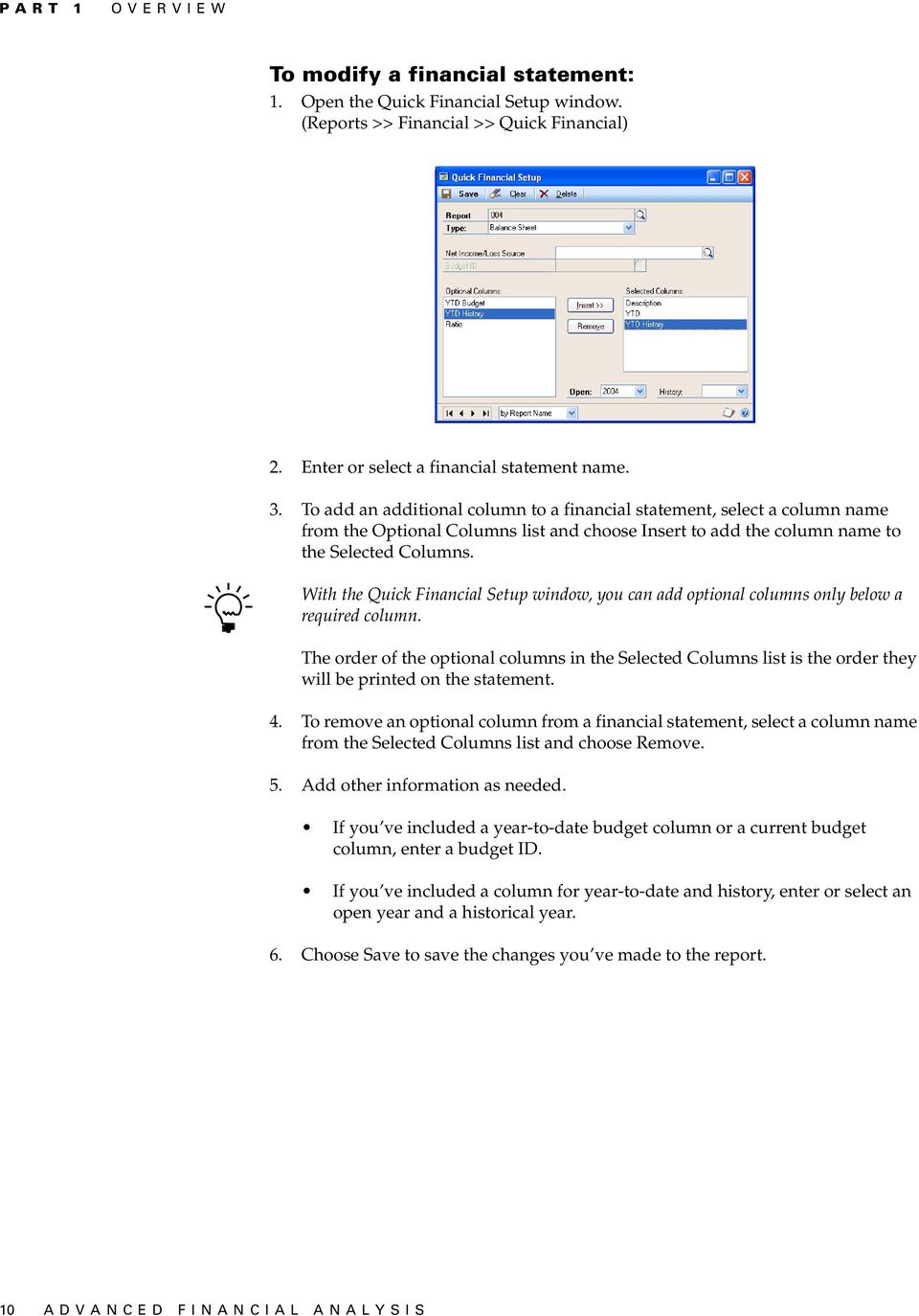
16 PART 1 OVERVIEW To modify a financial statement: 1. Open the Quick Financial Setup window. (Reports >> Financial >> Quick Financial) 2. Enter or select a financial statement name. 3. To add an additional column to a financial statement, select a column name from the Optional Columns list and choose Insert to add the column name to the Selected Columns. With the Quick Financial Setup window, you can add optional columns only below a required column. The order of the optional columns in the Selected Columns list is the order they will be printed on the statement. 4. To remove an optional column from a financial statement, select a column name from the Selected Columns list and choose Remove. 5. Add other information as needed. If you ve included a year-to-date budget column or a current budget column, enter a budget ID. If you ve included a column for year-to-date and history, enter or select an open year and a historical year. 6. Choose Save to save the changes you ve made to the report. 10 ADVANCED FINANCIAL ANALYSIS
17 Chapter 2: Advanced Financial Report Layout window The window you ll probably use most often is the Advanced Financial Report Layout window. You ll use this window to create new reports or to customize existing financial statements. This information is divided into the following sections: Advanced Financial Report Layout window components Advanced Financial Report Layout tool palette Advanced Financial Report Layout Extras menu Advanced Financial Report Layout window components The following illustration shows the components of the Advanced Financial Report Layout window. A description of each component is included below the illustration. Tool palette Column ID area Status line Header and footer ID areas Column headers Row ID areas Report cells Grid Header and footer cells Page border Tool palette Use the icons in the tool palette to place fields in the headers, footers, subheaders, and subfooters of a report. Header ID and footer ID areas These include the main header (MH), subheader (SH), subfooter (SF), and main footer (MF). When you choose a header or footer ID, the Financial Page Definition window opens, and you can select the number and location of headers and footers. Column headers When you enter these, they will appear in the column header cells. Up to six lines of column headers can be selected in the Financial Page Definition window. Row ID area define a row. Select rows here or open the Financial Row Definition window to Column ID area Select columns here or open the Financial Column Definition window to define a column. ADVANCED FINANCIAL ANALYSIS 11
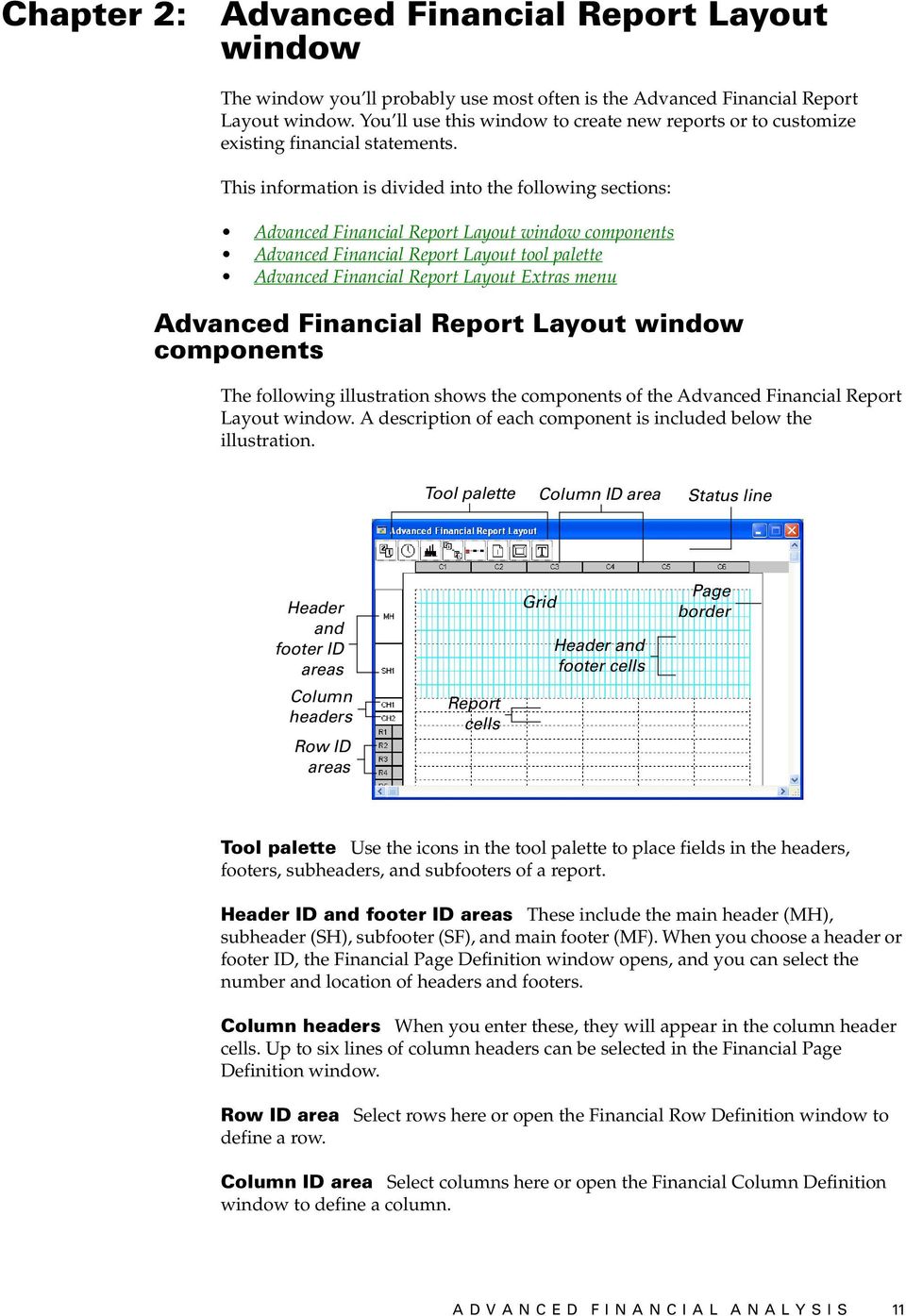
18 PART 1 OVERVIEW Status lines These display specific information about a selected item. For example, if you select a header or footer field, the top status line will display the field type. The second status line will display the field location using global coordinates. If you select a row or column, the top status line will display the row or column type. The second status line will display the row description you ve entered in the Financial Row Definition window or the comment you ve entered in the Financial Column Definition window. Grid Use this in the headers and footers to precisely position fields by aligning them with the grid. Header and footer cells These provide a destination for the fields you select from the tool palette. You can define a main header, a main footer, and up to five subheaders and five subfooters. Cell guides These divide rows and columns into individual cells. Report cells As you define these, information will be added to the report cells. When you re creating the report, account and currency formats are displayed in the report cells. The actual data will appear on the report when it is printed. Alignment marks Use these to align data in cells. When you define alignment marks, columns will be divided with vertical lines. Each column can have up to four alignment marks. Use the Financial Column Definition window to define the number of alignment marks in columns. Advanced Financial Report Layout tool palette The tool palette in the Advanced Financial Report Layout window includes icons that you can use to create customized headers and footers. You also can add accompanying text to most headers and footers. The following illustration shows the tool palette. A description of each icon is included below the illustration. To place any of these icons on the report, select an icon and drag it onto the report. Company name System date System time Period range Account range Page number Text Picture Company Name Use this icon to add your company name to headers and footers. The company name that you entered in the Company Setup window will be displayed. System Date Use this icon to add the system date to headers or footers. The format of the date will depend on how you ve set up the date format option for your computer, using the computer operating system software. System Time Use this icon to add the system time to headers and footers. The system time displays hours, minutes, and seconds. 12 ADVANCED FINANCIAL ANALYSIS
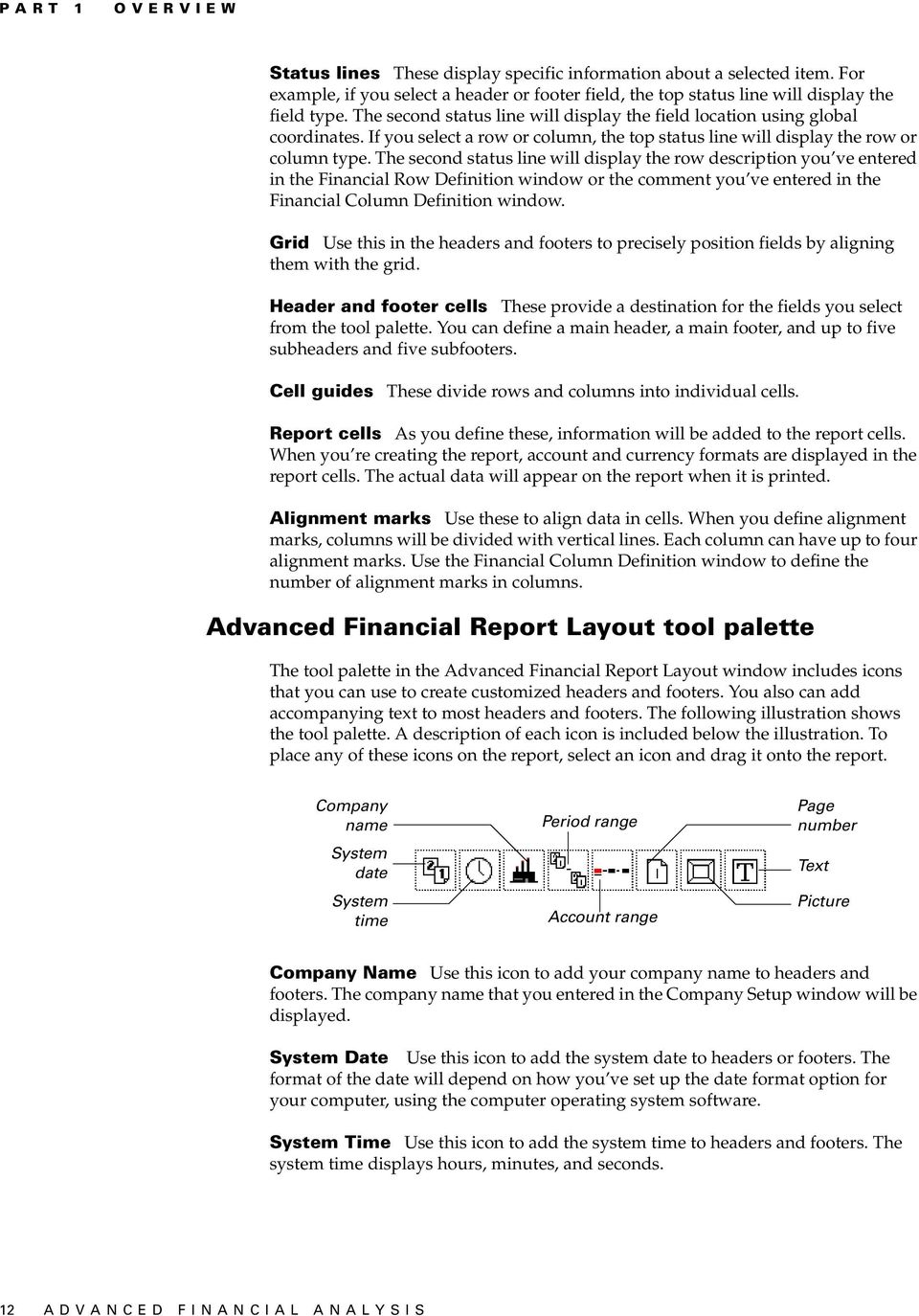
19 CHAPTER 2 ADVANCED FINANCIAL REPORT LAYOUT WINDOW Period Range Use this icon to add a period range to headers or footers. You can select a single- or double-period format. You also can enter a period range as a header on a comparative financial statement, and the Period Range field might display For the period ending 1/31/02. Account Range Use this icon to add an account range to headers or footers. You can select a segment name, an account range restriction, or a combination of both. For example, you can add an account range to the header of a divisional financial statement, and when the report is printed, the Account Range field might display For Division A to Division D. Page Number Use this icon to add the page number to header or footers. Text Use this icon to add text to headers or footers. Picture Use this icon to add a picture to headers or footers. You can enter several pictures in the Financial Report Picture window, then select the picture you would like to use in each Picture Field. Advanced Financial Report Layout Extras menu The Extras menu in the Advanced Financial Report Layout window contains items in the Options submenu that determine how information is displayed in the window. When you re creating a report in the Advanced Financial Report Layout window, you can change the options you ve displayed. If you activate an item by choosing it, a check mark will appear. If you unmark an item, it won t be active. ADVANCED FINANCIAL ANALYSIS 13

20 14 ADVANCED FINANCIAL ANALYSIS

21 PART 2: REPORT DEFINITION
22 Part 2: Report definition This part of the documentation includes information that will help you to create customized reports and define financial statements using Advanced Financial Analysis. The following information is discussed: Chapter 3, Financial statements and reports, describes how to copy a report and modify an existing financial statement. Chapter 4, Headers and footers, describes how to define the number, location, and text for report headers and footers. Chapter 5, Columns, describes how to add and customize report columns. Chapter 6, Rows, describes how to define an unlimited number of rows for your report. Chapter 7, Calculations, describes how to set up information that is calculated and printed on reports. Chapter 8, Formats, includes information about the rules that apply to cells, based on the type of row and column that are intersecting. Chapter 9, Customization, includes information about customizing reports. For example, you can add or remove rows or columns, resize them, or change the alignment of the information in them. 16 ADVANCED FINANCIAL ANALYSIS
23 Chapter 3: Financial statements and reports Some basic financial statements a Balance Sheet, a Profit and Loss Statement, a Statement of Retained Earnings, and a Statement of Cash Flows are included with your accounting program and are displayed in the Quick Financial Setup window. You can use Advanced Financial Analysis to customize financial statements, or to create and customize reports. Refer to Chapter 9, Customization, for more information about customizing. Refer to your General Ledger documentation for more information about creating new financial statements. This information is divided into the following sections: Copying existing financial statements Report design Creating a new report Modifying reports Copying existing financial statements You can copy an existing report using the Duplicate Report window. You might do this to create an exact duplicate of the report, or to use as a template for creating a new report. To copy an existing financial statement: 1. Open the Advanced Financial Reports window. (Reports >> Financial >> Advanced Financial) 2. Select a report from the Advanced Financial Reports window and choose Duplicate to open the Duplicate Report window. 3. Enter a name for the duplicated report and choose OK. The duplicated report will contain the same attributes and information as the report you copied, but will be saved in the Advanced Financial Reports window under the name you enter. ADVANCED FINANCIAL ANALYSIS 17
24 PART 2 REPORT DEFINITION Report design Before you create a new report, consider how the report should be laid out. For example, decide which headers and footers you ll need, how the columns and rows should appear to use pictures, or other items in your layout. You might review an existing document with a similar layout to help determine how your report will look. To create an extra wide report, you can print it in landscape mode or use a widecarriage printer. For additional information about page and printer setup, refer to your documentation for your operating system and for your printer. Creating a new report Use the Advanced Financial Report Definition window to create new reports or to modify financial statements such as the Balance Sheet, Profit and Loss Statement, Statement of Retained Earnings, or a Statement of Cash Flows. If you re creating a different Balance Sheet, Statement of Retained Earnings, or Statement of Cash Flows, you can select a Profit and Loss Statement in the Net Income/Loss Source field to specify a profit and loss amount. The statement you select will be used to calculate the net income or loss used in the financial statement you re creating. If you select Other in the Report Type field, you can include a net profit row on the report. If you enter a net income/loss source, the net income/loss amount from that report will be used in the net profit row on the new report. If you don t enter a net income/loss source, the net income/loss amount in a net profit row will be calculated using the account range, account category, beginning balance range, beginning balance category, and prior period adjustment rows that you can include in the report layout. To create a new report: 1. Open the Advanced Financial Reports window. (Reports >> Financial >> Advanced Financial) 2. Choose New. The Advanced Financial Report Definition window will open. 3. Enter a report name and select a report type. 4. Choose Layout to open the Advanced Financial Report Layout window to define the new report. 5. Enter header, footer, column, and row information for your report. 6. Choose File >> Save to save your changes. 18 ADVANCED FINANCIAL ANALYSIS
25 CHAPTER 3 FINANCIAL STATEMENTS AND REPORTS Modifying reports You can copy existing reports and modify them to meet your specific business needs, or you can copy a report to analyze how to set up a new report. To modify an existing report: 1. Open the Advanced Financial Reports window. (Reports >> Financial >> Advanced Financial) 2. Highlight the report name and choose Open. The Advanced Financial Report Definition window opens, displaying information about the report. 3. You can change the report type, if needed. You can change the report type, but we recommend that you use the report type that appears in the window. 4. Choose Layout to open the Advanced Financial Report Layout window. 5. Make changes in the window, as needed. You can change information for headers, footers, rows, and columns. You also can add calculated fields to the report. Refer to Chapter 2, Advanced Financial Report Layout window, for more information about the options available in the Advanced Financial Report Layout window. Refer to Chapter 9, Customization, for more information about customizing reports. 6. When you ve finished making changes, choose File >> Save to save the report. ADVANCED FINANCIAL ANALYSIS 19
26 20 ADVANCED FINANCIAL ANALYSIS
27 Chapter 4: Headers and footers Headers and footers are used to add information to the tops and bottoms of pages and will be printed on the pages you specify. You can use the information in this chapter to define headers and footers for your report or financial statement. This information is divided into the following sections: Defining header and footer areas Modifying text in headers and footers Header and footer printed appearance Defining header and footer areas Your first step in modifying a new financial statement or creating a new report is to select the number and location for the headers and footers. Use the Financial Page Definition window to define header and footer areas. You can define a main header, a main footer, and up to five subheaders and subfooters. You also can define up to six lines of column headers. If you re modifying a financial statement created in the Quick Financial Setup window, the system date, company name, page number, report name, account range, period range, and two lines of column headers will be displayed in the main header and subheader. You can change the information in these fields or delete it. Not all of the definitions you make for headers and footers will appear on the screen. Many of the types of definitions are displayed only when you print the reports and financial statements. For more information, refer to Description column format on page 52. Before beginning this procedure, you should have chosen the report to modify and opened it in the Advanced Financial Report Layout window. Refer to Modifying reports on page 19 for more information. To define header and footer areas: 1. Open the Advanced Financial Reports Layout window for the report you re modifying. 2. Choose a header or footer ID, such as MH (Main Header), to open the Financial Page Definition window. ADVANCED FINANCIAL ANALYSIS 21
28 PART 2 REPORT DEFINITION 3. Select the elements to include on your report main header, subheaders, column headers, subfooters, and main footer. You can select the number of subheaders, column headers, and subfooters from the list. A main header, one subheader, and two lines of column headers will appear as default entries for all reports. Each subheader or subfooter you select will be represented by a number in the Subheader and Subfooter lists. The number will indicate the position of the subheader or subfooter on the report. 4. Select subheader and subfooter numbers to indicate which pages the subheader or subfooter should appear on all pages, even or odd numbered pages, or a specific page. If you don t specify where a subheader or subfooter should appear, it will appear on all pages. 5. Choose OK to save your changes and close the Financial Page Definition window. The headers and footers you ve selected will be displayed in the Advanced Financial Report Layout window, and the grid will be displayed in the header and footer. Choose Options >> Grid to hide it. 6. Use icons in the tool palette to define the headers and footers. For example, you can drag the clock icon to the header area to add the system time to the header or footer of your report. For more information about using the tool palette, refer to Advanced Financial Report Layout tool palette on page If needed, change the text labels for the fields you ve added to the headers and footers. Refer to Modifying text in headers and footers on page 22 for more information. 8. Choose File >> Save to save your changes. Modifying text in headers and footers When you ve positioned fields in the headers and footers of your report, you can change the information and add text to the fields. To add text that will appear to the left of a field, in place of the word Text in each format, you can open a window that corresponds with the field and enter text. Before beginning this procedure, you should have opened the report you re modifying in the Advanced Financial Report Layout window, and added one or more fields to the headers or footers of the report. To modify text in headers and footers: 1. In the header or footer area of the Advanced Financial Report Layout window, double-click the field that has the label you want to change. For example, if you add the Time field to the header of your report and then double-click the Time field in the Advanced Financial Report Layout window, 22 ADVANCED FINANCIAL ANALYSIS
29 CHAPTER 4 HEADERS AND FOOTERS the Time Format window opens. You can use that window to modify the label for the time field. Different windows will open, depending on the field you double-click. Refer to the table for more information. Field System Date System Time Company Name Period Range Account Range Page Number Picture Text field Window Opens the Date Format window, where you can edit the text label for the date field in the headers or footers of your report. Opens the Time Format window, where you can edit the text label for the time field in the headers or footers of your report. Time information is displayed in hours, minutes, and seconds, and is determined at the time of printing the report. Opens the Company Name Format window, where you can edit the text label for the company name field in the headers or footers of your report. Opens the Period Range Format window, where you can edit the text of the field. You also can select the format of the period range information, including a single-period or double-period format. The single-period format is the default setting. The period range is determined by the periods you ve included in the report columns. Opens the Account Range Format window, where you can select one of six formats for the account range. You might use this field in a header for a department or divisional financial statement. If you select a format that uses segment numbers, your selections in the Ranges field in the Financial Statement Report Options window will be entered in place of <Seg Number> when you print the report. Your selection in the Segment field in the Account Range Format window will determine which segment number will be used. The description of the segment will be used if you ve entered one in the Account Segment Setup window. If you haven t entered a segment description, the segment number will be used. For example, if you ve defined segment 100 as North Store, North Store will be printed. If you haven t entered a description, 100 will be printed. If you select a format that uses segment IDs, you also can enter text that will appear in place of the word text in each format. The Segment Number format (Text <Seg Number>) will be the default format when you use an Account Range field in a header or footer. Opens the Page Number Format window, where you can enter text that will appear to the left of the page number. Opens the Pictures window, where you can select a picture to include in a header or footer. Opens the Text Format window, where you can enter text that will appear in a header or footer. 2. Make your entries in the formatting window that opens. 3. Choose OK to save your changes and close the formatting window. 4. Continue, repeating steps 1 through 3 until you ve formatted each field in the header and footer of the report. 5. Choose Save in the Advanced Financial Report Layout window to save your header and footer changes. ADVANCED FINANCIAL ANALYSIS 23
30 PART 2 REPORT DEFINITION Header and footer printed appearance When you print reports and financial statements, main headers are displayed only on the top of the first page, and main footers are displayed only on the bottom of the first page. Subheaders aren t displayed on the first page, and subfooters aren t displayed on the last page. 24 ADVANCED FINANCIAL ANALYSIS
31 Chapter 5: Columns When you create a new report or modify an existing financial statement you must define each column. You also can enter column headers and account range restrictions for columns if you re creating a departmental or a divisional report. If you re modifying a financial statement created in the Quick Financial Setup window, you can add columns for ratios, budgets, or historical information. It s easier to define columns before you define rows. However, if you re planning to use a row in a column calculation, you ll need to define the row before it can be used in the expression. This information is divided into the following sections: Overview of column types Space column Account column Description column Period range column Year-to-date column Variable Year-to-Date column User-defined calculation column Text column Entering column information Column headers Entering column headers Account segment restrictions Wildcard characters in segment restrictions Overview of column types There are eight types of columns. You can include up to 40 columns on reports and financial statements. When you select a printer and printer settings, the margins for your report will be set up. To include additional columns, change your printer selections and the margins will adapt accordingly. To change the printer settings, close the Advanced Financial Report Layout window, change the printer settings, and then reopen the layout window. Use the Financial Column Definition window to select columns to include on a report. Some column types require that you enter additional information. A description of each column type and additional information you can use to enter column information is discussed. Refer to the following topics: Space column on page 26 Account column on page 26 Description column on page 26 Period range column on page 26 Year-to-date column on page 27 Variable Year-to-Date column on page 28 User-defined calculation column on page 28 Text column on page 29 ADVANCED FINANCIAL ANALYSIS 25
32 PART 2 REPORT DEFINITION Space column Space columns appear as blank columns. You can use a blank column to separate other report columns. Additional information isn t required for space columns. However, if you enter a comment, it will be displayed on the lower status line when you select the column. Account column You can use an account column type to include a column of accounts on a financial statement. Accounts from your chart of accounts will appear in the column. Additional information isn t required for account columns. However, if you enter a comment, it will be displayed on the lower status line when you select the column. Description column When you print a report, you can choose to print the row description you ve entered in the Financial Statement Report Options window. You also can print account descriptions from the Account Maintenance window. The information displayed in a description column in the Advanced Financial Report Layout window is not always what will appear on the printed report. If the data in a description column appears in angle brackets (< >), it might change when you print the report. For more information, refer to Description column format on page 52. Additional information isn t required for description columns. However, if you enter a comment, it will be displayed on the lower status line when you select the column. Period range column A period range column will include the account balance for the selected periods. You can include this column type on a quarterly financial statement to define columns for each quarter using a period range. If you define rows for beginning balance ranges or beginning balance categories, beginning balances will appear in the cells instead of period balances. Balance For Mark Year or Budget to specify if information displayed should be from a current year, a historical year, or from a budget. If you select a historical year, a current year, or a budget, enter a year or a budget ID. Period and To Select Current Period or Other Period. If you select Other Period, enter a starting period and an ending period. If you include a period range column on a Balance Sheet, balances from the beginning of the fiscal year to the end of the range you select will be printed in place of the period range. Balance Sheets and Statements of Retained Earnings always calculate balances from the beginning of a fiscal year. Rounding Method Select a rounding amount None, One, Hundreds, Thousands, or Millions. Amounts will be rounded accordingly. 26 ADVANCED FINANCIAL ANALYSIS
33 CHAPTER 5 COLUMNS Display Mark Thousands Separator if the symbol that separates thousands should appear in numerical values and mark Symbol if a percent sign or a currency symbol should appear in the cells in the column. You also must select the type of symbol to use. For intersecting rows and columns, a currency symbol will appear only in the cells where you ve selected the currency symbol in both the Financial Row Definition and Financial Column Definition windows. For more information, refer to Chapter 8, Formats. Ranges button Choose Ranges if amounts for specific account segments should appear in the column. The Account Segment Ranges window will open. Refer to online help for more information about the Account Segment Ranges window. Comment If you enter a comment, it will be displayed on the lower status line when you select the column. Year-to-date column A year-to-date column based on the user date can be used on any financial statement to show year-to-date balances for accounts. If you define rows for beginning balance ranges or beginning balance categories, beginning balances will appear in the cells instead of year-to-date balances. Balance For Mark Year or Budget to specify if information displayed should be from a current year, a historical year, or from a budget. If you select a historical year, a current year, or a budget, enter a year or a budget ID. Display Mark Thousands Separator if the symbol that separates thousands should appear in numerical values and mark Symbol if a percent sign or a currency symbol should appear in the cells in the column. You also must select the type of symbol to use. For intersecting rows and columns, a currency symbol will appear only in the cells where you ve selected the currency symbol in both the Financial Row Definition and Financial Column Definition windows. For more information, refer to Chapter 8, Formats. Rounding Method Select a rounding amount None, One, Hundreds, Thousands, or Millions. Ranges button Choose Ranges if amounts for specific account segments should appear in the column. The Account Segment Ranges window will open. Refer to help for more information about the Account Segment Ranges window. Comment If you enter a comment, it will be displayed on the lower status line when you select the column. ADVANCED FINANCIAL ANALYSIS 27
34 PART 2 REPORT DEFINITION Variable Year-to-Date column If you select Variable Year-to-Date, you also can select an ending period that will determine the account balances of accounts. Each time you print the report you can select a different ending period and use the same report as a basis for creating similar reports with different ending periods. If you define rows for beginning balance ranges or beginning balance categories, beginning balances will appear in the cells instead of variable year-to-date balances. Balance For Mark Year or Budget to specify if information displayed should be from a current year, a historical year, or from a budget. If you select a historical year, a current year, or a budget, enter a year or a budget ID. Display Mark Thousands Separator if the symbol that separates thousands should appear in numerical values and mark Symbol if a percent sign or a currency symbol should appear in the cells in the column. You also must select the type of symbol to use. For intersecting rows and columns, a currency symbol will appear only in the cells where it has been selected in both the Financial Row Definition and Financial Column Definition windows. For more information, refer to Chapter 8, Formats. To Select Current Period or Other Period. If you select Other Period, you must enter an ending period. Rounding Method Select a rounding amount None, One, Hundreds, Thousands, or Millions. Ranges button Choose Ranges if amounts for specific account segments should appear in the column. The Account Segment Ranges window will open. Refer to online help for more information about the Account Segment Ranges window. Comment If you enter a comment, it will be displayed on the lower status line when you select the column. User-defined calculation column If you select user-defined calculation, you can enter a calculation using columns, rows, constants, or unit accounts. You can use a user-defined calculation column to add columns for ratios, variances, or conversions. To Select Current Period or Other Period. If you select Other Period, you must enter an ending period. Rounding Method Select a rounding amount None, One, Hundreds, Thousands, or Millions. Balance For Mark Year or Budget to specify if information displayed should be from a current year, a historical year, or a budget. If you select a historical year, a current year, or a budget, enter a year or a budget ID. 28 ADVANCED FINANCIAL ANALYSIS
35 CHAPTER 5 COLUMNS Display Mark Thousands Separator if the symbol that separates thousands should appear in numerical values and mark Symbol if a percent sign or a currency symbol should appear in the cells in the column. You also must select the type of symbol to use. For intersecting rows and columns, a currency symbol will appear only in the cells where it has been selected in both the Financial Row Definition and Financial Column Definition windows. For more information, refer to Chapter 8, Formats. Expression You can enter a calculation using the Financial Column Expression Entry and Financial Row Expression Entry windows, the unit accounts lookup list, and the mathematical symbols in the Financial Column Definition window. For more information about entering a calculation, refer to Chapter 7, Calculations. Comment If you enter a comment, it will be displayed on the lower status line when you select the column. Text column The text you enter in the Text field will be displayed in the column. The text will appear where the intersecting rows are defined as account range, account category, beginning balance range, beginning balance category, and prior period adjustment. For more information, refer to Chapter 8, Formats. Entering column information Use the Financial Column Definition window to select and define column headers for a financial statement or report. For more information about the column types you can use, refer to Overview of column types on page 25. To enter column information: 1. Open the Advanced Financial Report Layout window. (Reports >> Financial >> Advanced Financial >> select a report >> Open >> Layout) 2. Select a column ID to open the Financial Column Definition window. 3. Select a column type in the Type field and enter required information. ADVANCED FINANCIAL ANALYSIS 29
36 PART 2 REPORT DEFINITION 4. Choose OK to save your changes. The Advanced Financial Report Layout window will be displayed. 5. Choose File >> Save to save the report. Column headers Use the following information about each header format as a guide when you enter headers in the Column Header Format window. The text that you enter will appear in place of the terms displayed in brackets < > in the Advanced Financial Report Layout window. Text You can enter text that will appear in place of the word Text in the layout window. To enter two words, such as Sales Ratio on two lines, define a text column header and enter Sales, and choose Insert. Then define another text column header, enter Ratio, and choose Insert. Text <Historical Year> You can enter text in the first Text field and the historical year you ve selected in the Financial Column Definition window will appear in place of <Historical Year>. For example, if you enter For and select 2001 as the historical year, the header would appear as For Text <Budget ID> You can enter text in the first Text field, and the budget ID you ve selected in the Financial Column Definition window will appear in place of <Budget ID>. For example, if you enter Budget values from and select Budget 1 as the budget ID, the header would appear as Budget values from Budget 1. Text <Period> You can enter text in the first Text field, and the ending date for the period you selected in the Financial Column Definition window will appear in place of <Period>. For example, if you enter As of and select Period 6 as the starting and the ending period, the header would appear as As of 6/30/01 if the fiscal-year periods follow a calendar year. Text <Beginning Period> Text <Ending Period> You can enter text in the first and second Text fields. The text you enter, the starting date of the period you select in the Financial Column Definition window, and the ending date you select will be displayed. Text <Seg Number> You can enter text in the first Text field, and the account segment restriction you select for the column in the Account Segment Ranges window will appear in place of <Seg Number>. The account segment you select in the Segment field in the Account Range Format window will determine which segment number will be used. For example, if you enter Segment as the text and select segment 100 to 200 as the account restriction, the header would appear as Segment 200. Text <Seg ID> You can enter text in the first Text field and select an account segment. For example, if you enter For accounts representing as the text and select the account segment representing Division, the header would appear as For accounts representing Division. 30 ADVANCED FINANCIAL ANALYSIS
37 CHAPTER 5 COLUMNS Text <Seg ID> <Seg Number> You can enter text in the first Text field and select an account segment. The account segment you select for the column in the Account Segment Ranges window will appear in place of <Seg Number>. For example, if you enter For as the text and select Division and segment 100 to 200, the header would appear as For Division 200. Text <Beginning Seg Number> Text <Ending Seg Number> You can enter text in the first and second Text fields and select an account segment. The starting account segment restriction you select for the column in the Account Segment Ranges window will appear in place of <Beginning Seg Number> and the ending account segment restriction you select will appear in place of <Ending Seg Number>. Your selection in the Segment field in the Account Range Format window will determine which segment number will be used. The segment description will be used if you ve entered one in the Account Segment Setup window. If you haven t entered a segment description, the segment number will be displayed. For example, if you enter For, To, Division, and 200 to 300, the header would appear as For 200 to 300. Text <Seg ID> <Beginning Seg Number> Text <Ending Seg Number> You can enter text in the first and second Text fields and select a format using a segment ID and segment numbers. The starting account segment restriction you select for the column in the Account Segment Ranges window will appear in place of <Beginning Seg Number> and the ending account segment restriction you select will appear in place of <Ending Seg Number>. The segment description will be used if you ve entered one in the Account Segment Setup window. If you haven t entered a segment description, the segment number will be displayed. For example, if you enter For, To, Location, and 200 to 500, the header would appear as For Location 200 to 500. Text <Seg ID> <Beginning Seg Number> Text <Seg ID> <Ending Seg Number> You can enter text in the first and second Text fields and select an account segment. The starting account segment restriction you selected for the column in the Account Segment Ranges window will appear in place of <Beginning Seg Number>, and the ending account segment restriction you ve selected will appear in place of <Ending Seg Number>. The segment description will be used if you ve entered one in the Account Segment Setup window. If you haven t entered a segment description, the segment number will be displayed. For example, if you enter For, To, Department, and 100 to 400, the header would appear as For Department 100 to Department 400. ADVANCED FINANCIAL ANALYSIS 31
38 PART 2 REPORT DEFINITION Entering column headers Use the Column Header Format window to enter column headers that identify the values entered in each column. To enter column headers: 1. Open the Advanced Financial Report Layout window. (Reports >> Financial >> Advanced Financial >> select a report >> Open >> Layout) 2. Select a header and open the Financial Column Definition window. (Definition >> Column) 3. Choose Headers. The Column Header Format window will open. 4. Select a header format from the list and enter text or select an account segment that will be substituted for <Seg ID> in the column header type. If you ve opened a financial statement created in the Quick Financial Setup window, column headers will already have been defined. You can enter column headers only for any new columns or change the column headers for existing columns. 5. Choose Insert and the header will appear below the highlighted column header in the list. 6. Define other headers and insert them into the list. 7. To modify a header, highlight the line and change the header format, text, or segment. Choose Modify. 8. Choose OK to save your changes. 32 ADVANCED FINANCIAL ANALYSIS
39 CHAPTER 5 COLUMNS Account segment restrictions You can use the Account Segment Ranges window to enter segment restrictions for accounts to include in Period Range, Year-to-Date, Variable Year-to-Date, or Beginning Balance column types. The following information describes how to specify a range of account segments for budget calculations or report columns. For example, to create a departmental or divisional Profit and Loss Statement, you could enter the following segment restrictions to restrict the accounts that will be included to those for a single department or division. Column 1 Column 2 Column 3 Column 4 Column 5 Description Period range of Period 1 to Period 1; Account segment range of Department 100 to 100. Period range of Period 1 to Period 1; Account segment range of Department 200 to 200. Period range of Period 1 to Period 1; Account segment range of Department 300 to 300. User-defined calculation to total the three periods. You d enter this calculation: C2 + C3 + C4. The information in the Profit and Loss Statement would look like this: Description Department 100 Period Sales $1,351, Sales Returns and $64, Discounts Cost of Goods Sold $561, Description Sales $908, Sales Returns and $58, Discounts Cost of Goods Sold $498, Department 200 Period Description Sales $211, Sales Returns and $5, Discounts Cost of Goods Sold $ Department 300 Period Description Sales $2,471, Sales Returns and $128, Discounts Cost of Goods Sold $1,060, All Departments Period ADVANCED FINANCIAL ANALYSIS 33
40 PART 2 REPORT DEFINITION Wildcard characters in segment restrictions You can save time when you re entering segment restrictions for a column by using wildcard characters in the Account Segment Ranges window. Wildcard characters indicate that any character can be substituted in that position. To enter wildcard characters in a range restriction for a segment ID, replace the characters in the restriction with question marks. For example, if your company uses a three-segment account format of three characters each, your entry might look like this: 100-???-000 All accounts that have 100 as the first segment and 000 as the third segment would be included on the report. You also can use wildcard characters in the Account Segment Ranges window to define a range of accounts. For example, if your company uses the first account segment to represent divisions, you could enter ranges to select different combinations of divisions using wildcard characters. If you enter From?00 to 200, your entry in the Account Segment Ranges window would include all accounts for the divisions with segments that end in 00 and are equal to or smaller than ADVANCED FINANCIAL ANALYSIS
41 Chapter 6: Rows If you re creating a new report using Advanced Financial Analysis, you ll need to define each row. You can define a row as a page break, total, account range or category, beginning balance range or category, net profit, or an underline. If you re modifying a report created in the Quick Financial Setup window, you can add rows to include summary totals, prior period adjustments, single or double underlines, or headers. If rows on financial statements created in the Quick Financial Setup window already have rows defined, you ll need to define new rows only. You also can make changes to existing rows. This information is divided into the following sections: Overview of row types Space row Account range row or beginning balance row Account category or beginning balance category row Total row Rounding difference row Net profit row Prior period adjustment row Header row Single or double underline row Page break row Entering row information Using wildcard characters in a row Marking rows for rollups Overview of row types There are 14 types of rows you can use on reports and financial statements, and you can include an unlimited number of rows on them. Depending on the row type you select to define, you might need to enter additional row information. A description of each row type and additional information you can use to enter row information in the Financial Row Definition window is discussed. Refer to the following topics for more information. Space row on page 35 Account range row or beginning balance row on page 36 Account category or beginning balance category row on page 37 Total row on page 39 Rounding difference row on page 40 Net profit row on page 41 Prior period adjustment row on page 42 Header row on page 42 Single or double underline row on page 43 Page break row on page 43 Space row Space rows will be blank on a report. You can add a blank row between groups of accounts, such as current assets and fixed assets. ADVANCED FINANCIAL ANALYSIS 35
42 PART 2 REPORT DEFINITION Account range row or beginning balance row You can use account range rows or beginning balance range rows to define rows that will include balances for a range of accounts. Account range rows will include amounts for the account range you specify. Use a beginning balance range row type to include the beginning balances for a range of accounts. If you select a beginning balance range row and you re printing a report for the first month of the fiscal year, the beginning balance amount will be drawn from the beginning balance period in the Account Summary window. When you print a report at any other time during the year, the beginning balance will be calculated through the end of the starting period you ve entered. For example, if the fiscal year follows the calendar year and you ve set up 12 fiscal periods, the beginning balance will be drawn from the Account Summary window if you enter Period 1 as the starting period. If you enter Period 7 as the starting period, the beginning balance will be calculated through the end of June. If you later define columns for year-to-date amounts, variable year-to-date amounts, or period balances, beginning balances will appear in a row defined as a beginning balance range row type, instead. When you print a financial statement that contains an Account Range or Beginning Balance Range row, you can select detail (the amounts for each account in the range will appear on a separate line), or summary (the total of all accounts in the range will appear in a single row). Description You can enter a row description such as Sales accounts and it will appear on the lower status line when you select the row. If a description column is included, the row description also will appear in angle brackets (< >) in the cell where the description column and the row intersect. When the data appears in angle brackets, it might change when the report is printed. If you don t enter a row description, the cell where the description column and the row intersect will appear as <Account Range> or <Beginning Balance Range>. When you print a summarized financial statement, you can select to print the row description or the account description that was entered in the Account Maintenance window for the first account in the range. Printing a detailed financial statement and the account descriptions will be used. Account You can enter a beginning and ending account to indicate a range of accounts. There are two options for entering accounts entering each account in a separate row or entering a range of accounts in a single row. If you enter accounts in ranges, there will be fewer rows in the report and it will be printed more quickly. For example, you might have the following four accounts: Four rows can be entered where the same account as the beginning and ending account was entered. A single account would be included in each row. You must define rows for each of the other three accounts. You also can enter a range of accounts in the row. 36 ADVANCED FINANCIAL ANALYSIS
43 CHAPTER 6 ROWS When you print the financial statement in detail, each of the four accounts in the range will appear on a separate line. If you print in summary, the sum of the amounts of the four accounts in the range will appear in a single row. To enter a range that includes all remaining accounts or that will include accounts added in the future, enter uppercase Zs in the ending account. For example, you can enter ZZZ-1130-ZZ. Numbers appear before letters in a range, so 1 would come before C. Cash Flow Section You can select Statement of Cash Flows as your report type and then specify how the amounts for the accounts in the section will be calculated. Select one of the following sections of the Statement of Cash Flows: Operating The operating section contains transaction amounts for acquiring, selling and delivering goods for sale, along with providing services. Investing The investing section includes transaction amounts related to loans and collecting on those loans, acquiring and selling investments, and acquiring and selling property and equipment. Financing The financing section includes transaction amounts for obtaining resources from owners and providing owners with a return on their investments, along with obtaining resources from creditors and repaying the amounts that have been borrowed. Currency Symbol You can select to print a currency symbol on all amounts, the first amount, or no amounts. Currency symbols will appear accordingly on a detailed report. If you select All Amounts or First Amount and print a summarized report, the amounts in the row will include currency symbols. If you select None and print either a detailed or a summarized report, currency symbols won t be displayed. For intersecting rows and columns, a currency symbol will appear only in the cells where it has been selected in both the Financial Row Definition and Financial Column Definition windows. For more information, refer to Chapter 8, Formats. Account category or beginning balance category row You can use Account Category rows or Beginning Balance Category rows to define rows that will include the balances for all accounts assigned to the selected category. Account Category rows include the amounts for all accounts assigned to the Cash category. Beginning Balance Category rows include the beginning balances of all accounts in the Inventory category. You can print the financial statement in detail (the amounts for each account in the category will appear on a separate line), or summary (the total of all accounts in the category will appear in a single row). If you define rows using account categories, any new accounts you add to the category will be included automatically on the report. If you select a Beginning Balance Category row and you re printing a report for the first month of the fiscal year, the beginning balance amount will be drawn from the Beginning Balance period in the Account Summary window. You can print a report at any other time during the year, and the beginning balance will be calculated through the end of the starting period you ve entered. For example, if the fiscal year follows the calendar year and you ve set up 12 fiscal periods, the beginning balance ADVANCED FINANCIAL ANALYSIS 37
44 PART 2 REPORT DEFINITION will be drawn from the Account Summary window if you enter Beginning Balance as the starting period. Enter Period 7 as the starting period, and the beginning balance will be calculated through the end of June. If you later define columns for year-to-date amounts, variable year-to-date amounts, or period balances, beginning balances will appear in the beginning balance category row of the column instead. Description You can enter a row description or accept the account category as the default. The row description will appear on the lower status line when you select the row. You can include a description column, and the row description also will appear in angle brackets (< >) in the cell where the description column and the row intersect. When the data appears in angle brackets, it might change when the report is printed. If you don t enter a row description, the cell where the description column and the row intersect will appear as <Account Category> or <Beginning Balance Category>. When you print a summarized financial statement, you can select to print the row description or the account description that you entered in the Account Maintenance window for the first account in the category. If you print a detailed financial statement, the account description for each account will be used. Category You can enter or select an account category. The row will include the balances of all accounts in the selected category. Cash Flow Section You can select Statement of Cash Flows as your report type and then specify how the amounts for the accounts in the section will be calculated. Select one of the following sections of the Statement of Cash Flows: Operating The operating section contains transaction amounts for acquiring, selling, and delivering goods for sale, along with providing services. Investing The investing section includes transaction amounts related to loans and collecting on those loans, acquiring and selling investments, as well as acquiring and selling property and equipment. Financing The financing section includes transaction amounts for obtaining resources from owners and providing owners with a return on their investments, along with obtaining resources from creditors and repaying the amounts that have been borrowed. Currency Symbol You can select to print a currency symbol on all amounts, the first amount, or no amounts. Currency symbols will appear accordingly on a detailed report. If you select All Amounts or First Amount and print a summarized report, the amounts in the row will include currency symbols. If you select None and print either a detailed or a summarized report, currency symbols won t be displayed. For intersecting rows and columns, a currency symbol will appear only in the cells where it has been selected in both the Financial Row Definition and Financial Column Definition windows. For more information, refer to Chapter 8, Formats. 38 ADVANCED FINANCIAL ANALYSIS
45 CHAPTER 6 ROWS Total row You can select Total as the row type and enter a calculation using other rows. Use this row type to enter a calculation that will total previously defined rows. Description You can enter a row description such as Total Sales. The row description will appear on the lower status line. Include a description column, and the row description also will appear in the cell where the description column and the row intersect. For more information, refer to Chapter 8, Formats. Typical Balance You can mark Debit or Credit, depending on the typical balance of the row. For example, the typical balance for asset accounts would be a debit, and the typical balance for liability accounts would be a credit. If the actual balance of the row is different than the typical balance you ve selected, the amount will appear as a negative amount. Currency Symbol You can select to print a currency symbol on all amounts, the first amount, or no amounts. If you select All Amounts or First Amount, the amounts in the row will include currency symbols. If you select None, currency symbols won t appear. For intersecting rows and columns, a currency symbol will appear only in the cells where it has been selected in both the Financial Row Definition and Financial Column Definition windows. For more information, refer to Chapter 8, Formats. Expression You can include an unlimited number of rows that contain totaling expressions on a single report. You can create lengthy financial statements with an unlimited number of nested totals. You can enter a totaling expression in the Financial Row Definition window by using the buttons in the Totaling Expression section of the window shown in the following illustration. You can open the Financial Row Expression Entry window, where you can select rows for use in the calculation. In the Financial Row Expression Entry window, select only rows above the row that is being defined. For example, if Row 4 is being defined, only rows 1, 2, and 3 can be used in the expression. If you know which rows to include in your calculation and don t need to select them in the Financial Row Expression Entry window, enter a row number and select the row insertion button (») next to your entry. As you make selections, the expression will appear. A calculation can have up to 100 tokens or items. Parentheses are not counted. The digits representing row IDs count as a single token. For example, this expression (R2 + R3) contains three tokens: R2, +, and R3. For more information about calculation, refer to Chapter 7, Calculations. ADVANCED FINANCIAL ANALYSIS 39
46 PART 2 REPORT DEFINITION You can use a totaling row on a financial statement to total the Current Assets section of a Balance Sheet. For example, if Row 15 contains amounts from the Cash account category, row 16 contains Accounts Receivable amounts, and row 17 contains Inventory amounts, the calculation you can enter to determine total current assets on a Balance Sheet would be rows 15 through 17. To enter the expression described above, open the Financial Row Expression Entry window. Highlight row 15 and choose Insert. Choose Thru, then highlight row 17, and choose Insert. Choose OK to redisplay the Financial Row Definition window. The following illustration shows where to make entries in the Financial Row Expression Entry window. If you know which rows to include in the calculation and don t need to select them from the Financial Row Expression Entry window, enter the expression without using the Financial Row Expression Entry window, as shown below. Enter 15 in the field next to the row expansion button and then choose Insert. Choose Thru and then enter 17 in the field next to the row expansion button. Choose Insert. Rounding difference row If you select to round column amounts, you can enter a rounding difference row. This row will be used to record the difference between the actual amounts and the rounded amounts. We recommend defining a rounding difference row directly below a totaling row. Enter the same expression for both the rounding difference and the totaling rows. The rounding difference will appear in the rounding difference row, and the total will appear in the totaling row. Enter a third row that will calculate the actual total, the sum of the rounding difference, and the totaling rows. Description You can enter a row description, such as Rounding Difference. The row description will appear on the lower status line when you select the row and in the cell where the description column and the row intersect. 40 ADVANCED FINANCIAL ANALYSIS
47 CHAPTER 6 ROWS Currency Symbol You can select to print a currency symbol on all amounts, the first amount, or no amounts. If you select All Amounts or First Amount, the amounts in the row will include currency symbols. If you select None, currency symbols will never appear in the row. For intersecting rows and columns, a currency symbol will appear only in the cells where it has been selected in both the Financial Row Definition and Financial Column Definition windows. For more information, refer to Chapter 8, Formats. Expression You can enter an expression using the row lookup list and the mathematical symbols in the Financial Row Definition window. The amount displayed will be the rounding difference of the calculation, not the total of the expression. For example, you can define account category rows for Cash, Accounts Receivable and Inventory. Then you can define a Total Current Assets row and choose to round the year-to-date column. You can add a row for the rounding difference below the Total Current Assets row. Enter the same calculation in both the total and rounding difference rows. The total row would display the total and the rounding difference row would display the difference that was disregarded in the calculation due to rounding. Net profit row A row designated as net profit will include net income or net loss amounts from the Profit and Loss Statement you select in the Advanced Financial Report Definition window if the report is a Balance Sheet, Statement of Retained Earnings, or a Statement of Cash Flows. If the report is a Profit and Loss Statement, the net profit will be calculated using the account range, account category, beginning balance range, beginning balance category, and prior period adjustment rows included above the net profit row. If you create a report other than a Profit and Loss Statement, a net profit row is not required. However, you can include a net profit row. If you enter a net income/loss source in the Advanced Financial Report Definition window, the net income/loss amount from that report will be used in the net profit row on the report. If you do not enter a net income/loss source, the net income/loss will be calculated using the account range, account category, beginning balance range, beginning balance category, and prior period adjustment rows included above the net profit row. The Profit and Loss Statement must be printed prior to printing the Balance Sheet to prevent a zero net profit from pulling into the Balance Sheet. To use a Profit and Loss Statement that was created or edited using Advanced Financial Analysis as the basis for the net profit on another statement, such as a Balance Sheet, you ll need to include a net profit row to designate the row that should be used for the net profit on the second statement. Description You can enter a row description such as Net Profit. The row description will appear on the lower status line when you select the row and in the cell where the description column and the row intersect. Typical Balance You can mark either Debit or Credit. A net profit row typically has a credit balance if you expect the income of your business to increase this year. If the actual balance of the row is different than the typical balance you select, the amount will appear as a negative amount. ADVANCED FINANCIAL ANALYSIS 41
48 PART 2 REPORT DEFINITION Currency Symbol You can select to print a currency symbol on all amounts, the first amount, or no amounts. If you select All Amounts or First Amount, the amounts in the row will include currency symbols. If you select None, currency symbols will never appear in the row. For intersecting rows and columns, a currency symbol will appear only in the cells where it has been selected in both the Financial Row Definition and Financial Column Definition windows. For more information, refer to Chapter 8, Formats. Prior period adjustment row You can use this row type to enter and save a prior period adjustment. Prior period adjustments typically are used on a Statement of Retained Earnings to show an adjustment to the beginning balance of one or more retained earnings accounts. Description You can enter a row description. The row description will appear on the lower status line when you select the row. You can include a description column, and the row description will appear in angle brackets (< >) in the cell where the description column and the row intersect. When the data appears in angle brackets, it might change when the report is printed. If you don t enter a row description, the cell where the description column and the row intersect will appear as <Prior Period Adjustment>. Currency Symbol You can select to print a currency symbol on all amounts, the first amount, or no amounts. Currency symbols will appear accordingly. For intersecting rows and columns, a currency symbol will appear only in the cells where it has been selected in both the Financial Row Definition and Financial Column Definition windows. For more information, refer to Chapter 8, Formats. Adjustments You can choose to open the Prior Period Adjustment window, where you can enter the description and amount of the adjustment. The description will appear in the column defined as Description and the amount will appear in the first current-year column. Other cells in the row will contain zeros. When you print the financial statement, the prior period adjustment row will be printed in detail and will display each prior period adjustment on a separate line, no matter what the selected level of detail is. Header row You can use this row type to enter a header within the body of a report. For example, you can use this row type to enter an Assets header for the first section of a Balance Sheet. Description You can enter text for the header. The header that you enter will appear in the column designated as a description column. If you don t define a description column, the header won t appear on the report. The header will appear on the lower status line when the row is selected. In the Header row, mark Align Center to center the header over the row. 42 ADVANCED FINANCIAL ANALYSIS
49 CHAPTER 6 ROWS Single or double underline row You can define report rows to add single or double underlines. For example, you can place a single underline row either before or after a totaling row or add a double underline row below a grand total. Single or double underlines will appear only in columns with amounts; they won t appear in text columns. If you select Single Underline or Double Underline, additional row information is not needed. Page break row The page break row type inserts a page break in the report. Asterisks will appear in the cells of the row, and you can t enter any data. Use page break rows to indicate where new pages of the report should begin. If you select Page Break, you won t need to enter additional row information. Don t enter page breaks by defining rows because page breaks and printer settings will determine where new pages will begin. Entering row information Use the Financial Row Definition window to define an unlimited number of rows in the financial statements and reports. To enter row information: 1. Open the Advanced Financial Reports window. (Reports >> Financial >> Advanced Financial) 2. Select a report. The Advanced Financial Report Definition window will open. 3. Choose Layout. The Advanced Financial Report Layout window will open. 4. Double-click a row ID to open the Financial Row Definition window. 5. In the Financial Row Definition window, select a row type. For more information about the rows you can define, refer to Overview of row types on page Choose File >> Save to save the changes. ADVANCED FINANCIAL ANALYSIS 43
50 PART 2 REPORT DEFINITION Using wildcard characters in a row You can save time when defining a range of accounts in an account range row or a beginning balance row by entering wildcard characters in the starting and ending range in the Financial Row Definition window. Wildcard characters indicate that any character can be substituted in a position. To use wildcard characters, enter a question mark in place of the characters to replace. For example, if a company uses an account format of three segments of three characters each, an entry might look like this: 100-???-000 to 100-???-000. All accounts that have 100 as the first segment and 000 as the third segment would be included on the report. You can use wildcard characters in a row to define a range of accounts. If a company uses the second account segment to represent account types, you can enter ranges that include all accounts of a specific account type. For example, assume a company uses three account segments, and the second segment represents the account type. If 5100 is used to designate all accounts for salaries and wages and you entered???-5100-??? to???-5122-???, an entry in the Financial Row Definition window would look like the following illustration. The row would include all accounts for salaries and wages. The first and last segments would be ignored. Marking rows for rollups To roll up the amount from a row into the row directly above it, you can select the rollup marking area in the row ID area in the Advanced Financial Report Layout window. If you also mark the row above the row being marked, the rollup will continue to the next above row that is not marked to roll up. Only rows defined as account ranges, account categories, beginning balance ranges or beginning balance categories can be marked to roll up. You can print a report with detail, detail with rollups, summary, summary with rollups, or no detail. If you select Detail, separate rows will be printed for each account in a range or category, and any rollup marks included will be ignored. If you select Detail With Rollups, a detailed report will be printed with your own levels of summary indicated by the rollups. If you select Summary, a summarized financial statement will be printed where the amounts from an account range or category will appear in a single row. If you select Summary With Rollups, a summarized report with modifications will be printed. This means the summarized account range and category rows might be rolled up. 44 ADVANCED FINANCIAL ANALYSIS
51 Chapter 7: Calculations You can set up calculations based on the information contained in a report and the totals of the calculations will be printed on reports. You can use simple calculations, such as adding two values, or define more complex calculations. This information is divided into the following sections: Columns in calculations Rows in calculations Constants in calculations Unit accounts in calculations Combined calculations Entering calculations Columns in calculations To include columns for current year-to-date balances on a financial statement such as a Profit and Loss Statement a column must be defined to calculate the variance. For example, if column 2 contains the current year-to-date amounts and column 3 contains the previous year-to-date balances of the previous year, the variance calculation C2 - C3 must be entered in column 4. Rows in calculations To include information such as a sales ratio based on net sales for the current period on a report, define a net sales row, a column for the current period, and a column to calculate the sales ratio percentage. For example, if row 5 contains the net sales total and column 2 contains the currentperiod balances, the calculation would be (C2/R5) * 100. Multiply the quotient of C2 and R5 by 100 in order to convert the decimal to a percentage. If you include a row in the calculation, you can enter only the total, rounding difference, and net profit rows you ve already defined using the Financial Row Definition window. Constants in calculations To create a financial statement that displays the amounts in thousands, the calculation must divide the columns by the constant 1,000. For example, you can set up the report using the Quick Financial Setup window, then add user-defined columns where each column is divided by 1,000. Then hide the original columns so only the columns where the balances are shown in thousands are displayed. ADVANCED FINANCIAL ANALYSIS 45
52 PART 2 REPORT DEFINITION The following Balance Sheet includes user-defined columns divided by 1,000. Column Text Column 1 Description column Column 2 Year-to-date column for the current year (hidden) Column 3 User-defined calculation column dividing column 2 by 1,000: C2/ 1,000 Column 4 Year-to-date column for a historical year (hidden) Column 5 User-defined calculation column dividing column 4 by 1,000: C4/ 1,000 The hidden columns would contain these amounts: Column 2 Column 4 Year-to-date balances Historical year-to-date balances $123, $104, $16, $17, $1,733, $1,645, Therefore, the report would only show columns 1, 3, and 5. They are the columns that are user-defined. Unit accounts in calculations A unit account tracks statistical or non-financial quantities, such as the number of customers with past-due balances, the number of invoices generated over a specific period of time, or administrative expense per employee. To create a report that shows administrative expense per employee with columns for current-year balances for all administrative expense accounts and the administrative expense per employee, you can define rows for all the administrative expense accounts and use the unit account for the total number of employees in the calculation. If column 2 contains the current-year balances for all expense accounts and is the unit account for the total number of employees, the calculation that must be entered is C2/ When you include an account in the calculation, you can enter a starting period and an ending period to determine the balance of the account and whether you will use current year, historical year, or budget amounts. If a historical year, a current year, or a budget is being used, you must enter a year or a budget ID. Combined calculations You can create a report that uses a combination of column, row, unit account, and constant definitions. To create a report that shows administrative expenses per employee in thousands of dollars, include columns for the description, period ranges for each period, and the total of all periods. The following descriptions and tables show how to set up the report. 46 ADVANCED FINANCIAL ANALYSIS
53 CHAPTER 7 CALCULATIONS You should define rows for all the administrative expense accounts. Use the unit account for the total number of employees, , in the calculation. Set up the following columns: Column Description Column 1 Description Column 2* Period Range of Period 1 to Period 1 Column 3 User-defined calculation dividing column 2 by 1,000: C2/1,000 Column 4* Period Range of Period 2 to Period 2 Column 5 User-defined calculation dividing column 4 by 1,000: C4/1,000 Column 6 User-defined calculation adding columns 2 and 4. Divide by 1,000: (C2 + C4)/ 1,000 Column 7 User-defined calculation adding columns 2 and 4, and dividing the sum by the unit account. Then divide by 1,000: ((C2 + C4)/ )/1,000 * Hidden columns The header and row information for the hidden columns (Column 2 and Column 4) might have the following values: Column 2 Column 4 Period 1 balances Period 2 balances $10, $9, $20, $30, $10, $10, The report might look like this: Column 1 Column 3 Column 5 Column 6 Column 7 Description Period 1 in thousands Period 2 in thousands Total in thousands Administrative Expense per employee in thousands Supplies/Rental $10.03 $9.09 $19.11 $1.59 Supplies/Hardware Supplies/Software Entering calculations You can enter column calculations only in a user-defined calculation column. Use the Financial Column Definition and the Financial Column Expression Entry windows to define a column calculation. Any calculation can have up to 100 tokens, or items. Parentheses are not counted, and digits representing column or row IDs will be counted as a single token. For example, the following expression (C2 + C3) -R5 contains five tokens: C2, +, C3, -, and R5. If you include a column in the calculation, you can enter user-defined columns only to the left of the column being defined. For example, to define column 5, the only user-defined columns that can be used in the calculation are columns 1, 2, 3, and 4. Any other financial column you ve defined in the expression also can be used. If you are including a row in the calculation, you can enter only total, rounding difference, and net profit rows that have been defined using the Financial Row Definition window. ADVANCED FINANCIAL ANALYSIS 47
54 PART 2 REPORT DEFINITION To enter calculations: 1. Open the Advanced Financial Report Definition window. (Reports >> Financial >> Advanced Financial) 2. Select a report and choose Open. 3. Select a column in the Advanced Financial Report Layout window. 4. Choose Definition >> Column to open the Financial Column Definition window. 5. Select User-Defined Calculation as the calculation type. 6. Choose the Column ID expansion button to open the Financial Column Expression Entry window, or the Row ID expansion button to open the Financial Row Expression Entry window. 7. Use the Financial Column Expression Entry and Financial Row Expression Entry windows to select columns or rows to use in the calculation. Selections will appear in the Expression field. Or, if you know which rows and columns to include in your calculation, enter a row or column number, or a constant in the appropriate field, and choose Insert. 8. Choose OK in the Financial Column Expression Entry and Financial Row Expression Entry windows to save changes. 9. Choose File >> Save to save the report. 48 ADVANCED FINANCIAL ANALYSIS
55 Chapter 8: Formats The format of a row or column depends on the format of the column or row that intersects with it. This information is divided into the following sections: Row and column formats Description column format Row and column formats When you create a report, the information displayed in the cells in the Advanced Financial Report Layout window might change depending upon the column types and row types that intersect. Refer to the following tables for more information about the information that appears in the cells when column types and row types intersect. Column type is Space Refer to the table for information about the format of the cell when the column type is Space. Row type Space Page break Single Underline Double Underline General Header Account Range Account Category Beginning Balance Range Beginning Balance Category Total Rounding Difference Net Profit Prior Period Adjustment Cell format Space Page break Space Space Space Space Space Space Space Space Space Space Space Column type is Text Refer to the table for information about the format of the cell when the column type is Text. Row type Space Page break Single Underline Double Underline General Header Account Range Account Category Beginning Balance Range Cell format Space Page break Space Space Space Text Text Text ADVANCED FINANCIAL ANALYSIS 49
56 PART 2 REPORT DEFINITION Row type Beginning Balance Category Total Rounding Difference Net Profit Prior Period Adjustment Cell format Text Space Space Space Text Column type is Account Refer to the table for information about the format of the cell when the column type is Account. Row type Cell format Space Space Page break Page break Single Underline Space Double Underline Space General Header Space Account Range Account Account Category Account Beginning Balance Range Account Beginning Balance Category Account Total Space Rounding Difference Space Net Profit Space Prior Period Adjustment Space If you re printing a Balance Sheet or a Statement of Retained Earnings, balances from the beginning of the fiscal year to the end of the range that you ve selected are printed in place of the period range. Column type is Variable Year-to-Date Refer to the table for information about the format of the cell when the column type is Variable Year-to-Date. Row type Cell format Space Space Page break Page break Single Underline Single line Double Underline Double line General Header Space Account Range Variable Year-to-date amounts Account Category Variable Year-to-date amounts Beginning Balance Range Beginning balance amounts Beginning Balance Category Beginning balance amounts Total Total amounts Rounding Difference Rounding difference amounts Net Profit Net profits amounts Prior Period Adjustment Prior period adjustment description* *Prior period adjustments appear only in the first open year column. 50 ADVANCED FINANCIAL ANALYSIS
57 CHAPTER 8 FORMATS Column type is Beginning Balance Refer to the table for information about the format of the cell when the column type is Beginning Balance. Row type Cell format Space Space Page break Page break Single Underline Single line Double Underline Double line General Header Space Account Range Beginning balance amounts Account Category Beginning balance amounts Beginning Balance Range Beginning balance amounts Beginning Balance Category Beginning balance amounts Total Total amounts Rounding Difference Rounding difference amounts Net Profit Net profit amounts Prior Period Adjustment* Prior period adjustment amounts *Prior period adjustments appear only in the first open year column. Column type is User-Defined Calculation Refer to the table for information about the format of the cell when the column type is User-Defined Calculation. Row type Cell format Space Space Page break Page break Single Underline Single line Double Underline Double line General Header Space Account Range Calculation amounts ($ or %) Account Category Calculation amounts ($ or %) Beginning Balance Range Calculation amounts ($ or %) Beginning Balance Category Calculation amounts ($ or %) Total Calculation amounts ($ or %) Rounding Difference Rounding difference of calculation amounts ($ or %) Net Profit Calculation amounts ($ or %) Prior Period Adjustment Calculation amounts ($ or %) ADVANCED FINANCIAL ANALYSIS 51
58 PART 2 REPORT DEFINITION Description column format The information displayed in the description column in the Advanced Financial Report Layout window might not always appear on a printed report. The information displayed is designed to make defining reports easier. If the data in a description column appears in angle brackets (< >) in the Advanced Financial Report Layout window, it changes when the report is printed. The following chart lists the information displayed in a description column and how the information differs from what appears on the printed report. Row type Displayed information Printed information Space Space Space Page Break Page break Page break Single Underline Space Space Double Underline Space Space General Header Header (description**) Header (description**) Account Range <Description>** or <Account Range> Account description* Account Category Beginning Balance Range Beginning Balance Category <Description>** or <Account Category> <Description>** or <Beginning Balance Range> <Description>** or <Beginning Balance Category> Account description* Account description* Account description* Total Description** Description Rounding Difference Description** Description Net Profit Description** Description Rounding Difference Description** Description *The account description could be the account category, row description, or account description, depending on your selection for the level of printing detail. **Description refers to the row description that you ve entered in the Description field of the Financial Row Definition window. 52 ADVANCED FINANCIAL ANALYSIS
59 Chapter 9: Customization When you re revising reports, you can move information, edit existing columns and rows, insert new columns or rows, or alter the appearance of your report. This information is divided into the following sections: Inserting and removing columns or rows Copying and pasting report information Hiding and displaying columns Resizing columns, rows, headers, or footers Changing alignment, font, and style Inserting and removing columns or rows When you modify existing reports or create new reports, you can add or delete columns and rows to alter the appearance of your report. Columns and rows can be inserted to add information or white space to a report. To modify columns and rows, use the Advanced Financial Report Layout window. To insert a column to the left of an existing column: 1. Open the Advanced Financial Report Layout window. (Reports >> Financial >> Advanced Financial >> select a report >> Open >> Layout) 2. Select the column located to the right of where the new column should appear. 3. Choose Edit >> Insert to insert the new column. To insert a column to the right of an existing column: 1. Open the Advanced Financial Report Layout window. (Reports >> Financial >> Advanced Financial >> select a report >> Open >> Layout) 2. Select the column located to the left of where the new column should appear. 3. Press TAB to insert the new column. To insert a row above an existing row: 1. Open the Advanced Financial Report Layout window. (Reports >> Financial >> Advanced Financial >> select a report >> Open >> Layout) 2. Select the existing row below where the new row should appear. 3. Choose Edit >> Insert to insert the new row. ADVANCED FINANCIAL ANALYSIS 53
60 PART 2 REPORT DEFINITION To insert a row below an existing row: 1. Open the Advanced Financial Report Layout window. (Reports >> Financial >> Advanced Financial >> select a report >> Open >> Layout) 2. Select the existing row above where the new row should appear. 3. Press TAB to insert the new column. To move a column or row: 1. Open the Advanced Financial Report Layout window. (Reports >> Financial >> Advanced Financial >> select a report >> Open >> Layout) 2. Select the column or row to move. 3. Choose Edit >> Cut to cut the column or row. 4. Select the column to the left of where the information is to be pasted or the row above where the information is to be pasted. 5. Choose Edit >> Paste to paste the column or row. To clear a column or a row: 1. Open the Advanced Financial Report Layout window. (Reports >> Financial >> Advanced Financial >> select a report >> Open >> Layout) 2. Select the column or row to be cleared. 3. Choose Edit >> Clear to clear the data from the column or row. To delete a column or a row: 1. Open the Advanced Financial Report Layout window. (Reports >> Financial >> Advanced Financial >> select a report >> Open >> Layout) 2. Select the column or row to be deleted. 3. Choose Edit >> Delete to delete the column or row. 54 ADVANCED FINANCIAL ANALYSIS
61 CHAPTER 9 CUSTOMIZATION Copying and pasting report information You can move information from one location to another using the Copy and Paste commands. The Copy command duplicates selected information, while the Paste command pastes the copied information at a position you select with your cursor. To copy and paste information, use the Advanced Financial Report Layout window. To copy and paste row or column information: 1. Open the Advanced Financial Report Layout window. (Reports >> Financial >> Advanced Financial >> select a report >> Open >> Layout) 2. Select the column or row to be copied. 3. Choose Edit >> Copy to copy the information. 4. Select the column to the left of where the information is to be pasted or the row above where the information is to be pasted. 5. Choose Edit >> Paste to paste the information. To copy or paste a header or a footer field: 1. Open the Advanced Financial Report Layout window. (Reports >> Financial >> Advanced Financial >> select a report >> Open >> Layout) 2. Select the field to be copied. 3. Choose Edit >> Copy to copy the header or footer field. 4. Select the location where the new field is to appear. A plus sign appears to mark the location. 5. Choose Edit >> Paste to paste the header or footer field. Hiding and displaying columns On many reports, you perform calculations that you do not want to show on the report. You can hide the columns to prevent the calculations from appearing. (You can t hide rows.) To hide columns, use the Advanced Financial Report Layout window. To hide a column: 1. Open the Advanced Financial Report Layout window. (Reports >> Financial >> Advanced Financial >> select a report >> Open >> Layout) 2. Select the column to hide. 3. Choose Options >> Hide to hide the column. ADVANCED FINANCIAL ANALYSIS 55
62 PART 2 REPORT DEFINITION To display a hidden column: 1. Open the Advanced Financial Report Layout window. (Reports >> Financial >> Advanced Financial >> select a report >> Open >> Layout) 2. Open the Unhide window. (Options >> Unhide) 3. Specify the columns to show. Resizing columns, rows, headers, or footers The size of headers, footers, columns, and rows appear in the Advanced Financial Report Layout window as they are printed. You can increase or decrease the width of columns, the height of rows, headers, or footers, or the size of fields in the headers and footers. To resize columns, rows, headers, or footers, use the Advanced Financial Report Layout window. To automatically resize header and footer fields when you change the font or style, mark the Resize Field in the Character window. Refer to Changing alignment, font, and style on page 57 for more information. Width of a column You can change the width of a column by dragging the right border of the column ID. The column width increases if you drag the border to the right and decreases if you drag the border to the left. The Advanced Financial Report Layout window displays the width in pixels in the status lines when you place the pointer on the column ID. The appearance of data in the column is determined by the size of the column. A column narrower than the data causes information to be hidden, while a column wider than the data causes extra white space to appear. Height of a row, a header, or a footer You can change the height of a row, header, or footer by dragging the bottom border of the row ID, header ID, footer ID, or column header ID. The height increases if you drag the bottom border down and decreases if you drag the bottom border up. The Advanced Financial Report Layout window displays the height in pixels in the status lines when you place the pointer on the row ID, header ID, footer ID, or column header ID. If you position a field on the bottom border of a header or footer, you can not decrease the size of the header or footer without first moving the field. Size of a field in a header or a footer You can change the size of a field in a header or footer by dragging the corner of the field. The height and width increase if you drag the corner away from the field and decrease if you drag the corner toward the field. If you use a Picture icon in a header or footer, change the size of the Picture field to adjust the size of the picture. 56 ADVANCED FINANCIAL ANALYSIS
63 CHAPTER 9 CUSTOMIZATION Changing alignment, font, and style When you are modifying reports, you can change the appearance of your report by changing the alignment, font, or style of text or numeric values. It is possible to change the appearance of columns, rows, and fields in a header or a footer for added emphasis or to improve readability. To alter the appearance of your report, use the Advanced Financial Report Layout window. The following tables lists the default alignments for several report objects. Report object Column header Report cell containing text Report cell containing a numeric value Report cell containing a single or double underline Alignment Center Left Right Right To change the alignment of a column header, a header, or a footer: 1. Open the Advanced Financial Report Layout window. (Reports >> Financial >> Advanced Financial >> select a report >> Open >> Layout) 2. Select the column header or the field in the header or footer. 3. Open the Character window. (Options >> Character) 4. Select the appropriate alignment and close the window. Changes made to the alignment of header or footer fields cause the alignment of the field to change within the field and on the page. To change the alignment of a report cell: 1. Open the Advanced Financial Report Layout window. (Reports >> Financial >> Advanced Financial >> select a report >> Open >> Layout) 2. Select the column where the alignment should change and choose Definition >> Column to open the Financial Column Definition window. 3. Select the number of alignment marks to place in the column. You can have up to four alignment marks in each column. 4. Move the alignment marks by placing the pointer on the alignment mark and dragging it to a new location in the column. Any data aligned with the alignment mark also moves. If you select data in any cell, the data shifts within the alignment marks. Numeric values and underlines shift to the right, and text shifts to the left. ADVANCED FINANCIAL ANALYSIS 57
64 PART 2 REPORT DEFINITION To change font, size, and style: 1. Open the Advanced Financial Report Layout window. (Reports >> Financial >> Advanced Financial >> select a report >> Open >> Layout) 2. Select the column, the row, or the field in the header or footer to change. When you select a column, only the column header can change. 3. Open the Character window. (Options >> Character) 4. Select a font, a type size, or a type style. 58 ADVANCED FINANCIAL ANALYSIS
65 PART 3: REPORTS
66 Part 3: Reports You can use Advanced Financial Analysis to create reports and modify financial statements to help you analyze the financial standing of your business. This part of the documentation provides information about some of the customized accounting and financial management reports that you can create. The documentation includes several examples. The following information is discussed: Chapter 10, Summaries of report types, describes the types of reports that you can create and how to print financial statements. Chapter 11, Balance Sheet, explains how to create reports from the Balance Sheet report type and from the Profit and Loss Statement report type included in Advanced Financial Analysis. Chapter 12, Profit and Loss Statement, explains how you can create a Profit and Loss statement that provides information about the profit or loss of your business per employee. Information about creating a Profit and Loss statement with current and future quarter information also is included. Chapter 13, Retained Earnings and Cash Flows, explains how to create reports from the Statement of Retained Earnings and the Statement of Cash Flows report types included in Advanced Financial Analysis. Chapter 14, Other reports, includes information about other reports you can create and modify. 60 ADVANCED FINANCIAL ANALYSIS
67 Chapter 10: Summaries of report types Advanced Financial Analysis provides several general report types to help you create reports that record and analyze the financial standing of your company. Types are included to customize reports for your company, such as a Balance Sheet, a Profit and Loss Statement, a Statement of Retained Earnings, and a Statement of Cash Flows. An additional report type enables you to create more general forms of reports that you can use to measure the financial success of your company. This information is divided into the following sections: Balance Sheet Profit and Loss Statement Statement of Retained Earnings Statement of Cash Flows Other report types Printing financial statements and reports Balance Sheet A Balance Sheet reports the assets and debts of your company, as well as the capital invested in your company. You should print a Balance Sheet whenever you print the Profit and Loss Statement, usually on the last day of the month or fiscal year. A default Balance Sheet report, based on the Balance Sheet report type, is provided with Advanced Financial Analysis. The following table lists the required and optional columns for the Balance Sheet. Required columns Description YTD Optional columns YTD Budget YTD History Ratio You can use the Quick Financial Setup window to create or modify the Balance Sheet and add one or more of the optional columns to the report, and then modify the layout of the Balance Sheet. For examples of modifications you can make to a Balance Sheet, refer to Chapter 11, Balance Sheet. To print the Balance Sheet, refer to Printing financial statements and reports on page 63. ADVANCED FINANCIAL ANALYSIS 61
68 PART 3 REPORTS Profit and Loss Statement A Profit and Loss Statement reports the profitability of your company over a defined period of time. You should print this report at the end of each accounting cycle and save it with your permanent records. A default Profit and Loss Statement report, based on the Profit and Loss Statement report type, is provided with Advanced Financial Analysis. The following table lists the required and optional columns for the Profit and Loss Statement. Required columns Description Current Period YTD Optional columns Current Budget YTD Budget Current History YTD History Ratio You can use the Quick Financial Setup window to create or modify the Profit and Loss Statement and add one or more of the optional columns to the report and then modify the layout of the Profit and Loss Statement. To print the Profit and Loss Statement, refer to Printing financial statements and reports on page 63. Statement of Retained Earnings The Statement of Retained Earnings is a supplement to the Balance Sheet and the Profit and Loss Statement. The Statement of Retained Earnings recalculates the retained earnings accounts for the reporting period by including the net income or the net loss. A default Statement of Retained Earnings report, based on the Statement of Retained Earnings, is provided with Advanced Financial Analysis. The following table lists the required and optional columns for the Statement of Retained Earnings. Required columns Description YTD Optional columns YTD Budget YTD History You can use the Quick Financial Setup window to create or modify the Statement of Retained Earnings and add one or more of the optional columns to the report and then modify the layout of the Statement of Retained Earnings. For examples of modifications you can make to a Statement of Retained Earnings, refer to Chapter 13, Retained Earnings and Cash Flows. To print the Statement of Retained Earnings, refer to Printing financial statements and reports on page ADVANCED FINANCIAL ANALYSIS
69 CHAPTER 10 SUMMARIES OF REPORT TYPES Statement of Cash Flows The Statement of Cash Flows provides information about the cash receipts and cash payments of your company over a defined period of time. A default Statement of Cash Flows report, based on the Statement of Cash Flows report type, is provided with Advanced Financial Analysis. The following table lists the required and optional columns for the Statement of Cash Flows. Required columns Description Current Period YTD Optional columns Current Budget YTD Budget Current History YTD History You can use the Quick Financial Setup window to create or modify the Statement of Cash Flows and add one or more of the optional columns to the report and then modify the layout of the Statement of Cash Flows. For examples of modifications you can make to a Statement of Cash Flows, refer to Chapter 13, Retained Earnings and Cash Flows. To print the Statement of Cash Flows, refer to Printing financial statements and reports on page 63. Other report types You can use the Other report type to create original reports. This report type does not contain any required fields, so you can create reports specific to your financial needs. To create a report using the Other report type, you must use the Advanced Financial Reports window. Printing financial statements and reports Use the Financial Statement Report Options window to print a Balance Sheet, a Profit and Loss Statement, a Statement of Retained Earnings, a Statement of Cash Flows, or other reports. You can create report options for any of the reports. To print a financial statement or report: 1. Open the Financial Statement Report window. (Reports >> Financial >> Financial Statements) ADVANCED FINANCIAL ANALYSIS 63
70 PART 3 REPORTS 2. Select a report from the Reports list and choose New to open the Financial Statement Report Options window. 3. To create a report option, enter or select an option name. Refer to your General Ledger documentation for more information about report options. 4. Select the print format. 5. Choose Destination. Select a printing destination and choose OK. 6. Choose Print in the Financial Statement Report window. 64 ADVANCED FINANCIAL ANALYSIS
71 Chapter 11: Balance Sheet A Balance Sheet reports the assets and debts of your company, as well as the capital invested in your company. You should print a Balance Sheet whenever you print a Profit and Loss Statement. While Advanced Financial Analysis contains a Balance Sheet report, you can modify the Balance Sheet to reflect the unique needs of your company. This information is divided into the following sections: Balance Sheet with rollups Historical Balance Sheet Balance Sheet with rollups By adding rollups to a Balance Sheet, you can add the amounts from multiple rows and print the total in a previous row. When you print the report, you can print separate rows for each account in a range or category or print with your rollups to provide customized levels of summary. You can use the Quick Financial Setup window to create a Balance Sheet with rollups. To modify the layout of the report, use the Advanced Financial Report Layout window. To create a Balance Sheet with rollups: 1. Open the Quick Financial Setup window. (Reports >> Financial >> Quick Financial) 2. Enter Balance Sheet with rollups in the Report text box and select Balance Sheet as the report type. 3. Choose Save. To modify a Balance Sheet with rollups: 1. Open the Advanced Financial Reports window. (Reports >> Financial >> Advanced Financial) 2. Select Balance Sheet with rollups from the list of reports and choose Open. The Advanced Financial Report Definition window will open. 3. Choose Layout to open the Advanced Financial Report Layout window. 4. Modify or create the necessary rows. You must delete several rows from the template Balance Sheet with rollups; only the account range, account category, beginning balance range, and beginning balance category row types can be rolled up. 5. After you have finished modifying rows, add rollup marks to the rows that contain the amounts to roll up to a previous row. For more information about modifying rows, refer to Chapter 9, Customization. 6. Choose File >> Save to save the layout. ADVANCED FINANCIAL ANALYSIS 65
72 PART 3 REPORTS To print the report, refer to Printing financial statements and reports on page 63. The following illustration provides an example of a layout for a Balance Sheet with Rollups. A rollup mark that rolls up the Current Assets portion of a Balance Sheet. Historical Balance Sheet You should compare the current financial information of your company with historical information. To compare your current assets, debts, and capital with past assets, debts, and capital, create a historical Balance Sheet. You can use the Quick Financial Setup window to create a historical Balance Sheet. To modify the layout of the report, use the Advanced Financial Report Layout window. The following table provides an example of the type of column information that you can use to create the historical Balance Sheet. Column Column type Column heading Column information entered C1 Description No Heading C2 Year-to-Date Current YTD Set the year to current year. Display the thousands separator and the currency symbol. C3 User-Defined Calculation Percent of Assets Insert the formula C2/R66 * 100. This formula calculates the percentage of total assets, located in R66, provided by the balances in C2. Display the percent symbol. C4 Year-to-Date <Year> YTD Set the year to historical year Display the thousands separator and the currency symbol. C5 User-Defined Calculation Percent of Assets Insert the formula C4/R66 * 100. This formula calculates the percentage of total assets, located in R66, provided by the balances in C4. Display the percent symbol. C6 Variable Year-to-Date <Year> YTD Set the year to historical year Set the To list to Current Period. Display the thousands separator and the currency symbol. C7 User-Defined Calculation Percent of Assets Insert the formula C6/R66 * 100. This formula calculates the percentage of total assets, located in R66, provided by the balances in C6. Display the percent symbol. To create a historical Balance Sheet: 1. Open the Quick Financial Setup window. (Reports >> Financial >> Quick Financial) 2. Enter Historical Balance Sheet in the Report text box and select Balance Sheet as the report type. 66 ADVANCED FINANCIAL ANALYSIS
73 CHAPTER 11 BALANCE SHEET 3. Add optional columns to the Selected Columns list. For the historical Balance Sheet, you must select YTD History and Ratio from the Optional Columns list. Moving YTD History enables you to add historical financial information to the report. Adding Ratio to the Selected Columns list enables you to use percent of assets ratios in the report. 4. Choose Save. To modify a historical Balance Sheet: 1. Open the Advanced Financial Reports window. (Reports >> Financial >> Advanced Financial) 2. Select Historical Balance Sheet from the list of reports and choose Open. The Advanced Financial Report Definition window will open. 3. Choose Layout to open the Advanced Financial Report Layout window. 4. Modify or create the necessary columns. For more information about modifying columns, refer to Chapter 9, Customization. 5. Choose File >> Save to save the layout. To print the report, refer to Printing financial statements and reports on page 63. ADVANCED FINANCIAL ANALYSIS 67
74 68 ADVANCED FINANCIAL ANALYSIS
75 Chapter 12: Profit and Loss Statement A Profit and Loss Statement reports the profitability of your company over a defined period of time. You should print this report at the end of each accounting cycle and save it with your permanent records. While Advanced Financial Analysis contains a Profit and Loss Statement report type, you can modify the Profit and Loss Statement to reflect the unique needs of your company. This information is divided into the following sections: Departmental Profit and Loss Statement with Employee Calculation Quarterly Profit and Loss Statement with Future Quarter Departmental Profit and Loss Statement with Employee Calculation To analyze the profitability of divisions, you can create a Departmental Profit and Loss Statement with Employee Calculation. Within the report, you can add multiple columns to calculate the revenues and expenses per employee. You can use the Quick Financial Setup window to create a Departmental Profit and Loss Statement with Employee Calculation. To modify the layout of the report, use the Advanced Financial Report Layout window. The following table provides an example of the type of column information that you can use to create the Departmental Profit and Loss Statement with Employee Calculation using sample data. Column Column type Column heading Column information entered C1 Description No Heading C2 Year-to-Date Department Name Set the year to the current year. Set the Account Segment Range to Department 100 To 100. Display the thousands separator and the currency symbol. C3 User-Defined Calculation Per Employee Insert the formula C2/ This formula calculates the revenues and expenses per employee for all employees in Department 100. Display the thousands separators and the currency symbol. C4 Year-to-Date Department Name Set the year to the current year. Set the Account Segment Range to Department 200 To 200. Display the thousands separator and the currency symbol. C5 User-Defined Calculation Per Employee Insert the formula C4/ This formula calculates the revenues and expenses per employee for all employees in Department 200. Display the thousands separators and the currency symbol. C6 User-Defined Calculation Total Insert the formula C2 + C4. This formula calculates the total balances for both departments. C7 User-Defined Calculation No Heading (hidden column) Insert the formula This formula calculates the total employee counts for both departments. Choose Options >> Hide to hide this column. C8 User-Defined Calculation Per Employee Insert the formula C6/C7. This formula calculates the revenues and expenses per employee for both departments. ADVANCED FINANCIAL ANALYSIS 69
76 PART 3 REPORTS To create a Departmental Profit and Loss Statement with Employee Calculation: 1. Open the Quick Financial Setup window. (Reports >> Financial >> Quick Financial) 2. Enter Depart. P/L with Employee Calc in the Report text box and select Profit and Loss Statement as the report type. 3. Choose Save. To modify a Departmental Profit and Loss Statement with Employee Calculation: 1. Open the Advanced Financial Reports window. (Reports >> Financial >> Advanced Financial) 2. Select Depart. P/L with Employee Calc from the list of reports and choose Open. The Advanced Financial Report Definition window will open. 3. Choose Layout to open the Advanced Financial Report Layout window. 4. Modify or create the necessary columns. For more information about modifying columns, refer to Chapter 9, Customization. 5. Choose File >> Save to save the layout. To print the report, refer to Printing financial statements and reports on page 63. Quarterly Profit and Loss Statement with Future Quarter To compare the profitability of a company on a quarterly basis, create a Quarterly Profit and Loss Statement with Future Quarter. Adding one future quarter enables you to compare the current revenues and expenses of your company with the amounts budgeted for the next quarter in the fiscal year. You can use the Quick Financial Setup window to create a Quarterly Profit and Loss Statement with Future Quarter. To modify the layout of the report, use the Advanced Financial Report Layout window. 70 ADVANCED FINANCIAL ANALYSIS
77 CHAPTER 12 PROFIT AND LOSS STATEMENT The following table provides an example of the type of column information that you can use to create the Quarterly Profit and Loss Statement with Future Quarter. Column Column type Column heading Column information entered C1 Description No Heading C2 Period Range Text <Beginning Period> Text <Ending Period> C3 Period Range Text <Beginning Period> Text <Ending Period> C4 Period Range Text <Beginning Period> Text <Ending Period> C5 Period Range Text <Beginning Period> Text <Ending Period> To create a Quarterly Profit and Loss Statement with Future Quarter: 1. Open the Quick Financial Setup window. (Reports >> Financial >> Quick Financial) 2. Enter Quarterly P/L with FQ in the Report text box and select Profit and Loss Statement as the report type. 3. Choose Save. To modify a Quarterly Profit and Loss Statement with Future Quarter: 1. Open the Advanced Financial Reports window. (Reports >> Financial >> Advanced Financial) 2. Select Quarterly P/L with FQ from the list of reports and choose Open. The Advanced Financial Report Definition window will open. 3. Choose Layout to open the Advanced Financial Report Layout window. 4. Modify or create the necessary columns. For more information about modifying columns, refer to Chapter 9, Customization. 5. Choose File >> Save to save the layout. Set the Period Range from Period 1 to Period 1. Set the year to the current year. Display the thousands separator and the currency symbol. Set the Period Range from Period 2 to Period 2. Set the year to the current year. Display the thousands separator and the currency symbol. Set the Period Range from Period 3 to Period 3. Set the year to the current year. Display the thousands separator and the currency symbol. Set the Period Range from Period 4 to Period 4. Set the year to the current year. Display the thousands separators and the currency symbol. C6 Year-to-Date Year-to-Date Set the year to the current year. Display the thousands separator and the currency symbol. C7 Period Range Text <Beginning Period> Text <Ending Period> C8 Account Account Number Set the Period Range to the future quarter, Period 5 to Period 5. Set the year to the current year. Display the thousands separators and the currency symbol. To print the report, refer to Printing financial statements and reports on page 63. ADVANCED FINANCIAL ANALYSIS 71
78 72 ADVANCED FINANCIAL ANALYSIS
79 Chapter 13: Retained Earnings and Cash Flows Two additional reports types enable you to further analyze the financial standing of your company: the Statement of Retained Earnings, and the Statement of Cash Flows. The Statement of Retained Earnings recalculates the retained earnings accounts for the reporting period by including the net income or the net loss. The Statement of Cash Flows provides information about the cash receipts and cash payments of your company over a defined period of time. This information is divided into the following sections: Historical Statement of Retained Earnings Monthly Statement of Cash Flows Historical Statement of Retained Earnings To analyze whether the equity of your company has increased, create a Historical Statement of Retained Earnings. A Historical Statement of Retained Earnings for multiple years compares retained earnings amounts for the current year to retained earnings amounts in previous years. You can use the Quick Financial Setup window to create a Historical Statement of Retained Earnings. To modify the layout of the report, use the Advanced Financial Report Layout window. The following table provides an example of the type of column information that you can use to create the Historical Statement of Retained Earnings using sample data. Column Column type Column heading Column information entered C1 Description No Heading C2 Year-to-Date Current YTD Set the year to the current year. Display the thousands separator and the currency symbol. C3 Year-to-Date <Year> YTD Set the year to historical year Display the thousands separator and the currency symbol. C4 Year-to-Date <Year> YTD Set the year to historical year Display the thousands separator and the currency symbol. C5 Year-to-Date <Year> YTD Set the year to historical year Display the thousands separator and the currency symbol. C6 Year-to-Date <Year> YTD Set the year to historical year Display the thousands separator and the currency symbol. C7 Year-to-Date <Year> YTD Set the year to historical year Display the thousands separator and the currency symbol. ADVANCED FINANCIAL ANALYSIS 73
80 PART3 REPORTS To create an Historical Statement of Retained Earnings: 1. Open the Quick Financial Setup window. (Reports >> Financial >> Quick Financial) 2. Enter Historical Retained Earnings in the Report text box and select Statement of Retained Earnings as the report type. 3. Add optional columns to the Selected Columns list. For the Historical Statement of Retained Earnings, you need to select YTD History from the Optional Columns list. Moving YTD History enables you to add historical financial information to the report. 4. Choose Save. To modify a Historical Statement of Retained Earnings: 1. Open the Advanced Financial Reports window. (Reports >> Financial >> Advanced Financial) 2. Select Historical Retained Earnings from the list of reports and choose Open. The Advanced Financial Report Definition window will open. 3. Choose Layout to open the Advanced Financial Report Layout window. 4. Modify or create the necessary columns. For more information about modifying columns, refer to Chapter 9, Customization. 5. Choose File >> Save to save the layout. To print the report, refer to Printing financial statements and reports on page ADVANCED FINANCIAL ANALYSIS
81 CHAPTER 13 RETAINED EARNINGS AND CASH FLOWS Monthly Statement of Cash Flows A Monthly Statement of Cash Flows provides information about the cash receipts and payments of your company over a defined period of time. The report enables you to compare the cash balance of the company at the beginning of the month to the cash balance at the end of the month. You can use the Quick Financial Setup window to create a Monthly Statement of Cash Flows. To modify the layout of the report, use the Advanced Financial Report Layout window. The following table provides an example of the type of column information that you can use to create the Monthly Statement of Cash Flows using sample data. Column Column type Column heading Column information entered C1 Description No Heading C2 Period Range January Set the Period Range from Period 1 to Period 1. Display the thousands separator and the currency symbol. C3 Period Range February Set the Period Range from Period 2 to Period 2. Display the thousands separator and the currency symbol. C4 Period Range March Set the Period Range from Period 3 to Period 3. Display the thousands separator and the currency symbol. C5 Period Range April Set the Period Range from Period 4 to Period 4. Display the thousands separator and the currency symbol. C6 Period Range May Set the Period Range from Period 5 to Period 5. Display the thousands separator and the currency symbol. C7 Period Range June Set the Period Range from Period 6 to Period 6. Display the thousands separator and the currency symbol. C8 Period Range July Set the Period Range from Period 7 to Period 7. Display the thousands separator and the currency symbol. C9 Period Range August Set the Period Range from Period 8 to Period 8. Display the thousands separator and the currency symbol. C10 Period Range September Set the Period Range from Period 9 to Period 9. Display the thousands separator and the currency symbol. C11 Period Range October Set the Period Range from Period 10 to Period 10. Display the thousands separator and the currency symbol. C12 Period Range November Set the Period Range from Period 11 to Period 11. Display the thousands separator and the currency symbol. C13 Period Range December Set the Period Range from Period 12 to Period 12. Display the thousands separator and the currency symbol. C14 Year-to-Date Total Set the year to the current year. Display the thousands separator and the currency symbol. To create a Monthly Statement of Cash Flows: 1. Open the Quick Financial Setup window. (Reports >> Financial >> Quick Financial) 2. Enter Monthly Cash Flows in the Report text box and select Statement of Cash Flows as the report type. 3. Choose Save. ADVANCED FINANCIAL ANALYSIS 75
82 PART3 REPORTS To modify a Monthly Statement of Cash Flows: 1. Open the Advanced Financial Reports window. (Reports >> Financial >> Advanced Financial) 2. Select Monthly Cash Flows from the list of reports and choose Open. The Advanced Financial Report Definition window will open. 3. Choose Layout to open the Advanced Financial Report Layout window. 4. Modify or create the necessary columns. For more information about modifying columns, refer to Chapter 9, Customization. 5. Choose File >> Save to save the layout. To print the report, refer to Printing financial statements and reports on page ADVANCED FINANCIAL ANALYSIS
83 Chapter 14: Other reports You can use the Other report type to create original reports that meet the needs of your company. The examples provided in this part of the documentation are not the only possible reports that you can create using the Other report type. This information is divided into the following sections: Itemized Fixed Assets Schedule Sales per Employee Itemized Fixed Assets Schedule You can create an Itemized Fixed Assets Schedule to record the gradual transfer of the cost of an asset into an expense. By creating an Itemized Fixed Assets Schedule, you can review the net book value of your fixed assets over a period of time. Use the Advanced Financial Report Definition window to create an Itemized Fixed Assets Schedule. The following table provides an example of the type of column information that you can use to create an Itemized Fixed Assets Schedule using sample data. Column Column type Column heading Column information entered C1 Description No Heading C2 Year-to-Date YTD Set the year to the current year. Set one alignment mark. Display the thousands separator and the currency symbol. When you ve finished defining the rows, shift the amounts in the assets and accumulated depreciations rows to the left of the alignment mark. ADVANCED FINANCIAL ANALYSIS 77
84 PART 3 REPORTS The following table provides an example of the type of row information that you can use to create an Itemized Fixed Assets Schedule. Row Row type Row description Row information entered R1 Header Fixed Assets R2 Account Range Furniture and Fixtures Set the Account Range from to Display the currency symbol on the first amount. R3 Account Range Accumulated Depreciation - Furniture and Fixtures R4 Single Underline Set the Account Range from to Display the currency symbol on the first amount. R5 Total Book Value Insert the formula R2 + R3. Display the currency amount on the first amount. This formula calculates the book value of furniture and fixtures. R6 Space R7 Account Range Computer Equipment Set the Account Range from to Display the currency symbol on the first amount. R8 Account Range Accumulated Depreciation - Computer Equipment R9 Single Underline Set the Account Range from to Display the currency symbol on the first amount. R10 Total Book Value Insert the formula R7 + R8. Display the currency amount on the first amount. This formula calculates the book value of computer equipment. R11 Space R12 Account Range Machinery & Equipment Set the Account Range from to Display the currency symbol on the first amount. R13 Account Range Accumulated Depreciation - Machinery & Equipment R14 Single Underline Set the Account Range from to Display the currency symbol on the first amount. R15 Total Book Value Insert the formula R12 + R13. Display the currency symbol on the first amount. This formula calculates the book value of machinery and equipment. R16 Space R17 Account Range Fleet Vehicles Set the Account Range from to Display the currency symbol on the first amount. R18 Account Range Accumulated Depreciation - Fleet Vehicles R19 Single Underline Set the Account Range from to Display the currency symbol on the first amount. R20 Total Book Value Insert the formula R17 + R18. Display the currency symbol on the first amount. This formula calculates the book value of fleet vehicles. R21 Space R22 Single Underline R23 Total Total Net Book Value Insert the formula R5 + R10 + R15 + R20. Display the currency symbol on the first amount. This formula calculates the book value of all assets accounts. R24 Double Underline 78 ADVANCED FINANCIAL ANALYSIS
85 CHAPTER 14 OTHER REPORTS To create an Itemized Fixed Assets Schedule: 1. Open the Advanced Financial Reports window. (Reports >> Financial >> Advanced Financial) 2. Choose New to open the Advanced Financial Report Definition window. 3. Enter Itemized Fixed Assets in the Report text box and select Other as the report type. 4. Choose Layout to open the Advanced Financial Report Layout window. 5. Modify or create the necessary rows and columns. For more information about modifying columns and rows, refer to Chapter 9, Customization. 6. Choose File >> Save to save the layout. To print the report, refer to Printing financial statements and reports on page 63. Sales per Employee A Sales per Employee report displays the amount of your total sales divided by your total number of employees. You can use this report to analyze the profitability and productivity of your company on a per-employee basis. Use this report to see how your business compares to industry standards. Use the Advanced Financial Report Definition window to create a Sales per Employee report. The following table provides an example of the type of column information that you can use to create the Sales per Employee report. Column Column type Column heading Column information entered C1 Description No Heading C2 Period Range Current Period Set the Period Range to the Current Period. Display the thousands separator and the currency symbol. C3 User-Defined Calculation No Heading (hidden column) Insert the formula This formula calculates the employee costs for each department. Choose Options >> Hide to hide this column. C4 User-Defined Calculation Current Per Employee Insert the formula C2/C3. This formula calculates sales per employee for the current period balances. Display the thousands separator and the currency symbol. C5 Space C6 Text **** C7 Year-to-Date Current YTD Set the year to the current year. Display the thousands separator and the currency symbol. C8 User-Defined Calculation YTD Per Employee Insert the formula C6/C3. This formula calculates sales per employee for the current YTD balances. Display the thousands separator and the currency symbol. ADVANCED FINANCIAL ANALYSIS 79
86 PART 3 REPORTS The following table provides an example of the type of row information that you can use to create the Sales per Employee report. Row Row type Row description Row information entered R1 Header Sales Set the alignment of the header to center. R2 Account Category Sales Category Display the currency symbol on the first amount. R3 Single Underline R4 Total Gross Sales Insert the formula R2. This formula calculates the total of all accounts in the Sales category. Set the typical balance to credit. Display the currency symbol on the first amount. R5 Space R6 Header Sales Returns and Discounts Set the alignment of the header to center. R7 Account Category Sales Returns and Discounts R8 Single Underline R9 Total Total Sales Returns and Discounts To create a Sales per Employee report: 1. Open the Advanced Financial Reports window. (Reports >> Financial >> Advanced Financial) 2. Choose New to open the Advanced Financial Report window. 3. Enter Sales per Employee in the Report text box and select Other as the report type. 4. Choose Layout to open the Advanced Financial Report Layout window. 5. Modify or create the necessary rows and columns. For more information about modifying columns and rows, refer to Chapter 9, Customization. 6. Choose File >> Save to save the layout. Display the currency symbol on the first amount. Insert the formula R7. This formula calculates the total of all accounts in the Sales Returns and Discounts category. Set the typical balance to credit. Display the currency symbol on the first amount. R10 Single Underline R11 Total Net Sales Insert the formula R4 + R9. This formula calculates the net sales amount. Set the typical balance to credit. Display the currency symbol on the first amount. R12 Double Underline To print the report, refer to Printing financial statements and reports on page ADVANCED FINANCIAL ANALYSIS
87 Index A Account Range Format window displaying 23 editing header and footer text 23 Account Segment Ranges (Advanced Financial Analysis) window, displaying 27, 28 account segments overview 33 wildcard characters columns 34 rows 44 Advanced Financial Report Definition window creating a report 18 displaying 18 modifying an existing report 19 Advanced Financial Report Layout window adding rows and columns 53 clearing rows and columns 54 components 11 copying headers and footers 55 copying row and column information 55 displaying 19 entering row information 43 Extras menu 13 hiding and displaying columns 55 modifying a report 19 modifying alignment 57 moving rows and columns 54 removing rows and columns 53 tool palette 12 Advanced Financial Reports window copying an existing report 17 displaying 17 alignment of report objects, modifying 57 C calculations columns 45 combined 46 constants 45 entering 47 unit accounts 46 changes since last release, information about 4 Character window changing report object alignment 57 displaying 57 Column Header Format window adding headers to columns 32 displaying 32 columns calculations 45 clearing 54 copying and pasting 55 columns (continued) entering information 29 formats 49 headers alignment 57 described 30 entering 32 hiding and displaying 55 inserting 53 moving 54 removing 53 resizing 56 types account 26 description 26 overview 25 period range 26 space 26 text 29 user-defined 28 variable year-to-date 28 year-to-date 27 Company Name Format window displaying 23 editing header and footer text 23 current upgrade information, accessing on the Web 4 D Date Format window displaying 23 editing header and footer text 23 dates, adding to headers and footers 23 documentation, symbols and conventions 3 Duplicate Report window copying an existing report 17 displaying 17 F Financial Column Definition window adding columns 29 changing alignment of report cells 57 displaying 29 Financial Page Definition window displaying 21 modifying headers and footers 21 Financial Row Definition window displaying 43 entering row information 43 Financial Row Expression Entry window adding expressions to rows 40 displaying 40 Financial Statement Report window displaying 63 printing reports and statements 63 financial statements copying 17 modifying 9 fonts, modifying 57 footers copying and pasting fields 55 defining areas 21 modifying alignment 57 modifying text 22 printed appearance 24 resizing 56 system date 22 H headers copying and pasting fields 55 defining areas 21 for columns described 30 entering 32 modifying alignment 57 modifying text 22 printed appearance 24 resizing 56 system date 22 help, displaying 3 Help menu, described 3 I icons, used in manual 3 Itemized Fixed Assets Schedule report, creating with Advanced Financial Analysis 77 L lookup window, displaying 4 N new features, information about 4 P page breaks 43 Page Number Format window displaying 23 editing header and footer text 23 Period Range Format window changing header and footer text 23 displaying 23 Pictures window adding pictures to headers and footers 23 displaying 23 Profit and Loss Statements, modifying 62 Q Quick Financial Setup window displaying 10 modifying financial statements 9 modifying reports 10 R reports in Advanced Financial Analysis account segments 33 Balance Sheet 61 cell alignment 57 ADVANCED FINANCIAL ANALYSIS 81
88 INDEX reports in Advanced Financial Analysis (continued) columns copying 55 formats 49 inserting 53 removing 53 resizing 56 creating new reports 18 customizing 53 footers copying 55 defining areas 21 modifying text 22 printed appearance 24 resizing 56 headers copying 55 defining areas 21 modifying text 22 printed appearance 24 resizing 56 headers for columns adding 32 types 30 modifying reports 19 other reports 63 printing 63 report design 18 row types 35 rows copying 55 formats 49 inserting 53 removing 53 resizing 56 required fields, described 4 resources, documentation 3 rounding differences 40 rows calculations 45 clearing 54 copying and pasting 55 formats 49 inserting 53 moving 54 removing 53 resizing 56 types account category 37 account range 36 beginning balance 36 header 42 net profit 41 overview 35 page break 43 prior period adjustment 42 rounding difference 40 space 35 total 39 underline 43 S Sales per Employee report, creating with Advanced Financial Analysis 79 setup 9 Statements of Cash Flows reports creating 75 example 75 symbols, used in manual 3 system time, adding to headers and footers 23 T Text Format window adding text to headers and footers 23 displaying 23 time, adding to headers and footers 23 Time Format window displaying 23 editing header and footer text 23 tool palette 12 U underlines 43 unit accounts, in financial statement calculations 46 upgrade information, accessing on the Web 4 W what s new, accessing 4 wildcards columns 34 rows ADVANCED FINANCIAL ANALYSIS
Microsoft Dynamics GP. Fixed Assets Enhancements
 Microsoft Dynamics GP Fixed Assets Enhancements Copyright Copyright 2010 Microsoft. All rights reserved. Limitation of liability This document is provided as-is. Information and views expressed in this
Microsoft Dynamics GP. Check Printing
 Microsoft Dynamics GP Check Printing Copyright Copyright 2008 Microsoft Corporation. All rights reserved. Complying with all applicable copyright laws is the responsibility of the user. Without limiting
Microsoft Dynamics GP. Cash Flow Management
 Microsoft Dynamics GP Cash Flow Management Copyright Copyright 2010 Microsoft. All rights reserved. Limitation of liability This document is provided as-is. Information and views expressed in this document,
Microsoft Dynamics GP. Pay Steps for Human Resources Release 9.0
 Microsoft Dynamics GP Pay Steps for Human Resources Release 9.0 Copyright Copyright 2006 Microsoft Corporation. All rights reserved. Complying with all applicable copyright laws is the responsibility of
Microsoft Dynamics GP. Multilingual Checks
 Microsoft Dynamics GP Multilingual Checks Copyright Copyright 2010 Microsoft. All rights reserved. Limitation of liability This document is provided as-is. Information and views expressed in this document,
Microsoft Dynamics GP. Cashbook Bank Management
 Microsoft Dynamics GP Cashbook Bank Management Copyright Copyright 2010 Microsoft. All rights reserved. Limitation of liability This document is provided as-is. Information and views expressed in this
Microsoft Dynamics GP. Field Service Preventive Maintenance
 Microsoft Dynamics GP Field Service Preventive Maintenance Copyright Copyright 2011 Microsoft. All rights reserved. Limitation of liability This document is provided as-is. Information and views expressed
How To Use Microsoft Gpa On Microsoft Powerbook 2.5.2.2 (Windows) On A Microsoft P2.1 (Windows 2.2) On An Uniden Computer (Windows 1.5) On Micro
 Microsoft Dynamics GP Analytical Accounting Copyright Copyright 2011 Microsoft. All rights reserved. Limitation of liability This document is provided as-is. Information and views expressed in this document,
Microsoft Dynamics GP. Collections Management
 Microsoft Dynamics GP Collections Management Copyright Copyright 2010 Microsoft. All rights reserved. Limitation of liability This document is provided as-is. Information and views expressed in this document,
Microsoft Dynamics GP. Bank Reconciliation
 Microsoft Dynamics GP Bank Reconciliation Copyright Copyright 2007 Microsoft Corporation. All rights reserved. Complying with all applicable copyright laws is the responsibility of the user. Without limiting
Microsoft Dynamics GP. Project Accounting Cost Management Guide
 Microsoft Dynamics GP Project Accounting Cost Management Guide Copyright Copyright 2010 Microsoft. All rights reserved. Limitation of liability This document is provided as-is. Information and views expressed
Microsoft Dynamics GP. Payment Document Management
 Microsoft Dynamics GP Payment Document Management Copyright Copyright 2007 Microsoft Corporation. All rights reserved. Complying with all applicable copyright laws is the responsibility of the user. Without
Microsoft Dynamics GP. Payables Management
 Microsoft Dynamics GP Payables Management Copyright Copyright 2010 Microsoft. All rights reserved. Limitation of liability This document is provided as-is. Information and views expressed in this document,
Microsoft Dynamics GP. Invoicing
 Microsoft Dynamics GP Invoicing Copyright Copyright 2007 Microsoft Corporation. All rights reserved. Complying with all applicable copyright laws is the responsibility of the user. Without limiting the
Microsoft Dynamics GP. Project Accounting Billing Guide
 Microsoft Dynamics GP Project Accounting Billing Guide Copyright Copyright 2010 Microsoft. All rights reserved. Limitation of liability This document is provided as-is. Information and views expressed
www.dfcconsultants.com 800-277-5561 Microsoft Dynamics GP Audit Trails
 www.dfcconsultants.com 800-277-5561 Microsoft Dynamics GP Audit Trails Copyright Copyright 2010 Microsoft. All rights reserved. Limitation of liability This document is provided as-is. Information and
Microsoft Dynamics GP. Intercompany Processing
 Microsoft Dynamics GP Intercompany Processing Copyright Copyright 2010 Microsoft. All rights reserved. Limitation of liability This document is provided as-is. Information and views expressed in this document,
Microsoft Dynamics GP. Project Accounting Accounting Control Guide
 Microsoft Dynamics GP Project Accounting Accounting Control Guide Copyright Copyright 2007 Microsoft Corporation. All rights reserved. Complying with all applicable copyright laws is the responsibility
Microsoft Dynamics GP. Inventory Control
 Microsoft Dynamics GP Inventory Control Copyright Copyright 2010 Microsoft. All rights reserved. Limitation of liability This document is provided as-is. Information and views expressed in this document,
Microsoft Dynamics GP. Field Service - Preventive Maintenance
 Microsoft Dynamics GP Field Service - Preventive Maintenance Copyright Copyright 2010 Microsoft Corporation. All rights reserved. Complying with all applicable copyright laws is the responsibility of the
Microsoft Dynamics GP. Cashbook Bank Management
 Microsoft Dynamics GP Cashbook Bank Management Copyright Copyright 2007 Microsoft Corporation. All rights reserved. Complying with all applicable copyright laws is the responsibility of the user. Without
Microsoft Dynamics GP. Manufacturing Management Functions
 Microsoft Dynamics GP Manufacturing Management Functions Copyright Copyright 2010 Microsoft. All rights reserved. Limitation of liability This document is provided as-is. Information and views expressed
Microsoft Dynamics GP. Electronic Signatures
 Microsoft Dynamics GP Electronic Signatures Copyright Copyright 2011 Microsoft. All rights reserved. Limitation of liability This document is provided as-is. Information and views expressed in this document,
Microsoft Dynamics GP. Project Accounting Billing Guide
 Microsoft Dynamics GP Project Accounting Billing Guide Copyright Copyright 2007 Microsoft Corporation. All rights reserved. Complying with all applicable copyright laws is the responsibility of the user.
Microsoft Dynamics GP. Bill of Materials
 Microsoft Dynamics GP Bill of Materials Copyright Copyright 2010 Microsoft. All rights reserved. Limitation of liability This document is provided as-is. Information and views expressed in this document,
Microsoft Dynamics GP. Electronic Signatures
 Microsoft Dynamics GP Electronic Signatures Copyright Copyright 2007 Microsoft Corporation. All rights reserved. Complying with all applicable copyright laws is the responsibility of the user. Without
Microsoft Dynamics GP. Project Accounting Cost Management Guide
 Microsoft Dynamics GP Project Accounting Cost Management Guide Copyright Copyright 2008 Microsoft Corporation. All rights reserved. Complying with all applicable copyright laws is the responsibility of
Microsoft Dynamics GP. Not For Profit Accounting
 Microsoft Dynamics GP Not For Profit Accounting Copyright Copyright 2010 Microsoft. All rights reserved. Limitation of liability This document is provided as-is. Information and views expressed in this
Microsoft Dynamics GP. Audit Trails
 Microsoft Dynamics GP Audit Trails Copyright Copyright 2007 Microsoft Corporation. All rights reserved. Complying with all applicable copyright laws is the responsibility of the user. Without limiting
Microsoft Dynamics GP. Manufacturing Planning Functions
 Microsoft Dynamics GP Manufacturing Planning Functions Copyright Copyright 2007 Microsoft Corporation. All rights reserved. Complying with all applicable copyright laws is the responsibility of the user.
Microsoft Dynamics GP. Receivables Management
 Microsoft Dynamics GP Receivables Management Copyright Copyright 2010 Microsoft. All rights reserved. Limitation of liability This document is provided as-is. Information and views expressed in this document,
Microsoft Dynamics GP. Human Resources
 Microsoft Dynamics GP Human Resources Copyright Copyright 2010 Microsoft. All rights reserved. Limitation of liability This document is provided as-is. Information and views expressed in this document,
Microsoft Dynamics GP. Purchase Order Enhancements
 Microsoft Dynamics GP Purchase Order Enhancements Copyright Copyright 2007 Microsoft Corporation. All rights reserved. Complying with all applicable copyright laws is the responsibility of the user. Without
Microsoft Dynamics GP. Bill of Materials
 Microsoft Dynamics GP Bill of Materials Copyright Copyright 2007 Microsoft Corporation. All rights reserved. Complying with all applicable copyright laws is the responsibility of the user. Without limiting
Microsoft Dynamics GP Release. Workflow Administrator s Guide
 Microsoft Dynamics GP Release Workflow Administrator s Guide December 10, 2012 Copyright Copyright 2012 Microsoft. All rights reserved. Limitation of liability This document is provided as-is. Information
Microsoft Dynamics GP. Field Service Service Call Management
 Microsoft Dynamics GP Field Service Service Call Management Copyright Copyright 2011 Microsoft. All rights reserved. Limitation of liability This document is provided as-is. Information and views expressed
Microsoft Dynamics GP 2010
 Microsoft Dynamics GP 2010 Workflow Administrator s Guide March 30, 2010 Copyright Copyright 2010 Microsoft. All rights reserved. Limitation of liability This document is provided as-is. Information and
Business Portal for Microsoft Dynamics GP 2010. Key Performance Indicators
 Business Portal for Microsoft Dynamics GP 2010 Key Performance Indicators April 2, 2012 Copyright Copyright 2012 Microsoft. All rights reserved. Limitation of liability This document is provided as-is.
Microsoft Dynamics GP. Field Service - Contract Administration
 Microsoft Dynamics GP Field Service - Contract Administration Copyright Copyright 2008 Microsoft Corporation. All rights reserved. Complying with all applicable copyright laws is the responsibility of
Business Portal for Microsoft Dynamics GP 2010. Project Time and Expense User s Guide
 Business Portal for Microsoft Dynamics GP 2010 Project Time and Expense User s Guide Copyright Copyright 2010 Microsoft. All rights reserved. Limitation of liability This document is provided as-is. Information
Microsoft Dynamics GP. Intercompany Processing
 Microsoft Dynamics GP Intercompany Processing Copyright Copyright 2007 Microsoft Corporation. All rights reserved. Complying with all applicable copyright laws is the responsibility of the user. Without
Microsoft Dynamics GP. U.S. Payroll
 Microsoft Dynamics GP U.S. Payroll Copyright Copyright 2010 Microsoft. All rights reserved. Limitation of liability This document is provided as-is. Information and views expressed in this document, including
Microsoft Dynamics GP. Electronic Signatures
 Microsoft Dynamics GP Electronic Signatures Copyright Copyright 2006 Microsoft Corporation. All rights reserved. Complying with all applicable copyright laws is the responsibility of the user. Without
Microsoft Dynamics GP. Field Service - Service Call Management
 Microsoft Dynamics GP Field Service - Service Call Management Copyright Copyright 2008 Microsoft Corporation. All rights reserved. Complying with all applicable copyright laws is the responsibility of
Microsoft Dynamics GP. Sales Order Processing
 Microsoft Dynamics GP Sales Order Processing Copyright Copyright 2007 Microsoft Corporation. All rights reserved. Complying with all applicable copyright laws is the responsibility of the user. Without
Business Portal for Microsoft Dynamics GP 2010. Project Time and Expense Administrator s Guide
 Business Portal for Microsoft Dynamics GP 2010 Project Time and Expense Administrator s Guide Copyright Copyright 2010 Microsoft. All rights reserved. Limitation of liability This document is provided
Microsoft Dynamics GP. Engineering Data Management Integration Administrator s Guide
 Microsoft Dynamics GP Engineering Data Management Integration Administrator s Guide Copyright Copyright 2007 Microsoft Corporation. All rights reserved. Complying with all applicable copyright laws is
Business Portal for Microsoft Dynamics GP. Key Performance Indicators Release 10.0
 Business Portal for Microsoft Dynamics GP Key Performance Indicators Release 10.0 Copyright Copyright 2007 Microsoft Corporation. All rights reserved. Complying with all applicable copyright laws is the
Microsoft Dynamics GP 2010. SQL Server Reporting Services Guide
 Microsoft Dynamics GP 2010 SQL Server Reporting Services Guide April 4, 2012 Copyright Copyright 2012 Microsoft. All rights reserved. Limitation of liability This document is provided as-is. Information
Multicurrency Bank Reconciliation 9.0
 Multicurrency Bank Reconciliation 9.0 An application for Microsoft Dynamics ΤΜ GP 9.0 Furthering your success through innovative business solutions Copyright Manual copyright 2006 Encore Business Solutions,
Microsoft Dynamics GP. Extender User s Guide
 Microsoft Dynamics GP Extender User s Guide Copyright Copyright 2010 Microsoft. All rights reserved. Limitation of liability This document is provided as-is. Information and views expressed in this document,
Microsoft Dynamics GP. Electronic Banking
 Microsoft Dynamics GP Electronic Banking Copyright Copyright 2007 Microsoft Corporation. All rights reserved. Complying with all applicable copyright laws is the responsibility of the user. Without limiting
Microsoft Dynamics GP. Manufacturing Setup
 Microsoft Dynamics GP Manufacturing Setup Copyright Copyright 2007 Microsoft Corporation. All rights reserved. Complying with all applicable copyright laws is the responsibility of the user. Without limiting
Business Portal for Microsoft Dynamics GP 2010. User s Guide Release 5.1
 Business Portal for Microsoft Dynamics GP 2010 User s Guide Release 5.1 Copyright Copyright 2011 Microsoft. All rights reserved. Limitation of liability This document is provided as-is. Information and
Business Portal for Microsoft Dynamics GP 2010. Field Service Suite
 Business Portal for Microsoft Dynamics GP 2010 Field Service Suite Copyright Copyright 2010 Microsoft. All rights reserved. Limitation of liability This document is provided as-is. Information and views
Microsoft Dynamics GP Release
 Microsoft Dynamics GP Release Workflow Installation and Upgrade Guide February 17, 2011 Copyright Copyright 2011 Microsoft. All rights reserved. Limitation of liability This document is provided as-is.
Microsoft Dynamics GP. Business Analyzer
 Microsoft Dynamics GP Business Analyzer April 5, 2013 Copyright Copyright 2013 Microsoft. All rights reserved. Limitation of liability This document is provided as-is. Information and views expressed in
Microsoft Dynamics GP. Historical Inventory Trial Balance Report
 Microsoft Dynamics GP Historical Inventory Trial Balance Report Copyright Copyright 2013 Microsoft. All rights reserved. Limitation of liability This document is provided as-is. Information and views expressed
Business Portal for Microsoft Dynamics GP. Electronic Document Delivery Release 10.0
 Business Portal for Microsoft Dynamics GP Electronic Document Delivery Release 10.0 Copyright Copyright 2007 Microsoft Corporation. All rights reserved. Complying with all applicable copyright laws is
Microsoft Dynamics GP. Workflow Installation Guide Release 10.0
 Microsoft Dynamics GP Workflow Installation Guide Release 10.0 Copyright Copyright 2008 Microsoft Corporation. All rights reserved. Complying with all applicable copyright laws is the responsibility of
Business Portal for Microsoft Dynamics GP. Requisition Management User s Guide Release 10.0
 Business Portal for Microsoft Dynamics GP Requisition Management User s Guide Release 10.0 Copyright Copyright 2007 Microsoft Corporation. All rights reserved. Complying with all applicable copyright laws
Business Portal for Microsoft Dynamics GP. Project Time and Expense Administrator s Guide Release 10.0
 Business Portal for Microsoft Dynamics GP Project Time and Expense Administrator s Guide Release 10.0 Copyright Copyright 2007 Microsoft Corporation. All rights reserved. Complying with all applicable
Microsoft Dynamics GP. Working with Crystal Reports
 Microsoft Dynamics GP Working with Crystal Reports Copyright Copyright 2007 Microsoft Corporation. All rights reserved. Complying with all applicable copyright laws is the responsibility of the user. Without
Microsoft Dynamics GP 2015. Installation Instructions
 Microsoft Dynamics GP 2015 Installation Instructions December 1, 2014 Copyright Copyright 2014 Microsoft. All rights reserved. Limitation of liability This document is provided as-is. Information and views
Microsoft Dynamics GP. SmartList Builder User s Guide With Excel Report Builder
 Microsoft Dynamics GP SmartList Builder User s Guide With Excel Report Builder Copyright Copyright 2008 Microsoft Corporation. All rights reserved. Complying with all applicable copyright laws is the responsibility
Ohio University Computer Services Center August, 2002 Crystal Reports Introduction Quick Reference Guide
 Open Crystal Reports From the Windows Start menu choose Programs and then Crystal Reports. Creating a Blank Report Ohio University Computer Services Center August, 2002 Crystal Reports Introduction Quick
Microsoft Dynamics GP
 Microsoft Dynamics GP Installation Instructions Release 10.0 August 18, 2010 Copyright Copyright 2010 Microsoft. All rights reserved. Limitation of liability This document is provided as-is. Information
Microsoft Small Business Financials. Small Business Center Integration
 Microsoft Small Business Financials Small Business Center Integration Copyright Copyright 2005 Microsoft Corporation. All rights reserved. Complying with all applicable copyright laws is the responsibility
Microsoft Dynamics GP 2010. Report Writer User s Guide
 Microsoft Dynamics GP 2010 Report Writer User s Guide Copyright Copyright 2011 Microsoft Corporation. All rights reserved. Limitation of liability This document is provided as-is. Information and views
Recurring Contract Billing 10.0 SP6
 Recurring Contract Billing 10.0 SP6 An application for Microsoft Dynamics ΤΜ GP 10.0 Furthering your success through innovative business solutions Copyright Manual copyright 2011 Encore Business Solutions,
MicrosoftDynam ics GP 2015. TenantServices Installation and Adm inistration Guide
 MicrosoftDynam ics GP 2015 TenantServices Installation and Adm inistration Guide Copyright Copyright 2014 Microsoft Corporation. All rights reserved. Limitation of liability This document is provided as-is.
Enhanced Formatting and Document Management. Word 2010. Unit 3 Module 3. Diocese of St. Petersburg Office of Training Training@dosp.
 Enhanced Formatting and Document Management Word 2010 Unit 3 Module 3 Diocese of St. Petersburg Office of Training [email protected] This Page Left Intentionally Blank Diocese of St. Petersburg 9/5/2014
Search help. More on Office.com: images templates. Here are some basic tasks that you can do in Microsoft Excel 2010.
 Page 1 of 8 Excel 2010 Home > Excel 2010 Help and How-to > Getting started with Excel Search help More on Office.com: images templates Basic tasks in Excel 2010 Here are some basic tasks that you can do
Electronic Bank Reconciliation 8.0
 Electronic Bank Reconciliation 8.0 An application for Microsoft Business Solutions Great Plains Furthering your success through innovative business solutions Copyright Manual copyright 2004 Encore Business
Microsoft Access 2010 handout
 Microsoft Access 2010 handout Access 2010 is a relational database program you can use to create and manage large quantities of data. You can use Access to manage anything from a home inventory to a giant
TheFinancialEdge. Reports Guide for General Ledger
 TheFinancialEdge Reports Guide for General Ledger 101514 2014 Blackbaud, Inc. This publication, or any part thereof, may not be reproduced or transmitted in any form or by any means, electronic, or mechanical,
Microsoft Dynamics GP. U.S. Payroll
 Microsoft Dynamics GP U.S. Payroll Copyright Copyright 2007 Microsoft Corporation. All rights reserved. Complying with all applicable copyright laws is the responsibility of the user. Without limiting
Personal Portfolios on Blackboard
 Personal Portfolios on Blackboard This handout has four parts: 1. Creating Personal Portfolios p. 2-11 2. Creating Personal Artifacts p. 12-17 3. Sharing Personal Portfolios p. 18-22 4. Downloading Personal
Migrating to Excel 2010 from Excel 2003 - Excel - Microsoft Office 1 of 1
 Migrating to Excel 2010 - Excel - Microsoft Office 1 of 1 In This Guide Microsoft Excel 2010 looks very different, so we created this guide to help you minimize the learning curve. Read on to learn key
for Sage 100 ERP Business Insights Overview Document
 for Sage 100 ERP Business Insights Document 2012 Sage Software, Inc. All rights reserved. Sage Software, Sage Software logos, and the Sage Software product and service names mentioned herein are registered
To reuse a template that you ve recently used, click Recent Templates, click the template that you want, and then click Create.
 What is Excel? Applies to: Excel 2010 Excel is a spreadsheet program in the Microsoft Office system. You can use Excel to create and format workbooks (a collection of spreadsheets) in order to analyze
Introduction to Microsoft Access 2013
 Introduction to Microsoft Access 2013 A database is a collection of information that is related. Access allows you to manage your information in one database file. Within Access there are four major objects:
Excel 2003 Tutorial I
 This tutorial was adapted from a tutorial by see its complete version at http://www.fgcu.edu/support/office2000/excel/index.html Excel 2003 Tutorial I Spreadsheet Basics Screen Layout Title bar Menu bar
User Guide. Microsoft Dynamics GP 10 Upgrade. Understanding and using new features and functionality within Dynamics GP 10
 User Guide Microsoft Dynamics GP 10 Upgrade Understanding and using new features and functionality within Dynamics GP 10 Version 3.7 (Spring 2009) Microsoft Dynamics GP 10 Upgrade Copyright Copyright 1997-2009
Getting Started with Excel 2008. Table of Contents
 Table of Contents Elements of An Excel Document... 2 Resizing and Hiding Columns and Rows... 3 Using Panes to Create Spreadsheet Headers... 3 Using the AutoFill Command... 4 Using AutoFill for Sequences...
Check out our website!
 Check out our website! www.nvcc.edu/woodbr idge/computer-lab Contact Us Location: Open Computer Lab Seefeldt Building #336 NOVA Woodbridge Campus Hussna Azamy (OCL Supervisor) Phone: 703-878-5714 E-mail:
Introduction to Microsoft Word 2008
 1. Launch Microsoft Word icon in Applications > Microsoft Office 2008 (or on the Dock). 2. When the Project Gallery opens, view some of the available Word templates by clicking to expand the Groups, and
Microsoft Dynamics GP 2013
 Microsoft Dynamics GP 2013 Upgrade Instructions December 18, 2012 Copyright Copyright 2012 Microsoft. All rights reserved. Limitation of liability This document is provided as-is. Information and views
Microsoft Word 2010 Prepared by Computing Services at the Eastman School of Music July 2010
 Microsoft Word 2010 Prepared by Computing Services at the Eastman School of Music July 2010 Contents Microsoft Office Interface... 4 File Ribbon Tab... 5 Microsoft Office Quick Access Toolbar... 6 Appearance
Sage 300 ERP 2014. General Ledger User's Guide
 Sage 300 ERP 2014 General Ledger User's Guide This is a publication of Sage Software, Inc. Copyright 2013. Sage Software, Inc. All rights reserved. Sage, the Sage logos, and the Sage product and service
STC: Descriptive Statistics in Excel 2013. Running Descriptive and Correlational Analysis in Excel 2013
 Running Descriptive and Correlational Analysis in Excel 2013 Tips for coding a survey Use short phrases for your data table headers to keep your worksheet neat, you can always edit the labels in tables
Web Intelligence User Guide
 Web Intelligence User Guide Office of Financial Management - Enterprise Reporting Services 4/11/2011 Table of Contents Chapter 1 - Overview... 1 Purpose... 1 Chapter 2 Logon Procedure... 3 Web Intelligence
Microsoft Dynamics GP. Professional Services Tools Library Release 10.0 Feature Pack 1
 Microsoft Dynamics GP Professional Services Tools Library Release 10.0 Feature Pack 1 Copyright Copyright 2008 Microsoft Corporation. All rights reserved. Complying with all applicable copyright laws is
Microsoft Migrating to Word 2010 from Word 2003
 In This Guide Microsoft Word 2010 looks very different, so we created this guide to help you minimize the learning curve. Read on to learn key parts of the new interface, discover free Word 2010 training,
Word 2007: Basics Learning Guide
 Word 2007: Basics Learning Guide Exploring Word At first glance, the new Word 2007 interface may seem a bit unsettling, with fat bands called Ribbons replacing cascading text menus and task bars. This
Using FileMaker Pro with Microsoft Office
 Hands-on Guide Using FileMaker Pro with Microsoft Office Making FileMaker Pro Your Office Companion page 1 Table of Contents Introduction... 3 Before You Get Started... 4 Sharing Data between FileMaker
Sample- for evaluation only. Introductory Access. TeachUcomp, Inc. A Presentation of TeachUcomp Incorporated. Copyright TeachUcomp, Inc.
 A Presentation of TeachUcomp Incorporated. Copyright TeachUcomp, Inc. 2010 Introductory Access TeachUcomp, Inc. it s all about you Copyright: Copyright 2010 by TeachUcomp, Inc. All rights reserved. This
Using Adobe Dreamweaver CS4 (10.0)
 Getting Started Before you begin create a folder on your desktop called DreamweaverTraining This is where you will save your pages. Inside of the DreamweaverTraining folder, create another folder called
Introduction to Microsoft Access 2010
 Introduction to Microsoft Access 2010 A database is a collection of information that is related. Access allows you to manage your information in one database file. Within Access there are four major objects: