
Microsoft Business Solutions Great Plains. Sample Reports
|
|
|
- Kristin Alexandrina Ellis
- 10 years ago
- Views:
Transcription
1 Microsoft Business Solutions Great Plains Sample Reports

2 Copyright Manual copyright 2004 Great Plains Software, Inc. All rights reserved. Great Plains Software, Inc. is a wholly-owned subsidiary of Microsoft Corporation. Your right to copy this documentation is limited by copyright law and the terms of the software license agreement. As the software licensee, you may make a reasonable number of copies or printouts for your own use. Making unauthorized copies, adaptations, compilations, or derivative works for commercial distribution is prohibited and constitutes a punishable violation of the law. Trademarks Great Plains, Dynamics, eenterprise, Dexterity, Solomon IV, and Solomon Software are either registered trademarks or trademarks of Great Plains Software, Inc. in the United States and/or other countries. Great Plains Software, Inc. is a wholly-owned subsidiary of Microsoft Corporation. Microsoft, ActiveX, BackOffice, BizTalk, FrontPage, JScript, Outlook, SourceSafe, Verdana, Visual Basic, Visual C++, Visual C#, Visual InterDev, Visual SourceSafe, Visual Studio, Win32, Windows, and Windows NT are either registered trademarks or trademarks of Microsoft Corporation in the United States and/or other countries. FairCom and c-tree Plus are trademarks of FairCom Corporation and are registered in the United States and other countries. The names of actual companies and products mentioned herein may be trademarks or registered marks - in the United States and/or other countries - of their respective owners. The example companies, organizations, products, domain names, addresses, logos, people, places, and events depicted herein are fictitious. No association with any real company, organization, product, domain name, address, logo, person, place, or event is intended or should be inferred. Warranty disclaimer Great Plains Software, Inc. and Microsoft Corporation disclaim any warranty regarding the sample code contained in this documentation, including the warranties of merchantability and fitness for a particular purpose. Limitation of liability The content of this manual is furnished for informational use only, is subject to change without notice, and should not be construed as a commitment by Great Plains Software, Inc. or Microsoft Corporation. Great Plains Software, Inc. and Microsoft Corporation assume no responsibility or liability for any errors or inaccuracies that may appear in this manual. Neither Great Plains Software, Inc., Microsoft Corporation nor anyone else who has been involved in the creation, production or delivery of this documentation shall be liable for any indirect, incidental, special, exemplary or consequential damages, including but not limited to any loss of anticipated profit or benefits, resulting from the use of this documentation or sample code. License agreement Use of this product is covered by a license agreement provided with the software product. If you have any questions, please call the Microsoft Business Solutions Customer Assistance Department at or Publication date June 2004

3 Contents Bank Reconciliation sample reports... 1 Checkbook Register Report...2 Bank Transaction Posting Journal...4 Reconciliation Posting Journal...6 Bank Deposit Posting Journal...8 Reconciliation Edit List...10 Bank Transaction History Report...12 Distribution Detail History Report...14 Voided Receipts Removal Report...16 Voided Transactions Removal Report...18 Bank Deposit Worksheet...20 Outstanding Transactions Report...22 Bill of Materials sample reports Assembly Analysis...26 Assembly History Removal Report...28 Assembly Lot Number History...30 Assembly Posting Journal...32 Assembly Serial Number History...34 Component Where Used Report...36 Document Inquiry Report...38 Gross Requirements...40 Indented Bill of Materials...42 General Ledger sample reports Detail Inquiry Report...46 Budget vs Actual Inquiry Report...48 Accounts List...50 Category List...52 Budget List...54 Cross-Reference Report by Journal Entry...56 Detailed Trial Balance...58 Quick Trial Balance Summary...60 Reconcile Report...62 General Posting Journal...64 Account Category List...66 Clearing Entry Edit List...68 Profit and Loss Statement...70 Transaction History...72 Account History...74 Year-End Closing Report...76 Intercompany reports Intercompany Distribution Detail...80 BILL OF MATERIALS SAMPLE REPORTS i
4 Inventory Control sample reports Assign Currency Audit Report...84 Cost Adjustment Audit Report...86 Cost Variance Journal...88 Detailed Item List...90 Distribution History Report...92 Historical Stock Status Report...94 Item Allocation Inquiry Report...96 Item Class List...98 Item Period History Report Item Price List Options List Item Transaction Inquiry Report Lot Number List Physical Inventory Checklist Purchase Advice Report Purchase Receipts Inquiry Report Sales Summary Report Serial/Lot Trace Inquiry Report Stock Count List Stock Status Report Transaction Edit List Transaction History Report Turnover Report Valuation Method Change Audit Report Invoicing sample reports Invoice Inventory Sales Report Item Inquiry Report Distribution Detail History Report Invoicing Transaction History Report Invoicing Serial/Lot History Report Inventory Sales Register Invoicing Posting Journal Transaction Removal Report Multidimensional Analysis sample report Account Analysis Report Multicurrency Management sample reports Account History Accounts List Detailed Trial Balance Exchange Rate List General Posting Journal Revaluation Report ii BILL OF MATERIALS SAMPLE REPORTS

5 CONTENTS Year-End Closing Report Payables Management sample reports Vendor Financial Summary Vendor Setup List Aged Trial Balance with Options Historical Aged Trial Balance Payables Currency Summary Aging Report Cash Requirements Report Vendor Summary Vendor Check Register Report Computer Check Register Void Open Payables Transactions Posting Journal Payables Scheduled Payments Posting Journal Transaction Distribution History Reconcile Balances Report Vendor Mass Delete Report Year-End Closing Reports Payroll sample reports Detailed Employee List Employees Without Pay Codes List Employee List by Department Employee List by Location Employee List by Supervisor Vacation/Sick Time Available List Earnings Register Employee Pay History Report Check Register Department Posting Journal Vacation/Sick Time Accrual Register Company Benefits List Department Codes List Supervisor Codes List Benefit Summary Payroll Summary Position Summary FUTA Summary Quarterly 941 Preparation Report Calculate Checks Report Year End Employee Wage Report W-2 Statement Direct Deposit (detail list) Purchase Order Processing sample reports Back-Ordered Items Received Report BILL OF MATERIALS SAMPLE REPORTS iii

6 CONTENTS Blanket Purchase Order Delivery Schedule Completed PO Removal Report Distribution Detail History Report Expected Shipments Report Invoice Cost Variance Journal Purchase Order Purchase Order Analysis Report Purchase Order History Report (Detail) Purchase Orders Generated Purchasing Invoice Distribution Detail Purchasing Invoice Edit List Purchasing Invoice Posting Journal Received/Not Invoiced Report Receivings Posting Journal Receivings Trx History Report (Detail) Reconcile Purchasing Documents Suggested Purchase Orders Report Receivables Management sample reports Customer Setup List Salesperson List Aged Trial Balance with Options Receivables Currency Summary Aging Report Accounts Due Report Sales Analysis Report Receivables Posting Journal Receivables Voided/Waived/NSF Transaction Posting Journal Receivables Scheduled Payments Posting Journal Transaction History Report Commission Distribution List by Salesperson Reconcile Customer Balances Year-End Closing Report Sales Order Processing sample reports Allocation/Fulfillment Exception Report Automatic Order Allocation Report Deposits Removal Report Inventory Sales Report Order Picking Ticket Packing Slip Sales Document Inquiry Report Sales Document Status Report Sales Edit List Sales History Register Sales Open Order Report iv BILL OF MATERIALS SAMPLE REPORTS

7 CONTENTS Sales Order Setup List Sales Process Holds Setup List Sales Transaction History Report Sales Transfer Log System Manager sample reports Check Links Report Company Access Report Company Addresses Report Fiscal Periods List Payment Terms Report Posting Accounts Report Internet Information Report User Security Report Tax Detail ID Report Value-added Tax reports EC Sales List VAT Report Intrastat Trade Report Country Code List Transport Mode List Transaction Nature List Value Basis List Process Type List Commodity Code List BILL OF MATERIALS SAMPLE REPORTS v

8 vi BILL OF MATERIALS SAMPLE REPORTS

9 Bank Reconciliation sample reports This section includes information about and instructions for creating the most common Bank Reconciliation reports. Samples of each report also are included. The following reports are explained: Checkbook Register Report Bank Transaction Posting Journal Reconciliation Posting Journal Bank Deposit Posting Journal Reconciliation Edit List Bank Transaction History Report Distribution Detail History Report Voided Receipts Removal Report Voided Transactions Removal Report Bank Deposit Worksheet Outstanding Transactions Report BANK RECONCILIATION SAMPLE REPORTS 1

10 Checkbook Register Report Report Writer name Checkbook Register Report tables CM Transaction CM Transaction Type Setup CM Checkbook Master Ranges Checkbook ID Description Date Number Type User-Defined 1 Sorting options Number Date User-Defined 1 Include Reconciled transactions Unreconciled transactions Voided transactions The Checkbook Register Report displays the transactions for each payment and deposit. The number, date, type, paid-to or received-from information, reconciliation information, and origin are listed for each transaction along with the payment or deposit amount. The checkbook s current balance and user-defined information also are displayed on the report. If you choose to view the functional currency and the currency assigned to the checkbook is not the functional currency, the Current Balance field and heading will not print. Printing Instructions To print the Checkbook Register Report for an individual checkbook: 1. Choose Inquiry >> Financial >> Checkbook Register to open the Checkbook Register Inquiry window. 2. Enter or select a checkbook ID. 3. Choose File >> Print. To print the Checkbook Register Report for multiple checkbooks: 1. Choose Reports >> Financial >> Checkbook to open the Checkbook Reports window. 2. Select Checkbook Register from the Reports list and choose New to open the Checkbook Report Options window. 3. Enter an option name and create a report option to sort or restrict the report. You can choose to include reconciled, unreconciled, and voided transactions on the report. 4. Choose Destination. Select a printing destination and choose OK. The Checkbook Report Options window will be redisplayed. 5. Choose Print. You can print the Checkbook Register Report from either the Checkbook Reports window or the Checkbook Report Options window. You also can save the report option and print later. For more information about printing Bank Reconciliation reports, refer to the Bank Reconciliation documentation. 2 BANK RECONCILIATION SAMPLE REPORTS

11 Checkbook Register Report System: 5/21/2008 1:26:08 PM Fabrikam, Inc. Page: 1 User Date: 5/20/2008 CHECKBOOK REGISTER REPORT User ID: LESSONUSER1 Bank Reconciliation Ranges: From: To: From: To: Checkbook ID PETTY CASH PETTY CASH Number First Last Description Petty Cash-Uptown Trust Petty Cash-Uptown Trust Date First Last User-Defined 1 Type First Last Sorted By: Number Include Trx: Reconciled, Unreconciled, Voided * Voided transaction ^ Cleared amount is different than posted amount Checkbook ID Description User-Defined 1 Current Balance Number Date Type Paid To/Rcvd From Reconciled Origin Payment Deposit PETTY CASH Petty Cash-Uptown Trust ($100,683.49) /31/2009 DEP No CMDEP $ * /8/2011 CHK Associated Insurance Inc. Yes PMCHK $ /8/2011 CHK Associated Insurance Inc. No PMCHK $ /12/2011 CHK Advanced Tech Satellite Syst No PMCHK $ /16/2011 CHK Central Communications LTD No PMCHK $ /5/2011 CHK Advanced Office Systems No PMCHK $ /22/2011 CHK American Science Museum No PMCHK $ /4/2011 CHK Greenway Foods No PMCHK $ /25/2011 CHK Magnificent Office Images No PMCHK $1, /5/2011 CHK Crawfords, Inc. No PMCHK $1, /28/2011 CHK Comtel-Page Inc. No PMCHK $ /2/2011 CHK American Electrical Contract No PMCHK $1, /4/2011 CHK Castle Inn Resort No PMCHK $12, /17/2011 CHK Crawfords, Inc. No PMCHK $6, /14/2011 CHK Crawfords, Inc. No PMCHK $3, /15/2011 CHK Crawfords, Inc. No PMCHK $1, /12/2011 CHK Contoso, Ltd. No PMCHK $64, /16/2011 CHK American Science Museum No PMCHK $1, /3/2011 CHK Advanced Office Systems No PMCHK $ /14/2011 CHK Crawfords, Inc. No PMCHK $ /9/2011 CHK Advanced Office Systems No PMCHK $ /11/2011 CHK Advanced Office Systems No PMCHK $ /13/2011 CHK Advanced Office Systems No PMCHK $ /22/2011 CHK Crawfords, Inc. No PMCHK $ /16/2011 CHK Advanced Office Systems No PMCHK $ /17/2011 CHK Advanced Office Systems No PMCHK $ /18/2011 CHK Advanced Office Systems No PMCHK $ /19/2011 CHK Advanced Office Systems No PMCHK $ /30/2011 CHK Crawfords, Inc. No PMCHK $ /25/2011 CHK Advanced Office Systems No PMCHK $ /26/2011 CHK Advanced Office Systems No PMCHK $ /29/2011 CHK Super Foods Plus No PMCHK $1, /30/2011 CHK Super Foods Plus No PMCHK $1, /12/2011 CHK Sinclair State University No PMCHK $1, IAJ /15/2009 IAJ No CMTRX $ Transaction(s) 35 Total Transaction(s) BANK RECONCILIATION SAMPLE REPORTS 3

12 Bank Transaction Posting Journal Report Writer name Bank Transaction Posting Journal Report tables CM Journal CM Transaction CM Receipt CM Distribution Account Master CM Transaction Type Setup Ranges Audit Trail Code Posting Date Sorting option Audit Trail Code The Bank Transaction Posting Journal shows detailed information about posted transactions, including the checkbook that was updated, the transaction type, number, transaction and posting dates, transaction amount, paid-to or received-from information, description, and General Ledger distributions. Voided transactions are marked with an asterisk (*). The Bank Transaction Posting Journal also indicates if a transaction hasn t been posted because of an error. The Bank Transaction Posting Journal will be printed automatically when you close the Bank Transaction Entry window after posting a document. This report is a part of the audit trail and should be kept with your permanent records. Posting journals can be printed only if you selected to print them in the Posting Setup window. See the System Setup documentation (Help >> Contents >> Setting Up The System) for more information. You can print the posting journal to a file as well as to the printer, in case of a printing error. The contents of this file can be printed at any time. The Bank Transaction Posting Journal can be reprinted at any time as long as you ve marked the Reprint option in the Audit Trail Codes Setup window and have not removed history for the transactions. Printing Instructions To reprint a Bank Transaction Posting Journal: 1. Choose Reports >> Financial >> Bank Posting Journals to open the Financial Posting Journals window. 2. Select Bank Transaction Journal from the Reports list and choose New to open the Financial Posting Journal Options window. 3. Enter an option name and create a report option to sort or restrict the report. 4. Choose Destination. Select a printing destination and choose OK. The Financial Posting Journal Options window will be redisplayed. 5. Choose Print. For more information about printing Bank Reconciliation reports, refer to the Bank Reconciliation documentation (Help >> Printable Manuals). 4 BANK RECONCILIATION SAMPLE REPORTS
13 Bank Transaction Posting Journal System: 6/22/00 7:03:17 PM Fabrikam, Inc. Page: 1 User Date: 6/22/00 BANK TRANSACTION POSTING JOURNAL - REPRINT User ID: LESSONUSER1 Bank Reconciliation Audit Trail Code: CMTRX * Voided transactions Checkbook ID Type Number Date Posting Date Amount Paid To/Rcvd From Description Uptown Trust Increase Adjustment IAJ /30/99 1/30/99 $ Account Number Account Description Debit Credit Cash - Operating Account $ $ Miscellaneous Income $0.00 $ $ $ Uptown Trust Decrease Adjustment DAJ /30/99 1/30/99 $37, Account Number Account Description Debit Credit Cash - Operating Account $0.00 $37, Transfer Suspense Account $37, $ $37, $37, Uptown Trust Decrease Adjustment DAJ /30/99 1/30/99 $2, Account Number Account Description Debit Credit Cash - Operating Account $0.00 $2, Transfer Suspense Account $2, $ $2, $2, Uptown Trust Decrease Adjustment DAJ /30/99 1/30/99 $ Account Number Account Description Debit Credit Cash - Operating Account $0.00 $ Miscellaneous Expense $ $ $ $ Uptown Trust Decrease Adjustment DAJ /30/99 1/30/99 $1, Account Number Account Description Debit Credit Cash - Operating Account $0.00 $1, Freight Payable $ $ Brokerage Fees Payable $ $ Miscellaneous Payable $ $ $1, $1, System: 6/22/00 7:03:17 PM Fabrikam, Inc. Page: 2 User Date: 6/22/00 BANK TRANSACTION POSTING JOURNAL - REPRINT User ID: LESSONUSER1 Bank Reconciliation FLEX BENEFITS Increase Adjustment IAJ /30/99 1/30/99 $2, Account Number Account Description Debit Credit Cash - Payroll $76, $ Transfer Suspense Account $0.00 $76, $76, $76, PAYROLL Increase Adjustment IAJ /30/99 1/30/99 $37, Account Number Account Description Debit Credit Cash - Payroll $37, $ Transfer Suspense Account $0.00 $37, $37, $37, PETTY CASH Increase Adjustment IAJ /15/99 1/15/99 $25.00 Account Number Account Description Debit Credit Petty Cash $25.00 $ Transfer Suspense Account $0.00 $ $25.00 $25.00 Total Transactions: 8 BANK RECONCILIATION SAMPLE REPORTS 5

14 Reconciliation Posting Journal Report Writer name Reconcile Journal Report tables CM Reconcile Header CM Checkbook Master Range Audit Trail Code Sorting option Audit Trail Code The Reconciliation Posting Journal shows detailed information about balances as of the last reconciliation, including statement ending balance, outstanding check amount, deposits in transit amount, adjusted bank balance, checkbook balance, adjustments, and the adjusted book balance. The Reconciliation Posting Journal also indicates if a transaction hasn t been posted because of an error. The Reconciliation Posting Journal will be printed automatically when you close the Reconcile Bank Statements window after reconciling a statement. This report is a part of the audit trail and should be kept with your permanent records. Posting journals can be printed only if you selected to print them in the Posting Setup window. See the System Setup documentation (Help >> Contents >> Setting Up The System) for more information. You can print the posting journal to a file as well as to the printer, in case of a printing error. The contents of this file can be printed at any time. The Reconciliation Posting Journal can be reprinted at any time as long as you ve marked the Reprint option in the Audit Trail Codes Setup window and have not removed history for the transactions. Printing Instructions To reprint the Reconciliation Posting Journal: 1. Choose Reports >> Financial >> Bank Posting Journals to open the Financial Posting Journals window. 2. Select Reconciliation Journal from the Reports list and choose New to open the Financial Posting Journal Options window. 3. Enter an option name and create a report option to sort or restrict the report. Ranges and sorting options are available only for the reprinted posting journals. 4. Choose Destination. Select a printing destination and choose OK. The Financial Posting Journal Options window will be redisplayed. 5. Choose Print. For more information about printing Bank Reconciliation reports, refer to the Bank Reconciliation documentation (Help >> Printable Manuals). 6 BANK RECONCILIATION SAMPLE REPORTS
15 Reconciliation Posting Journal System: 5/10/02 12:15:16 PM Fabrikam, Inc. Page: 1 User Date: 5/10/02 RECONCILIATION POSTING JOURNAL User ID: LESSONUSER1 Bank Reconciliation Audit Trail Code: CMADJ Bank Statement Ending Balance: $76, Checkbook ID: PAYROLL Bank Statement Ending Date: 4/2/02 Description: Payroll-Lakes Bank Cutoff Date: 4/2/02 Statement Ending Balance $76, Outstanding Checks (-) $2, Deposits in Transit (+) $54, Adjusted Bank Balance $128, Checkbook Balance as of Cutoff $128, Adjustments ($10.00) Adjusted Book Balance $128, Difference $0.00 ======================= BANK RECONCILIATION SAMPLE REPORTS 7

16 Bank Deposit Posting Journal Report Writer name Bank Deposit Posting Journal - Reprint Report tables CM Journal CM Receipt CM Transaction CM Transaction Type Setup Range Audit Trail Code Sorting option Audit Trail Code The Checkbook Posting Journal shows detailed information about the transactions entered in another module that updated Bank Reconciliation when posted. The checkbook ID, payment type, number, date, amount, who the payment was made to or received from, and the transaction description are displayed for each transaction. The Checkbook Posting Journal also indicates if a transaction hasn t been posted because of an error. This report is a part of the audit trail and should be kept with your permanent records. Posting journals can be printed only if you selected to print them in the Posting Setup window. See the System Setup documentation (Help >> Contents >> Setting Up The System) for more information. You can print the posting journal to a file as well as to the printer, in case of a printing error. The contents of this file can be printed at any time. The Checkbook Posting Journal can be reprinted at any time as long as you ve marked the Reprint option in the Audit Trail Codes Setup window and have not removed history for the transactions. Printing Instructions To reprint a Checkbook Posting Journal: 1. Choose Reports >> Financial >> Bank Posting Journals to open the Financial Posting Journals window. 2. Select Checkbook Journal from the Reports list and choose New to open the Financial Posting Journal Options window. 3. Enter an option name and create a report option to sort or restrict the report. Ranges and sorting options are available only for the reprinted posting journals. 4. Choose Destination. Select a printing destination and choose OK. The Financial Posting Journal Options window will be redisplayed. 5. Choose Print. For more information about printing Bank Reconciliation reports, refer to the Bank Reconciliation documentation (Help >> Printable Manuals). 8 BANK RECONCILIATION SAMPLE REPORTS

17 Checkbook Posting Journal System: 6/22/00 7:13:46 PM Fabrikam, Inc. Page: 1 User Date: 6/22/00 BANK DEPOSIT POSTING JOURNAL - REPRINT User ID: LESSONUSER1 Bank Reconciliation Audit Trail Code: CMDEP * Voided deposits Checkbook ID Type Number Description Deposit Date Deposit Amount Uptown Trust With Receipts RMFIRST deposit 1/31/99 $17, Receipt Type Date Number Received From Checkbook Amount Check 1/31/ Associated Insurance Inc. $6, Check 1/31/ Advanced Office Systems $10, Totals: Number of Amount Checks Credit Cards Currency Total Checks Credit Cards Currency Coin Total $17, $0.00 $0.00 $0.00 $17, Total Receipts: 2 Deposit Amount: $17, Total Deposits: 1 BANK RECONCILIATION SAMPLE REPORTS 9

18 Reconciliation Edit List Report Writer name Reconcile Journal Report tables CM Reconcile Header CM Checkbook Master The Reconciliation Edit List displays the balances for the statement ending balance, outstanding check amount, deposits in transit amount, adjusted bank balance, checkbook balance, adjustments, and the adjusted book balance. This report also shows any difference between the adjusted bank balance and adjusted book balance. If this difference is not zero, you can t complete the reconciliation. To print the Reconciliation Edit List before reconciling, choose File >> Print in the Select Bank Transactions window. In the Print Reconciliation Reports window, mark Reconciliation Edit List and choose OK. For more information about printing Bank Reconciliation reports, refer to the Bank Reconciliation documentation (Help >> Printable Manuals). 10 BANK RECONCILIATION SAMPLE REPORTS

19 Reconciliation Edit List System: 1/31/99 12:07:41 PM Fabrikam, Inc. Page: 1 User Date: 1/31/99 RECONCILIATION EDIT LIST User ID: LESSONUSER1 Bank Reconciliation Audit Trail Code: Bank Statement Ending Balance: $76, Checkbook ID: PAYROLL Bank Statement Ending Date: 2/2/99 Description: Payroll - Lakes Bank Cutoff Date: 2/2/99 Statement Ending Balance $76, Outstanding Checks (-) $2, Deposits in Transit (+) $54, Adjusted Bank Balance $128, Checkbook Balance as of Cutoff $128, Adjustments ($10.00) Adjusted Book Balance $128, Difference $0.00 ======================= BANK RECONCILIATION SAMPLE REPORTS 11
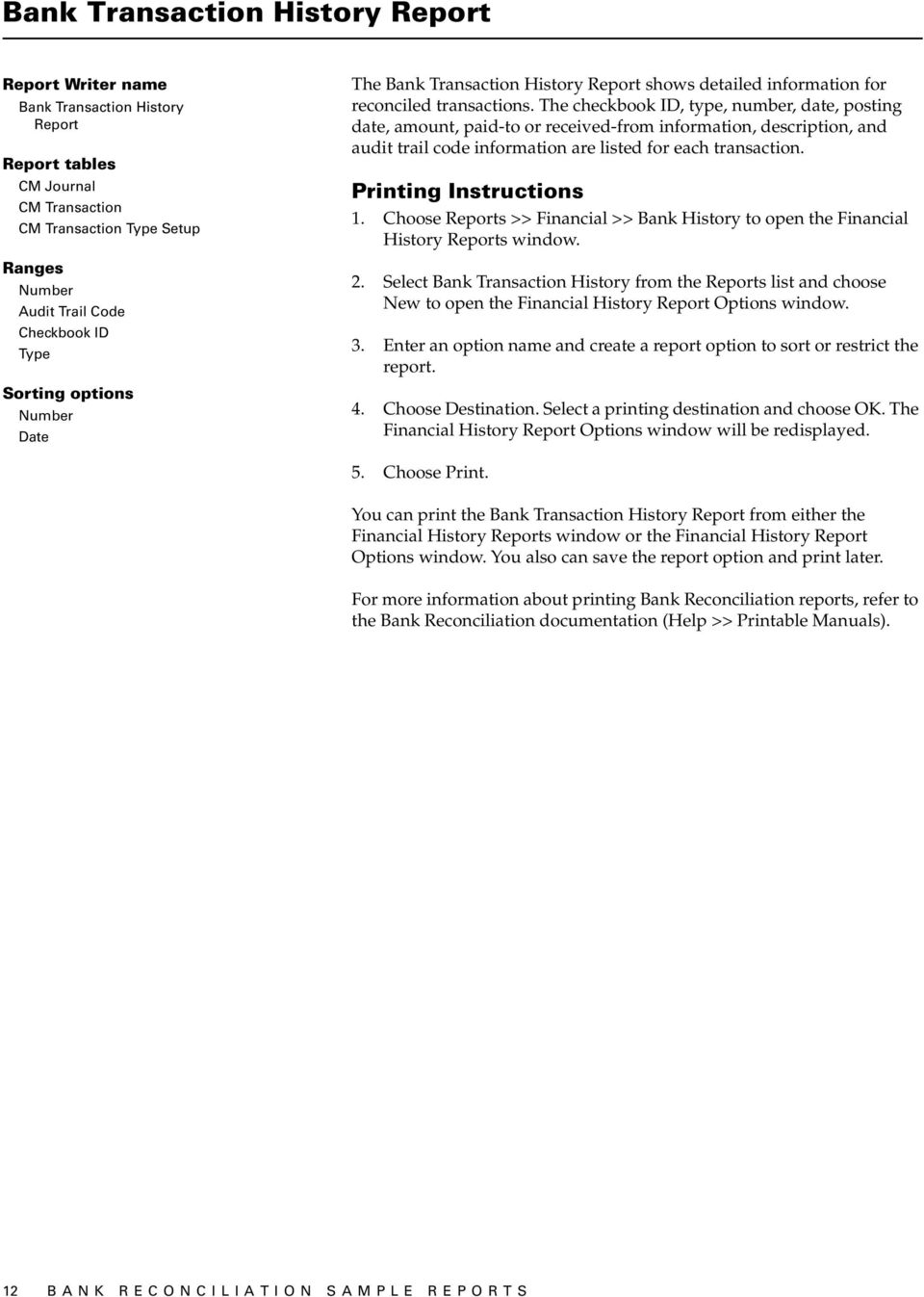
20 Bank Transaction History Report Report Writer name Bank Transaction History Report Report tables CM Journal CM Transaction CM Transaction Type Setup Ranges Number Audit Trail Code Checkbook ID Type Sorting options Number Date The Bank Transaction History Report shows detailed information for reconciled transactions. The checkbook ID, type, number, date, posting date, amount, paid-to or received-from information, description, and audit trail code information are listed for each transaction. Printing Instructions 1. Choose Reports >> Financial >> Bank History to open the Financial History Reports window. 2. Select Bank Transaction History from the Reports list and choose New to open the Financial History Report Options window. 3. Enter an option name and create a report option to sort or restrict the report. 4. Choose Destination. Select a printing destination and choose OK. The Financial History Report Options window will be redisplayed. 5. Choose Print. You can print the Bank Transaction History Report from either the Financial History Reports window or the Financial History Report Options window. You also can save the report option and print later. For more information about printing Bank Reconciliation reports, refer to the Bank Reconciliation documentation (Help >> Printable Manuals). 12 BANK RECONCILIATION SAMPLE REPORTS
21 Bank Transaction History Report System: 5/21/2012 1:44:43 PM Fabrikam, Inc. Page: 1 User Date: 5/20/2012 BANK TRANSACTION HISTORY REPORT User ID: LESSONUSER1 Bank Reconciliation Ranges: From: To: Number First Last Audit Trail Code First Last Checkbook ID PETTY CASH PETTY CASH Type First Last Sorted By: Number * Voided transaction Checkbook ID Type Number Date Posting Date Cleared Amount Trx Amount Paid To/Received From Description Audit Trail Code * PETTY CASH Check /8/2011 2/8/2011 $0.00 $50.25 Associated Insurance Inc. PMCHK Transaction(s) BANK RECONCILIATION SAMPLE REPORTS 13
22 Distribution Detail History Report Report Writer name Distribution Detail History Report Report tables CM Distribution CM Journal CM Transaction Type Setup Account Master Ranges Number Audit Trail Code Checkbook ID Posting Date Type Account Number Segment ID Sorting option Account Number The Distribution Detail History Report displays account distribution information for transactions that have been entered and posted in Bank Reconciliation. This report shows the transaction type, number, posting date, checkbook ID, audit trail code, and debit or credit amount posted to each account in the selected range. Printing Instructions 1. Choose Reports >> Financial >> Bank History to open the Financial History Reports window. 2. Select Bank Distribution History from the Reports list and choose New to open the Financial History Report Options window. 3. Enter an option name and create a report option to sort or restrict the report. Be sure to mark the Detailed option. 4. Choose Destination. Select a printing destination and choose OK. The Financial History Report Options window will be redisplayed. 5. Choose Print. You can print the Distribution Detail History Report from either the Financial History Reports window or the Financial History Report Options window. You also can save the report option and print later. For more information about printing Bank Reconciliation reports, refer to the Bank Reconciliation documentation (Help >> Printable Manuals). 14 BANK RECONCILIATION SAMPLE REPORTS
23 Distribution Detail History Report System: 8/10/99 11:40:41 AM Fabrikam, Inc. Page: 1 User Date: 8/10/99 DISTRIBUTION DETAIL HISTORY REPORT User ID: LESSONUSER2 Bank Reconciliation Ranges: From: To: From: To: Number First Last Type First Last Audit Trail Code First Last Posting Date First Last Checkbook ID Uptown Trust Uptown Trust Account Number From: - - To: - - Sorted By: Account Number * Voided transaction Account Number Description Type Number Posting Date Checkbook ID Audit Trail Code Debit Credit Cash - Operating Account DAJ DAJ /30/99 Uptown Trust CMTRX $37, DAJ DAJ /30/99 Uptown Trust CMTRX $2, DAJ DAJ /30/99 Uptown Trust CMTRX $ DAJ DAJ /30/99 Uptown Trust CMTRX $1, IAJ IAJ /30/99 Uptown Trust CMTRX $ $ Totals: $ $40, Freight Payable DAJ DAJ /30/99 Uptown Trust CMTRX $ $ Totals: $ $ Brokerage Fees Payable DAJ DAJ /30/99 Uptown Trust CMTRX $ $ Totals: $ $ Miscellaneous Payable DAJ DAJ /30/99 Uptown Trust CMTRX $ $ Totals: $ $ Miscellaneous Expense DAJ DAJ /30/99 Uptown Trust CMTRX $ $ Totals: $ $ Miscellaneous Income IAJ IAJ /30/99 Uptown Trust CMTRX $ Totals: $0.00 $ Transfer Suspense Account DAJ DAJ /30/99 Uptown Trust CMTRX $37, $0.00 DAJ DAJ /30/99 Uptown Trust CMTRX $2, $ Totals: $39, $ Report Totals: $40, $40, ===================== ===================== BANK RECONCILIATION SAMPLE REPORTS 15
24 Voided Receipts Removal Report Report Writer name Voided Receipts Removal Report Report tables CM Receipt CM Journal CM Distribution Duplicate Account Master Ranges Checkbook ID Voided Receipt Number The Voided Receipts Removal Report shows historical receipts that were removed if you chose to remove voided receipts from history. The checkbook ID, type, number, date, amount, account number, posting date, audit trail code, and whether the amount was debited or credited are displayed for each voided receipt. Before printing the Voided Receipts Removal Report or removing history, back up your company data. Printing Instructions To print the Voided Receipts Removal Report before removing history: 1. Choose Tools >> Utilities >> Financial >> Remove Bank History to open the Remove Bank History window. 2. Mark the Print Report Only option, select Voided Receipts as the history type and select a range of transactions. 3. Choose Process. 4. Select a printing destination and choose OK. After reviewing the report, you can remove history. Mark the Remove History option and select a range, then choose Process. The Voided Receipts Removal Report prints when the removal is complete. This report should be kept with your permanent records. Once you ve removed history, you won t be able to print bank history reports or reprint posting journals for the transactions you ve removed. For more information about printing Bank Reconciliation reports, refer to the Bank Reconciliation documentation (Help >> Printable Manuals). 16 BANK RECONCILIATION SAMPLE REPORTS
25 Voided Receipts Removal Report System: 8/10/99 1:58:53 PM Fabrikam, Inc. Page: 1 User Date: 8/11/99 VOIDED RECEIPTS REMOVAL REPORT User ID: LESSONUSER1 Bank Reconciliation Ranges: From: To: Checkbook ID Uptown Trust PETTY CASH Voided Receipt Number First Last Checkbook ID Type Number Date Amount Account Number Posting Date Audit Trail Code Debit Credit PETTY CASH Check Receipt RCT /11/99 $ /11/99 CMTRX $ $ /11/99 CMTRX $0.00 $ /11/99 CMTRX $0.00 $ /11/99 CMTRX $ $ $ $ Receipts(s) BANK RECONCILIATION SAMPLE REPORTS 17
26 Voided Transactions Removal Report Report Writer name Voided Transactions Removal Report Report tables CM Transaction CM Journal CM Transaction Type Setup CM Distribution Duplicate Account Master Ranges Checkbook ID Reconcile Audit Trail Code Statement Ending Date The Voided Transactions Removal Report shows historical transactions that were removed if you chose to remove voided transactions from history. The checkbook ID, type, number, date, amount, account number, posting date, audit trail code, and whether the amount was debited or credited are displayed for each voided transaction. Before printing the Voided Transaction Removal Report or removing history, back up your company data. Printing Instructions To print the Voided Transactions Removal Report before removing history: 1. Choose Tools >> Utilities >> Financial >> Remove Bank History to open the Remove Bank History window. 2. Mark Voided Transactions as the history type, mark the Print Report Only option, and select a range of transactions. 3. Choose Process. 4. Select a printing destination and choose OK. After reviewing the report, you can remove history. Mark the Remove History option and select a range, then choose Process. The Voided Transactions Removal Report prints when the removal is complete. This report should be kept with your permanent records. Once you ve removed history, you won t be able to print bank history reports or reprint posting journals for the transactions you ve removed. For more information about printing Bank Reconciliation reports, refer to the Bank Reconciliation documentation (Help >> Printable Manuals). 18 BANK RECONCILIATION SAMPLE REPORTS
27 Voided Transactions Removal Report System: 8/10/99 1:54:15 PM Fabrikam, Inc. Page: 1 User Date: 8/11/99 VOIDED TRANSACTIONS REMOVAL REPORT User ID: LESSONUSER1 Bank Reconciliation Ranges: From: To: Checkbook ID Uptown Trust PETTY CASH Voided Transaction Number First Last Checkbook ID Type Number Date Amount Account Number Posting Date Audit Trail Code Debit Credit Uptown Trust Deposit /31/99 $17, CMDEP PETTY CASH Check /10/99 $ /10/99 CMTRX $0.00 $ /10/99 CMTRX $75.00 $ /10/99 CMTRX $75.00 $ /10/99 CMTRX $0.00 $ $ $ Transaction(s) BANK RECONCILIATION SAMPLE REPORTS 19
28 Bank Deposit Worksheet Report Writer name Bank Deposit Worksheet Report tables CM Deposit Work CM Checkbook Master Account Master Company Location Master Bank Master CM Receipt The Bank Deposit Worksheet lists the receipts assigned to a deposit. The report includes the receipt type, date, number, whom the receipt was received from, amount, and totals information as entered or displayed in the Deposit Totals window. To print this report, choose File >> Print while working in the Bank Deposit Entry window. For more information about printing Bank Reconciliation reports, refer to the Bank Reconciliation documentation (Help >> Printable Manuals). 20 BANK RECONCILIATION SAMPLE REPORTS
29 Bank Deposit Worksheet System: 6/22/00 7:32:40 PM Fabrikam, Inc. Page: 1 User Date: 6/22/00 BANK DEPOSIT WORKSHEET User ID: LESSONUSER1 Bank Reconciliation Checkbook ID: Uptown Trust Deposit Number: Description: Computer-Uptown Trust Deposit Description: Bank Account Number: Deposit Date: 6/22/00 Deposit Type: Deposit With Receipts Receipt Type Date Number Received From Checkbook Amount Cash 2/15/99 PYMNT Aaron Fitz Electrical $ Totals: Number of Amount Checks Credit Cards Currency Total Checks Credit Cards Currency Coin Total $0.00 $0.00 $ $0.65 $ Deposit Amount: $ BANK RECONCILIATION SAMPLE REPORTS 21
30 Outstanding Transactions Report Report Writer name Outstanding Transactions Report Report tables CM Unreconciled TEMP CM Transaction Type Setup CM Reconcile Header The Outstanding Transactions Report displays the transactions not marked as cleared in the Select Bank Transactions window. The transaction type, number, date, paid-to or received-from information, and transaction amounts are displayed for each outstanding transaction. To print the Outstanding Transactions Report before reconciling, choose File >> Print in the Select Bank Transactions window. In the Print Reconciliation Reports window, mark Outstanding Transactions Report and choose OK. For more information about printing Bank Reconciliation reports, refer to the Bank Reconciliation documentation (Help >> Printable Manuals). 22 BANK RECONCILIATION SAMPLE REPORTS
31 Outstanding Transactions Report System: 8/10/99 12:08:56 PM Fabrikam, Inc. Page: 1 User Date: 8/10/99 OUTSTANDING TRANSACTIONS REPORT User ID: LESSONUSER1 Bank Reconciliation Checkbook ID: PAYROLL Description: Payroll-Lakes Bank Sorted By: Type Type Number Date Paid To/Rcvd From Trx Amount DEP /2/99 $54, CHK /31/99 Payroll Check ($660.80) CHK /31/99 Payroll Check ($818.53) CHK /31/99 Payroll Check ($755.30) CHK /31/99 Payroll Check ($530.91) 5 Transaction(s) Totals: Number of Payments 4 Amount of Payments $2, Number of Deposits 1 Amount of Deposits $54, BANK RECONCILIATION SAMPLE REPORTS 23
32 24 BANK RECONCILIATION SAMPLE REPORTS
33 Bill of Materials sample reports This document includes information about and instructions for creating the most common Bill of Materials reports. Samples of each report also are included. The following reports are explained: Assembly Analysis Assembly History Removal Report Assembly Lot Number History Assembly Posting Journal Assembly Serial Number History Component Where Used Report Document Inquiry Report Gross Requirements Indented Bill of Materials MANUAL NAME 25
34 Assembly Analysis Report Writer names BM Assembly Analysis Detailed Report BM Assembly Analysis Detailed Report by Bill Number BM Assembly Analysis Report BM Assembly Analysis Report by Bill Number Report tables Assembly Transaction History Assembly Component History Assembly Report Header Temp Ranges Bill Number Document Date Document Number Site ID Sorting options Document Number Document Date Bill Number Site ID The Assembly Analysis report includes posted assembly items and can be used to analyze items that have been produced. The item is produced when the assembly transaction is posted. You can choose the following options for printing: Print in detail or in summary. If printing in detail, select how many component levels to include on the report. Printing Instructions 1. Choose Reports >> Inventory >> Analysis to open the Inventory Analysis Reports window. 2. Select Assembly Analysis from the Reports list and choose New to open the Inventory Analysis Report Options window. 3. Enter an option name and create a report option to sort or restrict the report. 4. Choose Destination. Select a printing destination and choose OK. The Inventory Analysis Report Options window will be redisplayed. 5. Choose Print. You can print the Assembly Analysis report from either the Inventory Analysis Reports window or the Inventory Analysis Report Options window. You also can save the report option and print later. For more information about printing Bill of Materials reports, refer to the Bill of Materials documentation. 26 MANUAL NAME
35 Assembly Analysis System: 5/21/2007 4:21:06 PM Fabrikam, Inc. Page: 1 User Date: 5/21/2007 ASSEMBLY ANALYSIS User ID: LessonUser1 Bill of Materials Ranges: From: To: Bill Number First Last Document Date First Last Document Number ASM ASM Site ID WAREHOUSE WAREHOUSE Sorted By: Document Number Number of Levels: 10 Print: Detail Document Number Document Date Batch ID Bill Number Description Start Date Completion Date Site ID U Of M Assemble Qty Ext. Actual Cost Ext. Standard Cost Cost Variance ASM /5/2007 LESSON USER1 PHON-RCV-0002 Receiver-Hands Free Single Ear 5/5/2007 0/0/0000 WAREHOUSE Each 30 $1, $0.00 $1, Component Item U of M Stock Quantity Assemble Quantity Ext. Standard Qty Quantity Variance Description Ext. Actual Cost Ext. Standard Cost Cost Variance ACCS-CRD-12WH Each Phone Cord - 12' White $98.70 $0.00 $ ACCS-HDS-1EAR Each Headset-Single Ear $1, $0.00 $1, ASM /16/2007 LESSON USER1 PHON-FGD-0001 Phones-Hands Free Dual Ear 3/16/2007 0/0/0000 WAREHOUSE Each 25 $1, $0.00 $1, Component Item U of M Stock Quantity Assemble Quantity Ext. Standard Qty Quantity Variance Description Ext. Actual Cost Ext. Standard Cost Cost Variance PHON-RCV-0001 Each Receiver-Hands Free Dual Ear $1, $0.00 $1, PHON-BAS-0001 Each Phone Base $ $0.00 $ ASM /14/2007 LESSON USER1 HDWR-SBD-0001 Switchboard 2/14/2007 0/0/0000 WAREHOUSE Each 3 $44, $0.00 $44, Component Item U of M Stock Quantity Assemble Quantity Ext. Standard Qty Quantity Variance Description Ext. Actual Cost Ext. Standard Cost Cost Variance HDWR-FGC-0001 Each Data Card Assembly $ $0.00 $ HDWR-CAB-0001 Each Central Cabinet $20, $0.00 $20, HDWR-SWM-0100 Each Switching Module (<100) $23, $0.00 $23, ASMB-LBR-0001 Hour Labor, Parts Assembly $70.00 $0.00 $70.00 Total Documents: 3 MANUAL NAME 27
36 Assembly History Removal Report Report Writer name BM Assembly History Removal Report tables Assembly Transaction History Assembly Component History Ranges Document Number Document Date Bill Number Site ID Audit Trial Code The Assembly History Removal Report displays the historical assembly transactions that have been removed. This report lists the assembly number, site, bill number, audit trail code, assembled quantity, and all components used for the assembly. Removing history makes room for new information to be stored. Before printing this report or removing assembly history, make a backup of the company s Inventory folder. You can print an Assembly History Removal Report without removing history. Choose Tools >> Utilities >> Inventory >> Remove Assembly History to open the Remove Assembly History window. Select Transaction, enter a range of transactions, mark only the Print Report option, and choose OK. After reviewing the report, you can remove assembly history. In the Remove Assembly History window, select Transaction and enter a range of transactions to remove. Mark the Remove History and Print Report options and choose Process. The report will be printed when the removal is complete. This report should be kept with your permanent records. Once you ve removed assembly history, you will not be able to reprint posting journals for transactions that have been removed. These transactions also will not be included on Serial/Lot History reports or the Assembly Analysis report. For more information about printing Bill of Materials reports, refer to the Bill of Materials documentation. 28 MANUAL NAME
37 Assembly History Removal Report System: 4/24/2007 2:43:54 PM Fabrikam, Inc. Page: 1 User Date: 4/24/2007 ASSEMBLY HISTORY REMOVAL REPORT User ID: LessonUser1 Bill of Materials Ranges: From: To: From: To: Document Number ASM ASM Site ID First Last Document Date First Last Audit Trail Code First Last Bill Number First Last Sorted By: Document Number Document Number Document Date Posting Date Bill Number Description Batch ID Audit Trail Code Site ID U Of M Assemble Qty ASM /5/2006 5/5/2006 PHON-RCV-0002 Receiver-Hands Free Single Ear LESSON USER1 BMASM WAREHOUSE Each 30 Component Item U of M Standard Quantity Assemble Quantity Stock Quantity Description ACCS-CRD-12WH Each Phone Cord - 12' White - ACCS-HDS-1EAR Each Headset-Single Ear ASM /16/2006 6/16/2006 PHON-FGD-0001 Phones-Hands Free Dual Ear LESSON USER1 BMASM WAREHOUSE Each 25 Component Item U of M Standard Quantity Assemble Quantity Stock Quantity Description PHON-RCV-0001 Each Receiver-Hands Free Dual Ear - PHON-BAS-0001 Each Phone Base ASM /14/2006 8/14/2006 HDWR-SBD-0001 Switchboard LESSON USER1 BMASM WAREHOUSE Each 3 Component Item U of M Standard Quantity Assemble Quantity Stock Quantity Description HDWR-FGC-0001 Each Data Card Assembly - HDWR-CAB-0001 Each Central Cabinet - HDWR-SWM-0100 Each Switching Module (<100) - ASMB-LBR-0001 Hour Labor, Parts Assembly Total Documents: 3 MANUAL NAME 29
38 Assembly Lot Number History Report Writer name BM Assembly Lot Number History Report Report tables Assembly Serial Lot Report Header Temp Item Master Ranges Lot Number Item Number Document Date Document Number Site ID Sorting option Item Number The Assembly Lot Number History report lists the lot numbers used during the assembly process. This report provides an audit trail to trace specific lot numbers used or assembled for a transaction. Printing Instructions 1. Choose Reports >> Inventory >> History to open the Inventory History Reports window. 2. Select Assembly Lot Number History from the Reports list and choose New to open the Inventory History Report Options window. 3. Enter an option name and create a report option to sort or restrict the report. 4. Choose Destination. Select a printing destination and choose OK. The Inventory History Report Options window will be redisplayed. 5. Choose Print. You can print the Assembly Lot Number History report from either the Inventory History Reports window or the Inventory History Report Options window. You also can save the report option and print later. For more information about printing Bill of Materials reports, refer to the Bill of Materials documentation. 30 MANUAL NAME
39 Assembly Lot Number History System: 6/21/2007 4:35:17 PM Fabrikam, Inc. Page: 1 User Date: 6/21/2007 ASSEMBLY LOT NUMBER HISTORY User ID: LessonUser1 Bill of Materials Ranges: From: To: From: To: Lot Number Document Date First Last Item Number First Last Site ID First Last Document Number First Last Sorted By: Item Number/Lot Number/Document Number Item Number Description Lot Number Lot Quantity Document Number Document Date Site ID Type Used to Assemble Description Linked To PHON-RCV-0001 Receiver-Hands Free Dual Ear ASM /16/2006 WAREHOUSE Stock PHON-FGD-0001 Phones-Hands Free Dual Ear Not Linked ASM /16/2006 WAREHOUSE Stock PHON-FGD-0001 Phones-Hands Free Dual Ear Not Linked ASM /16/2006 WAREHOUSE Stock PHON-FGD-0001 Phones-Hands Free Dual Ear Not Linked ASM /16/2006 WAREHOUSE Stock PHON-FGD-0001 Phones-Hands Free Dual Ear Not Linked ASM /16/2006 WAREHOUSE Stock PHON-FGD-0001 Phones-Hands Free Dual Ear Not Linked ASM /16/2006 WAREHOUSE Stock PHON-FGD-0001 Phones-Hands Free Dual Ear Not Linked ASM /16/2006 WAREHOUSE Stock PHON-FGD-0001 Phones-Hands Free Dual Ear Not Linked ASM /16/2006 WAREHOUSE Stock PHON-FGD-0001 Phones-Hands Free Dual Ear Not Linked ASM /16/2006 WAREHOUSE Stock PHON-FGD-0001 Phones-Hands Free Dual Ear Not Linked ASM /16/2006 WAREHOUSE Stock PHON-FGD-0001 Phones-Hands Free Dual Ear Not Linked ASM /16/2006 WAREHOUSE Stock PHON-FGD-0001 Phones-Hands Free Dual Ear Not Linked ASM /16/2006 WAREHOUSE Stock PHON-FGD-0001 Phones-Hands Free Dual Ear Not Linked ASM /16/2006 WAREHOUSE Stock PHON-FGD-0001 Phones-Hands Free Dual Ear Not Linked ASM /16/2006 WAREHOUSE Stock PHON-FGD-0001 Phones-Hands Free Dual Ear Not Linked ASM /16/2006 WAREHOUSE Stock PHON-FGD-0001 Phones-Hands Free Dual Ear Not Linked ASM /16/2006 WAREHOUSE Stock PHON-FGD-0001 Phones-Hands Free Dual Ear Not Linked ASM /16/2006 WAREHOUSE Stock PHON-FGD-0001 Phones-Hands Free Dual Ear Not Linked ASM /16/2006 WAREHOUSE Stock PHON-FGD-0001 Phones-Hands Free Dual Ear Not Linked ASM /16/2006 WAREHOUSE Stock PHON-FGD-0001 Phones-Hands Free Dual Ear Not Linked ASM /16/2006 WAREHOUSE Stock PHON-FGD-0001 Phones-Hands Free Dual Ear Not Linked ASM /16/2006 WAREHOUSE Stock PHON-FGD-0001 Phones-Hands Free Dual Ear Not Linked ASM /16/2006 WAREHOUSE Stock PHON-FGD-0001 Phones-Hands Free Dual Ear Not Linked ASM /16/2006 WAREHOUSE Stock PHON-FGD-0001 Phones-Hands Free Dual Ear Not Linked ASM /16/2006 WAREHOUSE Stock PHON-FGD-0001 Phones-Hands Free Dual Ear Not Linked ASM /16/2006 WAREHOUSE Stock PHON-FGD-0001 Phones-Hands Free Dual Ear Not Linked Total Lot Numbers: 25 MANUAL NAME 31
40 Assembly Posting Journal Report Writer names BM Assembly Posting Journal BM Assembly Posting Journal Reprint Report tables Posting Definitions Master Assembly Transaction Assembly Component Assembly Posting Journal Temp Assembly Serial Lot Assembly Batch History Assembly Transaction History Assembly Component History Assembly Posting Journal Temp Assembly Serial Lot History Ranges Audit Trail Code Batch ID Posting Date Sorting option Audit Trail Code The Assembly Posting Journal shows detailed information about posted assembly transactions, including posting accounts, costs, and item information. This report also indicates if a transaction hasn t been posted because of an error. The Assembly Posting Journal will be printed automatically when you close the Assembly Entry window after posting. This report is part of the audit trail and should be kept with your permanent records. Posting journals can be printed only if you selected to print them in the Posting Setup window. For more information, refer to your System Setup Instructions (Help >> Contents >> select Setting up the system). You can print the posting journal to a file as well as to the printer, in case of a printer error. The contents of this file can be printed at any time. Posting journals printed for individually posted transactions are generally the same as posting journals printed for batch transactions. However, the reports for individually posted transactions contain information only for the transactions that were entered and posted since the Assembly Entry window was last opened. You can reprint the Assembly Posting Journal at any time, as long as you ve marked the Reprint option in the Audit Trail Codes Setup window and have not removed history for the transactions. Printing Instructions To reprint an Assembly Posting Journal: 1. Choose Reports >> Inventory >> Posting Journals to open the Reprint Inventory Journals window. 2. Select Assembly Posting Journal from the Reports list and choose New to open the Reprint Inventory Journal Options window. 3. Enter an option name and create a report option to sort or restrict the report. Mark the Assembly Journal option. Ranges and sorting options are available only for reprinted posting journals. 4. Choose Destination. Select a printing destination and choose OK. The Reprint Inventory Journal Options window will be redisplayed. 5. Choose Print. For more information about printing Bill of Materials reports, refer to the Bill of Materials documentation. 32 MANUAL NAME
41 Assembly Posting Journal System: 4/12/2007 2:27:14 PM Fabrikam, Inc. Page: 1 User Date: 4/12/2007 ASSEMBLY POSTING JOURNAL - REPRINT User ID: LessonUser1 Bill of Materials Ranges: From: To: Audit Trail Code First Last Batch ID First Last Posting Date First Last Sorted By: Audit Trail Code Batch ID: LESSON USER1 Audit Trail Code: BMASM Batch Comment: s Indicates Subassembly, + Serial/Lot Number added by Subassembly Document Number Doc. Date Posting Date Site ID Bill Number Assemble Quantity ASM /5/2006 5/5/2006 WAREHOUSE PHON-RCV Component Item U of M Qty Used Qty Assembled Unit Cost Extended Cost Description Inventory Acct Variance Acct Assemble Cost Variance s PHON-RCV-0002 Each 0 30 $41.88 $1, Receiver-Hands Free Single Ear $1, $ ACCS-CRD-12WH Each 30 $3.29 $98.70 Phone Cord - 12' White $0.00 $0.00 ACCS-HDS-1EAR Each 30 $38.59 $1, Headset-Single Ear $0.00 $0.00 ASM /16/2006 6/16/2006 WAREHOUSE PHON-FGD Component Item U of M Qty Used Qty Assembled Unit Cost Extended Cost Description Inventory Acct Variance Acct Assemble Cost Variance s PHON-FGD-0001 Each 0 25 $57.22 $1, Phones-Hands Free Dual Ear $1, $0.00 s PHON-RCV-0001 Each 25 $45.27 $1, Receiver-Hands Free Dual Ear $0.00 $ PHON-BAS-0001 Each 25 $11.95 $ Phone Base $0.00 $0.00 ASM /14/2006 8/14/2006 WAREHOUSE HDWR-SBD Component Item U of M Qty Used Qty Assembled Unit Cost Extended Cost Description Inventory Acct Variance Acct Assemble Cost Variance s HDWR-SBD-0001 Each 0 3 $14, $44, Switchboard $44, $0.00 Total Documents: 4 MANUAL NAME 33
42 Assembly Serial Number History Report Writer name BM Assembly Serial Number History Report Report tables Assembly Serial Lot Report Header Temp Item Master Ranges Serial Number Item Number Document Date Document Number Site ID Sorting option Item Number The Assembly Serial Number History report lists the serial numbers used during the assembly process. This report provides an audit trail to trace specific serial numbers used or assembled for a transaction. Printing Instructions 1. Choose Reports >> Inventory >> History to open the Inventory History Reports window. 2. Select Assembly Serial Number History from the Reports list and choose New to open the Inventory History Report Options window. 3. Enter an option name and create a report option to sort or restrict the report. 4. Choose Destination. Select a printing destination and choose OK. The Inventory History Report Options window will be redisplayed. 5. Choose Print. You can print the Assembly Serial Number History report from either the Inventory History Reports window or the Inventory History Report Options window. You also can save the report option and print later. For more information about printing Bill of Materials reports, refer to the Bill of Materials documentation. 34 MANUAL NAME
43 Assembly Serial Number History System: 5/21/2007 4:39:49 PM Fabrikam, Inc. Page: 1 User Date: 5/21/2007 ASSEMBLY SERIAL NUMBER HISTORY User ID: LessonUser1 Bill of Materials Ranges: From: To: From: To: Serial Number First Last Document Date First Last Item Number HDWR-ACC-0100 WIRE-MCD-0001 Site ID First Last Document Number First Last Sorted By: Item Number/Serial Number/Document Number Item Number Description Serial Number Document Number Document Date Site ID Type Used to Assemble Description Linked To HDWR-FGC-0001 Data Card Assembly ASM /14/2006 WAREHOUSE Stock HDWR-SBD-0001 Switchboard Not Linked ASM /14/2006 WAREHOUSE Stock HDWR-SBD-0001 Switchboard Not Linked ASM /14/2006 WAREHOUSE Stock HDWR-SBD-0001 Switchboard Not Linked ASM /20/2006 WAREHOUSE Stock HDWR-SBD-0001 Switchboard Not Linked ASM /20/2006 WAREHOUSE Assemble HDWR-SBD-0001 Switchboard Not Linked RESR-COM-68KM Resistor-68KM Revised ASM /20/2006 WAREHOUSE Stock HDWR-FGC-0001 Data Card Assembly Total Serial Numbers: 6 MANUAL NAME 35
44 Component Where Used Report Report Writer name BM Component Where-Used Report Report table Bill of Materials Component Where Used Report Temp Ranges Component Item Bill Number Sorting option Component Item The Component Where Used Report is sorted by component and lists all existing bills that contain the component. Within each component, the bills are sorted by bill number, then by bill status. This report lists the unit of measure, status, design quantity, scrap percentage, effective date, and obsolete dates of the component for each bill. You can include bills and components with Active, Pending, or Obsolete statuses. Printing Instructions 1. Choose Reports >> Inventory >> Setup to open the Inventory Setup Reports window. 2. Select Component Where Used from the Reports list and choose New to open the Inventory Setup Report Options window. 3. Enter an option name and create a report option to sort or restrict the report. 4. Choose Destination. Select a printing destination and choose OK. The Inventory Setup Report Options window will be redisplayed. 5. Choose Print. You can print the Component Where Used Report from either the Inventory Setup Reports window or the Inventory Setup Report Options window. You also can save the report option and print later. For more information about printing Bill of Materials reports, refer to the Bill of Materials documentation. 36 MANUAL NAME
45 Component Where Used Report System: 4/12/2007 4:15:46 PM Fabrikam, Inc. Page: 1 User Date: 4/12/2007 COMPONENT WHERE USED REPORT User ID: LessonUser1 Bill of Materials Ranges: From: To: Component Item ACCS-RST-DXBK HDWR-CAB-0001 Bill Number First Last Sorted By: Component Item/Bill Number/Status Bill Status: Active, Pending, Obsolete Component Status: Active, Pending, Obsolete Component Item Description Bill Number Bill Description Status Component Status Component U of M Effective Date Obsolete Date Scrap Percent Design Quantity Standard Quantity ACCS-RST-DXBK Shoulder Rest-Deluxe Black PHAN-PHN-0001 Standard Phone Package Active Active Each 0.00% 1 1 PHAN-PHN-0001 Standard Phone Package Pending Pending Each 0.00% 1 1 ANSW-ATT-1000 Attractive Answering System 1000 VMSY-FG Voice Mail System Active Active Each 0.00% 1 1 VMSY-FG Voice Mail System Pending Pending Each 0.00% 1 1 ASMB-LBR-0001 Labor, Parts Assembly HDWR-SBD-0001 Switchboard Active Active Hour 0.00% FAXX-RIC-060E Richelieu Fax 60E PHAN-FAX-0001 Fax Machine Package Active Pending Each 0.00% 1 1 PHAN-FAX-0001 Fax Machine Package Obsolete Obsolete Each 0.00% 1 1 HDWR-CAB-0001 Central Cabinet HDWR-SBD-0001 Switchboard Active Active Each 0.00% 1 1 HDWR-SBD-0001 Switchboard Pending Pending Each 0.00% 1 1 HDWR-SBD-0001 Switchboard Obsolete Obsolete Each 0.00% 1 1 Total Components: 5 MANUAL NAME 37
46 Document Inquiry Report Report Writer names BM Document Inquiry Work BM Document Inquiry Work by Bill BM Document Inquiry Hist BM Document Inquiry Hist by Bill Report tables Assembly Transaction Assembly Component Assembly Transaction History Assembly Component History Ranges Document Number Document Date Bill Number The Document Inquiry Report lists the assembly document number, bill number, status, site ID, and assembly quantity for a range of assembly documents, dates, or bill numbers. Printing Instructions To print the Document Inquiry Report: 1. Choose Inquiry >> Inventory >> Assembly Documents to open the Assembly Document Inquiry window. 2. Select a range of documents to print. 3. Mark to display either Unposted or History documents. 4. Choose File >> Print to print the report containing the information selected in the window. For more information about printing Bill of Materials reports, refer to the Bill of Materials documentation. 38 MANUAL NAME
47 Document Inquiry Report System: 4/12/2004 4:43:11 PM Fabrikam, Inc. Page: 1 User Date: 4/12/2007 DOCUMENT INQUIRY REPORT User ID: LessonUser1 Bill of Materials Ranges: From: To: Document Number First Last Bill Number First Last Document Date First Last Sorted By: Document Number Include: Unposted Document Number Bill Number Doc. Date U of M Assemble Quantity Bill Description Status Site ID Batch ID ASM FAXX-FG /15/2007 Each 1 Desktop Fax System Released WAREHOUSE ASSEMBLY 1 ASM PHON-FGS /28/2007 Each 1 Phone-Hands Free Single Ear Released WAREHOUSE ASSEMBLY 1 ASM HDWR-FGC /12/2007 Each 1 Data Card Assembly Not Released WAREHOUSE ASSEMBLY 1 ASM PSYS-FG /12/2007 Each 1 Phone System 1 Not Released WAREHOUSE ASSEMBLY 1 Total Documents: 4 MANUAL NAME 39
48 Gross Requirements Report Writer names BM Gross Requirements Report By Item Number BM Gross Requirements Report By Site ID Report tables Assembly Report Gross Requirements Temp Assembly Report Component Temp Ranges Component Item Site ID Document Date Sorting options Component Item Site ID The Gross Requirements report displays components and the standard quantities for selected transactions. Only transactions with a status of Not Released will be included. The standard quantities are compared to the quantities available in inventory and any shortages are shown. Use this report to make purchasing decisions for the components in your inventory. Printing Instructions 1. Choose Reports >> Inventory >> Analysis to open the Inventory Analysis Reports window. 2. Select Gross Requirements from the Reports list and choose New to open the Inventory Analysis Report Options window. 3. Enter an option name and create a report option to sort or restrict the report. You can include all components or just components with shortages. 4. Choose Destination. Select a printing destination and choose OK. The Inventory Analysis Report Options window will be redisplayed. 5. Choose Print. You can print the Gross Requirements report from either the Inventory Analysis Reports window or the Inventory Analysis Report Options window. You also can save the report option and print later. For more information about printing Bill of Materials reports, refer to the Bill of Materials documentation. 40 MANUAL NAME
49 Gross Requirements System: 4/20/2007 4:27:13 PM Fabrikam, Inc. Page: 1 User Date: 4/20/2007 GROSS REQUIREMENTS User ID: LessonUser1 Bill of Materials Ranges: From: To: Component Item CAP100 TRAN-STR-N394 Site ID First Last Document Date First Last Sorted By: Component Item/Site ID Print: All ^ Default Site Component Item Description Site ID Document Number Document Date Start Date U of M Quantity Required Quantity Available Shortage HDWR-CAB-0001 Central Cabinet WAREHOUSE ASM /12/2007 4/12/2007 Each 1 (1) 2 Site Shortage: 2 Item Shortage: 2 HDWR-FGC-0001 Data Card Assembly WAREHOUSE ASM /12/2007 4/12/2007 Each Site Shortage: 1 Item Shortage: 1 HDWR-SWM-0100 Switching Module (<100) WAREHOUSE ASM /12/2007 4/12/2007 Each Site Shortage: 0 Item Shortage: 0 ITCT-CIR-CD85 Integrated Circuit, PCD85-1 WAREHOUSE ASM /12/2007 4/12/2007 Each Site Shortage: 0 Item Shortage: 0 PHON-FGD-0001 Phones-Hands Free Dual Ear WAREHOUSE ASM /12/2007 4/12/2007 Each Site Shortage: 0 Item Shortage: 0 RESR-COM-68KM Resistor-68KM Revised WAREHOUSE ASM /12/2007 4/12/2007 Each Site Shortage: 0 Item Shortage: 0 RMTL-CAP-10MF Capacitor,.10mF WAREHOUSE ASM /12/2007 4/12/2007 Each Site Shortage: 0 Item Shortage: 0 TRAN-STR-N394 Transistor,2N394 WAREHOUSE ASM /12/2007 4/12/2007 Each Site Shortage: 0 Item Shortage: 0 Total Items: 8 MANUAL NAME 41
50 Indented Bill of Materials Report Writer name BM Bill of Materials Report tables Bill of Materials Report Header Temp Bill of Materials Report Detail Temp Record Notes Master Range Bill Number Sorting option Bill Number The Indented Bill of Materials report lists all of the subassemblies and components needed to produce the finished product, down to the tenth level. This report gives the unit of measure, status, cost type, design quantity, effective date, and obsolete date for each component. You can include the following: Bills and components with Active, Pending, or Obsolete statuses Items types of Misc Charges, Services, or Flat Fees Notes attached to bills and components Standard or current cost Number of levels of components Subassemblies by Active Only Subassemblies or Comparison Date Printing Instructions To print from the View Indented Bill window: 1. Choose Inquiry >> Inventory >> View Indented Bill to open the View Indented Bill window. 2. Select the bill to print and choose File >> Print. To print from the Inventory Setup Reports window: 1. Choose Reports >> Inventory >> Setup to open the Inventory Setup Reports window. 2. Select Indented Bill of Materials from the Reports list and choose New to open the Inventory Setup Report Options window. 3. Enter an option name and create a report option to sort or restrict the report. 4. Choose Destination. Select a printing destination and choose OK. The Inventory Setup Report Options window will be redisplayed. 5. Choose Print. You can print the Indented Bill of Materials report from either the Inventory Setup Reports window or the Inventory Setup Reports Options window. You also can save the report option and print later. For more information about printing Bill of Materials reports, refer to the Bill of Materials documentation. 42 MANUAL NAME
51 Indented Bill of Materials System: 4/21/2007 2:58:42 PM Fabrikam, Inc. Page: 1 User Date: 4/21/2007 INDENTED BILL OF MATERIALS User ID: LessonUser1 Bill of Materials Ranges: From: To: Bill Number FAXX-FG FAXX-FG Sorted By: Bill Number/Status Bill Status: Active Component Status: Active, Pending, Obsolete Number of Levels: 10 Include Components: Misc Charges, Services, Flat Fee Notes: Bill, Component Print: Select Subassemblies By: Active Only Bill Number Description Status Stock Method Effective Obsolete Component Item U of M Status Cost Type Effective Obsolete Component Item Description Design Quantity Scrap Standard Quantity FAXX-FG Desktop Fax System Active Build 1/1/2007 7/31/ HDWR-FGC-0001 Each Active Per Unit 11/15/ /1/2007 Data Card Assembly % 1 -- ITCT-CIR-CD85 Each Active Per Unit Integrated Circuit, PCD % 2 -- TRAN-STR-N394 Each Active Per Unit Transistor,2N % 1 -- RMTL-CAP-10MF Each Active Per Unit Capacitor,.10mF % 1 -- RESR-COM-68KM Each Active Per Unit Resistor-68KM Revised % 1 - PHAN-FAX-0001 Each Active Per Unit 6/30/2006 4/31/2007 Fax Machine Package % 1 -- SPLN-TWO-0002 Quarter Active Per Unit Service Plans - Equipment % FAXX-RIC-060E Each Pending Per Unit Richelieu Fax 60E % 1 - WIRE-SCD-0001 Foot Active Per Unit Single conductor wire % INST-TWO-0001 Hour Active Per Unit Installation % HDWR-PRO-4862 Each Obsolete Per Unit Pro processor 4S % 1 - HDWR-PNL-0001 Each Active Per Unit Control Panel % 1 Total Bills: 1 MANUAL NAME 43
52 44 MANUAL NAME
53 General Ledger sample reports This section includes information about and instructions for creating the most common General Ledger reports. Samples of each report also are included. The following reports are explained: Detail Inquiry Report Budget vs Actual Inquiry Report Accounts List Category List Budget List Cross-Reference Report by Journal Entry Detailed Trial Balance Quick Trial Balance Summary Reconcile Report General Posting Journal Account Category List Clearing Entry Edit List Profit and Loss Statement Transaction History Account History Year-End Closing Report GENERAL LEDGER SAMPLE REPORTS 45
54 Detail Inquiry Report Report Writer name GL Detail Inquiry Report tables Year-to-Date Transaction Open Account Master Ranges Date Source Document Currency ID The Detail Inquiry Report shows the same information displayed in the Detail Inquiry window for a selected account. This report shows the transaction date, journal entry number, reference, audit trail code, and debit or credit amount for each transaction posted to the account. Voided transactions will be marked with an asterisk (*). Printing Instructions 1. Choose Inquiry >> Financial >> Detail to open the Detail Inquiry window. 2. Select an account, an open year, and any additional restrictions. 3. Choose File >> Print. For more information about printing General Ledger reports, refer to the General Ledger documentation (Help >> Printable Manuals). 46 GENERAL LEDGER SAMPLE REPORTS
55 Detail Inquiry Report System: 5/13/ :03:15 AM Fabrikam, Inc. Page: 1 User Date: 5/13/2012 DETAIL INQUIRY REPORT FOR 2011 User ID: LESSONUSER2 General Ledger Account: Petty Cash Ranges: From: To: Date First Last Source Document First Last Currency ID First Last Sorted By: Transaction Date Account Balance: ($101,003.03) Trx Date Jrnl No. Source Doc Audit Code Reference Currency ID Debit Credit /4/ PMCHK GLTRX Computer Checks Z-US$ $ /8/ PMCHK GLTRX Computer Checks Z-US$ $ /8/2011 *828 PMVPY GLTRX Void Historical Trx Z-US$ $ /8/ PMCHK GLTRX Computer Checks Z-US$ $ /12/ PMCHK GLTRX Computer Checks Z-US$ $ /16/ PMCHK GLTRX Computer Checks Z-US$ $ /20/ PMCHK GLTRX Computer Checks Z-US$ $ /22/ PMCHK GLTRX Computer Checks Z-US$ $ /25/ PMCHK GLTRX Computer Checks Z-US$ $1, /28/ PMCHK GLTRX Computer Checks Z-US$ $ /2/ PMCHK GLTRX Computer Checks Z-US$ $1, /4/ PMCHK GLTRX Computer Checks Z-US$ $12, /5/ PMCHK GLTRX Computer Checks Z-US$ $1, /12/ PMCHK GLTRX Computer Checks Z-US$ $64, /14/ PMCHK GLTRX Computer Checks Z-US$ $3, /15/ PMCHK GLTRX Computer Checks Z-US$ $1, /16/ PMCHK GLTRX Computer Checks Z-US$ $1, /17/ PMCHK GLTRX Computer Checks Z-US$ $6, /3/ PMCHK GLTRX Computer Checks Z-US$ $ /9/ PMCHK GLTRX Computer Checks Z-US$ $ /11/ PMCHK GLTRX Computer Checks Z-US$ $ /12/ PMCHK GLTRX Computer Checks Z-US$ $1, /13/ PMCHK GLTRX Computer Checks Z-US$ $ /14/ PMCHK GLTRX Computer Checks Z-US$ $ /16/ PMCHK GLTRX Computer Checks Z-US$ $ /17/ PMCHK GLTRX Computer Checks Z-US$ $ /18/ PMCHK GLTRX Computer Checks Z-US$ $ /19/ PMCHK GLTRX Computer Checks Z-US$ $ /22/ PMCHK GLTRX Computer Checks Z-US$ $ /25/ PMCHK GLTRX Computer Checks Z-US$ $ /26/ PMCHK GLTRX Computer Checks Z-US$ $ /29/ PMCHK GLTRX Computer Checks Z-US$ $1, /30/ PMCHK GLTRX Computer Checks Z-US$ $ /30/ PMCHK GLTRX Computer Checks Z-US$ $1, Totals: $50.25 $101, Total Transactions: 34 ====================== ===================== GENERAL LEDGER SAMPLE REPORTS 47
56 Budget vs Actual Inquiry Report Report Writer name Budget vs Actual Inquiry Report table Budget Actual Report Temporary Display Period Balances Net Change The Budget vs Actual Inquiry Report shows the same information displayed in the Budget vs Actual Inquiry window for a selected account. This report lists the actual account balance, the budget amount, and the variance for each period. Printing Instructions 1. Choose Inquiry >> Financial >> Budget vs. Actual to open the Budget vs Actual Inquiry window. 2. Select an account, a budget ID, and any additional restrictions. 3. Choose File >> Print. For more information about printing General Ledger reports, refer to the General Ledger documentation (Help >> Printable Manuals). 48 GENERAL LEDGER SAMPLE REPORTS
57 Budget vs Actual Inquiry Report System: 5/13/ :04:36 AM Fabrikam, Inc. Page: 1 User Date: 5/13/2012 BUDGET VS ACTUAL INQUIRY REPORT User ID: LESSONUSER2 General Ledger Account: Cash - Operating Account Budget ID: BUDGET3 budget 3 Year: 2009 Display: Net Change Period Actual Budget Variance Variance Percent Beginning Balance $338, $338, $ % Period 1 $241, $18, $223, % Period 2 $ $43, ($43,866.35) (99.73)% Period 3 $0.00 $249, ($249,556.67) (100.00)% Period 4 $0.00 $190, ($190,520.00) (100.00)% Period 5 $28, $167, ($139,511.67) (83.29)% Period 6 $0.00 $175, ($175,018.33) (100.00)% Period 7 $0.00 $238, ($238,130.00) (100.00)% Period 8 $0.00 $461, ($461,421.67) (100.00)% Period 9 $0.00 $450, ($450,714.00) (100.00)% Period 10 $0.00 $273, ($273,721.00) (100.00)% Period 11 $0.00 $342, ($342,559.00) (100.00)% Period 12 $0.00 $361, ($361,620.00) (100.00)% $608, $3,311, ($2,702,923.36) (81.62)% ========================= ========================= ========================= =============== GENERAL LEDGER SAMPLE REPORTS 49
58 Accounts List Report Writer name Accounts Report tables Account Master Account Category Master Ranges Segment ID Account description Sorting options Segment ID Account Description Include Inactive Accounts The Accounts List shows all posting, unit, fixed, and variable allocation accounts in the chart of accounts. You can print the Accounts List whenever you want to review all the accounts you ve set up in Great Plains. Printing Instructions 1. Choose Reports >> Financial >> Account to open the Chart of Accounts Report window. 2. Select All Accounts from the Reports list and choose New to open the Chart of Accounts Report Options window. 3. Enter an option name and create a report option to sort or restrict the report. You also can include inactive accounts in the report. 4. Choose Destination. Select a printing destination and choose OK. The Chart of Accounts Report Options window will be redisplayed. 5. Choose Print. You can print the Accounts List from either the Chart of Accounts Report window or the Chart of Accounts Report Options window. You also can save the report option and print later. For more information about printing General Ledger reports, refer to the General Ledger documentation (Help >> Printable Manuals). 50 GENERAL LEDGER SAMPLE REPORTS
59 Accounts List System: 5/13/ :07:21 AM Fabrikam, Inc. Page: 1 User Date: 5/13/2012 ACCOUNTS LIST User ID: LESSONUSER2 General Ledger Ranges: From: To: Account Account Description Cash - Operating Account Petty Cash Sorted By: Segment1 Include: Account Description Alias Account Entry Category Active Account Type Posting Type Typical Balance User-Defined 1 User-Defined 2 User-Defined 3 User-Defined Cash - Operating Account $OA Yes Cash Yes Posting Account Balance Sheet Debit Cash in Bank - Canada Yes Cash Yes Posting Account Balance Sheet Debit Cash in Bank - Australia Yes Cash Yes Posting Account Balance Sheet Debit Cash in Bank - New Zealand Yes Cash Yes Posting Account Balance Sheet Debit Cash in Bank - Germany Yes Cash Yes Posting Account Balance Sheet Debit Cash in Bank - United Kingdom Yes Cash Yes Posting Account Balance Sheet Debit Cash in Bank - South Africa Yes Cash Yes Posting Account Balance Sheet Debit Cash in Bank - Singapore Yes Cash Yes Posting Account Balance Sheet Debit Cash - Payroll $PR Yes Cash Yes Posting Account Balance Sheet Debit Petty Cash $PC Yes Cash Yes Posting Account Balance Sheet Debit Total Accounts: 10 GENERAL LEDGER SAMPLE REPORTS 51
60 Category List Report Writer name Category Report tables Account Master Account Category Master Ranges Segment ID Category Include Inactive Accounts The Category List shows all posting accounts sorted by account category. Print this report to review how accounts will be arranged on the financial statements. This report also includes account descriptions and the total number of accounts assigned to each category. Printing Instructions 1. Choose Reports >> Financial >> Account to open the Chart of Accounts Report window. 2. Select Category from the Reports list and choose New to open the Chart of Accounts Report Options window. 3. Enter an option name and create a report option to restrict the report. You also can include inactive accounts in the report. 4. Choose Destination. Select a printing destination and choose OK. The Chart of Accounts Report Options window will be redisplayed. 5. Choose Print. The Category List can be printed from either the Chart of Accounts Report window or the Chart of Accounts Report Options window. You also can save the report option and print later. For more information about printing General Ledger reports, refer to the General Ledger documentation (Help >> Printable Manuals). 52 GENERAL LEDGER SAMPLE REPORTS
61 Category List 5/13/ :08:42 AM Fabrikam, Inc. 1 Category List Category Account Description Alias Cash Cash - Operating Account $OA Cash in Bank - Canada Cash in Bank - Australia Cash in Bank - New Zealand Cash in Bank - Germany Cash in Bank - United Kingdom Cash in Bank - South Africa Cash in Bank - Singapore Cash - Payroll $PR Cash - Flex Benefits Program $FB Petty Cash $PC Total Accounts: 11 Short-Term Investments Savings $S Total Accounts: 1 Total Categories: 2 GENERAL LEDGER SAMPLE REPORTS 53
62 Budget List Report Writer name Detailed Budget Report tables Budget Master Budget Summary Master Account Master General Ledger Budget Period Names Temporary Ranges Budget ID Description Account Segment ID Sorting options Budget ID Description Include Posting Unit Accounts Inactive Accounts The Budget List shows the budgets being maintained in General Ledger. For each budget, the report shows the budget ID, beginning balance, budget total, and amount budgeted for each account included in the budget. The Budget List can be sorted by budget ID or description, and restricted to include budget information for specific budget IDs, descriptions, or account segments. Printing Instructions 1. Choose Reports >> Financial >> Budget to open the Budget Report window. 2. Choose New to open the Budget Report Options window. 3. Enter an option name and create a report option to sort or restrict the report. You also can include inactive, posting, or unit accounts. 4. Choose Destination. Select a printing destination and choose OK. The Budget Report Options window will be redisplayed. 5. Choose Print. The Budget List can be printed from either the Budget Report window or the Budget Report Options window. You also can save the report option and print later. You also can print a Budget List by choosing File >> Print in the Budget Maintenance window. For more information about printing General Ledger reports, refer to the General Ledger documentation (Help >> Printable Manuals). 54 GENERAL LEDGER SAMPLE REPORTS
63 Budget List System: 5/13/ :13:10 AM Fabrikam, Inc. Page: 1 User Date: 5/13/2012 BUDGET LIST User ID: LESSONUSER2 General Ledger Ranges: From: To: Budget ID BUDGET3 BUDGET3 Description First Last Account Sorted By: Budget ID/Account Include: Posting ^ Inactive Account Budget ID Description Account Description Account Type BUDGET3 budget Cash - Operating Account Posting Account Budget Figures: Beginning Balance $338, Period 1 $18, Period 2 $43, Period 3 $249, Period 4 $190, Period 5 $167, Period 6 $175, Period 7 $238, Period 8 $461, Period 9 $450, Period 10 $273, Period 11 $342, Period 12 $361, Budget Total: $3,311, ======================= Cash in Bank - Canada Posting Account Budget Figures: Beginning Balance $10, Period 1 ($2,000.00) Period 2 ($2,000.00) Period 3 ($2,000.00) Period 4 $ Period 5 $ Period 6 ($500.00) Period 7 $1, Period 8 $1, Period 9 $1, Period 10 ($500.00) Period 11 $2, Period 12 ($1,000.00) Budget Total: $9, ======================= Cash in Bank - Australia Posting Account Budget Figures: Beginning Balance $6, Period 1 $10, Period 2 $8, Period 3 $ Period 4 $5, Period 5 $5, Period 6 ($1,000.00) Period 7 ($1,000.00) Period 8 $ Period 9 ($1,000.00) Period 10 $2, Period 11 $2, Period 12 $2, Budget Total: $38, ======================= Total Accounts: 12 Total Budgets: 1 GENERAL LEDGER SAMPLE REPORTS 55
64 Cross-Reference Report by Journal Entry Report Writer name Cross Reference by Journal Entry Cross Reference by Journal Entry History Report tables Year-to-Date Transaction Open Account Transaction History Account Master Ranges Journal Entry Source Document Audit Trail Code Date Account Segment ID Include Posting Accounts Unit Accounts The Cross-Reference Report by Journal Entry shows posted and voided transactions by journal entry number. This report can be used to re-create the posting journals for individual journal entries. Voided transactions will be marked with an asterisk (*). The report can be printed for any open year or historical year, and for posting accounts, unit accounts, or both. Printing Instructions 1. Choose Reports >> Financial >> Cross-Reference to open the Cross- Reference Report window. 2. Select Journal Entry from the Reports list and choose New to open the Cross-Reference Report Options window. 3. Enter an option name and mark to include posting or unit accounts in the report. (If you don t mark either posting or unit, a report with only headings and totals will print.) 4. Choose Destination. Select a printing destination and choose OK. The Cross-Reference Report Options window will be redisplayed. 5. Choose Print. The Cross-Reference Report by Journal Entry can be printed from either the Cross-Reference Report window or the Cross-Reference Report Options window. You also can save the report option and print later. For more information about printing General Ledger reports, refer to the General Ledger documentation (Help >> Printable Manuals). 56 GENERAL LEDGER SAMPLE REPORTS
65 Cross-Reference Report by Journal Entry System: 5/13/ :17:00 AM Fabrikam, Inc. Page: 1 User Date: 5/13/2012 CROSS-REFERENCE REPORT BY JOURNAL ENTRY FOR 2011 User ID: LESSONUSER2 General Ledger Ranges: From: To: From: To: Journal Entry First Last Date First Last Source Document First Last Account Audit Trail Code First Last Include: Posting, Unit Sort by: Journal Entry Journal Entry Trx Date Source Document Audit Trail Code Account Description Debit Credit /20/2011 PMCHK GLTRX Cash - Operating Account $ Total Distributions: 1 Totals: $0.00 $ /23/2011 PMCHK GLTRX Cash - Operating Account $ Total Distributions: 1 Totals: $0.00 $ /25/2011 PMCHK GLTRX Cash - Operating Account $ Total Distributions: 1 Totals: $0.00 $ /26/2011 PMCHK GLTRX Cash - Operating Account $ Total Distributions: 1 Totals: $0.00 $ /9/2011 PMCHK GLTRX Cash - Operating Account $4, Total Distributions: 1 Totals: $0.00 $4, /30/2011 PMCHK GLTRX Cash - Operating Account $ Total Distributions: 1 Totals: $0.00 $ /8/2011 PMCHK GLTRX Cash - Operating Account $ Total Distributions: 1 Totals: $0.00 $ /2/2011 PMCHK GLTRX Cash - Operating Account $ Total Distributions: 1 Totals: $0.00 $ /1/2011 CRJ GLTRX Cash - Operating Account $3, Total Distributions: 1 Totals: $3, $ /1/2011 CRJ GLTRX Cash - Operating Account $1, Total Distributions: 1 Totals: $1, $ /2/2011 CRJ GLTRX Cash - Operating Account $1, Total Distributions: 1 Totals: $1, $ /2/2011 CRJ GLTRX Cash - Operating Account $ Total Distributions: 1 Totals: $ $ /3/2011 CRJ GLTRX Cash - Operating Account $ Total Distributions: 1 Totals: $ $ /4/2011 CRJ GLTRX Cash - Operating Account $ Total Distributions: 1 Totals: $ $ /4/2011 CRJ GLTRX Cash - Operating Account $ Total Distributions: 1 Totals: $ $ /5/2011 CRJ GLTRX Cash - Operating Account $ Total Distributions: 1 Totals: $ $ /4/2011 CRJ GLTRX Cash - Operating Account $ ===================== ===================== Total Journal Entries: 124 Grand Totals: $316, $5, GENERAL LEDGER SAMPLE REPORTS 57
66 Detailed Trial Balance Report Writer name Trial Balance Detail Trial Balance History Multicurrency Trial Balance Detail Multicurrency Trial Balance History Report tables General Ledger Trial Balance Temporary Account Master Year-to-Date Transaction Open Account Transaction History Ranges Date Account Segment ID Currency ID Sorting options Segment ID Include Posting Accounts Unit Accounts Inactive Accounts Zero Balance/No Trx Multicurrency Info Subtotal by No Subtotals Month Period The Detailed Trial Balance report lists General Ledger account balances and all transactions that affect each account for the period specified. This report also confirms that debits and credits are equal for the specified time period. Print this report to review account activity for a specific range of accounts for an open or historical year. The Detailed Trial Balance report can be printed at any time during the reporting process, but commonly is printed before and after you ve made adjusting entries at the end of a period and before financial statements are prepared. Printing Instructions 1. Choose Reports >> Financial >> Trial Balance to open the Trial Balance Report window. 2. Select Detailed from the Reports list and choose New to open the Trial Balance Report Options window. 3. Enter an option name and mark to include posting accounts, unit accounts, or inactive accounts with zero balances in the report. (If you don t mark either posting or unit, a report with only headings and totals will print.) 4. Choose Destination. Select a printing destination and choose OK. The Cross-Reference Report Options window will be redisplayed. 5. Choose Print. The Detailed Trial Balance report can be printed from either the Trial Balance Report window or the Trial Balance Report Options window. You also can save the report option and print later. For more information about printing General Ledger reports, refer to the General Ledger documentation (Help >> Printable Manuals). 58 GENERAL LEDGER SAMPLE REPORTS
67 Detailed Trial Balance System: 5/18/2004 4:23:12 PM Page: 1 User Date: 4/12/2007 DETAILED TRIAL BALANCE FOR 2007 User ID: sa Fabrikam, Inc. General Ledger Ranges: Date: Account: From: To: 1/1/2007 1/31/2007 Subtotal By: No Subtotals Sorted By: Segment1 Include: Posting, Zero Balance/No Trx Print Currency In: Functional (Z-US$) Account: Description: Accounts Receivable Beginning Balance: $0.00 Trx Date Jrnl No. Orig. Audit Trail Distribution Reference Orig. Master Number Orig. Master Name Debit Credit 1/1/2007 1,200 SLSTE Accounts Receivable STDINV2118 Contoso, Ltd. $3, /2/2007 1,202 SLSTE Accounts Receivable STDINV2119 American Science Museum $1, /4/2007 1,208 SLSTE Accounts Receivable STDINV2122 Riverside University $ /5/2007 1,210 SLSTE Accounts Receivable STDINV2123 Aaron Fitz Electrical $1, /5/2007 1,211 SLSTE Accounts Receivable STDINV2124 Aaron Fitz Electrical $ /6/2007 1,215 SLSTE Accounts Receivable STDINV2126 Plaza One $ /6/2007 1,217 SLSTE Accounts Receivable STDINV2127 Londonberry Nursing Home $ /7/2007 1,219 SLSTE Accounts Receivable STDINV2128 Midland Construction $ /7/2007 1,221 SLSTE Accounts Receivable STDINV2129 Aaron Fitz Electrical $ /8/2007 1,223 SLSTE Accounts Receivable STDINV2130 Aaron Fitz Electrical $ /8/2007 1,225 SLSTE Accounts Receivable STDINV2131 Aaron Fitz Electrical $ /10/2007 1,227 SLSTE Accounts Receivable STDINV2132 Contoso, Ltd. $ /11/2007 1,229 SLSTE Accounts Receivable STDINV2133 Vancouver Resort Hotels $ /12/2007 1,231 SLSTE Accounts Receivable STDINV2134 Plaza One $1, /13/2007 1,233 SLSTE Accounts Receivable STDINV2135 Central Communications LTD $ /14/2007 1,235 SLSTE Accounts Receivable STDINV2136 Magnificent Office Images $ /15/2007 1,237 SLSTE Accounts Receivable STDINV2137 Metropolitan Fiber Systems $ /15/2007 1,239 SLSTE Accounts Receivable STDINV2138 Mahler State University $11, /17/2007 1,241 SLSTE Accounts Receivable STDINV2139 Lawrence Telemarketing $7, /18/2007 1,243 SLSTE Accounts Receivable STDINV2140 Blue Yonder Airlines $1, /19/2007 1,245 SLSTE Accounts Receivable STDINV2141 Astor Suites $ /21/2007 1,247 SLSTE Accounts Receivable STDINV2142 Plaza One $ /22/2007 1,249 SLSTE Accounts Receivable STDINV2143 Vancouver Resort Hotels $30, /23/2007 1,251 SLSTE Accounts Receivable STDINV2144 Aaron Fitz Electrical $ /24/2007 1,253 SLSTE Accounts Receivable STDINV2145 Aaron Fitz Electrical $ /30/2007 1,255 SLSTE Accounts Receivable STDINV2146 Plaza One $ Net Change Ending Balance Account: Totals: $62, $62, $62, $0.00 Account: Description: Sales Discounts Available Beginning Balance: $0.00 Trx Date Jrnl No. Orig. Audit Trail Distribution Reference Orig. Master Number Orig. Master Name Debit Credit *No transactions for this account* Account: Totals: Net Change Ending Balance $0.00 $0.00 $0.00 $0.00 Grand Totals: Accounts Beginning Balance Net Change Ending Balance 2 $0.00 $62, $62, Debit Credit $62, $0.00 GENERAL LEDGER SAMPLE REPORTS 59
68 Quick Trial Balance Summary Range Account The Quick Trial Balance Summary report is a condensed version of the Trial Balance Summary report. This report includes each account s beginning balance, net change, and ending balance. Posting, unit, and inactive account balances for any open years are included. However, two fields have been excluded the debit and credit totals for each account. Printing Instructions 1. Choose Reports >> Financial >> Trial Balance to open the Trial Balance Report window. 2. Select Quick Summary from the Reports list and choose New to open the Trial Balance Report Options window. 3. Enter an option name and the appropriate year. 4. Choose Destination. Select a printing destination and choose OK. The Trial Balance Report Options window will be redisplayed. 5. Choose Print. The Quick Trial Balance Summary report can be printed from either the Trial Balance Report window or the Trial Balance Report Options window. You also can save the report option and print later. If the report is too wide for your current printer settings, select to print the report in landscape mode or to a wide-carriage printer. You also can select a file destination for the report, open it using another application, and then print. If you choose to print the standard Trial Balance Summary to a process server, the Quick Trial Balance Summary will be processed and printed remotely, as well. For more information about printing General Ledger reports, refer to the General Ledger documentation (Help >> Printable Manuals). 60 GENERAL LEDGER SAMPLE REPORTS
69 Quick Trial Balance Summary System: 5/13/ :35:05 AM Fabrikam, Inc. Page: 1 User Date: 5/13/2012 QUICK TRIAL BALANCE SUMMARY FOR 2011 User ID: LESSONUSER2 General Ledger Ranges: From: To: Account Sorted By: Segment1 Include: Posting, Unit, Inactive ^ Inactive Account Account Description Beginning Balance Net Change Ending Balance Cash - Operating Account $0.00 $310, $310, Total Accounts: 1 Grand Totals: $0.00 $310, $310, GENERAL LEDGER SAMPLE REPORTS 61
70 Reconcile Report Report Writer name Reconcile Report Report table Verify Accounts Temporary The Reconcile Report lists errors in allocation accounts or batches. This report will print automatically if you mark the allocation accounts or batches options in the reconciliation process. The reconciliation process won t correct allocation account or batch information errors; those changes must be entered manually. If the reconcile reports are printed following the reconciliation process, they will contain either the allocation account and a description of the error that was encountered, or the batch information that was added. Choose Tools >> Utilities >> Financial >> Reconcile to open the Reconcile Financial Information window. For more information about printing General Ledger reports, refer to the General Ledger documentation (Help >> Printable Manuals). 62 GENERAL LEDGER SAMPLE REPORTS
71 Reconcile Report 3/10/02 2:07:33 PM Fabrikam, Inc. 1 Allocation Account Reconcile Allocation Account Error Description Distribution account is inactive Distribution accounts are of different account types Breakdown account cannot be an allocation. Total Accounts: 3 GENERAL LEDGER SAMPLE REPORTS 63
72 General Posting Journal Report Writer names General Posting Journal Multicurrency General Posting Journal Cross-Reference by Journal Entry Cross-Reference by Journal Entry History YTD Transaction Reference YTD Transaction Reference History Report tables Posting Definitions Master Transaction Work Allocation Amounts Temporary Currency Setup Year-to-Date Transaction Open Account Transaction History Account Master Ranges Journal Entry Source Document Audit Trail Code Date Account Segment ID Audit trail code ranges Audit Trail Code Journal Entry Source Document Date Account Segment ID Countrol Number Document Number Master ID Master Name The General Posting Journal shows detail for each posted transaction. This report prints the standard, recurring, or reversing transactions entered in the Transaction Entry window. Voided transactions will be marked with an asterisk (*). The General Posting Journal will be printed automatically when you close the Transaction Entry window after posting. The General Posting Journal also indicates if a transaction hasn t been posted because of an error. This report is a part of the audit trail and should be kept with your permanent records. Posting journals can be printed only if you selected to print them in the Posting Setup window. See the System Setup documentation (Help >> Contents >> Setting Up The System) for more information. You can print the posting journal to a file as well as to the printer, in case of a printer error. The contents of this file can be printed at any time. Posting journals printed for individually posted transactions are generally the same as the posting journals printed for batches of transactions; however, the reports for individually posted transactions contain information only for the transactions you entered since you opened the Transaction Entry window. Printing Instructions 1. Choose Reports >> Financial >> Cross-Reference to open the Cross- Reference Report window. 2. Select Journal Entry from the Reports list to re-create a posting journal for individual journal entries. Select Audit Trail Code from the Reports list to re-create a posting journal for a batch of transactions. Choose New to open the Cross-Reference Report Options window. 3. Enter an option name and create a report option. 4. Mark Posting Accounts. 5. Choose Destination. Select a printing destination and choose OK. The Cross-Reference Report Options window will be redisplayed. 6. Choose Print. For more information about printing General Ledger reports, refer to the General Ledger documentation (Help >> Printable Manuals). 64 GENERAL LEDGER SAMPLE REPORTS
73 General Posting Journal System: 5/13/ :42:15 AM Fabrikam, Inc. Page: 1 User Date: 5/13/2012 CROSS-REFERENCE REPORT BY AUDIT TRAIL CODE FOR 2011 User ID: LESSONUSER2 General Ledger Ranges: From: To: From: To: Audit Trail Code First Last Control Number First Last Journal Entry First Last Document Number First Last Source Document First Last Master ID First Last Date First Last Master Name First Last Account Sorted By: Audit Trail Code Include: Posting, Unit Audit Trail Code Journal Entry Transaction Date Source Document Account Description Debit Credit GLTRX /8/2011 PMCHK Petty Cash $ Total Distributions: 1 Totals: $0.00 $ /8/2011 PMCHK Petty Cash $ Total Distributions: 1 Totals: $0.00 $ /12/2011 PMCHK Petty Cash $ Total Distributions: 1 Totals: $0.00 $ /16/2011 PMCHK Petty Cash $ Total Distributions: 1 Totals: $0.00 $ /20/2011 PMCHK Petty Cash $ Total Distributions: 1 Totals: $0.00 $ /22/2011 PMCHK Petty Cash $ Total Distributions: 1 Totals: $0.00 $ /4/2011 PMCHK Petty Cash $ Total Distributions: 1 Totals: $0.00 $ /25/2011 PMCHK Petty Cash $1, Total Distributions: 1 Totals: $0.00 $1, Total Journal Entries: 8 Audit Trail Code Totals: $0.00 $2, GLTRX *828 2/8/2011 PMVPY Petty Cash $ Total Distributions: 1 Totals: $50.25 $ Total Journal Entries: 1 Audit Trail Code Totals: $50.25 $0.00 GLTRX /5/2011 PMCHK Petty Cash $1, Total Distributions: 1 Totals: $0.00 $1, Total Journal Entries: 1 Audit Trail Code Totals: $0.00 $1, GLTRX /28/2011 PMCHK Petty Cash $ Total Distributions: 1 Totals: $0.00 $ /2/2011 PMCHK Petty Cash $1, Total Distributions: 1 Totals: $0.00 $1, /4/2011 PMCHK Petty Cash $12, Total Distributions: 1 Totals: $0.00 $12, Total Journal Entries: 3 Audit Trail Code Totals: $0.00 $14, ====================== ====================== Total Audit Trail Codes: 6 Grand Totals: $50.25 $101, GENERAL LEDGER SAMPLE REPORTS 65
74 Account Category List Report Writer name Account Category Contents Report table Account Category Master The Account Category List displays the account categories maintained in General Ledger and includes modifications made to the default account categories provided with General Ledger. Print an Account Category List to review the category names you ve set up for the Great Plains system. Printing Instructions 1. Choose Reports >> Financial >> Setup to open the Setup Reports window. 2. Select Account Category from the Reports list and choose New to open the Setup Report Options window. 3. Enter an option name. 4. Choose Destination. Select a printing destination and choose OK. The Setup Report Options window will be redisplayed. 5. Choose Print. The Account Category List can be printed from either the Setup Reports window or the Setup Report Options window. You also can save the report option and print later. You also can print the Account Category List from the Account Category Setup window. Choose Tools >> Setup >> Financial >> Category and then choose File >> Print. For more information about printing General Ledger reports, refer to the General Ledger documentation (Help >> Printable Manuals). 66 GENERAL LEDGER SAMPLE REPORTS
75 Account Category List System: 5/13/ :54:47 AM Fabrikam, Inc. Page: 1 User Date: 5/13/2012 ACCOUNT CATEGORY LIST User ID: LESSONUSER2 General Ledger * User Defined Category Number Category Description Cash 2 Short-Term Investments 3 Accounts Receivable 4 Notes Receivable 5 Inventory 6 Work in Process 7 Prepaid Expenses 8 Long-Term Investments 9 Property, Plant and Equipment 10 Accumulated Depreciation 11 Intangible Assets 12 Other Assets 13 Accounts Payable 14 Notes Payable 15 Current Maturities of Long-Term Debt 16 Taxes Payable 17 Interest Payable 18 Dividends Payable 19 Leases Payable (Current) 20 Sinking Fund Payable (Current) 21 Other Current Liabilities 22 Long-Term Debt 23 Common Stock 24 Preferred Stock 25 Additional Paid-in Capital - Common 26 Additional Paid-in Capital - Preferred 27 Retained Earnings 28 Treasury Stock 29 Common Dividends 30 Preferred Dividends 31 Sales 32 Sales Returns and Discounts 33 Cost of Goods Sold 34 Selling Expense 35 Administrative Expense 36 Salaries Expense 37 Other Employee Expenses 38 Interest Expense 39 Tax Expense 40 Depreciation Expense 41 Income Tax Expense 42 Other Expenses 43 Other Income 44 Charges Not Using Working Capital 45 Revenues Not Producing Working Capital 46 Gain/Loss on Asset Disposal 47 Amortization of Intangible Assets 48 Nonfinancial Accounts Total Categories: 48 GENERAL LEDGER SAMPLE REPORTS 67
76 Clearing Entry Edit List Report Writer names Clearing Edit List Multicurrency Clearing Edit List Report tables Posting Definitions Master Transaction Work Currency Setup Allocation Amounts Temporary Account Index Master Account Master The Clearing Entry Edit List displays detail for each clearing transaction you ve entered and saved in a batch. This report can be printed directly from the Clearing Entry window. Transaction edit lists can t be printed for transactions entered individually. Print an edit list before posting to verify the accuracy of the transactions you ve entered in a batch. If an error appears on the edit list, you can correct the transaction and print another edit list to review your corrections before posting. Printing Instructions 1. Choose Transactions >> Financial >> Clearing to open the Clearing Entry window. 2. Enter a batch ID. 3. Choose File >> Print. You also can print this report by choosing File >> Print from the Batch Entry window. For more information about printing General Ledger reports, refer to the General Ledger documentation (Help >> Printable Manuals). 68 GENERAL LEDGER SAMPLE REPORTS
77 Clearing Entry Edit List System: 8/3/2012 8:39:03 AM Fabrikam, Inc. Page: 1 User Date: 8/2/2012 CLEARING ENTRY EDIT LIST User ID: LESSONUSER1 General Ledger Batch ID: TRANS TRX Total Actual: 1 TRX Total Control: 0 Approved: No Approved By: Approval Date: Journal Entry Transaction Date Source Document Transaction Reference /2/02 GJ Transfer balances Account Offset Account Debit Credit $ $ Total Distributions: 2 Totals: $ $ ======================= ======================= Total Journal Entries: 1 GENERAL LEDGER SAMPLE REPORTS 69
78 Profit and Loss Statement Range Segment ID Include Zero Balances Unit Accounts Amounts Detail Detail with Rollups Summary Summary with Rollups No Detail Use Accelerator The Profit and Loss Statement reports the profitability of your business for a stated period of time, such as a month or a year. The Profit and Loss Statement sometimes referred to as the income statement compares the revenues generated with the expenses incurred to produce a net income or a net loss. The net income or net loss is the net increase or decrease in capital resulting from operating costs. This report should be printed at the end of each accounting cycle, and saved with your company s permanent records. Printing Instructions To create a report layout: 1. Choose Reports >> Financial >> Quick Financial to open the Quick Financial Setup window. 2. Choose the Report lookup button and select Profit and Loss. Select the columns you want to display on the report and choose Insert. 3. Choose Save to save the report layout. 4. Close the window. To print this report: 1. Choose Reports >> Financial >> Financial Statements to open the Financial Statements Report window. 2. Choose the Report lookup button and select Profit and Loss. Choose New to open the Financial Statements Report Options window. 3. Enter an option name and create a report option to restrict the report. You also can include amount information and accounts with zero balances and unit accounts on the report. 4. Choose Destination. Select a printing destination and choose OK. The Financial Statements Report Options window will be redisplayed. 5. Choose Print. The Profit and Loss Statement can be printed from either the Financial Statements Report window or the Financial Statements Report Options window. You also can save the report option and print later. Use the Advanced Financial Analysis Report Layout Window to customize financial statements. You can t customize financial statements using Report Writer. For more information about General Ledger reports, refer to the General Ledger documentation (Help >> Printable Manuals). 70 GENERAL LEDGER SAMPLE REPORTS
79 Profit and Loss Statement Date: 5/20/2004 Fabrikam, Inc. Page: 1 Profit and Loss Statement For 1/1/2007 To 4/30/2007 For Segment1 To ÿÿÿ For Segment2 To ÿÿÿÿ For Segment3 To ÿÿ Current Current Period YTD Sales Sales $0.00 $ US Sales - Retail/Parts , US Sales - Finished Goods 220, , US Sales - Repair Charges Gross Sales $221, $480, Sales Returns and Discounts Total Sales Returns and Discounts $0.00 $0.00 Net Sales $221, $480, Cost of Goods Sold Cost of Goods Sold - Retail/Parts $111, $243, Purchases Discounts Taken (23.94) (115.44) Total Cost of Goods Sold $110, $243, Gross Profit On Sales $110, $237, Operating Expenses Selling Expense Total Selling Expense $0.00 $0.00 Administrative Expense Supplies-Allocated - Consulting/Training $0.00 $15.00 Total Administrative Expense $0.00 $15.00 Salaries Expense Salaries and Wages $29, $149, Commissions - Sales 6, , Total Salaries Expense $35, $163, Other Employee Expenses Employee Benefits - Administration $1, $5, Total Other Employee Expenses $1, $5, Interest Expense Total Interest Expense $0.00 $0.00 GENERAL LEDGER SAMPLE REPORTS 71
80 Transaction History Report Writer name Transaction History Report tables Account Transaction History Account Master Ranges Period Date Segment ID The Transaction History report includes all General Ledger transactions that were transferred from an open year to a historical year during the year-end closing process. These historical transactions are maintained in history indefinitely. You can remove history for transactions that are no longer useful. Back up your company data before printing this report or removing transaction history. Once you ve removed transaction history, you ll no longer be able to print the Transaction History report for the period that you ve cleared. Also, you won t be able to re-create audit trail reports for the dates or ranges that you ve cleared. Printing Instructions 1. Choose Tools >> Utilities >> Financial >> Remove History to open the Remove History window. 2. To print the report before removing transaction history, mark the Print option for Transaction History. To print the report after removing transaction history, mark the Remove and Print options for Transaction History. 3. Select a year and whether you want to print all transactions or those within a period or date range. You can further restrict the information printed on the report by entering a range of account segments. 4. Choose Process. Select a printing destination and choose OK. This report should be kept with your permanent records. For more information about printing General Ledger reports, refer to the General Ledger documentation (Help >> Printable Manuals). 72 GENERAL LEDGER SAMPLE REPORTS
81 Transaction History System: 5/13/2012 2:14:05 PM Fabrikam, Inc. Page: 1 User Date: 5/13/2012 TRANSACTION HISTORY FOR 2008 User ID: lessonuser1 General Ledger Ranges: From: To: Period First Last Date First Last Account First Last Account Description Trx Date Audit Trail Code Source Doc Journal Entry Transaction Reference Debit Credit Accounts Receivable 12/31/2008 GLTHS BBAL 802 Adjustment to Bbal $ Total Transactions: 1 Totals: $0.00 $ Sales Discounts Available 12/31/2008 GLTHS BBAL 802 Adjustment to Bbal $ Total Transactions: 1 Totals: $ $ Accounts Payable 12/31/2008 GLTHS BBAL 802 Adjustment to Bbal $33, Total Transactions: 1 Totals: $0.00 $33, Purchases Discounts Available 12/31/2008 GLTHS BBAL 802 Adjustment to Bbal $2, Total Transactions: 1 Totals: $0.00 $2, Retained Earnings 12/31/2008 GLTHS BBAL 802 Adjustment to Bbal $36, Total Transactions: 1 Totals: $36, $0.00 Total Accounts: Grand Totals: $36, $36, ====================== ===================== GENERAL LEDGER SAMPLE REPORTS 73
82 Account History Report Writer name Account History Multicurrency Account History Report tables Account Summary History Multicurrency Account Summary History Account Master Period Setup Range Segment ID The Account History report includes the beginning and period balances for a historical year for all accounts in the chart of accounts. These period balances are maintained in history indefinitely. You can remove history for period balances that are no longer useful. Back up your company data before printing this report or removing account history. Once you ve removed account history, you ll no longer be able to print the Account History report or a Detailed Trial Balance for the period that you ve cleared. Printing Instructions 1. Choose Tools >> Utilities >> Financial >> Remove History to open the Remove History window. 2. To print the report before removing account history, mark the Print option for Account History. To print the report after removing account history, mark the Remove and Print options for Account History. 3. Select a year. You can further restrict the information printed on the report by entering a range of account segments. 4. Choose Process. Select a printing destination and choose OK. This report should be kept with your permanent records. You also can print this report for an individual account by choosing File >> Print from the Account History window. For more information about printing General Ledger reports, refer to the General Ledger documentation (Help >> Printable Manuals). 74 GENERAL LEDGER SAMPLE REPORTS
83 Account History System: 5/13/2012 2:14:10 PM Fabrikam, Inc. Page: 1 User Date: 5/13/2012 ACCOUNT HISTORY FOR 2008 User ID: lessonuser1 General Ledger Ranges: From: To: Account First Last Account Description Accounts Receivable History Figures: Period 12 ($206.99) Account Total: ($206.99) ========================= Sales Discounts Available History Figures: Period 12 $ Account Total: $ ========================= Accounts Payable History Figures: Period 12 ($33,478.25) Account Total: ($33,478.25) ========================= Purchases Discounts Available History Figures: Period 12 ($2,705.44) Account Total: ($2,705.44) ========================= Retained Earnings History Figures: Period 12 $36, Account Total: $36, ========================= Total Accounts: 5 GENERAL LEDGER SAMPLE REPORTS 75
84 Year-End Closing Report Report Writer name Year End Closing Journal Multicurrency Year End Closing Journal Report tables Year End Closing Report Temporary Account Master The Year-End Closing Report lists the accounts that have been closed and the transactions used to close them during the Year-End Close process. The Year-End Closing Report is part of the audit trail and should be saved with your company s permanent records. The Year-End Closing Report will be printed automatically when the year-end closing process has finished. The report shows the accounts, descriptions, posting date, debit or credit amounts, journal entry number, source document, and the audit trail code used for closing the transactions. For more information about the year-end closing process, refer to the General Ledger documentation (Help >> Printable Manuals). 76 GENERAL LEDGER SAMPLE REPORTS
85 Year-End Closing Report System: 5/13/2012 2:18:08 PM Fabrikam, Inc. Page: 1 User Date: 5/13/2012 YEAR-END CLOSING REPORT User ID: lessonuser1 Multicurrency Management Journal Transaction Source Transaction Audit Trail Entry Date Document Reference Code 1,245 12/31/2009 ADJ Closing Entry GLTRX Account Description Currency Functional Amount Originating Amount Debit Credit Debit Credit Retained Earnings Z-AUD $ $A Z-C$ $7, C$10, Z-DM $ ,59 DM Z-NZD $5, $NZ7, Z-SA $ R2, Z-SGD $ SGD1, Z-UK $2, , Z-US$ $410, $410, US Sales - Retail/Parts Z-US$ $1,021, $1,021, US Sales - Finished Goods Z-US$ $79, $79, Canadian Sales - Retail/Parts Z-C$ $5, C$8, Z-US$ $39, $39, AustralAsian Sales - Retail/Parts Z-AUD $7, $A9, Z-US$ $89, $89, AustralAsian Sales - Finished Goods Z-US$ $6, $6, Germany Sales - Retail/Parts Z-DM $5, ,56 DM United Kingdom Sales - Retail/Parts Z-UK $ United Kingdom Sales - Finished Goods Z-UK $6, , South Africa - Retail/Parts Z-SA $5, R16, Singapore Sales - Retail/Parts Z-SGD $1, SGD2, Singapore Sales - Finished Goods Z-SGD $1, SGD2, US Sales - Service Plans Z-US$ $166, $166, AustralAsian Sales - Service Plans Z-US$ $12, $12, US Sales - Installation Charges Z-US$ $211, $211, AustralAsian Sales - Installation Charges Z-US$ $11, $11, US Sales - Repair Charges Z-US$ $82, $82, Canadian Sales - Repair Charges Z-C$ $4, C$6, AustralAsian Sales - Repair Charges Z-US$ $4, $4, US Sales Discounts Z-US$ $2, $2, US Sales Trade Discounts Z-US$ $5, $5, US Sales Returns Z-US$ $49, $49, Cost of Goods Sold - Retail/Parts Z-AUD $3, $A4, Z-C$ $2, C$4, Z-DM $2, ,78 DM Z-SA $2, R8, Z-SGD $ SGD1, Z-UK $ Z-US$ $402, $402, Cost of Goods Sold - Finished Goods Z-SGD $ SGD1, Z-UK $3, , Z-US$ $34, $34, Purchases Discounts Taken Z-US$ $ $ Shrinkage and Waste Z-US$ $24, $24, Freight and Handling Z-US$ $11, $11, Totals: $1,773, $1,773, GENERAL LEDGER SAMPLE REPORTS 77
86 78 GENERAL LEDGER SAMPLE REPORTS
87 Intercompany reports This section includes information about and instructions for creating the Intercompany Distribution Detail report. A sample of the report also is included. MANUAL NAME 79
88 Intercompany Distribution Detail Report Writer name PM Intercompany Distributions Detail PM Reprint Intercompany Distribution Detail Report tables PM IC Distribution TEMP PM Key Master File Reprint Transaction Batch Headers PM Reprint Intercompany Distribution TEMP Ranges Audit Trail Code Batch Source Batch ID Posted Date Sorting options Audit Trail Code Batch Source Batch ID Posted Date The Intercompany Distribution Detail report shows information about transactions being posted and amounts distributed to General Ledger accounts. This report is sorted by company ID, then account number, and lists the debit or credit amount for each transaction posted to the account. This report may be printed when a transaction batch is posted. Distribution reports can be printed only if you selected to print them in the Posting Setup window. For more information, refer to the System Manager documentation. You can print the distribution report to a file as well as to the printer, in case of printer error. The contents of this file can be printed at any time. The Intercompany Distribution Detail report can be reprinted at any time as long as you ve marked the Reprint option in the Audit Trail Setup window and have not removed history for the transactions. You also must be registered for Intercompany Processing. Printing Instructions 1. Choose Reports >> Purchasing >> Posting Journals to open the Purchasing Posting Journals window. 2. Select GL Distribution Detail from the Reports list and choose New to open the Purchasing Posting Journals Options window. 3. Enter an option name and create a report option to sort or restrict the report. Ranges and sorting options are available only for the reprinted posting journals. 4. Choose Destination to select a printing destination and choose Print. For more information about printing Intercompany Processing reports, refer to the Intercompany Processing documentation. 80 MANUAL NAME
89 Intercompany Distribution Detail System: 4/12/2007 3:31:14 PM Fabrikam, Inc. Page: 1 User Date: 4/12/2007 INTERCOMPANY DISTRIBUTION DETAIL - REPRINT User ID: LESSONUSER1 Payables Management Ranges: Audit Control Code: First - Last Batch ID: First - Last Batch Source: First - Last Posted Date: First - Last Sorted By: Audit Trail Code * Intercompany Transaction Batch ID: MP 1/30 Batch Frequency: Single Use Number of TRX: 1 Batch Comment: uposted batches Audit Trail Code: PMPAY Co. ID Account Description Type Voucher Number Vendor ID Doc Date Debit Credit Net Change TWO Cash - Operating Account CASH ACETRAVE0001 1/30/2007 $0.00 $18, ($18,790.78) Total Distributions: 1 Subtotals: $0.00 $18, ($18,790.78) TWO Accounts Payable PAY ACETRAVE0001 1/30/2007 $18, $0.00 $18, Total Distributions: 1 Subtotals: $18, $0.00 $18, Total Accounts: 2 Batch ID: TRX 1/29 Batch Frequency: Single Use Number of TRX: 1 Batch Comment: unposted batches Audit Trail Code: PMTRX Co. ID Account Description Type Voucher Number Vendor ID Doc Date Debit Credit Net Change /0/0000 $ Total Distributions: 1 Subtotals: $0.00 $0.00 $0.00 Total Accounts: 1 MANUAL NAME 81
90 82 MANUAL NAME
91 Inventory Control sample reports This document includes information about and instructions for creating the most common Inventory Control reports. Samples of each report also are included. The following reports are explained: Assign Currency Audit Report Cost Adjustment Audit Report Cost Variance Journal Detailed Item List Distribution History Report Historical Stock Status Report Item Allocation Inquiry Report Item Class List Item Period History Report Item Price List Options List Item Transaction Inquiry Report Lot Number List Physical Inventory Checklist Purchase Advice Report Purchase Receipts Inquiry Report Sales Summary Report Serial/Lot Trace Inquiry Report Stock Count List Stock Status Report Transaction Edit List Transaction History Report Turnover Report Turnover Report Valuation Method Change Audit Report MANUAL NAME 83
92 Assign Currency Audit Report Report Writer name IV Item Currency Assign Report Report tables Item Currency Assign Temp Item Master Currency Setup Ranges Item Number Description Short Description Generic Description Class ID Price Group The Assign Currency Audit Report is printed after the Assign Currency wizard has been completed. The report includes currency IDs, item numbers, descriptions, currency decimals, and list prices. The Assign Currency Audit Report can be printed only if you are using Multicurrency Management. Printing Instructions 1. Choose Tools >> Utilities >> Inventory >> Price List Utilities to open the Price List Utilities wizard. Choose Next. 2. Mark the Assign Currency Wizard and choose Next. 3. Select a currency to assign and choose Next. 4. Enter restrictions and choose Next. 5. Preview the item records to be updated and choose Next. 6. Choose Finish. 7. Select a print destination and choose OK. For more information about printing Inventory reports, refer to the Inventory Control documentation. 84 MANUAL NAME
93 Assign Currency Audit Report System: 4/12/2007 4:45:38 PM Fabrikam, Inc. Page: 1 User Date: 4/12/2007 ASSIGN CURRENCY AUDIT REPORT User ID: LessonUser1 Inventory Control Ranges: From: To: Item Number 100XLG 32 SDRAM Description First Last Short Description First Last Generic Description First Last Class ID First Last Price Group First Last Sorted By: Item Number * Currency already exists Currency ID Description Item Number Description Currency Decimals List Price Include Z-C$ Canadian Dollars 100XLG Green Phone 2 C$1.75 X 128 SDRAM 128 meg SDRAM 2 C$1.75 X 24X IDE 24x CD-ROM 2 C$1.75 X 256 SDRAM 256 meg SDRAM 2 C$1.75 X 32 SDRAM 32 meg SDRAM 2 C$1.75 X Total Items: 5 MANUAL NAME 85
94 Cost Adjustment Audit Report Report Writer name Purchase Receipts Adjustment Audit List Report tables IV Purchase Receipts ADJ TEMP Item Master Inventory Purchase Receipts Work IV Purchase Receipts ADJ Accounts TEMP The Cost Adjustment Audit Report displays previous and current cost information for purchase receipts you ve adjusted. Adjusting the cost for purchase receipts often is done to correct an error. To change the cost of a receipt, choose Tools >> Utilities >> Inventory >> Adjust Costs to open the Inventory Adjust Costs window. The Cost Adjustment Audit Report will be printed automatically when you save the information you ve entered and close the Inventory Adjust Costs window. For more information about printing Inventory reports, refer to the Inventory Control documentation. 86 MANUAL NAME
95 Cost Adjustment Audit Report System: 4/12/2007 4:35:40 PM Fabrikam, Inc. Page: 1 User Date: 4/12/2007 COST ADJUSTMENT AUDIT REPORT User ID: LessonUser1 Inventory Control *Adjustments should be created/posted for the Inventory and COGS adjustments amounts Item Number Item Description Receipt Number Purchase Order Vendor Number Date Rec. Site QTY Received QTY Sold Old Cost New Cost WIRE-SCD-0001 Single conductor wire RCT1100 PO2047 GREENLAK0001 1/24/2007 WAREHOUSE $0.16 $0.19 Account Description Type Debit Credit Inventory - Retail/Parts Inventory $15.00 Offset Account Offset $ Totals: $15.00 $15.00 MANUAL NAME 87
96 Cost Variance Journal Report Writer name IV Cost Variance Report Report table Inventory Cost Variance Temp The Cost Variance Journal is printed when you post a quantity increase to an item for which an override document exists. If an item has a negative quantity on hand (you ve sold more than you have in stock), Dynamics creates an override receipt in Inventory Control to account for the negative quantity on hand. (You can view information about override receipts in the Purchase Receipts Inquiry window.) The Cost Variance Journal lists the item, override receipt number, site ID, extended quantity, override unit cost, document unit cost, and variance. The variance represents the difference between the item cost of an override receipt and the item cost on the increase transaction. The variance is displayed in parentheses if the override unit cost is less than the document unit cost. The Cost Variance Journal is printed as part of the posting process if there is an existing override receipt and the item cost on the override receipt is different from the item cost on the increase transaction. It can be printed when you post a transaction from the Item Transaction Entry window. It also can be printed when you post from the Inventory Batch Entry window, Inventory Series Post window, or Master Posting window. This journal is printed only if you select to print it in the Posting Setup window. For more information, refer For more information, refer to your System Setup Instructions (Help >> Contents >> select Setting up the system). For more information about printing Inventory reports, refer to the Inventory Control documentation. 88 MANUAL NAME
97 Cost Variance Journal System: 4/12/2007 4:28:45 PM Fabrikam, Inc. Page: 1 User Date: 4/12/2007 COST VARIANCE JOURNAL User ID: LessonUser1 Inventory Control Audit Trail Code: IVADJ Document Number Override Doc. Item Number Site ID Override Receipt Ext. Quantity Unit Cost Unit Cost Variance FAXX-SLK-0172 WAREHOUSE INV $ $ $ Receipt Total $4.00 FAXX-SLK-0172 WAREHOUSE STDINV $ $ $ Receipt Total $ Report Total $ ================ ** Adjustments are not automatically created in General Ledger. Enter variance adjustments to the Cost of Goods Sold/Inventory accounts for all items on this report. MANUAL NAME 89
98 Detailed Item List Report Writer name Detailed Item List Detailed Item List by Site Report tables Item Master Item Quantity Master Item Vendor Master PM Vendor Master File Ranges Item Number Description Generic Desc Class ID Six user-defined categories Sorting options Item Number Description Generic Desc Class ID Item Type Six user-defined categories Include Discontinued Items Items All By Site Vendor All Primary Nones The Detailed Item List is a detailed reference of all items or a range of items in Inventory Control. This report lists the item number, item description, item type, primary vendor, tax schedule, unit of measure schedule ID, and quantity information. Printing Instructions To print a Detailed Item List for an individual item: 1. Choose Cards >> Inventory >> Item to open the Item Maintenance window. 2. Select an item and choose File >> Print. To print a list of items: 1. Choose Reports >> Inventory >> Item to open the Inventory Item Reports window. 2. Select Detailed Item List from the Reports list and choose New to open the Inventory Item Report Options window. 3. Enter an option name and create a report option to sort or restrict the report. Select to print vendor information for each item, if you want. The Detailed Item List also can be printed for a range of items at a specific site. 4. Choose Destination. Select a printing destination and choose OK. The Inventory Item Report Options window will be redisplayed. 5. Choose Print. You can print the Detailed Item List from either the Inventory Item Reports window or the Inventory Item Report Options window. You also can save the report option and print later. For more information about printing Inventory reports, refer to the Inventory Control documentation. 90 MANUAL NAME
99 Detailed Item List System: 5/20/ :39:46 AM Fabrikam, Inc. Page: 1 User Date: 4/12/2007 DETAILED ITEM LIST User ID: LessonUser1 Inventory Control Ranges: From: To: From: To: Item Number 100XLG 400PROC Style First Last Item Description First Last Feature First Last Item Generic First Last Class ID First Last Manufacturer First Last Sorted By: Item Number Include Discontinued Items: No Vendor Information: All * Primary Vendor Item Number Item Description Generic Sales Tax Schedule Purch Tax Schedule Item Type Shp-Wt Qty On Hand Qty Allocated Qty On Order Qty Drop-Ship PO Qty Back Ordered Qty Requisitioned FOB Vendor ID Vendor Name Vendor Item Number U of M Schedule ID XLG Green Phone Phone ALL DETAILS Sales Inventory None ACETRAVE0001 A Travel Company 100XLG PHONE 1-10 None ADVANCED0001 Advanced Office Systems 100XLG PHONE 1-10 None CRUGEREN0001 Cruger Engineering Company 100XLG PHONE SDRAM 128 meg SDRAM RAM Sales Inventory , PHONE X IDE 24x CD-ROM CD ROM Sales Inventory PHONE SDRAM 256 meg SDRAM RAM Sales Inventory PHONE SDRAM 32 meg SDRAM RAM Sales Inventory PHONE X IDE 32x CD-ROM CD ROM Sales Inventory PHONE PROC 333 Processor Processor Sales Inventory PHONE HD 4.5 gig Hard Drive Drive Sales Inventory PHONE PROC 400 Processor Processor Sales Inventory PHONE 1-10 Total Number of Items: 9 MANUAL NAME 91
100 Distribution History Report Report Writer name IV GL Distribution History Report Report tables Inventory Distribution History Account Master Item Master Ranges Item Number Audit Trail Code Date Posted Account Number Segment ID Sorting options Item Number Audit Trail Code Date Posted Account Number Segment ID The Distribution History Report displays a detailed record of how Inventory Control transactions affect the balances of General Ledger posting accounts. You can print this report if you select to maintain distribution history in the Inventory Control Setup window. Printing Instructions 1. Choose Reports >> Inventory >> History to open the Inventory History Reports window. 2. Select Distribution History from the Reports list and choose New to open the Inventory History Report Options window. 3. Enter an option name and create a report option to sort or restrict the report. 4. Choose Destination. Select a printing destination and choose OK. The Inventory History Report Options window will be redisplayed. 5. Choose Print. You can print the Distribution History Report from either the Inventory History Reports window or the Inventory History Report Options window. You also can save the report option and print later. The Distribution History Report also is printed automatically when you remove distribution history using the Remove Inventory Distribution History window. For more information about printing Inventory reports, refer to the Inventory Control documentation. 92 MANUAL NAME
101 Distribution History Report System: 4/20/2007 3:27:23 PM Fabrikam, Inc. Page: 1 User Date: 4/20/2007 DISTRIBUTION HISTORY REPORT User ID: LessonUser1 Inventory Control Ranges: From: To: Item Number HDWR-CIM-0001 HDWR-PRO-4862 Audit Trail Code First Last Date Posted First Last Account Number From: - - To: - - Sorted By: Item Number Account Number Description Type Document Number Post Item Number Audit Trail Code Debit Credit Date Inventory - Retail/Parts Sale STDINV2245 4/12/2007 HDWR-CIM-0001 SLSTE $0.00 $3, Cost of Goods Sold - Retail/Parts Sale STDINV2245 4/12/2007 HDWR-CIM-0001 SLSTE $3, $ Inventory - Retail/Parts Sale STDINV2000 8/3/2006 HDWR-PNL-0001 SLSTE $0.00 $1, Sale STDINV2015 1/11/2006 HDWR-PNL-0001 SLSTE $0.00 $ Sale STDINV2070 2/25/2006 HDWR-PNL-0001 SLSTE $0.00 $ Sale STDINV2116 8/14/2006 HDWR-PNL-0001 SLSTE $0.00 $ Sale STDINV2118 1/1/2007 HDWR-PNL-0001 SLSTE $0.00 $1, Sale STDINV2133 1/11/2007 HDWR-PNL-0001 SLSTE $0.00 $ Sale STDINV2177 4/11/2007 HDWR-PNL-0001 SLSTE $0.00 $ Sale STDINV2223 4/12/2007 HDWR-PNL-0001 SLSTE $0.00 $ Sale INVPS1005 4/12/2007 HDWR-PNL-0001 SLSTE $0.00 $ Return INV1012 4/12/2007 HDWR-PNL-0001 SLSTE $ $0.00 Sale STDINV2240 4/12/2007 HDWR-PNL-0001 SLSTE $0.00 $ Cost of Goods Sold - Retail/Parts Sale STDINV2000 8/3/2006 HDWR-PNL-0001 SLSTE $1, $0.00 Sale STDINV2015 1/11/2006 HDWR-PNL-0001 SLSTE $ $0.00 Sale STDINV2070 2/25/2006 HDWR-PNL-0001 SLSTE $ $0.00 Sale STDINV2116 8/14/2006 HDWR-PNL-0001 SLSTE $ $0.00 Sale STDINV2118 1/1/2007 HDWR-PNL-0001 SLSTE $1, $0.00 Sale STDINV2133 1/11/2007 HDWR-PNL-0001 SLSTE $ $0.00 Sale STDINV2177 4/11/2007 HDWR-PNL-0001 SLSTE $ $0.00 Sale STDINV2223 4/12/2007 HDWR-PNL-0001 SLSTE $ $0.00 Sale INVPS1005 4/12/2007 HDWR-PNL-0001 SLSTE $ $0.00 Return INV1012 4/12/2007 HDWR-PNL-0001 SLSTE $0.00 $ Sale STDINV2240 4/12/2007 HDWR-PNL-0001 SLSTE $ $ Inventory - Retail/Parts Sale STDINV2020 1/16/2006 HDWR-PRO-4862 SLSTE $0.00 $6, Sale STDINV2021 1/17/2006 HDWR-PRO-4862 SLSTE $0.00 $2, Sale STDINV2138 1/15/2007 HDWR-PRO-4862 SLSTE $0.00 $5, Cost of Goods Sold - Retail/Parts Sale STDINV2020 1/16/2006 HDWR-PRO-4862 SLSTE $6, $0.00 Sale STDINV2021 1/17/2006 HDWR-PRO-4862 SLSTE $2, $0.00 Sale STDINV2138 1/15/2007 HDWR-PRO-4862 SLSTE $5, $ Totals: $25, $25, ================== ================== Net: $0.00 ================== MANUAL NAME 93
102 Historical Stock Status Report Report Writer name Historical Stock Status Detailed Report by Item Historical Stock Status Detailed Report by Account Historical Stock Status Detailed Report by Site Historical Stock Status Summary Report by Item Historical Stock Status Summary Report by Account Historical Stock Status Summary Report by Site Report tables Historical Stock Status Temp Item Master Ranges Item Number Description Generic Desc Account Number Item Class Six user-defined categories The Historical Stock Status Report is a list of posted transactions in Inventory Control. This report is sorted by item and includes audit trail information. You can print this report if you select to maintain transaction history in the Inventory Control Setup window. Printing Instructions 1. Choose Reports >> Inventory >> Activity to open the Inventory Activity Reports window. 2. Select Historical Stock Status from the Reports list and choose New to open the Inventory Activity Report Options window. 3. Enter an option name and create a report option to sort or restrict the report. 4. Choose Destination. Select a printing destination and choose OK. The Inventory Activity Report Options window will be redisplayed. 5. Choose Print. You can print the Historical Stock Status Report from either the Inventory Activity Reports window or the Inventory Activity Report Options window. You also can save the report option and print later. Sorting options Item Number Site ID Description Generic Desc Account Number Six user-defined categories Include Items with zero quantity on as of date Sites All By Site Receipt transactions Historical Cost Standard/Average Cost Issue transactions Historical Cost Standard/Average Cost Print Detail Summary 94 MANUAL NAME
103 Historical Stock Status Report System: 5/20/2004 User Date: 4/12/2007 As of: 4/12/2007 4:02:26 PM Page: 1 DETAILED HISTORICAL STOCK STATUS REPORT User ID: LessonUser1 Fabrikam, Inc. Inventory Control Ranges: From: To: From: To: Item Number: Site ID: 400PROC WAREHOUSE 6.5HD WAREHOUSE Manufacturer Style First First Last Last Item Description: Generic Description: First First Last Last Feature First Last Item Class: First Last Account Number: From: First To: Last Sorted By: Item Number Include items with zero quantity on as of date: Yes Cost for Periodic/Average Cost Items - Receipt Transactions: Cost for Periodic/Average Cost Items - Issue Transactions: ^ Landed Cost Revaluation * Purchase Price Revaluation Historical Cost Historical Cost Document Document Date Number Audit Trail Mod Site Quantity CalculatedUnit Cost Extended Amount Item Number: 400PROC Description: 400 Processor Current Quantity WAREHOUSE 10 $ $3, Final Inventory Value for Site: WAREHOUSE 10 $3, Final Inventory Value for Item: 400PROC 10 $3, Item Number: 40X IDE Description: 40x CD-ROM Current Quantity WAREHOUSE 10 $39.60 $ Final Inventory Value for Site: WAREHOUSE 10 $ Final Inventory Value for Item: 40X IDE 10 $ Item Number: 450PROC Description: 450 Processor Current Quantity WAREHOUSE 10 $ $5, Final Inventory Value for Site: WAREHOUSE 10 $5, Final Inventory Value for Item: 450PROC 10 $5, Item Number: 500PROC Description: 500 Processor Current Quantity WAREHOUSE 12 $ $8, Final Inventory Value for Site: WAREHOUSE 12 $8, Final Inventory Value for Item: 500PROC 12 $8, Item Number: 6.5HD Description: 6.5 gig Hard Drive Current Quantity WAREHOUSE 10 $ $2, Final Inventory Value for Site: WAREHOUSE 10 $2, Final Inventory Value for Item: 6.5HD 10 $2, Grand Totals: Quantity Extended Amount $20, MANUAL NAME 95
104 Item Allocation Inquiry Report Report Writer name Inventory Class Report Report tables Item Class Setup IV Class Accounts TEMP Ranges Items Dates Sites Sorting options Item Number Document Date Allocated To Item Number/Doc. Date The Item Allocation Inquiry Report displays where item quantities have been allocated. This report lists the item number, item short description, the module the transaction originated from, document number, document type, who the quantities are allocated to, site ID, unit of measure schedule ID, and quantity allocated information. Printing Instructions 1. Choose Inquiry >> Inventory >> Item Allocation to open the Item Allocation Inquiry window. 2. Select a range of items and dates. 3. Select which modules to view allocated item information for. 4. Select whether to display items at all sites or a specific site and a sorting order for the items displayed. 5. Choose Redisplay and then choose File >> Print. For more information about printing Inventory reports, refer to the Inventory Control documentation. 96 MANUAL NAME
105 Item Allocation Inquiry Report System: User Date: 5/21/ :19:15 AM 4/12/2007 ITEM ALLOCATION INQUIRY REPORT Fabrikam, Inc. Inventory Control Page: User ID: 1 LessonUser1 Ranges: From: To: Item Number: PHON-ATT-5354 PHON-SNY-1250 Sorted By: Item Number Document Date: First Last Site ID: WAREHOUSE WAREHOUSE Item Number: PHON-BAS-0001 Item Short Description: Base Module Document Number Document Type Date Allocated To Site ID U of M Qty Allocated BOM ASM Assembly 2/28/2007 PHON-FGS-0002 WAREHOUSE Each 1 SOP FULORD1008 Fulfillment Order 4/12/2007 AARONFIT0001 WAREHOUSE Each 2 Item Number: PHON-FGD-0001 Item Short Description: Phone Dual Module Document Number Document Type Date Allocated To Site ID U of M Qty Allocated SOP ORDST2229 Order 4/12/2007 ALTONMAN0001 WAREHOUSE Each 1 SOP FULORD1008 Fulfillment Order 4/12/2007 AARONFIT0001 WAREHOUSE Each 1 Item Number: PHON-RCV-0002 Item Short Description: Receiver Single Module Document Number Document Type Date Allocated To Site ID U of M Qty Allocated SOP ORDST2229 Order 4/12/2007 ALTONMAN0001 WAREHOUSE Each 1 Total Transactions: 5 MANUAL NAME 97
106 Item Class List Report Writer name Inventory Class Report Report tables Item Class Setup IV Class Accounts TEMP Ranges Class ID Description Sorting options Class ID Description The Item Class List displays the information entered when you set up item classes in the Item Class Setup window. This report displays detailed class information, such as the item type, valuation method, and user categories that have been selected for each class. Printing Instructions To print a single item class: 1. Choose Tools >> Setup >> Inventory >> Item Class to open the Item Class Setup window. 2. Select an item class and choose File >> Print. To print a list of item classes: 1. Choose Reports >> Inventory >> Setup to open the Inventory Setup Reports window. 2. Select Class from the Reports list and choose New to open the Inventory Setup Report Options window. 3. Enter an option name and create a report option to sort or restrict the report. 4. Choose Destination. Select a printing destination and choose OK. The Inventory Setup Report Options window will be redisplayed. 5. Choose Print. The Item Class List can be printed from either the Inventory Setup Reports window or the Inventory Setup Report Options window. You also can save the report option and print later. For more information about printing Inventory reports, refer to the Inventory Control documentation. 98 MANUAL NAME
107 Item Class List System: 5/12/ :30:20 AM Fabrikam, Inc. Page: 1 User Date: 4/12/2007 ITEM CLASS LIST User ID: LessonUse Inventory Control Ranges: From: To: Class ID Description Sorted By: Item Class: FINGOODS Item Type: Sales Inventory Description: Finished Goods - B of M Valuation Method: FIFO Perpetual Default Class: No Inventory Posting Accounts: Allow Backorders: Yes Inventory Inventory Offset Sales Tax Schedule ID: Cost of Goods Sold Purchase Tax Schedule ID: Sales User Category Values: Markdowns Sales Returns User Cat #1 In Use User Cat #2 In Service User Cat #3 Damaged User Cat #4 Variance User Cat #5 Drop Ship Items User Cat #6 Purchase Price Variance Unrealized Purch Price Var Quantity Decimals: 0 Inventory Returns Currency Decimals: Assembly Variance U of M Schedule ID: PHONE 1-10 Tracking Option: None Price Method: % Markup - Current Cost Price Group: Lot Category: Default Price Level: Maintain History: Calendar Year Yes Revalue Inventory for Cost Variance: Yes Fiscal Year Yes Tolerance Percentage: 0.000% Transaction Yes Distribution Yes MANUAL NAME 99
108 Item Period History Report Report Writer name IV Item Period History by Site/ Item IV Item Period History by Date Report tables Inventory Sales Summary Period History Item Master Period Setup Ranges Item Number Description Date Sorting options Item Number Description Date Print Calendar Fiscal Items All By Site The Item Period History Report displays detailed information about a specific item or range of items. The report includes item IDs, item descriptions, total sales quantities, total sales costs, total sales amounts, dependent usage quantities, dependent usage costs, and projected usage quantities. Printing Instructions To print an individual item period history: 1. Choose Cards >> Inventory >> History to open the Item History window. 2. Select an item number that you want to view. 3. Choose File >> Print to print the report containing the information displayed in the window. To print multiple item period history: 1. Choose Reports >> Inventory >> History to open the Inventory History Reports window. 2. Select Item Period History from the Reports list and choose New to open the Inventory History Report Options window. 3. Enter an option name and create a report option to sort or restrict the report. 4. Choose Destination. Select a printing destination and choose OK. The Inventory History Report Options window will be redisplayed. 5. Choose Print. You can print the Item Period History Report from either the Inventory History Reports window or the Inventory History Report Options window. You also can save the report option and print later. For more information about printing Inventory reports, refer to the Inventory Control documentation. 100 MANUAL NAME
109 Item Period History Report System: 4/20/2007 3:19:30 PM Fabrikam, Inc. Page: 1 User Date: 4/12/2007 Item Period History Report User ID: LessonUser1 Inventory Control Ranges: From: To: Item Number A100 ACCS-HDS-2EAR Item Description First Last Date First Last Site First Last Sorted By: Item Number Print: Calendar Item Number Item Description Site Prd/Mth Period Name Year Total Sales Quantity Total Sales Costs Total Sales Amount Dependent Usage Quantity Dependent Usage Costs Projected Usage Quantity ACCS-CRD-12WH Phone Cord - 12' White 4 April $26.32 $ $ May $13.16 $ $ January $36.19 $ $ February $42.77 $ $ March $19.74 $ $ January $36.19 $ $ February $42.77 $ $ March $19.74 $ $ April $13.16 $ $ ACCS-CRD-25BK Phone Cord - 25' Black 4 April $11.96 $ $ January $11.96 $ $ March $17.94 $ $ January $11.96 $ $ March $17.94 $ $ April $5.98 $ $ ACCS-HDS-1EAR Headset-Single Ear 2 February $ $ $ March $ $1, $ March $ $1, $ April $51.41 $ $ ACCS-HDS-2EAR Headset - Dual Ear 4 April $ $ $ MANUAL NAME 101
110 Item Price List Options List Report Writer name IV Item Price List Options List IV Item Price List Options List MC Report tables Item Master Item Price List Options Item Currency Master Ranges Item Number Description Class ID Price Group Currency ID Sorting options Item Number Description Class ID Include Discontinued Items The Item Price List Options List provides detailed information about a specific item or a range of items. The list includes item IDs, price levels, units of measure, rounding amounts, and options. The Item Price List Options List also includes the total number of items printed in the report. This list can be printed with or without multicurrency information displayed. Printing Instructions 1. Choose Reports >> Inventory >> Item to open the Inventory Item Reports window. 2. Select Item Price List Options List from the Reports list and choose New to open the Inventory Item Report Options window. 3. Enter an option name and create a report option to sort or restrict the report. 4. Choose Destination. Select a printing destination and choose OK. The Inventory Item Report Options window will be redisplayed. 5. Choose Print. You can print the Item Price List Options List from either the Inventory Item Reports window or the Inventory Item Report Options window. You also can save the report option and print later. For more information about printing Inventory reports, refer to the Inventory Control documentation. 102 MANUAL NAME
111 Item Price List Options List System: 4/12/ :52:26 AM Fabrikam, Inc. Page: 1 User Date: 4/12/2007 ITEM PRICE LIST OPTIONS LIST User ID: LessonUser1 Inventory Control Ranges: From: To: Item Number 400PROC A100 Description First Last Class ID First Last Price Group First Last Currency ID First Last Sorted By: Item Number Include: Item Number Description Price Method Currency ID Price Level U of M Selling Option Round Policy Round Option Round Amount PROC 400 Processor % of List Price Z-US$ EXTPRCLVL Each Whole None $0.00 Z-US$ EXTPRCLVL Case Whole None $0.00 Z-US$ RETAIL Each Whole Up Ends in $9.95 Z-US$ RETAIL Case Whole Up Ends in $ X IDE 40x CD-ROM % of List Price Z-US$ EXTPRCLVL Each Whole None $0.00 Z-US$ EXTPRCLVL Case Whole None $0.00 Z-US$ RETAIL Each Whole Up Ends in $9.95 Z-US$ RETAIL Case Whole Up Ends in $ PROC 450 Processor % of List Price Z-US$ EXTPRCLVL Each Whole None $0.00 Z-US$ EXTPRCLVL Case Whole None $0.00 Z-US$ RETAIL Each Whole Up Ends in $9.95 Z-US$ RETAIL Case Whole Up Ends in $ PROC 500 Processor % of List Price Z-US$ EXTPRCLVL Each Whole None $0.00 Z-US$ EXTPRCLVL Case Whole None $0.00 Z-US$ RETAIL Each Whole Up Ends in $9.95 Z-US$ RETAIL Case Whole Up Ends in $ HD 6.5 gig Hard Drive % of List Price Z-US$ EXTPRCLVL Each Whole None $0.00 Z-US$ EXTPRCLVL Case Whole None $0.00 Z-US$ RETAIL Each Whole Up Ends in $0.99 Z-US$ RETAIL Case Whole Up Ends in $ SDRAM 64 meg SDRAM % of List Price Z-US$ EXTPRCLVL Each Whole None $0.00 Z-US$ EXTPRCLVL Case Whole None $0.00 Z-US$ RETAIL Each Whole Up Ends in $0.95 Z-US$ RETAIL Case Whole Up Ends in $ HD 8.4 gig Hard Drive % of List Price Z-US$ EXTPRCLVL Each Whole None $0.00 Z-US$ EXTPRCLVL Case Whole None $0.00 Z-US$ RETAIL Each Whole Up Ends in $9.95 Z-US$ RETAIL Case Whole Up Ends in $9.95 A100 Audio System % of List Price Z-US$ EXTPRCLVL Each Whole None $0.00 Z-US$ EXTPRCLVL Case Whole None $0.00 Z-US$ RETAIL Each Whole Up Ends in $9.95 Z-US$ RETAIL Case Whole Up Ends in $9.95 Total Items: 8 MANUAL NAME 103
112 Item Transaction Inquiry Report Report Writer name IV Item Transaction Inquiry Report tables Inventory Transaction Amounts History Item Master Item Quantity Master Ranges Document Number Document Type Module Site ID The Item Transaction Inquiry Report lists the transactions that increase or decrease the quantity for the selected item. This report lists the document number, the module the transaction originated from, and the quantity, date, and cost of each transaction. Printing Instructions 1. Choose Inquiry >> Inventory >> Item Transaction to open the Item Transaction Inquiry window. 2. Select an item and the documents that you want to view. 3. Choose File >> Print to print the report containing the information displayed in the window. Sorting option Sort by Date 104 MANUAL NAME
113 Item Transaction Inquiry Report System: 5/20/2007 3:06:50 PM Fabrikam, Inc. Page: 1 User Date: 5/20/2007 ITEM TRANSACTION INQUIRY REPORT User ID: LessonUser1 Inventory Control Item Number: ACCS-HDS-2EAR Headset - Dual Ear Ranges: From: To: Document Number First Last Document Type First Last Module First Last Site ID First Last Document Date First Last Sorted By: Module Module Number Document Type Date Vendor/Customer ID Site ID U of M Quantity Unit Cost Extended Cost IV Adjustment 1/26/2004 WAREHOUSE Each 10 $41.98 $ IV Adjustment 3/28/2004 WAREHOUSE Each 75 $41.98 $3, POP RCT1022 Receipt 1/22/2006 AMERICAN0002 WAREHOUSE Each 6 $41.98 $ POP RCT1044 Receipt 2/13/2006 AMERICAN0002 WAREHOUSE Each 10 $41.98 $ POP RCT1050 Receipt 2/22/2006 AMERICAN0002 WAREHOUSE Each 10 $41.98 $ POP RCT1099 Receipt 1/22/2007 AMERICAN0001 WAREHOUSE Each 6 $41.98 $ POP RCT1126 Receipt 2/13/2007 AMERICAN0001 WAREHOUSE Each 10 $41.98 $ POP RCT1130 Receipt 2/22/2007 AMERICAN0001 WAREHOUSE Each 10 $41.98 $ SOP STDINV2225 Sale 4/12/2007 ADAMPARK0001 WAREHOUSE Each (1) $41.98 $41.98 SOP STDINV2253 Sale 4/12/2007 AMERICAN0001 WAREHOUSE Each (10) $41.98 $ Total Transactions: 10 MANUAL NAME 105
114 Lot Number List Report Writer name Lot Number Report Lot Number Report By Site Report tables Item Lot Number Master Item Master Inventory Purchase Receipts Work Ranges Item Number Description Generic Desc Qty Type Six-user-defined categories Sorting options Item Number Description Generic Description Six-user-defined categories Items All By Site The Lot Number List displays all the items set up as lot-numbered items and the associated lot numbers currently in inventory. Printing Instructions 1. Choose Reports >> Inventory >> Serial/Lots to open the Inventory Serial-Lot Reports window. 2. Select Lot Number from the Reports list and choose New to open the Inventory Serial-Lot Report Options window. 3. Enter an option name and create a report option to sort or restrict the report. You also can print this report for a range of lot-numbered items at a specific site. 4. Choose Destination. Select a printing destination and choose OK. The Inventory Serial-Lot Report Options window will be redisplayed. 5. Choose Print. You can print the Lot Number List from either the Inventory Serial-Lot Reports window or the Inventory Serial-Lot Report Options window. You also can save the report option and print it later. For more information about printing Inventory reports, refer to the Inventory Control documentation. 106 MANUAL NAME
115 Lot Number List System: 4/12/ :06:59 AM Fabrikam, Inc. Page: 1 User Date: 4/12/2007 LOT NUMBER LIST User ID: LessonUser1 Inventory Control Ranges: From: To: From: To: Item Number First Last Style First Last Item Description First Last Feature First Last Item Generic First Last Quantity Type First Last Manufacturer First Last Sorted By: Item Number = - Override Lot Number Item Number Description Site Quantity Type Lot Number Bin Date Quantity Quantity Days Actual Cost Floor Plan Days Received Received Available Aged Due Date Left CAP100 Capacitor WAREHOUSE On Hand LOT A 6/15/ $0.02 6/15/ PHON-RCV-0001 Receiver-Hands Free Dual Ear WAREHOUSE On Hand /25/ ,113 $ /25/ PHON-RCV-0002 Receiver-Hands Free Single Ear WAREHOUSE On Hand /5/ ,072 $ /5/ RMTL-CAP-10MF Capacitor,.10mF WAREHOUSE On Hand /1/ ,197 $3.93 1/1/ WIRE-MCD-0001 Multi conductor wire WAREHOUSE On Hand /14/ ,184 $0.54 1/14/ /14/ ,184 $0.54 1/14/ /14/ ,184 $0.54 1/14/ /14/ ,184 $0.54 1/14/ /14/ ,184 $0.54 1/14/ LOT1 4/18/2004 1, , ,089 $0.54 4/18/ /24/2006 1, , $0.54 1/24/ LOT B 1/24/2007 1, , $0.54 1/24/ WIRE-SCD-0001 Single conductor wire WAREHOUSE On Hand /14/ ,184 $0.16 1/14/ /14/ ,184 $0.16 1/14/ /14/ ,184 $0.16 1/14/ /14/ ,184 $0.16 1/14/ /14/ ,184 $0.16 1/14/ LOT1 4/18/ ,089 $0.16 4/18/ /24/ $0.16 1/24/ LOT C 1/24/ $0.16 1/24/ Total Items: 6 MANUAL NAME 107
116 Physical Inventory Checklist Report Writer name Physical Inventory Checklist Physical Inventory Checklist By Site Physical Inventory Checklist By Site No QTY Physical Inventory Checklist No QTY Report tables Item Master Item Quantity Master Inventory U of M Schedule Setup IV Serial Lot Temp Ranges Item Number Description Generic Desc Bin Six user-defined categories Sorting options Item Number Description Generic Desc Bin Six user-defined categories The Physical Inventory Checklist displays current quantity information for all items, or for a range of items. This report can be used during a physical count to verify the quantity on hand for all inventory items. The Physical Inventory Checklist can be printed for all sites or a range of sites. Printing Instructions 1. Choose Reports >> Inventory >> Activity to open the Inventory Activity Reports window. 2. Select Physical Inventory Checklist from the Reports list and choose New to open the Inventory Activity Report Options window. 3. Enter an option name and create a report option to sort or restrict the report. 4. Choose Destination. Select a printing destination and choose OK. The Inventory Activity Report Options window will be redisplayed. 5. Choose Print. You can print the Physical Inventory Checklist from either the Inventory Activity Reports window or the Inventory Activity Report Options window. You also can save the report option and print later. For more information about printing Inventory reports, refer to the Inventory Control documentation. Include Serial/Lot Numbers Item Quantities Sites All By Site 108 MANUAL NAME
117 Physical Inventory Checklist System: 4/12/ :44:17 AM Fabrikam, Inc. Page: 1 User Date: 4/12/2007 PHYSICAL INVENTORY CHECKLIST User ID: LessonUser1 Inventory Control Ranges: From: To: From: To: Item Number CAP100 HDWR-FGC-0001 Feature First Last Item Description First Last Item Generic First Last Manufacturer First Last Style First Last Sorted By: Item Number Include Item Quantities: No Include Serial/Lot Numbers: Yes Item Number Item Description Base U Of M CHK/CNT CAP100 Capacitor Each -- Lot Number LOT A CB100 Circuit Board Each CBA100 Circuit Board Assembly Each -- Serial Number Serial Number Serial Number Serial Number Serial Number Serial Number COMPBOOK Computers Explained Each CORDG Green Cord Each COV100G Green Cover Each FAXX-CAN-9800 Cantata FaxPhone 9800 Each FAXX-FG Desktop Fax System Each FAXX-RIC-060E Richelieu Fax 60E Each FAXX-SLK-0172 Sleek UX-172 fax Each FAXX-SLK-2100 Sleek UX-2100 fax Each FRHT-TWO-0001 Freight Charges Mile FTRUB Rubber Feet Each HA100G Green Hand Assembly Each HDWR-ACC-0100 Acclaimed Call Center System 100 Each -- Serial Number 7 HDWR-CAB-0001 Central Cabinet Each HDWR-CIM-0001 Control interface/memory Each -- Serial Number Serial Number Serial Number Serial Number Serial Number Serial Number Serial Number Serial Number Serial Number Serial Number Serial Number Serial Number Serial Number Serial Number Serial Number Serial Number Serial Number Serial Number Serial Number HDWR-DCD-0001 Assembled Data Card Each HDWR-FGC-0001 Data Card Assembly Each 19 Total Items MANUAL NAME 109
118 Purchase Advice Report Report Writer name Inventory Purchase Advice Report Inventory Purchase Advice Report By Vendor Inventory Purchase Advice Report By Site Report tables IV Purchase Advice TEMP Item Master Item Quantity Master Item Vendor Master PM Vendor Master File IV Purchase Advice Vendor TEMP Ranges Item Number Description Generic Desc Vendor ID Six user-defined categories Sorting options Item Number Description Generic Desc Vendor ID Six user-defined categories The Purchase Advice Report allows you to see at a glance which items have fallen below the suggested quantity levels. It displays all items with a quantity equal to or less than the reorder level or the maximum inventory level specified for the items. Printing Instructions 1. Choose Reports >> Inventory >> Analysis to open the Inventory Analysis Reports window. 2. Select Purchase Advice Report from the Reports list and choose New to open the Inventory Analysis Report Options window. 3. Enter an option name and create a report option to sort or restrict the report. You can select to calculate suggested quantities using either the reorder level or the maximum inventory level. The Purchase Advice Report can be printed for all sites or a range of sites. 4. Choose Destination. Select a printing destination and choose OK. The Inventory Analysis Report Options window will be redisplayed. 5. Choose Print. You can print the Purchase Advice Report from either the Inventory Analysis Reports window or the Inventory Analysis Report Options window. You also can save the report option and print later. For more information about printing Inventory reports, refer to the Inventory Control documentation. Include Quantity Requisitioned Zero Order Point Qty Items All By Site Calculate Suggested Quantities Using Order-Up-To-Level Order Point Qty 110 MANUAL NAME
119 Purchase Advice Report System: 4/12/2007 2:13:23 PM Fabrikam, Inc. Page: 1 User Date: 4/12/2007 PURCHASE ADVICE REPORT User ID: LessonUser1 Inventory Control Ranges: From: To: From: To: Item Number ACCS-HDS-2EAR ANSW-PAN-2460 Style First Last Item Description First Last Feature First Last Item Generic First Last Vendor ID First Last Site NORTH NORTH Manufacturer First Last Sorted By Site By: Item Number Include Items With Zero Order Point Qty: Yes Include Quantities Requisitioned: Yes Calculate Suggested Quantities Using: Order Point Qty Item Number Item Description On Hand Allocated Available Backordered On Order * - Primary Vendor Order Point Qty QTY To Order U Of M Qty In U Of M Vendor ID Vendor Name EOQ Minimum Order Avg Lead Last Cost ACCS-HDS-2EAR Headset - Dual Ear Each 1 AMERICAN0001 AmericaCharge $41.98 * ATTRACTI00001 Attractive Telephone Co $41.98 * ELECTRON0001 Electronic Services $0.00 ACCS-RST-DXBK Shoulder Rest-Deluxe Black Each 1 * ELECTRON0001 Electronic Services $0.00 ACCS-RST-DXWH Shoulder Rest - Deluxe White Each 1 AMERICAN0001 AmericaCharge $4.55 ATTRACTI00001 Attractive Telephone Co $4.55 * ELECTRON0001 Electronic Services $0.00 ANSW-ATT-1000 Attractive Answering System Each 1 * ATTRACTI00001 Attractive Telephone Co $0.00 ELECTRON0001 Electronic Services $0.00 ANSW-PAN-1450 Panache KX-T1450 answer Each 1 ADVANCED0001 Advanced Office Systems $50.25 ASSOCIAT0001 Associated Insurance Inc $50.25 ATTRACTI00001 Attractive Telephone Co $0.00 * ELECTRON0001 Electronic Services $0.00 ANSW-PAN-2460 Panache KX-T2460 answer Each 1 * ELECTRON0001 Electronic Services $ Total Items For Site: NORTH MANUAL NAME 111
120 Purchase Receipts Inquiry Report Report Writer name IV Purchase Receipts Inquiry Report tables Inventory Purchase Receipts Work Item Master Item Quantity Master The Purchase Receipts Inquiry Report lists the receipts for an item at a particular site and date. This report also shows the vendor ID, receipt type, date received, quantity received, unit cost, extended cost, and quantity sold for each receipt. Printing Instructions 1. Choose Inquiry >> Inventory >> Receipts to open the Purchase Receipts Inquiry window. 2. Enter or select an item number and site ID. 3. Choose whether to view all sites and dates or a particular site and date. 4. Choose File >> Print to print the report containing the information displayed in the window. 112 MANUAL NAME
121 Purchase Receipts Inquiry Report System: 4/12/ :57:18 AM Fabrikam, Inc. Page: 1 User Date: 4/12/2007 PURCHASE RECEIPTS INQUIRY REPORT User ID: LessonUser1 Inventory Control Item Number: 100XLG Site ID: WAREHOUSE Green Phone Ranges: From: To: Date 1/1/2006 3/20/2007 Sorted By: Quantity Type/Date Receipt Number Vendor ID Receipt Receipt Quantity Unit Extended Type Date Received Cost Cost Purchase Order No. Qty Type Quantity Value Sold Remaining INV ADJ Adjustment 2/22/ $28.46 $ INV ADJ On Hand 10 $0.00 RCT1062 ADVANCED0001 Receipt 3/3/ $28.46 $ PO2024 On Hand 11 $0.00 RCT1065 ADVANCED0001 Receipt 3/9/ $28.46 $28.46 PO2026 On Hand 1 $0.00 RCT1067 ADVANCED0001 Receipt 3/11/ $28.46 $ PO2027 On Hand 5 $0.00 RCT1069 ADVANCED0001 Receipt 3/13/ $28.46 $ PO2028 On Hand 10 $0.00 RCT1063 CRUGEREN0001 Receipt 3/14/ $28.46 $ PO2025 On Hand 5 $0.00 RCT1073 ADVANCED0001 Receipt 3/16/ $28.46 $85.38 PO2030 On Hand 3 $0.00 RCT1075 ADVANCED0001 Receipt 3/17/ $28.46 $28.46 PO2031 On Hand 1 $0.00 RCT1077 ADVANCED0001 Receipt 3/18/ $28.46 $56.92 PO2032 On Hand 2 $0.00 RCT1081 ADVANCED0001 Receipt 3/20/ $28.46 $ PO2034 On Hand 5 $0.00 RCT1071 CRUGEREN0001 Receipt 3/22/ $28.46 $28.46 PO2029 On Hand 1 $0.00 RCT1140 ADVANCED0001 Receipt 3/2/ $28.46 $ PO2062 On Hand 0 $ RCT1144 ADVANCED0001 Receipt 3/13/ $28.46 $ PO2064 On Hand 0 $ RCT1142 CRUGEREN0001 Receipt 3/14/ $28.46 $ PO2063 On Hand 2 $ Totals: 86 $2, $ Quantities: On Hand 30 Current Cost: $28.46 Available 26 Standard Cost: $55.50 Total Receipts: 14 MANUAL NAME 113
122 Sales Summary Report Report Writer name Inventory Sales Summary History Inventory Sales Summary History By Site Report tables Inventory Sales Summary Period History Item Master Period Setup Ranges Item Number Description Date Sorting options Item Number Description Date Print Calendar Fiscal Items All By Site The Sales Summary Report contains historical item information, such as costs, quantities, and amounts. You can print this report for the calendar year or for fiscal periods, depending on the options selected in the Inventory Control Setup window. Printing Instructions 1. Choose Reports >> Inventory >> History to open the Inventory History Reports window. 2. Select Sales Summary from the Reports list and choose New to open the Inventory History Report Options window. 3. Enter an option name and create a report option to sort or restrict the report. The Sales Summary Report can be printed for all sites or for a range of sites. 4. Choose Destination. Select a printing destination and choose OK. The Inventory History Report Options window will be redisplayed. 5. Choose Print. You can print the Sales Summary Report from either the Inventory History Reports window or the Inventory History Report Options window. You also can save the report option and print later. For more information about printing Inventory reports, refer to the Inventory Control documentation. 114 MANUAL NAME
123 Sales Summary Report System: 4/20/2007 3:31:52 PM Fabrikam, Inc. Page: 1 User Date: 4/20/2007 SALES SUMMARY REPORT User ID: LessonUser1 Inventory Control Ranges: From: To: Item Number ACCS-HDS-1EAR ANSW-ATT-1000 Item Description First Last Date First Last Sorted By: Item Number Print Option: Calendar Item Number Prd/Mth Period Name Year Total Quantities Total Sales Total Costs ACCS-HDS-1EAR Headset-Single Ear $ $ $1, $ $1, $ $ $51.41 ACCS-HDS-2EAR Headset - Dual Ear $ $ ACCS-RST-DXBK Shoulder Rest-Deluxe Black $19.90 $ $29.85 $ $29.85 $ $ $ $29.85 $ $ $ ACCS-RST-DXWH Shoulder Rest - Deluxe White $69.65 $ $39.80 $ $49.75 $ $39.80 $ $ $ $49.75 $ $ $ $ $54.60 ANSW-ATT-1000 Attractive Answering System $ $ $ $ $ $ $ $ $ $ $ $ Items MANUAL NAME 115
124 Serial/Lot Trace Inquiry Report Report Writer name Serial/Lot Trace Inquiry by Serial/Item Number Serial/Lot Trace Inquiry by Customer ID Serial/Lot Trace Inquiry by Site ID Report tables Serial/Lot Inquiry Temp Ranges Seriel/Lot Number Received Date Manufactured Date Sorting options Item Number and Document Date Site ID and Bin Customer ID and Serial/Lot Item Number and Document Date The Serial/Lot Trace Inquiry Report contains lot number or serial number information for a life cycle trace or a recall trace. A life cycle trace allows you to view how a serial- or lot-numbered item is used from the day it was received by your business to the day it left your business. A recall trace can show which customers purchased an item with a specific serial or lot number and where the items with serial or lot numbers are located. The type of life cycle trace or recall trace you select determines the type of information displayed on the report. Printing Instructions To print a Serial/Lot Trace Inquiry Report for life cycle serial or lot number trace: 1. Choose Inquiry >> Inventory >> Serial/Lot Trace to open the Serial/Lot Trace Inquiry window. 2. Select a life cycle trace option. 3. Select or enter an item number if you know the number of the item to trace serial or lot information for. Depending on the life cycle trace you ve selected in the I Need To field, enter or select a customer ID or vendor ID. 4. Enter or select the range of serial or lot numbers and a range of dates. 5. Choose Resdisplay and then choose File >> Print. To print Serial/Lot Trace Inquiry Report for a recall serial and lot number trace: 1. Choose Inquiry >> Inventory >> Serial/Lot Trace to open the Serial/Lot Trace Inquiry window. 2. Select a recall trace option. 3. Select or enter an item number and enter a vendor ID if you know the vendor that you want to trace serial or lot information for. 4. Enter or select the range of serial or lot numbers and a range of dates. 5. Choose Resdisplay and then choose File >> Print. For more information about printing Inventory reports, refer to the Inventory Control documentation. 116 MANUAL NAME
125 Serial/Lot Trace Inquiry Report System: User Date: 5/20/2004 5:15:54 PM Page: 1 4/12/2007 User ID: LessonUser1 SERIAL/LOT TRACE INQUIRY REPORT Fabrikam, Inc. Inventory Control Ranges: Serial/Lot Number: From: To: Options: Item Number: Manufactured Date: 4/1/2007 5/1/2007 Vendor ID: Customer ID: Trace: Find all transactions for a lot number SortedBy: Serial/Lot Number/Item Number/ Doc. Date All All All Serial/Lot Number: Item Number: WIRE-MCD-0001 Item Description: Multi conductor wire Transaction Source: Document Type: Status: Date: Sales Transaction Entry Sale Unposted 4/12/2007 Document Number: Site ID: Master ID: ORDST2229 WAREHOUSE ALTONMAN0001 Serial/Lot Number: Item Number: WIRE-SCD-0001 Item Description: Single conductor wire Transaction Source: Document Type: Status: Date: Sales Transaction Entry Sale Unposted 4/12/2007 Document Number: Site ID: Master ID: ORDST2229 WAREHOUSE ALTONMAN Transaction Source: Document Type: Status: Date: Sales Transaction Entry Sale Unposted 4/12/2007 Document Number: Site ID: Master ID: ORDST2231 WAREHOUSE ADAMPARK0001 Serial/Lot Number: Item Number: WIRE-SCD-0001 Item Description: Single conductor wire Transaction Source: Document Type: Status: Date: Sales Transaction Entry Sale Unposted 4/12/2007 Document Number: Site ID: Master ID: ORDST2229 WAREHOUSE ALTONMAN Transaction Source: Document Type: Status: Date: Sales Transaction Entry Sale Unposted 4/12/2007 Document Number: Site ID: Master ID: ORDST2231 WAREHOUSE ADAMPARK0001 Serial/Lot Number: Item Number: RMTL-CAP-10MF Item Description: Capacitor,.10mF Transaction Source: Document Type: Status: Date: Sales Transaction Entry Sale Unposted 4/12/2007 Document Number: Site ID: Master ID: ORDST2229 WAREHOUSE ALTONMAN0001 Total Serial/Lots: 4 MANUAL NAME 117
126 Stock Count List Report Writer name IV Stock Count List Report tables Stock Count Line Item Quantity Master Item Master Stock Count Stock Count Forms Temp Range Stock Count ID Sorting options Item Number/Site ID Site ID/Item Number The Stock Count List displays information that is entered in the Stock Count Entry window. The list includes stock count IDs, stock count descriptions, statuses, item numbers, item descriptions, site IDs, overdue stock counts, on-hand quantities, dates, and times. Printing Instructions 1. Choose Reports >> Inventory >> Activity to open the Inventory Activity Reports window. 2. Select Stock Count List from the Reports list and choose New to open the Inventory Activity Report Options window. 3. Enter an option name and create a report option to sort or restrict the report. 4. Choose Destination. Select a printing destination and choose OK. The Inventory Analysis Report Options window will be redisplayed. 5. Choose Print. You can print the Stock Count List from either the Inventory Activity Reports window or the Inventory Activity Report Options window. You also can save the report option and print later. For more information about printing Inventory reports, refer to the Inventory Control documentation. 118 MANUAL NAME
127 Stock Count List System: 4/12/2007 2:05:10 PM Fabrikam, Inc. Page: 1 User Date: 4/12/2007 STOCK COUNT LIST User ID: LessonUser1 Inventory Control Ranges: From: To: Stock Count ID STOCK COUNT 1 STOCK COUNT 3 Sort By: Item Number / Site ID / Bin Stock Count ID Stock Count Description Status Reuse Stock Count Last Used Date Item Number Site ID U of M Overdue On Hand Quantity Next Count Date Next Count Time Item Description Bin Cycle Interval Last Count Date Last Count Time STOCK COUNT 1 Stock count - South site Available Yes 0/0/ XLG SOUTH Each No 0 0/0/ :00:00 AM Green Phone 0 0/0/ :00:00 AM 128 SDRAM SOUTH Each No 0 0/0/ :00:00 AM 128 meg SDRAM 0 0/0/ :00:00 AM 24X IDE SOUTH Each No 0 0/0/ :00:00 AM 24x CD-ROM 0 0/0/ :00:00 AM 256 SDRAM SOUTH Each No 0 0/0/ :00:00 AM 256 meg SDRAM 0 0/0/ :00:00 AM 32 SDRAM SOUTH Each No 0 0/0/ :00:00 AM 32 meg SDRAM 0 0/0/ :00:00 AM 32X IDE SOUTH Each No 0 0/0/ :00:00 AM 32x CD-ROM 0 0/0/ :00:00 AM 333PROC SOUTH Each No 0 0/0/ :00:00 AM 333 Processor 0 0/0/ :00:00 AM 4.5HD SOUTH Each No 0 0/0/ :00:00 AM 4.5 gig Hard Drive 0 0/0/ :00:00 AM 400PROC SOUTH Each No 0 0/0/ :00:00 AM 400 Processor 0 0/0/ :00:00 AM 40X IDE SOUTH Each No 0 0/0/ :00:00 AM 40x CD-ROM 0 0/0/ :00:00 AM 450PROC SOUTH Each No 0 0/0/ :00:00 AM 450 Processor 0 0/0/ :00:00 AM 500PROC SOUTH Each No 0 0/0/ :00:00 AM 500 Processor 0 0/0/ :00:00 AM 6.5HD SOUTH Each No 0 0/0/ :00:00 AM 6.5 gig Hard Drive 0 0/0/ :00:00 AM 64 SDRAM SOUTH Each No 0 0/0/ :00:00 AM 64 meg SDRAM 0 0/0/ :00:00 AM 8.4HD SOUTH Each No 0 0/0/ :00:00 AM 8.4 gig Hard Drive 0 0/0/ :00:00 AM A100 SOUTH Each No 0 0/0/ :00:00 AM Audio System 0 0/0/ :00:00 AM ACCS-CRD-12WH SOUTH Each No 0 5/24/2007 8:00:00 AM Phone Cord - 12' White 30 0/0/ :00:00 AM MANUAL NAME 119
128 Stock Status Report Report Writer name Inventory Stock Status Inventory Stock Status By Site Report tables IV Stock Status TEMP Item Master Account Master Item Quantity Master IV Serial Lot Temp Ranges Item Number Description Generic Desc Bin Six uer-defined categories Account Number Segment ID Sorting options Item Number Description Generic Desc Bin Six user-defined categories Segment ID Include Zero or Negative Quantities Serial/Lot Numbers The Stock Status Report can be printed at any time for an at-a-glance report of the current status of your inventory. This report includes the quantity on hand, quantity allocated, quantity back-ordered, quantity on order, current cost, and extended cost for each item. Printing Instructions 1. Choose Reports >> Inventory >> Activity to open the Inventory Activity Reports window. 2. Select Stock Status from the Reports list and choose New to open the Inventory Activity Report Options window. 3. Enter an option name and create a report option to sort or restrict the report. The Stock Status Report can be printed for all sites or a range of sites. 4. Choose Destination. Select a printing destination and choose OK. The Inventory Activity Report Options window will be redisplayed. 5. Choose Print. You can print the Stock Status Report from either the Inventory Activity Reports window or the Inventory Activity Report Options window. You also can save the report option and print later. For more information about printing Inventory reports, refer to the Inventory Control documentation. Sites All By Site 120 MANUAL NAME
129 Stock Status Report System: User Date: 5/20/2004 1:42:50 PM 4/12/2007 STOCK STATUS REPORT Fabrikam, Inc. Inventory Control Page: User ID: 1 LessonUser1 Ranges: From: To: Item Number: BA100G CBA100 Item Description: First Last Item Generic: First Last Bin: First Last Account Number: From: - - To: - - Manufacturer: Style: Feature: From: First First First To: Last Last Last Sorted By: Item Number Include Items With Zero Quantities: Include Serial/Lot Numbers: No Yes Item Number: BA100G Item Description: Base Assembly Qty BackOrdered Qty On Order Qty Requisitioned Qty On Hand Qty Allocated Current Cost Inventory Value $14.14 $ Serial Number Serial Number Serial Number Serial Number Serial Number Serial Number Serial Number Serial Number Serial Number Serial Number Item Number: BELL100 Item Description: Phone Bellisimo Item Number: Item Number: Item Number: Qty BackOrdered Qty On Order Qty Requisitioned Qty On Hand Qty Allocated Current Cost Inventory Value $2.00 $20.00 BK MOUSE Item Description: Black Mouse Qty BackOrdered Qty On Order Qty Requisitioned Qty On Hand Qty Allocated Current Cost Inventory Value $9.00 $90.00 BOT100G Item Description: Handset Bottom Qty BackOrdered Qty On Order Qty Requisitioned Qty On Hand Qty Allocated Current Cost Inventory Value $1.20 $12.00 CAP100 Item Description: Capacitor Qty BackOrdered Qty On Order Qty Requisitioned Qty On Hand Qty Allocated Current Cost Inventory Value $0.02 $ Lot Number LOT A 10 Item Number: CB100 Item Description: Circuit Board Item Number: Qty BackOrdered Qty On Order Qty Requisitioned Qty On Hand Qty Allocated Current Cost Inventory Value $1.50 $15.00 CBA100 Item Description: Circuit Board Assembly Qty BackOrdered Qty On Order Qty Requisitioned Qty On Hand Qty Allocated Current Cost Inventory Value $14.14 $ Serial Number Serial Number Serial Number Serial Number Serial Number Serial Number Serial Number Serial Number Serial Number Serial Number Grand Totals: Items 7 Inventory Value $ MANUAL NAME 121
130 Transaction Edit List Report Writer name Inventory Adjustments Edit List Report tables Inventory Transaction Work Posting Definitions Master Inventory Transaction Amounts Work Item Master IV_Posting_TEMP Inventory Serial and Lot Number Work The Transaction Edit List displays details for each adjustment or variance transaction entered in a batch and saved in the Item Transaction Entry window. Transaction edit lists can t be printed for transactions entered individually. Print an edit list before posting to verify the accuracy of the batch transactions you ve entered. If an error appears on the edit list, you can correct the transaction and print another edit list to review your corrections before posting. Printing Instructions To print a Transaction Edit List from the Item Transaction Entry window, choose File >> Print after saving the transaction. A batch ID must be displayed in the Batch ID field. You also can print the Transaction Edit List using the Inventory Batch Entry window. Choose Transactions >> Inventory >> Batches to open the Inventory Batch Entry window. Select a batch and choose File >> Print. For more information about printing Inventory reports, refer to the Inventory Control documentation. 122 MANUAL NAME
131 Transaction Edit List System: 4/20/2007 4:05:55 PM Fabrikam, Inc. Page: 1 User Date: 4/20/2007 TRANSACTION EDIT LIST User ID: LessonUser1 Inventory Control Batch ID: INVENTORY BATCH Comment: Inventory batch Frequency: Single Use GL Posting Date: 4/21/2007 Trx Total- Actual: 1 Control: 0 Qty Total- Actual: Control: Approved: No Approved By: Approved Date: 0/0/0000 Document Number Document Date GL Posting Date Document Type Item Number U of M Quantity Site Unit Cost Extended Cost Description Inventory Account Offset Account Serial/Lot Number Quantity /21/2007 0/0/0000 Adjustment 100XLG Each 10 WAREHOUSE $55.50 $ Green Phone SERIAL 1 1 SERIAL 2 1 SERIAL 3 1 SERIAL 4 1 SERIAL 5 1 SERIAL 6 1 SERIAL 7 1 SERIAL 8 1 SERIAL 9 1 SERIAL SDRAM Each 2 WAREHOUSE $ $ meg SDRAM ACCS-CRD-12WH Each 20 NORTH $3.29 $65.80 Phone Cord - 12' White Total Items: 3 Total Documents: 1 MANUAL NAME 123
132 Transaction History Report Report Writer name IV Transaction History Report Report tables Inventory Transaction Amounts History Item Master Inventory Transaction Detail History Ranges Item Number Document Type Document Number Module Sorting option Item Number The Transaction History Report is a list of posted transactions in Inventory Control. This report is sorted by item and includes audit trail information. You can print this report if you select to maintain transaction history in the Inventory Control Setup window. Printing Instructions 1. Choose Reports >> Inventory >> History to open the Inventory History Reports window. 2. Select Transaction History from the Reports list and choose New to open the Inventory History Report Options window. 3. Enter an option name and create a report option to sort or restrict the report. 4. Choose Destination. Select a printing destination and choose OK. The Inventory History Report Options window will be redisplayed. 5. Choose Print. You can print the Transaction History Report from either the Inventory History Reports window or the Inventory History Report Options window. You also can save the report option and print later. The Transaction History Report also is printed automatically when you remove transaction history using the Remove Inventory Transaction History window. For more information about printing Inventory reports, refer to the Inventory Control documentation. 124 MANUAL NAME
133 Transaction History Report System: 4/20/2007 3:41:06 PM Fabrikam, Inc. Page: 1 User Date: 4/20/2007 TRANSACTION HISTORY REPORT User ID: LessonUser1 Inventory Control Ranges: From: To: Item Number RMTL-CAP-10MF WIRE100 Document Type First Last Document Number First Last Module First Last Sorted By: Item Number Item Number Item Description Site To Site Audit Trail Document Number Mod Date Type U Of M Quantity Extended Cost Receipt Document Receipt Qty Receipt Ext Cost RMTL-CAP-10MF Capacitor,.10mF WAREHOUSE IVADJ IV 1/1/2004 Adjustment Each 45 $ WAREHOUSE BMASM ASM BOM 8/20/2004 Assembly Each (1) $3.93 SCAN100F Scanner WAREHOUSE IVADJ IV 6/15/2005 Adjustment Each 10 $ $ SOFT-PHM-0001 Phone Mail System WAREHOUSE SLSTE STDINV2248 SOP 4/12/2007 Sale Each (1) $34, Override 1 $34, WAREHOUSE SLSTE STDINV2249 SOP 4/12/2007 Sale Each (1) $34, Override 1 $34, SOLDER Solder WAREHOUSE IVADJ IV 6/15/2005 Adjustment Foot $0.10 TOP100G Handset Top WAREHOUSE IVADJ IV 6/15/2005 Adjustment Each 10 $12.00 TRAN-STR-N394 Transistor,2N394 WAREHOUSE IVADJ IV 1/1/2004 Adjustment Each 45 $ WAREHOUSE SLSTE INVPS1007 SOP 4/12/2007 Sale Each (5) $ $49.05 WAREHOUSE BMASM ASM BOM 8/20/2004 Assembly Each (1) $9.81 TRANS100 Transistor WAREHOUSE IVADJ IV 6/15/2005 Adjustment Each 10 $0.20 TRANSF100 Transformer WAREHOUSE IVADJ IV 6/15/2005 Adjustment Each 10 $50.00 WIRE-MCD-0001 Multi conductor wire WAREHOUSE IVADJ IV 1/14/2004 Adjustment Foot $ WAREHOUSE RECVG RCT1000 POP 4/18/2004 Receipt Foot 1, $ WAREHOUSE RECVG RCT1024 POP 1/24/2006 Receipt Foot 1, $ RCT1024 1, $ WAREHOUSE RECVG RCT1100 POP 1/24/2007 Receipt Foot 1, $ RCT1100 1, $ WIRE-SCD-0001 Single conductor wire WAREHOUSE IVADJ IV 1/14/2004 Adjustment Foot $80.00 WIRE100 Phone Wire WAREHOUSE IVADJ IV 6/15/2005 Adjustment Foot $ Items MANUAL NAME 125
134 Turnover Report Report Writer name Inventory Turnover Report Inventory Turnover Report By Site Report tables IV Turnover Temp Item Master Ranges Item Number Description Generic Desc Six user-defined categories Sorting options Item Number Description Generic Desc Six user-defined categories Items All By Site The Turnover Report shows how quickly inventory items are selling, and indicates when to modify the reorder levels entered for selected items. Printing Instructions 1. Choose Reports >> Inventory >> Analysis to open the Inventory Analysis Reports window. 2. Select Turnover Report from the Reports list and choose New to open the Inventory Analysis Report Options window. 3. Enter an option name and create a report option to sort or restrict the report. The Turnover Report can be printed for all sites or a range of sites. 4. Choose Destination. Select a printing destination and choose OK. The Inventory Analysis Report Options window will be redisplayed. 5. Choose Print. You can print the Turnover Report from either the Inventory Analysis Reports window or the Inventory Analysis Report Options window. You also can save the report option and print later. For more information about printing Inventory reports, refer to the Inventory Control documentation. 126 MANUAL NAME
135 Turnover Report System: 4/12/2007 2:55:02 PM Fabrikam, Inc. Page: 1 User Date: 4/12/2007 TURNOVER REPORT User ID: LessonUser1 Inventory Control Ranges: From: To: Item Number 4.5HD ACCS-HDS-2EAR Feature First Last Item Description First Last Item Generic First Last Manufacturer First Last Style First Last Sorted By: Item Number Item Number Item Description Number Of Quantity Average Quantity Number Of Annual Receipts Received YTD Inventory Sold YTD Turns YTD Turns HD 4.5 gig Hard Drive PROC 40X IDE 450PROC 500PROC 6.5HD 400 Processor x CD-ROM Processor Processor gig Hard Drive SDRAM 64 meg SDRAM HD A100 ACCS-CRD-12WH ACCS-CRD-25BK ACCS-HDS-1EAR ACCS-HDS-2EAR 8.4 gig Hard Drive Audio System Phone Cord - 12' White 3 8 (7) 34 (4.85) (17.38) Phone Cord - 25' Black Headset-Single Ear Headset - Dual Ear Items MANUAL NAME 127
136 Valuation Method Change Audit Report Report Writer name Valuation Method Change Audit List Report tables Item Master Change Audit Temp File Item Master The Valuation Method Change Audit Report displays the items affected when you change the valuation method. If you ve checked with your tax adviser and decide to change valuation methods, this report is printed automatically when the item records are updated. This report includes the previous valuation method and the new valuation method that will be used for all items common to the ranges you ve entered. Choose Tools >> Utilities >> Inventory >> Change Valuation to open the Change Valuation Method window. Select the new valuation method and the range of items to change. You can print the Valuation Method Change Audit Report before completing the procedure by choosing File >> Print while you re working in the Change Valuation Method window. After reviewing the Valuation Method Change Audit Report, choose Process in the Change Valuation Method window. This report will be printed again automatically. For more information about printing Inventory reports, refer to the Inventory Control documentation. 128 MANUAL NAME
137 Valuation Method Change Audit Report System: 4/12/2007 4:35:40 PM Fabrikam, Inc. Page: 1 User Date: 4/12/2007 VALUATION METHOD CHANGE AUDIT REPORT User ID: LESSONUS Inventory Control Item Description Old Valuation Method New Valuation Method Status Old Current Cost New Current Cost XLG Green Phone LIFO Periodic FIFO Perpetual $28.46 $ SDRAM 128 meg SDRAM FIFO Perpetual FIFO Perpetual $ $ X IDE 24x CD-ROM FIFO Perpetual FIFO Perpetual $45.00 $ SDRAM 256 meg SDRAM FIFO Perpetual FIFO Perpetual No Change $ $ Item exists on Sales Order Processing transactions and could not be updated. 32 SDRAM 32 meg SDRAM FIFO Perpetual FIFO Perpetual $40.50 $ X IDE 32x CD-ROM FIFO Perpetual FIFO Perpetual $49.50 $ PROC 333 Processor FIFO Perpetual FIFO Perpetual $ $ HD 4.5 gig Hard Drive FIFO Perpetual FIFO Perpetual $ $ PROC 400 Processor FIFO Perpetual FIFO Perpetual $ $ X IDE 40x CD-ROM FIFO Perpetual FIFO Perpetual $39.60 $ PROC 450 Processor FIFO Perpetual FIFO Perpetual $ $ PROC 500 Processor FIFO Perpetual FIFO Perpetual $ $ HD 6.5 gig Hard Drive FIFO Perpetual FIFO Perpetual $ $ SDRAM 64 meg SDRAM FIFO Perpetual FIFO Perpetual $80.10 $ HD 8.4 gig Hard Drive FIFO Perpetual FIFO Perpetual $ $ A100 Audio System FIFO Perpetual FIFO Perpetual $36.00 $36.00 BA100G Base Assembly LIFO Periodic FIFO Perpetual $14.14 $27.37 BELL100 Phone Bellisimo LIFO Periodic FIFO Perpetual $2.00 $2.00 BK MOUSE Black Mouse FIFO Perpetual FIFO Perpetual $9.00 $9.00 BOT100G Handset Bottom LIFO Periodic FIFO Perpetual $1.20 $1.20 CAP100 Capacitor LIFO Periodic FIFO Perpetual $0.02 $0.02 CB100 Circuit Board LIFO Periodic FIFO Perpetual $1.50 $1.50 CBA100 Circuit Board Assembly LIFO Periodic LIFO Periodic No Change $14.14 $14.14 Item exists on Sales Order Processing transactions and could not be updated. COMPBOOK Computers Explained FIFO Perpetual FIFO Perpetual $6.75 $6.75 Number of Items Read: 103 MANUAL NAME 129
138 130 MANUAL NAME
139 Invoicing sample reports This section includes information about and instructions for creating the most common Invoicing reports. Samples of each report also are included. The following reports are explained: Invoice Inventory Sales Report Item Inquiry Report Distribution Detail History Report Invoicing Transaction History Report Invoicing Serial/Lot History Report Inventory Sales Register Invoicing Posting Journal Transaction Removal Report MANUAL NAME 131
140 Invoice Report Writer names Blank History Invoice Form Blank History Invoice Form with options Blank Invoice Form Blank Invoice Form with options Long Invoice Form Long Invoice Form with options Short Invoice Form Short Invoice Form with options Short History Invoice Form with options Short History Invoice Form Long History Form with options Long History Invoice Form Report tables Invoicing Transaction Work RM Customer MSTR Customer Master Address File Invoicing Document Setup Invoicing Transaction Amounts Work Item Master Invoicing Line Comments Invoicing Serial and Lot Number Work Invoicing Transaction History Invoicing Transaction Amounts History. An invoice is the printed record of a sale. Each invoice includes the items sold, quantities of each item, the customer, and the total amount sold. Printing Instructions To print the entire batch of invoices: 1. Choose Transactions >> Sales >> Invoicing Batches to open the Invoice Batch Entry window. 2. Select a batch ID. 3. Choose Extras >> Options >> Print Invoice or Return and then choose Print. To print a posted invoice: 1. Choose Inquiry >> Sales >> Invoice to open the Invoicing Document Inquiry window. 2. Mark the History option and choose Redisplay. 3. Select the invoice you want to print and click the Document Number link to open the Invoice Inquiry window. 4. Choose Print. For more information about printing Invoicing reports, refer to the Invoicing documentation. 132 MANUAL NAME
141 Invoice Fabrikam, Inc West Oak Parkway Chicago IL INVOICE Type Date Page IVC26 4/12/ Bill to: Alton Manufacturing P.O. Box 3343 Detroit MI Ship to: Alton Manufacturing East Ave Detroit MI Purchase Order ID Customer ID Salesperson ID Shipping Method Payment Terms ID ALTONMAN0001 GREG E. GROUND 2% 10/Net 30 Quantity Item Number Description U Of M Discount Unit Price Ext. Price 2 333PROC 333 Processor Each $0.00 $ $ X IDE 40x CD-ROM Each $0.00 $39.95 $79.90 Subtotal Misc Tax Freight Trade Discount Total $ $0.00 $0.00 $0.00 $0.00 $ MANUAL NAME 133
142 Inventory Sales Report Report Writer name Invoicing Inventory Sales History Report Report tables Invoicing Transaction Amounts History Invoicing Transaction History Item Master Sorting option by Item Number Ranges Item Number Document Number Document Date The Inventory Sales Report displays information for each item sold. The customer name, quantity sold, price per unit, and extended price are displayed for each item. Use this report to analyze sales activity for your inventory. Printing Instructions 1. Choose Reports >> Sales >> Analysis to open the Sales Analysis Reports window. 2. Select Inventory Sales Report - IVC from the Reports list and choose New to open the Sales Analysis Report Options window. 3. Enter an option name and create a report option to sort or restrict the report. 4. Choose Destination. Select a printing destination and choose OK. The Sales Analysis Report Options window will be redisplayed. 5. Choose Print. You can print the Inventory Sales Report from either the Sales Analysis Reports window or the Sales Analysis Report Options window. You also can save the report option and print later. For more information about printing Invoicing reports, refer to the Invoicing documentation. 134 MANUAL NAME
143 Inventory Sales Report System: 5/17/2004 3:21:43 PM Fabrikam, Inc. Page: 1 User Date: 4/12/2007 INVENTORY SALES REPORT User ID: LESSONUSER1 Invoicing Ranges: From: To: Item Total: First Last Document Number: First Last Document Date: First Last Item Number Item Description Document Number Date Customer ID Customer Name Unit Qty Invoiced Unit Price Markdown Ext Price X IDE 24x CD-ROM IVC21 5/8/2007 ADVANCED0002 Advanced Tech Satellite Sy Each 10 $40.00 $0.00 $ Item Total: $ X IDE 32x CD-ROM IVC21 5/8/2007 ADVANCED0002 Advanced Tech Satellite Sy Each 10 $49.95 $0.00 $ Item Total: $ X IDE 40x CD-ROM IVC23 5/23/2007 AMERICAN0001 American Science Museum Each 1 $39.95 $0.00 $ Item Total: $ PROC 450 Processor IVC25 4/12/2007 AMERICAN0001 American Science Museum Each 2 $75.00 $0.00 $ Item Total: $ ACCS-CRD-12WH Phone Cord - 12' White IVC10 4/15/2004 MARGIEST0001 Margie's Travel Each 3 $9.95 $0.00 $29.85 IVC22 5/23/2007 UNIFIEDW0001 Unified Wire and Cable Sys Each 1 $9.95 $0.00 $ Item Total: $39.80 ACCS-RST-DXBK Shoulder Rest-Deluxe Black IVC09 4/15/2004 PULASKIE0001 Pulaski Enterprises Inc. Each 2 $9.95 $0.00 $ Item Total: $19.90 ACCS-RST-DXWH Shoulder Rest - Deluxe White IVC08 4/15/2004 LASERMES0001 Laser Messenger Service Each 2 $9.95 $0.00 $ Item Total: $19.90 ANSW-PAN-1450 Panache KX-T1450 answer IVC07 4/15/2004 DIRECTMA0001 Direct Marketers Each 1 $ $0.00 $ IVC12 4/15/2004 HOLLINGC0001 Holling Communications Inc Each 1 $ $0.00 $ Item Total: $ BOT100G Handset Bottom IVC22 5/23/2007 UNIFIEDW0001 Unified Wire and Cable Sys Each 1 $9.95 $0.00 $ Item Total: $9.95 FAXX-RIC-060E Richelieu Fax 60E IVC04 4/15/2004 SSPROPER0001 S & S Properties Each 1 $ $0.00 $ Item Total: $ HDWR-CAB-0001 Central Cabinet IVC06 4/15/2004 BERRYMED0001 Berry Medical Center Each 1 $13, $0.00 $13, Item Total: $13, HDWR-SRG-0001 Surge Protector Panel IVC15 4/10/2004 PACIFICD0001 Pacific Digital Each 3 $39.95 $0.00 $ Item Total: $ PHON-ATT-53BK Cordless-Attractive 5352-Black IVC03 4/15/2004 RAINBOWR0001 Rainbow Research Each 3 $ $0.00 $ Item Total: $ PHON-ATT-53RD Cordless-Attractive 5352-Red IVC02 4/15/2004 COHOWINE0001 Coho Wintery Each 3 $ $0.00 $ Item Total: $ PHON-ATT-53WH Cordless-Attractive 5352-White IVC01 4/15/2004 HEARTLAN0001 Heartland Tower Systems Each 3 $ $0.00 $ Item Total: $ PHON-PAN-3155 Panache KX-T3155 desk IVC05 4/15/2004 WESTSIDE0001 Westside Cable Service Each 1 $59.95 $0.00 $59.95 IVC11 4/15/2004 CENTRALI0001 Central Illinois Hospital Each 2 $59.95 $0.00 $ Item Total: $ Report Total: $18, ============ ============= MANUAL NAME 135
144 Item Inquiry Report Report Writer name Invoicing Item Inquiry Invoicing Item History Inquiry Report tables Invoicing Transaction Amounts Work Invoicing Document Setup Invoicing Transaction Work Item Master Invoicing Transaction Amounts History Invoicing Transaction History Sorting options by Document Type by Document No. by Item No. The Item Inquiry Report shows the same information displayed in the Invoicing Item Inquiry window for a selected range of items sorted by type, document number, or item number. This report lists the items, site IDs, quantities, and extended prices for each document. Printing Instructions 1. Choose Inquiry >> Sales >> Invoiced Items to open the Invoicing Item Inquiry window. 2. Select a range of items, and whether to view unposted or historical information. 3. Choose File >> Print. For more information about printing Invoicing reports, refer to the Invoicing documentation. Include Unposted History 136 MANUAL NAME
145 Item Inquiry Report System: 5/17/2004 3:41:59 PM Fabrikam, Inc. Page: 1 User Date: 4/12/2007 ITEM INQUIRY REPORT User ID: LESSONUSER1 Invoicing Ranges: From: To: Document Type First Last Document No. First Last Item Number First Last Sorted By: Document Type/Document Number Include: Unposted * Voided Document Number Type Date Customer ID Customer Name Item Number Description Site ID U of M Quantity Extended Price IVC26 IVC 4/12/2007 ALTONMAN0001 Alton Manufacturing 333PROC 333 Processor WAREHOUSE Each $ IVC26 IVC 4/12/2007 ALTONMAN0001 Alton Manufacturing 40X IDE 40x CD-ROM WAREHOUSE Each $79.90 Total Documents: 2 MANUAL NAME 137
146 Distribution Detail History Report Report Writer name Invoicing Distribution Detail History Report Report tables Invoicing Distributions Invoicing Transaction History Invoicing Document Setup Account Master Sorting option by Account Ranges Document Type Document Number Post Date Audit Trail Code Customer ID Account Segment ID The Distribution Detail History Report shows historical amounts for specific distribution accounts. Use this report to review the accounts that have been updated from previous invoice transactions. Printing Instructions 1. Choose Reports >> Sales >> History to open the Sales History Reports window. 2. Select Invoice Distribution History from the Reports list and choose New to open the Sales History Report Options window. 3. Enter an option name and create a report option to sort or restrict the report. Be sure the In Detail option is marked. 4. Choose Destination. Select a printing destination and choose OK. The Sales History Report Options window will be redisplayed. 5. Choose Print. You can print the Distribution Detail History Report from either the Sales History Reports window or the Sales History Report Options window. You also can save the report option and print later. For more information about printing Invoicing reports, refer to the Invoicing documentation. 138 MANUAL NAME
147 Distribution Detail History Report System: 5/17/2004 4:07:37 PM Fabrikam, Inc. Page: 1 User Date: 4/12/2007 DISTRIBUTION DETAIL HISTORY REPORT User ID: LESSONUSER1 Invoicing Ranges: From: To: Document Type: First Last Document Number: First Last Posting Date: First Last Audit Trail Code: First Last Customer ID: AARONFIT0001 BERRYMED0001 Account Number From: First To: Last Sorted by: Account Number Account Number Description Type Document Number Post Date Customer Number Audit Trail Code Debit Credit Accounts Receivable IVC IVC06 4/15/2004 BERRYMED0001 INVCE $14, $0.00 IVC IVC21 5/8/2007 ADVANCED0002 INVCE $ $0.00 IVC IVC23 5/23/2007 AMERICAN0001 INVCE $39.95 $0.00 IVC IVC25 4/12/2007 AMERICAN0001 INVCE $ $ Inventory - Retail/Parts IVC IVC06 4/15/2004 BERRYMED0001 INVCE $0.00 $6, IVC IVC21 5/8/2007 ADVANCED0002 INVCE $0.00 $ IVC IVC23 5/23/2007 AMERICAN0001 INVCE $0.00 $39.60 IVC IVC25 4/12/2007 AMERICAN0001 INVCE $0.00 $1, Commissions Payable IVC IVC06 4/15/2004 BERRYMED0001 INVCE $0.00 $ IVC IVC21 5/8/2007 ADVANCED0002 INVCE $0.00 $26.99 IVC IVC23 5/23/2007 AMERICAN0001 INVCE $0.00 $1.20 IVC IVC25 4/12/2007 AMERICAN0001 INVCE $0.00 $ IL State Sales Tax Payable IVC IVC06 4/15/2004 BERRYMED0001 INVCE $0.00 $ Chicago City Sales Tax Payable IVC IVC06 4/15/2004 BERRYMED0001 INVCE $0.00 $ Sales IVC IVC21 5/8/2007 ADVANCED0002 INVCE $0.00 $ IVC IVC23 5/23/2007 AMERICAN0001 INVCE $0.00 $39.95 IVC IVC25 4/12/2007 AMERICAN0001 INVCE $0.00 $ US Sales - Finished Goods IVC IVC06 4/15/2004 BERRYMED0001 INVCE $0.00 $13, IVC IVC21 5/8/2007 ADVANCED0002 INVCE $0.00 $ Cost of Goods Sold - Retail/Parts IVC IVC06 4/15/2004 BERRYMED0001 INVCE $6, $0.00 IVC IVC21 5/8/2007 ADVANCED0002 INVCE $ $0.00 IVC IVC23 5/23/2007 AMERICAN0001 INVCE $39.60 $0.00 IVC IVC25 4/12/2007 AMERICAN0001 INVCE $1, $ Cost of Goods Sold - Finished Goods IVC IVC21 5/8/2007 ADVANCED0002 INVCE $ $ Commissions - Sales IVC IVC06 4/15/2004 BERRYMED0001 INVCE $ $0.00 IVC IVC21 5/8/2007 ADVANCED0002 INVCE $26.99 $0.00 IVC IVC23 5/23/2007 AMERICAN0001 INVCE $1.20 $0.00 IVC IVC25 4/12/2007 AMERICAN0001 INVCE $4.50 $ Totals: $25, $25, ===================== ===================== MANUAL NAME 139
148 Invoicing Transaction History Report Report Writer names Invoicing Detail Sales History Report Invoicing Detail Sales History Report With Options Report tables Invoicing Transaction Amounts History Invoicing Transaction History Invoicing Document Setup Item Master Invoicing Detail Sales TEMP Invoicing Taxes Invoicing Payments Work Sorting options by Document Number by Customer ID Ranges Document Number Document Date Customer ID Include Tax Details Payments/Deposits The Invoicing Transaction History Report shows detailed information for invoices and returns. You can view tax details and include payments with the invoices. You also can analyze your company s past sales activity. Printing Instructions 1. Choose Reports >> Sales >> History to open the Sales History Reports window. 2. Select Invoicing Transaction History from the Reports list and choose New to open the Sales History Report Options window. 3. Enter an option name and create a report option to sort or restrict the report. 4. Choose Destination. Select a printing destination and choose OK. The Sales History Report Options window will be redisplayed. 5. Choose Print. You can print the Invoicing Transaction History Report from either the Sales History Reports window or the Sales History Report Options window. You also can save the report option and print later. For more information about printing Invoicing reports, refer to the Invoicing documentation. Transaction statuses All Posted Voided 140 MANUAL NAME
149 Invoicing Transaction History Report System: 5/18/ :31:44 AM Fabrikam, Inc. Page: 1 User Date: 4/12/2007 INVOICING TRANSACTION HISTORY REPORT User ID: LESSONUSER1 Ranges: From: To: Document Number: IVC01 IVC22 Customer ID: First Last Document Date: First Last * - Indicates voided transaction Sorted By: Document Number Document Number Date Type Customer ID Customer Name Payment Terms Salesperson Audit Trail Code Item Number Description Site U of M Quantity Extended Price Extended Cost Profit Margin IVC01 4/15/2004 IVC HEARTLAN0001 Heartland Tower Systems Net 30 PAUL W. INVCE PHON-ATT-53WH Cordless-Attractive NORTH Each 3 $ $ $ % DOCUMENT TOTALS: $ $ $ IVC02 4/15/2004 IVC COHOWINE0001 Coho Wintery Net 30 PAUL W. INVCE PHON-ATT-53RD Cordless-Attractive NORTH Each 3 $ $ $ % DOCUMENT TOTALS: $ $ $ IVC03 4/15/2004 IVC RAINBOWR0001 Rainbow Research Net 30 PAUL W. INVCE PHON-ATT-53BK Cordless-Attractive NORTH Each 3 $ $ $ % DOCUMENT TOTALS: $ $ $ IVC04 4/15/2004 IVC SSPROPER0001 S & S Properties Net 30 GREG E. INVCE FAXX-RIC-060E Richelieu Fax 60E WAREHOUSE Each 1 $ $ $ % DOCUMENT TOTALS: $ $ $ IVC05 4/15/2004 IVC WESTSIDE0001 Westside Cable Service Net 30 GREG E. INVCE PHON-PAN-3155 Panache KX-T3155 des NORTH Each 1 $59.95 $29.75 $ % DOCUMENT TOTALS: $59.95 $29.75 $30.20 IVC06 4/15/2004 IVC BERRYMED0001 Berry Medical Center Net 30 SANDRA M. INVCE HDWR-CAB-0001 Central Cabinet NORTH Each 1 $13, $6, $6, % DOCUMENT TOTALS: $13, $6, $6, IVC07 4/15/2004 IVC DIRECTMA0001 Direct Marketers Net 30 SANDRA M. INVCE ANSW-PAN-1450 Panache KX-T1450 ans WAREHOUSE Each 1 $ $50.25 $ % DOCUMENT TOTALS: $ $50.25 $59.70 IVC08 4/15/2004 IVC LASERMES0001 Laser Messenger Service Net 30 SANDRA M. INVCE ACCS-RST-DXWH Shoulder Rest - Delu WAREHOUSE Each 2 $19.90 $8.30 $ % DOCUMENT TOTALS: $19.90 $8.30 $11.60 IVC09 4/15/2004 IVC PULASKIE0001 Pulaski Enterprises Inc. Net 30 SANDRA M. INVCE ACCS-RST-DXBK Shoulder Rest-Deluxe WAREHOUSE Each 2 $19.90 $9.10 $ % DOCUMENT TOTALS: $19.90 $9.10 $10.80 IVC10 4/15/2004 IVC MARGIEST0001 Margie's Travel Net 30 SANDRA M. INVCE ACCS-CRD-12WH Phone Cord - 12' Whi WAREHOUSE Each 3 $29.85 $9.87 $ % DOCUMENT TOTALS: $29.85 $9.87 $19.98 IVC11 4/15/2004 IVC CENTRALI0001 Central Illinois Hospital Net 30 PAUL W. INVCE PHON-PAN-3155 Panache KX-T3155 des NORTH Each 2 $ $55.96 $ % DOCUMENT TOTALS: $ $55.96 $63.94 IVC12 4/15/2004 IVC HOLLINGC0001 Holling Communications In Net 30 PAUL W. INVCE ANSW-PAN-1450 Panache KX-T1450 ans WAREHOUSE Each 1 $ $50.25 $ % DOCUMENT TOTALS: $ $50.25 $59.70 IVC15 4/10/2004 IVC PACIFICD0001 Pacific Digital Net 30 PAUL W. INVCE HDWR-SRG-0001 Surge Protector Pane WAREHOUSE Each 3 $ $61.35 $ % DOCUMENT TOTALS: $ $61.35 $58.50 IVC20 4/10/2004 IVC JOHNSONK0001 Johnson, Kimberly Net 30 PAUL W. INVCE $0.00 $0.00 $ % DOCUMENT TOTALS: $0.00 $0.00 $0.00 IVC21 5/8/2007 IVC ADVANCED0002 Advanced Tech Satellite S Net 30 GARY W. INVCE X IDE 24x CD-ROM WAREHOUSE Each 10 $ $ ($50.00) 12.50)% 32X IDE 32x CD-ROM WAREHOUSE Each 10 $ $ $ % DOCUMENT TOTALS: $ $ ($45.50) IVC22 5/23/2007 IVC UNIFIEDW0001 Unified Wire and Cable Sy Net 30 GREG E. INVCE ACCS-CRD-12WH Phone Cord - 12' Whi WAREHOUSE Each 1 $9.95 $3.29 $ % BOT100G Handset Bottom WAREHOUSE Each 1 $9.95 $1.20 $ % DOCUMENT TOTALS: $19.90 $4.49 $15.41 INVOICE TOTALS: $18, $9, RETURN TOTALS: $0.00 $ Document(s) REPORT TOTAL: $18, TOTAL PROFIT: $8, =============== =============== REPORT SUMMARY: TRADE DISCOUNT: $0.00 FREIGHT: $0.00 MISCELLANEOUS: $0.00 TAX: $1, MANUAL NAME 141
150 Invoicing Serial/Lot History Report Report Writer name Invoicing Serial/Lot History Report Report tables Invoicing Serial and Lot Number Work Invoicing Transaction Amounts History Invoicing Transaction History Item Master Sorting option by Item Number Ranges Item Number Customer ID Serial/Lot Number Document Date The Invoicing Serial/Lot History Report displays information for each serial- or lot-numbered item sold. Use this report to identify customers who have purchased items with a specific serial number or lot number. Printing Instructions 1. Choose Reports >> Sales >> History to open the Sales History Reports window. 2. Select Invoice Serial/Lot History from the Reports list and choose New to open the Sales History Report Options window. 3. Enter an option name and create a report option to sort or restrict the report. 4. Choose Destination. Select a printing destination and choose OK. The Sales History Report Options window will be redisplayed. 5. Choose Print. You can print the Invoicing Serial/Lot History Report from either the Sales History Reports window or the Sales History Report Options window. You also can save the report option and print later. For more information about printing Invoicing reports, refer to the Invoicing documentation. 142 MANUAL NAME
151 Invoicing Serial/Lot History Report System: 5/18/04 9:10:00 AM Fabrikam, Inc. Page: 1 User Date: 4/12/07 INVOICING SERIAL/LOT HISTORY REPORT User ID: LESSONUSER2 Invoicing Ranges: From: To: Item Number: First Last Customer ID: First Last Serial/Lot Number: First Last Document Date: First Last Item Number Date Received Serial/Lot Number Selling Price Unit Cost Customer ID Customer Name HDWR-PRO /15/04 1/16/ $5, $3, AMERICAN0001 American Science Museum HDWR-PRO /15/04 3/28/04 3EW $6, $3, MAGNIFIC0001 Magnificent Office Images WIRE-MCD /15/04 1/14/ $0.35 $0.54 MAGNIFIC0001 Magnificent Office Images 4/15/04 1/14/ $0.35 $0.54 AMERICAN0001 American Science Museum WIRE-SCD /15/04 1/14/ $0.35 $0.16 MAGNIFIC0001 Magnificent Office Images MANUAL NAME 143
152 Inventory Sales Register Report Writer name Invoicing Inventory Sales Register Invoicing Inventory Sales Register Reprint Report table Invoicing Transaction Amounts Work Item Master Invoicing Transaction Work Invoicing Transaction Amounts History Invoicing Transaction History Sorting options by Audit Trail Code by Origin by Posting Date by Batch ID Ranges Audit trail code Batch ID Origin Posting date Print Posting Journal Detail Breakdown Register Summary Breakdown Register The Inventory Sales Register shows detailed information about sales transactions that were posted, including customer name, quantity sold, price per unit, and extended price for each item. The Inventory Sales Report will be printed automatically when you close the Invoice Entry window. Posting reports can be printed only if you selected to print them in the Posting Setup window. For more information, refer to the System Manager documentation. You can print the posting journal to a file as well as to the printer, in case of a printing error. The contents of this file can be printed at any time. Posting reports printed for individually posted transactions are generally the same as posting reports printed for batch transactions. However, the reports for individually posted transactions contain information only for the transactions that you entered and posted since you opened the Invoice Entry window. The Inventory Sales Report can be reprinted at any time as long as you ve marked the Reprint option in the Audit Trail Codes Setup window and have not removed history for the transactions. Printing Instructions 1. Choose Reports >> Sales >> Posting Journals to open the Sales Posting Journals window. 2. Select Invoicing Posting Journal from the Reports list and choose New to open the Sales Posting Journal Options window. 3. Enter an option name and create a report option to sort or restrict the report. Mark the Inventory Sales Register option. Ranges and sorting options are available only for the reprinted posting journals. 4. Choose Destination. Select a printing destination and choose OK. The Sales Posting Journal Options window will be redisplayed. 5. Choose Print. For more information about printing Invoicing reports, refer to the Invoicing documentation. 144 MANUAL NAME
153 Inventory Sales Register System: 5/18/2004 6:33:57 PM Fabrikam, Inc. Page: 1 User Date: 4/12/2007 INVENTORY SALES REGISTER User ID: LESSONUSER2 Invoicing Audit Trail Code: INVCE Item Number Item Description Document Number Date Customer ID Customer Name Unit Qty Invoiced Unit Price Markdown Ext Price HDWR-SRG-0001 Surge Protector Panel IVC15 4/10/04 PACIFICD0001 Pacific Digital Each 3 $39.95 $0.00 $ Item Totals: $ Report Totals: $ ============ =============== MANUAL NAME 145
154 Invoicing Posting Journal Report Writer name Invoicing Posting Journal Invoicing Posting Journal Reprint Report tables Posting Definitions Master Invoicing Transaction Master Invoicing Document Setup Invoicing Posting Journal Temp Invoicing Transaction History Invoicing Batch History Sorting options by Audit Trail Code by Origin by Posting Date by Batch ID Ranges Audit Trail Code Batch ID Origin Posting Date Print Posting Journal Detail Breakdown Register Summary Breakdown Register The Invoicing Posting Journal shows detailed information about posted transactions, including posting account, tax, and commission distributions. This report also indicates if a transaction hasn t been posted because of an error. The Invoicing Posting Journal will be printed automatically when you close the Invoice Entry window after posting a document. This report is a part of the audit trail and should be kept with your permanent records. Posting journals can be printed only if you selected to print them in the Posting Setup window. For more information, refer to the System Manager documentation. You can print the posting journal to a file as well as to the printer, in case of a printing error. The contents of this file can be printed at any time. Posting journals printed for individually posted transactions are generally the same as posting journals printed for batch transactions. However, the reports for individually posted transactions contain information only for the transactions that you entered and posted since you opened the Invoice Entry window. The Invoicing Posting Journal can be reprinted at any time as long as you ve marked the Reprint option in the Audit Trail Codes Setup window and have not removed history for the transactions. Printing Instructions 1. Choose Reports >> Sales >> Posting Journals to open the Sales Posting Journals window. 2. Select Invoicing Posting Journal from the Reports list and choose New to open the Sales Posting Journal Options window. 3. Enter a report option name and create a report option to sort or restrict the report. Ranges and sorting options are available only for the reprinted posting journals. Be sure Posting Journal is marked. 4. Choose Destination. Select a printing destination and choose OK. The Sales Posting Journal Options window will be redisplayed. 5. Choose Print. For more information about printing Invoicing reports, refer to the Invoicing documentation. 146 MANUAL NAME
155 Invoicing Posting Journal System: 5/18/ :59:52 AM Fabrikam, Inc. Page: 1 User Date: 4/12/2007 INVOICING POSTING JOURNAL - REPRINT User ID: LESSONUSER1 Invoicing Batch ID: LESSON USER1 Audit Trail Code: INVCE Batch Frequency: Single Use Batch Comment: Batch Total Actual: $0.00 Batch Total Control: $0.00 Trx Total Actual: 0 Trx Total Control: 0 Approved: No Approved By: Approval Date: 0/0/0000 Type Document Number Doc Date Post Date Customer ID Name Salesperson Subtotal Trade Discount Freight Amount Misc Amount Tax Amount Document Total Discount Avail IVC IVC20 4/10/2004 1/1/1970 JOHNSONK0001 Johnson, Kimberly PAUL W. $19.95 $0.00 $0.00 $0.00 $1.40 $21.35 $0.00 Account Distributions Account Number Account Description Account Type Debit Amount Credit Amount IL State Sales Tax Payable TAXES Chicago City Sales Tax Payable TAXES Accounts Receivable RECV US Sales - Finished Goods SALES Commissions - Sales COMMEXP Commissions Payable COMMPAY Inventory - Retail/Parts INV Cost of Goods Sold - Retail/Parts COGS $19.95 $0.00 $0.00 $0.00 $1.40 $21.35 $0.00 ================= ================= ================= ================== ================== ==================== ================ MANUAL NAME 147
156 Transaction Removal Report Report Writer name Invoicing Transaction Removal Report Report tables Item Master Invoicing Transaction History Invoicing Document Setup Invoicing Transaction Amounts History Ranges Document Number Customer ID Audit Trail Code Date The Transaction Removal Report displays the posted transactions removed during the remove invoice process. Transaction history can be maintained for an unlimited number of years. You can remove history for transaction history that is no longer useful. When you remove transaction history, the sales tax history and commission history also is removed for the transactions. Before printing the Transaction Removal Report or removing history, make a backup of the company s Sales folder. Printing Instructions 1. Choose Tools >> Utilities >> Sales >> Remove Invoice History to open the Remove Invoicing History window. 2. Select Transaction as the history type, mark the Report option, and unmark the Transaction option. Select a range to remove. 3. Choose Process. 4. Select a printing destination and choose OK After reviewing the report, you can reconcile by marking the Reconcile option and choosing Process in the Remove Invoicing History window. If you marked the Print Report option, the Transaction Removal Report prints when the reconcile is complete. This report should be kept with your permanent records. Once you ve removed transaction history, you won t be able to reprint posting journals for the transactions you ve removed. Also, the removed transactions will not appear on invoicing history and analysis reports. For more information about printing Invoicing reports, refer to the Invoicing documentation. 148 MANUAL NAME
157 Transaction Removal Report System: 5/18/ :06:07 AM Fabrikam, Inc. Page: 1 User Date: 4/12/2007 TRANSACTION REMOVAL REPORT User ID: LESSONUSER1 Invoicing Ranges: From: To: Document Number: IVC01 IVC12 Customer ID: First Last Audit Trail Code: First Last * - Indicates voided transaction Document Date: First Last Sorted By: Document Number Document Number Date Type Customer ID Customer Name Payment Terms Salesperson Audit Trail Code Item Number Description Site U of M Quantity Extended Price Extended Cost Profit Margin IVC01 4/15/2004 IVC HEARTLAN0001 Heartland Tower Systems Net 30 PAUL W. INVCE PHON-ATT-53WH Cordless-Attractive NORTH Each 3 $ $ $ % DOCUMENT TOTALS: $ $ $ IVC02 4/15/2004 IVC COHOWINE0001 Coho Wintery Net 30 PAUL W. INVCE PHON-ATT-53RD Cordless-Attractive NORTH Each 3 $ $ $ % DOCUMENT TOTALS: $ $ $ IVC03 4/15/2004 IVC RAINBOWR0001 Rainbow Research Net 30 PAUL W. INVCE PHON-ATT-53BK Cordless-Attractive NORTH Each 3 $ $ $ % DOCUMENT TOTALS: $ $ $ IVC04 4/15/2004 IVC SSPROPER0001 S & S Properties Net 30 GREG E. INVCE FAXX-RIC-060E Richelieu Fax 60E WAREHOUSE Each 1 $ $ $ % DOCUMENT TOTALS: $ $ $ IVC05 4/15/2004 IVC WESTSIDE0001 Westside Cable Service Net 30 GREG E. INVCE PHON-PAN-3155 Panache KX-T3155 des NORTH Each 1 $59.95 $29.75 $ % DOCUMENT TOTALS: $59.95 $29.75 $30.20 IVC06 4/15/2004 IVC BERRYMED0001 Berry Medical Center Net 30 SANDRA M. INVCE HDWR-CAB-0001 Central Cabinet NORTH Each 1 $13, $6, $6, % DOCUMENT TOTALS: $13, $6, $6, IVC07 4/15/2004 IVC DIRECTMA0001 Direct Marketers Net 30 SANDRA M. INVCE ANSW-PAN-1450 Panache KX-T1450 ans WAREHOUSE Each 1 $ $50.25 $ % DOCUMENT TOTALS: $ $50.25 $59.70 IVC08 4/15/2004 IVC LASERMES0001 Laser Messenger Service Net 30 SANDRA M. INVCE ACCS-RST-DXWH Shoulder Rest - Delu WAREHOUSE Each 2 $19.90 $8.30 $ % DOCUMENT TOTALS: $19.90 $8.30 $11.60 IVC09 4/15/2004 IVC PULASKIE0001 Pulaski Enterprises Inc. Net 30 SANDRA M. INVCE ACCS-RST-DXBK Shoulder Rest-Deluxe WAREHOUSE Each 2 $19.90 $9.10 $ % DOCUMENT TOTALS: $19.90 $9.10 $10.80 IVC10 4/15/2004 IVC MARGIEST0001 Margie's Travel Net 30 SANDRA M. INVCE ACCS-CRD-12WH Phone Cord - 12' Whi WAREHOUSE Each 3 $29.85 $9.87 $ % DOCUMENT TOTALS: $29.85 $9.87 $19.98 IVC11 4/15/2004 IVC CENTRALI0001 Central Illinois Hospital Net 30 PAUL W. INVCE PHON-PAN-3155 Panache KX-T3155 des NORTH Each 2 $ $55.96 $ % DOCUMENT TOTALS: $ $55.96 $63.94 IVC12 4/15/2004 IVC HOLLINGC0001 Holling Communications In Net 30 PAUL W. INVCE ANSW-PAN-1450 Panache KX-T1450 ans WAREHOUSE Each 1 $ $50.25 $ % DOCUMENT TOTALS: $ $50.25 $59.70 INVOICE TOTALS: $16, $8, RETURN TOTALS: $0.00 $ Document(s) REPORT TOTAL: $16, TOTAL PROFIT: $8, =============== =============== REPORT SUMMARY: TRADE DISCOUNT: $0.00 FREIGHT: $0.00 MISCELLANEOUS: $0.00 TAX: $1, MANUAL NAME 149
158 150 MANUAL NAME
159 Multidimensional Analysis sample report This section includes information about and instructions for creating an Account Analysis Report. A sample of the report also is included. MANUAL NAME 151
160 Account Analysis Report Report Writer names Account Analysis Report Detail Account Analysis Report Summary Report tables Analysis Reports TEMP Transaction Analysis Codes Analysis Codes Master Analysis Group Master Account Master Account Analysis Groups Ranges Segment ID Transaction Date Posting Date Analysis Group ID Analysis Code ID Include Unposted Open History The Account Analysis Report provides detailed or summary information about transactions recorded against your analysis groups and codes. These reports can include both posted and unposted transactions. Printing Instructions 1. Choose Reports >> Financial >> Multidimensional Analysis to open the Multidimensional Analysis Reports window. 2. Select Account Analysis from the Reports list and choose New to open the Multidimensional Analysis Report Options window. 3. Enter an option name and create a report option to restrict the report. 4. Choose Destination. Select a printing destination and choose OK. The Multidimensional Analysis Report Options window will be redisplayed. 5. Choose Print. The Account Analysis Report can be printed from either the Multidimensional Analysis Reports window or the Multidimensional Analysis Report Options window. You also can save the report option and print later. For more information about printing multidimensional analysis reports, refer to the Multidimensional Analysis documentation. 152 MANUAL NAME
161 Account Analysis Report System: 4/12/ :42:18 PM Fabrikam, Inc. Page: 1 User Date: 4/12/2007 ACCOUNT ANALYSIS REPORT DETAIL User ID: LESSONUSER1 Multidimensional Analysis Ranges: From: To: Account First Last Transaction Date First Last Posting Date First Last Analysis Group ID TRAVEL EXPENSE TRAVEL EXPENSE Analysis Code ID First Last Include: Open Analysis Group ID Group Description Analysis Code ID Code Description Account Account Description Document Reference Posting Description Trx Date Posting Date Quantity Amount TRAVEL EXPENSE Travel expenses ENTERTAIN Entertainment EMPLOYEE BUSINESS EXPENSE Entertainment expense 3/21/2007 3/30/ $ Account Totals: 0 $37.50 Code ENTERTAIN Totals: $37.50 MEALS Meals EMPLOYEE BUSINESS EXPENSE Meals expense 3/21/2007 3/30/ $ Account Totals: 0 $75.00 Code MEALS Totals: $75.00 MILEAGE Mileage EMPLOYEE BUSINESS EXPENSE Mileage expense 3/21/2007 3/30/ $ Account Totals: 0 $37.50 Code MILEAGE Totals: $ Group TRAVEL EXPENSE Total 0 $ Total Groups: 1 ================= ======================= MANUAL NAME 153
162 154 MANUAL NAME
163 Multicurrency Management sample reports This document includes information about and instructions for creating some of the more common Multicurrency Management reports. Samples of each report also are included. To print multicurrency versions of your reports, open the Posting Setup window and mark Include Multicurrency Info. When that option is marked, the option to print multicurrency information is available in some report option windows. The following reports are discussed: Account History Accounts List Detailed Trial Balance Exchange Rate List General Posting Journal Revaluation Report Year-End Closing Report MANUAL NAME 155
164 Account History Report Writer name Multicurrency Account History Report tables Multicurrency Account Summary History Account Master Period Setup Ranges Segment ID The Multicurrency version of the Account History report includes the originating and functional amounts in period balances for the previous year. These period balances are maintained in history indefinitely. You can remove history for period balances that are no longer useful. Before printing this report or removing history, make a backup of the finance folder for the company. You can print the Account History report before removing account history. Choose Tools >> Utilities >> Financial >> Remove History to open the Remove History window. Mark Print for Account History and leave Remove unmarked. Select a year. You can further restrict the information printed on the report by selecting a range. After reviewing the report, you can remove account history. Mark the Remove and Print options for Account History, select a year, select a range (optional), and choose Process. The Account History report will be printed when the removal is complete. This report should be kept with your permanent records. Once you ve removed account history, you ll no longer be able to print the Account History report or a Detailed Trial Balance for the period you ve cleared. You also can print the Account History report for an individual account using the Multicurrency Account History window. Choose Cards >> Financial >> Currency Account History. Select an account and a year and choose File >> Print. For more information about removing history and printing multicurrency reports, refer to the Multicurrency Management documentation. 156 MANUAL NAME
165 Account History System: 4/12/2007 2:56:17 PM Fabrikam, Inc. Page: 1 User Date: 4/12/2007 ACCOUNT HISTORY User ID: LessonUser1 Multicurrency Management Year: 2005 Ranges: Account From: To: Account Description Currency Period Name Functional Amount Originating Amount Inventory - Retail/Parts Z-AUD Period 1 ($3,535.30) ($A4,767.29) Currency Total: ($3,535.30) ($A4,767.29) Z-C$ Period 1 ($2,921.08) -C$4, Currency Total: ($2,921.08) -C$4, Z-SA Period 1 ($2,517.16) R-8, Currency Total: ($2,517.16) R-8, Z-SGD Period 1 ($846.66) (SGD1,311.03) Currency Total: ($846.66) (SGD1,311.03) Z-UK Period 1 ($447.06) Currency Total: ($447.06) Total Accounts: 1 MANUAL NAME 157
166 Accounts List Report Writer name Multicurrency Accounts List Report tables Account Master Account Category Master Multicurrency Account Master Ranges Segment ID Account Description Category Sorting options Segment ID Account Description Category Include Inactive Accounts The Accounts List is a detailed reference of the multicurrency information you ve entered for the posting accounts for each company in the chart of accounts. This report lists the currencies selected, whether the revaluation option is marked, posting type, and typical balance for each account. The report also shows whether you have selected to post revaluation results to a posting account or financial offset account. Print this report to view a list of the multicurrency account information you ve entered using the Select Account Currencies window. Printing Instructions 1. Choose Reports >> Financial >> Account to open the Chart of Accounts Report window. 2. Select Multicurrency Accounts from the Reports list and choose New to open the Chart of Accounts Report Options window. 3. Enter an option name and create a report option to sort or restrict the report. 4. Choose Destination to specify a printing destination. 5. Choose Print. You can print the Accounts List from either the Chart of Accounts Report window or the Chart of Accounts Report Options window. You also can save the report option and print later. You also can choose File >> Print while working in the Select Account Currencies window. For more information about printing multicurrency reports, refer to the Multicurrency Management documentation. 158 MANUAL NAME
167 Accounts List System: 4/12/2007 3:14:00 PM Fabrikam, Inc. Page: 1 User Date: 4/12/2007 ACCOUNTS LIST User ID: LessonUser1 Multicurrency Management Ranges: From: To: Account First Last Description Cash in Bank - Canada Cash in Bank - Singapore Category First Last Sorted By: Segment Account Description Posting Type Typical Balance Category Active Revalue Option Post Result To Account Entry Selected Currencies Cash in Bank - Canada Balance Sheet Debit Cash Yes Period Balance Account Yes Z-AUD Z-C$ Z-NZD Z-SA Z-SGD Z-UK Cash in Bank - New Zealand Balance Sheet Debit Cash Yes Period Balance Account Yes Z-AUD Z-C$ Z-NZD Z-SA Z-SGD Z-UK Cash in Bank - Germany Balance Sheet Debit Cash Yes Period Balance Account Yes Z-AUD Z-C$ Z-NZD Z-SA Z-SGD Z-UK Cash in Bank - Singapore Balance Sheet Debit Cash Yes Period Balance Account Yes Z-AUD Z-C$ Z-NZD Z-SA Z-SGD Z-UK Total Accounts: 4 MANUAL NAME 159
168 Detailed Trial Balance Report Writer names Multicurrency Trial Balance Detail Multicurrency Trial Balance History Report tables General Ledger Trial Balance Temporary Account Master Year-to-Date Transaction Open Account Transaction History Ranges Date Account Segment ID Currency ID Sorting option Segment ID Include Posting Accounts Unit Accounts Inactive Accounts Zero Balance/No Trx Multicurrency Info Subtotal by No Subtotals Month Period The Detailed Trial Balance report lists General Ledger account balances and all transactions that affect each account for the period specified. This report also confirms that debits and credits are equal for the specified time period. Print this report to review account activity for a specific range of accounts for an open or historical year. You can print this report in either the functional or reporting currency. The exchange rate for the reporting currency will be followed by the multiply or divide sign, depending on the rate calculation method. You can print the Detailed Trial Balance report at any time during the reporting process, but it s commonly printed before and after you ve made adjusting entries at the end of a period and before financial statements are prepared. Printing Instructions 1. Choose Reports >> Financial >> Trial Balance to open the Trial Balance Report window. 2. Select Detailed from the Reports list and choose New to open the Trial Balance Report Options window. 3. Enter an option name and choose to include posting, unit, or inactive accounts in the report. (If you don t mark either Posting Accounts or Unit Accounts, a report with only headings and totals is printed.) 4. Choose Destination to specify a printing destination and choose Print. You can print the Detailed Trial Balance report using either the Trial Balance Report window or the Trial Balance Report Options window. You also can save the report option and print it later. For more information about printing General Ledger reports, refer to the General Ledger documentation. 160 MANUAL NAME
169 Detailed Trial Balance System: 5/18/ :01:34 AM Page: 1 User Date: 4/12/2007 DETAILED TRIAL BALANCE FOR 2007 User ID: LessonUser1 Fabrikam, Inc. General Ledger Multicurrency Management Ranges: Date: Account: Currency ID: From: To: 4/30/2007 4/30/ Z-US$ Z-US$ Sorted By: Segment1 Include: Posting Print Currency In: Functional (Z-US$) Account: Description: Cash - Operating Account Beginning Balance: $171, Ending Balance: $163, Trx Date Jrnl No. Orig. Audit Trail Distribution Reference Exchange Rate Orig. Debit Orig. Credit Debit Credit 4/30/2007 1,357 PMCHK Cash $90.25 $ /30/2007 1,363 PMCHK Cash $10, $10, /30/2007 1,496 RMCSH Cash $1, $1, /30/2007 1,498 RMCSH Cash $ $ Z-US$ Totals: $1, $10, $1, $10, Account: Totals: $1, $10, Accounts Beginning Balance Ending Balance Grand Totals: 1 $171, $163, MANUAL NAME 161
170 Exchange Rate List Report Writer name Multicurrency Exchange Rate List Report tables Multicurrency Exchange Table Setup Multicurrency Exchange Rate Maintenance Ranges Exchange Table ID Currency ID Description Sorting options Exchange Table ID Currency ID Description The Exchange Rate List displays the exchange rates you ve entered for the exchange rate tables included on the report. Use this report to determine when new exchange rates need to be added to an exchange rate table and to keep a record of existing exchange rates. Printing Instructions 1. Choose Reports >> System >> General to open the General System Reports window. 2. Select Exchange Rates from the Reports list and choose New to open the General System Report Options window. 3. Enter an option name and create a report option to sort or restrict the report. 4. Choose Destination to specify a printing destination and choose Print. You can print the Exchange Rate List from either the General System Reports window or the General System Report Options window. You also can save the report option and print later. You can print this report for an individual exchange rate table by choosing File >> Print while working in the Multicurrency Exchange Rate Maintenance window. For more information about printing multicurrency reports, refer to the Multicurrency Management documentation. 162 MANUAL NAME
171 Exchange Rate List System: 4/12/2007 2:57:38 PM Fabrikam, Inc. Page: 1 User Date: 4/12/2007 EXCHANGE RATE LIST User ID: LessonUser1 Multicurrency Management Ranges: From: To: Exchange Table ID Z-AUD-AVG Z-AUD-SELL Description First Last Currency ID First Last Sorted By: Exchange Table ID Exchange Table ID: Z-AUD-AVG Description: Australian-Average Source: Currency ID: Z-AUD Calculation Method: Divide Date Time Exchange Rate Expiration Date 6/2/1998 8:00:00 AM /1/2010 5/4/1998 9:00:00 AM /4/1998 4/15/1998 9:00:00 AM /15/1998 3/6/1998 8:55:00 AM /6/1998 2/4/1998 9:00:00 AM /4/1998 1/3/ :15:00 AM /3/ /31/1997 9:00:00 AM /31/1998 Total Exchange Rates: 7 Exchange Table ID: Z-AUD-BUY Description: Australian-Buy Source: Currency ID: Z-AUD Calculation Method: Divide Date Time Exchange Rate Expiration Date 6/2/1998 8:00:00 AM /1/2010 5/4/1998 9:00:00 AM /4/1998 4/15/1998 9:00:00 AM /15/1998 3/6/1998 8:55:00 AM /6/1998 2/4/1998 9:00:00 AM /4/1998 1/5/1998 8:15:00 AM /5/ /31/1997 9:00:00 AM /31/1998 Total Exchange Rates: 7 Exchange Table ID: Z-AUD-SELL Description: Australian-Sell Source: Currency ID: Z-AUD Calculation Method: Divide Date Time Exchange Rate Expiration Date 6/2/1998 8:00:00 AM /1/2010 5/4/1998 9:00:00 AM /4/1998 4/15/1998 9:00:00 AM /15/1998 3/6/1998 8:55:00 AM /6/1998 2/4/1998 9:00:00 AM /4/1998 1/5/1998 8:15:00 AM /5/ /31/1997 9:00:00 AM /31/1998 Total Exchange Rates: 7 Total Exchange Tables: 3 MANUAL NAME 163
172 General Posting Journal Report Writer name Multicurrency General Posting Journal Report tables Posting Definitions Master Transaction Work Currency Setup Allocation Amounts Temporary The General Posting Journal shows the detailed information for each posted multicurrency transaction. This report is printed for the multicurrency transactions you ve entered using the Transaction Entry window. The General Posting Journal displays originating and functional amounts for each transaction only if you ve marked Include Multicurrency Info in the Posting Setup window. Otherwise, the General Posting Journal is printed with only the functional amounts. Posting journals can be printed only if you selected to print them in the Posting Setup window. For more information, refer your System Setup Instructions (Help >> Contents >> Setting Up the System). You can send the posting journal to a file and to the printer, in case of a printing error. You can print the contents of this file at any time. You can t reprint the multicurrency version of the General Posting Journal; however, you can use the Cross-Reference Report window (Reports >> Financial >> Cross-Reference) to reprint the version of the journal without multicurrency information. Choose the Journal Entry report to recreate a posting journal for individual journal entries. Choose the Audit Trail Code report to recreate a posting journal for a batch of transactions. Posting journals printed for individually posted transactions are generally the same as the posting journals printed for batches of transactions; however, the reports for individually posted transactions contain information only for the transactions you entered since you opened the Transaction Entry window. For more information about printing reports that include multicurrency information, refer to the Multicurrency Management documentation. 164 MANUAL NAME
173 General Posting Journal System: 4/12/2007 3:10:20 PM Fabrikam, Inc. Page: 1 User Date: 4/12/2007 GENERAL POSTING JOURNAL User ID: LessonUser1 Multicurrency Management * Voided Journal Entry # Intercompany Journal Entry Batch: LessonUser1 Approved: No Batch Total Actual: $0.00 Batch Total Control: $0.00 Approved by: Trx Total Actual: 0 Trx Total Control: 0 Approval Date: Journal Transaction Transaction Reversing Source Transaction Audit Trail Reversing Audit Entry Type Date Date Document Reference Code Trail Code Currency ID Rate Type ID Exchange Rate ,342 Standard 4/12/2007 GJ Mailing GLTRX Z-C$ AVERAGE.7053 Functional/Originating Account Description Exchange Rate Debit Credit Advertising Expense.7053 $2, C$2, Cash in Bank - Canada.7053 $2, C$2, Total Distributions: 2 Functional Totals: $2, $2, Originating Totals: C$2, C$2, Total Journal Entries: 1 MANUAL NAME 165
174 Revaluation Report Report Writer name Multicurrency Revaluation Report Report tables Multicurrency Revaluation Currency Work Temporary Multicurrency Revaluation Line TEMP Currency Setup Account Master Ranges Customer ID Vendor ID Class ID Type Segment ID Sorting option Currency ID Include Transactions With No Rate Change The Revaluation Report shows the unrealized gains and losses for each account if you were to post a revaluation. The report also lists the rate type, exchange date, exchange rate, and rate calculation method for each currency. For each account, the originating amount, functional amount, and average exchange rate is given. Print the Revaluation Report before posting a revaluation option to verify the accuracy of the option you set up and to ensure the revaluation transaction will be posted correctly. Printing Instructions 1. Choose Tools >> Routines >> Financial >> Revaluation to open the Multicurrency Revaluation window. 2. Enter an option name and select the series, year, period, and currencies to revalue. Mark the Print Report Only option to print the Revaluation Report without revaluing. 3. Choose Restrictions to open the Multicurrency Revaluation Restrictions window, where you can select sorting and range restrictions. You also can mark whether to include transactions with no rate change. Choose OK. The Multicurrency Revaluation window will be redisplayed. 4. Choose Revalue to print the Revaluation Report. You also can save the revaluation option and print later. For more information on revaluation, refer to the Multicurrency Management documentation. 166 MANUAL NAME
175 Revaluation Report System: 4/12/2007 2:19:20 PM Fabrikam, Inc. Page: 1 User Date: 4/12/2007 RECEIVABLES REVALUATION JOURNAL User ID: LessonUser1 Multicurrency Management Revalue Option: Sales Results: Post Series: Sales Calculate Gain/Loss: Unrealized Posting Date: 4/20/2007 Cutoff Document Date: 4/20/2007 Reversing Transaction: No Reversing Date: Rate Types: By Currency Document Types: Sales/Invoice, Debit Memo, Finance Charge, Service/Repair, Credit Memo, Return, Cash Receipt Ranges: From: To: Class ID First Last Customer ID First Last Type First Last Sorted By: Currency ID Audit Trail Code: RMRVL Include Transactions With No Rate Change: Yes Currency ID Rate Type ID Exchange Date Exchange Rate Rate Calculation Method Customer ID Name Doc. Type Document Number Document Date Orig. Amt Revalued Func. Amt Before Func. Amt After Gain/Loss Prev. Exch. Rate Prev. Calc. Method Orig. Disc. Revalued Func. Disc. Before Func. Disc. After Z-AUD BUY 3/2/ Divide AARONFIT0001 Aaron Fitz Electrical SLS SALES /12/2007 $A10, $7, $7, ($43.31) Divide $A0.00 $0.00 $ Z-AUD Total: ($43.31) Z-C$ BUY 3/12/ Multiply ADAMPARK0001 Adam Park Resort SLS SALES /12/2007 C$1, $ $ $ Multiply C$0.00 $0.00 $0.00 SLS SALES /12/2007 C$10, $7, $7, $ Multiply C$0.00 $0.00 $ Z-C$ Total: $4.71 Total: ($38.60) =================== MANUAL NAME 167
176 Year-End Closing Report Report Writer name Multicurrency Year End Closing Journal Report tables Year End Closing Report Temporary Account Master The Year-End Closing Report lists all the profit and loss accounts that were closed to the retained earnings account when the year-end closing process was completed. The report shows the accounts, descriptions, currencies, posting dates, debit or credit (functional and originating) amounts, journal entry numbers, source documents, and audit trail codes used for closing the transactions. This report is printed automatically as part of the year-end closing process, and should be saved with your permanent records. This report will be printed in place of the General Ledger Year-End Closing Report if you re using Multicurrency Management. The Year-End Closing Report will be printed automatically when the year-end closing process has finished. For more information about the year-end closing process, refer to the Multicurrency Management and General Ledger documentation. 168 MANUAL NAME
177 Year-End Closing Report System: 4/12/2007 2:46:42 PM Fabrikam, Inc. Page: 1 User Date: 4/12/2007 YEAR-END CLOSING REPORT User ID: LessonUser1 Multicurrency Management Journal Transaction Source Transaction Audit Trail Entry Date Document Reference Code 1,542 12/31/2005 ADJ Closing Entry GLTRX Account Description Currency Functional Amount Originating Amount Debit Credit Debit Credit Retained Earnings Z-AUD $ $A Z-C$ $7, C$10, Z-NZD $5, $NZ7, Z-SA $ R2, Z-SGD $ SGD1, Z-UK $2, , Z-US$ $18, $18, US Sales - Retail/Parts Z-US$ $1,021, $1,021, US Sales - Finished Goods Z-US$ $79, $79, Canadian Sales - Retail/Parts Z-C$ $5, C$8, Z-US$ $39, $39, AustralAsian Sales - Retail/Parts Z-US$ $89, $89, Z-AUD $7, $A9, AustralAsian Sales - Finished Goods Z-US$ $6, $6, United Kingdom Sales - Retail/Parts Z-UK $ United Kingdom Sales - Finished Goods Z-UK $6, , South Africa - Retail/Parts Z-SA $5, R16, Singapore Sales - Retail/Parts Z-SGD $1, SGD2, Singapore Sales - Finished Goods Z-SGD $1, SGD2, US Sales - Service Plans Z-US$ $166, $166, AustralAsian Sales - Service Plans Z-US$ $12, $12, US Sales - Installation Charges Z-US$ $211, $211, AustralAsian Sales - Installation Charges Z-US$ $11, $11, US Sales - Repair Charges Z-US$ $82, $82, Canadian Sales - Repair Charges Z-C$ $4, C$6, AustralAsian Sales - Repair Charges Z-US$ $4, $4, US Sales Discounts Z-US$ $2, $2, US Sales Trade Discounts Z-US$ $5, $5, US Sales Returns Z-US$ $49, $49, Cost of Goods Sold - Retail/Parts Z-SGD $ SGD1, Z-US$ $402, $402, Z-SA $2, R8, Z-UK $ Z-C$ $2, C$4, Travel - Purchasing/Receiving Z-US$ $45, $45, Totals: $1,787, $1,787, MANUAL NAME 169
178 170 MANUAL NAME
179 Payables Management sample reports This section includes information about and instructions for creating some of the more common Payables Management reports. Samples of each report also are included. The following reports are discussed: Vendor Financial Summary Vendor Setup List Aged Trial Balance with Options Historical Aged Trial Balance Payables Currency Summary Aging Report Cash Requirements Report Vendor Summary Vendor Check Register Report Computer Check Register Void Open Payables Transactions Posting Journal Payables Scheduled Payments Posting Journal Transaction Distribution History Reconcile Balances Report Vendor Mass Delete Report Year-End Closing Reports PAYABLES MANAGEMENT SAMPLE REPORTS 171
180 Vendor Financial Summary Report Writer name Vendor Financial Report tables PM Vendor Master File PM Vendor Master Summary pmsummarytemp Ranges Vendor ID Vendor Name Vendor Class Type State ZIP Code Phone Number Vendor Contact Short Name Vendor Status 1099 Type Sorting options by Vendor ID by Vendor Name by Vendor Class by Type by State by ZIP Code by Phone Number by Vendor Contact by Short Name The Vendor Financial Summary report provides you with a year-to-date overview of account transactions and totals for each vendor account. This report also lists discounts taken and lost, and finance charges incurred during the year. Printing Instructions 1. Choose Reports >> Purchasing >> Setup/Lists to open the Purchasing Setup Reports window. 2. Select Vendor Financial Summary from the Reports list and choose New to open the Purchasing Setup Report Options window. 3. Enter an option name and create a report option to sort or restrict the report by type of vendor information, such as name, ID, address, and contact. 4. Choose Destination. Select a printing destination and choose OK. The Purchasing Setup Report Options window will be redisplayed. 5. Choose Print. You can print the Vendor Financial Summary report from either the Purchasing Setup Reports window or the Purchasing Setup Report Options window. You also can save the report option and print later. For more information about printing Payables Management reports, refer to the Payables Management documentation (Help >> Printable Manuals). 172 PAYABLES MANAGEMENT SAMPLE REPORTS
181 Vendor Financial Summary System: 5/2/ :13:04 AM Fabrikam, Inc. Page: 1 User Date: 5/2/2012 VENDOR FINANCIAL SUMMARY User ID: LESSONUSER1 Payables Management Ranges: Vendor ID: ACETRAVE ACETRAVE0001 ZIP Code: First - Last Vendor Name: First - Last State: First - Last Short Name: First - Last Telephone: First - Last Vendor Class: First - Last Vendor Contact: First - Last Type: First - Last Summary View: Amounts Since Last Close Vendor Status: First - Last Year: Tax Type: First - Last Period: Sorted By: Vendor ID Vendor ID Name Class ID Type Status ACETRAVE0001 A Travel Company AUS-NSW-M Other Expense Active YTD LYR LIFE Amount Billed: $8, $0.00 $8, Amount Paid: $1, $0.00 $1, Amount: $0.00 $0.00 $0.00 Withholding: $0.00 $0.00 $0.00 Terms Disc Avail: $0.00 $0.00 $0.00 Terms Disc Taken: $0.00 $0.00 $0.00 Terms Disc Lost: $0.00 $0.00 $0.00 Finance Charge: $0.00 $0.00 $0.00 Writeoffs: $0.00 $0.00 $0.00 Returns: $0.00 $0.00 $0.00 Trade Discounts: $0.00 $0.00 $0.00 No. of Fin Charges: No. of Invoices: On Order: $0.00 Current Balance: $6, Last Inv No.: Highest Balance: $9, Last Inv Amount: $1, Unpaid Fin Chg: $0.00 First Purchase Date: 6/26/2008 Unapplied Amt: $0.00 Avg Days to Pay-Year: 0 Last Check No.: Avg Days to Pay-Life: 0 Last Check Amount: $ Last Check Date: 1/31/2009 Days Checks to Clear: 0 1 Vendor(s) PAYABLES MANAGEMENT SAMPLE REPORTS 173
182 Vendor Setup List Report Writer name Vendor Information Report tables PM Vendor Master File Payables Default Vendor Accounts Temp User Language Master Vendor Accounts Account Master PM Vendor Master Summary Sorting options by Vendor ID by Vendor Name by Vendor Class by Type by State by ZIP Code by Phone Number by Vendor Contact by Short Name Ranges Vendor ID Vendor Name Vendor Class Type State ZIP Code Phone Number Vendor Contact Short Name Vendor Status 1099 Type The Vendor Setup List provides comprehensive information about vendor accounts entered using the Vendor Maintenance window. Use this report to review account terms, such as payment terms or shipping methods, and to check basic information, such as names, addresses, and contacts. The Vendor Setup List also displays default posting accounts and indicates whether you re keeping history for each vendor. Printing Instructions To print this report for an individual vendor: 1. Choose Cards >> Purchasing >> Vendor to open the Vendor Maintenance window. 2. Enter or select a vendor and choose File >> Print. To print this report for multiple vendors: 1. Choose Reports >> Purchasing >> Setup/Lists to open the Purchasing Setup Reports window. 2. Select Vendor Detail from the Reports list and choose New to open the Purchasing Setup Report Options window. 3. Enter an option name and create a report option to sort or restrict the report. 4. Choose Destination. Select a printing destination and choose OK. The Purchasing Setup Report Options window will be redisplayed. 5. Choose Print. You can print the Vendor Setup List from either the Purchasing Setup Reports window or the Purchasing Setup Report Options window. You also can save the report option and print later. For more information about printing Payables Management reports, refer to the Payables Management (Help >> Printable Manuals). 174 PAYABLES MANAGEMENT SAMPLE REPORTS
183 Vendor Setup List System: 5/2/ :17:18 AM Fabrikam, Inc. Page: 1 User Date: 5/2/2012 VENDOR SETUP LIST User ID: LESSONUSER1 Payables Management Ranges: From: To: From: To: Vendor ID ACETRAVE0001 ACETRAVE0001 Short Name First Last Vendor Name A Travel Company A Travel Company Zip Code First Last Vendor Class First Last State First Last Type First Last 1099 Type First Last Contact First Last Status First Last Telephone First Last Sorted By: Vendor ID * Default Purchase Account Vendor ID: ACETRAVE0001 Hold: No Vendor Name: A Travel Company Status: Active Short Name: A Travel Company FOB: None Check Name: A Travel Company Class ID: AUS-NSW-M Contact: Greg Powell Phone 1: (298) Ext Address: 123 Riley Street Phone 2: (000) Ext Phone 3: (000) Ext Fax: (294) Ext City: Sydney State: NSW Tax Schedule: AUSNSWST+20 ZIP Code: 2086 Shipping Method: OVERNIGHT Country: Australia UPS Zone: Purchase: PRIMARY Comments: Remit To: REMIT TO Ship From: PRIMARY Trade Discount: 0.00% Type: Other Expenses Payment Terms: Net 30 User-Defined 2: Discount Grace Period: 0 Account: Due Date Grace Period: 0 Currency ID: Z-US$ Checkbook ID: Rate Type ID: Payment Priority: 1 Max Inv Amount: No Maximum Tax ID: Minimum Payment: No Minimum Tax Registration: Credit Limit: Unlimited Tax Type: Not a 1099 Vendor Writeoff: Not Allowed Minimum Order: $0.00 Default Cash Account: Checkbook Revalue Vendor: Yes Account Number: Post Result To: Payables/Discount Acct Language: None Account Number Accounts Payable: Maintain History Terms Disc Available: Yes Calendar Year Terms Disc Taken: Yes Fiscal Year Finance Chg Expense: Yes Distribution Purchases: Yes Transaction Trade Discounts: Miscellaneous Expense: Freight Expense: Tax Expense: Writeoffs: Accrued Purchases: Purchase Price Variance: Additional Purchase Accounts: Total Vendors: 1 PAYABLES MANAGEMENT SAMPLE REPORTS 175
184 Aged Trial Balance with Options Report Writer names PM Aged TB-Options-Detail PM Aged TB-Options- Summary Report tables PM Aged Trial Balance Vendor Temporary File PM Vendor Master File PM Aged Trial Balance Document Temporary File PM Transaction OPEN File Payables Document Types PM Aged Trial Balance Apply To TEMP PM Apply To WORK OPEN File Vendor sorting options Vendor ID Vendor Name Vendor Class Type Payment Priority Document sorting options Due Date Document Date Ranges Vendor ID Vendor Name Vendor Class Type Payment Priority Document Number Date The Aged Trial Balance with Options lists Payables Management vouchers and payments entered for a selected range of vendors, and sorts outstanding amounts by aging periods. This report also allows you to exclude vendors by certain criteria and restrict this report to show specific document types. You can specify an aging date and select to view either detail or summary information. Printing Instructions 1. Choose Reports >> Purchasing >> Trial Balance to open the Payables Trial Balance Reports window. 2. Select Aged Trial Balance with Options from the Reports list and choose New to open the Payables Trial Balance Report Options window. 3. Enter an option name and create a report option to sort or restrict the report. You can exclude vendors with zero balances. You also can print the Aged Trial Balance with Options in summary or in detail. You can print up to seven aging periods on the report, but only the first four will be printed automatically. Use Report Writer to add the remaining three. 4. Choose Destination. Select a printing destination and choose OK. The Payables Trial Balance Report Options window will be redisplayed. 5. Choose Print. You can print the Aged Trial Balance with Options from either the Payables Trial Balance Reports window or the Payables Trial Balance Report Options window. You also can save the report option and print later. For more information about printing Payables Management reports, refer to the Payables Management (Help >> Printable Manuals). Exclude Credit Balance Zero Balance No Activity Unposted Applied Credit Documents Multicurrency Info Select transactions by Document Date GL Posting Date 176 PAYABLES MANAGEMENT SAMPLE REPORTS
185 Aged Trial Balance with Options System: User Date: 5/20/2004 9:02:59 AM 4/12/2007 AGED TRIAL BALANCE Fabrikam, Inc. Payables Management Page: User ID: 1 sa Ranges: Vendor ID: Vendor Class: Payment Priority: Vendor Name: ACETRAVE ACETRAVE0001 First - Last First - Last First - Last Type: Posting Date: Document Number: First - Last First - Last First - Last Print Option: Age By: Aging Date: Sorted By: DETAIL Due Date 2/12/2007 Vendor ID * - Indicates an unposted credit document that has been applied. Vendor ID: ACETRAVE0001 Name: A Travel Company Class ID: AUS-NSW-M Type: Other Expenses Voucher/ Writeoff Payment No. Doc Number Type Doc Date Due Date Doc Amount Disc Date Disc Avail Amount Current Period 1-30 Days Days 61 and Over INV 6/26/2003 7/26/2003 $ $ PMT ($600.00) INV 7/9/2003 8/8/2003 $ $ PMT ($400.00) INV 8/20/2003 9/19/2003 $ $ PMT ($200.00) PMT ($50.00) INV 9/17/ /17/2003 $ $ PMT ($200.00) INV 10/24/ /23/2003 $ $ INV 11/24/ /24/2003 $1, $1, INV 12/18/2003 1/17/2004 $2, $2, INV 1/28/2004 2/27/2004 $1, $1, Voucher(s): 8 Aged Totals: $6, $0.00 $0.00 $0.00 $6, Due Vendors Due Current Period 1-30 Days Days 61 and Over Vendor Totals: 1 $6, $0.00 $0.00 $0.00 $6, PAYABLES MANAGEMENT SAMPLE REPORTS 177
186 Historical Aged Trial Balance Report Writer names PM Historical Aged TB-Detail PM Historical Aged TB- Summary Report tables PM Aged Trial Balance Vendor Temporary File PM Vendor Master File PM Aged Trial Balance Document Temporary File PM Transaction OPEN File Payables Document Types PM Aged Trial Balance Apply To TEMP Vendor sorting options Vendor ID Vendor Name Vendor Class Type Payment Priority Document sorting options Due Date Document Date Ranges Vendor ID Vendor Name Vendor Class Type Payment Priority Document Number Date The Historical Aged Trial Balance is an Aged Trial Balance for a previous period. This report displays all documents that were outstanding in the date range you select, along with payments and aging periods. The Historical Aged Trial Balance provides information you can use to clear history. Keep the printed copy as a part of your audit trail and as a valuable reference if questions should arise about past transactions. Printing Instructions 1. Choose Reports >> Purchasing >> Trial Balance to open the Payables Trial Balance Reports window. 2. Select Historical Aged Trial Balance from the Reports list and choose New to open the Payables Trial Balance Report Options window. 3. Enter an option name and create a report option to sort or restrict the report by document number or date, or by vendor name or ID. You can exclude vendors with zero balances. You also can print the Historical Aged Trial Balance in summary or in detail. You can print up to seven aging periods on the report, but only the first four will be printed automatically. Use Report Writer to add the remaining three. 4. Choose Destination. Select a printing destination and choose OK. The Payables Trial Balance Report Options window will be redisplayed. 5. Choose Print. You can print the Historical Aged Trial Balance from either the Payables Trial Balance Reports window or the Payables Trial Balance Report Options window. You also can save the report option and print later. For more information about printing Payables Management reports, refer to the Payables Management (Help >> Printable Manuals). Exclude Credit Balance Fully Paid Documents Zero Balance No Activity Unposted Applied Credit Documents Multicurrency Info Select transactions by Document Date GL Posting Date 178 PAYABLES MANAGEMENT SAMPLE REPORTS
187 Historical Aged Trial Balance System: User Date: 5/20/2004 9:30:22 AM 4/12/2007 HISTORICAL AGED TRIAL BALANCE Fabrikam, Inc. Payables Management Page: User ID: 1 sa Ranges: Vendor ID: Class ID: Payment Priority: Vendor Name: ACETRAVE ACETRAVE0001 First - Last First - Last First - Last Type: Posting Date: Document Number: First - Last First - 2/15/2007 First - Last Print Option: Aged By: Aging Date: DETAIL Due Date 2/15/2007 Exclude: Zero Balance, No Activity, Fully Paid Documents, Unposted Applied Credit Documents, Multicurrency Info Sorted By: Vendor ID Due Date Print Currency In: Functional (Z-US$) * - Indicates an unposted credit document that has been applied. Vendor ID: ACETRAVE0001 Name: A Travel Company Class ID: AUS-NSW-M Type: Other Expenses Voucher/ Writeoff Payment No. Doc Number Type Doc Date Due Date Doc Amount Disc Date Disc Avail Amount Current Period 1-30 Days Days 61 and Over INV 6/26/2003 7/26/2003 $ $ PMT ($600.00) INV 7/9/2003 8/8/2003 $ $ PMT ($400.00) INV 8/20/2003 9/19/2003 $ $ PMT ($200.00) PMT ($50.00) INV 9/17/ /17/2003 $ $ PMT ($200.00) INV 10/24/ /23/2003 $ $ INV 11/24/ /24/2003 $1, $1, INV 12/18/2003 1/17/2004 $2, $2, INV 1/28/2004 2/27/2004 $1, $1, Voucher(s): Due 8 Aged Totals: $6, $0.00 $0.00 $0.00 $6, Vendor Totals: Vendors 1 Due Current Period 1-30 Days Days 61 and Over $6, $0.00 $0.00 $0.00 $6, PAYABLES MANAGEMENT SAMPLE REPORTS 179
188 Payables Currency Summary Aging Report Report Writer name MC PM Currency Summary Aging Report Report tables PM Aged Trial Balance Document Temporary File PM Aged Trial Balance Apply To TEMP The Payables Currency Summary Aging Report shows the summary balances in each aging period for each currency used. If the exchange rate for a currency is fluctuating dramatically, use this report to determine if you have a large balance for outstanding accounts in any one currency. This report is printed automatically when you print the multicurrency versions of the Payables Historical Aged Trial Balance or the Payables Aged Trial Balance with Options. Use the Print Currency In field to select to print these reports in functional or reporting currency. For more information about printing multicurrency reports, refer to the Multicurrency Management (Help >> Printable Manuals). 180 PAYABLES MANAGEMENT SAMPLE REPORTS
189 Payables Currency Summary Aging Report System: User Date: 5/20/2004 9:35:27 AM 4/12/2007 PAYABLES CURRENCY SUMMARY AGING REPORT Fabrikam, Inc. Multicurrency Management Page: User ID: 1 sa Aging Date: 2/15/2007 Print Currency In: Functional (Z-US$) Functional / Originating Outstanding Currency ID Current Period 1-30 Days Days 61 and Over Balance Z-US$ $0.00 $0.00 $0.00 $6, $6, $0.00 $0.00 $0.00 $0.00 $0.00 Current Period 1-30 Days Days 61 and Over Outstanding Balance Functional Totals: $0.00 $0.00 $0.00 $6, $6, PAYABLES MANAGEMENT SAMPLE REPORTS 181
190 Cash Requirements Report Report Writer names Vendor Cash Requirements Report tables PM Vendor MSTR TEMP PM Vendor Master File PM Transaction OPEN TEMP PM Transaction OPEN File Sorting options Vendor ID Vendor Name Vendor Class Type Payment Priority Ranges Vendor ID Vendor Name Vendor Class Type Payment Priority Due Date Discount Date The Cash Requirements Report lists payments that are due to vendors on a given date. Use this information to decide how much cash you ll need to meet payments due on the date you ve selected. The Cash Requirements Report also will alert you if any of your vendor discounts are due to expire before your next scheduled check printing. Printing Instructions 1. Choose Reports >> Purchasing >> Analysis to open the Purchasing Analysis Reports window. 2. Select Cash Requirements from the Reports list and choose New to open the Purchasing Analysis Report Options window. 3. Enter an option name and create a report option to sort or restrict the report. 4. Choose Destination. Select a printing destination and choose OK. The Purchasing Analysis Report Options window will be redisplayed. 5. Choose Print. You can print the Cash Requirements Report from either the Purchasing Analysis Reports window or the Purchasing Analysis Report Options window. You also can save the report option and print later. For more information about printing Payables Management reports, refer to the Payables Management (Help >> Printable Manuals). 182 PAYABLES MANAGEMENT SAMPLE REPORTS
191 Cash Requirements Report System: 5/2/ :23:45 PM Fabrikam, Inc. Page: 1 User Date: 5/2/2012 CASH REQUIREMENTS REPORT User ID: LESSONUSER1 Payables Management Ranges: Vendor ID: ACETRAVE ACETRAVEPayment Priority: First - Last Vendor Name: First - Last Due Date: First - Last Vendor Class: First - Last Discount Date: First - Last Type: First - Last Payment Date: 5/2/2012 Sorted By: Vendor ID Vendor ID Vendor Name Class ID Type Payment Priority ACETRAVE0001 A Travel Company AUS-NSW-M Other Expenses 1 Voucher Number Document Amount Amount Applied Valid Discount Discount Lost Document Number Date Type Due Date Discount Date Days Old $ $ $0.00 $ /26/2012 INV 5/26/2012 0/0/ $ $ $0.00 $ /9/2012 INV 5/8/2012 0/0/ $ $ $0.00 $ /20/2012 INV 5/19/2012 0/0/ $ $ $0.00 $ /17/2012 INV 5/17/2012 0/0/ $ $0.00 $0.00 $ /24/2012 INV 5/23/2012 0/0/ $1, $0.00 $0.00 $ /24/2012 INV 5/24/2012 0/0/ $2, $0.00 $0.00 $ /18/2012 INV 5/17/2012 0/0/ $1, $0.00 $0.00 $ /28/2012 INV 5/27/2012 0/0/ Vendor Totals: $8, $1, $0.00 $ Vendor(s) Report Totals: $8, $1, $0.00 $0.00 ==================================================================== PAYABLES MANAGEMENT SAMPLE REPORTS 183
192 Vendor Summary Report Writer name Vendor Summary Analysis Report tables PM Vendor Master Summary PM Vendor Master File Sorting options Vendor ID Amount Billed YTD Ranges Vendor ID Amount Billed YTD The Vendor Summary report displays a year-to-date overview of total purchases, payments made, and discounts taken or lost for your vendors. Printing Instructions 1. Choose Reports >> Purchasing >> Analysis to open the Purchasing Analysis Reports window. 2. Select Summary from the Reports list and choose New to open the Purchasing Analysis Report Options window. 3. Enter an option name and create a report option to sort or restrict the report. 4. Choose Destination. Select a printing destination and choose OK. The Purchasing Analysis Report Options window will be redisplayed. 5. Choose Print. You can print the Vendor Summary report from either the Purchasing Analysis Reports window or the Purchasing Analysis Report Options window. You also can save the report option and print later. For more information about printing Payables Management reports, refer to the Payables Management (Help >> Printable Manuals). 184 PAYABLES MANAGEMENT SAMPLE REPORTS
193 Vendor Summary System: 5/2/ :40:42 PM Fabrikam, Inc. Page: 1 User Date: 5/2/2012 VENDOR SUMMARY User ID: LESSONUSER1 Payables Management Ranges: Vendor ID: ACETRAVE ATTRACTI000Sort By: Vendor ID Amount Billed YTD: First - Last Vendor ID Vendor Name ACETRAVE0001 A Travel Company Amount Billed Amount Paid Discount Taken Discount Lost Year to Date: $8, $1, $0.00 $0.00 Last Year: $0.00 $0.00 $0.00 $0.00 ADVANCED0001 Advanced Office Systems Amount Billed Amount Paid Discount Taken Discount Lost Year to Date: $81, $5, $0.00 $0.00 Last Year: $0.00 $0.00 $0.00 $0.00 ALLENSON0001 Allenson Properties Amount Billed Amount Paid Discount Taken Discount Lost Year to Date: $11, $0.00 $0.00 $0.00 Last Year: $0.00 $0.00 $0.00 $0.00 AMERICAN0001 AmericaCharge Amount Billed Amount Paid Discount Taken Discount Lost Year to Date: $28, $5, $0.00 $0.00 Last Year: $0.00 $0.00 $0.00 $0.00 ASSOCIAT0001 Associated Insurance Inc. Amount Billed Amount Paid Discount Taken Discount Lost Year to Date: $6, $5, $0.00 $0.00 Last Year: $0.00 $0.00 $0.00 $0.00 ATTRACTI00001 Attractive Telephone Co. Amount Billed Amount Paid Discount Taken Discount Lost Year to Date: $97, $11, $0.00 $0.00 Last Year: $0.00 $0.00 $0.00 $0.00 TOTALS: Year to Date: $232, $29, $0.00 $0.00 Last Year: $0.00 $0.00 $0.00 $0.00 ===================== ===================== ===================== ===================== 6 Vendor(s) PAYABLES MANAGEMENT SAMPLE REPORTS 185
194 Vendor Check Register Report Report Writer name PM Check Register Report tables Check Register TEMP Sorting options by Check Number by Check Date by Vendor ID by Vendor Name by Checkbook ID Ranges Check Number Check Date Vendor ID Vendor Name Checkbook ID Include Voided Only Alignments Multicurrency Info Exclude Voided The Vendor Check Register Report provides a record of computer, manual, and voided checks issued within a given month or period. You can compare this report with your bank statement. You must keep transaction history to print a Vendor Check Register Report. Printing Instructions 1. Choose Reports >> Purchasing >> Check Information to open the Check Information Reports window. 2. Select Vendor Check Register from the Reports list and choose New to open the Check Information Report Options window. 3. Enter an option name and create a report option to sort or restrict the report. 4. Choose Destination. Select a printing destination and choose OK. The Check Information Report Options window will be redisplayed. 5. Choose Print. You can print the Vendor Check Register Report from either the Check Information Reports window or the Check Information Report Options window. You also can save the report option and print later. Two additional check registers are available, depending on the window you use to print checks. You can print the Transaction Check Register after printing a check from the Print Payables Transaction Check window. If you re printing computer checks from the Print Payables Checks window, you can print the Computer Check Register. These two check registers are audit trail reports, but are optional; you can select to print them when you set up posting options. See the System Setup documentation (Help >> Contents >> Setting Up The System) for more information. For more information about printing Payables Management reports, refer to the Payables Management (Help >> Printable Manuals). 186 PAYABLES MANAGEMENT SAMPLE REPORTS
195 Vendor Check Register Report System: 5/2/ :45:55 PM Fabrikam, Inc. Page: 1 User Date: 5/2/2012 VENDOR CHECK REGISTER REPORT User ID: LESSONUSER1 Payables Management Ranges: From: To: From: To: Check Number Check Date First Last Vendor ID First Last Checkbook ID First Last Vendor Name First Last Sorted By: Check Number * Voided Checks Check Number Vendor ID Vendor Check Name Check Date Checkbook ID Audit Trail Code Amount CONTOSOL0001 Contoso, Ltd. 1/31/2009 Uptown Trust PMPAY $40, SINCLAIR0001 Sinclair State University 1/31/2009 Uptown Trust PMPAY $44, SINCLAIR0001 Sinclair State University 1/31/2009 Uptown Trust PMPAY $3, INTERNAT0004 International Wire 1/31/2009 Uptown Trust PMPAY $35, COMVEXIN0001 ComVex, Inc. 1/31/2009 Uptown Trust PMPAY $15, COMVEXIN0001 ComVex, Inc. 1/31/2009 Uptown Trust PMPAY $ GREENLAK0001 Green Lake Wire Company 1/31/2009 Uptown Trust PMPAY $11, CONTOSOL0001 Contoso, Ltd. 3/20/2011 Uptown Trust PMCHK $ CONTOSOL0001 Contoso, Ltd. 3/23/2011 Uptown Trust PMCHK $ CASTLEIN0001 Castle Inn Resort 9/19/2008 Uptown Trust PMTRX $2, INLINESE0001 Inline Service Systems 8/28/2008 Uptown Trust PMTRX $4, ATTRACTI00001 Attractive Telephone Co. 3/25/2011 Uptown Trust PMCHK $ FABRIKAM0001 Fabrikam, Inc. 3/26/2011 Uptown Trust PMCHK $ SINCLAIR0001 Sinclair State University 3/9/2011 Uptown Trust PMCHK $4, ATTRACTI00001 Attractive Telephone Co. 3/30/2011 Uptown Trust PMCHK $ CRUGEREN0001 Cruger Engineering Company 4/8/2011 Uptown Trust PMCHK $ ADVANCED0001 Advanced Office Systems 4/2/2011 Uptown Trust PMCHK $ AMERICAN0001 AmericaCharge 2/22/2012 Uptown Trust PMCHK $ GREENLAK0001 Green Lake Wire Company 2/4/2012 Uptown Trust PMCHK $ CRUGEREN0001 Cruger Engineering Company 3/5/2012 Uptown Trust PMCHK $1, CONTOSOL0001 Contoso, Ltd. 2/28/2012 Uptown Trust PMCHK $ CASTLEIN0001 Castle Inn Resort 10/10/2008 Uptown Trust PMTRX $ FABRIKAM0001 Fabrikam, Inc. 2/25/2012 Uptown Trust PMCHK $1, CASTLEIN0001 Castle Inn Resort 3/4/2012 Uptown Trust PMCHK $12, CRUGEREN0001 Cruger Engineering Company 3/14/2012 Uptown Trust PMCHK $3, CRUGEREN0001 Cruger Engineering Company 3/15/2012 Uptown Trust PMCHK $1, CONTOSOL0001 Contoso, Ltd. 3/12/2012 Uptown Trust PMCHK $64, AMERICAN0001 AmericaCharge 3/16/2012 Uptown Trust PMCHK $1, CONTOSOL0001 Contoso, Ltd. 3/20/2012 Uptown Trust PMCHK $ AMERICAN0001 AmericaCharge 3/25/2012 Uptown Trust PMCHK $ AMERICAN0001 AmericaCharge 3/26/2012 Uptown Trust PMCHK $ SINCLAIR0001 Sinclair State University 3/9/2012 Uptown Trust PMCHK $4, AMERICAN0001 AmericaCharge 3/30/2012 Uptown Trust PMCHK $ CRUGEREN0001 Cruger Engineering Company 4/8/2012 Uptown Trust PMCHK $ ADVANCED0001 Advanced Office Systems 4/2/2012 Uptown Trust PMCHK $ CRUGEREN0001 Cruger Engineering Company 4/14/2012 Uptown Trust PMCHK $ ADVANCED0001 Advanced Office Systems 4/13/2012 Uptown Trust PMCHK $ CRUGEREN0001 Cruger Engineering Company 4/22/2012 Uptown Trust PMCHK $ ADVANCED0001 Advanced Office Systems 4/20/2012 Uptown Trust PMCHK $ CRUGEREN0001 Cruger Engineering Company 4/30/2012 Uptown Trust PMCHK $ ADVANCED0001 Advanced Office Systems 4/26/2012 Uptown Trust PMCHK $ SUPERFOO0001 Super Foods Plus 4/30/2012 Uptown Trust PMCHK $10, SINCLAIR0001 Sinclair State University 4/12/2012 Uptown Trust PMCHK $1, Total Checks: 43 Total Amount of Checks: $268, ==================== PAYABLES MANAGEMENT SAMPLE REPORTS 187
196 Computer Check Register Report Writer name PM Computer Check Register Report tables Posting Definitions Master PM Payment WORK The Computer Check Register shows information about all checks that were printed in a particular batch. The check number, payment number, and amount of the check is displayed. The Payables Computer Check Register will be printed automatically when you print checks from the Print Payables Checks window or when you reprint checks from the Post Payables Checks window. You can print check registers only if you selected to print them in the Posting Setup window. See the System Setup documentation (Help >> Contents >> Setting Up The System) for more information. For more information about printing Payables Management reports, refer to the Payables Management (Help >> Printable Manuals). 188 PAYABLES MANAGEMENT SAMPLE REPORTS
197 Computer Check Register System: 5/2/ :56:00 PM Fabrikam, Inc. Page: 1 User Date: 5/2/2012 COMPUTER CHECK REGISTER User ID: LESSONUSER1 Payables Management Batch ID: CHECKS Audit Trail Code: PMCHK Batch Comment: Computer checks 01 Posting Date: 5/2/2012 Checkbook ID: Uptown Trust * Voided Checks Check Number Date Payment Number Vendor ID Check Name Amount /2/ ACETRAVE0001 A Travel Company $6, /2/ ADVANCED0001 Advanced Office Systems $75, /2/ ALLENSON0001 Allenson Properties $11, /2/ AMERICAN0001 AmericaCharge $22, /2/ ASSOCIAT0001 Associated Insurance Inc. $ /2/ ATTRACTI00001 Attractive Telephone Co. $86, /2/ BEAUMONT0001 Beaumont Construction $9, /2/ BURNETTT0001 Burnett Travel Associates $10, /2/ BUSINESS MAG Business Magazine $ /2/ BUSINESS0001 Business Equipment Center $9, /2/ CASTLEIN0001 Castle Inn Resort $46, /2/ CARLSONS0001 Carlson Specialties $1, /2/ CENTRALC0001 Central Cellular, Inc. $7, /2/ CHICAGOR0001 Chicago Rent-All $3, /2/ CIRCUITD0001 Circuit Distributing West $99, /2/ COMPUTER0001 Computer Training Systems $9, /2/ CONTOSOL0001 Contoso, Ltd. $25, /2/ CONSUMER MAG Consumer Magazine $ /2/ CONTINEN0001 Continental Connectors $65, /2/ CRUGEREN0001 Cruger Engineering Company $6, /2/ DISTANTI0001 Distant Inns-Canada $10, /2/ DOLECKIC0001 Dolecki Catering $3, /2/ ELECTRON0001 Electronic Services $105, /2/ FABRIKAM0001 Fabrikam, Inc. $123, /2/ GARDNERS0001 Gardner Services $12, /2/ GKCLEANI0001 G & K Cleaning $1, /2/ GREENLAK0001 Green Lake Wire Company $29, /2/ HILLSBRO0001 Hill $1, /2/ IMAGEMAK0001 Image Makers Advertising $8, /2/ INLINESE0001 Inline Service Systems $19, /2/ INNERCIT0001 Inner City Electric $7, /2/ INTEGRAT0001 Integrated Systems $66, /2/ INTERNAT0001 International TeleCom Assoc. $105, /2/ INTERNAT0002 International TeleCom Assoc. $126, /2/ INTERNAT0003 International Telephone $13, /2/ KNOPFLER0001 Knopfler Management $9, /2/ LEAFRIVE0001 Leaf River Paging Systems $19, /2/ LINDELLB0001 Lindell Brokerage $4, /2/ MERITSYS0001 Merit System $55, /2/ METROBUS0001 Metro Business Equipment $4, /2/ MIDWESTA0001 Midwest Accounts, Inc. $1, /2/ MIDWESTT0001 Midwest Travel Center $45, /2/ MITCHELL0001 Mitchell Transport $3, /2/ MULTINAT0001 Multinational Communications $11, /2/ NORTHERN0001 Northern Travel $19, /2/ OFFICEDE0001 Office Design Systems, Ltd $12, /2/ OFFICESP0001 Office Specialists $8, /2/ PAGEMAST0001 PageMaster $46, /2/ PROFESSI0001 Professional Travel Consultant $3, /2/ READYREN0001 Ready Rentals $3, /2/ REVENUEC0001 Revenue Canada $9, /2/ SERV SPEC SERV SPEC $ /2/ SHIPPING0001 Shipping Specialists $4, /2/ SINCLAIR0001 Sinclair State University $16, /2/ SIGNATUR0002 Signature Services $24, /2/ SKYLABS0001 Skylab Satellite Inc. $39, /2/ SOFTEL SofTel, Inc. $32, /2/ STRATEGI0001 Strategic Communications $28, /2/ SUPERIOR0001 Superior Telephone Systems $44, /2/ SUPERSALES INC. SUPERSALES INC. $ /2/ TELECONN0001 Teleconnect Systems Inc. $21, /2/ TIMELYSH0001 Timely Shipping Service $ /2/ TRAINING0001 Training Systems $68, /2/ TREYRESE0001 Trey Research $12, /2/ VISIONAD0001 Vision Advertising Inc. $1, /2/ VISTATRA0001 Vista Travel $8, /2/ WESTAMER0001 WestAmerica Telephone Co. $5, /2/ WESTJUNC0001 West Junction Service $ /2/ ACETRAVE0001 A Travel Company $ /2/ AUTOFINA0001 Auto Financing $ /2/ INTERNAT0004 International Wire $5, * /2/2012 Alignment XXXXXXXXXXXXXXX XXXXXXXXXXXXXXXXXXXXXXXXXXXXXX 99,999,999,999, Total Checks: 72 Checks Total: $1,712, ===================== PAYABLES MANAGEMENT SAMPLE REPORTS 189
198 Void Open Payables Transactions Posting Journal Report Writer names Voided Vouchers Voided Vouchers Reprint Report tables PM Void Transaction WORK Temporary File PM Vendor Master File Payables Document Types Payables Journal Distributions Temporary File Reprint Transaction Batch Headers PM Reprint Void Transaction WORK Sorting options Audit Trail Code Batch Source Batch ID Posted Date Ranges Audit Trail Code Batch Source Batch ID Posted Date The Void Open Payables Transactions Posting Journal shows detailed information about the transactions and payments that were voided using the Void Open Payables Transactions window. Transactions and payments that are posted, but not fully applied, are voided using this window. This report shows any offsetting distributions that were created when the transaction was voided. The Void Open Payables Transactions Posting Journal also indicates if a transaction hasn t been posted because of an error. The Void Open Payables Transactions Posting Journal will be printed automatically when you close the Void Open Payables Transactions window. This report is part of the audit trail and should be kept as part of your permanent records. Posting journals will be printed only if you selected to print them in the Posting Setup window. See the System Setup documentation (Help >> Contents >> Setting Up The System) for more information. You can send the posting journal to a file and to the printer, in case of a printing error. The contents of this file can be printed at any time. You can reprint the Void Open Payables Transaction Posting Journal at any time as long as you ve marked Reprint in the Audit Trail Setup window and you haven t removed history for the transactions. Printing Instructions 1. Choose Reports >> Purchasing >> Posting Journals to open the Purchasing Posting Journals window. 2. Select Void Open Trx from the Reports list and choose New to open the Purchasing Posting Journal Options window. 3. Enter an option name and create a report option to sort or restrict the report. Ranges and sorting options are available only for the reprinted posting journals. 4. Choose Destination. Select a printing destination and choose OK. The Purchasing Posting Journal Options window will be redisplayed. 5. Choose Print. For more information about printing Payables Management reports, refer to the Payables Management (Help >> Printable Manuals). 190 PAYABLES MANAGEMENT SAMPLE REPORTS
199 Void Open Payables Transactions Posting Journal System: 5/14/ :24:45 PM Fabrikam, Inc. Page: 1 User Date: 5/14/2012 VOID OPEN PAYABLES TRANSACTIONS POSTING JOURNAL User ID: LESSONUSER1 Payables Management Type Voucher Number Date Vendor ID Audit Trail Code Document Amount Total Payment Document Number Purchases Amount Terms Disc Avail Terms Disc Taken Disc Date Checkbook ID INV /24/2008 ACETRAVE0001 PMTRX $ $ $ $0.00 $0.00 0/0/0000 Trade Discount: $0.00 Messages: Freight Amount: $0.00 Misc Charges: $0.00 Void Date: 10/24/2008 Tax Amount: $ Posting Date: 1/1/2009 Payables Distributions Account Account Type Transaction Source Debit Amount Credit Amount PURCH PMVVR $0.00 $ TAXES PMVVR $0.00 $ PAY PMVVR $ $ Totals: $ $ Payables Taxes Account Tax Detail ID Tax Amount AUSSTE+PS0N0 $ USASTE+PS6N0 $ INV /24/2008 ACETRAVE0001 PMTRX $1, $ $1, $0.00 $0.00 0/0/0000 Trade Discount: $0.00 Messages: Freight Amount: $0.00 Misc Charges: $0.00 Void Date: 11/24/2008 Tax Amount: $ Posting Date: 1/1/2009 Payables Distributions Account Account Type Transaction Source Debit Amount Credit Amount PURCH PMVVR $0.00 $1, TAXES PMVVR $0.00 $ PAY PMVVR $1, $ Totals: $1, $1, Payables Taxes Account Tax Detail ID Tax Amount AUSSTE+PS0N0 $ USASTE+PS6N0 $ INV /18/2008 ACETRAVE0001 PMTRX $2, $ $1, $0.00 $0.00 0/0/0000 Trade Discount: $0.00 Messages: Freight Amount: $0.00 Misc Charges: $0.00 Void Date: 12/18/2008 Tax Amount: $ Posting Date: 1/1/2009 Payables Distributions Account Account Type Transaction Source Debit Amount Credit Amount PURCH PMVVR $0.00 $1, TAXES PMVVR $0.00 $ PAY PMVVR $2, $ Totals: $2, $2, Payables Taxes Account Tax Detail ID Tax Amount AUSSTE+PS0N0 $ USASTE+PS6N0 $ Voucher(s) PAYABLES MANAGEMENT SAMPLE REPORTS 191
200 Payables Scheduled Payments Posting Journal Report Writer names PM Scheduled Payments Posting Journal Report tables PM Transaction OPEN File PM Scheduled Payments Header PM Vendor Master File The Payables Scheduled Payments Posting Journal displays detailed information about scheduled payments documents that are posted using the Payables Scheduled Payments Entry window. This posting journal is printed automatically when you post transactions, and then close the window. You can print posting journals only if you selected to print them in the Posting Setup window. See the System Setup documentation (Help >> Contents >> Setting Up The System) for more information. Printing Instructions 1. Choose Transactions >> Purchasing >> Scheduled Payments to open the Payables Scheduled Payments Entry window. 2. Enter scheduled payments information and choose Post to post the transactions. Close the window. The Payables Scheduled Payments Posting Journal is printed. For more information about printing Payables Management reports, refer to the Payables Management (Help >> Printable Manuals). 192 PAYABLES MANAGEMENT SAMPLE REPORTS
201 Payables Scheduled Payments Posting Journal System: User Date: 5/20/ :23:14 AM Page: 1 4/12/2007 User ID: sa PAYABLES SCHEDULED PAYMENTS POSTING JOURNAL Fabrikam, Inc. Audit Trail Code: PMTRX Schedule Number Description Vendor ID Vendor Name Document Date Posting Date Schedule Amount Interest Rate Frequency Start Date SCHED _ ADVANCED0001 Advanced Office Systems 1/30/2004 1/30/2004 $42, % Monthly Original Document Number: Credit Memo Created: /30/2004 PAYABLES MANAGEMENT SAMPLE REPORTS 193
202 Transaction Distribution History Report Writer name PM Transaction Distribution History Report tables PM Distribution History File PM Vendor Master File PM Key Master File Account Master Sorting option Voucher Number Ranges Voucher Number Audit Trail Code Vendor ID Posting Date Document Type Account Number Segment ID The Transaction Distribution History report shows detailed distribution account information for each transaction or payment. Use this report to analyze the purchasing activities of your company. Keep the printed copy as part of your audit trail and as a reference if questions arise about past transactions posted to General Ledger. Printing Instructions 1. Choose Reports >> Purchasing >> History to open the Purchasing History Reports window. 2. Select Transaction Distribution Hist from the Reports list and choose New to open the Purchasing History Report Options window. 3. Enter an option name and create a report option to sort or restrict the report. 4. Choose Destination. Select a printing destination and choose OK. The Purchasing History Report Options window will be redisplayed. 5. Choose Print. You can print the Transaction Distribution History report from either the Purchasing History Reports window or the Purchasing History Report Options window. You also can save the report option and print later. For more information about printing Payables Management reports, refer to the Payables Management (Help >> Printable Manuals). 194 PAYABLES MANAGEMENT SAMPLE REPORTS
203 Transaction Distribution History System: 5/2/2012 1:26:34 PM Fabrikam, Inc. Page: 1 User Date: 5/2/2012 TRANSACTION DISTRIBUTION HISTORY User ID: LESSONUSER1 Payables Management Ranges: Voucher Number: Document Date: First - Last Audit Trail Code: First - Last Document Type: First - Last Vendor ID: First - Last Account Number: First - Last Sorted By: Voucher Number Voucher Number Vendor ID Vendor Name GL Posting Date Account Number Audit Trail Code Debit Amount Credit Amount INTERNAT0002 International TeleCom Assoc 1/1/ PMTRX $ $ PMTRX $0.00 $ $ $ INTERNAT0002 International TeleCom Assoc 1/1/ PMTRX $0.00 $20, PMTRX $19, $ PMTRX $1, $ $20, $20, INTERNAT0002 International TeleCom Assoc 1/1/ PMTRX $0.00 $30, PMTRX $28, $ PMTRX $1, $ $30, $30, INTERNAT0002 International TeleCom Assoc 1/1/ PMTRX $0.00 $69, PMTRX $65, $ PMTRX $3, $ $69, $69, STRATEGI0001 Strategic Communications 1/1/ PMTRX $0.00 $2, PMTRX $2, $ PMTRX $ $ $2, $2, STRATEGI0001 Strategic Communications 1/1/ PMTRX $ $ PMTRX $0.00 $ PMTRX $0.00 $ $ $ Report Totals: $123, $123, ===================== ===================== PAYABLES MANAGEMENT SAMPLE REPORTS 195
204 Reconcile Balances Report Report Writer name PM Reconcile Report tables PM Vendor MSTR TEMP Ranges Vendor ID Vendor Name Vendor Class Type Payment Priority The Reconcile Balances Report is printed after you complete the reconciliation procedure. This report lists any discrepancies between the posted records for all vendors and the totals for unapplied payments, unpaid finance charges, and current balances as they re displayed in the Vendor Credit Summary window. If discrepancies are found, the balances in the Vendor Credit Summary window will be updated to reflect the posted payments and transactions. The Reconcile Balances Report will display the old and new values for each vendor. To open the Reconcile Payables Accounts window, choose Tools >> Utilities >> Purchasing >> Reconcile. Mark Print Report. The Reconcile Balances Report will be printed after the reconciliation process is finished and the Reconcile Payables Accounts window is closed. You also can choose File >> Print from the Reconcile Payables Accounts window to print this report. For more information about printing Payables Management reports, refer to the Payables Management (Help >> Printable Manuals). 196 PAYABLES MANAGEMENT SAMPLE REPORTS
205 Reconcile Balances Report System: 5/2/2012 2:40:48 PM Fabrikam, Inc. Page: 1 User Date: 5/2/2012 RECONCILE BALANCES REPORT User ID: LESSONUSER1 Payables Management Ranges: Vendor ID: ACETRAVE ATTRACTI0001 Payment Priority: First - Last Vendor Name: First - Last Type: First - Last Class ID: First - Last Vendor Before Reconciliation After Reconciliation ACETRAVE0001 Current Balance: $8, Current Balance: $8, A Travel Company Unapplied Payments: $1, Unapplied Payments: $1, Unpaid Finance Charges: $0.00 Unpaid Finance Charges: $0.00 On Order: $0.00 On Order: $0.00 ADVANCED0001 Current Balance: $50.00 Current Balance: $50.00 Advanced Office Systems Unapplied Payments: $0.00 Unapplied Payments: $0.00 ``Unpaid Finance Charges: $0.00 Unpaid Finance Charges: $0.00 On Order: $0.00 On Order: $0.00 ALLENSON0001 Current Balance: $0.00 Current Balance: $0.00 Allenson Properties Unapplied Payments: $0.00 Unapplied Payments: $0.00 Unpaid Finance Charges: $0.00 Unpaid Finance Charges: $0.00 On Order: $0.00 On Order: $0.00 AMERICAN0001 Current Balance: $18, Current Balance: $19, AmericaCharge Unapplied Payments: $0.00 Unapplied Payments: $0.00 Unpaid Finance Charges: $0.00 Unpaid Finance Charges: $0.00 On Order: $0.00 On Order: $0.00 ASSOCIAT0001 Current Balance: $7, Current Balance: $7, Associated Insurance Inc. Unapplied Payments: $0.00 Unapplied Payments: $0.00 Unpaid Finance Charges: $0.00 Unpaid Finance Charges: $0.00 On Order: $0.00 On Order: $0.00 ATTRACTI0001 Current Balance: $0.00 Current Balance: $0.00 Attractive Telephone Co. Unapplied Payments: $0.00 Unapplied Payments: $0.00 Unpaid Finance Charges: $0.00 Unpaid Finance Charges: $0.00 On Order: $0.00 On Order: $ Vendor(s) PAYABLES MANAGEMENT SAMPLE REPORTS 197
206 Vendor Mass Delete Report Report Writer name PM Mass Delete Report Report tables PM Vendor MSTR TEMP Ranges Vendor ID Vendor Name Vendor Class Type Payment Priority Vendor Status The Vendor Mass Delete Report shows the vendor records removed using the Vendor Mass Delete window. The report will be printed after you delete a group of vendor records, and should be saved with your permanent records as part of the audit trail. This report also displays information about why a vendor record can t be deleted. You can print this report before deleting vendor records to verify your ranges. Back up your company data before printing this report or deleting vendors. Printing Instructions 1. Choose Tools >> Utilities >> Purchasing >> Mass Vendor Delete to open the Vendor Mass Delete window. 2. Select a range of vendors to delete and choose File >> Print. After reviewing the report, you can delete vendors. In the Vendor Mass Delete window, mark Print Report, and then choose Process. The report will be printed after the mass deletion is processed. For more information about deleting vendors or printing Payables Management reports, refer to the Payables Management (Help >> Printable Manuals). 198 PAYABLES MANAGEMENT SAMPLE REPORTS
207 Vendor Mass Delete Report System: 5/2/2012 1:42:45 PM Fabrikam, Inc. Page: 1 User Date: 5/2/2012 VENDOR MASS DELETE REPORT User ID: LESSONUSER1 Payables Management Ranges: Vendor ID: ACETRAVE CASTLEIN0001 Type: First - Vendor Name: First - Vendor Status: First - Last Class ID: First - Payment Priority: First - Vendor ID Messages ACETRAVE0001 Vendor has related OPEN records Vendor has related HISTORY records ADVANCED0001 ALLENSON0001 AMERICAN0001 ASSOCIAT0001 ATTRACTI00001 AUSTRALIA AUTOFINA0001 BEAUMONT0001 BERGERON0001 BLOOMING0001 BURNETTT0001 BUSINESS MAG BUSINESS0001 CASTLEIN0001 Vendor has related HISTORY records Vendor is assigned to an Item in Inventory Vendor has related HISTORY records Vendor is assigned to an Item in Inventory Vendor has related HISTORY records Vendor is assigned to an Item in Inventory Vendor has related HISTORY records Vendor is assigned to an Item in Inventory Vendor has related HISTORY records Vendor is assigned to an Item in Inventory Deleted Vendor has related OPEN records Vendor has related HISTORY records Vendor has 1099 amount Vendor has related HISTORY records Deleted Vendor has related HISTORY records Vendor has related HISTORY records Deleted Vendor has related OPEN records Vendor has related HISTORY records Vendor has related HISTORY records Vendor is assigned to an Item in Inventory 15 Vendor(s) PAYABLES MANAGEMENT SAMPLE REPORTS 199
208 Year-End Closing Reports Report Writer names Payables Year-End Fiscal Close (closing fiscal year) Payables Year-End Calendar Close (closing calendar year) Payables Year-End Fiscal/ Calendar Close (closing both fiscal and calendar years) Report table PM Vendor Master Summary The year-end closing reports are an important part of your audit trail and permanent records. These reports display the transaction totals that were moved from the current year to the previous year. The report name changes, depending on the type of year you close: If you close the calendar year, the report is called the Payables Year- End Calendar Close Report and shows 1099 amounts moved to the Last Year amount in the Vendor Yearly Summary window. If you close the fiscal year, the report is called the Year-End Closing Report and shows vendor financial information cleared from the Vendor Yearly Summary window. If you close both the calendar year and the fiscal year at the same time, the report is called the Payables Year-End Fiscal/Calendar Closing Report, and shows all of the information for both types of year. Choose Tools >> Routines >> Purchasing >> Year-End Close to open the Payables Year-End Closing window. To generate the report, mark Print Report. The Year-End Closing report is printed after you ve closed the fiscal or calendar year. For more information about closing a year or printing Payables Management reports, refer to the Payables Management (Help >> Printable Manuals). 200 PAYABLES MANAGEMENT SAMPLE REPORTS
209 Year-End Closing Report System: 5/28/ :12:53 PM Fabrikam, Inc. Page: 1 User Date: 5/28/2012 YEAR-END FISCAL/CALENDAR CLOSING REPORT User ID: LESSONUSER1 Payables Management Vendor ID ACETRAVE0001 Amount Billed: $2, Discounts Available: $0.00 Amount Paid: $1, Discounts Taken: $ Amount: $0.00 Discounts Lost: $0.00 Withholding: $0.00 Finance Charges: $0.00 Number of Finance Charges: 0 Write Offs: $0.00 Number of Invoices: 4 Returns: $0.00 Trade Discounts: $0.00 ADVANCED0001 Amount Billed: $81, Discounts Available: $ Amount Paid: $5, Discounts Taken: $ Amount: $0.00 Discounts Lost: $0.00 Withholding: $0.00 Finance Charges: $0.00 Number of Finance Charges: 0 Write Offs: $0.00 Number of Invoices: 25 Returns: $0.00 Trade Discounts: $0.00 ALLENSON0001 Amount Billed: $11, Discounts Available: $0.00 Amount Paid: $0.00 Discounts Taken: $ Amount: $0.00 Discounts Lost: $0.00 Withholding: $0.00 Finance Charges: $0.00 Number of Finance Charges: 0 Write Offs: $0.00 Number of Invoices: 1 Returns: $0.00 Trade Discounts: $0.00 AMERICAN0001 Amount Billed: $27, Discounts Available: $0.00 Amount Paid: $5, Discounts Taken: $ Amount: $0.00 Discounts Lost: $0.00 Withholding: $0.00 Finance Charges: $0.00 Number of Finance Charges: 0 Write Offs: $0.00 Number of Invoices: 8 Returns: $0.00 Trade Discounts: $0.00 ASSOCIAT0001 Amount Billed: $6, Discounts Available: $0.00 Amount Paid: $5, Discounts Taken: $ Amount: $0.00 Discounts Lost: $0.00 Withholding: $0.00 Finance Charges: $0.00 Number of Finance Charges: 0 Write Offs: $0.00 Number of Invoices: 7 Returns: $0.00 Trade Discounts: $0.00 ATTRACTI00001 Amount Billed: $97, Discounts Available: $1, Amount Paid: $11, Discounts Taken: $ Amount: $0.00 Discounts Lost: $0.00 Withholding: $0.00 Finance Charges: $0.00 Number of Finance Charges: 0 Write Offs: $0.00 Number of Invoices: 11 Returns: $0.00 Trade Discounts: $ Vendor(s) PAYABLES MANAGEMENT SAMPLE REPORTS 201
210 202 PAYABLES MANAGEMENT SAMPLE REPORTS
211 Payroll sample reports This section includes information about and instructions for creating some of the more common Payroll reports. Samples of each report also are included. The following reports are discussed: Detailed Employee List Employees Without Pay Codes List Employee List by Department Employee List by Location Employee List by Supervisor Vacation/Sick Time Available List Earnings Register Employee Pay History Report Check Register Department Posting Journal Vacation/Sick Time Accrual Register Company Benefits List Department Codes List Supervisor Codes List Benefit Summary Payroll Summary Position Summary FUTA Summary Quarterly 941 Preparation Report Calculate Checks Report Year End Employee Wage Report W-2 Statement Direct Deposit (detail list) MANUAL NAME 203
212 Detailed Employee List Report Writer name Detailed Employee List Cross Company Detailed Employee List Report tables Payroll Master Payroll Tax Information Master Payroll Employee Summary Payroll Temp Employee List Payroll Setup uprcrosscompanyempmstrt emp1 Ranges Employee ID Employee Name Employee Class Department Sorting options by Employee ID by Employee Name by Employee Class by Department Include Inactive Employees Employee Information Employee Summary Pay Codes Deductions Benefits Tax Information State Tax Local Tax The Detailed Employee List contains all the pay, deduction, benefit, state, and local tax codes, and monthly, quarterly, and yearly totals for each employee. The report also provides wage and withholding information. Print the Detailed Employee List to review all the employee records you ve set up in Payroll. Printing Instructions 1. Choose Reports >> Payroll >> Employee Lists to open the Employee Lists window. 2. Select Detailed Employee List from the Reports list and choose New to open the Employee Lists Options window. To print this report with information from multiple companies, use the Payroll Cross-Company window (Reports >> Payroll >> Cross-Company). Select Employee Lists from the Reports list and Detailed Employee List from the Sub-reports list. 3. Enter an option name and create a report option to sort or restrict the report. Select the month to print the report for and mark whether to include inactive employees. 4. Choose Destination. Select a printing destination and choose OK. The Employee Lists Options window will be redisplayed. 5. Choose Print. You can print the Detailed Employee List from either the Employee Lists window or the Employee Lists Options window. You also can save the report option and print later. For more information about printing Payroll reports, refer to the Payroll documentation. 204 MANUAL NAME
213 Detailed Employee List System: 5/2/2007 2:16:23 PM Fabrikame, Inc. Page: 1 User Date: 5/2/2007 DETAILED EMPLOYEE LIST User ID: LESSONUSER1 U.S. Payroll Tax Flags: 1=Federal, 2=FICA/Social Security, 3=Medicare, 4=State, 5=Local, 6=FUTA, 7=SUTA Frequency: 1=Weekly, 2=Biweekly, 3=Semimonthly, 4=Monthly, 5=Quarterly, 6=Semiannually, 7=Annually, 8=Daily/Misc. TSA Flags: 1=Federal, 2=FICA, 3=State, 4=Local Exemptions: 1=Self, 2=Spouse, 3=Blind, 4=Blind Spouse, 5=Over 65, 6=Spouse Over 65, 7=Special Record Flags: *=Inactive, +=Lifetime Maximum Reached, v=transaction Required Ranges: Employee ID DIAZ DIAZ0001 Employee Name First - Last Employee Class First - Last Department First - Last Sort By: Employee ID Month-Ending: May Employee ID: DIAZ0001 Name: Diaz, Brenda Class: INST *Active* Soc Sec Number: Department: INST SUTA State: MI Hire Date: 11/17/1997 Position: TEC W/Comp Code: MIWC01 Adjusted Hire Date: 11/17/1997 Location: Employment Type: Full Time Regular Last Day Worked: 0/0/0000 Supervisor: Work Hours/Year: 2080 Date Inactivated: 0/0/0000 Calc Min Wage Bal: No Last Rev. Date: Spouse: Accrue Vacation: Yes Accrue Sick Time: Yes Based On: Hours Worked Based On: Hours Worked Amount: Amount: Warning: Yes Warning: Yes Employee Summary: Last Check: Date: 1/30/2007 Amount: $ MTD QTD YTD -- Gross Wages $0.00 $2, $2, Federal Wages $0.00 $2, $2, Net Wages $0.00 $1, $1, Soc Sec Wages $0.00 $2, $2, Soc Sec Withheld $0.00 $ $ Medicare Wages $0.00 $2, $2, Medicare Withheld $0.00 $34.89 $34.89 Federal Withheld $0.00 $ $ Futa Wages $0.00 $2, $2, Suta Wages $0.00 $2, $2, Tax Information: Federal Filing Status: Single Default State: MI Statutory Employee: No EIC Filing Status: Not Eligible Default Local: Retirement Plan: No Number of Exemptions: 1 MQGE: No Additional Federal W/H: $0.00 Household Empl: No Estimated Federal W/H: $0.00 W/H NY Diff: No State Tax Records: Tax Code Filing Status Exmpt. #Dep #Add Add W/H Est W/H MTD W/H QTD W/H YTD W/H MI NA $0.00 $0.00 $0.00 $0.00 $ $0.00 $0.00 $0.00 ============== ============== ============== Pay Records: Pay Code Rate Unit Freq Tax Flags Vac Sick W/Comp SUTA MTD Wages QTD Wages YTD Wages BONS $ N N MIWC01 MI $0.00 $0.00 $0.00 HOLI $17.10 Hourly Y Y MIWC01 MI $0.00 $ $ HOUR $17.10 Hourly Y Y MIWC01 MI $0.00 $2, $2, SICK $17.10 Hourly Y Y MIWC01 MI $0.00 $0.00 $ $0.00 $2, $2, ============== ============== ============== Deduction Records: Ded Code Amount Method Freq TSA Flags From To MTD Amount QTD Amount YTD Amount 401K %3.00 % Gross /18/2006 0/0/0000 $0.00 $0.00 $0.00 Based On Pay: ALL EPU $0.00 Fixed 3 11/17/2006 0/0/0000 $0.00 $0.00 $0.00 Based On Pay: ALL MED $5.00 Fixed /1/2007 0/0/0000 $0.00 $10.00 $10.00 Based On Pay: ALL $0.00 $10.00 $10.00 ============== ============== ============== Benefit Records: Ben Code Amount Method Freq Tax Flags From To MTD Amount QTD Amount YTD Amount 401K %5.00 % Ded 3 6/18/2006 0/0/0000 $0.00 $0.00 $0.00 Based on Deduction: 401K INS $49.36 Fixed 3 6/1/2006 0/0/0000 $0.00 $98.72 $98.72 Based on Pay: ALL $0.00 $98.72 $98.72 ============== ============== ============== MANUAL NAME 205
214 Employees Without Pay Codes List Report Writer name Employees Without Pay Codes List Cross Company Employee Without Pay Codes Report tables Payroll Temp Employee List Payroll Master uprcrosscompanyempmstrt emp1 Company Master The Employees Without Pay Codes List displays the names and ID numbers of employees who are not assigned to pay codes. Printing Instructions 1. Choose Reports >> Payroll >> Employee Lists to open the Employee Lists window. 2. Select Empl w/o Pay Codes from the Reports list and choose New to open the Employee Lists Options window. To print this report with information from multiple companies, use the Payroll Cross-Company window (Reports >> Payroll >> Cross-Company). Select Employee Lists from the Reports list and Empl w/o Pay Codes from the Sub-reports list. 3. Enter an option name. 4. Choose Destination. Select a printing destination and choose OK. The Employee Lists Options window will be redisplayed. 5. Choose Print. For more information about printing Payroll reports, refer to the Payroll documentation. 206 MANUAL NAME
215 Employees Without Pay Codes List System: 5/2/2007 3:38:20 PM Fabrikam, Inc. Page: 1 User Date: 5/2/2007 EMPLOYEES WITHOUT PAY CODES LIST User ID: LESSONUSER2 U.S. Payroll *=Inactive Employee ID Name ACKE001 Ackerman, Pilar FLOO001 Flood, Kathie MARU001 Harui, Roger LEVY001 Levy, Steven B. Total Employees: 4 MANUAL NAME 207
216 Employee List by Department Report Writer name Employee List By Department Cross Company Employee List By Department Report tables Payroll Master Payroll Department Setup Payroll Position Setup uprcrosscompanyempmstrt emp1 Company Master Ranges Employee ID Department Include Inactive Employees The Employee List by Department provides a list of departments and the employees assigned to each department. The name, employee number, and position is given for each employee. Printing Instructions 1. Choose Reports >> Payroll >> Employee Lists to open the Employee Lists window. 2. Select List By Department from the Reports list and choose New to open the Employee Lists Options window. To print this report with information from multiple companies, use the Payroll Cross-Company window (Reports >> Payroll >> Cross-Company). Select Employee Lists from the Reports list and List By Department from the Sub-reports list. 3. Enter an option name and create a report option to restrict the report. You can mark whether to include inactive employees. 4. Choose Destination. Select a printing destination and choose OK. The Employee Lists Options window will be redisplayed. 5. Choose Print. You can print the Employee List by Department from either the Employee Lists window or the Employee Lists Options window. You also can save the report option and print later. For more information about printing Payroll reports, refer to the Payroll documentation. 208 MANUAL NAME
217 Employee List by Department System: 5/2/2007 Fabrikam, Inc. Page: 1 User Date: 5/2/2007 EMPLOYEE LIST BY DEPARTMENT User ID: LESSONUSER1 U.S. Payroll Ranges: Employee ID: Department: First - Last First - Last Sort By: Employee ID *=Inactive Department Position Employee ID Name ACCT Accounting ATC Accounting Clerk DELA0001 Delaney, Aidan ATC Accounting Clerk DOYL0001 Doyle, Patricia SUP Supervisor LEVY0001 Levy, Steven B Employees in Department ADMN Administration ADA Administrative Assistant REEV0001 Reeves, Randy CEO President STEW0001 Stewart, Jim Employees in Department INST Installation SUP Supervisor BONI0001 Bonifaz, Luis SUP Supervisor CLAY0001 Clayton, Jane TEC Technician BARB0001 Barbariol, Angela TEC Technician BARR0001 Barr, Adam TEC Technician DIAZ0001 Diaz, Brenda TEC Technician HARU0001 Harui, Roger TEC Technician TIAN0001 Tiano, Mike Employees in Department PCRC Purchasing/Receiving APA Assistant Purchasing Agent KAHN0001 Kahn, Wendy Beth PRA Purchasing Agent JAMI0001 Jamison, Jay Employees in Department SALE Sales ADA Administrative Assistant KENN0001 Kennedy, Kevin FSR Field Sales Representative BUCH0001 Buchanan, Nancy FSR Field Sales Representative ERIC0001 Erickson, Gregory J. FSR Field Sales Representative MART0001 Martinez, Sandra I. FSR Field Sales Representative WEST0001 West, Paul ISR Inside Sales Representative CHEN0001 Chen, John Y. ISR Inside Sales Representative LYON0001 Lyon, Robert ISR Inside Sales Representative LYSA0001 Lysaker, Jenny ISR Inside Sales Representative MUGH0001 Mughal, Salman Employees in Department SPTS Support Services CSP Consultant/Support ACKE0001 Ackerman, Pilar CSP Consultant/Support FLOO0001 Flood, Kathie CSP Consultant/Support TIBB0001 Tibbott, Diane CSP Consultant/Support YOUN0001 Young, Rob Employees in Department Employees ============ MANUAL NAME 209
218 Employee List by Location Report Writer name Employee List By Location Cross Company Employee List By Location Report tables Payroll Master Record Notes Master uprcrosscompanyempmstrt emp1 Company Master Ranges Employee ID Location Include Inactive Employees The Employee List by Location includes the locations of each employee in the company. Printing Instructions 1. Choose Reports >> Payroll >> Employee Lists to open the Employee Lists window. 2. Select List By Location from the Reports list and choose New to open the Employee Lists Options window. To print this report with information from multiple companies, use the Payroll Cross-Company window (Reports >> Payroll >> Cross-Company). Select Employee Lists from the Reports list and List By Location from the Sub-reports list. 3. Enter an option name and create a report option to restrict the report. Mark whether to include inactive employees. 4. Choose Destination. Select a printing destination and choose OK. The Employee Lists Options window will be redisplayed. 5. Choose Print. You can print the Employee List by Location from either the Employee Lists window or the Employee Lists Options window. You also can save the report option and print later. For more information about printing Payroll reports, refer to the Payroll documentation. 210 MANUAL NAME
219 Employee List by Location System: User Date EMPLOYEE LIST BY LOCATION Fabrikam, Inc. Payroll 6/9/ :19:11 AM Page: 1 4/12/2007 User ID: sa Ranges: Employee ID: Location: From: To: Sorted By: First Last *=Inactive First Last Employee ID Location Description Employee ID Name PRIMARY Fabrikam, Inc. ACKE0001 Ackerman, Pilar Employees in Location: 1 Primary Fabrikam, Inc. BARB0001 Barbariol, Angela BARR0001 Barr, Adam Employees in Location: 2 PRIMARY Fabrikam, Inc. BUCH0001 Buchanan, Nancy CHEN0001 Chen, John Y. DELA0001 Delaney, Aidan DIAZ0001 Diaz, Brenda DOYL0001 Doyle, Jenny ERIC0001 Erickson, Gregory J. HARU0001 Harui, Roger JAMI0001 Jamison, Jay KAHN0001 Kahn, Wendy Beth KENN0001 Kennedy, Kevin LEVY0001 Levy, Steven B. LYON0001 Lyon, Robert LYSA0001 Lysaker, Jenny MART0001 Martinez, Sandra I. MUGH0001 Mughal, Salmon NAGA0001 Nagata, Suanne REEV0001 Reeves, Randy STEW0001 Stewart, Jim TIAN0001 Tiano, Mike TIBB0001 Tibbott, Diane WEST0001 West, Paul YOUN0001 Young, Rob Employees in Location: 22 WAREHOUSE TWO, Inc. Warehouse HASSMARK0001 Hassall, Mark Employees in Location: 1 Employees: 26 MANUAL NAME 211
220 Employee List by Supervisor Report Writer name Employee List By Supervisor Cross Company Employee List By Supervisor Report tables Payroll Master Payroll Setup Supervisor Payroll Position Setup uprcrosscompanyempmstrt emp1 Company Master Ranges Employee ID Supervisor Include Inactive Employees The Employee List by Supervisor includes the supervisor of each employee in the company. Printing Instructions 1. Choose Reports >> Payroll >> Employee Lists to open the Employee Lists window. 2. Select List By Supervisor from the Reports list and choose New to open the Employee Lists Options window. To print this report with information from multiple companies, use the Payroll Cross-Company window (Reports >> Payroll >> Cross-Company). Select Employee Lists from the Reports list and List By Supervisor from the Sub-reports list. 3. Enter an option name and create a report option to restrict the report. Also, choose whether to include inactive employees. 4. Choose Destination. Select a printing destination and choose OK. The Employee Lists Options window will be redisplayed. 5. Choose Print. You can print the Employee List by Supervisor from either the Employee Lists window or the Employee Lists Options window. You also can save the report option and print later. For more information about printing Payroll reports, refer to the Payroll documentation. 212 MANUAL NAME
221 Employee List by Supervisor System: 6/9/ :19:47 AM Page: 1 EMPLOYEE LIST BY SUPERVISOR User Date: 4/12/2007 User ID: sa Fabrikam, Inc. Payroll Ranges: From: To: Employee ID: First Last Sorted by: Supervisor Supervisor: First Last *=Inactive Supervisor Position Employee ID Name SUPMGR Support Manager FLOO0001 Flood, Kathie TEC Technician BARR0001 Barr, Adam CSP Consultant/Support ACKE0001 Ackerman, Pilar CSP Consultant/Support TIBB0001 Tibbott, Diane CSP Consultant/Support YOUN0001 Young, Rob Employees under Supervisor: 4 TECMGR Technician Manager BARR0001 Barr, Adam TEC Technician BARB0001 Barbariol, Angela TEC Technician DIAZ0001 Diaz, Brenda TEC Technician HARU0001 Harui, Roger TEC Technician TIAN0001 Tiano, Mike Employees under Supervisor: 4 Employees: 8 MANUAL NAME 213
222 Vacation/Sick Time Available List Report Writer name Vacation/Sick Time Available List Cross Company Vacation/Sick Time Available List Report table Payroll Master uprcrosscompanyempmstrt emp1 Company Master Ranges Employee ID Employee Name Employee Class Department Sorting options by Employee ID by Employee Name by Employee Class by Department Include Inactive Employees The Vacation/Sick Time Available List displays the amount of vacation and sick time available for employees who are eligible to receive vacation benefits and sick time. Printing Instructions 1. Choose Reports >> Payroll >> Employee Lists to open the Employee Lists window. 2. Select Vacation/Sick Time List from the Reports list and choose New to open the Employee Lists Options window. To print this report with information from multiple companies, use the Payroll Cross-Company window (Reports >> Payroll >> Cross-Company). Select Employee Lists from the Reports list and Vacation/Sick Time List from the Sub-reports list. 3. Enter an option name and create a report option to sort or restrict the report. You can include inactive employees. 4. Choose Destination. Select a printing destination and choose OK. The Employee Lists Options window will be redisplayed. 5. Choose Print. You can print the Vacation/Sick Time Available List from either the Employee Lists window or the Employee Lists Options window. You also can save the report option and print later. For more information about printing Payroll reports, refer to the Payroll documentation. 214 MANUAL NAME
223 Vacation/Sick Time Available List System: 5/2/2007 Fabrikam, Inc. Page: 1 User Date: 5/2/2007 VACATION/SICK TIME AVAILABLE LIST User ID:LESSONUSER1 U.S. Payroll Ranges: Employee ID Employee Name Employee Class Department From ACKE ERIC0001 First - Last First - Last First - Last Sorted By: Employee ID *=Inactive Department Sick Time Vacation Employee Name Employee ID Social Security Number Available Available SPTS Ackerman, Pilar ACKE Totals for Department: INST Barbariol, Angela BARB Barr, Adam BARR Bonifaz, Luis BONI Totals for Department: SALE Buchanan, Nancy BUCH Chen, John Y. CHEN Totals for Department: INST Clayton, Jane CLAY Totals for Department: ACCT Delaney, Aidan DELA Totals for Department: INST Diaz, Brenda DIAZ Totals for Department: ACCT Doyle, Patricia DOYL Totals for Department: SALE Erickson, Gregory J. ERIC Totals for Department: Total Employees: ============= ======== ======== MANUAL NAME 215
224 Earnings Register Report Writer name Earnings Register Report tables Payroll Temp Earning Report Payroll Master Range Employee ID The Earnings Register lists monthly, quarterly, and yearly gross-to-net wage summary information for each employee. This report also lists tips wages and tips taxes information. Printing Instructions 1. Choose Reports >> Payroll >> Wage and Hour to open the Wage and Hour Reports window. 2. Select Earnings Register from the Reports list and choose New to open the Wage and Hour Report Options window. 3. Enter an option name and create a report option to restrict the report. Enter the dates to print information for. 4. Choose Destination. Select a printing destination and choose OK. The Wage and Hour Report Options window will be redisplayed. 5. Choose Print. You can print the Earnings Register from either the Wage and Hour Reports window or the Wage and Hour Report Options window. You also can save the report option and print later. For more information about printing Payroll reports, refer to the Payroll documentation. 216 MANUAL NAME
225 Earnings Register System: 5/28/ :48:53 AM Fabrikam, Inc. Page: 1 User Date: 5/28/2007 EARNINGS REGISTER User ID: LESSONUSER1 U.S. Payroll Ranges: Employee ID: First - Last Sort By: Employee ID Date From-To: 1/1/2007-4/30/2007 Employee ID Name Social Security Number BARB0001 Barbariol, Angela Gross Wages $6, Net Wages $4, FICA Soc Sec Tax $ Charged Tips $0.00 FICA Medicare Tax $98.82 Reported Tips $0.00 Federal Tax $ FICA Soc Sec Tax on Tips $0.00 State Tax $ FICA Medicare Tax on Tips $0.00 Local Tax $0.00 Federal Tax on Tips $0.00 Deductions $ BARR0001 Barr, Adam Gross Wages $4, Net Wages $3, FICA Soc Sec Tax $ Charged Tips $0.00 FICA Medicare Tax $59.97 Reported Tips $0.00 Federal Tax $ FICA Soc Sec Tax on Tips $0.00 State Tax $92.85 FICA Medicare Tax on Tips $0.00 Local Tax $0.00 Federal Tax on Tips $0.00 Deductions $ BONI0001 Bonifaz, Luis Gross Wages $6, Net Wages $4, FICA Soc Sec Tax $ Charged Tips $0.00 FICA Medicare Tax $87.66 Reported Tips $0.00 Federal Tax $ FICA Soc Sec Tax on Tips $0.00 State Tax $ FICA Medicare Tax on Tips $0.00 Local Tax $0.00 Federal Tax on Tips $0.00 Deductions $25.00 BUCH0001 Buchanan, Nancy Gross Wages $5, Net Wages $3, FICA Soc Sec Tax $ Charged Tips $0.00 FICA Medicare Tax $78.98 Reported Tips $0.00 Federal Tax $ FICA Soc Sec Tax on Tips $0.00 State Tax $ FICA Medicare Tax on Tips $0.00 Local Tax $0.00 Federal Tax on Tips $0.00 Deductions $99.12 Report Totals: Gross Wages $22, Net Wages $17, FICA Soc Sec Tax $1, Charged Tips $0.00 FICA Medicare Tax $ Reported Tips $0.00 Federal Tax $2, FICA Soc Sec Tax on Tips $0.00 State Tax $ FICA Medicare Tax on Tips $0.00 Local Tax $0.00 Federal Tax on Tips $0.00 Deductions $ Total Employees: 4 MANUAL NAME 217
226 Employee Pay History Report Report Writer name Employee Pay History Report Report tables Payroll Transaction History Payroll Earnings History Payroll Master Payroll Pay Code Setup Ranges Employee ID Pay Code Pay Date Department Sorting options by Employee ID/Pay Code by Employee ID/Pay Date The Employee Pay History Report shows the pay code, pay date, department, job, hours worked, days worked, weeks worked, pay rate, and amount paid to each employee. Print this report to review the pay history of each employee. Printing Instructions 1. Choose Reports >> Payroll >> History to open the Payroll History Reports window. 2. Select Employee Pay History from the Reports list and choose New to open the Payroll History Report Options window. 3. Enter an option name and create a report option to sort or restrict the report. 4. Choose Destination. Select a printing destination and choose OK. The Payroll History Report Options window will be redisplayed. 5. Choose Print. You can print the Employee Pay History Report from either the Payroll History Reports window or the Payroll History Report Options window. You also can save the report option and print later. For more information about printing Payroll reports, refer to the Payroll documentation. 218 MANUAL NAME
227 Employee Pay History Report System: 5/2/2007 3:01:32 PM Fabrikam, Inc. Page: 1 User Date: 5/2/2007 EMPLOYEE PAY HISTORY REPORT User ID: LESSONUSER1 U.S. Payroll Ranges: From: To: Employee ID ACKE CLAY0001 Pay Code First - Last Pay Date First - Last Department First - Last Sort By: Employee ID/Pay Date Employee ID Code Pay Date Dept Position Amount Hours Pay Rate Days Weeks W/Comp SUTA FUTA ACKE0001 SALY 1/15/2007 SPTS CSP $ $ ILWC01 IL Y ACKE0001 SALY 1/31/2007 SPTS CSP $ $22, ILWC01 IL Y Total Transactions: 2 $1, BARB0001 HOLI 1/15/2007 INST TEC $ $ INWC01 IN Y BARB0001 HOUR 1/15/2007 INST TEC $1, $ INWC01 IN Y BARB0001 HOUR 1/31/2007 INST TEC $1, $ INWC01 IN Y Total Transactions: 3 $2, BARR0001 HOLI 1/15/2007 INST TEC $ $ WIWC01 WI Y BARR0001 HOUR 1/15/2007 INST TEC $1, $ WIWC01 WI Y BARR0001 VACN 1/15/2007 INST TEC $ $ WIWC01 WI Y BARR0001 HOUR 1/31/2007 INST TEC $1, $ WIWC01 WI Y Total Transactions: 4 $2, BONI0001 SALY 1/15/2007 INST SUP $1, $ ILWC02 IL Y BONI0001 SALY 1/31/2007 INST SUP $1, $ ILWC02 IL Y Total Transactions: 2 $2, BUCH0001 SALY 1/15/2007 SALE FSR $ $ NEWC01 NE Y BUCH0001 SALY 1/31/2007 SALE FSR $ $20, NEWC01 NE Y Total Transactions: 2 $1, CHEN0001 SALY 1/15/2007 SALE ISR $ $ ILWC01 IL Y CHEN0001 SALY 1/31/2007 SALE ISR $ $16, ILWC01 IL Y Total Transactions: 2 $1, CLAY0001 SALY 1/15/2007 INST SUP $1, $ NEWC01 NE Y CLAY0001 SALY 1/31/2007 INST SUP $1, $31, NEWC01 NE Y Total Transactions: 2 $2, Total Employees: 7 $14, ============== ========= ======= ======= MANUAL NAME 219
228 Check Register Report Writer names Check Register Reprint Check Register Report table Payroll Check History Payroll Master Payroll Distribution History Header Payroll Work Check The Check Register shows detailed information for each payroll check in a computer check run or each manual check. The employee ID, employee name, department, Social Security number, gross pay, deductions, and net pay are shown for each check. The tax withholding and liability amounts for a pay run are summarized at the end of the report. The Payroll Check Register will be printed automatically after you post a check run. This report is part of the audit trail code and should be kept with your permanent records. You can print posting reports only if you selected to print them in the Posting Setup window. For more information, refer to the System Manager documentation. You can reprint the Check Register at any time as long as you ve marked Reprint in the Audit Trail Codes Setup window and you haven t removed history for the transactions. Printing Instructions 1. Choose Reports >> Payroll >> Reprint Journals to open the Reprint Payroll Posting Journals window. 2. Select Check Register from the Reports list and choose New to open the Reprint Payroll Posting Journal Report Options window. 3. Enter or select an audit trail code and create a report option. 4. Choose Destination. Select a printing destination and choose OK. The Reprint Payroll Posting Journal Report Options window will be redisplayed. 5. Choose Print. For more information about printing Payroll reports, refer to the Payroll documentation. 220 MANUAL NAME
229 Check Register System: 5/2/2007 3:08:42 PM Fabrikam, Inc. Page: 1 User Date: 5/2/2007 REPRINT CHECK REGISTER User ID: LESSONUSER1 U.S. Payroll Check Date: 1/15/2007 Audit Trail Code: UPRCC Checkbook ID: PAYROLL Batch ID: Trx Total Actual: Trx Total Control: Employee Total Actual: Employee Total Control: Approved: No Approved By: Approval Date: *=Voided Employee ID Employee Name Dept SSN Gross Pay Deductions Net Pay Check Number Reason for Voiding DIAZ0001 BRENDA DIAZ INST $1, $ $ ACKE0001 PILAR ACKERMAN SPTS $ $ $ BARB0001 ANGEAL BARBARIOL INST $1, $ $ BARR0001 ADAM BARR INST $1, $ $ BUCH0001 NANCY BUCHANAN SALE $ $ $ BONI0001 LUIS BONIFAZ INST $1, $ $ CLAY0001 JANE CLAYTON INST $1, $ $ DELA0001 AIDAN DELANEY ACCT $ $ $ DOYL0001 PATRICIA DOYLE ACCT $ $ $ ERIC0001 GREGORY J. ERICKSON SALE $ $ $ FLOO0001 KATHIE FLOOD SPTS $ $ $ MARU0001 ROGER HARUI SALE $ $ $ JAMI0001 JAY JAMISON PCRC $1, $ $ KENN0001 KEVIN KENNEDY SALE $ $ $ LEVY0001 STEVEN B. LEVY ACCT $1, $ $ LYSA0001 JENNY LYSAKER SALE $ $ $ LYON0001 ROBERT LYON SALE $ $ $ MART0001 SANDRA I. MARTINEZ INST $1, $ $ REEV0001 RANDY REEVES ADMN $ $ $ STEW0001 JIM STEWART ADMN $1, $ $1, TIBB0001 DIANE TIBBOTT SPTS $ $ $ TIAN0001 MIKE TIANO INST $1, $ $ WEST0001 PAUL WEST SALE $ $ $ CHEN0001 JOHN Y. CHEN SALE $ $ $ YOUN0001 ROB YOUNG SPTS $ $ $ KAHN0001 WENDY BETH KAHN SALE $ $ $ Totals: $25, $6, $19, ============= ============= ============= Payroll Summary: Federal Tax W/H FICA Medicare W/H FICA Soc Sec W/H Employer FICA Owed Advanced EIC Payments Made $2, $ $1, $1, $0.00 Uncollected: FICA Medicare Tax FICA Soc Sec Tax $0.00 $0.00 Total Tax Liability: $6, MANUAL NAME 221
230 Department Posting Journal Report Writer names Department Register Reprint Department Register Report tables Payroll Transaction History Payroll Work Pay Code Payroll Work Master Payroll Department Setup The Department Posting Journal shows the hour and dollar amounts for each department included in a pay run. The Department Posting Journal will be printed automatically when you post a check run. This report is a part of the audit trail and should be kept with your permanent records. You can print posting journals only if you selected to print them in the Posting Setup window. For more information, refer to the System Manager documentation. You can send the posting journal to a file and to the printer, in case of a printer error. You can print the contents of this file at any time. Posting journals printed for individually posted transactions generally are the same as posting journals printed for batch transactions. However, the reports for individually posted transactions contain information only for the transactions you entered and posted since you opened the Payroll Transaction Entry window. You can reprint the Department Posting Journal at any time as long as you ve marked Reprint in the Audit Trail Codes Setup window and have not removed history for the transactions. Printing Instructions 1. Choose Reports >> Payroll >> Reprint Journals to open the Reprint Payroll Posting Journals window. 2. Select Department Register from the Reports list and choose New to open the Reprint Payroll Posting Journal Report Options window. 3. Enter or select an audit trail code and create a report option. 4. Choose Destination. Select a printing destination and choose OK. The Reprint Payroll Posting Journal Report Options window will be redisplayed. 5. Choose Print. For more information about printing Payroll reports, refer to the Payroll documentation. 222 MANUAL NAME
231 Department Posting Journal System: 5/2/2007 3:20:47 PM Fabrikam, Inc. Page: 1 User Date: 5/2/2007 REPRINT DEPARTMENT POSTING JOURNAL User ID: LESSONUSER1 U.S. Payroll Ranges: Audit Trail Code UPRCC Department Pay Period Hours Pay Period Dollars ACCT Accounting $3, ADMN Administration $2, INST Installation $8, PCRC Purchasing/Receiving $1, SALE Sales $7, SPTS Support Services $3, Department Code(s) Totals: 2, $26, ====== ============== ============== MANUAL NAME 223
232 Vacation/Sick Time Accrual Register Report Writer name Reprint Vac/Sick Accrual Register Report tables Payroll Check History Payroll Master Payroll Tax Liability The Vacation/Sick Time Accrual Register shows the amount of vacation benefits and sick time accrued for eligible employees during a pay period. The Vacation/Sick Time Accrual Register is printed automatically when you post a check run. This report is a part of the audit trail and should be kept with your permanent records. You can print posting reports only if you selected to print them in the Posting Setup window. For more information, refer to the System Manager documentation. You can send the posting report to a file and to the printer, in case of a printing error. The contents of this file can be printed at any time. Posting reports printed for individually posted transactions generally are the same as posting reports printed for batch transactions. However, the reports for individually posted transactions contain information only for the transactions you entered and posted since you opened the Payroll Transaction Entry window. You can reprint the Vacation/Sick Time Accrual Register at any time as long as you ve marked Reprint in the Audit Trail Codes Setup window and you haven t removed history for the transactions. Printing Instructions 1. Choose Reports >> Payroll >> Reprint Journals to open the Reprint Payroll Posting Journals window. 2. Select Vac/Sick Time Accrual Register from the Reports list and choose New to open the Reprint Payroll Posting Journal Report Options window. 3. Enter or select an audit trail code and create a report option. 4. Choose Destination. Select a printing destination and choose OK. The Reprint Payroll Posting Journal Report Options window will be redisplayed. 5. Choose Print. For more information about printing Payroll reports, refer to the Payroll documentation. 224 MANUAL NAME
233 Vacation/Sick Time Accrual Register System: 5/2/2007 3:25:22 PM Fabrikam, Inc. Page: 1 User Date: 5/2/2007 REPRINT VACATION/SICK TIME ACCRUAL REGISTER User ID: LESSONUSER1 U.S. Payroll Ranges: Audit Trail Code UPRCC ****=Multiple or no vacation/sick pay records exist Department Accrued Accrued Vacation Accrued Accrued Sick Time Employee ID Employee Name SSN Vac Hrs Vac Liab Available Sick Hours Sick Liab Available ACCT **** DELA0001 AIDAN DELANEY $ $ **** DOYL0001 PATRICIA DOYLE $ $ **** LEVY0001 STEVEN B. LEVY $ $ Totals for Department: 9.99 $ $ ADMN **** REEV0001 RANDY REEVES $ $ **** STEW0001 JIM STEWART $ $ Totals for Department: 6.66 $ $ INST **** DIAZ0001 BRENDA DIAZ $ $ **** BARB0001 ANGELA BARBARIOL $ $ **** BARR0001 ADAM BARR $ $ **** BONI0001 LUIS BONIFAZ $ $ **** CLAY0001 JANE CLAYTON $ $ **** HARU0001 ROGER HARUI $ $ **** TIAN0001 MIKE TIANO $ $ Totals for Department: $ $ PCRC **** JAMI0001 JAY JAMISON $ $ Totals for Department: 3.33 $ $ SALE **** BUCH0001 NANCY BUCHANAN $ $ **** ERIC0001 GREGORY J. ERICKSON $ $ **** MART0001 SANDRA I. MARTINEZ $ $ **** KENN0001 KEVIN KENNEDY $ $ **** LYSA0001 JENNY LYSAKER $ $ **** LYON0001 ROBERT LYON $ $ **** WEST0001 PAUL WEST $ $ **** CHEN0001 JOHN Y. CHEN $ $ **** MUGH0001 SALMAN MUGHAL $ $ Totals for Department: $ $ SPTS **** ACKE0001 PILAR ACKERMAN $ $ **** FLOO0001 KATHIE FLOOD $ $ **** TIBB0001 DIANE TIBBOTT $ $ **** YOUN0001 ROB YOUNG $ $ Totals for Department: $ $ Employee(s) Totals: $ $ ============ ======== ======== ======== ======== ======== ======== MANUAL NAME 225
234 Company Benefits List Report Writer name Company Benefits List Report table Payroll Benefit Setup The Company Benefits List provides a list of the company benefits set up in Payroll. Printing Instructions 1. Choose Reports >> Payroll >> Setup to open the Payroll Setup Reports window. 2. Select Benefit Codes from the Reports list and choose New to open the Payroll Setup Report Options window. 3. Enter an option name. 4. Choose Destination. Select a printing destination and choose OK. The Payroll Setup Report Options window will be redisplayed. 5. Choose Print. You can print the Company Benefits List from either the Payroll Setup Reports window or the Payroll Setup Report Options window. You also can save the report option and print later. You also can choose File >> Print while working in the Benefit Setup window. For more information about printing Payroll reports, refer to the Payroll documentation. 226 MANUAL NAME
235 Company Benefits List System: 5/2/2007 3:28:36 PM Fabrikam, Inc. Page: 1 User Date: 5/2/2007 COMPANY BENEFITS LIST User ID: LESSONUSER1 U.S. Payroll * = Inactive Code Description Taxable K 401(K) INS Insurance Premium LIFE Life Insurance Benefit Code(s) ======= MANUAL NAME 227
236 Department Codes List Report Writer name Department List Report tables Payroll Department Setup Record Notes Master The Department Codes List displays a list of the department codes set up in Payroll, along with their descriptions. Printing Instructions 1. Choose Reports >> Payroll >> Setup to open the Payroll Setup Reports window. 2. Select Department Codes from the Reports list and choose New to open the Payroll Setup Report Options window. 3. Enter an option name. 4. Choose Destination. Select a printing destination and choose OK. The Payroll Setup Report Options window will be redisplayed. 5. Choose Print. You can print the Department Codes List from either the Payroll Setup Reports window or the Payroll Setup Report Options window. You also can save the report option and print later. You also can choose File >> Print while working in the Department Setup window to print the Department Codes List. For more information about printing Payroll reports, refer to the Payroll documentation. 228 MANUAL NAME
237 Department Codes List System: 5/2/2007 3:30:36 PM Fabrikam, Inc. Page: 1 User Date: 5/2/2007 DEPARTMENT CODES LIST User ID: LESSONUSER1 U.S. Payroll Code Description ACCT Accounting ADMN Administration INST Installation PCRC Purchasing/Receiving SALE Sales SPTS Support Services Department Code(s) ====== MANUAL NAME 229
238 Supervisor Codes List Report Writer name Supervisor Codes List Report tables Payroll Setup Supervisor The Supervisor Codes List displays a list of all the supervisor codes set up in Payroll, along with their descriptions. Printing Instructions 1. Choose Reports >> Payroll >> Setup to open the Payroll Setup Reports window. 2. Select Supervisor Codes from the Reports list and choose New to open the Payroll Setup Report Options window. 3. Enter an option name. 4. Choose Destination. Select a printing destination and choose OK. The Payroll Setup Report Options window will be redisplayed. 5. Choose Print. You can print the Supervisor Codes List from either the Payroll Setup Reports window or the Payroll Setup Report Options window. You also can save the report option and print later. For more information about printing Payroll reports, refer to the Payroll documentation. 230 MANUAL NAME
239 Supervisor Codes List System: User Date: Code: SUPMGR TECMGR 6/9/ :21:14 AM Page: 1 4/12/2007 User ID: sa Description: Support Manager Technician Manager SUPERVISOR CODES LIST Fabrikam, Inc. Payroll Supervisor Code(s): 2 MANUAL NAME 231
240 Benefit Summary Report Writer name Monthly Benefit Summary Report Cross Company Period End Benefit Summary Report table Payroll Temp Benefit Summary uprcrosscompanyempmstrt emp3 Company Master Ranges Employee ID Class ID Department Position The Benefit Summary report lists the totals for each benefit for a specified period. Printing Instructions To print information for one company using the Period-End Payroll Reports window: 1. Choose Reports >> Payroll >> Period-End to open the Period-End Payroll Reports window. 2. Enter range information to restrict the report. 3. Enter the dates to print the report for and select Benefit Summary from the Reports list. 4. Mark whether to post liabilities to FUTA, SUTA, or Workers Compensation Tax, and enter a posting date. 5. Choose Process. 6. Select a printing destination and choose OK. To print information for multiple companies using the Payroll Cross- Company window: 1. Choose Reports >> Payroll >> Cross-Company to open the Payroll Cross-Company window. 2. Select Period End from the Reports list and Benefit Summary from the Sub-reports list. 3. Choose New to open the Payroll Cross-Company Options window. 4. Enter an option name and create a report option to sort or restrict the report. Enter the dates to print the report for. 5. Choose Destination. Select a printing destination and choose OK. The Employee Lists Options window will be redisplayed. 6. Choose Print. You can print as many period-end reports as you want. For more information about printing Payroll reports, refer to the Payroll documentation. 232 MANUAL NAME
241 Benefit Summary System: 3/15/ :26:46 AM Fabrikam, Inc. Page: 1 User Date: 3/15/2007 Benefit Summary User ID: LESSONUSER1 U.S. Payroll Ranges: Employee ID: Class ID: Department: Position: First - Last First - Last First - Last First - Last Date From: 1/1/2007 Date To: 1/31/2007 * Indicates Taxable Benefit Code Total K $ INS $2, $3, ================== MANUAL NAME 233
242 Payroll Summary Report Writer name Monthly Payroll Summary Cross Company Period End Payroll Summary Report table Payroll Temp Payroll Summary uprcrosscompanyempmstrt emp3 Company Master Ranges Employee ID Class ID Department Position The Payroll Summary report lists the amounts for gross wages, advance earned income credit payments, federal taxes withheld, FICA wages, FICA taxes withheld, and net wages for a specified period. Printing Instructions To print information for one company using the Period-End Payroll Reports window: 1. Choose Reports >> Payroll >> Period-End to open the Period-End Payroll Reports window. 2. Enter range information to restrict the report. 3. Enter the dates to print the report for and select Payroll Summary from the Reports list. 4. Mark whether to post liabilities to FUTA, SUTA, or Workers Compensation Tax, and enter a posting date. 5. Choose Process. 6. Select a printing destination and choose OK. To print information for multiple companies using the Payroll Cross- Company window: 1. Choose Reports >> Payroll >> Cross-Company to open the Payroll Cross-Company window. 2. Select Period End from the Reports list and Payroll Summary from the Sub-reports list. 3. Choose New to open the Payroll Cross-Company Options window. 4. Enter an option name and create a report option to sort or restrict the report. Enter the dates to print the report for. 5. Choose Destination. Select a printing destination and choose OK. The Employee Lists Options window will be redisplayed. 6. Choose Print. You can print as many period-end reports as you want. For more information about printing Payroll reports, refer to the Payroll documentation. 234 MANUAL NAME
243 Payroll Summary System: 3/15/ :32:34 AM Fabrikam, Inc. Page: 1 User Date: 3/15/2007 Payroll Summary User ID: LESSONUSER1 U.S. Payroll Ranges: Employee ID: Class ID: Department: Position: First - Last First - Last First - Last First - Last Date From: 1/1/2006 Date To: 12/31/2006 Description Total Gross Wages $54, Federal Wages $0.00 Advanced EIC Payments $0.00 Federal Taxes Withheld $5, FICA Soc Sec Wages $52, FICA Soc Sec Withheld $3, FICA Medicare Wages $52, FICA Medicare Withheld $ Net Wages $40, MANUAL NAME 235
244 Position Summary Report Writer name Monthly Position Summary Report Cross Company Period End Position Summary Report tables Payroll Temp Job Summary uprcrosscompanyempmstrt emp3 Company Master Ranges Employee ID Class ID Department Position The Position Summary report lists the wages and hours for each position code in a specified period. Printing Instructions To print information for one company using the Period-End Payroll Reports window: 1. Choose Reports >> Payroll >> Period-End to open the Period-End Payroll Reports window. 2. Enter range information to restrict the report. 3. Enter the dates to print the report for and select Position Summary from the Reports list. 4. Mark whether to post liabilities to FUTA, SUTA, or Workers Compensation Tax, and enter a posting date. 5. Choose Process. 6. Select a printing destination and choose OK. To print information for multiple companies using the Payroll Cross- Company window: 1. Choose Reports >> Payroll >> Cross-Company to open the Payroll Cross-Company window. 2. Select Period End from the Reports list and Position Summary from the Sub-reports list. 3. Choose New to open the Payroll Cross-Company Options window. 4. Enter an option name and create a report option to sort or restrict the report. Enter the dates to print the report for. 5. Choose Destination. Select a printing destination and choose OK. The Employee Lists Options window will be redisplayed. 6. Choose Print. You can print as many period-end reports as you want. For more information about printing Payroll reports, refer to the Payroll documentation. 236 MANUAL NAME
245 Position Summary System: 3/15/ :47:14 AM Fabrikam, Inc. Page: 1 User Date: 3/15/2007 Position Summary User ID: LESSONUSER1 U.S. Payroll Ranges: Employee ID: Class ID: Department: Position: First - Last First - Last First - Last First - Last Date From: 1/1/2006 Date To: 12/31/2006 Position Code Wages ACCT $2, ADA $3, APA $0.00 ATC $4, CEO $3, CSP $7, FSR $7, ISR $5, MGR $2, PRA $2, SUP $4, TEC $9, $54, =================== MANUAL NAME 237
246 FUTA Summary Report Writer name Monthly FUTA Report Cross Company Period End FUTA Summary Report tables Payroll Temp Mthly Futa Print uprcrosscompanysummrpts Temp Company Master Ranges Employee ID Class ID Department Position The FUTA Summary report is an audit trail report that totals compensation and taxable wages for a specified period. This report lists the period and taxable wages for the employee. The report also provides the total FUTA tax due. Printing Instructions To print information for one company using the Period-End Payroll Reports window: 1. Choose Reports >> Payroll >> Period-End to open the Period-End Payroll Reports window. 2. Enter range information to restrict the report. 3. Enter the dates to print the report for and select FUTA Summary from the Reports list. 4. Mark whether to post liabilities to FUTA, SUTA, or Workers Compensation Tax, and enter a posting date. 5. Choose Process. 6. Select a printing destination and choose OK. To print information for multiple companies using the Payroll Cross- Company window: 1. Choose Reports >> Payroll >> Cross-Company to open the Payroll Cross-Company window. 2. Select Period End from the Reports list and FUTA Summary from the Sub-reports list. 3. Choose New to open the Payroll Cross-Company Options window. 4. Enter an option name and create a report option to sort or restrict the report. Enter the dates to print the report for. 5. Choose Destination. Select a printing destination and choose OK. The Employee Lists Options window will be redisplayed. 6. Choose Print. You can print as many period-end reports as you want. For more information about printing Payroll reports, refer to the Payroll documentation. 238 MANUAL NAME
247 FUTA Summary System: 3/15/ :53:18 AM Fabrikam, Inc. Page: 1 User Date: 3/15/2007 FUTA Summary User ID: LESSONUSER1 U.S. Payroll Ranges: Employee ID: Class ID: Department: Position: First - Last First - Last First - Last First - Last Date From: 1/1/2006 Date To: 12/31/2006 (Does not include Tax Sheltered Annuities) YTD Taxable YTD Wages Taxable Wages SOC-SEC-NUM Employee Name Wages Weeks for the Period Wages for the Period Ackerman, Pilar $1, $1, $1, $1, Barbariol, Angela $2, $2, $2, $2, Barr, Adam $2, $2, $2, $2, Bonifaz, Luis $2, $2, $2, $2, Buchanan, Nancy $1, $1, $1, $1, Chen, John Y. $1, $1, $1, $1, Clayton, Jane $2, $2, $2, $2, Delaney, Aidan $1, $1, $1, $1, Diaz, Brenda $2, $2, $2, $2, Doyle, Patricia $1, $1, $1, $1, Erickson, Gregory J. $1, $1, $1, $1, Flood, Kathie $1, $1, $1, $1, Harui, Roger $2, $2, $2, $2, Jamison, Jay $2, $2, $2, $2, Kennedy, Kevin $1, $1, $1, $1, Levy, Steven B. $2, $2, $2, $2, Lyon, Robert $1, $1, $1, $1, Lysaker, Jenny $1, $1, $1, $1, Martinez, Sandra I. $1, $1, $1, $1, Mughal, Salman $1, $1, $1, $1, Reeves, Randy $2, $2, $2, $2, Stewart, Jim $3, $3, $3, $3, Tiano, Mike $2, $2, $2, $2, Tibbott, Diane $1, $1, $1, $1, West, Paul $1, $1, $1, $1, Young, Rob $1, $1, $1, $1, Federal Totals $49, $49, $49, $49, =================== ========== =================== =================== =================== 26 Employee(s) Listed FUTA Tax Rate % Maximum Taxable Wages/Employee: $7, FUTA Tax Due $3, =================== MANUAL NAME 239
248 Quarterly 941 Preparation Report Report Writer name Quarterly 941 Preparation Report Cross Company Quarter End 941 Preparation Report Report table Payroll Temp 941 Totals uprcrosscompanysummrpts Temp Company Master The Quarterly 941 Preparation Report helps you prepare Form 941 for quarterly federal tax returns. This report lists the amount of FICA wages, total quarterly compensation, federal tax withheld, and FICA taxes due. Use this report to verify the accuracy of data before printing the actual Form 941. This is an audit trail report and should be kept for your records. Printing Instructions To print information for one company using the Quarter-End Payroll Reports window: 1. Choose Reports >> Payroll >> Quarter-End to open the Quarter-End Payroll Reports window. 2. Mark 941 Preparation Report, and then select the quarter to print the report for. 3. Choose Process. 4. Select a printing destination and choose OK. To print information for multiple companies using the Payroll Cross- Company window: 1. Choose Reports >> Payroll >> Cross-Company to open the Payroll Cross-Company window. 2. Select Quarter End from the Reports list and 941 Preparation Report from the Sub-reports list. 3. Choose New to open the Payroll Cross-Company Options window. 4. Enter an option name and create a report option to sort or restrict the report. Select the quarter to print the report for. 5. Choose Destination. Select a printing destination and choose OK. The Employee Lists Options window will be redisplayed. 6. Choose Print. For more information about printing Payroll reports, refer to the Payroll documentation. 240 MANUAL NAME
249 Quarterly 941 Preparation Report System: 5/2/2007 3:43:34 PM Fabrikam, Inc. Page: 1 User Date: 5/2/2007 QUARTERLY 941 PREPARATION REPORT User ID: LESSONUSER1 U.S. Payroll Quarter-Ending: 3/31/ Number of Employees 27 2 Total wages and tips, plus other compensation $132, Total Income Tax Withheld $13, Adjusted Total of Income Tax Withheld $13, Taxable Social Security Wages $136, x % = $16, Taxable Social Security tips $0.00 x % = $ Taxable Medicare Wages and Tips $136, x % = $3, Total Social Security and Medicare Taxes $20, Adjustment of Social Security and Medicare Taxes Fraction Error Adjusted Total of Social Security and Medicare Taxes $20, Total taxes $34, Advanced earned income credit $ Net taxes $34, * Semiweekly depositors: Complete Schedule B and check here X Liability for Month First Month Second Month Third Month Total For Quarter MANUAL NAME 241
250 Calculate Checks Report Report Writer name Precheck Report Report tables Payroll Temp Precheck Report Payroll Master The Calculate Checks Report is printed when you calculate paychecks using the Calculate Payroll Checks window. It includes specific information such as tax amounts, deduction, and benefit amounts. Use this report to verify the dollar amounts and other information that will be printed on employee paychecks to ensure there are no errors. You must print this report before you print paychecks and after you build paychecks. For more information about printing Payroll reports, refer to the Payroll documentation. 242 MANUAL NAME
251 Calculate Checks Report System: 5/15/ :59:54 AM Fabrikam, Inc. Page: 1 User Date: 5/15/2007 CALCULATE CHECKS REPORT User ID: LESSONUSER1 U.S. Payroll Employee ID Name Soc Sec # Pay Rate Amount/Units Gross Wages Ben/Ded/Tax Net Wages ACKE0001 Ackerman, Pilar SALY Salary SPTS CSP $ $ $ Benefits: INS Insurance Premium $ $49.36 Deductions: INS2 Insurance (family coverage) $72.95 MED Medical Flex $ $92.95 Taxes On Wages: FICA Soc Sec Withheld $52.36 FICA Medicare Withheld $12.25 Federal Withheld $69.50 IL State Withheld $ $ BARB0001 Barbariol, Angela SALY Salary SALE FSR $ $ $ Benefits: 401K 401(K) $9.53 INS Insurance Premium $ $58.89 Deductions: 401K 401(k) Deduction $28.60 MED Medical Flex $ $33.60 Taxes On Wages: FICA Soc Sec Withheld $51.39 FICA Medicare Withheld $12.02 Federal Withheld $67.01 NE State Withheld $17.77 MDC Local Withheld $ $ $ ================= $ ================= REPORT TOTALS: WAGES $22, REPORTED TIPS $ BENEFITS $1, DEDUCTIONS $1, TAXES $4, NET WAGES $16, MANUAL NAME 243
252 Year End Employee Wage Report Report Writer name Year End Employee Wage Report Report tables Payroll Temp Wage Report Additional Records Payroll Year End Wage Payroll Year End Header Range Employee ID Sorting options MQGE/Employee ID MQGE/Employee Name MQGE/Dept./Name MQGE/Employee SSN The Year End Employee Wage Report contains the information you created during the create year-end files process. This report contains the information that will be printed on employee W-2 statements. You can use the report to review the information before printing the actual W-2 statements. Printing Instructions 1. Choose Tools >> Routines >> Payroll >> Year-End Wage Rpt to open the Year-End Wage Report window. 2. Select the year and enter or select a range of employees. 3. Choose Print. 4. Select a printing destination and choose OK. For more information about printing Payroll reports, refer to the Payroll documentation. 244 MANUAL NAME
253 Year-End Employee Wage Report System: 5/2/ :00:16 PM Fabrikam, Inc. Page 1 User Date: 5/2/2007 YEAR END EMPLOYEE WAGE REPORT User ID: JSMITH U.S. Payroll FICA Soc Sec Tax Rate: 6.2% FICA Soc Sec Wage Limit: 57, FICA/Medicare Tax Rate: 1.45% EIC Maximum Withholding: 0.00 Ranges: Reporting Year: 2006 Employee ID: Sort by: Employee ID STEW0001 Wages,Tips,Other Comp: $ Federal Income Tax Withheld: $ Jim Stewart Social Security Wages: $ Social Security Tax Withheld: $ South Rose Creek Medicare Wages $ Tips: $ Medicare Tax Withheld: $ Social Security Tips: $0.00 Allocated Tips: $0.00 Advance EIC Payments: $0.00 Dependent Care Benefits: $0.00 Lake Forest, IL Nonqualified Plans: $0.00 Employee SSN: Employment Type: Department: ADMN W-2 Check Boxes: Statutory Employee Retirement Plan Special Items Box: Other Items Box: Box Number Code Amount Box Number Code Amount k 0.00 State Employer s ID Wages Income Tax Taxing Entity Code Other Data Control Number IL $22, $ Locality Tax Type Wages Income Tax Number of Employees: 27 Wages, Tips, Other Comp: $51, Federal Income Tax Withheld: $ Social Security Wages: $52, Social Security Tax Withheld: $ Medicare Wages & Tips: $52, Medicare Tax Withheld: $ Social Security Tips: $0.00 Allocated Tips: $0.00 Advance EIC Payment: $0.00 Dependent Care Benefits: $0.00 Nonqualified Plans: $0.00 Special Items Box: Other Items Box: 401k $0.00 State Wages Tax Locality Wages Tax IL $31, $ IN $ $ WI $ $ NE $ $89.18 MI $ $ IA $ $ MN $ $32.70 MO $ $76.00 MANUAL NAME 245
254 W-2 Statement Report Writer names W-2 Laser Form W-2 Magnetic Media Summary Report W-2 One-Wide Form W-2 Two-Wide Form Report table Payroll Temp W-2 Forms Range Employee ID Sorting options MQGE/Employee ID MQGE/Employee Name MQGE/Dept./Name MQGE/Employee SSN W-2 Statement reports are distributed to your employees for use in preparing federal, state, and local tax returns. This statement shows income earned and taxes deducted for the employee. For detailed information, refer to the Payroll manual. Before you can print W-2 Statements, you must create the Year-End Wage File. You can edit W-2 information by choosing Tools >> Routines >> Payroll >> Edit W-2s. In the Edit W-2 Information window, choose an employee and make any necessary changes. To print W-2 Statements, choose Tools >> Routines >> Payroll >> Print W- 2s. Mark W-2 Forms Alignment to verify that the fields are aligned with the form. Mark W-2 Forms to print the W-2 Statements. Because forms for reporting employee wages change frequently, a sample of this report hasn t been included. For more information about printing Payroll reports, refer to the Payroll documentation. 246 MANUAL NAME
255 W-2 Statement Because forms for reporting employee wages change frequently, a sample of this report isn t included here. MANUAL NAME 247
256 Direct Deposit (detail list) Report Writer name Direct Deposit Detail List Report tables Direct Deposit Employee Account Master Direct Deposit Employee Master Payroll Master The Direct Deposit detail list is a summary of the accounts that are involved in Payroll Direct Deposit. Printing Instructions 1. Choose Transactions >> Payroll >> Generate ACH File to open the Generate ACH File window. 2. Choose Accounts Master. The Report Destination window opens. 3. Select a printing destination and choose OK. The Direct Deposit detail list report will be printed. For more information about printing Payroll reports, refer to the Payroll documentation. 248 MANUAL NAME
257 Direct Deposit (detail list) System 5/2/2007 Fabrikam, Inc. Page: 1 User Date 5/2/2007 Accounts Master User ID: LESSONUSER2 Direct Deposit for Payroll Prenotes Employee ID Employee Name Dept. SSN Routing# Account Number Acct. Type Status Remaining ACKE0001 Pilar Ackerman INST Checking Active 1 ACKE0001 Pilar Ackerman INST Checking Active 2 BARR0001 Adam Barr INST Savings Active 1 BARR0001 Adam Barr INST Checking Active 2 LYSA0001 Jenny Lysaker SALE Checking Active 1 YOUN0001 Rob Young SPTS Checking Active 1 YOUN0001 Rob Young SPTS Savings Prenote 1 YOUN0001 Rob Young SPTS Savings Prenote 1 MANUAL NAME 249
258 250 MANUAL NAME
259 Purchase Order Processing sample reports This document includes information about and instructions for creating some of the more common Purchase Order Processing reports. Samples of each report also are included. The following reports are discussed: Back-Ordered Items Received Report Blanket Purchase Order Delivery Schedule Completed PO Removal Report Distribution Detail History Report Expected Shipments Report Invoice Cost Variance Journal Purchase Order Purchase Order Analysis Report Purchase Order History Report (Detail) Purchase Orders Generated Purchasing Invoice Distribution Detail Purchasing Invoice Edit List Purchasing Invoice Posting Journal Received/Not Invoiced Report Receivings Posting Journal Receivings Trx History Report (Detail) Reconcile Purchasing Documents Suggested Purchase Orders Report MANUAL NAME 251
260 Back-Ordered Items Received Report Report Writer names POP Back Ordered Items Received POP Back Ordered Items Received by Site Report table Purchasing Back Ordered Items Temp Range Item Number Sorting options Item Number Item Number/Site ID The Back-Ordered Items Received Report shows items that you ve received from vendors and that are back ordered in Sales Order Processing. This report indicates which items were received and which documents contain a back order for the item. For posted transactions, the Back-Ordered Items Received Report is printed as part of the posting process in the Receivings Transaction Entry window. Printing Instructions 1. Choose Reports >> Purchasing >> Analysis to open the Purchasing Analysis Reports window. 2. Select Back-Ordered Items Received from the Reports list. Choose New to open the Purchasing Analysis Report Options window. 3. Enter an option name and create a report option to sort or restrict the report. 4. Choose Destination. Select a printing destination and choose OK. The Purchasing Analysis Report Options window will be redisplayed. 5. Choose Print. You can print the Back-Ordered Items Received Report from either the Purchasing Analysis Reports window or the Purchasing Analysis Report Options window. You also can save the report option and print later. For more information about printing Purchase Order Processing reports, refer to the Purchase Order Processing documentation. 252 MANUAL NAME
261 Back-Ordered Items Received Report System: 5/12/ :22:33 AM Fabrikam, Inc. Page: 1 User Date: 5/12/2007 BACK-ORDERED ITEMS RECEIVED REPORT User ID: LessonUser1 Purchase Order Processing Ranges: From: To: Item Number PHON-GTE-5043 PHON-GTE-5043 Sorted By: Item Number Transactions: Unposted ^ Sales Order Processing Document Commitment Item Number Description Receipt Number Receipt Date Site ID Base U of M Quantity Received Document Document Document Customer ID Requested Site ID U of M New Unit Quantity Type Number Date Ship Date Cost PHON-GTE-5043 Cordless-Grand S5043 RCT1161 4/21/2007 WAREHOUSE Each Total Quantity Received in Base U of M: Each 2 Invoice STDINV2261 3/12/2007 AARONFIT0001 3/12/2007 WAREHOUSE Each Total Quantity in Base U of M: Each 5 MANUAL NAME 253
262 Blanket Purchase Order Delivery Schedule Report Writer names POP Purchase Order Delivery Schedule Report tables Purchase Order Line Purchase Order Work POP_POLineTemp The Blanket Purchase Order Delivery Schedule is an estimated delivery schedule for blanket purchase orders and drop-ship blanket purchase orders. Printing the delivery schedule won t release the items to the vendor. To release items to the vendor, print a purchase order. Printing Instructions To print an individual purchase order delivery schedule: 1. Choose Transactions >> Purchasing >> Purchase Order Entry to open the Purchase Order Entry window. Enter or select a purchase order. Choose File >> Print to open the Purchase Order Print Options window. 2. Mark Delivery Schedule and select the currency you want to print delivery schedule in. Choose Print. To print a range of purchase order delivery schedules: 1. Choose Transactions >> Purchasing >> Print Purchasing Documents to open the Print Purchasing Documents window. 2. Mark Delivery Schedules. 3. Select the select the currency you want to print delivery schedules ins and enter a range of purchase orders. Choose Print. For more information about printing Purchase Order Processing reports, refer to the Purchase Order Processing documentation. 254 MANUAL NAME
263 Blanket Purchase Order Delivery Schedule Date: Vendor: 4/12/2007 BLANKET PURCHASE ORDER DELIVERY SCHEDULE Ship To: ATravel Company 123 Riley Street Sydney NSW 2086 Fabrikam, Inc. *Address listed with item below PO Number: PO2071 Contract Number: Buyer ID: Item Number: 100XLG Reference Number: 100XLG Item Description: Green Phone ATTENTION: THIS IS AN ESTIMATED DELIVERY SCHEDULE ONLY -- NOT A PURCHASE ORDER. PURCHASE ORDER RELEASES WILL BE SEPARATE DOCUMENTS. Line Quantity U Of M Required Date Unit Price Ext. Price Each 4/12/2007 $28.46 $2, Each 5/1/2007 $28.46 $2, Each 6/1/2007 $28.46 $2, Each 7/1/2007 $28.46 $2, Each 8/1/2007 $28.46 $2, Each 9/1/2007 $28.46 $2, Each 10/1/2007 $28.46 $2, Each 11/1/2007 $28.46 $2, Each 12/1/2007 $28.46 $2, Each 1/1/2008 $28.46 $2, Each 2/1/2008 $28.46 $2, Each 3/1/2008 $28.46 $2, Shipping Method: OVERNIGHT Deliver To: 4300 West Elm St. Chicago IL Total Quantity: 1,200 Total Cost: $34, MANUAL NAME 255
264 Completed PO Removal Report Report Writer name POP Completed PO Removal Report Report table Purchasing Process Documents List Ranges PO Number Vendor ID Vendor Name Document Date Created By The Completed PO Removal Report displays the closed and canceled purchase orders that were removed or moved to history. If you chose to maintain history in Purchase Order Processing Setup, the purchase orders are moved to history. If you didn t choose to maintain history, the purchase orders are removed during the Remove Completed Purchase Orders process. Printing Instructions 1. Choose Tools >> Routines >> Purchasing >> Remove Completed Purchase Orders. 2. Select a document range restriction to include the information you want on the report. Choose Restrictions to edit the range restrictions. 3. Choose Process. 4. Select a printing destination and choose OK. For more information about printing Purchase Order Processing reports, refer to the Purchase Order Processing documentation. 256 MANUAL NAME
265 Completed PO Removal Report System: 4/12/ :06:06 AM Fabrikam, Inc. Page: 1 User Date: 4/12/2007 COMPLETED PO REMOVAL REPORT User ID: LessonUser1 Purchase Order Processing Ranges: From To From To PO Number: PO0997 PO02073 Document Date: First Last Vendor ID: First Last Created By: First Last Name: First Last Sorted By: PO Number ^Document In Use PO Number Document Date Created By Vendor ID Name PO Status PO0997 4/10/2006 LESSON USER1 ADVANCED0001 Advanced Office Systems Closed PO2073 4/12/2006 LessonUser1 ACETRAVE0001 A Travel Company Closed Grand Totals 2 Purchase Orders(s) MANUAL NAME 257
266 Distribution Detail History Report Report Writer name POP Distribution Detail History Report Report tables Purchasing Distribution History Account Master Purchasing Receipt History Range Audit Trail Code Sorting option Account Number The Distribution Detail History Report shows historical amounts for distribution accounts for receipts. Print this report to review the accounts updated by previously posted receipts. For example, print this report to view the balances posted to your accounts payable and inventory accounts. Printing Instructions 1. Choose Reports >> Purchasing >> History to open the Purchasing History Reports window. 2. Select Receivings Distribution from the Reports list and choose New to open the Purchasing History Report Options window. 3. Enter an option name and create a report option to sort or restrict the report. 4. Choose Destination. Select a printing destination and choose OK. The Purchasing History Report Options window will be redisplayed. 5. Choose Print. You can print the Distribution Detail History Report from either the Purchasing History Reports window or the Purchasing History Report Options window. You also can save the report option and print later. For more information about printing Purchase Order Processing reports, refer to the Purchase Order Processing documentation. 258 MANUAL NAME
267 Distribution Detail History Report System: 4/12/2007 9:53:06 AM Fabrikam, Inc. Page: 1 User Date: 4/12/2007 DISTRIBUTION HISTORY DETAIL User ID: LessonUser1 Payables Management Ranges: From: To: From: To: Vendor ID First Last Document Type First Last Audit Trail Code POIVC POIVC Voucher Number First Last Account Number First Last Posting Date First Last Sorted By: Account Number Account Number Description Type Voucher Number Posting Date Vendor ID Audit Trail Code Debit Credit Accounts Payable INV /15/2006 CENTRALC0001 POIVC $0.00 $93.55 INV /20/2006 ASSOCIAT0001 POIVC $0.00 $ Net Change: ($235.39) Account Totals: $0.00 $ Accrued Purchases INV /20/2006 ASSOCIAT0001 POIVC $ $ Net Change: $ Account Totals: $ $ Purchases Clearing Acct for Inventory INV /15/2006 CENTRALC0001 POIVC $93.55 $ Net Change: $93.55 Account Totals: $93.55 $ Report Totals: $ $ ==================== ==================== MANUAL NAME 259
268 Expected Shipments Report Report Writer names POP Expected Shipments by Item POP Expected Shipments by Vendor ID Report tables Purchase Order Line Purchase Order Work Item Master Ranges Item Number Vendor ID Promised Date Required Date Site ID Buyer ID Sorting options Item Number/Site ID Item Number/Promised Date Item Number/Vendor ID Vendor ID Print Days Overdue Include New Received Released Closed Change Order Canceled The Expected Shipments Report provides a list of shipments expected within a range of dates you specify. Use this report to determine when orders will be filled, so you can inform your customers or provide information to employees about items they ordered. Printing Instructions 1. Choose Reports >> Purchasing >> Analysis to open the Purchasing Analysis Reports window. 2. Choose Expected Shipments from the Reports list and choose New to open the Purchasing Analysis Report Options window. 3. Enter an option name and create a report option to sort or restrict the report. You can print days overdue and include closed items and canceled items on the report. 4. Choose Destination. Select a printing destination and choose OK. The Purchasing Analysis Report Options window will be redisplayed. 5. Choose Print. You can print the Expected Shipments Report from either the Purchasing Analysis Reports window or the Purchasing Analysis Report Options window. You also can save the report option and print later. For more information about printing Purchase Order Processing reports, refer to the Purchase Order Processing documentation. 260 MANUAL NAME
269 Expected Shipments Report System: 3/10/ :28:35 AM Fabrikam, Inc. Page: 1 User Date: 3/10/2007 EXPECTED SHIPMENTS REPORT User ID: LessonUser1 Purchase Order Processing Ranges: From: To: Item Number 100XLG ANSW-PAN-1450 Vendor ID First Last Promised Date First Last Required Date First Last Site ID First Last Buyer ID First Last Sorted By: Item Number/Site ID Include PO Line Status: Released, Change Order, Received Print: + New Line ~ Change Order Line > Received Line ^ Closed Line * Canceled Line & On Hold # Default Site Item Number Description Vendors Item Number PO Number Buyer ID Vendor ID Site ID U of M Quantity Quantity Quantity Promised Required Ordered Shipped Expected Date Date ACCS-CRD-12WH Phone Cord - 12' White CRD-12WH >PO0999 ADVANCED0001 WAREHOUSE Each /10/2007 4/10/ Total for Item in Base U of M ACCS-CRD-25BK Phone Cord - 25' Black 25CORD >PO1012 COMVEXIN0001 WAREHOUSE Each /13/2007 3/13/2007 >PO2056 COMVEXIN0001 WAREHOUSE Each /11/2007 4/11/ Total for Item in Base U of M ACCS-HDS-1EAR Headset-Single Ear HDST-SINGLE >PO1005 COMVEXIN0001 WAREHOUSE Each /1/2007 4/1/ Total for Item in Base U of M ACCS-HDS-2EAR Headset - Dual Ear HDST-Dual PO1013 LESSONUSER1 ATTRACTI00001 WAREHOUSE Each /8/2007 5/8/2007 >PO2046 AMERICAN0001 WAREHOUSE Each /19/2007 2/19/ Total for Item in Base U of M ACCS-RST-DXWH Shoulder Rest - Deluxe White PREST-W126 PO1016 LESSONUSER1 ATTRACTI00001 WAREHOUSE Each /8/2007 5/8/ Total for Item in Base U of M ANSW-PAN-1450 Panache KX-T1450 answer PAN-T1450 >PO0999 ADVANCED0001 WAREHOUSE Each /10/2007 4/10/ Total for Item in Base U of M Total Items: 6 MANUAL NAME 261
270 Invoice Cost Variance Journal Report Writer name POP Invoice Cost Variance Journal Report tables Inventory Cost Variance Temp Purchasing Receipt Line Purchasing Shipment Invoice Apply Purchasing Cost Variance Temp Purchasing Receipt Line History The Invoice Cost Variance Journal is printed if the cost on the invoice receipt is different than the cost posted on the shipment the invoice was matched to. The report shows the cost difference between the invoice and shipment receipt, and the amount posted to General Ledger for those goods that were sold at the incorrect cost. This journal is printed automatically when you close the Purchasing Invoice Entry window. It also is printed when you post from the Purchasing Batches window, Series Post window, or Master Posting window. You can t reprint this journal. You can print this journal only if you selected to print the Invoice Cost Variance Journal in the Posting Setup window. For more information, refer to your System Setup Instructions (Help >> Contents >> select Setting up the system). You can send the posting journal to a file and to the printer, in case of a printing error. The contents of this file can be printed at any time. For more information about printing Purchase Order Processing reports, refer to the Purchase Order Processing documentation. 262 MANUAL NAME
271 Invoice Cost Variance Journal System: 5/1/ :36:27 PM Fabrikam, Inc. Page: 1 User Date: 5/1/2007 INVOICE COST VARIANCE JOURNAL User ID: LESSONUSER1 Purchase Order Processing * Item is using the Average Perpetual valuation method. # Landed Cost Invoice Receipt Number Vendor ID Vendor Document Number Item Number PO Number Matched To Site U of M Quantity Shipment Invoice Purchase Shipment Receipt Matched Unit Cost Unit Cost Variance Inventory Purchase COGS/INV Inventory Purchase Quantity INV Purchase COGS/INV Receipt Revalued Adjustment Created Receipt Quantity Sold Receipt Cost Adj Amount RCT1160 AMERICAN ACCS-HDS-2EAR PO2046 RCT1099 WAREHOUSE Each 6 $41.98 $43.98 $12.00 Yes No 6 0 $41.98 $ $12.00 MANUAL NAME 263
272 Purchase Order Report Writer names POP Purchase Order Blank Form POP Purchase Order Other Form POP Purchase Order Rollup Blank Form POP Purchase Order Rollup Other Form Report tables Print Documents List Purchase Order Work Company Location Master PM Address MSTR Purchase Order Comment Purchasing Comment Purchase Order Line TEMP Purchase Order Line Rollup Temp PM Vendor Master File Purchasing Manufacturer Numbers A purchase order is a document that s sent to your vendor and that lists the items and quantities you want delivered to a specified site. The vendor item ID and vendor item description are used on the purchase order. The order also contains the ship-to and bill-to addresses for your company, the unit price for the items, and the required date when you need the items.you can print standard purchase orders, blanket purchase orders, drop-ship purchase orders, and blanket drop-ship purchase orders. You can use two predefined document formats to print purchase orders: blank paper and other forms. To modify an existing format, use Report Writer. Printing Instructions To print an individual purchase order as you enter it: 1. Choose Transactions >> Purchasing >> Purchase Order Entry to open the Purchase Order Entry window. Enter or select a purchase order. Choose File >> Print to open the Purchase Order Print Options window. 2. Mark Purchase Order and select a format and other options. Choose Print. You also can print an individual historical purchase order, which is a closed or canceled purchase order that has been moved to history. To print an historical purchase order, you must use the Purchase Order Inquiry Zoom window to open the Purchase Order Print Options window. To print a range of purchase orders: 1. Choose Transactions >> Purchasing >> Print Purchasing Documents to open the Print Purchasing Documents window. 2. Mark Purchase Orders or Historical Purchase Orders. 3. Select the format to use and other options. Enter a range of purchase orders and choose Print. You also can print an alignment form to ensure that the information is printed in the correct fields on the document. To print an alignment form, select the Alignment Form option and the document format to print an alignment form for, and then choose Print in Purchase Order Print Options window or the Print Purchasing Documents window. If a purchase order is on hold, ***ON HOLD*** will be printed above the PO Number on the purchase order. For more information about printing Purchase Order Processing reports, refer to the Purchase Order Processing documentation. 264 MANUAL NAME
273 Purchase Order Purchase Order Purchase Order No. Date PO2074 4/24/2007 Vendor: Advanced Office Systems 678 Sherwood Park South Arlington Heights IL Ship To: 4300 West Elm St. Chicago IL Contract Number: ^ Changed Since the Previous Revision Shipping Method Payment Terms Confirm With Page Net 30 1 L/N Item / Ship Method Description / Reference Number Req. Date U/M Ordered Unit Price Ext. Price 1 FAXX-SLK-0172 Sleek UX-172 fax 4/12/2007 Each 1 $ $ DROP SHIP FAXX-SLK PHON-BUS-1250 Handset,multi-line 4/12/2007 Each 1 $ $ DROP SHIP PHON-BUS-1250 Subtotal Trade Discount Freight Miscellaneous Tax Order Total $ $0.00 $0.00 $0.00 $0.00 $ MANUAL NAME 265
274 Purchase Order Analysis Report Report Writer name POP Purchase Order Shipment Date Analysis by Item POP Purchase Order Shipment Date Analysis by Vendor Report tables PO Analysis Temp Ranges Item Number Vendor ID Purchase Order Date Buyer ID Sorting options Item Number Vendor ID Compare Promised/Actual Shipments PO/Invoice Costs Include New Received Released Closed Change Order Canceled The Purchase Order Analysis Report provides a comparison between promised and actual receiving dates and purchase order and invoice costs. Use this report to analyze how well your vendors meet their shipping schedules and quoted prices. Printing Instructions 1. Choose Reports >> Purchasing >> Analysis to open the Purchasing Analysis Reports window. 2. Choose Purchase Order Analysis from the Reports list and choose New to open the Purchasing Analysis Report Options window. 3. Enter an option name and create a report option to sort or restrict the report. You also can include closed line items, canceled line items and open line items. 4. Choose Destination. Select a printing destination and choose OK. The Purchasing Analysis Report Options window will be redisplayed. 5. Choose Print. You can print the Purchase Order Analysis Report from either the Purchasing Analysis Reports window or the Purchasing Analysis Report Options window. You also can save the report option and print later. For more information about printing Purchase Order Processing reports, refer to the Purchase Order Processing documentation. 266 MANUAL NAME
275 Purchase Order Analysis Report System: 5/12/ :34:04 AM Fabrikam, Inc. Page: 1 User Date: 5/12/2007 PURCHASE ORDER ANALYSIS REPORT User ID: LessonUser1 Purchase Order Processing Ranges: From: To: Item Number First Last Vendor ID First Last Purchase Order Date First Last Buyer ID LESSONUSER1 LESSONUSER1 Sorted By: Item Number Include PO Line Status: New, Released, Change Order, Received, Closed, Canceled Compare: Promised/Actual Shipments & On Hold Item Number Description PO Number PO Date Buyer ID PO Qty Vendor ID Vendor Name Line Ordered Status Shipment Receipt Quantity Quantity Promised Shipment Days Number Shipped Rejected Date Receipt Date Difference ACCS-HDS-2EAR Headset - Dual Ear PO1013 5/8/2007 LESSONUSER1 10 ATTRACTI00001 Attractive Telephone Co. Released ACCS-RST-DXWH Shoulder Rest - Deluxe White PO1016 5/8/2007 LESSONUSER1 5 ATTRACTI00001 Attractive Telephone Co. Released FAXX-SLK-2100 Sleek UX-2100 fax PO1015 5/8/2007 LESSONUSER1 5 SIGNATUR0001 Signature Systems Released PHON-ATT-53BK Cordless-Attractive 5352-Black PO1006 5/2/2004 LESSONUSER1 10 ATTRACTI00001 Attractive Telephone Co. Released PHON-ATT-53BL Cordless-Attractive 5352-Blue PO1006 5/2/2007 LESSONUSER1 10 ATTRACTI00001 Attractive Telephone Co. Released PHON-GTE-3458 Memory-Grand M3458 PO1014 5/8/2007 LESSONUSER1 4 FABRIKAM0001 Fabrikam, Inc. Released MANUAL NAME 267
276 Purchase Order History Report (Detail) Report Writer name POP Purchase Order History Report - Detailed Report tables Purchase Order History Purchase Order Line History Item Master Range PO Number Sorting option PO Number The Purchase Order History Report lists closed and canceled purchased orders that currently exist in the Purchase Order History table. This report lists the purchase order, vendor ID, vendor name, date, and purchase order type. For each purchase order, the report lists the items included on the purchase order, quantity ordered, quantity canceled, unit cost, and extended cost. The subtotals and totals for each purchase order also are included. Printing Instructions 1. Choose Reports >> Purchasing >> History to open the Purchasing History Reports window. 2. Select Purchase Order History from the Reports list and choose New to open the Purchasing History Report Options window. 3. Enter an option name and create a report option to sort or restrict the report. Mark Detailed Report. 4. Choose Destination. Select a printing destination and choose OK. The Purchasing History Report Options window will be redisplayed. 5. Choose Print. You can print the Purchase Order History Report from either the Purchasing History Reports window or the Purchasing History Report Options window. You also can save the report option and print later. For more information about printing Purchase Order Processing reports, refer to the Purchase Order Processing documentation. 268 MANUAL NAME
277 Purchase Order History Report (Detail) System: 4/12/2007 9:56:09 AM Fabrikam, Inc. Page: 1 User Date: 4/12/2007 PURCHASE ORDER HISTORY REPORT User ID: LessonUser1 Purchase Order Processing Ranges: From: To: PO Number PO0996 PO1001 Sorted By: PO Number Print Option: Detailed # Non-Inventoried Item * Voided Transactions PO Number Type Date Vendor ID Name Item Description Site ID U Of M Qty Ordered Qty Canceled Unit Cost Ext. Cost PO0996 Standard 4/10/2006 ASSOCIAT0001 Associated Insurance Inc. PHON-ATT-53RD Cordless-Attractive 5352-Red WAREHOUSE Each 1 0 $91.59 $91.59 ANSW-PAN-1450 Panache KX-T1450 answer WAREHOUSE Each 1 0 $50.25 $50.25 Subtotal $ Trade Discount $0.00 Freight $0.00 Miscellaneous $0.00 Tax $0.00 Total $ PO0998 Drop-Ship 4/10/2006 CENTRALC0001 Central Cellular, Inc. PHON-ATT-53BL Cordless-Attractive 5352-Blue WAREHOUSE Each 1 0 $93.55 $93.55 Subtotal $93.55 Trade Discount $0.00 Freight $0.00 Miscellaneous $0.00 Tax $0.00 Total $93.55 PO1000 Standard 4/5/2006 ATTRACTI00001 Attractive Telephone Co. ACCS-CRD-12WH Phone Cord - 12' White WAREHOUSE Each 6 6 $3.29 $19.74 ACCS-HDS-2EAR Headset - Dual Ear WAREHOUSE Each 6 6 $41.98 $ Subtotal $ Trade Discount $0.00 Freight $0.00 Miscellaneous $0.00 Tax $0.00 Total $ PO1001 Standard 4/17/2006 GREENLAK0001 Green Lake Wire Company WIRE-MCD-0001 Multi conductor wire WAREHOUSE Foot 1, $0.54 $ WIRE-SCD-0001 Single conductor wire WAREHOUSE Foot $0.16 $80.00 Subtotal $ Trade Discount $0.00 Freight $0.00 Miscellaneous $0.00 Tax $0.00 Total $ Grand Totals: 4 Purchase Order(s) MANUAL NAME 269
278 Purchase Orders Generated Report Writer name POP PO Generated Report tables Purchase Order TEMP Purchase Order Line Purchase Order Generator Suggested PO Detail Temp The Purchase Orders Generated report lists the purchase orders that were created in Purchase Order Processing. This report is printed automatically when you create purchase orders using the Suggested Purchase Orders Preview window. Printing Instructions 1. Choose Transactions >> Purchasing >> Purchase Order Generator to open the Generate Suggested Purchase Orders window. 2. Enter range restrictions and select options. Choose Suggest Purchase Orders to open the Suggested Purchase Orders Preview window. 3. Click Generate Purchase Orders. Select a printing destination and choose OK. For more information about printing Purchase Order Processing reports, refer to the Purchase Order Processing documentation. 270 MANUAL NAME
279 Purchase Orders Generated System: User Date: 5/19/ :10:29 AM 4/12/2007 PURCHASE ORDERS GENERATED Fabrikam, Inc. Purchase Order Processing Page: User ID: 1 LessonUser1 Purchase Order Date: 4/12/2007 Purchase Order Number: PO2075 Vendor ID: ACETRAVE0001 Ship To Address ID: Primary Buyer ID: Item Number Description Site ID Purchasing U ofm Order Quantity Originating Unit Cost 500PROC 500 Processor NORTH Each 10 $ Purchase Order Number: PO2076 Vendor ID: ATTRACTI00001 Ship To Address ID: Primary Buyer ID: Item Number Description Site ID Purchasing U ofm Order Quantity Originating Unit Cost ACCS-CRD-25BK Phone Cord - 25' Black NORTH Each 4 $6.00 PHON-ATT-5354 Cordless-Attractive 5354 SOUTH Each 20 $ Total Purchase Orders Created: Total Purchase Order Lines: 2 3 MANUAL NAME 271
280 Purchasing Invoice Distribution Detail Report Writer name POP Receivings Distribution Detail POP Receivings Distribution Detail - Reprint Report tables Purchasing Distribution Work Account Master Purchasing Receipt Work Purchasing Distribution History Purchasing Receipt History Ranges Audit Trail Code Batch ID Posted Date Sorting options Audit Trail Code Batch ID Posted Date The Purchasing Invoice Distribution Detail report shows detailed information about the debit and credit amounts you posted to each General Ledger posting account. The Purchasing Invoice Distribution Detail report is part of the audit trail and should be kept with your permanent records. You can print posting reports only if you selected to print them in the Posting Setup window. For more information, refer to your System Setup Instructions (Help >> Contents >> select Setting up the system). You can send the posting journal to a file and to the printer, in case of a printing error. You can print the contents of this file at any time. Posting reports printed for individually posted transactions generally are the same as posting reports printed for batch transactions. However, the reports for individually posted transactions contain information for only the transactions you entered and posted since you opened the Purchasing Invoice Entry window. You can reprint the Purchasing Invoice Distribution Detail report at any time as long as you ve marked Reprint in the Audit Trail Codes Setup window and you haven t removed history for the transactions. Printing Instructions 1. Choose Reports >> Purchasing >> Posting Journals to open the Purchasing Posting Journals window. 2. Select Purchasing Invoice Posting Jrnl from the Reports list and choose New to open the Purchasing Posting Journal Options window. 3. Enter an option name and create a report option to sort or restrict the report. Mark Distribution Detail. Ranges and sorting options are available only for the reprinted posting journals. 4. Choose Destination. Select a printing destination and choose OK. The Purchasing Posting Journal Options window will be redisplayed. 5. Choose Print. For more information about printing Purchase Order Processing reports, refer to the Purchase Order Processing documentation. 272 MANUAL NAME
281 Purchasing Invoice Distribution Detail System: 4/12/2007 3:28:33 PM Fabrikam, Inc. Page: 1 User Date: 4/12/2007 PURCHASING INVOICE DISTRIBUTION DETAIL User ID: LessonUser1 Purchase Order Processing Audit Trail Code: POIVC Account Description Receipt No. Vendor ID Doc. Date Posting Date Debit Credit Net Inventory - Retail/Parts RCT1164 ACETRAVE0001 4/12/2007 4/12/2007 $20.00 $0.00 $ Totals: $20.00 $0.00 $ Accounts Payable RCT1164 ACETRAVE0001 4/12/2007 4/12/2007 $0.00 $1, ($1,424.00) Totals: $0.00 $1, ($1,424.00) Accrued Purchases RCT1164 ACETRAVE0001 4/12/2007 4/12/2007 $1, $0.00 $1, Totals: $1, $0.00 $1, Report Totals: $1, $1, $0.00 ===================== ===================== ===================== MANUAL NAME 273
282 Purchasing Invoice Edit List Report Writer names POP Receivings Posting Journal MC POP Receivings Posting Journal Report tables Posting Definitions Master Purchasing Receipt Work Purchasing Posting Journal TEMP The Purchasing Invoice Edit List shows invoice receipts that are saved, but not yet posted. The report includes posting account information and errors that would prevent documents from being posted. Print the Purchasing Invoice Edit List before you post batches to verify the accuracy of the transactions you ve entered. If an error appears on the edit list, you can correct the transactions and print another edit list to review your corrections before posting. To print the Purchasing Invoice Edit List from the Purchasing Invoice Entry window or the Purchasing Batch Entry window, choose File >> Print. A batch ID must be displayed in the Batch ID field. For more information about printing Purchase Order Processing reports, refer to the Purchase Order Processing documentation. 274 MANUAL NAME
283 Purchasing Invoice Edit List System: 4/21/2004 9:49:08 AM Fabrikam, Inc. Page: 1 User Date: 4/21/2007 PURCHASING INVOICE EDIT LIST User ID: LessonUser1 Purchase Order Processing Batch ID: ENTER/MATCH Audit Trail Code: Batch Comment: Invoices Type Receipt No. Doc. Date Post Date Vendor ID Name Vendor Doc. No Voucher No. Subtotal Trade Discount Freight Amount Misc Amount Tax Amount Total Discount Avail IVC RCT1160 4/21/2007 4/21/2007 ADVANCED0001 Advanced Office Systems 234 $ $0.00 $0.00 $0.00 $0.00 $ $0.00 Item Description U of M PO Number Vendor Item Quantity Shipped Quantity Invoiced Quantity Rejected Unit Cost Extended Cost ACCS-CRD-12WH Phone Cord - 12' White Each PO0999 CRD-12WH $3.29 $3.29 ANSW-PAN-1450 Panache KX-T1450 answer Each PO0999 PAN-T $50.25 $ Subtotal: $ Account Account Description Account Type Debit Credit Accounts Payable PAY Accrued Purchases ACCRUED $ $ Subtotal Trade Discount Freight Amount Misc Amount Tax Amount Total Discount Avail $ $0.00 $0.00 $0.00 $0.00 $ $0.00 ================== ================== ================== ================== ================== ================== ================== MANUAL NAME 275
284 Purchasing Invoice Posting Journal Report Writer names POP Receivings Posting Journal POP Receivings Posting Journal - Reprint MC POP Receivings Posting Journal MC POP Receivings Posting Journal - Reprint Report tables Posting Definitions Master Purchasing Receipt Work Purchasing Posting Journal TEMP Purchasing Batch History Purchasing Receipt History Ranges Audit Trail Code Batch ID Posted Date Sorting options Audit Trail Code Batch ID Posted Date The Purchasing Invoice Posting Journal shows detailed information about invoice receipts that have been entered and posted. The Purchasing Invoice Posting Journal also alerts you if a transaction hasn t been posted because of errors. The Purchasing Invoice Posting Journal is printed automatically when you close the Purchasing Invoice Entry window after posting a document. This journal is a part of the audit trail and should be kept with your permanent records. You can print posting journals only if you selected to print them in the Posting Setup window. For more information, refer to your System Setup Instructions (Help >> Contents >> select Setting up the system). You can send the posting journal to a file and to the printer, in case of a printing error. You can print the contents of this file at any time. Posting journals printed for individually posted transactions are generally the same as posting journals printed for batch transactions. However, the reports for individually posted transactions contain information for only the transactions you entered and posted since you opened the Purchasing Invoice Entry window. You can reprint the Purchasing Invoice Posting Journal at any time as long as you ve marked Reprint in the Audit Trail Codes Setup window and you haven t removed history for the transactions. Printing Instructions 1. Choose Reports >> Purchasing >> Posting Journals to open the Purchasing Posting Journals window. 2. Select Purchasing Invoice Posting Jrnl from the Reports list and choose New to open the Purchasing Posting Journal Options window. 3. Enter an option name and create a report option to sort or restrict the report. Mark Posting Journal. Ranges and sorting options are available only for the reprinted posting journals. 4. Choose Destination. Select a printing destination and choose OK. The Purchasing Posting Journal Options window will be redisplayed. 5. Choose Print. For more information about printing Purchase Order Processing reports, refer to the Purchase Order Processing documentation. 276 MANUAL NAME
285 Purchasing Invoice Posting Journal System: 4/12/2007 3:24:54 PM Fabrikam, Inc. Page: 1 User Date: 4/12/2007 PURCHASING INVOICE POSTING JOURNAL User ID: LessonUser1 Purchase Order Processing Batch ID: LessonUser1 Audit Trail Code: POIVC Batch Comment: Type Receipt No. Doc. Date Post Date Vendor ID Name Vendor Doc. No Voucher No. Subtotal Trade Discount Freight Amount Misc Amount Tax Amount Total Discount Avail IVC RCT1164 4/12/2007 4/12/2007 ACETRAVE0001 A Travel Company WTFWRFW $1, $0.00 $0.00 $0.00 $0.00 $1, $0.00 Item Description U of M PO Number Vendor Item Quantity Shipped Quantity Invoiced Quantity Rejected Unit Cost Extended Cost PROC 500 Processor Each PO PROC $ $1, Subtotal: $1, Subtotal Trade Discount Freight Amount Misc Amount Tax Amount Total Discount Avail $1, $0.00 $0.00 $0.00 $0.00 $1, $0.00 ================== ================== ================== ================== ================== ================== ================== MANUAL NAME 277
286 Received/Not Invoiced Report Report Writer name POP Received/Not Invoiced MC POP Received/Not Invoiced POP Received/Not Invoiced By Vendor MC POP Received/Not Invoiced By Vendor Report tables Purchasing Received Not Invoiced Temp Purchasing Landed Cost Report Temp Ranges PO Number Receipt Date Vendor ID Sorting options PO Number Vendor ID Include Functional Currency The Received/Not Invoiced Report lists the purchase order line items that have been received against but not invoiced by the vendor. This report should detail the amount in the accrued purchases account in General Ledger. The accrued purchases account shows expected liability for the value of goods received, but not yet invoiced. Printing Instructions 1. Choose Reports >> Purchasing >> Analysis to open the Purchasing Analysis Reports window. 2. Choose Received/Not Invoiced from the Reports list and choose New to open the Purchasing Analysis Report Options window. 3. Enter an option name and create a report option to sort or restrict the report. 4. Choose Destination. Select a printing destination and choose OK. The Purchasing Analysis Report Options window will be redisplayed. 5. Choose Print. You can print the Received/Not Invoiced Report from either the Purchasing Analysis Reports window or the Purchasing Analysis Report Options window. You also can save the report option and print later. For more information about printing Purchase Order Processing reports, refer to the Purchase Order Processing documentation. 278 MANUAL NAME
287 Received/Not Invoiced Report System: 5/12/ :39:44 AM Fabrikam, Inc. Page: 1 User Date: 5/12/2007 RECEIVED/NOT INVOICED REPORT User ID: LessonUser1 Purchase Order Processing Multicurrency Management Ranges: From: To: PO Number PO0999 PO1008 Receipt Date First Last Vendor ID First Last Sorted By: PO Number Include: Functional Currency ***** Received without a Purchase Order PO Number Currency ID Document Date Vendor ID Vendor Name Functional / Originating Item Number Item Description Qty Ordered U of M PO Unit Cost Functional / Originating Receipt No. Receipt Date Site ID U of M Qty Shipped Qty Invoiced Shipment Unit Cost Amt Not Invoiced PO1002 Z-US$ 4/17/2007 FABRIKAM0001 Fabrikam, Inc. PHON-GTE-5043 Cordless-Grand S Each $81.25 RCT1001 4/18/2007 WAREHOUSE Each 8 0 $81.25 $ Functional Amount Not Invoiced: $ PO1005 Z-US$ 4/24/2007 COMVEXIN0001 ComVex, Inc. ACCS-HDS-1EAR Headset-Single Ear 15 Each $38.59 RCT1004 4/30/2007 WAREHOUSE Each $38.59 $ Functional Amount Not Invoiced: $ PO1008 Z-US$ 4/12/2007 CRUGEREN0001 Cruger Engineering Company HDWR-PRO-4866 Processor 486/66 MHz 2 Each $3, RCT1162 4/15/2007 WAREHOUSE Each 2 0 $3, $6, HDWR-T1I-0001 T1 Interface Kit 2 Each $1, RCT1162 4/15/2007 WAREHOUSE Each 2 0 $1, $2, HDWR-TPS-0001 Tape Unit/Mass Storage 1 Each $1, RCT1162 4/15/2007 WAREHOUSE Each 1 0 $1, $1, Functional Amount Not Invoiced: $10, MANUAL NAME 279
288 Receivings Posting Journal Report Writer names POP Receivings Posting Journal POP Receivings Posting Journal - Reprint MC POP Receivings Posting Journal MC POP Receivings Posting Journal - Reprint Report tables Posting Definitions Master Purchasing Receipt Work Purchasing Posting Journal TEMP Purchasing Batch History Purchasing Receipt History Ranges Audit Trail Code Batch ID Posted Date Sorting options Audit Trail Code Batch ID Posted Date The Receivings Posting Journal shows detailed information about posted receipts, including serial and lot numbers. The posting journal also alerts you if a transaction hasn t been posted because of errors. The Receivings Posting Journal is printed automatically when you close the Receivings Transaction Entry window. The Receivings Posting Journal is a part of the audit trail and should be kept with your permanent records. You can print posting journals only if you selected to print them in the Posting Setup window. For more information, refer to your System Setup Instructions (Help >> Contents >> select Setting up the system). You can send the posting journal to a file and to the printer, in case of a printing error. You can print the contents of this file at any time. Posting journals printed for individually posted transactions are generally the same as posting journals printed for batch transactions. However, the reports for individually posted transactions contain information for only the transactions you entered and posted since you opened the Receivings Transaction Entry window. You can reprint the Receivings Posting Journal at any time as long as you ve marked Reprint in the Audit Trail Codes Setup window and have not removed history for the transactions. Printing Instructions 1. Choose Reports >> Purchasing >> Posting Journals to open the Purchasing Posting Journals window. 2. Select Receivings Posting Journal from the Reports list and choose New to open the Purchasing Posting Journal Options window. 3. Enter an option name and create a report option to sort or restrict the report. Mark Posting Journal. Ranges and sorting options are available only for the reprinted posting journals. 4. Choose Destination. Select a printing destination and choose OK. The Purchasing Posting Journal Options window will be redisplayed. 5. Choose Print. For more information about printing Purchase Order Processing reports, refer to the Purchase Order Processing documentation. 280 MANUAL NAME
289 Receivings Posting Journal System: 4/12/2007 9:42:08 AM Fabrikam, Inc. Page: 1 User Date: 4/12/2007 RECEIVINGS POSTING JOURNAL - REPRINT User ID: LessonUser1 Purchase Order Processing Ranges: From: To: Audit Trail Code RECVG RECVG Batch ID First Last Posted Date First Last Sort By: Audit Trail Code Batch ID: LESSON USER1 Audit Trail Code: RECVG Type Receipt No. Doc. Date Post Date Vendor ID Name Vendor Doc. No Voucher No. Subtotal Trade Discount Freight Amount Misc Amount Tax Amount Total Discount Avail SHP RCT1007 4/15/2006 4/15/2006 ASSOCIAT0001 Associated Insurance Inc. 342 $ $0.00 $0.00 $0.00 $0.00 $ $0.00 Item Description U of M Site ID PO Number Vendor Item Quantity Shipped Quantity Invoiced Quantity Rejected Unit Cost Extended Cost PHON-ATT-53RD Cordless-Attractive 5352-Red Each WAREHOUSE PO0996 ATT-53RD $91.59 $91.59 ANSW-PAN-1450 Panache KX-T1450 answer Each WAREHOUSE PO0996 PAN-T $50.25 $ Subtotal: $ SHP RCT1009 4/18/2006 4/18/2006 ADVANCED0001 Advanced Office Systems 321 $ $0.00 $0.00 $0.00 $0.00 $ $0.00 Item Description U of M Site ID PO Number Vendor Item Quantity Shipped Quantity Invoiced Quantity Rejected Unit Cost Extended Cost ACCS-CRD-12WH Phone Cord - 12' White Each WAREHOUSE PO0999 CRD-12WH $3.29 $3.29 ANSW-PAN-1450 Panache KX-T1450 answer Each WAREHOUSE PO0999 PAN-T $50.25 $ Subtotal: $ Subtotal Trade Discount Freight Amount Misc Amount Tax Amount Total Discount Avail $ $0.00 $0.00 $0.00 $0.00 $ $0.00 ================== ================== ================== ================== ================== ================== ================== MANUAL NAME 281
290 Receivings Trx History Report (Detail) Report Writer name POP Receivings Trx History Report - Detailed Report tables Purchasing Receipt History Purchasing Receipt Line Quantities Purchasing Receipt Line History Purchasing Landed Cost Report Temp Range Receipt Number Sorting option Receipt Number Include Serial/Lot Numbers The Receivings Trx History Report lists the shipment, shipment/invoice, and invoice receipts that currently exist in history. This report lists the receipt number, vendor document number, vendor name, and vendor ID. For each receipt, the report lists the items included on the receipt, quantity shipped, quantity invoiced, quantity rejected, and cost. The totals and subtotals also are given for each receipt. Printing Instructions 1. Choose Reports >> Purchasing >> History to open the Purchasing History Reports window. 2. Select Receivings Trx History from the Reports list and choose New to open the Purchasing History Report Options window. 3. Enter an option name and create a report option to sort or restrict the report. Mark Detailed Report, and Serial/Lot Numbers to include serial and lot numbers. 4. Choose Destination. Select a printing destination and choose OK. The Purchasing History Report Options window will be redisplayed. 5. Choose Print. You can print the Receivings Trx History Report from either the Purchasing History Reports window or the Purchasing History Report Options window. You also can save the report option and print later. For more information about printing Purchase Order Processing reports, refer to the Purchase Order Processing documentation. 282 MANUAL NAME
291 Receivings Trx History Report (Detail) System: 4/12/2007 9:59:20 AM Fabrikam, Inc. Page: 1 User Date: 4/12/2007 RECEIVINGS TRX HISTORY REPORT User ID: LessonUser1 Purchase Order Processing Ranges: From: To: Receipt Number RCT1001 RCT1003 Sorted By: Receipt Number Print Option: Detailed Display: Serial/Lot Numbers # Non-Inventoried Item * Voided Transactions ^ Invoice Landed Cost Receipt Number Vendor Doc. No. Document Date Vendor ID Name Audit Trail Code Item Description Vendor Item PO Number Site ID Bin U Of M Qty Shipped Qty Invoiced Qty Rejected Unit Cost Extended Cost RCT /18/2006 FABRIKAM0001 Fabrikam, Inc. RECVG PHON-GTE-5043 Cordless-Grand S5043 GTES5043 PO1002 WAREHOUSE Each $81.25 $ PHON-GTE-3458 Memory-Grand M3458 GTEM3458 PO1002 WAREHOUSE Each $75.00 $ Subtotal $1, Trade Discount $0.00 Freight $0.00 Miscellaneous $0.00 Tax $0.00 Total $1, RCT /29/2006 CRUGEREN0001 Cruger Engineering Compan RECVG HDWR-TPS-0001 Tape Unit/Mass Storage TAPEMASS PO1003 NORTH Each $1, $1, Subtotal $1, Trade Discount $0.00 Freight $48.00 Miscellaneous $0.00 Tax $73.48 Total $1, *RCT /30/2006 CIRCUITD0001 Circuit Distributing West RECVT HDWR-SWM-0100 Switching Module (<100) SMSWITCH PO1004 WAREHOUSE Each $7, $7, HDWR-SRG-0001 Surge Protector Panel SURGEPNL PO1004 WAREHOUSE Each $18.65 $ Subtotal $7, Trade Discount $0.00 Freight $0.00 Miscellaneous $0.00 Tax $ Total $8, Grand Totals: 3 Receipt(s) MANUAL NAME 283
292 Reconcile Purchasing Documents Report Writer name POP Reconcile Purchasing Documents Report Report tables Purchasing Print Exception List Temp Range PO Number The Reconcile Purchasing Documents report lists purchase orders that were reconciled during the reconcile process. A purchase order is considered reconciled if the quantity or dollar field on the purchase order is adjusted. Choose Tools >> Utilities >> Purchasing >> Reconcile Purchasing Documents. Indicate whether to reconcile information for all purchase orders or for a selected range. You can print the Reconcile Purchasing Documents report before reconciling documents. Tools >> Utilities >> Purchasing >> Reconcile Purchasing Documents. Mark Print Report Only, select a range of purchase orders, and choose Process. After reviewing the report, you can reconcile the documents. Mark Reconcile and Print Report, select a range of purchase orders, and choose Process. The Reconcile Purchasing Documents report is printed when the reconcile process is complete. For more information about printing Purchase Order Processing reports, refer to the Purchase Order Processing documentation. 284 MANUAL NAME
293 Reconcile Purchasing Documents System: 5/10/ :12:26 AM Fabrikam, Inc. Page: 1 User Date: 5/10/2007 RECONCILE PURCHASING DOCUMENTS User ID: LESSON USER1 Purchase Order Processing Ranges: From: To: PO Number First Last Sorted By: PO Number Document Number Item Number Error Message PO1000 **ERROR: The status of the purchase order has been changed from Open to New PO1006 PHON-ATT-53BL **ERROR: Line item status is Open. Verify that the status is correct. Grand Totals 2 Purchase Order(s) MANUAL NAME 285
294 Suggested Purchase Orders Report Report Writer name POP PO Gen Suggested PO Report tables Purchase Order Generator Suggested PO Temp Purchase Order Generator Suggested PO Detail Temp Ranges Item Number Site ID Buyer ID Vendor ID Item Class ID Include Demand from Subordinate Sites Orders with No Vendor ID The Suggested Purchase Orders Report lists the purchase orders that were suggested during the purchase order generation process. The values included on the report are the values that were displayed in the Suggested Purchase Orders Preview window. Printing Instructions 1. Choose Transactions >> Purchasing >> Purchase Order Generator to open the Generate Suggested Purchase Orders window. 2. Enter range restrictions and select options. Choose Suggest Purchase Orders to open the Suggested Purchase Orders Preview window. 3. Choose File >> Print. Select a printing destination and choose OK. For more information about printing Purchase Order Processing reports, refer to the Purchase Order Processing documentation. 286 MANUAL NAME
295 Suggested Purchase Orders Report System: User Date: 5/19/ :54:30 AM 4/12/2007 SUGGESTED PURCHASE ORDERS REPORT Fabrikam, Inc. Purchase Order Processing Page: User ID: 1 LessonUser1 Ranges: From: To: Item Number: First Last Site ID: First Last Buyer ID: First Last Vendor ID: First Last Class ID: First Last Purchase Order Date: 4/12/2007 Include Vendor ID Item Number Vendor Item Number Vendor Name Item Description Site ID Buyer ID Item Class ID Ship To Address ID Promised Date Base U of M Purchasing U of M Unit Cost Required Quantity Order Quantity Yes ADVANCED0001 Advanced Office Systems 4/12/2007 $3.29 ACCS-CRD-12WH Phone Cord - 12' White RETAIL Each 20 CRD-12WH NORTH Primary Each 20 Yes ACETRAVE0001 ATravel Company 4/12/2007 $ PHON-ATT-5354 Cordless-Attractive 5354 ATT CORD Each 20 PHON-ATT-5354 SOUTH Primary Each 20 MANUAL NAME 287
296 288 MANUAL NAME
297 Receivables Management sample reports This section includes information about and instructions for creating some of the more common Receivables Management reports. Samples of each report also are included. The following reports are discussed: Customer Setup List Salesperson List Aged Trial Balance with Options Receivables Currency Summary Aging Report Accounts Due Report Sales Analysis Report Receivables Posting Journal Receivables Voided/Waived/NSF Transaction Posting Journal Receivables Scheduled Payments Posting Journal Transaction History Report Commission Distribution List by Salesperson Reconcile Customer Balances Year-End Closing Report RECEIVABLES MANAGEMENT SAMPLE REPORTS 289
298 Customer Setup List Report Writer names RM Customer Report RM Customer List Report tables RM Customer MSTR Customer Master Summary RM Period Setup RM Customer/Class Report TEMP Customer Statements Addresses Temp User Language Master Ranges Customer ID Customer Name Class ID Type Salesperson ID Sales Territory ID Short Name Contact Person State ZIP Code Phone Number Sorting options by Customer ID by Customer Name by Class ID by Type by Salesperson ID by Sales Territory ID by Short Name by Contact Person by State by ZIP Code by Phone Number The Customer Setup List includes the information entered for individual customers using the Customer Maintenance window. The report includes address and shipping information and year-to-date, last-year, and life-todate financial information, such as cash received, discounts taken, and sales amounts. Printing Instructions To print this report for an individual customer: 1. Choose Cards >> Sales >> Customer to open the Customer Maintenance window. 2. Enter or select a customer and choose File >> Print. To print this report for a group of customers: 1. Choose Reports >> Sales >> Setup to open the Sales Setup Reports window. 2. Select Customer Setup from the Reports list and choose New to open the Sales Setup Report Options window. 3. Enter an option name and create a report option to sort or restrict the report. You also can print the report in summary or detail. 4. Choose Destination. Select a printing destination and choose OK. The Sales Setup Report Options window will be redisplayed. 5. Choose Print. You can print the Customer Setup List from either the Sales Setup Reports window or the Sales Setup Report Options window. You also can save the report option and print later. For more information about printing Receivables Management reports, refer to the Receivables Management (Help >> Printable Manuals). 290 RECEIVABLES MANAGEMENT SAMPLE REPORTS
299 Customer Setup List System: 5/3/2012 9:28:12 AM Fabrikam, Inc. Page: 1 User Date: 5/3/2012 CUSTOMER SETUP LIST - DETAIL User ID: LESSONUSER1 Receivables Management Ranges: Customer ID: AARONFIT AARONFIT0001 Short Name: Aaron Fitz Elec - Aaron Fitz Elec Salesperson ID: PAUL W. - PAUL W. ZIP Code: Sorted: by Customer ID Customer Class: USA-ILMO-T1 - USA-ILMO-T1 State: IL - IL Type: Retail - Retail Telephone: Sales Territory: TERRITORY 1 - TERRITORY 1 Contact: Customer Name: Aaron Fitz Electrical - Aaron Fitz Electrical Customer ID: AARONFIT0001 Hold: No Customer Name: Aaron Fitz Electrical Inactive: No Short Name: Aaron Fitz Elec Parent Customer ID: Statement Name: Aaron Fitz Electrical Class ID: USA-ILMO-T1 Address ID: PRIMARY Phone 1: (312) Ext Contact Person: Phone 2: (000) Ext Address: th Avenue South Phone 3: (000) Ext Fax: (312) Ext City: Chicago UPS Zone: State: IL Shipping Method: LOCAL DELIVERY ZIP Code: Tax Schedule: USASTCITY-6* Country: USA Comments: Ship To: WAREHOUSE Bill To: PRIMARY Trade Discount: 0.00% Statement To: PRIMARY Payment Terms: Net 30 Salesperson: PAUL W. Discount Grace Period: 0 Territory: TERRITORY 1 Due Date Grace Period: 0 Type: Retail Price Level: User-Defined 2: Currency ID: Z-US$ Checkbook ID: Uptown Trust Balance Type: Open Item Default Cash Account: Checkbook Finance Charge: Percent 1.50% Tax Exempt 1: Minimum Payment: No Minimum Tax Exempt 2: Maximum Writeoff: Maximum $25.00 Tax Registration: Credit Limit: Amount $35, Maintain History Credit Card ID: Calendar Year: Yes Credit Card No: Fiscal Year: Yes Expiration Date: 0/0/0000 Transaction: Yes Bank Name: Distribution: Yes Bank Branch: Revalue Customer: Yes Post Result To: Receivables/Discount Acct Statement Cycle: Monthly Language: None Statements: No Statement Addresses: Period Description: Current Days Days Days Period Balance: $3, $0.00 $0.00 $0.00 Year-to-Date Last Year Life-to-Date Number of Sales Docs No. of Paid Invoices Sales: $58, $0.00 $58, Cost: $18, $0.00 $18, Cash Received: $35, $0.00 $35, Returns: $0.00 $0.00 $0.00 Writeoffs: $0.00 $0.00 $0.00 Discounts Taken: $0.00 $0.00 $0.00 High Balance: $33, $0.00 $33, Account Number Account Number Cash: Terms Discounts Available: Accounts Receivable: Terms Discounts Taken: Sales: Finance Charges: Cost of Sales: Writeoffs: Inventory: Sales Order Returns: RECEIVABLES MANAGEMENT SAMPLE REPORTS 291
300 Salesperson List Report Writer names RM Salesperson Report RM Salesperson List Report table RM Salesperson Master Ranges Salesperson ID Salesperson Name Sales Territory ID City State ZIP Code Phone Vendor ID Employee Sorting options by Salesperson ID by Salesperson Name by Sales Territory ID by State by ZIP Code by Phone Number by Year-To-Date Commissions by Last Year Commissions The Salesperson List displays the information entered using the Salesperson Maintenance window. This report includes a list of salesperson IDs, sales territories, commission percentages, and the total number of salespeople. If printed with detail information, the report also provides last-year and year-to-date commission information. Printing Instructions To print this report for an individual salesperson: 1. Choose Cards >> Sales >> Salesperson to open the Salesperson Maintenance window. 2. Enter or select a salesperson ID and choose File >> Print. To print this report for a group of salespeople: 1. Choose Reports >> Sales >> Setup to open the Sales Setup Reports window. 2. Select Salesperson from the Reports list and choose New to open the Sales Setup Report Options window. 3. Enter an option name and create a report option to sort or restrict the report. You can print in detail or summary. 4. Choose Destination. Select a printing destination and choose OK. The Sales Setup Report Options window will be redisplayed. 5. Choose Print. You can print the Salesperson List from either the Sales Setup Reports window or the Sales Setup Report Options window. You also can save the report option and print later. For more information about printing Receivables Management reports, refer to the Receivables Management (Help >> Printable Manuals). 292 RECEIVABLES MANAGEMENT SAMPLE REPORTS
301 Salesperson List System: 5/3/2012 9:40:09 AM Fabrikam, Inc. Page: 1 User Date: 5/3/2012 SALESPERSON LIST - DETAIL User ID: LESSONUSER1 Receivables Management Ranges: Salesperson ID: NANCY B. - SANDRA M. Employee ID: First - Last Salesperson Name: First - Last Vendor ID: First - Last Sales Territory ID: First - Last ZIP Code: First - Last Telephone: First - Last State: First - Last City: First - Last Sorted: by Salesperson ID Salesperson ID Name (Last, First, Middle) Employee ID Territory ID Vendor ID Inactive NANCY B. Buchanan, Nancy BUCH0001 TERRITORY 3 No Address: 913 North Vine Hill Road Year-to-Date Last Year Total Commissions: $13, $0.00 Commissioned Sales: $451, $0.00 City: Omaha Non-Commissioned Sales: $0.00 $0.00 State: NE Cost of Sales: $143, $0.00 ZIP Code: Country: USA Maintain History Commission Code: Phone 1: (402) Ext Calendar Year: Yes Percent: 3.00% Phone 2: (000) Ext Fiscal Year: Yes Applied To: Sales Phone 3: (000) Ext Fax: (402) Ext PAUL W. West, Paul WEST0001 TERRITORY 1 No Address: 8411 Wellington Dr Year-to-Date Last Year Total Commissions: $29, $0.00 Commissioned Sales: $987, $0.00 City: Lake Forest Non-Commissioned Sales: $0.00 $0.00 State: IL Cost of Sales: $202, $0.00 ZIP Code: Country: USA Maintain History Commission Code: Phone 1: (312) Ext Calendar Year: Yes Percent: 3.00% Phone 2: (000) Ext Fiscal Year: Yes Applied To: Sales Phone 3: (000) Ext Fax: (312) Ext SANDRA M. Martinez, Sandra I MART0001 TERRITORY 4 No Address: 1522 West Minnetonka Year-to-Date Last Year Total Commissions: $21, $0.00 Commissioned Sales: $718, $0.00 City: Excelsior Non-Commissioned Sales: $0.00 $0.00 State: MN Cost of Sales: $237, $0.00 ZIP Code: Country: USA Maintain History Commission Code: Phone 1: (612) Ext Calendar Year: Yes Percent: 3.00% Phone 2: (000) Ext Fiscal Year: Yes Applied To: Sales Phone 3: (000) Ext Fax: (612) Ext Total Salespersons: 3 RECEIVABLES MANAGEMENT SAMPLE REPORTS 293
302 Aged Trial Balance with Options Report Writer names RM Detail Aged Trial Balance- Options RM Summary Aged Trial Balance-Options Report tables RM Customer TEMP RM Customer MSTR RM Period Setup RM Document Temporary File Receivables Apply Document Temp Ranges Customer ID Customer Name Class ID Salesperson ID Sales Territory ID Short Name State ZIP Code Phone Date Type Customer sorting options by Customer ID by Customer Name by Class ID by Type by Salesperson ID by Sales Territory ID by Short Name by State by Zip Code by Phone Number Document sorting options by Document Number by Document Date by Due Date The Aged Trial Balance with Options report shows the balances for each aging period as of the last aging date for a selected range of customers. Use this report to view the outstanding transactions and aging period balances for each customer. With the Aged Trial Balance with Options report, you can exclude accounts with no activity, a zero balance, or a credit balance. You also can exclude certain types of documents, such as fully paid documents, and you can include unposted applied credits documents. These types of documents are unposted, but are applied to other posted documents. Printing Instructions 1. Choose Reports >> Sales >> Trial Balance to open the Receivables Trial Balance Reports window. 2. Select Aged Trial Balance w/options from the Reports list and choose New to open the Receivables Trial Balance Report Options window. 3. Enter an option name and create a report option to sort or restrict the report. You can include open item, balance forward, or all accounts. You also can print the report in summary or in detail. You can print up to seven aging periods on the report, but only the first four will be printed automatically. Use Report Writer to add the remaining three. 4. Choose Destination. Select a printing destination and choose OK. The Receivables Trial Balance Report Options window will be redisplayed. 5. Choose Print. You can print the Aged Trial Balance With Options report from either the Receivables Trial Balance Reports window or the Receivables Trial Balance Reports Options window. You also can save the report option and print later. For more information about printing Receivables Management reports, refer to the Receivables Management (Help >> Printable Manuals). Exclude Credit Balance Fully Paid Documents Zero Balance No Activity Unposted Applied Credit Documents Multicurrency Info 294 RECEIVABLES MANAGEMENT SAMPLE REPORTS
303 Aged Trial Balance with Options System: User Date: 5/20/ :28:17 AM Page: 1 4/12/2007 AGED TRIAL BALANCE WITH OPTIONS - DETAIL User ID: sa Fabrikam, Inc. Receivables Management Ranges: Customer ID: AARONFIT AARONFIT0001 Type: First - Last Customer Class: First - Last Customer Name: First - Last Salesperson ID: First - Last Short Name: First - Last Sales Territory: First - Last Posting Date: First - Last Account Type: All Customer: by Customer ID Document: by Document Number Print Currency In: Functional (Z-US$) Exclude: Zero Balance, No Activity, Fully Paid Documents, Unposted Applied Credit Documents, Multicurrency Info ZIP Code: State: Telephone: First - Last First - Last First - Last * - Indicates an unposted credit document that has been applied. Customer: Type: Contact: Phone: AARONFIT0001 Retail Bob Fitz (425) Ext Name: Aaron Fitz Electrical Account Type: Open Item Aged As of: 4/12/2007 Salesperson: PAUL W. Credit: $35, Territory: TERRITORY 1 Terms: Net 30 Document Number DM20005 Type DR Date 1/27/2004 Amount $2, Discount Writeoff Current Days Days Days FC20010 FIN 1/23/2004 $20.00 RTN20015 RTN 1/23/2004 ($2,568.00) ($2,568.00) SLS11012 PMT11001 SLS11015 SLS SLS 1/21/2004 1/16/2004 1/27/2004 $5, $ SLS11016 SLS 1/30/2004 $5, SLS20000 SLS 1/27/2004 $2, STDINV2227 STDINV2228 STDINV2252 SLS 4/12/2007 $ $ SLS 4/12/2007 $ $ SLS 4/12/2007 $5, $5, SVC1000 CM PMT PMT11007 SVC1001 SVC SVC 6/12/2003 6/15/2003 9/8/2003 1/12/ /7/2003 $4, $2, SVC11004 SVC 1/12/2004 $1, SVC11013 SVC 1/26/2004 $2, Totals: $3, $0.00 $0.00 $0.00 $25, Customer(s) Current Days Days Days Grand Totals: 1 $3, $0.00 $0.00 $0.00 $25, Balance Balance RECEIVABLES MANAGEMENT SAMPLE REPORTS 295
304 Receivables Currency Summary Aging Report Report Writer name MC RM Currency Summary Aging Report Report tables RM Document Temporary File Receivables Apply Document Temp The Receivables Currency Summary Aging Report shows the summary balances in each aging period for each currency you ve used other than the functional currency for your company. If the exchange rate for a currency is fluctuating dramatically, you can use this report to determine whether you have a large balance for outstanding accounts in any one currency. This report will be printed automatically when you print the multicurrency versions of the Receivables Historical Aged Trial Balance or the Receivables Aged Trial Balance with Options. Use the Print Currency In field to select whether to print these reports in functional or reporting currency. For more information about printing receivables reports, refer to the Receivables Management (Help >> Printable Manuals). 296 RECEIVABLES MANAGEMENT SAMPLE REPORTS
305 Receivables Currency Summary Aging Report System: User Date: 5/20/ :30:54 AM Page: 1 4/12/2007 RECEIVABLES CURRENCY SUMMARY AGING REPORT User ID: sa Fabrikam, Inc. Multicurrency Management Print Currency In: Functional (Z-US$) Currency ID Originating / Functional Current Days Days Days Outstanding Balance Z-US$ $3, $0.00 $0.00 $0.00 $25, $3, $0.00 $0.00 $0.00 $25, Current Days Days Days Outstanding Balance Functional Totals: $3, $0.00 $0.00 $0.00 $25, RECEIVABLES MANAGEMENT SAMPLE REPORTS 297
306 Accounts Due Report Report Writer names RM Accounts Due Report RM Accounts Due Report Summary Report tables RM Customer TEMP RM Customer MSTR Customer Master Summary RM Period Setup RM Document Temporary File RM Open File Document Type Setup File Ranges Customer ID Customer Name Aging Period Document Type Document Number Date Salesperson ID Sales Territory ID Sorting options by Customer ID by Customer Name by Class ID by Type by Salesperson ID by Sales Territory ID by Short Name by Contact Person by State by ZIP Code by Phone Number by Balance Due by Document Number by Document Type by Document Date by Due Date The Accounts Due Report shows the amount your customers owe. If printed with detail information, the report shows the number of days each outstanding invoice is past due. The report also displays the dates of the most recent payment and sales transaction for each customer. Printing Instructions 1. Choose Reports >> Sales >> Analysis to open the Sales Analysis Reports window. 2. Select Accounts Due from the Reports list and choose New to open the Sales Analysis Report Options window. 3. Enter an option name and create a report option to sort or restrict the report. You can include open item accounts, balance forward accounts, or all accounts, and exclude accounts with no activity, zero balances, or past due amounts. You also can sort or restrict by due date. 4. Choose Destination. Select a printing destination and choose OK. The Sales Analysis Report Options window will be redisplayed. 5. Choose Print. You can print the Accounts Due Report from either the Sales Analysis Reports window or the Sales Analysis Reports Options window. You also can save the report option and print later. For more information about printing Receivables Management reports, refer to the Receivables Management (Help >> Printable Manuals). Exclude No Activity Past Due Zero Balance 298 RECEIVABLES MANAGEMENT SAMPLE REPORTS
307 Accounts Due Report System: 5/3/ :20:16 AM Fabrikam, Inc. Page: 1 User Date: 5/3/2012 ACCOUNTS DUE REPORT - DETAIL User ID: LESSONUSER1 Receivables Management Ranges: Customer ID: ADAMPARK ADVANCED0002 Date: First - Last Document Number: First - Last Salesperson ID: First - Last Aging Period: First - Last Sales Territory: First - Last Document Type: First - Last Due as of: 5/3/2012 Account Type: All Exclude: Customer Name: First - Last Sorted: by Phone Number Last Last Customer ID Name Balance Type Telephone Salesperson Territory Invoice Payment ADVANCED0001 Advanced Paper Co. Open Item (312) Ext PAUL W. TERRITORY 1 3/7/2012 2/2/2012 Discounts/ Days Type Document Number Date Due Date Original Amount Write Offs Applied Amount Amount Remaining Past Due SLS SLS3000 3/7/2012 4/6/2012 $3, $0.00 $3, $ ,335 SLS STDINV2121 1/3/2012 2/2/2012 $ $0.00 $ $ SVC SVC /13/2012 2/12/2012 $1, $0.00 $0.00 $1, ,176 SVC SVC /28/ /28/2011 $1, $0.00 $0.00 $1, ,222 SVC SVC /20/2011 1/19/2012 $1, $0.00 $0.00 $1, ,200 PMT PYMNT /2/2012 ($256.59) $0.00 $ $ Sub-Total: $7, $0.00 $4, Discounts Available: $0.00 Net Amount Due: $4, ADAMPARK0001 Adam Park Resort Open Item (317) Ext GREG E. TERRITORY 2 1/29/2012 2/24/2011 Discounts/ Days Type Document Number Date Due Date Original Amount Write Offs Applied Amount Amount Remaining Past Due SLS SLS /23/2012 2/22/2012 $8, $0.00 $0.00 $8, ,166 SLS SLS /29/2012 2/28/2012 $5, $0.00 $0.00 $5, ,160 SLS SLS /23/ /23/2011 $2, $0.00 $0.00 $2, ,227 SVC SVC /17/2011 1/16/2012 $ $0.00 $0.00 $ , Sub-Total: $17, $0.00 $17, Discounts Available: $0.00 Net Amount Due: $17, ADVANCED0002 Advanced Tech Satellit Open Item (416) Ext GARY W. TERRITORY 6 1/27/2012 1/31/2011 Discounts/ Days Type Document Number Date Due Date Original Amount Write Offs Applied Amount Amount Remaining Past Due SLS SLS /27/2012 2/26/2012 $5, $0.00 $0.00 $5, ,162 RTN INV1013 4/27/2012 ($1,016.24) $0.00 $0.00 ($1,016.24) Sub-Total: $4, $0.00 $4, Discounts Available: $0.00 Net Amount Due: $4, Amount Remaining: $26, Total Discounts Available: $0.00 Discounts/Write Offs: $0.00 Total Net Amount Due: $26, ==================== ==================== RECEIVABLES MANAGEMENT SAMPLE REPORTS 299
308 Sales Analysis Report Report Writer name RM Sales Summary Report Report table Customer Master Summary Temp Customer sorting options and ranges Customer ID Customer Name Class ID Type Salesperson ID Sales Territory ID Gross Profit Profit Margin State Class sorting options and ranges Class ID Gross Profit Profit Margin Salesperson sorting options and ranges Salesperson ID Gross Profit Profit Margin State Sales Territory sorting options and ranges Sales Territory ID Gross Profit Profit Margin The Sales Analysis Report shows the sales activity of your customers. You can show customer activity for a range of customers or information summarized by class, salesperson, sales territory, or a user-defined option. The report provides year-to-date, last-year, and life-to-date sales information; the report also compares the last-year sales to the currentyear sales. Printing Instructions 1. Choose Reports >> Sales >> Analysis to open the Sales Analysis Reports window. 2. Select Receivables Sales Analysis from the Reports list and choose New to open the Sales Analysis Report Options window. 3. Enter an option name and create a report option to sort or restrict the report. You can print the report by customer, class, salesperson, sales territory, or the user-defined option. You also can restrict these reports; the options available vary, depending upon the sorting method you ve selected. 4. Choose Destination. Select a printing destination and choose OK. The Sales Analysis Report Options window will be redisplayed. 5. Choose Print. You can print the Sales Analysis Report from either the Sales Analysis Reports window or the Sales Analysis Report Options window. You also can save the report option and print later. For more information about printing Receivables Management reports, refer to the Receivables Management (Help >> Printable Manuals). Type sorting options and ranges Type Gross Profit Profit Margin 300 RECEIVABLES MANAGEMENT SAMPLE REPORTS
309 Sales Analysis Report System: 5/3/ :33:29 AM Fabrikam, Inc. Page: 1 User Date: 5/3/2012 SALES ANALYSIS REPORT - by Customer ID User ID: LESSONUSER1 Receivables Management Ranges: Customer ID: AARONFIT ADVANCED0001 Sorted: by Customer ID Sales Territory ID: First - Last Class ID: First - Last Gross Profit: First - Last Type: First - Last Profit Margin: First - Last Salesperson ID: First - Last State: First - Last Customer Name: First - Last Summary View: Amounts Since Last Close Year: Period: ID Name Gross Profit Profit Margin AARONFIT0001 Aaron Fitz Electrical $40, % Year To Date Last Year % Last Year Life To Date Number Invoices: % 53 Sales: $58, $ % $58, Cost: $18, $ % $18, Cash: $35, $ % $35, Returns: $0.00 $ % $0.00 Writeoffs: $0.00 $ % $0.00 Discounts: $0.00 $ % $0.00 Finance Charges: $20.00 $ % $20.00 Waived: $0.00 $ % $0.00 ADAMPARK0001 Adam Park Resort $21, % Year To Date Last Year % Last Year Life To Date Number Invoices: % 13 Sales: $25, $ % $25, Cost: $4, $ % $4, Cash: $6, $ % $6, Returns: $0.00 $ % $0.00 Writeoffs: $0.00 $ % $0.00 Discounts: $0.00 $ % $0.00 Finance Charges: $0.00 $ % $0.00 Waived: $0.00 $ % $0.00 ADVANCED0001 Advanced Paper Co. $14, % Year To Date Last Year % Last Year Life To Date Number Invoices: % 8 Sales: $18, $ % $18, Cost: $4, $ % $4, Cash: $15, $ % $15, Returns: $0.00 $ % $0.00 Writeoffs: $0.00 $ % $0.00 Discounts: $0.00 $ % $0.00 Finance Charges: $0.00 $ % $0.00 Waived: $0.00 $ % $ Year To Date Last Year % Last Year Life To Date Number Invoices: % 74 Sales: $103, $ % $103, Cost: $27, $ % $27, Cash: $57, $ % $57, Returns: $0.00 $ % $0.00 Writeoffs: $0.00 $ % $0.00 Discounts: $0.00 $ % $0.00 Finance Charges: $20.00 $ % $20.00 Waived: $0.00 $ % $0.00 ======================================================================================================= RECEIVABLES MANAGEMENT SAMPLE REPORTS 301
310 Receivables Posting Journal Report Writer name RM Sales Posting Journal Report tables Posting Definitions Master RM Sales Work File Document Type Setup File Receivable Journal Distributions Ranges Audit Trail Code Batch ID Origin Posting Date Sorting options by Origin by Audit Trail Code by Posting Date by Batch ID Print Posting Journal Detail Breakdown Register Summary Breakdown Register The Receivables Posting Journal shows detailed information about the transactions being posted, including the posting accounts affected by each transaction, tax, applied amounts, and commission distributions. The Receivables Posting Journal also indicates if a transaction hasn t been posted because of errors. The Receivables Posting Journal will be printed automatically when you close the Receivables Transaction Entry window. This journal is part of the audit trail and should be kept with your permanent records. You can print posting journals only if you selected to print them in the Posting Setup window. See the System Setup documentation (Help >> Contents >> Setting Up The System) for more information. You can print the posting journal to a file and to the printer, in case of a printing error. You can print the contents of this file at any time. Posting journals printed for individually posted transactions generally are the same as the posting journals printed for batch transactions. However, the reports for individually posted transactions contain information only for the transactions you entered since you last opened the transaction entry window. You can reprint the Receivables Posting Journal at any time as long as you ve marked Reprint in the Audit Trail Codes Setup window and haven t removed history on the transactions. Printing Instructions 1. Choose Reports >> Sales >> Posting Journals to open the Sales Posting Journals window. 2. Select Receivables Posting Journal from the Reports list and choose New to open the Sales History Report Options window. 3. Enter an option name and create a report option to sort or restrict the report. Ranges and sorting options are available only for the reprinted posting journals. Mark Detail Breakdown Register. 4. Choose Destination. Select a printing destination and choose OK. The Sales Posting Journal Options window will be redisplayed. 5. Choose Print. For more information about printing Receivables Management reports, refer to the Receivables Management (Help >> Printable Manuals). 302 RECEIVABLES MANAGEMENT SAMPLE REPORTS
311 Receivables Posting Journal System: 5/3/ :00:24 AM Fabrikam, Inc. Page: 1 User Date: 5/3/2012 RECEIVABLES POSTING JOURNAL User ID: LESSONUSER1 Batch ID: LESSONUSER1 Audit Trail Code: RMSLS Batch Frequency: Single Use Posting Date: 0/0/0000 Batch Comment: Trx Total Actual: 0 Trx Total Control: 0 Batch Total Actual: $0.00 Batch Total Control: $0.00 Approved: NO Approved By: Approval Date: 0/0/0000 Type Document Number Doc Date Post Date Customer ID Name Salesperson Sales Amount Trade Discount Freight Amount Misc Amount Tax Amount Document Total Discount Avail SLS SALES /3/2012 5/3/2012 AMERICAN0001 American Science Museum PAUL W. $ $0.00 $0.00 $0.00 $32.12 $ $0.00 General Ledger Distributions Account Number Account Description Account Type Debit Amount Credit Amount Cost of Goods Sold - Retail/Pa COGS Inventory - Retail/Parts INV US Sales - Retail/Parts SALES IL State Sales Tax Payable TAXES Chicago City Sales Tax Payable TAXES Accounts Receivable RECV Commissions - Sales COMMEXP Commissions Payable COMMPAY Tax Detail Distributions Tax Detail ID Tax Detail Description Tax Amount USASTE-PS6N0 State Sales Tax USCITY-PS1N0 Chicago City Sales Tax Commissions Split Salesperson Name Sales Territory ID Comm % % of Sale Sales Amount Commission Amount West Paul TERRITORY % % $ $0.00 $0.00 $0.00 $32.12 $ $0.00 ===================== ================ ================= ================= ================== ==================== ================= RECEIVABLES MANAGEMENT SAMPLE REPORTS 303
312 Receivables Voided/Waived/NSF Transaction Posting Journal Report Writer name RM Modify Posted TRX Journal Report tables RM Document Temporary File RM Batch History RM Customer MSTR Document Type Setup File Receivable Journal Distributions Ranges Audit trail code Batch ID Origin Posting date Sorting options by Origin Audit Trail Code by Posting Date by Batch ID Print Posting Journal Detail Breakdown Register Summary Breakdown Register The Receivables Voided/Waived/NSF Transaction Posting Journal shows the posting accounts affected when an NSF charge has been assessed, a finance charge has been waived, or a document has been voided using the Receivables Posted Transactions Maintenance window. The receivables Voided/Waived/NSF Transaction Posting Journal also indicates if a transaction hasn t been posted because of errors. The Receivables Voided/Waived/NSF Transaction Posting Journal will be printed automatically when you close the Receivables Posted Transactions Maintenance window. This journal is part of the audit trail and should be kept with your permanent records. Posting journals will be printed only if you selected to print them in the Posting Setup window. For more information, refer to the System Manager Setup manual. You can print the posting journal to a file and to the printer, in case of a printer error. You can print the contents of this file at any time. You can reprint the Receivables Voided/Waived/NSF Posting Journal at any time as long as you ve marked Reprint in the Audit Trail Codes Setup window. Printing Instructions 1. Choose Reports >> Sales >> Posting Journals to open the Sales Posting Journals window. 2. Select Receivables Voided/Waived/NSF from the Reports list and choose New to open the Sales Posting Journal Options window. 3. Enter an option name and create a report option to sort or restrict the report. Ranges and sorting options are available only for the reprinted posting journals. 4. Choose Destination. Select a printing destination and choose OK. The Sales Posting Journal Options window will be redisplayed. 5. Choose Print. For more information about printing Receivables Management reports, refer to the Receivables Management documentation (Help >> Printable Manuals). 304 RECEIVABLES MANAGEMENT SAMPLE REPORTS
313 Receivables Voided/Waived/NSF Transaction Posting Journal System: 5/3/ :03:53 AM Fabrikam, Inc. Page: 1 User Date: 5/3/2012 RECEIVABLES VOIDED/WAIVED/NSF TRANSACTION POSTING JOURNAL - REPRINT User ID: LESSONUSER1 Ranges: Audit Trail Code: First - Last Batch ID: First - Last Batch Origin: First - Last Sorted: by Origin Type Document Number Description Date Customer ID Customer Name Batch ID Audit Trail Code Original Amount Void Date Posting Date SLS STDINV2063 STDINV2063 2/22/2011 ASTORSUI0001 Astor Suites sa RMMSC $1, /23/2012 3/23/2012 General Ledger Distributions Account Number Account Description Applied Distribution Debit Amount Credit Amount Accounts Receivable RECV $0.00 $1, US Sales - Finished Goods SALES $1, $ IL State Sales Tax Payable TAXES $80.40 $ Chicago City Sales Tax Payable TAXES $13.40 $ Commissions - Sales COMMEXP $0.00 $ Commissions Payable COMMPAY $40.20 $ Inventory - Retail/Parts INV $ $ Cost of Goods Sold - Retail/Pa COGS $0.00 $ $2, $2, Tax Detail Distributions Tax Detail ID Tax Detail Description Tax Amount USASTE-PS6N0 State Sales Tax ($80.40) USCITY-PS1N0 Chicago City Sales Tax ($13.40) ($93.80) Total: $1, ================= PMT PYMNT /23/2011 ASTORSUI0001 Astor Suites sa RMMSC $1, /23/2012 3/23/2012 General Ledger Distributions Account Number Account Description Applied Distribution Debit Amount Credit Amount Cash - Operating Account CASH $0.00 $1, Accounts Receivable RECV $1, $ $1, $1, Document(s) Total: $1, ================= RECEIVABLES MANAGEMENT SAMPLE REPORTS 305
314 Receivables Scheduled Payments Posting Journal Report Writer names RM Scheduled Payments Posting Journal Report tables RM Open File RM Scheduled Payment Header RM Customer MSTR The Receivables Scheduled Payments Posting Journal displays detailed information about scheduled payments documents that are posted using the Receivables Scheduled Payments Entry window. This posting journal is printed automatically when you post transactions, and then close the window. You can print posting journals only if you selected to print them in the Posting Setup window. See the System Setup documentation (Help >> Contents >> Setting Up The System) for more information. To open the Receivables Scheduled Payments Entry window, choose Transactions >> Sales >> Scheduled Payments. Enter scheduled payments information and choose Post to post the transactions. Close the window. The Receivables Scheduled Payments Posting Journal is printed. For more information about printing Payables Management reports, refer to the Receivables Management (Help >> Printable Manuals). 306 RECEIVABLES MANAGEMENT SAMPLE REPORTS
315 Receivables Scheduled Payments Posting Journal System: User Date: 5/20/ :34:59 AM Page: 1 4/12/2007 User ID: sa RECEIVABLES SCHEDULED PAYMENTS POSTING JOURNAL Fabrikam, Inc. Audit Trail Code: RMSLS Schedule Number Description Customer ID Customer Name Document Date Posting Date Schedule Amount Interest Rate Frequency Start Date SCHPY ASSOCIAT0001 Associated Insurance Company 1/13/2004 1/13/2004 $ % Monthly Original Document Number: Credit Memo Created: SVC11020 CREDT /13/2004 RECEIVABLES MANAGEMENT SAMPLE REPORTS 307
316 Transaction History Report Report Writer names RM Transaction History Report-Detailed RM Transaction History Report-Summary Report tables RM History File Document Type Setup File RM Customer MSTR RM Apply History File Document Type Setup File Ranges Document Type Document Number Document Date Audit Trail Code Customer ID Salesperson ID Sales Territory ID Sorting options by Document Order by Document Date by Audit Trail Code by Customer ID by Salesperson ID by Sales Territory ID The Transaction History Report displays transactions that are in history. Print the report to analyze past customer, salesperson, and sales territory activity. The Transaction History Report will be printed automatically when you remove transaction history using the Remove Receivables Transaction History window. Printing Instructions 1. Choose Reports >> Sales>> History to open the Sales History Reports window. 2. Select Receivables Trx History from the Reports list and choose New to open the Sales History Report Options window. 3. Enter an option name and create a report option to sort or restrict the report. You also can print in summary or detail. 4. Choose Destination. Select a printing destination and choose OK. The Sales History Report Options window will be redisplayed. 5. Choose Print. You can print the Transaction History Report from either the Sales History Reports window or the Sales History Reports Options window. You also can save the report option and print later. For more information about printing Receivables Management reports, refer to the Receivables Management (Help >> Printable Manuals). Include Multicurrency 308 RECEIVABLES MANAGEMENT SAMPLE REPORTS
317 Transaction History Report System: 5/3/ :13:57 AM Fabrikam, Inc. Page: 1 User: 5/3/2012 TRANSACTION HISTORY REPORT - DETAILED User ID: LESSONUSER1 Receivables Management Ranges: Salesperson ID: First - Last Document Date: First - Last Document Type: SchedulePayment - Finance Charges Post Date: First - Last Sales Territory: First - Last Document Number: First - Last Customer ID: First - Last Transaction Source: First - Last Sorted: by Document Order Type Document Number Doc Date Description Customer Number Salesperson Writeoff Invoice Amount Post Date Discount Available Short Name Sales Territory Discount Taken Payments DR DM1000 6/12/2011 COMPUTEC0001 $0.00 $ /1/2012 $0.00 Compu-Tech Solu $0.00 $0.00 Type Apply Document Date Apply Amount Discount Taken Writeoff PMT PMT /31/2012 $ $0.00 $0.00 DR DM5000 6/28/2011 VISTATRA0001 $0.00 $ /1/2012 $0.00 Vista Travel $0.00 $0.00 Type Apply Document Date Apply Amount Discount Taken Writeoff PMT PMT /31/2012 $ $0.00 $0.00 DR DM8001 8/31/2011 DIALDIRE0001 $0.00 $2, /1/2012 $0.00 Dial Direct Pag $0.00 $0.00 Type Apply Document Date Apply Amount Discount Taken Writeoff PMT PMT /31/2012 $2, $0.00 $0.00 FIN FC5001 6/28/2011 VISTATRA0001 $0.00 $ /1/2012 $0.00 Vista Travel $0.00 $0.00 Type Apply Document Date Apply Amount Discount Taken Writeoff PMT PMT /31/2012 $20.00 $0.00 $0.00 FIN FC8002 8/31/2011 DIALDIRE0001 $0.00 $ /1/2012 $0.00 Dial Direct Pag $0.00 $0.00 Type Apply Document Date Apply Amount Discount Taken Writeoff PMT PMT /31/2012 $25.00 $0.00 $0.00 RECEIVABLES MANAGEMENT SAMPLE REPORTS 309
318 Commission Distribution List by Salesperson Report Writer name RM Salesperson Commission Summary Report tables RM Commissions Report File Sales Territory Master File RM Customer MSTR RM Salesperson Master Document Type Setup File RM Key File Ranges Customer ID Salesperson ID Sales Territory ID Document Date Sorting option by Salesperson ID The Commission Distribution List by Salesperson shows the commissions entered for individual salespeople. Printing Instructions 1. Choose Reports >> Sales >> Commissions to open the Sales Commissions Reports window. 2. Select Commission Dist by Salesperson from the Reports list and choose New to open the Sales Commissions Report Options window. 3. Enter an option name and create a report option to sort or restrict the report. You also can exclude commissions already transferred to payroll. 4. Choose Destination. Select a printing destination and choose OK. The Sales Commissions Report Options window will be redisplayed. 5. Choose Print. You can print the Commission Distribution List by Salesperson from either the Sales Commissions Reports window or the Sales Commissions Reports Options window. You also can save the report option and print later. For more information about printing distribution lists, refer to the Receivables Management (Help >> Printable Manuals). 310 RECEIVABLES MANAGEMENT SAMPLE REPORTS
319 Commission Distribution List by Salesperson System: 5/3/ :20:10 AM Fabrikam, Inc. Page: 1 User Date: 5/3/2012 COMMISSION DISTRIBUTION LIST BY SALESPERSON User ID: LESSONUSER1 Receivables Management Ranges: Customer ID: AARONFIT AARONFIT0001 Sales Territory ID: First - Last Salesperson ID: First - Last Document Date: First - Last Sorted: by Salesperson ID Territory Type Document Number Date Comm Sales Amt Comm Amt Non-Comm Amt Sales % Comm % Salesperson ID: PAUL W. Name: West, Paul TERRITORY 1 SLS INV1024 2/10/2011 $ $3.60 $ % 3.00% TERRITORY 1 SLS INV1025 2/15/2011 $ $3.30 $ % 3.00% TERRITORY 1 SLS SALES /3/2012 $ $12.75 $ % 3.00% TERRITORY 1 SLS SLS /4/2010 $8, $ $ % 3.00% TERRITORY 1 SLS SLS /21/2011 $5, $ $ % 3.00% TERRITORY 1 SLS SLS /27/2011 $3, $99.02 $ % 3.00% TERRITORY 1 SLS SLS /27/2011 $ $25.00 $ % 3.00% TERRITORY 1 SLS SLS /30/2011 $5, $ $ % 3.00% TERRITORY 1 SLS SLS /27/2011 $2, $69.00 $ % 3.00% TERRITORY 1 SLS STDINV2002 1/3/2012 $1, $34.19 $ % 3.00% TERRITORY 1 SLS STDINV2005 1/5/2012 $ $28.80 $ % 3.00% TERRITORY 1 SLS STDINV2006 1/5/2012 $ $11.99 $ % 3.00% TERRITORY 1 SLS STDINV2010 1/7/2012 $ $11.40 $ % 3.00% TERRITORY 1 SLS STDINV2011 1/8/2012 $49.75 $1.49 $ % 3.00% TERRITORY 1 SLS STDINV2012 1/8/2012 $49.75 $1.49 $ % 3.00% TERRITORY 1 SLS STDINV2026 1/23/2012 $ $3.60 $ % 3.00% TERRITORY 1 SLS STDINV2027 1/24/2012 $ $3.30 $ % 3.00% TERRITORY 1 SLS STDINV2029 1/26/2012 $ $17.99 $ % 3.00% TERRITORY 1 SLS STDINV2030 1/27/2012 $ $3.60 $ % 3.00% TERRITORY 1 SLS STDINV2044 2/7/2012 $ $8.99 $ % 3.00% TERRITORY 1 SLS STDINV2057 2/19/2012 $2, $72.00 $ % 3.00% TERRITORY 1 SLS STDINV2058 2/19/2012 $ $9.59 $ % 3.00% TERRITORY 1 SLS STDINV2069 2/25/2012 $ $11.40 $ % 3.00% TERRITORY 1 SLS STDINV2082 3/4/2012 $ $7.20 $ % 3.00% TERRITORY 1 SLS STDINV2083 3/4/2012 $ $6.60 $ % 3.00% TERRITORY 1 SLS STDINV2095 3/14/2012 $ $3.58 $ % 3.00% TERRITORY 1 SLS STDINV2096 3/14/2012 $ $10.75 $ % 3.00% TERRITORY 1 SLS STDINV2112 3/27/2012 $ $5.70 $ % 3.00% TERRITORY 1 SLS STDINV2113 3/28/2012 $39.80 $1.19 $ % 3.00% TERRITORY 1 SLS STDINV2115 3/30/2012 $ $17.10 $ % 3.00% TERRITORY 1 SLS STDINV2120 1/3/2012 $1, $34.19 $ % 3.00% TERRITORY 1 SLS STDINV2123 1/5/2012 $ $28.80 $ % 3.00% TERRITORY 1 SLS STDINV2124 1/5/2012 $ $11.99 $ % 3.00% TERRITORY 1 SLS STDINV2129 1/7/2012 $ $11.40 $ % 3.00% TERRITORY 1 SLS STDINV2130 1/8/2012 $49.75 $1.49 $ % 3.00% TERRITORY 1 SLS STDINV2131 1/8/2012 $49.75 $1.49 $ % 3.00% TERRITORY 1 SLS STDINV2144 1/23/2012 $ $3.60 $ % 3.00% TERRITORY 1 SLS STDINV2145 1/24/2012 $ $3.30 $ % 3.00% TERRITORY 1 SLS STDINV2166 2/19/2012 $2, $81.59 $ % 3.00% TERRITORY 1 SLS STDINV2176 2/25/2012 $ $11.40 $ % 3.00% TERRITORY 1 SLS STDINV2189 3/4/2012 $ $7.20 $ % 3.00% TERRITORY 1 SLS STDINV2190 3/4/2012 $ $6.60 $ % 3.00% TERRITORY 1 SLS STDINV2202 3/14/2012 $ $3.58 $ % 3.00% TERRITORY 1 SLS STDINV2203 3/14/2012 $ $10.75 $ % 3.00% TERRITORY 1 SLS STDINV2219 3/27/2012 $ $5.70 $ % 3.00% TERRITORY 1 SLS STDINV2220 3/28/2012 $39.80 $1.19 $ % 3.00% TERRITORY 1 SLS STDINV2222 3/30/2012 $ $17.10 $ % 3.00% TERRITORY 1 SLS STDINV2227 4/12/2012 $ $4.80 $ % 3.00% TERRITORY 1 SLS STDINV2228 4/12/2012 $ $3.60 $ % 3.00% TERRITORY 1 SLS STDINV2252 4/12/2012 $5, $ $ % 3.00% TERRITORY 1 SVC SVC1000 6/12/2010 $4, $ $ % 3.00% TERRITORY 1 SVC SVC /7/2010 $2, $64.67 $ % 3.00% TERRITORY 1 SVC SVC /12/2011 $1, $55.79 $ % 3.00% TERRITORY 1 SVC SVC /26/2011 $2, $70.71 $ % 3.00% TERRITORY 1 RTN RTN /23/2011 ($2,400.00) ($72.00) $ % 3.00% Sub-Totals $56, $1, $0.00 Totals $56, $1, $0.00 =================== =================== =================== RECEIVABLES MANAGEMENT SAMPLE REPORTS 311
320 Reconcile Customer Balances Report Writer name RM Reconcile Report Report tables RM Customer TEMP RM Customer MSTR Customer Master Summary Ranges by Customer ID by Name by Class by Type by Salesperson ID by Sales Territory ID The Reconcile Customer Balances report shows the customer aging periods that were reconciled. The Reconcile Customer Balances Report lists customers whose aging period balances changed. You can reconcile open item, balance forward, or all accounts. Each customer is listed with the balances before and after reconciling. Printing Instructions 1. Choose Tools >> Utilities >> Sales >> Reconcile to open the Reconcile Receivables Amounts window. 2. Mark Current Customer Information and Print Report. Unmark Reconcile. 3. Select a range of customers, a reconcile date, and an account type to reconcile. Choose Process. 4. Select a printing destination and choose OK. After reviewing the report, you can reconcile by marking the Reconcile option and choosing Process in the Reconcile Receivables Amounts window. If you marked the Print Report option, the Reconcile Customer Balances report prints after the reconcile is complete. For more information about printing Receivables Management reports, refer to the Receivables Management (Help >> Printable Manuals). 312 RECEIVABLES MANAGEMENT SAMPLE REPORTS
321 Reconcile Customer Balances System: 5/3/ :31:50 AM Fabrikam, Inc. Page: 1 User Date: 5/3/2012 RECONCILE CUSTOMER BALANCES User ID: LESSONUSER1 Receivables Management Ranges: From: To: From: To: Customer ID First Last Class First Last Name First Last Salesperson ID First Last Type First Last Sales Territory ID First Last Sorted By: Customer ID Account Type: All Reconcile Date: 5/3/2012 Statement Cycles: No Statement, Weekly, Biweekly, Semimonthly, Monthly, Bimonthly, Quarterly Option: Print Report Only Customer ID Name Account Type MAHLERST0001 Mahler State University Open Item PLACEONE0001 Place One Suites Open Item Total Customers: 2 Unposted: Before Reconcile After Reconcile Sales/Debits $0.00 $0.00 Cash Credits $0.00 $0.00 Other Sales $0.00 $0.00 Other Cash $0.00 $0.00 On Order $0.00 $0.00 Deposits Received $0.00 $0.00 Aging Period Before Reconcile After Reconcile Current $9.90 $ Days $0.00 $ Days $0.00 $ Days $0.00 $ Days $0.00 $ Days $0.00 $ and Over $34, $34, Customer Balance $34, $34, Unposted: Before Reconcile After Reconcile Sales/Debits $0.00 $0.00 Cash Credits $0.00 $0.00 Other Sales $0.00 $0.00 Other Cash $0.00 $0.00 On Order $0.00 $0.00 Deposits Received $0.00 $0.00 Aging Period Before Reconcile After Reconcile Current $ $ Days $0.00 $ Days $0.00 $ Days $0.00 $ Days $0.00 $ Days $0.00 $ and Over $41, $41, Customer Balance $41, $41, RECEIVABLES MANAGEMENT SAMPLE REPORTS 313
322 Year-End Closing Report Report Writer names RM Year End Close Fiscal- Calendar RM Year End Close - Sales Territory RM Year End Close - Salesperson RM Year End Close Calendar RM Year End Close Fiscal Report tables RM Customer MSTR Customer Master Summary RM Salesperson Master Sales Territory Master File The Year-End Closing Report lists all customer IDs, along with year-todate, last-year, and life-to-date sales amounts for the customers. The report shows the sales information as it appeared before the year was closed. The Year-End Closing Report is printed automatically as part of the year-end closing process. Because year-to-date figures are cleared after this process, we recommend you print this report for your records. Printing Instructions 1. Choose Tools >> Routines >> Sales >> Year-End Close to open the Receivables Year-End Closing window. 2. Mark whether to close the fiscal year, calendar year, or both. 3. Mark Print Report and choose Process. 4. Select a printing destination and choose OK. For more information about printing Receivables Management reports, refer to the Receivables Management (Help >> Printable Manuals). 314 RECEIVABLES MANAGEMENT SAMPLE REPORTS
323 Year-End Closing Report System: 5/3/ :35:59 AM Fabrikam, Inc. Page: 1 User Date: 5/3/2012 YEAR-END CLOSING REPORT User ID: LESSONUSER1 Fiscal / Calendar Customer ID Name Account Type Year To Date Last Year Life To Date AARONFIT0001 Aaron Fitz Electrical Open Item Average Days To Pay: High Balance: $33, $0.00 $33, NSFs: 0 0 Number Finance Charges: Finance Charges: $20.00 $0.00 $20.00 Waived Finance Charges: $0.00 $0.00 $0.00 Unpaid Finance Charges: $20.00 Calendar Finance Charges: $0.00 $20.00 Number Invoices: Bad Debt: $0.00 $0.00 $0.00 Cash Received: $35, $0.00 $35, Cost: $19, $0.00 $19, Discounts Available: $0.00 Discounts Taken: $0.00 $0.00 $0.00 Sales: $59, $0.00 $59, Returns: $0.00 $0.00 $0.00 Writeoffs: $0.00 $0.00 $0.00 ADAMPARK0001 Adam Park Resort Open Item Average Days To Pay: High Balance: $21, $0.00 $21, NSFs: 0 0 Number Finance Charges: Finance Charges: $0.00 $0.00 $0.00 Waived Finance Charges: $0.00 $0.00 $0.00 Unpaid Finance Charges: $0.00 Calendar Finance Charges: $0.00 $0.00 Number Invoices: Bad Debt: $0.00 $0.00 $0.00 Cash Received: $6, $0.00 $6, Cost: $4, $0.00 $4, Discounts Available: $0.00 Discounts Taken: $0.00 $0.00 $0.00 Sales: $25, $0.00 $25, Returns: $0.00 $0.00 $0.00 Writeoffs: $0.00 $0.00 $0.00 ADVANCED0001 Advanced Paper Co. Open Item Average Days To Pay: High Balance: $15, $0.00 $15, NSFs: 0 0 Number Finance Charges: Finance Charges: $0.00 $0.00 $0.00 Waived Finance Charges: $0.00 $0.00 $0.00 Unpaid Finance Charges: $0.00 Calendar Finance Charges: $0.00 $0.00 Number Invoices: Bad Debt: $0.00 $0.00 $0.00 Cash Received: $15, $0.00 $15, Cost: $4, $0.00 $4, Discounts Available: $0.00 Discounts Taken: $0.00 $0.00 $0.00 Sales: $18, $0.00 $18, Returns: $0.00 $0.00 $0.00 Writeoffs: $0.00 $0.00 $0.00 RECEIVABLES MANAGEMENT SAMPLE REPORTS 315
324 316 RECEIVABLES MANAGEMENT SAMPLE REPORTS
325 Sales Order Processing sample reports This section includes information about and instructions for creating some of the more common Sales Order Processing reports. Samples of each report also are included. The following reports are discussed: Allocation/Fulfillment Exception Report Automatic Order Allocation Report Deposits Removal Report Inventory Sales Report Order Picking Ticket Packing Slip Sales Document Inquiry Report Sales Document Status Report Sales Edit List Sales History Register Sales Open Order Report Sales Order Setup List Sales Process Holds Setup List Sales Transaction History Report Sales Transfer Log MANUAL NAME 317
326 Allocation/Fulfillment Exception Report Report Writer name SOP Allocate Fulfill Exception Report Report table Sales Log TEMP The Allocation/Fulfillment Exception Report will be printed when you allocate or fulfill a batch of documents using the Sales Allocation/ Fulfillment window, and the process couldn t be completed for all quantities. The report lists only the documents that couldn t be allocated or fulfilled. For more information about allocating and fulfilling quantities, refer to the Sales Order Processing documentation. 318 MANUAL NAME
327 Allocation/Fulfillment Exception Report System: 5/17/2004 2:45:36 PM Fabrikam, Inc. Page: 1 User Date: 4/12/2007 Allocation/Fulfillment Exception Report User ID: sa Sales Order Processing Batch ID: SAMPLE Batch Comment: * Component Item Document Number Item Number Message ORDPH XLG Additional serial numbers must be assigned for item number 100XLG. ORDPH X IDE Additional bin selections are required for item number 32X IDE. ORDPH1011 ACCS-CRD-12WH Additional bin selections are required for item number ACCS-CRD-12WH. 3 Exception(s) MANUAL NAME 319
328 Automatic Order Allocation Report 320 MANUAL NAME
329 Automatic Order Allocation Report System: User Date: AUTOMATIC ORDER ALLOCATION REPORT Fabrikam, Inc. Sales Order Processing 6/9/ :41:49 AM Page: 1 4/12/2007 User ID: sa Ranges: Batch ID: Customer ID: Customer Class: Document ID: Document Date: Document Number: From: To: To: From: First First First First First First Last Last Last Last Last Last Priority: Requested Ship Date: Site ID: Shipping Method: Document Origin: First First First First First Last Last Last Last Last Sorted by: Customer Number: Priority: ALTONMAN Customer Name: Document Number: Document Date: Alton Manufacturing ORDST2229 4/12/2007 Document ID: Document Origin: Customer Class: STDORD USA-INMI-T2 Item Number: 128 SDRAM U of M: Each Site ID: WAREHOUSE Shipping Method: GROUND Territory: Item Description: 128 meg SDRAM Requested Ship Date: 4/12/2007 Qty To Back Order: Qty To Allocate: Qty Left on Back Order: Qty Fulfilled: Serial/Lot/Bin Needed: TERRITORY Item Number: 24X IDE Item Description: 24x CD-ROM Requested Ship Date: 4/12/2007 U of M: Each Site ID: WAREHOUSE Shipping Method: GROUND Territory: TERRITORY Qty To Back Order: Qty To Allocate: Qty Left on Back Order: Qty Fulfilled: Serial/Lot/Bin Needed: Item Number: ACCS-CRD-12WH Item Description: Phone Cord - 12' White Requested Ship Date: 4/12/2007 U of M: Each Site ID: WAREHOUSE Shipping Method: GROUND Territory: TERRITORY Qty To Back Order: Qty To Allocate: Qty Left on Back Order: Qty Fulfilled: Serial/Lot/Bin Needed: Item Number: ACCS-RST-DXBK Item Description: Shoulder Rest-Deluxe Black Requested Ship Date: 4/12/2007 U of M: Each Site ID: WAREHOUSE Shipping Method: GROUND Territory: TERRITORY Qty To Back Order: Qty To Allocate: Qty Left on Back Order: Qty Fulfilled: Serial/Lot/Bin Needed: Item Number: ACCS-RST-DXWH Item Description: Shoulder Rest - Deluxe White Requested Ship Date: 4/12/2007 U of M: Each Site ID: WAREHOUSE Shipping Method: GROUND Territory: TERRITORY Qty To Back Order: Qty To Allocate: Qty Left on Back Order: Qty Fulfilled: Serial/Lot/Bin Needed: MANUAL NAME 321
330 Deposits Removal Report Report Writer name SOP Deposits Removal Report Report table Sales Deposit History Ranges Document Number Customer ID Audit Trail Code Payment Date The Deposits Removal Report displays historical deposit information that was removed during the Remove Sales History process, including the payment type, posting accounts updated, and account distributions removed. You can maintain deposit information for an unlimited number of years. You can remove history for deposit information that is no longer useful. You should keep this report with your permanent records. Before removing history or printing this report, make a backup of the Sales folder for your company. Printing Instructions 1. Choose Tools >> Utilities >> Sales >> Remove Sales History to open the Remove Sales History window. 2. Select Deposit as the history type. 3. Mark Report and unmark Deposit. Select a range to remove and choose Process. 4. Select a printing destination and choose OK. After reviewing the report, you can remove deposit history. Mark Deposit and choose Process. The Deposits Removal Report is printed when the removal is complete. Once you ve removed deposit history, you can t reprint posting journals for the deposits you ve removed. For more information about removing history or printing sales reports, refer to the Sales Order Processing documentation. 322 MANUAL NAME
331 Deposits Removal Report System: 5/17/2004 3:00:46 PM Fabrikam, Inc. Page: 1 User Date: 4/12/2007 DEPOSITS REMOVAL REPORT User ID: sa Sales Order Processing Ranges: From: To: Audit Trail Code: First Last Customer Number: First Last Document Number: BKO1001 STDINV2261 Payment Date: First Last Sorted by: Audit Trail Code Type Document Number Doc. Date Customer Number Customer Name Audit Trail Code Payment Number Type Payment Date Post Date Card Name Check Book ID Deposit Amount Order ORDST1015 5/28/2004 METROPOL0001 Metropolitan Fiber Systems SLSDP PYMNT Check 5/28/2004 5/28/2004 Uptown Trust $ Order ORD1003 5/7/2004 OFFICEDE0001 Office Design Systems Ltd SLSDP PYMNT Check 5/7/2004 5/7/2004 Uptown Trust $15, Order ORD1004 5/18/2004 VISIONIN0001 Vision Inc. SLSDP PYMNT Check 5/18/2004 5/18/2004 Uptown Trust $7, Back Order BKO1001 5/10/2004 CONTOSOL0001 Contoso, Ltd. SLSDP PYMNT Check 5/10/2004 5/10/2004 Uptown Trust $5, Deposit(s) Totals: $28, ===================== MANUAL NAME 323
332 Inventory Sales Report Report Writer name SOP Inventory Sales History Report Report tables Sales Transaction Amounts History Sales Transaction History Item Master Ranges Item Number Document Date Document Number Sorting option by Item Number The Inventory Sales Report displays sales information for each item sold. The customer name, quantity sold, price per unit, and extended price are displayed for each item. Print this report to analyze sales activity for your inventory. Printing Instructions 1. Choose Reports >> Sales >> Analysis to open the Sales Analysis Reports window. 2. Select SOP Inventory Sales Report from the Reports list and choose New to open the Sales Analysis Report Options window. 3. Enter an option name, select sorting options, and enter restrictions. 4. Choose Destination. Select a printing destination and choose OK. The Sales Analysis Report Options window will be redisplayed. 5. Choose Print. You can print the Inventory Sales Report from either the Sales Analysis Reports window or the Sales Analysis Report Options window. You also can save the report option and print later. For more information about printing sales reports, refer to the Sales Order Processing documentation. 324 MANUAL NAME
333 Inventory Sales Report System: 5/17/2004 1:47:14 PM Fabrikam, Inc. Page: 1 User Date: 4/12/2007 INVENTORY SALES REPORT User ID: sa Sales Order Processing Ranges: From: To: Document Date: First Last Document Number: First Last Item Number: First Last Sort By: Item Number = Kit Component Item Number Item Description Document Number Date Customer ID Customer Name Unit Qty Invoiced Unit Price Markdown Ext Price XLG Green Phone STDINV2215 3/23/2007 BLUEYOND0001 Blue Yonder Airlines Each 1 $59.95 $0.00 $59.95 STDINV2216 3/24/2007 ASTORSUI0001 Astor Suites Each 8 $59.95 $0.00 $ STDINV2169 2/21/2006 MAGNIFIC0001 Magnificent Office Imag Each 4 $59.95 $0.00 $ STDINV2170 2/22/2006 METROPOL0001 Metropolitan Fiber Syst Each 1 $59.95 $0.00 $59.95 STDINV2108 3/23/2006 BLUEYOND0001 Blue Yonder Airlines Each 1 $59.95 $0.00 $59.95 STDINV2109 3/24/2006 ASTORSUI0001 Astor Suites Each 8 $59.95 $0.00 $ STDINV2043 2/6/2006 VANCOUVE0001 Vancouver Resort Hotels Each 2 $59.95 $0.00 $ STDINV2044 2/7/2006 AARONFIT0001 Aaron Fitz Electrical Each 5 $59.95 $0.00 $ STDINV2061 2/21/2006 MAGNIFIC0001 Magnificent Office Imag Each 4 $59.95 $0.00 $ STDINV2062 2/22/2006 METROPOL0001 Metropolitan Fiber Syst Each 1 $59.95 $0.00 $59.95 STDINV2028 1/25/2006 ADAMPARK0001 Adam Park Resort Each 10 $59.95 $0.00 $ STDINV2029 1/26/2006 AARONFIT0001 Aaron Fitz Electrical Each 10 $59.95 $0.00 $ STDINV2030 1/27/2006 AARONFIT0001 Aaron Fitz Electrical Each 2 $59.95 $0.00 $ STDINV2031 1/28/2006 CONTOSOL0001 Contoso, Ltd. Each 5 $59.95 $0.00 $ STDINV2032 1/29/2006 VANCOUVE0001 Vancouver Resort Hotels Each 1 $59.95 $0.00 $59.95 STDINV2034 1/31/2006 CENTRALC0001 Central Communications Each 5 $59.95 $0.00 $ STDINV2035 2/1/2006 MAGNIFIC0001 Magnificent Office Imag Each 10 $59.95 $0.00 $ STDINV2261 4/12/2007 AMERICAN0002 American Electrical Con Each 1 $60.00 $0.00 $ Item Total: $4, ACCS-CRD-12WH Phone Cord - 12' White INV1014 5/10/2004 CENTRALC0001 Central Communications Each 3 $9.95 $0.00 $29.85 INV1016 5/10/2004 METROPOL0001 Metropolitan Fiber Syst Each 1 $9.95 $0.00 $9.95 STDINV2204 3/15/2007 PLAZAONE0001 Plaza One Each 4 $9.95 $0.00 $39.80 STDINV2228 4/12/2007 AARONFIT0001 Aaron Fitz Electrical Each 1 $9.95 $0.00 $9.95 STDINV2246 4/12/2007 COMMUNIC0002 Communication Connectio Each 3 $9.95 $0.00 $29.85 STDINV2163 2/17/2007 ASTORSUI0001 Astor Suites Each 1 $9.95 $0.00 $9.95 STDINV2188 3/4/2007 VANCOUVE0001 Vancouver Resort Hotels Each 2 $9.95 $0.00 $19.90 STDINV2130 1/8/2007 AARONFIT0001 Aaron Fitz Electrical Each 5 $9.95 $0.00 $49.75 STDINV2135 1/13/2007 CENTRALC0001 Central Communications Each 3 $9.95 $0.00 $29.85 STDINV2137 1/15/2007 METROPOL0001 Metropolitan Fiber Syst Each 3 $9.95 $0.00 $29.85 STDINV2147 2/2/2007 METROPOL0001 Metropolitan Fiber Syst Each 5 $9.95 $0.00 $49.75 STDINV2148 2/3/2007 MAHLERST0001 Mahler State University Each 2 $9.95 $0.00 $19.90 STDINV2149 2/3/2007 LAWRENCE0001 Lawrence Telemarketing Each 1 $9.95 $0.00 $9.95 STDINV2150 2/3/2007 BLUEYOND0001 Blue Yonder Airlines Each 2 $9.95 $0.00 $19.90 STDINV2151 2/4/2007 ASTORSUI0001 Astor Suites Each 1 $9.95 $0.00 $9.95 STDINV2153 2/5/2007 PLAZAONE0001 Plaza One Each 1 $9.95 $0.00 $9.95 STDINV2081 3/4/2006 VANCOUVE0001 Vancouver Resort Hotels Each 2 $9.95 $0.00 $19.90 STDINV2097 3/15/2006 PLACEONE0001 Place One Suites Each 4 $9.95 $0.00 $39.80 STDINV2039 2/3/2006 LAWRENCE0001 Lawrence Telemarketing Each 1 $9.95 $0.00 $9.95 STDINV2040 2/3/2006 BLUEYOND0001 Blue Yonder Airlines Each 2 $9.95 $0.00 $19.90 STDINV2041 2/4/2006 ASTORSUI0001 Astor Suites Each 1 $9.95 $0.00 $9.95 STDINV2042 2/5/2006 PLAZAONE0001 Plaza One Each 1 $9.95 $0.00 $9.95 STDINV2054 2/17/2006 ASTORSUI0001 Astor Suites Each 1 $9.95 $0.00 $9.95 STDINV2011 1/8/2006 AARONFIT0001 Aaron Fitz Electrical Each 5 $9.95 $0.00 $49.75 STDINV2017 1/13/2006 CENTRALC0001 Central Communications Each 3 $9.95 $0.00 $29.85 STDINV2019 1/15/2006 METROPOL0001 Metropolitan Fiber Syst Each 3 $9.95 $0.00 $29.85 STDINV2036 2/2/2006 METROPOL0001 Metropolitan Fiber Syst Each 5 $9.95 $0.00 $49.75 STDINV2038 2/3/2006 MAHLERST0001 Mahler State University Each 2 $9.95 $0.00 $ Item Total: $ Report Total: $ ============ =============== MANUAL NAME 325
334 Order Report Writer names SOP Blank History Options Order Form SOP Blank History Order Form SOP Blank Options Order Form SOP Blank Order Form SOP Long History Options Order Form SOP Long History Order Form SOP Long Options Order Form SOP Long Order Form SOP Other History Options Order Form SOP Other History Order Form Item Master SOP Other Options Order Form SOP Other Order Form SOP Short History Options Order Form SOP Short History Order Form SOP Short Options Order Form SOP Short Order Form Report tables Sales Document Header Temp Sales Transaction Work Customer Master Address File Sales User-Defined Work History Sales Transaction Amounts Work Sales Line Comment Work and History Sales Serial/Lot Work and History Sales Transaction History Sales Document Temp Sales Transaction Amounts History Ranges Document Number Document Date Sorting options Doc Type/Number Doc Type/Customer An order expresses a commitment by a customer to purchase items from you. The items, their prices, and the total amount owed appear on the order. You can print orders on four predefined document formats: blank paper, short form, long form, or other form. To modify an existing format, use Report Writer. You can print an alignment form to ensure that the information is printed in the correct fields on the document. To print an alignment form, mark Alignment Form in the Sales Document Print Options window. Choose Print. Printing Instructions To print an individual order as you enter it: 1. Choose Transactions >> Sales >> Sales Transaction Entry to open the Sales Transaction Entry window. Select Order from the Type list. Choose File >> Print to open the Sales Document Print Options window. 2. Mark Orders and select a format and other options. Choose Print. To print all orders contained in a batch: 1. Choose Transactions >> Sales >> Sales Batches to open the Sales Batch Entry window. 2. Enter or select a batch and choose File >> Print. 3. Mark Documents and Orders. Select a document format and sorting options. Mark any printing options and choose Print. If you have printed any of the orders before, mark Reprint Previously Printed. To print a range of orders: 1. Choose Transactions >> Sales >> Print Sales Documents to open the Print Sales Documents window. 2. Select Order as the document type, mark Document, select a sorting option, and enter a range of documents. Choose Print. To reprint any orders that already have been printed, mark Reprint Previously Printed. Orders are moved to history when they are transferred to another document or voided. To print an order from history: 1. Choose Inquiry >> Sales >> Sales Documents to open the Sales Order Processing Document Inquiry window. Mark History, select a document type range of Orders, and choose Redisplay. 2. Select the order to print and choose the Document Number link to open the Sales Transaction Inquiry Zoom window. Choose File >> Print. For more information about printing sales reports, refer to the Sales Order Processing documentation. 326 MANUAL NAME
335 Order Fabrikam, Inc West Oak Parkway Chicago IL Order Date Page ORDST2229 4/12/ Bill To: Alton Manufacturing P.O. Box 3343 Detroit MI Ship To: Alton Manufacturing East Ave Detroit MI Purchase Order No. Customer ID Salesperson ID Shipping Method Payment Terms Req Ship Date Master No. ALTONMAN0001 GREG E. GROUND 2% 10/Net 30 4/12/ Ordered Shipped B/O Item Number Description Discount Unit Price Ext. Price SDRAM 128 meg SDRAM $0.00 $ $ HD 4.5 gig Hard Drive $0.00 $ $ X IDE 40x CD-ROM $0.00 $39.95 $ PROC 500 Processor $0.00 $ $ SDRAM 64 meg SDRAM $0.00 $72.95 $ ACCS-CRD-25BK Phone Cord - 25' Black $0.00 $19.95 $ ACCS-HDS-2EAR Headset - Dual Ear $0.00 $89.95 $ ANSW-ATT-1000 Attractive Answering System 1000 $0.00 $ $ ANSW-PAN-2460 Panache KX-T2460 answer $0.00 $ $ BOT100G Handset Bottom $0.00 $9.95 $ HDWR-CIM-0001 Control interface/memory $0.00 $6, $6, HDWR-SBD-0001 Switchboard $0.00 $29, $29, KB104 Keyboard $0.00 $19.95 $ M " Monitor $0.00 $ $ PHON-ATT-0712 Attractive 712 wall phone $0.00 $79.95 $ PHON-FGD-0001 Phones-Hands Free Dual Ear $0.00 $ $ PHON-RCV-0002 Receiver-Hands Free Single Ear $0.00 $89.95 $ RES100 Resistor $0.00 $9.95 $ RESR-COM-68KM Resistor-68KM Revised $0.00 $19.95 $ RMTL-CAP-10MF Capacitor,.10mF $0.00 $8.25 $ SOLDER Solder $0.00 $0.35 $ TRAN-STR-N394 Transistor,2N394 $0.00 $19.95 $ TRANS100 Transistor $0.00 $9.95 $ TRANSF100 Transformer $0.00 $19.95 $ WIRE-MCD-0001 Multi conductor wire $0.00 $0.35 $ WIRE-SCD-0001 Single conductor wire $0.00 $0.35 $ WIRE100 Phone Wire $0.00 $0.35 $0.70 MANUAL NAME 327
336 Picking Ticket Report Writer names SOP Blank Options Picking Ticket Form SOP Blank Picking Ticket Form SOP Long Options Picking Ticket Form SOP Long Picking Ticket Form SOP Short Options Picking Ticket Form SOP Short Picking Ticket Form SOP Blank Picking Ticket Bin Sequenced Report tables Sales Document Header Temp Sales Transaction Work Customer Master Address File Sales User-Defined Work History Item Master Sales Document Temp Sales Transaction Amounts Work Sales Line Comment Work and History Sales Serial/Lot Work and History Ranges Document Date Document Number Sorting options Doc Type/Number Doc Type/Customer A picking ticket displays the items and quantities needed to fulfill an order, invoice, or return, and the site. Warehouse personnel typically use picking tickets when assembling the items for a document. You can use three predefined document formats to print picking tickets: blank paper, short form, or long form. To modify an existing format, use Report Writer. You can print an alignment form to ensure that the information is printed in the correct fields on the document. To print an alignment form, mark Alignment Form in the Sales Document Print Options window. Choose Print. Printing Instructions To print an individual picking ticket as you enter it: 1. Choose Transactions >> Sales >> Sales Transaction Entry to open the Sales Transaction Entry window. Select Return, Order, or Invoice from the Type list. Choose File >> Print to open the Sales Document Print Options window. 2. Mark Picking Tickets. Select a format and other options. Choose Print. To print all picking tickets contained in a batch: 1. Choose Transactions >> Sales >> Sales Batches to open the Sales Batch Entry window. 2. Enter or select a batch and choose File >> Print. Mark Documents and Picking tickets, and select a document format and sorting options. Mark any printing options and choose Print. If you have printed any of the picking tickets before, mark Reprint Previously Printed. 3. Select a printing destination and choose OK. To print a range of picking tickets: 1. Choose Transactions >> Sales >> Print Sales Documents to open the Print Sales Documents window. 2. Select Return, Order, or Invoice as the document type and mark Picking Ticket. Select a sorting option and a range of documents. Choose Print. To reprint any picking tickets that already have been printed, mark Reprint Previously Printed. You can t print picking tickets for posted documents. For more information about printing sales reports, refer to the Sales Order Processing documentation. 328 MANUAL NAME
337 Picking Ticket Fabrikam, Inc West Oak Parkway Chicago IL Picking Ticket Document Date Page Who Printed Date Time Printed ORDST2229 4/12/ sa 4/12/2007 1:01:10 PM *** REPRINT *** Bill To: Alton Manufacturing P.O. Box 3343 Detroit MI Ship To: Alton Manufacturing East Ave Detroit MI * Printed Previously on Individual Ticket Bin Break: 0 ** Printed Previously on Bulk Ticket Purchase Order No. Customer ID Salesperson ID Shipping Method Payment Terms Req Ship Date Master No. Bin No. ALTONMAN0001 Item Number GREG E. GROUND Description 2% 10/Net 30 Pick Qty 4/12/2007 UOM 328 Qty Picked Site ID: WAREHOUS Bin not found * 256 SDRAM 256 meg SDRAM 1 Each Bin not found * 32 SDRAM 32 meg SDRAM 2 Each Bin not found * 333PROC 333 Processor 1 Each Bin not found * 4.5HD 4.5 gig Hard Drive 1 Each Bin not found * 400PROC 400 Processor 1 Each Bin not found * 40X IDE 40x CD-ROM 2 Each Bin not found * 450PROC 450 Processor 1 Each Bin not found * 500PROC 500 Processor 1 Each Bin not found * 6.5HD 6.5 gig Hard Drive 1 Each Bin not found * 64 SDRAM 64 meg SDRAM 2 Each Bin not found * ACCS-CRD-25BK Phone Cord - 25' Black 3 Each Bin not found * ACCS-HDS-1EAR Headset-Single Ear 1 Each Bin not found * ACCS-HDS-2EAR Headset - Dual Ear 1 Each Bin not found * ANSW-ATT-1000 Attractive Answering Syste 1 Each Bin not found * ANSW-PAN-2460 Panache KX-T2460 answer 1 Each Bin not found * BOT100G Handset Bottom 2 Each Bin not found * HDWR-CIM-0001 Control interface/memory 1 Each Each Bin not found * HDWR-SBD-0001 Switchboard 1 Each MANUAL NAME 329
338 Packing Slip Report Writer names SOP Blank Options Packing Slip Form SOP Blank Packing Slip Form SOP Long Options Packing Slip Form SOP Long Packing Slip Form SOP Short Options Packing Slip Form SOP Short Packing Slip Form Report tables Sales Document Header Temp Sales Transaction Work Customer Master Address File Sales User-Defined Work History Item Master Sales Document Temp Sales Transaction Amounts Work Sales Line Comment Work and History Sales Serial/Lot Work and History A packing slip displays the items and quantities included on an order or invoice. Packing slips typically are attached to each order you ship. You can use three predefined document formats to print packing slips: blank paper, short form, or long form. To modify an existing format, use Report Writer. You can print an alignment form to ensure that the information is printed in the correct fields on the document. To print an alignment form, mark Alignment Form in the Sales Document Print Options window. Choose Print. Printing Instructions To print an individual packing slip as you enter it: 1. Choose Transactions >> Sales >> Sales Transaction Entry to open the Sales Transaction Entry window. Select Order or Invoice from the Type list. 2. Choose File >> Print to open the Sales Document Print Options window. 3. Mark Packing Slips. Select a format and other options. Choose Print. To print all packing slips contained in a batch: 1. Choose Transactions >> Sales >> Sales Batches to open the Sales Batch Entry window. 2. Enter or select a batch and choose File >> Print. Mark Documents and Packing Slips, and select a document format and sorting options. Mark any printing options and choose Print. If you have printed any of the packing slips before, mark Reprint Previously Printed. 3. Select a printing destination and choose OK. To print a range of packing slips: 1. Choose Transactions >> Sales >> Print Sales Documents to open the Print Sales Documents window. 2. Select Order or Invoice as the document type, mark Packing Slip, and select a sorting option and a range of documents. Choose Print. To reprint any packing slips that already have been printed, mark Reprint Previously Printed. You can t print packing slips for posted documents. For more information about printing sales reports, refer to the Sales Order Processing documentation. 330 MANUAL NAME
339 Packing Slip Fabrikam, Inc West Oak Parkway Chicago IL Packing Slip Document Date Page Who Printed Date/Time Printed ORDST2229 4/12/ sa 5/17/ :58:52 PM *** REPRINT *** Bill To: Alton Manufacturing P.O. Box 3343 Detroit MI Ship To: Alton Manufacturing East Ave Detroit MI * Item Shipped Directly from Vendor Purchase Order No. Customer ID Salesperson ID Shipping Method Payment Terms Req Ship Date Master No. ALTONMAN0001 GREG E. GROUND 2% 10/Net 30 4/12/ Ordered Shipped B/O Item Number Description Site UOM SDRAM 128 meg SDRAM WAREHOUSE Each HD 4.5 gig Hard Drive WAREHOUSE Each X IDE 40x CD-ROM WAREHOUSE Each PROC 500 Processor WAREHOUSE Each SDRAM 64 meg SDRAM WAREHOUSE Each ACCS-CRD-25BK Phone Cord - 25' Black WAREHOUSE Each ACCS-HDS-2EAR Headset - Dual Ear WAREHOUSE Each ANSW-ATT-1000 Attractive Answering System 1000 WAREHOUSE Each ANSW-PAN-2460 Panache KX-T2460 answer WAREHOUSE Each BOT100G Handset Bottom WAREHOUSE Each HDWR-CIM-0001 Control interface/memory WAREHOUSE Each HDWR-SBD-0001 Switchboard WAREHOUSE Each KB104 Keyboard WAREHOUSE Each M " Monitor WAREHOUSE Each PHON-ATT-0712 Attractive 712 wall phone WAREHOUSE Each PHON-FGD-0001 Phones-Hands Free Dual Ear WAREHOUSE Each PHON-RCV-0002 Receiver-Hands Free Single Ear WAREHOUSE Each RES100 Resistor WAREHOUSE Each RESR-COM-68KM Resistor-68KM Revised WAREHOUSE Each RMTL-CAP-10MF Capacitor,.10mF WAREHOUSE Each SOLDER Solder WAREHOUSE Foot TRAN-STR-N394 Transistor,2N394 WAREHOUSE Each TRANS100 Transistor WAREHOUSE Each TRANSF100 Transformer WAREHOUSE Each WIRE-MCD-0001 Multi conductor wire WAREHOUSE Foot WIRE-SCD-0001 Single conductor wire WAREHOUSE Foot WIRE100 Phone Wire WAREHOUSE Foot MANUAL NAME 331
340 Sales Document Inquiry Report Report Writer name SOP Document Inquiry Report by Range Report table Sales Inquiry Header Temp Ranges Master Number Item Number Document Type Type ID Document Number Document Date Customer ID Customer Name Phone Number Quote Exp Date Requested Ship Date Salesperson ID Document Origin Commitment Status Sorting options by Document Type by Customer ID by Document Date by Document Number The Sales Document Inquiry Report contains the document type, document number, document date, salesperson, customer name, ID, phone number, and document amount for a range of documents. The report also displays which documents are not posted and which have been moved to history. The Sales Document Inquiry Report can be used to list all orders entered for a date range or all orders entered for a customer. Printing Instructions 1. Choose Inquiry >> Sales >> Restrict Sales Documents to open the Sales Inquiry Restrictions window. 2. Enter an inquiry name and mark the documents to display. 3. Select sorting options and enter restrictions and choose Save. 4. Reenter or select the inquiry name. 5. Choose Inquiry to open the Sales Document Range Inquiry window. 6. Choose File >> Print. You also can save the inquiry ID and print it later. For more information about printing sales reports, refer to the Sales Order Processing documentation. Display Unposted History 332 MANUAL NAME
341 Sales Document Inquiry Report System: 5/17/2004 3:05:45 PM Fabrikam, Inc. Page: 1 User Date: 4/12/2007 Sales Document Inquiry Report - by Range User ID: sa Sales Order Processing Ranges: From: To: From: To: Customer ID: First Last Phone Number: Last Customer Name: First Last Quote Expiration Date: First Last Document Date: First Last Requested Ship Date: First Last Document Number: First Last Salesperson ID: First Last Document Type: First Last Type ID: First Last Item Number: 100XLG 500PROC Document Origin: First Last Master Number: First Last Commitment Status First Last Sorted By: Document Type * Voided # Unposted ^ History Doc. Type Type ID Document Number Document Date Document Amount Customer ID Customer Name Salesperson ID Requested Ship Quote Expiration Master Number Phone Document Origin Document Status # Order STDORD ORDST2226 4/12/2007 $ AARONFIT0001 Aaron Fitz Electrical PAUL W. 4/12/2007 0/0/ (312) Ext New # Order STDORD ORDST2227 4/12/2007 $1, BERRYMED0001 Berry Medical Center SANDRA M. 4/12/2007 0/0/ (414) Ext New # Order STDORD ORDST2228 4/12/2007 $ CELLULAR0001 Cellular Express PAUL W. 4/12/2007 0/0/ (312) Ext New # Order STDORD ORDST2229 4/12/2007 $43, ALTONMAN0001 Alton Manufacturing GREG E. 4/12/2007 0/0/ (313) Ext New # Invoice STDINV STDINV2259 4/12/2007 $89, CENTRALC0001 Central Communications LTD PAUL W. 4/12/2007 0/0/ (312) Ext # Return RTN STDINV2258 3/5/2007 $ AMERICAN0001 American Science Museum PAUL W. 3/5/2007 0/0/ (314) Ext # Fulfillment Order FULORD FULORD1000 4/12/2007 $ AARONFIT0001 Aaron Fitz Electrical PAUL W. 4/12/2007 0/0/ (312) Ext Ready to Print Picking Ticket # Fulfillment Order FULORD FULORD1001 4/12/2007 $ ADAMPARK0001 Adam Park Resort GREG E. 4/12/2007 0/0/ (317) Ext Ready to Print Picking Ticket Grand Totals Documents: 8 Document Totals: $137, MANUAL NAME 333
342 Sales Document Status Report Report Writer name SOP Document Status Report Report tables Sales Transaction Work Sales User-Defined Work History Sales Transaction Amounts Work Item Master Sales Serial/Lot Work and History Ranges Customer ID Document Date Document Number Document Type Requested Ship Date Type ID Sorting options Customer ID Document Date Document Number Document Type The Sales Document Status Report displays the items remaining on a document that require further processing. This report lists items that haven t been allocated or need serial/lot numbers assigned to them. Printing Instructions 1. Choose Reports >> Sales >> Activity to open the Sales Activity Reports window. 2. Select Sales Document Status from the Reports list and choose New to open the Sales Activity Report Options window. 3. Enter an option name, select sorting options, and enter restrictions. 4. Choose Destination. Select a printing destination and choose OK. The Sales Activity Report Options window will be redisplayed. 5. Choose Print. You can print the Sales Document Status Report from either the Sales Activity Reports window or the Sales Activity Report Options window. You also can save the report option and print later. For more information about printing sales reports, refer to the Sales Order Processing documentation. Display User Defined Serial/Lot Numbers/Bins 334 MANUAL NAME
343 Sales Document Status Report System: 4/12/2007 1:21:53 PM Fabrikam, Inc. Page: 1 User Date: 4/12/2007 SALES DOCUMENT STATUS REPORT User ID: sa Sales Order Processing Ranges: From: To: From: To: Customer ID: First Last Req. Ship Date: First Last Document Date: First Last Type ID: First Last Document Number: First Last Document Type: First Last Sorted By: by Customer ID Display: User-defined, Serial/Lot Number + Serial/Lot Numbers Needed * Allocation Needed = Kit Component Document Number Doc Type Type ID Document Date Req Ship Date Customer ID Document Status Item Number Item Description Site U of M Ordered Remaining Fulfilled Allocated FULORD1000 Fulfillment Order FULORD 4/12/2007 4/12/2007 AARONFIT0001 Ready to Print Picking Ticket Document Origin: Confirmation: Quote Sent Date: List 2: Ordered by: Date Field 2: List 3: Text Field 4: Priority: Text Field 5: FULORD1003 Fulfillment Order FULORD 4/12/2007 4/12/2007 AARONFIT0001 Unconfirmed Pack Document Origin: Confirmation: Quote Sent Date: List 2: Ordered by: Date Field 2: List 3: Text Field 4: Priority: Text Field 5: FULORD1006 Fulfillment Order FULORD 4/12/2007 4/12/2007 AARONFIT0001 Shipped Document Origin: Confirmation: Quote Sent Date: List 2: Ordered by: Date Field 2: List 3: Text Field 4: Priority: Text Field 5: FULORD1008 Fulfillment Order FULORD 4/12/2007 4/12/2007 AARONFIT0001 Shipped Document Origin: Confirmation: Quote Sent Date: List 2: Ordered by: Date Field 2: List 3: Text Field 4: Priority: Text Field 5: ORDST2226 Order STDORD 4/12/2007 4/12/2007 AARONFIT0001 New Document Origin: Confirmation: Quote Sent Date: List 2: Ordered by: Date Field 2: List 3: Text Field 4: Priority: Text Field 5: STDINV2260 Invoice STDINV 4/12/2007 4/12/2007 AARONFIT0001 Document Origin: Confirmation: Quote Sent Date: List 2: Ordered by: Date Field 2: List 3: Text Field 4: Priority: Text Field 5: FULORD1001 Fulfillment Order FULORD 4/12/2007 4/12/2007 ADAMPARK0001 Ready to Print Picking Ticket Document Origin: Confirmation: Quote Sent Date: List 2: Ordered by: Date Field 2: List 3: Text Field 4: Priority: Text Field 5: FULORD1005 Fulfillment Order FULORD 4/12/2007 4/12/2007 ADAMPARK0001 Unconfirmed Pack Document Origin: Confirmation: Quote Sent Date: List 2: Ordered by: Date Field 2: List 3: Text Field 4: Priority: Text Field 5: FULORD1007 Fulfillment Order FULORD 4/12/2007 4/12/2007 ADAMPARK0001 Shipped Document Origin: Confirmation: Quote Sent Date: List 2: Ordered by: Date Field 2: List 3: Text Field 4: Priority: Text Field 5: FULORD1002 Fulfillment Order FULORD 4/12/2007 4/12/2007 ADVANCED0001 Confirm Pick/Ready to Pack Document Origin: Confirmation: Quote Sent Date: List 2: Ordered by: Date Field 2: List 3: Text Field 4: Priority: Text Field 5: FULORD1004 Fulfillment Order FULORD 4/12/2007 4/12/2007 ADVANCED0001 Confirm Pick/Ready to Pack Document Origin: Confirmation: Quote Sent Date: List 2: Ordered by: Date Field 2: List 3: Text Field 4: Priority: Text Field 5: ORDST2229 Order STDORD 4/12/2007 4/12/2007 ALTONMAN0001 New Document Origin: Confirmation: Quote Sent Date: List 2: Ordered by: Date Field 2: List 3: Text Field 4: Priority: Text Field 5: INVSP1005 Invoice SPECINV 4/21/2007 4/21/2007 ASTORSUI M " Monitor WAREHOUSE Each Document Origin: Confirmation: Quote Sent Date: List 2: Ordered by: Date Field 2: List 3: Text Field 4: Priority: Text Field 5: ORDST2227 Order STDORD 4/12/2007 4/12/2007 BERRYMED0001 New Document Origin: Confirmation: Quote Sent Date: List 2: Ordered by: Date Field 2: List 3: Text Field 4: Priority: Text Field 5: ORDST2228 Order STDORD 4/12/2007 4/12/2007 CELLULAR0001 New Grand Totals: Documents: 19 MANUAL NAME 335
344 Sales Edit List Report Writer name SOP Posting Journal Report tables Posting Definitions Master Sales Transaction Work Sales Document Setup Sales Posting Journal Temp The Sales Edit List shows invoice and return documents in a selected batch, including all distributions and any errors that would prevent documents from being posted. We recommend you print the Sales Edit List before you post batches to verify the accuracy of the transactions you ve entered. If an error appears on the edit list, you can correct the transactions and print another edit list to review your corrections before posting. Printing Instructions To print from the Sales Batch Entry window: 1. Choose Transactions >> Sales >> Sales Batches to open the Sales Batch Entry window. 2. Enter or select a batch and choose File >> Print. 3. Mark Edit List and choose Print. To print from the Sales Transaction Entry window: 1. Choose Transactions >> Sales >> Sales Transaction Entry to open the Sales Transaction Entry window. 2. Enter a batch ID in the Batch ID field. Enter customer and item information. 3. Choose File >> Print to open the Sales Document Print Options window. 4. Mark Edit List and choose Print. For more information about printing sales reports, refer to the Sales Order Processing documentation. 336 MANUAL NAME
345 Sales Edit List System: 5/17/2004 1:52:32 PM Fabrikam, Inc. Page: 1 User Date: 4/12/2007 SALES EDIT LIST User ID: LESSONUSER1 Sales Order Processing Batch ID: 05/17/04 Audit Trail Code: Batch Comment: Approved: Batch Total Actual: $1, Batch Total Control: $0.00 Approved By: Trx Total Actual: 4 Trx Total Control: 0 Approval Date: 0/0/0000 Type Document Number Doc Date Post Date Customer ID Name Salesperson Subtotal Trade Discount Freight Amount Misc Amount Tax Amount Document Total Discount Avail INV STDINV2255 5/17/2004 5/17/2004 ADVANCED0001 Advanced Paper Co. PAUL W. $ $0.00 $32.56 $5.00 $2.64 $ $0.00 **ERROR: This document contains one or more posting holds. Item Number Description Markdown U of M Site Quantity Unit Price Extended Price SCAN100F Scanner $0.00 Each WAREHOUSE 3 $69.95 $ $ Account Number Account Description Account Type Debit Amount Credit Amount Accounts Receivable RECV $ $ Sales SALES $0.00 $ IL State Sales Tax Payable TAXES $0.00 $ Chicago City Sales Tax Payable TAXES $0.00 $ Freight Income FREIGHT $0.00 $ Miscellaneous Income MISC $0.00 $ Commissions - Sales COMMEXP $6.30 $ Commissions Payable COMMPAY $0.00 $ $ $ Salesperson Name Sales Territory ID Comm % % of Sale Sales Amount Commission Amount West, Paul TERRITORY % % $ $6.30 Tax Detail ID Tax Detail Description Tax Amount USASTE-PS6N0 State Sales Tax 2.26 USCITY-PS1N0 Chicago City Sales Tax $2.64 INV STDINV2256 5/6/2002 5/6/2002 AMERICAN0001 American Science Museum PAUL W. $0.00 $0.00 $0.00 $0.00 $0.00 $0.00 $0.00 **One or more line items contain warnings or errors. Item Number Description Markdown U of M Site Quantity Unit Price Extended Price FAXX-FG Desktop Fax System $0.00 Each WAREHOUSE 0 $10, $0.00 Item has quantities to back order. Subtotal Trade Discount Freight Amount Misc Amount Tax Amount Document Total Discount Avail $ $0.00 $32.56 $5.00 $2.64 $ $0.00 ================= ================= ================= ================== ================== ==================== ================ MANUAL NAME 337
346 Sales History Register Report Writer name SOP Sales History Register Report table Sales Transaction History Ranges Document Number Customer ID Document Date Sorting options by Document Number by Customer ID by Document Date Include Multicurrency Transaction statuses All Posted Voided The Sales History Register displays the document type, document number, customer ID, and amount for each historical invoice and return. You can view voided transactions, posted transactions, or all transactions. Printing Instructions 1. Choose Reports >> Sales >> History to open the Sales History Reports window. 2. Select Sales History Register from the Reports list and choose New to open the Sales History Report Options window. 3. Enter an option name and create a report option to sort and restrict the report. 4. Choose Destination. Select a printing destination and choose OK. The Sales History Report Options window will be redisplayed. 5. Choose Print. You can print the Sales History Register using either the Sales History Reports window or the Sales History Report Options window. You also can save the report option and print later. For more information about printing sales reports, refer to the Sales Order Processing documentation. 338 MANUAL NAME
347 Sales History Register System: 5/17/2004 2:53:51 PM Fabrikam, Inc. Page: 1 User Date: 4/12/2007 SALES HISTORY REGISTER User ID: sa Sales Order Processing Ranges: From: To: Customer ID: First Last Document Date: First Last Document Number: BKO1001 INVPS1006 Sorted by: Document Number * Voided Transaction Document Type Document Number Customer ID Customer Name Amount Invoice INV1010 ISNINDUS0001 ISN Industries $1, Return INV1011 MENDOTAU0001 Mendota University ($189.95) Return INV1012 KELLYCON0001 Kelly Consulting ($731.94) Return INV1013 ADVANCED0002 Advanced Tech Satellite System ($1,016.24) Invoice INV1014 CENTRALC0001 Central Communications LTD $31.95 Invoice INV1015 MAGNIFIC0001 Magnificent Office Images $ Invoice INV1016 METROPOL0001 Metropolitan Fiber Systems $10.65 Invoice INV1017 MAHLERST0001 Mahler State University $5, Invoice INV1018 LAWRENCE0001 Lawrence Telemarketing $9.37 Invoice INV1019 BLUEYOND0001 Blue Yonder Airlines $1, Invoice INV1020 ASTORSUI0001 Astor Suites $31.95 Invoice INV1022 PLAZAONE0001 Plaza One $ Invoice INV1023 VANCOUVE0001 Vancouver Resort Hotels $25, Invoice INV1024 AARONFIT0001 Aaron Fitz Electrical $ Invoice INV1025 AARONFIT0001 Aaron Fitz Electrical $ Invoice INVPS1001 HOLLINGC0001 Holling Communications Inc. $ Invoice INVPS1002 BREAKTHR0001 Breakthrough Telemarketing $42.59 Invoice INVPS1003 HOLLINGC0001 Holling Communications Inc. $ Invoice INVPS1004 LECLERC0001 LeClerc & Associates $1, Invoice INVPS1005 BOYLESCO0001 Boyle's Country Inn's $ Invoice INVPS1006 CONTOSOL0001 Contoso, Ltd. $ Grand Totals Document Amounts: $36, MANUAL NAME 339
348 Sales Open Order Report Report Writer names SOP Activity Order Detail Report SOP Activity Order Item Summary Report SOP Activity Order Summary Report Report tables Sales Transaction Work Sales User-Defined Work History Sales Transaction Amounts Work Item Master Sales Serial/Lot Work and History Inventory U of M Schedule Setup Sales Process Holds Work and History Sales Process Holds Master Ranges Customer ID Customer Name Document Date Document Number Master Number Requested Ship Date Salesperson ID Type ID You can use the Sales Open Order Report to view the statuses of order documents you ve entered. For example, if customers call and want to know whether the items they ve ordered have been invoiced, this report displays both the original and the remaining quantities. The Sales Open Order Report lists only the orders that haven t been fully transferred to invoices. Printing Instructions 1. Choose Reports >> Sales >> Activity to open the Sales Activity Reports window. 2. Select Sales Open Order from the Reports list. Choose New to open the Sales Activity Report Options window. 3. Enter an option name, select sorting options, and enter restrictions. 4. Choose Destination. Select a printing destination and choose OK. The Sales Activity Report Options window will be redisplayed. 5. Choose Print. You can print the Sales Open Order Report from either the Sales Activity Reports window or the Sales Activity Report Options window. You also can save the report option and print later. For more information about printing sales reports, refer to the Sales Order Processing documentation. Sorting options Customer ID Document Date Document Number Type ID Display Kit Components User Defined Process Holds Serial/Lot Numbers/Bins Multicurrency Exclude Kit Components Print currency in Functional Reporting 340 MANUAL NAME
349 Sales Open Order Report System: 5/17/2004 1:19:24 PM Fabrikam, Inc. Page: 1 User Date: 4/12/2007 SALES OPEN ORDER REPORT User ID: sa Sales Order Processing Ranges: From: To: From: To: Customer ID: First Last Master Number: First Last Customer Name: First Last Req. Ship Date: First Last Document Date: First Last Salesperson ID: First Last Document Number: First Last Type ID: First Last Sorted By: by Customer ID Print Option: Detailed Display: Kit Components, User-defined, Serial/Lot Number Print Currency In: Functional (Z-US$) ^ Drop Ship # Non-Inventory + Serial/Lot Numbers Needed * Allocation Needed Document Number Master Number Type ID Document Date Customer ID Customer Name Requested Ship Date Salesperson ID Deposit Amount Phone Repeating Item Number Item Description Site U of M Qty Qty Unit Price Extended Price Ordered Remaining ORDST STDORD 4/12/2007 AARONFIT0001 Aaron Fitz Electrical 4/12/2007 PAUL W. $0.00 (312) Ext No 128 SDRAM 128 meg SDRAM WAREHOUSE Each 2 2 $ $ PROC 333 Processor WAREHOUSE Each 1 1 $ $ HD 4.5 gig Hard Drive WAREHOUSE Each 2 2 $ $ X IDE 40x CD-ROM WAREHOUSE Each 1 1 $39.95 $39.95 Remaining Subtotal: $ Order Subtotal: $ Trade Discount: $0.00 Freight: $0.00 Misc: $0.00 Tax: $0.00 Total: $ Document Origin: Confirmation: Quote Sent Date: List 2: Ordered by: Date Field 2: List 3: Text Field 4: Priority: Text Field 5: ORDST STDORD 4/12/2007 ALTONMAN0001 Alton Manufacturing 4/12/2007 GREG E. $0.00 (313) Ext No 128 SDRAM 128 meg SDRAM WAREHOUSE Each 1 1 $ $ HD 4.5 gig Hard Drive WAREHOUSE Each 1 1 $ $ X IDE 40x CD-ROM WAREHOUSE Each 2 2 $39.95 $ PROC 500 Processor WAREHOUSE Each 1 1 $ $ SDRAM 64 meg SDRAM WAREHOUSE Each 2 2 $72.95 $ ACCS-CRD-25BK Phone Cord - 25' Black WAREHOUSE Each 3 3 $19.95 $59.85 ACCS-HDS-2EAR Headset - Dual Ear WAREHOUSE Each 1 1 $89.95 $89.95 ANSW-ATT-1000 Attractive Answering System 1 WAREHOUSE Each 1 1 $ $ ANSW-PAN-2460 Panache KX-T2460 answer WAREHOUSE Each 1 1 $ $ BOT100G Handset Bottom WAREHOUSE Each 2 2 $9.95 $19.90 HDWR-CIM-0001 Control interface/memory WAREHOUSE Each 1 1 $6, $6, HDWR-SBD-0001 Switchboard WAREHOUSE Each 1 1 $29, $29, KB104 Keyboard WAREHOUSE Each 2 2 $19.95 $39.90 M " Monitor WAREHOUSE Each 1 1 $ $ PHON-ATT-0712 Attractive 712 wall phone WAREHOUSE Each 2 2 $79.95 $ PHON-FGD-0001 Phones-Hands Free Dual Ear WAREHOUSE Each 1 1 $ $ PHON-RCV-0002 Receiver-Hands Free Single Ea WAREHOUSE Each 1 1 $89.95 $ RES100 Resistor WAREHOUSE Each 5 5 $9.95 $49.75 RESR-COM-68KM Resistor-68KM Revised WAREHOUSE Each 1 1 $19.95 $ RMTL-CAP-10MF Capacitor,.10mF WAREHOUSE Each 1 1 $8.25 $8.25 MANUAL NAME 341
350 Sales Order Setup List Report Writer name SOP Order Setup Report Report tables Sales Type ID Setup Sales Default Process Holds Setup Sales Process Holds Master Range Type ID Sorting option by Type ID The Sales Order Setup List displays the information entered using the Sales Order Setup window. This report lists the setup options for order type IDs, such as the default document format, the allocation and transfer options, and the passwords selected for each order type ID. Printing Instructions To print an individual order: 1. Choose Tools >> Setup >> Sales >> Sales Order Processing >> Order button to open the Sales Order Setup window. 2. Enter or select an order ID. 3. Choose File >> Print. To print a group of orders: 1. Choose Reports >> Sales >> Setup to open the Sales Setup Reports window. 2. Select Sales Order Setup from the Reports list and choose New to open the Sales Setup Report Options window. 3. Enter an option name, select sorting options, and enter restrictions. 4. Choose Destination. Select a printing destination and choose OK. The Sales Setup Report Options window will be redisplayed. 5. Choose Print. You can print the Sales Order Setup List from either the Sales Setup Reports window or the Sales Setup Report Options window. You also can save the report option and print later. For more information about printing sales reports, refer to the Sales Order Processing documentation. 342 MANUAL NAME
351 Sales Order Setup List System: 5/17/ :37:21 PM Fabrikam, Inc. Page: 1 User Date: 4/12/2007 SALES ORDER SETUP LIST User ID: sa Sales Order Processing Ranges: From To Sorted By: Type ID Type ID First Last Order ID: BLKORD Order ID Next Number: Comment ID: Document Format: Blank Paper Transfer: Use Type ID: Order to Back Order Yes BKORD Order to Fulfillment Order/Invoice Yes STDINV Allocate By: None Use Separate Fulfillment Process: No Allow Repeating Documents: No Allow All Back Ordered Items to Print on Invoice: No Credit Limit Hold ID: Override Quantity to Invoice with Quantity Fulfilled: No Enable Quantity to Back Order in Sales Order Fulfillment: Enable Quantity Canceled in Sales Order Fulfillment: No No Options: Allow: Password: Allow Invoicing of Unfulfilled or Partially Fulfilled Orders Yes Delete Documents Yes Edit Printed Documents Yes Override Document Numbers Yes Void Documents Yes Order ID: PHNORD Order ID Next Number: ORDPH1009 Comment ID: Document Format: Blank Paper Transfer: Use Type ID: Order to Back Order Yes BKORD Order to Fulfillment Order/Invoice Yes POSINV Allocate By: Document/Batch Use Separate Fulfillment Process: No Allow Repeating Documents: No Allow All Back Ordered Items to Print on Invoice: No Credit Limit Hold ID: Override Quantity to Invoice with Quantity Fulfilled: No Enable Quantity to Back Order in Sales Order Fulfillment: Enable Quantity Canceled in Sales Order Fulfillment: No No Options: Allow: Password: Allow Invoicing of Unfulfilled or Partially Fulfilled Orders Yes Delete Documents Yes Edit Printed Documents Yes Override Document Numbers Yes Void Documents Yes Order ID: REPORD Order ID Next Number: ORDRP1001 Comment ID: Document Format: Blank Paper Transfer: Use Type ID: Order to Back Order Yes BKORD Order to Fulfillment Order/Invoice Yes SERVINV Allocate By: Document/Batch Use Separate Fulfillment Process: No Allow Repeating Documents: Yes Allow All Back Ordered Items to Print on Invoice: No Credit Limit Hold ID: Override Quantity to Invoice with Quantity Fulfilled: No Enable Quantity to Back Order in Sales Order Fulfillment: Enable Quantity Canceled in Sales Order Fulfillment: No No Options: Allow: Password: Allow Invoicing of Unfulfilled or Partially Fulfilled Orders Yes Delete Documents Yes Edit Printed Documents Yes Override Document Numbers Yes Void Documents Yes MANUAL NAME 343
352 Sales Process Holds Setup List Report Writer name SOP Process Holds Report Report table Sales Process Holds Master Range Process Hold ID Sorting option by Process Hold ID The Sales Process Holds Setup List displays the information entered using the Sales Process Holds Setup window. This report lists the setup options selected for process hold IDs, such as the description, password to remove the hold, and the process the hold is applied to. Printing Instructions To print an individual process hold: 1. Choose Tools >> Setup >> Sales >> Process Holds to open the Sales Process Holds Setup window. 2. Enter or select a process hold ID. 3. Choose File >> Print. To print a group of process holds: 1. Choose Reports >> Sales >> Setup to open the Sales Setup Reports window. 2. Select Process Holds Setup from the Reports list and choose New to open the Sales Setup Report Options window. 3. Enter an option name, select sorting options, and enter restrictions. 4. Choose Destination. Select a printing destination and choose OK. The Sales Setup Report Options window will be redisplayed. 5. Choose Print. You can print the Sales Process Holds Setup List from either the Sales Setup Reports window or the Sales Setup Report Options window. You also can save the report option and print later. For more information about printing sales reports, refer to the Sales Order Processing documentation. 344 MANUAL NAME
353 Sales Process Holds Setup List System: 5/17/ :43:00 PM Fabrikam, Inc. Page: 1 User Date: 4/12/2007 SALES PROCESS HOLDS SETUP LIST User ID: sa Sales Order Processing Ranges: From To Sorted By: Process Hold ID Process Hold ID First Last Fulfilling Printing Transferring Workflow Process Hold ID Description Documents Documents Documents Posting Advancement Password ADDRESS Address Verification X ACCESS APPROVAL Sales Manager Approval X ACCESS CREDIT Credit Check X X ACCESS QUALITY Quality Assurance X ACCESS X MANUAL NAME 345
354 Sales Transaction History Report Report Writer names SOP Sales Transaction Detail History Options Report SOP Sales Transaction Detail History Report SOP Sales Transaction History Summary History Report Report tables Sales Detail Sales Temp Sales Transaction History Sales User-Defined Work History Sales Transaction Amounts History Item Master Sales Serial/Lot Work and History Sales Process Holds Work and History Ranges Document Number Document Date Customer ID Sorting options by Document Number by Customer ID The Sales Transaction History Report displays detailed or summarized transaction information for historical invoice and return documents. You can include tax details, payments, and user-defined information for voided transactions, posted transactions, or both. Printing Instructions 1. Choose Reports >> Sales >> History to open the Sales History Reports window. 2. Select Sales Transaction History from the Reports list and choose New to open the Sales History Report Options window. 3. Enter an option name and create a report option to sort or restrict the report. 4. Choose Destination. Select a printing destination and choose OK. The Sales History Report Options window will be redisplayed. 5. Choose Print. You can print the Sales Transaction History Report using either the Sales History Reports window or the Sales History Report Options window. You also can save the report option and print later. For more information about printing sales reports, refer to the Sales Order Processing documentation. Include Tax Details User Defined Payments/Deposits Multicurrency Transaction statuses All Posted Voided 346 MANUAL NAME
355 Sales Transaction History Report System: 5/17/2004 2:37:42 PM Fabrikam, Inc. Page: 1 User Date: 4/12/2007 SALES TRANSACTION HISTORY REPORT User ID: sa Sales Order Processing Ranges: From: To: Customer ID: First Last Document Date: First Last Document Number: BKO1001 INV1018 Sorted By: Document Number Display: Print Option: Detailed * Voided Transactions Include: Document Number Master Number Type ID Document Date Salesperson ID Customer ID Customer Name Item Number Item Description Site U of M Quantity Ext Price Ext Cost Profit Margin INV STDINV 5/17/2004 PAUL W. ISNINDUS0001 ISN Industries FAXX-SLK-0172 Sleek UX-172 fax WAREHOUSE Each 1 $1, $ $ % DOCUMENT TOTALS: $1, $ $ INV RTN 5/19/2004 GREG E. MENDOTAU0001 Mendota University PHON-ATT-53WH Cordless-Attractiv WAREHOUSE Each (1) ($189.95) ($91.25) ($98.70) 51.96% DOCUMENT TOTALS: ($189.95) ($91.25) ($98.70) INV RTN 5/27/2004 IAN M. KELLYCON0001 Kelly Consulting HDWR-PNL-0001 Control Panel WAREHOUSE Each (1) ($609.95) ($303.85) ($306.10) 50.18% DOCUMENT TOTALS: ($609.95) ($303.85) ($306.10) INV RTN 5/27/2004 GARY W. ADVANCED0002 Advanced Tech Satellite System PHON-ATT-53BL Cordless-Attractiv WAREHOUSE Each (5) ($949.75) ($467.75) ($482.00) 50.75% DOCUMENT TOTALS: ($949.75) ($467.75) ($482.00) INV STDINV 5/10/2004 PAUL W. CENTRALC0001 Central Communications LTD ACCS-CRD-12WH Phone Cord - 12' W WAREHOUSE Each 3 $29.85 $9.87 $ % DOCUMENT TOTALS: $29.85 $9.87 $19.98 INV STDINV 5/10/2004 GARY W. MAGNIFIC0001 Magnificent Office Images PHON-BUS-1250 Handset,multi-line WAREHOUSE Each 1 $ $ $ % DOCUMENT TOTALS: $ $ $ INV STDINV 5/10/2004 SANDRA M. METROPOL0001 Metropolitan Fiber Systems ACCS-CRD-12WH Phone Cord - 12' W WAREHOUSE Each 1 $9.95 $3.29 $ % DOCUMENT TOTALS: $9.95 $3.29 $6.66 INV STDINV 5/10/2004 SANDRA M. MAHLERST0001 Mahler State University HDWR-PRO-4862 Processor 486/25MH WAREHOUSE Each 1 $5, $2, $3, % DOCUMENT TOTALS: $5, $2, $3, INV STDINV 5/10/2004 NANCY B. LAWRENCE0001 Lawrence Telemarketing WIRE-SCD-0001 Single conductor w WAREHOUSE Foot $8.75 $4.00 $ % DOCUMENT TOTALS: $8.75 $4.00 $4.75 INVOICE TOTALS $7, $3, RETURN TOTALS ($1,749.65) ($862.85) REPORT TOTALS $6, $2, PROFIT $3, ============= ============= ============= REPORT SUMMARY: SUBTOTAL: $6, TRADE DISCOUNT: $0.00 FREIGHT: $0.00 MISCELLANEOUS: $0.00 Grand Totals: Documents: 9 TAX: ($65.36) TOTAL: $5, MANUAL NAME 347
356 Sales Transfer Log Report Writer name SOP Transfer Log Report table Sales Log TEMP The Sales Transfer Log is printed automatically after documents have been transferred using the Sales Transfer Documents window. This report shows which documents were transferred and displays any errors that occurred during the transfer process. For example, the Sales Transfer Log will alert you if a document hasn t been transferred because a transfer hold exists on the document. For more information about transferring documents or printing sales reports, refer to the Sales Order Processing documentation. 348 MANUAL NAME
357 Sales Transfer Log System: 5/17/ :23:52 PM Fabrikam, Inc. Page: 1 User Date: 4/12/2007 Sales Transfer Log User ID: LESSONUSER1 Sales Order Processing Order ORDST2223 successfully transferred to Invoice STDINV Error(s) during transfer 1 Document(s) transferred successfully MANUAL NAME 349
358 350 MANUAL NAME
359 System Manager sample reports This document includes information about and instructions for creating some of the more common System Manager reports. Samples of each report also are included. The following reports are discussed: Check Links Report Company Access Report Company Addresses Report Fiscal Periods List Payment Terms Report Posting Accounts Report Internet Information Report User Security Report Tax Detail ID Report SYSTEM MANAGER SAMPLE REPORTS 351
360 Check Links Report Report Writer name File Maintenance Error Report Report table File Maintenance Error Log The Check Links Report contains information about records that were recreated from the table group selected in the Check Links window. The specific type of information printed depends on the table group you selected. Printing Instructions 1. Choose File >> Maintenance >> Check Links to open the Check Links window. 2. Select a series from the list. Select one or more tables and choose Insert. 3. Choose OK. Select a printing destination and choose OK. Because you can t reprint this report, print the report to a file and the printer, in case of a printer error. You can print the contents of this file at any time. Check links, clear data, reconciliation, and other data recovery procedure reports are printed using information from the File Maintenance Error Log Table, and each is titled File Maintenance Error Log Report. These reports are referred to as the Check Links Report, Clear Data Report, and Reconcile Report to clarify the procedure completed when the report was printed. For more information about printing System Manager reports, refer to the System Manager documentation. 352 SYSTEM MANAGER SAMPLE REPORTS
361 Check Links Report System: 4/12/2004 2:21:26 PM Fabrikam, Inc. Page: 1 User Date: 4/12/2004 User ID: LESSONUSER1 FILE MAINTENANCE ERROR LOG REPORT File Name Error Message Purchasing Non-IV Item Currency Setup The non-inventoried currency decimals record for currency Z-AUD has been updated. The non-inventoried currency decimals record for currency Z-C$ has been updated. The non-inventoried currency decimals record for currency Z-DM has been updated. The non-inventoried currency decimals record for currency Z-NZD has been updated. The non-inventoried currency decimals record for currency Z-SA has been updated. The non-inventoried currency decimals record for currency Z-SGD has been updated. The non-inventoried currency decimals record for currency Z-UK has been updated. The non-inventoried currency decimals record for currency Z-US$ has been updated. SYSTEM MANAGER SAMPLE REPORTS 353
362 Company Access Report Report Writer name User Companies Report tables User-Company Access Company Master Range User ID The Company Access Report lists the companies each user has access to. Print this report for your records when significant changes to company access are made using the User Access Setup window. Printing Instructions 1. Choose Reports >> System >> Users to open the User Reports window. 2. Select Company Access from the Reports list and choose New to open the User Report Options window. 3. Enter an option name and create a report option to restrict the report. 4. Choose Destination. Select a printing destination and choose OK. The User Report Options window will be redisplayed. 5. Choose Print. You can print the Company Access Report from either the User Reports window or the User Report Options window. You also can save the report option and print later. For more information about printing System Manager reports, refer to the System Manager documentation. 354 SYSTEM MANAGER SAMPLE REPORTS
363 Company Access Report Company: Fabrikam, Inc. System: 4/12/2004 2:27:49 PM Page: 1 User Date: 4/12/2004 User ID:LESSONUSER1 COMPANY ACCESS REPORT User ID LESSONUSER1 LESSONUSER2 Companies Fabrikam, Inc. Fabrikam, Inc. SYSTEM MANAGER SAMPLE REPORTS 355
364 Company Addresses Report Report Writer names Company Addresses Report Company Address Report With Notes Report tables Company Location Master Record Notes Master Ranges Address ID Address Name Address Contact State ZIP Code Sorting options Address ID Address Name Address Contact The Company Addresses Report lists all company addresses set up for the current company. Print this report for your records when significant changes are made using the Company Addresses Setup window. Printing Instructions To print this report for an individual address: 1. Choose Tools >> Setup >> Company >> Company >> Address button to open the Company Addresses Setup window. 2. Enter or select an address ID. 3. Choose File >> Print. To print this report for multiple addresses: 1. Choose Reports >> Company >> Setup to open the Setup Reports window. 2. Select Addresses from the Reports list and choose New to open the Company Setup Report Options window. 3. Enter an option name and create a report option to sort or restrict the report. 4. Choose Destination. Select a printing destination and choose OK. The Company Setup Report Options window will be redisplayed. 5. Choose Print. You can print the Company Addresses Report from either the Setup Reports window or the Company Setup Report Options window. You also can save the report option and print later. For more information about printing System Manager reports, refer to the System Manager documentation. (Fix the address and name info on the report on next page to comply with sample data regulations.) 356 SYSTEM MANAGER SAMPLE REPORTS
365 Company Addresses Report System: 4/12/2004 2:31:06 PM Fabrikam, Inc. Page: 1 User Date: 4/12/2004 COMPANY ADDRESSES REPORT User ID: LESSONUSER1 Company Location ID: INTERNATIONAL-A Name: International TeleCom Assoc. Contact: Address: Katie Jordan 416 Glen Eira Place Suite 32 City: Sydney State: NSW ZIP Code: 2086 County: Country: Australia Phone 1: (02-) Ext Phone 2: (205) Ext Phone 3: (000) Ext Fax: (215) Ext Location ID: Name: Contact: Address: INTERNATIONAL-C David Richards David Richards 38 Ave South Suite 32 City: Winnipeg State: MB ZIP Code: R35 8T4 County: Country: Canada Phone 1: (205) Ext Phone 2: (205) Ext Phone 3: (000) Ext Fax: (215) Ext Location ID: Name: Contact: Address: Primary Fabrikam, Inc. Taylor Stewart-Cray 4277 West Oak Parkway Suite 32 City: Chicago State: IL ZIP Code: County: Country: United States Phone 1: (312) Ext Phone 2: (000) Ext Phone 3: (000) Ext Fax: (312) Ext Location ID: Name: Contact: Address: WAREHOUSE TWO, Inc. Warehouse Susanne Nagata 4300 West Elm St. City: Chicago State: IL ZIP Code: County: Country: United States Phone 1: (312) Ext Phone 2: (000) Ext Phone 3: (000) Ext Fax: (312) Ext Total Locations: 4 SYSTEM MANAGER SAMPLE REPORTS 357
366 Fiscal Periods List Report Writer name Fiscal Periods Report-Series Report table Period Setup Range Year Sorting option Year The Fiscal Periods List contains information about the fiscal periods for the current company, including the name and starting date of each period and whether each series is marked as closed for that period. Print this list for your records whenever significant changes are made using the Fiscal Period Setup window. Printing Instructions To print this report for an individual year: 1. Choose Tools >> Setup >> Company >> Fiscal Periods to open the Fiscal Periods Setup window. 2. Select a year. 3. Choose File >> Print. To print this report for multiple years: 1. Choose Reports >> Company >> Setup to open the Setup Reports window. 2. Select Fiscal Periods from the Reports list and choose New to open the Company Setup Report Options window. 3. Enter an option name and create a report option to sort or restrict the report. 4. Choose Destination. Select a printing destination and choose OK. The Company Setup Report Options window will be redisplayed. 5. Choose Print. You can print the Fiscal Periods List from either the Setup Reports window or the Company Setup Report Options window. You also can save the report option and print later. For more information about printing System Manager reports, refer to the System Manager documentation. 358 SYSTEM MANAGER SAMPLE REPORTS
367 Fiscal Periods List System: 4/12/2004 2:35:08 PM Fabrikam, Inc. Page: 1 User Date: 4/12/2004 User ID: LESSONUSER1 Fiscal Periods List Year: 2004 Starting Financial Sales Purchasing Inventory Payroll Project Period Name Date Series Closed Series Closed Series Closed Series Closed Series Closed Series Closed 1 Period 1 1/1/2004 Yes Yes Yes Yes Yes Yes 2 Period 2 2/1/2004 Yes Yes Yes Yes Yes Yes 3 Period 3 3/1/2004 Yes Yes Yes Yes Yes Yes 4 Period 4 4/1/2004 Yes Yes Yes Yes Yes Yes 5 Period 5 5/1/2004 Yes Yes Yes Yes Yes Yes 6 Period 6 6/1/2004 Yes Yes Yes Yes Yes Yes 7 Period 7 7/1/2004 Yes Yes Yes Yes Yes Yes 8 Period 8 8/1/2004 Yes Yes Yes Yes Yes Yes 9 Period 9 9/1/2004 Yes Yes Yes Yes Yes Yes 10 Period 10 10/1/2004 Yes Yes Yes Yes Yes Yes 11 Period 11 11/1/2004 Yes Yes Yes Yes Yes Yes 12 Period 12 12/1/2004 Yes Yes Yes Yes Yes Yes Year: 2005 Starting Financial Sales Purchasing Inventory Payroll Project Period Name Date Series Closed Series Closed Series Closed Series Closed Series Closed Series Closed 1 Period 1 1/1/2005 No No No No No No 2 Period 2 2/1/2005 No No No No No No 3 Period 3 3/1/2005 No No No No No No 4 Period 4 4/1/2005 No No No No No No 5 Period 5 5/1/2005 No No No No No No 6 Period 6 6/1/2005 No No No No No No 7 Period 7 7/1/2005 No No No No No No 8 Period 8 8/1/2005 No No No No No No 9 Period 9 9/1/2005 No No No No No No 10 Period 10 10/1/2005 No No No No No No 11 Period 11 11/1/2005 No No No No No No 12 Period 12 12/1/2005 No No No No No No Year: 2006 Starting Financial Sales Purchasing Inventory Payroll Project Period Name Date Series Closed Series Closed Series Closed Series Closed Series Closed Series Closed 1 Period 1 1/1/2006 No No No No No No 2 Period 2 2/1/2006 No No No No No No 3 Period 3 3/1/2006 No No No No No No 4 Period 4 4/1/2006 No No No No No No 5 Period 5 5/1/2006 No No No No No No 6 Period 6 6/1/2006 No No No No No No 7 Period 7 7/1/2006 No No No No No No 8 Period 8 8/1/2006 No No No No No No 9 Period 9 9/1/2006 No No No No No No 10 Period 10 10/1/2006 No No No No No No 11 Period 11 11/1/2006 No No No No No No 12 Period 12 12/1/2006 No No No No No No SYSTEM MANAGER SAMPLE REPORTS 359
368 Payment Terms Report Report Writer names Payment Terms Report Payment Terms Report With Notes Report tables Payment Terms Master Record Notes Master Range Payment Term Include Notes The Payment Terms Report contains information about the payment terms used in the current company and discount information for each payment term. The terms are granted by the company to customers and by vendors to the company. Printing Instructions 1. Choose Reports >> Company >> Setup to open the Setup Reports window. 2. Select Payment Terms from the Reports list and choose New to open the Company Setup Report Options window. 3. Enter an option name and create a report option to restrict the report. 4. Choose Destination. Select a printing destination and choose OK. The Company Setup Report Options window will be redisplayed. 5. Choose Print. You can print the Payment Terms Report from either the Setup Reports window or the Company Setup Report Options window. You also can save the report option and print later. You also can print this report by choosing File >> Print while working in the Payment Terms Setup window. For more information about printing System Manager reports, refer to the System Manager documentation. 360 SYSTEM MANAGER SAMPLE REPORTS
369 Payment Terms Report System: 4/12/2004 2:37:55 PM Fabrikam, Inc. Page: 1 User Date: 4/12/2004 PAYMENT TERMS REPORT User ID: LESSONUSER1 Company Payment Terms: 2% 10/Net 30 Calculate Discount On: Due: Net Days Date/Days: 30 Sale/Purchase:Yes Discount Type: Days Date/Days: 10 Discount: No Discount Currency Amount: Freight: No Discount Percent: 2.00% Misc: No Tax: No Options: Use Customer/Vendor Grace Periods for Date/EOM Payment Terms: No Payment Terms: 2% EOM/Net 15th Calculate Discount On: Due: Date Date/Days: 15 Sale/Purchase:Yes Discount Type: EOM Date/Days: 0 Discount: No Discount Currency Amount: Freight: No Discount Percent: 2.00% Misc: No Tax: No Options: Use Customer/Vendor Grace Periods for Date/EOM Payment Terms: No Payment Terms: 2% EOM/Net 30 Calculate Discount On: Due: Net Days Date/Days: 30 Sale/Purchase:Yes Discount Type: EOM Date/Days: 0 Discount: No Discount Currency Amount: Freight: No Discount Percent: 2.00% Misc: No Tax: No Options: Use Customer/Vendor Grace Periods for Date/EOM Payment Terms: No Payment Terms: 3% 15th/Net 30 Calculate Discount On: Due: Net Days Date/Days: 30 Sale/Purchase:Yes Discount Type: Date Date/Days: 15 Discount: No Discount Currency Amount: Freight: No Discount Percent: 3.00% Misc: No Tax: No Options: Use Customer/Vendor Grace Periods for Date/EOM Payment Terms: No Payment Terms: C.O.D. Calculate Discount On: Due: Net Days Date/Days: 0 Sale/Purchase:Yes Discount Type: Days Date/Days: 0 Discount: No Discount Currency Amount: Freight: No Discount Percent: Misc: No Tax: No Options: Use Customer/Vendor Grace Periods for Date/EOM Payment Terms: No Payment Terms: Cash Calculate Discount On: Due: Net Days Date/Days: 0 Sale/Purchase:Yes Discount Type: Days Date/Days: 0 Discount: No Discount Currency Amount: Freight: No Discount Percent: Misc: No Tax: No Options: Use Customer/Vendor Grace Periods for Date/EOM Payment Terms: No Payment Terms: Check Calculate Discount On: Due: Net Days Date/Days: 0 Sale/Purchase:Yes Discount Type: Days Date/Days: 0 Discount: No Discount Currency Amount: Freight: No Discount Percent: Misc: No Tax: No Options: Use Customer/Vendor Grace Periods for Date/EOM Payment Terms: No Payment Terms: Credit Card Calculate Discount On: Due: Net Days Date/Days: 0 Sale/Purchase:Yes Discount Type: Days Date/Days: 0 Discount: No Discount Currency Amount: Freight: No Discount Percent: Misc: No Tax: No Options: Use Customer/Vendor Grace Periods for Date/EOM Payment Terms: No Payment Terms: Due 20th Calculate Discount On: Due: Date Date/Days: 20 Sale/Purchase:Yes Discount Type: Days Date/Days: 0 Discount: No Discount Currency Amount: Freight: No Discount Percent: Misc: No Tax: No Options: Use Customer/Vendor Grace Periods for Date/EOM Payment Terms: No Payment Terms: EOM Calculate Discount On: Due: Net Days Date/Days: 0 Sale/Purchase:Yes Discount Type: EOM Date/Days: 0 Discount: No Discount Currency Amount: Freight: No Discount Percent: Misc: No Tax: No SYSTEM MANAGER SAMPLE REPORTS 361
370 Posting Accounts Report Report Writer name Posting Accounts Report Report tables Posting Account Master Account Master Range Series The Posting Accounts Report contains information about the default posting accounts set up for the current company. Default posting accounts are defined for each type of account used during posting in each series. The default accounts are used only if an account has not been assigned to the customer, vendor, item, or employee affected by the transaction. Printing Instructions 1. Choose Reports >> Company >> Setup to open the Setup Reports window. 2. Select Posting Accounts from the Reports list and choose New to open the Company Setup Report Options window. 3. Enter an option name and create a report option to restrict the report. 4. Choose Destination. Select a printing destination and choose OK. The Company Setup Report Options window will be redisplayed. 5. Choose Print. You can print the Posting Accounts Report from either the Setup Reports window or the Company Setup Report Options window. You also can save the report option and print later. You also can print this report by choosing File >> Print from the Posting Accounts Setup window. For more information about printing System Manager reports, refer to the System Manager documentation. 362 SYSTEM MANAGER SAMPLE REPORTS
371 Posting Accounts Report System: 4/12/2004 2:44:26 PM Fabrikam, Inc. Page: 1 User Date: 4/12/2004 User ID:LESSONUSER1 POSTING ACCOUNTS REPORT Posting Account Description Account Number Description Series: Financial Realized Gain Realized Gain on MC Transactions Realized Loss Realized Loss on MC Transactions Unrealized Gain Unrealized Gain on MC Transactions Unrealized Loss Unrealized Loss on MC Transactions Financial Offset Revaluation Offset for Fin. Revaluation Sales Offset Accounts Receivable-MC Trx Purchasing Offset Accounts Payable-MC Trx Rounding Writeoff Rounding Writeoff due to MC Trx Rounding Difference Rounding Difference due to MC Trx Series: Sales Cash Cash - Operating Account Accounts Receivable Accounts Receivable Cost of Goods Sold Cost of Goods Sold - Retail/Parts Credit Memos US Sales - Retail/Parts Debit Memos Miscellaneous Income Term Discounts Taken US Sales Discounts Trade Discounts US Sales Trade Discounts Term Discounts Available Sales Discounts Available Finance Charges Finance Charge Income Inventory Inventory - Retail/Parts NSF Charges Miscellaneous Income Sales Sales Sales Returns US Sales Returns Services US Sales - Service Plans Warranties Inventory - Retail/Parts Warranty Expenses Warranty Expense Writeoffs Write-Off Expense Miscellaneous Miscellaneous Income Freight Freight Income Taxes IL State Sales Tax Payable PPS PST Expense Commissions Payable Commissions Payable Commissions Expense Commissions - Sales Non-Inventoried Items Non-inventoried item Deposits Received Advances from Customers Drop Ship Items Purchases Clearing Account Series: Purchasing Cash Cash - Operating Account Accounts Payable Accounts Payable Discounts Available Purchases Discounts Available Discounts Taken Purchases Discounts Taken Finance Charges Finance Charge Expense Purchases Inventory - Retail/Parts Trade Discounts Purchases Trade Discounts Miscellaneous Miscellaneous Expense Freight Freight and Handling Tax IL State Sales Tax Expense Writeoffs Write-Off Expense Drop Ship Items Purchases Clearing Acct for Inventory Accrued Purchases Accrued Purchases Purch. Price Variance Purchase Price Variance - Unrealized Withholding Offset Withholding offset SYSTEM MANAGER SAMPLE REPORTS 363
372 Internet Information Report Report Writer name Internet Information Report Report table Internet Addresses The Internet Information Report displays information set up for companies, employees, customers, vendors, and items in the Internet Information window. Printing Instructions 1. Choose Reports >> Company >> General to open the General Reports window. 2. Select Internet Information from the Reports list and choose New to open the Company General Report Options window. 3. Enter an option name. 4. Choose Destination. Select a printing destination and choose OK. The Company General Report Options window will be redisplayed. 5. Choose Print. You can print the Internet Information Report from either the General Reports window or the Company General Report Options window. You also can save the report option and print later. You also can print this report by choosing File >> Print while in the Internet Information window. For more information about printing System Manager reports, refer to the System Manager documentation. 364 SYSTEM MANAGER SAMPLE REPORTS
373 Internet Information Report System: 4/12/2004 9:38:59 AM Fabrikam, Inc. Page: 1 User Date: 4/12/2004 INTERNET INFORMATION REPORT User ID: LESSONUSER1 Range: From: To: ID First Last ID Description Address ID TWO Fabrikam, Inc. Primary [email protected] Home Page FTP Site Image Login Password User Defined 1 User Defined 2 Additional Info: Currently setting up Web site. Should be available soon. Grand Total 1 Record(s) SYSTEM MANAGER SAMPLE REPORTS 365
374 User Security Report Report Writer name User Security Report table Security Report Temp Ranges User ID Series Company Name Include Accessible items Non-accessible items Both The User Security Report displays the items you ve granted access to, denied access to, or both, for individual users in all companies. The Alias column on the report indicates when class access was modified. Printing Instructions 1. Choose Reports >> System >> Users to open the User Reports window. 2. Select User Security from the Reports list and choose New to open the User Report Options window. 3. Enter an option name and create a report option to restrict the report. To shorten printing time, we recommend you include only non-accessible items. 4. Choose Destination. Select a printing destination and choose OK. The User Report Options window will be redisplayed. 5. Choose Print. You can print the User Security Report from either the User Reports window or the User Report Options window. You also can save the report option and print later. For more information about printing System Manager reports, refer to the System Manager documentation. 366 SYSTEM MANAGER SAMPLE REPORTS
375 User Security Report System: 4/12/ :01:32 AM USER SECURITY REPORT Page: 1 User Date: 4/12/2004 User ID: LESSONUSER1 Ranges: From: To: User ID First Last Series Financial Financial Company Name First Last Include: Non-accessible Items Company: Fabrikam, Inc. User ID: LESSONUSER1 Product: Great Plains Series: Financial Security Type: Windows Resource Name Access Alias Accounts No No Analysis Codes No No Analysis Groups No No Bank Audit Trail Codes No No Bank Receipts No No Bank Transactions No No Bank Transfers No No Banks No No Batch IDs No No Budgets No No Categories No No Checkbooks No No Columns No No Currencies No No Exchange Rates No No Exchange Tables No No Financial Reports No No Intercompany Accounts No No Intercompany Rate Types No No Journal Entry No No Open Year Journal Entries No No Quick Journal Entries No No Quick Journal IDs No No Rate Types No No Rate Types No No Segments No No Unposted Bank Deposits No No User ID: LESSONUSER2 Product: Great Plains Series: Financial Security Type: Windows Resource Name Access Alias Accounts No No Analysis Codes No No Analysis Groups No No Bank Audit Trail Codes No No Bank Receipts No No Bank Transactions No No Bank Transfers No No Banks No No Batch IDs No No Budgets No No Categories No No Checkbooks No No Columns No No Currencies No No Exchange Rates No No Exchange Tables No No Financial Reports No No Intercompany Accounts No No Intercompany Rate Types No No Journal Entry No No Open Year Journal Entries No No Quick Journal Entries No No Quick Journal IDs No No Rate Types No No Rate Types No No Segments No No Unposted Bank Deposits No No SYSTEM MANAGER SAMPLE REPORTS 367
376 Tax Detail ID Report Report Writer names Tax Detail Report Tax Detail List Report tables Sales/Purchases Tax Master Sales/Purchases Tax Summary Master Account Master Ranges Tax Detail ID Tax Detail Description Tax Detail Type Tax ID Number Sorting options Tax Detail ID Tax Detail Description Tax Detail Type Tax ID Number The Tax Detail ID Report provides an overview of your tax details, including the tax detail description, sales or purchase type, tax ID number, posting account, and percentage or amount that is calculated for the detail. If printed in detail, the report provides all the information set up for each tax detail, including the taxable amount minimum and maximum, tax amount minimum and maximum, the tax base of calculation, and the total tax amounts that have been calculated for the year to date and previous year. Printing Instructions 1. Choose Reports >> Company >> Taxes to open the Company Taxes Reports window. 2. Select Tax Details from the Reports list and choose New to open the Company Taxes Report Options window. 3. Enter an option name and create a report option to sort or restrict the report. 4. Choose Destination. Select a printing destination and choose OK. The Company Taxes Report Options window will be redisplayed. 5. Choose Print. You can print the Tax Detail ID Report from either the Company Taxes Reports window or the Company Taxes Report Options window. You also can save the report option and print later. You also can print this report for a single tax detail ID by choosing File >> Print while working in the Tax Detail Setup window. For more information about printing System Manager reports, refer to the System Manager documentation. 368 SYSTEM MANAGER SAMPLE REPORTS
377 Tax Detail ID Report System: 4/12/ :05:24 AM Fabrikam, Inc. Page: 1 User Date: 4/12/2004 TAX DETAIL ID REPORT - DETAIL User ID: LESSONUSER1 Company Ranges: Detail ID: CANGST-PS7N0 - CANGST-PS7T0 Detail Type: First - Last Tax ID Number: First - Last Description: First - Last Sorted By: Tax Detail ID Tax Detail ID: CANGST-PS7N0 Description: Nontaxable GST-Canada Detail Type: Sales Tax ID Number: RC Detail Account: Percentage: % Based On: Percent of Sale/Purchase Based on Detail: Round: Up to the Next Currency Decimal Digit Tax Amount Taxable Amount Minimum: $0.00 Minimum: $0.00 Maximum: $0.00 Maximum: $0.00 Taxable Tax: No Include: Full Amount Print On Documents: Yes Qualifiers: Unit Amount Print Character: G Detail Base: Percent of Sale/Purchase Name: Revenue Canada Phone 1: (413) Ext Contact: Receiver General Phone 2: (413) Ext Address: 416 River Way Phone 3: (000) Ext Fax: (412) Ext City: State: ZIP Code: Country: Ottawa ONT Z3t 4H2 Canada Year-to-Date Last Year Total Sales: $0.00 $0.00 Taxable Sales: $0.00 $0.00 Sales Taxes: $0.00 $0.00 Tax Detail ID: CANGST-PS7T0 Description: Taxable GST-Canada Detail Type: Sales Tax ID Number: RC Detail Account: Percentage: % Based On: Percent of Sale/Purchase Based on Detail: Round: Up to the Next Currency Decimal Digit Tax Amount Taxable Amount Minimum: $0.00 Minimum: $0.00 Maximum: $0.00 Maximum: $0.00 Taxable Tax: Yes Include: Full Amount Print On Documents: Yes Qualifiers: Unit Amount Print Character: G Detail Base: Percent of Sale/Purchase Name: Revenue Canada Phone 1: (413) Ext Contact: Reveiver General Phone 2: (413) Ext Address: 416 River Way Phone 3: (000) Ext Fax: (412) Ext City: State: ZIP Code: Country: Ottawa ONT Z3T 4H2 Canada Year-to-Date Last Year Total Sales: $624, $0.00 Taxable Sales: $624, $0.00 Sales Taxes: $43, $0.00 SYSTEM MANAGER SAMPLE REPORTS 369
378 370 SYSTEM MANAGER SAMPLE REPORTS
379 Value-added Tax reports This section includes information about and instructions for creating the most common Value-added Tax reports. Samples of each report also are included. EC Sales List VAT Report Intrastat Trade Report Country Code List Transport Mode List Transaction Nature List Value Basis List Process Type List Commodity Code List MANUAL NAME 371
380 EC Sales List Report Writer name VAT-EC Sales List Report table VAT_INTRA_WORK Ranges Debtor ID/Creditor ID Tax Date Sorting option Debtor ID/Creditor ID The EC Sales List displays the total output tax accumulated for each debtor and total input tax accumulated for each creditor for a given time. Print this report to provide the statistical information required by the European Union. Debtors and creditors are identified by their tax registration numbers. Printing Instructions: 1. Choose Reports >> Company >> Taxes to open the Company Taxes Reports window. 2. Select EC Sales List from the Reports List and choose New to open the Company Tax Report Options window. 3. Enter an option name and create a report option to sort or restrict the report. 4. Choose Destination. Select a printing destination and choose OK. The Company Tax Report Options window will be redisplayed. 5. Choose Print. You can print the EC Sales List from either the Company Taxes Reports window or the Company Tax Report Options window. You also can save the report option and print later. For more information about printing VAT reports, refer to the VAT and Intrastat documentation. 372 MANUAL NAME
381 EC Sales List Because VAT and Intrastat reports vary from country to country, an example of this report hasn't been included here. MANUAL NAME 373
382 VAT Report Report Writer names VAT Report-Detail VAT Report-Summary Report tables VAT_REPORT_TEMP Sales/Purchases Tax Master PM Vendor Master File RM Customer MSTR Ranges Tax Detail ID Tax Date Sorting option Tax Detail ID The VAT Report displays a breakdown of the goods value and tax on total sales and purchases and on EU sales and purchases. These amounts are compiled for each creditor or debtor that you do business with. Print this report to provide the statistical information required by the European Union. Printing Instructions: 1. Choose Reports >> Company >> Taxes to open the Company Taxes Reports window. 2. Select VAT Report from the Reports List and choose New to open the Company Tax Report Options window. 3. Enter an option name and create a report option to sort or restrict the report. You also can select to print in detail or summary. 4. Choose Destination. Select a printing destination and choose OK. The Company Tax Report Options window will be redisplayed. 5. Choose Print. You can print the VAT Report from either the Company Taxes Reports window or the Company Tax Report Options window. You also can save the report option and print later. For more information about printing VAT reports, refer to the VAT and Intrastat documentation. 374 MANUAL NAME
383 VAT Report Because VAT and Intrastat reports vary from country to country, an example of this report hasn't been included here. MANUAL NAME 375
384 Intrastat Trade Report Report Writer name VAT-Intrastat Report Report table VAT_INTRA_WORK Ranges Debtor ID/Creditor ID Tax Date Sorting option Debtor ID/Creditor ID The Intrastat Trade Report displays the statistical information that you entered using the Intrastat Entry window, the Invoice Intrastat Entry window and the Sales Intrastat Entry window. Print this report to provide the statistical information required by the European Union. Printing Instructions: 1. Choose Reports >> Company >> Taxes to open the Company Taxes Reports window. 2. Select Intrastat from the Reports List and choose New to open the Company Tax Report Options window. 3. Enter an option name and create a report option to sort or restrict the report. 4. Choose Destination. Select a printing destination and choose Print. The Company Tax Report Options window will be redisplayed. 5. Choose Print. You can print the Intrastat Trade Report from either the Company Taxes Reports window or the Company Tax Report Options window. You also can save the report option and print later. For more information about printing VAT reports, refer to the VAT and Intrastat documentation. 376 MANUAL NAME
385 Intrastat Trade Report Because VAT and Intrastat reports vary from country to country, an example of this report hasn't been included here. MANUAL NAME 377
386 Country Code List Report Writer name VAT-Country Code List Report table VAT Country Code MSTR The Country Code List shows all the country codes set up to keep Intrastat records. Use this report to verify your entries. To print a Country Code List, choose File >> Print from the Country Code Maintenance window. For more information about printing Intrastat reports, refer to the VAT and Intrastat documentation. 378 MANUAL NAME
387 Country Code List System: 10/23/98 Country Code List Page: 1 User Date: 10/23/98 The World Online, Inc. User ID: LESSONUSER1 Country Code EU Member Description BE X Belgium DE X Germany DK Denmark EL X Greece ES X Spain FR X France GB X United Kingdom IE X Ireland IT Italy LU X Luxembourg NL Netherlands PT X Portugal TK Turkey Record Count: 13 MANUAL NAME 379
388 Transport Mode List Report Writer name VAT-Transport Mode List Report table VAT Transport Mode MSTR The Transport Mode List shows all the transport mode codes set up to identify the shipping methods you use to transport goods to or receive goods from European Union member states. Use this report to verify your entries. To print a Transport Mode List, choose File >> Print from the Transport Mode Maintenance window. For more information about printing Intrastat reports, refer to the VAT and Intrastat documentation. 380 MANUAL NAME
389 Transport Mode List System: 10/23/98 The World Online, Inc. Page: 1 User Date: 10/23/98 Transport Mode List User ID: LESSONUSER1 Transport Mode Code Description Sea Freight 2 Rail Freight 3 Road Freight 4 Air Freight 5 Post 7 Fixed Transport Installations 8 Inland Waterway 9 Own Propulsion Record Count: 8 MANUAL NAME 381
390 Transaction Nature List Report Writer name VAT-Transaction Nature List Report table VAT Transaction Nature MSTR The Transaction Nature List shows all the transaction nature codes set up to identify the types of transactions that you usually enter for European Union creditor/suppliers or debtors. Use this report to verify your entries. To print a Transaction Nature List, choose File >> Print from the Transaction Nature Maintenance window. For more information about printing Intrastat reports, refer to the VAT and Intrastat documentation. 382 MANUAL NAME
391 Transaction Nature List System: 10/23/98 The World Online, Inc. Page: 1 User Date: 10/23/98 Transaction Nature List User ID: LESSONUSER1 Transaction Nature List Description Sale of Goods/Services Invoice 16 Sale of Goods/Services Credit 20 Return Goods/Services Invoice 26 Return Goods/Services Credit 30 Free of Charge Supply Invoice 36 Free of Charge Supply Credit 40 Goods for Processing or Repair 50 Goods Returned after Process 60 Goods Movement-No Owner Change 90 Other Transactions Record Count: 10 MANUAL NAME 383
392 Value Basis List Report Writer name VAT Value Basis Report table VAT Value Basis The Value Basis List shows all the value basis codes set up to identify the delivery methods and the modes of pricing used for transactions. Use this report to verify your entries. To print a Value Basis List, choose File >> Print from the Value Basis Maintenance window. For more information about printing Intrastat reports, refer to the VAT and Intrastat documentation. 384 MANUAL NAME
393 Value Basis List System: 10/23/98 The World Online, Inc. Page: 1 User Date: 10/23/98 Value Basis List User ID: LESSONUSER1 Value Basis Code Description CIF Carriage Insurance and Freight DDU Delivered Domicile EXW Ex Works FOB Free on Board Record Count: 4 MANUAL NAME 385
394 Process Type List Report Writer name VAT-Process Type List Report table VAT Process Type MSTR The Process Type List shows all the process type codes set up to identify transactions involving repairing or processing goods. Use this report to verify your entries. To print a Process Type List, choose File >> Print from the Process Type Maintenance window. For more information about printing Intrastat reports, refer to the VAT and Intrastat documentation. 386 MANUAL NAME
395 Process Type List System: 10/29/98 The World Online, Inc. Page: 1 User Date: 10/29/98 Process Type List User ID: LESSONUSER1 Process Type Code Description Repair of Goods 1 Goods Sent for Processing Record Count: 2 MANUAL NAME 387
396 Commodity Code List Report Writer name VAT-Commodity Code List Report table VAT Tax Comm Code MSTR The Commodity Code List shows all the commodity codes set up for products or services you either sell or purchase. Commodity codes for goods and services are defined in the EU Combined Nomenclature. Use this report to verify your entries. To print a Commodity Code List, choose File >> Print from the Tax Commodity Code Maintenance window. For more information about printing Intrastat reports, refer to the VAT and Intrastat documentation. 388 MANUAL NAME
397 Commodity Code List Because tax commodity codes vary from country to country, an example of this report hasn't been included here. MANUAL NAME 389
Microsoft Business Solutions Great Plains. Sales Order Processing Sample Reports
 Microsoft Business Solutions Great Plains Sales Order Processing Sample Reports Copyright Manual copyright 2003 Great Plains Software, Inc. All rights reserved. Great Plains Software, Inc. is a wholly-owned
Microsoft Business Solutions Great Plains. Receivables Management Sample Reports
 Microsoft Business Solutions Great Plains Receivables Management Sample Reports Copyright Manual copyright 2003 Great Plains Software, Inc. All rights reserved. Great Plains Software, Inc. is a wholly-owned
Microsoft Business Solutions Solomon. Distribution Sample Reports. Release 6.0
 Microsoft Business Solutions Solomon Distribution Sample Reports Release 6.0 Copyright Trademarks Warranty disclaimer Limitation of liability License agreement Manual copyright 2004 Great Plains Software,
Microsoft Business Solutions Great Plains. Collections Management Sample Reports Release 7.5
 Microsoft Business Solutions Great Plains Collections Management Sample Reports Release 7.5 Copyright Manual copyright 2003 Great Plains Software, Inc. All rights reserved. Great Plains Software, Inc.
Microsoft Dynamics GP. Purchase Order Enhancements
 Microsoft Dynamics GP Purchase Order Enhancements Copyright Copyright 2007 Microsoft Corporation. All rights reserved. Complying with all applicable copyright laws is the responsibility of the user. Without
Microsoft Dynamics GP. Project Accounting Billing Guide
 Microsoft Dynamics GP Project Accounting Billing Guide Copyright Copyright 2007 Microsoft Corporation. All rights reserved. Complying with all applicable copyright laws is the responsibility of the user.
Microsoft Dynamics GP. Bank Reconciliation
 Microsoft Dynamics GP Bank Reconciliation Copyright Copyright 2007 Microsoft Corporation. All rights reserved. Complying with all applicable copyright laws is the responsibility of the user. Without limiting
Microsoft Dynamics GP. Cashbook Bank Management
 Microsoft Dynamics GP Cashbook Bank Management Copyright Copyright 2007 Microsoft Corporation. All rights reserved. Complying with all applicable copyright laws is the responsibility of the user. Without
Microsoft Dynamics GP. Sales Order Processing
 Microsoft Dynamics GP Sales Order Processing Copyright Copyright 2007 Microsoft Corporation. All rights reserved. Complying with all applicable copyright laws is the responsibility of the user. Without
Microsoft Dynamics GP. Project Accounting Accounting Control Guide
 Microsoft Dynamics GP Project Accounting Accounting Control Guide Copyright Copyright 2007 Microsoft Corporation. All rights reserved. Complying with all applicable copyright laws is the responsibility
Microsoft Dynamics GP. Invoicing
 Microsoft Dynamics GP Invoicing Copyright Copyright 2007 Microsoft Corporation. All rights reserved. Complying with all applicable copyright laws is the responsibility of the user. Without limiting the
Microsoft Business Solutions Solomon. Project Management and Accounting Sample Reports. Release 6.0
 Microsoft Business Solutions Solomon Project Management and Accounting Sample Reports Release 6.0 Copyright Trademarks Warranty disclaimer Limitation of liability License agreement Manual copyright 2004
Microsoft Dynamics GP. Project Accounting Cost Management Guide
 Microsoft Dynamics GP Project Accounting Cost Management Guide Copyright Copyright 2008 Microsoft Corporation. All rights reserved. Complying with all applicable copyright laws is the responsibility of
Microsoft Dynamics GP. Bill of Materials
 Microsoft Dynamics GP Bill of Materials Copyright Copyright 2007 Microsoft Corporation. All rights reserved. Complying with all applicable copyright laws is the responsibility of the user. Without limiting
Microsoft Dynamics GP. Payables Management
 Microsoft Dynamics GP Payables Management Copyright Copyright 2010 Microsoft. All rights reserved. Limitation of liability This document is provided as-is. Information and views expressed in this document,
Electronic Bank Reconciliation 8.0
 Electronic Bank Reconciliation 8.0 An application for Microsoft Business Solutions Great Plains Furthering your success through innovative business solutions Copyright Manual copyright 2004 Encore Business
Microsoft Dynamics GP. Field Service - Preventive Maintenance
 Microsoft Dynamics GP Field Service - Preventive Maintenance Copyright Copyright 2010 Microsoft Corporation. All rights reserved. Complying with all applicable copyright laws is the responsibility of the
Microsoft Dynamics GP. Fixed Asset Management Sample Reports
 Microsoft Dynamics GP Fixed Asset Management Sample Reports Copyright Copyright 2007 Microsoft Corporation. All rights reserved. Complying with all applicable copyright laws is the responsibility of the
Blue Moon Industries. Warehouse Management Integration. for Microsoft Dynamics GP Manhattan Associates' ILS.Net Release 10.0
 Blue Moon Industries Warehouse Management Integration for Microsoft Dynamics GP Manhattan Associates' ILS.Net Release 10.0 Copyright Manual copyright 2008 Blue Moon Industries. All rights reserved. Your
Company Data Archive Version 9.0
 Company Data Archive Version 9.0 2 C O M P A N Y D A T A A R C H I V E Chapter 1: Introduction...4 Features and Benefits... 4 Chapter 2: Installation...5 Installation of Company Data Archive for Microsoft
How To Use Microsoft Gpa On Microsoft Powerbook 2.5.2.2 (Windows) On A Microsoft P2.1 (Windows 2.2) On An Uniden Computer (Windows 1.5) On Micro
 Microsoft Dynamics GP Analytical Accounting Copyright Copyright 2011 Microsoft. All rights reserved. Limitation of liability This document is provided as-is. Information and views expressed in this document,
Microsoft Dynamics GP. Cashbook Bank Management
 Microsoft Dynamics GP Cashbook Bank Management Copyright Copyright 2010 Microsoft. All rights reserved. Limitation of liability This document is provided as-is. Information and views expressed in this
Microsoft Dynamics GP. Inventory Control
 Microsoft Dynamics GP Inventory Control Copyright Copyright 2010 Microsoft. All rights reserved. Limitation of liability This document is provided as-is. Information and views expressed in this document,
Microsoft Dynamics GP. Check Printing
 Microsoft Dynamics GP Check Printing Copyright Copyright 2008 Microsoft Corporation. All rights reserved. Complying with all applicable copyright laws is the responsibility of the user. Without limiting
Microsoft Dynamics GP. Payment Document Management
 Microsoft Dynamics GP Payment Document Management Copyright Copyright 2007 Microsoft Corporation. All rights reserved. Complying with all applicable copyright laws is the responsibility of the user. Without
Multicurrency Bank Reconciliation 9.0
 Multicurrency Bank Reconciliation 9.0 An application for Microsoft Dynamics ΤΜ GP 9.0 Furthering your success through innovative business solutions Copyright Manual copyright 2006 Encore Business Solutions,
Microsoft Great Plains Dynamics PAYROLL
 Microsoft Great Plains Dynamics PAYROLL Copyright Manual copyright 2001 Great Plains Software, Inc. All rights reserved. Great Plains Software, Inc. is a wholly-owned subsidiary of Microsoft Corporation.
Microsoft Dynamics GP. Historical Inventory Trial Balance Report
 Microsoft Dynamics GP Historical Inventory Trial Balance Report Copyright Copyright 2013 Microsoft. All rights reserved. Limitation of liability This document is provided as-is. Information and views expressed
Microsoft Dynamics GP. Project Accounting Cost Management Guide
 Microsoft Dynamics GP Project Accounting Cost Management Guide Copyright Copyright 2010 Microsoft. All rights reserved. Limitation of liability This document is provided as-is. Information and views expressed
Microsoft Dynamics GP. Receivables Management
 Microsoft Dynamics GP Receivables Management Copyright Copyright 2010 Microsoft. All rights reserved. Limitation of liability This document is provided as-is. Information and views expressed in this document,
Microsoft Dynamics GP. Working with Crystal Reports
 Microsoft Dynamics GP Working with Crystal Reports Copyright Copyright 2007 Microsoft Corporation. All rights reserved. Complying with all applicable copyright laws is the responsibility of the user. Without
Microsoft Dynamics GP. Intercompany Processing
 Microsoft Dynamics GP Intercompany Processing Copyright Copyright 2007 Microsoft Corporation. All rights reserved. Complying with all applicable copyright laws is the responsibility of the user. Without
Microsoft Dynamics GP. Project Accounting Billing Guide
 Microsoft Dynamics GP Project Accounting Billing Guide Copyright Copyright 2010 Microsoft. All rights reserved. Limitation of liability This document is provided as-is. Information and views expressed
Microsoft Dynamics GP. Field Service - Service Call Management
 Microsoft Dynamics GP Field Service - Service Call Management Copyright Copyright 2008 Microsoft Corporation. All rights reserved. Complying with all applicable copyright laws is the responsibility of
Microsoft Dynamics GP. Payroll Connect
 Microsoft Dynamics GP Payroll Connect Copyright Copyright 2005 Microsoft Corporation. All rights reserved. Complying with all applicable copyright laws is the responsibility of the user. Without limiting
Microsoft Dynamics GP. Bill of Materials
 Microsoft Dynamics GP Bill of Materials Copyright Copyright 2010 Microsoft. All rights reserved. Limitation of liability This document is provided as-is. Information and views expressed in this document,
Microsoft Dynamics GP. Field Service - Contract Administration
 Microsoft Dynamics GP Field Service - Contract Administration Copyright Copyright 2008 Microsoft Corporation. All rights reserved. Complying with all applicable copyright laws is the responsibility of
Mass Billing 10.0. An application for Microsoft Dynamics ΤΜ GP 10.0. Furthering your success through innovative business solutions
 Mass Billing 10.0 An application for Microsoft Dynamics ΤΜ GP 10.0 Furthering your success through innovative business solutions Copyright Manual copyright 2007 Encore Business Solutions, Inc. Printed
Microsoft Dynamics GP. Electronic Signatures
 Microsoft Dynamics GP Electronic Signatures Copyright Copyright 2006 Microsoft Corporation. All rights reserved. Complying with all applicable copyright laws is the responsibility of the user. Without
Project Tracking 2015
 Project Tracking 2015 Build Notes ENCORE BUSINESS SOLUTIONS www.encorebusiness.com twitter.com/encorebusiness.com [email protected] Copyright Build Notes copyright 2015 Encore Business Solutions,
Microsoft Dynamics GP. Project Accounting Sample Reports
 Microsoft Dynamics GP Project Accounting Sample Reports Copyright Copyright 2005 Microsoft Corporation. All rights reserved. Complying with all applicable copyright laws is the responsibility of the user.
Microsoft Dynamics GP. Professional Services Tools Library Release 10.0 Feature Pack 1
 Microsoft Dynamics GP Professional Services Tools Library Release 10.0 Feature Pack 1 Copyright Copyright 2008 Microsoft Corporation. All rights reserved. Complying with all applicable copyright laws is
Recurring Contract Billing 10.0 SP6
 Recurring Contract Billing 10.0 SP6 An application for Microsoft Dynamics ΤΜ GP 10.0 Furthering your success through innovative business solutions Copyright Manual copyright 2011 Encore Business Solutions,
GST PST Distribution 10.0
 GST PST Distribution 10.0 An application for Microsoft Dynamics ΤΜ GP 10.0 Furthering your success through innovative business solutions Copyright Manual copyright 2007 Encore Business Solutions, Inc.
Project Tracking 2013 with Advanced Analytics
 Project Tracking 2013 with Advanced Analytics An application for Microsoft Dynamics GP 2013 Furthering your success through innovative business solutions Copyright Manual copyright 2013 Encore Business
Microsoft Dynamics GP. Pay Steps for Human Resources Release 9.0
 Microsoft Dynamics GP Pay Steps for Human Resources Release 9.0 Copyright Copyright 2006 Microsoft Corporation. All rights reserved. Complying with all applicable copyright laws is the responsibility of
Microsoft Small Business Financials. Small Business Center Integration
 Microsoft Small Business Financials Small Business Center Integration Copyright Copyright 2005 Microsoft Corporation. All rights reserved. Complying with all applicable copyright laws is the responsibility
BOM Import for Dynamics GP
 Title Page BOM Import for Dynamics GP For the builds shown below And higher: 11.0.32 / 12.0.29 / 14.0.12 BOM Import by WilloWare Incorporated for Dynamics GP 2 Copyright Manual copyright 2016 WilloWare
Microsoft Business Solutions Great Plains. Field Service Sample Reports
 Microsoft Business Solutions Great Plains Field Service Sample Reports Copyright Manual copyright 2004 Great Plains Software, Inc. All rights reserved. Great Plains Software, Inc. is a wholly-owned subsidiary
Microsoft Dynamics GP. Manufacturing Planning Functions
 Microsoft Dynamics GP Manufacturing Planning Functions Copyright Copyright 2007 Microsoft Corporation. All rights reserved. Complying with all applicable copyright laws is the responsibility of the user.
Microsoft Dynamics GP. Intercompany Processing
 Microsoft Dynamics GP Intercompany Processing Copyright Copyright 2010 Microsoft. All rights reserved. Limitation of liability This document is provided as-is. Information and views expressed in this document,
Microsoft Dynamics GP. Not For Profit Accounting
 Microsoft Dynamics GP Not For Profit Accounting Copyright Copyright 2010 Microsoft. All rights reserved. Limitation of liability This document is provided as-is. Information and views expressed in this
Microsoft Dynamics GP. Audit Trails
 Microsoft Dynamics GP Audit Trails Copyright Copyright 2007 Microsoft Corporation. All rights reserved. Complying with all applicable copyright laws is the responsibility of the user. Without limiting
Microsoft Dynamics GP. Electronic Banking
 Microsoft Dynamics GP Electronic Banking Copyright Copyright 2007 Microsoft Corporation. All rights reserved. Complying with all applicable copyright laws is the responsibility of the user. Without limiting
PARITY SOFTWARE S SAGE ERP X3 CASHBOOK USER MANUAL
 PARITY SOFTWARE S SAGE ERP X3 CASHBOOK USER MANUAL Introduction Parity s Cashbook allows for the efficient reconciliation of Bank Statements to Bank Entry transactions within Sage ERP X3. Parity s Cashbook
for Sage 100 ERP General Ledger Overview Document
 for Sage 100 ERP General Ledger Document 2012 Sage Software, Inc. All rights reserved. Sage Software, Sage Software logos, and the Sage Software product and service names mentioned herein are registered
Microsoft Dynamics GP. U.S. Payroll
 Microsoft Dynamics GP U.S. Payroll Copyright Copyright 2010 Microsoft. All rights reserved. Limitation of liability This document is provided as-is. Information and views expressed in this document, including
Microsoft Dynamics GP. Electronic Signatures
 Microsoft Dynamics GP Electronic Signatures Copyright Copyright 2007 Microsoft Corporation. All rights reserved. Complying with all applicable copyright laws is the responsibility of the user. Without
for Sage 100 ERP Purchase Order Overview Document
 for Sage 100 ERP Purchase Order Document 2012 Sage Software, Inc. All rights reserved. Sage Software, Sage Software logos, and the Sage Software product and service names mentioned herein are registered
Business Portal for Microsoft Dynamics GP. Requisition Management User s Guide Release 10.0
 Business Portal for Microsoft Dynamics GP Requisition Management User s Guide Release 10.0 Copyright Copyright 2007 Microsoft Corporation. All rights reserved. Complying with all applicable copyright laws
Credit Card Extension White Paper
 Credit Card Extension White Paper March 2010 Copyright Copyright 2004 Azox, Inc.. All rights reserved. Complying with all applicable copyright laws is the responsibility of the user. Without limiting the
How To Use A Bank Service On A Bank System
 Sage 300 ERP 2014 Bank Services User's Guide This is a publication of Sage Software, Inc. Copyright 2014. Sage Software, Inc. All rights reserved. Sage, the Sage logos, and the Sage product and service
Microsoft Dynamics GP. Cash Flow Management
 Microsoft Dynamics GP Cash Flow Management Copyright Copyright 2010 Microsoft. All rights reserved. Limitation of liability This document is provided as-is. Information and views expressed in this document,
Sage 300 ERP 2012. Bank Services User's Guide
 Sage 300 ERP 2012 Bank Services User's Guide This is a publication of Sage Software, Inc. Copyright 2014. Sage Software, Inc. All rights reserved. Sage, the Sage logos, and the Sage product and service
Microsoft Dynamics GP. Field Service Service Call Management
 Microsoft Dynamics GP Field Service Service Call Management Copyright Copyright 2011 Microsoft. All rights reserved. Limitation of liability This document is provided as-is. Information and views expressed
Legal declarations. Copyright. Trademarks. Warranty. Limitation of liability. License agreement
 Legal declarations Copyright Trademarks Warranty Manual copyright 2007 WennSoft Inc. All rights reserved. Your right to copy this documentation is limited by copyright law and the terms of the software
Business Portal for Microsoft Dynamics GP. Key Performance Indicators Release 10.0
 Business Portal for Microsoft Dynamics GP Key Performance Indicators Release 10.0 Copyright Copyright 2007 Microsoft Corporation. All rights reserved. Complying with all applicable copyright laws is the
Microsoft Dynamics GP. Field Service Preventive Maintenance
 Microsoft Dynamics GP Field Service Preventive Maintenance Copyright Copyright 2011 Microsoft. All rights reserved. Limitation of liability This document is provided as-is. Information and views expressed
Recurring Contract Billing Importer 2013
 Recurring Contract Billing Importer 2013 An application for Microsoft Dynamics GP 2013 Furthering your success through innovative business solutions Copyright Manual copyright 2013 Encore Business Solutions,
MICR Check Printing. Quick Start Guide
 MICR Check Printing Quick Start Guide Mekorma MICR Quick Start Guide Copyright 2013, Mekorma Enterprises. All Rights Reserved. Your right to copy this documentation is limited by copyright law and the
Dynamics GP Year End Closing Processes
 Dynamics GP Year End Closing Processes FOLLOWING ARE THE COMBINED STEPS FROM THE MICROSOFT DYNAMICS GP YEAR END CLOSING PROCEDURES. WHEN TO CLOSE AND THE ORDER FOR CLOSING MODULES (1) Inventory Fiscal
Sage 300 ERP 2014. Tax Services User's Guide
 Sage 300 ERP 2014 Tax Services User's Guide This is a publication of Sage Software, Inc. Copyright 2014. Sage Software, Inc. All rights reserved. Sage, the Sage logos, and the Sage product and service
TheFinancialEdge. Sample Reports Guide
 TheFinancialEdge Sample Reports Guide 091708 2008 Blackbaud, Inc. This publication, or any part thereof, may not be reproduced or transmitted in any form or by any means, electronic, or mechanical, including
Business Portal for Microsoft Dynamics GP. Electronic Document Delivery Release 10.0
 Business Portal for Microsoft Dynamics GP Electronic Document Delivery Release 10.0 Copyright Copyright 2007 Microsoft Corporation. All rights reserved. Complying with all applicable copyright laws is
Year End Closing Procedures for Sage 100 ERP. Martin & Associates
 Year End Closing Procedures for Sage 100 ERP 2014 Martin & Associates Period End/Year End FAQs Page 1 of 2 Period End/Year End FAQs Home FAQs & Troubleshooting Show/Hide All Click a question below to
Solar Eclipse Accounts Payable. Release 8.7.2
 Solar Eclipse Accounts Payable Release 8.7.2 Legal Notices 2011 Epicor Software Corporation. All rights reserved. Unauthorized reproduction is a violation of applicable laws. Epicor and the Epicor logo
Credit Card Encryption 9.0
 N O D U S T E C H N O L O G I E S, I N C. Credit Card Encryption 9.0 User s Guide Nodus Technologies, Inc. 250 West First Street Suite 302 Claremont, CA 91711 Phone 909.482.4701 Fax 909.482.4705 i Copyright
Microsoft Dynamics GP 2015. What s New
 Microsoft Dynamics GP 2015 What s New Copyright Copyright 2015 Microsoft. All rights reserved. Limitation of liability This document is provided as-is. Information and views expressed in this document,
WORKFLOW INTEGRATOR INSTALLATION GUIDE
 WORKFLOW INTEGRATOR INSTALLATION GUIDE Introduction Welcome to Parity Software s Workflow Integrator! Workflow Integrator addresses the business demand for easy to use SharePoint integration as well the
for Sage 100 ERP Sales Order Overview Document
 for Sage 100 ERP Sales Order Document 2012 Sage Software, Inc. All rights reserved. Sage Software, Sage Software logos, and the Sage Software product and service names mentioned herein are registered trademarks
Microsoft Dynamics GP 2010
 Microsoft Dynamics GP 2010 Workflow Administrator s Guide March 30, 2010 Copyright Copyright 2010 Microsoft. All rights reserved. Limitation of liability This document is provided as-is. Information and
Microsoft Dynamics GP. Collections Management
 Microsoft Dynamics GP Collections Management Copyright Copyright 2010 Microsoft. All rights reserved. Limitation of liability This document is provided as-is. Information and views expressed in this document,
Credit Card Advantage Build 26 - Release Notes (version 9.0 and 10.0)
 Credit Card Advantage Build 26 - Release Notes (version 9.0 and 10.0) Credit Card Advantage This document contains information about the files that have been updated, new functionality, fixed issues and
Microsoft Dynamics GP. Manufacturing Setup
 Microsoft Dynamics GP Manufacturing Setup Copyright Copyright 2007 Microsoft Corporation. All rights reserved. Complying with all applicable copyright laws is the responsibility of the user. Without limiting
MICROSOFT DYNAMICS-SL ASI-ORDER ENTRY / INVOICING MANUAL
 MICROSOFT DYNAMICS-SL ASI-ORDER ENTRY / INVOICING MANUAL 140 Washington Ave North Haven, CT 06473 203.239.7740 www.asillc.com [email protected] PREPARED BY ACCOUNTING SYSTEM INTEGRATORS, LLC PAGE i Last
The Validator GP. User Guide. Reporting-Central
 The Validator GP User Guide Reporting-Central This document contains proprietary information which is protected by copyright. All rights are reserved. 1 T h e V a l i d a t o r G P TABLE OF CONTENTS 1.
Microsoft Dynamics GP Release. Workflow Administrator s Guide
 Microsoft Dynamics GP Release Workflow Administrator s Guide December 10, 2012 Copyright Copyright 2012 Microsoft. All rights reserved. Limitation of liability This document is provided as-is. Information
MICROSOFT DYNAMICS GP YEAR-END CLOSING PROCEDURES USERS GROUP MEETING
 MICROSOFT DYNAMICS GP YEAR-END CLOSING PROCEDURES MICROSOFT DYNAMICS GP USERS GROUP MEETING December 2012 Contents TIPS FOR A SUCCESSFUL YEAR-END... 4 INVENTORY... 6 What the Inventory Year-End Close Process
for Sage 100 ERP Bill of Materials Overview Document
 for Sage 100 ERP Bill of Materials Document 2012 Sage Software, Inc. All rights reserved. Sage Software, Sage Software logos, and the Sage Software product and service names mentioned herein are registered
Accounts Payable User Manual
 Accounts Payable User Manual Confidential Information This document contains proprietary and valuable, confidential trade secret information of APPX Software, Inc., Richmond, Virginia Notice of Authorship
Inventory Management Overview Document. for Sage 100 ERP
 Document for Sage 100 ERP 2012 Sage Software, Inc. All rights reserved. Sage Software, Sage Software logos, and the Sage Software product and service names mentioned herein are registered trademarks or
M O N T H E N D / Q U A R T E R L Y / Y E A R E N D C H E C K L I S T S & P R O C E D U R E S ACCOUNTS RECEIVABLE ACCOUNTS PAYABLE
 M O N T H E N D / Q U A R T E R L Y / Y E A R E N D C H E C K L I S T S & P R O C E D U R E S ACCOUNTS RECEIVABLE ACCOUNTS PAYABLE PAYROLL GENERAL LEDGER PROCOM SOLUTIONS, INC. OAKLAND CENTER 8980-A ROUTE
; ; ; ; MICROSOFT BUSINESS SOLUTIONS NAVISION STANDARD
 ; ; ; ; MICROSOFT BUSINESS SOLUTIONS NAVISION STANDARD MICROSOFT BUSINESS SOLUTIONS NAVISION STANDARD Microsoft Navision Standard is an integrated business management solution designed for organizations
Accounts Receivable. Features. Parameterized. Multiple Divisions
 Accounts Receivable Solution-IV Accounts Receivable is a flexible and complete accounting software package designed to help you manage your customer base and incoming cash flow. Your sales and profit information,
Microsoft Dynamics GP. Multilingual Checks
 Microsoft Dynamics GP Multilingual Checks Copyright Copyright 2010 Microsoft. All rights reserved. Limitation of liability This document is provided as-is. Information and views expressed in this document,
Microsoft Dynamics GP. Advanced Financial Analysis
 Microsoft Dynamics GP Advanced Financial Analysis Copyright Copyright 2010 Microsoft. All rights reserved. Limitation of liability This document is provided as-is. Information and views expressed in this
Business Portal for Microsoft Dynamics GP 2010. Project Time and Expense User s Guide
 Business Portal for Microsoft Dynamics GP 2010 Project Time and Expense User s Guide Copyright Copyright 2010 Microsoft. All rights reserved. Limitation of liability This document is provided as-is. Information
We recommend that you create seven binders: one each for each SAGE PRO module you own:
 We recommend that you create seven binders: one each for each SAGE PRO module you own: General Ledger Inventory Control Accounts Receivable Accounts Payable Order Entry Purchase Orders Payroll If you have