
Synthetic Monitoring Scripting Framework. User Guide
|
|
|
- Jocelin Caldwell
- 10 years ago
- Views:
Transcription

1 Synthetic Monitoring Scripting Framework User Guide
2 Please direct questions about {Compuware Product} or comments on this document to: APM Customer Support FrontLine Support Login Page: Copyright 2014 Compuware Corporation. All rights reserved. Unpublished rights reserved under the Copyright Laws of the United States. U.S. GOVERNMENT RIGHTS-Use, duplication, or disclosure by the U.S. Government is subject to restrictions as set forth in Compuware Corporation license agreement and as provided in DFARS (a) and (a) (1995), DFARS (c)(1)(ii) (OCT 1988), FAR (a) (1995), FAR , or FAR (ALT III), as applicable. Compuware Corporation. This product contains confidential information and trade secrets of Compuware Corporation. Disclosure is prohibited without the prior express written permission of Compuware Corporation. Use of this product is subject to the terms and conditions of the user's License Agreement with Compuware Corporation. Documentation may only be reproduced by Licensee for internal use. The content of this document may not be altered, modified or changed without the express written consent of Compuware Corporation. Compuware Corporation may change the content specified herein at any time, with or without notice. All current Compuware Corporation product documentation can be found at Adobe Reader is a registered trademark of Adobe Systems Incorporated in the United States and/or other countries. All other company and product names are trademarks or registered trademarks of their respective owners. Build: March 30, 2014, 21:54

3 Contents Contents Chapter 1 Synthetic Monitoring Scripting Framework Overview Framework Benefits Framework Assets Installing the Framework Framework Installation Checklist Configuring the Agent Recorder Framework Database Setting Up the Framework Configuration File Deploying the Framework Upgrading the Framework Framework Upgrade Checklist Importing the Upgrade Files Deploying the Framework Chapter 2 Installing the Framework Framework Installation Checklist Configuring the Agent Recorder Framework Database Setting Up the Framework Configuration File Deploying the Framework Chapter 3 Upgrading the Framework Framework Upgrade Checklist Importing the Upgrade Files Deploying the Framework Chapter 4 Configuring Framework Features Global Tab Passwords Tab Blackouts Tab Holidays Tab Tab Agents Tab UserDefined Tab Integration Tab
4 Contents Alerting When an Error Occurs Between Transactions Agent Auto-login Chapter 5 Framework Scripts Framework Script Types Creating a Script Using the Framework Script Template Walkthrough: Creating an Application Driver Script Create a Script and Add the Script Name Extend the Script Template for Expected Steps Begin Building the Script Add a Breakpoint Run the Script Stop the Script When it Pauses at the Breakpoint Verify Page Load Success (Synchronization) Type in the Search Criteria Record the Setup Step Test the Script Record the Timed or Monitored Action Close the Application Test the Script Again Add the Transaction Names Document the Script Steps Prepare the Script for Use in Production Convert the Script from Self Documentation Mode to Import Mode Run the Script in Import Mode Convert the Script from Import Mode to Application Driver Chapter 6 Script and Application Synchronization Chapter 7 Framework Scripting Tips General Scripting Tips Thick Client Scripting Tips Citrix Scripting Tips Creating a Citrix Script Chapter 8 Frequently Asked Questions Agent Recorder FAQs Synthetic Monitoring FAQs Citrix Frequently Asked Questions Internet Explorer Frequently Asked Questions Appendix A Framework Scripting Checklists Appendix B Framework Functions Reference Wait Functions General Scripting Functions Synthetic Monitoring Functions Script Initialization and Error Handling User Expandability Functions
5 Contents Path, File, and Registry Functions Internet Explorer Functions Framework Properties Appendix C Framework Functions Reference Grid Index
6 Contents 6
7 CHAPTER 1 Synthetic Monitoring Scripting Framework Overview The Synthetic Monitoring Scripting Framework is an optional Synthetic Monitoring component that facilitates the creation and management of Agent Recorder scripts for use in Synthetic Monitoring. In addition, the Framework enables the integration of Agent Recorder scripts with settings in the Synthetic Monitoring Console such as matching wait times with availability threshold settings, taking screen shots on error, importing transactions, and handling transactions when they succeed or fail. When configured and used properly, the Framework can produce more reliable scripts and significantly reduce the time required to create and maintain Agent Recorder scripts. IMPORTANT Compuware recommends contacting Customer Support prior to installing and configuring the Framework. Framework Benefits The primary benefit of using the Framework is the reduction in the amount of time required to write and maintain Agent Recorder scripts. The Framework is tightly integrated with Synthetic Monitoring and automatically takes advantage of many of the features offered by Synthetic Monitoring. For example, when the availability threshold time is changed in the Synthetic Monitoring Console, the amount of time allowed in the Framework WaitFor functions is automatically set to reflect the change in the Console. The Framework functions also leverage other Synthetic Monitoring features such as when to take a screen print, mark a transaction unavailable, or display script and transaction health. If the script is between transactions, the Framework offers options for alerting in the event an error occurs. It can mark the next transaction as unavailable or take a screen shot and save it in a folder on a server that can be viewed in VantageView. The Framework keeps an extensive log of everything a script does, which can greatly help in diagnosing and troubleshooting an issue. It can also insert the script name, application name, 7
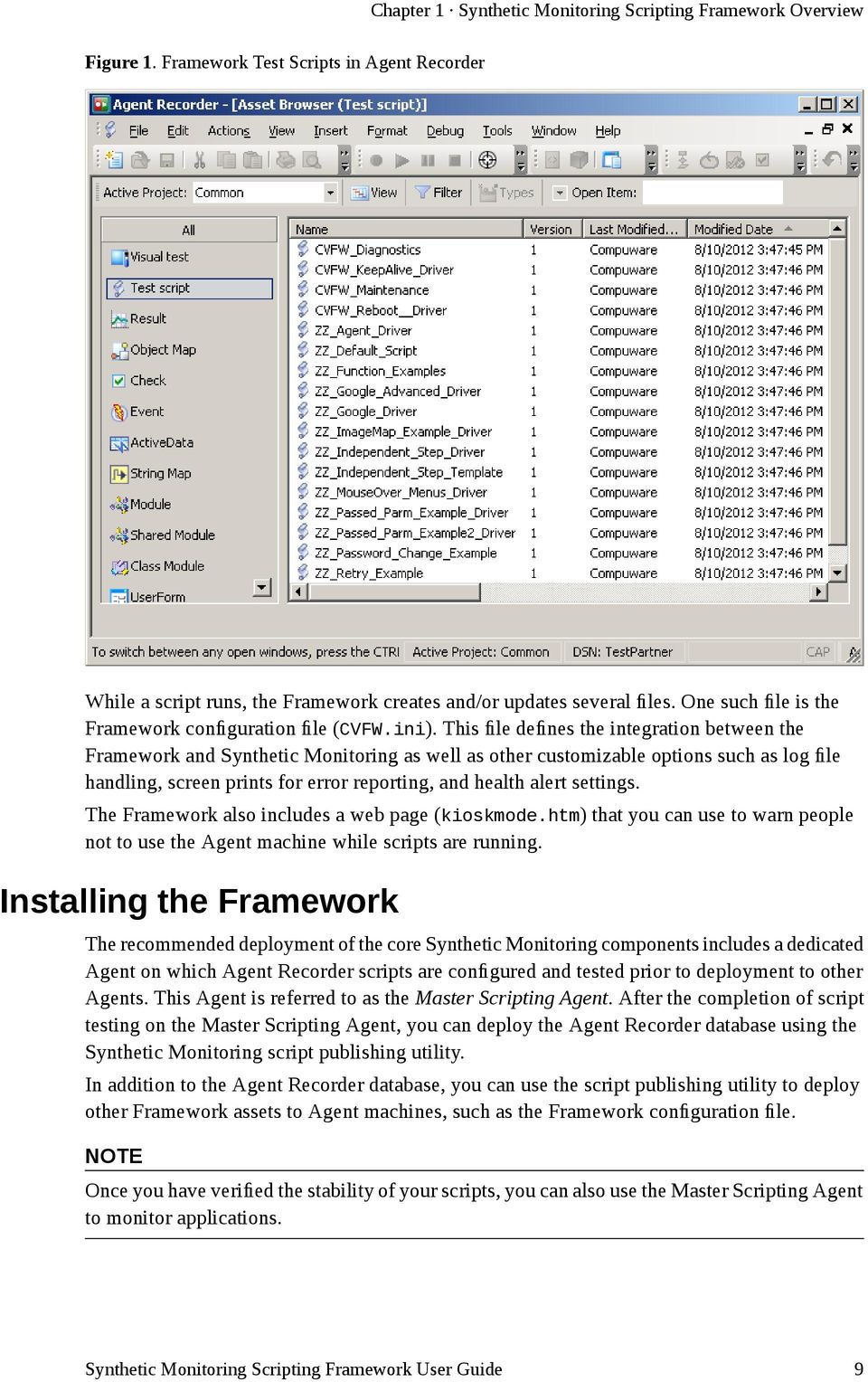
8 Chapter 1 Synthetic Monitoring Scripting Framework Overview and configure transaction details directly into the Synthetic Monitoring Console, thus saving a significant amount of effort. An additional benefit of using the Framework is the enhanced usability and performance of Agent Recorder. Error handling and Wait events are greatly improved in speed, reliability, and ease of use. Tasks that would normally take hundreds of lines of code can be performed by adding one Framework function to a script. The Framework function library is extensive and can be used for most application types including Citrix, web, thick client, and Java applications. Framework Assets The Framework's core components are Agent Recorder assets, which include test script templates and examples, modules, shared modules, a user form, object maps, and screen events. These assets are contained and initially deployed in an Agent Recorder database. In the following example, the default Framework test scripts are shown. The scripts with a CVFW_ prefix are utilities called from production application driver scripts. Scripts that begin with ZZ_ are example test scripts that demonstrate how to script common monitoring tasks. For more information, see Framework Script Types [p. 49]. NOTE Sample scripts may reference web pages that are not maintained by Compuware Corporation. As a result, the sample script may not play back properly if the referenced web page has been deleted or modified. If you have problems running a sample script, contact Compuware APM Technical Support. 8

9 Chapter 1 Synthetic Monitoring Scripting Framework Overview Figure 1. Framework Test Scripts in Agent Recorder While a script runs, the Framework creates and/or updates several files. One such file is the Framework configuration file (CVFW.ini). This file defines the integration between the Framework and Synthetic Monitoring as well as other customizable options such as log file handling, screen prints for error reporting, and health alert settings. The Framework also includes a web page (kioskmode.htm) that you can use to warn people not to use the Agent machine while scripts are running. Installing the Framework The recommended deployment of the core Synthetic Monitoring components includes a dedicated Agent on which Agent Recorder scripts are configured and tested prior to deployment to other Agents. This Agent is referred to as the Master Scripting Agent. After the completion of script testing on the Master Scripting Agent, you can deploy the Agent Recorder database using the Synthetic Monitoring script publishing utility. In addition to the Agent Recorder database, you can use the script publishing utility to deploy other Framework assets to Agent machines, such as the Framework configuration file. NOTE Once you have verified the stability of your scripts, you can also use the Master Scripting Agent to monitor applications. 9
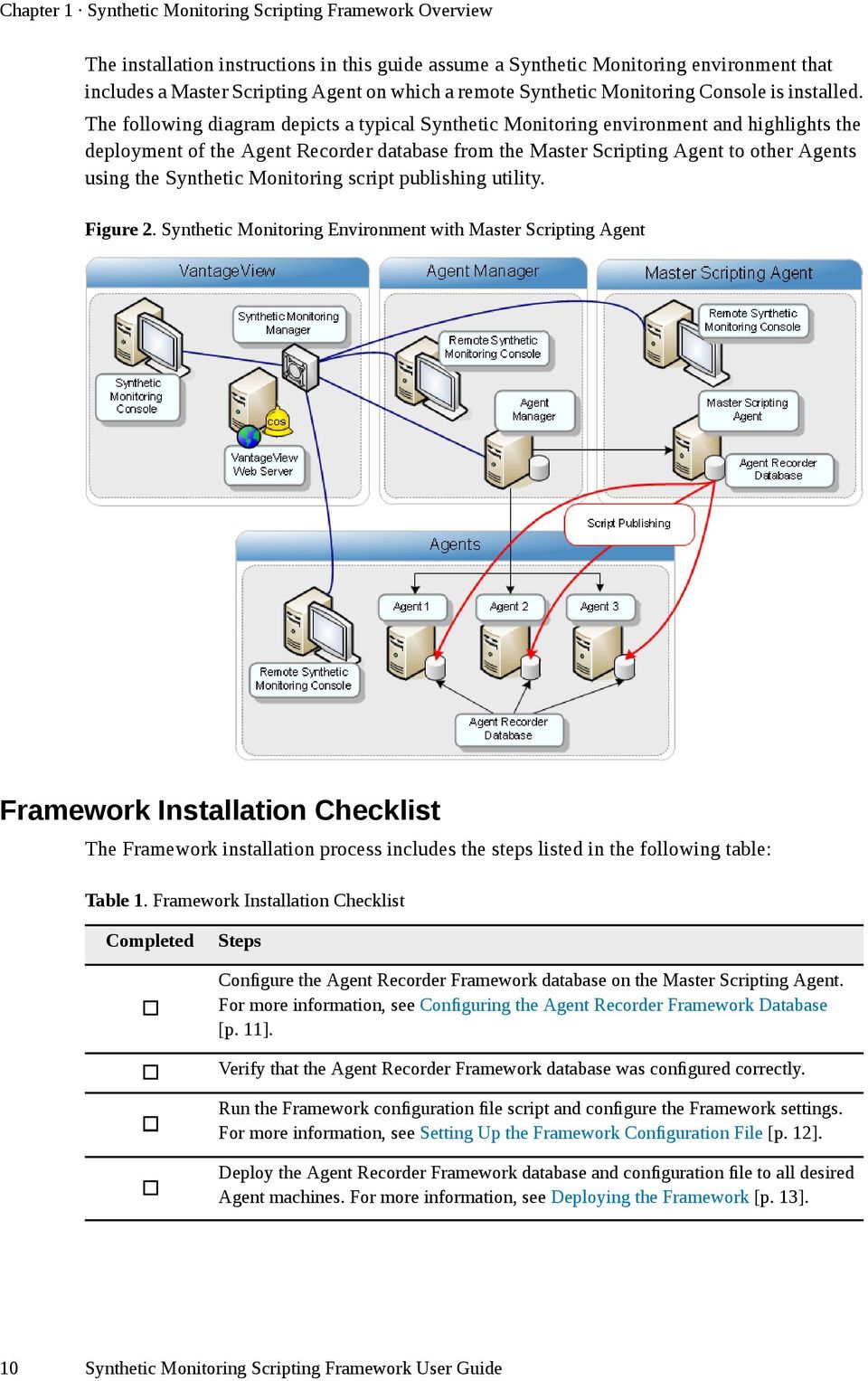
10 Chapter 1 Synthetic Monitoring Scripting Framework Overview The installation instructions in this guide assume a Synthetic Monitoring environment that includes a Master Scripting Agent on which a remote Synthetic Monitoring Console is installed. The following diagram depicts a typical Synthetic Monitoring environment and highlights the deployment of the Agent Recorder database from the Master Scripting Agent to other Agents using the Synthetic Monitoring script publishing utility. Figure 2. Synthetic Monitoring Environment with Master Scripting Agent Framework Installation Checklist The Framework installation process includes the steps listed in the following table: Table 1. Framework Installation Checklist Completed Steps Configure the Agent Recorder Framework database on the Master Scripting Agent. For more information, see Configuring the Agent Recorder Framework Database [p. 11]. Verify that the Agent Recorder Framework database was configured correctly. Run the Framework configuration file script and configure the Framework settings. For more information, see Setting Up the Framework Configuration File [p. 12]. Deploy the Agent Recorder Framework database and configuration file to all desired Agent machines. For more information, see Deploying the Framework [p. 13]. 10
11 Chapter 1 Synthetic Monitoring Scripting Framework Overview Configuring the Agent Recorder Framework Database During a Synthetic Monitoring Agent Manager installation, the Agent Recorder Framework database is copied into the Agent Manager installation folder and made available for use pending its configuration in Agent Recorder on the Master Scripting Agent. To configure the Agent Recorder Framework database as the default Agent Recorder database, perform the following steps: Configure the Agent Recorder Framework Database 1. On the Master Scripting Agent, close Agent Recorder. 2. Move the Agent Recorder Framework database from the Agent Manager machine to the Master Scripting Agent: a. On the Agent Manager machine, access the Agent Recorder Framework database (TestPartner.mdb) from the following location: C:\Program Files\Compuware\Synthetic Monitoring\Samples\ScriptingFramework b. On the Master Scripting Agent, move the TestPartner.mdb file to the following location on the Agent Recorder machine: C:\ProgramData\Documents\Compuware\Recorder\DB NOTE On some operating systems, the Documents folder is hidden. To reliably navigate to the DB folder, type %ALLUSERSPROFILE%\Documents\Compuware\Recorder\DB in the Windows Explorer Address bar. c. You are prompted to replace the existing TestPartner.mdb file. Click Yes. Verify That the Agent Recorder Framework Is Configured 3. Start Agent Recorder. 4. Log on to the TestPartner database. The Test script window should open and display the default Framework scripts, which have a prefix of CVFW_ or ZZ_, as shown in the following graphic: 11
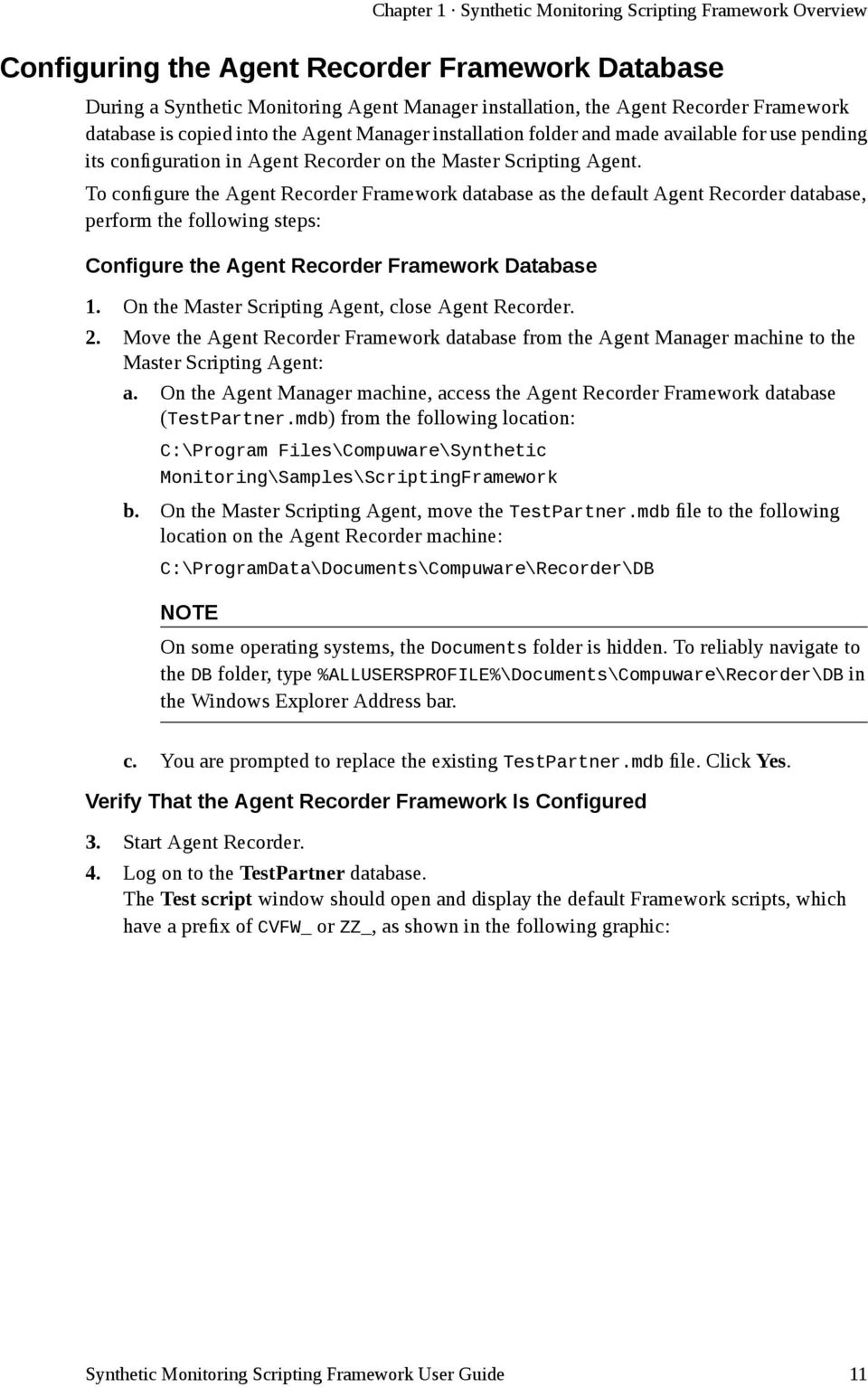
12 Chapter 1 Synthetic Monitoring Scripting Framework Overview Figure 3. Framework Test Scripts in Agent Recorder In addition to the default Framework test scripts, the Framework Agent Recorder database is prepopulated with modules, shared modules, a user form, object maps, and screen events. Setting Up the Framework Configuration File The Framework configuration file defines common file paths used to store Framework assets, integration settings between Agent Recorder and Synthetic Monitoring, and other general scripting behavior settings. To set up the Framework configuration file, perform the following steps: 1. Start the Agent Recorder and open the Asset Browser. 2. Select Test scripts, and then open the CVFW_Maintenance script. 3. Click the Playback button on the toolbar and run the script. The Synthetic Monitoring Framework Configuration window appears. 4. Configure the desired settings on each tab, and then click Save. For more information, see Configuring Framework Features [p. 39]. NOTE All tabs are saved independently from each other. After editing a field on a tab, you must click Save to save your changes for that tab. 12

13 Chapter 1 Synthetic Monitoring Scripting Framework Overview Your configuration file settings are saved in a CVFW.ini file in the following location on the Agent machine: C:\ProgramData\Compuware\ClientVantage\Data\work\Data\UserData A distributable.zip file containing the CVFW.ini file is also created in this folder when you close the Synthetic Monitoring Framework Configuration window. What to Do Next After setting up the Framework configuration file on your Master Scripting Agent, you are ready to deploy the Agent Recorder database and Framework configuration.zip file to the remaining Agent machines. Deploying the Framework Before You Begin In the Synthetic Monitoring Console, add all Agents on which to deploy the database. Configure the Agent Recorder database and Framework configuration file on the Master Scripting Agent before deploying these assets to all other Agents. On all Agent machines, close Agent Recorder. The recommended deployment process for distributing the Framework Agent Recorder database on the Master Scripting Agent to all other Agent machines requires the use of the Synthetic Monitoring script publishing utility. This utility allows you to selectively choose which Agents to update. NOTE Although it is not recommended, this version of the Framework continues to support the use of a shared folder to distribute Framework assets, as directed in previous versions of the Framework. Deploy the Agent Recorder Database 1. On the Master Scripting Agent, start the Synthetic Monitoring Console. 2. Select Scripts from the Navigation pane, then select Script Publishing. 3. Right-click in the Script Publishing grid, and then select Add. The Publish Scripts dialog box appears. 13
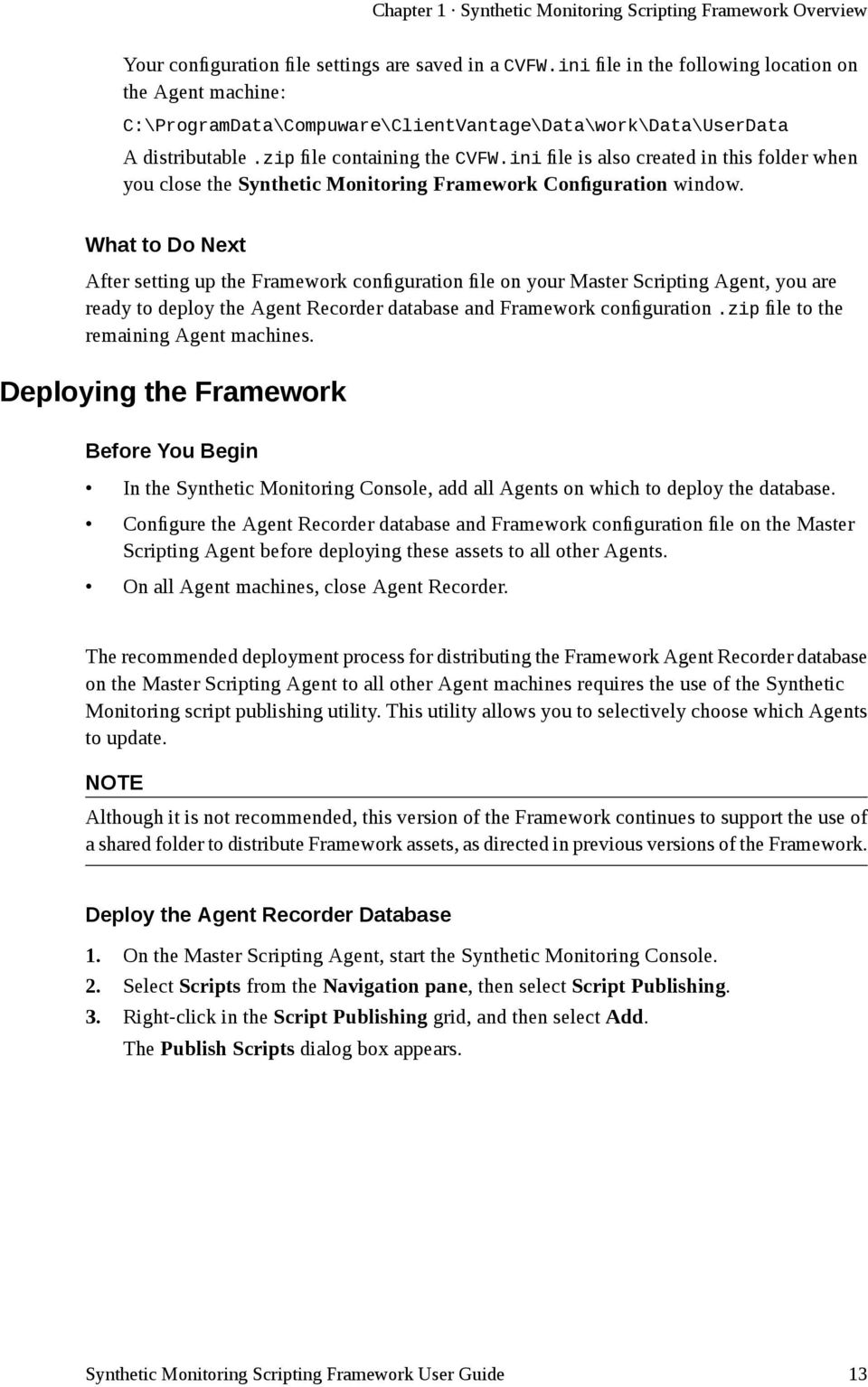
14 Chapter 1 Synthetic Monitoring Scripting Framework Overview Figure 4. Publish Scripts Dialog Box - Agent Recorder 4. In the Publish Scripts dialog box, type the name of the definition in the Name field. 5. From the Scripting tool/data list, select Agent Recorder. 6. From the Data source list, select TestPartner. 7. In the Master database box, click Browse, and then select the TestPartner.mdb file in the following location: C:\ProgramData\Documents\Compuware\Recorder\DB\TestPartner.mdb NOTE For some operating systems, the Documents folder is hidden. In this instance, click Browse, and then type C:\ProgramData\Documents\Compuware\Recorder\DB\ in the Address bar of the Open dialog box. Next, select TestPartner.mdb, and then click Open. 8. From the Schedule time list, select the timing of when you want to publish. 9. Select the Agents on which to deploy the database. 10. Optionally, select the Publish configuration now check box to immediately publish to all selected Agents. 11. Click Schedule. The database file is compressed and, if you enabled Publish configuration now, the compressed file is published immediately to the Agent(s), along with any other pending configuration changes. The status of the publish appears in the Publish Report. window, as shown below. 14
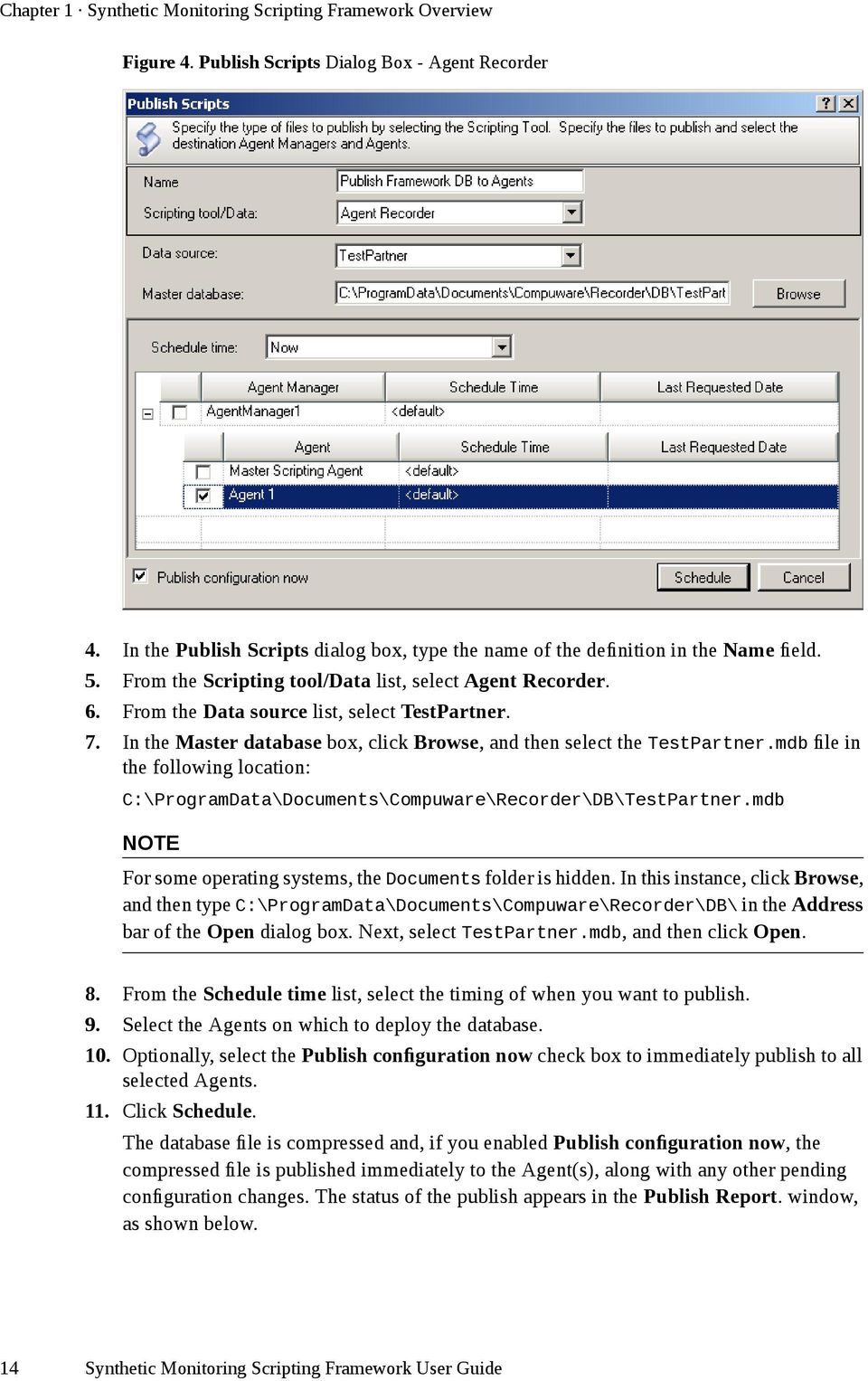
15 Chapter 1 Synthetic Monitoring Scripting Framework Overview Figure 5. Publish Report After running the publish scripts utility, the Status column displays Successful to indicate the database was deployed as intended. 12. Close the Publish Report window. Deploy the Agent Recorder Configuration File 13. Right-click in the Script Publishing grid, and then select Add. The Publish Scripts dialog box appears. Figure 6. Publish Scripts Dialog Box - UserData 14. In the Name field, type the name of the definition. 15. From the Scripting tool/data list, select UserData. 15

16 Chapter 1 Synthetic Monitoring Scripting Framework Overview 16. In the User data file box, click Browse, and then select the CVFW.zip file in the following location: C:\ProgramData\Compuware\ClientVantage\Data\work\Data\UserData NOTE On Windows P machines: C:\Documents and Settings\All Users\Application Data\Compuware\ClientVantage\Data\work\Data\UserData 17. From the Schedule time list, select the timing of when you want to publish. 18. Select the Agents on which to deploy the configuration file. 19. Optionally, select the Publish configuration now check box to immediately publish to all selected Agents. 20. Click Schedule. If you enabled Publish configuration now, the configuration file is published immediately to the Agent(s), along with any other pending configuration changes. Verify the Deployment of the Database and Configuration File 21. On any Agent machine on which you deployed the database and configuration file, start Agent Recorder and open the Test scripts window of the Asset Browser. A list of default Framework test scripts that start with the prefix CVFW_ and ZZ_ should appear. In the Description field of the ZZ_Release_History test script, you should see the current version of the Framework listed. 22. To verify that the configuration file was deployed successfully, run the CVFW_Maintenance script and verify that your settings appear on the various tabs of the Configuration window. Alternatively, on an Agent machine, you can open the folder C:\ProgramData\Compuware\ClientVantage\Data\work\Data\UserData, and verify the modified date of the CVFW.ini file matches the time the file was published. Upgrading the Framework If you are using the Synthetic Monitoring Scripting Framework and have upgraded Synthetic Monitoring, an upgrade to the latest release of the Framework is recommended. An upgraded Framework ensures you have access to any new changes in the Framework and support for new features introduced in the current version of Synthetic Monitoring. NOTE If you do not upgrade the Framework, the following status message appears when you run a test script: Current Framework version <12.x>. An update is available for Recorder version <12.x>. Review installation instructions. Defaulting to a wait time of 30". Framework Upgrade Checklist The Framework upgrade process includes the steps listed in the following table. 16
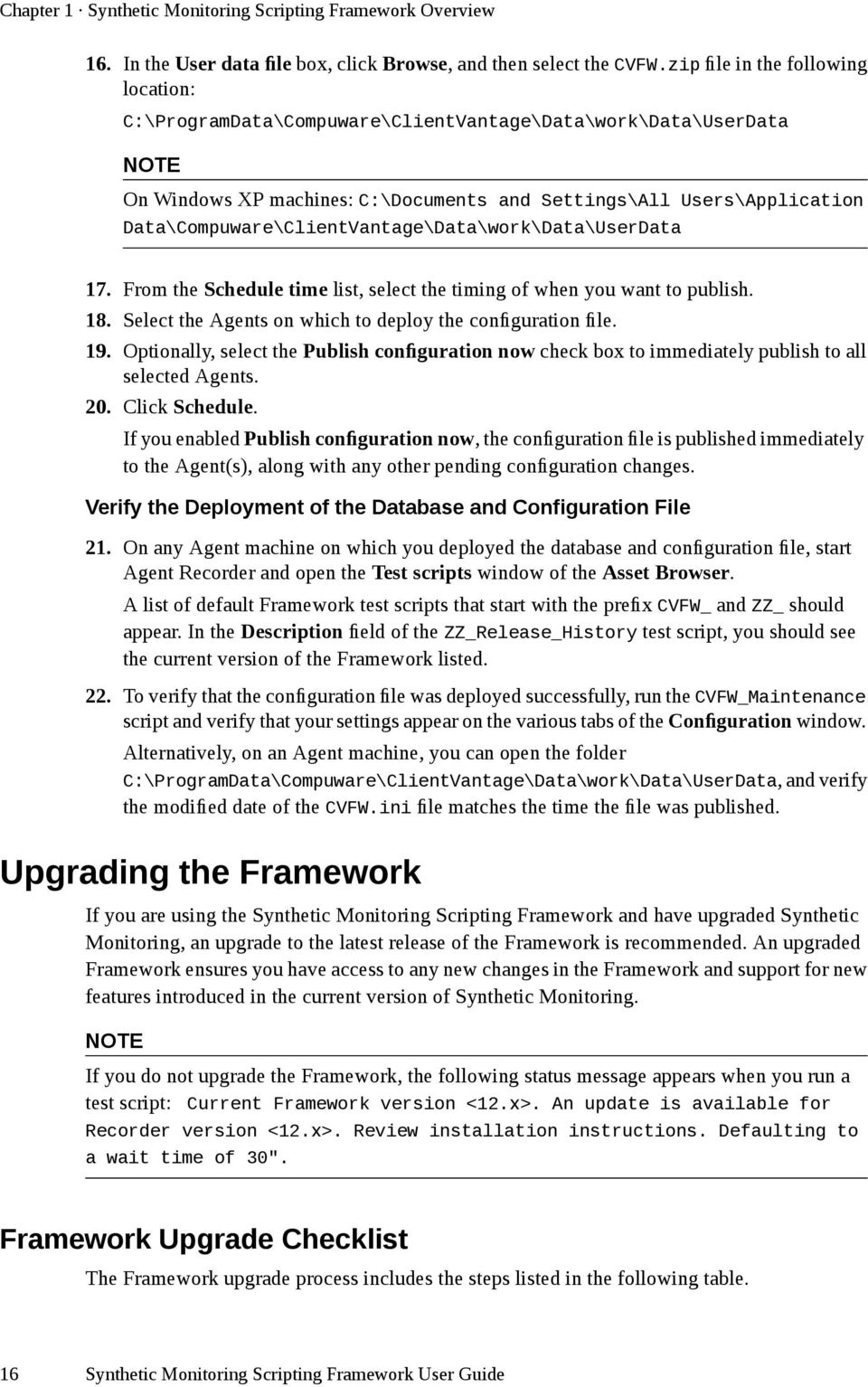
17 Chapter 1 Synthetic Monitoring Scripting Framework Overview Table 2. Framework Upgrade Checklist Completed Steps Make a backup of the Agent Recorder database on the Master Scripting Agent from which you will deploy the updated database to all Agent machines. Import the Framework upgrade files into the Agent Recorder database. For more information, see Importing the Upgrade Files [p. 17]. Deploy the upgraded Agent Recorder database to all Agent machines. For more information, see Deploying the Framework [p. 13]. Importing the Upgrade Files The following Framework upgrade files are copied to the Agent Manager machine during a Synthetic Monitoring installation or when applying a Synthetic Monitoring Service Pack: FrameworkUpdates.ML This is an exported Agent Recorder file that contains the internal Framework scripts, modules, screen events, image maps, and object maps that are necessary for the upgrade. UserModifiableFunctions.ML This is an exported Agent Recorder file that contains a current version of Agent Recorder CVFW_User_Modifiable_Functions module. This module provides template functions that you can modify to support your environment. If you have previously edited this module, you must copy your changes out of the module prior to import, and then manually merge them back in after importing UserModifiableFunctions.ML. If you did not edit this module, you should still perform an import of this file to ensure you have the correct version available. NOTE As an alternative to importing UserModifiableFunctions.ML, a text file version (UserModifiableFunctions.txt) is available. To use this version, copy the contents of the file and manually merge them with your custom changes in the existing CVFW_User_Modifiable_Functions module. IMPORTANT The Framework upgrade files do not contain required Agent Recorder settings which are maintained in the Framework Agent Recorder database. Consequently, these files should only be used to upgrade an existing Framework Agent Recorder database. Do not use these files to install the Framework in a new Framework installation scenario. Import Framework Updates Perform the following steps to import all Framework updates with the exception of the CVFW_User_Modifiable_Functions module updates, which are imported in a separate procedure. 17
![Import the Framework upgrade files into the Agent Recorder database. For more information, see Importing the Upgrade Files [p. 17]. Deploy the upgraded Agent Recorder database to all Agent machines.](/docs-images/42/13803115/images/page_17.jpg "For more information, see Deploying the Framework [p. 13].")
18 Chapter 1 Synthetic Monitoring Scripting Framework Overview 1. Copy the Framework upgrade files from the following location in the Agent Manager installation folder to any location on the Master Scripting Agent machine: C:\Program Files\Compuware\Synthetic Monitoring\Samples\ScriptingFramework\ 2. On the Master Scripting Agent, start Agent Recorder. 3. Choose File Import Assets. The Agent Recorder Asset Import Wizard appears. 4. Click Next. The Import File name or Directory page appears. 5. Select Import assets from a single file, browse to FrameworkUpdates.ML, and then click Next. The Items to Import page appears. 6. Select Import all assets, and then click OK. The Conflict Resolution page appears. 7. Accept the default resolution, and then click Next. The Start Importing Assets page appears. 8. Click Next and Finish to start the import process. Import CVFW_User_Modifiable_Functions Module Updates If you did not previously modify the CVFW_User_Modifiable_Functions module, use the Agent Recorder Import wizard to import the current version of the file. If you made changes to the CVFW_User_Modifiable_Functions module that you do not want to overwrite, perform the following steps: 9. Copy your changes out of the CVFW_User_Modifiable_Functions module. 10. Use the Agent Recorder Import wizard described in the previous steps to import UserModifiableFunctions.ML. 11. Paste your changes back into the newly imported CVFW_User_Modifiable_Functions module. TIP You can create a shared module to store your own functions, and then reference them in the CVFW_User_Modifiable_Functions module. Additionally, you can log what functions you changed at the top of the module to quickly identify what you need to modify. Verify That the Agent Recorder Framework Is Configured 12. Start the Agent Recorder and open the Test scripts window of the Asset Browser. In the Description field for each Framework test script, you should see the current version of the Framework listed. 18

19 Chapter 1 Synthetic Monitoring Scripting Framework Overview What to Do Next Deploy the updated Agent Recorder database to the remaining Agents in your environment. For more information, see Deploying the Framework [p. 13]. Deploying the Framework Before You Begin In the Synthetic Monitoring Console, add all Agents on which to deploy the database. Configure the Agent Recorder database and Framework configuration file on the Master Scripting Agent before deploying these assets to all other Agents. On all Agent machines, close Agent Recorder. The recommended deployment process for distributing the Framework Agent Recorder database on the Master Scripting Agent to all other Agent machines requires the use of the Synthetic Monitoring script publishing utility. This utility allows you to selectively choose which Agents to update. NOTE Although it is not recommended, this version of the Framework continues to support the use of a shared folder to distribute Framework assets, as directed in previous versions of the Framework. Deploy the Agent Recorder Database 1. On the Master Scripting Agent, start the Synthetic Monitoring Console. 2. Select Scripts from the Navigation pane, then select Script Publishing. 3. Right-click in the Script Publishing grid, and then select Add. The Publish Scripts dialog box appears. 19
20 Chapter 1 Synthetic Monitoring Scripting Framework Overview Figure 7. Publish Scripts Dialog Box - Agent Recorder 4. In the Publish Scripts dialog box, type the name of the definition in the Name field. 5. From the Scripting tool/data list, select Agent Recorder. 6. From the Data source list, select TestPartner. 7. In the Master database box, click Browse, and then select the TestPartner.mdb file in the following location: C:\ProgramData\Documents\Compuware\Recorder\DB\TestPartner.mdb NOTE For some operating systems, the Documents folder is hidden. In this instance, click Browse, and then type C:\ProgramData\Documents\Compuware\Recorder\DB\ in the Address bar of the Open dialog box. Next, select TestPartner.mdb, and then click Open. 8. From the Schedule time list, select the timing of when you want to publish. 9. Select the Agents on which to deploy the database. 10. Optionally, select the Publish configuration now check box to immediately publish to all selected Agents. 11. Click Schedule. The database file is compressed and, if you enabled Publish configuration now, the compressed file is published immediately to the Agent(s), along with any other pending configuration changes. The status of the publish appears in the Publish Report. window, as shown below. 20

21 Chapter 1 Synthetic Monitoring Scripting Framework Overview Figure 8. Publish Report After running the publish scripts utility, the Status column displays Successful to indicate the database was deployed as intended. 12. Close the Publish Report window. Deploy the Agent Recorder Configuration File 13. Right-click in the Script Publishing grid, and then select Add. The Publish Scripts dialog box appears. Figure 9. Publish Scripts Dialog Box - UserData 14. In the Name field, type the name of the definition. 15. From the Scripting tool/data list, select UserData. 21
22 Chapter 1 Synthetic Monitoring Scripting Framework Overview 16. In the User data file box, click Browse, and then select the CVFW.zip file in the following location: C:\ProgramData\Compuware\ClientVantage\Data\work\Data\UserData NOTE On Windows P machines: C:\Documents and Settings\All Users\Application Data\Compuware\ClientVantage\Data\work\Data\UserData 17. From the Schedule time list, select the timing of when you want to publish. 18. Select the Agents on which to deploy the configuration file. 19. Optionally, select the Publish configuration now check box to immediately publish to all selected Agents. 20. Click Schedule. If you enabled Publish configuration now, the configuration file is published immediately to the Agent(s), along with any other pending configuration changes. Verify the Deployment of the Database and Configuration File 21. On any Agent machine on which you deployed the database and configuration file, start Agent Recorder and open the Test scripts window of the Asset Browser. A list of default Framework test scripts that start with the prefix CVFW_ and ZZ_ should appear. In the Description field of the ZZ_Release_History test script, you should see the current version of the Framework listed. 22. To verify that the configuration file was deployed successfully, run the CVFW_Maintenance script and verify that your settings appear on the various tabs of the Configuration window. Alternatively, on an Agent machine, you can open the folder C:\ProgramData\Compuware\ClientVantage\Data\work\Data\UserData, and verify the modified date of the CVFW.ini file matches the time the file was published. 22
23 CHAPTER 2 Installing the Framework The recommended deployment of the core Synthetic Monitoring components includes a dedicated Agent on which Agent Recorder scripts are configured and tested prior to deployment to other Agents. This Agent is referred to as the Master Scripting Agent. After the completion of script testing on the Master Scripting Agent, you can deploy the Agent Recorder database using the Synthetic Monitoring script publishing utility. In addition to the Agent Recorder database, you can use the script publishing utility to deploy other Framework assets to Agent machines, such as the Framework configuration file. NOTE Once you have verified the stability of your scripts, you can also use the Master Scripting Agent to monitor applications. The installation instructions in this guide assume a Synthetic Monitoring environment that includes a Master Scripting Agent on which a remote Synthetic Monitoring Console is installed. The following diagram depicts a typical Synthetic Monitoring environment and highlights the deployment of the Agent Recorder database from the Master Scripting Agent to other Agents using the Synthetic Monitoring script publishing utility. 23

24 Chapter 2 Installing the Framework Figure 10. Synthetic Monitoring Environment with Master Scripting Agent Framework Installation Checklist The Framework installation process includes the steps listed in the following table: Table 3. Framework Installation Checklist Completed Steps Configure the Agent Recorder Framework database on the Master Scripting Agent. For more information, see Configuring the Agent Recorder Framework Database [p. 11]. Verify that the Agent Recorder Framework database was configured correctly. Run the Framework configuration file script and configure the Framework settings. For more information, see Setting Up the Framework Configuration File [p. 12]. Deploy the Agent Recorder Framework database and configuration file to all desired Agent machines. For more information, see Deploying the Framework [p. 13]. Configuring the Agent Recorder Framework Database During a Synthetic Monitoring Agent Manager installation, the Agent Recorder Framework database is copied into the Agent Manager installation folder and made available for use pending its configuration in Agent Recorder on the Master Scripting Agent. To configure the Agent Recorder Framework database as the default Agent Recorder database, perform the following steps: 24
25 Chapter 2 Installing the Framework Configure the Agent Recorder Framework Database 1. On the Master Scripting Agent, close Agent Recorder. 2. Move the Agent Recorder Framework database from the Agent Manager machine to the Master Scripting Agent: a. On the Agent Manager machine, access the Agent Recorder Framework database (TestPartner.mdb) from the following location: C:\Program Files\Compuware\Synthetic Monitoring\Samples\ScriptingFramework b. On the Master Scripting Agent, move the TestPartner.mdb file to the following location on the Agent Recorder machine: C:\ProgramData\Documents\Compuware\Recorder\DB NOTE On some operating systems, the Documents folder is hidden. To reliably navigate to the DB folder, type %ALLUSERSPROFILE%\Documents\Compuware\Recorder\DB in the Windows Explorer Address bar. c. You are prompted to replace the existing TestPartner.mdb file. Click Yes. Verify That the Agent Recorder Framework Is Configured 3. Start Agent Recorder. 4. Log on to the TestPartner database. The Test script window should open and display the default Framework scripts, which have a prefix of CVFW_ or ZZ_, as shown in the following graphic: 25
26 Chapter 2 Installing the Framework Figure 11. Framework Test Scripts in Agent Recorder In addition to the default Framework test scripts, the Framework Agent Recorder database is prepopulated with modules, shared modules, a user form, object maps, and screen events. Setting Up the Framework Configuration File The Framework configuration file defines common file paths used to store Framework assets, integration settings between Agent Recorder and Synthetic Monitoring, and other general scripting behavior settings. To set up the Framework configuration file, perform the following steps: 1. Start the Agent Recorder and open the Asset Browser. 2. Select Test scripts, and then open the CVFW_Maintenance script. 3. Click the Playback button on the toolbar and run the script. The Synthetic Monitoring Framework Configuration window appears. 4. Configure the desired settings on each tab, and then click Save. For more information, see Configuring Framework Features [p. 39]. NOTE All tabs are saved independently from each other. After editing a field on a tab, you must click Save to save your changes for that tab. 26
27 Chapter 2 Installing the Framework Your configuration file settings are saved in a CVFW.ini file in the following location on the Agent machine: C:\ProgramData\Compuware\ClientVantage\Data\work\Data\UserData A distributable.zip file containing the CVFW.ini file is also created in this folder when you close the Synthetic Monitoring Framework Configuration window. What to Do Next After setting up the Framework configuration file on your Master Scripting Agent, you are ready to deploy the Agent Recorder database and Framework configuration.zip file to the remaining Agent machines. Deploying the Framework Before You Begin In the Synthetic Monitoring Console, add all Agents on which to deploy the database. Configure the Agent Recorder database and Framework configuration file on the Master Scripting Agent before deploying these assets to all other Agents. On all Agent machines, close Agent Recorder. The recommended deployment process for distributing the Framework Agent Recorder database on the Master Scripting Agent to all other Agent machines requires the use of the Synthetic Monitoring script publishing utility. This utility allows you to selectively choose which Agents to update. NOTE Although it is not recommended, this version of the Framework continues to support the use of a shared folder to distribute Framework assets, as directed in previous versions of the Framework. Deploy the Agent Recorder Database 1. On the Master Scripting Agent, start the Synthetic Monitoring Console. 2. Select Scripts from the Navigation pane, then select Script Publishing. 3. Right-click in the Script Publishing grid, and then select Add. The Publish Scripts dialog box appears. 27
28 Chapter 2 Installing the Framework Figure 12. Publish Scripts Dialog Box - Agent Recorder 4. In the Publish Scripts dialog box, type the name of the definition in the Name field. 5. From the Scripting tool/data list, select Agent Recorder. 6. From the Data source list, select TestPartner. 7. In the Master database box, click Browse, and then select the TestPartner.mdb file in the following location: C:\ProgramData\Documents\Compuware\Recorder\DB\TestPartner.mdb NOTE For some operating systems, the Documents folder is hidden. In this instance, click Browse, and then type C:\ProgramData\Documents\Compuware\Recorder\DB\ in the Address bar of the Open dialog box. Next, select TestPartner.mdb, and then click Open. 8. From the Schedule time list, select the timing of when you want to publish. 9. Select the Agents on which to deploy the database. 10. Optionally, select the Publish configuration now check box to immediately publish to all selected Agents. 11. Click Schedule. The database file is compressed and, if you enabled Publish configuration now, the compressed file is published immediately to the Agent(s), along with any other pending configuration changes. The status of the publish appears in the Publish Report. window, as shown below. 28
29 Chapter 2 Installing the Framework Figure 13. Publish Report After running the publish scripts utility, the Status column displays Successful to indicate the database was deployed as intended. 12. Close the Publish Report window. Deploy the Agent Recorder Configuration File 13. Right-click in the Script Publishing grid, and then select Add. The Publish Scripts dialog box appears. Figure 14. Publish Scripts Dialog Box - UserData 14. In the Name field, type the name of the definition. 15. From the Scripting tool/data list, select UserData. 29
30 Chapter 2 Installing the Framework 16. In the User data file box, click Browse, and then select the CVFW.zip file in the following location: C:\ProgramData\Compuware\ClientVantage\Data\work\Data\UserData NOTE On Windows P machines: C:\Documents and Settings\All Users\Application Data\Compuware\ClientVantage\Data\work\Data\UserData 17. From the Schedule time list, select the timing of when you want to publish. 18. Select the Agents on which to deploy the configuration file. 19. Optionally, select the Publish configuration now check box to immediately publish to all selected Agents. 20. Click Schedule. If you enabled Publish configuration now, the configuration file is published immediately to the Agent(s), along with any other pending configuration changes. Verify the Deployment of the Database and Configuration File 21. On any Agent machine on which you deployed the database and configuration file, start Agent Recorder and open the Test scripts window of the Asset Browser. A list of default Framework test scripts that start with the prefix CVFW_ and ZZ_ should appear. In the Description field of the ZZ_Release_History test script, you should see the current version of the Framework listed. 22. To verify that the configuration file was deployed successfully, run the CVFW_Maintenance script and verify that your settings appear on the various tabs of the Configuration window. Alternatively, on an Agent machine, you can open the folder C:\ProgramData\Compuware\ClientVantage\Data\work\Data\UserData, and verify the modified date of the CVFW.ini file matches the time the file was published. 30
31 CHAPTER 3 Upgrading the Framework If you are using the Synthetic Monitoring Scripting Framework and have upgraded Synthetic Monitoring, an upgrade to the latest release of the Framework is recommended. An upgraded Framework ensures you have access to any new changes in the Framework and support for new features introduced in the current version of Synthetic Monitoring. NOTE If you do not upgrade the Framework, the following status message appears when you run a test script: Current Framework version <12.x>. An update is available for Recorder version <12.x>. Review installation instructions. Defaulting to a wait time of 30". Framework Upgrade Checklist The Framework upgrade process includes the steps listed in the following table. Table 4. Framework Upgrade Checklist Completed Steps Make a backup of the Agent Recorder database on the Master Scripting Agent from which you will deploy the updated database to all Agent machines. Import the Framework upgrade files into the Agent Recorder database. For more information, see Importing the Upgrade Files [p. 17]. Deploy the upgraded Agent Recorder database to all Agent machines. For more information, see Deploying the Framework [p. 13]. Importing the Upgrade Files The following Framework upgrade files are copied to the Agent Manager machine during a Synthetic Monitoring installation or when applying a Synthetic Monitoring Service Pack: 31
32 Chapter 3 Upgrading the Framework FrameworkUpdates.ML This is an exported Agent Recorder file that contains the internal Framework scripts, modules, screen events, image maps, and object maps that are necessary for the upgrade. UserModifiableFunctions.ML This is an exported Agent Recorder file that contains a current version of Agent Recorder CVFW_User_Modifiable_Functions module. This module provides template functions that you can modify to support your environment. If you have previously edited this module, you must copy your changes out of the module prior to import, and then manually merge them back in after importing UserModifiableFunctions.ML. If you did not edit this module, you should still perform an import of this file to ensure you have the correct version available. NOTE As an alternative to importing UserModifiableFunctions.ML, a text file version (UserModifiableFunctions.txt) is available. To use this version, copy the contents of the file and manually merge them with your custom changes in the existing CVFW_User_Modifiable_Functions module. IMPORTANT The Framework upgrade files do not contain required Agent Recorder settings which are maintained in the Framework Agent Recorder database. Consequently, these files should only be used to upgrade an existing Framework Agent Recorder database. Do not use these files to install the Framework in a new Framework installation scenario. Import Framework Updates Perform the following steps to import all Framework updates with the exception of the CVFW_User_Modifiable_Functions module updates, which are imported in a separate procedure. 1. Copy the Framework upgrade files from the following location in the Agent Manager installation folder to any location on the Master Scripting Agent machine: C:\Program Files\Compuware\Synthetic Monitoring\Samples\ScriptingFramework\ 2. On the Master Scripting Agent, start Agent Recorder. 3. Choose File Import Assets. The Agent Recorder Asset Import Wizard appears. 4. Click Next. The Import File name or Directory page appears. 5. Select Import assets from a single file, browse to FrameworkUpdates.ML, and then click Next. The Items to Import page appears. 6. Select Import all assets, and then click OK. 32
33 Chapter 3 Upgrading the Framework The Conflict Resolution page appears. 7. Accept the default resolution, and then click Next. The Start Importing Assets page appears. 8. Click Next and Finish to start the import process. Import CVFW_User_Modifiable_Functions Module Updates If you did not previously modify the CVFW_User_Modifiable_Functions module, use the Agent Recorder Import wizard to import the current version of the file. If you made changes to the CVFW_User_Modifiable_Functions module that you do not want to overwrite, perform the following steps: 9. Copy your changes out of the CVFW_User_Modifiable_Functions module. 10. Use the Agent Recorder Import wizard described in the previous steps to import UserModifiableFunctions.ML. 11. Paste your changes back into the newly imported CVFW_User_Modifiable_Functions module. TIP You can create a shared module to store your own functions, and then reference them in the CVFW_User_Modifiable_Functions module. Additionally, you can log what functions you changed at the top of the module to quickly identify what you need to modify. Verify That the Agent Recorder Framework Is Configured 12. Start the Agent Recorder and open the Test scripts window of the Asset Browser. In the Description field for each Framework test script, you should see the current version of the Framework listed. What to Do Next Deploy the updated Agent Recorder database to the remaining Agents in your environment. For more information, see Deploying the Framework [p. 13]. Deploying the Framework Before You Begin In the Synthetic Monitoring Console, add all Agents on which to deploy the database. Configure the Agent Recorder database and Framework configuration file on the Master Scripting Agent before deploying these assets to all other Agents. On all Agent machines, close Agent Recorder. The recommended deployment process for distributing the Framework Agent Recorder database on the Master Scripting Agent to all other Agent machines requires the use of the Synthetic Monitoring script publishing utility. This utility allows you to selectively choose which Agents to update. 33

34 Chapter 3 Upgrading the Framework NOTE Although it is not recommended, this version of the Framework continues to support the use of a shared folder to distribute Framework assets, as directed in previous versions of the Framework. Deploy the Agent Recorder Database 1. On the Master Scripting Agent, start the Synthetic Monitoring Console. 2. Select Scripts from the Navigation pane, then select Script Publishing. 3. Right-click in the Script Publishing grid, and then select Add. The Publish Scripts dialog box appears. Figure 15. Publish Scripts Dialog Box - Agent Recorder 4. In the Publish Scripts dialog box, type the name of the definition in the Name field. 5. From the Scripting tool/data list, select Agent Recorder. 6. From the Data source list, select TestPartner. 7. In the Master database box, click Browse, and then select the TestPartner.mdb file in the following location: C:\ProgramData\Documents\Compuware\Recorder\DB\TestPartner.mdb NOTE For some operating systems, the Documents folder is hidden. In this instance, click Browse, and then type C:\ProgramData\Documents\Compuware\Recorder\DB\ in the Address bar of the Open dialog box. Next, select TestPartner.mdb, and then click Open. 34
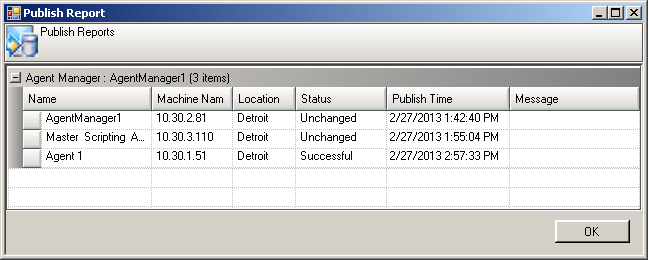
35 Chapter 3 Upgrading the Framework 8. From the Schedule time list, select the timing of when you want to publish. 9. Select the Agents on which to deploy the database. 10. Optionally, select the Publish configuration now check box to immediately publish to all selected Agents. 11. Click Schedule. The database file is compressed and, if you enabled Publish configuration now, the compressed file is published immediately to the Agent(s), along with any other pending configuration changes. The status of the publish appears in the Publish Report. window, as shown below. Figure 16. Publish Report After running the publish scripts utility, the Status column displays Successful to indicate the database was deployed as intended. 12. Close the Publish Report window. Deploy the Agent Recorder Configuration File 13. Right-click in the Script Publishing grid, and then select Add. The Publish Scripts dialog box appears. 35

36 Chapter 3 Upgrading the Framework Figure 17. Publish Scripts Dialog Box - UserData 14. In the Name field, type the name of the definition. 15. From the Scripting tool/data list, select UserData. 16. In the User data file box, click Browse, and then select the CVFW.zip file in the following location: C:\ProgramData\Compuware\ClientVantage\Data\work\Data\UserData NOTE On Windows P machines: C:\Documents and Settings\All Users\Application Data\Compuware\ClientVantage\Data\work\Data\UserData 17. From the Schedule time list, select the timing of when you want to publish. 18. Select the Agents on which to deploy the configuration file. 19. Optionally, select the Publish configuration now check box to immediately publish to all selected Agents. 20. Click Schedule. If you enabled Publish configuration now, the configuration file is published immediately to the Agent(s), along with any other pending configuration changes. Verify the Deployment of the Database and Configuration File 21. On any Agent machine on which you deployed the database and configuration file, start Agent Recorder and open the Test scripts window of the Asset Browser. A list of default Framework test scripts that start with the prefix CVFW_ and ZZ_ should appear. In the Description field of the ZZ_Release_History test script, you should see the current version of the Framework listed. 36
37 Chapter 3 Upgrading the Framework 22. To verify that the configuration file was deployed successfully, run the CVFW_Maintenance script and verify that your settings appear on the various tabs of the Configuration window. Alternatively, on an Agent machine, you can open the folder C:\ProgramData\Compuware\ClientVantage\Data\work\Data\UserData, and verify the modified date of the CVFW.ini file matches the time the file was published. 37
38 Chapter 3 Upgrading the Framework 38
39 CHAPTER 4 Configuring Framework Features The Framework configuration file defines common file paths used to store Framework assets, integration settings between Agent Recorder and Synthetic Monitoring, and other general scripting behavior settings. To access the configuration file user interface, you must play back the CVFW_Maintenance script in Agent Recorder to open the Synthetic Monitoring Framework Configuration dialog box. In this dialog box, you can configure and save the desired Framework features in a distributable configuration file. For more information, see Setting Up the Framework Configuration File [p. 12]. This section describes the configurable features of the Framework as they appear on the various tabs of the Synthetic Monitoring Framework Configuration window. Global Tab Agent Manager Path Although not required, you can create a shared public folder on the Agent Manager server to store and distribute Framework-specific files. This folder should be under the data directory that Synthetic Monitoring uses. The subdirectory should be called Framework. For example: \\AMServer\ProgramData\Compuware\Synthetic Monitoring\SYMShare\Framework. Error Handling & Printscreens Extended Logging The Framework's logging feature offers an enhanced alternative to the default Agent Recorder logging feature. The Framework offers three logging options, ranging from none to fairly extensive. The logs are created in the work folder on the Agent machine (C:\ProgramData\Compuware\ClientVantage\Data\work). The logs are named [Agent name]-[day of week].log. For example, YZ74891N01-Wed.log. By checking the Copy to Share at Script End check box, the log file will be copied up to the shared folder on the Agent Manager machine at the end of every script. If bandwidth is an issue, it may be preferable to have this option disabled. The Generations to keep option specifies how many logs are kept on the local hard drive. 39
40 Chapter 4 Configuring Framework Features The Framework takes a screen shot if a script encounters an error or if a transaction is running. If desired, however, the Framework can always take a screen shot by selecting the box Always take a local print screen. The directory option configures where the files are placed on the server at the end of the script. There are also options for creating subfolders under that path, depending on your preferences. In addition, the Framework can limit the number of screen shots that are taken by the Agent when it encounters consecutive errors. For example, if an application encounters the same error more than five times consecutively, another screen shot is not necessary. The same is true for trace files. NOTE The screen shot suppression only affects screen shots created in MS Paint for non-monitored transactions. When an Agent encounters an error for the first time (in any period), it stores an extensive task list in the log file. The entry shows memory usage, CPU usage, file dates, version numbers, file locations, etc. This can be a valuable aid to troubleshooting a problem Agent. To enable this option, select the Log running tasks on first abend check box. This is checked by default. Since the scripts take screen shots of the desktop when an error occurs and the files are placed on the server, there needs to be a maintenance process to remove files that are a certain age. There are two ways to accomplish this. First, it can be done from this screen. An alternative method is to create a scheduled task that runs the script CVFW_Purge_Old_Printscreens. Set it as a scheduled task or a transaction to run from one (and only one) Agent once a day or week, depending on how many files are created. When it executes, it reads the value set above and deletes.jpg and.bmp files older than that value. The default is 10 days, but can be set from 1 to 60. NOTE This option is only for screen shots saved by MS Paint for non-monitored transactions. It does not purge screen shots taken by Synthetic Monitoring and stored in the Synthetic Monitoring database. Baselines Baselines are critical to the trace management process. They are also important for troubleshooting purposes when comparing what happened during a problem versus what happens in a no or low-load situation. To create a baseline, you can either use the Take Baseline option in the Add Active Agents section in the Synthetic Monitoring Console or use the Framework's Take Baseline option. The Framework can use either option. The Synthetic Monitoring Console option forces the Agent to save a baseline when a script runs on that Agent. This results in a baseline for every application that executes on that Agent. The Framework baseline option selects a time when the Agent will save a baseline. By selecting a time, it saves a baseline for all applications based on a time selected. This can be when the load on the network is the lightest resulting in an ideal situation in which all others are compared. The default time 40
41 Chapter 4 Configuring Framework Features is 5:00 AM, which is often after backup and overnight batch processes have completed and before employees start logging in. To use the Framework baseline option, select the Take Baseline check box and select the desired time; for example, 5:00 (it uses 24-hour format). When the Save button is clicked and the file is sent to the shared folder, the Agents will save a baseline the first time the script runs after 5:00 am. It will not take one again for that day. You can also set it to take a baseline the first run after a time on a specific day. The While Checked value will save a baseline every time the script runs. This is not recommended for times other than the first time while developing the scripts and transactions. At this time, choosing a specific application and/or specific Agent is not built in to the Framework. Kiosk Mode Since Synthetic Monitoring Agents require the desktop to remain unlocked, displaying a splash screen web page warning people not to use the machine can give the illusion of the desktop being locked. It can also warn people not to use the Agent for things other than Synthetic Monitoring. This option is turned on at the end of an application script and closed at the beginning. A Kiosk mode web page (KioskPage.htm) is located in the following Agent machine installation folder: C:\Program Files\Compuware\Synthetic Monitoring\Recorder\Samples. Either copy this file to the shared folder on the Agent Manager machine or distribute this file to a folder on the Agent. After moving this file to the desired location, specify the path in the Display this File box. The Kiosk page included with the Framework can be edited in Notepad with the proper contact name and phone number (located toward the bottom of the.htm file) by clicking on the Edit button. It will open the file in Notepad and do a search for [Your Name Here] for entering the contact information. Database Connections The Framework uses the database connection to get the Agent names that have been configured in the Synthetic Monitoring Console as well as the Synthetic Monitoring database. It is also used to retrieve the available schedules for use when importing transactions into the Console (ID and password are encrypted as above). Be sure to test the connections before proceeding. Passwords Tab ID and Password Encryption While Agent Recorder can encrypt passwords when recording text in a password field, this is not always preferred. For example, if a password expires, the database must be modified with the new password. The other time encryption is not practical is when passwords are recorded while typing in a Citrix window. It is plain text at this point. This functionality takes advantage of Agent Recorder's ability to encrypt and decrypt a password string. 41
42 Chapter 4 Configuring Framework Features Select the application name for which to enter the ID and password. Enter the ID and password. The Save button is enabled when both password fields match. Up to 99 IDs and passwords may be entered for each application. The Use Check-in/Check-out option is useful for applications that restrict the number of available IDs and passwords. For example, if an application only has two IDs available and there are five Agents running the script, three of the Agents would run into a problem if they all started at the same time. This process uses the shared folder to add and delete the use of IDs. To utilize the password functionality in a script, use the GetID and GetPassword functions. Locate the part of the script that types the ID and password. It will usually look something like this: HTMLEditBox("Name=username").SetText "MyID" HTMLEditBox("Name=password").SetPasswordText "TTFAd371dh37f" First, replace the ID portion with GetID, passing the application name and then replace the SetPasswordText with SetText and use the GetPassword function as shown below: ShowStatusBox ("Entering in the ID and Password...") Window("Internet Explorer MainWindow").Attach HTMLBrowser("Internet Explorer ChildWindow").Attach HTMLEditBox("Name=username").SetText GetID( "MyApp") HTMLEditBox("Name=password").SetText GetPassword("MyApp") There are a few variations that can be used for both the GetID and GetPassword functions. If the same ID and password can be used for multiple applications, just add the name of the application that it is sharing the ID. HTMLEditBox("Name=username").SetText GetID("MyOtherApp") Another feature is multiple IDs and passwords for the same application. To select the second application, add the number two (surrounded in quotes) after the application name as shown below. HTMLEditBox("Name=username").SetText GetID("MyOtherApp", "2") Assigning IDs by Agent If the databases are configured in the Database Connections section on the Global tab, you can assign unique IDs to specific Agents. To use this feature, update the Agent list from the Agents tab. The list of Agents appears on the right side of the screen. Select the application, enter the IDs to use (saving after each entry), and then select the Assign ID by HostName check box. The Agent list will be enabled on the right side of the screen. Select each Agent and the ID number to use, by clicking the Update button for each one. Optionally, you can have the script trigger an error if no ID is assigned or it can use a default ID number. This option can be set in the section above the Agent list. To take advantage of this feature in a script, use the GetID and GetPassword functions as if there were only one ID. HTMLEditBox("Name=username").SetText GetID("MyOtherApp") You can also use this syntax, which will make it clearer when editing the script. HTMLEditBox("Name=username").SetText GetID("MyOtherApp", AgentName) 42
43 Blackouts Tab The functionality provided on this tab has been incorporated into the core Synthetic Monitoring feature set. For more information, refer to the Blackout Schedule Overview topic in the Synthetic Monitoring Console Help. Holidays Tab Tab The Holidays tab enables you to create a user-defined holiday that can then be used in the Scheduling tab in the Synthetic Monitoring Console to suppress the running of scripts on certain days. Common US holidays are entered by default. The date of Easter is updated automatically to show the next occurrence. To add a holiday, type it into the Holiday Name box, select the proper parameters, and then click Add. To remove a holiday, select it from the Defined Holidays list, and then click Remove. The Framework provides an optional alerting mechanism that you can use to create conditional, application-specific alert that triggers a notification . Use the settings on the tab to configure the Framework alert notification settings. Under Global settings, you can configure the default subject, recipient, and sender. Under Template settings, you can override the default settings and configure a conditional, application-specific alert. To create a new template, type the name of the template in the Alerting Template list box. Next, define the desired conditions and address, and then click Save Template. Finally, select the applications to assign to the template, and then click Apply to App. NOTE Make sure to use the semi colon (;) to delimit between addresses. Chapter 4 Configuring Framework Features Agents Tab To use the Framework's Agent features, a list of Agent names is required in the Framework configuration file. A shared folder and tested connectivity to the databases will make the task easier. Select the Agents tab. If the shared folder and/or the database connections have been configured, press the Update Agent List button. The list of Agents will appear in the box on the left. These names will need to be edited if IP addresses were used in the Console. If neither the shared folder nor the database connectivity was available, the host names can be manually entered. UserDefined Tab Some applications often require fields such as customer numbers, purchase orders, and patient numbers to be entered into a field to do a search. If the values never change, leaving the recorded 43
44 Chapter 4 Configuring Framework Features value is acceptable. If the values can change, however, it is best to use a variable. The value assigned to a variable can be hard-coded with logic based on the Agent name or some other value. Another and often better option is to have the variable read the value from the Framework configuration file. This avoids the need to change the value in the database and redistribute it every time the value changes, or worse yet have a specific script database for each Agent. To use a variable in the parameter file, select the application on the list on the left, type a static value in the Key box, and then type the value in the Value box. An example of how to retrieve the parameter is displayed and can be copied and pasted into the script. NOTE To copy, use the [Ctrl+Insert] instead of [Ctrl+C]. This is a limitation of Agent Recorder. Be sure to save after entering every entry. To delete a value, select it from the Existing Entries box. Clear the Value field, and then press Save. Another example is using an ID instead of the Agent name. The ID number can be selected from the Framework configuration file (CVFW.ini) and used in the GetID and GetPassword functions. Since the values are stored in the configuration file, they are immediately distributed to all the Agents as they run a script. Some of the common built-in properties that are available to you are: AppIniFile The entire path and file name of the parameter file. AgentName The name of the Agent machine the script is running on. CVLocation The location assigned to the Agent in the Console. AgentAttribute1 The value set in the Console. AgentAttribute2 The value set in the Console. Integration Tab The Integration tab configures how Agent Recorder communicates with Synthetic Monitoring. For most installations, the defaults are sufficient. Script Health Alert Settings This section configures the use of the Synthetic Monitoring Console Health Monitoring feature. This threshold controls when Synthetic Monitoring reports a script health warning or a script health error status. Notify Events The NotifyEvent section configures the actual NotifyEvent command that is sent to the Synthetic Monitoring Open Script API. Notify events are rarely changed. Keep in mind that they are case-sensitive and affect transactions. IMPORTANT The Framework does not support the use of Script Start and Script Stop to signify the start and stop of transactions. That practice is highly discouraged. Always use NotifyEvents, which is the default. 44
45 Chapter 4 Configuring Framework Features By default, spaces are replaced with underscores because of SNMP trap limitations. If spaces are required, then check the Allow Spaces check box. Note that this will affect the actual NotifyEvent sent to Synthetic Monitoring and will affect all transactions. Transaction Import Details This feature controls the way that transactions are imported into the Synthetic Monitoring Console. Check the Prefix Transaction Names w/sequence check box to make the reports in VantageView appear in chronological order. This will prepend the transaction names with the sequence in which they were created. When you select this option, the imported file will already have the sequence number on them. This only affects the creation of the import and not the running of the script. The script and timings will all be the same regardless if this box is checked. This often makes more sense to an application owner when the Launch/Login transaction is displayed before the Display results transaction. The Prefix Transaction Names w/sequence check box will rarely be checked since it modifies how the NotifyEvents are triggered. If it is important to match the NotifyEvents with the transaction name, check the box. NOTE It is strongly discouraged to check this box because it affects all transactions and sequences change if a step is added or removed. In fact, this box affects all transactions during runtime as well as the import file and can adversely all transactions The SLA multiplier can be helpful when trying to decide how long an SLA should be. During run time, the script keeps track of how long each transaction ran. When the transaction is completed, it takes that execution time and multiplies it by one plus the value shown, and the result is displayed as the SLA in the Synthetic Monitoring Console. For example, if a transaction runs for 10 seconds during development, the Framework will multiply that time by 1.5 (the value shown above), giving an SLA of 15 seconds. If the transaction was completed in less than three seconds, however, the SLA Minimum would take effect and would set the SLA to a minimum of 5 seconds. All values are rounded to the next 5 seconds during import. Launch to Close Transaction Numbers and Names Monitoring an application from start to finish is very important, especially if there are sections within the script that are not being actively monitored. This allows for the capture of errors with disabled controls, links not existing, etc. This section helps create the entry for importing the Launch-to-Close transaction into the Synthetic Monitoring Console. If this option is not selected, the results could show the transactions that are monitored performed as they were supposed to, but the remaining ones never executed and no alert would occur. For example, the launch of the application could work, but clicking on a link may cause an error because the words changed. By monitoring the launch-to-close transaction, an alert would be sent due to the error. In addition, a screen shot of the problem would be created. The numbering of the transaction is useful, especially when using numbering in the normal transactions. Using the 999_ option moves this transaction to the bottom of the list. Choosing 000_ puts it at the top. 45
46 Chapter 4 Configuring Framework Features NOTE No traces will be started during this transaction. The script does not execute a StartTrace command, nor should it be set to use a Statistical CNS. It should only be used for availability and overall timing of an application. Transaction File Exports The options in this section configure the import file itself. By default, the schedule number displayed in the Default Schedule list is assigned to all scripts regardless of the default set in the Console. If the VantageView database was configured, the Get Schedules from VV option is enabled. This option selects the names of the schedules as well as the default schedule. In the Path box, you can specify an additional location to store the export file. If a valid value is entered and the check box is selected, a duplicate copy of the export file is stored in that path. This allows other machines to use these files to import via the Synthetic Monitoring Console import feature. Self Documentation File Path The Self Documentation feature is a very useful feature of the Framework. If Microsoft Word is installed on the Agent, the Self Documentation feature can create a Microsoft Word document that shows all of the steps the script executes. This section sets the location in which the Microsoft Word file is stored. Alerting When an Error Occurs Between Transactions Occasionally, a script can encounter an error condition between transactions. For example, the developer may have changed the name of an object ("Name=q") and the script cannot attach to it. If no transactions are running (or the Synthetic Monitoring Agent is not listening to the transaction), the script will end without triggering an alert. To ensure that an alert is triggered, you can use the AddTransaction function. In the example shown below, if an error occurs during the typing in of the search criteria, the transaction "Google_SYM" will be marked unavailable and a screen shot will be taken displaying the actual error. While the most common use is to add the next transaction only if there are steps before the next StartTrace, it is also acceptable to add all transactions before the launch step. The results of that practice is all transactions that follow the transaction in error will also be marked unavailable. StopTimerAndTrace "Google_Launch" ' END ^^^^^^^^^^ ' Active AddTransaction "Google_SYM" ShowStatusBox "Entering search criteria...", True IEWindow("Internet Explorer MainWindow").Attach HTMLEditBox("Name=q").SetText "compuware synthetic monitoring" ShowStatusBox "Clicking on the 'Google Search' button...", True StartTrace "Google_SYM" ' START vvvvvvvvvvvvv IEWindow("Internet Explorer MainWindow").Attach HTMLButton("Name=btnG").Click WaitForTextDelimited "Internet Explorer MainWindow", "results,of about" StopTimerAndTrace "Google_SYM" ' END ^^^^^^^^^^^^^^^ 46
47 Chapter 4 Configuring Framework Features In this case, if an error occurs during the entering of the search criteria, the "Google_SYM" will be marked unavailable. Agent Auto-login Windows computers should be rebooted periodically due to memory leaks and several other factors. Synthetic Monitoring and the Agent Recorder require that the computer is logged on in order to execute any scripts. This creates an issue if the machine is not configured to automatically log back on when it is rebooted. There are a few ways to configure the machines to log in every time it is rebooted. By default, Windows reads certain registry entries on startup. These entries are listed in the Autologin.reg file supplied with the Framework installation. This file can be modified and these entries can be imported into the registry. The downside of this approach is that the password is stored in plain text. This violates most security policies. To minimize this exposure, the function RebootRobot can enter the password into the registry entry just before the machine is rebooted. It has an optional parameter that, when set to True, will blank the password field in the registry as the Agent is logged back in. While not a high security solution, it is much better than leaving the password in the registry. The script CVFW_Reboot_Driver can be edited and used as a scheduled task to reboot the Agent. Another alternative is to use the TweakUI.exe from Microsoft. It will configure the machine to log in without a plain text password. This utility can be downloaded directly from Microsoft. 47
48 Chapter 4 Configuring Framework Features 48
49 CHAPTER 5 Framework Scripts Included in the Framework are several types of scripts, each of which performs the following general tasks: Initialize the environment. Perform a business process that includes transactions. Clean up and return the Agent to the original state. The common steps of a transaction are: 1. Determine what script is running and what events are being waited for by using the ShowStatusBox function, which acts as a comment as well as an entry in the script documentation. 2. Start the transaction using the StartTrace function. 3. Perform an action such as clicking on a button or pressing [Enter]. Never start the transaction after the action. 4. Verify the results using a verification function such as WaitForText or WaitForImage. Always verify before continuing to the next step. 5. Stop the transaction using the StopTimerAndTrace function. Framework Script Types The Framework supports the following types of basic scripts: Development Mode Script Application Driver Script (Production_App_Driver) Child Script Agent Driver Script Most scripts start out as Development Mode scripts and end up as an Application Driver script, also known as a Production_App_Driver script. A script can be in any of the following modes, which are used at various times in the development process: 49
50 Chapter 5 Framework Scripts TEST_ONLY_NoScriptType Import Mode Self Documentation Mode TEST_ONLY_NoScriptType is rarely used and is used for testing single lines of code. Self Documentation mode and Import mode are used when a script is complete and ready to either create a Word document of what it is doing during run (Self Documentation) or create an import file for the Synthetic Monitoring Console. Development Mode Script This is how all scripts should start. Technically speaking, a Development Mode script is not really a script type because it does not have initialization or configuration. It simply runs the code displayed in the script. A Development Mode script should not be used in production. Application Driver Script (Production_App_Driver) An Application Driver is the primary script type and is designed to perform the same function as a task in the Synthetic Monitoring Console, which contains one application. An Application Driver script is equivalent to a specific business process. It typically contains all of the steps including the launch, login, actionable steps required to monitor the application, and the logout and close steps. An Application Driver script contains a significant amount of integration with Synthetic Monitoring. As every transaction is executed, the Framework keeps track of how long each one executes. It knows how much time is left in a transaction and adjusts the wait times accordingly. When a script ends, it checks to make sure that all transactions started and completed successfully. If one or more transactions did not complete, it will give a visual alert as well as mark any unfinished transactions as unavailable and create a screen shot for each of them. The Application Driver script contains the following parts: InitializeScript Resets the scripting environment to empty. For example, it aborts running trace files and resets any error conditions if they exist. It initializes the variable called AppName that is used throughout the script. The script name ultimately ends up to be the application name in the Synthetic Monitoring Console. This is why the script name is important and should always end with _Driver. Since all transactions are logged by the Application Driver script, it resets the inventory of transaction details to empty. It takes an inventory of all running applications. It checks to see whether the application is in a blackout period and if so, exits the script. If it is not in a blackout period, it calls the UserInitAppDriver function defined in the User_Modifiable_Functions module. If an Application Driver script calls another Application Driver script, all variables will be reset. For this reason, do not call an Application Driver script from another Application Driver script. EndScript Stops the timer of the script, stops all trace files, and checks in any ID that was checked out during the script. It handles some return to normal functionality and 50
51 Chapter 5 Framework Scripts calls the UserEndOfAppDriver function defined in the User_Modifiable_Functions module. It logs the ending status of the script, and moves any non- Synthetic Monitoring print screen files to the shared folder (if used). It verifies that all transactions that were started or even configured have reported to the Synthetic Monitoring Agent. HandleScriptErrors It is very important to leave the HandleScriptErrors as the first line of the error handler routine. Do not put anything between the ERRORHANDLER and the HandleScriptErrors lines. This is because it logs and displays the exact error text that caused the error itself, and then captures a screen shot. If any code is added before the HandleScriptErrors, both the Agent Recorder and VB reset the error object and the print screens will display a blank error message. End of the Application Driver Script Whether successful or in error, the script attempts to return the desktop to the same status it was when the script started. Both the EndScript and HandleScriptErrors functions call a function called CleanUpDesktop which first calls a user-defined function UserCleanUpDesktop, which can be used for custom closing steps. After UserCleanupDesktop executes, CleanUpDesktop attempts to close all applications that were not running when the script began. Child Script This is the most basic script type. It is designed to do one or two steps that are called by more than one application. They execute very few, but still important steps during the InitializeScript, EndOfScript, and HandleScriptErrors function calls. The most common use of a Child script is to launch and log in to an application or web site that is used by several Application Driver scripts. The error handling routine is limited to taking a screen shot and returning a value of false. While Child scripts are common in some other scripting languages, a much more efficient method in the Agent Recorder is to use a subroutine (Sub) or function for processes that are called by more than one application or more than one time in a single application. For best results, these routines can be located either at the bottom of the Application script itself, in the CVFW_UserModifiable_Functions module or in a shared module. Agent Driver Script An Agent Driver script was originally used in the ClientVantage 9.x Release that used the Windows scheduler. Since the scheduling mechanism was incorporated into ClientVantage 10.0, an Agent Driver is rarely necessary. An Agent Driver script only contains commands to run one or more Application Driver scripts. For an example, see the ZZ_Agent_Driver script. It, like a Child script, executes very few, but still important steps during the InitializeScript, EndOfScript as well as the HandleScriptErrors function calls. It is not intended to be used for combining the steps of an application. Storing Scripts in Shared Modules The advantage of a shared module is that it does not need to be explicitly included in any script. All of the functions are available to all scripts. This makes it ideal for complex error handling routines such as closing out a Citrix application. For best results, create one shared module that 51
52 Chapter 5 Framework Scripts will contain any process that is necessary for an application that requires a special error handling process. NOTE Most applications can be scripted in one Application Driver script. Most applications are the same as a business process. While in some tools it is preferable to break each step into its own script, in the Agent Recorder, this is not efficient. Navigating between individual scripts is not optimal. Creating a Script Using the Framework Script Template The default script template included in the Framework provides the common code required for initialization, scripting transactions, ending the script, and error handling. This script template should always be used when creating new scripts. 1. Stop or disable the Synthetic Monitoring Agent. If scripts are scheduled to run on the Master Scripting Agent, it is usually best to disable the Agent from the Console to prevent the Agent from running a script while creating a new script or modifying an existing script. Do not forget to publish the configuration. 2. Create a new test script. Choose File New The New Asset dialog box appears. 3. Select Test script, type the name of the script, and then click OK. TIP VBA prohibits the use of spaces in script names. For best results, end the name with the suffix _Driver. The View code window opens and displays the following template script. 'Script Name: Option Explicit 'Requires variables to be declared ahead of time (debugging aid) Dim ScriptType As ScriptTypes 'Simplifies script type determination Sub Main() On Error GoTo ErrorHandler ' Always start with ScriptType=Development_Mode.! Change to Production_App_Driver when ready to deploy. ' To change the type, delete the existing value ' then press Ctrl+Space to choose the desired option. ScriptType = Development_Mode '**** Only change this line to add an optional app acronym **** Call InitializeScript(ScriptType, Me.Name) ' DO NOT ADD ANYTHING ABOVE THIS LINE ' This launches IE to an empty page. Delete this line if it's not an IE app 'LaunchIE 'ShowStatusBox "Navigating to ''...", False ' Launch 'StartTrace "" ' START vvvvvvvvvvvvv 52
53 Chapter 5 Framework Scripts 'GoToPage "" 'WaitForText "Internet Explorer MainWindow", "", True 'StopTimerAndTrace "" ' END ^^^^^^^^^^^^^^^ ' Enter criteria (not part of a transaction) 'ShowStatusBox "Entering login criteria...", False ' ****** Duplicate the section below as the prototype for your transactions! & delete this line**** ' 'ShowStatusBox "Clicking on the '' button...", True 'StartTrace "" ' START vvvvvvvvvvvvv 'WaitForText "Internet Explorer MainWindow", "", True 'StopTimerAndTrace "" ' END ^^^^^^^^^^^^^^^ ' DO NOT ADD ANYTHING BELOW THIS LINE Call EndScript(ScriptType) ' **** Do not change this line **** Exit Sub ErrorHandler: 'Don't put anything in this section. Put your custom error handling in 'UserCleanupDesktop instead. **** HandleScriptErrors (ScriptType) ' **** Do not change this line. **** End Sub 'Transaction template ' 'ShowStatusBox "Clicking on the '' button...", True 'StartTrace "" ' START vvvvvvvvvvvvv 'WaitForText "Internet Explorer MainWindow", "", True 'StopTimerAndTrace "" ' END ^^^^^^^^^^^^^^^ This example script is set to Development mode. Once the script is completed, you should reset the mode. The long dotted lines at the top and bottom of the script labeled DO NOT ADD ANYTHING ABOVE THIS LINE and DO NOT ANYTHING BELOW THIS LINE signify restricted areas of the script. With very few exceptions, you should only add code between these lines. The line with two dashed sections is the label the section separator. This is usually used for adding the name of the transaction that will follow. Using this greatly improves readability of the script. The ShowStatusBox line serves three purposes: It helps comment the script. When the script executes, it displays the text at the top of the screen. This is very useful for knowing what the script is doing when the scripts execute on the Agents. The last parameter determines whether the step will be included in the document when the script is run in Self Documentation mode. NOTE Do not use a generic description such as Starting transaction 1. This serves very little purpose. Create a description that provides specific details about what the script is doing: for example, Clicking the OK button or Entering the ID and password. This is especially useful when the recorded script does not contain a control that is easy to identify. The True parameter is a special one used to include this line if Self Documentation mode is invoked. 53
54 Chapter 5 Framework Scripts The StartTrace function is used to start the transaction. By default, it is the name of the transaction configured in the Synthetic Monitoring Console. It starts the network packet capture and the timer associated with it. In addition, it reads the configuration from the Synthetic Monitoring Console to set the amount of time the transaction used in the WaitFor functions. IMPORTANT StartTimer does not affect wait times. The blank line is where the steps will be recorded. Scripts are easier to follow if the action is grouped and the verification is grouped as shown above. The WaitForText line is the place where the script verifies (or synchronizes) the result of the action that was just performed. This function waits up to the remaining time left in the transaction (as defined by the StartTrace) before it gives up. There are several WaitFor functions from which to choose, depending on the type of application being scripted. The WaitforText is the fastest and most commonly used function. For more information, see Wait Functions [p. 93]. The StopTimerAndTrace line tells Synthetic Monitoring to stop the network packet capture and timer that it started above. Ensure that the text entered in the StartTrace matches the text in the StopTimerAndTrace. The Framework will alert you if there are unmatched transactions. Walkthrough: Creating an Application Driver Script This walkthrough demonstrates the process of creating an Application Driver script that contains the necessary code to monitor a typical web application. A completed script of this walkthrough, ZZ_Google_Driver, is included in the default installation of the Framework. In addition, the general steps of this walkthrough are documented in the Framework Scripting checklists. For more information, see Framework Scripting Checklists [p. 91]. Create a Script and Add the Script Name Create a new test script using the Framework script template. For more information, see Creating a Script Using the Framework Script Template [p. 52]. Typing the script name at the top of the script helps identify the script, especially if it is printed. The Option Explicit parameter is helpful when variables need to be declared in a script. It requires that a variable be declared before it is used. It protects from typographical errors as well as from trying to put the wrong type of data into a variable when running a script. If there are no variables created for this script, then it is not necessary. The Dim ScriptType line is used for managing what the script needs to do during execution. 'Script Name: ZZ_Google_Driver Option Explicit 'Verifies that variables are declared ahead of time (debugging aid) Dim ScriptType As ScriptTypes 'Simplifies script type identification Extend the Script Template for Expected Steps If your script will contain a number of actions to perform against the monitored application, such as launch, login, and search, you can extend the script template code to avoid having to 54
55 Chapter 5 Framework Scripts retype the required code for each action. The script template code for an action appears after the dotted line separator, as shown in the following code sample: ' ********** Duplicate the section below as the prototype for your transactions. ' Then delete this line. ********** ' 'ShowStatusBox "Clicking on the '' button...", True 'StartTrace "" ' START vvvvvvvvvvvvv 'WaitForText "Internet Explorer MainWindow", "", True 'StopTimerAndTrace "" ' END ^^^^^^^^^^^^^^^ ' You can either copy and paste the script template code for as many steps as you expect to have in the script or use the keyboard. To use the keyboard, put the cursor on the dotted line, then press [Home] twice. This puts the cursor on the far left. Press and hold the [Shift] key down, and then use the down arrow to highlight not only the StopTimerAndTrace line, but also the empty line below it. Press [Ctrl+C] to copy. Use the down arrow and press [Ctrl+V] and paste for each transaction. Using this method, you will not have to adjust the lines to line them up. Delete the ********** Duplicate the section below as the prototype... line. This line is not needed. It is only included as a reminder. In each separator line of the duplicated prototype lines, a good practice is to type in the name of the process, such as Launch, Search, Close, etc., that will be performed in that section of the script. This greatly enhances the readability of a script, especially for applications that require several steps. 'LaunchIE 'ShowStatusBox "Navigating to ''...", False ' Launch 'StartTrace "" 'GoToPage "" ' START vvvvvvvvvvvvv 'WaitForText "Internet Explorer MainWindow", "", True 'StopTimerAndTrace "" ' END ^^^^^^^^^^^^^^^ ' Enter criteria (not part of a transaction) 'ShowStatusBox "Entering criteria...", False ' Search 'ShowStatusBox "Clicking on the '' button...", True 'StartTrace "" ' START vvvvvvvvvvvvv 'WaitForText "Internet Explorer MainWindow", "", True 'StopTimerAndTrace "" ' END ^^^^^^^^^^^^^^^ ' Close 'ShowStatusBox "Clicking on the '' button...", True 'StartTrace "" ' START vvvvvvvvvvvvv 'WaitForText "Internet Explorer MainWindow", "", True 'StopTimerAndTrace "" Begin Building the Script While it is acceptable to begin recording at this point, it is much more efficient to take advantage of the functions supplied in the Framework. For example, to launch Internet Explorer to a blank web page, use the function in the prototype called LaunchIE. In addition to launching the application, it also maximizes the browser. 55
56 Chapter 5 Framework Scripts Next, uncomment the ShowStatusBox line and replace the default text with "Navigating to 'Google'...". What is ShowStatusBox and why use it? As the script is running, it is very useful to show what it is doing at the time. By default, the Agent Recorder executes the steps without visual feedback. This can be confusing when trying to watch or debug the script. To help with this, the ShowStatusBox function displays a box with text at the top of the screen that shows what steps are executing during script execution. Most of the Framework functions such as GoToPage use this feature by default. NOTE The True or False parameter of ShowStatusBox is used to turn on/off the print screen capability when a script is set to Self Documentation mode. For more information, see Document the Script Steps [p. 61]. A status such as Starting the search Active transaction is typically not very helpful. Provide a descriptive status, such as Pressing the OK button or Typing in the search criteria. The next step is to add GoToPage. This navigates Internet Explorer to the desired web page. It also contains logging and some minor error handling. You do not need to add in front. You do, however, need to add if the web site requires it. For thick client applications or applications that require a passed parameter, use the function LaunchApp or LaunchAppWithParm. LaunchIE ' This launches IE to a blank web page. ' Navigate to Google ShowStatusBox "Navigating to 'Google'...", False 'StartTrace "" ' START vvvvvvvvvvvvv GoToPage " 'WaitForText "Internet Explorer MainWindow", "", True 'StopTimerAndTrace "" ' END ^^^^^^^^^^^^^^^ NOTE StartTrace and StopTimerTrace are used to specify the transaction name. WaitForText is a verification function. Each will be discussed later in this walkthrough. Add a Breakpoint At this point, the script should be able to run. To stop the script at a certain point, either click on the left grey margin on a non-commented line of the script or move your cursor to the line to stop at and press [F9]. In this example, uncomment the ShowStatusBox line that appears after the GoToPage function, put your cursor anywhere on the line, and press [F9]. The line will turn red. ShowStatusBox "Entering login criteria...", False 56
57 Run the Script To run the script, either press the Playback button in the toolbar or press the [F5] key. Once the script runs, Internet Explorer should display the Google home page in a maximized state. Stop the Script When it Pauses at the Breakpoint Chapter 5 Framework Scripts The script will execute to the launching of the Google Search page, then the Agent Recorder will reappear and what was a dark red line will now have yellow highlighting around the text and will look similar to this: The yellow highlight indicates that the script has paused at that line. Press the Stop button to stop the script from continuing. Verify Page Load Success (Synchronization) Before continuing to the next step, it is important to verify that every time an action (such as a button or link click) happens, the results that were expected actually happened. In other words, synchronize the application step with the script step. Never assume it will always work. In this case, you must verify that the Google web page loaded successfully using a Framework Wait function. The most common Wait function is WaitForText. This function requires two parameters and has a third optional parameter. The first is the object (or window) name and second is the text to look for. Since this is a web application, the Internet Explorer main window is the preferred window. The text to look for should be something that will always be visible when the page is loaded. In this case, the text on the Google Search button. This text is case-sensitive. For best results, try to copy and paste from the Internet Explorer window. NOTE While the default Agent Recorder Wait methods provide similar functionality to the Framework's Wait functions, they require an If/Then statement to verify success or failure, and they lack any integration with the times set in the Synthetic Monitoring Console. In addition, the fastest time a Agent Recorder Wait method can complete is approximately 2 seconds. The Wait functions in the Framework can execute in as little as.2 seconds. Add the WaitForText function after the GoToPage function. To populate the second parameter, you can either copy and paste the text to verify from the web page or manually type the text. GoToPage " WaitForText "Internet Explorer MainWindow", "Google Search" NOTE It is important that the text used to verify that the page loaded properly is unique to that page and did not exist on the previous page. 57
58 Chapter 5 Framework Scripts Type in the Search Criteria A setup step in a script, also called a preparation or navigation step performs an action, such as entering text into a search box. A setup step does not create network traffic. As a result, it does not need to be part of a transaction. Since many applications include a portion where entering an ID and password or criteria as a setup step, the script template provides a section for this. In this walkthrough, we will enter the text Compuware Synthetic Monitoring in the Google search box. NOTE Because the Google web page is constantly changing, you may need to adapt this walkthrough script to allow for recent changes to the Google web page functionality. For this example, make sure the browser's auto search feature is disabled. First, revise the ShowStatusBox label text, and then place your cursor after this line, as shown below: ' Enter criteria (not part of a transaction) ShowStatusBox "Entering Compuware Synthetic Monitoring as Search Criteria ", False ' Search Active 'ShowStatusBox "Clicking on the '' button...", True Record the Setup Step Make sure your cursor is on the line after the ShowStatusBox Enter Compuware Synthetic Monitoring as Search Criteria line. Click the Record button and type the text to search for in the Google search box, but do not press [Enter]. Searching for the specified text will be performed and measured in a subsequent step. To stop recording, click the flashing Agent Recorder button on the taskbar. The recorded script code should appear immediately after the 'ShowStatusBox function, as shown in the following code sample: ' Enter criteria (not part of a transaction) 'ShowStatusBox "Entering Compuware Synthetic Monitoring as Search Criteria", False IEWindow("Internet Explorer MainWindow").Attach HTMLBrowser("Internet Explorer ChildWindow").Attach HTMLEditBox("Name=q").SetText "Compuware Synthetic Monitoring" TIP In most cases, the HTMLBrowser line can be commented out. Agent Recorder usually records this, but based on hundreds of tests, this line is not usually required. Keep in mind that every Attach statement takes time. Since this is performance monitoring, the amount of attaches of child windows should be reduced to a minimum. In this case, the following line should be commented first, then the script tested. If it works without the following line, then delete it. HTMLBrowser("Internet Explorer ChildWindow").Attach 58
59 Test the Script Uncomment the following ShowStatusBox line and set a breakpoint. Close Internet Explorer and run the script. The script should run properly and stop when it reaches this line. 'ShowStatusBox "Clicking on the '' button...", True At this point, stop the playback. Record the Timed or Monitored Action Since the next step creates network traffic, it should be a monitored transaction. Enter what the script will do next in the ShowStatusBox line where the breakpoint is set. Next, place the cursor after the next StartTrace line, then record the click of the Google Search button. After recording this action, the following lines should appear after 'StartTrace "": ShowStatusBox "Clicking on the 'Google Search' button...", True 'StartTrace "" ' START vvvvvvvvvvvvv IEWindow("Internet Explorer MainWindow").Attach HTMLBrowser("Internet Explorer ChildWindow").Attach HTMLButton("Name=btnG").Click Again, the HTMLBrowser line can usually be commented out or removed. Since the script executed an action, it is important to verify that the result of the action was what was expected. The most common and reliable way to verify an expected result is to look for specific text. It is important to look for text that will always be there when the action was successful and also it is important that the text did not appear on the previous page. In this case, the text results usually appears on the Google search results page. As was done in the Google Home page, the text can be either highlighted and copied or manually typed in to the WaitForText line that appears after the recorded button click commands. NOTE Chapter 5 Framework Scripts When verifying the action, do not look for the text you typed because it was already there before you clicked the button. WaitForTextDelimited "Internet Explorer MainWindow", "results", 'StopTimerAndTrace "" ' END ^^^^^^^^^^^^^^^ TIP Refer to the ZZ_Google_Advanced_Driver script for other search examples. Close the Application The Google Search functionality has been verified at this point, so now it is time to close the application and return the desktop to an empty state. There are several ways to do this, such as recording the clicking of the in the upper right hand corner of the browser. An alternative is to use one of the functions supplied, called CloseIE. The advantage of using this function is that the script will close all instances of Internet Explorer (except for WebEx sessions) and record all instances to the script log. If the application requires a logout procedure, it may be 59
60 Chapter 5 Framework Scripts best to either try the LogOutAndCloseIE function or record the steps required to log out of the application. In this case, just closing IE is sufficient. ' Close IE Call CloseIE Test the Script Again Remove all breakpoints, make sure Internet Explorer is closed, and run the script. The script should run from beginning to end. If the script is completed as expected, any commented HTMLBrowser lines can be deleted. Add the Transaction Names The first priority is to get the script running correctly. Once the script runs successfully, fill in the StartTrace and StopTimerAndTrace lines. The script should look similar to this: LaunchIE ' This launches IE to a blank web page. ' Navigate to Google ShowStatusBox "Navigating to Google...", False StartTrace "Google_Launch" ' START vvvvvvvvvvvvv GoToPage " WaitForText "Internet Explorer MainWindow", "Google Search", True StopTimerAndTrace "Google_Launch" ' END ^^^^^^^^^^^^^^^ ' Enter Search Criteria ShowStatusBox "Entering Compuware Synthetic Monitoring as Search Criteria...", False IEWindow("Internet Explorer MainWindow").Attach HTMLBrowser("Internet Explorer ChildWindow").Attach HTMLEditBox("Name=q").SetText "Compuware Synthetic Monitoring" ' Click Search Button ShowStatusBox "Clicking on the Google Search button...", True StartTrace "Google_SYMSearch" ' START vvvvvvvvvvvvv IEWindow("Internet Explorer MainWindow").Attach HTMLBrowser("Internet Explorer ChildWindow").Attach HTMLButton("Name=btnG").Click WaitForText "Internet Explorer MainWindow", "results", True StopTimerAndTrace "Google_SYMSearch" ' END ^^^^^^^^^^^^^^^ ' Close IE Call CloseIE The StartTrace and StopTimerAndTrace functions tell the Synthetic Monitoring Agent to start and stop transactions. The transaction names in the scripts must be unique to the entire environment. This means that the StartTrace Launch must not be used in more than one application. For this reason, it is best to prefix the transaction name with the application name: in this case, Google_Launch and Google_SYMSearch. Once the transaction names have been imported into the Synthetic Monitoring Console, however, the displayed transaction names can be changed. Since Synthetic Monitoring stores traces using the Windows folder structure, there are characters that the Framework will automatically substitute for you. For example, the characters :,*,?,>,< are invalid characters to use in transaction names, so they will be replaced with either a semicolon (;), a colon (:), or underscores for the other characters. The StartTrace and StopTimerAndTrace functions must also be matched and are case sensitive. In other words, if the start of a transaction is StartTrace Google_Launch, the matching StopTimerAndTrace must also be Google_Launch and not Google_launch 60
61 Chapter 5 Framework Scripts This is what the entire completed script should look like at this point. It should run to completion without any errors. It is not ready to deploy in Synthetic Monitoring at this time, however. 'Script Name: ZZ_Google_Driver Option Explicit ' Requires that variables are declared ahead of time. Dim ScriptType As ScriptTypes ' Simplifies the script type determination. Sub Main() On Error GoTo ErrorHandler ' *** Always start with ScriptType = Development_Mode. Change to Production_App_Driver ' when ready to deploy. ' *** To change the type, delete the existing value then press Ctrl+Space to choose 'the desired option. ScriptType = Development_Mode Call InitializeScript(ScriptType, Me.Name) ' ** Don't change this line except to ' add an optional app acronym **** ' DO NOT ADD ANYTHING ABOVE THIS LINE LaunchIE ' This launches IE to a blank web page. ' Navigate to Google ShowStatusBox "Navigating to Google...", False StartTrace "Google_Launch" ' START vvvvvvvvvvvvv GoToPage " WaitForText "Internet Explorer MainWindow", "Google Search", True StopTimerAndTrace "Google_Launch" ' END ^^^^^^^^^^^^^^^ ' Enter Search Criteria ShowStatusBox "Entering Compuware Synthetic Monitoring as Search Criteria...", False IEWindow("Internet Explorer MainWindow").Attach HTMLBrowser("Internet Explorer ChildWindow").Attach HTMLEditBox("Name=q").SetText "Compuware Synthetic Monitoring" ' Click Search Button ShowStatusBox "Clicking on the Google Search button...", True StartTrace "Google_SYMSearch" ' START vvvvvvvvvvvvv IEWindow("Internet Explorer MainWindow").Attach HTMLBrowser("Internet Explorer ChildWindow").Attach HTMLButton("Name=btnG").Click WaitForText "Internet Explorer MainWindow", "results", True StopTimerAndTrace "Google_SYMSearch" ' END ^^^^^^^^^^^^^^^ ' Close IE Call CloseIE ' DO NOT ADD ANYTHING BELOW THIS LINE Call EndScript(ScriptType) ' **** Do not change this line **** Exit Sub ErrorHandler: 'Do NOT put anything in this section. Put your custom error handling in 'UserCleanupDesktop instead. **** HandleScriptErrors (ScriptType) ' **** Do not change this line. **** End Sub Document the Script Steps The creation of a document that displays and description and print screen of each step that the script executes can be of great value, especially when someone other than the person who wrote 61
62 Chapter 5 Framework Scripts the script is troubleshooting an error. Instead of manually building this document, the Framework contains a feature that will automatically create a Word document when the script runs. NOTE To use this feature, Microsoft Word must be installed on the Master Scripting Agent. To convert the script to Self Documentation mode, find the following line of code, and then double-click on the words Development_Mode. Press the [Delete] key, and then press the [Ctrl] key and [Space] bar together. This will display the appropriate values. Select SelfDocumentation_Mode and press the [Tab] key. The following should appear: ScriptType = SelfDocumentation_Mode When the script runs, it will perform just as it would in production mode, but will also create a Word document in the background as it runs, documenting each step. Prepare the Script for Use in Production At this point, Synthetic Monitoring still has no knowledge of the application or transactions that were entered in the script. To update Synthetic Monitoring about the applications and transactions in the script, use the import feature available in the Synthetic Monitoring Console. The import feature creates the entries of the script name, application name, and transaction names in the Synthetic Monitoring environment. While this can be done manually, the Framework offers an easy import feature. To import the information, the Synthetic Monitoring Console needs to be open before running the script in Import mode. Convert the Script from Self Documentation Mode to Import Mode The Framework provides a feature to generate an import file from information contained in the script. With this import file, you can automate the creation of an application and transaction definitions in Synthetic Monitoring. To create the import file, you must change the script mode to Import_Mode. To change the script mode, find the following line of code: ScriptType = SelfDocumentation_Mode Double-click SelfDocumentation_Mode. Press the [Delete] key, and then press the [Ctrl] key and [Space] bar together. This displays the appropriate values. Select Import_Mode, and then press the [Tab] key. The following should appear: ScriptType = Import_Mode Run the Script in Import Mode When you run the script in Import mode, it creates the required import ML file and puts the name and path of this file on the clipboard so it can be pasted into the Import field of the Synthetic Monitoring Console. The default location in which the import file is saved is: C:\ProgramData\Compuware\ClientVantage\Data\work\Scripts. The file name is the first part of the script name with the word Import appended. For example, 62

63 Chapter 5 Framework Scripts ZZ_Google_Import.xml. A supplemental.txt version, which provides for an easy-to-read format, is also generated. The script and transactions are now ready to import into the Synthetic Monitoring Console. Convert the Script from Import Mode to Application Driver This is the final step that makes the script ready for deployment. The script mode now needs to change from Import mode into a mode that is a fully contained application script. This is first done by changing the script type to an Application Driver script. To do this, find the following line of code, and then double-click the words Import_Mode. ScriptType = Import_Mode Press the [Delete] key, then press the [Ctrl] key and [Space] bar together. This displays the appropriate values. Select Production_App_Driver and press the [Tab] key. The following should appear: ScriptType = Production_App_Driver The script is now ready for to be deployed and run in a production environment. NOTE To view a checklist of the steps described in this walkthrough, see Framework Scripting Checklists [p. 91]. 63
64 Chapter 5 Framework Scripts 64
65 CHAPTER 6 Script and Application Synchronization When a script is run on a Agent without human intervention, it is imperative to synchronize the application with the script. Agent Recorder provides basic events to accomplish this. They include Bitmap, Date/Time, Key, Menu, Mouse, Screen, and Window events. In the QA environment, these are all useful depending on the application. Scripting in a Synthetic Monitoring environment, however, is different in that scripts typically run every 10, 15, or 20 minutes with no human intervention. To complicate things further, Agents may or may not use the same hardware. Additionally, every application is unique. Some require only screen events, while others require the use of bitmaps. Some require the hourglass to disappear before going to the next step. Some have no visual interface (for example, VPN) but use logs to show success or failure. To accommodate these various applications, the Framework includes a number of Wait functions that extend the default functionality of the Agent Recorder events by doing the following: Match the give-up time to what is set in Synthetic Monitoring. Log start and finish of the event. Raise an error if the event does not complete as expected. Keep track of how long a wait event is processed. Logs diagnostic output if it fails. In general, it is always best to use the WaitForAny Framework function. This function looks for specified text to exist or not exist on a given window. It is reliable because it is not dependent on video card models, color depth, or screen resolution. Bitmap events are most often used when scripting Citrix applications. While they are useful in some environments, they are extremely limited in practical use in Synthetic Monitoring. The video cards on all of the Agents must be exactly the same brand and model as well as having the same screen resolution and color depth. The WaitForImage function is much more robust. Date/Time, Menu, Key, Window, and mouse events are typically not used in the Synthetic Monitoring environment. 65
66 Chapter 6 Script and Application Synchronization When to Use Whenever Events A Whenever event is a way of handling unexpected situations as a script is running. It can be useful but it can also cause some issues at runtime. Every time a Whenever event is triggered, the script executes whatever is placed in that section. While at first that sounds desirable, it can potentially cause issues. For example, if a Page Not Found is encountered, it may be desirable to refresh the page once to see if the page will load properly the second time. If a Whenever event is configured to refresh the page, the page cannot be displayed page could potentially occur as fast as the script can press the refresh key, causing an endless loop if the page is truly not available if some counter or exit logic was not used. It is best to restrict Whenever events to just the ones with which the action is consistent. For example, if a popup window appears asking to remember passwords or to Turn on AutoComplete, the script should always answer No. To facilitate this, the Framework function called HandleStandardIEPopups can be used to process many of these common popup windows. To use this function, place the following code after the long dotted line when creating a new script: Whenever "IE-PopupWindow" ' Looks for the letter 'a' in an Internet Explorer PopupWindow At the end of the script, on the line right after End Sub, put these lines: Private Sub Script_Whenever(ByVal TheEvent As TPEvents.TEventGroup) Call HandleStandardIEPopups(TheEvent.Name) [additional code can be put here if desired to handle non-standard events] End Sub When Not to Use Whenever Events A Whenever event is not desired, however, in the case of a script branching based on what happened. For example, when the script runs from one location, it may need to enter a proxy ID and password; in other locations, it may not. An application may have a password that will expire in the next few days. In this case, a custom password change routine may be called and then the script can continue. Use the return value of the Framework WaitFor functions instead. They return a number based on which event occurred. Handling Multiple Events There are times when a script can encounter one of several events when the same link is clicked. For example, the application could display a password will expire or a Page cannot be displayed message; or in some cases, a proxy window may pop up to enable the script to access the internet. Based on which event occurred, the script needs to do different things. For example, if a Page Not Found event occurs, you may want to simply press the Refresh button up to two times to see if that will fix the problem. The following code implements that functionality. ' Since Option Explicit is set, it is necessary to declare (Dim) variables Dim iretval As Integer ' The value returned by the function Dim icnt As Integer ' A counter StartTrace "ZZ-Google_Launch" LaunchToPage " ' START vvvvvvvvvvvvv For icnt = 1 To 4 ' Loop up to 3 times to get the page to appear. ' Capture the return value of the WaitForAny function 66
67 Chapter 6 Script and Application Synchronization iretval = WaitForAny("ZZ-Google_Home_Page", "IE-Page_Not_Found") ' Perform steps based on which event occurred. Several events can be checked for. Select Case iretval Case 1 '"ZZ-Google_Home_Page" ' If this occurred, then we are done. Just exit the 'For' loop Exit For Case 2 '"IE-Page_Not_Found" ' If this occurred, Log it, then do a refresh on the browser to see if it will appear. WriteLogSteps 1, Space(8) & "The Google Home page reached a Page Not Found error. Page was refreshed." ShowStatusBox ("Pressing F5 to Refresh") IEWindow("Internet Explorer MainWindow").Attach IEWindow.Type "{F5}" ' IMPORTANT: Let the browser have a chance to clear the page and start re-loading Sleep 1 End Select If icnt = 4 Then ' This occurred too many times, so we need to raise an error condition RaiseError "The Google Home Page could not be loaded." End If Next ' Try again. ' If the script gets to here, it ended successfully. StopTimerAndTrace "ZZ-Google_Launch" ' END ^^^^^^^^^^^^^^^ 67
68 Chapter 6 Script and Application Synchronization 68
69 CHAPTER 7 Framework Scripting Tips General Scripting Tips Make StartTrace and StopTimerAndTrace Names Unique Although transaction names within the Synthetic Monitoring Console can be identical (but it is not not recommended), it is required that all StartTraces and StopTimerAndTraces be unique to the environment. This is because the Synthetic Monitoring Agent listens to the text within those functions and has no concept of what application is running. This is by design so you can reuse the same transaction for multiple scripts. If App1_Driver includes StartTrace "Login" and App2_Driver also has the same StartTrace "Login", Synthetic Monitoring will record the transaction to the first application that was defined. Use Numbers and Letters in Transaction Names To view transactions in chronological order, a common practice is to number them. It is suggested to use numbers that increment by 10 instead of letters. This is helpful if transactions are inserted or removed, or the order changes. It is much easier to add step 015 between 010 and 020 than to renumber steps 1, 2, 3, etc. SNMP Alerting Tips Most SNMP collectors use spaces as delimiters. Since parameters sent from Synthetic Monitoring are not enclosed in quotes, avoid using spaces in application or transaction names. Disable Screen Savers The Agent Recorder, as well as any other GUI scripting tool, cannot send a [Ctrl+Alt+Del] key combination to the Agent because the operating system intercepts the set of keystrokes. If a screen saver cannot be disabled, schedule the script CVFW_MouseMoveOnly at an interval that is less time than it takes for the screen saver to start. Kiosk mode can help give the illusion of locking the screen. For more information, see Kiosk Mode [p. 41]. 69
70 Chapter 7 Framework Scripting Tips Use Autologon and Reboot the Robots Daily The Framework contains a function that can set the registry settings for you and populate the password in the registry only when necessary. In addition, all Windows machines seem to have memory leaks caused by applications. Rebooting helps clear up memory issues to help them run more efficiently. Configure Windows for Best Performance By default, Windows sets its desktop for visual appearance, not performance. To configure Windows for best performance: 1. Access the Windows System Properties dialog box. 2. Click the Advanced tab. 3. Under Performance, click Settings. 4. Select the option for best performance, and then click OK. Install the Applications to be Monitored Each Agent should be able to run the applications you want to monitor before deploying a script. Web applications normally do not require installation; however, settings such as remembering passwords and turning off auto complete should be done. Some sites may need to be added to the trusted list. If possible, the Master Scripting Agent should have all applications installed to make scripting development much easier. Using Visual Tests in the Agent Recorder Agent Recorder offers an asset called Visual Tests. This enables recording and playback in the basic QA environment to follow a visual scripting approach. This works well in a very controlled environment that does not require accessing anything that is not available in the Visual Scripting environment. In the Synthetic Monitoring environment, however, it is necessary to use processes and functions that are above and beyond the basic Agent Recorder functionality. To execute anything that is not built in such as starting and stopping a transaction, writing to an external log file or creating an error handling routine necessary for monitoring requires calling a test script. Because script database size is important due to the frequency of the scripts running, all built-in Agent Recorder logging should be turned off. Even with that setting, Visual scripting still does extensive internal logging in the script database, making it too large in a relatively short time. The Framework uses external logging instead to keep the database as small as possible. WebEx Considerations WebEx is the preferred method of communicating with Customer Support for help with issues. WebEx works very well for most scripts if screen events are used. Bitmap processes, however, may not work if a WebEx session is in process. This is due to the change of color depth by WebEx itself. 70
71 Chapter 7 Framework Scripting Tips Another issue is that WebEx usually uses Internet Explorer. At the end of a script, the Framework attempts to end all processes that were not started when the script began. This is usually not an issue unless Kiosk mode is enabled. Thick Client Scripting Tips Scripting a Multi-Document-Interface (MDI) Application MDI applications are best handled if the objects that are used for screen events are the MDI Frame. When that application is launched, create an object for the window that includes all of the child windows. For example, Agent Recorder is an MDI application. The outside window with the title Agent Recorder is the MDI frame. That should be the window you use for all screen events. Each window within the frame is a child window, which is not as reliable for Wait events and sometimes other steps. Oracle Forms can often be an MDI application. If there are issues with the script timing out, comment the second attach to the child window and try again. Handling Multiple Windows Create a new object of each window as they are encountered. This means login windows, parent windows, and other popup windows. As you create the objects, be sure to follow a naming convention that easily associates a window with the application. For example, a window with the title Login can be created by several applications, but there are only a few that have the.exe name associated with the window. Are Screen Events Still Preferred? WaitForText or WaitForTextDelimited are the easiest and fastest ways to perform the verification (or synchronization) step. If WaitForText does not work, or the text to wait for is in multiple windows, such as a PopupWindow and MainWindow, then screen events are the preferred method. Window and bitmap events should rarely be used, if ever. Citrix Scripting Tips When scripting against Citrix applications, standard bitmap style Wait events are acceptable to use if the bitmaps never move and if the hardware is exactly the same. If, however, the video cards are not identical on the Agent machine, the bitmap wait will fail. Additionally, when trying to capture an image map from Agent Recorder, the application stays out of focus just enough to affect the image quality on objects such as command buttons with a beveled edge, so that during script playback, the Agent Recorder does not detect them as the same. In Citrix, it is even more important to use key strokes instead of clicking. If the application offers speed keys to perform functions (such as [F5] or [Ctrl+K]), make sure to utilize them. This is a different approach designed to be created on any one brand of computer and deployed on any other brand, even laptop to desktop. The only restriction of this approach is that the 71

72 Chapter 7 Framework Scripting Tips monitors need to use the same resolution (e.g.1024x768) and same color depth (e.g. 32-bit color). NOTE Do not use or modify the Framework object Citrix PopupWindow. This object is too generic to use in scripts. It is used internally by the Framework for other purposes. Creating a Citrix Script 1. Navigate to the window to record. When writing the Citrix script, it is important to treat every window that appears (designated by the title or caption of the window) as a different window object. For example, when an ICA file is launched or a link is clicked on an Internet Explorer launch page and an application login page appears, create an object for that login window before recording typing in the ID or password. If you record typing the ID and password first, The Agent Recorder will record: Window( Citrix PopupWindow ).Attach This is not recommended, especially if the application has multiple windows that appear. Once the object is created, then recording the next steps (for example, typing in of the ID and password) should record the object that was just created. Window( CitrixApp1_Window_1 ).Attach 2. Create a new object map entry. For best results, always include the type of object in the name, such as PopupWindow, Window. Additionally, on the Properties tab, verify that that the Caption property is selected. A portion of the caption can be wildcarded with an asterisk, but make sure that it includes text that will differentiate this window from others. 3. Click the Locate button to verify that it can find the window. 4. Record the action 72
![Chapter 7 Framework Scripting Tips Once the object map is created, record the action as necessary. This action can be typing in the ID and password, clicking a control, or pressing the [Enter] key.](/docs-images/29/13803115/images/73-0.png "Once that step is recorded, verify that the object you created was recorded in the script itself. You may need to manually modify the entry. 5. Verify the results.")
73 Chapter 7 Framework Scripting Tips Once the object map is created, record the action as necessary. This action can be typing in the ID and password, clicking a control, or pressing the [Enter] key. Once that step is recorded, verify that the object you created was recorded in the script itself. You may need to manually modify the entry. 5. Verify the results. If the Caption stays the same after the action is done on the window, then a new object is not needed. If a different window appears, then create a new object map for that window. As always, make sure that all reactions are verified. In thick client or web applications, this was done with the WaitForText function. In Citrix, there is no text to capture or check for. Everything is an image. While looking for the window title can sometimes work, it is best to look for an image within the window. This means that once the object map is created, record the action as necessary. Verify that the object you created was recorded in the script itself. 6. Create a new image map entry. When the object map is created, an image map needs to be captured on that window. It is often preferred to add _IMG to the end of an image map entry to more easily identify the image maps. 7. Capture the image by selecting a meaningful section of the window. IMPORTANT Do not select the title bar of the window, but anything under it can be used. A common practice is to select an image of what will be clicked on next. Be careful not to use anything that has a 3D border, such as buttons. In addition, be careful when capturing text on buttons to make sure the dotted focus box is not included in the image. 8. Verify that Agent Recorder can find the image. Sometimes the focus of the window can affect the ability to capture an image. The differences are usually very subtle. You can test if the capture worked by clicking on the Locate button. 9. Use the WaitForImage function to verify. 73
74 Chapter 7 Framework Scripting Tips Once the image is found within the window, use the WaitForWindow function to perform the verification steps WaitForImage " McKesson_Login_PopupWindow", "McKesson_Login_OK_Btn_IMG" NOTE If an image is not found by the Identify utility, it will most likely be necessary to use Microsoft Paint to capture the images. This procedure is shown below. a. If Agent Recorder cannot find the image it captured, press [Alt+Prnt Scrn]. This is most likely because of focus. To let Agent Recorder try to capture the window, use Paint as a medium. Press [Alt + Prnt Scrn] to put an image of the active window in the clipboard. b. Start Microsoft Paint. c. Verify that Paint is the active window behind the Agent Recorder. Make sure that when you press [Alt+Tab], Paint is the application in focus, not the Citrix application. d. Capture the image. Capture a section of the window from Paint that is meaningful by pressing the Capture button. Do not select the title bar of the window you captured in the image map. Choose something to be clicked next or something that will never change appearance. Be careful not to use buttons with the dotted focus boxes in them. e. Modify the object map name. Once the image is captured from Paint, the object name will be Paint. Change the name to something meaningful, such as Remote_Desktop_Login. Change the object to the real object you will be using in the script. In this example, since it is Remote Desktop, use the Remote_Desktop_ChildWindow. f. Save and close the object. 74
75 CHAPTER 8 Frequently Asked Questions Agent Recorder FAQs How do I troubleshoot an error on an Agent? The Framework can keep extensive logs when the Framework functions are used. Every time a script runs, it stores when the script started, when transactions started and stopped, when wait events started and stopped, what text was found, etc. If an error occurred, it takes a task list complete with loaded programs, file paths, release numbers, etc. Depending on what the error was, it can also log the text that was found on the screen to compare with the wait event. Other things that are available are Synthetic Monitoring version and build, Agent Recorder version and build, Framework version, and if configured, user database version. Where is the script log file? By default, it is in the work folder of the Agent. You should have a shortcut to this path if the installation instructions were followed. The file name is machine-name_day-of-week.log. For example, if the Agent's machine name is CVAgent1 and the day is Monday, the file name will be CVAgent1_Mon.log. By default, this log file will be in a zip file that is transferred up to the shared folder under Framework\Printscreens\Logfiles. This copy can be suppressed by choosing that option in the CVFW_Maintenance window Why does the Wait finish before I see the text I m looking for? This is most likely because the Wait event finishes in less than a second, but the page is still loading. How do I turn off Java cups in the system tray? Call the function DisableJavaCups one time anywhere in any script. From that point on, unless some other process turns them back on, they will not reappear. Why should I use the Framework's Wait functions and not Agent Recorder's? While the Wait functions are built into the product, they are not optimal for monitoring. They are usually significantly slower and can be less reliable. Screen events can be used, but all other event types should be avoided. In addition to reliability and ease of use, you also get these features: 75
76 Chapter 8 Frequently Asked Questions Complete integration with Synthetic Monitoring. The Framework wait events know how long is left in the transaction so it adjusts accordingly. Synthetic Monitoring offers the ability to adjust Give-up times by location. They adjust automatically. Speed. Several Framework functions return results significantly faster than wait events. Logging. The Framework functions log what they were looking for, and how long it took to find it. Extensive, automatic error handling. If the wait event fails, the function will place the text of the window in the log so it can be reviewed later to see what the problem was. The wait function requires extra code to handle the instances when a wait event does not succeed. The ability to look for one of x number of events. Many of the Framework functions often allow several events, objects, strings, or bitmaps to be waited for and return the value of the event that occurred. How do I add my own database version and how can I see what Agent is using what version? When maintaining script databases, it is advantageous to keep a versioning system. That way you can keep track of what Agent has what version of the database. That can be set in the property called UserDataBaseVersion, which is located in the CVFW_User_Modifiable_Functions module. Any string can be used, whether a date or some other method. To tell what database version is being used on an Agent, look in the script log file on the Agent and in the top section: there will be an entry that lists that version. What is the best way to write common procedures such as Launch and Login? Several applications have separate processes to monitor, but have some processes that are common. For an example of how to do this, refer the ZZ_Independent_Step_Driver script. To place a common launch and login process or error handling that will be called by multiple scripts, it is best to place that functionality in a shared module. That way it is available to all scripts. The advantages of using a subroutine or function instead of a child script include the Intellisense feature, which provides a drop-down list of available methods and attributes. Navigation to child scripts is cumbersome and hard to debug. Are keystrokes preferred over mouse clicks? In most environments, keystrokes are much more reliable than mouse movements. Most menu items can be selected with shortcut keys. For most applications, there are keyboard equivalents. Often a key can be used to highlight and icon and [Enter] can be used to launch the application, even with Citrix apps. The [Alt] key activates the menu, the arrow keys can navigate and typing the first letter of a menu item brings the cursor to that menu item. When do I need to create an object? Agent Recorder creates an object for almost every window it encounters. The name will usually be the caption of the window. This can be confusing with windows that have 76

77 Chapter 8 Frequently Asked Questions generic captions, such as Login. Each application can have its own Login window, but windows created by Agent Recorder will create a new caption for each window it encounters, but number them uniquely. The automatic recording process also makes it difficult to group objects by application name. As a rule of thumb, create a new object for any new window that is significantly different from others. While recording a script, stop recording everytime you encounter a new window, and then create a new object for that new window. Then continue recording from that point. If the application can have two or more windows open at a time, this is even more critical. If the application uses the same window, but only the caption changes slightly, then it is possible to create only one object for the application. What is the best way to create objects? If the application requires new objects, such as thick client applications or presentation mode Citrix applications, create them before you start recording the portion of the script that uses them. If possible, make them generic enough to be useful for other parts of the script, but not so generic that they are not usable. In the following example, the Caption property is unselected and the value contains the wildcard asterisk character (*). This object map can be used for the bitmap select, but is too generic to be useful for most Citrix applications. When creating objects, try to avoid having a version number in the Caption property under the Properties tab. If the version is specified, the window may not be found when the next version comes out. Be careful to have at least three properties as significant, however. The most common are Application, ClassName, and TypeName. Sometimes the caption can be included when it contains words that exist in every window of that type. For example, the Internet Explorer MainWindow contains the text Internet Explorer, but it has an asterisk on either end of it. When I record, Agent Recorder adds multiple attach statements. Do I need them all? In an effort to be as reliable in as many environments as possible, Agent Recorder often will attach to the MainWindow, then the ChildWindow, and sometimes even a frame within the ChildWindow. Each attach takes up to a half second; when measuring transaction times, this can be significant. Often attaches to the Frame and Child windows can be 77
78 Chapter 8 Frequently Asked Questions ignored, but not always. The most common time the attaches are necessary is in multi-lingual applications. If you decide to eliminate unnecessary attach statements, make sure you comment the code you intend to delete and run the script before deleting it altogether, just in case it is necessary for the application to work properly. For example, the attach to the Internet Explorer ChildWindow is often not necessary. If this line is commented, it may be necessary to also change the command HTMLBrowser.Type "{Tab}" to IEWindow.Type "{Tab}" because that was the last type of object the script attached to. IEWindow("Internet Explorer MainWindow").Attach 'HTMLBrowser("Internet Explorer ChildWindow").Attach HTMLEditBox("Name=q").SetText "Compuware synthetic monitoring " 'HTMLBrowser.Type "{Tab}" IEWindow.Type "{Tab}" When should window events be used? Never use Agent Recorder Window events. Window events, especially create and destroy events, have proven to be unreliable. Use the Framework functions WaitForWindow or WaitForObj to wait for a window or object to exist or not exist. When should bitmap events be used? Citrix and Remote Desktop applications require the use of images to do any verification. As with window events, bitmap wait events are tightly tied to video card brand and even model. The resolution and color depth can be exactly the same, but they may not work between Agents. The WaitForImage function provides a more reliable method. To use this function, create bitmap objects before recording the desired step, because icons can occasionally change colors. You can also name bitmap select statements to make more sense. For best results, do not include the 3D frame around objects such as buttons. They change appearance when out of focus. Synthetic Monitoring FAQs How do I make my transactions as fast as possible? The key to accurate transactions is to isolate a transaction to a specific task, such as clicking on the OK button and waiting for specific text in the resulting screen. Any typing of text should be avoided, such as combining the Launch and Login steps together into one transaction. A login transaction should not include the time it takes to type in the ID and password. To isolate just that step, insert the StartTrace line after the typing steps. Notice that there is another attach to the window right after the StartTrace command. This is because occasionally Agent Recorder may attach to the Status bar instead. Window("Internet Explorer PopupWindow").Attach ComboBox("Parent.Label='&User name:'").settext GetID("VPN") Sleep 250, tppausemilliseconds EditBox("Label='&Password:'").SetText GetPassword("VPN") StartTrace ("VPN_Login") Window("Internet Explorer PopupWindow").Attach Button("Caption=OK").Click 78
79 Chapter 8 Frequently Asked Questions Another thing that can make transactions faster is using the WaitForText or WaitForWindow functions. Both of these are capable of transaction times shorter than one second, and are faster than Agent Recorder's Wait events You can also use the optional feature of the attach command called tpattachnowait. This will reduce the amount of time it takes to perform an action on a control. For best results, however, it is preferred to use the tpattachnowait after a regular attach was performed. To take advantage of this feature, the attach line changes from this: Window("Internet Explorer PopupWindow").Attach to this: Window("Internet Explorer PopupWindow", tpattachnowait).attach How do I know if a script error occurred between transactions? By default, you will not know if an error occurred. There are a few alternatives to detect errors. The best way is to monitor the Launch_To_Close transaction. It only succeeds if the entire script succeeds. Another way is to take advantage of the AddTransaction function. This tells the script that a transaction will be starting in the future, but not quite yet. If the script has to do some preparatory steps before the actual transaction, such as typing in an ID and password, use AddTransaction to make sure the transaction will get a result. AddTransaction "Google_Search" ShowStatusBox "Entering search criteria...", True IEWindow("Internet Explorer MainWindow").Attach HTMLEditBox("Name=q").SetText "compuware synthetic monitoring" IEWindow.Type "{tab}" ShowStatusBox "Clicking on the 'Google Search' button...", True StartTrace "Google_Search" How do I add sequence numbers to the transactions in my reports? Run the CVFW_Maintenance script, then navigate to the Integration tab and select the Prefix Transaction Name w/sequence check box. From that point on, all transactions that are imported into the Console will be numbered with a sequence incremented by 10. NOTE After a script is already configured in the Synthetic Monitoring Console and a transaction is added, do not use the DevMode function because it will add new numbers. Manually configure the transaction name with a number between the existing ones. The existing transactions will continue to be recorded, even if you change the transaction names in the Synthetic Monitoring Console. How do I add an application prefix to my transaction names in the Synthetic Monitoring Console? It is often desirable to prefix the number with a unique identifier, such as SAP_010_SAP_Launch. This results in all SAP applications being sorted together if you are displaying a list of transactions for a time period. To accomplish this, set the desired prefix as a parameter in the InitializeScript function. For example: Call InitializeScript(ScriptType, Me.Name, "SAP") 79
80 Chapter 8 Frequently Asked Questions When imported into the Synthetic Monitoring Console, it will prefix the event with SAP as the first characters. The events will look like this: SAP_010_SAP_Launch SAP_020_SAP_Login Adding that parameter will not affect anything that has already been configured. How can I close an application if an error occurs before the default error handler takes over? Many applications require a graceful logout. The default error handler will terminate any application that was not running when the script started. IMPORTANT Do not put any error handling before the HandleScriptErrors line. That function performs the capture of the actual error that occurred and displays it so it can be captured by the Agent. The best way is to add your own logout process by placing it in the UserCleanUpDesktop function located in the CVFW_User_Modifiable_Functions module. A good example of how to create a clean up routine is the sub called UserCloseCitrix located in the CVFW_User_Modifiable_Functions module. How am I alerted when a screen saver is active on the Agent? As a script starts, it automatically checks to see if a screen saver is active. If the Launch_To_Close transaction is not being monitored, then no alerts will be triggered. The script never makes it past the InitializeScript line. To send an alert, mark the first transaction as unavailable. The function UserScreenSaverActive in the CVFW_User_Modifiable_Functions module contains an example of how to use this method. How do I set up alerting by application instead of transaction? Using the built-in SMTP in the Synthetic Monitoring Console is the best way. If Enterprise Rules are required, however, use the Launch_To_Close transaction. If this transaction is configured, set all alerts for availability to that. When the script fails at any point, it will trigger an alert. If it succeeds, it will trigger the return to normal, but not until it succeeds. How do I stagger the start times of a script by Agent? This can easily be accomplished in the Synthetic Monitoring Console. Create different schedules that start at different times and adjust the tasks to specific start times by Agent. Why does the Launch To Close transaction always show a timeout, but the script does not error? The most likely culprit is the give-up time set in the Synthetic Monitoring Console. To get an idea of how long it should be set, look in the log file on the Agent and find how long the script ran. The last time the script ran is recorded toward the top of the file in the Transaction Details section. For example: [Transaction Details] ZZ_Google,App_ZZ_Google = ZZ_Google,ZZ_Google_Launch= ZZ_Google,ZZ_Google_Search= Ended at: 6:20:28 PM, in 33 seconds. Ended at: 6:20:19 PM, in 2 seconds. Ended at: 6:20:22 PM, in 5 seconds In this case, the script ran 33 seconds. If the Availability was set to 30, it would show a violation. In this case, it may be more useful to set it to 45 or 60 seconds, depending on 80
81 Chapter 8 Frequently Asked Questions the application and number of transactions. The more transactions that are included in a script, the more the times can vary. How do I mark the remaining transactions as unavailable if an application fails in the middle? Sometimes it is preferable to mark all transactions that could not execute because of a problem in the middle of the script as unavailable. There needs to be a process that lets the script know what transactions it expects to see. That way, at the end of the script, it can compare what it actually triggered against what it thought it was supposed to trigger. This can easily be accomplished by using the AddTransaction function before the script begins its normal steps. This function does not actually start a transaction, it just makes the script aware of what is supposed to happen. For example, you can add the AddTransaction lines before the script performs the launch and if anything fails along the way, any transaction that didn't complete will automatically be marked as unavailable. On Error GoTo ErrorHandler Call InitializeScript(ScriptType, Me.Name) ' AddTransaction "ZZ-Google_Launch" AddTransaction "ZZ-Google_Search" StartTrace ("ZZ-Google_Launch") LaunchToPage (" This can also be useful if you only want to alert on the upcoming transaction when an error occurs in a preparatory step. In the Google Search example script, that step would be typing in the search text compuware synthetic monitoring. In this case, you want to mark the ZZ-Google_Search transaction as unavailable, even though it never officially started. The following example shows how that can be accomplished: StartTrace ("ZZ-Google_Launch") LaunchToPage (" 'Look for 'Google Search' WaitForAny ("ZZ-Google_Home_Page") StopTimerAndTrace ("ZZ-Google_Launch") AddTransaction "ZZ-Google_Search" ' Type in text to search for ShowStatusBox ("Typing in 'compuware synthetic monitoring '") IEWindow("Internet Explorer MainWindow").Attach HTMLEditBox("Name=q").SetText "compuware synthetic monitoring" IEWindow.Type "{Tab}" ' Click on the 'Google Search' button ShowStatusBox ("Pressing 'Google Search' button...") StartTrace ("ZZ-Google_Search") If the script fails anywhere between the end of the ZZ-Google_Launch transaction and the end of the ZZ-Google_Search transaction, then the ZZ-Google_Search transaction will be marked unavailable. Another way is to take advantage of the MarkTransUnavailable function. This is most commonly used in error handling routines or in the UserScreenSaverActive functions. Do I have to have a shared folder on the Agent Manager? No. If you do not use a shared folder, however, some features may not be available. To take advantage of the passwords configured in the CVFW_Maintenance window, the.ini file must be distributed. This would require the use of the Publish Scripts feature in the 81
82 Chapter 8 Frequently Asked Questions Synthetic Monitoring Console. To view Framework log files, you will need to look in the Agent's work folder instead of the shared folder. If a transaction fails, how can I get it to retry? There are times when retrying a transaction is beneficial. For example, when a web page load results in a Page Cannot Be Displayed error. The Framework offers two functions, called WaitForTextWithRefresh and WaitForImageWithRefresh, that greatly simplify the process. These functions wait for the text in the window, but if text does not appear within a period of time, the Refresh button is pressed once by default. Some example uses are provided below. In this example, only the first two parameters are required. The last three are the default. WaitForTextWithRefresh "Internet Explorer MainWindow", "Home", 1, PressAKey, "{F5}" In this example, you cannot specify control type, such as HTMLSpan, which may limit the use of it. WaitForTextWithRefresh "Internet Explorer MainWindow", "compuware.com", 1, ClickOnControl, "Caption=Search" In this example, make sure the text is unique. WaitForTextWithRefresh "Internet Explorer MainWindow", "compuware.com", 1, ClickOnText, "Search" Since this example is searching for text, this is rarely used. WaitForTextWithRefresh "Internet Explorer MainWindow", "Home", 1, ClickOnImage, "Google_Search_Button_IMG" How do I make the first run after rebooting an Agent not register its execution time? Some applications perform poorly immediately after a reboot. Because of that, it is sometimes desirable to ignore that transaction. It is often best to never even record that transaction. For example, the first run (at 5:00 AM after a 4:50 AM reboot) of the transaction ZZ-Google_Launch always takes 12 seconds, but normally the transaction takes 3 seconds. If the 12-second transaction was recorded, the averages would be off, and an alert might be sent. In this case, it is preferred to run the script first to initiate the transactions on the first run but not report the times. Every run after that should report the times. Assume that in the Synthetic Monitoring Console, the transaction starts with a NotifyEvent ZZ-Google_Launch-Start and ends with a ZZ-Google_Launch-Stop. To effectively ignore that transaction, all that is necessary is to not trigger the expected transaction. While this can be accomplished by transaction, a far easier method is to use is a built-in feature called PassedParm. By setting a value to this property, each NotifyEvent adds this to the event. This effectively triggers events that Synthetic Monitoring is not listening for, and therefore does not report. To force Synthetic Monitoring to ignore any transaction between 5:00 AM and 5:10 AM, add the following line in the script as the first line after Sub Main. If (Hour(Now()) = 5) And (Minute(Now()) < 10) Then PassedParm = "Z" InitAppDriver Me.Name ' When the script runs, it first looks at the time. If it is between 5:00 and 5:10am, it adds Z to each NotifyEvent. For example, the transactions would change to 82
83 Chapter 8 Frequently Asked Questions ZZ-Google_Launch_Z-Start and ZZ-Google_Launch_Z-Stop, respectively. The Agent does not know what those mean, so it ignores them. The script ran, but no transactions were recorded. NOTE This may trigger script health alerts. How do I handle using fewer IDs than the number of Agents running the script? The Framework offers a checkout/checkin option. It requires a shared folder which the Agents can read and write to. In the CVFW_Maintenance Configuration window, navigate to the Passwords tab. On the left side, select the application name. Enter the IDs and passwords for the application, then select the Use Check-in/Check-out check box. In the script, use the GetID and GetPassword functions. As these functions work, they will use an.ini file in the Framework folder to check out and check in an ID as it needs to. When the script uses GetID, it checks out the ID; when the script ends for any reason, it will check it back in. If there are no IDs available, the GetID function will keep checking every few seconds until the number of seconds configured in the drop-down box is reached. If the time expires before an ID becomes available, it triggers an error. If the Agent already has an ID checked out, it will not check out another one. It will just re-use it. If you have your own method of checkout/checkin, the Framework can work with that instead. Write the procedure you want to use in the UserIDCheckIn and UserIDCheckOut functions located in the CVFW_User_Modifiable_Functions module. NOTE The default method used here is not as reliable as a database style checkout/checkin method. This is because it uses.ini files, which means that concurrent start times may yield unexpected results. To minimize this effect, it is best to stagger the start times of the scripts in the Synthetic Monitoring Console. How do I make a blackout for times and days that are not provided by Synthetic Monitoring? While the preferred way is to use the blackouts provided in the Synthetic Monitoring Console, there are certain scenarios that are not available in the Console. For example, holidays or UTC-sensitive times are not available. The Framework allows several types of blackout periods, all available using UTC times. To configure them, run the CVFW_Maintenance script and navigate to the Blackouts tab. There are several options available. If the application name is not listed, add it in the Passwords tab, If data health is enabled on the Agent, a script that does not run may trigger a Synthetic Monitoring data health alert. How can I apply a blackout period to just one or more transactions within a script? The Synthetic Monitoring Console offers script-level blackouts, but not transaction-level. The Framework offers two ways to do this. The first is through the AddTransaction function and the other is through the StartTrace function. To implement this feature, it must be configured in the CVFW_Maintenance script. Navigate to the Passwords tab, 83
84 Chapter 8 Frequently Asked Questions enter the name of the desired transaction as an application, and click the Add button. Then navigate to the blackout tab and add the desired blackout entries. In the script, use IF/THEN logic to determine if the action should be executed. The StartTrace function returns True if the transaction should run and the AddTransaction returns a value > 0 if it should run. Here are some examples: If AddTransaction("ZZ-Google_Search") >= 0 Then ' execute the steps necessary for the searchtransaction End If Or: If StartTrace("ZZ-Google_Search") = True Then ' execute the steps necessary for the searchtransaction End If How can I have the script enter random account numbers? There are times when you need to monitor cached transactions as caching can show much better than realistic performance. To minimize this scenario, it may be important to randomize input parameters such as names, zip codes, or order numbers. These parameters can either be hard-coded into the script or placed in a file. The easiest way is to use the CVFW_Maintenance script since it can be updated without changing the database and it is automatically distributed every time a script runs. Use the CVFW_Maintenance script to enter the parameters you want under the UserDefined tab. In this case, you may want to enter any one of five names. This CVFW.ini file contains these items: [My_App] Name1=Smith Name2=Jones Name3=Johnson Name4=Brown Name5=Adams To retrieve those items, you can use the following code. Each time the script runs, it will enter one of the five names in a random order. The AppIniFile is a variable that refers to the CVFW.ini file. Dim srandomnbr As String srandomnbr =Trim(GetRandomNumber(1, 5)) IEWindow("Internet Explorer MainWindow").Attach HTMLEditBox("CustName").SetTextReadini(AppIniFile, "My_App", "Name" & srandomnbr) What is the best way to reboot the Agents daily if Auto Login is not allowed? Since the Agents are Windows based and memory leaks are common when applications are started and terminated, it is important to reboot the Agents daily. In order to enable a machine to automatically log on, however, several things need to be set (or removed). For example, the disclaimer screen that often pops up while logging in must be removed. The biggest issue, however, is the password set in plain text in the registry. To lessen (not eliminate) the exposure, the function RebootRobot enables you to encrypt a password in the CVFW.ini file using the Password tab to temporarily put the password in the registry and remove it right after the reboot. To do this, in the CVFW_Maintenance window, go 84
85 Chapter 8 Frequently Asked Questions to the Passwords tab and create an application called AgentLogin. Set the ID and password, then save this information and copy it to the server. Make a copy of the CVFW_Reboot Driver and edit the line that calls RebootRobot to read as follows: Call RebootRobot("AgentLogin", 1, True) Then create a scheduled task to run at a time when you want the Agent to reboot. Be very careful that you do not have a script running at this time. For example, you may want to schedule the reboot at 11:55 PM if your scripts start at midnight. The syntax in the scheduled task is: tp -u admin -p admin -s My_Reboot Driver Another (and preferred) alternative for Windows P is to use the Microsoft TweakUI. That utility enables automatic login without putting a plain text password in the registry. Citrix Frequently Asked Questions How do I get and keep focus on my Citrix window? Occasionally, a Citrix window gains focus but then loses focus. This can lead to inconsistent behavior. Even with using the activate option on the window, it still occasionally loses focus again. This is one time that mouse clicks are useful. There is a function available in the Framework that clicks on the title bar of the window to put keyboard focus on it. This function is called WindowActivate. This will attach to the window and put keyboard focus on the window. Here is how to use that function: WindowActivate ("McKesson_MainWindow") Window.BitmapSelect "McKesson_OK_Button_IMG", tpmousesingleclick How do I handle a script that skips steps after login? You can use the function LookForAnyImages. The return value will be the one it found. If it finds more than one return value, it will return the first one it finds. If it does not find any, it returns 0 (zero). It does not raise an error like Wait events do. For example, the following code will return 1 if the image of the OK button exists or 2 if the image of the Yes button exists. If neither one exists, it will return 0. It does not wait. ireturnval = LookForAnyImages("Citrix PopupWindow", "Citrix OK Button", "Citrix Yes Button") If you have separate windows for each step (which is recommended for non-published desktop implementations), you can use the IsWindow function in an if statement. If IsWindow("Citrix_Login", "Enabled") = True Then '[whatever necessary] ElseIf IsWindow("Citrix_Home", "Enabled") = True Then '[whatever necessary] ElseIf IsWindow("Citrix_SearchWindow", "Enabled") = True Then '[whatever necessary] ElseIf IsWindow("Citrix_ErrorWindow", "Enabled") = True Then '[whatever necessary] Else ' Error handling? End If Any one of a number of images can exist. Which one do I click? If the application can produce one of a number of images based on backgrounds, etc., and all of them do the same thing, you can just click on the image that is there by using the 85
86 Chapter 8 Frequently Asked Questions function ClickOnOneImage. It returns which image it found, so you can branch accordingly if necessary. iretval = ClickOnOneImage("Citrix PopupWindow", "Grey Plus Icon", "White Plus Icon") If iretval = 1 Then ' [the process if the grey plus was clicked] Else ' [the process if the white plus was clicked] End If How do I make sure all Citrix sessions are logged off at the end of the script? There is a function called UserCitrixLogoff in the CVFW_User_Modifiable_Functions module. This function tries to take advantage of the default Citrix session logoff feature. This sends the [Ctrl+F1] key sequence to the Citrix server to display the Server Logoff window, which is similar to pressing [Ctrl+Alt+Del] on a Windows P workstation. Some Citrix administrators disable this feature, however. Another option is to create a function (or Sub) in your own shared module and call it from the UserCleanUpDesktop function, which is located in the CVFW_User_Modifiable_Functions module. When calling this function, it is important to test to see if a window exists before simply trying to close a window. An example of how to write this function is illustrated in the Sub UserCloseCitrix, which is also located in the CVFW_User_Modifiable_Functions module. Use this as a template for each Citrix application. For example, add this to the UserCleanUpDesktop: Call MyCo.SharedModule.MyCo_CloseAll_Apps In the shared module, the Sub called MyCo_CloseAll_Apps will look something like this: Sub MyCo_CloseAll_Apps () On Error Resume Next Call CitrixCloseApp1 Call CitrixCloseApp2 Call CitrixCloseApp3 WaitUntilGone "WFICA32.EE", 45, True End Sub MyCo_CloseAll_Apps Sub CitrixCloseApp1 () Dim icnt As Integer On Error Resume Next For icnt = 1 To 3 If IsWindow("CitrixApp1_Window_3") = True Then Window("CitrixApp1_Window_3").Attach Window.Close WaitForWindow "CitrixApp1_Window_3", DoesNotExist End If If IsWindow("CitrixApp1_Window_2") = True Then Window("CitrixApp1_Window_2").Attach Window.Close WaitForWindow "CitrixApp1_Window_2", DoesNotExist End If If IsWindow("CitrixApp1_Window_1") = True Then Window("CitrixApp1_Window_1").Attach Window.Close WaitForWindow "CitrixApp1_Window_1", DoesNotExist End If Next End Sub CitrixCloseApp1 86
87 How do I know what Citrix server the Agent connected to when it ran a script? When scripting Citrix or other load-balanced applications, it is often advantageous to know what server the Agent is connected to. This information can help in diagnosing a problem if a script intermittently has problems. This can be done by uncommenting the line that looks like the following, in the Sub called UserStopTrace, which is located in the module CVFW_User_Modifiable_Functions. GetServer By default, it looks for connections on the typical Citrix ports of 1494 and If the port the application uses is anything other than that, the GetServer function can take an optional parameter of which port to look for. When this function is called, it will display the IP address of the server in a yellow box in the lower right corner of the desktop. In addition, it will log the IP address in the script log. Why does entering text in form fields cause a script error? Entering text in a form field can occasionally cause errors because the script is faster than the application. This can happen if the field does an edit check, meaning that it either verifies what was entered or fills in another control with values to select. For example, a form that uses city and state may fill in available cities automatically when a state is chosen. In this case, put a sleep for 250 or 500 tppausemilliseconds to let the application catch up before continuing with the script. Window("Internet Explorer PopupWindow").Attach ComboBox("Parent.Label='&State:'").SetText "MN" Sleep 250, tppausemilliseconds EditBox("Label='&City:'").SetText "St. Paul" Button("Caption=OK").Click There are other options, however. The Framework offers a feature called SetTextAndVerify which replaces this line: HTMLEditBox("Name=physicalCity").SetText "Wilson" with this line: SetTextAndVerify "Name=physicalCity", "Wilson" This will try multiple ways to verify that the text typed actually exists on the control. Another function often used in Citrix environments is the Slowtype function. It slows down the type rate of the characters on the screen and has three parameters. The first is to type it with the default 100ms delay between characters. The second allows a different delay between characters. The third parameter sets how long the script will wait after the last character is typed. Window("MyWindow").Attach SlowType "Wilson" Chapter 8 Frequently Asked Questions ' pauses the default 100ms between each character or SlowType "Wilson", 50 ' pauses 50ms between each character or SlowType "Wilson", 100, 250 ' pauses 100ms between each character, then 250ms at the end How should I close Adobe Acrobat and Citrix applications? Adobe Acrobat, WFICA32.exe (the Citrix client), and few other applications do not remove themselves from memory when the window disappears. There are usually several tasks 87
88 Chapter 8 Frequently Asked Questions that the application performs before it eventually disappears from memory. With Citrix, this process may include terminating the session on the server. Because these processes may be critical to the stability of the Agent, it is beneficial to wait until they are out of memory before terminating them with KillApp or a similar function. Use the WaitUntilGone function to do this. This function takes three arguments. The first is the executable, such as WFICA32.exe. The second is how long to wait. A common wait time for WFICA32.exe is between 45 and 60 seconds. The third parameter is whether or not to force the application to be terminated when the time expires. Usually the value is true (force termination), but sometimes it may be necessary to perform some other task instead. Another alternative for Citrix is to try the function UserCitrixLogoff in the CVFW_User_Modifiable_Functions module. When is a mouse click preferred over a keyboard? In most environments, keystrokes are much more reliable than mouse movements. Most menu items can be selected with shortcut keys. For most applications, there are keyboard equivalents. Often a key can be used to highlight an icon and [Enter] can be used to launch the application, even with Citrix applications. Pressing the [Alt] key activates the menu, pressing arrow keys can navigate, and typing the first letter of a menu item brings the cursor to that menu item. When should bitmap events be used? Citrix and Remote Desktop applications require the use of images to do any verification. As with window events, bitmap wait events are tightly tied to video card brand and even model. The resolution and color depth can be exactly the same, but they may not work between Agents. The WaitForImage function provides a more reliable method. To use this function, create bitmap objects before recording the desired step, because icons can occasionally change colors. You can also name bitmap select statements to make more sense. For best results, do not include the 3D frame around objects such as buttons. They change appearance when out of focus. The Wait functions IEWait and WaitForAny will not work with bitmap events. How can I close an application if an error occurs before the default error handler takes over? Many applications require a graceful logout. The default error handler will terminate any application that was not running when the script started. IMPORTANT Do not put error handling before the HandleScriptErrors line. That function performs the capture of the actual error that occurred and displays it so it can be captured by the Agent. The best way is to add your own logout process by placing it in the UserCleanUpDesktop function located in the CVFW_User_Modifiable_Functions module. A good example of how to create a clean p routine is the sub called UserCloseCitrix located in the CVFW_User_Modifiable_Functions module. 88
89 Internet Explorer Frequently Asked Questions How do I handle secondary Internet Explorer windows? The Framework provides a very generic Internet Explorer window object. While this works very well 99% of the time, there are times where performing an action in one Internet Explorer window launches a second window. It is highly recommended to create a second Internet Explorer object for the particular application. While that second window exists, explicitly use it for using Wait events, etc. To do this, run the application until the new browser is launched and stop the script. Create a new object using the Object Map Entry section. Select the entire window (if practical) by clicking on the title bar of the window. If it is an Internet Explorer window, the default name will be Internet Explorer MainWindow. It is very important to change the name to start with the application name, and then modify the attributes of the object to match this window. For example, name it something like MSN_News_Window or CNN_MainWindow. What will set this apart from the generic window are the properties, with the most common property being the caption. The name can include an asterisk to represent characters that may change. IMPORTANT Be sure not to include version numbers in the significant fields. This would cause problems when a new version is released, even if the screen is not changed in the newer release. How do I clear the cache, cookies, etc. in Internet Explorer? Many IT departments disable the ability to change the cache settings in Internet Explorer. There are also times when it is desirable to clear the cache, so the page needs to fully reload every time a script runs. This can be easily accomplished by using the ClearIE function. What is the best way to verify that the page loaded? Looking for specific text on a window is the easiest and fastest way. There are several alternatives offered by the Framework. The easiest is the WaitForText function. Traditional screen events can also be used, but they require extra steps to create. If the WaitForAny function is used, the only events it supports are screen events. This is by design since all other event types are not as reliable. Also, do not use the word Done at the bottom of the Internet Explorer Window. If the page includes frames, there is a high probability that the word Done will appear after each frame loads. NOTE Chapter 8 Frequently Asked Questions Do not use WaitUntilIEReady for verification. Keep in mind that the message The page cannot be displayed also returns True. There are situations where there is no text to capture, such as in Flash pages. In this case, it is necessary to use image maps. Image maps can be used by the WaitForImage function. 89
90 Chapter 8 Frequently Asked Questions 90
91 APPENDI A Framework Scripting Checklists The Framework scripting checklists serve as a comprehensive guide for creating scripts, importing scripts and transactions into Synthetic Monitoring, and maintaining your scripting environment. NOTE These checklists assume a Synthetic Monitoring environment in which a Master Scripting Agent and remote Synthetic Monitoring Console are used to develop, test, and deploy scripts. Table 5. Create the Script Completed Steps In the Agent Recorder, create your script. Make sure to use unique transaction names. Run the script and verify that it runs without error. Optional: Change ScriptType to SelfDocumentation_Mode, and then run the script to create the MS Word file. Change ScriptType to Import_Mode, and then run the script to create the file to import. Table 6. Import the Script and Assign and Deploy the Transactions Completed Steps In the Synthetic Monitoring Console, select File Import Data. Paste the file name that was copied onto the clipboard by the import script into the file name box. Click Preview and verify the file data is imported correctly. Click Import. Review the Import Status report, and then click OK. Optional: Change the schedule if it is other than the default. 91
92 Appendix A Framework Scripting Checklists Table 6. Import the Script and Assign and Deploy the Transactions (continued) Completed Steps Select Assign Locations from the Getting Started: Active Navigation pane. Assign all application/transactions to the desired locations and Agents. Include the Master Scripting Agent. Select Deploy Transactions from the Getting Started: Active Navigation pane. Deploy the transactions on the Agents you want to run the scripts. Exclude the Master Scripting Agent. Table 7. Configure the Script for Production and Clean Up the Database Completed Steps Optional: If the script uses any parameters stored in the CVFW.ini file, then run the CVFW_Maintenance script. Select Yes when prompted to use the local file. The new script adds its application name to the local CVFW.ini file when it is run. Change ScriptType to Production_App_Driver. Optional: Close all scripts, but not the Agent Recorder. Select File Purge Asset Versions, and then select the desired versions to delete. Close the Agent Recorder. In the Agent Recorder's Database Maintenance utility, run the database integrity check, clear connected users, unlock records, and compact the database. After completing the steps described in these checklists, you are ready to deploy the script database from the Master Scripting Agent to the rest of the Agents in your environment. For more information, see Deploying the Framework [p. 13]. 92
93 APPENDI B Framework Functions Reference This section lists the available functions provided in the Framework. Wait Functions This topic contains a list of Wait functions that you can use in an Agent Recorder script. The amount of time they wait is defaulted to 30 seconds and is modified by setting the property WaitTime to the number of desired seconds. For example, setting the line WaitTime = 60 before the StartTrace line sets the default wait time for WaitFor functions to succeed to 60 seconds before going into error handling. The property JustInCaseWaitTime is used only for thejustincase functions. Function/Sub IEWait IEWaitForText JustInCaseWait Returns Integer Integer Integer Description Waits for the specific IE event as well as the Page Not Found event, in which case, the script goes into an error condition. Uses WaitForAny. IEWait ("ZZ-Google_Home_Page") Waits for text to appear in a specific window and assumes the first parameter is the Internet Explorer MainWindow. To wait for the text 'Password' to appear use: IEWaitForText "Password", True Or to wait for the text 'Working' to disappear, use: IEWaitForText "Working", False Waits for events without triggering error handling by calling WaitForAny but suppressing all errors. Use this function when waiting for unpredictable dialog boxes to appear or security confirmation screens. Since this adds time to the transaction, it is preferred to include the event in a For loop that uses the WaitForAny function instead. If JustInCaseWait ( MyApp Password Expired") = 1 then 93
94 Appendix B Framework Functions Reference Function/Sub JustInCaseWaitForText WaitForAny WaitForAnyImages WaitForAnyText Returns Integer Integer Integer Integer Description Waits for text within one window without triggering error handling. Similar to function WaitForTextDelimited which checks for one or more strings within one window. Use this function when waiting for unpredictable strings such as Page Cannot Be Displayed or Password has expired. This may add time to the transaction, because it waits the amount of time designated by the JustInCaseWaitTime value. If JustInCaseWaitForText ( Internet Explorer MainWindow?, Expired,will expire) = 1 then Waits a specified time for specified Agent Recorder screen wait events to occur. The number of events to wait for should be limited, however, since the function may wait approximately 200ms per event as it cycles through them. Examples: WaitForAny ("ZZ-Google_Home_Page") iret = WaitForAny MyApp_Login_Page", MyApp Password Expired" Waits for the window object to exist, then for any one of the passed image maps to exist. If one of them succeeds, the function returns the number of the image found. The result starts with 1 for the first, etc.. Similar to WaitForObject, but waits for more than one image. WaitForAnyImages("Citrix MyApp Login PopupWindow ", "MyApp_Login", "MyApp_Password_Expired") This is similar to the WaitForText function, but it checks for the text in any window that gets focus. This may work as an alternative to creating screen wait events and using WaitForAny. The first parameter tells the function to be case sensitive. iret = WaitForAnyText(True, "Synthetic Monitoring", "Cannot be displayed", "Password") WaitForAnyTextDelimited Integer Same as WaitForAnyText, but it will look for one of a list of strings. The default delimiter is a comma, but it can be overridden by populating the optional third parameter. Leading spaces are counted as characters are not stripped since they are legitimate characters to search for. Examples: iret = WaitForAnyTextDelimited ("of about,travel,executive", ",") If WaitForWindow("Notepad MainWindow", DoesExist) = True Then... 94
95 Appendix B Framework Functions Reference Function/Sub WaitForAnyWindow WaitForCPU WaitForImage WaitForNoHourGlass WaitForObject WaitForSelectableText Returns Integer Boolean Boolean Boolean Boolean Boolean Description Waits for any of the passed windows to appear. Especially useful if more than one window can appear and branching needs to be done based on which one exists. If WaitForAnyWindow("MyApp_MainWindow", "Application Error Window") = 2 Then This waits for the CPU to drop below a certain percentage. This is especially useful when working with Java (e.g. Oracle Forms) applications. IMPORTANT Do not use WaitForCPU for verification purposes. WaitForCPU 30, WaitTime Use instead of Bitmap Wait events, which are reliable only if they are deployed on Agents that have exactly the same hardware. This function requires only the same resolution and color depth. It checks to see if a bitmap exists on the window specified. WaitForImage Citrix MyApp Login PopupWindow, Citrix MyApp PasswordImage" Checks for the cursor to change from an hourglass. Usually used for Java applications and before a text type WaitFor function. IMPORTANT Do not use WaitForCPU for verification purposes. Call WaitForNoHourGlass Waits for a object to exist, not exist, be enabled, etc. WaitForObject "InnerText='Login'", IsEnabled Waits for a specified text string to appear or disappear in a control that supports text selection. The control is specified by the first parameter, which may require watching for text in a control, such as MozillaBrowser or HTMLBrowser. Optionally, this function sends a mouse click to the specified point (x, y) to avoid capturing text from inner controls that are 95
96 Appendix B Framework Functions Reference Function/Sub WaitForText WaitForTextDelimited WaitForWindow WaitUntilGone WaitUntilIEReady Returns Integer Integer Boolean Boolean Boolean Description capable of gaining keyboard focus. For example, edit box or radio buttons. In contrast with other functions, this one periodically sends a select all [(Ctrl+A)] and copy to clipboard [(Ctrl+C)] shortcut key combination to the specified control. Syntax: Function WaitForSelectableText(oObject, stext As String, Optional bexists As Boolean = True, Optional ShouldClick = True, Optional x = 3, Optional y = 115) As Integer For more information, refer to the ZZ_FF_WaitForSelectableText sample script. Waits for text to appear in a specific window. This is similar to a dynamic wait event and requires less effort and works faster than Agent Recorder Screen events. To wait for the text 'Password' to appear, use: WaitForText "Internet Explorer MainWindow", "Password", True Or to wait for the text 'Working' to disappear: WaitForText "Internet Explorer MainWindow", "Working", False Checks for any of the strings passed and returns the number of the string. Similar to WaitForText. The default delimiter is the comma. Leading spaces are counted as characters are not stripped since they are legitimate characters to search for. iret = WaitForTextDelimited ("Internet Explorer MainWindow", "Password, Expired") returns 2 if the text Expired" is found Waits for a window to have specific attributes. Useful instead of window wait events. Select from the list of options such as: DoesExist, DoesNotExist, IsDisabled, IsEnabled, IsInvisible and IsVisible. Waits until an application is out of memory. Especially useful with applications such as SAP or Citrix that do not perform well when forced to close. The last parameter is to force the executable closed if it is still in memory when time runs out. Make sure to add the application to the kill list if the application is expected to be forced to close. WaitUntilGone "SAPGUI.EE", 20, True Waits up to either the passed number of seconds or WaitTime until any IE browser is still loading. It does not raise an error 96
97 Appendix B Framework Functions Reference Function/Sub Returns Description if it times out. All verifications should either be of type text or image. This is often used before a new StartTrace is called. IMPORTANT Do not use WaitForCPU for verification purposes. WaitUntilIEReady General Scripting Functions This topic contains a list of general scripting functions that you can use in an Agent Recorder script. Function ActiveWindow AddDays AddToDoNotKillList AddToKillList AgentName ArrayPush ClearHardwareWizard Return Value String Date None None String None None Description Returns the string of the window that is accepting keystrokes. Window(ActiveWindow()).Attach Adds days to a date. dnewdate = AddDays(Now(), 3) Adds an application to a list of application to not terminate. AddToDoNotKillList "PCAW32.EE" Adds an application to the list of applications to terminate. AddToKillList "IEPLORE.EE" Returns the name of the computer that is retrieved from the operating system. HTMLEditBox("Name=UserID").SetText AgentName Adds an item to an array. ArrayPush ServerArray, :123 Closes a Found New Hardware window, which may open when roaming profile changes are not saved upon logoff. ClearHardwareWizard 97
98 Appendix B Framework Functions Reference Function ClearLegalNotice ComputerName CreateFilePath CVRun DeleteFromDoNotKillList DeleteFromKillList DisableJavaCups DOWText FindStr Return Value None String Boolean Boolean None None None String Integer Description Clears the Legal Notice setting that appears when rebooting. This can be called at the end of the script to clear the disclaimer notice to help with auto login. NOTE Often local policies will replace the notice upon reboot, so the effectiveness of this function is not guaranteed. ClearLegalNotice Returns the name of the computer that is retrieved from the operating system. HTMLEditBox("Name=UserID").SetText ComputerName Creates a path an arbitrary number of levels deep. If CreateFilePath ( D:\Data\MyApp\NewFolder ) = False then Runs a script and returns true or false, depending on how it ran. If CVRun("ZZ_Google_Launch") = False Then... Removes an application from the list to not terminate (DoNotKillList). DeleteFromDoNotKillList "WFICA32.EE" Removes an application from the list to make sure to terminate. DeleteFromKillList "PCAW32.EE" Suppresses the Java coffee cups from appearing in the taskbar. DisableJavaCups Returns the three-character English text of the Weekday function. sdow = DOWText("11/7/2012") This is the equivalent of the QARun function. iret = FindStr( Find it in this, it, 1) 98
99 Appendix B Framework Functions Reference Function FindTextInWindow GeneratePassword GetForegroundWindow GetID GetLastWorkday GetPassword GetRandomNumber GetServer Return Value Boolean String Long String String String Long String Description Looks for a string of text in an object. Returns true if found. Make sure the keyboard focus is not on a text input type control. It uses the [Page Down] key to navigate. bret = FindTextInWindow ("Internet Explorer MainWindow", string to look for ).Related function: NavigateToTextInWindow Creates a password based on the pattern given. Valid letters are A or U for upper case, b or l for lower case, and 0 for a number between 0 and 9. All letters are English. This returns a string in this format: 5w0i31c. snewpassword = GeneratePassword("A0b0b00b") Gets the handle to the window in the foreground. Similar to ActiveWindow, but uses the Windows API instead of the Agent Recorder keyboard focus. Decrypts the ID saved in the CVFW.ini file. If no parameter is passed, it assumes the current value of AppName. HTMLEditBox("Name=username").SetText GetID() This is designed to get the last work day prior to either today or the optional date passed. It assumes that weekends are not workdays, nor are defined company holidays. slastworkday = GetLastWorkday OR slastworkday = GetLastWorkday("1/1/2012") Decrypts the password saved in the CVFW.ini file. If no parameter is passed, it assumes the current value of AppName. HTMLEditBox("Name=password").SetText GetPassword()HTMLEditBox("Name=username").SetText GetPassword( MyApp ) HTMLEditBox("Name=username").SetText GetPassword( MyApp, 2) Returns a random number between the lower and upper values passed. lmynumber = GetRandomNumber (1, 10) Returns the IP Address of the server the machine is using on that port. The most useful application of this is for Citrix. It stores the result in the CVTransactions(0).sServer. If the result is not empty, it will be displayed in the lower right corner of the screen. 99
100 Appendix B Framework Functions Reference Function GetTaskList GetWeekDay IsImage IsObj IsRunning IsWindow KillApp Return Value None String Boolean Boolean Boolean Boolean Boolean Description GetServer("1494") This is useful when a script runs into several errors and it is hard to know what is running on the Agent. Call this function in the UserOnAppError function, especially if an application errors randomly. The result is placed in the log file stored in the Synthetic Monitoring/Log folder. It is only stored if the logging level is set to 2. Call GetTaskList Returns the day of the week as a string. sdayofweek = GetWeekDay() Determines if an image exists on a window. This is especially useful when scripting Citrix applications. It can be used in the logout or close portions of a script, but is most valuable in an error handling routine. If IsImage("Citrix Outlook MainWindow", "Citrix_Outlook_Inbox") = True Then... Determines if an object exists. The object can be a control, link, window, etc.. If IsObj("InnerText= Login ", Does_Exist) = True then... Returns a Boolean value of True if the application is running. If IsRunning( IEPLORE.EE ) = true then... Determines if the window actually exists or is enabled. If IsWindow("Internet Explorer MainWindow", "Exists") = True then... Terminates an application at the end of script execution if it is running. KillApp should be used with caution. While it closes an application, it may leave sessions open, which can cause issues on the next run. Sometimes it is also preferable to wait for an application to finish closing on its own. For example, SAP and Citrix will usually be removed from memory up to 60 seconds after closing the last window. With applications such as this, use WaitUntilGone ("WFICA32.EE", 60, True) to wait up 100
101 Appendix B Framework Functions Reference Function LaunchApp LaunchAppWithParm Lower MailIt MsgboxWithTimeout NavigateToTextInWindow Return Value Boolean Boolean String Boolean Integer Boolean Description to 60 seconds, then force the application to close. Be sure to add the application to terminate using the AddToKillList function, otherwise the application may not terminate if it was running before the script started. CAUTION If possible, avoid killing IExplore.exe, because it is so integrated with the operating system. Use the CloseIE function instead. KillApp Notepad.EE Launches an application with no parameters. LaunchApp "Notepad.exe" Executes an application with a parameter. If a starting directory is passed, Agent Recorder changes to that directory first. LaunchAppWithParm Notepad.exe, c:\autoexec.bat Emulates the QARun attach command to make a string lower case. sret = Lower( This should be lower case ) If configured properly, this sends a notification to an address using the Synthetic Monitoring alerting mechanism. While sections already exist in the file, this is manually edited at this time. It is not intended to replace the Synthetic Monitoring alerting mechanism, however, in some cases it can provide more precision in defining certain conditions in which an alert is sent. MailIt("[email protected]", "Test Subject", "[email protected]", "This is a message", "smtp.myco.com", "c:\files\printscreenfile.jpg", "25") Displays a popup window that appears to be a dialog box, but that disappears in a specified amount of time. Different buttons are allowed. It returns a value based on what button was pressed. iret = MsgboxWithTimeout("This is an important message. ", 5, "This is a title", OKCancel, ExclamationMark) Continues to type [Page Down] until it finds the desired text in a window. Returns true if found. Be sure that the keyboard 101
102 Appendix B Framework Functions Reference Function Pad ParseAttributeValue ProperCase RaiseError RebootRobot RemoveGhostIcons RobotName Return Value String String String None Boolean None String Description focus is in such a place that [Page Down] performs a page down on the screen. Text boxes typically are not good candidates. For best results in a web browser, click on some static text (not a hyperlink) before calling this function. bret = NavigateToTextInWindow "Internet Explorer MainWindow", Find this text Similar to the format function. This pads a string with leading characters to make it a desired length. MyString = Pad(str(1), "0", 3) results in 001 Especially useful if a specific value is needed from a set of values that are contained within a single string. sret = ParseAttributeValue("Server=Vtgsrv, Database=CVDB, UserID=interval", "Database") 'results in "CVDB" Makes a string camelcase, defined as a compound word having one or more internal uppercase letters. This convention is used in naming Framework functions. sret = ProperCase( this should have the first letters capitalized ) Simplifies the error raising process. Instead of adding numbers, source, etc., just use the text to show up in the error description. RaiseError ( The event did not happen in 30 seconds ) Calls Shutdown.exe with a 20 second pause. Optionally can set the registry with the ID and password and other settings required to log the Agent back in after reboot. The last parameter clears the registry of the passwords. Examples: Call RebootRobot or Call RebootRobot("Robot_Login", 2, True) Cleans up ghost icons in the system tray by moving the mouse over the system icons from left to right. Can be run to reset the no activity clock to prohibit a screen saver from starting. Call RemoveGhostIcons Returns the name of the computer that is retrieved from the operating system. 102
103 Appendix B Framework Functions Reference Function ScreenSaverActive ScrollToText Send ShowStatusBox SleepFor TakePrintScreen TakeSnapDump ThrowError Return Value Boolean Boolean None None None None None None Description HTMLEditBox("Name=UserID").SetText RobotName Determines if a screen saver is active. Returns true if it is. If ScreenSaverActive = True Then Presses [Page Down] on a page until it finds the expected text. bfoundit = ScrollToText ("Internet Explorer MainWindow", "Item #12345") Sends an to a designated server. Uses the MailIt function. Call Send (sSubject:=UserName & ":JDE Error", smessage:=smessage, sattachment:=localprintscreenfile) Displays where I am and what I am doing messages on the screen of the current script that is running and what events are being waited for. The True or False parameter of ShowStatusBox is used to turn on/off the print screen capability when a script is set to Self Documentation mode. For more information, see Document the Script Steps [p. 61]. ShowStatusBox "Clicking on the 'Go' Button..." Waits for a specified number of seconds. It displays a countdown as it executes. SleepFor 2 or SleepFor 2, To let the window refresh Takes a print screen of the desktop and saves it as [scriptname] on [date]@[time].jpg from Microsoft Paint. A file name is an optional parameter if desired. TakePrintScreen ( C:\Screenshot.jpg ) This is used in Release 9.x. only. It sends the keystroke [Ctrl+Alt+S] to the desktop to trigger the Snapdump feature. Call TakeSnapDump() Simplifies the error raising process. Instead of adding numbers, source, etc., just use the text in the error description. 103
104 Appendix B Framework Functions Reference Function TransCheckSchedule Upper UserName Return Value Boolean String String Description ThrowError( The event did not happen in 30 seconds ) Reads the CVFW.ini file to determine if the transaction should run. This is designed to be used if there are individual blackout periods for a transaction. If TransCheckSchedule( MyApp_Application ) = True then... Emulates the QARun attach command to make a string upper case. sret = Upper( This should be Upper case ) Returns the ID of the user currently logged in. HTMLEditBox("Name=UserID").SetText UserNameHTMLEditBox("Name=username").SetText GetID( MyApp )HTMLEditBox("Name=username").SetText GetID( MyApp, 2) Synthetic Monitoring Functions When using the Synthetic Monitoring functions, several timings are maintained, including wait times. The log files in the Synthetic Monitoring \work directory can show timings of what happened on the Agent at various times. Synthetic Monitoring supplies an API to start and stop transactions. Using these functions alone may lead to some unexpected results, especially when a give-up occurred on the previous run. These functions use that API, but do several additional steps that help strengthen the integrity of the times and especially the trace files. NOTE By default, when calling these functions, spaces and illegal characters (such as / \ * :?) are replaced with underscores; colons ( : ) and single quotes ( ' ) are removed. Function AgentAttribute1 AgentAttribute2 Return Value String String Description The value of Agent Attribute 1 assigned by Synthetic Monitoring to an Agent. svalue = AgentAttribute1 The value of Agent Attribute 2 assigned by Synthetic Monitoring to an Agent. svalue = AgentAttribute2 104
105 Appendix B Framework Functions Reference Function CVShareDir CVWorkDir MarkTransUnavailable StartTimer StartTrace StopTimer StopTimerAndTrace StopTrace Return Value String String Nothing Nothing Nothing Nothing Nothing Nothing Description Returns the value of where the Framework data is being stored. It may or may not be where the Synthetic Monitoring data is being stored. sdir = CVShareDir The folder in which Synthetic Monitoring places its working files. It is also where the Framework places its log files. Marks a transaction as unavailable. This is useful in error handling. Performs a NotifyEvent. This is useful for nested timings where trace files are not necessary. It does not adjust the wait times within transactions. StartTimer ("ZZ-Google_Launch") Starts both a Trace and a NotifyEvent from a script. The traces are automatically stopped when the script enters an error condition or when stopped with the StopTimerAndTrace function. While the function StopTrace exists, it should not need to be explicitly called. This sets the times for all WaitFor functions within the transaction. StartTrace ("ZZ-Google_Launch ") Stops a timer via NotifyEvent. It important to use the same name as the StartTimer function. StopTimer ("ZZ-Google_Launch") Calls StopTimer and StopTrace. It important to use the same name as the StartTrace command. NOTE The wait times for WaitFor functions return to the default value after this line is executed. StopTimerAndTrace ("ZZ-Google_Launch") Do not use this function. It is designed to be called internally. 105
106 Appendix B Framework Functions Reference Script Initialization and Error Handling For specific error routines for Agent and Application Driver scripts and child scripts, the actual error text appears at the top of the screen. The Agent then captures a screen print and saves it to the hard drive. It also creates a log of all errors from that Agent in a local text file. NOTE Most of the following functions are called internally by the InitializeScript, EndScript, and HandleScriptErrors methods used in the template. Function EndOfAgentDriver EndOfAppDriver EndOfChild EndOfPassedParmApp InitAgentDriver InitAppDriver InitChild InitPassedParmApp Return Value nothing Nothing Nothing Nothing nothing Nothing Nothing Nothing Description Called by the Agent Driver script at the successful conclusion. Call EndOfAgentDriver Called at the successful run of an application. Call EndOfAppDriver Called at the successful run of a child script. Call EndOfChild Suggested call by a script when exiting a subroutine that uses the PassedParm variable. This executes a subset of the EndOfAppDriver routine. Call EndOfPassedParmApp Called by the Agent Driver script at the beginning of the Agent Driver script. InitAgentDriver Me.Name Called when the Application Driver script is started. InitAppDriver Me.Name Called when a child script starts. InitChild Me.Name Suggested call by a script when entering a subroutine that uses the PassedParm property. This executes a subset of the InitAppDriver routine but does not take a parameter. Call InitPassedParmApp 106
107 Appendix B Framework Functions Reference Function OnAgentDriverError OnAppDriverError OnChildScriptError OnPassedParmAppError ScriptErrorText Return Value nothing Nothing Nothing Nothing String Description Called by the Agent Driver script when there is an error. Call OnAgentDriverError Error handling for Application Driver scripts. Call OnAppDriverError Called when a child script goes into error handling. Call OnChildScriptError Suggested call by a script when an error is encountered while executing inside a subroutine that uses the PassedParm property. This executes a subset of the OnAppDriverError routine. Be sure to include the On Error GoTo ErrorHandler at the beginning of the routine. For examples of using the PassedParm routines, see the script ZZ_Passed_Parm_Example_Driver. Call OnPassedParmAppError The contents of both the VB error and Agent Recorder error objects. Used by error handling. User Expandability Functions Entry points are provided to enable specific functionality depending on the application or environment. These are provided in the module CVFW_User_Modifiable_Functions. Functions Return Value Description UserAddCleanupExemption Nothing This is run after InventoryExes is run. It is added so users can explicitly name an application to leave open when running the CleanUpDesktop function. UserCheckSchedule UserCitrixLogoff UserCitrixLogoff Boolean Nothing Nothing This overrides any blackout period set by the CheckSchedule function (which is called by the InitAppDriver function). Use it to implement your own blackout periods. It can also be used to always run a script on the development Agent. This is one way to log off Citrix sessions. It may or may not work, depending on the environment. This is a prototype that logs off the Citrix server that the Agent is connected to. 107
108 Appendix B Framework Functions Reference Functions UserCleanUpDesktop UserCloseCitrix UserCloseCitrix UserDataBaseVersion UserEndOfAgentDriver UserEndOfAppDriver UserEndOfChild UserHandleIEPopups UserHandleJAVAPopups UserInitAgentDriver UserInitAppDriver UserInitChild UserOnAgentError UserOnAppError Return Value Nothing Nothing Nothing String Nothing Nothing Nothing Nothing Nothing Nothing Nothing Nothing Nothing Nothing Description This is the first thing that is run when the CleanUpDesktop is run. It is used in case an application needs to be exited gracefully instead of forcefully in CleanUpDesktop. This gives an example of how to close a Citrix session. It can be used as is as long as the Citrix application can be forced to close without repercussions. Calling the function IsImage or IsWindow can be useful to determine where the application is. This is a prototype meant to be a starting point to close open Citrix windows. It can be used in conjunction with UserCitrixLogoff. This is an optional value that is set in the module CVFW_User_Modifiable_Functions. It can be valuable to track which Agent is using what version of the scripting database. sret = UserDataBaseVersion This is the first thing that is run when the EndOfAgentDriver is run. This is the first thing that is run when the EndOfAppDriver is run. This is the first thing that is run when the EndOfChild is run. This is called as the first thing that the HandleStandardIEPopups function calls. It enables custom Whenever event handling before the default one executes. This is the same as UserHandleIEPopups, except it is called from HandleStandardJAVAPopups. This is the first thing run when the Agent driver is invoked. It is called by InitAgentDriver, and is only run once per run. This is the first thing run when an application driver is invoked. It is called by InitAppDriver, and It is run every time an app is started. This is one of the first things run when the InitChild is run. Initializing of some variables precedes this call. This is called when the Agent Driver script first goes into error. This is called when the application first goes into error. 108
109 Appendix B Framework Functions Reference Functions UserOnChildError Return Value Nothing Description Put your code here to handle error handling routines that are specific to your needs. It is called by the OnChildScriptError UserOnPassedParmTransError Nothing This is used for handling errors without triggering the full CleantUpDesktop routine. UserPostWait UserScreenSaverActive UserSetKeyboard UserStartTimer UserStartTrace UserStopTimer UserStopTrace UserTakePrintscreen UserZipFile Nothing Nothing Nothing Nothing Nothing Nothing Nothing Boolean Boolean This is used for doing things like taking a screen shot after a successful wait event. The value WaitCount might be valuable at this point. That is the number of wait events used from the time that application was initialized. This allows customization of the action taken when a screen saver is found to be active. It can add transactions to show as unavailable. Us this to define the keyboard if it does not have a default definition in the Framework. Current default languages are US English, German, and French. This is called just before the Synthetic Monitoring timer starts by the "StartTimer function. This is called by the function StartTrace just before the transaction trace begins. This is called just after the timer starts by the StopTimer function. This is called from StopTrace just after the A/V trace ends. This allows third party screen shot tools to be used instead of Microsoft Paint to take screen shots. This is used if it is necessary to use a third party.zip program. If the return value is True, that tells the Framework that the.zip file was created. Path, File, and Registry Functions This topic contains functions related to file handling. Function CreateRegistryKey DeleteFile Return Value Boolean Boolean Description Creates a registry key. Returns True if the key already existed, False if it was created. CreateRegistryKey HKEY_LOCAL_MACHINE, "SOFTWARE\Compuware\test" Deletes a file. 109
110 Appendix B Framework Functions Reference Function DeleteRegistryKey DriveReady FileExists FolderDelete FolderDeleteFiles FolderExists MapNetworkDrive ReadIni RegRead RegWrite Return Value Boolean Boolean Boolean Boolean Boolean Boolean Boolean String String String Description If DeleteFile ( c:\myfile.txt ) = false then Deletes a registry key. It will not delete the key if it contains sub keys. DeleteRegistryKey HKEY_LOCAL_MACHINE, "SOFTWARE\Compuware\test" Determines if a drive is ready. If DriveReady( L: ) = True then Returns True if the specified file exists and False if it does not. If FileExists( C:\boot.ini ) = false then Removes a folder and its contents. FolderDelete "C:\files\" Empties a folder of just the files (not subfolders). FolderDeleteFiles "C:\files\" Returns True if a folder exists and False if not. If FolderExists( C:\Program Files\ ) = false then Maps a network drive. MapNetworkDrive "L", \\PEServer\PEShare Reads a value from an.ini file. sret = ReadIni(AppIniFile, "Global", "ExtendedLogLevel", 0) Gets the value from a registry key. RegRead("HKEY_LOCAL_MACHINE\SOFTWARE\Compuware\ Synthetic Monitoring\CurrentVersion\InstallDir") Updates the value in the registry. RegWrite( path, value,"reg_sz" ("HKEY_LOCAL_MACHINE\SOFTWARE\MyPath\Value, "MyValue","Reg_SZ") 110
111 Appendix B Framework Functions Reference Function ReplaceFile SysLog UnMapNetworkDrive WriteIni WriteLine WriteLog WriteLogSteps ZipFile Return Value Boolean Boolean Boolean Nothing Integer Nothing Nothing Boolean Description Replaces the original file with the new file. ReplaceFile "\\MyServer\PEShare\Framework\MyFile.txt", "C:\files\MyFile.txt" Writes to the system log. SysLog SysLog_Error, AppName & " error was:" & ScriptErrorText Disconnects a mapped network drive. UnMapNetworkDrive "L" Writes a value to the.ini file. Creates the.ini file in the Windows directory if the passed file name does not exist. WriteIni LocalLogFile, "App1", "Status", Success Appends the passed text to a file. WriteLine ( c:\myfile.txt, append this text ) Calls WriteLogSteps. Writes out to the LocalLogfile. Possible values are: 0: No logging 1: App start/stop, script start/stop and errors 2: Includes 0 and 1, plus wait events and file transfers Call WriteLogSteps(2, Space(8) & "This is text to be logged ) Zips a single file using native Windows compression. ZipFile "C:\files\RawFile.txt", "C:\files\RawFile.zip" Internet Explorer Functions This topic contains functions related to monitoring applications running in an Internet Explorer browser. 111
112 Appendix B Framework Functions Reference Function ClearIE GoToBlank GoToPage HandleStandardIEPopups Return Value Nothing Boolean Boolean Boolean Description Allows the script to clear specific attributes of Internet Explorer, such as cache, cookies, history, recent sites, or all of the above. Call ClearIE(IECache) or Call ClearIE(IEAll) Navigates Internet Explorer to About:Blank if it exists. If it is not in memory, it launches Internet Explorer to a blank page. GoToBlank Types the passed address in the address bar and presses [Enter]. It assumes Internet Explorer is already open. This can be used in conjunction with a StartTrace and StopTimerAndTrace. GoToPage ("Frontline.compuware.com") Use as a Whenever function to handle standard Internet Explorer popups. Whenever "IE-PopupWindow" Private Sub Script_Whenever(ByVal TheEvent As TPEvents.TEventGroup) If HandleStandardIEPopups(TheEvent.Name) = False Then '[your code here because a nonstandard one occurred] End If End Sub HandleStandardJAVAPopups Boolean Handles standard Java popups in Internet Explorer. Whenever "IE-Java_PopupWindow" Private Sub Script_Whenever(ByVal TheEvent As TPEvents.TEventGroup) If HandleStandardJAVAPopups(TheEvent.Name) = False Then '[your code here because a nonstandard one occurred] End If End Sub IEClear LaunchIE Nothing Boolean Clears the cache or other items from Internet Explorer. The function ClearIE may be preferable over this, because ClearIE offers a drop-down list instead of knowing what text to type in. This function requires the Microsoft Scripting Runtime library in the Visual Basic References dialog box. Call IEClear("Cache") Launches Internet Explorer to a blank page. LaunchIE 112
113 Appendix B Framework Functions Reference Function LaunchToPage LogOutAndCloseIE Return Value Boolean Nothing Description Launches Internet Explorer to a specified page. LaunchToPage ("Frontline.compuware.com") Clicks on typical logoff links, then closes Internet Explorer. It looks for strings such as Log Out, Log Off, Sign Off, and Sign Out. Call LogOutAndCloseIE(False) ' (false leaves WebEx windows open) Framework Properties The Framework contains a number of properties to define specific types of data used in the various Framework functions. Most Framework functions are used internally. This topic lists only the available properties that you can use in scripts. Property AppName DevMode JustInCaseWaitTime LocalPrintScreenFile PassedParm Return Value String Boolean Integer String String Description Automatically populated. The name of the application that is currently running. The variable is derived from the script name. If the script is called ZZ_Google Driver the Driver is removed, leaving ZZ_Google as the AppName. When this is set to true, the script creates a combination of.awl,.csv,.sql and.txt files, depending on the version of Synthetic Monitoring. These files are used for creating transactions in Synthetic Monitoring. This value is set when the script is in Import mode. Sets the number of seconds to wait for a given function. The value should not be set below 3. The name of the local screen print file that was just created. This is useful if it is necessary to do something with a screen print file that is not part of the default file handling process. Enables the same script to create multiple transactions without having to re-code the application. The Framework automatically appends the value to the timers and traces at runtime. For instance, if PassedParm is set to Server1 and the script includes: StartTrace "MyApp_Launch" The resulting transaction will be: MyApp_Launch_Server1_START.. MyApp_Launch_Server1_STOP 113
114 Appendix B Framework Functions Reference Property WaitTime Return Value Integer Description The value forpassedparm is automatically reset to empty when the function EndOfAppDriver is called, usually at the end of an Application Driver script. Number of seconds for wait events to wait. This can be set at any time. The value remains until it is changed again. 114
115 APPENDI C Framework Functions Reference Grid 115
116 Appendix C Framework Functions Reference Grid Table 8. InitializeScript Functions Task Initial step Reset error objects Abort all running traces Verifies registry settings Turn off Kiosk mode Updates log file.ini entries Create new array of Transactions (used by EndAllTransactions) Initialize Environment Copy CVFW.ini from shared folder Populate AppName property Check for blackout (also call UserCheckSchedule) Inventory running apps Calls in CVFW_User_Modifiable_Functions StartTimer for script Agent_Driver UserInitAgentDriver Child_Script Call InitAppDriver (if no app is set) UserInitChild Script_[script name] Production_App_Driver Call InitAgentDriver (If not done already) (if script name does not end with _Driver, sets to all upper case) UserInitAppDriver App_[ScriptName] 116
117 Appendix C Framework Functions Reference Grid Table 9. EndScript (Success) or HandleScriptErrors (Error) Functions Task Success Capture error text Display error Stop (not abort) running trace Check in ID Log task list (on first consecutive error) Set error count Triggers Agent to take a screen capture Populate error text on running and configured, but unstarted transactions) Ends all configured transactions (displays error text and triggers screen shots, sets health error) Call CVFW_User_Modifiable_Functions UserEndOfAgent Driver Stop timer for script (Agent-initiated only, if configured) Reset desktop environment to original status CleanupDesktop (calls UserCleanupDesktop) Export transaction definition files Zip and copy log file to shared folder Set Kiosk mode Error UserOnAgentError Success UserEndOfChild Error UserOnChild Error Success Reset to 0 (if higher) UserEndOfAppDriver On first success Import mode only Error On first error Increment UserOnAppError Based on rules 117
118 Appendix C Framework Functions Reference Grid Table 10. StartTimer, StartTrace, and AddTransaction Functions Task StartTimer AddTransaction Verify transaction name, remove invalid characters Append PassedParm property to end of transaction name Add prefix to transaction name Add transaction to transaction array Check for transaction blackout Abort trace Set WaitTime based on Console availability time Self Documentation mode screen shot Call CVFW_User_Modifiable_Functions UserStartTimer Verify if to take trace Verify if to take baseline FireSyntheticStartScript (starts Network Packet Capture) StartTimer (set start time in array, NotifyEvent [TransName]START StartTraceTimer (populate TraceInProcess variable) Sets the dynatrace Timer name to the transaction displayed in the Console StartTrace Self Documentation mode only UserStartTrace 1 AddTransaction 118
119 Index Index A Agent 47 auto-login 47 Agents tab 43 alerting 46 auto-login 47 B Blackouts tab 43 C checklist 10, 24, 91 Framework installation 10, 24 Framework scripting 91 Configuration file 39, 41, Agents tab 43 Blackouts tab 43 tab 43 Global tab 39 Holidays tab 43 Integration tab 44 Passwords tab 41 UserDefined tab 43 configuring 39 Framework 39 D database 11, 24 Framework 11, 24 Deploying 13, 19, 27, 33 Framework 13, 19, 27, 33 E tab 43 F FAQs 75, 85, 89 Agent Recorder 75 Citrix 85 Internet Explorer 89 FAQsi 75, 78 Synthetic Monitoring 78 file functions 109 Framework 7 13, 16 17, 19, 23 24, 26 27, 31, 33, 39, 49, 52, 113 assets 8 benefits 7 configuration file 39 database 11, 24 deploying 13, 19, 27, 33 installation checklist 10, 24 installing 9, 12, 23, 26 overview 7 properties 113 script template 52 script types 49 scripts 49 upgrade 16, 31 upgrade checklist 16, 31 upgrade files 17, 31 functions 93, 97, 104, 106, 109 error handling 106 file 109 general scripting functions 97 overview 93 path 109 registry
120 Index functions (continued) script initialization 106 script initialization and error handling 106 Synthetic Monitoring 104 Wait functions 93 Functions 107, 111, 115 Internet Explorer 111 reference grid 115 user expandability 107 G general scripting functions 97 Global tab 39 H Holidays tab 43 I Installation checklist 10, 24 Framework 10, 24 installing 9, 12, 23, 26 Framework 9, 12, 23, 26 Integration tab 44 Internet Explorer functions 111 P Passwords tab 41 path functions 109 properties 113 R registry functions 109 S script and application synchronization 65 script initialization and error handling functions 106 script template 52 Framework 52 script types 49 Framework 49 scripting 91 checklists 91 Scripting tips 69 synchronization 65 script and application 65 Synthetic Monitoring functions 104 T Thick client scripting tips 71 Tips 69, Citrix 71 creating a Citrix script 72 Framework 69 scripting 69 thick client 71 U upgrade 16, 31 Framework 16, 31 Upgrade checklist 16, 31 Framework 16, 31 Upgrade files 17, 31 Framework 17, 31 user expandability functions 107 UserDefined tab 43 W Wait functions 93 Walkthrough overview
Data Center Real User Monitoring
 Data Center Real User Monitoring Migration from CryptoSwift Migration Guide Release 12.0.2 Please direct questions about Data Center Real User Monitoring or comments on this document to: APM Customer Support
SC-T35/SC-T45/SC-T46/SC-T47 ViewSonic Device Manager User Guide
 SC-T35/SC-T45/SC-T46/SC-T47 ViewSonic Device Manager User Guide Copyright and Trademark Statements 2014 ViewSonic Computer Corp. All rights reserved. This document contains proprietary information that
HP Enterprise Integration module for SAP applications
 HP Enterprise Integration module for SAP applications Software Version: 2.50 User Guide Document Release Date: May 2009 Software Release Date: May 2009 Legal Notices Warranty The only warranties for HP
VantageView. Installation Guide. Release 12.0
 VantageView Installation Guide Release 12.0 Please direct questions about VantageView or comments on this document to: APM Customer Support FrontLine Support Login Page: http://go.compuware.com Copyright
Customer Tips. Xerox Network Scanning TWAIN Configuration for the WorkCentre 7328/7335/7345. for the user. Purpose. Background
 Xerox Multifunction Devices Customer Tips dc07cc0432 October 19, 2007 This document applies to these Xerox products: X WC 7328/7335/7345 for the user Xerox Network Scanning TWAIN Configuration for the
Upgrade Guide. CA Application Delivery Analysis 10.1
 Upgrade Guide CA Application Delivery Analysis 10.1 This Documentation, which includes embedded help systems and electronically distributed materials, (hereinafter referred to as the Documentation ) is
Shavlik Patch for Microsoft System Center
 Shavlik Patch for Microsoft System Center User s Guide For use with Microsoft System Center Configuration Manager 2012 Copyright and Trademarks Copyright Copyright 2014 Shavlik. All rights reserved. This
Sage ERP Accpac 6.0A. SageCRM 7.0 I Integration Guide
 Sage ERP Accpac 6.0A SageCRM 7.0 I Integration Guide 2010 Sage Software, Inc. All rights reserved. Sage, the Sage logos, and all Sage ERP Accpac product and service names mentioned herein are registered
Installation Instructions Release Version 15.0 January 30 th, 2011
 Release Version 15.0 January 30 th, 2011 ARGUS Software: ARGUS Valuation - DCF The contents of this document are considered proprietary by ARGUS Software, the information enclosed and any portion thereof
4cast Client Specification and Installation
 4cast Client Specification and Installation Version 2015.00 10 November 2014 Innovative Solutions for Education Management www.drakelane.co.uk System requirements The client requires Administrative rights
Citrix Systems, Inc.
 Citrix Password Manager Quick Deployment Guide Install and Use Password Manager on Presentation Server in Under Two Hours Citrix Systems, Inc. Notice The information in this publication is subject to change
Moving the TRITON Reporting Databases
 Moving the TRITON Reporting Databases Topic 50530 Web, Data, and Email Security Versions 7.7.x, 7.8.x Updated 06-Nov-2013 If you need to move your Microsoft SQL Server database to a new location (directory,
Sophos Enterprise Console server to server migration guide. Product version: 5.1 Document date: June 2012
 Sophos Enterprise Console server to server migration guide Product : 5.1 Document date: June 2012 Contents 1 About this guide...3 2 Terminology...4 3 Assumptions...5 4 Prerequisite...6 5 What are the key
BrightStor ARCserve Backup for Linux
 BrightStor ARCserve Backup for Linux Agent for MySQL Guide r11.5 D01213-2E This documentation and related computer software program (hereinafter referred to as the "Documentation") is for the end user's
Version 4.61 or Later. Copyright 2013 Interactive Financial Solutions, Inc. All Rights Reserved. ProviderPro Network Administration Guide.
 Version 4.61 or Later Copyright 2013 Interactive Financial Solutions, Inc. All Rights Reserved. ProviderPro Network Administration Guide. This manual, as well as the software described in it, is furnished
How To Install Caarcserve Backup Patch Manager 27.3.2.2 (Carcserver) On A Pc Or Mac Or Mac (Or Mac)
 CA ARCserve Backup Patch Manager for Windows User Guide r16 This Documentation, which includes embedded help systems and electronically distributed materials, (hereinafter referred to as the Documentation
Portions of this product were created using LEADTOOLS 1991-2009 LEAD Technologies, Inc. ALL RIGHTS RESERVED.
 Installation Guide Lenel OnGuard 2009 Installation Guide, product version 6.3. This guide is item number DOC-110, revision 1.038, May 2009 Copyright 1992-2009 Lenel Systems International, Inc. Information
HELP DOCUMENTATION E-SSOM DEPLOYMENT GUIDE
 HELP DOCUMENTATION E-SSOM DEPLOYMENT GUIDE Copyright 1998-2013 Tools4ever B.V. All rights reserved. No part of the contents of this user guide may be reproduced or transmitted in any form or by any means
Sage 300 ERP 2012. Sage CRM 7.1 Integration Guide
 Sage 300 ERP 2012 Sage CRM 7.1 Integration Guide This is a publication of Sage Software, Inc. Version 2012 Copyright 2012. Sage Software, Inc. All rights reserved. Sage, the Sage logos, and the Sage product
Data Center Real User Monitoring
 Data Center Real User Monitoring Integration with Cisco NAM Getting Started Release 12.1 Please direct questions about Data Center Real User Monitoring or comments on this document to: APM Customer Support
Sophos Enterprise Console server to server migration guide. Product version: 5.2
 Sophos Enterprise Console server to server migration guide Product : 5.2 Document date: December 2014 Contents 1 About this guide...3 2 Terminology...4 3 Assumptions...5 4 Prerequisite...6 5 What are the
How To Create An Easybelle History Database On A Microsoft Powerbook 2.5.2 (Windows)
 Introduction EASYLABEL 6 has several new features for saving the history of label formats. This history can include information about when label formats were edited and printed. In order to save this history,
How to Create a Delegated Administrator User Role / To create a Delegated Administrator user role Page 1
 Managing user roles in SCVMM How to Create a Delegated Administrator User Role... 2 To create a Delegated Administrator user role... 2 Managing User Roles... 3 Backing Up and Restoring the VMM Database...
Backing Up and Restoring Microsoft Exchange Server 2010. Cloud Attached Storage. August 2012 Version 3.2
 Backing Up and Restoring Microsoft Exchange Server 2010 Cloud Attached Storage August 2012 Version 3.2 1 Introduction This document explains how to backup your Microsoft Exchange Server 2010 database and
AVG 8.5 Anti-Virus Network Edition
 AVG 8.5 Anti-Virus Network Edition User Manual Document revision 85.2 (23. 4. 2009) Copyright AVG Technologies CZ, s.r.o. All rights reserved. All other trademarks are the property of their respective
FileMaker Server 11. FileMaker Server Help
 FileMaker Server 11 FileMaker Server Help 2010 FileMaker, Inc. All Rights Reserved. FileMaker, Inc. 5201 Patrick Henry Drive Santa Clara, California 95054 FileMaker is a trademark of FileMaker, Inc. registered
Silect Software s MP Author
 Silect MP Author for Microsoft System Center Operations Manager Silect Software s MP Author User Guide September 2, 2015 Disclaimer The information in this document is furnished for informational use only,
Moving the Web Security Log Database
 Moving the Web Security Log Database Topic 50530 Web Security Solutions Version 7.7.x, 7.8.x Updated 22-Oct-2013 Version 7.8 introduces support for the Web Security Log Database on Microsoft SQL Server
Sage 300 ERP 2014. Sage CRM 7.2 Integration Guide
 Sage 300 ERP 2014 Sage CRM 7.2 Integration Guide This is a publication of Sage Software, Inc. Version 2014 Copyright 2013. Sage Software, Inc. All rights reserved. Sage, the Sage logos, and the Sage product
TECHNICAL SUPPORT GUIDE
 TECHNICAL SUPPORT GUIDE INTRODUCTION This document has been developed to provide a guideline for assisting our clients and their technicians with a standard Console Gateway Live configuration. IS THIS
E-Notebook SQL 12.0 Desktop Database Migration and Upgrade Guide. E-Notebook SQL 12.0 Desktop Database Migration and Upgrade Guide
 E-Notebook SQL 12.0 Desktop Database Migration and Upgrade Guide 1. Introduction... 3 2. Database System... 3 2.1. Software requirements... 3 2.2. Analysis of E-Notebook 10.0 and 11.0 database... 4 2.3.
Report Designer and Report Designer Add-In Installation Guide Version 1.0
 Table of Contents Report Designer and Report Designer Add-In Installation Guide Version 1.0 Table of Contents The software described in this document is protected by copyright, and may not be copied on
NovaBACKUP Central Management Console
 NovaBACKUP Central Management Console User Manual NovaStor / November 2013 2013 NovaStor, all rights reserved. All trademarks are the property of their respective owners. Features and specifications are
Backup Assistant. User Guide. NEC NEC Unified Solutions, Inc. March 2008 NDA-30282, Revision 6
 Backup Assistant User Guide NEC NEC Unified Solutions, Inc. March 2008 NDA-30282, Revision 6 Liability Disclaimer NEC Unified Solutions, Inc. reserves the right to change the specifications, functions,
Sophos Cloud Migration Tool Help. Product version: 1.0
 Sophos Cloud Migration Tool Help Product version: 1.0 Document date: June 2015 Contents 1 About the Sophos Cloud Migration Tool...4 2 How does Sophos Cloud differ from on-premise management?...5 3 How
LT Auditor+ 2013. Windows Assessment SP1 Installation & Configuration Guide
 LT Auditor+ 2013 Windows Assessment SP1 Installation & Configuration Guide Table of Contents CHAPTER 1- OVERVIEW... 3 CHAPTER 2 - INSTALL LT AUDITOR+ WINDOWS ASSESSMENT SP1 COMPONENTS... 4 System Requirements...
092413 2013 Blackbaud, Inc. This publication, or any part thereof, may not be reproduced or transmitted in any form or by any means, electronic, or
 7.93 Update Guide 092413 2013 Blackbaud, Inc. This publication, or any part thereof, may not be reproduced or transmitted in any form or by any means, electronic, or mechanical, including photocopying,
About This Guide... 4. Signature Manager Outlook Edition Overview... 5
 Contents About This Guide... 4 Signature Manager Outlook Edition Overview... 5 How does it work?... 5 But That's Not All...... 6 And There's More...... 6 Licensing... 7 Licensing Information... 7 System
ESET REMOTE ADMINISTRATOR. Migration guide
 ESET REMOTE ADMINISTRATOR Migration guide ESET REMOTE ADMINISTRATOR migration guide Copyright 2012 by ESET, spol. s r.o. ESET REMOTE ADMINISTRATOR was developed by ESET, spol. s r.o. For more information
CODESOFT Installation Scenarios
 CODESOFT Installation Scenarios NOTES: CODESOFT is a separate install from existing versions of CODESOFT. You will need to make note of your current settings (default directories, etc.) so you can duplicate
CA XOsoft Replication for Windows
 CA XOsoft Replication for Windows Microsoft SQL Server Operation Guide r12.5 This documentation and any related computer software help programs (hereinafter referred to as the Documentation ) is for the
Unicenter NSM Integration for BMC Remedy. User Guide
 Unicenter NSM Integration for BMC Remedy User Guide This documentation and any related computer software help programs (hereinafter referred to as the Documentation ) is for the end user s informational
VERITAS Backup Exec TM 10.0 for Windows Servers
 VERITAS Backup Exec TM 10.0 for Windows Servers Quick Installation Guide N134418 July 2004 Disclaimer The information contained in this publication is subject to change without notice. VERITAS Software
Installation and Program Essentials
 CS PROFESSIONAL SUITE ACCOUNTING PRODUCTS Installation and Program Essentials version 2015.x.x TL 28970 3/26/2015 Copyright Information Text copyright 1998 2015 by Thomson Reuters. All rights reserved.
Administration GUIDE. SharePoint Server idataagent. Published On: 11/19/2013 V10 Service Pack 4A Page 1 of 201
 Administration GUIDE SharePoint Server idataagent Published On: 11/19/2013 V10 Service Pack 4A Page 1 of 201 Getting Started - SharePoint Server idataagent Overview Deployment Configuration Decision Table
QACenter Installation and Configuration Guide. Release 4.4.2
 QACenter Installation and Configuration Guide Release 4.4.2 ii Please direct questions about QACenter or comments on this document to: QACenter Technical Support Compuware Corporation 31440 Northwestern
E-Notebook SQL13.0 Desktop Migration and Upgrade Guide
 E-Notebook SQL13.0 Desktop Migration and Upgrade Guide Last Modified: October 09, 2012 TABLE OF CONTENTS 1 Introduction... 3 2 Software Requirements... 3 2.1 Single User... 3 2.2 Remote (Shared Database
Microsoft Dynamics GP 2010. SQL Server Reporting Services Guide
 Microsoft Dynamics GP 2010 SQL Server Reporting Services Guide April 4, 2012 Copyright Copyright 2012 Microsoft. All rights reserved. Limitation of liability This document is provided as-is. Information
CaseWare Audit System. Getting Started Guide. For Audit System 15.0
 CaseWare Audit System Getting Started Guide For Audit System 15.0 Copyright and Trademark Notice Copyright. 2013 CaseWare International Inc. ( CWI ). All Rights Reserved. Use, duplication, or disclosure
STATISTICA VERSION 9 STATISTICA ENTERPRISE INSTALLATION INSTRUCTIONS FOR USE WITH TERMINAL SERVER
 Notes: STATISTICA VERSION 9 STATISTICA ENTERPRISE INSTALLATION INSTRUCTIONS FOR USE WITH TERMINAL SERVER 1. These instructions focus on installation on Windows Terminal Server (WTS), but are applicable
VERITAS Backup Exec 9.1 for Windows Servers Quick Installation Guide
 VERITAS Backup Exec 9.1 for Windows Servers Quick Installation Guide N109548 Disclaimer The information contained in this publication is subject to change without notice. VERITAS Software Corporation makes
Tutorial: Mobile Business Object Development. SAP Mobile Platform 2.3 SP02
 Tutorial: Mobile Business Object Development SAP Mobile Platform 2.3 SP02 DOCUMENT ID: DC01927-01-0232-01 LAST REVISED: May 2013 Copyright 2013 by Sybase, Inc. All rights reserved. This publication pertains
Event Manager. LANDesk Service Desk
 Event Manager LANDesk Service Desk LANDESK SERVICE DESK EVENT MANAGER GUIDE This document contains information that is the proprietary and confidential property of LANDesk Software, Inc. and/or its affiliated
Getting Started with. Ascent Capture Internet Server 5. 10300260-000 Revision A
 Ascent Capture Internet Server 5 Getting Started with Ascent Capture Internet Server 5 10300260-000 Revision A Copyright Copyright 2001 Kofax Image Products. All Rights Reserved. Printed in USA. The information
CA Spectrum. Microsoft MOM and SCOM Integration Guide. Release 9.4
 CA Spectrum Microsoft MOM and SCOM Integration Guide Release 9.4 This Documentation, which includes embedded help systems and electronically distributed materials, (hereinafter referred to as the Documentation
NovaBACKUP xsp Version 15.0 Upgrade Guide
 NovaBACKUP xsp Version 15.0 Upgrade Guide NovaStor / November 2013 2013 NovaStor, all rights reserved. All trademarks are the property of their respective owners. Features and specifications are subject
NETWRIX USER ACTIVITY VIDEO REPORTER
 NETWRIX USER ACTIVITY VIDEO REPORTER ADMINISTRATOR S GUIDE Product Version: 1.0 January 2013. Legal Notice The information in this publication is furnished for information use only, and does not constitute
Oracle Enterprise Manager. Description. Versions Supported
 Oracle Enterprise Manager System Monitoring Plug-in Installation Guide for Microsoft SQL Server Release 10 (4.0.3.1.0) E14811-03 June 2009 This document provides a brief description about the Oracle System
TIBCO Spotfire Automation Services 6.5. Installation and Deployment Manual
 TIBCO Spotfire Automation Services 6.5 Installation and Deployment Manual Revision date: 17 April 2014 Important Information SOME TIBCO SOFTWARE EMBEDS OR BUNDLES OTHER TIBCO SOFTWARE. USE OF SUCH EMBEDDED
Universal Management Service 2015
 Universal Management Service 2015 UMS 2015 Help All rights reserved. No parts of this work may be reproduced in any form or by any means - graphic, electronic, or mechanical, including photocopying, recording,
Citrix EdgeSight for Load Testing User s Guide. Citrx EdgeSight for Load Testing 2.7
 Citrix EdgeSight for Load Testing User s Guide Citrx EdgeSight for Load Testing 2.7 Copyright Use of the product documented in this guide is subject to your prior acceptance of the End User License Agreement.
Veritas Cluster Server Database Agent for Microsoft SQL Configuration Guide
 Veritas Cluster Server Database Agent for Microsoft SQL Configuration Guide Windows 2000, Windows Server 2003 5.0 11293743 Veritas Cluster Server Database Agent for Microsoft SQL Configuration Guide Copyright
IBM WebSphere Application Server Version 7.0
 IBM WebSphere Application Server Version 7.0 Centralized Installation Manager for IBM WebSphere Application Server Network Deployment Version 7.0 Note: Before using this information, be sure to read the
How to Back Up and Restore an ACT! Database Answer ID 19211
 How to Back Up and Restore an ACT! Database Answer ID 19211 Please note: Answer ID documents referenced in this article can be located at: http://www.act.com/support/index.cfm (Knowledge base link). The
Oracle Enterprise Manager. Description. Versions Supported
 Oracle Enterprise Manager System Monitoring Plug-in Installation Guide for Microsoft SQL Server Release 12 (4.1.3.2.0) E18740-01 November 2010 This document provides a brief description about the Oracle
CA ARCserve Replication and High Availability for Windows
 CA ARCserve Replication and High Availability for Windows Microsoft SQL Server Operation Guide r15 This documentation and any related computer software help programs (hereinafter referred to as the "Documentation")
Unicenter Patch Management
 Unicenter Patch Management Best Practices for Managing Security Updates R11 This documentation (the Documentation ) and related computer software program (the Software ) (hereinafter collectively referred
CA ARCserve Backup for Windows
 CA ARCserve Backup for Windows Agent for Microsoft SharePoint Server Guide r15 This documentation and any related computer software help programs (hereinafter referred to as the "Documentation") are for
Providing Patch Management With N-central. Version 7.1
 Providing Patch Management With N-central Version 7.1 Contents Patch Management 3 Introduction 3 Monitoring for Missing Patches 3 Setting up Patch Management in N-central 4 Adding a WSUS Server to N-central
User Manual. Onsight Management Suite Version 5.1. Another Innovation by Librestream
 User Manual Onsight Management Suite Version 5.1 Another Innovation by Librestream Doc #: 400075-06 May 2012 Information in this document is subject to change without notice. Reproduction in any manner
Sophos for Microsoft SharePoint startup guide
 Sophos for Microsoft SharePoint startup guide Product version: 2.0 Document date: March 2011 Contents 1 About this guide...3 2 About Sophos for Microsoft SharePoint...3 3 System requirements...3 4 Planning
ArcMail Technology Defender Mail Server Configuration Guide for Microsoft Exchange Server 2003 / 2000
 ArcMail Technology Defender Mail Server Configuration Guide for Microsoft Exchange Server 2003 / 2000 Version 3.2 ArcMail Technology 401 Edwards Street, Suite 1601 Shreveport, LA 71101 Support: (888) 790-9252
Tutorial: BlackBerry Object API Application Development. Sybase Unwired Platform 2.2 SP04
 Tutorial: BlackBerry Object API Application Development Sybase Unwired Platform 2.2 SP04 DOCUMENT ID: DC01214-01-0224-01 LAST REVISED: May 2013 Copyright 2013 by Sybase, Inc. All rights reserved. This
SonicWALL CDP 5.0 Microsoft Exchange InfoStore Backup and Restore
 SonicWALL CDP 5.0 Microsoft Exchange InfoStore Backup and Restore Document Scope This solutions document describes how to configure and use the Microsoft Exchange InfoStore Backup and Restore feature in
Deploying Physical Solutions to InfoSphere Master Data Management Server Advanced Edition v11
 Deploying Physical Solutions to InfoSphere Master Data Management Server Advanced Edition v11 How to deploy Composite Business Archives (CBA) to WebSphere John Beaven IBM, Hursley 2013 1 Contents Overview...3
Enterprise Vault Installing and Configuring
 Enterprise Vault Installing and Configuring Enterprise Vault 6.0 Legal Notice Copyright 2005 Symantec Corporation. All rights reserved. Symantec, the Symantec Logo, VERITAS, the VERITAS Logo, and Enterprise
Juris Installation / Upgrade Guide
 Juris Installation / Upgrade Guide Version 2.7 2015 LexisNexis. All rights reserved. Copyright and Trademark LexisNexis, Lexis, and the Knowledge Burst logo are registered trademarks of Reed Elsevier Properties
Disaster Recovery. Websense Web Security Web Security Gateway. v7.6
 Disaster Recovery Websense Web Security Web Security Gateway v7.6 1996 2011, Websense, Inc. All rights reserved. 10240 Sorrento Valley Rd., San Diego, CA 92121, USA Published 2011 The products and/or methods
Idera SQL Diagnostic Manager Management Pack Guide for System Center Operations Manager. Install Guide. Idera Inc., Published: April 2013
 Idera SQL Diagnostic Manager Management Pack Guide for System Center Operations Manager Install Guide Idera Inc., Published: April 2013 Contents Introduction to the Idera SQL Diagnostic Manager Management
Citrix EdgeSight for Load Testing User s Guide. Citrix EdgeSight for Load Testing 3.8
 Citrix EdgeSight for Load Testing User s Guide Citrix EdgeSight for Load Testing 3.8 Copyright Use of the product documented in this guide is subject to your prior acceptance of the End User License Agreement.
Creating IBM Cognos Controller Databases using Microsoft SQL Server
 Guideline Creating IBM Cognos Controller Databases using Microsoft SQL Product(s): IBM Cognos Controller 8.1 or higher Area of Interest: Financial Management 2 Copyright Copyright 2008 Cognos ULC (formerly
HP ALM. Software Version: 12.50. Tutorial
 HP ALM Software Version: 12.50 Tutorial Document Release Date: December 2015 Software Release Date: December 2015 Legal Notices Warranty The only warranties for HP products and services are set forth in
MGC WebCommander Web Server Manager
 MGC WebCommander Web Server Manager Installation and Configuration Guide Version 8.0 Copyright 2006 Polycom, Inc. All Rights Reserved Catalog No. DOC2138B Version 8.0 Proprietary and Confidential The information
Changing Your Cameleon Server IP
 1.1 Overview Technical Note Cameleon requires that you have a static IP address defined for the server PC the Cameleon server application runs on. Even if the server PC has a static IP address, you may
Symantec Backup Exec TM 11d for Windows Servers. Quick Installation Guide
 Symantec Backup Exec TM 11d for Windows Servers Quick Installation Guide September 2006 Symantec Legal Notice Copyright 2006 Symantec Corporation. All rights reserved. Symantec, Backup Exec, and the Symantec
Diver-Office Backup and Restore the Database
 Contents Determine the database type... 1 Backup and RESTORE The Diver-Office SQL CE Database... 1 Backup and Restore the Diver-Office SQL Express database... 2 SQL Server Management Studio Express...
ADP Workforce Now Security Guide. Version 2.0-1
 ADP Workforce Now Security Guide Version 2.0-1 ADP Trademarks The ADP logo, ADP, and ADP Workforce Now are registered trademarks of ADP, Inc. Third-Party Trademarks Microsoft, Windows, and Windows NT are
Abila MIP. Installation Guide
 This is a publication of Abila, Inc. Version 2015.x Copyright 2014 Abila, Inc. All rights reserved. Abila, the Abila logos, and the Abila product and service names mentioned herein are registered trademarks
BCA Software Installation and Troubleshooting Guide
 BCA Software Installation and Troubleshooting Guide This document contains four components: Prerequisites provides the list of prerequisites and system requirements to successfully install and run the
WhatsUp Gold v16.1 Installation and Configuration Guide
 WhatsUp Gold v16.1 Installation and Configuration Guide Contents Installing and Configuring Ipswitch WhatsUp Gold v16.1 using WhatsUp Setup Installing WhatsUp Gold using WhatsUp Setup... 1 Security guidelines
System Administration Training Guide. S100 Installation and Site Management
 System Administration Training Guide S100 Installation and Site Management Table of contents System Requirements for Acumatica ERP 4.2... 5 Learning Objects:... 5 Web Browser... 5 Server Software... 5
Change Management for Rational DOORS User s Guide
 Change Management for Rational DOORS User s Guide Before using this information, read the general information under Appendix: Notices on page 58. This edition applies to Change Management for Rational
FEDEX DESKTOP CUSTOMER TOOLS USER GUIDE
 FEDEX DESKTOP CUSTOMER TOOLS USER GUIDE Revision No. 2.1 Last Revised August 2, 2011 Copyright 2011, FedEx. All rights reserved. No portion of this document may be copied, displayed, reproduced or used
Cloud Attached Storage
 Using CTERA Agent in VDI mode Cloud Attached Storage November 2014 Version 4.1 Copyright 2009-2014 CTERA Networks Ltd. All rights reserved. No part of this document may be reproduced in any form or by
VMware vcenter Support Assistant 5.1.1
 VMware vcenter.ga September 25, 2013 GA Last updated: September 24, 2013 Check for additions and updates to these release notes. RELEASE NOTES What s in the Release Notes The release notes cover the following
FileMaker Server 14. FileMaker Server Help
 FileMaker Server 14 FileMaker Server Help 2007 2015 FileMaker, Inc. All Rights Reserved. FileMaker, Inc. 5201 Patrick Henry Drive Santa Clara, California 95054 FileMaker and FileMaker Go are trademarks
CA SiteMinder. Agent for IIS Installation Guide. r12.0 SP3
 CA SiteMinder Agent for IIS Installation Guide r12.0 SP3 This documentation, which includes embedded help systems and electronically distributed materials, (hereinafter referred to as the Documentation
Tutorial: BlackBerry Application Development. Sybase Unwired Platform 2.0
 Tutorial: BlackBerry Application Development Sybase Unwired Platform 2.0 DOCUMENT ID: DC01214-01-0200-02 LAST REVISED: May 2011 Copyright 2011 by Sybase, Inc. All rights reserved. This publication pertains
SOLARWINDS ORION. Patch Manager Evaluation Guide for ConfigMgr 2012
 SOLARWINDS ORION Patch Manager Evaluation Guide for ConfigMgr 2012 About SolarWinds SolarWinds, Inc. develops and markets an array of network management, monitoring, and discovery tools to meet the diverse