
Avaya IP Softphone Release 3 Version 2.1. Online Reference
|
|
|
- Jeremy Waters
- 10 years ago
- Views:
Transcription

1 Avaya IP Softphone Release 3 Version 2.1 Online Reference May 2002

2 About This Guide This guide presents the information contained in the Avaya IP Softphone R3 Version 2.1 online help. 1

3 About Avaya IP Softphone Introduction Avaya IP Softphone is a collection of computer telephony integration (CTI) applications that enables you to control telephone calls (both incoming and outgoing) directly from your PC. Avaya IP Softphone enables you to log into your company's server remotely and make and receive telephone calls from the telephone extension. Avaya IP Softphone increases your telecommunications capabilities by providing the following applications: Avaya IP Softphone Avaya IP Softphone is an application that enables you to control your telephone calls (both incoming and outgoing) directly from your PC. Avaya iclarity IP Audio Avaya iclarity IP Audio is an application that performs the following functions: o Enables you to log into the server. You must be logged into the server before you can use Avaya IP Softphone to control your telephone calls. o Handles the voice communications when you use Avaya IP Softphone in the Road Warrior configuration (voice over IP). When you make or receive a call with Avaya IP Softphone, Avaya iclarity IP Audio enables you to speak to and hear the other party via a headset connected to your PC or the PC s microphone and speakers. Avaya IP Softphone Configurations Avaya IP Softphone supports the following two configurations: Road Warrior Configuration (Voice over IP) The Road Warrior configuration enables travelers to use the full feature set of your company's telephone system from temporary remote locations anywhere in the world (such as a hotel room). The Road Warrior configuration consists of two software applications running on a PC that is connected to the server over an IP network. The single network connection between the PC and server carries two channels, one for the signaling path and one for the voice path. Avaya IP Softphone software handles the call signaling, and Avaya iclarity IP Audio (an H.323 V2-compliant audio application) handles the voice communications. The user places and receives calls via the Avaya IP Softphone interface on the PC and uses a headset connected to the PC (or the PC's microphone and speakers) to speak and listen. Avaya iclarity IP Audio runs in the background and starts automatically when you start Avaya IP Softphone. Telecommuter Configuration The Telecommuter configuration of Avaya IP Softphone enables telecommuters to use the full feature set of your company's telephone system from home. The Telecommuter configuration consists of a PC and a telephone with separate connections to the server. The PC is connected to server over an IP network to provide the signaling path. The PC runs the Avaya IP Softphone software, providing you with an interface to control calls. A standard telephone is connected to the server over the public-switched telephone network (PSTN) to provide a high-quality voice path. You place and receive calls via the Avaya IP Softphone interface on the PC and use the telephone handset to speak and listen. 2

4 If you receive an incoming call on your separate telephone line while you are active on a call with Avaya IP Softphone, that caller will hear either ringing (if you have call waiting on that line) or a busy signal. If you have call waiting, you can answer the incoming calls as you would answer any other call waiting call. For the Telecommuter configuration, you must have a separate telephone line available at your remote location. In this configuration, you do not use Avaya iclarity IP Audio. Avaya IP Softphone Features From the Avaya IP Softphone window, you can: Manage multiple call appearances. Make calls. Answer calls. View the calling/called party information for each call (referred to as caller ID for the calling party information), if available. Place calls on hold. Answer a held call. Hang up calls. Transfer calls. Set up and manage conference calls. Program speed dial buttons. Access all the features programmed for your telephone. Place calls from the Phone Directory window, Call History window, and Public Directory. 3

5 Avaya IP Softphone Main Window The Avaya IP Softphone application has been designed with your convenience in mind. Avaya IP Softphone supports two "views" of your telephone: Call Bar window (the main window) Picture of Phone window The Call Bar window, which is the main window, is a graphical user interface (GUI) that enables you to handle calls and access telephone system features via menus and buttons. Each call appearing on your extension is represented as a call appearance, which displays information about the call. Sample Avaya IP Softphone window: The main window contains the following components: Title Bar: The information displayed in the Title Bar depends on whether you are logged into the server and whether there are any call appearances present. If you are logged in and there are no call appearances, the Title Bar displays the extension you are logged in as. If there are call appearances, the Title Bar displays the name and/or telephone number associated with the active call. If you are not logged in, the Title Bar displays "Not Logged In." In the above example, the user is logged into the server and is active on a call. Menu Bar: Contains a row of menu options, any of which you may select to display a menu. Toolbars: Contain a row of buttons used to activate various functions of the Avaya IP Softphone application. The Avaya IP Softphone main window can contain as many as six toolbars. Call Appearance: Provides information about a single call, such as name, call duration, status icon, and a control button (for example, Answer, Hangup and Unhold). Phone Display: Receives information from the telephone system. This is the same information that would appear on the display of your telephone. Status Bar: Displays Avaya IP Softphone application status and tooltips. All window sizes and open dialog boxes are saved on exiting the window. When you open the main window the next time, it will look exactly the same as it did when you closed it, including the same location, size, and open dialog boxes. 4

6 Toolbars The following toolbars are associated with the Avaya IP Softphone main window: Phone Buttons toolbar Dial Number toolbar Audio Control toolbar Message Waiting toolbar Login Options Audio Settings These toolbars contain buttons that you can use for quick access to specific commands and tools. The toolbars are shown below. For more information on the toolbars, see Displaying Toolbars and the Dial Pad. Phone Buttons Toolbar Dial Number Toolbar Audio Control Toolbar Message Waiting Toolbar Login Options Toolbar Audio Settings Toolbar 5

7 Picture of Phone Window The Picture of Phone window provides a picture of your telephone. Using the Picture of Phone window, you can handle calls and access station features by performing the same procedures you would perform from your telephone. You can also change the labels displayed for softkeys and buttons displayed in the Picture of Phone window by clicking on the label you want to change or using the Phone Features window. Sample Picture of Phone window for a 6408D: 6

8 The Picture of Phone window is available for the following telephones: D 6408D+ 6416D+ 6416D+ with an expansion module 6424D+ 6424D+ with an expansion module 8405D 8405D+ 8410D 8411D (For this phone, the System Administrator must disable the data port, which is true for all softphones.) 8434D Expansion modules are supported when configured for the 6416D+ and 6424D+ telephones. Supported Phones Here is a list of phones that Avaya supports for use with Avaya IP Softphone. You may use other phones. However, phones other than those on the following list may not function correctly and are not supported by Avaya D 6408D+ 6416D+ 6416D+ with an expansion module 6424D+ 6424D+ with an expansion module 8405D 8405D+ 8410D 8411D (For this phone, the System Administrator must disable the data port, which is true for all softphones.) 8434D 8434D with an expansion module Expansion modules are supported when configured for the 6416D+, 6424D+, and 8434D telephones. 7
9 Dialing Emergency Numbers Introduction Avaya IP Softphone can dial emergency calls (for example, 911 calls in the U.S.). It will reach solely the local emergency service in the Public Safety Answering Point area where the telephone system is located. Please be advised that Avaya IP Softphone will not dial to and connect with local emergency service when dialing from remote locations. You should not use Avaya IP Softphone to dial emergency numbers for emergency services when dialing from remote locations. Avaya Inc. will not be responsible or liable for any damages or injuries resulting from misplaced emergency calls made from Avaya IP Softphone. Your use of this product indicates that you have read this advisory and agree to use an alternative telephone to dial all emergency calls from remote locations. 8

10 Bandwidth Setting When using Avaya iclarity IP Audio, you must specify how your PC connects to the server. (This is the bandwidth setting.) Avaya iclarity IP Audio uses the bandwidth setting to determine which codec to use with the server. Avaya iclarity IP Audio has the following bandwidth settings: Cable connection For a cable connection, the following codecs may be used: o G.729a (This codec is used for mid-speed connections.) o G.723 (This codec is used for low-speed connections.) xdsl connection For an xdsl connection, the following codecs may be used: o G.729a (This codec is used for mid-speed connections.) o G.723 (This codec is used for low-speed connections.) ISDN connection For an ISDN connection, the following codecs may be used: o G.729a (This codec is used for mid-speed connections.) o G.723 (This codec is used for low-speed connections.) Local Area Network (LAN) connection For a LAN connection, the following codecs may be used: o G.711 u-law (CCITT u-law) (This codec is used for high-speed connections.) o G.711 A-law (CCITT A-law) (This codec is used for high-speed connections.) o G.729a (This codec is used for mid-speed connections.) o G.723 (This codec is used for low-speed connections.) bps or better mode connection For a bps or better mode connection, the G.723 codec may be used. (This codec is used for low-speed connections.) When you connect to the server, Avaya iclarity IP Audio uses the bandwidth setting you specified to select the appropriate codec that is compatible with the server configuration. 9

11 Learning the Main Window Introduction The Avaya IP Softphone main window provides full-function, multi-line telephony support on your PC. Learning the Main Window defines all of the options available in the Avaya IP Softphone menus. Not all of the items will be available to you all of the time. If an item is not available in the current window, it is grayed out. File Menu The following table lists the File menu commands and a description of each command. Menu Command Description Log in Log off Import Settings Export Settings Displays the Login dialog box. If you are already logged in, this item is disabled. Logs you off the server and then displays the Login dialog box. Enables you to import previously saved files containing phone settings, program options, and configurations. Enables you to export the phone settings, program options, and configurations from Avaya IP Softphone to a file for later use. The options imported and exported include all the options displayed on the Options dialog box except the Voice Message Directory Entry option. The configuration information includes all administered call events along with the DDE or Web Page triggers. It also includes Public Directory administration and the server name or IP address. Select Options from the Tools menu to review the Options choices. Close Exit Closes the Call Bar window. Quits the application and logs off the server. 10
12 Edit Menu The following table lists the Edit menu commands and a description of each command. Menu Command Cut (Ctrl+X) Copy (Ctrl+C) Paste (Ctrl+V) Description Cuts any text selection, such as names or numbers, in the number text box. Copies any text selection, such as names or numbers, in the number text box. Pastes any text selection, such as names or numbers, in the number text box. Call Menu The following table lists the Call menu commands and a description of each command. Note that the Call menu is available only when there is a call appearing on your telephone. Menu Command Drop Hold Transfer Conference Submenu Command Unsupervised Transfer Supervised Transfer Description Disconnects the active call. After the call is dropped, the telephone system provides dial tone. Places the active call on hold. If the call is on hold, this option will answer the held call. Enables you to transfer the active call without speaking to the party that will receive the call. Enables you to transfer the active call. This option allows you to speak to the destination party before that person receives the call. Enables you to add the call to a conference. 11

13 View Menu The following table lists the View menu commands and a description of each command. For more information on toolbars, see Displaying Toolbars and Dial Pad. Menu Command Phone Display Dial Pad Toolbars Status Bar Call Bar Picture of Phone Submenu Command Show Labels Phone Buttons Dial Number Audio Control Message Waiting Login Options Audio Settings Description Displays the Phone Display panel, which displays information that would appear on the display of your telephone. Displays the Dial Pad, which may be used to enter numbers for cutthrough dialing. Displays the text labels for the buttons on the Phone Button toolbar. Displays the Phone Button toolbar, which contains the Drop, Hold, Transfer, and Conference buttons. Displays the Dial Number toolbar, which enables you to enter numbers you want to dial and access various lists. This toolbar contains the Dial Number button. Enter telephone numbers you want to dial. Displays the Audio Control toolbar, which provides buttons that enable you to adjust the volume and view the status of the Avaya iclarity IP Audio application. Displays the Messaging Waiting toolbar, which consists of one button that enables you to access your voice messaging system. Displays the Login Options toolbar, which enables you to log into/log out of the server and modify the login settings. Displays the Audio Settings toolbar, which enables you to modify the audio options for Avaya iclarity IP Audio, adjust the volume setting of the speakers, microphone, and ringer, and specify whether ringing is played through the internal PC speaker. Shows or hides the Status bar, which displays the current activity or state of the Avaya IP Softphone and ToolTips. Shows or hides the Call Bar window. If you hide the Call Bar window, you can view it by right-clicking the Avaya IP Softphone icon in the system tray, and selecting Call Bar. Shows or hides the Picture of Phone window. The Picture of Phone window displays a picture of your telephone. From this window, you can make and handle calls just as you would from the actual telephone. You can also change the labels of feature buttons and softkeys displayed in the Picture of Phone window. 12
14 Tools Menu The following table lists the Tools menu commands and a description of each command. Menu Command Phone Features Personal Phone Features Phone Directory Speed Dial Numbers Call History Screen Pops Search Public Directory Program Options Submenu Command Description Opens the Phone Features window, which lists all call appearances and feature buttons administered on the telephone system for this phone. Opens the Personal Phone Features window. Opens the Phone Directory, which stores names, addresses, phone numbers, and other information. Opens the Speed Dial Numbers window, which displays your existing Speed Dials. Opens the Call History log, which contains call history information including calling party name (for incoming calls), calling party number (for incoming calls), called party name (for outgoing calls), called party number (for outgoing calls), date, time, duration, and call notes. Opens the Screen Pops window, which enables you to create and modify screen pops. Provides access to corporate or public directory services, enabling you to query and manage a database, such as a directory, over a TCP/IP connection. Opens the Program Options dialog box, which enables you to administer various options, such as whether the Transfer button will perform a supervised transfer or an unsupervised transfer and whether to display Avaya IP Softphone on top of other windows. 13

15 Audio Menu The following table lists the Audio menu commands and a description of each command. Menu Item Options Volume Settings Tuning Wizard Monitor Description Enables you to set Avaya iclarity IP Audio options such as whether you are using a headphone/handset or PC speakers and a microphone and the type of connection between your PC and the server (for example, LAN or modem). Enables you to adjust the volume setting of the speakers, microphone, and ringer, set whether you want to hear your voice in your headset, and set whether to play ringing through the internal PC speaker. Starts the Tuning Wizard, which enables you to configure the audio settings for Avaya iclarity IP Audio. Displays information about the current service link connection between Avaya iclarity IP Audio and the server. Settings Menu The following table describes the Settings menu command. Menu Command Dialing Properties (Windows Me, Windows 98, and Windows NT) Phone and Modem Options (Windows 2000) Login Settings Login Wizard Login Status Description Opens the Windows Dialing Properties dialog box (Windows Me, Windows 98, and Windows NT) or Phone and Modem Options dialog box (Windows 2000). When you dial a number from Avaya IP Softphone, the number will be formatted based on the information configured on the computer in the Dialing Properties or Phone and Modem Options dialog box. Opens the Login Settings dialog box, which enables you to modify the Login settings, emergency call handling settings, VPN settings, and firewall settings. Starts the Login Wizard, which enables you to modify the Login settings. Opens the Login Status window, which indicates whether you are logged into the server, the current setting for the Emergency Call Handling feature, whether Avaya IP Softphone will attempt to log you into the server automatically every time you Avaya IP Softphone, and whether the Login Status window will open automatically when you log into the server. When you are logged into the server, the Login Status window also displays information about the current session. 14

16 Help Menu The following table lists the Help menu commands and a description of each command. Menu Command Contents About Avaya IP Softphone Description Selecting Contents opens the Avaya IP Softphone on-line help table of contents. Displays the copyright date and the version number for Avaya IP Softphone, the type of telephone you are logged in as, the extension you are logged into, the version number for Avaya iclarity IP Audio, and the version number of the server software. 15
17 Viewing the Panels and Status Bar Introduction The Avaya IP Softphone Call Bar window contains a panel at the bottom of the window that serves as the call appearance. You can also display another panel, the Phone Display Panel, by selecting Phone Display from the View menu. To display the status bar, select Status Bar from the View menu. Call Appearance The call appearance appears only during an incoming and outgoing call. It provides information about the call, such as call status, call display, call duration, and a control button (for example, Answer, Hangup, and Unhold). If the number associated with the call display is in the Phone Directory, the call display will contain the display name in the directory (instead of the display information from the telephone system). The call status incoming, outgoing, or on hold is displayed in the first section. An example of a call appearance is shown below: Phone Display Panel The Phone Display panel is a 40-character display that is located under the call appearance. This display area is updated automatically with information from the telephone system so that you can see call and non-call related information (for example, the local time/date display from the telephone system). Status Bar The status bar is located at the bottom of the Avaya IP Softphone main window and displays Avaya IP Softphone application status. It also displays a brief description of each of the toolbar buttons when the mouse pointer is over the button. If you have activated "Send All Calls," the default string will be changed from "Ready" to "Ready - Send All Calls Activated." 16

18 Displaying Toolbars and the Dial Pad Introduction The following toolbars are associated with the Avaya IP Softphone Call Bar window Phone Buttons, Dial Number, Audio Control, Message Waiting, Login Options, and Audio Settings. These toolbars contain buttons that you can use for quick access to specific commands and tools. Phone Buttons Toolbar The Phone Buttons toolbar provides quick access to the following basic phone buttons: Drop, Hold, Transfer, and Conference. The Phone Buttons toolbar is shown below: Dial Number Toolbar From the Dial Number toolbar, you can: dial numbers send touch tones redial access the Dial Pad window access the Picture of Phone window access the Phone Directory access the Speed Dial list access the recent calls list access the Speed Dial Numbers window access the Call History log search a public directory The Dial Number toolbar is shown below: Audio Control Toolbar The Audio Control toolbar enables you to adjust the volume for Avaya iclarity IP Audio. From this toolbar, you can: mute your microphone adjust the microphone volume determine the audio channel direction access the Audio Monitor dialog box, which displays the audio status force transmit mute your speaker adjust the speaker volume 17
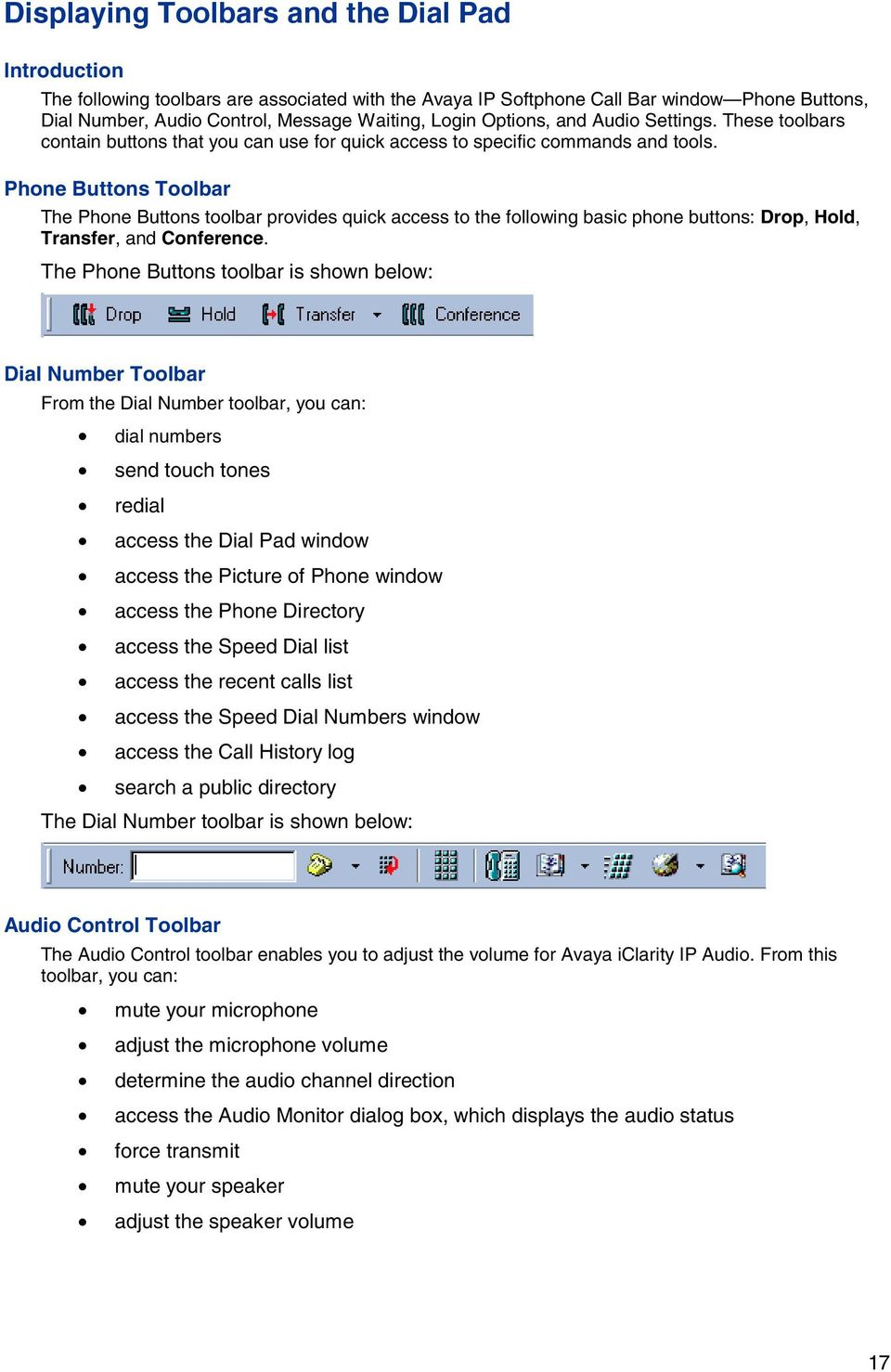
19 The Audio Control toolbar is shown below: The Audio Control toolbar is only enabled when you use Avaya IP Softphone in the Road Warrior configuration (that is, voice over IP mode) with Avaya iclarity IP Audio. (This toolbar is disabled if you use Avaya IP Softphone in the Telecommuter configuration.) Message Waiting Toolbar The Message Waiting toolbar consists of one button that enables you to access your voice messaging system. The Message Waiting toolbar is shown below: Login Options Toolbar From the Login Options toolbar, you can: log into the server (if you are not logged in currently) log out of the server (if you logged in currently) access the Login Settings dialog box in Avaya iclarity IP Audio. (You can only access this dialog box when you are not logged into the server.) From this dialog box, you can modify the following information: o login settings o server address(es) o audio configuration (for example, Road Warrior configuration or Telecommuter configuration) o call control application o emergency call handling settings o VPN configuration o firewall configuration run the Login Wizard The Login Options toolbar is shown below: 18

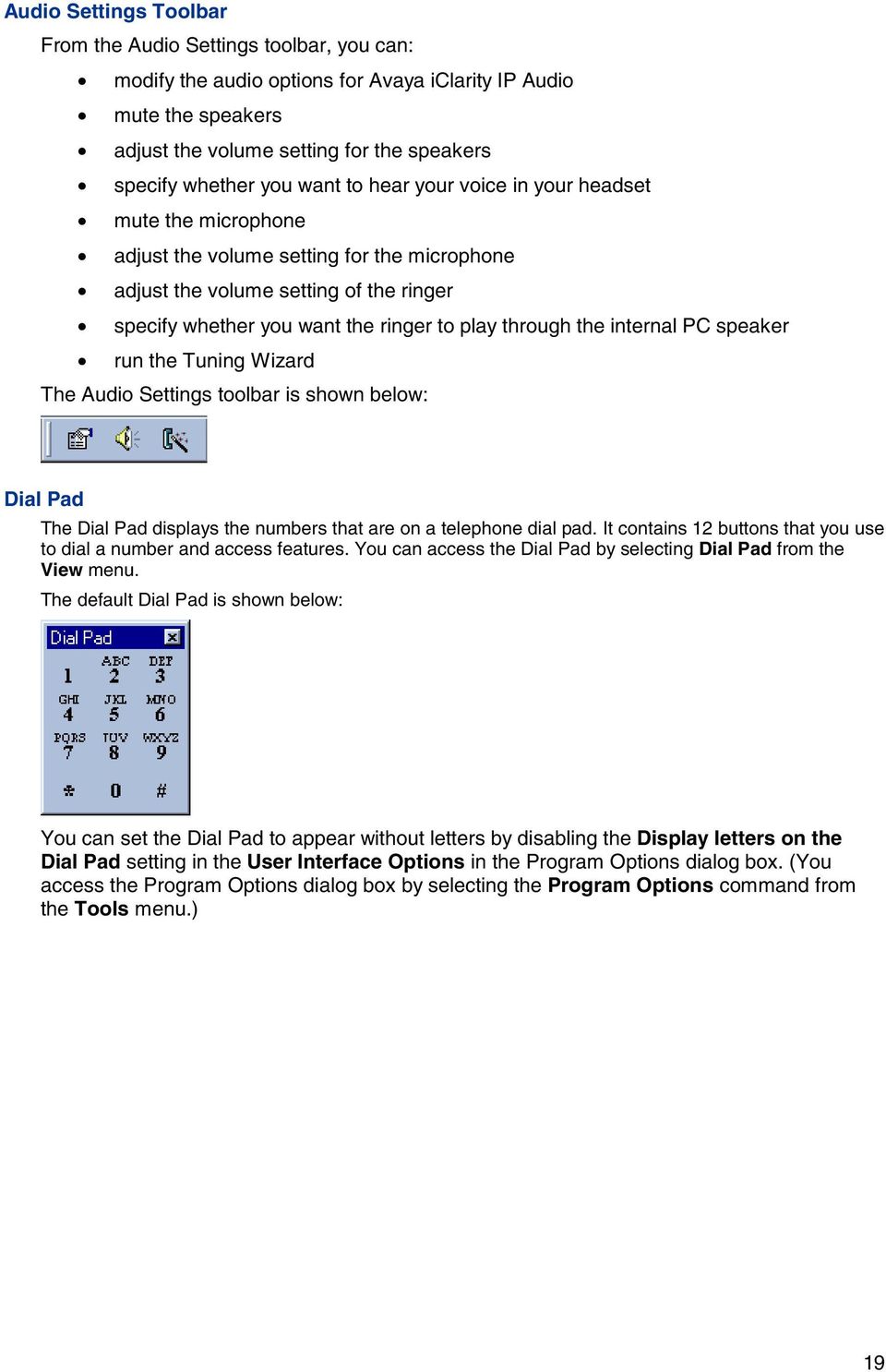
20 Audio Settings Toolbar From the Audio Settings toolbar, you can: modify the audio options for Avaya iclarity IP Audio mute the speakers adjust the volume setting for the speakers specify whether you want to hear your voice in your headset mute the microphone adjust the volume setting for the microphone adjust the volume setting of the ringer specify whether you want the ringer to play through the internal PC speaker run the Tuning Wizard The Audio Settings toolbar is shown below: Dial Pad The Dial Pad displays the numbers that are on a telephone dial pad. It contains 12 buttons that you use to dial a number and access features. You can access the Dial Pad by selecting Dial Pad from the View menu. The default Dial Pad is shown below: You can set the Dial Pad to appear without letters by disabling the Display letters on the Dial Pad setting in the User Interface Options in the Program Options dialog box. (You access the Program Options dialog box by selecting the Program Options command from the Tools menu.) 19
21 Using Keyboard Accelerators Introduction Avaya IP Softphone provides keyboard accelerators for Windows Me, Windows 98, Windows NT, Windows Me, and Windows To display the keyboard accelerators in Windows 2000, press the ALT key. (In Windows 2000, the ALT key toggles the display of the keyboard accelerators.) 20
22 Using a Headset with Avaya IP Softphone Introduction When using a headset with Avaya IP Softphone, be sure to place the microphone of the headset underneath your chin. This helps ensure that the other party on a call will hear you when you speak. For a list of supported headsets, go to 21
23 Using Other Applications with Avaya IP Softphone Introduction If your database is in a contact manager application that is TAPI compliant or supports TAPI-assisted dialing, you can place calls from that database through Avaya IP Softphone. If you want to use an application that is TAPI compliant or supports TAPI-assisted dialing, make sure you start Avaya IP Softphone and log into the server before making any calls. 22
24 Glossary Abbreviated Dial Feature Allows you to store selected telephone numbers for quicker and easier dialing. Each number can be a complete or partial telephone number, an extension number, or a trunk or feature code. ACP Avaya Call Processor. A telecommunications system that routes voice and data information between various endpoints (for example, telephones, terminals, and computers), provides highly robust networking capabilities, includes a set of standard features (for example, Voice Processing Interface, Call Coverage, and DS1/E1 Connectivity), and provides flexibility. It also allows for the addition of optional features and upgrades to the system as business needs change. Active Call A call appearance state where the voice (talk) path between two parties has been connected. Add/Remove Programs A Windows feature that allows you to remove programs that have been installed on your computer. The Add/Remove icon is found in the Control Panel dialog box. Application Folder A folder on the network server that holds Avaya IP Softphone application software-executable files and components. AutoPlay A Windows feature that causes an application on a CD-ROM to run without any user interaction as soon as the CD-ROM is inserted into the drive. Avaya IP Softphone Avaya IP Softphone enables you to log into your company's server remotely and make and receive telephone calls from your telephone extension. Basic Conference A conference option that allows you to add parties to a call as you would using the Conference button on your phone. (Basic Conference is available only in the Picture of Phone window.) For a Basic Conference, you open the Picture of Phone window, click the Conference button, dial the number of the party you want to add to the conference, talk to the party, and click the Conference button again. See also Enhanced Conference. Call Appearance The call appearance is a single panel (40-character display) that provides information about a single call, such as name, call duration, status icon, and control button (for example, Answer, Hangup, or Unhold). Call Information Panel The Call Information Panel (CIP) is a single panel (40-character display) that provides information about a single call, such as name, call duration, status icon, and control button (for example, Answer, Hangup, or Unhold). 23
25 Call Park To park a call for retrieval at any extension. Call Pickup To answer a call to a member of your pickup group when your voice terminal is idle. Call Prompting A telephone system feature that routes incoming calls based on information entered by the calling party, such as an account number. The caller is prompted to select an option from those listed in an announcement. Cut-Through Dialing As a digit is entered, it is immediately dialed (as on a telephone). Cut-through dialing is provided using the Dial Pad or by entering digits from the keyboard when focus is not on the Number text box. DDE See Dynamic Data Exchange. DEFINITY ECS DEFINITY Enterprise Communications Server. The DEFINITY ECS is a telecommunications system that routes voice and data information between various endpoints (for example, telephones, terminals, and computers), provides highly robust networking capabilities, includes an extensive set of standard features (for example, Voice Processing Interface, Call Coverage, and DS1/E1 Connectivity), and provides flexibility. It also allows for the addition of optional features and upgrades to the system as business needs change. DEFINITY ECS is one of the ACP servers. Delimited Text File A file containing values separated by commas, tabs, semicolons, or other characters. Dial Area A frame located on the Avaya IP Softphone main window that provides dialing capabilities. Dial Pad A window containing 12 buttons that are used to dial a number. Each character clicked is automatically sent. This is called cut-through dialing. Using the Program Options command from the Tools menu, you can set the Dial Pad to appear without letters on the buttons. (You must disable the Display letters on the dial pad option in the Program Options dialog box.) Dial Number Button A button (telephone icon) on the Dial Number toolbar that is used to get a dial tone (for cutthrough dialing) or to dial the digits entered in the Number text box (senderized dialing). Dial Number Toolbar A toolbar that provides a number text box access to the phone directory, call history, speed dial, and recent calls list. When you enter a string (for example, rob) followed by Enter, a popup menu displays with a list of the directory entries that start with that string. If the first character of the number is a letter, the title of the field will be changed from Number to Directory. 24
26 DNS See Domain Naming System. Domain A subnetwork comprised of a group of clients and servers under the control of one security database. Domain Naming System (DNS) Software that lets users locate computers on the Internet by host name. The DNS server maintains a database of host names and IP addresses. Drop A button that allows you to disconnect from a call. The Drop button disconnects you from a call and gives you a dial tone. Use the Drop button when you want to disconnect from a call and place another call. You can also use the Drop button to disconnect the last person added to a conference call. Dynamic Data Exchange (DDE) A message protocol in Windows that allows application programs to request and exchange data between them automatically. Enhanced Conference A conference option that gives you more flexibility when adding parties to a conference. Unlike Basic Conference, Enhanced Conference enables you to speak to the party you want to add to the call, and then decide whether to add that party to the call. Enhanced Conference is available in the Call Bar window. See also Basic Conference. Eurofont A font set provided in DCP terminals that contains characters with diacritical marks common to other languages. Eurofont includes characters from the Russian, Greek, Baltic Rim, and central European languages, as well as the first 127 characters of the standard ANSI table. The True Type Font encoding used for Eurofont is non-standard relative to the encoding used in other Windows fonts. As a result, Avaya IP Softphone is able to support Eurofont characters in the displays received from the telephone system. FAC See Feature Access Code. Feature Access Code (FAC) A 1-to-4 digit number with an optional leading * or # that is assigned in the telephone system administration to invoke features. For example, *81 may invoke Service Observing Listen Only. FACs require an available call appearance with dial tone before the FAC can be sent to the telephone system. Assigned FACs may not be available to all users on the telephone system based on his/her class of restrictions and/or whether the feature has been enabled in the telephone system. Feature Button A button placed on the main window that can be assigned to any one of a number of telephone system features that could be assigned to a physical extension's button during station administration. 25
27 Graphical User Interface (GUI) This is a picture based, rather than command-line based, interaction between the user and the computer. Grayed Out When you do not have access to a menu or action list item, it will be grayed out (that is, dimmed or displayed in a different color from the rest of the menu or action list). The menu or action list item is disabled. GUI See Graphical User Interface. Hold Allows you to place the active call on hold temporarily, use the toolbar for other call purposes, and then return to the original call. HTML See HyperText Markup Language. Hypertext A linkage between related text. For example, if you select a word in a sentence, information about that word is retrieved if it exists, or the next occurrence of the word is found. HyperText Markup Language HTML. A standard for defining documents with hypertext links. See also Hypertext. Internet Protocol Address (IP Address) Each computer has its own unique IP address which is an identifier used for communicating across a network. IP Address See Internet Protocol Address. IT Information Technology. Kanafont A font set provided in DCP terminals that contains Katakana characters (used in Japanese language) as well as the first 127 characters of the standard ANSI table. The True Type Font encoding is non-standard relative to the encoding used on other Windows fonts. As a result, Avaya IP Softphone is able to support Katakana characters in displays received from the telephone system. LAN See Local Area Network. Local Area Network (LAN) A private interactive communication network that allows computers to communicate over short distances at high data transfer rates. 26
28 Log A file that contains a record of computer activity as well as backup and recovery data. Login Allows you to log into the server so that you can handle calls from Avaya IP Softphone. Login ID A user name on your company's LAN. Logout Allows you to log out of the server. When you log out of the server, you cannot handle calls with Avaya IP Softphone. Network Server A computer in a network shared by multiple users. Off-Hook Off-hook means that the voice path to your telephone is fully functional. On-Hook On-hook means that the voice path to your telephone is turned off. Phone Display A 40-character display that is located under the call appearance area of your Avaya IP Softphone callbar. This display area receives information from the telephone system so that you can see call and non-call related information, such as call prompting digits from the telephone system. PSTN See Public Switched Telephone Network. Public Switched Telephone Network (PSTN) The worldwide voice telephone network. Readme File A file that provides the latest information on a newly released product; in this case, Avaya IP Softphone. Read-only A folder or file that can be read, but not updated or erased. Registry The system-wide depository of information supported by Windows. The registry contains information about the system and its applications, including clients and servers. Screen Pop The ability to automatically display information from other sources, such as databases or Web pages based on an Avaya IP Softphone triggering criteria. 27
29 Send All Calls To send all incoming calls (except priority, intercom, and personal central office calls) immediately to an assigned extension, AUDIX, or message center for coverage. Senderized Dialing When a dial string is entered, the Dial Number button or Enter key must be selected to actually dial the digits. This type of dialing allows for editing of dial strings before sending the digits. Softphone A software application that enables you to control telephone calls (both incoming and outgoing) directly from your computer. Supervised Transfer A transfer option that lets you send the present call to another phone number or extension. You remain on the line until the call is answered and talk to the party that receives the transferred call (if desired). You set the Supervised Transfer feature using the Call Handling option from the Program Options command of the Tools menu. See Unsupervised Transfer. Switch A private switching system providing voice-only or voice and data communications services (including access to public and private networks) for a group of terminals within a customer's premises (for example, a DEFINITY ECS). TAPI Assisted Dialing Avaya IP Softphone supports telephony enabled applications such as Microsoft Scheduler. This support provides the ability for telephony enabled Windows applications to originate a call and have the call reflected in the Avaya IP Softphone application. Toolbar A row of buttons used to activate various functions of the Avaya IP Softphone application. The Avaya IP Softphone main window can contain as many as six toolbars. Tool Tips Brief descriptions that display when the mouse pointer is over a toolbar button. Unsupervised Transfer A transfer option that lets you send the present call to another phone number or extension without talking to the party that will receive the transferred the call. You set the Unsupervised Transfer feature using the Call Handling option from the Program Options command of the Tools menu. See also Supervised Transfer. Voice Terminal A telephone equipped with specifically designed features (for example, the Conference or Hold button or Message light) and functional capabilities that distinguish it from a conventional telephone. VPN Virtual Private Network. 28
30 Running and Exiting Avaya IP Softphone Purpose Before you can use Avaya IP Softphone to handle calls, you must: 1. Connect to your company's LAN (Local Area Network) where the server resides. 2. Start Avaya IP Softphone. 3. Log into the server via the Login dialog box. After you are logged into the server, you can use Avaya IP Softphone to handle calls. This section describes how to: Start Avaya IP Softphone Log into the server Exit Avaya IP Softphone 29
31 Configure Your Login Settings Introduction Using the Login Wizard, you can modify your login settings. NOTE: You will be unable to configure the login settings while you are logged into the server. Procedure To configure your login settings: 1 Make sure you are not logged into the server. 2 Click the Login Wizard button. The Login Wizard dialog box appears. 3 Click the Next button. The second Login Wizard dialog box appears. 4 In the Extension box, enter your extension on the server. 5 In the Password box, enter your password. 6 If you want Avaya iclarity IP Audio to save your password for the next time you log into the server, make sure the Remember password for next login session check box is enabled. 7 In the Server Address box, enter the address of the server. 8 Click the Next button. The Emergency Call Handling disclaimer dialog box appears. 30
32 9 If you agree with the information stated in this dialog box, click the I Agree button. The third Login Wizard dialog box appears. This dialog box enables you to configure Avaya iclarity IP Audio to use the Emergency Call Handling feature on your company's telephone system (if this feature is enabled for your extension). The Emergency Call Handling feature routes emergency calls (for example, 911 calls in the U.S.) to the appropriate emergency services destination. 10 Perform one of the following steps: If you want to use the Emergency Call Handling feature, make sure the Enable emergency call handling feature check box is enabled, and perform one of the following steps: o If you are using Avaya iclarity IP Audio in your office (that is, you are located by your extension on your company's telephone system), select the Your extension number option button. o If you are using Avaya iclarity IP Audio away from your office (that is, you are working from a remote site, such as your home or a hotel), click the Telephone number option button, and enter the telephone number at your current location. If you do not want to use the Emergency Call Handling feature, make sure the Enable emergency call handling feature check box is disabled. 11 Click the Next button. The fourth Login Wizard dialog box appears. This dialog box enables you to specify whether you will use your call control application (for example, Avaya IP Softphone) in the Road Warrior configuration (Voice over IP) or the Telecommuter configuration. 12 Perform one of the following steps: If you want to use your application in the Road Warrior configuration, click the Road Warrior (Voice over IP) option button, and select how your PC connects to the server from the Bandwidth Setting box. (This is the network bandwidth setting.) If you want to use your application in the Telecommuter configuration, click the Telecommuter option button, and enter the telephone number of the telephone you want to use. You will use the handset (or speakerphone) on this telephone to hear and speak to the other party on a call. Be sure to enter this telephone number the way you would dial it from your extension. For example, if the telephone number is an outside call in the same area code as your extension and you must dial a "9" when making outside calls, you would enter 9 at the beginning of the telephone number in this box. 31
33 13 When finished, click the Next button. A dialog box appears, informing you that you are finished configuring the login settings. 14 Click the Finish button. 32
34 Starting Avaya IP Softphone Procedure To start Avaya IP Softphone: 1 Log into your company's LAN. 2 Select Start from the taskbar. 3 Select Programs from the Start menu. 4 Select Avaya IP Softphone R3. 5 Select Avaya IP Softphone R3. The Avaya IP Softphone and the Login dialog box appear. Although Avaya IP Softphone is now running, you are not yet logged into the server. 6 Go to Logging into the Server. 33
35 Log into the Server Initially Introduction The procedure describes how to log into the server for the first time. Procedure To log into the server for the first time: 1 Make sure you are logged into your company's LAN. 2 Run the Login Wizard to configure your login settings. 3 After configuring your login settings, click the Log into the server button. The Login dialog box appears. 4 In the Extension box, verify your extension on the server. 5 In the Password box, enter your password. 6 In the Configuration box, specify whether you want to use the Road Warrior configuration (Voice over IP) or the Telecommuter configuration. Perform one of the following steps: 7 If you are using the Road Warrior configuration, make sure the appropriate bandwidth setting is displayed in the Bandwidth Setting box. If you are using the Telecommuter configuration, make sure the telephone number of the telephone you want to use is displayed in the Telephone At box. 8 If you want the software to save your password for the next time you log into the server, enable the Remember password for next login session check box. 34
36 9 If you want the software to try to log into the server automatically the next time you start Avaya iclarity IP Audio, enable the Automatically login if possible when application restarts check box. 10 Click the Login button. The Login Status dialog box appears when you log into the server successfully. The Login icon appears in the system tray. When you place the mouse over this icon, the extension you are logged in as and the status of the link to the server are displayed. Important! If you are using the Telecommuter configuration, the Verify Telephone Number dialog box appears. It is very important that you make some test calls before logging in, to verify that you have set up your connection properly. Click the OK button. 35
37 Logging into the Server Introduction Before you can use Avaya IP Softphone, you must log into the server. When you start Avaya IP Softphone, the Login dialog box appears. Procedure To log into the server: 1 Make sure you are logged into your company's LAN. 2 In the Extension box of the Login dialog box, enter your extension on the server. 3 In the Password box, enter your password. 4 In the Configuration box, specify whether you want to use Avaya IP Softphone in the Road Warrior configuration (Voice over IP) or the Telecommuter configuration. Perform one of the following steps: 5 If you are using the Road Warrior configuration, make sure the appropriate bandwidth setting is displayed in the Bandwidth Setting box. If you are using the Telecommuter configuration, make sure the telephone number of the telephone you want to use is displayed in the Telephone At box. 6 If you want the software to save your password for the next time you log into the server, enable the Remember password for next login session check box. 7 If you want the software to try to log into the server automatically the next time you start Avaya IP Softphone, enable the Automatically login if possible when application restarts check box. 36
38 8 Click the Login button. The Login Status dialog box appears when you log into the server successfully, and Avaya IP Softphone starts. The Login icon appears in the system tray. When you place the mouse over this icon, the extension you are logged in as and the status of the link to the server are displayed. Important! If you are using the Telecommuter configuration, the Verify Telephone Number dialog box appears. It is very important that you make some test calls before logging in, to verify that you have set up your connection properly. Click the OK button. 37
39 Exiting Avaya IP Softphone Procedure This procedure describes how to exit Avaya IP Softphone and log out of the server. Perform one of the following steps: From the File menu, select Exit. Right-click the Avaya IP Softphone icon in the system tray, and select Exit. 38
40 Using the Telecommuter Configuration Introduction The Telecommuter configuration of Avaya IP Softphone enables telecommuters to use the full telephone system feature set from home. The Telecommuter configuration consists of a PC and a telephone with separate connections to the telephone system. The PC is connected to the telephone system over an IP network to provide the signaling path. The PC runs the Avaya IP Softphone software, providing you with an interface to control calls. A standard telephone is connected to the telephone system over the public-switched telephone network (PSTN) to provide a high-quality voice path. You place and receive calls via the IP Softphone interface on the PC and use the telephone handset to speak and listen. For the Telecommuter configuration, you must have a separate telephone line available at your location. You do not need an audio application such as Avaya iclarity IP Audio. When you receive or make a call after you start a Avaya IP Softphone session, a "service link" is established. This service link is the "audio path" that enables you to speak to the other party. In the Telecommuter configuration, the service link is established between the server and the telephone number you specified. If the service link is not established, you will be unable to make and receive calls. Requirements To use Avaya IP Softphone in the Telecommuter configuration, you will need: access to your company's LAN (via dialup networking or a cable modem), which provides the signaling path between your PC running Avaya IP Softphone and your company's telephone system. a separate telephone line, which you will use to speak to and hear the other party on a call. Logging In To log into the server using the Telecommuter configuration: 1 Make sure you are logged into your company's LAN. 2 In the Extension box of the Login dialog box, enter your extension on the server. 3 In the Password box, enter your password. 4 If you want the software to save your password for the next time you log into the server, enable the Remember password for next login check box. 5 If you want the software to try to log into the server automatically the next time you start Avaya IP Softphone, enable the Automatically login if possible when application restarts check box. 39
41 6 Click the Settings button. The Login Settings dialog box appears. The Login tab is selected. 7 Click the Audio tab. The Audio tab appears. 8 Click the Telephone at option button, and enter the telephone number of the telephone you want to use in the corresponding box. (This is the telephone number that the server calls to reach you for the voice connection.) You will use the handset (or speakerphone) on this telephone to hear and speak to the other party on a call. Important! Be sure to enter this telephone number the way you would dial it from your extension. For example, if the telephone number is an outside call in the same area code as your server and you must dial a 9 when making outside calls, you would enter 9 at the beginning of the telephone number in the Telephone at box. 9 Click the OK button. 10 Click the Login button. The Verify Telephone Number dialog box appears. It is very important that you make some test calls before logging in, to verify that you have set up your connection properly. Click the OK button. The Login Status window appears when you log into the server successfully, and Avaya IP Softphone starts. The Login icon appears in the system tray. When you place the mouse over this icon, the extension you are logged in as and the status of the link to the server are displayed. 40
42 Things to Keep in Mind When using the Telecommuter configuration, keep in mind the following information: If you receive an incoming call on your separate telephone line while you are active on a call with Avaya IP Softphone, that caller will hear either ringing (if you have call waiting on that line) or a busy signal. If you have call waiting, you can answer the incoming calls as you would answer any other call waiting call. As long as the connection exists between the server and the telephone on your separate telephone line, you will be unable to make calls from this telephone. Calls can only be made from Avaya IP Softphone; the telephone is used only for voice transmission. (The telephone line is dedicated to transmitting the conversation between you and the other caller on the Avaya IP Softphone call.) Once the connection to the Avaya server ends, you can make calls from this telephone. If you want to use telephone system features that require you to enter feature activation information (such as the Call Forwarding feature), you must enter this information from either your PC keyboard, the Dial Pad window, or the Phone of Phone window. Do not enter this information from the telephone on your separate line. 41
43 Using Avaya IP Softphone with a Virtual Private Network (VPN) Introduction This topic describes the requirements and procedure to log into a server using a VPN. You must follow the information provided in this topic if: You are using a VPN tunnel and you have a "shim" VPN client running on your PC. (A "shim" VPN client is a software application that resides below the native TCP/IP stack of your PC and intercepts all network traffic that your PC transmits and receives.) You are unable to log into your company's server using the Logging into the Server procedure. Requirements To use Avaya IP Softphone to log into a VPN, you will need: access to your company's LAN a VPN client application that provides the IP address (that is, the IPSec IP address) that is assigned to you by the VPN gateway. Contact your VPN provider or IT department for instructions on how to determine the IP address of your VPN client. NOTE: Avaya IP Softphone will NOT work with VPN gateways that implement port address translation. Logging In To log into the server using a VPN: 1 Make sure you are logged into your company's LAN. 2 Open your VPN client application and determine the IP address assigned by the VPN gateway. If you cannot find this information, contact your Network Administrator. 3 In the Extension box of the Login dialog box, enter your extension on the server. 4 In the Password box, enter your password. Perform one of the following steps: 5 If you are using the Road Warrior configuration, make sure the appropriate bandwidth setting is displayed in the Bandwidth Setting box. If you are using the Telecommuter configuration, make sure the telephone number of the telephone you want to use is displayed in the Telephone At box. 42
44 6 If you want the software to save your password for the next time you log into the server, enable the Remember password for next login session check box. 7 If you want the software to try to log into the server automatically the next time you start Avaya IP Softphone, enable the Automatically login if possible when application restarts check box. 8 Click the Settings button. The Login Settings dialog box appears. The Login tab is selected. 9 Click the Advanced tab. The Advanced tab appears. 10 Click the Use the following IP address check box in the Local IP Address Information area, and enter the IP address of your VPN client in the corresponding box. (The VPN gateway assigns the IP address to your VPN client.) 11 Perform one of the following steps: If your company's VPN has a firewall using TCP and/or UDP port restrictions, perform the following steps: 1. Contact your Telecommunications department or IT department to determine the port range allowed by the firewall. 2. Click the Choose from the following port range to communicate with the server check box in the Local Port Range Information area. 3. In the Lowest port number box, enter the number of the lowest port you want Avaya IP Softphone to use. This number must be greater than 1024 and less than In the Highest port number box, enter the number of the highest port you want Avaya IP Softphone to use. This number must be less than NOTE: The minimum range between the lowest port number and the highest port number is 100 ports (that is, the range you enter must consist of 100 or more port numbers). 5. Go to Step 12. If your company's VPN does not have a firewall, go to Step
45 12 Click the OK button. 13 Click the Login button. The VPN Configuration in Effect dialog box appears. 14 Click the Continue with the current settings option button. 15 Click the OK button. The Login Status dialog box appears when you log into the server successfully, and Avaya IP Softphone starts. The Login icon appears in the system tray. When you place the mouse over this icon, the extension you are logged in as and the status of the link to the server are displayed. Important! If you are using the Telecommuter configuration, the Verify Telephone Number dialog box appears. It is very important that you make some test calls before logging in, to verify that you have set up your connection properly. Click the OK button. 44
46 Using Avaya IP Softphone with a Firewall Introduction This topic describes the requirements and procedure to log into a server that uses a firewall with TCP and/or UDP port restrictions. Follow the information provided in this topic only if you have been unable to log into your company's server using the Logging into the Server procedure. Requirements To use Avaya IP Softphone with a firewall, you will need: access to your company's LAN the port range allowed by the firewall. (Contact your Telecommunications department or IT department for this information.) Logging In To log into the server with a firewall: 1 Make sure you are logged into your company's LAN. 2 In the Extension box of the Login dialog box, enter your extension on the server. 3 In the Password box, enter your password. Perform one of the following steps: 4 If you are using the Road Warrior configuration, make sure the appropriate bandwidth setting is displayed in the Bandwidth Setting box. If you are using the Telecommuter configuration, make sure the telephone number of the telephone you want to use is displayed in the Telephone At box. 5 If you want the software to save your password for the next time you log into the server, enable the Remember password for next login session check box. 6 If you want the software to try to log into the server automatically the next time you start Avaya IP Softphone, enable the Automatically login if possible when application restarts check box. 45
47 7 Click the Settings button. The Login Settings dialog box appears. The Login tab is selected. 8 Click the Advanced tab. The Advanced tab appears. 9 Click the Choose from the following port range to communicate with the server check box in the Local Port Range Information area. 10 In the Lowest port number box, enter the number of the lowest port you want Avaya IP Softphone to use. This number must be greater than 1024 and less than In the Highest port number box, enter the number of the highest port you want Avaya IP Softphone to use. This number must be less than NOTE: The minimum range between the lowest port number and the highest port number is 100 ports (that is, the range you enter must consist of 100 or more port numbers). 12 Click the OK button. 13 Click the Login button. The VPN Configuration in Effect dialog box appears. 14 Click the Continue with the current settings option button. 46
48 15 Click the OK button. The Login Status dialog box appears when you log into the server successfully, and Avaya IP Softphone starts. The Login icon appears in the system tray. When you place the mouse over this icon, the extension you are logged in as and the status of the link to the server are displayed. Important! If you are using the Telecommuter configuration, the Verify Telephone Number dialog box appears. It is very important that you make some test calls before logging in, to verify that you have set up your connection properly. Click the OK button. 47
49 Handling Calls with Avaya IP Softphone Introduction When you receive or make a call after you start a Avaya IP Softphone session, a "service link" is established. This service link is the "audio path" that enables you to speak to the other party. If you are using the Road Warrior configuration, the service link is established between the server and Avaya iclarity IP Audio. If you are using the Telecommuter configuration, the service link is established between the server and the telephone number you specified. If the service link is not established, you will be unable to make and receive calls. The action you must perform to establish the service link depends on the Avaya IP Softphone configuration you are using. Depending on how your login on the server is administered, the service link will either: be disconnected when the current call ends, or remain connected for the duration of the current Login session. Avaya IP Softphone can be administered to support the following service link calls: per-call (as needed) service link When the telephone System Administrator sets the service link to be on a per-call basis (or as needed) for your account, the service link that is established the first time you make or receive a call during the current session remains active for the duration of the current call. Shortly after the current call ends, the service link ends. If you make or receive a call while the service link is still established, Avaya IP Softphone uses the existing service link. permanent service link When the telephone System Administrator sets the service link to be permanent for your account, the service link that is established the first time you make or receive a call during the current session remains active until you log out of the server. Using the Road Warrior Configuration If you are using the Road Warrior configuration with Avaya iclarity IP Audio, the service link call is answered automatically. To make a call using Avaya iclarity IP Audio in the Road Warrior configuration, you must perform the following step: Make a call from the Avaya IP Softphone window. A service link call is made from the server to Avaya iclarity IP Audio. Even though you have made a call from Avaya IP Softphone, the call is not placed until the service link is established. Avaya iclarity IP Audio answers the service link call automatically. The service link call is established, and the outgoing call is placed. You will hear the call ring at the destination telephone number. When you receive an incoming call, the server tries to establish the service link to Avaya iclarity IP Audio. The service link call is answered automatically. To answer a call using Avaya iclarity IP Audio, just choose the Answer button for the call in the Avaya IP Softphone window. The incoming call is answered, and you can speak to the other party. 48
50 Using the Telecommuter Configuration If you are using the Telecommuter configuration, Avaya IP Softphone places the service link call to the telephone line you specified. You must answer the service link call by answering the telephone connected to the telephone number you specified. To make a call in the Telecommuter configuration, you must perform the following steps: 1. Make a call from the Avaya IP Softphone window. A service link call is made from the server to the telephone number you specified. Even though you have made a call from Avaya IP Softphone, the call is not placed until the service link is established. 2. Answer the call on your separate telephone line. The service link call is established, and the outgoing call is placed. You will hear the call ring at the destination telephone number. When you receive an incoming call, the server tries to establish the service link to the separate telephone line you specified. To answer a call in the Telecommuter configuration, you must answer the service link call on the separate telephone line you specified. The incoming call is answered, and you can speak to the other party. 49
51 Answer a call Introduction A ringing call is displayed in the Call Appearance area of the Avaya IP Softphone window with a call label and the calling number. The Answer button appears next to the call appearance. When you answer a call, the Answer button for the call appearance becomes the Hangup button, and the Active Timer starts. The Active Timer keeps track of the duration of the call. If you are active on a call and answer another call, the active call is placed on hold automatically, and the ringing call becomes active. Procedure To answer a call: Choose the Answer button for the associated call appearance. If you are using a separate telephone line, answer the call from the phone. 50
52 Hang up a call Introduction Clicking the Hangup button for a call appearance disconnects the call. This action is similar to hanging up the handset or turning off the Speakerphone on your telephone. You can only hang up active calls. If you want to disconnect a call and then hear dial tone, use the Drop button. Procedure To hang up a call: Choose the Hangup button for the associated call appearance. 1 The call is disconnected, and the information for the call is removed from the call appearance. If you are using the speakerphone, the speakerphone turns off. 2 If you are using the handset, hang it up. 51
53 Drop a call Introduction Clicking the Drop button disconnects the active call. After the call is dropped, the telephone system provides dial tone. You can only drop active calls. Procedure To drop the active call: Choose the Drop button from the Phone Buttons toolbar. The active call is disconnected, and the associated call appearance is removed. The telephone system provides dial tone after the call is dropped. 52
54 Answer a call on hold Introduction When you answer a call that is on hold, the Unhold button for that call appearance becomes the Hangup button, and the Active Timer resumes. The Active Timer keeps track of the duration of the call. If you are active on a call and answer a call that is on hold, the active call is placed on hold automatically, and the held call becomes active. Procedure To answer a call that is on hold: Choose the Unhold button for the associated call appearance or double-click on the call appearance. The call becomes active, and the Hangup button appears on the associated call appearance. 53
55 Place a call on hold Introduction When you place a call on hold, the Hangup button for that call appearance becomes the Unhold button, and the Hold Timer starts. The Hold Timer keeps track of how long the call is on hold. The Hold Timer restarts every time the call is placed on hold. You can only place the active call on hold. Procedure To place the active call on hold: Choose the Hold button. The active call is placed on hold, and the Unhold button appears for the call appearance. 54
56 Enter touch-tone digits during a call Introduction Using Avaya IP Softphone, you can enter touch-tone digits during an active call. These digits are sent immediately (that is, as you type them). You cannot edit these digits. You can enter digits from your keyboard or from the Dial Pad window. Enter touch-tone digits from your keyboard To enter touch-tone digits from your keyboard during a call: 1 Make sure the Avaya IP Softphone window is active (that is, the window is selected). 2 Type the characters you want to send. Avaya IP Softphone sends these characters as you type them. Enter touch-tone digits from the Dial Pad window To enter touch-tone digits from the Dial Pad window during a call: 1 From the View menu, select Dial Pad. The Dial Pad window appears 2 Click on the appropriate buttons in the Dial Pad window. Avaya IP Softphone sends these characters as you click on them. 55
57 Transfer a call Introduction There are four methods of transferring calls: Unsupervised Transfer from the Call Bar window (that is, the Avaya IP Softphone main window) You click the Transfer button on the Phone Buttons toolbar, type the number to be called into a text box, and click the OK button to transfer the call. You do not announce the call. Supervised Transfer from the Call Bar window You click the Transfer button on the Phones Buttons toolbar, type the number to be called into a text box, and click the OK button. After announcing the call, you can either click the Yes button to transfer or the No button to not transfer the call. Drag and Drop Transfer from the Call Bar window You transfer a call by placing the call on hold and then dragging and dropping the call appearance for that call onto the active call appearance of the destination to which you want to transfer the call. Transfer from the Picture of Phone window You transfer the call as you would from your telephone. You specify which type of transfer (that is, Unsupervised Transfer or Supervised Transfer) you want the Transfer button in the Phone Buttons toolbar to perform using the Call Handling option from the Program Options command of the Tools menu. See Configuring Avaya IP Softphone Options. Unsupervised Transfer To transfer a call using Unsupervised Transfer: 1 While you are active on a call, click the Transfer button. The Transfer dialog box appears. Perform one of the following steps: 2 If you want to transfer the call to a new call, click the New Number option button, and enter the number to which you want to transfer the call. You can type in the number via your keyboard or paste it in from the Windows Clipboard. If you want to transfer the call to an existing call, click the Existing Call option button, and select the call to which you want to transfer the call. 3 Click the OK button to transfer the call. The call appearance disappears from the IP Softphone window, indicating that the transfer was successful. 56
58 Supervised Transfer You can perform a Supervised Transfer using either the Transfer button on the toolbar or the mouse. To transfer a call using Supervised Transfer: 1 While you are active on a call, click the Transfer button. The Transfer dialog box appears. Perform one of the following steps: 2 If you want to transfer the call to a new call, click the New Number option button, and enter the number to which you want to transfer the call. You can type in the number via your keyboard or paste it in from the Windows Clipboard. If you want to transfer the call to an existing call, click the Existing Call option button, and select the call to which you want to transfer the call. 3 Click the OK button. The call you want to transfer is placed on hold automatically, a new call appearance appears, you hear dial tone, and the Transfer dialog box appears. 4 Click the Yes button in the Transfer dialog box to transfer to the call. 57
59 Drag and Drop Transfer Performing a transfer using the mouse is helpful when you are currently speaking to the person to whom you want to transfer the call. To transfer a call using the mouse: 1 Make sure there is an existing call appearance for the destination to which you want to transfer the call. 2 Place on hold the call you want to transfer. 3 Answer the call appearance for the transfer destination. The call becomes active. 4 Press and hold down the mouse button on the name/number field of the call you placed on hold. 5 Drag the call appearance onto the active call appearance of the transfer destination, and then release the mouse button. A menu appears. 6 Select Transfer. The Transfer dialog box appears. 7 Click the Yes button. The call is transferred. 58
60 Transfer from the Picture of Phone window To transfer a call using the Picture of Phone window: 1 Make sure the Picture of Phone window is open. 2 While you are active on a call, click the Transfer button in the Picture of Phone window. The call you want to transfer is placed on hold automatically, and you hear dial tone. 3 Using the phone's dial pad in the Picture of Phone window, click on the digits you want to dial. 4 When the second call is answered, you can privately talk to the party. When you are ready to complete the transfer, click the Transfer button in the Picture of Phone window. Tip: You may complete the transfer at anytime while the second call is ringing or after the second party answers the call. 59
61 Using the Picture of Phone window Introduction The Picture of Phone window provides a simulation of your telephone. From this window, you handle calls just as you would from your telephone. You can also change the labels of the feature buttons and softkeys displayed in the Picture of Phone window. Handle Calls To handle calls from the Picture of Phone window: Perform one of the following steps: 1 Click the Picture of Phone button on the Dial Number toolbar in the Avaya IP Softphone Call Bar window. Right-click on the Avaya IP Softphone icon in the system tray, and select Picture of Phone. The Picture of Phone window appears. 2 Using the buttons in the Picture of Phone window, handle calls the same way as you would from your telephone. Change the Feature Button Labels To change the labels of the feature buttons displayed in the Picture of Phone window: 1 Perform one of the following steps: Click the Picture of Phone button on the Dial Number toolbar in the Avaya IP Softphone Call Bar window. Right-click on the Avaya IP Softphone icon in the system tray, and select Picture of Phone. The Picture of Phone window appears. 2 Click. The labels you can modify are highlighted. 3 Click on the label you want to change, and make your changes. 60
62 4 Repeat Step 3 for any other labels you want to change. 5 When you are finished, click. Change the Softkey Labels To change the labels of the softkeys displayed in the Picture of Phone window: Perform one of the following steps: 1 Click the Picture of Phone button on the Dial Number toolbar in the Avaya IP Softphone Call Bar window. Right-click on the Avaya IP Softphone icon in the system tray, and select Picture of Phone. The Picture of Phone window appears. 2 Click Menu button. The softkey labels are displayed. 3 Click. The labels you can modify are highlighted. 4 Click on the label you want to change, and make your changes. 5 Repeat Step 4 for any other labels you want to change. 6 When you are finished, click. 61
63 Make a call from a Speed Dial Introduction Avaya IP Softphone lets you create speed dial numbers in the Phone Directory Properties dialog box. A speed dial number can be any number in the Phone Directory, up to a maximum of 25 numbers. Using the Dial Number Toolbar To make a call from a Speed Dial using the Dial Number toolbar: 1 In the Avaya IP Softphone Call Bar window, click the down arrow next to the Phone Directory button on the Dial Number toolbar. The speed dial list appears. 2 Click the number you want to dial. If you are using a separate telephone line, answer the call from the phone. Avaya IP Softphone places the call. A call appearance is displayed for the call. Using the Speed Dial Numbers window To make a call from the Speed Dial Numbers window: 1 Open the Speed Dial Numbers window. You can open the Speed Dial Numbers window by: Clicking the Speed Dials button on the Dial Number toolbar in the Avaya IP Softphone Call Bar window. Right-clicking on the Avaya IP Softphone icon in the system tray and selecting Speed Dial Numbers. The Speed Dial Numbers window appears. 2 Click the Speed Dial you want to dial, and click the Dial Number button. If you are using a separate telephone line, answer the call from the phone. Avaya IP Softphone places the call. A call appearance is displayed for the call. 62
64 Make a call from the Speed Dial Numbers window Introduction The Speed Dial Numbers window displays all of the Speed Dials that you have created in the Phone Directory. From this window, you can make calls from your Speed Dials. When you make a call from a Speed Dial, a call appearance is displayed in the Call Appearance area of the Avaya IP Softphone window. If you are active on a call and make another call, the active call is placed on hold automatically, and the new call becomes active. Procedure To make a call from the Speed Dial Numbers window: 1 Open the Speed Dial Numbers window. You can open the Speed Dial Numbers window by: Clicking the Speed Dials button on the Dial Number toolbar in the Avaya IP Softphone Call Bar window. Right-clicking on the Avaya IP Softphone icon in the system tray and selecting Speed Dial Numbers. The Speed Dial Numbers window appears. 2 Click the Speed Dial you want to dial, and click the Dial Number button. If you are using a separate telephone line, answer the call from the phone. Avaya IP Softphone places the call. A call appearance is displayed for the call. 63
65 Make a call from a Phone Directory entry Introduction You can store names, addresses, addresses, notes, and phone numbers in the Phone Directory. The directory will support multiple numbers for each entry. The directory entries can be displayed with the following views: large icons, small icons, list, and detailed. In the detailed view, the entry's name, number, , category, and notes are listed. The number displayed in this view is the first number found for the entry if multiple numbers are entered. The directory entries can be sorted by name, number, or category. Procedure To make a call from a Phone Directory entry: 1 In the Avaya IP Softphone Call Bar window, click the Phone Directory button on the Dial Number toolbar. The Phone Directory window appears. 2 Double-click the name in the directory list for the person you want to call. If the name in the directory entry has more than one number, a popup menu with a list of numbers appears. Select the appropriate telephone number from the popup menu. If you are using a separate telephone line, answer the call from the phone. Avaya IP Softphone places the call. A call appearance is displayed for the call. 64
66 Make a call from the Dial Number box Introduction When you make a call from the Dial Number box in the Dial Number toolbar, a call appearance is displayed in the Call Appearance area of the Avaya IP Softphone window. This call appearance displays the telephone number you entered in the Dial Number box. The information displayed in the call appearance is overwritten by any name information provided by your company's telephone system. NOTE: When you dial make a call from the Dial Number box, the telephone number you enter will be processed according to how you configured Windows dialing. If you are active on a call and make another call, the active call is placed on hold automatically, and the new call becomes active. Procedure To make a call from the Dial Number box: 1 In the Dial Number box, enter the telephone number you want to dial. 2 Click the Dial Number button or press the ENTER key on your keyboard. If you are using a separate telephone line, answer the call from the phone. Avaya IP Softphone places the call. A call appearance is displayed for the call. 65
67 Make a call from the Picture of Phone window Introduction The Picture of Phone window provides a simulation of your telephone. From this window, you make calls just as you would from your telephone. NOTE: Make sure you hear dial tone before dialing any digits. Procedure To make a call from the Picture of Phone window: Open the Picture of Phone window. To open the Picture of Phone window, perform one of the following steps: Select Picture of Phone from the View menu in the Call Bar window. 1 Click the Picture of Phone button on the Dial Number toolbar in the Call Bar window. Right-click the mouse on the Avaya IP Softphone icon in the system tray, and select Picture of Phone. The Picture of Phone window appears. Click one of the following buttons: the call appearance button you want to use the Handset button 2 the Speaker button If you are using a separate telephone line, answer the call from the phone. A call appearance is displayed for the call, and you will hear dial tone from the telephone system. 3 Using the phone's dial pad in the Picture of Phone window, click on the digits you want to dial. NOTE: Make sure your hear dial tone before dialing any digits. Avaya IP Softphone places the call. 66
68 Dial a number from another application Introduction With Avaya IP Softphone, you can dial numbers that are stored in other applications. Procedure To dial a number from another application: 1 Select the telephone number you want to dial, right-click the mouse on the selected number, and select Copy. The selected number is highlighted. 2 Right-click the mouse on the Avaya IP Softphone icon in the system tray, and select Dial. If you are using a separate telephone line, answer the call from the phone. Avaya IP Softphone places the call. A call appearance is displayed for the call. 67
69 Redial the last number dialed Introduction The Redial button dials the last telephone number that you dialed from Avaya IP Softphone during the current session. When you make a call using the Redial button, a call appearance is displayed in the Call Appearance area of the Avaya IP Softphone window. This call appearance displays the telephone number. The information displayed in the call appearance is overwritten by any name information provided by your company's telephone system. If you are active on a call and make another call, the active call is placed on hold automatically, and the new call becomes active. Procedure To redial the last number dialed: 1 Click the Redial button. 2 If you are using a separate telephone line, answer the call from the phone. Avaya IP Softphone places the call. A call appearance is displayed for the call. 68
70 Using Conferencing Introduction Depending on your telephone system, you may have up to six participants (including yourself) in a conference. Avaya IP Softphone supports the following three methods of handling conference calls: Conference from the Call Bar window (that is, the Avaya IP Softphone main window) You click the Conference button on the Phone Buttons toolbar, type the number of the party to be added into a text box, and click the OK button. After talking to the party, you can either click the Yes button to add or the No button to not add the party to the call. Conference from the Picture of Phone window (Basic Conference) You initiate and manage the conference as you would from your telephone. This is a Basic Conference. Drag and Drop Conference from the Call Bar window You add another party to a call by placing the call you want to add on hold and dragging and dropping the call appearance for that call onto the active call appearance. Conference from the Call Bar window To add another person to a call or conference a call: 1 While you are active on a call, click the Conference button. The Conference dialog box appears. 2 In the Number box, enter the telephone number of the party you want to add to the call. Important! The number must be typed in, or it can be copied and pasted in. 3 Click the OK button. The caller is automatically put on hold and a new call is placed to the telephone number you entered. A call appearance appears for the new call, and the Conference dialog box appears. 69
71 Perform one of the following steps: 4 If the call is answered, you can talk privately to the party. To add the party to the call, click the Yes button in the Conference dialog box. One call appearance appears displaying "CONFERENCE 2" (indicating an active conference). If the call is not answered or is busy, click the No button in the Conference dialog box, and then click the Unhold button to return to the original party Repeat steps 1 through 4 until you have conferenced all parties. The single call appearance will display CONFERENCE X, where X equals the number of parties that were added to the call. 5 Example: If three parties were added to the call, the display on the call appearance will say CONFERENCE 3. Any person on the conference call can hang up at any time. The call appearance will display "CONFERENCE X," where X equals the number of parties left on the call. To disconnect the last person added to the conference call, click the Drop button. 6 When the conference call is over, click the Hangup button. 70
72 Conference from the Picture of Phone window (Basic Conference) To add another person to a call or conference a call: 1 Make sure the Picture of Phone window is open. 2 While you are active on the call to be conferenced, click the Conference button in the Picture of Phone window. The caller is automatically put on hold, and you hear dial tone. 3 Using the phone's dial pad in the Picture of Phone window, click on the digits you want to dial. 4 When the second call is answered, you can privately talk to the party; then select the Conference button again to initiate the conference call. Tip: You may initiate the conference at any time after the number is entered, during the ringing state, or after the second party answers. 5 Repeat steps 2 through 4 until you have conferenced all parties. The single call appearance will display "CONFERENCE X," where X equals the number of parties that were added to the call. Example: If three parties were added to the call, the display on the call appearance will display "CONFERENCE 3." 71
73 Drag and Drop Conference You can conference two individual calls or add a call to a conference by dragging the held call appearance onto the active call appearance and releasing the mouse button. You can only perform this procedure from the Call Bar window. To add another person to a call or conference a call using the mouse: 1 Place on hold the call you want to add to the conference. 2 Answer the call appearance for the conference call. The call becomes active. 3 Press and hold down the mouse button on the name/number field of the call you placed on hold. 4 Drag the call appearance onto the active call appearance of the conference, and then release the mouse button. A menu appears. 5 Click the Conference button. The Conference dialog box appears. 6 Click the Yes button. The call is conferenced. 72
74 Place a conference on hold Introduction When you place a conference on hold: The other participants can continue talking. You may make and answer calls. The conference call is placed on hold automatically when you answer a call or make a call. Procedure To place a conference on hold: Choose the Hold button. The conference is placed on hold, and the Unhold button appears for the associated call appearance. 73
75 Answer a conference on hold Introduction When you answer a conference that is on hold, the Unhold button becomes the Hangup button for the call appearance of the conference, and the Active Timer resumes. The Active Timer keeps track of the duration of the call. If you are active on a call and answer a call that is on hold, the active call is placed on hold automatically, and the held call becomes active. Procedure To answer a conference that is on hold: Choose the Unhold button for the associated call appearance of the conference or doubleclick on the call appearance. The conference becomes active, and the Hangup button appears for the associated call appearance. 74
76 Drop the last call from a conference Introduction This procedure enables you to drop the last call that was added to the conference. The conference must be active when you want to drop the last call. Procedure To drop the last call from a conference: While the conference is active, choose the Drop button from the Phone Buttons toolbar. Avaya IP Softphone disconnects the last call that was added to the conference. 75
77 Hang up a conference Introduction This procedure describes how to hang up a conference. Procedure To hang up a conference: Choose the Hangup button for the associated call appearance. The conference is disconnected. 76
78 Configure Your Audio Settings Introduction Using the Audio Tuning Wizard, you can: select the recording device you want to use with Avaya iclarity IP Audio select the playback device you want to use with Avaya iclarity IP Audio specify whether you are using a headset/handset or PC speakers and a microphone verify that your speakers or headset are operating properly adjust the volume of your speakers or headset verify that your microphone is operating properly adjust the volume of your microphone determine the level of the background noise at your location Keep in mind the following: You will be unable to configure the audio settings while you are active on a call. You must close all PC applications that record or play sound before configuring the audio settings. Procedure To configure your audio settings: 1 Close all applications that record or play sound. 2 Click the Audio Tuning Wizard button. The Audio Tuning Wizard dialog box appears. This dialog box enables you to select the devices you want to use to record and play back sound during your calls. 3 From the Select a recording device box, select the device you want to use to record sound on your PC during calls. 4 From the Select a playback device box, select the device you want to use to play sound on your PC during calls. 77
79 5 Click the Next button. The second Audio Tuning Wizard dialog box appears. This dialog box enables you to specify whether you are using a headphone/handset or PC speakers and a microphone to speak to and hear the other party on a call. The following options are available: Headset or Handset Select this option button if you are using a headphone or a handset to speak to and hear the other party on a call. This option button is disabled if the Audio Tuning Wizard identified a half-duplex sound card in your PC. PC Microphone and PC Speakers Select this option button if you are using a microphone and PC speakers to speak to and hear the other party on a call. Automatic Acoustic Echo Cancellation Select this check box if you want to use the Automatic Acoustic Echo Cancellation feature. Half-Duplex Sound Card Select this option button if you have a half-duplex sound card in your PC. This option button is disabled if the Audio Tuning Wizard identified a full-duplex sound card in your PC. 6 Select the appropriate button, and then click the Next button. The third Audio Tuning Wizard dialog box appears. This dialog box enables you to verify that your PC speakers or headphone are operating properly and to adjust the volume of the speakers or headset. 7 Click the Test button. If your speakers or headset are operating properly, you will hear a sample sound file. Go to Step 8. If you do not hear the sample sound file, verify the connections between your PC and the speakers/headset and verify that your speakers are turned on. For more information, see the Sound Troubleshooter topic in Windows Help. 8 Move the slider to set the volume for the speakers/headset. Moving the slider to the right increases the volume. 9 When finished setting the volume, click the Stop button to stop the file from being played. 78
80 10 Click the Next button. The fourth Audio Tuning Wizard dialog box appears. You will use this dialog box to verify that your microphone is operating properly and to adjust the recording level (that is, volume) of the microphone. If your microphone is operating properly, you will see the status indicators fluctuate in the Audio meter when you speak. Go to Step 11. If you do not see the status indicators fluctuate in the Audio meter when you speak, verify the connection between your PC and microphone. For more information, see Windows Help. 11 Perform one of the following steps: If you want Avaya iclarity IP Audio to adjust the recording level for the microphone, click the Automatically adjust microphone recording level option button and then speak into the microphone for at least 30 seconds. The status indicators in the Audio meter, which indicate the microphone signal input level, should remain between the ^ symbols on the Audio meter. If the status indicators exceed or do not appear between the ^ symbols on the Audio meter, move the slider to set the sensitivity of the microphone. Moving the slider to the right increases the sensitivity. If you want to adjust the recording level for the microphone manually, click the Use the following microphone recording level option button, and move the slider to set the recording level for the microphone. Moving the slider to the right increases the recording level. 12 When finished setting the recording level, click the Next button. The fifth Audio Tuning Wizard dialog box appears. This dialog box enables the Audio Tuning Wizard to determine the level of background noise at your current location. This prevents Avaya iclarity IP Audio from transmitting the background noise at your location when you are not speaking during a call. 13 Make sure there is no excessive noise. 14 Click the Test button and then do not speak. The Test button becomes disabled, you are prompted to remain quiet, and the Audio Tuning Wizard determines the background noise level at your current location. This test lasts for approximately 10 seconds. When the test is completed, the Test button becomes enabled. If there was excessive noise during the test, repeat Steps 13 and
81 15 When finished, click the Next button. A dialog box appears, informing you that you are finished configuring the audio settings. 16 Click the Finish button. 80
82 Mute your microphone Introduction If you are using Avaya iclarity IP Audio, you can mute the volume of the microphone from the Avaya IP Softphone window. Procedure To mute the microphone: 1 Make sure the microphone is on. 2 Click the Microphone control button on the Audio Control toolbar. The microphone is muted. To turn off the Mute feature, click the Microphone control button again. 81
83 Adjust the microphone volume Introduction If you are using Avaya iclarity IP Audio, you can adjust the volume of the microphone (that is, headset or internal/external microphone) from the Avaya IP Softphone window. Procedure To adjust the volume: 1 Make sure the microphone is on. 2 Click the Microphone Control arrow button on the Audio Control toolbar. The Volume control appears. 3 Move the slider to adjust the volume. 82
84 Mute the speakers Introduction If you are using Avaya iclarity IP Audio, you can mute the speakers (that is, headset, headphone, or internal/external speakers) from the Avaya IP Softphone window. NOTE: When you mute the speakers, the ringer is muted automatically. Procedure To mute the speakers: 1 Make sure the speakers are on. 2 Click the Speaker Control button on the Audio Control toolbar. The speakers are muted. To turn off the Mute feature, click the Speaker control button again. 83
85 Adjust the speaker volume Introduction If you are using Avaya iclarity IP Audio, you can adjust the volume of the speakers (that is, headset, headphone, or internal/external speakers) from the Avaya IP Softphone window. Procedure To adjust the volume: 1 Make sure the speakers are on. 2 Click the Speaker Control arrow button on the Audio Control toolbar. The Volume control appears. 3 Move the slider to adjust the volume. 84
86 Mute the ringer Introduction You can mute the ringer for incoming calls in both the Road Warrior configuration and the Telecommuter configuration. NOTE: If you are using Avaya IP Softphone in the Road Warrior configuration, the ringer is muted automatically when you mute the speakers. Procedure To mute the ringer: Click the Ringer Control button The ringer is muted. on the Audio Control toolbar. To turn off the Mute feature, click the Ringer Control button again. 85
87 Adjust the ringer volume Introduction You can adjust the ringer volume for incoming calls in both the Road Warrior configuration and the Telecommuter configuration. NOTE: If you are using Avaya IP Softphone in the Road Warrior configuration, the ringer is muted automatically when you mute the speakers. Procedure To adjust the ringer volume: 1 Click the Ringer Control arrow button on the Audio Control toolbar. The Volume control appears. 2 Move the slider to adjust the volume. 86
88 Play Ringing through the Internal PC Speaker Introduction This procedure describes set Avaya iclarity IP Audio to play ringing through the internal speaker of the PC. Procedure To play ringing through the internal speaker of the PC: 1 From the Audio menu, select Volume Settings. The Volume Settings dialog box appears. 2 In the Ringer area, click the Also play ringing through the internal PC speaker check box. 3 Click the Close button. 87
89 Hear Your Voice in Your Headset when You Speak Introduction This procedure describes how to configure Avaya iclarity IP Audio so you can hear your voice in your headset when you speak. Procedure To hear your voice in your headset when you speak: 1 From the Audio menu, select Volume Settings. The Volume Settings dialog box appears. 2 Click the Hear my voice in the headset check box. 3 Click the Close button. 88
90 Using the Phone Directory Introduction You can store names, addresses, addresses, notes, and phone numbers in the Phone Directory. The directory will support multiple numbers for each entry. The directory entries can be displayed with the following views: large icons, small icons, list, and detailed. In the detailed view, the entry's name, number, , category, and notes are listed. The number displayed in this view is the first number found for the entry if multiple numbers are entered. The directory entries can be sorted by name, number, or category. Adding an entry to the Phone Directory The Phone Directory Properties dialog box enables you to add a new entry to the phone directory. You can add or edit directory entries using the Properties dialog box. To display the Properties dialog box, follow the steps below. 1 In the Avaya IP Softphone Call Bar window, click the Phone Directory button. The Phone Directory window appears. 2 Click the New entry button. The Properties dialog box appears. 3 In the Name box, enter the person's name. 4 In the Address box, enter the person's address. 5 In the box, enter the person's address. 6 In the Notes box, enter any information you want. 89
91 7 From the Category box, select the category to which you want to assign this entry. You can add, rename, or remove a category by clicking the... button on the Category box. To add a category: 1. Click the... button next to the Category box. The Categories dialog box appears. 2. In the text box, enter the category you want to add, and then click the Add button. 3. Repeat Step 2 to create additional categories. 4. When finished adding categories, click the Close button. 8 In the telephone number boxes (that is, Business, Home, and Pager), enter the person's phone numbers. The default labels of the telephone number boxes are Business, Home, and Pager. However, you can change these labels by clicking the... button next to telephone number box. Your choices are Business Fax, Home Fax, Mobile, Assistant, Car, and Company. If you want to assign a telephone number to a Speed Dial, perform the following steps: 1. Click the Speed Dial check box for the telephone number you want to assign to a Speed Dial. The Speed Dial Function Keys dialog box appears. 2. Perform one of the following steps: o If you want to assign this Speed Dial to a function key on your keyboard, click the Assign this number to a function key option button. (This number will also be added to the Speed Dial list.) o If you do not want to assign this Speed Dial to a function key, click the Add this number to the speed dial list option button. 3. Click the OK button. 4. Repeat Steps 1 through 3 if you want to create additional Speed Dials for this entry. 9 If you want the telephone numbers for this entry to be dialed as touch-tones during all calls, click the Dial number on current call check box. 10 When finished, click the OK button. The Phone Directory window displays the new entry. 90
92 Editing an entry in the Phone Directory The Phone Directory Properties dialog box enables you to edit directory entries. 1 In the Avaya IP Softphone Call Bar window, click the Phone Directory button. The Phone Directory window appears. 2 Select the entry you want to modify, and then click the Properties button. The Properties dialog box appears, displaying the information for the selected entry. 3 Make your changes. 4 When finished, click the OK button. Setting the Fields Displayed in the Phone Directory Window You can specify which fields you want displayed in the Phone Directory window and the order in which those fields are displayed. To set the fields displayed in the Phone Directory window: 1 In the Avaya IP Softphone Call Bar window, click the Phone Directory button. The Phone Directory window appears. 2 From the Edit menu, select Field Organizer. The Field Organizer dialog box appears. The Show fields in this order box shows the fields that are currently displayed in the Phone Directory window. The order in which these fields are displayed in the Show fields in this order box indicates the order in which these fields will be displayed in the Phone Directory window. The Available box shows the fields that are not displayed currently in the Phone Directory window. 91
93 Perform any of the following steps: If you want additional fields to be displayed in the Phone Directory window, select the appropriate fields in the Available box, and then click. If you want all of the 3 fields to be displayed, click. The selected fields appear in the Show fields in this order box. If you want one or more fields to no longer be displayed in the Phone Directory window, select the appropriate fields in the Show fields in this order box, and then click. If you want all of fields (except Name) to no longer be displayed, click. To change the order in which the fields are displayed in the Phone Directory window, select the appropriate field in the Show fields in this order box, and then click or. The top position in the Show fields in this order box corresponds to the left-most column in the Phone Directory window. 4 When you are finished, click the OK button. Making a call from the Phone Directory To make a call from the Phone Directory: 1 In the Avaya IP Softphone Call Bar window, click the Phone Directory button. The Phone Directory window appears. 2 Double-click on the name in the directory list. If the name in the directory entry has only one telephone number, that telephone number is dialed. If the name in the directory entry has more than one telephone number, a popup menu with a list of numbers appears. Select the appropriate number from the popup menu. The telephone number is dialed. 92
94 Import files into the Phone Directory Introduction You can import the following files into a Phone Directory: files saved in the comma-separated values format (".csv") Phonebook files from DEFINITY IP Softphone R1 If you want to import a.csv file, that file must be in the following format and order: 1. Name 2. Address Business Number 5. Business Fax Number 6. Home Number 7. Home Fax Number 8. Mobile Number 9. Assistant Number 10. Car Number 11. Company Number 12. Pager Number NOTE: Any field that contains a comma (,) must be surrounded by quotes. Each record in the.csv file can contain a maximum of 12 fields. An error will occur if your imported.csv file has a record that contains more than 12 fields. Your.csv file may have records that contain less than 12 fields. Refer to the online help of the application from which you want to export data for information on how to save data in the.csv format. Import a.csv File To import a.csv file into the Phone Directory: 1 Open the Phone Directory window. The Phone Directory window appears. 2 From the File menu in the Phone Directory window, select Import. A submenu appears. 3 Select Text file. The File open for import dialog box appears. 93
95 4 Select the file you want to import. 5 Click the OK button. The new data is imported into the Phone Directory. Import a Phonebook file from IP Softphone R1 When you import a Phonebook file from IP Softphone R1, the information from the Phonebook fields is placed into the following Phone Directory fields: Last Name field = Name field First Name/Initial field = Name field Business Phone # field = Business field Business Fax # field = Business Fax field Home Phone # field = Home field Alternate Phone # field = Mobile field Address field = field Mailing Address field = Address field NOTE: The information in the Notes field of Phonebook is not imported to the Phone Directory. To import a Phonebook file into the Phone Directory: 1 Open the Phone Directory window. The Phone Directory window appears. 2 From the File menu in the Phone Directory window, select Import. A submenu appears. 3 Select IP Softphone R1 Phonebook. The Open Phonebook file for Import dialog box appears. 4 Select the Phonebook file you want to import. The default location is c:\program Files\Lucent\DEFINITY IP Softphone\Pbook.mdb. 94
96 5 Click the OK button. The Phonebook entries are imported into the Phone Directory. 95
97 Export entries from the Phone Directory Introduction You can export all of the entries from the Phone Directory to a file in the comma-separated values format (".csv"), which can be used in other applications. During the export procedure, Phone Directory takes the fields (including the Notes field) for each directory entry and writes them out in a horizontal line in a.csv file. This line of information from a directory entry is referred to as a "record." For example, if you export a Phone Directory that has 300 entries, the.csv file will have 300 records. When you export a Phone Directory, the data is exported to the.csv file in the following format: Name Address Business Number Business Fax Number Home Number Home Fax Number Mobile Number Assistant Number Car Number Company Number Pager Number Procedure To export the entries from the Phone Directory: 1 Open the Phone Directory window. The Phone Directory window appears. 2 From the File menu in the Phone Directory window, select Export. The Save Exported Database As dialog box appears. 3 Enter the path and name of the file to which the directory entries will be exported. 4 Click the Save button. The Phone Directory entries are exported to the file you specified. 96
98 Using the Call History Log Introduction The Call History log stores information on incoming and outgoing calls by automatically generating a call record or one-line summary of each call. You can add or modify notes in the record, delete the call record, or dial the selected number from the record. Procedures To use the Call History log: 1 On the Avaya IP Softphone menu bar, click the Call History button. The Call History log appears. Perform any of the following steps: 2 To call a number from the Call History log, click the record containing the phone number you want to dial, and then click the Dial Number button. You may also call a number by simply double-clicking the icon preceding the call record. To edit a record in the Call History log, highlight the record and select Edit from the menu bar. You can edit the Name, Number, and Notes fields. To add a record from the Call History log to the Phone Directory, highlight the record and then click the Add to Directory button. To delete a record from the Call History log, highlight the record and click the Delete button. To sort call records by a specific category (for example, "Name"), click on the appropriate category heading. You can sort call records according to the following categories: Name, Number, Time, Date, and Duration. You cannot sort call records by the Notes category. 97
99 View the Call History Log Introduction The Call History log displays information about incoming and outgoing calls. The information stored includes the name of the person, the number dialed or the number received, date, time, and duration of the call. The log contains a menu bar, toolbar, status bar, and a call history record. For more information about the Call History log, including adding Call History numbers to the Phone Directory, see Using the Call History Log. The symbols on the Call History dialog box are as follows: Incoming call: Outgoing call: The Call History log contains the following fields: Name field: Contains the name of the calling party, followed by the number type (for example, business, home, or fax). Number field: Contains the phone number dialed for outgoing calls. For incoming calls, the number displayed depends on the features provided by the telephone system. If the telephone system provides caller identification information, that number will be displayed. Date and Time fields: Contain the date and time the call originated. Duration field: Displays the length of the call. Notes field: Contains optional information entered by the user. This field supports 255 characters. 98
100 Accessing a Voice Messaging System Introduction Avaya IP Softphone notifies you when you receive a voice mail message and enables you to access your voice messaging system from Avaya IP Softphone. When you receive a voice mail message, the Message Waiting Indicator on your telephone is turned "on." When this occurs, Avaya IP Softphone displays the Voice Messages icon in the system tray, indicating that you have voice mail. You can access your voice messaging system from Avaya IP Softphone by clicking on the Voice Messages icon. However, you must first configure Avaya IP Softphone to access your voice messaging system. If you click on the Voice Messages icon before configuring Avaya IP Softphone to access your voice messaging system, no action occurs (that is, Avaya IP Softphone does not access your voice messaging system). You can set Avaya IP Softphone to access your voice messaging system in one of the following ways: dial the access number of the voice messaging system open an application (such as Intuity Message Manager) that accesses the voice messaging system open a web browser and go to the web page for the voice messaging system (such as Avaya's web access based visual interface application, which is part of Avaya's Visual Desktop Messaging Suite) Voice Messaging Access includes the following topics: Configure IP Softphone to access a Voice Messaging System Access the Voice Messaging System 99
101 Configure Avaya IP Softphone to access a Voice Messaging System Introduction When you receive a voice mail message, the Message Waiting Indicator on your telephone is turned "on." When this occurs, Avaya IP Softphone displays the Voice Messages icon in the system tray and turns on the Voice Messages Status button in the main window and the Picture of Phone window, indicating that you have voice mail. You can access your voice messaging system from Avaya IP Softphone by clicking on the Voice Messages icon or the Voice Messages Status button. However, you must first configure Avaya IP Softphone to access your voice messaging system. If you click on the Voice Messages icon or Voice Messages Status button before configuring Avaya IP Softphone to access your voice messaging system, no action occurs (that is, Avaya IP Softphone does not access your voice messaging system). You can set Avaya IP Softphone to access your voice messaging system in one of the following ways: dial the access number of the voice messaging system open an application (such as Intuity Message Manager) that accesses the voice messaging system open a web browser and go to the web page for the voice messaging system (such as Avaya's web access based visual interface application, which is part of Avaya's Visual Desktop Messaging Suite) Procedure To configure Avaya IP Softphone to access your voice messaging system: 1 From the Tools menu, select Program Options. The Program Options dialog box appears. 2 Click Voice Messaging Access in the list box. The Voice Messaging Access information appears. 3 Click the Enable Voice Messaging Access check box. A check mark appears in the Enable Voice Messaging Access check box, indicating that this feature is enabled. NOTE: If you do not want Avaya IP Softphone to access the voice messaging system, make sure the Enable Voice Messaging Access check box is not selected, and then go to Step
102 Perform one of the following steps: If you want Avaya IP Softphone to dial a telephone number: 1. Click the Dial this number option button. 2. In the text box, enter the telephone number you want to dial to access the voice messaging system. 3. Go to Step 5. If you want Avaya IP Softphone to open another application (such as Intuity Message Manager) to access the voice messaging system: 1. Click the Open this application option button. 2. Using the Browse button, select the application you want to run. 4 The path and file name for the selected application appears. 3. Click the Test button to verify that the application you selected opens properly. 4. Go to Step 5. If you want Avaya IP Softphone to open a web browser to access the web page for the voice messaging system (such as Avaya's 1. Click the Go to the web page option button. 2. In the text box, enter the web page for the voice messaging system. 3. Click the Test button to verify that the web browser opens properly and displays the web page you specified. 4. Go to Step 5. 5 Click the OK button. 101
103 Access the Voice Messaging System Introduction When you receive a voice mail message, the Message Waiting Indicator on your telephone is turned "on." When this occurs, Avaya IP Softphone displays the Voice Messages icon in the system tray and turns on the Voice Messages Status button in the main window and the Picture of Phone window, indicating that you have voice mail. You can access your voice messaging system from Avaya IP Softphone by clicking on the Voice Messages icon or the Voice Messages Status button. However, you must first configure Avaya IP Softphone to access your voice messaging system. If you click on the Voice Messages icon or Voice Messages Status button before configuring Avaya IP Softphone to access your voice messaging system, no action occurs (that is, Avaya IP Softphone does not access your voice messaging system). Procedure To access your voice messaging system: Perform one of the following steps: Click the Voice Messages icon in the system tray. Click the Voice Messages Status button in the Avaya IP Softphone Call Bar window. Click the Voice Messages Status button in the Picture of Phone window. Depending on how you configured the Voice Messaging Access feature, Avaya IP Softphone attempts to contact your voice messaging system. 102
104 Using the Picture of Phone window Introduction The Picture of Phone window provides a simulation of your telephone. From this window, you handle calls just as you would from your telephone. You can also change the labels of the feature buttons and softkeys displayed in the Picture of Phone window. Handle Calls To handle calls from the Picture of Phone window: Perform one of the following steps: 1 Click the Picture of Phone button on the Dial Number toolbar in the Avaya IP Softphone Call Bar window. Right-click on the Avaya IP Softphone icon in the system tray, and select Picture of Phone. The Picture of Phone window appears. 2 Using the buttons in the Picture of Phone window, handle calls the same way as you would from your telephone. Change the Feature Button Labels To change the labels of the feature buttons displayed in the Picture of Phone window: 1 Perform one of the following steps: Click the Picture of Phone button on the Dial Number toolbar in the Avaya IP Softphone Call Bar window. Right-click on the Avaya IP Softphone icon in the system tray, and select Picture of Phone. The Picture of Phone window appears. 2 Click. The labels you can modify are highlighted. 3 Click on the label you want to change, and make your changes. 103
105 4 Repeat Step 3 for any other labels you want to change. 5 When you are finished, click. Change the Softkey Labels To change the labels of the softkeys displayed in the Picture of Phone window: Perform one of the following steps: 1 Click the Picture of Phone button on the Dial Number toolbar in the Avaya IP Softphone Call Bar window. Right-click on the Avaya IP Softphone icon in the system tray, and select Picture of Phone. The Picture of Phone window appears. 2 Click Menu button. The softkey labels are displayed. 3 Click. The labels you can modify are highlighted. 4 Click on the label you want to change, and make your changes. 5 Repeat Step 4 for any other labels you want to change. 6 When you are finished, click. 104
106 Searching Public Directories Introduction The Search Public Directory feature enables you to access corporate or public directory services. Using this feature, you can query and manage an LDAP (Lightweight Directory Access Protocol) database (such as a directory) over a TCP/IP connection. At installation, Avaya IP Softphone is preconfigured to allow you to access the Bigfoot and WhoWhere public directories immediately. You can configure Avaya IP Softphone to access additional public directories. From the Search Public Directory window, you can place calls to entries in the public directory copy entries to your Phone Directory send to entries in the public directory Search a Public Directory To search a public directory: Perform one of the following steps: Click the Search Public Directory button in the Avaya IP Softphone Call Bar window. 1 Select Search Public Directory from the Tools menu in the Avaya IP Softphone Call Bar window. Right-click on the Avaya IP Softphone icon in the system tray, and select Search Public Directory. The Search Public Directory window appears. 2 Click the Directory Menu button, and select the directory you want to search. 3 Click the Search by button, and select the type of information for which you want to search. Your choices are Name, Number, and/or . The type of data you selected appears as the label for the text box at the top of the window. For example, if you selected Number, the text box label changes from Name to Number. 4 In the search text box, enter the information you want to find. 105
107 5 Click the Search button. The name, phone number, , organization, and city (if available) is displayed for each entry that matches your search criteria. 6 At this point, you can: Dial the associated telephone number for the selected entry by clicking the Dial Number button. Copy the information for the selected entry and save it as an entry in the Avaya IP Softphone Phone Directory by clicking the Add to Directory button. When an entry is added to the Avaya IP Softphone Phone Directory, the information in the name, phone, and fields are entered automatically. Create an message that you can send to the address (if available) for the selected entry by clicking the Send button. (This action launches your application and inserts the address of the selected entry into the To: field of a new message.) 106
108 Set the Fields Displayed in the Phone Directory Window You can specify which fields you want displayed in the Phone Directory window and the order in which those fields are displayed. To set the fields displayed in the Phone Directory window: 1 In the Avaya IP Softphone Call Bar window, click the Phone Directory button. The Phone Directory window appears. 2 From the Edit menu, select Field Organizer. The Field Organizer dialog box appears. The Show fields in this order box shows the fields that are currently displayed in the Phone Directory window. The order in which these fields are displayed in the Show fields in this order box indicates the order in which these fields will be displayed in the Phone Directory window. The Available box shows the fields that are not displayed currently in the Phone Directory window. Perform any of the following steps: If you want additional fields to be displayed in the Phone Directory window, select the appropriate fields in the Available box, and then click. If you want all of the 3 fields to be displayed, click. The selected fields appear in the Show fields in this order box. If you want one or more fields to no longer be displayed in the Phone Directory window, select the appropriate fields in the Show fields in this order box, and then click. If you want all of fields (except Name) to no longer be displayed, click. To change the order in which the fields are displayed in the Phone Directory window, select the appropriate field in the Show fields in this order box, and then click or. The top position in the Show fields in this order box corresponds to the left-most column in the Phone Directory window. 4 When you are finished, click the OK button. 107
109 Set up Access to a Public Directory At installation, Avaya IP Softphone is preconfigured to allow you to access the Bigfoot and WhoWhere public directories immediately. However, you can configure Avaya IP Softphone to access additional public directories. Before you can access an additional a public directory, you must create an account the for the public directory in the Search Public Directory window. To access a public directory, you must know the server address for the LDAP client. However, depending on the directory you want to access, you may also need to know the following information: search root for the LDAP client login password To set up access to a public directory: Perform one of the following steps: 1 Click the Search Public Directory button in the Avaya IP Softphone Call Bar window. Select Search Public Directory from the Tools menu in the Avaya IP Softphone Call Bar window. Right-click on the Avaya IP Softphone icon in the system tray, and select Search Public Directory. The Search Public Directory window appears. 2 Click the Directory Menu button, and select Add. The Directory Properties dialog box appears. In the General tab, enter the following information about the specified directory: Description Server address 3 Login Password Search Root Important! Login and password requirements depend on the database you are accessing. 4 Click the Advanced tab. The Advanced tab appears. 108
110 5 In the Advanced tab, enter or edit the following: Port Search Timeout Max. Entries Returned Important! These settings are determined by the administrators of the database you are accessing. 6 When you are finished, click the OK button. The directory has now been added. To make this new directory the "active" public directory (that is, the directory you want to search), you must select it. (See "Search a Public Directory.") Modify Access to a Public Directory To modify access to a public directory: Perform one of the following steps: 1 Click the Search Public Directory button in the Avaya IP Softphone Call Bar window. Select Search Public Directory from the Tools menu in the Avaya IP Softphone Call Bar window. Right-click on the Avaya IP Softphone icon in the system tray, and select Search Public Directory. The Search Public Directory windows appears. 2 Click the Directory Menu button, and select the directory you want to modify. The name of the selected directory appears next to the Directory Menu button. 3 Click the Directory Menu button, and select Properties. The Directory Properties dialog box appears, displaying the settings for the selected directory. 109
111 4 Make your changes. 5 When you are finished, click the OK button. Remove Access to a Public Directory To remove access to a public directory: Perform one of the following steps: 1 Click the Search Public Directory button in the Avaya IP Softphone Call Bar window. Select Search Public Directory from the Tools menu in the Avaya IP Softphone Call Bar window. Right-click on the Avaya IP Softphone icon in the system tray, and select Search Public Directory. The Search Public Directory windows appears. 2 Click the Directory Menu button, and select the directory for which you want to remove access. The name of the selected directory appears next to the Directory Menu button. 3 Click the Directory Menu button, and select Remove. Access to the selected directory is removed. 110
112 Configuring Screen Pops Introduction Screen pops are used to trigger application actions. You can create the following two types of screen pops: a screen pop that uses a web page (URL), a Windows application, or a file. a screen pop that uses a DDE server. Create a Screen Pop that uses a Web Page, an Application, or a File To create a screen pop that uses a web page, an application, or a file: 1. From the Tools menu, select Screen Pops. The Screen Pops window appears. 2. From the File menu, select New. The Screen Pops dialog box appears. 3. In the text box, enter a name for the screen pop you want to create. 4. Click the Open an application, a file, or a web page option button. 5. Click the Next button. The Trigger dialog box appears. 6. Perform one of the following steps: o If you want this screen pop to run when you receive a call, select the appropriate option button in the Incoming Call area. o If you want this screen pop to run when you make a call, select the appropriate option button in the Outgoing Call area. 7. Click the Next button. The Action dialog box appears. 8. Perform one of the following steps: o If you want this screen pop to access a URL, click the Enter a web page address (URL) option button, and enter the address of the URL you want to access. o If you want this screen pop to run an application or a file, click the Enter an application or file path option button, and use the Browse button to select the application or file you want to use. 9. Click the arrow button next to the text box, and select the call information you want the screen pop to use. 10. Click the Next button. If the screen pop will use Start Time or Date, the Testing dialog box appears. Go to Step 12. If the screen pop will not use Start Time or Date, the Format Call Information dialog box appears. Go to Step
113 11. Perform one of the following steps: o If you want the screen pop to send part of the call information you specified: 1. Click the Send Part check box. 2. From the Number of characters to include box, select the number of characters you want send. 3. From the Location box, select the location of the characters you want to send. 4. Click the Next button. o If you do not want the screen pop to send part of the call information you specified, click the Next button. The Testing dialog box appears. Using this dialog box, you can verify whether your screen pop will properly access the URL you specified or run the application you specified. 12. Click the Test button. If the screen pop will use Start Time or Date, Avaya IP Softphone performs the screen pop. Go to Step 15. If the screen pop will not use Start Time or Date, the Enter the following data dialog box appears. Go to Step Enter the appropriate call information to test the screen pop. (For example, if the screen pop will use Caller Name, enter a caller name that exists in the application, file, or web page the screen pop is using.) 14. Click the Continue button. The screen pop uses the information you entered. 15. Perform one of the following steps: o If the screen pop worked properly, click the Next button and go to the next step. o If the screen pop did not work properly, click the Back button and verify the information you entered. 16. Click the Finish button. The screen pop you created appears in the Screen Pops window. Avaya IP Softphone will not use this screen pop until you activate it. You activate a screen pop by clicking on its check box. (A check mark indicates that the screen pop is active.) 112
114 Create a DDE Screen Pop To create a DDE screen pop: 1. From the Tools menu, select Screen Pops. The Screen Pops window appears. 2. From the File menu, select New. The Screen Pops dialog box appears. 3. In the text box, enter a name for the screen pop you want to create. 4. Select the Dynamic Data Exchange (DDE) option button. 5. Click the Next button. The Trigger dialog box appears. 6. Perform one of the following steps: o If you want this screen pop to run when you receive a call, select the appropriate option button in the Incoming Call area. o If you want this screen pop to run when you make a call, select the appropriate option button in the Outgoing Call area. 7. Click the Next button. The Action dialog box appears. 8. In the Service box, enter a string expression identifying an application that can participate in a DDE conversation. Usually, the application argument is the name of an executable file (without the.exe extension) for a Windows-based application. 9. In the Topic box, enter a string expression that is the name of a topic recognized by the application argument. This will be the second parameter of the DDEInitiate() function. 10. Perform one of the following steps: o If you want this screen pop to send information using the "execute" command: 1. Click the Execute Command option button. 2. In the text box, enter the a string expression specifying a command recognized by the server application. This string will only be changed to input caller information. The syntax must match the syntax required by the DDE program. For example, if embedded quotes must be quoted (for example, "name = ""Lang"""), then the string must be entered that way. 3. Click the arrow button next to the text box, and select the call information you want the screen pop to use. o If you want this screen pop to send information using the "poke" command: 1. Click the Poke Item option button. 2. In the text box, enter a string expression that is the name of a date item recognized by the topic specified by the DDEInitiate function. 3. In the Data box, enter a string containing the data to be supplied to the other application. 4. Click the arrow button next to the Data box, and select the call information you want the screen pop to use. 113
115 11. Click the Next button. If the screen pop will use Start Time or Date, the Testing dialog box appears. Go to Step 13. If the screen pop will not use Start Time or Date, the Format Call Information dialog box appears. Go to Step Perform one of the following steps: o If you want the screen pop to send part of the call information you specified: 1. Click the Send Part check box. 2. From the Number of characters to include box, select the number of characters you want to send. 3. From the Location box, select the location of the characters you want to send. 4. Click the Next button. o If you do not want the screen pop to send part of the call information you specified, click the Next button. The Testing dialog box appears. Using this dialog box, you can verify whether your screen pop will work properly 13. Click the Test button. If the screen pop will use Start Time or Date, Avaya IP Softphone performs the screen pop. Go to Step 16. If the screen pop will not use Start Time or Date, the Enter the following data dialog box appears. Go to Step Enter the appropriate call information to test the screen pop. (For example, if the screen pop will use Caller Name, enter a caller name that exists in the DDE server the screen pop is using.) 15. Click the Continue button. The screen pop uses the information you entered. 16. Perform one of the following steps: o If the screen pop worked properly, click the Next button and go to the next step. o If the screen pop did not work properly, click the Back button and verify the information you entered. 17. Click the Finish button. The screen pop you created appears in the Screen Pops window. Avaya IP Softphone will not use this screen pop until you activate it. You activate a screen pop by clicking on its check box. (A check mark indicates that the screen pop is active.) 114
116 Modify a Screen Pop To modify a screen pop: 1. From the Tools menu, select Screen Pops. The Screen Pops window appears, displaying the screen pops you have created. 2. Select the screen pop you want to modify. 3. Click the Properties button. The Properties dialog box appears, displaying the properties of the selected screen pop. 4. Make your changes to the screen pop. 5. When finished, click the OK button. 6. Close the Screen Pops window. Activate a Screen Pop Once you create a screen pop, you must activate it when you want to use it. To activate a screen pop: 1. From the Tools menu, select Screen Pops. The Screen Pops window appears, displaying the screen pops you have created. 2. Click the check box for the screen pop you want to activate. A check mark indicates that the screen pop is activated. Delete a Screen Pop To delete a screen pop: 1. From the Tools menu, select Screen Pops. The Screen Pops window appears, displaying the screen pops you have created. 2. Select the screen pop you want to delete. 3. Click the Delete button. The selected screen pop is deleted. 115
117 Sample Screen Pop that uses a Web Page The following procedure describes how to create a non-dde screen pop that uses the caller number of the incoming call and searches for the matching number in your company's directory web page. Before performing this procedure, make sure you can access your company's directory web page. To create a screen pop for a web page: 1. From the Tools menu, select Screen Pops. The Screen Pops window appears. 2. From the File menu, select New. The Screen Pops dialog box appears. 3. In the text box, enter Incoming Web Page. 4. Click the Open an application, a file, or a web page option button. 5. Click the Next button. The Trigger dialog box appears. 6. Select the Ringing option button in the Incoming Call area. 7. Click the Next button. The Action dialog box appears. 8. Click the Enter a web page address (URL) option button, and enter the full address that appears in your web browser when you access the web page for searching your company's directory (for example, 9. Click the arrow button next to the text box. A menu appears. 10. Select Caller Number (%m), and click the Next button. The Format Call Information dialog box appears. 11. Click the Next button. The Testing dialog box appears. 12. Click the Test button. The Enter the following data dialog box appears. 13. In the Caller Number (%m) box, enter a telephone number that appears in your company's directory (for example, your telephone number). 14. Click the Continue button. Your web browser starts and displays the directory record that matches the telephone number you entered. 15. Click the Next button. The Setup Completed dialog box appears. 16. Click the Finish button to save this screen pop. The new screen pop appears in the Screen Pops windows. 17. Click the check box for this screen pop to activate it. 116
118 Administering Dialing Properties Introduction The Dialing Properties window determines when and how numbers are formatted and dialed. To administer dialing properties: 1. From the Settings menu, select Dialing Properties. The Dialing Properties window appears. 2. In the Dialing Properties window (see example below), enter the information asked for in the fields. Refer to Microsoft Windows Help for information on what to enter in the Dialing Properties window. Tip: Remember that these are the dialing properties for the switch you are connected to, not your home phone. These are the minimum fields that you need to fill in: o Country/region area code (Some countries will need to set area code rules.) o For local calls, dial o For long distance calls, dial (usually the same number as the local access number.) When you dial a number from Avaya IP Softphone, the number will be formatted based on the information configured on the computer in the Dialing Properties dialog box. For example, if your configuration is as follows: Area Code: 303. To access an outside line for local calls, dial 9. To access an outside line for long-distance call, dial 9. The following table shows how numbers are formatted and dialed: User Enters Formatted Number Number Dialed (303) (800) (129) flowers +1 (800) FLOWERS
119 Configuring Avaya IP Softphone Options Introduction You can configure the following settings in Avaya IP Softphone: General Settings whether you want Avaya IP Softphone to handle voice call requests from other programs. When this check box is enabled, Avaya IP Softphone becomes the default application to perform TAPI-assisted dialing for other applications. Call Handling whether you want the Transfer button on the Phone Buttons toolbar to perform a supervised transfer or an unsupervised transfer. Call History o whether you want to log incoming calls o whether you want to log outgoing calls o the number of months you want to keep the call records in the Call History Log o the number of recent calls you want displayed o the ability to clear all of the records in the Call History Log Call Information Display o whether you want the call information to be displayed on the title bar of the Avaya IP Softphone window during a call o whether you want the call information to be replaced with the associated Phone Directory entry o whether you want to use the Japanese font to display call information o the size of the font used to display call information in a call appearance Database Location the location of the database (that is, agent.mdb) for the Phone Directory and Call History Log User Interface Options o whether you want the Avaya IP Softphone main window (that is, the Call Bar window) always displayed on top of other application windows o whether you want tooltips displayed for the buttons on the Avaya IP Softphone toolbars o whether you want letters displayed for the buttons in the Dial Pad window 118
120 Incoming Calls o whether you want the Avaya IP Softphone window (Call Bar window and/or Picture of Phone window) to appear (that is, the window will open if it is currently minimized on your desktop) when you receive a call o whether you want the title bar of the Avaya IP Softphone Call Bar window (and its associated icon) to flash the color you specified for the active desktop application when you receive a call. NOTE: Setting the Avaya IP Softphone window to flash when you receive incoming calls does not make the Avaya IP Softphone window the active window every time you receive a call. Even though the Avaya IP Softphone window flashes the color that you specified for the active desktop application when you receive a call, the Avaya IP Softphone window will not necessarily be the active window. For example, if you set the Avaya IP Softphone window to flash on incoming calls, and you receive a call while you are viewing a web page in your web browser, your web browser continues to be the active application. External Number Format o the maximum number of digits in the city code o the minimum number of digits (including the city code) in external telephone numbers o the maximum number of digits (including the city code) in external telephone numbers Event Logging o the event logs you want Avaya IP Softphone to maintain o the ability to view the event logs o the ability to monitor the event logs Voice Messaging Access whether you want Avaya IP Softphone to access your voice messaging system. If you enable voice messaging access, you must configure Avaya IP Softphone to access your voice messaging system. Feature Access the ability to set user restrictions on the Program Options feature, the Phone Directory, the Call History Log, the Search Public Directory feature, phone features, and screen pops NOTE: Do not use the High Contrast Black color scheme for your active windows. 119
121 Setting Options To set the Avaya IP Softphone options: 1 From the Avaya IP Softphone Call Bar window, select Program Options from the Tools menu. The Program Options dialog box appears. 2 In the list box, click on the setting you want to administer. The associated options are displayed. 3 Make your changes. 4 Repeat Steps 2 and 3. 5 When finished, click the OK button to activate the options. 120
122 Exporting the Settings To export these settings to a disk or shared network directory: 1 From the Avaya IP Softphone Call Bar window, select Export Settings from the File menu. The Save As dialog box appears. In the Save As dialog box, enter the following fields (or accept the defaults): 2 Save in navigate to the drive and folder where you want to save the file. File name enter the name of the file. Save as type select the type of file. 3 Click Open as read-only if you do not want users updating the file. 4 Select Save to save the file to the destination folder you specified. The user can now import the configuration information from the appropriate location. Importing the Settings You can now import the configuration information from a disk or shared network directory to your computer. To import the settings: 1 From the Avaya IP Softphone Call Bar window, select Import Settings from the File menu. The Open dialog box appears. 2 In the Open dialog box, select the file you want to import, and then click the Open button. Avaya IP Softphone informs you that the configuration information has been successfully entered into the registry. 3 Click the OK button or press the ENTER key. The options your supervisor has set up for your station have been successfully imported. 121
123 Using the Phone Feature Options Introduction Avaya IP Softphone enables you to access the following windows to use and manage telephone feature buttons: Phone Features window The Phone Features window displays in a "tree" view all of the feature buttons administered on the server for the physical station terminal of the extension you are logged into. Personal Phone Features window The Personal Phone Features window enables you to create a personal list of the phone features you use most often by copying those features from the Phone Features window. You can select any feature button to add to your Personal Phone Features window. Using the Phone Features window To access the Phone Features window: Perform one of the following steps: 1 Select Phone Features from the Tools menu in the Avaya IP Softphone Call Bar window. Right-click on the Avaya IP Softphone icon, and select Phone Features. The Phone Features window appears. Perform any of the following steps: To activate a feature button, double-click on that feature. When a phone feature button is activated in Avaya IP Softphone, the icon next to the button is green. To copy a feature to the Personal Phone Features window, right-click on the feature you want to copy, and select Add to Personal Features. 2 To modify the feature labels in the Phone Features window, right-click on the feature label you want to modify, select Rename, and then type the changes. To restore the feature label to its original label, right-click on the feature label, and select Restore. Important! If the feature you are renaming is also in your Personal Features window, the name will be changed there also. To delete a feature button, right-click on the feature you want to delete, and select Delete. Whether you can delete a feature button depends on your user privileges. 122
124 Using the Personal Phone Features window To access the Personal Phone Features window: 1 Select Personal Phone Features from the Tools menu in the Avaya IP Softphone Call Bar window. The Personal Phone Features window appears. Perform any of the following steps: To activate a feature button, double-click on that feature. When a phone feature button is activated in Avaya IP Softphone, the icon next to the button is green. 2 To modify the feature labels in the Personal Phone Features window, right-click on the feature label you want to modify, select Rename, and then type the changes. To restore the feature label to its original label, right-click on the feature label, and select Restore. To delete a feature button, right-click on the feature you want to delete, and select Delete. 123
125 Troubleshooting Purpose Troubleshooting provides information that can assist you in solving problems you might encounter when installing or running Avaya IP Softphone. This information does not include telephone system troubleshooting messages. For further support information, go to the Avaya IP Softphone Customer Support web site. Troubleshooting includes the following topics: Login Problems Call Handling Problems Avaya iclarity IP Audio Issues Phone Directory Problems 124
126 Login Problems Introduction Use the following information to help you with problems you may encounter when logging into the server. Problem 1: You are unable to log into the server. Solution This problem may be caused by one of the following conditions: You entered an incorrect name or IP address for the server. Make sure you entered the correct name or IP address for the server. If you entered the server name, make sure that you included the entire machine name (for example, enter "machine.domain.com" instead of just "machine"). If this still does not work, try using the IP address instead of the server name. If the IP address works, it is possible that the server name that you were using is not in your network's DNS. (The server name will not work unless the Network Administrator adds the server name to the DNS.) The telephone System Administrator is administering your login at the same time that you are trying to log into the server. If the telephone System Administrator is administering your login at the same time that you are trying to log into the server, you will be unable to log in (that is, your login attempt will fail). Wait five minutes and then try to log in again. If you are unable to log in after waiting five minutes, contact your telephone System Administrator. You are trying to log into a VPN with a PC running Windows If your PC is running Windows 2000 and both IPSec client and QoS Packet Scheduler are being used, you will be unable to log in (that is, your login attempt will fail). If QoS is not critical to your company's LAN, you can disable the QoS Packet Scheduler on your PC. If QoS is critical, you can use a PPTP client instead of an IPSec client. Be sure to consult your Network Administrator to determine which action you should take. 125
127 Problem 2: You receive the following message when you try to log into the server: "An error was detected in Avaya iclarity IP Audio. Choosing the OK button will allow you to exit the application. Try to log in again. If the error continues, call the Avaya Helpline or your Avaya authorized dealer." Solution This problem may be caused by one of the following conditions: You tried to log into the server as a terminal type that is not supported by Avaya IP Softphone. Your extension on the server is administered for a telephone that Avaya IP Softphone does not support. Your extension must be administered as one of the telephone types that Avaya IP Softphone supports. Consult your telephone System Administrator. You tried to log into the server as a terminal type that is configured with a data module. Your extension on the server is administered as a telephone with a data module. Avaya IP Softphone does not support data modules. Perform one of the following steps: o If you never use the data module on your telephone, have your telephone System Administrator disable your data module (that is, set the Data Module/Data Options field to "n"/"none" for your extension). o If you use your data module on your telephone, have your telephone System Administrator assign you a different IP Softphone extension to log into. Problem 3: You have more than one account on the server, and you are able to log into an account. However, when you log out and then try to log into a different account, you are unable to log into the server. Solution Restart your PC to reset Windows dial-up networking. You will be unable to log into a different account until you restart your PC. Problem 4: You get the switch is busy message when logging into the server. Solution Ask the telephone System Administrator to check that TTI is enabled. TTI gets turned off during software upgrade. Problem 5: You receive the error message: "Your login attempt was unsuccessful due to one or both of the following conditions: You entered an invalid extension. You entered an invalid password." Solution Re-enter your extension and/or password and then choose the Login button. 1. For the extension for which you are logging in, verify that the extension is administered on the server associated with the IP address you specified in the Login dialog box. 2. If this extension is administered, contact your telephone System Administrator and verify that the password specified in the Login dialog box is the same password administered on Page 1 of the Station form in the Security Code field. 126
128 Problem 6: You receive the error message: "Either the call control application or the voice connection destination you have selected is not compatible with the extension you have specified or your extension is not properly administered. Please contact your system administrator." Solution Verify the following information with the telephone System Administrator: Verify in the Login dialog box that the extension number which with you are logging in is administered as a valid Avaya IP Solutions set type on the Station form, page 1. Valid Avaya IP Softphone set types can be found in the release letter for Avaya IP Softphone. Note that BRI sets cannot be Avaya IP Softphones. If a station is administered as a BRI set, the IP Station? field is not visible on the station form. Verify on the station form, page 1, that the IP Station field = Yes for the extension with which you are logging in. If the extension with which you are logging in has a Data Module, you cannot log in using that extension. Verify on the station form, page 1, that Data Module = N. Note that set types with integrated data modules (for example, 8411D) cannot be Avaya IP Solutions endpoints. Problem 7: You receive the error message: "The extension to which you are trying to log in is associated with a telephone or another Avaya IP Softphone. Click the OK button to override that association. Otherwise, click the Cancel button." Solution This is an informative message, not an error message. The extension to which you are logging in is either "bound" to a physical telephone or another endpoint is currently logged in using the same extension. This message is provided to inform you that by logging in with this extension, the telephone already bound to the extension will be taken out of service. The DCP telephone will become a TTI port. Clicking the OK button will allow the login to proceed. Problem 8: You receive the error message: "A login attempt was unsuccessful due to one of the following conditions: The network or server is experiencing problems. You entered an invalid IP address or node name. Re-enter your IP address or node name and then choose the Login button." Solution This message is given when the endpoint cannot communicate with the server. The endpoint sent the login request to the server, but does not receive a reply back. The endpoint may not be communicating with the server due to an incorrect IP address or server name for the server in the Login dialog box. Verify that the IP address or server name is the correct address or name for the C- LAN board on the server with which the extension is administered. The server may be having problems and is unable to receive messages from the endpoint or send messages to the endpoint. Verify that the endpoint can ping the C-LAN board and that the server can ping the endpoint. Additionally, the network may be experiencing problems, including congestion, which prevent packets from being received by the server or by the endpoint. If you are using a virtual private network (VPN), see Problem 14 below. 127
129 Problem 9: You receive the error message: "The system is currently busy and is unable to log you in at this time. Please try again in a few minutes. If the problem continues, please contact your system administrator." Solution Verify the following information with the telephone System Administrator: Verify on the system feature form page 2 that terminal translation initialization (TTI) enabled = Y. Verify that a "save translation" is not being performed on the telephone system. If it is, wait until the transaction is complete and then log in again. Verify that system administration work is not being performed on the extension for which you are logging in. That is, verify that no one is currently modifying the station form of the extension for which you are logging in. Problem 10: You receive the error message: "You have been logged off by the server. Avaya IP Softphone application will be shutting down. Please wait." Solution This is an informative message, not an error message. The endpoint was logged out by the server as a result of a user action, such as: While this endpoint was successfully logged in, another endpoint logged in using the same extension number. The user attempting the second log in was informed that there was an existing telephone or softphone associated with this extension. The user then chose to log out this endpoint and log in with another endpoint. A busy-release was performed on the server for the extension number of the user who was logged in. Problem 11: You receive the error message: "Your communication to the server was lost. The server or network may be down or experiencing problems. Choose the OK button to return to the log in window and log in again." Solution Communication between the server and the endpoint was severed. There are numerous reasons why this may occur. This cause may be in the network, in the endpoint, or in the server. Problem 12: You receive the error message: "Login session did not shut down completely. Please wait and try to log in again." Solution It takes up to five minutes for a previous Avaya IP Softphone session to shut down. Wait five minutes before trying to log into the server. If you are still receiving this message after five minutes, reboot the PC. Problem 13: You receive the error message: "There is not enough memory available to run this application. Please close some other applications or restart Windows and try again." Solution Close any other applications that may be running and then restart Avaya IP Softphone. 128
130 Problem 14: You are using a virtual private network (VPN), and you are unable to log into the server. Solution Perform the following steps: 1. Verify that you have configured Avaya iclarity IP Audio properly for use with a VPN. See Using Avaya IP Softphone with a Virtual Private Network (VPN). 2. Try to "ping" the server. (In the Run dialog box (Start menu>run), enter ping <IP address>, where <IP address> is the IP address of the server, and click the OK button.) 3. Go to and download the latest information on using VPNs. 4. Contact your Network Administrator. If your PC is running Windows 2000 and both IPSec client and QoS Packet Scheduler are being used, you will be unable to log in (that is, your login attempt will fail). If QoS is not critical to your company's LAN, you can disable the QoS Packet Scheduler on your PC. If QoS is critical, you can use a PPTP client instead of an IPSec client. Be sure to consult your Network Administrator to determine which action you should take. Problem 15: You are unable to log into the server, and the Connecting to Server dialog box remains on your screen. Solution One of the LAN boards in the server may be "down." Contact your Network Administrator. Problem 16: You log into the server successfully, but your Avaya IP Softphone settings are different. Solution Close any other applications that may be running and then restart Avaya IP Softphone. Problem 17: The server logs you off unexpectedly. You log into the server again, but you are immediately logged off. Solution This situation will occur if you change the settings for the network interface card in your PC while you are logged into the server. Never change the settings for the network interface card while you are logged into the server. Reboot your PC and log into the server. Problem 18: You receive the error message: "An error was identified in Avaya iclarity IP Audio. Try to log in again. If the error continues, call the Avaya Helpline or your Avaya authorized dealer. (Error code=110)." Solution This error message will appear if the server has a faulty port. Contact your System Administrator. Problem 19: You log into the server successfully, but Avaya IP Softphone responds slowly. Solution This situation will occur if your virus scan application is configured to scan all files that are created. Configure your virus scan application to scan only program files that are created. 129
131 Problem 20: You log into the server successfully, but the Picture of Phone window does not display properly. Solution This situation will occur if the colors setting in the Windows Display Properties window is set to Perform the following steps: 1. Click the Start button, and select Settings>Control Panel. The Control Panel window appears. 2. Double-click the Display icon. The Display Properties dialog box appears. 3. Click the Settings tab. The Settings tab appears. 4. From the Colors box, select a different color setting. 5. Click the OK button. 130
132 Call Handling Problems Introduction Use the following information to help you with problems you may encounter while making and receiving calls with Avaya IP Softphone. Problem 1: When you place a call, the wrong telephone number is dialed. Solution Make sure the area code displayed in the Windows Dialing Properties dialog box (which you can access from the Settings button in the Login dialog box) matches the area code of your telephone system. For example, if your telephone system is located in the 732 area code, the area code displayed in the Dialing Properties dialog box must be 732. If the area code in the Windows Dialing Properties dialog box is different from the area code of your telephone system, you may have problems placing calls to the correct destination. Suppose you are using a PC in the 213 area code, and the area code in the Windows Dialing Properties dialog box is set to 213. The area code of your telephone system is 732. You log into the server. Using Avaya IP Softphone, you then try to make a call to a telephone number in the 213 area code (for example, ). To make this call, you enter the 10-digit telephone number ( ). Since the area code in the Windows Dialing Properties dialog box is set to 213, Windows automatically removes the area code from the number, and passes the 7-digit telephone number ( ) to the telephone system. The telephone system then dials the 7-digit telephone number. However, since your telephone system is located in the 732 area code, it places the call as a local call in the 732 area code ( ) instead of as a long-distance call ( ) To help prevent this problem, create a new location for your company's telephone system in the Windows Dialing Properties dialog box on the PC you are using. This new location must have the same area code as your company's telephone system. Before logging into the server, be sure to use this new location in the Login tab of the Registration Options dialog box. Problem 2: Incoming calls ring at your extension and then disappear. Solution The Send All Calls (SAC) feature or the Call Forward feature may be active for your extension or the service link cannot be established (if you are using the Road Warrior configuration). Perform the following steps: 1. In the Avaya IP Softphone window, program a Send All Calls (SAC) Off Function button, and then click on that Function button to turn off the Send All Calls feature for your extension. 2. In the Avaya IP Softphone window, program a Call Forward Off Function button, and then click on that Function button to turn off the Call Forward feature. Problem 3: The Mute and Volume Control buttons are disabled. Solution The Mute button and Volume Control buttons are enabled when you are using Avaya IP Softphone in the Road Warrior configuration and you have a PC sound system that is working properly. 131
133 Problem 4: You are unable to conference or transfer calls. Solution There are three possible solutions to this problem: You only have one appearance of the extension on your Avaya IP Softphone. You must have at least two to conference or transfer. Your telephone is configured with one bridged call appearance or multiple bridged call appearances to different extensions. (This situation will not occur if you have more than one bridged appearance for each number.) If other TAPI applications, such as Snap Connection, were running on the PC when you started Avaya IP Softphone, you will not be able to transfer. Close the other TAPI applications, open Avaya IP Softphone first, and then open the other applications. Problem 5: You are unable to transfer a call using Unsupervised Transfer or Supervised Transfer. Solution There are two possible solutions to this problem: If your telephone system has a multiple digit dial plan (for example, there are 3-digit extensions and 4-digit extensions), the telephone system will take additional time to place a call to the transfer destination if the transfer destination is an extension with fewer digits than the maximum. For example, this situation can occur if your company has 3-digit and 4-digit extensions, and you try to transfer a call to a 3-digit extension (such as 101). The telephone system will take additional time to place the call, causing the call to timeout. To solve this problem, include the # character at the end of the extension to which you want to transfer the call. If you started the initial call using the Picture of Phone window or by clicking the Dial Number button in the Avaya IP Softphone window and then dialing the telephone number (that is, you went offhook and then dialed the telephone number), you will be unable to transfer the call using Unsupervised Transfer or Supervised Transfer. Problem 6: You are unable to conference a call. Solution There are two possible solutions to this problem: If your telephone system has a multiple digit dial plan (for example, there are 3-digit extensions and 4-digit extensions), the telephone system will take additional time to place a call to an extension that has fewer digits than the maximum. For example, this situation can occur if your company has 3-digit and 4-digit extensions, and you try to conference a 3-digit extension (such as 101). The telephone system will take additional time to place the call, causing the call to timeout. To solve this problem, include the # character at the end of the extension you want to add to the conference. If you started the initial call using the Picture of Phone window or by clicking the Dial Number button in the Avaya IP Softphone window and then dialing the telephone number (that is, you went offhook and then dialed the telephone), you will be unable to conference the call. Problem 7: You are unable to hear digits being dialed when making calls with Avaya IP Softphone (or other TAPI applications). Solution When using Avaya IP Softphone, you will not hear the digits being dialed when you make calls and enter touch-tone digits during calls. Even though you cannot hear the digits being dialed, the call will be completed properly. 132
134 Problem 8: You are unable to transfer calls with Avaya IP Softphone when other TAPI applications are also running. Solution If you are running Avaya IP Softphone and other TAPI applications (such as Snap Connection) at the same time, and you did not start Avaya IP Softphone first, you will be unable to transfer calls using Avaya IP Softphone. If you are going to use Avaya IP Softphone with other TAPI applications, make sure you start Avaya IP Softphone before the other TAPI applications. Problem 9: While you are using the Telecommuter configuration, incoming calls receive the voice mail for your separate telephone line. Solution This problem can occur if you are active on a call on your separate telephone line, and you receive a call at your extension. When a call arrives at your extension, the telephone system places the call to the separate telephone line. If your separate telephone line is busy, the call from your telephone system is answered by the voice mail. Make sure you are not active on a call on your separate line (that is, use the separate telephone line for Avaya IP Softphone). Problem 10: While you are using the Telecommuter configuration, incoming calls receive constant ringback. Solution This problem can occur if you have Call Waiting active on your separate telephone line, and you receive a call from the telephone system while you are active on a call on your separate telephone line. Answer the call from the telephone system or cancel Call Waiting prior to logging into the server. Problem 11: You are unable to add a participant to a conference call. You receive the following message: "Unable to add the party to the conference. You may have reached maximum number of conferees allowed by the telephone system or you may have to wait until the party answers the call." Solution You have reached the maximum number of parties that you can conference. Contact your System Administrator to determine the maximum number of parties you can conference. Problem 12: You receive the message, "Communication to the server has been lost. You will be logged off by the server." Your only option is to click the OK button. If you click the OK button, you will be logged off and brought back to the Login dialog box. Solution If you are on an active call and do not click the OK button, you can continue on the call for one minute (that is, ignore the message until your call is completed). This problem arises when a Keep Alive signal may have been lost between the PC and the telephone system. Reestablish the data connection and then click the Cancel button. Problem 13: The PC keeps ringing after you answer an incoming call. Solution Reboot your PC. 133
135 Problem 14: You click the Answer button to answer a ringing call, and the call is disconnected. Solution If your PC is performing slowly and you click the Answer button more than once to answer a call, Windows queues the button clicks and then performs these clicks as soon as it is capable. After the first button click is performed, the call is answered, and the Answer button is changed to the Hangup button. Unfortunately, the second button click in the queue then clicks the Hangup button, disconnecting the call. Be sure to click the Answer button only once. Problem 15: Caller information is not displayed for an incoming call. Solution If you are using a 6400 Series telephone, caller information for an incoming call will not appear while the telephone is in a mode such as Directory mode. To ensure that caller information for an incoming call is always displayed, ask your System Administrator to program an Inspect button on your telephone. Once the Inspect button is programmed, your telephone will be forced out of Directory mode when you receive an incoming call, and the caller information will be displayed. Problem 16: Avaya IP Softphone features are not working properly (for example, you cannot use call appearances and/or features). Solution Avaya IP Softphone features may not operate properly if the System Administrator modified the settings for your extension (for example, added/removed call appearances or added/removed features). For example, if the System Administrator added a new call appearance, you would see the new call appearance in Avaya IP Softphone, but you would be unable to use this call appearance. Perform the following steps: 1. Log off the server and exit Avaya IP Softphone. 2. Reboot your PC. 3. Start Avaya IP Softphone and log into the server. Problem 17: You make a call from a TAPI-assisted dialing application when Avaya IP Softphone is not running, and the Avaya IP Softphone windows does not appear, preventing you from handling the call. Solution Right-click the mouse on the Login icon in the system tray and select Log off & exit Avaya iclarity IP Audio to log off the server and end the call. To prevent this problem from occurring, you must start Avaya IP Softphone and log into the server before making a call from a TAPI-assisted dialing application (such as Microsoft Schedule+). Problem 18: Some of Audio Control toolbar buttons are not displayed. Solution Perform the following steps: 1. From the File menu, select Exit. (There is no need to log off the server.) 2. Restart Avaya IP Softphone. 134
136 Problem 19: The Audio Control toolbar disappears. Solution Perform the following steps: 1. From the View menu, select Toolbars. A submenu appears. 2. Select Audio Control. Problem 20: When you try to hang up a call using Road Warrior mode, Avaya IP Softphone "faults." Solution This problem may occur if the call you are trying to hang up has poor voice quality. Log off the server and then log in again. In the Avaya Login dialog box, be sure to specify how your PC connects to the server. (This is the network bandwidth setting.) Problem 21: When you try to make a call, you receive the following message: "Your call could not be completed. The number you dialed is not supported." Solution This problem may occur if you configured the current Windows Dialing Properties Location to use a calling card. Avaya IP Softphone does not support using calling cards in Windows Dialing Properties. If you want to dial the telephone number from Avaya IP Softphone, you must dial it as you would from your telephone. Problem 22: You dial a number from a TAPI-assisted dialing application (for example, Schedule+ or Palm Pilot Contact Manager), but the Avaya IP Softphone window does not appear. (Avaya IP Softphone only appears minimized on the Task bar.) Solution This problem may occur if you did not start Avaya IP Softphone before dialing the number from the TAPI-assisted dialing application. Perform the following steps: 1. Right-click the mouse on Avaya IP Softphone on the Task bar, and select Close. 2. Right-click the mouse on the Login icon in the system tray, and select Log off & exit Avaya iclarity IP Audio. Be sure to start Avaya IP Softphone before using TAPI-assisted dialing applications. Problem 23: You are unable to specify the Phone Directory entry you want Avaya IP Softphone to dial to access the voice messaging system. Solution This problem may occur if the Phone Directory entry you want to use for voice messaging access is a subset of another Phone Directory entry. For example, suppose you have Phone Directory entries labeled "Voice Mail" and "Voice Mail 2." You will be unable to use either of these entries to access the voice messaging system. Change the label of one of these Phone Directory entries, and then configure Avaya IP Softphone to access the voice messaging system. 135
137 Problem 24: You receive the following message: "Call could not be completed." Solution This problem may occur if you try to use more call appearances than are administered for your phone (for example, your station is administered for 3 call appearances, there are three calls currently on your phone, and you try to make a call). Perform the following steps: 1. Click the OK button in the message box. 2. Wait a minute and then try to make the call again. If you receive the message again, go to Step Exit Avaya IP Softphone, reboot your PC, and then try to make the call again. Problem 25: The toolbar buttons disappear or change. Solution This problem may occur if you move the toolbars. Place the mouse on the buttons. Problem 26: You are unable to answer a call using your PC keyboard. Solution This problem may occur if you enable the Display the main window for incoming calls option and the Flash window for incoming calls option in the Incoming Calls section of the Program Options dialog box. When these settings are enabled and you receive a call, the Avaya IP Softphone window appears, and the Avaya IP Softphone button at the bottom of your desktop flashes. Even though the title bar of the Avaya IP Softphone window displays the "color" you specified for the active application, Avaya IP Softphone is not the active application. To answer this call, you must click on the Avaya IP Softphone window to make it active. Once the Avaya IP Softphone window is active, you can answer the call from your keyboard. Problem 27: When you click the Drop button during a conference call, a party other than the one you intended is dropped. Solution During a conference call, clicking the Drop button will disconnect (that is, drop) the last new call you added to the conference. (A "new call" is a call that you created by clicking the Conference button, which puts the conference on hold, enabling you to make a call to the next party you want to add to the conference.) However, if you add an existing call to a conference, this existing call will not be dropped if you click the Drop button. (An "existing call" is a call that is created without using the Conference button.) For example, suppose you are on a conference call, and a call arrives at your phone. You place the conference on hold, and then you answer the incoming call. You then add this existing call to the conference. When you click the Drop button, the previous call you added to the conference via the Conference button will be dropped instead of the existing call you added last to the conference. To prevent this situation from occurring, be sure to avoid adding existing calls to a conference ( that is, add new calls that were created by clicking the Conference button). Problem 28: You make a call from the Call Bar window, and a call appearance for that call is displayed. However, the call was not placed, and you hear dial tone. Solution This problem may occur if you are using the Directory feature button in the Picture of Phone window, and you do not exit the Directory feature. Exit the Directory feature in the Picture of Phone window, and then make the call again. 136
138 Problem 29: The labels in the Picture of Phone window are incomplete (for example, the second line of a call appearance label is not displayed). Solution You can resolve this problem by selecting a smaller font size for the Windows display setting in the Control Panel. To select a smaller font size: 1. Close the Picture of Phone window in Avaya IP Softphone. 2. From the Start menu, select Settings. A submenu appears. 3. Select Control Panel. The Control Panel window appears. 4. Double-click on the Display icon. The Display Properties dialog box appears. 5. Click on the Appearance tab. The Appearance tab is displayed. 6. From the Item box, select Menu. 7. From the Font box, select a font that will allow you to select a size of 8 or less. 8. From the Size box, select a smaller size, and then click the Apply button. 9. Open the Picture of Phone window and check whether both lines appear on the labels. 10. Perform one of the following steps: o If both lines appear on the labels, go to Step 11. o If both lines do not appear on the labels, close the Picture of Phone window and repeat Steps 8 through Click the OK button to close the Display Properties dialog box. 12. Close the Control Panel window. Problem 30: When you conference two existing calls, those calls are conferenced together and placed on hold, another call appearance appears, and you hear dial tone. Solution This problem may occur if you conference two existing calls via the Drag and Drop procedure or the Conference command from the Call menu. Hang up the new call appearance, and answer the conference, which is on hold. Problem 31: You are unable to activate the Call Forwarding feature. (Avaya IP Softphone dials the destination telephone number you specified for the Call Forwarding feature instead of activating this feature.) Solution This problem may occur if you try to activate the Call Forwarding feature within 10 seconds after you log into the server. After you log into the server, wait 10 seconds before you try to activate the Call Forwarding feature. 137
139 Problem 32: When a call appears in Avaya IP Softphone, the title bar for the Avaya IP Softphone window displays special characters improperly. Solution This problem will occur if the caller/calling name contains special characters (such as ~) and the font selected for the Active Title Bar (which is set in Windows Display Properties) does not support special characters. Problem 33: You cannot dial an international telephone number. You receive the following message: "Your call cannot be completed. The telephone number you entered is not in the proper format." Solution The proper format for an international telephone number is +country code (area code) number Examples: +61 (2) and +1 (212) Problem 34: Your telephone does not ring when you receive a call in Telecommuter mode. Solution This problem will occur if a coverage path has been administered for your station by your System Administrator. In this case, you will see an incoming call appear in the Avaya IP Softphone window, but the telephone connected to the "Telephone At" number you specified for Telecommuter mode does not ring. Perform the following steps: 1. When you receive an incoming call in the Avaya IP Softphone window, click the Answer button for that call appearance. Your telephone starts ringing. 2. Answer your telephone. Problem 35: When you try to start a conference with two ringing calls, you receive one of the following error messages: "Call cannot be conferenced" or "Unable to add the party to the conference. You may have reached the maximum number of conferees allowed by DEFINITY or you may have to wait until the party answers the call." Solution You cannot start a conference with two ringing calls. Make sure at least one of the calls you want to conference has been answered by the other party before starting a conference. Problem 36: You are using Windows NT, and you try to start a conference with two ringing calls. You receive a TAPI error message, both calls remain ringing, and you are unable to handle any calls with Avaya IP Softphone. Solution You cannot start a conference with two ringing calls. Make sure at least one of the calls you want to conference has been answered by the other party before starting a conference. Reboot your PC. 138
140 Avaya iclarity IP Audio Issues Introduction This topic provides troubleshooting information for Avaya iclarity IP Audio. Problem 1: You are unable to run the Audio Tuning Wizard. Solution You are unable to configure the audio settings from the Avaya IP Softphone window while you are active on a call. Run the Audio Tuning Wizard when you are not active on a call. Problem 2: The audio quality is unsatisfactory when you use Avaya iclarity IP Audio. Solution The audio quality during a call may become choppy and/or delayed when the following conditions occur: You have a poor telephone connection. There is heavy traffic on your company's LAN and/or your company's LAN is not set up to prioritize audio packets. Your modem connection is too slow. The connection speed should always be close as possible to the maximum speed of your modem. Your PC sound card is operating in half-duplex mode. You are running other applications that are using much of your PC's resources during a call. During calls, try to avoid using applications that require much of the PC's resources. In the Login dialog box, be sure to specify how your PC connects to the server. (This is the network bandwidth setting.) Check with your company's network administrator about your company's network. Problem 3: As a call progresses, the other party says that your voice is fading. Solution This problem can occur with certain PC sound systems if the input power for your microphone is too high and is repeatedly reduced via Avaya iclarity IP Audio's automatic gain reduction algorithm. Perform the following steps: 1. Log off and exit Avaya IP Softphone. 2. Right-click the mouse on the Speaker icon in the system tray and select Adjust Audio Properties. The Audio Properties dialog box appears. 3. Click the Microphone icon. The Recording Control dialog box appears. 4. From the Options menu, select Properties. The Properties dialog box appears. 5. Verify that the device displayed in the Mixer device box is the device used by iclarity and the Wave check box is enabled in the Show the following volume controls area. 6. Click the OK button. 7. In the Wave balance area, make sure the left-right balance is set to the middle of the slider. 139
141 8. Make sure the device is not muted. 9. Make sure the volume is not very low. If the volume is set very low, increase the volume to the maximum setting. 10. If there is an Advanced button next to the mute information, click this button and then disable the 20 db boost gain. 11. Close the Recording Control dialog box. 12. Close the Audio Properties dialog box. 13. Restart Avaya IP Softphone. 14. Run the Tuning Wizard to reconfigure Avaya iclarity IP Audio. Problem 4: You are using Windows 2000, and your speakers are not working properly (that is, you hear no sound when using IP Softphone). Solution Install the Windows 2000 generic audio drivers onto your PC. Problem 5: The Avaya iclarity IP Audio window appears. Solution The Avaya iclarity IP Audio window should not appear while you are using Avaya IP Softphone. However, the appearance of this window will not affect Avaya IP Softphone. NOTE: Closing the Avaya iclarity IP Audio window logs you off the server. Exit Avaya IP Softphone and then restart Avaya IP Softphone. If this problem persists, you can either ignore the Avaya iclarity IP Audio window or uninstall Avaya IP Softphone and then reinstall the software. Problem 6: You make a call, but you cannot hear the other party. Solution Perform the following steps: 1. Make sure your speakers are not muted. If they are not muted, go to Step From the Audio menu, select Monitor. The Audio Monitor dialog box appears. 3. Check whether the Codec field displays "Not available." 4. Contact your System Administrator. Problem 7: You hear "stuttering" during the call. Solution Perform the following steps: 1. From the Audio menu, select Options. The Audio Options dialog box appears. 2. Increase the setting in the Audio Receive Clarity box. This should eliminate the stuttering, but increase delay. 3. Select the Always use this value check box. (You must enable this check box.) 4. Click the OK button. 140
142 Problem 8: You are unable to adjust the microphone volume from the Avaya IP Softphone window and the Tuning Wizard. Solution Use Multimedia Properties or Sounds and Audio Devices Properties in the Control Panel window to adjust the microphone volume. Problem 9: The Audio Tuning Wizard "hangs." Solution Perform the following steps: 1. Reboot your PC. 2. Use the Multimedia Properties or Sounds and Audio Devices Properties in the Control Panel window to mute your microphone. 3. Start Avaya IP Softphone. 4. Click the Audio Tuning Wizard button to run the Audio Tuning Wizard. 5. When the dialog box that enables you to adjust the level of the microphone appears, click the Use the following microphone recording level option button. 6. Use the Multimedia Properties or Sounds and Audio Devices Properties in the Control Panel window to unmute your microphone. 7. In the Audio Tuning Wizard dialog box, move the slider to set the recording level for the microphone. 8. Complete the Audio Tuning Wizard. Problem 10: You are unable to change the Silence Suppression setting in Avaya iclarity IP Audio. Solution The server determines whether Silence Suppression is enabled. (Earlier versions of the server software allowed you to enable this setting from Avaya iclarity IP Audio.) You can no longer override this setting from Avaya iclarity IP Audio. Problem 11: You have Avaya Voice Player 2.36 installed on Windows XP, and there is no audio. Solution Use Sounds and Audio Devices Properties in the Control Panel window to verify whether playback and record are muted. 141
143 Phone Directory Problems Introduction Use the following information to help you with problems you may encounter while using the Phone Directory. Problem 1: You are unable to "uncategorize" a Phone Directory entry. Solution This problem occurs only when you create a new category. To uncategorize this entry, perform the following steps: 1. Close the Properties dialog box for the selected entry. 2. Select the entry, and then click the Properties button in the Phone Directory window. The Properties dialog box appears. 3. Uncategorize the entry. 4. Click the OK button. 142
Table Of Contents. iii
 Avaya IP Softphone Release 6.0 User Reference Issue May 007 Table Of Contents Introduction... About Avaya IP Softphone... What's New in this Release...5 Handling Calls with Avaya IP Softphone...6 Dialing
Avaya one-x Communicator User Reference
 Avaya one-x Communicator User Reference Table Of Contents Introduction...1 Logging in to the server...3 Logging out of the server...5 Using your feature buttons...7 Using Avaya one-x Communicator with
Avaya one-x Communicator User Reference
 Avaya one-x Communicator User Reference November 2009 Table Of Contents Introduction...1 Log into the server...3 Log out of the server...5 Use your feature buttons...7 Use Avaya one-x Communicator with
Cloud Voice Service Cloud Communicator User Guide. (Version 1.0)
 Cloud Voice Service Cloud Communicator User Guide (Version 1.0) Table of Content 1.0 Cloud Communicator Installation Guide... 3 1.1 Install Cisco AnyConnect VPN...3 1.2 Install Cisco IP Communicator...5
Personal Call Manager User Guide. BCM Business Communications Manager
 Personal Call Manager User Guide BCM Business Communications Manager Document Status: Standard Document Version: 04.01 Document Number: NN40010-104 Date: August 2008 Copyright Nortel Networks 2005 2008
User Manual. 3CX VOIP client / Soft phone Version 6.0
 User Manual 3CX VOIP client / Soft phone Version 6.0 Copyright 2006-2008, 3CX ltd. http:// E-mail: [email protected] Information in this document is subject to change without notice. Companies names and data
DEFINITY IP Softphone User s Guide. Introduction. User Definitions. Before You Start: NOTE:
 DEFINITY IP Softphone User s Guide Introduction The intent of this document is to guide you through the steps required to install the software that will enable you to use DEFINITY IP Softphones. NOTE:
Using Avaya one-x Communicator Release 6.1
 Using Avaya one-x Communicator Release 6.1 October 2011 Table Of Contents Introduction... 1 Logging in to the server... 3 Logging out of the server... 3 Using your feature buttons... 5 Using Avaya one-x
IP Softphone for Windows Mobile 5. Release 3.0 Getting Started
 IP Softphone for Windows Mobile 5 Release 3.0 Getting Started 16-300135 Issue 1 November 2006 2 Avaya IP Softphone for Windows Mobile 5 The Avaya IP Softphone for Windows Mobile 5 brings full-featured,
Cisco IP 7961 Telephone & Unity Voicemail User s Guide
 Cisco IP 7961 Telephone & Unity Voicemail User s Guide Office of Information Technology Telecommunications and Network Operations Table of Contents General Information...1 Understanding Lines vs. Calls...2
CPEi 800/825 Series. User Manual. * Please see the Introduction Section
 CPEi 800/825 Series User Manual * Please see the Introduction Section Contents Introduction...iii Chapter 1: CPEi 800/825 User Guide Overview... 1-1 Powerful Features in a Single Unit... 1-2 Front of the
Cloud Voice Service Cisco Unified IP Phone 6921 User Guide. (Version 1.0)
 Cisco Unified IP Phone 6921 User Guide (Version 1.0) Table of Content 1 Phone Set Features and Functions... 3 1.1 Operation for IP Phone 6921... 3 2 Location of Control... 4 3 Preference Setup... 6 3.1
Cisco IP Phone 7941 and 7961 User Guide
 Cisco IP Phone 7941 and 7961 User Guide Depending on configuration, programmable buttons provide access to: Phone lines (line buttons) Speed-dial numbers (speed-dial buttons) 1 The buttons illuminate to
Cisco IP Communicator User Guide
 Cisco IP Communicator User Guide Version 1.1 Corporate Headquarters Cisco Systems, Inc. 170 West Tasman Drive San Jose, CA 95134-1706 USA http://www.cisco.com Tel: 408 526-4000 800 553-NETS (6387) Fax:
IP Office Phone Manager Users Guide
 IP Office Phone Manager Users Guide 40DHB0002USAR Issue 6 (03/04/2002) Contents Getting Started... 3 Introduction... 3 Getting Started... 4 Phone Manager... 5 Main Window... 5 Call Status... 6 Call History...
9608/9611 IP Phone User Guide
 CTI INSIGHT www.cons ol tech.com 9608/9611 IP Phone User Guide Answering and Making Calls Placing a call Lift the handset and dial the number. Answering a call Lift the handset If you are using a headset,
How To Use A 9608 Phone On A Cell Phone On Sim Sims 2 (Satellite) On A Sims 3 (Cell Phone) On An Iphone Or Ipad Or Ipa 2 (Cellphone) On Sims 4
 AVAYA 9608 SIP DESKPHONE INSTRUCTIONS MESSAGE WAITING INDICATOR YOUR PHONE 9608 PHONE INSTRUCTIONS If there are messages in your Avaya Voice Mailbox, the light on the top right corner of your telephone
Using Avaya Flare Experience for Windows
 Using Avaya Flare Experience for Windows Release 9.0 Issue 02.01 September 2013 Contents Chapter 1: About Flare Experience... 5 About Flare Experience... 5 Main window... 6 Button descriptions... 10 Chapter
Cloud Voice Service. Cisco Unified IP Phone 7942G User Guide. (Version 1.0)
 Cisco Unified IP Phone 7942G User Guide (Version 1.0) Table of Content 1. Phone Set Features and Functions... 2 1.1 Operation for IP Phone 7942G... 3 1.2 Adjusting the Height of the Footstand... 4 2. Preference
Ipiphony Phone System. User Manual. 1 P a g e
 Ipiphony Phone System User Manual 1 P a g e About this Guide This guide explains how to use the basic features of your new Aastra phones. Not all features listed are available by default. Contact your
Installing the Microsoft Network Driver Interface
 Installing the Microsoft Network Driver Interface Overview This guide explains how to install the PictureTel Live200 Microsoft Network Driver Interface (NDIS) software you have downloaded from PictureTel's
Iridium Extreme TM Satellite Phone. Data Services Manual
 Iridium Extreme TM Satellite Phone Data Services Manual Table of Contents 1 OVERVIEW... 1 2 HOW IT WORKS... 1 3 BEFORE INSTALLING... 2 4 USB DRIVER INSTALLATION... 3 5 MODEM INSTALLATION AND CONFIGURATION...
Cloud Voice Service Remote Extension for Cisco Unified IP Phone 7942G User Guide
 Cloud Voice Service Remote Extension for Cisco Unified IP Phone 7942G User Guide (Version 1.0) Table of Content 1. Phone Set Features and Functions... 2 1.1 Setup the IP Phone... 3 1.2 Adjusting the Height
2 Session buttons. 1 Phone Screen
 1 Phone Screen 2 Session buttons Shows information about your phone, including directory number (extension), call information (for example caller ID, icons for an active call or call on hold) and available
Hosted VoIP Phone System. Desktop Toolbar User Guide
 Hosted VoIP Phone System Desktop Toolbar User Guide Contents 1 Introduction... 3 1.1 System Requirements... 3 2 Installing the Telesystem Hosted VoIP Toolbar... 4 3 Accessing the Hosted VoIP Toolbar...
... SphericallTM. Sphericall Desktop User Manual
 ................................... SphericallTM Sphericall Desktop User Manual ................................... Sphericall Desktop User Manual H T T P : / / W W W. S P H E R E C O M. C O M P A R T
Setup and Log In. Click the Menu icon > Exit DO NOT CLICK X. The Avaya IP SoftPhone will not close properly.
 Setup and Log In To get Avaya IP Soft Phone installed contact the GWIT Help Desk at (202) 994-4948 (GWIT) The Avaya IP Soft Phone Communicator will be pushed to your ZenWorks Application Window on your
Virtual Terminal Application Link and Launch (VTALL) 1.1
 Virtual Terminal Application Link and Launch (VTALL) 1.1 User s Guide 2002 IP blue Software Solutions, LLC 15 W. 26 th St. New York, NY 10010 1(866) 4IPBLUE 9/15/2003-1 - VTALL User Guide 1_1_SS.doc2 Table
Using Avaya one-x Agent
 Using Avaya one-x Agent Release 2.0 November 2009 2009 Avaya Inc. All Rights Reserved. Notice While reasonable efforts were made to ensure that the information in this document was complete and accurate
CISCO IP PHONE MODEL 7960 & UNITY VOICEMAIL INCLUDES IPMA ASSISTANT CONSOLE & CONFERENCE CONNECTION. Getting Started Manual
 CISCO IP PHONE MODEL 7960 & UNITY VOICEMAIL INCLUDES IPMA ASSISTANT CONSOLE & CONFERENCE CONNECTION Getting Started Manual... 4 Getting Started... 4 Using LCD Icons... 4 Using the IP Phone Configuration
Impact Call PC. call001. Impact Call User s Guide
 R Impact Call PC call001 Impact Call User s Guide Comdial strives to design the features in our communications systems to be fully interactive with one another. However, this is not always possible, as
Personal Call Manager. User Guide
 Personal Call Manager User Guide Document and Software Copyrights Copyright 1998-2005 by ShoreTel Inc., Sunnyvale, California, U.S.A. All rights reserved. Printed in the United States of America. Contents
Using Avaya Aura Messaging
 Using Avaya Aura Messaging Release 6.3.2 Issue 1 December 2014 Contents Chapter 1: Getting Started... 4 Messaging overview... 4 Prerequisites... 4 Accessing your mailbox from any phone... 4 Accessing the
Application Notes for Configuring Intelepeer SIP Trunking with Avaya IP Office 7.0 - Issue 1.0
 Avaya Solution & Interoperability Test Lab Application Notes for Configuring Intelepeer SIP Trunking with Avaya IP Office 7.0 - Issue 1.0 Abstract These Application Notes describe the procedures for configuring
Allworx Installation Course
 VPN Hello and welcome. In the VPN section we will cover the steps for enabling the VPN feature on the Allworx server and how to set up a VPN connection to the Allworx System from your PC. Page 1 VPN The
Business Communications Solutions 9910 Irvine Center Drive Irvine, CA 92618 www.bcsconsultants.com [ m ] 949.333.1000 [ f ] 949.333.
![Business Communications Solutions 9910 Irvine Center Drive Irvine, CA 92618 www.bcsconsultants.com [ m ] 949.333.1000 [ f ] 949.333.](/thumbs/28/12943220.jpg "Business Communications Solutions 9910 Irvine Center Drive Irvine, CA 92618 www.bcsconsultants.com [ m ] 949.333.1000 [ f ] 949.333.") VERTICAL VIEWPOINT 2.0 USER GUIDE Business Communications Solutions 9910 Irvine Center Drive Irvine, CA 92618 www.bcsconsultants.com [ m ] 949.333.1000 [ f ] 949.333.1001 TABLE OF CONTENTS Logging on to
VERTICAL VIEWPOINT 2.0 USER GUIDE Business Communications Solutions 9910 Irvine Center Drive Irvine, CA 92618 www.bcsconsultants.com [ m ] 949.333.1000 [ f ] 949.333.1001 TABLE OF CONTENTS Logging on to
Telephony Toolbar Corporate. User Guide
 Telephony Toolbar Corporate User Guide Release 7.1 March 2011 Table of Contents 1 About This Guide...7 1.1 Open Telephony Toolbar - Corporate... 7 1.2 First Time Login... 8 1.3 Subsequent Use... 11 2 Using
Avaya one-x Deskphone Edition 9620 IP Telephone User Guide for University of North Dakota users
 Avaya one-x Deskphone Edition 9620 IP Telephone User Guide for University of North Dakota users 16-300699 Issue 5 February 2009 1 9620 User Guide 2 9620 User Guide Blank Page Contents Chapter 1: Introduction
Application Notes for Configuring Avaya IP Office 9.0 with HIPCOM SIP Trunk Issue 1.0
 Avaya Solution & Interoperability Test Lab Application Notes for Configuring Avaya IP Office 9.0 with HIPCOM SIP Trunk Issue 1.0 Abstract These Application Notes describe the procedures for configuring
Application Notes for Configuring Broadvox SIP Trunking with Avaya IP Office - Issue 1.0
 Avaya Solution & Interoperability Test Lab Application Notes for Configuring Broadvox SIP Trunking with Avaya IP Office - Issue 1.0 Abstract These Application Notes describe the procedures for configuring
Corporate Telephony Toolbar User Guide
 Corporate Telephony Toolbar User Guide 1 Table of Contents 1 Introduction...6 1.1 About Corporate Telephony Toolbar... 6 1.2 About This Guide... 6 1.3 Accessing The Toolbar... 6 1.4 First Time Login...
Cisco IP Phone 7960G and Cisco IP Phone 7940G for Cisco IOS Telephony Services
 CHAPTER 1 Cisco IP Phone 7960G and Cisco IP Phone 7940G for Cisco IOS Telephony Services Button Legend The Cisco IP Phone 7960G and the Cisco IP Phone 7940G differ only in the number of available line
User Guide. IP Multimedia m6350 Client
 User Guide IP Multimedia m6350 Client Content 1. IP Multimedia m6350 buttons & usage 2. Logging on / off your PC Phone 3. Changing your password 4. Making a call 5. Receiving a call 6. Answering a call
AVAYA 9608 & 9611G IP DESKPHONE INSTRUCTIONS
 AVAYA 9608 & 9611G IP DESKPHONE INSTRUCTIONS 1 MESSAGE WAITING INDICATOR PHONE DISPLAY NAVIGATION ARROWS and the OK BUTTON PHONE BUTTON MESSAGE BUTTON CONTACTS HISTORY HOME HEADSET SPEAKER VOLUME BUTTON
Wave IP 2.0 SP1. Wave ViewPoint User Guide
 Wave IP 2.0 SP1 Wave ViewPoint User Guide 2011 by Vertical Communications, Inc. All rights reserved. Vertical Communications and the Vertical Communications logo and combinations thereof and Vertical ViewPoint
Application Notes for Configuring Cablevision Optimum Voice SIP Trunking with Avaya IP Office - Issue 1.1
 Avaya Solution & Interoperability Test Lab Application Notes for Configuring Cablevision Optimum Voice SIP Trunking with Avaya IP Office - Issue 1.1 Abstract These Application Notes describe the procedures
OmniTouch 8400 Instant Communications Suite. My Instant Communicator Desktop User guide. Release 6.7
 OmniTouch 8400 Instant Communications Suite My Instant Communicator Desktop User guide Release 6.7 8AL 90219 USAE ed01 Sept 2012 Table of content MY INSTANT COMMUNICATOR FOR THE PERSONAL COMPUTER... 3
Using the. Call Manager Features. (Student Guide)
 Using the Call Manager Features (Student Guide) Document and Software Copyrights Copyright 1998-2005 by ShoreTel Inc., Sunnyvale, California, U.S.A. All rights reserved. Printed in the United States of
How To Use A Sim Sim Sims 3.2 On A Cell Phone On A Pc Or Mac Or Ipa (For A Sims) On A Simmer (For An Ipa) Or Ipb (For Mac) On An Ip
 Telephone and Voice Mail Quick Reference Guide ADTRAN IP 712 and IP 706 Phones ADTRAN Polycom IP 650, IP 601, IP 501, and IP 430 Phones Table of Contents 4 5 6 10 15 16 17 19 20 21 22 Voice Mail Quick
M6 Communication Applications Server SoftPhone User Guide
 Concepts & Planning Installation & Administration Operation Maintenance & Troubleshooting M6 Communication Applications Server SoftPhone User Guide Provides operating procedures for the M6 SoftPhone M6
Cisco 7941 / 7961 IP Phone User Guide
 Cisco 7941 / 7961 IP Phone User Guide Emergency To dial 911 for emergency service, you must dial the Outside Access Digit first (usually 9) + 911. Customer Service / Technical Support (919) 459-2300, option
1 VoIP/PBX Axxess Server
 - 1 1 VoIP/PBX Axxess Server The Axxess Server supports comprehensive Voice Over Internet Protocol network services, which are based on the Open Source Asterisk VoIP software. The Axxess Server VoIP telephony
Esi-Mail. Setup and User s Guide. Visit http://www.esiusers.com for up-to-date help. 0450-0479 Rev. A
 Esi-Mail Setup and User s Guide 0450-0479 Rev. A Visit http://www.esiusers.com for up-to-date help. Table of contents Introduction... 1 About this guide... 1 System requirements... 2 ESI hardware requirements...
All Rights Reserved. Copyright 2006
 All Rights Reserved Copyright 2006 The use, disclosure, modification, transfer, or transmittal of this work for any purpose, in any form, or by any means, without the written permission of the copyright
7971 Basic Phone Overview
 7971 Basic Phone Overview 1 Programmable buttons Configurable buttons that provide access to various phone features 2 Footstand button Allows you to adjust the angle of the phone base. Awakens the touchscreen
Lumos Networks Business Communicator for PC
 Lumos Networks Business Communicator for PC User Guide Release 9.3.0 www.lumosnetworks.com Table of Contents 1 Introduction...1 2 Sign In...3 3 Set Up Client...4 4 Call Settings...5 4.1 Service Management...
Contents. Cbeyond Communicator for Mobile (ios) extends TotalCloud Phone System (TCPS) calling capabilities to an iphone.
 Cbeyond Communicator for TotalCloud Phone System for Mobile Cbeyond Communicator for Mobile (ios) extends TotalCloud Phone System (TCPS) calling capabilities to an iphone. Cbeyond Communicator is an intuitive
DSG SoftPhone & USB Phone Series User Guide
 DSG SoftPhone & USB Phone Series User Guide Table of Contents Overview Before You Start Installation Step 1. Installing DSG SoftPhone Step 2. Installing USB Phone Step 3. System Check First Time Use Step
AVAYA 9608/9611G SIP DESKPHONE INSTRUCTIONS
 AVAYA 9608/9611G SIP DESKPHONE INSTRUCTIONS MESSAGE WAITING INDICATOR PHONE DISPLAY NAVIGATION ARROWS and the OK BUTTON PHONE BUTTON MESSAGE BUTTON CONTACTS HISTORY HOME HEADSET SPEAKER VOLUME BUTTON MUTE
Configuring Instant Messaging and Presence capability for Avaya IP Agent using Avaya SIP Enablement Services - Issue 1.0
 Avaya Solution & Interoperability Test Lab Configuring Instant Messaging and Presence capability for Avaya IP Agent using Avaya SIP Enablement Services - Issue 1.0 Abstract These Application Notes describe
Hosted PBX Call Control Toolbar Guide
 Hosted PBX Call Control Toolbar Guide 10/15/2014 TELEPACIFIC CALL CONTROL TOOLBAR Call Control Toolbar in IE or Firefox: Call Control Toolbar in Outlook 2010: Log In and Log Out To log in, click Login.
eyebeam Quick Start Guide
 Installation and Basic Operations Guide to eyebeam Xten s Full-Featured Video SIP Softphone Xten Networks, Inc. Research and Development Facility Suite 188, 4664 Lougheed Highway Burnaby, BC Canada V5C
Avaya 9650 IP Telephone End User Guide
 Avaya 9650 IP Telephone End User Guide 9650 IP Telephone End User Guide 1 P age Table of Contents About Your Telephone... 3 9650 IP Telephone Button/Feature Descriptions... 3 About Application Buttons,
Application Notes for BT Wholesale/HIPCOM SIP Trunk Service and Avaya IP Office 8.0 Issue 1.0
 Avaya Solution & Interoperability Test Lab Application Notes for BT Wholesale/HIPCOM SIP Trunk Service and Avaya IP Office 8.0 Issue 1.0 Abstract These Application Notes describe the procedures for configuring
Quick Reference Guide SoftPhone for Windows 7
 Introduction Quick Reference Guide SoftPhone for Windows 7 SoftPhone is software that allows you to use your NASA phone number from your NASA-issued computer to place or/and receive calls. You can also
Information Services. Accessing the University Network using a Virtual Private Network Connection (VPN), with Windows XP Professional
 Information Services Accessing the University Network using a Virtual Private Network Connection (VPN), with Windows XP Professional Amendment & Authorisation History Ver Date Changes Name Author A 29/3/05
Call Recorder Oygo Manual. Version 1.001.11
 Call Recorder Oygo Manual Version 1.001.11 Contents 1 Introduction...4 2 Getting started...5 2.1 Hardware installation...5 2.2 Software installation...6 2.2.1 Software configuration... 7 3 Options menu...8
VoIP Handset User Manual. Digital Voice Quality Business Grade Handset Easy Plug & Play
 Digital Voice Quality Business Grade Handset Easy Plug & Play Table of Contents 1.0 Getting Started... 1 1.1 Unpacking the box... 1 1.2 Assembling the Phone... 2 2.0 Phone Button Features... 3 3.0 Phone
Unified Communicator Advanced Training Handout
 Unified Communicator Advanced Training Handout About Unified Communicator Advanced (UCA) Video Summary (must have access to the internet for this to launch) http://www.mitel.tv/videos/mitel_unified_communicator_advanced_na
How To Program A Talkswitch Phone On A Cell Phone On An Ip Phone On Your Ip Phone (For A Sim Sim) On A Pc Or Ip Phone For A Sim Phone On Iphone Or Ipro (For An Ipro) On
 TALKSWITCH DOCUMENTATION ADDING IP PHONES TO TALKSWITCH RELEASE 6.50 CT.TS005.008104 ANSWERS WITH INTELLIGENCE COPYRIGHT INFORMATION Copyright 2011 Fortinet, Inc. All rights reserved. Fortinet, FortiGate,
1 Getting Started. Before you can connect to a network
 1 Getting Started This chapter contains the information you need to install either the Apple Remote Access Client or Apple Remote Access Personal Server version of Apple Remote Access 3.0. Use Apple Remote
Napa Valley College Cisco Telephone User Guide
 Napa Valley College Cisco Telephone User Guide Button Legend 1 Programmable buttons Depending on configuration, programmable buttons provide access to: Phone lines (line buttons) Speed-dial numbers (speed-dial
Global Monitoring + Support
 Use HyperTerminal to access your Global Monitoring Units View and edit configuration settings View live data Download recorded data for use in Excel and other applications HyperTerminal is one of many
Phone & Features Guide
 Phone & Features Guide Seventh Edition 11/19/08 Contents Introduction To The Guide...6 1. Star2Star Supported Phones...7 2. Polycom Phones...9 a). Answering a Call...9 b). Making a Call...9 c). Microphone
IP Office 3.2 Phone Manager User Guide
 IP Office 3.2 Phone Manager User Guide 15-600988 Issue 14b (14 th June 2006) 2006 Avaya Inc. All Rights Reserved. Introduction Notice While reasonable efforts were made to ensure that the information in
Polycom SoundPoint IP 650
 Polycom SoundPoint IP 650 User Guide For training/documentation, please visit us @ http://customertraining.verizonbusiness.com or call 1 800 662 1049 2009 Verizon. All Rights Reserved. The Verizon and
2420 Digital Telephone Instruction Booklet
 2420 Digital Telephone Instruction Booklet * 7 line x 29 character display * 24 system call appearance/feature button * Provides automated call tracking with 100-entry call log * Provides access to 104
Polycom SoundPoint 320/321 Quick Guide
 Polycom SoundPoint 320/321 Quick Guide ISC Netwking & Telecommunications University of Pennsylvania October 2009, v2 Contents Features... 3 Phone Basics... 4 Making Calls... 4 Answering Calls... 4 Ending
Extension Manual. 3CX Assistant, MyPhone User portal, Dial codes & Voice mail for 3CX Phone System Version 8.0
 Extension Manual 3CX Assistant, MyPhone User portal, Dial codes & Voice mail for 3CX Phone System Version 8.0 Copyright 2006-2009, 3CX ltd. http:// E-mail: [email protected] Information in this document is
ShoreTel Enterprise Contact Center Using Agent Toolbar
 ShoreTel Enterprise Contact Center Using Agent Toolbar USER GUIDES RELEASE 7 Document and Software Copyrights Copyright 1998 2011 ShoreTel, Inc. All rights reserved. Printed in the United States of America.
For customers in AL, FL, GA, KS, SC, TN. wowforbusiness.com MATRIX USER GUIDE. For Cisco SPA504 & SPA509 IP Phones MGCP.U.1304.O
 wowforbusiness.com MATRIX USER GUIDE For Cisco SPA504 & SPA509 IP Phones MGCP.U.1304.O Matrix User Guide Table of Contents Getting Started...3 CommPortal...3 Support...3 Understanding Your Phone s Lines
Installing the TAPI Support Software
 Installing the TAPI Support Software To install and set up the TAPI 2.1-compliant software, use the following steps: 1. Start Web Portal. 2. Click the Options tab. 3. Click the PC Integration tab. 4. Click
IP Phone System: Cisco 7960G and 7940G
 IP Phone System: Cisco 7960G and 7940G Table of Contents: IP Phone System 7940G and 7960G CISCO IP PHONE ROAD MAP...1 NAVIGATE THE PHONE SYSTEM AND USE THE LCD SCREEN...2 SOFT KEYS... 2 USE THE NAVIGATION
Avaya 1616/1616-I IP Deskphone User Guide
 Avaya 1616/1616-I IP Deskphone User Guide 16-601448 Issue 2 February 2010 2009 Avaya Inc. All Rights Reserved. Notice While reasonable efforts were made to ensure that the information in this document
TOSHIBA. 1. While on a call, press the Cnf/Trn button. 2. Dial another station or outside number. 3. After the called party answers, press the
 Telephone User Instructions Your phone is programmed with a Direct Dial Number, which is. Your 4-digit extension is. You may also have a rollover line. If your first line is busy, calls to your main number
OfficeSuite Mitel IP Phone User Reference Guide Release 4.1
 OfficeSuite Mitel IP Phone User Reference Guide Release 4.1 2004-2009 Broadview Networks & Natural Convergence Inc. All rights reserved. Table of Contents TABLE OF CONTENTS...I INTRODUCTION...4 WHAT'S
Avaya 1608/1608-I IP Deskphone User Guide
 Avaya 1608/1608-I IP Deskphone User Guide 16-601446 Issue 2 February 2010 2009 Avaya Inc. All Rights Reserved. Notice While reasonable efforts were made to ensure that the information in this document
silhouette Cloud-Based Phone System Mitel IP Phone User Reference Guide Release 5.0 Final
 silhouette Cloud-Based Phone System Mitel IP Phone User Reference Guide Release 5.0 Final Contents Introduction...1 Setting your language...1 Setting your language for the web interface...1 Setting your
SIP Proxy Server. Administrator Installation and Configuration Guide. V2.31b. 09SIPXM.SY2.31b.EN3
 SIP Proxy Server Administrator Installation and Configuration Guide V2.31b 09SIPXM.SY2.31b.EN3 DSG, DSG logo, InterPBX, InterServer, Blaze Series, VG5000, VG7000, IP590, IP580, IP500, IP510, InterConsole,
Avaya 2410 Digital Telephone End User Guide
 Avaya 2410 Digital Telephone End User Guide 2410 Digital Telephone End User Guide 1 P age Table of Contents About Your Telephone... 3 The Home Screen... 5 Navigating in the Home Screen Pages... 6 Call
Communicator for Mac Help
 Communicator for Mac Help About the ShoreTel Communicator Introduction to the ShoreTel Communicator for Mac ShoreTel Communicator elements Learn about the window layout, panels, icons, buttons and notifications
Avaya Campus PBX MICHIGAN STATE UNIVERSITY. Telecommunication Systems. Avaya 2410 User Guide
 Avaya Campus PBX MICHIGAN STATE UNIVERSITY Telecommunication Systems Avaya 2410 User Guide MICHIGAN STATE UNIVERSITY Avaya 2410 Telephone User Guide Michigan State University Telecommunication Systems
TABLE: The 2420 Telephone Components
 2420 Telephone TABLE: The 2420 Telephone Components 1. Display, Call Appearance and Feature buttons: Call Appearance Keys allow the user to handle multiple calls and the display shows call information.
Title page. IP Phone 2004. Call Center User Guide. Nortel Communication Server 1000
 Title page Nortel Communication Server 1000 IP Phone 2004 Call Center User Guide Revision history Revision history May 2007 Standard 01.01. This document is issued to support Communication Server 1000
Application Notes for Configuring Microsoft Office Communications Server 2007 R2 and Avaya IP Office PSTN Call Routing - Issue 1.0
 Avaya Solution & Interoperability Test Lab Application Notes for Configuring Microsoft Office Communications Server 2007 R2 and Avaya IP Office PSTN Call Routing - Issue 1.0 Abstract These Application
Orchestra Call Centre Agent Software Version 3
 Orchestra Call Centre Agent Software Version 3 User Guide v1.0 (Installation & Configuration) Converged Solutions Pte Ltd 1 Table of Contents Installation and Setup for Orchestra AgentIV... 3 Answering
TELEPHONE TIPS. A Quick Reference Guide for the Avaya MultiVantage Telephone System 46xx Model IP-Telephones
 A Quick Reference Guide for the Avaya MultiVantage Telephone System By Joseph T. Massey, Jr. JTM Associates, Inc. Revised 05-13-06 2006 JTM Associates, Inc. Page Section TABLE OF CONTENTS 4 Extension Format
USER GUIDE SHORETEL NETSUITE CLIENT. ShoreTel Professional Services
 USER GUIDE SHORETEL NETSUITE CLIENT ShoreTel Professional Services Introduction The ShoreTel NetSuite Client application provides integration between calls made and received on a user's ShoreTel phone
Digital telephony. Softphone Getting Started Guide. Business Edition TEL-GDA-AFF-002-0902
 Digital telephony Business Edition Softphone Getting Started Guide TEL-GDA-AFF-002-0902 Contents ABOUT THIS GUIDE 3 911 EMERGENCY SERVICES 3 DOWNLOADING THE SOFTWARE 3 CONFIGURING THE SOFTWARE 5 INITIALIZING