
Quest Collaboration Services 3.7. Deployment Guide
|
|
|
- Patrick Lamb
- 10 years ago
- Views:
Transcription
1 Quest Collaboration Services 3.7 Deployment Guide
2 2013 Quest Software, Inc. ALL RIGHTS RESERVED. This guide contains proprietary information protected by copyright. The software described in this guide is furnished under a software license or nondisclosure agreement. This software may be used or copied only in accordance with the terms of the applicable agreement. No part of this guide may be reproduced or transmitted in any form or by any means, electronic or mechanical, including photocopying and recording for any purpose other than the purchaser's personal use without the written permission of Quest Software, Inc. If you have any questions regarding your potential use of this material, please contact: Quest Software World Headquarters LEGAL Dept 5 Polaris Way Aliso Viejo, CA USA [email protected] Refer to our Web site for regional and international office information. TRADEMARKS Quest, Quest Software, the Quest Software logo, Simplicity at Work, and Quest Collaboration Services are trademarks of Quest Software, Inc., and its subsidiaries. See for a complete list of Quest Software s trademarks. Other trademarks are property of their respective owners. Disclaimer The information in this document is provided in connection with Quest products. No license, express or implied, by estoppel or otherwise, to any intellectual property right is granted by this document or in connection with the sale of Quest products. EXCEPT AS SET FORTH IN QUEST'S TERMS AND CONDITIONS AS SPECIFIED IN THE LICENSE AGREEMENT FOR THIS PRODUCT, QUEST ASSUMES NO LIABILITY WHATSOEVER AND DISCLAIMS ANY EXPRESS, IMPLIED OR STATUTORY WARRANTY RELATING TO ITS PRODUCTS INCLUDING, BUT NOT LIMITED TO, THE IMPLIED WARRANTY OF MERCHANTABILITY, FITNESS FOR A PARTICULAR PURPOSE, OR NON-INFRINGEMENT. IN NO EVENT SHALL QUEST BE LIABLE FOR ANY DIRECT, INDIRECT, CONSEQUENTIAL, PUNITIVE, SPECIAL OR INCIDENTAL DAMAGES (INCLUDING, WITHOUT LIMITATION, DAMAGES FOR LOSS OF PROFITS, BUSINESS INTERRUPTION OR LOSS OF INFORMATION) ARISING OUT OF THE USE OR INABILITY TO USE THIS DOCUMENT, EVEN IF QUEST HAS BEEN ADVISED OF THE POSSIBILITY OF SUCH DAMAGES. Quest makes no representations or warranties with respect to the accuracy or completeness of the contents of this document and reserves the right to make changes to specifications and product descriptions at any time without notice. Quest does not make any commitment to update the information contained in this document. Quest Collaboration Services Deployment Guide Updated - July 2013 Software Version - 3.7

3 CONTENTS About This Document About Collaboration Services Intended Use in Real-Time Environments Unified Messaging Environment for All Users Transparency for End Users Secure Solution Architecture and Functionality Collaboration Services Structure Data Synchronization The Synchronization Process Communication Among Forests Security Mail Forwarding Administrative Interface Before You Begin System Requirements Service Account Rights and Permissions SMTP Connectivity Service Mailbox Platform Considerations Recipient Update Service Choosing Between Free/Busy and Calendar Synchronization Public Folders Exchange 2007 Only Exchange 2010 Only Exchange 2013 Only Pre-Installation Planning Phase I: Planning Step 2: Plan Conflict Resolution Step 3: Plan Collaboration Services Configuration Phase II: Preparing Forests Step 1: Resolve Conflicts Step 2: Restructure the OU Hierarchy Step 3: Create Service Account Step 4: Dedicate a Server Step 5: Verify Free/Busy Accessibility Phase III: Deploying Quest Collaboration Services Step 1: Install Collaboration Services i
4 Quest Collaboration Services Step 2: Configure Collaboration Services Step 3: Publish Test Collections Step 4: Publish All Required Users Prepare for Use Collaboration Services Upgrade Preparing for a Manual Upgrade Performing the Manual Upgrade Preparing for an Automatic Upgrade Performing the Automatic Upgrade Monitoring the Upgrade Installation Checklists Pre-Installation Checklist Installation Checklist Prepare for Use Checklist Re-installing Collaboration Services Troubleshooting Service Account Minimum Rights and Permissions About Quest Software, Inc Contacting Quest Software Contacting Quest Support Third Party Contributions ii

5 Deployment Guide About This Document This document details the system requirements, required permissions, and other requirements for installing and using Collaboration Services. It also explains how to install, prepare, and upgrade the product. This document also provides checklists for pre-installation and installation steps, and troubleshooting tips. For details, see Installation Checklists on page 36. This document is intended for network administrators, consultants, analysts, and any other IT professionals using this product. To learn how to configure and use Collaboration Services, refer to the Quest Collaboration Services User Guide. About Collaboration Services Security requirements may lead companies to isolate corporate directory data in separate forests. Quest Collaboration Services securely synchronizes Active Directory and Exchange data (such as users, groups, distribution lists, contacts, calendar, and free/busy information) between isolated forests in a multi-forest/multi-organization deployment of Active Directory. Collaboration Services provides a consolidated view of all collaboration processes, gives easy access to object management functionality, and assists corporate IT administrators in synchronizing data between separated forests. It can also be used on a continuous basis to reduce the costs and complexities associated with managing a decentralized, multi-forest network. It can be deployed in a single company (for example, between divisions and subsidiaries) as well as between separate companies (partners, consultants, and vendors). Collaboration Services allows for granular and selective data synchronization, including global address list (GAL), free/busy and calendar information in Exchange 2003/2007/2010/2013. Intended Use in Real-Time Environments While Collaboration Services provides a rich platform to coordinated corporate Active Directory and Exchange data between sites, it is not intended to be a real-time system for coordinating this data. Collaboration Services uses the system to send and receive packets through encrypted SMTP . The transfer of Collaboration Services packets are subject to systems traffic loading and the load on the Collaboration Services system itself. Collaboration Services has numerous setting that can be applied to enhance and reduce the impact on the system which is the primary transport for Collaboration Services data. Settings such as message limits, scheduling update hours to night time to reduce traffic on system, and change scanning times for Active Directory and Exchange are configurable to the Administrator. In addition, Collaboration Services use of packets requires a hand-shaking protocol to ensure that data sent between sites is received and displayed correctly. Packets that are missed are requested again and this can add to the load experienced by Collaboration Services. 1
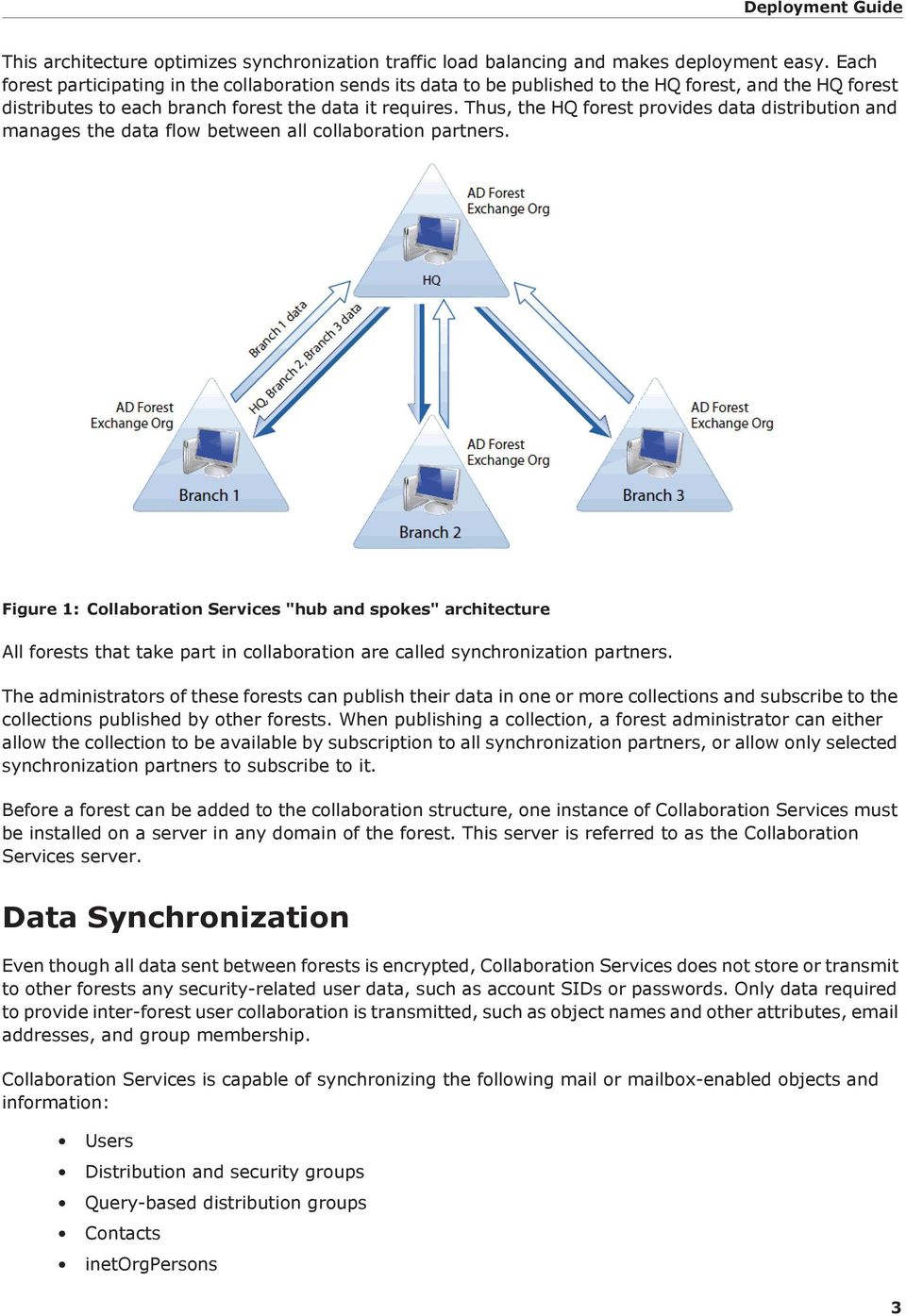
6 Quest Collaboration Services Because of this, Collaboration Services is not a real-time system that updates Active Directory or Exchange data changes as soon as they are made. Unified Messaging Environment for All Users Collaboration Services enables users in separate forests to see each other in their Global Address Lists (GALs). Consequently, users do not have to manage complex personal address lists or remember addresses for employees in other forests. Administrators for each organization do not have to manually add contacts for other employees into the address books and keep their personal information up-to-date. In addition, Collaboration Services synchronizes calendar and free/busy information so that users in separate forests can see their colleagues or partners free/busy information and schedule meetings with them. Transparency for End Users Using Collaboration Services means a zero learning curve for users they just keep using Microsoft Outlook in the typical manner. Secure Solution Collaboration Services is a secure directory, calendar, and free/busy data synchronization solution. It has the following benefits compared to other directory synchronization solutions: No trusts, VPN tunnels, or supplementary accounts between forests are required. You do not have to open directory access port (LDAP port) for outbound access to let other forests accounts query your directory and Exchange data. No forest uses any account from any other forest. Full administrative autonomy is preserved. The administrator of each forest chooses the objects and data from that forest that will be available in other forests, and what objects and data from other forests will be applied and available in his or her own forest. All Collaboration Services communication between forests is encrypted and signed. No security-related user data, such as security IDs (SIDs) or passwords, is ever transmitted or stored anywhere. Architecture and Functionality This section provides a high-level overview of the Collaboration Services architecture and functionality. Collaboration Services Structure To achieve seamless inter-forest collaboration by providing a common GAL, Collaboration Services synchronizes the selected Active Directory objects between the selected forests using a hub and spokes architecture. The HQ forest is the hub, and the branch forests are the spokes. 2

7 Deployment Guide This architecture optimizes synchronization traffic load balancing and makes deployment easy. Each forest participating in the collaboration sends its data to be published to the HQ forest, and the HQ forest distributes to each branch forest the data it requires. Thus, the HQ forest provides data distribution and manages the data flow between all collaboration partners. Figure 1: Collaboration Services "hub and spokes" architecture All forests that take part in collaboration are called synchronization partners. The administrators of these forests can publish their data in one or more collections and subscribe to the collections published by other forests. When publishing a collection, a forest administrator can either allow the collection to be available by subscription to all synchronization partners, or allow only selected synchronization partners to subscribe to it. Before a forest can be added to the collaboration structure, one instance of Collaboration Services must be installed on a server in any domain of the forest. This server is referred to as the Collaboration Services server. Data Synchronization Even though all data sent between forests is encrypted, Collaboration Services does not store or transmit to other forests any security-related user data, such as account SIDs or passwords. Only data required to provide inter-forest user collaboration is transmitted, such as object names and other attributes, addresses, and group membership. Collaboration Services is capable of synchronizing the following mail or mailbox-enabled objects and information: Users Distribution and security groups Query-based distribution groups Contacts inetorgpersons 3
8 Quest Collaboration Services Free/busy information Calendar information Each forest administrator decides which objects (and which of their attributes) should be published and added to the GAL in other forests after subscription, and whether the calendar or free/busy information of the published objects should be available for users in other forests. Collections To provide flexibility, the objects to be synchronized are grouped into collections sets of objects and their attributes. You can either define the objects to be synchronized on per-container or per-group basis; or add groups, users, and contacts to collections explicitly. Depending on your license type, you can create collections of mixed type, Active Directory-only collections, Calendar-only collections, and Free/Busy-only collections: In mixed collections, both Active Directory objects and their calendar or free/busy data are synchronized. As a result, collection objects are added to the common GAL in the subscribing forests, and objects calendar or free/busy information is also available in other forests. While mixed collections can provide for synchronization of Active Director and of either calendar or free/busy information, it is best practice to split collections into the following only types. This will provide minimal disruption during fault finding. For example, if you are required to delete a Free/Busy-only collection due to issues, it is best to delete the collection and lose the free/busy data only and then to recreate it. The Active Directory only collection would still maintain the stubs objects. Deletion of the mixed collection would remove the Active Directory stubs as well as the free/busy data. In Active Directory-only collections, only selected Active Directory objects are synchronized; their free/busy or calendar information data is not. As a result, collection objects are added to the common GAL in the subscribing forests, but objects calendar or free/busy information is not available. In Calendar-only collections, only the calendar information of the specified objects is synchronized (you can select to synchronize calendar date/time information, or all calendar details). As a result, collection objects themselves are not added to the common GAL in the subscribing forests, but objects calendar information is replicated over and matched to existing objects. Note that mixed collections can provide for synchronization of either calendar or free/busy information, but not both. However, when you configure how the Calendar information should be handled on the subscriber side, you can select Always create mailbox option in the subscriber s properties in this case, the mail-enabled object on the subscriber side will be always created, and the calendar information will be presented as the corresponding free/busy. In Free/Busy-only collections, only the free/busy information of the selected objects is synchronized. As a result, collection objects themselves are not added to the common GAL in the subscribing forests, but objects free/busy information is replicated over and matched to existing objects. Note that in this case you must either create objects to match free/busy information into manually or use some other directory object synchronization tool, such as Microsoft Identity Integration Server (MIIS), to synchronize Active Directory objects between all forests in the collaboration structure. Collaboration Services is able to match the free/busy data to the corresponding user or contacts created by any other software. Free/busy information is matched to objects based on addresses. 4

9 Deployment Guide The Synchronization Process Two Way Synchronization Two way synchronization is not possible in Collaboration Services. Two way synchronization would allow the subscribing side to change attributes to a publishing partner s data and this would violate the security of Active Directory and Exchange. The administrator of the publication primarily controls the data and who can access it in the publication. Without this capability, synchronization security cannot be guaranteed. The same applies to subscriptions where the receiving partner decides which subscriptions to subscribe to. Publication and Subscription When a forest administrator publishes a collection, the collection becomes available for subscription to the forests specified by the publishing forest administrator. When another synchronization partner s administrator subscribes to a collection, Collaboration Services creates a stub object (either by creating a new, disabled mail-enabled user account, group, or contact, or by reusing an existing object) for each member of the collection in Active Directory. (If calendar information is published for the collection's object, a mailbox-enabled user account is created and the mailbox is only initially created when there is calendar data to sync. During this process, Collaboration Services automatically tracks synchronization conflicts and informs administrators, allowing quick resolution so that conflicts never affect users workflow. If free/busy information was published for the collection s objects, it is also applied on the Exchange server, but only as soon as the corresponding object is created in Active Directory. 5
10 Quest Collaboration Services Figure 2: Publication and synchronization process Before a forest subscribes to a collection, the only information available for the forest s administrator is the collection name, a short collection description provided by the collection creator, and the publishing forest s description. A collection s membership (that is, the objects it contains) is available only after its administrator subscribes to the collection. By subscribing to a collection, branch administrator can control which objects and attributes from a collection are applied to his or her forest on per object and per-attribute basis. The stub objects for each collaboration partner are created in the dedicated OUs (within the OU specified during the setup). You can monitor the stub objects as follows: Using the Active Directory Users and Computers MMC snap-in (you need to select the Advanced Features from the View menu to be able to view this OU) Using Microsoft Outlook or Outlook Web Access to view their appearance in the GAL. You can monitor the creation of free/busy and calendar information using Microsoft Outlook or Outlook Web Access. 6

11 Deployment Guide Automatic Synchronization of Changes The synchronization service performs periodic scans of the Active Directory and Exchange data in each forest to detect any modifications to objects free/busy or calendar information. If the modified objects or free/busy information belong to a published collection s objects, the changes are collected. Thus, all changes made to the properties and free/busy or calendar information of a collection s source objects (users, groups, and contacts) are tracked by Collaboration Services and all updates are automatically sent to the collection s subscribers without requiring administrators to perform any actions. Incremental (delta) synchronization is used for sending updates, along with compression, resulting in very little bandwidth usage. If some of the collection s objects are deleted, their stubs will be automatically removed from all forests subscribing to the collection. If new objects fall into the synchronization scope (for example, new object is created in the published container), corresponding new stubs will be automatically created in all forests subscribing to the collection. The HQ forest maintains a list of all collections that administrators can subscribe to, and distributes initial and update synchronization packets between subscribing branches. The synchronization data flow depends on which forest s objects were modified: If HQ forest objects were modified, update data packets are sent to all branch forests that subscribe to the collections containing the modified objects. If the objects of a branch forest were modified, update data packets are first sent to the HQ forest and then are redistributed to the forests that subscribe to the collections containing the modified objects, as illustrated below: Figure 3: Collaboration Services synchronization process 7

12 Quest Collaboration Services Synchronized Groups Collaboration Services supports synchronized groups: distribution groups whose membership is synchronized across all forests participating in collaboration. A group owner can add stub objects from other forests to any group. When a synchronized group is published to other forests, the group s stub is created and its membership is re-calculated in every subscribing forest accordingly, with the original objects replacing the stubs. To enable group membership synchronization, you must publish the group with members, which is not the default setting. Be sure to select the Synchronize members option when publishing synchronized groups. Communication Among Forests All the instances of Collaboration Services installed in different forests communicate with each other using SMTP, which is a native mail exchange protocol for Exchange servers. To reduce traffic, all synchronization data is compressed before it is sent. Then the data is put into regular messages, which are encrypted, signed, and sent to other synchronization partners. To provide guaranteed delivery, Collaboration Services maintains a service message history list. All messages are stored until their delivery is confirmed by the synchronization partner. If message delivery is not confirmed within the specified time interval, the messages are re-sent. Security Collaboration Services provides a high level of security. A special dedicated Exchange mailbox in each forest is used for communication with other synchronization partners. All interactions between the services are encrypted. Each synchronization partner has a password-protected public key file. The public key file (*.akf) contains the address of the Collaboration Services mailbox used by the partner and the public key for data decryption. The public key file of the HQ forest is generated during the installation of Collaboration Services in the HQ forest. When you install Collaboration Services in a branch forest, Collaboration Services prompts you for the HQ public key file. Installation of a new branch is impossible without the HQ public key file. After a branch is installed, the branch administrator needs to export and securely transfer the branch s public key file to the HQ forest administrator, who can then register the branch in the collaboration structure. Mail Forwarding For each published object, Collaboration Services creates a stub object (disabled user account) in the forests that subscribe to the published object s collection. For mail-enabled users and contacts included in the collection, the redirectors are already established, and therefore, Collaboration Services simply sets and populates the proxy addresses and the target address of the original object to the corresponding attributes of the stub object. For mailbox-enabled users, Collaboration Services assigns the following addresses to each stub object: 8

13 Deployment Guide The targetaddress attribute of the stub object is set according to the namespaces settings in the publishing forest. For more information, see the Namespaces Usage section of the Quest Collaboration Services User Guide. The primary SMTP address of the original object is assigned as a primary SMTP address of the stub object. The secondary SMTP addresses of the original object, if they exist, are assigned as secondary SMTP addresses of the stub object. Figure 4: A user who wants to send a message to a user from another forest just selects the recipient (Collaboration Services stub) from the Global Address List (GAL) and sends the message. As soon as a message is sent, Exchange server verifies the targetaddress attribute value and redirects the message to the other forest. You need to have all necessary connectors established from your Exchange organization to the original object s organization so Exchange server can redirect messages correctly. External mail always comes directly to the original object and does not use the Collaboration Services stubs. 9

14 Quest Collaboration Services Administrative Interface All Collaboration Services administration is performed through a web interface. Extensive statistics provided by the web interface help you track the synchronization activities and provide all the information needed for effective administration. Figure 5: Collaboration Services Web Interface 10

15 Deployment Guide Before You Begin This section describes what you need to do before installing Collaboration Services. The pre-installation checklist will also help with these preparations. For details, see Installation Checklists on page 36. System Requirements Exchange Server Collaboration Services can establish secure collaboration between forests with the following messaging systems installed: Microsoft Exchange Server 2003 Service Pack 2 or later Microsoft Exchange Server 2007 Service Pack 1 or later To use the free/busy synchronization option with Microsoft Exchange Server 2010, Service Pack 1 must be installed along with a configured public folder store. Without Service Pack 1 you will only be able to use the Active Directory and calendar synchronization options with Exchange Microsoft Exchange Server 2010 Service Pack 3 Roll-up 1 Microsoft Exchange Server 2013 Cumulative Update 1 Exchange 2013 only supports Active Directory and calendar synchronization options. Collaboration Services Server One instance of Collaboration Services should be installed in each forest participating in the synchronization. For performance reasons, in a production environment it is highly recommended you install Collaboration Services on a dedicated server (not holding any other roles such as file server, print server, Exchange server, or domain controller). Ensure the target computer meets the following requirements: Platform Intel x86-based computer Pentium III or higher. Multi-processor configurations are recommended for the HQ forest server in large deployments. Using faster processors and multi-processor configurations generally improves synchronization performance. Memory A minimum of 1 GB RAM is required; 4GB is recommended. Requirements for RAM depend on the total number of synchronized objects: Less than 100,000 objects 4GB 11

16 Quest Collaboration Services 100,000 to 300,000 objects 8GB More than 300,000 objects 16GB Hard Disk Space A minimum of 50GB of free disk space is required. Additional disk space requirements are as follows: 10MB per every 1K of synchronized Active Directory objects 10MB per every 1K of synchronized free/busy objects or Calendar objects Operating System One of the following: Microsoft Windows Server 2003 Service Pack 2 or later Microsoft Windows Server 2008 Microsoft Windows Server 2003 R2 Microsoft Windows Server 2008 R2 Microsoft Windows Server 2012 Additional Software Collaboration Services requires the following: Microsoft Exchange Server MAPI Client and Collaboration Data Objects build Do not install Outlook or other MAPI clients on the same computer as Collaboration Services. Microsoft Internet Explorer 8.0 or later Microsoft Windows Installer 2.0 or later Collaboration Services supports the following Active Directory forest functional levels: Windows 2003, Windows 2008, Windows 2008 R2 and Windows 2012 Service Account Rights and Permissions The account used as the service account should also be used to install and configure Collaboration Services. Ensure that the account has the following rights: Member of the Built-In Administrator group in all domains where Collaboration Services is installed Exchange Full Admin rights Member of the Local Administrators group on the computer where Collaboration Services is to be installed The full administrative rights for Exchange are different for each version. Refer to the Quest Support site ( for the latest information on the required rights. 12

17 Deployment Guide SMTP Connectivity Collaboration Services instances communicate with each other using SMTP. It is recommended to establish SMTP connectors between the HQ and branch forests to optimize mail flow between synchronization partners. Please see the Microsoft Exchange Server documentation for details. If you use DNS to route mail, DNS servers in all forests must have Mail Exchanger (MX) records to correctly route mail between collaboration partners. For more information, please refer to the appropriate DNS documentation. You can also set up the mail flow using the Exchange smart host feature. This is useful if you install Collaboration Services in a test environment and do not want to set up and configure a DNS server. For more information, please refer to the appropriate Microsoft Exchange Server documentation. Service Mailbox The Collaboration Services service requires a service mailbox, which will be used to exchange synchronization data with other synchronization partners. A service mailbox should be created in each forest participating in the collaboration. Check the mail flow between all forests before deploying Collaboration Services by sending test s between the HQ and branch service mailboxes in both directions. By doing this test, you can be sure all forests will be able to communicate with each other using the specified mailboxes. The test can be easily performed using, for example, Outlook Web Access (OWA). Ensure anti-spam filters are configured appropriately in all forests. In the HQ forest, be sure to add all branches service mailboxes addresses to the safe senders list. In each branch forest, add the HQ forest service mailbox address to the safe senders list. Platform Considerations Recipient Update Service With Collaboration Services version 3.6 and later, the RUS is enabled by default if Exchange 2007 or higher is detected in the Exchange environment. If not selected, published objects will not appear in the Global Address List. To prevent possible conflicts with Exchange RUS, you should disable the RUS option for Exchange 2003 or if you have a mixed environment. 13

18 Quest Collaboration Services Choosing Between Free/Busy and Calendar Synchronization Review the table below to determine what synchronization type best suits your environment. Free/Busy synchronization is typically faster than Calendar synchronization, but it requires that Public Folder storage be available and some configuration work in the Exchange 2007/2010 environment. For Exchange 2003, Calendar synchronization is not recommended. OUTLOOK 2003 OUTLOOK 2007 OUTLOOK 2010 CALENDAR SYNCHRONIZATION EXCHANGE 2003 NR NR NR EXCHANGE 2007 [1] Yes Yes EXCHANGE 2010 [1] Yes Yes EXCHANGE 2013 No Yes Yes FREE/BUSY SYNCHRONIZATION EXCHANGE 2003 [1] [1][2] [1]* EXCHANGE 2007 [1] [1][3] [1][3] EXCHANGE 2010 [1] [1][3] [1][3] EXCHANGE 2013 No No No [1] - Public folder store is mounted in the organization [2] - UseLegacyFB registry key is set for each Mailbox [3] - Configuration of the Availability Service to set the Address Space ( NR - Not Recommended * For newer Outlook clients (Outlook 2007 and above) used with Exchange 2003, the UseLegacyFB registry key is needed for each user. However, Outlook 2010 ignores this key, and therefore you cannot connect to public folders using this method with Outlook

19 Deployment Guide Public Folders Collaboration Services uses public folders to access free/busy information on the Exchange Server. Many organizations have these enabled, especially when there are legacy clients in use. However, on Exchange 2007/2010/2013 a public folder database is not created by default. If you plan to synchronize free/busy data, and you have not already done so, you will need to perform the following steps in order to complete your Collaboration Services installation. If you merge your organizations and are no longer using Collaboration Services, and you do not require public folders for any other purpose, you may remove them. To enable public folders 1. Create the public folder database. 2. Run the following command at the Exchange console to enable publishing of free-busy data to the public folders: Add-AvailabilityAddressSpace -AccessMethod PublicFolder -ForestName <Source-Domain> Exchange 2007 Only If you have not installed a trusted certificate on IIS, you must disable SSL encryption on the public folders virtual directory. Exchange 2010 Only There is a known issue in Exchange 2010 which breaks its Availability Service's ability to read public folder data. This is fixed in Service Pack 1. If you are using free/busy synchronization with an Exchange 2010 server, you will require the Service Pack 1 update. Exchange 2013 Only In Exchange 2013 free/busy synchronization is not available or supported. 15

20 Quest Collaboration Services Pre-Installation Planning This section provides general recommendations for deploying Collaboration Services. These recommendations are based on the experience of deploying Collaboration Services at Quest Software. Quest has two separate Active Directory forests with an Exchange organization in each. Before Collaboration Services was implemented, there was no automated mechanism to maintain collaboration between the two Exchange organizations. Administrators had to manually create contacts for corresponding users and groups in the other forest per user requests. Moreover, end users in separate forests could not see their colleagues free/busy information and schedule meetings with each other. With Collaboration Service deployed, users in different forests collaborate seamlessly. This section divides the process of deploying Collaboration Services into the following phases, and provides recommendations to help you complete each phase successfully: Phase I: Planning Phase II: Preparing Forests Phase III: Deploying Quest Collaboration Services Phase I: Planning Thorough planning is essential for a successful deployment. If Exchange and Active Directory are managed by separate teams, it is important that members of both teams from each forest participate in planning. This section explains the directory information you need to gather and analyze before you start to prepare the environment and deploy Collaboration Services. The planning phase consists of the following general steps: 1. Gather information from all Active Directory forests that will participate in synchronization. 2. Analyze possible conflicts between manually created contacts or other objects and Collaboration Services stub objects, and plan conflict resolution. 3. For each forest, choose the criteria for grouping objects into collections. Step 1: Gather Directory Information Begin by gathering and analyzing the following information from every Active Directory forest that will participate in synchronization: Information about the objects that should be synchronized Information required for conflict resolution Quest Reporter can be used to gather and analyze directory information. Objects to Be Synchronized Contact the appropriate people in each forest to be synchronized and obtain the following information: What objects (such as users, groups, and contacts) are to be synchronized 16
21 Deployment Guide Approximate number of these objects Placement of these objects in the forest s organizational unit structure This information allows you to estimate the initial synchronization time and helps you to design collections of objects. Conflict Resolution Information A conflict occurs when two or more objects from different forests have the same address. Most conflicts are due to manually created contacts pointing to users in other forests. To avoid problems, you need to analyze information about the objects from all forests participating in Collaboration Services synchronization and then configure Collaboration Services to resolve conflicts automatically. An administrator in each forest should gather and analyze data on the following attributes of all mail or mailbox-enabled users, groups, and contacts: targetaddress proxyaddresses mail mailnickname Step 2: Plan Conflict Resolution After you have information from all the forests, you can analyze it to plan conflict resolution. Collaboration Services is not capable of automatically resolving conflicts when more than two objects are in conflict. Resolving these conflicts requires administrator intervention. Information about every conflict found during synchronization is recorded in the Collaboration Services log. Conflicting Addresses When Collaboration Services creates a stub object, it verifies that no other object with the same address exists in the forest by querying the nearest Global Catalog. If the object already exists, Collaboration Services can take any of the following actions: Delete the conflicting object and create a stub object. This method works for forests that have contact objects corresponding to another forest s users or distribution groups. Deletion is the most straight-forward and recommended method to resolve conflicts, since it is the only option that can resolve conflicts between objects of different classes (for example, user and contact). This method will be applied only to objects located in the organizational units (OUs) you specify. Match the new object into the existing one. This method works only if both the stub object being created and the conflicting object are of the same class (for example, both are users). 17
22 Quest Collaboration Services In this method, the existing object is used as a stub for the duration of synchronization. The difference between this type of stub object and a regular stub object is that the object keeps its account state unchanged; for example, if the account was enabled, it remains enabled after Collaboration Services makes a stub of it. This method will be applied only to objects located in the OUs you specify, and to objects for which pre-matching rules were created. If Collaboration Services cannot resolve the conflict for a particular object automatically using the current settings, then the object is placed in the Non-Applied Objects queue, from which you can resolve the conflict by either approving the suggested action or configuring another action manually. For example, a user can have active user accounts with the same address in two or more forests. This probably means that user needs to access resources in both forests. If so, it is recommended not to delete the conflicting objects but to use matching. In this case, active accounts can be used as stubs, so the users will still be able to log on in multiple forests with Collaboration Services deployed. When configuring the matching, you can choose the attribute synchronization direction on a per-attribute basis, so some or all attributes are synchronized from the published object to the object you are matching into. Attribute synchronization is useful if the user account is updated by the provisioning system in one of the forests and these changes need to be propagated to the same user s accounts in other forests. Figure 6: Attribute synchronization If you have active user accounts of the same user in multiple forests but do not want to use matching for some reason, you can do one of the following: Exclude these accounts from Collaboration Services synchronization; since the user is represented in both Exchange organizations global address lists (GALs). 18
23 Deployment Guide Delete the Exchange mailbox for all but one of the accounts. These accounts will still be enabled and used to access resources. Collaboration Services will create disabled stub user accounts for Exchange collaboration. Other Conflicts There can be other conflicts that are not detected and resolved by Collaboration Services automatically because the conflicting objects do not cause technical issues, but can confuse the end users. Examples include: Accounts that have different addresses but correspond to the same user. If these accounts are synchronized, the GAL will have two entries for the same user. Namesakes in different forests. If user accounts with the same name are synchronized, two different users will appear in the GAL with the same name. You can use a Collaboration Services suffix mapper to add text descriptions to the stub objects display names to help avoid confusion. For more information, see the Mappers section in the Quest Collaboration Services User Guide. Step 3: Plan Collaboration Services Configuration Choose the HQ Forest After you decide how conflicts will be resolved in each forest, you can plan the Collaboration Services configuration. The main decision will be which forest should serve as the headquarters (HQ) for Collaboration Services synchronization. Only one HQ forest can be set up in a Collaboration Services environment. The HQ forest role cannot be granted to any other forest after Collaboration Services has been deployed. To change the HQ forest, you will need to go through the deployment process again. Consider the following criteria when selecting the HQ forest: Synchronization Performance Considerations To increase synchronization performance and reduce network traffic and HQ server load, choose the forest containing the most data to be synchronized. Hardware Considerations The HQ forest processes all synchronized data from all synchronization partners. Therefore, there is a higher data processing load on the HQ Collaboration Services server, which means higher hardware requirements. Support Considerations The HQ forest administrator will be a key person to help other partners in tuning performance and troubleshooting problems for the whole Collaboration Services structure. 19
24 Quest Collaboration Services Object Selection You must also consider how you will form object collections. This decision may require additional environment preparation. Collaboration Services allows both explicit and dynamic object selection. Dynamic object selection may be based on the following: Active Directory OU structure If all the objects to be synchronized from a forest reside within the same OU or a few OUs, you can specify which types of objects should be synchronized from these OUs. This is the recommended method of object selection. LDAP filters Use filters to narrow the scope of objects that belong to a collection. This option is available only if you organize your collection on a per-container basis. If you plan to use LDAP filters for object selection, create and test the filters in advance. You can use any utility that can perform LDAP searches to test a filter, such as Ldp.exe or Csvde.exe. Groups User accounts and contacts that are members of a group can be published along with the group. The nested groups and their members will not be published. Mappers Decide if you need mappers to customize Collaboration Services synchronization. For example, consider using mappers if: Different forests use different naming standards. A mapper can be used to create stub objects according to a forest s naming standards. You would like to add a description to the stub objects display names. Most mappers can be used by both the administrator who publishes collection and the administrator who subscribes to it. For a detailed description of mappers and their usage, refer to the Mappers section of Quest Collaboration Services User Guide. Phase II: Preparing Forests Before deploying Collaboration Services, you should prepare each forest as follows: 1. Take care of user objects that require manual conflict resolution. 2. Restructure the Active Directory OU hierarchy, if necessary. 3. Create accounts with the necessary permissions. 4. Dedicate a server for the Collaboration Services synchronization service. 5. Verify free/busy accessibility. 20
25 Deployment Guide Step 1: Resolve Conflicts If you have identified any conflicts that cannot be resolved automatically, make sure to resolve them manually before you deploy Collaboration Services. In particular, it is recommended to remove all manually-imported contacts for user objects you are planning to synchronize with Collaboration Services. Once there are no more conflicts, re-collect object information from all forests and analyze it again to ensure that the initial synchronization will go smoothly. Though Collaboration Services is capable of resolving conflicts automatically, the initial synchronization speed significantly decreases if the service must frequently resolve conflicts. It is recommended to resolve as many of them as possible before you start the synchronization. Step 2: Restructure the OU Hierarchy Consider restructuring the OU hierarchy in the following cases: If you plan to automatically resolve synchronization conflicts by deleting the conflicting object or matching it. These types of object resolution are applied to the specified OUs only. This allows you to put all potentially conflicting objects in the organization into the same OU and ensure that Collaboration Services affects only the objects in that OU. If you plan to create OU-based object collections. In this case, you may need to move all OUs containing the objects to be synchronized to a single parent OU. This will simplify configuration of Collaboration Services collections and make it easy to add objects to or remove objects from the synchronization, as follows: To add an object to the synchronization, add the object to the appropriate container or create a new object in the container. To remove an object from the synchronization, delete it from or move it out of its container. Step 3: Create Service Account You should use one account per forest to act as the service account. This account will be used to: Start the Collaboration Services service Retrieve object data from Active Directory and Exchange Server Create and update stub objects Resolve conflicts according to the specified rules Every service account must be mailbox-enabled, because its mailbox will be used by the Collaboration Services server for data exchange between the HQ and branch forests. 21
26 Quest Collaboration Services The service mailbox will accept only authenticated packets from Collaboration Services service instances in another forest. All other messages will be automatically deleted from the mailbox. Therefore, you cannot use any existing user mailbox for Collaboration Services. Step 4: Dedicate a Server Collaboration Services can be installed on any computer in a forest. For performance reasons, it is highly recommended to install it on a dedicated server not holding any other roles such as file server, print server, Exchange server, or domain controller. Ensure the server meets hardware and software requirements listed in the System Requirements on page 11. Step 5: Verify Free/Busy Accessibility Synchronized free/busy information is stored on the Exchange server keeping the free/busy public folder for the administrative group that contains Exchange server where the service mailbox resides. If your Exchange deployment contains multiple administrative groups, free/busy information access between various groups must be obtained using either public folder referrals or free/busy folder replication. In fully functional production environments, one of these methods is usually already implemented and no further action is needed. Nevertheless, many customers have problems with access to free/busy information, so you should ensure that users from each domain are able to access the free/busy information located on the server that Collaboration Services will use. Please see the appropriate Microsoft Exchange server documentation for more information on configuring free/busy information access between administrative groups. Phase III: Deploying Quest Collaboration Services This section provides a sample scenario for installing and testing Collaboration Services, including the recommendations for the following procedures: 1. Install Collaboration Service 2. Initial configuration 3. Publication of test collections 4. Publication of all Users objects Step 1: Install Collaboration Services Install Collaboration Services on dedicated servers in each forest at least a week before the planned synchronization start date. This will give you time to exchange the public key files, troubleshoot any installation problems, configure Collaboration Services instances, and synchronize a test collection of users between forests. 22
27 Deployment Guide To install Collaboration Services 1. Remove Outlook and ESM and download and install the latest MAPI CDO. 2. Install the Collaboration Services instance in the HQ forest. During the setup, the HQ public key file will be generated. 3. Securely transfer the HQ public key file to the branch forest administrators. Installation of branch forests is not possible without the HQ public key file. 4. Install Collaboration Services in each of the branch forests. 5. Log on to each branch forest s administrative interface and export its branch public key file. 6. Securely transfer the public key files for all branches to the HQ forest administrator. 7. Log on to the HQ forest administrative interface and register all branches in the collaboration structure. Before installing Collaboration Services you need to: Download and install the latest version of Microsoft Exchange Server MAPI Client and Collaboration Data Objects. Ensure that you do not have Outlook or other MAPI clients installed on the same machine that Collaboration Services is installed. Exclude the installation folder %Program Files%\Quest Software\Collaboration Services and all sub folders from the virus scan software. HQ Forest Installation The first step in Collaboration Services deployment is to set up the HQ forest. Carefully consider which forest will serve as the HQ forest, since the Collaboration Services structure can not be changed later without re-deployment. To set up the HQ forest 1. Using the setup account, log on to the computer where you want to install Collaboration Services and run the Quest Collaboration Services Installation Wizard. Alternatively, you can run the installation from the command line using the runas command with the appropriate parameters. It is recommended to close all Windows applications before running the setup. 2. On the Welcome screen, click Next. 3. Read and accept the license agreement and click Next. 4. Specify User Information, provide the license file, and then click Next. 23
28 Quest Collaboration Services 5. Select which Collaboration Services features to install and either accept the default path for installation or specify a different folder, and then click Next. It is not recommended to install Collaboration Services on a system volume. 6. Specify the credentials for the service account to be used to start the Collaboration Services service. Click Test to check whether the specified account has a valid mailbox, and click Next. The service account must be mailbox-enabled, and it must be a member of the Local Administrators group on the computer where you install Collaboration Services. The account s mailbox will be used by the Collaboration Services server for data exchange between the HQ and branch forests. The address of this mailbox will be included in the HQ public key file. The Service Account should have Full Control to the Active Directory container specified in Step 7c below. 7. Specify the partner configuration options: a) Choose the partner configuration. Since Collaboration Services is being deployed in the HQ forest, select the HQ option. b) Supply the forest s description. This description and the service mailbox address will be the only information about your forest available to the administrators of other forests. c) Select an Active Directory container to store the stub objects created by Collaboration Services for purposes of mail redirection. For more information on how the stub objects are created and used, see the see Mail Forwarding on page 8. d) Collaboration Services uses the Active Directory extension attributes to mark objects as synchronized and assign collection membership to them. Select any of the 15 extension attributes available. Ensure the selected attribute is not used by any other software. 8. Click Next. 9. Configure notification by specifying who is to receive messages with all the errors and warnings generated by service. 10. Enter the address of the recipient in the Send notifications to box (or click Browse to select it), and click Next. The address specified for receiving notifications can be changed using the sub-page of Logging page of the Collaboration Services Properties dialog box. For more information about notifications, refer to the Logging section of the Quest Collaboration Services User Guide. Collaboration Services provides secure communication between forests by using data encryption and signing. Collaboration Services uses public key files, each containing a data encryption key and the SMTP address of the service mailbox for one forest. 11. On the Public Key page, configure the HQ Public Key by specifying a file name and location where the HQ public key file should be saved, and supply a password to protect the file. Click Next. All messages from HQ will be encrypted using the encryption key in the specified public key file. The HQ public key file is not created immediately; rather, it is automatically generated and saved upon setup completion, after the synchronization service is installed and started. 24
29 Deployment Guide 12. Click Next and wait while the wizard completes the installation of Collaboration Services to the HQ forest. 13. Click Finish to complete the wizard. After you complete the installation of Collaboration Services to the HQ forest, securely transfer the HQ public key file to the branch forest administrators so they can install an instance of Collaboration Services in their forests. Branch Forest Installation Once the HQ forest has been deployed, one instance of Collaboration Services should be installed in each branch forest. Installation of Collaboration Services to the branch forest is not possible without the HQ forest s public key file. To install Collaboration Services on a branch forest 1. Using the setup account, log on to the computer where you want to install Collaboration Services and run the Quest Collaboration Services Installation Wizard. Alternatively, you can run the installation from the command line using the runas command with the appropriate parameters. It is recommended to close all Windows applications before running the setup. 2. On the Welcome screen, click Next. 3. Read and accept the license agreement, and click Next. 4. Specify the user information, provide the license file, and then click Next. 5. Select which Collaboration Services features to install and either accept the default path for installation or specify a different folder, and click Next. It is not recommended to install Collaboration Services on a system volume. 6. Specify the credentials for the service account to be used to start the Collaboration Services service. Click Test to check whether the specified account has a valid mailbox, and click Next. The service account must be mailbox-enabled and must be a member of the Local Administrators group on the computer where you install Collaboration Services. The account s mailbox will be used by the Collaboration Services server for data exchange between the HQ and branch forests. The address of this mailbox will be included in the branch public key file. The Service Account should have Full Control to the Active Directory container specified in Step 7c below. 7. Configure the Partner by specifying the following: 25
30 Quest Collaboration Services a) Choose the partner configuration. Since Collaboration Services is being deployed in the branch forest, select the Branch option. b) Supply the forest s description. This description and the service mailbox address will be the only information about your forest available to the administrators of other forests. c) Select an Active Directory container to store the stub objects created by Collaboration Services for purposes of mail redirection. For more information on how the stub objects are created and used, see the see Mail Forwarding on page 8. d) Collaboration Services uses the Active Directory extension attributes to mark objects as synchronized and assign collection membership to them. Select any of the 15 extension attributes available. Ensure the selected attribute is not used by any other software. 8. Click Next. 9. Configure Notifications by specifying who is to receive messages with all the errors and warnings generated by service. 10. Enter the address of the recipient in the Send notifications to box (or click Browse to select it), and click Next. The address specified for receiving notifications can be changed using the sub-page of Logging page of the Collaboration Services Properties dialog box. For more information about notifications, please refer to the Logging section of the Quest Collaboration Services User Guide. Collaboration Services provides secure communication between forests by using data encryption and signing. Collaboration Services uses public key files, each containing a data encryption key and the SMTP address of the service mailbox for one forest. 11. On the Public Key page, click Browse to specify the HQ forest public key file location and provide the password for this file. Click Next. 12. Click Next and wait while the wizard completes the installation of Collaboration Services to the branch forest. 13. Click Finish to complete the wizard. As soon as Collaboration Services is deployed to the branch forest, export the branch public key file and securely transfer this file to the HQ forest so its administrator can register the installed branch forest in the collaboration structure. For details, see Prepare for Use on page
31 Deployment Guide Using the ACS Users and ACS Administrators Groups When Collaboration Services is installed on a server, two local groups are automatically created: ACS Users members can view configuration and the current statistics information, but are not allowed to modify any settings. ACS Administrators members have full control over Collaboration Services configuration. Use these groups to restrict access to Collaboration Services configuration and make the statistics information available to appropriate people in your organization. If Collaboration Services is installed on a domain controller, ACS Users and ACS Administrators will be created as domain local groups. Test Local Access To open Collaboration Services interface on the computer where the service is installed Select Start Programs Quest Software Collaboration Services. Step 2: Configure Collaboration Services Once a Collaboration Services instance is installed in each forest, you need to configure each instance to fit your environment. Use the synchronization settings to fine-tune the interaction between Active Directory, Exchange, and Collaboration Services instances, and the connectivity between the synchronization partners. To open the Collaboration Services Properties dialog box, select the Collaboration Services node in the management tree and Properties from its shortcut menu. Set up Conflict Resolution Rules You can choose either automatic or manual conflict resolution: In most cases, you can configure the service to resolve the conflicts automatically. To do that, select and configure the desired conflict resolution method. Alternatively, you can choose to resolve conflicts manually, which is quite convenient during product testing. Just wait for a conflicting object to appear in the Non-Applied Objects queue, and then either approve the conflict resolution actions suggested by Collaboration Services or choose a custom conflict resolution action. Check Namespace Settings Carefully check the namespace settings after deployment. During the setup, Collaboration Services automatically populates namespaces with values from the Exchange organization s recipient policies. Using the wrong namespaces may result in incorrect mail forwarding or an inability to create the stub objects at all. Refer to the Quest Collaboration Services User Guide for more information on using namespaces. 27
32 Quest Collaboration Services Step 3: Publish Test Collections Once the Collaboration Services instances are configured in each of the forests, you can publish a test collection from each forest. The test collections should be published a week before publishing all users objects. When creating the test collections, you should specify the same synchronization type you are planning to use with regular collections. Depending on your license type, you can create collections of mixed type, Active Directory-only collections, and calendar or free/busy-only collections. For descriptions of these types, see the Collections section of see Data Synchronization on page 3. A Collaboration Services administrator in each branch and in the HQ forest must subscribe to the test collections manually in order for the collection objects to be applied to their forests. Synchronization Settings By default, the Active Directory synchronization intervals are configured so that Collaboration Services does not impose too much load on Active Directory. To make test collections objects update faster, you can set the Collaboration Services to the "Synchronize Now" mode, so that all timeouts are reduced to the minimum on both publisher and subscriber. To do that, select the Publication node and click Synchronize Now. This mode automatically turns off in 2 hours. Alternatively, you can reduce all timeouts manually. Use the options on the Synchronization page and its sub-pages of the Collaboration Services Properties dialog box. When creating collections, you can select the attributes that should be published to the other forests. A predefined set of attributes have been pre-selected for each type of object. The following can also be synchronized: Minimum: Only object attributes required to create a valid mail-enabled or mailbox-enabled Active Directory object are published. All Attributes: All object attributes (except security related attributes) are published. Add Attributes: Add object attributes to the default attributes to be published. You can also individually select the attributes to be published for each object class by expanding the object listed in the wizard. Object Selection Several users from each forest should be included in the test collections. It is recommended that you explicitly specify 5 10 users in the collection settings. To test automatic conflict resolution, include a couple of conflicting users in the test collection by manually creating conflicting contacts or user accounts to match into on the subscriber side. Each explicitly-specified object is added to a collection using the object's distinguished name (DN), but the DN is converted to an object GUID during the first collection membership scan. As a result, moving such an object to another OU will changes its DN but will not actually remove the object from the collection. 28
33 Deployment Guide To test group membership synchronization between forests, make a few stub objects from another forest members of the group that you publish. You can use the Active Directory Users and Computers snap-in to do this. To test free/busy or calendar synchronization, be sure that test users have their free/busy or calendar information populated. Monitoring Verify that the stub user accounts are created in the proper location, and that users are published in the Exchange GAL. The stub objects for each collaboration partner are created in the dedicated OUs (within the OU specified during the setup). You can monitor the stub objects as follows: Using the Active Directory Users and Computers MMC snap-in (you need to select the Advanced Features from the View menu to be able to view this OU). Or Using Microsoft Outlook or Outlook Web Access to view their appearance in the GAL. You can monitor the creation of free/busy and calendar information using Microsoft Outlook or Outlook Web Access. With the default synchronization settings, it may take up to half an hour for test objects or updates to be replicated to another forest. Use the "Synchronize Now" mode to reduce this time to a few minutes. You can also use Collaboration Services statistics and events to view the current state of the service and the synchronization status. The following Collaboration Services statistics sections will be most helpful when monitoring the initial synchronization: Testing Publication shows overall information about all published collections, as well as detailed information for every collection. Subscription shows the overall information about all collections your forest is subscribed to, as well as detailed information for every collection. The Synchronization Partners shows the information on quotas; the time, result, and status of the transport service s last operation; and detailed information for every synchronization partner, including its status. Once the stub user accounts are created, the corresponding users appear in each Exchange organization s GAL. However, you cannot consider the test collection successfully published until you test the mail flow between the Exchange organizations. To verify that users can collaborate, send a test message to a stub user created by Collaboration Services. Make sure the user in the other forest receives the and is able to reply. s coming from the other forest appear as if it were sent by a user in the same Exchange organization. 29
34 Quest Collaboration Services Verify that the calendar or free/busy information is applied and available to all users from both the current and other Exchange administrative groups. Modify several properties of the test user accounts included in the collection and their calendar or free/busy information (if it was published), and make sure the changes are replicated to other forests. For example, you can add or change a description or a phone number. If you have chosen to automatically resolve conflicts, pay particular attention to the following: The stub object created by Collaboration Services has the x.500 directory address of the initial conflicting object. This is to ensure that other users can reply to the old messages from the user represented by this stub. Verify that you can answer an old from such a user. The stub object created by Collaboration Services is automatically included in the same groups as the initial conflicting object. Verify group membership, and try sending an to a group that includes such a user. Stub group objects created by Collaboration Services preserve membership of the original conflicting group objects. If you have included any groups in the collection, verify that the group membership is preserved. The attribute synchronization for objects you choose to use matching for is working as expected. Step 4: Publish All Required Users After you verify that the test collection is synchronizing properly for several days, you can start synchronization for all users. You can either create new collections, or edit the test collection settings to include all users. If you have multiple large collections, it is recommended to publish them one by one to improve overall synchronization speed. That is, publish the first collection and wait until the initial synchronization is over for all subscribing forests, and then publish the next collection. This can be achieved by first creating all collections in a disabled state and then enabling them one by one as necessary. Settings If you have manually changed the default timeouts when publishing the test collection, do not forget to adjust the options back to the recommended values. You may want to fine-tune the interaction between Active Directory, Exchange, and Collaboration Services instances using the synchronization settings. The default settings are good for most environments; however, you may want to optimize them for your own environment. For example, if your Active Directory data is updated rarely, you can increase the Query AD for changes value. Or you may want to restrict Active Directory and Exchange server access during the busiest production hours by using scheduling. When creating a collection, either proceed with the All attribute preset (it is selected by default), or individually select the attributes to be published for each object class, depending on your requirements. 30
35 Deployment Guide Object Selection When publishing all users to be synchronized, it is not recommended to specify any user accounts explicitly or through group membership for performance reasons. Collaboration Services provides dynamic object selection so you can use the OU structure and LDAP filters to select the objects to be published. By default, group members are not synchronized when you publish a group. You can change the group s settings to make the group members be synchronized; however, this is not recommended for large groups due to performance reasons. If you want to publish large groups, publish them separately from their members. For large deployments, it is also recommended to place users and groups in separate collections and synchronize these collections in the following order: first the user collection, and then the group collection. When you publish a group, nested groups and their members are not published. Monitoring Verify that the stub user accounts are created in the proper location and that users are published in the Exchange GAL. The stub objects for each collaboration partner are created in the dedicated OUs (within the OU specified during the setup). You can monitor the stub objects as follows: Using the Active Directory Users and Computers MMC snap-in (you need to select the Advanced Features from the View menu to be able to view this OU). Or Using Microsoft Outlook or Outlook Web Access to view their appearance in the GAL. You can monitor the creation of free/busy and calendar information using Microsoft Outlook or Outlook Web Access. You can also use Collaboration Services statistics and events to view the current state of the service and the synchronization status. The initial synchronization may take considerable time. This time depends on numerous conditions, including Collaboration Services settings (such as bandwidth quotas and timeouts), the total number of published objects, and network and server load. When you re-publish (or request re-publication of) a collection, you start initial synchronization of all objects in that collection. Because initial synchronizations can take considerable time, be sure to perform them only when it is required. It is recommended to re-publish only one collection at a time. Prepare for Use After Collaboration Services instances are successfully deployed in the HQ forest and branch forest, you must export the branch forest public key file and register the branch forest in the collaboration structure. 31
36 Quest Collaboration Services To export the branch forest public key 1. On each branch forest computer where Collaboration Services is installed, click Start Programs Quest Software Collaboration Services to open the Collaboration Services web interface. The Export Key Wizard starts automatically when you first open the web interface. 2. On the Welcome screen, click Next. 3. On the Choose File page, click Browse to specify the branch forest public key file name and location and provide the password for this file to the HQ administrator. Click Next. 4. In the warning message box that appears, click Yes if you want to proceed with exporting the public key file. 5. View the Summary details, and click Finish. To register the branch forest 1. On the HQ forest computer where Collaboration Services is installed, click Start Programs Quest Software Collaboration Services to open Collaboration Services web interface. The Configure Branches Wizard starts automatically when you first open the web interface. 2. On the Welcome page, click Next. 3. On the Specify Branches step, you can perform the following actions: a) Click Add to specify a public key file (.AKF) to add a new branch forest. Supply the authentication password and click OK. b) To temporarily exclude a branch forest from collaboration, clear the Enable check box next to its name in the Registered branch forests list. All statistics and configuration information related to this branch will be preserved until the branch is enabled again. To re-enable the branch forest, select the Enable check box. c) Specify whether the upgrade packets should be sent to each branch forest by selecting or deselecting the Send Upgrades check box. d) Click Remove to remove the selected branch from the list. 4. Click Next. 5. In the warning message box that appears, click Yes if you want to apply your changes. 6. View the Summary details and click Finish. Collaboration Services Upgrade Collaboration Services allows you to seamlessly upgrade from version 3.5, 3.6, and to version 3.7. You must use the Collaboration Services Service Account to run the upgrade. Collaboration Services can either be manually or automatically upgraded. The default and recommended mode is Manual. All inter-forest synchronization activities will be suspended until the upgrade completes for all branches. The HQ forest will be updated last. 32
37 Deployment Guide Manual updates are performed by the administrator of each Collaboration Services node. Once the manual update has been completed, the communication between nodes is re-established. Automatic updates involve Collaboration Services sending packets to the nodes that contain the new software. This can take considerable time to complete depending on the update size, traffic, and network quality. As each packet is sent using SMTP, a hand shaking protocol is used to ensure the update reaches each node correctly. If a packet is missing, then the packet is resent. This results in the automatic update not appearing to be done or taking longer than expected. The update is not performed until all of the update software is received in the node. An automatic upgrade is not recommended. The upgrade process can take considerable time, as the upgrade package is sent to the Branch computers through . Please allow up to 24 hours to pass when performing the upgrade before conducting any fault-finding. Interruption of the upgrade process may cause issues with Collaboration Services. Automatic upgrades can be performed if required, once all nodes have been manually upgraded and communication between nodes is working correctly (with syncs being re-established). For example, on nodes that do not have an administrator to perform a manual update or sites that can be done over time without impacting Collaboration Service operations. Preparing for a Manual Upgrade The Upgrade page of the Collaboration Services Properties dialog box allows each forest administrator to specify whether the Collaboration Services server should be restarted automatically after the upgrade is complete. Ensure these options are set as follows: the Enable automatic upgrade check box is not selected (not selected by default). the Send notification and restart computer after upgrade check box is not selected. Performing the Manual Upgrade Collaboration Services should be updated at all sites at the same time to ensure the minimum disruption between nodes. To upgrade, the administrator should perform the following steps: Step 1: Notify Branch Forest Administrators Notify all branch forest administrators about the upcoming upgrade. To ensure a successful upgrade, have each Branch administrator: Ensure the Enable automatic upgrade check box is no selected (not selected by default). Ensure the Send notification and restart computer after upgrade check box is not selected. Step 2: Distribute Upgrades Ensure that each Branch has the same build version Collaboration Services that the HQ is being upgraded to. 33
38 Quest Collaboration Services Step 3: Upgrade the HQ and Branches Have each site administrator run the setup of the new version of Collaboration Services. Once the setup completes, the Collaboration Service computer may need to be re-started to complete upgrade. Once the site comes back online it will try to communicate with the HQ. Once communication has been re-established, the upgrade is complete. The manual upgrade should be done using the Microsoft Windows Installer Tool, msiexec.exe, as this will allow the upgrade process to produce a log which can be used for troubleshooting if the upgrade does not work correctly. In the location of the new version of Collaboration Service (by default the msi file is located in Collaboration Service folder), run the msiexec.exe with these options. To upgrade 1. Stop all QCS services. 2. Run command: msiexec /i "QCS msi" /lv*! install.log ACSCOPYFILES="YES" Inter-forest synchronization activities will be suspended until the upgrade completes. Preparing for an Automatic Upgrade The Upgrade page of the Collaboration Services Properties dialog box allows each forest administrator to specify whether the Collaboration Services server should be restarted automatically after the upgrade is complete. An automatic upgrade is not recommended. The upgrade process can take considerable time, as the upgrade package is sent to the Branch computers through . Please allow up to 24 hours to pass when performing the upgrade before conducting any fault-finding. Interruption of the upgrade process may cause issues with Collaboration Services. All inter-forest synchronization activities will be suspended until the upgrade completes for all branches. The HQ forest will be updated last. To select the upgrade options 1. Select the Enable automatic upgrade check box. 2. To automatically restart the computer on completion of the upgrade, select the Send notification and restart computer after upgrade check box and specify a delay before the restart. 3. Restart the computer to complete the upgrade. The best practice is to allow Collaboration Services to restart the computer. This will ensure the upgrade is completed. 34
39 Deployment Guide Performing the Automatic Upgrade Collaboration Services is upgraded from the HQ to the Branches, with the HQ being the last system to be upgraded. When the HQ is updated, the Setup process creates an update package on the HQ, which is then transferred to the Branches. If all of the Branches have been set to automatically update then no further actions are required to perform the update. To upgrade, the HQ forest administrator should perform the following steps: Step 1: Notify Branch Forest Administrators Notify all branch forest administrators about the upcoming upgrade and have the Branch administrator perform the following task. To ensure a successful upgrade 1. On the Upgrade page of the Collaboration Services Properties dialog box, select the Enable automatic upgrade check box. 2. Select whether the Collaboration Services server should be restarted automatically after the upgrade and delay the restart for the time interval you specify. Selecting the Send notification and restart computer after upgrade check box will cause a notification to be sent to the address specified as the notification recipient when the server restarts. 3. Close the Collaboration Services console. Step 2: Distribute Upgrades The Branches page of the Collaboration Services Properties dialog box lists all of the registered branches. Ensure that every branch in the "Registered branch forests" list has the Send Upgrades check box selected. For more information about this option, see the Synchronization Partners section of the Quest Collaboration Services User Guide. Step 3: Upgrade the HQ Forest Run the setup of the new version of Collaboration Services on the HQ forest. After the setup is completed, the HQ forest automatically distributes the new version to all branch forests for which the Send Upgrades option is enabled. All inter-forest synchronization activities will be suspended until the upgrade completes for all branches. The HQ forest will be updated last. 35
40 Quest Collaboration Services Monitoring the Upgrade The HQ administrator can control the upgrade activity using Upgrade Statistics. To view this information Select the Collaboration Services node in the management tree to view information about the Collaboration Services version, license, upgrades, and current general settings during the upgrade in the right pane. The following upgrade information will be displayed in the right pane of the Collaboration Services web management console: STATISTICS SECTION State Last upgraded Last upgrade result Upgrading to version DISPLAYS The current upgrade status, which can be one of the following: Idle Waiting for branch forests to start upgrade Upgrading The date when the last upgrade was performed. The result of last upgrade attempt, which can be one of the following: Upgrade completed successfully Upgrade failed (error code) The version you are upgrading to (shown during upgrade only). Installation Checklists This section provides checklists that will help you install Collaboration Services. Pre-Installation Checklist Check system requirements Ensure the computers to be used to install Collaboration Services meet the system requirements. Check account permissions Ensure that all accounts have the permissions defined in the Service Account Rights and Permissions on page 12 or Service Account Minimum Rights and Permissions on page 40. You will not be able to install and use Collaboration Services successfully if the accounts do not have the required permissions. Create and test mailboxes for the service accounts in the HQ and branch forests. Service accounts mailboxes are used to exchange synchronization data between collaboration partners. After all mailboxes are created, it is highly recommended to check the mail flow between them. Installation Checklist 36 Install Collaboration Services in the HQ forest.
41 Deployment Guide You must install Collaboration Services in the HQ forest first. During the installation of HQ forest, you will be prompted to save the HQ public key file. Securely transfer the HQ public key file to the branch forest administrators. The HQ public key file is required to install Collaboration Services in branch forests. Install Collaboration Services in each branch forest. Install Collaboration Services in each forest taking part in the collaboration. The HQ public key file and password are required for installation. Prepare for Use Checklist Generate a branch public key file in each branch. The public key file of each branch forest is required for the administrator of the HQ forest to register the branch forests in the collaboration structure. The Export Key Wizard, which allows for exporting the branch public key, automatically appears when you first open the user interface in a branch. Securely transfer each branch s public key file to the HQ forest administrator. The HQ administrator needs each branch s public key file to register the branch in the collaboration structure. Register the branch forests in the collaboration structure The Configure Branches Wizard, which allows for registering branches in the collaboration structure, automatically appears when you first open the user interface in the HQ forest. Re-installing Collaboration Services To re-install Collaboration Services and maintain reliability between Exchange organizations and maintain stub objects 1. Perform a backup and restore of Collaboration services. For details, see the Quest Collaboration Services User Guide. 2. Stop all Collaboration Services services. 3. Move all stub objects from the Quest Collaboration Services Objects OU to a temporary OU. All locations that receive objects from here will have to move Stub objects to a temporary OU as well. 4. Uninstall Collaboration Services. 5. Ensure that all registry keys under HKEY_LOCAL_MACHINE\SOFTWARE\Aelita\AelitaCollaborationServices and all files in the Collaboration Services installation folder are removed. The removal of the top level Aelita key may affect other Quest products if installed on the same computer. 37
42 Quest Collaboration Services 6. Install Collaboration Services following the steps in the Collaboration Services Deployment Guide. If during the re-install and error message, "Class Not Registered", is received please see Knowledge Article which can be found at 7. Generate new key. 8. On the Collaboration Services console, select Properties Synchronization Automation Deletion, configure a resolution rule to delete conflicted objects in the container where the original stub objects were moved. It is important to only specify the temporary OU, as these are the only accounts that should be deleted through this process. The deletion rule will have to be created in all locations where you have moved stub objects into a temporary OU. 9. Obtain partners key (keys) and register where you installed Collaboration Services. 10. Send the new key generated in step 7 to the synchronization partners and re-register. If you need to preserve stub objects in a mail-enabled state at all times, all stub objects created for the reinstalled partner must be moved out of Collaboration Services container to a temporary OU before importing a new key. Then, set up automatic conflict resolution through a deletion and allow it to happen for this temp OU similar to described in step 8. After importing a new key, all subscriptions to the re-installed partner will disappear and need to be recreated again. 11. Re-create all publications and subscriptions as they were in the original installation. Troubleshooting This section describes the common error messages that can appear during Collaboration Services setup and the actions to take to resolve the issue: ERROR MESSAGE POSSIBLE REASON SOLUTION Unable to enumerate Exchange servers in this forest Unable to access container for ACS stub objects, please specify another The setup account does not have the Exchange View Only Administrator role. The setup account does not have the Full Control permission over the Active Directory container selected for creating stub objects. Using Exchange System Manager, grant the Exchange View Only Administrator role to the setup account. After installation of Collaboration Services is complete, you can remove this privilege from the setup account. Using Active Directory Users and Computers, grant the setup account Full Control permission over the selected container. 38
43 Deployment Guide ERROR MESSAGE POSSIBLE REASON SOLUTION Unable to find mailbox or mailbox name is ambiguous Service failed to start A constraint violation occurred The specified mailbox either does not exist or the specified name is ambiguous (for example, there is more than one object with that display name). The service account does not have Local Administrator privileges on the computer where the Collaboration Services instance is installed. The setup account does not have Full Control permission over the child objects in the Active Directory container selected for creating stub objects. Specify the full mailbox address. Add the service account to the Local Administrators group on the computer where the Collaboration Services instance is installed. Using Active Directory Users and Computers, grant the setup account Full Control permission over the selected container. Select the This object and all child objects option when granting the permission. 39
44 Quest Collaboration Services Service Account Minimum Rights and Permissions The account used as the service account should also be used to install and configure Collaboration Services. The full administrative rights for Exchange are different for each version. Refer to the Quest Support site ( for the latest information on the required rights. If your organization s security policies do not allow full administrative permissions to be set, you can set the minimum permissions listed in the table to successfully install and configure Collaboration Services. As a best practice, all of the following actions should be performed by one account and therefore, this account needs the rights for each action. For example, you could use an Administrative account to install Collaboration Services and a different account as the service account for Collaboration Services. In this case, the service account would need the rights for the "Run the services required by the Collaboration Services application" and "Minimum access in the domains" action to ensure the account has the necessary permissions on the local computer and the domain. ACTION USED TO REQUIRED PERMISSIONS NOTES Install and Setup Run the Collaboration Services setup and deploy the software. This also includes installing services on the computer. Exchange View Only Administrator role Local Administrator on the computer where Collaboration Services is installed Full Control permission for the Collaboration Services container Be sure to log on to the server with this account before launching the setup. When installing the service, you can use the setup account as a service account. You can use another account if required. Run the services required by Collaboration Services application Start the synchronization services on the computer where Collaboration Services installed. Local Administrator privileges on the computer where the Collaboration Services instance is installed. Full Control to service mailboxes on Exchange Full Control to child objects of Active Directory container where Collaboration Services stubs will be created. After Collaboration Services is installed, the service account used to run the Collaboration Server services should also be given the rights for General Usage in the domains. You can change it to another account if required. 40
45 Deployment Guide ACTION USED TO REQUIRED PERMISSIONS NOTES Minimum access in the domains Read and update Active Directory data Read access to Active Directory Replicate Directory Changes right for all domains in the forest from which objects will be published Manage Replication Topology right for all domains in the forest from which objects will be published Write, create, and delete objects rights for the Collaboration Services container and child containers Delete object rights for all containers with objects that are subject to conflict resolution through deletion Write permission for all objects that are subject to matching Modify group membership right for all groups whose members can be affected by conflict resolution through deletion or matching Modify permissions for all stores in the Configuration container where Collaboration Services' Calendar stub objects are stored. If objects that are subject to conflict resolution through deletion or matching can be scattered all over the forest, be sure to give this account sufficient privileges so it can update or delete objects located in different domains and containers and change the membership of different groups throughout the forest. The Modify Permission right can be set through ADSI Edit. 1. Locate the store in the configuration container, right-click and select Properties. 2. Select the Security tab, and click the Advanced tab. 3. Select the account used for Collaboration Services, and click Edit. (If the account does not appear in the list click the Add button.) 4. Grant the Modify Permission right and save your changes. 41
46 Quest Collaboration Services About Quest Software, Inc. Established in 1987, Quest Software (Nasdaq: QSFT) provides simple and innovative IT management solutions that enable more than 100,000 global customers to save time and money across physical and virtual environments. Quest products solve complex IT challenges ranging from database management, data protection, Identity and access management, monitoring, user workspace management to Windows management. For more information, visit Contacting Quest Software Refer to our Web site for regional and international office information. Mail Web site Quest Software, Inc. World Headquarters 5 Polaris Way Aliso Viejo, CA USA Contacting Quest Support Quest Support is available to customers who have a trial version of a Quest product or who have purchased a Quest product and have a valid maintenance contract. Quest Support provides unlimited 24x7 access to our Support Portal at From our Support Portal, you can do the following: Retrieve thousands of solutions from our Knowledge Base Download the latest releases and service packs Create, update and review Support cases View the Global Support Guide for a detailed explanation of support programs, online services, contact information, policies and procedures. The guide is available at: Third Party Contributions Quest Collaboration Services contains some third party components (listed below). Copies of their licenses may be found on our web site at COMPONENT LICENSE OR ACKNOWLEDGEMENT Synchronization Service zlib Synchronization Service Boost
Quest Collaboration Services 3.6.1. How it Works Guide
 Quest Collaboration Services 3.6.1 How it Works Guide 2011 Quest Software, Inc. ALL RIGHTS RESERVED. This guide contains proprietary information protected by copyright. The software described in this guide
Quest Collaboration Services 3.5. How it Works Guide
 Quest Collaboration Services 3.5 How it Works Guide 2010 Quest Software, Inc. ALL RIGHTS RESERVED. This guide contains proprietary information protected by copyright. The software described in this guide
8.7. Target Exchange 2010 Environment Preparation
 8.7 Target Exchange 2010 Environment Preparation 2011 Quest Software, Inc. ALL RIGHTS RESERVED. This document contains proprietary information protected by copyright. The software described in this document
Quick Connect Express for Active Directory
 Quick Connect Express for Active Directory Version 5.2 Quick Start Guide 2012 Dell Inc. ALL RIGHTS RESERVED. This guide contains proprietary information protected by copyright. The software described in
4.0. Offline Folder Wizard. User Guide
 4.0 Offline Folder Wizard User Guide Copyright Quest Software, Inc. 2007. All rights reserved. This guide contains proprietary information, which is protected by copyright. The software described in this
7.5 7.5. Spotlight on Messaging. Evaluator s Guide
 7.5 Spotlight on Messaging 7.5 Evaluator s Guide 2010 Quest Software, Inc. ALL RIGHTS RESERVED. This guide contains proprietary information protected by copyright. The software described in this guide
Quest vworkspace Virtual Desktop Extensions for Linux
 Quest vworkspace Virtual Desktop Extensions for Linux What s New Version 7.6 2012 Quest Software, Inc. ALL RIGHTS RESERVED. Patents Pending. This guide contains proprietary information protected by copyright.
Dell Enterprise Reporter 2.5. Configuration Manager User Guide
 Dell Enterprise Reporter 2.5 2014 Dell Inc. ALL RIGHTS RESERVED. This guide contains proprietary information protected by copyright. The software described in this guide is furnished under a software license
formerly Help Desk Authority 9.1.2 Quest Free Network Tools User Manual
 formerly Help Desk Authority 9.1.2 Quest Free Network Tools User Manual 2 Contacting Quest Software Email: Mail: Web site: [email protected] Quest Software, Inc. World Headquarters 5 Polaris Way Aliso Viejo,
2.0. Quick Start Guide
 2.0 Quick Start Guide Copyright Quest Software, Inc. 2007. All rights reserved. This guide contains proprietary information, which is protected by copyright. The software described in this guide is furnished
6.7. Quick Start Guide
 6.7 Quick Start Guide 2010 Quest Software, Inc. ALL RIGHTS RESERVED. This guide contains proprietary information protected by copyright. The software described in this guide is furnished under a software
formerly Help Desk Authority 9.1.3 Upgrade Guide
 formerly Help Desk Authority 9.1.3 Upgrade Guide 2 Contacting Quest Software Email: Mail: Web site: [email protected] Quest Software, Inc. World Headquarters 5 Polaris Way Aliso Viejo, CA 92656 USA www.quest.com
Using Self Certified SSL Certificates. Paul Fisher. Quest Software. Systems Consultant. Desktop Virtualisation Group
 Using Self Certified SSL Certificates Paul Fisher Systems Consultant [email protected] Quest Software Desktop Virtualisation Group Quest Software (UK) Limited Ascot House Maidenhead Office Park Westacott
Dell One Identity Cloud Access Manager 8.0 - How to Configure vworkspace Integration
 Dell One Identity Cloud Access Manager 8.0 - How to Configure vworkspace Integration February 2015 This guide describes how to configure Dell One Identity Cloud Access Manager to communicate with a Dell
Quest ChangeAuditor 4.8
 Quest ChangeAuditor 4.8 Migration Guide Copyright Quest Software, Inc. 2009. All rights reserved. This guide contains proprietary information protected by copyright. The software described in this guide
Dell Migration Manager for Exchange 8.11. User Guide
 Dell Migration Manager for Exchange 8.11 2015 Dell Inc. ALL RIGHTS RESERVED. This guide contains proprietary information protected by copyright. The software described in this guide is furnished under
Quest ChangeAuditor 5.1 FOR ACTIVE DIRECTORY. User Guide
 Quest ChangeAuditor FOR ACTIVE DIRECTORY 5.1 User Guide Copyright Quest Software, Inc. 2010. All rights reserved. This guide contains proprietary information protected by copyright. The software described
Dell Client Profile Updating Utility 5.5.6
 Complete Product Name with Trademarks Version Dell 5.5.6 April 21, 2015 These release notes provide information about the Dell release. Welcome to What's New Known issues Upgrade and Compatibility System
6.9. Administrator Guide
 6.9 Administrator Guide 2011 Quest Software, Inc. ALL RIGHTS RESERVED. This guide contains proprietary information protected by copyright. The software described in this guide is furnished under a software
Dell Spotlight on Active Directory 6.8.3. Server Health Wizard Configuration Guide
 Dell Spotlight on Active Directory 6.8.3 Server Health Wizard Configuration Guide 2013 Dell Software Inc. ALL RIGHTS RESERVED. This guide contains proprietary information protected by copyright. The software
Dell One Identity Quick Connect for Cloud Services 3.6.1
 Dell One Identity Quick Connect for Cloud Services 3.6.1 March 2015 These release notes provide information about the Dell One Identity Quick Connect for Cloud Services release. About New features Resolved
Enterprise Reporter Report Library
 Enterprise Reporter Overview v2.5.0 This document contains a list of the reports in the Enterprise Reporter. Active Directory Reports Change History Reports Computer Reports File Storage Analysis Reports
How To Send E Mail From An Exchange 2007 To A Domain Name Address Book On A Domain Address Book (For A Domain) On A Pc Or Mac Xp (For An Ipod) On An Ipo (For Windows 2007) On Your Ip
 Lotus Domino Server and Exchange 2007 Server SMTP Routing using Smart Hosts Supplemental - Version 1.1, Dated June 2, 2009 Contents Purpose... 4 Current Lotus Domino Environment... 5 Sample Outbound Message
Dell InTrust 11.0. Preparing for Auditing and Monitoring Microsoft IIS
 Preparing for Auditing and Monitoring Microsoft IIS 2014 Dell Inc. ALL RIGHTS RESERVED. This guide contains proprietary information protected by copyright. The software described in this guide is furnished
Dell InTrust 11.0. Preparing for Auditing Microsoft SQL Server
 2014 Dell Inc. ALL RIGHTS RESERVED. This guide contains proprietary information protected by copyright. The software described in this guide is furnished under a software license or nondisclosure agreement.
formerly Help Desk Authority 9.1.3 HDAccess Administrator Guide
 formerly Help Desk Authority 9.1.3 HDAccess Administrator Guide 2 Contacting Quest Software Email: Mail: Web site: [email protected] Quest Software, Inc. World Headquarters 5 Polaris Way Aliso Viejo, CA 92656
ChangeAuditor 6.0 For Windows File Servers. Event Reference Guide
 ChangeAuditor 6.0 For Windows File Servers Event Reference Guide 2013 Quest Software, Inc. ALL RIGHTS RESERVED. This guide contains proprietary information protected by copyright. The software described
New Features and Enhancements
 Dell Migration Manager for SharePoint 4.7 Build number: 4.7.20141207 December 9, 2014 These release notes provide information about the Dell Migration Manager for SharePoint release. New Features and Enhancements
Dell One Identity Quick Connect for Cloud Services 3.6.0
 Dell One Identity Quick Connect for Cloud Services 3.6.0 August, 2014 These release notes provide information about the Dell One Identity Quick Connect for Cloud Services release. About New features Resolved
2015 Dell Inc. ALL RIGHTS RESERVED. Trademarks
 8.10 User Guide 2015 Dell Inc. ALL RIGHTS RESERVED. This guide contains proprietary information protected by copyright. The software described in this guide is furnished under a software license or nondisclosure
Dell Spotlight on Active Directory 6.8.4. Deployment Guide
 Dell Spotlight on Active Directory 6.8.4 2014 Dell Inc. ALL RIGHTS RESERVED. This guide contains proprietary information protected by copyright. The software described in this guide is furnished under
8.7. Resource Kit User Guide
 8.7 Resource Kit User Guide 2011 Quest Software, Inc. ALL RIGHTS RESERVED. This document contains proprietary information protected by copyright. The software described in this document is furnished under
Foglight. Foglight for Virtualization, Free Edition 6.5.2. Installation and Configuration Guide
 Foglight Foglight for Virtualization, Free Edition 6.5.2 Installation and Configuration Guide 2013 Quest Software, Inc. ALL RIGHTS RESERVED. This guide contains proprietary information protected by copyright.
Dell One Identity Cloud Access Manager 8.0.1 - How to Configure Microsoft Office 365
 Dell One Identity Cloud Access Manager 8.0.1 - How to Configure Microsoft Office 365 May 2015 This guide describes how to configure Microsoft Office 365 for use with Dell One Identity Cloud Access Manager
Introduction to Version Control in
 Introduction to Version Control in In you can use Version Control to work with different versions of database objects and to keep the database updated. You can review, manage, compare, and revert to any
Active Directory Change Notifier Quick Start Guide
 Active Directory Change Notifier Quick Start Guide Software version 3.0 Mar 2014 Copyright 2014 CionSystems Inc., All Rights Reserved Page 1 2014 CionSystems Inc. ALL RIGHTS RESERVED. This guide may not
About Recovery Manager for Active
 Dell Recovery Manager for Active Directory 8.6.1 May 30, 2014 These release notes provide information about the Dell Recovery Manager for Active Directory release. About Resolved issues Known issues System
Dell Migration Manager for Exchange 8.11. Product Overview
 Dell Migration Manager for Exchange 8.11 2014 Dell Inc. ALL RIGHTS RESERVED. This guide contains proprietary information protected by copyright. The software described in this guide is furnished under
FOR WINDOWS FILE SERVERS
 Quest ChangeAuditor FOR WINDOWS FILE SERVERS 5.1 User Guide Copyright Quest Software, Inc. 2010. All rights reserved. This guide contains proprietary information protected by copyright. The software described
Dell InTrust 11.0 Best Practices Report Pack
 Complete Product Name with Trademarks Version Dell InTrust 11.0 Best Practices Report Pack November 2014 Contents About this Document Auditing Domain Controllers Auditing Exchange Servers Auditing File
ChangeAuditor 5.6. For Windows File Servers Event Reference Guide
 ChangeAuditor 5.6 For Windows File Servers Event Reference Guide 2011 Quest Software, Inc. ALL RIGHTS RESERVED. This guide contains proprietary information protected by copyright. The software described
ActiveRoles 6.9. Quick Start Guide
 ActiveRoles 6.9 Quick Start Guide 2013 Quest Software, Inc. ALL RIGHTS RESERVED. This guide contains proprietary information protected by copyright. The software described in this guide is furnished under
Dell Statistica. Statistica Document Management System (SDMS) Requirements
 Dell Statistica Statistica Document Management System (SDMS) Requirements 2014 Dell Inc. ALL RIGHTS RESERVED. This guide contains proprietary information protected by copyright. The software described
Top 10 Most Popular Reports in Enterprise Reporter
 Top 10 Most Popular Reports in Enterprise Reporter Users Rely Most on Reports for Active Directory Security and Operations and File Server Migration Assessment Written by Alexey Korotich, Dell Software
Workshop purpose and objective
 Messaging Workshop purpose and objective Workshop purpose Facilitate planning discussions for messaging coexistence Considerations of Office 365 limits and features Objectives Identify Microsoft Office
Dell MessageStats for Lync and the MessageStats Report Pack for Lync & OCS 7.3. User Guide
 Dell MessageStats for Lync and the MessageStats Report Pack for Lync & OCS 7.3 User Guide 2014 Dell Inc. ALL RIGHTS RESERVED. This guide contains proprietary information protected by copyright. The software
Defender Delegated Administration. User Guide
 Defender Delegated Administration User Guide 2012 Quest Software, Inc. ALL RIGHTS RESERVED. This guide contains proprietary information protected by copyright. The software described in this guide is furnished
Dell One Identity Cloud Access Manager 7.0.2. Installation Guide
 Dell One Identity Cloud Access Manager 7.0.2 2014 Dell Inc. ALL RIGHTS RESERVED. This guide contains proprietary information protected by copyright. The software described in this guide is furnished under
Spotlight Management Pack for SCOM
 Spotlight Management Pack for SCOM User Guide January 2015 The is used to display data from alarms raised by Spotlight on SQL Server Enterprise in SCOM (System Center Operations Manager). About System
Web Portal Installation Guide 5.0
 Web Portal Installation Guide 5.0 2011 Quest Software, Inc. ALL RIGHTS RESERVED. This guide contains proprietary information protected by copyright. The software described in this guide is furnished under
Dell One Identity Cloud Access Manager 8.0.1- How to Configure for High Availability
 Dell One Identity Cloud Access Manager 8.0.1- How to Configure for High Availability May 2015 Cloning the database Cloning the STS host Cloning the proxy host This guide describes how to extend a typical
Dell Recovery Manager for Active Directory 8.6. Quick Start Guide
 Dell Recovery Manager for Active Directory 8.6 2014 Dell Inc. ALL RIGHTS RESERVED. This guide contains proprietary information protected by copyright. The software described in this guide is furnished
Dell Unified Communications Command Suite - Diagnostics 8.0. Data Recorder User Guide
 Dell Unified Communications Command Suite - Diagnostics 8.0 2014 Dell Inc. ALL RIGHTS RESERVED. This guide contains proprietary information protected by copyright. The software described in this guide
Dell Statistica 13.0. Statistica Enterprise Installation Instructions
 Dell Statistica 13.0 2015 Dell Inc. ALL RIGHTS RESERVED. This guide contains proprietary information protected by copyright. The software described in this guide is furnished under a software license or
Best Practices for an Active Directory Migration
 Best Practices for an Active Directory Migration Written by Derek Melber, MCSE, MVP, president, BrainCore.Net AZ, Inc. Abstract This white paper details the major challenges of Microsoft Active Directory
Dell One Identity Cloud Access Manager 8.0.1 - SonicWALL Integration Overview
 Dell One Identity Cloud Access Manager 8.0.1 - SonicWALL Integration Overview May 2015 Overview Functional highlights Functional details Legal notices Overview Support for Dell SonicWALL malware detection
Understanding and Configuring Password Manager for Maximum Benefits
 Understanding and Configuring Password Manager for Maximum Benefits Written by Chris Radband, senior professional services consultant, Dell Software Introduction About Password Manager The pain of password
Object Level Authentication
 Toad Intelligence Central Version 2.5 New in This Release Wednesday, 4 March 2015 New features in this release of Toad Intelligence Central: Object level authentication - Where authentication is required
Dell One Identity Cloud Access Manager 8.0 - How To Deploy Cloud Access Manager in a Virtual Private Cloud
 Dell One Identity Cloud Access Manager 8.0 - How To Deploy Cloud Access Manager in a Virtual Private Cloud February 2015 This guide describes how to deploy Dell One Identity Cloud Access Manager within
Dell Directory Analyzer 4.14. Installation Guide
 Dell Directory Analyzer 4.14 2014 Dell Inc. ALL RIGHTS RESERVED. This guide contains proprietary information protected by copyright. The software described in this guide is furnished under a software license
Dell Migration Manager for Active Directory 8.11. Product Overview
 Dell Migration Manager for Active Directory 8.11 2015 Dell Inc. ALL RIGHTS RESERVED. This guide contains proprietary information protected by copyright. The software described in this guide is furnished
Quest vworkspace. System Requirements. Version 7.2 MR1
 Quest vworkspace System Requirements Version 7.2 MR1 2011 Quest Software, Inc. ALL RIGHTS RESERVED. Patents Pending. This guide contains proprietary information protected by copyright. The software described
Installation and Configuration Guide
 www.novell.com/documentation Installation and Configuration Guide GroupWise Coexistence Solution for Exchange November 2015 Legal Notices Novell, Inc., makes no representations or warranties with respect
Dell One Identity Cloud Access Manager 8.0.1 - How to Configure for SSO to SAP NetWeaver using SAML 2.0
 Dell One Identity Cloud Access Manager 8.0.1 - How to Configure for SSO to SAP NetWeaver using SAML 2.0 May 2015 About this guide Prerequisites and requirements NetWeaver configuration Legal notices About
Quest SQL Optimizer 6.5. for SQL Server. Installation Guide
 Quest SQL Optimizer for SQL Server 6.5 2008 Quest Software, Inc. ALL RIGHTS RESERVED. This guide contains proprietary information protected by copyright. The software described in this guide is furnished
Active Directory Manager Pro 5.0.0.0 New Features
 Active Directory Manager Pro 5.0.0.0 New Features General Information: [email protected] Online Support: [email protected] CionSystems Inc. 16625 Redmond Way, Ste M106 Redmond, WA. 98052 http://www.cionsystems.com
2007 Quest Software, Inc. ALL RIGHTS RESERVED. TRADEMARKS. Disclaimer
 What s New 6.7 2007 Quest Software, Inc. ALL RIGHTS RESERVED. This guide contains proprietary information protected by copyright. The software described in this guide is furnished under a software license
Defender 5.7. Remote Access User Guide
 Defender 5.7 Remote Access User Guide 2012 Quest Software, Inc. ALL RIGHTS RESERVED. This guide contains proprietary information protected by copyright. The software described in this guide is furnished
NetVault LiteSpeed for SQL Server version 7.5.0. Integration with TSM
 NetVault LiteSpeed for SQL Server version 7.5.0 Integration with TSM 2013 Quest Software, Inc. ALL RIGHTS RESERVED. This guide contains proprietary information protected by copyright. The software described
Deploying and Managing Microsoft Exchange Server 2013
 Deploying and Managing Microsoft Exchange Server 2013 Module Overview 1. Exchange Server 2013 Prerequisites and Requirements 2. Exchange Server 2013 Deployment 3. Managing Exchange Server 2013 1. Exchange
Foglight. Managing Hyper-V Systems User and Reference Guide
 Foglight Managing Hyper-V Systems User and Reference Guide 2014 Quest Software, Inc. ALL RIGHTS RESERVED. This guide contains proprietary information protected by copyright. The software described in this
Dell Recovery Manager for Active Directory 8.6. Deployment Guide
 Dell Recovery Manager for Active Directory 8.6 2014 Dell Inc. ALL RIGHTS RESERVED. This guide contains proprietary information protected by copyright. The software described in this guide is furnished
5053A: Designing a Messaging Infrastructure Using Microsoft Exchange Server 2007
 5053A: Designing a Messaging Infrastructure Using Microsoft Exchange Server 2007 Course Number: 5053A Course Length: 3 Days Course Overview This three-day instructor-led course provides students with the
8.7. Installation Guide
 8.7 Installation Guide 2011 Quest Software, Inc. ALL RIGHTS RESERVED. This document contains proprietary information protected by copyright. The software described in this document is furnished under a
8.10. Migrating to Microsoft Office 365
 8.10 Migrating to Microsoft Office 365 2015 Dell Inc. ALL RIGHTS RESERVED. This guide contains proprietary information protected by copyright. The software described in this guide is furnished under a
Dell Statistica Document Management System (SDMS) Installation Instructions
 Dell Statistica Document Management System (SDMS) Installation Instructions 2015 Dell Inc. ALL RIGHTS RESERVED. This guide contains proprietary information protected by copyright. The software described
2011 Quest Software, Inc. ALL RIGHTS RESERVED.
 8.7 User Guide 2011 Quest Software, Inc. ALL RIGHTS RESERVED. This document contains proprietary information protected by copyright. The software described in this document is furnished under a software
Quest Privilege Manager Console 1.1.1. Installation and Configuration Guide
 Quest Privilege Manager Console 1.1.1 Installation and Configuration Guide 2008 Quest Software, Inc. ALL RIGHTS RESERVED. This guide contains proprietary information protected by copyright. The software
10.6. Auditing and Monitoring Quest ActiveRoles Server
 10.6 Auditing and Monitoring Quest ActiveRoles Server 2013 Quest Software, Inc. ALL RIGHTS RESERVED. This guide contains proprietary information protected by copyright. The software described in this guide
8.3. Competitive Comparison vs. Microsoft ADMT 3.1
 8.3 Competitive Comparison vs. Microsoft ADMT 3.1 Copyright Quest Software, Inc. 2009. All rights reserved. This guide contains proprietary information, which is protected by copyright. The software described
Desktop Authority vs. Group Policy Preferences
 Desktop Authority vs. Group Policy Preferences A Comparison of Desktop Lifecycle Management Features Introduction Group Policy Preferences In Windows Server 2008 and Windows Vista Service Pack 1, Microsoft
Symantec Mail Security for Microsoft Exchange Getting Started Guide
 Symantec Mail Security for Microsoft Exchange Getting Started Guide The software described in this book is furnished under a license agreement and may be used only in accordance with the terms of the agreement.
Security Explorer 9.5. About Security Explorer 9.5. New features. June 2014
 June 2014 These release notes provide information about Dell. About New features s Known issues System requirements Product licensing Getting started with Security Explorer Globalization About Dell About
Foglight 1.0.0.0. Cartridge for Active Directory Installation Guide
 Foglight 1.0.0.0 Cartridge for Active Directory Installation Guide 2010 Quest Software, Inc. ALL RIGHTS RESERVED. This guide contains proprietary information protected by copyright. The software described
Dell InTrust 11.0. Preparing for Auditing Cisco PIX Firewall
 2014 Dell Inc. ALL RIGHTS RESERVED. This guide contains proprietary information protected by copyright. The software described in this guide is furnished under a software license or nondisclosure agreement.
Go beyond basic up/down monitoring
 Go beyond basic up/down monitoring Extending the value of SCOM with Foglight for SQL Server Introduction Microsoft Systems Center Operations Manager (SCOM) allows IT professionals to manage and monitor
System Requirements and Platform Support Guide
 Foglight 5.6.7 System Requirements and Platform Support Guide 2013 Quest Software, Inc. ALL RIGHTS RESERVED. This guide contains proprietary information protected by copyright. The software described in
Foglight. Foglight for Virtualization, Enterprise Edition 7.2. Virtual Appliance Installation and Setup Guide
 Foglight Foglight for Virtualization, Enterprise Edition 7.2 Virtual Appliance Installation and Setup Guide 2014 Quest Software, Inc. ALL RIGHTS RESERVED. This guide contains proprietary information protected
DATA GOVERNANCE EDITION
 Quest One Identity Manager DATA GOVERNANCE EDITION 6.1 What s New 2013 Quest Software, Inc. ALL RIGHTS RESERVED. This guide contains proprietary information protected by copyright. The software described
Dell Migration Manager for Active Directory 8.11. User Guide
 Dell Migration Manager for Active Directory 8.11 2015 Dell Inc. ALL RIGHTS RESERVED. This guide contains proprietary information protected by copyright. The software described in this guide is furnished
ADMT v3.1 Guide: Migrating and Restructuring Active Directory Domains
 ADMT v3.1 Guide: Migrating and Restructuring Active Directory Domains Microsoft Corporation Published: July 2008 Authors: Moon Majumdar, Brad Mahugh Editors: Jim Becker, Fran Tooke Abstract This guide
Best Practices for Designing a Secure Active Directory: Multi-Org Exchange Edition. written by Dmitry Sotnikov, Aelita Software.
 Best Practices for Designing a Secure Active Directory: Multi-Org Exchange Edition written by Dmitry Sotnikov, Aelita Software White Paper Abstract This paper discusses how to select the optimal design
Foglight 5.5.5. Managing Microsoft Active Directory Installation Guide
 Foglight 5.5.5 Managing Microsoft Active Directory 2010 Quest Software, Inc. ALL RIGHTS RESERVED. This guide contains proprietary information protected by copyright. The software described in this guide
PROMODAG REPORTS 10 FOR MICROSOFT EXCHANGE SERVER. Reporting on Exchange made simple! Getting started
 PROMODAG REPORTS 10 FOR MICROSOFT EXCHANGE SERVER Reporting on Exchange made simple! Getting started 2 Getting started with PROMODAG Reports COPYRIGHTS Copyright @ 1999-2015 PROMODAG SA. All rights reserved.
formerly Help Desk Authority 9.1.2 Quick Start Guide
 formerly Help Desk Authority 9.1.2 Quick Start Guide 2 Contacting Quest Software Email: Mail: Web site: [email protected] Quest Software, Inc. World Headquarters 5 Polaris Way Aliso Viejo, CA 92656 USA www.quest.com
Mod 3: Office 365 DirSync, Single Sign-On & ADFS
 Office 365 for SMB Jump Start Mod 3: Office 365 DirSync, Single Sign-On & ADFS Chris Oakman Managing Partner Infrastructure Team Eastridge Technology Stephen Hall CEO & SMB Technologist District Computers
MCSE Objectives. Exam 70-236: TS:Exchange Server 2007, Configuring
 MCSE Objectives Exam 70-236: TS:Exchange Server 2007, Configuring Installing and Configuring Microsoft Exchange Servers Prepare the infrastructure for Exchange installation. Prepare the servers for Exchange