
User s Guide for Nokia 3530
|
|
|
- Ophelia Wade
- 10 years ago
- Views:
Transcription
1 User s Guide for Nokia 3530

2 List of menu functions 1. Phone book 1. Search 2. Add name 3. Edit name 4. Delete 5. Copy 6. Add number 7. Settings 1. Memory in use 2. Phone book view 3. Memory status 8. Speed dials 9. Voice tags 10. Service nos My numbers 2. Messages 1. Text messages 1. Create message 2. Inbox 3. Create 4. Sent items 5. Archive 6. Templates 7. My folders 8. Delete messages 1. All messages 2. Inbox 3. Sent items 4. Archive 2. Multimedia msg. 1. Create message 2. Inbox 3. Outbox 4. Sent items 5. Saved items 6. Delete messages 3. Chat 4. Voice messages 1. Listen to voice messages 2. Voice mailbox number 5. Info messages 6. Message settings 1. Text messages 2. Multimedia msg. 3. Other settings 7. Service command editor 3. Call register 1. Missed calls 2. Received calls 3. Dialled numbers 4. Delete recent call lists 1. All 2. Missed 3. Received 4. Dialled 5. Call duration 1. Last call duration 2. Received calls' duration 3. Dialled calls' duration 4. All calls' duration 5. Clear timers 1. Visible only if supported by your operator or service provider. i

3 6. Call costs 1. Last call units 2. All calls' units 3. Call cost settings 7. GPRS data counter 1. Data sent in last session 2. Data received in last session 3. All sent data 4. All received data 5. Clear counters 8. GPRS connection timer 1. Duration of last session 2. Duration of all sessions 3. Clear timers 9. Message counter 4. Tones 1. Tone settings 1. Incoming call alert 2. Ringing tone 3. Ringing volume 4. Vibrating alert 5. Message alert tone 6. Keypad tones 7. Warning tones 2. Tone services 5. Profiles 1. General 1. Activate 2. Personalise 3. Timed 2. Silent 3. Discreet 4. Loud 5. My style 1 6. My style 2 6. Settings 1. Time and date settings 1. Clock 2. Date 3. Auto-update of date & time 2. Call settings 1. Call divert 2. Anykey answer 3. Automatic redial 4. Speed dialling 5. Call waiting 6. Summary after call 7. Send my caller identity 8. Line for outgoing calls 3. Phone settings 1. Language 2. Automatic keyguard 3. Cell info display 4. Welcome note 5. Network selection 6. Confirm SIM service actions 7. Help text activation 8. Start-up tone 4. Display settings 1. Wallpaper 2. Colour schemes 3. Operator logo 4. Screen saver timeout 5. Accessory settings 1 1. Headset 2. Handsfree 3. Loopset 1. Shown only when an accessory has been used. ii

4 6. Security settings 1. PIN code request 2. Call barring service 3. Fixed dialling 4. Closed user group 5. Security level 6. Change of access codes 7. Restore factory settings 7. Gallery 1. View folders 2. Add folder 3. Delete folder 4. Rename folder 5. Gallery services 8. Games 1. Select game 2. Game services 3. Memory 4. Settings 1. Game sounds 2. Game lights 3. Shakes 4. Game controls 9. Organiser 1. Alarm clock 2. Calendar 10. Applications 1. Select app. 2. App. services 3. Memory 11. Extras 1. Calculator 2. Countdown timer 3. Stopwatch 4. Wallet 12. Services 1. Home 2. Bookmarks 1. Send 3. Service inbox 4. Settings 1. Active service settings 2. Edit active service settings 3. Appearance settings 4. Cookie settings 5. Certificates 6. Security module settings 7. Service inbox settings 5. Go to address 6. Clear the cache 13. SIM services 1 1. Only shown if supported by your SIM card. The name and contents vary depending on the SIM card. iii

5 DECLARATION OF CONFORMITY We, NOKIA CORPORATION, declare under our sole responsibility that the product RH-9 is in conformity with the provisions of the following Council Directive: 1999/5/EC. A copy of the Declaration of Conformity can be found from Reproduction, transfer, distribution or storage of part or all of the contents in this document in any form without the prior written permission of Nokia is prohibited. Nokia and Nokia Connecting People are registered trademarks of Nokia Corporation. Other product and company names mentioned herein may be trademarks or tradenames of their respective owners. Nokia tune is a soundmark of Nokia Corporation. US Patent No and other pending patents. T9 text input software Copyright (C) Tegic Communications, Inc. All rights reserved. Includes RSA BSAFE cryptographic or security protocol software from RSA Security. Java is a trademark of Sun Microsystems, Inc. Nokia operates a policy of continuous development. Nokia reserves the right to make changes and improvements to any of the products described in this document without prior notice. Under no circumstances shall Nokia be responsible for any loss of data or income or any special, incidental, consequential or indirect damages howsoever caused. The contents of this document are provided "as is". Except as required by applicable law, no warranties of any kind, either express or implied, including, but not limited to, the implied warranties of merchantability and fitness for a particular purpose, are made in relation to the accuracy, reliability or contents of this document. Nokia reserves the right to revise this document or withdraw it at any time without prior notice The availability of particular accessories may vary by region. Please check with the Nokia dealer nearest to you. The image resolution shown here may vary from that displayed by the actual product. iv

6 Quick and easy This Quick Guide explains the basic functions of your Nokia 3530 mobile phone. More information on these functions is given in chapters 3-6. Making a call Before you can make your first call, see Installing the SIM card and the battery to learn how to insert the SIM card, install and charge the battery, and switch on your phone. 1. Key in the area code and phone number and press. 2. Press to end the call. Call functions Answering a call: Press. Ending/rejecting a call: Press. You can also press Silence to mute the ringing, and then either answer or reject the call. Adjusting earpiece volume: During a call, press the scroll keys. Calling your voice mailbox: Press and hold. If the phone asks for the voice mailbox number, key it in and press OK. Speed dialling: First assign a phone number to a speed dialling key (see page 9). Then press the speed dialling key you want and. Answering a waiting call: First activate Call waiting (see page 10). Then you can answer a waiting call by pressing. The first call is put on hold. Press to end the active call. Sending a text message 1. Press Menu, select Messages, Text messages and Create message. 2. Key in a message. See Writing text on page 22. See also Templates on page To send the message, press Options and select Send. 4. Enter the recipient s phone number and press OK to send the message, or search for the phone number in the phone book. Press OK to send the message. v

7 Locking and unlocking the keypad To lock the keypad: In standby mode, press Menu and within 1.5 seconds to lock the keypad. To unlock the keypad: In standby mode, press Unlock and within 1.5 seconds to unlock the keypad. To set the keypad to lock automatically: Press Menu, Settings, Phone settings and Automatic keyguard. Select On to activate the keyguard and select the time after which the keypad automatically locks. vi

8 Table of Contents Quick and easy... v FOR YOUR SAFETY... x Network Services... xi General information... xii Stickers in the sales package... xii Access codes... xii 1. Getting started... 1 Keys and connectors... 1 Standby mode and essential indicators... 2 Installing the SIM card and the battery... 3 Removing the SIM card... 4 Charging the battery... 4 Switching the phone on and off... 4 Keypad lock (Keyguard)... 5 Shared memory... 6 Changing the covers... 6 Putting on the carrying strap... 7 Using the menu... 7 Accessing a menu function Call functions and phone book... 9 Basic call functions... 9 Making a call... 9 Voice mailbox Call register Missed calls and received calls Dialled numbers Erase recent calls lists Call counters and call timers Making a conference call Options during a call Call settings Voice dialling Adding a voice tag Making a call using a voice tag Replaying, changing or erasing a voice tag Phone book Saving names and phone numbers (Add name) Searching for a name in the phone book Editing a name, number or text item Erasing names and numbers Copying phone books Sending and receiving a business card Selecting the phone book settings.. 18 Service numbers Profiles and tones Profiles Tones Ringing tone per name Text and multimedia messages Writing and sending text messages Options for sending text messages.. 22 Writing text Setting predictive text input on or off Using predictive text input Using traditional text input Tips for writing text vii

9 Writing and sending s Templates Inserting a text template into a message or an Inserting a picture into a text message Reading and replying to a message or an Inbox and outbox folders My folders and Archive folder Erasing text messages Chat Text message settings Message counter Info messages Service command editor Multimedia messages Writing and sending multimedia messages Reading and replying to a multimedia message Inbox, Outbox, Saved, and Sent items folders Settings for multimedia messages Gallery Settings Time and date settings Clock settings Date settings Automatic update of date and time 35 Phone settings Language Keyguard settings Cell info display Welcome note Network selection Confirm SIM service actions Help text activation Start-up tone Display settings Wallpaper Colour schemes Operator logo Screen saver Accessory settings Security settings Restore factory settings WAP services Setting up the phone for a WAP service Saving the service settings received as a text message Keying in the service settings manually Making a connection to a WAP service Browsing the pages of a WAP service General guidelines for using the phone keys WAP direct calling Ending a WAP connection Appearance settings of the WAP browser Download settings Bookmarks Receiving a bookmark Service inbox To set the phone to receive service messages The cache memory Browser security Security module Certificates Digital signature Wallet Saving and changing personal card information Personal notes viii

10 Wallet settings Guidelines for paying for your purchases with wallet Other features Calendar Making a calendar note When the phone alarm activates for a note Alarm clock Calculator Making a currency conversion Stopwatch Timing and time splitting Lap times Viewing and erasing times Countdown timer Games Starting a game Game services and game settings Applications Launching an application Downloading an application Memory status for applications SIM services Battery statements Charging and Discharging Genuine Accessories Battery Indoor Standard Charger (ACP-7) Battery Charging Stand (DDC-1) Indoor and Vehicle Personal Headset Kit (HDC-5) Vehicle Mobile Charger (LCH-9) Plug and Play Handsfree (PPH-1) Care and Maintenance Important Safety Information Index ix

11 FOR YOUR SAFETY Read these simple guidelines. Breaking the rules may be dangerous or illegal. Further detailed information is given in this manual. Do not switch the phone on when wireless phone use is prohibited or when it may cause interference or danger. ROAD SAFETY COMES FIRST Don't use a hand-held phone while driving. INTERFERENCE All wireless phones may get interference, which could affect performance. SWITCH OFF IN HOSPITALS Follow any regulations or rules. Switch the phone off near medical equipment. SWITCH OFF IN AIRCRAFT Wireless devices can cause interference in aircraft. SWITCH OFF WHEN REFUELLING Don't use the phone at a refuelling point. Don't use near fuel or chemicals. SWITCH OFF NEAR BLASTING Don't use the phone where blasting is in progress. Observe restrictions, and follow any regulations or rules. USE SENSIBLY Use only in the normal position. Don't touch the antenna unnecessarily. QUALIFIED SERVICE Only qualified personnel may install or repair phone equipment. ACCESSORIES AND BATTERIES Use only approved accessories and batteries. Do not connect incompatible products. WATER-RESISTANCE Your phone is not waterresistant. Keep it dry. CONNECTING TO OTHER DEVICES When connecting to any other device, read its user's guide for detailed safety instructions. Do not connect incompatible products. CALLING Ensure the phone is switched on and in service. Enter the phone number, including the area code, then press. To end a call, press. To answer a call, press. EMERGENCY CALLS Ensure the phone is switched on and in service. Press as many times as needed (e.g. to exit a call, to exit a menu, etc.) to clear the display. Enter the emergency number, then press. Give your location. Do not end the call until told to do so. x

12 Network Services The wireless phone described in this guide is approved for use on the EGSM 900 and GSM 1800 networks. Dualband is a network dependent feature. Check with your local service provider if you can subscribe to and use this feature. A number of features included in this guide are called Network Services. These are special services that you arrange through your wireless service provider. Before you can take advantage of any of these Network Services, you must subscribe to them through your service provider and obtain instructions for their use from your service provider. Note: Some networks may not support all language-dependent characters and/or services. Check the model number of any charger before use with this device. This device is intended for use when supplied with power from ACP-7, ACP-12 and LCH-9. Warning: Use only batteries, chargers and accessories approved by the phone manufacturer for use with this particular phone model. The use of any other types may invalidate any approval or warranty applying to the phone, and may be dangerous. For availability of approved accessories, please check with your dealer. When you disconnect the power cord of any accessory, grasp and pull the plug, not the cord. xi

13 General information Stickers in the sales package The stickers contain important information for service and customer support purposes. Attach the sticker to Your Details page of this user's guide. Access codes Security code (5 digits): The security code protects your phone against unauthorised use, and is supplied with the phone. The preset code is Change the code in the Settings menu, see Security settings on page 38. Keep the new code secret and in a safe place separate from your phone. To set the phone to request the code, see Security settings on page 38. PIN code (4 to 8 digits): The Personal Identification Number (PIN) code protects your SIM card against unauthorised use. The PIN code is usually supplied with the SIM card. To set the phone to request the PIN code each time the phone is switched on, see Security settings on page 38. PIN2 code (4 to 8 digits): The PIN2 code may be supplied with the SIM card and is required to access some functions, such as charging unit counters. PUK and PUK2 codes (8 digits): The Personal Unblocking Key (PUK) code is required to change a blocked PIN code. The PUK2 code is required to change a blocked PIN2 code. If the codes are not supplied with the SIM card, contact your local service provider for the codes. Barring password: The barring password is needed when using the Call barring service, see Security settings on page 38. The password is supplied by your service provider. xii

14 Getting started 1. Getting started Keys and connectors 1. Power key, Switches the phone on and off. While in the phone book or in menu functions, or when the keypad is locked, briefly pressing the power key turns the phone s display lights on for approximately 15 seconds. 2. Selection keys, and The function of the keys depends on the guiding text shown on the display above the keys, for example Menu and Names in standby mode. 3. Scroll keys, and Enables scrolling through names, phone numbers, menus or settings. Also adjusts the earpiece volume during a call. 4. ends an active call. Exits from any function. 5. dials phone numbers, and answers calls. In standby mode, it shows the most recently called number enter numbers and characters. Pressing and holding calls your voice mailbox. and are used for various purposes in different functions, for example, when locking the keypad. 1

15 Getting started Standby mode and essential indicators When the phone is ready for use and no characters have been entered by the user, the phone is in standby mode. The selection keys in standby mode are Menu and Names. xxxxxx Indicates the cellular network in which the phone is currently being used. Shows the signal strength of the cellular network at your current location. The higher the bar, the stronger the signal. Shows the battery charge level. The higher the bar, the more power in the battery. You have received one or several text or picture messages. See Text and multimedia messages on page 21. You have received one or several voice messages. See Voice mailbox on page 10. The phone s keypad is locked. See Keypad lock (Keyguard) on page 5. The phone does not ring for an incoming call or text message when Incoming call alert is set to Off and Message alert tone is set to Off. See Tones on page 19. The alarm clock is set to On. See Alarm clock on page 53. The countdown timer is running. See Countdown timer on page 56. The stopwatch is running in the background. See Stopwatch on page 54. All your calls are diverted to another number, Divert all voice calls. If you have two phone lines, the divert indicator for the first line is and for the second line is. See Call settings on page 13. Calls are limited to a closed user group (network service). See Security settings on page 38. 2

16 Getting started Installing the SIM card and the battery Keep all miniature SIM cards out of the reach of small children. The SIM card and its contacts can easily be damaged by scratches or bending, so be careful when handling, inserting or removing the card. Before installing the SIM card, always make sure that the phone is switched off and you can then remove the battery. 1. With the back of the phone facing you, press the release button. Slide and lift the back cover off the phone in the direction of the arrows. 3. Insert the SIM card into the phone. Make sure that the SIM card is positioned correctly and that the golden contact area on the card is facing downwards. 4. Replace the battery. 5. Replace the back cover. Make sure that the locking catches on the sides of the covers go in the notches on the phone. 2. Lift the battery out of the phone, the bottom part first. 3

17 Getting started Removing the SIM card If you need to remove the SIM card from the phone, remove the back cover and the battery, press the snap of the SIM card holder down and gently push the SIM card towards the top of the phone. Charging the battery 1. Connect the lead of the charger to the socket on the bottom of your phone. 2. Connect the charger to an AC wall socket. The text Charging is displayed briefly if the phone is switched on. If the battery is completely flat, it may take a few minutes before the charging indicator appears on the display or any calls can be made. You can use the phone while the charger is connected. The charging time depends on the charger and the battery used. For example, charging a BLC-2 battery with the ACP-7 charger takes about 3 hours and 45 minutes. Switching the phone on and off Press and hold the power key,. Note that if the phone displays Insert SIM card even though the SIM card is properly inserted, you should contact your network operator or service provider. Your phone does not support 5 Volt SIM cards and the card may need to be changed. If the phone asks for a PIN code, key it in (displayed as ****) and press OK. See also PIN code request in Security settings on page 38 and Access codes on page xii. If the phone asks for a security code, key it in (displayed as *****) and press OK. See also Access codes on page xii. 4

18 Getting started Warning: Do not switch the phone on when wireless phone use is prohibited or when it may cause interference or danger. TIPS ON EFFICIENT OPERATION: Your phone has a builtin antenna. As with any other radio transmitting device, do not touch the antenna unnecessarily when the phone is switched on. Contact with the antenna affects call quality and may cause the phone to operate at a higher power level than otherwise needed. Not touching the antenna area during a phone call optimises the antenna performance and the talktime of your phone. Keypad lock (Keyguard) You can lock the keypad to prevent the keys being accidentally pressed, for example, when your phone is in your bag. Locking the keypad In standby mode, press Menu and then within 1.5 seconds to lock the keypad. When the keypad is locked, appears at the top of the display. Unlocking the keypad Press Unlock and then within 1.5 seconds to unlock the keypad. When keyguard is on To answer a call, press. During a call, the phone can be operated normally. When you end or reject a call, the keypad will automatically lock. Automatic keyguard You can set the keypad to lock automatically after a certain amount of time. See Keyguard settings on page 35. Note: When Keyguard is on, calls may be possible to the emergency number programmed into your phone (e.g. 112 or other official emergency number). Key in the emergency number and press. The number is displayed only after you have keyed in its last digit. 5

19 Getting started Shared memory The following features in your phone may share memory: phone book, text and multimedia messages, images and ringing tones in gallery, calendar, and Java games and applications. Using any such features may reduce the memory available for any features sharing memory. This is especially true with heavy use of any of the features (although some of the features may have a certain amount of memory specially allotted to them in addition to the amount of memory shared with other features). For example, saving many images, bookmarks, java apps, etc. may take all of the shared memory and your phone may display a message that the memory is full. In this case, delete some of the information or entries stored in the shared memory features before continuing. Changing the covers Before changing either cover, always switch off the power and disconnect the phone from the charger or any other device. Always store and use the phone with the covers attached. 1. To remove the back cover of the phone, with the back of the phone facing you, press the back cover release button and slide the cover off the phone. See Installing the SIM card and the battery on page Gently pull the front cover off the phone, starting from the bottom. 3. Replace the key mat on the new front cover, if necessary. 6

20 Getting started 4. To replace the front cover, align the bottom of the phone with the bottom of the front cover and gently push the phone towards the cover. Ensure that the locking catches on the sides go in the notches on the phone, and that the cover is locked into place. You can also remove the power key completely, but make sure not to lose it. Insert the carrying strap by threading it as shown in the picture and pulling it tight. 5. To replace the back cover of the phone, direct it towards the locking catches on the front cover and slide the back cover until it locks into place. See Installing the SIM card and the battery on page 3. Putting on the carrying strap 1. Take off the back and front covers, see Changing the covers on page Lift the power key from the edge as shown in the picture. 3. Press the power key back in. Make sure it is properly in place. 4. Replace the front and back covers, see Changing the covers on page 6. Using the menu The phone offers you an extensive range of functions, which are grouped into menus. Most of the menu functions are provided with a brief help text. To activate the help texts, see Help text activation on page 36. To view the help text, scroll to the menu function you want and wait for 15 seconds. To exit the help text, press Back. 7

21 Getting started Accessing a menu function By scrolling 1. To access the menu, press Menu. 2. Scroll through the menu and choose, for example, Settings by pressing Select. 3. If the menu contains submenus, select the one you want, for example Call settings. 4. If the selected submenu contains further submenus, repeat step 3. Select the next submenu, for example Anykey answer. 5. Select the setting of your choice. 6. Press Back to return to the previous menu level, and Exit to exit the menu. By shortcuts The menus, submenus and setting options are numbered and you can access them using their shortcut numbers. The shortcut number is shown on the top right corner of the display. To access the menu, press Menu and within two seconds key in the index number of the menu function you want to access. For example, to set the Anykey answer On, press Menu,,, and. 8
22 Call functions and phone book 2. Call functions and phone book Basic call functions Making a call 1. Key in the phone number, including the area code. To edit the number on the display, press or to move the cursor and press Clear to delete the character to the left of the cursor. For international calls, press twice for the international prefix (the + character replaces the international access code) and then key in the country code, area code and the phone number. 2. Press to call the number. 3. Press or End call to end the call (or to cancel the call attempt). Making a call using the phone book 1. See Searching for a name in the phone book on page Press to call the number on the display. Redialling last number In standby mode, press once to access a list of the 20 numbers you most recently called or attempted to call. Scroll to the number or name you want, and press to call the number. Answering or rejecting an incoming call Press to answer the incoming call and press to end the call. Press to reject the incoming call. If you press Silence, only the ringing tone is muted. Then either answer or reject the call. Tip: If the Divert if busy function has been activated to divert calls, for example to your voice mailbox, rejecting an incoming call will also divert the call. See Call settings on page 13. Speed dialling Press Names or Menu and Phone book and select Speed dials. Scroll to the speed dialling key number you want. Press Assign and then Search. Select the name first and then the number you want to assign to that key. If a number has already been assigned to that key, press Options, and you can view, change or erase the assigned number. 9
23 Call functions and phone book You can call the assigned speed dialling number in either of the following ways: Press the speed dialling key you want and then press. If Speed dialling is activated, press and hold a speed dialling key until the call is started. Call waiting You can answer an incoming call while you have a call in progress if you have activated the function Call waiting, see Call settings on page 13. During a call, press to answer the waiting call. The first call is put on hold. Press to end the active call. Voice mailbox Voice mailbox is a network service. For more information and for the voice mailbox number, contact your service provider. If supported by the network, will indicate new voice messages. Setting your voice mailbox number 1. Press Menu, select Messages and Voice messages. 2. Select Voice mailbox number. 3. Key in your voice mailbox number and press OK to save it. Calling your voice mailbox 1. In standby mode, press and hold. 2. If the phone asks for the voice mailbox number, key it in and press OK. Call register The phone registers the phone numbers of missed, received and dialled calls, as well as the approximate length and cost of your calls. The phone only registers missed and received calls if the network supports these functions, and the phone is switched on and within the network s service area. When you press Options in the Missed calls, Received calls, and Dialled numbers menus, you can view the date and the time of the call, edit or erase the phone number from the list, save the number in the phone book, or send a message to the number. Missed calls and received calls To view a list of the ten phone numbers from which somebody has most recently tried to call you (network service), press Menu, select Call register and Missed calls. 10
24 Call functions and phone book Tip: When a note about missed calls is displayed, press List to access the list of phone numbers. Scroll to the number you would like to call and press. Dialled numbers To view a list of the 20 phone numbers that you have most recently called or attempted to call, press Menu, select Call register and Dialled numbers. See also Redialling last number on page 9. Erase recent calls lists To erase the recent calls lists, press Menu, select Call register and select Delete recent call lists. Select whether you want to delete all the phone numbers in the recent calls lists, or only the numbers in the missed calls, received calls or dialled numbers lists. You cannot undo the operation. Call counters and call timers Note: The actual invoice for calls and services from your service provider may vary, depending upon network features, rounding-off for billing, taxes and so forth. Press Menu and select Call register. Select Call duration and scroll to view the approximate duration of your incoming and outgoing calls in hours, minutes and seconds. Your security code is needed to clear the timers. Each phone line has its own call timers and the timers of the selected line are displayed. See Call settings on page 13. Call costs (network service) and select Last call units or All calls' units to check the cost of your last call or all calls. Select Call cost settings and then select Clear counters or Show costs in to set the phone to show the remaining talk time in terms of charging units, Units, or units of currency, Currency. Contact your service provider for charging unit prices. Select Call cost limit to limit the cost of your calls to a certain amount of charging units or units of currency. The PIN2 code is needed for the call cost settings. Note: When no more charging units or currency units are left, calls may only be possible to the emergency number programmed into your phone (e.g. 112 or other official emergency number). 11
25 Call functions and phone book GPRS data counter and scroll to check the amounts of data that were most recently sent and received, data sent and received in total, and to clear the counters. The counter unit is a byte. GPRS connection timer and scroll to check the duration of the last GPRS connection or the total duration of the GPRS connection. You can also clear the timers. Making a conference call Conference calling is a network service that allows up to six people to take part in a conference call. 1. Make a call to the first participant. 2. To make a call to a new participant, press Options and select New call. 3. Key in or search the phone book for the phone number of the new participant and press Call. The first call is put on hold. 4. When the new call has been answered, include the first participant in the conference call. Press Options and select Conference. 5. To add another new participant to the call, repeat steps 2 to To have a private conversation with one of the participants: Press Options and select Private. Scroll to the desired participant and press OK. Once you have finished the private conversation, re-establish the conference call as described in step 4 above. 7. To end the conference call, press. Options during a call Press Options during a call for some of the following network service options (if they are available from your service provider and operator for the current call): Mute or Unmute, End call, End all calls, Phone book, Menu and Hold or Unhold, New call, Conference, Private, Answer, and Reject. Send DTMF is used to send DTMF tone strings, for example, passwords or bank account numbers. Key in the DTMF string, or search for it in the phone book, and press OK. Note that you can key in the wait character (w) and the pause character (p) by repeatedly pressing. Swap is used to switch between the active call and the call on hold. Transfer is used to connect a call on hold to an active call and to disconnect yourself from a call. 12
26 Call functions and phone book Call settings Press Menu, select Settings and Call settings. Then select Call divert to direct your incoming calls to another number. For details, contact your service provider. Select the divert option you want and then Activate. Divert options that are not supported by your SIM card or your network operator may not be shown. Anykey answer to answer an incoming call by briefly pressing any key, except and. Automatic redial and your phone will make a maximum of ten attempts to connect the call after an unsuccessful call attempt. Speed dialling and you can call the phone number assigned to the speed dialling keys, to, by pressing and holding the corresponding number key. Call waiting and the network will notify you of an incoming call while you have a call in progress (network service). Summary after call and the phone will briefly display the duration and cost (network service) of the last call. Send my caller identity and your phone number will be displayed to the person you are calling (network service). If you select Set by network, the setting that you have agreed upon with your service provider will be used. Line for outgoing calls to select phone line 1 or 2 for making calls. This is a network service. If you select Line 2 and have not subscribed to this network service, you will not be able to make calls. However, calls on both lines can be answered regardless of the selected line. Voice dialling You can make a phone call by saying a voice tag that has been added to a phone number. Any spoken word(s), such as a person s name(s), can be used as a voice tag. Before using voice dialling, note that: Voice tags are not language dependent. They are dependent on the speaker's voice. 13
27 Call functions and phone book Voice tags are sensitive to background noise. Record them and make calls in a quiet environment. When recording a voice tag or making a call by saying a voice tag, hold the phone in the normal position near to your ear. Very short names are not accepted. Use long names and avoid similar names for different numbers. Note: You must say the name exactly as you said it when you recorded it. This may be difficult in, for example, a noisy environment or during an emergency, so you should not rely solely upon voice dialling in all circumstances. Adding a voice tag Save or copy the names and phone numbers to which you want to add voice tags in the phone s memory. You can also add voice tags to the names on the SIM card, but if you replace your SIM card with a new one, you need to delete the old voice tags before you can add new ones. 1. In standby mode, press or. 2. Scroll to the name to which you want to add a voice tag and press Details. Scroll to the phone number you want and press Options. 3. Select Add voice tag. 4. Press Start, and speaking clearly say the word(s) you want to record as a voice tag. Afterwards, the phone plays the recorded tag. 5. When the voice tag has been successfully saved, Voice tag saved is displayed, a beep sounds and a symbol appears after the phone number with the voice tag. Making a call using a voice tag When an application using the GPRS connection is sending or receiving data, you cannot make a call using voice dialling. To make a call using a voice tag, end the application using the GPRS connection. 1. In standby mode, press and hold Names. A short tone is heard and Speak now is displayed. 2. Say the voice tag clearly. 3. The phone plays the recognised voice tag and then dials the phone number after 1.5 seconds. If you are using the headset, press and hold the headset key to start the voice dialling. 14
28 Call functions and phone book Replaying, changing or erasing a voice tag Press Names and select Voice tags. Scroll to the name with the voice tag you want, and press Options. To replay the voice tag, select Playback. To erase the voice tag, select Delete and press OK. To change the voice tag, select Change. Press Start to add the new voice tag. Phone book You can save names and phone numbers in the phone s memory (internal phone book) or in the SIM card s memory (SIM phone book). The internal phone book can contain a maximum of 256 names with several numbers and text notes for each name. The total number of names that can be saved depends on the number of the names and the phone numbers and text items attached to them. The phone supports SIM cards that can save a maximum of 250 names and phone numbers. Names and numbers saved in the SIM card s memory are indicated by. Saving names and phone numbers (Add name) Names and numbers will be saved in the memory currently being used, see Selecting the phone book settings on page Press Names or Menu and Phone book and select Add name. 2. Key in the name and press OK. See Writing text on page Key in the phone number and press OK. To key in the numbers, see Making a call on page When the name and number are saved, press Done. Tip: Quick save: In standby mode, key in the phone number. Press Options and select Save. Key in the name and press OK. Saving multiple numbers and text items per name You can save a maximum of five phone numbers and three brief text items for each name in the phone s internal phone book. Text items saved for each name can be, for example, street and addresses, a note and a web address. The first number saved is automatically set as the default number, and is indicated by. When you select a name from the phone book, for example, to make a call, the default number is used unless you select another number. 15
29 Call functions and phone book 1. Make sure that the memory in use is either Phone or Phone and SIM, since multiple numbers and text items can only be saved in the phone s memory. See Selecting the phone book settings on page To access the list of names and phone numbers, press or in standby mode. 3. Scroll to the name saved in the phone s internal phone book to which you want to add a new number or text item and press Details. (If the name is not saved on the phone, the phone will ask you if you want to save it there.) 4. Press Options and select Add number or Add detail. 5. Select one of the following number or text types: General is the default type used when no other number type is set as the default number. Other number types are Mobile, Home, Office and Fax. Text types are , Postal addr., Note and Web address:. To change the number or text type, select Change type in the options list. 6. Key in the number or text item and press OK to save it. 7. Press Back and then Exit to return to standby mode. Changing the default number Press or in standby mode, scroll to the name you want and press Details. Scroll to the number you want to set as the default. Press Options and select Set as default. Searching for a name in the phone book 1. Press Names or Menu and Phone book, then select Search. 2. Press List to access the phone book or key in the first character(s) of the name you are searching for and press Search. The matches appear with the pop-up window. 3. Scroll to the name you want and press Details. Scroll to view the details of the selected name. Tip: To quickly find a name and phone number, press or in standby mode. Key in the first letter(s) of the name, and/or scroll to the name you want. 16
30 Call functions and phone book Editing a name, number or text item Search for the name (and number) you want to edit and press Details. Scroll to the name, number or text item you want to edit and press Options. Select Edit name, Edit number or Edit detail, make the changes and press OK. Erasing names and numbers Press Names or Menu and Phone book, and select Delete. To delete names and numbers one by one, select One by one and scroll to the name (and number) you want to delete. Press Delete and press OK to confirm. To delete all names and numbers in the phone book at once, select Delete all, choose the phone book, Phone or SIM card, and press Delete. Press OK and confirm with your security code. Copying phone books You can copy names and phone numbers from the phone s memory to your SIM card s memory and vice versa. 1. Press Names or Menu and Phone book, and select Copy. 2. Select the copying direction, From phone to SIM card or From SIM card to phone. 3. Select One by one, All or Default nos. If you select One by one, scroll to the name you want to copy and press Copy. Default nos. is shown if you copy from the phone to the SIM card. Only the default numbers will be copied since your SIM card may not support multiple numbers stored under one name. 4. To select whether you want to keep or erase the original names and numbers, choose Keep original or Move original. If you select All or Default nos., press OK when Start copying? or Start moving? is displayed. Sending and receiving a business card You can send and receive a person s contact details as a business card as an Over The Air (OTA) message, if supported by the network. Receiving a business card When you have received a business card as an Over The Air (OTA) message, press Show. Press Options and select Save to save the business card in the phone s memory, or Discard to discard the received business card. 17
31 Call functions and phone book Sending a business card You can send a person s contact info as a business card to a compatible phone or other compatible handheld device that supports the vcard standard. 1. Search the phone book for the name and phone number you want to send, press Options and select Send bus. card. 2. To send the business card as an OTA message, select Via text msg. Selecting the phone book settings 1. Press Names or Menu and Phone book and then select Settings. 2. Select Memory in use and select one of the following options: Phone and SIM to obtain names and numbers from both phone books. The names and numbers will be saved in the phone s memory. Phone to use the phone s internal phone book. SIM card to use the SIM card s phone book. 3. Select Phone book view and select one of the following options: Name list to show multiple names at a time. Name and no. to show one name and one phone number at a time. 4. Select Memory status. Select Phone or SIM card to see how many names and phone numbers are currently saved and how many can still be saved in the selected phone book. Service numbers You can call the service numbers of your service provider if the numbers are included on your SIM card. Press Names and select Service Nos. Scroll to a service number and press to call the number. 18
32 Profiles and tones 3. Profiles and tones Profiles Your phone has various setting groups, called profiles, for which you can customise the phone s ringing tones for different events and environments. Firstly, personalise the profiles and then you only need to activate a profile to use it. Available profiles are General, Silent, Discreet, Loud, My style 1, and My style 2. Press Menu and select Profiles. Scroll to a profile and press Select. To activate the profile, select Activate. Tip: To quickly change the profile in standby mode, press the power key, scroll to the profile you want to activate and press Select. To set the profile to be active for a certain amount of time up to 24 hours, select Timed and set the desired time length. When the time set for the profile expires, the previous profile that was not timed becomes active. To personalise the profile, select Personalise. Select the setting you want to change and make the changes. For the currently active profile, the settings can also be changed in the Tones menu, see Tones on page 19. In addition, you can rename a profile, Profile name. The General profile cannot be renamed. Tones Press Menu, select Tones and Tone settings. You can find the same settings in the Profiles menu. Select Incoming call alert to choose how the phone notifies you of an incoming voice call. The options are Ringing, Ascending, Ring once, Beep once and Off. Select Ringing tone, Ringing volume and Vibrating alert for incoming voice calls and incoming messages. The vibrating alert does not work when the phone is connected to a charger, desktop stand or a car kit. 19
33 Profiles and tones Select Message alert tone to set the alert tone for incoming messages, Keypad tones, or Warning tones to set the phone to sound tones, for example, when the battery is running out of power. If you receive a traditional ringing tone as an OTA message, you can save it in the ringing tone list. You can also download polyphonic ringing tones from a predefined WAP site using the Tone services submenu or via MMS. The number of ringing tones you can save in the ringing tone list depends on the size of an individual ringing tone. If there is no free space for new ringing tones, you can replace a previously stored ringing tone with the newly received one. The ringing tone list contains both traditional and polyphonic ringing tones. 2. Press Details and then Options. Select Assign tone and then choose the ringing tone you want to assign to the entry. Note that Default means you will use the same general ringing tone used in the active profile. Ringing tone per name You can assign a ringing tone to each phone book memory entry. You can, for example, assign the same ringing tone to all your friends or colleagues. 1. Press Names or Menu and Phone book, select Search and scroll to the entry (name) to which you want to assign a ringing tone. 20
34 Text and multimedia messages 4. Text and multimedia messages You can read, write and send text, picture and multimedia messages and , or save your messages. All the messages in your phone s message memory are organised in folders. Before you can send any text or picture messages, you need to save your message centre number, see Text message settings on page 28. Note: Your phone must be switched on to use these functions. Do not switch the phone on when wireless phone use is prohibited or when it may cause interference or danger. Writing and sending text messages Your phone is able to send and receive multi-part messages comprised of several ordinary text messages (network service). Invoicing is based on the number of ordinary messages needed for a multi-part message. The number of available characters and the current part number of a multi-part message are shown on the top right of the display. 1. Press Menu, and select Messages, Text messages and Create message. 2. Key in a message. See Writing text on page 22. See also Templates on page To send the message, press Options and select Send. 4. Enter the recipient s phone number, or search for it in the phone book, and press OK to send the message. Note: When sending messages via the SMS network service, your phone may display the words "Message Sent". This is an indication that the message has been sent by your phone to the message centre number programmed into your phone. This is not an indication that the message has been received at the intended destination. For more details about SMS services, check with your service provider. 21
35 Text and multimedia messages Options for sending text messages After you have written a message, press Options, and select Sending options. To send a message to several recipients, select Send to many. When you have sent the message to everyone you want to send it to, press Done. To send a message using a message profile, select Sending profile and then the message profile you want to use. For example, if you select a profile that you have defined for sending messages, key in or search the phone book for the recipient s address and press OK. Key in the service number and select Accept to send the message. To define a message profile, see Text message settings on page 28. Writing text You can key in text, for example, when writing messages, using the traditional method, or another method called predictive text input. When you are writing text, predictive text input is indicated by and traditional text input by at the top left of the display. The character case is indicated by Abc, abc, or ABC next to the text input indicator, and you can change the character case by pressing. The number mode is indicated by 123, and you can switch between letter and number modes by pressing and holding. Setting predictive text input on or off When writing text, press Options and select Dictionary. To set the predictive text input on, select a language from the dictionary options list. Predictive text input is only available for the languages in the list. To change back to traditional text input, select Dictionary off. Tip: To quickly set predictive text input on or off when writing text, press twice, or press and hold Options. 22
36 Text and multimedia messages Using predictive text input You can key in any letter from A to Z with a single keypress. Predictive text input is based on a built-in dictionary to which you can also add new words. 1. Start writing a word by using the keys to. Press each key only once for one letter. The word changes after each keystroke. For example, to write Nokia when the English dictionary is selected, press once for N, once for o, once for k, once for i and once for a: To insert a number while in letter mode, press and hold the desired number key. For more instructions on writing text, see Tips for writing text on page When you have finished writing the word and it is correct, confirm the word by pressing or adding a space with. If the word is not correct, you have the following options: Press repeatedly until the word you want appears and then confirm it. Press Options and select Matches. If the? character is displayed after the word, the word you intended to write is not in the dictionary. To add the word to the dictionary, press Spell, key in the word (traditional text input is used) and press Save. When the dictionary becomes full, the new word replaces the oldest one that was added. 3. Start writing the next word. Writing compound words Key in the first part of the word and confirm it by pressing. Write the last part of the word and confirm it by pressing or. Using traditional text input Press a number key, to, repeatedly until the character you want appears. Not all of the characters available under a number key are printed on the key. The characters available depend on the language selected in the Language menu, see Language on page 35. To insert a number while in letter mode, press and hold the desired number key. If the next letter you want is located on the same key as the present one, wait until the cursor appears, or press or and then key in the letter. 23
37 Text and multimedia messages The most common punctuation marks and special characters are available under the number key. For more instructions on writing text, see Tips for writing text below. Tips for writing text You can also use the following keys for writing text: To insert a space, press. To move the cursor to the right or left, press or, respectively. To delete a character to the left of the cursor, press Clear. Press and hold Clear to delete the characters more quickly. To insert a special character when using traditional text input, press, or when using predictive text input, press and hold, or press Options and select Insert symbol. Scroll through the list of characters and press Use to select a character. To scroll through the list more quickly, press,, or, and press to select a character. To insert a number while in letter mode, press Options and select Insert number. Key in the numbers you want and press OK. To insert a name or a phone number by searching for it in the phone book, press Options and select Insert name or Insert number. To insert a word when using predictive text input, press Options and select Insert word. Write the word using traditional text input and press Save. The word is also added to the dictionary. Writing and sending s Before you can send any s via SMS you need to save the settings for sending, see Text message settings on page 28. For availability and subscription to the service, contact your network operator or service provider. To save an address in the phone book, see Saving multiple numbers and text items per name on page Press Menu, and select Messages, Text messages and Create Key in the recipient s address or search for it in the phone book and press OK. 24
38 Text and multimedia messages 3. You can key in a subject for the if you want and press OK. 4. Key in the message. See Writing text on page 22. The number of characters you can key in is shown on the top right of the display. The address and subject are included in the total number of characters. See also Templates on page 25. Inserting a picture is not possible. 5. To send the , press Options and select Send . If you have not saved the settings for sending s, the phone asks for the server number. Press OK to send the . Note: When sending s via the SMS network service, your phone may display the words Message sent. This is an indication that the has been sent by your phone to the server. This is not an indication that the e- mail has been received at the intended destination. For more details about e- mail services, check with your service provider. Templates Your phone includes text templates, indicated by, and picture templates, indicated by. You can also save new pictures from the Nokia website, To access the template list, press Menu and select Messages, Text messages and Templates. Inserting a text template into a message or an When you are writing or replying to a message, or an , press Options. Select Use template and select the template you want to insert. Inserting a picture into a text message Your phone includes picture message templates. You can also save new pictures into the Templates folder. More pictures can be found on the Nokia website, Note: This function can be used only if it is supported by your network operator or service provider. Only phones that offer picture message features can receive and display picture messages. 25
39 Text and multimedia messages Each picture message is made up of several text messages. Therefore, sending one picture message may cost more than sending one text message. Since picture messages are saved in the phone s memory, you cannot view them if you use your SIM card with another phone. When you are writing or replying to a message, press Options. Select Insert picture and select a picture to view it. Press Insert to insert the picture into your message. The indicator on the header of the message indicates that a picture has been attached. The number of characters that you can enter in a message depends on the size of the picture. To view the text and the picture together before sending the message, press Options and select Preview. Reading and replying to a message or an When you have received a text message or an , the indicator and the number of new messages followed by... messages received are shown. The blinking indicates that the message memory is full. Before you can receive new messages, delete some of your old messages. 1. Press Show to view the message, or press Exit to view it later. Reading the message later: Press Menu, and select Messages, Text messages, and Inbox. 2. If more than one message has been received, select the message you want to read. An unread text message is indicated by in front of it and an unviewed picture message by. 3. While reading or viewing the message, press Options. You can select, for example, an option to delete, forward, or edit the message as a text message or an , move, or rename the message you are reading. Select Copy to calend. to copy text from the beginning of the message to your phone s calendar as a reminder note for the current day. Select Message details to view the sender s name and phone number, the message centre used, and the date and time of receipt. 26
40 Text and multimedia messages Select Use detail to extract numbers, addresses, and website addresses from the current message. When viewing a picture message, select Save picture to save the picture in the Templates folder. 4. Select Reply to reply to a message. Select Original text to include the original message in the reply, or select a standard answer to be included in the reply, or select Empty screen. When replying to an , confirm or edit the address and subject first. Then write your reply message. 5. Press Options, select Send, and press OK to send the message to the displayed number. Inbox and outbox folders After you have read a new text or picture message, the phone saves the message in the Inbox folder of the Messages menu. You can save messages that you want to send later in the Archive folder or in Templates folder. My folders and Archive folder To organise your messages, you can add new folders and then move messages to the new folder or to Archive folder. To add or delete a folder, press Menu, select Messages, Text messages and My folders. To add a folder, press Options and select Add folder. To delete a folder, scroll to the folder you want to delete, press Options and select Delete folder. To move a message to another folder, press Options while reading the message you want to move. Select Move, scroll to the folder to which you want to move the message and press OK. Erasing text messages Press Menu, select Messages, Text messages and select Delete messages. To delete all messages in a folder, scroll to the folder and press OK. Then press OK when Delete all messages? is displayed. 27
41 Text and multimedia messages Chat You can have a conversation with other people using this faster text message service. Messages sent or received during a chat session are not saved. 1. To start a chat, press Menu, select Messages and Chat. Key in or search the phone book for the phone number of the person with whom you want to chat and press OK. Another way to start a chat: When you have received a message, press Show to read it. To start a chat, press Options and select Chat. 2. Key in your nickname for the chat and press OK. 3. Write your chat message, see Writing text on page To send the message, press Options and select Send. 5. The reply message from the other person is shown above your original message. To reply to the message, press OK and repeat step 3. To view the most recent messages of the current chat session, press Options and select Chat history. The messages you sent are indicated by "<" and your nickname, and the messages you received by ">" and the sender s nickname. Press Back to return to the message you are writing. To edit your nickname, select the option Chat name. Text message settings Text message settings affect the sending of messages. Press Menu, select Messages, Message settings, and Text messages. If more than one message profile set is supported by your SIM card, select the message profile set that you want to change. Select Message centre number to save the phone number of the message centre. You need the message centre number to send text and picture messages. You will receive the number from your service provider. Messages sent as to select the message format. Message validity to set the length of time that the network will attempt to send you a message, for example, when your phone is turned off. Default recipient number to save a default number for sending messages for this message profile. Delivery reports to ask the network to send delivery reports about your messages (network service). 28
42 Text and multimedia messages Use GPRS to set GPRS as the preferred SMS bearer. Reply via same centre to allow the recipient of your message to send you a reply via your message centre (network service) Rename sending profile to change the name of the selected message profile. Message counter Press Menu, select Call register and Message counter to see the number of sent and received text and picture messages, chat messages and e- mails. Note that for example picture messages are formed by several text messages, and the message counter counts these text messages separately. Follow the instructions on the phone display. Info messages With the info message network service, you can receive messages on various topics, for example weather or traffic conditions, from your service provider. For available topics and relevant topic numbers, contact your service provider. If the GPRS connection is set to Always online, the info messages may not be received. In that case, set the GPRS connection to When needed, see Setting up the phone for a WAP service on page 40. Service command editor Press Menu, select Messages and Service command editor. Key in and send service requests (also known as USSD commands), such as activation commands for network services, to your service provider. Multimedia messages Note: This function can be used only if it is supported by your network operator or service provider. Only phones that offer multimedia message features can receive and display multimedia messages. A multimedia message can contain text, picture and polyphonic ringing tones. The phone supports multimedia messages of size up to 45 KB. If that maximum size is exceeded, the phone may not be able to receive the message. Depending on the network, you may receive a text message including an Internet address where you can view the multimedia message. If the message contains pictures, the phone scales them down to fit the display area. 29
43 Text and multimedia messages Note: If Allow multi- media reception is set to Yes or Home network, your operator or service provider may charge you for every message you receive. Multimedia messaging supports the following formats: Picture: JPEG, GIF, PNG, and BMP. Sound: MIDI If a received message contains any unsupported elements, they may be replaced with the file name and the text Object format not supported Note that you are not able to receive any multimedia messages if you have a call in progress, a game or another Java application running, or an active WAP connection over GSM data (see Keying in the service settings manually on page 81). Because delivery of multimedia messages can fail for a variety of reasons, do not rely solely upon them for essential communications. Writing and sending multimedia messages To set the settings needed for multimedia messaging, see Settings for multimedia messages on page 32. For availability and subscription to the multimedia messaging service, contact your network operator or service provider. 1. Press Menu, and select Messages, Multimedia msg., and Create message. 2. Key in a message. See Writing text on page 22. You can insert one picture into a multimedia message. To insert a picture, press Options and select Insert image. The list of available folders in the Gallery is shown. To open the desired folder, select it and then select the desired picture. The indicator on the header of the message indicates that a picture has been attached. To insert a name from the phone book, press Options, and select More options and Insert name. Scroll to the desired name, press Options and select Insert name. To insert a number, press Options, and select More options and Insert number. Key in the number or search for it in the phone book, and press OK. 3. To view the message before sending it, press Options and select Preview. 4. To send the message, press Options and select Send to number (or Send to ). 30
44 Text and multimedia messages 5. Enter the recipient s phone number (or address) or search for it in the phone book. Press OK and the message is moved to the Outbox folder for sending. It takes longer to send a multimedia message than a text message. While the message is being sent, the animated indicator is displayed and you can use other functions on the phone. If the sending is interrupted, the phone tries to resend it a few times. If this fails, the message remains in the Outbox folder and you can try to resend it later. The sent messages will be saved in the Sent items folder if the setting Save sent messages is set to Yes. See Settings for multimedia messages on page 32. Reading and replying to a multimedia message When your phone is receiving a multimedia message, the animated indicator is displayed. When the message has been received, the indicator and the text Multimedia message received are shown. The blinking indicates that the memory for multimedia messages is full, and Memory full, view waiting multimedia is shown. Before you can receive new messages, delete some of your old messages. 1. Press Show to view the message. Press Exit to view it later. Reading the message later: Press Menu and select Messages, Multimedia msg., and Inbox. 2. Scroll to view the message. Press Options and some of the following options may be available. Delete message to delete a saved message. Reply to reply the message. To send the reply message, press Options and select Send. The sender s phone number (or address) is used as the default value. Forward to no. or Fwd. to to forward the message to a phone number or address. Edit to edit a message. You can only edit messages you have written. See Writing and sending multimedia messages on page
45 Text and multimedia messages Message details to view the message subject, size and class. Play to listen to the ringing tone in the message. Save sound to save a ringing tone into the Gallery. Zoom in to increase the size of the picture in the message. Save image to save a picture in the Gallery. Inbox, Outbox, Saved, and Sent items folders The phone saves the received multimedia messages in the Inbox folder of the Multimedia msg. submenu. Multimedia messages to be sent are moved to the Outbox folder of the Multimedia msg. submenu. The multimedia messages you want to send later can be saved in the Saved items folder of the Multimedia msg. submenu. The sent multimedia messages are saved in the Sent items folder of the Multimedia msg. submenu. Settings for multimedia messages Press Menu and select Messages, Message settings, and Multimedia msg. Select Save sent messages. Select Yes to set the phone to save sent multimedia messages in the Sent items folder. If you select No, the sent messages are not saved. Allow multi- media reception. Choose No, Yes or Home network to use multimedia services. If you choose Home network, you cannot receive multimedia messages when outside your home network. Incoming multi- media messages. Select Retrieve to set the phone automatically to fetch new multimedia messages, or select Reject if you do not wish to receive multimedia messages. Connection settings. Define WAP connection settings for retrieving multimedia messages. Activate the set where you want to save the connection settings and then edit the settings. Refer also to Keying in the service settings manually on page
46 Text and multimedia messages Settings' name. Key in the new name for the connection set and press OK. Homepage. Key in the homepage address of the WAP service that you want to use, press for a dot, and press OK. Data bearer. Select GPRS. GPRS access point. Key in the access point name and press OK. An access point name is needed to establish a connection with a GPRS network. You can obtain the access point name from your network operator or service provider. IP address. Key in the address, press for a dot, and press OK. You can obtain the IP address from your network operator or service provider. Authentication type. Select Secure or Normal. User name. Key in the user name and press OK. Password. Key in the password and press OK. Allow adverts. You can receive or reject adverts. To receive multimedia connection settings as a text message You may receive the service settings as a text message from the network operator or service provider that offers the WAP service that you want to use. For more information, contact your network operator or service provider, or visit Club Nokia s website ( Gallery You can save pictures and ringing tones, for example, received in a multimedia message, in the folders of the gallery, see Reading and replying to a multimedia message on page Press Menu and select Gallery. A list of options is shown. 2. Select View folders to open the list of folders. Other available options are: Delete folder to select a folder you want to delete. You cannot delete the original folders in the phone. Rename folder to select a folder you want to rename. You cannot rename the original folders in the phone. Add folder to add a new folder. Key in a name for the folder and press OK. 33
47 Text and multimedia messages Gallery servs. to download images and tones. Select Image services or Tone services, respectively. The phone tries to connect to the WAP page of Club Nokia using the currently active set of service settings. If the connection fails, you may not be able to access Club Nokia from the WAP service whose connection settings are currently active. In this case, enter the Services menu, activate another set of service settings, see Making a connection to a WAP service on page 43. Try again to connect to Club Nokia. Contact your network operator and/or the WAP service provider for the availability of different WAP services, pricing and tariffs. 3. Select the desired folder and a list of files in the folder is shown. Graphics and Tones are the original folders in the phone. 4. Select the desired file. Press Options and some of the following options are available: Open to open the selected file. Delete to delete the selected file. Set as wallpap. to set the selected file as wallpaper. Set as ring tone to set the selected file as a ringing tone. Move to move a file to another folder. Rename to give a new name to the file. Details to see the details of the file. Sort to sort the files and folders by date, type, name, or size. 34
48 Settings 5. Settings Time and date settings Clock settings Press Menu, select Settings, Time and date settings and Clock. Select Show clock (Hide clock) and the time is shown on the top right of the display when the phone is in standby mode. Set the time, key in the correct time and press OK. Time format and select the 12-hour or 24-hour time format. The clock is also used for the following functions: Messages, Call register, Alarm clock, timed Profiles and Calendar. If the battery is removed from the phone for more than a few minutes, you may need to set the time again. Date settings Press Menu, select Settings, Time and date settings, and Date. Select Set the date to set the current date. Date format to choose how the date is displayed on the screen. Automatic update of date and time Select Auto-update of date & time and On to set the phone to automatically update the time and date according to the current time zone. To set the phone to ask for confirmation before updating, select Confirm first. Phone settings Language Press Menu, select Settings, Phone settings and Language. Select the language for the display texts. If Automatic is selected, the phone selects the language according to the information on the SIM card. Keyguard settings Press Menu, Settings, Phone settings, and Automatic keyguard. Select On to activate the keyguard and select the length of time after which the keypad automatically locks. 35
49 Settings Cell info display Press Menu, select Settings, Phone settings, and Cell info display. Select On to set the phone to indicate when it is used in a cellular network based on Micro Cellular Network (MCN) technology. If the GPRS connection is set to Always online, the info messages may not be received. In that case, set the GPRS connection to When needed, see Setting up the phone for a WAP service on page 40. Welcome note Press Menu, select Settings, Phone settings, and Welcome note. Key in the note you would like to be shown briefly when the phone is switched on. To save the note, press Options and select Save. Network selection The cellular network to which your phone is connected can be selected either manually or automatically. Press Menu, select Settings, Phone settings, and Network selection. Select Automatic and the phone automatically selects one of the cellular networks available in your area. If you select Manual, the phone shows a list of the available networks and you can select a network that has a roaming agreement with your home network operator. Otherwise, No access will be displayed and you must select another network. The phone stays in manual mode until the automatic mode is selected or another SIM card is inserted into the phone. Confirm SIM service actions See SIM services on page 59. Help text activation To set the phone to show or not show help texts, press Menu, select Settings, Phone settings, and Help text activation. See also Using the menu on page 7. Start-up tone To set the phone to play or not to play a start-up tone when the phone is switched on, press Menu, select Settings, Phone settings, and Startup tone. 36
50 Settings Display settings Wallpaper You can set your phone to display a background picture, called wallpaper, when the phone is in standby mode. Some pictures are pre-saved in the Gallery menu. You can also receive pictures via multimedia messages or download them from WAP pages and then save them in Gallery. Your phone supports JPEG, GIF, BMP and PNG formats. To select a wallpaper picture 1. Press Menu and select Settings, Display settings, and Wallpaper. 2. Select Change image and the folder list in the Gallery menu will be shown. 3. Select the folder and scroll to the desired picture. 4. To set the picture as wallpaper, press Options and select Set as wallpap.. Note that if you delete the selected wallpaper picture from the gallery, it will still be used as wallpaper until you replace it with another picture. Note that the wallpaper is not displayed when the phone activates the screen saver. To activate or deactivate the wallpaper Press Menu and select Settings, Display settings and Wallpaper. To activate/deactivate the wallpaper, select On or Off, respectively. Colour schemes You can change the colour of some display components, for example, indicators and signal bars. Press Menu and select Settings, Display settings, and Colour schemes. Select the desired colour scheme. Operator logo To set your phone to display or hide the operator logo, press Menu and select Settings, Display settings, and Operator logo. Note that the operator logo is not displayed when the phone activates the screen saver. Screen saver A digital clock screen saver is used for power saving in standby mode. It activates when no function of the phone has been used for a certain length of time. Press any key to deactivate the screen saver. The screen saver is also deactivated when the phone is out of the network coverage area. 37
51 Settings Press Menu and select Settings, Display settings, and Screen saver timeout. Select the length of time after which the digital clock display will be activated. The timeout can vary from 5 seconds to 60 minutes. Note that the screen saver overrides all graphics and texts that are on the display in standby mode. Accessory settings The accessory settings menu is only shown if the phone is or has been connected to one of the following accessories: headsets HDC-5 or HDE-2, loopset LPS-3, or handsfree car kits PPH-1 or CARK 134. Press Menu, select Settings and Accessory settings. Select Headset, Handsfree or Loopset. Select Default profile to select the profile you want to automatically activate when you connect the selected accessory. You can select another profile while the accessory is connected. Select Automatic answer to set the phone to automatically answer an incoming call after five seconds. If the Incoming call alert is set to Beep once or Off, automatic answer will not be used. Select Lights and then On to set the lights permanently on. Select Automatic to switch the lights on for 15 seconds after a keypress. The Lights option is only available when Handsfree is selected. Select Use loopset and then Yes to use the loopset instead of the headset. Use loopset is only available when Loopset is selected. Security settings Note: When security features, which restrict calls, are in use (call barring, closed user group and fixed dialling), calls may be possible to certain emergency numbers in some networks (e.g. 112 or other official emergency number). Press Menu, select Settings and Security settings. Select PIN code request to set the phone to ask for your PIN code every time the phone is switched on. Some SIM cards do not allow the PIN code request to be turned off. 38
52 Settings Call barring service (network service) to restrict incoming calls to and outgoing calls from your phone. A barring password is required. Fixed dialling to restrict your outgoing calls to selected phone numbers, if this function is supported by your SIM card. The PIN2 code is required. Closed user group. Closed user group is a network service that specifies a group of people whom you can call and who can call you. For more information, contact your network operator or service provider. Security level. Select Phone and the phone will ask for the security code whenever a new SIM card is inserted into the phone. Select Memory and the phone will ask for the security code whenever you want to select the phone s internal memory or to copy from one memory to another. Note that the selected memory has to be the SIM card memory. See Selecting the phone book settings on page 18 and Copying phone books on page 17. Change of access codes and you can change security code, PIN code, PIN2 code or barring password. Codes can only include numbers from 0 to 9. Note that you should avoid using access codes similar to emergency numbers, such as 112, to prevent accidental dialling of an emergency number. Restore factory settings To reset some of the menu settings to their original values, press Menu, select Settings and Restore factory settings. Key in the security code and press OK. The names and phone numbers saved in the phone book are not deleted. 39
53 WAP services 6. WAP services You can access various WAP services such as news, weather reports, entertainment, cinema, and online games. These services are specially designed for mobile phones and they are maintained by WAP service providers. The WAP services use Wireless Mark- Up Language (WML), xhtml and i- mode HTML on their WAP pages. Web pages using the Hyper Text Mark-Up Language (HTML) cannot be viewed on your phone. Check the availability of WAP services, pricing and tariffs with your network operator and/or the service provider whose services you wish to use. Service providers will also give you instructions on how to use their services. Note: The phone must be switched on to use this function. Do not switch on the phone when the use of a wireless phone is prohibited or when it may cause interference or danger. Setting up the phone for a WAP service You may receive the service settings on your phone directly from the network operator or service provider that offers the WAP service that you want to use. For more information, contact your network operator or service provider, or visit Club Nokia s Web site ( You can also key in the settings manually. For the correct settings, contact your network operator or service provider. The WAP settings may be available, for example, on the web site of the network operator or service provider. Saving the service settings received as a text message When you receive the service settings as a text message, Service settings received is displayed. To save and activate the received settings, press Options and select Save. If no settings are saved in Active service settings, the settings are saved in the first free connection set and are also activated. 40
54 WAP services To discard the received settings, press Options and select Discard. To view the received settings first, press Options and select View. To save the settings, press Save. Keying in the service settings manually 1. Press Menu, select Services and Settings. 2. Select Active service settings. You need to activate the set in the place where you want to save the service settings. A set is a collection of settings needed to make a connection to a WAP service. 3. Scroll to the set you want to activate and press Activate. 4. Select Edit active service settings. Select each of the service settings one by one and key in all the required settings. Settings' name - Key in a new name for the connection set and press OK. Homepage - Key in the homepage address of the WAP service that you want to use, press for a dot and press OK. Connection security - Select On or Off. When the connection security is On, the phone tries to use a secure connection to the WAP service. If a secure connection is not available, the connection will not be made. If you wish to connect anyway, with a non-secure connection, you must set the connection security to Off. Data bearer - Select GSM data or GPRS. For settings for the selected bearer, see Settings when GSM data is the selected data bearer and Settings when GPRS is the selected data bearer below. For pricing, connection speed, and other information, contact your network operator or service provider. Settings when GSM data is the selected data bearer Dial-up number - Key in the phone number and press OK. IP address - Key in the address, press for a dot and press OK. You can obtain the IP address from your network operator or service provider. 41
55 WAP services Authentication type - Select Secure or Normal. Data call type - Select Analogue or ISDN. Data call speed - Select the speed you want to use, or select Automatic. Automatic is only available if the currently selected data call type is Analogue. The actual data call speed depends on the service provider. Login type - Select Manual or Automatic. If you select Automatic, the login type uses the user name and password keyed in for the following settings. If you select Manual, the login information must be entered when establishing a connection. User name - Key in the user name and press OK. Password - Key in the password and press OK. Settings when GPRS is the selected data bearer GPRS connection - Select Always online or When needed. If you select Always online, the phone automatically registers with a GPRS network when you switch the phone on. Starting a WAP application creates the connection between your phone and the network, making data transfers possible. When you end the application, the GPRS connection ends but the registration to the GPRS network remains. If you select When needed, the GPRS connection is established when you connect to a WAP service and is closed when you end the WAP connection. GPRS access point - Key in the access point name and press OK. An access point name is needed to establish a connection to a GPRS network. You can obtain the access point name from your network operator or service provider. IP address - Key in the address, press for a dot and press OK. You can obtain the IP address from your network operator or service provider. Authentication type - Select Secure or Normal. Login type - Select Manual or Automatic. If you select Manual when the GPRS connection is set to Always online, the Always online connection will be disabled. User name - Key in the user name and press OK. Password - Key in the password and press OK. 42
56 WAP services Making a connection to a WAP service Firstly, make sure that the service settings of the WAP service you want to use have been activated. To activate the settings: Press Menu, select Services and Settings. Select Active service settings and scroll to the set you want to activate and press Activate. Secondly, make a connection to the WAP service. There are three ways to connect: Open the homepage of the WAP service: Press Menu, select Services and Home. Tip: To quickly open the homepage of a WAP service: Press and hold in standby mode. OR Select a bookmark for the WAP service: Press Menu, select Services, Bookmarks and select a bookmark. If the bookmark does not work with the currently active service settings, activate another set of service settings and try again. OR Key in the address of the WAP service: Press Menu, select Services and then Go to address. Key in the address of the WAP service, press for special characters and press OK. Note that it is not necessary to add the prefix in front of the address since it will be added automatically. Browsing the pages of a WAP service After you have made a connection to the WAP service, you can start browsing its WAP pages. The function of the phone keys may vary for different WAP services. Follow the text guides on the phone s display. For more information, contact your WAP service provider. Note that if GPRS is selected as the data bearer, the indicator is shown on the top left of the display during browsing. If there is an incoming (or outgoing) call during a GPRS connection, the indicator is shown on the top right of the display. The GPRS connection is suspended. 43
57 WAP services General guidelines for using the phone keys Use the scroll keys or to browse WAP pages. To select a highlighted item, press. To enter letters and numbers, press the keys - and to enter special characters, press the key. Some or all of the following options are available while a WAP connection is in progress. Press Options and select the option you want. Home - to return to the homepage of the WAP service Bookmarks - to display the list of bookmarks. For details, see Bookmarks on page 46. Edit/Open row/open link/open list - to key in text or select a highlighted item on the WAP page. Add bookmark - to add the current WAP page to your bookmarks list. Go to address - to key in the address of the WAP service you wish to connect to. Service inbox - a list of service messages is displayed, see Service inbox on page 46. Appear. sett. - see Appearance settings of the WAP browser on page 45. Cookie settings - see Download settings on page 45. Use number - to copy a number from the current WAP page for saving or calling (this will end the WAP connection). If the WAP page contains several numbers, you may select the desired one. Reload - to reload and update the current WAP page. Clear the cache - see The cache memory on page 47. Security info - to view security information about the current WAP connection and the server. Quit - to quit browsing and end the call. The options may also include links provided by the service provider. WAP direct calling Certain WAP pages support functions that you can access while browsing. This is indicated on the WAP page. You may, for example, be able to make a voice call while you are on a WAP page. send DTMF tones while a voice call is in progress. 44
58 WAP services save a name and a phone number from a WAP page in the phone book. The phone asks for a confirmation before carrying out any of these functions. Ending a WAP connection When you are using a WAP service, press Options and select Quit. When Quit browsing? is shown, press Yes. Alternatively, When GPRS is the selected bearer: Press once to exit the WAP menu. The GPRS connection remains active. When GSM data is the selected bearer: Press twice to end the connection and then exit the WAP menu. Appearance settings of the WAP browser 1. When no WAP connection is in progress Press Menu, select Services, Settings and Appearance settings. When a WAP connection is in progress Press Options and select Appear. sett. 2. Select Text wrapping or Show images. 3. Select On or Off for Text wrapping and Yes or No for Show images. When Text wrapping is set to On, the text continues onto the next line if it cannot be shown on one line. When Show images is set to No, the pictures that appear on the WAP page are not shown. This can speed up the browsing of WAP pages that contain a lot of pictures. Download settings You can set the phone to allow or prevent the phone receiving cookies. A cookie is data that a WAP site saves in your phone s browser cache memory. The data can be, for example, your user information or your browsing preferences. Cookies will be saved until you clear the cache memory, see The cache memory on page When no WAP connection is in progress Press Menu, select Services, Settings and Cookie settings. 45
59 WAP services When a WAP connection is in progress Press Options and select Cookie settings. 2. Select Cookies and select Allow or Reject to allow or prevent the phone receiving cookies. Bookmarks You can save a maximum of 50 WAP page addresses as bookmarks in the phone s memory. 1. When no WAP connection is in progress Press Menu, select Services and then Bookmarks. When a WAP connection is in progress Press Options and select Bookmarks. 2. Scroll to the bookmark you want to use and press Options. 3. Select one of the following options: Go to to make a connection to the WAP page associated with the bookmark. Edit or Delete to modify or delete the selected bookmark. Send to send the selected bookmark to another phone via SMS. New bookmark to create a new bookmark without connecting to a WAP service. Key in the address and the title of the WAP page and press OK. Note that your phone may have some pre-installed bookmarks for sites not affiliated with Nokia. Nokia does not warrant or endorse these sites. If you choose to access them, you should take the same precautions, for security or content, as you would with any site. Receiving a bookmark When you have received a bookmark from a compatible phone, press Options and select View to view the bookmark, Save to save the bookmark, or Discard to discard it. Service inbox The phone can receive service messages (pushed messages) sent by your service provider. Service messages are notifications of, for example, news headlines, and they may contain the address of a WAP service. 46
60 WAP services 1. To access the service inbox when no WAP connection is in progress When you have received a service message, 1 service message received will be displayed. Press View to access the Service inbox. If you press Exit, the message is moved to the Service inbox. To access the Service inbox later, press Menu, select Services, and then Service inbox. When a WAP connection is in progress Press Options and select Service inbox. 2. Scroll to the message you want and press Options. Select Retrieve to activate the browser and download the contents of the service message. Select Details to display detailed information about the service notification. Select Delete to delete the selected service notification. To set the phone to receive service messages Press Menu, select Services, Settings, Service inbox settings, and Service messages. To set the phone to receive service messages, select On. If you select Off, the phone will not receive service messages. The cache memory Note: The information or services you have accessed are stored in the cache of your phone. A cache is a buffer memory, which is used to store data temporarily. If you have tried to access or have accessed confidential information requiring passwords (for example, your bank account), empty the cache of your phone after each use. To clear the cache memory when no WAP connection is in progress Press Menu, select Services and Clear the cache. To clear the cache memory when a WAP connection is in progress Press Options and select Clear the cache. Browser security Security features are needed for some WAP services, such as banking services or shopping on a WAP site. For such connections you need security certificates and possibly a security module which may be available on your SIM card. For more information, contact your service provider. 47
61 WAP services Security module The security module can contain certificates as well as private and public keys. The security module provides security services for WAPrelated applications and allows you to use a digital signature. The certificates are saved in the security module by the SIM card issuer or the service provider. Press Menu and select Services, Settings, and Security module settings. Select Security module details to show the security module title, status, manufacturer and serial number. Change signing PIN to select the signing PIN you want to change. Key in the current signing PIN code. Press Change and key in the new code twice. See also Access codes on page xii. Certificates There are three kinds of certificates; server certificates, authority certificates, and user certificates. Authority certificates can either be saved in the security module by the SIM card issuer or service provider, or they can be downloaded from a WAP page and saved in the phone s memory. User certificates are saved in the security module by the SIM card issuer or the service provider. Server certificates are not saved. Server certificates A server certificate is sent from the WAP server to the phone and its validity is checked using the authority certificates saved on the phone or in the security module. The phone tells you when the identity of the WAP server or WAP gateway cannot be verified, when the WAP server or WAP gateway certificate is not authentic and when you do not have the correct authority certificate on your phone. The security indicator is displayed during a WAP connection if the data transmission between the phone and the WAP gateway or WAP server (identified by the IP address in the Edit active service settings) is encrypted. It is a responsibility of the service provider to secure the data transmission between the gateway and the content server. Authority certificates Authority certificates are used by some WAP services, such as banking services, for checking the signatures of server certificates or other authority certificates. You can download authority certificates from WAP pages, if the WAP service supports the use of authority certificates. If you save the 48
62 WAP services certificate, it is added to the certificate list on the phone. Authority certificates may also be available in the security module. User certificates User certificates are issued to users by a Certifying Authority. They associate a user with a specific private key in a security module and they are saved in the module by the SIM card issuer or the service provider. Digital signature You can make digital signatures using your phone. The signature can be traced back to you via the private key and the associated certificate that was used for the signature. Using the digital signature can is the same as signing your name to a paper bill, contract or other document. To use the digital signature, select a link on a WAP page, for example, the title of a book you want to buy and its price. The text to be signed, possibly including the amount and date, for example, will be shown. Check that the header text is Read and the digital signature icon is shown. Note: If the digital signature icon does not appear, there is a security breach, and you should not enter any personal data such as your signing PIN. To sign the text, read all of the text first and then select Sign. Note: The text may not fit within a single screen. Therefore, make sure to scroll through and read all of the text before signing. Select the user certificate you want to use. Key in the signing PIN and press OK. The digital signature icon will disappear and the WAP service may display a confirmation of your purchase. Signing PIN The signing PIN is supplied with the SIM card if the SIM card includes a security module. Wallet In Wallet you can save personal information and make purchases using your phone. You can access the wallet via the Wallet menu or via the WAP browser, see General guidelines for using the phone keys on page
63 WAP services When you access wallet for the first time, you need to create your own wallet code. At Create wallet code: key in the code and press OK to confirm it and at Verify wallet code: key in the code again and press OK. If you want to delete all the contents of the wallet and the wallet code, key in *# # (*#ewallet# in letters) in standby mode. You will also need the phone s security code. Saving and changing personal card information To access the wallet, press Menu, select Extras and Wallet. If required, key in your wallet code and press OK, see Wallet settings on page 51. Select Cards to view the list of cards. The maximum number of cards is five. Scroll to the desired card. To save information on a card, press Options and select View. Select Card info to key in, for example, the card holder s name, card type, number and expiry information. User info to save the user name and password. Shipping info to save your contact information. Billing info to save the contact information in case the invoicing address differs from yours, for example, with company credit cards. Receipt info to save phone numbers and addresses to which you want the service provider to send a receipt of your purchase. To make a copy of the card, press Options and select Copy card. To delete all the information on the card, press Options and select Clear card. To rename the card, press Options and select Rename card. Personal notes You can save up to 30 confidential personal notes, for example, passwords, codes, or memos. Press Menu, select Extras, Wallet, and Personal notes. Press Options and you can view, add, edit a selected note, and sort notes either by name or date. Send as text copies the note to a text message. Copy to calend. copies the note to the calendar as a reminder. Use number extracts numbers from a note. 50
64 WAP services Wallet settings Press Menu, select Extras, Wallet, and Settings. Select Code request to set the wallet code request to on or off. You need to key in the correct wallet code before you can set the code request. Change code to change the wallet code. Guidelines for paying for your purchases with wallet 1. Access the desired WAP shopping site, see Making a connection to a WAP service on page 43, and choose the product you want to buy. 2. To pay for your purchases, press Options and select Use wallet info. See General guidelines for using the phone keys on page Select the card you want to pay with. Fill in the data form you receive from the service provider by transferring the credit card details from the wallet. If you want to fill in all the fields automatically, select Fill in all fields. The option is only shown when the WAP service supports the Electronic Commerce Modeling Language standard. You can also fill in the form by selecting information fields from the card one by one. The phone displays the filled form. 4. Approve the purchase, and the information is sent forward. 5. You may receive a sign-in document from the WAP service that you need to sign in order to make the purchase binding, see Digital signature on page To close the wallet, select Close wallet. See General guidelines for using the phone keys on page
65 Other features 7. Other features Note: Your phone must be switched on to use these functions. Do not switch the phone on when wireless phone use is prohibited or when it may cause interference or danger. Calendar The calendar helps you to keep track of reminders, calls that you need to make and birthdays. The phone will sound an alarm tone when the set date for an event has been reached if you have set an alarm for the note. Press Menu, select Organiser and Calendar. Scroll to the day you want. If you want to see the day s notes, press Options and select Day notes. The note indicator is shown on the first line. You can view an individual note by scrolling to it in day view, then pressing Options and View. The week view shows four weeks at a time. Other options for the calendar views may include: Options for making a note or for sending a note directly to another phone s calendar or as a text message. Options for erasing, editing, moving, and repeating a note, and for copying a note to another day. Settings to set, for example the date, time, date format or time format. In the Auto-delete option, you can set the phone to automatically delete old notes after a specified time. However, the repeat notes, for example, birthday notes, will not be deleted. Making a calendar note For keying in letters and numbers, see Writing text on page 22. Press Menu, select Organiser and Calendar. Scroll to the date you want, press Options and select Make a note. Select one of the following note types: Reminder - Key in the note, press Options and Save. Choose whether you want an alarm to sound as a reminder, and enter the time if you wish. Call - Key in the phone number, and press Options and Save. You can also search for the number in the phone book by pressing Options and Search. Then key in a time for the call and press OK. If you wish, select With 52
66 Other features tone to set an alarm for the note and a time for the alarm. Birthday - Key in the person s name (or search for it in the phone book by pressing Options and Search), press Options and Save. Then key in the year of birth and press OK. If you key in the year, the note shows the person s age after their name. If you wish, select With tone to set an alarm for the note, and a time for the alarm. When a tone alert has been set, the indicator is displayed when you view the notes. When the phone alarm activates for a note The phone beeps and displays the note. When a call note is on the display, you can call the displayed number by pressing. To stop the alarm and view the note, press View. To stop the alarm without viewing the note, press Exit. Alarm clock The alarm clock uses the time format set for the clock. The alarm clock works even when the phone is switched off. Press Menu, select Organiser and Alarm clock. Key in the alarm time and press OK. To change the time after the alarm time has been set, select On. Note that after you have set the alarm, you can switch off the phone, and it will still sound an alarm at the set time. When the alarm time expires The phone will sound an alert tone, and Alarm! and the alarm time will flash on the display. Press Stop to stop the alarm. If you let the alarm continue for a minute or press Snooze, the alarm stops for a few minutes and then resumes. If the alarm time is reached while the phone is switched off, the phone switches itself on and starts sounding the alarm tone. If you press Stop, the phone asks whether you want to activate the phone for calls. Press No to switch off the phone or Yes to make and receive calls. Note: Do not press Yes when wireless phone use is prohibited or when it may cause interference or danger. 53
67 Other features Calculator The calculator on your phone adds, subtracts, multiplies, divides, calculates the square and the square root and converts currency values. This calculator has a limited accuracy and rounding errors may occur, especially in long divisions. 1. Press Menu, select Extras and Calculator. 2. When 0 is displayed on the screen, key in the first number of the calculation, press for a decimal point. 3. Press Options and select Add, Subtract, Multiply, Divide, Square, Square root, or Change sign. Tip: Alternatively, press once to add, twice to subtract, three times to multiply or four times to divide. 4. Key in the second number. 5. For the total, press Options and select Equals. Repeat steps 3 to 5 as many times as is necessary. 6. To start a new calculation, press and hold Clear first. Making a currency conversion 1. Press Menu, select Extras and Calculator. 2. To save the exchange rate, press Options and select Exchange rate. Select either of the displayed options. Key in the exchange rate, press for a decimal point and press OK. The exchange rate remains in the memory until you replace it with another one. 3. To make the currency conversion, key in the amount to be converted, press Options and select In domestic or In foreign. You can also make the currency conversion in standby mode. Key in the amount to be converted, press Options and select In domestic or In foreign. Stopwatch You can measure time and take intermediate times or lap times using the stopwatch. During timing, the other functions of the phone can be used. Using the stopwatch consumes the battery and the phone's operating time will be reduced. Be careful not to let it run in the background when performing other operations with your phone. 54
68 Other features Timing and time splitting 1. Press Menu, select Extras, Stopwatch, and Split timing. You can select Continue if the stopwatch was running in the background, for example, because of an incoming call. 2. Press Start to start timing. Press Split every time you want to take an intermediate time. The intermediate times are listed below the running time on the display. Scroll to view the times. 3. Press Stop to stop timing. 4. Press Options and select Start to start the stopwatch again. The new time is added to the previous time. Save to save the time. Key in a name for the measured time and press OK. If no name is keyed in, the total time is used as the title. Reset to reset the time without saving it. Lap times Press Menu, select Extras, Stopwatch, and Lap timing. Press Start to start the stopwatch and Lap to take a lap time. Press Stop to stop timing. Press Options and you can save or reset the lap times. Refer to Timing and time splitting on page 55. Viewing and erasing times Press Menu, select Extras and Stopwatch. If the stopwatch has not been reset, you can select Show last to view the most recently measured time. Select View times and a list of names or the final times of the time sets is shown. Select the time set you want to view. To delete the saved times, press Options and select Delete times. Select All at once and press OK, or select One by one and scroll to the times you want to delete. Press Delete and press OK. 55
69 Other features Countdown timer Press Menu, select Extras and Countdown timer. Key in the alarm time in hours and minutes and press OK to start the countdown timer. If you like, you can write a note, which will be displayed when the time is reached, and press OK. When the timer is running, the indicator is shown in standby mode. If the alarm time is reached when the phone is in standby mode, the phone sounds a tone and flashes the note, or if a note has not been set, Countdown time up. Stop the alarm by pressing OK. If no key is pressed, the alarm stops after 30 seconds. Press OK to erase the note. To stop the countdown timer or to change the countdown time: Press Menu, select Extras and Countdown timer. Select Change time to set the timer again, or Stop timer to stop the timer. Games Starting a game Press Menu, select Games and Select game. Select the game you would like to play. If available for the game, select the game type and then New game. You can read instructions on how to use the keys and how the game works by selecting Instructions from the submenu. Game services and game settings Press Menu, select Games and Game services or Settings. Select Game services and the phone will try to connect to the WAP pages of Club Nokia using the currently active service settings. If the connection fails, you may not be able to access Club Nokia from the WAP service whose connection settings are currently active. In this case, enter the Services menu and activate another set of service settings, see Making a connection to a WAP service on page 43. Try again to connect to Club Nokia. For the availability of different WAP services, pricing and tariffs, contact your network operator and/or WAP service provider. Settings to set sounds, lights and vibrator, for the game. 56
70 Other features Under Settings, select Game controls and Default to activate the optimised game settings when you are not using the games cover. Games cover to activate the optimised game settings when you are using the games cover. Applicat ions This menu allows you to manage the Java applications installed on your phone. Your phone software includes some Java applications specially designed for this Nokia phone. Various service providers offer other applications via WAP services. Before you can use one of these applications you have to download it to your phone. Launching an application 1. Press Menu, select Applications and Select app.. 2. Scroll to an application or an application set (the name depends on the application). 3. Press Options and select Open or press. If the selection is a single application it will be launched. Otherwise, a list of applications in the selected application set is displayed. To launch a single application, scroll to the desired application, press Options and select Open, or press. Tip: If an application uses the entire display area, no selection key names will be displayed. Press the selection key or to view the options list. Then select one of the options or press Back to continue with the application. Other options available for an application or application set Delete to delete the application or application set from the phone. Web access to restrict the application from accessing the network. Select Ask first and the phone will ask for net access, Allowed to allow net access, or Not allowed not to allow net access. 57
71 Other features Check version to check if a new version of the application is available for download from the WAP service. Web page to provide further information or additional data for the application from an Internet page. This feature must be supported by the network. It is only shown if an Internet address has been included with the application. Details to give additional information about the application. Downloading an application You can download new Java applications in different ways: Press Menu, select Applications and App. services and the list of WAP bookmarks is shown. For example, you may find an appropriate Java application on the Club Nokia WAP pages, see Bookmarks on page 46. Press Menu and select Services to find a WAP page from which to download an appropriate Java application. See Browsing the pages of a WAP service on page 43. Use the game download functionality, see Game services and game settings on page 56. Note that Nokia does not warrant for applications from non-nokia sites. If you choose to download Java applications from them, you should take the same precautions, for security or content, as you would with any site. Note that when downloading a game or an application, it may be saved in the Games menu instead of the Applications menu. Memory status for applications To view the amount of memory available for game and application installations, press Menu, select Applications and Memory. Note that the contents of the Gallery may affect the amount of memory available for applications. 58
72 Other features SIM services In addition to the functions available on the phone, your SIM card may provide additional services that you can access in Menu 13. Menu 13 is only shown if it is supported by your SIM card. The name and contents of the menu depend entirely on the service available. Note: For availability, rates and information on using SIM services, contact your SIM card vendor, e.g. network operator, service provider or other vendor. You can set the phone to show you the confirmation messages sent between your phone and the network when you are using SIM services by selecting the option Yes within the menu 6-3-6, Confirm SIM service actions. Note that accessing these services may involve sending a text message or making a phone call for which you may be charged. 59
73 Battery statements 8. Battery statements Charging and Discharging Your phone is powered by a rechargeable battery. Note that a new battery's full performance is achieved only after two or three complete charge and discharge cycles! The battery can be charged and discharged hundreds of times but it will eventually wear out. When the operating time (talk-time and standby time) is noticeably shorter than normal, it is time to buy a new battery. Use only batteries approved by the phone manufacturer and recharge your battery only with the chargers approved by the manufacturer. Unplug the charger when not in use. Do not leave the battery connected to a charger for longer than a week, since overcharging may shorten its lifetime. If left unused a fully charged battery will discharge itself over time. Temperature extremes can affect the ability of your battery to charge. Use the battery only for its intended purpose. Never use any charger or battery which is damaged. Do not short-circuit the battery. Accidental short-circuiting can occur when a metallic object (coin, clip or pen) causes direct connection of the + and - terminals of the battery (metal strips on the battery) for example when you carry a spare battery in your pocket or purse. Short circuiting the terminals may damage the battery or the connecting object. Leaving the battery in hot or cold places, such as in a closed car in summer or winter conditions, will reduce the capacity and lifetime of the battery. Always try to keep the battery between 15 C and 25 C. A phone with a hot or cold battery may temporarily not work, even when the battery is fully charged. Batteries' performance is particularly limited in temperatures well below freezing. Do not dispose of batteries in a fire! Dispose of batteries according to local regulations (e.g. recycling). Do not dispose of as household waste. 60
74 Genuine Accessories 9. Genuine Accessories A new extensive range of accessories is available for your phone. Select the accessories which accommodate your specific communication needs. Some of the accessories are described in detail below. For availability of the accessories, please check with your local dealer. A few practical rules for accessories operation: Keep the accessories out of small children s reach. When you disconnect the power cord of any accessory, grasp and pull the plug, not the cord. Check regularly that all mobile phone equipment in a vehicle is mounted and operating properly. Use only batteries, chargers and accessories approved by the phone manufacturer. The use of any other types may invalidate any approval or warranty applying to the phone, and may be dangerous. Battery Type Tech Capacity Talktime Standby BLC-2 Li-lon 1000 mah 2 hrs 30mins - 4 hrs 30mins Indoor Up to 13 days Standard Charger (ACP-7) Small, lightweight and durable charger ACP-7 provides and easy and convenient way to charge the phone. It is easy to connect to phone or desktop stand. Note: The plug types vary according to different markets. 61
75 Genuine Accessories Battery Charging Stand (DDC-1) The Battery Charging Stand provides you with a compact solution to charge your spare battery. Charging status is indicated by the light. Red light indicates charging; green light indicates charging is completed. If the charging is disabled due to battery temperature, indication is given by rapid red and green flashes. For operation, safety, care and maintenance, see your phone s owner s guide. Indoor and Vehicle Personal Headset Kit (HDC-5) The compact and functional personal Handsfree Kit with Remote Control. By using the remote control option, you can answer and end calls by pressing the button on the microphone part of the Personal Handsfree. A cost-effective, handsfree solution for indoor or outdoor use. Vehicle Mobile Charger (LCH-9) The multi-voltage Mobile Charger, LCH-9, ensures your phone is always ready for use whenever you travel. This small charger's functional design fits most car lighters and interiors. A green light indicates that the Mobile Charger is ready for charging. Check the charging status on the phone display. The input voltage can be 12 or 24 V DC, negative grounding. Avoid prolonged charging with the Mobile Charger when the car engine is not running; this may cause the battery of your car to drain. Note also that in some cars the cigarette lighter plug is not provided with electricity if the ignition is switched off. Verify that the green LED light is on. 62
76 Genuine Accessories Plug and Play Handsfree (PPH-1) To provide you with a convenient and portable handsfree facility while in vehicle, this kit comes with a built-in speaker which allows you to talk and charge your phone at the same time. You should ensure that the kit, which requires an input voltage of 12 volts, can be properly plugged into the cigarette lighter socket and does not hamper the operation of your vehicle. Simply connect the mobile charger to your vehicle's cigarette lighter socket and to your phone. Should be used together with an in-vehicle holder. May be used with or without optional external microphone HFM- 8. Charging time is dependent on the condition of the battery. 63
77 Care and Maintenance 10. Care and Maintenance Your phone is a product of superior design and craftsmanship and should be treated with care. The suggestions below will help you to fulfil any warranty obligations and to enjoy this product for many years. Keep the phone and all its parts and accessories out of the reach of small children. Keep the phone dry. Precipitation, humidity and all types of liquids or moisture can contain minerals that will corrode electronic circuits. Do not use or store the phone in dusty, dirty areas. Its moving parts can be damaged. Do not store the phone in hot areas. High temperatures can shorten the life of electronic devices, damage batteries, and warp or melt certain plastics. Do not store the phone in cold areas. When it warms up (to its normal temperature), moisture can form inside, which may damage electronic circuit boards. Do not attempt to open the phone. Non-expert handling may damage it. Do not drop, knock or shake the phone. Rough handling can break internal circuit boards. Do not use harsh chemicals, cleaning solvents, or strong detergents to clean the phone. Do not paint the phone. Paint can clog the moving parts and prevent proper operation. Use only the supplied or an approved replacement antenna. Unauthorised antennas, modifications or attachments could damage the phone and may violate regulations governing radio devices. All of the above suggestions apply equally to your phone, battery, charger or any accessory. If any of them is not working properly, take it to your nearest qualified service facility. The personnel there will assist you and, if necessary, arrange for service. 64
78 Important Safety Information 11. Important Safety Information Traffic Safety Do not use a hand-held telephone while driving a vehicle. Always secure the phone in its holder; do not place the phone on the passenger seat or where it can break loose in a collision or sudden stop. Remember road safety always comes first! Operating environment Remember to follow any special regulations in force in any area and always switch off your phone whenever it is forbidden to use it, or when it may cause interference or danger. Use the phone only in its normal operating positions. Parts of the phone are magnetic. Metallic materials may be attracted to the phone, and persons with a hearing aid should not hold the phone to the ear with the hearing aid. Always secure the phone in its holder, because metallic materials may be attracted by the earpiece. Do not place credit cards or other magnetic storage media near the phone, because information stored on them may be erased. Electronic devices Most modern electronic equipment is shielded from radio frequency (RF) signals. However, certain electronic equipment may not be shielded against the RF signals from your wireless phone. Pacemakers Pacemaker manufacturers recommend that a minimum separation of 20 cm be maintained between a handheld wireless phone and a pacemaker to avoid potential interference with the pacemaker. These recommendations are consistent with the independent research by and recommendations of Wireless Technology Research. Persons with pacemakers: Should always keep the phone more than 20 cm from their pacemaker when the phone is switched on; Should not carry the phone in a breast pocket; Should use the ear opposite the pacemaker to minimise the potential for interference. If you have any reason to suspect that interference is taking place, switch off your phone immediately. 65
79 Important Safety Information Hearing aids Some digital wireless phones may interfere with some hearing aids. In the event of such interference, you may want to consult your service provider. Other medical devices Operation of any radio transmitting equipment, including cellular phones, may interfere with the functionality of inadequately protected medical devices. Consult a physician or the manufacturer of the medical device to determine if they are adequately shielded from external RF energy or if you have any questions. Switch off your phone in health care facilities when any regulations posted in these areas instruct you to do so. Hospitals or health care facilities may be using equipment that could be sensitive to external RF energy. Vehicles RF signals may affect improperly installed or inadequately shielded electronic systems in motor vehicles (e.g. electronic fuel injection systems, electronic anti-skid (anti-lock) braking systems, electronic speed control systems, air-bag systems). Check with the manufacturer or its representative regarding your vehicle. You should also consult the manufacturer of any equipment that has been added to your vehicle. Posted facilities Switch your phone off in any facility where posted notices so require. Potentially explosive atmospheres Switch off your phone when in any area with a potentially explosive atmosphere and obey all signs and instructions. Sparks in such areas could cause an explosion or fire resulting in bodily injury or even death. Users are advised to switch off the phone when at a refuelling point (service station). Users are reminded of the need to observe restrictions on the use of radio equipment in fuel depots (fuel storage and distribution areas), chemical plants or where blasting operations are in progress. Areas with a potentially explosive atmosphere are often but not always clearly marked. They include below deck on boats; chemical transfer or storage facilities; vehicles using liquified petroleum gas (such as propane or butane); areas where the air contains chemicals or particles, such as grain, dust or metal powders; and any other area where you would normally be advised to turn off your vehicle engine. Vehicles Only qualified personnel should service the phone, or install the phone in a vehicle. Faulty installation or service may be dangerous and may invalidate any warranty which may apply to the unit. Check regularly that all wireless phone equipment in your vehicle is mounted and operating properly. Do not store or carry flammable liquids, gases or explosive materials in the same compartment as the phone, its parts or accessories. 66
80 Important Safety Information For vehicles equipped with an air bag, remember that an air bag inflates with great force. Do not place objects, including both installed or portable wireless equipment in the area over the air bag or in the air bag deployment area. If in-vehicle wireless equipment is improperly installed and the air bag inflates, serious injury could result. Using your phone while in the air is prohibited. Switch off your phone before boarding an aircraft. The use of wireless telephones in an aircraft may be dangerous to the operation of the aircraft, disrupt the wireless telephone network and may be illegal. Failure to observe these instructions may lead to suspension or denial of telephone services to the offender, or legal action or both. Emergency calls Important: This phone, like any wireless phone, operates using radio signals, wireless and landline networks as well as userprogrammed functions. Because of this, connections in all conditions can not be guaranteed. Therefore, you should never rely solely upon any wireless phone for essential communications (e.g. medical emergencies). Emergency calls may not be possible on all wireless phone networks or when certain network services and/or phone features are in use. Check with local service providers. To make an emergency call: 1. If the phone is not on, switch it on. Check for adequate signal strength. Some networks may require that a valid SIM card is properly inserted in the phone. 2. Press as many times as needed (e.g. to exit a call, to exit a menu, etc.) to clear the display and ready the phone for calls. 3. Key in the emergency number for your present location (e.g. 112 or other official emergency number). Emergency numbers vary by location. 4. Press the key. If certain features are in use, you may first need to turn those features off before you can make an emergency call. Consult this guide and your local cellular service provider. When making an emergency call, remember to give all the necessary information as accurately as possible. Remember that your wireless phone may be the only means of communication at the scene of an accident - do not cut off the call until given permission to do so. 67
81 Important Safety Information Certification information (SAR) THIS MODEL PHONE MEETS REQUIREMENTS FOR EXPOSURE TO RADIO WAVES Your mobile phone is a radio transmitter and receiver. It is designed and manufactured not to exceed the limits for exposure to radio frequency (RF) recommended by international guidelines (ICNIRP). These limits are part of comprehensive guidelines and establish permitted levels of RF energy for the general population. The guidelines were developed by independent scientific organisations through periodic and thorough evaluation of scientific studies. The guidelines include a substantial safety margin designed to assure the safety of all persons, regardless of age and health. The exposure standard for mobile phones employs a unit of measurement known as the Specific Absorption Rate, or SAR. The SAR limit stated in the international guidelines is 2.0 W/kg*. Tests for SAR are conducted using standard operating positions with the phone transmitting at its highest certified power level in all tested frequency bands. Although the SAR is determined at the highest certified power level, the actual SAR of the phone while operating can be well below the maximum value. This is because the phone is designed to operate at multiple power levels so as to use only the power required to reach the network. In general, the closer you are to a base station, the lower the power output of the phone. The highest SAR value for this model phone when tested for use at the ear is 0.69 W/kg. While there may be differences between the SAR levels of various phones and at various positions, they all meet the relevant international guidelines for RF exposure. * The SAR limit for mobile phones used by the public is 2.0 watts/kilogram (W/kg) averaged over ten grams of body tissue. The guidelines incorporate a substantial margin of safety to give additional protection for the public and to account for any variations in measurements. SAR values may vary depending on national reporting requirements and the network band. For SAR information in other regions please look under product information at 68
82 Index A access codes xii barring password xii PIN code xii PIN2 code, PIN2 code xii PUK code xii security code xii Accessories 61 adding a name in the phone book 15 alarm clock 53 answering a call 9 applications 57 archive 27 automatic keyguard 35 B barring password xii Battery 61 Battery information type 61 business cards sending and receiving 17 C calculator 54 currency conversion 54 calendar 52 call functions 9 answering or rejecting an incoming call 9 conference call 12 making a call 9 options during a call 12 redialling last number 9 speed dialling 9 call register 10 call counters and call timers 11 dialled numbers 11 erasing recent call lists 11 missed calls and received calls 10 call settings 13 carrying strap 7 changing the covers 6 charging the battery 4 chat 28 conference call 12 countdown timer 56 currency conversion 54 D dialled numbers 11 digital signature 49 display settings 37 downloading applications 58 games 56 images and tones 33 ringing tones 19 E reading and replying 26 templates 25 writing and sending 24 G gallery 33 games 56 Genuine Accessories 61 I inbox 27 indicators 2 info messages 29 installing the SIM card and the battery 3 J Java applications 57 K keyguard 5 keypad lock 5 automatic keyguard 35 keys and connectors 1 L list of menu functions i 69
83 M making a call 9 menu functions i missed calls 10 multimedia messages 29 gallery 33 inbox, outbox, saved and sent items folders 32 reading and replying 31 settings 32 writing and sending 30 O operator logo 37 outbox 27 P phone book 15 adding a name 15 copying 17 editing a name, number or text item 17 erasing names and numbers 17 saving multiple numbers and text items 15 searching a name 16 settings 18 phone settings 35 PIN code xii predictive text input 22 profiles 19 PUK code xii R received calls 10 redialling a number 9 rejecting a call 9 removing the SIM card 4 S security code xii security module 48 certificates 48 service command editor 29 service numbers 18 services menu 40 settings accessory settings 38 display settings 37 multimedia messages 32 phone settings 35 security settings 38 text messages 28 time and date settings 35 SIM services 59 speed dialling 9 stopwatch 54 switching the phone on and off 4 T templates 25 text messages erasing 27 inbox 27 my folders and archive folder 27 outbox 27 predictive text input 22 reading and replying 26 settings 28 templates 25 traditional text input 23 writing and sending 21 writing text 22 time and date settings 35 tone settings 19 tones 19 ringing tone per name 20 traditional text input 23 70
84 V voice dialling 13 voice mailbox 10 voice tag adding 14 making a call 14 replaying, changing and erasing 15 W Wallet 49 paying your purchases 51 personal cards 50 personal notes 50 settings 51 wallpaper 37 WAP 40 bookmarks 46 browser appearance settings 45 browser security 47 browsing 43 cache memory 47 connecting to a WAP service 43 digital signature 49 download settings 45 ending connection 45 security module 48 security module certificates 48 service inbox 46 service settings 40 setting up the phone 40 using the phone keys 44 writing text 22 71
User s Guide 9357246 Issue 5
 Electronic user's guide released subject to "Nokia User's Guides Terms and Conditions, 7th June, 1998" User s Guide 9357246 Issue 5 DECLARATION OF CONFORMITY We, NOKIA CORPORATION declare under our sole
User s Guide for Nokia 6510
 User s Guide for Nokia 6510 List of menu functions 1. Messages 1. Write message 2. Inbox 3. Outbox 4. Archive 5. Templates 6. My folders 7. Erase messages 8. Voice messages 9. Info messages 10.Service
User s Guide for Nokia 1108
 User s Guide for Nokia 1108 DECLARATION OF CONFORMITY We, NOKIA CORPORATION declare under our sole responsibility that the product Rh-18 is in conformity with the provisions of the following Council Directive:
User s Guide for Nokia 6310i
 User s Guide for Nokia 6310i List of menu functions 1. Messages 1. Write message 2. Write e-mail 3. Inbox 4. Outbox 5. Archive 6. Templates 7. My folders 8. Erase messages 9. Voice messages 10.Info messages
User s Guide for Nokia 7600
 User s Guide for Nokia 7600 DECLARATION OF CONFORMITY We, NOKIA CORPORATION declare under our sole responsibility that the product NMM-3 is in conformity with the provisions of the following Council Directive:
User s Guide for Nokia 1100. 9356144 Issue 1
 User s Guide for Nokia 1100 9356144 Issue 1 DECLARATION OF CONFORMITY We, NOKIA CORPORATION declare under our sole responsibility that the product Rh-18 is in conformity with the provisions of the following
User s Guide for Nokia 6131
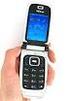 User s Guide for Nokia 6131 DECLARATION OF CONFORMITY We, NOKIA CORPORATION declare under our sole responsibility that the product RM-115 is in conformity with the provisions of the following Council Directive:
This product includes software licensed from Symbian Software Ltd 1998-2004. Symbian and Symbian OS are trademarks of Symbian Ltd.
 DECLARATION OF CONFORMITY We, NOKIA CORPORATION declare under our sole responsibility that the product RH-51 is in conformity with the provisions of the following Council Directive: 1999/5/EC. A copy of
USER GUIDE. Copyright 2004 Nokia. All rights reserved.
 USER GUIDE 1 The wireless device described in this guide is approved for the use in GSM 850 and GSM 1900 networks. LEGAL INFORMATION Part No. 9310037, Issue No. 1 Nokia, N-Gage, N-Gage QD, Nokia Connecting
Electronic user s guide released subject to "Nokia User s Guides Terms and Conditions, 7th June, 1998" User s Guide
 Electronic user s guide released subject to "Nokia User s Guides Terms and Conditions, 7th June, 1998" User s Guide NOKIA and the Arrows logo are registered trademark of Nokia Corporation, Finland. 1996
Nokia 6303 classic User Guide
 Nokia 6303 classic User Guide 9214002 Issue 3 2 Contents Contents Safety 4 Start up 5 Keys and parts 5 Install SIM card and battery 5 Insert and remove the memory card 6 Charge the battery 6 Antenna 7
Nokia 2610 User Guide
 Nokia 2610 User Guide 9200283 Issue 1 1 LEGAL INFORMATION PART NO. 9200283, Issue NO. 1 Copyright 2007 Nokia. All rights reserved. Reproduction, transfer, distribution or storage of part or all of the
Nokia 8800 Gol d Arte User s Guide
 Nokia 8800 Gol d Arte User s Guide DECLARATION OF CONFORMITY Hereby, NOKIA CORPORATION declares that this RM-233 product is in compliance with the essential requirements and other relevant provisions of
Nokia N90-1 User Guide
 Nokia N90-1 User Guide DECLARATION OF CONFORMITY We, NOKIA CORPORATION declare under our sole responsibility that the product RM-42 is in conformity with the provisions of the following Council Directive:
Nokia 603 User Guide. Issue 3.0
 Nokia 603 User Guide Issue 3.0 2 Contents Contents Safety 5 Get started 6 Keys and parts 6 Insert the SIM card 6 Insert a memory card 8 Charge your phone 10 Switch the phone on or off 11 Lock the keys
Nokia 6700 classic User Guide
 Nokia 6700 classic User Guide Issue 5.2 2 Contents Contents Safety 4 General information 5 About your device 5 Network services 5 Access codes 5 Configuration setting service 6 My Nokia 6 Download content
Get started. Issue 1
 Get started Issue 1 2008 Nokia. All rights reserved. Nokia, Nokia Connecting People, Nseries, N85, Navi, and Nokia Care are trademarks or registered trademarks of Nokia Corporation. Other product and company
Contents. Getting started 3 Make and receive the first call.
 Contents Getting started 3 Make and receive the first call. Getting to know your phone 6 Key functions, quick keys, entering letters and characters. Personalizing your phone 15 Choose ring signal, theme
Nokia N8-00 User Guide
 Nokia N8-00 User Guide Issue 3.2 2 Contents Contents Safety 5 Get started 6 Keys and parts 6 Change the volume of a call, song, or video 8 Lock or unlock the keys and screen 8 Insert or remove the SIM
Nokia 2610 User Guide. 9248173 Issue 1
 Nokia 2610 User Guide 9248173 Issue 1 DECLARATION OF CONFORMITY Hereby, NOKIA CORPORATION declares that this RH-86 product is in compliance with the essential requirements and other relevant provisions
Nokia 6350 User Guide
 Nokia 6350 User Guide Issue 2 0434 DECLARATION OF CONFORMITY Hereby, NOKIA CORPORATION declares that this RM-455 product is in compliance with the essential requirements and other relevant provisions of
User Manual. Vogue2.8-D6
 User Manual Vogue2.8-D6 S L E E C Index 1. iball Vogue2.8-D6...1 1.1 Phone Overview...1 1.2 Functions of Keys...2 2. Getting Started...3 2.1 Installing the SIM Cards and the Battery...3 2.2 Installing
Nokia 300 User Guide. Issue 1.2
 Nokia 300 User Guide Issue 1.2 2 Contents Contents Safety 4 Get started 5 Keys and parts 5 Insert the SIM card and battery 5 Insert a memory card 7 Charge the battery 8 Charge the battery over USB 9 Antenna
F2400 User Guide - ENGLISH
 F2400 User Guide F2400 User Guide Some of contents in this manual may differ from your phone depending on the software of the phone or your service provider. Part No. MMBB0163204 Issue 1.0 Printed in Korea
User Guide for the Wireless Headset (HS-11W) 9235346 Issue 1
 User Guide for the Wireless Headset (HS-11W) 9235346 Issue 1 DECLARATION OF CONFORMITY We, NOKIA CORPORATION declare under our sole responsibility that the product HS-11W is in conformity with the provisions
Nokia X3-02 User Guide
 Nokia X3-02 User Guide Issue 3.0 2 Contents Contents Safety 4 Get started 5 Keys and parts 5 Insert the SIM card and battery 6 Insert or remove a memory card 7 Charge the battery 8 Charge the battery over
X3 02 User Guide. Issue 2.
 X3 02 User Guide Issue 2. 0 2 Contents Contents Safety 4 Get started 5 Keys and parts 5 Insert the SIM card and battery 6 Insert or remove a memory card 7 Charge the battery 8 Charge the battery over USB
GLOBAL. The world s local mobile phone. Quick Start Guide
 GLOBAL The world s local mobile phone Quick Start Guide 1 SAR This mobile phone meets applicable national SAR limits of 2.0 W/Kg. The specific maximum SAR values can be found in the SAR information section
Nokia 700 User Guide. Issue 1.1
 Nokia 700 User Guide Issue 1.1 2 Contents Contents Safety 5 Get started 7 Keys and parts 7 Insert the SIM card 7 Insert a memory card 9 Charge the battery 11 Charge the battery over USB 12 Change the volume
Nokia C2 03 User Guide
 Nokia C2 03 User Guide Issue 1.0 2 Contents Contents Safety 4 Get started 5 Your dual SIM phone 5 Keys and parts 5 Insert a SIM card and battery 6 Insert a second SIM card 7 Insert a memory card 8 Charge
i560 TELUS Handset User s Guide
 i560 TELUS Handset User s Guide Contents Getting Started... 1 Battery... 3 Activating your Mike Account... 6 Powering On and Off... 6 Finding Your Phone Number and Private ID... 7 Handset Basics... 7
Doro PhoneEasy 607. English
 Doro PhoneEasy 607 English 1 13 2 3 4 5 12 11 14 15 16 17 18 19 20 6 10 7 9 8 1. Earpiece 2. Microphone 3. Arrow buttons 4. Left selection button 5. Call button 6. Speed dial 7. Voice mail 8. Silent /
Nokia Bluetooth Headset BH-604 User Guide
 Nokia Bluetooth Headset BH-604 User Guide Issue 1 EN DECLARATION OF CONFORMITY Hereby, NOKIA CORPORATION declares that this HS-96W product is in compliance with the essential requirements and other relevant
WiFi Phone WP589 User Guide
 WiFi Phone WP589 User Guide 001.001.024 2010/06/22 1 n CONTENTS For your safety...5 Getting Started...6 Phone Overview...6 To insert the battery...6 Charging the battery...7 Turn on and turn off the phone...7
SGH-S275. User Manual Please read this manual before operating your phone and keep it for future reference.
 SGH-S275 M O B I L E P H O N E User Manual Please read this manual before operating your phone and keep it for future reference. Intellectual Property All Intellectual Property, as defined below, owned
Nokia N8 00 User Guide
 Nokia N8 00 User Guide Issue 2.1 2 Contents Contents Safety 5 Get started 6 Keys and parts 6 Change the volume of a call, song, or video 8 Lock or unlock the keys and screen 8 Insert or remove the SIM
V173 GSM. motorola.com
 V173 GSM motorola.com Welcome Welcome to the world of Motorola digital wireless communications! We are pleased that you have chosen the Motorola V173 wireless phone.. Earpiece Listen to your voice calls
using your Orange user guide for the Ericsson er100 phone
 using your Orange phone user guide for the Ericsson er100 phone Antenna The antenna is supplied with the phone and will need to be attached before the phone is switched on. Indicator Light The indicator
SGH-S150G. User Manual Please read this manual before operating your phone and keep it for future reference. GH68_37909A Printed in China
 SGH-S150G M O B I L E P H O N E User Manual Please read this manual before operating your phone and keep it for future reference. GH68_37909A Printed in China Intellectual Property All Intellectual Property,
Welcome to the GreatCall Family.
 pms2603 pms1235 pms226 pms298 How-To Guide Welcome to the GreatCall Family. Thank you for choosing the Jitterbug. At GreatCall, we ve made it easy for you to stay Orange - pms 143 connected to friends
DIGITAL WIRELESS TELEPHONE. Reference Guide
 DIGITAL WIRELESS TELEPHONE Reference Guide Welcome Welcome to the world of Motorola digital wireless communications! Motorola is a global leader in communications technology. We are pleased that you have
Back, start, and search key... 3. Lock the keys and screen... 6. Unlock the keys and screen... 7. Set the keys and screen to lock automatically...
 Userguide Nokia Lumia 620 Table of Contents Keys and parts... 3 Back, start, and search key... 3 How to Insert a SIM card... 4 First start-up... 6 Switching Phone ON and OFF... 6 Switch the phone on...
BT Paragon 550. User Guide
 BT Paragon 550 User Guide Section Welcome to your BT Paragon 550 corded digital telephone and answering machine Directory lets you store up to 100 names and numbers for easy dialling. Send and receive
Nokia Bluetooth Headset BH-800 User Guide. 9246974 Issue 2
 Nokia Bluetooth Headset BH-800 User Guide 9246974 Issue 2 DECLARATION OF CONFORMITY We, NOKIA CORPORATION declare under our sole responsibility that the product HS-24W is in conformity with the provisions
User s Guide for Wireless Car Kit (CK-1W) 9355972 Issue 2
 User s Guide for Wireless Car Kit (CK-1W) 9355972 Issue 2 DECLARATION OF CONFORMITY We, NOKIA CORPORATION declare under our sole responsibility that the product CK-1W is in conformity with the provisions
Thank you for choosing our mobile phone! Please read this manual before use.
 Thank you for choosing our mobile phone! Please read this manual before use. We reserve the right to upgrade the software and product and/or to make changes to this user manual without prior notice. from
This product includes software licensed from Symbian Software Ltd 1998-2009. Symbian and Symbian OS are trademarks of Symbian Ltd.
 User Guide Issue 3 2009 Nokia. All rights reserved. DECLARATION OF CONFORMITY Hereby, NOKIA CORPORATION declares that this RM-424 product is in compliance with the essential requirements and other relevant
KYOCERA Kona. User Guide
 KYOCERA Kona User Guide Table of Contents Phone Basics... 1 Battery... 1 Install the Battery... 1 Charge the Battery... 2 Turn Your Phone On and Off... 2 Turn Your Phone On... 2 Turn Your Phone Off...
TABLE OF CONTENTS CHAPTER 2. BASIC OPERATION TURNING THE PHONE ON / OFF...16. DO s...14 DON Ts...14
 TABLE OF CONTENTS CHAPTER 1. BEFORE USING YOUR PHONE PACKAGE CONTENTS...6 HANDSET DESCRIPTION...7 BATTERY USAGE...11 POWER CONNECTION...13 BATTERY HANDLING INFORMATION...14 DO s...14 DON Ts...14 CHAPTER
* and # DESCRIPTION OF KEYS Use the phone keys as follows: ON Press and hold to switch the phone on or off. On the side of phone:
 DESCRIPTION OF KEYS Use the phone keys as follows: On the side of phone: and Select earpiece volume. ON Press and hold to switch the phone on or off. MENU Selects menu mode. STO Stores information in a
Doro PhoneEasy 606. English
 Doro PhoneEasy 606 English 1 2 14 15 3 4 5 6 7 12 11 10 9 13 16 17 18 19 8 1. Earpiece 2. Display 3. Arrow buttons 4. Left selection button 5. Call button 6. Speed dial 7. Voice mail 8. Silent / Input
i455 Boost Mobile Phone User s Guide
 i455 Boost Mobile Phone User s Guide i Contents Introduction... 1 Welcome to Boost Mobile... 1 Boost Your Way... 1 Getting Started... 2 Battery... 4 Activating Service... 9 Powering On and Off... 9 Enabling
Doro PhoneEasy 612. English
 Doro PhoneEasy 612 English 17 18 19 1. Earpiece 2. Camera shortcut 3. Left selection button 4. Call button 5. Speed dial 6. Voice mail 7. Silent/Input method 8. Microphone 9. SMS shortcut 10. Arrow buttons
Motorola C12A. Digital Cordless Telephone with Digital Answering Machine. For C1211A, C1212A, C1213A and C1214A
 Digital Cordless Telephone with Digital Answering Machine Motorola C12A For C1211A, C1212A, C1213A and C1214A Warning: Charge the handset for 24 hours before use. Welcome... to your new Motorola C12A Digital
Nokia Bluetooth Headset BH-104
 Nokia Bluetooth Headset BH-104 2 1 4 5 6 3 7 8 11 12 9 10 DECLARATION OF CONFORMITY Hereby, NOKIA CORPORATION declares that this BH-104 product is in compliance with the essential requirements and other
E51 User Guide. 2222222 Issue 1.0
 E51 User Guide 2222222 Issue 1.0 DECLARATION OF CONFORMITY Hereby, NOKIA CORPORATION declares that this RM-244 / RM-426 product is in compliance with the essential requirements and other relevant provisions
User guide. T250i. This is the Internet version of the User's guide. Print only for private use.
 User guide T250i Congratulations on your purchase of the Sony Ericsson T250i. For additional phone content, go to www.sonyericsson.com/fun. Register now to get free online storage and special offers at
Nokia Bluetooth Headset BH-607. Issue 2. 1
 Nokia Bluetooth Headset BH-607 2 3 1 4 5 6 7 8 9 11 10 Issue 2. 1 12 13 14 DECLARATION OF CONFORMITY Hereby, NOKIA CORPORATION declares that this BH-607 product is in compliance with the essential requirements
This is the Internet version of the user's guide. Print only for private use.
 Contents Instruction symbols.............. 4 Getting started.................. 4 Assemble the phone, SmartChip, battery, make a call. Getting to know your phone........ 9 Phone overview, use the menus,
2.4 GHz Dual Handset Cordless Telephone Answering System 2255 with Caller ID/Call Waiting
 USER S MANUAL Part 2 2.4 GHz Dual Handset Cordless Telephone Answering System 2255 with Caller ID/Call Waiting Please also read Part 1 Important Product Information AT&T and the globe symbol are registered
GSM Desktop phone DPH101. User manual v1.00
 GSM Desktop phone DPH101 User manual v1.00 LEGAL NOTICE Copyright 2011 TELTONIKA Ltd. All rights reserved. Reproduction, transfer, distribution or storage of part or all of the contents in this document
Professional answering machine with time control, SMS service and message transfer. Retell 540 office
 Manual (UK) Professional answering machine with time control, SMS service and message transfer Retell 540 office Safety instructions Safety instructions When installing, connecting and operating the Retell
Nokia for Business. Nokia and Nokia Connecting People are registered trademarks of Nokia Corporation
 Nokia for Business Nokia and Nokia Connecting People are registered trademarks of Nokia Corporation Nokia E50 Legal Notice Copyright Nokia 2006. All rights reserved. Reproduction, transfer, distribution
Nokia Bluetooth Headset BH-200 User Guide
 Nokia Bluetooth Headset BH-200 User Guide 1 9246085 Issue 2 DECLARATION OF CONFORMITY We, NOKIA CORPORATION declare under our sole responsibility that the product HS-58W is in conformity with the provisions
Phone User Guide. 6165i Phone by Nokia
 Phone User Guide 6165i Phone by Nokia. Table of Contents Introduction.......................................i Your Phone s Menu................................ ii Legal Information...............................
BT Freestyle 750. User Guide
 BT Freestyle 750 User Guide Welcome to your BT Freestyle 750 Digital Cordless Telephone Answering Machine Answering machine with up to 15 minutes digital recording time and helpful voice prompts. 50 Name
User Guide. BlackBerry Storm 9530 Smartphone. Version: 4.7
 BlackBerry Storm 9530 Smartphone Version: 4.7 SWD-490426-0909090640-001 Contents Shortcuts... 9 BlackBerry basics shortcuts... 9 Phone shortcuts... 9 Camera shortcuts... 9 Media shortcuts... 9 Typing shortcuts...
VoIP Wireless Handset 7921 & 7925
 VoIP Wireless Handset 7921 & 7925 User Guide UCLA INFORMATION TECHNOLOGY SERVICES Introduction This guide covers the features that are available with the VoIP wireless telephone system. IT Services supports
Doro PhoneEasy 612. English
 Doro PhoneEasy 612 English 17 18 19 1. Earpiece 2. Camera shortcut 3. Left selection button 4. Call button 5. Speed dial 6. Voice mail 7. Silent/Input method 8. Microphone 9. SMS shortcut 10. Arrow buttons
Nokia Call Connect v1.1 for Cisco User s Guide. Part Number: N450000431 Rev 003 Issue 1
 Nokia Call Connect v1.1 for Cisco User s Guide Part Number: N450000431 Rev 003 Issue 1 Reproduction, transfer, distribution or storage of part or all of the contents in this document in any form without
User Guide Nokia 106. Issue 1.3 EN
 User Guide Nokia 106 Issue 1.3 EN User Guide Nokia 106 Contents For your safety 3 Get started 4 Keys and parts 4 Get your phone ready 4 Charge the battery 5 Lock the keys 6 Basics 7 Explore your phone
Samba W - Table of Contents
 Samba W - Table of Contents 1.Getting Started... 3 1.1 Installing the SIM Card, SD Card and Battery... 3 2. Input Type... 4 3. Menu Guide... 6 1.2 Messaging... 6 1.3 Call History... 6 1.4 Calculator...
Nokia E52 User Guide. Issue 6.1
 Nokia E52 User Guide Issue 6.1 2 Contents Contents Safety 4 About your device 5 Network services 5 About Digital Rights Management 6 Find help 7 Support 7 Keep your device software and applications up
Nokia C2 02 User Guide
 Nokia C2 02 User Guide Issue 1.2 2 Contents Contents Safety 4 Get started 5 Keys and parts 5 Insert a SIM card and battery 5 Insert a memory card 7 Charge the battery 8 Attach a strap 8 Switch the phone
User Guide Nokia 215 Dual SIM
 User Guide Nokia 215 Dual SIM Issue 1.0 EN User Guide Nokia 215 Dual SIM Contents For your safety 3 Get started 4 Keys and parts 4 Insert SIM, battery, and memory card 4 Charge the battery 6 Lock or unlock
Nokia Bluetooth Headset BH-109
 Nokia Bluetooth Headset BH-109 Issue 1.0 2 Introduction About your headset With Nokia Bluetooth Headset BH-109, you can handle calls hands-free, even when you are using two mobile devices at the same time.
Table of Contents. Unpacking... 7 For Your Safety... 8 Your Phone... 13. Getting Started... 17
 LG225 User Guide Table of Contents Unpacking... 7 For Your Safety... 8 Your Phone... 13 Phone Components... 13 Your Phone s Features... 14 Display Information... 15 Making a Call From the Contacts... 21
Home Phone with Answering Machine Sonus 1500. Quick set-up and user guide
 Home Phone with Answering Machine Sonus 1500 Quick set-up and user guide 2 Important please read first Only use the line cord, power supply and rechargeable batteries supplied with your phone. Make sure
User Guide. Orion Pro X500. www.poshmobile.com
 User Guide Orion Pro X500 www.poshmobile.com 1 Introduction... 3 2 Safety & Notice... 4 3 Start to use... 5 3.1 Touch & type... 5 3.2 Assemble & charge... 5 3.2.1 Switch On and Off... 6 3.2.2 Unlock SIM
Nokia E90 Communicator E-mail support
 Nokia E90 Communicator Nokia E90 Communicator Legal Notice Nokia, Nokia Connecting People, Eseries and E90 Communicator are trademarks or registered trademarks of Nokia Corporation. Other product and company
User Guide Nokia 130. Issue 1.0 EN
 User Guide Nokia 130 Issue 1.0 EN User Guide Nokia 130 Contents For your safety 3 Get started 4 Keys and parts 4 Insert the SIM and memory card and battery 4 Charge the battery 6 Lock or unlock the keys
 Doro 6030 English 1 2 3 4 5 6 7 8 14 13 12 11 10 9 15 16 17 18 19 20 21 22 The items supplied with your phone might vary depending on the software and accessories available in your region or offered by
Samsung T199. User Manual Please read this manual before operating your phone and keep it for future reference. GH68_40686A Printed in Mexico
 Samsung T199 M O B I L E P H O N E User Manual Please read this manual before operating your phone and keep it for future reference. GH68_40686A Printed in Mexico Warning! This product contains chemicals
Nokia Bluetooth Headset BH-101. Issue 1
 Nokia Bluetooth Headset BH-101 1 2 3 4 5 6 7 8 9 11 12 10 Issue 1 DECLARATION OF CONFORMITY Hereby, NOKIA CORPORATION declares that this HS-94W product is in compliance with the essential requirements
Nokia Bluetooth Headset BH-211 9204665/2
 Nokia Bluetooth Headset BH-211 1 2 5 4 7 8 3 6 11 9 10 9204665/2 DECLARATION OF CONFORMITY Hereby, NOKIA CORPORATION declares that this HS-99W product is in compliance with the essential requirements and
TABLE OF CONTENTS. Legend:
 user guide Android Ed. 1.1 TABLE OF CONTENTS 1 INTRODUCTION... 4 1.1 Indicators on the top tool bar... 5 1.2 First control bar... 7 1.3 Second control bar... 7 1.4 Description of the icons in the main
BT Synergy 5500 User Guide
 BT Synergy 5500 User Guide Welcome to your BT Synergy 5500 Digital Cordless Telephone Answering Machine Display with blue backlight. 250 Name and number phonebook. Copy phonebook entries between other
Nokia Bluetooth Headset BH-606 9211748/2
 Nokia Bluetooth Headset BH-606 2 1 4 5 3 7 6 8 9 10 11 12 9211748/2 DECLARATION OF CONFORMITY Hereby, NOKIA CORPORATION declares that this HS-128W product is in compliance with the essential requirements