
Accessing The Doctors Clinic Physician Connect
|
|
|
- Paula Welch
- 10 years ago
- Views:
Transcription
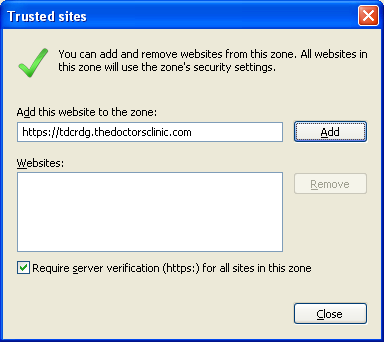
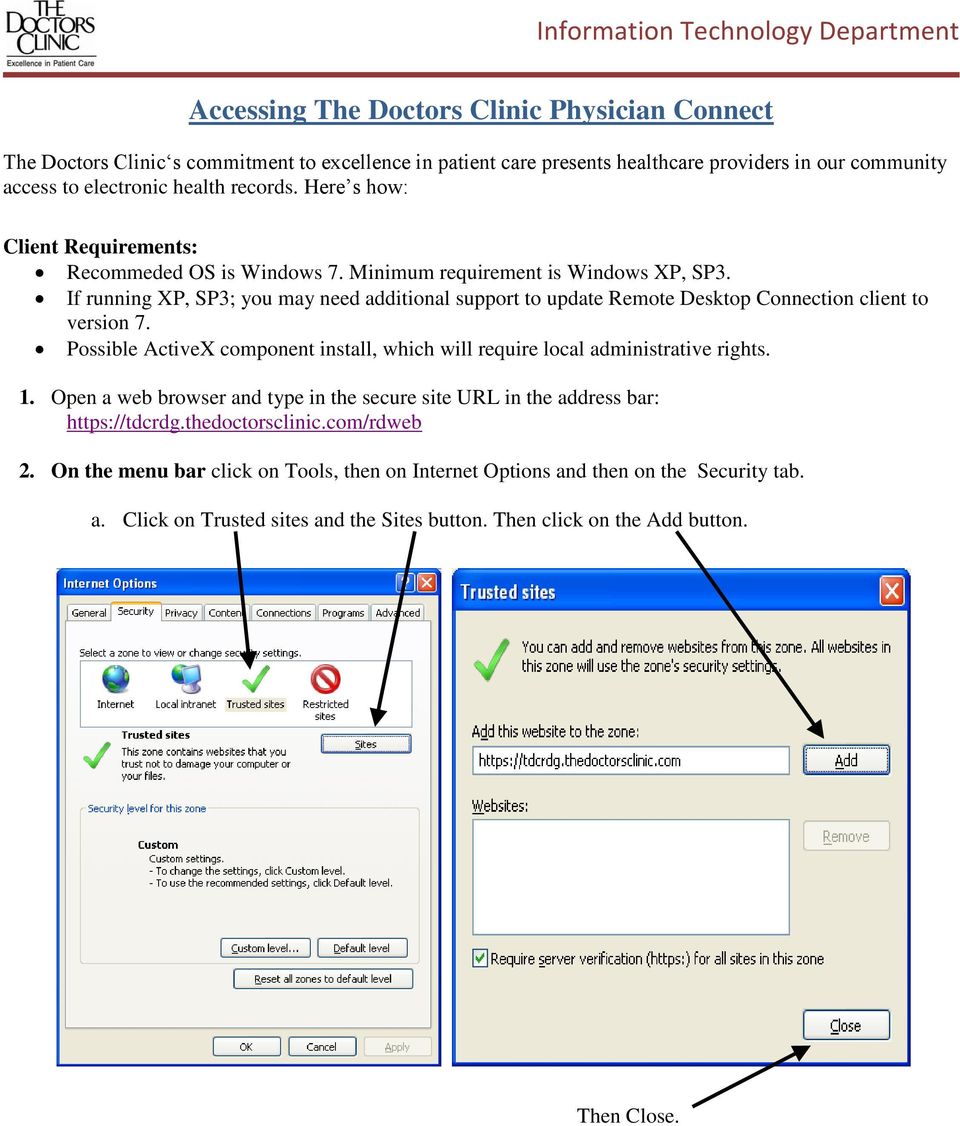
1 Accessing The Doctors Clinic Physician Connect The Doctors Clinic s commitment to excellence in patient care presents healthcare providers in our community access to electronic health records. Here s how: Client Requirements: Recommeded OS is Windows 7. Minimum requirement is Windows XP, SP3. If running XP, SP3; you may need additional support to update Remote Desktop Connection client to version 7. Possible ActiveX component install, which will require local administrative rights. 1. Open a web browser and type in the secure site URL in the address bar: 2. On the menu bar click on Tools, then on Internet Options and then on the Security tab. a. Click on Trusted sites and the Sites button. Then click on the Add button. Then Close.
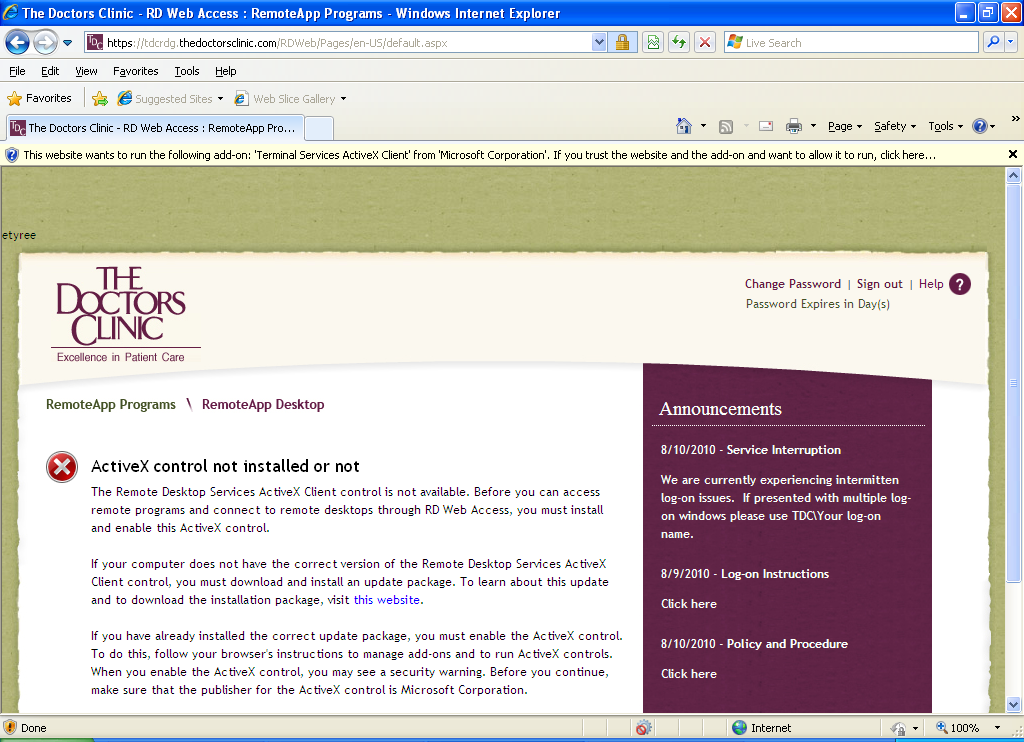
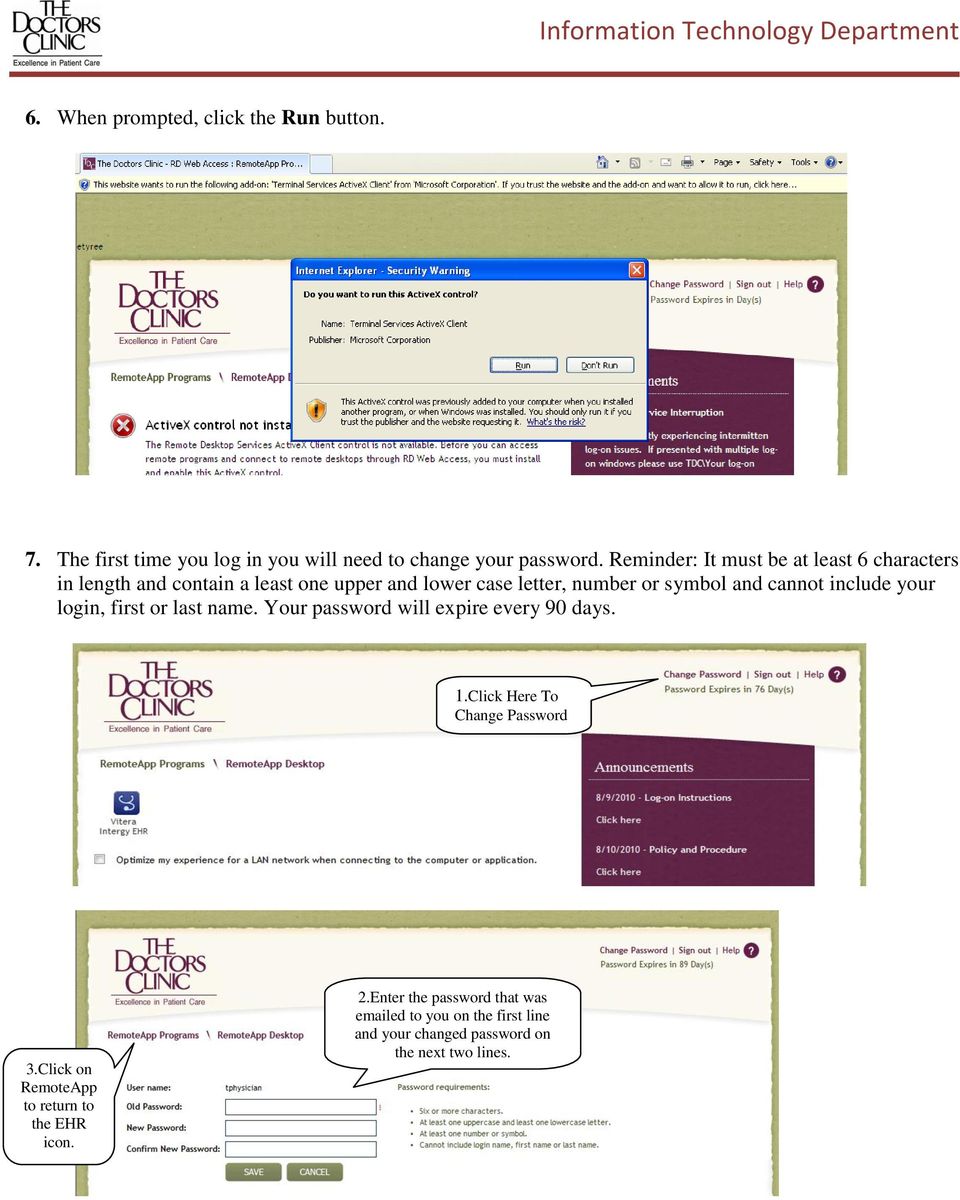
2 3. Click on the General tab. In the Browsing History section click on Delete. Check these boxes and click Delete. Then click OK. 4. Log in with the username and password that were ed to you. 5. Right-click the yellow bar on the top of the web page and select Run Add-On.


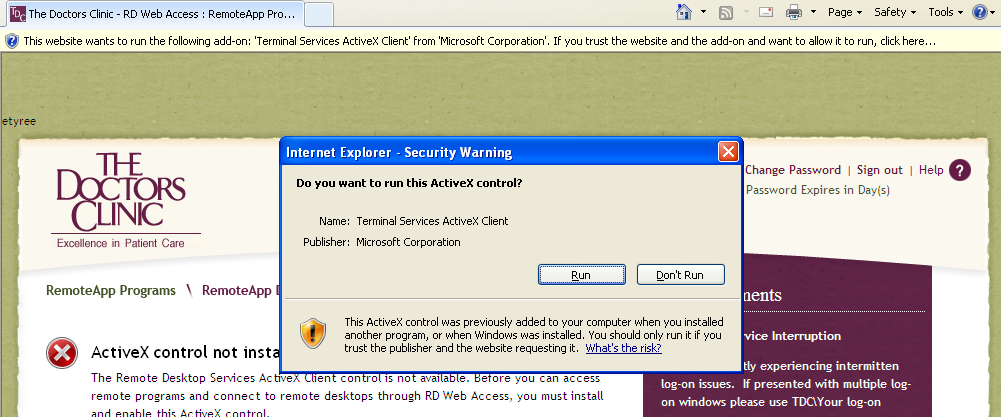
3 6. When prompted, click the Run button. 7. The first time you log in you will need to change your password. Reminder: It must be at least 6 characters in length and contain a least one upper and lower case letter, number or symbol and cannot include your login, first or last name. Your password will expire every 90 days. 1.Click Here To Change Password 3.Click on RemoteApp to return to the EHR icon. 2.Enter the password that was ed to you on the first line and your changed password on the next two lines.

4 8. You may also see the Windows box after you logon to Physician Connect. Please enter your user id in the format shown below. 9. If you are not on a wireless network click the small box underneath the icon for faster performance. Click once on the icon Vitera Intergy EHR. I

5 10. When the RemoteApp window opens, click Connect. 11. You may receive another Windows box after you click on Sage Intergy EHR. Please enter your user id in the format shown below.

6 12. You will receive the user agreement with a couple of check boxes to acknowledge. Click OK. 13. Shortly you ll receive the application login screen. Here you need to enter the login credentials that were provided to you for the application. This is the log in screen. Do not check From Internet Zone. With your new account access you will be able to quickly locate and view our patients medical information. You ve been provided logon credentials with your account activation notification.

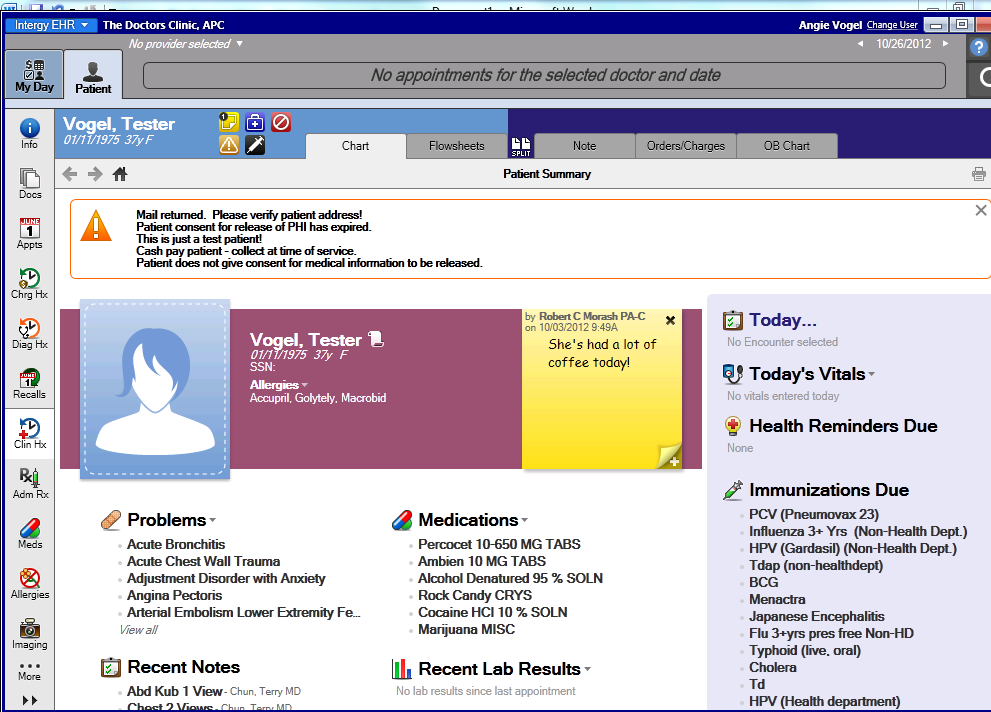
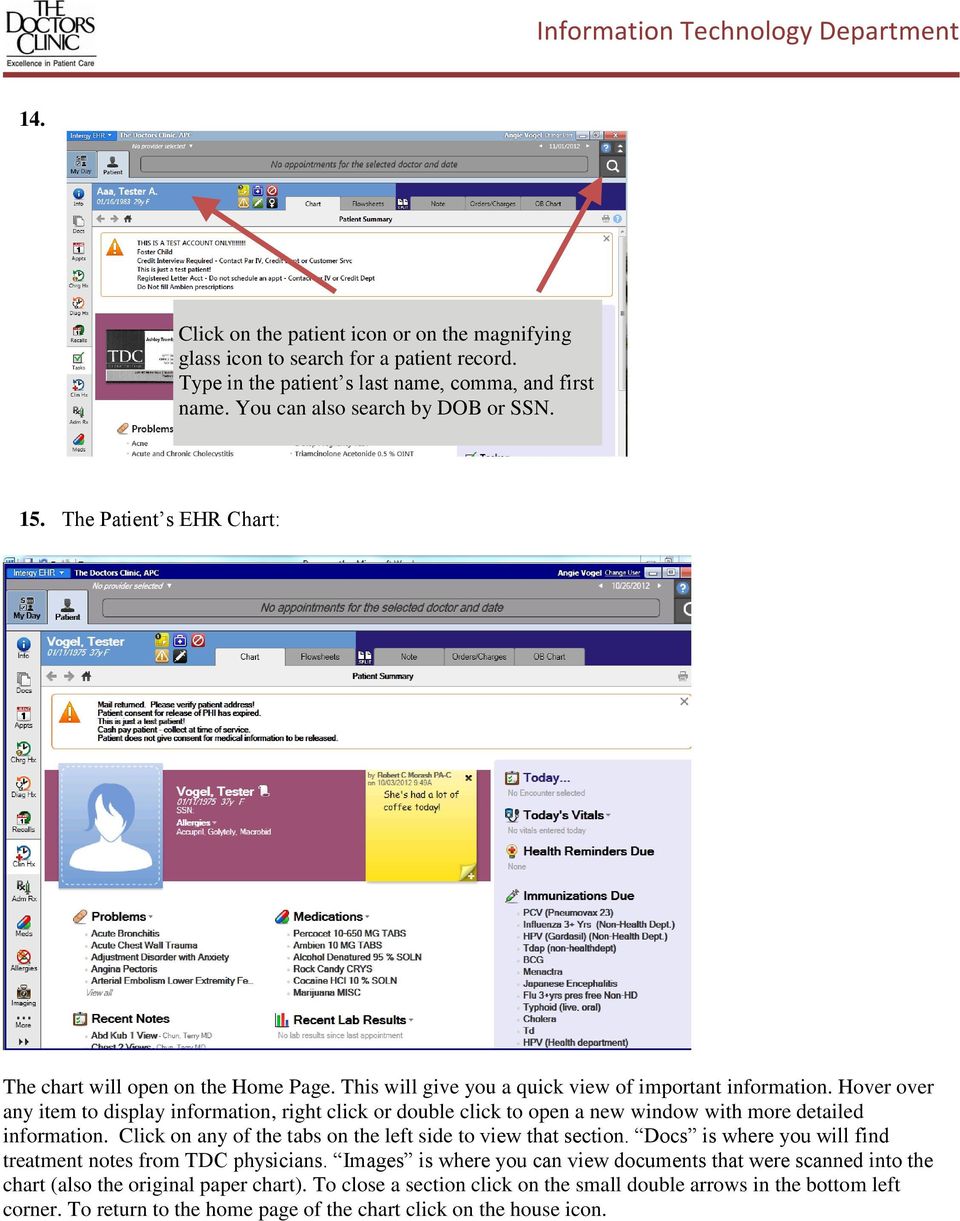
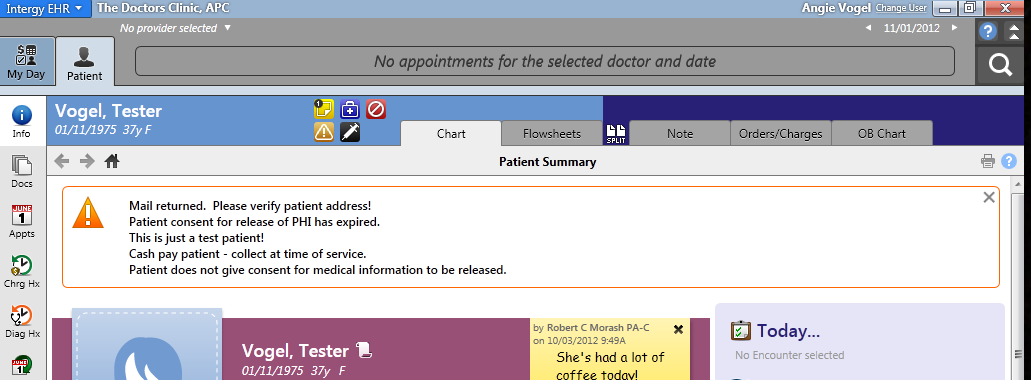
7 14. Click on the patient icon or on the magnifying glass icon to search for a patient record. Type in the patient s last name, comma, and first name. You can also search by DOB or SSN. 15. The Patient s EHR Chart: The chart will open on the Home Page. This will give you a quick view of important information. Hover over any item to display information, right click or double click to open a new window with more detailed information. Click on any of the tabs on the left side to view that section. Docs is where you will find treatment notes from TDC physicians. Images is where you can view documents that were scanned into the chart (also the original paper chart). To close a section click on the small double arrows in the bottom left corner. To return to the home page of the chart click on the house icon.
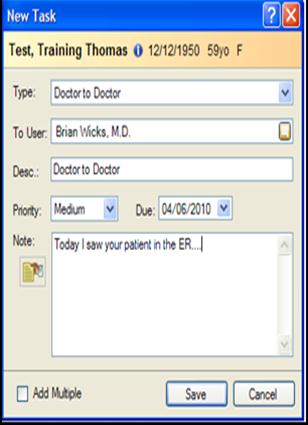
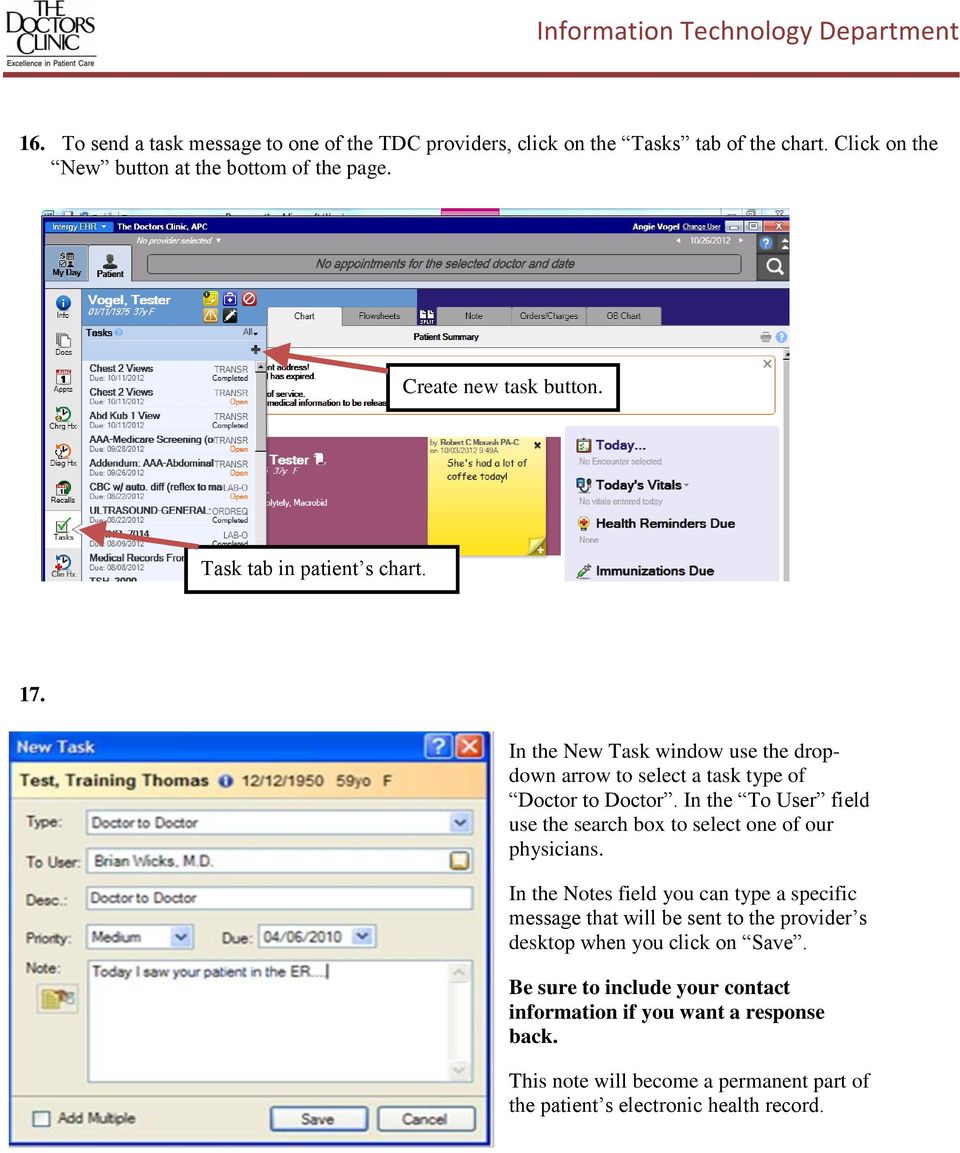
8 16. To send a task message to one of the TDC providers, click on the Tasks tab of the chart. Click on the New button at the bottom of the page. Create new task button. Task tab in patient s chart. 17. In the New Task window use the dropdown arrow to select a task type of Doctor to Doctor. In the To User field use the search box to select one of our physicians. In the Notes field you can type a specific message that will be sent to the provider s desktop when you click on Save. Be sure to include your contact information if you want a response back. This note will become a permanent part of the patient s electronic health record.

9 18. As you open additional charts, the previous chart will be automatically closed. To exit the program, click on the red X in the top right corner. At the completion of your Physician Connect session, please remember to Sign Out. If you have any problems accessing your account please contact us during regular business hours: Monday Friday, 8:00 am to 5:00 pm EHR Help Desk: or [email protected]

Contents Minimum Requirements... 2 Instructions... 2 Troubleshooting... 7
 Emdeon Remote Desktop Services Contents Minimum Requirements... 2 Instructions... 2 Troubleshooting... 7 Minimum Requirements 1. A high-speed Internet connection. DSL or Cable Internet are recommended.
Instructions to Sign On and Off of Self Service Applications. Internet Explorer 9 (IE9) Users: Turn Off Compatibility View:
 Instructions to Sign On and Off of Self Service Applications NOTE: Internet Explorer 7 and 8 are the only supported Browsers for the PeopleSoft Student Self Service applications. If you experience technical
Windows and MAC User Handbook Remote and Secure Connection Version 1.01 09/19/2013. User Handbook
 Windows and MAC User Handbook How to Connect Your PC or MAC Remotely and Securely to Your U.S. Department of Commerce Account Developed for You by the Office of IT Services (OITS)/IT Service Desk *** For
Remote Desktop Web Access. Using Remote Desktop Web Access
 Remote Desktop Web Access What is RD Web Access? RD Web Access is a Computer Science service that allows you to access department software and machines from your Windows or OS X computer, both on and off
Instructions for Importing (migrating) Data
 Instructions for Importing (migrating) Data from CTAS Version 7 to CTAS Version 8 For Windows 8 and 8.1 CTAS Version 8 is designed to work with your Version 7 data if you choose to. These instructions
How to Use Remote Access Using Internet Explorer
 Introduction Welcome to the Mount s Remote Access service. The following documentation is intended to assist first time or active users with connecting, authenticating and properly logging out of Remote
How to Reset Your Password for the ONRR Data Warehouse Portal
 How to Reset Your Password for the ONRR Data Warehouse Portal Audience This document is for all those who access the ONRR Data Warehouse Portal by starting at the following website: https://dwportal.mms.gov/.
Department of Public Health S A N F R A N C I S C O
 This guide provides the step-by-step instructions for: Requesting mobile device access to your DPH Office 365 email account Setting up an Android device to sync with Office 365 Setting up an Apple device
Using the BWSD Help Desk Website
 Accessing the Help Desk Website Using the BWSD Help Desk Website Open your web browser and go to http://helpdesk.bwschools.net:8080/ The Help Desk login screen will be displayed. 1. You should not have
Remote Access Enhancements
 Remote Access Enhancements Citrix/Epic Set-up Instructions Provided By: Akron Children s IT Department Date: 7/11/2012 Version: v6 2012 Children s Hospital Medical Center of Akron Table of Contents 1.
Citrix Client Install Instructions
 Citrix Client Install Instructions If you are using Citrix remotely, Information Technology Services recommends updating Citrix client to the newest version available online. You must be an administrator
Administrator Instructions for Link2CDMS Contractor Document Management System
 Table of Contents Administrator Instructions for Link2CDMS Contractor Document Management System Getting Started... 2 Viewing Your Approvals Dashboard... 2 Specifying Contractor Approval Status... 7 Adding
Using SSH Secure Shell Client for FTP
 Using SSH Secure Shell Client for FTP The SSH Secure Shell for Workstations Windows client application features this secure file transfer protocol that s easy to use. Access the SSH Secure FTP by double-clicking
Please apply to the DIOS Helpdesk (see Information and communication at the end of this document) for further assistance.
 Student manual FSW Secure Access Portal Faculty of Social and Behavioural Sciences FSW Secure Access Portal The FSW Secure Access Portal (short: Portal) provides safe access from outside to the Faculty
Remote Access Services Microsoft Windows - Installation Guide
 Remote Access Services Microsoft Windows - Installation Guide Version 3.1 February 23, 2015 1 P age Contents GETTING STARTED... 3 JAVA VERIFICATION, INSTALLATION, AND CONFIGURATION... 3 Windows XP... 3
Baylor Secure Messaging. For Non-Baylor Users
 Baylor Secure Messaging For Non-Baylor Users TABLE OF CONTENTS SECTION ONE: GETTING STARTED...4 Receiving a Secure Message for the First Time...4 Password Configuration...5 Logging into Baylor Secure Messaging...7
GRS Advantage Website User Reference Guide
 GRS Advantage Website User Reference Guide This document describes how to use the GRS Advantage Website. Table of Contents GRS Advantage Website... 2 Accessing the Website... 2 Requesting Access to the
(You will use the login ID and password below to login through the first two websites.)
 (You will use the login ID and password below to login through the first two websites.) https://providers.cvch.com Citrix Logon: Password: Press the SKIP TO LOG ON selection after
Express222 Quick Reference
 Logging in to Express E222 1. In Internet Explorer, visit vwdco.com 2. Click CSOS in the upper right corner Your username is your DEA Number 3. Once logged in, click on Create, Send and Manage e222 Forms
Remote Desktop Services
 Remote Desktop Services AMERICAN INSTITUTES FOR RESEARCH AIR REMOTE DESKTOP SERVICES (RDS) GUIDE Overview Welcome to AIR Remote Desktop Services! AIR Remote Desktop Services can be accessed from a Windows
Macs are not directly compatible with Noetix.
 Those that use Macintosh computers to access Noetix cannot directly access Noetix through http://www.sandiego.edu/noetix. If one is on a Mac and goes to Noetix directly in a web browser, the page is likely
account multiple solutions
 Quick Start Guide 1 Our easy to use guide will get you up and running in no time! The guide will assist you with: Generating your Sage Pay login Navigation Creating contacts Creating system users Setting
Remote Terminal Service (RTS) User Guide (Version 2.1)
 Remote Terminal Service (RTS) User Guide (Version 2.1) Page 1 Table of Content Content Page 1 Introduction 3 2 Prerequisite 3 3 Logon Corporate Network via Internet 4 4 Download and Install RTS Client
Instructions for installing Citrix Receiver
 Instructions for installing Citrix Receiver Remote Access End User Reference Guide for Access to SJLinked Version 1.0 4/21/2014 Contents Introduction... 2 Installing Citrix Receiver for Windows... 3 Before
KU Information Technology provides wireless access for both the KU campus community and for guest users at many points across campus.
 Wireless at KU KU Information Technology provides wireless access for both the KU campus community and for guest users at many points across campus. The Campus IT map provides building locations where
Remote Access End User Reference Guide for Access to SJLinked Version 1.0 3/11/2014
 Remote Access End User Reference Guide for Access to SJLinked Version 1.0 3/11/2014 Contents Introduction... 2 Installing Citrix Receiver for Windows... 3 Before You Begin... 3 System Requirements... 3
Customer Ad Proofing Portal
 Customer Ad Proofing Portal User Guide The Day Publishing Company - Customer Ad Proofing Portal 2 Introduction The customer ad proofing portal allows advertising customers to view electronic proofs and
Remote Access End User Reference Guide for SHC Portal Access
 Remote Access End User Reference Guide for SHC Portal Access Version 2.0 6/7/2012 This remote access end user reference guide provides an overview of how to install Citrix receiver, which is a required
How to Remotely Access the C&CDHB Network from a Personal Device
 How to Remotely Access the C&CDHB Network from a Personal Device 13/09/2012 Contents Installing the Citrix Receiver for Windows PCs... 2 Installing the Citrix Receiver for Mac OS X... 6 Installing the
Citrix Remote Access Portal U s e r M a n u a l
 Citrix Remote Access Portal U s e r M a n u a l 1 P a g e Table of Contents Table of Contents... 2 Introduction... 3 1. What is Citrix and how does it work?... 4 2. PC Setup/Internet Explorer - Connecting
VPN Remote Access Installation and Configuration Guide Operating System: Windows (XP, Vista, 7 and 8)
 INFORMATION SYSTEMS SERVICE NETWORKS AND COMMUNICATIONS SECTOR VPN Remote Access Installation and Configuration Guide Operating System: Windows (XP, Vista, 7 and 8) ΥΠΣ ΕΔ/50 November 2012 A. INSTALLATION
NextGen Setup Guide First-time Workstation Setup & Logging In
 This guide will help you get setup on NextGen for the first time you log onto a City or SBC computer. It will also help if you are a first-time user and need to create your password. I. Setting up Desktop
Beginners Guide to CQG FX
 Beginners Guide to CQG FX Table of Contents Logging into CQG FX................................................................. pg. 2 Logging in for the first time (if previously traded on demo)..........................pg.4
Fairfield University Using Xythos for File Sharing
 Fairfield University Using Xythos for File Sharing Version 7.0 Table of Contents I: Manage your Department Folder...2 Your Department Folder... 2 II: Sharing Folders and Files Inside of Fairfield U...3
Setting up Remote Desktop
 Setting up Remote Desktop Terminology: Host PC the computer you want to access remotely; the destination Client PC the computer you are actually using to access another PC; the source IP Address the numerical
Akin Gump Strauss Hauer & Feld LLP Remote Access Resources (DUO)
 Akin Gump Strauss Hauer & Feld LLP Remote Access Resources (DUO) Firm Laptop Windows Home PC Mac Computer Apple ipad Android Devices Exit akingump.com 2015 Akin Gump Strauss Hauer & Feld LLP Check Point
How to use SURA in three simple steps:
 How to use SURA in three simple steps: Most of SURA s functionality can be accessed through these three steps. 1) Download SURA to your computer Go to the SU Downloads page to obtain the SURA utility.
Install and End User Reference Guide for Direct Access to Citrix Applications
 Install and End User Reference Guide for Direct Access to Citrix Applications Version 1.0 7/26/2013 This remote access end user reference guide provides an overview of how to install Citrix receiver (a
How to Connect to YaleSecure (Yale s secure wireless network)
 How to Connect to YaleSecure (Yale s secure wireless network) Below are instructions for Mac OS X, Windows XP, Windows Vista, and Windows 7. How to Connect to Yale s Encrypted Wireless Network (only possible
Remote Desktop Connection (Windows XP) -A tutorial for UH College of Education faculty and staff - Setting up Remote Access on my Work Computer
 Remote Desktop Connection With Remote Desktop, you can connect to your work computer from home and access all of your programs, files, and network resources as though you were actually sitting in front
Online eopf Self-service Feature for Login ID and Password Retrieval for New Users
 For Employees Online eopf Self-service Feature for Login ID and Password Retrieval for New Users eopf provides web-based access for Federal personnel to view and print employment documents. Employees are
Affiliated Provider Billing/Coding
 Affiliated Provider Billing/Coding ED BILLING USING FIRSTNET Table of Contents Affiliated Provider ED Billing...2 icentra FirstNet...2 Accessing FirstNet...2 To access FirstNet:...2 Checking In as a Provider...2
Wireless Network Configuration Guide
 CIT Table of Contents Introduction... 1 General Wireless Settings... 1 1. Windows XP Wireless Configuration... 2 2. Windows XP Intel Pro Wireless Tool... 7 3. Windows Vista Using the Windows Wireless Tools...
Course Inventory Management System: Beginners Guide
 Course Inventory Management System: Beginners Guide The below information serves as an overview displaying how to access and perform general functions within the Course Inventory Management (CIM) System.
Introduction... 2. Download and Install Mobile Application... 2. About Logging In... 4. Springboard... 4. Navigation... 6. List Pages...
 Contents Introduction... 2 Download and Install Mobile Application... 2 About Logging In... 4 Springboard... 4 Navigation... 6 List Pages... 6 Example: Edit Contact... 7 View Pages... 12 Example: Companies...
How To Connect To A Wireless Network On Windows 7 (Windows 7) On A Pc Or Mac Or Ipad (Windows) On Pc Or Ipa (Windows 8) On Your Computer Or Mac (Windows). (Windows.7) On An
 Wireless Configuration for Windows 7 Frostburg State University offers wireless service to all employees and students which can be accessed almost anywhere on campus. Network and Sharing Windows 7 includes
Quick Start Guide to Logging in to Online Banking
 Quick Start Guide to Logging in to Online Banking Log In to Internet Banking: Note: The first time you log in you are required to use your Customer ID. Your Customer ID is the primary account holder s
Database Program Instructions
 Database Program Instructions 1) Start your Comparative Rating software by double-clicking the icon on your desktop. 2) Click on the button on the Comparative Rating Software Main Menu. 3) A message Loading
CORE K-Nect Web Portal
 CORE K-Nect Web Portal Training October 2015 KIOSK Information Systems www.kiosk.com October 2015 Table of Contents Table of Contents 1 Getting Started 2 Logging In 2 Your Account Settings 3 My Profile
Network Connect Installation and Usage Guide
 Network Connect Installation and Usage Guide I. Installing the Network Connect Client..2 II. Launching Network Connect from the Desktop.. 9 III. Launching Network Connect Pre-Windows Login 11 IV. Installing
UMMS SSL VPN Instructions
 UMMS SSL VPN Instructions The document contains the following sections: 1. Introduction 2. Prerequisites 3. Supported software platforms 4. Browser configuration 5. Logon to the UMMS SSL VPN 6. Launching
WorkSite Web Instructions for Lane Powell PC Employees. How to access your documents in WorkSite Web
 WorkSite Web Instructions for Lane Powell PC Employees Interwoven s WorkSite Web gives users of the WorkSite Document Management System access to their work via Internet Explorer. (At this time, only Microsoft
Outlook Operating Instructions. Internal Desktop Access
 Outlook Operating Instructions Internal Desktop Access OUTLOOK OPERATING INSTRUCTIONS (INTERNAL DESKTOP ACCESS) FREQUENTLY ASKED QUESTIONS & ANSWERS Q: How do I check my email while on campus? A: Click
Setting Up Monthly Reporter
 Setting Up Monthly Reporter April 11, 2014 I. HOW IT WORKS A QUICK OVERVIEW A. AuditWare Development Company maintains a powerful, sophisticated server on which a portion of memory is assigned to each
How to Use Your New Online Client Vault
 How to Use Your New Online Client Vault Table of Contents I. Getting Into Your Vault 3 How to Sign In 3 First Time Setup 4 II. Finding Your Way Around the Vault 5 Managing Your Vault s Contents 6 Creating
CLIENT PORTAL USER GUIDE
 CLIENT PORTAL USER GUIDE JULY 28, 2011 At Gelman, Rosenberg & Freedman, CPAs we take the privacy and security of your information seriously. That's why we've introduced the Client Portal for sharing your
NCAA Single-Source Sign-On System User Guide
 NCAA Single-Source Sign-On System Table of Contents General Description... 1 Glossary of Terms... 1 Common Features Log In... 2 Password... 3 Log Out... 4 Tabs... 4 Buttons and Links... 4 Management and
Virtual Office Remote Installation Guide
 Virtual Office Remote Installation Guide Table of Contents VIRTUAL OFFICE REMOTE INSTALLATION GUIDE... 3 UNIVERSAL PRINTER CONFIGURATION INSTRUCTIONS... 12 CHANGING DEFAULT PRINTERS ON LOCAL SYSTEM...
Hallpass Instructions for Connecting to Mac with a Mac
 Hallpass Instructions for Connecting to Mac with a Mac The following instructions explain how to enable screen sharing with your Macintosh computer using another Macintosh computer. Note: You must leave
Table of Contents. Changing Your Password in Windows NT p. 1. Changing Your Password in Alpha Connection.. pp. 1-3
 Table of Contents Changing Your Password in Windows NT p. 1 Changing Your Password in Alpha Connection.. pp. 1-3 Not Able to Get Outlook Express Mail Because Alpha Connection Password Expires... pp. 3-4
Three Rivers Community College Wireless Network
 Three Rivers Community College Wireless Network TRCC s Information Technology Division offers free wireless network connectivity for students. The network grants students high-speed access to the Internet
Using the Educator Dashboard
 Reference Guide Using the Educator Dashboard What s Inside How to Create Accounts Get to Know the Educator Dashboard How to Manage Licenses and Create Educators How to Give Accommodations to Students First
Client Portal Training
 Client Portal Training Signing In 1. Go to http://www.csus.edu/irt/projects and click on Team Dynamix Client or from your browser, go to https://csus.teamdynamix.com 2. Click on SIGN-IN located in the
8x8 Click2Pop User Guide
 USER GUIDE 8x8 User Guide Getting Started with April 2014 Contents Introduction... 3 What s new.... 3 8x8.... 3 Here is how works...4 8x8 Click2Connect.... 4 Requirements.... 4 Installation on Microsoft
Net 2. NetApp Electronic Library. User Guide for Net 2 Client Version 6.0a
 Net 2 NetApp Electronic Library User Guide for Net 2 Client Version 6.0a Table of Contents 1 INTRODUCTION AND KEY FEATURES... 3 SOME OF THE KEY FEATURES INCLUDE:... 3 INSTALLATION PREREQUISITES:... 3 2
Remote Access Instructions
 document rev. 8 updated 6/28/2012 Remote Access Instructions Table of Contents... Page 1 Finding the AFS Remote Access links and the AFS home page... 2 First time login with RSA fob (AFS option 1 SSL VPN
Instructions for using VPN and accessing your files remotely
 Instructions for using VPN and accessing your files remotely Be sure that you have the latest version of JAVA installed on your computer. Go to https://sslvpn.uco.edu and sign in using your domain username
How to remotely access your Virtual Desktop from outside the college using VMware View Client. How to guide
 How to remotely access your Virtual Desktop from outside the college using VMware View Client How to guide Author: ICT Services Version: 1.0 Date: November 2015 Contents What is the VMware View Client?...
How To Set Up Hopkins Wireless On Windows 7 On A Pc Or Mac Or Ipad (For A Laptop) On A Network Card (For Windows 7) On Your Computer Or Ipa (For Mac Or Mac) On An Ipa Or
 Wireless Configuration Guide: Windows 7 Additional hopkins wireless network instructions and requirements for Windows XP, Vista, 8, Mac OS X, Linux, and other Mobile versions can be found at: http://www.it.johnshopkins.edu/services/network/wireless/
Forefront Online Protection for Exchange (FOPE) User documentation
 Forefront Online Protection for Exchange (FOPE) User documentation About Your FOPE Quarantine Mailbox Applies To: Forefront Online Protection for Exchange This document will help you get started with the
Citrix for Mac Installation
 While some MCPS applications run on Macintosh computers, other applications do not function properly. One method to get these applications (such as Outlook and Special Education s O/SS) is to add a mini-program
EDGETECH FTP SITE CUSTOMER & VENDOR ACCESS
 EDGETECH FTP SITE CUSTOMER & VENDOR ACCESS 1. The EdgeTech FTP site is a web hosted site, not a true FTP site, remember to use http:// not ftp:// in the web address. IMPORTANT: Do Not use FileZilla or
Fundamentals of Great Plains & Reporting Tools
 Fundamentals of Great Plains & Reporting Tools Accessing GP... 1 Accessing the terminal server... 1 Creating a shortcut to the Remote Desktop Connection command... 2 Configuration options for your terminal
Remote Access: Internet Explorer
 Introduction: Welcome to the MSVU Remote Access service. The following documentation is intended to assist first time or active users with connecting, authenticating and properly logging out of Remote
Edith Cowan University Information Technology Services Centre
 Information There are three wireless networks on campus which give you access to the ECU website, the staff intranet, the internet and other ECU resources: ECU This is the easiest to use and safest wireless
To successfully initialize Microsoft Outlook (Outlook) the first time, email settings need to be verified.
 TO: UAN CLIENTS FROM: UAN STAFF DATE: OCTOBER 8, 2008 SUBJECT: Steps for Initial Setup of Microsoft Outlook To successfully initialize Microsoft Outlook (Outlook) the first time, email settings need to
Remote Access Using The New York Eye & Ear Infirmary of Mount Sinai Secure Web VPN
 Remote Access Using The New York Eye & Ear Infirmary of Mount Sinai Secure Web VPN OVERVIEW The New York Eye & Ear Infirmary of Mount Sinai Remote Access (VPN) home page allows remote access to the Infirmary
Quick Reference Guide SoftPhone for Windows 7
 Introduction Quick Reference Guide SoftPhone for Windows 7 SoftPhone is software that allows you to use your NASA phone number from your NASA-issued computer to place or/and receive calls. You can also
Using Access.Centegra.Com (Physician Access) Secure Remote Access from the Internet
 System Requirements These are the minimum requirements necessary to ensure the proper operation of Centegra Health System s Access.Centegra.Com. Administrative level access to the PC or other device used
Vestal Central School District New Service Desk System: Service-Now Go live July 2, 2011
 435 Glenwood Road, Binghamton, NY 13905-1609 Service Desk Phone: (607) 766-3800 Vestal Central School District New Service Desk System: Service-Now Go live July 2, 2011 In order to help facilitate increased
Remote Access Portal (RAP) Installation and User Guide
 Remote Access Portal (RAP) Installation and User Guide W:\data02\Helpdesk\Procedures\RAP\RAP Installation Guide 2015.doc Page 1 of 12 1. Introduction 3 2. Support 3 3. Technical Requirements 4 4. First
CONNECT-TO-CHOP USER GUIDE
 CONNECT-TO-CHOP USER GUIDE VERSION V8 Table of Contents 1 Overview... 3 2 Requirements... 3 2.1 Security... 3 2.2 Computer... 3 2.3 Application... 3 2.3.1 Web Browser... 3 2.3.2 Prerequisites... 3 3 Logon...
Health Science Center AirWatch Installation and Enrollment Instructions For Apple ios 8 Devices
 Health Science Center AirWatch Installation and Enrollment Instructions For Apple ios 8 Devices Following are the steps necessary to register and enroll an Apple ios 8 device with the University s AirWatch
How to connect to NAU s WPA2 Enterprise implementation in a Residence Hall:
 How to connect to NAU s WPA2 Enterprise implementation in a Residence Hall: General Settings To connect to the ResNet-Secure SSID, a device is needed that supports 802.1X authentication and WPA2 Enterprise.
University of Colorado Denver Anschutz Medical Campus Virtual EMS User s Guide
 University of Colorado Denver Anschutz Medical Campus Virtual EMS User s Guide Updated August 28, 2015 1 Table of Contents Getting Started... 3 Requesting an Account in Virtual EMS... 3 Logging in to Virtual
Remote Access Using the USDA LincPass
 If you require an accessible version of this course please follow these directions. Press Shift+Control+Y to activate the Adobe Read Out Loud function. Once you have activated the Read Out Loud function
owncloud Configuration and Usage Guide
 owncloud Configuration and Usage Guide This guide will assist you with configuring and using YSUʼs Cloud Data storage solution (owncloud). The setup instructions will include how to navigate the web interface,
Joining an XP workstation to a domain Version 1.00
 Joining an XP workstation to a domain Version 1.00 All Windows XP Professional workstations need to be joined to a domain to function as part of the domain security environment. Need to Know TM 1. To join
Office365 at Triton College
 Office365 at Triton College Logging in to Office365 The new log in page for Triton email is http://outlook.com/triton.edu At that page, enter your username in this format: [email protected]
Managing Contacts in Outlook
 Managing Contacts in Outlook This document provides instructions for creating contacts and distribution lists in Microsoft Outlook 2007. In addition, instructions for using contacts in a Microsoft Word
INSTALLING YOUR MODEM
 1 INSTALLING YOUR NEW wireless MODEM Thank you for choosing Orcon In this box you ll find your new Orcon Wireless modem. Just follow the instructions below and you will soon be up and running with high
Remote Desktop Windows 7 & Windows XP
 Remote Desktop Windows 7 & Windows XP First you will need to know the Computer Name of the computer in your office at Dickinson College that you are trying to remote to. You will also need to contact the
UF Health SharePoint 2010 Introduction to Content Administration
 UF Health SharePoint 2010 Introduction to Content Administration Email: [email protected] Web Page: http://training.health.ufl.edu Last Updated 2/7/2014 Introduction to SharePoint 2010 2.0 Hours
How To Register For A Course Online
 How to Register and Pay for BEST Center Classes Online Welcome to our new online registration system for The BEST Center at Genesee Community College! All of our scheduled noncredit classes are listed
Manufacturing Representative SSL VDM Login User s Guide
 June 12 2008 Ver. 1.5 KEMET Corporation Manufacturing Representative SSL VDM Login User s Guide This document is a guide to assist a Manufacturing Representative (MFG REP) to connect and login to the SSL
Connecting to the Social Sciences File Server with Windows 7 and XP
 The Social Sciences Division has several files servers allocated to departments and research units. Below is a list of all the file server addresses. Please make note of the address of your file server
New Online Banking Guide for FIRST time Login
 New Online Banking Guide for FIRST time Login Step 1: Login Enter your existing Online Banking User ID and Password. Click Log-In. Step 2: Accepting terms and Conditions to Proceed Click on See the terms
TM Online Storage: StorageSync
 TM Online Storage: StorageSync 1 Part A: Backup Your Profile 1: How to download and install StorageSync? Where to download StorageSync? You may download StorageSync from your e-storage account. Please
Connecting to UNOSECURE using Windows 7
 Connecting to UNOSECURE using Windows 7 1. Click the Wireless status icon on the task bar. 2. Select the unosecure connection and click connect. 3. Enter your UNO username and password. Click OK. UCC Help