
If you have questions or comments about this User Guide, contact Inter-Tel Technical Publications at:
|
|
|
- Kathlyn Fisher
- 10 years ago
- Views:
Transcription
1 $;;(66 6WDQGDUGDQG%DVLF 'LJLWDO.H\VHWV DQG $;;(6625<7DON9RLFH0DLO Part No Issue 5.1, March 2000 ##

2 If you have questions or comments about this User Guide, contact Inter-Tel Technical Publications at:

3 CONTENTS PAGE Welcome About This Guide Quick-Start Instructions About Your Phone The Standard Digital Keyset The Basic Digital Keyset Feature Key Functions About Your Phone System What You See And Hear What The Administrators Can Do For You About AXXESSORY Talk Voice Mail Initializing Your Mailbox Telephone System Features Intercom Calls Placing Intercom Calls Receiving Intercom Calls Outside Calls Placing Outside Calls Answering Outside Calls Using Account Codes Call Screening Call Waiting Displaying Date, Time, Name, and Extension Number Displaying The Outside Party s Name Performing A Hookflash During A Call Placing Calls On Hold Using The Speaker And Microphone Muting The Microphone Group Listen Using The Speaker Placing Conference Calls Using The Message Key Leaving Messages Receiving Messages Transferring Calls Transferring To Another Extension Transferring To Voice Mail Transferring To An Outside Number To Pick Up (Reverse Transfer) A Call From Another Extension: Forwarding Calls Manual Call Forwarding Automatic System Forwarding Station Speed Dialing Storing Speed-Dial Numbers On Your Phone Dialing Station Speed-Dial Numbers Inter-Tel Integrated Systems, Inc. 9/99 printed in USA i
4 CONTENTS ii PAGE System Speed Dialing Redialing A Number Using The Directories Using Do-Not-Disturb Mode Using Record-A-Call Paging Making Pages To Turn Paging On Or Off Reminder Messages Remote Feature Access Remote Access Password Remote Feature Access Programming Your Feature Keys Setting User Preferences Change Volume Levels Select Ring Tone Background Music Returning To Default Operation Standard And Alternate Keymaps Automatic Call Answer Multilingual Capability Secondary Extension Appearances Agent Help Instructions For Hunt Groups To Turn On Or Off Hunt Group Calls ACD Hunt Groups Voice Mail Features Entering Your Mailbox Listening To Messages Undeleting Voice Mail Messages Sending Messages Canceling Unheard Messages Personal Options Recording Your Personal Greetings Recording Your Voice Mail Directory Name Mailbox Password Voice Mail Message Envelope Contents Remote Messaging Fax Destination Call Screening Transfer Method Using The Voice Mail Directory Default Feature Codes

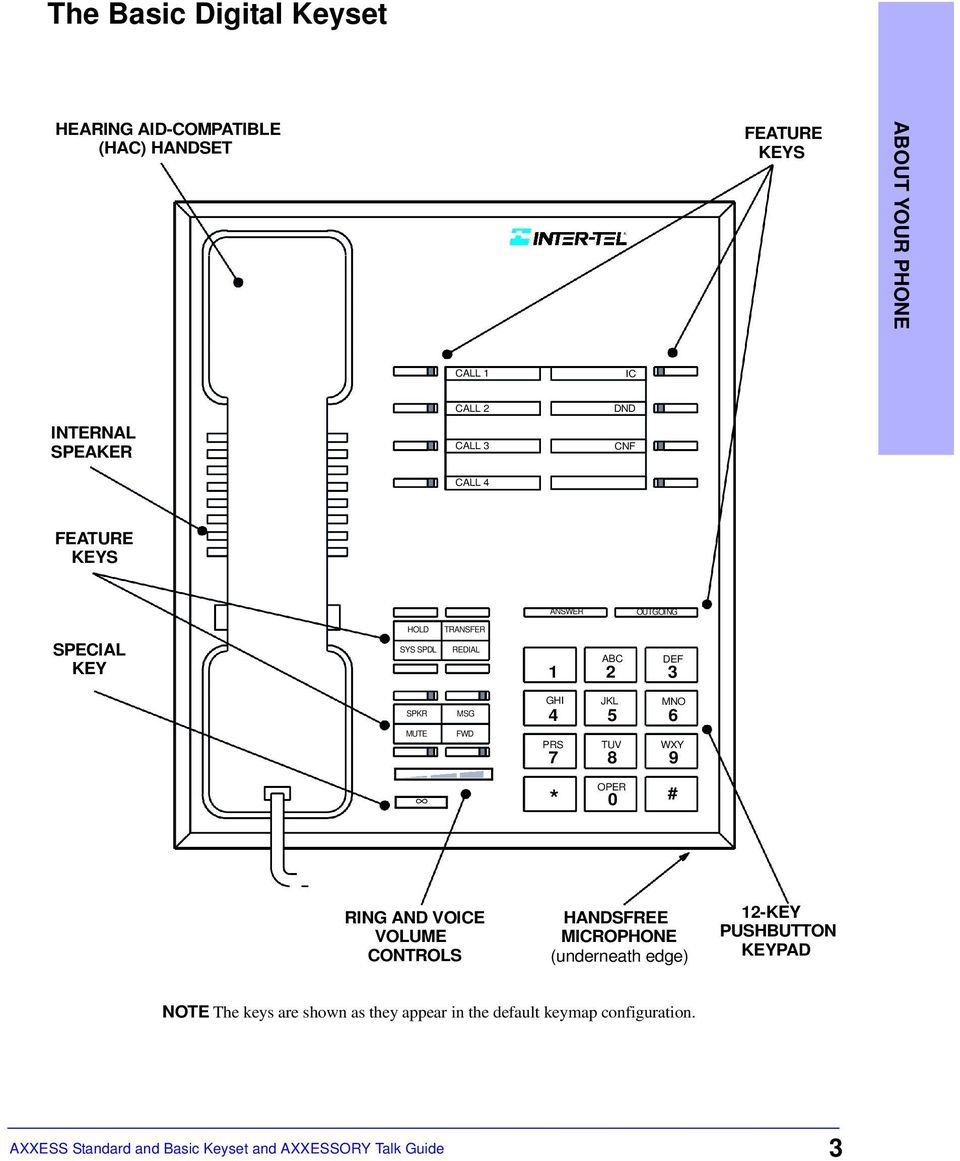
5 :HOFRPH ABOUT THIS GUIDE This user guide contains instructions for using the Inter-Tel AXXESS Standard and Basic Digital Keysets and the AXXESSORY Talk Voice Mail system. The tabs on the edge of each page will help you find the features more quickly. Keyset and Telephone System feature pages have tabs at the top of the page like the one shown at right. Voice Mail feature pages have tabs in the middle of the page. Default Feature Code pages have the tab at the bottom of the page. ABOUT THIS GUIDE Note The AXXESS telephone system is a very flexible, programmable system. Depending on the version of software your system uses and your system s custom programming, the procedures for using the features might vary slightly from the descriptions in this guide. If so, your trainer or system administrator can tell you how your system differs and how to use the features. If your telephone system uses a different voice mail system, you will be provided with a separate user guide for that system. QUICK-START INSTRUCTIONS For quick access to basic instructions, refer to the Quick Reference Guide attached to the center of this user guide. It also includes a tear-out pocket guide that has instructions for the features you are likely to use while away from the office (Remote Feature Access and Voice Mail). ABOUT YOUR PHONE The buttons on your phone are called keys, which is why the phone is called a Standard or Basic Keyset. The keys are used for dialing and for access to the features of the AXXESS telephone system and AXXESSORY Talk voice mail system. The Standard and Basic Keysets are shown on the next two pages. Basic keysets are available in non-display models only. Standard keysets are available in both display and non-display models. The Standard display keysets have two-line displays with 16 characters per line. When the keyset is not in use, the display shows the extension number, user name, time of day, and date. Other displays include: reminder messages, do-not-disturb messages, numbers dialed, call sources, elapsed time of calls, current call costs, error messages, etc 1
6 The Standard Digital Keyset ABOUT YOUR PHONE HEARING AID-COMPATIBLE (HAC) HANDSET OPTIONAL LCD WITH TWO 16-CHARACTER LINES FEATURE KEYS CALL 1 CALL 2 INTERNAL SPEAKER CALL 3 CALL 4 FEATURE KEYS IC DID CNF ANSWER OUTGOING SPECIAL KEY HOLD TRANSFER SYS SPDL REDIAL ABC DEF SPKR MUTE MSG FWD GHI PRS TUV WXY * JKL OPER MNO 0 # 12-KEY PUSHBUTTON KEYPAD RING AND VOICE VOLUME CONTROLS HANDSFREE MICROPHONE (underneath edge) NOTE The keys are shown as they appear in the default keymap configuration. 2

7 The Basic Digital Keyset HEARING AID-COMPATIBLE (HAC) HANDSET FEATURE KEYS ABOUT YOUR PHONE CALL 1 IC INTERNAL SPEAKER CALL 2 CALL 3 CALL 4 DND CNF FEATURE KEYS ANSWER OUTGOING SPECIAL KEY HOLD TRANSFER SYS SPDL REDIAL ABC DEF SPKR MUTE MSG FWD GHI JKL MNO PRS TUV WXY * OPER 0 # RING AND VOICE VOLUME CONTROLS HANDSFREE MICROPHONE (underneath edge) 12-KEY PUSHBUTTON KEYPAD NOTE The keys are shown as they appear in the default keymap configuration. 3
8 ABOUT YOUR PHONE Feature Key Functions The AXXESS telephone system is designed to allow customized feature key layouts. Your trainer or system administrator can tell you how your specific phone is arranged. Also, if your phone has been reprogrammed so that its feature keys do not match the feature keys described in this user guide, refer to the Inter-Tel AXXESS Administrator s Guide for procedures on using feature codes. Default feature codes are listed at the back of this user guide. KEY FUNCTION ACTION REFERENCE PG NUMBERS ANSWER Answer call Press ANSWER page 9, 11 OUTGOING Place call Press OUTGOING and dial number page 10 Answer a call or select an Press unlit key to select an outside page 9, 11 CALL or LINE outside line line or flashing key to answer a call IC Access intercom call Press IC to access the call page 8 DND CNF HOLD TRANSFER SYS SPD REDIAL SPKR MSG MUTE FWD Use Do-Not-Disturb Press unlit DND to turn on Do-Not- page 24 mode Disturb or press lit key to turn it off Place a conference call Press CNF and dial numbers you page 15 would like to add to the conference Put call on hold Press HOLD page 13 Transfer a call Press TRANSFER and dial destination page 18 number View or dial system Press SYS SPD to view the number or page 21 speed dial numbers select a line then press the key to dial Redial a telephone number Press REDIAL page 22 Put a call on the speaker Press SPKR and hang up Leave or listen to a message Press MSG page 16 Mute the microphone Press MUTE page 14 Forward call Press FWD and dial destination page 19 number Adjust volume during call Press the high or low end of the key page 31 to increase or decrease the volume Special key If the Special key is required for feature code entry in your telephone system, you must always press before dialing a feature code. Otherwise, you only need it to enter a feature code while on a call 4

9 ABOUT YOUR PHONE SYSTEM What You See And Hear There are a few things you should know about the Inter-Tel AXXESS telephone system before you use your phone: Your telephone system may have one dial tone for both intercom calls and outside calls. Or, it may be programmed to have two dial tones: (1) When you lift the handset or press the SPKR key, you hear intercom dial tone. (2) When you select an outgoing line, you hear standard outside dial tone. Many features time out if you wait too long before performing the next step. If this happens, you must start over. Four fast tones or repeating fast tones signal that you made a mistake, tried to select a restricted line, dialed a restricted or invalid number, dialed too slowly between digits, or waited too long before performing the next step. If you hear this signal, hang up and try again. Each phone in your telephone system has an extension number that allows you to place intercom calls to it. Some phones belong to hunt groups that have special extension numbers which route your call through the phones in the group. Your trainer or system administrator can provide you with a list of extension numbers for your telephone system. Some keyset models have red/green lamps in the feature keys. If you have one of these keysets, and your telephone system is programmed to use them, the lamps will be green if the associated call is ringing, holding, or active on your phone and will be red if the call is on another phone. (An exception to this would be if the programmer has determined that calls that ring in directly to your phone will always have red lamps.) In this guide, keys equipped with lamps are represented as unlit, lit, or flashing. For example, an unlit conference (CNF) key is represented as CNF, a lit CNF key is CNF, and a flashing CNF key is CNF. A phone is considered to be off hook when either the handset is lifted or the speakerphone is on (the SPKR key is lit). You can hang up or be on hook by placing the handset in the cradle or turning the speakerphone off. When a call is on the speakerphone, the call is in handsfree mode. ABOUT YOUR PHONE SYSTEM 5
10 ABOUT YOUR PHONE SYSTEM What The Administrators Can Do For You There are two types of Administrators: AXXESS System Administrator and AXXES- SORY Talk Voice Mail Administrator. Often these duties are assigned to the same person or a small group of people. System Administrator: There are certain telephone system functions that can be performed for you only by the System Administrator. These include: Set the date and time Program system speed-dial numbers Make database changes, such as programming user names, toll restriction, do-not-disturb messages, and extension numbers Voice Mail Administrator: The AXXESSORY Talk Voice Mail Administrator has a special type of voice mailbox that allows him or her to perform the following tasks: Record a broadcast message that is sent to all mailboxes at once Perform mailbox maintenance (such as changing your password) Customize voice mail prompts If you are a system administrator or need more information than this guide covers, refer to the Inter-Tel AXXESS Administrator s Guide (part number ). 6
11 ABOUT AXXESSORY TALK VOICE MAIL The AXXESSORY Talk Voice Mail system allows callers to send and receive recorded messages from any station or touch-tone telephone. The telephone system users are assigned voice mailboxes that usually have numbers that match the users extension numbers. However, sometimes an unassociated mailbox can be programmed to signal a non-matching extension number when it receives a message. When they first reach the voice mail system, callers hear the Voice Mail company greeting and recorded instructions that tell them how to access the voice mailboxes. Once in a mailbox, they hear the mailbox owner s personal greeting. To make it easier to send messages to a large group of people, the Voice Mail System Administrator can program group lists of mailboxes. These lists can be used by any voice mail user by entering the group list s number instead of a mailbox number. Initializing Your Mailbox The first time you use your voice mailbox, you must initialize it. The Voice Mail system will instruct you to: Change the default password number to a personal password Record a name to identify yourself in the company directory Listen to the Voice Mail introduction To initialize your mailbox: Dial the Voice Mail extension number. (You hear the main menu.) Press * to identify yourself as a subscriber. Enter your mailbox number and default password. (Your default password is your mailbox number.) If you want a password, enter a new password using digits 0-9 (up to 12 digits). Then press #. Voice Mail plays back your password. If you do not want to use a password, just press #. Press # to accept the entry. (Or, press 3 if you wish to re-enter your password.) The system prompts you to record your directory name. After the tone, record your first and last name. When finished, press #. Press # again to accept the name. (Or, press 1 to replay the name you just recorded, press 2 to add to your name, or press 3 to erase and re-record it.) The system then plays a prompt that introduces you to the basic Voice Mail features. (You can skip this introduction by pressing #, if desired.) For complete instructions on using AXXESSORY Talk Voice Mail, see page 38. ABOUT AXXESSORY TALK VOICE MAIL 7

12 7HOHSKRQH6\VWHP)HDWXUHV INTERCOM CALLS INTERCOM CALLS Placing Intercom Calls The Basics To place an intercom call: With or without the handset lifted, dial an extension number. If your call goes through handsfree to a keyset s speaker, speak after you hear a double tone. If you hear continuous ringing, wait for the call to be answered. Options If you want to place a non-handsfree call that will ring at the other keyset until answered: Press # before dialing the extension number. Your phone can be programmed to always send non-handsfree calls using the Ring Intercom Always feature. To enable or cancel the Ring Intercom Always feature: With the handset in the cradle, dial If there is no answer or the phone is busy when you place an intercom call, you can leave a message: Press MSG. Then hang up OR wait for their message center to answer. (See page 16 for more Message options.) If the phone is busy when you place an intercom call, you can do any of the following: You can stay on the line and wait for the phone to become available: Do not hang up. After a system timer expires, you hear music until the phone is available. (You cannot do this if the called phone is in do-not-disturb mode.) To request a callback (queue on to the phone): Press 6 and hang up. When the phone is available, your phone rings. (To cancel the queue request before the callback, press 6.) You can use the Off-Hook Voice Announce feature (if the called keyset is programmed for it): This allows you to talk to the keyset user on his or her handsfree speakerphone, even though the user already has a call in progress on the handset. Do not hang up. After the busy signals stop, you are automatically connected and may speak. (If you hear music, or if the phone is in do-not-disturb mode, your off-hook voice announce call will not go through.) 8
13 Receiving Intercom Calls The Basics To receive an intercom call that comes in through your speakerphone: Respond handsfree OR lift the handset for privacy. To receive a ringing (non-handsfree) intercom call: Lift the handset for privacy OR press SPKR or ANSWER to respond handsfree. Options To disable your phone s handsfree answering feature and make all incoming calls ring until you answer them: With the handset in the cradle, dial (Repeat this step if you want to turn handsfree answering on again.) If your phone is programmed for it, you may receive an Off-Hook Voice Announce call (a call through your speaker) while you are on a call using the handset: When you hear a single tone and see an incoming call display while you are on a call, you can do the following: Accept the call on the speakerphone without ending your current call: When you hear a double tone, you may talk handsfree with the caller through the speakerphone. (The caller on the handset will be able to hear both you and the party on the speakerphone.) Block the call from coming through the speaker: Do the following steps. To cause the incoming intercom call to camp on, press SPKR. The IC key flashes. Then, if you wish to place your phone in do-not-disturb mode, press DND. (See page 24 for more information about do-not-disturb mode.) INTERCOM CALLS 9

14 OUTSIDE CALLS OUTSIDE CALLS Placing Outside Calls The Basics To place an outside call: With or without the handset lifted, press OUTGOING. Dial the desired number. (If you see a request for an account code and hear a single progress tone, you must dial an account code before you can place your call.) When finished with the call, hang up. Note To make an emergency call, simply dial to automatically place a call to the preset emergency number. (You do not have to press the OUTGOING key first.) Options Depending on how your system is programmed, you may be able to use one of the following methods to select an outgoing line, instead of pressing the OUTGOING key: Dial the Outgoing Call feature code (default is 8). Press an unlit CALL key, if you have one. Press an unlit LINE key, if you have one. Dial a Select Line Group feature code (defaults are and ). Dial the Automatic Route Selection (ARS) feature code (default is 9200). If the line is busy when you try to call out, you can request a callback when it is available: To request a callback (queue on to the line): When you hear busy signals, press 6 and hang up. When the line is available, your phone rings. (To cancel the queue request before the callback, press 6.) When dialing the number, you can do one of the following: Use the speed-dial directory. See page 23. Use the station speed-dial feature. See page 20. Use the system speed-dial feature. See page 21. Redial the last number you dialed. See page

15 Answering Outside Calls The Basics Lift the handset OR press ANSWER. Options Depending on how your system is programmed, you may be able to use one of the following methods instead of pressing the ANSWER key: Press the flashing CALL key, if you have one. Press the flashing LINE key, if you have one. To pick up (reverse transfer) a call that is ringing or holding at another phone: Lift the handset and dial 4. Dial the extension number where the call is ringing or holding. Using Account Codes If your telephone system is programmed to use the Station Message Detail Recording (SMDR) feature, the system will periodically print out a record of telephone calls placed from the phones within the system. Account codes can be used to add information to these reports. There are three types of account codes: Standard account codes that are entered into the SMDR report automatically whenever you place a call. Forced account codes that you must dial before being allowed to place an outside call, as described on the preceding page. Optional account codes that can be entered at any time during a call. Your customer service representative or system administrator can tell you which types of account codes are used on your telephone system. To enter an optional account code: While on an outside call, press, dial 3 9 0, and then dial the optional account code. If the account code is not immediately accepted, press #. To set an account code for all calls placed from your phone: Dial and then the account code. If the account code is not immediately accepted, press #. This code will be used for all calls made from your phone until it is disabled. To disable the code: Dial again and then press #. OUTSIDE CALLS 11
16 OUTSIDE CALLS Call Screening This feature is available only if your telephone system is equipped with an AXXES- SORY Talk voice processing unit. The call screening Transfer Method options can be programmed through your voice mailbox (see page 43). Depending on the Transfer Method programmed for your phone, transferred calls from AXXESSORY Talk may be unannounced (as usual), or one of the following may occur: Announce Only Calls: Before Voice Mail transfers a call to you, a prompt asks the caller to record his or her name. When you answer, you hear You have a call from (caller's name). Screened Calls: Before Voice Mail transfers a call to you, a prompt asks the caller to record his or her name. When you answer the call from Voice Mail, you hear, You have a call from (caller's name), You have the following options: To accept the call, press #. Call Waiting To replay the announcement, press 1. To send the call to voice mail, press 2. To forward the call to another extension, press 3 and then enter the extension number. To refuse the call, press *. If you receive a call while you are already on another call, you will hear a call waiting tone and/or you will see a display. To respond to a waiting call (you hear a single tone and a key is flashing): If you wish to end the current call, hang up. The waiting call rings in. Answer as usual. If you wish to place the current call on hold, press HOLD. Then answer the waiting call by pressing the flashing key. If you wish to have the caller hear do-not-disturb signals, press DND. (See page 24 for more information about do-not-disturb mode.) Displaying Date, Time, Name, and Extension Number This feature temporarily displays the system date and time, user name, and extension number during a call or when other displays are shown. To show the date and time display (while on a call, in do-not-disturb, etc.): Press and dial

17 Displaying The Outside Party s Name When you enter the following feature code, while connected to an outside call with Caller ID, the display will switch between the caller s name and number. If there is no outside party name available, the display shows CANNOT ACCESS FEATURE. To show the outside party s name: Press and dial Performing A Hookflash During A Call A timed hookflash (a quick hang up and release) may be required for certain telephone company services. This feature code sends a hookflash over the outside line. To generate a hookflash while using a line: While on a call, press and dial PLACING CALLS ON HOLD PLACING CALLS ON HOLD There are two ways to place a call on hold. The first procedure places a call on individual hold, the second places it on system hold. Individual Hold places the call on hold at one phone. It can then be directly picked up at that phone or it can be picked up at another phone using the reverse transfer (call pick-up) feature. An outside call on System Hold can be picked up directly at any keyset that shows a flashing key for the call, including the keyset that placed it on hold. (Intercom calls cannot be placed on system hold.) To place a call on Individual Hold: Press HOLD. Hang up OR place another call. To return to the call, lift the handset and press the flashing key. To place an outside call on System Hold: Press and dial Hang up OR place another call. To return to a call on system hold at any keyset with a flashing key, lift the handset and press the flashing key. To pick up (reverse transfer) a call that is holding at another phone: Lift the handset and dial 4. Dial the extension number where the call is holding. 13
18 USING THE SPEAKER AND MICROPHONE USING THE SPEAKER AND MICROPHONE Muting The Microphone To mute the microphone so that you can hear the other party but they cannot hear you (this does not put them on hold): Press MUTE. To return to the call, press MUTE. Group Listen Using The Speaker The Group Listen feature allows you to transmit a conversation over the speaker while using a handset or headset. This allows other people in the room to listen to the conversation. However, the microphone remains disabled so that only you can speak through the handset or headset. This feature cannot be used on a handsfree call. You must be on a call using the handset or a headset before entering the feature code. To turn the group listen feature on or off during a call: While on a call using the handset or a headset, press and dial Note If you are using the handset, the SPKR key lamp will remain unlit, even though the speaker is on. This allows you to place the call into handsfree mode at any time during the call by pressing the SPKR key. If you are using a headset, the Speaker key lamp is lit. Pressing the SPKR key will disconnect the call. 14

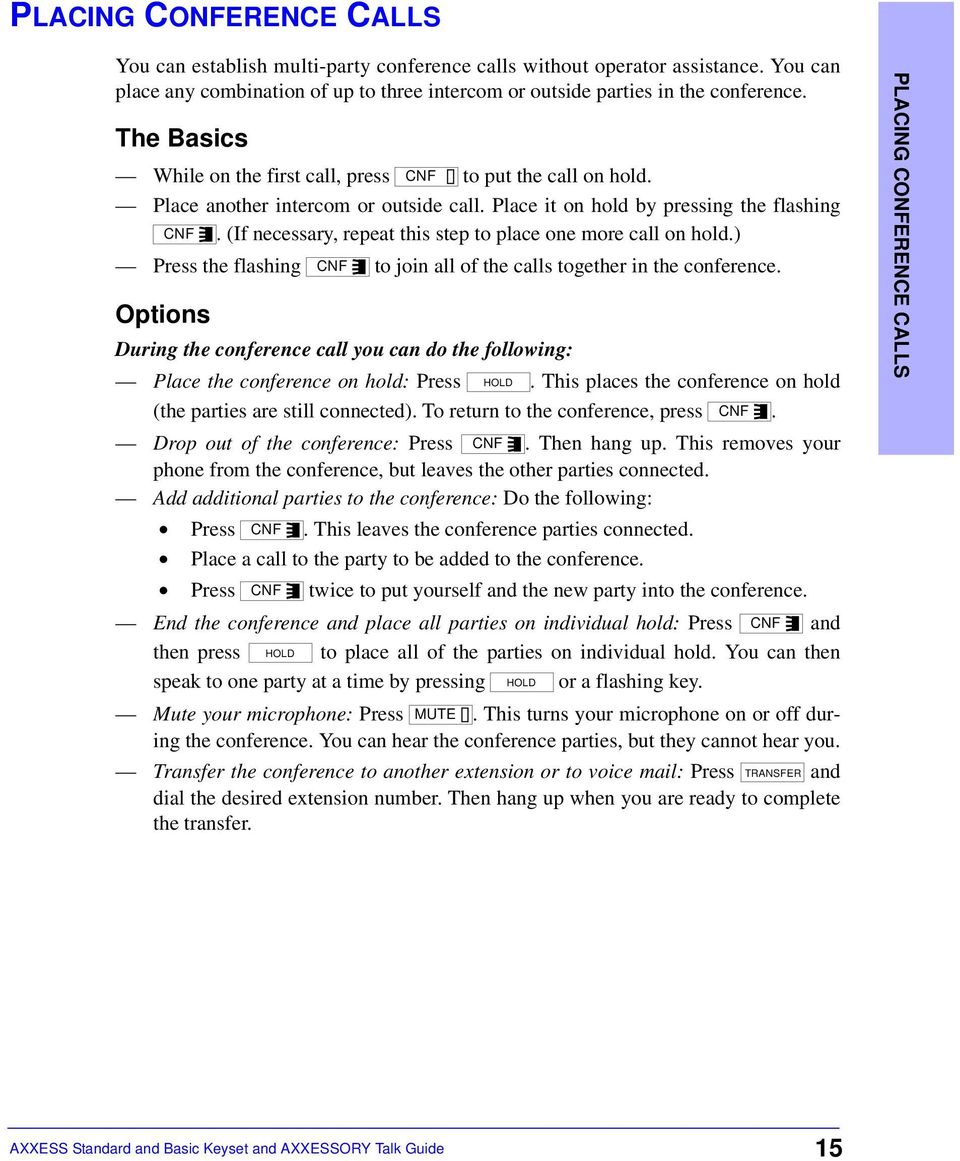
19 PLACING CONFERENCE CALLS You can establish multi-party conference calls without operator assistance. You can place any combination of up to three intercom or outside parties in the conference. The Basics While on the first call, press CNF to put the call on hold. Place another intercom or outside call. Place it on hold by pressing the flashing CNF. (If necessary, repeat this step to place one more call on hold.) Press the flashing CNF to join all of the calls together in the conference. Options During the conference call you can do the following: Place the conference on hold: Press HOLD. This places the conference on hold (the parties are still connected). To return to the conference, press CNF. Drop out of the conference: Press CNF. Then hang up. This removes your phone from the conference, but leaves the other parties connected. Add additional parties to the conference: Do the following: Press CNF. This leaves the conference parties connected. Place a call to the party to be added to the conference. Press CNF twice to put yourself and the new party into the conference. End the conference and place all parties on individual hold: Press CNF and then press HOLD to place all of the parties on individual hold. You can then speak to one party at a time by pressing HOLD or a flashing key. Mute your microphone: Press MUTE. This turns your microphone on or off during the conference. You can hear the conference parties, but they cannot hear you. Transfer the conference to another extension or to voice mail: Press TRANSFER and dial the desired extension number. Then hang up when you are ready to complete the transfer. PLACING CONFERENCE CALLS 15
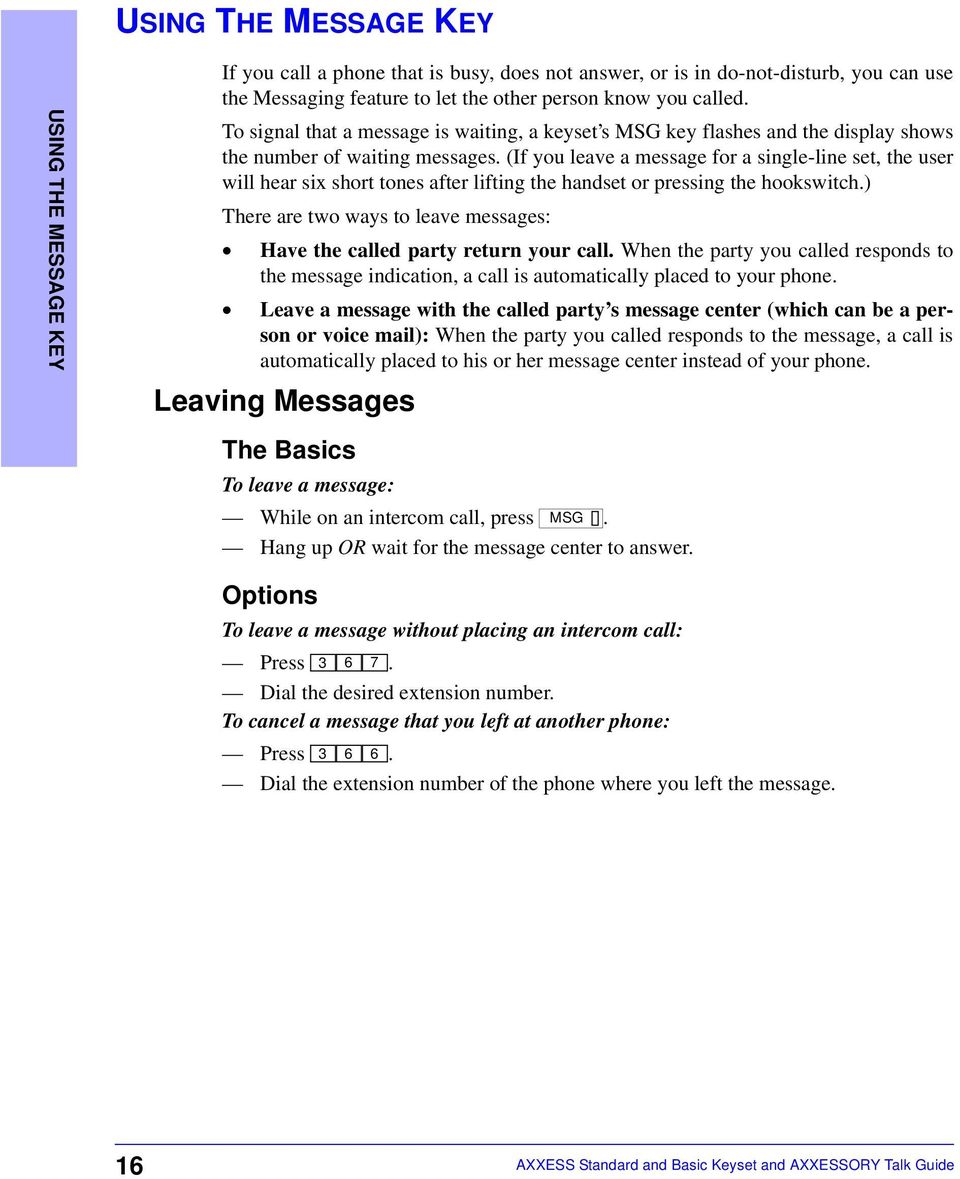
20 USING THE MESSAGE KEY USING THE MESSAGE KEY If you call a phone that is busy, does not answer, or is in do-not-disturb, you can use the Messaging feature to let the other person know you called. To signal that a message is waiting, a keyset s MSG key flashes and the display shows the number of waiting messages. (If you leave a message for a single-line set, the user will hear six short tones after lifting the handset or pressing the hookswitch.) There are two ways to leave messages: Have the called party return your call. When the party you called responds to the message indication, a call is automatically placed to your phone. Leave a message with the called party s message center (which can be a person or voice mail): When the party you called responds to the message, a call is automatically placed to his or her message center instead of your phone. Leaving Messages The Basics To leave a message: While on an intercom call, press MSG. Hang up OR wait for the message center to answer. Options To leave a message without placing an intercom call: Press Dial the desired extension number. To cancel a message that you left at another phone: Press Dial the extension number of the phone where you left the message. 16
21 Receiving Messages The Basics When you see a flashing MSG key: Lift the handset and press the flashing MSG. A call is automatically placed to the phone or message center that left the displayed message. Options To select the message you want to answer first (display keysets only): If your MSG key is flashing, one or more messages are waiting. With the handset in the cradle, press MSG repeatedly to view your waiting messages. When the desired message is displayed, press # OR lift the handset for privacy and then press # to respond. To cancel a waiting message: Display Keyset: Press MSG repeatedly to view your waiting messages. When the message you wish to cancel is displayed, remain on hook and press *. The message is canceled. Non-Display Keyset: While on hook, press The message is canceled. USING THE MESSAGE KEY 17
22 TRANSFERRING CALLS TRANSFERRING CALLS Transferring To Another Extension To transfer so that the call rings at the other phone: Press TRANSFER. To transfer so that the call is on hold at the other phone: Press and dial press Dial the desired extension number. Wait for an answer, announce the call, and then hang up to complete the transfer. If the number is busy, there is no answer, or the transfer is refused, return to the caller being transferred by pressing the flashing key. Note If the special Transfer-To-Connect option has been programmed for your phone, a transferred call connects immediately once the transferring party hangs up. (If the option is disabled, you must press a Call key to answer the transferred call.) Transferring To Voice Mail Press TRANSFER. Dial the voice mail extension number. If you want to send the call to a specific Voice Mail mailbox, dial the desired mailbox number and then hang up to complete the transfer. If you want to send the call to the Voice Mail main menu (so that the caller can select the mailbox number), hang up to complete the transfer. Transferring To An Outside Number Press TRANSFER. Select an outgoing line and dial the desired telephone number. Wait for an answer, announce the call, and then hang up to complete the transfer. If the number is busy, there is no answer, or the transfer is refused, return to the caller being transferred by pressing the flashing key. To Pick Up (Reverse Transfer) A Call From Another Extension: Lift the handset and dial 4. Dial the extension or hunt group number where the call is ringing or holding. (See page 35 for more information about hunt groups.) 18
23 FORWARDING CALLS Manual Call Forwarding With manual call forwarding, you can choose to send incoming calls to another extension number. You may also be able to forward calls to outside numbers, if your phone is programmed to allow it. To forward calls: Press FWD or enter one of the following feature codes: (Call Forward All Calls): All incoming calls are forwarded without ringing at your phone (Call Forward If No Answer): All incoming calls are forwarded if they are not answered before a timer expires. (This timer is adjusted by the installer; it cannot be changed at your phone.) (Call Forward If Busy): When your phone is busy, all incoming calls are forwarded without ringing at your phone (Call Forward If No Answer or Busy): All incoming calls are forwarded if your phone is busy or if you do not answer, as described above. Then do one of the following: To forward to an outside telephone number: Select an outgoing line and dial a telephone number. To forward to an extension number: Dial the extension number. To forward to your message center: Press MSG. To cancel any call forward request: Press FWD then SPKR. Automatic System Forwarding Your phone may be programmed with the automatic call forwarding feature called System Forwarding. If so, you can use the following procedure to turn the System Forwarding feature on and off. To enable or disable System Forwarding: Dial FORWARDING CALLS 19
24 STATION SPEED DIALING STATION SPEED DIALING Storing Speed-Dial Numbers On Your Phone You can store up to 10 personal speed-dial numbers and associated names in station speed-dial locations 0-9. These locations are then dialed using a feature key or code plus one of the numbers 0-9 on your keypad. Or, if you have programmable feature keys, you can create Station Speed-Dial keys (as described on page 30) for one-touch speed dialing. To program your station speed-dial locations: With the handset in the cradle, dial Dial the location code 0-9 to be programmed OR press a Station Speed-Dial key that you want to program (if you have one). Enter the desired name for the speed-dial number, as described below: Remain in alphanumeric mode (MSG key lit): Press the keypad keys to enter the desired characters. (Refer to the chart on page 23.) The number of times a key is pressed determines which character is entered. For example, would enter JEAN. When adjoining characters are located under the same key, press FWD once to advance to the next character. For example, 66FWD would enter NORM. (Note that letters correspond to the letters printed on keypad keys 1-9.) Press FWD twice to leave a space. Press MUTE if you need to backspace. Change to numeric mode: Press MSG and then press the keypad keys to dial the desired numbers. Press # for a hyphen (-), press * for a colon (:), press FWD to leave a space, or press MUTE to backspace. Make sure your keyset is in alphanumeric mode, then press # to save the name. Dial the extension number or telephone number to be stored. If your number includes an asterisk, pound, a hookflash (a quick hangup and release), or a pause, press once for an asterisk, twice for a pound, three times for a hookflash, or four times for a pause. (Each pause or hookflash counts as one digit.) You can enter more than one special character in a row by pressing FWD between the characters. If necessary, press MUTE to backspace and make corrections OR press FWD to move to the next space. Hint If you want to be able to dial outside telephone numbers without first selecting an outgoing line, enter a line access code (such as the Outgoing Call code 8 ) before the outside telephone number. Press # to save the name. 20
25 To view the current programming of Station Speed-Dial keys: With the handset in the cradle, dial Press the Station Speed-Dial key to be viewed. Press # to exit. To erase a station speed-dial name and/or number: With the handset in the cradle, dial Dial the location code 0-9 to be erased OR press the Station Speed-Dial key to be erased. To remove the name, press MUTE repeatedly until the name is erased. Press # to continue. To remove the number, press MUTE repeatedly until the number is erased. Press # to exit. Dialing Station Speed-Dial Numbers If necessary, select an outgoing line. Using a location number: Dial and then the desired station speed-dial location number (0-9). Using a Station Speed-Dial key: Press the desired Station Speed-Dial key. SYSTEM SPEED DIALING SYSTEM SPEED DIALING Your system administrator can store up to 1000 speed-dial numbers in system speeddial locations These speed-dial numbers can then be dialed using a feature code or the SYS SPD feature key, plus one of the location numbers To view and/or dial system speed-dial numbers: Press SYS SPD OR dial Dial the location code ( ) for the desired number. The number is displayed. To dial the displayed number, press #. 21
26 REDIALING A NUMBER REDIALING A NUMBER If you reach a busy number, are disconnected, or if there is no answer, the number in your redial memory can be redialed easily. An outside line is automatically selected and the telephone number is redialed. Your phone can be programmed to store, in redial memory, the last outside telephone number that you dialed or an outside telephone number that you saved. (Your trainer or system administrator can tell you whether your phone is programmed for Last Number Dialed or Last Number Saved operation.) Choose the appropriate procedure for your phone: To use the Last Number Dialed feature (if enabled): With or without the handset lifted, press REDIAL. A line is selected automatically and the number is dialed. To use the Last Number Saved feature (if enabled): To save a number: While the phone is idle or while listening to intercom dial tone, press REDIAL. To redial the saved number: While on a call or after selecting a line, press REDIAL. A line is selected automatically and the number is dialed. 22
27 USING THE DIRECTORIES The optional directories allow display keyset users to look up extension numbers, system speed-dial numbers, and feature codes, and their associated names. If searching for a name, you do not need to enter the full name. The system will find the closest match and show the number and its associated name on your display. If desired, you can then dial the displayed number. To perform a directory search: With the handset in the cradle, press Press 1 for the intercom directory, 2 for the outside directory, or 3 for the feature directory. Enter letters or numbers (up to 10 characters) as described below: Remain in alphanumeric mode (MSG key lit): Press the keypad keys to enter the desired characters. (See the chart below.) The number of times a key is pressed determines which character is entered. For example, would enter SMITH. When adjoining characters are located under the same key, press FWD once to advance to the next character. For example, 5666 FWD would enter JONES. (Note that letters correspond to the letters printed on keypad keys 1-9.) Press FWD once to advance and twice to leave a space. Press MUTE to backspace. Change to numeric mode (MSG key unlit): Press the keypad keys to enter an extension number. Press MUTE to backspace. Press # to begin the search. If desired, you can use the high or low end of the Volume key ( ) to move alphabetically through the directory. To dial a number or feature code while it is displayed: Press #. NUMBER OF TIMES KEY IS PRESSED KEY ENGLISH CHARACTERS KATAKANA CHARACTERS 1 - & ( ) 1 A I U E O a 2 A B C 2 KA KI KU KE KO i 3 D E F! 3 SA SHI SU SE SO u 4 G H I * 4 TA CHI TSU TE TO e 5 J K L / 5 NA NI NU NE NO o 6 M N O # 6 HA HI FU HE HO tsu 7 P Q R S 7 MA MI MU ME MO ya 8 T U V? 8 YA YU YO., yu 9 W X Y Z 9 RA RI RU RE RO yo :., 0 WA WO N pa ba long USING THE DIRECTORIES 23
28 USING DO-NOT-DISTURB MODE USING DO-NOT-DISTURB MODE Placing your phone in do-not-disturb halts all pages and calls to your phone (except for queue callbacks, recalls, and direct ring-in calls). Other users calling your phone hear a repeating signal of four fast tones. If they have a display, they also see the donot-disturb message you have selected. There can be up to 20 different Do-Not-Disturb messages in your telephone system. They can be changed by the system administrator, installer, or programmer. Your trainer or system administrator will give you a list of Do-Not-Disturb Messages for your system. You can list them here for your convenience: DEFAULT MESSAGE NEW MESSAGE DEFAULT MESSAGE NEW MESSAGE 01 DO-NOT-DISTURB 11 OUT OF TOWN TIL 02 LEAVE A MESSAGE 12 OUT OF OFFICE 03 IN MEETING UNTIL 13 OUT UNTIL 04 IN MEETING 14 WITH A CLIENT 05 ON VACATION TIL 15 WITH A GUEST 06 ON VACATION 16 UNAVAILABLE 07 CALL ME AT 17 IN CONFERENCE 08 AT THE DOCTOR 18 AWAY FROM DESK 09 ON A TRIP 19 GONE HOME 10 ON BREAK 20 OUT TO LUNCH To enable do-not-disturb: Press DND. Dial the desired two-digit number for the message you wish to use OR press the high or low end of the Volume key ( ) to scroll through the messages. If desired, customize the second display line by dialing the desired numbers or letters as described below: Remain in numeric mode (MSG key unlit): Press the keypad keys to dial the desired numbers. Press # for a hyphen (-), press * for a colon (:), press FWD to leave a space, or press MUTE to backspace. Change to alphanumeric mode: Press MSG and then press the keypad keys to enter the desired characters. (Refer to the chart on page 23.) The number of times a key is pressed determines which character is entered. For example, enters FRIDAY. When adjoining characters are located under the same key, press FWD once to advance to the next character. For example, 6 FWD 666 FWD enters MONDAY. (Note that letters correspond to the letters printed on the keys.) Press FWD twice to leave a space. Press MUTE if you need to backspace. Press SPKR OR lift and replace the handset. To cancel do-not-disturb mode: Press DND. 24
29 USING RECORD-A-CALL If your telephone system is equipped with an AXXESSORY Talk voice processing unit, your phone may be programmed to use the Record-A-Call feature. If so, you can dial a feature code whenever you want to record an ongoing call in a mailbox message. You can retrieve the message later, just as you would any other mailbox message. To use the Record-A-Call feature: While on a call, press and dial If required, dial the desired mailbox number. (Your phone may be programmed to select the mailbox, or you may be required to dial it.) You hear a confirmation tone when the Record-A-Call feature is activated. To turn off Record-A-Call: Press and dial OR hang up USING RECORD-A-CALL 25
30 PAGING The Paging feature allows announcements to be made through keyset speakers. If your system is equipped with optional external paging equipment, announcements can also be made through the external speaker(s). PAGING There can be up to 10 paging zones. Each paging zone can contain different combinations of keysets and the external paging equipment. Your trainer or system administrator can tell you how your paging zones are programmed. You can list them here for your convenience: Making Pages Lift the handset. Dial 7. Dial the desired zone number (0-9). After the tone, make your announcement. Hang up. To Turn Paging On Or Off You can prevent your phone from receiving pages or allow it to receive pages again using the Page Remove/Replace feature code described below. If your phone is assigned to more than one page zone, all zones are removed or replaced at once; you cannot turn off individual zones. Dial to turn paging on or off. 26
31 REMINDER MESSAGES Reminder messages are set, like an alarm clock, to signal you at a specified time. You can select the message and time up to 24 hours in advance. At the programmed time, the reminder message signals you with eight short tones and your display shows the message. If your phone is busy, you still hear the tones and the message displays for 10 seconds during the call, then the display returns after you hang up. (Reminder displays interrupt, but do not affect, programming.) There can be up to 20 different Reminder messages in your telephone system. They can be changed by the system administrator, installer, or programmer. Your trainer or system administrator will give you a list of Reminder Messages for your system. You can list them here for your convenience: DEFAULT MESSAGE NEW MESSAGE DEFAULT MESSAGE NEW MESSAGE 01 MEETING 11 CALL ENGINEERING 02 STAFF MEETING 12 CALL MARKETING 03 SALES MEETING 13 CALL ACCOUNTING 04 CANCEL MEETING 14 CANCEL DND 05 APPOINTMENT 15 CANCEL CALL FWD 06 PLACE CALL 16 TAKE MEDICATION 07 CALL CLIENT 17 MAKE RESERVATION 08 CALL CUSTOMER 18 REVIEW SCHEDULE 09 CALL HOME 19 LUNCH 10 CALL CORPORATE 20 REMINDER REMINDER MESSAGES To request a reminder message: With the handset in the cradle, dial Dial the desired two-digit number for the message that you want OR press the high or low end of the Volume key ( ) scroll through the messages. While the desired message is displayed, press #. Enter the time you wish to receive the message in hours and minutes. For example, 0900 = 9:00. (If you dial three digits, such as 900 for 9:00, press #.) If your system is set for 12-hour display format, press 1 for AM or 2 for PM. (If it is set for 24-hour format, you do not need this step.) To cancel all reminder message requests before they signal you: With the handset in the cradle, dial To clear a received reminder message (you hear eight short tones and see a reminder message display): With the handset in the cradle, press. * 27
32 REMOTE FEATURE ACCESS REMOTE FEATURE ACCESS Remote Feature Access allows you to place your phone in Do-Not-Disturb mode or forward calls, either from another phone or through a special dial-up line. For your convenience, a pocket-sized guide is attached to the card stapled in the middle of this guide. Remote Access Password This password is used for Remote Feature Access, as described below. To change the password from your phone: Dial Enter your current password, followed by #. (At default the password is your extension number.) Enter the new password followed by #. You hear a confirmation tone. Enter the new password again for verification followed by #. You hear a confirmation tone. To change the station password using remote programming: See below. Remote Feature Access EITHER, Call your AXXESS number (provided by your system administrator). If required, enter your password. OR, Use any phone on the system. Enter Enter your extension number. Enter your password followed by #. You can now use any of the following features. To change the station password using Remote Programming: Enter Enter the new password, followed by #. Enter the new password again for verification, followed by #. To turn on Do-Not-Disturb: Enter Enter message number (01-20) and, if desired, enter the optional secondline message text. Hang up. Continued on next page 28
33 To turn off Do-Not-Disturb: Enter and hang up. To turn on Call Forward: Enter one of the following Call Forward feature codes. All Calls If No Answer If Busy If No Answer or Busy Enter an extension number or enter an outside line access code followed by a telephone number. Hang up. REMOTE FEATURE ACCESS To turn off Call Forward: Enter and then press # and hang up. 29
34 PROGRAMMING YOUR FEATURE KEYS PROGRAMMING YOUR FEATURE KEYS Depending on how your system is programmed, some of your feature keys may be designated as user-programmable. If so, you can program them with any of the feature codes listed on the back of this user guide or with extension numbers. To program a user-programmable feature key: With the handset in the cradle, dial Press the feature key you want to program. Dial the feature code or extension number you want to store under that key. (Refer to the back of this guide for default feature codes.) To return all feature keys to their original default values: With the handset in the cradle, dial To display the current feature key values: With the handset in the cradle, dial Press the feature key(s) you want displayed. Press SPKR to hang up. 30
35 SETTING USER PREFERENCES Change Volume Levels The AXXESS system has eight volume settings: handset intercom, handset outside call, speakerphone intercom, speakerphone outside call, background music, ringing, handset intercom dial tone, and speakerphone intercom dial tone. To change a volume level: Press the high or low end of the Volume key ( ) to increase or decrease the volume. To save your change: Press both ends of the Volume key at the same time. Select Ring Tone To select the type of ring tone for your phone: With the handset in the cradle, dial Do one of the following to select your ring tone: Press 0 for no ringing. Press the high or low end of the Volume key ( ) to scroll to the desired tone. Dial 1-9 to select a specific tone. When you hear the tone you want, press #. Background Music If your telephone system is equipped with a music source, you can listen to music through your speaker. To enable or disable background music: Dial Returning To Default Operation This feature returns volumes to default levels; cancels do-not-disturb, manual call forwarding, background music, and queue requests; and restores handsfree mode, pages, hunt group calls, and system forwarding all at once. To return your phone to default: Dial SETTING USER PREFERENCES 31
36 SETTING USER PREFERENCES Standard And Alternate Keymaps Each keyset is programmed with a standard keymap that determines where each feature key appears on the keyset. Each keyset can also have an alternate keymap. If you have an alternate keymap, you can switch between the keymaps by dialing this feature code. To switch between keymaps when your phone is idle: With the handset in the cradle, dial To switch between keymaps during a call: While on a call, press and dial. Automatic Call Answer The Automatic Call Answer feature determines the method you will use to answer outside calls and intercom calls. You can choose to answer simply by lifting the handset (or pressing the Speaker key). Or, you can choose to answer by first lifting the handset (or pressing the Speaker key) and then pressing the flashing key. To specify how ringing outside calls are answered: With the handset in the cradle, dial to turn on or off automatic line answer (If you turn it on, you will answer outside calls automatically by lifting the handset). To specify how ringing (non-handsfree) intercom calls are answered: With the handset in the cradle, dial to turn on or off automatic intercom answer (If you turn it on, you will answer ringing intercom calls automatically by lifting the handset). Multilingual Capability Your telephone system may provide a choice between English and Japanese prompts and displays. An option in the database determines the language that will be used by each phone. If your phone is programmed for English, all displays appear in English and all AXXESSORY Talk voice mail prompts are delivered in English (unless changed, as outlined below). If programmed for Japanese, all displays appear in Japanese (Katakana) characters and all voice prompts are played in Japanese. By default, all phones are set for English. User-programmed messages can include English or Japanese characters, or a combination. In displayed lists, such as directories, the English characters are alphabetized before the Japanese characters. Therefore, Japanese names will appear after the English names. To change the assigned language for your phone: Dial to change between English and Japanese, as desired. Your display shows the current language. 32
37 SECONDARY EXTENSION APPEARANCES The Secondary Extension Appearances feature allows calls that are ringing or on individual hold at one primary phone to appear on a secondary extension key at another keyset. For example, a secretary or assistant can have a secondary extension key for a supervisor's phone, or one keyset can have several secondary extension keys, each associated with a different primary phone. There are two ways the installers can make a secondary extension key. They can create a non-programmable secondary extension key that cannot be changed at your keyset. Or, they can make a programmable secondary extension key so that you can determine the associated phone for the key, as outlined below. In addition, the installer can program your phone to ring when a given number of calls are waiting at the primary phone. To display the current secondary extension key assignment(s): With the handset in the cradle, dial Press the secondary extension key(s) you want displayed. To assign a primary phone to a secondary extension key (if enabled): With the handset in the cradle, dial Press the secondary extension key and dial the desired extension number. SECONDARY EXTENSION APPEARANCES If you have a secondary extension key, it functions as follows: When a call is ringing or holding on any Call key at the primary phone, pressing your flashing secondary extension key for that phone will answer the call. If your secondary extension key is unlit, pressing the key places an intercom call to the primary phone. Note If the key is flashing, you can still place an intercom call to the primary phone without answering the incoming call by pressing # before pressing the flashing secondary extension key. (Or, of course, you can just dial the primary phone's extension number.) After answering a call on the secondary extension key, you can transfer it back to the primary phone using one of the following methods: Transfer to hold: To transfer the call to hold at the primary phone, press the secondary extension key, announce the call (if desired), and then hang up. Transfer to ring: To transfer the call to the primary phone, press TRANSFER and then the secondary extension key. You can announce the call, if desired, before hanging up to complete the transfer. 33
38 AGENT HELP AGENT HELP Your telephone system may be programmed to support the Agent Help feature, which allows you to request help from a designated Agent Help Extension (usually your supervisor) during a call. When your request call rings at the Agent Help Extension, the supervisor can choose to join the call or reject the request. If the Agent Help Extension is a keyset, the keyset's microphone is muted and the supervisor cannot be heard unless he or she presses the MUTE key. If the Agent Help Extension is a single-line set, the supervisor can be heard as soon as the conference is established. In either case, the supervisor can hear all other parties on the call. To use the Agent Help feature while on a call: Press and dial If you hear repeating tones, the Agent Help feature is not available at your phone, you already have four parties in your call, not enough system circuits are currently available, or the Agent Help Extension is in do-not-disturb. If required, dial the Agent Help Extension number. (Your phone may be programmed to automatically dial the number, or you may be required to dial it.) If the Agent Help Extension accepts the call, you hear the Agent Help tone, if it is enabled, and the supervisor can monitor or join your call. If the Agent Help Extension rejects the call, you hear a confirmation tone and the display shows AGENT HELP REJECTED. To respond to an Agent Help request at a display keyset When you receive an Agent Help, your display shows <name> REQUESTS HELP. You can do one of the following: To accept the call: Answer as usual. Your microphone is muted and you cannot be heard by either party unless you press MUTE. To reject the call: Press dial
39 INSTRUCTIONS FOR HUNT GROUPS Your system may be programmed with hunt groups. These are groups of phones that share a common extension number in addition to having individual extension numbers. (A phone that is part of a hunt group can be called directly using its individual extension number.) The phone or phones that receive the call when a hunt group extension number is dialed is determined by a list programmed in your telephone system's software. To Turn On Or Off Hunt Group Calls If you are a member of a hunt group, you can use the following Hunt Group Remove/ Replace feature code to determine when you will receive hunt group calls. Dial to stop or restart hunt group calls. ACD Hunt Groups Some hunt groups use a special feature called Automatic Call Distribution (ACD) that distributes the hunt group calls equally among the available members. ACD hunt group members are referred to as agents. Agents log in to the ACD hunt group to receive calls and log out to halt ACD hunt group calls. INSTRUCTIONS FOR HUNT GROUPS ACD Agent IDs There is an ACD hunt group option that allows the use of Agent ID numbers in place of extension numbers in the hunt group list. An ACD hunt group can be programmed to circulate calls to agents in two ways: Agent IDs: If the hunt group is programmed to use ACD Agent IDs, each agent is assigned an Agent ID number to enter during the login procedure (described on the next page). The hunt group calls are routed to logged-in agents, according to their Agent ID number instead of their extension number. Because the Agent ID is not associated with any extension, the agent can use any phone in the system to log in and does not have to use the same phone every time. Members: If the hunt group is not programmed to use Agent IDs, it will have a pre-programmed list of phones and will send calls to the phones where agents are logged in. 35
40 INSTRUCTIONS FOR HUNT GROUPS ACD Hunt Group Login And Logout Agents can log in to and out of the ACD hunt group at any time. While logged in, the agent will receive calls through the ACD hunt group. When the agent is logged out, calls to that ACD hunt group will bypass the agent. If your phone is in an ACD hunt group, use the following procedures to log in and out. To log in to all of your ACD hunt groups at once using the ACD Agent Login/Logout feature code: With or without the handset lifted, dial If you were already logged in, the display shows AGENT LOGGED OUT OF ALL ACDS and you hear a confirmation tone. To log in to one or more hunt groups using the ACD Agent Login feature code: With or without the handset lifted, dial The display shows AGENT LOGIN ACD NUMBER. Enter the desired ACD hunt group number. (Or you can press # to log in to all of your ACD hunt groups at once.) If you entered an invalid hunt group number, the display shows NOT AN ACD HUNT GROUP and you hear repeating tones. The display shows AGENT LOGIN AGENT ID. Then do one of the following: To log into ACD hunt group(s) using Agent IDs: Enter your Agent ID. The display shows AGENT LOGGED INTO ALL ACDS. You are logged into the ACD hunt group(s) that you requested above that use the Agent ID you entered in this step. If another Agent ID is already logged in at this phone, you hear repeating tones and the display shows DIFFERENT AGENT ID ALREADY USED. You must have the other agent log out before you can use that phone. To log into ACD hunt group(s) that do not use Agent IDs: Press #. The display shows AGENT LOGGED INTO ALL ACDS. You are logged into the ACD hunt group(s) that you requested above that do not use Agent IDs. If you were already logged in, the display shows ALREADY LOGGED INTO <hunt group>. If you are not a member of the entered hunt group, the display shows NOT AN AGENT IN THIS HUNT GROUP and you hear repeating tones. Start over. If off hook, hang up. Repeat this procedure to log into additional ACD groups, if necessary. 36
41 To log out of one or more ACD hunt group: EITHER, Dial to log out of all of your ACD hunt groups at once. The display shows AGENT LOGGED OUT OF ALL ACDS and you hear a confirmation tone. Hang up if off hook. OR, With or without the handset lifted, dial One of the following displays will appear: If you were logged in to only one hunt group, the display shows AGENT LOGGED OUT OF <hunt group>. The procedure is complete. If you were logged in to more than one hunt group, the display shows AGENT LOGOUT ACD NUMBER. Dial the extension number of the desired ACD hunt group. If you were not logged in to any hunt group, the display shows NOT LOGGED INTO ANY ACD GROUP. If off hook, hang up. ACD Agent Wrap-Up Terminate Each time you end an ACD hunt group call, a timer is started. Until that timer expires, you will not receive another call through any ACD hunt group. If you wish to end the wrap-up session before the timer expires, you can use the following procedure. To terminate the ACD Agent wrap-up period before the timer expires: With the handset in the cradle, dial (If you were not logged in to an ACD hunt group, the display shows CANNOT ACCESS RESERVED FEA- TURE.) INSTRUCTIONS FOR HUNT GROUPS ACD Agent ID Automatic Connect Flag If the ACD Agent ID Automatic Connect option is programmed for your hunt group, and you are using a headset, ACD hunt group calls will automatically be connected following a short ring burst. When you log in as an ACD Agent or remove your phone from do-not-disturb mode while you are logged in, the first call you receive will ring until you answer it. However, every time an ACD hunt group call is received after the first call, you will hear the ring burst in the headset and the call will be automatically connected. 37
42 9RLFH0DLO)HDWXUHV The first time you use your Voice Mail mailbox, you need to initialize it, as described on page 7. ENTERING YOUR MAILBOX ENTERING YOUR MAILBOX When you enter your mailbox, the system may play one of the following messages: Mailbox almost full or full: If your mailbox is full, no new messages can be received until you delete waiting or saved messages. Message count: The system tells you how many messages are waiting to be heard, if any, and how many are priority messages. Remote messaging: The system will indicate whether primary or alternate remote messaging is selected when remote messaging is enabled. It will also alert you if a programming error has been detected and/or whether it encountered busy system resources when attempting to place a remote messaging call. Enter your mailbox by following these steps: Dial the Voice Mail extension number. (You hear the main menu.) During or after the greeting, press * to identify yourself as a subscriber. Enter your mailbox number and your personal password (if programmed). Then press #. (If you do not have a password, just press #.) If your MSG key is lit and you have a message from Voice Mail: Lift the handset OR press SPKR. Press MSG. Enter your personal password and press #. 38
43 LISTENING TO MESSAGES Whenever you enter your mailbox, you are told how many new and saved messages you have. To listen to messages: Enter your mailbox as described on page 38. EITHER, Press 1 to listen to your new messages. OR, Press 3 to listen to your saved messages. The system plays each message in the queue selected. While you are listening to a message, you can use the following options: Press # to skip to the end of the recording. Press 1 to back up. Press 2 to pause. (Then press any key to continue.) Press 3 to skip ahead. Press 4 to lower the volume. Press 5 to play the message envelope again. Press 6 to raise the volume. Press 7 to save the new message in your mailbox. Press 9 to delete the message from your mailbox. When the message has finished playing, you have the following options: Press 1 to replay the message from the beginning. Press 2 to reply to the message. You can then do one of the following: Press 1 to leave a voice mail message for the caller. If the caller had a mailbox number, it will ask you to verify the destination by pressing #. If the number was not associated with a mailbox, it will ask you to enter a mailbox number. If the message was from an outside caller, you cannot leave a voice mail message. LISTENING TO MESSAGES Press 2 to make a return call. Your call will be transferred automatically to the caller s extension or telephone number, if available. If the extension number is not available, you will have the option of leaving voice mail. If the telephone number is not available, you cannot reply to the message. Press 3 to forward a copy of the message to another subscriber. If you want to include introductory comments, press 1 and record an introduction. If not, press # to forward the message without an introduction. Press 4 to listen to the previous message. Continued on next page 39
44 Press 5 to play the introductory message envelope again. Press 6 to listen to the next message. Press 7 to save the new message in your mailbox. Press 9 to delete the message from your mailbox. UNDELETING VOICE MAIL MESSAGES UNDELETING VOICE MAIL MESSAGES This feature allows you to undo the Delete Message operation and restore previously deleted messages. The messages will be restored to your saved-message queue. You have up to 24 hours to restore your deleted messages. After that, voice mail will erase them. To recover deleted messages: Enter your mailbox as described on page 38. Press 5. The next prompt gives you the option of recovering deleted messages. Press 2 to continue. Your options are: Press 1 to listen to your deleted messages and choose which ones to delete or recover. After each message you can: Press 1 to replay the message. Press 2 to reply to the message. Press 3 to forward the message to another mailbox. Press 4 to listen to the previous message. Press 5 to replay the message envelope. Press 6 to listen to the next message. Press 7 to recover the message. Press 9 to purge the message from your mailbox. Press 2 to recover all of your deleted messages and store them as saved messages. Press 3 to erase all of your deleted messages. 40
45 SENDING MESSAGES Enter your mailbox as described on page 38. Press 2. Dial the desired mailbox number or group list number. After hearing the subscriber's name, press # to accept it. When you hear the tone, record your message. To pause while recording, press 2. To continue, press any key. To erase and re-record your message, press 3. When you have completed your message, you have the following options: To exit: Hang up. OR, press # and go to the next step. To replay your message: Press 1. To add to your message: Press 2 and continue your message. To erase and re-record your message: Press 3. To use the special delivery options: Press 9. You can perform one or more of the following steps: Press 1 to mark the message private. (This prevents the recipient from forwarding it to other subscribers.) Press 2 to mark the message certified. (When a certified message is heard by the recipient, you will receive a receipt notice.) Press 3 to mark the message priority. (This will place your message ahead of all other waiting messages in the receiving mailbox.) Press * to cancel delivery options. Press # to deliver the message. (If you wish to mark the message certified, private, and/or priority, do so before completing this step.) After the message has been sent, you may choose either of the following options: Press # and enter another mailbox number to send the message to another destination. Press to exit. * SENDING MESSAGES 41
46 CANCELING UNHEARD MESSAGES CANCELING UNHEARD MESSAGES You can cancel voice messages you have sent to other voice mailboxes, provided the messages have not yet been heard by their recipients and they were not sent to a group list. To cancel unheard messages: While listening to the voice mail main menu, press 5. Press 1. When prompted, enter the number of the mailbox that has the unheard message. Then you will be asked to confirm the mailbox you selected by pressing #. It will tell you how many messages you have waiting at the mailbox and play them for you. After each message, you can: Press 1 to replay the message. Press 2 to add to the message. Press 3 to forward the message to another mailbox Press 4 to listen to the previous message. Press 5 to replay the message envelope. Press 6 to listen to the next message. Press 7 to save the message in your mailbox and remove it from theirs. Press 9 to delete the message. 42
47 PERSONAL OPTIONS Personal Options allow you to customize your mailbox. Voice Mail has the following personal options: Personal Greetings Voice Mail Directory Name Mailbox Password Voice Mail Message Envelope Contents Remote Messaging Fax Destination Call Screening Transfer Method Each option is described in detail in the following pages. Recording Your Personal Greetings Your primary or alternate greeting is played to callers when they reach your mailbox. When recording your Voice Mail greeting the following information may be helpful for your callers: Whether you are in the office and where you can be reached When you will be returning calls For callers who do not wish to leave a message, how to exit (They can press 0 to return to the operator.) Here are some sample greetings to help you plan your message: Primary Greeting: Hello, this is. I am either on another line or away from desk and cannot take your call at this time. If you need to speak to someone immediately, please dial zero now. Otherwise, please leave a detailed message and I will return your call as soon as possible. Thank you. Alternate Greeting: Hello, this is. I will be away from the office from day/date until day/date. If you need to speak to someone immediately, please dial zero now. Otherwise, please leave a detailed message, and I will return your call when I return. Thank you. To change your personal greeting: Enter your mailbox as described on page 38. Then press 4 to select the Personal Options Menu. Press 1. EITHER, Press 1 to record and/or enable your primary greeting. OR, Press 2 to record and/or enable your alternate greeting. OR, Press 3 to enable the system default mailbox greeting. Continued on next page PERSONAL OPTIONS 43
48 PERSONAL OPTIONS If you pressed 1 or 2, the current greeting is played (if one exists). Then do one of the following: EITHER, Press # to accept the greeting. (Or, press 1 if you wish to replay the greeting, press 2 to add to the greeting, or press 3 to erase and rerecord the greeting.) OR, Press to exit without changing your greeting. Recording Your Voice Mail Directory Name Your recorded name is used to identify you in the voice mail directory and to verify your mailbox number when messages are addressed to you. To change your directory name: Enter your mailbox as described on page 38. Then press 4 to select the Personal Options Menu. Press 2. Your current name is played. (Press 1 to replay your recorded name, if desired.) Press 3 to erase and re-record your name. When you hear a tone, record your first and last name, then press #. Press # again to accept your recorded name. (Or, press 1 to replay your recorded name, press 2 to add to your name, or press 3 to erase and re-record your name.) Mailbox Password * Your password prevents unauthorized access to your mailbox. To change your password: Enter your mailbox as described on page 38. Then press 4 to select the Personal Options Menu. Press 3. If you want to have a password, enter a new password, using up to 12 digits. If you do not want to use a password, skip this step. Press #. Voice Mail plays back your password if you entered one. Press # to accept the password as entered. Or, press 3 if you want to erase and re-enter your password. 44
49 Voice Mail Message Envelope Contents Each voice mail message is preceded by an envelope message that can include time and date the message was left, the source of the message, and/or the message length. To change your message envelope: Enter your mailbox as described on page 38. Then press 4 to select the Personal Options Menu. Press 4. You can then do any of the following: To enable or disable the time/date option, press 1. To enable or disable the message source option, press 2. To enable or disable the message length option, press 3. To enable all options, press 4. To disable the envelope, press 5. To accept the envelope, press #. To return to the Personal Options menu without changing the envelope, press. Remote Messaging Remote Messaging is a voice mail feature that can be enabled by your installer. If your mailbox has this feature turned on, you may program a remote programming cascade (a series of up to nine telephone numbers) for the voice mail system to call when your mailbox receives new messages. Each mailbox can have a Primary and an Alternate cascade of numbers. Each cascade can be programmed to be used during specific days and times. For example, if you want to be paged when you receive a message from 5-10 PM, on weekdays, you can set up a Primary cascade. If you also want to receive pages for messages marked priority on the weekends, your Alternate cascade could be set for all day on Saturdays and Sundays. If you need to enter more than one number (just in case the pager number is busy or out of service) you can enter up to nine numbers for each cascade. If for some reason Voice Mail is not able to use your remote notification (due to busy facilities or invalid programming), your mailbox will receive a message stating that notification could not be completed. To set up remote messaging: Enter your mailbox as described on page 38. Then press 4 to select the Personal Options Menu. Press 5. Press 1 to set up a Primary cascade OR press 2 to set up an Alternate cascade. Continued on next page * PERSONAL OPTIONS 45
50 A prompt tells you what the cascade's current status is. Perform one of the following steps. To program a cascade level: Press 1 and enter the number of the level you wish to program (1-9). You then have the following options: To enable or disable the cascade level: Press 1. (You cannot enable the level until a notification number is programmed.) To set up or change an extension or telephone number: Press 2. Then press 1 if it is an extension number OR press 2 if it is an outside number. Then enter the number. To set up or change a pager number: Press 3. Then enter the number. To set up time of day for notification: Press 2. Then enter the time you want the message notification start and stop. Enter the times with two digits for the hour and two digits for the minutes. If entering the time in 12-hour format, you will be prompted to press 1 for AM or press 2 for PM. PERSONAL OPTIONS Note If you wish to have 24-hour notification, program the starting and ending times to be the same. To set up the days of the week for notification: Press 3. Then select one of the following: Press 1 for Monday-Friday, 2 for all days, or 3 to select individual days. If you selected individual days, you will be prompted to press digits 1-7 which correspond to the days Sunday through Saturday. To select all or priority-only message notification: Press 4. Then press 1 for all messages or 2 for priority messages only. The list of options returns. Either select another option, as described above, or press # to save the settings and exit. Fax Destination To change your Fax Destination Number: Enter your mailbox as described on page 38. Then press 4 to select the Personal Options Menu. Press 9 for More Options and then press 1. Enter the number of your fax destination, followed by #. To accept press #. Or, to erase the number and re-enter it press 3. 46
51 Call Screening Transfer Method This feature is available only if your mailbox has the option enabled. Depending on the Transfer Method you select, transferred calls from AXXESSORY Talk may be unannounced (as usual), or one of the following may occur: Announce Only Calls: Before Voice Mail transfers a call to you, a prompt asks the caller to record his or her name. When you answer, you hear You have a call from (caller's name). Screened Calls: Before Voice Mail transfers a call to you, a prompt asks the caller to record his or her name. When you answer, you hear You have a call from (caller's name), You can choose whether to accept the call. (See page 12.) To change your Transfer Method (if allowed): Enter your mailbox as described on page 38. Then press 4 to select the Personal Options Menu. Press 9 for More Options and then press 1. The system tells you what your current Transfer Method is. You can then select the desired Transfer Method, as follows: To select unannounced transfers, press 1. To select screened transfers, press 2. To select announce only transfer, press 3. To return to the Personal Options menu without changing the Transfer Method, press. * PERSONAL OPTIONS 47
52 USING THE VOICE MAIL DIRECTORY The mailbox and extension number directories can be used any time Voice Mail asks you to enter a mailbox number. You use the keypad keys to enter the name. The system then plays the closest matching directory name that corresponds to the entry. Display Keysets: Press the keys to enter the name. The number of times a key is pressed determines which character is entered, as shown below. When adjoining characters are under the same key, press FWD to advance to the next character. For example, 5666 FWD enters JONES. USING THE VOICE MAIL DIRECTORY NUMBER OF TIMES KEY IS PRESSED KEY & ( ) 1 2 A B C 2 3 D E F! 3 4 G H I * 4 5 J K L / 5 6 M N O # 6 7 P Q R S 7 8 T U V? 8 9 W X Y Z 9 :., 0 Non-Display Keysets: Press a single digit on your telephone dial pad for each letter or character entered. For example, keypad key 2 shows ABC, key 3 shows DEF, etc. To enter JONES, you would press Some characters are not shown on the keys: for Q press 7, for Z press 9, for punctuation marks press the 1 key. If you press 0 at any time while spelling a name, the voice mail system will play a helpful prompt instructing you how to enter a name. To use the directory: Dial the Voice Mail extension number, then press # for Directory Services. Enter the desired name, as described above, then press #. The selected name is played. Do one of the following: To accept the name, press #. To hear the previous name in the directory, press 1. To hear additional information for the selected name (if allowed), press 2. To hear the next name in the directory, press 3. To spell a different name, press 4 and spell a new name as described above. To switch the first/last name sort order, press 5. 48
53 'HIDXOW)HDWXUH&RGHV Use the blank spaces below to enter custom feature codes if your telephone system has been reprogrammed with new codes. OUTSIDE LINE ACCESS CODES ACCESS CODE NAME ACCESS CODE NEW CODE Select Line Group , Automatic Route Selection 9200 Emergency Call 911 Outgoing Call 8 EXTENSION NUMBERS EXTENSION NAME EXTENSION NUMBER NEW NUMBER Phone Extensions Hunt Groups Attendant 0 GENERAL FEATURE CODES FEATURE NAME FEATURE CODE NEW CODE Account Code Following Calls 391 Account Code Optional 390 ACD Agent Log In 326 ACD Agent Log Out 327 ACD Agent Log In/Out 328 ACD Agent Wrap-Up Terminate 329 Agent Help Request 375 Agent Help Reject 376 Answer (Ringing Call) 351 Automatic Intercom Access On/Off 361 Automatic Line Access On/Off 360 Automatic Line Answer 350 Background Music On/Off 313 Call Forward All Calls 355 Call Forward If Busy 357 Call Forward If No Answer 356 Call Forward No Answer/Busy 358 Conference 5 Change Language 301 Data 340 Default Station 394 Directory 307 Display Time And Date 300 Do-Not-Disturb 370 Do-Not-Disturb Cancel 371 DEFAULT FEATURE CODES 49
54 GENERAL FEATURE CODES (CONTINUED) DEFAULT FEATURE CODES FEATURE NAME FEATURE CODE NEW CODE Do-Not-Disturb On/Off 372 Do-Not-Disturb Override 373 Feature Key Default 395 Group Listen 312 Handsfree On/Off 319 Headset On 315 Headset Off 316 Headset On/Off 317 Hold Individual 336 Hold System 335 Hookflash 330 Hunt Group Remove 322 Hunt Group Replace 323 Hunt Group Remove/Replace 324 Message 365 Cancel Message That You Left 366 Cancel Message On Your Phone 368 Silent Message 367 Microphone Mute On/Off 314 Page 7 Page Receive On/Off 325 Program Baud Rate 393 Program Keys 397 Program Station Password 392 Queue (Callback) Request 6 Record-A-Call 385 Redial 380 Reminder Message 305 Reminder Message Cancel 306 Remote Programming 359 Reverse Transfer (Call Pick-Up) 4 Review Keys 396 Ring Intercom Always On/Off 377 Ring Tone Selection 398 Station Speed Dial 382 Station Speed Dial Programming 383 System Forward Enable 352 System Forward Disable 353 System Forward On/Off 354 System Speed Dial 381 Switch Keymap 399 Transfer To Hold 346 Transfer To Ring
User Guide. Standard Display Phone and Basic Digital Phone
 User Guide Standard Display Phone and Basic Digital Phone QUICK REFERENCE GUIDE TO FREQUENTLY USED FEATURES These are the basic instructions for the most frequently used telephone system and voice mail
Inter-Tel Eclipse 2. Associate Display and Basic Digital Phone. User s Guide
 Associate Display Phone 560.4200 Basic Digital Phone 560.4100 Inter-Tel Eclipse 2 Associate Display and Basic Digital Phone User s Guide Page 1 of 23 Feature Key Functions Press IC or CALL OUTGOING Unlit
User Guide. Model 8560 Display Phone Model 8660 IP Phone
 User Guide Model 8560 Display Phone Model 8660 IP Phone AXXESS MODEL 8000 SERIES QUICK REFERENCE GUIDE TO FREQUENTLY USED FEATURES These are the basic instructions for the most frequently used telephone
Axxess. Executone Phone User Guide
 Axxess Executone Phone User Guide QUICK REFERENCE GUIDE TO FREQUENTLY USED FEATURES These are the basic instructions for the most frequently used telephone system and voice mail features. For detailed
Model 8500. User Guide
 Model 8500 User Guide QUICK REFERENCE GUIDE TO FREQUENTLY-USED FEATURES These are the basic instructions for the most frequently-used telephone and voice mail features for Inter-Tel endpoints. For detailed
Axxess. Model 8520 Phone User Guide
 Axxess Model 8520 Phone User Guide MODEL 8000 SERIES PHONES QUICK REFERENCE GUIDE TO FREQUENTLY USED FEATURES These are the basic instructions for the most frequently used telephone system and voice mail
Standard Display Endpoint Basic Digital Endpoint. User Guide
 Standard Display Endpoint Basic Digital Endpoint User Guide QUICK REFERENCE GUIDE TO FREQUENTLY USED FEATURES These are the basic instructions for the most frequently used telephone and voice mail features
Mitel 5000 Telephone System
 Mitel 5000 Telephone System Phone Keys & Key Descriptions The following telephone feature descriptions identify the keys on the key panel of your 8528 phone. Handset If you are using a headset or if you
Executone Endpoint. User Guide
 Executone Endpoint User Guide QUICK REFERENCE GUIDE TO FREQUENTLY USED FEATURES These are the basic instructions for the most frequently used telephone and voice mail features for Inter-Tel endpoints.
TABLE OF CONTENTS 816 AND 800 KEYSET USER GUIDE. GENERAL INFORMATION About This Book... 1 Keyset Diagrams... 2 3 Things You Should Know...
 TABLE OF CONTENTS 816 AND 800 KEYSET USER GUIDE PROSTAR 816 PLUS September 1996 GENERAL INFORMATION About This Book... 1 Keyset Diagrams... 2 3 Things You Should Know... 4 5 OUTSIDE CALLS Making a Call...
SAMSUNG HANDSET USER GUIDE FOR DS-5007S / DS-5014S / DS-5038S / DS-5014D / DS-5021D ITP-5107 / ITP-5114D / ITP5121D
 SAMSUNG HANDSET USER GUIDE FOR DS-5007S / DS-5014S / DS-5038S / DS-5014D / DS-5021D ITP-5107 / ITP-5114D / ITP5121D FOR TECHNICAL TIPS PLEASE VISIT OUR WEBSITE www.prptelecom.co.uk 2 Table of Contents
MITEL. Single-Line. Phone User Guide
 MITEL Single-Line Phone User Guide Single-Line Phone Quick Reference Guide This guide provides information for frequently used features. For more information about these and other features, refer to the
Model 8600/8620/8622/8662
 Model 8600/8620/8622/8662 Session Initiation Protocol Mode User Guide QUICK REFERENCE GUIDE TO FREQUENTLY USED FEATURES These are the basic instructions for the most frequently used telephone and voice
MITEL. Administrator Endpoint Guide
 MITEL 5000 Administrator Endpoint Guide System and Diagnostics Administrator Features Quick Reference Guide This guide provides information for frequently used administrator endpoint features. For more
Phone System Guide Handout
 Phone System Guide Handout Union Institute & University September 2012 Rev 1 9/6/2012 1 Contents Union Institute & University... 1 Introduction... 4 Section 1 Phone System Voicemail:... 5 Section 2 Phone
User s Guide EKT-824
 User s Guide EKT-824 The Communiqué Telephone Station Table of Contents Introduction 3 About This Guide 3 The Basics Answering and Making Calls 4 Answering an External Call 4 Answering an Internal Call
Ipiphony Phone System. User Manual. 1 P a g e
 Ipiphony Phone System User Manual 1 P a g e About this Guide This guide explains how to use the basic features of your new Aastra phones. Not all features listed are available by default. Contact your
Standard Telephone User Guide
 Standard Telephone User Guide STANDARD TELEPHONE USER GUIDE for OfficeServ 100, OfficeServ 500 and OfficeServ 7000 Series May 2009 Samsung Telecommunications America reserves the right without prior notice
M6320 Featurephone. User Guide
 M6320 Featurephone User Guide Introduction The M6320 Featurephone is a practical and convenient way to use a wide range of business telephone features, including Call Forward, Conference Calling, and Speed
DS 24D KEYSET USER GUIDE
 DS 24D KEYSET USER GUIDE SAMSUNG idcs 16 SYSTEM March 2005 Samsung Telecommunications America reserves the right without prior notice to revise information in this guide for any reason. Samsung Telecommunications
Multiline Telephone User Guide
 NOTICE Note that when converting this document from its original format to a.pdf file, some minor font and format changes may occur. When viewing and printing this document, we cannot guarantee that your
Multiline Telephone User Guide
 NOTICE Note that when converting this document from its original format to a.pdf file, some minor font and format changes may occur causing slight variations from the original printed document. When viewing
TABLE OF CONTENTS TABLE OF CONTENTS. 1. Introduction:
 TABLE OF CONTENTS TABLE OF CONTENTS 1. Introduction: General... 4 Telephone Layout... 4 Key Definitions... 5 IP Telephone Log In/Out Hot Desking... 16 Speed Dial Programming Personal or Station... 17 Speed
MITEL. Single-Line. Phone User Guide
 MITEL Single-Line Phone User Guide Single-Line Phone Quick Reference Guide This guide provides information for frequently used features. For more information about these and other features, refer to the
How To Use A Cell Phone On A Cell (Cell Phone) On A Landline Phone On An Iphone Or Ipad Or Ipa (Cellphone)
 STANDARD TELEPHONE USER GUIDE idcs 500 DIGITAL COMMUNICATIONS SYSTEM November 2001 Samsung Telecommunications America reserves the right without prior notice to revise information in this guide for any
How To Use A Sim Sim Sims 3.2 On A Cell Phone On A Pc Or Mac Or Ipa (For A Sims) On A Simmer (For An Ipa) Or Ipb (For Mac) On An Ip
 Telephone and Voice Mail Quick Reference Guide ADTRAN IP 712 and IP 706 Phones ADTRAN Polycom IP 650, IP 601, IP 501, and IP 430 Phones Table of Contents 4 5 6 10 15 16 17 19 20 21 22 Voice Mail Quick
Meridian 8314 Business Terminal User Guide
 For additional information, Dial Telecommunications Center Centrex Services... - University of Nebraska - Lincoln Telecommunications Center Nebraska Hall Lincoln, NE 6888-0 (0) 7-000 The University of
BCT Communication Systems Inc.
 BCT Communication Systems Inc. Basic Operating Instructions For the Panasonic PBX Telephone System Making Calls To an Extension: 1. Lift the handset of your telephone 2. Press the INTERCOM key 3. Dial
Quick Reference Book. Cisco 7940 & 7960 Series IP Phones. Business Feature Set T6000 Release 6.0 SCCP Protocol
 Quick Reference Book Cisco 7940 & 7960 Series IP Phones Business Feature Set T6000 Release 6.0 SCCP Protocol 2007 Red Gap Communications, Inc. All rights reserved. Revision 20070309 Important Phone Numbers
Release Date Version Supersedes Description. June 2006 Initial Release Initial Release
 45p SLT User Guide Record of Revision Release Date Version Supersedes Description June 2006 Initial Release Initial Release Copyright XBLUE Networks, LLC 2006 XBLUE Networks reserves the right to make
NEC SV8100 Telephone System User Guide (for SV8100 12-button and 24-button phones)
 NEC SV8100 Telephone System User Guide (for SV8100 12-button and 24-button phones) KEYS AND BUTTONS ON YOUR PHONE Incoming Call/Message Waiting indicator light Flashes red quickly when a call is ringing
Panasonic Business Telephone and Voice Mail Systems. User Guide
 Panasonic Business Telephone and Voice Mail Systems User Guide Location of Controls Panasonic Telephone System Telephone Set 2 Explanation of Controls PAUSE: Used to insert a pause when storing a telephone
STANDARD TELEPHONE USER GUIDE
 STANDARD TELEPHONE USER GUIDE for OfficeServ 100, OfficeServ 500 and OfficeServ 7000 Series September 2005 Samsung Telecommunications America reserves the right without prior notice to revise information
Shaw Business Hosted PBX user guide
 Shaw Business Hosted PBX user guide Contents 4 Welcome 5 AASTRA Hosted IP Phone 7 Handling Calls 9 Voicemail / Greetings 11 Voicemail / Playback Features 12 Additional Voicemail Features 13 Call Forward
NITSUKO DS01 TELEPHONE USER S GUIDE
 NITSUKO DS01 TELEPHONE USER S GUIDE 2003-2004 Version 1.1 TABLE OF CONTENTS PAGES INTRODUCTION TELEPHONE FEATURES. TELEPHONE SERVICES.. VOICE MAIL. TELEPHONE FREQUENTLY ASKED QUESTIONS (FAQs) ADVANCED
4406D+, 4412D+. 4424D+, and 4424LD+ Telephones User s Guide
 4406D+, 4412D+. 4424D+, and 4424LD+ Telephones User s Guide Back Panels: Programming and Feature Codes Displays Front Panels: Your Telephone Call Handling Using Features Programming and Feature Codes 555-710-127
NEC SV8100 Telephone System User Guide (for SV8100 12-button and 24-button phones with CAP/PARK keys)
 NEC SV8100 Telephone System User Guide (for SV8100 12-button and 24-button phones with CAP/PARK keys) KEYS AND BUTTONS ON YOUR PHONE Incoming Call/Message Waiting indicator light Flashes red quickly when
Digital Business System 44-Series Key Telephones Please read these instructions completely before using this unit.
 STATION USER GUIDE Panasonic Digital Business System 44-Series Key Telephones Please read these instructions completely before using this unit. (Supports DBS 40/72/96 and 824 Systems) Section 755 Issued
Meridian 8009 Business Terminal User Guide
 For additional information, Dial Telecommunications Center Centrex Services... -44 University of Nebraska - Lincoln Telecommunications Center Nebraska Hall Lincoln, NE 68588-05 (40) 47-000 The University
Panasonic Telephone System
 Electro-Mechanical Technology 6677 W. State Rd. 38, Mulberry, IN 46058 Voice (765) 296-3661 E-Mail [email protected] Panasonic Telephone System Simplified User Guide Here are some of the basic features that
DS-5000 Series. Keysets. Quick Reference Guide
 DS-5000 Series Keysets Quick Reference Guide This QUICK REFERENCE GUIDE provides the basic operation of your Samsung DS 5021D, DS 5014D and DS 5007S telephones.the DS 5007S operates the same as the DS
Mitel 5000 Communications Platform
 Mitel 5000 Communications Platform Phone User Guide Supplement For Version 4.0 Software Introduction.................................................................... 2 Affected User Guides............................................................
KEYSET (DIGITAL) TELEPHONE USER GUIDE FOR SAMSUNG DIGITAL COMMUNICATION SYSTEMS
 KEYSET (DIGITAL) TELEPHONE USER GUIDE FOR SAMSUNG DIGITAL COMMUNICATION SYSTEMS Phone: (07) 4931 0333 Fax: (07) 4922 5647 Email: [email protected] TABLE OF CONTENTS ABOUT THIS BOOK... 1 THINGS YOU
Multiline Telephone User Guide
 Notice Note that when converting this document from its original format to a.pdf file, some minor font and format changes may occur causing slight variations from the original printed document. When viewing
NEC SV-8100. Multiline Telephone User Guide All Digital and IP Phones w/um-8000 Voice Mail
 NEC SV-8100 Multiline Telephone User Guide All Digital and IP Phones w/um-8000 Voice Mail NEC SV-8100 - User Introduction for Display Phone TO TRANSFER A CALL DIRECTLY TO A MAILBOX: Press Transfer Dial
How To Use A Cell Phone On A Sim Sims 2.2 (Sprinting) And Sims 1 (Cell Phone) With A Sims 3.2.2 On A Iphone Or Ipod) With An Ipod
 LINKSYS SPA941 / SPA942 User Guide Emergency To dial 911 for emergency service, you must dial the Outside Access Digit first (usually 9) + 911. Customer Service / Technical Support (919) 459-2300, option
Personal Speed Dial Numbers
 Personal Speed Dial Numbers To dial a Personal Speed Dial number: Press [ Feature ] followed by the Dial Code. See panel 4 for programming instructions. Your system may also be programmed with System Speed
NEC SV-8100 Multiline Telephone User Guide All Digital and IP Phones w/inmail Voice Mail
 Version 2.50G NEC SV-8100 Multiline Telephone User Guide All Digital and IP Phones w/inmail Voice Mail NEC SV-8100 - User Introduction for Display Phone TO TRANSFER A CALL DIRECTLY TO A MAILBOX: Press
D-Term ACD-IP User Guide
 D-Term ACD-IP User Guide Table of Contents Keys and Lamps... 2 Tones... 3 Making and Receiving Calls... 4 Hold... 5 Transfer... 6 Conference Calls... 6 ACD Functions... 7 Logon... 7 Work... 7 Call Recover...
TOSHIBA. 1. While on a call, press the Cnf/Trn button. 2. Dial another station or outside number. 3. After the called party answers, press the
 Telephone User Instructions Your phone is programmed with a Direct Dial Number, which is. Your 4-digit extension is. You may also have a rollover line. If your first line is busy, calls to your main number
DIGITAL TELEPHONE STATION USER QUICK REFERENCE GUIDE
 DIGITAL TELEPHONE STATION USER QUICK REFERENCE GUIDE INTRODUCTION HOLD/DND (Hold/Do Not Disturb) - This button is used to put a call on Hold to set the Do Not Disturb function to prevent any calls from
DIVERTING CALLS: EXTENSION DIVERT... 36 Diverting all calls from your extension... 36 Diverting your calls while you are at another extension (Follow
 Contents WELCOME...1 USING THIS DOCUMENT...1 BT CONTACT DETAILS...1 ABOUT YOUR BT QUANTUM TELEPHONES...2 BT QUANTUM SYSTEMPHONES...2 BT 8568 Digital Systemphone...2 BT 8528 Digital Systemphone...5 BT 5360
AT&T. PARTNER Plus/PARTNER II. Quick Reference for Use with MLS-Series Telephones. Communications System
 AT&T PARTNER Plus/PARTNER II Communications System Quick Reference for Use with MLS-Series Telephones Copyright 1994 AT&T All Rights Reserved Printed in U.S.A. 518-455-327 Issue 1 August 1994 MLS-34D,
Station User Guide Including Attendant Features
 Station User Guide Including Attendant Features STARPLUS STS Telephone Systems Station User Guide December, 2002 - Issue 1.0 P/N: 3552-00 I Issue Release Date Changes 1.0 12-02 Initial Release LIFE SUPPORT
Digital Single Line (DSL) Analog Single Line (SLT) Quick Reference Guide. 92600DSL05 April 2001. Printed in U.S.A. (2562)
 Digital Single Line (DSL) Analog Single Line (SLT) Quick Reference Guide 92600DSL05 April 2001 Printed in U.S.A. (2562) Using Your Digital Single Line Telep 920-108H Due to the flexibility built into the
NEC DTERM SERIES E USER GUIDE. For the Muskingum College Implementation 2 ABC 3 DEF 4 GHI 6 MNO 5 JKL 8 TUV 7 PQRS 9 WXYZ. Feature. Recall.
 NEC DTERM SERIES E USER GUIDE For the Muskingum College Implementation 1 2 ABC 3 DEF Feature 4 GHI 5 JKL 6 MNO Recall 7 PQRS 8 TUV 9 WXYZ Conf * 0 OPER # Redial Hold Transfer Answer Speaker Liquid Crystal
IP Phone System: Cisco 7960G and 7940G
 IP Phone System: Cisco 7960G and 7940G Table of Contents: IP Phone System 7940G and 7960G CISCO IP PHONE ROAD MAP...1 NAVIGATE THE PHONE SYSTEM AND USE THE LCD SCREEN...2 SOFT KEYS... 2 USE THE NAVIGATION
ABOUT YOUR PHONE... 1 TIPS FOR YOUR COMFORT AND SAFETY... 2. Don't cradle the handset!... 2 Protect your hearing... 2 Adjusting the viewing angle...
 USER GUIDE Contents ABOUT YOUR PHONE... 1 TIPS FOR YOUR COMFORT AND SAFETY... 2 Don't cradle the handset!... 2 Protect your hearing... 2 Adjusting the viewing angle... 2 CUSTOMIZING YOUR PHONE... 4 Ringer
Quick reference guide. 1070 4-Line small business system with caller ID/ call waiting and speakerphone
 Quick reference guide 1070 4-Line small business system with caller ID/ call waiting and speakerphone 7 This quick reference guide provides basic instructions For additional installation options and complete
DIGITAL TELEPHONE USER GUIDE
 DIGITAL TELEPHONE USER GUIDE Release 3 and 4 COPYRIGHT 1992 TOSHIBA AMERICA INFORMATION SYSTEMS, INC. All rights reserved. No part of this manual may be reproduced in any form or by any means graphic,
TABLE: The 2420 Telephone Components
 2420 Telephone TABLE: The 2420 Telephone Components 1. Display, Call Appearance and Feature buttons: Call Appearance Keys allow the user to handle multiple calls and the display shows call information.
Quick reference guide. 1080 4-Line small business system with digital answering system and caller ID/call waiting
 Quick reference guide 1080 4-Line small business system with digital answering system and caller ID/call waiting This quick reference guide provides basic instructions. For additional installation options
Single Line Telephone User Guide
 Record of Revision Release Date Version Supersedes Description March 2008 Initial Release Initial Release Copyright 2006 We reserves the right to make changes in specifications at any time without notice.
Cisco IP Phone 7960 / 7940 Quick Reference Guide
 Cisco IP Phone 7960 / 7940 Quick Reference Guide CONTENTS CALLS... 5 Placing a Call... 5 Dialing... 5 Answering a Call... 5 Ending a Call... 5 Muting a Call... 5 Placing a Call on Hold... 5 TRANSFERS...
MITEL. Telephone User Guide
 MITEL 8528 Telephone User Guide Mitel 8528 Telephone Quick Reference Guide This guide provides information for frequently used features. For more information about these and other features, refer to the
Cisco IP Phone Models 7941 and 7945 Quick Reference Guide December 23, 2011
 Emergency Calls Dial 911 or 3 911 Cisco IP Phone Models 7941 and 7945 Quick Reference Guide December 23, 2011 Place a Call Lift handset (or press the Speaker button, the line button, or New Call soft key)
idcs KEYSET USER GUIDE
 idcs KEYSET USER GUIDE SAMSUNG idcs 500 SYSTEM November 2001 Samsung Telecommunications America reserves the right without prior notice to revise information in this guide for any reason. Samsung Telecommunications
Placing Calls. Using Your Single Line Telephone. Placing an Outside Call... Calling a Co-Worker, Voice Mail and Paging...
 Using Your Single Line Telephone Placing Calls Due to the flexibility built into the system, your Dialing Codes and Feature Capacities may differ from those in this guide. Check with your communications
Part No.: GA68-00120A Printed in Korea
 Part No.: GA68-00120A Printed in Korea DS 24D/DS 24S KEYSET USER GUIDE SAMSUNG DCS SYSTEM AUGUST 2001 TABLE OF CONTENTS ABOUT THIS BOOK...1 THINGS YOU SHOULD KNOW...2 6 ASSEMBLING YOUR KEYSET...7 OUTSIDE
Four-Line Intercom Speakerphone 944
 1 USER S MANUAL Part 2 Four-Line Intercom Speakerphone 944 Please also read Part 1 Important Product Information AT&T and the globe symbol are registered trademarks of AT&T Corp. licensed to Advanced American
Excel 2000 Charts Level 2. NEC Telephone and Voice Mail Training
 Excel 2000 Charts Level 2 NEC Telephone and Voice Mail Training Table of Contents NEC PHONE SYSTEM... 1 Make Calls... 1 Types of Phones... 1 Display Box... 2 Phone Panel... 2 Soft Key Buttons... 2 Exit
DIGITAL TELEPHONE USER GUIDE
 DIGITAL TELEPHONE USER GUIDE Xen IPK II DIGITAL TELEPHONE User Guide Table of Contents Xen IPK II Digital Telephones............................2 Key Descriptions......................................3
D-Term ACD-E User Guide
 D-Term ACD-E User Guide Table of Contents Keys and Lamps... 2 Tones... 3 Making and Receiving Calls... 4 Hold... 5 Transfer... 6 Conference Calls... 6 ACD Functions... 7 Logon... 7 Work... 7 Call Recover...
Quick reference guide. 1040 4-Line small business system with speakerphone
 Quick reference guide 1040 4-Line small business system with speakerphone This quick reference guide provides basic instructions For additional installation options and complete instructions that enable
Digital Multiline Telephone User Guide
 Digital Multiline Telephone User Guide WIN Digital Multiline Telephone User Guide 5 6 10 4 3 2 32 Line Display The 32 Line Display Telephone offers maximum use of digital telephone features including 32
Meridian 5008 Table of Contents
 Meridian 5008 Table of Contents The Basics Answering calls Making calls Placing a call on hold Ending a call Setting the ring volume Setting the speaker volume Tones that you hear when using the M5008
Introducing your Meridian Digital Telephone 1
 Contents Introducing your Meridian Digital Telephone 1 Meridian Digital Telephones 1 M3820 1 M3310 2 M3110 3 Selecting a position for your Meridian Digital Telephone 4 Parts of your Meridian Digital Telephone
User Guide. for the. Coral. Phone System. and. T3 Voice Mail System
 User Guide for the Coral Phone System and T3 Voice Mail System July 2010 Accessing Help on Using the Phone System Help Desk 581-4000 option 1 The following materials may be found on-line: The Coral User
Cisco IP Phone 7960G and Cisco IP Phone 7940G for Cisco IOS Telephony Services
 CHAPTER 1 Cisco IP Phone 7960G and Cisco IP Phone 7940G for Cisco IOS Telephony Services Button Legend The Cisco IP Phone 7960G and the Cisco IP Phone 7940G differ only in the number of available line
EP4300 4 Line Intercom Speakerphone with Caller ID and Jumbo Pivoting Display
 EP4300 4 Line Intercom Speakerphone with Caller ID and Jumbo Pivoting Display User s Guide Please read before using telephone Getting Started Congratulations! You ve purchased a HGC EP4300 System Intercom
5000 COMMUNICATIONS PLATFORM (CP)
 MITEL 5000 COMMUNICATIONS PLATFORM (CP) MITEL 5320e/5330e/5340e USER GUIDE NOTICE This guide is released by Mitel Networks Corporation and provides information necessary to use the 5320e/5330e/5340e IP
Telephone User Guide (3-digit Extensions) (337) 234-2828. Business phones that build business
 Telephone User Guide (3-digit Extensions) (337) 234-2828 Business phones that build business Volume Control To adjust Handset Volume During a call, press down Vol or Vol. When you hang up, volume returns
2 Session buttons. 1 Phone Screen
 1 Phone Screen 2 Session buttons Shows information about your phone, including directory number (extension), call information (for example caller ID, icons for an active call or call on hold) and available
" (877)MY T4 TEL " " " " " " " (877)698-4835
 Display Features The display on your phone is interactive. As you use the phone the information will change and different features and functions will appear on the display. The 8 buttons above the display
STARPLUS STS Telephone Systems
 STARPLUS STS Telephone Systems Station User Guide February 2003 - Issue 1.1 P/N: 3552-00 I Issue Release Date Changes 1.0 12-02 Initial Release 1.1 2-03 Minor revisions for correctness & clarity. LIFE
South College VOIP Phone Training
 South College VOIP Phone Training Some of the components of your new telephone system are Cisco IP phones (Series 7945/7962), Call Manager and Unity Express Voice Mail. Some employees will have 7945/7962
AT&T MERLIN COMMUNICATIONS SYSTEM USER S GUIDE MODELS 206, 410 AND 820 WITH FEATURE PACKAGE 2
 AT&T MERLIN COMMUNICATIONS SYSTEM USER S GUIDE MODELS 206, 410 AND 820 WITH FEATURE PACKAGE 2 Table of Contents Page Page Available Features Key to Symbols Placing and Answering Calls Line Buttons and
DP 5000 Series Telephone Button Overview.
 DP 5000 Series Telephone Button Overview. A. Status LED (message and ringing) B. LCD Display C. Softkeys D. Programmable Feature Buttons E. Message Waiting LED F. Microphone Mute Button G. Speaker Phone
di git al u se r guide
 di git al t e le ph o n e u se r guide Xen Digital Telephones 1 9 6 10 2 5 3 4 1 9 7 6 Xen Talk 8 line non display 10 11 2 5 10 1 9 11 7 6 3 4 Xen Exec 16 line display 2 3 5 Xen Professional 16 line display
Cisco IP 7961 Telephone & Unity Voicemail User s Guide
 Cisco IP 7961 Telephone & Unity Voicemail User s Guide Office of Information Technology Telecommunications and Network Operations Table of Contents General Information...1 Understanding Lines vs. Calls...2
idcs KEYSET USER GUIDE
 idcs KEYSET USER GUIDE for OfficeServ 100, OfficeServ 500 and OfficeServ 7000 Series September 2005 Samsung Telecommunications America reserves the right without prior notice to revise information in this
Welcome to BT Inspiration An introduction to your new BT Inspiration System and its documentation 6 Featurephone basics 7
 Contents PAGE Welcome to BT Inspiration An introduction to your new BT Inspiration System and its documentation 6 Featurephone basics 7 Your BT Inspiration Featurephone 7 Facility menus and scroll keys
Four-Line Intercom Speakerphone 964
 1 USER S MANUAL Part 2 Four-Line Intercom Speakerphone 964 2000 Advanced American Telephones. All rights reserved. Printed in Indonesia. 850002940 Issue 1AT&T 6/00 Please also read Part 1 Important Product
Cisco 7941 / 7961 IP Phone User Guide
 Cisco 7941 / 7961 IP Phone User Guide Emergency To dial 911 for emergency service, you must dial the Outside Access Digit first (usually 9) + 911. Customer Service / Technical Support (919) 459-2300, option
Digital / IP Phone DT3XX/7XX & Inmail Users Guide
 Digital / IP Phone DT3XX/7XX & Inmail Users Guide NEC SV-8100 - User Introduction for Display Phone HOLD. The red HOLD button at the bottom of the phone is used to put calls on hold. TRANSFER. The TRANSFER
NEC Dterm Series E - 16 Line Display
 NEC Dterm Series E - 16 Line Display The smart, sensible model for those who need information displayed at the desktop perfect for administrative use, general tasks or Automatic Call Distribution (ACD)
Centrex Service Feature Phone M5216 User Guide. (Version 2.0)
 Centrex Service Feature Phone M5216 User Guide (Version 2.0) Table of Content 1 Phone Set Features and Functions... 4 2 Voice Call Operation... 5 2.1 Answering a call on a Directory Number (DN)... 5 2.2