
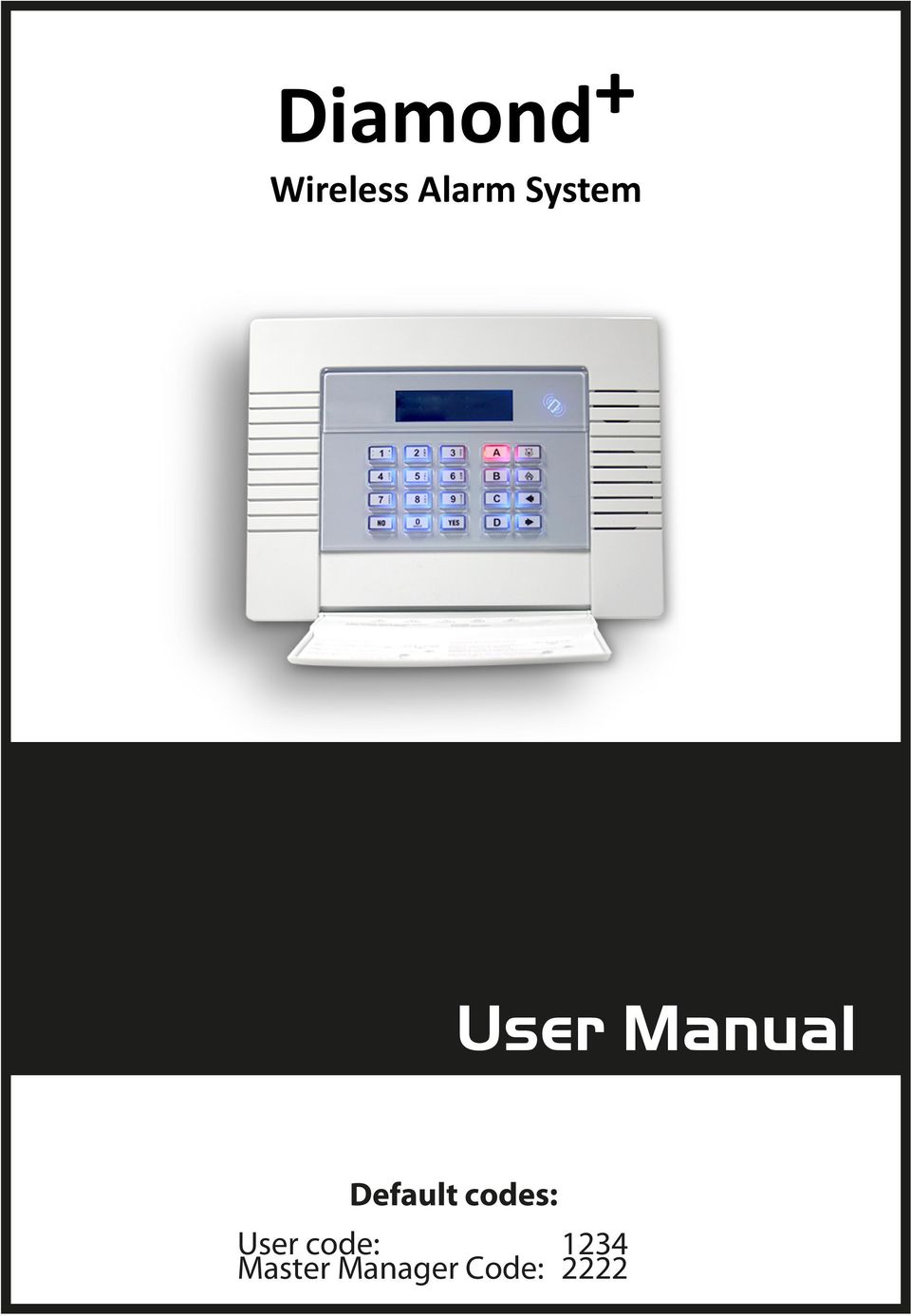
Diamond + User Manual. Wireless Alarm System. Default codes: User code: 1234 Master Manager Code: 2222
|
|
|
- Emily Lloyd
- 10 years ago
- Views:
Transcription
1 Diamond + Wireless Alarm System User Manual Default codes: User code: 1234 Master Manager Code: 2222
2 CONTENTS CHAPTER 1: INTRODUCTION... 4 CHAPTER 2: KEYPADS / READERS... 5 CHAPTER 3: THE KEY-FOB LOCKING THE KEY-FOB BUTTONS QUICK SETTING... 6 CHAPTER 4: USING PREDICTIVE TEXT... 7 CHAPTER 5: SETTING THE ALARM (CODE/TAG)... 8 CHAPTER 6: UNSETTING THE ALARM (CODE/TAG)... 9 CHAPTER 7: UNSETTING AFTER AN ALARM CHAPTER 8: USING A TAG READER CHAPTER 9: PAGE INTENTIONALLY REMOVED CHAPTER 10: INTELLIGENT SETTING CHAPTER 11: FAULT INDICATIONS / UNABLE TO SET FAULT INDICATIONS UNABLE TO SET KEY-FOB FAULT INDICATIONS CHAPTER 12: ADVANCED FUNCTIONS CHIME FEATURE OMITTING INPUTS KEYPAD HOLD UP CHAPTER 13: MASTER MANAGER MENU ENTERING THE MASTER MANAGER MENU EXITING THE MASTER MANAGER MENU SET DATE AND TIME CHANGE CODES (ADDING CODES, TAGS AND KEY-FOBS) REVIEW LOGS PHONEBOOK WALK TEST SIREN TEST TEST CHC COMMUNICATIONS DIAL OUT MENU ALLOW ENGINEER MENU ENTER ANTI-CODE CHAPTER 14: DISCLAIMER... 24

3 C H A P T E R 1 : I N T R O D U C T I O N Your control panel is a two-way wireless security alarm that boasts 32 wireless inputs, 32 wireless key-fobs and 2 wireless bells. The wireless devices that you can add to your control panel comprise a range of wireless PIRs, universal transmitters and a shock sensors; the control panel also allows the addition of 2 DEOL wired inputs. The system also has 80 user codes/tags, 32 of which may be programmed as a wireless key-fob that can either set/unset the system or control an output (by latching the output or activating the output for a programmable time period). There are also 3 wired outputs on-board the control panel; PGM, STB and BELL, all of which are programmable (BELL and STB are defaulted to work on a bell box). An output expander may also be connected allowing an additional 16 wired outputs. Up to four set points can be used on the control panel (maximum of 4 keypads or 3 tag readers). Your control panel is a level set system which may be set up in the following way: A user can choose which level set to arm, for example: Level Set A: Full set of the house Level Set B: Upstairs set. Downstairs unset. Level Set C: Garage set. Rest of house unset. Your engineer will be able to design the system according to your needs. The control panel can be set up to communicate to an alarm receiving centre which can monitor all activations of your property. You can also have SMS texts sent to your phone when alarm activation has occurred. Please ask your engineer for more information. Page: 4

4 C H A P T E R 2 : K E Y P A D S / R E A D E R S There are three different devices that may be used in the process of setting/unsetting the alarm system; these are the main keypad, the external tag reader and the internal tag reader. Control Panel Keypad The Internal Tag Reader A = Exit manager menu. B = Moves backwards to the previous menu item. C = Enables chime and displays additional information in the log. D = Moves forward in the log, scrolls between options and enters the master manager menu. Å Æ YES = Not used. = Directional buttons. = Selects items and enters menus. NO = Cancels items, resets the panel and moves to next item in master manager menu. Tag Area (Where you present your tag to arm/unset) Alert LED Alarm LED Tamper LED Fault LED Unset LED The External Tag Reader LEFT GREEN LED: Status indicator (extinguishes after a couple of seconds) RED LED: This can be programmed by your engineer to illuminate when the alarm has activated for example. Page: 5

5 C H A P T E R 3 : T H E K E Y - F O B The wireless key-fob has 4 buttons that may be programmed for specific purposes (please see Change codes on page 18 for more information). 3.1 Locking the Key-fob All 4 buttons on the key-fob may be locked so that any accidental presses will not affect your alarm system (this protects the buttons from being pressed if a key-fob is next to keys etc in someone s pocket) Locking the keys on the key-fob is performed by pressing any buttons that are diagonal with one another at the same time (LOCK & II or UNLOCK & I). The RED LED will flash indicating that the fob has been locked. To unlock, press both buttons together again and the GREEN LED will flash indicating that the key-fob is now unlocked. NOTE: When locked the LED status will also be disabled 3.2 Buttons The buttons can be customised (see Change Codes, page 18) to operate as desired. The table below gives an example of how each button may be programmed. LOCK BUTTON = Programmed for Set Area When pressed, the chosen area will be set (chosen in the function Change Codes ). UNLOCK BUTTON = Programmed for Unset Any Area. When pressed, the alarm system will unset (if set). I BUTTON = Programmed for Latch Output When pressed, a gate will open. When pressed again, the gate will close. II BUTTON = Programmed for Timed Output When pressed, a door will unlock, after a programmed time, the door will lock again automatically. 3.3 Quick Setting If one of the buttons is programmed as Set Area, the alarm system can be set by the key-fob. The keypad will then start to count down the exit time, or wait for a final door to be closed (depending what the exit mode is programmed as by the engineer) or the PTS button to be pressed. Once the alarm panel is in this setting stage, it is possible to quick set the system by pressing the same button again; this will reduce the time to set to immediate. The alarm panel will revert to the normal display with the time showing, but a beep will be heard once the system has been set. Page: 6


6 C H A P T E R 4 : U S I N G P R E D I C T I V E T E X T The control panel incorporates predictive text, so the system will predict the word that is being spelt.for example, if you type John, press the key once and the name Julia will appear. Press the D key to move the cursor over the u, and press the 6 key 3 times to change it to an o. The name John will now appear. Press the YES key to accept. If the word that you require does not appear in the list, just continue typing the word letter by letter. In addition, the A B C D keys are used as follows: A B C D = make the character into a capital = move cursor left = clears cursor / adds a space = moves cursor right Page: 7

7 C H A P T E R 5 : S E T T I N G T H E A L A R M ( C O D E / T A G ) Enter your user code Or Present a valid tag Enter the level set you wish to set, and press the YES key Please wait arming wireless will be displayed There are three different setting methods your installer will instruct you through which of these has been designed into your system. Final Door: Leave the building and make sure the exit door is closed properly Timed: Make sure you leave the building before the timer shown on the keypad expires Push to set: Press the push to set button installed by your engineer to arm the system SETTING USING A WIRELESS KEY-FOB To set via a key-fob. Press the key The key-fob LED will start to flash GREEN indicating that the system is starting to set Please wait arming wireless will be displayed on the keypad and the programmed area will begin to set. To quick set, press the key again. Once set, the key-fob LED will illuminate RED indicating that the system is now set Page: 8

8 C H A P T E R 6 : U N S E T T I N G T H E A L A R M ( C O D E / T A G ) Enter the building The Entry time will start Enter your user code Or Present a valid tag The level set that the code is assigned to will be Unset. Note: If flexi-set is disabled (see page 18) then the system will automatically Unset that level set once a valid user code or tag is presented. UNSETTING USING A WIRELESS KEY-FOB PLEASE NOTE: Unsetting with a key-fob will only be allowed if your engineer has enabled this. To unset via a key-fob. Press the key The key-fob LED will start to flash GREEN indicating that the system has unset. Page: 9

9 C H A P T E R 7 : U N S E T T I N G A F T E R A N A L A R M Enter your user code Or Present a valid tag The alarm symbol will flash indicating there has been an alarm activation, the keypad will display which input has activated. Press the key to reset the system UNSETTING AFTER AN ALARM USING A WIRELESS KEY-FOB PLEASE NOTE: Unsetting with a key-fob will only be allowed if your engineer has enabled this. To unset via a key-fob. Press the key The key-fob LED will start to flash GREEN indicating that the system has unset. Resetting the system after an alarm can only be done at the keypad. Page: 10

10 C H A P T E R 8 : U S I N G A T A G R E A D E R If you have a tag reader installed, then it will be possible to set and unset the alarm system using a tag (the same tags can also be used to arm/unset via the keypad prox). There are two types of readers that can be used with the Alarm System - the Internal Tag Reader (used for indoors only) and the External tag reader (used for both indoors and outdoors). Tags for the readers need to be programmed through the Change Codes function in the Master Manager Menu (see page 18). The internal and external readers can be both assigned to individual level sets, this will need to be set up by your engineer. Enabling the readers to the alarm system will be done by your engineer. To set/unset the system using the Internal Tag Reader, present a pre-programmed tag to the tag symbol as shown. The system will then set depending on the type of exit mode programmed (Final door, Timed or Push to set) To set/unset the system using the external Tag Reader, present a pre-programmed tag to the centre of the prox. The system will then arm depending on the type of exit mode programmed (Final door, Timed or Push to set) Page: 11

11 C H A P T E R 1 0 : I N T E L L I G E N T S E T T I N G If intelligent arm is enabled by your engineer, the system automatically recognises whether to full arm (Level Set A), or part arm. (Level Set B). Flexi Arm (Page 18) should be disabled for this feature to work properly. Enter your user code Or Present a valid tag Or Press the set button on the key-fob The system will set in level set B (the user code/tag/fob must be programmed for level sets A and B). If a final exit input is activated during the setting procedure the system will quick set area A. Quick Arming... Page: 13

12 C H A P T E R 1 1 : F A U L T I N D I C A T I O N S / U N A B L E T O S E T 11.1 Fault Indications Any faults that occur on the system will be easily recognised by the flashing ALERT LED. To see what the fault is, a valid user code needs to be entered. Depending on how the system has been set up by your engineer, it may be possible to arm the system with a fault, to do this press the YES key. Possible faults that may be displayed on the keypad: Modem fault 100, Digi Fail Comm, CHC Test Fail, Line Fault 100, ATE Line Fault, ATE Fail Comm, Device Fail ###, 485/Comms Lost, SAB Tamper, Case Tamper, Battery Fault, or Mains Fail. The faults mentioned above may affect the overall performance of your alarm control panel, if any of the above are displayed you should contact your engineer immediately Unable to Set If unable to set is displayed, it indicates that an input is already active and the area where the input is should be checked for open windows, pets, movement etc. If the problem cannot be solved contact your engineer, or omit the input (page 15) 11.3 Key-fob Fault Indications If the panel is unable to set for any reason, the key-fob status LED flashes ORANGE indicating a fault is on the system. The fault will be shown on the keypad. Page: 14

13 12.1 Chime Feature C H A P T E R 1 2 : A D V A N C E D F U N C T I O N S The chime can be used for any input on the system. This can be set up by your engineer. To enable the chime on the keypad, when the time is displayed, press the C key, and a c will be displayed on the right side of the keypad display. Press the C key again to clear the chime feature Omitting Inputs On occasion, a detector may need to be isolated if a room is occupied. Enter your user code Press the YESkey Select the inputs that need to be omitted Press the NO key After 10 seconds the exit time continues Note: Inputs have to be programmed as omittable by your engineer for this feature to operate Keypad Hold Up If an emergency alarm is needed, press and hold both the 1 and 7 keys. A hold up alarm will be generated. Note: The Hold Up facility needs to be enabled by your engineer (either silent or full alarm) 2-Key HU and any duress codes programmed on the system by your engineer are not permitted to send a signal to the Alarm Receiving Centre under police regulations in England, Wales or Northern Ireland Please note that the key-fob can also be programmed to support a hold up alarm. Please discuss this with your engineer. Page: 15

14 C H A P T E R 1 3 : M A S T E R M A N A G E R M E N U The Master Manager Menu has the following functions: Function Set Date and Time Change Codes Review Logs Phone Book Walk Test Siren Test Test CHC Communications Dial Out Menu Allow Engineer Menu Exit Manager Mode Description Programs the date and time Adds/Edits/Deletes user/master codes and tags Displays all information of the control panel Adds/Edits/Deletes SMS phone numbers Walk tests each input Performs a test on all bell boxes connected Tests a call to the SMS station Dials to a PC for Uploading/Downloading Enables or Disables engineer access Exits the master manager menu. The Master Manager has access to all the options above. A user code has access to the User Menu which includes the functions: Change Code, Review Logs, Allow Engineer Menu, and Exit User Menu Entering the Master Manager Menu Press the D key Enter the master manager code (or user code/tag) Use the B and NO keys to scroll through the different functions mentioned above Exiting the Master Manager Menu Use the B and NO keys to scroll through until Exit Manager Mode is displayed. Press the YESkey. OR, when a main menu item is displayed (capital letters) press the A key. Page: 16

15 13.3 Set Date and Time Use the B and NO keys to scroll to Set Date & Time. Press the YES key. Enter the Year Press the YES key Enter the Month Press the key Enter the Day Press the YES key Enter the Hours Press the YES key Enter the Minutes Press the YES key Page: 17

16 13.4 Change Codes (Adding codes, tags and key-fobs) The Change Codes function allows adding, editing and deleting of user codes and the edit of the master manager code. Tags can also be programmed here for any user code, as well as wireless key-fobs (which are each assigned to a user) The control panel can have up to 80 user codes/tags (up to 32 users can be assigned to wireless key-fobs) Button Actions: Each wireless key-fob has 4 buttons that can be programmed for any of the functions below: No Action = Disables the button Show Status = If the key-fob is learnt the LED will flicker when asked for the status. Set Area = Sets the chosen area Unset Any Area = Unsets any area on the system Latch Output = Enables an output that your engineer may have programmed Timed Output = Enables an output for a period of time that your engineer may have programmed Flexi-Set: Flexi-set allows you to choose which level/area to set if a user code is assigned to one or more levels/areas. If this function is disabled, when a user code is entered, the system will automatically set the levels/areas that the code is assigned to. Use the and NO keys to scroll to Change Codes. Press the YES key. To edit user codes, press the YES key. Enter the user number to be edited Press the YES key Enter the new code / present a tag / press a key-fob button Once asterisks appear, the tag or key-fob will be assigned to this user. Press the YES key Programming Wireless Key-fobs If a key-fob is to be programmed, enter the user name, and then select the different buttons to program using the and keys. Press the key Programming Wireless Key-fobs Select the appropriate action for the button using the B and D keys. Press the YES key Page: 18

17 Choose the type, either user or manager using the key Press the YES key (This screen will not be displayed if you have programmed a wireless key-fob) Enter the arm modes/partitions that the user will be assigned to. Press the YES key Choose the Setting option for the user code: Unset/Set, Unset, Set, using the D key. Press the YES key. (This screen will not be displayed if you have programmed a wireless key-fob) Chooses whether Flexi-Set is to be enabled/disabled using the D key. Press the YES key (This screen will not be displayed if you have programmed a wireless key-fob) Enter the user name (for help on predictive text please see page 7) Press the YES key. To edit the Master Manager Code, press the YES key. Enter the new code / present a tag / press a key-fob button Press the YES key Repeat the same procedure as above. Page: 19

18 13.5 Review Logs The Review Logs function monitors all operational information of the alarm system, such as setting/unsetting information and alarm activations etc. Use the B and NO keys to scroll to Review Logs. Press the YES key Press the YES key The most recent event will be displayed, press the B and D keys to scroll backwards and forwards through the log. Press the C key to show more information (such as which input activated, or which user set the system etc) 13.6 Phonebook If SMS texting is programmed, there will be up to 4 mobile numbers also programmed which may be changed in this function. If any numbers are added, you will need to perform a CHC test to activate each call (see page 22). Use the B and NO keys to scroll to Phonebook. Press the YES key Use the B and D keys to scroll through the different telephone numbers. Enter the mobile number. Press the YES key. Page: 20

19 13.7 Walk Test The Walk Test function allows the testing of all programmed inputs on the alarm system. Use the B and NO keys to scroll to Walk Test. Press the YES key Select which level set to walk test. Press the YES key to walk test all inputs or press the NO key to walk test an input individually. Walk testing all inputs Walk test the mentioned inputs on the display. After all inputs have been walk test successfully walk test completed will be displayed. Walk testing individual inputs Use the B and D keys to scroll through the different inputs and press the YES key to walk test that input 13.8 Siren Test This function is used to test the siren and strobe outputs Use the B and NO keys to scroll to Siren Test. Press the YES key This tests both the siren and strobe outputs. Press the YES key Page: 21

20 13.9 Test CHC Communications This function is used in conjunction with SMS texts. It is used to communicate with the SMS Host computer (the mobile phone server). Use the B and NO keys to scroll to Test CHC Communications. Press the YES key If you are using a PABX line (that needs a 9 to dial out) press the YES key or press the NO key if not. The control panel will then call the CHC. If Failed CHC test is displayed, please call your engineer Dial Out Menu The control panel may be dialled into, and programming information kept on a PC using the InSite UDL software. This function allows the control panel to dial a Pre-programmed PC telephone number (programmed by your engineer) to directly dial to a PC. This is usually used when your engineer requests it. Use the B and NO keys to scroll to Dial Out Menu. Press the YES key Use the B and D keys to scroll through the different PC numbers, Press the YES to dial the number Use the B and D keys to select the operation that needs to be performed. Press the YES key. The control panel will dial the programmed PC. If this fails please contact your engineer. Press the NO key. Page: 22

21 13.11 Allow Engineer Menu If this function is enabled, the engineer will require authorisation from you before they can access the engineering menu. Use the B and NO keys to scroll to Allow Engr Menu. Press the YES key Use the B and NO keys to select either yes or no. Press the YESkey Page: 23
22 C H A P T E R 1 4 : D I S C L A I M E R The control panel includes the facility to send electronic signals to an Alarm Receiving Centre (ARC), and also to send SMS text messages to mobile telephones. Alarm, etc. signals may be transmitted via a PSTN link, using a variety of formats, to suitable receiving equipment located at the premises of an independently operated Alarm Receiving Centre. Provision is also made for the use of third-party device to transmit signals to an Alarm Receiving Centre by means of the PSTN, GSM, IP or other network. The SMS facility uses a PSTN connection to a special SMS Centre, where the information is transferred to the GSM network for delivery to the client s designated mobile telephone(s). The SMSC services are provided by GSM network operators or other reputable companies, whose operation is outside the manufactures of the control panel, have an embedded premium rate telephone number that is used to contact a Host computer prior to commissioning, in order to download the SMSC details and appropriate call routing authorisation. The control panel will continue to contact this CHC at regular intervals, to verify the operation and update and confirm the routing information and authorisation as appropriate. The charge for this service is raised by the use of the premium rate telephone number. Please check with your installer for exact charges. Whilst we will use our best endeavours to resolve any issues relating to these uses of equipment made by us are in no way responsible for the operation of the PSTN or other transmission media, the Alarm Receiving Centre or the SMSC - or for the endto-end security and delivery Page: 24
User Manual. Wireless Alarm System. PIEZO WARNING: This wireless alarm system contains a 100dBA siren, please be aware of this after activation.
 User Manual Wireless Alarm System PIEZO WARNING: This wireless alarm system contains a 100dBA siren, please be aware of this after activation. EN50131-1:2006+A1:2009 EN50131-3:2009 EN50131-6:2008 EN50131-5-3:2005+A1:2008
User Manual Wireless Alarm System RINS1548-4. PIEZO WARNING The wireless system contains a loud siren, please be aware of this after an activation
 EN50131-1:2006+A1:2009 EN50131-3:2009 EN50131-6:2008 EN50131-5-3:2005+A1:2008 PD6662:2010 Security Grade 2 Environmental Class II Software Version >9.13 User Manual Wireless Alarm System RINS1548-4 PIEZO
EURO User Manual. Castle Care-Tech 2012 (RINS1531) Issue 2. Page 1
 Contents Introduction 1 Using EURO Panel with Code or Tag 7-9 Intelligent Setting 13 Silencing the Alarm 20 Setting Individual Areas 14-17 Chime Facility 22 Omitting Inputs 18-19 Keypad Hold Up/Personal
Euro-MERiDIAN. NEplus. Intruder Alarm System. Operator s Instructions
 Euro-MERiDIAN NE & NEplus Intruder Alarm System Operator s Instructions You ve Made the Right Choice Page A1 Contents Introduction A1-4 Using Euro-MERiDIAN with Code or Tag B1-5 Intelligent Setting B6-7
Programming & Installation PIEZO WARNING. EN50131-3 : 2009 EN50131-6 : 2008 EN50131-5-3 : 2005 Security Grade 2 Environmental Class II RINS1347-2
 Programming & Installation EN50131-3 : 2009 EN50131-6 : 2008 EN50131-5-3 : 2005 Security Grade 2 Environmental Class II PIEZO WARNING The Enforcer control panel contains a 100 dba siren, please be aware
Galaxy 2 Series. User Guide. Honeywell Security
 Galaxy 2 Series User Guide Honeywell Security Table of Contents Table of Contents... iii Introduction...1 Controlling Your Alarm System...2 Users... 2 Groups... 2 Keypads...3 Prox Tags/Cards... 3 Wireless
Master User Guide Premier Elite 24/48/88/168/640
 Master User Guide Premier Elite 24/48/88/168/640 INS177-7 Overview Premier Elite Series Master User Guide Contents 1. Overview... 4 Introduction... 4 Keypads... 6 Emergency Keys... 7 The Quick Arm Keys...
2 4PI175 issue 1_6/01. How to unset system in alarm. Programs 1, 2 and 3. Access codes. How to operate Personal Attack
 Access codes Contents Unset system indications - - - - - - - - - - - System indication - - - - - - - - - - - - Access codes - - - - - - - - - - - - - - - - How to operate Personal - - - - - - How to unset
Security System User Guide
 Security System User Guide Contents 1. Introduction... 1 Controls and Displays... 3 Displays... 3 Controls:... 4 2. Everyday Operation... 5 Access to the System... 5 Entering and Leaving the Protected
How To Set A Timer On A Gg System
 ZONE ZONE 2 ZONE ZONE ZONE 5 ZONE 6 ZONE 7 ZONE Power PA XR2/ XR2+ Intruder alarm system Operating Instructions ZONE ZONE 2 ZONE ZONE ZONE 5 ZONE 6 ZONE 7 ZONE 0 2 5 6 7 9 Omit Prog Remote LED keypad 0
User.QXD 09/05/00 14:47 Page 1 Gardtec 370 581/582 User Instructions
 Gardtec 370 581/582 User Instructions Contents Introduction 1 Keypads 1 User Levels and Options 1 Master Code Flow Chart 3 Setting and Unsetting the System 4 Removing Zones and Setting the System 5 Testing
TS590. Intruder Alarm Control Panel. SYSTEM OPEN 17:30 01 Jan ENT 0 ESC
 TS590 Intruder Alarm Control Panel 7:0 0 Jan _ ~ A B 5 6 C 7 8 9 D 0 ESC Setting the System Enter your passcode XXXX then leave the protected area. Unsetting the System Go directly to the keypad and en
Master User Guide Premier Elite Series
 Master User Guide Premier Elite Series INS177-8 Overview Premier Elite Series Master User Guide Contents 1. Overview... 5 Introduction... 5 Keypads... 7 Emergency Keys... 8 The Quick Arm Keys... 9 Keypad
USER GUIDE SERIES 4250 AUDIO ALARM CONFIRMATION SYSTEM CONTROL UNIT
 USER GUIDE SERIES 4250 AUDIO ALARM CONFIRMATION SYSTEM CONTROL UNIT CONTENTS Page INTRODUCTION... 2 Security conditions... 3 Full Set (Fully armed)... 3 Part Set (Partially armed)... 3 Unset (Disarmed)...
CONTENTS 4. HOW TO UNSET THE PANEL...7
 Pi-8 USER MANUAL CONTENTS 1. THE KEYPAD AND ITS OPERATION...3 1.1 DESCRIPTION OF THE KEYPAD LEDS... 3 1.1.1 READY LED (RED)...3 1.1.2 TAMPER LED (RED)...3 1.1.3 POWER LED (GREEN)...3 1.1.4 CIRCUIT LEDs
Matrix 424/832/832+ ICON & LCD User Manual. Software Version 5 RINS915-2. EN50131-1 Security Grade 2 Environmental Class 2
 Matrix 424/832/832+ ICON & LCD User Manual Software Version 5 RINS915-2 EN50131-1 Security Grade 2 Environmental Class 2 CONTENTS CHAPTER 1: INTRODUCTION... 1 CHAPTER 2: REPLACING THE BATTERIES... 2 CHAPTER
User Guide Premier Elite 24/48/88/168/640
 User Guide Premier Elite 24/48/88/168/640 INS221-4 Overview Introduction Users of the alarm system will be assigned a unique 4, 5 or 6 digit User code, and may be assigned a Proximity Tag. User codes are
XR1. Intruder alarm system Operating Instructions. Unset system indications. Set System indication
 h m mi R s t P o S t A XR EP 9 XR G panel with built-in keypad 2 5 6 7 Power A tack 0 2 5 6 7 9 Intruder alarm system Operating Instructions These operating instructions cover the following intruder system:
Intruder alarm system Operating Instructions
 New remote keypad Intruder alarm system Operating Instructions 0 2 3 4 5 6 7 8 9 CHIME OMIT RESET PROG SET Power Power 0 2 3 5 6 7 8 Chime Omit Prog 4 9 Set AccentaG3 mini Servicing organisation details
SECURIT 800L+ CONTROL PANEL
 USER MANUAL SECURIT 800L+ CONTROL PANEL COMPANY PROFILE IntelliSense have been successfully making security products for over 20 years and lead the security industry throughout the world with many innovative
HILLS Series LED Code Pad User Manual
 HILLS Series LED Code Pad User Manual Not all features may be available on your system Check with your installer to find out which features are programmed Page 2 TABLE OF CONTENTS Code Pad Diagrams...2
Accenta/Optima. User Guide. Servicing Organisation (Installer) name: Telephone Number: Date of Installation: Account Number: Honeywell Security
 Accenta/Optima User Guide ZONE 1 2 3 4 5 6 7 8 9 Chime Omit Prog PA 0 1 2 3 4 5 6 7 8 9 CHIME OMIT RESET PROG SET Accenta + TA PA DAY POWER PA! " # $ % & 0 1 2 3 5 6 7 8 Chime Omit Reset Prog 4 9 Set PA
User Guide Veritas 8/Veritas 8Compact/Veritas R8 INS036-5
 User Guide Veritas 8/Veritas 8Compact/Veritas R8 INS036-5 User Guide Summary User Guide Summary Full Set Press Full " Part Set Press Part Set Number # or $ Press Part % Unset Omit Zones Press Full or Part
Solution-16 Operators Manual ISSUE 1.60
 Solution-16 Operators Manual ISSUE 1.60 !"#$%&"'()*+ Operators Manual Copyright 2002 by, SYDNEY, AUSTRALIA Document Part Number MA880O DOCUMENT ISSUE 1.60 Printed 22 March 2002 This documentation is provided
VR8. User Guide Intruder Alarm System
 VR8 EN User Guide Intruder Alarm System VR8 User Guide Notices EN 2 Copyright Notice Unless otherwise indicated, this publication is the copyright of Bosch Security Systems Pty Ltd ( Bosch ). All rights
Important Notice This guide is delivered subject to the following conditions and restrictions:
 User Manual Important Notice This guide is delivered subject to the following conditions and restrictions: Agility User Manual This guide contains proprietary information belonging to RISCO Group. Such
9452/9453 Installation and User Guide
 9452/9453 Installation and User Guide Compatible Equipment 9425 Remote Keypad 9040 Internal Sounder 660 Speech Communicator 8440 4-Channel Minicom 496330 Issue 1 1 of 10 9452/3 Introduction The 9452 and
HILLS Series LED Code Pad User Manual
 HILLS Series LED Code Pad User Manual Not all features may be available on your system Check with your installer to find out which features are programmed Page 2 TABLE OF CONTENTS Code Pad Diagrams...2
Understanding the Code Pad lights...4. Code Pad tones...5. Fully arming the system On MODE...6. Fully arming the system - Quick Arm MODE...
 TABLE OF CONTENTS...Glossary of terms...2...code Pad Diagram...3 Understanding the Code Pad lights...4 Code Pad tones...5 Fully arming the system On MODE...6 Fully arming the system - Quick Arm MODE...6
Master User Guide Premier 24/48/88/168. Issue 6
 Master User Guide Premier 24/48/88/168 Issue 6 Overview Premier Series Master User Guide Contents 1. Overview...4 Introduction... 4 Keypads... 6 Emergency Keys...7 The Quick Arm Keys...8 Keypad Lock...8
astec Integrated Alarm System USER GUIDE
 astec Integrated Alarm System USER GUIDE 020008599 CONTENTS Full Set, Part Set and Disarm 3 Instant Full Set 3 Part Set with exit time 4 Bell Test 4 Bypassing zones 4 Switch Lights on/off 4 Bypass (24
NetworX Series. NX- 4/8 Code Pad. User Manual (Australian Version)
 NetworX Series NX- 4/8 Code Pad User Manual (Australian Version) Table Of Contents Code Pad Diagram... Inside Front Glossary of Terms...2 Understanding the Code Pad lights...3 Code Pad Tones...4 Fully
500r+ Installation and User Guide
 500r+ Installation and User Guide Compatible Equipment 502rUK-50 Watch/Pendant PA. 509rUK-50 Smoke Detector 515rUK-00 10 metre passive infra red movement detector. 525rUK-00 Remote Set/Unset (Full and
Quick Reference Guide
 infinite prime User Manual - Version 3.00 Catalog Number: 5IN1912 All data is subject to change without prior notice. Hereby, Electronics Line 3000 Ltd. declares that this control panel is in compliance
Solution 16 plus. User Guide Security System
 Solution 16 plus EN Security System Copyright Notice Unless otherwise indicated, this publication is the copyright of Bosch Security Systems Pty Ltd ( Bosch ). All rights are reserved.you may download
HARDWIRED CONTROL PANELS
 USER GUIDE 9651 HARDWIRED CONTROL PANELS Contents 1. Introduction...3 The Alarm System...3 The Keypad...3 About This Guide...5 2. Everyday Operation...6 How Do I Know if the System is Working?...6 Setting
IDS. Users Guide to Keypad Functions S E C U R I T Y MANUAL NO. 700-171-01B ISSUED AUG 2002 VERSION 1.18
 INHEP DIGITAL IDS S E C U R I T Y Users Guide to Keypad Functions MANUAL NO. 700-171-01B ISSUED AUG 2002 VERSION 1.18 Summary of Operation A rm/ disarm [#] + [USER CODE] Quick Quick Quick Away Arm Stay
Ademco Vista-20P/First Alert FA-168C Basic Commands
 Zones 64 total Ademco Vista-20P/First Alert FA-168C Basic Commands Wireless Yes, Zones 09 to 48 + 16 Keyfob Zones (Zones 49 to 64) Batteries Downloadable Partitions 2 12 volt Rechargable inside main Panel,
CS450. User Manual 143163999-2
 CS450 User Manual 143163999-2 COPYRIGHT SLC BV 1997. All rights reserved. No part of this publication may be reproduced, transmitted, stored in a retrieval system, or transmitted in any form, or by any
The Challenger Version 8 User Guide
 Issue III : October 1997 The Challenger Version 8 User Guide CONTENTS Introduction... 3 Glossary... 4 The Challenger Console.. Liquid Crystal Display... 6 Keypad... 7 Indicator Lights... 8 User Identification...PIN...
SECURITY SYSTEM NOTES
 SECURITY SYSTEM NOTES Installing/Service Company For Service Call Central Station Duress Code FUNCTION CODES Function Code Controls Function EMERGENCY ACTIVATION KEYS (check if enabled) Fire Auxiliary
Users Guide to Keypad Functions
 Users Guide to Keypad Functions MANUAL NO. 700-175-01J ISSUED JAN 2002 VERSION 1.41 Summary of Operation A rm/ disarm [#] + [USER CODE] Quick Quick Quick Panic Fire Medical Away Arm Stay Arm Stay Arm &
THANK YOU FOR VOTING TEXECOM MASTER USER MANUAL. Security Control Panels with Integrated Communicator. Issue 6
 THANK YOU FOR VOTING TEXECOM MASTER USER MANUAL Security Control Panels with Integrated Communicator Issue Contents Premier 4// Master User Manual Contents. About the System... Introduction... About this
Control/Communicator Installation Manual
 DAS NETWORX NX-8 Control/Communicator Installation Manual Page General Description... 2 Ordering Information... 2 Option Definitions... 2 Programming the LED Code Pads... 4 Programming the NX-8... 8 Types
CONTENTS QUICK SETUP & INSTALLATION USER MANUAL. SUPA8 Quick Setup & User Manual
 SUPA8 Quick Setup & User Manual QUICK SETUP & INSTALLATION CONTENTS FACTORY DEFAULTS... 1 INSTALLATION OF THE SECURITY SYSTEM... 2 COMMISSIONING THE DIALLER PANEL... 5 ZONE INPUT CONNECTIONS... 7 PANEL
SECURITY SYSTEM NOTES
 SECURITY SYSTEM NOTES Installing/Service Company For Service Call Central Station Duress Code FUNCTION CODES Function Code Controls Function This system is is not partitioned. EMERGENCY ACTIVATION KEYS
NetworX NX-6V2. LED Keypad User Manual
 NetworX NX-6V2 LED Keypad User Manual POWER Light is on when AC power is present; flashes to indicate a low battery condition. ARMED Light is on when armed; off when disarmed; flashes to indicate a previous
CS250 LCD Keypad User Manual
 g GE Interlogix CS250 LCD Keypad User Manual May 2004 Version 1.7 The CS250 system complies with EN50131-1 Security Grade 2 and Environmental Class II if installed according to these instructions and with
SECURITY SYSTEM NOTES. EMERGENCY ACTIVATION KEYS (check if enabled) PROGRAMMED FUNCTIONS
 SECURITY SYSTEM NOTES Installing/Service Company For Service Call Installation Date / / Central Station Duress Code EMERGENCY ACTIVATION KEYS (check if enabled) Fire Auxiliary Emergency Police PROGRAMMED
IDS X-Series User Manual 700-398-01D Issued July 2012
 1 2 Contents 1. Introduction to the IDS X-Series Panels... 7 2. Before Operating Your Alarm System... 7 3. Understanding the Keypad LEDs... 8 3.1 Viewing Data on an LED Keypad... 12 3.1.1 LED Status Indicators...
TS510 & TS500. Installation & User Guide. Compatible Equipment
 Installation & User Guide Compatible Equipment TS510 REM - Remote Keypad 9040 - Loudspeaker DC54/58 - Digital Communicator SD1+ - Speech Dialler 496525 Issue A 1 of 10 TS510 and TS500 Overview Introduction
USER INSTRUCTIONS CONTENTS
 CONTENTS Full Set [1]...2 Part Set [2]...2 Night Set [3]...3 Unsetting...3 Unsetting after or during an alarm...3 Testing the system [5]...3 Isolating zones [6]...4 Reprogramming codes [8]...4 Chime facility
SCORPION. micron security products
 SCORPION 4120 6020 & 8020 USER INSTRUCTIONS Thank you for purchasing a Quality Micron Security Alarm Controller. Micron product is manufactured to exacting quality standards. We understand the importance
Solution 862 Operators Manual. Issue 1.00
 Solution 862 Operators Manual Issue 1.00 Solution 862 Operators Manual Copyright 1998 by Electronics Design and Manufacturing Pty Limited, SYDNEY, AUSTRALIA Document Part Number MA406O Document Issue
MATRIX 6/816. Control Panel with Remote Keypads Software Version 1.34 USER MANUAL RINS545-7
 MATRIX 6/816 Control Panel with Remote Keypads Software Version 1.34 USER MANUAL RINS545-7 CONTENTS 1. GENERAL OVERVIEW... 1 1.1 Keypad Buttons... 1 1.2 Keypad Display... 2 1.3 Common Keypad Indications...
4 Starts to flash when the system triggers an alarm/fault
 1 4 Starts to flash when the system triggers an alarm/fault Emergency button if programmed 2 Deactivate 1 Activate 3 Partly Activate Note: The buttons on the wireless key fob are sensitive. Kindly handle
SCORPION Z16040C Alarm Controller User Instructions
 SCORPION Z16040C Alarm Controller User Instructions Thank you for choosing to purchase this micron security alarm controller. Micron product is manufactured to exacting quality standards. We understand
User s Information Guide R1A
 HSC505-R Home Security Controller - User Manual Release R1a Pi HSC505 and Pi HSC505R Home Security Controller User s Information Guide R1A Page 1 QD Dynamics (Pty) Ltd reserves the right to make changes
AC-115 Compact Networked Single Door Controller. Installation and User Manual
 AC-115 Compact Networked Single Controller Installation and User Manual December 2007 Table of Contents Table of Contents 1. Introduction...5 1.1 Key Features... 6 1.2 Technical Specifications... 7 2.
PROFESSIONAL HOME ALARM SYSTEM. Important! Please read these instructions carefully.
 WIRELESS AUTODIAL HOME ALARM SYSTEM AM2000 Instructions for use Important! Please read these instructions carefully. IMPORTANT 1 IDENTIFICATION PLEASE CONTACT BEFORE RETURNING THIS PRODUCT TO THE RETAILER
Welcome to Bell Aliant NextGen Home Security
 Quick Start Guide Welcome to Bell Aliant NextGen Home Security Congratulations! Your home is now protected by the most advanced security technology available. This guide is intended to familiarize you
Solution 880 Operators Manual ISSUE 1.10
 Solution 880 Operators Manual ISSUE 1.10 Solution 880 Operators Manual Copyright 2001 by, SYDNEY, AUSTRALIA Document Part Number MA408O DOCUMENT ISSUE 1.10 Printed 25 May 2001 This documentation is provided
ICP-CC488. Installation Guide ICP-CC488 Control Panel
 ICP-CC488 EN Installation Guide ICP-CC488 Control Panel ICP-CC488 Installation Guide Notices EN 2 Copyright Notice Unless otherwise indicated, this publication is the copyright of Bosch Security Systems,
Accenta/Optima. Engineer s Manual. Honeywell Security. 8SP399A - Accenta mini panel with remote LCD keypad and communicator outputs.
 Reset Chime Omit Prog Set Power PA Day ZONE PA PA Accenta/Optima Engineer s Manual Power Gen" ACCENTA! " # $ % & Zones Power Attack Tamper Day 0 1 2 3 5 6 7 8 Chime Omit Reset Prog 4 9 Set Accenta/! mini
SPECIAL CONTROL BUTTON FUNCTIONS
 Operating Guide 1 2 3 CONTENTS Page No. OPERATING YOUR ALARM 5 General Information 5 Arming the Alarm 5 Disarming the Alarm 6 Arming in Stay Mode 7 Disarming Stay Mode 8 Bypassing Zones 8 Manual Panic,
GE Concord 4 Quick User Guide
 GE Concord 4 Quick User Guide GE Concord 4 Quick User Guide Page 1 Before Calling Is the keypad beeping? Press *. This will silence the beeping and let you know where the trouble is. Is there a flashing
System Manager s Manual
 LCD Keypad DGP2-641B / DGP2-641RB DGP2-641 / DGP2-641R System Manager s Manual Also includes Operating Instructions Table of Contents Introduction... 1 Legend... 1 Basic Operation... 1 Auditory Feedback
A VOLUTION. S series. Avolution S Series Security System. ASSA ABLOY, the global leader in door opening solutions
 A VOLUTION TM S series Avolution S Series Security System ASSA ABLOY, the global leader in door opening solutions We know securing and safeguarding your home, family and your business is important to you
ICP-CC488 ICP-CC488 EN. Control Panel. User s Guide
 ICP-CC488 EN User s Guide ICP-CC488 Control Panel ICP-CC488 User's Guide Notices EN 2 Copyright Notice Unless otherwise indicated, this publication is the copyright of Bosch Security Systems, Inc. ( Bosch
USER GUIDE HARDWIRED CONTROL UNIT
 USER GUIDE HARDWIRED CONTROL UNIT 1. Introduction...3 Alarm System...3 Keypad...4 Proximity Tags...4 Mains Power Failures...6 About this Guide...7 2. Everyday Operation...8 Setting the System...8 General
IMPORTANT USER INFORMATION
 TM C P 8 L L C D U S E R M A N UA L TM Contents Introduction................................. 1 Display Status Blanking........................ 2 IMPORTANT USER INFORMATION.............. 2 Full Setting
SECURITY ALARM CONTROL PANEL QUICK SETUP & USER MANUAL
 SECURITY ALARM CONTROL PANEL QUICK SETUP & USER MANUAL PINKERTON Quick Setup & User Manual QUICK SETUP & INSTALLATION CONTENTS FACTORY DEFAULTS...1 INSTALLATION OF THE SECURITY SYSTEM...2 COMMISSIONING
PowerWave-8. Users Operating and Programming Guide Version 8.64. 8 zone Control panel Communicator
 ELECTRONIC ENGINEERING LTD. PowerWave-8 8 zone Control panel Communicator Users Operating and Programming Guide Version 8.64 P/N 7101261 Rev. C N.A July 2002 2 Contents Introduction...5 Meet the Crow Alarm
SPECIAL CODES AUXILIARY CODES SYSTEM NOTES
 Installing/Service Company Monitoring Center SPECIAL CODES Master Code Duress Code AUXILIARY CODES "Quick Arm" " Chime" 08 02 09 03 10 04 11 05 12 06 13 07 14 SYSTEM NOTES Exit Delay Time Entry Delay Time
tattletale User Guide Consumer unit version 2.48 1 P a g e
 tattletale User Guide Consumer unit version 2.48 1 P a g e Contents Basic 1... 4 Base Unit Features... 4 Initial Setup... 4 Arming... 5 Disarming... 5 Quiet Button... 5 Settings... 5 Settings 2... 6 Quick
EVO48 EVO192. User Guide
 EVO48 EVO192 User Guide We hope this product performs to your complete satisfaction. Should you have any questions or comments, please visit www.paradox.com and send us your comments. Table of Contents
NESS D16. 16 Zone Control Panel and Dialler OWNER S MANUAL
 NESS D16 16 Zone Control Panel and Dialler OWNER S MANUAL REVISION 2, JULY 2001 Ness Security Products Pty Ltd Quality Endorsed Company ISO9001 LIC.No. QEC2074 NSW Head Office only WWW.NESS.COM.AU Australia
ACTIVE 5 ENGINEERING MANUAL
 ACTIVE 5 ENGINEERING MANUAL C & K Systems Ltd C031-066 Issue 3 THE ACTIVE 5 INSTALLATION MANUAL. Date: Feb 1997 INTRODUCTION. The Active 5 is a microprocessor controlled intruder alarm panel. It features
i 70 Installation Manual V1.04 Contents Grade 2 Wireless Intruder Alarm System YOUR SECURITY IS OUR PRIORITY Installation Instructions 2
 YOUR SECURITY IS OUR PRIORITY Contents Installation Instructions 2 Operation Instructions Trouble shooting Technical Specification 8 25 31 i 70 Grade 2 Wireless Intruder Alarm System Global Security Devices
SECURITY SYSTEM NOTES SPECIAL CODES ENTRY / EXIT DELAY TIMES ARM / DISARM CODES
 SECURITY SYSTEM NOTES Installing/Service Company For Service Call SPECIAL CODES "Chime" Digit 1 "Partial Arm" Digit 2 "Quick Arm" Digit 3 ENTRY / EXIT DELAY TIMES Exit Delay Time Entry Delay Time Secondary
S I E R R A PRODUCT INFORMATION GUIDE FOR HOME SECURITY. SIERRA Page 1
 S I E R R A PRODUCT INFORMATION GUIDE FOR HOME SECURITY SIERRA Page 1 C O N T E N T S USING YOUR SIERRA SYSTEM: Turning On/Off Home Arming Instant Home Arming Quick Exit Mode Chime Mode SPECIAL FUNCTIONS:
Firmware version: 1.10 Issue: 7 AUTODIALER GD30.2. Instruction Manual
 Firmware version: 1.10 Issue: 7 AUTODIALER GD30.2 Instruction Manual Firmware version: 2.0.1 Issue: 0.6 Version of the GPRS transmitters configurator: 1.3.6.3 Date of issue: 07.03.2012 TABLE OF CONTENTS
Using your LED Plus keypad
 Using your LED Plus keypad System 238 System 2316 System 238i System 2316i Part Number 5-051-372-00 Rev B Thank you for purchasing this C&K alarm system Your system is one of the most powerful and advanced
SECURITY SYSTEM NOTES. Security System Configuration
 Installing / Service Company: For Service Call: SECURITY SYSTEM NOTES Security System Configuration Master Code: Auxiliary Code(s) 2 3 4 5 6 "Quick Arm" Digit: Exit Delay Time Auxiliary Exit Delay Time
SECURITY SYSTEM MANUAL
 SECURITY SYSTEM MANUAL CONTACT NUMBERS: Phase 3 Security 403-783-2199 Technical Difficulties, Account Updates, & Any Other Inquiries: Consolidated Monitoring 1-800-232-7290 False Alarms & Holiday Procedures
Maintenance Manual PC6010. WARNING This manual contains information on limitations regarding product use and function
 WARNING This manual contains information on limitations regarding product use and function and information on the limitations as to liability of the manufacturer. The entire manual should be carefully
LCD and 16-Zone LED Keypads. User s Manual
 LCD and 16-Zone LED Keypads 1689 1641 16-Zone LED Keypad LCD Keypad User s Manual TABLE OF CONTENTS 1.0 INTRODUCTION...3 2.0 BASIC OPERATION...4 2.1 Keypad Indicator Lights... 4 2.2 Visual Feedback...
Contents 1. Terms you may neeed to know 2. Keypad Lights 3, 4. Keypad Buttons 5
 Security Alarm System Owner's Guide 8 sector CDS Dialler Version 2.0 lcopm.pm6 Contents Contents 1 Terms you may neeed to know 2 Keypad Lights 3, 4 Keypad Buttons 5 User Functions Fully Arming the System
616, 626, 636 & 646 Keypads
 616, 626, 636 & 646 Keypads User s Manual TABLE OF CONTENTS 1.0 BASIC OPERATION...2 2.0 ACCESS CODES...4 3.0 ARMING & DISARMING...6 4.0 PANIC ZONES...13 5.0 KEY ACCESS PROGRAMMING.14 6.0 ADDITIONAL FEATURES...15
GSM WIRELESS DIGITAL ALARM SYSTEM USER GUIDE. Please read it carefully before installation and operation
 GSM WIRELESS DIGITAL ALARM SYSTEM USER GUIDE Please read it carefully before installation and operation Your New Diamond Designs Alarm works with a GSM SimCard via the cellular phone,system to call up
Quick Installation Guide LCD GSM ALARM SYSTEM LH http://www.usmartbuy.com
 A. Manipulation Specification Quick Installation Guide 1. Arming Arming means all-around guarded when there is no person at home. All detectors are working. Once something triggers any of the detectors,
Security System. User's Guide. Keypad
 Security System EN User's Guide Keypad Security System User's Guide This system includes a telephone line seizure feature. The system can be programmed to communicate with a central monitoring station
SECURITY SYSTEM NOTES SPECIAL CODES AUXILIARY ARM / DISARM CODES ENTRY / EXIT DELAY TIMES ZONE DESCRIPTIONS
 SECURITY SYSTEM NOTES Installing/Service Company For Service Call SPECIAL CODES Master Code Duress Code "Quick Arm" Digit "Chime" Digit "Entry-Guard" Digit AUXILIARY ARM / DISARM CODES 02 12 22 03 13 23
EDA-Z5008 & Z5020. Radio Fire Alarm System. User Manual
 EDA-Z5008 & Z5020 Radio Fire Alarm System User Manual Electro-Detectors Ltd. Electro House, Edinburgh Way Harlow, Essex, CM20 2EG UK Tel: 01279 635668. Fax 01279 450185 Email: [email protected]
SECURITY SYSTEM NOTES SPECIAL CODES. Security System Configuration
 Installing / Service Company: SECURITY SYSTEM NOTES For Service Call: Master Code SPECIAL CODES Duress Code Security System Configuration Auxiliary Code(s) Quick Arm" Digit: 2 9 3 10 4 11 5 12 6 13 7 14
Solution Ultima ICP-CC488 Home security you can rely on
 Solution Ultima ICP-CC488 Home security you can rely on Keeping your home and family safe doesn t need to be complicated. That s why we ve made the Ultima security system so easy to use all it takes is
Application Notes. 1.21 Partition Programming (PC1616/1832/1864 V4.2) Page 42. Panels: POWER SERIES (PC1616/1832/1864 V4.
 Application Notes 1.21 Partition Programming (PC1616/1832/1864 V4.2) Panels: POWER SERIES (PC1616/1832/1864 V4.2) Overview: The PC1616 supports 2 true partitions. The PC1832 supports 4 true partitions.
Programming sequences beginning with the key
 Programming sequences beginning with the key 1 sets the entire system (the same as the ABC key) 2 sets section A (the same as the A key) 1 ) 3 sets A and B, or just B (the same as the B key) 1 ) 4 event
Program Entry Guide. Control Panels
 EN Program Entry Guide Control Panels D6412/D4412 Program Entry Guide EN 2 Documentation Conventions Type Styles Used in this Manual To help identify important items in the text, the following type styles
Wireless AUTODIAL GSM SMS Home Alarm Security System 900/ 1800/ 1900Mhz(CK-GSM-9003)
 CN2HK LIMITED Wireless AUTODIAL GSM SMS Home Alarm Security System 900/ 1800/ 1900Mhz(CK-GSM-9003) User Manual Please read this manual before operating this product. After you finish reading this manual,