
AWS Data Pipeline. Developer Guide API Version
|
|
|
- Elvin Nelson
- 10 years ago
- Views:
Transcription
1 AWS Data Pipeline Developer Guide

2 Amazon Web Services

3 AWS Data Pipeline: Developer Guide Amazon Web Services

4 What is AWS Data Pipeline?... 1 How Does AWS Data Pipeline Work?... 1 Pipeline Definition... 2 Lifecycle of a Pipeline... 4 Task Runners... 5 Pipeline Components, Instances, and Attempts Lifecycle of a Pipeline Task Get Set Up Access the Console Install the Command Line Interface Deploy and Configure Task Runner Install the AWS SDK Granting Permissions to Pipelines with IAM Grant Amazon RDS Permissions to Task Runner Tutorial: Copy CSV Data from Amazon S3 to Amazon S Using the AWS Data Pipeline Console Using the Command Line Interface Tutorial: Copy Data From a MySQL Table to Amazon S Using the AWS Data Pipeline Console Using the Command Line Interface Tutorial: Launch an Amazon EMR Job Flow Using the AWS Data Pipeline Console Using the Command Line Interface Tutorial: Import/Export Data in Amazon DynamoDB With Amazon EMR and Hive Part One: Import Data into Amazon DynamoDB Using the AWS Data Pipeline Console Using the Command Line Interface Part Two: Export Data from Amazon DynamoDB Using the AWS Data Pipeline Console Using the Command Line Interface Tutorial: Run a Shell Command to Process MySQL Table Using the AWS Data Pipeline Console Manage Pipelines Using AWS Data Pipeline Console Using the Command Line Interface Troubleshoot AWS Data Pipeline Pipeline Definition Files Creating Pipeline Definition Files Example Pipeline Definitions Copy SQL Data to a CSV File in Amazon S Launch an Amazon EMR Job Flow Run a Script on a Schedule Chain Multiple Activities and Roll Up Data Copy Data from Amazon S3 to MySQL Extract Apache Web Log Data from Amazon S3 using Hive Extract Amazon S3 Data (CSV/TSV) to Amazon S3 using Hive Extract Amazon S3 Data (Custom Format) to Amazon S3 using Hive Simple Data Types Expression Evaluation Objects Schedule S3Datade MySqlDatade DynamoDBDatade ShellCommandActivity CopyActivity EmrActivity HiveActivity

5 ShellCommandPrecondition Exists S3KeyExists S3PrefixtEmpty RdsSqlPrecondition DynamoDBTableExists DynamoDBDataExists Ec2Resource EmrCluster SnsAlarm Command Line Reference Program AWS Data Pipeline Make an HTTP Request to AWS Data Pipeline Actions in AWS Data Pipeline Task Runner Reference Web Service Limits AWS Data Pipeline Resources Document History

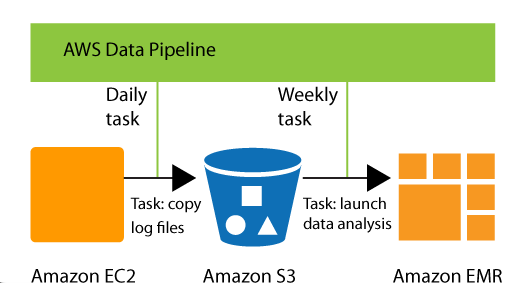
6 How Does AWS Data Pipeline Work? What is AWS Data Pipeline? AWS Data Pipeline is a web service that you can use to automate the movement and transformation of data. With AWS Data Pipeline, you can define data-driven workflows, so that tasks can be dependent on the successful completion of previous tasks. For example, you can use AWS Data Pipeline to archive your web server's logs to Amazon Simple Storage Service (Amazon S3) each day and then run a weekly Amazon Elastic MapReduce (Amazon EMR) job flow over those logs to generate traffic reports. In this example, AWS Data Pipeline would schedule the daily tasks to copy data and the weekly task to launch the Amazon EMR job flow. AWS Data Pipeline would also ensure that Amazon EMR waits for the final day's data to be uploaded to Amazon S3 before it began its analysis, even if there is an unforeseen delay in uploading the logs. AWS Data Pipeline handles the ambiguities of real-world data management. You define the parameters of your data transformations and AWS Data Pipeline enforces the logic that you've set up. How Does AWS Data Pipeline Work? Three main components of AWS Data Pipeline work together to manage your data: 1


7 Pipeline Definition Pipeline definition specifies the business logic of your data management. For more information, see Pipeline Definition Files (p. 135). AWS Data Pipeline web service interprets the pipeline definition and assigns tasks to workers to move and transform data. Task Runners poll the AWS Data Pipeline web service for tasks and then perform those tasks. In the previous example, Task Runner would copy log files to Amazon S3 and launch Amazon EMR job flows. Task Runner is installed and runs automatically on resources created by your pipeline definitions. You can write a custom task runner application, or you can use the Task Runner application that is provided by AWS Data Pipeline. For more information, see Task Runner (p. 5) and Custom Task Runner (p. 8). The following illustration below shows how these components work together. If the pipeline definition supports nonserialized tasks, AWS Data Pipeline can manage tasks for multiple task runners working in parallel. Pipeline Definition A pipeline definition is how you communicate your business logic to AWS Data Pipeline. It contains the following information: s, locations, and formats of your data sources. Activities that transform the data. The schedule for those activities. Resources that run your activities and preconditions Preconditions that must be satisfied before the activities can be scheduled. Ways to alert you with status updates as pipeline execution proceeds. From your pipeline definition, AWS Data Pipeline determines the tasks that will occur, schedules them, and assigns them to task runners. If a task is not completed successfully, AWS Data Pipeline retries the task according to your instructions and, if necessary, reassigns it to another task runner. If the task fails repeatedly, you can configure the pipeline to notify you. For example, in your pipeline definition, you might specify that in 2013, log files generated by your application will be archived each month to an Amazon S3 bucket. AWS Data Pipeline would then create 12 tasks, each copying over a month's worth of data, regardless of whether the month contained 30, 31, 28, or 29 days. 2

8 Pipeline Definition You can create a pipeline definition in the following ways: Graphically, by using the AWS Data Pipeline console. Textually, by writing a JSON file in the format used by the command line interface. Programmatically, by calling the web service with either one of the AWS SDKs or the AWS Data Pipeline API. A pipeline definition can contain the following types of components: Component Data de The location of input data for a task or the location where output data is to be stored. The following data locations are currently supported: Amazon S3 bucket MySQL database Amazon DynamoDB Local data node Activity An interaction with the data. The following activities are currently supported: Copy to a new location Launch an Amazon EMR job flow Run a Bash script from the command line (requires a UNIX environment to run the script) Run a database query Run a Hive activity Precondition A conditional statement that must be true before an action can run. The following preconditions are currently supported: A command-line Bash script was successfully completed (requires a UNIX environment to run the script) Data exists A specific time or a time interval relative to another event has been reached An Amazon S3 location contains data An Amazon RDS or Amazon DynamoDB table exists Schedule Any or all of the following: The time that an action should start The time that an action should stop How often the action should run 3

9 Lifecycle of a Pipeline Component Resource A resource that can analyze or modify data. The following computational resources are currently supported: Amazon EMR job flow Amazon EC2 instance Action A behavior that is triggered when specified conditions are met, such as the failure of an activity. The following actions are currently supported: Amazon SNS notification Terminate action For more information, see Pipeline Definition Files (p. 135). Lifecycle of a Pipeline After you create a pipeline definition, you create a pipeline and then add your pipeline definition to it.your pipeline must be validated. After you have a valid pipeline definition, you can activate it. At that point, the pipeline runs and schedules tasks. When you are done with your pipeline, you can delete it. The complete lifecycle of a pipeline is shown in the following illustration. 4

10 Task Runners Task Runners A task runner is an application that polls AWS Data Pipeline for tasks and then performs those tasks. You can either use Task Runner as provided by AWS Data Pipeline, or create a custom Task Runner application. Task Runner Task Runner is a default implementation of a task runner that is provided by AWS Data Pipeline. When Task Runner is installed and configured, it polls AWS Data Pipeline for tasks associated with pipelines that you have activated. When a task is assigned to Task Runner, it performs that task and reports its status back to AWS Data Pipeline. If your workflow requires non-default behavior, you'll need to implement that functionality in a custom task runner. There are three ways you can use Task Runner to process your pipeline: AWS Data Pipeline installs Task Runner for you on resources that are launched and managed by the web service. You install Task Runner on a computational resource that you manage, such as a long-running Amazon EC2 instance, or an on-premise server. You modify the Task Runner code to create a custom Task Runner, which you then install on a computational resource that you manage. 5

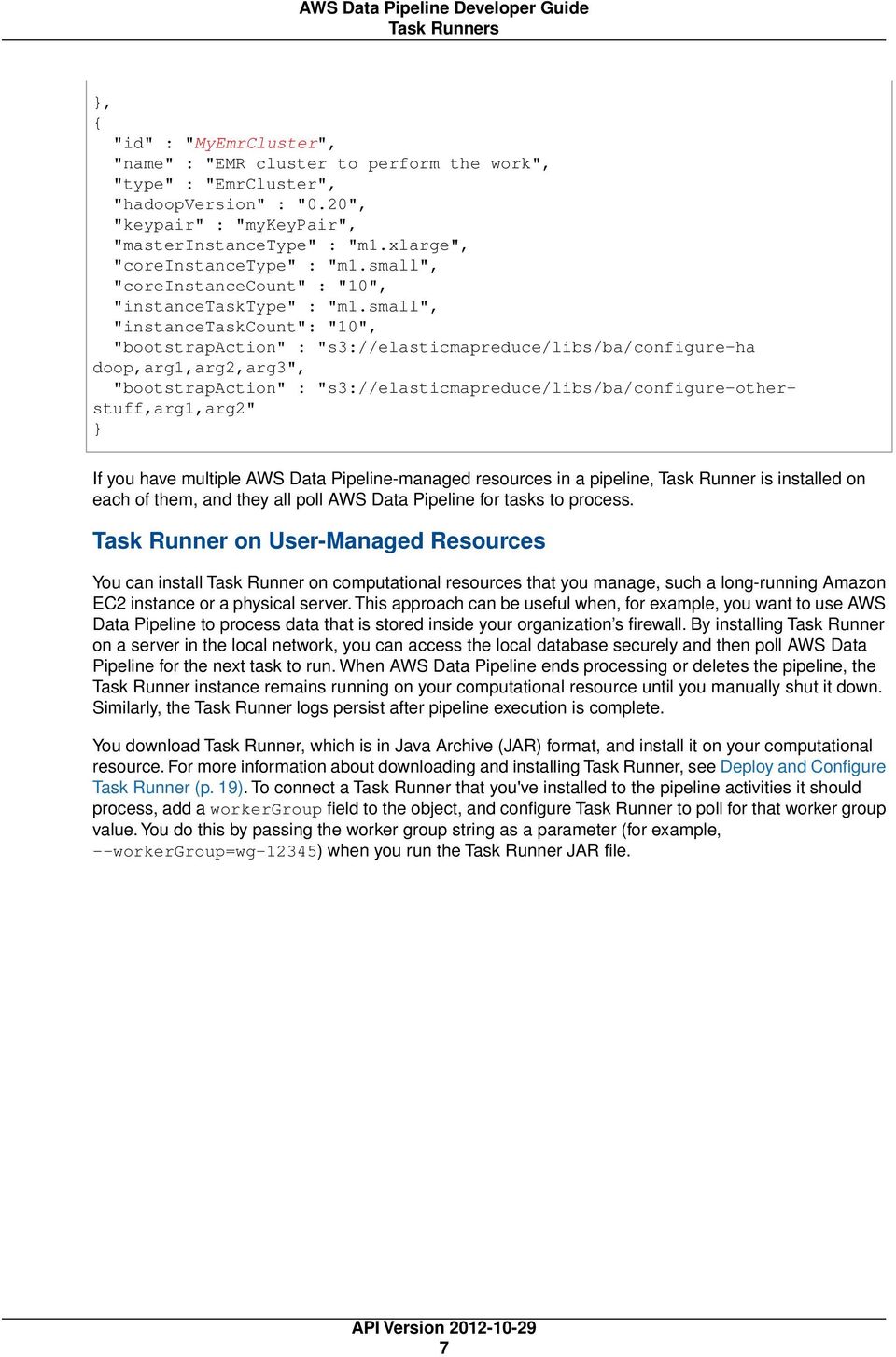
11 Task Runners Task Runner on AWS Data Pipeline-Managed Resources When a resource is launched and managed by AWS Data Pipeline, the web service automatically installs Task Runner on that resource to process tasks in the pipeline. You specify a computational resource (either an Amazon EC2 instance or an Amazon EMR job flow) for the runson field of an activity object. When AWS Data Pipeline launches this resource, it installs Task Runner on that resource and configures it to process all activity objects that have their runson field set to that resource. When AWS Data Pipeline terminates the resource, the Task Runner and all its logs are published to an Amazon S3 location before it shuts down. For example, if you use the EmrActivity action in a pipeline, and specify an EmrCluster object in the runson field. When AWS Data Pipeline processes that activity, it launches an Amazon EMR job flow and uses a bootstrap step to install Task Runner onto the master node. This Task Runner then processes the tasks for activities that have their runson field set to that EmrCluster object. The following excerpt from a pipeline definiton shows this relationship between the two objects. "id" : "MyEmrActivity", "name" : "Work to perform on my data", "type" : "EmrActivity", "runson" : "ref" : "MyEmrCluster" "prestepcommand" : "scp remotefiles localfiles", "step" : "s3://mybucket/mypath/mystep.jar,firstarg,secondarg", "step" : "s3://mybucket/mypath/myotherstep.jar,anotherarg", "poststepcommand" : "scp localfiles remotefiles", "input" : "ref" : "MyS3Input" "output" : "ref" : "MyS3Output"} 6

12 Task Runners "id" : "MyEmrCluster", "name" : "EMR cluster to perform the work", "type" : "EmrCluster", "hadoopversion" : "0.20", "keypair" : "mykeypair", "masterinstancetype" : "m1.xlarge", "coreinstancetype" : "m1.small", "coreinstancecount" : "10", "instancetasktype" : "m1.small", "instancetaskcount": "10", "bootstrapaction" : "s3://elasticmapreduce/libs/ba/configure-ha doop,arg1,arg2,arg3", "bootstrapaction" : "s3://elasticmapreduce/libs/ba/configure-otherstuff,arg1,arg2" } If you have multiple AWS Data Pipeline-managed resources in a pipeline, Task Runner is installed on each of them, and they all poll AWS Data Pipeline for tasks to process. Task Runner on User-Managed Resources You can install Task Runner on computational resources that you manage, such a long-running Amazon EC2 instance or a physical server. This approach can be useful when, for example, you want to use AWS Data Pipeline to process data that is stored inside your organization s firewall. By installing Task Runner on a server in the local network, you can access the local database securely and then poll AWS Data Pipeline for the next task to run. When AWS Data Pipeline ends processing or deletes the pipeline, the Task Runner instance remains running on your computational resource until you manually shut it down. Similarly, the Task Runner logs persist after pipeline execution is complete. You download Task Runner, which is in Java Archive (JAR) format, and install it on your computational resource. For more information about downloading and installing Task Runner, see Deploy and Configure Task Runner (p. 19). To connect a Task Runner that you've installed to the pipeline activities it should process, add a workergroup field to the object, and configure Task Runner to poll for that worker group value. You do this by passing the worker group string as a parameter (for example, --workergroup=wg-12345) when you run the Task Runner JAR file. 7
13 Task Runners } "id" : "MyStoredProcedureActivity", "type" : "StoredProcedureActivity", "workergroup" : "wg-12345", "command" : "mkdir new-directory" Custom Task Runner If your data-management requires behavior other than the default behavior provided by Task Runner, you need to create a custom task runner. Because Task Runner is an open-source application, you can use it as the basis for creating your custom implementation. After you write the custom task runner, you install it on a computational resource that you own, such as a long-running EC2 instance or a physical server inside your organization's firewall. To connect your custom task runner to the pipeline activities it should process, add a workergroup field to the object, and configure your custom task runner to poll for that worker group value. 8

14 Task Runners For example, if you use the ShellCommandActivity action in a pipeline, and specify a value for the workergroup field, when AWS Data Pipeline processes that activity, it passes the task to a task runner that polls the web service for work and specifies that worker group. The following excerpt from a pipeline definition shows how to configure the workergroup field. } "id" : "CreateDirectory", "type" : "ShellCommandActivity", "workergroup" : "wg-67890", "command" : "mkdir new-directory" When you create a custom task runner, you have complete control over how your pipeline activities are processed. The only requirement is that you communicate with AWS Data Pipeline as follows: Poll for tasks Your task runner should poll AWS Data Pipeline for tasks to process by calling the PollForTask API. If tasks are ready in the work queue, GetRemoteWork returns a Response immediately. If no tasks are available in the queue, GetRemoteWork uses long-polling and holds on to a poll connection for up to 90 seconds, during which time any newly scheduled tasks are handed to the task agent. Your remote worker should not call GetRemoteWork again on the same worker group until it receives a Response, and this may take up to 90 seconds. Report progress Your task runner should report its progress to AWS Data Pipeline by calling the ReportTaskProgress API each minute. If a task runner does not report its status after 5 minutes, then every 20 minutes afterwards (configurable), AWS Data Pipeline assumes the task runner is unable to process the task and assigns it in a subsequent Response to GetRemoteWork. Signal completion of a task Your task runner should inform AWS Data Pipeline of the outcome when it completes a task by calling the SetTaskStatus API. The task runner calls this action regardless 9

15 Pipeline Components, Instances, and Attempts of whether the task was sucessful. The task runner does not need to call SetRemoteWorkStatus for tasks canceled by AWS Data Pipeline. Pipeline Components, Instances, and Attempts There are three types of items associated with a scheduled pipeline: Pipeline Components Pipeline components represent the business logic of the pipeline and are represented by the different sections of a pipeline definition. Pipeline components specify the data sources, activities, schedule, and preconditions of the workflow. They can inherit properties from parent components. Relationships among components are defined by reference. Pipeline components define the rules of data management; they are not a to-do list. Instances When AWS Data Pipeline runs a pipeline, it compiles the pipeline components to create a set of actionable instances. Each instance contains all the information needed to perform a specific task. The complete set of instances is the to-do list of the pipeline. AWS Data Pipeline hands the instances out to task runners to process. Attempts To provide robust data management, AWS Data Pipeline retries a failed operation. It continues to do so until the task reaches the maximum number of allowed retry attempts. Attempt objects track the various attempts, results, and failure reasons if applicable. Essentially, it is the instance with a counter. te Retrying failed tasks is an important part of a fault tolerance strategy, and AWS Data Pipeline pipeline definitions provide conditions and thresholds to control retries. However, too many retries can delay detection of an unrecoverable failure because AWS Data Pipeline does not report failure until it has exhausted all the retries that you specify. The extra retries may accrue additional charges if they are running on AWS resources. As a result, carefully consider when it is appropriate to exceed the AWS Data Pipeline default settings that you use to control re-tries and related settings. 10


16 Lifecycle of a Pipeline Task Lifecycle of a Pipeline Task The following diagram illustrates how AWS Data Pipeline and a task runner interact to process a scheduled task. 11

17 Access the Console Get Set Up for AWS Data Pipeline There are several ways you can interact with AWS Data Pipeline: Console a graphical interface you can use to create and manage pipelines. With it, you fill out web forms to specify the configuration details of your pipeline components. The AWS Data Pipeline console provides several templates, which are pre-configured pipelines for common scenarios. As you keep building your pipeline, graphical representation of the components appear on the design pane. The arrows between the components indicate the connection between the components. Using the console is the easiest way to get started with AWS Data Pipeline. It creates the pipeline definition for you, and no JSON or programming knowledge is required. The console is available online at For more information about accessing the console, see Access the Console (p. 12). Command Line Interface (CLI) an application you run on your local machine to connect to AWS Data Pipeline and create and manage pipelines. With it, you issue commands into a terminal window and pass in JSON files that specify the pipeline definition. Using the CLI is the best option if you prefer working from a command line. For more information, see Install the Command Line Interface (p. 15). Software Development Kit (SDK) AWS provides an SDK with functions that call AWS Data Pipeline to create and manage pipelines. With it, you can write applications that automate the process of creating and managing pipelines. Using the SDK is the best option if you want to extend or customize the functionality of AWS Data Pipeline. You can download the AWS SDK for Java from Web Service API AWS provides a low-level interface that you can use to call the web service directly using JSON. Using the API is the best option if you want to create an custom SDK that calls AWS Data Pipeline. For more information, see AWS Data Pipeline API Reference. In addition, there is the Task Runner application, which is a default implementation of a task runner. Depending on the requirements of your data management, you may need to install Task Runner on a computational resource such as a long-running Amazon EC2 instance or a physical server. For more information about when to install Task Runner, see Task Runner (p. 5). For more information about how to install Task Runner, see Deploy and Configure Task Runner (p. 19). Access the Console Topics Where Do I Go w? (p. 15) 12
18 Access the Console The AWS Data Pipeline console enables you to do the following: Create, save, and activate your pipeline View the details of all the pipelines associated with your account Modify your pipeline Delete your pipeline You must have an Amazon Web Services (AWS) account to access the AWS Data Pipeline console. When you create an AWS account, AWS automatically signs up the account for all AWS services, including AWS Data Pipeline. With AWS Data Pipeline, you pay only for what you use. For more information about AWS Data Pipeline usage rates, see AWS Data Pipeline. If you have an AWS account already, skip to the next step. If you don't have an AWS account, use the following procedure to create one. To create an AWS account 1. Go to AWS and click Sign Up w. 2. Follow the on-screen instructions. Part of the sign-up process involves receiving a phone call and entering a PIN using the phone keypad. To access the console 1. Sign in to the AWS Management Console and open the AWS Data Pipeline console at 2. If your account doesn't already have data pipelines, the console displays the following introductory screen that prompts you to create your first pipeline. This screen also provides an overview of the process for creating a pipeline, and links to relevant documentation and resources. Click Create Pipeline to create your pipeline. 13
19 Access the Console If you already have pipelines associated with your account, the console displays the page listing all the pipelines associated with your account. Click Create New Pipeline to create your pipeline. 14

20 Where Do I Go w? Where Do I Go w? You are now ready to start creating your pipelines. For more information about creating a pipeline, see the following tutorials: Tutorial: Copy CSV Data from Amazon S3 to Amazon S3 (p. 25) Tutorial: Copy Data From a MySQL Table to Amazon S3 (p. 40) Tutorial: Launch an Amazon EMR Job Flow (p. 56) Tutorial: Run a Shell Command to Process MySQL Table (p. 107) Install the Command Line Interface The AWS Data Pipeline command line interface (CLI) is a tool you can use to create and manage pipelines from a terminal window. It is written in Ruby and makes calls to the web service on your behalf. Topics Install Ruby (p. 15) Install the RubyGems package management framework (p. 15) Install Prerequisite Ruby Gems (p. 16) Install the AWS Data Pipeline CLI (p. 17) Locate your AWS Credentials (p. 17) Create a Credentials File (p. 18) Verify the CLI (p. 18) Install Ruby The AWS Data Pipeline CLI requires Ruby Some operating systems, such as Mac OS, come with Ruby pre-installed. To verify the Ruby installation and version To check whether Ruby is installed, and which version, run the following command in a terminal window. If Ruby is installed, this command displays its version information. ruby -v If you don t have Ruby installed, use the following procedure to install it. To install Ruby on Linux/Unix/Mac OS Download Ruby from and follow the installation instructions for your version of Linux/Unix/Mac OS. Install the RubyGems package management framework The AWS Data Pipeline CLI requires a version of RubyGems that is compatible with Ruby
21 Install Prerequisite Ruby Gems To verify the RubyGems installation and version To check whether RubyGems is installed, run the following command from a terminal window. If RubyGems is installed, this command displays its version information. gem -v If you don t have RubyGems installed, or have a version not compatible with Ruby 1.8.7, you need to download and install RubyGems before you can install the AWS Data Pipeline CLI. To install RubyGems on Linux/Unix/Mac OS 1. Download RubyGems from 2. Install RubyGems using the following command. sudo ruby setup.rb Install Prerequisite Ruby Gems The AWS Data Pipeline CLI requires Ruby or greater, a compatible version of RubyGems, and the following Ruby gems: json (version 1.4 or greater) uuidtools (version 2.1 or greater) httparty (version.7 or greater) bigdecimal (version 1.0 or greater) nokogiri (version or greater) The following topics describe how to install the AWS Data Pipeline CLI and the Ruby environment it requires. Use the following procedures to ensure that each of the gems listed above is installed. To verify whether a gem is installed To check whether a gem is installed, run the following command from a terminal window. For example, if 'uuidtools' is installed, this command displays the name and version of the 'uuidtools' RubyGem. gem search 'uuidtools' If you don t have 'uuidtools' installed, then you need to install it before you can install the AWS Data Pipeline CLI. To install 'uuidtools' on Windows/Linux/Unix/Mac OS Install 'uuidtools' using the following command. 16
22 Install the AWS Data Pipeline CLI sudo gem install uuidtools Install the AWS Data Pipeline CLI After you have verified the installation of your Ruby environment, you re ready to install the AWS Data Pipeline CLI. To install the AWS Data Pipeline CLI on Windows/Linux/Unix/Mac OS 1. Download datapipeline-cli.zip from 2. Unzip the compressed file. For example, on Linux/Unix/Mac OS use the following command: unzip datapipeline-cli.zip This uncompresses the CLI and supporting code into a new directory called dp-cli. 3. If you add the new directory, dp-cli, to your PATH variable, you can use the CLI without specifying the complete path. In this guide, we assume that you've updated your PATH variable, or that you run the CLI from the directory where it is installed. Locate your AWS Credentials When you create an AWS account, AWS assigns you an access key ID and a secret access key. AWS uses these credentials to identify you when you interact with a web service. You need these keys for the next step of the CLI installation process. te Your secret access key is a shared secret between you and AWS. Keep this ID secret; we use it to bill you for the AWS services that you use. Never include the ID in your requests to AWS, and never this ID to anyone, even if a request appears to originate from AWS or Amazon.com. one who legitimately represents Amazon will ever ask you for your secret access key. The following procedure explains how to locate your access key ID and secret access key in the AWS Management Console. To view your AWS access credentials 1. Go to the Amazon Web Services website at 2. Click My Account/Console, and then click Security Credentials. 3. Under Your Account, click Security Credentials. 4. In the spaces provided, type your user name and password, and then click Sign in using our secure server. 5. Under Access Credentials, on the Access Keys tab, your access key ID is displayed. To view your secret key, under Secret Access Key, click Show. Make a note of your access key ID and your secret access key; you will use them in the next section. 17
23 Create a Credentials File Create a Credentials File When you request services from AWS Data Pipeline, you must pass your credentials with the request so that AWS can properly authenticate and eventually bill you. The command line interface obtains your credentials from a JSON document called a credentials file, which is stored in your home directory, ~/. Using a credentials file is the simplest way to make your AWS credentials available to the AWS Data Pipeline CLI. The credentials file contains the following name-value pairs. comment access-id private-key endpoint log-uri An optional comment within the credentials file. The access key ID for your AWS account. The secret access key for your AWS account The endpoint for AWS Data Pipeline in the region where you are making requests. The location of the Amazon S3 bucket where AWS Data Pipeline writes log files. In the following example credentials file, AKIAIOSFODNN7EXAMPLE represents an access key ID, and wjalrxutnfemi/k7mdeng/bpxrficyexamplekey represents the corresponding secret access key. The value of log-uri specifies the location of your Amazon S3 bucket and the path to the log files for actions performed by the AWS Data Pipeline web service on behalf of your pipeline. } "access-id": "AKIAIOSFODNN7EXAMPLE", "private-key": "wjalrxutnfemi/k7mdeng/bpxrficyexamplekey", "endpoint": "datapipeline.us-east-1.amazonaws.com", "port": "443", "use-ssl": "true", "region": "us-east-1", "log-uri": "s3://myawsbucket/logfiles" After you replace the values for the access-id, private-key, and log-uri fields with the appropriate information, save the file as credentials.json in either your home directory, ~/. Verify the CLI To verify that the command line interface (CLI) is installed, use the following command. datapipeline --help If the CLI is installed correctly, this command displays the list of commands for the CLI. 18
24 Deploy and Configure Task Runner Deploy and Configure Task Runner Task Runner is an task runner application that polls AWS Data Pipeline for scheduled tasks and processes the tasks assigned to it by the web service, reporting status as it does so. Depending on your application, you may choose to: Have AWS Data Pipeline install and manage one or more Task Runner applications for you on computational resources managed by the web service. In this case, you do not need to install or configure Task Runner. Manually install and configure Task Runner on a computational resource such as a long-running Amazon EC2 instance or a physical server. To do so, use the following procedures. Manually install and configure a custom task runner instead of Task Runner. The procedures for doing so depends on the implementation of the custom task runner. For more information about Task Runner and when and where it should be configured, see Task Runner (p. 5). Topics te You can only install Task Runner on Linux, UNIX, or Mac OS. Task Runner is not supported on the Windows operating system. Install Java (p. 19) Install Task Runner (p. 235) Start Task Runner (p. 235) Verify Task Runner (p. 236) Install Java Task Runner requires Java version 1.6 or later. To determine whether Java is installed, and the version that is running, use the following command: java -version If you do not have Java 1.6 or later installed on your computer, you can download the latest version from Install Task Runner To install Task Runner, download TaskRunner-1.0.jar from Task Runner download and copy it into a folder. Additionally, download mysql-connector-java bin.jar from and copy it into the same folder where you install Task Runner. Start Task Runner In a new command prompt window that is set to the directory where you installed Task Runner, start Task Runner with the following command. The --config option points to your credentials file. The --workergroup option specifies the name of your worker group, which must be the same value as specified in your pipeline for tasks to be processed. 19
25 Verify Task Runner java -jar TaskRunner-1.0.jar --config ~/credentials.json --workergroup=mywork ergroup When Task Runner is active, it prints the path to where log files are written in the terminal window. The following is an example. Logging to /mycomputer/.../dist/output/logs Warning If you close the terminal window, or interrupt the command with CTRL+C, Task Runner stops, which halts the pipeline runs. Verify Task Runner The easiest way to verify that Task Runner is working is to check whether it is writing log files. The log files are stored in the directory where you started Task Runner. When you check the logs, make sure you that are checking logs for the current date and time. Task Runner creates a new log file each hour, where the hour from midnight to 1am is 00. So the format of the log file name is TaskRunner.log.YYYY-MM-DD-HH, where HH runs from 00 to 23, in UDT. To save storage space, any log files older than eight hours are compressed with GZip. Install the AWS SDK The easiest way to write applications that interact with AWS Data Pipeline or to implement a custom task runner is to use one of the AWS SDKs. The AWS SDKs provide functionality that simplify calling the web service APIs from your preferred programming environment. For more information about the programming languages and development environments that have AWS SDK support, see the AWS SDK listings. If you are not writing programs that interact with AWS Data Pipeline, you do not need to install any of the AWS SDKs. You can create and run pipelines using the console or command-line interface. This guide provides examples of programming AWS Data Pipeline using Java. The following are examples of how to download and install the AWS SDK for Java. To install the AWS SDK for Java using Eclipse Install the AWS Toolkit for Eclipse. Eclipse is a popular Java development environment. The AWS Toolkit for Eclipse installs the latest version of the AWS SDK for Java. From Eclipse, you can easily modify, build, and run any of the samples included in the SDK. To install the AWS SDK for Java If you are using a Java development environment other than Eclipse, download and install the AWS SDK for Java. 20
26 Granting Permissions to Pipelines with IAM Granting Permissions to Pipelines with IAM In AWS Data Pipeline, IAM roles determine what your pipeline can access and actions it can perform. Additionally, when your pipeline creates a resource, such as when a pipeline creates an Amazon EC2 instance, IAM roles determine the EC2 instance's permitted resources and actions. When you create a pipeline, you specify one IAM role that governs your pipeline and another IAM role to govern your pipeline's resources (referred to as a "resource role"), which can be the same role for both. Carefully consider the minimum permissions necessary for your pipeline to perform work and define the IAM roles accordingly. It is important to note that even a modest pipeline might need access to resources and actions to various areas of AWS, for example: Accessing files in Amazon S3 Creating and managing Amazon EMR clusters Creating and managing Amazon EC2 instances Accessing data in Amazon RDS or Amazon DynamoDB Sending notifications using Amazon SNS When you use the AWS Data Pipeline console, you can choose a pre-defined, default IAM role and resource role or create a new one to suit your needs. However, when using the AWS Data Pipeline CLI, you must create a new IAM role and apply a policy to it yourself, for which you can use the following example policy. For more information about how to create a new IAM role and apply a policy to it, see Managing IAM Policies in the Using IAM guide. Warning Carefully review and restrict permissions in the following example policy to only the resources that your pipeline requires. "Statement": [ "Action": [ "s3:*" ], "Effect": "Allow", "Resource": [ "*" ] "Action": [ "ec2:describeinstances", "ec2:runinstances", "ec2:startinstances", "ec2:stopinstances", "ec2:terminateinstances" ], "Effect": "Allow", "Resource": [ "*" ] "Action": [ "elasticmapreduce:*" ], 21
27 Granting Permissions to Pipelines with IAM } ] "Effect": "Allow", "Resource": [ "*" ] "Action": [ "dynamodb:*" ], "Effect": "Allow", "Resource": [ "*" ] "Action": [ "rds:describedbinstances", "rds:describedbsecuritygroups" ], "Effect": "Allow", "Resource": [ "*" ] "Action": [ "sns:gettopicattributes", "sns:listtopics", "sns:publish", "sns:subscribe", "sns:unsubscribe" ], "Effect": "Allow", "Resource": [ "*" ] "Action": [ "iam:passrole" ], "Effect": "Allow", "Resource": [ "*" ] } "Action": [ "datapipeline:*" ], "Effect": "Allow", "Resource": [ "*" ] 22
28 Grant Amazon RDS Permissions to Task Runner After you define a role and apply its policy, you define a trusted entities list, which indicates the entities or services that are permitted to use your new role. You can use the following IAM trust relationship definition to allow AWS Data Pipeline and Amazon EC2 to use your new pipeline and resource roles. For more information about editing IAM trust relationships, see Modifying a Role in the Using IAM guide. } "Version": " ", "Statement": [ "Sid": "", "Effect": "Allow", "Principal": "Service": [ "ec2.amazonaws.com", "datapipeline.amazonaws.com" ] "Action": "sts:assumerole" } ] Grant Amazon RDS Permissions to Task Runner Amazon RDS allows you to control access to your DB Instances using database security groups (DB Security Groups). A DB Security Group acts like a firewall controlling network access to your DB Instance. By default, network access is turned off to your DB Instances.You must modify your DB Security Groups to let Task Runner access your Amazon RDS instances. Task Runner gains Amazon RDS access from the instance on which it runs, so the accounts and security groups that you add to your Amazon RDS instance depend on where you install Task Runner. To grant permissions to Task Runner, 1. Sign in to the AWS Management Console and open the Amazon RDS console. 2. In the Amazon RDS: My DB Security Groups pane, click your Amazon RDS instance. In the DB Security Group pane, under Connection Type, select EC2 Security Group. Configure the fields in the EC2 Security Group pane as described below: For Task Runner running on an EC2 Resource, AWS Account Id: Your AccountId EC2 Security Group: Your Security Group For a Task Runner running on an EMR Resource, AWS Account Id: Your AccountId EC2 Security Group: ElasticMapReduce-master AWS Account Id: Your AccountId EC2 Security Group: ElasticMapReduce-slave 23
29 Grant Amazon RDS Permissions to Task Runner For a Task Runner running in your local environment (on-premise), CIDR: The IP address range of your on premise machine, or firewall if your on-premise computer is behind a firewall. To allow connection from an RdsSqlPrecondition AWS Account Id: EC2 Security Group: DataPipeline 24
30 Tutorial: Copy CSV Data from Amazon S3 to Amazon S3 After you read What is AWS Data Pipeline? (p. 1) and decide you want to use AWS Data Pipeline to automate the movement and transformation of your data, it is time to get started with creating data pipelines. To help you make sense of how AWS Data Pipeline works, let s walk through a simple task. This tutorial walks you through the process of creating a data pipeline to copy data from one Amazon S3 bucket to another and then send an Amazon SNS notification after the copy activity completes successfully. You use the Amazon EC2 instance resource managed by AWS Data Pipeline for this copy activity. Important This tutorial does not employ the Amazon S3 API for high speed data transfer between Amazon S3 buckets. It is intended only for demonstration purposes to help new customers understand how to create a simple pipeline and the related concepts. For advanced information about data transfer using Amazon S3, see Working with Buckets in the Amazon S3 Developer Guide. The first step in pipeline creation process is to select the pipeline objects that make up your pipeline definition. After you select the pipeline objects, you add fields for each object. For more information, see Pipeline Definition (p. 2). This tutorial uses the following objects to create a pipeline definition: Activity Activity the AWS Data Pipeline performs for this pipeline. This tutorial uses the CopyActivity object to copy CSV data from one Amazon S3 bucket to another. Important There are distinct limitations regarding the CSV file format with CopyActivity and S3Datade. For more information, see CopyActivity (p. 180). Schedule The start date, time, and the recurrence for this activity. You can optionally specify the end date and time. Resource Resource AWS Data Pipeline must use to perform this activity. This tutorial uses Ec2Resource, an Amazon EC2 instance provided by AWS Data Pipeline, to copy data. AWS Data Pipeline automatically launches the Amazon EC2 instance and then terminates the instance after the task finishes. 25
31 Before You Begin... Datades Input and output nodes for this pipeline. This tutorial uses S3Datade for both input and output nodes. Action Action AWS Data Pipeline must take when the specified conditions are met. This tutorial uses SnsAlarm action to send Amazon SNS notifications to the address you specify, after the task finishes successfully. You must subscribe to the Amazon SNS Topic Arn to receive the notifications. The following steps outline how to create a data pipeline to copy data from one Amazon S3 bucket to another Amazon S3 bucket. 1. Create your pipeline definition 2. Validate and save your pipeline definition 3. Activate your pipeline 4. Monitor the progress of your pipeline 5. [Optional] Delete your pipeline Before You Begin... Be sure you've completed the following steps. Set up an Amazon Web Services (AWS) account to access the AWS Data Pipeline console. For more information, see Access the Console (p. 12). Set up the AWS Data Pipeline tools and interface you plan on using. For more information on interfaces and tools you can use to interact with AWS Data Pipeline, see Get Set Up for AWS Data Pipeline (p. 12). Create an Amazon S3 bucket as a data source. For more information, see Create a Bucket in the Amazon Simple Storage Service Getting Started Guide. Upload your data to your Amazon S3 bucket. For more information, see Add an Object to a Bucket in the Amazon Simple Storage Service Getting Started Guide. Create another Amazon S3 bucket as a data target Create an Amazon SNS topic for sending notification and make a note of the topic Amazon Resource (ARN). For more information, see Create a Topic in the Amazon Simple tification Service Getting Started Guide. [Optional] This tutorial uses the default IAM role policies created by AWS Data Pipeline. If you would rather create and configure your own IAM role policy and trust relationships, follow the instructions described in Granting Permissions to Pipelines with IAM (p. 21). te Some of the actions described in this tutorial can generate AWS usage charges, depending on whether you are using the AWS Free Usage Tier. 26
32 Using the AWS Data Pipeline Console Using the AWS Data Pipeline Console Topics Create and Configure the Pipeline Definition Objects (p. 27) Validate and Save Your Pipeline (p. 30) Verify your Pipeline Definition (p. 30) Activate your Pipeline (p. 31) Monitor the Progress of Your Pipeline Runs (p. 31) [Optional] Delete your Pipeline (p. 33) The following sections include the instructions for creating the pipeline using the AWS Data Pipeline console. To create your pipeline definition 1. Sign in to the AWS Management Console and open the AWS Data Pipeline console. 2. Click Create Pipeline. 3. On the Create a New Pipeline page: a. In the Pipeline box, enter a name (for example, CopyMyS3Data). b. In Pipeline, enter a description. c. Leave the Select Schedule Type: button set to the default type for this tutorial. te Schedule type allows you to specify whether the objects in your pipeline definition should be scheduled at the beginning of interval or end of the interval. Time Series Style Scheduling means instances are scheduled at the end of each interval and Cron Style Scheduling means instances are scheduled at the beginning of each interval. d. Leave the Role boxes set to their default values for this tutorial. te If you have created your own IAM roles and would like to use them in this tutorial, you can select them now. e. Click Create a new pipeline. Create and Configure the Pipeline Definition Objects Next, you define the Activity object in your pipeline definition. When you define the Activity object, you also define the objects that AWS Data Pipeline must use to perform this activity. 1. On the Pipeline: name of your pipeline page, select Add activity. 2. In the Activities pane: a. Enter the name of the activity; for example, copy-mys3-data. b. In the Type box, select CopyActivity. c. In the Input box, select Create new: Datade. d. In the Output box, select Create new: Datade. e. In the Schedule box, select Create new: Schedule. 27
33 Create and Configure the Pipeline Definition Objects f. In the Add an optional field.. box, select RunsOn. g. In the Runs On box, select Create new: Resource. h. In the Add an optional field... box, select On Success. i. In the On Success box, select Create new: Action. j. In the left pane, separate the icons by dragging them apart. You've completed defining your pipeline definition by specifying the objects AWS Data Pipeline uses to perform the copy activity. The Pipeline: name of your pipeline pane shows the graphical representation of the pipeline you just created. The arrows indicate the connection between the various objects. Next, configure the run date and time for your pipeline. To configure run date and time for your pipeline 1. On the Pipeline: name of your pipeline page, in the right pane, click Schedules. 2. In the Schedules pane: a. Enter a schedule name for this activity (for example, copy-mys3-data-schedule). b. In the Type box, select Schedule. c. In the Start Date Time box, select the date from the calendar, and then enter the time to start the activity. te AWS Data Pipeline supports the date and time expressed in "YYYY-MM-DDTHH:MM:SS" format in UTC/GMT only. d. In the Period box, enter the duration for the activity (for example, 1), and then select the period category (for example, Days). e. [Optional] To specify the date and time to end the activity, in the Add an optional field box, select enddatetime, and enter the date and time. To get your pipeline to launch immediately, set Start Date Time to a date one day in the past. AWS Data Pipeline then starts launching the "past due" runs immediately in an attempt to address what it perceives as a backlog of work. This backfilling means you don't have to wait an hour to see AWS Data Pipeline launch its first job flow. Next, configure the input and the output data nodes for your pipeline. 28
34 Create and Configure the Pipeline Definition Objects To configure the input and output data nodes of your pipeline 1. On the Pipeline: name of your pipeline page, in the right pane, click Datades. 2. In the Datades pane: a. In the DefaultDatade1 box, enter the name for your input node (for example, MyS3Input). In this tutorial, your input node is the Amazon S3 data source bucket. b. In the Type box, select S3Datade. c. In the Schedule box, select copy-mys3-data-schedule. d. In the Add an optional field... box, select File Path. e. In the File Path box, enter the path to your Amazon S3 bucket (for example, s3://my-data-pipeline-input/name of your data file). f. In the DefaultDatade2 box, enter the name for your output node (for example, MyS3Output). In this tutorial, your output node is the Amazon S3 data target bucket. g. In the Type box, select S3Datade. h. In the Schedule box, select copy-mys3-data-schedule. i. In the Add an optional field... box, select File Path. j. In the File Path box, enter the path to your Amazon S3 bucket (for example, s3://my-data-pipeline-output/name of your data file). Next, configure the resource AWS Data Pipeline must use to perform the copy activity. To configure the resource, 1. On the Pipeline: name of your pipeline page, in the right pane, click Resources. 2. In the Resources pane: a. In the box, enter the name for your resource (for example, CopyDataInstance). b. In the Type box, select Ec2Resource. c. In the Schedule box, select copy-mys3-data-schedule. d. Leave the Role and Resource Role boxes set to default values for this tutorial. te If you have created your own IAM roles, you can select them now. Next, configure the SNS notification action AWS Data Pipeline must perform after the copy activity finishes successfully. To configure the SNS notification action 1. On the Pipeline: name of your pipeline page, in the right pane, click Others. 2. In the Others pane: a. In the DefaultAction1 box, enter the name for your Amazon SNS notification (for example, CopyDatatice). b. In the Type box, select SnsAlarm. 29
35 Validate and Save Your Pipeline c. In the Topic Arn box, enter the ARN of your Amazon SNS topic. d. In the Message box, enter the message content. e. In the Subject box, enter the subject line for your notification. f. Leave the Role box set to the default value for this tutorial. You have now completed all the steps required for creating your pipeline definition. Next, validate and save your pipeline. Validate and Save Your Pipeline You can save your pipeline definition at any point during the creation process. As soon as you save your pipeline definition, AWS Data Pipeline looks for syntax errors and missing values in your pipeline definition. If your pipeline is incomplete or is incorrect, AWS Data Pipeline throws a validation error. If you plan to continue the creation process later, you can ignore the error message. If your pipeline definition is complete, and you are getting the validation error message, you have to fix the errors in the pipeline definition before activating your pipeline. To validate and save your pipeline 1. On the Pipeline: name of your pipeline page, click Save Pipeline. 2. AWS Data Pipeline validates your pipeline definition and returns either success or the error message. If you get an error message, click Close and then, in the right pane, click Errors. 3. The Errors pane lists the objects failing validation. Click the plus (+) sign next to the object names and look for an error message in red. 4. When you see the error message, click the specific object pane where you see the error and fix it. For example, if you see an error message in the Datades object, click the Datades pane to fix the error. 5. After you've fixed the errors listed in the Errors pane, click Save Pipeline. 6. Repeat the process until your pipeline is validated. Next, verify that your pipeline definition has been saved. Verify your Pipeline Definition It is important to verify that your pipeline was correctly initialized from your definitions before you activate it. To verify your pipeline definition 1. On the Pipeline: name of your pipeline page, click Back to list of pipelines. 2. On the List Pipelines page, check if your newly-created pipeline is listed. AWS Data Pipeline has created a unique Pipeline ID for your pipeline definition. The Status column in the row listing your pipeline should show PENDING. 3. Click on the triangle icon next to your pipeline. The Pipeline Summary panel below shows the details of your pipeline runs. Because your pipeline is not yet activated, you should see only 0s at this point. 4. In the Pipeline summary panel, click View all fields to see the configuration of your pipeline definition. 30
36 Activate your Pipeline 5. Click Close. Next, activate your pipeline. Activate your Pipeline You must activate your pipeline to start creating and processing runs based on the specifications in your pipeline definition. To activate your pipeline 1. On the List Pipelines page, in the Details column of your pipeline, click View pipeline. 2. In the Pipeline: name of your pipeline page, click Activate. A confirmation dialog box opens up confirming the activation. 3. Click Close. Next, verify if your pipeline is running. Monitor the Progress of Your Pipeline Runs To monitor the progress of your pipeline 1. On the List Pipelines page, in the Details column of your pipeline, click View instance details. 31
37 Monitor the Progress of Your Pipeline Runs 2. The Instance details: name of your pipeline page lists the status of each instance. te If you do not see runs listed, depending on when your pipeline was scheduled, either click the End (in UTC) date box and change it to a later date or click the Start (in UTC) date box and change it to an earlier date. Then click Update. 3. If the Status column of all the instances in your pipeline indicates FINISHED, your pipeline has successfully completed the copy activity.you should receive an about the successful completion of this task, to the account you specified for receiving your Amazon SNS notification. You can also check your Amazon S3 data target bucket to verify if the data was copied. 4. If the Status column of any of your instance indicates a status other than FINISHED, either your pipeline is waiting for some precondition to be met or it has failed. a. To troubleshoot the failed or the incomplete instance runs, Click the triangle next to an instance, Instance summary panel opens to show the details of the selected instance. b. In the Instance summary pane. click View instance fields to see details of fields associated with the selected instance. If the status of your selected instance is FAILED, the details box has an entry indicating the reason for failure. For = Resource not healthy terminated. c. In the Instance summary pane, in the Select attempt for this instance box, select the attempt number. d. In the Instance summary pane, click View attempt fields to see details of fields associated with the selected attempt. 5. To take an action on your incomplete or failed instance, select an action (Rerun Cancel Mark Finished) from the Action column of the instance. You can use the information in the Instance summary pane and the View instance fields box to troubleshoot issues with your failed pipeline. For more information about instance status, see Interpret Pipeline Status Details (p. 129). For more information about troubleshooting the failed or incomplete instance runs of your pipeline, see AWS Data Pipeline Problems and Solutions (p. 131). 32
38 [Optional] Delete your Pipeline Important Your pipeline is running and is incurring charges. For more information, see AWS Data Pipeline pricing. If you would like to stop incurring the AWS Data Pipeline usage charges, delete your pipleline. [Optional] Delete your Pipeline Deleting your pipeline deletes the pipeline definition including all the associated objects.you stop incurring charges as soon as your pipeline is deleted. To delete your pipeline 1. In the List Pipelines page, click the check box next to your pipeline. 2. Click Delete. 3. In the confirmation dialog box, click Delete to confirm the delete request. Using the Command Line Interface Topics Define a Pipeline in JSON Format (p. 33) Upload the Pipeline Definition (p. 38) Activate the Pipeline (p. 39) Verify the Pipeline Status (p. 39) The following topics explain how to use the AWS Data Pipeline CLI to create and use pipelines to copy data from one Amazon S3 bucket to another. In this example, we perform the following steps: Create a pipeline definition using the CLI in JSON format Create the necessary IAM roles and define a policy and trust relationships Upload the pipeline definition using the AWS Data Pipeline CLI tools Monitor the progress of the pipeline Define a Pipeline in JSON Format This example scenario shows how to use JSON pipeline definitions and the AWS Data Pipeline CLI to schedule copying data between two Amazon S3 buckets at a specific time interval. This is the full pipeline definition JSON file followed by an explanation for each of its sections. te We recommend that you use a text editor that can help you verify the syntax of JSON-formatted files, and name the file using the.json file extension. "objects": [ 33
39 Define a Pipeline in JSON Format "id": "MySchedule", "type": "Schedule", "startdatetime": " T00:00:00", "enddatetime": " T00:00:00", "period": "1 day" "id": "S3Input", "type": "S3Datade", "schedule": "ref": "MySchedule" "filepath": "s3://testbucket/file.txt" "id": "S3Output", "type": "S3Datade", "schedule": "ref": "MySchedule" "filepath": "s3://testbucket/file-copy.txt" "id": "MyEC2Resource", "type": "Ec2Resource", "schedule": "ref": "MySchedule" "actionontaskfailure": "terminate", "actiononresourcefailure": "retryall", "maximumretries": "1", "role": "test-role", "resourcerole": "test-role", "instancetype": "m1.medium", "instancecount": "1", "securitygroups": [ "test-group", "default" ], "keypair": "test-pair" "id": "MyCopyActivity", "type": "CopyActivity", "runson": "ref": "MyEC2Resource" "input": "ref": "S3Input" "output": "ref": "S3Output" "schedule": "ref": "MySchedule" } } 34
40 Define a Pipeline in JSON Format ] } Schedule The example AWS Data Pipeline JSON file begins with a section to define the schedule by which to copy the data. Many pipeline components have a reference to a schedule and you may have more than one. The Schedule component is defined by the following fields: "id": "MySchedule", "type": "Schedule", "startdatetime": " T00:00:00", "enddatetime":" t00:00:00", "period": "1 day" te In the JSON file, you can define the pipeline components in any order you prefer. In this example, we chose the order that best illustrates the pipeline component dependencies. The user-defined name for the pipeline schedule, which is a label for your reference only. Type The pipeline component type, which is Schedule. startdatetime The date/time (in UTC format) that you want the task to begin. enddatetime The date/time (in UTC format) that you want the task to stop. period The time period that you want to pass between task attempts, even if the task occurs only one time. The period must evenly divide the time between startdatetime and enddatetime. In this example, we set the period to be 1 day so that the pipeline copy operation can only run one time. Amazon S3 Data des Next, the input S3Datade pipeline component defines a location for the input files; in this case, an Amazon S3 bucket location. The input S3Datade component is defined by the following fields: "id" : "S3Input", "type" : "S3Datade", "schedule" : "ref" : "MySchedule" "filepath" : "s3://testbucket/file.txt", "schedule": "ref": "MySchedule" } The user-defined name for the input location (a label for your reference only). Type The pipeline component type, which is "S3Datade" to match the location where the data resides, in an Amazon S3 bucket. 35
41 Define a Pipeline in JSON Format Schedule A reference to the schedule component that we created in the preceding lines of the JSON file labeled MySchedule. Path The path to the data associated with the data node. The syntax for a data node is determined by its type. For example, a data node for a database follows a different syntax that is appropriate for a database table. Next, the output S3Datade component defines the output destination location for the data. It follows the same format as the input S3Datade component, except the name of the component and a different path to indicate the target file. "id" : "S3Output", "type" : "S3Datade", "schedule" : "ref" : "MySchedule" "filepath" : "s3://testbucket/file-copy.txt", "schedule": "ref": "MySchedule" } Resource This is a definition of the computational resource that performs the copy operation. In this example, AWS Data Pipeline should automatically create an EC2 instance to perform the copy task and terminate the resource after the task completes. The fields defined here control the creation and function of the Amazon EC2 instance that does the work. The EC2Resource is defined by the following fields: "id": "MyEC2Resource", "type": "Ec2Resource", "schedule": "ref": "MySchedule" "actionontaskfailure": "terminate", "actiononresourcefailure": "retryall", "maximumretries": "1", "role" : "test-role", "resourcerole": "test-role", "instancetype": "m1.medium", "instancecount": "1", "securitygroups": [ "test-group", "default" ], "keypair": "test-pair" The user-defined name for the pipeline schedule, which is a label for your reference only. Type The type of computational resource to perform work; in this case, an Amazon EC2 instance. There are other resource types available, such as an EmrCluster type. Schedule The schedule on which to create this computational resource. actionontaskfailure The action to take on the Amazon EC2 instance if the task fails. In this case, the instance should terminate so that each failed attempt to copy data does not leave behind idle, abandoned Amazon EC2 instances with no work to perform. These instances require manual termination by an administrator. 36
42 Define a Pipeline in JSON Format actiononresourcefailure The action to perform if the resource is not created successfully. In this case, retry the creation of an Amazon EC2 instance until it is successful. maximumretries The number of times to retry the creation of this computational resource before marking the resource as a failure and stopping any further creation attempts. This setting works in conjunction with the actiononresourcefailure field. Role The IAM role of the account that accesses resources, such as accessing an Amazon S3 bucket to retrieve data. resourcerole The IAM role of the account that creates resources, such as creating and configuring an Amazon EC2 instance on your behalf. Role and ResourceRole can be the same role, but separately provide greater granularity in your security configuration. instancetype The size of the Amazon EC2 instance to create. Ensure that you set the appropriate size of EC2 instance that best matches the load of the work that you want to perform with AWS Data Pipeline. In this case, we set an m1.medium sized EC2 instance. For more information about the different instance types and when to use each one, see to the Amazon EC2 Instance Types topic at instancecount The number of Amazon EC2 instances in the computational resource pool to service any pipeline components depending on this resource. securitygroups The Amazon EC2 security groups to grant access to this EC2 instance. As the example shows, you can provide more than one group at a time (test-group and default). keypair The name of the SSH public/private key pair to log in to the Amazon EC2 instance. For more information, see Amazon EC2 Key Pairs. Activity The last section in the JSON file is the definition of the activity that represents the work to perform. This example uses CopyActivity to copy data from a file in an Amazon S3 bucket to another file. The CopyActivity component is defined by the following fields: } "id" : "MyCopyActivity", "type" : "CopyActivity", "runson":"ref":"myec2resource" "input" : "ref" : "S3Input" "output" : "ref" : "S3Output" "schedule" : "ref" : "MySchedule"} The user-defined name for the activity, which is a label for your reference only. Type The type of activity to perform, such as MyCopyActivity. runson The computational resource that performs the work that this activity defines. In this example, we provide a reference to the Amazon EC2 instance defined previously. Using the runson field causes AWS Data Pipeline to create the EC2 instance for you. The runson field indicates that the resource 37
43 Upload the Pipeline Definition exists in the AWS infrastructure, while the workergroup value indicates that you want to use your own on-premises resources to perform the work. Schedule The schedule on which to run this activity. Input The location of the data to copy. Output The target location data. Upload the Pipeline Definition You can upload a pipeline definition file using the AWS Data Pipeline CLI tools. For more information, see Install the Command Line Interface (p. 15) To upload your pipeline definition, use the following command. On Linux/Unix/Mac OS:./datapipeline - create pipeline_name - put pipeline_file On Windows: ruby datapipeline - create pipeline_name - put pipeline_file Where pipeline_name is the label for your pipeline and pipeline_file is the full path and file name for the file with the.json file extension that defines your pipeline. If your pipeline validates successfully, you receive the following message: Pipeline with name pipeline_name and id df-akiaiosfodnn7example created. Pipeline definition pipeline_file.json uploaded. te For more information about any errors returned by the create command or other commands, see Troubleshoot AWS Data Pipeline (p. 128). Ensure that your pipeline appears in the pipeline list by using the following command. On Linux/Unix/Mac OS:./datapipeline --list-pipelines On Windows: ruby datapipeline - list-pipelines The list of pipelines includes details such as, Id, State, and UserId. Take note of your pipeline ID, because you use this value for most AWS Data Pipeline CLI commands. The pipeline ID is a unique identifier using the format df-akiaiosfodnn7example. 38
44 Activate the Pipeline Activate the Pipeline You must activate the pipeline, by using the --activate command-line parameter, before it will begin performing work. Use the following command. On Linux/Unix/Mac OS:./datapipeline --activate - id df-akiaiosfodnn7example On Windows: ruby datapipeline --activate - id df-akiaiosfodnn7example Where df-akiaiosfodnn7example is the identifier for your pipeline. Verify the Pipeline Status View the status of your pipeline and its components, along with its activity attempts and retries with the following command. On Linux/Unix/Mac OS:./datapipeline --list-runs id df-akiaiosfodnn7example On Windows: ruby datapipeline --list-runs id df-akiaiosfodnn7example Where df-akiaiosfodnn7example is the identifier for your pipeline. The --list-runs command displays a list of pipelines components and details such as, Scheduled Start, Status, ID, Started, and Ended. te It is important to note the difference between the Scheduled Start date/time vs. the Started time. It is possible to schedule a pipeline component to run at a certain time (Scheduled Start), but the actual start time (Started) could be later due to problems or delays with preconditions, dependencies, failures, or retries. te AWS Data Pipeline may backfill a pipeline, which happens when you define a Scheduled Start date/time for a date in the past. In that situation, AWS Data Pipeline immediately runs the pipeline components the number of times the activity should have run if it had started on the Scheduled Start time. When this happens, you see pipeline components run back-to-back at a greater frequency than the period value that you specified when you created the pipeline. AWS Data Pipeline returns your pipeline to the defined frequency only when it catches up to the number of past runs. Successful pipeline runs are indicated by all the activities in your pipeline reporting the FINISHED status. Your pipeline frequency determines how many times the pipeline runs, and each run has its own success or failure, as indicated by the --list-runs command. Resources that you define in your pipeline, such as Amazon EC2 instances, may show the SHUTTING_DOWN status until they are finally terminated after a successful run. Depending on how you configured your pipeline, you may have multiple Amazon EC2 resources, each with their own final status. 39
45 Tutorial: Copy Data From a MySQL Table to Amazon S3 Topics Before You Begin... (p. 41) Using the AWS Data Pipeline Console (p. 42) Using the Command Line Interface (p. 48) This tutorial walks you through the process of creating a data pipeline to copy data (rows) from a table in MySQL database to a CSV (comma-separated values) file in Amazon S3 bucket and then send an Amazon SNS notification after the copy activity completes successfully. You will use the Amazon EC2 instance resource provided by AWS Data Pipeline for this copy activity. The first step in pipeline creation process is to select the pipeline objects that make up your pipeline definition. After you select the pipeline objects, you add fields for each pipeline object. For more information on pipeline definition, see Pipeline Definition (p. 2). This tutorial uses the following objects to create a pipeline definition: Activity Activity the AWS Data Pipeline must perform for this pipeline. This tutorial uses the CopyActivity to copy data from a MySQL table to an Amazon S3 bucket. Schedule The start date, time, and the duration for this activity. You can optionally specify the end date and time. Resource Resource AWS Data Pipeline must use to perform this activity. This tutorial uses Ec2Resource, an Amazon EC2 instance provided by AWS Data Pipeline, to copy data. AWS Data Pipeline automatically launches the Amazon EC2 instance and then terminates the instance after the task finishes. Datades Input and output nodes for this pipeline. This tutorial uses MySQLDatade for source data and S3Datade for target data. 40
46 Before You Begin... Action Action AWS Data Pipeline must take when the specified conditions are met. This tutorial uses SnsAlarm action to send Amazon SNS notification to the address you specify, after the task finishes successfully. For information about the additional objects and fields supported by the copy activity, see CopyActivity (p. 180). The following steps outline how to create a data pipeline to copy data from MySQL table to Amazon S3 bucket. 1. Create your pipeline definition 2. Create and configure the pipeline definition objects 3. Validate and save your pipeline definition 4. Verify that your pipeline definition is saved 5. Activate your pipeline 6. Monitor the progress of your pipeline 7. [Optional] Delete your pipeline Before You Begin... Be sure you've completed the following steps. Set up an Amazon Web Services (AWS) account to access the AWS Data Pipeline console. For more information, see Access the Console (p. 12). Set up the AWS Data Pipeline tools and interface you plan on using. For more information on interfaces and tools you can use to interact with AWS Data Pipeline, see Get Set Up for AWS Data Pipeline (p. 12). Create an Amazon S3 bucket as a data source. For more information, see Create a Bucket in Amazon Simple Storage Service Getting Started Guide. Create and launch a MySQL database instance as a data source. For more information, see Launch a DB Instance in the Amazon Relational Database Service(RDS) Getting Started Guide. te Make a note of the user name and the password you used for creating the MySQL instance. After you've launched your MySQL database instance, make a note of the instance's endpoint. You will need all this information in this tutorial. Connect to your MySQL database instance, create a table, and then add test data values to the newly created table. For more information, go to Create a Table in the MySQL documentation. Create an Amazon SNS topic for sending notification and make a note of the topic Amazon Resource (ARN). For more information, go to Create a Topic in Amazon Simple tification Service Getting Started Guide. [Optional] This tutorial uses the default IAM role policies created by AWS Data Pipeline. If you would rather create and configure your IAM role policy and trust relationships, follow the instructions described in Granting Permissions to Pipelines with IAM (p. 21). 41
47 Using the AWS Data Pipeline Console te Some of the actions described in this tutorial can generate AWS usage charges, depending on whether you are using the AWS Free Usage Tier. Using the AWS Data Pipeline Console Topics Create and Configure the Pipeline Definition Objects (p. 42) Validate and Save Your Pipeline (p. 45) Verify Your Pipeline Definition (p. 45) Activate your Pipeline (p. 46) Monitor the Progress of Your Pipeline Runs (p. 47) [Optional] Delete your Pipeline (p. 48) The following sections include the instructions for creating the pipeline using the AWS Data Pipeline console. To create your pipeline definition 1. Sign in to the AWS Management Console and open the AWS Data Pipeline Console. 2. Click Create Pipeline. 3. On the Create a New Pipeline page: a. In the Pipeline box, enter a name (for example, CopyMySQLData). b. In Pipeline, enter a description. c. Leave the Select Schedule Type: button set to the default type for this tutorial. te Schedule type allows you to specify whether the objects in your pipeline definition should be scheduled at the beginning of interval or end of the interval. Time Series Style Scheduling means instances are scheduled at the end of each interval and Cron Style Scheduling means instances are scheduled at the beginning of each interval. d. Leave the Role boxes set to their default values for this tutorial. te If you have created your own IAM roles and would like to use them in this tutorial, you can select them now. e. Click Create a new pipeline. Create and Configure the Pipeline Definition Objects Next, you define the Activity object in your pipeline definition. When you define the Activity object, you also define the objects that AWS Data Pipeline must use to perform this activity. 1. On the Pipeline: name of your pipeline page, click Add activity. 2. In the Activities pane a. Enter the name of the activity; for example, copy-mysql-data 42
48 Create and Configure the Pipeline Definition Objects b. In the Type box, select CopyActivity. c. In the Input box, select Create new: Datade. d. In the Schedule box, select Create new: Schedule. e. In the Output box, select Create new: Datade. f. In the Add an optional field.. box, select RunsOn. g. In the Runs On box, select Create new: Resource. h. In the Add an optional field.. box, select On Success. i. In the On Success box, select Create new: Action. j. In the left pane, separate the icons by dragging them apart. You've completed defining your pipeline definition by specifying the objects AWS Data Pipeline will use to perform the copy activity. The Pipeline: name of your pipeline pane shows the graphical representation of the pipeline you just created. The arrows indicate the connection between the various objects. Next step, configure run date and time for your pipeline. To configure run date and time for your pipeline, 1. On the Pipeline: name of your pipeline page, in the right pane, click Schedules. 2. In the Schedules pane: a. Enter a schedule name for this activity (for example, copy-mysql-data-schedule). b. In the Type box, select Schedule. c. In the Start Date Time box, select the date from the calendar, and then enter the time to start the activity. te AWS Data Pipeline supports the date and time expressed in "YYYY-MM-DDTHH:MM:SS" format in UTC/GMT only d. In the Period box, enter the duration for the activity (for example, 1), and then select the period category (for example, Days). e. [Optional] To specify the date and time to end the activity, in the Add an optional field box, select enddatetime, and enter the date and time. 43
49 Create and Configure the Pipeline Definition Objects To get your pipeline to launch immediately, set Start Date Time to a date one day in the past. AWS Data Pipeline will then starting launching the "past due" runs immediately in an attempt to address what it percieves as a backlog of work. This backfilling means you don't have to wait an hour to see AWS Data Pipeline launch its first job flow. Next step, configure the input and the output data nodes for your pipeline. To configure the input and output data nodes of your pipeline, 1. On the Pipeline: name of your pipeline page, in the right pane, click Datades. 2. In the Datades pane: a. In the DefaultDatade1 box, enter the name for your input node (for example, MySQLInput). In this tutorial, your input node is the Amazon RDS MySQL instance you just created. b. In the Type box, select MySQLDatade. c. In the Username box, enter the user name you used when you created your MySQL database instance. d. In the Connection box, enter the end point of your MySQL database instance (for example, mydbinstance.c3frkexample.us-east-1.rds.amazonaws.com). e. In the *Password box, enter the password you used when you created your MySQL database instance. f. In the Table box, enter the name of the source MySQL database table (for example, input-table g. In the Schedule box, select copy-mysql-data-schedule. h. In the DefaultDatade2 box, enter the name for your output node (for example, MyS3Output). In this tutorial, your output node is the Amazon S3 data target bucket. i. In the Type box, select S3Datade. j. In the Schedule box, select copy-mysql-data-schedule. k. In the Add an optional field.. box, select File Path. l. In the File Path box, enter the path to your Amazon S3 bucket (for example, s3://my-data-pipeline-output/name of your csv file). Next step, configure the the resource AWS Data Pipeline must use to perform the copy activity. To configure the resource, 1. On the Pipeline: name of your pipeline page, in the right pane, click Resources. 2. In the Resources pane: a. In the box, enter the name for your resource (for example, CopyDataInstance). b. In the Type box, select Ec2Resource. c. In the Schedule box, select copy-mysql-data-schedule. Next step, configure the SNS notification action AWS Data Pipeline must perform after the copy activity finishes successfully. 44
50 Validate and Save Your Pipeline To configure the SNS notification action, 1. On the Pipeline: name of your pipeline page, in the right pane, click Others. 2. In the Others pane: a. In the DefaultAction1 box, enter the name for your Amazon SNS notification (for example, CopyDatatice). b. In the Type box, select SnsAlarm. c. In the Message box, enter the message content. d. Leave the entry in the Role box set to default value. e. In the Topic Arn box, enter the ARN of your Amazon SNS topic. f. In the Subject box, enter the subject line for your notification. You have now completed all the steps required for creating your pipeline definition. Next step, validate and save your pipeline. Validate and Save Your Pipeline You can save your pipeline definition at any point during the creation process. As soon as you save your pipeline definition, AWS Data Pipeline looks for syntax errors and missing values in your pipeline definition. If your pipeline is incomplete or is incorrect, AWS Data Pipeline throws a validation error. If you plan to continue the creation process later, you can ignore the error message. If your pipeline definition is complete, and you are getting the validation error message, you'll have to fix the errors in the pipeline definition before activating your pipeline. To validate and save your pipeline, 1. On the Pipeline: name of your pipeline page, click Save Pipeline. 2. AWS Data Pipeline validates your pipeline definition and returns either success or the error message. 3. If you get an error message, click Close and then, in the right pane, click Errors. 4. The Errors pane lists the objects failing validation. Click the plus (+) sign next to the object names and look for an error message in red. 5. When you see the error message, click the specific object pane where you see the error and fix it. For example, if you see an error message in the Datades object, click the Datades pane to fix the error. 6. After you've fixed the errors listed in the Errors pane, click Save Pipeline. 7. Repeat the process until your pipeline is validated. Next step, verify that your pipeline definition has been saved. Verify Your Pipeline Definition It is important to verify that your pipeline was correctly initialized from your definitions before you activate it. To verify your pipeline definition, 1. On the Pipeline: name of your pipeline page, click Back to list of pipelines. 2. On the List Pipelines page, check if your newly-created pipeline is listed. AWS Data Pipeline has created a unique Pipeline ID for your pipeline definition. 45
51 Activate your Pipeline The Status column in the row listing your pipeine should show PENDING. 3. Click on the triangle icon next to your pipeline. The Pipeline Summary panel below shows the details of your pipeline runs. Because your pipeline is not yet activated, you should see only 0's at this point. 4. In the Pipeline summary panel, click View all fields to see the configuration of your pipeline definition. 5. Click Close. Next step, activate your pipeline. Activate your Pipeline You must activate your pipeline to start creating and processing runs based on the specifications in your pipeline definition. To activate your pipeline, 1. On the List Pipelines page, in the Details column of your pipeline, click View pipeline. 2. In the Pipeline: name of your pipeline page, click Activate. A confirmation dialog box opens up confirming the activation. 3. Click Close. Next step, verify if your pipeline is running. 46
52 Monitor the Progress of Your Pipeline Runs Monitor the Progress of Your Pipeline Runs To monitor the progress of your pipeline, 1. On the List Pipelines page, in the Details column of your pipeline, click View instance details. 2. The Instance details: name of your pipeline page lists the status of each instance. te If you do not see instances listed, depending on when your pipeline was scheduled, either click End (in UTC) date box and change it to a later date or click Start (in UTC) date box and change it to an earlier date. And then click Update. 3. If the Status column of all the objects in your pipeline indicates FINISHED, your pipeline has successfully completed the copy activity.you should receive an about the successful completion of this task, to the account you specified for receiving your Amazon SNS notification. You can also check your Amazon S3 data target bucket to verify if the data was copied. 4. If the Status column of any of your instance indicates a status other than FINISHED, either your pipeline is waiting for some precondition to be met or it has failed. a. To troubleshoot the failed or the incomplete instance runs, Click the triangle next to an instance, Instance summary panel opens to show the details of the selected instance. b. Click View instance fields to see additional details of the instance. If the status of your selected instance is FAILED the additional details box will have an entry indicating the reason for failure. For = Resource not healthy terminated. c. In the Instance summary pane, in the Select attempt for this instance box, select the attempt number. d. In the Instance summary pane, click View attempt fields to see details of fields associated with the selected attempt. 5. To take an action on your incomplete or failed instance, select an action (Rerun Cancel Mark Finished) from the Action column of the instance. You can use the information in the Instance summary pane and the View instance fields box to troubleshoot issues with your failed pipeline. 47
53 [Optional] Delete your Pipeline For more information about instance status, see Interpret Pipeline Status Details (p. 129). For more information about troubleshooting the failed or incomplete instance runs of your pipeline, see AWS Data Pipeline Problems and Solutions (p. 131). Important Your pipeline is running and is incurring charges. For more information, see AWS Data Pipeline pricing. If you would like to stop incurring the AWS Data Pipeline usage charges, delete your pipeline. [Optional] Delete your Pipeline Deleting your pipeline will delete the pipeline definition including all the associated objects. You will stop incurring charges as soon as your pipeline is deleted. To delete your pipeline, 1. In the List Pipelines page, click the check box next to your pipeline. 2. Click Delete. 3. In the confirmation dialog box, click Delete to confirm the delete request. Using the Command Line Interface Topics Define a Pipeline in JSON Format (p. 49) Schedule (p. 50) MySQL Data de (p. 51) Amazon S3 Data de (p. 51) Resource (p. 52) Activity (p. 53) Upload the Pipeline Definition (p. 54) Activate the Pipeline (p. 54) Verify the Pipeline Status (p. 55) The following topics explain how to use the AWS Data Pipeline CLI to create a pipeline to copy data from a MySQL table to a file in an Amazon S3 bucket. In this example, we perform the following steps: Create a pipeline definition using the CLI in JSON format Create the necessary IAM roles and define a policy and trust relationships Upload the pipeline definition using the AWS Data Pipeline CLI tools Monitor the progress of the pipeline To complete the steps in this example, you need a MySQL database instance with a table that contains data. To create a MySQL database using Amazon RDS, see Get Started with Amazon RDS - After you have an 48
54 Define a Pipeline in JSON Format Amazon RDS instance, see the MySQL documentation to Create a Table - Define a Pipeline in JSON Format This example scenario shows how to use JSON pipeline definitions and the AWS Data Pipeline CLI to copy data (rows) from a table in a MySQL database to a CSV (comma-separated values) file in an Amazon S3 bucket at a specified time interval. This is the full pipeline definition JSON file followed by an explanation for each of its sections. te We recommend that you use a text editor that can help you verify the syntax of JSON-formatted files, and name the file using the.json file extension. "objects": [ "id": "MySchedule", "type": "Schedule", "startdatetime": " T00:00:00", "enddatetime": " T00:00:00", "period": "1 day" "id": "MySQLInput", "type": "MySqlDatade", "schedule": "ref": "MySchedule" "table": "table_name", "username": "user_name", "*password": "my_password", "connection": "jdbc:mysql://mysqlinstance-rds.example.us-east- 1.rds.amazonaws.com:3306/database_name", "selectquery": "select * from #table}" "id": "S3Output", "type": "S3Datade", "filepath": "s3://testbucket/output/output_file.csv", "schedule": "ref": "MySchedule" } "id": "MyEC2Resource", "type": "Ec2Resource", "schedule": "ref": "MySchedule" "actionontaskfailure": "terminate", "actiononresourcefailure": "retryall", "maximumretries": "1", "role": "test-role", "resourcerole": "test-role", "instancetype": "m1.medium", "instancecount": "1", 49
55 Schedule } ] "securitygroups": [ "test-group", "default" ], "keypair": "test-pair" "id": "MyCopyActivity", "type": "CopyActivity", "runson": "ref": "MyEC2Resource" "input": "ref": "MySQLInput" "output": "ref": "S3Output" "schedule": "ref": "MySchedule" } } Schedule The example AWS Data Pipeline JSON file begins with a section to define the schedule by which to copy the data. Many pipeline components have a reference to a schedule and you may have more than one. The Schedule component is defined by the following fields: "id": "MySchedule", "type": "Schedule", "startdatetime": " T00:00:00", "enddatetime":" t00:00:00", "period": "1 day" te In the JSON file, you can define the pipeline components in any order you prefer. In this example, we chose the order that best illustrates the pipeline component dependencies. The user-defined name for the pipeline schedule, which is a label for your reference only. Type The pipeline component type, which is Schedule. startdatetime The date/time (in UTC format) that you want the task to begin. enddatetime The date/time (in UTC format) that you want the task to stop. period The time period that you want to pass between task attempts, even if the task occurs only one time. The period must evenly divide the time between startdatetime and enddatetime. In this example, we set the period to be 1 day so that the pipeline copy operation can only run one time. 50
56 MySQL Data de MySQL Data de Next, the input MySqlDatade pipeline component defines a location for the input data; in this case, an Amazon RDS instance. The input MySqlDatade component is defined by the following fields: "id": "MySQLInput", "type": "MySqlDatade", "schedule": "ref": "MySchedule" "table": "table_name", "username": "user_name", "*password": "my_password", "connection": "jdbc:mysql://mysqlinstance-rds.example.us-east- 1.rds.amazonaws.com:3306/database_name", "selectquery" : "select * from #table}" The user-defined name for the MySQL database, which is a label for your reference only. Type The MySqlDatade type, which is an Amazon RDS instance using MySQL in this example.. Schedule A reference to the schedule component that we created in the preceding lines of the JSON file labeled MySchedule. Table The name of the database table that contains the data to copy. Replace table_name with the name of your database table. Username The user name of the database account that has sufficient permission to retrieve data from the database table. Replace user_name with the name of your user account. Password The password for the database account with the asterisk prefix to indicate that AWS Data Pipeline must encrypt the password value. Replace my_password with the correct password for your user account. connection The JDBC connection string for the CopyActivity object to connect to the database. selectquery A valid SQL SELECT query that specifies which data to copy from the database table. te that #table} is a variable that re-uses the table name provided by the "table" variable in the preceding lines of the JSON file. Amazon S3 Data de Next, the S3Output pipeline component defines a location for the output file; in this case a CSV file in an S3 bucket location. The output S3Datade component is defined by the following fields: "id": "S3Output", "type": "S3Datade", "filepath": "s3://testbucket/output/output_file.csv", "schedule":"ref":"myschedule"} 51
57 Resource The user-defined name for the input location (a label for your reference only). Type The pipeline component type, which is "S3Datade" to match the location where the data resides, in an Amazon S3 bucket. Path The path to the data associated with the data node. The syntax for a data node is determined by its type. For example, a data node for a database follows a different syntax that is appropriate for a database table. Schedule A reference to the schedule component that we created in the preceding lines of the JSON file labeled MySchedule. Resource This is a definition of the computational resource that performs the copy operation. In this example, AWS Data Pipeline should automatically create an EC2 instance to perform the copy task and terminate the resource after the task completes. The fields defined here control the creation and function of the Amazon EC2 instance that does the work. The EC2Resource is defined by the following fields: "id": "MyEC2Resource", "type": "Ec2Resource", "schedule": "ref": "MySchedule" "actionontaskfailure": "terminate", "actiononresourcefailure": "retryall", "maximumretries": "1", "role" : "test-role", "resourcerole": "test-role", "instancetype": "m1.medium", "instancecount": "1", "securitygroups": [ "test-group", "default" ], "keypair": "test-pair" The user-defined name for the pipeline schedule, which is a label for your reference only. Type The type of computational resource to perform work; in this case, an Amazon EC2 instance. There are other resource types available, such as an EmrCluster type. Schedule The schedule on which to create this computational resource. actionontaskfailure The action to take on the Amazon EC2 instance if the task fails. In this case, the instance should terminate so that each failed attempt to copy data does not leave behind idle, abandoned Amazon EC2 instances with no work to perform. These instances require manual termination by an administrator. actiononresourcefailure The action to perform if the resource is not created successfully. In this case, retry the creation of an Amazon EC2 instance until it is successful. maximumretries The number of times to retry the creation of this computational resource before marking the resource as a failure and stopping any further creation attempts. This setting works in conjunction with the actiononresourcefailure field. 52
58 Activity Role The IAM role of the account that accesses resources, such as accessing an Amazon S3 bucket to retrieve data. resourcerole The IAM role of the account that creates resources, such as creating and configuring an Amazon EC2 instance on your behalf. Role and ResourceRole can be the same role, but separately provide greater granularity in your security configuration. instancetype The size of the Amazon EC2 instance to create. Ensure that you set the appropriate size of EC2 instance that best matches the load of the work that you want to perform with AWS Data Pipeline. In this case, we set an m1.medium sized EC2 instance. For more information about the different instance types and when to use each one, see to the Amazon EC2 Instance Types topic at instancecount The number of Amazon EC2 instances in the computational resource pool to service any pipeline components depending on this resource. securitygroups The Amazon EC2 security groups to grant access to this EC2 instance. As the example shows, you can provide more than one group at a time (test-group and default). keypair The name of the SSH public/private key pair to log in to the Amazon EC2 instance. For more information, see Amazon EC2 Key Pairs. Activity The last section in the JSON file is the definition of the activity that represents the work to perform. In this case we use a CopyActivity component to copy data from a file in an Amazon S3 bucket to another file. The CopyActivity component is defined by the following fields: } "id": "MyCopyActivity", "type": "CopyActivity", "runson":"ref":"myec2resource" "input": "ref": "MySQLInput" "output": "ref": "S3Output" "schedule":"ref":"myschedule"} The user-defined name for the activity, which is a label for your reference only. Type The type of activity to perform, such as MyCopyActivity. runson The computational resource that performs the work that this activity defines. In this example, we provide a reference to the EC2 instance defined previously. Using the runson field causes AWS Data Pipeline to create the EC2 instance for you. The runson field indicates that the resource exists in the AWS infrastructure, while the workergroup value indicates that you want to use your own on-premises resources to perform the work. Schedule The schedule on which to run this activity. Input The location of the data to copy. 53
59 Upload the Pipeline Definition Output The target location data. Upload the Pipeline Definition You can upload a pipeline definition file using the AWS Data Pipeline CLI tools. For more information, see Install the Command Line Interface (p. 15) To upload your pipeline definition, use the following command. On Linux/Unix/Mac OS:./datapipeline - create pipeline_name - put pipeline_file On Windows: ruby datapipeline - create pipeline_name - put pipeline_file Where pipeline_name is the label for your pipeline and pipeline_file is the full path and file name for the file with the.json file extension that defines your pipeline. If your pipeline validates successfully, you receive the following message: Pipeline with name pipeline_name and id df-akiaiosfodnn7example created. Pipeline definition pipeline_file.json uploaded. te For more information about any errors returned by the create command or other commands, see Troubleshoot AWS Data Pipeline (p. 128). Ensure that your pipeline appears in the pipeline list by using the following command. On Linux/Unix/Mac OS:./datapipeline --list-pipelines On Windows: ruby datapipeline - list-pipelines The list of pipelines includes details such as, Id, State, and UserId. Take note of your pipeline ID, because you use this value for most AWS Data Pipeline CLI commands. The pipeline ID is a unique identifier using the format df-akiaiosfodnn7example. Activate the Pipeline You must activate the pipeline, by using the --activate command-line parameter, before it will begin performing work. Use the following command. On Linux/Unix/Mac OS: 54
60 Verify the Pipeline Status./datapipeline --activate - id df-akiaiosfodnn7example On Windows: ruby datapipeline --activate - id df-akiaiosfodnn7example Where df-akiaiosfodnn7example is the identifier for your pipeline. Verify the Pipeline Status View the status of your pipeline and its components, along with its activity attempts and retries with the following command. On Linux/Unix/Mac OS:./datapipeline --list-runs id df-akiaiosfodnn7example On Windows: ruby datapipeline --list-runs id df-akiaiosfodnn7example Where df-akiaiosfodnn7example is the identifier for your pipeline. The --list-runs command displays a list of pipelines components and details such as, Scheduled Start, Status, ID, Started, and Ended. te It is important to note the difference between the Scheduled Start date/time vs. the Started time. It is possible to schedule a pipeline component to run at a certain time (Scheduled Start), but the actual start time (Started) could be later due to problems or delays with preconditions, dependencies, failures, or retries. te AWS Data Pipeline may backfill a pipeline, which happens when you define a Scheduled Start date/time for a date in the past. In that situation, AWS Data Pipeline immediately runs the pipeline components the number of times the activity should have run if it had started on the Scheduled Start time. When this happens, you see pipeline components run back-to-back at a greater frequency than the period value that you specified when you created the pipeline. AWS Data Pipeline returns your pipeline to the defined frequency only when it catches up to the number of past runs. Successful pipeline runs are indicated by all the activities in your pipeline reporting the FINISHED status. Your pipeline frequency determines how many times the pipeline runs, and each run has its own success or failure, as indicated by the --list-runs command. Resources that you define in your pipeline, such as Amazon EC2 instances, may show the SHUTTING_DOWN status until they are finally terminated after a successful run. Depending on how you configured your pipeline, you may have multiple Amazon EC2 resources, each with their own final status. 55
61 Tutorial: Launch an Amazon EMR Job Flow If you regularly run an Amazon EMR job flow, such as to analyze web logs or perform analysis of scientific data, you can use AWS Data Pipeline to manage your Amazon EMR job flows. With AWS Data Pipeline you can specify preconditions that must be met before the job flow is launched (for example, ensuring that today's data been uploaded to Amazon S3), a schedule for repeatedly running the job flow, and the cluster configuration to use for the job flow. The following tutorial walks you through launching a simple job flow as an example. This can be used as a model for a simple Amazon EMR-based pipeline, or as part of a more involved pipeline. This tutorial walks you through the process of creating a data pipeline for a simple Amazon EMR job flow to run a pre-existing Hadoop Streaming job provided by Amazon EMR, and then send an Amazon SNS notification after the task completes successfuly.you will use the Amazon EMR cluster resource provided by AWS Data Pipeline for this task. This sample application is called WordCount, and can also be run manually from the Amazon EMR console. The first step in pipeline creation process is to select the pipeline objects that make up your pipeline definition. After you select the pipeline objects, you add fields for each pipeline object. For more information on pipeline definition, see Pipeline Definition (p. 2). This tutorial uses the following objects to create a pipeline definition: Activity Activity the AWS Data Pipeline must perform for this pipeline. This tutorial uses the EmrActivity to run a pre-existing Hadoop Streaming job provided by Amazon EMR. Schedule Start date, time, and the duration for this activity. You can optionally specify the end date and time. Resource Resource AWS Data Pipeline must use to perform this activity. This tutorial uses EmrCluster, a set of Amazon EC2 instances, provided AWS Data Pipeline to run the job flow.aws Data Pipeline automatically launches the Amazon EMR cluster and then terminates the cluster after the task finishes. Action Action AWS Data Pipeline must take when the specified conditions are met. 56
62 Before You Begin... This tutorial uses SnsAlarm action to send Amazon SNS notification to the address you specify, after the task finishes successfully. For more information about the additional objects and fields supported by Amazon EMR activity, see EmrCluster (p. 209). The following steps outline how to create a data pipeline to launch an Amazon EMR job flow. 1. Create your pipeline definition 2. Create and configure the pipeline definition objects 3. Validate and save your pipeline definition 4. Verify that your pipeline definition is saved 5. Activate your pipeline 6. Monitor the progress of your pipeline 7. [Optional] Delete your pipeline Before You Begin... Be sure you've completed the following steps. Set up an Amazon Web Services (AWS) account to access the AWS Data Pipeline console. For more information, see Access the Console (p. 12). Set up the AWS Data Pipeline tools and interface you plan on using. For more information about interfaces and tools you can use to interact with AWS Data Pipeline, see Get Set Up for AWS Data Pipeline (p. 12). Create an Amazon SNS topic for sending notification and make a note of the topic Amazon Resource (ARN). For more information, see Create a Topic in the Amazon Simple tification Service Getting Started Guide. te Some of the actions described in this tutorial can generate AWS usage charges, depending on whether you are using the AWS Free Usage Tier. Using the AWS Data Pipeline Console Topics Create and Configure the Pipeline Definition Objects (p. 58) Validate and Save Your Pipeline (p. 60) Verify Your Pipeline Definition (p. 60) Activate your Pipeline (p. 61) Monitor the Progress of Your Pipeline Runs (p. 61) [Optional] Delete your Pipeline (p. 63) The following sections include the instructions for creating the pipeline using the AWS Data Pipeline console. 57
63 Create and Configure the Pipeline Definition Objects To create your pipeline definition 1. Sign in to the AWS Management Console and open the AWS Data Pipeline console. 2. Click Create Pipeline. 3. On the Create a New Pipeline page: a. In the Pipeline box, enter a name (for example, MyEmrJob). b. In Pipeline, enter a description. c. Leave the Select Schedule Type: button set to the default type for this tutorial. te Schedule type allows you to specify whether the objects in your pipeline definition should be scheduled at the beginning of interval or end of the interval. Time Series Style Scheduling means instances are scheduled at the end of each interval and Cron Style Scheduling means instances are scheduled at the beginning of each interval. d. Leave the Role boxes set to their default values for this tutorial. e. Click Create a new pipeline. Create and Configure the Pipeline Definition Objects Next, you define the Activity object in your pipeline definition. When you define the Activity object, you also define the objects that AWS Data Pipeline must use to perform this activity. 1. On the Pipeline: name of your pipeline page, select Add activity. 2. In the Activities pane a. Enter the name of the activity; for example, my-emr-job b. In the Type box, select EmrActivity. c. In the Step box, enter /home/hadoop/contrib/streaming/hadoop-streaming.jar,-in put,\ s3n://elasticmapreduce/samples/wordcount/input,-output,\ s3://myawsbucket/word count/output/#@scheduledstarttime\ -mapper,s3n://elasticmapreduce/samples/word count/wordsplitter.py,-reducer,aggregate. d. In the Schedule box, select Create new: Schedule. e. In the Add an optional field.. box, select Runs On. f. In the Runs On box, select Create new: EmrCluster. g. In the Add an optional field.. box, select On Success. h. In the On Success box, select Create new: Action. You've completed defining your pipeline definition by specifying the objects AWS Data Pipeline will use to launch an Amazon EMR job flow. The Pipeline: name of your pipeline pane shows a single activity icon for this pipeline. Next, configure run date and time for your pipeline. 58
64 Create and Configure the Pipeline Definition Objects To configure run date and time for your pipeline 1. On the Pipeline: name of your pipeline page, in the right pane, click Schedules. 2. In the Schedules pane: a. Enter a schedule name for this activity (for example, my-emr-job-schedule). b. In the Type box, select Schedule. c. In the Start Date Time box, select the date from the calendar, and then enter the time to start the activity. te AWS Data Pipeline supports the date and time expressed in "YYYY-MM-DDTHH:MM:SS" format in UTC/GMT only. d. In the Period box, enter the duration for the activity (for example, 1), and then select the period category (for example, Days). e. [Optional] To specify the date and time to end the activity, in the Add an optional field box, select enddatetime, and enter the date and time. To get your pipeline to launch immediately, set Start Date Time to a date one day in the past. AWS Data Pipeline will then starting launching the "past due" runs immediately in an attempt to address what it percieves as a backlog of work. This backfilling means you don't have to wait an hour to see AWS Data Pipeline launch its first job flow. Next, configure the resource AWS Data Pipeline must use to perform the Amazon EMR job. To configure the resource 1. On the Pipeline: name of your pipeline page, in the right pane, click Resources. 2. In the Resources pane: a. In the box, enter the name for your EMR cluster (for example, MyEmrCluster). b. Leave the Type box set to the default value. c. In the Schedule box, select my-emr-job-schedule. Next, configure the SNS notification action AWS Data Pipeline must perform after the Amazon EMR job finishes successfully. To configure the SNS notification action 1. On the Pipeline: name of your pipeline page, in the right pane, click Others. 2. In the Others pane: a. In the DefaultAction1 box, enter the name for your Amazon SNS notification (for example, EmrJobtice). b. In the Type box, select SnsAlarm. c. In the Message box, enter the message content. d. Leave the entry in the Role box set to default. e. In the Subject box, enter the subject line for your notification. f. In the Topic Arn box, enter the ARN of your Amazon SNS topic. 59
65 Validate and Save Your Pipeline You have now completed all the steps required for creating your pipeline definition. Next, validate and save your pipeline. Validate and Save Your Pipeline You can save your pipeline definition at any point during the creation process. As soon as you save your pipeline definition, AWS Data Pipeline looks for syntax errors and missing values in your pipeline definition. If your pipeline is incomplete or is incorrect, AWS Data Pipeline throws a validation error. If you plan to continue the creation process later, you can ignore the error message. If your pipeline definition is complete, and you are getting the validation error message, you'll have to fix the errors in the pipeline definition before activating your pipeline. To validate and save your pipeline 1. On the Pipeline: name of your pipeline page, click Save Pipeline. 2. AWS Data Pipeline validates your pipeline definition and returns either success or the error message. 3. If you get an error message, click Close and then, in the right pane, click Errors. 4. The Errors pane lists the objects failing validation. Click the plus (+) sign next to the object names and look for an error message in red. 5. When you see the error message, click the specific object pane where you see the error and fix it. For example, if you see an error message in the Schedules object, click the Schedules pane to fix the error. 6. After you've fixed the errors listed in the Errors pane, click Save Pipeline. 7. Repeat the process until your pipeline is validated. Next, verify that your pipeline definition has been saved. Verify Your Pipeline Definition It is important to verify that your pipeline was correctly initialized from your definitions before you activate it. To verify your pipeline definition 1. On the Pipeline: name of your pipeline page, click Back to list of pipelines. 2. On the List Pipelines page, check if your newly-created pipeline is listed. AWS Data Pipeline has created a unique Pipeline ID for your pipeline definition. The Status column in the row listing your pipeine should show PENDING. 3. Click on the triangle icon next to your pipeline. The Pipeline Summary panel below shows the details of your pipeline runs. Because your pipeline is not yet activated, you should see only 0s at this point. 4. In the Pipeline summary panel, click View all fields to see the configuration of your pipeline definition. 60
66 Activate your Pipeline 5. Click Close. Next, activate your pipeline. Activate your Pipeline You must activate your pipeline to start creating and processing runs based on the specifications in your pipeline definition. To activate your pipeline 1. On the List Pipelines page, in the Details column of your pipeline, click View pipeline. 2. In the Pipeline: name of your pipeline page, click Activate. A confirmation dialog box opens up confirming the activation. 3. Click Close. Next, verify if your pipeline is running. Monitor the Progress of Your Pipeline Runs To monitor the progress of your pipeline 1. On the List Pipelines page, in the Details column of your pipeline, click View instance details. 61
67 Monitor the Progress of Your Pipeline Runs te You can also view the job flows in the Amazon EMR console. The job flows spawned by AWS Data Pipeline on your behalf are displayed in the Amazon EMR console and billed to your AWS Account in the same manner as job flows that you launch manually. You can tell which job flows were spawned by AWS Data Pipeline by looking at the name of the job flow. Those spawned by AWS Data Pipeline have a name formatted as follows: job-flow-identifier_@emr-cluster-name_launch-time. For more information, see View Job Flow Details in the Amazon Elastic MapReduce Developer Guide. 2. The Instance details: name of your pipeline page lists the status of each instance in your pipeline definition. te If you do not see instances listed, depending on when your pipeline was scheduled, either click End (in UTC) date box and change it to a later date or click Start (in UTC) date box and change it to an earlier date. Then click Update. 3. If the Status column of all the instances in your pipeline indicates FINISHED, your pipeline has successfully completed the copy activity.you should receive an about the successful completion of this task, to the account you specified for receiving your Amazon SNS notification. 4. If the Status column of any of your instances indicates a status other than FINISHED, either your pipeline is waiting for some precondition to be met or it has failed. a. To troubleshoot the failed or the incomplete runs Click the triangle next to an instance; the Instance summary panel opens to show the details of the selected instance. b. Click View instance fields to see additional details of the instance. If the status of your selected instance is FAILED, the details box has an entry indicating the reason for failure. For = Resource not healthy terminated. c. In the Instance summary pane, in the Select attempt for this instance box, select the attempt number. d. In the Instance summary pane, click View attempt fields to see details of fields associated with the selected attempt. 5. To take an action on your incomplete or failed instance, select an action (Rerun Cancel Mark Finished) from the Action column of the instance. You can use the information in the Instance summary pane and the View instance fields box to troubleshoot issues with your failed pipeline. 62
68 [Optional] Delete your Pipeline For more information about instance status, see Interpret Pipeline Status Details (p. 129). For more information about troubleshooting the failed or incomplete instance runs of your pipeline, see AWS Data Pipeline Problems and Solutions (p. 131). Important Your pipeline is running and is incurring charges. For more information, see AWS Data Pipline pricing. If you would like to stop incurring the AWS Data Pipeline usage charges, delete your pipleline. [Optional] Delete your Pipeline Deleting your pipeline deletes the pipeline definition including all the associated objects.you stop incurring charges as soon as your pipeline is deleted. To delete your pipeline 1. In the List Pipelines page, click the check box next to your pipeline. 2. Click Delete. 3. In the confirmation dialog box, click Delete to confirm the delete request. Using the Command Line Interface Topics If you regularly run an Amazon EMR job flow to analyze web logs or perform analysis of scientific data, you can use AWS Data Pipeline to manage your Amazon EMR job flows. With AWS Data Pipeline, you can specify preconditions that must be met before the job flow is launched (for example, ensuring that today's data been uploaded to Amazon S3.) The following tutorial walks you through launching the job flow that can be a model for a simple Amazon EMR-based pipeline, or as part of a more involved pipeline. The following code is the pipeline definition file for a simple Amazon EMR job flow that runs a pre-existing Hadoop streaming job provided by Amazon EMR. This sample application is called WordCount, and can also be run manually from the Amazon EMR console. In the following code, you should replace the Amazon S3 bucket location with the name of an Amazon S3 bucket that you own.you should also replace the start and end dates. To get job flows launching immediately, set startdatetime to a date one day in the past and enddatetime to one day in the future. AWS Data Pipeline then starts launching the "past due" job flows immediately in an attempt to address what it perceives as a backlog of work.this backfilling means you don't have to wait an hour to see AWS Data Pipeline launch its first job flow. "objects": [ "id": "Hourly", "type": "Schedule", "startdatetime": " T07:48:00", "enddatetime": " T07:48:00", "period": "1 hours" 63
69 Using the Command Line Interface "id": "MyCluster", "type": "EmrCluster", "masterinstancetype": "m1.small", "schedule": "ref": "Hourly" } "id": "MyEmrActivity", "type": "EmrActivity", "schedule": "ref": "Hourly" "runson": "ref": "MyCluster" "step": "/home/hadoop/contrib/streaming/hadoop-streaming.jar,-in put,s3n://elasticmapreduce/samples/wordcount/input,-output,s3://myawsbucket/word count/output/#@scheduledstarttime-mapper,s3n://elasticmapreduce/samples/word count/wordsplitter.py,-reducer,aggregate" } ] } This pipeline has three objects: Hourly, which represents the schedule of the work.you can set a schedule as one of the fields on an transform. When you do, the transform runs according to that schedule, or in this case, hourly. MyCluster, which represents the set of Amazon EC2 instances used to run the job flow. You can specify the size and number of EC2 instances to run as the cluster. If you do not specify the number of instances, the job flow launches with two, a master node and a task node. You can add additional configurations to the cluster, such as bootstrap actions to load additional software onto the Amazon EMR-provided AMI. MyEmrActivity, which represents the computation to process with the job flow. Amazon EMR supports several types of job flows, including streaming, Cascading, and Scripted Hive. The runson field refers back to MyCluster, using that as the specification for the underpinnings of the job flow. To create a pipeline that launches an Amazon EMR job flow 1. Open a terminal window in the directory where you've installed the AWS Data Pipeline CLI. For more information about how to install the CLI, see Install the Command Line Interface (p. 15). 2. Create a new pipeline../datapipeline --credentials./credentials.json --create MyEmrPipeline When the pipeline is created, AWS Data Pipeline returns a success message and an identifier for the pipeline. Pipeline with name 'MyEmrPipeline' and id 'df y0grtud0sp0' created. 64
70 Using the Command Line Interface 3. Add the JSON definition to the pipeline. This gives AWS Data Pipeline the business logic it needs to manage your data../datapipeline --credentials./credentials.json --put MyEmrPipelineDefini tion.df --id df y0grtud0sp0 The following message is an example of a successfully uploaded pipeline. State of pipeline id 'df y0grtud0sp0' is currently 'PENDING' 4. Activate the pipeline../datapipeline --credentials./credentials.json --activate --id df Y0GRTUD0SP0 If the pipeline definition is valid, the previous --put command uploads the business logic and activates the pipeline. If the pipeline is invalid, AWS Data Pipeline returns an error code indicating what the problems are. 5. Wait until the pipeline has had time to start running, then verify the pipeline's operation../datapipeline --credentials./credentials.json --list-runs --id df Y0GRTUD0SP0 This returns information about the runs initiated by the pipeline, such as the following. State of pipeline id 'df y0grtud0sp0' is currently 'SCHEDULED' The --list-runs command is fetching the last 4 days of pipeline runs. If this takes too long, use --help for how to specify a different interval with --start-interval or --schedule-interval. Scheduled Start Status ID Started Ended MyCluster T07:48: T22:29:33 65
71 Using the Command Line Interface T22:40:46 2. MyEmrActivity T07:48: T22:29: T22:38:43 3. MyCluster T08:03: T22:34:32 4. MyEmrActivity T08:03: T22:34:31 5. MyCluster T08:18: T22:39:31 6. MyEmrActivity T08:18: T22:39:30 All times are listed in UTC and all command line input is treated as UTC. Total of 6 pipeline runs shown from pipeline named 'MyEmrPipeline' where --start-interval T22:41:32, T22:41:32 You can view job flows launched by AWS Data Pipeline in the Amazon EMR console. The job flows spawned by AWS Data Pipeline on your behalf are displayed in the Amazon EMR console and billed to your AWS Account in the same manner as job flows that you launch manually. To check the progress of job flows launched by AWS Data Pipeline 1. Look at the name of the job flow to tell which job flows were spawned by AWS Data Pipeline. Those spawned by AWS Data Pipeline have a name formatted as follows: <job-flow-identifier>_@<emr-cluster-name>_<launch-time>. This is shown in the following screen. 66

72 Using the Command Line Interface 2. Click on the Bootstrap Actions tab to display the bootstrap action that AWS Data Pipeline uses to install AWS Data Pipeline Task Agent on the Amazon EMR clusters that it launches. 67
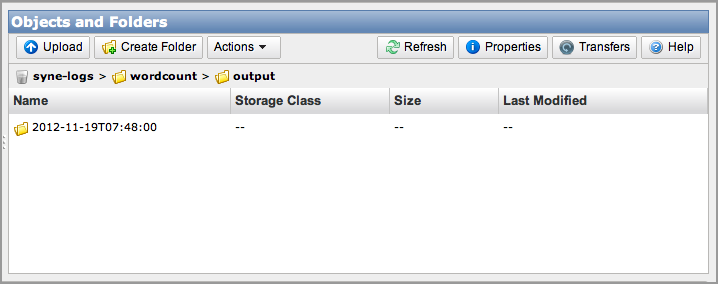
73 Using the Command Line Interface 3. After one of the runs is complete, navigate to the Amazon S3 console and check that the time-stamped output folder exists and contains the expected results of the job flow. 68
74 Part One: Import Data into Amazon DynamoDB Tutorial: Import/Export Data in Amazon DynamoDB With Amazon EMR and Hive This is the first of a two-part tutorial that demonstrates how to bring together multiple AWS features to solve real-world problems in a scalable way through a common scenario: moving schema-less data in and out of Amazon DynamoDB using Amazon EMR and Hive. Complete part one before you move on to part two. This tutorial involves the following concepts and procedures: Using the AWS Data Pipeline console and command-line interface (CLI) to create and configure pipelines Creating and configuring Amazon DynamoDB tables Creating and allocating work to Amazon EMR clusters Querying and processing data with Hive scripts Storing and accessing data using Amazon S3 Part One: Import Data into Amazon DynamoDB Topics Before You Begin... (p. 70) Create an Amazon SNS Topic (p. 73) Create an Amazon S3 Bucket (p. 74) Using the AWS Data Pipeline Console (p. 74) Using the Command Line Interface (p. 81) The first part of this tutorial explains how to define an AWS Data Pipeline pipeline to retrieve data from a tab-delimited file in Amazon S3 to populate a Amazon DynamoDB table, use a Hive script to define the necessary data transformation steps, and automatically create an Amazon EMR cluster to perform the work. The first part of the tutorial involves the following steps: 1. Create a Amazon DynamoDB table to store the data 2. Create and configure the pipeline definition objects 69
75 Before You Begin Upload your pipeline definition 4. Verify your results Before You Begin... Be sure you've completed the following steps. Set up an Amazon Web Services (AWS) account to access the AWS Data Pipeline console. For more information, see Access the Console (p. 12). Set up the AWS Data Pipeline tools and interface you plan on using. For more information on interfaces and tools you can use to interact with AWS Data Pipeline, see Get Set Up for AWS Data Pipeline (p. 12). Create an Amazon S3 bucket as a data source. For more information, see Create a Bucket in the Amazon Simple Storage Service Getting Started Guide. Create an Amazon DynamoDB table to store data as defined by the following procedure. Be aware of the following: Imports may overwrite data in your Amazon DynamoDB table. When you import data from Amazon S3, the import may overwrite items in your Amazon DynamoDB table. Make sure that you are importing the right data and into the right table. Be careful not to accidentally set up a recurring import pipeline that will import the same data multiple times. Exports may overwrite data in your Amazon S3 bucket. When you export data to Amazon S3, you may overwrite previous exports if you write to the same bucket path. The default behavior of the Export DynamoDB to S3 template will append the job s scheduled time to the Amazon S3 bucket path, which will help you avoid this problem. Import and Export jobs will consume some of your Amazon DynamoDB table s provisioned throughput capacity. This section explains how to schedule an import or export job using Amazon EMR. The Amazon EMR cluster will consume some read capacity during exports or write capacity during imports. You can control the percentage of the provisioned capacity that the import/export jobs consume by with the settings MyImportJob.myDynamoDBWriteThroughputRatio and MyExportJob.myDynamoDBReadThroughputRatio. Be aware that these settings determine how much capacity to consume at the beginning of the import/export process and will not adapt in real time if you change your table s provisioned capacity in the middle of the process. Be aware of the costs. AWS Data Pipeline manages the import/export process for you, but you still pay for the underlying AWS services that are being used. The import and export pipelines will create Amazon EMR clusters to read and write data and there are per-instance charges for each node in the cluster. You can read more about the details of Amazon EMR Pricing. The default cluster configuration is one m1.small instance master node and one m1.xlarge instance task node, though you can change this configuration in the pipeline definition. There are also charges for AWS Data Pipeline. For more information, see AWS Data Pipeline Pricing and Amazon S3 Pricing. Create an Amazon DynamoDB Table This section explains how to create an Amazon DynamoDB table that is a prerequisite for this tutorial. For more information, see Working with Tables in Amazon DynamoDB in the Amazon DynamoDB Developer Guide. te If you already have a Amazon DynamoDB table, you can skip this procedure to create one. 70
76 Before You Begin... To create a Amazon DynamoDB table 1. Sign in to the AWS Management Console and open the Amazon DynamoDB console. 2. Click Create Table. 3. On the Create Table / Primary Key page, enter a name (for example, MyTable) in the Table box. te Your table name must be unique. 4. In the Primary Key section, for the Primary Key Type radio button, select Hash. 5. In the Hash Attribute field, select Number and enter Id in the text box as shown: 6. Click Continue. 7. On the Create Table / Provisioned Throughput Capacity page, in the Read Capacity Units box, enter In the Write Capacity Units box, enter 5 as shown: 71

77 Before You Begin... te In this example, we use read and write capacity unit values of five because the sample input data is small. You may need a larger value depending on the size of your actual input data set. For more information, see Provisioned Throughput in Amazon DynamoDB in the Amazon DynamoDB Developer Guide. 9. Click Continue. 10. On the Create Table / Throughput Alarms page, in the Send notification to box, enter your address as shown: 72
78 Create an Amazon SNS Topic Create an Amazon SNS Topic This section explains how to create an Amazon SNS topic and subscribe to receive notifications from AWS Data Pipeline regarding the status of your pipeline components. For more information, see Create a Topic in the Amazon SNS Getting Started Guide. te If you already have an Amazon SNS topic ARN to which you have subscribed, you can skip this procedure to create one. To create an Amazon SNS topic 1. Sign in to the AWS Management Console and open the Amazon SNS console. 2. Click Create New Topic. 3. In the Topic field, type your topic name, such as my-example-topic, and select Create Topic. 4. te the value from the Topic ARN field, which should be similar in format to this example: arn:aws:sns:us-east-1:403example:my-example-topic. To create an Amazon SNS subscription 1. Sign in to the AWS Management Console and open the Amazon SNS console. 2. In the navigation pane, select your Amazon SNS topic and click Create New Subscription. 3. In the Protocol field, choose In the Endpoint field, type your address and select Subscribe. te You must accept the subscription confirmation to begin receiving Amazon SNS notifications at the address you specify. 73
79 Create an Amazon S3 Bucket Create an Amazon S3 Bucket This section explains how to create an Amazon S3 bucket as a storage location for your input and output files related to this tutorial. For more information, see Create a Bucket in the Amazon Simple Storage Service Getting Started Guide. te If you already have an Amazon S3 bucket configured with write permissions, you can skip this procedure to create one. To create an Amazon S3 bucket 1. Sign in to the AWS Management Console and open the Amazon S3 console. 2. Click Create Bucket. 3. In the Bucket field, type your topic name, such as my-example-bucket and select Create. 4. In the Buckets pane, select your new bucket and select Permissions. 5. Ensure that all user accounts that you want to access these files appear in the Grantee list. Using the AWS Data Pipeline Console Topics Start Import from the Amazon DynamoDB Console (p. 74) Create the Pipeline Definition using the AWS Data Pipeline Console (p. 75) Create and Configure the Pipeline from a Template (p. 76) Complete the Data des (p. 76) Complete the Resources (p. 77) Complete the Activity (p. 78) Complete the tifications (p. 78) Validate and Save Your Pipeline (p. 78) Verify your Pipeline Definition (p. 79) Activate your Pipeline (p. 79) Monitor the Progress of Your Pipeline Runs (p. 80) [Optional] Delete your Pipeline (p. 81) The following topics explain how to how to define an AWS Data Pipeline pipeline to retrieve data from a tab-delimited file using the AWS Data Pipeline console. Start Import from the Amazon DynamoDB Console You can begin the Amazon DynamoDB import operation from within the Amazon DynamoDB console. To start the data import 1. Sign in to the AWS Management Console and open the Amazon DynamoDB console. 2. On the Tables screen, click your Amazon DynamoDB table and click the Import Table button. 3. On the Import Table screen, read the walkthrough and check the I have read the walkthrough box, then select Build a Pipeline.This opens the AWS Data Pipeline console so that you can choose a template to import the Amazon DynamoDB table data. 74
80 Using the AWS Data Pipeline Console Create the Pipeline Definition using the AWS Data Pipeline Console To create the new pipeline 1. Sign in to the AWS Management Console and open the AWS Data Pipeline console or arrive at the AWS Data Pipeline console through the Build a Pipeline button in the Amazon DynamoDB console. 2. Click Create new pipeline. 3. On the Create a New Pipeline page: a. In the Pipeline box, enter a name (for example, CopyMyS3Data). b. In Pipeline, enter a description. c. Leave the Select Schedule Type: button set to the default type Time Series Time Scheduling for this tutorial. Schedule type allows you to specify whether the objects in your pipeline definition should be scheduled at the beginning of interval or end of the interval. Time Series Style Scheduling means instances are scheduled at the end of each interval and Cron Style Scheduling means instances are scheduled at the beginning of each interval. d. Leave the Role boxes set to their default values for this tutorial, which is DataPipelineDefaultRole. te If you have created your own IAM roles and would like to use them in this tutorial, you can select them now. e. Leave the Role boxes set to their default values for this tutorial, which are DataPipelineDefaultRole for the role and DataPipelineDefaultResourceRole for the resource role. te If you have created your own IAM roles and would like to use them in this tutorial, you can select them now. f. Click Create a new Pipeline. 75
81 Using the AWS Data Pipeline Console Create and Configure the Pipeline from a Template On the Pipeline screen, click Templates and select Export S3 to DynamoDB. The AWS Data Pipeline console pre-populates a pipeline definition template with the base objects necessary to import data from Amazon S3, as shown in the following screen. Review the template and complete the missing fields. You start by choosing the schedule and frequency by which you want your data export operation to run. To complete the schedule On the Pipeline screen, click Schedules. a. In the ImportSchedule section, set Period to 1 Hours. b. Set Start Date Time using the calendar to the current date, such as and the time to 00:00:00 UTC. c. In the Add an optional field.. box, select End Date Time. d. Set End Date Time using the calendar to the following day, such as and the time to 00:00:00 UTC. Complete the Data des Next, you complete the data node objects in your pipeline definition template. To complete the Amazon DynamoDB data node 1. On the Pipeline: name of your pipeline page, select Datades. 2. In the Datades pane: 76
82 Using the AWS Data Pipeline Console a. Enter the ; for example: DynamoDB. b. In the MyDynamoDBData section, in the Table box, type the name of the Amazon DynamoDB table where you want to store the output data; for example: MyTable. To complete the Amazon S3 data node In the Datades pane: In the MyS3Data section, in the Directory Path field, type a valid Amazon S3 directory path for the location of your source data, for example, s3://elasticmapreduce/samples/store/productcatalog. This sample file is a fictional product catalog that is pre-populated with delimited data for demonstration purposes. Complete the Resources Next, you complete the resources that will run the data import activities. Many of the fields are auto-populated by the template, as shown in the following screen. You only need to complete the empty fields. To complete the resources On the Pipeline page, select Resources. In the Emr Log Uri box, type the path where to store Amazon EMR debugging logs, using the Amazon S3 bucket that you configured in part one of this tutorial; for example: s3://my-test-bucket/emr_debug_logs. 77
83 Using the AWS Data Pipeline Console Complete the Activity Next, you complete the activity that represents the steps to perform in your data import operation. To complete the activity 1. On the Pipeline: name of your pipeline page, select Activities. 2. In the MyImportJob section, review the default options already provided. You are not required to manually configure any options in this section. Complete the tifications Next, configure the SNS notification action AWS Data Pipeline must perform depending on the outcome of the activity. To configure the SNS success, failure, and late notification action 1. On the Pipeline: name of your pipeline page, in the right pane, click Others. 2. In the Others pane: a. In the LateSnsAlarmsection, in the Topic Arn box, enter the ARN of your Amazon SNS topic that you created earlier in the tutorial; for example: arn:aws:sns:us-east-1:403example:my-example-topic. b. In the FailureSnsAlarmsection, in the Topic Arn box, enter the ARN of your Amazon SNS topic that you created earlier in the tutorial; for example: arn:aws:sns:us-east-1:403example:my-example-topic. c. In the SuccessSnsAlarmsection, in the Topic Arn box, enter the ARN of your Amazon SNS topic that you created earlier in the tutorial; for example: arn:aws:sns:us-east-1:403example:my-example-topic. You have now completed all the steps required for creating your pipeline definition. Next, validate and save your pipeline. Validate and Save Your Pipeline You can save your pipeline definition at any point during the creation process. As soon as you save your pipeline definition, AWS Data Pipeline looks for syntax errors and missing values in your pipeline definition. If your pipeline is incomplete or is incorrect, AWS Data Pipeline throws a validation error. If you plan to continue the creation process later, you can ignore the error message. If your pipeline definition is complete, and you are getting the validation error message, you'll have to fix the errors in the pipeline definition before activating your pipeline. To validate and save your pipeline 1. On the Pipeline: name of your pipeline page, click Save Pipeline. 2. AWS Data Pipeline validates your pipeline definition and returns either success or the error message. 3. If you get an error message, click Close and then, in the right pane, click Errors. 4. The Errors pane lists the objects failing validation. Click the plus (+) sign next to the object names and look for an error message in red. 5. When you see the error message, click the specific object pane where you see the error and fix it. For example, if you see an error message in the Datades object, click the Datades pane to fix the error. 78
84 Using the AWS Data Pipeline Console 6. After you've fixed the errors listed in the Errors pane, click Save Pipeline. 7. Repeat the process until your pipeline is validated. Next, verify that your pipeline definition has been saved. Verify your Pipeline Definition It is important to verify that your pipeline was correctly initialized from your definitions before you activate it. To verify your pipeline definition 1. On the Pipeline: name of your pipeline page, click Back to list of pipelines. 2. On the List Pipelines page, check if your newly-created pipeline is listed. AWS Data Pipeline has created a unique Pipeline ID for your pipeline definition. The Status column in the row listing your pipeine should show PENDING. 3. Click on the triangle icon next to your pipeline. The Pipeline Summary panel below shows the details of your pipeline runs. Because your pipeline is not yet activated, you should see only 0s at this point. 4. In the Pipeline summary panel, click View all fields to see the configuration of your pipeline definition. 5. Click Close. Next, activate your pipeline. Activate your Pipeline You must activate your pipeline to start creating and processing runs based on the specifications in your pipeline definition. 79
85 Using the AWS Data Pipeline Console To activate your pipeline 1. On the List Pipelines page, in the Details column of your pipeline, click View pipeline. 2. In the Pipeline: name of your pipeline page, click Activate. A confirmation dialog box opens up confirming the activation. 3. Click Close. Next, verify if your pipeline is running. Monitor the Progress of Your Pipeline Runs To monitor the progress of your pipeline 1. On the List Pipelines page, in the Details column of your pipeline, click View instance details. 2. The Instance details: name of your pipeline page lists the status of each object in your pipeline definition. te If you do not see instances listed, depending on when your pipeline was scheduled, either click End (in UTC) date box and change it to a later date or click Start (in UTC) date box and change it to an earlier date. Then click Update. 3. If the Status column of all the objects in your pipeline indicates FINISHED, your pipeline has successfully completed the copy activity.you should receive an about the successful completion of this task, to the account you specified for receiving your Amazon SNS notification. You can also check your Amazon S3 data target bucket to verify if the data was copied. 4. If the Status column of any of your instance indicates a status other than FINISHED, either your pipeline is waiting for some precondition to be met or it has failed. a. To troubleshoot the failed or the incomplete instance runs Click the triangle next to an instance; the Instance summary panel opens to show the details of the selected instance. b. Click View instance fields to see additional details of the instance. If the status of your selected instance is FAILED, the details box has an entry indicating the reason for failure; for = Resource not healthy terminated. c. In the Instance summary pane, in the Select attempt for this instance box, select the attempt number. d. In the Instance summary pane, click View attempt fields to see details of fields associated with the selected attempt. 80
86 Using the Command Line Interface 5. To take an action on your incomplete or failed instance, select an action (Rerun Cancel Mark Finished) from the Action column of the instance. You can use the information in the Instance summary pane and the View instance fields box to troubleshoot issues with your failed pipeline. For more information about instance status, see Interpret Pipeline Status Details (p. 129). For more information about troubleshooting the failed or incomplete instance runs of your pipeline, see AWS Data Pipeline Problems and Solutions (p. 131). Important Your pipeline is running and is incurring charges. For more information, see AWS Data Pipline pricing. If you would like to stop incurring the AWS Data Pipeline usage charges, delete your pipeline. [Optional] Delete your Pipeline Deleting your pipeline deletes the pipeline definition including all the associated objects.you stop incurring charges as soon as your pipeline is deleted. To delete your pipeline, 1. In the List Pipelines page, click the check box next to your pipeline. 2. Click Delete. 3. In the confirmation dialog box, click Delete to confirm the delete request. Using the Command Line Interface Topics Define the Import Pipeline in JSON Format (p. 82) Schedule (p. 84) 81
87 Using the Command Line Interface Amazon S3 Data de (p. 84) Precondition (p. 85) Amazon EMR Cluster (p. 86) Amazon EMR Activity (p. 86) Upload the Pipeline Definition (p. 88) Activate the Pipeline (p. 89) Verify the Pipeline Status (p. 89) Verify Data Import (p. 90) The following topics explain how to perform the steps in this tutorial using the AWS Data Pipeline CLI. Define the Import Pipeline in JSON Format This example pipeline definition shows how to use AWS Data Pipeline to retrieve data from a file in Amazon S3 to populate a Amazon DynamoDB table, use a Hive script to define the necessary data transformation steps, and automatically create an Amazon EMR cluster to perform the work. Additionally, this pipeline sends Amazon SNS notifications if the pipeline succeeds, fails, or runs late. This is the full pipeline definition JSON file followed by an explanation for each of its sections. te We recommend that you use a text editor that can help you verify the syntax of JSON-formatted files, and name the file using the.json file extension. "objects": [ "id": "MySchedule", "type": "Schedule", "startdatetime": " T00:00:00", "enddatetime":" t00:00:00", "period": "1 day" "id": "MyS3Data", "type": "S3Datade", "schedule": "ref": "MySchedule" "filepath": "s3://input_bucket/productcatalog", "precondition": "ref": "InputReady" } "id": "InputReady", "type": "S3PrefixtEmpty", "role": "test-role", "s3prefix": "#node.filepath}" "id": "ImportCluster", "type": "EmrCluster", "masterinstancetype": "m1.small", "instancecoretype": "m1.xlarge", "instancecorecount": "1", 82
88 Using the Command Line Interface "schedule": "ref": "MySchedule" "enabledebugging": "true", "emrloguri": "s3://test_bucket/emr_logs" "id": "MyImportJob", "type": "EmrActivity", "dynamodboutputtable": "MyTable", "dynamodbwritepercent": "1.00", "s3mys3data": "#input.path}", "lateaftertimeout": "12 hours", "attempttimeout": "24 hours", "maximumretries": "0", "input": "ref": "MyS3Data" "runson": "ref": "ImportCluster" "schedule": "ref": "MySchedule" "onsuccess": "ref": "SuccessSnsAlarm" "onfail": "ref": "FailureSnsAlarm" "onlateaction": "ref": "LateSnsAlarm" "step": "s3://elasticmapreduce/libs/script-runner/script-run ner.jar,s3://elasticmapreduce/libs/hive/hive-script,--run-hive-script,--hiveversions,latest,--args,-f,s3://elasticmapreduce/libs/hive/dynamodb/importdynamod BTableFromS3,-d,DYNAMODB_OUTPUT_TABLE=#dynamoDBOutputTable-d,S3_INPUT_BUCK ET=#s3MyS3Data-d,DYNAMODB_WRITE_PERCENT=#dynamoDBWritePercent-d,DYNAMODB_EN DPOINT=dynamodb.us-east-1.amazonaws.com" "id": "SuccessSnsAlarm", "type": "SnsAlarm", "topicarn": "arn:aws:sns:us-east-1: :mysnsnotify", "role": "test-role", "subject": "DynamoDB table '#node.dynamodboutputtable}' import succeeded", "message": "DynamoDB table '#node.dynamodboutputtable}' import from S3 bucket '#node.s3mys3data}' succeeded at JobId: #node.id}" "id": "LateSnsAlarm", "type": "SnsAlarm", "topicarn": "arn:aws:sns:us-east-1: :mysnsnotify", "role": "test-role", "subject": "DynamoDB table '#node.dynamodboutputtable}' import is taking a long time!", 83
89 Using the Command Line Interface "message": "DynamoDB table '#node.dynamodboutputtable}' import from S3 bucket '#node.s3mys3data}' has exceeded the late warning period '#node.lateaftertimeout}'. JobId: #node.id}" "id": "FailureSnsAlarm", "type": "SnsAlarm", "topicarn": "arn:aws:sns:us-east-1: :mysnsnotify", "role": "test-role", "subject": "DynamoDB table '#node.dynamodboutputtable}' import failed!", "message": "DynamoDB table '#node.dynamodboutputtable}' import from S3 bucket '#node.s3mys3data}' failed. JobId: #node.id}. Error: #node.errormes sage}." } ] } Schedule The example AWS Data Pipeline JSON file begins with a section to define the schedule by which to copy the data. Many pipeline components have a reference to a schedule and you may have more than one. The Schedule component is defined by the following fields: "id": "MySchedule", "type": "Schedule", "startdatetime": " T00:00:00", "enddatetime":" t00:00:00", "period": "1 day" te In the JSON file, you can define the pipeline components in any order you prefer. In this example, we chose the order that best illustrates the pipeline component dependencies. The user-defined name for the pipeline schedule, which is a label for your reference only. Type The pipeline component type, which is Schedule. startdatetime The date/time (in UTC format) that you want the task to begin. enddatetime The date/time (in UTC format) that you want the task to stop. period The time period that you want to pass between task attempts, even if the task occurs only one time. The period must evenly divide the time between startdatetime and enddatetime. In this example, we set the period to be 1 day so that the pipeline copy operation can only run one time. Amazon S3 Data de Next, the S3Datade pipeline component defines a location for the input file; in this case a tab-delimited file in an Amazon S3 bucket location. The input S3Datade component is defined by the following fields: 84
90 Using the Command Line Interface "id": "MyS3Data", "type": "S3Datade", "schedule": "ref": "MySchedule" "filepath": "s3://input_bucket/productcatalog", "precondition": "ref": "InputReady" } The user-defined name for the input location (a label for your reference only). Type The pipeline component type, which is "S3Datade" to match the location where the data resides, in an Amazon S3 bucket. Schedule A reference to the schedule component that we created in the preceding lines of the JSON file labeled MySchedule. Path The path to the data associated with the data node. This path contains a sample product catalog input file that we use for this scenario. The syntax for a data node is determined by its type. For example, a data node for a file in Amazon S3 follows a different syntax that is appropriate for a database table. Precondition A reference to a precondition that must evaluate as true for the pipeline to consider the data node to be valid. The precondition itself is defined later in the pipeline definition file. Precondition Next, the precondition defines a condition that must be true for the pipeline to use the S3Datade associated with this precondition. The precondition is defined by the following fields: "id": "InputReady", "type": "S3PrefixtEmpty", "role": "test-role", "s3prefix": "#node.filepath}" The user-defined name for the precondition (a label for your reference only). Type The type of the precondition is S3PrefixtEmpty, which checks an Amazon S3 prefix to ensure that it is not empty. Role The IAM role that provides the permissions necessary to access the S3Datade. S3Prefix The Amazon S3 prefix to check for emptiness. This field uses an expression #node.filepath} populated from the referring component, which in this example is the S3Datade that refers to this precondition. 85
91 Using the Command Line Interface Amazon EMR Cluster Next, the EmrCluster pipeline component defines an Amazon EMR cluster that processes and moves the data in this tutorial. The EmrCluster component is defined by the following fields: "id": "ImportCluster", "type": "EmrCluster", "masterinstancetype": "m1.small", "instancecoretype": "m1.xlarge", "instancecorecount": "1", "schedule": "ref": "MySchedule" "enabledebugging": "true", "emrloguri": "s3://test_bucket/emr_logs" The user-defined name for the Amazon EMR cluster (a label for your reference only). Type The computational resource type, which is an Amazon EMR cluster. For more information, see Overview of Amazon EMR in the Amazon EMR Developer Guide. masterinstancetype The type of Amazon EC2 instance to use as the master node of the Amazon EMR cluster. For more information, see Amazon EC2 Instance Types in the Amazon EC2 Documentation. instancecoretype The type of Amazon EC2 instance to use as the core node of the Amazon EMR cluster. For more information, see Amazon EC2 Instance Types in the Amazon EC2 Documentation. instancecorecount The number of core Amazon EC2 instances to use in the Amazon EMR cluster. Schedule A reference to the schedule component that we created in the preceding lines of the JSON file labeled MySchedule. enabledebugging Indicates whether to create detailed debug logs for the Amazon EMR job flow. emrloguri Specifies an Amazon S3 location to store the Amazon EMR job flow debug logs if you enabled debugging with the previously mentioned enabledebugging field. Amazon EMR Activity Next, the EmrActivity pipeline component brings together the schedule, resources, and data nodes to define the work to perform, the conditions under which to do the work, and the actions to perform when certain events occur. The EmrActivity component is defined by the following fields: "id": "MyImportJob", "type": "EmrActivity", "dynamodboutputtable": "MyTable", "dynamodbwritepercent": "1.00", "s3mys3data": "#input.path}", "lateaftertimeout": "12 hours", 86
92 Using the Command Line Interface "attempttimeout": "24 hours", "maximumretries": "0", "input": "ref": "MyS3Data" "runson": "ref": "ImportCluster" "schedule": "ref": "MySchedule" "onsuccess": "ref": "SuccessSnsAlarm" "onfail": "ref": "FailureSnsAlarm" "onlateaction": "ref": "LateSnsAlarm" "step": "s3://elasticmapreduce/libs/script-runner/script-runner.jar,s3://elast icmapreduce/libs/hive/hive-script,--run-hive-script,--hive-versions,latest,-- args,-f,s3://elasticmapreduce/libs/hive/dynamodb/importdynamodbtablefroms3,- d,dynamodb_output_table=#dynamodboutputtable-d,s3_input_bucket=#s3mys3data- d,dynamodb_write_percent=#dynamodbwritepercent-d,dynamodb_endpoint=dy namodb.us-east-1.amazonaws.com" The user-defined name for the Amazon EMR activity (a label for your reference only). Type The EmrActivity pipeline component type, which creates an Amazon EMR job flow to perform the defined work. For more information, see Overview of Amazon EMR in the Amazon EMR Developer Guide. dynamodboutputtable The Amazon DynamoDB table where the Amazon EMR job flow writes the output of the Hive script. dynamodbwritepercent Sets the rate of write operations to keep your Amazon DynamoDB database instance provisioned throughput rate in the allocated range for your table. The value is between 0.1 and 1.5, inclusively. For more information, see Hive Options in Amazon EMR Developer Guide. s3mys3data An expression that refers to the Amazon S3 location path of the input data defined by the S3Datade labeled "MyS3Data". lateaftertimeout The amount of time, after the schedule start time, that the activity can wait to start before AWS Data Pipeline considers it late. attempttimeout The amount of time, after the schedule start time, that the activity has to complete before AWS Data Pipeline considers it as failed. maximumretries The maximum number of times that AWS Data Pipeline retries the activity. input The Amazon S3 location path of the input data defined by the S3Datade labeled "MyS3Data". 87
93 Using the Command Line Interface runson A reference to the computational resource that will run the activity; in this case, an EmrCluster labeled "ImportCluster". schedule A reference to the schedule component that we created in the preceding lines of the JSON file labeled MySchedule. onsuccess A reference to the action to perform when the activity is successful. In this case, it is to send an Amazon SNS notification. onfail A reference to the action to perform when the activity fails. In this case, it is to send an Amazon SNS notification. onlateaction A reference to the action to perform when the activity is late. In this case, it is to send an Amazon SNS notification. step Defines the steps for the EMR job flow to perform. This step calls a Hive script named importdynamodbtablefroms3 that is provided by Amazon EMR and is specifically designed to move data from Amazon S3 into Amazon DynamoDB. To perform more complex data transformation tasks, you would customize this Hive script and provide its name and path here. For more information about sample Hive scripts that show how to perform data transformation tasks, see Contextual Advertising using Apache Hive and Amazon EMR in AWS Articles and Tutorials. Upload the Pipeline Definition You can upload a pipeline definition file using the AWS Data Pipeline CLI tools. For more information, see Install the Command Line Interface (p. 15) To upload your pipeline definition, use the following command. On Linux/Unix/Mac OS:./datapipeline - create pipeline_name - put pipeline_file On Windows: ruby datapipeline - create pipeline_name - put pipeline_file Where pipeline_name is the label for your pipeline and pipeline_file is the full path and file name for the file with the.json file extension that defines your pipeline. If your pipeline validates successfully, you receive the following message: Pipeline with name pipeline_name and id df-akiaiosfodnn7example created. Pipeline definition pipeline_file.json uploaded. te For more information about any errors returned by the create command or other commands, see Troubleshoot AWS Data Pipeline (p. 128). Ensure that your pipeline appears in the pipeline list by using the following command. On Linux/Unix/Mac OS: 88
94 Using the Command Line Interface./datapipeline --list-pipelines On Windows: ruby datapipeline - list-pipelines The list of pipelines includes details such as, Id, State, and UserId. Take note of your pipeline ID, because you use this value for most AWS Data Pipeline CLI commands. The pipeline ID is a unique identifier using the format df-akiaiosfodnn7example. Activate the Pipeline You must activate the pipeline, by using the --activate command-line parameter, before it will begin performing work. Use the following command. On Linux/Unix/Mac OS:./datapipeline --activate - id df-akiaiosfodnn7example On Windows: ruby datapipeline --activate - id df-akiaiosfodnn7example Where df-akiaiosfodnn7example is the identifier for your pipeline. Verify the Pipeline Status View the status of your pipeline and its components, along with its activity attempts and retries with the following command. On Linux/Unix/Mac OS:./datapipeline --list-runs id df-akiaiosfodnn7example On Windows: ruby datapipeline --list-runs id df-akiaiosfodnn7example Where df-akiaiosfodnn7example is the identifier for your pipeline. The --list-runs command displays a list of pipelines components and details such as, Scheduled Start, Status, ID, Started, and Ended. te It is important to note the difference between the Scheduled Start date/time vs. the Started time. It is possible to schedule a pipeline component to run at a certain time (Scheduled Start), but the actual start time (Started) could be later due to problems or delays with preconditions, dependencies, failures, or retries. te AWS Data Pipeline may backfill a pipeline, which happens when you define a Scheduled Start date/time for a date in the past. In that situation, AWS Data Pipeline immediately runs the pipeline components the number of times the activity should have run if it had started on the Scheduled 89

95 Part Two: Export Data from Amazon DynamoDB Start time. When this happens, you see pipeline components run back-to-back at a greater frequency than the period value that you specified when you created the pipeline. AWS Data Pipeline returns your pipeline to the defined frequency only when it catches up to the number of past runs. Successful pipeline runs are indicated by all the activities in your pipeline reporting the FINISHED status. Your pipeline frequency determines how many times the pipeline runs, and each run has its own success or failure, as indicated by the --list-runs command. Resources that you define in your pipeline, such as Amazon EC2 instances, may show the SHUTTING_DOWN status until they are finally terminated after a successful run. Depending on how you configured your pipeline, you may have multiple Amazon EC2 resources, each with their own final status. Verify Data Import Next, verify that the data import occurred successfully using the Amazon DynamoDB console to inspect the data in the table. To create a Amazon DynamoDB table 1. Sign in to the AWS Management Console and open the Amazon DynamoDB console. 2. On the Tables screen, click your Amazon DynamoDB table and click the Explore Table button. 3. On the Browse Items tab, columns that correspond to the data input file should display, such as Id, Price, ProductCategory, as shown in the following screen. This indicates that the import operation from the file to the Amazon DynamoDB table occurred successfully. Part Two: Export Data from Amazon DynamoDB Topics Before You Begin... (p. 91) Using the AWS Data Pipeline Console (p. 92) Using the Command Line Interface (p. 98) This is the second of a two-part tutorial that demonstrates how to bring together multiple AWS features to solve real-world problems in a scalable way through a common scenario: moving schema-less data in and out of Amazon DynamoDB using Amazon EMR and Hive. This tutorial involves the following concepts and procedures: 90
96 Before You Begin... Using the AWS Data Pipeline console and command-line interface (CLI) to create and configure pipelines Creating and configuring Amazon DynamoDB tables Creating and allocating work to Amazon EMR clusters Querying and processing data with Hive scripts Storing and accessing data using Amazon S3 Before You Begin... You must complete part one of this tutorial to ensure that your Amazon DynamoDB table contains the necessary data to perform the steps in this section. For more information, see Part One: Import Data into Amazon DynamoDB (p. 69). Additionally, be sure you've completed the following steps: Set up an Amazon Web Services (AWS) account to access the AWS Data Pipeline console. For more information, see Access the Console (p. 12). Set up the AWS Data Pipeline tools and interface you plan on using. For more information about interfaces and tools you can use to interact with AWS Data Pipeline, see Get Set Up for AWS Data Pipeline (p. 12). Create an Amazon S3 bucket as a data output location. For more information, see Create a Bucket in the Amazon Simple Storage Service Getting Started Guide. Ensure that you have the Amazon DynamoDB table that was created and populated with data in part one of this tutorial. This table will be your data source for part two of the tutorial. For more information, see Part One: Import Data into Amazon DynamoDB (p. 69). Be aware of the following: Imports may overwrite data in your Amazon DynamoDB table. When you import data from Amazon S3, the import may overwrite items in your Amazon DynamoDB table. Make sure that you are importing the right data and into the right table. Be careful not to accidentally set up a recurring import pipeline that will import the same data multiple times. Exports may overwrite data in your Amazon S3 bucket. When you export data to Amazon S3, you may overwrite previous exports if you write to the same bucket path. The default behavior of the Export DynamoDB to S3 template will append the job s scheduled time to the Amazon S3 bucket path, which will help you avoid this problem. Import and Export jobs will consume some of your Amazon DynamoDB table s provisioned throughput capacity. This section explains how to schedule an import or export job using Amazon EMR. The Amazon EMR cluster will consume some read capacity during exports or write capacity during imports. You can control the percentage of the provisioned capacity that the import/export jobs consume by with the settings MyImportJob.myDynamoDBWriteThroughputRatio and MyExportJob.myDynamoDBReadThroughputRatio. Be aware that these settings determine how much capacity to consume at the beginning of the import/export process and will not adapt in real time if you change your table s provisioned capacity in the middle of the process. Be aware of the costs. AWS Data Pipeline manages the import/export process for you, but you still pay for the underlying AWS services that are being used. The import and export pipelines will create Amazon EMR clusters to read and write data and there are per-instance charges for each node in the cluster. You can read more about the details of Amazon EMR Pricing. The default cluster configuration is one m1.small instance master node and one m1.xlarge instance task node, though you can change this configuration in the pipeline definition. There are also charges for AWS Data Pipeline. For more information, see AWS Data Pipeline Pricing and Amazon S3 Pricing. 91

97 Using the AWS Data Pipeline Console Using the AWS Data Pipeline Console Topics Start Export from the Amazon DynamoDB Console (p. 92) Create the Pipeline Definition using the AWS Data Pipeline Console (p. 93) Create and Configure the Pipeline from a Template (p. 93) Complete the Data des (p. 94) Complete the Resources (p. 95) Complete the Activity (p. 95) Complete the tifications (p. 96) Validate and Save Your Pipeline (p. 96) Verify your Pipeline Definition (p. 96) Activate your Pipeline (p. 97) Monitor the Progress of Your Pipeline Runs (p. 97) [Optional] Delete your Pipeline (p. 98) The following topics explain how to perform the steps in part two of this tutorial using the AWS Data Pipeline console. Start Export from the Amazon DynamoDB Console You can begin the Amazon DynamoDB export operation from within the Amazon DynamoDB console. To start the data export 1. Sign in to the AWS Management Console and open the Amazon DynamoDB console. 2. On the Tables screen, click your Amazon DynamoDB table and click the Export Table button. 3. On the Import / Export Table screen, select Build a Pipeline. This opens the AWS Data Pipeline console so that you can choose a template to export the Amazon DynamoDB table data. 92
98 Using the AWS Data Pipeline Console Create the Pipeline Definition using the AWS Data Pipeline Console To create the new pipeline 1. Sign in to the AWS Management Console and open the AWS Data Pipeline console or arrive at the AWS Data Pipeline console through the Build a Pipeline button in the Amazon DynamoDB console. 2. Click Create new pipeline. 3. On the Create a New Pipeline page: a. In the Pipeline box, enter a name (for example, CopyMyS3Data). b. In Pipeline, enter a description. c. Leave the Select Schedule Type: button set to the default type Time Series Time Scheduling for this tutorial. Schedule type allows you to specify whether the objects in your pipeline definition should be scheduled at the beginning of interval or end of the interval. Time Series Style Scheduling means instances are scheduled at the end of each interval and Cron Style Scheduling means instances are scheduled at the beginning of each interval. d. Leave the Role boxes set to their default values for this tutorial, which is DataPipelineDefaultRole. te If you have created your own IAM roles and would like to use them in this tutorial, you can select them now. e. Leave the Role boxes set to their default values for this tutorial, which are DataPipelineDefaultRole for the role and DataPipelineDefaultResourceRole for the resource role. te If you have created your own IAM roles and would like to use them in this tutorial, you can select them now. f. Click Create a new Pipeline. Create and Configure the Pipeline from a Template On the Pipeline screen, click Templates and select Export DynamoDB to S3. The AWS Data Pipeline console pre-populates a pipeline definition template with the base objects necessary to export data from Amazon DynamoDB, as shown in the following screen. 93
99 Using the AWS Data Pipeline Console Review the template and complete the missing fields. You start by choosing the schedule and frequency by which you want your data export operation to run. To complete the schedule On the Pipeline screen, click Schedules. a. In the DefaultSchedule1 section, set to ExportSchedule. b. Set Period to 1 Hours. c. Set Start Date Time using the calendar to the current date, such as and the time to 00:00:00 UTC. d. In the Add an optional field.. box, select End Date Time. e. Set End Date Time using the calendar to the following day, such as and the time to 00:00:00 UTC. Complete the Data des Next, you complete the data node objects in your pipeline definition template. To complete the Amazon DynamoDB data node 1. On the Pipeline: name of your pipeline page, select Datades. 2. In the Datades pane, in the Table box, type the name of the Amazon DynamoDB table that you created in part one of this tutorial; for example: MyTable. 94

100 Using the AWS Data Pipeline Console To complete the Amazon S3 data node In the MyS3Data section, in the Directory Path field, type the path to the files where you want the Amazon DynamoDB table data to be written, which is the Amazon S3 bucket that you configured in part one of this tutorial. For example: s3://mybucket/output/mytable. Complete the Resources Next, you complete the resources that will run the data import activities. Many of the fields are auto-populated by the template, as shown in the following screen. You only need to complete the empty fields. To complete the resources On the Pipeline page, select Resources. In the Emr Log Uri box, type the path where to store EMR debugging logs, using the Amazon S3 bucket that you configured in part one of this tutorial; for example: s3://mybucket/emr_debug_logs. Complete the Activity Next, you complete the activity that represents the steps to perform in your data export operation. To complete the activity 1. On the Pipeline: name of your pipeline page, select Activities. 2. In the MyExportJob section, review the default options already provided. You are not required to manually configure any options in this section. 95
101 Using the AWS Data Pipeline Console Complete the tifications Next, configure the SNS notification action AWS Data Pipeline must perform depending on the outcome of the activity. To configure the SNS success, failure, and late notification action 1. On the Pipeline: name of your pipeline page, in the right pane, click Others. 2. In the Others pane: a. In the LateSnsAlarmsection, in the Topic Arn box, enter the ARN of your Amazon SNS topic that you created earlier in the tutorial; for example: arn:aws:sns:us-east-1:403example:my-example-topic. b. In the FailureSnsAlarmsection, in the Topic Arn box, enter the ARN of your Amazon SNS topic that you created earlier in the tutorial; for example: arn:aws:sns:us-east-1:403example:my-example-topic. c. In the SuccessSnsAlarmsection, in the Topic Arn box, enter the ARN of your Amazon SNS topic that you created earlier in the tutorial; for example: arn:aws:sns:us-east-1:403example:my-example-topic. You have now completed all the steps required for creating your pipeline definition. Next, validate and save your pipeline. Validate and Save Your Pipeline You can save your pipeline definition at any point during the creation process. As soon as you save your pipeline definition, AWS Data Pipeline looks for syntax errors and missing values in your pipeline definition. If your pipeline is incomplete or is incorrect, AWS Data Pipeline throws a validation error. If you plan to continue the creation process later, you can ignore the error message. If your pipeline definition is complete, and you are getting the validation error message, you'll have to fix the errors in the pipeline definition before activating your pipeline. To validate and save your pipeline 1. On the Pipeline: name of your pipeline page, click Save Pipeline. 2. AWS Data Pipeline validates your pipeline definition and returns either success or the error message. 3. If you get an error message, click Close and then, in the right pane, click Errors. 4. The Errors pane lists the objects failing validation. Click the plus (+) sign next to the object names and look for an error message in red. 5. When you see the error message, click the specific object pane where you see the error and fix it. For example, if you see an error message in the Datades object, click the Datades pane to fix the error. 6. After you've fixed the errors listed in the Errors pane, click Save Pipeline. 7. Repeat the process until your pipeline is validated. Next, verify that your pipeline definition has been saved. Verify your Pipeline Definition It is important to verify that your pipeline was correctly initialized from your definitions before you activate it. 96
102 Using the AWS Data Pipeline Console To verify your pipeline definition 1. On the Pipeline: name of your pipeline page, click Back to list of pipelines. 2. On the List Pipelines page, check if your newly-created pipeline is listed. AWS Data Pipeline has created a unique Pipeline ID for your pipeline definition. The Status column in the row listing your pipeine should show PENDING. 3. Click on the triangle icon next to your pipeline. The Pipeline Summary panel below shows the details of your pipeline runs. Because your pipeline is not yet activated, you should see only 0s at this point. 4. In the Pipeline summary panel, click View all fields to see the configuration of your pipeline definition. 5. Click Close. Next, activate your pipeline. Activate your Pipeline You must activate your pipeline to start creating and processing runs based on the specifications in your pipeline definition. To activate your pipeline 1. On the List Pipelines page, in the Details column of your pipeline, click View pipeline. 2. In the Pipeline: name of your pipeline page, click Activate. Next, verify if your pipeline is running. Monitor the Progress of Your Pipeline Runs To monitor the progress of your pipeline 1. On the List Pipelines page, in the Details column of your pipeline, click View instance details. 2. The Instance details: name of your pipeline page lists the status of each object in your pipeline definition. te If you do not see runs listed, depending on when your pipeline was scheduled, either click End (in UTC) date box and change it to a later date or click Start (in UTC) date box and change it to an earlier date. Then click Update. 3. If the Status column of all the objects in your pipeline indicates FINISHED, your pipeline has successfully completed the copy activity.you should receive an about the successful completion of this task, to the account you specified for receiving your Amazon SNS notification. You can also check your Amazon S3 data target bucket to verify if the data was copied. 4. If the Status column of any of your objects indicates a status other than FINISHED, either your pipeline is waiting for some precondition to be met or it has failed. a. To troubleshoot the failed or the incomplete runs Click the triangle next to a run; the Instance summary panel opens to show the details of the selected run. b. Click View instance fields to see additional details of the run. If the status of your selected run is FAILED, the additional details box has an entry indicating the reason for failure; for = Resource not healthy terminated. 97
103 Using the Command Line Interface c. You can use the information in the Instance summary panel and the View instance fields box to troubleshoot issues with your failed pipeline. For more information about the status listed for the runs, see Interpret Pipeline Status Details (p. 129). For more information about troubleshooting the failed or incomplete runs of your pipeline, see AWS Data Pipeline Problems and Solutions (p. 131). Important Your pipeline is running and is incurring charges. For more information, see AWS Data Pipeline pricing. If you would like to stop incurring the AWS Data Pipeline usage charges, delete your pipeline. [Optional] Delete your Pipeline Deleting your pipeline deletes the pipeline definition including all the associated objects.you stop incurring charges as soon as your pipeline is deleted. To delete your pipeline 1. In the List Pipelines page, click the check box next to your pipeline. 2. Click Delete. 3. In the confirmation dialog box, click Delete to confirm the delete request. Using the Command Line Interface Topics Define the Export Pipeline in JSON Format (p. 98) Schedule (p. 100) Amazon S3 Data de (p. 101) Amazon EMR Cluster (p. 102) Amazon EMR Activity (p. 102) Upload the Pipeline Definition (p. 104) Activate the Pipeline (p. 105) Verify the Pipeline Status (p. 105) Verify Data Export (p. 106) The following topics explain how to perform the steps in this tutorial using the AWS Data Pipeline CLI. Define the Export Pipeline in JSON Format This example pipeline definition shows how to use AWS Data Pipeline to retrieve data from an Amazon DynamoDB table to populate a tab-delimited file in Amazon S3, use a Hive script to define the necessary data transformation steps, and automatically create an Amazon EMR cluster to perform the work. 98
104 Using the Command Line Interface Additionally, this pipeline will send Amazon SNS notifications if the pipeline succeeds, fails, or runs late. This is the full pipeline definition JSON file followed by an explanation for each of its sections. te We recommend that you use a text editor that can help you verify the syntax of JSON-formatted files, and name the file using the.json file extension. "objects": [ "id": "MySchedule", "type": "Schedule", "startdatetime": " T00:00:00", "enddatetime":" t00:00:00", "period": "1 day" "id": "MyS3Data", "type": "S3Datade", "schedule": "ref": "MySchedule" "filepath": "s3://output_bucket/productcatalog" "id": "ExportCluster", "type": "EmrCluster", "masterinstancetype": "m1.small", "instancecoretype": "m1.xlarge", "instancecorecount": "1", "schedule": "ref": "MySchedule" "enabledebugging": "true", "emrloguri": "s3://test_bucket/emr_logs" "id": "MyExportJob", "type": "EmrActivity", "dynamodbinputtable": "MyTable", "dynamodbreadpercent": "0.25", "s3outputbucket": "#output.path}", "lateaftertimeout": "12 hours", "attempttimeout": "24 hours", "maximumretries": "0", "output": "ref": "MyS3Data" "runson": "ref": "ExportCluster" "schedule": "ref": "MySchedule" "onsuccess": "ref": "SuccessSnsAlarm" "onfail": 99
105 Using the Command Line Interface "ref": "FailureSnsAlarm" "onlateaction": "ref": "LateSnsAlarm" "step": "s3://elasticmapreduce/libs/script-runner/script-run ner.jar,s3://elasticmapreduce/libs/hive/hive-script,--run-hive-script,--hiveversions,latest,--args,-f,s3://elasticmapreduce/libs/hive/dynamodb/exportdynamod BTableToS3,-d,DYNAMODB_INPUT_TABLE=#dynamoDBInputTable-d,S3_OUTPUT_BUCK NAMODB_READ_PERCENT=#dynamoDBReadPercent-d,DYNAMODB_ENDPOINT=dynamodb.useast-1.amazonaws.com" "id": "SuccessSnsAlarm", "type": "SnsAlarm", "topicarn": "arn:aws:sns:us-east-1: :mysnsnotify", "role": "test-role", "subject": "DynamoDB table '#node.dynamodbinputtable}' export succeeded", "message": "DynamoDB table '#node.dynamodbinputtable}' export to S3 bucket '#node.s3outputbucket}' succeeded at JobId: #node.id}" "id": "LateSnsAlarm", "type": "SnsAlarm", "topicarn": "arn:aws:sns:us-east-1: :mysnsnotify", "role": "test-role", "subject": "DynamoDB table '#node.dynamodbinputtable}' export is taking a long time!", "message": "DynamoDB table '#node.dynamodbinputtable}' export to S3 bucket '#node.s3outputbucket}' has exceeded the late warning period '#node.lateaftertimeout}'. JobId: #node.id}" "id": "FailureSnsAlarm", "type": "SnsAlarm", "topicarn": "arn:aws:sns:us-east-1: :mysnsnotify", "role": "test-role", "subject": "DynamoDB table '#node.dynamodbinputtable}' export failed!", "message": "DynamoDB table '#node.dynamodbinputtable}' export to S3 bucket '#node.s3outputbucket}' failed. JobId: #node.id}. Error: #node.er rormessage}." } ] } Schedule The example AWS Data Pipeline JSON file begins with a section to define the schedule by which to copy the data. Many pipeline components have a reference to a schedule and you may have more than one. The Schedule component is defined by the following fields: 100
106 Using the Command Line Interface "id": "MySchedule", "type": "Schedule", "startdatetime": " T00:00:00", "enddatetime":" t00:00:00", "period": "1 day" te In the JSON file, you can define the pipeline components in any order you prefer. In this example, we chose the order that best illustrates the pipeline component dependencies. The user-defined name for the pipeline schedule, which is a label for your reference only. Type The pipeline component type, which is Schedule. startdatetime The date/time (in UTC format) that you want the task to begin. enddatetime The date/time (in UTC format) that you want the task to stop. period The time period that you want to pass between task attempts, even if the task occurs only one time. The period must evenly divide the time between startdatetime and enddatetime. In this example, we set the period to be 1 day so that the pipeline copy operation can only run one time. Amazon S3 Data de Next, the S3Datade pipeline component defines a location for the output file; in this case a tab-delimited file in an Amazon S3 bucket location. The output S3Datade component is defined by the following fields: "id": "MyS3Data", "type": "S3Datade", "schedule": "ref": "MySchedule" "filepath": "s3://output_bucket/productcatalog" } The user-defined name for the output location (a label for your reference only). Type The pipeline component type, which is "S3Datade" to match the data output location, in an Amazon S3 bucket. Schedule A reference to the schedule component that we created in the preceding lines of the JSON file labeled MySchedule. Path The path to the data associated with the data node.this path is an empty Amazon S3 location where a tab-delimited output file will be written that has the contents of a sample product catalog in an 101
107 Using the Command Line Interface Amazon DynamoDB table. The syntax for a data node is determined by its type. For example, a data node for a file in Amazon S3 follows a different syntax that is appropriate for a database table. Amazon EMR Cluster Next, the EmrCluster pipeline component defines an Amazon EMR cluster that processes and moves the data in this tutorial. The EmrCluster component is defined by the following fields: "id": "ImportCluster", "type": "EmrCluster", "masterinstancetype": "m1.small", "instancecoretype": "m1.xlarge", "instancecorecount": "1", "schedule": "ref": "MySchedule" "enabledebugging": "true", "emrloguri": "s3://test_bucket/emr_logs" The user-defined name for the Amazon EMR cluster (a label for your reference only). Type The computational resource type, which is an Amazon EMR cluster. For more information,see Overview of Amazon EMR in the Amazon EMR Developer Guide. masterinstancetype The type of Amazon EC2 instance to use as the master node of the Amazon EMR cluster. For more information, see Amazon EC2 Instance Types in the Amazon EC2 Documentation. instancecoretype The type of Amazon EC2 instance to use as the core node of the Amazon EMR cluster. For more information, see Amazon EC2 Instance Types in the Amazon EC2 Documentation. instancecorecount The number of core Amazon EC2 instances to use in the Amazon EMR cluster. Schedule A reference to the schedule component that we created in the preceding lines of the JSON file labeled MySchedule. enabledebugging Indicates whether to create detailed debug logs for the Amazon EMR job flow. emrloguri Specifies an Amazon S3 location to store the Amazon EMR job flow debug logs if you enabled debugging with the previously-mentioned enabledebugging field. Amazon EMR Activity Next, the EmrActivity pipeline component brings together the schedule, resources, and data nodes to define the work to perform, the conditions under which to do the work, and the actions to perform when certain events occur. The EmrActivity component is defined by the following fields: "id": "MyExportJob", "type": "EmrActivity", 102
108 Using the Command Line Interface "dynamodbinputtable": "MyTable", "dynamodbreadpercent": "0.25", "s3outputbucket": "#output.path}", "lateaftertimeout": "12 hours", "attempttimeout": "24 hours", "maximumretries": "0", "output": "ref": "MyS3Data" "runson": "ref": "ExportCluster" "schedule": "ref": "ExportPeriod" "onsuccess": "ref": "SuccessSnsAlarm" "onfail": "ref": "FailureSnsAlarm" "onlateaction": "ref": "LateSnsAlarm" "step": "s3://elasticmapreduce/libs/script-runner/script-runner.jar,s3://elast icmapreduce/libs/hive/hive-script,--run-hive-script,--hive-versions,latest,-- args,-f,s3://elasticmapreduce/libs/hive/dynamodb/exportdynamodbtabletos3,- d,dynamodb_input_table=#dynamodbinputtable-d,s3_output_bucket=#s3outputbuck namodbreadpercent-d,dynamodb_endpoint=dynamodb.us-east-1.amazonaws.com" The user-defined name for the Amazon EMR activity (a label for your reference only). Type The EmrActivity pipeline component type, which creates an Amazon EMR job flow to perform the defined work. For more information, see Overview of Amazon EMR in the Amazon EMR Developer Guide. dynamodbinputtable The Amazon DynamoDB table that the Amazon EMR job flow reads as the input for the Hive script. dynamodbreadpercent Set the rate of read operations to keep your Amazon DynamoDB provisioned throughput rate in the allocated range for your table. The value is between 0.1 and 1.5, inclusively. For more information, see Hive Options in Amazon EMR Developer Guide. s3outputbucket An expression that refers to the Amazon S3 location path for the output file defined by the S3Datade labeled "MyS3Data". lateaftertimeout The amount of time, after the schedule start time, that the activity can wait to start before AWS Data Pipeline considers it late. attempttimeout The amount of time, after the schedule start time, that the activity has to complete before AWS Data Pipeline considers it as failed. maximumretries The maximum number of times that AWS Data Pipeline retries the activity. 103
109 Using the Command Line Interface input The Amazon S3 location path of the input data defined by the S3Datade labeled "MyS3Data". runson A reference to the computational resource that will run the activity; in this case, an EmrCluster labeled "ImportCluster". schedule A reference to the schedule component that we created in the preceding lines of the JSON file labeled MySchedule. onsuccess A reference to the action to perform when the activity is successful. In this case, it is to send an Amazon SNS notification. onfail A reference to the action to perform when the activity fails. In this case, it is to send an Amazon SNS notification. onlateaction A reference to the action to perform when the activity is late. In this case, it is to send an Amazon SNS notification. step Defines the steps for the EMR job flow to perform. This step calls a Hive script named exportdynamodbtabletos3 that is provided by Amazon EMR and is specifically designed to move data from Amazon DynamoDB to Amazon S3. To perform more complex data transformation tasks, you would customize this Hive script and provide its name and path here. For more information about sample Hive scripts that show how to perform data transformation tasks, see Contextual Advertising using Apache Hive and Amazon EMR in AWS Articles and Tutorials. Upload the Pipeline Definition You can upload a pipeline definition file using the AWS Data Pipeline CLI tools. For more information, see Install the Command Line Interface (p. 15) To upload your pipeline definition, use the following command. On Linux/Unix/Mac OS:./datapipeline - create pipeline_name - put pipeline_file On Windows: ruby datapipeline - create pipeline_name - put pipeline_file Where pipeline_name is the label for your pipeline and pipeline_file is the full path and file name for the file with the.json file extension that defines your pipeline. If your pipeline validates successfully, you receive the following message: Pipeline with name pipeline_name and id df-akiaiosfodnn7example created. Pipeline definition pipeline_file.json uploaded. te For more information about any errors returned by the create command or other commands, see Troubleshoot AWS Data Pipeline (p. 128). Ensure that your pipeline appears in the pipeline list by using the following command. 104
110 Using the Command Line Interface On Linux/Unix/Mac OS:./datapipeline --list-pipelines On Windows: ruby datapipeline - list-pipelines The list of pipelines includes details such as, Id, State, and UserId. Take note of your pipeline ID, because you use this value for most AWS Data Pipeline CLI commands. The pipeline ID is a unique identifier using the format df-akiaiosfodnn7example. Activate the Pipeline You must activate the pipeline, by using the --activate command-line parameter, before it will begin performing work. Use the following command. On Linux/Unix/Mac OS:./datapipeline --activate - id df-akiaiosfodnn7example On Windows: ruby datapipeline --activate - id df-akiaiosfodnn7example Where df-akiaiosfodnn7example is the identifier for your pipeline. Verify the Pipeline Status View the status of your pipeline and its components, along with its activity attempts and retries with the following command. On Linux/Unix/Mac OS:./datapipeline --list-runs id df-akiaiosfodnn7example On Windows: ruby datapipeline --list-runs id df-akiaiosfodnn7example Where df-akiaiosfodnn7example is the identifier for your pipeline. The --list-runs command displays a list of pipelines components and details such as, Scheduled Start, Status, ID, Started, and Ended. te It is important to note the difference between the Scheduled Start date/time vs. the Started time. It is possible to schedule a pipeline component to run at a certain time (Scheduled Start), but the actual start time (Started) could be later due to problems or delays with preconditions, dependencies, failures, or retries. te AWS Data Pipeline may backfill a pipeline, which happens when you define a Scheduled Start date/time for a date in the past. In that situation, AWS Data Pipeline immediately runs the pipeline 105

111 Using the Command Line Interface components the number of times the activity should have run if it had started on the Scheduled Start time. When this happens, you see pipeline components run back-to-back at a greater frequency than the period value that you specified when you created the pipeline. AWS Data Pipeline returns your pipeline to the defined frequency only when it catches up to the number of past runs. Successful pipeline runs are indicated by all the activities in your pipeline reporting the FINISHED status. Your pipeline frequency determines how many times the pipeline runs, and each run has its own success or failure, as indicated by the --list-runs command. Resources that you define in your pipeline, such as Amazon EC2 instances, may show the SHUTTING_DOWN status until they are finally terminated after a successful run. Depending on how you configured your pipeline, you may have multiple Amazon EC2 resources, each with their own final status. Verify Data Export Next, verify that the data export occurred successfully using viewing the output file contents. To view the export file contents 1. Sign in to the AWS Management Console and open the Amazon S3 console. 2. On the Buckets pane, click the Amazon S3 bucket that contains your file output (the example pipeline uses the output path s3://output_bucket/productcatalog) and open the output file with your preferred text editor. The output file name is an identifier value with no extension, such as this example: ae10f955-fb2f b11-fbfea01a871e_ Using your preferred text editor, view the contents of the output file and ensure that there is delimited data that corresponds to the Amazon DynamoDB source table, such as Id, Price, ProductCategory, as shown in the following screen. This indicates that the export operation from Amazon DynamoDB to the output file occurred successfully. 106
112 Tutorial: Run a Shell Command to Process MySQL Table This tutorial walks you through the process of creating a data pipeline to use a script stored in Amazon S3 bucket to process a MySQL table, write the output in a comma-separated values (CSV) file in Amazon S3 bucket, and then send an Amazon SNS notification after the task completes successfully. You will use the Amazon EC2 instance resource provided by AWS Data Pipeline for this shell command activity. The first step in pipeline creation process is to select the pipeline objects that make up your pipeline definition. After you select the pipeline objects, you add fields for each pipeline object. For more information on pipeline definition, see Pipeline Definition (p. 2). This tutorial uses the following objects to create a pipeline definition: Activity Activity the AWS Data Pipeline must perform for this pipeline. This tutorial uses the ShellCommandActivity to process the data in MySQL table and write the output in a CSV file. Schedule The start date, time, and the duration for this activity. You can optionally specify the end date and time. Resource Resource AWS Data Pipeline must use to perform this activity. This tutorial uses Ec2Resource, an Amazon EC2 instance provided by AWS Data Pipeline, to run a command for processing the data. AWS Data Pipeline automatically launches the Amazon EC2 instance and then terminates the instance after the task finishes. Datades Input and output nodes for this pipeline. This tutorial uses two input nodes and one output node. The first input node is the MySQLDatade that contains the MySQL table. The second input node is the S3Datade that contains the script. The output node is the S3Datade for storing the CSV file. Action Action AWS Data Pipeline must take when the specified conditions are met. This tutorial uses SnsAlarm action to send Amazon SNS notification to the address you specify, after the task finishes successfully. 107
113 Before you begin... For more information about the additional objects and fields supported by the copy activity, see ShellCommandActivity (p. 176). The following steps outline how to create a data pipeline to run a script stored in an Amazon S3 bucket. 1. Create your pipeline definition 2. Create and configure the pipeline definition objects 3. Validate and save your pipeline definition 4. Verify that your pipeline definition is saved 5. Activate your pipeline 6. Monitor the progress of your pipeline 7. [Optional] Delete your pipeline Before you begin... Be sure you've completed the following steps. Set up an Amazon Web Services (AWS) account to access the AWS Data Pipeline console. For more information, see Access the Console (p. 12). Set up the AWS Data Pipeline tools and interface you plan on using. For more information on interfaces and tools you can use to interact with AWS Data Pipeline, see Get Set Up for AWS Data Pipeline (p. 12). Create and launch a MySQL database instance as a data source. For more information, see Launch a DB Instance in the Amazon Relational Database Service (RDS) Getting Started Guide. te Make a note of the user name and the password you used for creating the MySQL instance. After you've launched your MySQL database instance, make a note of the instance's endpoint. You will need all this information in this tutorial. Connect to your MySQL database instance, create a table, and then add test data values to the newly-created table. For more information, see Create a Table in the MySQL documentation. Create an Amazon S3 bucket as a source for the script. For more information, see Create a Bucket in the Amazon Simple Storage Service getting Started Guide. Create a script to read the data in the MySQL table, process the data, and then write the results in a CSV file. The script must run on an Amazon EC2 Linux instance. te The AWS Data Pipeline computational resources (Amazon EMR job flow and Amazon EC2 instance) are not supported on Windows in this release. Upload your script to your Amazon S3 bucket. For more information, see Add an Object to a Bucket in the Amazon Simple Storage Service Getting Started Guide. Create another Amazon S3 bucket as a data target. Create an Amazon SNS topic for sending notification and make a note of the topic Amazon Resource (ARN). For more information on creating an Amazon SNS topic, see Create a Topic in the Amazon Simple tification Service Getting Started Guide. 108
114 Using the AWS Data Pipeline Console [Optional] This tutorial uses the default IAM role policies created by AWS Data Pipeline. If you would rather create and configure your IAM role policy and trust relationships, follow the instructions described in Granting Permissions to Pipelines with IAM (p. 21). te Some of the actions described in this tutorial can generate AWS usage charges, depending on whether you are using the AWS Free Usage Tier. Using the AWS Data Pipeline Console Topics Create and Configure the Pipeline Definition Objects (p. 109) Validate and Save Your Pipeline (p. 112) Verify your Pipeline Definition (p. 113) Activate your Pipeline (p. 113) Monitor the Progress of Your Pipeline Runs (p. 114) [Optional] Delete your Pipeline (p. 115) The following sections include the instructions for creating the pipeline using the AWS Data Pipeline console. To create your pipeline definition 1. Sign in to the AWS Management Console and open the AWS Data Pipeline console. 2. Click Create Pipeline. 3. On the Create a New Pipeline page: a. In the Pipeline box, enter a name (for example, RunDailyScript). b. In Pipeline, enter a description. c. Leave the Select Schedule Type: button set to the default type for this tutorial. te Schedule type allows you to specify whether the objects in your pipeline definition should be scheduled at the beginning of interval or end of the interval. Time Series Style Scheduling means instances are scheduled at the end of each interval and Cron Style Scheduling means instances are scheduled at the beginning of each interval. d. Leave the Role boxes set to their default values for this tutorial. te If you have created your own IAM roles and would like to use them in this tutorial, you can select them now. e. Click Create a new pipeline. Create and Configure the Pipeline Definition Objects Next, you define the Activity object in your pipeline definition. When you define the Activity object, you also define the objects that AWS Data Pipeline must use to perform this activity. 109
115 Create and Configure the Pipeline Definition Objects 1. On the Pipeline: name of your pipeline page, click Add activity. 2. In the Activities pane a. Enter the name of the activity; for example, run-my-script. b. In the Type box, select ShellCommandActivity. c. In the Schedule box, select Create new: Schedule. d. In the Add an optional field.. box, select Script Uri. e. In the Script Uri box, enter the path to your uploaded script; for example, s3://my-script/myscript.txt. f. In the Add an optional field.. box, select Input. g. In the Input box, select Create new: Datade. h. In the Add an optional field.. box, select Output. i. In the Output box, select Create new: Datade. j. In the Add an optional field.. box, select RunsOn. k. In the Runs On box, select Create new: Resource. l. In the Add an optional field.. box, select On Success. m. In the On Success box, select Create new: Action. n. In the left pane, separate the icons by dragging them apart. You've completed defining your pipeline definition by specifying the objects AWS Data Pipeline will use to perform the shell command activity. The Pipeline: name of your pipeline pane shows the graphical representation of the pipeline you just created. The arrows indicate the connection between the various objects. Next, configure run date and time for your pipeline. To configure run date and time for your pipeline 1. On the Pipeline: name of your pipeline page, in the right pane, click Schedules. 2. In the Schedules pane: a. Enter a schedule name for this activity (for example, run-mysql-script-schedule). b. In the Type box, select Schedule. 110
116 Create and Configure the Pipeline Definition Objects c. In the Start Date Time box, select the date from the calendar, and then enter the time to start the activity. te AWS Data Pipeline supports the date and time expressed in "YYYY-MM-DDTHH:MM:SS" format in UTC/GMT only. d. In the Period box, enter the duration for the activity (for example, 1), and then select the period category (for example, Days). e. [Optional] To specify the date and time to end the activity, in the Add an optional field box, select enddatetime, and enter the date and time. To get your pipeline to launch immediately, set Start Date Time to a date one day in the past. AWS Data Pipeline will then starting launching the "past due" runs immediately in an attempt to address what it perceives as a backlog of work. This backfilling means you don't have to wait an hour to see AWS Data Pipeline launch its first job flow. Next, configure the input and the output data nodes for your pipeline. To configure the input and output data nodes of your pipeline 1. On the Pipeline: name of your pipeline page, in the right pane, click Datades. 2. In the Datades pane: a. In the DefaultDatade1 box, enter the name for your MySQL data source node (for example, MySQLTableInput). b. In the Type box, select MySQLDatade. c. In the Connection box, enter the end point of your MySQL database instance (for example, mydbinstance.c3frkexample.us-east-1.rds.amazonaws.com). d. In the Table box, enter the name of the source database table (for example, mysql-input-table). e. In the Schedule box, select run-mysql-script-schedule. f. In the *Password box, enter the password you used when you created your MySQL database instance. g. In the Username box, enter the user name you used when you created your MySQL database instance. h. In the DefaultDatade2 box, enter the name for the data target node for your CSV file (for example, MySQLScriptOutput). i. In the Type box, select S3Datade. j. In the Schedule box, select run-mysql-script-schedule. k. In the Add an optional field.. box, select File Path. l. In the File Path box, enter the path to your Amazon S3 bucket (for example, s3://my-data-pipeline-output/name of your csv file). Next, configure the resource AWS Data Pipeline must use to run your script. To configure the resource, 1. On the Pipeline: name of your pipeline page, in the right pane, click Resources. 2. In the Resources pane: a. In the box, enter the name for your resource (for example, RunScriptInstance). 111
117 Validate and Save Your Pipeline b. In the Type box, select Ec2Resource. c. Leave the Resource Role and Role boxes set to the default values for this tutorial. d. In the Schedule box, select run-mysql-script-schedule. Next, configure the SNS notification action AWS Data Pipeline must perform after your script runs successfully. To configure the SNS notification action 1. On the Pipeline: name of your pipeline page, in the right pane, click Others. 2. In the Others pane: a. In the DefaultAction1 box, enter the name for your Amazon SNS notification (for example, RunDailyScripttice). b. In the Type box, select SnsAlarm. c. In the Topic Arn box, enter the ARN of your Amazon SNS topic. d. In the Subject box, enter the subject line for your notification. e. In the Message box, enter the message content. f. Leave the entry in the Role box set to default. You have now completed all the steps required for creating your pipeline definition. Next, validate and save your pipeline. Validate and Save Your Pipeline You can save your pipeline definition at any point during the creation process. As soon as you save your pipeline definition, AWS Data Pipeline looks for syntax errors and missing values in your pipeline definition. If your pipeline is incomplete or is incorrect, AWS Data Pipeline throws a validation error. If you plan to continue the creation process later, you can ignore the error message. If your pipeline definition is complete, and you are getting the validation error message, you'll have to fix the errors in the pipeline definition before activating your pipeline. To validate and save your pipeline 1. On the Pipeline: name of your pipeline page, click Save Pipeline. 2. AWS Data Pipeline validates your pipeline definition and returns either success or the error message. 3. If you get an error message, click Close and then, in the right pane, click Errors. 4. The Errors pane lists the objects failing validation. Click the plus (+) sign next to the object names and look for an error message in red. 5. When you see the error message, click the specific object pane where you see the error and fix it. For example, if you see an error message in the Datades object, click the Datades pane to fix the error. 6. After you've fixed the errors listed in the Errors pane, click Save Pipeline. 7. Repeat the process until your pipeline is validated. Next, verify that your pipeline definition has been saved. 112
118 Verify your Pipeline Definition Verify your Pipeline Definition It is important to verify that your pipeline was correctly initialized from your definitions before you activate it. To verify your pipeline definition 1. On the Pipeline: name of your pipeline page, click Back to list of pipelines. 2. On the List Pipelines page, check if your newly-created pipeline is listed. AWS Data Pipeline has created a unique Pipeline ID for your pipeline definition. The Status column in the row listing your pipeine should show PENDING. 3. Click on the triangle icon next to your pipeline. The Pipeline Summary panel below shows the details of your pipeline runs. Because your pipeline is not yet activated, you should see only 0s at this point. 4. In the Pipeline summary panel, click View all fields to see the configuration of your pipeline definition. 5. Click Close. Next, activate your pipeline. Activate your Pipeline You must activate your pipeline to start creating and processing runs based on the specifications in your pipeline definition. To activate your pipeline 1. On the List Pipelines page, in the Details column of your pipeline, click View pipeline. 2. In the Pipeline: name of your pipeline page, click Activate. 113
119 Monitor the Progress of Your Pipeline Runs A confirmation dialog box opens up confirming the activation. 3. Click Close. Next, verify if your pipeline is running. Monitor the Progress of Your Pipeline Runs To monitor the progress of your pipeline 1. On the List Pipelines page, in the Details column of your pipeline, click View instance details. 2. The Instance details: name of your pipeline page lists the status of each instance in your pipeline definition. te If you do not see instances listed, depending on when your pipeline was scheduled, either click End (in UTC) date box and change it to a later date or click Start (in UTC) date box and change it to an earlier date. Then click Update. 3. If the Status column of all the instances in your pipeline indicates FINISHED, your pipeline has successfully completed the copy activity.you should receive an about the successful completion of this task, to the account you specified for receiving your Amazon SNS notification. You can also check your Amazon S3 data target bucket to verify if the data was processed. 4. If the Status column of any of your instances indicates a status other than FINISHED, either your pipeline is waiting for some precondition to be met or it has failed. a. To troubleshoot the failed or the incomplete instance runs Click the triangle next to an instance, Instance summary panel opens to show the details of the selected instance. b. Click View instance fields to see additional details of the instance. If the status of your selected instance is FAILED, the details box has an entry indicating the reason for failure. For = Resource not healthy terminated. c. In the Instance summary pane, in the Select attempt for this instance box, select the attempt number. d. In the Instance summary pane, click View attempt fields to see details of fields associated with the selected attempt. 114
120 [Optional] Delete your Pipeline 5. To take an action on your incomplete or failed instance, select an action (Rerun Cancel Mark Finished) from the Action column of the instance. You can use the information in the Instance summary pane and the View instance fields box to troubleshoot issues with your failed pipeline. For more information about instance status, see Interpret Pipeline Status Details (p. 129). For more information about troubleshooting the failed or incomplete instance runs of your pipeline, see AWS Data Pipeline Problems and Solutions (p. 131). Important Your pipeline is running and incurring charges. For more information, see AWS Data Pipeline pricing. If you would like to stop incurring the AWS Data Pipeline usage charges, delete your pipeline. [Optional] Delete your Pipeline Deleting your pipeline deletes the pipeline definition including all the associated objects.you stop incurring charges as soon as your pipeline is deleted. To delete your pipeline 1. In the List Pipelines page, click the check box next to your pipeline. 2. Click Delete. 3. In the confirmation dialog box, click Delete to confirm the delete request. 115
121 Using AWS Data Pipeline Console Manage Pipelines Topics Using AWS Data Pipeline Console (p. 116) Using the Command Line Interface (p. 121) You can use either the AWS Data Pipeline console or the AWS Data Pipeline command line interface (CLI) to view the details of your pipeline or to delete your pipeline. Using AWS Data Pipeline Console Topics View pipeline definition (p. 116) View details of each instance in an active pipeline (p. 117) Modify pipeline definition (p. 119) Delete a Pipeline (p. 121) With the AWS Data Pipeline console, you can: View the pipeline definition of any pipeline associated with your account View the details of each instance in your pipeline and use the information to troubleshoot a failed instance run Modify pipeline definition Delete pipeline The following sections walk you through the steps for managing your pipeline. Before you begin, be sure that you have at least one pipeline associated with your account, have access to the AWS Management Console, and have opened the AWS Data Pipeline console at View pipeline definition If you are signed in and have opened the AWS Data Pipeline console, your screen shows a list of pipelines associated with your account. 116
122 View details of each instance in an active pipeline The Status column in the pipeline listing displays the current state of your pipelines. A pipeline is SCHEDULED if the pipeline definition has passed validation and is activated, is currently running, or has completed its run. A pipeline is PENDING if the pipeline definition is incomplete or might have failed the validation step that all pipelines go through before being saved. If you want to modify or complete your pipeline definition, see Modify pipeline definition (p. 119). To view the pipeline definition of your pipeline, 1. On the List Pipelines page, in the Details column of your pipeline, click View instance details (or click View pipeline, if PENDING). 2. If your pipeline is SCHEDULED, a. On the Instance details: name of your pipeline page, click View pipeline. b. The Pipeline: name of your pipeline [The pipeline is active.] page opens. This is your pipeline definition page. As indicated in the title of the page, this pipeline is active. 3. To view the pipeline definition object definitions, on the Pipeline: name of your pipeline page, click the object icons in the design pane. The corresponding object pane on the right panel opens. 4. You can also click the object panes on the right panel to view the objects and the associated fields. 5. If your pipeline definition graph does not fit in the design pane, use the pan buttons on the right side of the design pane to slide the canvas. 6. Click Back to list of pipelines to get back to the List Pipelines page. View details of each instance in an active pipeline If you are signed in and have opened the AWS Data Pipeline console, your screen looks similar to this: 117
123 View details of each instance in an active pipeline The Status column in the pipeline listing displays the current state of your pipelines. Your pipeline is active if the status is SCHEDULED. A pipeline is in SCHEDULED state if the pipeline definition has passed validation and is activated, is currently running, or has completed its run.you can view the pipeline definition, the runs list, and the details of each run of an active pipeline. For information on modifying an active pipeline, seemodify pipeline definition (p. 119) To retrieve the details of your active pipeline 1. On the List Pipelines page, identify your active pipeline, and then click the small triangle that is next to the pipeline ID. 2. In the Pipeline summary pane, click View fields to see additional information on your pipeline definition. 3. Click Close to close the View fields box, and then click the triangle of your active pipeline again to close the Pipeline Summary pane. 4. In the row that lists your active pipeline, click View instance details. 5. The Instance details: name of your pipeline page lists all the instances of your active pipeline. te If you do not see the list of instances, click End (in UTC) date box, change it to a later date, and then click Update. 6. You can also use the Filter Object, Start, or End date-time fields to filter the number of instances returned based on either their current status or the date-range in which they were launched. Filtering the results is useful because, depending on the pipeline age and scheduling, the instance run history can be very large. 7. If the Status column of all the runs in your pipeline displays the FINISHED state, your pipeline has successfully completed running. 118
124 Modify pipeline definition If the Status column of any one of your runs indicate a status other than FINISHED, your pipeline is either running, waiting for some precondition to be met or has failed. 8. Click the triangle next to an instance to show the details of the selected instance. 9. In the Instance summary pane. click View instance fields to see details of fields associated with the selected instance. If the status of your selected instance is FAILED, the additional details box has an entry indicating the reason for failure. For = Resource not healthy terminated. 10. In the Instance summary pane, in the Select attempt for this instance box, select the attempt number. 11. In the Instance summary pane, click View attempt fields to see details of fields associated with the selected attempt. 12. To take an action on your incomplete or failed instance, select an action (Rerun Cancel Mark Finished) from the Action column of the instance. 13. You can use the information in the Instance summary pane and the View instance fields box to troubleshoot issues with your failed pipeline. For more information about instance status, see Interpret Pipeline Status Details (p. 129). For more information about troubleshooting the failed or incomplete instance runs of your pipeline, see AWS Data Pipeline Problems and Solutions (p. 131). 14. Click Back to list of pipelines to get back to the List Pipelines page. Modify pipeline definition If your pipeline is in a PENDING state, either your pipeline definition is incomplete or your pipeline might have failed the validation step that all pipelines go through before saving. If your pipeline is active, you may need to change some aspect of it. However, if you are modifying the pipeline definition of an active pipeline, you must keep in mind the following rules: Cannot change the Default objects Cannot change the schedule of an object Cannot change the dependencies between objects Cannot add/delete/modify reference fields for existing objects, only non-reference fields are allowed New objects cannot reference an previously existing object for the output field, only the input fields is allowed Follow the steps in this section to either complete or modify your pipeline definition. 119
125 Modify pipeline definition To modify your pipeline definition 1. On the List Pipelines page, in the Details column of your pipeline, click View instance details (or click View pipeline, if PENDING). 2. If your pipeline is SCHEDULED, a. On the Instance details: name of your pipeline page, click View pipeline. b. The Pipeline: name of your pipeline [The pipeline is active.] page opens. This is your pipeline definition page. As indicated in the title of the page, this pipeline is active. 3. To complete or modify your pipeline definition: a. On the Pipeline: name of your pipeline page, click the object panes in the right side panel and complete defining the objects and fields of your pipeline definition. te If you are modifying an active pipeline, you will see some fields are grayed out and are inactive. You cannot modify those fields. b. Skip the next step and follow the steps to validate and save your pipeline definition. 4. To edit your pipeline definition: a. On the Pipeline: name of your pipeline page, click the Errors pane. The Errors pane lists the objects of your pipeline that failed validation. b. Click on the plus (+) sign next to the object names and look for an error message in red. c. Click the object pane where you see the error and fix it. For example, if you see error message in the Datades object, click the Datades pane to fix the error. To validate and save your pipeline definition 1. Click Save Pipeline. AWS Data Pipeline validates your pipeline definition and returns one of the following messages: Or 2. If you get an Error! message, click Close and then, on the right side panel, click Errors to see the objects that did not pass the validation. Fix the errors and save. Repeat this step till your pipeline definition passes validation. 120
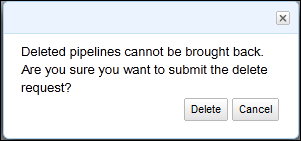
126 Delete a Pipeline Activate and verify your pipeline 1. After you've saved your pipeline definition with no validation errors, click Activate. 2. To verify that your your pipeline definition has been activated, click Back to list of pipelines. 3. In the List Pipelines page, check if your newly-created pipeline is listed and the Status column displays SCHEDULED. Delete a Pipeline When you no longer require a pipeline, such as a pipeline created during application testing, you should delete it to remove it from active use. Deleting a pipeline puts it into a deleting state. When the pipeline is in the deleted state, its pipeline definition and run history are gone. Therefore, you can no longer perform operations on the pipeline, including describing it. You can't restore a pipeline after you delete it, so be sure that you won t need the pipeline in the future before you delete it. To delete your pipeline 1. In the List Pipelines page, click the empty box next to your pipeline. 2. Click Delete. 3. In the confirmation dialog box, click Delete to confirm the delete request. Using the Command Line Interface Topics Install the AWS Data Pipeline Command-Line Client (p. 122) Command-Line Syntax (p. 122) Setting Credentials for the AWS Data Pipeline Command Line Interface (p. 122) List Pipelines (p. 124) Create a New Pipeline (p. 124) Retrieve Pipeline Details (p. 124) View Pipeline Versions (p. 125) Modify a Pipeline (p. 126) Delete a Pipeline (p. 126) The AWS Data Pipeline Command-Line Client (CLI) is one of three ways to interact with AWS Data Pipeline. The other two are: using the AWS Data Pipeline console a graphical user interface or calling the APIs (calling functions in the AWS Data Pipeline SDK). For more information, see What is AWS Data Pipeline? (p. 1). 121
127 Install the AWS Data Pipeline Command-Line Client Install the AWS Data Pipeline Command-Line Client Install the AWS Data Pipeline Command-Line Client (CLI) as described in Install the Command Line Interface (p. 15) Command-Line Syntax Use the AWS Data Pipeline CLI from your operating system's command-line prompt and type the CLI tool name "datapipeline" followed by one or more parameters. However, the syntax of the command is different on Linux/Unix/Mac OS compared to Windows. Linux/Unix/Mac users must use the "./" prefix for the CLI command and Windows users must specify "ruby" before the CLI command. For example, to view the CLI help text on Linux/Unix/Mac, the syntax is:./datapipeline --help However, to perform the same action on Windows, the syntax of the command is: ruby datapipeline --help Other than the prefix, the AWS Data Pipeline CLI syntax is the same between operating systems. te For brevity, we do not list all the operating system syntax permutations for each example in this documentation. Instead, we simply refer to the commands like the following example. datapipeline --help Setting Credentials for the AWS Data Pipeline Command Line Interface In order to connect to the AWS Data Pipeline web service to process your commands, the CLI needs the account details of an AWS account that has permissions to create and/or manage data pipelines. There are three ways to pass your credentials into the CLI: Implicitly, using a JSON file. Explicitly, by specifying a JSON file at the command line. Explicitly, by specifying credentials using a series of command-line options. To Set Your Credentials Implicitly with a JSON File The easiest and most common way is implicitly, by creating a JSON file named credentials.json in either your home directory, or the directory where CLI is installed. For example, when you use the CLI with Windows, the folder may be c:\datapipeline-cli\amazon\datapipeline. When you do this, the CLI loads the credentials implicitly and you do not need to specify any credential information at the command line. Verify the credentials file syntax using the following example JSON file, where you replace the example access-id and private-key values with your own: "access-id": "AKIAIOSFODNN7EXAMPLE", "private-key": "wjalrxutnfemi/k7mdeng/bpxrficyexamplekey", "endpoint": "datapipeline.us-east-1.amazonaws.com", 122
128 Setting Credentials for the AWS Data Pipeline Command Line Interface } "port": "443", "use-ssl": "true", "region": "us-east-1", "log-uri": "log-uri": "s3://myawsbucket/logfiles" After setting your credentials file, test the CLI using the following command, which uses implicit credentials to call the CLI and display a list of all the data pipelines those credentials can access. datapipeline --list-pipelines To Set Your Credentials Explicitly with a JSON File The next easiest way to pass in credentials is explicitly, using the --credentials option to specify the location of a JSON file. With this method, you ll have to add the --credentials option to each command-line call. This can be useful if you are SSHing into a machine to run the command-line client remotely, or if you are testing various sets of credentials. For information about what to include in the JSON file, go to How to Format the JSON File. For example, the following command explicitly uses the credentials stored in a JSON file to call the CLI and display a list of all the data pipelines those credentials can access. datapipeline --credentials /my-directory/my-credentials.json --list-pipelines To Set Your Credentials Using Command-Line Options The final way to pass in credentials is to specify them using a series of options at the command line. This is the most verbose way to pass in credentials, but may be useful if you are scripting the CLI and want the flexibility of changing credential information without having to edit a JSON file. The options you ll use in this scenario are --access-key, --secret-key and --endpoint. For example, the following command explicitly uses credentials specified at the command line to call the CLI and display a list of all the data pipelines those credentials can access. datapipeline --access-key my-access-key-id --secret-key my-secret-accesskey --endpoint datapipeline.us-east-1.amazonaws.com --list-pipelines In the preceding, my-access-key-id would be replaced with your AWS Access Key ID, and my-secret-access-key replaced with AWS Secret Access Key, and --endpoint wound specify the endpoint the CLI should use when contacting the AWS Data Pipeline web service. For more information about how to locate your AWS security credentials, go to Locating Your AWS Security Credentials. te Because you are passing in your credentials at every command-line call, you may wish to take additional security precautions to ensure the privacy of your command-line calls, such as clearing auto-complete when you are done with your terminal session. You also should not store this script in an unsecured file. 123
129 List Pipelines List Pipelines A simple example that also helps you confirm that your credentials are set correctly is to view a get a list of the currently running pipelines using --list-pipelines command. This command returns the names and identifiers of all pipelines that you have permission to access. datapipeline --list-pipelines This is how you get the ID of pipelines that you want to work with using the CLI, because many commands require you to specify the pipeline ID using the --id parameter. For more information, see --list-pipelines (p. 221). Create a New Pipeline The first step to create a new data pipeline is to define your data activities and their data dependencies using a pipeline definition file. The syntax and usage of the pipeline definition is described in Pipeline Definition Language Reference in the AWS Data Pipeline Developer s Guide. Once you ve written the details of the new pipeline using JSON syntax, save them to a text file with the extension.json. You ll then specify this pipeline definition file as part of the input when creating the new pipeline. After creating your pipeline definition file, you can create a new pipeline by calling the --create (p. 217) action of the AWS Data Pipeline CLI, as shown below. datapipeline --create my-pipeline --put my-pipeline-file.json If you leave off the --put option, as shown following, AWS Data Pipeline creates an empty pipeline.you can then use a subsequent --put call to attach a pipeline definition to the empty pipeline. datapipeline --create pipeline_name The --put parameter does not activate a pipeline by default. You must explicitly activate a pipeline before it will begin doing work, using the --activate command and specifying a pipeline ID as shown below. datapipeline --activate --id pipeline_id For more information about creating pipelines, see the --create (p. 217) and --put actions. Retrieve Pipeline Details Using the CLI, you can retrieve all the information about a pipeline, which includes the pipeline definition and the run attempt history of the pipeline components. Retrieving the Pipeline Definition To get the complete pipeline definition, use the --get command. The pipeline objects are returned in alphabetical order, not in the order they had in the pipeline definition file that you uploaded, and the slots for each object are also returned in alphabetical order. You can specify an output file to receive the pipeline definition, but the default is to print the information to standard output (which is typically your terminal screen). 124
130 View Pipeline Versions The following example prints the pipeline definition to a file named output.txt. datapipeline --get --file output.txt --id df sovyzexample The following example prints the pipeline definition to standard output (stdout). datapipeline --get --id df sovyzexample It's a good idea to retrieve the pipeline definition before you submit modifications, because it s possible that another user or process changed the pipeline definition after you last worked with it. By downloading a copy of the current definition and using that as the basis for your modifications, you can be sure that you are working with the most recent pipeline definition. It s also a good idea to retrieve the pipeline definition again after you modify it to ensure that the update was successful. For more information, see --get, --g (p. 219). Retrieving the Pipeline Run History To retrieve a history of the times that a pipeline has run, use the --list-runs command.this command has options that you can use to filter the number of runs returned based on either their current status or the date-range in which they were launched. Filtering the results is useful because, depending on the pipeline s age and scheduling, the run history can be very large. This example shows how to retrieve information for all runs. datapipeline --list-runs --id df sovyzexample This example shows how to retrieve information for all runs that have completed. datapipeline --list-runs --id df sovyzexample --status finished This example shows how to retrieve information for all runs launched in the specified time frame. datapipeline --list-runs --id df sovyzexample --start-interval " ", " " For more information, see --list-runs (p. 222). View Pipeline Versions There are two versions of a pipeline that you can view with the CLI. There is the "active" version, which is the version of a pipeline that is currently running. There is also the "latest" version, which is created when a user edits a running pipeline and is created as a copy of the "active" pipeline until you edit it. When you upload the edited pipeline, it becomes the "active" version and the previous "active" version is no longer accessible. A new "latest" version is created if you edit the pipeline again, repeating the previously described cycle. To retrieve a specific version of a pipeline, use the --version command, specifying the version name of the pipeline. For example, the following command retrieves the "active" version of a pipeline. datapipeline --get --version active --id df sovyzexample 125
131 Modify a Pipeline For more information, see --delete (p. 218). Modify a Pipeline After you ve created a pipeline, you may need to change some aspect of it. To do this, get the current pipeline definition and save it to a file, update the pipeline definition file, and upload the updated pipeline definition to AWS Data Pipeline using the --put command. The following rules apply when you modify a pipeline definition: Cannot change the Default object Cannot change the schedule of an object Cannot change the dependencies between objects Cannot added/delete/modify reference fields for existing objects, only non-reference fields are allowed New objects cannot reference an previously existing object for the output field, only the input fields is allowed It's a good idea to retrieve the pipeline definition before you submit modifications, because it s possible that another user or process changed the pipeline definition after you last worked with it. By downloading a copy of the current definition and using that as the basis for your modifications, you can be sure that you are working with the most recent pipeline definition. The following example prints the pipeline definition to a file named output.txt. datapipeline --get --file output.txt --id df sovyzexample Update your pipeline definition file and save it as my-updated-file.txt. The following example uploads the updated pipeline definition. datapipeline --put my-updated-file.txt --id df sovyzexample You can retrieve the pipeline definition using --get to ensure that the update was successful. When you use --put to replace the pipeline definition file, the previous pipeline definition is completely replaced. Currently there is no way to change only a portion, such as a single object, of a pipeline; you must include all previously defined objects in the updated pipeline definition. For more information, see --put (p. 224) and --get, --g (p. 219). Delete a Pipeline When you no longer require a pipeline, such as a pipeline created during application testing, you should delete it to remove it from active use. Deleting a pipeline puts it into a deleting state. When the pipeline is in the deleted state, its pipeline definition and run history are gone. Therefore, you can no longer perform operations on the pipeline, including describing it. You can't restore a pipeline after you delete it, so be sure that you won t need the pipeline in the future before you delete it. To delete a pipeline, use the --delete command, specifying the identifier of the pipeline. For example, the following command deletes a pipeline. datapipeline --delete --id df sovyzexample 126
132 Delete a Pipeline For more information, see --delete (p. 218). 127
133 Proactively Monitor Your Pipeline Troubleshoot AWS Data Pipeline Topics Proactively Monitor Your Pipeline (p. 128) Verify Your Pipeline Status (p. 129) Interpret Pipeline Status Details (p. 129) Error Log Locations (p. 130) AWS Data Pipeline Problems and Solutions (p. 131) When you have a problem while AWS Data Pipeline, the most common symptom is that a pipeline won't run. Since there are several possible causes, this topic explains how to track the status of your AWS Data Pipeline pipelines, get notifications when problems occur, and gather more information. After you have enough information to narrow the list of potential problems, this topic guides you to solutions. To get the most benefit from these troubleshooting steps and scenarios, you should use the console or CLI to gather the required information. Proactively Monitor Your Pipeline The best way to detect problems is to monitor your pipelines from the start proactively.you can configure pipeline components to inform you of certain situations or events, such as when a pipeline component fails or doesn't begin by its scheduled start time. AWS Data Pipeline makes it easy to configure notifications using Amazon SNS. Using the AWS Data Pipeline CLI, you can configure a pipeline component to send Amazon SNS notifications on failures. Add the following code to your pipeline definition JSON file. This example also demonstrates how to use the AWS Data Pipeline expression language to insert details about the specific execution attempt denoted by the #node.interval.start} and #node.interval.end} variables: te You must create an Amazon SNS topic to use for the Topic ARN value in the following example. For more information, see the Create a Topic documentation at "id" : "Failuretify", "type" : "SnsAlarm", 128
134 Verify Your Pipeline Status "subject" : "Failed to run pipeline component", "message": "Error for interval #node.interval.start}..#node.inter val.end}.", "topicarn":"arn:aws:sns:us-east-1:28619example:exampletopic" You must also associate the notification to the pipeline component that you want to monitor, as shown by the following example. In this example using the onfail action, the component sends a notification if a file doesn't exist in an Amazon S3 bucket: "id": "S3Data", "type": "S3Datade", "schedule": "ref": "MySchedule" "filepath": "s3://mys3bucket/file.txt", "precondition": "ref":"examplecondition" "onfail": "ref":"failuretify"} Using the steps mentioned in the previous examples, you can also use the onlateaction, and onsuccess pipeline component fields to notify you when a pipeline component has not been scheduled on-time or has succeeded, respectively. You should configure notifications for any critical tasks in a pipeline by adding notifications to the default object in a pipeline, they automatically apply to all components in that pipeline. Pipeline components get the ability to send notifications through their IAM roles. Do not modify the default IAM roles unless your situation demands it, otherwise notifications may not work. Verify Your Pipeline Status When you notice a problem with a pipeline, check the status of your pipeline components and look for error messages using the console or CLI and look for error messages. To locate your pipeline ID using the CLI, run this command: ruby datapipeline --list-pipelines After you have the pipeline ID, view the status of the pipeline components using the CLI. In this example, replace your pipeline ID with the example provided: ruby datapipeline --list-runs --id df-akiaiosfodnn7example On the list of pipeline components, look at the status column of each component and pay special attention to any components that indicate a status of FAILED, WAITING_FOR_RUNNER, or CANCELLED. Additionally, look at the Scheduled Start column and match it with a corresponding value for the Actual Start column to ensure that the tasks occur with the timing that you expect. Interpret Pipeline Status Details The various status levels displayed in the AWS Data Pipeline console and CLI indicate the condition of a pipeline and its components. Pipelines have a SCHEDULED status if they have passed validation and are ready, currently performing work, or done with their work. PENDING status means the pipeline is not able to perform work for some reason; for example, the pipeline definition might be incomplete or might 129
135 Error Log Locations have failed the validation step that all pipelines go through before activation. The pipeline status is simply an overview of a pipeline; to see more information, view the status of individual pipeline components. You can do this by clicking through a pipeline in the console or retrieving pipeline component details using the CLI. A pipeline component has the following available status values: CHECKING_PRECONDITIONS The component is checking to ensure that all its default and user-configured preconditions are met before performing its work. WAITING_FOR_RUNNER The component is waiting for its worker client to retrieve it as a work item.the component and worker client relationship is controlled by the runson or theworkergroup field defined by that component. CREATING The component or resource is in the process of being started, such as an Amazon EC2 instance. VALIDATING The pipeline definition is in the process of being validated by AWS Data Pipeline. RUNNING The resource is running and ready to receive work. CANCELLED The component was pre-emptively cancelled by a user or AWS Data Pipeline before it could run. This can happen automatically when a failure occurs in different component or resource that this component depends on. PAUSED The component has been paused and is not currently performing work. FINISHED The component has completed its assigned work. SHUTTING_DOWN The resource is shutting down after successfully performing its defined work. FAILED The component or resource encountered an error and stopped working. When a component or resource fails, it can cause cancellations and failures to cascade to other components that depend on it. Error Log Locations This section explains the various logs that AWS Data Pipeline writes that you can use to determine the source of certain failures and errors. Task Runner Logs Task Runner writes a log file named TaskRunner.log to the local computer which runs in the <your home directory>/output/logs directory, where "AmazonDataPipeline_location" is the directory where you extracted the AWS Data Pipeline CLI tools. In this directory, Task Runner also creates several nested directories that are named after the pipeline ID that it ran, with subdirectories for the year, month, day, and attempt number in the format <pipeline ID>/<year>/<month>/<day>/<pipeline object attempt ID_Attempt=X>. In these folders, Task Runner writes three files: <Pipeline Attempt ID>_Attempt_<number>_main.log.gz - This archive logs the step-by-step execution of Task Runner work items (both succeeded and failed) along with any error messages that were generated. <Pipeline Attempt ID>_Attempt_<number>_stderr.log.gz - This archive logs only error messages that occurred while Task Runner processed tasks. 130
136 Pipeline Logs <Pipeline Attempt ID>_Attempt_<number>_stdout.log.gz - This log provides any standard output text if provided by certain tasks. Pipeline Logs You can configure pipelines to create log files in a location, such as in the following example where you use the Default object in a pipeline to cause all pipeline components to use that log location by default (you can override this by configuring a log location in a specific pipeline component). To configure the log location using the AWS Data Pipeline CLI in a pipeline JSON file, begin your pipeline file with the following text: "objects": [ "id":"default", "loguri":"s3://mys3bucket/error_logs"... After you configure a pipeline log directory, Task Runner creates a copy of the logs in your directory, with the same formatting and file names described in the previous section about Task Runner logs. AWS Data Pipeline Problems and Solutions This topic provides various symptoms of AWS Data Pipeline problems and the recommended steps to solve them. Pipeline Stuck in Pending Status A pipeline that appears stuck in the PENDING status indicates a fundamental error in the pipeline definition. Ensure that you did not receive any errors when you submitted your pipeline using the AWS Data Pipeline CLI or when you attempted to save or activate your pipeline using the AWS Data Pipeline console. Additionally, check that your pipeline has a valid definition. To view your pipeline definition on the screen using the CLI: ruby datapipeline --get --id df-example_pipeline_id Ensure that the pipeline definition is complete, check your closing braces, verify required commas, check for missing references, and other syntax errors. It is best to use a text editor that can visually validate the syntax of JSON files. Pipeline Component Stuck in Waiting for Runner Status If your pipeline is in the SCHEDULED state and one or more tasks appear stuck in the WAITING_FOR_RUNNER state, ensure that you set a valid value for either the runson or workergroup fields for those tasks. If both values are empty or missing, the task cannot start because there is no association between the task and a worker to perform the tasks. In this situation, you've defined work but haven't defined what computer will do that work. If applicable, verify that the workergroup value assigned 131
137 Pipeline Component Stuck in Checking Preconditions Status to the pipeline component is exactly the same name and case as the workergroup value that you configured for Task Runner. Another potential cause of this problem is that the endpoint and access key provided to Task Runner is not the same as the AWS Data Pipeline console or the computer where the AWS Data Pipeline CLI tools are installed. You might have created new pipelines with no visible errors, but Task Runner polls the wrong location due to the difference in credentials, or polls the correct location with insufficient permissions to identify and run the work specified by the pipeline definition. Pipeline Component Stuck in Checking Preconditions Status If your pipeline is in the SCHEDULED state and one or more tasks appear stuck in the CHECKING_PRECONDITIONS state, make sure your pipeline's initial preconditions have been met. If the preconditions of the first object in the logic chain are not met, none of the objects that depend on that first object will be able to move out of the CHECKING_PRECONDITIONS state. For example, consider the following excerpt from a pipeline definition. In this case, the InputData object has a precondition 'Ready' specifying that the data must exist before the InputData object is complete. If the data does not exist, the InputData object remains in the CHECKING_PRECONDITIONS state, waiting for the data specified by the path field to become available. Any objects that depend on InputData likewise remain in a CHECKING_PRECONDITIONS state waiting for the InputData object to reach the FINISHED state.... "id": "InputData", "type": "S3Datade", "filepath": "s3://elasticmapreduce/samples/wordcount/wordsplitter.py", "schedule":"ref":"myschedule" "precondition": "Ready" "id": "Ready", "type": "Exists" Also, check that your objects have the proper permissions to access the data. In the preceding example, if the information in the credentials field did not have permissions to access the data specified in the path field, the InputData object would get stuck in a CHECKING_PRECONDITIONS state because it cannot access the data specified by the path field, even if that data exists. Run Doesn't Start When Scheduled Check that you have properly specified the dates in your schedule objects and that the startdatetime and enddatetime values are in UTC format, such as in the following example: "id": "MySchedule", "startdatetime": " T19:30:00", "enddatetime":" t20:30:00", "period": "1 Hour", "type": "Schedule" 132
138 Pipeline Components Run in Wrong Order Pipeline Components Run in Wrong Order You might notice that the start and end times for your pipeline components are running in the wrong order, or in a different sequence than you expect. It is important to understand that pipeline components can start running simultaneously if their preconditions are met at start-up time. In other words, pipeline components do not execute sequentially by default; if you need a specific execution order, you must control the execution order with preconditions and dependson fields. Verify that you are using the dependson field populated with a reference to the correct prerequisite pipeline components, and that all the necessary pointers between components are present to achieve the order you require. EMR Cluster Fails With Error: The security token included in the request is invalid Verify your IAM roles, policies, and trust relationships as described in Granting Permissions to Pipelines with IAM (p. 21). Insufficient Permissions to Access Resources Permissions that you set on IAM roles determine whether AWS Data Pipeline can access your EMR clusters and EC2 instances to run your pipelines. Additionally, IAM provides the concept of trust relationships that go further to allow creation of resources on your behalf. For example, when you create a pipeline that uses an EC2 instance to run a command to move data, AWS Data Pipeline can provision this EC2 instance for you. If you encounter problems, especially those involving resources that you can access manually but AWS Data Pipeline cannot, verify your IAM roles, policies, and trust relationships as described in Granting Permissions to Pipelines with IAM (p. 21). Creating a Pipeline Causes a Security Token Error You receive the following error when you try to create a pipeline: Failed to create pipeline with 'pipeline_name'. Error: UnrecognizedClientException - The security token included in the request is invalid. Cannot See Pipeline Details in the Console The AWS Data Pipeline console pipeline filter applies to the scheduled start date for a pipeline, without regard to when the pipeline was submitted. It is possible to submit a new pipeline using a scheduled start date that occurs in the past, which the default date filter may not show.to see the pipeline details, change your date filter to ensure that the scheduled pipeline start date fits within the date range filter. Error in remote runner Status Code: 404, AWS Service: Amazon S3 This error means that Task Runner could not access your files in Amazon S3. Verify that: You have credentials correctly set The Amazon S3 bucket that you are trying to access exists You are authorized to access the Amazon S3 bucket 133
139 Access Denied - t Authorized to Perform Function datapipeline: In the Task Runner logs, you may see an error that is similar to the following: ERROR Status Code: 403 AWS Service: DataPipeline AWS Error Code: AccessDenied AWS Data Pipeline Developer Guide Access Denied - t Authorized to Perform Function datapipeline: AWS Error Message: User: arn:aws:sts::xxxxxxxxxxxx:federated-user/i-xxxxxxxx is not authorized to perform: datapipeline:pollforwork. te In the this error message, PollForWork may be replaced with names of other AWS Data Pipeline permissions. This error message indicates that the IAM role you specified needs additional permissions necessary to interact with AWS Data Pipeline. Ensure that your IAM role policy contains the following lines, where PollForWork is replaced with the name of the permission you want to add (use * to grant all permissions): "Action": [ "datapipeline:pollforwork" ], "Effect": "Allow", "Resource": ["*"] } 134
140 Creating Pipeline Definition Files Pipeline Definition Files Topics Creating Pipeline Definition Files (p. 135) Example Pipeline Definitions (p. 139) Simple Data Types (p. 153) Expression Evaluation (p. 155) Objects (p. 161) The AWS Data Pipeline web service receives a pipeline definition file as input. This file specifies objects for the data nodes, activities, schedules, and computational resources for the pipeline. Creating Pipeline Definition Files To create a pipeline definition file, you can use either the AWS Data Pipeline console interface or a text editor that supports saving files using the UTF-8 file format. This topic describes creating a pipeline definition file using a text editor. Topics Prerequisites (p. 135) General Structure of a Pipeline Definition File (p. 136) Pipeline Objects (p. 136) Pipeline fields (p. 136) User-Defined Fields (p. 137) Expressions (p. 138) Saving the Pipeline Definition File (p. 139) Prerequisites Before you create your pipeline definition file, you should determine the following: Objectives and tasks you need to accomplish Location and format of your source data (data nodes) and how often you update them 135
141 General Structure of a Pipeline Definition File Calculations or changes to the data (activities) you need Dependencies and checks (preconditions) that indicate when tasks are ready to run Frequency (schedule) you need for the pipeline to run Validation tests to confirm your data reached the destination How you want to be notified about success and failure Performance, volume, and runtime goals that suggest using other AWS services like EMR to process your data General Structure of a Pipeline Definition File The first step in pipeline creation is to compose pipeline definition objects in a pipeline definition file. The following example illustrates the general structure of a pipeline definition file. This file defines two objects, which are delimited by '' and '}', and separated by a comma. The first object defines two name-value pairs, known as fields. The second object defines three fields. } "objects" : [ "name1" : "value1", "name2" : "value2" "name1" : "value3", "name3" : "value4", "name4" : "value5" } ] Pipeline Objects When creating a pipeline definition file, you must select the types of pipeline objects that you'll need, add them to the pipeline definition file, and then add the appropriate fields. For more information about pipeline objects, see Objects (p. 161). For example, you could create a pipeline definition object for an input data node and another for the output data node. Then create another pipeline definition object for an activity, such as processing the input data using Amazon EMR. Pipeline fields After you know which object types to include in your pipeline definition file, you add fields to the definition of each pipeline object. Field names are enclosed in quotes, and are separated from field values by a space, a colon, and a space, as shown in the following example. "name" : "value" The field value can be a text string, a reference to another object, a function call, an expression, or an ordered list of any of the preceding types. for more information about the types of data that can be used for field values, see Simple Data Types (p. 153). For more information about functions that you can use to evaluate field values, see Expression Evaluation (p. 155). 136
142 User-Defined Fields Fields are limited to 2048 characters. Objects can be 20 KB in size, which means that you can't add many large fields to an object. Each pipeline object must contain the following fields: id and type, as shown in the following example. Other fields may also be required based on the object type. Select a value for id that's meaningful to you, and is unique within the pipeline definition. The value for type specifies the type of the object. Specify one of the supported pipeline definition object types, which are listed in the topic Objects (p. 161). } "id": "MyCopyToS3", "type": "CopyActivity" For more information about the required and optional fields for each object, see the documentation for the object. To include fields from one object in another object, use the parent field with a reference to the object. For example, object "B" includes its fields, "B1" and "B2", plus the fields from object "A", "A1" and "A2". "id" : "A", "A1" : "value", "A2" : "value" "id" : "B", "parent" : "ref" : "A" "B1" : "value", "B2" : "value" } You can define common fields in an object named "Default". These fields are automatically included in every object in the pipeline definition file that doesn't explicitly set its parent field to reference a different object. } "id" : "Default", "onfail" : "ref" : "Failuretification" "maximumretries" : "3", "workergroup" : "myworkergroup" User-Defined Fields You can create user-defined or custom fields on your pipeline components and refer to them with expressions. The following example shows a custom field named "mycustomfield" and "mycustomfieldreference" added to an S3Datade: "id": "S3DataInput", "type": "S3Datade", "schedule": "ref": "TheSchedule" "filepath": "s3://bucket_name", "mycustomfield": "This is a custom value in a custom field.", 137
143 Expressions "my_customfieldreference": "ref":"anotherpipelinecomponent"} A custom field must have a name prefixed with the word "my" in all lower-case letters, followed by a capital letter or underscore character, such as the preceding example "mycustomfield". A user-defined field can be both a string value or a reference to another pipeline component as shown by the preceding example "my_customfieldreference". te On user-defined fields, AWS Data Pipeline only checks for valid references to other pipeline components, not any custom field string values that you add. Expressions Expressions enable you to share a value across related objects. Expressions are processed by the AWS Data Pipeline web service at runtime, ensuring that all expressions are substituted with the value of the expression. Expressions are delimited by: "#" and "}". You can use an expressions in any pipeline definition object where a string is legal. The following expression calls one of the AWS Data Pipeline functions. For more information, see Expression Evaluation (p. 155). #format(mydatetime,'yyyy-mm-dd hh:mm:ss')} Referencing Fields and Objects To reference a field on the current object in an expression, use the node keyword. This keyword is available with alarm and precondition objects. In the following example, the path field references the id field in the same object to form a file name. The value of path evaluates to "s3://mybucket/exampledatade.csv". } "id" : "ExampleDatade", "type" : "S3Datade", "schedule" : "ref" : "ExampleSchedule" "filepath" : "s3://mybucket/#node.filepath}.csv", "precondition" : "ref" : "ExampleCondition" "onfail" : "ref" : "Failuretify"} You can use an expression to reference objects that include another object, such as an alarm or precondition object, using the node keyword. For example, the precondition object "ExampleCondition" is referenced by the previously described "ExampleDatade" object, so "ExampleCondition" can reference field values of "ExampleDatade" using the node keyword. In the following example, the value of path evaluates to "s3://mybucket/exampledatade.csv". } "id" : "ExampleCondition", "type" : "Exists" 138
144 Saving the Pipeline Definition File te You can create pipelines that have dependencies, such as tasks in your pipeline that depend on the work of other systems or tasks. If your pipeline requires certain resources, add those dependencies to the pipeline using preconditions that you associate with data nodes and tasks so your pipelines are easier to debug and more resilient. Additionally, keep your dependencies within a single pipeline when possible, because cross-pipeline troubleshooting is difficult. As another example, you can use an expression to refer to the date and time range created by a Schedule object. For example, the message field uses runtime fields from the Schedule object that is referenced by the data node or activity that references this object in its onfail field. "id" : "Failuretify", "type" : "SnsAlarm", "subject" : "Failed to run pipeline component", "message": "Error for interval #node.@scheduledstarttime}..#node.@sched uledendtime}.", "topicarn":"arn:aws:sns:us-east-1:28619example:exampletopic" Saving the Pipeline Definition File After you have completed the pipeline definition objects in your pipeline definition file, save the pipeline definition file using UTF-8 encoding. You must submit the pipeline definition file to the AWS Data Pipeline web service. There are two primary ways to submit a pipeline definition file, using the AWS Data Pipeline command line interface or using the AWS Data Pipeline console. Example Pipeline Definitions This section contains a collection of example pipelines that you can quickly use for various scenarios, once you are familiar with AWS Data Pipeline. For more detailed, step by step instructions for creating and using pipelines, we recommend that you read one or more of the detailed tutorials available in this guide, for example Tutorial: Copy Data From a MySQL Table to Amazon S3 (p. 40) and Tutorial: Import/Export Data in Amazon DynamoDB With Amazon EMR and Hive (p. 69). Copy SQL Data to a CSV File in Amazon S3 This example pipeline definition shows how to set a precondition or dependency on the existence of data gathered within a specific hour of time before copying the data (rows) from a table in a SQL database to a CSV (comma-separated values) file in an Amazon S3 bucket. The prerequisites and steps listed in this example pipeline definition are based on a MySQL database and table created using Amazon RDS. Prerequisites To set up and test this example pipeline definition, see Get Started with Amazon RDS to complete the following steps: 1. Sign up for Amazon RDS. 2. Launch a MySQL DB instance. 3. Authorize access. 139
145 Copy SQL Data to a CSV File in Amazon S3 4. Connect to the MySQL DB instance. te The database name in this example, mydatabase, is the same as the one in the Amazon RDS Getting Started Guide. After you can connect to your MySQL DB Instance, then use the MySQL command line client to: 1. Use your test MySQL database and create a table named adevents. USE mydatabase; CREATE TABLE IF NOT EXISTS adevents (eventtime DATETIME, eventid INT, site VARCHAR(100)); 2. Insert test data values to the newly created table named adevents. INSERT INTO adevents (eventtime, eventid, site) values (' :00:00', 100, 'Sports'); INSERT INTO adevents (eventtime, eventid, site) values (' :00:00', 200, 'News'); INSERT INTO adevents (eventtime, eventid, site) values (' :00:00', 300, 'Finance'); Example Pipeline Definition The eight pipeline definition objects in this example are defined with the objectives of having: A default object with values that can be used by all subsequent objects A precondition object that resolves to true when the data exists in a referencing object A schedule object that specifies beginning and ending dates and duration or period of time in a referencing object A data input or source object with MySQL connection information, query string, and referencing to the precondition and schedule objects A data output or destination object pointing to your specified Amazon S3 bucket An activity object for copying from MySQL to Amazon S3 Amazon SNS notification objects used for signalling success and failure of a referencing activity object "objects" : [ "id" : "Default", "onfail" : "ref" : "Failuretify" "onsuccess" : "ref" : "Successtify" "maximumretries" : "3", "workergroup" : "myworkergroup" "id" : "Ready", "type" : "Exists" 140
146 Launch an Amazon EMR Job Flow "id" : "CopyPeriod", "type" : "Schedule", "startdatetime" : " T10:00:00", "enddatetime" : " T11:00:00", "period" : "1 hour" "id" : "SqlTable", "type" : "MySqlDatade", "schedule" : "ref" : "CopyPeriod" "table" : "adevents", "username": "user_name", "*password": "my_password", "connection": "jdbc:mysql://mysqlinstance-rds.example.us-east- 1.rds.amazonaws.com:3306/database_name", "selectquery" : "select * from #table} where eventtime >= '#@scheduled StartTime.format('YYYY-MM-dd HH:mm:ss')}' and eventtime < '#@scheduledend Time.format('YYYY-MM-dd HH:mm:ss')}'", "precondition" : "ref" : "Ready"} "id" : "OutputData", "type" : "S3Datade", "schedule" : "ref" : "CopyPeriod" "filepath" : "s3://s3buckethere/#@scheduledstarttime}.csv" "id" : "mysqltos3", "type" : "CopyActivity", "schedule" : "ref" : "CopyPeriod" "input" : "ref" : "SqlTable" "output" : "ref" : "OutputData" "onsuccess" : "ref" : "Successtify"} "id" : "Successtify", "type" : "SnsAlarm", "subject" : "Pipeline component succeeded", "message": "Success for interval #node.@scheduledstarttime}..#node.@sched uledendtime}.", "topicarn":"arn:aws:sns:us-east-1:28619example:exampletopic" "id" : "Failuretify", "type" : "SnsAlarm", "subject" : "Failed to run pipeline component", "message": "Error for interval #node.@scheduledstarttime}..#node.@sched uledendtime}.", "topicarn":"arn:aws:sns:us-east-1:28619example:exampletopic" } ] } Launch an Amazon EMR Job Flow This example pipeline definition provisions an Amazon EMR cluster and runs a job step on that cluster one time a day, governed by the existence of the specified Amazon S3 path. 141
147 Launch an Amazon EMR Job Flow Example Pipeline Definition The value for workergroup should match the value that you specified for Task Runner. Replace myoutputpath, mylogpath. "objects" : [ "id" : "Default", "onfail" : "ref" : "Failuretify" "maximumretries" : "3", "workergroup: "myworkergroup" "id" : "Daily", "type" : "Schedule", "period" : "1 day", "startdatetime: " T00:00:00", "enddatetime" : " T00:00:00" "id" : "InputData", "type" : "S3Datade", "schedule" : "ref" : "Daily" "filepath" : "s3://mybucket/#@scheduledendtime.format('yyyy-mm-dd')}", "precondition" : "ref" : "Ready"} "id" : "Ready", "type" : "S3DirectorytEmpty", "prefix" : "#node.filepath}", "id" : "MyCluster", "type" : "EmrCluster", "masterinstancetype" : "m1.small", "schedule" : "ref" : "Daily" "enabledebugging" : "true", "loguri": "s3://mylogpath/logs" "id" : "MyEmrActivity", "type" : "EmrActivity", "input" : "ref" : "InputData" "schedule" : "ref" : "Daily" "onsuccess" : "Successtify", "runson" : "ref" : "MyCluster" "prestepcommand" : "echo Starting #id} for day #@scheduledstarttime} >> /tmp/stepcommand.txt", "poststepcommand" : "echo Ending #id} for day #@scheduledstarttime} >> /tmp/stepcommand.txt", "step" : "/home/hadoop/contrib/streaming/hadoop-streaming.jar,-in put,s3n://elasticmapreduce/samples/wordcount/input,-output,s3://myoutputpath/word count/output/,-mapper,s3n://elasticmapreduce/samples/wordcount/wordsplitter.py,- reducer,aggregate" 142
148 Run a Script on a Schedule "id" : "Successtify", "type" : "SnsAlarm", "subject" : "Pipeline component succeeded", "message": "Success for interval #node.@scheduledstarttime}..#node.@sched uledendtime}.", "topicarn":"arn:aws:sns:us-east-1:28619example:exampletopic" "id" : "Failuretify", "type" : "SnsAlarm", "subject" : "Failed to run pipeline component", "message": "Error for interval #node.@scheduledstarttime}..#node.@sched uledendtime}.", "topicarn":"arn:aws:sns:us-east-1:28619example:exampletopic" } ] } Run a Script on a Schedule This example pipeline definition runs an arbitrary command line script set on a 'time-based' schedule. This is a 'time based' schedule and not a 'dependency based' schedule in the sense that 'MyProcess' is scheduled to run based on clock time, not based on the availability of data sources that are inputs to 'MyProcess'. The schedule object 'Period' in this case defines a schedule used by activity 'MyProcess' such that 'MyProcess' will be scheduled to execute every hour, beginning at startdatetime. The interval could have been minutes, hours, days, weeks, or months and be made different by chaining the period fields on object 'Period'. te When a schedule's startdatetime is in the past, AWS Data Pipeline backfills your pipeline and begins scheduling runs immediately beginning at startdatetime. For testing/development, use a relatively short interval for startdatetime..enddatetime. If not, AWS Data Pipeline attempts to queue up and schedule all runs of your pipeline for that interval. Example Pipeline Definition "objects" : [ "id" : "Default", "onfail" : "ref" : "Failuretify" "maximumretries" : "3", "workergroup" : "myworkergroup" "id" : "Period", "type" : "Schedule", "period" : "1 hour", "startdatetime" : " T20:00:00", "enddatetime" : " T21:00:00" "id" : "MyProcess", "type" : "ShellCommandActivity", "onsuccess" : "ref" : "Successtify" 143
149 Chain Multiple Activities and Roll Up Data "command" : "/home/myscriptpath/myscript.sh #@scheduledstarttime} #@scheduledendtime}", "schedule": "ref" : "Period" "stderr" : "/tmp/stderr:#@scheduledstarttime}", "stdout" : "/tmp/stdout:#@scheduledstarttime}" "id" : "Successtify", "type" : "SnsAlarm", "subject" : "Pipeline component succeeded", "message": "Success for interval #node.@scheduledstarttime}..#node.@sched uledendtime}.", "topicarn":"arn:aws:sns:us-east-1:28619example:exampletopic" "id" : "Failuretify", "type" : "SnsAlarm", "subject" : "Failed to run pipeline component", "message": "Error for interval #node.@scheduledstarttime}..#node.@sched uledendtime}.", "topicarn":"arn:aws:sns:us-east-1:28619example:exampletopic" } ] } Chain Multiple Activities and Roll Up Data This example pipeline definition demonstrates the following: Chaining multiple activities in a graph of dependencies based on inputs and outputs. Rolling up data from smaller granularities (such as 15 minute buckets) into a larger granularity (such as 1 hour buckets). This pipeline defines a schedule named 'CopyPeriod', which describes 15 minute time intervals originating at UTC time T00:00:00 and a schedule named 'HourlyPeriod', which describes 1 hour time intervals originating at UTC time T00:00:00. 'InputData' describes files of this form: s3://mybucket/demo/ t00:00:00.csv s3://mybucket/demo/ t00:15:00.csv s3://mybucket/demo/ t00:30:00.csv s3://mybucket/demo/ t00:45:00.csv s3://mybucket/demo/ t01:00:00.csv Every 15 minute interval (specified activity 'CopyMinuteData' checks for Amazon S3 file s3://mybucket/demo/#@scheduledstarttime}.csv and when it is found, copies the file to s3://mybucket/demo/#@scheduledendtime}.csv, per the definition of output object 'OutputMinuteData'. Similarly, for every hour's worth of 'OutputMinuteData' Amazon S3 files found to exist (four 15-minute files in this case), activity 'CopyHourlyData' runs and writes the output to an hourly file defined by the expression s3://mybucket/demo/hourly/#@scheduledendtime}.csv in 'HourlyData'. 144
150 Chain Multiple Activities and Roll Up Data Finally, when the Amazon S3 file described by in 'HourlyData' is found to exist, AWS Data Pipeline runs the script described by activity 'ShellOut'. Example Pipeline Definition "objects" " [ "id" : "Default", "onfail" : "ref" : "Failuretify" "maximumretries" : "3", "workergroup" : "myworkergroup" "id" : "CopyPeriod", "type" : "Schedule", "period" : "15 minutes", "startdatetime" : " T00:00:00", "enddatetime" : " T02:00:00" "id" : "InputData", "type" : "S3Datade", "schedule" : "ref" : "CopyPeriod" "filepath" : "s3://mybucket/demo/#@scheduledstarttime}.csv", "precondition" : "ref" : "Ready"} "id" : "OutputMinuteData", "type" : "S3Datade", "schedule" : "ref" : "CopyPeriod" "filepath" : "s3://mybucket/demo/#@scheduledendtime}.csv" "id" : "Ready", "type" : "Exists", "id" : "CopyMinuteData", "type" : "CopyActivity", "schedule" : "ref" : "CopyPeriod" "input" : "ref" : "InputData" "output" : "ref" : "OutputMinuteData"} "id" : "HourlyPeriod", "type" : "Schedule", "period" : "1 hour", "startdatetime" : " T00:00:00", "enddatetime" : " T02:00:00" "id" : "CopyHourlyData", "type" : "CopyActivity", "schedule" : "ref" : "HourlyPeriod" "input" : "ref" : "OutputMinuteData" "output" : "ref" : "HourlyData"} 145
151 Copy Data from Amazon S3 to MySQL "id" : "HourlyData", "type" : "S3Datade", "schedule" : "ref" : "HourlyPeriod" "filepath" : "s3://mybucket/demo/hourly/#@scheduledendtime}.csv" "id" : "ShellOut", "type" : "ShellCommandActivity", "input" : "ref" : "HourlyData" "command" : "/home/user/xxx.sh #@scheduledstarttime} #@scheduledend Time}", "schedule" : "ref" : "HourlyPeriod" "stderr" : "/tmp/stderr:#@scheduledstarttime}", "stdout" : "/tmp/stdout:#@scheduledstarttime}", "onsuccess" : "ref" : "Successtify"} "id" : "Successtify", "type" : "SnsAlarm", "subject" : "Pipeline component succeeded", "message": "Success for interval #node.@scheduledstarttime}..#node.@sched uledendtime}.", "topicarn":"arn:aws:sns:us-east-1:28619example:exampletopic" "id" : "Failuretify", "type" : "SnsAlarm", "subject" : "Failed to run pipeline component", "message": "Error for interval #node.@scheduledstarttime}..#node.@sched uledendtime}.", "topicarn":"arn:aws:sns:us-east-1:28619example:exampletopic" } ] } Copy Data from Amazon S3 to MySQL This example pipeline definition automatically creates an Amazon EC2 instance that will copy the specified data from a CSV file in Amazon S3 into a MySQL database table. For simplicity, the structure of the example MySQL insert statement assumes that you have a CSV input file with two columns of data that you are writing into a MySQL database table that has two matching columns of the appropriate data type. If you have data of a different scope, you would modify the MySQL statement to include additional data columns or data types. Example Pipeline Definition "objects": [ "id": "Default", "loguri": "s3://testbucket/error_log", "schedule": "ref": "MySchedule" 146
152 Copy Data from Amazon S3 to MySQL } "id": "MySchedule", "type": "Schedule", "startdatetime": " T00:00:00", "enddatetime": " T00:00:00", "period": "1 day" "id": "MyS3Input", "filepath": "s3://testbucket/input_data_file.csv", "type": "S3Datade" "id": "MyCopyActivity", "input": "ref": "MyS3Input" "output": "ref": "MyDatabasede" "type": "CopyActivity", "runson": "ref": "MyEC2Resource" } "id": "MyEC2Resource", "type": "Ec2Resource", "actionontaskfailure": "terminate", "actiononresourcefailure": "retryall", "maximumretries": "1", "role": "test-role", "resourcerole": "test-role", "instancetype": "m1.medium", "instancecount": "1", "securitygroups": [ "test-group", "default" ], "keypair": "test-pair" "id": "MyDatabasede", "type": "MySqlDatade", "table": "table_name", "username": "user_name", "*password": "my_password", "connection": "jdbc:mysql://mysqlinstance-rds.example.us-east- 1.rds.amazonaws.com:3306/database_name", "insertquery": "insert into #table} (column1_ name, column2_name) values (?,?);" } ] } 147
153 This example has the following fields defined in the MySqlDatade: id AWS Data Pipeline Developer Guide Extract Apache Web Log Data from Amazon S3 using Hive User-defined identifier for the MySQL database, which is a label for your reference only. type MySqlDatade type that matches the kind of location for our data, which is an Amazon RDS instance using MySQL in this example. table of the database table that contains the data to copy. Replace table_name with the name of your database table. username User name of the database account that has sufficient permission to retrieve data from the database table. Replace user_name with the name of your user account. *password Password for the database account with the asterisk prefix to indicate that AWS Data Pipeline must encrypt the password value. Replace my_password with the correct password for your user account. connection JDBC connection string for CopyActivity to connect to the database. insertquery A valid SQL SELECT query that specifies which data to copy from the database table. te that #table} is a variable that re-uses the table name provided by the "table" variable in the preceding lines of the JSON file. Extract Apache Web Log Data from Amazon S3 using Hive This example pipeline definition automatically creates an Amazon EMR cluster to extract data from Apache web logs in Amazon S3 to a CSV file in Amazon S3 using Hive. Example Pipeline Definition "objects": [ "startdatetime": " T00:00:00", "id": "MyEmrResourcePeriod", "period": "1 day", "type": "Schedule", "enddatetime": " T00:00:00" "id": "MyHiveActivity", "type": "HiveActivity", "schedule": "ref": "MyEmrResourcePeriod" "runson": "ref": "MyEmrResource" "input": "ref": "MyInputData" "output": 148
154 Extract Apache Web Log Data from Amazon S3 using Hive "ref": "MyOutputData" "hivescript": "INSERT OVERWRITE TABLE $output1} select host,user,time,request,status,size from $input1};" "schedule": "ref": "MyEmrResourcePeriod" "masterinstancetype": "m1.small", "coreinstancetype": "m1.small", "enabledebugging": "true", "keypair": "test-pair", "id": "MyEmrResource", "coreinstancecount": "1", "actionontaskfailure": "continue", "maximumretries": "1", "type": "EmrCluster", "actiononresourcefailure": "retryall", "terminateafter": "10 hour" "id": "MyInputData", "type": "S3Datade", "schedule": "ref": "MyEmrResourcePeriod" "directorypath": "s3://test-hive/input-access-logs", "dataformat": "ref": "MyInputDataType" } "id": "MyOutputData", "type": "S3Datade", "schedule": "ref": "MyEmrResourcePeriod" "directorypath": "s3://test-hive/output-access-logs", "dataformat": "ref": "MyOutputDataType" } "id": "MyOutputDataType", "type": "Custom", "columnseparator": "\t", "recordseparator": "\n", "column": [ "host STRING", "user STRING", "time STRING", "request STRING", "status STRING", "size STRING" ] 149
155 Extract Amazon S3 Data (CSV/TSV) to Amazon S3 using Hive "id": "MyInputDataType", "type": "RegEx", "inputregex": "([^ ]*) ([^ ]*) ([^ ]*) (- \\[[^\\]]*\\]) ([^ \"]* \"[^\"]*\") (- [0-9]*) (- [0-9]*)(?: ([^ \"]* \"[^\"]*\") ([^ \"]* \"[^\"]*\"))?", "outputformat": "%1$s %2$s %3$s %4$s %5$s %6$s %7$s %8$s %9$s", "column": [ "host STRING", "identity STRING", "user STRING", "time STRING", "request STRING", "status STRING", "size STRING", "referer STRING", "agent STRING" ] } ] } Extract Amazon S3 Data (CSV/TSV) to Amazon S3 using Hive This example pipeline definition creates an Amazon EMR cluster to extract data from Apache web logs in Amazon S3 to a CSV file in Amazon S3 using Hive. te You can accommodate tab-delimited (TSV) data files similarly to how this sample demonstrates using comma-delimited (CSV) files, if you change the MyInputDataType and MyOutputDataType type field to "TSV" instead of "CSV". Example Pipeline Definition "objects": [ "startdatetime": " T00:00:00", "id": "MyEmrResourcePeriod", "period": "1 day", "type": "Schedule", "enddatetime": " T00:00:00" "id": "MyHiveActivity", "maximumretries": "10", "type": "HiveActivity", "schedule": "ref": "MyEmrResourcePeriod" "runson": "ref": "MyEmrResource" "input": "ref": "MyInputData" 150
156 Extract Amazon S3 Data (CSV/TSV) to Amazon S3 using Hive "output": "ref": "MyOutputData" "hivescript": "INSERT OVERWRITE TABLE $output1} select * from $input1};" "schedule": "ref": "MyEmrResourcePeriod" "masterinstancetype": "m1.small", "coreinstancetype": "m1.small", "enabledebugging": "true", "keypair": "test-pair", "id": "MyEmrResource", "coreinstancecount": "1", "actionontaskfailure": "continue", "maximumretries": "2", "type": "EmrCluster", "actiononresourcefailure": "retryall", "terminateafter": "10 hour" "id": "MyInputData", "type": "S3Datade", "schedule": "ref": "MyEmrResourcePeriod" "directorypath": "s3://test-hive/input", "dataformat": "ref": "MyInputDataType" } "id": "MyOutputData", "type": "S3Datade", "schedule": "ref": "MyEmrResourcePeriod" "directorypath": "s3://test-hive/output", "dataformat": "ref": "MyOutputDataType" } "id": "MyOutputDataType", "type": "CSV", "column": [ " STRING", "Age STRING", "Surname STRING" ] "id": "MyInputDataType", "type": "CSV", "column": [ 151
157 Extract Amazon S3 Data (Custom Format) to Amazon S3 using Hive } ] } ] " STRING", "Age STRING", "Surname STRING" Extract Amazon S3 Data (Custom Format) to Amazon S3 using Hive This example pipeline definition creates an Amazon EMR cluster to extract data from Amazon S3 with Hive, using a custom file format specified by the columnseparator and recordseparator fields. Example Pipeline Definition "objects": [ "startdatetime": " T00:00:00", "id": "MyEmrResourcePeriod", "period": "1 day", "type": "Schedule", "enddatetime": " T00:00:00" "id": "MyHiveActivity", "type": "HiveActivity", "schedule": "ref": "MyEmrResourcePeriod" "runson": "ref": "MyEmrResource" "input": "ref": "MyInputData" "output": "ref": "MyOutputData" "hivescript": "INSERT OVERWRITE TABLE $output1} select * from $input1};" "schedule": "ref": "MyEmrResourcePeriod" "masterinstancetype": "m1.small", "coreinstancetype": "m1.small", "enabledebugging": "true", "keypair": "test-pair", "id": "MyEmrResource", "coreinstancecount": "1", "actionontaskfailure": "continue", 152
158 Simple Data Types } ] "maximumretries": "1", "type": "EmrCluster", "actiononresourcefailure": "retryall", "terminateafter": "10 hour" "id": "MyInputData", "type": "S3Datade", "schedule": "ref": "MyEmrResourcePeriod" "directorypath": "s3://test-hive/input", "dataformat": "ref": "MyInputDataType" } "id": "MyOutputData", "type": "S3Datade", "schedule": "ref": "MyEmrResourcePeriod" "directorypath": "s3://test-hive/output-custom", "dataformat": "ref": "MyOutputDataType" } "id": "MyOutputDataType", "type": "Custom", "columnseparator": ",", "recordseparator": "\n", "column": [ " STRING", "Age STRING", "Surname STRING" ] "id": "MyInputDataType", "type": "Custom", "columnseparator": ",", "recordseparator": "\n", "column": [ " STRING", "Age STRING", "Surname STRING" ] } Simple Data Types The following types of data can be set as field values. 153
159 DateTime Topics DateTime (p. 154) Numeric (p. 154) Expression Evaluation (p. 154) Object References (p. 154) Period (p. 154) (p. 155) DateTime AWS Data Pipeline supports the date and time expressed in "YYYY-MM-DDTHH:MM:SS" format in UTC/GMT only. The following example sets the startdatetime field of a Schedule object to 1/15/2012, 11:59 p.m., in the UTC/GMT timezone. "startdatetime" : " T23:59:00" Numeric AWS Data Pipeline supports both integers and floating-point values. Expression Evaluation AWS Data Pipeline provides a set of functions that you can use to calculate the value of a field. For more information about these functions, see Expression Evaluation (p. 155). The following example uses the makedate function to set the startdatetime field of a Schedule object to " T0:00:00" GMT/UTC. "startdatetime" : "makedate(2011,5,24)" Object References An object in the pipeline definition. This can either be the current object, the name of an object defined elsewhere in the pipeline, or an object that lists the current object in a field, referenced by the node keyword. For more information about node, see Referencing Fields and Objects (p. 138). For more information about the pipeline object types, see Objects (p. 161). Period Indicates how often a scheduled event should run. It's expressed in the format "N [years months weeks days hours minutes]", where N is a positive integer value. The minimum period is 15 minutes and the maximum period is 3 years. The following example sets the period field of the Schedule object to 3 hours. This creates a schedule that runs every three hours. "period" : "3 hours" 154
160 Standard string values. s must be surrounded by double quotes (").You can use the slash character (\) to escape characters in a strings. Multiline strings are not supported. The following examples show examples of valid string values for the id field. "id" : "My Data Object" "id" : "My \"Data\" Object" s can also contain expressions that evaluate to string values. These are inserted into the string, and are delimited with: "#" and "}". The following example uses an expression to insert the name of the current object into a path. "filepath" : "s3://mybucket/#name}.csv" For more information about using expressions, see Referencing Fields and Objects (p. 138) and Expression Evaluation (p. 155). Expression Evaluation The following functions are provided by AWS Data Pipeline. You can use them to evaluate field values. Topics Mathematical Functions (p. 155) Functions (p. 156) Date and Time Functions (p. 156) Mathematical Functions The following functions are available for working with numerical values. Function + Addition. Example: #1 + 2} Result: 3 - Subtraction. Example: #1-2} Result: -1 * Multiplication. Example: #1 * 2} Result: 2 155
161 Functions Function / Division. If you divide two integers, the result is truncated. Example: #1 / 2 Result: 0 Example: #1.0 / 2 Result:.5 ^ Exponent. Example: #2 ^ 2} Result: 4.0 Functions The following functions are available for working with string values. Function + Concatenation. n-string values are first converted to strings. Example: #"hel" + "lo"} Result: "hello" Date and Time Functions The following functions are available for working with DateTime values. For the examples, the value of mydatetime is May 24, 5:10 pm GMT. Function int minute(datetime mydatetime) Gets the minute of the DateTime value as an integer. Example: #minute(mydatetime)} Result: 10 int hour(datetime mydatetime) Gets the hour of the DateTime value as an integer. Example: #hour(mydatetime)} Result:
162 Date and Time Functions Function int day(datetime mydatetime) Gets the day of the DateTime value as an integer. Example: #day(mydatetime)} Result: 24 int dayofyear(datetime mydatetime) Gets the day of the year of the DateTime value as an integer. Example: #dayofyear(mydatetime)} Result: 144 int month(datetime mydatetime) Gets the month of the DateTime value as an integer. Example: #month(mydatetime)} Result: 5 int year(datetime mydatetime) Gets the year of the DateTime value as an integer. Example: #year(mydatetime)} Result: 2011 format(datetime mydatetime, format) Creates a object that is the result of converting the specified DateTime using the specified format string. Example: #format(mydatetime,'yyyy-mm-dd hh:mm:ss z')} Result: " T17:10:00 UTC" DateTime intimezone(datetime mydatetime, zone) Creates a DateTime object with the same date and time, but in the specified time zone, and taking daylight savings time into account. For more information about time zones, see Example: #intimezone(mydatetime,'america/los_angeles')} Result: " T10:10:00 America/Los_Angeles" 157
163 Date and Time Functions Function DateTime makedate(int year,int month,int day) Creates a DateTime object, in UTC, with the specified year, month, and day, at midnight. Example: #makedate(2011,5,24)} Result: " T0:00:00z" DateTime makedatetime(int year,int month,int day,int hour,int minute) Creates a DateTime object, in UTC, with the specified year, month, day, hour, and minute. Example: #makedatetime(2011,5,24,14,21)} Result: " T14:21:00z" DateTime midnight(datetime mydatetime) Creates a DateTime object for the next midnight, relative to the specified DateTime. Example: #midnight(mydatetime)} Result: " T0:00:00z" DateTime yesterday(datetime mydatetime) Creates a DateTime object for the previous day, relative to the specified DateTime. The result is the same as minusdays(1). Example: #yesterday(mydatetime)} Result: " T17:10:00z" DateTime sunday(datetime mydatetime) Creates a DateTime object for the previous Sunday, relative to the specified DateTime. If the specified DateTime is a Sunday, the result is the specified DateTime. Example: #sunday(mydatetime)} Result: " :10:00 UTC" 158
164 Date and Time Functions Function DateTime firstofmonth(datetime mydatetime) Creates a DateTime object for the start of the month in the specified DateTime. Example: #firstofmonth(mydatetime)} Result: " T17:10:00z" DateTime minusminutes(datetime mydatetime,int minutestosub) Creates a DateTime object that is the result of subtracting the specified number of minutes from the specified DateTime. Example: #minusminutes(mydatetime,1)} Result: " T17:09:00z" DateTime minushours(datetime mydatetime,int hourstosub) Creates a DateTime object that is the result of subtracting the specified number of hours from the specified DateTime. Example: #minushours(mydatetime,1)} Result: " T16:10:00z" DateTime minusdays(datetime mydatetime,int daystosub) Creates a DateTime object that is the result of subtracting the specified number of days from the specified DateTime. Example: #minusdays(mydatetime,1)} Result: " T17:10:00z" DateTime minusweeks(datetime mydatetime,int weekstosub) Creates a DateTime object that is the result of subtracting the specified number of weeks from the specified DateTime. Example: #minusweeks(mydatetime,1)} Result: " T17:10:00z" 159
165 Date and Time Functions Function DateTime minusmonths(datetime mydatetime,int monthstosub) Creates a DateTime object that is the result of subtracting the specified number of months from the specified DateTime. Example: #minusmonths(mydatetime,1)} Result: " T17:10:00z" minusyears(datetime mydatetime,int yearstosub) Creates a DateTime object that is the result of subtracting the specified number of years from the specified DateTime. Example: #minusyears(mydatetime,1)} Result: " T17:10:00z" DateTime plusminutes(datetime mydatetime,int minutestoadd) Creates a DateTime object that is the result of adding the specified number of minutes to the specified DateTime. Example: #plusminutes(mydatetime,1)} Result: " :11:00z" DateTime plushours(datetime mydatetime,int hourstoadd) Creates a DateTime object that is the result of adding the specified number of hours to the specified DateTime. Example: #plushours(mydatetime,1)} Result: " T18:10:00z" DateTime plusdays(datetime mydatetime,int daystoadd) Creates a DateTime object that is the result of adding the specified number of days to the specified DateTime. Example: #plusdays(mydatetime,1)} Result: " T17:10:00z" 160
166 Objects Function DateTime plusweeks(datetime mydatetime,int weekstoadd) Creates a DateTime object that is the result of adding the specified number of weeks to the specified DateTime. Example: #plusweeks(mydatetime,1)} Result: " T17:10:00z" DateTime plusmonths(datetime mydatetime,int monthstoadd) Creates a DateTime object that is the result of adding the specified number of months to the specified DateTime. Example: #plusmonths(mydatetime,1)} Result: " T17:10:00z" DateTime plusyears(datetime mydatetime,int yearstoadd) Creates a DateTime object that is the result of adding the specified number of years to the specified DateTime. Example: #plusyears(mydatetime,1)} Result: " T17:10:00z" Objects This section describes the objects that you can use in your pipeline definition file. Object Categories The following is a list of AWS Data Pipeline objects by category. Schedule Schedule (p. 163) Data node S3Datade (p. 165) MySqlDatade (p. 169) Activity ShellCommandActivity (p. 176) 161
167 Object Hierarchy CopyActivity (p. 180) EmrActivity (p. 184) Precondition ShellCommandPrecondition (p. 192) Exists (p. 194) RdsSqlPrecondition (p. 203) DynamoDBTableExists (p. 204) DynamoDBDataExists (p. 204) Computational resource EmrCluster (p. 209) Alarm SnsAlarm (p. 213) Object Hierarchy The following is the object hierarchy for AWS Data Pipeline. Important You can only create objects of the types that are listed in the previous section. 162
168 Schedule Schedule Defines the timing of a scheduled event, such as when an activity runs. te When a schedule's startdatetime is in the past, AWS Data Pipeline will backfill your pipeline and begin scheduling runs immediately beginning at startdatetime. For testing/development, use a relatively short interval for startdatetime..enddatetime. If not, AWS Data Pipeline attempts to queue up and schedule all runs of your pipeline for that interval. 163
169 Schedule Syntax The following slots are included in all objects. Type Required id The ID of the object. IDs must be unique within a pipeline definition. Yes name The optional, user-defined label of the object. If you do not provide a name for an object in a pipeline definition, AWS Data Pipeline automatically duplicates the value of id. type The type of object. Use one of the predefined AWS Data Pipeline object types. Yes parent The parent of the The sphere of an object denotes its place in the pipeline lifecycle, such as Pipeline, Component, Instance, or Attempt. (read-only) This object includes the following fields. Type Required startdatetime The date and time to start the scheduled runs., in DateTime or DateTimeWithZone format Yes enddatetime The date and time to end the scheduled runs. The default behavior is to schedule runs until the pipeline is shut down., in DateTime or DateTimeWithZone format period How often the pipeline should run. The format is "N [minutes hours days weeks months]", where N is a number followed by one of the time specifiers. For example, "15 minutes", runs the pipeline every 15 minutes. Yes The minimum period is 15 minutes and the maximum period is 3 The date and time that the scheduled run actually started. This value is added to the object by the schedule. By convention, activities treat the start as inclusive. DateTime The date and time that the scheduled run actually ended. This value is added to the object by the schedule. By convention, activities treat the end as exclusive. DateTime (read-only) 164
170 S3Datade Example The following is an example of this object type. It defines a schedule of every hour starting at 00:00:00 hours on and ending at 00:00:00 hours on The first period ends at 01:00:00 on } "id" : "Hourly", "type" : "Schedule", "period" : "1 hours", "startdatetime" : " T00:00:00", "enddatetime" : " T00:00:00" S3Datade Defines a data node using Amazon S3. te When you use an S3Datade as input to a CopyActivity, only CSV data format is supported. Syntax The following slots are included in all objects. Type Required id The ID of the object. IDs must be unique within a pipeline definition. Yes name The optional, user-defined label of the object. If you do not provide a name for an object in a pipeline definition, AWS Data Pipeline automatically duplicates the value of id. type The type of object. Use one of the predefined AWS Data Pipeline object types. Yes parent The parent of the The sphere of an object denotes its place in the pipeline lifecycle, such as Pipeline, Component, Instance, or Attempt. (read-only) This object includes the following fields. Type Required filepath The path to the object in Amazon S3 as a URI, for example: s3://my-bucket/my-key-for-file. directorypath Amazon S3 directory path as a URI: s3://my-bucket/my-key-for-directory. 165
171 S3Datade Type Required compression The type of compression for the data described by the S3Datade. none is no compression and gzip is compressed with the gzip algorithm. This field is only supported when you use S3Datade with a CopyActivity. dataformat The format of the data described by the S3Datade. This field is only supported when you use S3Datade with a HiveActivity. Yes This object includes the following slots from the Datade object. Type Required onfail An action to run when the current instance fails. SnsAlarm (p. 213) object reference onsuccess An alarm to use when the object's run succeeds. SnsAlarm (p. 213) object reference precondition A condition that must be met for the data node to be valid. To specify multiple conditions, add multiple precondition slots. A data node is not ready until all its conditions are met. Object reference schedule A schedule of the object. A common use is to specify a time schedule that correlates to the schedule for the object. Schedule (p. 163) object reference Yes This slot overrides the schedule slot included from SchedulableObject, which is optional. scheduletype Schedule type allows you to specify whether the objects in your pipeline definition should be scheduled at the beginning of interval or end of the interval. Time Series Style Scheduling means instances are scheduled at the end of each interval and Cron Style Scheduling means instances are scheduled at the beginning of each interval. Allowed values are cron or timeseries. Defaults to "timeseries". This object includes the following slots from RunnableObject. Type Required workergroup The worker group. This is used for routing tasks. retrydelay The timeout duration between two retry attempts. The default is 10 minutes. Period Yes 166
172 S3Datade Type Required maximumretries The maximum number of times to retry the action. Integer onlatetify The alarm to use when the object's run is late. SnsAlarm (p. 213) object reference onlatekill Indicates whether all pending or unscheduled tasks should be killed if they are late. Boolean lateaftertimeout The period in which the object run must start. If the activity does not start within the scheduled start time plus this time interval, it is considered late. Period reportprogresstimeout The period for successive calls from Task Runner to the ReportTaskProgress API. If Task Runner, or other code that is processing the tasks, does not report progress within the specified period, the activity can be retried. Period attempttimeout The timeout for an activity. If an activity does not complete within the start time plus this time interval, AWS Data Pipeline marks the attempt as failed and your retry settings determine the next steps taken. Period loguri The location in Amazon S3 to store log files generated by Task Runner when performing work for this The last time that Task Runner, or other code that is processing the tasks, called the ReportTaskProgress API. Record of the currently scheduled instance objects Schedulable object The last run of the object. This is a runtime slot. DateTime The currently scheduled instance objects. This is a runtime slot. Object reference The status of this object. This is a runtime slot. Possible values are: pending, checking_preconditions, running, waiting_on_runner, successful, and failed. The number of attempted runs remaining before setting the status of this object to failed. This is a runtime slot. Integer The date and time that the scheduled run actually started. This is a runtime slot. DateTime The date and time that the scheduled run actually ended. This is a runtime slot. DateTime (read-only) 167
173 S3Datade Type Required errorcode If the object failed, the error code. This is a runtime slot. (read-only) errormessage If the object failed, the error message. This is a runtime slot. (read-only) errorstacktrace If the object failed, the error stack trace. The date and time that the run was scheduled to start. The date and time that the run was scheduled to end. The component from which this instance is created. Object reference The latest attempt on the given instance. Object reference The resource instance on which the given activity/precondition attempt is being run. Object reference (read-only) activitystatus The status most recently reported from the activity. This object includes the following slots from SchedulableObject. Type Required schedule A schedule of the object. A common use is to specify a time schedule that correlates to the schedule for the object. Schedule (p. 163) object reference scheduletype Schedule type allows you to specify whether the objects in your pipeline definition should be scheduled at the beginning of interval or end of the interval. Time Series Style Scheduling means instances are scheduled at the end of each interval and Cron Style Scheduling means instances are scheduled at the beginning of each interval. Allowed values are cron or timeseries. Defaults to "timeseries". runson The computational resource to run the activity or command. For example, an Amazon EC2 instance or Amazon EMR cluster. Resource object reference Example The following is an example of this object type. This object references another object that you'd define in the same pipeline definition file. CopyPeriod is a Schedule object. 168
174 MySqlDatade } "id" : "OutputData", "type" : "S3Datade", "schedule" : "ref" : "CopyPeriod" "filepath" : "s3://mybucket/#@scheduledstarttime}.csv" See Also MySqlDatade (p. 169) MySqlDatade Defines a data node using MySQL. Syntax The following slots are included in all objects. Type Required id The ID of the object. IDs must be unique within a pipeline definition. Yes name The optional, user-defined label of the object. If you do not provide a name for an object in a pipeline definition, AWS Data Pipeline automatically duplicates the value of id. type The type of object. Use one of the predefined AWS Data Pipeline object types. Yes parent The parent of the The sphere of an object denotes its place in the pipeline lifecycle, such as Pipeline, Component, Instance, or Attempt. (read-only) This object includes the following slots from the SqlDatade object. Type Required table The name of the table in the MySQL database. To specify multiple tables, add multiple table slots. Yes connection The JDBC connection string to access the database. selectquery A SQL statement to fetch data from the table. insertquery A SQL statement to insert data into the table. 169
175 MySqlDatade This object includes the following slots from the Datade object. Type Required onfail An action to run when the current instance fails. SnsAlarm (p. 213) object reference onsuccess An alarm to use when the object's run succeeds. SnsAlarm (p. 213) object reference precondition A condition that must be met for the data node to be valid. To specify multiple conditions, add multiple precondition slots. A data node is not ready until all its conditions are met. Object reference schedule A schedule of the object. A common use is to specify a time schedule that correlates to the schedule for the object. Schedule (p. 163) object reference Yes This slot overrides the schedule slot included from SchedulableObject, which is optional. scheduletype Schedule type allows you to specify whether the objects in your pipeline definition should be scheduled at the beginning of interval or end of the interval. Time Series Style Scheduling means instances are scheduled at the end of each interval and Cron Style Scheduling means instances are scheduled at the beginning of each interval. Allowed values are cron or timeseries. Defaults to "timeseries". This object includes the following slots from RunnableObject. Type Required workergroup The worker group. This is used for routing tasks. retrydelay The timeout duration between two retry attempts. The default is 10 minutes. Period Yes maximumretries The maximum number of times to retry the action. Integer onlatetify The alarm to use when the object's run is late. SnsAlarm (p. 213) object reference onlatekill Indicates whether all pending or unscheduled tasks should be killed if they are late. Boolean lateaftertimeout The period in which the object run must start. If the activity does not start within the scheduled start time plus this time interval, it is considered late. Period 170
176 MySqlDatade Type Required reportprogresstimeout The period for successive calls from Task Runner to the ReportTaskProgress API. If Task Runner, or other code that is processing the tasks, does not report progress within the specified period, the activity can be retried. Period attempttimeout The timeout for an activity. If an activity does not complete within the start time plus this time interval, AWS Data Pipeline marks the attempt as failed and your retry settings determine the next steps taken. Period loguri The location in Amazon S3 to store log files generated by Task Runner when performing work for this The last time that Task Runner, or other code that is processing the tasks, called the ReportTaskProgress API. Record of the currently scheduled instance objects Schedulable object The last run of the object. This is a runtime slot. DateTime The currently scheduled instance objects. This is a runtime slot. Object reference The status of this object. This is a runtime slot. Possible values are: pending, checking_preconditions, running, waiting_on_runner, successful, and failed. The number of attempted runs remaining before setting the status of this object to failed. This is a runtime slot. Integer The date and time that the scheduled run actually started. This is a runtime slot. DateTime The date and time that the scheduled run actually ended. This is a runtime slot. DateTime (read-only) errorcode If the object failed, the error code. This is a runtime slot. (read-only) errormessage If the object failed, the error message. This is a runtime slot. (read-only) errorstacktrace If the object failed, the error stack trace. The date and time that the run was scheduled to start. The date and time that the run was scheduled to end. DateTime 171
177 DynamoDBDatade Type The component from which this instance is created. Object reference The latest attempt on the given instance. Object reference The resource instance on which the given activity/precondition attempt is being run. Object reference (read-only) activitystatus The status most recently reported from the activity. Example The following is an example of this object type. This object references two other objects that you'd define in the same pipeline definition file. CopyPeriod is a Schedule object and Ready is a precondition object. "id" : "Sql Table", "type" : "MySqlDatade", "schedule" : "ref" : "CopyPeriod" "table" : "adevents", "username": "user_name", "*password": "my_password", "connection": "jdbc:mysql://mysqlinstance-rds.example.us-east- 1.rds.amazonaws.com:3306/database_name", "selectquery" : "select * from #table} where eventtime >= '#@scheduledstart Time.format('YYYY-MM-dd HH:mm:ss')}' and eventtime < '#@scheduledend Time.format('YYYY-MM-dd HH:mm:ss')}'", "precondition" : "ref" : "Ready"} } See Also S3Datade (p. 165) DynamoDBDatade Defines a data node using Amazon DynamoDB, which is specified as an input to a HiveActivity or EMRActivity. te The DynamoDBDatade does not support the Exists precondition. Syntax The following slots are included in all objects. Type Required id The ID of the object. IDs must be unique within a pipeline definition. Yes 172
178 DynamoDBDatade Type Required name The optional, user-defined label of the object. If you do not provide a name for an object in a pipeline definition, AWS Data Pipeline automatically duplicates the value of id. type The type of object. Use one of the predefined AWS Data Pipeline object types. Yes parent The parent of the The sphere of an object denotes its place in the pipeline lifecycle, such as Pipeline, Component, Instance, or Attempt. (read-only) This object includes the following fields. Type Required table The DynamoDB table. Yes This object includes the following slots from the Datade object. Type Required onfail An action to run when the current instance fails. SnsAlarm (p. 213) object reference onsuccess An alarm to use when the object's run succeeds. SnsAlarm (p. 213) object reference precondition A condition that must be met for the data node to be valid. To specify multiple conditions, add multiple precondition slots. A data node is not ready until all its conditions are met. Object reference schedule A schedule of the object. A common use is to specify a time schedule that correlates to the schedule for the object. Schedule (p. 163) object reference Yes This slot overrides the schedule slot included from SchedulableObject, which is optional. scheduletype Schedule type allows you to specify whether the objects in your pipeline definition should be scheduled at the beginning of interval or end of the interval. Time Series Style Scheduling means instances are scheduled at the end of each interval and Cron Style Scheduling means instances are scheduled at the beginning of each interval. Allowed values are cron or timeseries. Defaults to "timeseries". 173
179 DynamoDBDatade This object includes the following slots from RunnableObject. Type Required workergroup The worker group. This is used for routing tasks. retrydelay The timeout duration between two retry attempts. The default is 10 minutes. Period Yes maximumretries The maximum number of times to retry the action. Integer onlatetify The alarm to use when the object's run is late. SnsAlarm (p. 213) object reference onlatekill Indicates whether all pending or unscheduled tasks should be killed if they are late. Boolean lateaftertimeout The period in which the object run must start. If the activity does not start within the scheduled start time plus this time interval, it is considered late. Period reportprogresstimeout The period for successive calls from Task Runner to the ReportTaskProgress API. If Task Runner, or other code that is processing the tasks, does not report progress within the specified period, the activity can be retried. Period attempttimeout The timeout for an activity. If an activity does not complete within the start time plus this time interval, AWS Data Pipeline marks the attempt as failed and your retry settings determine the next steps taken. Period loguri The location in Amazon S3 to store log files generated by Task Runner when performing work for this The last time that Task Runner, or other code that is processing the tasks, called the ReportTaskProgress API. Record of the currently scheduled instance objects Schedulable object The last run of the object. This is a runtime slot. DateTime The currently scheduled instance objects. This is a runtime slot. Object reference The status of this object. This is a runtime slot. Possible values are: pending, checking_preconditions, running, waiting_on_runner, successful, and failed. (read-only) 174
180 DynamoDBDatade Type The number of attempted runs remaining before setting the status of this object to failed. This is a runtime slot. Integer The date and time that the scheduled run actually started. This is a runtime slot. DateTime The date and time that the scheduled run actually ended. This is a runtime slot. DateTime (read-only) errorcode If the object failed, the error code. This is a runtime slot. (read-only) errormessage If the object failed, the error message. This is a runtime slot. (read-only) errorstacktrace If the object failed, the error stack trace. The date and time that the run was scheduled to start. The date and time that the run was scheduled to end. The component from which this instance is created. Object reference The latest attempt on the given instance. Object reference The resource instance on which the given activity/precondition attempt is being run. Object reference (read-only) activitystatus The status most recently reported from the activity. This object includes the following slots from SchedulableObject. Type Required schedule A schedule of the object. A common use is to specify a time schedule that correlates to the schedule for the object. Schedule (p. 163) object reference scheduletype Schedule type allows you to specify whether the objects in your pipeline definition should be scheduled at the beginning of interval or end of the interval. Time Series Style Scheduling means instances are scheduled at the end of each interval and Cron Style Scheduling means instances are scheduled at the beginning of each interval. Allowed values are cron or timeseries. Defaults to "timeseries". runson The computational resource to run the activity or command. For example, an Amazon EC2 instance or Amazon EMR cluster. Resource object reference 175
181 ShellCommandActivity Example The following is an example of this object type. This object references two other objects that you'd define in the same pipeline definition file. CopyPeriod is a Schedule object and Ready is a precondition object. } "id" : "MyDynamoDBTable", "type" : "DynamoDBDatade", "schedule" : "ref" : "CopyPeriod" "table" : "adevents", "precondition" : "ref" : "Ready"} ShellCommandActivity Runs a command or script.you can use ShellCommandActivity to run time-series or cron-like scheduled tasks. When the stage field is set to true and used with an S3Datade, ShellCommandActivity supports the concept of staging data, which means that you can move data from Amazon S3 to a stage location, such as Amazon EC2 or your local environment, perform work on the data using scripts and the ShellCommandActivity, and move it back to Amazon S3. In this case, when your shell command is connected to an input S3Datade, your shell scripts to operate directly on the data using $input1 $input2 etc. referring to the ShellCommandActivity input fields. Similarly, output from the shell-command can be staged in an output directory to be automatically pushed to Amazon S3, referred to by $output1 $output2 etc. These expressions can pass as command-line arguments to the shell-command for you to use in data transformation logic. Syntax The following slots are included in all objects. Type Required id The ID of the object. IDs must be unique within a pipeline definition. Yes name The optional, user-defined label of the object. If you do not provide a name for an object in a pipeline definition, AWS Data Pipeline automatically duplicates the value of id. type The type of object. Use one of the predefined AWS Data Pipeline object types. Yes parent The parent of the The sphere of an object denotes its place in the pipeline lifecycle, such as Pipeline, Component, Instance, or Attempt. (read-only) 176
182 ShellCommandActivity This object includes the following fields. Type Required command The command to run. This value and any associated parameters must function in the environment from which you are running the Task Runner. Yes stdout The file that receives redirected output from the command that is run. stderr The file that receives redirected system error messages from the command that is run. input The input data source. To specify multiple data sources, add multiple input fields. Data node object reference output The location for the output. To specify multiple locations, add multiple output fields. Data node object reference scripturi An Amazon S3 URI path for a file to download and run as a shell command. Only one scripturi or command field should be present. A valid S3 URI stage Determines whether staging is enabled and allows your shell commands to have access to the staged-data variables, such as $input1 $output1 etc. Boolean te You must specify a command value or a scripturi value, but both are not required. This object includes the following slots from the Activity object. Type Required onfail An action to run when the current instance fails. SnsAlarm (p. 213) object reference onsuccess An alarm to use when the object's run succeeds. SnsAlarm (p. 213) object reference precondition A condition that must be met before the object can run. To specify multiple conditions, add multiple precondition slots. The activity cannot run until all its conditions are met. Object reference schedule A schedule of the object. A common use is to specify a time schedule that correlates to the schedule for the object. Schedule (p. 163) object reference Yes This slot overrides the schedule slot included from SchedulableObject, which is optional. 177
183 ShellCommandActivity This object includes the following slots from RunnableObject. Type Required workergroup The worker group. This is used for routing tasks. retrydelay The timeout duration between two retry attempts. The default is 10 minutes. Period Yes maximumretries The maximum number of times to retry the action. Integer onlatetify The alarm to use when the object's run is late. SnsAlarm (p. 213) object reference onlatekill Indicates whether all pending or unscheduled tasks should be killed if they are late. Boolean lateaftertimeout The period in which the object run must start. If the activity does not start within the scheduled start time plus this time interval, it is considered late. Period reportprogresstimeout The period for successive calls from Task Runner to the ReportTaskProgress API. If Task Runner, or other code that is processing the tasks, does not report progress within the specified period, the activity can be retried. Period attempttimeout The timeout for an activity. If an activity does not complete within the start time plus this time interval, AWS Data Pipeline marks the attempt as failed and your retry settings determine the next steps taken. Period loguri The location in Amazon S3 to store log files generated by Task Runner when performing work for this The last time that Task Runner, or other code that is processing the tasks, called the ReportTaskProgress API. Record of the currently scheduled instance objects Schedulable object The last run of the object. This is a runtime slot. DateTime The currently scheduled instance objects. This is a runtime slot. Object reference The status of this object. This is a runtime slot. Possible values are: pending, checking_preconditions, running, waiting_on_runner, successful, and failed. (read-only) 178
184 ShellCommandActivity Type The number of attempted runs remaining before setting the status of this object to failed. This is a runtime slot. Integer The date and time that the scheduled run actually started. This is a runtime slot. DateTime The date and time that the scheduled run actually ended. This is a runtime slot. DateTime (read-only) errorcode If the object failed, the error code. This is a runtime slot. (read-only) errormessage If the object failed, the error message. This is a runtime slot. (read-only) errorstacktrace If the object failed, the error stack trace. The date and time that the run was scheduled to start. The date and time that the run was scheduled to end. The component from which this instance is created. Object reference The latest attempt on the given instance. Object reference The resource instance on which the given activity/precondition attempt is being run. Object reference (read-only) activitystatus The status most recently reported from the activity. This object includes the following slots from SchedulableObject. Type Required schedule A schedule of the object. A common use is to specify a time schedule that correlates to the schedule for the object. Schedule (p. 163) object reference scheduletype Schedule type allows you to specify whether the objects in your pipeline definition should be scheduled at the beginning of interval or end of the interval. Time Series Style Scheduling means instances are scheduled at the end of each interval and Cron Style Scheduling means instances are scheduled at the beginning of each interval. Allowed values are cron or timeseries. Defaults to "timeseries". runson The computational resource to run the activity or command. For example, an Amazon EC2 instance or Amazon EMR cluster. Resource object reference 179
185 CopyActivity Example The following is an example of this object type. } "id" : "CreateDirectory", "type" : "ShellCommandActivity", "command" : "mkdir new-directory" See Also CopyActivity (p. 180) EmrActivity (p. 184) CopyActivity Copies data from one location to another. The copy operation is performed record by record. Important When you use an S3Datade as input for CopyActivity, you can only use a Unix/Linux variant of the CSV data file format, which means that CopyActivity has specific limitations to its CSV support: The separator must be the "," (comma) character. The records will not be quoted. The default escape character will be ASCII value 92 (backslash). The end of record identifier will be ASCII value 10 (or "\n"). Warning Windows-based systems typically use a different end of record character sequence: a carriage return and line feed together (ASCII value 13 and ASCII value 10). You must accommodate this difference using an additional mechanism, such as a pre-copy script to modify the input data, to ensure that CopyActivity can properly detect the end of a record, otherwise the CopyActivity will fail repeatedly. Warning Additionally, you may encounter repeated CopyActivity failures if you supply compressed data files as input, but do not specify this using the compression field. In this case, CopyActivity will not properly detect the end of record character and the operation will fail. Syntax The following slots are included in all objects. Type Required id The ID of the object. IDs must be unique within a pipeline definition. Yes 180
186 CopyActivity Type Required name The optional, user-defined label of the object. If you do not provide a name for an object in a pipeline definition, AWS Data Pipeline automatically duplicates the value of id. type The type of object. Use one of the predefined AWS Data Pipeline object types. Yes parent The parent of the The sphere of an object denotes its place in the pipeline lifecycle, such as Pipeline, Component, Instance, or Attempt. (read-only) This object includes the following fields. Type Required input The input data source. To specify multiple data sources, add multiple input fields. Data node object reference Yes output The location for the output. To specify multiple locations, add multiple output fields. Data node object reference Yes This object includes the following slots from the Activity object. Type Required onfail An action to run when the current instance fails. SnsAlarm (p. 213) object reference onsuccess An alarm to use when the object's run succeeds. SnsAlarm (p. 213) object reference precondition A condition that must be met before the object can run. To specify multiple conditions, add multiple precondition slots. The activity cannot run until all its conditions are met. Object reference schedule A schedule of the object. A common use is to specify a time schedule that correlates to the schedule for the object. Schedule (p. 163) object reference Yes This slot overrides the schedule slot included from SchedulableObject, which is optional. 181
187 CopyActivity This object includes the following slots from RunnableObject. Type Required workergroup The worker group. This is used for routing tasks. retrydelay The timeout duration between two retry attempts. The default is 10 minutes. Period Yes maximumretries The maximum number of times to retry the action. Integer onlatetify The alarm to use when the object's run is late. SnsAlarm (p. 213) object reference onlatekill Indicates whether all pending or unscheduled tasks should be killed if they are late. Boolean lateaftertimeout The period in which the object run must start. If the activity does not start within the scheduled start time plus this time interval, it is considered late. Period reportprogresstimeout The period for successive calls from Task Runner to the ReportTaskProgress API. If Task Runner, or other code that is processing the tasks, does not report progress within the specified period, the activity can be retried. Period attempttimeout The timeout for an activity. If an activity does not complete within the start time plus this time interval, AWS Data Pipeline marks the attempt as failed and your retry settings determine the next steps taken. Period loguri The location in Amazon S3 to store log files generated by Task Runner when performing work for this The last time that Task Runner, or other code that is processing the tasks, called the ReportTaskProgress API. Record of the currently scheduled instance objects Schedulable object The last run of the object. This is a runtime slot. DateTime The currently scheduled instance objects. This is a runtime slot. Object reference The status of this object. This is a runtime slot. Possible values are: pending, checking_preconditions, running, waiting_on_runner, successful, and failed. (read-only) 182
188 CopyActivity Type The number of attempted runs remaining before setting the status of this object to failed. This is a runtime slot. Integer The date and time that the scheduled run actually started. This is a runtime slot. DateTime The date and time that the scheduled run actually ended. This is a runtime slot. DateTime (read-only) errorcode If the object failed, the error code. This is a runtime slot. (read-only) errormessage If the object failed, the error message. This is a runtime slot. (read-only) errorstacktrace If the object failed, the error stack trace. The date and time that the run was scheduled to start. The date and time that the run was scheduled to end. The component from which this instance is created. Object reference The latest attempt on the given instance. Object reference The resource instance on which the given activity/precondition attempt is being run. Object reference (read-only) activitystatus The status most recently reported from the activity. This object includes the following slots from SchedulableObject. Type Required schedule A schedule of the object. A common use is to specify a time schedule that correlates to the schedule for the object. Schedule (p. 163) object reference scheduletype Schedule type allows you to specify whether the objects in your pipeline definition should be scheduled at the beginning of interval or end of the interval. Time Series Style Scheduling means instances are scheduled at the end of each interval and Cron Style Scheduling means instances are scheduled at the beginning of each interval. Allowed values are cron or timeseries. Defaults to "timeseries". runson The computational resource to run the activity or command. For example, an Amazon EC2 instance or Amazon EMR cluster. Resource object reference 183
189 EmrActivity Example The following is an example of this object type. This object references three other objects that you would define in the same pipeline definition file. CopyPeriod is a Schedule object and InputData and OutputData are data node objects. } "id" : "S3ToS3Copy", "type" : "CopyActivity", "schedule" : "ref" : "CopyPeriod" "input" : "ref" : "InputData" "output" : "ref" : "OutputData"} See Also ShellCommandActivity (p. 176) EmrActivity (p. 184) EmrActivity Runs an Amazon EMR job flow. Syntax The following slots are included in all objects. Type Required id The ID of the object. IDs must be unique within a pipeline definition. Yes name The optional, user-defined label of the object. If you do not provide a name for an object in a pipeline definition, AWS Data Pipeline automatically duplicates the value of id. type The type of object. Use one of the predefined AWS Data Pipeline object types. Yes parent The parent of the The sphere of an object denotes its place in the pipeline lifecycle, such as Pipeline, Component, Instance, or Attempt. (read-only) This object includes the following fields. Type Required runson Details about the Amazon EMR job flow. EmrCluster (p. 209) object reference Yes 184
190 EmrActivity Type Required step One or more steps for the job flow to run. To specify multiple steps, up to 255, add multiple step fields. Yes prestepcommand Shell scripts to be run before any steps are run. To specify multiple scripts, up to 255, add multiple prestepcommand fields. poststepcommand Shell scripts to be run after all steps are finished. To specify multiple scripts, up to 255, add multiple poststepcommand fields. input The input data source. To specify multiple data sources, add multiple input fields. Data node object reference output The location for the output. To specify multiple locations, add multiple output fields. Data node object reference This object includes the following slots from the Activity object. Type Required onfail An action to run when the current instance fails. SnsAlarm (p. 213) object reference onsuccess An alarm to use when the object's run succeeds. SnsAlarm (p. 213) object reference precondition A condition that must be met before the object can run. To specify multiple conditions, add multiple precondition slots. The activity cannot run until all its conditions are met. Object reference schedule A schedule of the object. A common use is to specify a time schedule that correlates to the schedule for the object. Schedule (p. 163) object reference Yes This slot overrides the schedule slot included from SchedulableObject, which is optional. This object includes the following slots from RunnableObject. Type Required workergroup The worker group. This is used for routing tasks. retrydelay The timeout duration between two retry attempts. The default is 10 minutes. Period Yes maximumretries The maximum number of times to retry the action. Integer 185
191 EmrActivity Type Required onlatetify The alarm to use when the object's run is late. SnsAlarm (p. 213) object reference onlatekill Indicates whether all pending or unscheduled tasks should be killed if they are late. Boolean lateaftertimeout The period in which the object run must start. If the activity does not start within the scheduled start time plus this time interval, it is considered late. Period reportprogresstimeout The period for successive calls from Task Runner to the ReportTaskProgress API. If Task Runner, or other code that is processing the tasks, does not report progress within the specified period, the activity can be retried. Period attempttimeout The timeout for an activity. If an activity does not complete within the start time plus this time interval, AWS Data Pipeline marks the attempt as failed and your retry settings determine the next steps taken. Period loguri The location in Amazon S3 to store log files generated by Task Runner when performing work for this The last time that Task Runner, or other code that is processing the tasks, called the ReportTaskProgress API. Record of the currently scheduled instance objects Schedulable object The last run of the object. This is a runtime slot. DateTime The currently scheduled instance objects. This is a runtime slot. Object reference The status of this object. This is a runtime slot. Possible values are: pending, checking_preconditions, running, waiting_on_runner, successful, and failed. The number of attempted runs remaining before setting the status of this object to failed. This is a runtime slot. Integer The date and time that the scheduled run actually started. This is a runtime slot. DateTime The date and time that the scheduled run actually ended. This is a runtime slot. DateTime (read-only) errorcode If the object failed, the error code. This is a runtime slot. (read-only) 186
192 EmrActivity Type Required errormessage If the object failed, the error message. This is a runtime slot. (read-only) errorstacktrace If the object failed, the error stack trace. The date and time that the run was scheduled to start. The date and time that the run was scheduled to end. The component from which this instance is created. Object reference The latest attempt on the given instance. Object reference The resource instance on which the given activity/precondition attempt is being run. Object reference (read-only) activitystatus The status most recently reported from the activity. This object includes the following slots from SchedulableObject. Type Required schedule A schedule of the object. A common use is to specify a time schedule that correlates to the schedule for the object. Schedule (p. 163) object reference scheduletype Schedule type allows you to specify whether the objects in your pipeline definition should be scheduled at the beginning of interval or end of the interval. Time Series Style Scheduling means instances are scheduled at the end of each interval and Cron Style Scheduling means instances are scheduled at the beginning of each interval. Allowed values are cron or timeseries. Defaults to "timeseries". runson The computational resource to run the activity or command. For example, an Amazon EC2 instance or Amazon EMR cluster. Resource object reference Example The following is an example of this object type. This object references three other objects that you would define in the same pipeline definition file. MyEmrCluster is an EmrCluster object and MyS3Input and MyS3Output are S3Datade objects. "id" : "MyEmrActivity", "type" : "EmrActivity", 187
193 HiveActivity } "runson" : "ref" : "MyEmrCluster" "prestepcommand" : "scp remotefiles localfiles", "step" : "s3://mybucket/mypath/mystep.jar,firstarg,secondarg", "step" : "s3://mybucket/mypath/myotherstep.jar,anotherarg", "poststepcommand" : "scp localfiles remotefiles", "input" : "ref" : "MyS3Input" "output" : "ref" : "MyS3Output"} See Also ShellCommandActivity (p. 176) CopyActivity (p. 180) EmrCluster (p. 209) HiveActivity Runs a Hive query on an Amazon EMR cluster. HiveActivity makes it easier to set up an EMR activity and automatically creates Hive tables based on input data coming in from either Amazon S3 or Amazon RDS. All you need to specify is the HiveQL to execute on the source data. AWS Data Pipeline automatically creates Hive tables with $input1 $input2 etc. based on the input slots in the HiveActivity. For S3 inputs, the dataformat field is used to create the Hive column names. For MySQL (RDS) inputs and the column names for the SQL query are used to create the Hive column names. Syntax The following slots are included in all objects. Type Required id The ID of the object. IDs must be unique within a pipeline definition. Yes name The optional, user-defined label of the object. If you do not provide a name for an object in a pipeline definition, AWS Data Pipeline automatically duplicates the value of id. type The type of object. Use one of the predefined AWS Data Pipeline object types. Yes parent The parent of the The sphere of an object denotes its place in the pipeline lifecycle, such as Pipeline, Component, Instance, or Attempt. (read-only) This object includes the following fields. Type Required scripturi The location of the Hive script to run. ex: s3://script location 188
194 HiveActivity Type Required hivescript The Hive script to run. te You must specify a hivescript value or a scripturi value, but both are not required. This object includes the following slots from the Activity object. Type Required onfail An action to run when the current instance fails. SnsAlarm (p. 213) object reference onsuccess An alarm to use when the object's run succeeds. SnsAlarm (p. 213) object reference precondition A condition that must be met before the object can run. To specify multiple conditions, add multiple precondition slots. The activity cannot run until all its conditions are met. Object reference schedule A schedule of the object. A common use is to specify a time schedule that correlates to the schedule for the object. Schedule (p. 163) object reference Yes This slot overrides the schedule slot included from SchedulableObject, which is optional. This object includes the following slots from RunnableObject. Type Required workergroup The worker group. This is used for routing tasks. retrydelay The timeout duration between two retry attempts. The default is 10 minutes. Period Yes maximumretries The maximum number of times to retry the action. Integer onlatetify The alarm to use when the object's run is late. SnsAlarm (p. 213) object reference onlatekill Indicates whether all pending or unscheduled tasks should be killed if they are late. Boolean lateaftertimeout The period in which the object run must start. If the activity does not start within the scheduled start time plus this time interval, it is considered late. Period 189
195 HiveActivity Type Required reportprogresstimeout The period for successive calls from Task Runner to the ReportTaskProgress API. If Task Runner, or other code that is processing the tasks, does not report progress within the specified period, the activity can be retried. Period attempttimeout The timeout for an activity. If an activity does not complete within the start time plus this time interval, AWS Data Pipeline marks the attempt as failed and your retry settings determine the next steps taken. Period loguri The location in Amazon S3 to store log files generated by Task Runner when performing work for this The last time that Task Runner, or other code that is processing the tasks, called the ReportTaskProgress API. Record of the currently scheduled instance objects Schedulable object The last run of the object. This is a runtime slot. DateTime The currently scheduled instance objects. This is a runtime slot. Object reference The status of this object. This is a runtime slot. Possible values are: pending, checking_preconditions, running, waiting_on_runner, successful, and failed. The number of attempted runs remaining before setting the status of this object to failed. This is a runtime slot. Integer The date and time that the scheduled run actually started. This is a runtime slot. DateTime The date and time that the scheduled run actually ended. This is a runtime slot. DateTime (read-only) errorcode If the object failed, the error code. This is a runtime slot. (read-only) errormessage If the object failed, the error message. This is a runtime slot. (read-only) errorstacktrace If the object failed, the error stack trace. The date and time that the run was scheduled to start. The date and time that the run was scheduled to end. DateTime 190
196 HiveActivity Type The component from which this instance is created. Object reference The latest attempt on the given instance. Object reference The resource instance on which the given activity/precondition attempt is being run. Object reference (read-only) activitystatus The status most recently reported from the activity. This object includes the following slots from SchedulableObject. Type Required schedule A schedule of the object. A common use is to specify a time schedule that correlates to the schedule for the object. Schedule (p. 163) object reference scheduletype Schedule type allows you to specify whether the objects in your pipeline definition should be scheduled at the beginning of interval or end of the interval. Time Series Style Scheduling means instances are scheduled at the end of each interval and Cron Style Scheduling means instances are scheduled at the beginning of each interval. Allowed values are cron or timeseries. Defaults to "timeseries". runson The computational resource to run the activity or command. For example, an Amazon EC2 instance or Amazon EMR cluster. Resource object reference Example The following is an example of this object type. This object references three other objects that you would define in the same pipeline definition file. CopyPeriod is a Schedule object and InputData and OutputData are data node objects. } "id" : "S3ToS3Copy", "type" : "CopyActivity", "schedule" : "ref" : "CopyPeriod" "input" : "ref" : "InputData" "output" : "ref" : "OutputData"} See Also ShellCommandActivity (p. 176) EmrActivity (p. 184) 191
197 ShellCommandPrecondition ShellCommandPrecondition A Unix/Linux shell command that can be executed as a precondition. Syntax The following slots are included in all objects. Type Required id The ID of the object. IDs must be unique within a pipeline definition. Yes name The optional, user-defined label of the object. If you do not provide a name for an object in a pipeline definition, AWS Data Pipeline automatically duplicates the value of id. type The type of object. Use one of the predefined AWS Data Pipeline object types. Yes parent The parent of the The sphere of an object denotes its place in the pipeline lifecycle, such as Pipeline, Component, Instance, or Attempt. (read-only) This object includes the following fields. Type Required command The command to run. This value and any associated parameters must function in the environment from which you are running the Task Runner. Yes scripturi An Amazon S3 URI path for a file to download and run as a shell command. Only one scripturi or command field should be present. A valid S3 URI This object includes the following slots from the Precondition object. Type Required preconditionmaximumretries Specifies the maximum number of times that a precondition is retried. Integer node The activity or data node for which this precondition is being checked. This is a runtime slot. Object reference (read-only) 192
198 ShellCommandPrecondition This object includes the following slots from RunnableObject. Type Required workergroup The worker group. This is used for routing tasks. retrydelay The timeout duration between two retry attempts. The default is 10 minutes. Period Yes maximumretries The maximum number of times to retry the action. Integer onlatetify The alarm to use when the object's run is late. SnsAlarm (p. 213) object reference onlatekill Indicates whether all pending or unscheduled tasks should be killed if they are late. Boolean lateaftertimeout The period in which the object run must start. If the activity does not start within the scheduled start time plus this time interval, it is considered late. Period reportprogresstimeout The period for successive calls from Task Runner to the ReportTaskProgress API. If Task Runner, or other code that is processing the tasks, does not report progress within the specified period, the activity can be retried. Period attempttimeout The timeout for an activity. If an activity does not complete within the start time plus this time interval, AWS Data Pipeline marks the attempt as failed and your retry settings determine the next steps taken. Period loguri The location in Amazon S3 to store log files generated by Task Runner when performing work for this The last time that Task Runner, or other code that is processing the tasks, called the ReportTaskProgress API. Record of the currently scheduled instance objects Schedulable object The last run of the object. This is a runtime slot. DateTime The currently scheduled instance objects. This is a runtime slot. Object reference The status of this object. This is a runtime slot. Possible values are: pending, checking_preconditions, running, waiting_on_runner, successful, and failed. (read-only) 193
199 Exists Type The number of attempted runs remaining before setting the status of this object to failed. This is a runtime slot. Integer The date and time that the scheduled run actually started. This is a runtime slot. DateTime The date and time that the scheduled run actually ended. This is a runtime slot. DateTime (read-only) errorcode If the object failed, the error code. This is a runtime slot. (read-only) errormessage If the object failed, the error message. This is a runtime slot. (read-only) errorstacktrace If the object failed, the error stack trace. The date and time that the run was scheduled to start. The date and time that the run was scheduled to end. The component from which this instance is created. Object reference The latest attempt on the given instance. Object reference The resource instance on which the given activity/precondition attempt is being run. Object reference (read-only) activitystatus The status most recently reported from the activity. Example The following is an example of this object type. } "id" : "VerifyDataReadiness", "type" : "ShellCommandPrecondition", "command" : "perl check-data-ready.pl" See Also ShellCommandActivity (p. 176) Exists (p. 194) Exists Checks whether a data node object exists. 194
200 Exists Syntax The following slots are included in all objects. Type Required id The ID of the object. IDs must be unique within a pipeline definition. Yes name The optional, user-defined label of the object. If you do not provide a name for an object in a pipeline definition, AWS Data Pipeline automatically duplicates the value of id. type The type of object. Use one of the predefined AWS Data Pipeline object types. Yes parent The parent of the The sphere of an object denotes its place in the pipeline lifecycle, such as Pipeline, Component, Instance, or Attempt. (read-only) This object includes the following slots from the Precondition object. Type Required preconditionmaximumretries Specifies the maximum number of times that a precondition is retried. Integer node The activity or data node for which this precondition is being checked. This is a runtime slot. Object reference (read-only) This object includes the following slots from RunnableObject. Type Required workergroup The worker group. This is used for routing tasks. retrydelay The timeout duration between two retry attempts. The default is 10 minutes. Period Yes maximumretries The maximum number of times to retry the action. Integer onlatetify The alarm to use when the object's run is late. SnsAlarm (p. 213) object reference onlatekill Indicates whether all pending or unscheduled tasks should be killed if they are late. Boolean lateaftertimeout The period in which the object run must start. If the activity does not start within the scheduled start time plus this time interval, it is considered late. Period 195
201 Exists Type Required reportprogresstimeout The period for successive calls from Task Runner to the ReportTaskProgress API. If Task Runner, or other code that is processing the tasks, does not report progress within the specified period, the activity can be retried. Period attempttimeout The timeout for an activity. If an activity does not complete within the start time plus this time interval, AWS Data Pipeline marks the attempt as failed and your retry settings determine the next steps taken. Period loguri The location in Amazon S3 to store log files generated by Task Runner when performing work for this The last time that Task Runner, or other code that is processing the tasks, called the ReportTaskProgress API. Record of the currently scheduled instance objects Schedulable object The last run of the object. This is a runtime slot. DateTime The currently scheduled instance objects. This is a runtime slot. Object reference The status of this object. This is a runtime slot. Possible values are: pending, checking_preconditions, running, waiting_on_runner, successful, and failed. The number of attempted runs remaining before setting the status of this object to failed. This is a runtime slot. Integer The date and time that the scheduled run actually started. This is a runtime slot. DateTime The date and time that the scheduled run actually ended. This is a runtime slot. DateTime (read-only) errorcode If the object failed, the error code. This is a runtime slot. (read-only) errormessage If the object failed, the error message. This is a runtime slot. (read-only) errorstacktrace If the object failed, the error stack trace. The date and time that the run was scheduled to start. The date and time that the run was scheduled to end. DateTime 196
202 S3KeyExists Type The component from which this instance is created. Object reference The latest attempt on the given instance. Object reference The resource instance on which the given activity/precondition attempt is being run. Object reference (read-only) activitystatus The status most recently reported from the activity. Example The following is an example of this object type. The InputData object references this object, Ready, plus another object that you'd define in the same pipeline definition file. CopyPeriod is a Schedule object. "id" : "InputData", "type" : "S3Datade", "schedule" : "ref" : "CopyPeriod" "filepath" : "s3://test/inputdata/#@scheduledstarttime.format('yyyy-mm-ddhh:mm')}.csv", "precondition" : "ref" : "Ready"} "id" : "Ready", "type" : "Exists" } See Also ShellCommandPrecondition (p. 192) S3KeyExists Checks whether a key exists in an Amazon S3 data node. Syntax The following slots are included in all objects. Type Required id The ID of the object. IDs must be unique within a pipeline definition. Yes name The optional, user-defined label of the object. If you do not provide a name for an object in a pipeline definition, AWS Data Pipeline automatically duplicates the value of id. 197
203 S3KeyExists Type Required type The type of object. Use one of the predefined AWS Data Pipeline object types. Yes parent The parent of the The sphere of an object denotes its place in the pipeline lifecycle, such as Pipeline, Component, Instance, or Attempt. (read-only) This object includes the following slots from the Precondition object. Type Required preconditionmaximumretries Specifies the maximum number of times that a precondition is retried. Integer node The activity or data node for which this precondition is being checked. This is a runtime slot. Object reference (read-only) This object includes the following fields. Type Required s3key Amazon S3 key to check for existence. Yes This object includes the following slots from RunnableObject. Type Required workergroup The worker group. This is used for routing tasks. retrydelay The timeout duration between two retry attempts. The default is 10 minutes. Period Yes maximumretries The maximum number of times to retry the action. Integer onlatetify The alarm to use when the object's run is late. SnsAlarm (p. 213) object reference onlatekill Indicates whether all pending or unscheduled tasks should be killed if they are late. Boolean lateaftertimeout The period in which the object run must start. If the activity does not start within the scheduled start time plus this time interval, it is considered late. Period 198
204 S3KeyExists Type Required reportprogresstimeout The period for successive calls from Task Runner to the ReportTaskProgress API. If Task Runner, or other code that is processing the tasks, does not report progress within the specified period, the activity can be retried. Period attempttimeout The timeout for an activity. If an activity does not complete within the start time plus this time interval, AWS Data Pipeline marks the attempt as failed and your retry settings determine the next steps taken. Period loguri The location in Amazon S3 to store log files generated by Task Runner when performing work for this The last time that Task Runner, or other code that is processing the tasks, called the ReportTaskProgress API. Record of the currently scheduled instance objects Schedulable object The last run of the object. This is a runtime slot. DateTime The currently scheduled instance objects. This is a runtime slot. Object reference The status of this object. This is a runtime slot. Possible values are: pending, checking_preconditions, running, waiting_on_runner, successful, and failed. The number of attempted runs remaining before setting the status of this object to failed. This is a runtime slot. Integer The date and time that the scheduled run actually started. This is a runtime slot. DateTime The date and time that the scheduled run actually ended. This is a runtime slot. DateTime (read-only) errorcode If the object failed, the error code. This is a runtime slot. (read-only) errormessage If the object failed, the error message. This is a runtime slot. (read-only) errorstacktrace If the object failed, the error stack trace. The date and time that the run was scheduled to start. The date and time that the run was scheduled to end. DateTime 199
205 S3PrefixtEmpty Type The component from which this instance is created. Object reference The latest attempt on the given instance. Object reference The resource instance on which the given activity/precondition attempt is being run. Object reference (read-only) activitystatus The status most recently reported from the activity. See Also ShellCommandPrecondition (p. 192) S3PrefixtEmpty A precondition to check that the Amazon S3 objects with the given prefix (represented as a URI) are present. Syntax The following slots are included in all objects. Type Required id The ID of the object. IDs must be unique within a pipeline definition. Yes name The optional, user-defined label of the object. If you do not provide a name for an object in a pipeline definition, AWS Data Pipeline automatically duplicates the value of id. type The type of object. Use one of the predefined AWS Data Pipeline object types. Yes parent The parent of the The sphere of an object denotes its place in the pipeline lifecycle, such as Pipeline, Component, Instance, or Attempt. (read-only) This object includes the following slots from the Precondition object. Type Required preconditionmaximumretries Specifies the maximum number of times that a precondition is retried. Integer 200
206 S3PrefixtEmpty Type Required node The activity or data node for which this precondition is being checked. This is a runtime slot. Object reference (read-only) This object includes the following fields. Type Required s3prefix The Amazon S3 prefix to check for existence of objects. Yes This object includes the following slots from RunnableObject. Type Required workergroup The worker group. This is used for routing tasks. retrydelay The timeout duration between two retry attempts. The default is 10 minutes. Period Yes maximumretries The maximum number of times to retry the action. Integer onlatetify The alarm to use when the object's run is late. SnsAlarm (p. 213) object reference onlatekill Indicates whether all pending or unscheduled tasks should be killed if they are late. Boolean lateaftertimeout The period in which the object run must start. If the activity does not start within the scheduled start time plus this time interval, it is considered late. Period reportprogresstimeout The period for successive calls from Task Runner to the ReportTaskProgress API. If Task Runner, or other code that is processing the tasks, does not report progress within the specified period, the activity can be retried. Period attempttimeout The timeout for an activity. If an activity does not complete within the start time plus this time interval, AWS Data Pipeline marks the attempt as failed and your retry settings determine the next steps taken. Period loguri The location in Amazon S3 to store log files generated by Task Runner when performing work for this The last time that Task Runner, or other code that is processing the tasks, called the ReportTaskProgress API. DateTime 201
207 S3PrefixtEmpty Type Record of the currently scheduled instance objects Schedulable object The last run of the object. This is a runtime slot. DateTime The currently scheduled instance objects. This is a runtime slot. Object reference The status of this object. This is a runtime slot. Possible values are: pending, checking_preconditions, running, waiting_on_runner, successful, and failed. The number of attempted runs remaining before setting the status of this object to failed. This is a runtime slot. Integer The date and time that the scheduled run actually started. This is a runtime slot. DateTime The date and time that the scheduled run actually ended. This is a runtime slot. DateTime (read-only) errorcode If the object failed, the error code. This is a runtime slot. (read-only) errormessage If the object failed, the error message. This is a runtime slot. (read-only) errorstacktrace If the object failed, the error stack trace. The date and time that the run was scheduled to start. The date and time that the run was scheduled to end. The component from which this instance is created. Object reference The latest attempt on the given instance. Object reference The resource instance on which the given activity/precondition attempt is being run. Object reference (read-only) activitystatus The status most recently reported from the activity. Example The following is an example of this object type using required, optional, and expression fields. "id": "InputReady", 202
208 RdsSqlPrecondition } "type": "S3PrefixtEmpty", "role": "test-role", "s3prefix": "#node.filepath}" See Also ShellCommandPrecondition (p. 192) RdsSqlPrecondition A precondition that executes a query to verify the readiness of data within Amazon RDS. Specified conditions are combined by a logical AND operation. Important You must grant permissions to Task Runner to access Amazon RDS using an RdsSqlPrecondition as described by Grant Amazon RDS Permissions to Task Runner (p. 23) Syntax The following slots are included in all objects. Type Required id The ID of the object. IDs must be unique within a pipeline definition. Yes name The optional, user-defined label of the object. If you do not provide a name for an object in a pipeline definition, AWS Data Pipeline automatically duplicates the value of id. type The type of object. Use one of the predefined AWS Data Pipeline object types. Yes parent The parent of the The sphere of an object denotes its place in the pipeline lifecycle, such as Pipeline, Component, Instance, or Attempt. (read-only) This object includes the following fields. Type Required query A valid SQL query that should return one row with one column (scalar value). Yes username The user name to connect with. Yes *password The password to connect with. The asterisk instructs AWS Data Pipeline to encrypt the password. Yes rdsinstanceid The InstanceId to connect to. Yes 203
209 DynamoDBTableExists Type Required database The logical database to connect to. Yes equalto This precondition is true if the value returned by the query is equal to this value. Integer lessthan This precondition is true if the value returned by the query is less than this value. Integer greaterthan This precondition is true if the value returned by the query is greater than this value. Integer istrue This precondition is true if the Boolean value returned by the query is equal to true. Boolean DynamoDBTableExists A precondition to check that the Amazon DynamoDB table exists. Syntax The following slots are included in all objects. Type Required id The ID of the object. IDs must be unique within a pipeline definition. Yes name The optional, user-defined label of the object. If you do not provide a name for an object in a pipeline definition, AWS Data Pipeline automatically duplicates the value of id. type The type of object. Use one of the predefined AWS Data Pipeline object types. Yes parent The parent of the The sphere of an object denotes its place in the pipeline lifecycle, such as Pipeline, Component, Instance, or Attempt. (read-only) This object includes the following fields. Type Required table The Amazon DynamoDB table to check. Yes DynamoDBDataExists "A precondition to check that data exists in a Amazon DynamoDB table. 204
210 Ec2Resource Syntax The following slots are included in all objects. Type Required id The ID of the object. IDs must be unique within a pipeline definition. Yes name The optional, user-defined label of the object. If you do not provide a name for an object in a pipeline definition, AWS Data Pipeline automatically duplicates the value of id. type The type of object. Use one of the predefined AWS Data Pipeline object types. Yes parent The parent of the The sphere of an object denotes its place in the pipeline lifecycle, such as Pipeline, Component, Instance, or Attempt. (read-only) This object includes the following fields. Type Required table The Amazon DynamoDB table to check. Yes Ec2Resource Represents the configuration of an Amazon EMR job flow. Syntax The following slots are included in all objects. Type Required id The ID of the object. IDs must be unique within a pipeline definition. Yes name The optional, user-defined label of the object. If you do not provide a name for an object in a pipeline definition, AWS Data Pipeline automatically duplicates the value of id. type The type of object. Use one of the predefined AWS Data Pipeline object types. Yes parent The parent of the The sphere of an object denotes its place in the pipeline lifecycle, such as Pipeline, Component, Instance, or Attempt. (read-only) 205
211 Ec2Resource This object includes the following fields. Type Required instancetype The type of EC2 instance to use for the resource pool. The default value is m1.small. instancecount The number of instances to use for the resource pool. The default value is 1. Integer mininstancecount The minimum number of EC2 instances for the pool. The default value is 1. Integer securitygroups The EC2 security group to use for the instances in the resource pool. imageid The AMI version to use for the EC2 instances. The default value is ami f, which we recommend using. For more information, see Amazon Machine Images (AMIs). keypair The Amazon EC2 key pair to use to log onto the EC2 instance. The default action is not to attach a key pair to the EC2 instance. role The IAM role to use to create the EC2 instance. Yes resourcerole The IAM role to use to control the resources that the EC2 instance can access. Yes This object includes the following slots from the Resource object. Type Required terminateafter The number of hours to wait before terminating the resource. Period The unique identifier for the resource. Period The current status of the resource, such as checking_preconditions, creating, shutting_down, running, failed, timed_out, cancelled, or The reason for the failure to create the The time when this resource was created. DateTime This object includes the following slots from RunnableObject. Type Required workergroup The worker group. This is used for routing tasks. 206
212 Ec2Resource Type Required retrydelay The timeout duration between two retry attempts. The default is 10 minutes. Period Yes maximumretries The maximum number of times to retry the action. Integer onlatetify The alarm to use when the object's run is late. SnsAlarm (p. 213) object reference onlatekill Indicates whether all pending or unscheduled tasks should be killed if they are late. Boolean lateaftertimeout The period in which the object run must start. If the activity does not start within the scheduled start time plus this time interval, it is considered late. Period reportprogresstimeout The period for successive calls from Task Runner to the ReportTaskProgress API. If Task Runner, or other code that is processing the tasks, does not report progress within the specified period, the activity can be retried. Period attempttimeout The timeout for an activity. If an activity does not complete within the start time plus this time interval, AWS Data Pipeline marks the attempt as failed and your retry settings determine the next steps taken. Period loguri The location in Amazon S3 to store log files generated by Task Runner when performing work for this The last time that Task Runner, or other code that is processing the tasks, called the ReportTaskProgress API. Record of the currently scheduled instance objects Schedulable object The last run of the object. This is a runtime slot. DateTime The currently scheduled instance objects. This is a runtime slot. Object reference The status of this object. This is a runtime slot. Possible values are: pending, checking_preconditions, running, waiting_on_runner, successful, and failed. The number of attempted runs remaining before setting the status of this object to failed. This is a runtime slot. Integer The date and time that the scheduled run actually started. This is a runtime slot. DateTime (read-only) 207
213 Ec2Resource Type The date and time that the scheduled run actually ended. This is a runtime slot. DateTime (read-only) errorcode If the object failed, the error code. This is a runtime slot. (read-only) errormessage If the object failed, the error message. This is a runtime slot. (read-only) errorstacktrace If the object failed, the error stack trace. The date and time that the run was scheduled to start. The date and time that the run was scheduled to end. The component from which this instance is created. Object reference The latest attempt on the given instance. Object reference The resource instance on which the given activity/precondition attempt is being run. Object reference (read-only) activitystatus The status most recently reported from the activity. This object includes the following slots from SchedulableObject. Type Required schedule A schedule of the object. A common use is to specify a time schedule that correlates to the schedule for the object. Schedule (p. 163) object reference scheduletype Schedule type allows you to specify whether the objects in your pipeline definition should be scheduled at the beginning of interval or end of the interval. Time Series Style Scheduling means instances are scheduled at the end of each interval and Cron Style Scheduling means instances are scheduled at the beginning of each interval. Allowed values are cron or timeseries. Defaults to "timeseries". runson The computational resource to run the activity or command. For example, an Amazon EC2 instance or Amazon EMR cluster. Resource object reference Example The following is an example of this object type. It launches an EC2 instance and shows some optional fields set. 208
214 EmrCluster } "id": "MyEC2Resource", "type": "Ec2Resource", "actionontaskfailure": "terminate", "actiononresourcefailure": "retryall", "maximumretries": "1", "role": "test-role", "resourcerole": "test-role", "instancetype": "m1.medium", "instancecount": "1", "securitygroups": [ "test-group", "default" ], "keypair": "test-pair" EmrCluster Represents the configuration of an Amazon EMR job flow. This object is used by EmrActivity (p. 184) to launch a job flow. Syntax The following slots are included in all objects. Type Required id The ID of the object. IDs must be unique within a pipeline definition. Yes name The optional, user-defined label of the object. If you do not provide a name for an object in a pipeline definition, AWS Data Pipeline automatically duplicates the value of id. type The type of object. Use one of the predefined AWS Data Pipeline object types. Yes parent The parent of the The sphere of an object denotes its place in the pipeline lifecycle, such as Pipeline, Component, Instance, or Attempt. (read-only) This object includes the following fields. Type Required masterinstancetype The type of EC2 instance to use for the master node. The default value is m1.small. coreinstancetype The type of EC2 instance to use for core nodes. The default value is m1.small. 209
215 EmrCluster Type Required coreinstancecount The number of core nodes to use for the job flow. The default value is 1. taskinstancetype The type of EC2 instance to use for task nodes. taskinstancecount The number of task nodes to use for the job flow. The default value is 1. keypair The Amazon EC2 key pair to use to log onto the master node of the job flow. The default action is not to attach a key pair to the job flow. hadoopversion The version of Hadoop to use in the job flow. The default value is For more information about the Hadoop versions supported by Amazon EMR, see Supported Hadoop Versions. bootstrapaction An action to run when the job flow starts.you can specify comma-separated arguments. To specify multiple actions, up to 255, add multiple bootstrapaction fields. The default behavior is to start the job flow without any bootstrap actions. array enabledebugging Enables debugging on the job flow. loguri The location in Amazon S3 to store log files from the job flow. This object includes the following slots from the Resource object. Type Required terminateafter The number of hours to wait before terminating the resource. Period The unique identifier for the resource. Period The current status of the resource, such as checking_preconditions, creating, shutting_down, running, failed, timed_out, cancelled, or The reason for the failure to create the The time when this resource was created. DateTime 210
216 EmrCluster This object includes the following slots from RunnableObject. Type Required workergroup The worker group. This is used for routing tasks. retrydelay The timeout duration between two retry attempts. The default is 10 minutes. Period Yes maximumretries The maximum number of times to retry the action. Integer onlatetify The alarm to use when the object's run is late. SnsAlarm (p. 213) object reference onlatekill Indicates whether all pending or unscheduled tasks should be killed if they are late. Boolean lateaftertimeout The period in which the object run must start. If the activity does not start within the scheduled start time plus this time interval, it is considered late. Period reportprogresstimeout The period for successive calls from Task Runner to the ReportTaskProgress API. If Task Runner, or other code that is processing the tasks, does not report progress within the specified period, the activity can be retried. Period attempttimeout The timeout for an activity. If an activity does not complete within the start time plus this time interval, AWS Data Pipeline marks the attempt as failed and your retry settings determine the next steps taken. Period loguri The location in Amazon S3 to store log files generated by Task Runner when performing work for this The last time that Task Runner, or other code that is processing the tasks, called the ReportTaskProgress API. Record of the currently scheduled instance objects Schedulable object The last run of the object. This is a runtime slot. DateTime The currently scheduled instance objects. This is a runtime slot. Object reference The status of this object. This is a runtime slot. Possible values are: pending, checking_preconditions, running, waiting_on_runner, successful, and failed. (read-only) 211
217 EmrCluster Type The number of attempted runs remaining before setting the status of this object to failed. This is a runtime slot. Integer The date and time that the scheduled run actually started. This is a runtime slot. DateTime The date and time that the scheduled run actually ended. This is a runtime slot. DateTime (read-only) errorcode If the object failed, the error code. This is a runtime slot. (read-only) errormessage If the object failed, the error message. This is a runtime slot. (read-only) errorstacktrace If the object failed, the error stack trace. The date and time that the run was scheduled to start. The date and time that the run was scheduled to end. The component from which this instance is created. Object reference The latest attempt on the given instance. Object reference The resource instance on which the given activity/precondition attempt is being run. Object reference (read-only) activitystatus The status most recently reported from the activity. This object includes the following slots from SchedulableObject. Type Required schedule A schedule of the object. A common use is to specify a time schedule that correlates to the schedule for the object. Schedule (p. 163) object reference scheduletype Schedule type allows you to specify whether the objects in your pipeline definition should be scheduled at the beginning of interval or end of the interval. Time Series Style Scheduling means instances are scheduled at the end of each interval and Cron Style Scheduling means instances are scheduled at the beginning of each interval. Allowed values are cron or timeseries. Defaults to "timeseries". runson The computational resource to run the activity or command. For example, an Amazon EC2 instance or Amazon EMR cluster. Resource object reference 212
218 SnsAlarm Example The following is an example of this object type. It launches an *Amazon EMR job flow using AMI version 1.0 and Hadoop "id" : "MyEmrCluster", "type" : "EmrCluster", "hadoopversion" : "0.20", "keypair" : "mykeypair", "masterinstancetype" : "m1.xlarge", "coreinstancetype" : "m1.small", "coreinstancecount" : "10", "instancetasktype" : "m1.small", "instancetaskcount": "10", "bootstrapaction" : "s3://elasticmapreduce/libs/ba/configure-ha doop,arg1,arg2,arg3", "bootstrapaction" : "s3://elasticmapreduce/libs/ba/configure-otherstuff,arg1,arg2" } See Also EmrActivity (p. 184) SnsAlarm Sends an Amazon SNS notification message when an activity fails or finishes successfully. Syntax The following slots are included in all objects. Type Required id The ID of the object. IDs must be unique within a pipeline definition. Yes name The optional, user-defined label of the object. If you do not provide a name for an object in a pipeline definition, AWS Data Pipeline automatically duplicates the value of id. type The type of object. Use one of the predefined AWS Data Pipeline object types. Yes parent The parent of the The sphere of an object denotes its place in the pipeline lifecycle, such as Pipeline, Component, Instance, or Attempt. (read-only) 213
219 SnsAlarm This object includes the following fields. Type Required subject The subject line of the Amazon SNS notification message. Yes message The body text of the Amazon SNS notification. Yes topicarn The destination Amazon SNS topic ARN for the message. Yes This object includes the following slots from the Action object. Type Required node The node for which this action is being performed. This is a runtime slot. Object reference (read-only) Example The following is an example of this object type. The values for node.input and node.output come from the data node or activity that references this object in its onsuccess field. } "id" : "Successtify", "type" : "SnsAlarm", "topicarn" : "arn:aws:sns:us-east-1:28619example:exampletopic", "subject" : "COPY SUCCESS: #node.@scheduledstarttime}", "message" : "Files were copied from #node.input} to #node.output}." 214
220 --cancel Command Line Reference Before you read this section, you should be familiar with Using the Command Line Interface (p. 121). This section is a detailed reference of the AWS Data Pipeline command line interface (CLI) commands and parameters to interact with AWS Data Pipeline. You can combine commands on a single command line. Commands are processed from left to right. You can use the --create and --id commands anywhere on the command line, but not together, and not more than once. --cancel Cancels one or more specified objects from within a pipeline that is either currently running or ran previously. To see the status of the canceled pipeline object, use --list-runs. Syntax On Linux/Unix/Mac OS:./datapipeline --cancel object_id --id pipeline_id [Common Options] On Windows: ruby datapipeline --cancel object_id --id pipeline_id [Common Options] 215
221 Options Options object_id --id pipeline_id The identifier of the object to cancel. You can specify the name of a single object, or a comma-separated list of object identifiers. Example: o c436iexample The identifier of the pipeline. Example: --id df sovyzexample Required Yes Yes Common Options For more information, see Common Options for AWS Data Pipeline Commands (p. 229). Output ne. Examples The following example demonstrates how to list the objects of a previously run or currently running pipeline. Next, the example cancels an object of the pipeline. Finally, the example lists the results of the canceled object. On Linux/Unix/Mac OS:./datapipeline --list-runs --id df sovyzexample./datapipeline --id df sovyzexample --cancel o c436iexample./datapipeline --list-runs --id df sovyzexample On Windows: ruby datapipeline --list-runs --id df sovyzexample ruby datapipeline --id df sovyzexample --cancel o c436iexample ruby datapipeline --list-runs --id df sovyzexample Related Commands --delete (p. 218) --list-pipelines (p. 221) --list-runs (p. 222) 216
222 --create --create Creates a data pipeline with the specified name, but does not activate the pipeline. There is a limit of 20 pipelines per AWS account. To specify a pipeline definition file when you create the pipeline, use this command with the --put (p. 224) command. Syntax On Linux/Unix/Mac OS:./datapipeline --create name [Common Options] On Windows: ruby datapipeline --create name [Common Options] Options name The name of the pipeline. Example: my-pipeline Required Yes Common Options For more information, see Common Options for AWS Data Pipeline Commands (p. 229). Output Pipeline with name 'name' and id 'df-xxxxxxxxxxxxxxxxxxxx' created. df-xxxxxxxxxxxxxxxxxxxx The identifier of the newly created pipeline (df-xxxxxxxxxxxxxxxxxxxx). You must specify this identifier with the --id command whenever you issue a command that operates on the corresponding pipeline. Examples The following example creates the first pipeline without specifying a pipeline definition file, and creates the second pipeline with a pipeline definition file. On Linux/Unix/Mac OS: 217
223 Related Commands./datapipeline --create my-first-pipeline./datapipeline --create my-second-pipeline --put my-pipeline-file.json On Windows: ruby datapipeline --create my-first-pipeline ruby datapipeline --create my-second-pipeline --put my-pipeline-file.json Related Commands --delete (p. 218) --list-pipelines (p. 221) --put (p. 224) --delete Stops the specified data pipeline, and cancels its future runs. This command removes the pipeline definition file and run history. This action is irreversible; you can't restart a deleted pipeline. Syntax On Linux/Unix/Mac OS:./datapipeline --delete --id pipeline_id [Common Options] On Windows: ruby datapipeline --delete --id pipeline_id [Common Options] Options --id pipeline_id The identifier of the pipeline. Example: --id df sovyzexample Required Yes Common Options For more information, see Common Options for AWS Data Pipeline Commands (p. 229). 218
224 Output Output State of pipeline id 'df-xxxxxxxxxxxxxxxxxxxx' is currently 'state' Deleted pipeline 'df-xxxxxxxxxxxxxxxxxxxx' A message indicating that the pipeline was successfully deleted. Examples The following example deletes the pipeline with the identifier df sovyzexample. On Linux/Unix/Mac OS:./datapipeline --delete --id df sovyzexample On Windows: ruby datapipeline --delete --id df sovyzexample Related Commands --create (p. 217) --list-pipelines (p. 221) --get, --g Gets the pipeline definition file for the specified data pipeline and saves it to a file. If no file is specified, the file contents are written to standard output. Syntax On Linux/Unix/Mac OS:./datapipeline --get pipeline_definition_file --id pipeline_id --version pipeline_version [Common Options] On Windows: ruby datapipeline --get pipeline_definition_file --id pipeline_id --version pipeline_version [Common Options] 219
225 Options Options --id pipeline_id pipeline_definition_file --versionpipeline_version The identifier of the pipeline. Example: --id df sovyzexample The full path to the output file that receives the pipeline definition. Default: standard output Example: my-pipeline.json The version name of the pipeline. Example: --version active Example: --version latest Required Yes Common Options For more information, see Common Options for AWS Data Pipeline Commands (p. 229). Output If an output file is specified, the output is a pipeline definition file; otherwise, the contents of the pipeline definition are written to standard output. Examples The first two command writes the definition to standard output (usually the terminal screen), and the second command writes the pipeline definition to the file my-pipeline.json. On Linux/Unix/Mac OS:./datapipeline --get --id df sovyzexample./datapipeline --get my-pipeline.json --id df sovyzexample On Windows: ruby datapipeline --get --id df sovyzexample ruby datapipeline --get my-pipeline.json --id df sovyzexample Related Commands --create (p. 217) --put (p. 224) 220
226 --help, --h --help, --h Displays information about the commands provided by the CLI. Syntax On Linux/Unix/Mac OS:./datapipeline --help On Windows: ruby datapipeline --help Options ne. Output A list of the commands used by the CLI, printed to standard output (typically the terminal window). --list-pipelines Lists the pipelines that you have permission to access. Syntax On Linux/Unix/Mac OS:./datapipeline --list-pipelines On Windows: ruby datapipeline --list-pipelines Options ne. 221
227 Related Commands Related Commands --create (p. 217) --list-runs (p. 222) --list-runs Lists the times the specified pipeline has run.you can optionally filter the complete list of results to include only the runs you are interested in. Syntax On Linux/Unix/Mac OS:./datapipeline --list-runs --id pipeline_id [filter] [Common Options] On Windows: ruby datapipeline --list-runs --id pipeline_id [filter] [Common Options] Options --id pipeline_id --status code --failed --running The identifier of the pipeline. Filters the list to include only runs in the specified statuses. The valid statuses are as follows: waiting, pending, cancelled, running, finished, failed, waiting_for_runnerand checking_preconditions. Example: --status running You can combine statuses as a comma-separated list. Example: --status pending,checking_preconditions Filters the list to include only runs in the failed state that started during the last 2 days and were scheduled to end within the last 15 days. Filters the list to include only runs in the running state that started during the last 2 days and were scheduled to end within the last 15 days. Required Yes 222
228 Common Options --start-interval date1,date2 --schedule-interval date1,date2 Filters the list to include only runs that started within the specified interval. Filters the list to include only runs that are scheduled to start within the specified interval. Required Common Options For more information, see Common Options for AWS Data Pipeline Commands (p. 229). Output A list of the times the specified pipeline has run and the status of each run. You can filter this list by the options you specify when you run the command. Examples The first command lists all the runs for the specified pipeline. The other commands show how to filter the complete list of runs using different options. On Linux/Unix/Mac OS:./datapipeline --list-runs --id df sovyzexample./datapipeline --list-runs --id df sovyzexample --status PENDING./datapipeline --list-runs --id df sovyzexample --start-interval T06:07:21, T06:07:21./datapipeline --list-runs --id df sovyzexample --schedule-interval T06:07:21, T06:07:21./datapipeline --list-runs --id df sovyzexample --failed./datapipeline --list-runs --id df sovyzexample --running On Windows: ruby datapipeline --list-runs --id df sovyzexample ruby datapipeline --list-runs --id df sovyzexample --status PENDING ruby datapipeline --list-runs --id df sovyzexample --start-interval T06:07:21, T06:07:21 ruby datapipeline --list-runs --id df sovyzexample --schedule-interval T06:07:21, T06:07:21 ruby datapipeline --list-runs --id df sovyzexample --failed ruby datapipeline --list-runs --id df sovyzexample --running 223
229 Related Commands Related Commands --list-pipelines (p. 221) --put Uploads a pipeline definition file to AWS Data Pipeline for a new or existing pipeline, but does not activate the pipeline. Use the --activate parameter in a separate command when you want the pipeline to begin. To specify a pipeline definition file at the time that you create the pipeline, use this command with the --create (p. 217) command. Syntax On Linux/Unix/Mac OS:./datapipeline --activate --id pipeline_id [Common Options] On Windows: ruby datapipeline --activate --id pipeline_id [Common Options] Options --id pipeline_id The identifier of the pipeline. You must specify the identifier of the pipeline when updating an existing pipeline with a new pipeline definition file. Example: --id df sovyzexample Required Conditional Common Options For more information, see Common Options for AWS Data Pipeline Commands (p. 229). Output A response indicating that the new definition was successfully loaded, or, in the case where you are also using the --create (p. 217) command, an indication that the new pipeline was successfully activated. 224
230 Examples Examples The following examples show how to use --put to create a new pipeline (example one) and how to use --put and --id to add a definition file to a pipeline (example two) or update a preexisting pipeline definition file of a pipeline (example three). On Linux/Unix/Mac OS:./datapipeline --create my-pipeline --put my-pipeline-definition.json./datapipeline --id df sovyzexample --put a-pipeline-definition.json./datapipeline --id df sovyzexample --put my-updated-pipeline-defini tion.json On Windows: ruby datapipeline --create my-pipeline --put my-pipeline-definition.json ruby datapipeline --id df sovyzexample --put a-pipeline-definition.json ruby datapipeline --id df sovyzexample --put my-updated-pipelinedefinition.json Related Commands --create (p. 217) --get, --g (p. 219) --activate Starts a new or existing pipeline. To specify a pipeline definition file at the time that you create the pipeline, use this command with the --create (p. 217) command. Syntax On Linux/Unix/Mac OS:./datapipeline --put pipeline_definition_file --id pipeline_id [Common Options] On Windows: ruby datapipeline --put pipeline_definition_file --id pipeline_id [Common Op tions] 225
231 Options Options pipeline_definition_file --id pipeline_id The name of the pipeline definition file. Example: pipeline-definition-file.json The identifier of the pipeline. You must specify the identifier of the pipeline when updating an existing pipeline with a new pipeline definition file. Example: --id df sovyzexample Required Yes Conditional Common Options For more information, see Common Options for AWS Data Pipeline Commands (p. 229). Output A response indicating that the new definition was successfully loaded, or, in the case where you are also using the --create (p. 217) command, an indication that the new pipeline was successfully created. Examples The following examples show how to use --put to create a new pipeline (example one) and how to use --put and --id to add a definition file to a pipeline (example two) or update a preexisting pipeline definition file of a pipeline (example three). On Linux/Unix/Mac OS:./datapipeline --create my-pipeline --put my-pipeline-definition.json./datapipeline --id df sovyzexample --put a-pipeline-definition.json./datapipeline --id df sovyzexample --put my-updated-pipeline-defini tion.json On Windows: ruby datapipeline --create my-pipeline --put my-pipeline-definition.json ruby datapipeline --id df sovyzexample --put a-pipeline-definition.json ruby datapipeline --id df sovyzexample --put my-updated-pipelinedefinition.json Related Commands --create (p. 217) 226
232 --rerun --get, --g (p. 219) --rerun Reruns one or more specified objects from within a pipeline that is either currently running or has previously run. Resets the retry count of the object and then runs the object. It also tries to cancel the current attempt if an attempt is running. Syntax On Linux/Unix/Mac OS:./datapipeline --rerun object_id --id pipeline_id [Common Options] On Windows: ruby datapipeline --rerun object_id --id pipeline_id [Common Options] te object_id can be a comma separated list. Options object_id --id pipeline_id The identifier of the object. Example: o c436iexample The identifier of the pipeline. Example: --id df sovyzexample Required Yes Yes Common Options For more information, see Common Options for AWS Data Pipeline Commands (p. 229). Output ne. To see the status of the object set to rerun, use --list-runs. Examples Reruns the specified object in the indicated pipeline. On Linux/Unix/Mac OS: 227
233 Related Commands./datapipeline --rerun o c436iexample --id df sovyzexample On Windows: ruby datapipeline --rerun o c436iexample --id df sovyzexample Related Commands --list-runs (p. 222) --list-pipelines (p. 221) --validate Validates the pipeline definition for correct syntax. Also performs additional checks, such as a check for circular dependencies. Syntax On Linux/Unix/Mac OS:./datapipeline --validate pipeline_definition_file On Windows: ruby datapipeline --validate pipeline_definition_file Options pipeline_definition_file The full path to the output file that receives the pipeline definition. Default: standard output Example: my-pipeline.json Required Yes 228
234 Common Options Common Options for AWS Data Pipeline Commands The following set of options are accepted by most of the commands described in this guide. --access-key aws_access_key --credentials json_file --endpoint url --id pipeline_id --limit limit The access key ID associated with your AWS account. If you specify --access-key, you must also specify --secret-key. This option is required if you aren't using a JSON credentials file (see --credentials). Example: --access-key AKIAIOSFODNN7EXAMPLE For more information, see Setting Credentials for the AWS Data Pipeline Command Line Interface. The location of the JSON file with your AWS credentials. You don't need to set this option if the JSON file is named credentials.json, and it exists in either your user home directory or the directory where the AWS Data Pipeline CLI is installed. The CLI automatically finds the JSON file if it exists in either location. If you specify a credentials file (either using this option or by including credentials.json in one of its two supported locations), you don't need to use the --access-key and --secret-key options. Example: TBD For more information, see Setting Credentials for the AWS Data Pipeline Command Line Interface. The URL of the AWS Data Pipeline endpoint that the CLI should use to contact the web service. If you specify an endpoint both in a JSON file and with this command line option, the CLI ignores the endpoint set with this command line option. Example: TBD Use the specified pipeline identifier. Example: --id df sovyzexample The field limit for the pagination of objects. Example: TBD Required Conditional Conditional Conditional 229
235 Common Options --secret-key aws_secret_key --timeout seconds --t, --trace --v, --verbose The secret access key associated with your AWS account. If you specify --secret-key, you must also specify --access-key. This option is required if you aren't using a JSON credentials file (see --credentials). Example: --secret-key wjalrxutnfemi/k7mdeng/bpxrficyexamplekey For more information, see Setting Credentials for the Amazon AWS Data Pipeline Command Line Interface. The number of seconds for the AWS Data Pipeline client to wait before timing out the http connection to the AWS Data Pipeline web service. Example: --timeout 120 Prints detailed debugging output. Prints verbose output. This is useful for debugging. Required Conditional 230
236 Make an HTTP Request to AWS Data Pipeline Program AWS Data Pipeline Topics Make an HTTP Request to AWS Data Pipeline (p. 231) Actions in AWS Data Pipeline (p. 234) Make an HTTP Request to AWS Data Pipeline If you don't use one of the AWS SDKs, you can perform AWS Data Pipeline operations over HTTP using the POST request method. The POST method requires you to specify the operation in the header of the request and provide the data for the operation in JSON format in the body of the request. HTTP Header Contents AWS Data Pipeline requires the following information in the header of an HTTP request: host The AWS Data Pipeline endpoint. For information about endpoints, see Regions and Endpoints. x-amz-date You must provide the time stamp in either the HTTP Date header or the AWS x-amz-date header. (Some HTTP client libraries don't let you set the Date header.) When an x-amz-date header is present, the system ignores any Date header during the request authentication. The date must be specified in one of the following three formats, as specified in the HTTP/1.1 RFC: Sun, 06 v :49:37 GMT (RFC 822, updated by RFC 1123) Sunday, 06-v-94 08:49:37 GMT (RFC 850, obsoleted by RFC 1036) Sun v 6 08:49: (ANSI C asctime() format) Authorization The set of authorization parameters that AWS uses to ensure the validity and authenticity of the request. For more information about constructing this header, go to Signature Version 4 Signing Process. x-amz-target The destination service of the request and the operation for the data, in the format: <<service>>_<<api version>>.<<operation>> For example, DataPipeline_ ActivatePipeline content-type Specifies JSON and the version. For example, Content-Type: application/x-amz-json-1.0 The following is an example header for an HTTP request to activate a pipeline. 231
237 HTTP Body Content POST / HTTP/1.1 host: datapipeline.us-east-1.amazonaws.com x-amz-date: Mon, 12 v :49:52 GMT x-amz-target: DataPipeline_ ActivatePipeline Authorization: AuthParams Content-Type: application/x-amz-json-1.1 Content-Length: 39 Connection: Keep-Alive HTTP Body Content The body of an HTTP request contains the data for the operation specified in the header of the HTTP request. The data must be formatted according to the JSON data schema for each AWS Data Pipeline API. The AWS Data Pipeline JSON data schema defines the types of data and parameters (such as comparison operators and enumeration constants) available for each operation. Format the Body of an HTTP request Use the JSON data format to convey data values and data structure, simultaneously. Elements can be nested within other elements by using bracket notation. The following example shows a request for putting a pipeline definition consisting of three objects and their corresponding slots. "pipelineid": "df zg65example", "pipelineobjects": [ "id": "Default", "name": "Default", "slots": [ "key": "workergroup", "stringvalue": "MyWorkerGroup"} ] "id": "Schedule", "name": "Schedule", "slots": [ "key": "startdatetime", "stringvalue": " T17:00:00" "key": "type", "stringvalue": "Schedule" "key": "period", "stringvalue": "1 hour" "key": "enddatetime", "stringvalue": " T18:00:00"} ] "id": "SayHello", "name": "SayHello", "slots": [ "key": "type", 232
238 HTTP Body Content "stringvalue": "ShellCommandActivity" "key": "command", "stringvalue": "echo hello" "key": "parent", "refvalue": "Default" "key": "schedule", "refvalue": "Schedule"} } ] } ] Handle the HTTP Response Here are some important headers in the HTTP response, and how you should handle them in your application: HTTP/1.1 This header is followed by a status code. A code value of 200 indicates a successful operation. Any other value indicates an error. x-amzn-requestid This header contains a request ID that you can use if you need to troubleshoot a request with AWS Data Pipeline. An example of a request ID is K2QH8DNOU907N97FNA2GDLL8OBVV4KQNSO5AEMVJF66Q9ASUAAJG. x-amz-crc32 AWS Data Pipeline calculates a CRC32 checksum of the HTTP payload and returns this checksum in the x-amz-crc32 header. We recommend that you compute your own CRC32 checksum on the client side and compare it with the x-amz-crc32 header; if the checksums do not match, it might indicate that the data was corrupted in transit. If this happens, you should retry your request. AWS SDK users do not need to manually perform this verification, because the SDKs compute the checksum of each reply from Amazon DynamoDB and automatically retry if a mismatch is detected. Sample AWS Data Pipeline JSON Request and Response The following examples show a request for creating a new pipeline. Then it shows the AWS Data Pipeline response, including the pipeline identifier of the newly created pipeline. HTTP POST Request POST / HTTP/1.1 host: datapipeline.us-east-1.amazonaws.com x-amz-date: Mon, 12 v :49:52 GMT x-amz-target: DataPipeline_ CreatePipeline Authorization: AuthParams Content-Type: application/x-amz-json-1.1 Content-Length: 50 Connection: Keep-Alive "name": "MyPipeline", "uniqueid": "12345ABCDEFG"} 233
239 Actions in AWS Data Pipeline AWS Data Pipeline Response HTTP/ x-amzn-requestid: b16911ce e2-af6f-6bc7a6be60d9 x-amz-crc32: Content-Type: application/x-amz-json-1.0 Content-Length: 2 Date: Mon, 16 Jan :50:53 GMT "pipelineid": "df zg65example"} Actions in AWS Data Pipeline ActivatePipeline CreatePipeline DeletePipeline DescribeObjects DescribePipelines GetPipelineDefinition ListPipelines PollForTask PutPipelineDefinition QueryObjects ReportTaskProgress SetStatus SetTaskStatus ValidatePipelineDefinition 234
240 Install Task Runner AWS Task Runner Reference Topics Install Task Runner (p. 235) Start Task Runner (p. 235) Verify Task Runner (p. 236) Setting Credentials for Task Runner (p. 236) Task Runner Threading (p. 236) Long Running Preconditions (p. 236) Task Runner Configuration Options (p. 237) Task Runner is a task agent application that polls AWS Data Pipeline for scheduled tasks and executes them on Amazon EC2 instances, Amazon EMR clusters, or other computational resources, reporting status as it does so. Depending on your application, you may choose to: Have AWS Data Pipeline install and manage one or more Task Runner applications for you on computational resources managed by the web service. In this case, you do not need to install or configure Task Runner. Manually install and configure Task Runner on a computational resource such as a long-running EC2 instance or a physical server. To do so, use the following procedures. Manually install and configure a custom task agent instead of Task Runner. The procedures for doing so will depend on the implementation of the custom task agent. Install Task Runner To install Task Runner, download TaskRunner-1.0.jar from Task Runner download and copy it into a folder. Additionally, download mysql-connector-java bin.jar from and copy it into the same folder where you install Task Runner. Start Task Runner In a new command prompt window that is set to the directory where you installed Task Runner, start Task Runner with the following command. 235
241 Verify Task Runner Warning If you close the terminal window, or interrupt the command with CTRL+C, Task Runner stops, which halts the pipeline runs. java -jar TaskRunner-1.0.jar --config ~/credentials.json --workergroup=mywork ergroup The --config option points to your credentials file. The --workergroup option specifies the name of your worker group, which must be the same value as specified in your pipeline for tasks to be processed. When Task Runner is active, it prints the path to where log files are written in the terminal window. The following is an example. Logging to /mycomputer/.../dist/output/logs Verify Task Runner The easiest way to verify that Task Runner is working is to check whether it is writing log files. The log files are stored in the directory where you started Task Runner. When you check the logs, make sure you that are checking logs for the current date and time. Task Runner creates a new log file each hour, where the hour from midnight to 1am is 00. So the format of the log file name is TaskRunner.log.YYYY-MM-DD-HH, where HH runs from 00 to 23, in UDT. To save storage space, any log files older than eight hours are compressed with GZip. Setting Credentials for Task Runner In order to connect to the AWS Data Pipeline web service to process your commands, configure Task Runner with an AWS account that has permissions to create and/or manage data pipelines. To Set Your Credentials Implicitly with a JSON File Create a JSON file named credentials.json in the directory where you installed Task Runner. For information about what to include in the JSON file, see Create a Credentials File (p. 18). Task Runner Threading Task Runner activities and preconditions are single threaded. This means it can handle one work item per thread. By default, it has one activity thread and two precondition threads. If you are installing Task Runner and believe it will need to handle more than that at a single time, you need to increase the --activities and --preconditions values. Long Running Preconditions For performance reasons, pipeline retry logic for preconditions happens in Task Runner and AWS Data Pipeline supplies Task Runner with preconditions only once per 30 minute period. Task Runner will honor the retrydelay field that you define on preconditions. You can configure "preconditiontimeout" slot to limit the precondition retry period. 236
242 Task Runner Configuration Options Task Runner Configuration Options These are the configuration options available from the command line when you launch Task Runner. Command Line Parameter --help --config --accessid --secretkey --endpoint --workergroup --output --log --staging --temp --activities --preconditions --pcsuffix Displays command line help. Path and file name of your credentials.json file The AWS access ID for Task Runner to use when making requests The AWS secret key for Task Runner to use when making requests The AWS Data Pipeline service endpoint to use The name of the worker group that Task Runner will retrieve work for The Task Runner directory for output files The Task Runner directory for local log files. If it is not absolute, it will be relative to output. Default is 'logs'. The Task Runner directory for staging files. If it is not absolute, it will be relative to output. Default is 'staging'. The Task Runner directory for temporary files. If it is not absolute, it will be relative to output. Default is 'tmp'. Number of activity threads to run simultaneously, defaults to 1. Number of precondition threads to run simultaneously, defaults to 2. The suffix to use for preconditions. Defaults to "precondition". 237
243 Account Limits Web Service Limits To ensure there is capacity for all users of the AWS Data Pipeline service, the web service imposes limits on the amount of resources you can allocate and the rate at which you can allocate them. Account Limits The following limits apply to a single AWS account. If you require additional capacity, you can contact Amazon Web Services to increase your capacity. Attribute Number of pipelines Number of pipeline components per pipeline Number of fields per pipeline component Number of UTF8 bytes per field name or identifier Number of UTF8 bytes per field Number of UTF8 bytes per pipeline component Rate of creation of a instance from a pipeline component Number of running instances of a pipeline component Retries of a pipeline activity Limit ,360, including the names of fields. 1 per 5 minutes 5 5 per task Adjustable Yes Yes Yes Yes Yes 238
244 Web Service Call Limits Attribute Minimum delay between retry attempts Minimum scheduling interval Maximum number of rollups into a single object Limit 2 minutes 15 minutes 32 Adjustable Web Service Call Limits AWS Data Pipeline limits the rate at which you can call the web service API. These limits also apply to AWS Data Pipeline agents that call the web service API on your behalf, such as the console, CLI, and Task Runner. The following limits apply to a single AWS account. This means the total usage on the account, including that by IAM users, cannot exceed these limits. The burst rate lets you save up web service calls during periods of inactivity and expend them all in a short amount of time. For example, CreatePipeline has a regular rate of 1 call each 5 seconds. If you don't call the service for 30 seconds, you will have 6 calls saved up. You could then call the web service 6 times in a second. Because this is below the burst limit and keeps your average calls at the regular rate limit, your calls are not be throttled. If you exceed the rate limit and the burst limit, your web service call fails and returns a throttling exception. The default implementation of a worker, Task Runner, automatically retries API calls that fail with a throttling exception, with a back off so that subsequent attempts to call the API occur at increasingly longer intervals. If you write a worker, we recommend that you implement similar retry logic. These limits are applied against an individual AWS account. API ActivatePipeline CreatePipeline DeletePipeline DescribeObjects DescribePipelines GetPipelineDefinition PollForTask ListPipelines PutPipelineDefinition QueryObjects ReportProgress SetTaskStatus Regular rate limit 1 call per 5 seconds 1 call per 5 seconds 1 call per 5 seconds 1 call per 2 seconds 1 call per 5 seconds 1 call per 5 seconds 1 call per 2 seconds 1 call per 5 seconds 1 call per 5 seconds 1 call per 2 seconds 1 call per 2 seconds 2 call per second Burst limit 10 calls 10 calls 10 calls 10 calls 10 calls 10 calls 10 calls 10 calls 10 calls 10 calls 10 calls 10 calls 239
245 Scaling Considerations API SetStatus ReportTaskRunnerHeartbeat ValidatePipelineDefinition Regular rate limit 1 call per 5 seconds 1 call per 5 seconds 1 call per 5 seconds Burst limit 10 calls 10 calls 10 calls Scaling Considerations AWS Data Pipeline scales to accommodate a huge number of concurrent tasks and you can configure it to automatically create the resources necessary to handle large workloads. These automatically-created resources are under your control and count against your AWS account resource limits. For example, if you configure AWS Data Pipeline to automatically create a 20-node EMR cluster to process data and your AWS account has an EC2 instance limit set to 20, you may inadvertently exhaust your available backfill resources. As a result, consider these resource restrictions in your design or increase your account limits accordingly. If you require additional capacity, you can contact Amazon Web Services to increase your capacity. 240
246 AWS Data Pipeline Resources Topics The following table lists related resources to help you use AWS Data Pipeline. Resource AWS Data Pipeline API Reference AWS Data Pipeline Technical FAQ Release tes AWS Developer Resource Center AWS Management Console Discussion Forums AWS Support Center AWS Premium Support AWS Data Pipeline Product Information Contact Us Describes AWS Data Pipeline operations, errors, and data structures. Covers the top 20 questions developers ask about this product. Provide a high-level overview of the current release. They specifically note any new features, corrections, and known issues. A central starting point to find documentation, code samples, release notes, and other information to help you build innovative applications with AWS. The AWS Data Pipeline console. A community-based forum for developers to discuss technical questions related to Amazon Web Services. The home page for AWS Technical Support, including access to our Developer Forums, Technical FAQs, Service Status page, and Premium Support. The primary web page for information about AWS Premium Support, a one-on-one, fast-response support channel to help you build and run applications on AWS Infrastructure Services. The primary web page for information about AWS Data Pipeline. A form for questions about your AWS account, including billing. 241
247 Resource Terms of Use Detailed information about the copyright and trademark usage at Amazon.com and other topics. 242
248 Document History This documentation is associated with the version of AWS Data Pipeline. Change Guide revision This release is the initial release of the AWS Data Pipeline Developer Guide. Release Date 20 December
AWS CodePipeline. User Guide API Version 2015-07-09
 AWS CodePipeline User Guide AWS CodePipeline: User Guide Copyright 2015 Amazon Web Services, Inc. and/or its affiliates. All rights reserved. Amazon's trademarks and trade dress may not be used in connection
CONFIGURING ECLIPSE FOR AWS EMR DEVELOPMENT
 CONFIGURING ECLIPSE FOR AWS EMR DEVELOPMENT With this post we thought of sharing a tutorial for configuring Eclipse IDE (Intergrated Development Environment) for Amazon AWS EMR scripting and development.
Amazon Glacier. Developer Guide API Version 2012-06-01
 Amazon Glacier Developer Guide Amazon Glacier: Developer Guide Copyright 2016 Amazon Web Services, Inc. and/or its affiliates. All rights reserved. Amazon's trademarks and trade dress may not be used in
Chapter 9 PUBLIC CLOUD LABORATORY. Sucha Smanchat, PhD. Faculty of Information Technology. King Mongkut s University of Technology North Bangkok
 CLOUD COMPUTING PRACTICE 82 Chapter 9 PUBLIC CLOUD LABORATORY Hand on laboratory based on AWS Sucha Smanchat, PhD Faculty of Information Technology King Mongkut s University of Technology North Bangkok
Background on Elastic Compute Cloud (EC2) AMI s to choose from including servers hosted on different Linux distros
 David Moses January 2014 Paper on Cloud Computing I Background on Tools and Technologies in Amazon Web Services (AWS) In this paper I will highlight the technologies from the AWS cloud which enable you
Getting Started with AWS. Hosting a Static Website
 Getting Started with AWS Hosting a Static Website Getting Started with AWS: Hosting a Static Website Copyright 2016 Amazon Web Services, Inc. and/or its affiliates. All rights reserved. Amazon's trademarks
Cloud Computing. AWS a practical example. Hugo Pérez UPC. Mayo 2012
 Cloud Computing AWS a practical example Mayo 2012 Hugo Pérez UPC -2- Index Introduction Infraestructure Development and Results Conclusions Introduction In order to know deeper about AWS services, mapreduce
AdWhirl Open Source Server Setup Instructions
 AdWhirl Open Source Server Setup Instructions 11/09 AdWhirl Server Setup Instructions The server runs in Amazon s web cloud. To set up the server, you need an Amazon Web Services (AWS) account and the
Amazon Simple Notification Service. Developer Guide API Version 2010-03-31
 Amazon Simple Notification Service Developer Guide Amazon Simple Notification Service: Developer Guide Copyright 2014 Amazon Web Services, Inc. and/or its affiliates. All rights reserved. The following
Hadoop Installation MapReduce Examples Jake Karnes
 Big Data Management Hadoop Installation MapReduce Examples Jake Karnes These slides are based on materials / slides from Cloudera.com Amazon.com Prof. P. Zadrozny's Slides Prerequistes You must have an
Alfresco Enterprise on AWS: Reference Architecture
 Alfresco Enterprise on AWS: Reference Architecture October 2013 (Please consult http://aws.amazon.com/whitepapers/ for the latest version of this paper) Page 1 of 13 Abstract Amazon Web Services (AWS)
AWS Lambda. Developer Guide
 AWS Lambda Developer Guide AWS Lambda: Developer Guide Copyright 2015 Amazon Web Services, Inc. and/or its affiliates. All rights reserved. Amazon's trademarks and trade dress may not be used in connection
Cloudera Manager Training: Hands-On Exercises
 201408 Cloudera Manager Training: Hands-On Exercises General Notes... 2 In- Class Preparation: Accessing Your Cluster... 3 Self- Study Preparation: Creating Your Cluster... 4 Hands- On Exercise: Working
Getting Started with AWS. Hosting a Static Website
 Getting Started with AWS Hosting a Static Website Getting Started with AWS: Hosting a Static Website Copyright 2015 Amazon Web Services, Inc. and/or its affiliates. All rights reserved. The following are
Amazon EFS (Preview) User Guide
 Amazon EFS (Preview) User Guide Amazon EFS (Preview): User Guide Copyright 2015 Amazon Web Services, Inc. and/or its affiliates. All rights reserved. Amazon's trademarks and trade dress may not be used
RDS Migration Tool Customer FAQ Updated 7/23/2015
 RDS Migration Tool Customer FAQ Updated 7/23/2015 Amazon Web Services is now offering the Amazon RDS Migration Tool a powerful utility for migrating data with minimal downtime from on-premise and EC2-based
System Administration Training Guide. S100 Installation and Site Management
 System Administration Training Guide S100 Installation and Site Management Table of contents System Requirements for Acumatica ERP 4.2... 5 Learning Objects:... 5 Web Browser... 5 Server Software... 5
Renderbot Tutorial. Intro to AWS
 Renderbot Tutorial Thanks for choosing to render your Blender projects in the cloud using Renderbot. This guide will introduce Amazon AWS, walk you through the setup process, and help you render your first
RecoveryVault Express Client User Manual
 For Linux distributions Software version 4.1.7 Version 2.0 Disclaimer This document is compiled with the greatest possible care. However, errors might have been introduced caused by human mistakes or by
1. Product Information
 ORIXCLOUD BACKUP CLIENT USER MANUAL LINUX 1. Product Information Product: Orixcloud Backup Client for Linux Version: 4.1.7 1.1 System Requirements Linux (RedHat, SuSE, Debian and Debian based systems such
Online Backup Client User Manual Linux
 Online Backup Client User Manual Linux 1. Product Information Product: Online Backup Client for Linux Version: 4.1.7 1.1 System Requirements Operating System Linux (RedHat, SuSE, Debian and Debian based
Deploying BitDefender Client Security and BitDefender Windows Server Solutions
 Deploying BitDefender Client Security and BitDefender Windows Server Solutions Quick Install Guide Copyright 2010 BitDefender; 1. Installation Overview Thank you for selecting BitDefender Business Solutions
AWS Directory Service. Simple AD Administration Guide Version 1.0
 AWS Directory Service Simple AD Administration Guide AWS Directory Service: Simple AD Administration Guide Copyright 2015 Amazon Web Services, Inc. and/or its affiliates. All rights reserved. Amazon's
AWS Schema Conversion Tool. User Guide Version 1.0
 AWS Schema Conversion Tool User Guide AWS Schema Conversion Tool: User Guide Copyright 2016 Amazon Web Services, Inc. and/or its affiliates. All rights reserved. Amazon's trademarks and trade dress may
Online Backup Linux Client User Manual
 Online Backup Linux Client User Manual Software version 4.0.x For Linux distributions August 2011 Version 1.0 Disclaimer This document is compiled with the greatest possible care. However, errors might
IaaS Configuration for Cloud Platforms
 vrealize Automation 6.2.3 This document supports the version of each product listed and supports all subsequent versions until the document is replaced by a new edition. To check for more recent editions
Online Backup Client User Manual
 For Linux distributions Software version 4.1.7 Version 2.0 Disclaimer This document is compiled with the greatest possible care. However, errors might have been introduced caused by human mistakes or by
Opsview in the Cloud. Monitoring with Amazon Web Services. Opsview Technical Overview
 Opsview in the Cloud Monitoring with Amazon Web Services Opsview Technical Overview Page 2 Opsview In The Cloud: Monitoring with Amazon Web Services Contents Opsview in The Cloud... 3 Considerations...
Introduction to analyzing big data using Amazon Web Services
 Introduction to analyzing big data using Amazon Web Services This tutorial accompanies the BARC seminar given at Whitehead on January 31, 2013. It contains instructions for: 1. Getting started with Amazon
unisys Unisys Stealth(cloud) for Amazon Web Services Deployment Guide Release 1.0 January 2016 8205 5658-001
 unisys Unisys Stealth(cloud) for Amazon Web Services Deployment Guide Release 1.0 January 2016 8205 5658-001 NO WARRANTIES OF ANY NATURE ARE EXTENDED BY THIS DOCUMENT. Any product or related information
AWS Schema Conversion Tool. User Guide Version 1.0
 AWS Schema Conversion Tool User Guide AWS Schema Conversion Tool: User Guide Copyright 2016 Amazon Web Services, Inc. and/or its affiliates. All rights reserved. Amazon's trademarks and trade dress may
Log Analyzer Reference
 IceWarp Unified Communications Log Analyzer Reference Version 10.4 Printed on 27 February, 2012 Contents Log Analyzer 1 Quick Start... 2 Required Steps... 2 Optional Steps... 3 Advanced Configuration...
Authoring for System Center 2012 Operations Manager
 Authoring for System Center 2012 Operations Manager Microsoft Corporation Published: November 1, 2013 Authors Byron Ricks Applies To System Center 2012 Operations Manager System Center 2012 Service Pack
Application. 1.1 About This Tutorial. 1.1.1 Tutorial Requirements. 1.1.2 Provided Files
 About This Tutorial 1Creating an End-to-End HL7 Over MLLP Application 1.1 About This Tutorial 1.1.1 Tutorial Requirements 1.1.2 Provided Files This tutorial takes you through the steps of creating an end-to-end
AWS Service Catalog. User Guide
 AWS Service Catalog User Guide AWS Service Catalog: User Guide Copyright 2016 Amazon Web Services, Inc. and/or its affiliates. All rights reserved. Amazon's trademarks and trade dress may not be used in
Online Backup Client User Manual
 For Mac OS X Software version 4.1.7 Version 2.2 Disclaimer This document is compiled with the greatest possible care. However, errors might have been introduced caused by human mistakes or by other means.
AWS Import/Export. Developer Guide API Version 2014-12-18
 AWS Import/Export Developer Guide AWS Import/Export: Developer Guide Copyright 2015 Amazon Web Services, Inc. and/or its affiliates. All rights reserved. The following are trademarks of Amazon Web Services,
MATLAB Distributed Computing Server with HPC Cluster in Microsoft Azure
 MATLAB Distributed Computing Server with HPC Cluster in Microsoft Azure Introduction This article shows you how to deploy the MATLAB Distributed Computing Server (hereinafter referred to as MDCS) with
IceWarp Server. Log Analyzer. Version 10
 IceWarp Server Log Analyzer Version 10 Printed on 23 June, 2009 i Contents Log Analyzer 1 Quick Start... 2 Required Steps... 2 Optional Steps... 2 Advanced Configuration... 5 Log Importer... 6 General...
New Features... 1 Installation... 3 Upgrade Changes... 3 Fixed Limitations... 4 Known Limitations... 5 Informatica Global Customer Support...
 Informatica Corporation B2B Data Exchange Version 9.5.0 Release Notes June 2012 Copyright (c) 2006-2012 Informatica Corporation. All rights reserved. Contents New Features... 1 Installation... 3 Upgrade
Online Backup Client User Manual
 Online Backup Client User Manual Software version 3.21 For Linux distributions January 2011 Version 2.0 Disclaimer This document is compiled with the greatest possible care. However, errors might have
Informatica Cloud & Redshift Getting Started User Guide
 Informatica Cloud & Redshift Getting Started User Guide 2014 Informatica Corporation. No part of this document may be reproduced or transmitted in any form, by any means (electronic, photocopying, recording
Online Backup Client User Manual Mac OS
 Online Backup Client User Manual Mac OS 1. Product Information Product: Online Backup Client for Mac OS X Version: 4.1.7 1.1 System Requirements Operating System Mac OS X Leopard (10.5.0 and higher) (PPC
Online Backup Client User Manual Mac OS
 Online Backup Client User Manual Mac OS 1. Product Information Product: Online Backup Client for Mac OS X Version: 4.1.7 1.1 System Requirements Operating System Mac OS X Leopard (10.5.0 and higher) (PPC
WebSpy Vantage Ultimate 2.2 Web Module Administrators Guide
 WebSpy Vantage Ultimate 2.2 Web Module Administrators Guide This document is intended to help you get started using WebSpy Vantage Ultimate and the Web Module. For more detailed information, please see
1. Installation Overview
 Quick Install Guide 1. Installation Overview Thank you for selecting Bitdefender Business Solutions to protect your business. This document enables you to quickly get started with the installation of Bitdefender
Hands-on Exercises with Big Data
 Hands-on Exercises with Big Data Lab Sheet 1: Getting Started with MapReduce and Hadoop The aim of this exercise is to learn how to begin creating MapReduce programs using the Hadoop Java framework. In
AWS Import/Export. Developer Guide API Version 2010-06-03
 AWS Import/Export Developer Guide AWS Import/Export: Developer Guide Copyright 2014 Amazon Web Services, Inc. and/or its affiliates. All rights reserved. The following are trademarks of Amazon Web Services,
Amazon WorkDocs. Administration Guide Version 1.0
 Amazon WorkDocs Administration Guide Amazon WorkDocs: Administration Guide Copyright 2015 Amazon Web Services, Inc. and/or its affiliates. All rights reserved. Amazon's trademarks and trade dress may not
Virtual Data Centre. User Guide
 Virtual Data Centre User Guide 2 P age Table of Contents Getting Started with vcloud Director... 8 1. Understanding vcloud Director... 8 2. Log In to the Web Console... 9 3. Using vcloud Director... 10
WebSphere Business Monitor V7.0: Clustering Single cluster deployment environment pattern
 Copyright IBM Corporation 2010 All rights reserved WebSphere Business Monitor V7.0: Clustering Single cluster deployment environment pattern What this exercise is about... 2 Exercise requirements... 2
IBM WebSphere Application Server Version 7.0
 IBM WebSphere Application Server Version 7.0 Centralized Installation Manager for IBM WebSphere Application Server Network Deployment Version 7.0 Note: Before using this information, be sure to read the
DiskPulse DISK CHANGE MONITOR
 DiskPulse DISK CHANGE MONITOR User Manual Version 7.9 Oct 2015 www.diskpulse.com [email protected] 1 1 DiskPulse Overview...3 2 DiskPulse Product Versions...5 3 Using Desktop Product Version...6 3.1 Product
Zend Server Amazon AMI Quick Start Guide
 Zend Server Amazon AMI Quick Start Guide By Zend Technologies www.zend.com Disclaimer This is the Quick Start Guide for The Zend Server Zend Server Amazon Machine Image The information in this document
Deploying Microsoft Operations Manager with the BIG-IP system and icontrol
 Deployment Guide Deploying Microsoft Operations Manager with the BIG-IP system and icontrol Deploying Microsoft Operations Manager with the BIG-IP system and icontrol Welcome to the BIG-IP LTM system -
Hadoop & Spark Using Amazon EMR
 Hadoop & Spark Using Amazon EMR Michael Hanisch, AWS Solutions Architecture 2015, Amazon Web Services, Inc. or its Affiliates. All rights reserved. Agenda Why did we build Amazon EMR? What is Amazon EMR?
Dell SupportAssist Version 2.0 for Dell OpenManage Essentials Quick Start Guide
 Dell SupportAssist Version 2.0 for Dell OpenManage Essentials Quick Start Guide Notes, Cautions, and Warnings NOTE: A NOTE indicates important information that helps you make better use of your computer.
Lambda Architecture for Batch and Real- Time Processing on AWS with Spark Streaming and Spark SQL. May 2015
 Lambda Architecture for Batch and Real- Time Processing on AWS with Spark Streaming and Spark SQL May 2015 2015, Amazon Web Services, Inc. or its affiliates. All rights reserved. Notices This document
Deploy XenApp 7.5 and 7.6 and XenDesktop 7.5 and 7.6 with Amazon VPC
 XenApp 7.5 and 7.6 and XenDesktop 7.5 and 7.6 Deploy XenApp 7.5 and 7.6 and XenDesktop 7.5 and 7.6 with Amazon VPC Prepared by: Peter Bats Commissioning Editor: Linda Belliveau Version: 5.0 Last Updated:
ArcGIS 10.3 Server on Amazon Web Services
 ArcGIS 10.3 Server on Amazon Web Services Copyright 1995-2015 Esri. All rights reserved. Table of Contents Introduction What is ArcGIS Server on Amazon Web Services?............................... 5 Quick
IBM Campaign Version-independent Integration with IBM Engage Version 1 Release 3 April 8, 2016. Integration Guide IBM
 IBM Campaign Version-independent Integration with IBM Engage Version 1 Release 3 April 8, 2016 Integration Guide IBM Note Before using this information and the product it supports, read the information
Deploying BitDefender Client Security and BitDefender Windows Server Solutions
 Deploying BitDefender Client Security and BitDefender Windows Server Solutions Quick Install Guide Copyright 2011 BitDefender 1. Installation Overview Thank you for selecting BitDefender Business Solutions
Continuous Delivery on AWS. Version 1.0 DO NOT DISTRIBUTE
 Continuous Version 1.0 Copyright 2013, 2014 Amazon Web Services, Inc. and its affiliates. All rights reserved. This work may not be reproduced or redistributed, in whole or in part, without prior written
Healthstone Monitoring System
 Healthstone Monitoring System Patrick Lambert v1.1.0 Healthstone Monitoring System 1 Contents 1 Introduction 2 2 Windows client 2 2.1 Installation.............................................. 2 2.2 Troubleshooting...........................................
AWS Command Line Interface. User Guide
 AWS Command Line Interface User Guide AWS Command Line Interface: User Guide Copyright 2015 Amazon Web Services, Inc. and/or its affiliates. All rights reserved. Table of Contents What Is the AWS CLI?...
Integrating CoroSoft Datacenter Automation Suite with F5 Networks BIG-IP
 Integrating CoroSoft Datacenter Automation Suite with F5 Networks BIG-IP Introducing the CoroSoft BIG-IP Solution Configuring the CoroSoft BIG-IP Solution Optimizing the BIG-IP configuration Introducing
Monitoring Oracle Enterprise Performance Management System Release 11.1.2.3 Deployments from Oracle Enterprise Manager 12c
 Monitoring Oracle Enterprise Performance Management System Release 11.1.2.3 Deployments from Oracle Enterprise Manager 12c This document describes how to set up Oracle Enterprise Manager 12c to monitor
Kaseya 2. Quick Start Guide. for VSA 6.1
 Kaseya 2 Monitoring Configuration Quick Start Guide for VSA 6.1 January 17, 2011 About Kaseya Kaseya is a global provider of IT automation software for IT Solution Providers and Public and Private Sector
Getting Started Guide: Getting the most out of your Windows Intune cloud
 Getting Started Guide: Getting the most out of your Windows Intune cloud service Contents Overview... 3 Which Configuration is Right for You?... 3 To Sign up or Sign in?... 4 Getting Started with the Windows
Getting Started using the SQuirreL SQL Client
 Getting Started using the SQuirreL SQL Client The SQuirreL SQL Client is a graphical program written in the Java programming language that will allow you to view the structure of a JDBC-compliant database,
Spector 360 Deployment Guide. Version 7
 Spector 360 Deployment Guide Version 7 December 11, 2009 Table of Contents Deployment Guide...1 Spector 360 DeploymentGuide... 1 Installing Spector 360... 3 Installing Spector 360 Servers (Details)...
Amazon Relational Database Service. User Guide API Version 2013-09-09
 Amazon Relational Database Service User Guide Amazon Relational Database Service: User Guide Copyright 2014 Amazon Web Services, Inc. and/or its affiliates. All rights reserved. The following are trademarks
Source Code Management for Continuous Integration and Deployment. Version 1.0 DO NOT DISTRIBUTE
 Source Code Management for Continuous Integration and Deployment Version 1.0 Copyright 2013, 2014 Amazon Web Services, Inc. and its affiliates. All rights reserved. This work may not be reproduced or redistributed,
safend a w a v e s y s t e m s c o m p a n y
 safend a w a v e s y s t e m s c o m p a n y SAFEND Data Protection Suite Installation Guide Version 3.4.5 Important Notice This guide is delivered subject to the following conditions and restrictions:
How To Install An Aneka Cloud On A Windows 7 Computer (For Free)
 MANJRASOFT PTY LTD Aneka 3.0 Manjrasoft 5/13/2013 This document describes in detail the steps involved in installing and configuring an Aneka Cloud. It covers the prerequisites for the installation, the
Managing Multi-Tiered Applications with AWS OpsWorks
 Managing Multi-Tiered Applications with AWS OpsWorks Daniele Stroppa January 2015 Contents Contents Abstract Introduction Key Concepts Design Micro-services Architecture Provisioning and Deployment Managing
Amazon Web Services Primer. William Strickland COP 6938 Fall 2012 University of Central Florida
 Amazon Web Services Primer William Strickland COP 6938 Fall 2012 University of Central Florida AWS Overview Amazon Web Services (AWS) is a collection of varying remote computing provided by Amazon.com.
FileMaker Server 15. Getting Started Guide
 FileMaker Server 15 Getting Started Guide 2007 2016 FileMaker, Inc. All Rights Reserved. FileMaker, Inc. 5201 Patrick Henry Drive Santa Clara, California 95054 FileMaker and FileMaker Go are trademarks
Every Silver Lining Has a Vault in the Cloud
 Irvin Hayes Jr. Autodesk, Inc. PL6015-P Don t worry about acquiring hardware and additional personnel in order to manage your Vault software installation. Learn how to spin up a hosted server instance
Installation Overview
 Contents Installation Overview... 2 How to Install Ad-Aware Management Server... 3 How to Deploy the Ad-Aware Security Solutions... 5 General Deployment Conditions... 5 Deploying Ad-Aware Management Agent...
Laptop Backup - Administrator Guide (Windows)
 Laptop Backup - Administrator Guide (Windows) Page 1 of 86 Page 2 of 86 Laptop Backup - Administrator Guide (Windows) TABLE OF CONTENTS OVERVIEW PREPARE COMMCELL SETUP FIREWALL USING PROXY SETUP FIREWALL
Tutorial: Mobile Business Object Development. SAP Mobile Platform 2.3 SP02
 Tutorial: Mobile Business Object Development SAP Mobile Platform 2.3 SP02 DOCUMENT ID: DC01927-01-0232-01 LAST REVISED: May 2013 Copyright 2013 by Sybase, Inc. All rights reserved. This publication pertains
Monitoring System Status
 CHAPTER 14 This chapter describes how to monitor the health and activities of the system. It covers these topics: About Logged Information, page 14-121 Event Logging, page 14-122 Monitoring Performance,
SERVER CLOUD RECOVERY. User Guide
 SERVER CLOUD RECOVERY User Guide Table of Contents 1. INTRODUCTION... 4 2. PRODUCT OVERVIEW... 4 3. GETTING STARTED... 5 3.1 Sign up... 5 4. ACCOUNT SETUP... 8 4.1 Overview... 8 4.2 Steps to create a new
Data processing goes big
 Test report: Integration Big Data Edition Data processing goes big Dr. Götz Güttich Integration is a powerful set of tools to access, transform, move and synchronize data. With more than 450 connectors,
Comsol Multiphysics. Running COMSOL on the Amazon Cloud. VERSION 4.3a
 Comsol Multiphysics Running COMSOL on the Amazon Cloud VERSION 4.3a Running COMSOL on the Amazon Cloud 1998 2012 COMSOL Protected by U.S. Patents 7,519,518; 7,596,474; and 7,623,991. Patents pending. This
Automate Your BI Administration to Save Millions with Command Manager and System Manager
 Automate Your BI Administration to Save Millions with Command Manager and System Manager Presented by: Dennis Liao Sr. Sales Engineer Date: 27 th January, 2015 Session 2 This Session is Part of MicroStrategy
AWS Management Portal for vcenter. User Guide
 AWS Management Portal for vcenter User Guide AWS Management Portal for vcenter: User Guide Copyright 2015 Amazon Web Services, Inc. and/or its affiliates. All rights reserved. Amazon's trademarks and trade
Using The Hortonworks Virtual Sandbox
 Using The Hortonworks Virtual Sandbox Powered By Apache Hadoop This work by Hortonworks, Inc. is licensed under a Creative Commons Attribution- ShareAlike3.0 Unported License. Legal Notice Copyright 2012
Kaseya 2. User Guide. Version 1.1
 Kaseya 2 Directory Services User Guide Version 1.1 September 10, 2011 About Kaseya Kaseya is a global provider of IT automation software for IT Solution Providers and Public and Private Sector IT organizations.
Creating a DUO MFA Service in AWS
 Amazon AWS is a cloud based development environment with a goal to provide many options to companies wishing to leverage the power and convenience of cloud computing within their organisation. In 2013
Copyright 2012 Trend Micro Incorporated. All rights reserved.
 Trend Micro Incorporated reserves the right to make changes to this document and to the products described herein without notice. Before installing and using the software, please review the readme files,
JAMF Software Server Installation Guide for Linux. Version 8.6
 JAMF Software Server Installation Guide for Linux Version 8.6 JAMF Software, LLC 2012 JAMF Software, LLC. All rights reserved. JAMF Software has made all efforts to ensure that this guide is accurate.
MATLAB on EC2 Instructions Guide
 MATLAB on EC2 Instructions Guide Contents Welcome to MATLAB on EC2...3 What You Need to Do...3 Requirements...3 1. MathWorks Account...4 1.1. Create a MathWorks Account...4 1.2. Associate License...4 2.
Oracle Service Bus Examples and Tutorials
 March 2011 Contents 1 Oracle Service Bus Examples... 2 2 Introduction to the Oracle Service Bus Tutorials... 5 3 Getting Started with the Oracle Service Bus Tutorials... 12 4 Tutorial 1. Routing a Loan
AWS Command Line Interface. User Guide
 AWS Command Line Interface User Guide AWS Command Line Interface: User Guide Copyright 2015 Amazon Web Services, Inc. and/or its affiliates. All rights reserved. Amazon's trademarks and trade dress may
HelpSystems Web Server User Guide
 HelpSystems Web Server User Guide Copyright Copyright HelpSystems, LLC. Robot is a division of HelpSystems. HelpSystems Web Server, OPAL, OPerator Assistance Language, Robot ALERT, Robot AUTOTUNE, Robot