
Getting started. your guide to starting with WorkCover Queensland
|
|
|
- Theodora Fisher
- 10 years ago
- Views:
Transcription
1 Getting started your guide to starting with WorkCover Queensland

2 Getting started your guide to starting with WorkCover Queensland WELCOME... 3 OVERVIEW... 3 What happens when a claim is lodged?... 4 YOUR BENEFITS... 4 Health and wellness... 4 Employee Assistance Program... 5 Your pay... 5 FACILITIES... 6 Building access... 6 Carpark access Brisbane Office... 6 WORK ARRANGMENTS... 6 Confidentiality of information... 6 Information and communication... 6 GETTING STARTED... 6 Your details... 6 Accessing your computer... 7 Using your and calendar... 7 Setting up your printer... 8 Storing your information... 8 Intranet... 8 Telephones... 9 OTHER INFORMATION... 9 Absences... 9 Mail... 9 Templates Faxing Recycling and document destruction Stationery WORKPLACE HEALTH AND SAFETY You and WHS Fire and emergency procedures Smoking Ergonomics and workstation assessments WHS contacts IMPORTANT CONTACTS Please note: The benefits and entitlements listed in this booklet are applicable to employees of WorkCover Employing Office only. If you are unsure of any information in this booklet, please talk to your manager. Getting started your guide to starting with WorkCover Queensland 2

3 WELCOME It is a pleasure to welcome you to WorkCover. This information contains a summary source of information to assist you to understand and positively contribute to the culture, vision and values of WorkCover. We hope it helps you to feel welcomed and we look forward to you becoming an important part of our team. Our guiding philosophy is to provide the best possible benefits and rehabilitation programs for injured workers at the lowest possible cost for employers. Our Vision To excel in workers compensation insurance. Our Values Excellence - seek to excel and pursue continual improvement Integrity - do the right thing, even when no one is looking Responsiveness - respond in a timely and welcoming way to customers and colleagues Respect - are considerate of the rights and dignity of others Our Goals Maintain a financially viable fund, balancing the needs of injured workers and employers Be a customer focused insurer Be an organisation of professional, engaged people Be proud of your work, recognise the unique contribution you can make to the individual, to the employer, to the allied health profession and to WorkCover. We look forward to sharing your journey with you. OVERVIEW WorkCover Queensland is a statutory body, which provides and manages workers compensation insurance for the people of Queensland. We are self-funding and operate as an independent, commercial enterprise, even though we are owned by the Queensland Government. We are the main provider of workers compensation insurance in Queensland. Our key focus is on a prompt and effective return and stay at work outcome. We work with the injured worker, the employer, and medical and allied health providers to help rehabilitate injured workers so they can return to work quickly and safely. WorkCover employs around 800 employees in the following work areas: Corporate Services Business Support Centre, Customer Support Centre, Human Resources, Communications Business Solutions Solution Delivery and Support and Infrastructure Finance Financial Services, Risk and Insurance, Business Consulting Customer Services End to end claims processing across our four centres. Once you start with us, you should visit the organisational structure to get a better of idea of how the business is structured and how WorkCover fits into the bitter picture. Getting started your guide to starting with WorkCover Queensland 3

4 WHAT WE DO What happens when a claim is lodged? Registering a claim Once a claim is received, the Business Support Centre or Customer Support Centre register the claim into our Claims and Policy System (CPIS). The claim is then electronically allocated to the Customer Services Division for assessing and claim management. Assessing a claim The claims representatives are responsible for deciding whether we will pay for the costs of the claim. They are responsible for assessing liability on all claims that are registered. This means they apply specific criteria and then either accept or deny a claim. There are certain legislative requirements before a person has an entitlement to compensation. All claims need to be decided within 20 business days. Once a claim is decided and accepted, if it needs ongoing management, it will be allocated to the Customer Advisors. Managing the claim Customer Advisors are responsible for managing ongoing claims to help the injured worker return to work. What about common law claims? A worker can only claim for common law damages successfully if their injury was caused by their employer s breach of duty, breach of contract or negligence. Generally a worker lodges a common law claim after they lodge a statutory claim in relation to their injury. YOUR BENEFITS Health and wellness WorkCover is committed to the wellness of our people. We encourage work-life balance, healthy lifestyles, and a safe and tidy work environment. We provide you with the option to receive a flu vaccination each year to help you stay healthy. We also can offer you a range of benefits and discounts through taking up a corporate membership with one of three health funds Bupa including waived waiting periods, no gap hospital and higher rebates NIB 10% off normal rates, waived waiting periods and continuity of cover if transferring from another fund Medibank Private 8.3% discount, access to additional products and one free dental check-up per year. Through these memberships, you can enjoy great benefits including discounts off packaged covers, dental check-ups each year, GapCover and savings on extras such as optical, physiotherapy and other approved health-related expenses. More information on each health fund can be found on the Intranet. Getting started your guide to starting with WorkCover Queensland 4

5 Employee Assistance Program WorkCover Queensland is committed to proactively supporting the health, safety and wellness of our people. We acknowledge employees may experience challenging times at work or in their personal lives. The Employee Assistance Program (EAP) is a WorkCover sponsored confidential counselling service that is designed to assist employees in resolving personal or work-related problems affecting their work performance. We allocate free sessions for individuals who need short-term assistance with issues which may disrupt their wellbeing and effectiveness such as: anxiety and stress anger depression family and marriage issues financial issues drug, alcohol and gambling issues grief and loss career issues. The EAP service is accessible 24 hours a day and is confidential. No specific detail about people attendance or issues discussed is provided to WorkCover. Contact details for Davidson Trahaire Your pay You will be paid into your nominated account fortnightly on a Wednesday. Your payslips and account information can be viewed on TechOne through the icon on your desktop. Through TechOne you can change your nominated account, apply for leave and update your personal details. Salary Packaging WorkCover people are eligible to salary package specified items (eg. superannuation, car leases) in accordance with government and WorkCover policy. For further information contact eithe RemServ or Smartsalary. Further details can be found on the intranet. Superannuation Information on QSuper can be found at the QSuper website If you would like more information on your superannuation options, please contact Payroll Services on Getting started your guide to starting with WorkCover Queensland 5

6 FACILITIES Building access Confidentiality is important to us, therefore access to WorkCover buildings is restricted and you will need to swipe a security access card to enter. Your manager will have organised building access for you prior to your arrival. For Brisbane Office employees, you should check with the reception on Floor 11. For other offices, you should see the reception at the entrance to your office. Security cards will allow you access to the building between certain times and on certain days (usually Monday to Friday, 7am 7pm). If you believe you require access to the building outside of these times, give the Business Helpdesk a call on Carpark access Brisbane Office The Brisbane City office has car parking on floors 2-5. These car parks are privately leased and aren t permitted for staff to use for personal use. A visitor carpark may be booked for WorkCover visitors and guests through Microsoft Outlook. For more information, please contact Business Helpdesk on Swipe cards You will receive a swipe card on commencing with WorkCover. This swipe card will allow you entry to your building. You will also receive a printer card which will allow you to use the printer. You are responsible for ensuring that your cards are secured against loss or theft and are to be kept secure at all times. Lost cards should be reported to the Business Help Desk. WORK ARRANGMENTS WorkCover s core working hours are between 9am 12pm and 2pm 4pm. Your manager will discuss your start and finish times when you arrive. Your lunch breaks should be arranged in consultation with your manager and other members of your team. You are required to keep a timesheet for the hours that you work each day if you are an Award employee. You should fill this in everyday, save it in a specified location as advised by your manager and print and have these signed by your manager every four weeks. Confidentiality of information The majority of WorkCover employees will be dealing with personal information, often including a person s medical history, so it is important that we maintain a high regard for the private and confidential nature of personal information. WorkCover information that you generate as part of your official duties is considered to be WorkCover intellectual property, and you must not use this intellectual property for purposes other than official use. Information and communication We encourage internal communication through a range of mediums including face to face, tele and web conference and through social media. Yammer is used to keep up to date with news, stories and experiences throughout WorkCover, and you will receive an invitation to connect on your first week with us. The guidelines for use on information and communication technology are provided in our ICT Security Policy and ICT Acceptable Use Guidelines. Everyone at WorkCover has an account for business use. You will also have access to the Internet for business related research. You should use the Internet for business use within the guidelines set out in the ICT Security Policy and Guidelines. For more information see ICT Security Policy and ICT Acceptable Use Guidelines. GETTING STARTED Your details Communication is an important part of working with WorkCover. Internal and external customers should be able to contact you by phone or whenever you are at work. Your WorkCover address is: Getting started your guide to starting with WorkCover Queensland 6

7 Your phone number will be displayed on your phone at your desk. For those roles where business cards are necessary, these can be ordered by ing the Business Helpdesk. Accessing your computer Your manager will give you your unique username and temporary password to allow you access to WorkCover s network facilities. To log on Hold down the Ctrl, Alt and Delete buttons together > Enter you username and password > Click OK. You will be asked to choose a new password on your first login and every 6 weeks. Your new password must be at least 6 characters and should be something that you can remember, but will not be guessed by someone else. Ideally it should contain both letters and numbers. If you have any trouble logging on, or if you have forgotten your password, please contact Business Helpdesk on 6100 or [email protected] Using your and calendar To help you communicate and keep organised, we use Microsoft Outlook. Further how to information is available on the intranet - To set up your signature Choose Insert from the main menu and then click Signature tab. Click New to create a new signature. Firstname Surname Title WorkCover Queensland t 3006 xxxx f 3006 xxxx To set up a new appointment From the calendar function, click Add attendees, and change the meeting room time To see if someone is busy at a particular time click the Scheduling button Click send To book a room for a meeting In a new appointment, add the meeting room name in the attendees section Always check to see if room is available by checking the Scheduling button Floor meeting rooms are listed by room and then the room number (ie room 11-1). For more information on using Microsoft Outlook, please see the Quick Reference guide available on the intranet under the Business Solutions page, then Front Office Environment (FOE) Program. Getting started your guide to starting with WorkCover Queensland 7

8 Setting up your printer All printing is done through the WCQ central print queue. This allows you to collect your printing from any printer in the building. You will be given a swipe card that you can use to print your documents as well as copy, scan, and fax. For more details on this you can contact a member from the Business Helpdesk. Storing your information There are a variety of options available to you for storing and accessing electronic files. WorkCover discourages people saving information on their C: drive. When you select My Computer from your desktop, you will see a number of drives listed. There are two main drives that you will need to use; G: and J: drive. G: drive This is your personal network drive and has a storage limit. Other people cannot access this drive from their computers. You have access to add or delete content and folders in this drive. If you log on to another computer, you will still be able to access this information. J: drive This is the network drive and holds information for all people in your division or work area. J: drive contains a number of folders, including the Transfer folder. This folder can be used for transferring information between divisions. This is helpful if you have a large file that you need to transfer and you don t want to slow down the system by sending via . If you place it in the Transfer folder, another employee can go in and move it from there to another location on their network. Remember, this is an open folder that can be viewed by anyone. Information will only stay in the Transfer folder until Friday morning of each week, when the contents of the folder are deleted. Intranet The intranet is an important business tool for WorkCover employees. It contains information for all employees and quick launch to many applications such as CPIS, TechOne, ieducation, reports and much more. The updates area contains news and other important business information you should try and read this every day. All policies and tools and templates are located on the intranet. Telephone directory One of the most useful applications on the intranet is the telephone directory. The directory lists information on each employee and includes a photo. You will have your photo taken for the directory when you start. Ask your manager for help uploading your photo to the directory. You can do a quick search by entering either a first name or last name. You can also search by location, position title or extension number by clicking the telephone. CPIS CPIS is the computer system used by WorkCover Queensland to process and manage worker's claims and employer's policies. CPIS is a windows based environment that allows our people to manage correspondence, manage tasks and run enquiries and reports. CPIS is accessed through the WorkCover Intranet. If you would like to learn more about CPIS, you can access an elearning module via ieducation. Getting started your guide to starting with WorkCover Queensland 8

9 Search function You can search for information on the intranet by using the search function in the top right corner. This allows you to search both our website and intranet or one or the other. Telephones All people should answer the phone politely by greeting the caller and identifying themselves and their centre. Check with your manager for exact expectations for answering a call in your area. To make an internal call Lift the handset and dial the 4 digit extension number To make an external call Lift the handset and dial the number Forward all incoming calls to another number To activate: Lift handset, press transfer, then enter extension of forwarding number To cancel: Lift handset, press end Forward calls to another number when your line is busy To activate: Lift handset, press forward button then enter extension of forwarding number To cancel: Lift handset, press end To place someone on hold press hold To transfer a call press transfer, then extension number Call pickup Lift handset, press pickup OTHER INFORMATION Absences WorkCover recognises that some absences are unavoidable. If you are going to be late for work or you are sick or unable to attend work for any reason, you need to contact your manager immediately to let them know. If you can t speak to them directly, leave a message and your manager will call you back. Mail Mail to other people in WorkCover can be sent via internal mail. Internal mail should be placed in an orange internal mail envelope with the person s name and office location/ floor clearly marked on the front. If you are sending a piece of internal mail in an external envelope, please ensure you mark the word Internal Mail clearly on the front. Internal mail is delivered to each office once daily and to each floor in the Brisbane office twice daily. Getting started your guide to starting with WorkCover Queensland 9

10 External mail should be placed in a WorkCover envelope and placed in the outgoing mail tray by 3.30pm every afternoon. Templates There are forms and templates available for you to use under Tools & templates on the intranet. Click on the menu on the left hand side to filter templates by function. Faxing To reduce paper waste, you can fax electronic documents via Outlook. Simply click on the Send Fax icon. Enter the fax number in the To field. Complete the fax information and attach any necessary files. Click send. Recycling and document destruction Each floor and each office has an orange security bin that should be used for documents that need secure disposal. You should recycle all non-confidential paper waste in the blue recycling bin. Stationery Each floor or centre has their own stationery storage area so talk to your manager if you have any particular requirements. Getting started your guide to starting with WorkCover Queensland 10

11 WORKPLACE HEALTH AND SAFETY You and WHS We are committed to providing a work environment which promotes the health, safety and welfare of everyone. In accordance with the Work Health and Safety Act 2011, we require you to be aware of your safety and your fellow workers at all times and act responsibly regarding accident prevention and working safely. WorkCover has safety framework in place to ensure we are maintaining due diligence and duty of care at all levels within the organisation. You should take the time to familiarise yourself with your area s key WHS contacts and WorkCover s incident and injury reporting procedure which is located on the intranet and will be completed as an annual compliance module. Your WHS committee is displayed on the WHS noticeboard in your office or on your floor. Fire and emergency procedures Your manager or fire warden will inform you of the fire and emergency procedures for your area. Smoking WorkCover encourage a smoke free workplace. Smoking is not permitted within 4 metres of the building entrances and is only permitted in rostered breaks. Ergonomics and workstation assessments Ergonomics is an important part of our commitment to keeping you safe and healthy at work. We will provide information, evaluation and consultation to reduce the risk of developing an injury from incorrect desk setup. You should take into account your chair height and setup, your computer monitor height, your keyboard and mouse position, and work practices. For more information on ergonomics, visit the WHS section of the Home intranet page. Getting started your guide to starting with WorkCover Queensland 11

12 WHS contacts My Safety Advisor / Health and Safety Representative is. My designated First Aid Officer is. My fire warden is. My emergency assembly area is. IMPORTANT CONTACTS WorkCover emergency update Computer/phone related Business Helpdesk ( business helpdesk on [email protected] or call 6100) Payroll Helpdesk Payroll Helpdesk on [email protected] or call 6322 Facilities [email protected] or 6100 WHS concerns your Safety Advisor or Health and Safety Representative (check your WHS noticeboard) Human Resources human resources on [email protected] or call 6336 Employee Assistance Program WORKCOVER OFFICES Brisbane 280 Adelaide Street Brisbane QLD 4000 Brisbane South Shop 3A5, Hyperdome Home Centre Cnr Bryants Road & Leda Drive Loganholme QLD 4129 Brisbane North Shop 23, Strathlink Complex 27 South Pine Road Brendale QLD 4500 Brisbane East 99 Southgate Avenue Southgate Corporate Park Cannon Hill QLD 4170 Brisbane West 1/88 Lincoln Street Oxley QLD 4075 Getting started your guide to starting with WorkCover Queensland 12

Isle of Wight NHS Trust IT Induction
 Isle of Wight NHS Trust IT Induction 1 Welcome to the Isle of Wight NHS PCT, this Induction aims to introduce you to the organisations computer network, and how to make the best use of it for your role.
Self Service User Guide
 Self Service User Guide User Guide V 1.0 1 17/10/2011 VERSION HISTORY Version Date Change Summary 1.0 October 2011 N/A User Guide V 1.0 2 17/10/2011 Contents VERSION HISTORY... 2 INTRODUCTION... 5 DATA
New ehealth Computer Account User Information. July 2014
 New ehealth Computer Account User Information July 2014 Security and Identification Manitoba ehealth takes very seriously the need to protect your computer account along with the confidential data and
Outlook Operating Instructions. Internal Desktop Access
 Outlook Operating Instructions Internal Desktop Access OUTLOOK OPERATING INSTRUCTIONS (INTERNAL DESKTOP ACCESS) FREQUENTLY ASKED QUESTIONS & ANSWERS Q: How do I check my email while on campus? A: Click
CITY OF BURLINGTON PUBLIC SCHOOLS MICROSOFT EXCHANGE 2010 OUTLOOK WEB APP USERS GUIDE
 CITY OF BURLINGTON PUBLIC SCHOOLS MICROSOFT EXCHANGE 2010 OUTLOOK WEB APP USERS GUIDE INTRODUCTION You can access your email account from any workstation at your school using Outlook Web Access (OWA),
Quick Reference Guide: Business Mail
 : Business Mail TABLE OF CONTENTS GENERAL INFORMATION...2 DETAILED STEPS ON CONFIGURING WINDOWS FOR E-MAIL...2 Set-up For Microsoft Outlook Express...7 Set-up Of Microsoft Outlook On Windows XP...9 PROBLEMS
Microsoft Outlook 2013 Workshop
 Microsoft Outlook 2013 Workshop Course objectives: Manage correspondence and contacts efficiently Use the calendar effectively for appointments, meetings and events Customise Outlook settings View and
Outlook Web App McKinney ISD 5/27/2011
 Outlook Web App McKinney ISD 5/27/2011 Outlook Web App Tutorial Outlook Web Access allows you to gain access to your messages, calendars, contacts, tasks and public folders from any computer with internet
Connecting to ANC by VPN (Virtual Private Network)
 Connecting to ANC by VPN (Virtual Private Network) The VPN creates an encrypted connection, a tunnel through the Internet, to the company s secure network servers for employees who need to access network
How to Use JCWHosting Reseller Cloud Storage Solution
 How to Use JCWHosting Reseller Cloud Storage Solution Go to https://www.internetspace.co.za and log in with your Cloud Reseller account username and password. How to Use create a cloud account for your
Materials prepared by Research Foundation for Mental Hygiene, Inc. Central Office
 LEAVE AND ACCRUAL TRACKING SYSTEM (LATS) USER S GUIDE February 2006 Materials prepared by Research Foundation for Mental Hygiene, Inc. Central Office 1 TABLE OF CONTENTS Logging On...2 LOGGING ON THE FIRST
Microsoft OneDrive. How to login to OneDrive:
 Microsoft OneDrive The beauty of OneDrive is that it is accessible from anywhere you have an Internet connection. You can access it from a Mac or Windows computer. You can even access it on your Smartphone
Online Appointments (Patients)
 Online Appointments (Patients) Overview Once the patient has registered and activated their account they can use the modules available at the practice. This section of the user guide details how the patient
O UTLOOK 2003 HELP SHEET MAIL. Opening the program. Mail
 O UTLOOK 2003 HELP SHEET MAIL Opening the program At Work Double-click the icon on your desktop. Or click the Start button. If this icon is displayed, click on it. If it is not displayed, click Start,
Using Microsoft Office 2013: Outlook. Gerry Kruyer
 Using Microsoft Office 2013: Outlook Table of Contents Outlook 2013 Ribbon... 4 Viewing Inbox... 4 Folders... 4 Home Tab... 5 Background Colour and Themes... 5 Inbox... 6 Reading Pane... 6 Turn off/on
GETTING STARTED ON THE WINDOWS SERVICE A GUIDE FOR NEW STAFF MEMBERS
 Your Login ID: GETTING STARTED ON THE WINDOWS SERVICE A GUIDE FOR NEW STAFF MEMBERS CONTENTS 1.0 Introduction... 3 1.1 Welcome to Edinburgh Napier University from Information Services!... 3 1.2 About Information
How To Create A Team Site In Windows.Com (Windows)
 2004 IAAP International Convention and Education Forum Session: When E-mail Loses Its Charm Date: Tuesday, August 3, 2004, 1:00-3:00 pm Leaders: Annette Marquis and Gini Courter Windows SharePoint Services
USING MICROSOFT OUTLOOK 2013
 USING MICROSOFT OUTLOOK 2013 Staff Development Technology 0 P a g e TABLE OF CONTENTS Outlook 2013 Ribbon... 1 Viewing Inbox... 1 Background Color and Themes... 2 INBOX... 3 Reading Pane... 3 Turn off/on
Frequently Asked Questions
 What is ecentral? Who can use ecentral? What can ecentral do? Frequently Asked Questions How do I start using ecentral? What if I forget my User ID? Step-by-step: How to find your User ID Can I change
Employee Self-Service Training Manual
 Employee Self-Service Training Manual Introduction 1 Contents Introduction... 4 Purpose of the Training Manual... 4 Contacts... 4 Introduction to Oracle Self-Service... 5 How to Sign on to sun-e-hr...
NCUSD 203 Campus Portal Login FAQ
 This document will provide you answers to all of your questions regarding setting up and troubleshooting issues with your Campus Portal Login Account. Please see the list of frequently questions below.
elearning at Ramsay Online Orientation Program Guide Version 2.0 Please email any elearning questions to [email protected].
 elearning at Ramsay Online Orientation Program Guide Version 2.0 Please email any elearning questions to [email protected] Table of contents Introduction to elearning... 3 Ergonomics... 3
If a worker has an accepted claim with WorkCover, they may access a range of entitlements including:
 Support for injured and ill employees The Queensland Health Workplace Rehabilitation Policy commits to consistent support of workplace rehabilitation and return to work programs for all employees in the
In order to take advantage of the free GVSU business plan, you must download oovoo from GVSU s oovoo website:
 How to oovoo Download oovoo In order to take advantage of the free GVSU business plan, you must download oovoo from GVSU s oovoo website: www.gvsu.edu/oovoo If you already have an oovoo account, you will
The SubCentral System for Substitute Paraprofessionals
 The SubCentral System for Substitute Paraprofessionals Introduction The New York City Department of Education launched the SmartFind Express/ SubCentral System in late 2005. This system, referred to as
Graham Group Helpdesk User Guide: FAQ and Tricks
 Graham Group Helpdesk User Guide: FAQ and Tricks The following is a basic guide of the Graham helpdesk system. NOTE: This guide will cover only the Frequently Asked Questions and Tricks on the Graham Group
BT Online Employer Easy User Guide. November 2010
 BT Online Employer Easy User Guide November 2010 Contents I Introduction 3 Getting started 3 Register for BTOE 3 Login to BTOE 3 If you forget your password 4 Where to get help in BTOE? 4 Manage your BT
How to Configure Outlook 2010 E-mail Client for Exchange
 LAUSD IT Help Desk How to Configure Outlook 2010 E-mail Client for Exchange (03/04/2012) LAUSD IT Help Desk 333 S. Beaudry Ave. 9 th Floor Phone 213.241.5200 Table of Contents Configure Outlook 2010 for
Delegate Access. In Lync 2013
 Delegate Access 101613 Contents Delegate Defined... 3 Set up Delegate Access in Lync 2013... 3 Set up Delegate Access Using Outlook 2013... 4 Add a Mailbox... 6 Open a Delegated Mailbox... 8 Information
VoIP Quick Start Guide
 VoIP Quick Start Guide VoIP is made up of three elements: The Phone The Software (optional) The Web Version of the software (optional) Your new voice mail can be accessed by calling (971-722) 8988. Or,
Delegate Access. In Lync 2010
 Delegate Access 080713 Contents Delegate Defined... 3 Set up Delegate Access in Lync 2010... 3 Set up Delegate Access Using Outlook 2010... 4 Add a Mailbox... 6 Open a Delegated Mailbox... 7 Information
Microsoft Office Skype for Business
 Microsoft Office Skype for Business Division of Information Technology Copyright 2015, Charles Sturt University No part of this document may be reproduced, altered or sold without prior written permission
FARLINGAYE HIGH SCHOOL STAFF ABSENCE MANAGEMENT POLICY (ALSO SEE STAFF SPECIAL ABSENCE POLICY)
 FARLINGAYE HIGH SCHOOL STAFF ABSENCE MANAGEMENT POLICY (ALSO SEE STAFF SPECIAL ABSENCE POLICY) Draft: July 2012 Adopted by Governors: July 2012 To be reviewed: July 2015 Member of staff responsible: Headteacher
User Guidelines for QFES e-lodgement
 Guidelines to assist with electronically registering, submitting, receiving and viewing applications for QFES Referral Agency Advice under the Sustainable Planning Act 2009. State of Queensland (Queensland
Frequently Asked Questions
 Frequently Asked Questions I. ABOUT EMPLOYEE SELF SERVICE 1. What is Employee Self Service? Employee Self Service is North Shore-LIJ s secure and user-friendly tool that gives employees online access to
Government buyer user manual System Requirements and Administration Version 2.0
 Queensland Government etendering website Government buyer user manual System Requirements and Administration Version 2.0 July 2011 etender Help Desk phone 07 3836 0141 Table of contents 1 Introduction...
CONTENTS. Introduction... 3. Outlook at a glance... 3. Configure Outlook 2010 on-campus... 3. Creating Folders... 4. Sorting Emails...
 OFFICE OF INFORMATION TECHNOLOGY Academic Technology Unit Microsoft Outlook 2010 Basics Workbook CONTENTS Introduction... 3 Outlook at a glance... 3 Configure Outlook 2010 on-campus... 3 Creating Folders...
Produced by: Flinders University Centre for Educational ICT
 Produced by: Flinders University Centre for Educational ICT Introduction to Outlook 2010 Contents Microsoft Online Services Sign-in to Outlook/Exchange... 2 Key Features... 3 Outlook Screen... 4 To-Do
Table of Contents Chapter 1 INTRODUCTION TO MAILENABLE SOFTWARE... 3 MailEnable Webmail Introduction MailEnable Requirements and Getting Started
 Webmail User Manual Table of Contents Chapter 1 INTRODUCTION TO MAILENABLE SOFTWARE... 3 MailEnable Webmail Introduction MailEnable Requirements and Getting Started Chapter 2 MAILENABLE KEY FEATURES OVERVIEW...
Induction Guidelines
 Induction Guidelines Pre-employment to Week 8 Staff member's name: Staff ID: Line manager s name: Staff ID: Location (school/area): Commencement : Induction at Curtin consists of FOUR key stages: Stage
Table of Contents. What is epass?...2. What are the benefits of using epass?...2 Why use epass?...2. Responsibilities... 3
 Table of Contents What is epass?...2 What are the benefits of using epass?...2 Why use epass?...2 Responsibilities... 3 User Access and Responsibility...3 Delegate Responsibility...3 Notification of impending
Online Shop Frequently Asked Questions
 CONTACT For Purchase enquiries related to your Order / Tax Invoice: Refer to the Contact and Email details included against each Product on your Tax Invoice (a copy of which is attached to your Order Payment
NJCU WEBSITE TRAINING MANUAL
 NJCU WEBSITE TRAINING MANUAL Submit Support Requests to: http://web.njcu.edu/its/websupport/ (Login with your GothicNet Username and Password.) Table of Contents NJCU WEBSITE TRAINING: Content Contributors...
Setting up your Computer Workstation: Display Screen Equipment (DSE) Notes for Training and Risk Assessment Guidelines
 Setting up your Computer Workstation: Display Screen Equipment (DSE) Notes for Training and Risk Assessment Guidelines Setting up your Workstation: Display Screen Equipment (DSE) Training and Risk Assessment
ScoMIS Encryption Service
 Introduction This guide explains how to implement the ScoMIS Encryption Service for a secondary school. We recommend that the software should be installed onto the laptop by ICT staff; they will then spend
Frequently asked questions.
 Frequently asked questions. What is Bath Online? Bath Online is the online savings service from Bath Building Society that provides you with 24-hour access to view your existing savings accounts and the
Using the Medical Language Specialist Client Application
 Page 1 Using the MLSClient Application April 20, 2008 Using the Medical Language Specialist Client Application April 20, 2008 Prepared by: WebChartMD P.O. Box 6154 Johnson City, TN 37602 877-302-9263 Page
ScoMIS Encryption Service
 Introduction This guide explains how to install the ScoMIS Encryption Service Software onto a laptop computer. There are three stages to the installation which should be completed in order. The installation
EMPLOYEE TIME ENTRY: Premise of ReportWare s Timekeeping Software: ReportWare
 EMPLOYEE TIME ENTRY: Premise of ReportWare s Timekeeping Software: ReportWare s Timekeeping Software is designed to give you exceptional control over your own time tracking and interaction with your payroll
The Rehab Documentation Company, Inc. 12/8/11. ReDoc Scheduler. User Guide
 The Rehab Documentation Company, Inc. 12/8/11 ReDoc Scheduler User Guide 12/8/11 Contents CONTENTS CHAPTER 1 INTRODUCTION................................ 1 CHAPTER 2 SETUP........................................
Employee Online. Contents. Logging in to Employee Online
 Employee Online What is it? It is a way of entering your requests so that they appear on the electronic roster. Why use Employee Online? It means that you don t have to use a request book anymore. The
Table of Contents. Changing Your Password in Windows NT p. 1. Changing Your Password in Alpha Connection.. pp. 1-3
 Table of Contents Changing Your Password in Windows NT p. 1 Changing Your Password in Alpha Connection.. pp. 1-3 Not Able to Get Outlook Express Mail Because Alpha Connection Password Expires... pp. 3-4
AVAYA VOICE OVER INTERNET PROTOCOL (VOIP) TELEPHONE USER MANUAL. Revised by Leeward CC IT October 2012. University of Hawaiʻi Community Colleges
 AVAYA VOICE OVER INTERNET PROTOCOL (VOIP) TELEPHONE USER MANUAL Revised by Leeward CC IT October 2012 University of Hawaiʻi Community Colleges Hawaiian Telecom Copyright 2012 Table of Contents PLACING
How To Set Up Your Email
 How To Set Up Your Email Contents Page Microsoft Outlook 1 Outlook Express 6 7 Webmail (this is for those who do not use an email programme) 12 Windows Live Mail 22 Mozilla Thunderbird 26 Windows Mail
Cisco IP Phone Training 8/26/15
 Cisco IP Phone Training 8/26/15 Using your Phone This document will provide information on the following: Introduce you to your phone Place, transfer, forward, park and pick up a call Set voice mail passwords
Virtual Communities Operations Manual
 Virtual Communities Operations Manual The Chapter Virtual Communities (VC) have been developed to improve communication among chapter leaders and members, to facilitate networking and communication among
Application for Compensation
 Application for Compensation This Application for Compensation form for injured workers is an approved form under the Workers Compensation and Rehabilitation Act 2003 (the Act). The general information
ShoreTel Communicator User Guide Professional
 ShoreTel Communicator User Guide Professional Using Communicator for Basic Call Handling Features and Functions Making Calls Type Name of desired party or enter Extension Number in Quick Dialer When populated
South College VOIP Phone Training
 South College VOIP Phone Training Some of the components of your new telephone system are Cisco IP phones (Series 7945/7962), Call Manager and Unity Express Voice Mail. Some employees will have 7945/7962
Presence & IM. Quick Reference Guide. Build your Contacts list. Getting started. What does your Presence status mean?
 Getting started Status Area: Update presence status, location, or add a message View Tabs: View your contacts, activity feed, conversation or phone Lync Options: View or edit Lync options Quick Reference
WebEx Meeting Center User's Guide
 WebEx Meeting Center User's Guide Table of Contents Accessing WebEx... 3 Choosing the scheduler that works for you... 6 About the Quick Scheduler Page... 6 About the Advanced Scheduler... 8 Editing a scheduled
Skype for Business: Get Started... 3. Set-up Audio... 3. Set-up Video... 3. Conversation Window... 4. Shut Your Virtual Office Door...
 Desktop/Laptop Contents : Get Started... 3 Set-up Audio... 3 Set-up Video... 3 Conversation Window... 4 Shut Your Virtual Office Door... 4 Personalise... 5 Customise What s Happening Today... 5 Profile
Featureline and Featureline Corporate
 Featureline and Featureline Corporate Site User Guide Offices worldwide The telecommunications services described in this publication are subject to availability and may be modified from time to time.
GCSx Email Guide for Internal Users. How to send sensitive business and personal information securely
 GCSx Email Guide for Internal Users How to send sensitive business and personal information securely Document control Description Version V.2 Created May 2013 GCSx Email Guide for Internal Users Status
Fax Messages. You can double click a new message to show it on your computer or a right click on it will bring up more options as follows:
 Fax Messages If you have the Open Scape Fax Server installed you will be receiving faxes to your myportal. This tab shows you the fax messages you have received, the number you have received them from
HR Connect People Manager User Guide. Introduction and Navigation
 HR Connect People Manager User Guide Introduction and Navigation Introduction and Navigation Page 1 of 16 31 st August 2015 CONTENTS Introduction... 3 Supported Systems... 4 Logging In... 5 Main Navigation
https://mail.wheelock.edu
 The Wheelock College Guide to Understanding Microsoft Outlook Web Access Maintained by: Wheelock College Department of Information Technology Version 1.1 June 2006 https://mail.wheelock.edu This document
Cisco IP Phone System Basic Features Model 7940 Durham, NC
 Cisco IP Phone System Basic Features Model 7940 Durham, NC This guide will walk you through setting up and using some very useful features on the new Cisco IP telephone. First of all, your phone will look
End User Manual. SharePoint. Please send feedback or suggestions for updates to the following email address [email protected]
 SharePoint End User Manual Please send feedback or suggestions for updates to the following email address [email protected] London School of Economics & Political Science 1 02/12/2014/lse.ac.uk/IMT/training
SECURE EMAIL USER GUIDE OUTLOOK 2000
 WELLS FARGO AUTHENTICATION SERVICES DATED: MAY 2003 TABLE OF CONTENTS GENERAL INFORMATION... 1 INSTALLING THE WELLS FARGO ROOT CERTIFICATE CHAIN.. 2 INSTALLING THE CERTIFICATES INTO IE... 3 SETTING UP
Table of Contents 1. Contents...1
 Table of Contents 1. Contents...1 1.1 Introduction/Getting Started...1 1.1.1 Creating an Account...1 1.1.2 Logging In...2 1.1.3 Forgotten Password...2 1.1.4 Creating a New Project...3 1.2 My Projects...3
Further details of the telephone services available can be found on the Information Services website at: www.nottingham.ac.uk/is/connect/telephones
 Guide to voic Contents 1. Introduction and overview 1 2. Setting up your voic 2 3. Day-to-day use of voic 3 4. Message lengths and storage 7 5. Best practice 7 6. Summary of menu options 8 IT Service Desk
Connecting to the Remote Desktop Service
 Connecting to the Remote Desktop Service What is the Remote Desktop Service? Connecting to a University of Greenwich Remote Desktop allows you to work securely on documents and files held on the University's
How to use SURA in three simple steps:
 How to use SURA in three simple steps: Most of SURA s functionality can be accessed through these three steps. 1) Download SURA to your computer Go to the SU Downloads page to obtain the SURA utility.
Quick Reference Guide Welcome TEST USER
 Welcome TEST USER HELP RETIREMENT MANAGER DEMO FEEDBACK VersionE_000 Getting Started This Retirement Manager participant website Quick Reference Guide will assist you to easily navigate and complete important
Frequently Asked Questions. RightNow (CRM)
 Frequently Asked Questions RightNow (CRM) Table of Contents Table of Contents... 1 A note about privacy:... 2 1. Deployment... 3 What will happen when our team deploys RightNow?... 3 What support will
SENDING AND RECEIVING PROTECTED INFORMATION VIA ELECTRONIC MAIL. Naval Medical Center Portsmouth IMD Training Division
 SENDING AND RECEIVING PROTECTED INFORMATION VIA ELECTRONIC MAIL Naval Medical Center Portsmouth IMD Training Division INTRODUCTION The following slides will help you set up your computer and Microsoft
Google Apps Migration
 Academic Technology Services Google Apps Migration Getting Started 1 Table of Contents How to Use This Guide... 4 How to Get Help... 4 Login to Google Apps:... 5 Import Data from Microsoft Outlook:...
Contents First Time Setup... 2 Setting up the Legal Vault Client (KiteDrive)... 3 Setting up the KiteDrive Outlook Plugin... 10 Using the Legal Vault
 Contents First Time Setup... 2 Setting up the Legal Vault Client (KiteDrive)... 3 Setting up the KiteDrive Outlook Plugin... 10 Using the Legal Vault Outlook Plugin... 13 Using KiteDrive to Send Large
educ Office 365 email: Remove & create new Outlook profile
 Published: 29/01/2015 If you have previously used Outlook the with the SCC/SWO service then once you have been moved into Office 365 your Outlook will need to contact the SCC/SWO servers one last time
Certification Candidate Handbook
 Certification Candidate Handbook The Certification Candidate Management System (CCMS) User Guide details the process from beginning to end, program requirements, what to expect at the testing center, how
How to Manage Email. Guidance for staff
 How to Manage Email Guidance for staff 1 Executive Summary Aimed at Note Purpose Benefits staff Necessary skills to All staff who use email This guidance does NOT cover basic IT literacy skills. Staff
How do I set up the Best Practice Management Module?
 How do I set up the Best Practice Management Module? This FAQ is intended to answer the common questions about setting up and configuring the Management Module of Best Practice Software. Management When
BullsEye Call Manager Quick Reference Guide
 This guide will help you get started using your BullsEye digital voice services, and in particular, the Call Manager. What is the Call Manager? This tool allows you to control an IP-based phone directly
How to remotely access your Virtual Desktop from outside the college using VMware View Client. How to guide
 How to remotely access your Virtual Desktop from outside the college using VMware View Client How to guide Author: ICT Services Version: 1.0 Date: November 2015 Contents What is the VMware View Client?...
Frequently Asked Questions
 Frequently Asked Questions GENERAL PARKING Are the parking rates based on calendar days? No. The Parking rates are structured to start when you pull a ticket or scan your Frequent Parker Card. Your time
Harrisburg University Skype for Business User Guide
 Harrisburg University Skype for Business User Guide Contents 2 Accessing Skype for Business... 2 Starting Skype for Business on your desktop... 3 Subsequent access to Skype for Business... 3 Changing Skype
3 Choose period to view 1, 2 or 4 weeks
 Employee Online Log In & Viewing a Roster (Part of ) A Logging in to Employee Online Double click on the Internet Explorer link on your desktop to get to Trust intranet Click on Intranet link to log in
BUSINESS VOICEEDGE TECHNICAL ADMINISTRATOR USER GUIDE WELCOME TO BUSINESS VOICEEDGE INTRODUCTION TO VOICEEDGE PHONES
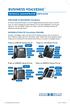 BUSINESS VOICEEDGE TECHNICAL ADMINISTRATOR USER GUIDE WELCOME TO BUSINESS VOICEEDGE As the technical administrator, you can manage features and passwords for all end users as well as manage key group features
Technology @ QMU. QuickStartIT: QMU OWA (webmail) service
 Technology @ QMU QuickStartIT: QMU OWA (webmail) service v1.1, September 2013 What s in this guide? Page Introduction to the QMU OWA (webmail) service 2 Logging in to the QMU OWA (webmail) service 2 OWA
Tax rules and the purchase of occupational health support
 Health and Safety Executive Tax rules and the purchase of occupational health support INTRODUCTION Business and industry needs healthy workers and safe workplaces. To achieve this employers may sometimes
Outlook 2010 Sharing and Using Calendars
 Outlook 2010 Sharing and Using Calendars Frequently Asked Questions: How do I share my calendar?... 1 How can I organise my list of calendars?... 6 How do I make past appointments private?... 8 How do
User Guide for CDC s SAMS Partner Portal. Document Version 1.0
 User Guide for CDC s SAMS Partner Portal Document Version 1.0 Introduction If you are reading this guide, it probably means that you have been (or will be) invited to register with the SAMS Partner Portal.
NHS Mail Basic Training Guide
 Royal Derby Hospital 2011 Education, Training and Development I.T. Training Department NHS Mail Basic Training Guide Version 3.1 ND 05/11 No amendments should be made to the document without the Authors
USER GUIDE....effectively managing remote employees. 1 www.uclock.co.uk
 USER GUIDE...effectively managing remote employees 1 www.uclock.co.uk i n d e x How to use U-clock Logging in to U-clock Adding a User Adding a U-clock site Adding a U-clock device Synchronising a U-clock
Class Objectives. Introduction. Intermediate Outlook Features. Setting up Outlook
 Intermediate Outlook 2003 Shortcourse Handout September 1, 2004 Technology Support Shortcourses Texas Tech University Copyright 2004 Class Objectives After completing this shortcourse, you should be able