
User Manual. Model: FI8919W. Outdoor Pan/Tilt Wireless IP Camera
|
|
|
- Miranda Lang
- 10 years ago
- Views:
Transcription
1 User Manual Model: FI8919W Outdoor Pan/Tilt Wireless IP Camera

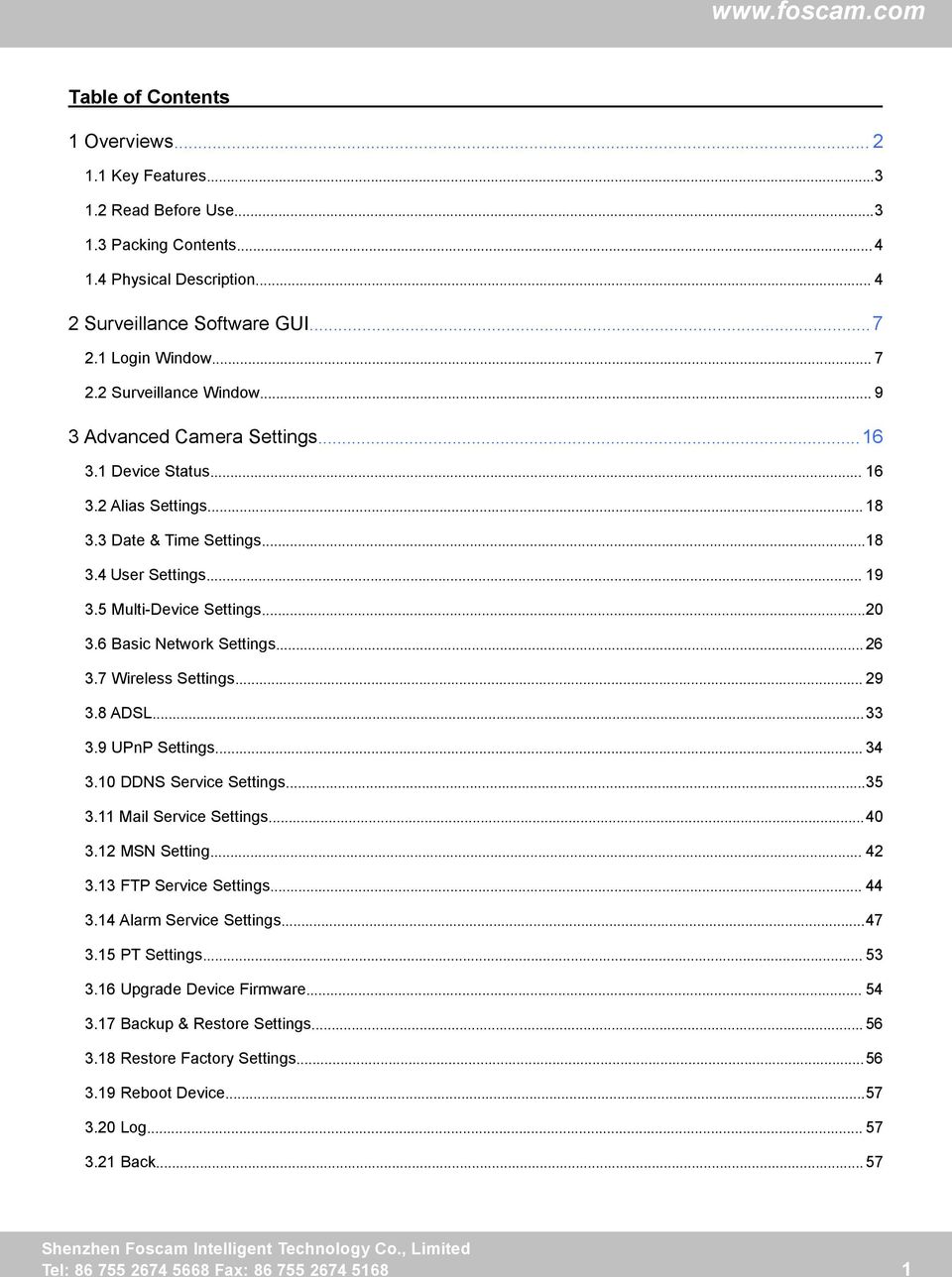
2 Table of Contents 1 Overviews Key Features Read Before Use Packing Contents Physical Description Surveillance Software GUI Login Window Surveillance Window Advanced Camera Settings Device Status Alias Settings Date & Time Settings User Settings Multi-Device Settings Basic Network Settings Wireless Settings ADSL UPnP Settings DDNS Service Settings Mail Service Settings MSN Setting FTP Service Settings Alarm Service Settings PT Settings Upgrade Device Firmware Backup & Restore Settings Restore Factory Settings Reboot Device Log Back Tel: Fax:
3 4 APPENDIX Frequently Asked Questions Default Parameters Specifications OBTAINING TECHNICAL SUPPORT Overviews FOSCAM FI8919W is an integrated wireless IP Camera with a color CMOS sensor. It combines a high quality digital video camera, with a powerful web server, to bring clear video to your desktop from anywhere on your local network or over the Internet. With flexible 355-degree pan and 90-degree tilt, FI8919W gives users more comprehensive control over a monitored site. The IPCAM supports IR-CUT, when light conditions turns poor, the IR cut filter will be automatically removed to accept IR illumination. Meanwhile, the camera switches itself automatically from color to black and white, assuring optimal image quality at all times. The IPCAM is based on the TCP/IP standard. There is a WEB server inside which could support Internet Explore. Therefore the management and maintenance of your device is simplified by using the network to achieve the remote configuration, start-up and to upgrade the firmware. FI8919W is designed for outdoor surveillance applications such as gardens, courtyards or parks. Controlling the IPCAM and managing images are simplified by using the provided web interface across the network utilizing wireless connectivity. FOSCAM provides Phone APPs for Android and iphone users, please search Foscam ip cam viewer and install it through APP Store, then you can view your camera directly as a computer. 2 Tel: Fax:

4 1.1 Key Features Powerful high-speed video protocol processor 300K Pixels IR night vision (Range: 15m) Pan 355 degree, tilt 90 degree Optimized MJPEG video compression for transmission Multi-level users management and passwords definition Embedded Web Server for users to visit by IE Wi-Fi compliant with wireless standards IEEE b/g/n Embedded FOSCAM DDNS (dynamic domain name service) Service Motion detection activates alarm Supports image snapshot Supports multiple network protocols: HTTP/TCP/IP/UDP/STMP/DDNS/SNTP/DHCP/FTP Supports WEP/WPA/WPA2 encryption Supports WPS(Wi-Fi Protected Set-up) Supports Daylight Saving Time Supports MSN Supports Gmail as sender on mail service settings Providing Phone APPs for Android and iphone users Providing Central Management Software to manage or monitor multi-cameras 1.2 Read Before Use Please first verify that all contents received are complete according to the Package Contents listed below. Before the Network Camera is installed, please carefully read and follow the instructions in the Quick Installation Guide to avoid damage due to faulty assembly and installation. This also ensures the product is used properly as intended. 3 Tel: Fax:
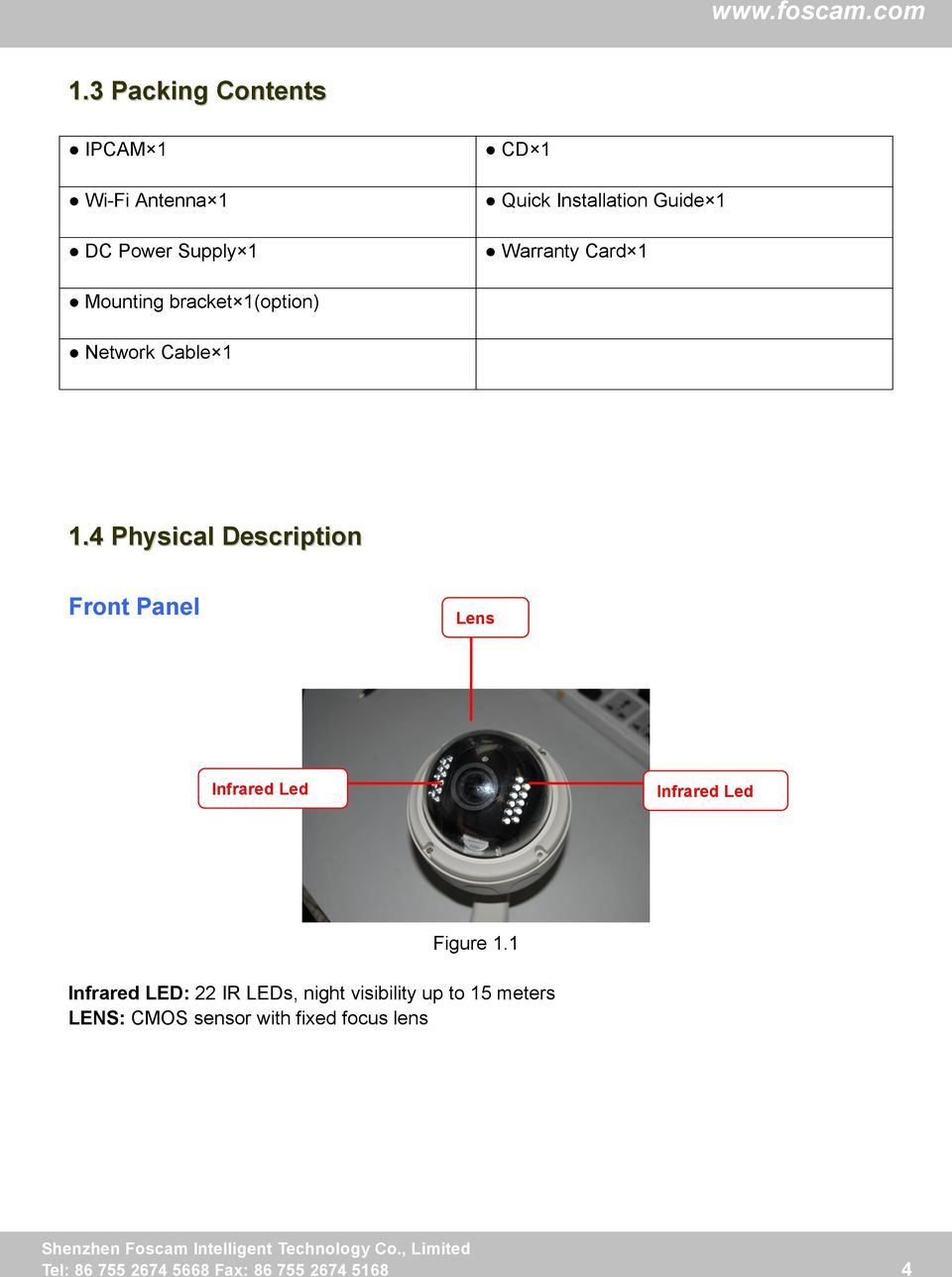
5 1.3 Packing Contents IPCAM 1 Wi-Fi Antenna 1 DC Power Supply 1 CD 1 Quick Installation Guide 1 Warranty Card 1 Mounting bracket 1(option) Network Cable Physical Description Front Panel Lens Infrared Led Infrared Led Figure 1.1 Infrared LED: 22 IR LEDs, night visibility up to 15 meters LENS: CMOS sensor with fixed focus lens 4 Tel: Fax:
6 Back View Antenna Figure 1.2 WIFI Antenna: Wireless Antenna Interface View Power LAN Reset button Figure 1.3 LAN: RJ-45/ Base T Power: DC 12V/2A Power supply Reset button: 1) Press and hold down the RESET BUTTON about 10 seconds. when released the IP camera will be reset back to factory default settings. You must power on the camera before reset. 2) Press and hold down the RESET BUTTON about 4 seconds, then press the WPS button on 5 Tel: Fax:

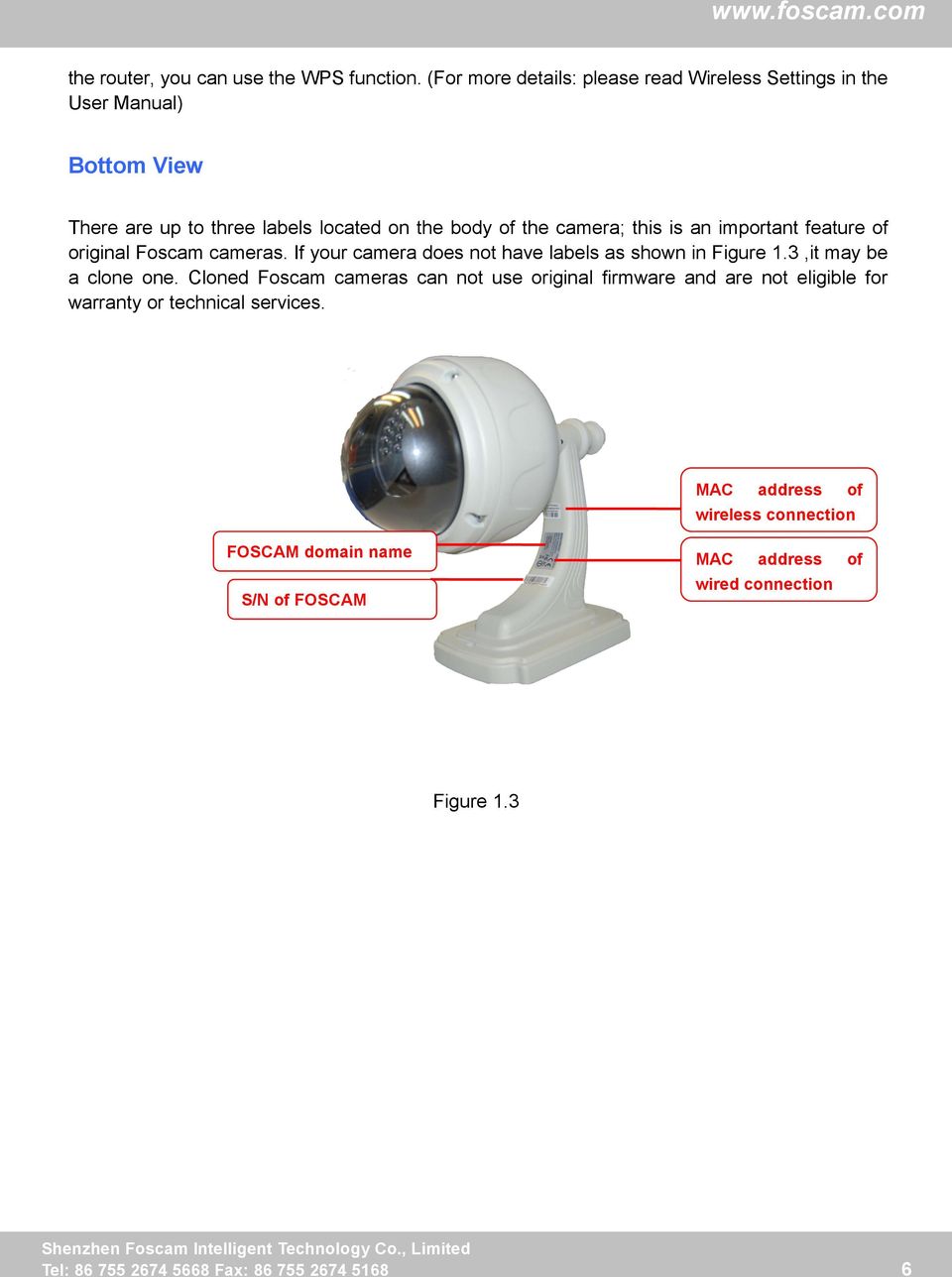
7 the router, you can use the WPS function. (For more details: please read Wireless Settings in the User Manual) Bottom View There are up to three labels located on the body of the camera; this is an important feature of original Foscam cameras. If your camera does not have labels as shown in Figure 1.3,it may be a clone one. Cloned Foscam cameras can not use original firmware and are not eligible for warranty or technical services. MAC address of wireless connection FOSCAM domain name S/N of FOSCAM MAC address of wired connection Figure Tel: Fax:
8 2 Surveillance Software GUI Please refer to the Quick Installation Guide if you install the camera at first time. After finishing quick installation, you can take time to learn the operation of the software. 2.1 Login Window Figure 2.1 Please check the login window above, it was divided to 6 sections from no. 1 to 6. Section1 Select Language FOSCAM camera supports multi-languages, such as English, Spanish, Deutsch and so on. You can select the language you need via pull down the dropdown toolbar and click on the language to switch. 7 Tel: Fax:
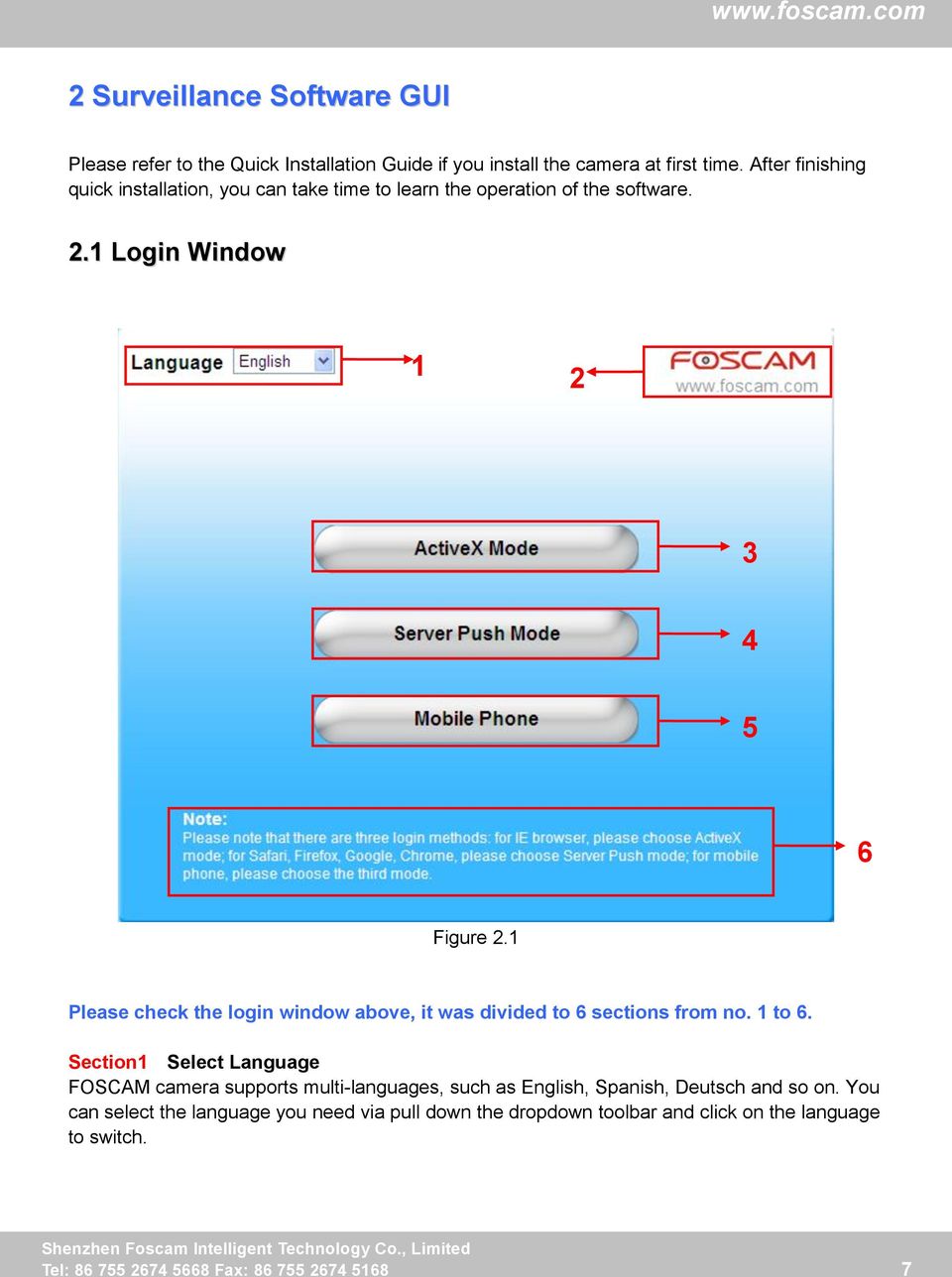
9 Section2 FOSCAM Website Link There is an access link to Foscam website homepage, if you need tech support you can contact Foscam directly. Section3 ActiveX Mode If your PC is windows based OS, such as Windows XP, Windows7, Windows Vista and you are using IE-based browsers like IE6, IE7, IE8, please choose IE ActiveX Mode login mode.. Section4 Server Push Mode If you are using non-ie based browser, like Firefox, Safari, Google Chrome please choose Server Push Mode. Section5 Mobile Phone If you are using the Mobile to access the camera, here you need to select Mobile Phone login mode. Section6 Note Note that when you login the camera, please select the corresponding login mode. 8 Tel: Fax:

10 2.2 Surveillance Window Select the ActiveX mode and you will enter the surveillance window Figure Section1 Device Name Default device name is Anonymous. You can define a name for your camera as you like (Please go to chapter 3.1 and read how to set it) Section2 Multi-Device Window The firmware inside the camera supports up to maximum of 9 cameras being monitoring at the same time. You can add other cameras in multi-device setting (read chapter 3.5). 9 Tel: Fax:
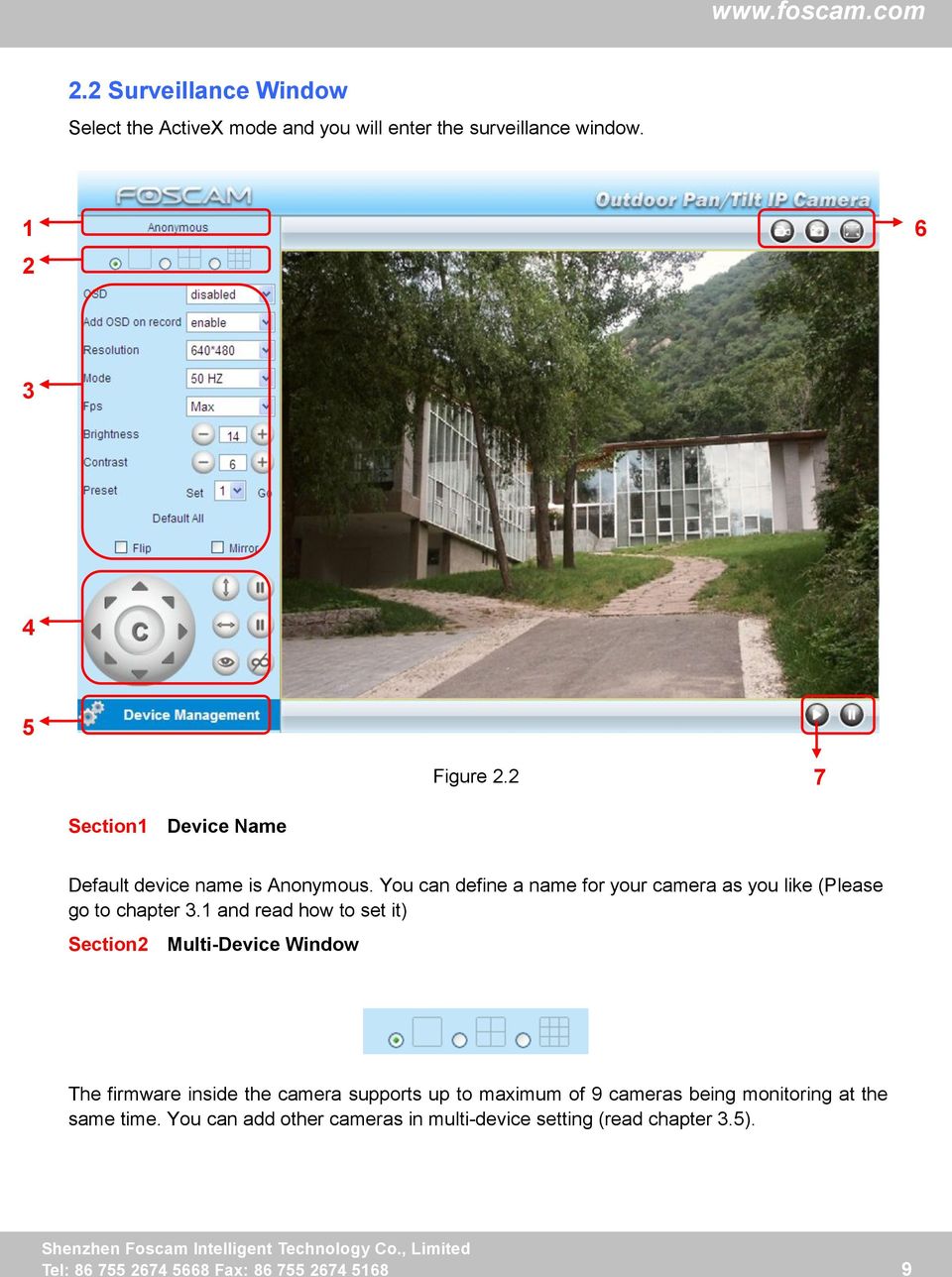
11 . Figure 2.3 Section3 Image Parameters Settings OSD OSD is used to add timestamp on the video. There are five text colors to choose from: Black, red, yellow, white, blue. 10 Tel: Fax:

12 Add OSD on record Select this option if you want to add a timestamp to recordings. Resolution 1) 320x QVGA 2) 640x VGA There are two resolutions, the bigger one (VGA) is 640x480 pixels, and the smaller one (QVGA) is 320x240 pixels. The bigger the resolution, the better of the image quality is, but the lower the frame rate is. If you are accessing the camera via internet and want to get more fluent video streaming, please select resolution QVGA 320x240. Mode 1) 50HZ Indoor surveillance (Region: Europe, China) 2) 60HZ Indoor surveillance (Region: USA, Canada) 3) Outdoor Outdoor surveillance (Region: All over the world) There are three options within the menu of Mode: 50HZ, 60HZ and Outdoor. It depends on the frequency of the electricity and surveillance model (indoors & outdoor). Please choose outdoor mode, when the camera was installed outside. Fps 1) Max Maximum frame rate 2) 20fps, 15fps, 10fps, 5fps,4fps,3fps,2fps,1fps, 5fps, 1fps,1/2fps,1/3fps,1/4fps,1/5fps customized frame rate You can choose option within the menu of Fps to adjust the frame rate. It is often used in LAN network when you want to lower the frame rate, so that you can save more bandwidth. Brightness Default parameter is 6, you can adjust the brightness of the image by clicking plus or minus button. Contrast Default parameter is 4, you can adjust the contrast of the image by clicking plus or minus button. Preset/Go 1) Preset Support 8 preset position, which is considered enough for DIY home & small business surveillance market 11 Tel: Fax:
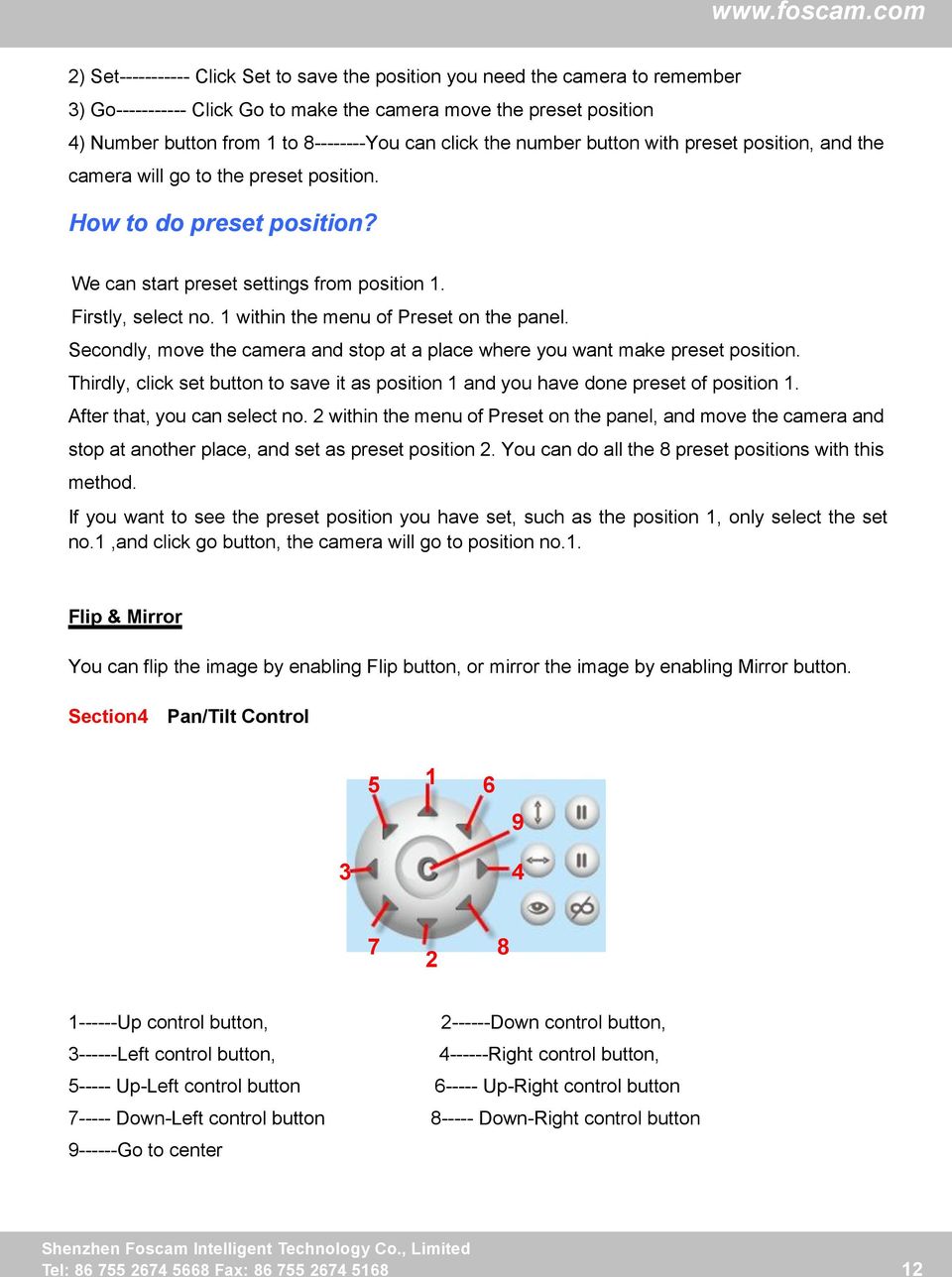
13 2) Set Click Set to save the position you need the camera to remember 3) Go Click Go to make the camera move the preset position 4) Number button from 1 to You can click the number button with preset position, and the camera will go to the preset position. How to do preset position? We can start preset settings from position 1. Firstly, select no. 1 within the menu of Preset on the panel. Secondly, move the camera and stop at a place where you want make preset position. Thirdly, click set button to save it as position 1 and you have done preset of position 1. After that, you can select no. 2 within the menu of Preset on the panel, and move the camera and stop at another place, and set as preset position 2. You can do all the 8 preset positions with this method. If you want to see the preset position you have set, such as the position 1, only select the set no.1,and click go button, the camera will go to position no.1. Flip & Mirror You can flip the image by enabling Flip button, or mirror the image by enabling Mirror button. Section4 Pan/Tilt Control Up control button, Down control button, Left control button, Right control button, Up-Left control button Up-Right control button Down-Left control button Down-Right control button Go to center 12 Tel: Fax:
14 : Click this icon; camera will rotate up and down. Click to stop. : Click this icon; camera will rotate left and right. Click to stop. : Click this icon, all the IR lights will turn on. Click to turn off them. Section5 Device Management Device Management Path to Administrator Control Panel, Click it, and it will lead to Administrator Control Panel. Section6 Record & Snapshot & Full Screen Buttons Record Button Click it and it pop-up a path-setting window, you can select the storage path and the record file name. At the same time the record icon changes to,, Click it again and stop recording Snapshot Click it to make snapshot and it pop-up a window which picture you snapshot, right click in the window and save the picture to anywhere you want Full Screen Click it to make full-screen or you can double click the surveillance screen to make full-screen. Section7 Play/Stop Buttons Play Stop Click it to play the video of the camera Click it to stop the video of the camera 13 Tel: Fax:
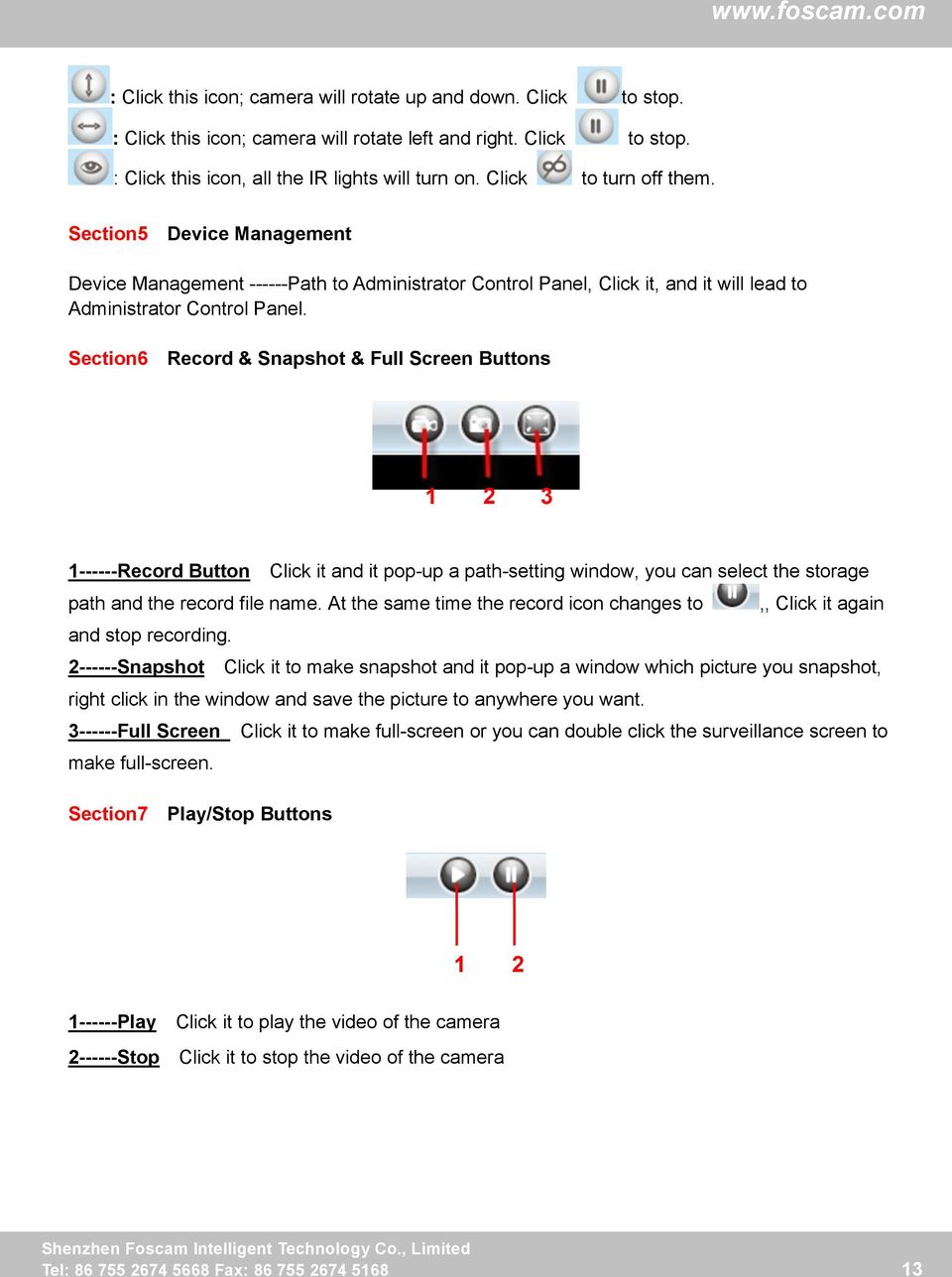
15 Onscreen Mouse Control Double click right mouse on the surveillance window, then left click on the screen to indicate the camera move direction you prefer, press the left mouse and the camera Len will move to the corresponding direction.. Double click right mouse again, cancel onscreen mouse control. For example, double click right mouse, then left click on the up corner of the screen, you can see the arrow, press the left mouse, and the camera s lens will moving towards the up direction. Double click right mouse again, cancel onscreen mouse control. Figure 2.4 Record and multi-device function are controlled by ActiveX controller, therefore Firefox or Google Chrome, Safari browsers will not allow these functions. For Firefox, Google Chrome, Safari, you should select the Server Push Mode and you can see the following screen: 14 Tel: Fax:
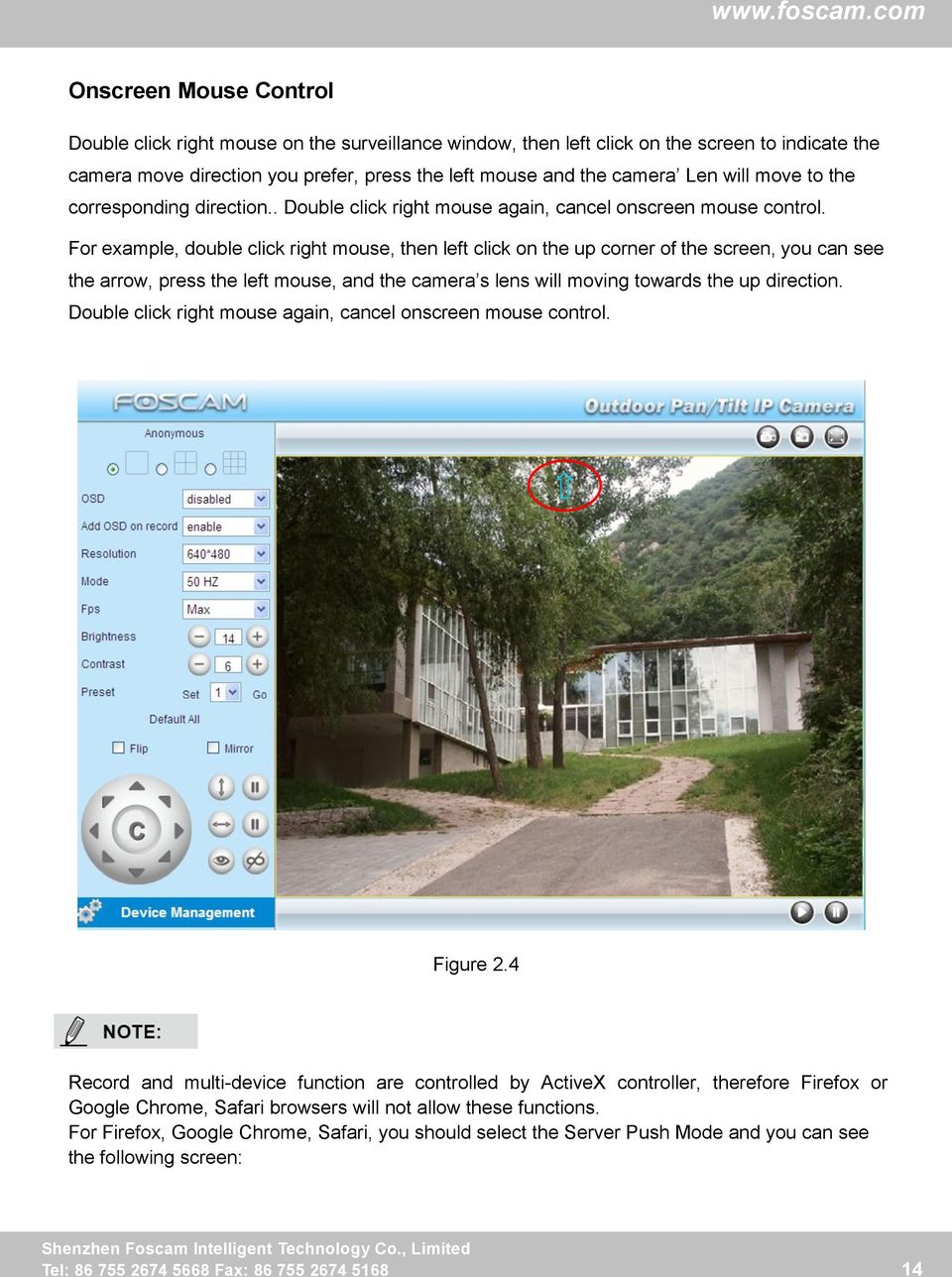
16 Figure Tel: Fax:
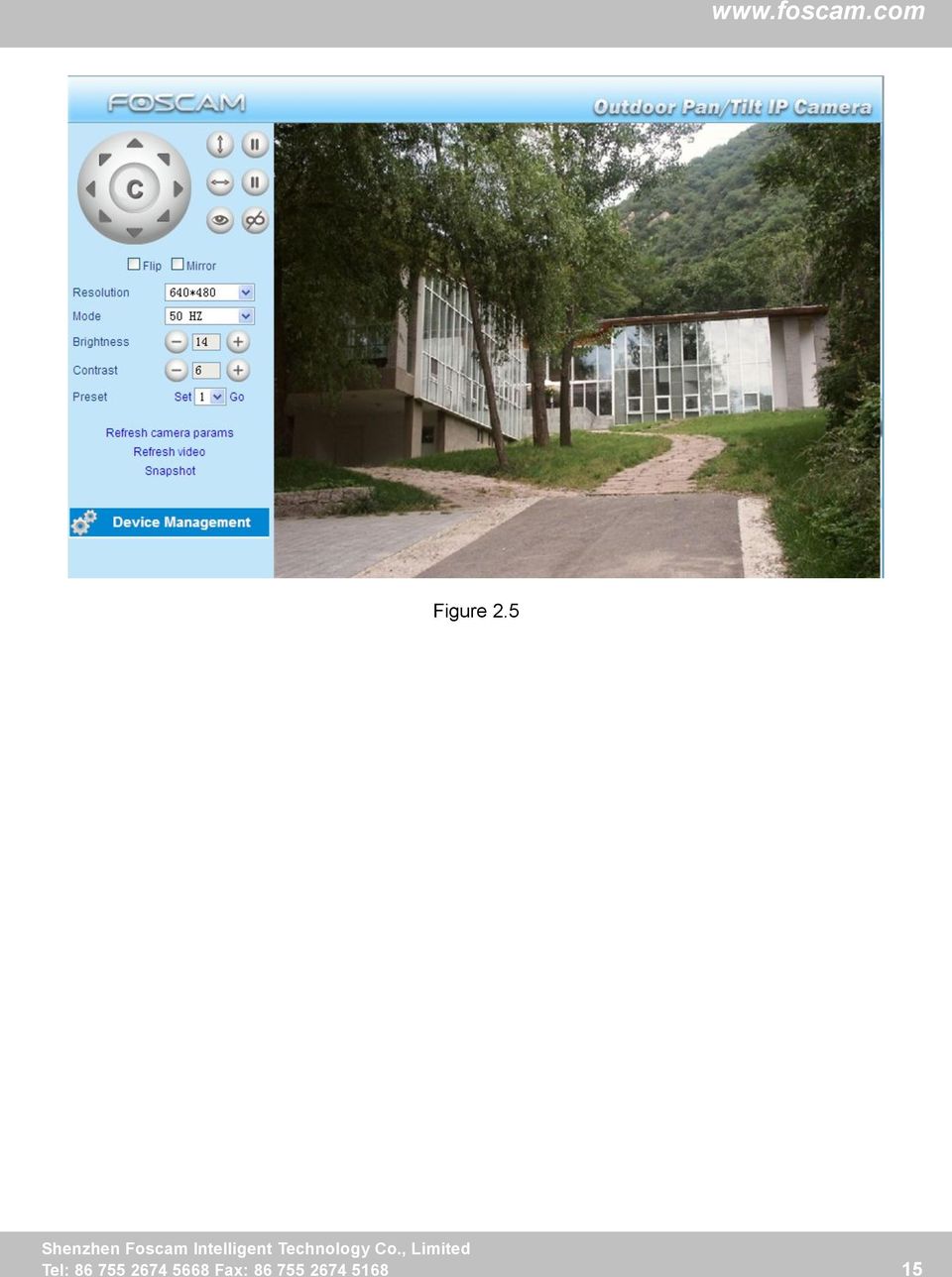
17 3 Advanced Camera Settings Click the bar Device Management, goes to Administrator Control Panel to make advanced camera settings. 3.1 Device Status Figure Device ID MAC ID of the camera by wired connection Device Firmware Version System Firmware version of the camera Device Web UI Version Web UI firmware version of the camera Alias Name of the camera Alarm Status The status of Alarm Service Setting DDNS Status The status of DDNS Setting UPnP Status The status of UPnP Setting MSN Status The status of MSN Setting 16 Tel: Fax:

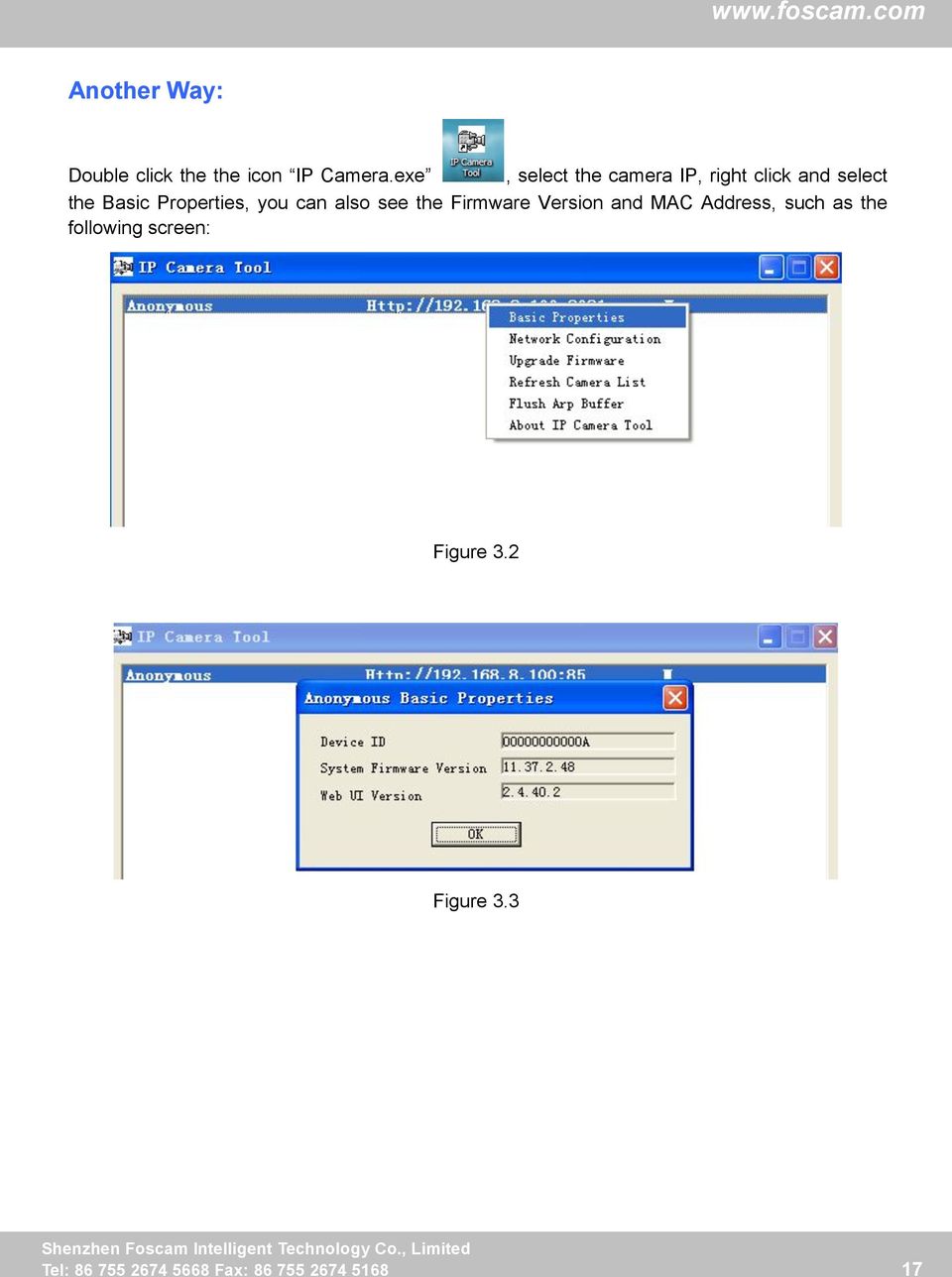
18 Another Way: Double click the the icon IP Camera.exe, select the camera IP, right click and select the Basic Properties, you can also see the Firmware Version and MAC Address, such as the following screen: Figure 3.2 Figure Tel: Fax:
19 3.2 Alias Settings Default alias is Anonymous. You can define a name for your camera here such as apple. Click Submit to save your changes. The alias name supports special characters. Click the option here to modify the device name Enter the device name as you like. Use different names to identify multi-cameras Figure Date & Time Settings Choose the time zone of your country. You can choose Sync with NTP Server or Sync with PC Time. If your country implements the Daylight Saving Time, that option can also be selected. Go to Data &Time Settings Select the time zone belong to your region Figure Tel: Fax:

20 3.4 User Settings Here you can create users and set permission levels, visitor, operator or administrator. Click Submit to save these settings. The camera will reboot. You can set different permission levels, but at least one administrator Figure 3.6 Here you can also set one important file locations for the camera, the Alarm Record Path. Simply click Browse and choose the path to the required folder. The Alarm Record Path location is used to store automatically recorded files when the camera is activated by motion. (See set motion alarm. Figure 3.39) The default path for Alarm Record Path is C:\Documents and Settings\All Users\Documents. NOTE: In Windows7 or Vista, if you cannot set the paths.: Windows7 or Vista's security level is higher than Windows XP/2000.For "set record path" function, user should add the Device IP address to the Internet Explorer's 'Trusted sites' first. The step is: IE browser Tool Internet Proper Security Trusted sites Sites Add 19 Tel: Fax:

21 3.5 Multi-Device Settings If you want to view multi-surveillance screens on one window, you need to login one camera, and set it as the main device, and do Multi-Device Settings, add other cameras to the first one camera. Before you do multi-cams settings, you need to assign different port such as 81, 82, 83, 84, 85, 86, 87, 88 to the cameras if there is 8 cams installed. The firmware within the camera can support a maximum of 9 devices monitoring all at the same time Add cameras in LAN In Multi-Device Settings page, you can see all devices searched in LAN. The 1st Device is the default one. You can add more cameras in the list in LAN for monitoring. The camera s software supports up to 9 IP Cameras online simultaneously. Click The 2nd Device and click the item in the Device List in LAN, the Alias, Host and Http Port will be filled in the boxes below automatically. Enter the correct username and password then click Add. Add more cameras in the same way. After all cameras have been added, choose Submit. 1 Click it, alias, host and HTTP Port will be filled in the following boxes automatically 2 Enter the User name and password of the 2nd camera 3 Click Add to take effect Figure 3.7a 20 Tel: Fax:
22 Click Submit after add all cameras Figure 3.7b Back to Surveillance Windows, and click Four Windows option, you will see four cameras you added. Figure Tel: Fax:
23 Figure Add cameras in WAN If you want to view all cameras via the internet(remote computer), you will need to add them using DDNS domain name. Firstly, make sure all of the cameras you added can be accessed through the internet. (Read How to configure DDNS settings in chapter 3.10) Login to the first camera using a DDNS domain name and port. 22 Tel: Fax:
24 Use DDNS domain name and port to login Make sure each camera you need add could login with DDNS name and port Figure 3.10 If you have several cameras, you can use the same DDNS domain name; you only need to set a different port number for each camera. Click Multi-Device Settings. Choose The 2nd Device. Fill in the 2nd camera s name, DDNS domain name, port number. Enter user name and password and then choose Add. (Figure 3.11) NOTE: Here the Host must be entered as the second camera s DDNS domain name, not its LAN IP. 23 Tel: Fax:
25 Figure The 2nd camera s name Fill in the 2nd camera s DDNS host not LAN IP Enter the 2nd camera s user name and password Click Add button and to take effect Add the other cameras in the same way. Click Submit to save. 24 Tel: Fax:
26 Click submit after finishing all settings Figure 3.12 Return to video window. You will see all of the cameras accessible through the internet. When you are away from home, you can use the first camera s DDNS domain name and port to view all the cameras via internet. Figure Tel: Fax:
27 3.6 Basic Network Settings If you want to set a static IP for the camera, select Basic Network Settings. Keep the camera in the same subnet of your router or computer. Figure 3.14 Changing settings here is the same as using the IP Camera Tool. (Figure 3.17/3.18) It is recommended that you use the subnet mask, gateway and DNS server from your locally attached PC. If you don t know the subnet mask, gateway and DNS server, you can check your computer s local area connection as follows: Control Panel Network Connections Local Area Connections Choose Support Details. 26 Tel: Fax:
28 Figure 3.15 Figure 3.16 If you don t know the DNS server, you can use the same settings as the Default Gateway. 27 Tel: Fax:
29 Another way to change the camera s LAN IP and HTTP Port no. Open the IP Camera Tool, select the camera you want to change the port no, right click on the IP address link, and goes to Option Network Configuration, it pops up another dialogue showed as the following screen Select the camera you want to change the LAN IP or port no, right click Figure 3.17 Figure 3.18 IP Address: Fill in the IP address assigned and make sure it is in the same subnet as your computer or router. (I.e. the first three sections are the same) Subnet Mask: The default subnet mask of the equipment in our LAN is: You can find the subnet mask in the basic information of your router or the locally-attached of your PC. Gateway: Make sure it is in the same subnet with PC s IP address. The gateway is your router s LAN IP. DNS Server: IP address of your ISP network provider. You can find the DNS server in your router or check the locally-attached address of your computer. Your PC contains your PC s IP address, gateway and DNS server. Normally, there are two DNS servers. Here you can also set the DNS server the same with gateway. 28 Tel: Fax:
30 Http Port: The default Lan port is 80.You can set another port number, such as port 8005, 8100.etc. User&Password: Default administrator user name is admin with no password. If the prompt Subnet doesn t match, dbclick to change! appears, please enable DHCP set camera s IP address and gateway once again. 3.7 Wireless Settings Wireless Lan Settings support three modes: Infra(Do wireless lan settings manually) and WPS (Wi-FI Protected Set-up) and Adhoc.. If your router does not support WPS function,please go to chapter and make wireless connection settings manually. If your router supports WPS function, please go to chapter and make wireless connection settings quickly. If there is no wireless router, please go to chapter and connect the IPCAM directly to a host in a peer_to_peer environment Infrastructure Mode Step 01) Please choose Device Management and goes to the option Wireless LAN Settings, click Wireless LAN Settings. Then enable Using Wireless LAN. Click the Scan button and the camera will detect all WIFI devices around the area. It should also display your router in the list. (Figure 3.19) 29 Tel: Fax:
31 Click Scan Button to search WIFI device Figure 3.19 Step 02) Click the SSID of your router in the list, the corresponding information (SSID & Encryption) will be filled in the following boxes automatically. You will only need to fill in the share key. Make sure that SSID, Encryption and share key you filled in for the camera are exactly the same for your router. Click the SSID of router and SSID, Encryption will be filled in the following box automatically Enter the same share key with your router Figure 3.20 Step 03) Please click on the Submit button after all settings have been entered, the camera will reboot. After the camera has completed the reboot process, wait 10 seconds and disconnect the network cable. The LAN IP address will disappear on the window of IP Camera Tool when the camera gets restarted. Just wait for around 1 minute, the camera will get wireless connection, and the LAN IP 30 Tel: Fax:
32 of the camera will be showed again on the window of the IP Cam Tool. You have done wireless connection of the camera successfully. If the camera has a dynamic IP, after the wireless settings, the IP will be changed. Note If fail to make WiFi connection, please refer to seller or us for help WPS (Wi-Fi Protected Set-up) Step 01) Please press and hold the RESET button for four seconds.. Reset Button Step 02) Press the WPS button on your router within 60 seconds. The WPS button is usually on the back or side of your router. On some routers, you may need to log in to the web interface and click on an on-screen button to activate the WPS feature. If you are not sure where the WPS buttons is on your router, please refer to your router s User Manual. The camera will automatically create a secure wireless connection to your router. If you have plugged in the network cable, please plug it out. While connecting, the green network light will blink quickly and the wireless settings will take effect. The IP Camera Tool will search the camera s LAN IP. Make sure the PC and the camera share the same subnet. Note 1 During the WPS Settings, you must press the Reset button only for four seconds, or else, the camera may be reset back to factory default settings if you press and hold on the reset button above 10 seconds. 2 The security mode of router cannot be WEP, or else the WPS settings may be failed Adhoc Mode Under this mode, the IPCAM will directly connect to a host in a peer_to_peer environment. Make sure the PC has plugged in the wireless network card. Step 01) Enable wireless and choose Adhoc mode. 31 Tel: Fax:
33 Fill in a SSID to identify the IPCAM and then set the security mode, you can choose none or others. Click Apply. Figure 3.21 Step 02) Plug out the network cable and the camera will restart.. Open the wireless network card of PC and search the wireless network around the area. You can find the SSID you filled for the camera (Figure 3.21). Figure 3.22 Step 03) Disabled the wired connection of the PC. Select the SSID you filled at Figure3.21 for your camera and enter the same key with your camera. Make sure PC and Camera share the same subnet. 32 Tel: Fax:
34 Open the IP Camera Tool, you can search the camera LAN IP again. 3.8 ADSL Figure 3.23 If you are connecting the camera directly to a ADSL modem, you can do ADSL settings with your ADSL account &password provided by the ISP, then make the camera connected to the network. Enter the ADSL user and password Figure Tel: Fax:
35 3.9 UPnP Settings Figure 3.25 The default UPnP status is closed. You can select the checkbox and open UPnP, then the camera s software will be configured for port forwarding. Back to the Device Status panel, you can see the UPnP status: There may be issues with your routers security settings, and sometimes may error. We recommend you configure port forwarding manually on your router (Figure 3.30). 34 Tel: Fax:
36 3.10 DDNS Service Settings FOSCAM camera has embedded a unique DDNS domain name when producing, and you can directly use the domain name, you can also use the third party domain name. FOSCAM domain name Here take camera.myfoscam.org for example. Go to option of DDNS Service Settings on the administrator panel, you can see the domain name. Please enable the FOSCAM DDNS name first. Enable DDNS name FOSCAM Figure 3.26 Enable: Open or close the FOSCAM domain name. The default status of FOSCAM domain name is open. Validity Queries: Check the validity of embedded domain name. Now you can use Domain name + HTTP Port to access the camera via internet. Take hostname camera.myfoscam.org and HTTP Port no. 88 for example, the accessing link of the camera via internet would be camera.myfoscam.org:88 Note: If you want to use the manufacturer s domain name, please select None as the Third Party DDNS and enable the Manufacturer s domain name, then click submit 35 Tel: Fax:
37 Third Party Domain Name Settings User can also use third part DDNS, such as dyndns.com Here take for example: 1 Step 1, Go to the website to create a free hostname Firstly: Login on and click No-IP Free to register. Click here to register Figure 3.27 Please register an account step by step according to instructions on After registration, please login your which used to register. You will receive an from website, please click the link to activate your ACCOUNT as indicated in . Secondly: Login the link with the registered username and password to create your domain name. 36 Tel: Fax:
38 Figure 3.28 Figure 3.29 Please create the domain name step by step according to instructions on Step 2, DO DDNS Service Settings within the Camera Please set DDNS Service Settings within the camera by hostname, a user name and password you ve got from 37 Tel: Fax:
39 Take hostname ycxgwp.no-ip.info, user name foscam, password foscam2012 for example. Firstly, goes to option of DDNS Service Settings on the administrator panel. Secondly, disable the Manufacturer s domain name and select No-Ip as a server in the Third Party DDNS. Thirdly, fill foscam as DDNS user, fill password foscam2012 as DDNS password, fill ycxgwp.no-ip.info as DDNS domain and server URL, Then click save to make effect. The camera will restart and to take the DDNS settings effective. Fourthly, after the restart, login the camera, and go to option of Device Status on the administrator panel, and check if the DDNS status is successful. If failed, please double check if you have input the correct hostname, user name, and password, and try to redo the settings. Note The Third Party DDNS and the Manufacturer s Domain Name cannot work at the same time. If you have set Third Party DDNS and meanwhile you enabled the Foscam Domain Name, the Third Party DDNS will take effect. 2 Do port forwarding within the router Example: The camera s LAN IP address is Firstly, login the router, goes to the menu of Port Forwarding or Port Trigger (or named Virtue Server on some brands of router). Take Linksys brand router as an example, Login the router, and goes to Applications & Gaming->Single Port Forwarding. Secondly, Create a new column by LAN IP address & HTTP Port No. of the camera within the router showed as below. 38 Tel: Fax:
40 Figure Use domain name to access the camera via internet After the port forwarding is finished, you can use the domain name+ http no. to access the camera via internet. Take hostname ycxgwp.no-ip.info and http no. 88for example, the accessing link of the camera via internet would be ycxgwp.no-ip.info:88 39 Tel: Fax:
41 3.11 Mail Service Settings If you want the camera to send s when motion has been detected, Mail Service Settings will need to be configured Figure Sender Mailbox for sender must support SMTP Receiver Mailbox for receiver need not support SMTP,you can set 4 receivers SMTP Server/ Port Enter SMTP server for sender. SMTP port is usually set as 25. Some SMTP servers have their own port, such as 587 or 465 and Transport Layer Security usually is None. If you use Gmail, Transport Layer Security must be set to TLS or STARTTLS and SMTP Port must be set to 465 or 25 or 587, which port you choose should be decided by which Transport Layer Security you select SMTP user ID account of the sender address 5----Submit Click Submit to take effect 6----Test Click Test to see if SMTP has been successfully configured. NOTE: Click Submit first before choosing Test. Click Test to see if SMTP has been successfully configured. 40 Tel: Fax:
42 . Figure 3.32 If the test fails with one of the following errors after clicking Test, verify that the information you entered is correct and again select Test. 1) Cannot connect to the server 2) Network Error. Please try later 3) Server Error 4) Incorrect user or password 5) The sender is denied by the server. Maybe the server need to authenticate the user, please check it and try again 6) The receiver is denied by the server. Maybe because of the anti-spam privacy of the server 7) The message is denied by the server. Maybe because of the anti-spam privacy of the server 8) The server does not support the authentication mode used by the device Report Internet IP by Mail If selected, you will receive s which contains internet IP information such as When the camera is powered or the Internet IP has changed. (For example: IPCAM's urls is Make sure the port is mapped to the router correctly. 41 Tel: Fax:
43 3.12 MSN Setting If you want the camera send its current internet IP address to you or your friends, please set MSN settings. Acquire an MSN ID for the IPCAM first, then follow the instructions as per Figure Fill in the user and password of the MSN ID you applied for your camera MSN ID in this list can chat with the camera Figure 3.33 Click Submit and go to the Device Status screen and verify the MSN settings are succeed. 42 Tel: Fax:
44 Figure 3.34 When the MSN ID in the Friends list login the MAN, he can chat with camera. For example: Foscam13(this account contained in the Friends list) log in MSN, and double click the camera s account (foscam31), then enter url?, the camera will send it s current IP address to you. Figure 3.35 Note: Create a new MSN account for the camera, do not use the same MSN account as you 43 Tel: Fax:
45 would like to chat with your friends. When the camera login uses the MSN account, this account cannot be used for anything else when the camera works FTP Service Settings If you want to upload images to your FTP server,you can set FTP Service Settings. Figure Tel: Fax:
46 Figure 3.37 FTP server: If your FTP server is located on the LAN, you can set as Figure If you have an FTP server which you can access on the internet, you can set as Figure FTP Port: Usually the port is 21. FTP Upload Folder: Make sure that the folder you plan to store images exists as the camera can t create the folder itself. Also, the folder must be read/writable. FTP Mode: The camera supports standard (POST) mode and passive (PASV) mode Upload Image Now: This option will upload images continuously when you enable the checkbox Enable Set Filename: When you enable this option the uploaded image will be named according to the filename you enter. The next image will overwrite the filename of the previous image. Hence there will only be one image, the last uploaded. Filename: See the above option. Note: You cannot change the name of the alarm image. Upload Interval refers to the time between the current image and the next image being uploaded. 45 Tel: Fax:
47 Click Submit to save these settings. Click Test, the following screen displays if successful. Figure 3.38 The following errors may occur: 1) Can not connect to the server. Check if the FTP Server is correct. 2) Network Error. Please try later. 3) Server Error. 4) Incorrect user or password. Check the username and password. 5) Cannot access the folder. Verify the folder exists and your account is authorized 6) Error in PASV mode. Verify the server supports PASV mode. 7) Error in PORT mode. PASV mode should be selected if the device is behind a NAT. 8) Cannot upload file. Verify your account is authorized If an error occurs check the parameters you entered are correct. The filename format of the image is similar to 00606E8C1930(sarah)_0_ _25.jpg Check if your FTP server supports this file name format. 46 Tel: Fax:
48 3.14 Alarm Service Settings IP Camera supports Motion Detection Alarmed, when the motion has been detected, it will send alerts or upload images or record Figure If you want to set Motion Detection Alarmed,select the checkbox The larger the number, the higher the motion sensitivity will be Select this option to reduce false alarms when light changes If motion is detected after you enable Motion Detection Armed Detection Alarmed, the Alarm Status will turn to Motion Detect Alarm. 47 Tel: Fax:
49 Figure 3.40 Here you can see the alarm status There are four alarm indicators: 1) Camera will send s when motion is activated. If you want to receive images when motion is detected, you must set Mail Service Settings first. (Figure 3.31) Then set motion alarm as follows: Figure ) Upload images via FTP server when motion trigger. To upload images to an FTP server when motion is detected, you must set FTP Service Settings(Figure 3.36/3.37) first and then set motion alarm as pictured below 48 Tel: Fax:
50 Select this option Set an interval for images to upload Figure ) You can hear the beep sound when the alarm has been detected. Select this option Figure ) The camera will record automatically for one minute after motion is detected. You can find the recording file in the folder which you set previously. (Figure 3.6) 49 Tel: Fax:
51 Select the checkbox When you enable motion alarm, the camera will record automatically and store the recording file to the folder you Figure 3.44 configured. This icon is used to control whether the folder opens or not. Alarm Scheduler: Here are two ways to set the alarm. 1) Alarm at any time when motion is detected. Don t select Scheduler. Click Submit and the camera will alarm at any time when motion is detected. Figure 3.45 Another Way: select Scheduler, and click set All, you will see all time boxes turn blue as in the following picture. Click Submit and the camera will alarm at any time when motion is detected. 50 Tel: Fax:
52 Figure ) Specify an alarm schedule. If you want the camera to alarm during set times select Scheduler and set time range. If you want to select one serial area, you can click any number between 00 and 23 on the first row, the corresponding column will be selected and it will turn blue. For example, click the number 06 on the first row, you can see the column turn blue. That means the camera will alarm when motion is detected between 6 and 7 o clock every day. Click the number 06 on the second row, you can cancel the corresponding column you set. And it will turn grey. 51 Tel: Fax:
53 Figure 3.47 If you want to select discrete area, you click the left button on the box of time range. It will turn blue. If you want to delete it, just click the left button and it will turn grey. Figure Tel: Fax:
54 3.15 PT Settings You can set pan/tilt speed. Normally, PT speed is 3. The larger the setting number, the lower speed. Don t enable the checkbox disable preset if you want to use the function of preset, it will be effective after you reboot device. Figure 3.49 Patrol rounds horizontal: Set the round between 1 and 10, then click Submit. Back to surveillance window. Click the Horizon patrol button, the camera will patrol the rounds horizontally you set and then stop if you don t click Stop horizon patrol button. For example, you set 4 for the patrol rounds. Click submit and back to surveillance window. Click the Horizon patrol button and do not click the Stop horizon patrol button, the camera will patrol 4 rounds and then stop automatically. Patrol rounds vertical: Set the round between 1 and 10, then click submit. Back to surveillance window Click the Vertical patrol button, the camera will patrol the rounds vertically you set and then stop if you don t click Stop vertical patrol button. 53 Tel: Fax:
55 3.16 Upgrade Device Firmware When you upgrade the camera, please upgrade system firmware first and then upgrade the Web UI. Upgrade firmware system Upgrade Web UI Figure 3.50 Click Browse, choose the correct bin file and then click Submit to upgrade. Don t shut down the power during upgrade until the IP camera tool finds the camera again. Upgrade Firmware by IP Camera Tool Double click the IP Camera Tool shot icon, select the Camera IP that you want to upgrade the firmware. Then select Upgrade Firmware and enter the username and password, choose the firmware file, and upgrade. 54 Tel: Fax:
56 Figure 3.51 Enter the User name and password Figure 3.52 CAUTION: If your camera works well with the current firmware, we recommend not upgrading. Please don t upgrade the firmware unnecessarily. Your camera may be damaged if misconfigured during an upgrade. NOTE: 1) Please ensure you have download the correct firmware package for your camera before upgrading. Read the upgrade documentation (readme.txt file) in the upgrade package before you upgrade. 2)Upon downloading the firmware check the sizes of the.bin files. They must match the size in the readme.txt file. If not, please download the firmware again until the sizes are the same. Your camera will not function correctly if a corrupt.bin file is used. 3) Normally, only Device WEB UI need to be upgrade, please do not try to upgrade the Device Firmware. 4) Never shut down the power of the camera during upgrade until the IP camera restart and get connected. 55 Tel: Fax:
57 3.17 Backup & Restore Settings Click Submit to save all the parameters you have set. These parameters will be stored in a bin file for future use. The bin file can be reloaded to restore the parameters that were set. Click Submit to store parameters Load the parameters bin file Figure Restore Factory Settings All parameters will return to factory settings if selected. 1 2 Figure Tel: Fax:
58 3.19 Reboot Device Click Reboot Device to reboot the camera. This is similar to unplugging the power to the camera Log The log record shows who accessed the camera and when. (Figure 3.55). Figure Back This will take you back to the surveillance window. 57 Tel: Fax:
59 4 APPENDIX 4.1 Frequently Asked Questions NOTE: Always verify network connections are working by checking the status of the indicators on the network server, hub and network card I have forgoten the administrator username and/or password To reset the administrator username and password, press and hold down the RESET BUTTON for 10 seconds. Upon releasing the reset button, the username and password will return to the factory default administrator username and password. Please power on the camera before reset Default administrator username: admin Default administrator password: No password Subnet doesn t match, dbclick to change If the IP Camera Tool shows the error Subnet doesn t match, dbclick to change!, select Obtain IP from DHCP server. If this error still exists after obtaining an IP from the DHCP server, check the local area connection of your computer and verify the subnet and gateway of the camera which should be the same subnet of your computer. 58 Tel: Fax:
60 4.1.3 No Pictures Problems Video streaming is managed by the ActiveX controller. If the ActiveX controller isn t installed correctly you will see no video image. There are two ways to resolve this problem: 1) Reinstall IP Camera Tool and ActiveX controller(recommended). 2) Download ActiveX controller and set the security setting of IE: IE browser Tool Internet Proper Security Custom Level ActiveX control and Plug-ins. The first three options of front should be set to be Enable, The ActiveX programs read by the computer will be stored. As follows: Enable: Download unsigned ActiveX controls Enable: Initialise and script ActiveX controls not marked as safe Enable: Run ActiveX controls and plug-ins Figure 5.1 If you allow the ActiveX to run, but still can not see living video and a red cross in the centre of the video. Please select another port number. Don t use port 80, use port 85, 8005.etc. 59 Tel: Fax:
61 Change another port number Figure 5.2 NOTE: Make sure that your firewall or anti-virus software does not block the camera or ActiveX. If you cannot see live video, try shutting down the firewall or anti-virus software and try again Can t access IP camera on internet Possible reasons why camera is not accessible on the internet: 1) ActiveX controller is not installed correctly 2) The port which the camera uses is blocked by a Firewall or Anti-virus software. Try changing to another port number. (Figure 5.2) 3) Port forwarding is not successful (Figure 3.30) Double check these settings and make sure they are correct IP Camera Tool could not find camera s IP Verify that the network cable is securely fastened to the camera. Make sure that DHCP is enabled on your router, do not enable MAC address filter. Make sure that the firewall or anti-virus software does not block the camera. You can add the camera as a trusted site on your firewall or anti-virus software UPnP always failed UPnP only contains port forwarding in our recent software. Sometimes, it may be fail to do port forwarding automatically because of the firewall or anti-virus software. It may also be due to the router s security settings. We recommend manually configuring port forwarding the camera can be viewed on the internet. 60 Tel: Fax:
62 4.1.7 Couldn t find the shortcut on the desktop after install IP camera tool If you use Windows7 or Vista and the shortcut is missing after installing the IP camera tool, check the path of IP Camera program. For example, if it was pointing to C:\Windows\System32\IPCamera.exe. Please fix this by pointing the shortcut to the correct path C:\Windows\SysWOW64\IPCamera.exe. After this you should be able to use the shortcut without any problems I can t change the record path When you use Windows7 or Vista, you may be not able to change the record path because of the security settings of computer. Please add the camera as a trusted site to resolve this issue. The steps are IE browser Tool Internet Properties Security Trusted sites Sites Add I can t find multi-device settings and record icon Record and multi-device functionality are controlled by the ActiveX controller. These functions are not available in Firefox, Google Chrome and Safari Camera cannot connect using wireless If your camera cannot connect wirelessly after you set the wireless settings, unplug / plug the power cable. (for more details: Wireless LAN settings in chapter 3.7) Usually, camera can t connect wireless mainly because of incorrect settings. Verify that the SSID is correct; use the same encryption for router and camera. Share key should not contain special characters, only word and number will be better. Disable MAC address filtering Can t see other cameras listed in multi-device when using remote access If you want to view all the cameras via the WAN, verify that each camera added in the multi-device settings can be accessed by using the DDNS name and port number. Use the DDNS domain name not the camera s LAN IP. (For more details see: How to add cameras in WAN) 61 Tel: Fax:
63 Only see black screen or undefined characters when using remote login If you could access the login page remotely, this indicates that your DDNS settings are correct. If you are unable to see live video but only some undefined characters, this may be due to the internet speed issues or the camera using Wi-Fi Default Parameters Default network Parameters IP address: obtain dynamically Subnet mask: Gateway: obtain dynamically DHCP: Disabled DDNS: Embedded FOSCAM domain name Username and password Default administrator username: admin Default administrator password: No password 4.3 Specifications ITEMS FI8919W Image Sensor Image Sensor Color CMOS Sensor Display Resolution 640 x 480 Pixels(300k Pixels) Lens f: 4mm Mini. Illumination 2Lux Lens Lens Type Glass Lens IR_CUT Filter will switch automatically Viewing angle 40 degrees Video Image Compression MJPEG Image Frame Rate 15fps(VGA),30fps(QVGA) Resolution 640 x 480(VGA), 320 x 240(QVGA) Flip Mirror Images Vertical / Horizontal Light Frequency 50Hz, 60Hz or Outdoor Video Parameters Brightness, Contrast 62 Tel: Fax:
64 Communication Ethernet One 10/100Mbps RJ-45 Supported Protocol HTTP,FTP,TCP/IP,UDP,SMTP,DHCP,PPPoE,DDNS,UPnP,GP RS Wireless Standard IEEE b/g/n Data Rate b: 11Mbps(Max.) g: 54Mbps(Max.) n: 150Mbps(Max.) Wireless Security WEP & WPA & WPA2 Encryption Infrared Light 22 IR LEDs, Night visibility up to 15 meters Dimension 127(L) x212(w) x230mm(h) Gross Weight 2150g(Color Box Size: 314 x271 x162mm ) Net Weight 1535g Power Power Supply DC 12V/2.0A (EU,US,AU adapter or other types optional) Power Consumption 13.5Watts (Max.) Environment Operate Temper. 0 ~ 55 C (32 F ~ 131 F) Operating Humidity 20% ~ 85% non-condensing Storage Temper. -10 C ~ 60 (14 F ~ 140 F) Storage Humidity 0% ~ 90% non-condensing PC Requirements CPU 2.0GHZ or above Memory Size 256MB or above Display Card 64M or above Supported OS Microsoft Windows 2000/XP/Vista/Windows7-32bit/Windows7-64bit/Windows8-32bit/Windows8-64 bit / mac Browser IE 6.0, IE7.0, IE8.0,IE9.0, Firefox2.0,Firefox3.0, Google Chrome, Safari or other standard browsers Certification CE,FCC 5 OBTAINING TECHNICAL SUPPORT While we hope your experience with the IPCAM network camera is enjoyable and easy to use, you may experience some issues or have questions that this User s Guide has not answered. If you have problem with FOSCAM IP camera, please first contact FOSCAM reseller for solving the problems. If our reseller cannot provide service, pls contact our service department: [email protected]. 63 Tel: Fax:
Third Party Domain Name Settings
 Validity Queries: Check the validity of embedded domain name. Now you can use http:// Domain name + HTTP Port to access the camera via internet. Take hostname camera.myfoscam.org and HTTP Port no. 88 for
Model: FI8906W. Ourdoor Wireless IP Camera
 User Manual Model: FI8906W Ourdoor Wireless IP Camera Table of Contents 1 Overviews... 2 1.1 Key Features... 3 1.2 Read Before Use... 3 1.3 Packing Contents... 4 1.4 Physical Description... 4 2 Surveillance
Model: FI8904W/FI8905W. Ourdoor Wireless IP Camera
 User Manual Model: FI8904W/FI8905W Ourdoor Wireless IP Camera FI8904W FI8905W Table of Contents 1 Overviews... 2 1.1 Key Features... 3 1.2 Read Before Use... 3 1.3 Packing Contents... 4 1.4 Physical Description...
User Manual. Model: FI8905E. Outdoor PoE Network Camera
 User Manual Model: FI8905E Outdoor PoE Network Camera Table of Contents 1 Overviews... 2 1.1 Key Features...3 1.2 POE (Power over Ethernet)...3 1.3 Read Before Use...4 1.4 Packing Contents...4 1.5 Physical
Model: FI8905E. Ourdoor POE Network Camera
 User Manual Model: FI8905E Ourdoor POE Network Camera Table of Contents 1 Overviews... 2 1.1 Key Features... 3 1.2 POE (Power over Ethernet)... 3 1.3 Read Before Use... 4 1.4 Packing Contents... 4 1.5
User Manual. Model: FI8909W. Indoor Wireless IP Camera
 User Manual Model: FI8909W Indoor Wireless IP Camera Color: Black Color: White Table of Contents 1 Overviews... 1 1.1 Key Features...1 1.2 Read Before Use...2 1.3 Packing Contents... 2 1.4 Physical Description...
Model: FI8909W. Indoor Wireless IP Camera
 User Manual Model: FI8909W Indoor Wireless IP Camera Color: Black Color: White Table of Contents 1 Overviews...2 1.1 Key Features...3 1.2 Read Before Use...3 1.3 Packing Contents...4 1.4 Physical Description...4
User Manual. Model: FI8910W. Indoor Pan/Tilt Wireless IP Camera
 User Manual Model: FI8910W Indoor Pan/Tilt Wireless IP Camera Color: Black Color: White Table of Contents 1 Overviews...1 1.1 Key Features...1 1.2 Read Before Use...2 1.3 Packing Contents... 3 1.4 Physical
User Manual. Model: FI8916W. Indoor Pan/Tilt Wireless IP Camera
 User Manual Model: FI8916W Indoor Pan/Tilt Wireless IP Camera Color: Black Color: White Table of Contents 1 Overviews...1 1.1 Key Features...1 1.2 Read Before Use...2 1.3 Packing Contents... 2 1.4 Physical
User Manual. Model: FI8918W. Indoor Pan/Tilt Wireless IP Camera
 User Manual Model: FI8918W Indoor Pan/Tilt Wireless IP Camera Color: Black Color: White Table of Contents 1 Overviews... 1 1.1 Key Features...1 1.2 Read Before Use...2 1.3 Packing Contents... 2 1.4 Physical
User Manual. Model: FI8918E. Indoor Pan/Tilt PoE Camera
 User Manual Model: FI8918E Indoor Pan/Tilt PoE Camera Color: Black Color: White Table of Contents 1 Overviews... 1 1.1 Key Features...1 1.2 PoE (Power over Ethernet)...2 1.3 Read Before Use...2 1.4 Packing
Model: FI8918W. Indoor Pan/Tilt Wireless IP Camera
 User Manual Model: FI8918W Indoor Pan/Tilt Wireless IP Camera Color: Black Color: White Table of Contents 1 Overviews... 2 1.1 Key Features... 3 1.2 Read Before Use... 3 1.3 Packing Contents... 4 1.4 Physical
NIGHT VISION & REMOTE PAN / TILT ROTATE/ TWO WAY AUDIO
 User Manual Model: FI8910W Indoor Pan/Tilt Wireless IP Camera NIGHT VISION & REMOTE PAN / TILT ROTATE/ TWO WAY AUDIO Color: Black Color: White CONTENTS 1 WELCOME... 1 1.1 Features... 1 1.2 Packing List...
NIGHT VISION & REMOTE
 User Manual Model: FI8909W Indoor Wireless IP Camera NIGHT VISION & REMOTE Black White CONTENTS 1 WELCOME... 1 1.1 Features... 1 1.2 Packing List... 2 1.3 Product views... 2 1.4 Preparations before use...
NIGHT VISION & REMOTE PAN / TILT ROTATE/ TWO WAY AUDIO
 Model: FI8908/FI8908W IP Wireless / Wired Camera NIGHT VISION & REMOTE PAN / TILT ROTATE/ TWO WAY AUDIO User Manual Color: Black Color: White CONTENTS 1 WELCOME...1 1.1 Features...1 1.2 Packing List...2
Quick Installation Guide
 V48.01 Model: FI8919W Quick Installation Guide Outdoor Pan/Tilt Wireless IP Camera For Windows OS ------- Page 1 For MAC OS ------- Page 15 ShenZhen Foscam Intelligent Technology Co., Ltd Quick Installation
Quick Installation Guide
 V46.01 Model: FI8918W Quick Installation Guide Indoor Pan/Tilt Wireless IP Camera Black White For Windows OS ------- Page 1 For MAC OS ------- Page 11 ShenZhen Foscam Intelligent Technology Co., Ltd Quick
Quick Installation Guide
 V2.01 Model: FI9821W Quick Installation Guide Indoor HD Pan/Tilt Wireless IP Camera Black White For Windows OS ------- Page 1 For MAC OS ------- Page 16 ShenZhen Foscam Intelligent Technology Co., Ltd
MJPEG INDOOR SERIES B E F OR E Y OU B E GIN. WiFi indoor IP Camera
 MJPEG INDOOR SERIES WiFi indoor IP Camera B E F OR E Y OU B E GIN Please unpack the box carefully and identify that all the parts are present. The Camera is suitable for indoor use. Check the voltage of
Wifi Pan/Tilt IP Camera User Manual
 Wifi Pan/Tilt IP Camera User Manual Rev. 3.0 Software Version 3.00 May. 25 th.2009 Table of Contents 1. PRODUCT VIEWS...3 1.1. PRONT PANEL...3 1.2. BACK PANEL...3 1.3. ACCESSORIES...4 2. SETUP AND STARTUP...5
INSTEON Wireless IP Camera
 Owner s Manual Model No. 75790WH (White) / 75790 (Black) Rev. 08.27.12 CONTENTS 1.0 WELCOME... 2 1.1 Features... 2 1.2 What s in the Box?... 2 1.3 Product views... 3 1.4 Before Camera Use... 4 2.0 SOFTWARE
FI8910W Quick Installation Guide. Indoor MJPEG Pan/Tilt Wireless IP Camera
 Model: FI8910W Quick Installation Guide (For Windows OS) (For MAC OS please go to page 17) Indoor MJPEG Pan/Tilt Wireless IP Camera Black White Package Contents IP Camera FI8910W with IR-Cut.x 1 DC Power
Model: FI9801W. Outdoor HD Wireless IP Camera
 User Manual Model: FI9801W Outdoor HD Wireless IP Camera Table of Contents 1 Overviews... 2 1.1 Key Features... 3 1.2 Read Before Use... 3 1.3 Packing Contents... 3 1.4 Physical Description... 4 2 Surveillance
User Manual. Model: FI9805W
 User Manual Model: FI9805W Outdoor HD Wireless IP Camera Table of Contents 1 Overviews... 3 1.1 Key Features... 3 1.2 Read Before Use... 4 1.3 Packing Contents...4 1.4 Physical Description... 5 2 Accessing
IP Wireless / Wired Camera WATERPROOF. User Manual
 IP Wireless / Wired Camera WATERPROOF User Manual Model 1 Model 2 Model 3 CONTENTS 1 WELCOME...3 1.1 FEATURES... 3 1.2 PACKING LIST... 3 1.3 PRODUCT VIEWS... 4 1.4 PC SYSTEM REQUIREMENTS... 5 1.5 HARDWARE
Model: FI9821W. Indoor HD Pan/Tilt Wireless IP Camera
 User Manual Model: FI9821W Indoor HD Pan/Tilt Wireless IP Camera Black White Table of Contents 1 Overviews... 2 1.1 Key Features... 3 1.2 Read Before Use... 3 1.3 Packing Contents... 4 1.4 Physical Description...
NIGHT VISION & REMOTE PAN / TILT ROTATE/ TWO WAY AUDIO
 IP Wireless / Wired Camera NIGHT VISION & REMOTE PAN / TILT ROTATE/ TWO WAY AUDIO User Manual Color: Black FI8918W CONTENTS 1 WELCOME...- 1-1.1 FEATURES...- 1-1.2 PACKING LIST...- 1-1.3 PRODUCT VIEWS...-
Foscam Digital Technologies LLC FI8910W User Manual IP Wired / Wireless Camera www.foscam.us [email protected] Page 0 1-800-930-0949
 Foscam Digital Technologies LLC FI8910W User Manual IP Wired / Wireless Camera www.foscam.us [email protected] Page 0 1-800-930-0949 Thank You for Your Purchase! Foscam IP Cameras are designed and equipped
Quick Installation Guide
 IP Wireless / Wired Camera Quick Installation Guide (For Windows OS) Model:FI8908W Color: Black Model:FI8908W Color: White ShenZhen Foscam Intelligent Technology Co., Ltd Packing List FI8908W Quick Installation
CONTENTS. 1 Overviews... 3. 1.1 Key Features... 3. 1.2 Installation Requirements... 3. 1.3 Software Installation... 4
 Central Management Software User Manual CONTENTS 1 Overviews... 3 1.1 Key Features... 3 1.2 Installation Requirements... 3 1.3 Software Installation... 4 2 Surveillance Software GUI... 6 2.1 Login Window...
How To Use A Wireless Pan & Tilt Camera On A Pc Or Mac Or Ipad (For Pc) For Free (For Mac) For A Week (For A Week) For $99.99) For Two Weeks (For Ipad)
 User Manual Wireless Pan & Tilt Camera CIPCAMPTIWL v1.0 Index 1 INTRODUCTION... 4 1.1 THE PACKAGE INCLUDES... 4 1.2 FUNCTION AND FEATURES... 4 1.3 TECHNICAL SPECIFICATIONS... 4 2 APPEARANCE AND INTERFACE...
CONTENTS. 1. Outline of how to use.1 2. How to setup each step...1
 CONTENTS 1. Outline of how to use.1 2. How to setup each step...1 2.1 Connect your IP Camera to the LAN..1 2.2 Install the following software before view video.....2 2.3 Basic configuration setting...2
Quick Installation Guide
 Packing List Quick Installation Guide Quick Installation Guide 1) IP CAMERA X 1 2) Wi-Fi Antenna (only available for wireless model) 3) DC Power Supply X 1 4) Network Cable X 1 5) Mounting bracket 1 6)
www.foscam.com Central Management Software User Manual
 Central Management Software User Manual 1 Overviews... 1 1.1 Key Features...1 1.2 Installation Requirements...1 1.3 Software Installation...2 2 Surveillance Software GUI... 3 2.1 Login Window...4 2.2 Surveillance
V1.1. User Manual. Outdoor HD IP Camera. Model: FI9805E
 V1.1 User Manual Outdoor HD IP Camera Model: FI9804W Model: FI9805W Model: FI9805E Table of Contents 1 Overviews... 1 1.1 Key Features... 1 1.2 PoE (Power over Ethernet-FI9805E)... 2 1.3 Read Before Use...2
B Series Robot Model. IP Camera 2013-7 V4.18. User Manual
 B Series Robot Model IP Camera 2013-7 V4.18 User Manual Index 1 INTRODUCTION... 3 2 APPEARANCE AND INTERFACE... 5 3 VISIT IP CAMERA FROM LAN... 6 4 VISIT IP CAMERA FROM WAN... 10 5 OTHER SETTINGS... 12
Quick Installation Guide
 Quick Installation Guide (For Windows & Mac OS) Outdoor Wireless IP Camera Package Contents V1.1 IP Camera Power Adapter Resource CD Ethernet Cable Mounting Bracket(except FI8919) Wi-Fi Antenna Quick Installation
Indoor Wireless/Wired P2P IP Network Camera Models XX51A. User Manual
 Indoor Wireless/Wired P2P IP Network Camera Models XX51A User Manual 1. INTRODUCTION... 3 1.1 FEATURES...3 1.2 PACKING LIST... 3 1.3 PRODUCT VIEWS... 4 1.4 PC SYSTEM REQUIREMENTS... 6 1.5 HARDWARE INSTALLATION...
TENVIS Technology Co., Ltd. User Manual. For H.264 Cameras. Version 2.0.0
 TENVIS Technology Co., Ltd User Manual For H.264 Cameras Version 2.0.0 Catalogue Basic Operation... 3 Hardware Installation... 3 Search Camera... 3 Get live video... 5 Camera Settings... 8 System... 8
Quick Installation Guide
 Model: FI8905E Quick Installation Guide Ourdoor POE Network Camera For Windows OS ------- Page 1 For MAC OS ------- Page 14 ShenZhen Foscam Intelligent Technology Co., Ltd Quick Installation Guide - For
MJPEG Camera Client User Manual
 MJPEG Camera Client User Manual CONTENTS User Manual 1 WELCOME... 3 1.1Features... 3 1.2Installation Requirements... 3 1.3 Software Installation... 3 2 Software Operation... 5 2.1 Tab bar... 6 2.2 Device
Quick Installation Guide
 V2.01 IP Wired / Wireless Camera Quick Installation Guide (For Windows OS) Model: FI8602/FI8602W ShenZhen Foscam Intelligent Technology Co., Ltd Packing List Quick Installation Guide 1) IP CAMERA X 1 2)
This section will focus on basic operation of the interface including pan/tilt, video, audio, etc.
 Catalogue Basic Operation... 2 For Internet Explorer... 2 For Other Non-IE Web Browsers... 5 Camera Settings... 6 System... 6 About... 6 PT Setting... 7 Backup and Restore Setup... 8 NTP Setting... 8 System
Outdoor HD IP Camera. Model: 2864-232 V1.4
 Outdoor HD IP Camera Model: 2864-232 V1.4 Table of Contents Table of Contents... 1 1 Overviews... 1 1.1 Key Features... 1 1.3 Read Before Use... 2 1.4 Packing Contents... 2 1.5 Physical Description...
IP Camera (L series) User manual 2013-05 V1.1
 Dear users, the configuration for this camera is professional, so please read the user manual carefully before using the camera. IP Camera (L series) User manual 2013-05 V1.1 Statement If the user manual
IP Wireless / Wired Camera REMOTE PAN/TILT ROTATE. User Manual
 IP Wireless / Wired Camera REMOTE PAN/TILT ROTATE User Manual Black White CONTENTS 1 WELCOME...3 1.1 FEATURES... 3 1.2 PACKING LIST... 3 1.3 PRODUCT VIEWS... 4 1.4 PC SYSTEM REQUIREMENTS... 5 1.5 HARDWARE
Wireless Day / Night Cloud Camera TV-IP751WIC (v1.0r)
 (v1.0r) TRENDnet s Wireless Day / Night Cloud Camera, model, takes the work out of viewing video over the internet. Previously to view video remotely, users needed to perform many complicated and time
IP Wireless / Wired Camera NIGHT VISION & REMOTE PAN/TILT ROTATE. User Manual
 IP Wireless / Wired Camera NIGHT VISION & REMOTE PAN/TILT ROTATE User Manual WELCOME This model IP Camera is an integrated wireless IP Camera solution. It combines a high quality digital Video Camera with
Dear users, the configuration for this camera is professional, so please read the user manual carefully before using the camera. 2012-11 V4.
 Dear users, the configuration for this camera is professional, so please read the user manual carefully before using the camera. IP Camera (B series) User manual 2012-11 V4.19 Statement If the user manual
Wireless PTZ Cloud Camera TV-IP851WC (v1.0r)
 (v1.0r) TRENDnet s Wireless PTZ Cloud Camera, model, takes the work out of viewing video over the internet. Previously to view video remotely, users needed to perform many complicated and time consuming
User Manual. Outdoor HD IP Camera. Model: FI9805E
 User Manual Outdoor HD IP Camera Model: FI9804W Model: FI9805W Model: FI9805E Model: FI9803EP Model: FI9803P Model: FI9903P Table of Contents Table of Contents... 1 1 Overviews...3 1.1 Key Features...3
Index. 4.1 INTERNET CONNECTION...13 4.2 PORT FORWARDING...13 4.3 DDNS...14 4.3.1 Manufacturer s DDNS...14 4.3.2 Third Party DDNS...
 "This product is meant for providing convenience for baby monitoring. The manufacturer is not responsible for any legal liability caused by negligence. " ibaby Monitor Model: M3 User Manual Index 1 INTRODUCTION...4
Quick Installation Guide For Mac users
 Quick Installation Guide For Mac users Packing List 1) IP CAMERA X 1 2) Wi-Fi Antenna (only available for wireless model) 3) DC Power Supply X 1 4) Network Cable X 1 5) Mounting bracket 1 6) CD X 1 (Include
ibaby monitor Model: M3 User Manual The manufacturer is not responsible for any legal liability caused by negligence.
 ibaby monitor Model: M3 User Manual The manufacturer is not responsible for any legal liability caused by negligence. Index 1 INTRODUCTION... 4 1.1 PACKAGE CONTENTS... 4 1.2 FUNCTION AND FEATURES... 4
Wireless Pan&Tilt Network Camera. User Manual CIPCAMPTIWL V2.0
 Wireless Pan&Tilt Network Camera User Manual CIPCAMPTIWL V2.0 1 Installation Environment Keep away from the places for high-temperature, heat source and direct sunlight; Keep away from water and when get
www.ebodeelectronics.eu User Manual Wi-Fi HD720P Waterproof Outdoor P2P IP Camera
 www.ebodeelectronics.eu User Manual IPV58P2P Wi-Fi HD720P Waterproof Outdoor P2P IP Camera Before using this product, please read this document carefully and visit www.ebodeelectronics.eu for latest manual,
Wireless IP Camera. Quick Installation Guide
 Wireless IP Camera Quick Installation Guide 1 Packing List IP Camera X1 DC Power Supply X1 CD X1 Certificate of Quality X1 Warranty Card X1 Mounting bracket X1 Mounting screw X1 Key Features 1.720P HD
Quick Installation Guide
 IP Wireless / Wired Camera Quick Installation Guide (For Mac OS) Model:FI8908W Color: Black Model:FI8908W Color: White ShenZhen Foscam Intelligent Technology Co., Ltd Quick Installation Guide-For MAC users
User Manual. Indoor HD IP Camera. Model: C1 V1.3
 User Manual Indoor HD IP Camera Model: C1 V1.3 Table of Contents Security Warning... 1 1 Overview... 1 1.1 Key Features...2 1.2 Read Before Use...2 1.3 Package Contents...2 1.4 Physical Description...
User Manual. Indoor HD Pan/Tilt IP Camera
 User Manual Indoor HD Pan/Tilt IP Camera Model:FI9818W Colour:Black/White Model:FI9821W Colour:Black/White Model:FI9821E Colour:Black/White Model:FI9821P Colour:Black/White Model:FI9826W Model:FI9826P
INSTRUCTION MANUAL Neo Coolcam IP Camera
 INSTRUCTION MANUAL Neo Coolcam IP Camera Revised: June 28, 2013 Thank you for purchasing from SafetyBasement.com! We appreciate your business. We made this simple manual to help you enjoy your new product
Quick Installation Guide-For MAC users
 Quick Installation Guide-For MAC users Packing List 1) IP CAMERA X 1 2) Wi-Fi Antenna (only available for wireless model) 3) DC Power Supply X 1 4) Network Cable X 1 5) Mounting bracket 1 6) CD X 1 (Include
Outdoor IP Camera with Night Vision IPV58
 Outdoor IP Camera with Night Vision IPV58 User Manual User guide 3 Bedienungsanleitung. Gebruiksaanwijzing. Användarmanual. Guide utilisateur. Guía del usuario. Manual do utilizador. Manuale per l utente.
WIRED/WIRELESS IP CAMERA USER MANUAL V1.0
 WIRED/WIRELESS IP CAMERA USER MANUAL V1.0 CATALOGUE 1.DESCRIPTION OF PRODUCT -------------------------------------------------------------------------1 1.1 Packing ------------------------------------------------------------------------------------------------------2
PC-ZViewer User Manual
 PC-ZViewer User Manual For further help, please visit www.zmodo.com Contents Preface... 3 Statement... 3 Intended Reader... 3 Terms in this Manual... 3 Software Introduction... 3 Operating Environment...
V1.0. User Manual. HD Wireless Baby Monitor. FosBaby
 V1.0 User Manual HD Wireless Baby Monitor FosBaby Table of Contents Security Warning...1 1 Overview... 1 1.1 Key Features...1 1.2 Read Before Use...2 1.3 Package Contents...2 1.4 Physical Description...
Wireless P2P Cellphone Camera
 Wireless P2P Cellphone Camera Chapter 1 Features P2P (peer to peer) technology, without annoying IP settings simply fill out the ID number can be obtained surveillance video. Cellphone view allow you remote
SkyIPCam 250W Wireless Network Camera. Model # AIC250W. User s Manual
 SkyIPCam 250W Wireless Network Camera Model # AIC250W User s Manual Ver. 1B Table of Contents 1. Introduction... 4 2. Getting Started... 5 3. Installing the Setup Wizard... 6 4. Gathering Information...
Network Video Recorder. Operation Manual
 Network Video Recorder Operation Manual Content 1 Product Description... 1 1.1 Product Overview... 1 1.2 Specification... 1 2 Product Structure Introduction... 2 2.1 Back Interface... 2 2.2 Front Panel...
storageoptions.com/support 1
 storageoptions.com/support 1 HomeGuard IP Camera Instruction Manual v2 CAUTION RISK OF ELECTRIC SHOCK DO NOT OPEN TO REDUCE THE RISK OF ELECTRIC SHOCK, DO NOT REMOVE THE COVER. NO USER SERVICABLE PARTS
Mini P2P IP camera IPC-2016W
 Mini P2P IP camera IPC-2016W Features 1/4 CMOS,0.3 Mega pixel MJPEG Compression P2P mobile viewing One way audio Send pictures to FTP$E-mail when motion detect Support wireless connection:ieee802.11b/g/n
Quick Installation Guide
 Packing List Quick Installation Guide FI8918W Quick Installation Guide 1) IP CAMERA X 1 2) Wi-Fi Antenna (only available for wireless model) 3) DC Power Supply X 1 4) Network Cable X 1 5) Mounting bracket
 1 I have forgotten the administrator username and/or password. To reset the administrator username and password, Press and hold down the RESET BUTTON for 5 seconds. Release the power button and the username
Wireless Surveillance Camera
 Wireless Surveillance Camera IP300 USER MANUAL Questions? Need some help? This guide will help you enjoy your new product or visit www.polaroid.com For more information consult the user manual on the included
Wireless IP Camera KAIPC01BLKA
 Wireless IP Camera KAIPC01BLKA IP Camera Initial Setup Guide: 1> Connect the camera to power and network using supplied Ethernet cable 2> Install camera software using supplied CD or download from http://www.sendspace.com/pro/dl/kmrj2u
storageoptions.com/support 1
 storageoptions.com/support 1 HomeGuard IP Camera Instruction Manual CAUTION RISK OF ELECTRIC SHOCK DO NOT OPEN TO REDUCE THE RISK OF ELECTRIC SHOCK, DO NOT REMOVE THE COVER. NO USER SERVICABLE PARTS INSIDE.
Installation Steps Follow these steps to install the network camera on your local network (LAN):
 1. Description The Network Camera supports the network service for a sensor image with progressive scan, which can be monitored on a real-time screen regardless of distances and locations. By using its
User Manual. Outdoor HD IP Camera. Model: FI9805E
 User Manual Outdoor HD IP Camera Model: FI9804W Model: FI9805W Model: FI9805E Model: FI9803EP Model: FI9803P Model: FI9903P Model: FI9900P/FI9800P Model: FI9900EP V3.2 Table of Contents Table of Contents...
B Series Astro Boy Model. IP Camera 2010-3 V2.3. User Manual
 B Series Astro Boy Model IP Camera 2010-3 V2.3 User Manual Index 1 INTRODUCTION... 4 2 FUNCTION AND FEATURES... 4 3 APPEARANCE AND INTERFACE... 6 3.1 APPEARANCE... 6 3.2 INTERFACE OF EQUIPMENT... 6 4 NETWORK
TENVIS Technology Co., LTD. User Manual. For MJPEG Cameras. Version 1.0.2
 TENVIS Technology Co., LTD User Manual For MJPEG Cameras Version 1.0.2 Catalogue Basic Setup... 4 Hardware Installation... 4 For Windows... 4 Advanced Mode... 4 LAN View... 6 For Mac... 10 Basic Operation...
IPCam Client User Manual For X10 IP Camera models XX34A, XX36A, XX39A, XX40A
 IPCam Client User Manual For X10 IP Camera models XX34A, XX36A, XX39A, XX40A Contents 1. INSTALLATION... 3 2. SOFTWARE OPERATION... 5 2.1. Login... 5 2.2. For Multi-windows... 6 2.3. System Settings...
GRAND MEGA PIXEL IP CAMERA. User s Manual INDEX
 INDEX GRAND MEGA PIXEL IP CAMERA 1.3 Mega Pixel Digital Recording/ Video & Audio Transmission User s Manual ISSUE:0705, 2009 1. Package Contents.... 1 2. Introduction.... 1 3. System Requirements......
1.3 CW-720. 1280x720 Pixels. 640x480 Pixels. 720P Wireless 150Mbps IPCAM. High Quality 720P MegaPixel Image
 CW-720 720P Wireless 150Mbps IPCAM 30FPS at 1.3 Mega Mode 30FPS at 720P Mode 150Mbps Wireless-B/G/N Use 10X Times Less Storage with H.264 Video Compression Micro SD Card Slot for Local Storage ios and
IP Camera (M series) User manual 2013-06 V4.0
 Dear users, the configuration for this camera is professional, so please read the user manual carefully before using the camera. IP Camera (M series) User manual 2013-06 V4.0 Statement If the user manual
Quick Installation Guide
 Wired/Wireless IP Camera Quick Installation Guide (IE Browser) Model: APM-J803-WS Black White Shenzhen Apexis Electronic Co., Ltd. Step 1: Hardware Installation. 1. Install the Wi-Fi antenna. 2. Plug the
CIPCAM720PTIWL,CIPCAM720OD,CIPCAM720ODWDR,CIPDC AM720OD
 Wireless Network Camera User Manual CIPCAM720PTIWL,CIPCAM720OD,CIPCAM720ODWDR,CIPDC AM720OD V1.0 Default DEFAULT SETTINGS IP Address 192.168.1.58 User/Password admin/123456 Notice 1 Installation Environment
SwannEye HD Plug & Play Wi-Fi Security Camera Quick Start Guide Welcome! Lets get started.
 EN SwannEye HD Plug & Play Wi-Fi Security Camera Quick Start Guide Welcome! Lets get started. QHADS453080414E Swann 2014 1 1 Introduction Congratulations on your purchase of this SwannEye HD Plug & Play
Full HD WDR Mini Bullet IP Camera
 Full HD WDR Mini Bullet IP Camera User s Manual DN-16083-1 Ver. 1.0 Table of Contents 1. Overview... 2 1.1 Features... 2 1.2 Package Contents... 3 1.3 Dimensions... 4 1.4 Function Cables... 5 1.6 microsd
ibaby Monitor Model: M3s User Manual
 ibaby Monitor Model: M3s User Manual Index 1 Introduction...3 1.1 The package contents...3 1.2 Product Features...3 1.3 Product Specifications...4 2 Appearance and Interface...5 2.1 Appearance...5 2.2
CHAPTER 2: USING THE CAMERA WITH THE APP
 TABLE OF CONTENTS OVERVIEW... 1 Front of your camera... 1 Back of your camera... 2 ACCESSORIES... 3 CHAPTER 1: Navigating the Mobile Application... 4 Device List: How to Use this Page... 4 My Messages:
Megapixel PoE Day / Night Internet Camera TV-IP572PI (v1.0r)
 (v1.0r) PRODUCT OVERVIEW The Megapixel PoE Day / Night Internet Camera, model TV- IP572PI, transmits real-time Megapixel video over the Internet. Record crisp video in complete darkness for distances of
EM6230 e-camview HD outdoor IP camera
 EM6230 e-camview HD outdoor IP camera 2 ENGLISH EM6230 e-camview HD outdoor IP camera Table of contents 1.0 Introduction... 3 1.1 Packing contents... 3 1.2 Requirements to access the camera.... 3 1.3 Major
MN-700 Base Station Configuration Guide
 MN-700 Base Station Configuration Guide Contents pen the Base Station Management Tool...3 Log ff the Base Station Management Tool...3 Navigate the Base Station Management Tool...4 Current Base Station
Quick Installation Guide
 V2.01 Wired Camera Quick Installation Guide (For Windows OS) FI8620 ShenZhen Foscam Intelligent Technology Co., Ltd Packing List Quick Installation Guide FI8620 Quick Installation Guide 1) IP CAMERA X
Wireless Surveillance Camera
 Wireless Surveillance Camera IP100 USER MANUAL Questions? Need some help? This guide will help you enjoy your new product or visit www.polaroidsafety.com Table of Contents Welcome 3 1 Product Overview
1.3 CW-720IR. 720P Day/Night Wireless IPCAM. 1.3M Resolution and Quality Enhancement 64GB. Audio. IR for. Two-Way
 CW-720IR 720P Day/Night Wireless IPCAM Easy Plug-n-Play Installation H.264 and MJPEG Encoder 30fps at 1280x1024 / 1280x720 IR LED for Day/Night Surveillance WDR, LDC, De-Fog Function Two-Way Motion, and
your Gateway Windows network installationguide 802.11b wireless series Router model WBR-100 Configuring Installing
 your Gateway Windows network installationguide 802.11b wireless series Router model WBR-100 Installing Configuring Contents 1 Introduction...................................................... 1 Features...........................................................
IP Night/Day Camera USER MANUAL
 IP Night/Day Camera USER MANUAL Table Of Contents 1. INITIAL INSTALLATION... 4 2. IP CAMERA FINDER... 8 3. IP CAMERA MANAGER... 11 3.4 Camera Software Navigation Buttons... 12 3.5 Adding Another Camera...
User Manual. Model: M3. Index 1 INTRODUCTION... 4 1.1 THE PACKAGE CONTENTS... 4 1.2 FUNCTION AND FEATURES... 4 1.3 PRODUCT SPECIFICATION...
 Index 1 INTRODUCTION... 4 ibaby Monitor Model: M3 1.1 THE PACKAGE CONTENTS... 4 1.2 FUNCTION AND FEATURES... 4 1.3 PRODUCT SPECIFICATION... 5 2 APPEARANCE AND INTERFACE... 6 2.1 APPEARANCE... 6 2.2 INTERFACE
USER GUIDE AC2400. DUAL BAND GIGABIT Wi Fi ROUTER. Model# E8350
 USER GUIDE AC2400 DUAL BAND GIGABIT Wi Fi ROUTER Model# E8350 Table of Contents Product overview E8350..................................... 1 Setting Up Your E-Series Router Where to find more help.........................