
How to Set Up and Manage a Perpetual Inventory System
|
|
|
- Richard Spencer
- 10 years ago
- Views:
Transcription
1 SAP Business One How-To Guide PUBLIC How to Set Up and Manage a Perpetual Inventory System Applicable Release: SAP Business One 8.8 All Countries English March 2010

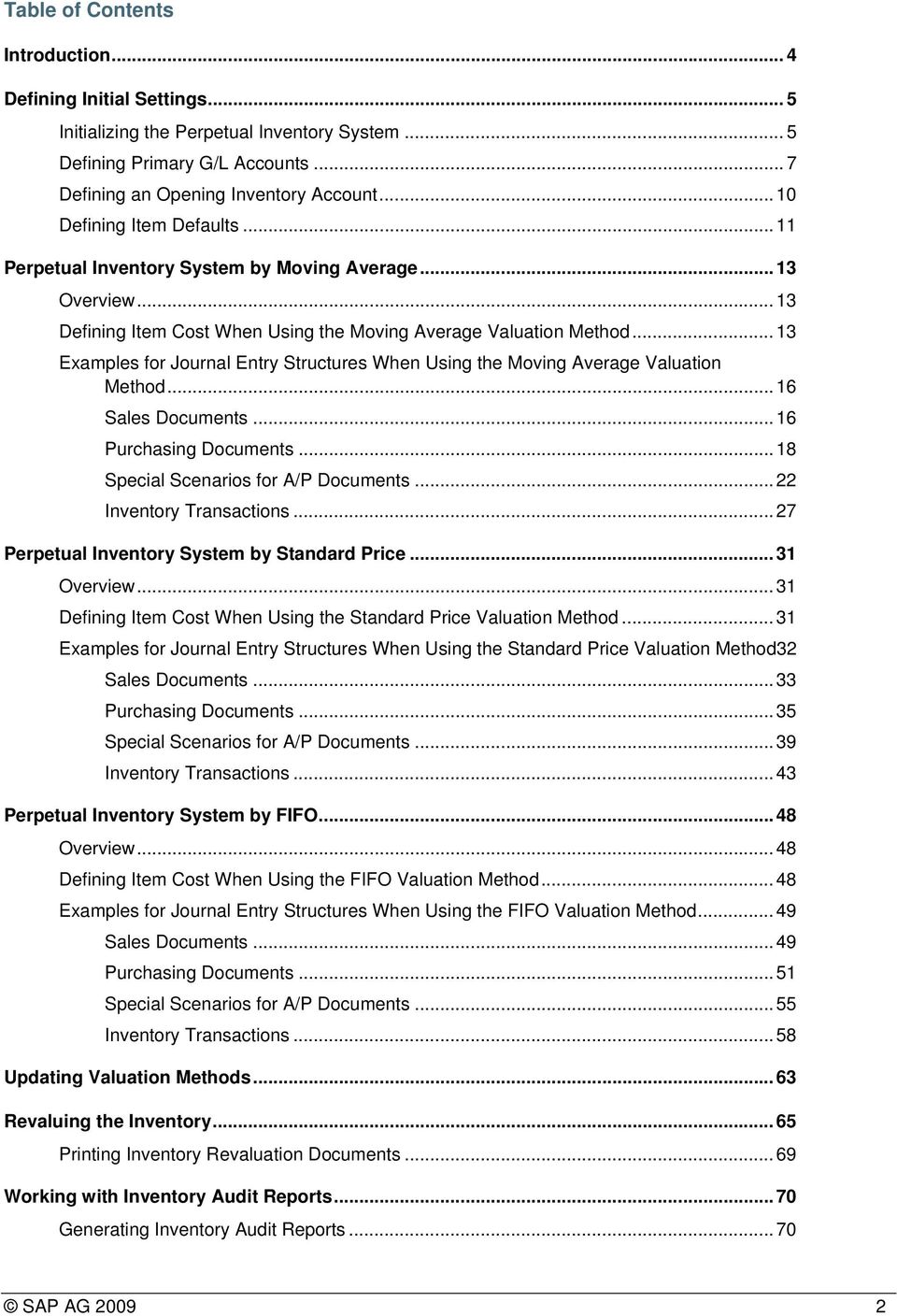
2 Table of Contents Introduction... 4 Defining Initial Settings... 5 Initializing the Perpetual Inventory System... 5 Defining Primary G/L Accounts... 7 Defining an Opening Inventory Account Defining Item Defaults Perpetual Inventory System by Moving Average Overview Defining Item Cost When Using the Moving Average Valuation Method Examples for Journal Entry Structures When Using the Moving Average Valuation Method Sales Documents Purchasing Documents Special Scenarios for A/P Documents Inventory Transactions Perpetual Inventory System by Standard Price Overview Defining Item Cost When Using the Standard Price Valuation Method Examples for Journal Entry Structures When Using the Standard Price Valuation Method32 Sales Documents Purchasing Documents Special Scenarios for A/P Documents Inventory Transactions Perpetual Inventory System by FIFO Overview Defining Item Cost When Using the FIFO Valuation Method Examples for Journal Entry Structures When Using the FIFO Valuation Method Sales Documents Purchasing Documents Special Scenarios for A/P Documents Inventory Transactions Updating Valuation Methods Revaluing the Inventory Printing Inventory Revaluation Documents Working with Inventory Audit Reports Generating Inventory Audit Reports SAP AG
3 Examples of Inventory Audit Reports for Different Calculation Methods Moving Average Standard Price FIFO 76 Printing Inventory Audit Reports Working with a Purchase Accounts Posting System Defining Purchase Accounts Examples for Journal Entry Structures Used When Working with a Purchase Accounts Posting System Goods Receipt POs and A/P Invoices Closing a Goods Receipt PO Goods Return A/P Credit Memo Landed Costs Authorizations Database Tables Reference Copyrights, Trademarks, and Disclaimers SAP AG

4 Introduction A perpetual inventory system reflects the value of inventory postings in terms of monetary transactions in the accounting system. These monetary transactions are carried out only when items defined as inventory items are received or released from stock. You should determine a perpetual inventory system during basic initialization, before posting any transactions. SAP Business One provides the following three valuation methods for calculating the inventory value: Moving average Calculates the average cost for the item in each sales, purchasing, inventory, and production transaction. Standard Calculates the inventory value by a fixed price, which is then used for all transactions. FIFO Calculates the inventory value by the FIFO (first in first out) method. This means that goods purchased first (or produced first) are sold first, regardless of the actual goods flow. Each inventory receipt transaction creates a layer of quantities linked to costs. A FIFO layer is defined as the quantity of an item in a warehouse with a particular cost value. Each inventory release transaction uses quantities and their corresponding costs from the first open layer or layers. When you use a perpetual inventory system, SAP Business One lets you do the following: Manage the three methods in the same company. You can select a certain valuation method for each item individually. Update the valuation method of your items globally. For information, see Updating Valuation Methods. Update the calculated item cost for each item, if required. For information, see Revaluing the Inventory. SAP Business One 8.8 release includes enhancements and changes in inventory management regarding the different valuation methods. For more information, see the document Enhancements in Inventory Management in the documentation area of SAP Business One Customer Portal at SAP AG

5 Defining Initial Settings When you decide to use the perpetual inventory system, employees responsible for logistics and accounting must analyze the accounting transactions carried out in the background for each inventory transaction. You need to determine special G/L accounts for the inventory transactions. This influences the settings for warehouses and item groups. Initializing the Perpetual Inventory System 1. From the SAP Business One Main Menu, choose Administration System Initialization Company Details Basic Initialization tab. 2. To initialize the perpetual inventory system, select the Use Perpetual Inventory checkbox. CAUTION You cannot modify this selection after you create one or more inventory transactions. SAP AG

6 3. In the Item Groups Valuation Method dropdown list, select an inventory valuation method. The default valuation method of new items is taken from their linked item groups, and the valuation method of new item groups is the method selected in this field. The cost calculated for the items is in the local currency. You can change the selected valuation method in the Item Groups Valuation Method field at any time; however, changes apply only to item groups added after the change, not retroactively. Example The following example shows the difference between managing the item cost for the company or for each warehouse individually. In the example, 2 goods receipt POs were created for an item which is managed by the moving average valuation method: Transaction Item Cost for Item Cost in Item Cost in Company Warehouse1 Warehouse2 Goods receipt PO Quantity of 1 Price 10 Warehouse1 Goods receipt PO 2 20 = (10*1 + 30*1) / Quantity of 1 Price 30 Warehouse2 4. To manage the cost of items for each warehouse individually, select the Manage Item Cost per Warehouse checkbox. When this checkbox is deselected, calculating inventory pricing is combined for all the warehouses. 5. To document your inventory transactions on the expenses side as well as conducting a perpetual inventory system, select the Use Purchase Accounts Posting System checkbox. When the checkbox is selected, each journal entry includes additional rows reflecting the company's expenses. For more information, see Working with a Purchase Accounts Posting System. Once you have recorded transactions, you cannot modify this setting. This checkbox is not relevant for the US and Canada localizations. 6. To allow items to be included in documents such as deliveries or A/R invoices, even when the item cost has not been defined, select the Allow Stock Release Without Item Cost checkbox. 7. To save your changes, choose the Update button. SAP AG

7 Defining Primary G/L Accounts 1. From the SAP Business One Main Menu, choose Administration Setup Financials G/L Account Determination Inventory tab. 2. Define primary G/L accounts to be selected as default in new warehouses, item groups, and items master data. The following table describes the usage of each account: Type of Account Inventory Account Cost of Goods Sold Account Allocation Account Variance Account Description Reflects the final inventory value and is recorded in most of the inventory transactions in SAP Business One. An offsetting account to the inventory account used in deliveries and A/R invoices, and to the returns account used in A/R returns and A/R credit memos. A clearing account used as an offsetting account to the inventory account in goods receipt POs, in goods returns, and in A/P credit memos. It is also used in A/P invoices based on goods receipt POs. The balance of this G/L account reflects the total amount of open goods receipt POs and goods returns. Used only with a standard price valuation method. In certain scenarios, if there are differences between the standard price and the actual price in purchasing and inventory documents, these differences are recorded in the variance account. SAP AG

8 Type of Account Price Difference Account Negative Inventory Adj. Acct Description Used in purchasing transactions only. Price differences between the base document and the target document are recorded in this account in certain scenarios. Used only if the inventory quantity is negative when the inventory posting takes place, and the price in the document is different from the moving average or the FIFO price. In these cases the moving average or FIFO prices are held static, which means SAP Business One saves and uses the last price for the item before zeroing the stock. The differences between these prices and inventory values resulting from the addition of new documents are posted to this account. This account is not relevant for the standard price valuation method. CAUTION From an accounting perspective, we do not recommend using negative inventory. However, to use negative inventory, deselect the Block Negative Inventory checkbox in Administration System Initialization Document Settings General tab. Inventory Offset - Decr. Acct Inventory Offset - Incr. Acct Sales Returns Account Purchase Account / Purchase Returns Account / Cost of Goods Purchased / Purchase Balance Account Exchange Rate Differences Account Used as balancing accounts when the inventory value is increased or decreased as a result of creating a goods receipt, goods issue, or inventory posting. You can change this account manually while creating its corresponding document. An offsetting account to the cost of goods sold account used in A/R returns and A/R credit memos. When working with the purchase accounts posting system, you should define the relevant default accounts. For more information, see Defining Purchase Accounts. Used in purchasing transactions only. In certain scenarios, when you create a target document based on a base document, a difference in local currency occurs when the following conditions exist: The item price is in a foreign currency. The target document is connected to a different exchange rate. That difference is posted to this account. Goods Clearing Account An offsetting account to the allocation costs used when closing goods receipt POs or goods returns. In this case, no inventory entry is registered; however, a journal entry is created including this account. SAP AG

9 Type of Account G/L Decrease Account G/L Increase Account WIP Inventory Account WIP Inventory Variance Account Expense Clearing Account Description An offsetting account to the inventory account used in material revaluation transactions where the price decreases. An offsetting account to the inventory account used in material revaluation transactions where the price increases. An offsetting account to the inventory account used in the production process; it reflects the value of a production order during its various stages. An offsetting account to the WIP inventory account; it is involved at the end of the production process, when a production order is closed. In SAP Business One it is possible to select whether row-level freight affects the inventory valuation in purchasing documents. If you choose to affect the inventory with freight, you need to define an offsetting account for clearing journal entries created by A/P invoices and goods receipt POs. This account is used in journal entries whenever the allocation account is also involved. For more information, see the online help for SAP Business One. Stock In Transit Account This account replaces the allocation account for the A/P reserve invoice. Used as an offsetting account to the inventory account in goods receipt POs and A/P credit memos. The balance of this account reflects the total amount of open goods receipt POs and goods returns. For examples of the usage of the accounts described above, see the following: Examples for Journal Entry Structures When Using the Moving Average Valuation Method Examples for Journal Entry Structures When Using the Standard Price Valuation Method Examples for Journal Entry Structures When Using the FIFO Valuation Method The sum of the inventory account balance and the sales returns account balance reflects the total value of the inventory. Due to various user actions, the total balance of the inventory and sales returns accounts might be different from the Inventory Audit report. Those differences can be caused by one of the following scenarios: The inventory account is involved in a manual journal entry. In a service type document, you use a specific account as the inventory and/or sales returns account, as well as another account type (for example, as an allocation account), or as the G/L account. 3. On the Purchasing tab, define an expense and inventory account. This account is used for items managed by the moving average valuation method to reflect specific amount differences. Those differences are caused when you manually change prices in A/P credit memos that are based on A/P invoices. 4. To update changes, choose the Update button. SAP AG

10 Defining an Opening Inventory Account You should create an opening inventory G/L account in the chart of accounts. This G/L account is used as an offsetting account to the warehouse inventory account to which you enter initial quantities. 1. From the SAP Business One Main Menu, choose Inventory Inventory Transactions Initial Quantities, Inventory Tracking and Inventory Posting Initial Quantity tab. 2. Specify the selection criteria of items for which you would like to enter initial quantities, and choose the OK button. The Initial Quantity window opens. 3. In the Open Inventory Account field, specify an opening inventory account. The account is automatically updated in the G/L Account field for all the items you selected. You can manually change the opening inventory account for each item. 4. To save your changes, choose the Add button. The opening inventory account should be different from the inventory account. Otherwise, when you enter an initial quantity, the same account is credited as well as debited producing a zero effect on the account balance. SAP AG

11 Defining Item Defaults 1. From the SAP Business One Main Menu, choose Administration System Initialization General Settings Inventory tab. 2. In the Item Defaults area, specify the following information: Field Default Warehouse Set G/L Accounts By Activity/Description In the Default Warehouse dropdown list, choose a default warehouse for new item records only. When modified, this setting is updated immediately per company, for all users. When modified, this setting is updated immediately per company, for all users. In the Set G/L Accounts By dropdown list, choose the method by which you would like to set the G/L accounts connected to new item records only: Warehouse The G/L accounts defined in the Warehouses Setup window, located under Administration Setup Inventory Warehouses Accounting tab. Item Group The G/L accounts defined in the Item Groups Setup window, located under Administration Setup Inventory Item Groups Accounting tab. Item Level Select this method to define G/L accounts for each item manually on the Inventory Data tab in the Item Master Data window. The list of accounts can be displayed in the warehouse table. To display the relevant accounts, click (Form Settings). Those G/L accounts are enabled only if you choose the Item Level option. SAP AG

12 Field Auto. Add All Warehouses to New Items Activity/Description SAP Business One adds all the existing warehouses to every new item and every new added warehouse to all the existing items. SAP AG

13 Perpetual Inventory System by Moving Average Overview When managing a perpetual inventory system by moving average, an inventory receipt posting debits the inventory account of each warehouse according to the price entered in the document. This price also updates the item cost. An inventory release posting credits the inventory/sales returns account according to the item cost. Item prices recorded in A/R credit memos and in A/R returns do not influence the item cost and are not considered in the calculation of the journal entries reflecting the inventory value, which these documents create. Due to various user actions, the item cost per item, as displayed in the Item Master Data window on the Inventory Data tab, might be different from the moving average price per item calculated by the Inventory Valuation Simulation report. For example, working with negative inventory could be a cause for those differences. Defining Item Cost When Using the Moving Average Valuation Method 1. From the SAP Business One Main Menu, choose Inventory Item Master Data Inventory Data tab. 2. Create a new item. 3. From the Valuation Method dropdown list, choose Moving Average. The default inventory valuation method of a new item is taken from its linked item group. For information about the valuation method of a new item group, see Initializing the Perpetual Inventory System. It is possible to change the valuation method of an item at any time, as long as the item is not linked to any open documents and its in-stock quantity is zero. 4. Choose the Add button. SAP AG

14 If the Manage Item Cost per Warehouse checkbox is selected, the item cost is calculated separately for each warehouse and is displayed in the warehouse row in the table. SAP AG

15 If the Manage Item Cost per Warehouse checkbox is deselected, a single item cost is managed for all the warehouses and is displayed above the warehouses table. For more information, see Initializing the Perpetual Inventory System. SAP AG

16 Examples for Journal Entry Structures When Using the Moving Average Valuation Method The moving average valuation method takes the weighted average of all units available for sale to determine the item cost. SAP Business One saves the cumulative quantity and the cumulative value of the item in stock. The item cost is the quotient of the cumulative value divided by the cumulative quantity. The moving average price is calculated as follows: (Stock value before transaction + transaction value) / new quantity in stock. Prerequisites The following prerequisites apply for all the described examples: The business partner is tax exempted. The initial settings were defined as follows: In the Company Details window, on the Basic Initialization tab: The Use Purchase Accounts Posting System checkbox is deselected. The Use Negative Amount for Reverse Transaction is selected. The G/L accounts set for the items are by warehouse. For information, see Defining Item Defaults. The G/L account code and name, ', 'Inventory Finished Goods' relates to the release/receipt of items from/to warehouse 01. There are sufficient in-stock quantities of all the items involved in the scenarios below. Sales Documents Delivery and Delivery Based on a Return The following journal entry is created automatically when you add a delivery: The amounts in the Debit and Credit columns are calculated by multiplying the quantity of each item in the delivery document by its item cost. SAP AG

17 Return and Return Based on a Delivery The following journal entry is created automatically when you add a return: The amounts in the Debit and Credit columns are calculated by multiplying the quantity of each item in the delivery document by its item cost. A/R Invoice Based on a Delivery When basing an A/R invoice on a delivery, no inventory posting is created; thus, only a regular journal entry is created in the accounting system. A/R Invoice The following journal entry is created automatically when you add an A/R invoice that is not based on a delivery: This journal entry includes both the delivery's inventory transaction and the invoice's accounting transaction. A/R Credit Memo Based on a Return When basing an A/R credit memo on a return, no inventory posting is created; thus, only a regular credit journal entry is created in the accounting system. SAP AG

18 A/R Credit Memo and A/R Credit Memo Based on an A/R Invoice The following journal entry is created automatically when you add an A/R credit memo: The credit and debit amounts of both the sales returns and the cost-of-goods-sold accounts are calculated by multiplying the quantity of each item in the document by its item cost. This scenario is not relevant for an A/R credit memo based on an A/R reserve invoice. Purchasing Documents Goods Receipt PO The following journal entry is created automatically when you add a goods receipt PO: The Debit and Credit amounts are calculated by multiplying the quantity of each item in the document by the price specified in the goods receipt PO. The allocation account functions as a temporary alternative to the vendor's account, which is cleared only after you create a corresponding A/P invoice or goods return document. Goods Receipt PO with Freight A goods receipt PO with freight behaves like any other good receipt PO document. In addition, the freight amount recorded in the journal entry is the global amount of additional expenses for the entire quantity. The expenses clearing account is a clearing account recorded counter to the inventory account. SAP AG

19 Goods Return and Goods Return with Freight In the following example, the item cost is 100 and the item price in the document is 150. The following journal entry is created automatically when you add a goods return: The Debit and Credit amounts are calculated by multiplying the quantity of each item in the document by its current cost and not by the item price entered in the goods return document. Goods Return Based on a Goods Receipt PO This journal entry is identical to the entry created by a goods receipt PO, only reversed. Goods Return Based on a Goods Receipt PO with Freight SAP AG

20 A/P Invoice Based on a Goods Receipt PO When basing an A/P invoice on a goods receipt PO, the allocation costs account is debited, counter to the vendor's account, which is credited: The allocation account functions as a clearing account. In this example, it is debited by the amount in which it was credited in the goods receipt PO. A/P Invoice Based on a Goods Receipt PO with Freight A/P Invoice In addition to the expense clearing account, the allocation account also acts as a clearing account. In this example, these accounts are debited by the amounts in which they were credited in the goods receipt PO. The following journal entry is created automatically when you add an A/P invoice that is not based on a goods receipt PO: The amount of the debited inventory account is calculated by multiplying the quantity of each item by the price specified in the A/P invoice. SAP AG

21 A/P Invoice with Freight An A/P invoice with freight behaves like any other A/P invoice. In addition, the expenses clearing account is not recorded in this journal entry since the inventory account reflects the item prices, including freight. As mentioned earlier, the expenses clearing account is a clearing account, and this journal entry recorded the final values for affecting the inventory valuation. Therefore, no intermediate accounts are recorded here. A/P Credit Memo Based on a Goods Return with or Without Freight In the following example, you base an A/P credit memo on a goods return. The item price in the goods return is 90 with freight amount of 10, and the item cost is 80. The following journal entry is created automatically: The price difference account is debited by the document total including freight charges minus the amount posted to the inventory account in the goods return. A/P Credit Memo The allocation account functions as a clearing account. In this example, it is debited by the amount in which it was credited in the goods return. In the following example, you create an A/P credit memo. The item price in the A/P credit memo is 70, and the item cost is 100. The following journal entry is created automatically: SAP AG
22 The amount of the debited inventory account is calculated by multiplying the quantity of each item in the document by its item cost. The amount of the debited price difference account is calculated by multiplying the quantity of each item in the document by the difference between the item cost and the item price. A/P Credit Memo Based on an A/P Invoice The following journal entry is created automatically when you add an A/P credit memo that is not based on a goods return: A/P Credit Memo with Freight and A/P Credit Memo Based on A/P Invoice with Freight The price difference account is debited by the document total including freight charges minus the amount posted to the inventory account in the A/P invoice. Special Scenarios for A/P Documents A/P Invoice Based on a Goods Receipt PO Exchange Rate Differences A difference in the local currency amount results from the following situation: You create an A/P invoice for a foreign currency vendor based on a goods receipt PO. In the invoice, the item price is defined with a foreign currency. The A/P invoice is connected to a different exchange rate from the one defined for the goods receipt PO. In the following example, the local currency for your company is US dollars. A goods receipt PO was created for Foreign Vendor1, whose currency is the euro. The goods receipt PO contains the following information: The posting date is July 1 st. The exchange rate for that day is 1. 1 unit of Item1 is managed by the moving average valuation method. The item price in the document is EUR 100. SAP AG
23 On July 11 th, an A/P invoice was created for the vendor, based on the goods receipt PO from July 1 st, and the exchange rate on that day is 2. There are four possible scenarios for this situation: The quantity of the items copied from the goods receipt PO to the A/P invoice is less than or equals to their quantity in stock. In the example, the quantity in stock is 2. Since the actual inventory valuation changes in this situation, the inventory account is affected accordingly. The quantity in stock of the items copied from the goods receipt PO to the A/P invoice is zero. Since there is no quantity in stock and the actual inventory valuation does not change in this situation; the exchange rate differences account is affected accordingly. The quantity in stock of the items copied from the goods receipt PO to the A/P invoice is negative. In the example, the quantity in stock is (-2). Since the in-stock quantity is negative and the actual inventory valuation does not change in this situation, the negative inventory adjustment account is affected accordingly. SAP AG
24 The quantity of the items copied from the goods receipt PO to the A/P invoice is greater than their quantity in stock. In the example, the quantity in stock is 1. For this scenario, the quantity of the item in the documents is 2. Since the actual inventory valuation changes only for the existing quantity in stock, the inventory account is affected by the existing quantity and the exchange rate differences account is affected by the remaining quantity. The above scenarios are also relevant for copying a goods return to an A/P credit memo. A/P Invoice Based on a Goods Receipt PO Price Differences When copying a goods receipt PO to an A/P invoice, there might be a difference between the item prices recorded in the goods receipt PO and their prices in the A/P invoice. In the following example, a goods receipt PO was created for 1 unit of Item1, with a price of 100. In an A/P invoice based on that goods receipt PO, the price was changed to 150. There are four possible scenarios for this situation: The quantity of the items copied from the goods receipt PO to the A/P invoice is less than or equals to their quantity in stock. In the example, the quantity in stock is 2. Since the actual inventory valuation changes in this situation, the inventory account is affected accordingly. SAP AG
25 The quantity in stock of the items copied from the goods receipt PO to the A/P invoice is zero. Since there is no quantity in stock and the actual inventory valuation does not change in this situation, the price difference account is affected accordingly. The quantity in stock of the items copied from the goods receipt PO to the A/P invoice is negative. In the example, the quantity in stock is (-2). Since the in-stock quantity is negative and the actual inventory valuation does not change in this situation, the negative inventory adjustment account is affected accordingly. The quantity of the items copied from the goods receipt PO to the A/P invoice is greater than their quantity in stock. In the example, the quantity in stock is 1 and the quantity of the item in the documents is 2. Since the actual inventory valuation changes only for the existing quantity in stock, the inventory account is affected by the existing quantity and the price difference account is affected by the remaining quantity. The above scenarios are also relevant for copying a goods return to an A/P credit memo. SAP AG
26 Closing a Goods Receipt PO or a Goods Return When closing a goods receipt PO or a goods return, no inventory posting is registered; however, a journal entry is created to clear the allocation costs account: The above scenario is applied whether or not the goods return includes freight. When a goods receipt PO is closed, the amounts are the same as when a goods return is closed, but each amount appears with a positive sign. To close a goods receipt PO or a goods return, use one of the following methods: Right-click the window and choose Close. From the Data menu, choose Close. Closing a Goods Receipt PO with Freight A/P Credit Memo Based on an A/P Invoice when Changing the Freight Amount In the following example, an A/P invoice was created for Item1 with a price of 100, and the freight amount in the invoice is 10. An A/P credit memo was created based on that invoice, and the freight was changed to 20. The expense and inventory account reflects the changes made in the freight amount. The expense and inventory account can be defined in the G/L Account Determination window on the General subtab on the Purchasing tab. SAP AG
27 Inventory Transactions Goods Receipt The Debit and Credit amounts are calculated by multiplying the quantity of each item in the document by the prices specified in the goods receipt. Goods Issue The amount in the Debit and Credit columns is calculated by multiplying the quantity of each one of the items in the goods issue by their item cost. Inventory Transfer If you had specified different inventory accounts for your different warehouses, the inventory transfer transaction would have credited the inventory account of the release warehouse and debited the inventory account of the receipt warehouse. The release/receipt price is set by the moving average price of the item in the release warehouse. If you manage the item cost per warehouse, inventory transfer changes the moving average price. The item cost in the receiving warehouse is calculated as follows: (stock value of the item in receiving warehouse + received value) / new quantity in the receiving warehouse. SAP AG
28 Entering Initial Quantities and Inventory Postings A positive initial quantity creates the following journal entry: The amount in the Credit and the Debit columns is calculated by multiplying the amounts of the Initial Quantity and the Price fields of each item in the Initial Quantity window. A negative initial quantity creates the following journal entry: The price of the item is defined by its item cost. If the Allow Initial Quantities without Price checkbox is selected and no price is entered for the items, it is not necessary to specify an opening inventory account. Notice that no monetary transaction is created in the accounting system in this scenario. If you would like to record initial quantities, including price, you must choose an opening inventory G/L account manually. A positive inventory posting where the counted quantity is greater than the existing In Whse quantity creates the following journal entry: A negative inventory posting where the counted quantity is less than the existing in-stock quantity (the In Whse field) creates the following journal entry: SAP AG
29 Landed Costs For information about landed costs, see the online help for SAP Business One. Production In a production order for a production bill of materials item, the parent item price is calculated according to the moving average prices of its child items. You cannot change this price. In the following examples both the parent and child items are defined with Moving Average as their inventory valuation method. The two methods for issuing items in production orders are manual and backflush. For more information, see the online help for SAP Business One. Manual With this method, you should document the receipt of the parent item and the release of the child items. Issue for production The amounts in the Debit and Credit columns are calculated by multiplying the quantity of each child item by its item cost and summing the resulting product for all child items. Receipt from production The amounts in the Debit and Credit columns are calculated by multiplying the quantity of each child item by its item cost and summing the resulting product for all child items. When you close a production order, if there is a difference between the actual component cost and the actual product cost, an additional journal entry is recorded for the price difference: SAP AG
30 Backflush For example, the parent item comprises 1 child item with a quantity of 2. The price of the child item is 50. You issue a receipt for the product before issuing the child item. During the receipt from production, the value in the Actual Product Cost field on the Summary tab of the Production Order window is 2 X 50=100. Before you issue the child item, its cost is changed to 75. During the issue for production, the journal entry created for the child item release was calculated as 2 X 75 = 150. This value is saved in the Actual Component Cost field on the Summary tab of the Production Order window. When the production order is closed, the difference between the costs [2 X (50 minus 75) = -50] is recorded in the WIP inventory variance account, while the WIP inventory account is cleared. With this method, when the production order is completed, the inventory account of the parent item warehouse is debited and the inventory account of the child warehouses is credited. The release/receipt price is set by the moving average prices of the child items. With this method, there is no issue for production; however, the above 2 journal entries are always created. Working with Negative Inventory If the item quantity in stock is negative, the creation of an inventory receipt document does not affect the item s cost. In such cases the moving average price is held static, which means SAP Business One saves and uses the last price for the item before zeroing the stock. In the journal entry created, the negative inventory adjustment account is debited by the difference between the item cost and the item price in the document multiplied by the item quantity. SAP AG
31 Perpetual Inventory System by Standard Price Overview SAP Business One lets you work with a standard price method for calculating your inventory value. A standard (fixed) price should be entered in each item record, thus influencing every inventory posting. An inventory receipt entered with a different price than the standard price set for the item debits the inventory account according to the standard price. In addition, the difference between the standard price and the actual receipt price is recorded in a variance or a price difference account. Inventory releases are recorded according to the standard price. Defining Item Cost When Using the Standard Price Valuation Method 1. From the SAP Business One Main Menu, choose Inventory Item Master Data Inventory Data tab. 2. Create a new item. 3. From the Valuation Method dropdown list, choose Standard. It is possible to change the valuation method of an item at any time, as long as the item is not linked to any open documents and its In Stock quantity is zero. 4. In the Item Cost field, specify the standard price. If you select the Manage Item Cost per Warehouse checkbox, the standard price is calculated separately in each warehouse and is displayed in the warehouse row in the table. SAP AG
32 In this case, after specifying a value in the Item Cost field, you can update this item cost to all warehouses. Alternatively, you can set a different standard price manually for each warehouse. For more information, see Initializing the Perpetual Inventory System. Examples for Journal Entry Structures When Using the Standard Price Valuation Method The standard price valuation method uses a fixed price based on the defined cost for the item to valuate the warehouse inventories. Prerequisites The following prerequisites apply for all the described examples: The business partner is tax exempted. The initial settings are defined as follows: In the Company Details window, on the Basic Initialization tab: The Use Purchase Accounts Posting System checkbox is deselected. The Use Negative Amount for Reverse Transaction is selected. SAP AG
33 The G/L accounts set for the items are by warehouse. For information, see Defining Item Defaults. The item's standard price is 100. The G/L account code and name, ', 'Inventory Finished Goods' relates to the release/receipt of items from/to warehouse 01. There are sufficient quantities in stock of all the items involved in the scenarios below. No journal entry reflecting the inventory value is created by a document containing items with Standard as their inventory valuation method, but with no item cost defined for them. Sales Documents Delivery and Delivery Based on a Return The following journal entry is created automatically when you add a delivery: The debit and credit amounts are calculated as a multiplication of each one of the items in the delivery by the standard price of each item. Return or Return Based on a Delivery The following journal entry is created automatically when you add a return: The debit and credit amounts are calculated as a multiplication of each one of the items in the delivery by the standard price of each item. A/R Invoice Based on a Delivery When basing an A/R invoice on a delivery no inventory posting is created; thus, only a regular journal entry is created in the accounting system. SAP AG
34 A/R Invoice The following journal entry is created automatically when you add an A/R invoice that is not based on a delivery: This journal entry includes both the delivery's inventory transaction and the invoice's accounting transaction. A/R Credit Memo Based on a Return When basing an A/R credit memo on a return, no inventory posting is created; thus, only a regular credit journal entry is created in the accounting system. A/R Credit Memo and A/R Credit Memo Based on an A/R Invoice The following journal entry is created automatically when you add an A/R credit memo that is not based on a return: This scenario is not relevant for an A/R credit memo based on an A/R reserve invoice. SAP AG
35 Purchasing Documents Goods Receipt PO The following example displays a case in which the item's price, as recorded in the goods receipt PO, varies from the item's standard price set in the Item Master Data window: The price in the goods receipt PO is 150. The standard price of the item is 100. The allocation account functions as a temporary alternative for the vendor's account, which is cleared only after you create a corresponding A/P invoice. Goods Receipt PO with Freight This example relates to the same example as described above for the goods receipt PO: The freight amount recorded in the journal entry is the global amount of additional expenses for the entire quantity. The expenses clearing account is recorded counter to the inventory account. Goods Return and Goods Return with Freight In the following example, the item price, as recorded in the goods return, varies from the standard price of the set in the Item Master Data window: The item price in the goods return is 150. The standard price of the item is 100. SAP AG
36 The Debit and Credit amounts are calculated by multiplying the quantity of each item in the document by its current cost, and not the item price entered in the goods return document. Since the current cost is used, any freight addition has no effect on the allocation and inventory accounts. Goods Return Based on a Goods Receipt PO This example relates to the same example as described above for the goods receipt PO. The following journal entry is created automatically when you add a goods return according to abovedescribed scenario: Goods Return Based on a Goods Receipt PO with Freight This example relates to the same example as described for the goods receipt PO. The following journal entry is created automatically when you add a goods return according to the scenario described above for a goods receipt PO: A/P Invoice Based on a Goods Receipt PO When you base an A/P invoice on a goods receipt PO, the allocation account is debited counter to the vendor account, which is credited: The allocation account functions as a clearing account. In this example, it is debited by the amount in which it was credited in the goods receipt PO. SAP AG
37 A/P Invoice Based on a Goods Receipt PO with Freight A/P Invoice In addition to the expense clearing account, the allocation account also acts as a clearing account. In this example, these accounts are debited by the amounts in which they were credited in the goods receipt PO. The following example displays a case in which the item's price, as recorded in the A/P invoice, varies from the item's standard price. The price in the A/P invoice is 150. The standard price of the item is 100. The amount of the debited inventory account is calculated by multiplying the quantity of each item by the standard price of the item. The amount of the debited variance account is calculated by multiplying the quantity of each item by the difference between the price of the item in the A/P invoice and the standard price of the item. A/P Invoice with Freight This example relates to the same example as described for the A/P invoice. The expenses clearing account is not recorded in this journal entry since the inventory account reflects the item prices, including freight. As mentioned earlier, the expenses clearing account is a clearing SAP AG
38 account, and this journal entry recorded the final values for affecting the inventory valuation. Therefore, no intermediate accounts are recorded here. A/P Credit Memo Based on a Goods Return When you base an A/P credit memo on a goods return, the journal entry created automatically is identical to the one created by an A/P invoice based on a goods receipt PO, only reversed: The allocation account functions as a clearing account. In this example, it is debited by the amount in which it was credited in the goods returns. A/P Credit Memo Based on a Goods Return with Freight The variance account is credited or debited by the document total, including freight charges minus the amount that was posted to the inventory account in the goods return. A/P Credit Memo and A/P Credit Memo Based on an A/P Invoice The following journal entry is created automatically when you add an A/P credit memo that is not based on a goods return: SAP AG
39 A/P Credit Memo with Freight and A/P Credit Memo Based on A/P Invoice with Freight The expenses clearing account is not recorded in this journal entry since the inventory account reflects the item prices, including freight. As mentioned earlier, the expenses clearing account is a clearing account, and this journal entry recorded the final values for affecting the inventory valuation. Therefore, no intermediate G/L accounts are recorded here. Special Scenarios for A/P Documents A/P Invoice Based on a Goods Receipt PO Exchange Rate Differences The following situation results in a difference in the local currency amount: You create an A/P invoice for a foreign currency vendor based on a goods receipt PO. In the invoice, the item price is defined with a foreign currency. The A/P invoice is connected to an exchange rate different from the one defined for the goods receipt PO. In the following example, the local currency for your company is US dollars. A goods receipt PO was created for Foreign Vendor1, whose currency is the euro. The goods receipt PO contains the following information: The posting date is July 1 st. The exchange rate for that day is 1. 1 unit of Item1 is managed by the standard price valuation method. The item price in the document is EUR 100. On July 11 th, an A/P invoice was created for the vendor, based on the goods receipt PO from July 1 st ; the exchange rate on that day is 2. The four possible scenarios for this situation are as follows: The quantity of the items copied from the goods receipt PO to the A/P invoice is less than or equal to their quantity in stock. In the example, the quantity in stock is 2. Since the actual inventory valuation changes in this situation, the variance account is affected accordingly. SAP AG
40 The in-stock quantity of the items copied from the goods receipt PO to the A/P invoice is zero. Since there is no quantity in stock and the actual inventory valuation does not change in this situation, the exchange rate differences account is affected accordingly. The quantity in stock of the items copied from the goods receipt PO to the A/P invoice is negative. The exchange rate differences account is affected the same way as if the item s quantity in stock is zero. The quantity of the items copied from the goods receipt PO to the A/P invoice is greater than their quantity in stock. In the example, the quantity in stock is 1 and the quantity of the item in the documents is 2. Since the actual inventory valuation changes only for the existing quantity in stock, the variance account is affected by the existing quantity and the exchange rate differences account is affected by the remaining quantity. The above scenarios are also relevant for copying a goods return to an A/P credit memo. A/P Invoice Based on a Goods Receipt PO Price Differences When copying a goods receipt PO to an A/P invoice, there might be a difference between the item prices recorded in the goods receipt PO and their prices in the A/P invoice. In the following example, a goods receipt PO was created for 1 unit of Item1 and its price was 100. In an A/P invoice based on that goods receipt PO, the price was changed to 150. SAP AG
41 There are four possible scenarios for this situation: The quantity of the items copied from the goods receipt PO to the A/P invoice is less than or equal to the quantity in stock. In the example, the quantity in stock is 2. Since the actual inventory valuation changes in this situation, the variance account is affected accordingly. The quantity in stock of the items copied from the goods receipt PO to the A/P invoice is zero. Since there is no quantity in stock and the actual inventory valuation does not change in this situation, the price difference account is affected accordingly. The quantity in stock of the items copied from the goods receipt PO to the A/P invoice is negative. In the example, the quantity in stock is -2. The journal entry recorded is the same as the journal entry recorded when the in-stock quantity is positive. Therefore, the variance account is affected accordingly. The quantity of the items copied from the goods receipt PO to the A/P invoice is greater than the quantity in stock. In the example, the quantity of the item in the documents is 2, and the quantity in stock is 1. Since the actual inventory valuation changes only for the existing quantity in stock, the variance account is affected by the existing quantity, and the price difference account is affected by the remaining quantity. SAP AG
42 The above scenarios are also relevant for copying a goods return to an A/P credit memo. Closing a Goods Receipt PO or a Goods Return When a goods receipt PO or a goods return is closed, no inventory posting is registered; however, a journal entry is created to clear the allocation costs account: The above scenario is applied whether or not the goods return includes freight. When a goods receipt PO is closed, the amounts are the same as when a goods return is closed, but each amount appears with a positive sign. To close a goods receipt PO or a goods return, use one of the following methods: Right-click the window and choose Close. From the Data menu, choose Close. Closing a Goods Receipt PO with Freight SAP AG
43 A/P Credit Memo Based on an A/P Invoice when Changing the Freight Amount In the following example, an A/P invoice was created for Item1 with a price of 100, and the freight amount in the invoice is 10. An A/P credit memo was created based on that invoice, and the freight was changed to 20. The variance account reflects the final freight amount. Inventory Transactions Goods Receipt The following example displays a case in which the item's price, as recorded in the goods receipt, varies from the item's standard price: The price in the goods receipt is 150. The standard price of the item is 100. The amount of the debited inventory account is calculated by multiplying the quantity of each item by the standard price of the item. The amount of the debited variance account is calculated by multiplying the quantity of each item by the difference between the price of the item in the good receipt and the standard price of the item. Goods Issue The debit and credit amounts are calculated as a multiplication of each one of the items in the goods issue by its standard price. SAP AG
44 Inventory Transfer If you had selected different inventory accounts for your different warehouses, the inventory transfer transaction credits the inventory account of the release warehouse and debits the inventory account of the receipt warehouse. The release/receipt price is set by the standard price of each item. In case the item's standard price in the release warehouse is different from its standard price in the receipt warehouse, this difference is recorded in the variance account of the receipt warehouse. Entering Initial Quantities and Inventory Postings A positive initial quantity with the following data creates the journal entry shown below: The price in the Initial Quantity window is 120. The standard price of the item is 100. The amount of the debited inventory account is calculated by multiplying the quantity of each item by the standard price of the item. The amount of the debited variance account is calculated by multiplying the quantity of each item by the difference between the price of the item and its standard price. A negative initial quantity creates the following journal entry: The amounts in the Debit and Credit columns are calculated by multiplying the quantity of each item by its standard price. SAP AG
45 A positive inventory posting, where the counted quantity is greater than the quantity in stock, with the following data, creates the journal entry shown below: The inventory difference price is 120. The standard price of the item is 100. The amount of the debited inventory account is calculated by multiplying the quantity of each item by the standard price of the item. The amount of the debited variance account is calculated by multiplying the quantity of each item by the difference between the price of the item in the inventory posting and the standard price of the item. A negative inventory posting creates the following journal entry: The amounts in the Debit and Credit columns are calculated by multiplying the quantity of each item by its standard price. Landed Costs For information about landed costs, see the online help for SAP Business One. Production In a production order for a production bill of materials item, the parent item price is calculated according to the standard price of its child items. You cannot change this price. In the following examples both the parent and child items are defined with the Standard valuation method. The two methods for issuing items in production orders are manual and backflush. For more information, see the online help for SAP Business One. SAP AG
46 Manual With this method, you should document the receipt of the parent item and the release of the child items. Issue for production The amounts in the Debit and Credit columns are calculated by multiplying the quantity of each child item by its standard price and summing the resulting product for all child items. Receipt from production If there is a defined standard price for the parent item, the amounts in the Debit and Credit columns are calculated by multiplying the quantity of the parent item by its standard price. If no standard price is defined for the parent item, the amounts in the Debit and Credit columns are calculated by multiplying the quantity of each child item by its item cost and summing the resulting product for all child items. If the item cost of the parent item is different from the total value of its child items, an additional journal entry is recorded for the price difference: For example, the parent item comprises 1 child item with a quantity of 2. The cost of a child item is 100, and the cost of the parent item is 200. During the issue for production, the journal entry created for the release of the child items is calculated as 2X100 = 200. This value is saved in the Actual Component Cost field on the Summary tab of the Production Order window. During the receipt from production, the parent item s cost is changed to 250. This value is saved in the Actual Product Cost field on the Summary tab of the Production Order window. When the production order is closed, the difference between the costs [250 minus 200 = 50] is recorded in the WIP inventory variance account, while the WIP inventory account is cleared. SAP AG
47 Backflush With this method, when the production order is completed, the inventory account of the parent item warehouse is debited and the inventory account of the child warehouse is credited. The release/receipt price is set by the standard prices of the child items. With this method, there is no issue for production; however, the above 2 journal entries are always created. Working with Negative Inventory If the item quantity in stock is negative, the journal entry recorded by the creation of a receipt inventory is not different from the situation in which the item s in-stock quantity is positive. SAP AG
48 Perpetual Inventory System by FIFO Overview This valuation method calculates inventory values by the FIFO method (First In First Out), that is, the first unit added to the inventory is the first to be sold. The inventory comprises FIFO layers. Each layer contains the following information: The entry date of the layer The item cost for that layer The open quantity the number of items in the layer When this number is 0, the layer is closed. The open value the product of the item cost of the layer and its open quantity Each inventory receipt transaction creates a new layer. Each inventory release transaction uses quantities and their corresponding costs from the first open layers. A layer closes when its entire quantity is released. When several inventory receipt transactions are recorded on the same date, SAP Business One identifies the first layer, second layer, and so on, according to their entry sequence. Defining Item Cost When Using the FIFO Valuation Method 1. From the SAP Business One Main Menu, choose Inventory Item Master Data Inventory Data tab. 2. Create a new item. 3. From the Valuation Method dropdown list, choose FIFO. The default valuation method of a new item is taken from its linked item group. For information about the valuation method of a new item group, see Initializing the Perpetual Inventory System. It is possible to change the valuation method of an item at any time, as long as the item is not linked to any open documents, and its in-stock quantity is zero. 4. Choose the Add button. No item cost is displayed on the Inventory Data tab of the Item Master Data window. Information regarding the FIFO item cost exists in the OINM table under the following fields: Calculated Price, Open Quantity, and Open Value. SAP AG
49 Examples for Journal Entry Structures When Using the FIFO Valuation Method Prerequisites The following prerequisites apply for all the described examples: The business partner is tax exempted. The initial settings were defined as follows: In the Company Details window, on the Basic Initialization tab: The Use Purchase Accounts Posting System checkbox is deselected. The Use Negative Amount for Reverse Transaction is selected. The G/L accounts set for the items are by warehouse. For information, see Defining Item Defaults. The G/L account code and name, ', 'Inventory Finished Goods' relates to the release/receipt of items from/to warehouse 01. There are sufficient quantities in stock of all the items involved in the scenarios below. Sales Documents The following examples refer to the scenario in which the item cost in the first open layer is 100, and in each example only 1 unit is sold. Delivery and Delivery Based on a Return The following journal entry is created automatically when you add a delivery: The total amount is a result of the cost in the first open layer multiplied by the quantity in the delivery document. Return and Return Based on a Delivery The following journal entry is created automatically when you add a return: SAP AG
50 When a return is based on a delivery, the delivery cost is used for calculating the amounts in the journal entry. The return opens a new layer immediately following the original layer; the cost of the return is based on the cost of the original layer. When a return is not based on a delivery, the first open layer s cost is used for calculating the amounts in the journal entry. The return opens a new layer, which functions as the last open layer on the list. A/R Invoice Based on a Delivery When basing an A/R invoice on a delivery, no inventory posting is created; thus, only a regular journal entry is created in the accounting system. A/R Invoice The following journal entry is created automatically when you add an A/R invoice that is not based on a delivery: This journal entry includes both the delivery's inventory transaction and the invoice's accounting transaction. A/R Credit Memo Based on a Return When you base an A/R credit memo on a return, no inventory posting is created; thus, only a regular credit journal entry is created in the accounting system. A/R Credit Memo The following journal entry is created automatically when you add an A/R credit memo: SAP AG
51 When an A/R credit memo is based on an A/R invoice, the A/R invoice's cost is used for calculating the amounts in the journal entry. The A/R credit memo opens a new layer immediately following the original layer and the A/R credit memo bases its costs on the original layer. When a credit memo is not based on an existing document, the first open layer s cost is used for calculating the amounts in the journal entry. This A/R credit memo opens a new layer, which functions as the last open layer on the list. This scenario is not relevant for an A/R credit memo based on an A/R reserve invoice. Purchasing Documents In some of the following examples, the G/L accounts and the directions (debit/credit) in the journal entry remain as they are; however, the amounts may vary according to the document's origin, as follows: A document that is not based on an existing document A document based on a document representing an open layer A document based on a document representing a closed layer Goods Receipt PO SAP Business One may use several of the first open layers. This depends on the open quantities in each layer and the quantity in each document. The following journal entry is created automatically when you add a goods receipt PO: A new layer of quantity and cost is created when you add a goods receipt PO. The allocation account functions as a temporary alternative for the vendor and is cleared only after you create a corresponding A/P invoice. Goods Receipt PO with Freight SAP AG
52 The freight amount recorded in the journal entry is the global amount of freight for the entire quantity. The expenses clearing account is a clearing account recorded counter to the inventory account. Goods Return The following journal entry is created automatically when you add a goods return: This journal entry is identical to the entry created by the goods receipt PO, only reversed. When a goods return is based on a goods receipt PO: If the layer created by the goods receipt PO is still open, the goods receipt PO cost is used for calculating the journal entry's amounts and the layer is then closed. This means the open quantity and the open value of the layer become zero. If the layer created by the goods receipt PO was closed, the first open layer s cost is used for calculating the amounts in the journal entry. Then, the open quantity and the open value of the layer are decreased. When a goods return is not based on an existing goods receipt PO, the first open layer s cost is used for calculating the amounts in the journal entry, regardless of the prices in the document. Goods Return with Freight When a goods return is based on a goods receipt PO and the layer created by the goods receipt PO is still open, the goods receipt PO cost is used for calculating the journal entry's amounts and the layer is closed. When a goods return is not based on an existing goods receipt PO, the first open layer s cost is used for calculating the amounts in the journal entry, regardless of the prices in the document. The goods return behaves like a release document; therefore, the freight does not affect the inventory value. SAP AG
53 A/P Invoice Based on a Goods Receipt PO When you base an A/P invoice on a goods receipt PO, the allocation account is debited counter to the vendor account, which is credited: The allocation account functions as a clearing account. In this example, it is debited by the amount in which it was credited in the goods receipt PO. A/P Invoice Based on a Goods Receipt PO with Freight A/P Invoice The following journal entry is created automatically when you add an A/P invoice not based on a goods receipt PO: A new layer of quantity and cost is created as you add an A/P invoice. SAP AG
54 A/P Invoice with Freight The expenses clearing account is not recorded in this journal entry since the inventory account reflects the item prices, including freight. As mentioned earlier, the expenses clearing account is a clearing account, and this journal entry recorded the final values for affecting the inventory valuation. Therefore, no intermediate accounts are recorded here. A/P Credit Memo An A/P credit memo based on an A/P invoice If the layer created by the A/P invoice is still open, the A/P invoice cost is used for calculating the journal entry's amounts, and the layer is closed. If the layer created by the A/P invoice was closed, the first open layer s cost is used for calculating the amounts in the journal entry. Then, the open quantity and the open value of the layer are decreased. An A/P credit memo based on a goods return When you base an A/P credit memo on a goods return, the allocation account is debited counter to the vendor's account, which is credited: SAP AG
55 An A/P credit memo that is not based on an existing document The first open layer s cost is used for calculating the amounts in the journal entry, regardless of the prices in the document. If the price in the A/P credit memo differs from the first open layer s cost, this price difference is recorded in the price difference account. In the following example, the cost of the first open layer is 100, and the item price in the document is 80. A/P Credit Memo with Freight Since this is an inventory release document, the journal entry is similar to a regular A/P credit memo and, therefore, freight does not affect the inventory valuation. Special Scenarios for A/P Documents In scenarios in which one document is based on another, the quantity has been fully copied to the target document. A/P Invoice Based on a Goods Receipt PO Exchange Rate Differences A difference in the local currency amount results from the following situation: You create an A/P invoice for a foreign currency vendor based on a goods receipt PO. In the invoice, the item price is defined with a foreign currency. The A/P invoice is connected to a different exchange rate than the one defined for the good receipt PO. In the following example, the local currency for your company is US dollars. A goods receipt PO was created for Foreign Vendor1, whose currency is the euro. The goods receipt PO contains the following information: The posting date is July 1 st. The exchange rate for that day is 1. 2 units of Item1 are managed by the FIFO valuation method. The item price in the document is EUR 100. On July 11 th, an A/P invoice was created for the vendor, based on the goods receipt PO from July 1 st. The exchange rate on that day is 2. SAP AG
56 The three possible scenarios for this situation are as follows: The layer created by the goods receipt PO is fully open. Since the actual inventory valuation changes in this situation, the inventory account is affected accordingly. The layer created by the goods receipt PO is fully closed. Since there is no open quantity in the layer and the actual inventory valuation does not change in this situation, the exchange rate differences account is affected accordingly. The layer created by the goods receipt PO is partially opened. Since the actual inventory valuation changes only for the existing quantity in stock, the inventory account is affected by the existing quantity and the exchange rate differences account is affected by the remaining quantity. A/P Invoice Based on a Goods Receipt PO Price Differences When you copy a goods receipt PO to an A/P invoice, there might be a difference between the item prices recorded in the goods receipt PO and their prices in the A/P invoice. In the following example, a goods receipt PO was created for 1 unit of Item1 and its price was 100. In an A/P invoice based on that goods receipt PO, the price was changed to 150. The three possible scenarios for this situation are as follows: The layer created by the goods receipt PO is fully open. SAP AG
57 Since the actual inventory valuation changes in this situation, the inventory account is affected accordingly. The layer created by the goods receipt PO is fully closed. Since there is no quantity in stock and the actual inventory valuation does not change in this situation, the price difference account is affected accordingly. The layer created by the goods receipt PO is partially opened. In this example, the goods receipt PO was created for 2 units of Item1. Since the actual inventory valuation changes only for the existing quantity in stock, the inventory account is affected by the existing quantity and the price difference account is affected by the remaining quantity. Closing a Goods Receipt PO or a Goods Return When you close a goods receipt PO or a goods return, no inventory posting is registered; however, a journal entry is created to clear the allocation costs account: SAP AG
58 The above scenario is applied whether or not the goods return includes freight. When a goods receipt PO is closed, the amounts are the same as when a goods return is closed, but each amount appears with a positive sign. To close a goods receipt PO or a goods return, choose one of the following methods: Right-click the window and choose Close. From the Data menu, choose Close. Closing a Goods Receipt PO with Freight Inventory Transactions Goods Receipt The following journal entry is created automatically as a result of adding a goods receipt: The inventory offset increasing account is credited and a new layer is created according to the price specified in the document. Goods Issue The following journal entry is created automatically as a result of adding a goods issue: The inventory offset decreasing account is debited according to the first open layers. SAP AG
59 Inventory Transfer If you select different inventory accounts for your different warehouses, the inventory transfer transaction credits the inventory account of the release warehouse and debits the inventory account of the receipt warehouse. The release/receipt price is set by the first open layers linked to the release warehouse. When creating an inventory transfer and the item price is taken from a layer that is not the latest layer, the layer that is created for reflecting the inventory transfer is added right after the original layer. This behavior applies regardless of whether or not item cost is managed per warehouse. Entering Initial Quantities and Inventory Postings A positive initial quantity creates the following journal entry: A new layer is created according to the price entered in the Initial Quantity window. A negative initial quantity creates the following journal entry: The first open layer s cost is used. If the Allow Initial Quantities without Price checkbox is selected and no price is entered for the items, it is not necessary to specify an opening inventory account. Notice that no monetary transaction is created in the accounting system in this scenario. If you would like to record initial quantities including price, you must choose an opening inventory G/L account manually. SAP AG
60 A positive inventory posting update creates the following journal entry: A new layer is created according to the price recorded in the Inventory Posting window. A negative inventory posting update (where the counted quantity is less than the existing quantity) creates the following journal entry: The first open layer s price is used. Landed Costs For information about landed costs, see the online help for SAP Business One. Production In a production order for a production bill of materials item, a new layer of costs is created for a parent item. The cost of the parent item is calculated as the total FIFO prices of its child items multiplied by the quantity. In the following examples, both the parent and child items are defined with FIFO as their valuation method. The two methods for issuing items in production orders are manual and backflush. For more information, see the online help for SAP Business One. Manual With this method, you should document the parent item's receipt and the child item's release. Issue for production The amounts in the Debit and Credit columns are calculated by multiplying the quantity of each child item by its cost in the first open layer and summing the resulting product for all child items. SAP AG
61 Receipt from production The receipt from production opens a new layer for the parent item. The item cost of this new layer is calculated by summing the item costs in the first open layers for the child items. The amounts in the Debit and Credit columns are calculated by multiplying the quantity of each child item by its cost in the first open layers and summing the product for all child items. When you close a production order, if there is a difference between the actual component cost and the actual product cost, an additional journal entry is recorded for the price difference: Backflush For example, the parent item comprises 1 child item with a quantity of 2. You receive the product before issuing the child item. During the receipt from production, the price of the child item is 10 in the next open layer. Therefore, the value in the Actual Product Cost field on the Summary tab of the Production Order window is 10 X 2 = 20. During the issue for production, the price of the child item is 35 in the next open layer. The journal entry created for the child item release was calculated as 2 X 35 = 70. This value is saved in the Actual Component Cost field on the Summary tab of the Production Order window. When the production order is closed, the difference between the costs [2 X (10 minus 35) = -50] is recorded in the WIP inventory variance account, while the WIP inventory account is cleared. With this method, when the production order is completed, the inventory account of the parent item's warehouse is debited and the inventory account of the child items warehouse is credited according to the FIFO prices of the child items. In this method, there is no issue for production; however, the above 2 journal entries are created always. SAP AG
62 Working with Negative Inventory When the in-stock quantity of an item is negative or zero after a release or a receipt transaction, the following occurs: All FIFO layers of this item are closed. The price of released items is taken from the last purchasing/receiving price before the stock is zeroed. When the in-stock quantity of an item becomes positive as a result of the addition of a new receipt transaction, two FIFO layers are created for this item. The first layer records the quantity required to bring the stock balance to zero. This layer is closed. The second layer records the remaining quantity of the receipt transaction and functions as the first open layer for future FIFO transactions. For example: An item's stock balance is (-4). Since the in-stock of the item is negative, there are no open layers. The item cost in this case is 100. A quantity of 10 was recorded as a receipt transaction with a price of 150 per unit. As a result of this transaction, two FIFO layers are created: 1. The first layer, which is required to bring the stock balance to zero, is for the quantity of 4 and is closed. 2. The second layer is for the remaining quantity of 6 and functions as the first open layer of this item. The item cost of this layer is 150. SAP AG
63 Updating Valuation Methods SAP Business One lets you change the valuation method of an item. However, that is possible only as long as the item is not linked to any open documents and its in-stock quantity is zero. Use the Inventory Valuation Method and the Update Valuation Method windows to update the valuation method of your items. You can change the valuation method manually for each item separately using the Item Master Data window. For more information, see the following: Defining Item Cost When Using the Moving Average Valuation Method Defining Item Cost When Using the Standard Price Valuation Method Procedure Defining Item Cost When Using the FIFO Valuation Method 1. From the SAP Business One Main Menu, choose Inventory Item Management Inventory Valuation Method. The Inventory Valuation Method window opens. 2. Specify the following information to be used as selection criteria for items to include in the update: Field/Button Item No. From... To Group Item Properties Default Valuation Method Activity/Description Specify the range of items to be included in the update. Select a specific item group or All for all item groups. Lets you specify item properties. Enter the new inventory valuation method for the selected range of items. The selected method is displayed by default for all items in the New Method field in the Update Valuation Method window, but can be changed manually. SAP AG
64 3. To proceed, choose the OK button. The Update Valuation Method window opens. The window displays items from the selected range. The items are displayed only if their instock quantity is zero and they have no open documents. 4. View or specify the following information: Field/Button Approved Item Number Item Description Current Method New Method Activity/Description Approves the method update. The item code. The item s description. The item s current valuation method is displayed. If required, choose a different valuation method. 5. To apply the changes, choose the Update button. SAP AG
65 Revaluing the Inventory If your company manages a perpetual inventory system, you might need to perform inventory revaluation. Use any of the supported valuation methods: Moving Average, Standard, and FIFO. You can revaluate inventory values by: Price Change - Changing the price for a specific item The inventory price is changed and the inventory value is recalculated according to the new price. Inventory Debit/Credit - Changing the value of a specific quantity of inventory The quantity of inventory remains unchanged, resulting in a change in the price. When inventory is subject to FIFO control and there are items in the FIFO layer, an inventory debit or credit results in a posting to the inventory account. If the FIFO layer is empty, the posting goes to the price difference account. You cannot perform inventory revaluation if any item involved is with a negative value. Procedure 1. From the SAP Business One Main Menu, choose Inventory Inventory Transactions Inventory Revaluation. 2. View or specify the following data in the general area: Field/Button Number Series Revaluation Type Activity/Description Displays the number of the inventory revaluation document. The system assigns the numbers automatically and consecutively. You cannot change this number. Select the required numbering series for the document. In the dropdown list, choose the required revaluation type: Price Change Choose to change the cost of the item and calculate the value of the whole inventory according to the new price. Inventory Debit/Credit Choose to revaluate by changing the inventory value, which causes the item cost to change accordingly. Posting Date Document Date Ref. 2 Remarks Date on which the document that changed the inventory was posted. Displays by default the current date for the inventory revaluation. You can change this date if necessary. Displays by default the current date for the inventory revaluation. You can change this date if necessary. Enter a reference for the journal entry, if required. Enter any additional information regarding the revaluation SAP AG
66 Field/Button Journal Remarks Activity/Description By default Inventory Revaluation is displayed. This text is copied to the journal entry. 3. To revaluate the item s cost, in each row of the table, in the Item No. field or in the Item Description field, specify the item number. You can add as many items as you want to the table. In the upper table, view or change the following information: Field/Button Item No. Item Description Whse Current Cost New Cost Unit of Measure Quantity Debit/Credit In Stock Issued Layers G/L Increase Acct, G/L Decrease Acct Activity/Description The item number. The item description. Displays the default warehouse as defined in your company. If you manage the item cost per warehouse, changes for the item cost are applied for the specified warehouse. For more information, see Defining Item Defaults. Displays the current average or standard cost of the item. This field appears only if the selected revaluation type is Price Change. Enter the new cost you wish to assign to the item. This field appears only when the selected revaluation type is Price Change. For FIFO inventory items the field is blank. Displays the type of unit by which you manage the inventory, for example, box, carton, or case. Enter the quantity of inventory item subject to debit/credit. Enter the amount you wish to credit or debit from the current inventory value of the item. Enter credit as a negative value. The negative/positive amounts depend on the Display Credit Balance with Negative Sign checkbox selection (Administration System Initialization Company Details Basic Initialization tab). This field appears only if the selected revaluation type is Inventory Credit/Debit. The total quantity in stock. Select to display all layers (including empty layers) for the item in the FIFO Layers table. The column appears only for FIFO items, if the selected revaluation type is Inventory Credit/Debit. Specify the G\L accounts to be used as the balancing account in the transaction created by the revaluation. The accounts appear as default in these fields and are taken from the item master data, item group, or warehouse level. The G/L Increase Acct is used when the inventory value is increased due to the revaluation. The G/L Decrease Acct is used when the inventory value is decreased. SAP AG
67 Field/Button Val. Method Distr. Rule Activity/Description Displays the valuation method. If the method is FIFO, additional information is displayed in the FIFO Layers table. Enter the distribution rule/profit center to which the revenue resulting from the revaluation is allocated. If the item s valuation method is FIFO, use the information in the FIFO Layers table to view and change the item cost for the different FIFO layers: Field/Button Doc No. Entry Date Current Cost New Price Quantity Debit/Credit Open Qty Activity/Description Displays the document/transaction involved with the creation of the layer. Displays the entry date of the document/transaction. Displays the current cost of the FIFO inventory item from one particular layer. This field appears only if the selected revaluation type is Price Change. Price for the layer. This field appears only if the selected valuation type is Price Change. Enter the quantity of the inventory item's layer subject to debit/credit. Enter the amount you wish to credit or debit from the current inventory value of the item's layer. Enter credit as a negative value. The negative/positive amounts depend on the Display Credit Balance with Negative Sign checkbox selection (Administration System Initialization Company Details Basic Initialization tab). This field appears only if the selected revaluation type is Inventory Credit/Debit. Displays the available quantity for the layer. 4. If you chose the Price Change revaluation type in the Inventory Revaluation window, in the New Cost field, enter the new item cost. SAP AG
68 5. If you chose the Inventory Debit/Credit revaluation type, in the Quantity field, specify the quantity for which you would like to document a change in the inventory value. The quantity specified does not change the quantity in stock and is used only for the recalculations of the item cost. For example, you know a price mistake was made in a certain receipt document and you want to specify the related quantity. The quantity in stock does not change, but the inventory value of the entire quantity is updated regardless of the quantity specified here. If the amount in the Quantity field is greater than the In Stock quantity, the amount recorded in the journal entry is proportionally divided between the inventory and the price difference accounts (according to the item's valuation method and current in-stock quantity). In the Debit/Credit field, enter the required cost. Enter a positive amount to debit the inventory account and a negative amount to credit it. The negative/positive amounts depend on the Display Credit Balance with Negative Sign checkbox selection (Administration System Initialization Company Details Basic Initialization tab). 6. To post the inventory revaluation, choose the Add button. Result A journal entry is created, which consists of a G/L increase or decrease account and the inventory account. The G/L increase or decrease accounts are those defined for the item row in the Inventory Revaluation window. When the selected revaluation type is by Price Change, the amounts in the Debit and Credit columns are calculated by multiplying the in-stock quantity of the item by the delta between the current and the new item cost. If you manage the item by the FIFO valuation method, the item cost refers to the cost of the selected FIFO layer. SAP AG
69 If you manage the item cost per warehouse, the quantity affected is the quantity in the specified warehouse. If you manage the item cost per company, the quantity affected is the total instock quantity of all the company s warehouses. For example, the in-stock quantity of Item1 is 6, and its cost is 50. You change the cost to 100. As a result the G/L increase account is credited by 300 = 6 X (100 minus 50). When the selected revaluation type is by Inventory Debit/Credit, the amounts in the Debit and Credit columns are set according to the value in the Debit/Credit field. If the item is managed by the standard price method, the variance account replaces the inventory account. When the selected revaluation type is by Inventory Debit/Credit for a partial quantity of a FIFO layer, the original layer is reduced by the revalued quantity, and a new layer is added for the revalued quantity and the revaluated price right after the original layer. In addition, in the Item Master Data window, on the Inventory Data tab, the Item Cost field is updated. Printing Inventory Revaluation Documents SAP Business One lets you print inventory revaluation documents using default printing layouts. 1. From the SAP Business One Main Menu, choose Inventory Inventory Transactions Inventory Revaluation. 2. Find the relevant record. 3. From the Tools menu, choose Print Layout Designer, or click in the toolbar. 4. Choose the preferred printing layout. 5. Print the document. You can edit the default layouts or create new ones by using Print Layout Designer (PLD). For more information about Print Layout Designer, see the document How to Customize Printing Layouts with the Print Layout Designer in the documentation area of SAP Business One Customer Portal at SAP AG
70 Working with Inventory Audit Reports Generating Inventory Audit Reports The Inventory Audit report provides an audit trail for the posted inventory transactions in the chart of accounts. Use this report to make comparisons between the accounting view (inventory balance accounts) and the logistics view (inventory value displayed by the audit report). The report explains the value changes in inventory accounts. This report does not recalculate the item cost but displays the information from the database. In addition, only inventory related transactions are displayed in the report. Transactions with noninventory items or drop-ship warehouses are not displayed. The Inventory Audit report is available only for companies using the perpetual inventory system. To create what-if scenarios, use the Inventory Valuation Simulation report. See the online help for SAP Business One as well as the document How to Set Up and Manage a Nonperpetual Inventory System in the documentation area of SAP Business One Customer Portal at Procedure 1. From the SAP Business One Main Menu, choose Inventory Inventory Reports Inventory Audit Report. The Inventory Audit Report Selection Criteria window opens. SAP AG
71 2. Specify the following data: Field/Button Date From To Code From... To Item Group Properties G/L Accounts Warehouses Activity/Description Choose between Posting Date and System Date, and specify the range of dates to include in the report. Select the range of items to include in the report. Select a specific item group. Lets you specify item properties. Includes all accounts in the report. Choose the Browse ( ) button to specify which accounts to include in the report. Select the checkbox of each warehouse to include in the report. Drop-ship warehouses do not appear in the list of warehouses. If you manage items cost on the company level and not for each warehouse individually, select all warehouses. Otherwise, when running the report, you might obtain incorrect results of the value of your inventory. For a scenario that causes incorrect results in the report, see Moving Average. Display Select one of the following: By Items View and audit the results by items. Summarize by Accounts View the information summarized by accounts. Group by Warehouses Group the items by warehouse. This option is activated only if both of the following are true: Your company has been defined to manage item cost by warehouse. You have selected the By Items radio button in the Display area. Display OB for Items/Accounts with no Transactions Displays the opening balances for items or accounts that have no transactions posted in SAP Business One. If an item has no transactions within the selected date range but has open transactions from previous periods, the total of these transactions is presented as an open balance for this item. As a result, the report total displays the item valuation from the end date of the defined date range - that is, it contains both the opening balance figures and the transactions that are within the defined date range. SAP AG
72 3. To generate the report, choose the OK button. The Inventory Audit report opens. This report displays the total inventory value for the items according to the configured selection criteria. The fields that appear in the report depend on whether you selected By Items or Summarize by Accounts as the display option. To display detailed information of the inventory transactions or a summary on the item level, use the Expand and the Collapse icons and buttons. In the expanded view, the text color of each transaction changes as follows: Red text If the transaction causes the cumulative quantity or the cumulative value to fall below zero, the text color of those fields is red. Blue text When you run the Inventory Audit report by posting date, if the transaction s system date deviates from the posting date range, the text color of its row is blue. 4. View the following information: Field/Button Activity/Description General Area Date From To Currency Items Displays start and end dates for the report calculations, as defined in the selection criteria. The report is sorted by either the posting date or the system date. When the posting date in some documents differs from the system date, sorting the report by posting date can lead to misleading results in some cases. Displays the company s local currency. Displays the range of items included in the report, as defined in the selection criteria. If nothing was defined in the selection criteria for the item, the field displays All. If more than one type of criteria were selected, the field displays Multiple. This field is displayed only if you selected the By Items checkbox in the selection criteria. SAP AG
73 Field/Button Warehouses Activity/Description Displays the warehouses included in the report, as defined in the selection criteria. If all warehouses were selected, the field displays All. This field is displayed only if you selected the By Items checkbox in the selection criteria. Accounts Displays the range of accounts to be included in the report, as defined in the selection criteria. This field is displayed only if you selected the Summarize by Accounts checkbox in the selection criteria. Table Area Item No. Description G/L Account System Date Posting Date Document Whse Quantity Cost Trans. Value Cumulative Qty Cumulative Value Valuation Meth. The item code. The description of the item code, as defined in the item master data. The account number. The system date of the transaction creation. The posting date of the transaction. Displays the abbreviated name of the document. To view the journal entry of the transaction, click (Link Arrow). The warehouse in which the transaction occurred. The quantity of the item in the transaction. A positive quantity refers to a receipt transaction, while a negative quantity refers to a release transaction. Displays the cost of the item in the transaction. Displays the value that was posted to the inventory account. Displays the total quantity in stock after the transaction. At the summary levels (by G/L account or by item), it summarizes the quantities from the lower levels up to the report end date. Displays the total value of inventory after the transaction. At the summary levels (by G/L account or by item), it summarizes the values from the lower levels up to the report end date. The bottom of the report displays the cumulative value for all the items in the report. The current valuation method of the item. Some of the fields in the report are not visible by default. To show them in the Inventory Audit report, click (Form Settings). Since the valuation method for an item can be changed, the method in the Valuation Meth. field does not necessarily reflect the valuation method by which the item cost was calculated. SAP AG
74 that the valuation method can be changed only when the cumulative quantity of an item is zero. 5. To close the report, choose the OK button. Examples of Inventory Audit Reports for Different Calculation Methods The following examples describe how SAP Business One generates the Inventory Audit report. Moving Average Each new receipt to stock or issue from stock updates the Cumulative Qty and the Cumulative Value fields. Two goods receipt PO documents are added: The first goods receipt PO contains 5 items with an item price of 20. The total cost is 100 = 5 X 20. The second goods receipt PO contains 5 items with an item price of 10. The total cost is 50 = 5 X 10. As a result, the cumulative quantity is 10 and the cumulative value is 150. The item cost applied when issuing from stock is calculated as the result of the cumulative value divided by the cumulative quantity: 15 = 150 / 10. A delivery of 3 items is added. Therefore, the total cost is -45 = -3 X 15. The inventory value after the delivery is added is the difference between the previous inventory value and the released transaction value: 105 = Document Quantity Cost Trans. Value Cumulative Qty Cumulative Value Opening Balance 0 0 Goods Receipt PO Goods Receipt PO Delivery If you manage items cost on the company level and not for each warehouse individually, all warehouses must be selected in the Inventory Audit Report Selection Criteria window. Otherwise, when running the report, you might obtain incorrect results for the value of your inventory. The following example describes a scenario of incorrect results in the Inventory Audit report: Two goods receipt PO documents are added: The first goods receipt PO contains 1 item with an item price of 10 received by warehouse 01. The total cost is 10 = 1 X 10. The second goods receipt PO contains 1 item with an item price of 20 received by warehouse 02. The total cost is 20 = 1 X 20. As a result, the cumulative quantity is 2 and the cumulative value is 30. The item cost applied when issuing from stock is calculated for all warehouses as the result of the cumulative value divided by the cumulative quantity: 15 = 30 / 2. SAP AG
75 A delivery of 1 item from warehouse 01 is added. Therefore, the total cost is -15 = -1 X 15. In the Inventory Audit Report Selection Criteria window, only warehouse 01 is selected. Therefore, the following incorrect results are displayed: Document Warehouse Quantity Cost Trans. Value Cumulative Qty Cumulative Value Opening Balance 0 0 Goods Receipt PO Delivery When all warehouses are selected in the Inventory Audit Report Selection Criteria window, the report displays the correct results: Document Warehouse Quantity Cost Trans. Value Cumulative Qty Cumulative Value Opening Balance 0 0 Goods Receipt PO Goods Receipt PO Delivery Standard Price Each receipt to stock or issue from stock uses the standard price as defined for the item in the item master data. For more information, see Defining Item Cost When Using the Standard Price Valuation Method. The standard price of the item is 20. Two goods receipt PO documents are added: The first goods receipt PO contains 5 items. The total cost is 100 = 5 X 20. The second goods receipt PO contains 3 items. The total cost is 60 = 3 X 20. As a result, the cumulative quantity is 8 and the cumulative value is 160. A delivery of 4 items is added. Therefore, the total cost is -80 = -4 X 20. The inventory value after the delivery was added is 80 = Document Quantity Cost Trans. Value Cumulative Qty Cumulative Value Opening Balance 0 0 Goods Receipt PO Goods Receipt PO Delivery SAP AG
76 FIFO Each new receipt to stock or issue from stock updates the Cumulative Qty and the Cumulative Value fields. Two goods receipt PO documents are added: The first goods receipt PO contains 5 items with an item price of 20. The total cost is 100 = 5 X 20. As a result, a first FIFO layer with item cost 20 is created. The second goods receipt PO contains 5 items with an item price of 10. The total cost is 50 = 5 X 10. As a result, a second FIFO layer with item cost 10 is created. As a result, the cumulative quantity is 10 and the cumulative value is 150. A delivery of 3 units is added and consumes 3 units from the first FIFO layer. Therefore, the total cost is -60 = -3 X 20. A second delivery of 4 units is added. The first 2 units are consumed from the first FIFO layer and close it. The total cost is -40 = -2 X 20. The other 2 items are consumed from the second FIFO layer. The total cost is -20 = -2 X 10. The inventory value after the deliveries were added is 30 = Document Quantity Cost Trans. Value Cumulative Qty Cumulative Value Opening Balance 0 0 Goods Receipt PO Goods Receipt PO Delivery Delivery Delivery Printing Inventory Audit Reports SAP Business One lets you print the Inventory Audit reports using default printing layouts. 1. From the SAP Business One Main Menu, choose Inventory Inventory Reports Inventory Audit Report. 2. Specify the selection criteria and run the report. For more information, see Generating Inventory Audit Reports. 3. From the Tools menu, choose Print Layout Designer, or click in the toolbar. 4. Choose the preferred printing layout and print the document. When you print the report, you can also print the selection criteria on a separate page. You can edit the default layouts or create new ones by using Print Layout Designer (PLD). For more information about Print Layout Designer, see the document How to Customize Printing Layouts with the Print Layout Designer in the documentation area of SAP Business One Customer Portal at SAP AG
77 Working with a Purchase Accounts Posting System Purchase accounting is a mechanism that allows the direct monitoring of the total purchase expense via the profit and loss (P&L) account. Depending on the localization, a purchase accounts posting system can be used in companies that manage a perpetual inventory system. Purchase accounting adds a P&L account dimension to a purchase posting. The purchase account is debited to reflect the actual total inventory-related purchase cost. This enables the analysis of purchases by period in the P&L account report. When you work with a purchase accounts posting system, the following documents are involved with the purchase accounts postings: Goods receipt POs Goods returns A/P invoices, A/P correction invoices A/P credit memos, A/P correction reversals Landed costs. The purchase accounts posting is not linked to the inventory-item valuation basis. For information about initializing a purchase account posting system, see Initializing the Perpetual Inventory System. Defining Purchase Accounts When you manage both a perpetual inventory system and purchase accounts posting system, you have to define G/L accounts that reflect the purchasing transactions. Define those G/L accounts in the following tabs: Administration Setup Financials G/L Account Determination Inventory tab Administration Setup Inventory Item Groups Accounting tab Administration Setup Inventory Warehouses Accounting tab SAP AG
78 The following table describes the additional purchase accounts you have to define: Type of Account Purchase Account Purchase Return Account Cost of Goods Purchased Purchase Balance Account Description A profit and loss account that identifies the entire purchasing value. This account is debited when you purchase goods against the cost-of-goodspurchased account. The amount posted to the purchase account is equal to one of the following: The amount posted to the allocation account plus the expense clearing account, when those accounts are credited. The amount posted to the business partner minus (the amount posted to the allocation account plus the expense clearing account), when the allocation and the expense clearing accounts are debited. This account functions as a purchase account for returning goods. It is credited when goods are returned. This profit and loss account is credited to reflect an increase in inventory value same as the cost-of-goods-sold account, and it is debited to reflect a decrease in inventory value. This account acts as an offset account to the purchase account. The amount posted to this account is equal to and opposite of the amount posted to the inventory account. This account is credited or debited to reflect any variance between the purchase account and the cost-of-goods-purchased account. Purchase balance account postings are always equal to and opposite of the variance account postings. Examples for Journal Entry Structures Used When Working with a Purchase Accounts Posting System Prerequisites The following prerequisites apply for all the following examples: The business partner is exempt from tax. The initial settings are defined as follows: In the Company Details window on the Basic Initialization tab: The Use Purchase Accounts Posting System checkbox is selected. The Use Negative Amount for Reverse Transaction is deselected. The G/L accounts set for the items are by warehouse. For more information, see Defining Item Defaults. If not mentioned otherwise in the example, there are sufficient in-stock quantities of all the items involved in the scenarios below. SAP AG
79 Goods Receipt POs and A/P Invoices The following examples describe the journal entry structures created for the different scenarios involved with the creation of a goods receipt PO and then drawing it into an A/P invoice. Example 1 A goods receipt PO is created for a standard item and contains the following information: Cost of 3 Quantity of 1 Unit price of 10 The following journal entry is created automatically when you add the goods receipt PO: Account Debit Credit Allocation account 10 Inventory account 3 Variance account 7 Cost of goods purchased 3 Purchase balance account 7 Purchase account 10 The cost of goods purchased is credited by the standard price of the item; the credit in the purchase balance account is balanced by the debit of the variance account. The goods receipt PO is copied into an A/P invoice, and the unit price is changed to 12. The following journal entry is created: Account Debit Credit Vendor 12 Allocation account 10 Variance account 2 Purchase balance account 2 Purchase account 2 Both the purchase balance and purchase accounts reflect the price increase of 2. SAP AG
80 Example 2 A goods receipt PO is created containing the following information: The item is managed by the moving average method. The quantity is 1. The unit price is 10. The following journal entry is created automatically when you add the goods receipt PO: Account Debit Credit Allocation account 10 Inventory account 10 Cost of goods purchased 10 Purchase account 10 For an item managed by the moving average method, the cost-of-goods-purchased account is credited by the purchase price. The goods receipt PO is copied into the A/P invoice after a delivery for a quantity of 1 was created. The unit price in the A/P invoice has been changed to 15. The following journal entry is created: Account Debit Credit Vendor 15 Allocation account 10 Price difference account 5 Purchase balance account 5 Purchase account 5 Since the in-stock quantity is changed before the A/P invoice is created, the price difference and the purchase balance accounts reflect the price increase. Example 3 A goods receipt PO is created containing the following information: The item is managed by the moving average method. The quantity is 1. The unit price is 10. The freight charges are 5. SAP AG
81 The following journal entry is created automatically when you add the goods receipt PO: Account Debit Credit Allocation account 10 Expense clearing account 5 Inventory account 15 Cost of goods purchased 15 Purchase account 15 The above goods receipt PO is copied into the A/P invoice after a delivery for a quantity of 1 was created. The unit price in the A/P invoice is changed to 15, and freight charges are changed to 10. The following journal entry is created: Account Debit Credit Vendor 25 Allocation account 10 Expense clearing account 5 Price difference account 10 Purchase balance account 10 Purchase account 10 Example 4 A goods receipt PO is created containing the following information: The item is managed by the moving average method. The quantity is 1. The unit price is 10. The freight charges are 7. In addition, the in-stock quantity is (-10). The static item cost is 5. The following journal entry is created automatically when you add the goods receipt PO: Account Debit Credit Allocation account 10 Expense clearing account 7 Inventory account 5 Negative inventory adjustment account 12 Purchase account 17 Cost of goods purchased 5 Purchase balance account 12 SAP AG
82 The cost-of-goods-purchased account reflects the inventory value, and the purchase balance account reflects the variance between the purchase and the cost-of-goodspurchased accounts. Closing a Goods Receipt PO When closing a goods receipt PO, no inventory posting is made; however, a journal entry is created to clear the allocation account and to reduce the purchase account. For example, when closing a goods receipt PO with a quantity of 3 and a unit price of 10, the following journal entry is created: Account Debit Credit Allocation account 30 Goods clearing account 30 Purchase account 30 Goods clearing account 30 Goods Return When creating a goods return based on this goods receipt PO, the allocation, the inventory, and the cost-of-goods-purchased accounts are reverted. In addition, the value of the purchase account is reverted by the purchase return account. For example, a goods receipt PO is created containing the following information: The item is managed by the moving average method. The quantity is 1. The unit price is 10. When creating a goods return based on this goods receipt PO, the following journal entry is created: Account Debit Credit Allocation account 10 Inventory account 10 Cost of goods purchased 10 Purchase return account 10 A/P Credit Memo When creating an A/P credit memo not based on an existing document, the purchase return account is debited by the document price. The cost-of-goods-purchased account is credited by the item quantity multiplied by the item cost. For example, An A/P credit memo is created, containing the following information: Item is managed by the moving average method. Quantity of 1, unit price is 7. Freight charges of 2. SAP AG
83 In addition, the in-stock quantity is 6, and the item cost is 2. The following journal entry is created: Account Debit Credit Vendor 9 Inventory account 2 Price difference account 7 Purchase return account 9 Cost of goods purchased 2 Purchase balance account 7 Landed Costs The following examples describe the journal entry structures created for scenarios involving the creation of a landed costs document. Example 1 A landed costs document based on a goods receipt PO is created and contains the following information: The item is managed by the moving average method and has a positive inventory level. The actual customs is 30. The following journal entry is created once the document is added: Account Debit Credit Inventory account 30 Customs allocation account 30 Purchase account 30 Cost of goods purchased 30 The cost-of-goods-purchased account reflects the price increase of the purchased item due to customs. Example 2 A landed costs document based on a goods receipt PO is created and contains the following information: A quantity of 10 with an in-stock quantity of 4 Actual customs of 30 SAP AG
84 The following journal entry is created when the document is added: Account Debit Credit Inventory account 12 Customs allocation account 30 Price difference account 18 Purchase account 30 Cost of goods purchased 12 Purchase balance account 18 The customs charge is applied equally to each unit, which means 3 per unit. The cost-ofgoods-purchased account reflects the increased value of the in-stock quantity, and the price difference account reflects the remaining quantity: 18 = 3 X (10 minus 4). Example 3 A landed cost document for a quantity of 10 is created based on a goods receipt PO. The actual customs is 30, and the inventory level of the item is negative. The following journal entry is created when the document is added: Account Debit Credit Customs allocation account 30 Negative inventory adjustments account 30 Purchase account 30 Purchase balance account 30 SAP AG
85 Authorizations For information about the authorizations required for using a perpetual inventory system, see the online help for SAP Business One and the document How to Define Authorizations in the documentation area of SAP Business One Customer Portal at SAP AG
86 ... How to Set Up and Manage a Perpetual Inventory System Database Tables Reference For information about the tables used in a perpetual inventory system, see the.chm file: Database Tables Reference. You can download it from SAP Community Network. To download the Database Tables Reference.chm file: 1. Go to 2. Under BUSINESS ONE KNOWLEDGE CENTER, click the link of the SAP Business One release version you want. 3. Click the SDK Help Center link. 4. In the File Download window, do one of the following: To open the.zip file, choose the Open button; then extract the REFDB.chm file to your computer. To save the.zip file to your computer, choose the Save button. You can open the.zip file and extract the REFDB.chm file later. SAP AG
87 Copyrights, Trademarks, and Disclaimers Copyright 2009 SAP AG. All rights reserved. The current version of the copyrights, trademarks, and disclaimers at is valid for this document. SAP AG
Enhancements in Inventory Management
 SAP Business One PUBLIC Enhancements in Inventory Management Release Family 8.8 Applicable Releases: SAP Business One 8.8 and Higher All Countries English December 2010 Table of Contents Introduction...
PUBLIC. How to Manage Landed Costs. Countries: All. Solutions from SAP. SAP Business One 2007 A and 2007 B. December 2008. English
 PUBLIC Countries: All Solutions from SAP SAP Business One 2007 A and 2007 B December 2008 English Contents... 3 Introduction... 3 Business Scenario Description... 3 Defining Imported Goods... 4 Defining
Welcome to the topic on valuation methods.
 Welcome to the topic on valuation methods. In this topic, we will look at the three valuation methods used in perpetual inventory in SAP Business One We describe how each valuation method works. Additionally,
How to Define Cash Discounts
 SAP Business One How-To Guide PUBLIC How to Define Cash Discounts Applicable Release: SAP Business One 8.8 All Countries English December 2009 Table of Contents Introduction... 3 Defining G/L Accounts
Welcome to the course on accounting for the sales and purchasing processes.
 Welcome to the course on accounting for the sales and purchasing processes. 1-1 In this topic, we will cover some general accounting conventions and give examples of the automatic journal entries that
How to Configure and Use MRP
 SAP Business One How-To Guide PUBLIC How to Configure and Use MRP Applicable Release: SAP Business One 8.8 All Countries English October 2009 Table of Contents Purpose... 3 The MRP Process in SAP Business
ACCOUNT DETERMINATION IN SAP BUSINESS ONE
 ACCOUNT DETERMINATION IN SAP BUSINESS ONE Version 2014-03-19 Gerhard Grenacher David Emmenegger coresystems ag Villa im Park, Dorfstrasse 69 5210 Windisch Switzerland T +41 (0) 56 500 22 22 E [email protected]
Difference Between Non-perpetual (Periodic) and Perpetual Inventory
 Difference Between Non-perpetual (Periodic) and Perpetual Inventory Overall Business Processes SYSTEM BASIC INITIALIZATION Related Business Process FINANCIAL ACCOUNTING Responsible Department ACCOUNTING
Welcome to the topic on purchasing items.
 Welcome to the topic on purchasing items. In this topic, we will perform the basic steps for purchasing items. As we go through the process, we will explain the consequences of each process step on inventory
How to Define Authorizations
 SAP Business One How-To Guide PUBLIC How to Define Authorizations Applicable Release: SAP Business One 8.8 All Countries English September 2009 Table of Contents Introduction... 3 Authorizations Window...
SAP Business One. A Single System to Streamline Your Entire Business
 SAP Business One A Single System to Streamline Your Entire Business LBSi Whistle Stop Tour Regional SAP User Group Meeting 1. Welcome Introductions 2. Second Whistle Stop Tour on Inventory Control For
Accounts Payable and Inventory Management
 Accounts Payable and Inventory Management 2013 SedonaOffice Users Conference Presented by: Lisa Gambatese & Laurie Goodrich Table of Contents Accounts Payable G/L Account Defaults (AP) 4 A/P Setup Processing
How To Archive Transactions From A Company Database With The Data Archive Wizard
 SAP Business One How-To Guide PUBLIC How to Prepare for and Perform Data Archiving Applicable Release: SAP Business One 8.8 All Countries English April 2010 Table of Contents Introduction... 3 Glossary...
Welcome to the internal reconciliation topic. 4-2-1
 Welcome to the internal reconciliation topic. 4-2-1 In this topic, we discuss how to utilize the process of internal reconciliation, both system and user reconciliations, in G/L accounts and business partners.
Inventory Standard Costing. Reference Guide Includes New Features in SedonaOffice 5.1
 Inventory Standard Costing Includes New Features in SedonaOffice 5.1 Last Revised: June 18, 2008 About this Guide This Guide is for use by SedonaOffice customers only. This guide is not meant to serve
QuickBooks Interface for Almyta Control System Contents
 QuickBooks Interface for Almyta Control System Contents QuickBooks Interface for Almyta Control System... 1 Introduction... 2 Configuring the Interface... 4 Account Description... 6 Export Receipts and
Stock Take Procedure
 Stock Take Procedure Overall Business Processes INVENTORY MANAGEMENT Related Business Process FINANCIAL ACCOUNTING Responsible Department WAREHOUSE Involved Departments ACCOUNTING Last Updated 31/12/2010
Repairing Your Accounting System
 Repairing Your Accounting System Who is this paper for? This paper is for companies that have been using DBA Next-Generation for some time, but have struggled up to now with getting the accounting system
Distribution Training Guide. D100 Inventory Management: Basic
 Distribution Training Guide D100 Inventory Management: Basic Certification Course Prerequisites The course consists of a hands- on guide that will walk you through the specifics of Acumatica s Inventory
Accounting I & Accounting II
 Accounting I & Accounting II 2011 User Conference Convergence: Better Together Configuring the Tigerpaw Accounting Interface The Configure Accounting dialog box is one of the main areas setup in Tigerpaw
Year End Closing 2013 Procedures for Sage 100 ERP. Martin & Associates
 Year End Closing 2013 Procedures for Sage 100 ERP Martin & Associates MENU MAS 90 MAS 200 Order of Closing Order Own Closed Module 1 System Wide Backup 2 B/M Bill of materials 3 W/o Work order processing
Version 7.40 Customer Upgrade Guide. Sage ERP MAS 500
 Version 7.40 Customer Upgrade Guide Sage ERP MAS 500 2005-2011 Sage Software, Inc. All rights reserved. Sage, the Sage logos, and the Sage product and service names mentioned herein are registered trademarks
SAP Business One. General Ledger Transactions Generated from Order to Invoice. ESAP SAP Business One Online University www.esapuniversity.
 SAP Business One General Ledger Transactions Generated from Order to Invoice ESAP SAP Business One Online University www.esapuniversity.com Table of Contents Introduction... 3 Purpose of this document...
Welcome to the handling payments topic. 2-1
 Welcome to the handling payments topic. 2-1 After completing this topic, you will be able to: List the steps of the payment process and perform them in SAP Business One including: Incoming Payments, Outgoing
Kuali Requisition Training
 Kuali Requisition Training From the Kuali Main Menu, click Requisition to start the process of creating a requisition. This Guide covers the tabs that are needed to create a requisition. When creating
Accounts Payable Expense Distribution Tables
 Accounts Payable Expense Distribution Tables Use Expense Distribution Table Maintenance to set up tables with general ledger accounts and distribution percentages. The tables can then be selected in Invoice
New Features in Sage BusinessVision 2013 (version 7.6)
 New Features in Sage BusinessVision 2013 (version 7.6) 2012 Sage Software, Inc. All rights reserved. Sage Software, Sage Software logos, and the Sage Software product and service names mentioned herein
for Sage 100 ERP Purchase Order Overview Document
 for Sage 100 ERP Purchase Order Document 2012 Sage Software, Inc. All rights reserved. Sage Software, Sage Software logos, and the Sage Software product and service names mentioned herein are registered
Welcome to the topic on the Import from Excel utility.
 Welcome to the topic on the Import from Excel utility. 1 In this topic, you will see how to import business partner master data, item master data, and price lists using the Import from Excel utility. 2
The End of Month Closing process cuts off all sub-journal postings for the month and should be performed at the conclusion of each month.
 End of Month Closing The End of Month Closing process cuts off all sub-journal postings for the month and should be performed at the conclusion of each month. Closing the month involves up to five steps:
Sage MAS 500 Version 7.4 Sneak Peak
 Sage MAS 500 Version 7.4 Sneak Peak What s New in 7.4 and Why it s Important Productivity Enhancements Landed Cost Improvements Unit of Measure Improvements Manufacturing & Distribution Platform & Performance
Accounts Payable. Reference Guide
 Accounts Payable Reference Guide Last Updated: January 19, 2009 About this Guide This Guide is for use by SedonaOffice customers only. This guide is not meant to serve as an operating or training manual,
ACHIEVE THIRD PARTY MANAGEMENT (3PL)
 ACHIEVE THIRD PARTY MANAGEMENT (3PL) USER MANUAL Version 6.5 PRESENTED BY ACHIEVE IT SOLUTIONS Copyright 2012-2016 by Achieve IT Solutions These materials are subject to change without notice. These materials
Microsoft Dynamics GP. Inventory Control
 Microsoft Dynamics GP Inventory Control Copyright Copyright 2010 Microsoft. All rights reserved. Limitation of liability This document is provided as-is. Information and views expressed in this document,
SAP Note 1825734 Optimization of Financial Processes for China: Account Balance, Aging, and GR/IR
 SAP Library Documentation Changes SAP Note 1825734 Optimization of Financial Processes for China: Account Balance, Aging, and GR/IR CUSTOMER April, 2013 (C) SAP AG SAP Note: 1825734 1 Copyright Copyright
Table of Contents INDEX...47
 Serialized Items Table of Contents GETTING STARTED...1 Technical Support...1 Serialized Item Overview...2 Classifying a Serialized item...3 Non-Inventory Serialized Item...6 Made-To-Order Serialized Items...8
Welcome to the course on the Bank Statement Processing setup. 2-1
 Welcome to the course on the Bank Statement Processing setup. 2-1 In this topic, we install the Bank Statement Processing. We also configure the initial settings for the Bank Statement Processing. 2-2
Overview of Procure to Pay
 This segment from our 427+ page JD Edwards Accounts Payable manual is being made available as a sample of our training manuals. Please contact [email protected] if you have any JDE training needs,
CHAPTER 9: MULTICURRENCY
 Chapter 9: Multicurrency CHAPTER 9: MULTICURRENCY Objectives Introduction The objectives are: Explain setup requirements for currencies and exchange rates when using multiple currencies. Explain setup
Inventory Valuation -
 Inventory Valuation - Inventory valuation means. First in First Out [FiFo] Step Action 1. From the Start Center select Go To > Inventory > Item Master. 2. Click the Insert New Item toolbar button. Result:
Sage 300 ERP 2014. Tax Services User's Guide
 Sage 300 ERP 2014 Tax Services User's Guide This is a publication of Sage Software, Inc. Copyright 2014. Sage Software, Inc. All rights reserved. Sage, the Sage logos, and the Sage product and service
Accounting for stocked items on product receipts and vendor invoices
 Microsoft Dynamics AX 2012 Accounting for stocked items on product receipts and vendor invoices White Paper This white paper describes the concepts of the two types of accounting that take place when an
Request for Credit in Accounts Payable
 App Number: 010045 Request for Credit in Accounts Payable Last Updated 21 st January 2014 Powered by: AppsForGreentree.com 2014 1 Table of Contents Features... 3 Detailed Features... 3 Important Notes...
Eclipse Release 8.7.7 Feature Summary. Release 8.7.7
 Eclipse Release 8.7.7 Feature Summary Release 8.7.7 Disclaimer This document is for informational purposes only and is subject to change without notice. This document and its contents, including the viewpoints,
Best Practices for Inventory Control Using Dynamics GP
 Best Practices for Inventory Control Using Dynamics GP Inventory Humor Agenda Sales Inventory Valuation Methods Reason Code Troubleshooting Cost Issues Taking Physical Inventory Counts Landed Cost Review
HorseTrak Accounting System
 HorseTrak Accounting System For Users of HT Gold and HT Deluxe General In this manual we explain the operation of the accounting features of HorseTrak Software. While teaching the principles of accounting
How to Schedule Report Execution and Mailing
 SAP Business One How-To Guide PUBLIC How to Schedule Report Execution and Mailing Release Family 8.8 Applicable Releases: SAP Business One 8.81 PL10 and PL11 SAP Business One 8.82 PL01 and later All Countries
Year End Closing Procedures for Sage 100 ERP. Martin & Associates
 Year End Closing Procedures for Sage 100 ERP 2014 Martin & Associates Period End/Year End FAQs Page 1 of 2 Period End/Year End FAQs Home FAQs & Troubleshooting Show/Hide All Click a question below to
December 2004 2303 Camino Ramon, Suite 210 San Ramon, CA 94583-1389 Voice: 925.244.5930 Fax: 925.867.1580 Website: www.miscorp.com
 December 2004 2303 Camino Ramon, Suite 210 San Ramon, CA 94583-1389 Voice: 925.244.5930 Fax: 925.867.1580 Website: www.miscorp.com Copyright 2004 All rights protected and reserved TABLE OF CONTENTS I.
Module 6 Business Process and ADempeire
 Module 6 Business Process and ADempeire By Wipawii Jaruswarapan Business Consultant, ecosoft [email protected] ADempiere ERP 1 2 Module Objectives Overall ADempiere Go through sale cycle Sale module Finance
MYOB EXO BUSINESS WHITE PAPER
 MYOB EXO BUSINESS WHITE PAPER Stock Integration EXO BUSINESS MYOB ENTERPRISE SOLUTIONS Contents Overview... 3 Perpetual Inventory... 3 Overview... 3 Setup... 4 Operation... 5 Periodic Inventory... 6 Overview...
The Purchasing Wizard
 The Purchasing Wizard INTRODUCTION The Purchasing Wizard allows for the creation of purchase orders based upon restocking requirements (min/max or usage) or task parts lists. The wizard automatically creates
SCEIS ACCOUNTS PAYABLE AND AGENCY BLOCKED INVOICE RECONCILER (ZMRBR) (AP330) End User Training Columbia Winter/Spring 2012
 SCEIS ACCOUNTS PAYABLE AND AGENCY BLOCKED INVOICE RECONCILER (ZMRBR) (AP330) End User Training Columbia Winter/Spring 2012 Welcome and Introductions Welcome to SCEIS Accounts Payable and Agency Blocked
Credit Card Accounts
 Table Of Contents Credit Card Register Accounts... 3 Creating a Credit Card Account... 3 Making Payments Using Your Credit Card Account... 4 Making Payments to Your Credit Card Account or Another Register
SIMMS. Accounts Payable Module. Table of Contents. Check Numbers. Currency Trader Manual Check Entry. Paying Bills. Inventory Management System
 201-31234 Wheel Avenue, Abbotsford, BC V2T 6G9 Tel: 604-504-7936 Fax: 604-504-7976 Website: www.kcsi.ca Email: [email protected] SIMMS Inventory Management System Accounts Payable Module Table of Contents
AP Vouchers with Credit Card Payments For Sage 500 ERP
 AP Vouchers with Credit Card Payments For Sage 500 ERP Overview AP Vouchers with Credit Card Payments The purpose of this enhancement is to allow for payment of AP Vouchers by transferring the voucher
Accounts Receivable WalkThrough
 PRACTICE CS Accounts Receivable WalkThrough Version 2014.x.x TL 27675a 1/16/15 Copyright Information Text copyright 2004-2015 by Thomson Reuters. All rights reserved. Video display images copyright 2004-2015
PUBLIC. How to Use E-Mail in SAP Business One. Solutions from SAP. SAP Business One 2005 A SP01
 PUBLIC How to Use E-Mail in SAP Business One Solutions from SAP SAP Business One 2005 A SP01 February 2007 Contents Purpose... 3 Sending an E-Mail... 4 Use... 4 Prerequisites... 4 Procedure... 4 Adding
Accounts Receivable Reference Guide
 Last Updated: March 7, 2009 About this Guide This Guide is for use by SedonaOffice customers only. This guide is not meant to serve as an operating or training manual, its purpose is to provide an overview
Distribution Training Guide. D110 Sales Order Management: Basic
 Distribution Training Guide D110 Sales Order Management: Basic Certification Course Prerequisites The combined D110 Sales Order Management certification course consists of a hands- on guide that will walk
Receiving Payment in Foreign Currency
 Receiving Payment in Foreign Currency Contents An Example Preparing PCLaw for Foreign Currency Receiving Funds in Foreign Currency Performing Month End Procedures An Example To better illustrate the procedures
CHAPTER 4: SET UP POSTING GROUPS
 Chapter 4: Set Up Posting Groups CHAPTER 4: SET UP POSTING GROUPS Objectives Introduction The objectives are: Explain and set up specific posting groups Explain and set up general posting groups Create
Microsoft Dynamics GP. Purchase Order Enhancements
 Microsoft Dynamics GP Purchase Order Enhancements Copyright Copyright 2007 Microsoft Corporation. All rights reserved. Complying with all applicable copyright laws is the responsibility of the user. Without
PREVIOUS USER TYPES FOR CONTRACTS BASED ON THE FORMER PRICELISTS (BEFORE MAY 1st, 2008)
 LICENSE COMPARISON CHART FOR SAP BUSINESS ONE LICENSE USER TYPES PREVIOUS USER TYPES FOR CONTRACTS BASED ON THE FORMER PRICELISTS (BEFORE MAY 1st, 2008) Module Functionality Professional CRM Logistics
PRACTICE CS. Billing WalkThrough. version 2014.x.x
 PRACTICE CS Billing WalkThrough version 2014.x.x TL 28049 5/30/14 Copyright Information Text copyright 2004 2014 by Thomson Reuters. All rights reserved. Video display images copyright 2004 2014 by Thomson
Vendor Configuration, Ordering, and Receiving. Kroll 9.1. Kroll 9.1
 Vendor Configuration, Ordering, and Receiving Kroll 9.1 Kroll 9.1 Contents Vendor Configuration... 1 Catalog Tab... 3 Ordering Tab... 6 Receiving Tab... 7 General Tab... 9 Preventing OTC Inventory Adjustments...
Inventory Management Overview Document. for Sage 100 ERP
 Document for Sage 100 ERP 2012 Sage Software, Inc. All rights reserved. Sage Software, Sage Software logos, and the Sage Software product and service names mentioned herein are registered trademarks or
Go-Live / Migration Considerations. General Ledger & Inventory. 2525 South Lamar Blvd. Suite 10 Austin, TX 78704 512.299.9170 www.tech-x.
 Go-Live / Migration Considerations 2525 South Lamar Blvd. Suite 10 Austin, TX 78704 512.299.9170 www.tech-x.com General Ledger & Inventory 1. Cease transactional activity in legacy system. 2. Export trial
PROCUREMENT / PURCHASING: Landed Costs
 PROCUREMENT / PURCHASING: Landed Costs Introduction Landed Costs are typically processed when goods are imported from abroad, but can also be processed on any Purchase Order, depending on the operating
Microsoft Dynamics GP. Working with Crystal Reports
 Microsoft Dynamics GP Working with Crystal Reports Copyright Copyright 2007 Microsoft Corporation. All rights reserved. Complying with all applicable copyright laws is the responsibility of the user. Without
Microsoft Dynamics GP. Historical Inventory Trial Balance Report
 Microsoft Dynamics GP Historical Inventory Trial Balance Report Copyright Copyright 2013 Microsoft. All rights reserved. Limitation of liability This document is provided as-is. Information and views expressed
FINACS INVENTORY Page 1 of 9 INVENTORY TABLE OF CONTENTS. 1. Stock Movement...2 2. Physical Stock Adjustment...7. (Compiled for FINACS v 2.12.
 FINACS INVENTORY Page 1 of 9 INVENTORY TABLE OF CONTENTS 1. Stock Movement...2 2. Physical Stock Adjustment...7 (Compiled for FINACS v 2.12.002) FINACS INVENTORY Page 2 of 9 1. Stock Movement Inventory
AR Part 1: An Introduction to Accounts Receivable
 AR Part 1: An Introduction to Accounts Receivable Table of Contents 1. Overview... 3 2. Searching for a Customer... 4 3. Transactions... 6 4. Raising a sales invoice... 7 5. Completing a Transaction...
MODULE 4: PURCHASE ORDER MANAGEMENT
 MODULE 4: PURCHASE ORDER MANAGEMENT Module Overview Timely purchases that are made at the best price improve a company s inventory management, reduce costs, and have a direct effect on the company s ability
1. Invoice Maintenance
 1. Invoice Maintenance Table of Contents Invoice Maintenance... 2 The Invoice tab... 3 The General Ledger Reference Accounts tab... 6 Click on 1. Invoice Maintenance from the Main Menu and the following
User Documentation. Accounts Payable. June 2008 www.randrinc.com
 User Documentation Accounts Payable June 2008 www.randrinc.com FP_UserManual_AccountsPayable.doc Page 1 Table of Contents: Page: 1. Overview 3 2. Enter Vendor Invoice 4 3. Pay AP, Change, Display 6 4.
Reference Document Month-End Closing
 Overview Each individual company according to their own business practices establishes month end closing procedures. Typically, a company will create a monthly accounting calendar, which sets the dates
CHAPTER 1: SALES ORDER MANAGEMENT
 Chapter 1: Sales Order Management CHAPTER 1: SALES ORDER MANAGEMENT Objectives Introduction The objectives are: Review the setup of Sales Order Management, including customers, shipping options, reservation
Retail User Training. IT Retail, Inc. 2010. Inventory Training Retail 7
 Retail User Training IT Retail, Inc. 2010 Inventory Training Retail 7 RETAIL 7 User Training: Inventory Using RETAIL 7 ITRetail, Inc. RETAIL User Training TABLE OF CONTENTS Inventory MANAGE INVENTORY...
BW Reporting Rev. December, 2013
 BW Reporting 0 Rev. December, 2013 1 Logistics Course Length Breaks Restrooms Cell Phone Etiquette Emergency Evacuation Procedures 2 Course Contents Objectives Course Overview BW Reporting & Exercises
Subcontract - BOM Method. User Guide
 Subcontract - BOM Method User Guide 2006 Exact Software ERP-NA, Inc. www.maxexact.com 1065 East Hillsdale Boulevard Foster City, CA 94404 Phone: 650-345-6000 FAX: 650-345-3079 MAX Subcontract (BOM Method)
Step 3. Clear Withdrawals, Data Entry Errors, and Bank Errors
 Reconciling Bank Statements If this is the first time you have reconciled a bank statement for this company, you must prepare your bank accounts. See Chapter 4, Setting Up Bank Services, for the procedure.
STUDIO DESIGNER. Accounting 4 Participant
 Accounting 4 Participant Thank you for enrolling in Accounting 4 for Studio Designer and Studio Showroom. Please feel free to ask questions as they arise. If we start running short on time, we may hold
SAP User Guide Invoice Verification
 IT Services Leicester Learning Institute Partnership SAP User Guide Invoice Verification Document Purpose This guide explains how to verify an invoice against a purchase order on SAP. A purchase order
TheFinancialEdge. Fast! Guide
 TheFinancialEdge Fast! Guide 101811 2011 Blackbaud, Inc. This publication, or any part thereof, may not be reproduced or transmitted in any form or by any means, electronic, or mechanical, including photocopying,
for Sage 100 ERP General Ledger Overview Document
 for Sage 100 ERP General Ledger Document 2012 Sage Software, Inc. All rights reserved. Sage Software, Sage Software logos, and the Sage Software product and service names mentioned herein are registered
BACK OFFICE DATA ENTRY REVISION 1.2
 BACK OFFICE DATA ENTRY REVISION 1.2 Contents Contents... 1 BEACON BACK OFFICE SYSTEM... 3 DATA ENTRY... 3 Overview... 3 Receipt Entry... 4 Overview... 4 Debtor Receipt Entry Screen... 4 Debtor Receipt
CHAPTER 4: PURCHASE ORDER MANAGEMENT
 Chapter 4: Purchase Order Management CHAPTER 4: PURCHASE ORDER MANAGEMENT Objectives Introduction The objectives are: Review the setup of Purchase Order Management, including vendors, receiving options,
How Dynamics GP Receivables and Collections Can Save you Money
 Aspire 2009 How Dynamics GP Receivables and Collections Can Save you Money Together driving your business to a new level and Accelerating your growth and profitability Objectives Automate /Streamline Routine
ACCOUNT RECEIVABLES TABLE OF CONTENTS
 ACCOUNT RECEIVABLES TABLE OF CONTENTS 1. SETUP CUSTOMER...2 2. CUSTOMER LISTING...6 3. CUSTOMER INVOICE...7 4. CUSTOMER INVOICE LISTING...12 5. ENTER CREDITS / REFUNDS...14 6. CUSTOMER CREDITS LISTING...20
Work Order Management. Release 8.7.2
 Work Order Management Release 8.7.2 Legal Notices 2011 Epicor Software Corporation. All rights reserved. Unauthorized reproduction is a violation of applicable laws. Epicor and the Epicor logo are registered
Microsoft Axapta Inventory Closing White Paper
 Microsoft Axapta Inventory Closing White Paper Microsoft Axapta 3.0 and Service Packs Version: Second edition Published: May, 2005 CONFIDENTIAL DRAFT INTERNAL USE ONLY Contents Introduction...1 Inventory
Release 392. Exact Globe Inventory
 Release 392 Exact Globe Inventory release 392 Exact Globe Inventory EXACT GLOBE INVENTORY The information provided in this manual is intended for internal use by or within the organization of the customer
QAD Enterprise Applications Enterprise Edition. Training Guide Introduction to Product Costing
 QAD Enterprise Applications Enterprise Edition Training Guide Introduction to Product Costing 70-3203-2013EE QAD 2013 Enterprise Edition Workspace: 10USA > 10USACO March 2013 This document contains proprietary
Using T Accounts to post journal entries
 Using T Accounts to post journal entries Debits Credits This is a T account which is used to analyze posting of double entry accounting Both the right hand column T and the left must have equal totals.
Epicor ERP Epicor ERP Accounts Payable Transaction Hierarchy
 Epicor ERP Epicor ERP Accounts Payable Transaction Hierarchy 10 Disclaimer This document is for informational purposes only and is subject to change without notice. This document and its contents, including
Improve Business Efficiency by Automating Intercompany Transactions
 SAP Brief SAP s for Small Businesses and Midsize Companies SAP Business One Objectives Improve Business Efficiency by Automating Intercompany Transactions Streamlined intercompany transactions and integration
INVENTORY MANAGEMENT. TechStorm. http://www.gotechstorm.com/howto/inventorymanagement.pdf
 INVENTORY MANAGEMENT TechStorm http://www.gotechstorm.com/howto/inventorymanagement.pdf Inventory Management Table Of Contents Add Inventory Items In Tablet... 3 Transaction Flow for Adding Inventory in