
JD Edwards EnterpriseOne Procurement Management 9.0 Implementation Guide
|
|
|
- Arlene Rice
- 10 years ago
- Views:
Transcription
1 JD Edwards EnterpriseOne Procurement Management 9.0 Implementation Guide September 2008

2 JD Edwards EnterpriseOne Procurement Management 9.0 Implementation Guide SKU e190apr-b 0908 Copyright , Oracle and/or its affiliates. All rights reserved. Trademark Notice Oracle is a registered trademark of Oracle Corporation and/or its affiliates. Other names may be trademarks of their respective owners. License Restrictions Warranty/Consequential Damages Disclaimer This software and related documentation are provided under a license agreement containing restrictions on use and disclosure and are protected by intellectual property laws. Except as expressly permitted in your license agreement or allowed by law, you may not use, copy, reproduce, translate, broadcast, modify, license, transmit, distribute, exhibit, perform, publish or display any part, in any form, or by any means. Reverse engineering, disassembly, or decompilation of this software, unless required by law for interoperability, is prohibited. Subject to patent protection under one or more of the following U.S. patents: 5,781,908; 5,828,376; 5,950,010; 5,960,204; 5,987,497; 5,995,972; 5,987,497; and 6,223,345. Other patents pending. Warranty Disclaimer The information contained herein is subject to change without notice and is not warranted to be error-free. If you find any errors, please report them to us in writing. Restricted Rights Notice If this software or related documentation is delivered to the U.S. Government or anyone licensing it on behalf of the U.S. Government, the following notice is applicable: U.S. GOVERNMENT RIGHTS Programs, software, databases, and related documentation and technical data delivered to U.S. Government customers are commercial computer software or commercial technical data pursuant to the applicable Federal Acquisition Regulation and agency-specific supplemental regulations. As such, the use, duplication, disclosure, modification, and adaptation shall be subject to the restrictions and license terms set forth in the applicable Government contract, and, to the extent applicable by the terms of the Government contract, the additional rights set forth in FAR , Commercial Computer Software License (December 2007). Oracle USA, Inc., 500 Oracle Parkway, Redwood City, CA Hazardous Applications Notice This software is developed for general use in a variety of information management applications. It is not developed or intended for use in any inherently dangerous applications, including applications which may create a risk of personal injury. If you use this software in dangerous applications, then you shall be responsible to take all appropriate fail-safe, backup, redundancy and other measures to ensure the safe use of this software. Oracle Corporation and its affiliates disclaim any liability for any damages caused by use of this software in dangerous applications. Third Party Content, Products, and Services Disclaimer This software and documentation may provide access to or information on content, products and services from third parties. Oracle Corporation and its affiliates are not responsible for and expressly disclaim all warranties of any kind with respect to third party content, products and services. Oracle Corporation and its affiliates will not be responsible for any loss, costs, or damages incurred due to your access to or use of third party content, products or services.

3 Contains GNU libgmp library; Copyright 1991 Free Software Foundation, Inc. This library is free software which can be modified and redistributed under the terms of the GNU Library General Public License. Includes Adobe PDF Library, Copyright Adobe Systems, Inc. and DL Interface, Copyright Datalogics Inc. All rights reserved. Adobe is a trademark of Adobe Systems Incorporated. Portions of this program contain information proprietary to Microsoft Corporation. Copyright Microsoft Corporation. Portions of this program contain information proprietary to Tenberry Software, Inc. Copyright Tenberry Software, Inc. Portions of this program contain information proprietary to Premia Corporation. Copyright 1993 Premia Corporation. This product includes code licensed from RSA Data Security. All rights reserved. This product includes software developed by the OpenSSL Project for use in the OpenSSL Toolkit ( This product includes cryptographic software written by Eric Young ([email protected]). This product includes software written by Tim Hudson ([email protected]). All rights reserved. This product includes the Sentry Spelling-Checker Engine, Copyright 1993 Wintertree Software Inc. All rights reserved. Open Source Disclosure Oracle takes no responsibility for its use or distribution of any open source or shareware software or documentation and disclaims any and all liability or damages resulting from use of said software or documentation. The following open source software may be used in Oracle s JD Edwards EnterpriseOne products and the following disclaimers are provided: This product includes software developed by the Apache Software Foundation ( Copyright (c) The Apache Software Foundation. All rights reserved. THIS SOFTWARE IS PROVIDED AS IS AND ANY EXPRESSED OR IMPLIED WARRANTIES, INCLUDING, BUT NOT LIMITED TO, THE IMPLIED WARRANTIES OF MERCHANTABILITY AND FITNESS FOR A PARTICULAR PURPOSE ARE DISCLAIMED. IN NO EVENT SHALL THE APACHE SOFTWARE FOUNDATION OR ITS CONTRIBUTORS BE LIABLE FOR ANY DIRECT, INDIRECT, INCIDENTAL, SPECIAL, EXEMPLARY, OR CONSEQUENTIAL DAMAGES (INCLUDING, BUT NOT LIMITED TO, PROCUREMENT OF SUBSTITUTE GOODS OR SERVICES; LOSS OF USE, DATA, OR PROFITS; OR BUSINESS INTERRUPTION) HOWEVER CAUSED AND ON ANY THEORY OF LIABILITY, WHETHER IN CONTRACT, STRICT LIABILITY, OR TORT (INCLUDING NEGLIGENCE OR OTHERWISE) ARISING IN ANY WAY OUT OF THE USE OF THIS SOFTWARE, EVEN IF ADVISED OF THE POSSIBILITY OF SUCH DAMAGE.

4

5 Contents General Preface About This Documentation Preface......xxi JD Edwards EnterpriseOne Application Prerequisites......xxi Application Fundamentals...xxi Documentation Updates and Downloading Documentation......xxii Obtaining Documentation Updates...xxii Downloading Documentation...xxii Additional Resources......xxii Typographical Conventions and Visual Cues...xxiii Typographical Conventions...xxiv Visual Cues...xxiv Country, Region, and Industry Identifiers...xxv Currency Codes...xxvi Comments and Suggestions......xxvi Common Fields Used in Implementation Guides......xxvi Preface JD Edwards EnterpriseOne Procurement Management Preface......xxix JD Edwards EnterpriseOne Products......xxix JD Edwards EnterpriseOne Application Fundamentals......xxix Common Fields Used in This Implementation Guide......xxx Chapter 1 Getting Started with JD Edwards EnterpriseOne Procurement Management JD Edwards EnterpriseOne Procurement Management Overview...1 JD Edwards EnterpriseOne Procurement Management Integrations JD Edwards EnterpriseOne Procurement Management Implementation...3 Global Implementation Steps...4 Procurement Implementation Steps...5 Chapter 2 Understanding Procurement Industry Overview...7 Copyright , Oracle and/or its affiliates. All rights reserved. v

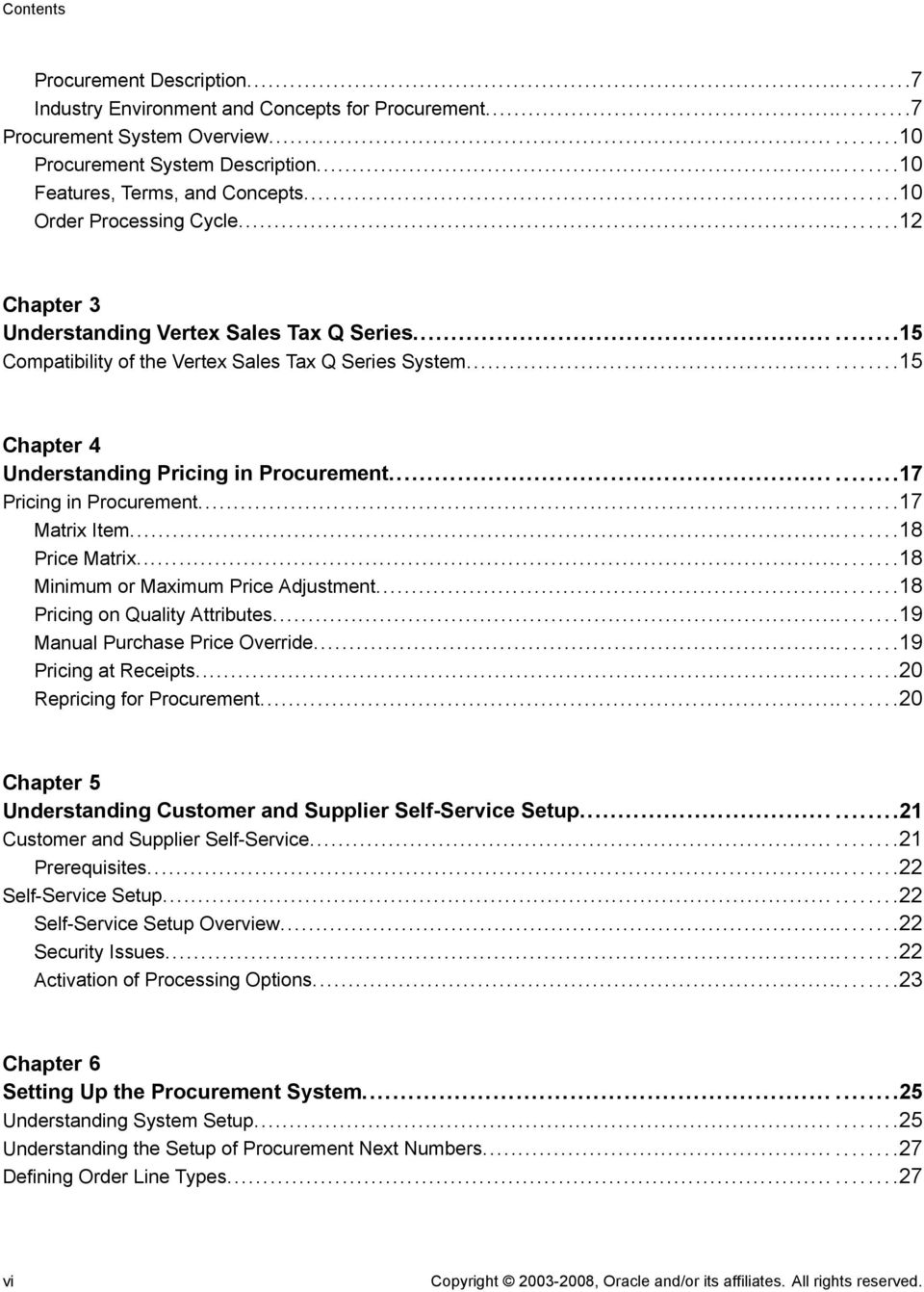
6 Contents Procurement Description...7 Industry Environment and Concepts for Procurement...7 Procurement System Overview Procurement System Description...10 Features, Terms, and Concepts...10 Order Processing Cycle...12 Chapter 3 Understanding Vertex Sales Tax Q Series Compatibility of the Vertex Sales Tax Q Series System Chapter 4 Understanding Pricing in Procurement Pricing in Procurement Matrix Item...18 Price Matrix...18 Minimum or Maximum Price Adjustment...18 Pricing on Quality Attributes...19 Manual Purchase Price Override...19 Pricing at Receipts...20 Repricing for Procurement...20 Chapter 5 Understanding Customer and Supplier Self-Service Setup Customer and Supplier Self-Service Prerequisites...22 Self-Service Setup Self-Service Setup Overview...22 Security Issues...22 Activation of Processing Options...23 Chapter 6 Setting Up the Procurement System Understanding System Setup Understanding the Setup of Procurement Next Numbers Defining Order Line Types vi Copyright , Oracle and/or its affiliates. All rights reserved.
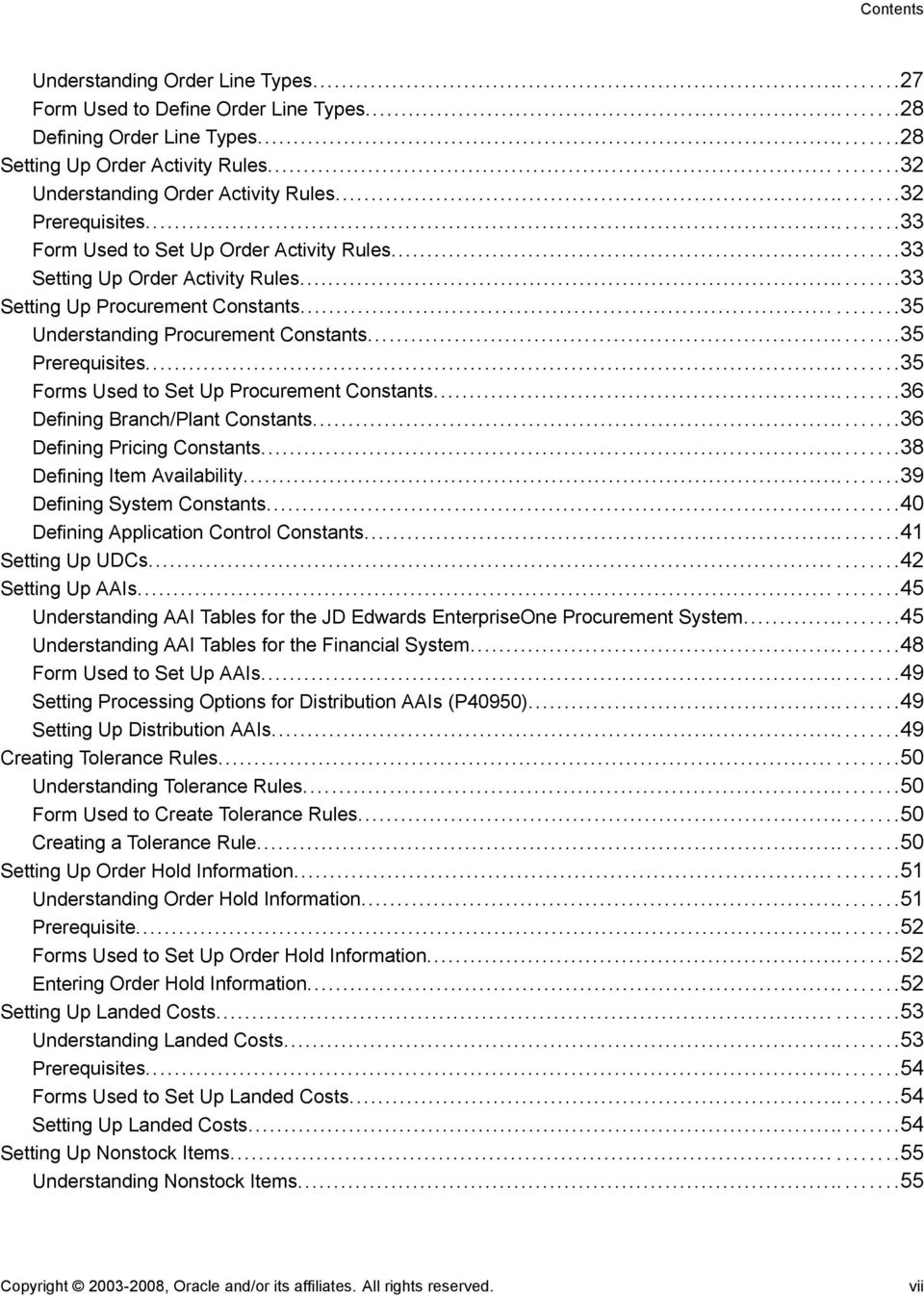
7 Contents Understanding Order Line Types...27 Form Used to Define Order Line Types...28 Defining Order Line Types...28 Setting Up Order Activity Rules Understanding Order Activity Rules...32 Prerequisites...33 Form Used to Set Up Order Activity Rules...33 Setting Up Order Activity Rules...33 Setting Up Procurement Constants Understanding Procurement Constants...35 Prerequisites...35 Forms Used to Set Up Procurement Constants...36 Defining Branch/Plant Constants...36 Defining Pricing Constants...38 Defining Item Availability...39 Defining System Constants...40 Defining Application Control Constants...41 Setting Up UDCs Setting Up AAIs Understanding AAI Tables for the JD Edwards EnterpriseOne Procurement System...45 Understanding AAI Tables for the Financial System...48 Form Used to Set Up AAIs...49 Setting Processing Options for Distribution AAIs (P40950)...49 Setting Up Distribution AAIs...49 Creating Tolerance Rules Understanding Tolerance Rules...50 Form Used to Create Tolerance Rules...50 Creating a Tolerance Rule...50 Setting Up Order Hold Information Understanding Order Hold Information...51 Prerequisite...52 Forms Used to Set Up Order Hold Information...52 Entering Order Hold Information...52 Setting Up Landed Costs Understanding Landed Costs...53 Prerequisites...54 Forms Used to Set Up Landed Costs...54 Setting Up Landed Costs...54 Setting Up Nonstock Items Understanding Nonstock Items...55 Copyright , Oracle and/or its affiliates. All rights reserved. vii
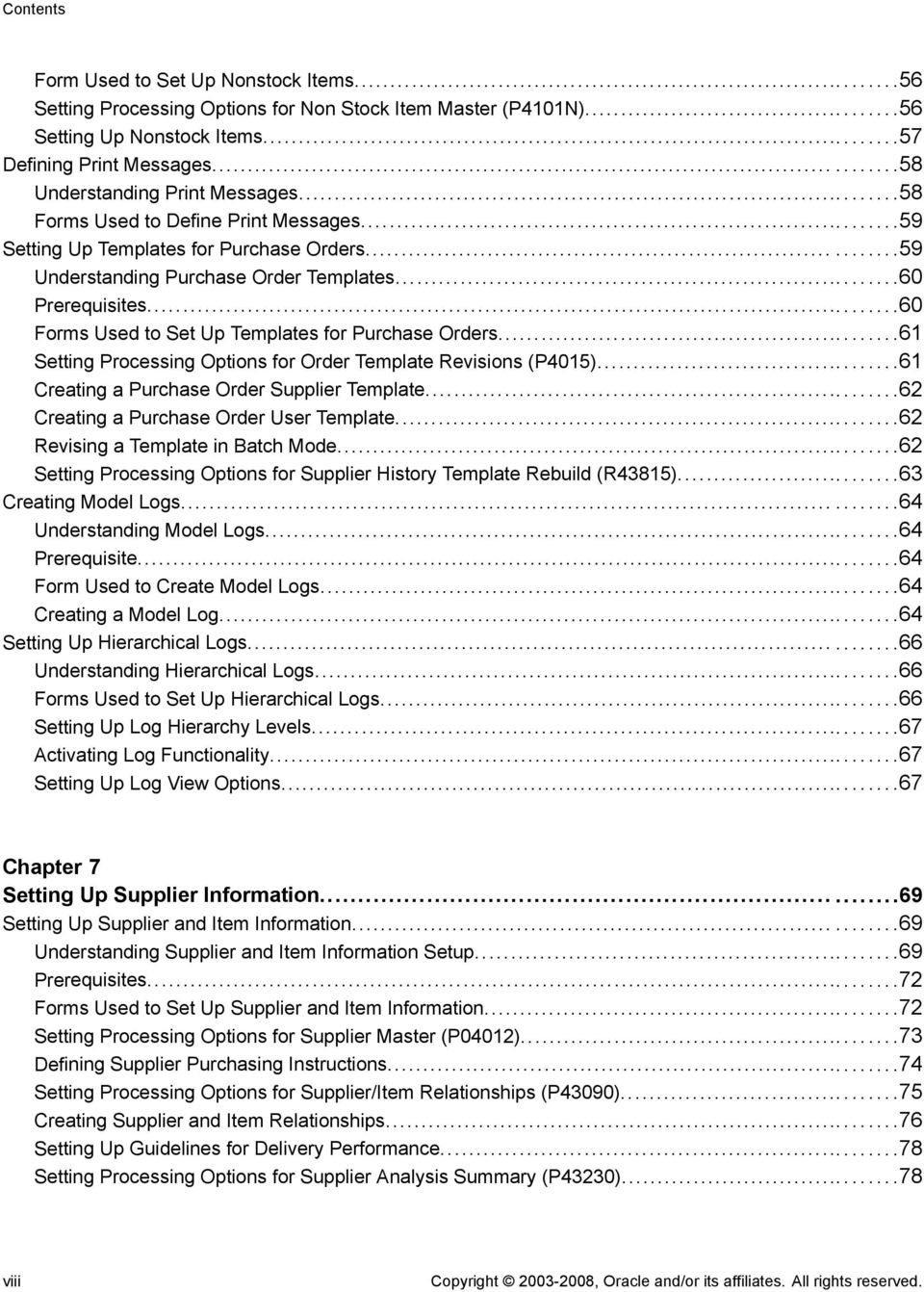
8 Contents Form Used to Set Up Nonstock Items...56 Setting Processing Options for Non Stock Item Master (P4101N)...56 Setting Up Nonstock Items...57 Defining Print Messages Understanding Print Messages...58 Forms Used to Define Print Messages...59 Setting Up Templates for Purchase Orders Understanding Purchase Order Templates...60 Prerequisites...60 Forms Used to Set Up Templates for Purchase Orders...61 Setting Processing Options for Order Template Revisions (P4015)...61 Creating a Purchase Order Supplier Template...62 Creating a Purchase Order User Template...62 Revising a Template in Batch Mode...62 Setting Processing Options for Supplier History Template Rebuild (R43815)...63 Creating Model Logs Understanding Model Logs...64 Prerequisite...64 Form Used to Create Model Logs...64 Creating a Model Log...64 Setting Up Hierarchical Logs Understanding Hierarchical Logs...66 Forms Used to Set Up Hierarchical Logs...66 Setting Up Log Hierarchy Levels...67 Activating Log Functionality...67 Setting Up Log View Options...67 Chapter 7 Setting Up Supplier Information Setting Up Supplier and Item Information Understanding Supplier and Item Information Setup...69 Prerequisites...72 Forms Used to Set Up Supplier and Item Information...72 Setting Processing Options for Supplier Master (P04012)...73 Defining Supplier Purchasing Instructions...74 Setting Processing Options for Supplier/Item Relationships (P43090)...75 Creating Supplier and Item Relationships...76 Setting Up Guidelines for Delivery Performance...78 Setting Processing Options for Supplier Analysis Summary (P43230)...78 viii Copyright , Oracle and/or its affiliates. All rights reserved.
9 Contents Setting Up Guidelines for Acceptable Items...79 Defining a Summary of Supplier Performance Information...79 Defining Supplier Prices and Discount Rules Understanding Supplier Prices and Discount Rules...81 Prerequisites...83 Forms Used to Define Supplier Prices and Discount Rules...84 Setting Processing Options for Supplier Catalog Maintenance (P41061)...84 Entering Supplier Prices...85 Creating Price Discount Rules for Purchasing...85 Attaching Price Discount Rules to Items and Suppliers...86 Chapter 8 Setting Up Rebates Understanding Setup for Rebates Entering Basic Rebate Agreement Information Understanding Basic Rebate Agreement Information...90 Prerequisite...90 Form Used to Enter Basic Rebate Agreement Information...90 Entering Basic Rebate Agreement Information...90 Defining Conditions for Obtaining a Rebate Understanding Rebate Conditions...91 Prerequisite...92 Form Used to Define Conditions for Obtaining a Rebate...93 Defining Purchase Limits for Rebate Amounts Understanding Purchase Limits...93 Form Used to Define Purchase Limits for Rebate Amounts...94 Setting Processing Options for Purchase Agreements Maintenance (P4340)...94 Defining Purchase Limits for Rebate Amounts...94 Chapter 9 Setting Up Purchase Order Commitments Setting Up Commitment Tracking Understanding Commitment Tracking...97 Forms Used to Set Up Commitment Tracking...98 Setting Up Commitments...98 Setting Up Commitment Relief...99 Copyright , Oracle and/or its affiliates. All rights reserved. ix

10 Contents Chapter 10 Entering Purchase Orders Understanding Purchase Order Entry Setting Processing Options for Purchase Orders (P4310) Entering Order Header Information Understanding Order Header Information Entry Prerequisite Forms Used to Enter Order Header Information Entering Order Header Information Entering Additional Order Header Information Entering Order Detail Information Understanding Order Detail Information Entry Prerequisites Forms Used to Enter Order Detail Information Entering Detail Lines by Item Number Entering Detail Lines by Account Number Entering Multiple Account Distributions Entering Tax Information for a Detail Line Entering Discount Terms for a Detail Line Entering Reporting Codes for a Detail Line Entering Change Orders Entering Substitute or Replacement Items Entering Kit Orders Copying Change Orders Chapter 11 Working with Purchase Orders Working with Special Order-Entry Features Understanding Special Order-Entry Features Forms Used to Work with Special Order-Entry Features Duplicating an Order Setting Processing Options for Purchase Order Workbench (P43101) Entering Orders for Multiple Suppliers Selecting a Supplier for an Item Entering Items Using Supplier Catalogs Entering Items Using Order Templates Creating Orders from Existing Detail Lines Working with Budgets Understanding Budget Checking x Copyright , Oracle and/or its affiliates. All rights reserved.

11 Contents Prerequisite Form Used to Work with Budgets Reviewing a Budget Working with Orders on Hold Understanding Orders on Hold Prerequisite Form Used to Work with Orders on Hold Entering Order Holds Setting Processing Options for Held Order Release (P43070) Releasing Order Holds Working with Log Information Understanding Log Information Prerequisites Forms Used to Work with Log Information Setting Processing Options for Logs Entry (P4305) Entering Log Information Running the Log Report/Update Setting Processing Options for Log Report/Update (R43300) Copying Information from a Model Log Printing Orders by Batch Understanding Batch Printing Printing by Batch Setting Processing Options for Purchase Order Print (R43500) Setting Processing Options for Purchase Order Print Output (R43501) Printing Orders Individually Understanding Individual Order Printing Forms Used to Print Orders Individually Printing on Demand Interactively Working with Order Information Understanding Order-Related Tasks Forms Used to Work with Order Information Reviewing Financial Status Information Printing Order Detail Information Setting Processing Options for Order Detail Print (R4401P) Chapter 12 Using Receipt Processing Understanding the Receiving Process Informal Receiving Process Copyright , Oracle and/or its affiliates. All rights reserved. xi

12 Contents Formal Receiving Process Printing Purchase Receivers Understanding Purchase Receivers Setting Processing Options for Purchase Receiver Print (R43510) Printing Receivers in Batch Mode Printing Receivers for Individual Orders Entering Receipts Understanding Receipt Information Prerequisite Forms Used to Enter Receipts Setting Processing Options for PO Receipts (P4312) Entering Receipt Information Entering Cascading Receipts Understanding Cascading Receipts Prerequisites Forms Used to Enter Cascading Receipts Entering Cascading Receipt Information Assigning Items to Multiple Locations and Lots Assigning Serial Numbers Setting Processing Options for Purchase Receipts Inquiry (P43214) Reversing a Receipt Reviewing Journal Entries for Receipt Transactions Understanding Journal Entry Review for Receipt Transactions Reviewing Journal Entries for Receipt Transactions Posting Receipts Printing Receipt Information Understanding Receipt Information Printouts Printing Open Orders Printing the Status of Open Orders Setting Processing Options for Open Purchase Order Status (P43525) Printing Receipt Information by Supplier Chapter 13 Creating Vouchers Understanding Voucher Creation Prerequisite Voucher Creation Reviewing Open Receipts Understanding Open-Receipts Review xii Copyright , Oracle and/or its affiliates. All rights reserved.

13 Contents Form Used to Review Open Receipts Reviewing Open Receipts Entering Landed Costs Understanding Landed Cost Entry During the Receipt Process Understanding Landed Cost Entry as a Stand-Alone Process Prerequisites Form Used to Enter Landed Costs Setting Processing Options for Landed Cost Selection (P43291) Entering Landed Costs Creating Vouchers Understanding Voucher Creation Understanding Management of Invoices Received in an Alternate Currency Prerequisites Forms Used to Create Vouchers Setting Processing Options for A/P Standard Voucher Entry (P0411) Setting Processing Options for Voucher Match (P4314) Setting Processing Options for Freight Distribution (P43147) Selecting Receipt Records to Match to a Voucher Selecting Order Detail Lines to Match to a Voucher Selecting Order Detail Lines for Freight Charges Selecting Order Detail Lines for Freight Vouchering Recording Cost Changes to an Invoice Working with Retainage Understanding Retainage Prerequisites Forms Used to Work with Retainage Entering a Voucher with Retainage Entering a Voucher to Release Retainage Creating Multiple Vouchers from Receipt Records Understanding Creation of Multiple Vouchers from Receipt Records Creating Multiple Vouchers from Receipt Records Setting Processing Options for Evaluated Receipt Settlement (R43800) Reviewing and Posting Journal Entries for Voucher Transactions Verifying the Voucher Amounts Balance Setting Processing Options for Voucher Journal Report (R04305) Logging Invoices Before Receiving Goods Understanding Invoice Logging Forms Used to Log Invoices Before Receiving Goods Logging Invoices to Create Preliminary Vouchers Creating a Permanent Voucher from a Preliminary Voucher Copyright , Oracle and/or its affiliates. All rights reserved. xiii

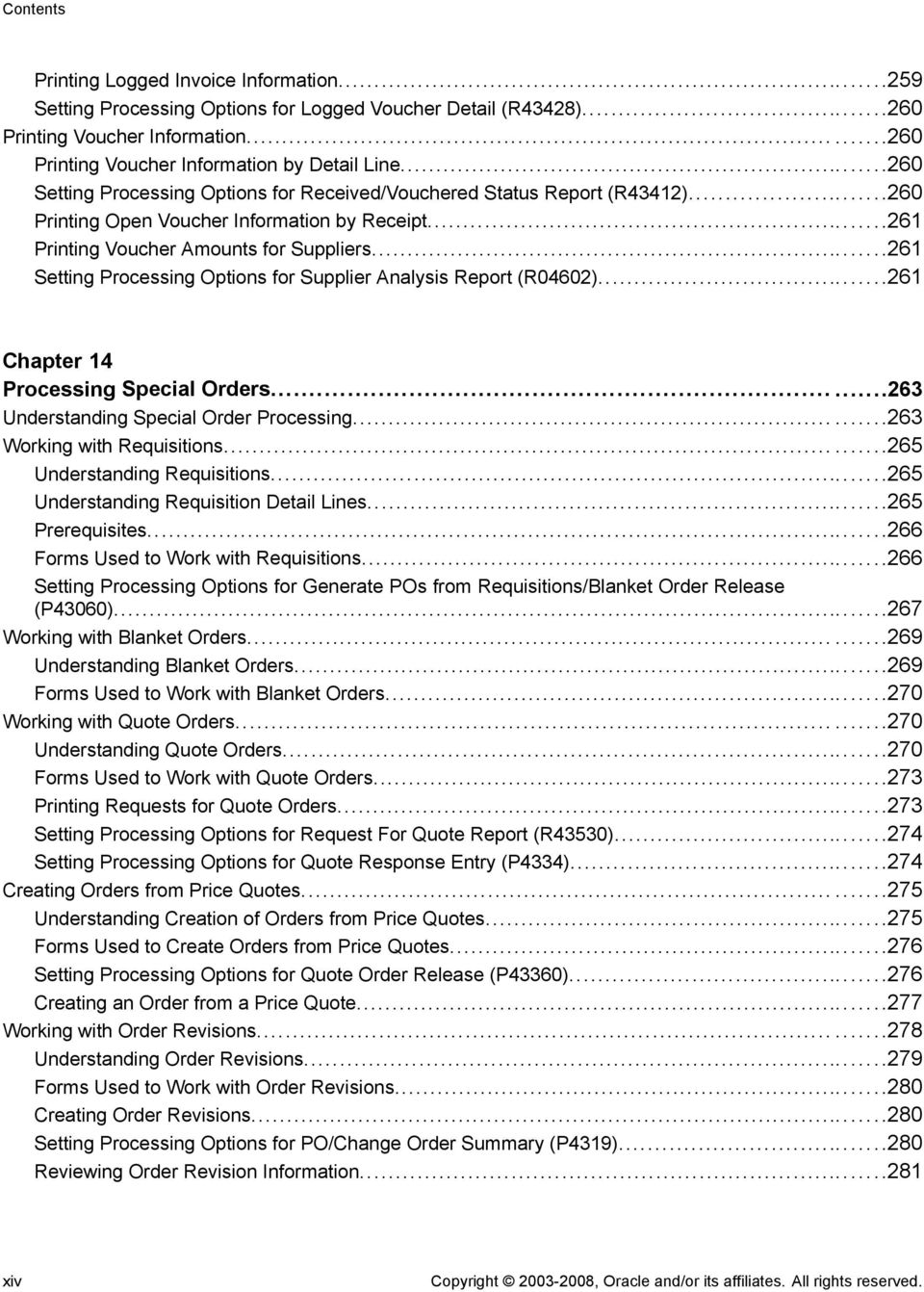
14 Contents Printing Logged Invoice Information Setting Processing Options for Logged Voucher Detail (R43428) Printing Voucher Information Printing Voucher Information by Detail Line Setting Processing Options for Received/Vouchered Status Report (R43412) Printing Open Voucher Information by Receipt Printing Voucher Amounts for Suppliers Setting Processing Options for Supplier Analysis Report (R04602) Chapter 14 Processing Special Orders Understanding Special Order Processing Working with Requisitions Understanding Requisitions Understanding Requisition Detail Lines Prerequisites Forms Used to Work with Requisitions Setting Processing Options for Generate POs from Requisitions/Blanket Order Release (P43060) Working with Blanket Orders Understanding Blanket Orders Forms Used to Work with Blanket Orders Working with Quote Orders Understanding Quote Orders Forms Used to Work with Quote Orders Printing Requests for Quote Orders Setting Processing Options for Request For Quote Report (R43530) Setting Processing Options for Quote Response Entry (P4334) Creating Orders from Price Quotes Understanding Creation of Orders from Price Quotes Forms Used to Create Orders from Price Quotes Setting Processing Options for Quote Order Release (P43360) Creating an Order from a Price Quote Working with Order Revisions Understanding Order Revisions Forms Used to Work with Order Revisions Creating Order Revisions Setting Processing Options for PO/Change Order Summary (P4319) Reviewing Order Revision Information xiv Copyright , Oracle and/or its affiliates. All rights reserved.
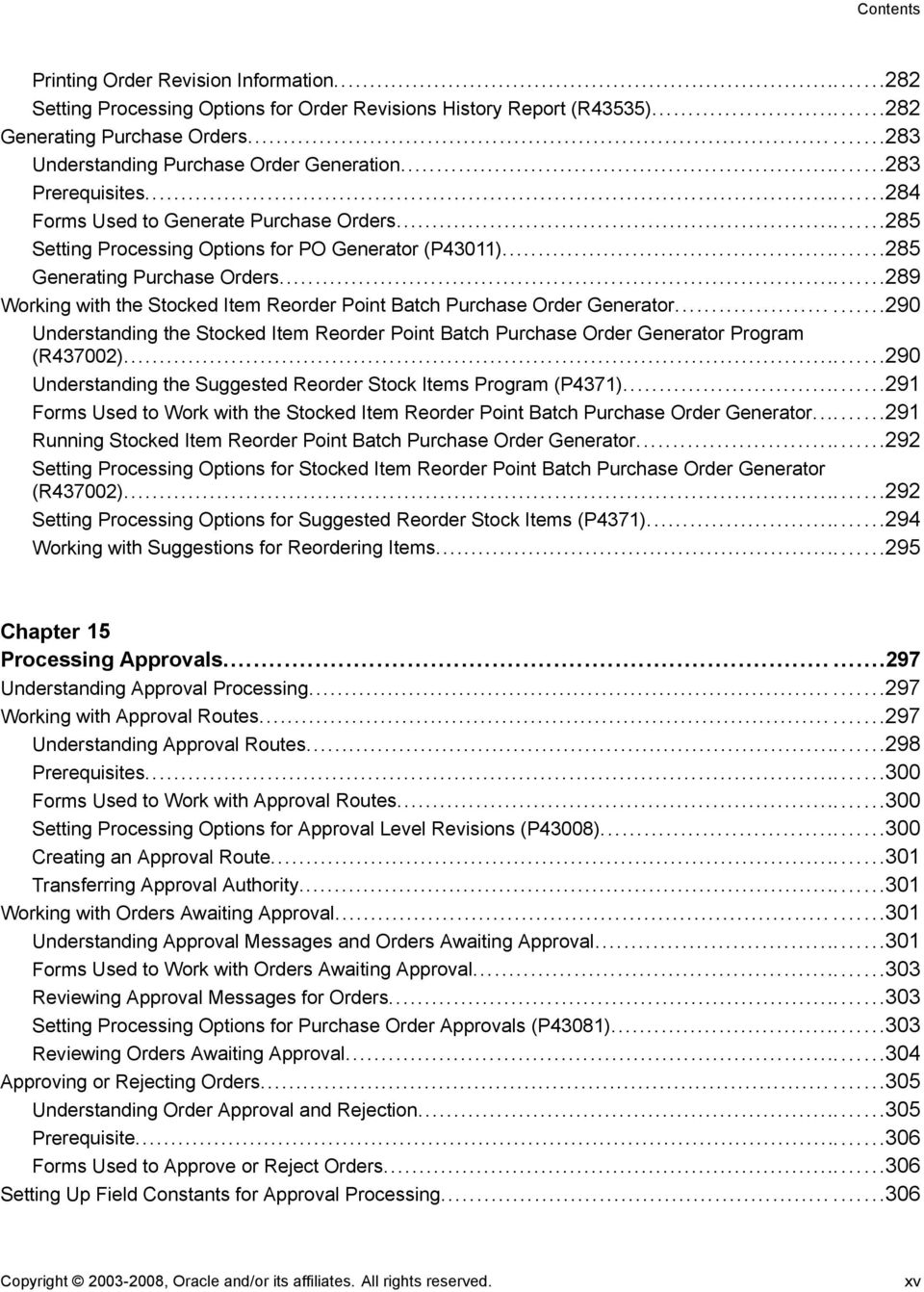
15 Contents Printing Order Revision Information Setting Processing Options for Order Revisions History Report (R43535) Generating Purchase Orders Understanding Purchase Order Generation Prerequisites Forms Used to Generate Purchase Orders Setting Processing Options for PO Generator (P43011) Generating Purchase Orders Working with the Stocked Item Reorder Point Batch Purchase Order Generator Understanding the Stocked Item Reorder Point Batch Purchase Order Generator Program (R437002) Understanding the Suggested Reorder Stock Items Program (P4371) Forms Used to Work with the Stocked Item Reorder Point Batch Purchase Order Generator Running Stocked Item Reorder Point Batch Purchase Order Generator Setting Processing Options for Stocked Item Reorder Point Batch Purchase Order Generator (R437002) Setting Processing Options for Suggested Reorder Stock Items (P4371) Working with Suggestions for Reordering Items Chapter 15 Processing Approvals Understanding Approval Processing Working with Approval Routes Understanding Approval Routes Prerequisites Forms Used to Work with Approval Routes Setting Processing Options for Approval Level Revisions (P43008) Creating an Approval Route Transferring Approval Authority Working with Orders Awaiting Approval Understanding Approval Messages and Orders Awaiting Approval Forms Used to Work with Orders Awaiting Approval Reviewing Approval Messages for Orders Setting Processing Options for Purchase Order Approvals (P43081) Reviewing Orders Awaiting Approval Approving or Rejecting Orders Understanding Order Approval and Rejection Prerequisite Forms Used to Approve or Reject Orders Setting Up Field Constants for Approval Processing Copyright , Oracle and/or its affiliates. All rights reserved. xv
16 Contents Understanding Field Constants for Approval Processing Prerequisite FormUsedtoSet Up Field Constants for Approval Processing Setting Up Field Constants for Approval Processing Chapter 16 Routing Receipts Understanding Receipt Routing Creating Receipt Routes Understanding Definition of Operations Understanding Journal Entry Creation for Items in Receipt Routes Prerequisites Forms Used to Create Receipt Routes Creating a Receipt Route Defining Payment Eligibility for Item Removal Understanding Item Removal Forms Used to Define Payment Eligibility for Item Removal Activating Receipt Routing Understanding Receipt Routing Activation Prerequisite Forms Used to Activate Receipt Routing Assigning Receipt Routes to Items Defining Sample Requirements and Item Specifications Understanding Sample Requirements and Item Specifications Prerequisite Forms Used to Define Sample Requirements and Item Specifications Defining Sample Requirements and Item Specifications Working with Items in a Receipt Route Understanding Item-Related Tasks Forms Used to Work with Items in a Receipt Route Setting Processing Options for Receipt Routing Movement and Disposition (P43250) Reviewing the Current Operation for Items Transferring Items to Operations Removing Items from a Receipt Route Understanding Removal and Reversal of Items Forms Used to Remove Items from a Receipt Route Removing an Item from a Receipt Route Reviewing the History of Items in a Receipt Route Understanding Item History xvi Copyright , Oracle and/or its affiliates. All rights reserved.

17 Contents Form Used to Review the History of Items in a Receipt Route Setting Processing Options for Routing Ledger Inquiry (P43252) Reviewing the History of Items in a Receipt Route Chapter 17 Managing Suppliers Understanding Conversion of Supplier Limit Amounts Generating Supplier Prices in an Alternate Currency Understanding the Generation of Supplier Prices in an Alternate Currency Generating Supplier Prices in an Alternate Currency Setting Processing Options for Supplier/Catalog Purchase Price Generation by Currency (R ) Managing Supplier Performance Information Understanding Supplier Performance Information Prerequisites Forms Used to Manage Supplier Performance Information Reviewing Supplier Delivery Performance Reviewing Supplier Quality Performance Reviewing Supplier Cost Performance Updating Supplier and Item Analysis Records Understanding Updates to Supplier and Item Analysis Records Updating Supplier and Item Analysis Records Setting Processing Options for Supplier/Item Relationships Rebuild (R43900) Chapter 18 Processing Rebates Understanding Rebates Reviewing Summary Information for Rebate Agreements Understanding Rebate Status Information Forms Used to Review Summary Information for Rebate Agreements Reviewing Purchasing Transactions for a Rebate Forms Used to Review Purchasing Transactions for a Rebate Changing the Quantity or Amount Applied to a Rebate Understanding the Purchase Quantity or Amount Forms Used to Change the Quantity or Amount Applied to a Rebate Changing the Quantity or Amount Applied to a Rebate Updating Rebate Information Understanding How to Update Rebate Information Running the Rebate Report Copyright , Oracle and/or its affiliates. All rights reserved. xvii

18 Contents Setting Processing Options for Rebate Report (R43400) Chapter 19 Updating Orders Understanding Order Updates Updating Status Codes Understanding Status Code Updates FormUsedtoUpdate Status Codes Setting Processing Options for PO Speed Status Update (P43025) Updating Status Codes Revising Purchase Dates Understanding Purchase Date Revisions Form Used to Revise Purchase Dates Setting Processing Options for Purchasing Date Revisions (P43100) Chapter 20 Processing Purchase Order Commitments Understanding Commitment Processing Understanding How to Review Commitment Information for Orders Understanding the Commitment Integrity Verification Process Working with Commitments and Encumbrances Prerequisites Form Used to Work with Commitments and Encumbrances Setting Processing Options for Commitment Inquiry (P40230A) Reviewing Commitment Information for Orders Running the Commitment Integrity Report Understanding the Commitment Integrity Report Running the Commitment Integrity Report Setting Processing Options for Commitment Integrity Report (R40910) Purging PA Ledger Detail Records Understanding PA Ledger Detail Records Purge Purging PA Ledger Detail Records Setting Processing Options for Ledger (F43199) Purge (R43199P) Rebuilding a Commitment Audit Trail Understanding a Commitment Audit Trail Prerequisites Rebuilding a Commitment Audit Trail Posting Committed Costs to Jobs xviii Copyright , Oracle and/or its affiliates. All rights reserved.

19 Contents Understanding Posting Committed Costs to Jobs Posting Committed Costs to Jobs Setting Processing Options for Repost Committed Costs (R00932) Performing Encumbrance Rollover Understanding Encumbrance Rollover Performing Encumbrance Rollover Setting Processing Options for Encumbrance Rollover (R4317) Chapter 21 Using Customer and Supplier Self-Service Reviewing Receipts on the Web Prerequisite Form Used to Review Receipts on the Web Reviewing Orders on the Web Understanding Order Review Reviewing Orders Responding to Requests for Quotes Understanding Self-Service Response to Requests for Quotes Prerequisite Form Used to Respond to Requests for Quotes Setting Processing Options for Quote Response Entry (P4334) Chapter 22 Purging Data Understanding Data Purge Programs Prerequisites Purging Data Forms Used to Purge Data Purging Data Running the F43001 Purge Transaction Records Program (R43001P) Running the Purge Purchase Order Dispatch Program (R4333WFP) Appendix A Tables Used by JD Edwards EnterpriseOne Procurement Management Tables Used by JD Edwards EnterpriseOne Procurement Management Copyright , Oracle and/or its affiliates. All rights reserved. xix

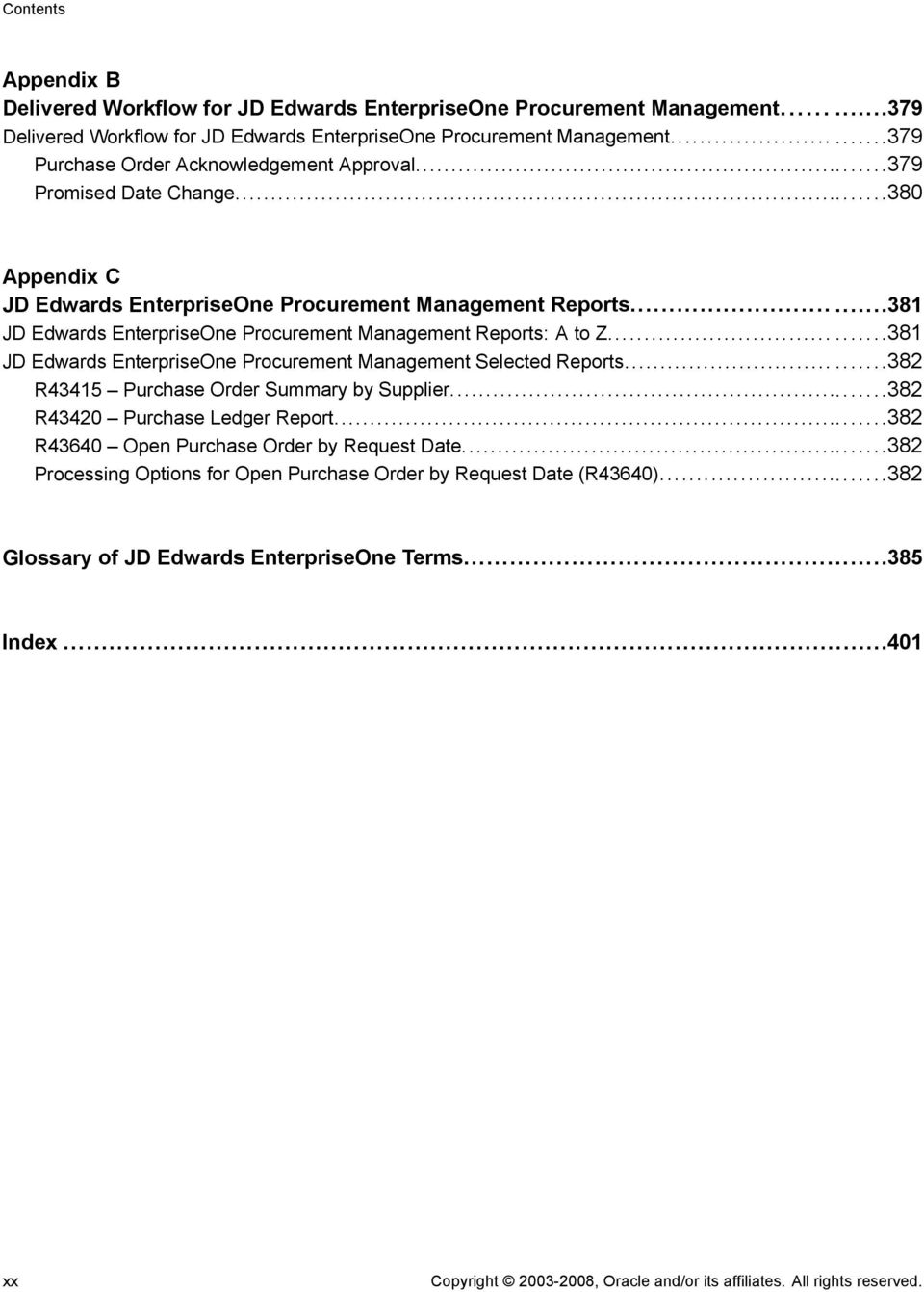
20 Contents Appendix B Delivered Workflow for JD Edwards EnterpriseOne Procurement Management Delivered Workflow for JD Edwards EnterpriseOne Procurement Management Purchase Order Acknowledgement Approval Promised Date Change Appendix C JD Edwards EnterpriseOne Procurement Management Reports JD Edwards EnterpriseOne Procurement Management Reports: A to Z JD Edwards EnterpriseOne Procurement Management Selected Reports R43415 Purchase Order Summary by Supplier R43420 Purchase Ledger Report R43640 Open Purchase Order by Request Date Processing Options for Open Purchase Order by Request Date (R43640) Glossary of JD Edwards EnterpriseOne Terms Index xx Copyright , Oracle and/or its affiliates. All rights reserved.
21 About This Documentation Preface JD Edwards EnterpriseOne implementation guides provide you with the information that you need to implement and use JD Edwards EnterpriseOne applications from Oracle. This preface discusses: JDEdwardsEnterpriseOneapplication prerequisites. Application fundamentals. Documentation updates and downloading documentation. Additional resources. Typographical conventions and visual cues. Comments and suggestions. Common fields in implementation guides. Note. Implementation guides document only elements, such as fields and check boxes, that require additional explanation. If an element is not documented with the process or task in which it is used, then either it requires no additional explanation or it is documented with common fields for the section, chapter, implementation guide, or product line. Fields that are common to all JD Edwards EnterpriseOne applications are defined in this preface. JD Edwards EnterpriseOne Application Prerequisites To benefit fully from the information that is covered in these books, you should have a basic understanding of how to use JD Edwards EnterpriseOne applications. You might also want to complete at least one introductory training course, if applicable. You should be familiar with navigating the system and adding, updating, and deleting information by using JD Edwards EnterpriseOne menus, forms, or windows. You should also be comfortable using the World Wide Web and the Microsoft Windows or Windows NT graphical user interface. These books do not review navigation and other basics. They present the information that you need to use the system and implement your JD Edwards EnterpriseOne applications most effectively. Application Fundamentals Each application implementation guide provides implementation and processing information for your JD Edwards EnterpriseOne applications. For some applications, additional, essential information describing the setup and design of your system appears in a companion volume of documentation called the application fundamentals implementation guide. Most product lines have a version of the application fundamentals implementation guide. The preface of each implementation guide identifies the application fundamentals implementation guides that are associated with that implementation guide. Copyright , Oracle and/or its affiliates. All rights reserved. xxi
22 General Preface The application fundamentals implementation guide consists of important topics that apply to many or all JD Edwards EnterpriseOne applications. Whether you are implementing a single application, some combination of applications within the product line, or the entire product line, you should be familiar with the contents of the appropriate application fundamentals implementation guides. They provide the starting points for fundamental implementation tasks. Documentation Updates and Downloading Documentation This section discusses how to: Obtain documentation updates. Download documentation. Obtaining Documentation Updates You can find updates and additional documentation for this release, as well as previous releases, on Oracle s PeopleSoft Customer Connection website. Through the Documentation section of Oracle s PeopleSoft Customer Connection, you can download files to add to your Implementation Guides Library. You ll find a variety of useful and timely materials, including updates to the full line of JD Edwards EnterpriseOne documentation that is delivered on your implementation guides CD-ROM. Important! Before you upgrade, you must check Oracle s PeopleSoft Customer Connection for updates to the upgrade instructions. Oracle continually posts updates as the upgrade process is refined. See Also Oracle s PeopleSoft Customer Connection, Downloading Documentation In addition to the complete line of documentation that is delivered on your implementation guide CD-ROM, Oracle makes JD Edwards EnterpriseOne documentation available to you via Oracle s website. You can download PDF versions of JD Edwards EnterpriseOne documentation online via the Oracle Technology Network. Oracle makes these PDF files available online for each major release shortly after the software is shipped. See Oracle Technology Network, Additional Resources The following resources are located on Oracle s PeopleSoft Customer Connection website: Resource Navigation Application maintenance information Business process diagrams Updates + Fixes Support, Documentation, Business Process Maps xxii Copyright , Oracle and/or its affiliates. All rights reserved.
23 General Preface Resource Interactive Services Repository Hardware and software requirements Installation guides Integration information Minimum technical requirements (MTRs) Documentation updates Implementation guides support policy Prerelease notes Product release roadmap Release notes Release value proposition Statement of direction Troubleshooting information Upgrade documentation Navigation Support, Documentation, Interactive Services Repository Implement, Optimize + Upgrade; Implementation Guide; Implementation Documentation and Software; Hardware and Software Requirements Implement, Optimize + Upgrade; Implementation Guide; Implementation Documentation and Software; Installation Guides and Notes Implement, Optimize + Upgrade; Implementation Guide; Implementation Documentation and Software; Pre-Built Integrations for PeopleSoft Enterprise and JD Edwards EnterpriseOne Applications Implement, Optimize + Upgrade; Implementation Guide; Supported Platforms Support, Documentation, Documentation Updates Support, Support Policy Support, Documentation, Documentation Updates, Category, Release Notes Support, Roadmaps + Schedules Support, Documentation, Documentation Updates, Category, Release Notes Support, Documentation, Documentation Updates, Category, Release Value Proposition Support, Documentation, Documentation Updates, Category, Statement of Direction Support, Troubleshooting Support, Documentation, Upgrade Documentation and Scripts Typographical Conventions and Visual Cues This section discusses: Typographical conventions. Visualcues. Country, region, and industry identifiers. Currency codes. Copyright , Oracle and/or its affiliates. All rights reserved. xxiii
24 General Preface Typographical Conventions This table contains the typographical conventions that are used in implementation guides: Typographical Convention or Visual Cue Description Bold Indicates PeopleCode function names, business function names, event names, system function names, method names, language constructs, and PeopleCode reserved words that must be included literally in the function call. Italics Indicates field values, emphasis, and JD Edwards EnterpriseOne or other book-length publication titles. In PeopleCode syntax, italic items are placeholders for arguments that your program must supply. We also use italics when we refer to words as words or letters as letters, as in the following: Enter the letter O. KEY+KEY Indicates a key combination action. For example, a plus sign (+) between keys means that you must hold down the first key while you press the second key. For ALT+W, hold down the ALT key while you press the W key. Monospace font Indicates a PeopleCode program or other code example. (quotation marks) Indicate chapter titles in cross-references and words that are used differently from their intended meanings.... (ellipses) Indicate that the preceding item or series can be repeated any number of times in PeopleCode syntax. { } (curly braces) Indicate a choice between two options in PeopleCode syntax. Options are separated by a pipe ( ). [ ] (square brackets) Indicate optional items in PeopleCode syntax. & (ampersand) When placed before a parameter in PeopleCode syntax, an ampersand indicates that the parameter is an already instantiated object. Ampersands also precede all PeopleCode variables. Visual Cues Implementation guides contain the following visual cues. xxiv Copyright , Oracle and/or its affiliates. All rights reserved.
25 General Preface Notes Notes indicate information that you should pay particular attention to as you work with the JD Edwards EnterpriseOne system. Note. Example of a note. If the note is preceded by Important!, the note is crucial and includes information that concerns what you must do for the system to function properly. Important! Example of an important note. Warnings Warnings indicate crucial configuration considerations. Pay close attention to warning messages. Warning! Example of a warning. Cross-References Implementation guides provide cross-references either under the heading See Also or on a separate line preceded by the word See. Cross-references lead to other documentation that is pertinent to the immediately preceding documentation. Country, Region, and Industry Identifiers Information that applies only to a specific country, region, or industry is preceded by a standard identifier in parentheses. This identifier typically appears at the beginning of a section heading, but it may also appear at the beginning of a note or other text. Example of a country-specific heading: (FRA) Hiring an Employee Example of a region-specific heading: (Latin America) Setting Up Depreciation Country Identifiers Countries are identified with the International Organization for Standardization (ISO) country code. Region Identifiers Regions are identified by the region name. The following region identifiers may appear in implementation guides: Asia Pacific Europe Latin America North America Industry Identifiers Industries are identified by the industry name or by an abbreviation for that industry. The following industry identifiers may appear in implementation guides: USF(U.S.Federal) Copyright , Oracle and/or its affiliates. All rights reserved. xxv
26 General Preface E&G (Education and Government) Currency Codes Monetary amounts are identified by the ISO currency code. Comments and Suggestions Your comments are important to us. We encourage you to tell us what you like, or what you would like to see changed about implementation guides and other Oracle reference and training materials. Please send your suggestions to your product line documentation manager at Oracle Corporation, 500 Oracle Parkway, Redwood Shores, CA 94065, U.S.A. Or us at While we cannot guarantee to answer every message, we will pay careful attention to your comments and suggestions. Common Fields Used in Implementation Guides Address Book Number As If Currency Code Batch Number Batch Date Batch Status Enter a unique number that identifies the master record for the entity. An address book number can be the identifier for a customer, supplier, company, employee, applicant, participant, tenant, location, and so on. Depending on the application, the field on the form might refer to the address book number as the customer number, supplier number, or company number, employee or applicant ID, participant number, and so on. Enter the three-character code to specify the currency that you want to use to view transaction amounts. This code enables you to view the transaction amounts as if they were entered in the specified currency rather than the foreign or domestic currency that was used when the transaction was originally entered. Displays a number that identifies a group of transactions to be processed by the system. On entry forms, you can assign the batch number or the system can assign it through the Next Numbers program (P0002). Enter the date in which a batch is created. If you leave this field blank, the system supplies the system date as the batch date. Displays a code from user-defined code (UDC) table 98/IC that indicates the posting status of a batch. Values are: Blank: Batch is unposted and pending approval. A: The batch is approved for posting, has no errors and is in balance, but has not yet been posted. D: The batch posted successfully. E: The batch is in error. You must correct the batch before it can post. xxvi Copyright , Oracle and/or its affiliates. All rights reserved.
27 General Preface Branch/Plant Business Unit Category Code Company Currency Code Document Company Document Number Document Type P: The system is in the process of posting the batch. The batch is unavailable until the posting process is complete. If errors occur during the post, the batch status changes to E. U: The batch is temporarily unavailable because someone is working with it, or the batch appears to be in use because a power failure occurred while the batch was open. Enter a code that identifies a separate entity as a warehouse location, job, project, work center, branch, or plant in which distribution and manufacturing activities occur. In some systems, this is called a business unit. Enter the alphanumeric code that identifies a separate entity within a business for which you want to track costs. In some systems, this is called a branch/plant. Enter the code that represents a specific category code. Category codes are user-defined codes that you customize to handle the tracking and reporting requirements of your organization. Enter a code that identifies a specific organization, fund, or other reporting entity. The company code must already exist in the F0010 table and must identify a reporting entity that has a complete balance sheet. Enter the three-character code that represents the currency of the transaction. JD Edwards EnterpriseOne provides currency codes that are recognized by the International Organization for Standardization (ISO). The system stores currency codes in the F0013 table. Enter the company number associated with the document. This number, used in conjunction with the document number, document type, and general ledger date, uniquely identifies an original document. If you assign next numbers by company and fiscal year, the system uses the document company to retrieve the correct next number for that company. If two or more original documents have the same document number and document type, you can use the document company to display the document that you want. Displays a number that identifies the original document, which can be a voucher, invoice, journal entry, or time sheet, and so on. On entry forms, you can assign the original document number or the system can assign it through the Next Numbers program. Enter the two-character UDC, from UDC table 00/DT, that identifies the origin and purpose of the transaction, such as a voucher, invoice, journal entry, or time sheet. JD Edwards EnterpriseOne reserves these prefixes for the document types indicated: P: Accounts payable documents. R: Accounts receivable documents. T: Time and pay documents. I: Inventory documents. O: Purchase order documents. S: Sales order documents. Copyright , Oracle and/or its affiliates. All rights reserved. xxvii
28 General Preface Effective Date Fiscal Period and Fiscal Year G/L Date (general ledger date) Enter the date on which an address, item, transaction, or record becomes active. The meaning of this field differs, depending on the program. For example, the effective date can represent any of these dates: The date on which a change of address becomes effective. The date on which a lease becomes effective. The date on which a price becomes effective. The date on which the currency exchange rate becomes effective. The date on which a tax rate becomes effective. Enter a number that identifies the general ledger period and year. For many programs, you can leave these fields blank to use the current fiscal period and year defined in the Company Names & Number program (P0010). Enter the date that identifies the financial period to which a transaction will be posted. The system compares the date that you enter on the transaction to the fiscal date pattern assigned to the company to retrieve the appropriate fiscal period number and year, as well as to perform date validations. xxviii Copyright , Oracle and/or its affiliates. All rights reserved.
29 JD Edwards EnterpriseOne Procurement Management Preface This preface discusses: JD Edwards EnterpriseOne products. JD Edwards EnterpriseOne application fundamentals. Common fields used in this implementation guide. JD Edwards EnterpriseOne Products This implementation guide refers to these JD Edwards EnterpriseOne products from Oracle: JD Edwards EnterpriseOne Accounts Payable. JD Edwards EnterpriseOne Address Book. JD Edwards EnterpriseOne Advanced Pricing. JD Edwards EnterpriseOne Bulk Stock Inventory. JD Edwards EnterpriseOne Data Interface for Electronic Data Interchange. JD Edwards EnterpriseOne General Ledger. JD Edwards EnterpriseOne Inventory Management. JD Edwards EnterpriseOne Project Costing. JD Edwards EnterpriseOne Procurement and Subcontract Management. JD Edwards EnterpriseOne Manufacturing - PDM. JD Edwards EnterpriseOne Quality Management. JD Edwards EnterpriseOne Requirements Planning. JD Edwards EnterpriseOne Requisition Self Service. JD Edwards EnterpriseOne Transportation Management. JD Edwards EnterpriseOne Warehouse Management. JD Edwards EnterpriseOne Project and Government Contract Accounting. JD Edwards EnterpriseOne Application Fundamentals Additional, essential information describing the setup and design of your system appears in a companion volume of documentation called JD Edwards EnterpriseOne Financial Management Application Fundamentals 9.0 Implementation Guide. Copyright , Oracle and/or its affiliates. All rights reserved. xxix
30 Preface Customers must conform to the supported platforms for the release as detailed in the JD Edwards EnterpriseOne minimum technical requirements. In addition, JD Edwards EnterpriseOne may integrate, interface, or work in conjunction with other Oracle products. Refer to the cross-reference material in the Program Documentation at for Program prerequisites and version cross-reference documents to assure compatibility of various Oracle products. See JD Edwards EnterpriseOne Financial Management Application Fundamentals 9.0 Implementation Guide, "JD Edwards EnterpriseOne Financial Management Application Fundamentals Preface". Common Fields Used in This Implementation Guide Approval Route Code Branch/Plant Buyer Discount Factor Evaluated Receipts Enter a code that determines to whom an order is routed for approval. Enter an alphanumeric code that identifies a separate entity within a business for which you want to track costs. For example, a business unit might be a warehouse location, job, project, work center, branch, or plant. You can assign a business unit to a document, entity, or person for purposes of responsibility reporting. For example, the system provides reports of open accounts payable and accounts receivable by business unit to track equipment by responsible department. Business unit security might prevent you from viewing information about business units for which you have no authority. Enter the address book number that identifies who is responsible for setting up and maintaining the correct stocking levels for each inventory item. Enter the factor that the system applies to the unit price of an inventory item to determine the net price. The system retrieves this value from the inventory pricing rules if you have assigned a rule to this item. The pricing rule setup determines if the system multiplies the unit price by this value or adds to or deducts from the unit price. Enter a code that indicates if an order is eligible for the evaluated receipt settlement process. An evaluated receipt settlement indicates that you have an agreement with the supplier to create vouchers based on the items that you receive. You use the Evaluated Receipt Settlement (R43800) procedure to create vouchers from receipt records. As a result, the supplier does not send you invoices and you can bypass the Voucher Match procedure. Values are: N: Not eligible for evaluated receipt settlement processing. Y: Eligible for evaluated receipt settlement processing. I:Receipt transaction is in process. T: Eligible for evaluated receipt settlement processing. However, a tolerance error occurred during the receipt process. R: Eligible for evaluated receipt settlement processing. However, the receipt is currently in the receipt routing process. V: A voucher has been created for the receipt transaction using the evaluated receipt settlement process. xxx Copyright , Oracle and/or its affiliates. All rights reserved.
31 Preface Extended Cost Freight Handling Code G/L Category andg/l Offset (general ledger category and general ledger offset) Hold Code Item Price Group Landed Cost Rule Enter a value that is equal to the number of units multiplied by the unit price. Enter a code that exists in the Freight Handling Code (42/FR) UDC that indicates the method by which supplier shipments are delivered. For example, the supplier could deliver to the dock, or you could pick up the shipment at the supplier s dock. You can also use these codes to indicate who has responsibility for freight charges. For example, you can have a code indicating that the customer legally takes possession of goods as soon as they leave the supplier warehouse and is responsible for transportation charges to the destination. Enter a value from the G/L Posting Code (41/9) UDC that identifies the general ledger offset that system uses when it searches for the account to which it posts the transaction. If you do not want to specify a class code, enter **** (four asterisks) in this field. You can use automatic accounting instructions (AAIs) to predefine classes of automatic offset accounts for the JD Edwards EnterpriseOne Inventory Management system from Oracle, JD Edwards EnterpriseOne Procurement system from Oracle, and JD Edwards EnterpriseOne Sales Order Management system from Oracle. You might assign general ledger class codes as follows: IN20: Direct ship orders IN60: Transfer orders IN80: Stock sales The system can generate accounting entries based upon a single transaction. For example, a single sale of a stock item can trigger the generation of accounting entries similar to: Sales-Stock (Debit) xxxxx.xx Accounts Receivable Stock Sales (Credit) xxxxx.xx Posting Category: IN80 Stock Inventory (Debit) xxxxx.xx Stock COGS (Credit) xxxxx.xx The system uses the class code and the document type to find the AAI. Enter a code that exists in the Hold Codes (42/HC) UDC that identifies why an order is on hold. Enter a code that exists in the Item Price Groups (40/PI) UDC that identifies an inventory price group for an item. Inventory price groups have unique pricing structures that direct the system to incorporate discounts or markups on items on sales and purchase orders. The discounts or markups are based on the quantity, monetary amount, or weight of the item ordered. When you assign a price group to an item, the item takes on the same pricing structure defined for the inventory price group. You must assign an inventory price group to the supplier or customer, as well as to the item, for the system to interactively calculate discounts and markups on sales orders and purchase orders. Enter a code that exists in the Landed Cost Rule (41/P5) UDC that indicates the landed cost rule for an item. The landed cost rule determines purchasing costs that exceed the actual price of an item, such as broker fees or commissions. You set up landed cost rules on the Landed Cost Revisions form. Copyright , Oracle and/or its affiliates. All rights reserved. xxxi
32 Preface Last Status Ledger Type Line Type Next Status Order Type Pricing Rule Enter a code that exists in the Activity/Status Codes (40/AT) UDC that indicates the last step in the processing cycle that this order line has successfully completed. Enter a code that exists in the Ledger Types (09/LT) UDC that specifies the type of ledger, such as AA (Actual Amounts), BA (Budget Amount), or AU (Actual Units). You can set up multiple, concurrent accounting ledgers within the general ledger to establish an audit trail for all transactions. Enter a code that controls how the system processes lines on a transaction. It controls the systems with which the transaction interfaces, such as Oracle s JD Edwards EnterpriseOne General Ledger, Oracle s JD Edwards EnterpriseOne Job Cost, Oracle s JD Edwards EnterpriseOne Accounts Payable, Oracle s JD Edwards EnterpriseOne Accounts Receivable, and JD Edwards EnterpriseOne Inventory Management. It also specifies the conditions under which a line prints on reports, and it is included in calculations. Values are: S: Stock item J: Job cost N: Nonstock item F: Freight T: Text information M: Miscellaneous charges and credits W: Work order Enter a code that exists in the Activity/Status Codes (40/AT) UDC that indicates the next step in the order flow of the line type. Enter a code that exists in the Document Type (00/DT) UDC that identifies the type of document. This code also indicates the origin of the transaction. There are reserved document type codes for vouchers, invoices, receipts, and time sheets, which create automatic offset entries during the post program. (These entries are not self-balancing when you originally enter them.) These document types are predefined and should not be changed: P: Accounts Payable documents. R: Accounts Receivable documents. T: Payroll documents. I: Inventory documents. O: Purchase Order Processing documents. J: General Ledger/Joint Interest Billing documents. S: Sales Order Processing documents. Enter a code that exists in the Item Price Groups (40/PI) UDC to classify inventory by pricing rules. Typically, these categories correspond to the major sections in the inventory price book. You can set up as many detail categories as you need. You can use a single code for sales, purchasing, order/basket, and contract pricing. If you set up a contract rule, it must equal the short number for the item under contract. xxxii Copyright , Oracle and/or its affiliates. All rights reserved.
33 Preface Print Message Subledger Supplier Tax Explanation Code Tax Rate/Area Unit Cost Enter a value from the Print Messages (40/PM) UDC to specify with print message to use. Examples of text used in messages are engineering specifications, hours of operation during holiday periods, and special delivery instructions. Enter a code that identifies a detailed, auxiliary account within a general ledger account. A subledger can be an equipment item number or an address book number. If you enter a subledger, you must also specify the subledger type. Enter the name or number that identifies an address book record. You can use this field to enter and locate information. If you enter a value other than the address book number (AN8), such as the long address or tax ID, you must precede it with the special character that is defined in the Address Book constants. When the system locates the record, it returns the address book number into the field. Enter a code that exists in the Tax Explanation Codes (00/EX) UDC that controls the algorithm that the system uses to calculate tax and general ledger distribution amounts. The system uses the tax explanation code in conjunction with the tax rate area and tax rules to determine how the tax is calculated. Each transaction pay item can be defined with a different tax explanation code. Enter a code that identifies a tax or geographic area that has common tax rates and tax authorities. The system validates the code you enter against the Tax Areas table (F4008). The system uses the tax rate area in conjunction with the tax explanation code and tax rules to calculate tax and general ledger distribution amounts when you create an invoice or voucher. Enter the price charged for the unit of measure in the adjoining field. Use these fields, for example, if the primary unit of measure is EA (each), but you typically use a list price per box. Copyright , Oracle and/or its affiliates. All rights reserved. xxxiii
34 Preface xxxiv Copyright , Oracle and/or its affiliates. All rights reserved.
35 CHAPTER 1 Getting Started with JD Edwards EnterpriseOne Procurement Management This chapter discusses: JD Edwards EnterpriseOne Procurement Management overview. JD Edwards EnterpriseOne Procurement Management integrations. JD Edwards EnterpriseOne Procurement Management implementation. JD Edwards EnterpriseOne Procurement Management Overview Procurement is the process of obtaining products and services from suppliers. It includes decisions about how much and when to purchase goods and services, the actual purchasing of goods and services, and the process of receiving the requested goods or services. The purchasing cycle ensures that the appropriate quantity and quality of equipment, material, supplies, or services are acquired at the best price and from the most appropriate source. Procurement involves and affects more departments than just the purchasing department. An integrated procurement system provides the purchasing professional with links to information across all of an organization s functions and departments. Some of the links include activities and information, including receiving transactions, order revision data, supplier profiles, accounts payable status, special order processing, and the tracking of incoming purchases through receipt routing. JD Edwards EnterpriseOne Procurement Management Integrations The JD Edwards EnterpriseOne Procurement system from Oracle works with other JD Edwards EnterpriseOne systems to ensure that all information is fully integrated. We discuss integration considerations in the implementation chapters in this implementation guide. Supplemental information about third-party application integrations is located on the Oracle PeopleSoft Customer Connection website. JD Edwards EnterpriseOne General Ledger and JD Edwards EnterpriseOne Accounts Payable Copyright , Oracle and/or its affiliates. All rights reserved. 1
36 Getting Started with JD Edwards EnterpriseOne Procurement Management Chapter 1 The JD Edwards EnterpriseOne Procurement system integrates with the JD Edwards EnterpriseOne General Ledger system from Oracle and the JD Edwards EnterpriseOne Accounts Payable system from Oracle. With the use of automatic accounting instructions (AAIs) and user-input account numbers, the system relays pertinent transaction information to the accounting systems. The JD Edwards EnterpriseOne Procurement system retrieves supplier payment information, tax information, and so forth from the JD Edwards EnterpriseOne Accounts Payable system. JD Edwards EnterpriseOne Address Book The JD Edwards EnterpriseOne Procurement system coordinates with the JD Edwards EnterpriseOne Address Book system from Oracle to retrieve: Supplier address information. Ship-to address information. Warehouse address information. User identification information. JD Edwards EnterpriseOne Manufacturing and Supply Chain Management The JD Edwards EnterpriseOne Procurement system can interact with several JD Edwards EnterpriseOne manufacturing systems from Oracle to help process parts availability, work orders, forecasting and planning, product costing, and so forth. Logistics The company might integrate the JD Edwards EnterpriseOne Procurement system with the JD Edwards EnterpriseOne Inventory Management system. This integration involves the validation and exchange of information that pertains to inventory items. The JD Edwards EnterpriseOne Procurement system integrates with other JD Edwards EnterpriseOne logistics systems from Oracle: JD Edwards EnterpriseOne Warehouse Management. JD Edwards EnterpriseOne Sales Order Management. JD Edwards EnterpriseOne Requisition Self Service. Requisitions and purchase orders can be sent from Oracle s JD Edwards EnterpriseOne Requisition Self Service to JD Edwards EnterpriseOne Procurement. JD Edwards EnterpriseOne Forecasting. JD Edwards EnterpriseOne Requirements Planning. JD Edwards EnterpriseOne Advanced Pricing. JD Edwards EnterpriseOne Job Costing The JD Edwards EnterpriseOne Procurement system can also interact with the JD Edwards EnterpriseOne Job Costing system from Oracle to view subcontract commitments. Using job status inquiry, you can view the job and project commitment details on an account-by-account basis. 2 Copyright , Oracle and/or its affiliates. All rights reserved.
37 Chapter 1 Getting Started with JD Edwards EnterpriseOne Procurement Management JD Edwards EnterpriseOne Electronic Data Interchange Electronic data interchange (EDI) is the computer-to-computer exchange of business transactions, such as purchase orders, invoices, and shipping notices, in a standard format. The JD Edwards EnterpriseOne EDI system from Oracle consists of system 47, which is the application interface containing interface files, tables, and programs. System 47 works with third-party translation software that translates EDI standard data into a flat file format so that the JD Edwards EnterpriseOne application software can manage the data. When you receive documents, the third-party translation software: Retrieves the data via network communications. Translates the data from EDI standard format to JD Edwards EnterpriseOne application table format. Movesthetranslated data into the JD Edwards EnterpriseOne EDI flat files. The inbound conversion program moves the translated data into the JD Edwards EnterpriseOne EDI interface tables. The JD Edwards EnterpriseOne EDI system then moves the data into the appropriate application tables. When you send documents, the system performs the procedures in reverse order. This table lists the EDI documents currently supported for the JD Edwards EnterpriseOne Procurement system. This table includes corresponding codes for ANSI and EDIFACT, which are EDI standard cross-industry terms: TRANSACTION ANSI EDIFACT Inbound To Outbound From Purchase Order 850 ORDERS Sales Procurement Purchase Order Acknowledgement 855 ORDRSP Procurement Sales Invoice 810 INVOIC Accounts Payable, Procurement Sales Receiving Advice 861 RECADV Procurement, Sales Procurement Purchase Order Change Purchase Order Response Message 860 ORDCHG Sales Procurement 865 ORDRSP Procurement Sales JD Edwards EnterpriseOne Procurement Management Implementation This section provides an overview of the steps that are required to implement the JD Edwards EnterpriseOne Procurement system. Copyright , Oracle and/or its affiliates. All rights reserved. 3
38 Getting Started with JD Edwards EnterpriseOne Procurement Management Chapter 1 In the planning phase of the implementation, take advantage of all JD Edwards EnterpriseOne sources of information, including the installation guides and troubleshooting information. A complete list of these resources appears in the preface in About This Documentation with information about where to find the most current version of each. When determining which electronic software updates (ESUs) to install for JD Edwards EnterpriseOne Procurement, use the EnterpriseOne and World Change Assistant. EnterpriseOne and World Change Assistant, a Java-based tool,reducesthetimerequiredtosearchanddownloadesusby75percentormoreandenables youtoinstall multiple ESUs at one time. See JD Edwards EnterpriseOne Tools 8.98 Software Update Guide For information about the Oracle Business Accelerator solution for implementation of JD Edwards EnterpriseOne Procurement, review the documentation available. See Global Implementation Steps This table lists the suggested global implementation steps for the JD Edwards EnterpriseOne Procurement system: Step Reference 1. Set up global user-defined codes (UDCs). JD Edwards EnterpriseOne Tools 8.98 System AdministrationGuide, WorkingwithUserDefinedCodes 2. Set up companies, fiscal date patterns, and business units. JD Edwards EnterpriseOne Financial Management Application Fundamentals 9.0 Implementation Guide, "Setting Up Organizations" 3. Set up next numbers. JD Edwards EnterpriseOne Financial Management Application Fundamentals 9.0 Implementation Guide, "SettingUpNextNumbers" 4. Set up accounts and the chart of accounts. JD Edwards EnterpriseOne Financial Management Application Fundamentals 9.0 Implementation Guide, "Creating the Chart of Accounts" 5. Set up General Accounting constants. JD Edwards EnterpriseOne General Accounting 9.0 Implementation Guide, "Setting Up the General Accounting System," Setting Up Constants for General Accounting 6. Set up multicurrency processing, including currency codes and exchange rates. JD Edwards EnterpriseOne Multicurrency Processing 9.0 Implementation Guide, "Setting Up General Accounting for Multicurrency Processing" JD Edwards EnterpriseOne Multicurrency Processing 9.0 Implementation Guide, "Setting Up Exchange Rates" 7. Set up ledger type rules. JD Edwards EnterpriseOne General Accounting 9.0 Implementation Guide, "Setting Up the General Accounting System," Setting Up Ledger Type Rules for General Accounting 4 Copyright , Oracle and/or its affiliates. All rights reserved.
39 Chapter 1 Getting Started with JD Edwards EnterpriseOne Procurement Management Step Reference 8. Enter address book records. JD Edwards EnterpriseOne Address Book 9.0 Implementation Guide, "Entering Address Book Records" 9. Set up inventory information, such as branch/plant constants, default locations and printers, manufacturing and distribution AAIs, and document types. JD Edwards EnterpriseOne Inventory Management 9.0 Implementation Guide, "Setting Up the Inventory Management System" 10. Set up shop floor calendars. JD Edwards EnterpriseOne Shop Floor Management 9.0 Implementation Guide, "Setting Up Shop Floor Management" 11. Set up manufacturing constants. JD Edwards EnterpriseOne Product Data Management 9.0 Implementation Guide, "Setting Up Product Data Management," Setting Up Manufacturing Constants Procurement Implementation Steps This table lists the suggested application-specific implementation steps for the JD Edwards EnterpriseOne Procurement system: Step Reference 1. Define order linetypes. Chapter 6, "Setting Up the Procurement System," Defining Order Line Types, page Setuporder activity rules. Chapter 6, "Setting Up the Procurement System," Setting Up Order Activity Rules, page Setupprocurement constants. Chapter 6, "Setting Up the Procurement System," Setting Up Procurement Constants, page Define procurementnext numbers. Chapter 6, "Setting Up the Procurement System," Understanding the Setup of Procurement Next Numbers, page Setupuser-defined codes. Chapter 6, "Setting Up the Procurement System," Setting Up Distribution AAIs, page SetupAAIs. Chapter 6, "Setting Up the Procurement System," Setting Up UDCs, page Createtolerancerules. Chapter 6, "Setting Up the Procurement System," Creating a Tolerance Rule, page Setuporder hold information. Chapter 6, "Setting Up the Procurement System," Entering Order Hold Information, page Setuplanded costs. Chapter 6, "Setting Up the Procurement System," Setting Up Landed Costs, page Set up nonstock items. Chapter 6, "Setting Up the Procurement System," Setting Up Nonstock Items, page Define print messages. Chapter 6, "Setting Up the Procurement System," Defining Print Messages, page 58 Copyright , Oracle and/or its affiliates. All rights reserved. 5
40 Getting Started with JD Edwards EnterpriseOne Procurement Management Chapter 1 Step Reference 12. Set up templates for purchase orders. Chapter 6, "Setting Up the Procurement System," Understanding Purchase Order Templates, page Create model logs. Chapter 6, "Setting Up the Procurement System," Creating a Model Log, page Set up hierarchical logs. Chapter 6, "Setting Up the Procurement System," Setting Up Hierarchical Logs, page 66 6 Copyright , Oracle and/or its affiliates. All rights reserved.
41 CHAPTER 2 Understanding Procurement The purchasing department is an integral part of processing purchase orders, credit orders, and returns. Procurement involves order entry through actual payment of the goods and services that you receive. This chapter discusses: Industry overview. Procurement system overview. Industry Overview This section discusses: Procurement description. Industry environment and concepts for procurement. Procurement Description Procurement is the process of obtaining products and services from suppliers. It includes decisions about how much and when to purchase goods and services, the actual purchasing of goods and services, and the process of receiving the requested goods or services. The purchasing cycle ensures that the appropriate quantity and quality of equipment, material, supplies, or services are acquired at the best price and from the most appropriate source. Procurement involves and affects more departments than just the purchasing department. An integrated procurement system provides the purchasing professional with links to information across all of an organization s functions and departments. Some of the links include activities and information, including receiving transactions, order revision data, supplier profiles, accounts payable status, special order processing, and the tracking of incoming purchases through receipt routing. Industry Environment and Concepts for Procurement Ideally, the procurement process in any organization has processes and procedures that increase internal customer response and reduce nonvalue-added activities. The JD Edwards EnterpriseOne Procurement system is an effective system that integrates all aspects of the organization, provides the buyer with up-to-date information, which reduces the administrative time spent finding information. This time can then be spent developing new sources of supply, building relationships with current suppliers, and researching new ways to improve the procurement process. Copyright , Oracle and/or its affiliates. All rights reserved. 7
42 Understanding Procurement Chapter 2 Order Generation The procurement process begins when the need arises for items or services. This need is typically presented to the purchasing department in the form of a requisition. A requisition is a document that identifies to the buyer what is needed, when it is needed, and the approximate or actual cost associated with the item or service requested. The requisition can then be used to generate a quote for suppliers to bid on or to generate a purchase order. The purchase order that is created from the requisition is the written contract between the buyer and the seller for the purchase of items or services at an agreed price and delivery date. Purchasing Methods Most purchasing organizations use these methods: Inventory Non-inventory Subcontracting Purchasing for inventory includes items intended for resale, raw materials, and manufactured items. These items require full integration between the JD Edwards EnterpriseOne Procurement system and the JD Edwards EnterpriseOne Inventory Management system. This kind of system integration validates that the item exists in inventory. Information included about the inventory item might include cost, description, supplier, and units of measure. An example of an inventory item for a manufacturer of computer hardware would be printed circuit boards. Purchasing for non-inventory includes goods, materials, and services that are used internally or are subsequently charged to outside parties. Typically, these items and services are recorded in general ledger accounts. Examples of non-inventory items include office supplies, maintenance, repair, and operating supplies (MRO), and building services. Subcontract purchasing is associated with outside operations performed by suppliers, or internal projects requiring a number of suppliers to charge their services to a common job number. One example would be a plating operation performed by an outside supplier on a steel part that was produced by the organization. Receipt Processing Once a supplier ships items to the warehouse based on the specifications outlined on a purchase order, the receiving department needs to receive those items. Items are received and services are performed daily in the organization. When a shipment is received, you typically route it to several operations that ensure that the shipment is: Unloaded and checked. Verified for the quantity due against the quantity received. Enteredinthe system with the quantity against the corresponding purchase order. To ensure a high level of customer satisfaction within the organization, the receiving department should notify the person who requisitioned the order or the buyer or both that the goods requested have been received. Special Order Processing During the day-to-day activities within a purchasing department, special needs exist that require different types of documents. The different types of documents include: Blanket purchase orders Quote orders Changeorders 8 Copyright , Oracle and/or its affiliates. All rights reserved.
43 Chapter 2 Understanding Procurement You use blanket orders when the organization repeatedly purchases an item or service. You create a blanket order based on a specified amount or quantity that has been projected to be used over a period of time, typically one year. As required, quantities are released from the blanket order and the system creates a purchase order. You use a blanket order to reduce the administrative costs associated with processing purchase orders and to streamline the procurement process. An example of a blanket order is 1,200 cases of shop towels used by the maintenance department throughout the year. The buyer then releases quantities of approximately 100 cases per month. You use quote orders when you want to solicit a competitive bid for an item from a number of suppliers. The Request for Quote (RFQ) includes the quantity, specifications, delivery date, and response date needed. After suppliers return the RFQ, the buyer evaluates the information and awards the purchase order to the supplier that best meets the specifications of cost, delivery, and quality outlined in the RFQ. Quote orders can be directly generated from requisitions and, in turn, purchase orders can be generated directly from quote orders. Change orders enable a buyer to change the original purchase order or contract. Change orders are important because they provide an audit trail about changes to the original purchase order or contract. Approval Processing Approval processing refers to the steps that a requisition or purchase order goes through to gain the appropriate authorization to purchase the goods or services specified. The process of requiring approvals at the requisition level or purchase order level is becoming more common. Depending on the amount of the requisition or purchase order, different people in the organization need to approve the order at different levels. Receipt Routing Receipt routing enables you to track the location of purchased items after they leave the supplier s warehouse. Receipt routing enables you to know where products are located: whether they are on the way to the warehouse, in the receiving process, or in the warehouse. Receipt routing provides improved customer service levels to the purchasing department s internal customers. Receipt routing can also be used to record the disposition of items out of the receiving process if they do not meet the specifications outlined on the purchase order. An example of the steps that an item might move through in a given receipt route include: Intransit Incustoms In inspection Received into stock Supplier Management A key step in building a strong supply chain for the organization is developing ongoing partnerships with the suppliers. Some of the tools available to develop these relationships include: Performance analysis. Supplier price comparison information. Certified supplier status. Agreed-upon terms. Itemcatalog costing. To monitor the suppliers performance, you should consider these key areas: Cost Delivery Copyright , Oracle and/or its affiliates. All rights reserved. 9
44 Understanding Procurement Chapter 2 Quality You determine cost based on the supplier with the best value and not on the supplier with the lowest cost. Delivery analysis is based on the number of days late as well as the number of days early that are agreed upon. Quality analysis evaluates whether the supplier has met the specifications for the items included on the purchase order after they have been received. Procurement System Overview This section discusses: Procurement system description. Features, terms, and concepts. Order processing cycle. Procurement System Description The JD Edwards EnterpriseOne Procurement system accommodates a diverse range of purchasing activities for: Replenishing inventory. Acquiring materials used to complete projects. Charging purchased goods and services to specific departments, jobs, or cost centers. Procurement involves order entry through actual payment for the goods and services that you receive. You must carefully plan the cycle through which you intend to process the orders and set up the JD Edwards EnterpriseOne Procurement system accordingly. Setup issues include order types, line types, and order activity rules. You can perform activities that are specific to the procurement operation, such as special order processing, approval processing, and supplier management. A variety of features are available to help you process orders quickly and effectively. Extensive review and reporting capabilities can help you make decisions about current and future purchasing strategies. Features, Terms, and Concepts This section discusses: Purchasing for inventory. Purchasing for non-inventory. Subcontracting. Procurement environments. Purchasing for Inventory The company might manage an inventory or stock-based operation, which includes: Retail items for sale to customers. Items for internal consumption. 10 Copyright , Oracle and/or its affiliates. All rights reserved.
45 Chapter 2 Understanding Procurement Manufactured items. Repair and maintenance items. You must use the purchasing for inventory method to purchase goods for a stock-based environment. This method enables full integration between the JD Edwards EnterpriseOne Procurement system and the JD Edwards EnterpriseOne Inventory Management system. You purchase items based on the item numbers that exist in the JD Edwards EnterpriseOne Inventory Management system. The JD Edwards EnterpriseOne Procurement system: Validates that items exist in the JD Edwards EnterpriseOne Inventory Management system. Retrieves item information such as item descriptions, units costs, and units of measure from the JD Edwards EnterpriseOne Inventory Management system. Updates item information such as on-hand balances, and unit costs in the JD Edwards EnterpriseOne Inventory Management system. In a stock-based environment, item costs are classified as inventory on the balance sheet until you issue the items out of inventory. If you sell the items, they become cost of goods sold. If you use the items internally, you determine the expense account to which to charge the items at the time of issuance. Purchasing for Non-Inventory The company might purchase goods, materials, or services that are used internally or are subsequently charged to outside parties. Purchases might apply to: Jobs. Projects. Internal consumption. Repair and maintenance. Parts chargeable on a work order. You use the purchasing for non-inventory method to charge purchases against general ledger account numbers. Each account number can represent a job or project. This method accommodates nonstock, and services and expenditures based environments. You can also use the purchasing for non-inventory method to purchase items that exist in the JD Edwards EnterpriseOne Inventory Management system. The JD Edwards EnterpriseOne Procurement system validates item numbers and retrieves item descriptions and costs from the JD Edwards EnterpriseOne Inventory Management system, but does not update item balance information. Tracking commitments or encumbrances is a common practice in nonstock and services and expenditures based environments. A commitment or encumbrance is the recognition of a future obligation. If you purchase against general ledger account numbers, you can have the system track commitment or encumbrance amounts when you enter purchase orders. Subcontracting You use the subcontracting method to manage the daily and long term details of contracts, payments, and commitments that are associated with the jobs. In addition, you can: Create and maintain contracts for the subcontractors on the jobs. Establish payment guidelines and make payments against the contracts. Track the costs you have paid against a job and the costs you are committed to in the future. Copyright , Oracle and/or its affiliates. All rights reserved. 11
46 Understanding Procurement Chapter 2 Make inquiries on contract information. Input change orders for the contract commitments. Generate status reports for the contracts and commitments. When you create a new contract, you enter subcontractor information, the work to be done, contract commitments, dates, log items, and so on. For existing contracts, you can enter commitment change orders and track the completion of submittals and transmittals. You can also enter and release progress payments or hold progress payments. Progress payments are payments that you make to the subcontractors as their jobs progress. Procurement Environments The JD Edwards EnterpriseOne Procurement system provides four different environments in which you can perform the purchasing activities: Stock based. Nonstock based. Services and expenditures based. Subcontract based. The stock-based environment is designed to accommodate those who purchase for inventory. The nonstock and the services and expenditures based environments accommodate those who purchase against general ledger account numbers. The subcontract-based environment accommodates those who procure goods and services through subcontracts. You select the environment that is most conducive to the operation. For example, the stock-based environment enables you to perform activities common to inventory operations, such as supplier management and rebate processing. The nonstock and the services and expenditures based environments enable you to track commitments and encumbrances. The subcontract-based environment enables you to enter subcontracts and changes to the subcontract. Many activities are common to all four environments. However, the menus and forms for each are set up differently to accommodate processes and procedures specific to each environment. The environments you use depend entirely on the organization. Some organizations may choose to use all environments, while other organizations may choose to use only one environment. Order Processing Cycle The purchase order processing cycle consists of three primary steps: Creating an order. Receiving the goods or services. Creating a voucher to pay for the goods or services. After you enter an order, you can enter receipt information in the system (formal receiving process) to receive the goods or services. If you follow informal receipt processing, you must compare invoice information to the original purchase order to create a voucher. If you purchase for inventory, you must use the formal receiving process. If you purchase against general ledger account numbers, you can use either the formal or informal receiving process. The method you use to create vouchers depends on the receiving process. If you use the formal receiving process, you can create vouchers: 12 Copyright , Oracle and/or its affiliates. All rights reserved.
47 Chapter 2 Understanding Procurement Individually by verifying that invoice information matches receipt information. In batch mode using existing receipt records. Each time you enter an order, you must provide details about the items and services that you want to order. For each item or service, you must enter a line of detail that describes the item or service, including the quantity and cost. You must specify a line type for each detail line. The line type indicates how the system manages information on the detail line. For example, you might have a line type of S (for stock items) to indicate that the system is to replenish the quantity of the item in the JD Edwards EnterpriseOne Inventory Management system and reflect the cost in the general ledger and the JD Edwards EnterpriseOne Accounts Payable system. You must set up order processing cycles to indicate how the system is to process the detail lines for each order type (purchase orders, requisitions, blanket orders, and so forth). For example, you can set up the processing cycle for inventory purchase orders as follows: Enter purchase order. Print purchase order. Print purchase receiver. Receive goods or services. Create voucher. You use order activity rules to define the operations the system performs for a processing cycle and to indicate the progression of the steps. You must set up order activity rules for every combination of order type and line type. You use user-defined status codes to set up the order activity rules. Each status code represents a step in the processing cycle, for example printing the order. Each detail line of an order contains a pair of status codes. These codes identify the last status and the next status to which the system advances the line. The last status code represents the last operation performed on the order. The next status code represents the next step in the processing cycle. This diagram illustrates a typical status code progression: Copyright , Oracle and/or its affiliates. All rights reserved. 13
48 Understanding Procurement Chapter 2 Enter P.O Print P.O. 280 Print Receiver Enter Receipts Last Status Code Voucher Match Status Code Progression Next Status Code 999 (Complete in Purchasing System) For each processing cycle you set up, you must specify the order type and line type to which it applies. For example, the processing cycle illustrated might only apply to purchase order detail lines to which you assign a line type of S. Optional Procurement Activities Optional procurement activities you can perform include: Creating multiple orders simultaneously. Ensuring that orders are approved before processing. Creating special orders such as requisitions and blanket orders. Obtaining and comparing price quotes for items and services. Tracking revisions to orders. Creating change orders. Monitoring items from the moment they leave a supplier s warehouse. Managing relationships between suppliers and items. Checking budgets. Processing approvals. 14 Copyright , Oracle and/or its affiliates. All rights reserved.
49 CHAPTER 3 Understanding Vertex Sales Tax Q Series If the company wants to apply sales taxes automatically, you can use the Vertex Sales Tax Q Series system. This chapter discusses compatibility of the Vertex Sales Tax Q Series system. Compatibility of the Vertex Sales Tax Q Series System The Vertex Sales Tax Q Series system integrates with these JD Edwards EnterpriseOne systems from Oracle: JD Edwards EnterpriseOne General Ledger. JD Edwards EnterpriseOne Accounts Receivable. JD Edwards EnterpriseOne Accounts Payable. JD Edwards EnterpriseOne Sales Order Management. JD Edwards EnterpriseOne Procurement and Subcontract Management. JD Edwards EnterpriseOne Service Management. JD Edwards EnterpriseOne Contract and Service Billing. Important! If you are using the JD Edwards EnterpriseOne U.S. Payroll system from Oracle, you are required to use the Quantum for Payroll Tax System. See JD Edwards EnterpriseOne Payroll 9.0 Implementation Guide, "Setting Up Tax Information". See Also JD Edwards EnterpriseOne Tax Processing 9.0 Implementation Guide, "Setting Up the Interface to Vertex Sales Tax Q Series" Copyright , Oracle and/or its affiliates. All rights reserved. 15
50 Understanding Vertex Sales Tax Q Series Chapter 3 16 Copyright , Oracle and/or its affiliates. All rights reserved.
51 CHAPTER 4 Understanding Pricing in Procurement This chapter discusses pricing in procurement. Pricing in Procurement This section discusses: Matrix item. Price matrix. Minimum or maximum price adjustment. Pricing on quality attributes. Manual purchase price override. Pricing at receipts. Repricing for procurement. Because pricing is probably one of the most complex aspects of the business, planning, setting up, and maintaining pricing information might take a considerable amount of time. When you enter a purchase order, the system retrieves the unit cost for the item based on characteristics, such as the branch/plant, the supplier, and the quantity. Before the system processes any type of advanced price adjustment to the purchase order, it must first retrieve the unit cost. Depending on the purchase price level for the item, the system retrieves the unit cost from either the Supplier Price/Catalog File table (F41061) or the Item Cost File table (F4105). After the system retrieves the unit cost, it verifies that Oracle s JD Edwards EnterpriseOne Advanced Pricing is active. If Advanced Pricing for Procurement is active, the system bypasses standard price adjustments and searches for applicable schedules and adjustments in JD Edwards EnterpriseOne Advanced Pricing. See JD Edwards EnterpriseOne Advanced Pricing 9.0 Implementation Guide, "Using Base Pricing," Understanding Pricing in JD Edwards EnterpriseOne Procurement. JD Edwards EnterpriseOne Advanced Pricing provides flexibility when defining pricing. Setting up advanced pricing for procurement enables you to price items by using an advanced pricing structure and to streamline pricing setup and maintenance. You can easily adjust prices for each purchase order; and then combine the adjustments into a pricing structure or schedule. See JD Edwards EnterpriseOne Advanced Pricing 9.0 Implementation Guide, "Understanding Advanced Pricing". Copyright , Oracle and/or its affiliates. All rights reserved. 17
52 Understanding Pricing in Procurement Chapter 4 Matrix Item Products often have a number of variations, though they share the same basic properties. Thus, products such as bottled water and T-shirts can be matrix items, which consist of a parent item and child items. You must enter a parent item in the Item Master program (P4101) to create all of the variations (child items) of the parent item. You enter a parent item just as you would any other item in the inventory, except that you specify a template and indicate that the item is matrix-controlled or not matrix-controlled. The system uses this information to display forms that enable you to add all variations of the parent item. The Matrix Order Entry program (P41902) enables you to create purchase orders for matrix items. You also can access existing purchase orders to order quantities of a matrix item. When you enter a purchase order, you can access the Matrix Order Entry program. See JD Edwards EnterpriseOne Inventory Management 9.0 Implementation Guide, "Entering Item Information," Working with Matrix and Parent Items. Matrix Item Receipts and Tolerance When a matrix receipt is done, the matrix child items generate new purchase order detail lines at the same time the purchase order receipt is generated so that no difference can ever exist between amounts on the purchase order detail line and the receipt. To process the tolerance correctly, the total of the child lines needs to be accumulated and compared to the purchase order detail line of the matrix parent item. Important! When the quantity of all matrix child items selected is different from the Control Quantity (quantity of matrix parent items) on Matrix Order Entry, the system issues a warning. See Chapter 12, "Using Receipt Processing," page 189. Price Matrix In JD Edwards EnterpriseOne Advanced Pricing, you can use the Price Matrix program (P4590) to add and edit a multitude of adjustment detail records in the Price Adjustment Detail table (F4072). Using this program enables you to access a view to suit business needs and quickly enter and maintain pricing information. You can use the price matrix with Advanced Pricing for Procurement. See JD Edwards EnterpriseOne Advanced Pricing 9.0 Implementation Guide, "Working with Pricing," Working with the Price Matrix. See JD Edwards EnterpriseOne Advanced Pricing 9.0 Implementation Guide, "Working with Schedules and Adjustments". Minimum or Maximum Price Adjustment In JD Edwards EnterpriseOne Advanced Pricing, you add an adjustment to indicate the minimum or maximum price to pay for an item. The minimum or maximum price adjustment enables you to adjust the unit price of a particular item, customer, item group, customer group, or combinations of these. The sequence of the minimum or maximum price adjustment on the adjustment schedule determines what the price will be at that point in the schedule. See JD Edwards EnterpriseOne Advanced Pricing 9.0 Implementation Guide, "Working with Schedules and Adjustments," Understanding Schedules and Adjustments. See JD Edwards EnterpriseOne Advanced Pricing 9.0 Implementation Guide, "Working with Schedules and Adjustments," Working with Adjustment Definitions. 18 Copyright , Oracle and/or its affiliates. All rights reserved.
53 Chapter 4 Understanding Pricing in Procurement Pricing on Quality Attributes In JD Edwards EnterpriseOne Advanced Pricing, price setup is based on the quantity, weight, or amount of an item that is entered on an order. Pricing can also be based on quality attributes of the product that is purchased. Quality attribute pricing is a quality level-break adjustment. Therefore, for quality level-break type adjustments, the system will not process adjustments that use quantity, weight, or amount entered for the order. As you receive shipments of items, you perform the quality tests and enter the test results on the receipt. For the quality level-break adjustment, the system searches for test results and uses the adjustment definition to determine the price. Note. The quality attributes functionality is supported for JD Edwards EnterpriseOne Procurement receipts only. Before you define quality attribute price adjustments: Ensure that Oracle s JD Edwards EnterpriseOne Quality Management system is activated. Set up quality tests on the Quality Management Setup menu (G3741). Set up a UDC conversion from an alpha to a numeric value for alpha type test results. See JD Edwards EnterpriseOne Advanced Pricing 9.0 Implementation Guide, "Setting Up EnterpriseOne Advanced Pricing," Setting Up Advanced Pricing Constants. See JD Edwards EnterpriseOne Advanced Pricing 9.0 Implementation Guide, "Working with Schedules and Adjustments," Understanding Schedules and Adjustments. See JD Edwards EnterpriseOne Advanced Pricing 9.0 Implementation Guide, "Working with Schedules and Adjustments," Setting Up Adjustment Definitions. Manual Purchase Price Override In JD Edwards EnterpriseOne Procurement, you can provide a manual purchase price override for detail lines on an order. When you are manually overriding a price, the JD Edwards EnterpriseOne Advanced Pricing system applies any designated adjustments over the price. Before you can override prices and apply adjustments: Activate the Advanced Procurement Pricing constant. SettheApply on override price option for each adjustment that should be applied to the overridden price. If you manually override a price and the system constant is activated, the system reprices the item. The overridden price is the starting price. The system then searches for applicable adjustments and applies those adjustments to the manually entered price. See JD Edwards EnterpriseOne Advanced Pricing 9.0 Implementation Guide, "Setting Up EnterpriseOne Advanced Pricing," Understanding Advanced Pricing Constants. See JD Edwards EnterpriseOne Advanced Pricing 9.0 Implementation Guide, "Working with Schedules and Adjustments," Working with Adjustment Definitions. Copyright , Oracle and/or its affiliates. All rights reserved. 19
54 Understanding Pricing in Procurement Chapter 4 Pricing at Receipts JD Edwards EnterpriseOne Procurement Management integrates with JD Edwards EnterpriseOne Advanced Pricing to reprice at receipts by retrieving the purchase price and applying adjustments according to the adjustment schedule that is attached to the purchase order or contract. Repricing at receipts uses the standard PO Receipt program (P4312). To price at receipts: 1. Activate the Advanced Procurement Pricing constant. 2. Set the Price at Receipt processing option on the Process tab of the PO Receipts program (P4312) to reprice purchase prices at receipt entry. 3. Define procurement type adjustments or receipt type adjustments to apply when the purchase order is received. See JD Edwards EnterpriseOne Advanced Pricing 9.0 Implementation Guide, "Setting Up EnterpriseOne Advanced Pricing," Understanding Advanced Pricing Constants. See Chapter 12, "Using Receipt Processing," Setting Processing Options for PO Receipts (P4312), page 196. See JD Edwards EnterpriseOne Advanced Pricing 9.0 Implementation Guide, "Working with Schedules and Adjustments," Understanding Schedules and Adjustments. See JD Edwards EnterpriseOne Advanced Pricing 9.0 Implementation Guide, "Working with Schedules and Adjustments," Working with Adjustment Definitions. See JD Edwards EnterpriseOne Advanced Pricing 9.0 Implementation Guide, "Defining Override Search Groups," Defining Order Detail Groups. Repricing for Procurement After pricing has occurred on a purchase order or receipt, you can change the price adjustment detail or purchase price and then include the most recent changes on a batch of purchase order or receipt records. YousetaprocessingoptionontheRepriceProcurement / Receipts program (R45620) to indicate whether the system should process purchase order records from the Purchase Order Detail File table (F4311), receipt records from the Purchase Order Receiver File table (F43121), or both. See JD Edwards EnterpriseOne Advanced Pricing 9.0 Implementation Guide, "Working with Repricing," Repricing Purchase Orders and Receipts. 20 Copyright , Oracle and/or its affiliates. All rights reserved.
55 CHAPTER 5 Understanding Customer and Supplier Self-Service Setup This chapter discusses: Customer and supplier self-service. Self-service setup. Customer and Supplier Self-Service Internet Commerce, the exchange of goods and services on the internet, specifically the World Wide Web (WWW), enables businesses to conduct business with other businesses and with consumers. Internet transactions are inexpensive, increasingly secure, platform-independent, and built on standards that make communicating with suppliers, partners, or customers a simple task. Businesses can easily use the internet for time-critical transactions, such as purchasing, invoicing, electronic funds transfer, cargo tracking, and sales force automation. You can create an internet site from which the customers and suppliers can access the most updated information at any time. The advantages of internet commerce include: Globalmarket expansion. Widerproduct distribution. Worldwide, 24-hour access to customers. Cost reduction, including reduction of the physical inventory, fewer distribution intermediaries, and reduction of costs on catalog production and distribution. Increased revenue. With JD Edwards EnterpriseOne software, the customers can enter their own orders, inquire on the status of orders, and review service and billing information whenever they want, without security risks or additional costs. Likewise, the suppliers can view real-time information about orders, receipts, and payment information and respond to requests for quotes. Using the system s tools applications for web-based transactions, you can configure the self-service interface for the environment and business needs. Note. This documentation is based on JD Edwards EnterpriseOne forms and data that are provided for self-service in a Microsoft Windows environment. The navigations, forms, steps, and data that are illustrated in this documentation might not correspond to the configured self-service internet site. Copyright , Oracle and/or its affiliates. All rights reserved. 21
56 Understanding Customer and Supplier Self-Service Setup Chapter 5 Prerequisites Before you set up and use customer and supplier self-service: Verify that you have set up address book master and supplier master records for the suppliers. Verify that you have set up supplier and item information. Assign a branch/plant and default location to each supplier. When the suppliers inquire on orders, receipts, quotes, and so on, the system retrieves the information based on the branch/plant that you assign to the supplier s user ID. Self-Service Setup This section discusses: Self-service setup overview. Security issues. Activation of processing options. Self-Service Setup Overview Before the customers and suppliers can use self-service to access information, you must provide a method for them to perform one or more of these tasks: Access item information. Review account information. Review existing orders and shipments. Access product and warranty information. Review information about existing calls. Review service orders. When you set up user profiles for the customers and suppliers, you can limit their access to only the self-service menus, based on their user IDs. Customers and suppliers cannot use self-service to add or modify address book, customer master, or supplier master information. Security Issues After you set up address book and master records for customers and suppliers, you must set up user profiles to limit the customers and suppliers access to the system. Customers and suppliers must have profiles before they can sign in to any self-service applications. In the user profile, you specify this information for a customer or supplier: UserID. Password. Preferences, such as language and localization information. 22 Copyright , Oracle and/or its affiliates. All rights reserved.
57 Chapter 5 Understanding Customer and Supplier Self-Service Setup You must also specify the menu that you want the supplier or customer to be able to access. Suppliers and customers can access only the programs that are on the menu that you specify in the user profiles. Specify one of these menus, depending on the type of user: Daily Self-Service Processing (G1715) for customers who need access to self-service programs in the JD Edwards EnterpriseOne Service Management system from Oracle. Supplier Self-Service (G43S11), for suppliers who need access to self-service programs in the JD Edwards EnterpriseOne Procurement system. When a customer or supplier enters information using self-service programs, the system stores product selections and other information in a memory cache file. The customer or supplier can move between programs, and the cache file retains the current contents of the order or quote. Activation of Processing Options To enable the suppliers to use the self-service website to enter quotes and review information such as orders, receipts, and inventory levels, you must first activate the supplier self-service processing options for these programs: Address Book (P01012). Purchase Orders (P4310). Purchase Receipts Inquiry (P43214). Quote Response Entry (P4334). Supplier Self-Service Inventory (P41201). Work with Shipments (P4915). Supplier Schedule Revisions (P34301). A/P Standard Voucher Entry (P0411). Work With Loads (P4960). Purchasing Date Revisions (P43100). When you activate the processing options for supplier self-service, the system displays only those fields that are useful to the suppliers and hides those fields that are not useful or are confidential. Copyright , Oracle and/or its affiliates. All rights reserved. 23
58 Understanding Customer and Supplier Self-Service Setup Chapter 5 24 Copyright , Oracle and/or its affiliates. All rights reserved.
59 CHAPTER 6 Setting Up the Procurement System This chapter provides overviews of system setup and the setup of Procurement next numbers, and discusses how to: Define order line types. Set up order activity rules. Set up procurement constants. Set up user-defined codes (UDCs). Set up automatic accounting instructions (AAIs). Create tolerance rules. Set up order hold information. Set up landed costs. Set up nonstock items. Define print messages. Set up templates for purchase orders. Create model logs. Set up hierarchical logs. Understanding System Setup Before you use the JD Edwards EnterpriseOne Procurement system, you must define setup information. This information directs the system to accommodate the specific business needs. For example, you must define the purchasing cycle through which the system processes each order type that you use, such as requisitions, blanket orders, and purchase orders. You set up this information for JD Edwards EnterpriseOne Procurement: Type of Information Setup Tasks Order line types Order activity rules Define codes that determine how the system processes a detail line on an order. Establish the sequence of steps in the purchasing cycle through which the system processes each order. Copyright , Oracle and/or its affiliates. All rights reserved. 25
60 Setting Up the Procurement System Chapter 6 Type of Information Setup Tasks Constants Next numbers Automatic accounting instructions (AAIs) User-defined codes (UDCs) Tolerance rules Order hold information Landed costs Nonstock items Print messages Purchase order templates Model logs Define constants for these types of default information: Branch/plant constants control daily transactions within a branch/plant. Item availability constants define how the system calculates the quantity of items that are available at a branch/plant. System constants provide default information that applies throughout the system. Batch control constants determine whether an application requires management approval and batch control. Define next numbers by using the next numbers facility to automatically assign the next available number to document types and address book numbers. Set up AAIs to determine the general ledger accounts for which the system creates journal entries for purchasing transactions. Set up UDCs that are used by the JD Edwards EnterpriseOne Procurement system to process orders. Create tolerance rules to specify the number or percentage by which the quantity, unit cost, and extended amount can change on a detail line. Set up information that the system uses to place orders on hold. Set up landed costs to specify costs that exceed the purchase price of an item, such as delivery charges, broker fees, and so forth. Set up information for items that you do not account for as part of the inventory. Define print messages that consist of predefined text that can be attached to item records, Supplier Master records, purchase order headers, or purchase order detail lines. Set up templates for use during purchase order entry. Templates contain items that you frequently order from a supplier. Create model logs for use during log creation. Model logs contain items that you frequently use in a log. You set up this information in other systems, including JD Edwards EnterpriseOne Inventory Management and JD Edwards EnterpriseOne General Accounting: 26 Copyright , Oracle and/or its affiliates. All rights reserved.
61 Chapter 6 Setting Up the Procurement System Type of Information Default location and printers Tax processing Item cross-references Setup Tasks Define default information for a certain user or workstation terminal, including a branch/plant, an approval route, and a printer output queue. Set up tax processing information for the system. Define item cross-reference numbers to link the internal item numbers to alternate item numbers, such as those maintained by the suppliers. Understanding the Setup of Procurement Next Numbers Next numbers enable the system to automatically assign document numbers. The Next Number Revisions program (P0002) provides 10 unique characters that enable different document types to be numbered independently. The next available number in the Next Numbers - Automatic table (F0002) is retrieved and assigned to the document. For next numbers: Don t omit the next number value. Don t change the next number value after you begin processing transactions. Document numbers can be assigned by next numbers by system or next numbers by company and fiscal year. For the JD Edwards EnterpriseOne Procurement system, next numbers are set up by system number. See JD Edwards EnterpriseOne Financial Management Application Fundamentals 9.0 Implementation Guide, "Setting Up Next Numbers," Understanding Next Numbers. See JD Edwards EnterpriseOne Financial Management Application Fundamentals 9.0 Implementation Guide, "Setting Up Next Numbers," Setting Up Next Numbers by System. Defining Order Line Types This section provides an overview of order line types and discusses how to define order line types. Understanding Order Line Types Each purchase order that you enter must contain details about the items or services that you want to order. For each item or service, you must enter a line of detail information that describes the order, including the quantity and cost of the item or service. The system processes the detail line based on a line type. Thelinetypethatyouenterforadetaillinedetermines how the transaction affects other systems, such as: JD Edwards EnterpriseOne General Accounting from Oracle JD Edwards EnterpriseOne Inventory Management JD Edwards EnterpriseOne Accounts Payable Copyright , Oracle and/or its affiliates. All rights reserved. 27
62 Setting Up the Procurement System Chapter 6 For example, you might create a line type for stock items. When you set up the line type, you specify that it affects item availability in the JD Edwards EnterpriseOne Inventory Management system. You also specify that it affects the JD Edwards EnterpriseOne General Accounting and JD Edwards EnterpriseOne Accounts Payable systems. When you assign the line type to a purchase order detail line, the system: Increases the quantity of the item in the JD Edwards EnterpriseOne Inventory Management system (upon receipt). Createsledger entries in the JD Edwards EnterpriseOne General Accounting system. Createsledger entries in the JD Edwards EnterpriseOne Accounts Payable system. Thelinetypeforadetaillinealsodeterminesthecyclethroughwhichthesystemprocessestheline(basedon order activity rules). Examples of other information that you can specify for a line type include: Whether the detail line is subject to taxes. Whether the system applies freight charges to the detail line. Whether a receipt is required for a detail line (this setting can apply to either two-way or three-way voucher match). Whether the system edits the F4101 table for nonstock items. Form Used to Define Order Line Types Form Name FormID Navigation Usage Line Type Constants Revisions Defining Order Line Types Access the Line Type Constants Revisions form. W40205B Procurement System Setup (G43A41), Order Line Types Click Add on the Work With Line Types form. Sales Order Management Setup (G4241), Order Line Types Click Add onthework With Line Types form. Define or modify order line types. Inv. Interface (inventory interface) Enter a code that identifies the type of interface to the JD Edwards EnterpriseOne Inventory Management system. Values are: Y: The monetary amount or unit value of any activity containing this line type will be reflected in inventory. The system also edits the item that you enter to ensure that it is a valid item. Y is the default. A: The system recognizes the number that you enter as a general ledger account number. The system uses this code in purchasing only. Budget checking is fully functional when you use this interface code. B: The system performs edits on a nonstock item with a general ledger interface. 28 Copyright , Oracle and/or its affiliates. All rights reserved.
63 Chapter 6 Setting Up the Procurement System G/L Offset (general ledger offset) Include in Tax 1 Sales Journal Col (sales journal column) The system retrieves price data from the inventory tables, but does not update the quantity on the purchase order. This code is valid only when you have set the G/L Interface field to Y. Budget checking is fully functional when you use this interface code. C: The system edits inventory interface activity against the F4101 table, tracks purchase order quantities, and also tracks against the general ledger. Budget checking is fully functional when you use this interface code. D: The item in this line is an inventory item that will not affect availability or quantities. This inventory interface should be used only for direct ship orders. N: The item is not an inventory item. To verify whether the item exists in the F4101 table, use an inventory interface value of N in conjunction with the check box Edit Item Master for Non-Stock Item. Enter a code from UDC 41/9 that identifies the G/L offset that the system uses when it searches for the account to which it posts the transaction. If you do notwanttospecify a class code, you can enter **** (four asterisks) in this field. You can use AAIs to predefine classes of automatic offset accounts for the JD Edwards EnterpriseOne Inventory Management, JD Edwards EnterpriseOne Procurement Management, and JD Edwards EnterpriseOne Sales Order Management systems from Oracle. You might assign G/L class codes like this: IN20 Direct ShipOrders IN60 Transfer Orders IN80 Stock Sales The system can generate accounting entries based upon a single transaction. For example, a single sale of a stock item can trigger the generation of accounting entriessimilartothese: Sales-Stock (Debit) xxxxx.xx A/R Stock Sales (Credit) xxxxx.xx Posting Category IN80 Stock Inventory (Debit) xxxxx.xx Stock COGS (Credit) xxxxx.xx The system uses the class code and the document type to find the AAI. Enter the code that indicates whether the monetary value of this order line is subject to applicable taxes and which taxes to apply. Values are: Y: The line is subject to applicable taxes. N: The line is not subject to applicable taxes. 3-8: The line is subject to applicable taxes at the rate indicated by the group number (3-8). The system uses group numbers for VAT (value-added tax). Enter the column of the Sales Journal report in which the sales value is printed. Values are: 1: Column 1 receives the sales value (if any). Copyright , Oracle and/or its affiliates. All rights reserved. 29
64 Setting Up the Procurement System Chapter 6 G/L Interface (general ledger interface) A/R Interface (accounts receivable interface) A/P Interface (accounts payable interface) S/WM Interface (service and warranty management interface) Text Line Reverse Sign Apply Freight Apply Retainage Generate Workorder Include in Cash Discount Include Sales/COGS for Gross Profit (include sales/cost of goods sold for gross profit) Voucher Match Variance Account Edit Item Master for Non-Stock Item Protect Price on Sales Order 2: Column 2 receives the sales value (if any). 3: Column 3 receives the sales value (if any). 4: Column 4 receives the sales value (if any). Select to instruct the system to reflect the monetary amount or unit value of any activity containing this order line type in the general ledger. Select to instruct the system to reflect the monetary amount or unit value of any activity containing this order line type in the JD Edwards EnterpriseOne Accounts Receivable system from Oracle. Select to instruct the system to reflect the monetary or unit value of any activity containing this order line type in the JD Edwards EnterpriseOne Accounts Payable system. Select to have this order line appear on the second document in a series of four documents that relate to this order. For example, you might need to include receiving information in a purchase order that provides instructions about the desired disposition of goods. Although this information is vital to the proper handling of the order, it should not appear on the purchase order that is delivered to the supplier. Select to specify that the line is text only. Select to instruct the system to reverse the sign of the quantity in the line. This code is used to enable easy entry of credit memos. Select to instruct the system to calculate freight charges for the line. Select to instruct the system to include the item s values in the calculation of an accounts payable retainage. Select this option only if the interface between the JD Edwards EnterpriseOne Procurement system and the JD Edwards EnterpriseOne Accounts Payable system is active. Select to have the system automatically generate an internal work order for this order detail line. Select to have the system include the extended monetary amount of the transaction in the cash discount or payment terms discount calculation. Select to have the system include sales and cost of goods sold in gross profit calculations. Select to specify that a variance that is generated during voucher match is booked to the variance account. This option is used only in conjunction with an inventory interface of A or B in the JD Edwards EnterpriseOne Procurement system. Select to indicate whether the system validates the sales order and purchase order line s item against the Item Master table. Select this option only when using nonstock inventory interface. Select to indicate that this order line appears on the first document in a series of four documents that relate to this order. 30 Copyright , Oracle and/or its affiliates. All rights reserved.
65 Chapter 6 Setting Up the Procurement System Generate Purchase Order Call Materials Issue Procurement Receipt Required Expense At Voucher For example, you might need to include receiving information in a purchase order that provides instructions about the desired disposition of goods. Although this information is vital to the proper handling of the order, it should not appear on the purchase order that is delivered to the supplier. Select to specify whether the system generates a purchase order for the line. Generally, this option is used with the D and N inventory interface. Select to specify whether the system activates the materials issue function when performing the receipts into stock function. You use this option only for the JD Edwards EnterpriseOne Procurement system and when you are using the JD Edwards EnterpriseOne Engineer to Order system from Oracle. Select to indicate whether purchase order lines require a receipt. If you select this option, the purchase order line must be received before the voucher match process. Select to specify whether the system performs expense during voucher match. When you receive noninventory purchase order lines that have this option selected, no journal entries will be created except for landed cost journal entries. Receipt and tax amounts will be expensed during voucher match. Any variances between receipt and voucher amount will be booked to the variance account or to the expense account based on the value of the Voucher Match Variance Account option in the Line Type Constants program (P40205). Commitments will be relieved when you post the voucher match batch. This option can be set only when: The Inv. Interface value is either A or B. The A/P Interface option is selected. The A/P interface is a code that indicates that the system reflects the monetary or unit value of any activity containing this order type in the JD Edwards EnterpriseOne Accounts Payable system. The Expense At Voucher option is not related to the Procurement Receipt Required check box. If the Expense At Voucher option is selected and if the user does a receipt, receipts will not create any journal entries. Expensing will be done during voucher. If the receipt process is bypassed, then the standard two-way match process will occur. Non-Billable Retainage Procurement Allow Service Units Select to specify whether the system uses a nonbillable expense AAI (financial AAI PCNBRT) for retainage processing during voucher match. This option can be selected for an inventory interface A or B only. For three-way voucher match, both the Non-Billable Retainage and Expense at Voucher options should be selected to use a nonbillable expense AAI. See Chapter 13, "Creating Vouchers," Working with Retainage, page 248. Select to specify whether the system allows the entry of service quantity and service unit of measure (UOM). Copyright , Oracle and/or its affiliates. All rights reserved. 31
66 Setting Up the Procurement System Chapter 6 This field is a field by itself and has no relation to unit cost to calculate the extended cost. If service quantity is used, the Quantity Ordered field in the JD Edwards EnterpriseOne Procurement system cannot be used. SettingUpOrderActivityRules This section provides an overview of order activity rules, lists prerequisites, and discusses how to set up order activity rules. Understanding Order Activity Rules For each item or service that you enter on a purchase order, you must enter a line of detail information that describes the order, including the quantity and cost of the item or service. You must set up order activity rules to establish the sequence of steps through which you process each detail line, for example: 1. Enter order 2. Approve order 3. Print order 4. Receive order You can set up multiple sets of activity rules. You must assign each set of rules to a certain order type (purchase order, requisition, and so on) and line type. For example, you can specify that a set of activity rules apply only to purchase order detail lines that have a line type of S (stock items). To save time, you can copy an existing order activity rule by accessing a current combination of an order type and a line type and making the necessary changes. You must assign status codes to each step in activity rules. Status codes identify the current status of a detail line and the next status to which to advance the line. You must define status codes in ascending numerical order. For example, you can set up status codes for stock line types for purchase orders in the following way: Last Next Description Enter Order Approval Process Print Purchase Order Receive Order You can change the progression of steps by indicating alternate next status codes. For example, using the preceding activity rules, you can bypass the Print Purchase Order step for orders that you send electronically. To do this, you must assign an alternate next status code (400) to the Approval Process step. You can then assign the alternate code to detail lines in the approval process. You can specify that the system write a record to the F43199 table when a detail line enters a certain step in the activity rules. 32 Copyright , Oracle and/or its affiliates. All rights reserved.
67 Chapter 6 Setting Up the Procurement System You cannot delete an order activity rule if records are in the system for which the status matches any of the statuses that are assigned to the order activity rule. Prerequisites Before you set up order activity rules, you must: Verifythatyou have set up status codes in the Activity/Status Codes (40/AT) UDC table. Verifythatyou have set up order types in the Document Type (00/DT) UDC table. Verifythatthe correct order line types exist. Form Used to Set Up Order Activity Rules Form Name FormID Navigation Usage Order Activity Rules - Revisions W40204A Procurement System Setup (G43A41), Order Activity Rules ClicktheAddbuttononthe Work With Order Activity Rules form. Setupormodifyorder activity rules. Setting Up Order Activity Rules Access the Order Activity Rules - Revisions form. Copyright , Oracle and/or its affiliates. All rights reserved. 33
68 Setting Up the Procurement System Chapter 6 Order Activity Rules - Revisions form Order Type Next Number Other 1 - Other 5 Ledger Y/N (ledger yes/no) Enter a code that tells the system which next number series to use when creating order numbers for this order type. Ten Next Number series are available. This field addresses: Purchase requisitions that carry order numbers differently bid requests and purchase orders. Blanket sales orders numbered in a different number range from standard sales orders. Enter additional statuses that can be performed as the next step in the order process. These fields are optional. Although this is not the preferred or expected next step, this field is an allowed override. The system does not allow you to initiate an order line step or status not defined as either the expected next status or an allowed status. Other allowedstatuscodesletyoubypassprocessing steps. These codes are often referred to in processing options as override next status codes. Enter a code that determines whether the system writes a record to the F42199 table for Oracle s JD Edwards EnterpriseOne Sales Order Management and to the F43199 table for JD Edwards EnterpriseOne Procurement. Values are: Y: The system writes a record for selected fields to the history table. 34 Copyright , Oracle and/or its affiliates. All rights reserved.
69 Chapter 6 Setting Up the Procurement System N: The system does not write a record to the history table. Setting Up Procurement Constants This section provides an overview of procurement constants, lists prerequisites, and discusses how to: Definebranch/plant constants. Define pricing constants. Define item availability. Define system constants. Define application control constants. Understanding Procurement Constants A constant is information that you associate with either the entire system or a specific branch/plant. The system uses constants as default information in many JD Edwards EnterpriseOne systems. After you determine the information that you want to use throughout the system, you can enter the appropriate values or change any predefined values. Prerequisites Before you can set up procurement constants, you must: Create an address book record for each branch/plant. Set up a branch/plant named ALL. Set up each branch/plant as a business unit. Copyright , Oracle and/or its affiliates. All rights reserved. 35
70 Setting Up the Procurement System Chapter 6 Forms Used to Set Up Procurement Constants Form Name FormID Navigation Usage W41001B Procurement System Setup (G43A41), Branch/Plant Constants Work With Branch/Plant Constants Review or select existing branch/plant constants. Branch/Plant Constants W41001H Click Add on the Work With Branch/Plant Constants form. Pricing Constants W41001D Select a branch/plant on the Work With Branch/Plant Constants form, and then select Price Constants from the Form menu. Item Availability Definition W41001G Select a branch/plant on the Work With Branch/Plant Constants form, and then select Availability from the Row menu. System Constants W41001F Select a branch/plant on the Work With Branch/Plant Constants form, and then select Sys. Constants from the Form menu. Application Constants W41001E Select a branch/plant on the Work With Branch/Plant Constants form, and then select App. Constants from the Form menu. Set up branch/plant constants. Set up pricing constants. Define item availability. Set up system constants. Set up application constants. Defining Branch/Plant Constants Access the Branch/Plant Constants form. Branch/plant constants enable you to customize the processing of daily transactions for each branch/plant in the distribution and manufacturing systems. Note. If you use the JD Edwards EnterpriseOne Warehouse Management system from Oracle, you must define the warehouse information on the Branch Location Definition form, which is contained in the Branch/Plant Constants program (P41001). Otherwise, you should define at least location length information. Symbol Customer/Supplier Commitment Method Enter a character that identifies the customer s or supplier s number in the system. When you enter a number preceded by this character, the system recognizes the number as the customer s or supplier s number. The system then uses the cross-reference table to match the number to the item number. You must complete this field if you want the system to perform cross-referencing. Enter a code that exists in the Inventory Commitment Method (H40/CM) UDC to indicate the method that the system uses to commit lot items from inventory. Values are: 36 Copyright , Oracle and/or its affiliates. All rights reserved.
71 Chapter 6 Setting Up the Procurement System Specific Commitment (Days) Number of Days in Year Supplier Cross Ref. Code (supplier cross-reference code) Purchasing Sales/Inventory Costing Method Current Inventory Period Purchase Order Issue Cost Inventory Carrying Cost (%) (inventory carrying cost (percent) 1: The normal commitment method for inventory. The system commits inventory from the primary location and then from secondary locations. The system commits inventory from the locations with the most inventory before committing inventory from locations with the least. The system commits back orders to the primary location. 2: The inventory commitment method by lot number. The system commits inventory by lot number, starting with the lowest lot number and committing orders to available lots. 3: The inventory commitment method by lot expiration date. The system commits inventory from the locations with the earliest expiration date first. The system considers only locations with expiration dates greater than or equal to the sales order or parts list requested date. Enter a number that the system uses to determine when to commit inventory to an order in sales order processing. This value in days is added to current date and compared with the promised ship date for the order line. If the promised date is greater than the calculated date, then the order line will be future committed in the F41021 table. Enter 999 to eliminate future commits. Enter the number of days in a year that the company is open for business. This field is required. You must specify a number from 252 to 365. The JD Edwards EnterpriseOne Procurement system uses this number to calculate the Economic Order Quantity (EOQ). Enter a value from the Cross Reference Type Code (41/DT) UDC that identifies the type of cross-reference set up for this supplier. Examples of values include: 1: Substitutes 2: Replacements 3: Bar codes 4: Customer numbers 5: Supplier numbers Enter a value from the Cost Method (40/CM) UDC that indicates the cost method that the system uses to determine the cost of the item for purchase orders. Cost methods 01 through 19 are reserved. Enter a value from the Cost Method (40/CM) UDC that indicates the cost method that the system uses to calculate the cost of goods sold for the item. Cost methods 01 through 19 are reserved. Enter the number (from 1 to 14) that identifies the current accounting period. The system uses this number to generate error messages, such as PBCO (posted before cut off) and PACO (posted after cut off). Enter the amount that the JD Edwards EnterpriseOne Procurement system uses to calculate the EOQ. This cost should be the estimate of the cost of materials, labor, and overhead that you incur when you issue a single purchase order. The default value is.00. Enter the percentage of inventory investment that the JD Edwards EnterpriseOne Procurement system uses to calculate EOQ. The default is.00. Enter the percentage as a decimal value. Copyright , Oracle and/or its affiliates. All rights reserved. 37
72 Setting Up the Procurement System Chapter 6 General Ledger Explanation Approval Route Code Backorders Allowed Interface G/L (interface general ledger) Write Units to Journal Entries Location Control Warehouse Control Quality Control UseProductCostDetail Foreign Depot Inventory Lot Creation Enter a code that exists in the General Ledger Explanation (H41/PR) UDC. The JD Edwards EnterpriseOne Inventory Management system uses this value to select the default description that appears on the second line of a journal entry in the general ledger. Values are: 1: Item master description (the default). 2: Primary item number. Enter a code that determines to whom an order is routed for approval. Select this option to allow backorders for this item. You can allow backorders by item using the Item Master (P4101) program or the Item Branch/Plant (P41026) program, by customer using the Customer Billing Instructions program (P03013), or by branch/plant using the Branch/Plant Constants program (P41001). Select to specify that inventory transactions processed through this branch/plant create general ledger entries. Select to specify that the system moves units to the general ledger after the system records a journal entry. Select to specify that the system uses only those locations that exist in the Location Master table (F4100). Select to specify that the system create warehouse transactions for the branch/plant. Select to specify that the system enables the JD Edwards EnterpriseOne Quality Management system (system 37) for the branch/plant. Select to specify that the programs in the distribution system use the detailed product cost method of product costing. If you do not select this option, the distribution programs use the total cost method. Select to indicate that another company owns the branch/plant. The Bulk and Packed Load Confirmation programs use this code to determine whether the depot from which product is being loaded is a foreign depot. If it is a foreign depot, you must enter a valid borrow agreement during load confirmation. Select to specify that the inventory transaction programs create new lot or serial numbers in the system. If you do not select this option, the system does not enable the inventory transaction programs to create new lot numbers in the system. Defining Pricing Constants Access the Pricing Constants form. You can define pricing constants to enable you to enter advanced pricing information in the JD Edwards EnterpriseOne Procurement and JD Edwards EnterpriseOne Sales Order Management systems. Advanced Sales Pricing (Y/N) Advanced Procurement Pricing (Y/N) Select to specify that the system use advanced sales pricing. If the system includes the advanced pricing module, you can use this feature. Select to specify that the system use the JD Edwards EnterpriseOne Advanced Pricing system for procurement. 38 Copyright , Oracle and/or its affiliates. All rights reserved.
73 Chapter 6 Setting Up the Procurement System Require Price Approval (Y/N) Promotion System Flag Multiple Promotions Resolution Flag Select to specify that all price changes are provided through the price approval workflow. Enter a code from the Promotion System Flag (40P/PS) UDC to specify whether to use a promotion system. Enter a code from the Promotion Resolution Flag (40P/PR) UDC to specify which promotion to use when multiple promotions exist. Defining Item Availability Access the Item Availability Definition form. You must define how you want the system to calculate item availability for each branch/plant. Item availability affects how the system calculates back orders, cancellations, and customer delivery times. Note. If you are using the JD Edwards EnterpriseOne Configurator system from Oracle, you must set the Check Availability field in the Configurator Constants program (P3209) to check availability during sales order entry. If the system finds the exact item and string match, a window displays all locations containing the specific configuration. Quantity Soft Committed to SO WO (quantity soft committed to sales order work order) Quantity Hard Committed to SO (quantity hard committed to sales order) Quantity Future Committed to SO (quantity future committed to sales order) Quantity Hard Committed to WO (quantity hard committed to work order) Other Quantity 1 SO (other quantity 1 sales order) Other Quantity 2 SO (other quantity 2 sales order) Quantity on Hold Safety Stock Quantity on Purchase Order Receipts Select to enable the system to include in the item availability calculation the number of units that are soft committed to sales orders or work orders. Selecting this option reduces the quantity available. Select to enable the system to include in the item availability calculation the number of units that are hard committed to sales orders. Selecting this option reduces the quantity available. Select to enable the system to include in the item availability the quantity on any sales order for which the requested shipment date is beyond the specific commitment days. Selecting this option reduces the quantity available. Select to enable the system to include in the item availability the number of units that are hard committed to a specific location and lot for work orders. Selecting this option reduces the quantity available. Select to enable the system to include in the item availability the quantity specified as an additional reduction in the item availability calculation. Selecting this option reduces the quantity available. Select to enable the system to include in the item availability the quantity specified as an additional reduction in the item availability calculation. Selecting this option reduces the quantity available. Select to enable the system to include in the item availability the number of units on hold. Selecting this option reduces the quantity available. Select to enable the system to include in the item availability the number of units reserved as safety stock. Selecting this option reduces the quantity available. Select to enable the system to include in the item availability the number of units on purchase orders. Selecting this option increases the quantity available. Copyright , Oracle and/or its affiliates. All rights reserved. 39
74 Setting Up the Procurement System Chapter 6 Quantity on PO - Other 1 (quantity on purchase order - other 1) Quantity on Work Order Receipts Quantity in Transit Quantity in Inspection Quantity in Operation 1 Quantity in Operation 2 Select to enable the system to include in the item availability the number of units on other purchase orders. Selecting this option increases the quantity available. Select to enable the system to include in the item availability the number of units on work orders. Selecting this option increases the quantity available. Select to enable the system to include in the item availability the number of units in transit. Selecting this option increases the quantity available. Select to enable the system to include in the item availability the units in inspection. Selecting this option increases the quantity available. Select to enable the system to include in the item availability the number of units in one operation of the receipt routing. Selecting this option increases the quantity available. Select to enable the system to include in the item availability the number of units in one operation of the receipt routing. Selecting this option increases the quantity available. Defining System Constants Access the System Constants form. System Constants form Set up system constants to determine how the system performs certain functions. For example, assume that you have several branch/plants and you use different units of measure for the items in each branch/plant. You can set a system constant to automatically convert units of measure by branch. Unit of Measure Conversion by Branch Select to enable the system to display the item-specific conversion table when you add an item to a specific branch/plant. If you do not select this option, the system displays the item-specific conversion table for all branch/plants from the Item Master table. 40 Copyright , Oracle and/or its affiliates. All rights reserved.
75 Chapter 6 Setting Up the Procurement System Update Average Cost On-Line ECS Control (energy and chemical system control) Allow Duplicate Lots Purchase Price Retrieval UOM (purchase price retrieval unit of measure) Purchase Rebate Category Code Accelerated Pricing Resolution Engine Select to enable the system to calculate a new average cost immediately after any transaction occurs that affects the average cost of an item. If you do not select this option, the system calculates a new average cost when you run the Average Cost Update program. Select to enable the system to use the JD Edwards EnterpriseOne Energy and Chemical System application from Oracle. Enter a value from the Duplicate Lots Allowed (40/DU) UDC to specify whether the system is enabled to assign the same lot to multiple items. Enter a value from the Purchase Price Retrieval UOM (40/PU) UDC table to represent the unit of measure that the system retrieves for the purchase base price (F41061) during purchase order processing. If you specify the unit of measure for transaction or pricing and the system does not find a record in that unit of measure, the system repeats the process using the primary unit of measure of the item. Enter a value from the Rebate Distribution Constants (43/RU) UDC table to specify which category code the system uses in the criteria for inclusion comparison. Select to enable the system to use the Accelerated Pricing Resolution Engine. Values are: Blank or 0: Do not enable use. 1: Enable use. 2: Auto load. Auto load automatically loads the cache when any user processes a transaction using one of the cached tables. Note. Oracle recommends that you thoroughly read and understand the details of how the Accelerated Pricing Resolution Engine works, its limitations, and how to manage it before you enable it. Defining Application Control Constants Access the Application Constants form. Defining application control constants prevents the system from applying changes that unauthorized personnel make to the general ledger. Also, you can define a constant that requires you to enter batch control information before the system runs a batch processing job. You might enter batch control information to compare the anticipated size of the job to the end result. You must define management approval and batch control separately for each distribution and manufacturing system that you use. Copyright , Oracle and/or its affiliates. All rights reserved. 41
76 Setting Up the Procurement System Chapter 6 Application Constants form Mgmt Apprv (management approval) Batch Ctrl (batch control) Enter Y to assign a status of pending to each batch that you create within the listed systems. Enter N to assign a status of approved to each batch. Enter Y to require entry of batch control information. SettingUpUDCs This section discusses the UDCs that you set up to process purchase orders. Document Type (00/DT) Set up this UDC with the values that you use to indicate document types used for procurement. For example, OP indicates a purchase order. Schedule Name (40/AS) Set up this UDC with names for price adjustment schedules that the system uses to identify advanced pricing adjustments. After defining a schedule name, you can attach pricing adjustments to the schedule. You can define adjustment names before or after setting up pricing adjustments. Average Cost Calculation (40/AV) Set up this UDC with the programs that the system runs to process taxes during purchase order processing. Landed Cost Components (40/CA) Set up this UDC with codes that indicate the types of landed costs applied to items or services. The system uses these values when you enter landed costs for receipts. Commitment Document Types (40/CT) JD Edwards EnterpriseOne software provides hard-coded values for the document types that the system uses when you process commitments. When you create an order detail line, the system automatically creates commitments and encumbrances if the document type exists in the Commitment Document Types (40/CT) UDC and the line type has an inventory interface of A or B. 42 Copyright , Oracle and/or its affiliates. All rights reserved.
77 Chapter 6 Setting Up the Procurement System Item Change Files - (P40821X) (40/IC) UsethisUDCtolist tables that the system updates when you change item number information. The processing options for the Item Master program (P4101) and the Non Stock Item Master program (P4101N) use this UDC to specify which table the system updates if you select the option to update selected tables. Order Templates (40/OT) Set up values in this UDC with the names of order templates. The system uses the codes that you define when you use the Supplier Template Revisions program (P4015) to create purchase order templates. Customer Price Groups (40/PC) Set up this UDC with codes that identify the pricing groups that you associate with suppliers. You assign a pricing group to a supplier when you define the supplier billing instructions. Item Price Groups (40/PI) Set up this UDC with values that identify inventory price groups for items. Inventory price groups have unique pricing structures that direct the system to incorporate discounts or markups on items on sales and purchase orders. The discounts or markups are based on the quantity, monetary amount, or weight of the item ordered. When you assign a price group to an item, the item takes on the same pricing structure defined for the inventory price group. You must assign an inventory price group to the supplier or customer, as well as to the item, for the system to interactively calculate discounts and markups on sales orders and purchase orders. Print Messages (40/PM) Set up this UDC with the text messages that the system prints on orders. Examples of text messages are engineering specifications, hours of operation during holiday periods, and special delivery instructions. G/L Posting Category (41/9) Set up codes for the general ledger class descriptions for the distribution AAIs. The G/L Posting Category UDC table (41/9) controls which general ledger accounts receive the currency amount of inventory transactions for an item. Cross Reference Type Code (41/DT) Set up values in this UDC to specify the type of cross-reference that the system uses when printing a supplier s item number. The system stores the cross-reference information in the F4013 table. The special handling codes are used by JD Edwards EnterpriseOne Advanced Pricing for promotional items. Commodity Class Codes (41/P1) Set up values in this UDC that represent an item property type or classification, such as commodity type, planning family, and so forth. The system uses this code to sort and process like items. Commodity Sub Class Codes (41/P2) Set up values in this UDC that represent an item property type or classification, such as commodity type, planning family, and so forth. The system uses this code to sort and process like items. Copyright , Oracle and/or its affiliates. All rights reserved. 43
78 Setting Up the Procurement System Chapter 6 Supplier Rebate Codes (41/P3) Set up values in this UDC to describe different rebates negotiated with a supplier. You can use this UDC when entering purchasing classification codes in the Item Master program. The system uses these codes for sorting and categorizing items. Master Planning Family (41/P4) Set up values in this UDC to define master planning families for the items in the system. Master planning families enable you to group items for planning purposes. Landed Cost Rule (41/P5) Set up values in this UDC to identify types of landed costs. The landed cost rule determines purchasing costs that exceed the actual price of an item, such as broker fees or commissions. You set up landed cost rules on the Landed Cost Revisions form. PriceCategoryType(42/CT) Set up values in this UDC to identify the basis for price rules, for example, purchase order discounts or order repricing. In procurement, you select the appropriate value from this UDC when you set up price discount rules for suppliers. Freight Handling Code (42/FR) Set up values in this UDC to indicate who is responsible for paying the freight charges to the carrier and at what point ownership is transferred. You use this UDC in the purchasing instructions for the supplier. Hold Codes (42/HC) Set up values in this UDC to identify why orders are on hold. This UDC is not hard-coded and has no special handling code logic. Certification Status (43/CR) Set up values in this UDC to indicate whether a supplier is certified to sell this item. The code that you enter determines how the system manages orders that you enter for the supplier and item. Movement Code (43/MC) JD Edwards EnterpriseOne provides hard-coded values for this UDC that the system uses when you use receipt routing. Model Log Types (43/ML) Set up values in this UDC to establish values that the system uses when you create model logs. Operation Codes (43/OC) Set up values in this UDC to identify operations or steps within a receipt route. Outstanding Log Types (43/OL) JD Edwards EnterpriseOne provides hard-coded values for this UDC that the system uses when you enter log information. Procurement Rebate Order Type (43/RB) Set up values in this UDC to identify types of rebates. 44 Copyright , Oracle and/or its affiliates. All rights reserved.
79 Chapter 6 Setting Up the Procurement System Route Codes (43/RC) Set up values in this UDC to identify receipt routes. Each receipt route consists of a series of operations through which the system directs items upon receipt. The system uses the values that you establish when you set up receipt routes. Rebate Status (43/RS) Set up values in this UDC to define the status of the rebate agreement. The status can be pending or active. The value A (active) is hard-coded to indicate that the rebate information will be updated. Rebate Type (43/RT) JD Edwards EnterpriseOne provides hard-coded values thatyouuse toindicate whether a rebate is a percentage of the quantity purchased or a fixed currency amount. View Progress Payments (43B/VW) Set up values in this UDC to use as the default for the type of voucher match that you specify in the Voucher Match program (P4314). Transaction Set Purpose Code (47/PU) Set up values in this UDC to define the purpose of JD Edwards EnterpriseOne Electronic Data Interchange (EDI) transactions that you send or receive. Setting Up AAIs This section provides an overview of AAI tables for the JD Edwards EnterpriseOne Procurement system, AAI tables for the financial system, and discusses how to: Set processing options for Distribution AAIs (P40950). Set up distribution AAIs. Understanding AAI Tables for the JD Edwards EnterpriseOne Procurement System You set up AAIs to determine the accounts to which the system distributes general ledger entries. In the JD Edwards EnterpriseOne Procurement system, the system creates journal entries when you receive an inventory item. You set up AAIs to indicate the accounts for which the system creates the journal entries. You also can enter memo text for each AAI. In the JD Edwards EnterpriseOne Subcontract Management system from Oracle, AAIs define the links among the JD Edwards EnterpriseOne Subcontract Management, JD Edwards EnterpriseOne Job Cost, and JD Edwards EnterpriseOne General Accounting systems. The JD Edwards EnterpriseOne Procurement system uses multiple AAI tables, each of which applies to a certain type of transaction. In each table, you specify a general ledger account for each unique combination of company, document type, and general ledger class. Copyright , Oracle and/or its affiliates. All rights reserved. 45
80 Setting Up the Procurement System Chapter 6 For example, you can set up an AAI table for inventory receipt transactions. Each time youenterareceiptfor an inventory item, the system determines the general ledger account to which to debit the receipt based on the company, document type, and general ledger class for the receipt. The system stores AAIs in the Distribution/Manufacturing - AAI Values table (F4095). AAIs for Purchase Order Entry These AAI tables determine which accounts are debited and credited when you enter a purchase order: Table Description 4310 Account derived for commitments or purchase order line from the inventory interface of C (stock-based purchases) Account derived for commitments or purchase order line from the inventory interface of B (nonstock-based purchases) Account derived for commitments or purchase order line from the inventory interface of A (services-based purchases). AAIs for Receipts and Voucher Match These AAI tables determine which accounts are debited and credited when you enter purchase order receipts or create vouchers: Table Description 4310 Journal entry debit to an inventory evaluation account that the PO Receipts program (P4312) creates Journal entry debit to a nonstock inventory account that the PO Receipts program creates when you are not using an account number on the purchase order Journal entry credit or debit to a received not-vouchered account that the PO Receipts program and the Voucher Match program (P4314) create Journal entry credit to the account on 4322 AAI instead of using the account in the 4320 AAI. The receipt line will not be vouchered because the A/P interface is disabled in the line type constants. AAIs for Variances Note. A/P Interface check box (API) is cleared in the Line Type Constants program (P40205). These AAI tables determine which accounts are debited and credited when a variance exists in the cost of an item: 46 Copyright , Oracle and/or its affiliates. All rights reserved.
81 Chapter 6 Setting Up the Procurement System Table Description 4330 Journal entry credit or debit to a receipt cost/actual cost paid variance account that is created from the Voucher Match program (P4314) Journal entry credit or debit to an actual cost paid variance/cost of sales account that is created from the Voucher Match program Journal entry credit or debit to a standard cost/actual cost variance account that is created from the PO Receipts program (P4312) Journal entry debit to a manufacturing material burden account that is created from the PO Receipts program. (Used in conjunction with standard costs.) 4340 Journal entry credit or debit to record an exchange rate variance that is created from the Voucher Match program. Variance occurs if the purchasing rate differs between the time of receipt and the time of voucher creation. AAI 4338 (reprice variance/inventory) and AAI 4339 (reprice variance/non inventory) are used in Oracle s JD Edwards EnterpriseOne Grower Management and JD Edwards EnterpriseOne Procurement systems. See JD Edwards EnterpriseOne Grower Management 9.0 Implementation Guide, "Configuring the JD Edwards EnterpriseOne Grower Management System," Setting Up AAIs. AAIs for Tax Liabilities These AAI tables determine which accounts are debited and credited when you work with tax liabilities: Table Description 4350 Journal entry debit for accrued purchasing taxes that is created from the PO Receipts (P4312) and Voucher Match (P4314) programs Journal entry credit to a tax received but not vouchered temporary liability account that is created from the PO Receipts program. AAIs for Receipt Routing This AAI table determines which accounts are debited and credited when you process items through a receipt route: Table Description 4375 Journal entry debit to an inventory disposition account that is created during the receipt routing process. Typically, this is a result of goods being damaged. However, payment is still required. Copyright , Oracle and/or its affiliates. All rights reserved. 47
82 Setting Up the Procurement System Chapter 6 AAIs for Landed Costs These AAI tables determine which accounts are debited and credited when you work with landed costs: Table Description 4385 Journal entry debit for landed costs/expense adjustments that is created while one of these programs is running: the PO Receipts program (P4312), the Purchase Receipts Inquiry program (P43214), or the Voucher Match program (P4314) Journal entry credit for landed costs/expense adjustments that is created while one of these programs is running: the PO Receipts program, the Purchase Receipts Inquiry program, or the Voucher Match program. AAIs for Zero Balance Adjustments These AAI tables determine which accounts are debited and credited when you work with zero balance adjustments: Table Description 4400 Journal entry to credit an inventory evaluation account that is created from the PO Receipts program (P4312) when receipt results in on-hand quantity ending at zero, with a remaining general ledger cost. Typically, this is the result of a transaction reversal at a different cost from the original transaction Journal entry to debit an inventory evaluation account that is created from the PO Receipts program (P4312). This debit occurs when receipt results in on-hand quantity ending at zero, with a remaining general ledger cost. Typically, this is the result of a transaction reversal at a different cost from the original transaction. Understanding AAI Tables for the Financial System Two categories of AAIs relate to the JD Edwards EnterpriseOne Procurement Management system. Each of these categories has a unique prefix that defines the way it is used in the system. See JD Edwards EnterpriseOne Financial Management Application Fundamentals 9.0 Implementation Guide, "Setting Up Automatic Accounting Instructions". AAIs for Freight Distribution (PCFRTD) Use this AAI to determine which account to use when you enter freight distribution. You must define the PCFRTD AAI before the Voucher Match program (P4314) can process freight distribution. AAIs for Non-Billable Retainage (PCNBRT) Use this AAI to determine which account to use for nonbillable retainage. 48 Copyright , Oracle and/or its affiliates. All rights reserved.
83 Chapter 6 Setting Up the Procurement System You must define the PCNBRT AAI before the Progress Payments program (P4314) can process vouchers with nonbillable retainage. Form Used to Set Up AAIs Form Name FormID Navigation Usage Account Revisions W40950D Procurement System Setup (G43A41), Automatic Accounting Instructions Select a row on the Work With AAIs form, and then select Details from the Row menu. Set up AAIs. SubcontractSystemSetup (G43D41), Automatic Accounting Instructions Select a row on the Work With AAIs form, and then select Details from the Row menu. Setting Processing Options for Distribution AAIs (P40950) Processing options enable you to specify the default processing for programs and reports. Defaults These processing options enable you to specify default information for the Distribution AAIs program (P40950). AAI Table Number Availability to Distribution AAI Tables Enter a number to use to specify sequence and retrieve accounting information. Enter 1 if the Cost Type field should be available to these Distribution AAI tables: 4122, 4124, 4134, 4136, 4220, 4240, and Setting Up Distribution AAIs Access the Account Revisions form. Obj Acct (object account) Enter the portion of a general ledger account that refers to the division of the cost code (for example, labor, materials, and equipment) into subcategories. For example, you can divide the cost code for labor into regular time, premium time, and burden. If you use a flexible chart of accounts and the object account is set to six digits, you should use all six digits. For example, entering is not the same as entering 456 because, if you enter 456, the system enters three blank spaces to fill a six-digit object. Copyright , Oracle and/or its affiliates. All rights reserved. 49
84 Setting Up the Procurement System Chapter 6 Creating Tolerance Rules This section provides an overview of tolerance rules and discusses how to create a tolerance rule. Understanding Tolerance Rules You create tolerance rules to determine how much a detail line can change before it exceeds tolerance. For example, you enter a receipt for which the quantity exceeds more than 10 percent of the quantity entered on the purchase order. You can have the system prevent the transaction from exceeding tolerance. You can set the tolerance rule by item, item category code, or company. You create tolerance rules to specify the number or percentage by which these values can change: Quantity Unit cost Extended amount You can set tolerance rules for three types of transactions: Receiving. Creating vouchers. Creating purchase orders through requisition consolidation and blanket release. If a detail line exceeds tolerance, the system either displays an error message or prevents you from entering the transaction, depending on how you set the processing options. During voucher match, you can also specify that the system assign a pay status code to lines exceeding tolerance. If you do not specify a percentage or amount for the quantity, unit cost, and extended amount categories, the system will not perform tolerance checking for the category that you leave blank. The system performs tolerance checking only for transactions that exceed the tolerance rule range. You can prevent the system from allowing any tolerance by specifying a zero tolerance. When you select the option to enter a zero tolerance for a percentage or amount, you cannot receive, voucher, or release over the amount on the original purchase order line. Form Used to Create Tolerance Rules Form Name FormID Navigation Usage Purchasing Tolerance Rules Revisions W4322A Procurement System Setup (G43A41), Tolerance Rules Click Add on the Work With Purchasing Tolerance Rules form. Create tolerance rules. Creating a Tolerance Rule Access the Purchasing Tolerance Rules Revisions form. Function (Program) Enter a value from the Function Type (43/FT) UDC table to specify the function for which the tolerance rule applies. 50 Copyright , Oracle and/or its affiliates. All rights reserved.
85 Chapter 6 Setting Up the Procurement System Item Number, Commodity Class, and Company Zero Tolerance Tolerance Percentage Tolerance Units Tolerance Amount Complete one of these fields. The system displays an error message when you click OK when you complete more than one of these fields. Select to specify that no variations are accepted for any tolerance field for which you do not complete a tolerance percentage. Enter a percentage above which the system accepts a purchase order line without issuing a warning message. The percentage is based on the line quantity and is used during the receiving process. If you leave this field blank, the system does not perform tolerance checking unless you select the corresponding Zero Tolerance option to specify that no variance is allowed. Enter this percentage in whole numbers. For example, enter 10 percent as 10. Enter the number of units above which the system accepts a purchase order line without issuing a warning message. The unit is based on the line quantity and is used during the receiving process. If you leave this field blank, the system does not perform tolerance checking unless you select the corresponding Zero Tolerance option to specify that no variance is allowed. Enter the amount above which the system accepts a purchase order line without issuing a warning message. The amount is based on the line price and is used during the receiving process. If you leave this field blank, the system does not perform tolerance checking unless you select the corresponding Zero Tolerance option to specify that no variance is allowed. Setting Up Order Hold Information This section provides an overview of order hold information, lists a prerequisite, and discusses how to enter order hold information. Understanding Order Hold Information You can put an order on hold to prevent it from being processed. When you assign a hold code to an order, the system does not allow you to process the order until you release the hold. Note. Procurement holds must be set up at the order level. Procurement does not support line level holds. You must set up the individual hold codes that you intend to assign to orders. Each hold code can identify a certain type of hold. For example, you might set up a hold code to identify orders that exceed budget. Administrative holds and approval holds also exist. You might set up another hold code to identify orders that exceed the maximum order amount. Predefined system-assigned hold codes also exist. The system automatically assigns budget holds to orders if you set processing options for the Purchase Orders program (P4310) accordingly. The system automatically assigns approval holds after you have set the processing options for Purchase Orders (P4310) accordingly and the order is awaiting approval. The system also assigns a hold code to an order if you have entered a hold code for the supplier. You can specify the person who is responsible for reviewing and releasing a certain type of order hold. You must specify a password for each hold code. Only those individuals who know the password can release an order to which the hold code is assigned. Copyright , Oracle and/or its affiliates. All rights reserved. 51
86 Setting Up the Procurement System Chapter 6 Prerequisite Verify that you have set up hold codes in the Hold Codes (42/HC) UDC table. Forms Used to Set Up Order Hold Information Form Name FormID Navigation Usage W42090A ProcurementSystem Setup (G43A41), Order Hold Information Work With HoldOrder Constants Subcontract System Setup (G43D41), Order Hold Information View or select existing order hold records. Order Hold Information W42090B Click Add on the Work With Hold Order Constants form. Enter order hold information. Entering Order Hold Information Access the Work With Hold Order Constants form. Hold Code Person Responsible Limit Type Code Type Age From Allowable % (allowable percentage) Upper Limit Enter a code from the Hold Codes (40/HC) UDC table to specify why an order is placed on hold. Enter the address book number of the person who is responsible for reviewing and releasing orders placed on hold. Enter a value from the Limit Type (42/LM) UDC table to specify the type of value the system validates. For example, you might enter a value to specify an amount or a percentage. Enter a value from the Code Type (42/TC) UDC table to specify the hold code that applies at the order level. For credit holds, the hold code applies to the whole order. Procurement holds do not support line level holds. Enter a value from the Aging Period (H40/AP) UDC code to specify the aging period that the system uses when you specify a credit check based on the aging of the customer s accounts receivable. Enter a number that informs the system of the percentage of total receivables to accept in the column specified in the Age From field. You must complete the Allowable % field when aging credit checking is used. For example, if the customer has a total accounts receivable balance of 10,000 with 2,500 of that in the day column. the age from value is 3 (31 60 days) and the acceptable percent value is 10 (10%). Therefore, this customer could have as much as 1,000 (10,000 10%) in columns 3 through 6 and still pass this credit check. Because the customer has more, the system will place its orders on hold. Enter the amount that the system uses as the high end of a range of acceptable margin percentages or amounts. Complete this field when you want to establish a maximum gross margin percentage or amount for an order or an individual order line. 52 Copyright , Oracle and/or its affiliates. All rights reserved.
87 Chapter 6 Setting Up the Procurement System Lower Limit Password Enter the amount that the system uses as the low end of a range of acceptable margin percentages or amounts. Complete this field when you want to establish a maximum gross margin percentage or amount for an order or an individual order line. Enter a value that the system requires before it releases a held order. Only users with access to the password can release an order. Do not enter blanks anywhere in the password. Setting Up Landed Costs This section provides an overview of landed costs, lists prerequisites, and discusses how to set up landed costs. Understanding Landed Costs Landed costs are costs that exceed the purchase price of an item. They are generally associated with the expected delivery charges of an order, but might also be for broker fees, commissions, and so on. Landed costs are additional fees incurred to deliver an individual item into inventory. Landed costs cannot be applied to the total cost of a purchase order. Also, landed costs are not taxable. You can assign landed costs to a specific item and branch/plant or to a cost rule (a group of landed costs to which you assign a name). You set up landed cost rules in the Landed Cost Rule (41/P5) UDC table. After you create a cost rule, you can assign it to an inventory item, a supplier, a purchase order, or a detail line. By assigning landed costs, you can track the actual cost of purchasing an item. When you assign landed costs to an item or cost rule, you define the calculation for each landed cost on a per item basis. You can add landed costs for an item based on: A percentage of the unit price. A monetary amount. A specific rate multiplied by the weight or volume of the item. For each landed cost, you can specify: Theeffective dates. The supplier to which the cost is paid. The general ledger class code to which you apply the cost. The general ledger class code determines the general ledger accounts for which the system creates journal entries for landed costs. You use AAI tables 4385 and 4390 to specify landed cost accounts. You can also specify: Whetherto match the cost using the voucher entry program. Whetherto include the cost in item cost updates. The system searches for landed costs that apply to a detail line in this order: 1. Landed costs that are assigned to the item/branch on Landed Cost Revisions. 2. A cost rule assigned to the detail line. 3. A cost rule assigned to the purchase order. Copyright , Oracle and/or its affiliates. All rights reserved. 53
88 Setting Up the Procurement System Chapter 6 4. A cost rule assigned to the item and branch/plant on the Item/Branch Plant Info form. 5. A cost rule assigned to the item on the Item Master Revisions form. You determine at which point the system adds landed costs to a detail line. For example, you can add landed costs during the receipt process, the voucher match process, or as a standalone process. Prerequisites Before you can setuplandedcosts,youmust: Set up the landed cost rules in UDC table 41/P5. Set up the landed cost level in UDC table 40/CA. Forms Used to Set Up Landed Costs Form Name FormID Navigation Usage Work With Landed Cost W41291B ProcurementSystem Setup (G43A41), Landed Cost Revisions Work with landed costs. Landed Cost Revisions W41291A Click the Addbuttononthe Work With Landed Cost form. Set up landedcost parameters and attach them to an item or to a cost rule. Setting Up Landed Costs Access the Landed Cost Revisions form. You associate the parameters of a landed cost, such as the general ledger category code, with a landed cost rule or an item. To associate the parameters with a landed cost rule, complete the Landed Cost Rule field. To associate the parameters with an item, complete the Item Number and Branch/Plant fields. Landed Cost Rule Cost Level Percent of Cost Plus Amount Weight Rate Volume Rate Enter a value from the Landed Cost Rule (41/P5) UDC table to which you associate landed cost parameters. Enter a value from the Landed Cost Components (40/CA) UDC table to identify an add-on cost. This code also specifies the sequence of the cost add-ons for a particular item or group of items. Enter a percentage of the item s primary purchasing cost that the system adds as a landed cost component to the base cost of the item as indicated on a purchase order. Enter an amount that the system adds to the indicated cost to equal the total cost amount. Enter the weight that the system multiplies by the unit weight that you specify for an inventory item. The system uses this amount to calculate a landed cost component. Enter the volume that the system multiplies by the unit volume that you specify for an inventory item. The system uses this amount to calculate a landed cost component. 54 Copyright , Oracle and/or its affiliates. All rights reserved.
89 Chapter 6 Setting Up the Procurement System BasedonLevel Include In Cost (Y/N) Voucher Y/N Enter a value from the Landed Cost Components (40/CA) UDC table to identify the basis of cost for an item. If you use this code, you can roll costs based on a previous level total. Enter Y to include the landed cost in the item s unit cost. Enter Y to display the landed cost during voucher match. The system creates a receipt record in the F43121 table and the landed cost can be vouchered in the Voucher Match program. The Landed Cost Code (LAND) field in the receipt record will contain a value of 2. Enter N to create a record in the F43121 table but prevent the landed costs from being vouchered in the Voucher Match program. The Landed Cost Code (LAND) field in the receipt record will contain a value of 3. The receipt record is necessary if the receipt is reversed. Note. Journal entries are still created when the value is N. As a result, you may want the Landed Cost AAIs (4385/4390) pointed to the same general ledger account to cancel the entries. Setting Up Nonstock Items This section provides an overview of nonstock items and discusses how to: Set processing options for Non Stock Item Master (P4101N). Set up nonstock items. Understanding Nonstock Items You can define information for items that you do not account for as part of the inventory. You add and maintain nonstock item information only at the item level, not at the branch/plant level. The Non Stock Item Revisions form is similar to the Item Master Revisions form. However, it contains only those fields that pertain to nonstock items. Operating resources are the nonstock goods and services and other internal business processes that a company manages that are necessary for the day-to-day operations of an enterprise. This table lists examples of operating resources: Copyright , Oracle and/or its affiliates. All rights reserved. 55
90 Setting Up the Procurement System Chapter 6 Resource Type Examples Goods Services Maintenance, repair, and operating supplies Capital equipment Vehicle fleet Computer equipment and software Office equipment and supplies Magazines and books Marketing and promotional materials Real estate Maintenance Advertising Capital services Contracts Printing Recruiting and outplacement You can access additional forms that enable you to define and maintain further information about a nonstock item, including: Default units of measure Multiple language descriptions Text messages For each nonstock item that you set up, the system creates a record in the F4101 table. Form Used to Set Up Nonstock Items Form Name FormID Navigation Usage Non Stock Item Revisions W4101NA Non-Stock Purchasing System Setup (G43B41), Non-Stock Item Master Click Add on the Work With Non Stock Items form. Set up nonstock items. Setting Processing Options for Non Stock Item Master (P4101N) Processing options enable you to specify the default processing for programs and reports. Defaults These processing options specify default information that the system uses in the Non-Stock Item Master program (P4101N). 56 Copyright , Oracle and/or its affiliates. All rights reserved.
91 Chapter 6 Setting Up the Procurement System 1. Primary UOM (Default =EA)(1. primary unit of measure (default = each)) 2. Weight UOM (Default =LB)(2. weight unit of measure (default = pounds)) Enter a value from the Unit of Measure (00/UM) UDC that identifies the unit of measure that the system uses to express the quantity of an item, for example, EA (each) or KG (kilogram). Enter a value from the Unit of Measure (00/UM) UDC that identifies the unit of measure that the system uses to indicate weight for this item. You can specify ounces, grams, kilograms, and so on as weight standards. The system uses this unit of measure for the item or overrides it for an individual item or container. Process This processing option specifies how the system processes information in the Non-Stock Item Master program (P4101N). 1. Transfer Changes to F4102 Enter 1 to transfer changes made to the 2 nd (LITM) and 3 rd (AITM) item numbers to the Item Branch (F4102) item record. Versions This processing option specifies a version of the Non-Stock Item Master program (P4101N). 1. Item Master Enter the version that the system uses for the Item Master program (P4101). If you leave this processing option blank, the system uses version ZJDE0001. Setting Up Nonstock Items Access the Non Stock Item Revisions form. Non Stock Item Revisions form Copyright , Oracle and/or its affiliates. All rights reserved. 57
92 Setting Up the Procurement System Chapter 6 Preferred Carrier Commodity Class Commodity Sub Class Master Planning Family Commodity Code UNSPSC Code (United Nations Standard Products and Services Code) Enter the address book number that the system uses as the default carrier for the item. Enter a value from the Commodity Class (41/P1) UDC that represents an item property type or classification, such as commodity type, planning family, and so forth. The system uses this code to sort and process like items. This field is one of six classification categories that are available primarily for purchasing purposes. Enter a value from the Commodity Sub Class Codes (41/P2) UDC table that represents an item property type or classification, such as commodity type, planning family, and so forth. The system uses this code to sort and process like items. This field is one of six classification categories that are available primarily for purchasing purposes. Enter a value from the 41/P4 UDC table that represents an item property type or classification, such as commodity type or planning family. The system uses this code to sort and process like items. This field is one of six classification categories that are available primarily for purchasing purposes. Enter a value to be used for reporting purposes only. If JD Edwards EnterpriseOne Requisition Self Service is purchased, you can set up a commodity tree and attach items to the tree. Then the commodity code is supplied on the PO Detail automatically. Displays a value for information only. The UNSPSC code has standard settings. A download of these values is stored. If JD Edwards EnterpriseOne Requisition Self Service is purchased, you can associate this code with the commodity code tree. Defining Print Messages This section provides an overview of print messages and lists the forms used to define print messages. Understanding Print Messages Print messages can be used internally and externally to notify employees and suppliers about specific information. Print messages consist of predefined text that you can attach to: Item records Supplier master Purchase order header Purchase order header clauses See Chapter 10, "Entering Purchase Orders," Forms Used to Enter Order Header Information, page 123. Purchase order detail lines 58 Copyright , Oracle and/or its affiliates. All rights reserved.
93 Chapter 6 Setting Up the Procurement System Print messages are shared with the JD Edwards EnterpriseOne Inventory Management and JD Edwards EnterpriseOne Sales Order Management systems. Examples of text used in messages are: Engineering specifications. Hazardous materials safety sheets. Hours of operation during holiday periods. Special delivery instructions. A print message consists of a message name, description, and corresponding attachments. After a print message has been created, you need to specify on which documents the message will appear. Forms Used to Define Print Messages Form Name FormID Navigation Usage User Defined Codes W0004AI Enter UDC in the Fast Path field. Find UDC 40/PM and add a code to identify a print message. Print Message Revisions W40162C Procurement System Setup (G43A41), Print Message Revisions Click Add on the Work With Print Message form. Select a print message on the Work With Print Message form and click Select. Media Object Viewer N/A On Print Message Revisions, select Attachments from the Form menu. Document Selection W40162A On Print Message Revisions, select Doc Selection from the Form menu. Document Type Exceptions W40162B On Document Selection, select Doc Typ Exception from the Row menu. Set up and maintain print messages. Enter print message text in the attachment. Select documents on which the message should print. Define document type exceptions. Setting Up Templates for Purchase Orders This section provides an overview of purchase order templates, lists prerequisites, and discusses how to: Set processing options for Order Template Revisions (P4015). Create a purchase order supplier template. Create a purchase order user template. Revise a template in batch mode. Set processing options for Supplier History Template Rebuild (R43815). Copyright , Oracle and/or its affiliates. All rights reserved. 59
94 Setting Up the Procurement System Chapter 6 Understanding Purchase Order Templates Youcansetuptemplates to streamline the order entry process. Templates contain items that you frequently order and the quantity in which you usually order them. You can access templates during purchase order entry to select items to order. Each template contains a specific group of items. You can create standard templates for general use, or you can specify the supplier to which a template applies. You can also create a user template based on the user s most commonly ordered items. When you set up an order template, you enter the items and item quantities to include on the template. You can have the system enter items on a template based on existing purchase orders that you select. You can also create or revise a template in batch mode using information from existing purchase orders. An order template is a group of items that you order frequently. You use order templates during purchase order entry to select items to order. You can create templates that are specific to a certain supplier. This kind of template is useful when you frequently order the same items from a supplier. You can also create standard templates that are not specific to a supplier. Instead, they contain items that are ordered frequently from different suppliers. You may also want to create a template based on a specific user and the items most commonly ordered by that user. You can quickly create a supplier template or update an existing template based on items and item quantities on existing purchase orders. Based on the purchase orders that you select, the system adds items and item quantities to a template. Prerequisites Before you can create purchase order templates, you must: Set up names of order templates in the Order Temple (40/OT) UDC table. Settheprocessing option for the Supplier History Template Rebuild program (R43815) so that the system can retrieve historical purchase-order information and add it to the purchase order template. Ifyouarecreating a purchase order user template based on a user s most commonly ordered items, in the Supplier Template Revisions program (P4015), set the processing option for Desired Format to 4, or User. 60 Copyright , Oracle and/or its affiliates. All rights reserved.
95 Chapter 6 Setting Up the Procurement System Forms Used to Set Up Templates for Purchase Orders Form Name FormID Navigation Usage W4015A Procurement Advanced & Technical Ops(G43A31), Supplier Template Revisions Work With Available Order Templates Work with available order templates. Order Template Revisions W4015B Click Add on the Work With Available Order Templates form. Revise order templates. Create a template using existing purchase orders. Work With Purchase Order History W40215D On the Order Template Revisions form, select Order History from the Form menu. Work with purchase order history. Work With Order Details W4310G Select an order on the Work With Purchase Order History form, and then select Details from the Row menu. Work with order details. Setting Processing Options for Order Template Revisions (P4015) Processing options enable you to specify the default processing for programs and reports. Display These processing options specify how the system displays information in the Order Template Revisions program (P4015). 1. Enter the Desired Format 2. Customer Self-Service Mode Enter a code that determines the format in which you can enter order templates. Values are: 1: Sold To 2: Ship To 3: Suppliers 4: User Enter a code that determines how the system processes Customer Self Service information. Values are: Blank: The system uses standard processing. 1: The system uses Java/HTML processing. 2: The system uses Microsoft Windows processing. Versions These processing options determine which version of various programs the system uses. If you leave either of these processing options blank, the system uses version ZJDE Customer Service Inquiry (P4210) Specify the version of the Customer Service Inquiry program (P4210) that the system uses. Copyright , Oracle and/or its affiliates. All rights reserved. 61
96 Setting Up the Procurement System Chapter 6 2. Open Purchase Orders (P4310) Specify the version of the Open Purchase Orders program (P4310) that the system uses. Creating a Purchase Order Supplier Template Access the Order Template Revisions form. Order Template Revisions form Supplier Name Leave this field blank if the order template that you are creating is not specific to a supplier. Creating a Purchase Order User Template Access the Order Template Revisions form. User Specify a value for the user. This field is available to you only if you have specified a user format in the processing options of the Supplier Template Revision program (P4015). Revising a Template in Batch Mode Select Procurement Advanced & Technical Ops (G43A31), Supplier Template Rebuild. Use the Supplier History Template Rebuild program (R43815) to create a new order template in batch mode. The system adds items to the new template based on existing orders. Use processing options to define the criteria that the system uses to build a new template. The Supplier History Template Rebuild program creates templates by compiling and applying the supplier item history from the F4311 table. 62 Copyright , Oracle and/or its affiliates. All rights reserved.
97 Chapter 6 Setting Up the Procurement System Setting Processing Options for Supplier History Template Rebuild (R43815) Processing options enable you to specify the default processing for programs and reports. Default These processing options specify default information for the Supplier History Template Rebuild program (R43815). 1. Enter the Order Template to be created Specify the template name. The template contains a list of items that you frequently order. The items are often grouped based on the product type, such as fuels, lubricants, and packaged goods. 2. Effective From Date Specify the date when a transaction, contract, obligation, preference, or policy rule becomes effective. 3. Effective Thru Date (effective through date) Process Specify the date on which a transaction, text message, agreement, obligation, or preference has expired or been completed. These processing options determine how the system processes information in the Supplier History Template Rebuild program (R43815). 1. History Specify a code that determines who the history applies to. Values are: 1: The system creates a new template based on supplier history. 2: Thesystemcreatesanewtemplate based on buyer history. 3: The system creates a new template based on ship to history. 4: The system creates a new template based on the transaction originator history. 2. Calculate the Average Quantity 3. Data Sequence or Ordered Items Specify whether the system calculates the average quantity for the usual quantity. Values are: Blank: The system does not calculate the average quantity for the usual quantity. 1: The system calculates the average quantity for the usual quantity. Specify whether the system uses a data sequence or the most frequently ordered items. Values are: 1: Use a data sequence. 2: Use the most frequently ordered items. 4. Maximum Lines Enter the maximum number of lines in the template that the system can display. 5. Minimum Enter theminimumnumberoftimesthatan item must be ordered before the system includes that item on the template. 6. Supplier/Item Relationship Specify whether the system includes the supplier/item relationship on the template. Values are: Blank: Do not include the supplier/item relationship on the template. Copyright , Oracle and/or its affiliates. All rights reserved. 63
98 Setting Up the Procurement System Chapter 6 1: Include the supplier/item relationship on the template. Creating Model Logs This section provides an overview of model logs, lists a prerequisite, and discusses how to create a model log. Understanding Model Logs A model log is a set of standard submittal and transmittal information or other information that you can copy into an order. A submittal is information that you need to receive from a subcontractor or supplier, such as proof of insurance and so on. A transmittal is information that you need to send to a subcontractor, such as permission to proceed and so on. You create a model log if you have many orders that use the same standard log information. Prerequisite Verify that you have set up model logs in the Model Log Types (43/ML) UDC table. Form Used to Create Model Logs Form Name FormID Navigation Usage Model Logs W4303C Procurement System Setup (G43A41), Order Model Log Revisions Enter a model log on the Work with Model Logs form, and click Add. Create a model log. Subcontract System Setup (G43D41), Order Model Log Revisions Enter a model log on the Work with Model Logs form, and click Add. Creating a Model Log Access the Model Logs form. 64 Copyright , Oracle and/or its affiliates. All rights reserved.
99 Chapter 6 Setting Up the Procurement System Model Logs form Model Log Log Type Status Type Issue Date Expired Date PE(pay effect) Enter a value from the Model Log Types (43/ML) UDC table to identify the model log to which you add log types. You must complete this field before you access the Model Logs form. Enter a value from the Commitment Log Type (00/LG) UDC table to identify the type of information in a log entry. The log type is used to group similar types of entries. Enter a code from the STSC (H00/SX) UDC table to specify whether the requirements for the log line have been satisfied. Values are: Blank: The requirements have not been satisfied, the log line is not active, or no status is required. Y: The requirements have been satisfied. N: The requirements have not been satisfied. Enter the date that the log entry was issued. For example, the effective date for an insurance policy is entered in the Issue Date field. Enter the expiration date of the log entry. For example, in the case of a submittal requirement for an insurance certificate, the termination date for the policy would be entered in the Expired Date field. The termination date would then be used by the Log Report/Update program (R43300) or the Logs (F4305) Report/Update program (R43540) to update the status field. If the expired date is earlier than the date that you run the program, the system sets the status to N for the log entry. Enter Y to issue a warning message if log requirements are not met. Various warning messages appear during progress payment entry when outstanding log requirements exist. Generally, you enter Y when the submittal requirement is of such importance that regular payments to the subcontractor can be suspended if the submittal requirement is not properly satisfied. This code is normally used in conjunction with submittal log entries. Copyright , Oracle and/or its affiliates. All rights reserved. 65
100 Setting Up the Procurement System Chapter 6 ID Code (identification code) Enter an identification code associated with the log entry. The field can be used for abbreviated report identification. SettingUpHierarchicalLogs This section provides an overview of hierarchical logs and discusses how to: Set up log hierarchy levels. Activate log functionality. Set up log view options. Understanding Hierarchical Logs Log information is supplemental to the information contained in an order. Checks and balances are put in place during the progress payment function to enforce compliance with the logs. Log information is typically specific to the vendor and not on a contract-by-contract basis. However, bonding can be at a job or contract level. Logs can be entered and modified at multiple hierarchical levels. Log details can be added at an individual contract level or at global levels, such as company, subcontractor, project, or job. These individual levels can then be activated or deactivated based on the business process. Entry of logs is available from contract entry as well as any time during the project. The logs and hierarchies are maintained in the Log Master table (F4305). See JD Edwards EnterpriseOne Subcontract Management 9.0 Implementation Guide, "JDEdwards EnterpriseOne Subcontract Management Reports". Note. If you currently use the Log Master Revisions program (P4303) for single-level logs at the contract level, you can run conversion programs and use the hierarchical logs feature. Note. You can use either the Log Master Revisions program (P4303) or the Logs Entry program (P4305) to create and maintain log information. You cannot use both log programs in the system. Purchase Order Entry and Voucher Match read UDC 40/VF and call the Log Master Revisions program or the Logs Entry program based on the setting in the UDC. Forms Used to Set Up Hierarchical Logs Form Name FormID Navigation Usage Work With User Defined Codes W0004AA Enter UDC in the Fast Path field. Set up log hierarchy levels. Activate log functionality. Set up log view options. Log Hierarchy Constants W4304A Subcontract System Setup (G43D41), Log Hierarchy Constants Activate log hierarchy levels. 66 Copyright , Oracle and/or its affiliates. All rights reserved.
101 Chapter 6 Setting Up the Procurement System Setting Up Log Hierarchy Levels Access the Work With User Defined Codes form. Find UDC 43/LL and set up the log hierarchy levels. Activating Log Functionality Access the Work With User Defined Codes form. Find UDC 40/VF and activate log functionality for the system by specifying the 04 - Logs code in the Vertical Feature UDC. Note. Purchase Order Entry and Voucher Match read UDC 40/VF and call the Log Master Revisions (P4303) program or the Logs Entry (P4305) program based on the setting in the UDC. Setting Up Log View Options Access the Work With User Defined Codes form. Find UDC 43/VO and set up the log view options for procurement. Copyright , Oracle and/or its affiliates. All rights reserved. 67
102 Setting Up the Procurement System Chapter 6 68 Copyright , Oracle and/or its affiliates. All rights reserved.
103 CHAPTER 7 Setting Up Supplier Information This chapter discusses how to: Set up supplier and item information. Define supplier prices and discount rules. Setting Up Supplier and Item Information This section provides an overview of supplier and item information setup, lists prerequisites, and discusses how to: Set processing options for Supplier Master (P04012). Define supplier purchasing instructions. Set processing options for Supplier/Item Relationships (P43090). Create supplier and item relationships. Set up guidelines for delivery performance. Set processing options for Supplier Analysis Summary (P43230). Set up guidelines for acceptable items. Define a summary of supplier performance information. Understanding Supplier and Item Information Setup The system processes an order based on the items that you purchase and the supplier from whom you make the purchases. For example, you can define purchasing instructions for a supplier so that each time you enter an order, the system retrieves default values for that supplier. You can specify the items that you purchase from a supplier to create supplier and item relationships. For each item, you can enter information such as whether the supplier is certified to sell the item. If a supplier is not certified to sell an item, the system does not let you enter the item on a purchase order for the supplier. You can review information about the quality of a supplier s services, including delivery performance and the condition of items upon receipt. To ensure that this information is accurate, you must set up guidelines so that the system can recognize on-time deliveries and items in acceptable condition. You can review a summary of performance information to compare suppliers costs and services for a certain item. Before you can review this information, you must define performance factors that might include the number of returned items, last-in costs, average lead times, and so on. Copyright , Oracle and/or its affiliates. All rights reserved. 69
104 Setting Up Supplier Information Chapter 7 Supplier Purchasing Instructions You can define purchasing instructions for a supplier so that each time you enter an order for the supplier, the system retrieves default values such as a landed cost rule, a price rule, a print message, and so on. You can use purchasing instructions to specify item restrictions for a supplier. Item restrictions determine which items you can or cannot purchase from a supplier. If you restrict the purchase of certain items, you cannot enter the items on a purchase order for the supplier. You can define purchasing instructions for a ship-to address as well as a supplier. The system retrieves the carrier for a purchase order, as well as delivery instructions, based on purchasing instructions that are set up for the ship-to address. Youalsocanenter advanced pricing information by entering an adjustment schedule when you are defining purchasing instructions. Before you enter advanced pricing information, verify that you have activated the pricing constants. You can activate the JD Edwards EnterpriseOne Advanced Pricing system for a supplier when you are defining purchasing instructions. You also can specify limitations for a supplier, such as minimum and maximum order amounts for a supplier. You can also specify whether you can create vouchers based on receipt information. Youalsocanspecify whether the system prints only prices on a purchase order, or both prices and adjustments. Changes that you make to purchasing instructions do not affect orders that you already created. Managing Supplier/Item Relationships You can create relationships between a supplier and the items that you purchase from the supplier. For example, if you purchase widgets from AAA Supply Company, you can create a relationship between the AAA Supply Company and the widget item. You can define information for the relationship, such as: The status of the relationship (whether you can purchase the item from the supplier). The receipt route for the relationship. The price of the item (when you purchase it from the supplier). You can manually create supplier and item relationships or you can have the system create them for you when you purchase items from a supplier. Youalsocanhave the system create a supplier and item relationship when you: Enter a purchase order. Enter a receipt. Create a voucher. You must set processing options for the appropriate program to capture supplier analysis information. Youalsocancreate relationships for items for which master information does not yet exist. You can set a processing option for the Supplier/Item Relationships program (P43090) to specify whether you want the system to prompt you to enter standard item master information or nonstock item master information. The system stores information for item and supplier relationships in the F43090 table. You must run the Supplier/Item Relationships Rebuild program (R43900) to initially update the fields in this table. 70 Copyright , Oracle and/or its affiliates. All rights reserved.
105 Chapter 7 Setting Up Supplier Information Monitoring Supplier Delivery Performance You can determine whether a supplier has a history of delivering a specific item on time by reviewing delivery performance information. To ensure that this information is accurate, you must define how you want the system to calculate on-time deliveries. An order is on time if you receive it the same day that the supplier promised to deliver it. You can allow a certain number of days before or after the promised date that the order can still be on time. For example, you can allow two late days and two early days. If the promised date for an order is 3/15, the order is not late unless you receive it after 3/17, and it is not early unless you receive it before 3/13. You can also specify the percentage of an order that must be delivered for the system to determine the receipt date. For example, you can specify that you must receive 90 percent of an order for the system to use the receipt date to determine whether the delivery is on time, early, or late. Monitoring Supplier Quality You can determine whether a supplier has a history of delivering a specific item in good condition by reviewing quality performance information. To ensure that this information is accurate, you must indicate how you want the system to identify acceptable and unacceptable items. Quality performance information includes the percentages of an item that were acceptable and unacceptable in a fiscal period. The system calculates each percentage based on how you categorize items that you remove from a receipt route, including: Returns Reworks Scrap Rejects Adjustments You must specify which categories reflect acceptable and unacceptable items. For example, if you specify that the scrap category is unacceptable, each time you remove an item from a receipt route as scrap, the system classifies the item as unacceptable. You must use receipt routing to capture quality information. Defining a Summary of Supplier Performance Information You can review a summary of performance information to compare suppliers costs and services for a certain item. Before you can review this information, you must define the performance factors that you want to compare, such as: The average unit cost for an item. The last cost you paid for an item. The percentage of on-time deliveries. The average number of days that it takes to deliver the item (lead time). You must set up a column for each performance factor that you want to review. You must specify the title of the column, values, and calculations. You can also specify the decimal placement and number format, and you can assign help text. Copyright , Oracle and/or its affiliates. All rights reserved. 71
106 Setting Up Supplier Information Chapter 7 You can create formats to review multiple performance factors (columns). You can assign up to four columns to a format. You can also create paths so that you can scroll through multiple formats. After you set up columns, formats, and paths, you can assign them to the Work With Supplier Analysis Summary form. Prerequisites Before you complete the tasks in this section, verify that these user-defined codes (UDCs) are set up: Item Restrictions (H40/ED) Quantity Quality Status (H43/AC) Unit of Measure (00/UM) EvaluatedReceipts (40/ER) OrderTemplates (40/OT) CustomerPrice Groups (40/PC) Certification Status (43/CR) Formula Descriptions (43/FM) Supplier Rebate Code (43/RA) RouteCodes(43/RC) Rebate Level (43/RL) Route Type Code (43/RY) Forms Used to Set Up Supplier and Item Information Form Name FormID Navigation Usage Work With Supplier Master W04012D Supplier Management (G43A16), Purchasing Instructions Review existing purchasing instructions. Supplier Master Revision W04012A Click Add on the Work With Supplier Master form. Item Restriction Revisions W40131B Select Item Restrictions from the Form menu on the Supplier Master Revision form. Define supplier purchasing instructions. Define supplier purchasing instructions. Work With Supplier/Item Relationships W43090A Supplier Management (G43A16), Supplier/Item Information Set up guidelines for delivery performance. Review existing supplier and item relationships. Supplier/Item Relationships W43090B Click Add on the Work With Supplier/Item Relationships form. Create supplier and item relationships, and set up guidelines for delivery performance. Supplier/Item Additional Route W43094A Select Additional Routes from the Form menu on the Supplier/Item Relationships form. Create routes for items from suppliers. 72 Copyright , Oracle and/or its affiliates. All rights reserved.
107 Chapter 7 Setting Up Supplier Information Page Name Definition Name Navigation Usage Quality Analysis W43230L Supplier Management (G43A16), Quality Analysis Review existing quality information for a supplier. Quality Classification W43230J Select Quality Definition from the Form menu on the Quality Analysis form. Set up guidelines for acceptable items. Work With Inquiry Columns W51COLC Supplier Management (G43A16), Define Inquiry Columns Review existing inquiry columns. Define Inquiry Columns W51COLD Click Add on the Work With Inquiry Columns form. Define a summary of supplier performance information. Add inquiry columns and information that defines the columns. Work With Inquiry Formats W51FMTI Supplier Management (G43A16), Inquiry Formats Window Define Inquiry Formats W51FMTQ Click Add on the Work With Inquiry Formats form. Work With Inquiry Paths W51PTB SupplierManagement (G43A16), Inquiry Paths Define Inquiry Paths W51PTC Click Add on the Work With Inquiry Paths form. Review existing inquiry formats Add columns to formats that you create. Review existing paths. Create new paths. Work With Supplier Analysis Summary W43230A Supplier Management (G43A16), Summary Review supplier analysis information by the columns establishedinthedefine Inquiry Columns form. Setting Processing Options for Supplier Master (P04012) Processing options enable you to specify the default processing for programs and reports. Entry 1. Tax ID Specify whether the system displays the Tax ID field when you add a supplier record. If you choose not to display, you can specify whether to hide or disable this field. When you disable a field, the system displays it as gray and the user cannot enter data in it. Values are: Blank: Display this field. 1: Hide this field. 2: Disable this field. Defaults 1. Search Type Specify the default value that is used in the Search Type field on the Work with Supplier Master form. Use the search button for a list of valid search types. Copyright , Oracle and/or its affiliates. All rights reserved. 73
108 Setting Up Supplier Information Chapter 7 If you leave this processing option blank, the system uses V (Suppliers) as the default value. 2. Amount Currency Code Specify the default currency code for the A/B Amount Code field. If you leave this processing option blank and the A/B Amount Code field on the Supplier Master Revision form is blank, the system uses the currency code of the company assigned to the Business Unit field on the Address Book Revision form. The A/B Amount Code field appears on the Supplier Master Revision form only if multicurrency is activated in the General Accounting Constants program. Versions 1. Supplier Master MBF (P ) Version 2. Address Book (P01012) Version Specify the version for the Supplier Master MBF (Master Business Function). If you leave this processing option blank, the system uses the default version ZJDE0001. Specify the version of the Address Book program (P01012) that the system will use. If you leave this processing option blank, the system uses the default version ZJDE0001. Defining Supplier Purchasing Instructions Access the Supplier Master Revision form. Purchasing 1 Select Purchasing 1. Supplier Price Group Order Template Enter a value from the Customer Price Groups (40/PC) UDC that identifies a customer group. You can group customers with similar characteristics, such as comparable pricing. Enter a value from the Order Templates (40/OT) UDC to specify a template of items that you frequently order. The items are often grouped based on the product type, such as fuels, lubricants, and packaged goods. Purchasing 2 Select Purchasing 2. Invoice Copies Item Restrictions Max Order Value (maximum order value) Displays the number of invoice copies required by the customer. Enter a value from the Item Restrictions (H40/ED) UDC to designate whether restrictions have been placed on the sale of items to this customer. Values are: Blank: No restrictions have been placed on the sale of items. I: A customer can be sold only those items that are set up on the Item Restrictions form. E: A customer cannot be sold the items that are set up on the Item Restrictions form. Enter the value above which an order is placed on hold. If you attempt to enter an order for which the total is more than the maximum order value, the system displays an error message. 74 Copyright , Oracle and/or its affiliates. All rights reserved.
109 Chapter 7 Setting Up Supplier Information Min Order Value (minimum order value) Volume Display U/M (volume display unit of measure) Weight Display U/M (weight display unit of measure) Price Pick List Evaluated Receipt Rebate Level Rebate Active This field is maintained as an integer without decimals. Enter the value belowwhichanorderisplacedonhold.ifyouattemptto enter an order for which the total is less than the minimum order value, the system displays an error message. This field is maintained as an integer without decimals. Enter a value from the Unit of Measure (00/UM) UDC that identifies the unit of measure that the system uses to display volume for this branch/plant. The system enters a value in this field from Branch/Plant Constants - Page 2 (P410012). You can override this default value. Enter a value from the Unit of Measure (00/UM) UDC that identifies which unit of measure the system should use to display the weight of individual order lines and the order as a whole for this customer when you use the order summary form. Enter the code that indicates whether net price information prints on the purchase order. Values are: Y: Print net prices. N: Do not print prices. 2: Print base price adjustments and net prices. Enter a value from the Evaluated Receipts (40/ER) UDC that indicates whether an order is eligible for the evaluated receipt settlement process. An evaluated receipt settlement indicates that you have an agreement with the supplier to create vouchers based on the items that you receive. You use the Evaluated Receipt Settlement (R43800) procedure to create vouchers from receipt records. As a result, the supplier does not send you invoices and you can bypass the Voucher Match procedure. Values are: N: Not eligible for evaluated receipt settlement processing. Y: Eligible for evaluated receipt settlement processing. I: Receipt transaction is in process. T: Eligible for evaluated receipt settlement processing. However, a tolerance error occurred during the receipt process. R: Eligible for evaluated receipt settlement processing. However, the receipt is currently in the receipt routing process. V: A voucher has been created for the receipt transaction using the evaluated receipt settlement process. Enter a value from the Rebate Level (43/RL) UDC that indicates the organizational level upon which the rebate system is based. Enter a value from the Supplier Rebate Code (43/RA) UDC that indicates whether rebates are active. Setting Processing Options for Supplier/Item Relationships (P43090) Processing options enable you to specify the default processing for programs and reports. Copyright , Oracle and/or its affiliates. All rights reserved. 75
110 Setting Up Supplier Information Chapter 7 Process These processing options specify default values for this application. Cross Ref. Type for Supplier Item (Default VN) (cross-reference type for supplier item [default vendor part number]) Standard Item Master Non-Stock Item Master Supplier Prices Work Order Completion Mode Specify the cross-reference type for the supplier item. The default value is VN. Enter 1 to automatically display the Standard Item Master application when adding a new item. Enter 1 to automatically display the Non-Stock Item Master application when adding a new item. Enter 1 to automatically display the Supplier Prices application when adding a new item. Enter 1 for work order completion mode. Versions This processing option specifies the version for each program that the system calls. Item Master Maintenance (P4101) Enter the version of the Item Master program (P4101) to use. If you leave this processing option blank, the system uses ZJDE0001. Creating Supplier and Item Relationships Access the Supplier/Item Relationships form. 76 Copyright , Oracle and/or its affiliates. All rights reserved.
111 Chapter 7 Setting Up Supplier Information Supplier/Item Relationships form Certification Status Normal Route Code Alt Route Code (alternate route code) RouteTypeCode Enter a value from the Certification Status (43/CR) UDC that indicates whether the supplier is certified to sell this item. The code that you enter determines how the system manages orders that you enter for the supplier and item. Values are: Blank: You can place orders for the item from the supplier. 1: The system prohibits you from purchasing this item from the supplier. 2: The system displays a warning message if you enter an order for this item from the supplier. Enter a value from the Route Codes (43/RC) UDC that identifies a receipt route. Each receipt route consists of a series of operations through which the system directs items upon receipt. Enter a value from the Route Codes (43/RC) UDC that identifies an alternate receipt route. Each receipt route consists of a series of operations through which the system directs items upon receipt. An item can have a normal receipt route and an alternate receipt route. The system directs an item through the alternate receipt route intermittently based on the number of days or number of receipts that you specify. Enter a value from the Route Type Code (43/RY) UDC that qualifies the routing for an Item/Supplier combination. Examples would include specific routing types for Advanced Ship Notices (ASNs) (EDI 856 Ship Notice/Manifest transactions) and for transfers. Copyright , Oracle and/or its affiliates. All rights reserved. 77
112 Setting Up Supplier Information Chapter 7 Setting Up Guidelines for Delivery Performance Access the Work With Supplier/Item Relationships form. Leadtime Quantity % (leadtime quantity percentage) Days Allowed Early Days Allowed Late Enter the percentage of an order that you must receive before the system calculates lead time. Lead time is the number of days between the date that you enter an order detail line and the date that you receive the order. For items in a receipt route, the system determines the receipt date based on the date at which the items arrive at the operation flagged for receipt acknowledgement. Enter the number of days before the promised date for which delivery of the item is acceptable. For example, you enter 2 to indicate that the supplier can deliver the item a maximum of two days early to qualify for an on-time delivery. Enter the number of days after the promised date for which delivery of the item is acceptable. For example, enter 2 to indicate that the supplier can deliver the item a maximum of two days later than the promised date to qualify for an on-time delivery. Setting Processing Options for Supplier Analysis Summary (P43230) These processing options enable you to specify the default processing for programs and reports. Display These processing options control the types of information that the system displays. 1. Enter a 1 to display suppliers associated with an item 2. Enter a 1 to display Quality Information; 2 for Delivery Information; or a 3 for Cost Information. 3. Enter the specific costing method (01-08) to be displayed as the Inventory Cost. Specify how to display items associated with a supplier. Values are: Blank: Display all items associated with a supplier. 1: Display suppliers associated with an item. Specify the type of information displayed. Values are: Blank: 1 will be used. 1: Display Quality Information. 2: Delivery Information. 3: Cost Information. Enter a value from UDC 40/CM that specifies the basis for calculating item costs. Cost methods 01 through 19 are reserved for use by JD Edwards EnterpriseOne. 78 Copyright , Oracle and/or its affiliates. All rights reserved.
113 Chapter 7 Setting Up Supplier Information 4. Enter the cost that should be compared against the paid cost for variance information. 1 = Inventory Cost; 2 = Ordered Cost; 3 = Receipt Cost. If left blank, 2 will be used. 5. Enter the default inquiry FORMAT to be displayed OR 6. Enter the default inquiry PATH you wish to be on. Enter the cost that should be compared against the paid cost for variance information. Blank: 2 will be used. 1: Inventory Cost 2: Ordered Cost 3: Receipt Cost Enter a value that identifies a format, which is a sequence of up to four columns. It is an alphanumeric code. Enter a value that identifies a path, which is a sequence of formats. It is an alphanumeric code. Note. Enter a value for the format or path processing option but not both. If a value is entered for both processing options, the format overrides the path. Setting Up Guidelines for Acceptable Items Access the Quality Classification form. A/N (acceptable/ not acceptable) Enter a value from the Quantity Quality Status (H43/AC) UDC to specify whether a quantity received is acceptable or not acceptable. Defining a Summary of Supplier Performance Information Access the Define Inquiry Columns form. Review supplier analysis information by the columns selected on this form. Column Name Column Heading 1 Formula Enter an alphanumeric code that identifies a column. A column represents a performance factor, such as the average unit cost for an item and the last cost that you paid for an item. For example, you can review performance factors to compare suppliers costs and services for a certain item. The system adds the value that you enter to a list of available column names. Enter a name for the first line in the heading that describes the column on the Job Status Inquiry form. The system automatically centers this line for the column. Enter values from the Formula Descriptions (43/FM) UDC table together with the mathematical operators that are required to determine an amount or quantity for this column. You can use a single predefined value or multiple predefined values in conjunction with mathematical operators to enter a formula. Note. Select Formula Values from the Form menu to access the 43/FM UDC. Acceptable mathematical operators are: +: Add. -: Subtract. Copyright , Oracle and/or its affiliates. All rights reserved. 79
114 Setting Up Supplier Information Chapter 7 Decimal Positions Edit Code Multiplier Glossary Item Sequence *: Multiply. /: Divide. ():Left and right parentheses for nesting. For example, you can enter this formula to have the system calculate on-time percentages: 20/( ) The preceding formula equals on-time percentages for these reasons: 20 is the value in UDC 43/FM for on-time amounts. 21 is the value in UDC 43/FM for early amounts. 22 is the value in UDC 43/FM for late amounts. Enter the number of characters that appear to the right of the decimal point. Forexample,ifyouenter2, the amount or quantity in this column would have two characters to the right of the decimal point, such as Enter a value from the Edit Codes (98/EC) UDC that determines the format of numeric data. By entering different codes, you can change the appearance of the values that appear or print. Enter the factor by which the amounts or unit quantities in a column are multiplied. The result of the calculation in the Formula field is multiplied by this factor before it appears on the Job Status Inquiry form. For example, if you want to scale down extremely large numbers to thousands, enter 001. If you want percentages to be displayed as whole numbers, enter 100. Enter the item in the F9201 table that describes the information that a column represents. Typically, a column contains information about a supplier s performance to enable you to compare suppliers costs and services for a certain item. The related glossary description appears when you access field help for the column. Enter a value from the Sequence/Ascending /Descending (H43/SQ) UDC to specify whether the system displays information in ascending or descending order. Defining Supplier Prices and Discount Rules This section provides an overview of supplier prices and discount rules, lists prerequisites, and discusses how to: Set processing options for Supplier Catalog Maintenance (P41061). Enter supplier prices. Create price discount rules for purchasing. 80 Copyright , Oracle and/or its affiliates. All rights reserved.
115 Chapter 7 Setting Up Supplier Information Attach price discount rules to items and suppliers. Understanding Supplier Prices and Discount Rules The system processes an order based on the items that you purchase and the supplier from whom you make the purchases. For example, you can define purchasing instructions for a supplier so that each time you enter an order, the system retrieves default values for that supplier. You set up supplier prices, catalogs, price rules, and discount rules to manage how you order from suppliers, and how each supplier s prices and discounts apply to the orders. Defining Supplier Prices and Catalogs The price that you pay for an item might differ depending on the supplier from whom you purchase the item and whether a discount applies to the item. You can maintain supplier prices for items and provide discount information so that the system retrieves the correct unit cost for an item when you enter a purchase order. The price for an item might vary depending on the supplier from whom you purchase it. For example, one supplier might charge 1.00 for an item while another supplier might charge 1.25 for the same item. You can enter the price that each supplier charges for an item. You might receive a discount for an item based on the quantity that you purchase. For example, you might receive a 20 percent discount if you purchase 100 or more items. You can have the system apply a discount to the price of an item by creating price rules and attaching them to the items and suppliers to which they pertain. You can enter prices for an item based on the supplier from whom you purchase the item. For example, a clock from AAA Supply Company might cost If you purchase the same clock from Acme Supply Company, it might cost When you enter a purchase order, the system can retrieve a unit cost for an item based on the price that you entered for the supplier. You must enter supplier prices by catalog. A catalog is a group of items along with the price for each item. Each catalog is unique to a supplier. You can enter all of the items that you purchase from a supplier in one catalog, or you can create multiple catalogs to classify a supplier s items by seasonal changes, different product lines, and so on. If you enter item prices for a supplier without specifying the name of a catalog, the system automatically creates a default catalog for the supplier. You might want to use default catalogs if you plan to maintain only one catalog for each supplier. A supplier might charge a different price for the same item depending on the time of year that you purchase the item. For example, the same calendar might cost injanuaryand5.00inoctober.youcanenterthesame item at a different price in multiple catalogs, with different effective dates for each price. When you enter an item on a purchase order, the system searches the supplier s catalogs to retrieve a unit cost. It searches the default catalog first (if it exists), and then all other catalogs in alphabetical order. After the system locates an item, it verifies the effective dates. If the current date falls within the effective dates, the system enters the unit cost on the purchase order. The system retrieves the unit cost for a purchase order detail line based on either the transaction unit of measure (UOM) or the purchasing UOM for the line. You use system constants to specify which UOM the system uses for price retrieval. Price Rules and Discounts The price for an item might vary depending on the quantity that you purchase. For example, if you purchase one clock, the price might be If you purchase 100 clocks, the price for each clock might be When you enter an item in a catalog, you can specify price breaks based on the quantity that you purchase. Copyright , Oracle and/or its affiliates. All rights reserved. 81
116 Setting Up Supplier Information Chapter 7 You might receive a discount on an item based on the quantity that you purchase. For example, if the price for an item is 5.00, you might receive a 20 percent discount if you purchase 100 items and a 30 percent discount if you purchase 200 items. You can have the system apply a discount to the unit cost of an item when you enter a purchase order. You must create inventory price rules to provide discount information. For each price rule, you must specify: The quantity you must purchase. The discount you will receive (percentage, monetary amount, or flat rate) based on each purchase quantity. Effective dates for each discount. A price rule can apply to a single item or multiple items. For example, you can set up a price rule that applies to a specific office supply or a group of office supplies. After you create a price rule, you must attach it to the items to which it applies and the supplier from whom you purchase the items. You can create multiple levels for a price rule, each of which represents a certain purchase quantity. For example, you might set up these levels: Level one 20 percent discount for the purchase of up to 100 items. Level two 30 percent discount for the purchase of 101 to 200 items. Level three flat rate for the purchase of 201 items to 1,000 items. If you enter a purchase order for a supplier and item to which you have attached the preceding rule, the system applies a discount to the unit cost of the item based on the quantity that you purchase. For example, if the cost of the item is normally and you purchase 150 items, the system calculates a unit cost of A supplier might provide you a discount on a specific item up to a maximum purchase limit. For example, you might have an agreement to purchase up to 200 hammers at a special price of 4.00 each. After you purchase 200 hammers, the price returns to normal. You can create a contract price rule to cover this type of discount. You create a contract price rule the same way that you create a standard price rule, except that you must: Specify that the rule is a contract price. Name the rule after the short item number to which the rule applies. Indicate the number of items you can purchase at the contract price. Youdonotneed to attach the contract price rule to the item. The system retrieves the contract price based on the short item number when you enter a purchase order. If you create a contract price rule for an item, the price that you specify will override all other price rules that are applicable to the item. The system tracks the quantity that has been purchased against the contract price rule to date. Attaching Price Discount Rules to Items and Suppliers You can create an inventory price rule to apply a discount to the unit cost of an item. After you create a price rule, you must attach it to the items to which it applies and the suppliers from whom you purchase the items. The system discounts the unit cost of an item when you enter a purchase order. After you create an inventory price rule, you can attach it to branch/plant information for an item or you can attach it to a purchase order detail line. If a price rule is standard for an item, you probably want to attach the rule to branch/plant information. If the price rule varies for an item, you can enter a different price rule each time you enter a purchase order. 82 Copyright , Oracle and/or its affiliates. All rights reserved.
117 Chapter 7 Setting Up Supplier Information If you attach a price rule to an item, you must also attach the price rule to the supplier from whom you purchase the item. Before you attach a price rule to a supplier, you can review any price levels that currently apply to a supplier on Work With Pricing Rules. For example, you might have attached a price rule in the item branch/plant information that you entered. Before you attach a new price rule to a supplier, you might want to remove the existing price rule by selecting Remove Level from the Row menu on the Customer Pricing Rules form. You can use one of two methods to attach price rules to a supplier: Attach price rules to a certain supplier. Attach price rules to a supplier price group and then attach the price group to a supplier. If the same price rules apply to multiple suppliers, you can save time by attaching price rules to a price group and then attaching the price group to the suppliers. If price rules vary among suppliers, you might want to attach individual price rules to each supplier. Prerequisites Before you define supplier prices and discount rules: Verify that all items for which you enter supplier prices have a purchase price level of 1 or 2 in master information. These price levels direct the system to retrieve unit costs for purchase orders based on suppliers. Set processing options to indicate whether you can add new items to catalogs and create records in the F4101 table. Enter catalog names in UDC table 40/CN. Set up names of price rules in UDC table 40/PI. Before you attach price discount rules to items and suppliers, you must set up names of price groups on UDC table 40/PC. Copyright , Oracle and/or its affiliates. All rights reserved. 83
118 Setting Up Supplier Information Chapter 7 Forms Used to Define Supplier Prices and Discount Rules Form Name FormID Navigation Usage Supplier Catalog Revisions W41061A Price Management (G43A17), Supplier Catalog Maintenance Click the Add button on the Work With Supplier Catalogs form. Enter supplier prices. Inventory Pricing Rules W4271A Price Management (G43A17), Inventory Pricing Rules Click Add on the Work With Pricing Rules form. Customer Pricing Rules W4271B Price Management (G43A17), Supplier Pricing Rules On the Work With Pricing Rules form, select the line that contains the price discount rule that you want to attach, and select Customer Rules from the Form menu. Create price discount rules for purchasing. Attach price discount rules to items and suppliers. Setting Processing Options for Supplier Catalog Maintenance (P41061) Processing options enable you to specify the default processing for programs and reports. Defaults These processing options specify default information that the system uses for purchase order processing. Item Master Creation Processing Stocking Type Line Type Default (Required) G/L Class Code (Required) (general ledger class code) Specify whether the system enables the creation of an item master record, and whether a warning message is displayed. Values are: Blank: The system does not enable the creation of a record. 1: The system creates a record and issues a warning. 2: The system creates a record with no errors or warnings. Specify a value from the Stocking Type Code (41/I) UDC to specify the default type of stock. If you leave this processing option blank, the system uses a value of N (nonstock). Specify a value that exists in the Line Type Control Constants File table (F40205). The system uses the value that you enter as the default value. If you leave this processing option blank, the system uses a line type of B. Specify a value that exists in the G/L Posting Category (41/9) UDC to specify the default value for the posting category code. You must complete this processing option. 84 Copyright , Oracle and/or its affiliates. All rights reserved.
119 Chapter 7 Setting Up Supplier Information Entering Supplier Prices Access the Supplier Catalog Revisions form. Catalog Name Quantity Break Effective From Effective Thru (effective through) Enter a value from the Catalog Names (40/CN) UDC to establish a name of the price group for the items of a supplier. Enter the quantity of units that are affected by this transaction. Enter the date from which the price is effective. If you do not enter effective dates, the system enters the current date through the last day of the century. Enter the last day of a date range for the price. If you do not enter effective dates, the system enters the current date through the last day of the century. Creating Price Discount Rules for Purchasing Access the Inventory Pricing Rules form. Pricing Rule Price Method Contract Pricing Level Up To Quantity Basis Enter a value from the Item Price Groups (40/PI) UDC that the system uses to classify inventory by pricing rules. Typically, these categories correspond to the major sections in the inventory price book. You can set up as many detail categories as you need. A single code can be used for sales, purchasing, order/basket, and contract pricing. If you set up a contract rule, it must equal the short number for the item under contract. Enter a value from the (42/CT) UDC that indicates the basis for the price rule. You must enter P for purchase order discounts. Enter a value from the Pricing Type (42/PT) UDC to specify a special pricing relationship between the item and one or more of the customers. The inventory pricing rule code for a contract is the item number. Values are: Blank: No contract. C: Indicates contract price. If you indicate that a pricing type is a contract, you must enter the quantity that can be sold at this contract price and the contract number, if one exists. You must also attach the contract pricing rule to the customer or customer group for the ruletobecomeeffective. Enter an alphanumeric code that determines the sequence in which the system displays the rules within the pricing group. You define levels when you set up the pricing groups. You must enter a value in the Level field for each discount that is applicable to the rule. Enter the volume or quantity breaks commonly used in pricing tables. If the quantity on the first level of a rule is 5, then the pricing logic on this level applies only to sales of 5 or fewer items. If the quantity in the next level is 10, then the pricing logic applies to sales of 6 through 10 items. 99,999,999 indicates all quantities. Enter a value from the Cost/Price Basis (H42/CB) UDC. The system uses the value that you enter to determine the order s net price. Copyright , Oracle and/or its affiliates. All rights reserved. 85
120 Setting Up Supplier Information Chapter 7 Factor Value Type Override Price For pricing and repricing, values are: 1: Last-in cost 5: Future cost P: Unit price 2: Average cost 6: Lot cost 3: Memo cost 1 7: Standard cost 4: Current cost In sales order repricing, the system bases all reprice calculations on either the unit cost or price in the sales detail. Enter P if you want the system to use unit price in the sales order as the basis for reprice calculations. Otherwise, enter a value between 1 and 8 to use the unit cost in the sales detail as the base on value for all reprice calculations. Enter the discount that the system uses when it calculates the price of an item attached to this inventory pricing rule. Discounts can be expressed as multipliers, additional amounts, or deductible amounts. For example, a 10 percent discount would be expressed as.90. You can use the same factor for markups over cost. For example, a 10 percent markup would be expressed as Enter a value from the FVTY (H00/FV) UDC that indicates whether the factor value is a multiplier (percentage) or an additional/deductible cash amount (USD) when applied to the price of an order. Enter a price that overrides all other rules or prices. Attaching Price Discount Rules to Items and Suppliers Access the Customer Pricing Rules form. 86 Copyright , Oracle and/or its affiliates. All rights reserved.
121 Chapter 7 Setting Up Supplier Information Customer Pricing Rules form Customer Price Group Applied Levels Only Enter a value from the Customer Price Group (40/PC) UDC that identifies acustomer group. You can group customers with similar characteristics, such as comparable pricing. Select to include preference customer group information that is related to the customer number specified. If a price rule has multiple levels, you must select the highest level of the rule to make all lower levels apply. To select a specific level, you must select Applied Levels Only, in which case only the level that you select applies. Copyright , Oracle and/or its affiliates. All rights reserved. 87
122 Setting Up Supplier Information Chapter 7 88 Copyright , Oracle and/or its affiliates. All rights reserved.
123 CHAPTER 8 Setting Up Rebates This chapter provides an overview of the setup for rebates and discusses how to: Enter basic rebate agreement information. Define conditions for obtaining a rebate. Define purchase limits for rebate amounts. Understanding Setup for Rebates For the system to track rebates, you must provide information about the agreements that you have with your suppliers. This information includes: Basic information about each agreement, such as the supplier providing the rebate and the effective dates of the rebate. The items that you must purchase or the account numbers that you must purchase against to obtain the rebate. The quantity or amount that you must purchase for the rebate. The amount of the rebate or the percentage of purchases that determines the rebate amount. If several of your suppliers have the same parent company, you might want to track rebate information at the parent level instead of at the supplier level. You can set up procurement instructions for each supplier to specify the level at which to track rebate information. When you enter orders, the system applies purchase quantities and amounts toward rebates. You must specify the order types from which the system applies purchases to rebates. For example, you can have the system apply quantities and amounts from purchase orders, blanket orders, or both. Important! Ensure that you specify the correct order types from which the system applies purchases to rebates. For example, if you use blanket orders to purchase items, you must specify the blanket order type. If blanket orders are prerequisites to purchase orders, you specify only the purchase order type. Otherwise, the system applies the same quantity and amount from both the blanket order and the purchase order. Entering Basic Rebate Agreement Information This section provides an overview of basic rebate agreement information, lists a prerequisite, and discusses how to enter basic rebate agreement information. Copyright , Oracle and/or its affiliates. All rights reserved. 89
124 Setting Up Rebates Chapter 8 Understanding Basic Rebate Agreement Information When a supplier offers you a rebate for purchasing certain goods and services, you set up a rebate agreement. You can have an unlimited number of rebate agreements for each supplier. For each agreement, you specify basic information, such as: The agreement number. The supplier who is offering the rebate. The effective dates of the agreement. The status of the agreement, such as active or pending. The person to whom the system directs messages when a rebate is due. You can also specify whether the rebate is based on purchase quantities or amounts and whether the rebate is an amount or a percentage of the purchase amount. If you specify that a rebate agreement is based on purchase quantities, you must enter a unit of measure for therebateagreement. You can have the system assign a number to each of your rebate agreements or you can enter your own number. If the system assigns a number, the system increases the last rebate agreement number for the supplier by one. If it is the first rebate agreement for the supplier, the system assigns the number 1. You can also specify a currency for a rebate agreement; if you do so, you must enter the thresholds, or purchase limits, for the agreement in that currency. When you enter purchase orders for rebate items in another currency, the system converts the purchase order currency to the rebate currency. You can enter a memo about a rebate agreement. When a memo exists, the system displays a paper clip icon next to the rebate agreement in the detail area on the Work With Purchase Agreements form. If the terms of the agreement are not yet final, you can set up a pending rebate agreement for a supplier. You can also specify that all rebate agreements for a certain supplier are pending. If you use procurement instructions to specify that all rebate agreements for a supplier are pending (inactive), the system changes the status to active when you enter a new active rebate agreement for the supplier. Thesystemstoresrebateagreementinformation in the F4340 table. Prerequisite Set up the order types from which the system applies purchases to rebates in the Rebate Order Type (43/RB) user-defined code (UDC) table. Form Used to Enter Basic Rebate Agreement Information Form Name FormID Navigation Usage Purchase Rebate Agreement Revisions W4340B Price Management (G43A17), Purchase Rebate Agreement Click Add on the Work With Purchase Agreements form. Entering Basic Rebate Agreement Information Access the Purchase Rebate Agreement Revisions form. Enter basic rebate agreement information. Reviseapurchase rebate agreement. 90 Copyright , Oracle and/or its affiliates. All rights reserved.
125 Chapter 8 Setting Up Rebates Agreement Seq Number (agreement sequence number) Rebate Status Threshold Type Rebate Type Administrator Stop Messages Enter the sequence number that distinguishes rebate agreements for a specific supplier. You can enter an agreement number, or the system assigns a number by increasing the last agreement number for the supplier by one. Enter a value from the Rebate Status (43/RS) UDC table that defines the status of the rebate agreement. The status can be pending or active. The value A (active) is hard-coded to indicate that the rebate information will be updated. Enter a value from the Threshold Type (43/TT) UDC table that indicates whether the threshold is in number of units or amount. Depending on the type that you indicate, the system uses the name Threshold Units or Threshold Amount. Enter a value from the Rebate Type (43/RT) UDC table that indicates whether the rebate is a percentage of the quantity purchased or a fixed currency amount. Enter the address book number of a manager or planner. A processing option for some forms enables you to enter a default value for this field based on values for category codes 1 (Phase), 2, and 3. You set up the default values on the Default Managers and Supervisors form. After you set up the default values and set the processing option, the system automatically displays the default information on any work orders that you create if the category code criterion is met. You can either accept or override the default value. Enter a value from the Stop Messages (43/SM) UDC table to specify whether the system sends messages to the person identified in the Administrator field. Defining Conditions for Obtaining a Rebate This section provides an overview of rebate conditions, lists a prerequisite, and lists the forms used to define conditions for obtaining a rebate. Understanding Rebate Conditions After you enter basic information about a rebate agreement, you must specify inclusion rules that indicate what must be purchased to obtain the rebate. The system applies purchases toward a rebate agreement based on: Itemnumber. Account number against which you are purchasing. Itemsto which you assigned a particular category code value. You can enter item numbers or account numbers when you must purchase specific items or services to obtain the rebate. You can enter stock or nonstock items for a rebate agreement. You can enter a category code value to specify a group of items from which you can make purchases. The system applies purchases to the rebate agreement each time that you purchase an item that is assigned the category code value. The system applies purchase order transactions to a rebate agreement by comparing the items or services purchased to the inclusion rules that are set up for each rebate agreement. The system begins searching on the agreement with the lowest sequence number. Copyright , Oracle and/or its affiliates. All rights reserved. 91
126 Setting Up Rebates Chapter 8 For the system to apply purchases to a rebate agreement: The agreement must have an active status. The purchase transaction date must be within the effective dates that you specified for the agreement. The supplier rebate code on Purchasing Instructions (P04012) must be set to active. A single purchasing transaction cannot apply to more than one purchasing agreement. Each time that you enter an order detail line, you must specify a line type. The inventory interface for the line type, which you specify in Order Line Types (P40205), determines the order in which the system searches through inclusion rules for a rebate agreement to find a match: A represents the account number and category code. B represents the account number and item number. D represents the item number and category code. N represents the category code. Y represents the item number and category code. The system stores information about the items, account numbers, and purchasing code values that are applicable to a rebate agreement in the F4342 table. Prerequisite Specify the purchasing category (P1 P5) that you will use to enter category code values for rebates. You specify this value in the System Constants program (P41001). If you do not specify a purchasing category, the system uses purchasing category code 1 (P1) as the default value. 92 Copyright , Oracle and/or its affiliates. All rights reserved.
127 Chapter 8 Setting Up Rebates Form Used to Define Conditions for Obtaining a Rebate Form Name FormID Navigation Usage Inclusion Rules Maintenance W4340E Price Management (G43A17), Rebate Inclusion Rules Define conditions for obtaining a rebate. Select a supplier on the Work With Purchase Agreements form, and then select Inclusion Rules from the Row menu. Maintain inclusion rules. Specify an object account, which is the portion of a general ledger account that refers to the division of the cost code (for example, labor, materials, and equipment) into subcategories. For example, you can divide the cost code for labor into regular time, premium time, and burden. If you use a flexible chart of accounts and the object account is set to six digits, you should use all six digits. For example, entering is not the same as entering 456 because, if you enter 456, the system enters three blank spaces to fill a six-digit object. Defining Purchase Limits for Rebate Amounts This section provides an overview of purchase limits and discusses how to: Set processing options for Purchase Agreements Maintenance (P4340). Define purchase limits for rebate amounts. Understanding Purchase Limits After you define the conditions for obtaining a rebate, you must enter the quantity of items or the financial amount that you must purchase before you can receive a rebate. For example, you enter either 500 widgets or worth of widgets. Each quantity or financial amount is referred to as a threshold. When you enter multiple thresholds, you must enter threshold quantities or amounts in ascending order. If you set up multiple thresholds, you must enter the total rebate amount that you have received from the supplier in the Amount Purchased field on the Rebate Adjustments Revision form. When you meet the next rebate threshold for the agreement, the system subtracts the received amount from the rebate that you are now due. Next, you enter information about the type of rebate that you are to receive. The rebate type indicates whether the rebate is a specific predetermined financial amount or a percentage of the total purchase amount. For example, if you purchase 100 widgets, the supplier gives you a rebate. However, if you purchase 500 widgets, the supplier gives you a 15 percent rebate on the total purchase amount of the widgets. Copyright , Oracle and/or its affiliates. All rights reserved. 93
128 Setting Up Rebates Chapter 8 You must enter the entire financial amount or percentage that you are to receive for each threshold, regardless of other thresholds for which you might have already received a rebate. For example, you should receive for purchasing 100 widgets, and for purchasing 500 widgets. When you purchase 500 widgets, you are entitled to a total rebate of , regardless of the that you might already have received. If you are entitled to a rebate regardless of the quantity or amount that you purchase, you can enter a threshold quantity of zero. Important! You must base threshold quantities on the unit of measure that you specify for the purchase rebate agreement. When you enter purchase orders for rebate items, the system converts the purchasing unit of measure to the rebate unit of measure if necessary. The system stores information about the thresholds and rebates that are applicable to a rebate agreement in the F4341 table. Form Used to Define Purchase Limits for Rebate Amounts Form Name FormID Navigation Usage Threshold Maintenance W4340D Price Management (G43A17), Purchase Rebate Agreement Select a supplier on the Work With Purchase Agreements form, and select Thresholds from the Row menu. Setting Processing Options for Purchase Agreements Maintenance (P4340) Processing options enable you to specify the default processing for programs and reports. Display Define purchase limits for rebate amounts. This processing option specifies the type of information that the system displays on the Rebate Adjustment form. 1. Rebate Adjustment Enter 1 to enable entry of quantity and amount on the Rebate Adjustment form. If this field is left blank, the window is display-only. Defining Purchase Limits for Rebate Amounts Access the Threshold Maintenance form. Threshold Quantity Rebate Percentage Enter the total quantity of an item that must be reached to qualify for a rebate. You can establish multiple threshold values for a single rebate agreement. Enter the percentage of actual purchases that the supplier pays when the associated rebate threshold is reached. You must express a percentage as a whole number (for example, enter 10 to express 10 percent). 94 Copyright , Oracle and/or its affiliates. All rights reserved.
129 Chapter 8 Setting Up Rebates Note that the supplier pays a rebate amount if the rebate type specifies a fixed amount. Copyright , Oracle and/or its affiliates. All rights reserved. 95
130 Setting Up Rebates Chapter 8 96 Copyright , Oracle and/or its affiliates. All rights reserved.
131 CHAPTER 9 Setting Up Purchase Order Commitments A commitment is the recognition of a future obligation. This chapter discusses how to set up commitment tracking. Setting Up Commitment Tracking This section provides an overview of commitment tracking and discusses how to: Set up commitments. Set up commitment relief. Understanding Commitment Tracking You can set up commitment tracking to monitor purchasing obligations for a specific job or project. Each time you enter an order detail line, the system recognizes the amount on the line as a commitment and applies it to a job or project. You can review individual commitments and the total amount of outstanding commitments for a specific job or project. Commitment tracking applies only to purchases for nonstock items and services. You must charge each order detail line to a general ledger account number. The number represents the job or project for which you are tracking commitments. You must specify the order types for which the system is to track commitments in UDC table 40/CT. For example, if you want the system to track commitments on orders and requisitions, you must specify these order types. For a detail line to be eligible for commitment tracking, it must have a line type with an inventory interface code of A, B, or C. These codes indicate that the line is charged directly to a general ledger account number. Each time you enter a purchase order detail line for which commitment tracking is applicable, the system records the amount in the purchase amount (PA) ledger and the purchase unit (PU) ledger. The PA ledger contains committed purchase amounts. The PU ledger contains committed purchase units. When you receive goods or create a voucher for purchases, the system relieves commitment amounts by subtracting them from the total commitment amount for the job or project. You set up commitment relief to determine whether the system relieves commitments automatically. When you specify automatic commitment relief and you are using a formal receiving process, the system relieves commitments when you post either receipts or vouchers to the general ledger. If you use an informal receiving process, the system relieves open commitments when you post vouchers to the general ledger. Important! When you are completing commitment relief, the Job Cost Projections field must be set to No if you are in a non-job cost environment. Note that the default value in the Job Cost Projections field is Yes. Copyright , Oracle and/or its affiliates. All rights reserved. 97
132 Setting Up Purchase Order Commitments Chapter 9 Forms Used to Set Up Commitment Tracking Form Name FormID Navigation Usage User Defined Codes W0004AI Commitment Setup/Rebuilds (G43B411), Commitment Document Types On the Work With User Defined Codes form, click Add. Encumbrance Setup/Rebuilds (G43C411), Encumbrance Document Types On the Work With User Defined Codes form, click Add. Subcontract Setup/Rebuild (G43D411), CommitmentDocument Types On the Work With User Defined Codes form, click Add. Set up commitments. Job Cost Constants W0026A Commitment Setup/Rebuilds (G43B411), Commitment Relief On the Work with Job Cost Constants form, click Add. Encumbrance Setup/Rebuilds (G43C411), Encumbrance Relief Constants On the Work with Job Cost Constants form, click Add. Subcontract Setup/Rebuild (G43D411), Commitment Relief Constants On the Work with Job Cost Constants form, click Add. Setupcommitmentrelief. Setting Up Commitments Access the User Defined Codes form. Find UDC 40/CT. 98 Copyright , Oracle and/or its affiliates. All rights reserved.
133 Chapter 9 Setting Up Purchase Order Commitments Setting Up Commitment Relief Access the Job Cost Constants form. Commitment Relief Enter a code that specifies whether the system automatically relieves open commitments when you post accounts payable vouchers to the general ledger. These vouchers are related to noninventory purchase orders and contract progress payments. Values are: Y: Automatically relieve open commitments. N: Do not automatically relieve open commitments. Copyright , Oracle and/or its affiliates. All rights reserved. 99
134 Setting Up Purchase Order Commitments Chapter Copyright , Oracle and/or its affiliates. All rights reserved.
135 CHAPTER 10 Entering Purchase Orders This chapter provides an overview of purchase order entry and discusses how to: Set processing options for Purchase Orders (P4310). Enter order header information. Enter order detail information. See Also JD Edwards EnterpriseOne Country-Specific Setup and Processes for the Americas 9.0 Implementation Guide,"(BRA) Working With Procurement Processes for Brazil," Entering Purchase Orders for Brazil Understanding Purchase Order Entry Each time you want to purchase goods or services, you must enter a purchase order. You enter orders to specify details about the goods or services you are purchasing, to indicate the supplier from whom you are purchasing, and to specify other pertinent information. An order consists of two parts: Header information - general information that relates to the entire order, such as the supplier name and order dates. Detail information - line-by-line details about the items or services you want to order, such as item numbers, quantities, and costs. You can enter header information and detail information separately. Depending on the volume of orders and the amount of header information you need to enter, you use processing options to select one of these methods to enter orders: Enter header information first, followed by detail information. Enter detail information only, allowing the system to apply limited default values for header information. The system maintains header and detail information in two separate tables: Purchase Order Header table (F4301) Purchase Order Detail File table (F4311) Several tools are available to help you create orders. These tools allow you to generate multiple orders at the same time, locate item and supplier information, and so forth. You can have the system check orders to verify that costs do not exceed budget limits. You can place an order on hold if it exceeds budget or for any other reason. You can review up-to-date commitment, budget, log, and order hold information. Copyright , Oracle and/or its affiliates. All rights reserved. 101
136 Entering Purchase Orders Chapter 10 After you generate orders, you can make changes to the orders and print the orders. Supplier Classification Codes Classification codes capture information about a supplier in the supplier s address book record in the JD Edwards EnterpriseOne Address Book system. At the time a purchase order is created, the classification code fields are populated for the order header and order detail sections of a purchase order. The classification codes reside on the Order Header - Additional Information form (W4310H) and the Order Header - Additional Information II form (W4310M). The codes are display-only during purchase order entry and voucher match. The supplier information is then passed to the accounts payable ledger record. The classification code field values are stored in the Purchase Order Header table (F4301). When copying a purchase order, classification codes are retrieved from the supplier s address book record and added to the order. See Chapter 10, "Entering Purchase Orders," Entering Additional Order Header Information, page 126. Additional Properties and Category Codes Additional properties and category codes capture user-defined information for a purchase order. At the time a purchase order is created, you manually enter values for fields on the Additional Properties and Category Codes tabs of the Order Header form or the Order Detail form. The Additional Properties tab includes multiple user-defined fields that: Varyinsizeand format. Work with or without table validation. Are optional or required. Note. If you enter values in the user-defined fields on the Additional Properties and Category Codes tabs on the Order Header form, then the fields on these tabs are display-only on the Order Detail form. To access the user-defined fields, you must enable the Display Additional Properties Tab and Display Category Codes on Header Tab and Detail Grid processing options on the Display tab of the P4310 program. You can also set the Address Book Field Required processing option to specify whether the Address Book 01 and Address Book 02 fields on the Additional Properties tab are required. This processing option is used in conjunction with the Display Additional Properties Tab processing option on the Display tab of the P4310 program. If the Address Book fields are required, then the Display Additional Properties Tab processing option must be enabled. The user-defined field values from the Additional Properties and Category Codes tabs are stored in the Purchase Order Header table (F4301). The user-defined fields are not stored in the Purchase Order Receiver File table (F43121). The Category Code 01 through Category Code 04 fields appear in the detail grid of the form. These fields are independent from the category codes on the Order Header form. The values in the fields on the Order Header form do not populate the fields on the Order Detail form. The user-defined field values are stored in the Purchase Order Detail File table (F4311). 102 Copyright , Oracle and/or its affiliates. All rights reserved.
137 Chapter 10 Entering Purchase Orders Note. Purchase orders created directly in P4310 provide access to the user-defined fields on the Additional Properties and Category Codes tabs on the Order Header or Order Detail form. Purchase orders not created directly in P4310, such as transfer orders, direct ship orders, and order generation programs, do not provide access to the user-defined fields. Once the purchase order is generated, you can then access the order in P4310 to enter values in the user-defined fields. Note. Purchase orders created through sourcing using the Analyze Event program (P43Q50), through supplier self-service using the SRM - PO Acknowledgement program (P43S01), or through EDI using the EDI Inbound P.O. Acknowledgment program (R47021) do not handle the user-defined fields. Additionally, sourcing does not handle service unit fields. You can also set the Display Location and Lot fields for a Job or Project processing option on the Display tab of the P4310 program. Setting this processing option displays the Location and Lot fields in the grid for a job or project. This processing option is used in conjunction with the Jargon and Header Business Unit processing option on the Display tab. If the Jargon and Header Business Unit processing option is set to a value of 1 or 2, then this processing option is used. If the Jargon and Header Business Unit processing option is set to any value other than 1 or 2, then this processing option is not used. See Chapter 10, "Entering Purchase Orders," Entering Order Header Information, page 123. Purchase Order Clauses Clauses specify the print messages associated with a purchase order. Examples of text used in messages are engineering specifications, hours of operation during holiday periods, and special delivery instructions. You assign a user-defined code (UDC) to each print message in UDC 40/PM. You then associate a print message with a specific purchase order on the Clauses form (W4310K). The purchase order clauses are stored in the Purchase Order Clauses table (F4320). To access the Clauses form, you must select the Enable Form Exit for Clauses processing option on the Display tab of the P4310 program. If enabled, the Clauses form is accessed from the Form menu on the Order Header and Order Detail forms. See Chapter 6, "Setting Up the Procurement System," Defining Print Messages, page 58. Retention Subcontract retention is the percentage of a committed amount that is held until a specified date after the order is complete. Retention processing applies to ongoing projects and only applies to inventory interface of A and B. Before entering an order that includes retention, select the Display Retainage Indicator processing option on the Display tab of the Purchase Orders program (P4310). When you enter an order that has retainage, select the Retainage Indicator check box on the order header form. This field notifies the A/P clerk during the voucher match process to double-check the invoice from the supplier to see if there was an amount retained on the invoice. The Retainage Indicator check box can be used with or without the Retainage Percentage field. See Chapter 13, "Creating Vouchers," Working with Retainage, page 248. Setting Processing Options for Purchase Orders (P4310) Processing options enable you to specify the default processing for programs and reports. Copyright , Oracle and/or its affiliates. All rights reserved. 103
138 Entering Purchase Orders Chapter 10 For programs, you can specify options such as the default values for specific transactions, whether fields appear on a form, and the version of the program that you want to run. Defaults These processing options enable you to enter default information that the system uses for purchase order processing. 1. Order Type Enter a value that exists in the Document Type - All Documents (00/DT) UDC to specify the default value for the order type. The system populates the Order Type field of the Order Header form with this value. 2. Line Type Enter a value to specify how the system processes lines on a transaction. The line type affects the systems with which the transaction interfaces (JD Edwards EnterpriseOne General Ledger, JD Edwards EnterpriseOne Job Cost, JD Edwards EnterpriseOne Accounts Payable, Oracle s JD Edwards EnterpriseOne Accounts Receivable, and JD Edwards EnterpriseOne Inventory Management). The line type also specifies the conditions for including a line on reports and in calculations. You define line types in the Order Line Types program (P40205). The system populates the Ln Ty (line type) field on the Order Detail form. 3. Beginning Status Enter a value that exists in the Activity/Status Codes (40/AT) UDC to specify the default value for the beginning status for the order. The value that you enter must be set up for the order type and the line type that you are using. 4. Override Next Status Enter a value that exists in the Activity/Status Codes (40/AT) UDC to specify the next status code for all new or modified purchase order lines. You enter next status codes for combinations of order type and line type by using the Order Activity Rules program (P40204). If you leave this processing option blank, the system uses the next status code in the order activity rules as the default value. Do not use this processing option if you are using approval processing. 5. Unit of Measure Enter a value that exists in the Unit of Measure (00/UM) UDC to specify the default unit of measure that the system displays in the Transaction Unit of Measure field. 6. Line Number Increment Enter a whole number that the system uses to automatically increase the order lines on the order incrementally. 7. Default Tax Rate/Area Specify where the system locates default tax rate/area information to use as the default during order entry. Values are: Blank: The system uses the tax rate/area that is associated with the address book number for the supplier. The system retrieves the tax explanation code from the supplier address book number record in the F0401 table. If this version is being called from the Order Release program, then the tax information comes from the F0401 table and not from the original order. 1: The system uses the default tax rate/area from the address book number for the ship-to address number. The information that the system uses is located in the tax information section of the F0401 table. 8. Transaction Unit of Measure Specify where the system locates transaction unit of measure information to use as the default during order entry. Values are: 104 Copyright , Oracle and/or its affiliates. All rights reserved.
139 Chapter 10 Entering Purchase Orders Blank: The system uses the purchasing unit of measure from the F4101 table. The transaction unit of measure directly relates to the number that you have entered in the Quantity field on the Purchase Order Entry form. If you select an item from a catalog in Purchase Order Entry, the unit of measure in the catalog overrides the value that you enter in this field. If you have entered a value in the Unit of Measure field, you should not enter a value in this field. 1: The system uses the primary unit of measure from the F4101 table as the default for the transaction unit of measure. 9. Landed Cost Rule Enter a value from the Landed Cost Rule (41/P5) UDC to specify the landed cost rule that the system uses to populate the Cost Rule field on the Order Header - Additional Information form. 10. Header to Detail Specify whether the system updates information in the detail lines when you change header information. Values are: Blank: You must use the Populate form exit on the Order Header form to manually apply header to detail changes. Use the Define form exit on the Order Header form to select which fields on the Order Detail form you want to update with changes to header information. After you make changes to the header information, the Order Detail form appears. 1: The system automatically loads header changes to the detail lines. 11. Work Order Status Enter a value that exists in the Work Order Status (00/SS) UDC that the system uses as a default value when the purchase order quantity or promise date changes. This processing option applies to purchase orders that have been created for outside operations by processing work orders with the Order Processing program (R31410). If you change the quantity or promise date after the system creates a purchase order, the system updates the work order status to the value you enter in this processing option. If you leave this processing option blank, the system does not change the work order status. 12. Account Description Specify where the system locates the account description to use as the default value in order entry. Values are: Blank: The system retrieves the account description from the account that consists of the business unit, object, and subsidiary. 1: The system retrieves the account description from the account that consists of the business unit and the subsidiary. Typically, the account is a nonposting header account. Note that the object account will not be used when the system retrieves the account description. 13. Line Sequence Specify how the system assigns line numbers on a change order. Values are: Blank: The system assigns unique line numbers on a continuous, incremental basis. When there are multiple change orders, the system assigns line numbers on a continuous, incremental basis rather than starting over with line number sequencing for each change order. 1: The system starts the sequencing process over for each change order. If you enter 1, the system retains and increments the line number sequence within each individual change order; but for the next change order, the system starts over with the line number sequencing. 14. Cost Rule Selection Specify where the system locates default cost rule selection information to use as the default during order entry. Note that if this is the version that is being Copyright , Oracle and/or its affiliates. All rights reserved. 105
140 Entering Purchase Orders Chapter 10 Display called from the Order Release program, then the cost rule information comes from the F0401 table and not from the original order. Values are: Blank: The system uses the cost rule selection that is associated with the address book number for the supplier. The system retrieves the cost rule explanation code from the supplier address book number record in the F0401 table. 1: The system uses the default cost rule selection from the address book number for the ship to. The information that the system uses is located in the cost rule information section of the F0401 table. These processing options enable you to control the types of information that the system displays. 1. Suppress Closed Lines Specify if closed lines are suppressed. Values are: Blank: The system does not suppress closed or canceled lines. 1: The system suppresses closed or canceled lines. When the system suppresses closed or canceled lines, any line with a status of999 will not appear in the detail area. However, the record for the line remains in the F4311 table. 2. Status Code Protection Specify whether the system enables the changeofstatuscodes.valuesare: Blank: Status codes can be changed. 1: Status codes cannot be changed. You can review the codes, but you cannot change them. Regardless of the status code, the system protects the last and next status when you have activated status code protection. 3.OrderTypeProtection Specify whether the system enables the change of order types. Values are: Blank: You can change the order type. 1: The order type (also known as the document type) cannot be changed. You can review the order type, but you cannot change it. 4. Kit Display Specify whether the system displays kit component lines or only the parent line. Values are: Blank: The system displays only the parent line. However, both the parent line and all component lines are written to the F4311 table. 1: The system displays kit component lines. You must first create the purchase order and then inquire upon the purchase order to display the kit component lines. 5. Cost Protection Specify whether the system enables changes to costs. Values are: Blank: The cost fields appear on the form and can be overridden. 1: The costs fields appear on the form, but they cannot be changed. 2: The system hides cost information. The Cost field does not appear, although the system still writes the cost information to the F4311 table. The system uses cost information from the costs tables as the default. Examples of the costs tables are the F4105 table and the F41061 table. The cost table that the system uses for the default information depends on the way that the system is set up. 106 Copyright , Oracle and/or its affiliates. All rights reserved.
141 Chapter 10 Entering Purchase Orders 6. Detail Line Protection Enter a value from the Activity/Status Codes (40/AT) UDC to specify the next status at which detail lines are protected from change. The entire detail line is protected when the next status is greater than or equal to this status. If you leave this processing option blank, the system does not protect detail lines from change. 7. Free Goods Catalog Specify whether the system displays free goods catalog warnings. Values are: Blank: No warning. 1: Issue warning. 8. Order Header Protection Specify whether order header information is read-only or can be modified. Values are: Blank: Order header information can be changed. 1: Order header information is read-only. 9. Jargon and Header Business Unit Specify which description appears for the Business Unit field that appears on the Order Header form and the Order Detail form. For example, if you leave this processing option blank, the MCU field displays the description Branch/Plant. Values are: Blank: Branch/plant. 1: Job. 2: Project. 3: Business unit. 10. Account Protection Specify whether the account number information is protected after the detail line is partially received or vouchered. Values are: Blank: The account number information is not protected. 1: The account number information is protected. 11. Display Additional Properties Tab 12. Display Category Codes on Header Tab and Detail Grid 13. Enable Form Exit for Clauses Specify whether the system enables the Additional Properties tab. This processing option controls the display of the Additional Properties tab on the Purchase Order Header and Purchase Order Detail forms. Values are: Blank: Disable. Do not display the Additional Properties tab. 1: Enable. Display the Additional Properties tab. Specify whether the system enables the Category Codes tab. This processing option controls the appearance of the Category Codes tab on the Purchase Order Header and Purchase Order Detail forms. This processing option also controls the appearance of the Category Codes in the detail grid. Values are: Blank: Disable. Do not display the Category Codes tab. 1: Enable. Display the Category Codes tab. Specify whether the system enables the Form exit for Clause. Values are: Blank: Disable 1: Enable Copyright , Oracle and/or its affiliates. All rights reserved. 107
142 Entering Purchase Orders Chapter Display Location and Lot fields for a Job or Project 15. Address Book Field Required 16. Display Retainage Indicator Specify whether the Location and Lot fields appear in the grid for a job or project. This processing option is used in conjunction with the Jargon and Header Business Unit processing option on the Display tab. If the Jargon and Header Business Unit processing option is set to a value of 1 or 2, then this processing option is used. If the Jargon and Header Business Unit processing option is set to any value other than 1 or 2, then this processing option is not used. Values are: Blank: Do not display. 1: Display. Specify whether the Address Book 01 and Address Book 02 fields on the Additional Properties tab are required. This processing option is used in conjunction with the Display Additional Properties Tab processing option on the Display tab. If the Address Book fields are required, then the Display Additional Properties Tab processing option must be enabled. Values are: Blank: Not required. 1: Address Book 1 required. 2: Address Book 2 required. 3: Address Book 1 and Address Book 2 required. Specify whether the Retainage Indicator field appears on the Order Header and Order Detail forms. This processing option is used in conjunction with line type constants. If the Non-Billable Retainage option is selected on the line type constants, then retention can be used. The Retainage Indicator field is a visual indication that the accounts payable clerk uses to verify whether retainage occurred on the invoice and if it should be applied to the voucher. Values are: Blank: Do not display 1: Display 17. Display Service Units Specify whether the system displays the Service Quantity and Service UoM fields in the grid on the Order Detail form. This processing option is used in conjunction with line type constants. If the Procurement Allow Service Units option is selected on the line type constants, then service quantity and service UOM can be used. The Ordered Quantity and Service Quantity fields cannot be used together. Service quantity is a memo field and does not have any validation. Values are: Blank: Do not display 1: Display Interfaces These processing options enable you to enter interface information. 1. Business Unit Validation Specify how the system validates the branch/plant. Values are: Blank: The system validates the branch/plant against the F0006 table. Typically, you use this processing optionwhenyouareperformingservices 108 Copyright , Oracle and/or its affiliates. All rights reserved.
143 Chapter 10 Entering Purchase Orders 2. PBCO Warning (post before cutoff warning) 3. PACO Warning (post after cutoff warning) expenditure purchasing. When you leave this processing option blank, the Ship To address book number from the address book number in the F0006 table is used. You can access the Business Unit Master table through the Revise Single Business Unit program. 1: The system validates the branch/plant against the F41001 table. If you are performing stock purchasing, enter 1 for this processing option. When you enter 1, the system uses the address book number in the F41001 table as the default for the Ship To address book number. Specify whether you want to receive a PBCO (Post Before Cutoff) warning. Values are: Blank: The system compares the general ledger date on the purchase order to the general accounting period for the company and business unit that are on the purchase order. The PBCO warning ensures that you are not recording purchases in a previous general accounting period. 1: Do not issue the PBCO warning. Typically, you use this value when you are performing services or expenditure-type purchasing. Specify whether you want to receive a PACO (Post After Cutoff) warning. Values are: Blank: The system compares the general ledger date on the purchase order with the current period in the General Accounting Constants for the company and business unit that are on the purchase order. The PACO warning occurs when you try to create a purchase order with a general ledger date that exceeds two periods beyond the current general ledger period. 1: Do not issue the PACO warning. 4. Quantity Update Specify which quantity fields the system updates. Before you set this processing option, always check the way that you have defined availability in the Branch/Plant Constants program. Values are: Blank: The system updates the Quantity on PO field (alias PREQ). 1: Update the Quantity On Other POs field (alias OT1A) in the F4102 or F4100 tables. Use this value when you are entering requisitions, quotes, blanket orders, or other order types for which you do not want to affect the current on-purchase order quantity. 5. Supplier Analysis Specify whether the system to capture supplier analysis information. Values are: Blank: The system does not capture supplier analysis information. 1: The system records information such as item numbers, dates, and quantities for every purchase order in the F43090 table. To make supplier analysis most effective, enter 1 for this processing option and set the processing options for the Purchase Order Receipts program (P4312) and the Voucher Match program (P4314) to capture the same information. 6. Edit Supplier Master Specify whether the system validates the supplier number against the F4330 table. Values are: Blank: The system does not validate the supplier number. 1: The system validates the supplier number. Copyright , Oracle and/or its affiliates. All rights reserved. 109
144 Entering Purchase Orders Chapter Financial AAIs (financial automatic accounting instructions) Specify whether to use financial automatic accounting instructions (AAIs) or distribution AAIs. Additionally, the system uses this processing option to determine which description appears for the Business Unit field (MCU) that appears on the Order Header form and the Order Detail form. For example, if you leave this processing option blank, the MCU field displays the description Branch/Plant. Values are: Blank: The system uses distribution AAIs. 1: The system uses financial AAIs CD, CT, or CR. Processing These processing options enable you to control how the system processes information. 1. New Supplier Information Specify whether you can add new supplier information through the Address Book Revisions program (P0101). Values are: Blank: The system does not access the Address Book Revisions program (P0101). 1: Automatically access the Address Book Revisions program (P0101). You can add a supplier as you need to, rather than having to stop the task that you are performing to add a supplier. Consider the security restrictions for Address Book records. You may not want to provide all users with the ability to enter supplier address book records. 2. Order Templates Specify whether you want to review order templates. Values are: Blank: Do not display available order templates. 1: Automatically display available order templates. If you set this processing option to automatically displays available order templates and you access the Order Header form, the system displays the order templates before displaying the Order Detail form. If you access the Order Detail form first, the system displays the order templates when you move the cursor to the detail area for the first time. 3. Subsystem Printing Specify whether you want to automatically print a purchase order using the subsystem. Values are: Blank: Do not print a purchase order by using the subsystem. 1: Automatically print the purchase order by using the subsystem. Note that youneedtosubmittheversionofthepurchase Order Print program (R43500) that is designated for subsystem processing. 4. Blanket Releases Specify whether the system automatically processes blanket releases. Values are: Blank: The system does not automatically process blanket releases. 1: The system automatically processes blanket releases for all branch/plants. If more than one blanket order exists for the supplier/item combination, the system displays a check mark in the row header that is located in the detail area and an X in the Blanket Exists column. To select a blanket order, select the appropriate option from the Row menu. 2: The system automatically processes blanket releases for a specific branch/plant. If there is more than one blanket order for the supplier and item 110 Copyright , Oracle and/or its affiliates. All rights reserved.
145 Chapter 10 Entering Purchase Orders combination, then the system displays a check mark in the row header that is located in the detail area and an X in the Blanket Exists column. To select a blanket order, select the appropriate option from the Row menu. 5. Header Display Specify whether the Order Header form appears before the Order Detail form. Values are: Blank: Display the Order Detail form. 1: Display the Order Header form before the Order Detail form. 6. Agreement Search Specify how the system searches for agreements. This processing option applies only if you are using the JD Edwards EnterpriseOne Procurement system in conjunction with the JD Edwards EnterpriseOne Agreement Management system from Oracle. Values are: Blank: Do not search for agreements. 1: Assign an agreement if there is only one agreement in the system. If the system finds multiple agreements, the system displays a check mark in the row header that is located in the detail area and an X in the Agreement Exists column. You must use a row exit to select an agreement. 2: Display all agreements. 3: Search for the agreement that has the earliest expiration date. 7. Base Order Protection Specify whether base order information can be changed. The base order is the original contract or order. The base order detail lines are identified as change order number 000. Typically, you use this processing option to prevent changes from being made to the original order. Values are: Blank: You can change the base order information. 1: The base order information cannot be changed. 8. Project/Job Validation Specify whether the values for the branch/plant and general ledger account business unit must be the same. Values are: Blank: The values for the general ledger account business unit and the header business unit can be different. 1: The values for the general ledger account business unit and the header business unit (branch/plant, job, and so on) are the same. 9. Exclusive Adjustment Hold Use this processing option to place the order on hold if you apply advanced pricing to the item and have chosen mutually exclusive adjustments for the item s adjustment groups. 10. Logs Entry Display Specify whether the system automatically displays logs when adding an order or a contract. Values are: Blank: The system does not automatically display logs. 1: The system automatically displays logs. Duplication These processing options enable you to enter default information that the system uses for duplicate orders. 1. Duplicate Order Type Enter the type of document. This UDC (00/DT) also indicates the origin of the transaction. There are reserved document type codes for vouchers, invoices, Copyright , Oracle and/or its affiliates. All rights reserved. 111
146 Entering Purchase Orders Chapter 10 receipts, and time sheets, which create automatic offset entries during the post program. (These entries are not self-balancing when you originally enter them.) You must enter a value that has been set up in UDC table 00/DT. These prefixes for document types are predefined; do not change them: P: Accounts Payable documents. R: Accounts Receivable documents. T: Payroll documents. I: Inventory documents. O: Purchase Order documents. J: General Accounting/Joint Interest Billing documents. S: Sales Order Processing documents. 2. Beginning Status Code Specify the beginning status, which is the first step in the order process. You must use a UDC (40/AT) that has been set up on the Order Activity Rules form for the order type and the line type that you are using. 3. Next Status Code (Optional) Specify the next step in the order process. You must use a UDC (40/AT) that has been set up on the Order Activity Rules form for the order type and the line type that you are using. The override status is another allowed step in the process. 4. Copy Selection Specify the information that the system copies. You must activate this processing option if you want the system to copy line attachment text and order attachment text when generating quotes or requisitions into purchase orders. Values are: Blank: Copy no information. 1: Copy only line text. 2: Copy line text and order text. 3: Copy only order text. Cross Ref These processing options enable you to enter cross-reference codes. 1. Substitute Items Specify the default cross-reference code that the system uses for retrieving substitute items. The value that you enter is used as the default on the Substitute Item Search and Select form. If there is more than one substitute item, the system displays a check mark in the row header that is located in the detail area and an X in the Substitute Exists column. 2. Obsolete Items Specify the cross-reference code for retrieving item replacements for obsolete items. The value that you enter is used as the default on the Substitute Item Search and Select form. If there is more than one replacement item, the system displays a check mark in the row header that is located in the detail area and an X in the Replacement Exists column. 112 Copyright , Oracle and/or its affiliates. All rights reserved.
147 Chapter 10 Entering Purchase Orders 3. Promotional Items Specify the cross-reference code that the system uses to retrieve promotional items. Order Inquiry These processing options enable you to enter status and date information. 1. From Status Code Specify the first code in the range of status codes for order detail lines. The system uses this status as the default on the Additional Selection form. 2. Thru Status Code (through status code) Specify the last code in the range of status codes for order detail lines. The system uses this status as the default on the Additional Selection form. 3. Last Status Specify whether the system uses the last status or next status for the Open Order Inquiry program (P4310). Values are: Blank: The system uses the next status code as the default for the from and thru status codes. 1: The system uses the last status code as the default for the from and thru status codes. 4. Date Specify the date that the system checks to ensure that the date is within thedaterange. Valuesare: Blank: The system checks the Requested Date. 1: The system checks the Transaction Date. 2: The system checks the Promised Date. 3: The system checks the Original Promise Date. 4: The system checks the Receipt Date. 5: The system checks the Cancel Date. 6: The system checks the General Ledger Date. Versions These processing options enable you to control which version of various programs the system uses. 1. Supply/Demand Inquiry (P4021) 2. Supplier Analysis (P43230) 3. Supplier Master (P04012) 4. PO Print on Demand (R43500) 5. Item Availability Summary (P41202) 6. Approval Review (P43081) Define the version that the system uses when you use the Supply/Demand Inquiry program. Define the version that the system uses when you are using the Supplier Analysis program. Define the version that the system uses when you are using the Supplier Master program. Define the version that the system uses when you are using the Purchase Order Print On Demand program. The system uses the version that you select to print an order when you access the appropriate row exit on a form. Define the version that the system uses when you are using the Item Availability Summary program. Define the version that the system uses when you are using the Approval Review program. Copyright , Oracle and/or its affiliates. All rights reserved. 113
148 Entering Purchase Orders Chapter Receipt Routing (P43250) Define the version that the system uses when you are using the Receipt Routing program. 8. Open Receipts (P43214) Define the version that the system uses when you are using the Open Receipts program. 9. Revision Audit Summary (P4319) 10. Purchase Ledger (P43041) 11. Open Order Inquiry (P4310) 12. Financial Status Inquiry (P44200) 13. Inbound Transportation (P4915) 14. Preference Profile (R40400) Define the version that the system uses when you are using the Revision Audit Summary program. Define the version that the system uses when you are using the Purchase Ledger program. Define the version that the system uses when you are using the Open Order Inquiry program. Define the version that the system uses when you are using the Financial Status Inquiry program. Define the version that the system uses when you are using the Inbound Transportation program. Specify the version of the Preference Profiles program that the system uses to process orders based on preferences that are activated on the Preference Selection form. 15. Configurator (P3210) Specify the version that the system uses when you use the Configured Item Revisions program. 16. Blanket Release (P43216) Specify which version that the system uses with the Blanket Order Release program. 17. Logs Entry (P4305) Specify the version that the system uses with the Logs Entry program. 18. Requisition Self Service (P43E10) Currency Define the version used by the system when you are using the Self Service Requisition program. These processing options enable you to enter currency information. 1. Tolerance Specify a currency tolerance limit percentage to ensure that the currency amount does not fluctuate by an amount greater than the tolerance percentage as compared with the F0015 table. If you work with multiple currencies, create a separate version of this program for each currency. The amount you specify in this processing option is currency specific. 2. Currency Code Specify the currency code in which to view as-if amounts. This setting enables you to view domestic or foreign amounts in a currency other than the currency in which the amounts were originally entered. If you leave this processing option blank, the system displays as-if amounts in the currency in which they were originally entered. As-if currency amounts are stored in a temporary memory, and are not written to a table. 3. As of Date Specify an as-of date for the as-if Currency Code processing option. The system uses this date to retrieve the exchange rate from the F0015 table. 114 Copyright , Oracle and/or its affiliates. All rights reserved.
149 Chapter 10 Entering Purchase Orders Approvals If you specify a currency code in the Currency Code processing option and leave this processing option blank, the system uses the system date. The F0015 table must contain a valid exchange rate between the domestic or foreign currency and the as-if currency. This rate is based on the as-of date. These processing options enable you to enter approval-processing information. 1. Route Code Specify which code the system uses for approval processing. Values are: Blank: The system does not perform approval processing. 1: Use the Originator s address as the default value. 2: Use the Originator s user profile as the default value. 3: Use the Branch/Plant route code as the default value. 4: Use the Default Locations route code as the default value. 2. Awaiting Approval Status Enter the next status for the system to use when the order enters the approval route. 3. Approved Status Enter the next status for the system to use when the order is automatically approved. 4. Reapprove Changed Lines Specify whether the system activates approval processing for certain types of modifications to a purchase order line that was already approved. Values are: Blank: The system does not activate approval processing. 1: The system activates approval processing when any fields for the purchase order line are modified. 2: The system activates approval processing only when certain critical fields, which are activated through the Approval Fields Constants program (P43080), are modified. 3: The system activates approval processing only when the standard critical fields are modified. 5. Approval Hold Code Specify a hold code that the system uses when placing the order on hold for the approval process. If you leave this processing option blank, the system does not place the order on hold. Budgeting These processing options enable you to enter budgeting information. 1. Budget Hold Code Specify the hold code that the system uses for budget holds. After you enter a hold code, the system activates the budget checking process. Budget checking ensures that when a detail line exceeds the budget for an account, the system places the entire order on hold. 2. Budget Ledger Type Specify the ledger type that contains the budgets. If you specify a budget ledger type, the system retrieves only that budget ledger type. If you leave this processing option blank, the system retrieves Copyright , Oracle and/or its affiliates. All rights reserved. 115
150 Entering Purchase Orders Chapter 10 all budget ledger types that were specified in the Ledger Type Master Setup program (P0025) and that are contained in the F0025 table. 3. Level of Detail Specify the value (3 through 9) for the level of detail that the system uses during the budget checking process. If you leave this processing option blank, the system uses a default value of 9. You can use this processing option with the processing option for level of detail accumulation. 4. Budget Total Method Specify the method by which the system calculates the budget. If you leave this processing option blank, the system uses the job cost budget calculation method. Values are: Blank: The system uses the job cost budget calculation method. 1: The system uses the job cot budget calculation method: Original budget + period amounts for the current year + previous year postings. 2: The system uses the standard financial budget calculation method: Sum of period amounts for the current year. 3: The system uses the standard financial spread calculation method: Original budget + period amounts for the current year. 5. Period Accumulation Method Indicate the time period that the system uses when accumulating the budget. Values are: Blank: Use the total annual budget to accumulate the budget. 1: Accumulate the budget through the current period. 6. Tolerance Percentage Specify the percentage by which the detail line amount can exceed the budget before the system places the order on budget hold. 7. Hold Warning Specify whether the system displays a warning message about detail line amounts that exceed the budget. Values are: Blank: The system does not display a warning, but it does place the order on hold. 1: The system displays a warning and places the order on hold. 2: The system displays a warning, but it does not place the order on hold. 8. Budget Accumulation Level of Detail Specify whether the system uses the value for the Level of Detail processing option (located on the Budgeting tab) to accumulate budget amounts. Values are: Blank: The system uses the value for the Level of Detail processing option. 1: The system accumulates budget amounts starting from the level of detail that has been specified for the purchase order detail line up to the value for the Level of Detail processing option. 9. Exclude Subledger/Type Specify whether the system excludes the subledger and subledger type when validating the budget information. Values are: Blank: The system includes the subledger and subledger type. 116 Copyright , Oracle and/or its affiliates. All rights reserved.
151 Chapter 10 Entering Purchase Orders 10. Job Cost Account Sequence 1: The system excludes the subledger and subledger type. The system calculates the total of budgets for all subledgers for the detail line account to determine whether the line exceeds the budget. Specify the job cost account sequence that the system uses for budgeting. Values are: Blank: The system uses the standard account sequence (for example, cost center, object, and subsidiary). 1: The system uses the job cost sequence (for example, job, cost code, and cost type). 11. Include Taxes Specify whether the system includes taxes for taxable lines in budget calculations. Values are: Blank: Do not include taxes. 1: Include taxes. Interop These processing options enable you to enter interoperability information. 1. Purchase Order Before/ After Image Processing 2. Purchase Order Transaction Type 3. Work Order Before/ After Image Processing 4. Work Order Transaction Type Specify whether the system captures a record of a transaction before the transaction was changed or whether the system captures records of a transaction before and after a transaction was changed. Values are: Blank: Capture a record of a transaction after the transaction was changed. 1: Capture two records; one record of the transaction before it was changed and one record after it was changed. Enter a transaction type for the export transaction. If you leave this field blank, the system does not perform export processing. Specify whether the system writes the before image for the work order header. Values are: Blank: The system does not include the image. 1: The system includes the image. Specify the default transaction type for the work order header that the system uses when processing export transactions. If you leave this field blank, the system does not perform export processing. Order Revision These processing options enable you to control revisions to orders. 1. Revision Tracking Specify whether the system allows revisions to an order. Values are: Blank: The system does not perform order revision tracking. 1: Allow revisions to existing orders only. 2: Allow both revisions to an existing order as well as the addition of new lines to the order. Copyright , Oracle and/or its affiliates. All rights reserved. 117
152 Entering Purchase Orders Chapter Next Status Specify the next status code at which the system begins tracking order revision audit information. The system does not record revisions to detail lines if the lines statuses precede the status code that you enter in this processing option. The system stores revision information in the F43199 table. You can access this table through the Order Revision Inquiry program (P4319). 3. Text Entry Specify whether the system allows you to enter text when you are entering a revision. Values are: Blank: Do not allow users to enter text when they are entering a revision. 1: Allow users to automatically enter text when entering a revision. The system displays a text entry window when the order is accepted. Self-Service This processing option enables you to specify whether the system activates self-service functionality. 1. Supplier Self-Service Specify whether to activate Supplier Self-Service for use in a Java/HTML environment. This functionality allows suppliers to view their orders online. Values are: Blank: Do not activate Supplier Self-Service. 1: Activate Supplier Self-Service. Matrix This processing option enables you to specify the appearance of the Matrix Order form. 1. Inventory Parent Specify whether the system displays the Matrix Order form when you are working with a matrix parent item. When you enter a matrix parent item on the order detail and the Matrix Order form is not displayed, the parent item will be treated as an inventory item instead of a matrix parent. Values are: Blank: The system displays the Matrix Order form. 1: The system does not display the Matrix Order form. Workflow These processing options enable you to specify how the system processes workflow information. 1. Price Changes Notify Specify the recipient of the that the system automatically sends when the unit cost/lump sum changes on the order. Values are: Blank: Do not send . 1: Send to purchase order originator. 2: Send to project manager (MPM only). 3: Send to buyer. 4: Send to purchase order originator, project manager (MPM only), and buyer. 118 Copyright , Oracle and/or its affiliates. All rights reserved.
153 Chapter 10 Entering Purchase Orders Note. Manufacturing Project Management (MPM) is now Oracle s JD Edwards EnterpriseOne Engineer to Order. 2. Planned Delivery Date Changes Notify Specify the recipient of the that the system automatically sends when the promised delivery date on the order changes. Values are: Blank: Do not send . 1: Send to purchase order originator. 2: Send to project manager (MPM only). 3: Send to buyer. 4: Send to purchase order originator, project manager (MPM only), and buyer. Note. Manufacturing Project Management (MPM) is now JD Edwards EnterpriseOne Engineer to Order. 3. Quantity Changes Notify Specify the recipient of the that the system automatically sends when the quantity of the order changes. Values are: Blank: Do not send . 1: Send to purchase order originator. 2: Send to project manager (MPM only). 3: Send to buyer. 4: Send to purchase order originator, project manager (MPM only), and buyer. Note. Manufacturing Project Management (MPM) is now JD Edwards EnterpriseOne Engineer to Order. 4. Order Hold Notify Specify the recipient of the that the system automatically sends when the order goes on hold. Values are: Blank: Do not send . 1: Send to purchase order originator. 2: Send to project manager (MPM only). 3: Send to buyer. 4: Send to purchase order originator, project manager (MPM only), and buyer. Transfer Order Note. Manufacturing Project Management (MPM) is now JD Edwards EnterpriseOne Engineer to Order. These processing options enable you to specify how the system processes transfer orders. Copyright , Oracle and/or its affiliates. All rights reserved. 119
154 Entering Purchase Orders Chapter Create Item Branch Record if one does not exist for the receiving B/P when Entering a Transfer Order 2. Project Transfer Order Line Type Specify whether the system creates an item branch record if one does not already exist in the receiving branch/plant. Specify the line type that the system uses for the purchase order that is created from a sales transfer order. Ensure that the line type has been defined with an inventory interface of C by accessing the Line Type Constants program (P40205). When the line type has an inventory interface of C, the system performs financial commitments for purchase orders that are associated with the Engineering Project Management system. Note. The Engineering Project Management (EPM) system is now JD Edwards EnterpriseOne Engineer to Order. Entering Order Header Information This section provides an overview of order header information entry, lists a prerequisite, and discusses how to: Enter order header information. Enter additional order header information. Understanding Order Header Information Entry To generate an order, you must provide information about the supplier who is to fill the order, the branch/plant that is requesting the order, and the shipping address for the order. This information is called order header information. The header information that you enter determines how the system processes the order. For example: Supplier information determines the address to which the order is sent, the payment terms for the order, and so forth. Origination information determines the business unit accountable for the order and the address to which the goods and services are to be delivered. Tax information determines how the system calculates taxes for the order. Header information also includes the date the order is placed, the date the order is due, and reference information, such as the employee entering the order. Using the processing options for Order Entry, you can display a header form before the detail form. Depending on how you set the processing options, certain fields can display on the header form. If you bypass the header form, you must enter limited header information on the detail form. Based on the supplier and branch/plant that you enter, the system applies default values to the fields on the header form. Header Information for International Orders If you purchase goods or services from international suppliers, you might need to enter order amounts in different currencies, such as Canadian dollars, Japanese yen, and the euro. Before you can do this, you must enter these types of information on the header form: Whether the supplier uses a foreign currency. The type of currency that the supplier uses. 120 Copyright , Oracle and/or its affiliates. All rights reserved.
155 Chapter 10 Entering Purchase Orders The system completes the Currency field on the Order Header form with the default currency, if any, that you establish for the supplier. This value is the default value from the supplier master. The base currency for the company. The exchange rate for the currency. The system displaysthisinformationfromthejdedwardsenterpriseonemulticurrencysystem from Oracle. Supplier Information You might have different arrangements with each of the suppliers in regard to terms of payment, freight handling, invoice methods, and so forth. When you enter order header information, you must specify the supplier from whom you are requesting the order and any specific arrangements to which you and the supplier have agreed. You can set up procurement instructions to specify the arrangements that you have with each of the suppliers. When you enter a supplier on an order, the system retrieves the instructions for that supplier. You can modify the instructions to suit a specific order. To enter a supplier for an order, the supplier must exist in the JD Edwards EnterpriseOne Address Book system. If this is not the case, you can enter the supplier in the JD Edwards EnterpriseOne Address Book system when you enter order header information. You can also enter master information for the supplier if the information does not already exist. If you have set up purchasing instructions for a supplier, the system supplies default values for several of the fields on the Order Header form, based on the supplier you enter for the order. Additionally, you can access the Work With Supplier Master form through the Supplier Master form exit on the Order Header form. You can enter a temporary address for the supplier by accessing the Order Address Information form. Information for a Specific Branch/Plant You generate an order for a specific branch/plant, business unit, project, or job within the company. In most instances, goods are shipped to the same branch/plant that requests the order. However, you might want to ship the goods to another location. You must specify the branch/plant, business unit, project, or job for which you are placing an order. When you enter a branch/plant, the system retrieves the ship-to address from Branch/Plant Constants provided that the ship-to address exists in the address book. If you want to ship the order to a different shipping address, you can override the ship-to address number. Delivery and Shipping Instructions You can enter instructions for the delivery of an order. For example, you can specify that goods be delivered to a certain dock at the warehouse. You can have the system retrieve default delivery instructions set up for the ship-to address in the Supplier Master table (F0401). When you enter an order, you might request that the supplier deliver the order by a specific date. If the supplier cannot deliver the order by the date you request, you can specify the date that the supplier promises to deliver the order. In addition, you can specify the date that you place the order and the date that the order expires. The system automatically creates a corresponding direct ship purchase order when a direct ship sales order is created in Oracle s JD Edwards EnterpriseOne Sales Order Management. If you change the date that the supplier promises to deliver for the direct ship purchase order, the system automatically changes the delivery date on the corresponding sales order. Copyright , Oracle and/or its affiliates. All rights reserved. 121
156 Entering Purchase Orders Chapter 10 Taxes on Orders In most business environments, you are required to pay taxes on the items you purchase. You can have the system calculate taxes for an order based on the tax information that you enter for the order. The system provides default values for tax fields based on the master information that you have set up for the supplier. You can use the Purchase Order program (P4310) processing options to specify that the system retrieve the default value for the tax rate area from the master information for the ship-to address. If you are using the Vertex Sales Tax Q Series system in conjunction with JD Edwards EnterpriseOne software, the system retrieves default GeoCodes to determine the tax rate to apply to the order. Assuming that an order has more than one item, you can change tax information to accommodate each item or service. Then taxes are applicable for the item or service only if you have specified that the detail line is taxable. Approval Processing To use approval processing, which requires that orders be approved before continuing through the procurement cycle, you can set the approval processing options for Order Entry. If you use approval processing, the name of the approval route appears on the header form. Verify that the name of the approval route is correct when you set the processing options, because you cannot change the name after you enter an order. Advanced Pricing Information You also can enter Advanced Pricing information by entering an adjustment schedule on the Additional Information form, which you can access from the Supplier Master Revision form. Before you enter Advanced Pricing information, verify that you have activated the pricing constants. Additional Order Header Information At some point, you might need to include additional information in an order. For example, you might include: The individual who placed the order. The buyer responsible for procuring items and services on the order. The company responsible for delivering the order. A confirmation number, document number, or job number for the order. Miscellaneous notes. You can enter reference information for an order when you enter header information. The reference information is primarily for informational purposes. You can attach miscellaneous notes to an order as notes to be printed on the order. See Also Chapter 7, "Setting Up Supplier Information," Understanding Supplier and Item Information Setup, page 69 Chapter 10, "Entering Purchase Orders," Entering Tax Information for a Detail Line, page 138 JD Edwards EnterpriseOne Address Book 9.0 Implementation Guide, "Entering Address Book Records," Adding Address Book Records 122 Copyright , Oracle and/or its affiliates. All rights reserved.
157 Chapter 10 Entering Purchase Orders Prerequisite Set the appropriate processing option on the Processing tab to enable access to the JD Edwards EnterpriseOne Address Book. Forms Used to Enter Order Header Information Form Name FormID Navigation Usage Work With Order Headers W4310I Purchase Order Processing (G43A11), Enter Purchase Orders Review existing order header information. Order Header W4310B Click Add on the Work With Order Headers form. Alternatively, select an order on the Work With Order Headers form, and click the Select button. Clauses W4310K Select Clauses from the Form menu on the Order Header form. Enter tax, messages, order date, and other supplier and order information. Note. The Order Header form appears only if the Header Display processing option on the Processing tab of the Enter Purchase Orders program is set to display the header form first. Specify the print message clauses associated with a purchase order. Order Header - Additional Information W4310H Select Additional Info from the Form menu on the Order Header form. Enter additional information for the order, such as freight and landed costs rules, and delivery information. View supplier classification codes. Order Address Information W4006B Select Order Addresses from the Form menu on the Order Header form. Order Detail W4310A ClickOKontheOrder Header form. Enter a temporary address for a supplier that applies to only this order. You can also enter a temporary address change for the ship-to entity. View order details. Order Header - Additional Information II W4310M Select Additional Info from theformmenuontheorder Detail form. View supplier classification codes. Media Object Viewer N/A Select Attachments from the Form menu on the Order Header form. Enter reference information for an order. Entering Order Header Information Access the Order Header form. Copyright , Oracle and/or its affiliates. All rights reserved. 123
158 Entering Purchase Orders Chapter 10 Order Header Order Number /Order Type Order Date Requested Promised Delivery Cancel Date Print Message Tax Expl Code(tax explanation code) Tax Rate/Area Certificate Payment Terms Hold Code Retainage % (retainage percentage) Retainage Indicator Displays the order number from the next numbering scheme that you establish for purchase orders for system 43 when you clickok on the Order Header form. Alternatively, you can manually enter an order number. The system displays the order type that you establish as the default value in the Order Type processing option. Displays the current date which you can change. This date determines which effective level the system uses for inventory pricing. Enter the date that an item is scheduled to arrive or that an action is scheduled for completion. Enter the promised shipment date for the purchase order. The Supply and Demand programs use this date to calculate Available to Promise information. This date represents the day that the item can be shipped from the warehouse. Enter the date that the order should be canceled if the goods are not received from the supplier. This is a memo-only field and does not cause the system to perform any type of automatic processing. Enter a value from the Print Messages (40/PM) UDC to identify a message that the system prints on the order. Enter a value from the Tax Explanation Codes (00/TX) UDC to identify how the system calculates tax and general ledger distribution amounts. The system uses the tax explanation code in conjunction with the tax rate area and tax rules to determine how the tax is calculated. Each transaction pay item can be defined with a different tax explanation code. Enter a value from the Tax Areas table (F4008) that identifies a tax or geographic area that has common tax rates and tax authorities. The system uses the tax rate area in conjunction with the tax explanation code and tax rules to calculate tax and general ledger distribution amounts when you create an invoice or voucher. Enter the number that tax authorities issue to tax-exempt individuals and companies to identify their tax-exempt status. Enter a value that specifies the terms of payment, including the percentage of discount available if the invoice is paid by the discount due date. Enter a value from the Hold Codes (42/HC) UDC to identify why an order is on hold. Enter the rate of retainage (referred to as hold back in some countries) that applies to the contract. This rate is a percentage of each payment. It is expressed as a decimal fraction. For example, a retainage rate of 10 percent is expressed as 10. The retainage rate cannot be greater than 99.9% (.999) or less than zero. Select to provide a visual indication that the accounts payable clerk uses to verify whether retainage occurred on the invoice and if it should be applied to the voucher. This value is independent from the value of the Retainage % field. The system does not require a value in the Retainage % field if the 124 Copyright , Oracle and/or its affiliates. All rights reserved.
159 Chapter 10 Entering Purchase Orders Additional Properties Retainage Indicator is selected. The system does not perform any functionality based upon this field setting. The Additional Properties tab appears only if the Display Additional Properties Tab processing option on the Display tab of the P4310 program is set to enable the tab. Property 01 through Property 12 Property 13 Date 01 and Date 02 Date and Time 01and Date and Time 02 Address Book 01 and Address Book 02 Enter a one-character, user-defined value associated with a purchase order. Enter a 30-character, user-defined value associated with a purchase order. Enter a user-defined date associated with a purchase order. Enter a user-defined universal date associated with a purchase order. This date and time are associated with a time zone. Enter a user-defined name or number that identifies an address book record. You can use this number to locate and enter information about the address book record. If you enter a value other than the address book number (AN8), such as the long address or tax ID, you must precede it with the special character that is defined in the Address Book constants. When the system locates the record, it returns the address book number to the field. For example, if address book number 4100 (Total Solutions) has a long address TOTAL and an * distinguishes it from other entries (as defined in the Address Book constants), you could type *TOTAL into the field, and the system would return You must set the Address Book Field Required processing option on the Display tab of the Enter Purchase Orders program to indicate if field values are required or not required. Category Codes The Category Codes tab appears only if the Display Category Codes on Header Tab and Detail Grid processing option on the Display tab of the P4310 program is set to enable the tab. Category Code 01 Category Code 02 Category Code 03 Category Code 04 Category Code 05 Category Code 06 Category Code 07 Category Code 08 Category Code 09 Category Code 10 Category Code 11 Enter a value from UDC 43/C1 that is associated with a purchase order. Enter a value from UDC 43/C2 that is associated with a purchase order. Enter a value from UDC 43/C3 that is associated with a purchase order. Enter a value from UDC 43/C4 that is associated with a purchase order. Enter a value from UDC 43/C5 that is associated with a purchase order. Enter a value from UDC 43/C6 that is associated with a purchase order. Enter a value from UDC 43/L1 that is associated with a purchase order. Enter a value from UDC 43/L2 that is associated with a purchase order. Enter a value from UDC 43/L3 that is associated with a purchase order. Enter a value from UDC 43/L4 that is associated with a purchase order. Enter a value from UDC 43/L5 that is associated with a purchase order. Copyright , Oracle and/or its affiliates. All rights reserved. 125
160 Entering Purchase Orders Chapter 10 Category Code 12 Enter a value from UDC 43/L6 that is associated with a purchase order. Entering Additional Order Header Information Access the Order Header - Additional Information form. Additional Information Pricing Group Freight Handling Code Cost Rule Send Method Evaluated Receipt Supplier SO Reference Delivery Instructions Line 1 Delivery Instructions Line 2 Adjustment Schedule Enter a value that exists in the Customer Price Groups (40/PC) UDC that identifies the pricing group that is associated with this customer or supplier. Enter a value that exists in the Freight Handling Code (42/FR) UDC that identifies when you take responsibility of the goods so that freight charges are applied accordingly. Enter a value that exists in the Landed Cost Rule (41/P5) UDC that indicates the landed cost rule for an item. The landed cost rule determines purchasing costs that exceed the actual price of an item, such as broker fees or commissions. You set up landed cost rules on the Landed Cost Revisions form. Enter a value that exists in the Send Method (00/SM) UDC that indicates the method used to send documents to a supplier. There is no automatic processing associated with this field. Instead, the code can be used as data selection criteria for certain procedures. Enter a value that exists in the Evaluated Receipts (40/ER) UDC that indicates if an order is eligible for the evaluated receipt settlement process. An evaluated receipt settlement indicates that you have an agreement with the supplier to create vouchers based on the items that you receive. You use the Evaluated Receipt Settlement (R43800) program to create vouchers from receipt records. As a result, the supplier does not send you invoices and you can bypass the Voucher Match procedure. Enter an alphanumeric value used as a cross-reference or secondary reference number. Typically, this is the customer number, supplier number, or job number. Enter reference numbers, such as the supplier s bid document number, quote document, sales order, work order, or job number. Enter text that describes the delivery instructions for this order. The system retrieves this information from purchasing instructions for the ship-to address if the information is set up. Enter additional text that describes the delivery instructions for this order. The system retrieves this information from purchasing instructions for the ship-to address if the information is set up. Enter a value that exists in the Adjustment Schedule (40/AS) UDC that identifies a price and adjustment schedule. A price and adjustment schedule contains one or more adjustment types for which a customer or an item might be eligible. The system applies the adjustments in the sequence that you specify in the schedule. You link customers to a price and adjustment schedule through the customer billing instructions. When you enter a sales 126 Copyright , Oracle and/or its affiliates. All rights reserved.
161 Chapter 10 Entering Purchase Orders Supplier Classification Codes order, the system copies the schedule attached to the sold to address into the order header. You can override this schedule at the detail line level. Classification Code 01 Classification Code 02 Classification Code 03 Classification Code 04 Classification Code 05 Displays the supplier classification code from the JD Edwards EnterpriseOne Address Book system. This code classifies an address book entity using a value from UDC 01/CA. Displays the supplier classification code from the JD Edwards EnterpriseOne Address Book system. This code classifies an address book entity using a value from UDC 01/CB. Displays the supplier classification code from the JD Edwards EnterpriseOne Address Book system. This code classifies an address book entity using a value from UDC 01/CC. Displays the supplier classification code from the JD Edwards EnterpriseOne Address Book system. This code classifies an address book entity using a value from UDC 01/CD. Displays the supplier classification code from the JD Edwards EnterpriseOne Address Book system. This code classifies an address book entity using a value from UDC 01/CE. Entering Order Detail Information This section provides an overview of order detail information entry, lists prerequisites, and discusses how to: Enter detail lines by item number. Enter detail lines by account number. Enter multiple account distributions. Enter tax information for a detail line. Enter discount terms for a detail line. Enter reporting codes for a detail line. Enter change orders. Enter substitute or replacement items. Enter kit orders. Copy change orders. Understanding Order Detail Information Entry After you enter header information for an order, such as the supplier to fill the order and the branch/plant requesting the order, you must enter information about each item or service that you want to procure on the Order Detail form. For each item or service, you must enter a line of detail that describes: The item or service that you want to procure. Copyright , Oracle and/or its affiliates. All rights reserved. 127
162 Entering Purchase Orders Chapter 10 The quantity that you want to procure. The cost of the item or service. Depending on the business objectives, you can use these methods to enter order detail lines: By item number. By general ledger account number. Ifyourunaninventoryoperationinwhichyoustockitemsfor resale, internal use, or manufacturing purposes, you must enter detail lines by item number. If you purchase goods or services for internal use or for use on a certain job or project, you can enter detail lines by account number, item number, or both. For stock items, you enter the item numbers set up in the JD Edwards EnterpriseOne Inventory Management system to make purchases. After you enter an item number on a detail line, the system: Validates that the item exists in the JD Edwards EnterpriseOne Inventory Management system. Retrieves information for the item from the JD Edwards EnterpriseOne Inventory Management system. The system provides default values for detail lines based on the header information on an order. The system retrieves information, such as the cost, description, and unit of measure for the item and enters it on the detail line. You can add and change the information for each detail line based on what is relevant to the purchasing process. For example, if you purchase items for inventory, you must specify the unit of measure for the item. You can also specify the location where the item is stored upon receipt, and the weight, volume, lot, and manufacturing information for the item. You can specify an asset identifier and landed cost rules. You also can attach notes, or narrative text, to each detail line. If the supplier has an internet home page set up with items that it offers, you can preview supplier information in the electronic catalog before entering the order detail information. On the Order Detail form, you can useaformexit to preview supplier information. You can enter tax information for each detail line to have the system calculate taxes on the goods or services you are purchasing. If the supplier provides a discount on the order, you can enter the terms of the discount. By assigning reporting codes to a detail line, you can group items for reporting purposes. If the supplier uses a different currency than the company s base currency, you must enter costs in foreign currency. You can replace an existing item on a detail line with a substitute or replacement item. For example, if the supplier is out of the item you entered on a detail line, you can review a list of alternative items and select a replacement item. For an existing order, you can use the Order Detail form to review summary information such as items, account numbers, order quantities, prices, extended volumes and weights, total tax amount, and total monetary amount. You might need to cancel a detail line if you no longer want to purchase the items or services that the line contains. When you cancel a line, the system closes the line and assigns it a last status of 980 (canceled order entry) and a next status of 999, which indicates that the purchasing process for the line is complete. If you want the closed line to appear when you are reviewing the order, you can set the processing options for Order Entry. If you want the closed line deleted from the system, you must run a purge. The system provides many grid formats when the software is shipped. For many of the interactive versions, some grid columns have been hidden to save on web performance. If you interact with a version and do not see a certain grid column, select the grid option for All Grid Columns.. The system automatically creates a corresponding direct ship purchase order when a direct ship sales order is created in JD Edwards EnterpriseOne Sales Order Management. If you change the cost values for the direct ship purchase order, the system automatically changes the cost values on the corresponding sales order. 128 Copyright , Oracle and/or its affiliates. All rights reserved.
163 Chapter 10 Entering Purchase Orders After you enter all detail lines on the purchase order, the system displays a warning message if the value of the order either exceeds the maximum order value or is below the minimum order value that is specified for the supplier in the purchasing instructions. You determine how the system processes information on each detail line. For example, you can direct the system to update the availability of an item in the JD Edwards EnterpriseOne Inventory Management system upon receipt. As another example, you can have the system retrieve the unit cost of the item you are ordering provided you assign a line type (such as Y, B, or D) to the detail line that tells the JD Edwards EnterpriseOne Procurement system to interface with the JD Edwards EnterpriseOne Inventory Management system. You must enter a line type for each detail line to indicate how the transaction works with other JD Edwards EnterpriseOne systems. If you work in a noninventory environment, you might frequently purchase items for use in a specific job or project. Even in an inventory environment, you might purchase items that you do not account for as part of the inventory, such as office supplies. In either of these cases, you can enter item numbers to purchase nonstock items provided that you specify a line type of N or B to indicate that the transaction does not affect the JD Edwards EnterpriseOne Inventory Management system. Another example of how the detail line information that you enter affects other systems is general ledger information. The general ledger class code that you enter for a detail line determines the inventory account and the received not vouchered account for which the system creates journal entries. The system creates these entries when you enter a receipt. Detail Lines by Account Number If you work in an environment in which you purchase services or goods for internal use or for use in a certain job or project, you can charge purchases against general ledger account numbers. You enter a detail line for each account number against which you are purchasing. This allows the general ledger to reflect expenses by job or project. When you enter detail lines by account number, you can have the system perform commitment and budget tracking. For example, a certain account number represents the office supply expenses. Each time you purchase goods against the account number, you can have the system: Tracktheamount and quantity of office supplies that you are committed to purchase. Validate that the cost of the supplies does not exceed the budget for office supplies. You determine how the system processes information on each detail line. For example, you can require that the system process a line based on both an account number and an item number. You must enter a line type for each detail line to indicate how the transaction works with other JD Edwards EnterpriseOne systems. If you are making an account-based entry, you must enter an inventory interface of A or B. If you are entering a lump sum for a detail line, you must enter an inventory interface of A or N. A final example of how the detail line information that you enter affects other systems is general ledger information. The system tracks purchasing expenses in the general ledger based on the general ledger class code that you enter for a detail line. The general ledger class code determines the received not vouchered account to which the system applies a credit if you enter a formal receipt. Multiple Account Distribution When you enter order detail lines that have an inventory interface of A or B, you can use the Account Distribution Entry program (P4316) to distribute by percentages, amounts, or quantities among multiple accounts. You can use the following JD Edwards EnterpriseOne Procurement functionality in conjunction with multiple account distribution: Copyright , Oracle and/or its affiliates. All rights reserved. 129
164 Entering Purchase Orders Chapter 10 Commitments. Approval processing. Budgeting. Taxes (proportioned on the F4311 table level). Order revisions. Audit history. Service units for accounts payable (A/P) matching. Expense at voucher match. Freight distribution. When you are working with this functionality in conjunction with multiple account distribution, the system processes information on the F4316 table level. (Without multiple account distribution, the system would process information on the F4311 level.) If you change the quantity or amount on a purchase order detail line and are using multiple account distribution functionality, the system automatically redistributes the quantity or amount in the Account Distribution Entry program (P4316) and updates commitments. If you copy a purchase order that contains multiple account distribution, the system retains the multiple account distribution for the new purchase order. When you access detail lines that contain a multiple distribution from the F4311 table, the system displays the account number on the F4311 table level as***account DISTRIBUTION***. Shipment Information If you use JD Edwards EnterpriseOne Transportation Management from Oracle, you can set up processing so that the system automatically creates shipment for a purchase order based on the order type and line type combination that you define in the UDC tables (49/SD). The shipment is a request to transport goods from the supplier to the branch/plant. If you do not enter a carrier and mode of transport during order entry, the system retrieves default carrier and transport information from any of these: Item Branch/Plant Information CustomerMaster Information InventoryCommitment Preference When you review routing options in JD Edwards EnterpriseOne Transportation Management, you can review and revise the carrier and mode of transport. If you do not specify a carrier in either of the master tables or during order entry, the system populates the carrier and mode of transport based on the Carrier transportation preference. Tax Information for a Detail Line You can enter tax information that is specific to a detail line. This tax information determines whether taxes apply to the items or services on the detail line, and how the system calculates the taxes. The system retrieves default tax information for each detail line based on the tax information that you entered for the order. If tax information for the detail line differs from that for the rest of the order, you can change the tax information to accommodate the detail line. If you are using the Vertex Sales Tax Q Series system in conjunction with JD Edwards EnterpriseOne software, the system retrieves default GeoCodes to determine the tax rate to apply to the order. 130 Copyright , Oracle and/or its affiliates. All rights reserved.
165 Chapter 10 Entering Purchase Orders See Chapter 3, "Understanding Vertex Sales Tax Q Series," Compatibility of the Vertex Sales Tax Q Series System, page 15. Discount Terms foradetailline You can enter discount terms on a detail line to have the system calculate a discount on the items that you purchase. For example, a supplier might offer a 10 percent discount on certain items. You can enter a specific discount factor for a detail line. The system enters a cost for the item on the detail line based on the discount factor. For example, to specify a 10 percent discount for an item, you enter a discount factor of If the unit cost for the item is usually 10.00, the system enters a unit cost of You can also specify a discount for an item based on a price rule. The system applies a discount to the unit cost of the item based on the discount set up for the price rule. The system retrieves a default price rule for an item if: You have attached a price rule to branch/plant information for the item. You have attached the price rule to the supplier from whom you are purchasing the item (or to the price group for the supplier). Reporting Codes for a Detail Line You might want to group detail lines with similar characteristics so that you can generate reports based on the group. For example, you can group all detail lines for electrical items so that you can produce a report that lists open order information for electrical items. To group detail lines, you assign reporting codes to each line. The reporting codes are default codes that are associated with the classification codes for an item on the Item/Branch Plant Info. form. Five categories of reporting codes are available for purchasing. Each category represents a specific group of codes. For example, you might have a category for commodities. Within this category would be different codes, each of which represents a specific type of commodity, such as aluminum or copper. Change Orders You can change commitment details after you enter them by creating a change order, which updates the commitment information and creates a record of changes to the order. For example, to increase the committed amount for an order by 100, you enter a change order for 100. You can set the display and process processing options for Order Entry to determine whether you can change original commitment information by line item or if you must enter a change order. The system maintains a record after you make a change. After you enter change order information, you can enter descriptive text for each line item of the contract. Note that if you are using the JD Edwards EnterpriseOne Advanced Pricing system for JD Edwards EnterpriseOne Procurement, change orders are not priced with adjustment schedules. Substitute or Replacement Items You might enter an order for an item, but the supplier does not have the quantity available to fill the order. You can review a list of substitute items and select an item to replace the item on a detail line. If the system notifies you that the item on a detail line is obsolete, you can review and select a replacement for the item. The substitutes or replacements that the system displays are based on the cross-reference types from the JD Edwards EnterpriseOne Inventory Management system that you specify in the processing options for the Order Entry program and the Purchase Order Workbench program. Copyright , Oracle and/or its affiliates. All rights reserved. 131
166 Entering Purchase Orders Chapter 10 You can specify whether you want to review substitute or replacement items after you enter a detail line. You can have the system replace the item number, the item description, and the cost on a detail line with that of a substitute or replacement item. Kit Orders Kits are comprised of component items that are associated to a parent item. Kits are useful if the company sells combinations of products. For example, if the company sells stereo systems, you can set up a kit with a parent name of stereo. The stereo kit can contain components such as speakers and a compact disc player, which you typically want to sell together. You can have an item number for the kit that you enter on a purchase order, but the parent item, stereo, is not stocked as an inventory item. When you enter an item number for a kit, you can review the preselected components and the quantities that comprise the kit. You can also select any optional items that you want to include on the purchase order. If you change quantity information for the kit, you must manually adjust the corresponding cost information. If you need to cancel component lines, you must cancel each line individually. Service Units for A/P Matching You can perform lump sum processing for services purchase order lines that have an inventory interface of A and B only. Lump sum processing is the ability to identify and enforce the basis for the matching required for accounts payable (A/P) by line item (such as dollars, hours per unit, or unit price). Thus, you can enter units on a service line but perform vouchering based upon the extended amount and only use the quantity for recording. You use the Service Quantity and Service UoM fields to enter service units for informational purposes (memo only). The service units provide the ability to have quantity and units of measure on an order with no logic for any calculations. The system does not validate against the values and any changes to these fields do not cause any recalculation of the extended amount. In all respects, the line is treated like a pure account based line with all interfaces to commitments, receipts, voucher match, and other programs that work with that line. The system bypasses the validation of units entered during voucher match and matches on amount only. You can add service units at voucher match even if services units were not added at order entry. Commitments are made and relieved upon changes to the extended amount field only. Thus, service unit information will flow to the general ledger record but have no bearing on the commitment process. Service units are passed to the Account Ledger (F0911), P.O. Detail Ledger File (F43199), and Account Balances (F0902) tables when writing entries. To activate service units, select the Procurement Allow Service Units option on the Line Type Constants Revisions form. The system validates that the service units flag is checked for noninventory interface A and B only. Also set the Display Service Units processing option on the Display tab of the P4310 processing options. If the processing option is set, the Service Quantity and Service UoM fields appear on the Order Detail form (W4310A). Although both the Service Quantity and Original Quantity fields appear on the Order Detail form, you cannot use both fields for a line. When the system updates the P.O. Detail Ledger File table (F43199) to create the purchase order ledger for commitment, service units do not affect regular units. Note. Purchase orders not created directly in P4310, such as transfer orders, direct ship orders, and order generation programs, do not provide access to the Service Quantity and Service UoM fields. Once the purchase order is generated, you can then access the order in P4310 to enter values in these fields. Additionally, sourcing using the Analyze Event program (P43Q50) does not handle service unit fields. 132 Copyright , Oracle and/or its affiliates. All rights reserved.
167 Chapter 10 Entering Purchase Orders See Chapter 6, "Setting Up the Procurement System," Defining Order Line Types, page 27. See Chapter 10, "Entering Purchase Orders," Setting Processing Options for Purchase Orders (P4310), page 103. See Chapter 10, "Entering Purchase Orders," Entering Detail Lines by Item Number, page 134. Prerequisites Before you enter order detail information: Set the Order Entry processing options to have the system enter a current status code and a next status code for each detail line. These codes determine the next process that the detail line goes through in the purchasing process. Set the Order Entry processing options to indicate the method by which the system updates detail lines with changes to header information. If you do not set the processing options to automatically update the header information, you must do so manually on the Order Header form by selecting Header To Detail/Define, which enables you to specify which fields to update, and then Header To Detail/Populate from the Form menu. Before you enter kit orders, you must verify that you have set the appropriate processing option in the Purchase Orders program (P4310) that displays kit component lines. Also verify that kit items have been set up. Forms Used to Enter Order Detail Information Form Name FormID Navigation Usage Order Detail W4310A Purchase Order Processing (G43A11), Enter Purchase Orders ClicktheAddbuttononthe Work With Order Headers form. Alternatively, select an order on the Work With Order Headers form and select Detail Revision from the Row menu. Clauses W4310K Select Clauses from the Form menu on the Order Detail form. Enter order detail information. Enter user-defined values for additional properties and category codes. SeeChapter 10, "Entering Purchase Orders," Entering Order Header Information, page 123. Specify the print message clauses associated with a purchase order. Order Detail - Page I W4310F Select Additional Info 1 from the Row menu on the Order Detail form. Order Detail - Page II W4310E Select Additional Info 2 from the Row menu on the Order Detail form. Enter order detail information. Enter order detail information. Copyright , Oracle and/or its affiliates. All rights reserved. 133
168 Entering Purchase Orders Chapter 10 Page Name Definition Name Navigation Usage W4310M Select Additional Info from the Form menu ontheorder Detail form. Order Header - Additional Information II Account Distribution Entry W4316A Select an order detail line on the Order Detail form, and then select Account Distribution from the Row menu. Substitute Items W41043C Select Substitute Items or Obsolete Items from the RowmenuontheOrder Detail form. View supplier classification codes. SeeChapter 10, "Entering Purchase Orders," Entering Additional Order Header Information, page 126. Distribute by percentage, quantity, or amount among multiple accounts. Note. The system enables you to select a method (percentage, quantity, or amount) whenyouare entering account distribution information. However, if you change an order detail line, the system does not allow you to change the original method by which you distributed among multiple accounts. Enter substitute or replacement items. Kit Selection W41351A Select Kits from the Row menu on the Order Detail form. Enter kit orders. Entering Detail Lines by Item Number Access the Order Detail form. Order Detail form Branch/Plant Enter a code that identifies a separate entity within a business for which you want to track costs. For example, a business unit might be a warehouse location, job, project, work center, branch, or plant. You can assign a 134 Copyright , Oracle and/or its affiliates. All rights reserved.
169 Chapter 10 Entering Purchase Orders Tr. UoM (transaction unit of measure) Sec Quantity Ordered (secondary quantity ordered) Sec UoM (secondary unit of measure) Extended Cost Ln Ty (line type) Asset ID (asset identifier) Report Code 1 G/L Offset (general ledger offset) business unit to a document, entity, or person for purposes of responsibility reporting. For example, the system provides reports of open accounts payable and accounts receivable by business unit to track equipment by responsible department. Business unit security might prevent you from viewing information about business units for which you have no authority. Enter a value from UDC 00/UM that indicates the quantity in which the system expresses an inventory item. Examples of transaction units of measure are CS (case) and BX (box). Enter a value that indicates an alternate quantity for the item. This field is used in conjunction with the Sec UoM (secondary unit of measure) field. Enter a value from UDC 00/UM that indicates an alternate unit of measure for the item. Displays a value that is equal to the number of units multiplied by the unit price. Enter a code that controls how the system processes lines on a transaction. Line type controls the systems with which the transaction interfaces, such as JD Edwards EnterpriseOne General Ledger, JD Edwards EnterpriseOne Job Cost, JD Edwards EnterpriseOne Accounts Payable, JD Edwards EnterpriseOne Accounts Receivable, and JD Edwards EnterpriseOne Inventory Management. Line type also specifies the conditions under which a line prints on reports, and it is included in calculations. Values are: S: Stock item. J: Job cost. N: Nonstock item. F: Freight. T: Text information. M: Miscellaneous charges and credits. W: Work order. Enter a 25-character alphanumeric code that you can use as an alternate asset identification number. You might use this number to track assets by the manufacturer s serial number. You are not required to use a serial number to identify an asset. Every serial number that you enter must be unique. Enter a code that differentiates segments of inventory in ways that are meaningful to those personnel who are responsible for the buying function in an organization. Depending upon the nature of inventory, this code might be used to establish attributes such as color, country of origin, primary content, seasonality, and rebate group. Enter a code that determines the trade account that the system uses as the offset when you post invoices or vouchers. The system concatenates the value that you enter to the AAI item RC (for Accounts Receivable) or PC (for Accounts Payable) to locate the trade account. For example, if you enter TRAD, the system searches for the AAI item RCTRAD (for receivables) or PCTRAD (for payables). Copyright , Oracle and/or its affiliates. All rights reserved. 135
170 Entering Purchase Orders Chapter 10 Job Typ (job type) You can assign up to four alphanumeric characters to represent the general ledger offset or you can assign the three-character currency code (if you enter transactions in a multicurrency environment). You must, however, set up the corresponding AAI item for the system to use; otherwise, the system ignores the general ledger offset and uses the account that is set up for PC or RC for the company specified. If you set up a default value in the G/L Offset field of the customer or supplier record, the system uses the value during transaction entry unless you override it. Do not use code It is reserved for the post program and indicates that offsets should not be created. Displays the job type from the JD Edwards EnterpriseOne Contract and Service Billing system. You may override the job type on the purchase order line. If you override the job type, enter a value that defines a job within your organization. You can use a value from UDC 06/G. You associate pay and benefit information with a job type and apply that information to the employees linkedtothatjobtype. Note. If you have selected the Project and Gov Contract Accounting Used option in the Service Billing Constants program (P48091), the system displays and enables the Job Typ field on the Order Detail (W4310A) and Contract Detail (W4310A) forms. Category Code 01 Category Code 02 Category Code 03 Category Code 04 Service Quantity Service UoM (service unit of measure) See JD Edwards EnterpriseOne Project and Government Contract Accounting 9.0 Implementation Guide, "Entering Contract-Specific Labor Categories for Subcontract Management". Enter a value from UDC 43/C1 that is associated with a purchase order. Enter a value from UDC 43/C2 that is associated with a purchase order. Enter a value from UDC 43/C3 that is associated with a purchase order. Enter a value from UDC 43/C4 that is associated with a purchase order. Enter a value that represents the number of units committed for a nonstock item or service line on a purchase order. This field is a field by itself and has no relation with unit cost to calculate the extended cost. If service units are used, the Quantity Ordered field on the Order Detail form in JD Edwards EnterpriseOne Procurement system cannot be used. Enter a value from UDC 00/UM that specifies the unit of measure for the quantity committed for a nonstock item or service line on a purchase order. Entering Detail Lines by Account Number Access the Order Detail form. Line Defaults Select Line Defaults. 136 Copyright , Oracle and/or its affiliates. All rights reserved.
171 Chapter 10 Entering Purchase Orders Account Number Subsidiary Obj Acct (object account) Subledger Sub Type (subledger type) Enter a value that identifies an account in the general ledger. Use one of these formats to enter account numbers: Standard account number (business unit.object.subsidiary or flex format). Third general ledger number (maximum of 25 digits). Account ID number. The number is eight digits long. Speed code, which is a two-character code that you concatenate to the AAI item SP. You can then enter the code instead of an account number. The first character of the account number indicates its format. You define the account format in the General Accounting constants. Enter a value to identify a subset of an object account. Subsidiary accounts include detailed records of the accounting activity for an object account. If you are using a flexible chart of accounts and the object account is set to six digits, you must use all six digits. For example, entering is not the same as entering 456 because if you enter 456, thesystementersthree blank spaces to fill a six-digit object. Enter a value for the portion of a general ledger account that refers to the division of the Cost Code (for example, labor, materials, and equipment) into subcategories. For example, you can divide the Cost Code for labor into regular time, premium time, and burden. If you use a flexible chart of accounts and the object account is set to six digits, you should use all six digits. For example, entering is not the same as entering 456 because if you enter 456, thesystementersthree blank spaces to fill a six-digit object. Enter a code that identifies a detailed, auxiliary account within a general ledger account. A subledger can be an equipment item number or an address book number. If you enter a subledger, you must also specify the subledger type. Enter a value from UDC 00/ST that is used with the Subledger field to identify the subledger type and how the system performs subledger editing. On the User Defined Codes form, the second line of the description controls how the system performs editing. This is either hard-coded or user-defined. Values include: A: Alphanumeric field, do not edit. N: Numeric field, right justify and zero fill. C: Alphanumeric field, right justify and blank fill. Note. You can click the Search button in the Tr. UoM field and Pu. UoM field to access the Unit of Measure Lookup form, where you can select from a list of valid units of measure for the item that you are entering on the purchase order. Entering Multiple Account Distributions Access the Account Distribution Entry form. Copyright , Oracle and/or its affiliates. All rights reserved. 137
172 Entering Purchase Orders Chapter 10 Account Distribution Entry form Distribute by Distributed Percentage Distributed Amount Distributed Quantity Enter the multiple account distribution type. Values are: 1: Split by percentage (default) 2: Split by fixed amount 3: Split by fixed quantity Enter the percentage that the system uses for creating the general ledger distribution. Enter the amount that the system uses for creating the general ledger distribution. Enter the quantity that the system uses for creating the general ledger distribution. Entering Tax Information for a Detail Line Access the Order Detail form. Taxable Expl Code (explanation code) Rate/Area Enter a code that indicates whether the item is subject to sales tax when you purchase it. The system calculates tax on the item only if the supplier is also taxable. Enter a value from hard-coded UDC 00/EX that controls the algorithm that the system uses to calculate tax and general ledger distribution amounts. The system uses the tax explanation code in conjunction with the tax rate area and tax rules to determine how the tax is calculated. Each transaction pay item can be defined with a different tax explanation code. Enter a code that identifies a tax or geographic area that has common tax rates and tax authorities. The system validates the code you enter against the F4008 table. The system uses the tax rate area in conjunction with the tax explanation 138 Copyright , Oracle and/or its affiliates. All rights reserved.
173 Chapter 10 Entering Purchase Orders code and tax rules to calculate tax and general ledger distribution amounts when you create an invoice or voucher. Entering Discount Terms for a Detail Line Access the Order Detail form. Discount Factor Item Price Group Pricing Cat. Level (pricing category level) Enter a value for the factor that the system applies to the unit price of an inventory item to determine the net price. The system retrieves this value from the inventory pricing rules if you have assigned a rule to this item. The pricing rule setup determines if the system multiplies the unit price by this value or adds to or deducts from the unit price. Enter a value from UDC 40/PI that identifies an inventory price group for an item. Inventory price groups have unique pricing structures that direct the system to incorporate discounts or markups on items on sales and purchase orders. The discounts or markups are based on the quantity, monetary amount, or weight of the item ordered. When you assign a price group to an item, the item takes on the same pricing structure defined for the inventory price group. You must assign an inventory price group to the supplier or customer, as well as to the item, for the system to interactively calculate discounts and markups on sales orders and purchase orders. Enter a value to identify a price level. A pricing category or price rule can contain a variety of levels. Within each price rule, each level is defined by its effective date range and allowed quantity, and whether it is based on the item s cost, price, or an amount specified as an override. Entering Reporting Codes for a Detail Line Access the Order Detail - Page II form. Entering Change Orders Access the Order Detail form. Entering Substitute or Replacement Items Access the Order Detail form. Entering Kit Orders Access the Order Detail form. Sel (selection) O (option) Select components for inclusion in the order. An * indicates the component is selected. Indicates whether a component is standard or optional within a bill of material or kit processing. Values are: S: Standard (default) Copyright , Oracle and/or its affiliates. All rights reserved. 139
174 Entering Purchase Orders Chapter 10 Copying Change Orders Access the Order Detail form. This item is standard and is always included in any transaction involving the bill of material or kit item. O: Optional This item is optional in order entry. You can specify whether the item will be included in a particular sale. F: Feature The item has features that you must specify at order entry. You can copy a change order and then modify it. This feature saves you time when you have similar change orders for many orders. Quantity Ordered Unit Cost Extended Cost Displays either a transacted quantity or the units. Displays the price charged for the unit of measure in the adjoining field. Use these fields, for example, if the primary unit of measure is EA (each), but you typically use a list price per box. Displays a value that is equal to the number of units multiplied by the unit price. If you want to add a new line to the order, you must first scroll through all existing detail lines to the first blank line to ensure that the system assigns the correct number to each detail line. 140 Copyright , Oracle and/or its affiliates. All rights reserved.
175 CHAPTER 11 Working with Purchase Orders This chapter discusses how to: Work with special order-entry features. Work with budgets. Work with orders on hold. Work with log information. Print orders by batch. Print orders individually. Work with order information. Working with Special Order-Entry Features This section provides an overview of special order-entry features and discusses how to: Duplicate an order. Set processing options for Purchase Order Workbench (P43101). Enter orders for multiple suppliers. Select a supplier for an item. Enter items using supplier catalogs. Enter items using order templates. Create orders from existing detail lines. Understanding Special Order-Entry Features You can use several timesaving features to enter order information; for example, you can duplicate an order to create another order, and you can also create orders for multiple suppliers simultaneously. Other features let you quickly locate item and supplier information and enter the information on purchase order detail lines. Order entry has several special features. Order Duplication To avoid entering the same information for multiple orders, you can duplicate an order. You can also duplicate an order to create a new type of order from an existing order, for example, to create an order from a requisition. You cannot duplicate orders that are on hold. Copyright , Oracle and/or its affiliates. All rights reserved. 141
176 Working with Purchase Orders Chapter 11 You can also duplicate an order to create a certain type of order from the original order. You set the processing options for Order Entry to specify the order type code for the duplicate orders. For example, you enter the order type code for purchase orders (usually OP) if you want the system to create a purchase order every time you duplicate a requisition. You must also specify the status codes for detail lines on the duplicate order, and you must indicate whether the system duplicates notes that are attached to the original order. Note. If you copy a purchase order that has the Retainage Indicator check box selected, then the duplicate purchase order will also have this check box selected, irrespective of the processing option. See Chapter 10, "Entering Purchase Orders," Entering Order Header Information, page 120. See Chapter 13, "Creating Vouchers," Working with Retainage, page 248. Note. If the source purchase order has service units, then the duplicate order also has service units, irrespective of the processing option. See Chapter 10, "Entering Purchase Orders," Setting Processing Options for Purchase Orders (P4310), page 103. See Chapter 10, "Entering Purchase Orders," Entering Detail Lines by Item Number, page 134. Orders for Multiple Suppliers You can enter orders for multiple suppliers simultaneously instead of entering a separate order for each supplier. You specify the items you want to purchase and the supplier from whom you want to purchase each item on the Purchase Order Workbench form. If the supplier has an internet home page set up with items that they offer, you can preview supplier and item information in the electronic catalog before entering the order. You cannot order from a supplier who has a noncertified status. If the supplier has a partially certified status, the system displays a warning message before generating the order. If you need to change a supplier s certification status, you can do so on the Supplier/Item Relationships form. After you enter the items, you must direct the system to create purchase orders. The system combines items for each supplier on a separate purchase order; the information for each detail line comes from master information for the item or procurement instructions for the supplier. You can review the orders that the system generates using the Order Detail form. Choice of Suppliers When you order an item, you must specify the supplier from whom you want to purchase the item. You can review all suppliers that provide a particular item and the price that each supplier charges for the item on the Supplier Price Comparison form. The system displays only those items for which: Costs are maintained at the branch/plant level. Purchase prices are maintained at the supplier level. After you identify the supplier from whom you want to order the item, you can specify the quantity you want to order and return the information to the Purchase Order Workbench (P43101). Supplier Catalogs Suppliers might organize their products into different catalogs due to seasonal changes in products, different product lines, and so forth. If you maintain items in catalogs on the system, you can use the catalogs to locate and select items to order. 142 Copyright , Oracle and/or its affiliates. All rights reserved.
177 Chapter 11 WorkingwithPurchaseOrders After you locate a catalog, you can select the items that you want to order. The system enters each item that you select on an order detail line, along with the unit price for the item as specified in the catalog. If the supplier has an internet home page set up with items that it offers, you can preview item information in the electronic catalog. On the Catalogs - Item Selection form, you can use a form exit to preview item information. Note that an item can have different prices, each based on the amount that you purchase. You can review all item prices for the items in a catalog on the Catalogs - Item Selection form. An item that has multiple prices appears several times, and each listing represents a different purchase quantity and the price that applies to that quantity. Order Templates You can use order templates to locate lists of items that you frequently order and to select items that you want to order. Each order template contains a specific group of items. When you enter a purchase order, you can select to review a certain template. From the template, you select the items you want to order, and the system returns the items to the purchase order. The order templates can be specific to a supplier or they can be generic, in which case you do not usually purchase the items on the template from any specific supplier. If you access order templates before entering a supplier on the purchase order, you can review a list of generic templates. Creation of Orders from Existing Detail Lines You can avoid manually entering purchase orders by having the system create new purchase orders based on existing detail line information. If the detail lines you are working with are applicable to several different suppliers, the system creates a separate purchase order for each supplier. If there are multiple detail lines for a supplier, it is because each line pertains to a different branch/plant. The system uses the Next Numbers program to assign a single purchase order number to each supplier. You can also assign the order numbers manually. You can use processing options to specify default values for the orders that the system creates. These values include the order type and the beginning status code. You can also indicate special processing for the new orders, such as approval routes and budget checking. Creating purchase orders from existing detail lines is the final procedure for several different JD Edwards EnterpriseOne Procurement system programs, including: Purchase Order Workbench. Generate Purchase Orders from Requisitions. Generate Purchase Orders from Blanket Orders. Generate Quotes from Requisitions. Purchase Order Generator. Supplier Classification Codes When using the Purchase Order Generator (P43032), Generate POs from Requisitions/Blanket Order Release (P43060), and Quote Order Release (P43360) programs to release blanket, requisition, and quote orders, the purchase order that is generated contains the supplier classification codes from the supplier s address book record in the JD Edwards EnterpriseOne Address Book system. See Chapter 10, "Entering Purchase Orders," Entering Additional Order Header Information, page 126. Copyright , Oracle and/or its affiliates. All rights reserved. 143
178 Working with Purchase Orders Chapter 11 Additional Properties and Category Codes Additional properties and category codes capture user-defined information for a purchase order. At the time a purchase order is created, you manually enter values for fields on the Additional Properties and Category Codes tabs of theorderheaderororderdetailforms. Purchase orders created directly in P4310 provide access to the user-defined fields on the Additional Properties and Category Codes tabs of the Order Header or Order Detail forms. Purchase orders not created directly in P4310, such as transfer orders, direct ship orders, and order generation programs, do not provide access to the user-defined fields. Once the purchase order is generated, you can then access the order in P4310 to enter values in the user-defined fields. If you copy a purchase order that has values in the additional properties and category codes user-defined fields, then the duplicate purchase order will also have field values, irrespective of the processing options. Note. Purchase orders created through sourcing using the Analyze Event program (P43Q50), through supplier self-service using the SRM - PO Acknowledgement program (P43S01), or through EDI using the EDI Inbound P.O. Acknowledgment program (R47021) do not handle the user-defined fields. See Chapter 10, "Entering Purchase Orders," Entering Order Header Information, page 123. Service Units for A/P Matching You can enter service unit information for services purchase order lines during the purchase order entry process. Service units are informational only so the system does not perform any validation against the values. Set the Display Service Units processing option on the Display tab of the Purchase Order Workbench program (P43101) to display the Service Quantity and Service UoM fields on the Purchase Order Workbench (W43101B) and Items Selected for Order (W43032B) forms. Purchase orders created through sourcing using the Analyze Event program (P43Q50), through supplier self-service using the SRM - PO Acknowledgement program (P43S01), or through EDI using the EDI Inbound P.O. Acknowledgment program (R47021) do not handle the service unit fields. Forms Used to Work with Special Order-Entry Features Form Name FormID Navigation Usage Work With Order Headers W4310I Purchase Order Processing (G43A11), Enter Purchase Orders Work with order headers. Order Detail W4310A Select an order on the Work With Order Headers form, and then click the Copy button. Purchase Order Workbench W43101B Purchase Order Processing (G43A11), Purchase Order Workbench Supplier Price Comparison W43103C On Purchase Order Workbench, select Price Comparison from the Form menu. Review and modify order details. Duplicate an order. Access forms to work with purchase orders. Locate suppliers for an item to compare prices. 144 Copyright , Oracle and/or its affiliates. All rights reserved.
179 Chapter 11 WorkingwithPurchaseOrders Page Name Definition Name Navigation Usage Supplier Catalog Search & Select W41061CA On Purchase Order Workbench, select Catalogs from the Form menu. Access a list of available catalogs. Catalogs - Item Selection W41061WB Select a catalog on the Supplier Catalog Search & Select form, and click the Select button. View items on separate detail lines on a purchase order. Click OK for the system to automatically generateaseparate purchase order for each supplier from whom you are ordering items. If youdonotwantthe system to automatically generate separate purchase orders, you must first cancel the orders before exiting Purchase Order Workbench. Work With Available Order Templates W4015A On the Purchase Order Workbench form, select Order Templates from the Form menu. Work with available order templates. Order Templates W40215A Select a template on the Work With Available Order Templates form, and click the Select button. Order items on a template. You can order all items on the template in their usual quantities by selecting Preload With Usual from the Formmenu. Suppliers Selected for Order W43032A On the Purchase Order Workbench form, select Review Order(s) from the Form menu. Verify that all releases are combined into a separate line for each supplier and branch/plant. Items Selected for Order W43032B On the Suppliers Selected for Order form, select an order and select Details from the Row menu. Make changes to information about the individual items or accounts to be included on the order. Duplicating an Order Access the Order Detail form. On Order Detail, change the order dates and other information, as necessary. If you want to add a new line to the order, you must scroll through all existing detail lines to the first blank line to ensure that the system assigns the correct number to each detail line. Setting Processing Options for Purchase Order Workbench (P43101) Processing options enable you to specify the default processing for programs and reports. Copyright , Oracle and/or its affiliates. All rights reserved. 145
180 Working with Purchase Orders Chapter 11 Defaults These processing options enable you to enter default information that the system uses for purchase order processing. 1. Order Type Enter a value that exists in the Document Type - All Documents (00/DT) user-defined code (UDC) table to specify the default value for the order type. The system populates the Order Type field of the Order Header form with this value. 2. Line Type Enter a value to specify how the system processes lines on a transaction. The line type affects the systems with which the transaction interfaces (JD Edwards EnterpriseOne General Ledger, JD Edwards EnterpriseOne Job Cost, JD Edwards EnterpriseOne Accounts Payable, Oracle s JD Edwards EnterpriseOne Accounts Receivable, and JD Edwards EnterpriseOne Inventory Management). The line type also specifies the conditions for including a line on reports and in calculations. You define line types in the Order Line Types program (P40205). The system populates the Ln Ty (line type) field on the Order Detail form. 3. Beginning Status Enter a value from the Activity/Status Codes (40/AT) UDC to specify the default value for the beginning status for the order. The value that you enter must be set up for the order type and the line type that you are using. 4. Override Next Status Enter a value that exists in the Activity/Status Codes (40/AT) UDC to specify the next status code for all new or modified purchase order lines. You enter next status codes for combinations of order type and line type by using the Order Activity Rules program (P40204). If you leave this processing option blank, the system uses the next status code in the order activity rules as the default value. Do not use this processing option if you are using approval processing. 5. Unit of Measure Enter a value that exists in the Unit of Measure (00/UM) UDC to specify the default unit of measure that the system displays in the Transaction Unit of Measure field. 6. Line Number Increment Enter a whole number that the system uses to automatically increase, by this increment, the order lines on the order. 7. Default Tax Rate/Area Specify where the system locates default tax rate/area information to use as the default during order entry. Values are: Blank: The system uses the tax rate/area that is associated with the address book number for the supplier. The system retrieves the tax explanation code from the supplier address book number record in the F0401 table. If this version is being called from the Order Release program, then the tax information comes from the F0401 table and not from the original order. 1: The system uses the default tax rate/area from the address book number for the ship-to address number. The information that the system uses is located in the tax information section of the F0401 table. 8. Transaction Unit of Measure Specify where the system locates transaction unit of measure information to use as the default during order entry. Values are: Blank: The system uses the purchasing unit of measure from the F4101 table. The transaction unit of measure directly relates to the number that you entered 146 Copyright , Oracle and/or its affiliates. All rights reserved.
181 Chapter 11 WorkingwithPurchaseOrders in the Quantity field on the Purchase Order Entry form. If you select an item from a catalog in Purchase Order Entry, the unit of measure in the catalog overrides the value that you enter in this field. If you entered a value in the Unit of Measure field, you should not enter a value in this field. 1: The system uses the primary unit of measure from the F4101 table as the default for the transaction unit of measure. 9. Landed Cost Rule Enter a value from the Landed Cost Rule (41/P5) UDC to specify the landed cost rule that the system uses to populate the Cost Rule field on the Order Header - Additional Information form. 10. Header to Detail Specify whether the system updates information in the detail lines when you change header information. Values are: Blank: You must use the Populate form exit on the Order Header form to manually apply header to detail changes. Use the Define form exit on the Order Header form to select which fields on the Order Detail form you want to update with changes to header information. After you make changes to the header information, the Order Detail form appears. 1: The system automatically loads header changes to the detail lines. 11. Work Order Status Enter a value from the Work Order Status (00/SS) UDC that the system uses as a default value when the purchase order quantity or promise date changes. This processing option applies to purchase orders that have been created for outside operations by processing work orders with the Order Processing program (R31410). If you change the quantity or promise date after the system creates a purchase order, the system updates the work order status to the value you enter in this processing option. If you leave this processing option blank, the system does not change the work order status. 12. Account Description Specify where the system locates the account description to use as the default value in order entry. Values are: Blank: The system retrieves the account description from the account that consists of the business unit, object, and subsidiary. 1: The system retrieves the account description from the account that consists of the business unit and the subsidiary. Typically, the account is a nonposting header account. Note that the object account will not be used when the system retrieves the account description. 13. Line Sequence Specify how the system assigns line numbers on a change order. Values are: Blank: The system assigns unique, incremental line numbers on a continuous basis. For multiple change orders, the system assigns incremental line numbers on a continuous basis rather than starting over with line number sequencing for each change order. 1: The system starts the sequencing process over for each change order. If you enter 1, the system retains and increases the line number sequence within each individual change order; for the next change order, however, the system starts over with the line number sequencing. 14. Cost Rule Selection Specify where the system locates default cost rule selection information to use as the default during order entry. Note that if this is the version that is being called from the Order Release program, then the cost rule information comes from the F0401 table and not from the original order. Values are: Copyright , Oracle and/or its affiliates. All rights reserved. 147
182 Working with Purchase Orders Chapter 11 Display Blank: The system uses the cost rule selection that is associated with the address book number for the supplier. The system retrieves the cost rule explanation code from the supplier address book number record in the F0401 table. 1: The system uses the default cost rule selection from the address book number for the ship to. The information that the system uses is located in the cost rule information section of the F0401 table. These processing options enable you to control the types of information that the system displays. 1. Suppress Closed Lines Specify if closed lines are suppressed. Values are: Blank: The system does not suppress closed or canceled lines. 1: The system suppresses closed or canceled lines. When the system suppresses closed or canceled lines, any line with a status of999 will not appear in the detail area. However, the record for the line remains in the F4311 table. 2. Status Code Protection Specify whether the system enables the changeofstatuscodes.valuesare: Blank: Status codes can be changed. 1: Status codes cannot be changed. You can review the codes, but you cannot change them. Regardless of the status code, the system protects the last and next status when you have activated status code protection. 3.OrderTypeProtection Specify whether the system enables the change of order types. Values are: Blank: You can change the order type. 1: The order type (also known as the document type) cannot be changed. You can review the order type, but you cannot change it. 4. Kit Display Specify whether the system displays kit component lines or only the parent line. Values are: Blank: The system displays only the parent line. However, both the parent line and all component lines are written to the F4311 table. 1: The system displays kit component lines. You must first create the purchase order and then inquire upon the purchase order to display the kit component lines. 5. Cost Protection Specify whether the system enables changes to costs. Values are: Blank: The cost fields appear on the form and can be overridden. 1: The costs fields appear on the form, but cannot be changed. 2: The system hides cost information. The Cost field does not appear, although the system still writes the cost information to the F4311 table. The system uses cost information from the costs tables as the default. Examples of the costs tables are the F4105 table and the F41061 table. The cost table that the system uses for the default information depends on the way that the system is set up. 6. Detail Line Protection Enter a value from the Activity/Status Codes (40/AT) UDC to specify the next status at which detail lines are protected from change. The entire detail line is protected when the next status is greater than or equal to this status. 148 Copyright , Oracle and/or its affiliates. All rights reserved.
183 Chapter 11 WorkingwithPurchaseOrders If you leave this processing option blank, the system does not protect detail lines from change. 7. Free Goods Catalog Specify whether the system displays free goods catalog warnings. Values are: Blank: No warning. 1: Issue warning. 8. Order Header Protection Specify whether order header information is read-only or can be modified. Values are: Blank: Order header information can be changed. 1: Order header information is read-only. 9. Jargon and Header Business Unit Specify which description appears for the Business Unit field that appears on the Order Header form and the Order Detail form. For example, if you leave this processing option blank, the MCU field displays the description Branch/Plant. Values are: Blank: Branch/plant. 1: Job. 2: Project. 3: Business unit. 10. Account Protection Specify whether the account number information is protected after the detail line is partially received or vouchered. Values are: Blank: The account number information is not protected. 1: The account number information is protected. 11. Display Additional Properties Tab 12. Display Category Codes on Header Tab and Detail Grid 13. Enable Form Exit for Clauses 14. Display Location and Lot fields for a Job or Project Specify whether the system enables the Additional Properties tab. This processing option controls the display of the Additional Properties tab in the Purchase Order Header and Purchase Order Detail forms. Values are: Blank: Disable. Do not display the Additional Properties tab. 1: Enable. Display the Additional Properties tab. Specify whether the system enables the Category Codes tab. This processing option controls the display of the Category Codes tab in the Purchase Order Header and Purchase Order Detail forms. This processing option also controls the display of the Category Codes in the detail grid. Values are: Blank: Disable. Do not display the Category Codes tab. 1: Enable. Display the Category Codes tab. Specify whether the system enables the Form exit for Clause. Values are: Blank: Disable 1: Enable Specify whether the Location and Lot fields display in the grid for a job or project. This processing option is used in conjunction with the 9. Jargon and Header Business Unit processing option on the Display tab. If the 9. Jargon and Header Business Unit processing option is set to a value of 1 or 2, then this processing option is used. If the 9. Jargon and Header Business Unit Copyright , Oracle and/or its affiliates. All rights reserved. 149
184 Working with Purchase Orders Chapter Address Book Field Required 16. Display Retainage Indicator processing option is set to any value other than 1 or 2, then this processing option is not used. Values are: Blank: Do not display. 1: Display. Specify whether the Address Book 01 and Address Book 02 fields on the Additional Properties tab are required. This processing option is used in conjunction with the 11. Display Additional Properties Tab processing option on the Display tab. If the Address Book fields are required, then the 11. Display Additional Properties Tab processing option must be enabled. Values are: Blank: Not required. 1: Address Book 1 required. 2: Address Book 2 required. 3: Address Book 1 and Address Book 2 required. Specify whether the Retainage Indicator field displays on the Order Header and Order Detail forms. The field is display-only on the Order Detail form. The Retainage Indicator field is a visual indication that the accounts payable clerk uses to verify whether retainage occurred on the invoice and if it should be applied to the voucher. Values are: Blank: Do not display 1: Display 17. Display Service Units Specify whether the system displays the Service Quantity and Service UoM fields in the grid. This processing option is used in conjunction with line type constants. If the Procurement Allow Service Units option is selected on the line type constants, then service quantity and service UOM can be used. The Ordered Quantity and Service Quantity fields cannot be used together. Service quantity is a memo field and does not have any validation. Values are: Blank: Do not display 1: Display Interfaces These processing options enable you to enter interface information. 1. Business Unit Validation Specify how the system validates the branch/plant. Values are: Blank: The system validates the branch/plant against the F0006 table. Typically, you use this processing optionwhenyouareperformingservices expenditure purchasing. When you leave this processing option blank, the Ship To address book number from the address book number in the F0006 table is used. You can access the Business Unit Master table through the Revise Single Business Unit program. 1: The system validates the branch/plant against the F41001 table. If you are performing stock purchasing, enter 1 for this processing option. When you enter 1, the system uses the address book number in the F41001 table as the default for the Ship To address book number. 150 Copyright , Oracle and/or its affiliates. All rights reserved.
185 Chapter 11 WorkingwithPurchaseOrders 2. PBCO Warning (post before cutoff warning) 3. PACO Warning (post after cutoff warning) Specify whether you want to receive a PBCO (Post Before Cutoff) warning. Values are: Blank: The system compares the general ledger date on the purchase order to the general accounting period for the company and business unit that are on the purchase order. The PBCO warning ensures that you are not recording purchases in a previous general accounting period. 1: Do not issue the PBCO warning. Typically, you use this value when you are performing services or expenditure-type purchasing. Specify whether you want to receive a PACO (Post After Cutoff) warning. Values are: Blank: The system compares the general ledger date on the purchase order with the current period in the General Accounting Constants for the company and business unit that are on the purchase order. The PACO warning occurs when you try to create a purchase order with a general ledger date that exceeds two periods beyond the current general ledger period. 1: Do not issue the PACO warning. 4. Quantity Update Specify which quantity fields the system updates. Before you set this processing option, always check the way that you have defined availability in the Branch/Plant Constants program. Values are: Blank: The system updates the Quantity on PO field (alias PREQ). 1: Update the Quantity On Other POs field (alias OT1A) in the F4102 or F4100 tables. Use this value when you are entering requisitions, quotes, blanket orders, or other order types for which you do not want to affect the current on-purchase order quantity. 5. Supplier Analysis Specify whether the system to capture supplier analysis information. Values are: Blank: The system does not capture supplier analysis information. 1: The system records information such as item numbers, dates, and quantities for every purchase order in the F43090 table. To make supplier analysis most effective, enter 1 for this processing option and set the processing options for the Purchase Order Receipts program (P4312) and the Voucher Match program (P4314) to capture the same information. 6. Edit Supplier Master Specify whether the system validates the supplier number against the F4330 table. Values are: Blank: The system does not validate the supplier number. 1: The system validates the supplier number. 7. Financial AAIs (financial automatic accounting instructions) Specify whether to use financial automatic accounting instructions (AAIs) or distribution AAIs. Additionally, the system uses this processing option to determine which description appears for the Business Unit field (MCU) that appears on the Order Header form and the Order Detail form. For example, if you leave this processing option blank, the MCU field displays the description Branch/Plant. Values are: Blank: The system uses distribution AAIs. 1: The system uses financial AAIs CD, CT, or CR. Copyright , Oracle and/or its affiliates. All rights reserved. 151
186 Working with Purchase Orders Chapter 11 Processing These processing options enable you to control how the system processes information. 1. New Supplier Information Specify whether you can add new supplier information through the Address Book Revisions program (P0101). Values are: Blank: The system does not access the Address Book Revisions program (P0101). 1: Automatically access the Address Book Revisions program (P0101). You can add a supplier as you need to, rather than having to stop the task that you are performing to add a supplier. Consider the security restrictions for Address Book records. You may not want to provide all users with the ability to enter supplier address book records. 2. Order Templates Specify whether you want to review order templates. Values are: Blank: Do not display available order templates. 1: Automatically display available order templates. If you set this processing option to automatically display available order templates and you access the Order Header form, the system displays the order templates before displaying the Order Detail form. If you access the Order Detail form first, the system displays the order templates when you move the cursor to the detail area for the first time. 3. Subsystem Printing Specify whether you want to automatically print a purchase order using the subsystem. Values are: Blank: Do not print a purchase order by using the subsystem. 1: Automatically print the purchase order by using the subsystem. Note that youneedtosubmittheversionofthepurchase Order Print program (R43500) that is designated for subsystem processing. 4. Blanket Releases Specify whether the system automatically processes blanket releases. Values are: Blank: The system does not automatically process blanket releases. 1: The system automatically processes blanket releases for all branch/plants. If more than one blanket order exists for the supplier/item combination, the system displays a check mark in the row header that is located in the detail area and anx in the Blanket Exists column. To select a blanket order, select the appropriate option from the Row menu. 2: The system automatically processes blanket releases for a specific branch/plant. If there is more than one blanket order for the supplier and item combination, then the system displays a check mark in the row header that is located in the detail area and an X in the Blanket Exists column. To select a blanket order, select the appropriate option from the Row menu. 5. Header Display Specify whether the Order Header form appears before the Order Detail form. Values are: Blank: Display the Order Detail form. 1: Display the Order Header form before the Order Detail form. 152 Copyright , Oracle and/or its affiliates. All rights reserved.
187 Chapter 11 WorkingwithPurchaseOrders 6. Agreement Search Specify how the system searches for agreements. This processing option applies only if you are using the JD Edwards EnterpriseOne Procurement system in conjunction with the JD Edwards EnterpriseOne Agreement Management system from Oracle. Values are: Blank: Do not search for agreements. 1: Assign an agreement if there is only one agreement in the system. If the system finds multiple agreements, the system displays a check mark in the row header that is located in the detail area and an X in the Agreement Exists column. You must use a row exit to select an agreement. 2: Display all agreements. 3: Search for the agreement that has the earliest expiration date. 7. Base Order Protection Specify whether base order information can be changed. The base order is the original contract or order. The base order detail lines are identified as change order number 000. Typically, you use this processing option to prevent changes from being made to the original order. Values are: Blank: You can change the base order information. 1: The base order information cannot be changed. 8. Project/Job Validation Specify whether the values for the branch/plant and general ledger account business unit must be the same. Values are: Blank: The values for the general ledger account business unit and the header business unit can be different. 1: The values for the general ledger account business unit and the header business unit (branch/plant, job, and so on) are the same. 9. Exclusive Adjustment Hold Usethisprocessing option to place the order on hold if you apply advanced pricing to the item and have chosen mutually exclusive adjustments for the item s adjustment groups. 10. Logs Entry Display Specify whether the system automatically displays logs when adding an order or a contract. Values are: Blank: The system does not automatically display logs. 1: The system automatically displays logs. Duplication These processing options enable you to enter default information that the system uses for duplicate orders. 1. Duplicate Order Type Enter the type of document. This UDC (00/DT) also indicates the origin of the transaction. There are reserved document type codes for vouchers, invoices, receipts, and time sheets, which create automatic offset entries during the post program. (These entries are not self-balancing when you originally enter them.) You must enter a value that has been set up in UDC table 00/DT. These prefixes for document types are predefined; do not change them: P: Accounts Payable documents. R: Accounts Receivable documents. T: Payroll documents. Copyright , Oracle and/or its affiliates. All rights reserved. 153
188 Working with Purchase Orders Chapter 11 I: Inventory documents. O: Purchase Order documents. J: General Accounting/Joint Interest Billing documents. S: Sales Order Processing documents. 2. Beginning Status Code Specify the beginning status, which is the first step in the order process. You must use a UDC (40/AT) that has been set up on the Order Activity Rules form for the order type and the line type that you are using. 3. Next Status Code (Optional) Specify the next step in the order process. You must use a UDC (40/AT) that has been set up on the Order Activity Rules form for the order type and the line type that you are using. The override status is another allowed step in the process. 4. Copy Selection Specify the information that the system copies. You must activate this processing option if you want the system to copy line attachment text and order attachment text when generating quotes or requisitions into purchase orders. Values are: Blank: Copy no information. 1: Copy only line text. 2: Copy line text and order text. 3: Copy only order text. Cross Ref These processing options enable you to enter cross-reference codes. 1. Substitute Items Specify the default cross-reference code that the system uses for retrieving substitute items. The value that you enter is used as the default on the Substitute Item Search and Select form. If there is more than one substitute item, the system displays a check mark in the row header that is located in the detail area and an X in the Substitute Exists column. 2. Obsolete Items Specify the cross-reference code for retrieving item replacements for obsolete items. The value that you enter is used as the default on the Substitute Item Search and Select form. If there is more than one replacement item, the system displays a check mark in the row header that is located in the detail area and an X in the Replacement Exists column. 3. Promotional Items Specify the cross-reference code that the system uses to retrieve promotional items. Order Inquiry These processing options enable you to enter status and date information. 1. From Status Code Specify the first code in the range of status codes for order detail lines. The system uses this status as the default on the Additional Selection form. 154 Copyright , Oracle and/or its affiliates. All rights reserved.
189 Chapter 11 WorkingwithPurchaseOrders 2. Thru Status Code (through status code) Specify the last code in the range of status codes for order detail lines. The system uses this status as the default on the Additional Selection form. 3. Last Status Specify whether the system uses the last status or next status for the Open Order Inquiry program (P4310). Values are: Blank: The system uses the next status code as the default for the from and thru status codes. 1: The system uses the last status code as the default for the from and thru status codes. 4. Date Specify the date that the system checks to ensure that the date is within thedaterange. Valuesare: Blank: The system checks the Requested Date. 1: The system checks the Transaction Date. 2: The system checks the Promised Date. 3: The system checks the Original Promise Date. 4: The system checks the Receipt Date. 5: The system checks the Cancel Date. 6: The system checks the General Ledger Date. Versions These processing options enable you to control which version of various programs the system uses. 1. Supply/Demand Inquiry (P4021) 2. Supplier Analysis (P43230) 3. Supplier Master (P04012) 4. PO Print on Demand (R43500) 5. Item Availability Summary (P41202) 6. Approval Review (P43081) 7. Receipt Routing (P43250) Define the version that the system uses when you use the Supply/Demand Inquiry program. Define the version that the system uses when you are using the Supplier Analysis program. Define the version that the system uses when you are using the Supplier Master program. Define the version that the system uses when you are using the Purchase Order Print On Demand program. The system uses the version that you select to print an order when you access the appropriate row exit on a form. Define the version that the system uses when you are using the Item Availability Summary program. Define the version that the system uses when you are using the Approval Review program. Define the version that the system uses when you are using the Receipt Routing program. 8. Open Receipts (P43214) Define the version that the system uses when you are using the Open Receipts program. 9. Revision Audit Summary (P4319) Define the version that the system uses when you are using the Revision Audit Summary program. Copyright , Oracle and/or its affiliates. All rights reserved. 155
190 Working with Purchase Orders Chapter Purchase Ledger (P43041) 11. Open Order Inquiry (P4310) 12. Financial Status Inquiry (P44200) 13. Inbound Transportation (P4915) 14. Preference Profile (R40400) Define the version that the system uses when you are using the Purchase Ledger program. Define the version that the system uses when you are using the Open Order Inquiry program. Define the version that the system uses when you are using the Financial Status Inquiry program. Define the version that the system uses when you are using the Inbound Transportation program. Specify the version of the Preference Profiles program that the system uses to process orders based on preferences that are activated on the Preference Selection form. 15. Configurator (P3210) Specify the version that the system uses when you use the configurator program. 16. Blanket Release (P43216) Specify which version that the system uses with the Blanket Order Release program. 17. Logs Entry (P4305) Specify the version that the system uses with the Logs Entry program. 18. Requisition Self Service (P43E10) Currency Define the version used by the system when you are using the Self Service Requisition program. These processing options enable you to enter currency information. 1. Tolerance Specify a currency tolerance limit percentage to ensure that the currency amount does not fluctuate by an amount greater than the tolerance percentage as compared with the F0015 table. If you work with multiple currencies, create a separate version of this program for each currency. The amount you specify in this processing option is currency specific. 2. Currency Code Specify the currency code in which to view as if amounts. This enables you to view domestic or foreign amounts in a currency other than the currency in which the amounts were originally entered. If you leave this processing option blank, the system displays as if amounts in the currency in which they were originally entered. As if currency amounts are stored in a temporary memory, and are not written to a table. 3. As of Date SpecifyanasofdatefortheasifCurrency Code processing option. The system uses this date to retrieve the exchange rate from the F0015 table. If you specify a currency code in the Currency Code processing option and leave this processing option blank, the system uses the system date. A valid exchange rate between the domestic or foreign currency and the as if currency must exist in the F0015 table, based on the as of date. 156 Copyright , Oracle and/or its affiliates. All rights reserved.
191 Chapter 11 WorkingwithPurchaseOrders Approvals These processing options enable you to enter approval-processing information. 1. Route Code Specify which code the system uses for approval processing. Values are: Blank: The system does not perform approval processing. 1: Use the Originator s address as the default value. 2: Use the Originator s user profile as the default value. 3: Use the Branch/Plant route code as the default value. 4: Use the Default Locations route code as the default value. 2. Awaiting Approval Status Enter the next status for the system to use when the order enters the approval route. 3. Approved Status Enter the next status for the system to use when the order is automatically approved. 4. Reapprove Changed Lines Specify whether the system activates approval processing for certain types of modifications to a purchase order line that already has been approved. Values are: Blank: The system does not activate approval processing. 1: The system activates approval processing when any fields for the purchase order line have been modified. 2: The system activates approval processing only when certain critical fields, which are activated through the Approval Fields Constants program (P43080), have been modified. 3: The system activates approval processing only when the standard critical fields have been modified. 5. Approval Hold Code Specify a hold code that the system uses when placing the order on hold for the approval process. If you leave this processing option blank, the system does not place the order on hold. Budgeting These processing options enable you to enter budgeting information. 1. Budget Hold Code Specify the hold code that the system uses for budget holds. After you enter a hold code, the system activates the budget checking process. Budget checking ensures that when a detail line exceeds the budget for an account, the system places the entire order on hold. 2. Budget Ledger Type Specify the ledger type that contains the budgets. If you specify a budget ledger type, the system retrieves only that budget ledger type. If you leave this processing option blank, the system retrieves all budget ledger types that were specified in the Ledger Type Master Setup program (P0025) and are contained in the F0025 table. 3. Level of Detail Specify the value (3 through 9) for the level of detail that the system uses during the budget checking process. If you leave this processing option blank, the system uses a default value of 9. Copyright , Oracle and/or its affiliates. All rights reserved. 157
192 Working with Purchase Orders Chapter 11 You can use this processing option with the processing option for level of detail accumulation. 4. Budget Total Method Specify the method by which the system calculates the budget. If you leave this processing option blank, the system uses the job cost budget calculation method. Values are: Blank: The system uses the job cost budget calculation method. 1: The system uses the job cot budget calculation method: Original budget + period amounts for the current year + previous year postings 2: The system uses the standard financial budget calculation method: Sum of period amounts for the current year. 3: The system uses the standard financial spread calculation method: Original budget + period amounts for the current year. 5. Period Accumulation Method Indicate the time period that the system uses when accumulating the budget. Values are: Blank: Use the total annual budget to accumulate the budget. 1: Accumulate the budget through the current period. 6. Tolerance Percentage Specify the percentage by which the detail line amount can exceed the budget before the system places the order on budget hold. 7. Hold Warning Specify whether the system displays a warning message about detail line amounts that exceed the budget. Values are: Blank: The system does not display a warning, but it does place the order on hold. 1: The system displays a warning and places the order on hold. 2: The system displays a warning, but it does not place the order on hold. 8. Budget Accumulation Level of Detail Specify whether the system uses the value for the Level of Detail processing option (located on the Budgeting tab) to accumulate budget amounts. Values are: Blank: The system uses the value for the Level of Detail processing option. 1: The system accumulates budget amounts starting from the level of detail that has been specified for the purchase order detail line up to the value for the Level of Detail processing option. 9. Exclude Subledger/Type Specify whether the system excludes the subledger and subledger type when validating the budget information. Values are: Blank: The system includes the subledger and subledger type. 1: The system excludes the subledger and subledger type. The system calculates the total of budgets for all subledgers for the detail line account to determine whether the line exceeds the budget. 10. Job Cost Account Sequence Specify the job cost account sequence that the system uses for budgeting. Values are: 158 Copyright , Oracle and/or its affiliates. All rights reserved.
193 Chapter 11 WorkingwithPurchaseOrders Blank: The system uses the standard account sequence (for example, cost center, object, and subsidiary). 1: The system uses the job cost sequence (for example, job, cost code, and cost type). 11. Include Taxes Specify whether the system includes taxes for taxable lines in budget calculations. Values are: Blank: Do not include taxes. 1: Include taxes. Interop These processing options enable you to enter interoperability information. 1. Purchase Order Before/ After Image Processing 2. Purchase Order Transaction Type 3. Work Order Before/ After Image Processing 4. Work Order Transaction Type Specify whether the system captures a record of a transaction before the transaction was changed or whether the system captures records of a transaction before and after a transaction was changed. Values are: Blank: Capture a record of a transaction after the transaction was changed. 1: Capture two records; one record of the transaction before it was changed and one record after it was changed. Enter a transaction type for the export transaction. If you leave this field blank, the system does not perform export processing. Specify whether the system writes the before image for the work order header. Values are: Blank: The system does not include the image. 1: The system includes the image. Specify the default transaction type for the work order header that the system uses when processing export transactions. If you leave this field blank, the system does not perform export processing. Order Revision These processing options enable you to control revisions to orders. 1. Revision Tracking Specify whether the system allows revisions to an order. Values are: Blank: The system does not perform order revision tracking. 1: Allow revisions to existing orders only. 2: Allow both revisions to an existing order as well as the addition of new lines to the order. 2. Next Status Specify the next status code at which the system begins tracking order revision audit information. The system does not record revisions to detail lines if the lines statuses precede the status code that you enter in this processing option. The system stores revision information in the F43199 table. You can access this table through the Order Revision Inquiry program (P4319). Copyright , Oracle and/or its affiliates. All rights reserved. 159
194 Working with Purchase Orders Chapter Text Entry Specify whether the system allows you to enter text when you are entering a revision. Values are: Blank: Do not allow users to enter text when they are entering a revision. 1: Allow users to automatically enter text when entering a revision. The system displays a text entry window when the order is accepted. Self-Service This processing option enables you to specify whether the system activates self-service functionality. 1. Supplier Self-Service Specify whether to activate Supplier Self-Service for use in a Java/HTML environment. This functionality allows suppliers to view their orders online. Values are: Blank: Do not activate Supplier Self-Service. 1: Activate Supplier Self-Service. Matrix This processing option enables you to specify the appearance of the Matrix Order form. 1. Inventory Parent Specify whether the system displays the Matrix Order form when you are working with a matrix parent item. When you enter a matrix parent item on the order detail and the Matrix Order form is not displayed, the parent item will be treated as an inventory item instead of a matrix parent. Values are: Blank: The system displays the Matrix Order form. 1: The system does not display the Matrix Order form. Workflow These processing options enable you to specify how the system processes workflow information. 1. Price Changes Notify Specify the recipient of the that the system automatically sends when the unit cost/lump sum changes on the order. Values are: Blank: Do not send . 1: Send to purchase order originator. 2: Send to project manager (MPM only). 3: Send to buyer. 4: Send to purchase order originator, project manager (MPM only), and buyer. Note. Manufacturing Project Management (MPM) is now Oracle s JD Edwards EnterpriseOne Engineer to Order. 2. Planned Delivery Date Changes Notify Specify the recipient of the that the system automatically sends when the promised delivery date on the order changes. Values are: Blank: Do not send . 1: Send to purchase order originator. 160 Copyright , Oracle and/or its affiliates. All rights reserved.
195 Chapter 11 WorkingwithPurchaseOrders 2: Send to project manager (MPM only). 3: Send to buyer. 4: Send to purchase order originator, project manager (MPM only), and buyer. Note. Manufacturing Project Management (MPM) is now JD Edwards EnterpriseOne Engineer to Order. 3. Quantity Changes Notify Specify the recipient of the that the system automatically sends when the quantity of the order changes. Values are: Blank: Do not send . 1: Send to purchase order originator. 2: Send to project manager (MPM only). 3: Send to buyer. 4: Send to purchase order originator, project manager (MPM only), and buyer. Note. Manufacturing Project Management (MPM) is now JD Edwards EnterpriseOne Engineer to Order. 4. Order Hold Notify Specify the recipient of the that the system automatically sends when the order goes on hold. Values are: Blank: Do not send . 1: Send to purchase order originator. 2: Send to project manager (MPM only). 3: Send to buyer. 4: Send to purchase order originator, project manager (MPM only), and buyer. Transfer Order Note. Manufacturing Project Management (MPM) is now JD Edwards EnterpriseOne Engineer to Order. These processing options enable you to specify how the system processes transfer orders. 1. Create Item Branch Record if one does not exist for the receiving B/P when Entering a Transfer Order 2. Project Transfer Order Line Type Specify whether the system creates an item branch record if one does not already exist in the receiving branch/plant. Specify the line type that the system uses for the purchase order that is created from a sales transfer order. Ensure that the line type has been defined with an inventory interface of C by accessing the Line Type Constants program (P40205). When the line type has an inventory interface of C, the system performs financial commitments for purchase orders that are associated with the Engineering Project Management system. Copyright , Oracle and/or its affiliates. All rights reserved. 161
196 Working with Purchase Orders Chapter 11 Note. The Engineering Project Management (EPM) system is now JD Edwards EnterpriseOne Engineer to Order. Entering Orders for Multiple Suppliers Access the Purchase Order Workbench form. Selecting a Supplier for an Item Access the Purchase Order Workbench form. Entering Items Using Supplier Catalogs Access the Work With Order Headers form. Entering Items Using Order Templates Access the Purchase Order Workbench form. Creating Orders from Existing Detail Lines Access the Order Detail form. Working with Budgets If you set up budgets for jobs, projects, departments, and so forth, you might want to verify that the purchase amounts you incur do not exceed these budgets. You can compare budget amounts to actual amounts you have spent and to the amounts that you are committed to spend in the future. This section provides an overview of budget checking, lists a prerequisite, and discusses how to review a budget. Understanding Budget Checking You use budget checking to identify the detail line amounts that exceed the budget for a specific job, project, department, and so forth. Note. To work with budgets, you must enter purchase order detail lines by account numbers. Each time you enter or change a purchase order, the system checks the account number for each detail line and compares it to the available budget for the account. If the detail line amount exceeds the available budget amount, the system places the entire order on hold. You can set a budgeting processing option in the Purchase Orders program (P4310) to provide a warning message that a detail line amount exceeds the available budget amount, but the system will still place the order on hold. The system allows no further processing of the order until you remove the budget hold. You must set up budget hold codes for each business unit. The system calculates available budget amounts by subtracting actual amounts (AA ledger) and committed amounts (PA Ledger) from the budget amount that you specify for an account number. The system uses this budget calculation: 162 Copyright , Oracle and/or its affiliates. All rights reserved.
197 Chapter 11 WorkingwithPurchaseOrders Available Budget = Original Budget Changes Actual amounts spent Commitments Encumbrances The system uses this budget calculation for ledgers: Available Budget = BA or JA Ledger Amounts AA Ledger Amounts PA Ledger Amounts You use the processing options on the Budgeting tab from Order Entry to activate budget checking and to specify information such as: The budget ledger from which the system retrieves budget amounts. The hold code the system assigns to detail lines that exceed budget. The percentage by which a detail line can exceed budget before being put on hold. The method by which the system determines budget amounts. Do not use the JA ledger type for budgeting. The system reserves this ledger type for JD Edwards EnterpriseOne Job Cost. To further understand budget checking, review these topics: Search scenarios for level of detail. Budget totaling. Calculating available budget to date for the fiscal year. Search Scenarios for Level of Detail When you create an account, you assign each account number a level of detail. The range for the level of detail is one through nine, with one being the highest and nine being the lowest. You enter the level of detail in the processing option for the system to search for the available budget. This processing option also controls how the system accumulates the actual and committed and encumbered amounts for the account. Budget Amount Accumulation Two search scenarios exist: If the account number that you enter on the order is the same as the budget account number, and the level of detail of this account is equal to the level of detail you enter in the processing option, the system does not roll up the budget. The system calculates the available budget on the account. If the detail line exceeds the available budget then the system applies a budget hold to the line. If the account number that you enter on the order does not have the same level of detail that you enter in the processing option, and the level of detail of the account is lower than the level of detail that you enter in the processing option, the system retrieves the budget from the account whose level of detail matches the level of detail that you enter in the processing option. Actual and Committed Amount Accumulation If you set the budget accumulation processing option to accumulate, then the system accumulates budgets starting from the level that you enter in the level of detail processing option and continues to the lowest level of detail. Copyright , Oracle and/or its affiliates. All rights reserved. 163
198 Working with Purchase Orders Chapter 11 To accumulate the actual and committed and encumbered amounts for the account, the system first searches higher levels of detail in the chart of accounts. The system locates the first account number that has a level of detail that is equal to the level of detail that you enter in the processing option. This account number must be above the level of detail of the account number on the order. The system then searches lower levels of detail in the chart of accounts to locate the first account number with a level of detail equal to the level of detail you specify in the processing option. This account number must be below the level of detail of the account number on the order. The system then totals the actual and committed/encumbered account balances for the account range it identifies and subtracts the total from the budget ledger to determine the available budget. The system compares the available budget amount with the amount you enter on the order. If the detail line exceeds the available budget, the system applies a budget hold to the line. Budget Totaling Use the Budget Total Method processing option of Purchase Order Workbench to specify how the system calculates the budget total. The system uses these fields in the F0902 table for budgeting: BORG-theoriginal or beginning budget. AN01 through AN12 - the net posting fields which contain changes in the current year. AYPC-thebalance forward field contains a sum of the prior year s changes, which the system rolls into the current year. Enter 1 in this processing option for job cost accounting. The system adds the amounts in the fields. The total of these fields is the budget amount the system uses for budget checking. Note. The original budget cannot be spread when you enter a 1 in this processing option. Enter 2 in this processing option for Public Sector and Not-For-Profit entities. Use this method when the system spreads an original budget to the net posting fields. The system calculates the total budget from the net posting fields to use in budget checking. Enter 3 in this processing option for Profit entities. You enter changes to the budget in the net posting fields. The system adds the net posting fields and the original budget to determine the budget amount to use in budget checking. Use this method when an original budget is not spread to the net posting fields. Calculation of Available Budget to Date for the Fiscal Year Use the Period Accumulation Method processing option to specify how the system calculates the available budget. When you enter a 1 in this processing option, the system reviews the fiscal date pattern for the company and determines the current general ledger period. The system then adds the sum of the period budget amounts from period one through the current period. The system uses this amount as the original budget for budget checking. Enter 1 in this processing option only when you enter 2 in the Budget Total Method processing option. Budget Review You might want to compare the amounts you have budgeted for goods and services to the amounts that you have actually spent and to the amounts you are committed to spend in the future. For each account you can review: The budget amount. 164 Copyright , Oracle and/or its affiliates. All rights reserved.
199 Chapter 11 WorkingwithPurchaseOrders The actual amount you have spent. The total amount of commitments through a certain date. The variance between the budget amount and the amount you have spent or are committed to spend in the future. The transactions that have affected a certain account and the journal entries that relate to a particular transaction. See Also JD Edwards EnterpriseOne General Accounting 9.0 Implementation Guide, "Reviewing Balances and Transactions," Setting Processing Options for Trial Balance/Ledger Comparison (P09210A) Prerequisite To work with budgets, ensure that commitments are set up and processed. See Chapter 9, "Setting Up Purchase Order Commitments," Setting Up Commitment Tracking, page 97. See Chapter 20, "Processing Purchase Order Commitments," page 349. Form Used to Work with Budgets Form Name FormID Navigation Usage Trial Balance/Ledger Comparison Reviewing a Budget Access the Trial Balance/Ledger Comparison form. W09210AA Purchasing Inquiries (G43B112), Budget Comparison Purchasing Inquiries (G43C112), Budget Comparison Work with budgets. Ledger Type 1 LT 1 Thru Date (ledger type 1 through date) Level Of Detail Enter a value from UDC 09/LT that specifies the type of ledger, such as AA (Actual Amounts), BA (Budget Amount), or AU (Actual Units). You can set up multiple, concurrent accounting ledgers within the general ledger to establish an audit trail for all transactions. Enter a date that identifies the financial period to which the transaction will be posted. You define financial periods for a date pattern code that you assign to the company record. The system compares the date that you enter on the transaction to the fiscal date pattern assigned to the company to retrieve the appropriate fiscal period number, as well as to perform date validations. Enter a number used to summarize and classify accounts in the general ledger by level of detail. Level 9 is the most detailed and Level 1 is the least detailed. Levels 1 and 2 are reserved for company and business unit totals. Levels 8 and 9 are reserved for job cost posting accounts in the JD Edwards EnterpriseOne Job Cost system. Examples of the other levels are: 3: Assets, Liabilities, Revenues, Expenses. Copyright , Oracle and/or its affiliates. All rights reserved. 165
200 Working with Purchase Orders Chapter 11 Variance Period Balance Ledger 1 Period Balance 4: Current Assets, Fixed Assets, Current Liabilities, and so on. 5: Cash, Accounts Receivable, Inventories, Salaries, and so on. 6: Petty Cash, Cash in Banks, Trade Accounts Receivable, and so on. 7: Petty Cash - Dallas, Petty Cash - Houston, and so on. 8: More Detail. 9: More Detail. Do not skip levels of detail when you assign a level of detail to an account. Nonsequential levels of detail cause rollup errors in financial reports. Enter a number that identifies the amount that the system will add to the account balance of the associated account number. Enter credits with a minus sign (-) either before or after the amount. Enter a number that identifies the amount that the system will add to the account balance of the associated account number. Enter credits with a minus sign ( ) either before or after the amount. WorkingwithOrdersonHold This section provides an overview of orders on hold, lists a prerequisite, and discusses how to: Enter order holds. Set processing options for Held Order Release (P43070). Release order holds. Understanding Orders on Hold You can place an order on hold to prevent it from being processed. You might place an order on hold for reasons such as: You have yet to settle prices and terms with the supplier. You are not sure if you want to use the supplier. The supplier s minimum order amount is not being met. The order exceeds the budget. You cannot print or receive orders on hold. You must release the hold to continue processing the order. To release an order on hold, you must have the correct password. When you place an order on hold, you prevent it from being processed. You might want to put an order on hold if you have yet to reach price negotiations with the supplier or if the order exceeds budget. Two types of order holds are available: budget holds and regular holds. Budget holds are for orders that exceed the budget. Regular holds are for all other holds. Prerequisite Set up hold codes and assign a responsible individual to each hold code. 166 Copyright , Oracle and/or its affiliates. All rights reserved.
201 Chapter 11 WorkingwithPurchaseOrders Form Used to Work with Orders on Hold Form Name FormID Navigation Usage Work With Held Orders W43070A Order Generation/Approve /Release (G43A13), Release Held Orders Order Generation/Approve /Release (G43B13), Release Held Orders (Budget) OrderGeneration/Approve /Release (G43D13), Release Held Orders Entering Order Holds You can put an order on hold in one of three ways: Work with held orders. Assign a hold code to the order on the order entry form. Assign a hold code to a supplier on purchasing instructions so that each time you enter an order for the supplier the system assigns the hold code to the order. Specify a budget hold code in the processing options for the Enter Orders program. If budget checking is activated, the system assigns the hold code to orders when detail lines exceed budget. Setting Processing Options for Held Order Release (P43070) Processing options enable you to specify the default processing for programs and reports. Defaults These processing options enable you to enter default information that the system uses for held order release processing. 1. Order Type Enter a value from UDC 00/DT that identifies the type of document. This code also indicates the origin of the transaction. JD Edwards EnterpriseOne has reserved document type codes for vouchers, invoices, receipts, and time sheets, which create automatic offset entries during the post program. (These entries are not self-balancing when you originally enter them.) These document types are defined by JD Edwards EnterpriseOne and should not be changed: P: Accounts Payable documents. R:Accounts Receivable documents. T: Payroll documents. I: Inventory documents. O: Purchase Order Processing documents. J: General Accounting/Joint Interest Billing documents. S: Sales Order Processing documents. 2. Release Code Enter a value to specify the release code at the time the held order was released. Copyright , Oracle and/or its affiliates. All rights reserved. 167
202 Working with Purchase Orders Chapter 11 Display These processing options enable you to control the types of information that the system displays. 1. Enter a 1 to display SO s, else display PO s 2. Enter Y to display previously released orders Enter a value to specify the type of order to display. Values are: Blank: Display purchase orders. 1: Display sales orders. Enter a value to display previously released orders. Values are: Y: Display previously released orders. Versions These processing options control which version the system uses when you call other programs from the Held Order Release program. You can define different versions in accordance with the business processes. 1. Sales Order Entry (P4210) 2. Purchase Order Entry (P4310) Specify the version of Sales Order Entry. If this processing option is left blank, the ZJDE0001 version will be used. Specify the version of Purchase Order Entry. If this processing option is left blank, the ZJDE0001 version will be used. 3. Print Pick Slip (R42520) Specify the version of Print Pick Slip. If this processing option is left blank, the ZJDE0001 version will be used. 4. Ship and Debit (R45100) Specify the version of Ship and Debit. If this processing option is left blank, the ZJDE0001 version will be used. 5. Manufacturing Work Order (P48013) (Applicable to Release of Sales Orders only) Process Specify the version of Manufacturing Work Order. If this processing option is left blank, the ZJDE0001 version will be used. These processing options enable you to control how the system processes information. 1. Automatic printing of Pick Slip 2. Enter the release status code of the work order 3. Ship and Debit Processing Enter a value to specify the printing of pick slips. Values are: Blank: Do not print pick slips. 1: Print pick slips. Enter a value from UDC 00/SS that describes the status of a work order, rate schedule, or engineering change order. Any status change from 90 through 99 triggers the system to automatically update the completion date. Specify whether the system uses subsystem processing or batch processing (R45100) to identify and adjust ship and debit agreements when you run the Release Held Orders program. Values are: Blank: Do not use subsystem processing or batch processing. 1: Use subsystem processing. 2: Use batch processing. 168 Copyright , Oracle and/or its affiliates. All rights reserved.
203 Chapter 11 WorkingwithPurchaseOrders 4. Parent or Ship To Credit Hold Release Processing (Sales Only) Specify if the system allows users to inquire-and-release credit hold sales orders by parent or ship to address numbers (sales only). Values are: Blank: Do not allow inquire-and-release by parent or ship to address. 1: Allow inquire-and-release by parent or ship to address. Warehouse These processing options enable you to enter warehouse information. 1. Enter the request processing mode 2. If processing pick requests using the subsystem, enter the version 3. Override next status for sales order lines for whichrequestshavebeen generated Indicates whether a controlled update record has been processed as requested, updated, or rejected. Values are: Blank: The record has been requested for approval. 0: The record requested for approval has been rejected. 1: The record requested for approval has been updated to the master file. Enter the version the system will use. Specify a value. Prepayment These processing options enable you to enter prepayment information. 1. Release Authorization Hold and Advance Prepayment Status. 2. Release Settlement Hold and Advance Prepayment Status. Specify whether the system releases the authorization hold and advances the status. The system can release the authorization hold only if authorization has been received. Specify whether the system releases the settlement hold and advances the status. The system releases the settlement hold only when settlement has been received. Releasing Order Holds Access the Work With Held Orders form. To have the system process an order that is on hold, you must release the hold. You can review all holds on a specific order and select the holds that you want to release. For budget holds, you can review the budget before releasing budget hold orders by accessing Trial Balance/Ledger Comparison from the Release Held Orders (Budget) program. Note that you cannot use Release Held Orders (Budget) to release an order on budget hold if the order is assigned an approval route. In that case, you must use the Approval Review program to approve and release the order. Copyright , Oracle and/or its affiliates. All rights reserved. 169
204 Working with Purchase Orders Chapter 11 Working with Log Information This section provides an overview of log information, lists prerequisites, and discusses how to: Set processing options for Logs Entry (P4305). Enter log information. Run the log report/update. Set processing options for Log Report/Update (R43300). Copy information from a model log. Understanding Log Information Log information is supplemental to the information contained in an order. It includes details such as submittals and transmittals. A submittal is information that you need to receive from a subcontractor or supplier, for example, proof of insurance and licensing. A transmittal is information that you need to send to a subcontractor or supplier, such as permission to proceed. Logs can also include information relevant to the order such as meeting dates, notes, and so forth. Checks and balances are put in place during the progress payment function to enforce compliance with the logs. You can assign dates to log information so that the system issues an outstanding submittal warning when you try to make payments before you receive all of the submittals. For example, if you require a subcontractor or supplier to submit insurance information to you before you make a payment against the order, you can specify for outstanding submittal warnings. The system then warns you if you try to make a payment before you receive the information. Thus, a hold code is placed on the payment until the requirement is satisfied. Youcanenternewloginformationintoacontract,oryoucancopyloginformationintoanorderfroma model log. A model log is a set of standard log information that you can copy into the contracts and then modify for each contract. The copy feature saves you time when you have log information that is duplicated across many orders. Log information is typically specific to the vendor and not on a contract-by-contract basis. However, bonding can be at a job or contract level. Logs can be entered and modified at multiple hierarchical levels. Log details can be added at an individual contract level or at global levels, such as company, subcontractor, project, or job. These individual levels can then be activated or deactivated based on the business process. You can enter logs from contract entry at any time during the project. The logs and hierarchies are maintained in the Log Master table (F4305). You can view log details through multiple online views and reports. You can search and view all levels of a hierarchical log with the Logs Entry program (P4305) by setting the processing options to specify the contract type and log view options. You can use the Log Hierarchy Constants program (P4304) to review outstanding logs. The F4305 Logs Report program (R43050) prints logs at different hierarchies for you to review. The Logs (F4305) Report/Update program (R43540) allows you to specify whether you want to print and review associated text and contract management reports when running the report. You can also specify whether the system changes the log status code. You can also use the Order Detail Print report (R4401P) to print contract details for the logs at either all hierarchical levels or at just the contract level. See JD Edwards EnterpriseOne Subcontract Management 9.0 Implementation Guide, "JDEdwards EnterpriseOne Subcontract Management Reports". 170 Copyright , Oracle and/or its affiliates. All rights reserved.
205 Chapter 11 WorkingwithPurchaseOrders If you are currently using the Log Master Revisions program (P4303) for single-level logs at the contract level, data is stored in the Log Master table (F4303). You can run conversion programs and use the hierarchal logs feature. Note. You can use either the Log Master Revisions program (P4303) or the Logs Entry program (P4305) to create and maintain log information. You cannot use both log programs in the system. Purchase Order Entry and Voucher Match read UDC 40/VF and call the Log Master Revisions or Logs Entry program based on the setting in the UDC. Prerequisites Before you can use hierarchical logs, you must: Set up log hierarchy levels in UDC 43/LL. Activate log hierarchy levels in the Log Hierarchy Constants program (P4304). Activate log functionality in UDC 40/VF. Set up log view options in UDC 43/VO. See Chapter 6, "Setting Up the Procurement System," Setting Up Hierarchical Logs, page 66. Copyright , Oracle and/or its affiliates. All rights reserved. 171
206 Working with Purchase Orders Chapter 11 Forms Used to Work with Log Information Form Name FormID Navigation Usage Work With Order Headers W4310I Purchase Order Processing (G43A11), Enter Purchase Orders Work With Order Details W4310G Purchasing Inquiries (G43A112), Open Orders Work with order headers. Note. The Order Header form appears only if the Header Display processing option on the Processing tab of the Enter Purchase Orders program is set to display the header form first. Work with order details. Work With Logs W4305A Select an order on the Work With Order Headers form, and then select Log Details from the Row menu. Work with Model Logs W4303B Purchase Order Processing (G43A11), Order Log Revisions Enter an order on the Log Details form, and select Model Log from the Form menu. Subcontract Processing (G43D11), Order Log Revisions Enter log information. Review log details. Copy log information from a model log. Access model logs, which contain standard log information that you can copy into the orders. Note that before you use the Work with Model Logs form, you must create model log information. Enter anorderonthelog Details form, and select Model Log from the Form menu. Setting Processing Options for Logs Entry (P4305) Processing options enable you to specify the default processing for programs and reports. Default 1. Contract Type Specify the type of contract. Certain document type codes are reserved for vouchers, invoices, receipts and time sheets, which create automatic offset entries during the post program. Enter a value already set up in UDC 00/DT. 2. Log View Option Specify the default for the Log View option. Enter a value already set up in UDC 43/VO. Versions Specify which version of the Voucher Match program (P4314) the system uses. 172 Copyright , Oracle and/or its affiliates. All rights reserved.
207 Chapter 11 WorkingwithPurchaseOrders 1. Progress Payments (P4314) Specify the version of Progress Payments (P4314) that the system uses to determine how to display open and outstanding logs. Entering Log Information Access the Work With Order Headers or the Work With Order Details form. Enter log information to identify information that is relevant to an order. The system provides you with multiple detail lines in which you can enter log information. After you enter log information, you can enter descriptive text for each line item within the log. You can also delete any of the log information for a contract. Status Code Pay Effect Enter a code that specifies whether the requirementsfortheloglinewere satisfied. Values are: Blank: The requirements were not satisfied, the log line is not active, or no status is required. Y: The requirements were satisfied. N: The requirements were not satisfied. Enter a code that indicates whether the submittal requirement is of such importance that regular payments to the subcontractor can be suspended if the submittal requirement is not properly satisfied. This code is normally used in conjunction with submittal log entries. Values are: Y: Issue warning messages if log requirements are not met. N: Do not issue warning messages. If Pay Effect is set to Y, various warning messages can appear during progress payment entry when outstanding log requirements exist. The outstanding log warning is set up in the Pay Effect field. For an outstanding log warning to occur, the status of the log must be N, the Pay Effect field must be set to Y, and the required and expired dates must be earlier than the system date. The system also checks for all log types in the Outstanding Log Types UDC (43/OL). Running the Log Report/Update Select Subcontract Reports (G43D111), Log Report/Update. You can run the Log Report/Update to update the value of the Pay Effect field in the F4303 table. The report displays this information: Log items and text that relate to a contract. Submittal and transmittal status information. When you run the report, you can specify whether to update the status of expired logs to not complete, which creates an outstanding submittal warning. You can review the information on the report to determine whether to post payments against contracts that have expired logs. Setting Processing Options for Log Report/Update (R43300) Processing options enable you to specify the default processing for programs and reports. Copyright , Oracle and/or its affiliates. All rights reserved. 173
208 Working with Purchase Orders Chapter 11 Print Options Change Log Status Print Contract Management Report Print Associated Log Text Specify whether you want the system to change unsatisfied, expired logs that have a Pay Effect of Y to a Status of N. Values are: Blank: Do not update the status of the logs. 1: Change unsatisfied, expired logs with a Pay Effect of Y to a Status of N. Specify whether the system prints a contract management report. If left blank, no report will print. Values are: Blank: Do not print. 1: Print. Specify whether the system prints associated log text. Values are: Blank: Do not print. 1: Print. Copying Information from a Model Log Access the Work with Model Logs form. Note. You can use both the Log Master Revisions program (P4303) and the Logs Entry program (P4305) with model logs. Printing Orders by Batch This section provides an overview of batch printing and discusses how to: Print by batch. Set processing options for Purchase Order Print (R43500). Set processing options for Purchase Order Print Output (R43501). Understanding Batch Printing After you enter orders, you can print them to review the orders and then send them to the appropriate suppliers. The system prints the orders in the language that is specified for the supplier in the supplier master table. You can also print orders to a work file, which enables you to customize the report. Before you customize a report, you must retrieve the appropriate address information and attachments or notes. The Purchase Order Print Output program (R43501) is a starting point for the customized report. You can either use it as an example of how to write the custom report in JD Edwards EnterpriseOne system 55 or you can modify R43501 to fit your requirements. The Purchase Order Print program (R43500) calls the R43501 program via the processing options. You cannot print orders that are on hold or any order line with a Last Status Code of 980 (canceled in entry). Orders with all other statuses print from P4310 unless designated in the R43500 data selection criteria. You can print orders by batch so you can review the orders and then send them to the appropriate suppliers. Use the processing options to specify which information prints on orders. You can have the system print: 174 Copyright , Oracle and/or its affiliates. All rights reserved.
209 Chapter 11 WorkingwithPurchaseOrders Taxes. Open item information only. Supplier item numbers. Foreign and domestic currencies. Exchange rates (for foreign currency users). Messages. Supplier classification codes. Additional properties. Category codes. Service units. If you selected to use service units, the system prints the Service Quantity and Service UoM fields instead of the Quantity Ordered and Tr. UoM fields. The system prints service unit information for both purchase order and multiple account distribution lines. The system can automatically print adjustments on the report if you set the Price Picklist field to print prices and adjustments when you define the purchasing instructions. Note. If you have selected the Project and Gov Contract Accounting Used option in the Service Billing Constants program (P48091), then the system prints contract-related fields on the subcontract orders. See JD Edwards EnterpriseOne Project and Government Contract Accounting 9.0 Implementation Guide, "Printing Contract-Related Fields for PGCA Contracts on Subcontract Orders". Supplier Classification Codes The classification code field values are stored in the Purchase Order Header table (F4301) and may be added to the purchase order report. To print the supplier classification codes on the report, set the Vendor Type Classification processing option on the Report Display tab of the R43500 program. The classification codes print in a separate section after the header section is printed. You can also print the classification codes on the report generated by the Purchase Order Print Output program (R43501). Additional Properties and Category Codes The user-defined field values are stored in the Purchase Order Header table (F4301) and may be added to the purchase order report. To print the additional properties and category codes on the report, set the Additional Properties Display and Category Code Display processing options on the Report Display tab of the R43500 program. The user-defined field values are printed after the order header information. The detail lines of a purchase order may contain user-defined values for four category code fields. These field values print with the detail line information. You can also print the additional properties and category codes on the report generated by the Purchase Order Print Output program (R43501). Copyright , Oracle and/or its affiliates. All rights reserved. 175
210 Working with Purchase Orders Chapter 11 Purchase Order Clauses The purchase order clauses are stored in the Purchase Order Clauses table (F4320) and may be added to the purchase order report. To print the purchase order clauses on the report, set the Purchase Order Clauses processing option on the Report Display tab of the R43500 program. The clauses section prints after the properties section. You can also print the purchase order clauses on the report generated by the Purchase Order Print Output program (R43501). Printing by Batch Select Purchase Order Processing (G43A11), Print Purchase Orders. Setting Processing Options for Purchase Order Print (R43500) Processing options enable you to specify the default processing for programs and reports. Status Codes These processing options enable you to specify the range of status codes that you want the system to update when you print purchase orders, and whether you want the system to update the status codes. 1. Next Status Code From (optional) 2. Next Status Code Thru (required) 3. Next Status Code Override (optional) Specify the start of the status code range that you want the system to update. You must use a UDC (40/AT) that has been set up on the Order Activity Rules form for the order type and line type that you are using. Specify the end of the status code range that you want the system to update. You must use a UDC (40/AT) that has been set up on the Order Activity Rules form for the order type and line type that you are using. Specify the next status code that you want the system to update. The override status is another allowed step in updating status codes. You must enter a UDC (40/AT) that has been set up on the Order Activity Rules form for the order type and line type that you are using. 4. Status Update Specify whether the system updates the status on an order. Status codes are UDCs (40/AT) that you set up on the Order Activity Rules form for the order type and line type that you are using. Values are: Blank: Update to the next status. 1: Do not update to the next status. 2: Update next status of all lines, but only print lines that have been changed. If no lines have been changed, then all lines will print. Tax Information This processing option enables you to specify the tax information that the system includes when printing apurchase order. 1. Print Tax Specify the tax information that the system includes when printing a purchase order. Values are: 1: Tax information prints by group. 2: Taxinformationprintsbyarea. 176 Copyright , Oracle and/or its affiliates. All rights reserved.
211 Chapter 11 WorkingwithPurchaseOrders Report Display 3: Tax information prints by authority. These processing options enable you to select the information that the system includes in the report, such as quantities and amounts, exchange rates, global messages, and notes. 1. Quantity & Amount Display Specify whether the system prints the original quantity and amount or the open quantity and amount. Values are: Blank: Print original quantity and amount. 1: Print open quantity and amount. 2. Exchange Rate Display Specify whether the system prints the exchange rate. Values are: Blank: Do not print the exchange rate. 1: Print the exchange rate. 3. Global Message to be printed 4. Purchase Order Note Display Specify the text messages that you want the system to print on each order. Examples of text messages are engineering specifications, hours of operation during holiday periods, and special delivery instructions. Text messages are UDCs that are set up in 40/PM. Specify whether the system prints the purchase order note. Examples of notes are the name of the individual who placed the order, the buyer responsible for procuring the items and services on the order, the company responsible for delivering the order, confirmation numbers and job numbers. Values are: Blank: Do not print the purchase order note. 1: Print the purchase order note. 5. Report Heading Display Specify whether to suppress the printing of the report title and company name when you use preprinted forms. Values are: Blank: Print the default report title and company name. 1: Do not print the report title and company name. 6. Purchasing Agent Name Display 7. Additional Properties Display Specify whether the system prints the purchasing agent on the purchase order. Values are: Blank: Do not print the purchasing agent name on the purchase order. 1: Print the purchasing agent name on the purchase order. Specify whether the system prints the user-defined field values from the Additional Properties tab. Values are: Blank: Do not print the additional properties. 1: Print the additional properties. 8. Category Code Display Specify whether the system prints the user-defined field values from the Category Codes tab. Values are: Blank: Do not print the category codes. 1: Print the category codes. 9. Purchase Order Clauses Specify whether the system prints purchase order clauses. Values are: Copyright , Oracle and/or its affiliates. All rights reserved. 177
212 Working with Purchase Orders Chapter Vendor Type Classification Blank: Do not print purchase order clauses. 1: Print purchase order clauses. Specify whether the system prints the vendor type classification. These are the supplier classification codes from the JD Edwards EnterpriseOne Address Book system that appear on the purchase order and voucher. Values are: Blank: Do not print the vendor type classification. 1: Print the vendor type classification. Item Number Display These processing options enable you to specify how the system displays item numbers. 1. Item No. Display Specify whether the system prints either The item number only or both The item number and the supplier s item number. Values are: 1: Print only the item number. 2: Print both the item number and the supplier s item number. 2. Enter Cross Reference Type Order Revision Specify the type of cross-reference that the system uses when printing a supplier s item number. The system stores the cross-reference information in the F4013 table. Cross-reference information is UDCs that are set up in 41/DT. These processing options enable you to specify both the order revisions that the system prints and which order lines appear. 1. To print Order Revision Specify whether the system prints a specific order revision, the entire purchase order, or the latest order revision. To print a specific order revision, enter the order revision number. Other values are: Blank: Print the entire purchase order. *: Print the latest order revision. 2. Lines for a Revision Specify whether the system prints only revised order lines or all order lines. Values are: Blank: Print only revised lines for a revision. 1: Print all lines on the order for a revision. Currency This processing option enables you to specify whether the system prints amounts in domestic or foreign currency. 1. Amount Display Specify whether the system prints amounts in domestic or foreign currency. Values are: Blank: Print amounts in domestic currency. 1: Print amounts in foreign currency. 178 Copyright , Oracle and/or its affiliates. All rights reserved.
213 Chapter 11 WorkingwithPurchaseOrders EDI These processing options enable you to specify which Electronic Data Interchange (EDI) information the system displays. 1. EDI Processing Selection Specify whether the system prints a purchase order or uses EDI processing or both. Values are: Blank: Print purchase order only. 1: Print purchase order and create output to EDI. 2: Use EDI processing only. 2. EDI Transaction Specify whether the system enters the EDI transaction as a purchase order or a quote order. Values are: 1: Enter the EDI transaction as a purchase order. 2: Enter the EDI transaction as a quote order. 3. EDI Document Type Specify the EDI document type that the system creates in an EDI transaction. In a non-edi environment, the document type would be consistent with the order type (DCTO) assigned at order entry time, an invoice document type, a voucher document type, and so on. 4. EDI Transaction Set Specify how the system categorizes the type of EDI transaction. Number 5. EDI Transaction Format Specify a specific mapping structure used to process both inbound and outbound EDI transactions. This option does not apply to non-edi transactions. 6. Trading Partner ID (trading partner identification) Specify the party with whom you are trading documents in this EDI transaction. 7. Transaction Set Purpose Specify the purpose of the transaction set. Transaction set purpose codes are UDCs that you set up in 47/PU when you send and receive EDI documents. The system uses the action code each time the Transaction Set Purpose field appears in a table. 8. EDI Shipping Schedule Message 9. Shipping Schedule Qualifier Specify whether the system creates an EDI shipping schedule message. Valuesare: Blank: Do not create an EDI shipping schedule message. 1: Create an EDI shipping schedule message. Specify a shipping schedule qualifier. Shipping schedule qualifier codes identify the type of date used when defining a shipping or delivery time in a schedule or forecast. You can enter a valid qualifier value or leave the option blank. Values are: Blank: The system uses Kanban. AB: Authorized delivery-based. AS : Authorized shipment-based. BB: Production-based. Copyright , Oracle and/or its affiliates. All rights reserved. 179
214 Working with Purchase Orders Chapter 11 Versions DL: Delivery-based. JS: Buyer production sequence schedule. KB: Kanban signal. PD: Planned delivery. PS: Planned shipment. SH: Shipment-based. ZZ: Mutually defined. These processing options enable you to customize the printed purchase orders. 1. Print Option Specify whether the system routes the purchase order information to a work file and launches a second UBE to read the work file, and prints the purchase order. For example, use this option when you need to customize the layout of the Purchase Order Print program. The Print Purchase Orders program (R43500) processes the orders and performs the necessary logic (such as calculating taxes). Values are: Blank: Launch the Purchase Order Print program (R43500). 1: Launch a secondary UBE. If you leave this option blank, the system will not route the purchase order information to a work file and will not launch a second UBE. 2. Name of 2nd UBE Works in conjunction with the Print Option processing option. Specify the name of the second UBE program to be launched. If you leave this option blank, the system launches the default Purchase Order Print program (R43501). 3. Second UBE Version Define the version that the system uses when you use the Purchase Order Print program (R43501). Enter a valid version or leave this option blank. If you leave this option blank, the system uses the ZJDE0001 version. When you select a version, review the version s processing options to ensure that the version meets the needs. If you set the Print Option processing option to 1 and leave the Name of 2nd UBE processing option blank, the system uses the default Purchase Order Print program (R43501). Project and Gov Contracting This processing option enables you to specify whether the system prints flow down clause messages. 1. Flow Down Clauses Message to beprinted Specify the print message for a project and government contract with flow down clauses that you want the system to print on each order. Text messages are UDCs that are set up in UDC 40/PM. 180 Copyright , Oracle and/or its affiliates. All rights reserved.
215 Chapter 11 WorkingwithPurchaseOrders Setting Processing Options for Purchase Order Print Output (R43501) Processing options enable you to specify the default processing for programs and reports. Report Display These processing options enable you to select the information that the system includes in the report, such as exchange rates, global messages, and notes. 1. Enter a 1 to print the Exchange Rate 2. Enter the Global Print Message to print on each order 3. Enter a 1 to print Purchase Order Note 4. Enter a 1 to suppress the report title and company name from printing 5. Enter a 1 to print the Purchasing Agent on the Purchase Order 6. Flow Down Clauses Message to be printed 7. Additional Properties Display Specify whether the system prints the exchange rate. Values are: Blank: Do not print the exchange rate. 1: Print the exchange rate. Specify the text messages that you want the system to print on each order. Examples of text messages are engineering specifications, hours of operation during holiday periods, and special delivery instructions. Text messages are UDCs that are set up in 40/PM. Specify whether the system prints the purchase order note. Examples of notes are the name of the individual who placed the order, the buyer responsible for procuring the items and services on the order, the company responsible for delivering the order, confirmation numbers and job numbers. Values are: Blank: Do not print the purchase order note. 1: Print the purchase order note. Specify whether to suppress the printing of the report title and company name when you use preprinted forms. Values are: Blank: Print the default report title and company name. 1: Do not print the report title and company name. Specify whether the system prints the purchasing agent on the purchase order. Values are: Blank: Do not print the purchasing agent name on the purchase order. 1: Print the purchasing agent name on the purchase order. Specify the print message for a project and government contract with flow down clauses that you want the system to print on each order. Text messages are UDCs that are set up in 40/PM. Specify whether the system prints the user-defined field values from the Additional Properties tab. Values are: Blank: Do not print the additional properties. 1: Print the additional properties. 8. Category Code Display Specify whether the system prints the user-defined field values from the Category Codes tab. Values are: Blank: Do not print the category codes. 1: Print the category codes. Copyright , Oracle and/or its affiliates. All rights reserved. 181
216 Working with Purchase Orders Chapter Purchase Order Clauses Specify whether the system prints purchase order clauses. Values are: Blank: Do not print purchase order clauses. 1: Print purchase order clauses. 10. Vendor Type Classification Specify whether the system prints the vendor type classification. These are the supplier classification codes from the JD Edwards EnterpriseOne Address Book system that appear on the purchase order and voucher. Values are: Blank: Do not print the vendor type classification. 1: Print the vendor type classification. Printing Orders Individually This section provides an overview of individual order printing and discusses how to print on demand interactively. Understanding Individual Order Printing You can print orders individually so you can review them before sending them to the appropriate suppliers. If you have set the processing options in Order Entry for the system to store purchase order information for Electronic Data Interchange (EDI), you can send the orders to the suppliers using the JD Edwards EnterpriseOne Electronic Data Interchange system. You can have the system print three types of messages on an order: Print messages Attachments Global messages You create print messages using the Purchase Orders program (P4310). After you create a print message, you can assign it to an order or detail line during order entry. You use processing options in Order Entry to specify whether attachments print. You can assign an attachment to an order or to detail lines during order entry. You also use processing options to specify whether global messages print. Global messages always print at the top of orders. Printing orders is usually a step in the sequence of processing orders. You set up these steps in Order Activity Rules. Once you print an order, you can have the system move the order to the next step in the process, or you can leave the order where it is so that you can print it again. You use processing options in Order Entry to specify whether the system updates status codes for orders after they print. You might want to print orders twice, once to review the orders and again to update status codes. You can access these two versions of the print program through the processing options for Order Entry: Print Purchase Orders Reprint Purchase Orders You might want to use one version to review orders and the other to update status codes for orders. If you print an order that is on hold, the system prints a blank page. 182 Copyright , Oracle and/or its affiliates. All rights reserved.
217 Chapter 11 WorkingwithPurchaseOrders Forms Used to Print Orders Individually Form Name FormID Navigation Usage Work With Order Headers W4310I Purchase Order Processing (G43A11), Enter Purchase Orders Work with order headers. Order Detail W4310A On the Work With Order Headers form, select an order and then select Detail Revision from the Row menu. Printer Selection W986162B Select a detail line on the Order Detail form, and select Print Order from the Form menu. Select an order on the Work With OrderHeadersform, and then select Print Order from the Row menu. Revise order details. Specify how to print an order. Printing on Demand Interactively Access the Work With Order Headers form. Working with Order Information You can review open order information and print a variety of reports that contain information about orders. This section provides an overview of order-related tasks and discusses how to: Reviewfinancial status information. Printorder detail information. Setprocessing options for Order Detail Print (R4401P). Understanding Order-Related Tasks You can review information about orders by accessing forms in the software and by viewing reports. Open-Order Review Before you enter an order, you might want to determine if an item is currently on order. You can review open orders, which are orders that contain items and services that you have yet to receive. You can specify the order number, supplier, item, account number, and so on for the open detail lines you want to review. You also can review open quantities for purchase orders, requisitions, blanket orders, and so forth by choosing the type of order for which you want to review detail lines. You can review additional information for each open detail line that appears, including the quantity ordered, the quantity open, the quantity received, and the quantity for which vouchers have been created. You can also access address numbers, dates, and tax information. Copyright , Oracle and/or its affiliates. All rights reserved. 183
218 Working with Purchase Orders Chapter 11 As-If Currency Review Regardless of whether you enter a purchase order in a domestic or foreign currency, you can review amounts as if they were entered in a different currency. As-if currency processing enables you to review purchase orders as if they were entered in a currency other than the currency in which they were actually entered. For example, a Canadian company that enters a foreign currency purchase order in the euro can review the purchase order amounts as if they were entered in the Japanese yen (JPY), and then compare the JPY amounts to the domestic (CAD) and foreign (EUR) currency amounts. One of the advantages of as if currency processing is that it does not affect disk space. The as-if currency amounts are not written to a table; instead, they are stored in temporary memory. Although this has no effect on disk space, it can affect processing time. To review purchase order amounts in an as-if currency, you must enter a default currency code and an exchange rate date in the processing options for the Purchase Orders program (P4310). This data activates the As If Currency field on the Work with Order Details form. The system retrieves the exchange rate from the F0015 table and calculates the as-if currency amounts based on the base (domestic) currency of the purchase order. Because of fluctuating exchange rates, the as-if currency amount you are reviewing might not be the same amount as the actual voucher or payment. Change Order Review After you enter a change order, you might need to review all of the changes. You can specify criteria such as the order number, supplier, item, and account number for the change order you want to review. You can review additional information for each change order that appears, including the quantity ordered, the quantity open, the quantity received, and the quantity for which vouchers have been created. You can also access address numbers, dates, and tax information. Summary and Detail Information Review You can review summary information for an order, including items, account numbers, order quantities, prices, and extended volumes and weights. You can also review the total tax and monetary amount for the entire order. You can review a detailed summary of information about an order or change order. For example, you can review information about vouchers, retainage, or changes made to an order. Financial Status Review You can review up-to-the-minute details of the financial status information for any order. You can also review the financial details of any progress payment voucher that relates to an order. Financial status information includes: Order details Amount units billed Amount paid Amount retained Amount units open If you have multicurrency selected, you can review financial information in foreign or domestic currency using the Foreign option on the Work With Financial Status Inquiry form. The system automatically converts the amounts based on the exchange rate that you specify. 184 Copyright , Oracle and/or its affiliates. All rights reserved.
219 Chapter 11 WorkingwithPurchaseOrders See Also Appendix C, "JD Edwards EnterpriseOne Procurement Management Reports," page 381 Forms Used to Work with Order Information Form Name FormID Navigation Usage Work With Order Details, Work With Contract Detail W4310G Purchasing Inquiries (G43A112), Open Orders Subcontract Inquiries (G43D112), Open Orders Work with order details. Open specificordersto review. Additional Selection Criteria W43041F On the Work With Order Details form, select Added Selections from the Form menu. Enter additional selection criteria. Purchase Order Detail Inquiry W430301C Select a detail line on Work With Order Details, and then select Order Detail from the Row menu. Review additional information for an open detail line. Order Detail W4310A Select an order on the Work With Order Details form, and then select Change Orders, View All Chg Order from the Row menu. Review change orders. Order Entry - Summary Order Information W430114A Select an order on the Work With OrderDetailsform, and then select Order Summary from the Row menu. Review order summary information. Order Recap W4310C Select an order on the Work With Order Details form, and then select Order Recap from the Rowmenu. Review order detail information. Work With Financial Status Inquiry W44200A Select an order on the Work With Order Details form, and then select Financial Status from the Row menu. Review financial status information. Supplier Ledger Inquiry W0411G On the Work With Financial Status Inquiry form, select Supplier Ledger from the Form menu. Access voucher information. Reviewing Financial Status Information Access the Work With Financial Status Inquiry form. Document Number Enter a number that identifies the original document, such as a voucher, invoice, or journal entry. On entry forms, you can assign the document number or let the system assign it using the Next Numbers program (P0002). Matching document numbers (DOCM) identify related documents in the JD Edwards EnterpriseOne Accounts Receivable from Oracle and JD Edwards Copyright , Oracle and/or its affiliates. All rights reserved. 185
220 Working with Purchase Orders Chapter 11 Doc Co (document company) Doc Type (document type) Invoice Date G/L Date (general ledger date) Due Date EnterpriseOne Accounts Payable systems. Examples of original and matching documents are: Accounts Payable Original document - voucher Matching document - payment Accounts Receivable Original document - invoice Matching document - receipt Note that in the JD Edwards EnterpriseOne Accounts Receivable system, these transactions simultaneously generate original and matching documents: deductions, unapplied receipts, chargebacks, and drafts. Enter a number that, with the document number, document type, and general ledger date, uniquely identifies an original document, such as an invoice, voucher, or journal entry. If you use the Next Numbers by Company/Fiscal Year feature, the Automatic Next Numbers program (X0010) uses the document company to retrieve the correct next number for that company. If two or more original documents have the same document number and document type, you can use the document company to locate the desired document. Enter a value from UDC 00/DT that identifies the origin and purpose of the transaction. The system reserves several prefixes for document types, such as vouchers, invoices, receipts, and timesheets. The reserved document type prefixes for codes are: P: Accounts payable documents. R: Accounts receivable documents. T: Time and pay documents. I: Inventory documents. O: Purchase order documents. S: Sales order documents. Enter the date of the supplier s invoice to you. Enter a date that identifies the financial period that the transaction will be posted to. The company constants table for general accounting specifies the date range for each financial period. You can have up to 14 periods. Enter the date the discount is due. If there is no discount, the system displays the net due date in this field. If you leave this field blank during voucher entry, the system calculates the due date using the invoice date and the payment terms code. If you leave the Payment Terms field blank, the system calculates the discount due date and net due date based on the payment terms you specified for the supplier on the Supplier Master Revision form. 186 Copyright , Oracle and/or its affiliates. All rights reserved.
221 Chapter 11 WorkingwithPurchaseOrders The net due date does not appear on the voucher entry forms. It is calculated or assigned by the system based on the value entered in the Discount Due Date field. If the Discount Due Date field is blank, the system calculates it and the net discount date. If you enter a discount due date manually, the net discount date is assigned the same date. If you change the discount due date to a value other than blank after the net due date is calculated or assigned, the net discount date calculated previously is not changed. Gross Amount Enter a value that specifies the total amount of the invoice or voucher pay item. The gross amount might include the tax amount, depending on the tax explanation code. The system does not decrease the gross amount when payments are applied. When you void a transaction, the system clears the Gross Amount field. Printing Order Detail Information Select Purchasing Reports (G43A111), Print Order Detail. Setting Processing Options for Order Detail Print (R4401P) Processing options enable you to specify the default processing for programs and reports. Display 1. Log Information Specify whether the system prints the log information associated with subcontracts. Values are: Blank: Do not print log information. 1: Print only subcontract level logs. 2: Print logs at all hierarchical levels. 2. Text (future) For future use. Specify whether to print text. Values are: Blank: Do not print text. 1: Print text. 3. Tax information Specify whether to print or suppress tax information. Values are: Blank: Print tax information 1: Suppress tax information Copyright , Oracle and/or its affiliates. All rights reserved. 187
222 Working with Purchase Orders Chapter Copyright , Oracle and/or its affiliates. All rights reserved.
223 CHAPTER 12 Using Receipt Processing This chapter provides an overview of the receiving process and discusses how to: Print purchase receivers. Enter receipts. Enter cascading receipts. Review journal entries for receipt transactions. Print receipt information. See Also JD Edwards EnterpriseOne Country-Specific Setup and Processes for the Americas 9.0 Implementation Guide, "(BRA) Working With Procurement Processes for Brazil" Understanding the Receiving Process You can use either an informal or formal receiving process to acquire the goods and services that you requested on a purchase order. You must use the formal receiving process if you purchase items to inventory; you can use the informal or formal receiving process if you purchase items or services to the general ledger. This section discusses: Informal receiving process. Formal receiving process. Informal Receiving Process An informal receiving process is one in which you enter receipt information at the same time that you create a voucher. If you create a voucher for 50 pens, the system determines that you received 50 pens. When you use an informal receiving process, the system creates a single record in the F43121 table when you create a voucher. The system also creates a liability for the purchase at that time. Formal Receiving Process A formal receiving process is one in which you enter details of a receipt before you create vouchers. You create vouchers based on the receipt information. For example, if you enter a receipt for 50 pens, you must create a voucher for 50 pens. To accurately account for the receipt of goods, the formal receiving process is likely to include: Copyright , Oracle and/or its affiliates. All rights reserved. 189
224 Using Receipt Processing Chapter 12 Taking physical receipt of items. Identifying details of the receipt. Recording details of the receipt. You can use purchase receivers in the formal receipt process to manually record the receipt of goods upon delivery. You can then enter that information into the system. You can eliminate the use of purchase receivers if you use terminals to enter receipt information upon delivery or if you use copies of original purchase orders as receiving forms. When you use a formal receiving process, the system creates a receipt record in the F43121 table after you enter a receipt. The system also creates a liability for the purchase at that time. When you create a voucher, the system creates another record in the F43121 table. Printing Purchase Receivers This section provides an overview of purchase receivers and discusses how to: Set processing options for Purchase Receiver Print (R43510). Print receivers in batch mode. Print receivers for individual orders. Understanding Purchase Receivers A purchase receiver is a document that you use to manually record the receipt of goods upon delivery. Apurchasereceiver provides you with: Original purchase order information. Quantities that you have yet to receive. A column for recording receipt quantities or amounts. You might need a purchase receiver to: Review purchase order information for incoming goods. Confirm information about the items that you receive. Record receipt information to enter in the system. You determine the information that prints on purchase receivers. Processing options enable you to specify whether to print: Price information Order quantities Cross-reference numbers Foreign currency amounts 190 Copyright , Oracle and/or its affiliates. All rights reserved.
225 Chapter 12 Using Receipt Processing Note. If the Display Service Units processing option on the Display tab of the PO Receipts program (P4312) is set to display service units, then the system prints the Service Quantity and Service UoM fields on the purchase receiver. You can set up order activity rules to print purchase receivers as a step in the purchase order process. After you print a purchase receiver, you can have the system advance the order to the next step in the purchasing process. You can also have the system leave the order at its current status. To advance an order, the system updates the status codes for detail lines if you have set the processing options for Purchase Receiver Print (R43510) to enable the system to update the status codes. You can print purchase order receivers in batch mode or by an individual order. When you print purchase receivers in batch mode, you might have to print a second purchase receiver for some orders. For example, you might receive a partial order, in which case you must print a second receiver to record the remaining balance of the order. You can enter specific purchase orders for which to print purchase receivers using the Purchase Receiver Print program (R43510). Setting Processing Options for Purchase Receiver Print (R43510) Processing options enable you to specify the default processing for programs and reports. Edits These processing options enable you to enter information that the system uses when editing records. 1. Enter a 1 to prevent updating the Next Status Code 2. Enter an override Next Status Code 3. Enter the route type to be used for retrieving the routing operation codes. If left blank, the program will search for route type equivalent to blank Specify whether the system updates the next status code. Specify a user-defined code (UDC) from 40/AT that indicates the next step in the order flow of the line type. Specify a code that qualifies the routing for an item and supplier combination. Examples include specific routing types for Advance Ship Notices (ASNs) (EDI 856 Ship Notice/Manifest transactions) and for transfers. Print These processing options enable to you enter the types of information that the system prints on the Purchase Receiver Print report (R43510). 1. Enter a 1 to inhibit printing of Cost Information 2. Enter a 1 to inhibit printing of Quantity Information 3. Enter a 1 to print the Supplier Item Number Specify whether the system prints cost information. Specify whether the system prints quantity information. Specify whether the system prints the supplier item number. Copyright , Oracle and/or its affiliates. All rights reserved. 191
226 Using Receipt Processing Chapter Enter the type of Cross Reference Number 5. Enter a 1 to print associated text 6. Enter a 1 to print routing operation codes 7. Enter a 1 to print multiple accounts information Specify a code from UDC table 41/DT that identifies the type of cross-reference that is set up for this customer. Specify whether the system prints associated text. Specify whether the system prints routing operation codes. Specify whether the system prints information about multiple accounts. Currency This processing option enables you to specify whether the system prints amounts in a foreign currency. 1. Enter a 1 to print amounts in Foreign Currency Specify whether the system prints amounts in a foreign currency. Printing Receivers in Batch Mode Select Purchase Order Processing (G43A11), Print Purchase Receivers. You can use purchase receivers to manually record receipt information for goods upon delivery. You can print purchase receivers in batch mode based on the criteria that you specify when performing the Print Purchase Receivers procedure. Printing Receivers for Individual Orders Select Purchasing Reports (G43A111), Print Purchase Receiver. Entering Receipts This section provides an overview of receipt information, lists a prerequisite, and discusses how to: Set processing options for PO Receipts (P4312). Enter receipt information. Understanding Receipt Information After you receive the goods on a purchase order, you must record the details of the receipt. The system uses receipt information to: Update item quantities and costs in the JD Edwards EnterpriseOne Inventory Management system. Update general ledger accounts. 192 Copyright , Oracle and/or its affiliates. All rights reserved.
227 Chapter 12 Using Receipt Processing When you receive goods, you must verify that the details of the receipt correspond to the information on the purchase order. You must verify item numbers, quantities, units of measure, costs, and so forth. If the receipt details differ from those on the purchase order, you must adjust the purchase order detail lines to reflect the receipt. For example, if landed costs, such as delivery charges or import taxes, apply to the item s purchase price, you enter these costs for the order during the receipt process. The system also enables the pricing and repricing of purchase order items at receipt. Pricing and repricing at receipts for matrix items and quality attributes enables you to account for price changes that must be reflected when an item is received. When a direct ship order is created in JD Edwards EnterpriseOne Sales Order Management, the system automatically creates a corresponding purchase order. For a direct ship order, you must enter a receipt to update the corresponding sales order with the new status information. However, if you enter a partial receipt, the system splits the corresponding order detail lines on the direct ship sales order and updates only the order detail line that was received. If you work in an inventory environment, you can specify the warehouse location in which to store items upon receipt. If a certain location is full, you can assign items to multiple locations. If you group items by lot, you can assign items to a single lot or to multiple lots. If necessary, you can specify serial numbers for these items. If the receiving branch/plant has license plate functionality activated, you use the processing options on the Warehouse tab and license plate branch/plant constants to process license plate information for adding inventory to the location. Each time you receive an order, the system: Creates a receipt record in the F43121 table. Updates item quantities (availability and commitment) in the F41021 table. Adds a new record to the F4111 table. Updates the appropriate accounts in the F0911 table. Each time you cancel or reverse a receipt, the system updates the same tables that were updated when you entered the original receipt. Entering Receipt Information You must enter receipt information to verify the receipt of goods or services on a purchase order. You must verify the quantity, cost, and so forth for each order that you receive. If you are entering a receipt that has many purchase order detail lines, you might want to enter the information using the network. If you are entering a receipt for a kit, you can enter receipt information for the components only. You cannot enter a receipt for the parent item. To enter a receipt, you must first locate the open purchase-order detail lines that correspond to the receipt. An open detail line contains items that have not yet been received. The system retrieves all open detail lines for the item number, purchase order number, or account number that you specify. You can set the processing options for PO Receipts (P4312) to display cost information and to determine whether you can change costs for the order detail lines. When you enter receipts for purchase order lines, you can use the Account Distribution Inquiry program (P43126) to review multiple account distribution records that the system stores in the F4316 table. After you enter a receipt for a purchase order for which lines are distributed among multiple accounts (only for inventory interfaces of A or B), the system updates item quantities and costs, and then writes and updates records to these tables: F4311(updates records). Copyright , Oracle and/or its affiliates. All rights reserved. 193
228 Using Receipt Processing Chapter 12 F4316 (updates records). F43121 (writes records). F43126 (writes records). F43199 (writes records only if you are using audit history). F0911 (writes records). For each F4316 record, the system creates general ledger transactions and stores the records in the F0911 table before updating commitments. If the Display Service Units processing option on the Display tab of the PO Receipts program (P4312) is selected, then the Service Quantity and Service UoM fields appear on the PO Multiple A/c inquiry form (W43126A). Note. Multiple account distribution functionality does not apply to receipt routing, multiple locations, and landed costs. When receipts are created, you can postpone the posting of the amounts to the expense account and then expense the amounts at voucher match. You use the PO Receipts program to enter receipts for purchased components of a configured item. You use an option on the Row menu to view the configuration. See JD Edwards EnterpriseOne Configurator 9.0 Implementation Guide, "Entering Orders for Configured Items," Understanding Purchase Orders for Components of a Configured Item. Reviewing Foreign and Domestic Currency You can review amounts in both foreign and domestic currencies using the Foreign field on the PO Receipts form. If you change costs for an order line, ensure that you do so in the appropriate currency mode. You can use processing options for PO Receipts to specify how to use the exchange rate. For example, you can: Usetheexchange rate that applies on the general ledger date. Prevent changes to the exchange rate. When you receive orders in a foreign currency, the system creates journal entries for two different ledgers: The AA ledger for base currency amounts. The CA ledger for foreign currency amounts. Adjusting Purchase Order Detail Lines If the detail lines on a purchase order differ from the details of the actual receipt, you must adjust the purchase order detail lines to reflect the receipt. For example, if the order quantity on a detail line is 20 but you receive a quantity of 10, you must change the quantity on the detail line to 10. You specify whether to close the remaining balance on the line or to keep it open. Receiving Matrix Items When matrix child items are received, the tolerance must be calculated and any applicable warnings issued. To receive matrix child items: 1. Set the Inventory Parent processing option on the Matrix tab of the Purchase Orders program (P4310) to 1 so that the matrix parent does not expand. 194 Copyright , Oracle and/or its affiliates. All rights reserved.
229 Chapter 12 Using Receipt Processing 2. Enter a purchase order for a matrix parent item. 3. Set the Quantity and Amount processing option on the Tolerance tab of the PO Receipts program (P4312) to 2 to display an error message when the order is out of tolerance. 4. Access the PO Receipts program and select the purchase order that is entered for the matrix parent item. 5. Select Matrix Orders from the Row menu and select matrix child items by entering quantities. Matrix parent item quantity is displayed in the Control Quantity field. If you entered more quantity for the matrix child items than for the matrix parent item, the system displays a warning. 6. Process through the warning message, and the selected matrix child items are added to the purchase order receipt. 7. Click OK to receive the items. See Chapter 4, "Understanding Pricing in Procurement," page 17. Pricing and Repricing at Receipts You can price and reprice items at receipt based on quality attributes and changes in pricing. The system uses contracts and price adjustments to calculate the new item price at receipts. See Chapter 4, "Understanding Pricing in Procurement," page 17. Service Units for A/P Matching You can enter service unit information for services purchase order lines during the purchase order receipt process. Service units are informational only so the system does not perform any validation against the values. You activate service units by selecting the Procurement Allow Service Units option on the Line Type Constants Revisions form. The system validates that the service units field is checked for inventory interface A and B only. Set the Display Service Units processing option on the Display tab of the PO Receipts program (P4312) to display the Service Quantity and Service UoM fields on the Work With Purchase Orders to Receive (W4312F) and Purchase Order Receipts (W4312A) forms. See Chapter 12, "Using Receipt Processing," Setting Processing Options for PO Receipts (P4312), page 196. See Chapter 12, "Using Receipt Processing," Entering Receipt Information, page 207. See Chapter 6, "Setting Up the Procurement System," Defining Order Line Types, page 27. Prerequisite In the processing options for the Purchase Orders program (P4310), ensure that the processing option in the Defaults section for line sequencing is set to 0. If this processing option is set to 1, you will have difficulty receiving change orders. Copyright , Oracle and/or its affiliates. All rights reserved. 195
230 Using Receipt Processing Chapter 12 Forms Used to Enter Receipts Form Name FormID Navigation Usage W4312F Purchase Order Processing Enter receipt information. (G43A11), Enter Receipts by PO Work With Purchase Orders to Receive Work with purchase orders to receive. Purchase Order Receipts W4312A On Work With Purchase Orders to Receive, locate a purchase order and click the Select button. Review and modify purchase order receipt details. Account Distribution Inquiry W43126A On Purchase Order Receipts, locate the purchase order, and then select Account Distribution from the Row menu. Review account distribution information (inquiry only). Setting Processing Options for PO Receipts (P4312) Processing options enable you to specify the default processing for programs and reports. Defaults These processing options define the default information that the PO Receipts program (P4312) uses. 1. Inquiry Order Type Specify the type of document. This UDC (00/DT) also indicates the origin of the transaction. Document type codes are reserved for vouchers, invoices, receipts, and time sheets, which create automatic offset entries during the post program. (These entries are not self-balancing when you initially enter them.) These prefixes for document types are predefined; do not change them: P: Accounts Payable documents. R: Accounts Receivable documents. T: Payroll documents. I: Inventory documents. O: Purchase Order documents. J: General Ledger/Joint Interest Billing documents. S: Sales Order Processing documents. 2. Receipt Document Type Specify the type of document. This UDC (00/DT) also indicates the origin of the transaction. Document type codes are reserved for vouchers, invoices, receipts, and time sheets, which create automatic offset entries during the post program. (These entries are not self-balancing when you originally enter them.) These prefixes for document types are predefined; do not change them: P: Accounts Payable documents. R: Accounts Receivable documents. T: Payroll documents. I: Inventory documents. O: Purchase Order documents. 196 Copyright , Oracle and/or its affiliates. All rights reserved.
231 Chapter 12 Using Receipt Processing J: General Ledger/Joint Interest Billing documents. S: Sales Order Processing documents. Status Default These processing options control which status codes the system uses for receipts. 1. Acceptable Incoming Status Code 1 through 3. Acceptable Incoming Status Code 3 4. Outgoing Status for Partial Receipts 5. Outgoing Status for Closing 6. Outgoing Status for Canceling Specify a next status. Orders are eligible for receipt when they have the next status that you specify for this processing option. Before you complete this processing option, review the order activity rules that you have set up. Specify the next status that the order moves to after a partial receipt. Before you complete this processing option, review the order activity rules that you have set up. Specify the next status that the order moves to after the system closes or fully receives the detail line. Use status code 999 for closed or fully received detail lines. Specify the next status that the order moves to after the system cancels a detail line. Use status code 999 for canceled detail lines. Display These processing options control the information that appears in the PO Receipts program (P4312) and whether they can be changed. 1. Sales Order Backorders Specify how you want to release backordered sales orders. Values are: Blank: The system does not release sales orders. 1: The system automatically displays the Sales Order Backorder Release form. 2. Lot Information Specify whether the system displays lot information, such as the Lot field and the Expiration Date field. Values are: Blank: Do not display lot information. 1: Display the lot information fields. 2: Display and protect the lot information fields. 3. Cost Protection Specify whether you can change costs. Values are: Blank: The cost fields appear on the form and can be overridden. 1: The cost fields appear on the form, but cannot be overridden. 2: The system hides cost information. 4. Kits Specify whether the system displays kit component lines or only the parent line. Values are: 1: The system displays kit parents (FUTURE). 2: The system displays kit components. Copyright , Oracle and/or its affiliates. All rights reserved. 197
232 Using Receipt Processing Chapter Receiving Mode Specify the mode that the system uses to receive detail lines. Values are: 1: Receive by purchase order 2: Receive by item 3: Receive by general ledger account 4: Receive by shipment number When you select only one detail line on the Work With Receipts menu, the system displays all the detail lines on the Receipt Revisions menu that meet the criteria of the mode that you have entered. For example, if you enter 1 for the receiving mode and select one detail line on the Work With Receipts form, the system displays all lines for the purchase order. If you enter 2 for the receiving mode and select one detail line on the Work With Receipts form, the system displays all lines for the selected item. If you enter 3 for the receiving mode and select one detail line on the Work With Receipts form, the system displays all lines for the general ledger account. If you enter 4 for the receiving mode and select one detail line on the Work With Receipts form, the system displays all lines for the shipment number. 6. Display Service Units Specify whether the system displays the Service Quantity and Service UoM fields in the grid. This processing option is used in conjunction with line type constants. If the Procurement Allow Service Units option is selected on the line type constants, then service quantity and service unit of measure (UOM) can be used. The Quantity and Service Quantity fields cannot be used together. Service quantity is a memo field and does not have any validation. Values are: Blank: Do not display 1: Display Process These processing options specify whether you are able to perform procedures such as: Updating supplier information. Specifying a lot number to use as a default value. Automatically selecting all detail lines for a receipt. Enteringserial number information. Enteringquantity information manually or automatically. Reviewingor updating landed cost information. Printing a receipt traveler document. Recording supplier analysis information. Sending a message to a receipt originator automatically. Specifying a sales order status for direct ship receipt. 1. Supplier Update Mode Specify whether the system updates the supplier number in the F4102 table. Values are: Blank: The system does not update the supplier number. 198 Copyright , Oracle and/or its affiliates. All rights reserved.
233 Chapter 12 Using Receipt Processing 1: Update the supplier number in the F4102 table if the value for the supplier number is zero. 2: Update the supplier number in the F4102 table regardless of the value for the supplier number. 2. Lot Default Specify whether the system uses default lot and location information in the Purchase Order Receipts program (P4312). Values are: Blank: The system does not use default lot and location information. 1: The system uses the location and lot number from the primary item balance location in the F41021 table. 3. Option Default Specify whether the system automatically selects all detail lines for receipt, which prevents you from having to manually select each detail line. Values are: Blank: Do not automatically select all detail lines for receipt. 1: Automatically select all detail lines for receipt. 4. Serial Numbers Specify whether the system enables you to enter serial number information. Note that before you enter serial number information, you should verify that you have entered Y (yes) in the Serial Number Required Y/N field on the Item Branch Revisions form. Values are: Blank: You cannot enter serial number information in the F4220 table. 1: You can enter serial number information in the F4220 table. 5. Quantity Entry Specify manual or automatic entry of quantity information. Values are: Blank: The system uses the open quantity as the default value for this field. 1: Enter the quantity manually. 6. Landed Costs Specify whether to manually apply landed costs or whether the system automatically applies landed costs. Note that you can manually apply landed costs after a receipt on the Receipts Inquiry form, which you access through the Standalone Landed Cost program (P43214). Values are: Blank: Do not apply any landed costs. 1: Display the Landed Cost Selection form, where you can review or update the information. 2: Automatically apply the landed cost rule without displaying the Landed Cost Selection form. If you are applying landed costs to an item that is in the Receipt Routing process, you must specify a value of 2 for this processing option. 7. Receipt Traveler Document Specify whether the system prints a receipt traveler document after each receipt. The system uses the version that you specified on the Versions tab. Values are: Blank: Do not print a receipt traveler document after each receipt. 1: Automatically print a receipt traveler document after each receipt. 8. Supplier Analysis Specify whether the system captures supplier analysis information. Values are: Blank: The system does not capture supplier analysis information. Copyright , Oracle and/or its affiliates. All rights reserved. 199
234 Using Receipt Processing Chapter Text Deletion Reserved for future use. 1: The system records information such as item numbers, dates, and quantities for every purchase order in the F43090 table. To make supplier analysis most effective, enter 1 for this processing option and set the processing options for the Purchase Order Entry program (P4310) and the Voucher Match program (P4314) to capture the same information. 10. Direct Ship Status Specify the sales order status for direct ship receipt. The status that you enter in this field determines the next status of the sales order. Before you complete this processing option, review the order activity rules. 11. Receipt Routing Specify whether to activate receipt routing. Values are: Blank: Do not activate receipt routing. 1: Activate standard receipt routing. 2: Activate Supplier Relationship Management (SRM) receipt into route. 12. Enter the default route type to be used to search for a receipt route Note. SRM is Oracle s JD Edwards EnterpriseOne Supply Management module. Enter a code that qualifies the routing for an item and supplier combination. Examples would include specific routing types for ASNs (EDI 856 Ship Notice/Manifest transactions) and for transfers. If you leave this processing option blank, the program will search for route type equivalent to blank. 13. Journal Entries Specify whether to summarize journal entries. If you are tracking commitments using the PA or PU ledgers, you cannot use this processing option. Values are: Blank: Do not summarize journal entries. 1: Summarize journal entries. 14. Activate Blind Materials Issue (EPM) (activate blind materials issue [engineering project management]) 15. Allow Negative On-Hand Quantity 16. Activate Automatic G/L Batch Posting (activate automatic general ledger batch posting) Specify whether to activate the Materials Issue function. You can activate the Material Issue function only if you are using the JD Edwards EnterpriseOne Engineer to Order (ETO) system from Oracle and are working with an ETO receipt. Also, you must set the Call Materials Issue flag in the F40205 table. Values are: Blank: Do not activate the Materials Issue function. 1: Activate the Materials Issue function. Specify whether the system will continue processing a receipt if the system calculates negative on-hand quantity. Values are: Blank: The system will continue processing the receipt, and will not issue a warning or an error. 1: The system will continue processing the receipt, but will issue a warning. 2: The system will not continue processing the receipt, and will issue an error. Specify whether to enable the automatic posting of General Ledger batches when the program closes. Values are: Blank: Manual post 1: Auto post 200 Copyright , Oracle and/or its affiliates. All rights reserved.
235 Chapter 12 Using Receipt Processing 17. Price At Receipt Specify whether the system will price at receipt. Values are: Blank: Do not price at receipt 1: Price at receipt 18. Price at Receipt Warning 19. Dual UOM Costing (dual unit of measure costing) Tolerance Specify whether to show a warning that advanced pricing may change the final unit cost. Values are: Blank: Do not issue a warning. 1: Issue a warning if processing the receipt may alter the final unit cost. Specify whether to display the secondary unit cost field in addition to the current unit cost field. The secondary unit cost field will appear if this processing option is selected. Values are: Blank: Do not display the secondary unit cost field. 1: Display the secondary unit cost field. These processing options specify how the system performs tolerance checking for detail lines. 1. Quantity and Amount Specify whether the system checks to determine whether a detail line s quantity and amount exceed the tolerance percentage. To check the tolerance, you can access the Tolerance Setup program (P4322). Values are: Blank: Do not check quantities and amounts to determine whether they exceed tolerance. 1: Display a warning when the detail line exceeds the tolerance. 2: Display an error message when the detail line exceeds the tolerance. 2. Date Specify whether the system checks to determine whether a detail line s date is outside of the tolerance date range. To check the tolerance date range, you can access the Supplier/Item Information program (P43090). Values are: Blank: The system does not check receipt dates for detail lines to determine whether they exceed tolerance. 1: The system displays a warning when the receipt date in the detail line is outside of the tolerance date range. 2: The system displays an error message when the receipt date in the detail lineisoutside of the tolerance date range. Warehousing These processing options specify how the PO Receipts program (P4312) interfaces with the JD Edwards EnterpriseOne Warehouse Management system. 1. Putaway Mode Specify how the system processes putaway requests. Values are: Blank: Do not create a putaway request. If you do not create putaway using the Purchase Order Receipts program (P4312), the items that you receive will remain in the receiving location. Then you can create putaway requests manually or create them by reversing the receipt of the purchase order. To do Copyright , Oracle and/or its affiliates. All rights reserved. 201
236 Using Receipt Processing Chapter License Plate Number Generation Method 3. Build default UOM structure (build default unit of measure structure) 4. Assign Items to License Plate Window (P46L30) this, set this processing option to create putaway requests by reversing the purchase order receipt and receiving the purchase order again. 1: Create a putaway request only. You must create location suggestions and confirm location suggestions separately. 2: Create a putaway request and process the request using the subsystem. 3: Receive goods directly into the reserved locations, and do not create requests or suggestions. Specify what license plate number generation method should be used. Values are: 00: Use license plate constants. 01: Use manual entry. 02: Create user-defined formula. 03: Create Electronic Product Code (EPC) number. Specify the UOM structure that the system uses to create license plate number automatically. License plates are created only for item UOM that have the license plate flag selected in the Item Unit of Measure Definition (P46011) application. Values are: Blank: The system uses the default item UOM structure. 1: The system uses the default item UOM structure, excluding levels higher than the transaction UOM. Specify whether the system automatically displays the Assign/Remove Items to License Plate (W46L30B) form. This processing option applies only if you are using license plate functionality in the JD Edwards EnterpriseOne Warehouse Management system and license plate numbers are not created automatically by the system. Values are: Blank: The system does not automatically display the assign items to license plate window. 1: The system automatically displays the assign items to license plate window. Currency These processing options specify which date the system uses as the effective date and whether the exchange rate can be changed. 1. Effective Date Specify which date the system uses as the effective date. Values are: Blank: Order date 1: General ledger date 2: Today s date 2. Protect Rate Specify whether you can change the exchange rate. Values are: Blank: You can change the exchange rate. 1: You cannot change the exchange rate. 202 Copyright , Oracle and/or its affiliates. All rights reserved.
237 Chapter 12 Using Receipt Processing Versions These processing options enable you to enter the version for each application. If you leave any of these processing options blank, the system uses the ZJDE0001 version. 1. Open Order Inquiry (P4310) 2. Sales Order Backorder Release (P42117) 3. Receipt Traveler (P43512) 4. Receipt Routing (P43250) 5. Putaway Requests (R46171) Enter the version that the system uses when you are using the Open Order Inquiry program. Enter the version that the system uses when you are using the Sales Order Backorder Release program. Enter the version that the system uses when you are using the Receipt Traveler Release program. Enter the version that the system uses when you are using the Receipt Routing program. Specify which version of the Putaway Requests program to use. If you leave this processing option blank, the system uses XJDE Pick Requests (R46171) Specify which version of the Location Selection Driver program the system uses to create pick requests during planned cross docking. 7. Online Reservations (P46130) 8. Purchase Order Entry (P4310) 9. G/L Journal Entries (P ) 10. Landed Cost Selection (P43291) 11. Test Results Revisions (P3711) 12. Blind Materials Issue (P31113) 13. General Ledger Post (R09801) 14. Price Check and Availability (P4074) 15. Matrix Order Entry (P41902) Flex Acct Specify which version of the Online Reservations program the system uses. Enter the version that the system uses when you are using the Purchase Order Entry program. Enter the version that the system uses when you are using the G/L Journal Entries program. You can review versions for this program only in the interactive versions list. Enter the version that the system uses when you are using the Landed Cost Selection program. Enter the version that the system uses when you are using the Test Results Revision program. Specify which version the system uses when performing the Materials Issue from Receipts function. If you leave this processing option blank, the system uses version ZJDE0009. Specify the version of the General Ledger Post Report program (R09801) to use for automatic posting of the G/L batch. If you leave this processing option blank, the system will use version ZJDE0009. Specify the version that the system uses when you are using the Check Price History and Availability program (P4074). When you choose a version, review the version s processing options to ensure that the version meets the business needs. Specify which version of the Matrix Order Entry program (P41902) is available to you from the Sales Order application. If you leave this processing option blank, the system uses version ZJDE0001. This processing option specifies whether you are working with flexible accounting. Copyright , Oracle and/or its affiliates. All rights reserved. 203
238 Using Receipt Processing Chapter Flex Accounting Specify whether flexible accounting is activated. Activate flexible accounting if you are using JD Edwards EnterpriseOne Advanced Cost Accounting from Oracle, or if you are working with flexible sales accounting. Values are: Blank: Do not activate flexible accounting. 1: Activate flexible accounting. Bulk This processing option specifies how the system processes bulk transaction information. 1. Quantities Specify how the system records bulk transaction quantities. Values are: Blank: Quantities are purchased and received in standard mode. 1: The system records the difference between ambient and standard quantities that are received as a temperature gain or temperature loss. 2: The system updates the unit cost as the extended cost divided by the standard quantity. Interop This processing option enables you to specify whether the system performs outbound interoperability processing. 1. Transaction Type Specify a transaction type for the interoperability transaction. If you leave this processing option blank, the system will not perform outbound interoperability processing. Workflow These processing options enable you to specify how the system performs the workflow notification process. 1. Receipt Specify the recipient of the that the system automatically sends when goods are received. Values are: 1: Send to the buyer. 2: Send to the person who originated the transaction. 3: Send to both the buyer and the person who originated the transaction. 2. Completion Specify the recipient of the that the system automatically sends when an item is received that is related to a work order. Values are: Blank: Do not send . 1: Send to the planner. 3. Notify Unit Cost Changes Specify the recipient of the that the system automatically sends when the unit cost/lump sum changes on a purchase order detail line during receipts. Values are: Blank: Do not send . 1: Send to purchase order originator. 2: Send to project manager (MPM only). 3: Send to buyer. 204 Copyright , Oracle and/or its affiliates. All rights reserved.
239 Chapter 12 Using Receipt Processing 4: Send to purchase order originator, project manager (MPM only), and buyer. Note. Manufacturing Project Management (MPM) is now Oracle s JD Edwards EnterpriseOne Engineer to Order. 4. Notify Quantity Changes Specify the recipient of the that the system automatically sends when the quantity on the order changes. Values are: Blank: Do not send . 1: Send to purchase order originator. 2: Send to project manager (MPM only). 3: Send to buyer. 4: Send to purchase order originator, project manager (MPM only), and buyer. Cross Docking These processing options enable you to specify how the system performs cross docking operations. 1. Cross Docking Specify how the system performs opportunistic cross docking operations. Values are: Blank: Do not cross dock. 1: Use opportunistic cross docking. 2: Use planned cross docking. 3: Use both planned and opportunistic cross docking. 2. Pick Request Specify whether the system creates a pick request when performing cross docking during the purchase order receipts process. Values are: Blank: The system does not create a pick request. 1: The system creates a pick request. 3. Override Next Status for Sales Orders Specify the default next status code (40/AT) for the sales order only if you are using cross docking during the purchase order receipts process. If you leave this processing option blank, the system uses the sales order next status that is contained in the order activity rules. 4. From Sales Order Status Specify the from status code (40/AT) for the sales order only if you are using planned cross docking during the purchase order receipts process. 5. Thru Sales Order Status (through sales order status) Cascade Receipt Specify the through status code (40/AT) for the sales order only if you are using planned cross docking during the purchase order receipts process. These processing options specify how the system processes cascading receipts. 1. Cascade Receipt Specify whether the system activates the cascade receipts process. Besides setting this processing option, you must also set the processing option for receiving mode (located on the Display tab) to 2 if you want the system to activate the cascade receipts process. Values are: Copyright , Oracle and/or its affiliates. All rights reserved. 205
240 Using Receipt Processing Chapter 12 Blank: Do not activate the cascade receipts process. 1: Activate the cascade receipts process. 2. Tolerance Checking Specify whether the system applies a quantity that has slightly exceeded the customer s required shipment quantity to the next open purchase order during the cascading receipts process. Values are: Blank: The system can apply the quantity in excess to the next open purchase order. 1: The system performs tolerance checking by quantity. 2: The system performs tolerance checking by percentage. 3. Tolerance Checking by Quantity 4. Tolerance Checking by Percentage WIM Specify whether the system performs tolerance checking. Values are: Blank: The system does not perform tolerance checking. 1: The system performs tolerance checking. Specify the percentage that the system uses for tolerance checking. If you leave this processing option blank, the system does not perform tolerance checking. This processing option specifies activation of the wine industry module. 1. Wine Industry Module Specify whether the system activates wine industry module processing or whether this is a regular item receipt. Values are: Blank: Do not activate wine industry module processing. (This is a receipt for a regular item, not a wine-related item.) 1: Activate wine industry module processing. Matrix 1. Inventory Parent Specify whether the system displays the matrix order form for the inventory parent. Values are: Blank: Display Matrix Order form. 1: Do not display Matrix Order form. 2. Receipt Option for Inventory Parent Configurator Specify the receiving options for a purchase order line by selecting a value from UDC 43/PR. These processing options specify how the system processes receipts for components of configured items. 1. Update Related Orders Specify whether the system updates the work order parts list or sales order detail lines related to the receipt of purchase orders for the components of configured items. The relationship between orders is established by the Configured Item Revisions program (P3210) during configured item order entry. Values are: Blank: Do not update related orders. 1: Update related orders. 206 Copyright , Oracle and/or its affiliates. All rights reserved.
241 Chapter 12 Using Receipt Processing 2. Process Work Order Inventory Issues 3. Version of Work Order Inventory Issues 4. Version of SalesOrder Entry 5. Sales Order Cutoff Status 6. Work Order Cutoff Status Specify whether the system automatically processes work order inventory issues if a related work order is generated by the JD Edwards EnterpriseOne Configurator system and the work order has an attached parts list. Values are: Blank: Do not process work order inventory issues. 1: Process work order inventory issues. Selecting a value of 1 automatically issues purchase order receipt items to the work order parts list. Specify the version of the Work Order Inventory Issues program (P31113) that the system uses to perform the Materials Issue function. Review the processing options for the specified version to ensure that they are set appropriately. If you leave this processing option blank, the system uses version ZJDE0001. Specify the version of the Sales Order Entry program, either P4210 or P42101, that the system uses to perform the Sales Order Detail update function. Review the processing options for the specified version to ensure that they are set appropriately. If you leave this processing option blank, the system uses version ZJDE0001. Specify the sales order cutoff status. If a sales order has the next status (NXTR) value that is beyond the value specified in this processing option, then the sales order detail lines will not be updated. Review the order activity rules before completing this processing option. If you leave this processing option blank, the system uses status 999. Specify the work order cutoff status. If a work order status is beyond the value specified in this processing option, then the work order parts list will not be updated. If you leave this processing option blank, the system uses the value specified in the manufacturing constants (SRS1 field in the F3009 table). See JD Edwards EnterpriseOne Configurator 9.0 Implementation Guide, "Entering Orders for Configured Items," Understanding Purchase Orders for Components of a Configured Item. Entering Receipt Information Access the Work With Purchase Orders to Receive form. Service Quantity Service UoM (service unit of measure) Enter a value that represents the number of units committed for a nonstock item or service line on a purchase order. This field is a field by itself and has no relation with unit cost to calculate the extended cost. If service units are used, the Quantity Ordered field on the Order Detail form in JD Edwards EnterpriseOne Procurement system cannot be used. Enter a value from UDC table 00/UM that specifies the unit of measure for the quantity committed for a nonstock item or service line on a purchase order. Entering Cascading Receipts This section provides an overview of cascading receipts, lists prerequisites, and discusses how to: Enter cascading receipt information. Copyright , Oracle and/or its affiliates. All rights reserved. 207
242 Using Receipt Processing Chapter 12 Assign items to multiple locations and lots. Assign serial numbers. Set processing options for Purchase Receipts Inquiry (P43214). Reverse a receipt. Understanding Cascading Receipts The PO Receipts program (P4312) enables you to automatically apply the total received quantity of an item to multiple purchase orders in a supplier s shipment. This process is known as cascading receipts functionality. Provided that you set the processing options for entering receipts by item and for activating the cascading receipts functionality, you do not have to manually apply quantities to multiple purchase orders for the supplier. The system provides you with all the open purchase orders for the item that are within the same branch/plant, are purchased by the same supplier, and are sorted by promised delivery date. To begin using cascading receipts functionality, you first enter the total quantity of an item that you have received. Next, you select the first purchase order line to which the system automatically applies the total received quantity. The system continues applying the total received quantity by promised date until all open purchase order lines for the item and supplier have been satisfied. If you use tolerance checking for cascading receipts functionality and a balance of total received quantity exists, then the system evaluates the total received quantity that remains. If the quantity is less than the tolerance quantity or percentage that you specified in the appropriate processing option on the Cascade Receipt tab in the PO Receipts program (P4312), then the system applies the balance to the last purchase order line. If you do not use tolerance checking for cascading receipts functionality and a balance of total received quantity exists, then the system applies the balance to the next open purchase order for the supplier. Entering Cascading Receipt Information You cannot use the cascading receipts process for receiving quantity into multiple locations. As the system satisfies each purchase order line with a quantity, the system updates the Rec Opt field with avalueof1 (receive purchase order line) and continues satisfying purchase order lines until satisfying the total quantity of units to receive. If the number of purchase order lines exceeds the grid s capacity, then after the system satisfies all purchase order lines in the grid, the system provides you with a warning message that indicates the quantity that you have received thus far and instructs you on how to scroll down to the next series of purchase order lines in the grid and continue the cascade receipts process. Assigning Items to Multiple Locations and Lots If you work in an inventory environment, you must assign items to a storage location at the time of receipt. The system assigns an item to its primary location unless you specify otherwise. If a receipt quantity exceeds the limit for a location, you can assign the items to multiple locations. For example, if you receive 100 pens, you can assign 50 to one location and 50 to another location. You can assign a lot number to each order that you receive. You can also assign multiple lots to an order. For example, if you receive a large quantity of batteries, you can assign them all to one lot or you can assign them to different lots based on their expiration dates. Assigning Serial Numbers To monitor individual items, you can assign each item a serial number. You must assign unique serial numbers to items for which you have specified advanced serial number processing in item master information. For example, ifyou receive televisions, you must assign a uniqueserial number to each television that you receive. 208 Copyright , Oracle and/or its affiliates. All rights reserved.
243 Chapter 12 Using Receipt Processing The quantities that you enter cannot exceed the total quantity on the detail line. The system replaces the single detail line on Purchase Order Receipts with a detail line for each quantity that you specified on Select Multiple Locations. Reversing a Receipt You can reverse a receipt as long as you have not yet created a voucher for the receipt. You might need to do this if you recorded a receipt by mistake or you recorded the wrong receipt. If the order has been vouchered, the voucher must be reversed first in order to reverse the receipt. If you are reversing a receipt for an item that goes through a receipt routing process, you must move it back to the first operation in the route before you can reverse the receipt. You must also reverse all dispositions. When you reverse a receipt, the system accounts for the order as if it were never received. It reverses all accounting and inventory transactions. Service Units for A/P Matching You can enter service unit information for services purchase order lines during the purchase order receipt process. Service units are informational only so the system does not perform any validation against the values. You activate service units by selecting the Procurement Allow Service Units option on the Line Type Constants Revisions form. The system validates that the service units field is checked for inventory interface A and B only. If the Display Service Units processing option on the Display tab of the Purchase Receipts Inquiry program (P43214) is set to display service units, then the system displays the Service Quantity and Service UoM fields on the Work With Purchase Receipts form (W43214A). The service unit fields also display on the Purchase Receipt Detail (W43214F) and Purchase Receipt Detail - Supplier Self-Service (W43214G) forms instead of the Quantity Received and Trans UOM fields. See Chapter 12, "Using Receipt Processing," Setting Processing Options for PO Receipts (P4312), page 196. See Chapter 12, "Using Receipt Processing," Entering Receipt Information, page 207. See Chapter 6, "Setting Up the Procurement System," Defining Order Line Types, page 27. Prerequisites Before you enter cascading receipts, in the PO Receipts program (P4312), you must: Set the processing option for the receiving mode, which is located on the Display tab, to 2 (receive by item). Ensure that the processing option for the receipt option default value, which is located on the Process tab, is blank. Set the appropriate processing options for cascading receipts and tolerance checking, which are located on the Cascade Receipts tab. Copyright , Oracle and/or its affiliates. All rights reserved. 209
244 Using Receipt Processing Chapter 12 Forms Used to Enter Cascading Receipts Form Name FormID Navigation Usage Work With Purchase Orders to Receive W4312F Purchase Order Processing (G43A11), Enter Receipts by Item Purchase Order Processing (G43A11), Enter Receipts by PO Enter cascading receipt information. Assign items to multiple locations and lots. Assign serial numbers. Work with purchase orders to receive. Purchase Order Receipts W4312A Select a lineonthework With Purchase Orders to Receive form, and then click the Select button. Select Multiple Locations W42053B Select a detail line on the Purchase Order Receipts form, and then select Multiple Locations from the Row menu. Perform tasks that are related to purchase order receipts. Select multiple locations. Work With Purchase Receipts W43214A Receipts Matching and Posting (G43A15), Open Receipts by Supplier Reverse a receipt. Work with purchase receipts. Reversal Verification W43214H Select a receipt on the Work With Purchase Receipts form, select Reverse Receipt from the Row menu, and then click Close. Verify thereversalofa receipt. Entering Cascading Receipt Information Access the Work With Purchase Orders to Receive form. Container I.D. (container identifier) Vendor No(Packing List No) (vendor number [packing list number]) Enter a code on the container or a code that you assign to the container in which the items on this purchase order or order line were shipped to you. You can assign container information to an order during receipts entry. Enter any pertinent information. This is a free-form field. Assigning Items to Multiple Locations and Lots Access the Work With Purchase Orders to Receive form. Assigning Serial Numbers Access the Work With Purchase Orders to Receive form. 210 Copyright , Oracle and/or its affiliates. All rights reserved.
245 Chapter 12 Using Receipt Processing Setting Processing Options for Purchase Receipts Inquiry (P43214) Processing options enable you to specify the default processing for programs and reports. Defaults These processing options enable you to enter default information that the system uses for Purchase Receipts Inquiry. 1. Order Type Enter a value from UDC 00/DT that identifies the type of document. This code also indicates the origin of the transaction. JD Edwards EnterpriseOne has reserved document type codes for vouchers, invoices, receipts, and time sheets, which create automatic offset entries during the post program. (These entries are not self-balancing when you originally enter them.) These document types are defined by JD Edwards EnterpriseOne and should not be changed: P: Accounts Payable documents R: Accounts Receivable documents T: Payroll documents I: Inventory documents O: Purchase Order Processing documents J: General Accounting/Joint Interest Billing documents S: Sales Order Processing documents 2. Currency Code Enter a code that identifies the currency of a transaction. Display This processing option enables you to work with service units. 1. Display Service Units Specify whether the system displays the Service Quantity and Service UoM fields in the grid on the form. This processing option is used in conjunction with line type constants. If the Procurement Allow Service Units option is selected on the line type constants, then service quantity and service UOM can be used. The Ordered Quantity and Service Quantity fields cannot be used together. Service quantity is a memo field and does not have any validation. Values are: Blank: Do not display 1: Display Versions These processing options control which version of various programs the system uses. 1. PO Inquiry (P4310) Specify the version that the system uses when you use the PO Inquiry program. 2. A/P Ledger Inquiry (P0411) Specify the version that the system uses when you use the A/P Ledger Inquiry program. 3. Receipt Reversal (P4312) Specify the version that the system uses when you use the Receipt Reversal program. Copyright , Oracle and/or its affiliates. All rights reserved. 211
246 Using Receipt Processing Chapter Receipt Routing Movement (P43250) 5. Landed Cost Selection (P43291) 6. General Ledger Post (R09801) Specify the version that the system uses when you use the Receipt Routing Movement program. Specify the version that the system uses when you use the Landed Cost Selection program. Specify the version of the General Ledger Post Report program (R09801) to use for automatic posting of the general ledger batch. If you leave this processing option blank, the system uses the ZJDE0009 version. Process These processing options control how the system processes information. 1. Allow reversals/apply landed cost 2. Allow negative on-hand quantity 3. Activate Automatic G/L Batch Posting Specify whether the system allows reversals or applies landed cost. Values are: 1: Allow reversals. 2: Apply landed cost. Specify whether the system will continue processing an order if negative on-hand quantity occurs upon receipt reversal. Values are: Blank: The system will issue a warning if on-hand quantity is negative upon receipt reversal. The system will continue to process the order with the negative on-hand quantity. 1: The system will issue an error message if on-hand quantity is negative upon receipt reversal. The system will not allow the processing of the reversal. Specify whether to enable the automatic posting of General Ledger batches when the program closes. Values are: Blank: Manual post. Do not automatically post batch. 1: Auto post. Automatically post batch. Landed Cost This processing option enables you to work with landed costs. 1. Journal entries Specify how journal entries are written for landed cost. Value are: Blank: Journal entries are written in detail. 1: Journal entries are summarized. Self-Service This processing option enables you to select self-service functionality. 1. Supplier Self-Service Specify the activation of Supplier Self-Service for use in a Java/HTML environment. This functionality enables suppliers to view their receipts online. Values are: Blank: Do not activate Supplier Self-Service. 1: Activate Supplier Self-Service. 212 Copyright , Oracle and/or its affiliates. All rights reserved.
247 Chapter 12 Using Receipt Processing Reversing a Receipt Access the Work With Purchase Receipts form. Reviewing Journal Entries for Receipt Transactions This section provides an overview of journal entry review for receipt transactions and discusses how to: Review journal entries for receipt transactions. Post receipts. Understanding Journal Entry Review for Receipt Transactions The system creates journal entries each time you enter or reverse a receipt. You can review the journal entries for accuracy and then post them to the general ledger. When you enter a formal receipt, the system creates journal entries that: Debit an inventory account if it is a stocked line, otherwise debit the general ledger account. Credit a received not vouchered account. The system retrieves account numbers for which to create journal entries from AAIs. A separate AAI table exists for inventory accounts and received not vouchered accounts. The system retrieves an account number from each table based on the company, business unit, and general ledger category code that applies to a receipt. For example, you enter a receipt for worth of inventory items. The items have a general ledger category code of IN20 and were purchased for business unit A in company 100. When you enter a receipt, the system retrieves the inventory account number and the received not vouchered account number for company 100, business unit A, and the IN20 general ledger category code to create the journal entries. If you enter purchase order detail lines by account number, the system charges each receipt against the account number on the detail line. The system retrieves a received not vouchered account number from AAIs. If tax is applicable to a receipt, the system also creates tax accrual entries. If you apply landed costs at the time of receipt, the system creates entries for accrued landed costs. You might use a standard cost method to determine the inventory cost for an item. The standard cost for an item remains consistent unless you manually change it. If a variance exists between the standard cost and the price at which you purchase an item, the system creates journal entries to account for the variance. You specify variance accounts in AAIs. You use processing options to specify whether the system creates separate journal entries for each detail line or summarizes the entries for all lines. When you reverse a receipt, the system automatically reverses the corresponding journal entries. Reviewing Journal Entries for Receipt Transactions Select Receipts Matching and Posting (G43A15), Review G/L Receipts Journal. Copyright , Oracle and/or its affiliates. All rights reserved. 213
248 Using Receipt Processing Chapter 12 Posting Receipts To post receipts, select Receipts Matching and Posting (G43A15), G/L Receipt Post. After you review journal entries, you can post them to the general ledger using the General Ledger Post program (R09801). When you run the General Ledger Post program, the system performs these processes: Selects qualified batches of unposted transactions from the F0911 table. Edits and verifies each transaction. Posts accepted transactions to the F0902 table. Marks each transaction and batch header as postedinthef0911tableandthef0011table. Updates the amount relieved in the F4311 table for nonstock items. See Also JD Edwards EnterpriseOne Financial Management Application Fundamentals 9.0 Implementation Guide, "Posting Financial Transactions," Setting Processing Options for General Ledger Post (R09801) Printing Receipt Information This section provides an overview of receipt information printouts and discusses how to: Print open orders. Print the status of open orders. Set processing options for Open Purchase Order Status (P43525). Print receipt information by supplier. Understanding Receipt Information Printouts You can print receipt information that is specific to purchase orders, suppliers, business units, and so forth. You can print the Open Purchase Order Status report to review purchase orders containing items that are overdue. For each purchase order that you specify, you can review this detail line information: Original order quantity. Received quantity. Quantity open to receive. Daysoverdue. Information for this report prints in this order: UserID Supplier Ordernumber Line number 214 Copyright , Oracle and/or its affiliates. All rights reserved.
249 Chapter 12 Using Receipt Processing A total open amount is provided for: Each purchase order Each supplier Each user The entire report Printing Open Orders Select Purchasing Reports (G43A111), Print Open Purchase Orders. You can print a list of all suppliers from whom you have a specific item on order. You can review the order quantity and the quantity and amount that are left to receive from each supplier. You can also use the Open POs by Item report to review open order information for specific items or account numbers, or to review the dates when you expect to receive items. Printing the Status of Open Orders Select Purchasing Reports (G43A111), Open Purchase Order Status. Setting Processing Options for Open Purchase Order Status (P43525) Processing options enable you to specify the default processing for programs and reports. Print This processing option enables you to enter the as-of date for the report. 1. Enter the "As Of" Date for the report. This date will determine the days overdue and will be used for thru-date processing Enter the as-of date, which determines the days overdue and is used by the system for through date processing. Printing Receipt Information by Supplier Select Purchasing Reports (G43A111), Inventory Receipts Register. You can print the Inventory Receipts Register report to review all items that you have received from a supplier. This report contains the following information for each detail line that pertains to a supplier: Item number or account number. Date that the order was received. Received quantity and amount. In an inventory environment, you can use this report as a receipt traveler document, which you can attach to items so that personnel in the warehouse can reference receipt information. In this case, only the detail line that pertains to a specific receipt appears on the report. Copyright , Oracle and/or its affiliates. All rights reserved. 215
250 Using Receipt Processing Chapter Copyright , Oracle and/or its affiliates. All rights reserved.
251 CHAPTER 13 Creating Vouchers This chapter provides an overview of voucher creation and discusses how to: Review open receipts. Enter landed costs. Create vouchers. Work with retainage. Create multiple vouchers from receipt records. Log invoices before receiving goods. Print voucher information. Understanding Voucher Creation This section lists a prerequisite and discusses voucher creation. Prerequisite Set up accounts payable payment processing. See JD Edwards EnterpriseOne Accounts Payable 9.0 Implementation Guide, "Entering Supplier Information," Understanding Supplier Master Information. Voucher Creation Before you can pay a supplier for the goods and services you purchase, you must create a voucher that: Indicates that the terms of a transaction are met. Specifies the amount to pay to the supplier. Notifies the Accounts Payable system to cut a check. You can create a voucher based on an invoice and receipts. This method is called the three-way voucher match. You use this method to verify that invoice information corresponds to the receipt records. For example, if a supplier bills you for worth of goods, you must verify that you received worth of goods. If you do not record receipt information, you can use the two-way voucher match. You use this method to verify that invoice information corresponds to purchase order detail lines and then you create vouchers. You can also create vouchers: In batch mode using only receipt information. Copyright , Oracle and/or its affiliates. All rights reserved. 217
252 Creating Vouchers Chapter 13 You use this method when you have an agreement with suppliers that the receipt records are sufficient for creating vouchers and that invoices are unnecessary. For example, if receipt records indicate that you received worth of goods, the system creates a voucher for worth of goods. For withholding a portion of the gross payment as retainage. Retainage is a percentage of a committed amount that is held until a specified date after the order is complete. For example, if you create a voucher for with retainage of 10 percent, the actual payment will be 90.00, with held as retainage. You release retainage by entering a payment voucher for the amount that you want to release. See Chapter 13, "Creating Vouchers," Working with Retainage, page 248. Tomakeprogress payments on an order. For units if you are paying against a unit based order. In a unit-based order, you specify payments based on the number of units completed. You should enter either the number of units for which you are paying or the gross payment. The system then calculates the other value based on the price per unit. You can review the receipt records for which you must create vouchers. After you locate this information, you can enter landed costs (costs in excess of an item s purchase price) for the items you have received. If you receive an invoice before you take receipt of the goods and services, you can create a preliminary voucher to account for the billing amount. After you receive the goods or services on the invoice, you can redistribute the amounts to the appropriate general ledger accounts. Reviewing Open Receipts This section provides an overview of open-receipts review and discusses how to review open receipts. Understanding Open-Receipts Review You can review open receipts, which are receipts for which you have not yet created vouchers. You might do this to determine the receipts for which you must create vouchers. You can review the amount and quantity open for each receipt. Ifyouneedto check an order to see whether any vouchers have already been created, you can use the Vouchered optiononthe Work With Purchase Receipts form to search for order detail lines for which a voucher has been created. The system displays the order detail lines with the quantity and amount that are entered on the voucher. See Also Chapter 12, "Using Receipt Processing," Setting Processing Options for Purchase Receipts Inquiry (P43214), page Copyright , Oracle and/or its affiliates. All rights reserved.
253 Chapter 13 Creating Vouchers Form Used to Review Open Receipts Form Name FormID Navigation Usage Work With Purchase Receipts W43214A Receipts Matching and Posting (G43A15), Open Receipts by Supplier Review open receipts. Reviewing Open Receipts Access the Work With Purchase Receipts form. Quantity Not Vouchered Amount Not Vouchered Displays the original quantity for the order detail line, plus or minus any changes to that quantity, minus all quantities shipped, received, and vouchered to date. Displays the amount of the order, invoice, or voucher that is still unpaid or open. When you enter a document (for example, an order, invoice, or voucher), the open amount is the original amount of that document. If you change the original amount, the open amount is reduced by the net change. For example, payments, shipments, or receipts against a document result in a reduction of the open balance. Entering Landed Costs When you purchase items, it is not uncommon to pay extra costs for delivery fees, harbor fees, broker fees, import taxes and so on. These costs are called landed costs. You can enter landed costs for items during the receipt process or as a stand-alone process. This section provides overviews of landed cost entry during the receipt process and landed cost entry as a stand-alone process, lists prerequisites, and discusses how to: Set processing options for Landed Cost Selection (P43291). Enter landed costs. See Also JD Edwards EnterpriseOne Country-Specific Setup and Processes for the Americas 9.0 Implementation Guide, "(BRA) Working With Procurement Processes for Brazil," Entering Landed Costs and Freight Notes for Brazil Understanding Landed Cost Entry During the Receipt Process You can enter landed costs when you enter receipt information. You might use this process if landed cost information is available to you when you receive items. To enter landed costs during the receipt process, you must set the Landed Costs processing option in Purchase Order Receipts (P4312) to apply landed costs. After you enter a receipt, the system displays the landed costs that apply to the items so that you can review or change the costs. You also can set the Landed Costs processing option in Purchase Order Receipts (P4312) to automatically apply the landed cost rule without displaying the Landed Cost Selection form. Copyright , Oracle and/or its affiliates. All rights reserved. 219
254 Creating Vouchers Chapter 13 When landed cost is enabled during the purchase order receipt process, landed cost writes general ledger records. The use of service units for A/P matching does not change the landed cost functionality. Understanding Landed Cost Entry as a Stand-Alone Process You might enter landed costs as a stand-alone process if landed cost information is not available to you upon receipt of an item. You can access the Stand-Alone Landed Cost option from the Receipts Matching and Posting (G43A15) menu. Landed costs are only applicable to items for which you record receipt information. When you enter landed costs for items, the system only allows you to work with the landed costs that have been set up and assigned to the item. For each item you receive, you can review, change, and enter the landed costs assigned to the item. After you enter landed costs for items, the system might create a separate landed cost detail line for which you must create a voucher. Whether you must create this additional voucher depends on how you set up each landed cost. You can review landed cost detail lines on the Voucher Match form. When landed cost is enabled during the purchase order receipts process, landed cost writes general ledger records. The use of service units for A/P matching does not change the landed cost functionality. When you enter landed costs, you also can run the Copy Cost Components program (R41891), which copies simulated or frozen cost information from the F30026 table to the F41291 table. Prerequisites Before you enter landed costs, you must: Define landed costs and landed costs rules in the Landed Cost Revisions program (P41291). Assign landed cost rules to items, purchase orders, or detail lines, as necessary. Verify that processing options are set appropriately for the program in which you enter landed costs. Form Used to Enter Landed Costs Form Name FormID Navigation Usage Landed Cost Selection W43291A Receipts Matching and Posting (G43A15), Stand-Alone Landed Cost Select a receipt record on the Work With Purchase Receipts form, and then select Apply Landed Cost from the Row menu. Enter landed costs. Setting Processing Options for Landed Cost Selection (P43291) Processing options enable you to specify the default processing for programs and reports. Flex Account This processing option enables you to specify flex account processing. 1. Flex Accounting Specify the activation of flex accounting. Values are: Blank: Flex accounting will not be used. 220 Copyright , Oracle and/or its affiliates. All rights reserved.
255 Chapter 13 Creating Vouchers Entering Landed Costs Access the Landed Cost Selection form. 1: Flex accounting will be used. Creating Vouchers This section provides overviews of voucher creation and management of invoices received in an alternate currency, lists prerequisites, and discusses how to: Set processing options for A/P Standard Voucher Creation Entry (P0411). Set processing options for Voucher Match (P4314). Set processing options for Freight Distribution (P43147). Select receipt records to match to a voucher. Select order detail lines to match to a voucher. Select order detail lines for freight charges. Recordcostchanges to an invoice. Understanding Voucher Creation You must create a voucher before you can pay a supplier for purchases. You usually create a voucher for the billing amount on an invoice. Three-way voucher match and two-way voucher match are the two methods of creating a voucher. Using the three-way voucher match method, you verify that a billing amount is correct by matching it to the receipt records. For example, if a supplier bills you for worth of items, you can check the receipt records to see that you received worth of items.for the three-way voucher match (formal receipt process), you create a voucher from an invoice. You must locate the receipt records that correspond to the invoice and match them to the invoice. For example, if a supplier has sent you an invoice for , you must locate and match the receipt records for the worth of items that correspond to the invoice. Note that you can select multiple receipt records to match on a single voucher. The total amount of the receipt records you match to an invoice must equal the amount on the invoice. For example, if two receipt records correspond to an invoice and each receipt record is for , the invoice amount must equal to perform a match. If an invoice reflects a partial order, you can change the quantity or amount of a receipt record to match the invoice. The system leaves the remaining balance of the receipt record open. For example, if a receipt record reflects 100 items but the invoice amount reflects 50 items, you can change the receipt record quantity to 50. You can create a voucher for the remaining 50 items at a later time. If you match receipt records to invoices to create vouchers, you cannot cancel a receipt record. Instead, you must reverse the voucher in Match Voucher to Open Receipt (P0411) and then reverse the receipt in Open Receipts by Supplier (P43214). The system creates a voucher interactively when you match receipt records to an invoice. Using the two-way voucher match method, you create a voucher from the order detail line. For example, you can make progress payments on a contract or an order. Copyright , Oracle and/or its affiliates. All rights reserved. 221
256 Creating Vouchers Chapter 13 You can create a voucher for units if you are paying against a unit based order. In a unit-based order, you specify payments based on the number of units completed. You should enter either the number of units for which you are paying or the units and gross payment together. The system then calculates the remaining value based on the price per unit. For example, if you enter a voucher for 1000 square feet of drywall at a cost of 0.25 per square foot (Receipt or Order cost), the system calculates the gross payment as Conversely, if you enter a voucher for with 1000 units, the system calculates the unit price as If you have activated multicurrency, the system calculates the total values based on the currency that you select. For example, if you enter a voucher for 1000 units at 0.25 per unit, the system calculates the total payment in the currency you specify. If you are entering a voucher for a kit, you can enter voucher information at the component level only. You might need to reverse a voucher. For example, you might have to return the items for which you created the voucher. Youalsomightneedtomakeacorrectiontoaninvoiceadjustment that reflects a price change to an item or an error on a previous invoice. To make the change, you must create a new voucher that reflects the adjustment to the previous voucher. For the two-way voucher match (informal receipt process), you do not record receipt information. You must match order detail lines to invoices to create vouchers. For example, if a supplier sends you an invoice for , you must locate and match the order detail lines that contain the corresponding worth of items. Note that you can select multiple order detail lines to match on a single voucher. When you add landed costs to receipt records before the voucher match process, the system might create separate detail lines for the landed costs depending on how you have set up the costs. To create a voucher for the landed costs, locate and match the landed cost line to the appropriate invoice. You might receive an invoice for goods or services that were never entered on a purchase order. You can set processing options for the Voucher Match program (P4314) to allow you to enter new purchase order detail lines to match an invoice. The processing options enable you to indicate whether the system adds new lines to an existing purchase order (you specify the order number, order company, order type, and order change number) or create a new purchase order. The processing options also enable you to indicate the line type and status codes for new detail lines. You must purchase against account numbers to enter new detail lines during the voucher match process. You cannot add stock-based order detail lines during the voucher match process. When you try to create a voucher against an order line for which a receipt is required, you receive an error. When you try to create a voucher against an order that has a payment hold, any of these might occur: You receive a soft warning, which indicates an outstanding log warning. You can enter and process payments as usual. The new payments automatically have a pay status of H, which indicates that the contract hold code automatically holds payments against an order. You must manually change each voucher to approved pay status. The system does not allow you to enter a payment voucher, which indicates that the vendor hold code for the supplier is set to not allow any payments. You cannot enter payment vouchers until the hold is removed. You can also enter a specific tax amount for each receipt record on the Voucher Match form. If you enter a tax amount, you must also enter the tax rate/area and an explanation for the tax. 222 Copyright , Oracle and/or its affiliates. All rights reserved.
257 Chapter 13 Creating Vouchers To account for variances in the exchange rate, you can set up automatic accounting instructions (AAIs). If you enter a new exchange rate during the voucher match process, the system creates journal entries to account for the variance between costs incurred at the old exchange rate and costs incurred at the new exchange rate. You might receive an invoice adjustment thatreflects a price change to an item oran error to a previous invoice. Typically, you make price changes for products such as gasoline or for other commodity items. For example, you receive an invoice for 100 items that cost each and later receive another invoice that adjusts the cost of the items to 9.00 each. You can create a new voucher that reflects an adjustment to the previous voucher. You can inquire upon and adjust multiple account distribution. You can use multiple account distribution functionality only for transactions with an inventory interface of A or B. A purchase order must have account distribution information set up before you can use the functionality during voucher matching. During two-way voucher match, the system retrieves account distribution information from the F4316 table and creates records in the F43126 table. Then the system updates the F0911 table with amounts based on the account distribution. To summarize how tables are affected by multiple account distribution during two-way voucher match: F4311:Thesystem updates records in this table. F4316: The system updates records in this table. F43121: The system writes records to this table. F43126: The system writes records to this table. F0911:Thesystem writes records to this table. F0411:Thesystem writes records to this table based on the F4311 table. During three-way voucher match, the system creates vouchers based on the quantity or amount received, and creates or updates records in various tables. To summarize how tables are affected by multiple account distribution during three-way voucher match: F43121: The system writes records to and updates this table. F43126: The system writes records to and updates this table. F0911: The system writes records to this table. F0411: The system writes records to this table based on the F43121 table. Regardless of whether you are performing two-way or three-way voucher match, the system creates general ledger entries for these based on the F4316 level or F43126 level: Amount to Voucher. Amount Variance (except Landed Costs). COGS Amount Variance. Exchange Variance. Tax Payable. Non-Recoverable Tax. Tax Variance. Regardless of whether you are performing two-way or three-way voucher match, the system creates general ledger entries for these based on the F4311 level or F43121 level: Retainage Payable (using AAI PCRETN). Deferred VAT Payable (using AAI PCVATP). Copyright , Oracle and/or its affiliates. All rights reserved. 223
258 Creating Vouchers Chapter 13 Deferred VAT Recoverable Tax (using AAI PCVATD). Landed Cost (using AAI 4385). You can change account distribution information when you are performing voucher match by using the Account Distribution Adjustment program (P43146). However, you cannot change the distribution method (percent, amount, or quantity). You enter the distribution information for the new accounts and negate the distribution information in the original accounts. Note that for the new distribution accounts, the system does not write records to the F43126 table and to the F4316 table. Note. If you add a new line during voucher match (for example, you might be charged for freight and add that cost as a new line), you cannot use multiple account distribution for the new line. If the Display Service Units processing option on the Display tab of the P4314 program is selected, then the Service Quantity and Service UoM fields appear in both the header and the grid of the PO Multiple A/c Distribution form (W43146A). Supplier Classification Codes Classification codes capture information about a supplier in the supplier s address book record in the JD Edwards EnterpriseOne Address Book system. At the time a voucher is created, the classification code fields are populated from the supplier s address book record in order to report vendor information at the time of payment. The classification codes are display-only on the Voucher Match form (W4314A). The classification code field values are not written to the Purchase Order Receiver table (F43121). The supplier information is then passed to the accounts payable ledger record, where the values are stored in the Accounts Payable Ledger table (F0411). See Chapter 10, "Entering Purchase Orders," Entering Additional Order Header Information, page 126. Retention Subcontract retention is the percentage of a committed amount that is held until a specified date after the order is complete. Retention processing applies to ongoing projects and only applies to inventory interface of A and B. See Chapter 13, "Creating Vouchers," Working with Retainage, page 248. Expense at Voucher Match In a commercial, cost-reimbursable, project-related environment, the assumption is that an expense will be included on the next invoice to the client as soon as an expense is posted to the project. This expense must also be paid to the vendor in a timely fashion. Because payments depend on the vendor invoice, not the receipt of the goods, the expense cannot be billed until the vendor invoice is received. When receipts are created, the amounts should not be posted to the expense account but must be postponed and then expensed at voucher match. To postpone expensing until the time of voucher match, you select Expense At Voucher on the Line Type Constants Revisions form (W40205B) in the Line Type Constants program (P40205). You set this option for inventory interfaces A and B only. When this option is set, journal entries will not be created for the received goods or service during the purchase order receipts process. Only voucher match will post the amounts to the expense accounts on the purchase order. If Expense At Voucher is selected in Line Type Constants (P40205), then you must also select A/P Interface. The A/P Interface is a code that indicates that the system reflects the monetary or unit value of any activity containing this order type in Accounts Payable. 224 Copyright , Oracle and/or its affiliates. All rights reserved.
259 Chapter 13 Creating Vouchers You may also select Voucher Match Variance Account on the Line Type Constants Revisions form to indicate the account to which the system books a variance. This field is used in conjunction with an inventory interface of A or B only. When you perform two- or three-way match, you use purchase order receipts to perform a physical receipt of the service line or item on the order. The PO Receipts program does not update the expense or received not vouchered (RNV) accounts. The Expense At Voucher option is not related to the Procurement Receipt Required option. If Expense At Voucher is selected and Procurement Receipt Required is cleared on the Line Type Constants Revisions form, then you may or may not create a receipt. If the receipt process is performed, then expensing is postponed until voucher match. Thus, receipts do not create any journal entries. If the receipt process is not performed, then the standard two-way voucher match will occur. After you receive the invoice from the supplier, you perform voucher match, which updates the expense and AP Trade accounts. The system does not create an RNV entry (AAI 4320) for this line during voucher match. The system performs commitment relief as well as the following calculations: (Expense) = (Debit Receipt Amount) (Variance (or Expense)) = (Debit Variance Amount) (AP Trade) = (Voucher Amount) When you are performing voucher match on a purchase order line, the receipt amount is booked to the expense account. Based on the Voucher Match Variance Account setting in Line Type Constants, the variance (if any) will be booked either to the expense accounts on the purchase order or to the variance accounts (AAIs 4330 and 4340). The AP Trade account is credited with the voucher amount. When landed cost is enable during the purchase order receipt process, landed cost writes general ledger records. The use of service units for A/P matching does not change the landed cost functionality. Note. Landed costs are not affected if Expense At Voucher is selected; thus, the accounts for AAIs 4385 and 4390 are created during the receipt process. Note. If Receipt Routing is selected and the order is set up to go into route, a hard error will be issued. See Chapter 6, "Setting Up the Procurement System," Defining Order Line Types, page 27. Service Units for A/P Matching You can enter service unit information for services purchase order lines during the voucher match process. Service units are informational only, so the system does not perform any validation against the values. Service units must be activated by selecting the Procurement Allow Service Units option on the Line Type Constants Revisions form. The system validates that the service units flag is selected for noninventory interface A and B only. Select the Display Service Units processing option on the Display tab of the P4314 processing options. If the processing option is selected, the Service Quantity and Service UoM fields appear on the Voucher Match Header (W4314A), Receipt to Match (W4314B), Orders to Match (W4314C), and Voucher Match Reversal (W4314H) forms. Although both the Service Quantity and Original Quantity fields are shown on the voucher match forms, you cannot use both fields for a line. See Chapter 6, "Setting Up the Procurement System," Defining Order Line Types, page 27. Copyright , Oracle and/or its affiliates. All rights reserved. 225
260 Creating Vouchers Chapter 13 See Chapter 10, "Entering Purchase Orders," Entering Detail Lines by Item Number, page 134. See Chapter 13, "Creating Vouchers," Setting Processing Options for Voucher Match (P4314), page 236. Freight Vouchering Typically, freight charges are spread only to inventory line items because calculation of freight is based on item characteristics such as weight or volume. However, freight charges can also be charged to nonstock items and service lines. You spread invoiced transportation freight charges from the supplier to the appropriate services lines so that each nonstock line absorbs a proportion of the overall transportation cost associated with the service. When vouchering during two- or three-way voucher match, you apply the freight charges proportionately to those lines to which freight applies. You distribute freight charges from a supplier to different general ledger accounts for lines with an inventory interface of A and B only. You determine the amount to assign to the job of each line that you can distribute by percentage or amount. You use either the same job and account code as the base charge or the same job as the base charge with a different object account code from the base charge. On the Voucher Match program (P4314), select the Freight Distribution (P43147) processing option on the Versions tab to call a version of the Freight Distribution program (P43147). Also, set the processing options on the Freight Distribution tab. Set the processing options for the version of P43147 called by P4314. During voucher match, select 5 in the OP (match processing) field (from UDC 43/VM) on the Voucher Match form to enable freight distribution on the line. The Freight Distribution program is called dynamically when the line is exited for any changes made to the freight line. You can also select Distribute Freight on the Row menu to call the Freight Distribution program. The Freight Distribution program enables you to distribute the freight charge that is created during voucher match and allocate the amounts to the jobs of existing lines on the voucher. The system displays existing voucher lines of inventory interface A and B. A freight distribution line with inventory interface of A does not allow a quantity for the line. You must enter an amount and a valid account number. The supplier number for the voucher is used for the freight line. On the Freight Distribution Revision form (W43147A), you select to distribute by percentage or amount. For a multiple account distribution line, the parent line (from the F4311 table) is not displayed but the multiple account lines (from the F4316 table) are displayed. When you exit a detail line, the Distributed and Remaining field values are recalculated. The total amount must either equal zero or equal the amount on the line from voucher match. The freight account, either the account on the line or the account determined by the financial AAI, appears in the grid. You cannot override this account on the form. Note. The system uses financial AAI PCFRTD for freight distribution. If you return to the Voucher Match form and change the amount on the voucher line, then you have to return to the Freight Distribution Revisions form to modify the amounts if distributing by amount. You can also return to the Freight Distribution Revisions form to make overrides. If you return to the Voucher Match form and select additional lines for vouchering, the system assigns zero amounts to the lines. You must manually modify the amount or percentage for these lines using the Freight Distribution Revisions form. 226 Copyright , Oracle and/or its affiliates. All rights reserved.
261 Chapter 13 Creating Vouchers The Freight Distribution workfile record (F43147) is deleted at the completion of the transaction. Purchase Order Detail File (F4311) records are not created for the freight line during voucher match. The system creates general ledger and accounts payable records. Taxes are allowed for a freight line. The following functionality is not supported when you are using freight distribution: Service units for accounts payable matching. Retainage. Landed cost. To perform a voucher match reversal for a line with a 5 in the OP field, you must manually remove the record from the F0911 table. You cannot perform a reversal at shipment confirmation. See Chapter 6, "Setting Up the Procurement System," Understanding AAI Tables for the Financial System, page 48. See Chapter 13, "Creating Vouchers," Selecting Order Detail Lines for Freight Vouchering, page 246. Understanding Management of Invoices Received in an Alternate Currency If you enter a purchase order in a domestic or foreign currency and the supplier submits an invoice in an alternate currency, you cannot automatically match the domestic or foreign purchase order to the invoice. Instead, you must manually convert the alternate currency invoice amount to the domestic or foreign currency andthenenter the voucher with that (domestic or foreign currency) amount. For example, if a French company enters an order in Canadian dollars (CAD) and the supplier submits the invoice in Japanese yen (JPY), you must manually convert the invoice amount to the domestic (EUR) or foreign (CAD) currency and then enter the voucher for that amount. Likewise, if a Canadian company enters an order in Japanese yen and the supplier submits the invoice in U.S. dollars, you must manually convert the invoice amount to CAD or JPY and then enter the voucher for that amount. For future transactions, consider changing the currency code on the supplier master record so that orders, vouchers, and payments for the supplier are processed using the alternate currency. Prerequisites Before you complete the tasks in this section: Review all processing options for Standard Voucher Entry and Voucher Match. Specifythe voucher match version. Setupfinancial AAI PCFRTD to support freight vouchering. Copyright , Oracle and/or its affiliates. All rights reserved. 227
262 Creating Vouchers Chapter 13 Forms Used to Create Vouchers Form Name FormID Navigation Usage Supplier Ledger Inquiry W0411G Receipts Matching and Posting (G43A15), Match Voucher to Open Receipt Select records and order detail lines tomatchtoa voucher. If you use Match Voucher to Open Receipt, you must set processing options to perform voucher match processing. Voucher Match W4314A Click the Add button on the Supplier Ledger Inquiry form. Select Receipts to Match W4314B Select Receipts to Match from the Form menu on the Voucher Match form. Select Orders To Match W4314C Select Orders To Match from theformmenuonthe Voucher Match form. Select records and order detail lines to match to a voucher. View supplier classification codes on the Supplier Classification Codes tab. Select records to match to a voucher. Select order detail lines to match to a voucher. Work With Freight Audit History W4981A Select Freight To Match from theformmenuonthe Voucher Match form. Select order detail lines for freight charges. Account Distribution Adjustment W43146A Select Account Distribution from the Row menu on the Voucher Match form. Change account distribution. Freight Distribution Revisions W43147B Select a row with 5 in the OP field and then select Distribute Freight from the RowmenuontheVoucher Match form. Enter freight distribution. Alternatively, select 5 in the OP field and click off the row. Recost Vouchers W4314B Select Recost Vouchers from theformmenuonthe Voucher Match form. Create a new voucher that reflects the cost difference between the original voucher and the new cost. Setting Processing Options for A/P Standard Voucher Entry (P0411) Processing options enable you to specify the default processing for programs and reports. 228 Copyright , Oracle and/or its affiliates. All rights reserved.
263 Chapter 13 Creating Vouchers Display These processing options enable you to specify how the system groups and displays Supplier Ledger Inquiry data. 1. Recurring Vouchers Specify recurring vouchers as the default voucher type. Values are: Blank: The system displays all vouchers (no default criteria). 1: The system displays only recurring vouchers. When you enter 1, the program places a check mark in the Recurring Vouchers option on the Supplier Ledger Inquiry form. 2. Summarized Vouchers Specify whether vouchers appear with multiple pay items in a summarized, single pay item format. Values are: Blank: The system displays all vouchers (no default criteria). 1: The system displays only summarized vouchers. When you enter 1, the program places a check mark in the Summarize option on the Supplier Ledger Inquiry form. 3. Display Domestic and Foreign Currency Specify whether the system displays both domestic and foreign amount fields in the detail areas of the Enter Voucher-Payment Information and MultiCompany-Single Supplier forms for voucher entry. Values are: Blank: Do not display domestic and foreign amount fields. 1: Display domestic and foreign amount fields. These fields will appear on the form: Domestic Gross Amount Domestic Discount Available Domestic Taxable Amount Domestic Tax Domestic Non-Taxable Foreign Gross Amount Foreign Discount Available Foreign Taxable Amount ForeignTax Foreign Non-Taxable These processing options enable you to have the system display amounts in a currency other than the currency in which the amounts are stored on the system. These processing options enable you to view amounts in a different currency as a hypothetical scenario only; the amounts that appear in the different currency are not saved to the system when you exit the Standard Voucher Entry program. 1. As If Currency Specify a currency in which to view domestic or foreign amounts when in a currency other than the currency in which the amounts were originally entered. Specify the currency code in which to view the as if currency. For example, to view domestic or foreign U.S. dollar amounts in the euro, specify EUR. Copyright , Oracle and/or its affiliates. All rights reserved. 229
264 Creating Vouchers Chapter 13 If you leave this processing option blank, the system does not display the As If Currency Code field in the header, nor does it display the As If Amount and As If Open Amount columns in the detail area. As if currency amounts are stored in a temporary memory, and are not written to a table. 2. As Of Date Specify an as of date for the As If Currency processing option. The system uses this date to retrieve the exchange rate from the F0015 table. IfyouspecifyacurrencycodeintheAsIfCurrencyprocessingoptionand leave this processing option blank, the system uses the system date. A valid exchange rate between the domestic or foreign currency and the as if currency must exist in the F0015 table, based on the as of date. Manual Payments These processing options enable you to control the manual creation of payments. 1. Manual Payment Creation Specify whether to generate manual payments instead of automatic payments. This option applies only to manual payments without voucher match and is not available in multi-company and multi-voucher modes. Values are: Blank: The system displays no payment information. 1: Generate manual payments (without voucher match). If you enter 1, click Add on Supplier Ledger Inquiry. Then complete the Enter Voucher - Payment Information form, and click OK. Complete the Payment Information form for manual payment processing. 2. Duplicate Payments Specify the type of message that appears when you attempt to generate or edit a duplicate payment number. Use this option only if you enter 1 for Manual Payment Creation. The message indicates that you have used that payment number previously. Values are: Blank: Error 1: Warning 3. Automatic Payment Number Assignment Purchasing Specify whether to automatically assign payment numbers to manual payments based on the bank account s next number. Values are: Blank: You manually assign payment numbers (default). 1: The system assigns payment numbers based on the bank account s next number. This processing option enables you to define how the program processes vouchers that contain purchase order information. 1. Voucher Delete Specify the type of message that appears when you attempt to delete vouchers that contain purchase order information. For example, indicate what the system does when you attempt to delete a voucher that contains a purchase order from the Supplier Ledger Inquiry form. Values are: Blank: Do not permit editing (default). 230 Copyright , Oracle and/or its affiliates. All rights reserved.
265 Chapter 13 Creating Vouchers Voucher Match 1: Warning. 2: Error. If a conflict exists between this processing option and the Voucher Message processing option for Voucher Entry MBF, the value set here overrides the value set in Voucher Message processing options. These processing options enable you to process matched vouchers from the JD Edwards EnterpriseOne Procurement system rather than standard vouchers. 1. Match Processing Specify the voucher match program to run. If you run the voucher match program, you can select either the three-way voucher match or the two-way voucher match. Values are: Blank: Run Standard Voucher Entry (P0411). 1: Run Voucher Match (P4314) in the JD Edwards EnterpriseOne Procurement system. Alternatively, on the Non-Stock PO Processing menu (G43B11), select one of these: Receive & Voucher POs. Match Voucher to Open Receipt. The Voucher Match program (P4314) does not access the Master Business Function (MBF) processing options (P ). Therefore, the MBF processing option settings do not affect Voucher Match processing. You might want to reverse a voucher. For example, you reverse a voucher when you return the items for which you created the voucher. If the voucher has been posted, the system reverses the corresponding journal entries. If the voucher has not been posted, the system deletes the entries. Do not delete a voucher in the JD Edwards EnterpriseOne Accounts Payable system if you created the voucher in the JD Edwards EnterpriseOne Procurement system. The voucher should be deleted in the JD Edwards EnterpriseOne Procurement system. 2. Voucher Match Version Enter a specific version number to override the default value for the Voucher Match program (P4314) in the JD Edwards EnterpriseOne Procurement system. You must complete this processing option if you enter 1 in the Match Processing processing option. Multi Company This processing option enables you to process vouchers for multiple companies rather than standard vouchers. 1. Multi-Company Single Supplier Specify whether to process vouchers that represent expenses for multiple internal companies. These multi-company vouchers expenses are distributed to different general ledger and offset bank accounts, but to the same supplier. Values are: Blank: Enter a standard voucher. 1: Enter a multi-company single supplier voucher. Copyright , Oracle and/or its affiliates. All rights reserved. 231
266 Creating Vouchers Chapter 13 Multi Vouchers The manual payment function is not available for this type of voucher processing. Alternatively, access this processing option by choosing Multi-Company Single Supplier from the Other Voucher Entry Methods menu (G04111). This processing option enables you to enter multiple vouchers rather than standard vouchers. 1. Multiple Vouchers Specify whether to enable entry of multiple vouchers for one or more suppliers. Unlike the standard voucher entry method, which is a two-step process, the multiple voucher entry methods are a single-step process. Values are: Blank: Enter a standard voucher. 1: Enter multiple vouchers with a single supplier. 2: Enter multiple vouchers with multiple suppliers. You can use the multiple-voucher entry methods to add vouchers only. To change, delete, or void them, you must use the standard voucher entry method. Also, the manual payment function is not available for this type of voucher processing. For additional information, as well as other limitations to multiple voucher entry, consult the documentation or online help for Entering Multiple Vouchers. Alternatively, access this processing option by choosing either Multi Voucher - Single Supplier or Multi Voucher - Multi Supplier from the Other Voucher Entry Methods menu (G04111). Logging These processing options enable you to enter logged vouchers rather than standard vouchers. 1. Voucher Logging Specify whether to enter a voucher before you assign it a general ledger account. At a later time, you can redistribute the voucher to the correct general ledger accounts. You can specify a default general ledger account for preliminary distribution, as well as a suspense trade account for logged vouchers. To do this, use automatic accounting instruction (AAI) PP (Preliminary Distribution for Voucher Logging) and PQ (Suspense A/P Trade Account for Voucher Logging). To use AAI PQ, select the Use Suspense Account option in the Company Names and Numbers program (P0010). From the Organization & Account menu (G09411), select Company Names and Numbers. Values are: Blank: Enter a standard voucher (default). 1: Enter a logged voucher. When you enter 1 in this processing option, the program adds a selected Logged option to the Supplier Ledger Inquiry form, and the program ignores the selections you make for Prepayments. Alternatively, from the Other Voucher Entry Methods menu (G04111), select Voucher Logging Entry. This processing option functions in conjunction with the Voucher Logging processing option on the Logging tab of Voucher Entry MBF (P ). You 232 Copyright , Oracle and/or its affiliates. All rights reserved.
267 Chapter 13 Creating Vouchers 2. G/L Date (general ledger date) must enter 1 in both Voucher Logging processing options for the system to process logged vouchers. If the Voucher Logging processing options for A/P Standard Voucher Entry and Voucher Entry MBF are set for logged vouchers, the system ignores the processing options on the Prepayments tab of A/P Standard Voucher Entry (P0411). Specify whether to use the system date as the default general ledger date for a logged voucher. Values are: Blank: Enter date manually during the data entry process. 1: Use the system date as the default general ledger date. If you enter 1 in this processing option, you cannot override the date, since you have designated the system date. Prepayments These processing options enable you to specify how the program processes prepayments. Use prepayments to pay for goods or services before you receive an invoice. 1. G/L Offset Account Enter the code for the general ledger offset account that the system uses to create prepayment pay items. You must enter a value to allow automatic creation of prepayment pay items. If you leave this processing option blank (default), the system uses the Standard Voucher Entry program. Use this processing option to set up AAIs (AAI item PCxxxx) to predefine classes of automatic offset accounts for accounts. For example, you can assign general ledger offsets as follows: 2. G/L Distribution Account Blank or Trade Accounts Payable. RETN or Retainage Payable. OTHR or Other Accounts Payable (see accounts payable class code - APC). PREP or Prepayment A/P Trade Account. Specify the general ledger distribution account that the system uses for creating prepayment pay items. You can use one of these formats for account numbers: Structured account (business unit.object.subsidiary). 25-digit unstructured number. 8-digit short account ID number. Speedcode. The first character of the account indicates the format of the account number. You define the account format in the General Accounting Constants program (P000909). Use this processing option only if you enter a value in the G/L Offset Account processing option. Copyright , Oracle and/or its affiliates. All rights reserved. 233
268 Creating Vouchers Chapter Pay Status Code Enter the default pay status code for prepayments. The pay status code is a user-defined code (UDC) (00/PS) that indicates the current payment status of a voucher. Values are: P: The voucher is paid in full. A: The voucher is approved for payment, but not yet paid. This applies to vouchers and automatic cash applications. H: The voucher is on hold pending approval. R: Retainage. %: Withholding applies to the voucher.?: Other codes. All other codes indicate reasons that the payment is being withheld. The JD Edwards EnterpriseOne Accounts Payable system does not print payments for any codes other than the codes provided in this valid codes list. Use this processing option only if you enter a value in the G/L Offset Account processing option. 4. Number of Days Enter the number of days to add to the due date of the negative prepayment pay items. 5. Tax Area Specify whether to display the Prepayment Tax form for prepayments. You use the Prepayment Tax form to assign tax codes to negative pay items that are different from the tax codes for the corresponding positive pay items. This is necessary, for example, when tax laws treat positive pay items and negative pay items differently. Otherwise, the system automatically generates a negative pay item for each positive pay item, assigning each negative pay item the same tax area code and tax explanation code as its corresponding positive pay item. If you specify a tax area code and tax explanation code on the Prepayment Tax form, the new codes appear on all negative pay items, overriding the original tax area codes and tax explanation codes on the positive pay items. For example, if there are several positive pay items, each of which specify a different tax area code and tax explanation code, but you specify a particular tax area code and tax explanation code on the Prepayment Tax form, the system assigns the tax area code and tax explanation code you specify on the Prepayment Tax form to all negative pay items. Values are: Blank: Do not display the Prepayment Tax form. 1: Display the Prepayment Tax form. Use this processing option only if you enter a value in the G/L Offset Account processing option. 6. Prepayment Tax Area Code Enter a default code that identifies a tax or geographic area that has common tax rates and tax distribution. The system uses this code to properly calculate the tax amount. The tax rate/area must be defined to include the tax authorities (for example, state, county, city, rapid transit district, or province), and their rates. To be valid, a code must be set up in the F4008 table. Typically, U.S. sales and use taxes require multiple tax authorities per tax rate/area, whereas value-added tax (VAT) requires only one tax. Use this processing option only if you enter 1 in the Tax Area processing option. 234 Copyright , Oracle and/or its affiliates. All rights reserved.
269 Chapter 13 Creating Vouchers 7. Prepayment Tax Explanation Code Specify a default tax explanation code for transactions with a certain supplier. This tax explanation code is a UDC (00/EX) that controls how a tax is assessed and distributed to the general ledger revenue and expense accounts. Use this processing option only if you enter 1 in the Tax Area processing option. Versions These processing options enable you to override the default Master Business Function and Journal Entry Master Business Function versions. 1. Voucher Master Business Function Version 2. Journal Entry Master Business Function Version 3. Pay When Paid Manual Link Version Specify a version number to override Standard Voucher Entry processing (version ZJDE0001 for application P ). Specify a version number to override Journal Entry processing (version ZJDE0001 for application P ). Specify a version number for the Pay When Paid Manual Link application (version ZJDE0001 for application P03B470). Blank: Use version number ZJDE0001 (default). Or enter a specific version number. Note. Only persons responsible for system-wide setup should change this version number. 4. Netting (P03B455) Version Specify the version of Netting (P03B455) to use. If you leave this processing option blank, the system uses version ZJDE0002. Process These processing options enable you to restrict changes to vouchers when you use Supplier Ledger Inquiry and specify whether suppliers can view vouchers and payments. 1. Voucher Entry Mode Specify whether the system allows changes to vouchers after you select them from the Supplier Ledger Inquiry form. If you leave this field blank, the system allows you to make changes to existing vouchers that you select from the Supplier Ledger Inquiry form. If you enter 1 in this field, the system restricts you to inquiries of existing vouchers that you select from the Supplier Ledger Inquiry form. Values are: Blank: Allow changes to the selected voucher. 1: Do not allow changes to the selected voucher. 2. Supplier Self Service Mode Edits Specify whether to activate the Supplier Self-Service function for use in Java/HTML. The Self-Service function allows suppliers to view their own vouchers and payments. Values are: Blank: Do not activate Supplier Self-Service function. 1: Activate Supplier Self-Service function. This processing option enables you to specify whether the Fixed Asset ID is required when entering a voucher. Copyright , Oracle and/or its affiliates. All rights reserved. 235
270 Creating Vouchers Chapter Fixed Asset ID (fixed asset identifier) Specify whether to require an Asset ID if an account is in the AAI asset account range. Values are: Blank: Do not require an Asset ID in the journal entry. 1: Require an Asset ID in the journal entry. Pay When Paid 1. Pay When Paid Voucher Specify whether to enter a Pay When Paid Voucher. Values are: Blank: Enter a standard voucher (default). 1: EnteraPayWhenPaidvoucher. When you enter 1 in this processing option, the program flags the voucher as a PayWhenPaidvoucher. Note. This processing option functions in conjunction with the Pay When Paid Pay Status Code processing option on the Defaults tab of Voucher Entry MBF (P ). You must enter the pay status to be associated with PayWhenPaidvouchers. Setting Processing Options for Voucher Match (P4314) Processing options enable you to specify the default processing for programs and reports. Defaults These processing options enable you to define the default information that the system uses during Voucher Match (P4314). 1. Inquiry Order Type Enter the type of document. This UDC (00/DT) also indicates the origin of the transaction. There are reserved document type codes for vouchers, invoices, receipts, and time sheets, which create automatic offset entries during the post program. (These entries are not self-balancing when you originally enter them.) You must enter a value that has been set up in UDC 00/DT. These prefixes for document types are predefined; do not change them: P: Accounts Payable documents. R: Accounts Receivable documents. T: Payroll documents. I: Inventory documents. O: Purchase Order documents. J: General Ledger/Joint Interest Billing documents. S: Sales Order Processing documents. 2. Voucher Document Type Enter the type of document. This UDC (00/DT) also indicates the origin of the transaction. There are reserved document type codes for vouchers, invoices, receipts, and time sheets, which create automatic offset entries during the post program. (These entries are not self-balancing when you originally enter them.) You must enter a value that has been set up in UDC table 00/DT. These prefixes for document types are predefined; do not change them: 236 Copyright , Oracle and/or its affiliates. All rights reserved.
271 Chapter 13 Creating Vouchers Display P: Accounts Payable documents. R: Accounts Receivable documents. T: Payroll documents. I: Inventory documents. O: Purchase Order documents. J: General Ledger/Joint Interest Billing documents. S: Sales Order Processing documents. These processing options enable you to specify whether the system displays certain types of voucher match information, such as the approver number and reporting code. 1. Approver Number Specify whether to display the approver number code. Values are: Blank: Do not display the approver number code. 1: Display the approver number code. 2. Reporting Code Specify whether the column for Reporting Code 007 appears in the detail area on Voucher Match. Blank: Do not display the column for Reporting Code : Display the column for Reporting Code Account Number Specify how the system displays the account number. Values are: Blank: The account number is displayed as one field. 1: The account number is displayed in three individual fields (Business Unit, Object Account, and Subsidiary). 4. Business Unit Specify the text that describes the Business Unit field (alias MCU). This processing option affects only the header area on Voucher Match, not the detail area. Values are: Blank: The field appears as Branch/Plant. 1: The field appears as Job. 2: The field appears as Project. 3: The field appears as Business Unit. 5. Display Retainage Indicator Specify whether the Retainage Indicator column appears in the grid on the Voucher Match form. The Retainage Indicator field is a visual indication that the accounts payable clerk uses to verify whether retainage occurred on the invoice and if it should be applied to the voucher. Values are: Blank: Do not display 1: Display 6. Display Service Units Specify whether the system displays the Service Quantity and Service UoM fields in the grid. This processing option is used in conjunction with line type constants. If the Procurement Allow Service Units option is selected on the line type constants, then service quantity and service UOM can be used. Copyright , Oracle and/or its affiliates. All rights reserved. 237
272 Creating Vouchers Chapter 13 Process The Quantity To Voucher and Service Quantity fields cannot be used together. Service quantity is a memo field and does not have any validation. Values are: Blank: Do not display 1: Display These processing options enable you to control the values that the system uses for information and processes. 1. From Status Code Specify the beginning status code (40/AT) in a range of next status codes. The system uses the range when selecting orders to match. This processing option does not apply when the system is selecting receipts to match. 2. Thru Status Code (through status code) 3. Outgoing Receipt Next Status Code Specify the ending status code (40/AT) in a range of next status codes. The system uses the range when selecting orders to match. This processing option does not apply when the system is selecting receipts to match. Specify a code that represents the next status that the order will move to after a partial payment. When a partial payment exists, the system updates the status in the F4311 table for a two-way match and updates the status in the F43121 table for a three-way match so that the statuses in those two tables match the status that you enter for this processing option. 4. Cancel Status Code Specify the next status that the order moves to after the system cancels a voucher. When a voucher is canceled, the system updates the status in the Purchase Order Detail table for a two-way match and updates the status in the F43121 table for a three-way match to ensure that the statuses match the status that you enter for this processing option. 5. Quantity/Amount Specify whether you manually enter the quantity information or the system automatically enters quantity information. Values are: Blank: Automatically load the quantity/amount. 1: Manually enter the quantity/amount to a voucher. 6. Tolerance Specify whether the system checks to determine if the quantity and amount of adetail line exceed the tolerance percentage. To check the tolerance, you can access the Purchasing Tolerance Rules program (P4322). You can enter a valid pay status or any of these values: Blank: Do not check quantities and amounts to determine whether they exceed tolerance. 1: Display a warning when the detail line exceeds the tolerance. 2: Display an error message when the detail line exceeds the tolerance. 7. Supplier Analysis Specify whether the system captures supplier analysis information. Values are: Blank: The system does not capture supplier analysis information. 238 Copyright , Oracle and/or its affiliates. All rights reserved.
273 Chapter 13 Creating Vouchers 1: The system records information such as item numbers, dates, and quantities for every purchase order in the F43090 table. To make supplier analysis most effective, enter 1 for this processing option and set the processing options for the Purchase Orders program (P4310) and the PO Receipts program (P4312) to capture the same information. 8. Orders Per Voucher Specify whether the system allows multiple orders per voucher. Values are: Blank: Allow multiple orders per voucher. 1: Allow only one order per voucher. 9. Branch/Plant Retrieval Specify which business unit or project number that the system uses to generate the general ledger bank account and the accounts payable trade account. The system uses the business unit that you specify for the voucher. Values are: Blank: The system retrieves the business unit for each purchase order detail line. 1: The system retrieves the business unit in the purchase order header record. 2: The system retrieves the business unit from the JD Edwards EnterpriseOne Address Book. 3: The system retrieves the business unit from the header information in the Voucher Match program (P4314). 4: The system retrieves the project number from the business unit for each purchase order detail line. 5: The system retrieves the project number from the business unit in the purchase order header record. 6: The system retrieves the project number from the business unit in the JD Edwards EnterpriseOne Address Book. 7: The system retrieves the project number from the business unit in the header information that is contained in the Voucher Match program (P4314). 10. Direct Ship Integrity Cost Update Specify whether to allow cost updates to the sales order when the order is a direct ship order. Values are: Blank: Do not update cost. 1: Update cost. 11. Lot Cost Update Specify whether to update the lot cost of an item (method 06) when matching an order at a variance. Values are: Blank: Do not update lot cost. 1: Update lot cost. 12. Threshold Warning Specify whether the system displays a warning for voucher total gross amounts that exceed the threshold that has been set for the subcontractor/supplier. The thresholdisstoredinthef4355table. Valuesare: Blank: The system does not display a warning. 1: The system displays a warning. Copyright , Oracle and/or its affiliates. All rights reserved. 239
274 Creating Vouchers Chapter Threshold Pay Status Code 14. Dual UOM Costing (dual unit of measure costing) Specify the pay status code (00/PS) that the system assigns to lines on the voucher whose total gross amount exceeds the threshold. The threshold is defined for the subcontractor or supplier in the Subcontractor Threshold program (P4355). Specify whether the system displays the secondary unit cost field in addition to the current unit cost field. The secondary unit cost field will appear if this processing option is selected. Values are: Blank: Do not display the secondary unit cost field. 1: Display the secondary unit cost field. Summarization These processing options enable you to control whether the system summarizes accounts payable and general ledger information. 1. A/P (accounts payable) Specify whether to summarize accounts payable entries. Values are: Blank: Do not summarize accounts payable entries. 1: Summarize accounts payable entries. 2. G/L (general ledger) Specify whether to summarize general ledger entries. Values are: Blank: Do not summarize general ledger entries. 1: Summarize general ledger entries. New Order Line These processing options enable you to control how new order detail lines are added to a purchase order when you are creating a voucher. 1. Order Line Entry Specify whether the system automatically creates purchase order detail lines for lines that you add to a voucher. Values are: Blank: You cannot add lines to a voucher. 1: Do not create corresponding purchase order detail lines when new lines are added to a voucher. 2: Create corresponding purchase order detail lines when new lines are added to a voucher. 2. Line Type Specify how the system processes lines on a transaction. The line type affects the systems with which the transaction interfaces (JD Edwards EnterpriseOne General Ledger, JD Edwards EnterpriseOne Job Cost, JD Edwards EnterpriseOne Accounts Payable, JD Edwards EnterpriseOne Accounts Receivable from Oracle, and JD Edwards EnterpriseOne Inventory Management). The line type also specifies the conditions for including a line on reports and in calculations. Some examples of values, which have been defined on the Line Type Constants Revisions form (P40205), are: J: Job cost, subcontracts, or purchasing to the general ledger. B: General ledger account and item number. N: Non-stock item. 240 Copyright , Oracle and/or its affiliates. All rights reserved.
275 Chapter 13 Creating Vouchers F Freight. T: Text information. M: Miscellaneous charges and credits. This processing option applies only if you enter a value of 2 in the Order Line Entry processing option, which also isontheneworderlinestab. You can only use a line type that has an inventory interface of A, which validates the account number. 3. Last Status Code Specify the beginning status, which is the first step in the order process. You must use a UDC (40/AT) that has been set up on the Order Activity Rules form for the order type and the line type that you are using. 4. Next Status Code Specify the next step in the order process. You must use a UDC (40/AT) that has been set up on the Order Activity Rules form for the order type and the linetypethat you are using. The override status is another allowed step in the process. Retainage These processing options enable you to specify whether the system uses the retainage percentage or the retainage amount as a default value in the Voucher Match program (P4314), and also whether the system applies taxes to the retained or vouchered amount. 1. Default Specify whether to automatically load the retainage percentage or amount from the order header. Values are: Blank: Do not load the retainage percentage or amount from the order header. 1: Automatically load the retainage percentage or amount from the order header. 2. Taxes (Only apply to C and V type of taxes.) Logs Specify whether the system applies taxes to the retained or vouchered amount. Values are: Blank: Do not apply taxes to the retained or vouchered amount. 1: Apply taxes to the retained or vouchered amount. These processing options enable you to control whether the system displays a warning message when outstanding logs exist and also indicate which pay status code the system should use for a voucher when outstanding logs exist. 1. Warning Message Specify whether the system displays an outstanding log detail warning message and when it displays the message. Values are: Blank: Do not display the outstanding log detail warning message. 1: Display the outstanding log detail warning message when the system verifies the status, pay effective date, and pay expiration date. 2: Display the outstanding log detail warning message when the system verifies the status, pay effective date, required date, and pay expiration date. Copyright , Oracle and/or its affiliates. All rights reserved. 241
276 Creating Vouchers Chapter Pay Status Code Specify the pay status code that the system uses as a default value for the voucher when an outstanding log exists. Typically, you use a pay status code that indicates that the pay item is on hold. Currency These processing options enable you to control which date the system uses as the effective date and also whether the exchange rate can be changed. 1. Effective Date Specify which date the system uses as the effective date. Values are: Blank: Use today s date as the effective date. 1: Use the general ledger date as the effective date. 2: Use the invoice date as the effective date. 2. Protect Rule Specify whether you can change the exchange rate. Values are: Blank: You can change the exchange rate. 1: You cannot change the exchange rate. Flex Accounts This processing option enables you to control whether you are working with flexible accounting. 1. Flex Accounting Specify whether flexible accounting is activated. Activate flexible accounting if you are using Oracle s JD Edwards EnterpriseOne Advanced Cost Accounting, or if you are working with flexible sales accounting. Values are: Blank: Do not activate flexible accounting. 1: Activate flexible accounting. Versions These processing options enable you to enter the version for each application. If you leave any of these processing options blank, the system uses the ZJDE0001 version. 1. Order Entry (P4310) Enter the version that the system uses when you are using the Order Entry program. 2. AP Master Business Function (P ) 3. GL Master Business Function (P ) 4. Open Receipts Inquiry (P43214) 5. Stand Alone Landed Cost (P43214) 6. Freight Audit History (P4981) Enter the version that the system uses when you are using the Accounts Payable program. You can only review versions for this program in the interactive versions list. Enter the version that the system uses when you are using the General Ledger program. You can only review versions for this program in the interactive versions list. Enter the version that the system uses when you are using the Open Receipts Inquiry program. Enter the version that the system uses when you are using the Stand-alone Landed Cost program. Specify which version of the Freight Audit History program that the system uses for matching freight. 242 Copyright , Oracle and/or its affiliates. All rights reserved.
277 Chapter 13 Creating Vouchers 7. Supplier Ledger Inquiry (P0411) 8. Purchase Order Logs (P4305) 9. Freight Distribution (P43147) Specify the version that the system uses when you are using the Supplier Ledger Inquiry program. Specify the version that the system uses when you use the Logs Entry program (P4305). Specify the version that the system uses when you use the Freight Distribution program (P43147). Workflow These processing options enable you to specify workflow options. 1. Notify Amount Changes Specify who to notify of a change in the amount. Values are: Blank: Do not send any notification s. 1: Purchase order originator. 2: Project manager. 3: Buyer. 4: Originator, Buyer and Project manager. 2. Notify Quantity Changes Specify who to notify of a change in the quantity. Values are: Blank: Do not send any notification s. 1: Purchase order originator. 2: Project manager. 3: Buyer. 4: Originator, Buyer and Project manager. Progress Payment These processing options enable you to determine how the system processes progress payments in the JD Edwards EnterpriseOne Subcontract Management system. 1. Interface Specify whether to activate the Progress Payment interface. Values are: Blank: Supplier/Subcontractor Ledger Inquiry 1: Progress Payment If you are using Standard Voucher Match, this processing option should not be set. 2. Match Type Default Specify the default for the match type. You must enter a value that is already set up in UDC table 43B/VW. 3. Option Default Specify the default progress payment option displayed in the detail area of the Progress Payments/Voucher Match form when you select lines to pay from the Work With Contracts form. Values are: Blank: Bypass payment of line. 1: Match quantity and amount. Copyright , Oracle and/or its affiliates. All rights reserved. 243
278 Creating Vouchers Chapter Extended Amount Specify whether extended amount is calculated if quantity is changed. Values are: Blank: Extended amount is not calculated. 1: Extended amount is calculated. 5. Batch Specify whether to use the same batch number. Values are: Blank: Do not use same batch number. 1: Use the same batch number. 6. Activate Type of Payment and Current Payment Fields Specify whether the system activates the payment functionality type and displays the payment type fields, Type of Payment and Current Payment (Domestic or Foreign), in the Supplier Self-Service applications. Values are: Blank: Do not activate the payment functionality type and hide the Type of Payment and Current Payment fields. 1: Activate the payment functionality type and the Type of Payment and Current Payment fields. 7. Type of Payment Options Specify the type of payment option. This processing option is used only when the Type of Payment and Current Payment fields processing option is activated. Values are: Blank: Actual Amount 1: Cumulative Percentage 2: Cumulative Amount 8. Prevent Paymentof Paid Lines Redistribution Specify whether to pay more than 100 percent on a paid line. This applies to nonstock lines only. Values are: Blank: Prevent payment on a previously fully paid line. 1: Allow payment on a previously fully paid line. This processing option enables you to determine how the system processes logged recurring vouchers after redistribution. 1. Calculate Last Chance Variance for the voucher after it has been redistributed. Specify whether the system records variance amounts in the general ledger for amount variances. The system records these variances by using DMAAI Values are: Blank: The system does not record variance amounts. 1: The system records variance amounts. Freight Distribution This processing option enables you to determine how the system processes lines on a freight distribution transaction. 1. Freight Distribution Line Type Specify how the system processes lines on a transaction. The line type affects the systems with which the transaction interfaces (JD Edwards EnterpriseOne General Accounting, JD Edwards EnterpriseOne Job Cost, JD Edwards EnterpriseOne Accounts Payable, JD Edwards EnterpriseOne Accounts 244 Copyright , Oracle and/or its affiliates. All rights reserved.
279 Chapter 13 Creating Vouchers Receivable, and JD Edwards EnterpriseOne Inventory Management systems). The line type also specifies the conditions for including a line on reports and in calculations. You can only use a line type that has an inventory interface of A, which validates the account number. Setting Processing Options for Freight Distribution (P43147) Processing options enable you to specify the default processing for programs and reports. Display 1. Account Number Specify how the system displays the account number on the Freight Distribution Revisions form. Values are: Blank: Displays the account number as one field. 1: Displays the account number in three individual fields. These fields are Cost Center, Obj Acct (object account), and Sub (subsidiary). Process These processing options enable you to control the values that the system uses for information and processes. 1. Account Specify whether to use financial AAI PCFRTD. The system uses the values in the Or Ty (order type) and Cost Center fields from the line to determine the freight distribution account. Values are: Blank: Use the account on the line. 1: Use the financial AAI to determine the account. 2. Default Distribution Specify the initial distribution of the freight amount. Values are: Blank: Do not perform any default distribution. 1: Distribute a proportion of the freight based upon the amount of the line against the amount of the entire voucher. 2: Distribute a proportion of the freight equally to each voucher line. Selecting Receipt Records to Match to a Voucher Access the Supplier Ledger Inquiry form. Retained Amount Percentage Retained Enterthetotalamountheldback(referredtoasholdbackinsomecountries) on the contract amount. The amount retained cannot be less than zero or greater than the amount to voucher. Enter the rate of retainage (referred to as hold back in some countries) that applies to the contract. This rate is a percentage of each payment. It is expressed as a decimal fraction. For example, a retainage rate of 10 percent is expressed as 10. The retainage rate cannot be greater than 99.9 percent (.999) or less than zero. Copyright , Oracle and/or its affiliates. All rights reserved. 245
280 Creating Vouchers Chapter 13 Tax Enter tax liability. Of the total taxes calculated for this document (invoice, voucher, and so forth), the monetary value of the tax liability attributable to the first of five possible taxing authorities who may comprise the tax area. Selecting Order Detail Lines to Match to a Voucher Access the Supplier Ledger Inquiry form. Percentage Retained Tax Enter the rate of retainage (referred to as hold back in some countries) that applies to the contract. This rate is a percentage of each payment. It is expressed as a decimal fraction. For example, a retainage rate of 10 percent is expressed as 10. The retainage rate cannot be greater than 99.9 percent (.999) or less than zero. Enter the tax liability. Of the total taxes calculated for this document (invoice, voucher, and so forth), the monetary value of the tax liability attributable to the first of five possible taxing authorities who may comprise the tax area. Selecting Order Detail Lines for Freight Charges Access the Supplier Ledger Inquiry form. You might need to manually match freight charges to a voucher. Freight charges are calculated by the JD Edwards EnterpriseOne Transportation Management system. Selecting Order Detail Lines for Freight Vouchering Access the Freight Distribution Revisions form. You enter freight information specifictoeachdetaillineontheform. Distribute By Freight Distribution Percentage Freight Distribution Amount Freight Distribution Business Unit Freight Distribution Object Account Enter the freight distribution type. Values are: 1: Distribute by amount 2: Distribute by percentage Displays the freight distribution percentage that the system uses to calculate the amount that the system then uses to create the general ledger record during voucher match. Enter the freight distribution amount that thesystemusestocreatethegeneral ledger record during voucher match. Displays the business unit from the general ledger account number. Displays the portion of a general ledger account that refers to the division of the cost code (for example, labor, materials, and equipment) into subcategories. For example, you can divide the cost code for labor into regular time, premium time, and burden. 246 Copyright , Oracle and/or its affiliates. All rights reserved.
281 Chapter 13 Creating Vouchers Note. If you use a flexible chart of accounts and the object account is set to six digits, Oracle recommends that you use all six digits. For example, entering is not the same as entering 456 because, if you enter 456, the system enters three blank spaces to fill a six-digit object. Freight Distribution Subsidiary Freight Distribution Account Number Freight Distribution Subledger Freight Distribution Subledger Type Displays a subset of an object account. Subsidiary accounts include detailed records of the accounting activity for an object account. Enter the freight distribution account number. The system writes a general ledger record to this account for freight distribution during voucher match. Enter a code that identifies a detailed, auxiliary account within a general ledger account. A subledger can be an equipment item number or an address book number. If you enter a subledger, you must also specify the subledger type. Enter a value from UDC 00/ST that the system uses with the Freight Distribution Subledger field to identify the subledger type and how the system performs subledger editing. On the User Defined Codes form, the second line of the description controls how the system performs editing. This value is either hard-coded or user defined. Values include: A: Alphanumeric field, do not edit. N: Numeric field, right justify and zero fill. C: Alphanumeric field, right justify and blank fill. You may select one of the following options from the Form menu to apply to all detail lines on the form: Clear Distributions Amount Default Select to zero any existing freight distribution for this freight distribution line. Click the Find button to refresh the grid. Select to override any existing freight distribution for this freight distribution line. The voucher line amounts are totaled and the freight amount is distributed to each voucher line based upon the ratio of the voucher line amount and the total voucher amount. Click the Find button to refresh the grid. For example, the freight amount is 200 USD. The grid has two voucher lines. The first line is for 1000 USD, and the second line is for 3000 USD. The system distributes 25 percent, or 50 USD, to line one and 75 percent, or150usd,tolinetwo. Note. The Amount Default option functions the same as the Default Distribution processing option on the Process tab of the P43147 program when the value is set to 1 to distribute by amount. Line Default Select to override any existing freight distribution for this freight distribution line. The freight amount is distributed to each voucher line evenly. Click Find to refresh the grid. For example, the freight amount is 200 USD. The grid has four voucher lines. The system will distribute 50 USD to each line. Copyright , Oracle and/or its affiliates. All rights reserved. 247
282 Creating Vouchers Chapter 13 Note. The Line Default option functions the same as the Default Distribution processing option on the Process tab of the P43147 program when the value is set to 2 to distribute each line equally. Recording Cost Changes to an Invoice Access the Supplier Ledger Inquiry form. Working with Retainage This section provides an overview of retainage, lists prerequisites, and discusses how to: Enter a voucher with retainage. Enter a voucher to release retainage. Understanding Retainage You can create a voucher withholding a portion of the gross payment as retainage. Retaining is also called a hold back. Retainage is the percentage of a committed amount that is held until a specified date. For example, you pay the retained amount after the completion of the contract, service, or receipt of all items on an order. If you create a voucher for 100 with retainage of 10 percent, the actual payment will be 90, with 10 held as retainage. You release retainage by entering a payment voucher for the amount that you want to release. Note that you can release retainage and create a voucher at the same time. For example, you issue a purchase order for 1000 against a billable job account. You receive an invoice from the vendor which may or may not indicate the retainage amount. You create a voucher for 1000 with retainage of 10 percent. Thus, the actual payment will be 900, with 100 held as retainage. The 1000 creates a debit to the billable job account per the purchase order with a 900 credit to the A/P trade account. The retainage of 100 creates a credit to the A/P retainage account. This fully relieves the 1000 commitment. When appropriate, you release retainage either with or without a subsequent invoice from the vendor. In either event, the initiation of retention release is a manual process. You release retainage by entering a payment voucher for the amount that you want to release. In this example, the payment of 100 creates a credit to the A/P trade account and also creates a 100 debit to the A/P retainage account. This diagram illustrates the T account changes for a 1000 line with 10 percent retainage: 248 Copyright , Oracle and/or its affiliates. All rights reserved.
283 Chapter 13 Creating Vouchers Voucher Match with Retainage Job Expense Acct AP Retainage AP Trade Release Retainage AP Retainage AP Trade T account changes for retainage example You can create a voucher with retainage that is applied to the entire voucher, or you can apply retainage by line item of the voucher. Use the tax with retainage processing option to defer tax on retainage. If you activate the processing option for tax with retainage and if you use a tax type of C or V, the system calculates amounts differently. It subtracts retainage from the original taxable amount and recalculates new amounts. Apartial release of retainage indicates that there is still an unpaid amount of retainage. A final release of retainage indicates that no retainage remains to be paid. You can release retainage for individual vouchers or for groups of vouchers. You can create a voucher with retainage to match a receipt or purchase order and release a retainage at the same time. Note. In some industries, subcontract retention may be called retainage. Thus, the terms retainage and retention may be used interchangeably. Retention Retention is used in a commercial cost-reimbursable project-related environment. Retention is a percentage of acommitted amount that is held until a specified date after the order is complete. Retention processing applies to on-going projects and applies only to services lines. Retention is not applicable to inventory-based purchase order lines where the full cost of the product is due upon receipt of the product. Copyright , Oracle and/or its affiliates. All rights reserved. 249
284 Creating Vouchers Chapter 13 Retention typically follows the same rules as the client contract rules. The accounting requirement when vouchering is to distribute the net amount to a billable account on the job and the retained amount to a nonbillable account on the job. The retained amount must be charged to a nonbillable account, and only the billable amount is charged to a billable account and submitted for payment. Note that the vendor may or may not indicate retainage on the invoice. For example, you issue a purchase order for 1000 against a billable job account. You receive an invoice from the vendor which may or may not indicate the retainage amount. You create a voucher for 1000 with retainage of 10 percent. Thus, the actual payment will be 900, with 100 held as retainage. The payment of 900 creates a debit to the billable job account per the purchase order (credit to the A/P trade account). The retainage of 100 creates a debit to a nonbillable account on the job (credit to the A/P retainage account). This fully relieves the 1000 commitment. When appropriate, you release retainage either with or without a subsequent invoice from the vendor. In either event, the initiation of retention release is a manual process. You release retainage by entering a payment voucher for the amount that you want to release. In this example, the payment of 100 creates a debit to the billable job account per the purchase order (credit to the A/P trade account) and also creates a 100 credit to a nonbillable account on the job (debit to the A/P retainage account). This diagram illustrates the T account changes for a 1000 line with 10 percent retainage: Voucher Match with Retainage Job Expense Acct Non-Billable AP Retainage AP Trade Release Retainage Job Expense Acct Non-Billable AP Retainage AP Trade T account changes for nonbillable retainage example The commitment is not affected because it was already relieved. To facilitate entry of the initial voucher, provide an indication that retention applies to the purchase order when entering the voucher. In the JD Edwards EnterpriseOne system, you use retainage functionality to automate the recording of retention to nonbillable accounts for transactions with an inventory interface of A or B only. To enable the subcontract retention functionality in the JD Edwards EnterpriseOne system, you must: 1. Select the Non-Billable Retainage option on the Line Type Constants Revisions form (W40205B). New journal ledger entries are created if this subcontract retention option is selected. 250 Copyright , Oracle and/or its affiliates. All rights reserved.
285 Chapter 13 Creating Vouchers 2. Perform two-way voucher match. The system supports multiple partial matches. Note. If you want to perform three-way voucher match, you must select the Expense At Voucher option on the Line Type Constants Revisions form (W40205B). 3. Ensure that the retainage amount is not zero. Before entering an order that includes retention, select the Display Retainage Indicator processing option on the Display tab of the Purchase Orders program (P4310). When you enter an order that has retainage, select the Retainage Indicator check box on the order header form. This field notifies the A/P clerk during the voucher match process to double-check the invoice from the supplier to see if there was an amount retained on the invoice. The Retainage Indicator check box can be used with or without the Retainage Percentage field. Note. When using the Purchase Order Generator (P43032), Generate POs from Requisitions/Blanket Order Release (P43060), and Quote Order Release (P43360) programs to release blanket, requisition, and quote orders, the order that is generated contains the retainage indicator value. The value of the Retainage Indicator field is brought over from the source order, irrespective of the processing option setting. Note. The system does not support retention in Purchase Order Workbench (P43101), sourcing, electronic data interchange (EDI), XPI, transfer orders, direct ship orders, re-cost voucher, and freight to match. You can display the Retainage Indicator field in the detail grid on the Voucher Match form by setting the Display Retainage Indicator processing option on the Display tab of the Voucher Match program (P4314). The system retrieves the retainage indicator setting from the order header. You also set the processing options on the Retainage tab of the P4314 program. When performing voucher match, you can relieve commitments to billable and nonbillable accounts. The setting of the Non-Billable Retainage option on the Line Type Constants Revisions form determines whether the system uses the new nonbillable automatic accounting instruction (AAI) for retainage. Select this option to specify that the system use the financial AAI nonbillable retainage (PCNBRT) for retainage processing during voucher match. If the Non-Billable Retainage option is not selected, then the system uses the previous functionality for expensing retainage. You select the Voucher Match Variance Account option in the Line Type Constants (P40205) program to indicate to which account the system books a variance. A variance that is generated during voucher match can be booked to a variance account or to the expense account for the order detail line. For three-way voucher match, select both the Non-Billable Retainage and Expense at Voucher options to use a nonbillable expense AAI. You can release retainage and create a voucher at the same time. The Retainage Indicator field that appears on the form signals the accounts payable clerk to verify whether retainage occurred on the invoice and whether it should be applied to the voucher. The Retainage Indicator field is independent of the Retainage % field, and the system will not require a retainage percentage if the Retainage Indicator option is selected. Thus, the system does not perform any functionality based on the Retainage Indicator field. The commitment is relieved when you are posting a voucher with nonbillable retainage. The system retrieves the nonbillable received not vouchered (RNV) amount from the Purchase Order Detail Non-Billable table (F4317) and adds it to the billable RNV amount (input value from the General Ledger Post program (R09801) when you are posting a voucher with nonbillable retainage. Thus, the system processes voucher match with nonbillable retainage and nonbillable retainage release. Copyright , Oracle and/or its affiliates. All rights reserved. 251
286 Creating Vouchers Chapter 13 During voucher match, the system calculates the billable and nonbillable general ledger amounts, both domestic and foreign amounts. The system uses the following calculations during voucher match: (Billable Amount) = (GL Amount) (1 (Retainage Percent)) (Non-Billable Amount) = (GL Amount) (Billable Amount) The retainage to release amount is computed based on the PO Detail (F4311) level and proportioned to the PO Non-Billable (F4317) level based on percentage. The system uses the following calculations during release retainage: (Released Amount) = (F4317.NonBillableAmount) * (Released Percent) (Retained Amount) = (F4317.NonBillableAmount) (Released Amount) The system also calculates the released percentage when releasing nonbillable retainage. This percentage is required for partial release and rounding issues. The system uses the following calculations for released percentage: (Released Percentage) (Domestic) = (F43121T.RETA)/ (F4311T.RETA) (Released Percentage) (Foreign) = (F43121T.REFA) / (F4311T.REFA) The nonbillable amount is always equal to the retained amount unless you are using B, C, and V tax types. The nonbillable amount is the sum of one or more future billable amounts. When you close an order, the system does not provide a reminder or force payment of any retention. If you reverse a voucher, then the accounting entries are reversed as they were entered. The system performs the following transactions: UpdatesthePurchase Order Receiver File table (F43121). Reverses F4317 records to update the nonbillable amount. Reverses Purchase Order Receiver Non-Billable (F43127) records. - Deletes F43127 records that have a match type 3 (reversed by voucher match application). - Updates F43127 records that have match types of 2 (created by voucher match application) and 3 (reversed by voucher match application). See Chapter 6, "Setting Up the Procurement System," Defining Order Line Types, page 27. See Chapter 6, "Setting Up the Procurement System," Understanding AAI Tables for the Financial System, page 48. See Chapter 10, "Entering Purchase Orders," Setting Processing Options for Purchase Orders (P4310), page 103. See Chapter 13, "Creating Vouchers," Setting Processing Options for Voucher Match (P4314), page 236. Prerequisites Before you complete the tasks in this section, set the processing options on the Voucher Match program (P4314) to apply taxes to retainage. To enable the retention functionality in the JD Edwards EnterpriseOne system, you must: SelecttheNon-Billable Retainage option on the Line Type Constants Revisions form (W40205B). 252 Copyright , Oracle and/or its affiliates. All rights reserved.
287 Chapter 13 Creating Vouchers Set up financial AAI PCNBRT. Set the processing options on the Purchase Orders program. Set processing options on the Voucher Match program. Perform a two-way voucher match. Note. If you want to perform a three-way voucher match, you must select the Expense At Voucher option on the Line Type Constants Revisions form (W40205B). Ensure that the retainage amount is not zero. Forms Used to Work with Retainage Form Name FormID Navigation Usage Supplier Ledger Inquiry W0411G Receipts Matching and Posting (G43A15), Match Voucher to Open Receipt Enter a voucherwith retainage, and enter a voucher to release retainage. If you use Match Voucher to Open Receipts, you must set processing options to perform voucher match processing. Voucher Match W4314A ClicktheAddbuttononthe Supplier Ledger Inquiry form. Select Orders To Match W4314C Select Orders To Match from the Form menu on the Voucher Match form. Enter a voucher with retainage, and enter a voucher to release retainage. Enter a voucher with retainage, enter a voucher to release retainage, and enter a voucher with retainage and release retainage at the same time. Entering a Voucher with Retainage Access the Supplier Ledger Inquiry form. Retained Amount Enter the amount retained. Entering a Voucher to Release Retainage Access the Supplier Ledger Inquiry form. Percentage Retained Enter the amount retained by percent. If you are working with receipt records, you cannot increase the receipt quantity to reflect an invoice. You must first receive the additional quantity using the PO Receipts program (P4312). If you increase the amount for a receipt record, the system creates journal entries to account for the variance. Copyright , Oracle and/or its affiliates. All rights reserved. 253
288 Creating Vouchers Chapter 13 Creating Multiple Vouchers from Receipt Records This section provides an overview of creation of multiple vouchers from receipt records and discusses how to: Create multiple vouchers from receipt records. Set processing options for Evaluated Receipt Settlement (R43800). Review and post journal entries for voucher transactions. Verify that voucher amounts balance. Set processing options for Voucher Journal Report (R04305). Understanding Creation of Multiple Vouchers from Receipt Records You might have an agreement with certain suppliers that the receipt records are sufficient for creating vouchers. When such an agreement exists, the supplier does not need to send you an invoice, and you can avoid manually matching receipt records to invoices to create vouchers. You can run the Evaluated Receipt Settlement program (R43800) to review the receipts for which the system will create vouchers. You can also identify the receipts with errors so that you can correct them. After you have corrected any errors, you can run the program in final mode to create vouchers. You indicate the receipts for which the system: Edits for errors. Calculates taxes and discounts. Creates vouchers. Generates journal entries. The system does not create vouchers for receipt items in a routing process until they are moved to an on-hand status. When the receipt items go through the routing process, the system assigns the receipt record an evaluated receipt value of R (in routing) in the F43121 table. When the items become on-hand, the system changes the value to Y (yes), so that you can create a voucher. The system creates vouchers for landed costs if: The receipt record for which you are entering landed costs is eligible for the Evaluated Receipt Settlement program (Evaluated Receipt field in the F43121 table is set to Y). Youcancreate vouchers for the landed cost supplier using the Evaluated Receipt Settlement program (Evaluated Receipt field on Purchasing Instructions (P40205) is set to Yes). After the system creates the vouchers, you work with them as you would with any standard voucher. Important! To create vouchers for a supplier in batch mode, you must set the Evaluated Receipt field in Purchasing Instructions to Y before you create purchase orders for the supplier. This is the default for each purchase order that you enter for the supplier. You can override this default for individual detail lines. If you set the Evaluated Receipt field in Purchasing Instructions to N, you cannot override the value on purchase orders. The system gets receipt information from the F43121 table to generate vouchers in batch mode. You must use a formal receipt process to create vouchers in batch mode. 254 Copyright , Oracle and/or its affiliates. All rights reserved.
289 Chapter 13 Creating Vouchers When you run Evaluated Receipt Settlement, the system generates two reports. If you run the program in proof mode, the first report contains all receipts for which the system will create vouchers. If you run the program in final mode, the report contains the voucher number, voucher amount, and so forth, for each receipt. The second report lists all receipts for which vouchers cannot be created due to errors. Journal Entries for Voucher Transactions The system generates journal entries when you create a voucher so that the appropriate purchasing expenses and liabilities reflect in the general ledger. After the system generates journal entries, you can review the entries and post them to the general ledger. To ensure the integrity of the data, you can verify that voucher amounts balance between the accounts payable ledger and the general ledger. When you create a voucher for items that you formally receive, the system creates a journal entry that debits a received not vouchered account. When you create a voucher for items that you do not formally receive, the system creates a journal entry that debits an expense account. The system creates accounts payable offsetting entries when you post the voucher journal entries to the general ledger. If a variance exists between the cost of goods or services on a purchase order or receipt record and the cost on the voucher, the system creates journal entries for the variance. You must specify variance accounts in the AAIs. If you charge purchases against general ledger account numbers (expense accounts), the line type you assign to a detail line determines whether the system charges a variance to the expense account or a variance account. You can review the journal entries that the system creates for a voucher using the Voucher Journal Review program (P0011). You can review the amount of each entry and the account to which each amount is debited or credited. Variance Accounts This table describes important information about variance accounts: Copyright , Oracle and/or its affiliates. All rights reserved. 255
290 Creating Vouchers Chapter 13 Account Variance accounts for weighted average costs Description If you purchase items to inventory, you might sell some of the items before you create a voucher. If you maintain a weighted average inventory cost for the items, you must set up two variance accounts in AAIs, one for the items sold and the other for the items remaining. For example: You buy 10 items at for a total of You sell two of the items You create a voucher for (the supplier bills you for 9.00 each) A variance exists of If you do not set up two variance accounts, the system applies the entire variance to the 8 items that remain in stock. This causes the weighted average cost of the items to be inaccurate. When you set up two variance accounts, the system applies an 8.00 variance to the items that remain in stock and a 2.00 variance to the items sold. This enables the system to calculate the correct weighted average cost for the items that remain in stock. You must set up AAI table 4332 to have the system create a separate variance for items no longer in stock. Creating Multiple Vouchers from Receipt Records Select Receipts Matching and Posting (G43A15), Evaluated Receipt Settlement. Setting Processing Options for Evaluated Receipt Settlement (R43800) Processing options enable you to specify the default processing for programs and reports. Versions 1. In-bound Match Program (R470412) Specify the version of the In-bound Match program. If left blank, the system uses version number XJDE0001. Processing 1. Invoice Number Specify the method that the system uses to assign an invoice number. Values are: Blank: The system assigns invoice numbers by using EDI next numbers. 1: The system assigns invoice numbers by using values in the Supplier Remark field. 2. G/L Date Defaults (general ledger date defaults) Specify the general ledger date that the system uses on the voucher. The system uses this processing option with the G/L Date processing option. Values are: 256 Copyright , Oracle and/or its affiliates. All rights reserved.
291 Chapter 13 Creating Vouchers 3. G/L Date (general ledger date) 4. Receipt Summary Method Blank: The system uses the receipt date as the G/L date. 1: The system uses today s date as the G/L date. 2: The system uses the date that is specified in the G/L Date processing option. Specify the general ledger date that you want the system to use when it creates a voucher. If you leave this processing option blank, the system uses the G/L Date Defaults processing option to determine the date. Specify the method that the system uses to summarize the receipt. Values are: Blank: Summarize by order. 1: Summarize by supplier. 2: Summarize by invoice. 5. Invoice Date Defaults Specify the date that the system uses for the invoice date on the voucher. Values are: Blank: The system uses the receipt date. 1: The system uses today s date. 2: The system uses the date that is contained in the Invoice Date processing option. 3: The system uses the order date. 6. Invoice Date Specify the invoice date that the system uses when creating a voucher. If you leave this processing option blank, the system uses the date that is contained in the Invoice Date Defaults processing option. Otherwise, you can manually enter a date. Reviewing and Posting Journal Entries for Voucher Transactions Select Receipts Matching and Posting (G43A15), Voucher Journal Review or G/L Voucher Post. See Chapter 12, "Using Receipt Processing," Reviewing Journal Entries for Receipt Transactions, page 213. Verifying the Voucher Amounts Balance Select Receipts Matching and Posting (G43A15), Print Voucher Journal. You can review journal entries for voucher transactions and verify that they balance in the general ledger and the accounts payable ledger by printing the Voucher Journal Report (R04305). For each voucher transaction that prints, you can compare the gross amount in the F0411 table to the corresponding general ledger distribution entries in the F0911 table. The system does not include records with a foreign currency ledger type (CA) in the general ledger comparison total. Setting Processing Options for Voucher Journal Report (R04305) Processing options enable you to specify the default processing for programs and reports. Print Options These processing options enable you to select the account number that prints on the report. Copyright , Oracle and/or its affiliates. All rights reserved. 257
292 Creating Vouchers Chapter Account Number Format Specify the format for the system to use when printing the account number. Values are: 1: The system prints the account number in Business Unit.Object.Subsidiary format. 2: The system prints the short account ID. 3: The system prints the third (unstructured) account number. 2. VAT Receivable Amounts Specify which files will be used to print the VAT receivable amounts. Values are: Blank: The system prints only the tax amounts from the F0411 table. 1: The system prints the tax amounts from the F0018 table as well as the F0411 table. Logging Invoices Before Receiving Goods This section provides an overview of invoice logging and discusses how to: Log invoices to create preliminary vouchers. Create a permanent voucher from a preliminary voucher. Printlogged invoice information. Setprocessing options for Logged Voucher Detail (R43428). Understanding Invoice Logging Youcanloginvoice information prior to receiving the goods or services on an invoice so that the billing amount reflects in the general ledger. When you log invoice information, the system creates a preliminary voucher from which you can create a permanent voucher when you receive the goods or services. After you create a preliminary voucher, the system generates journal entries that distribute the voucher amount to a general ledger suspense account. After you create the permanent voucher, the system generates journal entries that redistribute the voucher amount to the actual general ledger accounts. You might want to record invoice information promptly, prior to receiving the goods or services on the invoice. You can log invoice information to create a preliminary voucher, from which the system creates journal entries to account for the billing amount. After you enter invoice information, you must specify the suspense account for which the system is to debit the voucher amount. You can create a permanent voucher from a preliminary voucher after you receive the goods and services on the corresponding invoice. Because the preliminary voucher already contains much of the necessary information, creating the permanent voucher is a simple process. To create a permanent voucher, you must locate the preliminary voucher and select the receipt records that match the invoice. After you do this, the system creates the permanent voucher. 258 Copyright , Oracle and/or its affiliates. All rights reserved.
293 Chapter 13 Creating Vouchers Forms Used to Log Invoices Before Receiving Goods Form Name FormID Navigation Usage Supplier Ledger Inquiry W0411G Other Voucher Entry Methods (G04111), Voucher Logging Entry Log invoices to create preliminary vouchers. Enter Voucher - Payment Information W0411A ClicktheAddbuttononthe Supplier Ledger Inquiry form. Log invoices to create preliminary vouchers. Journal Entry Prompt W0411B Click the OK button on the Enter Voucher - Payment Information form. Log invoices to create preliminary vouchers. Work With Voucher JE Redistribution W042002A Other Voucher Entry Methods (G04111), Voucher JE Redistribution Create a permanent voucher from a preliminary voucher. Voucher Match W4314A Select a voucher on the Work WithVoucherJE Redistribution form, and then select Redistribute PO from the Row menu. Create a permanent voucher from a preliminary voucher. Logging Invoices to Create Preliminary Vouchers Access the Supplier Ledger Inquiry form. Creating a Permanent Voucher from a Preliminary Voucher Access the Work With Voucher JE Redistribution form. Printing Logged Invoice Information Select Purchasing Reports (G43A111), Logged Voucher Detail. If you log invoices on the system before taking receipt of the goods or services, you can print the Logged Voucher Detail report to review preliminary voucher information. You can use this report to identify the preliminary vouchers that are ready for distribution. You can also review invoice and purchase order information, including: Invoice number. Invoice date. Grossamount. Purchase order number. Received date (if applicable). Amount open to voucher. Vouchernumber. Copyright , Oracle and/or its affiliates. All rights reserved. 259
294 Creating Vouchers Chapter 13 If you do not enter purchase order information when you log a voucher, the system does not print purchase order information on the report. You can use processing options to determine whether the report prints only logged vouchers for which receipt records have been entered. Setting Processing Options for Logged Voucher Detail (R43428) Processing options enable you to specify the default processing for programs and reports. Display 1. Print Vouchers that have quantity received for their attached purchase order Specify whether to only print vouchers that have quantity received for their attached purchase order. Specify a value of 1 in this processing option. Printing Voucher Information You can print reportscontaining voucher information thatis specific to purchase orders, receipts, and suppliers. This section discusses how to: Print voucher information by detail line. Set processing options for Received/Vouchered Status Report (R43412). Print open voucher information by receipt. Print voucher amounts for suppliers. Set processing options for Supplier Analysis Report (R04602). Printing Voucher Information by Detail Line Select Purchasing Reports (G43A111), Vouchered/Received Status. You can review voucher information by purchase order detail line. For example, if you entered a purchase order containing a detail line for 100 widgets, you can produce a report that identifies: The quantity and amount received to date. The received quantity and amount for which a voucher has been created. The received quantity and amount for which a voucher has not been created. You can specify the branch/plant, supplier, and purchase order number for the detail lines that print. You might use this report to determine the total amount open to voucher for a supplier or branch/plant. When you run the Received/Vouchered Status report, the system organizes detail lines by branch/plant or business unit, depending on whether you use an inventory or non-inventory environment. Setting Processing Options for Received/Vouchered Status Report (R43412) Processing options enable you to specify the default processing for programs and reports. 260 Copyright , Oracle and/or its affiliates. All rights reserved.
295 Chapter 13 Creating Vouchers Display These processing options enable you to specify how the system displays information on the report. 1. Select G/L Cost Center or Branch/Plant 2. Select Foreign or Domestic Currency Specify whether the system prints general ledger cost information or branch/plant information. Values are: Blank: The system prints branch/plant information. 1: The system prints general ledger cost information. Specify whether the system prints information in foreign or domestic currency. Values are: Blank: The system prints information in domestic currency. 1: The system prints information in foreign currency. Printing Open Voucher Information by Receipt Select Purchasing Reports (G43A111), Voucher Reconciliation. You can review open voucher information for individual receipt records. For example, if you received 100 widgets on June 30, you can identify: The remaining quantity for which you must create a voucher. The remaining amount for which you must create a voucher. Thetaxontheremainingamount. You can use the Received Not Vouchered Reconciliation report to reconcile receipts to the F0902 table. Each time you record a formal receipt, the system creates a journal entry that credits a Received Not Vouchered account. You can review this account number for each receipt. You usually sequence the report information by that account number. This report contains information from the F43121 table. Printing Voucher Amounts for Suppliers Select Purchasing Reports (G43A111), Supplier Analysis. You can print the Supplier Analysis report to review all suppliers for whom you have created vouchers during the past year and the total voucher amount for each supplier. You can also print this report to compare the total voucher amount year-to-date to the total voucher amount for the previous year. Suppliers appear in descending order of the total voucher amount. This report does not include those suppliers with a year-to-date voucher balance of zero. Setting Processing Options for Supplier Analysis Report (R04602) Processing options enable you to specify the default processing for programs and reports. Copyright , Oracle and/or its affiliates. All rights reserved. 261
296 Creating Vouchers Chapter 13 Currency 1. Currency Enter a code that indicates the currencythatisusedbythesupplier. The system uses this currency as the default currency when you enter vouchers for the supplier. You can override the default currency when you enter a voucher. If you leave this processing option blank, the report is stated in U.S. dollars (USD). Note. This option is only used if multi-currency is turned on. 262 Copyright , Oracle and/or its affiliates. All rights reserved.
297 CHAPTER 14 Processing Special Orders This chapter provides an overview of special order processing and discusses how to: Work with requisitions. Work with blanket orders. Work with quote orders. Create orders from price quotes. Work with order revisions. Generate purchase orders. Work with the Stocked Item Reorder Point Batch Purchase Order Generator. Understanding Special Order Processing A special order requires different handling than a regular order. In many instances, a special order is a prerequisite to an actual order. Examples of special orders include: Requisitions - preliminary requests for items and services. Blanket Orders - large orders for which you want to receive periodic disbursements. Quote Orders - requests for supplier price quotes. Order Revisions - orders for which the system tracks modifications to orders. You enter most special orders in the same way that you enter orders. You distinguish a special order by its order type and order activity rules. For example, when you work with a requisition, you usually enter an order type of OR (requisition order). When you work with a blanket order, you usually enter an order type of OB (blanket order), and so forth. Based on the line types, activity rules, and status codes that you set up for special orders, each special order type follows a different process cycle in the JD Edwards EnterpriseOne Procurement system. See Chapter 6, "Setting Up the Procurement System," Setting Up Order Activity Rules, page 33. The system provides you with the necessary tools to create a requisition, generate a quote from the requisition, and then generate a purchase order from the quote. The number of suppliers from whom you can solicit quotes is unlimited, the number of items quoted is unlimited, and the number of purchase orders that you can create is unlimited. Processing all of these tasks online improves efficiency, links all of the documents together, and provides an audit trail of the necessary information to create purchase orders or quote orders. Copyright , Oracle and/or its affiliates. All rights reserved. 263
298 Processing Special Orders Chapter 14 When you are using the Purchase Order Generator (P43032), Generate POs from Requisitions/Blanket Order Release (P43060), and Quote Order Release (P43360) programs to release blanket, requisition, and quote orders, the purchase order that is generated contains the retainage indicator value. The value of the Retainage Indicator field is brought over from the source purchase order irrespective of the processing option setting. See Chapter 13, "Creating Vouchers," Working with Retainage, page 248. Note. Service units are not reduced when a blanket order, quote, or requisition is released. See Chapter 10, "Entering Purchase Orders," page 101. Supplier Classification Codes When you are using the Purchase Order Generator (P43032), Generate POs from Requisitions/Blanket Order Release (P43060), and Quote Order Release (P43360) programs to release blanket, requisition, and quote orders, the purchase order that is generated contains the classification codes from the supplier s address book record in the JD Edwards EnterpriseOne Address Book system. See Chapter 10, "Entering Purchase Orders," Entering Additional Order Header Information, page 126. Additional Properties and Category Codes Additional properties and category codes capture user-defined information for a purchase order. At the time a purchase order is created, you manually enter values for fields on the Additional Properties and Category Codes tabs on the Order Header form or the Order Detail form. The system performs the following processing for special purchase orders: Ifyourelease a blanket, requisition, or quote order, then the system pulls over the values in the user-defined fields when the purchase order is generated. Note. Blanket orders released by the P4310 program do not carry over the values in the user-defined fields on the Additional Properties and Category Codes tabs on the Order Header or Order Detail forms. If you generate a purchase order from a source purchase order that has user-defined fields, then the target purchase order also has user-defined fields irrespective of the processing option setting. If you generate a purchase order from two or more blanket, requisition, or quote orders, then the user-defined values from the first order header are used. If consolidation is used for order details, then the user-defined field values from the first order details are used. If one order header is created for multiple lines from different blanket, requisition, or quote orders, then the header information of the first order is used. If you release multiple blanket orders to one purchase order, the user-defined field values from the first blanket order are used in the header. Note. Purchase orders created directly in P4310 provide access to the user-defined fields on the Additional Properties and Category Codes tabs on the Order Header form or the Order Detail form. Purchase orders not created directly in P4310, such as transfer orders, direct ship orders, and order generation programs, do not provide access to the user-defined fields. When the purchase order is generated, you can access the order in P4310 to enter values in the user-defined fields. See Chapter 10, "Entering Purchase Orders," Entering Order Header Information, page Copyright , Oracle and/or its affiliates. All rights reserved.
299 Chapter 14 Processing Special Orders Working with Requisitions This section provides overviews of requisitions and requisition detail lines, lists prerequisites, and discusses how to set processing options for Generate POs from Requisitions/Blanket Order Release (P43060). Understanding Requisitions The company might require you to submit a requisition for the items and services that you want to procure. You usually enter a requisition to obtain approval for goods and services before creating an order. You enter a requisition in the same way that you enter an order. For example, to order office supplies, you enter a detail line for each office supply that you want to order. When you enter a requisition, you can enter the address book number as the ship-to address so that the requisition can be traced back to you. If you have a purchasing department that manages requisitions, you can enter a purchasing agent on a requisition in place of the supplier. This reference enables the purchasing agent to easily locate requisitions to create orders. You use the same procedures to print requisitions as you do to print orders, although you must specify the order type for requisitions. After a requisition is approved, you create an order from the requisition using one of these methods: Duplicate a requisition. Select requisition detail lines to include on an order. You duplicate a requisition to create an order when you must create recurring orders from the same requisition. For example, if you have a requisition for office supplies that you order every month, you can duplicate the same requisition to create each recurring order. When you duplicate a requisition to create an order, the system does not close the requisition. You duplicate a requisition the same way that you duplicate an order. You select individual requisition detail lines to create orders when you want to close the detail lines so that the lines cannot be used again. For example, if you have a requisition for office supplies that you want to order only once, you must select the requisition detail lines so that they cannot be used again. Understanding Requisition Detail Lines You can create an order for an item quantity or an amount that is less than the quantity or amount on a requisition detail line. If you specify a lesser quantity or amount, the system releases that quantity or amount from the detail line, and you choose whether the balance remains open. The system closes a requisition detail line after the entire quantity is released for an order. To specify whether unit costs appear for each detail line and whether the costs can be changed, you can set the processing options for Generate Orders from Requisitions which is accessed from the Requisition & Quote Management menu (G43A12). You can also set the processing options to specify whether the system performs a tolerance check before creating an order for a requisition. You can create an order for a requisition by selecting all detail lines on the requisition. You can also: Combine detail lines from multiple requisitions to create a single order. Select detail lines from a single requisition to create multiple orders. Copyright , Oracle and/or its affiliates. All rights reserved. 265
300 Processing Special Orders Chapter 14 You can combine detail lines from multiple requisitions to create a single order. You use this method to combine items and services for the same supplier. For example, if you receive two separate requisitions for staplers, you can combine the requisition detail lines to create a single order. You can also separate detail lines on a requisition to create multiple orders. You do this when different suppliers provide the items or services on a requisition. For example, if you receive a requisition that contains an order for a stapler and an order for a chair, you can generate an order for the stapler and another for the chair. You can enter service unit information for service order lines during the requisition process. Service units are informational only, so the system does not perform any validation against the values. If the Display Service Units processing option on the Display tab of the Order Entry program (P4310) is set to display the Service Quantity and Service UoM fields, then these fields appear on the Order Release form (W43060A). Prerequisites Before you select requisition detail lines for orders: Settheprocessing option for versions, Purchase Order Entry (P4310), to create a purchase order. Createtolerance rules in Purchasing Tolerance Rules (P4322) to have the system perform tolerance checking. Forms Used to Work with Requisitions Form Name FormID Navigation Usage Work With Order Headers, Work With Contract Headers W4310I Requisition and Quote Management(G43A12), Enter Requisitions Requisition & Quote Management(G43D12), Enter Requisitions Locate an existing requisition or enter a new requisition. Order Header W4310B Click Add to enter a requisition on the Work With Order Headers form. Order Detail W4310A Select an order and click Copy on the Work With Order Headers form. Work With OrderRelease W43060B Requisition and Quote Management (G43A12), Generate POs from Reqs Requisition & Quote Management (G43D12), Generate Orders from Reqs Order Release W43060A Select a detail line on the Work With Order Release form, and click the Select button. Enter a requisition. Duplicate a requisition to create a purchase order. Select requisition detail lines for orders. Work with an order release. Review and modify order release fields. 266 Copyright , Oracle and/or its affiliates. All rights reserved.
301 Chapter 14 Processing Special Orders Setting Processing Options for Generate POs from Requisitions/Blanket Order Release (P43060) Processing options enable you to specify the default processing for programs and reports. Defaults These processing options define the default information that the system uses during Generate Purchase Orders from Requisitions/Blanket Order Release (P43060). 1. Default Order Type Specify the type of document that you want to create. This code also indicates the original document type of the transaction. Document types are user-defined codes (UDCs) (00/DT) that you set up. There are reserved specific document type codes for vouchers, invoices, receipts, and time sheets for which the system creates automatic offset entries during the post program. (These entries are not self-balancing when you originally enter them.) These document types are predefined; do not change them: P:Accounts Payable documents. R: Accounts Receivable documents. T: Payroll documents. I: Inventory documents. O: Purchase Order documents. J: General Ledger and Joint Interest Billing documents. S: Sales Order documents. Display These processing options specify whether the system displays certain types of information, such as status codes, and what fields the system protects, hides, or displays. 1. Incoming Status Code 1 Specify one of the three acceptable statuses at which the order must be to appear in the grid. Enter a code from UDC 40/AT that has been set up on the Order Activity Rules form for the order type and the line type that you are using. 2. Incoming Status Code 2 Specify one of the three acceptable statuses at which the order must be to appear in the grid. Enter a code from UDC 40/AT that has been set up on the Order Activity Rules form for the order type and the line type that you are using. 3. Incoming Status Code 3 Specify one of the three acceptable statuses at which the order must be to appear in the grid. Enter a code from UDC 40/AT that has been set up on the Order Activity Rules form for the order type and the line type that you are using. 4. Price Field Display Specify whether to display, protect, or hide the Unit Cost field. Values are: Blank: Display the Unit Cost field. You can edit the value in the field. 1: Protect the Unit Cost field. You cannot edit the value in the field. 2: Do not display the Unit Cost field. Copyright , Oracle and/or its affiliates. All rights reserved. 267
302 Processing Special Orders Chapter Account Number Field Display Specify whether to protect the Account Number field. Values are: Blank: Do not protect the Account Number field. 1: Protect the Account Number field. 6. Release Amount Display Specify whether to display the Release Amount field. Values are: Blank: Do not display the Release Amount field. 1: Display the Release Amount field. Process These processing options specify information such as whether the system checks the tolerance percentage of orders and how the system consolidates lines when releasing multiple orders and lines. 1. Tolerance Checking Specify whether the system checks to determine whether the quantity and amount of a detail line exceed the tolerance percentage or amount. To check the tolerance value, access the Tolerance Setup program (P4322). Values are: Blank: Do not perform tolerance checking. 1: The system performs tolerance checking and displays a warning message if the amount is above the tolerance level. 2: The system performs tolerance checking and does not allow release of the purchase order if the amount is above the tolerance level. 2. Item Consolidation Specify whether to consolidate lines when releasing multiple orders and lines. Values are: Blank: Do not consolidate items. 1: Consolidate lines by supplier, item, account, branch/plant, unit of measure, and requested date. 2: Consolidate lines by supplier, item, account, branch/plant, unit of measure, requested date, and unit cost. For example, when you use a processing option value of 1 or 2, and you release two lines with the same supplier, item, branch/plant, unit of measure, and requested date, each for a quantity of 10, then the system creates one line with a quantity of 20 on the new order. 3. Unit Cost Retrieval Upon Supplier Change Versions Specify whether to retrieve the cost from the original order or from the unit cost based upon when the supplier is changed on the Order Release form. Values are: Blank: Retrieve the cost from the original order. 1: Retrieve the cost from the unit cost upon which it is based. These processing options specify the version for each application. If you leave any of these processing options blank, the system uses version ZJDE Purchase Order Entry (P4310) Specify the version that the system uses when you access the Purchase Order Entry program. 268 Copyright , Oracle and/or its affiliates. All rights reserved.
303 Chapter 14 Processing Special Orders 2. Purchasing Ledger Inquiry (P43041) 3. Open Order Inquiry (P4310) 4. Supplier Master Inquiry (P04012) When you specify a version, review its processing options to ensure that it meets the needs. Specify the version that the system uses when you access the Purchasing Ledger Inquiry program. When you specify a version, review its processing options to ensure that it meets the needs. Specify the version that the system uses when you access the Open Order Inquiry program. When you specify a version, review its processing options to ensure that it meets the needs. Specify the version that the system uses when you access the Supplier Master Inquiry program. When you specify a version, review its processing options to ensure that it meets the needs. Working with Blanket Orders This section provides an overview of blanket orders and lists the forms used to work with blanket orders. Understanding Blanket Orders You can enter a blanket order when you have an agreement with a supplier to purchase a certain quantity or amount of goods over a period of time. When you enter a blanket order, you must specify the entire quantity or amount of the item or service that you want to order. For example, if you have an agreement with a supplier to purchase 100 widgets a month over the next 12 months, you must enter a blanket order for 1200 widgets. You enter and print a blanket order in the same way that you enter and print a purchase order. To enter a blanket order, you must enter a single detail line for the entire blanket order quantity or amount. To print a blanket order, you must specify the order type. Each time you are ready to receive a portion of the goods or services on a blanket order, you must release the quantity or amount for which you want to create a purchase order. For example, if you have a blanket order for 1200 widgets and you want to receive 100, you must locate the blanket order detail line and release 100 widgets. For each blanket order on the system, you can view the original quantity on the order, the quantity or amount released to date, and the quantity or amount left to release. Note. Blanket orders released by the P4310 program do not carry over the values in the user-defined fields on the Additional Properties and Category Codes tabs on the Order Header form or the Order Detail form. Copyright , Oracle and/or its affiliates. All rights reserved. 269
304 Processing Special Orders Chapter 14 See Also Appendix C, "JD Edwards EnterpriseOne Procurement Management Reports," R43640 Open Purchase Order by Request Date, page 382 Appendix C, "JD Edwards EnterpriseOne Procurement Management Reports," Processing Options for Open Purchase Order by Request Date (R43640), page 382 Chapter 10, "Entering Purchase Orders," Entering Order Header Information, page 123 Forms Used to Work with Blanket Orders Form Name FormID Navigation Usage Work With Order Headers, Work With ContractHeaders W4310I Requisition and Quote Management (G43A12), Enter Requisitions Requisition & Quote Management (G43D12), Enter Requisitions Locate an existing requisition or enter a new requisition. Order Detail W4310A Purchase Order Processing (G43A11), Blanket Orders Select Add to enter a blanket order on the Work With Order Headers form. Work With Order Release W43060B Order Generation/Approve/Release (G43A13), Generate POs from Blanket Order Release W43060A Select detail lines on the Work With OrderRelease form, and click the Select button. Enter blanket orders. Work with an order release. Review and modify order release fields. Working withquoteorders This section provides an overview of quote orders and discusses how to: Print requests for quote orders. Set processing options for Request For Quote Report (R43530). Set processing options for Quote Response Entry (P4334). Understanding Quote Orders Before you procure an item or service, you might want to gather and compare price quotes from different suppliers. You can work with quote orders to: Obtainprice quotes for items or services. Identify the supplier offering the best price or delivery date for an item or service. 270 Copyright , Oracle and/or its affiliates. All rights reserved.
305 Chapter 14 Processing Special Orders Create a purchase order. Item Entry You must enter the items for which you want to receive price quotes on a quote order. For each item, you must enter a detail line just as you would on an order. You can request a price quote for a single quantity or for multiple quantities of an item. You can enter multiple quantities for items for which you expect to receive a price break for purchasing larger quantities. When the quote contains multiple lines, a quote response can be requested for the entire order or for individual line items. Youalsomightwant to obtain price quotes after you get approval for the items and services on a requisition. You can create quote orders using detail lines from requisitions. The procedure for this is identical to that for creating orders from requisitions. On the Order Detail form, you can use the Original Orders function to review: A list of all requisitions from which the line was created. Who requested the items. The quantities requested. The system maintains the requisition information to create the detail lines on quote orders in the F4332 table. Supplier Entry After you enter items on a quote order, you must enter the suppliers from whom you want to obtain price quotes. You can specify the suppliers who are to provide price quotes for all items or individual items on the quote order. This diagram shows the process of selecting suppliers for a quote: Item 1 Item 2 Item 3 Quote Order Request for Quote AAA Corporation Item 1 Item 2 Item 3 Request for Quote Acme Corporation Item 2 Item 3 Selecting suppliers for quote Quote Order Creation from Requisitions After you get approval for the items or services on a requisition, you might want to obtain price quotes. You can create quote orders using detail lines from requisitions. The procedure for this is identical to that for creating purchase orders from requisitions. Copyright , Oracle and/or its affiliates. All rights reserved. 271
306 Processing Special Orders Chapter 14 If a detail line on a quote order was created from multiple requisitions, you can review: A list of all requisitions from which the line was created. The person or persons requesting the items. The quantities requested. To review this information, you must select the detail line on Order Detail and then select Original Orders from the Row menu. The system maintains information about requisitions consolidated to create detail lines on quote orders in the F4332 table. Print Requests for Quote Orders For each supplier from whom you are requesting price quotes, you can generate a form on which to record price quote information. Each form applies to a specific quote order. The supplier s name and address appear on the form, as well as the items for which you are requesting price quotes. You can have the supplier fill out the form, or you can gather the information and fill out the form yourself. You can record a price quote for each item as well as the dates through which each price quote is effective. You can then use the form to enter price quote information into the system. You run Print Quote Request to select the quote orders for which to print request forms. After you enter price quote information in the system, you can print these forms to review existing price quotes for a supplier. Supplier Price Quotes Entry After a supplier provides you with price quotes for items or services, you must enter the price quotes into the system. After you enter price quotes from all suppliers, you can compare the price quotes to identify the supplier with the best price. You must enter supplier price quotes based on a specific quote order. If you requested that the supplier provide price quotes for different quantities of an item, you can enter a price quote for each quantity. The system maintains individual price quote information for suppliers in the F4330 table. 272 Copyright , Oracle and/or its affiliates. All rights reserved.
307 Chapter 14 Processing Special Orders Forms Used to Work with Quote Orders Form Name FormID Navigation Usage Work With Order Headers W4310I Requisition and Quote Management (G43A12), Enter Quote Orders Requisition & Quote Management (G43D12), Enter Quote Orders Work with order information. Order Detail W4310A Select a quote order on the Work With Order Headers form, and thenclickthe Select button. Quote Price Breaks W4331A Select a detail line on the Order Detail form, and then select Quote Price Breaks from the Row menu. Quote Supplier Entry W4330A Select Quote Suppliers from the Form menu on the Order Detail form. Select a detail line on the Order Detail form, and then select Quote Suppliers from the Row menu. Work With Suppliers W4334B RequisitionandQuote Management (G43A12), Enter Quote Response Quote Response Entry W4334A Select the detail line that contains the order number and supplier on the Work With Suppliers form, and then click the Select button. Enter information about order details. Request price quotes for a single quantity. Request price quotes for multiple quantities. Create quote orders from requisitions. Enter suppliers to provide quotes. Enter supplier price quotes. Indicate the items for which you expect to receive price breaks. Indicate the suppliers from whom you want to receive a price quote. Work with supplier information. Enter information about price quotes. Printing Requests for Quote Orders Select Requisition and Quote Management (G43A12), Print Quote Orders. Alternatively, select Requisition & Quote Management (G43D12), Print Quote Orders. Copyright , Oracle and/or its affiliates. All rights reserved. 273
308 Processing Special Orders Chapter 14 Setting Processing Options for Request For Quote Report (R43530) Processing options enable you to specify the default processing for programs and reports. Report Display 1. Print Associated Text Specify whether to print associated text. Values are: Blank: Do not print the orders-associated text on the report. 1: Print the orders-associated text on the report. 2. Print Comment Lines Specify whether to print comment lines on the report. Values are: Blank: Do not print comment lines. 1: Print comment lines. Item Number 1. Print both our item number and the supplier item number 2. Print only quotes that have not been previously printed Specify whether to print our item number and the supplier item number. Values are: Blank: Print only our item number. 1: Print both our item number and the supplier item number. Specify whether to print only quotes that have not been previously printed or to print all. Values are: Blank: Print all quotes. 1: Print only quotes that have not been previously printed. Setting Processing Options for Quote Response Entry (P4334) Processing options enable you to specify the default processing for programs and reports. Default Order Type Specify the type of document that you want to create. This code also indicates the original document type of the transaction. Document types are UDCs (00/DT) that you set up. There are reserved specific document type codes for vouchers, invoices, receipts, and time sheets for which the system creates automatic offset entries during the post program. (These entries are not self-balancing when you originally enter them.) These document types are predefined; do not change them: P:Accounts Payable documents. R: Accounts Receivable documents. T: Payroll documents. I: Inventory documents. O: Purchase Order documents. J: General Ledger and Joint Interest Billing documents. 274 Copyright , Oracle and/or its affiliates. All rights reserved.
309 Chapter 14 Processing Special Orders S: Sales Order documents. Self-Service Supplier Self-Service Specify whether to activate Supplier Self-Service for use in a Java/HTML environment. This functionality enables suppliers to enter prices for quote orders online. Values are: Blank: Do not activate Supplier Self-Service. 1: Activate Supplier Self-Service. Creating Orders from Price Quotes This section provides an overview of creation of orders from price quotes and discusses how to: Set processing options for Quote Order Release (P43360). Create an order from a price quote. Understanding Creation of Orders from Price Quotes After you enter supplier price quotes for an item or service, you can compare price quotes to identify the supplier with the best price and select a price quote for which to create an order. After you select a price quote for which to create an order, you can: Close the quote order detail line (if fully released) so that you can no longer create orders from the line. Leave the quote order detail line open so that you can create recurring orders from the line. You use processing options to specify which of the methods you want to use. Closed detail lines do not appear on the Quote Order Release form. You can compare price quotes for an item by locating the quote order detail line that contains the item. You can review the item description for the detail line and all suppliers who have provided price quotes for the item. You can enter service unit information for service order lines during the order creation process. Service units are informational only, so the system does not perform any validation against the values. If the Display Service Units processing option on the Display tab of the Order Entry program (P4310) is set to display the Service Quantity and Service UoM fields, then these fields appear on the Quote Order Release form (W43360H). Copyright , Oracle and/or its affiliates. All rights reserved. 275
310 Processing Special Orders Chapter 14 Forms Used to Create Orders from Price Quotes Form Name FormID Navigation Usage Quote Order Release W43360H Requisition and Quote Management (G43A12), Generate POs from Quotes Requisition & Quote Management (G43D12), Generate Orders from Quotes Create an order from a price quote. Quote Price Breaks W4331A Select a row on the Quote Order Release form, and then select Price Breaks from the Row menu. Review price breaks for an item. Setting Processing Options for Quote Order Release (P43360) Processing options enable you to specify the default processing for programs and reports. Defaults This processing option specifies default information that the system uses in the Quote Order Release program (P43360). Order Type Specify the type of document that you want to create. This code also indicates the original document type of the transaction. Document types are UDCs (00/DT) that you set up. There are reserved specific document type codes for vouchers, invoices, receipts, and time sheets for which the system creates automatic offset entries during the post program. (These entries are not self-balancing when you originally enter them.) These document types are predefined; do not change them: P:Accounts Payable documents. R: Accounts Receivable documents. T: Payroll documents. I: Inventory documents. O: Purchase Order documents. J: General Ledger and Joint Interest Billing documents. S: Sales Order documents. Display This processing option specifies the types of information that the system displays. 1. Next Acceptable Status Code 1 through 3. Next Acceptable Status Code 3 Specify an acceptable next status. 276 Copyright , Oracle and/or its affiliates. All rights reserved.
311 Chapter 14 Processing Special Orders Process This processing option specifies how the system processes information. Enter a 1 to reduce the open quantity in the Quote Order by the released amount. If left blank, the quantity open for the quote will remain unchanged, allowing you to continuously release the full quote quantity/ amount. Specify whether the system reduces the open quantity in the quote order by the released amount. Values are: Blank: The system does not reduce the open quantity. 1: The system reduces the open quantity. Versions These processing options enable you to enter the version of various programs that the system uses in conjunction with the Quote Order Release program (P43360). 1. Purchase Order Entry (P4310) 2. Purchasing Ledger Inquiry (P43041) 3. Open Order Inquiry (P430301) 4. Supplier Master Inquiry (P0401) 5. Supplier Analysis (P43230) Specify the version that the system uses when you access the Purchase Order Entry program. When you specify a version, review its processing options to ensure that it meets the needs. Specify the version that the system uses when you access the Purchasing Ledger Inquiry program. When you specify a version, review its processing options to ensure that it meets the needs. Specify the version that the system uses when you access the Open Order Inquiry program. When you specify a version, review its processing options to ensure that it meets the needs. Specify the version that the system uses when you access the Supplier Master Inquiry program. When you specify a version, review its processing options to ensure that it meets the needs. Specify the version that the system uses when you access the Supplier Analysis program. When you specify a version, review its processing options to ensure that it meets the needs. Creating an Order from a Price Quote Access the Quote Order Release form. Copyright , Oracle and/or its affiliates. All rights reserved. 277
312 Processing Special Orders Chapter 14 Quote Order Release form Supplier Release Quantity Responded Price/Amount Enter the purchasing agent that is assigned to the quote order. Do not use this field to enter suppliers responding with price quotes. Enter the release quantity that indicates the price for the system to use for the order if the supplier provided price quotes for multiple item quantities. You are now ready to generate orders for the price quotes that you have chosen. The system warns you if you attempt to exit. Displays the price quote if the supplier has provided price quotes for multiple quantities of an item. If a supplier did not return a price quote by the date you required, you cannot use the price quote. The system does not display a release line for late quotes. To activate the line, you must change the response date for the supplier using the Quote Supplier Entry program (P4330). Working with Order Revisions This section provides an overview of order revisions and discusses how to: Create order revisions. Set processing options for PO/Change Order Summary (P4319). Review order revision information. 278 Copyright , Oracle and/or its affiliates. All rights reserved.
313 Chapter 14 Processing Special Orders Print order revision information. Set processing options for Order Revisions History Report (R43535). Understanding Order Revisions You can track changes to orders to review information about changes that have occurred. For example, if you entered an order for 5 gallons of paint and then decided to change the order to 10 gallons of paint, you could review the changed information that created the new order for paint. Whenyouworkwith order revisions, you can review information such as: The number of times an order was revised. The number of times each detail line on an order has been revised. The order revision to which each detail line change corresponds. The information that was revised on a detail line, such as the item number, the costs, and so forth. The reason for the revisions. The person who made the revisions. The dates that the revisions took effect. You can have the system create an order revision each time you enter or modify an order. For example, if you enter an order for 5 gallons of blue paint, the system creates order revision 000. If you modify the order to 7 gallons of blue paint, the system creates order revision 001. You can locate order revision 000 to review the information about the original order. You can locate order revision 001 to review information about the current order, including the fields modified. When you review an order, the last order revision that was created appears. The number of revisions to each detail line also appears. The order revision value for the order indicates the number of times the order has changed. The order revision value for each detail line indicates the order revision number for the order that applied the last time that you changed the detail line. You use processing options to activate revision tracking. You can specify whether the system enables: Revisions to existing orders only. The addition of new orders and revisions to existing orders. No order revision processing. You can specify the status at which revision tracking begins. You can also enter notes each time you create an order revision. The system creates order revisions only when you revise detail lines. It does not create order revisions when you revise header information. The system maintains order revision information in these tables: Table Name Description F4301 The system maintains the number of times an order is revised. Copyright , Oracle and/or its affiliates. All rights reserved. 279
314 Processing Special Orders Chapter 14 Table Name Description F4311 F43199 The system maintains current information for order detail lines, including the number of times each line was revised. The system stores original order information as well as information about each order revision. You do not have to activate the Purchasing ledger in order activity rules for revision tracking to occur. Order revision records have a ledger type of CO (change order). Forms Used to Work with Order Revisions Form Name FormID Navigation Usage Work With Order Headers W4310I Purchase Order Processing (G43A11), Enter Purchase Orders Create order revisions. Work with order headers. Order Detail W4310A Select an order on the Work With Order Headers form, and select Detail Revision from the Row menu. Review and revise order details. Work With Order Revisions Summary W4319A Purchasing Inquiries (G43A112), Order Revisions Inquiry Subcontract Inquiries (G43D112), Order Revisions Inquiry Review order revision information. Work with an order revisions summary. Order Revisions Detail W4320A Select an order revision on the Work With Order Revisions Summary form, and click the Select button. Order Revision History W43205A Select a detail line on the Order Revisions Detail form, and click the Select button. Review order revision details. Review all revisions that apply to a certain detail line. Creating Order Revisions Access the Work With Order Headers form. Setting Processing Options for PO/Change Order Summary (P4319) Processing options enable you to specify the default processing for programs and reports. Defaults These processing options enable you to enter default information that the system uses in the PO/Change Order Summary program (P4319). Order Type Specify the type of document that you want to create. 280 Copyright , Oracle and/or its affiliates. All rights reserved.
315 Chapter 14 Processing Special Orders Versions This code also indicates the original document type of the transaction. Document types are UDCs (00/DT) that you set up. There are reserved specific document type codes for vouchers, invoices, receipts, and time sheets for which the system creates automatic offset entries during the post program. (These entries are not self-balancing when you originally enter them.) These document types are predefined; do not change them: P:Accounts Payable documents. R: Accounts Receivable documents. T: Payroll documents. I: Inventory documents. O: Purchase Order documents. J: General Ledger and Joint Interest Billing documents. S: Sales Order documents. These processing options specify the version of various programs that the system uses in conjunction with the PO/Change Order Summary program (P4319). Purchase Order Entry (P4310) Change Order Print (P43535) Purchase Order Print (P43500) Specify the version that the system uses when you access the Purchase Order Entry program. When you specify a version, review its processing options to ensure that it meets the needs. Specify the version that the system uses when you access the Change Order Print program. When you specify a version, review its processing options to ensure that it meets the needs. Specify the version that the system uses when you access the Purchase Order Print program. When you specify a version, review its processing options to ensure that it meets the needs. Reviewing Order Revision Information Access the Work With Order Revisions Summary form. Copyright , Oracle and/or its affiliates. All rights reserved. 281
316 Processing Special Orders Chapter 14 Work With Order Revisions Summary form Printing Order Revision Information Select Purchasing Reports (G43A111), Print Order Revisions History. Alternatively, select Subcontract Reports (G43D111), Print Order Revisions History. You can print the Order Revisions History report to review information about order revisions. The report lists this information: The number of revisions to each detail line. The latest detail line revisions. A history of all detail line revisions. Setting Processing Options for Order Revisions History Report (R43535) Processing options enable you to specify the default processing for programs and reports. Display These processing options specify how the system displays information on the Order Revisions History Report (R43535). 1. Specify Revision Number Specify which revision numbers the system displays. Values are: Blank: The system displays all revision numbers. 282 Copyright , Oracle and/or its affiliates. All rights reserved.
317 Chapter 14 Processing Special Orders *: The system displays only the last revision number. 2. Specify Lines to Print Specify which lines the system prints. Values are: Blank: The system prints only those lines that have changed. 1: The system prints all lines that make up a revision. 3. Print line history Specify whether the system prints all history records for each detail line printed. Values are: Blank: The system does not print all history records. 1: The system prints all history records for each detail line printed. Generating Purchase Orders This section provides an overview of purchase order generation, lists prerequisites, and discusses how to: Set processing options for PO Generator (P43011). Generate purchase orders. Understanding Purchase Order Generation You can have the system generate purchase orders for stock and nonstock items. You can have the system suggest the items and quantities to order. The system bases ordering suggestions on current demand (sales backorders) or historical demand (sales history). You can review the suggestions to determine whether to generate the purchase order for the item and quantity. You can also change the suggestions before generating the order. The system will not enable you to generate purchase orders if certain combinations of data exist. Some invalid combinations of data include: A supplier and a nonstock item. A buyer and a nonstock item. An item that usesonlyasecondpurchasingcode. A supplier and buyer. The system displays an error message if the data combination is invalid. The PO Generator program (P43011) also contains zero reorder point functionality, which the system uses to calculate the reorder point for an item when the inventory level of the item is equal to zero. For example, you would reorder an item if the item is not in stock. To enable zero reorder point functionality, you use the Item Branch program (P41026) to select the appropriate option for additional system information, and then you complete the Order Policy Code and Value Order Policy fields. Assuming that you enter a value of 0 in the Order Policy Code field, the value in the Value Order Policy field determines how the PO Generator program works. When the Value Order Policy field contains a value of: 0, the system generates purchase orders normally. 1, the system overrides the value in the Reorder Point Input field with a value of 0. 2, then the system disables the rows in the detail area when you are working with the PO Generator program. Copyright , Oracle and/or its affiliates. All rights reserved. 283
318 Processing Special Orders Chapter 14 Calculations for Order Quantities The system bases calculations for the Suggested Order Quantity (SOQ) on the Order Policy Code field. If the Order Policy Code field contains a value of: Blank, 0, or 3, the system uses this calculation: SOQ = Economic Order Quantity + Reorder Point Quantity Available 1, the system uses this calculation: SOQ = Reorder Point Quantity Available 2, the system uses the amount in the Value Order Policy field on the Plant/Manufacturing Data tab of the Additional System Info form in the Item Branch Information program. If the SOQ is: Greater than the Maximum Reorder Quantity field on the Quantities form in the Item Branch/Plant Information program, the system uses the maximum reorder quantity amount. Less than the Minimum Reorder Quantity field on the Quantities form in the Item Branch/Plant Information program, the system uses the minimum reorder quantity amount. Note. You can run several other batch programs to have the system calculate a suggested reorder point. Consider running the Sales Order Purchase Order Generator program (R437001) and the Stocked Item Reorder Point Batch Purchase Order Generator program (R437002), which conserve system resources. The Suggested Reorder Stock Items program (P4371) displays the calculated suggestions of the system and enables you to apply blanket orders when necessary. Prerequisites Before you generate purchase orders: In the Branch/Plant Constants program (P41001), verify that these fields are complete: Number of Days in Year, Purchase Order Issue Cost, and Inventory Carrying Cost (percent). In the Supplier/Item Relationships program (P43090), verify that the Average Leadtime field is completed for each item/supplier combination. In the Item Branch program (P41026), verify that the supplier is set up. In the Cost Revisions program (P4105), verify that the average cost is set up in the Cost Method field. In the Item Branch program (P41026), verify that quantity information is set up. In the Item Master program (P4101), verify that the order policy code is set up. 284 Copyright , Oracle and/or its affiliates. All rights reserved.
319 Chapter 14 Processing Special Orders Forms Used to Generate Purchase Orders Form Name FormID Navigation Usage Work With Stocked Item W43011A Order Generate purchase orders. Reorder Point Generation/Approve/Release View existingordersby (G43A13), Purchase Order supplier. Generator Select items to view. Select Item for Purchase W43011C On the Work With Stocked Item Reorder Point form, select the item for which you want to generate a purchase order, and then select Details from the Row menu. Generated Purchase Orders W43032C Select Generate Order from theformmenuonthework With Stocked Item Reorder Point form. Generate purchase orders. Review or modify order information. Generate purchase orders. Review lines on a purchase order. Setting Processing Options for PO Generator (P43011) Processing options enable you to specify the default processing for programs and reports. Display These processing options specify whether the system displays certain types of information, such as category codes, stocking type, and costs, and whether you can change the cost information. 1. Category Code 1 Enter a value from UDC (41/P1) that specifies the commodity class for which you want to review information. An asterisk specifies all codes. The system retrieves category code information from the F4102 table. This code represents an item property type or classification, such as commodity type or planning family. The system uses this code to sort and process similar items. This field is one of six classification categories that are available primarily for purchasing purposes. 2. Category Code 2 Enter a value from UDC (41/P1) that specifies the commodity class for which you want to review information. An asterisk specifies all codes. The system retrieves category code information from the F4102 table. This code represents an item property type or classification, such as commodity type or planning family. The system uses this code to sort and process similar items. This field is one of six classification categories that are available primarily for purchasing purposes. 3. Cost Protection Specify whether you can change costs. The system retrieves cost information from either the F4105 table or, if you are working with supplier/item relationships, the F41061 table. The system also determines the table from whichtoretrievecostinformationbycheckingthevalueinthepurchaseprice Level field in the F4101 table. If the Purchase Price Level field contains a Copyright , Oracle and/or its affiliates. All rights reserved. 285
320 Processing Special Orders Chapter 14 value of 1 or 2, the system retrieves cost information from the F40161 table and then from the F4105 table. If the Purchase Price Level field contains a value of 3, the system retrieves cost information only from the F4105 table. Values are: Blank: Display cost fields and allow changes. 1: Display cost fields and do not allow changes to the values. 2: Do not display the cost fields. 4. Stocking Type Specify which stocking type for the system to display. The system retrieves information about stocking types from the F4102 table. This UDC (41/I) indicates how you stock an item (for example, as finished goods or as raw materials). These stocking types are hard-coded and you should not change them: 0: Phantom B: Bulk floor stock C: Configured item E: Emergency/corrective maintenance F: Feature K: Kitorparentitem N: Nonstock item The first character of Description 2 indicates whether the item is purchased (P) or manufactured (M). Process These processing options specify information such as the unit of measure, line types for stock and nonstock items, the blanket order type, and how the system calculates the requested date. 1. Transaction Unit of Measure Specify the unit of measure for the system to use as the default for the Transaction Unit of Measure field. This unit of measure is associated with the quantity that is being purchased. Values are: Blank: Use the Purchasing Unit of Measure. 1: Use the Primary Unit of Measure from the F4101 table. To review the values for the Primary Unit of Measure and the Purchasing Unit of Measure, select the Weights and Measures tab on the Item Master Information form. 2. Stocked Line Type Specify how the system processes lines on a transaction. The line type affects the systems with which the transaction interacts (JD Edwards EnterpriseOne General Ledger, JD Edwards EnterpriseOne Job Cost, JD Edwards EnterpriseOne Accounts Payable, JD Edwards EnterpriseOne Accounts Receivable from Oracle, and JD Edwards EnterpriseOne Inventory Management). The line type also specifies the conditions for including a line on reports and in calculations. Some examples of values, which have been defined on the Line Type Constants Revisions form, are: S: Stock item. 286 Copyright , Oracle and/or its affiliates. All rights reserved.
321 Chapter 14 Processing Special Orders J: Job cost, subcontracts, or purchasing to the general ledger. B: General ledger account and item number. N: Nonstock item. F: Freight. T: Text information. M: Miscellaneous charges and credits. W: Work order. If you specify a line type for this processing option, the system uses the line type for purchase orders that the system creates for all items that are processed using this version. Do not specify a line type for both this processing option and the next processing option (Line Type for Non-Stock) on the Process tab. If you do specify a line type for stock items and nonstock items, the system uses only the line type that you specify for this processing option (stock). 3. Non-Stocked LineType Specify how the system processes lines on a transaction. The line type affects the systems with which the transaction interacts (JD Edwards EnterpriseOne General Ledger, JD Edwards EnterpriseOne Job Cost, JD Edwards EnterpriseOne Accounts Payable, JD Edwards EnterpriseOne Accounts Receivable, and JD Edwards EnterpriseOne Inventory Management). The line type also specifies the conditions for including a line on reports and in calculations. Some examples of values, which have been defined on the Line Type Constants Revisions form, are: S: Stock item. J: Job cost, subcontracts, or purchasing to the general ledger. B: General ledger account and item number. N: Nonstock item. F: Freight. T: Text information. M: Miscellaneous charges and credits. W: Work order. If you specify a line type for this processing option, the system uses the line type for purchase orders that the system creates for all items that are processed using this version. Do not specify a line type for both this processing option and the previous processing option (Line Type for Stock) on the Process tab. If you do specify a line type for both stock items and nonstock items, the system uses only the line type that you specify for stock items. 4. Blanket Order Type for Release Specify the order type that is associated with blanket purchase order processing. If you leave this processing option blank, the system does not perform automatic blanket order release processing. 5. Requested Date Specify how to calculate the requested date. Values are: Copyright , Oracle and/or its affiliates. All rights reserved. 287
322 Processing Special Orders Chapter 14 Cross Ref Blank: Do not add lead time to the order date. If the requested date is blank, the system uses today s date. 1: Add lead time to the order date to produce the requested date. The system retrieves lead time information from the F43090 table in the JD Edwards EnterpriseOne Inventory Management system. These processing options specify how the system processes cross-references to substitute and obsolete items. 1. Substitute items Specify the default cross-reference code that the system uses to retrieve substitute items. The value that you enter is used as the default on the Substitute Item Search and Select form. The code that you enter must be a value in the UDC table (41/DT) for cross-reference codes. To retrieve the substitute item, the system retrieves the cross-reference code for an item from the F4104 table. If more than one substitute item exists, the system displays a check mark in the row header that is located in the detail area and in the Substitute Exists column. 2. Obsolete Items Specify the cross-reference code that the system uses to retrieve item replacements for obsolete items. The system uses the value that you enter as the default on the Substitute Item Search and Select form. The system activates the replacement process if these conditions are met: Sales Select The item being replaced has a stocking type of O (obsolete) in the F4101 table. You have specified a cross-reference code for this processing option. These processing options specify how the system displays and processes information for open orders. 1. Maximum Status Specify the status that open sales order lines should not exceed when you review open orders. If you specify a status for this processing option, the system displays only the orders for which the status is equal to or less than the status that you enter when you use the row exit for open orders. 2. Default Line Type Specify how the system processes lines on a transaction. The line type affects the systems with which the transaction interacts (JD Edwards EnterpriseOne General Ledger, JD Edwards EnterpriseOne Job Cost, JD Edwards EnterpriseOne Accounts Payable, JD Edwards EnterpriseOne Accounts Receivable, and JD Edwards EnterpriseOne Inventory Management). The line type also specifies the conditions for including a line on reports and in calculations. Some examples of values, which have been defined on the Line Type Constants Revisions form, are: S: Stock item. J: Job cost, subcontracts, or purchasing to the general ledger. B: General ledger account and item number. 288 Copyright , Oracle and/or its affiliates. All rights reserved.
323 Chapter 14 Processing Special Orders N: Nonstock item. F: Freight. T: Text information. M: Miscellaneous charges and credits. If you complete this processing option, the system displays only the orders with a line type that is equal to the line type that you enter when you use the row exit for open orders. 3. Backorders Specify whether to display back orders. Values are: Blank Do not display backorders. 1: Display backorders. The system displays backorders when you use the selection from the Row menu for open orders. Versions These processing options specify the version for each application. If you leave any of these processing options blank, the system uses version ZJDE PO Entry Version (P4310) 2. Blanket Order Release Version (P43060) 3. Open Sales Order (P4210) 4. Supplier Analysis Version (P43230) 5. Supplier Master Version (P0401I) Specify the version that the system uses when you access the Order Entry program (P4310). Review the processing options for the version to ensure that the version meets the needs. Specify the version that the system uses when you access the Blanket Order Release program (P43060). Review the processing options for the version to ensure that the version meets the needs. Specify the version that the system uses when you access the Open Sales Order program (P4210). Review the processing options for the version to ensure that the version meets the needs. Specify the version that the system uses when you access the Supplier Analysis program (P43230). Review the processing options for the version to ensure that the version meets the needs. Specify the version that the system uses when you access the Supplier Master program (P0401I). Review the processing options for the version to ensure that the version meets the needs. Generating Purchase Orders Access the Work With Stocked Item Reorder Point form. Suggested Order Quantity Displays a value that is calculated by the P.O. Generator program, Buyer s Inquiry program, and Buying Guide report with these variables: Copyright , Oracle and/or its affiliates. All rights reserved. 289
324 Processing Special Orders Chapter 14 AVAL: Available inventory, as calculated from on-hand quantity less committed quantity plus quantity on PO, including quantity in receipt routing. ROP: Reorder point, taken from the ROP in the branch inventory record of the primary storage location (assuming that the ROP is not missing); or the ROP as calculated (see the definition of ROPC for more information). The system calculates reorder point as in the following way: ROP = (Annual Sales Lead Time Days) Number of Days in Year) + Safety Stock) If Safety Stock is not stated on the Quantities form, then the system uses this formula: ROP = ((Annual Sales Lead Time Days) Number of Days in Year) + square root of (Annual Sales Lead Time Days) Number of Days in Year) EOQ: Economic order quantity (or reorder quantity ROQ), taken from the ROQ in the branch inventory record of the primary storage location (assuming that the ROQ is not missing); or the calculated EOQ (see the definition of EOQ for more information). The system calculates Economic Order Quantity in the following way: EOQ = Square root of ((2 Purchase Order Issue Cost Annual Sales) (Inventory Carrying Cost Average Cost) The calculation is: 1 If AVAL > ROP, then SOQ = Zero 2 If AVAL = ROP, then SOQ = EOQ 3 If AVAL < ROP, then SOQ = EOQ + (ROP AVAL) Working with the Stocked Item Reorder Point Batch Purchase Order Generator This section provides overviews of the Stocked Item Reorder Point Batch Purchase Order Generator program (R437002) and the Suggested Reorder Stock Items program (P4371) and discusses how to: Run Stocked Item Reorder Point Batch Purchase Order Generator. Set processing options for Stocked Item Reorder Point Batch Purchase Order Generator (R437002). Set processing options for Suggested Reorder Stock Items (P4371). Work with suggestions for reordering items. Understanding the Stocked Item Reorder Point Batch Purchase Order Generator Program (R437002) Use the Stocked Item Reorder Point Batch Purchase Order Generator program (R437002) to generate purchase orders by using batch processing. You also can use this program to create a list of items that the system suggests for reordering. Three options are available for running this report: Finalmode 290 Copyright , Oracle and/or its affiliates. All rights reserved.
325 Chapter 14 Processing Special Orders The system automatically generates purchase orders. Proof mode The system generates a report that contains a list of items that the system suggests for reordering. The system stores only the information in the F4371 table. You can use the Suggested Reorder Stock Items program (P4371) to review the suggestions from the system and reorder items by creating purchase orders online. Understanding the Suggested Reorder Stock Items Program (P4371) After you run the Stocked Item Reorder Point Batch Purchase Order Generator program (R437002), you can use the Suggested Reorder Stock Items program (P4371) to: Review online the items that the system suggests that you reorder. Generate purchase orders automatically or interactively for items that you want to reorder. Release quantities from multiple blanket orders (if blanket orders exist). Select the items that you want to reorder. Change cost and quantity information for order detail lines. Purge the F4371 table. Note. When you are finished working with suggestions for reordering items, the system gives the option of purging the records that are contained in the Suggested Reorder Stock Items table (F4371). Forms Used to Work with the Stocked Item Reorder Point Batch Purchase Order Generator Form Name FormID Navigation Usage W4371A Order Generation/Approve/Release (G43A13), Suggested Reorder Stock Item Work With Suggested Reorder Stock Items Work with suggestions for reordering items. Suggested Reorder Stock Items Detail W4371D On the Work With Suggested Reorder Stock Items form, select the row that contains the item that you want to review, and then select Details from the Row menu. Work with suggestions for reordering items. Suppliers Selected for Order W43032A On the Work With Suggested Reorder Stock Items form, select the row that contains the item that you want to review, and then click the Select button. Work with suggestions for reordering items. Copyright , Oracle and/or its affiliates. All rights reserved. 291
326 Processing Special Orders Chapter 14 Running Stocked Item Reorder Point Batch Purchase Order Generator Select Order Generation/Approval/Release (G43A13), Print Stock Item Reorder Point. Setting Processing Options for Stocked Item Reorder Point Batch Purchase Order Generator (R437002) Processing options enable you to specify the default processing for programs and reports. Display This processing option specifies how the system displays information on the report. 1. Display Costs Specify whether the system displays cost information. Values are: Blank: The system displays cost information. 1: The system hides cost information. Process These processing options specify how the system processes information for the Stocked Item Reorder Point Batch Purchase Order Generator program (R437002). 1. Transaction Unit of Measure Specify the unit of measure that the system uses as the default for the Transaction Unit of Measure field. This unit of measure is associated with the quantity that is being purchased. To review the values for the primary unit of measure and the purchasing unit, select the Weights and Measures tab on the Item Master Information form. Values are: Blank: Use the purchasing unit of measure. 1: Use the primary unit of measure from the F4101 table. 2. Stocked Line Type Specify a line type that the system uses to process lines in a transaction. The line type affects the systems with which the transaction interacts (JD Edwards EnterpriseOne General Ledger, JD Edwards EnterpriseOne Job Cost, JD Edwards EnterpriseOne Accounts Payable, JD Edwards EnterpriseOne Accounts Receivable, and JD Edwards EnterpriseOne Inventory Management). The line type also specifies the conditions for including a line on reports and in calculations. Do not specify a line type for both this processing option and the next processing option (Line Type for Non Stock) on the Process tab. If you do specify a line type for both stock type and nonstock type, the system uses only the line type that you specify for stock types. Values are: S: Stock item. J: Job cost, subcontracts, or purchasing to the general ledger. B: General ledger account and item number. N: Nonstock item. F: Freight. T: Text information. M: Miscellaneous charges and credits. 292 Copyright , Oracle and/or its affiliates. All rights reserved.
327 Chapter 14 Processing Special Orders W: Work order. 3. Non-Stocked LineType Specify a line type that the system uses to process lines in a transaction. The line type affects the systems with which the transaction interacts (JD Edwards EnterpriseOne General Ledger, JD Edwards EnterpriseOne Job Cost, JD Edwards EnterpriseOne Accounts Payable, JD Edwards EnterpriseOne Accounts Receivable, and JD Edwards EnterpriseOne Inventory Management). The line type also specifies the conditions for including a line on reports and in calculations. Do not specify a line type for both this processing option and the next processing option (Line Type for Non Stock) on the Process tab. If you do specify a line type for both stock type and nonstock type, the system uses only the line type that you specify for stock types. Values are: S: Stock item. J: Job cost, subcontracts, or purchasing to the general ledger. B: General ledger account and item number. N: Nonstock item. F: Freight. T: Text information. M: Miscellaneous charges and credits. W: Work order. 4. Requested Date Specify how the system calculates the requested date. Values are: Blank: Do not add lead time. If you leave this processing option blank, the system usestoday sdate. 1: Add lead time to the order date to produce the requested date. 5. Proof Mode Specify whether the system generates purchase orders in proof mode or final mode. Values are: Blank: The system generates purchase orders in proof mode. 1: The system generates purchase orders in final mode. 2: The system generates purchase orders in proof mode and saves the records in a work file. Blankets These processing options specify how the system processes blanket orders. 1. Generate Order for Item with Multiple Blankets Specify whether to generate a purchase order for an item that has multiple blanket orders without releasing any blanket orders. Values are: Blank: Generate a purchase order for the item and do not release any blanket orders. 1: Do not generate a purchase order from an item that has multiple blanket orders, but display a message on the report indicating that a purchase order was not generated and the reason. 2. Blanket Order Type Specify the type of document to create. This code also indicates the original document type of the transaction. Copyright , Oracle and/or its affiliates. All rights reserved. 293
328 Processing Special Orders Chapter 14 Versions Document types are UDCs (00/DT) that you set up. There are reserved document type codes for vouchers, invoices, receipts, and time sheets for which the system creates automatic offset entries during the post program. (These entries are not self-balancing when you originally enter them.) These document types are predefined; do not change them: P:Accounts Payable documents. R: Accounts Receivable documents. T: Payroll documents. I: Inventory documents. O: Purchase Order documents. J: General Accounting and Joint Interest Billing documents. S: Sales Order documents. This processing option specifies the version of the Order Entry Version (P4310) that the system uses. 1. Purchase Order Entry Version (P4310) Enter the version of the Order Entry program (P4310) that the system uses. If you leave this processing option blank, the system uses ZJDE0001. Setting Processing Options for Suggested Reorder Stock Items (P4371) Processing options enable you to specify the default processing for programs and reports. Default These processing options enable you to enter default information that the system uses for processing. 1. Protect Cost Fields Specify whether the system allows modifications to cost fields. Values are: Blank: The system allows modifications to cost fields. 1: The system does not allow modifications to cost fields. 2. Costs Specify whether to display the cost fields. Blank: Display all cost fields. 1: Hide cost fields. 3. Protect Quantity Fields Specify whether the system allows modifications to quantity fields. Values are: Blank: The system allows modifications to quantity fields. 1: The system does not allow modifications to quantity fields. 4. Blanket Order Type Specify the order type for blanket orders. Versions These processing options specify which version of various programs the system uses. 294 Copyright , Oracle and/or its affiliates. All rights reserved.
329 Chapter 14 Processing Special Orders 1. Enter Purchase Orders (P4310) 2. Release Blanket Orders Version (P43060) Specify the version that the system uses when you use the Enter Purchase Orders program. Specify the version that the system uses when you use the Release Blanket Orders program. Working with Suggestions for Reordering Items Access the Work With Suggested Reorder Stock Items form. Copyright , Oracle and/or its affiliates. All rights reserved. 295
330 Processing Special Orders Chapter Copyright , Oracle and/or its affiliates. All rights reserved.
331 CHAPTER 15 Processing Approvals This chapter provides an overview of approval processing and discusses how to: Work with approval routes. Work with orders awaiting approval. Approve or reject orders. Set up field constants for approval processing. Understanding Approval Processing The company might require you to obtain approval for the items or services that you purchase. After you enter a purchase order, subcontract order, requisition, or blanket order, and so on, you can require that the proper authorities approve the order before the system processes it. This approval eliminates the unauthorized purchase of items. The orders that you enter might require approval from different persons, based on the department in which you work or the amount of purchases that you want to make. You must set up approval routes to specify the persons responsible for approving orders. You can then assign those routes to orders. If you originate orders, you can check the current status of an order. The status indicates the person from whom the order is awaiting approval and the persons who have already approved the order. You will receive a message when an order is fully approved or rejected. If you are responsible for approving orders, you can review all orders awaiting approval and select orders to approve or reject. You can provide explanations for approving or rejecting an order. When you set up the purchasing cycle, you must determine which order types (purchase orders, subcontract orders, requisitions, and so forth) require approval. For each order type, you must set up order activity rules to include the approval process. The system maintains historical information about order approvals in the F4209 table. See Chapter 6, "Setting Up the Procurement System," Setting Up Order Activity Rules, page 33. Working with Approval Routes This section provides an overview of approval routes, lists prerequisites, and discusses how to: Set processing options for Approval Level Revisions (P43008). Copyright , Oracle and/or its affiliates. All rights reserved. 297
332 Processing Approvals Chapter 15 Create an approval route. Transfer approval authority. Understanding Approval Routes The company might require you to obtain approval for the items and services that you want to purchase. You can create approval routes and assign them to orders to ensure that the appropriate personnel authorize purchases. The persons who must approve orders might differ based on the department in which you work, the items you are purchasing, and so forth. You can create multiple approval routes, each of which consists of a different group of persons. Each route must be specific to a particular type of order, such as purchase orders, subcontract orders, requisitions, and so forth. If a person assigned to multiple approval routes leaves the company or goes on vacation, you can transfer approval authority to another person. After you create an approval route, you can assign it to an order. The system does not allow further processing of the order until it is fully approved. Approval Route Creation You must set up approval routes to specify the persons who are responsible for approving an order. After you assign an approval route to an order, the system does not process the order until the persons on the route approve the order, which ensures that all purchases are authorized by the appropriate personnel. The persons responsible for approving each order might differ based on the department in which you work, the items that you want to purchase, and so on. You can create multiple approval routes, each of which contains a different group of persons. Depending on the cost of the items or services that you want to purchase, you might need to obtain approval for an order from several persons. For each person that you enter on an approval route, you must specify the amount that an order must exceed to require that person s approval. You must enter persons in ascending order by amount. For example, here are the approvers for approval route A: Approval Amount Responsible Person 100 Dwight Akin 1,000 Ray Allen 5,000 Dominique Abbot Using approval route A, if the order total is: Less than , the system automatically approves it or more, Dwight Akin must approve it. 1, or more, Dwight Akin and Ray Allen must approve it. 5, or more, all three persons must approve it. If you change the approval amount for a person, pending approvals are not affected. You can bypass persons on an approval route. For example, using the same example, Dominique Abbot can approve any order before Dwight Akin or Ray Allen and bypass them in the approval process. 298 Copyright , Oracle and/or its affiliates. All rights reserved.
333 Chapter 15 Processing Approvals You might want to assign the same approval amount to multiple persons so that if one is not available to approve an order, another is available who can. Only the first person on the approval route with the lowest address book number will receive a message that an order is awaiting approval, although any of the persons can approve the order. The same person cannot appear more than once in a table. You might want to assign a budget approver to an approval route to release orders on hold due to exceeding the budget. The budget approver must approve the order and release the hold before other persons on the approval route can approve the order. If an order is not on budget hold, it skips the budget approver and goes to the first person on the route. You must assign a unique name to each approval route that you enter. You must also specify the type of order to which the route applies (for example, purchase orders, subcontract orders, requisitions, blanket orders, and so on). The system uses electronic mail messages to notify each applicable person and an approval route that an order is awaiting approval. Persons are notified in the order that their name appears on the route. If you delete or add a person on an approval route, the system redirects pending approvals to the appropriate person but does not resend electronic mail messages. Approval Route Assignment After you create an approval route, you can assign it to an order to ensure that the order obtains approval from the appropriate persons. The system allows no further processing of the order until it is fully approved. You must assign an approval route to an order before you enter the order. You use processing options to enter a specific approval route or to specify the location from which the system retrieves an approval route. You can specify these locations: The user profile for the person entering the order. The address book record for the person entering the order. Branch/plant constants. Default locations and printers. If you specify the user profile or address book location, the system uses the identification number or the address book number of the user for the approval route. In this case, you must create a separate route for each user. You might want to use this method if each user requires a unique approval route. If most of the orders that are generated in a branch/plant require approval from the same persons, you might retrieve an approval route from branch/plant constants. You can also assign a primary approval route to each user as you enter default location and printer information. Approval routes are applicable at the order level, not at the detail level. For example, all items and services on an order must be approved before the system processes the order. After you enter an order, you cannot change its assigned approval route. Transfer of Authority You must create approval routes to specify the persons responsible for approving an order. You might include a specific person on several approval routes if the person is responsible for approving all orders that exceed a specific amount. You can transfer approval authority from one person to another. You might do this if a person leaves the company or takes an extended vacation. When you transfer approval authority, the system permanently changes all approval routes on which the person currently exists. Copyright , Oracle and/or its affiliates. All rights reserved. 299
334 Processing Approvals Chapter 15 You should not transfer authority from one person on a route to another person who is lower on the route. However, when you transfer authority from one person on a route to a person who has just been added to the route, the system redirects pending approvals to the new individual, but does not resend electronic mail messages. Prerequisites Before you create approval routes: Verifythateach person you enter on an approval route has both a user ID and an address book number. Determinetheapprovers and their approval authority for each route. Include approval processing in the order activity rules for applicable order types. Assign the approval route to the branch/plant. Forms Used to Work with Approval Routes Form Name FormID Navigation Usage Work With Approval Level Revisions W43008A OrderGeneration /Approve/Release (G43A13), Approval Level Revisions OrderGeneration /Approve/Release (G43D13), Approval Level Revisions Create an approval route. Approval Level Revisions W43008C Click the Add button on the Work With Approval Level Revisions form. Create an approval route. Addormodifyapproval levels. Work With Approval Delegation W43280A OrderGeneration /Approve/Release (G43A13), Approval Delegation OrderGeneration /Approve/Release (G43D13), Approval Delegation Transfer approval authority. Work with approval delegation. Approval Delegation W43280C Select an approver and a route on the Work With Approval Delegation form, and thenclicktheselect button. Transfer approval authority. Setting Processing Options for Approval Level Revisions (P43008) Processing options enable you to specify the default processing for programs and reports. 300 Copyright , Oracle and/or its affiliates. All rights reserved.
335 Chapter 15 Processing Approvals Defaults 1. Order Type Enter a code that identifies the type of order, for example, SO for sales orders. Creating an Approval Route Access the Approval Level Revisions form. From Amount Responsible Enter a number that indicates the lower end of the range of amounts for which this approver is responsible when approving orders. The message Budget indicates that this approver is the budget approver. Enter text that names or describes an address. This 40-character alphabetic field appears on a number of forms and reports. You can enter dashes, commas, and other special characters, but the system cannot search on them when you use this field to search for a name. Transferring Approval Authority Access the Work With Approval Delegation form. Review all approval routes to which the person from whom you are transferring authority (the approver) is currently assigned, and then select a route for which to delegate authority. On Approval Delegation, specify the individual to whom you are now delegating authority. WorkingwithOrdersAwaitingApproval This section provides an overview of approval messages and orders awaiting approval and discusses how to: Review approval messages for orders. Set processing options for Purchase Order Approvals (P43081). Review orders awaiting approval. Understanding Approval Messages and Orders Awaiting Approval You can locate all orders that await the approval and select orders to review for approval or rejection. You must approve an order to authorize the purchase of items and services. You can reject an order if you disapprove of the purchases. When you approve an order, the system either updates the order to an approved status or sends the order to the next person on the approval route. If you reject an order, the system returns a rejection message to the originator of the order and allows no further processing of the order. If you originate orders, you can review the status of all of the orders (approved, rejected, pending). If an order has been rejected, you can amend the order to resubmit it for approval. If an order is pending, you can identify the next person responsible for approving the order and verify that the person is available to approve the order. The system notifies you by electronic mail when a specific order requires the approval. The system also notifies you if an order that you originated has been approved or rejected. Copyright , Oracle and/or its affiliates. All rights reserved. 301
336 Processing Approvals Chapter 15 Approval Messages for Orders After you enter an order with an assigned approval route, the system notifies those persons responsible for approving the order. The system notifies the first person on the approval route by electronic mail that the order requires approval. If the person approves the order, the system performs one of the following actions: Sends a message to the next person responsible for approving the order. Updates the order to an approved status (if no other approvals are necessary) and sends an approval message to the order originator. If a person rejects the order, the system returns a rejection message to the originator. If the originator amends the order, the system restarts the approval process. You can use electronic mail messaging ( ) for the approval process even if you do not use the JD Edwards EnterpriseOne Electronic Mail system from Oracle on a company-wide basis. You can access the messages from the form that is set up specifically for approval processing or from any form on which you have a mailbox. If you use the approval processing form, processing options enable you to determine which mailboxes appear on the form. This diagram illustrates approval processing: Step 1 Step 2 Approval Route A Mary Doe $100+ Joe Jones $300+ Bob Smith $700+ Purchase Order AA Suppliers Purchase Order TOTAL $800 Mary Doe Joe Jones Bob Smith Approve Approve Approve or Reject Step 3 Purchase Order Approved Amend Purchase Order Rejected Approval Route process Orders Awaiting Approval You can locate all orders that await approval and select individual orders to review for approval or rejection. You can also locate all orders that you originated to review the status of each, such as approved, rejected, or pending. You locate orders based on the address book number. You can also locate orders based on the age of the order to identify orders that require immediate attention. If you originate orders, you can specify that only approved or rejected orders appear. You can access an order s status summary to identify who is responsible for approving the order and to review a history of the actions that have occurred to that order. You can identify those persons who have: Approved the order. Not yet approved the order. Rejected the order. Been bypassed in the approval process by a person with a higher level of authority. 302 Copyright , Oracle and/or its affiliates. All rights reserved.
337 Chapter 15 Processing Approvals To review a status summary for an order on budget hold, you must specify the budget hold code in the processing options for the Purchase Order Approvals program (P43081). Forms Used to Work with Orders Awaiting Approval Form Name FormID Navigation Usage Work With Orders Awaiting Approval W43081A Order Generation /Approve/Release (G43A13), Orders Awaiting Approval Order Generation /Approve/Release (G43D13), Orders Awaiting Approval Review orders awaiting approval. Work with ordersawaiting approval. Work With Approval Status Summary W43081C Select an order on the Work With Orders Awaiting Approval form, and then select Status Summary from the Row menu. View the current status of an order. Reviewing Approval Messages for Orders Select Order Generation/Approve/Release (G43A13), Review Approval Notification. Alternatively, select Order Generation/Approve/Release (G43D13), Review Approval Notification. Setting Processing Options for Purchase Order Approvals (P43081) Processing options enable you to specify the default processing for programs and reports. Process These processing options specify how the system processes approval information. 1. Awaiting Approval Status Enter a value from UDC 40/AT that specifies the next standard step that is in the processing cycle for this order type. You set up the steps for the processing cycle on the Order Activity Rules form. 2. Approved Status Enter a value from UDC 40/AT that indicates the next step in the order flow of the line type. 3. Rejected Status Enter a value from UDC 40/AT that indicates the last step that this order line has successfully completed in the processing cycle. 4. Budget Hold Code Enter a value from UDC 42/HC that identifies why an order is on budget hold. 5. Approvals Hold Code Enter a value from UDC 42/HC that identifies why an order is on hold. Defaults These processing options specify default values that the system uses during approval processing. Copyright , Oracle and/or its affiliates. All rights reserved. 303
338 Processing Approvals Chapter Order Type Enter a value from UDC 00/DT that identifies the type of document. This code also indicates the origin of the transaction. Document type codes exist for vouchers, invoices, receipts, and time sheets, which create automatic offset entries during the post program. (These entries are not self-balancing when you originally enter them.) Do not change these document types: P: Accounts Payable documents. R: Accounts Receivable documents. T: Payroll documents. I: Inventory documents. O: Purchase order processing documents. J: General Accounting/Joint Interest Billing documents. S: Sales order processing documents. 2. Enter 1 to protect address number from input Versions Enter a code that enables you to prevent other users from entering or changing the address number. These processing options specify alternate versions of programs that the system uses during approval processing. 1. Order Entry (P4310) Enter an alternate version of the Order Entry program. 2. Budget Comparison (P09210) 3. Release Held Orders (P43070) 4. Open Order Inquiry (P4310) Enter an alternate version of the Budget Comparison program. Enter an alternate version of the Release Held Orders program. Enter an alternate version of the Open Order Inquiry program. Reviewing Orders Awaiting Approval Access the Work With Orders Awaiting Approval form. Orders older than days Enter a number that indicates the age of an order and limits the quantity of orders that the system displays. The age of an order is the difference (in days) between the order date and today s date. The system displays only orders that are as old as or older than the number of days that you enter. For example, assume today is May 15. These orders exist: May 15 - Order # 104 May 14 - Order # 103 May 13 - Order # 102 If you leave this field blank, the system displays all orders. If you enter 1 in this field, the system displays only orders 103 and Copyright , Oracle and/or its affiliates. All rights reserved.
339 Chapter 15 Processing Approvals Waiting more than days Queued for Approval Enter a number that indicates the quantity of days that an order has been awaiting approval and limits the quantity of orders that the system displays. If you enter a number in this field, the system displays only those orders that have been awaiting approval for at least the number of days that you specify. Approval action occurs when one of these events takes place: An order is entered (originated). The order is approved. The order is rejected. The order is amended. Displays the status of the order. The approval action determines whether an order is: Queued for approval - Display orders that require approval. Thisselectionisusedbyanapproverinquiringonordersthatrequire approval. Waiting approval - Display orders not yet approved. This selection is used for the originator of the order inquiring on its status. Approved - Display orders that have been approved. This selection is used by the originator of the order inquiring on its status. Rejected - Display orders that have been rejected. This selection is used by the originator of the order inquiring on its status. Approving or RejectingOrders This section provides an overview of order approval and rejection, lists a prerequisite, and lists the forms used to approve or reject orders. Understanding Order Approval and Rejection You must approve an order to authorize the purchase of items and services. After you approve all detail lines on an order, the system processes the order. You can reject detail lines on an order if you do not want the system to process the order. You can also provide explanations for rejecting detail lines. If you enter the final approval for an order or if you reject an order, the system sends a message to the originator of the order. The originator can amend a rejected order, in which case the system resubmits the order to you for approval. You can identify an amended detail line by the carat (>) that appears next to the line. You can use several methods to provide explanations for rejections. You can: Define up to eight different categories that represent a specific rejection explanation. Enter a brief remark for the entire order. Enter a brief remark for each detail line. Enter unlimited text for the order. Copyright , Oracle and/or its affiliates. All rights reserved. 305
340 Processing Approvals Chapter 15 Enter unlimited text for a detail line. If you are a budget approver, you must approve and release orders that are on budget hold using the Approval Review program (P43081) before the system can further process the orders. Prerequisite Create definitions and column headings for the applicable UDCs on the Approval/Rejections Reasons form. Forms Used to Approve or Reject Orders Form Name FormID Navigation Usage Work With Orders Awaiting Approval W43081A OrderGeneration /Approve/Release (G43A13), Approval Review OrderGeneration /Approve/Release (G43D13), Approval Review Work with orders awaiting approval. Purchase Order Requisition Approval W43081B Select an order on the Work With Orders Awaiting Approval form, and then select Approval Review from the Row menu. Approve or reject an order. Setting Up Field Constants for Approval Processing This section provides an overview of field constants for approval processing, lists a prerequisite, and discusses how to set up field constants for approval processing. Understanding Field Constants for Approval Processing After an order detail line has gone through the approval process and has been approved, you might need to create a mechanism for requiring reapproval if changes are made to the order detail line after it has reached an approved status. Provided that you have been granted the appropriate authority by the system administrator, you can use the Approvals Fields Constants program (P43080) to specify which fields that you use during approval processing trigger a reapproval to all open order lines if changes are made to any order detail lines that have an approved status. You can indicate which fields do and do not trigger reapprovals by activating and deactivating the appropriate fields. The fields that you can activate and deactivate are contained in the F4311 and F43080 tables. The reapproval functionality is no longer associated with the Override Next Status processing option in the Purchase Order Entry program (P4310). If you have specified an override next status and are using approval processing, note that unexpected results may occur; verify that the override next status is correct for the business process. 306 Copyright , Oracle and/or its affiliates. All rights reserved.
341 Chapter 15 Processing Approvals Prerequisite Ensure that you have activated approval processing by setting the appropriate processing options on the Approvals tab in the Purchase Orders program (P4310). Form Used to Set Up Field Constants for Approval Processing Form Name FormID Navigation Usage Approvals Critical Fields W43080A Procurement System Setup (G43A41), Approval Critical Fields Setting Up Field Constants for Approval Processing Access the Approvals Critical Fields form. Set up field constants for approval processing. Approve critical fields. Show All Show Selected Show Unselected Specify whether the system displays a particular field in the detail area. If you select this option, the system displays the corresponding field. Specify whether the system displays a particular field in the detail area. If you select this option, the system displays the corresponding field. Specify whether the system displays a particular field in the detail area. If you select this option, the system displays the corresponding field. Copyright , Oracle and/or its affiliates. All rights reserved. 307
342 Processing Approvals Chapter Copyright , Oracle and/or its affiliates. All rights reserved.
343 CHAPTER 16 Routing Receipts This chapter provides an overview of receipt routing and discusses how to: Create receipt routes. Define payment eligibility for item removal. Activate receipt routing. Define sample requirements and item specifications. Work with items in a receipt route. Remove items from a receipt route. Review the history of items in a receipt route. Understanding Receipt Routing You might want to track items from the moment that they leave a supplier s warehouse until they arrive in stock. Depending on the operation, several stops might exist between the two points, such as the dock, the staging area, inspection, and so forth. You use receipt routing to track and move items through a series of operations that make up a receipt route. You must define the operations that make up each receipt route. You must also determine the logistical and accounting updates that the system performs as you process items through a receipt route. After you create a receipt route, you can assign it to an item based on the supplier who provides the item. This diagram illustrates a typical receipt route: Copyright , Oracle and/or its affiliates. All rights reserved. 309
344 Routing Receipts Chapter 16 Operation 1: In Transit Operation 2: At Dock Operation 3: Inspection Operation 4: Stock Example of a receipt route Each time you enter a receipt for items, the system enters the items in the first operation of the receipt route. You must enter the items in subsequent operations of the receipt route. During each operation, you can: Remove items from the route due to returns, rejects, and so forth. Havethesystem automatically generate replacement orders for items that you return. Creating Receipt Routes This section provides overviews of definition of operations and journal entry creation for items in receipt routes, lists prerequisites, and discusses how to create a receipt route. Understanding Definition of Operations You can monitor items from the moment that they leave a supplier s warehouse. You create receipt routes to determine the series of operations through which you process items until the items become part of the inventory. You must define the operations that make up each receipt route. You must also determine the updates that occur as you transfer items to each operation. For example, you specify the operation at which items become on-hand inventory. When you enter items at the on-hand operation, the system creates journal entries to reflect the items in inventory, and you can create a voucher to pay for the items. You can direct the system to create journal entries each time you transfer items to and from an operation in a receipt route. You do this so that the value of the items at each operation appears in the general ledger. For example, you might want the general ledger to reflect the value of items currently at the dock. When you create a receipt route, you must indicate whether to pay for items that you remove (disposition) from the route based on the reason that you remove them. For example, you might want to pay for items that you rework but not for pay items that you return. A receipt route is a series of operations through which you process items upon receipt. These operations might include: 310 Copyright , Oracle and/or its affiliates. All rights reserved.
345 Chapter 16 Routing Receipts Transit Dock Stagingarea Inspection Stock To create a receipt route, you must define the series of operations that make up the route. For example, you can create a receipt route that is made up of two operations, staging area and stock and another receipt route that is made up of three operations staging area, inspection, and stock. You determine the updates that the system performs as you process items through a receipt route by specifying at which operation: Items are available to promise. Items are received for supplier performance purposes. Items are at an on-hand status. Each update field on the Work With Receipts Routing Codes form represents a field in the F41021 table. The system maintains balances of inventory items in this table. You can have the system update the availability of an item at any operation in a receipt route. For example, you might want the ability to promise items to customers (enter sales orders) when the items arrive at the dock instead of waiting until the items are in stock. You access the Item Availability Definition form from the Branch/Plant Constants form to indicate which fields the system uses to calculate item availability. For example, you can specify that the system add the balance in the Update Transit Quantity field to the current on-hand balance to calculate availability. You must specify at which operation the system records the receipt date for items. For example, you can specify that the system record the receipt date when items arrive at the dock. The system compares the receipt date to the date that the supplier promised to deliver the items to determine supplier performance. You must specify at which operation the item is eligible for payment. When you transfer items to the payment eligible operation, the system creates journal entries to reflect a liability for the items and you can create a voucher to pay for the items. The system also updates: Item costs. Landed costs. Cost variances. Item transaction histories (Cardex). Understanding Journal Entry Creation for Items in Receipt Routes You determine when the system creates journal entries for items in a receipt route so that the value of the item is reflected in the general ledger. The system automatically creates journal entries when you enter items at the operation at which they are eligible for payment and at the last operation in the route. You can direct the system to create journal entries each time you transfer items to and from a certain operation in a receipt route so that the general ledger reflects the value of items at each operation. For example, you might want the general ledger to reflect the value of all items that are at the dock. Copyright , Oracle and/or its affiliates. All rights reserved. 311
346 Routing Receipts Chapter 16 You must enter a general ledger category for each operation at which the system creates journal entries (unless the system creates entries at the last operation only). The general ledger category directs the system to retrieve an account number from the Routing Operation automatic accounting instruction (AAI) table for which to: Debit the value of items that you transfer to the operation. Credit the value of items that you transfer from the operation. You can have the system create journal entries at an operation that precedes the payment-eligible operation. For example, you might want the general ledger to reflect the value of items at the dock even though you do not pay for the items until they are in stock. To account for items that are not yet payment-eligible, the system: Debits a routing operation account (to reflect items at the operation). Credits a prior to receipts/completions liability account (to reflect a preliminary liability for the items). When you enter items at the payment-eligible operation, the system credits a received not vouchered account to reflect the liability. The system debits: An inventory account (if the payment-eligible operation is also the last operation in the route and no prior journal entries exist). A prior to receipts/completions liability account (if this account was credited prior to the payment-eligible operation). A routing operation account (if the payment-eligible operation is the first operation at which the system creates journal entries). When you enter items at the last operation in a receipt route, the system debits an inventory account to reflect the value of the items in stock. The system credits: A received not voucher account (if the last operation is also the payment-eligible operation and no prior journal entries exist). A routing operation account (if items were previously debited to another operation). After you create a voucher for items in a receipt route, you cannot transfer the items back to an operation that precedes the payment-eligible operation. For example, a receipt route has a dock, inspection, and stock operation. Inspection is the operation at which items are payment-eligible. After you create a voucher, you cannot transfer the items back to the dock unless you reverse the voucher. After you enter items in the operation at which they are eligible for payment, you can create a voucher to pay for the items. The system creates an offsetting entry for the received not vouchered account when you create a voucher. When you post that entry to the general ledger, the system credits the accounts payable trade account. See Also Chapter 13, "Creating Vouchers," Reviewing and Posting Journal Entries for Voucher Transactions, page 257 Prerequisites Before creating receipt routes, you must: Set up receipt route codes in user-defined code (UDC) table 43/RC. Set up operation codes in UDC table 43/OC. 312 Copyright , Oracle and/or its affiliates. All rights reserved.
347 Chapter 16 Routing Receipts Forms Used to Create Receipt Routes Form Name FormID Navigation Usage W43091B Receipt Routing (G43A14), Create a receipt route. Receipt Routing Definition Work With Receipts Routing Codes Work with receipts routing codes. Receipt Routing Definition W43091D ClicktheAddbuttononthe Work With Receipts Routing Codes form. Define operations in a receipt route. Creating a Receipt Route Access the Work With Receipts Routing Codes form. Route Code Oper Seq (operation sequence) Oper Code (operation code) Update Transit Update Insp (update inspection) Update Op 1 (update operation 1) and Update Op 2 (update operation 2) Update O/H (update on hand) Rec (receipt acknowledgement) Pay (payment eligible) Enter a value from UDC 43/RC that identifies a route on a receipt route. Each receipt route consists of a series of operations through which the system directs items upon receipt. Enter the sequence in which the system performs the operations or steps of the route. Enter a value from UDC 43/OC that represents an operation or step within the receipt route. Enter a value that indicates whether to update the Quantity in Transit field in the F41021 table as soon as a quantity moves into this operation. You can enter Y only once in this column for a route code. Enter a value that indicates whether to update the Quantity in Inspection field in the F41021 table as soon as a quantity moves into this operation. You can enter Y only once in this column for each route. Enter a value that indicates whether to update the Quantity in Operation 1 field in the F41021 table as soon as a quantity moves into this operation. You canentery in this column only once for each route code. Enter a value that indicates whether to update the Quantity on Hand field in the F41021 table as soon as a quantity moves into this operation. You can enter Y in the last operation only. Enter a code that determines at which operation the system records the receipt date for items in the receipt route. Based on the receipt date, the system calculates supplier performance information such as lead-time days for an item and on-time deliveries. You can enter Y in this column only once for each route. Indicates at which operation the goods are eligible for payment. The system automatically updates the Pay (payment eligible) field for the same operation at which you update the on-hand balance. When quantity is moved to this operation, the system updates the open quantity and open amount in the Purchase Order Receiver File table (F43121) so that they can be vouchered in the Voucher Match program. The system uses this field to determine whether Copyright , Oracle and/or its affiliates. All rights reserved. 313
348 Routing Receipts Chapter 16 the quantity is eligible for payment when the quantity is dispositioned out of the routing process. Each quantity disposition has its own setup. This must be the last operation in the route. You can enter a sequence number if the order in which you want the operations to occur differs from the order in which you enter the operations. Note. You can enter Y in this column only once for each route. Defining Payment Eligibility for Item Removal This section provides an overview of item removal and lists the forms used to define payment eligibility for item removal. Understanding Item Removal As you process items through a receipt route, you might need to return, rework, scrap, reject, or adjust items. When you create a receipt route, you must indicate whether to pay for items that you remove (disposition) from the route based on the reason that you remove them. For example, you might want to pay for items that you rework, but not pay for items that you return. You must specify the removal categories (returns, reworks, scrap, rejects, or adjustments) for which items are payable. For example, if you specify that the scrap category is payable, the system determines that you must pay for items that you classify as scrap. If items that you remove from a receipt route are payable, the system creates journal entries to reflect a liability for the items. The system credits a received not vouchered account and debits a disposition account based on the general ledger category that you specify for the removal category. Forms Used to Define Payment Eligibility for Item Removal Form Name FormID Navigation Usage W43091B Receipt Routing (G43A14), Receipt Routing Definition Work With Receipts Routing Codes Work with receipts routing codes. Receipt Routing Definition W43091D Select a receipt route on the Work With Receipts Routing Codes form, and then click the Select button. Routing Disposition Setup W43DAC Select Disposition Setup from the Form menu on the Receipt Routing Definition form. Define payment eligibility for item removal. Review and modify a receipt routing definition. Define payment eligibility for item removal. Activating Receipt Routing This section provides an overview of receipt routing activation, lists a prerequisite, and discusses how to assign receipt routes to items. 314 Copyright , Oracle and/or its affiliates. All rights reserved.
349 Chapter 16 Routing Receipts Understanding Receipt Routing Activation Receipt routing enables you to monitor the status of the items that you receive and determine when the items will be available to distribute. To activate receipt routing, you must: Assign receipt routes to items. Initiate receipt routing. You must assign a receipt route to an item to determine the operations through which the system processes the item upon receipt, such as transit, staging, inspection, stock, and so forth. You must then activate receipt routing to process items through receipt routes. You can assign both a standard receipt route and an alternate receipt route to an item. Upon receipt, the system enters an item in its standard receipt route unless you have also specified an alternate receipt route. An alternate route is one that the system sends an item through intermittently. For example, you can assign an alternate route to an item so that every fifth shipment that you receive is inspected. You must assign an alternate receipt route to an item to have the system process the item through a different series of operations based on a number of days or a number of receipts. For example, you can assign an alternate route to an item to have every fifth shipment of the item go through an inspection operation. You must assign receipt routes to an item based on the supplier who provides the item. You can specify the quantity or percentage of items that must be received to enter an item in its alternate route. You can also define sampling requirements and item specifications for inspection purposes. You use processing options for the receipts entry program to initiate the receipt routing process. After you initiate receipt routing, the system enters an item into its assigned receipt route when you enter a receipt. See Also Chapter 7, "Setting Up Supplier Information," Setting Processing Options for Supplier/Item Relationships (P43090), page 75 Prerequisite Create receipt routes. Forms Used to Activate Receipt Routing Form Name FormID Navigation Usage W43090A Receipt Routing (G43A14), Routing/Analysis Revisions Work With Supplier/Item Relationships Locate and review receipt routes for items. Supplier/Item Relationships W43090B Select an item on the Work With Supplier/Item Relationships form, and then click the Select button. Assign receipt routes to items. Assigning Receipt Routes to Items Access the Supplier/Item Relationships form. Normal Route Code Enter a value from UDC 43/RC that identifies a receipt route. Each receipt route consists of a series of operations through which the system directs items upon receipt. Copyright , Oracle and/or its affiliates. All rights reserved. 315
350 Routing Receipts Chapter 16 Alt Route Code (alternate route code) RouteTypeCode Frequency Days Frequency Number Enter a value from UDC 43/RC that identifies an alternate receipt route. Each receipt route consists of a series of operations through which the system directs items upon receipt. An item can have a normal receipt route and an alternate receipt route. The system directs an item through the alternate receipt route intermittently based onthenumberofdaysornumberofreceiptsthatyouspecify. Enter a code that qualifies the routing for an item and supplier combination. Enter a number that determines how often the system directs an item to the alternate receipt route, based on days. For example, you enter 3 in this field. If January 1 was the last date for the alternate receipt route, the system directs the next receipt performed on or after January 4 to the alternate receipt route. Enter a number that determines how often the system directs an item to the alternate receipt route, based on receipts. For example, if you enter 5 in this field, the system directs every fifth receipt of the item to the alternate receipt route. Defining Sample Requirements and Item Specifications This section provides an overview of sample requirements and item specifications, lists a prerequisite, and discusses how to define sample requirements and item specifications. Understanding Sample Requirements and Item Specifications You might assign an alternate receipt route to an item to have the item inspected intermittently. After you assign an alternate route to an item, you can specify the quantity of the item that must be received before the system processes the item through its alternate route. You can also specify sample requirements for inspection purposes, including: The quantity or percentage of receipt items to use for inspection. The quantity or percentage of the sample size that must pass inspection before the receipt is considered acceptable. After you enter sample requirements for an item, you can add specifications or any other text that applies to the item. Sample requirements and item specifications are for informational purposes only. You can review this information when you move or remove items in a receipt route. Prerequisite Assign an alternate route to the item for which you want to define sample requirements and specifications. 316 Copyright , Oracle and/or its affiliates. All rights reserved.
351 Chapter 16 Routing Receipts Forms Used to Define Sample Requirements and Item Specifications Form Name FormID Navigation Usage W43093B Receipt Routing (G43A14), Inspection/Sample Size Table Work With Sample Size Tables Locate and review sample requirements and item specifications. Inspection/Sample Size Table W43093A ClicktheAddbuttononthe Work With Sample Size Tables form. Define sample requirements and item specifications. Defining Sample Requirements and Item Specifications Access the Inspection/Sample Size Table form. From Quantity Sample Quantity Sample Percentage Acceptance Quantity Acceptance Percentage Enter the quantity of the item that you must receive before the system sends the item through the test receipt route. Enter the number of units that should be inspected through receipt routing based on the units received. Enter the percentage of units that should be inspected based on the units received. Enter the number of units that must pass inspection for any of the units to be accepted. Enter the percentage of units that must pass inspection for any of the units to be accepted. Working with Items in a Receipt Route This section provides an overview of item-related tasks and discusses how to: Set processing options for Receipt Routing Movement and Disposition (P43250). Review the current operation for items. Transfer items to operations. Understanding Item-Related Tasks You can monitor items from the moment that they leave a supplier s warehouse. For example, you can process shipments of items through transit, the dock, the staging area, and inspection before updating the status of the items to on-hand. The receipt route for an item determines the series of operations through which you process an item after you take receipt. For example, if a receipt route includes four operations, such as transit, dock, inspection, and stock, the system enters the item in the transit operation when you enter a receipt. You must transfer the item to each subsequent operation in the route. Copyright , Oracle and/or its affiliates. All rights reserved. 317
352 Routing Receipts Chapter 16 You can remove (disposition) items from a receipt route. For example, you might reject an item that does not pass inspection. In this case, the system removes the quantity that you reject from the receipt route. If you return an item, you can generate an order to replace the items. You can review information about the transfer and removal of items in a receipt route. For example, you can determine the amount of time that a shipment of items was at the dock before it was transferred to stock. You canalsoreview the quantity of items in a shipment that did not pass inspection. Transferring Items to Operations The receipt route that you assign to an item determines the series of operations through which you process the item upon its receipt (for example, transit, staging, and stock). The system enters an item into the first operation of the route upon receipt. You must transfer the item to subsequent operations in the route. You can set processing options to determine the operations to which you can transfer items in a receipt route. For example, if the order of operations is staging, inspection, and stock, you can transfer items to: The next operation only (for example, staging to inspection and inspection to stock). Any subsequent operation (for example, staging to stock). Any operation (for example, stock to staging). When you transfer items to the last operation in a receipt route, the system updates the items to a received (on-hand) status. Forms Used to Work with Items in a Receipt Route Form Name FormID Navigation Usage Work With Routing Statuses W43250K Receipt Routing (G43A14), Status Inquiry Review the current operation for items. Transfer items to operations. Work with routing statuses. Receipt Routing Movement W43250L Select a line item on the Work With Routing Statuses form, and then click the Select button. Transfer items to operations. Setting Processing Options for Receipt Routing Movement and Disposition (P43250) Processing options enable you to specify the default processing for programs and reports. Defaults These processing options define the default information that the system uses when you are working with the Receipt Routing Movement and Disposition program (P43250). 1. Order Type (Optional) Specify the type of document. This UDC (00/DT) also indicates the origin of the transaction. Reserved document type codes exist for vouchers, invoices, receipts, and time sheets, which create automatic offset entries during the post program. (These entries are not self-balancing when you originally enter them.) These prefixes for document types are predefined; do not change them: 318 Copyright , Oracle and/or its affiliates. All rights reserved.
353 Chapter 16 Routing Receipts 2. Operation Code (Optional) P: Accounts Payable documents R: Accounts Receivable documents T: Payroll documents I: Inventory documents O: Purchase Order documents J: General Ledger/Joint Interest Billing documents S: Sales Order Processing documents If you enter a document type, the system displays only the orders with the document type that you specify. If you leave this processing option blank, the system displays all orders. You can create different versions that correspond to the different document types that you use. Specify the From operation code. The system displays only the orders that contain the From operation code that you specify. This UDC (43/OC) represents an operation or step within the receipt route. Display These processing options specify whether the system displays information such as operations that move quantity to inventory. 1. Move Quantity to Inventory 2. Show Shipment and Pack Information Specify whether the program displays operations that move quantity to inventory. Values are: Blank: Do not display operations that move quantity to inventory. 1: Display operations that move quantity to inventory. The system retrieves information about the operations that move quantity to inventory from the F43091 table. Review the operations that move quantity to inventory on the Receipt Routing Definition form. Operations that move quantity to inventory are designated by a check mark in the Stock column. Specify whether the system displays UCC 128 information. Values are: Blank: The system displays UCC 128 information. 1: The system does not display UCC 128 information. If you enter 1, the system does not display the EPC Number field. Process These processing options specify which values the system uses for operations in the receipt route. 1. To Operation Control Specify the operation in the receipt route that the system uses as the To operation. Values are: Blank: The system allows only the next operation in the receipt route to be selected. 1: The system allows only the next operation in the receipt route to be selected. 2: The system allows the current operation or any next operation in the receipt routetobeselected. Copyright , Oracle and/or its affiliates. All rights reserved. 319
354 Routing Receipts Chapter 16 3: The system allows any operation in the receipt route to be selected. 2. Last Status Code Specify a last status code for replacement processing. If you are adding an order line for a replacement item on the purchase order, you can enter a last status code for the new order line. Before you complete this processing option, review the order activity rules that you have set up, and also ensure that you have activated replacement processing. To ensure that replacement processing is activated, review the Receipt Routing and Disposition form and make sure that the Replacement option is selected. If the Replacement option is not selected, the system will not create a purchase order for the replacement item. 3. Next Status Code Specify a next status code for replacement processing. If you are adding an order line for a replacement item on the purchase order, you can enter a next status code for the new order line. Before you complete this processing option, review the order activity rules that you have set up, and also ensure that you have activated replacement processing. To ensure that replacement processing is activated, review the Receipt Routing and Disposition form and make sure that the Replacement option is selected. If the Replacement option is not selected, the system will not create a purchase order for the replacement item. 4. Replacement Line Type Specify how the system processes lines on a transaction. The line type affects the systems with which the transaction interacts (JD Edwards EnterpriseOne General Ledger, JD Edwards EnterpriseOne Job Cost, JD Edwards EnterpriseOne Accounts Payable, JD Edwards EnterpriseOne Accounts Receivable from Oracle, and JD Edwards EnterpriseOne Inventory Management). The line type also specifies the conditions for including a line on reports and in calculations. Some examples of values, which have been defined on the Line Type Constants Revisions form, are: S: Stock item J: Job cost, subcontracts, or purchasing to the general ledger B: General ledger account and item number N: Nonstock item F: Freight T: Text information M: Miscellaneous charges and credits W: Work order The system uses the line type that you specify for the new order line that represents the replacement item. You cannot use this processing option unless replacement processing is activated. To ensure that replacement processing is activated, review the Receipt Routing and Disposition form and make sure that the Replacement option is selected. If the Replacement option is not selected, the system will not create a purchase order for the replacement item. 320 Copyright , Oracle and/or its affiliates. All rights reserved.
355 Chapter 16 Routing Receipts 5. Enter the name of the function use for Tare/Pack Number Validation Specify whether the system validates the tare number or pack number. Values are: Blank: The system does not validate the tare number or pack number. 1: The system validates the tare number or pack number. 6. Credit Line Type Specify how the system processes lines on a transaction. The line type affects the systems with which the transaction interacts (JD Edwards EnterpriseOne General Ledger, JD Edwards EnterpriseOne Job Cost, JD Edwards EnterpriseOne Accounts Payable, JD Edwards EnterpriseOne Accounts Receivable, and JD Edwards EnterpriseOne Inventory Management). The line type also specifies the conditions for including a line on reports and in calculations. Some examples of values, which have been defined on the Line Type Constants Revisions form, are: S: Stock item J: Job cost, subcontracts, or purchasing to the general ledger B:General ledger account and item number N: Nonstock item F: Freight T: Text information M: Miscellaneous charges and credits W: Work order 7. Option Default Specify whether the system automatically selects all detail lines for receipt, which prevents you from having to manually select each detail line. Values are: Blank: The system does not automatically select all detail lines for receipt. 1: The system automatically selects all detail lines for receipt. 8. Update Price in Receipt Routing Versions Enter a code that indicates whether the system will price the order at receipt time. Values are: Blank: The system will not recalculate the purchase price at receipt time. 1: The system will recalculate the purchase price at receipt time based on the advanced pricing options that have been entered. These processing options enable you to enter the version for each application. If you leave any of these processing options blank, the system uses version ZJDE Receipts by Purchase Order (P4312) Specify the version that the system uses when you access the Receipts by Purchase Order program. You use the Receipts by Purchase Order program when you are moving items to an operation that is set up to move quantities into inventory. This application also uses the version to determine how to process license plate information. Review the version s processing options to ensure that the version meets the needs. Copyright , Oracle and/or its affiliates. All rights reserved. 321
356 Routing Receipts Chapter Work Order Completions (P31114) Specify the version that the system uses when you access the Work Order Completions program. Review the version s processing options to ensure that the version meets the needs. 3. Open Receipts (P43214) Specify the version that the system uses when you select the option from the Row menu to access the Open Receipts program. Review the version s processing options to ensure that the version meets the needs. 4. Open Orders (P4310) Specify the version that the system uses when you select the option from the Row menu to access the Open Orders program. Review the version s processing options to ensure that the version meets the needs. 5. Purchase Orders (P4310) Specify the version that the system uses when you select the Row menu to the Purchase Orders program. Review the version s processing options to ensure that the version meets the needs. 6. Test Results Revisions (P3711) 7. Unscheduled Deliveries (P49655) 8. Routing Ledger Inquiry (P43252) Workflow Specify the version that the system uses when you select the Row menu for the Test Results Revisions program. Before you define the version, be sure that you have already set up the F43093 table. Review the version s processing options to ensure that the version meets the needs. Specify the version that the system uses when you access the Unscheduled Deliveries program. Review the version s processing options to ensure that the version meets the needs. Specify which version of the Routing Ledger Inquiry program the system uses. 1. Disposition Specify the recipient of the that the system automatically sends when each disposition of an item is complete. Values are: Blank: The system does not send . 1: The system sends to the purchase order originator. The system retrieves the purchase order originator information from the F4311 table. 2. Disposition Specify the recipient of the that the system automatically sends after the disposition of an item. Values are: Blank: The system does not send . 1: The system sends to the project manager. Note. This applies to Oracle s JD Edwards EnterpriseOne Engineer to Order system only. 322 Copyright , Oracle and/or its affiliates. All rights reserved.
357 Chapter 16 Routing Receipts 3. Disposition Specify the recipient of the that the system automatically sends after the disposition of an item. Values are: Blank: The system does not send . 1: The system sends to the buyer. The system retrieves the buyer information from the F4102 table. 4. Disposition Specify the recipient of the that the system automatically sends after the disposition of an item. Values are: Blank: The system does not send . 1: The system sends to the supplier. The system retrieves the supplier information from the F4311 table. 5. Completion Specify the recipient of the that the system sends for work order completions. Values are: Blank: The system does not send . 1: The system sends to the planner. The system retrieves the planner information from the F4102 table. Interop This processing option specifies information such as the transaction type for an interoperability transaction. 1. Transaction Type Specify a transaction type for the interoperability transaction. For example, the transaction type JDERR represents the receipt routing transaction. If you leave this processing option blank, the system does not perform outbound interoperability processing. Transportation This processing option specifies information about in transit, unscheduled deliveries. 1. Intransit Unscheduled Delivery Operation Code Specify the operation in the receipt route that the system uses for unscheduled deliveries. If a quantity is moved to this operation and Inbound Transportation information exists, the system launches the Unscheduled Deliveries program (P49655). Reviewing the Current Operation for Items Access the Work With Routing Statuses form. You can review the current operation for items in a receipt route. For example, if you recently received a shipment of items and the receipt route for the items includes a dock and inspection operation, you can review the quantity of the item at the dock and the quantity of the item being inspected. Transferring Items to Operations Access the Work With Routing Statuses form. Copyright , Oracle and/or its affiliates. All rights reserved. 323
358 Routing Receipts Chapter 16 Qty At Op (quantity at operation) Receipt Line Number Enter the number of units currently at this operation. Enter a number that represents the number of lines on a sales order or purchase order, or the number of receivers recorded during the receipt process. This fieldisusedinvouchermatching. Removing Items from a Receipt Route This section provides an overview of removal and reversal of items and discusses how to remove an item from a receipt route. Understanding Removal and Reversal of Items This section discusses item removal and reversal. Removal of Items You might need to remove (disposition) items from a receipt route. For example, you can return items to the supplier or reject items that do not pass inspection. You must use one of these categories to indicate the quantity of items that you want to remove from the receipt route: Returns Reworks Scrap Rejects Adjustments You can enter text about the removal of items for any of the categories. Before you remove items from a receipt route, you might want to review the sample requirements that are set up for a receipt route. You can also review item specifications that are set up for a receipt route. After you remove items from a receipt route, the system subtracts the quantities that you enter from the quantity at the current operation. If you need to reverse the removal, you must use the Ledger Inquiry program. For example, if you removed items by classifying them as scrap and then later decide to use the items, you can reverse the removal transaction. The system adds the removed quantity back to the receipt route and creates the appropriate journal entries, if necessary. The system creates journal entries for the items that you remove if you have specified that the removal category is payable. For example, if you specified that the scrap category is payable, the system creates journal entries for items that you remove due to scrap. If you decide to return an item, the system automatically credits the original purchase order. You can generate a new purchase order line to replace the returned items. The system adds the line to the original purchase order. Item Reversals You might inadvertently enter a receipt for an item. You can reverse the receipt for an item that the system processes through a receipt route. 324 Copyright , Oracle and/or its affiliates. All rights reserved.
359 Chapter 16 Routing Receipts When you move an item to the last operation in its receipt route, the system updates the item to an on-hand status. If you inadvertently move the item to the last operation, you can reverse the on-hand status by moving the item back to a previous operation in the receipt route. You must set processing options for the Receipt Routing Movement and Disposition program (P43250) to allow item movement to any operation to perform reversals. You must also set processing options for items that have completed their route to appear. If you did not intend for an item to enter receipt routing, you must reverse the initial receipt using the Purchase Receipts Inquiry program (P43214), which removes the item from the receipt route. The item must be at the first operation in the receipt route. If you removed items from the receipt route due to returns, rejects, and so forth, you must reverse the item removals before you can reverse the receipt. Service Units for A/P Matching You can enter service unit information for services purchase order lines during the voucher match process. Service units are informational only, so the system does not perform any validation against the values. Service units must be activated by selecting the Procurement Allow Service Units option on the Line Type Constants Revisions form. The system validates that the service units check box is selected for noninventory interface A and B only. Set the Display Service Units processing option on the Display tab of the P4314 processing options. If the processing option is set, the Service Quantity and Service UoM fields appear on the Voucher Match Reversal form (W4314H). Although both the Service Quantity and Original Quantity fields are shown on the voucher match reversal form, you cannot use both fields for a line. See Chapter 6, "Setting Up the Procurement System," Defining Order Line Types, page 27. See Chapter 10, "Entering Purchase Orders," Entering Detail Lines by Item Number, page 134. See Chapter 13, "Creating Vouchers," Setting Processing Options for Voucher Match (P4314), page 236. Forms Used to Remove Items from a Receipt Route Form Name FormID Navigation Usage Working With Routing Statuses W43250K Receipt Routing (G43A14), Status Inquiry Work with routing statuses. Routing Disposition W43253A Select a detail line on the Work With Routing Statuses form, and then select Disposition from the Row menu. Replacement Information W43251A Select Replacement from the Form menu on the Routing Disposition form. Remove an item from a receipt route. Review and modify the routing disposition. Update replacement information. Removing an Item from a Receipt Route Access the Routing Disposition form. Copyright , Oracle and/or its affiliates. All rights reserved. 325
360 Routing Receipts Chapter 16 Qty Returned (quantity returned) Qty Reworked (quantity reworked) Reason Qty Scrapped (quantity scrapped) Qty Rejected (quantity rejected) Qty Adjusted (quantity adjusted) Enter the number of units that were returned to the supplier through receipt routing. You can return goods for credit or for replacement. The system writes these transactions as new lines on the original purchase order. Enter the number of units that will be reworked as a result of receipt routing. Enter a value from UDC 42/RC that explains the purpose for a transaction. For example, you can indicate the reason that you are returning items. Enter the number of units that were scrapped through receipt routing. Enter the number of units that were rejected during receipt routing. Enter the number of units that were adjusted during receipt routing. Reviewing the History of Items in a Receipt Route This section provides an overview of item history and discusses how to: Set processing options for Routing Ledger Inquiry (P43252). Review the history of items in a receipt route. Understanding Item History You can review information about the transfer of items from one operation to another in a receipt route. For example, you can review when a group of items was moved from inspection to stock, as well as who moved the items and on what date. You can also determine how long the items were at a certain operation. You can also review information about the removal of items from a receipt route. For example, you can review the quantity of items in a shipment that did not pass inspection and the quantity of items that were returned to the supplier. You can specify whether to review transfer or removal transactions. You can indicate the operations for which you want to review transfers. For example, you can review only those transfers for which items at the dock were moved to staging. Form Used to Review the History of Items in a Receipt Route Form Name FormID Navigation Usage W43252D Receipt Routing (G43A14), Ledger Inquiry Work With Receipt Routing Ledger Review the history of items in a receipt route. Work with the receipt routing ledger. 326 Copyright , Oracle and/or its affiliates. All rights reserved.
361 Chapter 16 Routing Receipts Setting Processing Options for Routing Ledger Inquiry (P43252) Processing options enable you to specify the default processing for programs and reports. Display 1. Show Shipment and Pack Information Specify whether the system displays shipment and pack information. Values are: Blank: Display 1: Do not display Process 1. Enter the name of the function to use for Tare/Pack number validation Specify a business function name that the system uses when validating the Serial Shipping Container Code (SSCC) number. For example, you might specify that business function CalculateUCC128CheckDigit. Function CalculateandValidateCheckDigit is available. If you leave this processing option blank, no tare/pack number validation will be performed. Reviewing the History of Items in a Receipt Route Access the Work With Receipt Routing Ledger form. Work With Receipt Routing Ledger form Copyright , Oracle and/or its affiliates. All rights reserved. 327
362 Routing Receipts Chapter 16 From Oper (from operation) To Oper (to operation) Rev (reversal) Move Code Container I.D. (container identifier) Enter a value from UDC 43/OC that indicates the routing operation or step from which items were moved. Enter a value from UDC 43/OC that indicates the routing operation or step to which items were moved. Enter a code that indicates whether the transaction is eligible for reversal or has already been reversed. Values are: Blank: The transaction is eligible to be reversed. N: Thetransactionisnoteligible to be reversed. Y: Transaction has been reversed. R: Transaction is a reversal audit record. Enter a value from UDC 43/MC that indicates the movement of the quantity. You can move quantity from one operation to another, or you can disposition quantity out of the routing process. Enter the code to assign to a container in which the items on this purchase order or order line were shipped to you. You can assign container information to an order during receipts entry. 328 Copyright , Oracle and/or its affiliates. All rights reserved.
363 CHAPTER 17 Managing Suppliers You can manage the relationships that you have with suppliers and the items that they provide. You enter initial information about each item that you purchase from a supplier and the system monitors delivery, quality, and cost performance on behalf of the supplier. You can compare performance information to determine the best suppliers from whom to make purchases. This chapter provides an overview of conversion of supplier limit amounts and discusses how to: Generate supplier prices in an alternate currency. Manage supplier performance information. Update supplier and item analysis records. Understanding Conversion of Supplier Limit Amounts To convert limit amounts for multiple suppliers from one currency to another, you can run the Address Book Conversion - F0401 program (R890401E). This program converts supplier currency codes and address book amounts. In the JD Edwards EnterpriseOne Procurement system, the address book amounts are the supplier minimum and maximum order values. Access the Address Book Conversion - F0401 program from Batch Versions. When you enter minimum and maximum order values for a supplier, you typically enter them as rounded numbers, which are stored without decimals in the F0401 table. When you convert these amounts to a different currency, you can specify a rounding factor in the processing options. For example, to round converted minimum and maximum order amounts to the nearest 50, you specify a rounding factor of 50. Example: Rounding Converted Limit Amounts Limit amounts are credit limit amounts and minimum and maximum order amounts that you assign to a customer or supplier master record. Limit amounts are usually rounded numbers and are stored without decimals. This example describes how the Address Book Conversion - F03012 (R E) and Address Book Conversion - F0401 (R890401E) programs round converted limit amounts when converting from Canadian dollars (CAD) to U.S. dollars (USD) if you enter a rounding factor in the processing options. In this example, the exchange rate is 1 CAD = USD and the rounding factor is 50. The conversion programs round converted limit amounts up or down, as described in this table: Copyright , Oracle and/or its affiliates. All rights reserved. 329
364 Managing Suppliers Chapter 17 Converted Limit Amounts Description Round Up The conversion program converts 8,000 CAD to 5, USD. It rounds 5, USD up to 5,100 based on this calculation: Converted Amount Rounding Factor = Q with a remainder of R. If R is greater than or equal to one-half of the rounding factor, then subtract R from the rounding factor and add that amount to the converted amount. In this example, 5,079 USD 50 = 101 with a remainder of 29, which is greater than one-half of 50. Subtract 29 from 50 (50 29 = 21) and add 21 to 5,079 to get a rounded value of 5,100. Round Down The conversion program converts 12,000 CAD to 7, USD. It rounds 7, down to 7,600 based on this calculation: See Also Converted Amount Rounding Factor = Q with a remainder of R. If R is less than one-half of the rounding factor, then subtract R from the converted amount. In this example, 7,619 USD 50 = 152 with a remainder of 19, which is less than one-half of 50. Subtract 19 from 7,619 to get a rounded value of 7,600. JD Edwards EnterpriseOne Multicurrency Processing 9.0 Implementation Guide, "Setting Up Accounts Payable for Multicurrency Processing," Understanding Supplier Currency Conversion Generating Supplier Prices in an Alternate Currency This section provides an overview of the generation of supplier prices in an alternate currency and discusses how to: Generate supplier prices in an alternate currency. Set processing options for Supplier/Catalog Purchase Price Generation by Currency (R ). Understanding the Generation of Supplier Prices in an Alternate Currency You can create new supplier prices in a different currency for multiple records at one time by running the Supplier/Catalog Purchase Price Generation by Currency program (R ). This program generates new prices based on existing records. 330 Copyright , Oracle and/or its affiliates. All rights reserved.
365 Chapter 17 Managing Suppliers The Supplier/Catalog Purchase Price Generation by Currency program is especially useful if you need to create multiple supplier price records in a different currency. For example, you might use this program if the company is about to conduct business with a supplier that uses a currency in which you do not have supplier price records. If you need to create a new price for an individual record, simply update the existing record on the Supplier Catalog Revisions form; you do not have to run the Supplier/Catalog Purchase Price Generation by Currency program. When you run the Supplier/Catalog Purchase Price Generation by Currency program, you control the currency and exchange rate in which to create new supplier prices by specifying this information in the processing options: Date as of when you want to create records. If the expiration date of a price is greater than or equal to this date, a new supplier price is created. Currency of the existing records. This is the original currency code that you want to base the new records on. Currency in which you want to create new records. Exchange rate to use to calculate the amount. Method (divide or multiply) to use for the exchange rate calculation. The Supplier/Catalog Purchase Price Generation by Currency program copies the original supplier price, calculates a new price, and creates a price record with the new currency amount. Specifically, the program: Createsnewprices one currency at a time to avoid confusion about which currency new records are based on. Createsonlyone new supplier price record for each unit of measure. It does not create one price record for each currency. For example, assume that the program generates new supplier prices in the Japanese yen (JPY) based on existing prices in the Canadian dollar. A record for a certain unit of measure already has a supplier price in JPY. The program does not generate another supplier price in JPY because both records for that unit of measure would have the same key. The exception to this rule is when currency codes that are associated with a supplier, item, or branch/plant have different effective through dates. Depending on the dates, the program might create more than one new price. Run the Supplier/Catalog Purchase Price Generation by Currency program first in proof mode, and then in finalmodeasfollows: Proof. Review the audit report to ensure that the records generated by the program are accurate. If the audit report is not accurate, change the processing option and data selection values accordingly and rerun the program in proof mode. Final. When you are satisfied with the audit report created in proof mode, run the program in final mode. Review the new supplier price records on the audit report. If you review a new record on the Supplier Catalog Revisions form, notice that the new record is sequenced alphabetically along with the existing records on the form and that amounts are rounded according to the decimal places that are set up in the data dictionary. If necessary, adjust the new price manually on the Supplier Catalog Revisions form. For example, if the program creates a new price for 50,000 JPY as CAD, you might adjust the new amount to 675 CAD. Copyright , Oracle and/or its affiliates. All rights reserved. 331
366 Managing Suppliers Chapter 17 Example: Generating New Supplier Prices This example describes an item with supplier price records before and after generating a new supplier price in a different currency. Before Generating New Supplier Prices An existing item has these supplier price records: Unit Price Currency Code 2, CAD 1, EUR GBP The processing options for the Supplier/Catalog Purchase Price Generation by Currency program (R ) are set as follows: Mode = 1 (final) Date = June 30, 2008 Convert to = USD Convert from = GBP Exchange rate = Method = 1 (multiplier) Even though several currency amounts are associated with the item number, the program generates only one new USD amount based on the GBP amount. After Generating New Supplier Prices After you run the Supplier/Catalog Purchase Price Generation by Currency program, the new price record is 1, USD, based on the GBP record. The original GBP record remains so that you can continue to pay suppliers in that currency, as needed. Unit Price Currency Code 2, CAD 1, EUR GBP 1, USD Data Selection for Supplier/Catalog Purchase Price Generation by Currency Typically, companies will generate new supplier prices for all suppliers within a specific branch/plant. If the company has multiple branch/plants with different currencies, you can run the Supplier/Catalog Purchase Price Generation by Currency program (R ) multiple times. You can also generate new supplier prices by item number or any other value in the data selection. 332 Copyright , Oracle and/or its affiliates. All rights reserved.
367 Chapter 17 Managing Suppliers If the company has items that are at purchase price level 1 and you want to make sure that you generate new prices for those items, designate <Blank> for branch/plant in the data selection if you are not generating new prices for all branch/plants. Generating Supplier Prices in an Alternate Currency Typically, companies will select Procurement Advanced & Technical Ops (G43A31), Generate Purchase Price by Currency. Setting Processing Options for Supplier/Catalog Purchase Price Generation by Currency (R ) Processing options enable you to specify the default processing for programs and reports. Process These processing specify default information that the system uses when generating the report. 1. Mode Specify whether to run the program in proof or final mode. Values are: Blank: Proof mode. 1: Final mode. 2. Date Specify the date that the system uses to determine which purchase price records will be generated. If the expiration date of a purchase price is greater than or equal to the date entered, the system generates a new purchase price record. To use the system date, leave this processing option blank. Currency These processing options specify default currency information. 1. To Currency Code (Required) 2. From Currency Code (Required) 3. Exchange Rate (Required) Specify the currency code that the system uses for To conversions. This processing option is mandatory. Specify the currency code that the system uses for From conversions. This processing option is mandatory. Specify the exchange rate for the conversion. This processing option is mandatory. 4. Operation Specify whether the system multiplies or divides the current purchase price. Values are: Blank: Divide the current purchase price by the exchange rate. 1: Multiply the current purchase price by the exchange rate. Managing Supplier Performance Information This section provides an overview of supplier performance information, lists prerequisites, and discusses how to: Copyright , Oracle and/or its affiliates. All rights reserved. 333
368 Managing Suppliers Chapter 17 Review supplier delivery performance. Review supplier quality performance. Review supplier cost performance. Understanding Supplier Performance Information You can review performance information to determine which suppliers are most likely to provide you with the best costs and services for an item. Performance information includes the quality of service that is provided by a supplier for a certain item and the costs charged by the supplier. You can review supplier performance information that is specific to: Delivery of an item. Acceptability of an item. Cost of an item. You can also review a summary of performance information for all suppliers who provide a specific item. For example, you can compare the average unit cost and lead time (average number of days to deliver an item) for all suppliers who provide you with Item A. To store performance information, you must set processing options for the Purchase Orders program (P4310), PO Receipts program (P4312), A/P Standard Voucher Entry program (P0411), and Voucher Match program (P4314) to capture supplier analysis information. The system retrieves supplier performance information from the F43090 and F43121 tables. Reviewing Supplier Delivery Performance Before you order an item from a supplier, you can determine whether the supplier has made timely deliveries in the past. You can review the percentage of items that a supplier has delivered on time, early, and late in each fiscal period (usually a month) to determine whether the supplier is likely to make timely deliveries in the future. You can review the quantity, amount, or number of receipts for an item that was on time, early, or late. For example, if you acquired 100 bicycles in June from AAA Bicycle Company, you can identify that 10 were delivered early, 80 were on time, and 10 were late. If you review amounts, you can identify that 1, was early, 8, was on time, and so on. You can also review delivery information for each receipt in a fiscal period. For example, you might have entered five receipts of 20 bicycles to acquire 100 bicycles in June. You can review the promised and delivery dates, and the quantity that was on time, early, or late for each of the five receipts. Reviewing Supplier Quality Performance Before you order an item from a supplier, you might determine whether the supplier has a history of delivering the item in good condition. You can review the percentage of acceptable items from a supplier in each fiscal period (usually a month) to determine whether the supplier is likely to provide acceptable items in the future. You can review the quantity of an item that was acceptable in each fiscal period, as well as the percentage. For example, you can review that you acquired 100 bicycles in June from AAA Bicycle Company, of which 95 were acceptable and 5 were unacceptable. You can also review the acceptable quantity for each receipt that you entered in a fiscal period. For example, you might have entered five receipts of 20 bicycles to acquire 100 bicycles in June. You can review acceptable and unacceptable quantities for each of the five receipts. 334 Copyright , Oracle and/or its affiliates. All rights reserved.
369 Chapter 17 Managing Suppliers The system can track item acceptability only for those items that are processed through a receipt route. Reviewing Supplier Cost Performance You might want to review the average unit cost you paid to a supplier for an item in each fiscal period (usually a month). You can compare this cost to the average cost for the item on purchase orders and the average cost at the time of receipt to determine whether the price remains consistent. You can have the system calculate a percentage variance between the cost you paid for an item and another cost, such as the receipt cost. For example, if the supplier specified an average cost of 0.50 when you entered a receipt for an item but then billed you an average cost of 1.00, the system displays a 100-percent variance. In this case, you would probably determine why the variance exists. You use processing options to specify the cost to compare to the paid cost. You can also review the inventory cost for an item. You specify the cost method that the system uses to determine the inventory cost, such as last-in, first-out (LIFO). Using this cost method, the inventory cost reflects the cost of the last item you received. You can review costs for each receipt you entered in the fiscal period. For example, if an item had an average receipt cost of 10.00, you can review the cost for the item each time you entered a receipt, which might have been 9.00 at one receipt and at another receipt. Reviewing a Summary of Supplier Performance Information You can compare a variety of performance information for all suppliers who provide a certain item to determine the best supplier from whom to purchase the item. For example, for each supplier who provides you with the same item, you can compare: The average unit cost for the item. The last cost that was paid for the item. The percentage of on-time deliveries. The average number of days that it takes to deliver the item (lead time). You select the information that appears. See Also Chapter 7, "Setting Up Supplier Information," Setting Processing Options for Supplier Analysis Summary (P43230), page 78 Prerequisites Before you review a summary of supplier performance information, you must: Define the performance factors (columns) that you can review on the Work With Supplier Analysis Summary form (for example, average unit cost, last cost paid, and so on). Define formats that contain the columns you want to review and assign a format to the Work With Supplier Analysis Summary form using processing options. Define paths (multiple formats) and assign a path to the Work With Supplier Analysis Summary form using processing options. Copyright , Oracle and/or its affiliates. All rights reserved. 335
370 Managing Suppliers Chapter 17 Forms Used to Manage Supplier Performance Information Form Name FormID Navigation Usage Delivery Analysis W43230L Supplier Management (G43A16), Delivery Analysis Review supplier delivery performance. Delivery Analysis Details W43230O Select a detail line on the Delivery Analysis form, and then select Delivery Details from the Row menu. Receipt Detail Information W43230K Select a receipt on the Delivery Analysis Details form, and then select Receipt Details from the Row menu. Quality Analysis W43230L Supplier Management (G43A16), Quality Analysis Quality Analysis Details W43230O Select a detail line on the Quality Analysis form, and select Quality Details from the Row menu. Cost Analysis W43230L Supplier Management (G43A16), Cost Analysis Cost Analysis Details W43230O Select a detail line on the Cost Analysis form, and select Cost Details from the Row menu. Review supplier delivery performance. Review receipt detail information. Review supplier quality performance. Review supplier quality performance. Review supplier cost performance. Review supplier cost performance. Work With Supplier Analysis Summary W43230A Supplier Management (G43A16), Summary Review a summary of supplier performance information. Reviewing Supplier Delivery Performance Access the Delivery Analysis form. Quantity On-time Enter the number of items that you received on time from this supplier during the fiscal period. To determine whether a receipt is on time, the system compares the receipt date to the promised date. If it finds a difference between the two, it uses the number of days allowed early or late to determine whether the receipt is on time. You set up the number of days that you consider to be an acceptable time window for delivery performance (days allowed early or late) on the Supplier/Item Relationship form. For example, suppose that you have an order set up in the following way: Promised Date - December 5. Receipt Date - December 7. Days Allowed Late - 3 days. The order is late if received three days after December 5, or after December Copyright , Oracle and/or its affiliates. All rights reserved.
371 Chapter 17 Managing Suppliers Because you received this order on December 7, the order is on time. Reviewing Supplier Quality Performance Access the Quality Analysis form. Quantity Dispositioned Displays the original quantity of the order line, plus or minus any changes to that quantity, less all quantities shipped, received, or vouchered to date. This field may also represent the actual quantity received. Reviewing Supplier Cost Performance Access the Cost Analysis form. Inventory Unit Cost Ordered Unit Cost Percent Cost Variance Displays the amount per unit, derived by dividing the total cost by the unit quantity. Displays the unit cost of one item, as purchased from the supplier, excluding freight, taxes, discounts, and other factors that might modify the actual unit cost that you record when you receive the item. Displays the percentage variance between the cost paid, and either the inventory cost, ordered cost, or the received cost. Updating Supplier and Item Analysis Records This section provides an overview of updates to supplier and item analysis records and discusses how to: Update supplier and item analysis records. Set processing options for Supplier/Item Relationships Rebuild (R43900). Understanding Updates to Supplier and Item Analysis Records After you install a new release of the JD Edwards EnterpriseOne Procurement system, you must run the Supplier/Item Relationships Rebuild program (R43900) to update supplier and item analysis records. The procedure updates new fields in the F43090 table based on the receipt data in the F43121 table. When you use the Supplier/Item Relationships Rebuild program to update the supplier and item analysis records, you can assign a route code for new supplier/item relationships. After you run the Supplier/Item Relationships Rebuild program, you can have the system maintain supplier analysis information interactively when you enter purchase orders, receipts, and vouchers. Important! You should run the Supplier/Item Relationships Rebuild program only when installing a new release of JD Edwards EnterpriseOne. If data becomes corrupted at a later date and you need to update the records, contact the JD Edwards EnterpriseOne help desk for assistance. Updating Supplier and Item Analysis Records Select Procurement Advanced & Technical Ops (G43A31), Supplier Analysis Regeneration. Copyright , Oracle and/or its affiliates. All rights reserved. 337
372 Managing Suppliers Chapter 17 Setting Processing Options for Supplier/Item Relationships Rebuild (R43900) Processing options enable you to specify the default processing for programs and reports. Route This processing option to specifies route information for the Supplier/Item Relationships Rebuild program. Route - Normal Route Code Specify a code to assign when a new supplier record or item records are added. If you leave this processing option blank, the system does not assign aroutecode. 338 Copyright , Oracle and/or its affiliates. All rights reserved.
373 CHAPTER 18 Processing Rebates This chapter provides an overview of rebates and discusses how to: Review summary information for rebate agreements. Review purchasing transactions for a rebate. Change the quantity or amount applied to a rebate. Update rebate information. Understanding Rebates Some of your suppliers might offer you cash rebates if you purchase a certain quantity or amount of their items and services. You can set up the JD Edwards EnterpriseOne Procurement system to track rebates. To track rebates, you must enter information about each rebate agreement. When you enter, change, or cancel an order, the system applies the appropriate purchases toward the rebate agreement. You can view the current status of each rebate agreement, including: The purchases necessary to obtain the rebate. The purchases you have made that apply to the rebate. The amount of each rebate. With this information, you can identify rebates that your business is likely to obtain. You can also identify rebates that are unobtainable, which might change your price negotiations in the future. You can have the message center alert you when you are within a range of meeting the purchase requirements for a rebate. Reviewing Summary Information for Rebate Agreements This section provides an overview of rebate status information and lists the forms used to review summary information for rebate agreements. Understanding Rebate Status Information Before you purchase from a supplier, you might want to determine whether the purchases apply to a rebate. You can review summary information for each rebate agreement that you have with a particular supplier, including: Copyright , Oracle and/or its affiliates. All rights reserved. 339
374 Processing Rebates Chapter 18 The threshold that you must reach to obtain the rebate. The total purchases that you have made toward the agreement to date. The amount of the rebate that you receive if you reach the next threshold. The last threshold that you reached if multiple thresholds exist for the agreement. The rebate amounts that you have received to date. You can also select an agreement that enables you to view individual purchasing transactions. If you find that the total purchase quantity or purchase amount that the system has accumulated and applied towards a rebate agreement is incorrect, you can change the quantity or the amount. The system retrieves purchases to date and rebate amounts received for an agreement from the F4340 table. It retrieves transaction details for rebate agreements from the F4343 table. You might want to determine whether you are eligible to receive a rebate or whether you are close to obtaining aspecificrebate. For each agreement, you can review: The purchases required for the rebate. The quantity or amount of purchases that you have made to date. The rebate amount that you can receive. You can also view agreement information such as effective dates, the last rebate threshold reached, the rebate amount that you have received to date, and so on. Forms Used to Review Summary Information for Rebate Agreements Form Name FormID Navigation Usage Work With Rebate History Inquiry W43243A Price Management (G43A17), Rebate History Summary Inquiry Review summary information for rebate agreements. Work with the rebate history. Rebate History Details W43243B Select a row for a customer on the Work With Rebate History Inquiry form, and then click the Select button. View rebate history details. Reviewing Purchasing Transactions for a Rebate You might want to review information about the individual purchasing transactions that the system has applied toward a rebate. You can display order detail line transactions that pertain to an agreement and the purchase orders on which the transactions were entered. This section lists the forms used to review purchasing transactions for a rebate. 340 Copyright , Oracle and/or its affiliates. All rights reserved.
375 Chapter 18 Processing Rebates Forms Used to Review Purchasing Transactions for a Rebate Form Name FormID Navigation Usage Work With Rebate History Inquiry W43243A Price Management (G43A17), Rebate History Detail Inquiry Work with rebate history. Rebate History Details W43243B Select a row for a customer on the Work With Rebate History Inquiry form, and then click the Select button. View rebate history details. Changing the Quantity or Amount Applied to a Rebate This section provides an overview of the purchase quantity or amount and discusses how to change the quantity or amount applied to a rebate. Understanding the Purchase Quantity or Amount The purchase quantity or amount that the system has accumulated and applied toward a rebate agreement might be incorrect. For example, you might have returned some of the rebate items that you purchased. You can override the current calculations by entering a new purchase quantity or amount. When you change a quantity or amount, you can also add a memo that explains why you are making the adjustment. Forms Used to Change the Quantity or Amount AppliedtoaRebate Form Name FormID Navigation Usage Work With Purchase Agreements W4340A Price Management (G43A17), Purchase Rebate Agreement Work with purchase agreements. Rebate Adjustments Revision W4340C Select a supplier on the Work With Purchase Agreements form, and then select Rebate Adjustments from the Row menu. Change the quantity or amount appliedtoarebate. Changing the Quantity or Amount Applied to a Rebate Access the Rebate Adjustments Revision form. Amount Purchased Displays the amount purchased to date. The system updates this accumulator if you have set the threshold type to indicate that the rebate agreement is based on a purchase amount. Copyright , Oracle and/or its affiliates. All rights reserved. 341
376 Processing Rebates Chapter 18 Quantity Purchased Displays the quantity (total number of units) purchased to date. The system updates this accumulator if you have set the threshold type to indicate that the rebate agreement is based on a quantity. Updating Rebate Information This section provides an overview of how to update rebate information and discusses how to: Run the Rebate Report. Set processing options for Rebate Report (R43400). Understanding How to Update Rebate Information You must run the Rebate Batch Report program (R43400) to: Have the system determine whether you are due a rebate. Send an electronic mail message to the rebate administrator. The system tracks the quantity and amount of purchases that apply to a rebate agreement. You must run the Rebate Batch Report program to have the system compare this quantity or amount to that which is required to obtain the rebate. You can have the system send a message to the rebate administrator when you meet the purchasing requirements for a rebate agreement or when you are within a certain range of meeting the requirements. For example, if you must purchase 100 items to obtain a rebate, you might want the rebate administrator to receive a message when you have purchased 90 items. You must run the Rebate Batch Report program to have the system send a message. You use processing options to specify whether the system sends a message and to define a range. For example, if you want the system to send a message when you have purchased 90 of the 100 items that are required to obtain a rebate, you enter a range of 10 percent. The following information appears in the message to the rebate administrator: Supplier number Agreement sequence number Threshold amount Actual purchases Effective through date You can specify a rebate administrator for each rebate agreement. Running the Rebate Report Select Receipts Matching and Posting (G43A15), Rebate Report. Setting Processing Options for Rebate Report (R43400) Processing options enable you to specify the default processing for programs and reports. 342 Copyright , Oracle and/or its affiliates. All rights reserved.
377 Chapter 18 Processing Rebates Message Messages Percentages Enter 1 to send messages to the agreement administrator. If you leave this processing option blank, no message is sent. Enter the percentage within the threshold to trigger sending a message. If you leave this processing option blank, the system uses ten percent. Details Rebate History Details Enter 1 to print the rebate history details. If you leave this processing option blank, no details are printed. Copyright , Oracle and/or its affiliates. All rights reserved. 343
378 Processing Rebates Chapter Copyright , Oracle and/or its affiliates. All rights reserved.
379 CHAPTER 19 Updating Orders This chapter provides an overview of order updates and discusses how to: Update status codes. Revise purchase dates. Understanding Order Updates You can revise a purchase order after you have entered it into the system if a change has occurred since you entered the order. For example, if you need to fill a purchase order quickly, you can manually update the status code so that it bypasses some of the normal purchasing procedures. If you want to delay an order, or if the supplier cannot get the items to you by the promised date, you can revise the requested or promised dates. Also, you can review the inventory and create a purchase order for items that you want to reorder. Updating Status Codes This section provides an overview of status code updates and discusses how to: Set processing options for PO Speed Status Update (P43025). Update status codes. Understanding Status Code Updates The system processes detail lines through the purchase order processing cycle based on the last and next status codes that have been assigned to each line. After a detail line completes a step in the processing cycle, the system updates the status codes. You can manually update the next status code for detail lines to bypass a particular step, if necessary. You cannot update detail lines to a closed status unless you use the Order Entry program (P4310). Copyright , Oracle and/or its affiliates. All rights reserved. 345
380 Updating Orders Chapter 19 Form Used to Update Status Codes Form Name FormID Navigation Usage Work with PO Speed Status Update W43025A Order Generation/Approve/Release (G43A13), Status Code Update Update status codes. Setting Processing Options for PO Speed Status Update (P43025) Processing options enable you to specify the default processing for programs and reports. Default Values 1. Enter the default order type 2. Enter the default last status code 3. Enter the default next status code 4. Enter the default update next status code 5. Enter a 1 to protect the update next status code Enter a value from user-defined code (UDC) 00/DT that identifies the type of document. This code also indicates the origin of the transaction. The system has reserved document type codes for vouchers, invoices, receipts, and time sheets, which create automatic offset entries during the post program. (These entries are not self-balancing when you originally enter them.) These document types are defined by the system and should not be changed: P: Accounts Payable documents. R: Accounts Receivable documents. T: Payroll documents. I: Inventory documents. O: Purchase Order Processing documents. J: General Accounting/Joint Interest Billing documents. S: Sales Order Processing documents. Enter a value from UDC 40/AT that specifies the last step in the processing cycle that this order line has successfully completed. Enter a value from UDC 40/AT that indicates the next step in the order flow of the line type. Enter a value from UDC 40/AT that indicates the next step in the order flow of the line type. Enter 1 to protect the update next status code. Versions Enter Purchase Order Entry version Specify the version of purchase order entry to be used by the system. Updating Status Codes Access the Work with PO Speed Status Update form. 346 Copyright , Oracle and/or its affiliates. All rights reserved.
381 Chapter 19 Updating Orders Next Status - Update To Enter a value from UDC 40/AT that specifies the next standard step in the processing cycle for this order type. You set up the steps for the processing cycle on the Order Activity Rules form. Revising Purchase Dates This section provides an overview of purchase date revisions and discusses how to set processing options for Purchasing Date Revisions (P43100). Understanding Purchase Date Revisions The requested date or promised date for an order might change after you have entered the order in the system. You can follow manual procedures and simultaneously revise these dates for multiple orders. After you change a requested or promised date, the system records the new date in the F4311 table. If you have already taken receipt of items, the dates in the F43121 table are not affected. Form Used to Revise Purchase Dates Form Name FormID Navigation Usage Purchasing Date Revisions W43100C Order Generation/Approve/Release (G43A13), Purchasing Date Revisions Revise purchase dates. Setting Processing Options for Purchasing Date Revisions (P43100) Processing options enable you to specify the default processing for programs and reports. Defaults This processing option enables you to enter default information that the system uses for processing. Status Code - Next Specify a value from UDC 40/AT indicating the next step in the order flow of the line type. Self-Service This processing option specifies whether the system activates self-service functionality. Enable Workflow on Promised Date changed Specify whether the system generates an message to either the buyer (if the system finds a buyer number) or the originator (if the system does not find a buyer number) when a supplier changes a promised delivery date by using the internet. When the promised delivery date is approved by the buyer or originator, the system updates either the promised date and the next status code (if you set the override next status code) or only the promised date on the purchase order. Values are: Blank: Do not send . Copyright , Oracle and/or its affiliates. All rights reserved. 347
382 Updating Orders Chapter 19 1: Send to the buyer or the originator for approval. 348 Copyright , Oracle and/or its affiliates. All rights reserved.
383 CHAPTER 20 Processing Purchase Order Commitments This chapter provides overviews of commitment processing, how to review commitment information for orders, and the commitment integrity verification process and discusses how to: Work with commitments and encumbrances. Run the commitment integrity report. Purge Purchase Amounts (PA) ledger detail records. Rebuild a commitment audit trail. Post committed costs to jobs. Perform encumbrance rollover. Understanding Commitment Processing A commitment is the recognition of a future obligation. In Public Sector and Government, a commitment is referred to as an encumbrance. A commitment or encumbrance is created when an order for goods or services is charged to a general ledger account. You create commitment purchase orders using nonstock purchase order entry or services/expenditures purchase order entry. Each time you enter an order detail line, you can have the system track the amount that you are obligated to pay and apply it to a job or project. For example, you might be working on a pavement resurfacing project. Each time that you enter an order for goods or services to complete the project, you can have the system create a commitment or encumbrance for the order amount. In addition, you can roll over a commitment or encumbrance to the next fiscal year. For example, local governments and municipalities normally have the authority to expend funds for one fiscal year. As a result, purchase orders and subcontracts with open balances are often canceled at the end of the fiscal year. To prevent these purchase orders and subcontracts from being canceled and to retain the recognition of these open balances, you must roll them forward to the new fiscal year. A commitment is created when goods or services that are chargeable to a budgeted or appropriated expense are ordered or contracted. The commitment is relieved when the goods or services are received, which creates a liability of either a Received Not Vouchered or an Accounts Payable Ledger record. You can monitor individual commitments for a job or project to verify the types of purchases that are being made. You can review the total commitment amount for a job or project to verify that it does not exceed the budget. A functional server program called Update Commitment Ledger (X00COM) is used to create and relieve commitments and encumbrances. The system uses the Update Commitment Ledger (X00COM) to create appropriate entries for JD Edwards EnterpriseOne Procurement system commitments. Copyright , Oracle and/or its affiliates. All rights reserved. 349
384 Processing Purchase Order Commitments Chapter 20 Note. The system can create commitments only for document types that you have defined in user-defined code (UDC) table 40/CT and for line types that use an inventory interface of A, B, or C. Creation of an Encumbrance or Commitment You can create order detail lines using either of these programs: Purchase Orders (P4310) Blanket Order Release (P43060) When you create an order detail line, the system verifies that the document type exists in UDC 40/CT, verifies that the line type has an inventory interface of A, B, or C, and automatically creates commitments and encumbrances. If you create a purchase order from a requisition, you can track pre-encumbrances in addition to encumbrances. A pre-encumbrance is the recognition of a future obligation from which you can commit budget amounts based on that request. When you generate the purchase order from the requisition, the system relieves the pre-encumbrance as you release quantities and closes the requisition. In addition, as you generate purchase orders, the system creates commitments for the resulting purchase order amounts. Relief of an Encumbrance or Commitment A commitment is relieved at the time of receipt (three-way match) or voucher (two-way match). When you cancel purchase order lines, receive goods, or create vouchers for purchases, you can have the system relieve commitments. To do this, the system subtracts the individual commitment amount from the total commitment amount for the job or project. Use the Commitment Relief constant in the Job Cost Constants program (P0026) to establish the criteria that the system uses to automatically relieve open commitments when you run the general ledger posting program for: Vouchers that are matched in a two-way environment. Purchase order receipts that are matched in a three-way environment. Just receiving or vouchering an order does not relieve the commitment. The General Ledger Post Report program (R09801) calls the Update Commitment Ledger program (X00COM) that actually relieves the commitment. Committed amounts are relieved from the PA ledger and are added to the Actual Amount (AA) ledger. When vouchers or receipts are posted, the system: Relieves the commitment. Creates an audit trail in the P.O. Detail Ledger File - Flexible Version table (F43199). Recalculates the amounts in the account balances ledgers, if necessary. Changes the exchange rate of selected purchase orders and restates the domestic commitment amounts, if necessary. When you inquire on commitments, the receipt general ledger date, not the original purchase order general ledger date, is used to relieve the commitment. If the Expense At Voucher option is selected on the Line Type Constants Revisions form, then the system relieves commitments when posting the voucher match batch. This applies to two-way and three-way voucher match. Expense at voucher works like two-way match. The expense is vouchered as a three-way match but because there are no general ledger records from receipts the expense at voucher functions like a two-way match. Thus, the commitment relief is for the voucher amount and not the receipt amount. 350 Copyright , Oracle and/or its affiliates. All rights reserved.
385 Chapter 20 Processing Purchase Order Commitments See Chapter 6, "Setting Up the Procurement System," Understanding Order Line Types, page 27. Files Used for Commitments and Encumbrances In addition to the entries that are made to the purchasing tables during order entry, receipt processing, and voucher match, the system also maintains commitment information in these tables: P.O. Detail Ledger File - Flexible Version (F43199). Account Balances (F0902). F43199 Table The system creates multiple entries in the F43199 table. Based on change orders, order activity rules, and commitments, the system maintains these multiple ledgers to satisfy business requirements: Purchasing Ledger. Commitment Audit Trail (PA/PU Ledger). Change Order Ledger (CO Ledger). If you are tracking commitments, an audit trail of the commitment transaction is created in the F43199 table. The committed amounts are maintained in the PA ledger, and any committed units are maintained in the Purchase Units (PU) ledger. When you review the PA or PU ledger, you will notice that, unlike the purchasing ledger, the Last Status Code and Next Status Code fields are blank. Each commitment transaction represents one of these situations: The entry of an original commitment. A change to a commitment. A canceled commitment. A relieved commitment due to a receipt or payment. F0902 Table During order entry, the system creates a commitment entry in the PA and PU ledgers in the F0902 table. Based on the general ledger date, the system creates an entry in the appropriate accounting period and adds the committed amount to the total budgeted amount. If the Commitment Relief constant is set to Y, the system posts the receipt payment to the PA and PU ledgers in the F0902 table. Based on the general ledger date of the receipt (three-way match) or voucher batches (two-way match), the system relieves the commitment from the appropriate period, as well as the total budgeted amount. Note. The commitment relief occurs only at the time that the journal entry is posted. Understanding How to Review Commitment Information for Orders You can monitor individual commitment or encumbrance amounts for a job or project to verify the types of purchases being made. You can also review the total commitment or encumbrance amount for a job or project to verify that the amount does not exceed the budget. Copyright , Oracle and/or its affiliates. All rights reserved. 351
386 Processing Purchase Order Commitments Chapter 20 After you receive goods or services or create vouchers, you can have the system relieve commitments and encumbrances. The system does this by reducing the total commitment amount for a job or project by the individual commitment amount. If you use a formal receiving process, the system performs commitment relief when you post journal entries for receipts or vouchers to the general ledger. If you use an informal receiving process, the system relieves open commitments when you post vouchers to the general ledger. The system performs commitment and encumbrance tracking onlyonordertypesthatyouspecifyinudc 40/CT. If an order is on hold, the system does not create commitments or encumbrances for the order until you release the hold. The system tracks commitments and encumbrances only for detail lines that you charge directly to a general ledger account number. These are detail lines to which you assign a line type with an inventory interface of A or B. Each time that you enter a purchase-order detail line for which commitment tracking is applicable, the system records the amount in the PA ledger, which contains committed purchase amounts in domestic currency, and the PU ledger, which contains committed purchase units. You can review individual commitment transactions for: A branch/plant. An account number. A supplier. An order number and type. You can also review the total amount of all commitments, relieved commitments, and open commitments for each of the preceding items. Each commitment transaction represents one of these situations: The entry of an original commitment. A change to a commitment. A canceled commitment. A relieved commitment due to a receipt or payment. You can review details for each transaction, such as the account number, order number, line number, and supplier, as well as who generated the transaction and when. The system retrieves commitment transaction information from the F43199 table. Understanding the Commitment Integrity Verification Process To ensure commitment integrity for commitments and encumbrances, you: Run the Commitment Integrity Report (R40910). Purge PA ledger detail records. Rebuild a commitment audit trail. Post committed costs to jobs. 352 Copyright , Oracle and/or its affiliates. All rights reserved.
387 Chapter 20 Processing Purchase Order Commitments You should run the Commitment Integrity Report (R40910) in proof mode and never in final mode. If the report displays variances, you should run the Purge, Rebuild and Post process. The Purge, Rebuild and Post process can assist in correcting data integrity issues in the Account Balances (F0902) and P.O. Detail Ledger (F43199) Purchase Amount (PA) ledger record files. When you run the Commitment Integrity Report for purge, rebuild, and post purposes, delete only PA ledger records (per fiscal year) for those accounts that appear to have integrity issues on the report. The process consists of running three batch applications: Ledger Purge (R43199P). Create F43199 Commitment Audit Trail (R00993). Repost Committed Costs (R00932). This process deletes and rewrites the PA ledger records to the P.O. Detail Ledger table (F43199) and reposts the amounts to the Account Balances table (F0902) based on the Purchase Order Detail (F4311) and Purchase Order Receiver (F43121) records. Working with Commitments and Encumbrances This section lists prerequisites and discusses how to: Set processing options for Commitment Inquiry (P40230A). Review commitment information for orders. Prerequisites Before working with commitments and encumbrances: Setupthedocument types for pre-encumbrances and commitments in UDC 40/CT. To relieve commitments, set the Commitment Relief value for the transaction company or company in the F0026 table. See Chapter 9, "Setting Up Purchase Order Commitments," Setting Up Commitment Tracking, page 97. Form Used to Work with Commitments and Encumbrances Form Name FormID Navigation Usage W40230AA Purchasing Inquiries Review commitment (G43B112), Commitment information for orders. Inquiry Work With Commitment Inquiry Purchasing Inquiries (G43C112), Encumbrance Inquiry Subcontract Inquiries (G43D112), Commitment Inquiry Work with commitment inquiries. Copyright , Oracle and/or its affiliates. All rights reserved. 353
388 Processing Purchase Order Commitments Chapter 20 Setting Processing Options for Commitment Inquiry (P40230A) Processing options enable you to specify the default processing for programs and reports. Default This processing option specifies default information that the system uses for commitment inquiry. Order Type Enter a value from UDC 00/DT that identifies the type of document. This code also indicates the origin of the transaction. JD Edwards EnterpriseOne has reserved document type codes for vouchers, invoices, receipts, and time sheets, which create automatic offset entries during the post program. (These entries are not self-balancing when you originally enter them.) These document types are defined by JD Edwards EnterpriseOne and should not be changed: P: Accounts Payable documents. R: Accounts Receivable documents. T: Payroll documents. I: Inventory documents. O: Purchase Order Processing documents. J: General Accounting/Joint Interest Billing documents. S: Sales Order Processing documents. Display This processing option specifies the type of information that the system displays. Enter 1 for Change Orders else Commitments Enter a value to specify the display of change orders or commitments. Enter 1 to perform change orders. Versions This processing option specifies which version of various programs the system uses. Order Entry (P4310) Specify the version that the system uses when you use the Order Entry program. Reviewing Commitment Information for Orders Access the Work With Commitment Inquiry form. 354 Copyright , Oracle and/or its affiliates. All rights reserved.
389 Chapter 20 Processing Purchase Order Commitments Work With Commitment Inquiry form Running the Commitment Integrity Report This section provides an overview of the Commitment Integrity Report and discusses how to: Run the Commitment Integrity Report. Set processing options for Commitment Integrity Report (R40910). Understanding the Commitment Integrity Report You can run the Commitment Integrity Report to compare the open order amounts against the committed amounts and amount balances, and to review any variances. The Commitment Integrity Report (R40910) displays variances between the: Purchase Order Detail table (F4311) and the PA ledger types in the P.O. Detail Ledger records (F43199). PA ledger types in the P.O. Detail Ledger records (F43199) and the Account Balances table (F0902). Two comparisons are made to identify out-of-balance conditions between files. The detail file and the audit file are compared on a to-date basis, which means that all data in the files is summed regardless of date. The detail file is not date sensitive and does not contain information such as when you made changes to the open amount. Copyright , Oracle and/or its affiliates. All rights reserved. 355
390 Processing Purchase Order Commitments Chapter 20 The system compares the audit file and the balances file on a through-period-end basis. The system uses the date that you enter in the first processing option to determine the period end date to use. This comparison is period-sensitive because that is the lowest level of detail that is stored in the balances file. The columns under Balance to Date on the left side of the report are Purchase Order Detail File (F4311), P.O. Detail Ledger File - Flexible Version (F43199), and Variance. The amounts reported by account number and subledger are: Open amount in the detail file. Total of the Commitment Audit Trail transactions. Difference between the two columns. The columns under Balance as of xx/xx/xx on the right side of the report are P.O. Detail Ledger File - Flexible Version (F43199), Account Balances (F0902), and Variance. The amounts reported by account number and subledger are: Total of the Commitment Audit Trail transactions. Account Balances total. Difference between the two columns. Variances occur between the F4311 table and the Commitment Audit Trail under these conditions: Unposted receipt or voucher batches. To confirm that all O and V batches are posted, run the Unposted Batches report (R007011). Orders on budget hold. The system does not create an encumbrance until an order is released from budget hold. Ifyoufindaninconsistency in the commitments that cannot be resolved, you can correct the information in the PA ledger. All entries in the PA and PU ledgers are based on the F4311 table. You can rebuild this information from the F4311 table and correct any inconsistencies in the F0902 table. Note. You should run the Commitment Integrity Report in proof mode and never in final mode. If the report displays variances, you should run the Purge, Rebuild and Post process. Running the Commitment Integrity Report Select Purchasing Reports (G43C111), Encumbrance Integrity Report. Alternatively, select Purchasing Reports (G43B111), Commitment Integrity Report. Setting Processing Options for Commitment Integrity Report (R40910) Processing options enable you to specify the default processing for programs and reports. Default This processing option specifies default information that the system uses for processing. 356 Copyright , Oracle and/or its affiliates. All rights reserved.
391 Chapter 20 Processing Purchase Order Commitments 1. Enter the effective date to use in the comparison between the Audit Trail and Account Balance files Specify the date that identifies the beginning date to use in the search for records. All records with a date greater than or equal to the date specified are returned. Leave this processing option blank to use today s date as the default. Process These processing options specify how the system processes information. 1. Commitment Variance Display Specify whether to print only accounts with commitment variances. If you leave this processing option blank, then the system prints all accounts with and without variances. Values are: Blank: Print all accounts with and without commitment variances. 1: Print all accounts with commitment variances. 2. Process Mode Specify whether to run the program in proof or final mode. In proof mode, the system compares the Purchase Order Detail File table (F4311) to the P.O. Detail Ledger File - Flexible Version table (F43199) to date, and also compares the F43199 table to the Account Balances table (F0902), based on the Effective Date processing option. In final mode, the system displays these comparisons and writes temporary records to the F43199 and F0902 tables to remove the variances. You should run the purge, rebuild, and repost programs to bring all records into balance. Values are: Blank: Proof mode 1: Final mode 3. Enter a 1 to display Manufacturing Encumbrances Specify whether the system processes financial encumbrances that are associated with manufacturing work orders. Values are: Blank: The system processes only financial encumbrances that are related to purchase orders and subcontracts. 1: The system processes financial encumbrances that are related to purchase orders, subcontracts, and manufacturing work orders. Purging PA Ledger Detail Records This section provides an overview of PA ledger detail records purge and discusses how to: Purge PA ledger detail records. Set processing options for Ledger (F43199) Purge (R43199P). Understanding PA Ledger Detail Records Purge The Ledger (F43199) Purge (R43199P) program purges the existing PA ledger type records from the P.O. Detail Ledger table (F43199). Copyright , Oracle and/or its affiliates. All rights reserved. 357
392 Processing Purchase Order Commitments Chapter 20 The selection criteria must be specific to select only the PA ledger type records to avoid serious damage to the system and data. You should create a backup of the file that is affected before you purge the records. All users must be denied access to the P.O. Detail Ledger table (F3199) while the Ledger (F43199) Purge program is being run. Note. Data selection must be LT (Ledger Type) = PA. Purging PA Ledger Detail Records Select Data File Purges (G43A311), P.O. Ledger (F43199). Setting Processing Options for Ledger (F43199) Purge (R43199P) Processing options enable you to specify the default processing for programs and reports. Process These processing options specify how the system processes information. 1. Archive Purged Records Specify whether to archive purged records. Values are: Blank: Do not archive purged records. 1: Archive purged records. 2. Archive Environment Enter the environment that the purged records will be archived to. This processing option is required if the purged records are being archived. The archive environment and data source must be different from the source environment and data source. 3. Archive Table Name Enter the name of the table that the purged records will be archived to. If this processing option is left blank, the name of the table that is being purged is used. This table will be created by the purge program. Rebuilding a Commitment Audit Trail This section provides an overview of a commitment audit trail, lists prerequisites, and discusses how to rebuild a commitment audit trail. Understanding a Commitment Audit Trail A commitment audit trail is a history of commitment balances. For example, you might want to create a commitment audit trail to track amounts on purchase orders and changes to those purchase orders. If you locate data inconsistencies among any of these tables, you can correct the commitment audit trail: F4311 F43199 F Copyright , Oracle and/or its affiliates. All rights reserved.
393 Chapter 20 Processing Purchase Order Commitments If the business needs change after you install the JD Edwards EnterpriseOne Procurement system, you might need to create a commitment audit trail for the orders. You can run the Create F43199 Commitment Audit Trail program (R00993) to create a history of commitment balances. When you run the Create F43199 Commitment Audit Trail program, the system creates an audit trail record of commitments against an order with an account number. When you create an audit trail, the system reads the F4311 table and writes the audit trail data, one line at a time, to the F43199 table. Purchase orders that have audit trails have a PA ledger type in the F43199 table. The system processes only detail lines that have a document type that is specified in the UDC table for commitment document types (40/CT). Additionally, the system does not create a commitment audit trail for records in which an audit trail already exists. Therefore, to re-create a commitment, you must first purge existing records. Prerequisites You must purge the commitment information that currently exists in the F43199 table. Verify that you are deleting information only from the PA ledger. See Chapter 22, "Purging Data," Purging Data, page 370. Before you correct a commitment audit trail: Verify that the data inconsistencies are in the F43199 table and not in the F0902 table. If the data inconsistencies are in only the F0902 table, you can correct the inconsistencies by running Repost Committed Costs (R00932) to repost the F0902 table. Note. You can also verify commitment integrity by running the Commitment Integrity Report (R40910). BackuptheF4311, F43199, and F0902 tables. Rebuilding a Commitment Audit Trail Select Commitment Setup/Rebuilds (G43B411), Create Commitment Audit Trail. Alternatively, select Encumbrance Setup/Rebuilds menu (G43C411), Create Encumber. Audit Trail. If you locate data inconsistencies between any of these tables, you can correct the commitment audit trail: F4311 F43199 F0902 To correct the commitment audit trail, you must purge the current commitment audit trail to prevent duplicating the commitment amounts in the new commitment audit trail. Purge only records in the F43199 table with a ledger type of PA and a next status and last status of blank. Select the data dictionary alias: Ledger Type (LT) Next Status (NXTR) Last Status (LTTR) Copyright , Oracle and/or its affiliates. All rights reserved. 359
394 Processing Purchase Order Commitments Chapter 20 Important! Use caution when selecting records to purge. The F43199 table contains records for the Purchasing ledger (blank ledger type), Change Order ledger (CO ledger type), rollovers (RO ledger type), and commitment records (PA/PU ledger type). If you purge purchasing ledger, change order, and rollover ledger records, you cannot recover the records. Note. You can use selection criteria to narrow the scope of information that the system purges and uses to create the new audit trail. For example, you can use account numbers, contract numbers, or order numbers. The selection criteria that you use to purge the audit trail must be the same criteria that you use to create the new audit trail. If they are not, unpredictable results may occur. After you purge the F43199 table, you must create a new commitment audit trail. The system creates the new commitment audit trail from records in the F4311 table for both open and closed orders. Open orders have records in the audit trail for the original commitment amount and any amounts that have been partially relieved. All partially relieved records for each order are summarized into one relief record. Closed orders have two records posted in the commitment audit trail: one record for the original commitment amount and another for the commitment relief. After you create the new commitment audit trail, run Repost Committed Costs (R00932) to repost the PA ledger records in the Account Balances table. The system adds the new information in the audit trail and posts these amounts to the Account Balances table. Posting Committed Costs to Jobs This section provides an overview of posting committed costs to jobs and discusses how to: Post committed costs to jobs. Set processing options for Repost Committed Costs (R00932). Understanding Posting Committed Costs to Jobs Run the Post Committed Costs to Jobs program (R00932) to track job costs. When you run this program, the system recalculates the amounts in the F0902 table for the PA and PU ledgers. The system also recalculates monthly amounts in the F0902 table based on information in the F43199 table. For the most efficient processing, limit the data selection. The batch application is run over the Account Master table (F0901). These parameters can be used in the data selection: AID(AccountID) CO(Company) MCU(Business Unit) OBJ(ObjectAccount) SUB (Subsidiary) Posting Committed Costs to Jobs Select Commitment Setup/Rebuilds (G43B411), Post Committed Costs to Jobs. Alternatively, select Encumbrance Setup/Rebuilds (G43C411), Post Encumbered Costs to Acct. 360 Copyright , Oracle and/or its affiliates. All rights reserved.
395 Chapter 20 Processing Purchase Order Commitments Alternatively, select Subcontract Setup/Rebuild (G43D411), Post Committed Cost to Job. Setting Processing Options for Repost Committed Costs (R00932) Processing options enable you to specify the default processing for programs and reports. Process These processing options specify how the system processes information. 1. Fiscal Year From Specify the fiscal year in which to begin reposting committed costs. If this processing option is left blank, a zero will be supplied, causing the from fiscal year to be 00. Specify the year at the end of the first period rather than the year at the end of the fiscal period. For example, a fiscal year begins October 1, 2008, and ends September 30, The end of the first period is October 31, Specify the year 08 rather than Fiscal Year Thru (fiscal year through) 3. Enter a 1 to process Manufacturing Encumbrances Specify the fiscal year in which to end reposting committed costs. If this processing option is left blank, the from fiscal year will be used. Specify whether the system processes financial encumbrances that are associated with manufacturing work orders. Values are: Blank: The system processes only financial encumbrances that are related to purchase orders and subcontracts. 1: The system processes financial encumbrances that are related to purchase orders, subcontracts, and manufacturing work orders. Performing Encumbrance Rollover This section provides an overview of encumbrance rollover and discusses how to: Perform encumbrance rollover. Set processing options for Encumbrance Rollover (R4317). Understanding Encumbrance Rollover The Encumbrance Rollover program (R4317) provides an automated batch process to enable the carryover of prior year s encumbrances into the current year. This must be done to ensure correct budgeting because any monies that are left over from the prior year must be rolled over into the current year or be lost. This program displays an accurate audit trail of these rolled-over amounts, as well as providing a report that displays the previous and new relevant information. The rollover reduces the manual effort that is required of employees who work in environments with a high volume of transactions. The Encumbrance Rollover program: 1. Updates lines in the Purchase Order Detail table (F4311). Cancel committed lines on a purchase order or subcontract to ensure that no further payment processing can be made against those lines. Copyright , Oracle and/or its affiliates. All rights reserved. 361
396 Processing Purchase Order Commitments Chapter 20 For subcontracts, the purge code must be R. For purchase orders, the system updates the next status to 999 (closed). 2. Decommits (current year) and recommits (new year) accounts in the Account Balances table (F0902). These lines are assigned to a new account that is created especially for this rollover. This account is controlled through the distribution automatic accounting instruction (AAI) Creates an Audit Trail report (R4317). 4. Creates a history record in the P.O. Detail Ledger table (F43199). Many industries use the term decommit to relieve commitments. When you relieve or decommit commitments and encumbrances, the system creates an RO ledger type record. You should not purge the RO records because they must be used to create or rebuild commitments. Encumbrance rollover will be run as a batch program at year s end. Encumbrances at year-end represent the estimated amount of expenditures ultimately to result if unperformed subcontracts and open purchase orders in process are completed. Typically, local governments and municipalities have the authority to expend their funds only for one fiscal year. As a result, purchase order and subcontract open balances are often canceled at fiscal year end. However, other approaches commonly used involve the recognition of these open balances and rolling them forward to the new fiscal year. Note. All data selection takes place from the Purchase Order Detail table (F4311). Encumbrance Rollover Timing The Encumbrance Rollover program is a very time-sensitive process. This program must be run on the last day of the fiscal year to avoid data integrity issues. Integrity issues should be resolved prior to the last day of the fiscal year so that the program can be run without error. If the program cannot be run on the last day of the fiscal period, clients should manually close lines and open new lines in the new fiscal year with the new account. Performing Encumbrance Rollover Select Procurement Advanced & Technical Ops (G43A31), Encumbrance Rollover. Alternatively, select Non-Stock Procurement Advanced & Technical Ops (G43B31), Encumbrance Rollover. Setting Processing Options for Encumbrance Rollover (R4317) Processing options enable you to specify the default processing for programs and reports. Defaults These processing options specify default information that the system uses for processing. 1. Rollover Method: Specify how the system processes year-end encumbrance amounts. The method that you use depends on the business requirements. Values are: Blank: Rollover is canceled with no further action. No amount is recommitted to a new general ledger date or account. 1: Roll over the year-end encumbrance amount to the next year using a new general ledger date. 362 Copyright , Oracle and/or its affiliates. All rights reserved.
397 Chapter 20 Processing Purchase Order Commitments 2. G/L Class Code: (general ledger class code) 2: Roll over the year-end encumbrance amount to the next year using a new general ledger date and a new account number. Specify the general ledger class code to use to retrieve the AAIs. You can enter a general ledger class code or leave the field blank to use the general ledger class code from the purchase order detail line. If you are processing subcontracts with account reclassification, you must enter a general ledger class code. If you are processing both purchase orders and subcontracts, the general ledger class code that you enter will be used for both. This code determines the accounts receivable account (class) that is offset when you post invoices. The code that you enter in this field can be alphanumeric or can match the object code of the general ledger account number. Values are: Blank: Use the general ledger class code from the purchase order detail line. Note. Do not use code The system reserves this code for the post program and indicates that offsets will not be created. 3. Ledger Type: Specify the ledger type that the system uses for the history record in the P.O. Detail Ledger table (F43199). This is a UDC (09/LT) that specifies the type of ledger, such as AA (actual amounts), BA (budget amount), or AU (actual units). 4. New G/L Date: (new general ledger date) 5. Decommit G/L Date: (decommit general ledger date) Process Specify the general ledger date for the current year s encumbrance rollover. This date identifies the financial period to which the transaction is posted. You set up the date range for each financial period in general accounting constants. Specify the general ledger date to decommit, or relieve, the encumbrance. This date identifies the financial period to which the transactions will be posted. You set up the date range for each financial period in the general accounting constants. This processing option specifies how the system processes information. 1. Process mode Specify whether to run the encumbrance rollover in proof or final mode. When you run the encumbrance rollover in proof mode, the system does not update the status or any applicable tables. When you run the encumbrance rollover in final mode, the system updates the status and all applicable tables. Whether you run the encumbrance rollover in proof or final mode, you can print journal entries and errors. Values are: Blank: Run the encumbrance rollover in proof mode. 1: Run the encumbrance rollover in final mode. MFG Edits These processing options specify manufacturing information. 1. Enter a 1 to process Manufacturing Encumbrances Specify whether to process financial encumbrances that are related to manufacturing work orders. Values are: Blank: Process financial encumbrances that are related to purchase orders and subcontracts. Copyright , Oracle and/or its affiliates. All rights reserved. 363
398 Processing Purchase Order Commitments Chapter 20 1: Process financial encumbrances that are related to purchase orders, subcontracts, and manufacturing work orders. 2. Work Order Close Status Specify the work order status that the system uses to close open work orders. You can also use this processing option to specify the work order status that the system uses to determine whether an order is open. The system processes only work orders for which the status is less than the closed work order status that you specify in this processing option. If you leave this processing option blank, the system uses status 99 (close) as the default. 364 Copyright , Oracle and/or its affiliates. All rights reserved.
399 CHAPTER 21 Using Customer and Supplier Self-Service This chapter discusses how to: Review receipts on the web. Review orders on the web. Respond to requests for quotes. Reviewing Receipts on the Web Suppliers use their item numbers or can enter the order numbers to review order information, such as original quantity, units relieved, amount relieved, and original amount. This section lists a prerequisite and lists the forms used to review receipts on the web. Prerequisite You must set the processing options for Purchase Receipts Inquiry (P43214) for the suppliers to review receipt information. See Chapter 12, "Using Receipt Processing," Setting Processing Options for Purchase Receipts Inquiry (P43214), page 211. Form Used to Review Receipts on the Web Form Name FormID Navigation Usage Purchase Receipts Inquiry W43214A Supplier Self-Service (G43S11), Purchase Receipts Inquiry Review receipts on the web. Reviewing Orders on the Web This section provides an overview of order review and discusses how to review orders. Copyright , Oracle and/or its affiliates. All rights reserved. 365
400 Using Customer and Supplier Self-Service Chapter 21 Understanding Order Review Orders convey much of the information needed by suppliers to fulfill the organization s orders. However, after the order is shipped it is often difficult for suppliers to get any more information from customers regarding not only that particular order, but also what the next order might be and when it might be needed. To review orders or agreements in a standard environment, the suppliers are usually assisted by personnel in the organization who are familiar with the system as well as the process requirements. When you create a supplier self-service environment on the web, you enable the suppliers access to specific information pertaining to orders that you have placed with them. Suppliers use their item numbers or can enter the order numbers to review information for an order such as original quantity, units relieved, amount relieved, and original amount, purchase agreements, and promised date. Reviewing Orders Select Supplier Self-Service (G43S11), and activate the Self-Service processing option for the applicable program. Responding to Requests for Quotes This section provides an overview of self-service response to requests for quotes, lists a prerequisite, and discusses how to set processing options for Quote Response Entry (P4334). Understanding Self-Service Response to Requests for Quotes Self-service functionality enables suppliers to enter data directly into the procurement system, which can be very beneficial in areas such as responding to a request for quote. Authorized suppliers can access the designated website and enter their response directly into the system, which reduces transcription errors and possible confusion that can occur in other methods of communication from the supplier. Suppliers use their item number or can enter the order number to review information for an order, such as original quantity, units relieved, amount relieved, and original amount. Prerequisite You must set the processing options for Quote Response Entry (P4334) for the suppliers to review quote information. Form Used to Respond to Requests for Quotes Form Name FormID Navigation Usage Quote Inquiry W4334B Supplier Self-Service (G43S11), Respond to Request for Quote Respondtorequestsfor quotes. Setting Processing Options for Quote Response Entry (P4334) Processing options enable you to specify the default processing for programs and reports. 366 Copyright , Oracle and/or its affiliates. All rights reserved.
401 Chapter 21 Using Customer and Supplier Self-Service Default This processing option enables you to specify the default order type. Order Type Specify the type of document that you want to create. This code also indicates the original document type of the transaction. Document types are user-defined codes (UDCs) (00/DT) that you set up. Specific document type codes are reserved for vouchers, invoices, receipts, and time sheets for which the system creates automatic offset entries during the post program. (These entries are not self-balancing when you originally enter them.) These document types are predefined; do not change them P:Accounts Payable documents. R: Accounts Receivable documents. T: Payroll documents. I: Inventory documents. O: Purchase Order documents. J: General Ledger and Joint Interest Billing documents. S: Sales Order documents. Enter a value or select one from the User Defined Code form. Self-Service This processing option enables you to specify which type of self-service you are using. Supplier Self-Service Specify whether you are using Supplier Self-Service. Values are: Blank: Customer Self-Service. 1: Supplier Self-Service. Copyright , Oracle and/or its affiliates. All rights reserved. 367
402 Using Customer and Supplier Self-Service Chapter Copyright , Oracle and/or its affiliates. All rights reserved.
403 CHAPTER 22 Purging Data This chapter provides an overview of data purge programs and discusses how to purge data. Understanding Data Purge Programs When data becomes obsolete or you need more disk space, you can use purge programs to remove data from files. The system provides purges for removing data from files where the selection criteria needs to be specific. Purges are programs that have predefined criteria that the system checks before removing any data so that you avoid removing associated data that is located in other files. Important! You must know the proper procedures and consequences of purging data to avoid serious damage to the system and data. Purging data is typically performed by a system administrator or operations personnel. Only those employees who understand the purging process and its results should be allowed access to this procedure. You can run these purge programs in JD Edwards EnterpriseOne Procurement: Detail (F4311) Purge (R4311P). Receiver (F43121) Purge (R43121P). Ledger (F43199) Purge (R43199P). F4301 Purchase Order Header Purge (R4301P). Close Text Lines (R43960). F43001 Purge Transaction Records (R43001P). This program purges the Procurement Self-Service Transaction Log table (F43001). Purge Purchase Order Dispatch (R4333WFP). This program purges the Purchase Order Dispatch Work File table (F4333WF). Considerations When you run the F4301 Purchase Order Header Purge program (R4301P), the system purges records only if no active detail lines exist. Therefore, before you run the F4301 Purchase Order Header Purge program, you should run the Detail F4311 Purge program (R4311P). The R4301P purges the Purchase Order Detail Non-Billable (F4317) and Purchase Order Receiver Non-Billable (F43127) tables and also purges the values in the supplier classification code fields. Copyright , Oracle and/or its affiliates. All rights reserved. 369
404 Purging Data Chapter 22 Unlike the other purge programs, the Close Text Lines program (R43960) does not delete data. The program moves text lines to a status of 999 for an order that is closed. To run the Close Text Lines program, you submit a batch job using the Available Versions form. You run the Close Text Lines program the same way that you run reports or any other type of batch job. Prerequisites Before you purge data: Create a purge environment, which enables you to save purged records and prevents the records from being overwritten when you upgrade the software. Back up the files that will be affected. Determine the data that you want to purge. Verify that no users are working with the data that you want to purge. Purging Data This section discusses how to: Purge data. Run the F43001 Purge Transaction Records program (R43001P). Run the Purge Purchase Order Dispatch program (R4333WFP). Forms Used to Purge Data Form Name FormID Navigation Usage Available Versions W98305WA Data File Purges (G43A311), Purge data. any option Table Conversion Prompting W98305WO Purging Data Access the Available Versions form. Select a version on the Available Versions form, and then click the Select button. Specify purge settings. Use this procedure to run any of the purge programs in the JD Edwards EnterpriseOne Procurement system (with the exception of the CloseText Lines purge). To purge data: 1. Select a version. 2. On Table Conversion Prompting, select the Properties option and click Submit. 3. On the properties window, select the Select Environments tab. 4. Select the From and To environments, which enable you to specify the environment from which to purge data and the environment in which to store purged data. 370 Copyright , Oracle and/or its affiliates. All rights reserved.
405 Chapter 22 Purging Data 5. Select the Data Selection tab and specify the information to purge. The system automatically displays processing options for the purge program. 6. Click OK. 7. Complete the processing options according to these guidelines: For the first processing option, enter 1 to save purged records. You cannot save purged records unless you have created a purge environment. If you leave this processing option blank, the system deletes all purged records. For the second processing option, enter a new name for the environment that stores purged records. By renaming the environment before you run a purge program, you can store the records from each purge separately. Otherwise, the system overwrites the data each time that you run the purge program. Before completing this processing option, ensure that you have specified that you want the system to save purged records. After completing this processing option, you must complete the third processing option, which enables you to enter the data source name. For the third processing option, enter the name of the data source for the purged records. Before completing this processing option, ensure that you have specified that you want the system to save purged records and that you have entered a new environment name. 8. To run the purge program, click OK. To exit without running the purge program, click Cancel. Running the F43001 Purge Transaction Records Program (R43001P) Select System Administration Tools (GH9011), Batch Versions. Alternatively, enter BV in the Fast Path field. Running the Purge Purchase Order Dispatch Program (R4333WFP) Select System Administration Tools (GH9011), Batch Versions. Alternatively, enter BV in the Fast Path field. Copyright , Oracle and/or its affiliates. All rights reserved. 371
406 Purging Data Chapter Copyright , Oracle and/or its affiliates. All rights reserved.
407 APPENDIX A Tables Used by JD Edwards EnterpriseOne Procurement Management This appendix provides a list of the tables that are used by JD Edwards EnterpriseOne Procurement Management. Tables Used by JD Edwards EnterpriseOne Procurement Management This table lists the tables that are used by JD Edwards EnterpriseOne Procurement Management. They are listed in alphanumeric order by table number. Table Address Book Master (F0101) Supplier Master (F0401) Distribution/Manufacturing Constants (F4009) Order Templates (F4015) Print Messages (F4016) Order Activity Rules (F40203) Distribution/Manufacturing - AAI Record Type (F4090) Distribution/Manufacturing - AAI Values (F4095) Item Master (F4101) Description Stores names, address numbers, search types, and address-book category-code information for an individual or company that is assigned an address book number. Stores supplier-specific information. Stores information that specifies whether the item unit-of-measure conversions are unique for each item or applicable to each item in the warehouse. Stores information about order templates. Stores predefined messages that print on documents such as sales orders and purchase orders. Stores information about order activity rules, such as order type, line type, last status, and next status. Stores record types for automatic accounting instructions (AAIs). Stores AAI information, such as AAI table number, company, document type, G/L category code, and cost type. Stores basic information about each item, such as item number, description, search keys, category codes, and default units of measure. Copyright , Oracle and/or its affiliates. All rights reserved. 373
408 Tables Used by JD Edwards EnterpriseOne Procurement Management Appendix A Item Location File (F41021) Item Cost File (F4105) Table Supplier Price/Catalog File (F41061) Held Orders (F4209) Procurement Self-Service Transaction Log (F43001) Approval Levels (F43008) Purchase Order Header (F4301) PO Header Work File (F4301Z) Purchase Order Header Unedited Transaction Table (F4301Z1) Log Master (F4303) Log Models (F4303M) Log Hierarchy Constants (F4304) Log Master (F4305) Approvals Fields Constants (F43080) Supplier/Item Relationships (F43090) Receipt Routing Master File (F43091) Purchase Order Receipt Routing File (F43092) Description Stores each item s quantity information, general ledger class, and lot status in each location. Stores inventory cost records. Stores unit cost for an item based on branch/plant and supplier. Stores historical information about order approvals. Stores Procurement self-service transaction log information. Stores information about approval levels. Stores header information for the purchase order. Also stores the supplier classification codes from the address book. Stores header information for the purchase order in a temporary work file. Also stores the supplier classification codes from the address book. Stores purchase-order header information for Procurement outbound interoperability. This includes the supplier classification codes from the address book and the user-defined fields. The records for the F4320 table are not written to any Z file. Stores information for logs, such as job number, change request number, log type, log number, status, submittals, transmittals, and dates. Stores information for model logs. Stores log hierarchy levels. Stores information for logs at five levels, such as contract level logs, company level logs, subcontractor level logs, project level logs, and job level logs. Stores information about the fields that are activated and deactivated for reapproval processing. Stores information for item and supplier relationships, such as status of the relationship, receipt route for the relationship, and price of the item. Stores information about the operations that move quantity to inventory. Stores information for receipt routings. 374 Copyright , Oracle and/or its affiliates. All rights reserved.
409 Appendix A Tables Used by JD Edwards EnterpriseOne Procurement Management Table Receipt Routing Work File (F43092Z) Receipt Routing Unedited Transaction Table (F43092Z1) Inspection/Sample Size Table (F43093) Supplier Item Additional Routes (F43094) Receipt Routing Ledger File (F43099) Supplier and Branch Plant Relationship (F43100) Purchase Order Detail File (F4311) Purchase Order Detail Tag File (F4311T) Purchase Order Generator File (F4311Z) Purchase Order Detail Unedited Transaction Table (F4311Z1) Purchase Order Receiver File (F43121) Purchase Order Receiver Tag File (F43121T) Receiver workfile (F43121Z) Receipts Unedited Transaction Table (F43121Z1) Purchase Order Receiver Multiple Account (F43126) Purchase Order Receiver Multiple Account Tag File (F43126T) Description Stores information for receipt routings in a temporary work file. Stores receipt routing information for Procurement outbound interoperability. Stores test result information. Stores routing information for supplier items. Stores receipt routing ledger information. Stores information about supplier and branch/plant relationships. Stores the detail information for the purchase order. This includes the category codes 01 through 04 fields. The Job Typ field for Project and Government Contract Accounting is stored in this table. The column GBCFG (Generated by Configurator) has a flag that indicates that the purchase order has a related configured order. Stores additional purchase order detail information in a tag file to the F4311 table. Stores purchase order information. Stores purchase order detail information for Procurement outbound interoperability. This includes the user-defined fields. The records for the F4320 table are not written to any Z file. Stores receipt record and voucher record information with details such as open quantity and open amount. The Job Typ field for Project and Government Contracting is stored in this table. Stores additional receipt and voucher record information in a tag file to the F43121 table. Stores receipt record and voucher record information in a temporary work file. Stores purchase order receipt information for Procurement outbound interoperability. Stores multiple account information for purchase order receivers. Stores additional information about multiple accounts for purchase order receivers in a tag file to the F43126 table. Copyright , Oracle and/or its affiliates. All rights reserved. 375
410 Tables Used by JD Edwards EnterpriseOne Procurement Management Appendix A Table Purchase Order Receiver Non-Billable (F43127) Sales Order/Purchasing Text Detail Lines (F4314) Voucher Match Multiple Account Tag File (F43146T) Freight Distribution Workfile (F43147) Voucher Match Selection File (F4314Z) Purchase Order Multiple Account File (F4316) Model Purchase Order Multiple Account File (F4316M) Purchase Order Multiple Account Tag File (F4316T) Purchase Order Detail Non-Billable (F4317) Approval/Rejection Reasons (F4318) P.O. Detail Ledger File - Flexible Version (F43199) Supplier Schedule Master File (F4321) Supplier Schedule Master File (F43211) SRS Ship Dates (F43213) Purchasing Tolerance Rules (F4322) Supplier Selection File (F4330) Quantity Breaks File (F4331) Description Stores receipt information regarding nonbillable purchase-order detail lines. Stores the text information for detail lines on sales and purchase orders. Stores multiple account information for voucher match in a tag file to the F43146 table. Stores freight distribution information. Stores voucher match information. The Job Typ field for Project and Government Contract Accounting is stored in this table. Stores multiple account distribution information for purchase orders. Stores multiple account distribution information for model purchase orders. Stores additional multiple account distribution information for purchase orders in a tag file to the F4316 table. Stores information about purchase order detail lines that are nonbillable. Stores information about approval and rejection reasons. Stores detail information for each purchase order line, such as item number, price, quantity ordered, and purchase amount (PA) ledger type. Stores most of the data that controls scheduling arrangements with the supplier. This table also contains information that is required for creating and maintaining the schedule, such as ship lead time, schedule days, ship pattern, shipment quantity, and delivery location. The system uses information from the Supplier Schedule Master File table for each line item on a blanket order that you use in the supplier scheduling process. Stores the data that identifies predetermined split percentages between suppliers, by item. Stores shipment dates for supplier release scheduling. Stores the purchasing tolerance rule settings, such as unit price tolerance and extended tolerance amounts. Stores supplier information, such as individual price quote information. Stores information about quantity price breaks. 376 Copyright , Oracle and/or its affiliates. All rights reserved.
411 Appendix A Tables Used by JD Edwards EnterpriseOne Procurement Management Table Multiple Requisition File (F4332) Purchase Order Dispatch Work File (F4333WF) Purchase Rebate Master File (F4340) Purchase Rebate Threshold File (F4341) Purchase Inclusion Rules (F4342) Purchase Rebate History (F4343) Supplier Page Hyperlinks (F4350) Supplier Page Hyperlinks (F4351) Subcontractor Threshold (F4355) Open Purchase Order by Item Work File (F43632Z) Suggested Reorder Stock Items (F4371) Summary Voucher Match (F43800) Requisition Order Header (F43E01) Description Stores requisition information to create the detail lines on quote orders. Stores dispatch information about purchase orders in a temporary work file. Stores information about purchase order rebates. Stores purchase rebate threshold information. Stores purchase inclusion rule information. Stores standard procurement rebate information. Stores supplier information. Stores supplier information. Stores information for the threshold that has been set for the subcontractor or supplier. Stores open purchase order information by item. This is a temporary work file. Stores information from the Stocked Item Reorder Point Batch Purchase Order Generator program (R437002) report that contains a list of items that the system suggests for reordering. When you are finished working with suggestions for reordering items, the system gives the option of purging the records that are contained in the Suggested Reorder Stock Items table (F4371). Stores summary information for voucher matching. Stores requisition header information, such as order company, order number, order type, business unit, order date, order amount, currency, number of detail lines, number of completed detail lines, number of canceled detail lines, requisition header status, and requisition title. Copyright , Oracle and/or its affiliates. All rights reserved. 377
412 Tables Used by JD Edwards EnterpriseOne Procurement Management Appendix A 378 Copyright , Oracle and/or its affiliates. All rights reserved.
413 APPENDIX B Delivered Workflow for JD Edwards EnterpriseOne Procurement Management This appendix discusses the delivered workflow for JD Edwards EnterpriseOne Procurement Management. See Also JD Edwards EnterpriseOne Tools 8.98 Workflow Tools Guide Delivered Workflow for JD Edwards EnterpriseOne Procurement Management This section discusses the JD Edwards EnterpriseOne Procurement Management workflow. Purchase Order Acknowledgement Approval This section discusses the Purchase Order Acknowledgement Approval workflow. Description Workflow Description Workflow Trigger Workflow Action During workflow processing, the system determines whether Quantity, Unit Cost, Extended Amount, or Promised Delivery Date exceeds the tolerance that is defined by the buyer. If Quantity, Unit Cost, Extended Amount, or Promised Delivery Date exceeds the tolerance, then the system changes the order line status to Awaiting Approval, as defined in the processing option, and sends the order line to the buyer s distribution list for approval. When the system is acknowledging an order line, if the Quantity, Unit Cost, Extended Amount, or Promised Delivery Date exceeds tolerance, then the system changes the order line status to Awaiting Approval and sends an approval message to the associated distribution list. The buyer in the distribution list receives a message in the Awaiting Approval queue in the Work Center. Upon receipt, the buyer can approve or reject the message. Copyright , Oracle and/or its affiliates. All rights reserved. 379
414 Delivered Workflow for JD Edwards EnterpriseOne Procurement Management Appendix B Workflow Objects System 43 Workflow Object Name Object IDs Event Description / Function Names K43181 Sequence / Line Numbers 47, 48 Promised Date Change W43S01B, W43S01E Button Clicked, Button Clicked This section discusses the Promised Date Change workflow. Description Workflow Description Workflow Trigger Workflow Action During workflow processing, the system sends a message to an approver if the Promised Delivery Date has changed on a purchase order. When the Promised Delivery Date has changed, the system sends a message to a reviewer. When the Promised Delivery Date has changed, the system sends a message to a reviewer. If the reviewer approves the date, the system updates the date. Otherwise, the system does not update the date. The system also sends a message to the originator whether the date is approved or rejected. Workflow Objects System 43 Workflow Object Name Object ID Event Description / Function Name Sequence / Line Number 2 PROMISEDDT N StartWorkFlowProcessOnTheWeb 380 Copyright , Oracle and/or its affiliates. All rights reserved.
415 APPENDIX C JD Edwards EnterpriseOne Procurement Management Reports This appendix provides an overview of JD Edwards EnterpriseOne Procurement Management reports and enables you to: View summary tables of all reports. View details for selected reports. JD Edwards EnterpriseOne Procurement Management Reports: A to Z This table lists the JD Edwards EnterpriseOne Procurement Management Reports, sorted alphanumerically by report ID. Report ID and Report Name Description Navigation R43415 Purchase Order Summary by Supplier R43420 Purchase Ledger Report R43640 Open Purchase Order by Request Date Prints purchase order information by supplier, then by business unit. Lists original detail line information and changes that have been made to the quantity or extended amount on each detail line. Prints the open quantity or monetary amount for each item and the date through which each item remains open based on the request date. A separate report page prints for each supplier that you specify. Select Purchasing Reports (G43A111), PO Summary. Select Purchasing Reports (G43A111), Purchases Journal. Select Subcontract Reports (G43D111), Purchase Journal. Select Purchasing Reports (G43A111), Print PO by Requested Date. Copyright , Oracle and/or its affiliates. All rights reserved. 381
416 JD Edwards EnterpriseOne Procurement Management Reports Appendix C JD Edwards EnterpriseOne Procurement Management Selected Reports This section provides detailed information, including processing options, for individual reports. The reports are listed alphanumerically by report ID. R43415 Purchase Order Summary by Supplier This report prints purchase order information by supplier, then by business unit. You can review individual amounts for each purchase order, including the amount received and the amount open. You can also review the total amount for all purchase orders. If a purchase order contains detail lines for multiple branch or plants, the same order might appear several times based on the branch or plant. There are no processing options for this report. R43420 Purchase Ledger Report The Purchase Ledger Report includes a history of changes to order detail line. This report lists original detail line information and changes that have been made to the quantity or extended amount on each detail line. For each order that prints, you can review: The sum of the original detail line amounts. The sum of the detail line changes. The sum of the current detail line amounts. Information for this report comes from the F43199 table. This report is applicable only if you set up order activity rules to create ledger records. There are no processing options for this report. R43640 Open Purchase Order by Request Date You might want to review information about the items that are currently on order from a supplier. When you generate the PO by Requested Date report, you can review the open quantity or monetary amount for each item and the date through which each item will remain open based on the request date. You use processing options to specify the aging columns in which open quantities or monetary amounts appear. Processing options significantly affect the data presentation for this report. A separate report page prints for each supplier that you specify. Processing Options for Open Purchase Order by Request Date (R43640) Processing options enable you to specify the default processing for programs and reports. Use these processing options to specify the aging columns in which open quantities or monetary amounts appear. Processing options significantly affect the data presentation for this report. Periods These processing options enable you to control the period information that the system displays. 382 Copyright , Oracle and/or its affiliates. All rights reserved.
417 Appendix C JD Edwards EnterpriseOne Procurement Management Reports Period 1: Open thru day # (period 1: open through day number) Period 2: End of Period1 thru day Period 3: End of Period 2 thru day Period 4: End of Period 3 thru day Specify the number of days in the future to query for responses due. Specify the number of days in the past to query for quote requests received. Specify the number of days for period 2. Specify the number of days for period 3. Print These processing options enable you to specify how the system prints information. Print Order Enter 1 for Period 4 to include POs greater than range (enter 1 for period 4 to include purchase orders greater than range) Enter 1 to print the records in descending order. Enter 1 to include purchase order that are outside of the range for period 4. Copyright , Oracle and/or its affiliates. All rights reserved. 383
418 JD Edwards EnterpriseOne Procurement Management Reports Appendix C 384 Copyright , Oracle and/or its affiliates. All rights reserved.
419 Glossary of JD Edwards EnterpriseOne Terms Accessor Methods/Assessors activity rule add mode Advanced Planning Agent (APAg) alternate currency Application Server as if processing as of processing Auto Commit Transaction back-to-back process batch processing batch server batch-of-one immediate best practices Java methods to get and set the elements of a value object or other source file. The criteria by which an object progresses from one given point to the next in a flow. A condition of a form that enables users to input data. A JD Edwards EnterpriseOne tool that can be used to extract, transform, and load enterprise data. APAg supports access to data sources in the form of rational databases, flat file format, and other data or message encoding, such as XML. A currency that is different from the domestic currency (when dealing with a domestic-only transaction) or the domestic and foreign currency of a transaction. In JD Edwards EnterpriseOne Financial Management, alternate currency processing enables you to enter receipts and payments in a currency other than the one in which they were issued. Software that provides the business logic for an application program in a distributed environment. The servers can be Oracle Application Server (OAS) or WebSphere Application Server (WAS). A process that enables you to view currency amounts as if they were entered in a currency different from the domestic and foreign currency of the transaction. Aprocess that is run as of a specific point in time to summarize transactions up to that date. For example, you can run various JD Edwards EnterpriseOne reports as of a specific date to determine balances and amounts of accounts, units, and so on as of that date. A database connection through which all database operations are immediately written to the database. A process in JD Edwards EnterpriseOne Supply Management that contains the same keys that are used in another process. A process of transferring records from a third-party system to JD Edwards EnterpriseOne. In JD Edwards EnterpriseOne Financial Management, batch processing enables you to transfer invoices and vouchers that are entered in a system other than JD Edwards EnterpriseOne to JD Edwards EnterpriseOne Accounts Receivable and JD Edwards EnterpriseOne Accounts Payable, respectively. In addition, you can transfer address book information, including customer and supplier records, to JD Edwards EnterpriseOne. A server that is designated for running batch processing requests. A batch server typically does not contain a database nor does it run interactive applications. A transaction method that enables a client application to perform work on a client workstation, then submit the work all at once to a server application for further processing. As a batch process is running on the server, the client application can continue performing other tasks. See also direct connect and store-and-forward. Non-mandatory guidelines that help the developer make better design decisions. Copyright , Oracle and/or its affiliates. All rights reserved. 385
420 Glossary BPEL BPEL PM Build Configuration File build engineer Build Program business analyst business function business function event rule business service business service artifacts business service class method business service configuration files business service cross reference business service cross-reference utilities business service development environment business services development tool business service EnterpriseOne object Abbreviation for Business Process Execution Language, a standard web services orchestration language, which enables you to assemble discrete services into an end-to-end process flow. Abbreviation for Business Process Execution Language Process Manager,a comprehensive infrastructure for creating, deploying, and managing BPEL business processes. Configurable settings in a text file that are used by a build program to generate ANT scripts. ANT is a software tool used for automating build processes. These scripts build published business services. An actor that is responsible for building, mastering, and packaging artifacts. Some build engineers are responsible for building application artifacts, and some are responsible for building foundation artifacts. AWIN32executable that reads build configuration files and generates an ANT script for building published business services. An actor that determines if and why an EnterpriseOne business service needs to be developed. A named set of user-created, reusable business rules and logs that can be called through event rules. Business functions can run a transaction or a subset of a transaction (check inventory, issue work orders, and so on). Business functions also contain the application programming interfaces (APIs) that enable them to be called from a form, a database trigger, or a non-jd Edwards EnterpriseOne application. Business functions can be combined with other business functions, forms, event rules, and other components to make up an application. Business functions can be created through event rules or third-generation languages, such as C. Examples of business functions include Credit Check and Item Availability. See named event rule (NER). EnterpriseOne business logic written in Java. A business service is a collection of one or more artifacts. Unless specified otherwise, a business service implies both a published business service and business service. Source files, descriptors, and so on that are managed for business service development and are needed for the business service build process. A method that accesses resources provided by the business service framework. Configuration files include, but are not limited to, interop.ini, JDBj.ini, and jdelog.properties. Akeyand value data pair used during orchestration. Collectively refers to both the code and the key cross reference in the WSG/XPI based system. Utility services installed in a BPEL/ESB environment that are used to access JD Edwards EnterpriseOne orchestration cross-reference data. Aframework needed by an integration developer to develop and manage business services. Otherwise known as JDeveloper. Acollection of artifacts managed by EnterpriseOne LCM tools. Named and represented within EnterpriseOne LCM similarly to other EnterpriseOne objects like tables,views,forms,andsoon. 386 Copyright , Oracle and/or its affiliates. All rights reserved.
421 Glossary business service framework business service payload business service property Business Service Property Admin Tool business service property business service group business service property categorization business service property key business service property utilities business service property value business service repository business services server business services source file or business service class business service value object template Business Service Value Object Template Utility business services server artifact business view central objects merge central server Parts of the business service foundation that are specifically for supporting business service development. An object that is passed between an enterprise server and a business services server. The business service payload contains the input to the business service when passed to the business services server. The business service payload contains the results from the business service when passed to the Enterprise Server. In the case of notifications, the return business service payload contains the acknowledgement. Key value data pairs used to control the behavior or functionality of business services. An EnterpriseOne application for developers and administrators to manage business service property records. A classification for business service property at the business service level. This is generally a business service name. A business service level contains one or more business service property groups. Each business service property group may contain zero or more business service property records. A way to categorize business service properties. These properties are categorized by business service. A unique name that identifies the business service property globally in the system. A utility API used in business service development to access EnterpriseOne business service property data. A value for a business service property. A source management system, for example ClearCase, where business service artifacts and build files are stored. Or, a physical directory in network. The physical machine where the business services are located. Business services are run on an application server instance. One type of business service artifact. A text file with the.java file type written to be compiled by a Java compiler. The structural representation of a business service value object used in a C-business function. A utility used to create a business service value object template from a business service value object. The object to be deployed to the business services server. Ameans for selecting specific columns from one or more JD Edwards EnterpriseOne application tables whose data is used in an application or report. A business view does not select specific rows, nor does it contain any actual data. It is strictly a view through which you can manipulate data. A process that blends a customer s modifications to the objects in a current release with objects in a new release. A server that has been designated to contain the originally installed version of the software (central objects) for deployment to client computers. In a typical JD Edwards EnterpriseOne installation, the software is loaded on to one machine the central server. Then, copies of the software are pushed out or downloaded to various workstations attached to it. That way, if the software is altered or corrupted through its use on workstations, an original set of objects (central objects) is always available on the central server. Copyright , Oracle and/or its affiliates. All rights reserved. 387
422 Glossary charts check-in repository connector contra/clearing account Control Table Workbench control tables merge correlation data cost assignment cost component credentials cross-reference utility services cross segment edit currency restatement cxml database credentials database server Data Source Workbench date pattern Tables of information in JD Edwards EnterpriseOne that appear on forms in the software. A repository for developers to check in and check out business service artifacts. There aremultiplecheck-in repositories. Each can be used for a different purpose (for example, development, production, testing, and so on). Component-based interoperability model that enables third-party applications and JD Edwards EnterpriseOne to share logic and data. The JD Edwards EnterpriseOne connector architecture includes Java and COM connectors. A general ledger account in JD Edwards EnterpriseOne Financial Management that is used by the system to offset (balance) journal entries. For example, you can use a contra/clearing account to balance the entries created by allocations in JD Edwards EnterpriseOne Financial Management. An application that, during the Installation Workbench processing, runs the batch applications for the planned merges that update the data dictionary, user-defined codes, menus, and user override tables. A process that blends a customer s modifications to the control tables with the data that accompanies a new release. The data used to tie HTTP responses with requests that consist of business service name and method. The process in JD Edwards EnterpriseOne Advanced Cost Accounting of tracing or allocating resources to activities or cost objects. In JD Edwards EnterpriseOne Manufacturing, an element of an item s cost (for example, material, labor, or overhead). A valid set of JD Edwards EnterpriseOne username/password/environment/role, EnterpriseOne session, or EnterpriseOne token. Utility services installed in a BPEL/ESB environment that access EnterpriseOne cross-reference data. A logic statement that establishes the relationship between configured item segments. Cross segment edits are used to prevent ordering of configurations that cannot be produced. The process of converting amounts from one currency into another currency, generally for reporting purposes. You can use the currency restatement process, for example, when many currencies must be restated into a single currency for consolidated reporting. A protocol used to facilitate communication between business documents and procurement applications, and between e-commerce hubs and suppliers. A valid database username/password. Aserver in a local area network that maintains a database and performs searches for client computers. An application that, during the Installation Workbench process, copies all data sources that are defined in the installation plan from the Data Source Master and Table and Data Source Sizing tables in the Planner data source to the system-release number data source. It also updates the Data Source Plan detail record to reflect completion. A calendar that represents the beginning date for the fiscal year and the ending date for each period in that year in standard and 52-period accounting. 388 Copyright , Oracle and/or its affiliates. All rights reserved.
423 Glossary denominated-in currency deployment artifacts deployment server detail information direct connect Do Not Translate (DNT) dual pricing duplicate published business services authorization records embedded application server instance edit code edit mode edit rule Electronic Data Interchange (EDI) embedded event rule Employee Work Center enterprise server Enterprise Service Bus (ESB) EnterpriseOne administrator EnterpriseOne credentials EnterpriseOne object The company currency in which financial reports are based. Artifacts that are needed for the deployment process, such as servers, ports, and such. A server that is used to install, maintain, and distribute software to one or more enterprise servers and client workstations. Information that relates to individual lines in JD Edwards EnterpriseOne transactions (for example, voucher pay items and sales order detail lines). A transaction method in which a client application communicates interactively and directly with a server application. See also batch-of-one immediate and store-and-forward. A type of data source that must exist on the iseries because of BLOB restrictions. The process of providing prices for goods and services in two currencies. Two published business services authorization records with the same user identification information and published business services identification information. An OC4J instance started by and running wholly within JDeveloper. A code that indicates how a specific value for a report or a form should appear or be formatted. The default edit codes that pertain to reporting require particular attention because they account for a substantial amount of information. A condition of a form that enables users to change data. A method used for formatting and validating user entries against a predefined rule or set of rules. An interoperability model that enables paperless computer-to-computer exchange of business transactions between JD Edwards EnterpriseOne and third-party systems. Companies that use EDI must have translator software to convert data from the EDI standard format to the formats of their computer systems. An event rule that is specific to a particular table or application. Examples include form-to-form calls, hiding a field based on a processing option value, and calling a business function. Contrast with the business function event rule. A central location for sending and receiving all JD Edwards EnterpriseOne messages (system and user generated), regardless of the originating application or user. Each user has a mailbox that contains workflow and other messages, including Active Messages. A server that contains the database and the logic for JD Edwards EnterpriseOne. Middleware infrastructure products or technologies based on web services standards that enable a service-oriented architecture using an event-driven and XML-based messaging framework (the bus). An actor responsible for the EnterpriseOne administration system. Auser ID, password, environment, and role used to validate a user of EnterpriseOne. A reusable piece of code that is used to build applications. Object types include tables, forms, business functions, data dictionary items, batch processes, business views, event rules, versions, data structures, and media objects. Copyright , Oracle and/or its affiliates. All rights reserved. 389
424 Glossary EnterpriseOne development client EnterpriseOneextension EnterpriseOne process EnterpriseOne resource Environment Workbench escalation monitor event rule explicit transaction exposed method or value object facility fast path file server finalmode foundation FTP server header information HTTP Adapter Historically called fat client, a collection of installed EnterpriseOne components required to develop EnterpriseOne artifacts, including the Microsoft Windows client and design tools. A JDeveloper component (plug-in) specific to EnterpriseOne. A JDeveloper wizard is a specific example of an extension. Asoftwareprocess that enables JD Edwards EnterpriseOne clients and servers to handle processing requests and run transactions. A client runs one process, and servers can have multiple instances of a process. JD Edwards EnterpriseOne processes can also be dedicated to specific tasks (for example, workflow messages and data replication) to ensure that critical processes don t have to wait if the server is particularly busy. Any EnterpriseOne table, metadata, business function, dictionary information, or other information restricted to authorized users. An application that, during the Installation Workbench process, copies the environment information and Object Configuration Manager tables for each environment from the Planner data source to the system-release number data source. It also updates the Environment Plan detail record to reflect completion. A batch process that monitors pending requests or activities and restarts or forwards them to the next step or user after they have been inactive for a specified amount of time. A logic statement that instructs the system to perform one or more operations based on an activity that can occur in a specific application, such as entering a form or exiting afield. Transaction used by a business service developer to explicitly control the type (auto or manual) and the scope of transaction boundaries within a business service. Published business service source files or parts of published business service source files that are part of the published interface. These are part of the contract with the customer. An entity within a business for which you want to track costs. For example, a facility might be a warehouse location, job, project, work center, or branch/plant. A facility is sometimes referred to as a business unit. A command prompt that enables the user to move quickly among menus and applications by using specific commands. A server that stores files to be accessed by other computers on the network. Unlike a disk server, which appears to the user as a remote disk drive, a file server is a sophisticated device that not only stores files, but also manages them and maintains order as network users request files and make changes to these files. The report processing mode of a processing mode of a program that updates or creates data records. Aframework that must be accessible for execution of business services at runtime. This includes, but is not limited to, the Java Connector and JDBj. Aserver that responds to requests for files via file transfer protocol. Information at the beginning of a table or form. Header information is used to identify or provide control information for the group of records that follows. A generic set of services that are used to do the basic HTTP operations, such as GET, POST, PUT, DELETE, TRACE, HEAD, and OPTIONS with the provided URL. 390 Copyright , Oracle and/or its affiliates. All rights reserved.
425 Glossary instantiate integration developer integration point (IP) integration server integrity test interface table internal method or value object interoperability model in-your-face-error IServer service jargon Java application server JDBNET JDEBASE Database Middleware JDECallObject jde.ini JDEIPC jde.log JDENET JDeveloper Project A Java term meaning to create. When a class is instantiated, a new instance is created. The user of the system who develops, runs, and debugs the EnterpriseOne business services. The integration developer uses the EnterpriseOne business services to develop these components. The business logic in previous implementations of EnterpriseOne that exposes a document level interface. This type of logic used to be called XBPs. In EnterpriseOne 8.11, IPs are implemented in Web Services Gateway powered by webmethods. A server that facilitates interaction between diverse operating systems and applications across internal and external networked computer systems. A process used to supplement a company s internal balancing procedures by locating and reporting balancing problems and data inconsistencies. See Z table. Business service source files or parts of business service source files thatarenotpartof the published interface. These could be private or protected methods. These could be value objects not used in published methods. A method for third-party systems to connect to or access JD Edwards EnterpriseOne. In JD Edwards EnterpriseOne, a form-level property which, when enabled, causes the text of application errors to appear on the form. This internet server service resides on the web server and is used to speed up delivery of the Java class files from the database to the client. An alternative data dictionary item description that JD Edwards EnterpriseOne appears based on the product code of the current object. A component-based server that resides in the middle-tier of a server-centric architecture. This server provides middleware services for security and state maintenance, along with data access and persistence. A database driver that enables heterogeneous servers to access each other s data. AJDEdwards EnterpriseOne proprietary database middleware package that provides platform-independent APIs, along with client-to-server access. An API used by business functions to invoke other business functions. A JD Edwards EnterpriseOne file (or member for iseries) that provides the runtime settings required for JD Edwards EnterpriseOne initialization. Specific versions of the file or member must reside on every machine running JD Edwards EnterpriseOne. This includes workstations and servers. Communications programming tools used by server code to regulate access to the same data in multiprocess environments, communicate and coordinate between processes, and create new processes. The main diagnostic log file of JD Edwards EnterpriseOne. This file is always located in the root directory on the primary drive and contains status and error messages from the startup and operation of JD Edwards EnterpriseOne. AJDEdwards EnterpriseOne proprietary communications middleware package. This package is a peer-to-peer, message-based, socket-based, multiprocess communications middleware solution. It handles client-to-server and server-to-server communications for all JD Edwards EnterpriseOne supported platforms. An artifact that JDeveloper uses to categorize and compile source files. Copyright , Oracle and/or its affiliates. All rights reserved. 391
426 Glossary JDeveloper Workspace JMS Queue listener service local repository local standalone BPEL/ESB server Location Workbench logic server MailMerge Workbench Manual Commit transaction master business function (MBF) master table matching document media storage object message center messaging adapter messaging server Middle-Tier BPEL/ESB Server Monitoring Application An artifact that JDeveloper uses to organize project files. It contains one or more project files. A Java Messaging service queue used for point-to-point messaging. A listener that listens for XML messages over HTTP. A developer s local development environment that is used to store business service artifacts. A standalone BPEL/ESB server that is not installed within an application server. An application that, during the Installation Workbench process, copies all locations that are defined in the installation plan from the Location Master table in the Planner data source to the system data source. A server in a distributed network that provides the business logic for an application program. In a typical configuration, pristine objects are replicated on to the logic server from the central server. The logic server, in conjunction with workstations, actually performs the processing required when JD Edwards EnterpriseOne software runs. An application that merges Microsoft Word 6.0 (or higher) word-processing documents with JD Edwards EnterpriseOne records to automatically print business documents. You can use MailMerge Workbench to print documents, such as form letters about verification of employment. A database connection where all database operations delay writing to the database until a call to commit is made. An interactive master file that serves as a central location for adding, changing, and updating information in a database. Master business functions pass information between data entry forms and the appropriate tables. These master functions provide a common set of functions that contain all of the necessary default and editing rules for related programs. MBFs contain logic that ensures the integrity of adding, updating, and deleting information from databases. See published table. A document associated with an original document to complete or change a transaction. For example, in JD Edwards EnterpriseOne Financial Management, a receipt is the matching document of an invoice, and a payment is the matching document of a voucher. Files that use one of the following naming conventions that are not organized into table format: Gxxx, xxxgt, or GTxxx. A central location for sending and receiving all JD Edwards EnterpriseOne messages (system and user generated), regardless of the originating application or user. An interoperability model that enables third-party systems to connect to JD Edwards EnterpriseOne to exchange information through the use of messaging queues. A server that handles messages that are sent for use by other programs using a messaging API. Messaging servers typically employ a middleware program to perform their functions. ABPEL/ESB server that is installed within an application server. An EnterpriseOne tool provided for an administrator to get statistical information for various EntepriseOne servers, reset statistics, and set notifications. 392 Copyright , Oracle and/or its affiliates. All rights reserved.
427 Glossary named event rule (NER) nota fiscal nota fiscal factura Object Configuration Manager (OCM) Object Librarian Object Librarian merge Open Data Access (ODA) Output Stream Access (OSA) package packagebuild package location Package Workbench Pathcode Directory Encapsulated, reusable business logic created using event rules, rather that C programming. NERs are also called business function event rules. NERs can be reused in multiple places by multiple programs. This modularity lends itself to streamlining, reusability of code, and less work. In Brazil, a legal document that must accompany all commercial transactions for tax purposes and that must contain information required by tax regulations. In Brazil, a nota fiscal with invoice information. See also nota fiscal. In JD Edwards EnterpriseOne, the object request broker and control center for the runtime environment. OCM keeps track of the runtime locations for business functions, data, and batch applications. When one of these objects is called, OCM directs access to it using defaults and overrides for a given environment and user. A repository of all versions, applications, and business functions reusable in building applications. Object Librarian provides check-out and check-in capabilities for developers, and it controls the creation, modification, and use of JD Edwards EnterpriseOne objects. Object Librarian supports multiple environments (such as production and development) and enables objects to be easily moved from one environment to another. A process that blends any modifications to the Object Librarian in a previous release into the Object Librarian in a new release. An interoperability model that enables you to use SQL statements to extract JD Edwards EnterpriseOne data for summarization and report generation. An interoperability model that enables you to set up an interface for JD Edwards EnterpriseOne to pass data to another software package, such as Microsoft Excel, for processing. JD Edwards EnterpriseOne objects are installed to workstations in packages from the deployment server. A package can be compared to a bill of material or kit that indicates the necessary objects for that workstation and where on the deployment server the installation program can find them. It is point-in-time snapshot of the central objects on the deployment server. Asoftware application that facilitates the deployment of software changes and new applications to existing users. Additionally, in JD Edwards EnterpriseOne, a package build can be a compiled version of the software. When you upgrade your version of the ERP software, for example, you are said to take a package build. Consider the following context: Also, do not transfer business functions into the production path code until you are ready to deploy, because a global build of business functions done during a package build will automatically include the new functions. The process of creating a package build is often referred to, as it is in this example, simply as a package build. The directory structure location for the package and its set of replicated objects. This is usually \\deployment server\release\path_code\package\package name. The subdirectories under this path are where the replicated objects for the package are placed. This is also referred to as where the package is built or stored. An application that, during the Installation Workbench process, transfers the package information tables from the Planner data source to the system-release number data source. It also updates the Package Plan detail record to reflect completion. The specific portion of the file system on the EnterpriseOne development client where EnterpriseOne development artifacts are stored. Copyright , Oracle and/or its affiliates. All rights reserved. 393
428 Glossary patterns planning family preference profile print server pristine environment processingoption production environment production-grade file server Production Published Business Services Web Service program temporary fix (PTF) project promotion path proxy server published business service published business service identification information General repeatable solutions to a commonly occurring problem in software design. For business service development, the focus is on the object relationships and interactions. For orchestrations, the focus is on the integration patterns (for example, synchronous and asynchronous request/response, publish, notify, and receive/reply). A means of grouping end items whose similarity of design and manufacture facilitates being planned in aggregate. The ability to define default values for specified fields for a user-defined hierarchy of items, item groups, customers, and customer groups. The interface between a printer and a network that enables network clients to connect to the printer and send their print jobs to it. A print server can be a computer, separate hardware device, or even hardware that resides inside of the printer itself. A JD Edwards EnterpriseOne environment used to test unaltered objects with JD Edwards EnterpriseOne demonstration data or for training classes. You must have this environment so that you can compare pristine objects that you modify. Adatastructure that enables users to supply parameters that regulate the running of a batch program or report. For example, you can use processing options to specify default values for certain fields, to determine how information appears or is printed, to specify date ranges, to supply runtime values that regulate program execution, and so on. AJDEdwards EnterpriseOne environment in which users operate EnterpriseOne software. Afileserver that has been quality assurance tested and commercialized and that is usually provided in conjunction with user support services. Published business services web service deployed to a production application server. Arepresentation of changes to JD Edwards EnterpriseOne software that your organization receives on magnetic tapes or disks. In JD Edwards EnterpriseOne, a virtual container for objects being developed in Object Management Workbench. The designated path for advancing objects or projects in a workflow. The following is the normal promotion cycle (path): 11>21>26>28>38>01 In thispath,11 equals new project pending review, 21 equals programming, 26 equals QA test/review, 28 equals QA test/review complete, 38 equals in production, 01 equals complete. During the normal project promotion cycle, developers check objects out of and into the development path code and then promote them to the prototype path code. The objects are then moved to the productions path code before declaring them complete. A server that acts as a barrier between a workstation and the internet so that the enterprise can ensure security, administrative control, and caching service. EnterpriseOne service level logic and interface. A classification of a published business service indicating the intention to be exposed to external (non-enterpriseone) systems. Information about a published business service used to determine relevant authorization records. Published business services + method name, published business services, or *ALL. 394 Copyright , Oracle and/or its affiliates. All rights reserved.
429 Glossary published business service web service published table publisher pull replication QBE real-time event refresh replication server Rt-Addressing rules quote order secure by default Secure Socket Layer (SSL) SEI implementation selection serialize Server Workbench Published business services components packaged as J2EE Web Service (namely, a J2EE EAR file that contains business service classes, business service foundation, configuration files, and web service artifacts). Also called a master table, this is the central copy to be replicated to other machines. Residing on the publisher machine, the F98DRPUB table identifies all of the published tables and their associated publishers in the enterprise. The server that is responsible for the published table. The F98DRPUB table identifies all of the published tables and their associated publishers in the enterprise. One of the JD Edwards EnterpriseOne methods for replicating data to individual workstations. Such machines are set up as pull subscribers using JD Edwards EnterpriseOne data replication tools. The only time that pull subscribers are notified of changes, updates, and deletions is when they request such information. The request is in the form of a message that is sent, usually at startup, from the pull subscriber to the server machine that stores the F98DRPCN table. An abbreviation for query by example. In JD Edwards EnterpriseOne, the QBE line is the top line on a detail area that is used for filtering data. A message triggered from EnterpriseOne application logic that is intended for external systems toconsume. A function used to modify JD Edwards EnterpriseOne software, or subset of it, such as a table or business data, so that it functions at a new release or cumulative update level, such as B73.2 or B Aserverthat is responsible for replicating central objects to client machines. Unique data identifying a browser session that initiates the business services call request host/port user session. Mandatory guidelines that are not enforced by tooling, but must be followed in order to accomplish the desired results and to meet specified standards. In JD Edwards Procurement and Subcontract Management, a request from a supplier for item and price information from which you can create a purchase order. In JD Edwards Sales Order Management, item and price information for a customer who has not yet committed to a sales order. A security model that assumes that a user does not have permission to execute an object unless there is a specific record indicating such permissions. A security protocol that provides communication privacy. SSL enables client and server applications to communicate in a way that is designed to prevent eavesdropping, tampering, and message forgery. A Java class that implements the methods that declare in a Service Endpoint Interface (SEI). Found on JD Edwards EnterpriseOne menus, a selection represents functions that you can access from a menu. To make a selection, type the associated number in the Selection field and press Enter. The process of converting an object or data into a format for storage or transmission across a network connection link with the ability to reconstruct the original data or objects when needed. An application that, during the Installation Workbench process, copies the server configuration files from the Planner data source to the system-release number Copyright , Oracle and/or its affiliates. All rights reserved. 395
430 Glossary data source. The application also updates the Server Plan detail record to reflect completion. Service Endpoint Interface (SEI) SOA softcoding source repository spot rate Specification merge specification Specification Table Merge Workbench SSL Certificate store-and-forward subscriber table superclass supplemental data table access management (TAM) Table Conversion Workbench A Java interface that declares the methods that a client can invoke on the service. Abbreviation for Service Oriented Architecture. A coding technique that enables an administrator to manipulate site-specific variables that affect the execution of a given process. A repository for HTTP adapter and listener service development environment artifacts. An exchange rate entered at the transaction level. This rate overrides the exchange rate that is set up between two currencies. A merge that comprises three merges: Object Librarian merge, Versions List merge, and Central Objects merge. The merges blend customer modifications with data that accompanies a new release. A complete description of a JD Edwards EnterpriseOne object. Each object has its own specification, or name, which is used to build applications. An application that, during the Installation Workbench process, runs the batch applications that update the specification tables. A special message signed by a certificate authority that contains the name of a user and thatuser spublickeyinsuchawaythatanyone can "verify" that the message was signed by no one other than the certification authority and thereby develop trust in the user s public key. The mode of processing that enables users who are disconnected from a server to enter transactions and then later connect to the server to upload those transactions. Table F98DRSUB, which is stored on the publisher server with the F98DRPUB table and identifies all of the subscriber machines for each published table. An inheritance concept of the Java language where a class is an instance of something, but is also more specific. Tree might be the superclass of Oak and Elm, for example. Any type of information that is not maintained in a master file. Supplemental data is usually additional information about employees, applicants, requisitions, and jobs (such as an employee s job skills, degrees, or foreign languages spoken). You can track virtually any type of information that your organization needs. For example, in addition to the data in the standard master tables (the Address Book Master, Customer Master, and Supplier Master tables), you can maintain other kinds of data in separate, generic databases. These generic databases enable a standard approach to entering and maintaining supplemental data across JD Edwards EnterpriseOne systems. The JD Edwards EnterpriseOne component that handles the storage and retrieval of use-defined data. TAM stores information, such as data dictionary definitions; application and report specifications; event rules; table definitions; business function input parameters and library information; and data structure definitions for running applications, reports, and business functions. An interoperability model that enables the exchange of information between JD Edwards EnterpriseOne and third-party systems using non-jd Edwards EnterpriseOne tables. 396 Copyright , Oracle and/or its affiliates. All rights reserved.
431 Glossary table conversion table event rules terminal server three-tier processing three-way voucher match transaction processing (TP) monitor transaction processing method transaction set trigger triggering event two-way authentication two-way voucher match user identification information User Overrides merge value object variance An interoperability model that enables the exchange of information between JD Edwards EnterpriseOne and third-party systems using non-jd Edwards EnterpriseOne tables. Logic that is attached to database triggers that runs whenever the action specified by the trigger occurs against the table. Although JD Edwards EnterpriseOne enables event rules to be attached to application events, this functionality is application specific. Table event rules provide embedded logic at the table level. A server that enables terminals, microcomputers, and other devices to connect to a network or host computer or to devices attached to that particular computer. The task of entering, reviewing and approving, and posting batches of transactions in JD Edwards EnterpriseOne. In JD Edwards Procurement and Subcontract Management, the process of comparing receipt information to supplier s invoices to create vouchers. In a three-way match, you use the receipt records to create vouchers. Amonitorthat controls data transfer between local and remote terminals and the applications that originated them. TP monitors also protect data integrity in the distributed environment and may include programs that validate data and format terminal screens. A method related to the management of a manual commit transaction boundary (for example, start, commit, rollback, and cancel). An electronic business transaction (electronic data interchange standard document) made up ofsegments. One of several events specific to data dictionary items. You can attach logic to a data dictionary item that the system processes automatically when the event occurs. A specific workflow event that requires special action or has defined consequences or resulting actions. An authentication mechanism in which both client and server authenticate themselves by providing the SSL certificates to each other. In JD Edwards Procurement and Subcontract Management, the process of comparing purchase order detail lines to the suppliers invoices to create vouchers. You do not record receipt information. User ID, role, or *public. Adds new user override records into a customer s user override table. A specific type of source file that holds input or output data, much like a data structure passes data. Value objects can be exposed (used in a published business service) or internal, and input or output. They are comprised of simple and complex elements and accessories to those elements. In JD Edwards Capital Asset Management, the difference between revenue generated by a piece of equipment and costs incurred by the equipment. In JD Edwards EnterpriseOne Project Costing and JD Edwards EnterpriseOne Manufacturing, the difference between two methods of costing the same item (for example, the difference between the frozen standard cost and the current cost is an engineering variance). Frozen standard costs come from the Cost Components table, and the current costs are calculated using the current bill of material, routing, and overhead rates. Copyright , Oracle and/or its affiliates. All rights reserved. 397
432 Glossary versioning a published business service Version List merge visual assist vocabulary override wchar_t web application server web server Web Service Description Language (WSDL) Web Service Inspection Language (WSIL) web service proxy foundation web service softcoding record web service softcoding template Where clause Windows terminal server wizard workbench work day calendar Adding additional functionality/interfaces to the published business services without modifying the existing functionality/interfaces. The Versions List merge preserves any non-xjde and non-zjde version specifications for objects that are valid in the new release, as well as their processing options data. Forms that can be invoked from a control via a trigger to assist the user in determining what data belongs in the control. An alternate description for a data dictionary item that appears on a specific JD Edwards EnterpriseOne form or report. An internal type of a wide character. It is used for writing portable programs for international markets. Awebserver that enables web applications to exchange data with the back-end systems and databases used in ebusiness transactions. Aserverthat sends information as requested by a browser, using the TCP/IP set of protocols. A web server can do more than just coordination of requests from browsers; it can do anything a normal server can do, such as house applications or data. Any computer can be turned into a web server by installing server software and connecting the machine to the internet. An XML format for describing network services. An XML format for assisting in the inspection of a site for available services and a set of rules for how inspection-related information should be made. Foundation classes for web service proxy that must be included in a business service server artifact for web service consumption on WAS. An XML document that contains values that are usedtoconfigureawebserviceproxy. This document identifies the endpoint and conditionally includes security information. An XML document that provides the structure for a soft coded record. The portion of a database operation that specifies which records the database operation will affect. A multiuser server that enables terminals and minimally configured computers to display Windows applications even if they are not capable of running Windows software themselves. All client processing is performed centrally at the Windows terminal server and only display, keystroke, and mouse commands are transmitted over the network to the client terminal device. A type of JDeveloper extension used to walk the user through a series of steps. A program that enables users to access a group of related programs from a single entry point. Typically, the programs that you access from a workbench are used to complete alarge business process. For example, you use the JD Edwards EnterpriseOne Payroll Cycle Workbench (P07210) to access all of the programs that the system uses to process payroll, print payments, create payroll reports, create journal entries, and update payroll history. Examples of JD Edwards EnterpriseOne workbenches include Service Management Workbench (P90CD020), Line Scheduling Workbench (P3153), Planning Workbench (P13700), Auditor s Workbench (P09E115), and Payroll Cycle Workbench. In JD Edwards EnterpriseOne Manufacturing, a calendar that is used in planning functions that consecutively lists only working days so that component and work order scheduling can be done based on the actual number of work days available. A work 398 Copyright , Oracle and/or its affiliates. All rights reserved.
433 Glossary day calendar is sometimes referred to as planning calendar, manufacturing calendar, or shop floor calendar. workflow workgroup server XAPI events XML CallObject XML Dispatch XML List XML Service XML Transaction XML Transaction Service (XTS) Zevent Ztable Z transaction The automation of a business process, in whole or in part, during which documents, information, or tasks are passed from one participant to another for action, according to a set of procedural rules. A server that usually contains subsets of data replicated from a master network server. A workgroup server does not perform application or batch processing. A service that uses system calls to capture JD Edwards EnterpriseOne transactions as they occur and then calls third-party software, end users, and other JD Edwards EnterpriseOne systems that have requested notification when the specified transactions occur to return a response. An interoperability capability that enables you to call business functions. An interoperability capability that provides a single point of entry for all XML documents coming into JD Edwards EnterpriseOne for responses. An interoperability capability that enables you to request and receive JD Edwards EnterpriseOne database information in chunks. An interoperability capability that enables you to request events from one JD Edwards EnterpriseOne system and receive a response from another JD Edwards EnterpriseOne system. An interoperability capability that enables you to use a predefined transaction type to send information to or request information from JD Edwards EnterpriseOne. XML transaction uses interface table functionality. Transforms an XML document that is not in the JD Edwards EnterpriseOne format into an XML document that can be processed by JD Edwards EnterpriseOne. XTS then transforms the response back to the request originator XML format. A service that uses interface table functionality to capture JD Edwards EnterpriseOne transactions and provide notification to third-party software, end users, and other JD Edwards EnterpriseOne systems that have requested to be notified when certain transactions occur. Aworking table where non-jd Edwards EnterpriseOne information can be stored and then processed into JD Edwards EnterpriseOne. Z tables also can be used to retrieve JD Edwards EnterpriseOne data. Z tables are also known as interface tables. Third-party data that is properly formatted in interface tables for updating to the JD Edwards EnterpriseOne database. Copyright , Oracle and/or its affiliates. All rights reserved. 399
434 Glossary 400 Copyright , Oracle and/or its affiliates. All rights reserved.
435 Index A A/P Standard Voucher Entry program (P0411) processing options 228 usage 221 AAIs,Seeautomatic accounting instructions Account Balances table (F0902) 351 Account Distribution Adjustment form 228 Account Distribution Entry form 134, 137 Account Distribution Entry program (P4316) 129 Account Distribution Inquiry form 196 Account Distribution Inquiry program (P43126) 193 account numbers 129 Account Revisions form 49 accounts payable 1 accounts payable matching 132, 144, 195, 209, 225, 325 activity rules discussing 13 example 13 setting up 32 actual and committed amount accumulation 163 additional documentation xxii additional properties 102, 144, 175, 264 Additional Selection Criteria form 185 address book 2 Address Book Master table (F0101) 373 Application Constants form 36, 41 application control constants 41 application fundamentals xxi Approval Delegation form 300 Approval Level Revisions form 300 Approval Level Revisions program (P43008) processing options 300 usage 298 Approval Levels table (F43008) 374 approval processing activating 122 approving orders 305 bypassing the budget approver 299 delegating authority 299 overview 9, 297 rejecting orders 305 reviewing approval messages 299, 302, 303 reviewing orders awaiting approval 302, 304 reviewing persons responsible for approvals 302 setting up field constants 306 transferring approval authority 299 transferring authority 301 Approval Route Process diagram 302 approval routes assigning 299 assigning a budget approver 299 assigning to orders 122 changing 298 creating 298, 301 overview 298 Approval/Rejection Reasons table (F4318) 376 Approvals Critical Fields form 307 Approvals Fields Constants program (P43080) 306 Approvals Fields Constants table (F43080) 374 audit trail for commitments 358 automatic accounting instructions setting up 45 setting up financial system AAIs 48 setting up for distribution 49 setting up for procurement 45 setting up for purchase order entry 46 setting up for receipt routes 47 setting up for receipts 46 setting up for tax liabilities 47 setting up for variances 46 setting up for vouchers 46 setting up freight distribution AAIs 48 setting up landed costs 48 setting up non-billable retainage AAIs 48 setting up zero balance adjustments 48 Copyright , Oracle and/or its affiliates. All rights reserved. 401
436 Index B C using for receipts 213 using for variances 256 using in receipt routing 311 available budget calculation 164 Available Versions form 370 batch printing 174 blanket orders assigning tolerance rules 50 creating purchase orders 269 printing 269 releasing 269 working with 269 branch/plant constants setting up 36 setting up item availability 39 Branch/Plant Constants form 36 budget amount accumulation 163 budget approver 299 budget holds entering 166 releasing 169 releasing for orders awaiting approval 306 budget totaling 164 budgets activating checking 162 checking 162 reviewing 164, 165 setting up checking 162 working with 162 calculations for order quantities 284 cascading receipts entering information 208, 210 overview 208 catalogs entering 81 selecting items from 162 setting up supplier default 81 using the electronic 142, 143 viewing electronic 128 Catalogs - Item Selection form 145 category codes 102, 144, 264 printing 175 change orders copying 140 entering 131 reviewing 184 clauses printing for purchase orders 176 Clauses form 123, 133 Close Text Lines program (R43960) 369 comments, submitting xxvi Commitment Inquiry program (P40230A) processing options 354 Commitment Integrity report (R40910) usage 355 Commitment Integrity Report program (R40910) processing options 356 running 356 commitment integrity verification process understanding 352 commitment relief setting up 99 commitment tracking understanding 97 commitments correcting an audit trail 359 creating 350, 353 creating an audit trail 358 entering change orders 131 maintaining tables 351 overview 349 posting to jobs 360 relieving 97, 350 reviewing 351 reviewing information for orders 354 setting up 97, 98, 349 tracking 97 understanding 349 using ledgers for 352 working with 353 working with the audit trail 358 common fields xxvi, xxx constants defining application control 41 defining pricing 38 defining system 40 setting up 35 setting up branch/plant 36 contact information xxvi contract pricing 82 Cost Analysis Details form 336 Cost Analysis form 336 cost performance for suppliers Copyright , Oracle and/or its affiliates. All rights reserved.
437 Index D costs creating variances 255 entering extended 129 entering for items 81 entering in multicurrencies 128 recording changes to an invoice 248 retrieving for items 129 setting up landed 53 using standard 213 using weighted average 256 cross-references xxv currency performing conversions 329 reviewing as if 184 types for contracts 184 customer and supplier self-service overview 21 setup 21 Customer Connection website xxii Customer Pricing Rules form 84, 86 data purging 370 data purging 369 dates entering for an order 121 revising requested and promised for multiple orders 347 Define Inquiry Columns form 73 Define Inquiry Formats form 73 Define Inquiry Paths form 73 Delivery Analysis Details form 336 Delivery Analysis form 336 delivery performance reviewing for suppliers 334 setting up guidelines for 78 setting up guidelines for suppliers 71 Detail (F4311) Purge program (R4311P) 369 detail information printing for orders 187 reviewing for orders 184 detail lines adding notes 128 canceling 128 creating orders from existing 162 creating purchase orders from existing 143 defining 127 E entering by account number 129 entering by item number 128, 134 entering discount terms 131 entering reporting codes 131 entering substitute or replacement items 131 entering tax information 130 printing voucher information 260 reviewing 128 discount rules 81 attaching price to items and suppliers 86 creating price for purchasing 85 discounts attachingtosuppliers 82 entering for detail lines 131 entering rules 81 distribution AAIs setting up 49 Distribution AAIs program (P40950) processing options 49 Distribution/Manufacturing - AAI Record Type table (F4090) 373 Distribution/Manufacturing - AAI Values table (F4095) 373 Distribution/Manufacturing Constants table (F4009) 373 Document Selection form 59 Document Type Exceptions form 59 documentation downloading xxii related xxii updates xxii downloading documentation xxii EDI, Seeelectronic data exchange, electronic data interchange electronic catalog 142, 143 electronic catalogs 128 electronic data exchange overview 3 Electronic Data Interchange storing purchase order information for 182 electronic mail messages 299, 302, 303 Encumbrance Rollover program (R4317) processing options 362 running 362 usage 361 Copyright , Oracle and/or its affiliates. All rights reserved. 403
438 Index F encumbrance rollover timing 362 encumbrance rollovers 361 encumbrances 7 creating 350, 353 maintaining tables 351 performing rollovers 361 relieving 350 reviewing 351 understanding 349 using ledgers for 352 working with 353 Enter Voucher - Payment Information form 259 environments 12 evaluated receipt settlement 255 Evaluated Receipt Settlement program (R43800) processing options 256 Example of a Receipt Route diagram 309 exchange rates 184 expense at voucher match 224 extended costs 129 F0101 table 373 F0401 table 373 F0902 table 351 F4009 table 373 F4015 table 373 F4016 table 373 F40203 table 373 F4090 table 373 F4095 table 373 F4101 table 373 F41021 table 374 F4105 table 374 F41061 table 374 F4209 table 374 F43001 Purge Transaction Records program (R43001P) running 371 usage 369 F43001 table 374 F43008 table 374 F4301 Purchase Order Header Purge program (R4301P) 369 F4301 table 279, 374 F4301Z table 374 F4301Z1 table 374 F4303 table 374 F4303M table 374 F4304 table 374 F4305 table 374 F43080 table 374 F43090 table 374 F43091 table 374 F43092 table 374 F43092Z table 375 F43092Z1 table 375 F43093 table 375 F43094 table 375 F43099 table 375 F43100 table 375 F4311 table 280, 375 F4311T table 375 F4311Z table 375 F4311Z1 table 375 F43121 table 375 F43121T table 375 F43121Z table 375 F43121Z1 table 375 F43126 table 375 F43126T table 375 F43127 table 376 F4314 table 376 F43146T table 376 F43147 table 376 F4314Z table 376 F4316 table 376 F4316M table 376 F4316T table 376 F4317 table 376 F4318 table 376 F43199 table 280, 351, 376 F4321 table 376 F43211 table 376 F43213 table 376 F4322 table 376 F4330 table 376 F4331 table 376 F4332 table 377 F4333WF table 377 F4340 table 377 F4341 table 377 F4342 table 377 F4343 table 377 F4350 table 377 F4351 table 377 F4355 table 377 F43632Z table Copyright , Oracle and/or its affiliates. All rights reserved.
439 Index G H I F4371 table 377 F43800 table 377 F43E01 table 377 field constants setting up for approval processing 306 financial status reviewing for orders 184 financial status information 185 freight distribution setting up automatic accounting instructions for 48 Freight Distribution program (P43147) processing options 245 Freight Distribution Revisions form 228 Freight Distribution Workfile table (F43147) 376 freight vouchering 226 general ledger 1 Generate POs from Requisitions/Blanket Order Release program (P43060) processing options 267 usage 265 Generated Purchase Orders form 285 global implementation steps 4 Held Order Release program (P43070) processing options 167 Held Orders table (F4209) 374 hierarchical logs overview 66 setting up 66 holds assigning to subcontract payments 222 overview 7 setting up order 51 implementation guides ordering xxii implementation steps global 4 overview 3 procurement 5 Inclusion Rules Maintenance form 93 Inspection/Sample SizeTable (F43093) 375 Inspection/Sample Size Table form 317 integration accounts payable 1 address Book 2 electronic data interchange 3 general ledger 1 job costing 2 logistics 2 manufacturing 2 product 1 Inventory Pricing Rules form 84 invoices entering 259 logging prior to receiving goods 258 printing logged information 259 receiving in an alternate currency 227 recording cost changes 248 Item Availability Definition form 36 Item Cost File table (F4105) 374 item costs 129 Item Location File table (F41021) 374 Item Master table (F4101) 373 Item Restriction Revisions form 72 item specifications defining 317 understanding 316 items adding 70 assigning multiple locations and lots to receipts 208 assigning receipt routes 315 assigning to multiple locations and lots 210 choosing suppliers from whom to purchase 162 creating supplier relationships 70 defining specifications for receipt routes 316 dispositioning from receipt routes 314 entering detail lines 128 entering discount rules 81 entering for quotes 271 entering nonstock 129 entering supplier prices 81 monitoring supplier quality 71 ordering using supplier catalogs 162 ordering with templates 143 printing a receipt register 215 removing from a receipt route 325 removing from receipt routes 324 Copyright , Oracle and/or its affiliates. All rights reserved. 405
440 Index J K L reordering 291 reversing receipt routes 324 reviewing history 326 reviewing the receipt route history 326, 327 reviewing the receipt route status 323 setting up guidelines for acceptable 71, 79 setting up information 69 setting up nonstock 55 transferring operations 318, 323 updating availability during receipt routing 311 working with receipt routes 317 Items Selected for Order form 145 Job Cost Constants form 98, 99 job costing 2 journal entries creating variances 255 items removed from a receipt route 314 reviewing and posting voucher transactions 257 reviewing for receipt transactions 213 reviewing for receipts 213 reviewing items removed from a receipt route 324 reviewing variances 213 updating for items in a receipt route 311 Journal Entry Prompt form 259 Kit Selection form 134 kits changing quantity and cost information 132 entering components 132 entering kit orders 132 entering parent items 132 Landed Cost Revisions form 54 Landed Cost Selection form 220 Landed Cost Selection program (P43291) processing options 220 usage 220 landed costs creating vouchers 220, 222, 254 entering 193, 219 entering as a stand-alone process 220 entering during the receipt process 219 overview 53 setting up 53, 54 setting up automatic accounting instructions for 48 using automatic accounting instructions for 53 Ledger (F43199) Purge program (R43199P) 369 processing options 358 running 358 usage 357 ledgers 352 level of detail using search scenarios 163 Line Type Constants Revisions form 28 line types discussing 13 setting up 27 setting up for commitments 352 locations assigning multiple to receipts 208 assigning receipt items 208 Log Hierarchy Constants form 66 Log Hierarchy Constants table (F4304) 374 log hierarchy levels setting up 67 log information entering 173 Log Master table (F4303) 374 Log Master table (F4305) 374 Log Models table (F4303M) 374 Log Report/Update program (R43300) processing options 173 running 173 log view options setting up 67 Logged Voucher Detail program (R43428) processing options 260 Logged Voucher Detail report (R43428) usage 260 logistics 2 logs activating functionality 67 copying from a model log 174 creating model 64 overview Copyright , Oracle and/or its affiliates. All rights reserved.
441 Index M N setting up hierarchy levels 67 setting up view options 67 working with information 170 Logs Entry program (P4305) processing options 172 lots assigning to receipt items 208 lump sums 129 manual purchase price overrides 19 manufacturing 2 matrix items generating receipts 18 overview 18 processing tolerance 18 receiving 194 maximum price adjustments 18 Media Object Viewer form 59, 123 minimum price adjustments 18 model logs copying 174 creating 64 Model Logs form 64 Model Purchase Order Multiple Account File table (F4316M) 376 multicurrency entering for vouchers 223 entering on orders 120, 128 reviewing receipts 194 multiple account distribution updating tables 223 usage 129 Multiple Requisition File table (F4332) 377 next numbers overview 27 setting up 27 Non Stock Item Revisions form 56, 57 non-billable retainage setting up automatic accounting instructions for 48 Non-Stock Item Master program (P4101N) processing options 56 usage 55 nonstock items entering on detail lines 129 overview 55 O setting up 55, 57 notes xxv adding for detail lines 128 adding for orders 122 obsolete items 131 Open Purchase Order by Item Work File table (F43632Z) 377 Open Purchase Order by Request Date report (R43640) processing options 382 usage 382 Open Purchase Order by Request report (R43640) usage 381 Open Purchase Order Status program (P43525) processing options 215 open receipts reviewing 218 operations in receipt routes 310 order activity rules 7 setting up 33 Order Activity Rules - Revisions form 33 Order Activity Rules table (F40203) 373 Order Address Information form 123 Order Detail - Page I form 133 Order Detail - Page II form 133 Order Detail form 123, 133, 134, 144, 183, 185, 266, 270, 273, 280 order detail information discussing 101 entering 127 viewing default fields 128 order detail lines choosing freight charges to match to vouchers 246 selecting for freight vouchering 246 Order Detail Print program (R4401P) processing options 187 Order Entry - Summary Order Information form 185 order generation 8 Order Header - Additional Information form 123 Order Header - Additional Information II form 123, 134 Order Header form 123, 266 order header information Copyright , Oracle and/or its affiliates. All rights reserved. 407
442 Index accessing 120 discussing 101 entering 120 order hold information entering 52 Order Hold Information form 52 order holds checking 166 entering 167 overview 51 releasing 169 setting up 51 order line types defining 28 overview 7 setting up 27 order processing cycle 12 Order Recap form 185 Order Release form 266, 270 Order Revision History form 280 order revisions activating 279 creating 279 overview 279 printing information 282 recording changes 278 reviewing 281 Order Revisions Detail form 280 Order Revisions History report (R43535) printing 282 processing options 282 Order Template Revisions form 61, 62 Order Template Revisions program (P4015) processing options 61 usage 60 order templates creating 60 creating for purchase order supplier 62 creating for purchase order user 62 entering items using 162 overview 7 revising 62 setting up 59 Order Templates form 145 Order Templates table (F4015) 373 orders 184, 345 adjusting detail lines 194 calculating quantities 284 canceling detail lines 128 creating from a price quote 277 P creating from existing detail lines 162 duplicating 141, 145 entering dates 121 entering header information 120 entering in multicurrencies 120 entering information for a specific branch/plant 121 entering notes 122 entering origination information 121 entering reference information 122 entering supplier information 121 entering tax information 121 printing by batch 176 printing clauses 103 printing detail information 187 printing individually 182 printing messages 182 printing on demand interactively 183 processing 12 putting on hold 167 reviewing changes 184 reviewing commitment information 354 reviewing detail information 184 reviewing financial status 184 reviewing financial status information 185 reviewing open 183 reviewing related information 183 reviewing summary information 184 reviewing via self-service 366 revising 278 using price quotes tocreate 275 overview 1 P.O. Detail Ledger File - Flexible Version table (F43199) 351, 376 P.O. Detail Ledger File table (F43199) 280 P04012 program processing options 73 P program 259 P0411 program processing options 228 usage 221, 259 P program 259 P4015 program processing options 61 usage Copyright , Oracle and/or its affiliates. All rights reserved.
443 Index P40230A program processing options 354 P40950 program 49 processing options 49 P4101N program processing options 56 usage 55 P41061 program processing options 84 usage 85 P42090 program 52 P4271 program usage 85 P43008 program processing options 300 usage 298 P43011 program processing options 285 usage 289 P43025 program processing options 346 P4303 program 64 P4305 program processing options 172 P43060 program processing options 267 usage 265, 289 P43070 program processing options 167 P43080 program 306 P43081 program processing options 303 usage 301 P43090 program processing options 75 P4310 program processing options 104 usage 102, 120 P43100 program processing options 347 P43101 program processing options 145 P4312 program processing options 196 P43126 program 193 P4314 program processing options 236 P43147 program processing options 245 P4316 program 129 P4319 program processing options 280 P43205 program 281 P43214 program processing options 211 usage 218 P4322 program 50 P43230 program processing options 78 P43250 program processing options 318 usage 323 P43252 program processing options 327 P43291 program processing options 220 usage 220 P4331 program 272 P4334 program processing options 274, 366 usage 366 P43360 program processing options 276 P4340 program processing options 94 P43525 program processing options 215 P4371 program processing options 294 usage 291 P program 255 PA ledger 352 payment eligibility for item removal 314 PeopleCode, typographical conventions xxiv performance information defining a summary of supplier 79 performance information for suppliers 71, 334 PO Generator program (P43011) processing options 285 PO Header Work File table (F4301Z) 374 PO Receipts program (P4312) processing options 196 PO Receiver Non-Billable table (F43127) 376 PO Speed Status Update program (P43025) processing options 346 PO/change Order Summary program (P4319) Copyright , Oracle and/or its affiliates. All rights reserved. 409
444 Index processing options 280 Post Committed Costs to Jobs program (R00932) processing options 361 running 360 usage 360 prerequisites xxi price breaks 143 price discount rules attaching to items and suppliers 86 creating for purchasing 85 price matrix 18 price quotes creating an order from 277 creating orders from 275 entering 272 entering items for which to request 271 printing requests 273 working with 270 price rules for detail lines 131 prices entering supplier 81 entering supplier discounts 81 pricing overview 17 repricing at receipts 20 repricing for procurement 20 using manual purchase price overrides 19 usingmatrixitems 18 using maximum price adjustments 18 using minimum price adjustments 18 using on quality attributes 19 using price matrix 18 pricing constants 38 Pricing Constants form 36 pricing on quality attributes 19 Print Message Revisions form 59 print messages creating 182 defining 59 overview 58 Print Messages table (F4016) 373 Printer Selection form 183 procurement common fields xxx features, terms, and concepts 10 implementation steps 5 overview 1 setting up automatic accounting instructions 45 workflow 379 procurement pricing 17 Procurement Self-Service Transaction Log table (F43001) 374 product integration 1 PU ledger 352 Purchase Agreements Maintenance program (P4340) processing options 94 Purchase Inclusion Rules table (F4342) 377 Purchase Ledger report (R43420) 381, 382 Purchase Order Approvals program (P43081) processing options 303 usage 301 purchase order clauses 103 printing 176 Purchase Order Detail File table (F4311) 280, 375 Purchase Order Detail Inquiry form 185 Purchase Order Detail Non-Billable table (F4317) 376 Purchase Order Detail Tag File table (F4311T) 375 Purchase Order Detail Unedited Transaction Table (F4311Z1) 375 Purchase Order Dispatch Work File table (F4333WF) 377 purchase order entry setting up automatic accounting instructions for 46 Purchase Order Entry program (P4310) processing options 104 usage 102, 120 Purchase Order Generator File table (F4311Z) 375 Purchase Order Header table (F4301) 279, 374 Purchase Order Header Unedited Transaction Table (F4301Z1) 374 Purchase Order Multiple Account File table (F4316) 376 Purchase Order Multiple Account Tag File table (F4316T) 376 Purchase Order Print Output program (R43501) 410 Copyright , Oracle and/or its affiliates. All rights reserved.
445 Index processing options 181 usage 174 Purchase Order Print program (R43500) processing options 176 usage 174 Purchase Order Receipt Routing File table (F43092) 374 Purchase Order Receipts form 196, 210 Purchase Order Receiver File table (F43121) 375 Purchase Order Receiver Multiple Account table (F43126) 375 Purchase Order Receiver Multiple Account Tag File table (F43126T) 375 Purchase Order Receiver Tag File table (F43121T) 375 Purchase Order Requisition Approval form 306 Purchase Order Summary by Supplier report (R43415) 381, 382 purchase order supplier template creating 62 purchase order user template creating 62 Purchase Order Workbench form 144 Purchase Order Workbench program (P43101) processing options 145 purchase orders approving 305 entering for multiple suppliers 162 generating automatically 283 generating by batch 290 receiving 7 rejecting 305 reviewing approval status 301 reviewing open 215 reviewing orders awaiting approval 302, 304 revising dates 347 setting up default values 69 tracking commitments and encumbrances for 353 using blanket orders to create 269 Purchase Rebate Agreement Revisions form 90 Purchase Rebate History table (F4343) 377 Purchase Rebate Master File table (F4340) 377 Q Purchase Rebate Threshold File table (F4341) 377 Purchase Receipts Inquiry form 365 Purchase Receipts Inquiry program (P43214) processing options 211 usage 218 Purchase Receiver Print program (R43510) processing options 191 usage 191 purchase receivers discussing 190 printing 191 printing in batch mode 192 printing individual orders 192 Purchasing Date Revisions form 347 Purchasing Date Revisions program (P43100) processing options 347 purchasing instructions defining for suppliers 74 purchasing methods 8 Purchasing Tolerance Rules Revisions form 50 Purchasing Tolerance Rules table (F4322) 376 Purge Purchase Order Dispatch program (R4333WFP) running 371 usage 369 purges overview 369 programs 369 Quality Analysis Details form 336 Quality Analysis form 73, 336 quality attributes 19 Quality Classification form 73 quality performance reviewing for suppliers 334 setting up guidelines for suppliers 71 Quantity Breaks File table (F4331) 376 Quote Inquiry form 366 Quote Order Release form 276, 277 Quote Order Release program (P43360) processing options 276 quote orders closing 275 entering 271 Copyright , Oracle and/or its affiliates. All rights reserved. 411
446 Index R overview 7 selecting suppliers 271 using requisitions to create 271 working with 270 Quote Price Breaks form 273, 276 Quote Request report (R4350) 272 Quote Response Entry form 273 Quote Response Entry program (P4334) processing options 274, 366 usage 366 Quote Supplier Entry form 273 R00932 program processing options 361 running 360 usage 360 R04305 program processing options 257 usage 257 R04602 report printing 261 processing options 261 R40910 program processing options 356 running 356 R40910 report usage 355 R program data selection 332 processing options 333 running 333 R43001P program running 371 usage 369 R4301P program 369 R4311P program 369 R43121P program 369 R4317 program processing options 362 running 362 usage 361 R43199P program 369 processing options 358 running 358 usage 357 R43300 program processing options 173 running 173 R4333WFP program running 371 usage 369 R43400 report processing options 342 running 342 usage 342 R43412 report printing 260 processing options 260 R43415 report 381, 382 R43420 report 381, 382 R43428 program processing options 260 R43428 report usage 260 R43450 report 261 R4350 report 272 R43500 program processing options 176 usage 174 R43501 program processing options 181 usage 174 R43510 program processing options 191 usage 191 R43530 report processing options 274 R43535 report printing 282 processing options 282 R43632 program 215 R43640 report processing options 382 usage 381, 382 R program processing options 292 running 292 usage 290 R43800 processing options 256 R43815 program processing options 63 R43900 program processing options 338 running 337 usage 337 R43960 program 369 R4401P program processing options Copyright , Oracle and/or its affiliates. All rights reserved.
447 Index Rebate Adjustments Revision form 341 rebate agreements changing the quantity or amount applied to 341 defining inclusion rules for 91 definingpurchase limits for amounts 93 entering 90 entering basic information 90 reviewing purchasing transactions for 340 reviewing summary information for 339 setting up 89 updating information 342 working with status information 339 Rebate History Details form 340, 341 rebate processing 339 Rebate Report (R43400) processing options 342 running 342 usage 342 rebates changing the quantity or amount applied to an agreement 341 defining conditions for obtaining 91 defining purchase limits for amounts 93 entering 90 entering basic information 90 overview 339 processing 339 reviewing purchasing transactions for agreements 340 reviewing summary information for agreements 339 setting up 89 updating information 342 working with status information 339 Receipt Detail Information form 336 receipt information using printouts 214 receipt processing 8 receipt records 222 Receipt Route Operations UDC (43/OC) 312 receipt routes activating 314 assigning alternate 315, 316 assigning standard 315 assigning to items 315 creating 310 creating journal entries for items 311 defining operations 310 defining sample requirements 316 defining specifications 316 example 309 overview 309 removing items 324 removing items from 325 replacing returned items 324 reversing item removals 324 reversing item transfers 324 reversing receipts 209 reviewing item specifications 324 reviewing sample requirements 324 reviewing the current status of items 323 reviewing the history of items 326, 327 reviewing the ledger 326 setting up automatic accounting instructions for 47 setting up disposition categories 314 setting up item removal categories 314 transferring items to operations 318, 323 understanding journal entries 311 working with items 317 Receipt Routes UDC (43/RC) 312 receipt routing 9 Receipt Routing Definition form 313, 314 Receipt Routing Ledger File table (F43099) 375 Receipt Routing Master File table (F43091) 374 Receipt Routing Movement and Disposition program (P43250) processing options 318 usage 323 Receipt Routing Movement form 318 Receipt Routing Unedited Transaction Table (F43092Z1) 375 Receipt Routing Work File table (F43092Z) 375 receipt transactions reviewing journal entries for 213 receipts assigning lots 208 assigning serial numbers 208 assigning tolerance rules 50 canceling 246 closing the balance 246 Copyright , Oracle and/or its affiliates. All rights reserved. 413
448 Index creating routes 310 entering 192 entering cascading 207 entering information 207 entering landed cost during process 219 performing partial 246 posting 214 pricing at 20 printing information 214 printing information by supplier 215 printing open 215 printing open voucher information 261 printing the status 215 processing formal 189 processing informal 189 reversing 209, 213 reversing items out of receipt routing 324 reviewing journal entries 213 selecting order detail lines 246 selecting records tomatchtoa voucher 245 setting up automatic accounting instructions for 46 using automatic accounting instructions for 213 Receipts Unedited Transaction Table (F43121Z1) 375 Received Not Vouchered Reconciliation report (R43450) 261 Received/Vouchered Status Report (R43412) printing 260 processing options 260 Receiver (F43121) Purge program (R43121P) 369 Receiver workfile table (F43121Z) 375 record information 245, 246 Recost Vouchers form 228 reference information for orders 122 related documentation xxii Replacement Information form 325 replacement items 131 reporting codes for detail lines 131 repricing for procurement 20 Request For Quote Report (R43530) processing options 274 requests for quotes responding via self-service 366 S Requisition Order Header table (F43E01) 377 requisitions approving 305 assigning tolerance rules 50 creating quote orders 271 overview 265 printing 265 rejecting 305 releasing 265 reviewing orders awaiting approval 302, 304 working with 265 retainage 103, 224, 249 entering a voucher with 253 retainage records creating vouchers 248 matching to create vouchers 248 releasing 253 retention 103, 224, 249 returned items replacing 324 Reversal Verification form 210 reverse performing for vouchers 222 reviewing as if currency 184 Routing Disposition form 325 Routing Disposition Setup form 314 Routing Ledger Inquiry program (P43252) processing options 327 Sales Order/Purchasing Text Detail Lines table (F4314) 376 sales orders 132 sample requirements defining 317 understanding 316 Select Item for Purchase form 285 Select Multiple Locations form 210 Select Orders To Match form 228, 253 Select Receipts to Match form 228 Selecting Suppliers for Quote diagram 271 self service addressing prerequisites 22 setup overview 22 self-service activating processing options 23 addressing security issues Copyright , Oracle and/or its affiliates. All rights reserved.
449 Index responding to requests for quotes 366 reviewing orders on the web 365 reviewing receipts on the web 365 setting up 22 serial numbers assigning 210, 323 assigning to receipt items 208 service units 132, 144, 195, 209, 225 displaying on quote orders 275 displaying on requisitions 266 printing 175 services units 325 shipment information 130 special order entry 141 special order processing 8 SRS Ship Dates table (F43213) 376 standard cost variances 213 Status Code Progression diagram 13 status codes setting up 32 updating 345, 346 Stocked Item Reorder Point Batch Purchase Order Generator program (R437002) processing options 292 running 292 usage 290 Subcontract Management 11 subcontract orders approving 305 holding payments 222 rejecting 305 reviewing approval status for 301 reviewing orders awaiting approval 302, 304 subcontract retention 224, 249 Subcontractor Threshold table (F4355) 377 substitute items 131 Substitute Items form 134 Suggested Reorder Stock Items Detail form 291 Suggested Reorder Stock Items program (P4371) processing options 294 usage 291 Suggested Reorder Stock Items table (F4371) 377 suggestions, submitting xxvi summary information reviewing for orders 184 Summary Voucher Match table (F43800) 377 Supplier Analysis report (R04602) printing 261 Supplier Analysis Report (R04602) processing options 261 Supplier Analysis Summary program processing options 78 Supplier and Branch Plant Relationship table (F43100) 375 supplier and item relationships creating 76 Supplier Catalog Revisions form 84 Supplier Catalog Revisions program (P41061) processing options 84 Supplier Catalog Search & Select form 145 supplier classification codes 102, 143, 224, 264 printing 175 Supplier History Template Rebuild program (R43815) processing options 63 Supplier Item Additional Routes table (F43094) 375 Supplier Ledger Inquiry form 185, 228, 253, 259 supplier management 9 Supplier Master program (P04012) processing options 73 Supplier Master Revision form 72 Supplier Master table (F0401) 373 Supplier Page Hyperlinks table (F4350) 377 Supplier Page Hyperlinks table (F4351) 377 supplier performance information defining a summary of 79 Supplier Price Comparison form 144 Supplier Price/Catalog File table (F41061) 374 supplier prices 81 entering 85 supplier purchasing instructions defining 74 Supplier Schedule Master File table (F4321) 376 Supplier Schedule Master File table (F43211) 376 Copyright , Oracle and/or its affiliates. All rights reserved. 415
450 Index Supplier Selection File table (F4330) 376 Supplier/Catalog Purchase Price Generation by Currency program (R ) data selection 332 processing options 333 running 333 Supplier/Item Additional Route form 72 Supplier/Item Relationships form 72, 76, 315 Supplier/Item Relationships program (P43090) processing options 75 Supplier/Item Relationships Rebuild program (R43900) processing options 338 running 337 usage 337 Supplier/Item Relationships table (F43090) 374 suppliers accessing electronic catalog information 142 attaching discount rules 82 capturing performance information 334 converting limit amounts 329 creating item relationships 70 defining certification status for 142 defining purchasing instructions 74 entering price discounts 81 entering price quotes 272 entering prices 81 generating new prices example 332 generating prices in alternate currencies 330 monitoring quality 71 performing currency conversion 329 printing quote order requests 273 printing receipt information 215 reviewing cost performance 335 reviewing delivery performance 334 reviewing performance information 334 reviewing quality performance 334 reviewing summary performance information 335 setting up contract pricing 82 setting up delivery performance guidelines 71 setting up information 69 setting up purchasing instructions 70 T U setting up quality performance guidelines 71 setting up summary performance information 71 specifying for purchasing 142 Suppliers Selected for Order form 145, 291 system defining constants 40 setting up 25 setting up constants 39 System Constants form 36, 40 T Account Changes for Nonbillable Retainage diagram 250 T Account Changes for Retainage diagram 248 Table Conversion Prompting form 370 tax information entering for detail lines 130 entering for orders 121 entering for vouchers 222 setting up automatic accounting instructions for 47 using vertex 15 templates ordering items 143 Threshold Maintenance form 94 tolerance rules creating 50 overview 50 Trial Balance/Ledger Comparison form 165 typographical conventions xxiv UDCs, Seeuser-defined codes updating 345 User Defined Codes form 59, 98 user-defined code lists rebate order types (43/RB) 90 user-defined codes average cost calculation (40/AV) 42 certification status (43/CR) 44 commitment document types (40/CT) 42 commitment order types (40/CT) 97 commodity class codes (41/PI) Copyright , Oracle and/or its affiliates. All rights reserved.
451 Index V commodity sub class codes (41/P2) 43 cross reference type code (41/DT) 43 customer price groups (40/PC) 43 document type (00/DT) 42 freight handling code (42/FR) 44 G/L posting category (41/9) 43 hold codes (42/HC) 44, 52 item change files (40/IC) 43 item price groups (40/PI) 43 landed cost components (40/CA) 42 landed cost levels (41/CA) 54 landed cost rule (41/P5) 44 landed cost rules (41/P5) 54 master planning family (41/P4) 44 model log types (43/ML) 44 model logs (43/ML) 64 movement code (43/MC) 44 operation codes (43/OC) 44 order templates (40/OT) 43, 60 order types (00/DT) 33 outstanding log types (43/OL) 44 price category type (42/CT) 44 print messages (40/PM) 43 procurement rebate ordertype (43/RB) 44 rebate status (43/RS) 45 rebate type (43/RT) 45 receipt route operations (43/OC) 312 receipt routes (43/RC) 312 route codes (43/RC) 45 schedule name (40/AS) 42 setting up 42 status codes (40/AT) 33 supplier rebate codes (41/P3) 44 transaction set purpose code (47/PU) 45 view progress payments (43B/VW) 45 variances calculating actual costs 255 creating for standard costs 213 setting up automatic accounting instructions for 46 using weighted average costs 256 vertex 15 visual cues xxiv Voucher Journal Report (R04305) processing options 257 usage 257 W Voucher Match form 228, 253, 259 Voucher Match Multiple Account Tag File table (F43146T) 376 Voucher Match program (P4314) processing options 236 Voucher Match Selection File table (F4314Z) 376 vouchers adding new purchase order detail lines 222 assigning tolerance rules 50 creating 217 creating for landed costs 220, 222 creating from preliminary vouchers 258 creating preliminary 258 creating using receipt records 254 creating using records 221 creating using retainage records 248 entering to release retainage 253 entering with retainage 253 expensing at match 224 generating journal entries 255 matching individual records to create 222 matching order detail lines to create 246 posting 257 printing by receipt 261 printing information 260 printing information by detail line 260 reversing 222 reviewing journal entries 255 selecting receipt records to match 245 setting up 217 setting up automatic accounting instructions for 46 verifying that amounts balance 257 warnings xxv Work With Approval Delegation form 300 Work With Approval Level Revisions form 300 Work With Approval Status Summary form 303 Work With Available Order Templates form 61, 145 Copyright , Oracle and/or its affiliates. All rights reserved. 417
452 Index Work With Branch/Plant Constants form 36 Work With Commitment Inquiry form 353, 354 Work With Contract Detail form 185 Work With Contract Headers form 266, 270 Work With Financial Status Inquiry form 185 Work With Freight Audit History form 228 Work With Held Orders form 167 Work With Hold Order Constants form 52 Work With Inquiry Columns form 73 Work With Inquiry Formats form 73 Work With Inquiry Paths form 73 Work With Landed Cost form 54 Work With Logs form 172 Work with Model Logs form 172 Work With Order Details form 61, 172, 185 Work With Order Headers form 123, 144, 172, 183, 266, 270, 273, 280 Work With Order Release form 266, 270 Work With Order Revisions Summary form 280, 281 Work With Orders Awaiting Approval form 303, 306 Work with PO Speed Status Update form 346 Work With Purchase Agreements form 341 Work With Purchase Order History form 61 Work With Purchase Orders to Receive form 196, 210 Work With Purchase Receipts form 210, 219 Work With Rebate History Inquiry form 340, 341 Work With Receipt Routing Ledger form 326, 327 Work With Receipts Routing Codes form 313, 314 Work With Routing Statuses form 318 Work With Sample Size Tables form 317 Work With Stocked Item Reorder Point form 285 Work With Suggested Reorder Stock Items form 291 Z Work With Supplier Analysis Summary form 73, 336 Work With Supplier Master form 72 Work With Supplier/Item Relationships form 72, 315 Work With Suppliers form 273 Work With User Defined Codes form 66 Work With Voucher JE Redistribution form 259 workbench entering orders for multiple suppliers 142 explaining Purchase Order Workbench 142 workflow promised date change 380 purchase order acknowledgement approval 379 Working With Routing Statuses form 325 zero balance adjustments setting up automatic accounting instructions for Copyright , Oracle and/or its affiliates. All rights reserved.
JD Edwards EnterpriseOne Change Management 9.0 Implementation Guide
 JD Edwards EnterpriseOne Change Management 9.0 Implementation Guide September 2008 JD Edwards EnterpriseOne Change Management 9.0 Implementation Guide SKU e190acm-b 0908 Copyright 2003-2008, Oracle and/or
JD Edwards EnterpriseOne Procurement Management 8.12 Implementation Guide
 JD Edwards EnterpriseOne Procurement Management 8.12 Implementation Guide April 2006 JD Edwards EnterpriseOne Procurement Management 8.12 Implementation Guide SKU E1_812APR-B_0406 Copyright 2006, Oracle.
JD Edwards EnterpriseOne Advanced Cost Accounting 9.0 Implementation Guide
 JD Edwards EnterpriseOne Advanced Cost Accounting 9.0 Implementation Guide September 2008 JD Edwards EnterpriseOne Advanced Cost Accounting 9.0 Implementation Guide SKU e190aac-b 0908 Copyright 2003-2008,
JD Edwards EnterpriseOne Resource Assignments 9.0 Implementation Guide
 JD Edwards EnterpriseOne Resource Assignments 9.0 Implementation Guide September 2008 JD Edwards EnterpriseOne Resource Assignments 9.0 Implementation Guide SKU e190ara-b 0908 Copyright 2003-2008, Oracle
JD Edwards EnterpriseOne Work Orders 9.0 Implementation Guide
 JD Edwards EnterpriseOne Work Orders 9.0 Implementation Guide September 2008 JD Edwards EnterpriseOne Work Orders 9.0 Implementation Guide SKU e190awo-b 0908 Copyright 2003-2008, Oracle and/or its affiliates.
JD Edwards EnterpriseOne Kanban Management 9.0 Implementation Guide
 JD Edwards EnterpriseOne Kanban Management 9.0 Implementation Guide September 2008 JD Edwards EnterpriseOne Kanban Management 9.0 Implementation Guide SKU e190akm-b 0908 Copyright 2003-2008, Oracle and/or
JD Edwards EnterpriseOne Customer Relationship Management 9.0 Sales Applications Implementation Guide
 JD Edwards EnterpriseOne Customer Relationship Management 9.0 Sales Applications Implementation Guide September 2008 JD Edwards EnterpriseOne Customer Relationship Management 9.0 Sales Applications Implementation
JD Edwards EnterpriseOne Customer Relationship Management Application Fundamentals 9.0 Implementation Guide
 JD Edwards EnterpriseOne Customer Relationship Management Application Fundamentals 9.0 Implementation Guide September 2008 JD Edwards EnterpriseOne Customer Relationship Management Application Fundamentals
JD Edwards EnterpriseOne Data Interface for Electronic Data Interchange 9.0 Implementation Guide
 JD Edwards EnterpriseOne Data Interface for Electronic Data Interchange 9.0 Implementation Guide September 2008 JD Edwards EnterpriseOne Data Interface for Electronic Data Interchange 9.0 Implementation
JD Edwards EnterpriseOne Tools 8.98 Translation Tools Guide
 JD Edwards EnterpriseOne Tools 8.98 Translation Tools Guide September 2008 JD Edwards EnterpriseOne Tools 8.98 Translation Tools Guide SKU E1_TOOLS898TTT-B 0908 Copyright 2003 2008, Oracle and/or its affiliates.
How To Write A Peoplebook
 PeopleSoft Enterprise Human Resources 8.9 PeopleBook: Manage Employee Reviews April 2005 PeopleSoft Enterprise Human Resources 8.9 PeopleBook: Manage Employee Reviews SKU HRCS89MP1ERV-B 0405 Copyright
JD Edwards EnterpriseOne Tools 8.98 Performance Monitor Guide
 JD Edwards EnterpriseOne Tools 8.98 Performance Monitor Guide September 2008 JD Edwards EnterpriseOne Tools 8.98 Performance Monitor Guide SKU E1_TOOLS898TPF-B 0908 Copyright 2003 2008, Oracle and/or its
JD Edwards EnterpriseOne Tools 8.98 Web Services Gateway: Integration Development Methodology Guide
 JD Edwards EnterpriseOne Tools 8.98 Web Services Gateway: Integration Development Methodology Guide September 2008 JD Edwards EnterpriseOne Tools 8.98 Web Services Gateway: Integration Development Methodology
JD Edwards World Invoice Formatting Guide. Version A9.2
 JD Edwards World Invoice Formatting Guide Version A9.2 Revised May 4, 2011 Copyright Notice Copyright 2010, Oracle. All rights reserved. Trademark Notice Oracle is a registered trademark of Oracle Corporation
JD Edwards EnterpriseOne Tools 8.98 Auditing Administration Guide Including 21 CFR Part 11 Administration
 JD Edwards EnterpriseOne Tools 8.98 Auditing Administration Guide Including 21 CFR Part 11 Administration September 2008 JD Edwards EnterpriseOne Tools 8.98 Auditing Administration Guide Including 21 CFR
How To Use The Programs Of Ancient.Org
 Oracle s PeopleSoft Enterprise Campus Solutions 9.0 Feature Pack 2: Electronic Payment Integration November 2009 Campus Solutions 9.0 Feature Pack 2: Electronic Payment Integration Copyright 2009, Oracle.
PeopleSoft Enterprise Mobile Time and Expense 9.0 PeopleBook
 PeopleSoft Enterprise Mobile Time and Expense 9.0 PeopleBook September 2006 PeopleSoft Enterprise Mobile Time and Expense 9.0 PeopleBook SKU FSCM9MTE-B 0806 Copyright 1992-2006, Oracle. All rights reserved.
Oracle s PeopleSoft 9.0 Recruiting and Admissions Changes and Updates for CS Bundle #38
 Oracle s PeopleSoft 9.0 Recruiting and Admissions Changes and Updates for CS Bundle #38 July 2015 Changes and Updates for CS Bundle #38 Copyright 2015, Oracle. All rights reserved. The Programs (which
Oracle s PeopleSoft 9.0 Recruiting and Admissions Changes and Updates for CS Bundle #31
 Oracle s PeopleSoft 9.0 Recruiting and Admissions Changes and Updates for CS Bundle #31 October 2013 Changes and Updates for CS Bundle #31 Copyright 2013, Oracle. All rights reserved. The Programs (which
Enterprise PeopleTools 8.49 PeopleBook: Workflow Technology
 Enterprise PeopleTools 8.49 PeopleBook: Workflow Technology March 2007 Enterprise PeopleTools 8.49 PeopleBook: Workflow Technology SKU PT849WFL-B 0307 Copyright 1988-2007, Oracle. All rights reserved.
PeopleSoft FSCM 9.2: Contracts for Government Contracting
 PeopleSoft FSCM 9.2: Contracts for Government Contracting March 2013 PeopleSoft FSCM 9.2: Contracts for Government Contracting CDSKU fscm92pbr0 Trademark Notice Oracle and Java are registered trademarks
JD Edwards EnterpriseOne U.S. Payroll 9.0 Implementation Guide
 JD Edwards EnterpriseOne U.S. Payroll 9.0 Implementation Guide September 2008 JD Edwards EnterpriseOne U.S. Payroll 9.0 Implementation Guide SKU e190apu-b 0908 Copyright 2003-2008, Oracle and/or its affiliates.
Rental Management Implementation Guide Release 9.1
 [1]JD Edwards EnterpriseOne Applications Rental Management Implementation Guide Release 9.1 E55294-09 May 2016 Describes the Rental Management module, and discusses how to set up and use the module to
PeopleSoft HCM 9.2: Human Resources Manage Employee Reviews
 PeopleSoft HCM 9.2: Human Resources Manage Employee Reviews March 2013 PeopleSoft HCM 9.2: Human Resources Manage Employee Reviews CDSKU hcm92pbr0 Copyright 1988-2013, Oracle and/or its affiliates. All
PeopleSoft Enterprise FSCM 9.1 Mobile Inventory Management Hardware and Software Requirements
 PeopleSoft Enterprise FSCM 9.1 Mobile Inventory Management Hardware and Software Requirements FEBRUARY 2011 PeopleSoft Enterprise FSCM 9.1 Mobile Inventory Hardware and Software Requirements SKU ifscm91hwsw_021011
JD Edwards EnterpriseOne Tools 8.98 Workflow Tools Guide
 JD Edwards EnterpriseOne Tools 8.98 Workflow Tools Guide September 2008 JD Edwards EnterpriseOne Tools 8.98 Workflow Tools Guide SKU E1_TOOLS898TWK-B 0908 Copyright 2003 2008, Oracle and/or its affiliates.
PeopleSoft CRM 9.2: Integrated FieldService
 PeopleSoft CRM 9.2: Integrated FieldService June 2013 PeopleSoft CRM 9.2: Integrated FieldService CDSKU crm92pbr0 Copyright 2001, 2013, Oracle and/or its affiliates. All rights reserved. Trademark Notice
EnterpriseOne 8.10 Quality Management PeopleBook
 EnterpriseOne 8.10 Quality Management PeopleBook May 2004 EnterpriseOne 8.10 Quality Management PeopleBook SKU SCM810QM0504 Copyright 2004 PeopleSoft, Inc. All rights reserved. All material contained
PeopleSoft 8.8 CRM Call Center Applications PeopleBook
 PeopleSoft 8.8 CRM Call Center Applications PeopleBook December 2002 PeopleSoft 8.8 CRM Call Center Applications PeopleBook SKU CRM88CAL-B 1202 PeopleBooks Contributors: Teams from PeopleSoft Product Documentation
PeopleSoft 9.2: Events and Notifications Framework
 PeopleSoft 9.2: Events and Notifications Framework March 2013 PeopleSoft 9.2: Events and Notifications Framework CDSKU elm92pbr0 Copyright 1992-2013, Oracle and/or its affiliates. All rights reserved.
PeopleSoft Enterprise 8.9 MP1 Financial Aid Updates to Financial Aid for CS Bundle 4 Regulatory Release 3 2006-2007
 PeopleSoft Enterprise 8.9 MP1 Financial Aid Updates to Financial Aid for CS Bundle 4 Regulatory Release 3 2006-2007 May 2006 Updates to Financial Aid for CS Bundle 4 Regulatory Release 3 2006-2007 Copyright
PeopleSoft Enterprise Supply Chain Management 9.1 Common Information PeopleBook
 PeopleSoft Enterprise Supply Chain Management 9.1 Common Information PeopleBook November 2009 PeopleSoft Enterprise Supply Chain Management 9.1 Common Information PeopleBook SKU fscm91pbr0 Copyright 1992,
PeopleSoft Managing Items 8.8 PeopleBook
 PeopleSoft Managing Items 8.8 PeopleBook December 2003 PeopleSoft Managing Items 8.8 PeopleBook SKU FSCM88SIT-B 1203 Copyright 1992-2003 PeopleSoft, Inc. All rights reserved. All material contained in
JD Edwards EnterpriseOne Applications
 JD Edwards EnterpriseOne Applications Customer Relationship Management Fundamentals Implementation Guide Release 9.1 E15092-03 November 2012 JD Edwards EnterpriseOne Applications Customer Relationship
PeopleSoft CRM 9.2: Business Object Management
 PeopleSoft CRM 9.2: Business Object Management June 2013 PeopleSoft CRM 9.2: Business Object Management CDSKU crm92pbr0 Copyright 2001, 2013, Oracle and/or its affiliates. All rights reserved. Trademark
PeopleSoft Enterprise Human Resources 9.1 PeopleBook: Administer Compensation
 PeopleSoft Enterprise Human Resources 9.1 PeopleBook: Administer Compensation November 2010 PeopleSoft Enterprise Human Resources 9.1 PeopleBook: Administer Compensation SKU hrms91hhac-b1110 Copyright
Bank Account Numbers for ACH Payments
 COPYRIGHT & TRADEMARKS Copyright 1998, 2009, Oracle and/or its affiliates. All rights reserved. Oracle is a registered trademark of Oracle Corporation and/or its affiliates. Other names may be trademarks
PeopleSoft FSCM 9.2: Supply Chain Management Common Information
 PeopleSoft FSCM 9.2: Supply Chain Management Common Information July 2013 PeopleSoft FSCM 9.2: Supply Chain Management Common Information CDSKU fscm92pbr1_r03_hosted-doc Trademark Notice Oracle and Java
New Features in Primavera Contract Management 14.1
 New Features in Primavera Contract Management 14.1 July 2014 COPYRIGHT & TRADEMARKS Copyright 2014 Oracle and/or its affiliates. All rights reserved. Oracle is a registered trademark of Oracle Corporation
PeopleSoft HR 9.1 PeopleBook: Administer Compensation
 PeopleSoft HR 9.1 PeopleBook: Administer Compensation March 2012 PeopleSoft HR 9.1 PeopleBook: Administer Compensation SKU hcm91fp2hhac-b0312 Copyright 1988, 2012, Oracle and/or its affiliates. All rights
Reviewing Employee History
 COPYRIGHT & TRADEMARKS Copyright 1998, 2009, Oracle and/or its affiliates. All rights reserved. Oracle is a registered trademark of Oracle Corporation and/or its affiliates. Other names may be trademarks
Review Employee Leave Balances
 COPYRIGHT & TRADEMARKS Copyright 1998, 2009, Oracle and/or its affiliates. All rights reserved. Oracle is a registered trademark of Oracle Corporation and/or its affiliates. Other names may be trademarks
Revenue/Expenses Balance by Fund
 COPYRIGHT & TRADEMARKS Copyright 1998, 2009, Oracle and/or its affiliates. All rights reserved. Oracle is a registered trademark of Oracle Corporation and/or its affiliates. Other names may be trademarks
PeopleSoft Enterprise CRM 9.1 Marketing Applications PeopleBook
 PeopleSoft Enterprise CRM 9.1 Marketing Applications PeopleBook October 2009 PeopleSoft Enterprise CRM 9.1 Marketing Applications PeopleBook SKU crm91pbr0 Copyright 2001, 2009, Oracle and/or its affiliates.
Vendor Performance Summary Report
 COPYRIGHT & TRADEMARKS Copyright 1998, 2009, Oracle and/or its affiliates. All rights reserved. Oracle is a registered trademark of Oracle Corporation and/or its affiliates. Other names may be trademarks
PeopleSoft HR 9.1 PeopleBook: Manage Variable Compensation
 PeopleSoft HR 9.1 PeopleBook: Manage Variable Compensation March 2012 PeopleSoft HR 9.1 PeopleBook: Manage Variable Compensation SKU hcm91fp2hhvc-b0312 Copyright 1988, 2012, Oracle and/or its affiliates.
COPYRIGHT & TRADEMARKS
 COPYRIGHT & TRADEMARKS Copyright 1998, 2009, Oracle and/or its affiliates. All rights reserved. Oracle is a registered trademark of Oracle Corporation and/or its affiliates. Other names may be trademarks
JD Edwards EnterpriseOne Applications
 JD Edwards EnterpriseOne Applications Plant Manager's Dashboard Implementation Guide Release 9.1 E15098-01 March 2012 JD Edwards EnterpriseOne Applications Plant Manager's Dashboard Implementation Guide,
PeopleSoft FSCM 9.2: Real Estate Management
 PeopleSoft FSCM 9.2: Real Estate Management March 2013 PeopleSoft FSCM 9.2: Real Estate Management CDSKU fscm92pbr0 Copyright 1992-2013, Oracle and/or its affiliates. All rights reserved. Trademark Notice
Customer Relationship Management for Support Implementation Guide Release 9.2
 [1]JD Edwards EnterpriseOne Applications Customer Relationship Management for Support Implementation Guide Release 9.2 E63927-01 October 2015 Describes CRM Support module, and discusses how to capture
How To Create Employee Review Documents In Peoplesoft
 PeopleSoft HR 9.1 PeopleBook: Manage Employee Reviews March 2012 PeopleSoft HR 9.1 PeopleBook: Manage Employee Reviews SKU hcm91fp2herv-b0312 Copyright 1988, 2012, Oracle and/or its affiliates. All rights
PeopleSoft FSCM 9.2: Asset Lifecycle Management Fundamentals
 PeopleSoft FSCM 9.2: Asset Lifecycle Management Fundamentals March 2013 PeopleSoft FSCM 9.2: Asset Lifecycle Management Fundamentals CDSKU fscm92pbr0 Copyright 1992-2013, Oracle and/or its affiliates.
PeopleSoft HCM 9.2: Human Resources Manage Commitment Accounting
 PeopleSoft HCM 9.2: Human Resources Manage Commitment Accounting March 2013 PeopleSoft HCM 9.2: Human Resources Manage Commitment Accounting CDSKU hcm92pbr0 Trademark Notice Oracle and Java are registered
PeopleSoft HCM 9.2: Human Resources Manage Professional Compliance
 PeopleSoft HCM 9.2: Human Resources Manage Professional Compliance March 2013 PeopleSoft HCM 9.2: Human Resources Manage Professional Compliance CDSKU hcm92pbr0 Copyright 1988-2013, Oracle and/or its affiliates.
PeopleSoft Enterprise Dashboard Integration Framework for CRM 9 PeopleBook
 PeopleSoft Enterprise Dashboard Integration Framework for CRM 9 PeopleBook August 2006 PeopleSoft Enterprise Dashboard Integration Framework for CRM 9 PeopleBook SKU CRM9DIF-B 0806 Copyright 2001-2006,
PeopleSoft Candidate Gateway 9.1 PeopleBook
 PeopleSoft Candidate Gateway 9.1 PeopleBook March 2012 PeopleSoft Candidate Gateway 9.1 PeopleBook SKU hcm91fp2hert-b0312 Copyright 1988, 2012, Oracle and/or its affiliates. All rights reserved. Trademark
PeopleSoft FSCM 9.2: Mobile Inventory Management
 PeopleSoft FSCM 9.2: Mobile Inventory Management July 2013 PeopleSoft FSCM 9.2: Mobile Inventory Management CDSKU fscm92pbr1_r03_hosted-doc Trademark Notice Oracle and Java are registered trademarks of
PeopleSoft CRM 9.2: Services Foundation
 PeopleSoft CRM 9.2: Services Foundation June 2013 PeopleSoft CRM 9.2: Services Foundation CDSKU crm92pbr0 Copyright 2001, 2013, Oracle and/or its affiliates. All rights reserved. Trademark Notice Oracle
PeopleSoft Red Paper Series. E-Learning. By: Gregory Sandford, Benjamin Harr, Leo Popov May 2006
 PeopleSoft Red Paper Series E-Learning By: Gregory Sandford, Benjamin Harr, Leo Popov May 2006 E-Learning Copyright 2006, Oracle. All rights reserved. The Programs (which include both the software and
PeopleSoft Enterprise Real Estate Management 9.1 PeopleBook
 PeopleSoft Enterprise Real Estate Management 9.1 PeopleBook November 2009 PeopleSoft Enterprise Real Estate Management 9.1 PeopleBook SKU fscm91pbr0 Copyright 1992, 2009, Oracle and/or its affiliates.
Kanban Management Implementation Guide Release 9.2
 [1]JD Edwards EnterpriseOne Applications Kanban Management Implementation Guide Release 9.2 E63925-01 October 2015 Describes the Kanban Management module, and discusses how to set up and use the module
Approve or Reject Purchase Requistions, Contracts, and Purchase Orders
 Contracts, and Purchase Orders COPYRIGHT & TRADEMARKS Copyright 1998, 2009, Oracle and/or its affiliates. All rights reserved. Oracle is a registered trademark of Oracle Corporation and/or its affiliates.
PeopleSoft CRM 9.2: Sales
 PeopleSoft CRM 9.2: Sales June 2013 PeopleSoft CRM 9.2: Sales CDSKU crm92pbr0 Copyright 2001, 2013, Oracle and/or its affiliates. All rights reserved. Trademark Notice Oracle and Java are registered trademarks
PeopleSoft Enterprise Program Management 9.1 PeopleBook
 PeopleSoft Enterprise Program Management 9.1 PeopleBook November 2009 PeopleSoft Enterprise Program Management 9.1 PeopleBook SKU fscm91pbr0 Copyright 1992, 2009, Oracle and/or its affiliates. All rights
PeopleSoft HCM 9.2: Stock Administration
 PeopleSoft HCM 9.2: Stock Administration March 2013 PeopleSoft HCM 9.2: Stock Administration CDSKU hcm92pbr0 Trademark Notice Oracle and Java are registered trademarks of Oracle and/or its affiliates.
JD Edwards EnterpriseOne Applications
 JD Edwards EnterpriseOne Applications Work Orders Implementation Guide Release 9.1.x E15155-06 April 2014 JD Edwards EnterpriseOne Applications Work Orders Implementation Guide, Release 9.1.x E15155-06
PeopleSoft Enterprise Human Resources 9.1 PeopleBook: Administer Company Cars
 PeopleSoft Enterprise Human Resources 9.1 PeopleBook: Administer Company Cars November 2010 PeopleSoft Enterprise Human Resources 9.1 PeopleBook: Administer Company Cars SKU hrms91hhcc-b1110 Copyright
JD EDWARDS ENTERPRISEONE PROCUREMENT MANAGEMENT
 JD EDWARDS ENTERPRISEONE PROCUREMENT MANAGEMENT Integrate and streamline all procurement processes. Simplify supplier analysis and bidding. Eliminate unnecessary transactions. The Issue: Strategic Procurement
PeopleSoft HCM 9.2: Human Resources Manage Positions
 PeopleSoft HCM 9.2: Human Resources Manage Positions March 2013 PeopleSoft HCM 9.2: Human Resources Manage Positions CDSKU hcm92pbr0 Copyright 1988-2013, Oracle and/or its affiliates. All rights reserved.
Oracle Agile Product Lifecycle Management for Process
 Oracle Agile Product Lifecycle Management for Process Document Reference Library User Guide Release 6.1.0.1 E27854-01 March 2012 Oracle Agile Product Lifecycle Management for Process Document Reference
Oracle Database. How To Get Started. April 2006. 10g Release 2 (10.2) for or IBM z/os (OS/390) B28533-01
 Oracle Database How To Get Started 10g Release 2 (10.2) for or IBM z/os (OS/390) B28533-01 April 2006 Oracle Database How To Get Started, 10g Release 2 (10.2) for or IBM z/os (OS/390) B28533-01 Copyright
JD Edwards Performance Tuning guide for Oracle Application Server and Oracle Portal Server 10g.
 JD Edwards Performance Tuning guide for Oracle Application Server and Oracle Portal Server 10g. An Oracle JD Edwards EnterpriseOne Performance and Tuning White Paper Aug 2010 PURPOSE STATEMENT This document
EnterpriseOne Job Cost 8.9 PeopleBook
 EnterpriseOne Job Cost 8.9 PeopleBook September 2003 EnterpriseOne Job Cost 8.9 PeopleBook SKU REL9EJC0309 Copyright 2003 PeopleSoft, Inc. All rights reserved. All material contained in this documentation
PeopleSoft HCM 9.2: Payroll Interface
 PeopleSoft HCM 9.2: Payroll Interface March 2013 PeopleSoft HCM 9.2: Payroll Interface CDSKU hcm92pbr0 Copyright 1988-2013, Oracle and/or its affiliates. All rights reserved. Trademark Notice Oracle and
Customer Order Portal Created on 9/24/2009 12:45 PM
 Created on 9/24/2009 12:45 PM COPYRIGHT & TRADEMARKS Copyright 1998, 2009, Oracle and/or its affiliates. All rights reserved. Oracle is a registered trademark of Oracle Corporation and/or its affiliates.
JD Edwards World. Database Audit Manager Release A9.3 E21957-02
 JD Edwards World Database Audit Manager Release A9.3 E21957-02 April 2013 JD Edwards World Database Audit Manager, Release A9.3 E21957-02 Copyright 2013, Oracle and/or its affiliates. All rights reserved.
Oracle FLEXCUBE Direct Banking
 Oracle FLEXCUBE Direct Banking Corporate E-Factoring User Manual Release 12.0.3.0.0 Part No. E52543-01 April 2014 User Manual Oracle FLEXCUBE Direct Banking Corporate E-Factoring. i Corporate E-Factoring
Agile Product Lifecycle Management for Process
 Document Reference Library User Guide Release 6.0.0.3.0 Part No. E18528-01 September 2010 Copyrights and Trademarks Agile Product Lifecycle Management for Process, Release 6.0.0.3.0 E18528-01 Copyright
PeopleSoft HCM 9.2: Human Resources Manage Profiles
 PeopleSoft HCM 9.2: Human Resources Manage Profiles March 2013 PeopleSoft HCM 9.2: Human Resources Manage Profiles CDSKU hcm92pbr0 Trademark Notice Oracle and Java are registered trademarks of Oracle and/or
PeopleSoft Enterprise Services Procurement 9.1 Reports
 PeopleSoft Enterprise Services Procurement 9.1 Reports November 2009 PeopleSoft Enterprise Services Procurement 9.1 Reports SKU fscm91sssp-r1109 Copyright 2009, Oracle and/or its affiliates. All rights
About Contract Management
 Contract Management System Architecture Data Sheet June 2015 About Contract Management Oracle Primavera Contract Management is a multi-user, multi-project Web-based application that manages all aspects
Procurement for Accounts Payable
 Procurement for Accounts Payable September 2003 STU-2521-A81 Student Guide PeopleSoft World A8.1 Procurement for Accounts Payable STU-2521-A81 Restricted Rights Copyright 2003 PeopleSoft, Inc. All rights
http://support.oracle.com/
 Contract Management System Architecture Data Sheet October 2012 Legal Notices Copyright 1997, 2012, Oracle and/or its affiliates. All rights reserved. Oracle and Java are registered trademarks of Oracle
PeopleSoft CRM 9.2: Event Management
 PeopleSoft CRM 9.2: Event Management June 2013 PeopleSoft CRM 9.2: Event Management CDSKU crm92pbr0 Copyright 2001, 2013, Oracle and/or its affiliates. All rights reserved. Trademark Notice Oracle and
PeopleSoft Financials/Supply Chain Management 9.1 FP2 Hardware and Software Requirements
 PeopleSoft Financials/Supply Chain Management 9.1 FP2 Hardware and Software Requirements November 2013 PeopleSoft Financials/Supply Chain Management 9.1 FP2 Hardware and Software Requirements SKU fscm91hwsw_fp2_112013
PeopleSoft CRM FieldService PeopleBook
 PeopleSoft CRM FieldService PeopleBook PeopleSoft CRM FieldService PeopleBook SKU CRMr8CFLD-B 0601 PeopleBooks Contributors: Teams from PeopleSoft Product Documentation and Development. Copyright 2001
JD Edwards EnterpriseOne Applications
 JD Edwards EnterpriseOne Applications Data Interface for Electronic Data Interchange Implementation Guide Release 9.1 E15100-01 March 2012 JD Edwards EnterpriseOne Applications Data Interface for Electronic
Oracle Banking Digital Experience
 Oracle Banking Digital Experience Corporate E-Factoring User Manual Release 15.1.0.0.0 Part No. E66313-01 October 2015 Corporate E-Factoring User Manual October 2015 Oracle Financial Services Software
Oracle FLEXCUBE Direct Banking Release 12.0.1.0.0 Corporate E-Factoring User Manual. Part No. E52306-01
 Oracle FLEXCUBE Direct Banking Release 12.0.1.0.0 Corporate E-Factoring User Manual Part No. E52306-01 Corporate E-Factoring User Manual Table of Contents 1. Transaction Host Integration Matrix... 4 2.
Enterprise PeopleTools 8.48 PeopleBook: Crystal Reports for PeopleSoft
 Enterprise PeopleTools 8.48 PeopleBook: Crystal Reports for PeopleSoft June 2006 Enterprise PeopleTools 8.48 PeopleBook: Crystal Reports for PeopleSoft SKU PT848CYR-B 0606 Copyright 1988-2006, Oracle.
Integrating Oracle Sales Cloud, Release 9 with JD Edwards EnterpriseOne release 9.1 Implementation Guide
 December 2014 Integrating Oracle Sales Cloud, Release 9 with JD Edwards EnterpriseOne release 9.1 Implementation Guide Doc version 1.0 Copyright 2005, 2014 Oracle and/or its affiliates. All rights reserved.
Oracle Enterprise Manager
 Oracle Enterprise Manager System Monitoring Plug-in Installation Guide for Microsoft Active Directory Release 12.1.0.1.0 E28548-04 February 2014 Microsoft Active Directory, which is included with Microsoft
PeopleSoft Customer Relationship Management 9.1 Hardware and Software Requirements Guide
 PeopleSoft Customer Relationship Management 9.1 Hardware and Software Requirements Guide June 2012 PeopleSoft Customer Relationship Management 9.1 Hardware and Software Requirements Guide SKU crm91hwsw
PeopleSoft Enterprise Human Resources 9.1 PeopleBook: Track Faculty Events
 PeopleSoft Enterprise Human Resources 9.1 PeopleBook: Track Faculty Events November 2010 PeopleSoft Enterprise Human Resources 9.1 PeopleBook: Track Faculty Events SKU hrms91hhfe-b1110 Copyright 1988,
Procurement for Services and Non-Stock
 Procurement for Services and Non-Stock September 2003 REL9EM19 Student Guide PeopleSoft EnterpriseOne 8.9 Procurement for Services and Non-Stock REL9EM19 Restricted Rights Copyright 2003 PeopleSoft, Inc.
PeopleSoft HR 9.1 PeopleBook: Administer Salary Packaging
 PeopleSoft HR 9.1 PeopleBook: Administer Salary Packaging March 2012 PeopleSoft HR 9.1 PeopleBook: Administer Salary Packaging SKU hcm91fp2hhsp-b0312 Copyright 1988, 2012, Oracle and/or its affiliates.
P R O V I S I O N I N G O R A C L E H Y P E R I O N F I N A N C I A L M A N A G E M E N T
 O R A C L E H Y P E R I O N F I N A N C I A L M A N A G E M E N T, F U S I O N E D I T I O N R E L E A S E 1 1. 1. 1.x P R O V I S I O N I N G O R A C L E H Y P E R I O N F I N A N C I A L M A N A G E
New Features in Primavera P6 Professional 15.1
 New Features in Primavera P6 Professional 15.1 COPYRIGHT & TRADEMARKS Copyright 2015, Oracle and/or its affiliates. All rights reserved. Oracle is a registered trademark of Oracle Corporation and/or its