
Note: This is a shared user manual for one touch 4030X/one touch 4030D specifying Dual SIM information where relevant.
|
|
|
- Prosper Beasley
- 10 years ago
- Views:
Transcription
1 For more information on how to use the phone, please go to and download the complete user manual. Moreover, on the website, you can also find answers to frequently asked questions, upgrade the software via ONE TOUCH Upgrade, and so much more. 4030X 4030D

2 Note: This is a shared user manual for one touch 4030X/one touch 4030D specifying Dual SIM information where relevant. Table of Contents Safety and use...5 General information Your mobile Keys and connectors Getting started Home screen Applications and widgets list Text input Using Onscreen Keyboard Text editing Phone call, Call log and Contacts Phone Call log People Messaging, Messaging Gmail/ Google Talk Calendar & Alarm clock & Calculator Calendar Clock Calculator Getting connected Connecting to the Internet Browser Connecting to Bluetooth devices Connecting to a computer Sharing your phone's mobile data connection Connecting to virtual private networks Google Play Store Locate the item you want to download and install Download and install Manage your downloads Multimedia applications Camera Gallery YouTube Music Video Player Google Maps Get My Location Search for a location Star a location Get driving, public transportation or walking directions Arrangement of Layers Join Latitude to see your friends' locations and share yours with them Others File Manager Sound Recorder Radio Setup Wizard Alcatel Help Battery Saver

3 10.7 Other applications Settings Wireless & networks Device Personal System Making the most of your phone ONE TOUCH Manager Upgrade Telephone warranty Accessories Troubleshooting Specifications This product meets applicable national SAR limits of 2.0 W/kg. The specific maximum SAR values can be found on page 9 of this user guide. When carrying the product or using it while worn on your body, either use an approved accessory such as a holster or otherwise maintain a distance of 1.5 cm from the body to ensure compliance with RF exposure requirements. Note that the product may be transmitting even if you are not making a phone call. Safety and use... We recommend that you read this chapter carefully before using your phone. The manufacturer disclaims any liability for damage, which may result as a consequence of improper use or use contrary to the instructions contained herein. TRAFFIC SAFETY: Given that studies show that using a mobile phone while driving a vehicle constitutes a real risk, even when the hands-free kit is used (car kit, headset...), drivers are requested to refrain from using their mobile when the vehicle is not parked. When driving, do not use your phone and headphone to listen to music or to the radio. Using a headphone can be dangerous and forbidden in some areas. When switched on, your phone emits electromagnetic waves that can interfere with the vehicle s electronic systems such as ABS anti-lock brakes or airbags. To ensure that there is no problem: - do not place your phone on top of the dashboard or within an airbag deployment area, - check with your car dealer or the car manufacturer to make sure that the dashboard is adequately shielded from mobile phone RF energy. CONDITIONS OF USE: You are advised to switch off the telephone from time to time to optimise its performance. Switch the phone off before boarding an aircraft. Switch the phone off when you are in health care facilities, except in designated areas. As with many other types of equipment now in regular use, mobile telephones can interfere with other electrical or electronic devices, or equipment using radio frequency. Switch the phone off when you are near gas or flammable liquids. Strictly obey all signs and instructions posted in a fuel depot, petrol station, or chemical plant, or in any potentially explosive atmosphere. When the phone is switched on, it should be kept at least 15 cm from any medical device such as a pacemaker, a hearing aid or insulin pump, etc. In particular when using the phone, you should hold it against the ear on the opposite side to the device, if any. To avoid hearing impairment, pick up the call before holding your phone to your ear. Also move the handset away from your ear while using the hands-free mode because the amplified volume might cause hearing damage. 4 5

4 Do not let children use the phone and/or play with the telephone and accessories without supervision. When replacing the cover please note that your phone may contain substances that could create an allergic reaction. Always handle your phone with care and keep it in a clean and dust-free place. Do not allow your phone to be exposed to adverse weather or environmental conditions (moisture, humidity, rain, infiltration of liquids, dust, sea air, etc). The manufacturer s recommended operating temperature range is -10 C to +55 C. At over 55 C the legibility of the phone s display may be impaired, though this is temporary and not serious. Emergency call numbers may not be reachable on all cellular networks. You should never rely only on your phone for emergency calls. Do not open, dismantle or attempt to repair your mobile phone yourself. Do not drop, throw or bend your mobile phone. Do not paint it. Do not use the phone if the glass made screen is damaged, cracked or broken to avoid any injury. Use only batteries, battery chargers, and accessories which are recommended by TCT Mobile Limited and its affiliates and are compatible with your phone model. TCT Mobile Limited and its affiliates disclaim any liability for damage caused by the use of other chargers or batteries. Remember to make back-up copies or keep a written record of all important information stored in your phone. Some people may suffer epileptic seizures or blackouts when exposed to flashing lights, or when playing video games. These seizures or blackouts may occur even if a person never had a previous seizure or blackout. If you have experienced seizures or blackouts, or if you have a family history of such occurrences, please consult your doctor before playing video games on your phone or enabling a flashing-lights feature on your phone. Parents should monitor their children s use of video games or other features that incorporate flashing lights on the phones. All persons should discontinue use and consult a doctor if any of the following symptoms occur: convulsion, eye or muscle twitching, loss of awareness, involuntary movements, or disorientation. To limit the likelihood of such symptoms, please take the following safety precautions: - Do not play or use a flashing-lights feature if you are tired or need sleep. - Take a minimum of a 15-minute break hourly. - Play in a room in which all lights are on. - Play at the farthest distance possible from the screen. - If your hands, wrists, or arms become tired or sore while playing, stop and rest for several hours before playing again. - If you continue to have sore hands, wrists, or arms during or after playing, stop the game and see a doctor. When you play games on your phone, you may experience occasional discomfort in your hands, arms, shoulders, neck, or other parts of your body. Follow the instructions to avoid problems such as tendinitis, carpal tunnel syndrome, or other musculoskeletal disorders. PROTECT YOUR HEARING To prevent possible hearing damage, do not listen at high volume levels for long periods. Exercise caution when holding your device near your ear while the loudspeaker is in use. PRIVACY: Please note that you must respect the laws and regulations in force in your jurisdiction or other jurisdiction(s) where you will use your mobile phone regarding taking photographs and recording sounds with your mobile telephone. Pursuant to such laws and regulations, it may be strictly forbidden to take photographs and/or to record the voices of other people or any of their personal attributes, and duplicate or distribute them, as this may be considered to be an invasion of privacy. It is the user's sole responsibility to ensure that prior authorisation be obtained, if necessary, in order to record private or confidential conversations or take a photograph of another person; the manufacturer, the seller or vendor of your mobile phone (including the operator) disclaim any liability which may result from the improper use of the mobile phone. BATTERY: Before removing the battery from your phone, please make sure that the phone is switched off. Observe the following precautions for battery use: - Do not attempt to open the battery (due to the risk of toxic fumes and burns). - Do not puncture, disassemble or cause a short-circuit in a battery. - Do not burn or dispose of a used battery in household rubbish or store it at temperatures above 60 C. Batteries must be disposed of in accordance with locally applicable environmental regulations. Only use the battery for the purpose for which it was designed. Never use damaged batteries or those not recommended by TCT Mobile Limited and/or its affiliates. 6 7

5 This symbol on your telephone, the battery and the accessories means that these products must be taken to collection points at the end of their life: - Municipal waste disposal centres with specific bins for these items of equipment - Collection bins at points of sale. They will then be recycled, preventing substances being disposed of in the environment, so that their components can be reused. In European Union countries: These collection points are accessible free of charge. All products with this sign must be brought to these collection points. In non European Union jurisdictions: Items of equipment with this symbol are not to be thrown into ordinary bins if your jurisdiction or your region has suitable recycling and collection facilities; instead they are to be taken to collection points for them to be recycled. CAUTION: RISK OF EXPLOSION IF BATTERY IS REPLACED BY AN INCORRECT TYPE. DISPOSE OF USED BATTERIES ACCORDING TO THE INSTRUCTIONS. CHARGERS Mains powered chargers will operate within the temperature range of: 0 C to 40 C. The chargers designed for your mobile phone meet with the standard for safety of information technology equipment and office equipment use. They are also compliant to the ecodesign directive 2009/125/EC. Due to different applicable electrical specifications, a charger you purchased in one jurisdiction may not work in another jurisdiction. They should be used for this purpose only. RADIO WAVES: Proof of compliance with international standards (ICNIRP) or with European Directive 1999/5/EC (R&TTE) is required of all mobile phone models before they can be put on the market. The protection of the health and safety for the user and any other person is an essential requirement of these standards or this directive. THIS DEVICE MEETS INTERNATIONAL GUIDELINES FOR EXPOSURE TO RADIO WAVES. Your mobile device is a radio transmitter and receiver. It is designed not to exceed the limits for exposure to radio waves (radio frequency electromagnetic fields) recommended by international guidelines. The guidelines were developed by an independent scientific organization (ICNIRP) and include a substantial safety margin designed to assure the safety of all persons, regardless of age and health. The radio wave exposure guidelines use a unit of measurement known as the Specific Absorption Rate, or SAR. The SAR limit for mobile devices is 2 W/kg. Tests for SAR are conducted using standard operating positions with the device transmitting at its highest certified power level in all tested frequency bands. The highest SAR values under the ICNIRP guidelines for this device model are: one touch 4030X: Maximum SAR for this model and conditions under which it was recorded. Head SAR UMTS Wi-Fi + Bluetooth W/kg Body-worn SAR GSM Wi-Fi + Bluetooth W/kg one touch 4030D: Maximum SAR for this model and conditions under which it was recorded. Head SAR UMTS Wi-Fi + Bluetooth W/kg Body-worn SAR GSM Wi-Fi + Bluetooth W/kg During use, the actual SAR values for this device are usually well below the values stated above. This is because, for purposes of system efficiency and to minimize interference on the network, the operating power of your mobile device is automatically decreased when full power is not needed for the call. The lower the power output of the device, the lower its SAR value. Body-worn SAR testing has been carried out at a separation distance of 1.5 cm. To meet RF exposure guidelines during body-worn operation, the device should be positioned at least this distance away from the body. If you are not using an approved accessory ensure that whatever product is used is free of any metal and that it positions the phone the indicated distance away from the body. The World Health Organization has stated that present scientific information does not indicate the need for any special precautions for the use of mobile devices. They recommend that if you are interested in further reducing your exposure then you can easily do so by limiting your usage or simply using a hands-free kit to keep the device away from the head and body. For more information you can go to Additional information about electromagnetic fields and public health are available on the following site: Your telephone is equipped with a built-in antenna. For optimal operation, you should avoid touching it or degrading it. As mobile devices offer a range of functions, they can be used in positions other than against your ear. In such circumstances the device will be compliant with the guidelines when used with headset or usb data cable. If you are using another accessory ensure that whatever product is used is free of any metal and that it positions the phone at least 1.5 cm away from the body. 8 9

6 Regulatory information The following approvals and notices apply in specific regions as noted. one touch 4030X: one touch 4030X: 10 11

7 LICENCES microsd Logo is a trademark. The Bluetooth word mark and logos are owned by the Bluetooth SIG, Inc. and any use of such marks by TCT Mobile Limited and its affiliates is under license. Other trademarks and trade names are those of their respective owners. ONE TOUCH 4030X/ONE TOUCH 4030D Bluetooth QD ID B TouchPal and CooTek are trademarks of Shanghai HanXiang (CooTek)Information Technology Co., Ltd. and/or its Affiliates. The Wi-Fi Logo is a certification mark of the Wi-Fi Alliance. Your device uses non-harmonised frequency and is intended for use in all European countries. The WLAN can be operated in the EU without restriction indoors, but cannot be operated outdoors in France. Google, the Google logo, Android, the Android logo, Google Search TM, Google Maps TM, Gmail TM, YouTube, Android Market, Google Latitude TM and Google Talk TM are trademarks of Google Inc. You have purchased a product which uses the open source ( programs mtd, msdosfs, netfilter/iptables and initrd in object code and other open source programs licensed under the GNU General Public License and Apache License. We will provide you with a complete copy of the corresponding source codes upon request within a period of three years from the distribution of the product by TCT. You may download the source codes from projects/alcatel/files/. The provision of the source code is free of charge from internet. General information... Internet address: Hot Line Number: see TCT Mobile Services leaflet or go to our website. Address: Room A, Tower 3, China HK City, 33 Canton Road, Tsimshatsui, Kowloon, Hong Kong On our website, you will find our FAQ (Frequently Asked Questions) section. You can also contact us by to ask any questions you may have. An electronic version of this user guide is available in English and other languages according to availability on our server: Your telephone is a transceiver that operates on GSM in quad-band (850/900/1800/1900 MHz) or UMTS in dual band with 900/2100 MHz. This equipment is in compliance with the essential requirements and other relevant provisions of Directive 1999/5/EC. The entire copy of the Declaration of Conformity for your telephone can be obtained through our website: Protection against theft (1) Your telephone is identified by an IMEI (phone serial number) shown on the packaging label and in the phone s memory. We recommend that you note the number the first time you use your telephone by entering * # 0 6 # and keep it in a safe place. It may be requested by the police or your operator if your telephone is stolen. This number allows your mobile telephone to be blocked preventing a third person from using it, even with a different SIM card. (1) Contact your network operator to check service availability

8 Disclaimer There may be certain differences between the user manual description and the phone s operation, depending on the software release of your telephone or specific operator services. TCT Mobile shall not be held legally responsible for such differences, if any, nor for their potential consequences, which responsibility shall be borne by the operator exclusively. This handset may contain materials, including applications and software in executable or source code form, which is submitted by third parties for inclusion in this handset ( Third Party Materials ). All third party materials in this handset are provided as is, without warranty of any kind, whether express or implied, including the implied warranties of merchantability, fitness for a particular purpose or use/third party application, interoperability with other materials or applications of the purchaser and non-infringement of copyright. The purchaser undertakes that TCT Mobile has complied with all quality obligations incumbent upon it as a manufacturer of mobile devices and handsets in complying with Intellectual Property rights. TCT Mobile will at no stage be responsible for the inability or failure of the Third Party Materials to operate on this handset or in interaction with any other devices of the purchaser. To the maximum extent permitted by law, TCT Mobile disclaims all liability for any claims, demands, suits or actions, and more specifically but not limited to tort law actions, under any theory of liability, arising out of the use, by whatever means, or attempts to use, such Third Party Materials. Moreover, the present Third Party Materials, which are provided free of charge by TCT Mobile, may be subject to paid updates and upgrades in the future; TCT Mobile waives any responsibility regarding such additional costs, which shall be borne exclusively by the purchaser. The availability of the applications may vary depending on the countries and the operators where the handset is used; in no event shall the list of possible applications and software provided with the handsets be considered as an undertaking from TCT Mobile; it shall remain merely as information for the purchaser. Therefore, TCT Mobile shall not be held responsible for the lack of availability of one or more applications wished for by the purchaser, as its availability depends on the country and the operator of the purchaser. TCT mobile reserves the right at any time to add or remove Third Party Materials from its handsets without prior notice; in no event shall TCT Mobile be held responsible by the purchaser for any consequences that such removal may have on the purchaser regarding the use or attempt to use such applications and Third Party Materials. 1 Your mobile Keys and connectors Headset connector Power key Front camera Proximity sensor/light sensor LED light Touch screen Back key Recent apps key Home key micro-usb connector 14 15

9 Camera Volume up Volume down Side key Power key Press: Lock the screen/light up the screen Press and hold: Show the pop-up menu to select from Ringer mode/airplane mode/power off Press and hold: Power on Press and hold Power key and Volume down key to capture a screenshot. Press and hold Power key and Volume up key to restore factory set. Recent apps key Open a list of thumbnail images of apps you've worked with recently. Touch it to open an app. Swipe it left or right to remove a thumbnail from the list. Home key While on any application or screen, touch to return to the Home screen. Back key Touch to go back to the previous screen, or to close a dialog box, options menu, the notification panel, etc. Volume Keys Under call mode, adjust the earpiece or headset volume. In Music/Video/Streaming mode, adjust the media volume. In general mode, adjust the ringtone volume. Mute the ringtone of an incoming call. Side key Press: Take a picture in Camera mode. Press and hold: Access Camera

10 1.2 Getting started Installing or removing the battery Please power off your phone before removing the battery Set-up Removing or installing the back cover Insert and click the battery into place, then close the phone cover. Unclip the cover, then remove the battery. Installing and removing the microsd card Inserting or removing the SIM card You must insert your SIM card to make phone calls. Please power off your phone and remove battery before inserting or removing the SIM card. one touch 4030X one touch 4030D To install, place the SIM card with the chip facing downwards, and then slide it into its slot. Make sure that it is correctly inserted. To remove the card, press and slide it out. Insert the external microsd card into the slot with the gold contact facing down. To remove the external microsd card, gently press and slide it out. Before removing the microsd card, you should ensure the phone is off, to protect it from corruption or damage. In addition, regularly removing or inserting the SD card may cause the phone to restart

11 Charging the battery Connect the battery charger to your phone. Make sure the battery is correctly inserted before connecting the charger. When using your telephone for the first time, charge the battery fully (approximately 5 hours). You are advised to fully charge the battery ( ). Charging status is indicated by the percentage on screen while the phone is powered off. The percentage increases as the phone is charged. The charging status bar will not float if your battery is extendly consumed. To reduce power consumption and energy waste, when battery is fully charged, disconnect your charger from the plug; switch off Wi-Fi, GPS, Bluetooth or background-running applications when not in use; reduce the backlight time, etc Power on your phone Hold down the Power key until the phone powers on, unlock your phone (Slide, PIN, password, Face unlock or pattern) if necessary and confirm. The Home screen is displayed. If you do not know your PIN code or if you have forgotten it, contact your network operator. Do not leave your PIN code with your phone. Store this information in a safe place when not in use. Set up your phone for the first time The first time you power on the phone, you should set the following options: Touch Get started..., then select the phone's language. The device will search for service by itself. The process of activation will take a few minutes Select your input keyboard, then touch Next. Select SIM you want to use, then touch Next. Set your date and timezone, you can also choose Automatic time zone, then touch Next. Setup your Google account: Touch Set up now. If you have a Google Account, touch Yes, then enter your user name and password. If you forget your password, you can go to to retrieve it. If you don t own a Google Account, you are prompted to create one by touching Get an account. Touch Not now to skip to the next step. Touch Next,then the Setup complete screen will display, touch Finish to confirm. When the phone is powered on, you can connect to a Wi-Fi network, without a SIM card inserted (refer to section "6.1.2 Wi-Fi"), to sign into your Google account and to use some features Power off your phone Hold down the Power key until the pop-up menu appears, select Power off

12 1.3 Home screen You can bring all the items (applications, folders, shortcuts and widgets) you love or use most frequently to your Home screens for quick access. Touch the Home key to switch to the Home screen. Status bar Status/Notification indicators. Touch and drag down to open the notification panel. Search bar Touch to enter text search screen. Touch to enter voice search screen. Touch an icon to open an application, folder, etc. Favorite tray applications Touch to enter the application. Touch and hold to move or change applications. Application tab Touch to open main menu. Home screen is provided in an extended format to allow more space for adding applications, shortcuts etc. Slide the Home screen horizontally left and right to get a complete view of the Home screen. The dash line above the Application tab indicates which screen you are viewing Using the touchscreen Touch To access an application, touch it with your finger. Touch and Hold Touch and hold the home screen to access the available options for setting the wallpaper. Drag Place your finger on the screen to drag an object to another location. Slide/Swipe Slide the screen to scroll up and down the applications, images, web pages at your convenience. Flick Similar to swiping, but flicking makes it move quicker. Pinch/Spread Place your fingers of one hand on the screen surface and draw them apart or together to scale an element on the screen. Rotate Automatically change the screen orientation from portrait to landscape by turning the phone sideways to have a better screen view Status bar From status bar, you can view both phone status (on the right side) and notification information (on the left side)

13 Status icons For dual SIM model, status icons referring to either SIM1 or SIM2 will be identified by a colour which you have defined. GPRS connected GPRS in use EDGE connected EDGE in use 3G connected 3G in use HSPA (3G+) connected HSPA (3G+) in use GPS is on Receiving location data from GPS Speakerphone is on Roaming No signal Vibrate mode Ringer is silenced Phone microphone is mute Notification icons New text or multimedia message Problem with SMS or MMS delivery New Google Talk message New voic Upcoming event Data is synchronizing Song is playing microsd card is full No microsd card installed Carrier data use threshold approaching or exceeded More notifications are hidden Call in progress Missed call Call on hold Call forwarding is on Uploading data Downloading data Download finished Wi-Fi is on No charge in battery preparing SD card Select input method Connected to a Wi-Fi network Bluetooth is on Connected to a Bluetooth device Battery is very low Battery is low Battery is partially drained safe to remove SD card Screenshot error USB tethering is on An open Wi-Fi network is available Phone is connected via USB cable Radio is on Airplane mode Battery is full Portable Wi-Fi hotspot is on System update available Alarm is set Battery is charging Both USB tethering and portable hotspot are on Connected to VPN Signal strength Headset connected Screenshot captured Disconnected from VPN 24 25

14 Notification panel Touch and drag down the Status bar to open the notification panel. Touch and drag up to close it. From the Notification panel, you can open items and other reminders indicated by notification icons or view wireless service information Search bar The phone provides a Search function which can be used to locate information within applications, the phone or the web. Quick settings bar Touch to enable/disable functions or change modes. Slide left and right to view more. Touch a notificaiton and slide it to the left to delete it. Touch the icon to clear all event based notifications (other ongoing notifications will remain). Touch the Settings icon to access Settings. Once you inserted SIM card, you can drag down the notification panel even from the locked screen. Search by text Touch Search bar from the Home screen. Enter the text/phrase you want to search for. Touch the Go key on the keyboard if you want to search on the web. Search by voice Touch from Search bar to display a dialog screen. Speak the word/phrase you want to search for. A list of search results will display for you to select from

15 1.3.4 Lock/Unlock your screen To protect your phone and privacy, you can lock the phone screen by choosing slide or creating a variety of patterns, PIN or password. To create a screen unlock pattern (refer to section Screen lock for detail settings) Drag down the notification panel and touch to enter Settings, then touch Security\Set up screen lock\pattern. Draw your own pattern. To unlock phone screen Press the power key once to light up the screen, draw the unlock pattern you have created or enter PIN or password to unlock the screen. If you have chosen slide as the screen lock, touch and drag the icon downwards to unlock the screen, or the other three icons to enter corresponding applications. Draw your unlock pattern Touch to confirm by drawing pattern again To create a screen unlock PIN/Password Touch Settings\Security\Set up screen lock\pin or Password. Set your PIN or password Personalize your Home screen Add Touch the application tab, touch and hold an application or a widget to active the Move mode, and drag the item to any Home screen as you prefer. While adding an application to a Home screen, drag it to the top of App info icon to view its detail information. If the application is downloaded, drag it to the top of Uninstall icon to unmount it directly

16 Reposition Touch and hold the item to be repositioned to activate the Move mode, drag the item to the desired position and then release. You can move items both on the Home screen and the Favorite tray. Hold the icon on the left or right edge of the screen to drag the item to another Home screen. Remove Touch and hold the item to be removed to activate the Move mode, drag the item up to the top of Remove icon, and release after the item turns red Application tab Touch on the Home screen to enter applications and widgets list. To return to the Home screen, touch the Home key. Consult recently-used applications To consult recently-used applications, you can touch the Recent apps key. Touch a thumbnail in the window to open the related application. Touch one thumbnail and slide it to the left or right to delete it. You can also touch and hold the app and touch Remove from list to delete it. Create folders To improve the organization of items (shortcuts or applications) on the Home screen and the Favorite tray, you can add them to a folder by stacking one item on top of another. To rename a folder, open it, touch the folder s title bar to input the new name. Wallpaper customization Touch and hold an empty area, a popup window named Select wallpaper from will appear, offering a range of options. Gallery includes pictures you have taken, cropped or downloaded. Live wallpapers includes a scrolling list of animated wallpapers. Video wallpaper includes preset videos in phone, videos stored in SD card and camera. Wallpaper gallery includes all preset wallpapers in the phone. Slide left and right to locate a desired image, touch Set wallpaper to confirm Volume adjustment Using volume key Press Volume key to adjust the volume. To active the vibrate mode, press the Volume down key until the phone vibrates. Press the Volume down key once more to active the silent mode. Using Settings menu Drag down the notification panel and touch to enter Settings, then touch Audio profiles\volume you can set the volume of media, ringtone, alarm, and etc to your preference

17 1.4 Applications and widgets list This list contains all pre-embedded and newly installed applications and widgets. To access the list, touch from Home screens. Touch the Home key or the Back key to return to a Home screen. Slide left and right to view all applications and widgets. Touch APPS or WIDGETS to access the category directly. Touch the icon to access the Google Play Store. 2 Text input Using Onscreen Keyboard Onscreen Keyboard settings On application list, Settings\Language & input, touch the Settings icon on the right of Android keyboard a series of settings are available for your selection. Adjust the Onscreen Keyboard orientation Turn the phone sideways or upright to adjust the Onscreen Keyboard orientation. You can also adjust it by changing the settings (On application list, touch Settings\Display\Orientation)

18 2.1.1 Android keyboard If you have selected any text, touch the tab to show PASTE icon which allows you to paste any text you have previously copied. Touch to switch between "abc/ Abc" mode; Touch & hold to switch between "abc/abc" mode. Touch to enter text or numbers. Touch to switch between symbol and numeric keyboard. 2.2 Text editing Touch & hold, then select to enter symbols/ emoticons. Touch & hold to show input options. Touch to enter voice input. If you touch Replace, a series of suggestions on what to replace the original text will appear. You can edit the text you have entered. Touch and hold or double-tap within the text you would like to edit. Drag the tabs to change the high-lighted selection. Options list will show as below, icons from left to right mean Select all, Cut, Copy and Paste. Touch the icon. You can also insert new text Touch where you want to type, or touch and hold a blank space, the cursor will blink and the tab will show. Drag the tab to move the cursor

19 3 Phone call, Call log and Contacts Phone Placing a call You can easily start a call using Phone. Touch Application tab from the Home screen and select Phone. International call To dial an international call, touch and hold to enter +, then enter the international country prefix followed by the full phone number and finally touch. Emergency call If your phone has network coverage, dial emergency number and touch to make an emergency call. This works even without a SIM card and without typing the PIN code. Make a call with two SIM cards, a dialog will popup for you to choose a SIM card. The system will choose the default one if the countdown time is over Answering or rejecting a call Touch and hold to access voic Slide to access Call log and Contacts. Enter the desired number from the keyboard directly or select a contact from Contacts or Call log by sliding or touching tabs, then touch to place the call. The number you entered can be saved to Contacts by touching the Menu icon and touching Add to Contacts. If you make a mistake, you can delete the incorrect digits by touching. To hang up a call, touch or the Power key. When you receive a call, slide the icon rightward to answer, or slide the red line on the right leftward to reject, or slide the icon upward to reject the call by sending a preset message. To mute the ringtone volume of an incoming call, press the Volume up/ down key

20 3.1.3 Calling your voic Your voic is provided by your network to avoid missing calls. It works like an answering machine that you can consult at any time. To access your voic , touch and hold on Phone tab. To set your voic number, touch Menu icon and touch Settings\ Call settings\voice call\voic . If you receive a voic , a voic icon appears on the Status bar. Open the Notification panel, touch New voic During a call To adjust the volume during a call, press the Volume up/down key. Touch to mute the current call. Touch this icon again to unmute the call. Touch to activate the speaker during the current call. Touch this icon again to deactivate the speaker. To avoid misoperation on touchscreen during a call, screen will be locked automatically when you put the cellphone close to your ear; and it will be unlocked when the cellphone is taken away from your ear Managing multiple calls With this phone you can handle multiple calls at the same time. Swap calls When you accept two calls, touch icon, you can now switch between two lines. The current call is put on hold and you have joined in the other call. Conference calls (1) Touch to hold the current call. Touch this icon again to retrieve the call. Touch to display Dialpad. You can set up a conference call. Place a call to the first participant of the conference call. Touch Menu icon, and Add call. Enter the phone number of the person you want to add to conference and touch icon. You can also add participants from Contacts or Call log. Touch the Menu icon, and Merge calls. Touch to end the current call. Touch Menu icon to Add call or Start recording. (1) Depending on your network operator

21 3.1.6 Call settings Touch Menu icon are available: Voice call Voic Voic service Voic settings and Settings from Dial screen, the following options Opens a dialog box where you can select your carrier s voic service or another service. If you are using your carrier s voic service, this opens a dialog box where you can enter the phone number to use for listening to and managing your voic . You can enter a comma (,) to insert a pause into the number for example, to add a password after the phone number. Call forwarding Touch to configure how your calls are forwarded when you are busy, unanswered or unreachable. Additional settings Caller ID Call waiting Call waiting status Opens a dialog box where you can set whether your phone number is displayed when making calls. Mark the check box to notify you of a new incoming call. To tell what kind of service was enabled in call waiting: voice, data, fax, etc. Video call (1) Local video replacement Replace peer video Peer video replacement Enable back camera Bigger peer video Auto drop back Outgoing video call Incoming video call Call forwarding Call barring You can pick a picture from your collection to display when Camera is unreachable. Mark the check box to display a picture when peer video is unavailable. Touch to set a picture to display when peer video is unavailable. Touch to switch cameras. Touch to enable a bigger view of peer. Automatically turn to voice call connecting. Touch to display local video when you place a call. Touch to display local video when receiving an incoming call. Touch to configure how your calls are forwarded when you are busy, unanswered or unreachable. Touch to configure Call barring settings. Mark the check box to activate the call barring for outgoing and incoming calls. (1) Depending on your model
22 Other settings Fixed Dialing Numbers Fixed Dialing Number (FDN) is a service mode of SIM, where outgoing calls are restricted to a set of phone numbers. These numbers are added to the FDN list. The most common practical application of FDN is for parents to restrict the phone numbers which their children can dial. For security reasons, you ll be prompted to enable FDN by entering SIM PIN2 which is usually acquired from your service provider or SIM maker. Minute reminder Mark the check box to enable minute reminder at 50s of every minute during a call. Vibrate reminder Mark the check box to enable vibration reminder when out going calls connect successfully. Turn over to mute You can mute incoming calls by turning over the phone. Quick responses Touch to edit quick responses which will be used when you reject a call with messages. 3.2 Call log You can access your call memory by touching from the Dial screen. Touch on the right side of contact/number to place a call directly. There are three kinds of calls in Call log: Touch icons on top of call logs to change among different kinds. Touch the icon to view call logs in a specific SIM card. Touch a contact or number to view information or further operations. You can view detailed information of a call, launch a new call or send messages to a contact or number, or add numbers to People (only available for unsaved phone numbers), etc. To clear call memory, touch Menu icon and Delete. 3.3 People... People app enables quick and easy access to the people you want to reach. You can view and create contacts on your phone and synchronize these with your Gmail contacts or other applications on the web or on your phone. When using People app for the first time you are required to add new contacts, import contacts from SIM card (please refer to Contacts importing, exporting and sharing for detailed information), or synchronize contacts from other application accounts to your phone Consult your contacts To access People app, touch Application tab on the Home screen, then select People. (in blue) Incoming calls Outgoing calls (in red) Missed calls 42 43
23 Touch to view your contact groups Touch to view the contact s detailed information. Touch to search in Contacts Touch Menu icon to display contacts list option menu. Following actions are enabled: Touch to view your favourite contacts. Touch icon to open Quick Contact panel. Touch to add a new contact. Delete contact Select and delete unwanted contacts. Contacts to display Choose contacts to display. Import/Export Import or export contacts between phone, SIM card, microsd card, and Internal storage. Accounts Manage the synchronization settings for different accounts. Settings Set how the contacts display: Sort list by given name or family name, and view contact names with given name first or family name first. Share visible contacts Share contacts with others by sending the contact's vcard to them via Bluetooth, , SMS, etc Managing contact groups The contact group helps you to improve the organization of your contacts. You can add, remove and view groups in the Contact group screen. Touch the icon to view local groups. To create a new group, touch the icon, enter the new name and touch Done to confirm Adding a contact Touch the icon in the contact list to create a new contact. You are required to enter the contact's name and other contact information. By scrolling up and down the screen, you can move from one field to another easily. Touch to save. Touch to select a picture for the contact. Touch to add a new label. Touch to unfold the other predefined labels of this category. If you want to add more information, touch Add another field to add a new category. When finished, touch Done to save. To exit without saving, you can touch Menu icon and then touch Discard
24 Add to/remove from Favourites To add a contact to favourites, you can touch a contact in phone contacts to view details then touch to add the contact to favourites (the star will turn yellow in color). To remove a contact from favourites, touch the yellow star on contact details screen Editing your contacts To edit contact information, touch the Menu icon in the contact details screen, then touch Edit. When finished, touch Done. Change a contact s default phone number The default phone number (the number which has priority when making a call or sending a message) will always be displayed under the contact name. To change the default phone number, touch and hold the number you want to set as the default number from the contact's details screen, then select Set default. A appears after the number. This choice is only available when the contact has more than one number. The contact you have deleted will also be removed from other applications on the phone or web the next time you synchronize your phone Communicating with your contacts From the contacts list, you can communicate with your contacts by making a call or exchanging messages. To launch a call to a contact, touch the contact to enter the detail screen, then touch the number. To send a message to a contact, touch the contact to enter the detail screen, then touch the icon on the right side of the number. Use Quick contact for Android Touch a contact s picture to open Quick Contact for Android, then you can touch the number or the icon for the way you want to connect. Set ringtone for a contact On the contact's detail screen, touch Menu icon options menu, touch Set ringtone. to display contacts list Delete a contact To delete a contact, touch Menu icon and Delete contact from contacts list screen. Pick the contact you want to remove and touch to confirm. Touch to delete all contacts, touch to cancel the selected one. The icons available on Quick Contact panel depend on the information you have for the contact and the applications and accounts on your phone
25 3.3.6 Contacts importing, exporting and sharing This phone enables you to import contacts from SIM card/microsd card and export contacts to a microsd card which can then be used to back up your information. From Contacts screen, touch Menu icon to open options menu, touch Import/Export, then select Phone, Phone storage, SD Card, SIM/USIM card, and other accounts (eg: gmail account). To import/export a single contact from/to SIM card, choose an account and target SIM card(s), select the contact you want to import/export, and touch the icon to confirm. To import/export all contacts from/to SIM card, choose an account and target SIM card(s), select and touch the icon to confirm. You can share a single contact or contacts with others by sending the contact's vcard to them via Bluetooth, Gmail, etc. Touch a contact you want to share, touch Menu icon and Share from contact details screen, then select the application to perform this action Displaying contacts You can configure which group of contacts, for each account, you want to display in the Contacts list. Touch Menu icon and touch Contacts to display from contacts list screen, then you can choose contacts to display. Touch Menu icon and Settings, you can sort list by the first name or last name, as well as view contact names as first/last name first Joining/Discarding contacts To avoid duplication, you can add any new contact information to existing contacts in a single action. Touch the contact which you want to add information to, touch Menu icon and touch Edit, then touch Menu icon again and touch Join. At this time, you are required to select the contact whose information you want to join with the first contact. The information from the second contact is added to the first one, and the second contact will no longer be displayed in the Contacts list. To separate contact information, touch the contact whose information you want to separate, touch Menu icon and touch Edit, then touch Menu icon again and touch Discard, touch OK to confirm
26 4 Messaging, Messaging... You can create, edit and receive SMS and MMS with this mobile phone. To access this feature, touch Application tab from the Home screen, then select Messaging. All messages you receive or send out can only be saved in phone memory. To consult messages stored in SIM card, touch Menu icon from Messaging screen, then touch Settings\Manage SIM messages Write message On message list screen, touch the new message icon multimedia messages. to write text/ Touch to view the whole message thread. Touch & hold to active the delete mode. Touch message threads to choose deleted ones, and touch the trash bin to confirm. Touch to create a new message For saved contacts, touch the photo to open the Quick Contact panel to communicate with the contact. For unsaved contacts, touch the photo to add the number to your Contacts. Sending a text message Enter the mobile phone number of the recipient on To bar or touch to add recipients, touch Type to compose bar to enter the text of the message. When finished, touch to send the text message. You have to choose a SIM card if two cards are inserted. An SMS message of more than 160 characters will be charged as several SMS. The counter above the Send option can remind you how many more characters are allowed to be input in the current message. Specific letters (accent) will increase the size of the SMS, which may cause multiple SMS to be sent to your recipient. Sending a multimedia message MMS enables you to send video clips, images, photos, animations, slides and sounds to other compatible mobiles and addresses. An SMS will be converted to MMS automatically when media files (image, video, audio, slides, etc.) are attached or subject or addresses are added. To send a multimedia message, enter the recipient's phone number in the To bar, touch Type to compose bar to enter the text of the message. touch Menu icon to open the option menu, touch Add subject to insert a subject, and touch to attach picture, video, audio and so on. When finished, touch to send the multimedia message. Touch to search in all messages 50 51
27 Attach options: Pictures Capture picture Videos Capture video Audio Record audio Slideshow Contact Access Gallery application or File Manager to select a picture as attachment. Access Camera to capture a new picture for attaching. Access Gallery application or File Manager to select a video as attachment. Access Camcorder to record a new video for attaching. Access to select an audio file as attachment. Enter Sound Recorder to record a voice message for attaching. Enter Edit slide show screen, touch Add slide to create a new slide, and touch currently existing slide to edit it (see following picture). Touch Menu icon to get more actions, like setting the slide duration, add music, etc. Access People application to select one or more contact(s) to attach. Touch to go to previous or next slide. Touch to preview the current slide Manage messages When receiving a message, an icon will appear on status bar as notification. Drag down the status bar to open the Notification panel, touch the new message to open and read it. You can also access the Messaging application and touch the message to open. Messages are displayed in conversational order. To reply to a message, touch the current message to enter messagecomposing screen, enter the text, then touch. Touch and hold an SMS in message details screen. The following message options are available for selection: Copy message text Forward Lock/Unlock message Save message to SIM card View message details Delete message This option displays when the message is an SMS. Copy the current message content. You can paste it to the enter bar of the new message you are going to compose. Touch to forward the message to another recipient. Touch to lock/unlock the message so it can't/ can be deleted if you reach maximum number of stored messages. This option displays when the message is an SMS. Touch to save the message to SIM card. Touch to view details of the message. Delete the current message. Touch to edit the title of this slide
28 4.1.3 Adjust message settings You can adjust a set of message settings. From Messaging application screen, touch Menu icon and touch Settings. Storage Settings Delete old messages Text message limit Multimedia message limit Select to delete old messages when the maximum number of stored messages is reached. Only 500 text messages can be saved per conversation. Only 50 multimedia messages be saved per conversation. Text Message (SMS) Settings Delivery reports Select to request a delivery report for each text message you send. Manage SIM messages Edit quick text SMS service centre Validity period SMS storage location Touch to manage the messages stored on SIM card. Touch to add or edit message templates. Touch to set the SMS service centre number. Touch to set how long a message you wish to be stored. Touch to select phone or SIM card to store messages. Multimedia (MMS) Messages Settings Delivery reports Select to request a delivery report for each multimedia message you send. Read reports Select to request a report on whether each recipient has read a multimedia message sent by you. Send read report Select to request a report on whether the multimedia message is sent out. Auto-retrieve Select to download the full MMS message (including message body and attachment) automatically to your phone. Otherwise, download only the MMS message header. Roaming autoretrieve Creation mode Maximum message size Priority Select to download the full MMS message (including message body and attachment) automatically when roaming. Otherwise, download only the MMS message header to avoid extra charges. To set the mode of MMS. Select to edit the message size, but it should not be more than 300KB. Touch to set the priority of MMS
29 Cell Broadcast Settings Cell Broadcast Enable CB ringtone Select CB ringtone Notifications Settings Notifications Select ringtone Service message setting Enable service message Auto-Lanuch SL Touch to choose a SIM card and configure cell broadcast messages. Mark the check box to enable cell broadcast ringtone. Touch to select a ringtone as a new cell broadcast notification tone. Select to display message notifications in status bar. Touch to select a ringtone as a new message notification tone. Select the checkbox to enable to receive service message. Automatically launch service loading message when it's received. 4.2 Gmail/ The first time you set up your phone, you can select to use an existing Gmail or to create a new account Gmail... As Google's web-based service, Gmail is configured when you first set up your phone. Gmail on your phone can be automatically synchronized with your Gmail account on the web. Unlike other kinds of account, each message and its replies in Gmail are grouped in your inbox as a single conversation; all s are organized by labels instead of folders. To access Gmail From the Home screen, touch the Application tab to enter the applications list, then touch Gmail. Gmail displays messages and conversations from one single Gmail account at a time, if you own more than one account, you can add a new one by touching Menu icon and Settings from Inbox screen, then touch ADD ACCOUNT. When finished, you can switch accounts by touching the account name from Inbox screen, and touch the account you want to view. To create and send s Touch the icon from Inbox screen. Enter recipient(s) s address in To field, and if necessary, touch Menu icon and touch Add Cc/Bcc to add a copy or a blind copy to the message. Enter the subject and the content of the message. Touch Menu icon and select Attach file to add an attachment. Finally, touch the icon to send. If you do not want to send the mail out right away, you can touch Menu icon and Save draft or touch Back key to save a copy. To view the draft, touch the icon, then select Drafts
30 If you do not want to send or save the mail, you can touch Menu icon and then touch Discard. To add a signature to s, touch Menu icon and Settings from inbox screen, choose an account, then touch Signature. To receive and read your s When a new arrives, you will be notified by a ringtone or vibration, and an icon will appear on Status bar. Touch and drag down the Status bar to display the Notification panel, touch the new to view it. Or you can also access the Gmail Inbox label and touch the new mail to read it. You can search for an by sender, subject, label, etc. Touch the icon from Inbox screen. Enter the keyword you want to search for in the searching box and touch the Enter key in the software keyboard. To reply or forward s When viewing an , you will see three icons offering further options at the centre of the conversation. Reply/Reply all Forward Touch to enter text-inputting mode, enter the message you want to reply, then touch icon to send this message to one single recipient or all people in a mail loop. Touch to forward the message to another person. You are required to enter the new recipient s address and then touch. Managing Gmails by Labels To conveniently manage conversations and messages, you can organize them using a Label. To label a conversation when reading a conversation s messages, touch the icon and select the label to assign to the conversation. To view conversations by labels when viewing your inbox or another conversation list, touch the icon, then touch a label to view a list of conversations with that label. To manage labels, touch MANAGE LABELS from Labels screen. Mark the checkbox to select to activate batch mode, and produce the following options: / Add star/ Remove star Mark as (not) important Mute Report spam Touch to archive the message. To display the archived messages, you can touch in Inbox screen then touch All mail. Touch to delete the message. Touch to add or change the label of the message or conversation. Touch to mark an message as read or unread. To assign a star or remove the star from the conversation. To Mark the as important or not important. To mute the entire conversation. When muted, new mails related to this conversation will not be displayed in Inbox, but archived. To report the message/conversation as spam
31 Gmail settings To manage Gmail settings, touch Menu icon General settings Confirm before deleting Confirm before archiving Confirm before sending Reply all Auto-advance Message text size Hide checkboxes Message Actions Clear search history Ask to Show pictures Experiments Enable full text search Enable drag and drop contact chip and Settings in Inbox screen. Mark the checkbox to confirm before deleting s. Mark the checkbox to confirm before archiving s. Mark the checkbox to confirm before sending s. Touch to mark the checkbox to make the default responding to messages. Touch to select which screen to show after you delete or archive a conversation. Touch to select the gmail text size. Mark the checkbox to hide checkboxes while selecting s in the batch mode. Touch to show/hide message actions. Touch to remove the search history. Touch to hide pictures for all senders. Mark the checkbox to enable indexing message content to allow local search. Mark the checkbox to enable drag and drop contact chip between To and CC/BCC Touch an account, the following settings will show: General settings Priority Inbox notifications Ringtone & vibrate Signature Gmail sync is ON Days of mail to sync Manage labels Download attachments To set this inbox as the default one. Select to activate notification when a new arrives. Touch to set Ringtone, Vibrate and Notify once. To add a signature text to the end of each mail you send. Touch to turn on/off Gmail sync. Touch to set the duration of days for mail sync. Touch to open the Label screen, where you can manage synchronization and notifications. Mark the checkbox to auto download attachments to recent messages via Wi-Fi Besides your Gmail account, you can also set-up external POP3 or IMAP accounts in your phone. To access this function, touch Application tab from the Home screen, then select . An wizard will guide you through the steps to set-up an account. Enter the address and password of the account you want to set-up
32 Touch Next. If the account you entered is not provided by your service provider in the phone, you will be prompted to go to the account settings screen to enter settings manually. Or you can touch Manual setup to directly enter the incoming and outgoing settings for the account you are setting up. Enter the account name and display name in outgoing s. To add another account, you can touch Menu icon and Settings. Touch Add account on the right of the title to create. To create and send s Touch the icon from Inbox screen. Enter recipient(s) address(es) in To field. If necessary, touch Menu icon and touch Add Cc/Bcc to add a copy or a blind copy to the message. Enter the subject and the content of the message. Touch Menu icon, touch Attach file to add an attachment. Finally, touch to send. If you do not want to send the mail right away, you can touch Menu icon and Save draft or touch Back key to save a copy. 4.3 Google Talk... Google's instant messaging service, Google Talk, lets you communicate with your friends whenever they are connected to this service. To access this feature and sign in, touch Application tab from the Home screen, then touch Talk. All friends added by using Google Talk from the web or phone will be displayed in your friends list. Touch your account to set your online status. Touch the text box below your online status to enter your status message. To sign out, touch Menu icon from Friends list to display options, then touch Sign out. Or you can also select Sign out from online status Chatting with your friends To start a chat, touch the name of a friend in your Friends list, then enter your message and finally touch. You can invite other friends to join in a group chat by touching Menu icon and Add to chat and then selecting the friend you want to add To add a new friend From Friends list, touch the icon to add a new friend. Enter the Google Talk ID or Gmail address of the friend you want to add, and then touch Done. A notification with this invitation will be received by the friend. By touching the invitation, the friend can select Block, Decline or Accept in response To close a chat When you want to end a chat, touch Menu icon from Chatting screen directly, and then touch End chat. If you want to end all chats, touch Menu icon and End all chats from Friends list screen
33 4.3.4 To manage your friends Besides adding new friends to your friends list, the following actions are available for your choice: To view all friends/ most popular friends To block/remove a friend By default, only friends that you frequently communicate with are displayed in Friends list. To view all friends, touch Menu icon and Display options, then touch Name. To return to displaying most popular friends screen, touch Availability or Recency from Display options. To block a friend from exchanging messages or remove them from your friends list, touch Menu icon and Friend info from Chatting screen, then touch Block or Remove. All blocked friends can be viewed by touching Menu icon and Settings, touch an account then choose Blocked friends.to unblock a friend, touch the name of this friend and touch OK when prompted Settings A series of settings are available for your selection by touching Menu icon and Settings from Friends list screen, and choose an account. Mobile indicator Away when screen off Invitation notifications IM/Video chat notifications Notification/Video chat ringtone Vibrate Blocked friends Clear search history Manage account Terms & privacy Select to display an indicator icon along with your name in other people s Friends list. Select to set status as Away when the screen is turned off. Select to activate the notification function on status bar when a new message arrives. Touch to set the notification way for text or Video chat. Touch to choose a ringtone for notification or Video chat. Touch to set the vibrate way for text or Video chat. Touch to show/unblock blocked friends. Touch to clear previous chat search history from showing up in the Search box. Touch to add, remove or sync your accounts. Touch to show more information about Talk
34 5 Calendar & Alarm clock & Calculator Calendar... Use Calendar to keep track of important meetings, appointments, etc. To access this function, touch Application tab from the Home screen, then touch Calendar Multimode view You can display the Calendar in daily, weekly, monthly, or agenda view. Touch the date to change your Calendar view, and a drop-down menu will show for you to choose. Agenda view Day view Week view Month view To create new events You can add new events from any Calendar view. In portrait mode, touch Menu icon and New event from Calendar screen; or in landscape mode, touch the icon to access new event edit screen. Fill in all required information for this new event. If it is a whole-day event, you can select All day. Invite guests to the event. Enter the addresses of the guests you want to invite with commas to separate. The guests will receive an invitation from Calendar and . When finished, touch DONE from the top of the screen. To quickly create an event from Day, Week view screen, touch and hold an empty spot or an event to open Option menu, then touch New event to enter the event details screen of the time you have previously selected. Or you can also touch the empty spot to select the target area which will turn blue, and tap again to create the new event To delete or edit an event To share, delete or edit an event, touch the event to enter details screen, touch the icon to share the event to other people by Bluetooth, and messaging, etc., touch the icon to edit the event, and touch the icon to delete. In Agenda, Day or Week view touch an event to view its details. Touch a day in Month view to open all the events in this month
35 5.1.4 Event reminder If a reminder is set for an event, the upcoming event icon will appear on Status bar as a notification when the reminder time arrives. Touch and drag down the status bar to open the notification panel, touch event name to view Calendar notification list. Touch Snooze all to turn off all event reminders for 5 minutes. Touch Dismiss all to delete all reminders from the list. Touch Back key to keep the reminders pending in the status bar and the notification panel. Important options by touching Menu icon from Calendar main screen: New event To add a new event Refresh To refresh the calendar Search To search in the calendar Calendars to display To show or hide, remove or add calendars Settings To set a series of Calendar settings 5.2 Clock... Your mobile phone has a built-in clock. To access this function, touch the Application tab from the Home screen, then touch Clock. Touch anywhere of the screen to dim/light the screen.touch Set alarm to add or set an alarm To set an alarm From Clock screen, touch to enter Alarms screen, touch to add a new alarm. Following options will show: Enable alarm Time Repeat Ringtone Vibrate Label Gentle alarm Crazy alarm Touch to enable the alarm. Touch to set time. Touch to select days you want alarm to work Touch to select a ringtone for the alarm Select to activate vibration Touch to set a name for the alarm Touch to select the alarm which starts with a soft ringtone then a normal ringtone. Touch to select the alarm which has no Snooze mode and the Dismiss button will show when a task is completed. When finished, touch Done to confirm. Touch a currently existing alarm to enter alarm editing screen, touch to delete the selected alarm To adjust alarm settings Touch Menu icon from Alarms screen, then touch Settings. The following options can now be adjusted: Alarm in silent mode Alarm volume Snooze duration Select to play alarm with sound or vibration even when the phone is in Silent mode Touch to set the volume of alarms Touch to set the interval time to play the alarm again if it's not dismissed
36 Auto-silence Volume button Touch to set the duration of alarms Touch to set side Volume up/down key behaviors when alarm sounds: None, Snooze or Dismiss Set default ringtone Touch to set default ringtone for alarms Turn to enable Touch to turn on/off snooze by turning over the phone View after closing alarm Check this option if you want to display the weather forecast and today s events after you have switched off the alarm. 5.3 Calculator... With Calculator, you can solve many mathematical problems. To access this function, touch Application tab from the Home screen, then touch Calculator. There are two panels available: Basic panel and Advanced panel. To switch between panels, select one of the following two ways: Touch and drag the basic screen to the left to open the Advanced panel. Or touch and hold Menu key from basic panel and touch Advanced panel. Enter a number and the arithmetic operation to be performed, enter the second number, then touch = to display the result. Touch to delete digits one by one, touch and hold to delete all at one time. When some numbers or operations have been entered, touch and hold the entering bar to open a menu offering these further operations: (1) Cut Copy Paste (1) To cut selected text To copy selected text To paste what you have previously copied to the entering bar (1) Option will not appear unless copy or cut operation has been made
37 6 Getting connected... To connect to the internet with this phone, you can use GPRS/EDGE/3G networks or Wi-Fi, whichever is most convenient. 6.1 Connecting to the Internet GPRS/EDGE/3G The first time you turn on your phone with SIM card inserted, it will automatically configure network service: GPRS, EDGE or 3G. If the network is not connected, you can press and hold on notification panel. To check the network connection you are using, drag down notification panel and touch to access Settings, then touch More...\Mobile networks\access Point Names or Network operators. To create a new access point A new GPRS/EDGE/3G network connection can be added to your phone with the following steps: Drag down notification panel and touch to access Settings. Touch More...\Mobile networks\access Point Names Then touch Menu icon again and touch New APN. Enter the required APN information. When finished, touch Menu icon and touch Save. To activate/deactivate Data roaming When roaming, you can decide to connect/disconnect to a data service. Drag down notification panel and touch to access Settings. SIM management\roaming. Mark/Unmark the Data roaming checkbox to activate or deactivate data roaming. When Data roaming is deactivated, you can still perform data exchange with a Wi-Fi connection (refer to Wi-Fi ). To limit your data connection to 2G networks only To save battery and extend battery life, you can set to activate 2G networks (GPRS or EDGE) only. Drag down notification panel and touch to access Settings. Touch More...\Mobile networks\3g service. Mark Off in Enable 3G service Wi-Fi Using Wi-Fi, you can connect to the Internet when your phone is within range of a wireless network. Wi-Fi can be used on your phone even without a SIM card inserted. To turn Wi-Fi on and connect to a wireless network Drag down notification panel and touch to access Settings. Touch the switch beside Wi-Fi to turn on/off Wi-Fi. Touch Wi-Fi, the detailed information of detected Wi-Fi networks is displayed in the Wi-Fi networks section. Touch a Wi-Fi network to connect. If the network you selected is secured, you are required to enter a password or other credentials (you may contact your network operator for details). When finished, touch Connect
38 To activate notification when a new network is detected When Wi-Fi is on and the network notification is activated, the Wi-Fi icon will appear on the status bar whenever the phone detects an available wireless network within range. The following steps activate the notification function when Wi-Fi is on: Drag down notification panel and touch to access Settings. Touch Wi-Fi. Then touch Menu icon and Advanced from Wi-Fi screen. Mark/Unmark the Network notification checkbox to activate/ deactivate this function. To add a Wi-Fi network When Wi-Fi is on, you may add new Wi-Fi networks according to your preference. Drag down notification panel and touch to access Settings. Touch Wi-Fi, and then touch. Enter the name of the network and any required network information. Touch Save. When successfully connected, your phone will be connected automatically the next time you are within range of this network. To forget a Wi-Fi network The following steps prevent automatic connections to networks which you no longer wish to use. Turn on Wi-Fi, if it s not already on. In the Wi-Fi screen, touch & hold the name of the saved network. Touch Forget in the dialog that opens. 6.2 Browser... Using Browser, you can enjoy surfing the Web. To access this function, touch Application tab from the Home screen, then touch Browser. To go to a web page On Browser screen, touch the URL bar at the top, enter the address of the web page. Touch to delete all contents Touch to search and go to this address Touch to go the suggested web site Touch to input the suggested address The URL bar will hide after a few seconds. To show the URL bar, you can touch and slide down the screen. To set homepage Touch Menu icon from Browser screen to display option menu, touch Settings\General\Set home page. Choose a page or most visited website as your homepage. If you choose Other, enter the URL of the website you want to set as your homepage, touch OK to confirm
39 6.2.1 Viewing web pages When opening a website, you can navigate on web pages by sliding your finger on the screen in any direction to locate the information you want to view. To zoom in/out of a web page Pinch/Spread your finger on the screen to zoom out/in of the web page. To quickly zoom into a section of a web page, double-tap on the section you want to view. To return to normal zoom level, double-tap again. To find text on a web page Touch Menu icon from web page screen, then touch Find on page. Enter the text or phrase you want to find. The first word with matching characters will be highlighted on the screen, and subsequent matches will be boxed. Touch the up or down arrow to switch to the previous or next matching items. When finished, you can touch or the Back key to close the search bar. Further operations for the text on a web page You can copy, share or search the text from a web page: Touch and hold the text to highlight the text. Move the two tabs to select the text. Touch SELECT ALL to select all words in this web screen. Touch to show further actions, including copy, share and search on the page or the web. When finished, touch or the Back key to deactivate the mode. To open new window/switch between windows Multiple windows can be opened at the same time for your convenience. Touch to open all windows' thumbnails. Slide up and down to view all windows, touch one to view it. Touch to open a new window. Touch Menu icon and New Incognito tab to open a window without any trace. To close a window, touch on the window you want to close or slide it sideways. Other options: Refresh To refresh the current page. Forward To forward the pages you have opened. Stop To stop opening the current page. Home page To get back to the homepage you set. Save to To add the current website page as bookmark. bookmarks Close To close all tabs and exit. Save for To save the web page for offline reading. You can find it offline reading via Menu icon then touch bookmarks\save pages. Share page To share the current page with your friends via various ways, like Message, , Bluetooth, etc. Find on page To input contents you want to find on the current page. Request To enable/disable computer version websites. desktop site Bookmarks/ To see the bookmarks and browsing history. History Version To see the version of browser
40 Touch the icon on the left of the URL, you can view more information about the current page Manage links, history, downloads To manage a link, phone number or address displayed on a web page Link Touch the link to open the web page. Touch and hold the link to open options for further operation, like open in new window, save link, share link, copy link, etc. Phone number Touch to call the phone number. Address Touch to open Google Maps and locate the address To view Browser history Touch Menu icon from Browser screen Touch Bookmarks/History Touch History tab to view browser history. Touch Saved pages to view the pages you saved. To download a web application/view your downloads Before downloading a web application, you need to enable your phone to install web applications (touch Menu icon from the Home screen, touch Settings\Security, mark checkbox of Unknown sources, finally touch OK to confirm). To download a item, touch the item or the link you want to download. To cancel a download, touch the downloaded item from the Notification panel, select the item to be cancelled, and touch to confirm. To view items you have downloaded, touch the Application tab, then touch the application Downloads. Manage bookmarks To bookmark a web page Open the web page you want to bookmark. Touch Menu icon and Save to bookmarks, or from the History screen, touch the star beside the URL. Enter the name and the location if needed and touch OK to confirm. To open a bookmark Touch Menu icon and Bookmarks/History, or touch the icon and touch to enter the Bookmarks screen. Touch the bookmark you want to open. You can also touch and hold to display the options screen, then touch Open or Open in new window. To edit a bookmark Touch Menu icon and Bookmarks, or touch the icon and touch to enter the Bookmarks screen. Touch and hold the bookmark you want to edit. Touch Edit bookmark, and enter your changes. When finished, touch OK to confirm
41 Touch and hold a bookmark in the bookmark list to view these additional options: Add shortcut to Home Share link Copy link URL Delete bookmark Set as homepage Settings To add a bookmark shortcut to the Home screen. To share the bookmark. To copy the bookmark link. To delete a bookmark. To set this page as the homepage. A series of settings are available for your adjustment. To access Browser settings, touch Menu icon from Browser screen, and touch Settings. Clear all cookie data Remember form data Clear form data Enable location Clear location access Remember passwords Clear passwords Touch to clear all browser cookies. Mark to remember data in forms for later use. Touch to clear all the saved form data. Mark to allow sites to request access to your location. Touch to clear location access for all websites. Mark to save usernames and passwords for websites. Touch to clear all saved passwords. General Set homepage Form auto-fill Auto-fill text Privacy & security Clear cache Clear history Show security warnings Accept cookies Touch to set homepage. Mark the checkbox to fill out web forms with a single touch. Touch to set up text to auto-fill in web forms. Touch to clear locally cached content and databases. Touch to clear the browser history. Mark to show warning if there is a problem with a site s security. Mark to allow sites to save and read cookie data. Accessibility Force enable zoom Text scaling Zoom on doubletap Mark to control a website's zoom as you prefer. Slide to change the size of the text display. Slide to change the magnification level when double-tapping the page. Minimum font size Slide to change the minimum font size. Inverted rendering Mark to display pages in invert color. Contrast Slide to change pages contrast. It is grey, unless you mark Inverted rendering. Advanced Set search engine Touch to select a search engine. Open in background Mark to open new windows behind the current one
42 Enable JavaScript Enable plug-ins Website settings Default zoom Open pages in overview Auto-fit pages Block pop-up windows Text encoding Reset to default Bandwidth management Search result preloading Web page preloading Load images Labs Quick controls Full screen Mark to enable JavaScript. Mark to enable plug-ins. Touch to view advanced settings for individual websites. Touch to select the magnification level by default. Mark the checkbox to open web pages zoomed out, in an overview. Mark to format web pages to fit the screen. Mark the checkbox to prevent pop-up windows. Touch to select the character-encoding standard. Touch to clear all browser data and to reset all settings to default. Touch to enable/disable browser to preload search results in the background. Touch to enable/disable browser to preload linked web pages in the background. Mark to display images on web pages. Mark to enable quick controls. Mark to use the fullscreen mode. 6.3 Connecting to Bluetooth devices (1) Bluetooth is a short-range wireless communication technology that you can use to exchange data, or connect to other Bluetooth devices for various uses. To access this function, drag down notification panel and touch to access Settings. Then touch Bluetooth, your device and other available ones will show on the screen. To turn on Bluetooth Drag down notification panel and touch to access Settings. Touch to activate/deactivate this function. To make your phone more recognizable, you can change your phone name which is visible to others. Drag down notification panel and touch to access Settings. Touch Bluetooth. Touch Menu icon and Rename phone. Enter a name, and touch Rename to confirm. To make device visible Drag down notification panel and touch to access Settings. Touch Bluetooth Touch your device to make it visible or invisible. Touch Menu icon and Visibility timeout to select the visible time. (1) You are recommended to use ALCATEL ONE TOUCH Bluetooth headsets, which have been tested and proved compatible with phone. You can go to for more information about ALCATEL ONE TOUCH Bluetooth headset
43 To pair/connect your phone with a Bluetooth device To exchange data with another device, you need to turn Bluetooth on and pair your phone with the Bluetooth device with which you want to exchange data. Drag down notification panel and touch to access Settings. Touch Bluetooth Touch SEARCH FOR DEVICES Touch a Bluetooth device you want to be paired with in the list. A dialog will popup, touch Pair to confirm. If the pairing is successful, your phone connects to the device. To disconnect/unpair from a Bluetooth device Touch the Settings icon beside the device you want to unpair. Touch Unpair to confirm. 6.4 Connecting to a computer With the USB cable, you can transfer media files and other files between your microsd card/phone's internal storage and the computer. Before using this MTP, you should firstly unmark USB debugging via Settings\ Development\USB debugging. Before using MTP, make sure that the driver (Windows Media Player 11 or above version) has been installed. To format a microsd card Drag down notification panel and touch to access Settings. Touch Storage. Touch Format SD card. On the screen a popup warns you that formatting the microsd card will erase its contents, touch. 6.5 Sharing your phone's mobile data connection You can share your phone's mobile data connection with a single computer via a USB cable(usb tethering) or with up to eight devices at once by turning your phone into a portable Wi-Fi hotspot. The functions below may incur additional network charges from your network operator. Extra fees may also be charged in roaming areas. To connect your phone to the computer: Use the USB cable that came with your phone to connect the phone to a USB port on your computer. You will receive a notification that the USB is connected. Your phone will automatically be connected as a media device to transfer files
44 To share your phone's data connection via USB Use the USB cable that along with your phone to connect the phone to a USB port on your computer. Drag down notification panel and touch to access Settings. Touch More...\Tethering & portable hotspot. Mark\unmark the checkbox of USB tethering to activate/deactivate this function. To share your phone's data connection as a portable Wi-Fi hotspot Drag down notification panel and touch to access Settings. Touch More...\Tethering & portable hotspot. Mark\unmark the checkbox of Portable Wi-Fi hotspot to activate/ deactivate this function. To rename or secure your portable hotspot When Portable Wi-Fi hotspot is activated, you could change the name of your phone's Wi-Fi network (SSID) and secure its Wi-Fi network. Drag down notification panel and touch to access Settings. Touch More...\Tethering & portable hotspot. Touch Set up Wi-Fi hotspot to change the network SSID or set your network security. Touch Save. 6.6 Connecting to virtual private networks Virtual private networks (VPNs) allow you to connect to the resources inside a secured local network from outside that network. VPNs are commonly deployed by corporations, schools, and other institutions so that their users can access local network resources when not inside that network, or when connected to a wireless network. To add a VPN Drag down notification panel and touch to access Settings. Touch More...\VPN settings\add VPN profile. In the screen that opens, follow the instructions from your network administrator to configure each component of the VPN settings. Touch Save. The VPN is added to the list on the VPN settings screen. Before adding a VPN, you should set a PIN code or password for your phone. To connect/disconnect to a VPN To connect to a VPN: Drag down notification panel and touch to access Settings. Touch More...\VPN settings. VPNs you have added are listed; touch the VPN you want to connect with. In the dialog that opens, enter any requested credentials and touch Connect
45 To disconnect: Open the Notification panel and touch the resulting notification for the VPN disconnection. To edit/delete a VPN To edit a VPN: Drag down notification panel and touch to access Settings. Touch More...\VPN settings. VPNs you have added are listed; touch & hold the VPN you want to edit. Touch Edit network. After finished, touch Save. To delete: Touch and hold the VPN you want to delete, in the dialog that opens, touch Delete network. Touch OK to confirm. 7 Google Play Store (1)... Google Play Shop is an online software store, where you can download and install applications and games to your Android Powered Phone. To open Google Play Shop: Touch Application tab from the Home screen, then touch Play Store. For the first time you access Google Play Shop, a screen with terms of service pops up for your attention, touch Accept to continue. Touch Menu icon, then touch Help to enter Google Play Shop help page for more information on this function. 7.1 Locate the item you want to download and install Google Play Shop home page provides several ways to find applications. It showcases applications and games in categorized listings. Touch Menu icon and My Apps to see all your downloads. Touch to search in Play Store. Slide left and right to see all categories. (1) Depending on your country and operator
46 Touch a category on Google Play Shop screen to browse its contents. You can also select a subcategory if there is any. Within each category you can select to view items sorted by Top free, etc Be especially cautious with applications that have access to many functions or to a significant amount of your data. Once you accept, you are responsible for results of using this item on your phone. To open the application you have downloaded: On Google Play Shop screen, touch Menu icon and My apps. Touch the installed application in the list, then touch Open. Touch the Google Play Shop icon on the top left of the screen or touch Back key to return to the previous screen. 7.2 Download and install To download & install: Navigate to the item you want to download, and select to enter the details screen from which you can read its description, overall rating or comments, view developer s information, etc. Touch Install to preview the functions and data the application can access on your phone if you install it. Touch Accept & download. The progress of the download will show on the details screen, touch to stop downloading the item. You can also access this screen through Notificaiton panel. After download and installation have finished, you will see a notification icon on the status bar. To buy an application (1) On Google Play Shop, some applications are labeled as free, while some of them are to be paid for before downloading and installing. Touch the application you want to buy. Touch the price on the up-right of the screen to preview the functions and data the application can access on your phone if you install it. Touch Continue to confirm. When making your first purchase, you are required to input your credit card information and to log in to Google payment and billing service. If your account has multiple credit card accounts, select one to proceed. Select the Terms of service link and read the document. When finished, touch Back key. Mark the checkbox if you agree with the terms of service. Touch Buy now at the bottom of the screen. When finished, Android downloads the application. (1) Google Paid applications may not be available to users in some countries
47 To request a refund If you are not satisfied with the application, you can ask for a refund within 15 minutes of the purchase. Your credit card will not be charged and the application will be removed. If you change your mind, you can install the application again, but you will not be able to request a refund. Touch Menu icon and My apps from Google Play Shop screen. Touch the application that you want to uninstall and refund. Touch Refund to uninstall the application and refund. If the button becomes Uninstall, your trial period has expired. In the survey form, select the answer that best matches your reason, and touch OK. 7.3 Manage your downloads After you downloaded and installed an application, the following further operations are available for your selection. View On Google Play Shop screen, touch Menu icon and My apps. Uninstall On Google Play Shop screen, touch Menu icon and My apps. Touch the application you want to uninstall to enter the details screen, touch Uninstall, and finally touch OK to confirm. Update notification On Google Play Shop screen, touch Menu icon and My apps. Touch Menu icon and Settings\Notifications to enable update notification. Auto update To auto update all installed applications, touch Menu icon and My apps from Google Play Shop screen. Touch Menu icon and Settings\Autoupdate apps to enable this function. To auto update one specific application, mark the checkbox of Allow automatic updating from the details screen, Rate and review Open the details screen for an application, touch the stars under RATE & REVIEW to award and input comments, touch OK to confirm. Flag You can report an inappropriate application to Google Play Shop by flagging it. Open the details screen for the application, scroll to the bottom and touch Flag as inappropriate, enter the reason and finally touch Submit. Refund On Google Play Shop screen, touch Menu icon and My apps. Touch the application you want to uninstall for a refund, touch Refund, and finally touch OK to confirm
48 8 Multimedia applications 8.1 Camera... Your mobile phone is fitted with a Camera for taking photos and shooting videos. Before using the Camera, please be sure to open the protective lens cover before use to avoid it affecting your picture quality. To access this function, touch Application tab from the Home screen and then touch Camera. To take a picture The screen acts as the viewfinder. First position the object or landscape in the viewfinder, and then touch icon to take the picture which will be automatically saved. To shoot a video Switch Camera mode to Video mode. First position the object or landscape in the viewfinder, and touch icon to start recording. Touch icon to stop recording. The video will be automatically saved Settings in framing mode Before taking a photo/shooting a video, touch the icon to adjust a number of settings in framing mode. Camera and Camcorder settings Scene Mode Touch to adjust the scene: ASD, Action, etc. Exposure Touch to adjust the value of exposure. Touch to show settings Touch to switch between Camera and Video mode. Drag up and down to zoom in/out. Touch to switch between front/back camera Touch to view pictures or videos you have taken. Touch to take a picture or record a video. White balance Touch to adjust color in different lights: Auto, Incandescent, Daylight, Fluorescent, Cloudy, etc
49 8.2 Gallery... Gallery acts as a media player for you to view photos and playback videos. In addition, a set of further operations to pictures and videos are available for your choice. To access this function, touch Application tab from the Home screen, then touch Gallery. Touch to select categories: Albums, Locations, Times, People and Tags. To view a picture/play a video Pictures and videos are displayed by albums in Gallery. Touch to open camera. Touch the album to spread it apart. Slide left or right to view more albums. Touch to return to gallery's main screen Touch to play the slideshow. Slide left or right to view more pictures. Touch an album and all pictures or videos will spread the screen. Touch the picture/video directly to view or play it. Slide left/right to view previous or next pictures/videos. Working with pictures You can work with pictures by rotating or cropping them, sharing them with friends, setting them as contact photo or wallpaper, etc. Locate the picture you want to work on, touch the picture from fullscreen picture view. Slide the picture bar below left and right to select one, touch icon to share the picture, touch icon (only show in landscape mode) to edit the picture. Touch menu icon from full-screen picture view, more options will show for you to choose
50 Touch menu icon and choose Edit to edit a picture. Touch to adjust whitebalance: Fill Lights, Highlight, Shadows, Auto-fix. Touch to adjust effects: Cross-Process, Posterize, Lomo, etc. Touch to adjust the color: Warmth, Saturation, B&W. Sepia, etc. Touch to see more edit options: Crop, Red Eye, Rotate, Flip, etc. Touch to undo last edit operation. Touch to retrieve last undo. Touch to save the picture when the edit is done. Touch to exit edit mode. After activating the crop mode, the cropping square appears in the middle of the picture. Select the portion to crop. Batch operation Gallery provides a multi-select function, so that you can work with pictures/videos in batches. Open the main Gallery window or an album, touch menu icon and Select album or Select item to activate batch operation mode (you can also touch and hold one album/picture), then touch albums/pictures you want to work on. Touch icon to perform further actions, like delete and check details. Touch to share selected ones. 8.3 YouTube... YouTube is an online video-sharing service where the user can download, share and view videos. It supports a streaming function that allows you to start watching videos almost as soon as they begin downloading from the Internet. To access this function, touch Application tab from the Home screen, then touch YouTube. As an online video service, your phone must have a network connection to access YouTube. All videos in YouTube are grouped into several categories, like Most Popular, Most Discussed, Featured Videos, etc. Touch to search for a video. Touch to shoot a video. Touch to show videos' categories. Touch to play the video and to show more information By touching Menu icon from YouTube screen, you can set General settings and Search settings for YouTube.For details about these features, please visit the YouTube website:
51 8.3.1 Watch videos Touch a video to play it. In the Playing screen, you can view information and video comments, and also browse links to related videos.you can also rate, share, label as favorite, create a new playlist, etc from this screen. To exit video playing screen, touch Back key to return to the video list Playing music Touch a song or touch Play from drop-down menu to play the song. 8.4 Music... Using this menu, you can play music files stored on the microsd card in your phone. Music files can be downloaded from computer to microsd card using a USB cable. To access this function, touch Application tab from the Home screen, then touch Music. You will find four categories in which all songs are classified: Artists, Albums, Songs and Playlists. Slide left and right to view all. Touch Menu icon and Shuffle all to shuffle all songs, Touch to play the current playlist in shuffle mode (tracks are played in random order). Touch to skip to the previous track in the album, playlist, or shuffle. Touch to pause/resume playback. Touch to skip to the next track in the album, playlist, or shuffle. Touch to select repeat mode: Repeating all songs, Repeating current song, or Repeat is off. Touch to show lyrics if there is any. Touch to show the displaying song. Display the name and singer of the current song. While playing songs with Play Music, the operation of pause, play or skip is still available even if the screen is locked
52 8.4.2 Working with playlists Playlists allow you to conveniently organize all songs stored in the SD card. You can create a new playlist, add a song to the list, and delete or rename a playlist. To delete a playlist Touch and hold a playlist and then touch Delete. To rename a playlist Touch and hold a playlist and then touch Rename. When finished, touch Save to confirm. 8.5 Video Player... To access this function, touch Application tab from the Home screen, then touch Videos. Videos is a small built-in video player that lists all your videos. Touch an item from the list to play. While playing, use Pause as you wish and touch a point on the timeline to jump to and play from. 9 Google Maps Get My Location Choose a data source to decide My Location Drag down notification panel and touch to access Settings, touch Location services Mark the checkbox of Google's location service to set Wi-Fi and/or mobile networks as My Location data source. Or mark the checkbox of GPS satellites to set GPS as My Location data source Open Google Maps and view My Location Touch Application tab from the Home screen, then touch Maps. Touch icon on the map to view My Location. The map will then center on a blue dot with a blue circle around. Your actual position is within the blue circle
53 To move the map, drag the map with your finger. To zoom in and out of a map, pinch or spread your fingers, or you can also zoom in by double-tapping a location on screen. To clear the map history, touch Menu icon and Clear Map. 9.2 Search for a location While viewing a map, touch the search icon to activate search function. In the search box, enter an address, a city or a local business. Touch the icon to search, and in a while your search results will appear on the map as red dots. You can touch one to show a label. Touch the gray star at the top of the screen to star the location. (Or touch a gold star to unstar that location.) View a list of starred items 9.3 Star a location Touch to show more information Touch to show all search results list Just like bookmarking a web address on the Internet, you can star any position on the map for later use How to star (or unstar) a location Touch & hold a location on a map Touch the address rectangle that opens Touch Maps at the upper-left corner, and touch My Places. The list of your starred items and their addresses opens. Touch a location in the list to view it. Touch Menu icon and touch Refresh to update the list. 9.4 Get driving, public transportation or walking directions Get suggested routes for your trip Touch icon from Maps screen
54 Touch enter bar or the triangle to edit your start point by one of the following methods: entering an address, using My Location, selecting a start point on a map, selecting a starred item, selecting an address from your contacts or using search history. Do likewise for your end point. To reverse directions, touch Menu icon and touch Reverse Start & End. Then select a transport mode: driving by car, using public transportation, or walking directions. Finally touch GET DIRECTIONS. A couple of suggested routes will appear in a list. Touch any routes to view their respective detailed directions. To get reverse directions for a route you ve already made, simply open that route s directions window and touch Menu icon and Reverse. No need to enter your start point and end point again Preview suggested routes and decide on a route more preferable or feasible to you You can preview each turn in your route in Navigation, Satellite, and other views. Touch a left or right arrow to preview the next or previous leg of your route. You can view turn-by-turn directions, estimated distance and possible arrival time in a list by touching DIRECTIONS LIST, touch Back key or MAP VIEW to return to previous view. When selecting a more preferable or feasible route, distance and time will be the two most important factors for your evaluation. Distance and estimated time will be displayed at the top of the directions screen Search for locations along your route Please refer to 9.2 Search for a location for detailed information. 9.5 Arrangement of Layers Layers allow you to view locations and additional information overlaid on the map. You can add multiple layers or remove only certain layers so you control exactly what information you want visible on the map at one time To view multiple layers Touch icon from Maps screen. All available layers are listed (like Traffic, Satellite, Terrain, etc), select one to view To open Street View for a location Touch and hold a location to display a balloon with the address and a Street View thumbnail. Touch the balloon and touch Street view To clear the map After you get directions or search on a map, you can clear the markers/ layers that have been drawn: touch Menu icon on maps screen and touch Clear Map, or you can also touch Clear Map on Layers screen. 9.6 Join Latitude to see your friends' locations and share yours with them With Google Latitude, you can: see your friends' locations on a map or in a list. quickly contact your friends with a text message, instant message, or phone call. you can share, set, hide your location, or sign out of Google Latitude. control who sees your location, and at what level of detail. add Latitude widget to Home screen to see nearby friends at a glance
55 9.6.1 To join Latitude Touch Maps at the upper-left corner, and select Join Latitude. To open Latitude, touch icon from Maps screen, then select Latitude How to invite friends to share their locations Touch icon from list view. Touch Select from Contacts or Add via address. After selecting your chosen contacts touch Add friends at the bottom of the screen. When finished, an invitation will be sent to the friends you have invited. To respond to an invitation, you can select one of the followings: Accept and share back Accept, but hide my location Don t accept To view your friends' location You and your friend can share locations with each other. You can view your friend's location, but they can not view yours. No locations can be shared between you and your friend. You can view your friends' locations on a map or in a list. MAP VIEW FRIENDS LIST When Google Maps is opened, your friends' locations will display with their photo icons for identification. Your friends are displayed in a list To connect with your friends Select a contact, you can communicate with your friend and set privacy options. Map Directions Ping for check-in Locate the friend's position on the map. Get directions to this friend's location. Send friends a notification and ask them to check in. Sharing options Touch to set sharing options: Share best available location; Share city-level location only; Hide from this friend Remove this friend Remove this friend from your list and stop sharing information with him or her To control what you share You can control the information you want to share with your friends. Touch icon from Maps screen, then select Latitude, touch your own name and then touch Edit Privacy settings. The following options are available to choose from: Location reporting Enable location history Manage your friends Touch to detect/set your location, or stop updating your location. Mark to hide your location history. Add or remove friends who can see your location. Sign out of Latitude Deactivate Latitude and stop sharing
56 10 Others File Manager... To access this function, touch Application tab from the Home screen, then touch File Manager. File Manager works with both external SD card and internal SD card. To use it, you have to install your SD card first. See Installing or removing the microsd card. File Manager displays all data stored on both microsd cards, including applications, media files; videos, pictures or audios you have captured; other data transferred via Bluetooth, USB cable, etc. When you download an application from PC to microsd card, you can locate the application on File Manager, then touch it to install it in your phone. File Manager allows you to perform and be really efficient with the following common operations: create (sub) folder, open folder/file, view, rename, move, copy, delete, play, share, etc Sound Recorder... To access this function, touch Application tab from the Home screen, then touch Sound Recorder. Sound Recorder allows you to record voice/sound for seconds/hours Radio... Your phone is equipped with a radio (1) with RDS (2) functionality. You can use the application as a traditional radio with saved channels or with parallel visual information related to the radio program on the display if you turn to stations that offer Visual Radio service. To access this function, touch Application tab from the Home screen, then touch Radio. To use it, you must plug in your headset, which works as an antenna connected with your phone. Touch to decrease 0.1MHz; Touch and hold to search and go to the nearest lower frequency channel Touch to go to previous saved channel Touch to add the current station to favourites. Touch to play/stop Touch to increase 0.1MHz; Touch and hold to search and go to the nearest higher frequency channel Touch to go to next saved channel Touch to open and view the saved channels list (1) The quality of the radio depends on the coverage of the radio station in that particular area. (2) Depending on your network operator and market
57 Available options: Save channel Audio mode Enter frequency Search RDS settings Record FM Exit Save the current tuned station to the channels list. Listen to the radio using loudspeaker or headset. Enter the frequency manually. Search for all available stations automatically. Select whether to display Channel information and Alternative frequency. Record video voice of the current channel. Turn off the radio Setup Wizard... To access this function, touch the Application tab from the Home screen, then touch Setup Wizard. Setup Wizard helps set up your phone in multiple ways: language, input method, mobile data connection, account setup and synchronization, etc. This will also be performed the first time you power on your phone Alcatel Help... To access this function, touch the Application tab from the Home screen, then touch Alcatel Help. Alcatel Help provides help when you have questions or need assistance when using the phone Battery Saver... To access this function, touch the Application tab from the Home screen, then touch Battery Saver. Battery Saver includes an accurate overview of battery usage and provides an efficient way of power saving by utilizing a range of battery settings and by killing non-essential tasks Other applications (1)... The previous applications in this section are preinstalled on your phone. You can also download thousands of 3rd party applications by going to Play Store on your phone. (1) Application availability depends on country and operator
58 11 Settings... Drag down notification panel and touch 11.1 Wireless & networks Wi-Fi to access Settings. Using Wi-Fi you can now surf the Internet without using your SIM card whenever you are in range of a wireless network. The only thing you have to do is to enter the Wi-Fi screen and configure an access point to connect your phone to the wireless network. For detailed instructions on using Wi-Fi, please refer to Wi-Fi Bluetooth Bluetooth allows your phone to exchange data (videos, images, music, etc.) in a small range with another Bluetooth supported device (phone, computer, printer, headset, car kit, etc.). For more information on Bluetooth, please refer to 6.3 Connecting to Bluetooth devices Data usage To enable/disable mobile data by touching the switch. Data usage is measured by your phone, and your carrier may count differently. Please consider using a conservative limit Airplane mode Mark the checkbox of Airplane mode to simultaneously disable all wireless connections including Wi-Fi, Bluetooth and more VPN settings A mobile virtual private network (mobile VPN or mvpn) provides mobile devices with access to network resources and software applications on their home network, when they connect via other wireless or wired networks. Mobile VPNs are used in environments where workers need to keep application sessions open at all times, throughout the working day, as the user connects via various wireless networks, encounters gaps in coverage, or suspend-and-resumes their devices to preserve battery life. A conventional VPN cannot survive such events because the network tunnel is disrupted, causing applications to disconnect, time out, fail, or even the computing device itself to crash. For more information on VPN, please refer to 6.6 Connecting to virtual private networks Tethering & portable hotspot This function allows you to share your phone's mobile data connection via USB or as a portable Wi-Fi access point (Please refer to 6.5 Sharing your phone's mobile data connection ). Mark the checkbox of Set mobile data limit, then you can drag the limit line and the warning line according to your limitation. Your mobile Mobile networks data connection will be disabled when the specified limit is reached. You Access Point Names can also choose a data usage cycle to view the statistics and related You can select your preferred network with this menu. applications of used data by your phone. Network operators Touch the Menu icon, and you can view more settings related to your data usage. You can select a network operator
59 11.2 Device Gestures Touch to set turn over to mute the incoming calls, turn over to enable snooze and shake to switch music Audio profiles Use the Audio profiles settings to configure ringtones for different events and environments. General To modify the sound settings within any profile, touch General to view the following functions by scrolling up/down. When finished, mark the check box on the right of the profile's name to activate the action. Phone vibrate Mark the check box to vibrate phone for incoming calls. Volume Touch to set volume for incoming calls, alarm and notifications. Voice call ringtone Touch to set your default voice incoming call ringtone. Video call Touch to set your default video incoming call ringtone ringtone. Default Touch to set your default notification ringtone. notification Dial pad touch Mark the check box to enable playing tones when tones using dial pad. Audible selection Mark the check box to enable playing sound when making screen selection. Screen lock sound Mark the check box to enable sounds to play when locking and unlocking the screen. Haptic feedback Mark the check box to activate vibration when pressing soft keys and on certain UI interactions. Power on ringtone Set your default power on ringtone. Power off ringtone Set your default power off ringtone. Silent This profile will silence all sounds except media & alarms. Meeting When this is selected the phone will not ring or beep by default unless an alarm has been set. A new event will cause it to vibrate. Outdoor This profile is designed for outdoor users who require louder ringtones Display Brightness Wallpaper Orientation Sleep Font size Touch to adjust the brightness of the screen. Touch to set the wallpaper. Touch to select whether rotate screen automatically or not. Touch to set screen timeout. Touch to set the fond size
60 Storage Use these settings to monitor the total and available space on your phone and on your microsd card; to manage your microsd card; and if necessary, to reset the phone, erasing all of your personal information. Internal storage This menu displays the amount of internal phone storage in different colours. The available space will be shown in grey, which shows the amount of internal phone storage used by the operating system, its components, applications (including those you downloaded), permanent and temporary data. If a warning message comes up saying that phone memory is limited, you are required to free up space by deleting some unwanted applications, downloaded files, etc. SD card Lists the amount of space on any microsd card installed in your phone and the amount you can use to store applications, videos, music, and other files. Mount/Unmount SD card You must mount the microsd card before using applications and files in it, or formatting the microsd card. Unmount the microsd card from your phone so that you can safely remove it when the phone is on. Format SD card Permanently format everything on a microsd card and prepares it for use with your phone Battery In battery screen you can view the battery usage data since you last connected the phone to a power source. The screen also shows your battery status and how long it has been used since last charging. Touch one category, then you can learn its specific power consumption. You can adjust power use via the screen brightness or screen timeout in Display screen Applications You use the Applications settings to view details about the applications installed on your phone, to manage their data and force them to stop, and to set whether you want to permit installation of applications that you obtain from web sites and s Personal Location services Use GPS satellites Check to use your phone s global positioning system (GPS) satellite receiver to pinpoint your location within an accuracy as close as several meters ( street level ). The process of accessing the GPS satellite and setting your phone's precise location for the first time will require up to 5 minutes. You will need to stand in a place with a clear view of the sky and avoid moving. After this, GPS will only need seconds to identify your precise location
61 Security Set up screen lock None Touch to disable screen unlock security. Slide Touch to enable slide unlock mode. Face unlock Touch to look at your phone to unlock screen. Pattern Touch to draw pattern to unlock screen. PIN Touch to enter a numeric PIN to unlock screen. Password Touch to enter a password to unlock screen. Owner info Touch to input owner information which will display on the lock screen. Encrypt phone You can encrypt your accounts, settings, download apps and their data, media and other files by touching Encrypt phone. Set up SIM card lock Choose a SIM card you want to configure. Mark the checkbox of Lock SIM card to lock the SIM card with PIN code. Touch Change SIM PIN to change the PIN code. Make passwords visible Mark the checkbox to show passwords as you type. Device administrators Touch to view or deactivate device administrators. Unknown sources Mark the checkbox to permit installation of applications that you obtain from web sites, s, or other locations other than Android Market. To protect your phone and personal data, download applications only from trusted sources, such as Google Play Store. Trusted credentials Touch to display trusted CA certificates. Install from SD card Touch to install encrypted certificates from the microsd card. Clear storage Touch to remove all certificates Language & input Use the Language & input settings to select the language for the text on your phone and for configuring the onscreen keyboard. You can also configure voice input settings and the pointer speed. Language Touch to select the language and the region you want. Spell checker Mark the checkbox to enable the system to show suggested words. Personal dictionary Touch to open a list of the words you ve added to the dictionary. Touch a word to edit or delete it. Touch the add button (+) to add a word
62 Default Touch to select a default input method. Touch Configure input methods to show all input methods. Touch the settings icon to configure a certain input method. Android keyboard The Android keyboard settings apply to the onscreen keyboard that is included with your phone. The correction and capitalization features affect only the English version of the keyboard. Available options are as follows: Input languages Touch to set input language. Auto-capitalization Mark the checkbox to have the onscreen keyboard automatically capitalize the first letter of the first word after a period, the first word in a text field, and each word in name fields. Vibrate on keypress Mark the checkbox to have the phone vibrate briefly each time you touch a key on the onscreen keyboard. Sound on keypress Mark the checkbox to play a brief sound each time you touch a key on the onscreen keyboard. Popup on keypress Mark the checkbox to popup the key that you touched. Voice input key Select to display the voice input key on main keyboard, symbols keyboard or be off. Add-on dictionaries Display any additional dictionaries. Auto correction Touch to turn on/off auto correction, or you can also adjust the sensitivity of correction. Show correction suggestions Touch to show or not the correction suggestions while typing. Advanced settings Touch to view more advanced settings for android keyboard, such as Key popup dismiss delay, Suggest Contact name, and etc. Text-to-speech settings Prefered engine Touch to choose a preferred text-to-speech engine, touch the settings icon to show more choices for each engine. Speech rate Touch to open a dialog where you can select how quickly you want the synthesizer to speak. Listen to an example Touch to play a brief sample of the speech synthesizer, using your current settings. Pointer speed Touch to open a dialog where you can change the pointer speed, touch OK to confirm
63 Backup and reset Back up my data Mark the checkbox to back up your phone s settings and other application data to Google Servers, with your Google Account. If you replace your phone, the settings and data you ve backed up are restored onto the new phone for the first time you sign in with your Google Account. If you mark this option, a wide variety of settings and data are backed up, including your Wi-Fi passwords, bookmarks, a list of the applications you ve installed, the words you ve added to the dictionary used by the onscreen keyboard, and most of the settings that you configure with the Settings application. If you unmark this option, you stop backing up your settings, and any existing backups are deleted from Google Servers. Back up account Touch to back up your account. Automatic restore Mark the checkbox to restore your backed up settings or other data when you reinstall an application. DRM reset Touch to delete all the digital rights management licenses. Factory data reset Erase all of your personal data from internal phone storage, including information about your Google Account, any other accounts, your system and application settings, and any downloaded applications. Resetting the phone does not erase any system software updates you ve downloaded or any files on your microsd card, such as music or photos. If you reset the phone in this way, you re prompted to re-enter the same kind of information as when you first started Android. When you are unable to power on your phone, there is another way to perform a factory data reset by using hardware keys. Press the Volume up key and the power key at same time until the screen lights up System Date & time Use Date & Time settings to customize your preferences for how date and time are displayed. Automatic date & time Mark the checkbox to use network provided time or use GPS provided time. Automatic time zone Mark the checkbox to use network-provided time zone. Or unmark to set all values manually. Set date Touch to open a dialog where you can manually set the phone s date. Set time Touch to open a dialog where you can manually set the phone s time. Select time zone Touch to open a dialog where you can set the phone s time zone. Use 24-hour format Mark the checkbox to display the time using 24-hour clock format
64 Select date format Touch to open a dialog where you can select the format for displaying dates. NTP server Touch to select NTP (Network Time Protocol) server to synchronize time Schedule power on/off You can schedule the time when the device will power on and off Accessibility You use the Accessibility settings to configure any accessibility plug-ins you have installed on your phone. TalkBack Select to have TalkBack on or not. When it's on, the device provides spoken feedback to help blind and low-vision users. Large text Mark the checkbox to enlarge the screen text. Power button ends call Mark the checkbox to end a call by pressing Power key during the call. Orientation Mark the checkbox to rotate screen automatically. Speak passwords Mark the checkbox to speak passwords while typing. Text-to-speech settings (see " Language & input") Touch and hold delay Touch to adjust the duration of touch and hold delay. This function enables your phone to differ touch and touch & hold, which may avoid incorrect operations. Install web scripts Touch to open a dialog which asks you to install scripts from Google which make their web content more accessible. Touch Allow to confirm. Headset mode Mark the check box to set that ringtone will only be heard in the headset if it is plugged in Development The Development screen contains settings that are useful for developing Android applications. For full information, including documentation of the Android applications and development tools, see the Android developer web site ( Desktop backup password Touch to set/change/remove desktop full backup password
65 Stay awake Mark the checkbox to prevent the screen from dimming and locking when the phone is connected to a charger or to a USB device that provides power. Don t use this setting with a static image on the phone for long periods of time, or the screen may be marked with that image. Protect SD card Mark the checkbox to prevent applications from reading SD card without permission. USB debugging Mark the checkbox to permit debugging tools on a computer to communicate with your phone via a USB connection. Allow mock locations Mark the checkbox to permit a development tool on a computer to control where the phone believes it is located, rather than using the phone s own internal tools for this purpose. Select debug app Set the applications to debut. Wait for debugger Debugged application waits for debugger to attach before executing. Show touches Mark the checkbox to show visual feedback for touches. Pointer location Mark the checkbox to show current touch data. Show layout bounds Mark the checkbox to show clip bounds, margins, etc. Show GPU view updates Mark the checkbox to flash the views in the window when drawn with the GPU. Show screen updates Mark the checkbox to flash relative screen areas when they update. Window animation scale Touch to adjust the animation scale for your window. Transition animation scale Touch to adjust the animation scale while performing transition. Animator duration scale Touch to adjust the duration scale of animator. Disable HW overlays When the checkbox is marked, GPU will always be used for screen composing
66 Force GPU rendering Mark the checkbox to use 2D hardware acceleration in applications. Strict mode enabled Mark the checkbox to enable strict mode. After enabled, the screen will flash when applications do long operations on the main thread. Show CPU usage Mark the checkbox to show current CPU usage. Profile GPU rendering Enable traces Touch to select enabled traces About phone This contains information about things ranging from Legal information, Model number, Firmware version, Baseband version, Kernel version, Build number to those listed below: System updates Touch to check for system updates. Status This contains the status of the Battery status, Battery level, My phone number, Network, Signal strength, etc. Legal information Touch to view legal information. Don't keep activities Mark the checkbox to destroy all activities as soon as you leave. Background process limit Touch to change the limit for background processes. Show all ANRs Mark the checkbox to show "Application Not Responding" dialog for background applications
67 12 Making the most of your phone ONE TOUCH Manager You can download software upgrade for free from the website (www. alcatelonetouch.com). ONE TOUCH Manager includes: Contacts It allows you to back up contact entries so that you don't have to worry about losing, breaking, switching phones or changing service providers. Messages It frees you from painstakingly inputting text on the keypads. All of your messages are easily accessible and well-organized. Photos It allows you to easily import photos from PC or the handset and organize them in different albums for better management. Videos It allows you to insert video files from PC for playback and then upload to handset folder. Music It allows you to quickly search your favourites in PC, manage the ultimate Library, and enjoy the easiest digital jukebox in your own mobile way. Application It allows you to import downloaded mobile applications and have them installed into your handset upon synchronization. File It allows you to organize handset files with just a few clicks and then the files on the handset can be arranged where you want them. Sync It allows you to synchronize the Contacts and Calendar in Outlook/ Outlook Express and handset. Supported Operating Systems Windows XP/Vista/Windows Upgrade ONE TOUCH Upgrade Using ONE TOUCH Upgrade tool you can update your phone s software from your computer. Download ONE TOUCH Upgrade from ALCATEL ONE TOUCH website ( and install it on your computer. Launch the tool and update your phone by following the step by step instructions (refer to the User Guide provided together with the tool). Your phone s software will now have the latest software. All personal information will be permanently lost following the update process. We recommend you backup your personal data using ONE TOUCH Manager before upgrading
68 FOTA Upgrade Using FOTA Upgrade tool you can update your phone's software. To access System Updates, please open notification panel and touch, then press About phone\system updates, and Settings\About phone\system updates. Or you can directly touch System Updates on application list directly. Touch Check for updates, and the phone will search for the latest software. If you want to update the system, please touch the button Download, after it done please touch Install to complete the upgrade. Now your phone's software will have the latest version. You should turn on data connection before searching for updates. Settings for auto-check intervals and reminders about upgrades are also available once you restart the phone. If you have chosen auto-check, when the system discovers the new version, the icon will appear in the status bar. Touch the notification to access the System Updates directly. During FOTA downloading or updating, to avoid errors in locating the correct update packages, do not change your default storage location. 13 Telephone warranty... Your phone is warranted against any defect or malfunctioning which may occur in conditions of normal use during the warranty period of twelve (12) months (1) from the date of purchase as shown on your original invoice. Batteries (2) and accessories sold with your phone are also warranted against any defect which may occur during the first six (6) months (1) from the date of purchase as shown on your original invoice. In case of any defect of your phone which prevents you from normal use thereof, you must immediately inform your vendor and present your phone with your proof of purchase. If the defect is confirmed, your phone or part thereof will be either replaced or repaired, as appropriate. Repaired phone and accessories are entitled to a one (1) month warranty for the same defect. Repair or replacement may be carried out using reconditioned components offering equivalent functionality. This warranty covers the cost of parts and labor but excludes any other costs. (1) The warranty period may vary depending on your country. (2) The life of a rechargeable mobile phone battery in terms of conversation time standby time, and total service life, will depend on the conditions of use and network configuration. Batteries being considered expendable supplies, the specifications state that you should obtain optimal performance for your phone during the first six months after purchase and for approximately 200 more recharges
69 This warranty shall not apply to defects to your phone and/or accessory due to (without any limitation): 1) Non-compliance with the instructions for use or installation, or with technical and safety standards applicable in the geographical area where your phone is used, 2) Connection to any equipment not supplied or not recommended by TCT Mobile Limited, 3) Modification or repair performed by individuals not authorised by TCT Mobile Limited or its affiliates or your vendor, 4) Inclement weather, lightning, fire, humidity, infiltration of liquids or foods, chemical products, download of files, crash, high voltage, corrosion, oxidation Your phone will not be repaired in cases where labels or serial numbers (IMEI) have been removed or altered. There are no express warranties, whether written, oral or implied, other than this printed limited warranty or the mandatory warranty provided by your country or jurisdiction. In no event shall TCT Mobile Limited or any of its affiliates be liable for indirect, incidental or consequential damages of any nature whatsoever, including but not limited commercial or financial loss or damage, loss of data or loss of image to the full extent those damages can be disclaimed by law. Some countries/states do not allow the exclusion or limitation of indirect, incidental or consequential damages, or limitation of the duration of implied warranties, so the preceding limitations or exclusions may not apply to you. 14 Accessories... The latest generation of ALCATEL ONE TOUCH mobile phones offers a built-in handsfree feature that allows you to use the telephone from a distance, placed on a table for example. For those who prefer to keep their conversations confidential, an earpiece is also available known as the headset. 1. Charger 2. Battery 3. USB cable 4. Stereo headset Only use your telephone with the ALCATEL ONE TOUCH batteries, chargers and accessories in your box
70 15 Troubleshooting... Before contacting the service centre, you are advised to follow the instructions below: You are advised to fully charge ( ) the battery for optimal operation. Avoid storing large amounts of data in your phone as this may affect its performance. Use Factory data reset and the upgrade tool to perform phone formatting or software upgrading (to reset factory data, hold down the power key and the Volume up key at the same time). ALL User phone data: contacts, photos, messages and files, downloaded applications will be lost permanently. It is strongly advised to fully backup the phone data and profile via Android Manager before doing formatting and upgrading. and carry out the following checks: My phone is frozen or cannot switch on Check the battery contacts, remove and reinstall your battery, then turn your phone on. Check the battery power level, charge for at least 20 minutes. If it still does not work, please use factory data reset to reset the phone or FOTA/ONE TOUCH Upgrade to upgrade software. My phone has not responded for several minutes Restart your phone by pressing and holding the Power key. Remove and re-install the battery, then restart the phone. If it still does not work, please use factory data reset to reset the phone or FOTA/ONE TOUCH Upgrade to upgrade software. My phone turns off by itself Check that your screen is locked when you are not using your phone, and make sure the Power key is not mis-contacted due to unlocked screen. Check the battery charge level. If it still does not work, please use factory data reset to reset the phone or FOTA/ONE TOUCH Upgrade to upgrade software. My phone cannot charge properly Make sure you are using an ALCATEL ONE TOUCH battery and the charger from the box. Make sure your battery is inserted properly and clean the battery contact if it s dirty. It must be inserted before plugging in the charger. Make sure that your battery is not completely discharged; if the battery power is empty for a long time, it may take around 20 minutes to display the battery charger indicator on the screen. Make sure charging is carried out under normal conditions (0 C to +40 C). When abroad, check that the voltage input is compatible. My phone cannot connect to a network or No service is displayed Try connecting in another location. Verify the network coverage with your operator. Check with your operator that your SIM card is valid. Try selecting the available network(s) manually (see Mobile networks ) Try connecting at a later time if the network is overloaded. My phone cannot connect to the Internet Check that the IMEI number (press *#06#) is the same as the one printed on your warranty card or box. Make sure that the internet access service of your SIM card is available. Check your phone's Internet connecting settings. Make sure you are in a place with network coverage. Try connecting at a later time or another location. Invalid SIM card Make sure the SIM card has been correctly inserted (see Inserting or removing the SIM card ). Make sure the chip on your SIM card is not damaged or scratched. Make sure the service of your SIM card is available
71 Unable to make outgoing calls Make sure you have dialed a valid number and have touched. For international calls, check the country and area codes. Make sure your phone is connected to a network, and the network is not overloaded or unavailable. Check your subscription status with your operator (credit, SIM card valid, etc.). Make sure you have not barred outgoing calls. Make sure that your phone is not in flight mode. Unable to receive incoming calls Make sure your phone is switched on and connected to a network (check for overloaded or unavailable network). Check your subscription status with your operator (credit, SIM card valid, etc.). Make sure you have not forwarded incoming calls. Make sure that you have not barred certain calls. Make sure that your phone is not in flight mode. The caller s name/number does not appear when a call is received Check that you have subscribed to this service with your operator. Your caller has concealed his/her name or number. I cannot find my contacts Make sure your SIM card is not broken. Make sure your SIM card is inserted properly. Import all contacts stored in SIM card to phone. The sound quality of the calls is poor You can adjust the volume during a call by pressing the Volume Up/ Down key. Check the network strength. Make sure that the receiver, connector or speaker on your phone is clean. I am unable to use the features described in the manual Check with your operator to make sure that your subscription includes this service. Make sure this feature does not require an ALCATEL ONE TOUCH accessory. When I select a number from my contacts, the number cannot be dialed Make sure that you have correctly recorded the number in your file. Make sure that you have selected the country prefix when calling a foreign country. I am unable to add a contact in my contacts Make sure that your SIM card contacts are not full; delete some files or save the files in the phone contacts (i.e. your professional or personal directories). My callers are unable to leave messages on my voic Contact your network operator to check service availability. I cannot access my voic Make sure your operator s voic number is correctly entered in "Voic number". Try later if the network is busy. I am unable to send and receive MMS Check your phone memory availability as it might be full. Contact your network operator to check service availability and check MMS parameters (see Adjust message settings ). Verify the server centre number or your MMS profile with your operator. The server centre may be swamped, try again later. SIM card PIN locked Contact your network operator to obtain the PUK code (Personal Unblocking Key). I am unable to connect my phone to my computer Install ALCATEL ONE TOUCH Android Manager. Check that your USB driver is installed properly. Open the Notification panel to check if the Android Manager Agent has activated
72 Check that you have marked the checkbox of USB debugging in Settings\Development\USB debugging Check that your computer meets the requirements for ALCATEL ONE TOUCH Android Manager Installation. Make sure that you re using the right cable from the box. I am unable to download new files Make sure there is sufficient phone memory for your download. Select the microsd card as the location to store downloaded files. Check your subscription status with your operator. The phone cannot be detected by others via Bluetooth Make sure that Bluetooth is turned on and your phone is visible to other users (see 6.3 Connecting to Bluetooth devices ). Make sure that the two phones are within Bluetooth s detection range. How to make your battery last longer Make sure you follow the complete charge time (minimum 4 hours). After a partial charge, the battery level indicator may not be exact. Wait for at least 20 minutes after removing the charger to obtain an exact indication. Switch on the backlight upon request. Extend the auto-check interval for as long as possible. Update news and weather information on manual demand, or increase their auto-check interval. Exit background-running applications if they are not being used for a long time. Deactivate Bluetooth, Wi-Fi, or GPS when not in use. The phone will become warm following prolonged calls, game playing, internet surfing or running other complex applications. This heating is a normal consequence of the CPU handling excessive data. Ending above actions will make your phone return to normal temperatures. 16 Specifications Processor MTK 6575M Platform Android 4.1 Memory ROM: 4G RAM: 512 MB Dimensions 115 x 62 x 12.2 mm (LxWxT) Weight Around 125 grams with battery Display 3.5-inch TFT-LCD touchscreen with 320 x 480 HVGA Capacity resolution Network UMTS: Dual-band 900/2100 MHz (one touch 4030X/ one touch 4030D) GSM/GPRS/EDGE: Quad-band 850/900/1800/1900 MHz (Band frequency and data speed are operator dependent.) GPS Assisted GPS/Internal GPS antenna Connectivity Bluetooth V4.0/A2DP Wi-Fi IEEE b/g/n 3.5 mm audio jack Micro-USB
73 Camera Audio supported formats Video supported formats Battery (1) Expansion Slot Special Features 3.2 megapixel color back camera 0.3 megapixel color front camera AMR-NB, AMR-WB, AAC, WAV, MP3, MP2, MIDI, Vorbis, APE MPEG-4, H.263, H.264 Rechargeable Lithium-ion battery Capacity: 1400 mah microsd memory card (Availability of microsd card depends on market) G-sensor Light Sensor Proximity Sensor Note: Specifications are subject to change without prior notice. (1) ALCATEL is a trademark of Alcatel-Lucent and is used under license by TCT Mobile Limited. Copyright 2013 TCT Mobile Limited All rights reserved TCT Mobile Limited reserves the right to alter material or technical specification without prior notice. (1) The original battery has undergone rigorous safety inspections to meet qualification standards, the use of non-original batteries may be dangerous English - CJA26N0ALAAA
Table of Contents. Note: This is a shared user manual for ONE TOUCH 7040D/ONE TOUCH 7041D.
 Note: This is a shared user manual for ONE TOUCH 7040D/ONE TOUCH 7041D. Table of Contents Safety and use...4 General information...12 1 Your mobile...14 1.1 Keys and connectors...14 1.2 Getting started...17
User manual. Smart 4 power. Some services and apps may not be available in all countries. Please ask in-store for details.
 User manual Smart 4 power Some services and apps may not be available in all countries. Please ask in-store for details. Android is a trademark of Google Inc. The Android robot is reproduced or modified
Thank you for buying Alcatel ONE TOUCH STAR. We hope you will enjoy your high-quality mobile communication experience.
 Thank you for buying Alcatel ONE TOUCH STAR. We hope you will enjoy your high-quality mobile communication experience. For more information about how to use the cellphone, please go to www.alcatelonetouch.com
Smart 4 fun User manual
 Smart 4 fun User manual Some services and apps may not be available in all countries. Please ask in-store for details. Android is a trademark of Google Inc. The Android robot is reproduced or modified
Panasonic. www.mobile.panasonic.co.in
 Panasonic P51 www.mobile.panasonic.co.in For more information on how to use the phone, please go to www.mobile.panasonic.co.in and download the complete user manual. Moreover, on the website, you can also
Table of Contents. Introduction... Home screen. Power media applications. Bluetooth. General information... 5 1 Your mobile... 6. 2 Text input...
 Introduction... Thank you for purchasing your new ALCATEL ONE TOUCH Evolve TM model 5020T. The 5020T comes equipped with many of the features and functions you want and need. Home screen Convenient at-a-glance
Table of Contents. 8 Multimedia applications...94 8.1 Camera...94 8.2 Gallery...97 8.3 YouTube...99 8.4 Music...100 8.5 Video Player...
 Table of Contents Safety and use...4 1 Your mobile...12 1.1 Keys and connectors...12 1.2 Getting started...15 1.3 Home screen...19 2 Text input...29 2.1 Using Onscreen Keyboard...29 2.2 Text editing...30
Smart Kicka User manual
 Smart Kicka User manual Some services and apps may not be available in all countries. Please ask in-store for details. Android is a trademark of Google Inc. The Android robot is reproduced or modified
Smart 4 mini User manual
 Smart 4 mini User manual Some services and apps may not be available in all countries. Please ask in-store for details. Android is a trademark of Google Inc. The Android robot is reproduced or modified
Table of Contents. 4 Messaging, Email...49 4.1 Messaging...49 4.2 Gmail/Email...56 4.3 Hangouts...62
 Note: Your phone is a unibody device, so the back cover and battery are not removable. Your phone only supports micro-sim cards. Do not attempt to insert other SIM card types like mini and nano cards,
Introduction... Table of Contents. General information... Home screen. Power media applications. Protection against theft
 Introduction... Thank you for purchasing your new ALCATEL ONE TOUCH Fierce TM phone. The ALCATEL ONE TOUCH Fierce TM comes equipped with many of the features and functions you want and need. Home screen
Tablet of Contents. Note: Safety and use...4 General information...10 1 Your Tablet...12. 2 Text input...27. 3 People...30. 4 Messaging, Email...
 P310X Note: This is a shared user manual for ONE TOUCH P310A. Tablet of Contents Safety and use...4 General information...10 1 Your Tablet...12 1.1 Keys and connectors...12 1.2 Getting started...15 1.3
User Guide. Welcome to HUAWEI
 User Guide Welcome to HUAWEI Contents Introduction.................................... 1 Installation..................................... 2 Keys and Functions.................................. 2 Installation..........................................
For more information about your phone, download complete user manual and check available updates, visit us on www.alcatelonetouch.
 For more information about your phone, download complete user manual and check available updates, visit us on www.facebook.com/alcatelonetouchusa www.twitter.com/alcatel1touch www.alcatelonetouch.com Table
User Manual. English - CJA60G5KFAAA
 User Manual For more information about how to use the cellphone, please go to www.alcatelonetouch.com to download complete user manual. Moreover, from the website you can also consult FAQ, realize software
Table of Contents. Introduction... Home screen. Power media applications. Bluetooth
 1 POP 3-5.5 4G_5054N_USA_UM_20150911_final.indd 1-2 2 9/30/2015 8:19:15 AM Introduction... Thank you for purchasing an ALCATEL Onetouch Fierce XL model 5054N. The 5054N comes equipped with many of the
BLU Vivo 4.3 User Manual
 BLU Vivo 4.3 User Manual 1 Table of Contents Phone Safety Information... 3 Appearance and Key Functions... 4 Installation and Charging... 5 Phone Operation... 7 Communication... 10 Camera... 11 Gallery...
Android Mobile Phone User Manual
 Android Mobile Phone User Manual The manual is applicable for the Grand X mobile phone. Contents Let s get started... 1 Getting to know your phone... 2 Screen control... 2 Open and switch applications...
Quick Start Guide 5035D. English - CJB16T2ALAAN
 5035D Quick Start Guide For more information about how to use the cellphone, please go to www.alcatelonetouch.com to download complete user manual. Moreover, from the website you can also consult FAQ,
OPERATING INSTRUCTIONS SmartPhone Android 2.1
 OPERATING INSTRUCTIONS SmartPhone Android 2.1 Reading Before Proceeding......................... 1 Safety Precautions....................................... 1 Notice and Copyright......................................
Table of Contents. 1 Your device...4. 2 Text input...19. 3 People...22. 4 Messaging, Email...27. 5 Calendar & Time...39. 6 Getting connected...
 P310A 1 Table of Contents 1 Your device...4 1.1 Keys and connectors... 4 1.2 Getting started... 7 1.3 Home screen... 9 2 Text input...19 2.1 Using Onscreen Keyboard...19 2.2 Android keyboard...19 2.3 Text
Quick Start Guide. English - CJB27K002AAA
 Quick Start Guide Thank you for buying ALCATEL ONETOUCH 5038D. We hope you will enjoy your high-quality mobile communication experience. For more information about how to use the cellphone, please go to
User Guide. Orion Pro X500. www.poshmobile.com
 User Guide Orion Pro X500 www.poshmobile.com 1 Introduction... 3 2 Safety & Notice... 4 3 Start to use... 5 3.1 Touch & type... 5 3.2 Assemble & charge... 5 3.2.1 Switch On and Off... 6 3.2.2 Unlock SIM
BASE Lutea 3. User Guide. For more information please go to www.base.de
 BASE Lutea 3 User Guide For more information please go to www.base.de Table of contents 1 Your mobile...3 2 Text input...14 3 Phone call...15 4 People...17 5 Messaging...18 6 Email...19 7 Getting connected...20
GLOBAL. The world s local mobile phone. Quick Start Guide
 GLOBAL The world s local mobile phone Quick Start Guide 1 SAR This mobile phone meets applicable national SAR limits of 2.0 W/Kg. The specific maximum SAR values can be found in the SAR information section
Table of Contents. Note: This is a shared user manual for ONE TOUCH 4033X/ONE TOUCH 4033D specifying Dual SIM information where relevant.
 Note: This is a shared user manual for ONE TOUCH 4033X/ONE TOUCH 4033D specifying Dual SIM information where relevant. Table of Contents Safety and use...4 General information...12 1 Your mobile...14 1.1
Thank you for choosing our mobile phone! Please read this manual before use.
 Thank you for choosing our mobile phone! Please read this manual before use. We reserve the right to upgrade the software and product and/or to make changes to this user manual without prior notice. from
ZTE Blade III WCDMA/GSM Mobile Phone User Manual
 ZTE Blade III WCDMA/GSM Mobile Phone User Manual 1 LEGAL INFORMATION Copyright 2012 ZTE CORPORATION. All rights reserved. No part of this publication may be quoted, reproduced, translated or used in any
User manual. Smart Tab 4. Vodafone. Power to you
 User manual Smart Tab 4 Vodafone Power to you 1 Table of Contents 1 Your device... 5 1.1 Keys and connectors...5 1.2 Getting started...7 1.3 Home screen...9 2 Text input...18 2.1 Using Onscreen Keyboard...18
ZTE Blade C2+ DUAL SIM. Mobile Phone User Manual
 ZTE Blade C2+ DUAL SIM Mobile Phone User Manual 1 LEGAL INFORMATION Copyright 2014 ZTE CORPORATION. All rights reserved. No part of this publication may be quoted, reproduced, translated or used in any
V9A Light User Manual
 V9A Light User Manual 1 Table of Content Getting Started...25 Taking a Glance at Your Light... 25 Over view... 25 Key Definition... 26 Starting Up... 26 Install the SIM/USIM Card/ microsd Card/ Battery...
Contents Getting started Personalizing Knowing the basics
 User Guide Some of the contents in this manual may differ from your phone depending on the software of the phone. Actual color may vary. Your phone is designed to make it easy for you to access a wide
May 20, 2011 AUG-2.3.4-106 Android mobile technology platform 2.3.4. Android 2.3.4 User s Guide
 May 20, 2011 Android mobile technology platform 2.3.4 Android 2.3.4 User s Guide 2 Legal Copyright 2010 Google Inc. All rights reserved. Google, the stylized Google logo, Android, the stylized Android
http://www.ztedevice.com User Manual and Safety Information
 http://www.ztedevice.com User Manual and Safety Information User Manual and Safety information 1 About This Manual LEGAL INFORMATION Copyright 2014 ZTE CORPORATION All rights reserved. Approved Firmware
INQ CLOUD TOUCH USER GUIDE
 INQ CLOUD TOUCH USER GUIDE OVERVIEW THE BASICS The Basics overview Your phone Remove the back cover Insert SIM, microsd & battery Charge the battery Power on/off First-time setup Lock & unlock your screen
Welcome to Huawei. Ascend II User Guide. Model: HUAWEI M865
 Welcome to Huawei Ascend II User Guide Model: HUAWEI M865 Contents 1 Reading Before Proceeding...1 1.1 Safety Precautions... 1 1.2 Personal Information and Data Security... 2 1.3 Legal Notice... 3 2 Getting
USER MANUAL Z660G. www.zteusa.com
 USER MANUAL Z660G www.zteusa.com Table of Contents Copyright 2013 ZTE CORPORATION. All rights reserved. No part of this publication may be excerpted, reproduced, translated or utilized in any form or by
Vodafone Smart ultra 6. User Manual
 User manual VF-995N Vodafone Smart ultra 6 User Manual 1 1. Getting started 7 1.1 Getting to know your phone... 7 1.2 Knowing the keys... 8 1.3 Installing your nano-sim card... 9 1.4 Installing an optional
TABLE OF CONTENTS YOUR PHONE 3
 TABLE OF CONTENTS 3 Front View Features 3 Bottom View 4 Side by Side View 5 Cool Apps 6 SIM Card 7 Memory Card 11 Battery 13 Power 15 Making a Call 16 Sending a Message 16 Home Screen 18 Ringtone 24 Volume
User manual CJA6197VDAAA
 User manual Vodafone Group 2015. Vodafone and the Vodafone logos are trade marks of Vodafone Group. Any product or company names mentioned herein may be the trade marks of their respective owners. CJA6197VDAAA
Point of View Mobii 925 - Android 4.2 Tablet PC. General notices for use... 2 Disclaimer... 2 Box Contents... 2
 Table of Contents General notices for use... 2 Disclaimer... 2 Box Contents... 2 1.0 Product basics... 3 1.1 Buttons and connections... 3 1.2 Start up and shut down... 3 2.0 Introduction to Google Android
User Guide. HUAWEI Ascend G 300. Welcome to HUAWEI
 User Guide HUAWEI Ascend G 300 Welcome to HUAWEI Contents 1 Read Before Proceeding...1 1.1 Safety Precautions... 1 1.2 Personal Information and Data Security... 2 1.3 Legal Notice... 3 2 Getting Started...5
GETTING TO KNOW YOUR TELSTRA PRE-PAID 3G WI-FI
 GETTING TO KNOW YOUR TELSTRA PRE-PAID 3G WI-FI LET S GET THIS SHOW ON THE ROAD You must be excited about your brand new Telstra Pre-Paid 3G Wi-Fi. This guide will help you get connected as quickly and
Cat B10 Smartphone User manual
 Cat B10 Smartphone User manual Please Read Before Proceeding Safety Precautions Please read the safety precautions carefully to ensure the correct use of your mobile phone. Despite the nature of this rugged
User guide. Xperia E1
 User guide Xperia E1 D2004/D2005 Contents Getting started...6 Overview...6 Assembly...7 Starting your device for the first time...8 Why do I need a Google account?...9 Charging your device...9 Learning
Back, start, and search key... 3. Lock the keys and screen... 6. Unlock the keys and screen... 7. Set the keys and screen to lock automatically...
 Userguide Nokia Lumia 620 Table of Contents Keys and parts... 3 Back, start, and search key... 3 How to Insert a SIM card... 4 First start-up... 6 Switching Phone ON and OFF... 6 Switch the phone on...
125 8880 telstra.com/ppmbb visit a telstra store or partner GETTING TO KNOW YOUR
 FOR MORE INFORMATIoN: 125 8880 telstra.com/ppmbb visit a telstra store or partner GETTING TO KNOW YOUR Telstra PRE-paid 4G wi-fi LET S GET THIS SHOW ON THE ROad WHAT S INSIDE Your Telstra Pre-Paid 4G Wi-Fi
User Guide. BlackBerry Storm 9530 Smartphone. Version: 4.7
 BlackBerry Storm 9530 Smartphone Version: 4.7 SWD-490426-0909090640-001 Contents Shortcuts... 9 BlackBerry basics shortcuts... 9 Phone shortcuts... 9 Camera shortcuts... 9 Media shortcuts... 9 Typing shortcuts...
AT&T Avail. User Manual
 AT&T Avail User Manual Legal Information Devices purchased for use on AT&T s system are designed for use exclusively on AT&T s system. You agree that you won t make any modifications to the Equipment or
User manual Vodafone Smart 4G
 User manual Vodafone Smart 4G 1. Your mobile 1 1.1 Removing the back cover 1 1.2 Charging the battery 2 1.3 SIM card and microsd card 3 1.4 Powering on/off and Airplane mode 3 1.5 Locking/unlocking the
ZTE GRAND X Plus User Manual
 ZTE GRAND X Plus User Manual 1 About This Manual Thank you for choosing this ZTE mobile device. In order to keep your device in its best condition, please read this manual and keep it for future reference.
USER MANUAL. www.zteusa.com
 USER MANUAL www.zteusa.com Copyright 2012 ZTE CORPORATION. All rights reserved. No part of this publication may be excerpted, reproduced, translated or utilized in any form or by any means, electronic
User Guide. Glory. Welcome to HUAWEI. TracFone part number: H02230TXH. Model: H867G
 User Guide Glory Welcome to HUAWEI Model: H867G TracFone part number: H02230TXH Contents 1 Read Before Proceeding...1 1.1 Safety Precautions... 1 1.2 Personal Information and Data Security... 2 1.3 Legal
USER MANUAL Z665C. www.zteusa.com
 USER MANUAL Z665C www.zteusa.com About This Manual Thank you for choosing this ZTE mobile device. In order to keep your device in its best condition, please read this manual and keep it for future reference.
ZTE Concord II User Manual and Safety information
 ZTE Concord II User Manual and Safety information 1 About This Manual LEGAL INFORMATION Copyright 2014 ZTE CORPORATION All rights reserved. No part of this publication may be quoted, reproduced, translated
User Guide. Memo S580. www.poshmobile.com
 User Guide Memo S580 www.poshmobile.com Welcome to POSH S580 Memo Quick Guide S580 is designed with Android system, support dual Sim and dual stand-by. Except for the standard communication function, it
Contents. New features. Getting started. Entertainment. Transferring data. Managing your phone. Tools
 User Guide Contents New features 1 Read before use 1 Unlocking with fingerprint 3 Safe 3 All focus mode 4 Taking photos from the timeline album screen 5 Scanning a QR code 6 Protecting your privacy Getting
User manual. Smart speed
 User manual Smart speed Vodafone Group 2015. Vodafone and the Vodafone logos are trade marks of Vodafone Group. Any product or company names mentioned herein may be the trade marks of their respective
User guide. Xperia M 1904/C1905
 User guide Xperia M 1904/C1905 Contents Getting started...6 Android what and why?...6 Overview...6 Assembly...7 Turning the device on and off...9 Locking and unlocking the screen...9 Setup guide...10 Accounts
Unimax MAXBravo User Manual
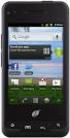 Unimax MAXBravo User Manual U670C Accessories available at www.unimaxmobile.com U670CUG Conventions used in this guide In this user guide, we use the following symbols to indicate useful and important
ZTE N850 User Manual
 ZTE N850 User Manual 1 LEGAL INFORMATION Copyright 2013 ZTE CORPORATION. All rights reserved. No part of this publication may be quoted, reproduced, translated or used in any form or by any means, electronic
USER MANUAL. www.zteusa.com
 USER MANUAL www.zteusa.com Table of Contents Copyright 2012 ZTE CORPORATION. All rights reserved. No part of this publication may be excerpted, reproduced, translated or utilized in any form or by any
ZTE Imperial User Manual
 ZTE Imperial User Manual 1 About This Manual Thank you for choosing this ZTE mobile device. In order to keep your device in its best condition, please read this manual and keep it for future reference.
ZTE Warp Sequent TM User Manual
 ZTE Warp Sequent TM User Manual 1 Table of Contents TIP: If you don't see it in the headings listed in the table of contents, try the Index on page 189. Getting Started...10 Your Phone at a Glance... 11
ZTE Sonata 2 User Guide
 ZTE Sonata 2 User Guide Some of the contents in this manual may differ from your phone depending on the software of the phone. Actual color may vary. Your phone is designed to make it easy for you to access
GETTING TO KNOW YOUR PRE-PAID TELSTRA WI-FI 4G
 GETTING TO KNOW YOUR PRE-PAID TELSTRA WI-FI 4G LET S GET THIS SHOW ON THE ROAD You must be excited about your brand new Pre-Paid Telstra Wi-Fi 4G. This guide will help you get connected as quickly and
Contents. Read Before Proceeding... 1 Safety Precautions... 1 Personal Information and Data Security... 2 Legal Notice... 3
 Y600 User Guide Contents Read Before Proceeding... 1 Safety Precautions... 1 Personal Information and Data Security... 2 Legal Notice... 3 Getting Started... 6 Key Functions at Your Fingertips... 6 Important
HTC Wildfire S. Call Basics. Answer calls. Reject calls. Block calls. Dial. To answer a call, follow these steps: Display on. 1. Tap Answer.
 HTC Wildfire S Call Basics Answer calls To answer a call, follow these steps: Display on 1. Tap Answer. Display off 1. Tap the screen and drag down. Reject calls To reject a call, follow these steps: Display
This guide describes features that are common to most models. Some features may not be available on your tablet.
 User Guide Copyright 2013 Hewlett-Packard Development Company, L.P. Bluetooth is a trademark owned by its proprietor and used by Hewlett-Packard Company under license. Google, Android, AdWords, Gmail,
[Sprint UG template version 14a] VMU_SPH-L710T_Eng_UG_NE5_TE_061714_F3. User Guide
![[Sprint UG template version 14a] VMU_SPH-L710T_Eng_UG_NE5_TE_061714_F3. User Guide](/thumbs/31/15204424.jpg "[Sprint UG template version 14a] VMU_SPH-L710T_Eng_UG_NE5_TE_061714_F3. User Guide") [Sprint UG template version 14a] VMU_SPH-L710T_Eng_UG_NE5_TE_061714_F3 User Guide Table of Contents Get Started... 1 Your Phone at a Glance... 1 Set Up Your Phone... 1 Install the battery... 1 Charge the
[Sprint UG template version 14a] VMU_SPH-L710T_Eng_UG_NE5_TE_061714_F3 User Guide Table of Contents Get Started... 1 Your Phone at a Glance... 1 Set Up Your Phone... 1 Install the battery... 1 Charge the
This guide describes features that are common to most models. Some features may not be available on your tablet.
 User Guide Copyright 2013 Hewlett-Packard Development Company, L.P. Bluetooth is a trademark owned by its proprietor and used by Hewlett-Packard Company under license. Google is a trademark of Google Inc.
Your HTC Inspire 4G. User guide
 Your HTC Inspire 4G User guide 2 Conventions used in this guide In this user guide, we use the following symbols to indicate useful and important information: This is a note. A note often gives additional
USB Modem User Guide ZTE MF823
 Need any help? Please visit www.bt.com/business/help/mobilebroadband Xxx BT Business Mobile Broadband USB Modem User Guide ZTE MF823 1 Contents Contents Quick Start Set-up / What s In Your Pack 3 Minimum
Otium Gear S Smart Watch User Guide Please read the manual before use. * For further information, please visit www.otiumobile.com
 Otium Gear S Smart Watch User Guide Please read the manual before use. * For further information, please visit www.otiumobile.com 1 About this manual You can use this Gear S as a companion device to some
User manual. Smart 4 turbo
 User manual Smart 4 turbo Some services and apps may not be available in all countries. Please ask in-store for details. Android is a trademark of Google Inc. The Android robot is reproduced or modified
ZTE Overture 2 User Guide
 ZTE Overture 2 User Guide Some of the contents in this manual may differ from your phone depending on the software of the phone. Actual color may vary. Your phone is designed to make it easy for you to
Your HTC Wildfire S User guide
 Your HTC Wildfire S User guide 2 Contents Contents Getting started Inside the box 8 HTC Wildfire S 8 Back cover 10 SIM card 11 Storage card 14 Battery 15 Switching the power on or off 17 Entering your
Cat S40 Smartphone User manual
 Cat S40 Smartphone User manual Please Read Before Proceeding Safety Precautions Please read the safety precautions carefully to ensure the correct use of your mobile phone. Despite the nature of this rugged
ZTE Prelude user guide
 ZTE Prelude user guide Product meets FCC Radio Frequency Exposure Guidelines FCC ID Q78-Z992. This device complies with Part 15 of the FCC Rules. Operation is subject to the following two conditions: (1)
Table of Contents. Table of Contents i
 User Guide Table of Contents Get Started...1 Your Phone at a Glance... 1 Set Up Your Phone... 4 Insert a SIM Card... 4 Remove a SIM Card... 5 Insert and Charge the Battery... 6 Charge the Battery Wirelessly...
Point of View ProTab 3XXL IPS - Android 4.0 Tablet PC. Contents... 1 General notices for use... 2 Disclaimer... 2 Box Contents...
 Point of View ProTab 3XXL IPS - Android 4.0 Tablet PC English Contents Contents... 1 General notices for use... 2 Disclaimer... 2 Box Contents... 2 1.0 Product basics... 3 1.1 Buttons and connections...
SM-G130HN. User Manual. English (EU). 07/2014. Rev.1.0. www.samsung.com
 SM-G130HN User Manual English (EU). 07/2014. Rev.1.0 www.samsung.com Table of Contents Read me first Getting started 7 Package contents 8 Device layout 10 Using the SIM or USIM card and battery 15 Using
Getting Started...10. Personalizing...23
 AWE User Manual 1 Contents Getting Started...10 Getting to Know Your Phone...10 Knowing the Keys...12 Installing the Battery...13 Installing the microsd Card (Not Included)...15 Charging the Battery...16
This guide describes features that are common to most models. Some features may not be available on your tablet.
 User Guide Copyright 2014 Hewlett-Packard Development Company, L.P. Bluetooth is a trademark owned by its proprietor and used by Hewlett-Packard Company under license. SD Logo is a trademark of its proprietor.
Premium Design Phone with Smartphone Connect
 Smartphone Connect App Guide Premium Design Phone with Smartphone Connect Model No. KX-PRW130 Thank you for purchasing a Panasonic product. This document explains how to use the Smartphone Connect app.
Nokia 603 User Guide. Issue 3.0
 Nokia 603 User Guide Issue 3.0 2 Contents Contents Safety 5 Get started 6 Keys and parts 6 Insert the SIM card 6 Insert a memory card 8 Charge your phone 10 Switch the phone on or off 11 Lock the keys
Nokia N8-00 User Guide
 Nokia N8-00 User Guide Issue 3.2 2 Contents Contents Safety 5 Get started 6 Keys and parts 6 Change the volume of a call, song, or video 8 Lock or unlock the keys and screen 8 Insert or remove the SIM
How To Use A Iphone 4 (Blackberry) On A Sim Sims Or Iphones Or Ipad (Blackburn) On An Iphon Or Ipa (Blackphone) On Sims 2 Or Imex (
 HUAWEI P6 User Guide Contents Foreword... 1 Safety precautions... 2 Preparations... 3 Your phone at a glance 3 Inserting or removing a micro-sim card 4 Inserting or removing a microsd card 6 Charging the
KYOCERA Rise User Guide
 KYOCERA Rise User Guide 2012 Kyocera Corporation. All rights reserved. The Virgin name and the Virgin signature logo are registered trademarks of Virgin Enterprises Limited and are used under license.
Contents. Foreword. Safety precautions. Preparations. Getting started. Personalizing your phone. Calls
 G620 User Guide Contents Contents Foreword Safety precautions Preparations 4 Your phone at a glance 5 Inserting a micro-sim card 6 Removing a micro-sim card 7 Inserting a microsd card 7 Removing a microsd
ZTE Grand X Max User Guide
 ZTE Grand X Max User Guide Some of the contents in this manual may differ from your phone depending on the software of the phone. Actual color may vary. Your phone is designed to make it easy for you to
KYOCERA DuraForce User Guide
 KYOCERA DuraForce User Guide Table of Contents Get Started... 1 Your Phone at a Glance... 1 Set Up Your Phone... 3 Insert a SIM Card... 3 Remove a SIM Card... 4 Charge the Battery... 5 Charge the Battery
User Guide HUAWEI Ascend Y210
 User Guide HUAWEI Ascend Y210 Welcome to HUAWEI Contents 1 Read Before Proceeding...1 1.1 Safety Precautions... 1 1.2 Personal Information and Data Security... 2 1.3 Legal Notice... 3 2 Getting Started...6
User Guide PUSH TO TALK PLUS. For Android
 User Guide PUSH TO TALK PLUS For Android PUSH TO TALK PLUS For Android Contents Introduction and Key Features...4 PTT+ Calling to Individuals and Groups...4 Supervisory Override...4 Real-Time Presence...4
KYOCERA Hydro User Guide
 KYOCERA Hydro User Guide 2012 Kyocera Corporation. All Rights Reserved. BOOST and BOOSTMOBILE and Logo, and the Logo are trademarks of Boost. Other marks are the property of their respective owners. KYOCERA
SM-E500H/DS SM-E500H SM-E500HQ SM-E500F/DS SM-E500F. User Manual. English. 01/2015. Rev.1.0. www.samsung.com
 SM-E500F/DS SM-E500F SM-E500H/DS SM-E500H SM-E500HQ User Manual English. 01/2015. Rev.1.0 www.samsung.com Table of Contents Read me first Getting started 7 Package contents 8 Device layout 10 Using the