
2. Create and apply resource lists
|
|
|
- Johnathan Stokes
- 10 years ago
- Views:
Transcription

1 Tips and Tricks for Netop Vision and Vision Pro Allow, filter, lock: Control Internet use in class and during lessons The Internet is a dynamic structure that offers a lot of potential for teaching and learning, but it's also rife with distractions - which makes you wonder: how can I restrict Internet access while still providing my students with important online resources they need? With Netop Vision and Vision Pro, you decide which web sites are accessible during class and which are not. With the following Tips & Tricks, we'll show you step by step how to: 1. Block web access 2. Create and apply resource lists and (permitted web sites) 3. Create and apply block lists (blacklist) 4. Export lists for other teacher computers on a USB stick 1. Block web access With Netop Vision, you can control student access to the web so that students can only use it when appropriate in a teaching and learning situation. With the click of a mouse, you can block web access on all student computers, for a group or an individual student. To block web access for the entire class: In the Vision console, on the Home tab in the Controlling group, click on Lock Web. If the students open the Internet browser, a message indicating that web access is blocked is displayed. To unlock access, click on the Lock Web button again.


2 2. Create and apply resource lists A resource list includes one or more web sites that students are allowed to use; the rest of the Internet is blocked. By creating resource lists that you use in various teaching scenarios (for example, to complete a specific assignment or in a test situation), you can quickly and easily limit student web access to appropriate sites only. 2.1 Create a resource list On the Home tab, in the Controlling group, click on the Filter Web and then click on Manage Lists. The Filter manager opens. In the Filter manager window, in the Home menu, click on the New Filter button. In the Filter Name field, type a name for your resource list. This name will then appear in the Filter Web menu and on the students' website (if this resource list is used).


3 TIP: Choose a name that is descriptive and corresponds with the overall topic of the websites in the list. For example, "French Revolution" or "Ancient Egypt". In the next step of the resource list, enter the required Internet addresses. Click on New Link to add new web sites to the resource list. Type or copy-and-paste a web address and type a name for each link. When you have added all the web sites you want, close the Filter Manager window. The list is now available under Resource Lists on the Filter Web menu.


4 2.2. Apply a resource list When a resource list is applied (multiple lists can also be applied simultaneously), the restrictions of the list are immediately enforced and the students in the classroom can only access the websites on the list; access to the rest of the Internet is blocked. On the Home tab, in the Controlling group, click on Filter Web and then select the list you wish to apply. A small icon on each student thumbnail in Vision indicates that a resource list has been applied to these student computers. If a student tries to access a web site that is not included in the resource list, the block page will appear in the student's browser. The block page displays a list of all permitted websites so that the student knows which web sites he or she is allowed to access.


5 The list of permitted websites is automatically displayed on the student computer as soon as the web browser is started. 3. Create and apply block lists (Pro version only) If you only want to restrict student access to websites that would interrupt the class or the learning process (e.g. social media web sites such as Facebook or online games), you can create one or more block lists. A block list includes one or more websites that students are not allowed to access. Note: The "Block list" function is only available in Vision Pro 3.1 Create a block list On the Home tab, in the Controlling group, click on the Filter Web button and then click on Manage Lists. The Filter Manager opens.


6 In the Filter Manager window, in the Home menu, click on the New Filter button. Select Block List as a filter type and type a name for your new block list in the Filter Name field. Then type a name for your block list in the Filter Name field. This name then appears under the block lists on the Filter Web menu. When you have added all the websites you want, close the Filter Manager window. The list is now available under block lists on the Filter Web menu.


7 3.2 Apply a block list When a block list is applied (multiple lists can also be applied simultaneously), the students in the classroom can no longer access the websites on the list. The block lists are immediately active. On the Home tab, in the Controlling group, click on Filter Web and then select the list you wish to apply. To cancel the block list, click on the list again.

8 4. Export lists to a USB stick for other teacher computers Once you have created one or more lists to restrict student web access, you might want to share your lists with other teachers who use a different Vision teacher computer. The easiest way to do this is to export your lists from your computer to a single file and then import the file on the other teacher computer. The export file is a standard XML file that can be copied from one computer to another, for example, by means of a USB stick. 4.1 Export lists 1. In the Filter Manager, under File, click on Export and then on Save. Note: The default location and file name is C:\Users\<user name>\appdata\local\netop\vision\webfilterpolicy.xml. You can change the file name and location at any time. Copy the exported XML file to a portable drive, such as a USB stick, in order to copy it to another teacher computer.


9 4.2 Import lists on other Vision teacher computers In the Filter Manager, under File, click on Import. Before proceeding with the actual import, Vision asks whether you want to save any lists you may have defined on the computer. This is because the import deletes any existing lists and replaces them with the imported lists. The import procedure does not therefore add any lists, but overwrites/replaces all lists. If you have not defined any lists on your computer or if you want to replace them with the new lists, click on No. Click on Yes if you wish to create a back-up of your existing lists before proceeding with the import. If you have any questions about Netop Vision or Vision Pro, contact Netop or a Netop Partner in your area.

Version 9.1 USER'S GUIDE
 Version 9.1 USER'S GUIDE Copyright 1981-2015 Netop Business Solutions A/S. All Rights Reserved. Portions used under license from third parties. Please send any comments to: Netop Business Solutions A/S
Getting Started with Vision 6
 Getting Started with Vision 6 Version 6.9 Notice Copyright 1981-2009 Netop Business Solutions A/S. All Rights Reserved. Portions used under license from third parties. Please send any comments to: Netop
Contents. Netop MyVision Basic
 QUICK GUIDE Copyright 1981-2012 Netop Business Solutions A/S. All Rights Reserved. Portions used under license from third parties. Netop is a registered trademark of Netop Business Solutions A/S. All other
Teacher References archived classes and resources
 Archived Classes At the end of each school year, the past year s academic classes are archived, meaning they re still kept in finalsite, but are put in an inactive state and are not accessible by students.
Select Correct USB Driver
 Select Correct USB Driver Windows often installs updated drivers automatically, and defaults to this latest version. Not all of these drivers are compatible with our software. If you are experiencing communications
Kaspersky Password Manager USER GUIDE
 Kaspersky Password Manager USER GUIDE Dear User! Thank you for choosing our product. We hope that this documentation helps you in your work and provides answers you may need. Any type of reproduction or
PC Agent Quick Start. Open the Agent. Autonomy Connected Backup. Version 8.8. Revision 0
 T E C H N I C A L N O T E Autonomy Connected Backup Version 8.8 PC Agent Quick Start Revision 0 Use this document as a quick reference for common Connected Backup PC Agent tasks. If the Agent is not on
Classroom Management, part of Intel Education User Manual
 Classroom Management, part of Intel Education User Manual Disclaimer INFORMATION IN THIS DOCUMENT IS PROVIDED IN CONNECTION WITH INTEL PRODUCTS. EXCEPT AS PROVIDED IN INTEL'S TERMS AND CONDITIONS OF SALE
Managing Expense Reports Program Administrators and Approvers
 CentreSuite Quick Reference Guide May 2015 Managing Expense Reports Program Administrators and Approvers On the Manage Expense Reports page, you can manage the expense reports you create, and, if you are
Installing NetSupport School for use with the NetSupport School Student extension for Google Chrome
 Installing NetSupport School for use with the NetSupport School Student extension for Google Chrome NetSupport School delivers the tools you need to help maximise the effectiveness of computer led teaching
Windows 8.1 Tips and Tricks
 Windows 8.1 Tips and Tricks Table of Contents Tiles... 2 Removing, Resizing and Moving Existing Tiles... 2 Adding New Tiles... 2 Returning to the Start Screen (Charms)... 3 The Search Feature... 3 Switching
Monitoring Student Computers with SynchronEyes Software
 Quick Reference Monitoring Student Computers with SynchronEyes Software Use SynchronEyes software to monitor student computer screens. The intuitive interface helps you observe computer activity and give
Follow Up Email Pro Guide
 Website: http://magehit.com Contact: [email protected] Configuration Follow Up Email Pro Guide Version 1.0.0 - Jan 2015 Go to System >> Configurations >> MageHit >> Follow Up Email (or Follow Up Email >>
Smart Sync. Computer Classroom Management Software. What is SMART Sync? Table of Contents
 Smart Sync Computer Classroom Management Software What is SMART Sync? SMART Sync software helps instructors manage the computers in their classroom. SMART Sync keeps a student engaged and focused, and
Bb COLLABORATE (ONLINE ROOM) APPLICATION SHARING REFERENCE GUIDE
 Bb COLLABORATE (ONLINE ROOM) APPLICATION SHARING REFERENCE GUIDE Reminder: All users should utilize Mozilla Firefox browser when accessing Bb Collaborate Online Rooms. Application sharing allows a Moderator
Welcome to the new Netop School 6.0 interface!
 Welcome to the new Netop School 6.0 interface! In the design of the Netop School 6.0 release, the Netop School team reevaluated the way our users interact with School and in particular with the Teacher
WHAT YOU OWN HOME INVENTORY SOFTWARE
 WHAT YOU OWN HOME INVENTORY Version 4.19 Copyright 2013 M- One Studio, LLC www.m-onestudio.com Contents Getting Started... 1 About WHAT YOU OWN HOME INVENTORY SOFTWARE... 1 Download and Install the Software...
Change Advanced Proxy Server Configuration Settings
 Change Advanced Proxy Server Trigger Business Process Procedure Overview This project will show you how to change Configuration settings on the Advanced tab. This section is used to enter information about
U of S Course Tools. Working with the Syllabus Tool For Instructors
 U of S Course Tools Working with the Syllabus Tool For Instructors June 2014 Background: If you are using the U of S Course Tools for the first time, please review the Course Tools Basic document before
Classroom Management, part of Intel Education User s Guide. Available in the U.S. only for the K-12 market starting fall 2014.
 Classroom Management, part of Intel Education User s Guide Available in the U.S. only for the K-2 market starting fall 20. Disclaimer INFORMATION IN THIS DOCUMENT IS PROVIDED IN CONNECTION WITH INTEL PRODUCTS.
Instructions for Importing (migrating) Data
 Instructions for Importing (migrating) Data from CTAS Version 7 to CTAS Version 8 For Windows 8 and 8.1 CTAS Version 8 is designed to work with your Version 7 data if you choose to. These instructions
M a r k B o o k C Y, M a r k B o o k A M, v e r s i o n, e d i t i o n. MarkBook for Windows on a Mac 1
 M a r k B o o k C Y, M a r k B o o k A M, v e r s i o n, e d i t i o n MarkBook for Windows on a Mac 1 Installation/Use on an Apple Macintosh Computer Ordinarily, a Mac computer cannot run Windows software.
Resource Scheduler (Meeting Room Manager) User s Manual
 Resource Scheduler (Meeting Room Manager) User s Manual Resource Scheduler (or Meeting Room Manager) is a web based software package for reserving facilities and equipment. The NS&M web client can be run
How To Use Syntheticys User Management On A Pc Or Mac Or Macbook Powerbook (For Mac) On A Computer Or Mac (For Pc Or Pc) On Your Computer Or Ipa (For Ipa) On An Pc Or Ipad
 SYNTHESYS MANAGEMENT User Management Synthesys.Net User Management 1 SYNTHESYS.NET USER MANAGEMENT INTRODUCTION...3 STARTING SYNTHESYS USER MANAGEMENT...4 Viewing User Details... 5 Locating individual
Save and Restore Backups using itunes File
 Save and Restore Backups using itunes File Make and Export a Backup Access the Options On ipad, tap right-most button in the toolbar to access the Options. On iphone/ipod touch, tap the Views button (double
MyMediasite Web Interface Overview:
 MyMediasite Web Interface Overview: 1. Visit http://mymediasite.bloomu.edu from any web browser. 2. Log in using your complete email address and university password. 3. You should now see the following
AUDITVIEW USER INSTRUCTIONS
 COMBOGARDPRO AUDITVIEW USER INSTRUCTIONS The ComboGard Pro AuditView software allows the Manager to view, save, and print the audit records. The ComboGard Pro lock maintains the last 63 lock events in
EXPORTING THE SCHOOL ROSTER INTO AN EXCEL SPREADSHEET
 EXPORTING THE SCHOOL ROSTER INTO AN EXCEL SPREADSHEET QUICK GUIDE Since Columbus City Schools were closed eight days during the 2013-2014 school year due to weather, three of those days will be made up
Novell ZENworks Asset Management
 Novell ZENworks Asset Management Administrative Best Practices and Troubleshooting www.novell.com APRIL 19, 2005 2 GETTING THE MOST OUT OF NOVELL ZENWORKS ASSET MANAGEMENT The award-winning asset tracking
CLEARONE DOCUMENT 801-000-002 (REVISION 1.0) October, 2008. with Converge Pro Units
 APPLICATION NOTES Converge Pro Products CLEARONE DOCUMENT 801-000-002 (REVISION 1.0) October, 2008. Troubleshooting USB Connections with Converge Pro Units Description This document explains how to connect
Citrix Client Install Instructions
 Citrix Client Install Instructions If you are using Citrix remotely, Information Technology Services recommends updating Citrix client to the newest version available online. You must be an administrator
Perform this procedure when you need to add a recurring payment option, or when you need to change or withdraw it.
 Purpose Use this procedure to add, change, or remove recurring payments. Trigger Perform this procedure when you need to add a recurring payment option, or when you need to change or withdraw it. Prerequisites
Raptor K30 Gaming Software
 Raptor K30 Gaming Software User Guide Revision 1.0 Copyright 2013, Corsair Components, Inc. All Rights Reserved. Corsair, the Sails logo, and Vengeance are registered trademarks of Corsair in the United
16.4.3 Lab: Data Backup and Recovery in Windows XP
 16.4.3 Lab: Data Backup and Recovery in Windows XP Introduction Print and complete this lab. In this lab, you will back up data. You will also perform a recovery of the data. Recommended Equipment The
Module 9 Ad Hoc Queries
 Module 9 Ad Hoc Queries Objectives Familiarize the User with basic steps necessary to create ad hoc queries using the Data Browser. Topics Ad Hoc Queries Create a Data Browser query Filter data Save a
IIS 6.0SSL Certificate Deployment Guide
 IIS 6.0SSL Certificate Deployment Guide StartCom CA Limited Contents 1.Generate the CSR by customer.... 3 1.1 Generate the private key files and CSR files... 3 1.2 Create a new certificate request... 3
http://downloadcenter.trendmicro.com/
 Trend Micro Incorporated reserves the right to make changes to this document and to the product described herein without notice. Before installing and using the product, review the readme files, release
This guide provides step by step instructions for using the IMF elibrary Data - My Data area. In this guide, you ll learn how to:
 This guide provides step by step instructions for using the IMF elibrary Data - area. In this guide, you ll learn how to: Access your favorite and recently used data reports. Make sure you receive email
Backing Up and Deleting Files
 CHAPTER 5 Backing Up and Deleting Files Video files can be copied from the hard disk to external storage media, such as CD-R, DVD, MO, or ZIP drives. Video files saved on the hard disk can be easily deleted
Log-in to the patient booking website
 Log-in to the patient booking website From the HealthSpace home page you can select Choose and Book from the menu or by clicking on the Choose and Book image both shown on the left side of the screen.
Email - Spam Spam Email Firewall How Does the Spam Firewall Work? Getting Started username Create New Password
 Email - Spam Spam Email Firewall ODU s Information Services has implemented a Spam Firewall to help you manage spam e-mail from Internet senders. Generally defined, spam e-mail is an unsolicited mailing,
Quick Reference Guide PAYMENT GATEWAY (Virtual Terminal)
 PAYMENT GATEWAY (Virtual Terminal) Document Version 131227 Copyright 2013 epaymentamerica, Inc. All Rights Reserved Logging in to the Virtual Terminal 1. Open your internet browser; We strongly recommend
InformationNOW System Preferences
 InformationNOW System Preferences About this Guide This Quick Reference Guide provides an overview of all options within the System Preferences menu except for Setup. For details regarding the Setup menu,
Introduction... 2. Purpose... 2 Scope... 2 Icons... 2. Tasks and ehealth Processes... 3. Incident Management... 3 Change Management...
 Version 1.5 Modified: 01/21/2013 Table of Contents Remedy Tasks Introduction... 2 Purpose... 2 Scope... 2 Icons... 2 Tasks and ehealth Processes... 3 Incident Management... 3 Change Management... 3 Overview
Installation and Operation Manual Portable Device Manager, Windows version
 Installation and Operation Manual version version About this document This document is intended as a guide for installation, maintenance and troubleshooting of Portable Device Manager (PDM) and is relevant
Specify the location of an HTML control stored in the application repository. See Using the XPath search method, page 2.
 Testing Dynamic Web Applications How To You can use XML Path Language (XPath) queries and URL format rules to test web sites or applications that contain dynamic content that changes on a regular basis.
ILLUMINATE ASSESSMENT REPORTS REFERENCE GUIDE
 ILLUMINATE ASSESSMENT REPORTS REFERENCE GUIDE What are you trying to find? How to find the data in Illuminate How my class answered each question (Response Frequency) 3. Under Reports, click Response Frequency
VERIPATROL Client User Guide
 Version 3.2.2.0 VERIPATROL Client Overview VERIPATROL is a secure software system for the storage, retrieval and management of video files from VIEVU cameras. This guide describes how to operate the VERIPATROL
10.3.1.6 Lab - Data Backup and Recovery in Windows XP
 5.0 10.3.1.6 Lab - Data Backup and Recovery in Windows XP Introduction Print and complete this lab. In this lab, you will back up data. You will also perform a recovery of the data. Recommended Equipment
A. I do not have my own personal certificate I am a new client or want to download a new certificate
 This user guide will help you to create your personal certificate in file/browser or smart card certificate. If you already own a personal certificate in file that you have saved on your computer, you
To access the QA Lead area of the site, click on the QA module link on the home page. Click here to access the QA module
 QA Lead Guide To access the QA Lead area of the site, click on the QA module link on the home page. Click here to access the QA module Managing Users As a QA lead you are responsible for registering new
Junk E-mail Settings. Options
 Outlook 2003 includes a new Junk E-mail Filter. It is active, by default, and the protection level is set to low. The most obvious junk e-mail messages are caught and moved to the Junk E-Mail folder. Use
Export the address book from the Blackberry handheld to MS Outlook 2003, using the synchronize utility in Blackberry Desktop Manager.
 Export the address book from the Blackberry handheld to MS Outlook 2003, using the synchronize utility in Blackberry Desktop Manager. Revised 2/25/07 Creating a New Contacts Folder in Outlook Open Outlook
Reference Guide - Raising an order from Hubwoo in Purchasing Self-Service (PSS)
 Reference Guide - Raising an order from Hubwoo in Purchasing Self-Service (PSS) This guide is intended for users who wish to raise orders from externally hosted Hubwoo catalogues. mysap can be accessed
Frequently Asked Questions
 Frequently Asked Questions Contents Installing Lync 2010 Setting Up Devices Managing Contacts Using Lync 2010 as a Phone Using Lync 2010 with Office Outlook Scheduling Meetings Inviting People to Meetings
Sign-up Tool User Manual
 Sign-up Tool User Manual Getting started from the meeting organiser s perspective The Sign-up Tool allows those with appropriate permissions (Subject Coordinators and Project Owners) to create three different
Downloading and installing SMART Notebook Software
 Connected Classrooms Program: Interactive Classrooms Project 03 June 2009 Downloading and installing SMART Notebook Software Step-by-step instructions for Windows and Apple Macs DET has licensed the SMART
AD Self Password Reset Installation and configuration
 AD Self Password Reset Installation and configuration AD Self Password Reset Installation 1 Manual v1.4 Table of Contents TABLE OF CONTENTS 2 SUMMARY 3 INSTALLATION 4 REMOVAL 6 AD SELF PASSWORD RESET CONFIGURATION
Barracuda Spam Firewall User s Guide
 Barracuda Spam Firewall User s Guide 1 Copyright Copyright 2005, Barracuda Networks www.barracudanetworks.com v3.2.22 All rights reserved. Use of this product and this manual is subject to license. Information
IX Web Hosting. Billing Manual. July 31, 2012
 IX Web Hosting Billing Manual July 31, 2012 Table of Contents 1 Introduction... 3 2 Billing Profile... 3 3 Domain Points... 4 4 Accessing the Billing and Administration System... 5 4.1 The My Products
CRM Global Search: Installation & Configuration
 Installation ***Important: It is highly recommended that you first take a backup of your current CRM Application Ribbons prior to importing this solution. Please do so by navigating to Settings > Solutions
Saudi Electronic University EF Online English Guidelines
 Saudi Electronic University EF Online English Guidelines Index 1. How to login 2. Forgot your password 3. Running the technical check 4. Change language 5. Conversation classes 6. How to book an English
the barricademx end user interface documentation for barricademx users
 the barricademx end user interface documentation for barricademx users BarricadeMX Plus The End User Interface This short document will show you how to use the end user web interface for the BarricadeMX
ClickView Digital Signage User Manual
 ClickView Digital Signage User Manual Table of Contents 1. What is ClickView Digital Signage?... 3 2. Where do I find ClickView Digital Signage?... 3 2.1. To find ClickView Digital Signage... 3 3. How
Guidelines for Using the Web Help Desk
 BURBANK SCHOOL DISTRICT 111 Guidelines for Using the Web Help Desk Technology Department 1/7/2013 The purpose of this document is to provide guidance on how to navigate the Burbank School District 111
Grandstream Networks, Inc.
 Grandstream Networks, Inc. Universal Phonebook Editor User Guide Universal Phonebook Editor User Guide Universal Phonebook Editor User Guide Index INTRODUCTION... 3 OVERVIEW OF FUNCTIONS AND UI... 4 BASIC
Sharepoint Manual for the Joint Action on Health Workforce Planning and Forecasting
 Sharepoint Manual for the Joint Action on Health Workforce Planning and Forecasting Contents Getting started... 1 The main site... 3 The work Package sites... 5 Working together in documents... 8 Getting
Using a USB Flash Drive to Back Up Your Data Files on a Mac Computer
 Using a USB Flash Drive to Back Up Your Data Files on a Mac Computer Your GWU-provided flash drive has a storage capacity of 1 GB and is provided as a means for you to back up data files, including email
Software Installation and Creating a New Company
 Chapter 1 Software Installation and Creating a New Company OBJECTIVES: 1 System Requirements 2 Software Installation 3 Starting QuickBooks and Creating a New Company 4 Backing up Company Data 5 QuickBooks
How to Edit an Email. Here are some of the things you can do to customize your email:
 How to Edit an Email Editing a new email created during the Create an Email wizard or editing an existing email in the Edit Email section of the Manage Emails tab is easy, using editing tools you re probably
Hyperoo 2.0 A (Very) Quick Start
 Hyperoo 2.0 A (Very) Quick Start Download and install the Hyperoo 2.0 beta Hyperoo 2.0 is a client/server based application and as such requires that you install both the Hyperoo Client and Hyperoo Server
MICROSOFT ACCESS TABLES
 MICROSOFT ACCESS TABLES Create a New Table... 1 Design View... Datasheet View... 5 Table Tools in Datasheet View... 6 Sorting and Filtering Data... 8 Import and Export Data... 10 Relationships... 11 Relationship
SP Widget. Users Manual
 SP Widget Users Manual 1 Contents 1. Disclaimer notice... 4 2. Product intro...5 3. System requirements... 5 4. Introduction... 6 4.1 Activating SP Widget... 6 Illustration 4.1... 6 4.2 Browser interface...
mylittleadmin for MS SQL Server Quick Start Guide
 mylittleadmin for MS SQL Server Quick Start Guide version 3.5 1/25 CONTENT 1 OVERVIEW... 3 2 WHAT YOU WILL LEARN... 3 3 INSTALLATION AND CONFIGURATION... 3 4 BASIC NAVIGATION... 4 4.1. Connection 4 4.2.
Attix5 Pro Server Edition
 Attix5 Pro Server Edition V7.0.2 User Manual for Mac OS X Your guide to protecting data with Attix5 Pro Server Edition. Copyright notice and proprietary information All rights reserved. Attix5, 2013 Trademarks
Finance Reporting. Millennium FAST. User Guide Version 4.0. Memorial University of Newfoundland. September 2013
 Millennium FAST Finance Reporting Memorial University of Newfoundland September 2013 User Guide Version 4.0 FAST Finance User Guide Page i Contents Introducing FAST Finance Reporting 4.0... 2 What is FAST
DiskPulse DISK CHANGE MONITOR
 DiskPulse DISK CHANGE MONITOR User Manual Version 7.9 Oct 2015 www.diskpulse.com [email protected] 1 1 DiskPulse Overview...3 2 DiskPulse Product Versions...5 3 Using Desktop Product Version...6 3.1 Product
Export / Import using itunes File Sharing
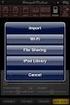 Export to itunes File Sharing Access Edit Mode Tap the pencil button on the bottom toolbar to access Edit Mode. Select a Button or a Folder Select to the button(s) you want to export/ import. A checkmark
Blackboard Learn 9.1 Screencast Collaboration Tools in Blackboard 9.1
 Blackboard Learn 9.1 Screencast Collaboration Tools in Blackboard 9.1 Introduction This video/pdf is an informational directive to locate and identify the features of Blackboard Collaboration Tools. Learning
Configuring Color Access on the WorkCentre 7120 Using Microsoft Active Directory Customer Tip
 Configuring Color Access on the WorkCentre 7120 Using Microsoft Active Directory Customer Tip October 21, 2010 Overview This document describes how to limit access to color copying and printing on the
Intellect Platform - Tables and Templates Basic Document Management System - A101
 Intellect Platform - Tables and Templates Basic Document Management System - A101 Interneer, Inc. 4/12/2010 Created by Erika Keresztyen 2 Tables and Templates - A101 - Basic Document Management System
Backup / migration of a Coffalyser.Net database
 Backup / migration of a Coffalyser.Net database There are two main procedures for backup or migration of your Coffalyser.Net database. One of these procedures makes use of the SQL management studio software
Capture One Pro 9. Quick start guide. Capture One Pro 9. Quick Start Guide 1
 Capture One Pro 9 Quick start guide Quick Start Guide 1 Introduction Thank you for choosing Capture One, either as your new RAW converter of choice, or simply to trial its capabilities. The purpose of
Configuration Guide. Remote Backups How-To Guide. Overview
 Configuration Guide Remote Backups How-To Guide Overview Remote Backups allow you to back-up your data from 1) a ShareCenter TM to either a Remote ShareCenter or Linux Server and 2) Remote ShareCenter
Follow these procedures for QuickBooks Direct or File Integration: Section 1: Direct QuickBooks Integration [Export, Import or Both]
![Follow these procedures for QuickBooks Direct or File Integration: Section 1: Direct QuickBooks Integration [Export, Import or Both]](/thumbs/25/5226259.jpg "Follow these procedures for QuickBooks Direct or File Integration: Section 1: Direct QuickBooks Integration [Export, Import or Both]") Follow these procedures for QuickBooks Direct or File Integration: Section 1: Direct QuickBooks Integration [Export, Import or Both] Part A - Configuration Step 1. During installation of the Amano Time
Follow these procedures for QuickBooks Direct or File Integration: Section 1: Direct QuickBooks Integration [Export, Import or Both] Part A - Configuration Step 1. During installation of the Amano Time
STIClassroom Win Rosters and Lesson Plans
 STIClassroom Win Rosters and Lesson Plans Student Class Roster From this screen, teachers can access the items described below (access rights to these features must first be granted in Principal s Module).
Remedy ITSM Service Request Management Quick Start Guide
 Remedy ITSM Service Request Management Quick Start Guide Table of Contents 1.0 Getting Started With Remedy s Service Request Management. 3 2.0 Submitting a Service Request.7 3.0 Updating a Service Request
Config software for D2 systems USER S MANUAL
 DT-CONFIG SOFTWARE Config software for D2 systems USER S MANUAL CONTENTS 1. Introductions ------------------------------------------------------------------- 3 2. System Requirement and Connection ----------------------------------------
Guidelines for online application procedure
 Guidelines for online application procedure Step 1 Go to www.funding guide.de Step 2 Fill up the details indicated by the orange coloured arrows below (Status: Undergraduates, your Country of Origin: India,
Netop School and L230 or X550 from NComputing as student computers
 Netop School and L230 or X550 from NComputing as student computers This technical article explains how to set up Netop School to use L230 or X550 access devices and virtualization software so that several
Lesson 2. From computer to USB
 Lesson 2 From computer to USB How do I save my designs from my computer to a USB Flash drive to stitch out on my BERNINA? So now you have designs on your computer and want to put them onto your BERNINA
How To Manage Your Quarantine Email On A Blackberry.Com
 Barracuda Spam Firewall User s Guide 1 Copyright Copyright 2005, Barracuda Networks www.barracudanetworks.com v3.2.22 All rights reserved. Use of this product and this manual is subject to license. Information
Thank you for purchasing the Mobile WiFi. This Mobile WiFi brings you a high speed wireless network connection.
 Thank you for purchasing the Mobile WiFi. This Mobile WiFi brings you a high speed wireless network connection. This document will help you understand your Mobile WiFi so you can start using it right away.
HDDtoGO. User Guide. User Manual Version 3.4 2004-2010 CoSoSys SRL 2010 A-DATA Technology Co., Ltd. HDDtoGO User Manual
 HDDtoGO User Guide User Manual Version 3.4 2004-2010 CoSoSys SRL 2010 A-DATA Technology Co., Ltd. HDDtoGO User Manual Table of Contents Table of Contents...1 1. Introduction...2 2. System Requirements...3
Configure Single Sign on Between Domino and WPS
 Configure Single Sign on Between Domino and WPS What we are doing here? Ok now we have the WPS server configured and running with Domino as the LDAP directory. Now we are going to configure Single Sign