
Polycom VBP System Configuration Guide October D
|
|
|
- Beverly Barnett
- 10 years ago
- Views:
Transcription
1 Polycom VBP System Configuration Guide October D

2 Trademark Information Polycom, the Polycom logo design, [and others that appear in your document] are registered trademarks of Polycom, Inc. are trademarks of Polycom, Inc. in the United States and various other countries. All other trademarks are the property of their respective owners Polycom, Inc. All rights reserved. Polycom Inc Willow Road Pleasanton, CA USA No part of this document may be reproduced or transmitted in any form or by any means, electronic or mechanical, for any purpose, without the express written permission of Polycom, Inc. Under the law, reproducing includes translating into another language or format. As between the parties, Polycom, Inc. retains title to, and ownership of, all proprietary rights with respect to the software contained within its products. The software is protected by United States copyright laws and international treaty provision. Therefore, you must treat the software like any other copyrighted material (e.g. a book or sound recording). Every effort has been made to ensure that the information in this manual is accurate. Polycom, Inc. is not responsible for printing or clerical errors. Information in this document is subject to change without notice. Export Notice This product, software and related technology is subject to U.S. export control and may be subject to export or import regulations in other countries. Purchaser must strictly comply with all such laws and regulations. A license to export or re-export may be required by the U.S. Department of Commerce. Regulatory Compliance This product was tested to comply with FCC standards for home and office use. It also meets the applicable Industry Canada Terminal Equipment Technical Specifications an VCCI standards. Licensing Use of this product is subject to Edgewater Networks Software License Agreement. Portions of this product include software sponsored by the Free Software Foundation and are covered by the GNU GENERAL PUBLIC LICENSE. Release Date: October 11,

3 Feature Summary System Configuration Configuring VBP-E Network Settings Configure WAN settings Configure WAN ADSL-PPPoE Configure WAN DHCP Configure WAN Static IP Address Configuring VBP-ST Network Settings Configure Subscriber and Provider settings Subscriber Interface Settings Provider Interface Settings Configuring LAN Settings Configure LAN network settings without VLANs Configure LAN network settings with VLANs Configuring VLANs Configuring VLANs on the 5300-E and 6400-E series Configuring VLANs on the 200, 4350, Configuring VLAN Membership 200 or Configuring VLAN Port 200 or Configuring Ethernet Interface Link Settings SNMP Overview Configure SNMP Disable SNMP Delete an SNMP trap Configuring DHCP Services DHCP Relay DHCP Server Configuring DHCP Server Configuring DHCP With VLANs DHCP Leases Configuring DNS for ANNEX O support Diagnose your DNS settings Firewall rules for securing the network VBP Firewall Basics Configure the VBP-E Whitelist/Blacklist VBP-E or VBP-S and ST blocking management ports VBP-E management ports Trusted Hosts VBP-S or ST management ports CERT Advisory CA Implementing Polycom VBP with a Third-Party Firewall

4 Describing the Issue Between H.323 Communications and NAT Resolving the Issue Without VBP Using a 1-1 NAT Using an H.323-Compliant Firewall Resolving the Issue with VBP Implementing a VBP with a Third-Party Firewall Implementing a DMZ with a Public IP Space Implementing a DMZ with a Private IP Space Required Ports VBP-E DMZ required ports to and from the WAN interface VBP-E DMZ required ports inbound to the LAN interface VBP-E DMZ required ports outbound from the LAN interface VBP-ST DMZ required ports inbound from the Internet to the VBP (H.460 support) VBP-ST DMZ required ports outbound from the VBP to the Internet (H.460 support) VBP-ST DMZ required ports inbound from the Internet to the VBP (H.460 and Access Proxy) VBP-ST DMZ required ports outbound from the VBP to the Internet (H.460 and Access Proxy) VBP-ST DMZ required ports inbound from the LAN gatekeeper (H.323 and Access Proxy) VBP-ST DMZ required ports outbound to the LAN gatekeeper (H.323 and Access Proxy) VBP Topologies Overview Centralized Gatekeeper Diagram Distributed Gatekeeper Diagram Distributed Gatekeeper Diagram Configuring the VBP E-Series Appliance for LAN-side Gatekeeper Mode Alias Manipulation Configuring the VBP E-Series Appliance for Embedded Gatekeeper Mode Example for prefix routing to simplify dialing using the DST E.164 as a prefix Peering Proxy Overview How Peering Proxy Works Configuring the VBP E-Series Appliance for Peering-Proxy Mode Regular Expressions Centralized Gatekeeper Configuration Centralized Gatekeeper DiagramConfiguring the VBP S and ST-Series Appliance for Provider-side gatekeeper mode Configuring the VBP S and ST-Series Appliance for Provider-side gatekeeper mode Configuring the VBP E-Series Appliance for WAN-side Gatekeeper Mode Access Proxy Summary and Configuration Access Proxy Diagram NAT routers tested Software requirements for Interoperability Prerequisites Configuration steps for the CMA server CMA Setup for Sites

5 Configuring the VBP-ST for Access Proxy Configure the VBP-ST VoIP ALG H.323 settings Configure the VBP-ST Access Proxy protocols Configuring the VBP-E for Access Proxy Configure the VBP-E VoIP ALG H.323 settings Configure the VBP-E Access Proxy protocols CMA Desktop Configuration for VBP-ST Access Proxy access CMA Desktop Configuration for VBP-E Access Proxy access HDX Configuration for VBP-ST Access Proxy access HDX Configuration for VBP-E Access Proxy access Troubleshooting Access Proxy VVX 1500 D Configuration for Premise SIP Voice and H.323 Video Configuring the VBP-ST Headquarters H.323 Video Settings Configuring the VBP-ST Headquarters SIP Voice Settings Configuring the VBP SoHo-2 H.323 Video Settings Configuring the VBP SoHo-2 SIP Voice Settings Configuring the VVX 1500 D for H.323 Video and SIP Voice Services Sample SIP Voice and H.323 Video Signaling Flows Sample H.323 Video Call and RTP Flows Sample SIP Voice Call and RTP Flows Optional VBP-E at the Headquarters Location Configuring the VBP H.323 Video Settings Configuring the VBP SIP Voice Settings Optional VBP-E at the Headquarters Location - CMA Settings Sample H.323 Video Inbound Call and RTP Flows Sample SIP Voice Inbound Call and RTP Flows Troubleshooting the VBP and VVX 1500 D for SIP and H TLS VoIP Traversal Overview and Configuration Why use VBP TLS Traversal? What is VBP TLS Traversal VBP TLS Traversal Prerequisites Diagram VBP-E TLS Traversal B2B Configuration Configuring the VBP-E External TLS Traversal Server Configure the VBP-E TLS Traversal Server Security parameters Configure the VBP-E TLS Traversal Server Network Parameters Configure the VBP-E TLS VoIP Traversal External Server parameters Configure the VBP-E TLS Traversal Static Key Parameter Configure the VBP-E TLS Traversal Routes Configure the VBP-E TLS Traversal Server with the ALG Configure the VBP-E TLS Traversal Server ALG H.323 Settings Configuring the VBP-E Internal TLS Traversal Client to VBP-E External TLS Traversal Server
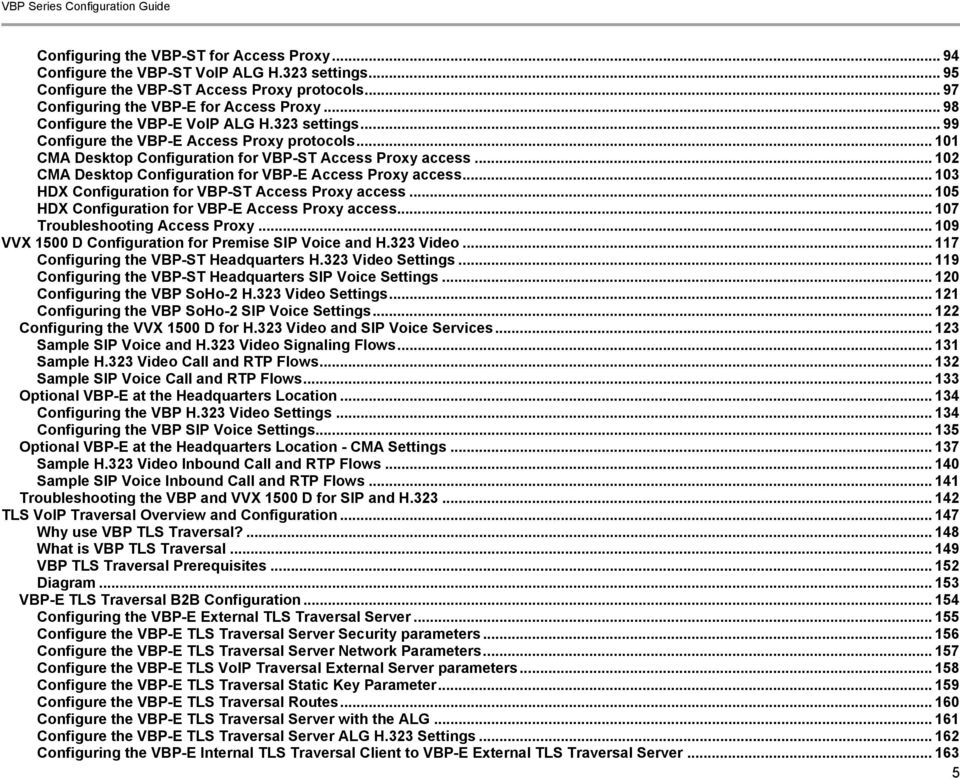
6 Configure the VBP-E Internal TLS Traversal Client Security Parameters Configure the VBP-E Internal TLS Traversal Client network parameters Configure the VBP-E Internal TLS Traversal Client VoIP Traversal parameters Configure the VBP-E Internal TLS Traversal Client Static Key parameter Configure the VBP-E Internal TLS Traversal Client VoIP Traversal Firewall (Optional) Configuring the CMA Server to use the VBP-E External TLS Traversal Server for B2B Calling VBP-ST TLS Traversal Configuration Configuring the VBP-ST External TLS Traversal Server Configure the VBP-ST External TLS Traversal Server Security Parameters Configure the VBP-ST External TLS Traversal Server Network parameters Configure the VBP-ST External TLS Traversal Server Security TLS Certificates (Optional) Procedure for Uploading Certificates to the Certificate Store Creating the TLS Traversal CA Certificate Creating the TLS Traversal Server Certificate Creating the TLS Traversal Client Certificate Configure the VBP-ST External TLS VoIP Traversal Server Parameters Configure the VBP-ST External TLS Traversal Server Authentication Parameters Configure the VBP-ST External TLS Traversal Server Static Key parameter Configure the VBP-ST External TLS Traversal Server Routes Configure the VBP-ST External TLS Traversal Server Firewall (Optional) Viewing the Active VBP-ST External TLS Traversal Server Clients Configure the VBP-ST External TLS Traversal Server with the ALG Configure the VBP-ST External TLS Traversal Server ALG H.323 Settings Configuring the VBP-E Internal TLS Traversal Client to VBP-ST External TLS Traversal Server Configure the VBP-E Internal TLS Traversal Client Security Parameters Configure the VBP-E Internal TLS Traversal Client network Parameters Configure the VBP-E Internal TLS Traversal Client VoIP Traversal Parameters Configure the VBP-E Internal TLS Traversal Client Static Key Parameter Configure the VBP-E Internal TLS Traversal Client VoIP Traversal Firewall (Optional) VBP-E Remote TLS Traversal Configuration Configuring the VBP-E Remote TLS Traversal Client to VBP-ST External TLS Traversal Server Configure the VBP-E Remote TLS Traversal Client Security Parameters Configure the VBP-E Remote TLS Traversal Client Network Parameters Installing the VBP-E Remote TLS Traversal Client Certificates Configure the VBP-E Remote TLS Traversal Client VoIP Traversal Parameters Troubleshooting VoIP Traversal TLS Traversal Virtual Interface Diagram VBP-ST Enterprise Session Border Controller model for Remote TLS Traversal Clients Diagram Configuring the VBP-ST SBC TLS Traversal Server Configure the VBP-ST SBC TLS Traversal Server Security Parameters Configure the VBP-ST SBC TLS Traversal Server Network parameters

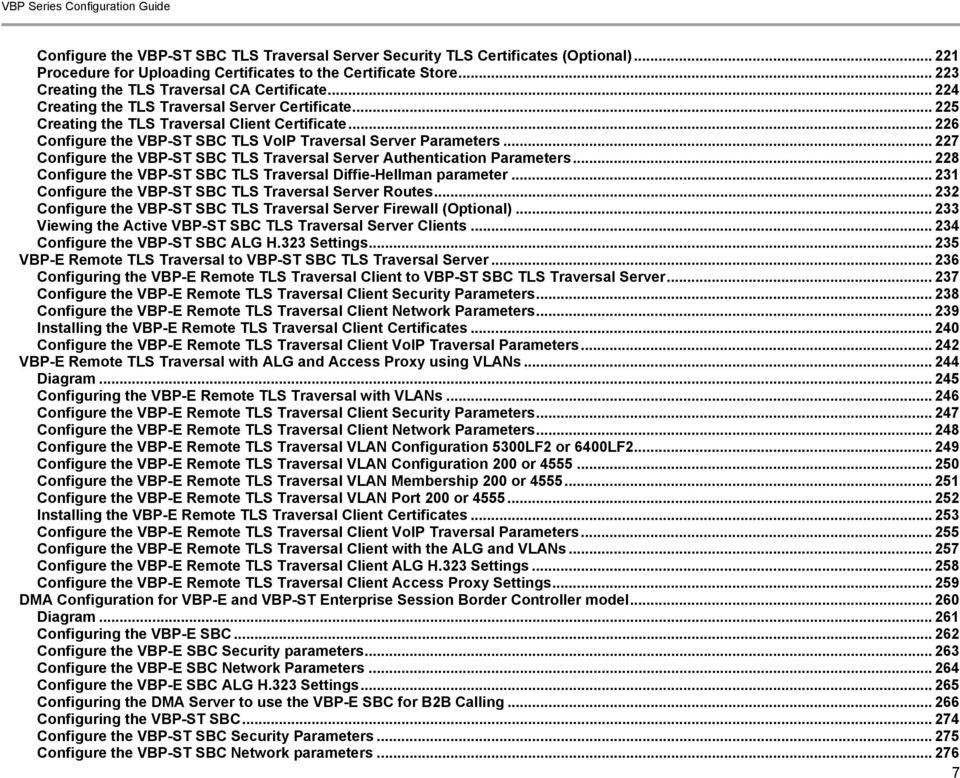
7 Configure the VBP-ST SBC TLS Traversal Server Security TLS Certificates (Optional) Procedure for Uploading Certificates to the Certificate Store Creating the TLS Traversal CA Certificate Creating the TLS Traversal Server Certificate Creating the TLS Traversal Client Certificate Configure the VBP-ST SBC TLS VoIP Traversal Server Parameters Configure the VBP-ST SBC TLS Traversal Server Authentication Parameters Configure the VBP-ST SBC TLS Traversal Diffie-Hellman parameter Configure the VBP-ST SBC TLS Traversal Server Routes Configure the VBP-ST SBC TLS Traversal Server Firewall (Optional) Viewing the Active VBP-ST SBC TLS Traversal Server Clients Configure the VBP-ST SBC ALG H.323 Settings VBP-E Remote TLS Traversal to VBP-ST SBC TLS Traversal Server Configuring the VBP-E Remote TLS Traversal Client to VBP-ST SBC TLS Traversal Server Configure the VBP-E Remote TLS Traversal Client Security Parameters Configure the VBP-E Remote TLS Traversal Client Network Parameters Installing the VBP-E Remote TLS Traversal Client Certificates Configure the VBP-E Remote TLS Traversal Client VoIP Traversal Parameters VBP-E Remote TLS Traversal with ALG and Access Proxy using VLANs Diagram Configuring the VBP-E Remote TLS Traversal with VLANs Configure the VBP-E Remote TLS Traversal Client Security Parameters Configure the VBP-E Remote TLS Traversal Client Network Parameters Configure the VBP-E Remote TLS Traversal VLAN Configuration 5300LF2 or 6400LF Configure the VBP-E Remote TLS Traversal VLAN Configuration 200 or Configure the VBP-E Remote TLS Traversal VLAN Membership 200 or Configure the VBP-E Remote TLS Traversal VLAN Port 200 or Installing the VBP-E Remote TLS Traversal Client Certificates Configure the VBP-E Remote TLS Traversal Client VoIP Traversal Parameters Configure the VBP-E Remote TLS Traversal Client with the ALG and VLANs Configure the VBP-E Remote TLS Traversal Client ALG H.323 Settings Configure the VBP-E Remote TLS Traversal Client Access Proxy Settings DMA Configuration for VBP-E and VBP-ST Enterprise Session Border Controller model Diagram Configuring the VBP-E SBC Configure the VBP-E SBC Security parameters Configure the VBP-E SBC Network Parameters Configure the VBP-E SBC ALG H.323 Settings Configuring the DMA Server to use the VBP-E SBC for B2B Calling Configuring the VBP-ST SBC Configure the VBP-ST SBC Security Parameters Configure the VBP-ST SBC Network parameters
8 Configure the VBP-ST SBC ALG H.323 Settings User and Session Management User Management System Audit Stateful Failover Traffic Shaper Configuration Configuring the Traffic Shaper Diagnostics and Troubleshooting Viewing Version, Hardware Platform and LAN MAC Address Viewing the ALG Registration Code Entering the Registration Code Viewing Networking Information Link Status Interface Information Using Troubleshooting Tools Ping and Traceroute Tests Networking Restart Rebooting the System Reboot the system Using T1 Diagnostics Perform T1 diagnostics View T1 Statistics View advanced T1 diagnostics Device Configuration Management Overview Using the configuration backup command Creating a backup file and save to local flash Copy a backup file to a remote TFTP server Download a backup file from a remote TFTP server List available backup files Delete a backup file Loading a backup file to become the running configuration Regulatory Notices END-USER LICENSE AGREEMENT FOR POLYCOM SOFTWARE Appendix A Compliance and Compatibility for the VBP 200EW Converged Network Appliance WIRELESS Appendix B Compliance and Compatibility for the VBP 200E Converged Network Appliance USA AND CANADIAN NOTICES Part 15 FCC Rules - Class A Digital Device or Peripheral Industry Canada (IC) EEA Regulatory Notices CE Mark R & TTE Directive

9 Appendix C Compliance and Compatibility for the VBP 4350 Converged Network Appliance USA AND CANADIAN NOTICES Part 15 FCC Rules - Class A Digital Device or Peripheral Part 68 FCC Rules Industry Canada (IC) EEA Regulatory Notices CE Mark R & TTE Directive Declaration of Conformity: CLASS A STATEMENTS Japan Korea Appendix D Compliance and Compatibility for the VBP 4350W Converged Network Appliance WIRELESS INDUSTRY CANADA (IC) NOTICE Appendix E Compliance and Compatibility for the VBP 4555 Converged Network Appliance USA AND CANADIAN NOTICES Part 15 FCC Rules - Class A Digital Device or Peripheral Part 68 FCC Rules Industry Canada (IC) EEA Regulatory Notices CE Mark R & TTE Directive Declaration of Conformity: CLASS A STATEMENTS Japan Korea Appendix F Compliance and Compatibility for the VBP 5300-E or ST Converged Network Appliance Part 15 FCC Rules - Class A Digital Device or Peripheral Industry Canada (IC) CE Mark R & TTE Directive CLASS A STATEMENTS Japan Korea China Appendix G Compliance and Compatibility for the VBP 5300LF-E or ST Converged Network Appliance Part 15 FCC Rules - Class A Digital Device or Peripheral Industry Canada (IC) CE Mark R & TTE Directive CLASS A STATEMENTS Japan Korea China Appendix H Compliance and Compatibility for the VBP 5300LF2 Converged Network Appliance

10 USA AND CANADIAN NOTICES FCC Notice Part 15 FCC Rules - Class A Digital Device or Peripheral Industry Canada (IC) EEA Regulatory Notices CE Mark R & TTE Directive Declaration of Conformity: CLASS A STATEMENTS Japan Korea China Appendix I Compliance and Compatibility for the VBP 6400-E or ST Converged Network Appliance Part 15 FCC Rules - Class A Digital Device or Peripheral Industry Canada (IC) CE Mark R & TTE Directive CLASS A STATEMENTS Japan Korea China Taiwan General Information Hardware Warranty Restriction of Hazardous Substances Directive (RoHS) End of Life Products

11 Feature Summary The Video Border Proxy (VBP) Series features intelligent, all-in-one networking solutions for enterprises and service providers. These solutions reduce costs by simplifying the deployment, management, and security of converged voice, video, and data networks. The following table lists the important functions provided by each model of the VBP Series: Function 200 EW 4300, 4350, 4350EW, E 5300-S & ST 6400-E 6400-S & ST Resolves NAT/firewall traversal problems by providing an application layer gateway (ALG) that supports voice and H.323 protocols Protects the enterprise LAN using a stateful packet inspection (SPI) firewall for both H.323 and data traffic Protects the enterprise LAN using a stateful packet inspection (SPI) firewall for H.323 traffic Application-aware firewall dynamically provisions and closes UDP ports used for H.323 calls Provides NAT and PAT for data that hides enterprise LAN topology Provides NAT and PAT for H323 that hides enterprise LAN topology Provides integrated tools to facilitate problem isolation Uses a simple web-based GUI for configuration Site-to-site networking using IPSec: 3DES, SHA-1 X X X X X X X X X X X X X X X X X X X X X X X X X X X X X X X X X X X X X X X X X X Performs static IP routing X X X X X X 11

12 Supports logging to external syslog servers Function X X X X X X 200 EW 4300, 4350, 4350EW, E 5300-S & ST 6400-E 6400-S & ST Provides a DHCP server for enterprise PCs and video devices Supports Access Proxy requires H.460 traversal ST - S systems will need to be upgraded Provides H.460-based traversal support (1) Supports up to 1 Mbps of H.323 traffic - or up to 35 Mbps data traffic Supports up to 3 Mbps of H.323 traffic - or up to line rate for data traffic Supports up to 10 Mbps of H.323 traffic - or up to line rate for data traffic Supports up to 25 Mbps of H.323 traffic - or up to line rate for data traffic Supports up to 25 Mbps of H.323 traffic (2) Supports up to 85 Mbps of H.323 traffic - or up to line rate for data traffic Supports up to 200 Mbps of H.323 traffic (2) Supports up to 85 Mbps of H.323 traffic (2) Supports up to 200 Mbps of H.323 traffic (2) Supports VoIP Traversal TLS External server functionality X X X X X X X X X X X X X X X X X Supports VoIP Traversal TLS X X X X X X X X 12

13 Internal client functionality Supports VoIP Traversal TLS Remote client functionality Supports T1 and Ethernet WAN types X X X X X X X Supports Ethernet WAN types X X X X X X Supports WAN protocols, DHCP, ADSL-PPPoE, Static IP X X Supports WAN protocols, DHCP, Static IP X X X X Supports up to 16 VLAN s X X X X (1) ST models only (2) ST models do not support data NAT related features 13

14 System Configuration You can configure the Video Border Proxy (VBP) series appliance to support a wide range of network services and you can enable or disable specific services based on the requirements of your network. This chapter explains how to configure the VBP series appliance to function in your IP network. You will configure the Ethernet interfaces, network addresses, DNS settings, default gateway, SNMP settings, DHCP services, firewall settings, and change the administrative password. 14

15 Configuring VBP-E Network Settings Note: Ask your ISP to assign an IP address for the VBP series appliance, an IP address for the gateway, and a preferred and secondary IP address for the DNS server. Configure WAN settings 1. Choose Network from the Configuration Menu. 2. Select an Internet connection method. 3. When you select a connection method, the page displays the appropriate settings in the WAN Interface Settings area. a. ADSL-PPPoE Enter the user name and password assigned by the network provider, and indicate whether to monitor the connection using keepalive ping messages. b. DHCP No additional configuration required. c. Static IP Address Enter the IP address and subnet mask. d. T1 Enter the IP address and subnet mask. Click the underlined T1 link to open the T1 Configuration page and set additional T1 parameters. 4. Click Submit. A message indicates that service will be temporarily interrupted. 5. Click OK to confirm. Configure WAN ADSL-PPPoE ADSL-PPPoE (1) Select to display these options. When selected, the WAN Ethernet port will perform a PPP negotiation to obtain an IP address. This IP will be assigned to the ppp0 interface viewable in the Network Information page. A link to this page is provided. The default gateway and DNS servers are also sent to the system in the DHCP reply. User Name (2) Enter the user name your ISP has assigned to your DSL account. Password (3) Enter the password for your user name your ISP has assigned to your DSL account 15

16 Configure WAN DHCP Keepalive Ping (4) Selected by default to send an LCP-echo request, this is called a link control protocol ping and is not to be confused with an ICMP-based ping. The PPP LCP ping interval is every 60 seconds; if three requests are not responded to (180 seconds) the system will re-establish the PPP connection. When this happens you may receive a different IP address. For this reason you should setup a Dynamic DNS account, which allows remote locations to enter a DNS name to dial your location. (see the Dynamic DNS page under System ) see RFC 1661 for PPP related information. Primary DNS Server (5) Entering static DNS information for a dynamic WAN type will override what is received during PPP negotiation Secondary DNS Server (6) Entering static DNS information for a dynamic WAN type will override what is received during PPP negotiation DHCP (1) Select to choose this option. When selected the WAN Ethernet port will perform a DHCP negotiation to obtain and IP address, this IP will be assigned to the eth1 interface viewable in the Network Information page a link to this page is provided. The default gateway and DNS servers are also sent to the system in the DHCP reply. Primary DNS Server (2) Entering static DNS information for a dynamic WAN type will override what is received during DHCP negotiation Secondary DNS Server (3) Entering static DNS information for a dynamic WAN type will override what is received during DHCP negotiation 16

17 Configure WAN Static IP Address Static IP Address (1) Select to display these options IP Address (2) Enter IPv4 IP address Subnet Mask (3) Enter subnet mask as appropriate, default gateway must be in this subnet Default Gateway (4) Enter IP address of the upstream (WAN) router Primary DNS Server (5) Enter primary DNS server IP Secondary DNS Server (6) Enter Secondary DNS server IP Note: The VBP WAN interface must be assigned a publicly routable IP address. Assigning a RFC1918 address to the WAN interface is not supported 17

18 Configuring VBP-ST Network Settings Configure Subscriber and Provider settings 1. Choose Network from the Configuration Menu. 2. Configure all parameters indicated, double check that you have the correct IP s for the interfaces as defined 3. Click Submit. A message indicates that service will be temporarily interrupted. 4. Click OK to confirm. Subscriber Interface Settings IP Address (1) Enter the IPv4 IP address, while this interface is call Subscriber its commonly placed on the Internet or WAN side of the network. The default IP address is while this IP is associated to the LAN, it is used by default on the Subscriber interface. The reason for this is for configuring the system for the first time for documentation procedures of attaching your PC to port 1 to reach , when you reconfigure the Public IP on the Subscriber interface, and the firewall is enabled, you will place this interface on the public network Subnet Mask (2) Enter subnet mask as appropriate, default gateway must be in this subnet Default Gateway (6) Enter IP address of the upstream (WAN) router Primary DNS Server (7) Enter primary DNS server IP Secondary DNS Server (8) Enter Secondary DNS server IP 18
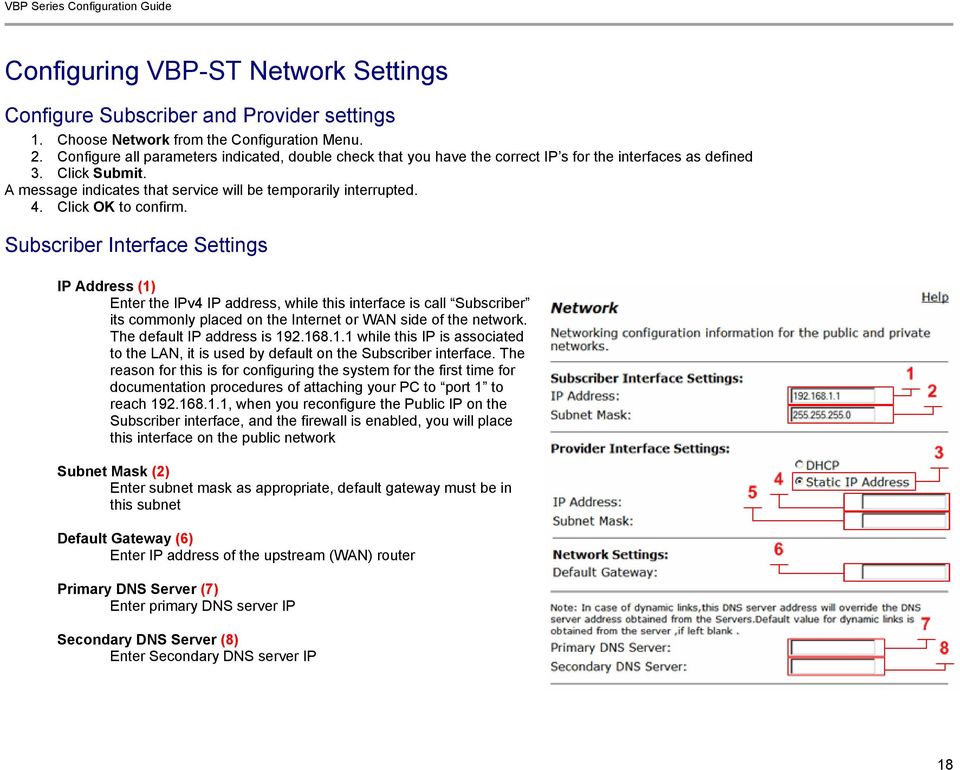
19 Provider Interface Settings Static IP Address (3) Select to display these options, while DHCP is an option on the Provider interface, it is not commonly used due to the nature of H.323, and the dependencies that other H.323 network equipment have on the Provider or LAN network. There are typically multiple devices that require entering this IP statically as part of installing and configuring these other H.323 devices, e.g. gatekeeper, MCU, other routers that provide route entries to the VBP-ST. It is highly recommended that you do not use DHCP on the Provider interface. IP Address (4) Enter IPv4 IP address, while this interface is called Provider In most deployments this interface will be placed in the private or LAN side of the network Subnet Mask (5) Enter subnet mask as appropriate, when creating Route entries the gateways for the route entry must be within this subnet. 19

20 Configuring LAN Settings This section describes how to set up LAN parameters with and without VLANs. The VLAN configuration feature allows you to connect the appliance to an Ethernet switch that has been configured to use VLANs. VBP-S and ST platforms do not support VLAN s Note: The VBP appliance is shipped with LAN IP address and subnet mask Configure LAN network settings without VLANs 1. Choose Network from the Configuration Menu. 2. The LAN Interface Settings area of the Network page shows the LAN IP address ( ) and subnet mask ( ). 3. Clear the Enable VLANs checkbox. 4. Click Submit. A message indicates that service will be interrupted while the new interface is added. 5. Click OK to confirm. Configure LAN network settings with VLANs 1. Choose Network from the Configuration Menu. 2. Select Enable VLANs. 3. Click Submit. A message indicates that service will be interrupted while the new interface is added. 4. Click OK to confirm. 5. Click VLAN Settings to open the VLAN page. 6. Configure settings as appropriate for your VBP model. Configuring VLANs The system supports tagged and untagged VLANs. As specified in the IEEE 802.1q standard, tagged VLANs incorporate the VLAN ID and priority in the frame header. Untagged VLAN packets do not include the VLAN ID or priority. Most VBP series appliances (200EW, 4300T, 4350, 4350EW, 4555 and the 5300/6400 series) provide support for multiple tagged VLANs. The 5300-E and 6400-E series each support a single untagged VLAN; while the 200EW, 4300T, 4350, 4350EW, 4555 support up to four untagged VLANs. VBP-S and ST platforms do not support VLAN s All VBP-E series appliances support up to 16 VLANS. 20

21 Configuring VLANs on the 5300-E and 6400-E series Use the VLAN Configuration page to create up to 16 VLANs on the system. When a new VLAN is created on the 5300LF2 or 6400LF2 platform the system will create an 802.1q tagged VLAN only. The system only supports 1 untagged default VLAN displayed as eth0, since this VLAN is only untagged the displayed eth0 VLAN ID is for reference only. When a new VLAN is created on the 200 or 4555 platform the system can support new VLANs as untagged or tagged depending on how the individual ports are configured. Select - > Network - > VLAN Configuration 1. VLAN Configuration (1) Displays the configured VLANs on the system. 2. VLAN ID (2) Enter a VLAN ID in the field. Valid range is IP Address (3) Enter this VLANs IPv4 address. 4. Subnet Mask (4) Enter the subnet mask for the VLAN interface network. 5. Select Submit to commit the changes. (5) 21
22 Configuring VLANs on the 200, 4350, 4555 Use the VLAN Configuration page to create up to 16 VLANs on the system. When a new VLAN is created on the 200 or 4555 platform the system can support new VLANs as untagged or tagged depending on how the individual ports are configured. Select - > Network - > VLAN Configuration 1. VLAN Configuration (1) Displays the configured VLANs on the system. 2. VLAN ID (2) Enter a VLAN ID in the field. Valid range is IP Address (3) Enter this VLANs IPv4 address. 4. Subnet Mask (4) Enter the subnet mask for the VLAN interface network. 5. Select Commit to add each VLAN. (5) 6. Select Submit to commit the changes. (6) 7. VLAN Membership (7) Select to configure each VLAN as a member of a specific port. 8. VLAN Port (8) Select to configure the ports packet type and set the default VLAN PVID. a. Tagged Only b. Untagged Only 22
23 Configuring VLAN Membership 200 or 4555 Use the VLAN Membership page to configure LAN ports as members of a VLAN. If a port is a member of a VLAN, the system will accept both tagged and untagged traffic of that VLAN. Go to the VLAN port page to configure PVIDs for untagged traffic or to configure a port to accept only tagged traffic. Select - > Network - > VLAN Configuration - > VLAN Membership 1. VLAN ID (1) Select the VLAN ID to configure as a port member 2. Member (2) Select the port or ports this VLAN will be assigned to. 3. Select Submit to commit the changes. (6) In the example below both VLAN ID 10 and 172 are assigned to port 3 and will be configured as an 802.1q Tagged VLAN. This example also shows VLAN ID 10 assigned to port 1 and VLAN ID 172 assigned to port 2 and will be configured as an Untagged VLAN. 23
24 Configuring VLAN Port 200 or 4555 Use the VLAN Port page to configure per port VLAN settings. These settings include the packet type accepted on the port and the port's PVID (Port VLAN ID). Select - > Network - > VLAN Configuration - > VLAN Port 1. Packet Type (1) By default, both tagged and untagged packet types are accepted on a port. If you wish to only accept tagged traffic on a port, select Tagged Only in the packet type drop down menu. Note: If a port is configured to accept tagged packets only, the PVID selection is irrelevant. 2. PVID (2) When the systems LAN port has multiple VLANs assigned to it, only one of them can be selected as the port's untagged VLAN ID or PVID. By default, a LAN port will be assigned to PVID 1. The PVID drop down menu consists of all VLANs the port is a member of. This is taken from the configuration in the VLAN Port Membership page. Note: If a drop down menu is empty, no VLANs were assigned to that port. 3. Select Submit to commit the changes. (6) In this example port 3 will be the 802.1q trunk port with VLAN ID 10 and VLAN ID 172 as tagged frames. This port should be connected to the VLAN switch. The upstream VLAN switch can then be configured on a port by port basis to assign untagged ports for the H.323 video devices to have access to the production data VLAN ID 10 or the TLS room system VLAN ID 172. This example also shows VLAN ID 10 assigned to port 1 and set as the default VLAN. VLAN ID 172 is assigned to port 2 as an untagged VLAN and set as the default VLAN. This can be useful when the location does not have VLAN capable VLAN switches. In this case the admin can connect port 1 to the production data switch for desktop H.323 access to the headquarters CMA server. The admin can then connect a separate Ethernet switch to port 2 and connect the room system to the TLS network directly. By selecting Untagged Only the system will configure these ports as frames. 24
25 Configuring Ethernet Interface Link Settings You can modify the Ethernet interface link settings for the appliance, since Auto-negotiate interoperability can be problematic for real time protocols, it is recommended to statically configure both VBP Ethernet ports and the switch ports the VBP s interfaces are connected to. Depending on the WAN link it may be necessary to adjust the WAN MTU size, this issue is typically seen on connections under T1 rates or, DSL links and that depends on the DSL devices ability to set the MTU or MSS size. Note: Take care when adjusting the Ethernet link rate. The device may become unreachable if an incompatible rate is set. 1. Choose System > Set Link. 2. Select a rate for each Ethernet link, or choose Auto-negotiate. 3. Click Submit. A message indicates that service will be interrupted while the new interface is added. 4. Click OK to confirm. SNMP Overview The VBP series appliance can be managed remotely by an SNMP network management system such as HP Openview. SNMPv1, v2, and v3 and the following MIBS are supported: MIB-II (RFC 1213) IF-MIB (RFC 2863) SNMP MIB-V2 (RFC 3418) TCP-MIB (RFC 4022) IP-MIB (RFC 2011) UDP-MIB (RFC 4113) SNMP-VIEW-BASED-ACM-MIB (RFC 3415) SNMP-MPD-MIB (RFC 3412) SNMP-USER-BASED-SM-MIB (RFC 3414) SNMP-FRAMEWORK-MIB (RFC 3411) All MIB variables are read only. The SNMP MIB-V2 variables syscontact, syslocation and sysname can be set through the web GUI. The web GUI supports the configuration of multiple SNMP v1 and SNMP v2 trap destinations. The traps are sent to each of the configured destination using the appropriate protocol version and community string. SNMPv3 supports only one trap destination. The VBP series appliance sends the following traps: coldstart authenticationfailure 25
26 linkup linkdown 26
27 Configure SNMP 1. Choose System > Services Configuration. 2. To use SNMPv1 or SNMPv2, select the Enable SNMPv1 checkbox. By default, the agent-address field in SNMPv1 traps is set to the address of the interface that is used to send the trap. You can assign a custom IP address by entering a value in the SNMPv1 Trap Agent IP Address field. 3. To use SNMPv3, check the Enable SNMPv3 checkbox. Enter the user name, passphrase, security method, trap context, and destination trap IP address. The following security methods are supported: 4. None: No authentication and no Privacy 5. Auth(MD5): Authentication using MD5 6. AuthPriv(MD5/DES): Authentication using MD5 and Privacy using DES protocol 7. Click Submit. A message indicates that service will be temporarily interrupted. 8. Click OK to confirm. The figure below displays the VBP configuration for the SNMP Network setup: Figure 1. SNMP Configuration Example 27
28 Disable SNMP 1. Choose System > Services Configuration. 2. Clear the Enable SNMPv1 or Enable SNMPv3 checkbox. A message indicates that service will be temporarily interrupted. 3. Click OK to confirm. Delete an SNMP trap 1. Choose System > Services Configuration. 2. Click the trash can icon for the trap. 3. Click Delete. Configuring DHCP Services You can configure DHCP services with and without VLANs on all E series appliances. You can also relay DHCP requests to an external DHCP server or use the DHCP server included in the VBP series appliance. DHCP Relay When you enable DHCP relay and point to a valid DHCP server, you determine that all DHCP requests will be forwarded to that server. Local DHCP and DHCP Relay are mutually exclusive. That is, turning on DHCP Relay automatically turns off local DHCP, and turning on DHCP automatically turns off DHCP Relay. As you configure the functions featured on the page, review the following list: Enable DHCP Relay Select this checkbox to enable DHCP Relay. DHCP Relay IP Address Enter the IP address of the DHCP server where the system will forward traffic. 1. Choose DHCP Relay from the Configuration Menu. 2. Check Enable HDCP Relay 3. Enter the DHCP Relay IPv4 IP Address 4. Click Submit. A message indicates that service will be temporarily interrupted. 5. Click OK to confirm. 28
29 DHCP Server DHCP is a protocol that enables PCs and workstations to get temporary or permanent IP addresses (out of a pool) from centrally administered servers. All VBP E series appliances can act as a DHCP server, assigning IP addresses to devices in the network. You can configure blocks of IP addresses, default gateway, DNS servers, and other parameters that can be served to requesting devices. Table 1 lists the DHCP options supported by the systems DHCP Server. DHCP on your system does not have to be enabled if a DHCP server exists elsewhere in your company network. It can be disabled. When you have enabled the DHCP server, you can turn it on or off using the Enable DHCP Server box without having to change other settings. The DHCP IP Address Ranges table shows the dynamic addresses to use for the LAN devices. Enter individual DHCP IP addresses or a range. Assign static IP addresses for any common-access devices, such as printers or fax machines. Table 1 DHCP Server Options Option Description 1 Subnet Mask - LAN Netmask of the VBP Network page 2 Time Offset 3 Router - LAN IP of the VBP Network page 6 DNS Server - DNS IP, Network page 42 NTP Servers 51 IP address lease time - Lease duration in seconds, DHCP page 53 DHCP Message Type - Set by DHCP server 54 Server Identifier - LAN IP of the VBP 66 FTP Server name 67 Boot file name 129 Call Server IP Address - VLAN ID Discovery 150 Phone Image TFTP Server IP - LAN IP of the VBP, Network Page 151 MGCP Control Server IP - LAN IP of the VBP, Network Page 159 Allows the user to enter a text string in the form of a FQDN. It can be used to point phones to the domain name of a TFTP server using HTTP. 160 Allows the user to enter a text string in the form of a FQDN. It can be used to point phones to the domain name of a TFTP server using HTTPS. 29
30 Configuring DHCP Server Configuring DHCP Server on the VBP appliance includes enabling the server and configuring the DHCP IP Address range to be used by LAN devices. Use the following procedure to configure DHCP. Configure DHCP Choose DHCP Server to open the DHCP Server page. As you configure the functions featured on the page, review the following list: DHCP IP Address Ranges Table (1) Shows the dynamic addresses to use for the LAN devices. Enter individual DHCP IP addresses or a range. To configure an address range, select the appropriate values and click Add. To delete an address, Click the trash can icon. When adding a new range you must click submit to apply the new range to the DHCP server. VLAN (9) see next page for reference Select the VLAN served by the DHCP server. Enable DHCP Server (2) Select this checkbox to enable the DHCP server. Subnet Mask (3) Subnet Mask address for the DHCP pool. This mask is configured from the LAN subnet mask in the Network page Lease Duration (Days) (4) Enter the number of days you want to lease the DHCP service. This is the amount of time a DHCP service will remain connected without lapse. The value can be 1 day minimum and 30 days maximum. Note: when the DHCP lease has expired and the client requests a new IP, it is common for the system to assign the same IP to that system MAC address, if 2 clients make a DHCP request at the same time the lease expires, it is possible the system will not assign the same IP. Time Offset, +/- hours (option 2) (5) (optional) Set the time offset in hours from UTC (Universal time Code) for your local location. 30
31 NTP Server Address (option 42) (6) (optional) Set the Network Time Protocol (NTP) address that is served out by DHCP. This field can have a IP address or DNS name of a valid NTP server. Note: if a DNS name is entered in this field the system will perform a DNS A record lookup and use the IP address returned from this lookup to respond to the DNS request from the client as option 42, if the systems DNS server s configured on the Network page are unresponsive, the DHCP response will be delayed. WINS Address (option 44) (7) (optional) Enter the IPv4 IP address of your WINS server. The Windows Internal Naming Service (WINS) is a service that keeps a database of computer name-to-ip address mappings so that computer names used in Windows environments can be mapped to IP addresses. TFTP/FTP Server Name (option 66) (optional) Set the TFTP/FTP server name that is served out by DHCP. By default, this option is the same as the TFTP server on the ALG page. VLAN ID Discovery (option 129) (optional) Set the VLAN ID that devices will acquire after rebooting. From the Network page (8) This area is for information only, the DNS IP s shown and the Default Gateway shown will be sent to the client in the DHCP reply Configuring DHCP With VLANs This section describes using the DHCP Server capability on the VBP series appliance with configured VLANs. The VBP series appliance supports a maximum of 16 VLANs, all of which could be associated with the DHCP Server. The following are default VLAN IDs used on the VBP appliance: VLAN ID 1 (formerly 2730)-- used for management interface (VBP 5300 and 6400 appliances only) VLAN ID used for video VLAN ID used for data Note: To use DHCP with VLANs, the VLAN capability must be enabled and VLANs configured. Once VLAN capability is enabled and VLANs configured, use the following procedure. 1. Select the VLAN to be used from the drop down list. 2. Check Enable DHCP Server. 3. Add DHCP IP Address Ranges (Scope). In the DHCP IP Address Range table input the starting and ending IP address, then click Add. 4. Click Submit, when adding an extra IP Address Range to this server you must click submit to apply the new range. 31
32 DHCP Leases The DHCP Leases page displays view-only information about clients that are currently leasing a DHCP address. View DHCP lease information Choose DHCP Server > DHCP Leases. Hostname Name of the client that is currently using this DHCP address. IP Address IP address of the client. MAC Address MAC address of the client. Expires Date and time that the DHCP address expires. Delete Select the client you wish to delete and click Delete 32
33 Configuring DNS for ANNEX O support ANNEX O is a recommendation within the H.323 standard to define a means in which endpoints and border elements standardize on a common dial plan. ANNEX O is also referenced as URI or URL dialing in the form of [email protected] or user@host format. The user portion of this format will be the H.323 endpoints E.164 and or H.323-ID. When the endpoint registers to the gatekeeper with these aliases the endpoint can be called with either as the user portion. The host portion can be a legal numeric IP address or a fully qualified domain name (FQDN) a company has registered, in this explanation we will reference example.com and discuss the DNS infrastructure and configurations needed. Using a FQDN for H.323 services will require specific SRV and A records to be created on the DNS sever. If you choose to standardize on ANNEX O as your dial plan DNS records will be to needed to simplify the method in which remote locations call into your enterprise that could have a single VBP or multiple VBPs installed at the border. Outbound calls from the VBP to remote domains or enterprises will depend on what the user dialed and how that location has deployed there H.323 solution and domain records. Discussed in this section is a simplified explanation of DNS SRV records and how to configure them for your domain for incoming calls. When users on the enterprise call outbound the VBP will perform SRV and A record queries as described for the H.323 endpoint as both use a similar but different DNS application client to perform the request. SRV records also provide a method to prioritize which VBP receives incoming calls, or with the SRV priority field set to an equal value a round robin method could be supported to distribute the load throughout the enterprise. Using a round robin approach will depend on how the calling H.323 DNS client supports the usage of the priority and weighting fields, some H.323 endpoints may not support this feature correctly. You will need to configure the following on your DNS server SRV service records Service records specify the A record or FQDN of the VBP A Records Defines the IPv4 address of the VBP SRV record format as defined by Configuring your DNS settings are for services to your VBP for remote locations to reach your enterprise. The method in which most inbound connections will be made will be using the _h323cs service lookup to support an adhoc call using the [email protected] format. Some VBP deployments may require gatekeeper neighboring to support a non ANNEX O dial plan such as dialing the destination alias E.164 e.g and require a _h323ls service type. The proto field should be set to the service respectively e.g. _h323cs is TCP proto and _h323ls is UDP proto _Service._Proto.Name TTL Class SRV Priority Weight Port Target Service: The symbolic name of the service e.g. _h323cs or _h323ls this field is case sensitive Proto: The protocol type e.g. _tcp or _udp this field is case sensitive 33
34 TTL: Standard DNS time to live field Class: Standard DNS class field (this is always IN) Priority: Refers to the priority of this target host, a lower value receives a higher priority Weight: The weight field specifies a relative weight for entries with the same priority Port: The port of this target host of this service Target: The domain name of the target host, there must be a A record as this name A record format as defined by Configuring your DNS server A record type allows you to map a name to a IPv4 address. Each VBP installed on the network will have a unique IPv4 WAN address assigned and the same applies for the DNS A record name configured. Example; Name Type Data vbp1.example.com IN A vbp2.example.com IN A DNS servers can be different in configuring the SRV or A record parameters, please consult with your IT staff or DNS provider in configuring the records required for your specific VBP deployment. In the diagram below the enterprise VBP deployment has installed 2 VBP systems in different locations on the WAN network, the reasons for this could be for network redundancy or to distribute the incoming calls between the 2 VBP s. For the example DNS records we will assume a redundant VBP model is desired. Create DNS A records for both VBP s on your DNS server as shown above, then create the SRV records to related the A records. Example; Name Type Data TTL _h323cs._tcp.example.com IN SRV vbp1.example.com 1 day _h323cs._tcp.example.com IN SRV vbp2.example.com 1 day You will need to configure SRV and A record entries for all the VBP s installed on the network as they relate to the _h323cs service for example.com. In the above SRV example vbp1.example.com is set for a priority of 0, weight 50, port 1720 (default for call setup) and vbp2 is set for priority 1, weight 50, port The calling endpoint would send the call SETUP to vbp1 unless vbp1 has become unresponsive to the request, when the call to vbp1 times out, the calling endpoint will use the next lower priority to forward the call to, in this example the call will go to vbp2. The calling endpoint will query the DNS server for an SRV record first, if there is no such record found the H.323 endpoint will perform an A record query, if there is no such record found the H.323 endpoint will fail the call and the user will need to dial the destination by the IPv4 address. An important item to note is, example.com is the destination domain, this domain will usually have different services configured, HTTP, etc. Web browsers and clients will query the DNS server for their service type, H.323 endpoints and border elements are another configured service type to the domain. 34
35 Using the SRV and A record examples above the below diagram shows an example of a H.323 endpoint dialing [email protected] the H.323 endpoint will perform a SRV query on example.com to the DNS server address configured in the endpoints network parameters. The DNS server will reply back with a DNS SRV query response with vbp1.example.com and vbp2.example.com. The endpoint will now perform a DNS A record query for vbp1.example.com and vbp2.example.com. The DNS server will reply back with a DNS A record response with and The endpoint will now send a call SETUP to with a destination alias of john.smith. If is unavailable, the endpoint will timeout the session and create a new call SETUP to
36 Diagnose your DNS settings Adding or changing DNS records can take 24 hours to propagate out internet based DNS servers, if there are users that cannot reach your VBP it may simply be the DNS server they are using have not been updated yet. You can perform a simple request from your computer by opening a command prompt and typing nslookup -q=srv _h323cs._tcp.example.com C:\Documents and Settings\Jane Smith>nslookup -q=srv _h323cs._tcp.example.com Server: vnsc-bak.sys.gtei.net Address: Non-authoritative answer: _h323cs._tcp.example.com SRV service location: priority = 1 weight = 50 port = 1720 svr hostname = vbp2.example.com _h323cs._tcp.example.com SRV service location: priority = 0 weight = 50 port = 1720 svr hostname = vbp1.example.com Now perform a ping to the hostname for both entries C:\Documents and Settings\Jane Smith>ping vbp1.example.com Pinging vbp1.example.com [ ] with 32 bytes of data: Reply from : bytes=32 time=94ms TTL=49 Reply from : bytes=32 time=95ms TTL=49 Reply from : bytes=32 time=93ms TTL=49 Reply from : bytes=32 time=107ms TTL=49 Ping statistics for : Packets: Sent = 4, Received = 4, Lost = 0 (0% loss), Approximate round trip times in milli-seconds: Minimum = 93ms, Maximum = 107ms, Average = 97ms 36
37 Firewall rules for securing the network VBP Firewall Basics The VBP system deploys a Linux iptables firewall, and as a converged system, this firewall is controlled by internal applications dynamically. The H.323 ALG application uses iptables dynamically; as H.323 calls are being proxied and modified at Layer 5, the firewall ports for TCP H.245 messages are dynamically opened. This H.245 TCP connection is used by the endpoints to send media related parameters, what codecs can be used for audio and video, how many channels will be used, what ports both endpoints intend to send/receive RTP on, etc. During this negotiation the VBP NAT/PAT s this information as messages pass through the system, since the VBP provides the NAT (network address translation) PAT (port address translation) function, the VBP will know what UDP ports and IP s to allow to incoming connections. This process happens dynamically, there is nothing to configure on the Firewall page to setup the system. The below methods are mainly for call control, as soon as the call control is allowed the system will allow the RTP media ports dynamically. TCP Port 1720 is used by H.323 devices as the call control port and more important is the presence of the TCP port 1720 connection; if this connection is closed by any device in the path, the endpoints will disconnect the session and the VBP will shut down access to the UDP media ports dynamically. During normal call control when a user hangs up the system, there are normal disconnect messages that happen at Layer 5 when a system wishes to disconnect, the end result after these Layer 5 messages have terminated normally is both endpoints will close the TCP port 1720 connection causing all devices between the endpoints to remove their NAT/PAT contracts. 37
38 Configure the VBP-E Whitelist/Blacklist 1. Select - > VoIP ALG - > H > Whitelist/Blacklist 2. Click Whitelist (1) - Deny all H.323 incoming calls by default and accept the listed addresses. 3. Click Blacklist (2) - Accept all H.323 incoming calls by default and deny the listed addresses. 4. Select Commit When the system comes back up you will now have the ability to add IPv4 addresses. 5. Enter the IPv4 Address (3) and click Add (4) 6. The system will warn you this action will cause active calls to be interrupted. Note: This feature is designed to allow or deny TCP port 1720 on the WAN or Subscriber interface. This feature is not designed to block outbound access from the LAN or Provider interface. 38
39 VBP-E or VBP-S and ST blocking management ports It may be necessary to block un-encrypted methods of managing the VBP for security reasons. By default the VBP-E system accepts management port connections on the LAN interface. VBP-E management ports Port 80 HTTP Port 443 HTTPS Port 22 SSH Port 23 Telnet Port 161 SNMP You can define rules to block LAN side access to these ports. CAUTION: You should test an HTTPS connection to the system before you enter the rule that will DROP port 80 HTTP requests. To block HTTP iptables -I INPUT -i eth0+ -p tcp --dport 80 -j DROP To block Telnet iptables -I INPUT -i eth0+ -p tcp --dport 23 -j DROP To block SNMP iptables -I INPUT -i eth0+ -p tcp --dport 161 -j DROP Most security teams will allow HTTPS and SSH as both protocols are SSL encoded 39
40 By default the system allows ICMP ping to the WAN/LAN interfaces To block ICMP on the LAN interface iptables -I INPUT 1 -i eth0+ -p icmp -j DROP To block ICMP on the WAN interface iptables -I INPUT 1 -i eth1+ -p icmp -j DROP To block ICMP on both interfaces iptables -I INPUT 1 -p icmp -j DROP Trusted Hosts Trusted Hosts are configured to control access to management functions on a VBP-E to a given IP address or subnet. Enter the appropriate information in Trusted Management Addresses. The logic for Trusted Management Addresses is easy to follow: By entering one or more IP addresses or subnets into this field, the VBP-E Series will create ACCEPT rules for the Management protocol defined in the Basic WAN Firewall Settings area (HTTP/HTTPS/Telnet/etc.) for the IP addresses entered, and drop rules for all other IP addresses. Select - > Security - > Trusted Hosts 1. IP/Network Address (1) - The IP address or network address of the subnet to be managed. 2. Netmask (2) - The netmask to apply to the IP/Network Address. The netmask determines how many addresses will be available in the network. 3. Select Add to commit the changes. (3). Warning! Once a trusted address is defined, only hosts in the trusted list are allowed to access the system! Before proceeding, verify that the firewall settings are configured to allow the desired management protocols. Next, add the address of the system running this configuration GUI to the list of trusted hosts. 40
41 VBP-S or ST management ports Port 80 HTTP Port 443 HTTPS Port 22 SSH Port 23 Telnet Port 161 SNMP VBP-S or ST systems have a different firewall concept, the VBP-S or ST is traditionally placed on the Enterprise security boundary. The VBP-S or ST could be placed in a Service Provider model which would have public IP s on both interfaces, this is the reason the system uses the term Provider/Subscriber instead of WAN/LAN. With this in mind, unlike the Firewall page in the VBP-E which only blocks management port access from the WAN side, the VBP-S or ST applies the allow/deny rules by checking or un-checking the desired management access to both Provider/Subscriber interfaces. By un-checking HTTP access the system will create rules to block port 80 request on both interfaces. The below rules are provided for both interfaces, as you may want to allow HTTP on the Provider side and block HTTP on the Subscriber side, in this case you will have HTTP checked on the Firewall page and then insert the rule to block port 80 HTTP on the Subscriber interface. CAUTION: If you plan to manage the system with HTTPS, you must configure a certificate in the HTTPS Certificate page before the system will accept HTTPS requests. If you are enabling the Access Proxy, you will need to re-map HTTPS to an alternate ports, Access Proxy requires the use of port 443 To block HTTP on the Subscriber Interface iptables -I INPUT -i eth0+ -p tcp --dport 80 -j DROP To block Telnet on the Subscriber Interface iptables -I INPUT -i eth0+ -p tcp --dport 23 -j DROP To block SNMP on the Subscriber Interface iptables -I INPUT -i eth0+ -p tcp --dport 161 -j DROP 41
42 To block HTTP on the Provider Interface iptables -I INPUT -i eth1+ -p tcp --dport 80 -j DROP To block Telnet on the Provider Interface iptables -I INPUT -i eth0+ -p tcp --dport 23 -j DROP To block SNMP on the Provider Interface iptables -I INPUT -i eth0+ -p tcp --dport 161 -j DROP Most security teams will allow HTTPS and SSH as both protocols are SSL encoded By default the system allows ICMP ping to the WAN/LAN interfaces To block ICMP on the Subscriber interface iptables -I INPUT 1 -i eth0+ -p icmp -j DROP To block ICMP on the Provider interface iptables -I INPUT 1 -i eth1+ -p icmp -j DROP To block ICMP on both interfaces iptables -I INPUT 1 -p icmp -j DROP 42
43 CERT Advisory CA When performing a security scan of the VBP system the scan results may indicate a vulnerability for this CERT advisory. Most port scanning application detect the presence of the well known H.323 ports, UDP 1719 and TCP 1720 and flag this as a concern to be addressed. Below are the details of the CERT advisory and the version of the H.323 stack the VBP uses. The VBP uses a Linux kernel Linux uc0 The following link provides the concerns for the CERT advisory CA At the following link, you will see: The NISSC announced on 13 January 2004 that they had discovered vulnerabilities in several implementations of the H.323 protocol. This announcement was also released by CERT as Advisory CA All releases of PWLib after v1.6.0 contain fixes for the vulnerabilities demonstrated by the NISCC test suite. This includes the Janus and Pandora baseline releases and all subsequent stable and development code releases. In the release notes for version you will find the following statement Updated the H.323 stack to the Pandora release (version numbers: pwlib 1.7.5, openh ). This version of the stack has numerous fixes, most importantly the security issues discovered in the ASN.1 encoder/decoder have been fixed. The key to these statements is All releases of PWLib after v1.6.0 contain the fixes for this advisory the current Polycom version is Pandora release (version numbers: pwlib 1.7.5, openh The above concerns were addressed in VBP version The current firmware version of VBP is
44 Implementing Polycom VBP with a Third-Party Firewall This section describes an issue that exists when certain application protocols such as H.323 are used when communicating across a NAT, or third-party firewall. It is common for third-party firewalls to cause issues with advanced H.323 features such as AES-encrypted calls, People+Content or H.239 dual-stream calls, and routed-mode gatekeeper services. This section describes the issues and how you can implement VBP so that H.323 communications take place successfully. Describing the Issue Between H.323 Communications and NAT H.323 endpoints exchange data during call setup to determine how and where they will communicate. These messages are transmitted as segments in TCP sessions for Call Setup (for H.225 messages) and Call Control (for H.245 messages). The packets contain the IP address and port number of the given endpoint. This ensures, for example, that each endpoint knows the unique Layer 3 address to send media to, and the port number the endpoint is requesting the far site to use. For example, for an H.245 Open Logical Channel (OLC) message, the receiving endpoint will open UDP port 3235 to receive audio. The sending endpoint will then formulate the audio packets to have the destination port specified in the packet (for example, 3235). (Note that there are several other types of H.245 messages, and that an OLC message may contain additional parameters.) NAT and H.323 environments typically have issues with the transmission of one-way video and/or audio. The endpoint behind the NAT is unable to see the far site, even though the far site is able to see/hear the endpoint behind the NAT. This occurs because the NAT device lacks the application intelligence to handle the H.323 protocol. The NAT device cannot open the proper Layer 5 messages, read the information, alter the IP address and port number in the packets, or open the specified ports. In certain situations, the device may allow calls to connect (for example, when an endpoint behind the NAT dials a public IP endpoint). Resolving the Issue Without VBP In some cases, you can resolve the issues that exist in NAT/H.323 environments by using a 1-1 NAT or an H.323-compliant firewall. However, both these scenarios have issues, as discussed below. Using a 1-1 NAT You may be able to configure an endpoint to operate with a 1-1 NAT. This involves configuring the endpoint so that it knows what the public IP address is, and setting an option to restrict the TCP and UDP ports that the endpoint can use (the Fixed Ports option). Then, you can configure a 1-1NAT on the firewall to map the private IP address to the public IP address, and restrict the available ports to the ports the endpoint requires. This works well for smaller implementations, and those without advanced H.323 infrastructures (for example, a gatekeeper). The issues with the above scenario include: The inability of one endpoint behind a firewall to correctly communicate with another endpoint behind the same firewall. Usually, this is because one endpoint that has been configured for NAT has dialed a subnet other than its own. In this case, the endpoint doesn t know whether to use the private public or private IP address in the H.225/H.245 message. 44
45 Most endpoints will try to determine if a call should use the public or private IP address. However, since there are many possible LAN configuration scenarios, simplified logic (as described next) is often used: o If the call is not to an endpoint on the same subnet as me, I will use the public IP address assigned to me. or o If I have a private IP assigned to me and the call is to another private IP address, I will use the private IP in the H.225 and H.245 message. Otherwise, I will use the public IP address. The difficulty of using the scenario for a LAN that consists of both private and public IP address space. The availability of public IP addresses. Since each endpoint requires its own 1-1 NAT, many endpoints can quickly use up a company s available public IP addresses. Security risks. The LAN endpoint sends packets to the far-site s public IP address, and requires the firewall to allow packets from a public IP address to enter the LAN. This is a security risk, since the firewall must allow packets to leave and enter the network. If H.323 communication is limited to a small number of public endpoints, the firewall can be configured to allow only communications with those addresses. In today s climate, with H.323 use growing quickly, it could be a large burden on the firewall administrator. Using an H.323-Compliant Firewall Some firewall vendors have supplication intelligence built in to their devices that understand the H.323 protocol and allow the endpoint to communicate across the NAT. Polycom refers to these firewalls as H.323-compliant NAT devices. An example of one such device is the Cisco PIX using H323fixup. In general, these devices require a 1-1 NAT for each LAN endpoint, and for the H.323 service to be enabled. In most cases, the endpoint is not configured with any NAT settings. The device must manage both the Layer 3 NAT as well as the IP address and port information contained in the packet s data portion. This alleviates the LAN-LAN dialing issue described above, since the endpoint does not have any public IP information and cannot incorrectly use it. Using a firewall that is H.323 compliant has security risks. For more information on the security risks, see the preceding section. Resolving the Issue with VBP You can resolve the NAT issue introduced when using application protocols such as H.323 by installing the VBP on the LAN and WAN border of the network, and performing a secure firewall proxy for H.323 communications. This design requires a publicly routable, non-nat ed IP address to be assigned to the VBP s WAN interface to perform IP and port modifications of the various H.323 messaging packets that must be exchanged for successful communications. VBP is designed as a security device with direct exposure to Internet traffic through the use of an integrated stateful packet inspection iptables firewall. Some security policies may require all traffic to traverse a third-party data security device. Polycom VBP works by proxying H.323 communication, using sophisticated Application Layer Gateway (ALG) software to manage the process. This method allows many LAN endpoints to communicate with the Internet using a single public IP address. The ALG maps the data flows for the LAN to WAN calls, with the LAN side seeing only the VBP s LAN IP address, and the WAN side seeing only the VBP s WAN IP address. Since the VBP has the routable IP address on the WAN interface, it can properly communicate with Internet endpoints, using this public IP in H.225/H.245 messages. For a single LAN to WAN call using a VBP, there are two calls: one from the LAN endpoint to the VBP s LAN IP, and another from the 45
46 VBP s WAN IP to the public endpoint. The ALG manages the process of exchanging data and media, and proxies the information from one network to the other. Note: You cannot NAT a VBP. It is the Layer 3 NAT that causes the H.323-NAT issue the VBP resolves. If you NAT a VBP interface, you will have the same issue you had before you implemented a VBP, just relevant to fewer IP addresses. Implementing a VBP with a Third-Party Firewall How you implement a VBP with a third-party firewall depends on demilitarized zone (DMZ) availability and whether the DMZ uses a public or private IP space. Note: Before you implement a VBP, make sure that it is required. If the third-party firewall already supports the necessary functions for successful communications, and all parties are satisfied with the current security of the configuration, you do not require a VBP. Important: Regardless of the method you use to implement a VBP, the firewall should not run any H.323 helper services, such as Cisco s H323fixup service. The VBP handles all communication itself, and any attempts to use other services may create an issue. Implementing a DMZ with a Public IP Space If the DMZ has a public IP space, there is an available public IP address within the firewall s DMZ. Assign the VBP WAN port to this address, and assign the VBP LAN port to either the enterprise LAN itself, or to another DMZ with a private IP that is routable to the enterprise LAN. You need to create firewall rules for the VBP s public address that allow certain ports and protocols for the specific VBP model in use. These ports and protocols are listed in the tables in the Required Ports section, below. There is a large port range because the VBP can proxy many H.323 calls concurrently. You can optionally restrict communication to the VBP s public address using the firewall rule-set, choosing to restrict it to only known and trusted public IP addresses (as long as the required ports and protocols are available). The ports are open on the firewall, but are only open on the VBP when in use. The ALG dynamically opens and closes ports on both interfaces on call setup/teardown, greatly enhancing security. (Note: TCP1720 is required for H.323 call setup and will always be listening on both VBP interfaces running ALG services.) This meets most security policies as all traffic from the Internet passes through the trusted third-party security device before communicating with the VBP. You can attach the VBP s LAN interface to the LAN, or route it to the LAN through another DMZ. For a list of ports that are required for the LAN interface, refer to Table 3 in the Required Ports section, below. As long as these ports are available to LAN-side H.323 devices requiring communication to the Internet, there should be no issues. Note: The VBP s LAN interface needs to communicate with two types of hosts: 46
47 Any H.323 device in the communication path, including endpoints, gatekeepers, and MCUs. The PC/server acting as the management host. When the LAN interface is in a private IP DMZ, you can write the firewall rule-set to restrict the number of hosts the VBP can communicate with to only those devices. This enhances security. You can also do this by using an ACL on a router on the VBP s LAN side. Implementing a DMZ with a Private IP Space If the DMZ has private IP space, install the VBP so that its WAN interface is attached outside of the firewall, with a public IP address assigned, while the LAN interface is in the DMZ. You can control access to the WAN port using either ACLs on the upstream router, or the built-in netfilter package on the VBP itself. You can easily configure the VBP to drop any incoming non-h.323 packet (by disabling LAN NAT), as well as accept H.323 packets from only known sources. You can route the VBP s LAN interface to the enterprise LAN by using the firewall s DMZ and the rule-set outlined in the above guidelines. Again, this is generally sufficient for security policies, since all communications passes through the trusted third-party security device. Installing the VBP on a public DMZ port to the WAN or Subscriber interfaces must allow the following ports unmodified to the VBP. The VBP itself is the application firewall for H.323 traffic, and with no calls in progress, the VBP will only be listening on TCP port 1720 for incoming calls. The VBP will provide dynamic H.323 application firewall rules to open and close the associated H.225, H.245 and UDP media ports for each call that successfully passes the TCP port 1720 signaling phase. The VBP will embed the public IP assigned to the WAN or Subscriber interface at Layer 5 to the called or calling endpoint. The VBP will also embed the ports below at Layer 5 as they pertain to the H.323 protocol process for H.225 call setup, H.245 media negotiation, and UDP media handling to and from the calling and called endpoints. Important: For public Internet connectivity, the VBP E or VBP ST series models must have a publicly routable non-nat'ed IP address assigned to the WAN or Subscriber-side interface. A firewall must be configured to allow inbound and outbound H.323 protocols to the VBP, as well as other protocols used by the H.323 devices (such as SNTP) and to manage the VBP (such as SSH, HTTP, HTTPS, Telnet). Since the VBP is a firewall proxy, all H.323 packets will have a source or destination IP address that is the VBP s Subscriber (VBP-S or ST) or WAN (VBP-E) IP address. You can use this to help set up the appropriate firewall rules. VBP RTP media ports will always be even numbered (for example, 16386, 16388). Odd numbered ports will be used for RTCP (for example, 16387, 16389). The port ranges will be used in a circular hunt from lowest to highest per platform. The VBP 5300 E-10 and E-25 models do not have a reduced port number that equals the bandwidth model. Therefore, a single port range is used for both models. Using the VBP in a firewall DMZ configuration, the following protocols are required: RAS, Q.931 (H.225), H.245, and RTP, as specified per platform. 47
48 Required Ports This section contains tables that define the ports that are required to implement a VBP with a third-party firewall. Table 1 defines the ports that the VBP could use, depending on the deployment scenario. Tables 2 to 8 list the ports and directional relationship you need to know to configure a DMZ port filtering rules set in various deployment scenarios. Table 1 In all cases FTP TCP 21 (optional) HTTP TCP 80 (optional for management) HTTPS TCP 445 (optional for management, this port is adjustable in the HTTPS Certificate page) HTTPS TCP 443 (Access Proxy) XMPP TCP 5222 (Access Proxy) LDAP TCP 389 (Access Proxy) RTP UDP (200EW,4300T,4350,4350EW) (5300-E/ST10 and E/ST25) (6400-E/ST and E/ST 85 SNMP UDP 161 (optional for management) SSH TCP 22 (optional for management) Telnet TCP 23 (optional for management) TFTP UDP 69 (optional) SNTP TCP 123 (optional) TLS UDP 1194 to VBP-ST from Remote TLS clients TLS UDP 1195 from VBP internal client to VBP external server H.323 Endpoints Q.931 (H.225) TCP 1720 RAS UDP 1719 H.245 TCP
49 VBP-E DMZ required ports to and from the WAN interface Table 2 shows the ports required for DMZ port filtering policies applied to the VBP-E WAN interface IP. VBP-E H.323 Endpoints Specific Inbound from the Internet to VBP-E WAN Interface IP Internet SRC IP Internet SRC Port VBP DST IP Proto VBP DST port Any VBP WAN IP TCP H Any VBP WAN IP TCP H (contiguous range) Any VBP WAN IP UDP - RTP (200EW,4300,4350,4350EW) (contiguous range) (5300-E/S10 and E/S25) (contiguous range) (6400-E and S85) (contiguous range) Outbound to the Internet from VBP-E WAN Interface IP VBP SRC IP VBP SRC Port Internet DST IP Proto Internet DST port VBP WAN IP Any TCP H (Typically H.323 endpoints will use the well known H.225 port 1720) VBP WAN IP Any TCP H VBP WAN IP or or Any UDP - RTP (note: if the DST endpoint can support a limited port range, set to the endpoints DST media range. It is recommended to verify the solution before applying a granular policy on the DMZ firewall) 49
50 VBP-E DMZ required ports inbound to the LAN interface Table 3 shows the ports required for DMZ port filtering policies applied from the LAN H.323 endpoint to the VBP LAN interface IP. Depending on the mode the VBP is configured in, UDP port 1719 will only be required when using the Embedded or Wan Side gatekeeper modes. Depending on the H.323 endpoints being supported by the VBP there may be configuration options to limit the TCP H.245 and UDP RTP port ranges. Check with each manufactures endpoint to verify these ports before applying a granular policy to the DMZ firewall. Table 3 VBP-E H.323 Endpoints Specific Inbound from the LAN H.323 endpoint to VBP LAN Interface IP LAN SRC IP LAN SRC Port VBP DST IP Proto VBP DST port Any 1719 VBP LAN IP UDP - RAS 1719 (needed if the Embedded gatekeeper is enabled) Any 1720 VBP LAN IP TCP - H Any (can be limited depending on the endpoint) Any (can be limited depending on the endpoint) VBP LAN IP TCP - H (contiguous range) VBP LAN IP UDP - RTP (200EW,4300,4350,4350EW) (contiguous range) (5300-E/ST10 and E/ST25) (contiguous range) (6400-E and E85) (contiguous range) 50
51 VBP-E DMZ required ports outbound from the LAN interface Table 4 shows the ports required for DMZ port filtering policies applied from the VBP LAN interface IP to the LAN H.323 endpoint. Depending on the mode the VBP is configured in, UDP port 1719 will only be required when using the Embedded or Wan Side gatekeeper modes. Depending on the H.323 endpoints being supported by the VBP there may be configuration options to limit the TCP H.245 and UDP RTP port ranges. Check with each manufactures endpoint to verify these ports before applying a granular policy to the DMZ firewall. Table 4 VBP-E H.323 Endpoints Specific Outbound from VBP LAN Interface IP to the LAN H.323 endpoint VBP SRC IP VBP SRC Port LAN DST IP Proto LAN DST port VBP LAN IP 1719 Any UDP - RAS 1719 (needed if the Embedded gatekeeper is enabled) VBP LAN IP Any TCP H VBP LAN IP Any TCP H (can be limited depending on the endpoint) VBP LAN IP or or Any UDP RTP (can be limited depending on the endpoint) 51
52 VBP-ST DMZ required ports inbound from the Internet to the VBP (H.460 support) In the scenario of a H.460-capable endpoint at a remote location that is registering to the Subscriber interface of a VBP-ST Series for far end NAT traversal using the H.460 protocol, the H.460-capable endpoint must be able to communicate to the Subscriber interface over the defined destination (DST) ports in table 5: Please ensure that if there is a firewall between the H.460-capable endpoint and the Subscriber interface, the endpoint can communicate over these ports and protocols. Also, note that H.460 as a standard assumes that there is not an H.323-helper style service running on the firewall protecting the H.460 endpoint; if there is such a service running on the firewall, please disable it. Table 6 will describe the reverse port orientation. Table 5 VBP-ST H.323 with H.460 support Internet SRC IP Inbound from the Internet to VBP-ST Subscriber Interface IP Internet SRC Port VBP DST IP Proto VBP DST port Any VBP WAN IP UDP - RAS 1719 Any VBP WAN IP TCP H (alternate port may be configured in the H.323 page, port 1720 is the default) Any Any VBP WAN IP VBP WAN IP TCP H.245 UDP - RTP (contiguous range) (5300-E/ST10 and E/ST25) (contiguous range) (6400-E and ST85) (contiguous range) 52
53 VBP-ST DMZ required ports outbound from the VBP to the Internet (H.460 support) Deploying the H.460 protocol for far end NAT traversal will make predicting the source port the NAT router will use almost impossible as these NAT routers could use any port to PAT (Port Address Translation) or source the request from. For this reason it is not recommended to apply a granular port policy for the destination ports regardless if the endpoint supports a limited UDP RTP port range. Table 6 VBP-ST H.323 with H.460 support Outbound to the Internet from VBP-ST Subscriber Interface IP VBP SRC IP VBP SRC Port Internet DST IP Proto Internet DST port VBP WAN IP 1719 Any UDP RAS VBP WAN IP Any TCP H VBP WAN IP Any TCP H VBP WAN IP or Any UDP RTP
54 VBP-ST DMZ required ports inbound from the Internet to the VBP (H.460 and Access Proxy) Deploying the VBP-ST to support the Access Proxy feature will require 3 additional ports as referenced in tables 5 and 6 above. When the Access Proxy configuration is enabled the CMA Desktop or HDX systems installed at the remote locations will be provisioned to authenticate to the VBP-ST Subscriber IP address. The VBP-ST will provide security to the authentication request by inspecting the HTTP header information after decrypting the TLS HTTPS packet, if the packet passes these security checks the VBP-ST system forwards the request to the CMA server on the Provider or more typically called the LAN interface as a destination port 443 request to the CMA server. The CMA server will perform NTLM authentication challenges to verify the endpoints credentials are valid before forwarding the request to the CMA server. When the CMA server and CMA Desktop or HDX client has successfully authenticated the VBP-ST will build dynamic iptables firewall rules for the IP address discovered in the original authenticated request, this IP address is typically the NAT routers public IP the request can from. The iptables rules will be added for the source IP address for TCP port 5222 and TCP port 389 for the duration of the session, during this session keep-alive or heartbeat messages are monitored by the VBP to verify the client is still active for each remote client session. When a remote client becomes unresponsive or not actively sending these messages the system will start an aging process and when timed out remove the iptables firewall rules allowing access to the system. 54
55 Table 8 will describe the reverse port orientation. Table 7 VBP-ST H.323 endpoints Specific with Access Proxy services Internet SRC IP Inbound from the Internet to VBP-ST Subscriber Interface IP Internet SRC Port VBP DST IP Proto VBP DST port Any VBP WAN IP TCP - HTTPS 443 using TLS Any VBP WAN IP TCP - XMPP 5222 using TLS Any VBP WAN IP TCP - LDAP 389 using TLS Any VBP WAN IP UDP - RAS 1719 Any VBP WAN IP TCP H Any Any VBP WAN IP VBP WAN IP TCP H.245 UDP - RTP (contiguous range) (5300-ST10 and ST25) (contiguous range) (6400-ST85) (contiguous range) 55
56 VBP-ST DMZ required ports outbound from the VBP to the Internet (H.460 and Access Proxy) Table 8 VBP-ST H.323 endpoints Specific with Access Proxy services Outbound to the Internet from VBP-ST WAN/Subscriber Interface IP VBP SRC IP VBP SRC Port Internet DST IP Proto Internet DST port VBP WAN IP 443 using TLS Any TCP - HTTPS VBP WAN IP 5222 using TLS Any TCP - XMPP VBP WAN IP 389 using TLS Any TCP LDAP VBP WAN IP 1719 Any UDP RAS VBP WAN IP Any TCP H VBP WAN IP Any TCP H VBP WAN IP or Any UDP - RTP
57 VBP-ST DMZ required ports inbound from the LAN gatekeeper (H.323 and Access Proxy) When the Access Proxy configuration is enabled the CMA Desktop or HDX systems installed at the remote locations will be provisioned to authenticate to the VBP-ST Subscriber IP address. The VBP-ST will provide security to the authentication request by inspecting the HTTP header information after decrypting the TLS HTTPS packet, if the packet passes these security checks the VBP-ST system forwards the request to the CMA server on the Provider or more typically called the LAN interface as a destination port 443 request to the CMA server. The CMA server will perform NTLM authentication challenges to verify the endpoints credentials are valid. The VBP will not source this request as port 443, it will dynamically assign the source port, however the VBP will source the request as the Layer 3 IP address configured as the Provider IP. Use the below chart to configure the VBP-ST in a DMZ port filtering on the LAN side; this is sometimes required for IT departments that want to monitor traffic going to/from the Provider or LAN interface of the VBP. When deploying this scenario a routed gatekeeper model is required, this allows the dynamic provisioning ports (Access Proxy) and H.323 signaling to go direct between the VBP and the CMA. The UDP RTP media will go direct to/from the VBP to/from the LAN H.323 endpoint, if the LAN H.323 endpoints can support a fixed UDP RTP media range the DMZ filter policy can be reduced from the below ranges discussed. When deploying these scenario s it is advised to not apply a strict DMZ policy when installing the system for the first time. When the system is installed and test calls for all features are successful in both directions, then apply a more granular DMZ firewall policy for only the required ports. 57
58 Table 10 will describe the reverse port orientation. Table 9 VBP-ST H.323 endpoints Specific with Access Proxy services Inbound from the LAN H.323 gatekeeper or endpoint to VBP-ST Provider Interface IP LAN SRC IP LAN SRC Port VBP DST IP Proto VBP DST port CMA IP 443 using TLS VBP LAN IP TCP HTTPS CMA IP 5222 using TLS VBP LAN IP TCP XMPP CMA IP 389 using TLS VBP LAN IP TCP LDAP CMA or gatekeeper IP 1719 VBP LAN IP UDP RAS 1719 CMA or gatekeeper IP 1720 VBP LAN IP TCP H CMA or gatekeeper IP LAN H.323 endpoint IP or subnet VBP LAN IP VBP LAN IP TCP H.245 UDP - RTP (contiguous range) (5300-ST10 and ST25) (contiguous range) (6400-ST85) (contiguous range) 58
59 VBP-ST DMZ required ports outbound to the LAN gatekeeper (H.323 and Access Proxy) Table 10 VBP-ST H.323 endpoints Specific with Access Proxy services Outbound from the VBP-ST Provider Interface IP to the LAN H.323 gatekeeper or endpoint LAN SRC IP LAN SRC Port VBP DST IP Proto VBP DST port VBP LAN IP CMA IP TCP HTTPS 443 using TLS VBP LAN IP CMA IP TCP XMPP 5222 using TLS VBP LAN IP CMA IP TCP LDAP 389 using TLS VBP LAN IP 1719 CMA or gatekeeper IP VBP LAN IP CMA or gatekeeper IP VBP LAN IP CMA or gatekeeper IP VBP LAN IP or LAN H.323 endpoint IP UDP RAS 1719 TCP H TCP H UDP - RTP
60 VBP Topologies Overview The VBP-series appliance communicates with other sites that use multiple topologies and administrative policies. The VBP appliance can work with a centralized gatekeeper or one or more distributed gatekeepers. It may also act as an embedded gatekeeper in a distributed model. 60
61 Centralized Gatekeeper Diagram In this diagram, the headquarters location 5300LF-ST25 is configured for a LAN/Subscriber-side gatekeeper mode with the CMA 5000 s IP configured; the VBP s in the branch offices are VBP-E series and are configured in WAN/Provider-side gatekeeper mode with the 5300LF-ST25 s Subscriber (or public IP) configured. This configuration allows the remote endpoints to be centrally registered to the CMA server for call control. This configuration allows the CMA server s services to extend past the enterprise network. (CMA is a gatekeeper reference only, this could be most H.323 gatekeepers in the industry that support routed mode ) 61
62 Distributed Gatekeeper Diagram - 1 In this diagram the example is 3 different companies using a mix of Embedded Gatekeeper and LAN/Subscriber-side gatekeeper modes. Company A and B have the LAN/Subscriber-side gatekeeper technology deployed and Company C did not have any H.323 info-structure, Company C chose to use the Embedded gatekeeper on the VBP-E series. All 3 companies had requirements to communicate with one another over H.323 video technology. Each deployed the VBP as a security border device to allow secure traversal from their internal network to the external un-trusted network; in this case the Internet was the transport of choice. This diagram also shows the use of DNS based ANNEX O dialing; while possible, most deployments to date use ANNEX O dialing E.164@VBP-WAN-IP methods. Direct gatekeeper neighboring is also possible by configuring prefix based gatekeeper neighboring. 62
63 Distributed Gatekeeper Diagram - 2 In this diagram the example is be 3 different companies using the Embedded Gatekeeper mode on the VBP-E series platform. This diagram could also be the same company that only had a single endpoint requirement and had no existing H.323 info-structure. This diagram also shows the use of DNS based ANNEX O dialing, while possible, most deployments to date use ANNEX O dialing E.164@VBP-WAN-IP methods. Direct gatekeeper neighboring is also possible by configuring prefix based gatekeeper neighboring. 63
64 Configuring the VBP E-Series Appliance for LAN-side Gatekeeper Mode Configure the VBP E-series appliance by specifying parameters on the following two pages in the Configuration Menu: The H.323 Settings page The H.323 Neighboring page (optional) Aliases Manipulation (optional) 1. To access the H.323 Settings page, select VoIP ALG > H.323 in the Configuration Menu. The following screen appears. 2. In the Gatekeeper mode area, select the LAN/Subscriber-side Gatekeeper Mode. (2) 3. In the LAN/Subscriber-Side Gatekeeper mode settings area, enter the IP address of the gatekeeper in the LAN/Subscriber-side GK address field. (3) 4. Click Submit to save the changes. You can also optionally complete the following fields. Allow public IP in LCF Select this checkbox if the gatekeeper has been deployed with multiple outbound proxies and you must decide which proxy to use based on the IP address returned in the LCF. Note: This is an advanced configuration option and should usually not be selected. Default Alias The default alias can be added to incoming calls without a destination message in the Q.931 Setup message. This field is typically set to static MCU meeting room, or an IVR entry queue, this can also be a defined conference room system for adhoc meetings Specify one of the following two types of default aliases: E.164 H
65 Max aliases Enter the maximum number of allowed aliases. If the value is set to 0, the maximum is not enforced. You can also optionally enable the LAN-side gatekeeper to provide prefix routing functionality by specifying values on the H.323 Neighboring page. To access the H.323 Neighboring page, select VoIP ALG > H.323 > Neighboring in the Configuration Menu. To enable prefix routing functionality, review the following list when completing the featured fields on the H.323 Neighboring page: Action Prefix Index Strip Add Indicates whether a prefix routing rule is to be added or edited. Specifies the prefix pattern to be matched against the dialing string. Determines the order in which the rule is scanned in the Prefix and Gatekeeper Neighboring table. To add a rule between two rules with consecutive indexes (n and m), use the higher index (m). Indicates whether the matching prefix is stripped from the dialing string. Specifies a string to be pre-pended to the dialing string. Neighbor Determines whether a location request (LRQ) is sent when this prefix matches. If enabled, the prefix becomes a neighboring statement. If disabled, the incoming Q.931 Setup is forwarded to the given address without a preceding LRQ. When the incoming Q.931 Setup is forwarded without a preceding LRQ, this is sometimes referred to as prefix-routing. This field is used for interoperability with other gatekeepers that may not accept a Setup without a preceding LRQ. 65
66 Local Zone Provides compatibility with remote Cisco IOS gatekeepers that are configured to accept LRQs only from sources that match its configured remote zone. If a gatekeeper is configured to accept requests only from a known source, enter the zone in this field. Address Specifies the IP address or domain name of the device to which the call is to be forwarded. This example shows the use of prefix routing and prefix based gatekeeper neighboring. The CMA gatekeeper on the LAN is provisioned to use the Internet VBP as its SBL/ALG, in this VBP there is a prefix route for digit 9 to the LAN address of the MPLS egress VBP, the call is redirected to the MPLS VBP. The MPLS VBP receives the call see the 9 prefix, strips the 9 and forwards the call to the gatekeeper for the remote endpoints E.164. There are many methods for using prefix or LRQ based routing, you could simplify your frequently dialed locations by adding a prefix i.e if you dial @ on a daily basis you could enter a prefix of 09 to address and strip 09 then you could simply dial to reach this destination. This method can also be used in Embedded gatekeeper mode 66
67 Alias Manipulation You can optionally replace characters or strings that are hard or impossible to dial on certain endpoints before they are associated with IP addresses that are specified on the H.323 Neighboring page by completing fields on the H.323 Alias Manipulation page. This feature is useful for endpoints that cannot easily dial ANNEX O user@host methods, most H.323 system remotes have the * and # symbols on the key pad, and not to many have symbol, for this reason default patterns have been set on the VBP. If a user wishes to dial 1234@ they can enter the string as 1234#1*1*1*1 and the VBP by default will translate this string as an ANNEX O method. This feature is commonly used in VBP-E series in Embedded gatekeeper mode To access the H.323 Alias Manipulation page, select VoIP ALG > H.323 > Alias Manipulation in the Configuration Menu. Action Indicates whether the rule is to be added or edited. Pattern Specifies the pattern to be matched. Index Determines the order in which the rule is scanned in the Destination H323-ID or E.164 Alias Modification table. To add a rule between two rules with consecutive indexes (n and m), use the higher index (m). Replace Specifies the string that will replace the matched pattern. 67
68 Configuring the VBP E-Series Appliance for Embedded Gatekeeper Mode Configure the VBP E-series appliance by specifying parameters on the following two pages in the Configuration Menu: The H.323 Settings page The H.323 Neighboring page (optional) Aliases Manipulation (optional) To access the H.323 Settings page, select VoIP ALG > H.323 in the Configuration Menu. 1. Select Embedded Gatekeeper Mode (2) 2. In the Embedded Gatekeeper mode settings area, confirm the value of the Time-To-Live (s). The time is entered in seconds. The entered time determines how long an endpoint s registration should be valid. At the end of this period the endpoint will send another registration request. 3. Confirm that Prevent calls from unregistered endpoints is checked. By default this option is not enabled to allow for multiple ingress/egress scenario s (5) 4. Click Submit to save the changes. You can also optionally complete the following fields. GK routed mode (4) Specifies whether the system should allow signaling to go directly between endpoints when possible (unchecked) or always route signaling between endpoints (checked). This option is useful when you have multiple gatekeepers on the LAN, or you wish to use the Embedded gatekeeper in combination with a VBP-ST as the ST s gatekeeper, when using the system in this manner gatekeeper route mode must be enabled. If you are deploying the Embedded gatekeeper as a stand alone system, you can leave this option unchecked. Default Alias (6) The default alias can be added to incoming calls without a destination message in the Q.931 Setup message. Specify one of the following two types of default aliases: E.164 and H.323. As noted previously the default alias can be set for different reasons, a common configuration for a SoHo can be to deploy the Embedded gatekeeper and a single video system, you can set the default alias to this single system to allow users to call you by just dialing the WAN IP of the VBP, the VBP will receive the call without a DST E.164 and then forward the call to the defined default alias. 68
69 Delete stale clients (optional) Select this checkbox to enable the stale timer feature. Stale time (m) (optional) Specify the length of the interval in minutes. Listen to multicast messages (7) Select this checkbox to enable listening to multicast messages. This option enables automatic gatekeeper discovery if enabled on the endpoints. The Embedded gatekeeper will reply and the endpoint will automatically register to this gatekeeper. Caution: having 2 gatekeepers with this enabled will cause unpredictable endpoint registration and calling behavior. Max Aliases (optional) Enter the maximum number of allowed aliases. If the value is set to 0, the maximum is not enforced. 69
70 You can also optionally enable the Embedded gatekeeper to provide prefix routing functionality by specifying values on the H.323 Neighboring page.to access the H.323 Neighboring page, select VoIP ALG > H.323 > Neighboring in the Configuration Menu. To enable prefix routing functionality, review the following list when completing the featured fields on the H.323 Neighboring page: Action Prefix Index Strip Add Indicates whether a prefix routing rule is to be added or edited. Specifies the prefix pattern to be matched against the dialing string. Determines the order in which the rule is scanned in the Prefix and Gatekeeper Neighboring table. To add a rule between two rules with consecutive indexes (n and m), use the higher index (m). Indicates whether the matching prefix is stripped from the dialing string. Specifies a string to be pre-pended to the dialing string. Neighbor Determines whether a location request (LRQ) is sent when this prefix matches. If enabled, the prefix becomes a neighboring statement. If disabled, the incoming Q.931 Setup is forwarded to the given address without a preceding LRQ. When the incoming Q.931 Setup is forwarded without a preceding LRQ, this is sometimes referred to as prefix-routing. This field is used for interoperability with other gatekeepers that may not accept a Setup without a preceding LRQ. Local Zone Provides compatibility with remote Cisco IOS gatekeepers that are configured to accept LRQs only from sources that match its configured remote zone. If a gatekeeper is configured to accept requests only from a known source, enter the zone in this field. Address Specifies the IP address or domain name of the device to which the call is to be forwarded. 70
71 Example for prefix routing to simplify dialing using the DST E.164 as a prefix 71
72 Example of Prefix routing to simplify the dial plan and use extra routing digits 72
73 Peering Proxy Overview H.323 prefixes can be used to route calls based on a matching prefix in the destination alias of the call. Each prefix is associated with a domain name or IP address to send the call to in case the prefix matches. The prefixes are searched in order, that is, the first prefix is tried first, and then the next one on the list until the system finds a matching prefix. This means that if there are multiple matching prefixes, the first one is used. How Peering Proxy Works VBP supports the concept of an H.323 Peering Proxy. This function provides advanced security layers or peering points within the network where a security layer is needed. Peering Proxy allows network providers to add internetworking connections between their trusted network and an unknown network. This topology hides their trusted network and the Stateful packet inspection Firewall provides the policies to ensure security. You can add Peering Proxies in series with one another to push the core H.323 networking infrastructure to meet individual security requirements. The illustrations below shows a sample diagram with dial plan and call flow examples. It is a snapshot of how the Peering Proxy can be deployed. Peering Proxy however, is not limited to this specific scenario, contact your Polycom representative to discuss specific network requirements for full Peering Proxy support. Note: A minimum configuration for Peering Proxy would be for inbound only prefixes, since there may be many endpoints to statically route calls to. There might also be a master gatekeeper to which all endpoints are registered. In this case, you would only need 1 prefix pointing to the master gatekeeper and let that gatekeeper signal the other endpoints directly. In the example below, the VBP Peering Proxy is installed in Private Video Network A and B, a peering point into this network. This network could have additional peering points to allow topology spreading of network resources. However, this example shows only a single point. Peering Proxy provides an access point into this network and is responsible for the E.164 dial plan using NANP (North American Numbering Plans or NAP s). The NAP s in this case are 831 and 408. Dial plan integrity is required to insure proper routing of prefixes. This means that if users are to dial into your network, they could be required to enter a Prefix on their VBP with a corresponding destination IP. If the user was to dial another user NOT destined to your network with the same beginning prefix, the prefix configured on this VBP would create a prefix match and the call would route incorrectly. The call routes to the destination defined in the prefix and not to the intended endpoint. The example shows Private Video Network A's Peering Proxy with an inbound prefix defined as 8315 Any inbound call that matches 8315 with any 6 digits creates a prefix match and sends the call to Refer to Regular Expressions in the Info button on the GUI interface for information on all the methods for defining prefixes. Private Video Network A is one example of a VBP configured in LAN Side Gatekeeper mode with an ANNEX O dial method to dial Off Net. Internal On Net endpoints registered to the LAN Side Gatekeeper will dial E.164 only. This allows any location to place calls to any location with an ANNEX O dial plan, that is, E.164@WAN_IP or other VBP s deployed on the network. In this example a Peering Proxy has been deployed to allow dialing ingress and egress to the Public Internet. At each VBP location required to egress, the Public Internet requires a Prefix to be configured. This allows that location's endpoint to dial Off Net to the Public Internet. This prefix can be configured to any digit and may be part of the externally dialed E.164 in the E.164@WAN_IP, that is, to reach site A by dialing @ where the prefix is defined as 415* or 415. In this example, a 9 was chosen. The prefix is then mapped to the LAN interface of the Peering Proxy The dial string is 73
74 now and a strip rule for the prefix is applied. This is needed to route the call at the destination correctly. If the Site C VBP does not strip the 9, the destination VBP fails the call with a No Registered Client message (call failures can be viewed under the H323 Activity page in the GUI), since the 9 becomes part of the E.164. If you choose a prefix that matches the destination E.164, set Site A s VBP to NOT strip matching prefixes. NOTE: In this illustration E.164@WAN_IP was used as an example. Peering Proxy and all VBP s support user@host ANNEX O dialing methods, for example 123@ or abc@ or [email protected] with a DNS SRV record configured to point to an A record for the WAN IP of the VBP. The following sections demonstrate the Dial Plan for ingress and egress calls to Private Video Network A as shown in the illustration. Outbound from Site C to Site A Site C dials an endpoint located at Site A: @ The CMA receives the call and generates a Q.931setup to the VBP for that subnet. The VBP processes the Q.931 setup from the calling endpoint. The VBP looks for a prefix match. In this case, the 9 creates a match. The Strip Matching Prefix rule is applied, the 9 is stripped, and the call is routed to the Peering Proxy IP The Peering Proxy applies the same rule set, in this case, NO matching prefix is found and ANNEX O dialing is applied. The call is now routed to Site A's VBP. The call is forwarded to the LAN Side CMA where the registered client with the E.164 of is located and the call is gatekeeper routed to the called endpoint. Inbound from Site A to Site C Site A dials: @ (The destination IP is the Peering Proxy WAN IP address.) The Peering Proxy is configured with prefix 8315 and is mapped to the WAN IP of the VBP As explained earlier, the prefix could be 831* or 83 and so on, depending upon dial plan requirements. The CMA receives the Q.931setup from the endpoint and forwards the call to the VBP for that subnet. The VBP receives the Q.931 setup from the calling endpoint. The VBP looks for a prefix match, finds NO matching prefix, and ANNEX O dialing is applied. The call is now routed to the Peering Proxy IP The Peering Proxy receives the Q.931 setup and looks for a prefix match, in this case 8315 creates a match. The Peering Proxy now changes the destination IP to and routes the call to Site A s VBP. The Q.931 setup is forwarded to the LAN Side CMA where the registered client with the E.164 of is located, and the call is gatekeeper routed to the called endpoint. 74
75 Outbound from Site C to Site D Site C dials an endpoint located at Site D: @ The CMA receives the call and generates a Q.931 setup to the VBP for that subnet. The VBP processes the Q.931 setup from the calling endpoint. The VBP looks for a prefix match, in this case the 9 creates a match. The Strip Matching Prefix rule is applied, the 9 is striped, and the call is routed to the Peering Proxy IP The Peering Proxy applies the same rule set, in this case NO matching prefix is found, and ANNEX O dialing is applied. The call is now routed to the Peering Proxy for Private Video Network B IP The Peering Proxy receives the Q.931 and looks for a prefix match. In this case, 5125 creates a match. The Peering Proxy now changes the destination IP to and routes the call to Site D's VBP. The VBP is configured for Embedded Gatekeeper Mode. In this mode, the endpoint is directly registered and an E.164 registered client match is made. The call is then routed to the called endpoint. Outbound from Site D to Site B Site D dials an endpoint located at Site B: @ The VBP Embedded Gatekeeper is configured with a prefix of 9 to point to Peering Proxy The VBP looks for a prefix match. In this case, the 9 creates a match. The Strip Matching Prefix rule is applied, the 9 is striped, and the call is routed to Peering Proxy IP The Peering Proxy applies the same rule set. In this case NO matching prefix is found and ANNEX O dialing is applied. The call is now routed to Site B. The VBP is configured for Embedded Gatekeeper Mode. In this mode, the endpoint is directly registered, an E.164 registered client match is made, and the call is routed to the called endpoint. 75
76 Outbound from Site C to Public IP Endpoint Site C dials the public endpoint: 9@ The CMA receives the call and generates a Q.931 setup to the VBP for that subnet. The VBP receives the Call setup from the calling endpoint, and the VBP looks for a prefix match. In this case, the 9 creates a match. The Strip Matching Prefix rule is applied, the 9 is stripped, and the call is routed to the Peering Proxy IP The Peering Proxy applies the same rule set, in this case NO matching prefix is found, and direct IP dialing is applied. Inbound from Public IP Endpoint to Site C Public IP endpoint is NOT registered to a gatekeeper and must dial an IP+EXT to reach Site A s endpoint,. In this case, the IP address is and EXT The Peering Proxy receives the call and looks for a prefix match. In this case 8315 creates a match. The Peering Proxy now changes the destination IP to and routes the call to Site A s VBP. The Q.931 setup is forwarded to the LAN Side CMA where the registered client with the E.164 of is located, and the call is gatekeeper routed to the called endpoint. Configuring the VBP E-Series Appliance for Peering-Proxy Mode Configure the VBP E-series appliance by specifying parameters on the following two pages in the Configuration Menu: The H.323 Settings page The H.323 Neighboring page 1. To access the H.323 Settings page, select VoIP ALG > H.323 in the Configuration Menu. 2. In the Gatekeeper mode area, select Peering-Proxy Mode. (1) 3. Click Submit to save the changes. 4. (configure prefixes) will link you to the Neighboring, this page is also available in the H.323 menu. 76
77 As an advanced function of Peering-Proxy, you can set a default IP address that you want to forward inbound call setup s that have no prefix match. By default the Peering-Proxy system is a prefix routing engine, and therefore you may not wish to terminate undefined destinations, however; you can set a default IP address to forward inbound calls from the WAN to a LAN side IP that has no prefix match by setting the IP in the LAN/Subscriber-side GK address. (2) Adding an H.323 Prefix Entry To access the H.323 Neighboring page, select VoIP ALG > H.323 > Neighboring in the Configuration Menu. The following screen appears. Note: in Peering-Proxy mode LRQ Neighboring is not possible since the system in this mode is not a gatekeeper To enable prefix routing functionality, review the following list when completing the featured fields on the H.323 Neighboring page: Action Prefix Index Strip Add Indicates whether a prefix routing rule is to be added or edited. Specifies the prefix pattern to be matched against the dialing string. Determines the order in which the rule is scanned in the Prefix and Gatekeeper Neighboring table. To add a rule between two rules with consecutive indexes (n and m), use the higher index (m). Indicates whether the matching prefix is stripped from the dialing string. Specifies a string to be pre-pended to the dialing string. 77
78 Neighbor (Do not set this, in Peering Proxy mode, the system does not support LRQ s) Determines whether a location request (LRQ) is sent when this prefix matches. If enabled, the prefix becomes a neighboring statement. If disabled, the incoming Q.931 Setup is forwarded to the given address without a preceding LRQ. When the incoming Q.931 Setup is forwarded without a preceding LRQ, this is sometimes referred to as prefix-routing. This field is used for interoperability with other gatekeepers that may not accept a Setup without a preceding LRQ. Local Zone (Do not set this, in Peering Proxy mode, the system does not support LRQ s, i.e. no Cisco gatekeeper support) Provides compatibility with remote Cisco IOS gatekeepers that are configured to accept LRQs only from sources that match its configured remote zone. If a gatekeeper is configured to accept requests only from a known source, enter the zone in this field. Address Specifies the IP address or domain name of the device to which the call is to be forwarded. Regular Expressions Alias manipulation patterns and prefixes use regular expressions to match a string in the destination alias. A regular expression can be a string of literal characters to match or a number of special expressions. Alias manipulation patterns can match a sub-string anywhere and multiple times within the alias. Prefixes are always searched from the left of the alias and cannot match a middle part or the end of the alias. Regular expressions. Matches any single character. [] Matches any single character listed between the []. For example, [abc], [123]. If the characters are separated by a -, all characters between the two are matching, e.g. [a-z], [0-9] () Matches the literal string given, e.g. (abc) Matches the block on either side of the, e.g. a b.? Matches 0 or 1 of the preceding block. * Matches 0 or more of the preceding block. + Matches 1 or more of the preceding block. \ Escapes the special meaning of the next character. {a} {a,} {a,b} Matches exactly 'a' numbers of the preceding block. Matches 'a' or more of the preceding block. Matches between 'a' and 'b' (inclusive) of the preceding block. 78
79 Some examples of prefixes: 100 Matches the string 100. (555)?123 Matches or 123. ( ) Matches 408 or [0-9]{3} Matches 555 followed by exactly 3 digits. 79
80 Centralized Gatekeeper Configuration In the centralized gatekeeper model, the Main Headquarters gatekeeper is the only gatekeeper installed in the Enterprise network; while it is possible to have more than one gatekeeper in large Enterprises, this configuration exercise will reference a single gatekeeper. You can apply what this sections explains to deploy more than one gatekeeper and VBP-ST platform to provide geographically localized ingress points throughout your Enterprise. As shown in the below diagram the VBP 5300LF-ST25 will extend the reach of the enterprise gatekeeper by allowing remote branch offices with VBP-E series or non-vbp SoHo offices using H.460 traversal methods to register back to the core gatekeeper. This could be viewed as a reverse firewall proxy for H.323/H.460 devices to reach the Enterprise gatekeeper for service. The VBP-ST platform can also support stand alone H.323 endpoints on the Internet that wish to register into the Enterprise gatekeeper. Some companies have deploy this for security reason to not allow any non-registered device outside of the Enterprise to communicate with internal or external registered users. By default, the VBP-ST will allow any IP to send a registration request to the system, however, the gatekeeper can control which aliases are allowed to register to the gatekeeper. Further security can be provided by the VBP-ST to only allow defined source IP s to create connections to the system, examples will be provided later in this document. H.323 endpoints on the Internet/Subscriber side of the VBP-ST must register with this gatekeeper. These endpoints set there gatekeeper IP to the VBP E-Series LAN IP. The VBP E-Series then forwards the registration messages to the Subscriber IP of the VBP-ST, the VBP-ST then forwards the request to the actual gatekeeper. 80
81 Centralized Gatekeeper Diagram 81
82 Configuring the VBP S and ST-Series Appliance for Provider-side gatekeeper mode Configure the VBP ST-series appliance by specifying parameters on the following pages in the Configuration Menu: To access the H.323 Settings page, select VoIP ALG > H.323 in the Configuration Menu. In the Gatekeeper mode, select WAN/Provider-side Gatekeeper Mode. (1) In the WAN/Provider-side gatekeeper mode settings area, WAN/Provide-side GK address, enter the IP of the gatekeeper, in this example the CMA 5000 s IP (2) Modify Time-to-Live, this is typically unchecked for most installation. (3) Time-To-Live (s). The time is entered in seconds. The entered time determines how long an endpoint s registration should be valid. At the end of this period the endpoint will send another registration request. This option is typically not set, the TTL is being assigned by the gatekeeper and works for most installation, if this field is modified, it is typically a shorter period than what the gatekeeper is using, if the value is longer than the gatekeepers, the endpoint may become un-registered by the gatekeeper before the endpoints next registration interval. (3) H Support, in this case, the remote SoHo office is using a H.460 capable endpoint, confirm this is set to enable (5) Keep-alive time, this value defaults to 45 seconds and is used by the H.460 endpoint to set the time between registration messages, the H.460 endpoint will typically cut this time in half and then send a registration message at that interval. The keep-alive and registration message provides the following H.460 functions, the UDP registration message is how the traversal server sends the H.460 endpoint an indication message that an incoming call is being requested, this allows the H.460 endpoint to setup an outbound TCP DST port 1720 connection to the traversal server to forward the incoming call to this endpoint, with this UDP registration message the traversal server now understands what the NAT/FW IP address is and what SRC port the message is coming from, in order to forward the registration response and H.460 related message back to the H.460 endpoint. The default value has been found in the field to be a common working interval to keep the NAT contract alive in most NAT/FW devices. (6) Click Submit to save the changes. You can also optionally complete the following fields. 82
83 LRQ size (optional) Limits the number of source aliases in a forwarded LRQ message to a maximum of two to allow interoperability with gatekeepers that cannot handle more than two source aliases. Default Alias (typically not set in this mode) The default alias can be added to incoming calls without a destination message in the Q.931 Setup message. Specify one of the following two types of default aliases E.164 and H.323 Delete stale clients (optional) Select this checkbox to enable the stale timer feature. Stale time (m) (optional) Specify the length of the interval in minutes. Listen to multicast messages (typically not set in this mode) Select this checkbox to enable listening to multicast messages. Note: RTP traffic cannot be routed directly between two remote endpoints that have H.460 enabled; H.460 traversal requires the RTP media to be relayed by the VBP-ST system 83
84 Configuring the VBP E-Series Appliance for WAN-side Gatekeeper Mode Configure the VBP E-series appliance by specifying parameters on the H.323 Settings page in the Configuration Menu. To access the H.323 Settings page, select VoIP ALG > H.323 in the Configuration Menu. 1. In the Gatekeeper mode area, select the WAN/Provider-side Gatekeeper Mode. (1) 2. In the WAN Provider-Side Gatekeeper mode settings area, enter the IP address of the VBP-ST subscriber interface in the WAN/Provider-side GK address field. (2) 3. Modify Time-to-Live, this is typically unchecked for most installation. (3) 4. Time-To-Live (s). The time is entered in seconds. The entered time determines how long an endpoint s registration should be valid. At the end of this period the endpoint will send another registration request. This option is typically not set, the TTL is being assigned by the gatekeeper and works for most installation, if this field is modified, it is typically a shorter period than what the gatekeeper is using, if the value is longer than the gatekeepers, the endpoint may become un-registered by the gatekeeper before the endpoints next registration interval. (4) 5. Click Submit to save the changes. You can also optionally complete the following fields: Stale time (m) Specify the length of the interval in minutes. Caution should be used when setting this, if this value is set below the gatekeepers TTL value, the VBP-E will remove the client, this causes the VBP-ST to remove the client, and then the gatekeeper will remove the client, which leave the endpoint un-reachable, until its TTL value expires and reregisters Listen to multicast messages (typically not set in this mode) Select this checkbox to enable listening to multicast messages. 84
85 Max Aliases Enter the maximum number of allowed aliases. If the value is set to 0, the maximum is not enforced. This option can be set to control how many aliases are allow to register through to the gatekeeper, while this is typically a gatekeeper related task the VBP can control how many aliases can be proxied. When setting this value keep in mind that each endpoint typically has 2 aliases i.e. E.164 and H323ID, if you want to restrict 10 endpoints, you would enter a value of 20 in this field Access Proxy Summary and Configuration Access Proxy is a feature added to the VBP-ST that allows authorized outside endpoints access to the CMA server for Dynamic mode services; this feature is the next step in Unified Communications. Access Proxy provides connectivity to the Enterprise directory server and provides the external clients with IM style point and click to initiate text chat, and launch video calls from a centralized directory of all users on the system. Access Proxy provides secure TLS (transport layer security) encrypted sessions for authentication, directory searches and real time buddy status, also known as Dynamic mode services. The VBP-E system also supports the Access Proxy feature to provide remote SoHo or SME locations the ability to connect CMA Desktop and HDX system s to the corporate CMA server for dynamic provisioning. Access proxy is a secure reverse proxy for Dynamic mode services, these services use the following protocols. HTTPS for authentication and configuration management XMPP Jabber or presence information to/from the remote clients LDAP - Directory searching for users that you want to add as buddies H.323/H.460 For video and audio traversal All protocols except H.323/H.460 use TLS to encapsulate the data in secure encrypted packets H.323/H.460 does not use TLS encapsulation. Access Proxy uses SSL based certificates to encrypt the session; Each SSL Certificate consists of a public key and a private key. The public key is used to encrypt information and the private key is used to decipher it. When a CMA desktop clients points to the Access Proxy, a Secure Sockets Layer handshake authenticates the server (Access Proxy) and the client (CMAD). An encryption method is established with a unique session key and secure transmission can begin. Theory - Imagine sending mail through the postal system in a clear envelope. Anyone with access to it can see the data. If it looks valuable, they might take it or change it. An SSL Certificate establishes a private communication channel enabling encryption of the data during transmission. Encryption scrambles the data, essentially creating an envelope for message privacy. 85
86 The VBP is pre-installed with self signed certificates to configure the Access Proxy. These certificates can be changed with Signed certificates, from a CA (certificate authority) if you choose to. Access Proxy can have different certificates for each protocol making the SSL encryption different for each service Access Proxy Diagram This diagram shows the supported network methods for deploying remote dynamic mode based clients. The Access Proxy enabled VBP-ST is installed at the core location with the CMA server. The remote locations have standard NAT/FW devices, the list of tested and known working devices will be listed later in this document. 86
87 NAT routers tested Manufacture Model HW version SW version Multiple H.460 Issues noticed endpoints Netgear WGR614-v NA Yes none Linksys WRT54GL-v Yes none Dlink WBR-1310-B No * Router tends to reboot occasionally Linksys WRT54G2-v Yes none Belkin F5D v Yes none * Dlink WBR-1310 can support only 1 H.460 endpoint, the first endpoint that registers is the only endpoint that will work, even if this 1st endpoint has been powered down. This router creates H.323 connection tracking at the MAC layer, the only way to clear this is to reboot the router. After a reboot you can now register a new H.460 device. Software requirements for Interoperability CMA 4000/5000 server or higher (see note) CMA Desktop or higher HDX or higher Note: The following issues, which may impact VBP functionality, exist in CMA These issues are addressed in CMA version Duplicate Aliases When a CMAD or HDX in dynamic mode moves from an internal CMA connection to an external VBP Access Proxy connection you might experience a scenario where the endpoint cannot connect to the CMA Server. An HDX endpoint is likely in this state if it displays an indicator stating that the gatekeeper service is down. A CMAD client is likely in this state if cannot progress beyond the signing into the media server message. In some cases, gracefully logging out of the internal location and waiting at least 10 minutes before an external login can reduce the chances of experiencing this issue. Dual Redundancy When deploying 2 VBP s and 2 CMA server s for what is called Dual Redundancy if the MASTER CMA server fails, this forces the BACKUP CMA server to have control of all services, it is possible when this CMA failover happens, this CMA server may NOT send responses from the VIP (virtual IP) causing messages to be sent from the physical IP, the VBP is expecting messages to come from the VIP and will not be forwarded to the remote client. When deploying Single Redundancy 2 VBP s and 1 CMA server, If the MASTER VBP fails, the BACKUP VBP will take over and function as expected. 87
88 Prerequisites CMA server installed on the LAN subnet, this subnet can be on the same broadcast domain as the VBP, however it is not required. If the CMA is on a remote LAN subnet from the VBP s providers interface, there can be NO NAT devices between these subnets. H.323 traffic to/from VBP, CMA, RMX, and all endpoints must be on routed subnets. Routes must be added to the VBP for all LAN subnet s to communicate with the CMA and all video endpoints. Configure CMA network IP s and related network parameters From the VBP you should be able to send an ICMP ping to the CMA LAN IP and receive a response From the VBP you should be able to send an ICMP ping to a few LAN endpoints and receive a response Configure users on the CMA Configure the VBP as a Network Device VBP-ST installed on the Public internet with NO NAT between the Subscriber interface and the public FW/NAT devices or public IP video endpoints. The VBP-ST system s Provider interface also cannot have a NAT device between this interface and the LAN side CMA server or LAN side endpoints. Installing a VBP-ST on a DMZ port for port monitoring is supported; please reference the DMZ Installation of the VBP Required Ports discussed previously in this document. Configure VBP-ST network IP s and related parameters From the VBP you should be able to send an ICMP ping to a public IP and get a response Configure the VBP-ST in WAN/Provider side gatekeeper mode Configure the WAN/Provider side gatekeeper address as the CMA server IP Enable H support keep-alive time = 45 (secs) Install your certificate default certificate provided Configure Access Proxy protocols Configure Route in the GUI as necessary to support other subnets behind the WAN/Provider-side interface. In the diagram above a single subnet example was used. VBP-E installed on the Public internet with NO NAT between the WAN interface and the public FW/NAT devices or public IP video endpoints. The VBP-E system s LAN interface also cannot have a NAT device between this interface and the LAN side endpoints. Installing a VBP-E on a DMZ port for port monitoring is supported; please reference the DMZ Installation of the VBP Required Ports discussed previously in this document. Configure VBP-E network IP s and related parameters From the VBP you should be able to send an ICMP ping to a public IP and get a response Configure the VBP-E in LAN/Subscriber-side gatekeeper mode Configure the LAN/Subscriber-side gatekeeper address as the VBP-ST Subscriber IP Install your certificate default certificate provided Configure Access Proxy protocols Configure Route in the GUI as necessary to support other subnets behind the LAN side interface. In the diagram above a single subnet was used. 88
89 Address (A) Records The address record allows you to map a name to an internet address. Every domain name has a primary address record which associates the domain name with an IP address. Consider the following example: vbpap.abc.com. IN A HDX Installed in the remote location and able to ping the DNS name of the VBP-ST interface Configuration steps for the CMA server 1. Configure the CMA servers IP and related network parameters note: the default gateway is set for the network IP of the corporate data firewall/nat device it is recommended for remote configuration tasks to manage the CMA server through the corporate data firewall. 89
90 2. Configure CMA users in this example we will use the local CMA database for CMA users LDAP server is optional Click -- > Users Select Add user Enter data Select ok 3. Configure the VBP as a Network Device Click -- > Network Device -- > VBPs Select Add under Actions Enter data for the VBP Select Ok 90
91 4. Enable H.460 Firewall Traversal and configure the subnet for the VBP-ST Provider interface. Click -- > Admin (1) Dial Plan and Sites (2) -- > Sites (3) Select and highlight the Default site (4) Click -- > Edit (5) edit site will appear Click -- > Subnets (6) Click -- > Add (7) the add subnet screen will appear. Add the Provider interface subnet the VBP-ST is configured as in this example subnet mask then click ok. Click -- > Ok (8) If the Default Site is not highlighted, select it (9) Click -- > Edit Site Provisioning details (10) the Edit Site Provisioning Details will appear Select -- > Firewall Settings (11) Enable -- > Enable H.460 Firewall Traversal (12) Select -- > Ok (13) 91
92 CMA Setup for Sites 92
93 Screen shots for CMA sites 93
94 Configuring the VBP-ST for Access Proxy Configure the VBP-ST network parameters 1. Select - > Network 2. Configure the Network parameters Note: on the 5300LF chassis Provider Ethernet port is Port 2 and the Subscriber is Port 1 on the front panel See the hardware guides to reference which interface port is used for the VBP platform you are using. 3. Select - > Submit Terminology clarification the VBP-ST uses the terms Subscriber and Provider the VBP-E uses the term s WAN/LAN this is why both terms are in the GUI; when working with the VBP-ST think Subscriber = WAN and Provider = LAN. Subscriber-side interface is installed on the WAN/Internet Provider-side interface is installed on the LAN 94
95 Configure the VBP-ST VoIP ALG H.323 settings 1. Select - > VoIP ALG 2. Select - > H Select - > WAN/Provider-side gatekeeper mode 4. Enter data - > WAN/Provider-side GK address = Enable H Support 6. Keep-alive time = 45 seconds (default) 7. All other parameters are default settings 8. Click - > submit Specify the Gatekeeper mode by selecting the desired mode. If "None" is selected, H.323 processing will be disabled. "WAN/Provider-side gatekeeper" mode will cause the system to forward all client RAS messages on port 1719 and 1720 to the gatekeeper. H Support allows the system to do H NAT traversal for endpoints that support it. Remote endpoints need to have H enabled as well for NAT traversal to work. Keep-alive time is the time given to the endpoint, CMA desktop clients and other compatible H.460 endpoint s will use this interval for sending keep-alive packets. These packets keep the NAT/Firewall port bindings open and allows NAT traversal to work. A lower time will increase bandwidth usage but the time must be lower than the NAT/Firewalls port binding expiration time. Stale Time settings allows for automatic deletion of stale endpoints if the Delete stale clients checkbox is enabled. An endpoint is considered stale if more than Stale time minutes have passed since the last registration from that client this will assist when using the CMA desktop in a mobile environment, i.e. moving from a home office to the corporate data network the registration from one location needs to time out and be removed from the system in order for the same client to register in from a different location. The automatic deletion can be prevented by locking the client in the client list. 95
96 Select Certificate Repository to install your own cert Certificates are maintained under Security -- > Access Proxy Certificates. An entry represents either a client or a server. A client entry in the CR has only a Certificate Authority certificate; a server entry has a certificate, the certificate's private key, and an optional password that protects the key. An entry is referenced by the name of the certificate, such as cacert.pem, which was also the name of the file when it was uploaded. An entry can be added, deleted, and viewed but not edited. Since certificate, private key, and password are so highly interdependent, there would little reason to edit an entry. To do so, such as to change the name of an entry, you must delete the entry and add it anew. An entry can only be deleted if it is not being referenced elsewhere; you must remove those references before deleting the entry. When an entry is viewed, the PEMencoded file contents are displayed, not the file names. VBP certificate repository allows you to browse your hard drive to upload you generated certificate and private key combinations. A file must be in Base64, PEM-encoded format and have the file extension, ".pem". A file name can be up to twenty characters long and contain any character except forward slash. The password is never displayed, can be from one to twenty characters long, and contain any character except space, single quote, and double quote. The VBP has a default certificate and private key installed that can be used to configure all the access proxy protocols, or you can install separate certificates and key s for each protocol. This document was created using a certificate vbpcert.pem and private key vbpkey.pem this certificate combination did not use a password during the generation process; vbpcert.pem vbpkey.pem Shown below is stunnel.pem certificate, this certificate is by default installed on the system and is used for another application. This certificate will not work correctly for access proxy configurations, in other words, do not use it to configure the access proxy. At the time of this document stunnel support is not enabled for the VBP this feature is for SSL TLS connections and tested only in a specific environments, if you have interest in this feature ask your Polycom account team for details on how this feature can be deployed. The Access Proxy accepts incoming public connections from clients on the LAN/Subscriber-side interface and propagates those connections to the configured CMA server on the WAN/Provider-side. It is a secure reverse proxy, not a forward proxy like most other proxies with which you may be familiar, such as an HTTP or SIP proxy. Access Proxy is also not an ALG because it in no way modifies the tunneled data. 96
97 Configure the VBP-ST Access Proxy protocols 1. Select - > System 2. Select - > Access Proxy 3. Configure your proxy ports as shown below a. 443 b. 389 c Enable Access Proxy - > click Commit In the below example the same certificate was used vbpcert.pem you could use a different certificate for each entry if desired. Optional settings Select Enable Access Proxy syslog to provide limited Access Proxy logging e.g. Access Proxy start or stop and adding or deletion of clients which may be useful for diagnosing problems. Syslog messages are accessed on the CLI interface only under /var/log/messages. Select Enable access proxy debug to provide complete logging under /var/log/accessproxy.log this log file will rotate to provide some historical logging, however depending on the debug level may fill up the rotating logs files very quickly. This file is accessed on the CLI interface only. Select Debug Log Level to change the level of output needed for diagnosing connection issues e.g. INFO provides transaction messages or DEBUG which provides a complete output including authentication messages. Note: If you have changed certificates on the CMA server and pushed the new certificate to the VBP you must define the new CMA certificate when configuring the Access Proxies e.g cma.cert.pem 97
98 Configuring the VBP-E for Access Proxy Configure the VBP-E network parameters 1. Select - > Network 2. Configure the Network parameters Note: on the 5300LF chassis Provider Ethernet port is Port 2 and the Subscriber is Port 1 on the front panel See the hardware guides to reference which interface port is used for the VBP platform you are using. 3. Select - > Submit Terminology clarification the VBP-ST uses the terms Subscriber and Provider the VBP-E uses the term s WAN/LAN this is why both terms are in the GUI; when working with the VBP-ST think Subscriber = WAN and Provider = LAN. Subscriber-side interface is installed on the WAN/Internet Provider-side interface is installed on the LAN 98
99 Configure the VBP-E VoIP ALG H.323 settings 1. Select - > VoIP ALG 2. Select - > H Select - > WAN/Provider-side gatekeeper mode 4. Enter data - > WAN/Provider-side GK address = All other parameters are default settings 6. Click - > submit Specify the Gatekeeper mode by selecting the desired mode. If "None" is selected, H.323 processing will be disabled. "WAN/Provider-side gatekeeper" mode will cause the system to forward all client RAS messages on port 1719 and 1720 to the gatekeeper. Stale Time (Optional) settings allows for automatic deletion of stale endpoints if the Delete stale clients checkbox is enabled. An endpoint is considered stale if more than Stale time minutes have passed since the last registration from that client this will assist when using the CMA desktop in a mobile environment, i.e. moving from a home office to the corporate data network the registration from one location needs to time out and be removed from the system in order for the same client to register in from a different location. The automatic deletion can be prevented by locking the client in the client list. 99
100 Select Certificate Repository to install your own cert Certificates are maintained under Security -- > Access Proxy Certificates. An entry represents either a client or a server. A client entry in the CR has only a Certificate Authority certificate; a server entry has a certificate, the certificate's private key, and an optional password that protects the key. An entry is referenced by the name of the certificate, such as cacert.pem, which was also the name of the file when it was uploaded. An entry can be added, deleted, and viewed but not edited. Since certificate, private key, and password are so highly interdependent, there would little reason to edit an entry. To do so, such as to change the name of an entry, you must delete the entry and add it anew. An entry can only be deleted if it is not being referenced elsewhere; you must remove those references before deleting the entry. When an entry is viewed, the PEM-encoded file contents are displayed, not the file names. VBP certificate repository allows you to browse your hard drive to upload you generated certificate and private key combinations. A file must be in Base64, PEM-encoded format and have the file extension, ".pem". A file name can be up to twenty characters long and contain any character except forward slash. The password is never displayed, can be from one to twenty characters long, and contain any character except space, single quote, and double quote. The VBP has a default certificate and private key installed that can be used to configure all the access proxy protocols, or you can install separate certificates and key s for each protocol. This document was created using a certificate vbpcert.pem and private key vbpkey.pem this certificate combination did not use a password during the generation process; vbpcert.pem vbpkey.pem Shown below is stunnel.pem certificate, this certificate is by default installed on the system and is used for another application. This certificate will not work correctly for access proxy configurations, in other words, do not use it to configure the access proxy. At the time of this document stunnel support is not enabled for the VBP this feature is for SSL TLS connections and tested only in a specific environments, if you have interest in this feature ask your Polycom account team for details on how this feature can be deployed. The Access Proxy accepts incoming public connections from clients on the LAN/Subscriber-side interface and propagates those connections to the configured CMA server on the WAN/Provider-side. It is a secure reverse proxy, not a forward proxy like most other proxies with which you may be familiar, such as an HTTP or SIP proxy. Access Proxy is also not an ALG because it in no way modifies the tunneled data. 100
101 Configure the VBP-E Access Proxy protocols 1. Select - > System 2. Select - > Access Proxy 3. Configure your proxy ports as shown below a. 443 b. 389 c Enable Access Proxy - > click Commit In the below example the same certificate was used vbpcert.pem you could use a different certificate for each entry if desired. Optional settings Select Enable Access Proxy syslog to provide limited Access Proxy logging e.g. Access Proxy start or stop and adding or deletion of clients which may be useful for diagnosing problems. Syslog messages are accessed on the CLI interface only under /var/log/messages. Select Enable access proxy debug to provide complete logging under /var/log/accessproxy.log this log file will rotate to provide some historical logging, however depending on the debug level may fill up the rotating logs files very quickly. This file is accessed on the CLI interface only. Select Debug Log Level to change the level of output needed for diagnosing connection issues e.g. INFO provides transaction messages or DEBUG which provides a complete output including authentication messages. 101
102 CMA Desktop Configuration for VBP-ST Access Proxy access You will need to define the Provisioning Server (VBP-ST Subscriber IPv4 address) you want to connect to. Open the CMA desktop application 1. Select - > Menu 2. Select - > Preferences 3. Click on the Sign In tab 4. Specify provisioning server - > Select - > Apply then Ok 102
103 CMA Desktop Configuration for VBP-E Access Proxy access You will need to define the Provisioning Server (VBP-E LAN IPv4 address) you want to connect to. Open the CMA desktop application 1. Select - > Menu 2. Select - > Preferences 3. Click on the Sign In tab 4. Specify provisioning server - > Select - > Apply then Ok 103
104 Sign into the CMA server 1. Polycom CMA Desktop User Name - > local\jsmith 2. Password - > the password you created for this user on the CMA User setup 3. Click - > Sign in The CMA desktop client will now create and HTTPS, LDAP, XMPP and H.323/H.460 connections to the Access Proxy for CMA access. 104
105 HDX Configuration for VBP-ST Access Proxy access For systems prior to having firmware installed it may be necessary to factory restore the system before configuring the system for dynamic mode services. The dynamic mode configuration parameters automatically configure certain system parameters i.e. H.323, LDAP settings, when this automated configuration happens as part of the new Access Proxy installation you can no longer change these parameters on the GUI. Changes to these fields will be controlled from the CMA interface. Since systems prior to may have H.323 and LDAP existing configurations, this may cause the system to have issues accepting the dynamic mode automatic configuration details. If you are having issues getting the system to connect, perform a factory reset on the HDX using the Tech Bulletin - HDX Flash Memory Erase Procedure.pdf procedure. Note: for reverting a HDX out of dynamic mode a factory reset is required in the version Below are the minimal settings for configuring a HDX for dynamic mode using the HDX GUI Configure the LAN Properties 1. Click -- > Admin Settings (you will be re-directed to the HTTPS interface and if security is enabled, the system will prompt you for a Login and Password 2. Click -- > LAN Properties 3. Enter a Domain Name this parameter needs to be set, in the below screen shot the CMA s local domain was defined, however you could enter example.com. For future reasons this should be set to a valid DNS resolvable domain. 4. Click -- > Update (the system will now restart) 105
106 Configure the Provisioning Service 1. Click -- > Admin Settings (you will be re-directed to the HTTPS interface and if security is enabled, the system will prompt you for a Login and Password 2. Click -- > Global Services 3. Click -- > Provisioning Service 4. Domain Name: Enter the CMA domain in the screen shot local was the default CMA domain when the CMA was configured. 5. User Name: Enter the CMA configured user jsmith 6. Change Password: Select this to show the password options and enter the password for user jsmith note: after the system configures this user it will NOT show any password characters when re-visiting this page. 7. Server Address: Enter the VBP-ST Subscriber IPv4 address or DNS name 8. Click -- > Update Note: Adding or changing a DNS A record on the public Internet DNS server s can take 24 hours to propagate, try pinging the DNS name from a PC using the same DNS server IP s before entering the DNS name in the HDX. 106
107 HDX Configuration for VBP-E Access Proxy access For systems prior to having firmware installed it may be necessary to factory restore the system before configuring the system for dynamic mode services. The dynamic mode configuration parameters automatically configure certain system parameters i.e. H.323, LDAP settings, when this automated configuration happens as part of the new Access Proxy installation you can no longer change these parameters on the GUI. Changes to these fields will be controlled from the CMA interface. Since systems prior to may have H.323 and LDAP existing configurations, this may cause the system to have issues accepting the dynamic mode automatic configuration details. If you are having issues getting the system to connect, perform a factory reset on the HDX using the Tech Bulletin - HDX Flash Memory Erase Procedure.pdf procedure. Note: for reverting a HDX out of dynamic mode a factory reset is required in the version Below are the minimal settings for configuring a HDX for dynamic mode using the HDX GUI Configure the LAN Properties 1. Click -- > Admin Settings (you will be re-directed to the HTTPS interface and if security is enabled, the system will prompt you for a Login and Password 2. Click -- > LAN Properties 3. Enter a Domain Name this parameter needs to be set, in the below screen shot the CMA s local domain was defined, however you could enter example.com. For future reasons this should be set to a valid DNS resolvable domain. 4. Click -- > Update (the system will now restart) 107
108 Configure the Provisioning Service 1. Click -- > Admin Settings (you will be re-directed to the HTTPS interface and if security is enabled, the system will prompt you for a Login and Password 2. Click -- > Global Services 3. Click -- > Provisioning Service 4. Domain Name - Enter the CMA domain, in the screen shot local was the default CMA domain when the CMA was configured. 5. User Name - Enter the CMA configured user jsmith 6. Change Password - Select this to show the password options and enter the password for user jsmith Note: after the system configures this user it will not show any password characters when re-visiting this page. 7. Server Address - Enter the VBP-E LAN IPv4 address or DNS name 8. Click -- > Update Note: Adding or changing a DNS A record on the public Internet DNS server s can take 24 hours to propagate, try pinging the DNS name from a PC using the same DNS server IP s before entering the DNS name in the HDX. 108
109 Troubleshooting Access Proxy Using the VBP-ST for connection related troubleshooting will be the method discussed. The CMA server can give you some immediate information using the logs; however, if there is no connection to the CMA server, the VBP s CLI interface will be the best place to start when diagnosing a connection related issue. The best method to connect to the VBP for troubleshooting is the CLI interface. The VBP supports SSH and telnet to give you CLI access; SSH is the recommended method to connect to the CLI. When troubleshooting you will need the CLI login/password, this login/password is not documented for security reason s, please call Polycom Support 800.POLYCOM If you are not familiar with SSH, you can do an Internet search for putty and download this freeware client. Putty is a secure shell client and encrypts the session to ensure no-one listening on port 22 can intercept your session and see clear text commands. 1. Check to see if the Access Proxy service is bound to the ports you ve defined. a. Login with SSH b. Type - > netstat ap 109
110 Example IP s only, the IP s were changed to protect the innocent # netstat -ap Active Internet connections (servers and established) Proto Recv-Q Send-Q Local Address Foreign Address State PID/Program name tcp :5060 *:* LISTEN 30356/mand tcp :5060 *:* LISTEN 30356/mand tcp :389 *:* LISTEN 11134/accessproxyd tcp :5222 *:* LISTEN 11134/accessproxyd tcp 0 0 *:80 *:* LISTEN 605/boa tcp 0 0 *:21 *:* LISTEN 602/inetd tcp 0 0 *:22 *:* LISTEN 620/sshd tcp 0 0 *:23 *:* LISTEN 602/inetd tcp :1720 *:* LISTEN 30356/mand tcp :1720 *:* LISTEN 30356/mand tcp :443 *:* LISTEN 11134/accessproxyd tcp : :2245 ESTABLISHED 24321/sshd: root@tt udp 0 0 *:514 *:* 625/syslogd udp :161 *:* 30145/snmpd udp :161 *:* 30145/snmpd udp :1719 *:* 30356/mand udp :1719 *:* 30356/mand udp 0 0 *:69 *:* 602/inetd raw 0 0 *:255 *:* /mand Active UNIX domain sockets (servers and established) Proto RefCnt Flags Type State I-Node PID/Program name Path unix 2 [ ] DGRAM /mand /tmp/.mandctl_socket unix 2 [ ACC ] STREAM LISTENING /asterisk /var/run/asterisk.ctl unix 2 [ ] DGRAM /mand /tmp/.mandctl_dbg_socket unix 5 [ ] DGRAM /syslogd /var/tmp/log unix 2 [ ] DGRAM /boa unix 2 [ ] DGRAM /mand unix 2 [ ] DGRAM /cron 110
111 You will see the accessproxyd process bound to port 443, 389 and 5222, this verifies the access proxy is running and listening to the correct ports. You can also run a ps and see all processes running, however, if you run a ps grep access you will get a more specific output that shows only the access proxy processes. # ps grep access root S /usr/local/bin/accessproxyd root S /usr/local/bin/accessproxyd root S /usr/local/bin/accessproxyd root S /usr/local/bin/accessproxyd root S /usr/local/bin/accessproxyd Since we are in this section to verify the access proxy process, if your CMAD client cannot initialize the media service you want to look at the mand process, as shown in the output of netstat ap; you ll see mand listening on port 1720 and Port 1719 is listening on both the Subscriber and Provider IP s for RAS registration messages, port 1720 is also listening on both interface s for call setup. The output of ps grep mand should show multiple instances of mand, note the state column, S is what you should expect, if you see a Z for either the accessproxy or mand process, this mean s the process is in a zombie state, meaning a portion of the process is dead, but still existing. If you find this, collect the following and contact Polycom support with the output. Note: collect the data required, if this was a previously working solution and you are troubleshooting a connection related problem and you find a zombie, entering reboot on the CLI may temporarily get you back and running, however collecting the data and getting to the root cause will solve the issue permanently, please collect the data below before rebooting and then contact Polycom Support. cat /var/log/messages cat /var/log/messages.old mandctl dbg replay cat /var/replay.cfg cat /var/mand/tinfo ps vmstat 3 (leave this run for a few lines, then crtl c to stop) The above will give the development team some historical date of the system state when the zombie accrued and possibly why it happened Note: it is likely that more debug will be requested by support if the above is inconclusive. 111
112 2. Check that your Access Proxy port connections are being received and forwarded. For this process support will need traces, to setup a trace follow the below instructions. The VBP uses a linux kernel and supports the tcpdump command, this command tells the sub-system to capture a full decode of the packets that are coming in on the wire on the interface defined. This capture is then FTP-ed off the VBP system to a FTP server and then opened with the WireShark application to assist in troubleshooting many issues associated with connection problems. For the first step we need to create a temporary space on the VBP s flash drive to capture these packets note: this temporary space will not survive a reboot and should be un-mounted after the traces are taken, as this space is taking available memory the system could need at a later date, so its very important to un-mount the space. On the CLI type Type - > mount t tmpfs tmpfs /etc/images o size=8m Note: you can cut&paste the above command, however the -t maybe converted to.t make sure you correct the syntax if it does not paste correctly. Now type df and you will see file system /etc/images/ mounted with 8megs of space # df Filesystem 1k-blocks Used Available Use% Mounted on rootfs % / /dev/ram % / /dev/hdc % /etc/config /dev/ram % /var tmpfs % /var/spool/asterisk/voic /default tmpfs % /etc/images You are now ready to start the trace. The most common method support uses is to trace on the any interface, this allows for a single trace to capture both the provider and subscriber related traffic tcpdump s 0 ni any not port 22 w /etc/images/anyap.pcap The filename ANYap.pcap can be anything, if your troubleshooting a H.323 related connection issue, its handy to have different names for your traces (i.e. ANYh323.pcap etc.) What is also handy is to filter out unwanted traffic. Above the not port 22 qualifier filters out the SSH session traffic. Remember, there is only 8 megs of space to work with, and if there is RTP video traversing the VBP at the same time, the temporary space can fill up very fast, perhaps in a matter of seconds. 112
113 If the temporary disk fills up to fast, your trace will be useless because you may have missed the packets your trying to capture verses the normal working traffic, this really depends on what your troubleshooting, let me give you an example. If support was trying to figure out why Remote location A couldn t connect to the access proxy, support would filter on that locations source IP tcpdump s 0 ni any host or host w /etc/images/anyremotea.pcap This allows the trace to only capture packets to/from and packets going to to/from the CMA. Unfortunately as all connection request packets go through the access proxy, they will all be destine for ; however it will limit the Subscriber traffic quite a bit and allow support to look through the trace and find the packets going out the to the CMA more easily. This will limit the size of the trace and allow you more time to capture data before the temporary /etc/images 8MB space fills up this is our mission, capture the relevant data while the problem is happening, and have that data be as specific as we can. Other filters can make capturing the data more specific, if you re already comfortable with the tcpdump command you can set the filter as needed for what your trying to capture. If you an Internet search for tcpdump, there are many filters, however the above should get support what they need for problem isolation. To stop the trace enter crtl c that s hold the ctrl key on your keyboard and depress the letter c Now that you have created the trace, you need to upload this to a FTP server, or if you are familiar with the SCP (secure copy) application you can attach directly to the VBP and copy the file to your hard drive. Note: SCP also uses SSH methods to connect to the VBP, so the session is secure/encrypted. WinSCP is also a free ware application that can be downloaded. To FTP the file to a FTP server; cd /etc/images type pwd print working directory this will show you where you are on the system type ls this stand for list the files similar to a windows dir # cd /etc/images # pwd /etc/images # ls ANYremoteA.pcap # Below is a sample FTP connection, the commands in blue is what was typed. # ftp Connected to
114 220-###################################################################### 220-Welcome to ABC Networks FTP server! Please send any questions or reports about this server to 220-###################################################################### FTP server ready Name ( :root): jsmith 331 Password required for jsmith. Password:******* 230 User jsmith logged in. Remote system type is UNIX. Using binary mode to transfer files. ftp> lcd /etc/images Local directory now /etc/images ftp> put *.pcap local: ANYremoteA.pcap remote: ANYremoteA.pcap 200 PORT command successful 150 Opening BINARY mode data connection for ANYremoteA.pcap 226 Transfer complete. ftp> bye 221 Goodbye. You can now login to the FTP server you put the file on and retrieve it to view the packets in WireShark. Note: this is also a free ware application that can be downloaded. 114
115 Always remember to rm remove and unwanted traces and remove traces between captures to ensure you get the full use of the 8MB temporary disk space. Note: Make sure you have FTP-ed the traces you want off the system before removing them, once removed you cannot recover the file. # pwd /etc/images # ls ANYh323.pcap ANYremoteA.pcap # rm *.pcap # ls # When you are done capturing its very important to umount /etc/images Note: You cannot umount /etc/images/ if you in this directory. After the umount command type df and you should not see /etc/images mounted. Type - > umount /etc/images See below example # umount /etc/images umount: /etc/images: Device or resource busy # pwd /etc/images # cd / # pwd / # umount /etc/images # df Filesystem 1k-blocks Used Available Use% Mounted on rootfs % / /dev/ram % / /dev/hdc % /etc/config /dev/ram % /var tmpfs % /var/spool/asterisk/voic /default 115
116 Data collection Now that we ve covered some troubleshooting techniques for the VBP-ST running the Access Proxy, the more data you can capture previous to contacting support the greater chance support has of solving the issue quickly. If, with the above steps, you cannot uncover the issue, then capture the data discussed and contact Polycom support, and we can assist you in isolating the issue. Tcpdump of the problem happening cat /var/log/messages cat /var/log/messages.old mandctl dbg replay cat /var/replay.cfg ps netstat ap vmstat 3 116
117 VVX 1500 D Configuration for Premise SIP Voice and H.323 Video The goal of this guide is to configure the Polycom Video Border Proxy (VBP ) to support SIP voice and H.323 video with the Polycom VVX 1500 D business media phone. This guide does not cover the VBP supporting SIP video. Prerequisites VBP-E configured with a WAN and LAN IP address on the network. In the diagram below, it is assumed the VBP will be the DHCP server for the network and will be the default gateway for all outbound data requests. Your computer should obtain a DHCP IP address from the VBP and should be able to reach Internet web sites. Your computer should be able to ping the VBP-ST Subscriber interface IP When configuring the VBP-E Network parameters, you must configure DNS servers that are able to resolve your domain queries when making Internet WWW requests. If you are setting the VBP-E to a Static IP Address, your Internet provider should provide you with DNS server IP information. If you have a dynamic WAN type, the VBP-E will be given the DNS server information when it obtains its IP address from your Internet provider. VBP-ST configured with a Subscriber and Provider IP address on the network and able to ping public IP addresses and the remote SoHo location s IP addresses. The system should be able to ping the SIP server and CMA server IP address on the LAN network. VBP-E and ST installed with firmware. VVX 1500 D installed with firmware. To verify the correct firmware is installed: 1. Tap the Menu button. (1) 2. Tap (2) Status -> (1) Platform -> (2) Application -> (1) Main, and then confirm that the version is
118 Diagram 118
119 Configuring the VBP-ST Headquarters H.323 Video Settings On the LAN-side computer, open a web browser and enter to reach the VBP-ST Provider IP address. (Note: The system by default is This IP address implies the Provider IP address as shown on the diagram.) Use the following login information: Login: root / Password: default Select VoIP ALG -> H Enable WAN/Provider-side gatekeeper mode. (1) 2. Enter the WAN/Provider-side GK address. This will be the IP address of the CMA server. (2) 3. Select Submit to save changes. (Optional) (3) If you are supporting remote endpoints behind SoHo NAT devices that will be registering into the Headquarters CMA server, set the H support to Enabled. The default Keep-alive time of 45 seconds should be sufficient. This keep-alive timer controls the H.323 registration frequency; this allows the traversal server to send call control information to the remote client based on the registration port information received from the last registration request. This is needed when calling a H.460 endpoint install behind a remote NAT device. This parameter is not needed when the remote locations have a VBP-E installed. All other parameters on this page can be left at default settings. 119
120 Configuring the VBP-ST Headquarters SIP Voice Settings Select VoIP ALG -> SIP 1. Enter the SIP Server Address. This will be the IP address of the internal SIP server. (1) 2. Enter the SIP Server Port. SIP will use UDP 5060 by default. (2) 3. Select Submit to save changes. All other parameters on this page can be left at default settings. 120
121 Configuring the VBP SoHo-2 H.323 Video Settings On the LAN-side computer, open a web browser and enter (Note: The system by default is This IP address implies the Provider IP address as shown on the diagram.) Use the following login information: Login: root / Password: default Select VoIP ALG -> H Enable WAN/Provider-side gatekeeper mode. (1) 2. Enter the WAN/Provider-side GK address. This will be the IP address of the VBP-ST Subscriber interface. (2) 3. Select Submit to save changes. 121
122 Configuring the VBP SoHo-2 SIP Voice Settings Select VoIP ALG -> SIP 1. Enter your SIP Server Address. This will be the IP address of the VBP-ST Subscriber interface. (1) 2. Select Submit to save changes. It is important to note that the VBP-E has 2 proxy modes: regular proxy mode and transparent proxy mode. In regular proxy mode, you will configure the VVX 1500 D SIP Server 1 address to the LAN IP address of the VBP-E. The VBP-E will take all SIP messages and forward them to the configured SIP server. Using this example, all SIP messages will be forwarded to the VBP-ST Subscriber IP address. In transparent proxy mode, you will configure the VVX 1500 D SIP Server 1 address directly to the VBP-ST Subscriber IP address. The VBP-E SIP Server Address will be the VBP-ST Subscriber IP address and Transparent Proxy Mode will be enabled. When you have other SIP devices on the network that are configured to use alternate SIP server addresses and Limit Outbound to Listed Proxies/SIP Servers is enabled, you will need to create a List of SIP Servers to define the alternate SIP server IP address or these alternate SIP requests will be dropped by the system as rogue requests. There is no feature gain or loss by using either method. The method you use is based on the deployment requirements. The value of transparent proxy mode is the ability to have a soft phone installed on your computer for mobility reasons. If you have a soft phone configured to use a different SIP provider s services, then your soft phone is configured to go directly to that SIP provider s IP address or DNS name. If your soft phone is configured to use another provider s service, you will need to list that provider s IP address or uncheck Limit Outbound to listed Proxies/SIP Servers. For this configuration, the VVX 1500 D will use regular proxy mode. For transparent proxy mode, adjust the following settings: (2) Enable Transparent Proxy Mode allows the system to intercept SIP messages from a LAN-side phone regardless of the Outbound Proxy and SIP Proxy values configured in the phone. Limit Outbound to listed Proxies / SIP Servers (Default setting is enabled.) The default behavior in Transparent Proxy Mode is to Limit Outbound to listed Proxies / SIP Servers. This means that the System will only process outbound messages intended for a pre-configured list of proxies and SIP servers. Turning off this setting will allow the System to process all outbound messages for any SIP proxy/server. (Optional) (2) Limit Inbound to listed Proxies / SIP Servers This option, if enabled, means that the System will only process inbound messages from a pre-configured list of proxies and SIP servers. Disabling this setting will allow the System to process all inbound messages from any SIP proxy/server. 122
123 Configuring the VVX 1500 D for H.323 Video and SIP Voice Services Obtain the IP address of your VVX 1500 D 1. Tap the Menu button. (1) 2. Tap (2) Status -> (2) Network -> (1) TCP/IP Parameters, and then confirm the IP address is (IP address obtained from DHCP). On the LAN-side computer, open a web browser and enter (this IP implies the IP address shown in the diagram for SoHo-2 VVX 1500 D). Use the following login information: Login: Polycom / Password: 456 There are many methods to configure a VVX 1500 D on the network. One method is to have the phone s configuration files stored on an FTP server. If you re using the GUI to configure the system, these settings will override the configuration files obtained from the configuration files stored on your FTP server. You may need to upgrade your VVX 1500 D firmware and bootrom to a version that supports H.323. The instructions can be found on the Polycom Support site for the VVX 1500 D. For this configuration, we will use the GUI to configure all options. There are many options to consider. However, only the options required for basic SIP and H.323 will be discussed. Set the correct time and offset for the phone 1. Select the General tab (1). 2. Under General Configuration Parameters, select Time. (2) 123
124 3. From the Time screen, do the following: The phone reboots. Set the SNTP Server to a known good time source. In this configuration, time.nist.gov or IP is used. (3) Set the GMT Offset for your location. (4) Select Submit to save changes. (5) After the system restarts, set the Video Processing settings. 1. Select the General tab. 2. Under General Configuration Parameters, select Video Processing. (1) 124
125 3. From the Video Processing screen, set the following settings to suit your personal preferences (e.g., setting your default call rate or enabling the system to auto answer incoming video calls): Set Video to Enabled. (2) Set Auto Start Video to Enabled. (2) Set your default Call Rate. (3) Select Submit to save changes. The phone reboots. After the system restarts, you can choose to allow the system to Auto answer video calls. 1. Select the General tab. 2. Under General Configuration Parameters, select User Preferences. (1) 3. Under Call Settings, set Auto Answer H.323 Calls to Enabled. (2) 4. Select Submit to save changes. (3) The phone reboots. 125
126 After the system restarts, set the SIP proxy to use. 1. Select the SIP tab. (1) 2. Under SIP Settings: Set the SIP Protocol to Enabled. (2) Set the Local SIP Port to (3) 3. Under Servers: Set the Server 1 Address to the LAN IP address of the VBP-E. (4) Set the Server 1 Port to (5) 4. Select Submit to save changes. The phone reboots. 126
127 After the system restarts, set the H.323 preferences. 1. Select the H.323 tab. (1) 2. Under H.323 Settings: Set the H.323 Protocol to Enabled. (2) Set the Local H.323 Port to (3) 3. Select Submit to save changes. The phone reboots. The lines on your phone display from top to bottom. During the configuration and usage of the device, it is helpful to know that SIP lines always display before H.323 lines. It should also be noted that you can configure two lines with the same user information. This will allow you to have two SIP voice lines as your extensions to set up a conference. In the following example, only line 1 is configured for a SIP user. After the system restarts, configure the SIP line. 1. Select the Lines tab. (1) 127
128 2. Under Line Parameters, select Line 1. (2) 3. Under SIP Settings, set the SIP Protocol for this line to Enabled. (3) 4. Under Identification: Enter the Display name. This field sets the From user name in the SIP header. You can use the DID or your name (e.g., John Smith). (4) Enter the SIP user Address. This is typically the DID. (5) Enter the SIP Auth User ID. This information will be provided by the administrator of the Headquarters internal SIP server. (6) Enter the SIP Auth Password. This information will be provided by the administrator of the Headquarters internal SIP server. (7) Enter the Label. Typically, the DID or shortened DID 1000 is used to label the button. (8) 5. Select Submit to save changes. The phone reboots. 128
129 After the system restarts, configure the H.323 line. 1. Select the Lines tab. (1) 2. Under Line parameters, select Line 2. (2) 3. Under SIP Settings, set SIP Protocol to Disabled. (3) 4. Under H.323 Settings: Set H.323 Protocol to Enabled. (4) Set the Gatekeeper Address to the LAN IP address of the VBP-E. (5) Set the gatekeeper registration Port to (6) 5. Under Identification: Enter the Display Name. This will set the H.323-ID as VVX 1500 in the registration request. As a deployment recommendation, you can set this to your name for using ANNEX O user@host dialing (e.g., john.smith.home). (7) Enter the Address. This will set the E.164 as in the registration request. (8) For the Label field, enter H323_1500. This will set the button label on the touch panel indicating the second line is H323_1500. (9) 6. Select Submit to save changes. The phone reboots. After the system restarts, the phone displays a check mark next to your SIP and H.323 lines to indicate that they are registered. If the line or lines display an X, the registration process was not successful. Follow the troubleshooting steps to diagnose the registration failure. Also, re-check your configuration to verify your VBP- E H.323 settings are correct for your installation. When you place a call by lifting the handset or pressing the Speakerphone key, your phone automatically uses your SIP line. By default, the SIP line is the first line that displays on your phone. To place H.323 calls, tap the icon for line 2. When you hear the dial tone, you can dial the E.164 number of devices registered to the same gatekeeper. Or, you can tap the URL soft key on the touch screen to dial a destination IP address of ANNEX O user@host address. To dial an IP address, tap the icon for line 2, and then tap the URL soft key. You can now use the dial pad to enter the IP address. To enter dots, press the * key. After 129
130 you finish entering the IP address, tap the Send soft key to send the call. Note: If you set the Display Name to your address on your VVX 1500 D device, and you also have an H.323 device in the Headquarters location, make sure these aliases are different (e.g., john.smith.home and, for the office, john.smith.office). If these aliases are the same, the gatekeeper will reject the registrations as duplicate aliases. 130
131 Sample SIP Voice and H.323 Video Signaling Flows In the diagram below, the SoHo-2 user s VVX 1500 D sends both SIP and H.323 registration requests to the LAN IP address of the VBP-E. VBP-E will forward these SIP and H.323 requests to the VBP-ST at the headquarters location. VBP-ST will then forward these SIP and H.323 requests to either the configured SIP server (for SIP requests) or the CMA server (for H.323 requests). This is known as a proxy model. The VBP s will securely proxy on behalf of the real SIP and H.323 server. Each VBP along the path will modify the Layer 3,4,5 information and create a Clients List entry for response messages to be correctly delivered back to each client. 131
132 Sample H.323 Video Call and RTP Flows In the diagram below, the SoHo-2 user dials the remote SoHo-1 user by E.164. In the Premise-based H.323 configuration, both SoHo-1 and SoHo-2 users are registered to the CMA server at headquarters. This solution securely extends the reach of the CMA gatekeeper service beyond the Headquarters network. Since both remote locations are registered to the same H.323 gatekeeper, they will only need to dial the E.164 or H.323-ID of the remote user. As discussed previously, you can choose to use your name as the H.323-ID (e.g., john.smith.home). RTP media will go directly between the VBP-E systems in the SoHo locations. 132
133 Sample SIP Voice Call and RTP Flows In the diagram below, the SoHo-2 user dials the remote SoHo-1 user using its registered SIP extension. In the Premise-based SIP configuration, both SoHo-1 and SoHo-2 users are registered to the internal SIP server at headquarters. This solution securely extends the reach of the SIP service beyond the headquarters network. RTP media will go directly between the VBP-E systems in the SoHo locations. 133
134 Optional VBP-E at the Headquarters Location As shown in the diagram above, you can choose to install a VBP-E to allow your enterprise users to call or be called by any publicly reachable H.323 system. This VBP-E system can also be secured to allow only certain endpoints to call your enterprise by deploying a whitelist/blacklist (see the VBP configuration guide on the Polycom Support web site for details). This VBP-E can also provide a secure SIP trunking service from your SIP provider for local and long distance calling. Some Internal SIP servers or IP-PBX systems installed on the enterprise LAN can accept direct ISDN or POTS service for offnet dialing, or you can use a separate ISDN gateway for local and long distance calling. For this example, the internal SIP server uses a SIP trunking service for local and long distance calling. Configuring the VBP H.323 Video Settings On the LAN-side computer, open a web browser and enter (this IP address implies the IP address shown in the diagram for the optional VBP-E LAN IP address). Use the following login information: Login: root / Password: default Select VoIP ALG -> H Enable LAN/Subscriber-side gatekeeper mode. (1) 2. Enter the LAN/Subscriber-side GK address. This will be the IP address of the CMA server. (2) 3. Select Submit to save changes. (Optional) (3) Set the Default alias to be a single endpoint or an IVR entry queue on the RMX. This feature allows a public IP endpoint to dial the IP address of the VBP-E (e.g., ). When the call is received, the system will forward the call to this alias. The RMX IVR method is used by enterprise networks that do not allow direct dialing to users. This is called a Meet in the Bridge method. 134
135 Configuring the VBP SIP Voice Settings Select VoIP ALG -> SIP 1. Set the SIP Server Address to your SIP provider s IP address or FQDN. (1) 2. Enter the SIP Server Port. The default port is UDP (2) 3. (Recommended setting) Select the Limit Inbound to listed Proxies / SIP Servers setting. By limiting inbound SIP requests from the defined SIP server, you limit your chances of rogue users trying to send INVITES to your SIP server to make international long distance calls on your system. (3) 4. Select Submit to save changes. The above settings are for outbound SIP requests. You will need to configure your internal SIP server with a SIP trunk to the LAN-side IP address of the VBP-E (e.g., ). The VBP-E will then proxy SIP requests from your internal SIP server to your provider. Select VoIP ALG -> SIP -> Trunking Device 1. From the Action list, select Add new trunking device. (1) 2. Enter the SIP device Name. This setting can be anything you want to call it. When you configure the SIP dial rules, you will apply the rules you want to the trunking device name. You can have more than one trunking device for routing different dial patterns. (2) 3. Enter the IP Address for this trunking device. This will be the IP address of the internal SIP server (e.g., ). (3) 4. Enter the SIP signaling Port. By default, most SIP servers will use UDP (4) 5. Select Commit to save changes. The above Trunking settings are for inbound SIP requests. When an inbound SIP message is received by the system and it matches the Dial Rules for this device, the SIP message will be forwarded to the defined IP address. 135
136 Select VoIP ALG -> SIP -> Trunking Dial Rule 1. From the Action list, select Add new rule. (1) 2. From the Type list, select Inbound. (2) 3. Select the Default rule setting. By selecting the default rule, all calls will be forwarded to the defined trunking device. (3) 4. From the Trunking device list, select the defined SIP server entry (e.g., SIP server :5060). (4) 5. Select Commit to save changes. Note: By default, you should select the default rule unless you want to limit the inbound TO URI s that are able to reach your internal SIP server. TO URI manipulation can also be performed in these rules. These rules are not only for inbound messages. You can also manipulate outbound and/or redirect SIP messages. It s possible to have a different SIP provider handling your E911 service (e.g., you can add a trunking device and a dial rule for 911). 136
137 Optional VBP-E at the Headquarters Location - CMA Settings The optional VBP-E configuration requires a CMA task to be completed for internal users to call from the Headquarters location to any publicly reachable H.323 endpoint. When installing the CMA server onto the network, you may have configured more than one site or you may only have one site for your network. CMA site features can be used to manage your network s bandwidth usage which controls the amount of traffic allowed to and from each site location. The sites feature also allows you to configure a default location to send H.323 calls when the destination the user dialed is not on the network. Sites are controlled by source subnets. To define which endpoint belongs to which site, you can create a site that has a single subnet, or you can add multiple subnets to the site. When installing a VBP-E to provide offnet dialing, the CMA needs to have the LAN IP address of the VBP-E configured to send offnet calls to. When configuring your CMA server for sites, you can define one VBP-E per site as the video gateway. This feature allows the admin to control which subnets use a VBP-E to send offnet calls to. In the following example, one flat subnet (e.g., /24) will be used. The following configuration will explain how to define the VBP-E in the CMA server s configuration to provide users with offnet dialing. Log in to your CMA server as the admin. 1. On the Admin menu (1), point to Dial Plan and Sites, and then click Sites. (2) 137
138 2. Select My Region:Primary Site. (3) 3. Select Edit. (4) 138
139 4. Select Subnets. (5) 5. Enter the Subnet IP Address/Mask (e.g., / ), and then click Add. (6) 6. Select Routing/Bandwidth. (7) 7. Enable the Allowed via H.323 aware SBC or ALG setting. (8) 8. Enter the Call Signaling IPv4 Address. This is the LAN IP address of the VBP-E (e.g., is used). (9) 9. Verify the Port is set to Select Ok to save changes. You are now ready to start making offnet H.323 calls. There are many management and control features supported by the CMA system. However, this setup is the minimum requirement for configuring the CMA to use the VBP-E to dial public offnet IP endpoints. From a CMA registered endpoint, you can dial just the IP address of the public IP endpoint, or you can dial an ANNEX O address of another location which has a deployed VBP-E as the perimeter security device. This is known as user@host or address URI dialing. Using that example, a remote user that is not part of your enterprise who wishes to call the Headquarter s VVX 1500 D system would dial @ If you follow an style H.323-ID (e.g., john.smith.work) for the VVX 1500 D system, the remote user would dial john.smith.work@ You can apply a DNS name to the VBP-E public IP address. The following is a DNS A record example: A record IN video.yourvbpip.net The remote user would dial [email protected] to reach the VVX 1500 D system. 139
140 Sample H.323 Video Inbound Call and RTP Flows In the diagram below, an offnet remote endpoint has been deployed behind a traversal solution and is dialing into the Headquarters VBP-E system with an ANNEX O dial method. The VBP-E receives the call and routes the call to the configured LAN-side gatekeeper. The CMA server receives the call and routes the call to its registered endpoint VBP-ST receives and routes the call to the entry in the H.323 clients list VBP-E receives and routes the call to the entry in the H.323 clients list to VVX 1500 D registered alias As noted previously, the VVX 1500 D endpoint can be configured with a H323-ID of john.smith.work to allow the VVX 1500 D 2 aliases to be reached. The remote user could have dialed either alias to reach the VVX 1500 D user john.smith.work@ or @
141 Sample SIP Voice Inbound Call and RTP Flows In the diagram below, an offnet telephony user is dialing from a standard PSTN connection. During the setup of your SIP trunk with the provider, your provider will assign DID s (direct inward dialing) extensions to assign to the internal users. The provider will create a route map to forward calls to your DID s in their SIP proxy to the IP address on your VBP-E. The VBP-E will securely proxy these calls to your internal SIP server. As discussed in the configuration, you should consider using Limit Inbound to Listed Proxies/SIP Server to reduce the chance of rogue SIP calls attempting to use your service for unauthorized calls. 141
142 Troubleshooting the VBP and VVX 1500 D for SIP and H.323 The best method to connect to the VBP for troubleshooting is the CLI interface. The VBP supports SSH and telnet to give you CLI access. SSH is the recommended method to connect to the CLI. To troubleshoot, you need the CLI login/password. This login/password is not documented for security reasons. Please call Polycom Support at 800.POLYCOM ( ). If you are not familiar with SSH, you can do an Internet search for putty and download this freeware client. Putty is a secure shell client and encrypts the session to ensure no one listening on port 22 can intercept your session and see clear text commands. For diagnosing SIP or H.323 issues, you will want to take a trace. Using the VBP to capture traces will tell you or Support what s happening with either protocol. The proof will be in the trace. To set up a trace, follow the instructions below. The VBP uses a linux kernel and supports the tcpdump command. This command tells the subsystem to capture a full decode of the packets that are coming in on the wire on the interface defined. This capture is then FTP ed off the VBP system to a FTP server and then opened with the WireShark application to assist in troubleshooting many issues associated with connection problems. For the first step, create a temporary space on the VBP s flash drive to capture these packets. (Note: This temporary space will not survive a reboot and should be un-mounted after the traces are taken, as this space is taking available memory the system could need at a later date. Therefore, it is very important to un-mount the space.) On the CLI, type: Type - > mount t tmpfs tmpfs /etc/images o size=8m Note: you can cut&paste the above command. However, the -t may be converted to.t, so make sure you correct the syntax if it does not paste correctly. Now, type df and you will see file system /etc/images/ mounted with 8MB of space: # df Filesystem 1k-blocks Used Available Use% Mounted on rootfs % / /dev/ram % / /dev/hdc % /etc/config /dev/ram % /var tmpfs % /var/spool/asterisk/voic /default 142
143 tmpfs % /etc/images You are now ready to start the trace. The most common method Support uses is to trace on the any interface. This allows for a single trace to capture both the provider and subscriber related traffic. tcpdump s 0 ni any not port 22 w /etc/images/anyall.pcap The filename ANYap.pcap can be anything. If you re troubleshooting an H.323-related connection issue, it s handy to have different names for your traces (e.g., ANYh323.pcap). What is also handy is to filter out unwanted traffic. In the above example, not port 22 qualifier filters out the SSH management session traffic. Remember, there is only 8MB of space to work with, and if there is RTP video traversing the VBP at the same time, the temporary space can fill up very fast, perhaps in a matter of seconds. If the temporary disk fills up too fast, your trace will be ineffective because you may have missed the packets you re trying to capture versus the normal working traffic. This really depends on what you re troubleshooting. Here is an example: If Support was trying to figure out why SoHo-1 couldn t connect to SoHo-2, Support could filter on that location s source IP address. tcpdump s 0 ni any host w /etc/images/anysoho1call.pcap This allows the trace to only capture packets to/from This will limit the size of the trace and allow you more time to capture data before the temporary /etc/images 8MB space fills up. Our mission is to capture the relevant data while the problem is happening, and have that data be as specific as we can. For SIP, you can use the following filter: tcpdump s 0 ni any port 5060 w /etc/images/anysoho1callsip.pcap If Support was trying to trace on the headquarters VBP-ST for H.323 and did not want to see RTP, the filter would look like this: tcpdump s 0 ni any tcp or port 1719 and not port 22 w /etc/images/anyvbpstcallsip. When troubleshooting H.323 or SIP issues on the premise solution, it s important to capture traces simultaneously on the VBP-E and VBP-ST systems on any interface. This allows Support to see packets received and forwarded on each point in the network that we can easily take traces from. VBP-ST - tcpdump s 0 ni any tcp or port 1719 and not port 22 w /etc/images/anyvbpstcallsip.pcap VBP-E - tcpdump s 0 ni any tcp or port 1719 and not port 22 w /etc/images/anyvbpecallsip.pcap Other filters can make capturing the data more specific. If you re already comfortable with the tcpdump command, you can set the filter as needed for what you re trying to capture. 143
144 If you do an Internet search for tcpdump, there are many filters. However, the above should give Support what they need for problem isolation. To stop the trace, press CRTL+C (press the Ctrl key on your keyboard and press the C key). Now that you have created the trace, upload it to an FTP server, or if you are familiar with the SCP (secure copy) application, you can attach it directly to the VBP and copy the file to your hard drive. Note: SCP also uses SSH methods to connect to the VBP, so the session is secure/encrypted. WinSCP is also a freeware application that you can download. cd /etc/images type pwd print working directory this will show you where you are on the system type ls this will list the files (similar to a windows dir ) To FTP the file to a FTP server: # cd /etc/images # pwd /etc/images # ls ANYremoteA.pcap # The following is a sample FTP connection. The commands in blue indicate what was typed. # ftp Connected to ###################################################################### 220-Welcome to Example Networks FTP server! Please send any questions or reports about this server to [email protected] 220-###################################################################### FTP server ready Name ( :root): jsmith 331 Password required for jsmith. Password:******* 230 User jsmith logged in. Remote system type is UNIX. Using binary mode to transfer files. ftp> lcd /etc/images Local directory now /etc/images ftp> put *.pcap local: ANYsoho1CALL.pcap remote: ANYsoho1CALL.pcap 144
145 200 PORT command successful 150 Opening BINARY mode data connection for ANYsoho1CALL.pcap 226 Transfer complete. ftp> bye 221 Goodbye. You can now log in to the FTP server you put the file on and retrieve it to view the packets in WireShark. Note: this is also a freeware application that you can download. Always remember to rm remove any unwanted traces and remove traces between captures to ensure you get the full use of the 8MB temporary disk space. Note: Make sure you have FTP ed the traces you want off the system before removing them. Once you remove them, you cannot recover the file. # pwd /etc/images # ls ANYsoho1CALL.pcap ANYsoho1CALLsip.pcap # rm *.pcap # ls # When you are done capturing, it s very important to umount /etc/images. Note: You cannot umount /etc/images/ if you are in this directory. After the umount command, type df and you should not see /etc/images mounted. Type - > umount /etc/images See the example below: # umount /etc/images umount: /etc/images: Device or resource busy # pwd /etc/images # cd / # pwd / # umount /etc/images # df Filesystem 1k-blocks Used Available Use% Mounted on rootfs % / /dev/ram % / /dev/hdc % /etc/config /dev/ram % /var 145
146 tmpfs % /var/spool/asterisk/voic /default Data collection Now that we ve covered some troubleshooting techniques for the VBP running SIP voice and H.323 video, the more data you can capture before contacting Support, the greater the chance Support will solve the issue quickly. If, with the above steps, you cannot uncover the issue, then capture the data discussed and contact Polycom Support, and we can assist you in isolating the issue. Tcpdump of the problem happening cat /var/log/messages cat /var/log/messages.old mandctl dbg replay cat /var/replay.cfg ps netstat ap vmstat 3 146
147 TLS VoIP Traversal Overview and Configuration This document describes new features developed for the Polycom Video Border Proxy (VBP) VoIP Operating System (VOS). VBP TLS VoIP Traversal will provide a new method enabling existing or new enterprise customers to choose which VBP installation meets their security needs. There are currently two leading traversal design concepts for enterprise deployments. The first provides a method to traverse the existing security device and the second is the H.323 security device. These industry deployed solutions both have specific positive and negative aspects. Both have provided the building blocks to understand the changing security, deployment and easy of use challenges for the changing Unified Communications (UC) market. VBP TLS Traversal adds flexibility for customers to choose which deployment strategy is best for their individual requirements. And it provides a higher connectivity success rate for UC mobility with added end-to-end security using TLSv1.0 cryptography to protect user s application identity and video data. VBP TLS Traversal is a feature addition to the VBP family VBP existing customers can upgrade through the normal Polycom Global Support upgrade process and use remote TLS Traversal methods to increase the success rate for UC Mobility. New customers have a core design choice. Either to deploy the VBP as it has been or to choose the new TLS Traversal model to meet the enterprise security policies. Existing VBP customers or new TLS Traversal installations can use TLS for remote client connections that have some inherent advantages in firewall and NAT traversal. While making it easier to administer large remote access UC network populations. Supported TLS Traversal platforms; o Remote Client mode only o Internal client, external server or remote client modes; 5300LF2 6400LF2 147
148 Why use VBP TLS Traversal? VBP TLS Traversal provides protocol flexibility and security to the UC solution; it removes security concerns about protecting the user s identity and data with wide acceptance in security communities. TLS can be a portable module that integrates into UC devices of any size to encapsulate the media and management protocols. The Polycom VBP TLS solution provides a secure method to ensure successful customer deployments and to reduce dependency on subject matter experts. VBP TLS Traversal is deployed with the UDP protocol, which encapsulates the existing standard H.323 TCP and UDP protocols. The value of using the UDP versus TCP is to minimize inherent retransmissions in non-ideal network environments such as the Internet. Security protocols using TCP encapsulated transport can degrade UC video quality because of retransmission of lost packets at the network layer. The VBP TLS feature set allows virtually any existing legacy H.323 or new UC device to be integrated into the network as a traversal method and managed transport solution. VBP TLS Traversal combined with standard VBP features uses flexible application routing to support the requirements for today s solution and provides a modular architecture to support future UC mobility devices using security community accepted TLS encapsulation. 148
149 What is VBP TLS Traversal Polycom VBP TLS Traversal has three main components as the core architecture: Internal TLS Traversal client External TLS Traversal server o VBP-ST application features o VBP-E application features Remote TLS Traversal client o VBP-E hardware providing a TLS client for legacy and larger enterprise locations to support protocol independence connectivity VoIP Traversal using TLS provides three new features for deploying the Polycom UC solution: Application Traversal with identify and data security through the enterprise security boundary (figure 1) Application Traversal with identify and data security from the remote UC location to the External TLS server (figure 2) Existing VBP deployments can now support remote VBP TLS Traversal clients (figure 3) Figure 1 149
150 Figure 2 150
151 Figure 3 151
152 VBP TLS Traversal Prerequisites The following configuration example assumes a single IP subnet at the Headquarters location. You must configure correct routing entries on the VBP-E TLS Internal system and on the VBP-E and VBP-ST TLS External systems. This will be explained later in this document. VBP TLS Traversal feature requires a routed subnet to be used by the system for the Traversal Network, as shown in the diagram below. The example subnet is /16. The system will create virtual interfaces (VI) and assign specific IP s from this subnet when configuring the system. The Traversal Network /16 will need internal core routing entries with a gateway of the LAN IP of the VBP-E TLS Traversal internal client system e.g netmask gateway For business-to-business (B2B) communications using only the VBP-E external server and the VBP-E internal client, a 29-bit traversal network is the minimum requirement. When deploying the full TLS Traversal solution with a VBP-ST external server used to connect remote office locations, a larger traversal subnet should be allocated to the system for assigning addresses to the remote video systems. Note: Any subnets in the enterprise network with video devices that will connect to the VBP s for video communication will need routing statements for the Traversal network e.g netmask gateway Prior to installing the system a configuration choice will need to be made regarding the certificates used by VoIP Traversal. The system is preinstalled with default certificates and can be used for the initial configuration on the network. These certificates should be replaced before the system is placed into its final production environment. Certificate authentication between the VBP-E Remote Clients and VBP-ST External Servers is supported. New certificates are generated from the Certificate Store available from the Security Configuration menu. New certificates are needed for a secure trust environment. Certificate authentication cannot be disabled. If new certificates are not installed, default certificates are used, making the TLS Tunnel access less secure. VBP TLS Traversal feature requires three types of certificates to function: o CA certificate o External Server certificate o Remote Client certificate CA Certificate and Server Certificates are installed on the VBP-ST external server. CA Certificate and Client Certificates are installed on the VBP-E remote clients. A valid CA certificate issued by a certificate authority can be uploaded and self-signed CA certificates can be generated from the VBP-ST external server certificate store. Server certificates and client certificates will be generated from the CA certificate. Static keys will be used for authorization from the VBP-E internal client to the VBP-ST and VBP-E external servers. Certificate and user name/password authentication is required by remote VBP-E TLS Traversal clients. The VBP-ST External system supports a local user list, TACACS, RADIUS, and LDAP (non NTLM). This document will use the systems local user list as the example. System time must be correct for certificate authorization. Verify all systems can reach the configured NTP server under System > System Time. For single Ethernet connected VoIP Traversal Server installations, gigabit Ethernet is recommended e.g. 5300LF2 and 6400LF2 152
153 Diagram 153
154 VBP-E TLS Traversal B2B Configuration 154
155 Configuring the VBP-E External TLS Traversal Server Connect a computer configured with an IP address of and subnet mask of to Port 1 with either an Ethernet switch or an Ethernet cable wired directly to the computer. Launch a Web browser on the computer and enter The main configuration menu appears - enter the user name root and the password default. The EULA license agreement will now be displayed. After reading the license agreement, click I agree at the bottom to continue configuring the system. The EULA will only be displayed for the first time login and, once accepted, the EULA will not appear again. Configuration tip If the solution will include a VBP-ST system that is configured for HTTPS management on port 445, configuring the VBP-E external server for the same port may be useful in remembering to use port 445. All VBP systems come with a self-signed certificate call Legacy in the HTTPS Configuration page. You can create a new self-signed certificate or upload a signed certificate using the Certificate Store page. Configure the VBP-E Security HTTPS parameters Select - > Security - > HTTPS Configuration 1. Certificate (1) Select the certificate to use for HTTPS management of the system, Legacy is the default option, or select the certificate that was created or uploaded from the Certificate Store. 2. Password Enter the password the private key file was secured with during the certificate generation (optional.) 3. Alternate HTTPS Port (2) Enter the alternate port the system will respond to HTTPS request for management. 4. Select Submit to commit the change. (3) 155
156 Configure the VBP-E TLS Traversal Server Security parameters By default, the VBP-E Firewall disables all management protocols on the WAN interface. Management protocols are allowed by default on the LAN interface. When deselecting a management protocol, the system will deny access from the WAN interface only. Configuring the VBP-E as an external TLS Traversal server only requires the WAN interface to be configured and connected. The LAN interface will not be configured or connected to the network. For configuring the next steps and installing the system on the WAN network, HTTP and/or HTTPS, SSH must be enabled on the WAN interface. After testing has been completed, HTTP and SSH can be disabled. Select - > Security 1. Enable Firewall for WAN (1) By default, this will be enabled on the system. Disabling the firewall is not recommended and is required to be enabled for Access Proxy support. 2. Allow HTTP access through firewall (2) Enabled by default. HTTP can be disabled after testing HTTPS connectivity to the system. 3. Allow HTTPS access through firewall (2) Enable to manage the system with HTTPS. 4. Allow SSH access through firewall (2) Enabled by default for advanced troubleshooting and access to the CLI interface. SSH can be disabled after the system is configured and tested. 5. Select Submit to commit the change (3) Note: These protocols are used for management to the system. The VBP-E system does provide a data NAT feature and will be automatically disabled when the TLS VoIP Traversal feature is enabled. Dynamic NAT and the DHCP server will be disabled when the VoIP Traversal Internal client configuration changes are applied to the system. Note: You must allow management access before continuing to the next step. 156
157 Configure the VBP-E TLS Traversal Server Network Parameters Select - > Network 1. LAN Interface Settings Configure an IP address of or leave the field blank. (1) 2. Subnet Mask Enter a value in the field or leave the field blank (1) 3. WAN Interface IPv4 Settings Select Static IP (2). Enter the Public IPv4 address for the system. (3) Note: On the VBP-E 5300LF and 5300LF2 chassis WAN Ethernet port is Port 2 4. Subnet Mask Enter the subnet mask for the WAN interface network (3) 5. Default Gateway Enter the IPv4 address of the WAN network default router. (3) 6. DNS servers Enter valid DNS server IPv4 addresses for the Primary and Secondary DNS server fields. (4) 7. Select Submit to commit the changes. (5) The system will now apply the IPv4 address configured on the WAN interface. Install the VBP-E system onto the network by connecting Port 2 to the network switch. Open a new Web browser and enter or to complete the installation tasks. 157
158 Configure the VBP-E TLS VoIP Traversal External Server parameters Select - > VoIP Traversal 1. VoIP Traversal Status (1) Displays the status of the connections 2. Select Operation Mode (2) Select External Server 3. Traversal Network Subnet (3) Enter the traversal network subnet. This subnet will be used to address the system s virtual interfaces and to route traffic to and from the corporate network, and to and from the ALG. The system will automatically assign IPs from this subnet to create the internal routing interfaces. VBP-E will have one virtual interface. The internal client and the ALG will use to forward traffic in the tunnel. Enabling the ALG on the virtual interface will be discussed at the end of this task. 4. Traversal Network Mask (bits) (4) Enter the bit mask. The system will automatically assign the third IP address in the subnet to the virtual interface regardless of the bit mask. 5. Enable Server for Remote Clients This feature will remain unselected. Note: The VBP-E external server does not support VBP-E remote client connections. VBP-E remote clients are only supported on the VBP-ST external server. 6. Internal Client (5) Enables the system to accept internal client connections. 7. Server Listening Port (6) Default port 1195 (UDP). This system will listen for incoming UDP TLS connections from the internal client. 8. CA Certificate The use of certificates in these fields are for the VBP-ST and VBP- E remote clients. The VBP-E external server system will use a Static Key to authorize the VBP-E internal client connection. 9. Server Certificate - The use of certificates in these fields are for the VBP-ST and VBP-E remote clients. The VBP-E external server system will use a Static Key to authorize the VBP-E internal client connection. 10. Cipher (7) Set the cipher used for tunnel encryption. The system supports Blowfish and AES-256 encryption. The same cipher must be configured on the internal client. a. Blowfish is a keyed symmetric-block cipher and offers acceptable security with no known cryptanalysis with lower system resources. b. AES-256 is symmetric-key encryption offering higher security which requires higher system resources. 11. Select Submit to commit the changes. (8) Note: The system will now warn you that it will disable services that are not VoIP Traversal supported, i.e. NAT and DHCP. The system will also warn you to create a Static Key. This will be covered in the next section. 158
159 Configure the VBP-E TLS Traversal Static Key Parameter VoIP Traversal uses a static key generated by the external server and uploads the static key on the internal client to secure the tunnel data. This configuration will use the VBP-E to generate the static key. The VBP-ST will also be configured as an external server and can be used to generate the static key. VBP-ST, VBP-E external server, and VBP-E internal client must use the same key. If you are not installing a VBP-ST on the network, follow these steps to generate the Static Key. If you have already generated a Static Key on the VBP-ST, follow these steps to add the key to the system. When the key is generated, download and save the key to your computer for installation on the remaining systems. Select - > VoIP Traversal 1. Browse (1) Select browse to search your computer s hard drive and select the static key that was previously generated by the External Server. 2. Add Key File (2) After selecting the static key (1), select Add Key File to save the changes. 3. Generate New (3) Select to generate a new key file. When the system generates the key, the option to download the key will appear. (5) 4. Download Key (5) Select the Download key link to save the static key to your computer. 5. Delete Key (4) Select to delete the current static key. Note: when changing the key file you can overwrite the current key by selecting and adding the new key file. Note: To follow good security practices, an IT security policy may periodically require a new static key to be generated and installed on the external VBP TLS Traversal servers and internal VBP TLS Traversal client systems. Note: VBP-E external server VoIP Traversal firewall will not be used to filter traffic through the tunnel from the ALG. In the next configuration step, the VBP-E internal client s VoIP Traversal firewall can be used to filter traffic in the tunnel from the VBP-E and/or the VBP-ST eternal servers. Note: Configuring the H.323 Whitelist/Blacklist feature can enhance security by allowing only trusted public locations to call into the system. 159
160 Configure the VBP-E TLS Traversal Routes VoIP Traversal Routes allows the administrator to configure what destination networks the system sends traffic through the tunnel to the internal subnets. Configure all the internal sub-networks required for the system to route this traffic through the tunnel to the internal networks. This configuration will have only one network to route traffic to, e.g /24. Select - > VoIP Traversal - > Routes 4. VoIP Traversal Routes (1) Displays the list of currently configured routes. Routes can be deleted by clicking the icon. Then select Submit to commit the changes. (5). 5. Destination (2) Enter the IPv4 destination network. 6. Network Mask (Bits) (3) Enter the bit mask for the network. 7. Add (4) Select add to add the route to the list. 8. Select Submit to commit the changes. (5) 160
161 Configure the VBP-E TLS Traversal Server with the ALG The VoIP ALG page allows the system to assign the ALG to other configured interfaces on the system. VoIP Traversal will assign a virtual interface to the system used to route traffic through the tunnel. When deploying VoIP Traversal for business to business (B2B) calling the system will ALG this traffic as the specified LAN IP Address through the tunnel to the internal networks. The LAN IP Address specified will be generated from the Traversal Network on the VoIP Traversal page. The VoIP ALG alias LAN interface must use the address assigned by the VoIP Traversal feature and labeled as This System from the Internal Client direction. Select - > VoIP ALG 1. Use ALG Alias IP Address (1) Select to enable ALG Alias IP Addresses. 2. Select Submit to commit the changes. (4) You must click submit to edit the alias addresses. 3. ALG LAN Interface IP Address (2) Enter the LAN Interface IP Address the system will use e.g for the VoIP Traversal virtual interface. 4. ALG WAN Interface IP Address (3) The WAN Interface IP address will be the same IP Address configured on the Network page. 5. Select Submit to commit the changes. (4) 161
162 Configure the VBP-E TLS Traversal Server ALG H.323 Settings When deploying VoIP Traversal for business to business (B2B) calling. In this example, the system will now be configured to forward H.323 traffic to the LAN/Subscriber gatekeeper for H.323 call control. Select - > VoIP ALG - > H LAN/Subscriber-side gatekeeper mode (1) Select to enable LAN/Subscriber-side gatekeeper mode. 2. LAN/Subscriber-side GK address (2) Enter the IPv4 gatekeeper address the system will forward to. 3. Default Alias (3) Enabled by default for E.164 Enter the E.164 (4) the system will insert into the H.323 setup message if no destination was found, e.g. if the user dials The system can forward the call to a RMX meeting room or any endpoint on the network. If the user dials @ , the system will have a destination and will route the call to the HDX. In this case the default alias rules will not apply. Only one default alias may be entered. 4. Select Submit to commit the changes. (5) 162
163 Configuring the VBP-E Internal TLS Traversal Client to VBP-E External TLS Traversal Server Connect a computer configured with an IP address of and subnet mask of to Port 1 with either an Ethernet switch or an Ethernet cable wired directly to the computer. Launch a Web browser on the computer and enter Press Return. The main configuration menu appears. Enter the user name root and the password default. The EULA license agreement will now be displayed. After reading the license agreement, click I agree at the bottom to continue configuring the system. The EULA will only be displayed the first time you log in and, once accepted, the EULA will not appear again. Configuration tip If the VBP-E external server is configured for HTTPS management on port 445, configuring the VBP-E internal client for the same port may be useful in remembering to use port 445. All VBP systems come with a self-signed certificate called Legacy in the HTTPS Configuration page. You can create a new self-signed certificate or upload a signed certificate using the Certificate Store page. Verify that internal networks with video clients installed have a routing entry for the Traversal network. Configure the VBP-E Security HTTPS parameters Select - > Security - > HTTPS Configuration 1. Certificate (1) Select the certificate to use for HTTPS management of the system. Legacy is the default option or select the certificate that was created or uploaded from the Certificate Store. 2. Password Enter the password the private key file was secured with during the certificate generation (optional.) 3. Alternate HTTPS Port (2) Enter the alternate port the system will respond to HTTPS requests for management. 4. Select Submit to commit the change (3) 163
164 Configure the VBP-E Internal TLS Traversal Client Security Parameters By default, the VBP-E Firewall disables all management protocols on the WAN interface. Management protocols are allowed by default on the LAN interface. By deselecting a management protocol the system will deny access from the WAN interface only. Configuring the VBP-E as an Internal TLS Traversal client only requires the LAN interface to be configured and connected to the network. The WAN interface will not be configured or connected to the network. Note: The systems firewall must be enabled when using the VoIP Traversal firewall. Select - > Security 1. Enable Firewall for WAN (1) By default, this will be enabled on the system and is required to be enabled for TLS VoIP Traversal firewall support. Disabling the system firewall is not recommended 2. Allow HTTP access through firewall Disabled on the WAN and allowed on the LAN interface by default. 3. Allow HTTPS access through firewall Disabled on the WAN and allowed on the LAN interface by default. 4. Allow SSH access through firewall Disabled on the WAN and allowed on the LAN interface by default. 5. Allow SNMP access through firewall - Disabled on the WAN and allowed on the LAN interface by default. 6. Select Submit to commit the change. Note: These protocols are used for management to the system. The VBP-E system does provide a data NAT feature and will be automatically disabled when the TLS VoIP Traversal feature is enabled. Dynamic NAT and the DHCP server will be disabled when the VoIP Traversal Internal client configuration changes are applied to the system. 164
165 Configure the VBP-E Internal TLS Traversal Client network parameters Select - > Network 1. LAN Interface Settings Enter the Public IPv4 or IPv6 address for the system. (1) Note: On the VBP-E 5300LF and 5300LF2 chassis the LAN Ethernet port is port Subnet Mask Enter the subnet mask for the LAN interface network. (1) 3. WAN Interface IPv4 Settings Select Static IP (2) - Configure an IP address of or leave the field blank (3).This setting is needed to expose the Default Gateway in the GUI. (4) 4. Subnet Mask (3) Enter a value in the field. Displayed is a class C mask. 5. Default Gateway Enter the IPv4 address of the LAN network default router. (4) 6. DNS servers Enter valid DNS server IPv4 addresses for the Primary and Secondary DNS server fields. (5) 7. Select Submit to commit the changes. (6) The system will now apply the IPv4 address configured on the LAN interface. Install the VBP-E system onto the network by connecting Port 1 to the LAN network switch. Open a new Web browser and enter or to complete the installation tasks. Note: VBP-E TLS Traversal internal client will be configured on the LAN subnet and configured to route all traffic not destined for the configured network to this subnets default router. Therefore it is not necessary to configure system Routes for networks beyond this subnet. 165
166 Configure the VBP-E Internal TLS Traversal Client VoIP Traversal parameters Select - > VoIP Traversal 1. VoIP Traversal Status (1) Displays the status of the connections 2. Select Operation Mode (2) Select Internal Client 3. Traversal Network Subnet (3) Enter the traversal network subnet. This subnet will be used to address the system s virtual interfaces and to route traffic between the corporate network, the remote clients, and the VBP-ST and VBP-E ALG interfaces. The system will automatically assign IPs from this subnet to create the internal routing interfaces. VBP-E internal client will have two virtual interfaces, one each for connections to the external VBP-ST and VBP-E to forward traffic in the tunnel to the LAN side devices. 4. Traversal Network Mask (bits) (4) Enter the bit mask. The system will automatically assign the IP addresses in the subnet to the virtual interfaces regardless of the bit mask. 5. Connect to External VBP-E (5) Select to enable the system to connect to the external VBP-ST VoIP Traversal server. 6. External VBP-E Address (6) Enter the VBP-ST server address to connect to. 7. External VBP-E Port (7) Default port 1195 (UDP). This system will create UDP TLS connections to the VBP-ST external server. 8. Cipher (8) Set the cipher used for tunnel encryption. The system supports Blowfish and AES-256 encryption. The same cipher must be configured on the external servers. c. Blowfish is a keyed symmetric-block cipher and offers acceptable security with no known cryptanalysis with lower system resources. d. AES-256 is symmetric-key encryption offering higher security which requires higher system resources. 9. Select Submit to commit the changes. (9) Note: The system will now disable services that are not VoIP Traversal supported, i.e. NAT and DHCP. The system will also warn you to create a Static Key. This will be covered in the next section. Note: Remote Client Route will always be set to VBP-ST. 166
167 Configure the VBP-E Internal TLS Traversal Client Static Key parameter VoIP Traversal uses a static key generated by the external server and uploads the static key on the internal client to secure the tunnel. This configuration will use the VBP-E to generate the static key. The VBP-ST will also be configured as an external server and can be used to generate the static key. VBP-ST, VBP-E external server and VBP-E internal client must use the same key. Select - > VoIP Traversal 1. Browse (1) Select Browse to search your computer s hard drive and select the static key that was previously generated by the External Server. 2. Add Key File (2) After selecting the static key (1), select Add Key File to save the changes. 3. Delete Key (3) Select to delete the current static key. Note: If you are changing the key file, you can overwrite the current key by selecting and adding the new key file. Note: To follow good security practices, an IT security policy may periodically require a new static key to be generated and installed on the external VBP VoIP Traversal servers and internal VBP VoIP Traversal client systems. Note: The VBP-E external server VoIP Traversal firewall will not be used to filter traffic through the tunnel from the ALG. In the next configuration step, the VBP-E internal clients VoIP Traversal firewall can be used to filter traffic in the tunnel from the VBP-E and or the VBP-ST external servers. After the Static Key has been applied to the internal client, the system will now make connections to the external VBP-E system. A refresh (1) may be required to view the connections as connected and green. Troubleshooting connection issues will be discussed later in this document. 167
168 Configure the VBP-E Internal TLS Traversal Client VoIP Traversal Firewall (Optional) The VoIP Traversal Firewall allows you to create firewall rules affecting the tunneled data. By default, the VoIP Traversal Firewall is disabled and all traffic from remote clients is allowed to pass bi-directionally to the secure network. When the VoIP Traversal Firewall is enabled, all traffic will be dropped until rules are created to allow traffic through. Installation tip: Configure the complete VBP TLS Traversal solution first and test the system with the VoIP Traversal Firewall disabled to verify connectivity. Then enable the firewall and create rules to secure the network. Creating VoIP Traversal firewall rules on the internal client allows you to control which devices or subnets are allowed or denied through the tunnel to and from the VBP-E external TLS server. The rules created are source and destination rule sets. In this example, any device on the /24 subnet is allowed as a destination or a source through the firewall to and from the VBP-E external server s virtual interface. Hostbased deny rules can also be created, for instance, if is a secure server on the LAN in which no external traffic should have access to. You can create a Deny rule such as /32 and place the Deny rule above the Allow rule. Select - > VoIP Traversal - > Firewall 1. Enable VoIP Traversal Firewall (1) Select to enable the firewall for tunneled data. 2. Select Submit to commit the changes. (2) 3. Firewall (3) Displays the list of currently configured firewall rules. Rules can be deleted by clicking the icon. Then select Submit to commit the changes. (9) 4. IP Address (4) Enter the IPv4 address or subnet the system will create the rule for. 5. Network Mask (Bits) (5) Enter the bit mask for the network. 6. Destination Port (6) Enter the destination port for the rule. If the field is left blank the system will apply all ports to the rule. 7. Policy (7) Select Allow or Deny for the rule. 8. Add (8) Select Add to add the route to the list. 9. Select Submit to commit the changes. (9) Note: The system applies rules in the order displayed in the list. In this example, the VBP-E external server virtual interface ALG traffic will have access to the subnet. Submitting the changes will only affect traffic to and from the rule being changed; all other sessions will not be interrupted. 168
169 Configuring the CMA Server to use the VBP-E External TLS Traversal Server for B2B Calling VBP-E TLS Traversal configuration requires a CMA task to be completed before internal users can place calls from the Headquarters location to any publicly reachable H.323 endpoint. When installing the CMA server onto the network, the administrator may have configured multiple sites or a single site for the network. CMA site features can be used to manage the network s bandwidth usage, which controls the amount of traffic allowed to and from each site location. The sites feature also allows the administrator to configure a default location to send H.323 calls when the destination the user dialed is not on the network. Sites are controlled by source subnets. To define which endpoint belongs to which site, you can create a site that has a single subnet or add multiple subnets to the site. When installing a VBP-E to provide B2B dialing, the CMA server will be configured for the LAN IP address of the VBP-E VoIP Traversal virtual interface to route off network calls. When configuring the CMA server for sites, the administrator can define one VBP-E per site as the video gateway. This feature allows the CMA administrator to control which subnets use a specific VBP-E to route off network calls to. In the following example, two subnets will be configured e.g /24 and the VoIP Traversal network e.g /16. The following example will explain how to define the VBP-E external TLS Traversal server in the CMA server s configuration to provide users with business to business (B2B) calling. Log in to the CMA server as the administrator. 1. On the Admin menu, point to Admin (1), then Dial Plan and Sites, then select Sites (2) 169
170 2. Select My Region:Primary Site (3) 3. Select Edit (4) 170
171 4. Select Subnets (1) 5. Select Add (2) and enter the Subnet IP Address/Mask e.g., / and then click Ok. Enter the next subnet e.g / and then click Ok. (3) 6. Select Routing/Bandwidth (4) 7. Enable Allowed via H.323 aware SBC or ALG. (5) 8. Call Signaling IPv4 Address (6) - Enter the Call Signaling IPv4 Address. This is the external VBP-E virtual interface IP address, e.g Port (7) - Verify the Port is set to Select Ok (8) to save changes. When this step is completed, test inbound and outbound calls through the VBP-E B2B TLS solution. If the solution includes a VBP-ST, continue the configuration tasks for installing the VBP-ST external TLS Traversal server in the next section. 171
172 VBP-ST TLS Traversal Configuration 172
173 Configuring the VBP-ST External TLS Traversal Server Connect a computer configured with an IP address of and subnet mask of to Port 1 with either an Ethernet switch or an Ethernet cable wired directly to the computer. Launch a Web browser on the computer and enter Press Return. The main configuration menu appears. Enter the user name root and the password default. The EULA license agreement will now be displayed. After reading the license agreement, click I agree at the bottom to continue configuring the system. The EULA will only be displayed for the first time login and, once accepted, the EULA will not appear again. Configuration tip If the VBP-ST will be supporting the Access Proxy feature and you intend to manage the system using HTTPS you must change the HTTPS port used to manage the system before enabling the Access Proxy feature. All VBP systems come with a self-signed certificate call Legacy in the HTTPS Configuration page. You can create a new self-signed certificate or upload a signed certificate using the Certificate Store page. This configuration will not address configuring the Access Proxy with VoIP traversal. See the previous section for configuring the Access Proxy feature. This configuration will address setting the Alternate HTTPS Port for management of the system. Configure the VBP-ST Security HTTPS parameters Select - > Security - > HTTPS Configuration 1. Certificate (1) Select the certificate to use for HTTPS management of the system, Legacy is the default option or select the certificate that was created or uploaded from the Certificate Store. 2. Password Enter the password the private key file was secured with during the certificate generation (optional.) 3. Alternate HTTPS Port (2) Enter the alternate port the system will respond to HTTPS requests for management. 4. Select Submit to commit the change (3) 173
174 Configure the VBP-ST External TLS Traversal Server Security Parameters By default the VBP-ST Firewall enables HTTP and SSH. The VBP-ST firewall applies accept rules for both the Subscriber and Provider interfaces. When deselecting a management protocol, the system will deny access from both interfaces. Configuring the VBP-ST as a TLS Traversal external server only requires the Subscriber interface to be configured and connected. The Provider interface will not be configured or connected to the network. For configuring the next steps and installing the system on the network, HTTP and/or HTTPS and SSH must be enabled. After testing has been completed, HTTP and SSH can be disabled. Select - > Security 1. Enable Firewall for Provider/Subscriber Interfaces By default this will be enabled on the system. Disabling the firewall is not recommended and is required to be enabled for Access Proxy and VoIP Traversal firewall support. (1) 2. Allow HTTP access through firewall Enabled by default. HTTP can be disabled after testing HTTPS connectivity to the system. (1) 3. Allow HTTPS access through firewall Enable to manage the system with HTTPS. (2) 4. Allow SSH access through firewall Enabled by default for advanced troubleshooting and access to the CLI interface. SSH can be disabled after the system is configured and tested. 5. Select Submit to commit the change (3) Note: These protocols are used for management to the system. The VBP-ST system does not provide a data NAT feature. Note: You must allow management access before continuing to the next step. Note: You must allow either HTTPS or HTTP to continue to manage the system after testing has performed. SSH will only be required during the initial configuration or for accessing the system to debug an issue. 174
175 Configure the VBP-ST External TLS Traversal Server Network parameters Select - > Network 1. Subscriber Interface Settings Enter the Public IPv4 or IPv6 address for the system. (1) Note: On the VBP-ST 5300LF and 5300LF2 chassis the Subscriber is Port 1 on the front panel. 2. Subnet Mask Enter the subnet mask for the Subscriber interface network. (1) 3. Provider Interface IPv4 Settings Select -- > (2) Static IP (3) Configure an IP address of or leave the field blank. This setting is needed to expose the Default Gateway in the GUI. (4) Note: On the VBP-ST 5300LF and 5300LF2 chassis the Provider Ethernet port is Port 2 on the front panel. 4. Subnet Mask Enter a value in the field, displayed is a class C mask. (3) 5. Default Gateway Enter the IPv4 address of the Subscriber network default router. (4) 6. DNS servers Enter valid DNS server IPv4 addresses for the Primary and Secondary DNS server fields. (5) 7. Select Submit to commit the changes. (6) The system will now apply the IPv4 address configured on the Subscriber interface. Install the VBP-ST system onto the network by connecting Port 1 to the WAN network switch. Open a new Web browser and enter or to complete the installation tasks. Note: Terminology clarification the VBP-ST uses the terms Subscriber and Provider. The VBP-E uses the terms WAN/LAN. This is why both terms are in the GUI. When configuring with the VBP-ST the Subscriber interface = WAN and Provider = LAN. Subscriber-side interface is installed on the WAN/Internet Provider-side interface is installed on the LAN 175
176 Configure the VBP-ST External TLS Traversal Server Security TLS Certificates (Optional) VBP-ST TLS Traversal is preinstalled with a default certificate for remote VBP-E VoIP Traversal connections. This certificate should be replaced by creating a new certificate using the VBP s Certificate Store or uploading a signed certificate. The Certificate Store will allow you to create a CA to sign the server and client certificates with or send a certificate signing request to obtain a signed certificate. This configuration will use a certificate created from the Certificate Store feature. For this configuration, the system will require three certificates. Displayed below are examples or these three certificates (1) 1. CA certificate The certificate authority used to sign the server and client certificate. 2. Server certificate Used by the VBP-ST VoIP Traversal server to authorize remote VBP-E VoIP Traversal client connections. 3. Client certificate Used by the remote VBP-E VoIP Traversal client for authorization to the VBP-ST VoIP Traversal server. Select - > Security - > Certificate Store 1. Certificates (1) System created certificates or certificates uploaded from the Add Certificate function will be displayed here. Certificates can be deleted by clicking the icon. Then select Submit to commit the changes.(2) Note: The default certificates are only displayed on the VoIP Traversal page as default. 2. Certificate Name (3) Enter the name of the certificate the system will create. For visual reference, in the certificate store, create a name that applies to the type of certificate you are creating. Use alpha-numeric fields only, not special characters. 3. Certificate Type (4) Select the certificate type the system will create. a. HTTPS b. CA Certificate c. VoIP Traversal Server d. VoIP Traversal Client 4. Key Size (5) Selectable for HTTPS certificates only. Disabled for other certificate types. a b Certificate Authority (6) This field will have multiple selections depending on the type of certificate you are creating. 176
177 a. HTTPS i. Self Signed ii. Certificate Signing Request iii. If you have created a CA certificate, you will choose it to sign the other certificates with it. Such as server certificates and client certificates. b. CA Certificate Disabled c. VoIP Traversal Server. i. Self Signed ii. Certificate Signing Request iii. If you have created a CA certificate, you will choose it to sign the sever certificate, and client certificate. d. VoIP Traversal Client i. Self Signed ii. Certificate Signing Request iii. If you have created a CA certificate, you will choose it to sign the server certificate and client certificate. 6. Certificate Form data (7) Enter the Certificate data. a. Certificate Name - A name for the certificate. This name is only used to manage the certificate and is shown in the certificate list. b. Country Name - A two-letter code of the country that the certificate is going to be used in. c. State or Province name - The full name of the state or province. d. Locality Name - For example, the name of the city. e. Organization Name - For example, the company name. f. Organization Unit - For example, the department. g. Common Name - The name of the certificate. h. - The to contact regarding the certificate. 7. Password (8) - Used for HTTPS certificates only. Optional, used to secure the key. If a password was used when generating the key, the same password must be specified in the HTTPS Configuration page when using this certificate. 8. Select Submit (9) to commit the changes. 177
178 Procedure for Uploading Certificates to the Certificate Store Certificate store management allows certificates to be installed on the system by using the Add a Certificate feature. Installing signed certificates or selfsigned certificates on the VBP-ST external server or remote VBP-E TLS Traversal client must contain two files, the actual certificate and the corresponding key file. The exception to this is CA certificates. These may be added without a corresponding key file. However, in that case, they cannot be used to sign other certificates. The certificate must be given a name. This name is used for certificate management only and is displayed in the certificate list. Finally, a certificate type must be specified. Select - > Security - > Certificate Store 1. Certificates (1) System created certificates or certificates uploaded from the Add Certificate function will be displayed here. Certificates can be deleted by clicking the icon. Then select Submit to commit the changes. 2. Certificate Name (2) Enter the name of the certificate. For visual reference, in the certificate store, create a name that applies to the type of certificate you are installing. Use alpha-numeric fields only, not special characters. 3. Certificate Type (3) Select the certificate type. a. HTTPS b. CA Certificate c. VoIP Traversal Server d. VoIP Traversal Client 4. Select Certificate File (4) Browse and select the corresponding certificate file for the certificate type from your computer. 5. Select Key File (5) Browse and select the corresponding key file for the certificate type from your computer. 6. Password (6) For HTTPS only Enter the password the HTTPS key file was encrypted with. 7. Select Submit (7) to commit the changes. 178
179 Creating the TLS Traversal CA Certificate VBP TLS Traversal feature requires three types of certificates to function. The following sections will guide you through creating the certificates the system will use. o CA certificate Select - > Security - > Certificate Store 1. Certificates (1) After creating the CA certificate, the system will list all certificates. Certificates can be deleted by clicking the icon. Then select Submit to commit the changes. (2) 2. Certificate Name (3) Enter the name of the certificate the system will create. For visual reference, in the certificate store, create a name that applies to the type of certificate you are creating. Use alpha-numeric fields only, not special characters. 3. Certificate Type (4) Select the certificate type the system will create. e. CA Certificate 4. Certificate Form data (5) Enter the Certificate data. f. Certificate Name - A name for the certificate. This name is only used to manage the certificate and is shown in the certificate list. g. Country Name - A two letter code of the country that the certificate is going to be used in. h. State or Province name - The full name of the state or province. i. Locality Name - For example, the name of the city. j. Organization Name - For example, the company name. k. Organization Unit - For example, the department. l. Common Name - The name of the certificate. m. - The to contact regarding the certificate. 5. Select Submit (6) to commit the changes. 179
180 Creating the TLS Traversal Server Certificate VBP TLS Traversal feature requires three types of certificates to function. The following sections will guide you through creating the certificates the system will use. o External Server certificate Select - > Security - > Certificate Store 1. Certificates (1) After creating the Server certificate, the system will list all certificates. Certificates can be deleted by clicking the icon. Then select Submit to commit the changes. (2) 2. Certificate Name (3) Enter the name of the certificate the system will create. For visual reference, in the certificate store, create a name that applies to the type of certificate you are creating. Use alpha-numeric fields only, not special characters. 3. Certificate Type (4) Select the certificate type the system will create. a. VoIP Traversal Server 4. Certificate Authority (5) - This field will have multiple selections depending on the type of certificate you are creating. Select the CA to sign the server certificate with. a. VoIP_traversal_CA 5. Certificate Form data (6) Enter the Certificate data. a. Certificate Name - A name for the certificate. This name is only used to manage the certificate and is shown in the certificate list. b. Country Name - A two-letter code of the country that the certificate is going to be used in. c. State or Province name - The full name of the state or province. d. Locality Name - For example, the name of the city. e. Organization Name - For example, the company name. f. Organization Unit - For example, the department. g. Common Name - The name of the certificate. h. - The to contact regarding the certificate. 6. Select Submit (7) to commit the changes. 180
181 Creating the TLS Traversal Client Certificate VBP TLS Traversal feature requires three types of certificates to function. The following sections will guide you through creating the certificates the system will use. o Remote Client certificate. Select - > Security - > Certificate Store 1. Certificates (1) After creating the Client certificate, the system will list all certificates. Certificates can be deleted by clicking the icon. Then select Submit to commit the changes. (2) 2. Certificate Name (3) Enter the name of the certificate the system will create. For visual reference, in the certificate store, create a name that applies to the type of certificate you are creating. Use alpha-numeric fields only, not special characters. 3. Certificate Type (4) Select the certificate type the system will create. b. VoIP Traversal Client 4. Certificate Authority (5) - This field will have multiple selections depending on the type of certificate you are creating. Select the CA to sign the client certificate with. a. VoIP_traversal_CA 5. Certificate Form data (6) Enter the Certificate data. a. Certificate Name - A name for the certificate. This name is only used to manage the certificate and is shown in the certificate list. b. Country Name - A two-letter code of the country that the certificate is going to be used in. c. State or Province name - The full name of the state or province. d. Locality Name - For example, the name of the city. e. Organization Name - For example, the company name. f. Organization Unit - For example, the department. g. Common Name - The name of the certificate. h. - The to contact regarding the certificate. 6. Select Submit (7) to commit the changes. 7. After creating all certificates, use the Download function (1) to save the CA and Client certificate and key for installation on the VBP-E Remote VoIP Traversal client. 181
182 Configure the VBP-ST External TLS VoIP Traversal Server Parameters Select - > VoIP Traversal 2. VoIP Traversal Status (1) Displays the status of the connections 3. Select Operation Mode (2) Select External Server 4. Traversal Network Subnet (3) Enter the traversal network subnet. This subnet will be used to address the systems virtual interfaces, to route traffic to and from the corporate network, and to and from the remote clients. The system will automatically assign IPs from this subnet to create the internal routing interfaces. VBP-ST will have two virtual interfaces, the internal client and the ALG. If enabled, these will use and remote clients will use to forward traffic in the tunnel. Enabling the ALG on the virtual interface will be discussed as an optional setting at the end of this task. 5. Traversal Network Mask (bits) (4) Enter the bit mask. The system will automatically assign IP addresses to the virtual interface regardless of the bit mask. 6. Enable Server for Remote Clients (5) Enables the system to accept remote client connections. 7. Server Listening Port (6) Default port 1194 (UDP). This system will listen for incoming UDP TLS connections from remote clients. 8. Internal Client (7) Enables the system to accept internal client connections. 9. Server Listening Port (8) Default port 1195 (UDP). This system will listen for incoming UDP TLS connections from the internal client. 10. CA Certificate (9) If you have created a CA Certificate, use the drop- down menu to select it. The default can be used for testing the remote client connections before enabling the custom CA. 11. Server Certificate (10) - If you have created a Server Certificate, use the dropdown menu to select it. The default can be used for testing the remote client connections before enabling the custom server certificate. 12. Cipher (11) Set the cipher used for tunnel encryption. The system supports Blowfish and AES-256 encryption. The same cipher must be configured on the internal client. a. Blowfish is a keyed symmetric-block cipher and offers acceptable security with no known cryptanalysis with lower system resources. b. AES-256 is symmetric-key encryption offering higher security which requires higher system resources. 13. Select Submit to commit the changes. (12) 182
183 Note: The system will now warn you that enabling remote client support requires authentication to be enabled. The system will disable services that are not VoIP Traversal supported, i.e. NAT and DHCP. The system will warn you to create a Static Key. This will be covered in the next section. 183
184 Configure the VBP-ST External TLS Traversal Server Authentication Parameters Remote client connections will require correct certificate and user name/password authentication. The VBP-ST external server can be configured for a local user list or with a remote LDAP, TACACS or RADIUS server. This configuration example will use the Locally configured User List. Select - > VoIP Traversal - > Authentication 1. Locally Configured User List (1) Select to enable the system to use local authentication. 2. User List (2) Displays the configured users. Users can be deleted by clicking the icon. Then select Submit to commit the changes. (6) 3. User Name (3) Enter an alpha-numeric user name, not special characters. 4. Password (4) Enter an alpha-numeric or special characters password. 5. Add (5) Select Add to add the user to the list. Add additional users or submit the changes. 6. Select Submit to commit the changes. (6) Select - > VoIP Traversal - > Authentication 1. Remote LDAP server (1) Select to enable the system to use remote LDAP authentication. 2. LDAP Search Base String (2) Enter the LDAP search string. The search-base string will be prepended to the user name when making the query. 3. LDAP Server IP Address (3) Enter the IPv4 address of the LDAP server. 4. LDAP Server Port (4) Enter the LDAP protocol port you wish to use. The system is defaulted to port 0.The standard LDAP port is Select Submit to commit the changes. (5) 184
185 Select - > VoIP Traversal - > Authentication 1. Remote Radius/TACACS server (1) Select to enable the system to use remote Radius or TACACS authentication. 2. Radius/TACACS (2) When Remote Radius or TACACS is selected, the system will query the configured Radius or TACACS server to authenticate any connecting clients. The Radius or TACACS server must be configured on the Radius or TACACS page respectively. By clicking on the Radius or TACACS links, you will be re-directed to the system s Radius or TACACS setting pages. Enabling the system s RADIUS or TACACS feature will enable remote authentication for VoIP traversal and Management access to the system, e.g. HTTP, HTTPS, SSH, Telnet. 3. Select Submit to commit the changes. (3) Note: If the RADIUS or TACACS server is unavailable for authentication, the system will default to local accounts for system management. The systems management password for HTTP and CLI access should be changed from the default to follow good security practices for securing the system in the event the RADIUS or TACACS server becomes unreachable. Select - > System - > Radius Server 1. Enable RADIUS (1) Select to enable the system to use remote RADIUS authentication. 2. RADIUS Server Address (2) Enter the IPv4 address the system will use to create connections to the TACACS server for authentication. 3. Server Retries (3) Enter a numeric value. The system should retry the connection to the RADIUS server before the server is deemed unavailable. 4. Retransmit Interval (in seconds) (4) Enter the delay in seconds for server connection reties. The default value is two seconds between reties. 5. Shared Secret (5) Enter the shared secret. The systems client and RADIUS server must have the same shared secret. 6. Shared Secret (confirm) (6) Enter the shared secret again. 7. RADIUS Port (7) Enter the destination port the system will use to create connection to the RADIUS. Default is RADIUS Authorization Mode (8) The system supports the following authentication modes. a. Basic: Basic mode confirms the shared secret with the server. b. Challenge Handshake Authentication Protocol (CHAP): The password is used to calculate the response to a random challenge. Both the challenge and response are sent as part of the RADIUS request message. 9. Select Submit to commit the changes. (9) 185
186 Select - > System - > TACACS Settings 1. Enable TACACS+ Authentication (1) Select to enable the system to use remote TACACS authentication. 2. TACACS+ Server Address (2) Enter the IPv4 address the system use to create connections to the TACACS server for authentication. 3. Shared Secret (3) Enter the shared secret. The systems client and TACACS server must have the same shared secret. 4. Shared Secret (confirm) (4) Enter the shared secret again. 5. Server Timeout (in seconds) (5) Enter the time in seconds the system should wait for a reply from the TACACS server before the server is deemed unavailable. The valid range is and the default is TACACS+ Authentication Mode (6) The system supports the following authentication modes; a. ASCII: The user name is sent as part of the TACACS client request and the password is sent as part of the continue message. b. Password Authentication Protocol (PAP): Both user name and password are sent as part of the request message. c. Challenge Handshake Authentication Protocol (CHAP): The password is used to calculate the response to a random challenge. Both the challenge and response are sent as part of the TACACS+ request message. 7. Enable TACACS+ Logging (7) If enabled, all configuration changes made to the system over HTTP, HTTPS, SSH, Telnet, and the serial console are logged. 8. Select Submit to commit the changes. (8) 186
187 Configure the VBP-ST External TLS Traversal Server Static Key parameter TLS VoIP Traversal uses a static key generated by the external server and uploaded on the internal client to secure the tunnel data. This configuration will use the VBP-ST to generate the static key. The VBP-E will also be configured as an external server and can be used to generate the static key. VBP-ST, VBP-E external server and VBP-E internal client must use the same key. When the key is generated, download and save the key to your computer for installation on the remaining systems. Select - > VoIP Traversal 1. Browse (1) Select browse to search your computer s hard drive and select the static key that was previously generated by the External Server. 2. Add Key File (2) After selecting the static key (1) select Add Key File to save the changes. 3. Generate New (3) Select to generate a new key file. When the system generates the key, the option to download the key will appear. (5) 4. Download Key (5) Select the Download key link to save the key to your computer. 5. Delete Key (4) Select to delete the current static key. Note: if you are changing the key file you can overwrite the current key by selecting and adding the new key file. Note: To follow good security practices, an IT security policy may periodically require a new static key to be generated and installed on the external VBP VoIP Traversal servers and internal VBP VoIP Traversal client systems. Configure the VBP-ST VoIP Traversal Diffie-Hellman Parameter Symmetric keys are used to encrypt and decrypt traffic; keys are derived from keying material known as Diffie-Hellman. VoIP Traversal uses Diffie-Hellman between the external server and remote clients to secure the tunnels. Diffie-Hellman will only need to be generated on the external servers and once created do not require regeneration. Select - > VoIP Traversal 1. Generate New (1) Select to generate new DH parameters. 2. Restore Default (2) Select to restore the default DH parameters. Note: To follow good security practices an IT security policy may periodically require Diffie-Hellman parameters to be generated on the external server that services the VBP-E remote clients. 187
188 Configure the VBP-ST External TLS Traversal Server Routes VoIP Traversal Routes allows the administrator to configure what routes are being sent to connecting remote clients and how the system routes this traffic to the internal subnets. Configure all the internal sub networks required for the system to route this traffic from the remote client to the internal networks. Any remote VBP-E TLS Traversal clients connecting to the VBP-ST server will have both the default route set to the VBP-ST VoIP Traversal server s virtual interface, e.g , as well as the more specific routes listed here. The specific routes being sent are set through DHCP options 121 (Classless Static Route) and 249 (Microsoft Classless Static Route). If the client does not understand options 121 or 249, it will use the default route. If the client installs the default route with a lower metric than an already installed default route, then the options 121 or 249 will allow the client to still route data to the VoIP Traversal protected network. This configuration will have only one network to route traffic to e.g /24 Select - > VoIP Traversal - > Routes 1. VoIP Traversal Routes (1) Displays the list of currently configured routes. Routes can be deleted by clicking the icon. Then select Submit to commit the changes. (5) 2. Destination (2) Enter the IPv4 destination network. 3. Network Mask (Bits) (3) Enter the bit mask for the network. 4. Add (4) Select Add to add the route to the list. 5. Select Submit to commit the changes. (5) 188
189 Configure the VBP-ST External TLS Traversal Server Firewall (Optional) The VBP-ST VoIP Traversal Firewall allows you to create firewall rules affecting the tunneled data. By default, the VoIP Traversal Firewall is disabled and all traffic from remote clients is allowed to pass bi-directionally to the secure network. When the VoIP Traversal Firewall is enabled, all traffic will be dropped until rules are created to allow traffic through. Installation tip: Configure the complete VBP TLS Traversal solution first and test with the VoIP Traversal Firewall disabled to verify connectivity from remote VBP-E TLS Traversal locations. Then enable the firewall and create rules to secure the network. VBP-ST VoIP Traversal firewall feature does not apply rules to the H.323 ALG traffic coming from remote H.323 or H.460 endpoints, e.g. Remote CMA Desktops registering to the VBP-ST for Access Proxy and H.460 services. This traffic can be filtered on the internal VBP-E VoIP traversal clients firewall rules and will be discussed later in this document. Select - > VoIP Traversal - > Firewall 1. Enable VoIP Traversal Firewall (1) Select to enable the firewall for tunneled data. 2. Select Submit to commit the changes. (2) 3. Firewall (3) Displays the list of currently configured firewall rules. Rules can be deleted by clicking the icon. Then select Submit to commit the changes. (9) 4. IP Address (4) Enter the IPv4 address or subnet the system will create the rule for. 5. Network Mask (Bits) (5) Enter the bit mask for the network. 6. Destination Port (6) Enter the destination port for the rule. If the field is left blank, the system will apply all ports to the rule. 7. Policy (7) Select Allow or Deny for the rule. 8. Add (8) Select Add to add the rule to the list. 9. Select Submit to commit the changes. (9) Note: The system applies rules in the order displayed in the list. In this example, all remote VBP-E TLS Traversal clients will have access to the subnet except for the PC user. Traffic from this device will be dropped by the Deny rule in the VBP-ST firewall. Rules can be moved up or down in the list by dragging the handle on the left side and submitting the changes. Submitting the changes will only affect traffic to and from the rule being changed; all other session will not be affected. 189
190 Viewing the Active VBP-ST External TLS Traversal Server Clients The VBP-ST external server VoIP Traversal clients list displays the currently connected remote VBP-E TLS Traversal connected systems. Select - > VoIP Traversal - > Clients 1. Clients (1) Displays the currently connected remote VBP-E TLS Traversal systems. 190
191 Configure the VBP-ST External TLS Traversal Server with the ALG The VoIP ALG page allows the system to assign the ALG to other configured interfaces on the system. VoIP Traversal will assign a virtual interface to the system used to route traffic through the tunnel. When deploying TLS Traversal with legacy remote Access Proxy, H.460 or VBP-E system in WAN Side gatekeeper mode, the system will ALG this traffic as the specified Provider IP Address. The Provider IP Address specified will be generated from the Traversal Network on the VoIP Traversal page. The VoIP ALG Provider interface must use the IP address assigned by the VoIP Traversal feature and labeled as This System from the Internal Client direction. Select - > VoIP ALG 1. Use ALG Alias IP Address (1) Select to enable ALG Alias IP Addresses 2. Select Submit to commit the changes. (4) You must submit to edit the alias addresses. 3. ALG Subscriber Interface IP Address (2) The Subscriber Interface IP address will be the same IP Address as configured on the Network page. 4. ALG Provider Interface IP Address (3) Enter the Provider Interface IP Address the system will use, e.g , for the VoIP Traversal virtual interface. 5. Select Submit to commit the changes. (4) 191
192 Configure the VBP-ST External TLS Traversal Server ALG H.323 Settings When deploying TLS Traversal with legacy remote Access Proxy, H.460 or VBP-E system in WAN Side gatekeeper mode, the system must be configured to forward the H.323 traffic to the WAN/Provider-side gatekeeper for H.323 call control. Select - > VoIP ALG - > H WAN/Provider-side gatekeeper mode (1) Select to enable WAN/Provider-side gatekeeper mode. 2. WAN/Provider-side GK address (2) Enter the IPv4 gatekeeper address the system will forward to. 3. Delete stale clients (3) Enable to delete clients that have not registered to the system in the time specified by the configured Stale time. 4. Stale time (m) (4) Enter the value in minutes in which the system will delete inactive H.323/H.460 clients. Note: this feature should be enabled for mobile clients. 5. H Support (5) Select to enable the system for H.460 traversal support. 6. Keep-alive time (s) (6) Enter the time in seconds the system will configure the client for registration frequency. Most H.323/H.460 clients will divide the value by half, e.g. if a value of 60 is entered, the client will send registration messages every 30 seconds. 7. Select Submit to commit the changes. (7) 192
193 Configuring the VBP-E Internal TLS Traversal Client to VBP-ST External TLS Traversal Server Connect a computer configured with an IP address of and subnet mask of to Port 1 with either an Ethernet switch or an Ethernet cable wired directly to the computer. Launch a Web browser on the computer and enter Press Return. The main configuration menu appears. Enter the user name root and the password default. The EULA license agreement will now be displayed. After reading the license agreement, click I agree at the bottom to continue configuring the system. The EULA will only be displayed for the first time login and, once accepted, the EULA will not appear again. Configuration tip If the VBP-E external server is configured for HTTPS management on port 445, configuring the VBP-E internal client for the same port may be useful in remembering to use port 445. All VBP systems come with a self-signed certificate call Legacy in the HTTPS Configuration page. You can create a new self-signed certificate or upload a signed certificate using the Certificate Store page. Verify all internal networks that will have video clients installed have a routing entry for the Traversal network. Configure the VBP-E Security HTTPS parameters Select - > Security - > HTTPS Configuration 1. Certificate (1) Select the certificate to use for HTTPS management of the system. Legacy is the default option, or select the certificate that was created or uploaded from the Certificate Store. 2. Password Enter the password the private key file was secured with during the certificate generation (optional.) 3. Alternate HTTPS Port (2) Enter the alternate port the system will respond to HTTPS requests for management. 4. Select Submit to commit the change (3) 193
194 Configure the VBP-E Internal TLS Traversal Client Security Parameters By default, the VBP-E Firewall disables all management protocols on the WAN interface. Management protocols are allowed by default on the LAN interface. By deselecting a management protocol, the system will deny access from the WAN interface only. Configuring the VBP-E as an Internal TLS Traversal client only requires the LAN interface to be configured and connected to the network. The WAN interface will not be configured or connected to the network. Note: The systems firewall must be enabled when using the VoIP Traversal firewall. Select - > Security 1. Enable Firewall for WAN (1) By default this will be enabled on the system. Disabling the system firewall is not recommended and is required to be enabled for VoIP Traversal firewall support. 2. Allow HTTP access through firewall Disabled on the WAN and allowed on the LAN interface by default. 3. Allow HTTPS access through firewall Disabled on the WAN and allowed on the LAN interface by default. 4. Allow SSH access through firewall Disabled on the WAN and allowed on the LAN interface by default. 5. Allow SNMP access through firewall - Disabled on the WAN and allowed on the LAN interface by default. 6. Select Submit to commit the change. Note: These protocols are used for management to the system. The VBP-E system does provide a data NAT feature and will be automatically disabled when the TLS VoIP Traversal feature is enabled. Dynamic NAT and the DHCP server will be disabled when the VoIP Traversal Internal client configuration changes are applied to the system. 194
195 Configure the VBP-E Internal TLS Traversal Client network Parameters Select - > Network 1. LAN Interface Settings Enter the Public IPv4 or IPv6 address for the system. (1) Note: On the VBP-E 5300LF and 5300LF2 chassis the LAN Ethernet port is port Subnet Mask Enter the subnet mask for the LAN interface network. (1) 3. WAN Interface IPv4 Settings Select -- > Static IP (2) - Configure an IP address of or leave the field blank (3).This setting is needed to expose the Default Gateway in the GUI. (4) 4. Subnet Mask (3) Enter a value in the field. Displayed is a class C mask. 5. Default Gateway Enter the IPv4 address of the LAN network default router. (4) 6. DNS servers Enter valid DNS server IPv4 addresses for the Primary and Secondary DNS server fields. (5) 7. Select Submit to commit the changes. (6) The system will now apply the IPv4 address configured on the LAN interface. Install the VBP-E system onto the network by connecting Port 1 to the LAN network switch. Open a new Web browser and enter or to complete the installation tasks. Note: VBP-E TLS Traversal internal client will be configured on the LAN subnet and configured to route all traffic not destined for the configured network to this subnets default router. Therefore, it is not necessary to configure system Routes for networks beyond this subnet. 195
196 Configure the VBP-E Internal TLS Traversal Client VoIP Traversal Parameters Select - > VoIP Traversal 1. VoIP Traversal Status (1) Displays the status of the connections 2. Select Operation Mode (2) Select Internal Client 3. Traversal Network Subnet (3) Enter the traversal network subnet. This subnet will be used to address the system s virtual interfaces, to route traffic to and from the corporate network, to and from the remote clients, and to and from the VBP-ST and VBP-E ALG interfaces. The system will automatically assign IPs from this subnet to create the internal routing interfaces. VBP-E internal client will have two virtual interfaces, one each for connections to the external VBP-ST and another to the VBP-E to forward traffic in the tunnel to the LAN side devices. 4. Traversal Network Mask (bits) (4) Enter the bit mask. The system will automatically assign the IP addresses in the subnet to the virtual interfaces regardless of the bit mask. 5. Connect to External VBP-ST (5) Select to enable the system to connect to the external VBP-ST VoIP Traversal server. 6. External VBP-ST Address (6) Enter the VBP-ST server address to connect to. 7. External VBP-ST Port (7) Default port 1195 (UDP). This system will create UDP TLS connections to the VBP-ST external server. 8. Cipher (8) Set the cipher used for tunnel encryption. The system supports Blowfish and AES-256 encryption. The same cipher must be configured on the external servers. a. Blowfish is a keyed symmetric_block cipher and offers acceptable security with no known cryptanalysis with lower system resources. b. AES-256 is symmetric-key encryption offering higher security which requires higher system resources. 9. Select Submit to commit the changes. (9) Note: The system will now disable services that are not VoIP Traversal supported, i.e. NAT and DHCP. The system will also warn you to create a Static Key. This will be covered in the next section. Note: Remote Client Route will always be set to VBP-ST 196
197 Configure the VBP-E Internal TLS Traversal Client Static Key Parameter VoIP Traversal uses a static key generated by the external server and uploaded on the internal client to secure the tunnel. This configuration will use the VBP-E to generate the static key. The VBP-ST will also be configured as an external server and can be used to generate the static key. VBP-ST, VBP-E external server and VBP-E internal client must use the same key. Select - > VoIP Traversal 1. Browse (1) Select Browse to search your computer s hard drive and select the static key that was previously generated by the External Server. 2. Add Key File (2) After selecting the static key (1) select Add Key File to save the changes. 3. Delete Key (3) Select to delete the current static key. Note: if you are changing the key file you can overwrite the current key by selecting and adding the new key file. Note: To follow good security practices, an IT security policy may periodically require a new static key to be generated and installed on the external VBP VoIP Traversal servers and internal VBP VoIP Traversal client systems. Note: The VBP-E external server VoIP Traversal firewall will not be used to filter traffic through the tunnel from the ALG. In the next configuration step, the VBP-E internal client s VoIP Traversal firewall can be used to filter traffic in the tunnel from the VBP-E and or the VBP-ST external servers. After the Static Key has been applied to the internal client the system will now make connections to the external VBP-E system. A refresh (1) may be required to view the connections as connected and green. Troubleshooting connection issues will be discussed later in this document. 197
198 Configure the VBP-E Internal TLS Traversal Client VoIP Traversal Firewall (Optional) The VoIP Traversal Firewall allows you to create firewall rules affecting the tunneled data. By default, the VoIP Traversal Firewall is disabled and all traffic from remote clients is allowed to pass bi-directionally to the secure network. When the VoIP Traversal Firewall is enabled, all traffic will be dropped until rules are created to allow traffic through. Installation tip: Configure the complete VBP TLS Traversal solution first and test the system with the VoIP Traversal Firewall disabled to verify connectivity. Then enable the firewall and create rules to secure the network. Creating VoIP Traversal firewall rules on the internal client allows you to control which devices or subnets are allowed or denied through the tunnel to and from the VBP-E external TLS server. The rules created are source and destination rule sets. In this example, any device on the /24 subnet is allowed as a destination or a source through the firewall to and from the VBP-E external server s virtual interface. Hostbased deny rules can also be created. For instance if is a secure server on the LAN that no external traffic should have access to, you can create a Deny rule as /32 and place the Deny rule above the Allow rule. Select - > VoIP Traversal - > Firewall 1. Enable VoIP Traversal Firewall (1) Select to enable the firewall for tunneled data. 2. Select Submit to commit the changes. (2) 3. Firewall (3) Displays the list of currently configured firewall rules. Rules can be deleted by clicking the icon. Then select Submit to commit the changes. (9) 4. IP Address (4) Enter the IPv4 address or subnet the system will create the rule for. 5. Network Mask (Bits) (5) Enter the bit mask for the network. 6. Destination Port (6) Enter the destination port for the rule. If the field is left blank the system will apply all ports to the rule. 7. Policy (7) Select Allow or Deny for the rule. 8. Add (8) Select add to add the route to the list. 9. Select Submit to commit the changes. (9) Note: The system applies rules in the order displayed in the list. In this example, the VBP-E external server virtual interface ALG traffic will have access to the subnet. Submitting the changes will only affect traffic to and from the rule being changed; all other session will not be interrupted. 198
199 VBP-E Remote TLS Traversal Configuration 199
200 Configuring the VBP-E Remote TLS Traversal Client to VBP-ST External TLS Traversal Server Connect a computer configured with an IP address of and subnet mask of to Port 1 with either an Ethernet switch or an Ethernet cable wired directly to the computer. Launch a Web browser on the computer and enter Press Return. The main configuration menu appears. Enter the user name root and the password default. The EULA license agreement will now be displayed. After reading the license agreement, click I agree at the bottom to continue configuring the system. The EULA will only be displayed for the first time login and, once accepted, the EULA will not appear again. Configuration tip If the VBP-ST and VBP-E systems have been configured for HTTPS management on port 445, configuring the VBP-E remote client for the same port may be useful in remembering to use port 445. All VBP systems come with a self-signed certificate call Legacy in the HTTPS Configuration page. You can create a new self-signed certificate or upload a signed certificate using the Certificate Store page. Verify that all internal networks that will have video clients installed have a routing entry for the Traversal network. Configure the VBP-E Security HTTPS parameters Select - > Security - > HTTPS Configuration 1. Certificate (1) Select the certificate to use for HTTPS management of the system. Legacy is the default option, or select the certificate that was created or uploaded from the Certificate Store. 2. Password Enter the password the private key file was secured with during the certificate generation (optional.) 3. Alternate HTTPS Port (2) Enter the alternate port the system will respond to HTTPS requests for management. 4. Select Submit to commit the change (3) 200
201 Configure the VBP-E Remote TLS Traversal Client Security Parameters By default, the VBP-E system firewall disables all management protocols on the WAN interface. Management protocols are allowed by default on the LAN interface. When deselecting a management protocol, the system will deny access from the WAN interface only. When configuring the remote VBP-E TLS Traversal client, you must allow management protocols on the WAN interface. The VBP-E remote client WAN interface will be installed on the LAN network and establish a TLS connection to the VBP-ST external server through the enterprise security device for NAT/Firewall traversal. The VBP-E remote client LAN interface can have devices connected directly to the system. Or, for large networks, a specific switch or VLAN can be set up to support multiple endpoints for secure TLS tunneling traversal. The VBP-E remote client LAN interface is a bridging interface to the authenticated tunneling interface established to the VBP-ST external server. For configuring the next steps and installing the system on the network, HTTP and/or HTTPS, and SSH must be enabled on the WAN interface. After testing has been completed, HTTP and SSH can be disabled. Select - > Security 1. Enable Firewall for WAN (1) By default, this will be enabled on the system. Disabling the firewall is not recommended and is required to be enabled to manage the system. 2. Allow HTTP access through firewall (2) Disabled by default. HTTP can be disabled after testing HTTPS connectivity to the system. 3. Allow HTTPS access through firewall (2) Disabled by default. Enable to manage the system with HTTPS. 4. Allow SSH access through firewall (2) Disabled by default for advanced troubleshooting and access to the CLI interface. SSH can be disabled after the system is configured and tested. 5. Select Submit to commit the change (3) Note: You must allow management access before continuing to the next step. 201
202 Configure the VBP-E Remote TLS Traversal Client Network Parameters Installing the remote VBP-E TLS Traversal remote client requires the system s WAN interface to be configured on the LAN subnet for outbound traversal through the enterprise security device. The enterprise security device will NAT the outbound UDP port 1194 TLS connection like any packet leaving the network. Select - > Network 1. LAN Interface Settings (1) Configure an IP address of or leave the field blank. (1) Note: On the VBP-E 5300LF and 5300LF2 chassis LAN Ethernet port is Port 1 2. Subnet Mask (1) Enter a value in the field. Displayed is a class C mask. 3. WAN Interface IPv4 Settings Select -- > Static IP (2) Enter the WAN IPv4 address for the system. (3) Note: On the VBP-E 5300LF and 5300LF2 chassis WAN Ethernet port is Port 2 4. Subnet Mask (3) Enter the subnet mask for the WAN interface network. 5. Default Gateway (3) Enter the IPv4 address of the WAN network default router. 6. DNS servers (4) Enter valid DNS server IPv4 addresses for the Primary and Secondary DNS server fields. 7. Select Submit to commit the changes. (5) The system will now apply the IPv4 address configured on the WAN interface. Install the VBP-E remote client system onto the LAN network by connecting the WAN interface Port 2 to the LAN network switch. Now move the management computer to the LAN network and open a new Web browser and enter or to complete the installation tasks. Note: For management purposes, setting the VBP-E remote client to a static IP address on the WAN interface is not required; however, it will make remembering the management IP easier. 202
203 Installing the VBP-E Remote TLS Traversal Client Certificates The remote VBP-E TLS Traversal client requires two types of certificates for authorization to the external VBP-ST TLS Traversal server. The following sections will guide you through installing the certificates generated on the VBP-ST external server. If you have not downloaded these certificates and key files from the VBP-ST external server to your computer, do so now before continuing. o o CA Certificate VoIP Traversal Client Install the VBP-ST generated CA Certificate and Key file from your computer. Select - > Security - > Certificate Store 1. Certificates (1) After installing the CA Certificate the system will list all certificates. Certificates can be deleted by clicking the icon. Then select Submit to commit the changes. (7) 2. Certificate Name (3) Enter the name of the certificate the system will create. For visual reference, in the certificate store, create a name that applies to the type of certificate you are installing. Use alpha-numeric fields only, not special characters. 3. Certificate Type (4) Select the certificate type. a. CA Certificate 4. Select Certificate File (5) - Browse and select the corresponding certificate file for the certificate type from your computer. 5. Select Key File (6) Browse and select the corresponding key file for the certificate type from your computer. 6. Select Submit (7) to commit the changes. 203
204 Install the VBP-ST generated Client Certificate and Key file from your computer. Select - > Security - > Certificate Store 1. Certificates (1) After installing the Client Certificate the system will list all certificates. Certificates can be deleted by clicking the icon. Then select Submit to commit the changes. (2) 2. Certificate Name (3) Enter the name of the certificate the system will create. For visual reference, in the certificate store, create a name that applies to the type of certificate you are installing. Use alpha-numeric fields only, not special characters. 3. Certificate Type (4) Select the certificate type. a. VoIP Traversal Client 4. Select Certificate File (5) - Browse and select the corresponding certificate file for the certificate type from your computer. 5. Select Key File (6) Browse and select the corresponding key file for the certificate type from your computer. 6. Select Submit (7) to commit the changes. 204
205 Configure the VBP-E Remote TLS Traversal Client VoIP Traversal Parameters Select - > VoIP Traversal 1. VoIP Traversal Status (1) Displays the status of the connections 2. Select Operation Mode (2) Select Remote Client 3. External Server Address (3) Enter the VBP-ST external server address. 4. External Server port (4) Default port 1194 (UDP). This system will create a UDP TLS connection to the VBP-ST external server. 5. Enable Authentication (5) Enables this system for authentication. You must enter a User and Password. 6. User (6) Enter the user configured on the VBP-ST authentication parameters e.g. locally configured user list, TACACS, RADIUS or LDAP. 7. Password (7) Enter the password configured on the VBP-ST authentication parameters e.g. locally configured user list, TACACS, RADIUS or LDAP. 8. CA Certificate (8) If you have created a CA Certificate use the pull down to select it. The default can be used for testing the remote client connections before enabling the custom CA Certificate. 9. Client Certificate (9) - If you have created a Client Certificate use the pull down to select it. The default can be used for testing the server connections before enabling the custom Client Certificate. 10. Cipher (10) Set the cipher used for tunnel encryption. The system supports Blowfish and AES-256 encryption. The same cipher must be configured on the external server. a. Blowfish is a keyed symmetric block cipher and offers acceptable security with no known cryptanalysis with lower system resources. b. AES-256 is symmetric-key encryption offering higher security which requires higher system resources. 11. Select Submit to commit the changes. (11) Note: The system will now disable services that are not VoIP Traversal supported i.e. NAT and DHCP. 205
206 After submitting the changes to the remote VBP-E TLS VoIP Traversal Parameters page the system will now create and outbound UDP 1194 TLS connection to the VBP-ST external server. A refresh (1) maybe be required to view the connections as established and green. 206
207 Troubleshooting VoIP Traversal The best method to connect to the VBP for troubleshooting is the CLI interface. The VBP supports SSH and telnet to establish CLI access. SSH is the recommended method to connect to the CLI. To troubleshoot, you will need the CLI login/password. This login/password is not documented for security reasons. Please call Polycom Support at 800.POLYCOM ( ). If you are not familiar with SSH, you can do an Internet search for putty and download this freeware client. Putty is a secure shell client and encrypts the session to ensure no one listening on port 22 can intercept your session and see clear text commands. VoIP Traversal servers deployed as a single Ethernet connected system will have both encrypted and H.323 traffic routing through the interface. For troubleshooting first time installations you will need CLI access to the system. Verify the time is correct on all system. The system time must be correct for certificates to authenticate, the current system time can be found on the VoIP Traversal page. From the Internal client ping the external server IP, since you will most likely be connecting externally you will have to instruct the Installation team to connect to the internal client CLI or use the ping tools in the VBP GUI System - > Network Test Tools. If you can ping from the internal client to the external VBP-E or VBP-ST servers public IP now perform a tcpdump on the external server. 207
208 TLS Traversal Virtual Interface Diagram VoIP traversal will create different tunneling interface names depending on which system you re connected to. Reference the diagram below to define the correct interface to trace on (Note: the diagram uses capital letters for reference, all interfaces letters are lower case on the system) 208
209 Since we will be looking for a potential port blocking issue you will want to see traffic coming from the VBP-E internal client to the external VBP-E external server. Remember the enterprise firewall should NAT the request as its public IP so the packets will have the enterprise firewall/nat IP address. A good trace should look like the following; these are TLS heartbeat packets sent every 10 seconds. # tcpdump -s 0 -ni eth1 port 1195 tcpdump: listening on eth1 22:56: > : udp 60 (DF) 22:56: > : udp 60 (DF) 22:56: > : udp 60 (DF) 22:56: > : udp 60 (DF) ^C 4 packets received by filter 0 packets dropped by kernel If you do not see packets coming into the external server on port 1195, re-verify the internal client and external server configuration are both using the same port. You can try to adjust the port if you believe the enterprise firewall is blocking the standard 1195 outbound connection. Have the installation tech also run the same tcpdump command on the internal VBP-E to verify traffic is destine for the external server IP address. # tcpdump -s 0 -ni eth0 host and port 1195 tcpdump: listening on eth0 23:24: > : udp 60 (DF) 23:24: > : udp 60 (DF) ^C 2 packets received by filter 0 packets dropped by kernel # Don t rule out a layer 2 issue with the internal client, verify the packets are destine to the correct default gateway s MAC address e.g MAC address is 00:90:fb:1c:46:35 by using the nei filter in tcpdump. # tcpdump -s 0 -nei eth0 host and port 1195 tcpdump: listening on eth0 23:30: :90:fb:2c:91:1b 0:90:fb:1c:46: : > : udp 60 (DF) 23:30: :90:fb:1c:46:35 0:90:fb:2c:91:1b : > : udp 60 (DF) ^C 2 packets received by filter 0 packets dropped by kernel # # arp -a? ( ) at 00:90:fb:1c:46:35 [ether] on eth0? ( ) at 00:1e:c9:b1:d8:12 [ether] on eth0 # 209
210 VBP-E internal will be physically connected on the LAN eth0 interface and depending on the installation can have two virtual interfaces. The virtual interface used to route traffic to and from the external VBP-E will be tun_fc2 and the virtual interface used to route traffic to and from the external VBP-ST will be tun_fc1. The P-T-P information is handy to identify which tunnel to trace on is VBP-ST and is VBP-E tun_fc1 Link encap:unspec HWaddr inet addr: P-t-P: Mask: UP POINTOPOINT RUNNING NOARP MULTICAST MTU:1500 Metric:1 RX packets:57886 errors:0 dropped:0 overruns:0 frame:0 TX packets:54777 errors:0 dropped:0 overruns:0 carrier:0 collisions:0 txqueuelen:100 tun_fc2 Link encap:unspec HWaddr inet addr: P-t-P: Mask: UP POINTOPOINT RUNNING NOARP MULTICAST MTU:1500 Metric:1 RX packets:44 errors:0 dropped:0 overruns:0 frame:0 TX packets:30 errors:0 dropped:0 overruns:0 carrier:0 collisions:0 txqueuelen:100 If the system is connected and displaying green indications from the VBP-E Internal client to the VBP-E external server and your issue is call failure related. Check your VoIP ALG alias IP settings and verify you have the correct virtual interface defined on the VBP-E external server e.g and the H.323 settings have the LAN/Subscriber-side gatekeeper enabled and configured correctly. If these settings are correct verify your VoIP Traversal routes page. Routes for all video subnets must be configured here for the system to route this traffic in the tunnel. Verify the VoIP Traversal firewall settings on the VBP-E internal client is allowing traffic to the destination network device or subnet. Now verify connectivity inside the tunnel to LAN side devices, SSH to the VBP-E external server and ping the virtual interface on the VBP-E internal client e.g # ping PING ( ): 56 data bytes 64 bytes from : icmp_seq=0 ttl=64 time=2.9 ms 64 bytes from : icmp_seq=1 ttl=64 time=2.0 ms 64 bytes from : icmp_seq=2 ttl=64 time=2.1 ms ^C ping statistics packets transmitted, 3 packets received, 0% packet loss round-trip min/avg/max = 2.0/2.3/2.9 ms 210
211 Now ping the configured LAN/Subscriber-side gatekeeper IP and other device on the video network # ping PING ( ): 56 data bytes 64 bytes from : icmp_seq=0 ttl=125 time=2.7 ms 64 bytes from : icmp_seq=1 ttl=125 time=2.5 ms 64 bytes from : icmp_seq=2 ttl=125 time=3.4 ms ^C ping statistics packets transmitted, 3 packets received, 0% packet loss round-trip min/avg/max = 2.5/2.8/3.4 ms If you can ping the VBP-E internal client s virtual interface you can SSH from the VBP-E external server to the VBP-E internal client and continue to troubleshoot by taking normal tcpdump traces of H.323 traffic, remember to trace on the internal client eth0 LAN interface and to filter out the port 1195 traffic or your trace will fill up to quickly to capture the H.323 traffic. # ssh root@ The authenticity of host ' ( )' can't be established. RSA key fingerprint is 28:e3:86:ad:0f:53:9e:da:d8:a6:a4:2d:bb:8b:21:e0. Are you sure you want to continue connecting (yes/no)? yes Failed to add the host to the list of known hosts (/.ssh/known_hosts). root@ 's password: # To perform a trace and capture the data you must mount a temporary file system and limit the size of the file system to prevent the trace from filling up the disk. The smaller platforms e.g. 200, 4350, 4555 should be limited to 20meg max, while the larger platforms e.g or 6400 can have a size of 50m. Type - > mount t tmpfs tmpfs /etc/images o size=8m Note: you can cut&paste the above command. However, the -t may be converted to.t, so make sure you correct the syntax if it does not paste correctly. Now, type df and you will see file system /etc/images/ mounted with 8MB of space: # df Filesystem 1k-blocks Used Available Use% Mounted on rootfs % / /dev/ram % / /dev/hdc % /etc/config /dev/ram % /var tmpfs % /var/spool/asterisk/voic /default 211
212 tmpfs % /etc/images #tcpdump s 0 ni eth0 not port 1195 w /etc/images/vtinternalclienteth0.pcap You can also take traces on the VBP-E external server virtual interface by doing to following; #tcpdump s 0 ni tun_fs0 w /etc/images/vtexternaltunfs0.pcap To stop the trace, press CRTL+C (press the Ctrl key on your keyboard and press the C key). Now that you have created the trace, upload it to an FTP server, or if you are familiar with the SCP (secure copy) application, you can attach it directly to the VBP and copy the file to your hard drive. Note: SCP also uses SSH methods to connect to the VBP, so the session is secure/encrypted. WinSCP is also a freeware application that you can download. VBP-ST external will be physically connected on the Subscriber eth0 interface and the system will have 2 virtual interfaces depending on how its configured. If the VBP-ST is only supporting legacy Access Proxy, H.323 and H.460 clients the virtual interface will be tun_fs0. If the VBP-ST is also supporting remote VBP-E TLS Traversal client connections the virtual interface will be tap_s0 tap_s0 Link encap:ethernet HWaddr 02:90:FB:2C:90:D3 inet addr: Bcast: Mask: inet6 addr: fe80::90:fbff:fe2c:90d3/64 Scope:Link UP BROADCAST RUNNING PROMISC MULTICAST MTU:1500 Metric:1 RX packets:20661 errors:0 dropped:0 overruns:0 frame:0 TX packets:124 errors:0 dropped:1 overruns:0 carrier:0 collisions:0 txqueuelen:100 tun_fs0 Link encap:unspec HWaddr inet addr: P-t-P: Mask: UP POINTOPOINT RUNNING NOARP MULTICAST MTU:1500 Metric:1 RX packets:16323 errors:0 dropped:0 overruns:0 frame:0 TX packets:16827 errors:0 dropped:0 overruns:0 carrier:0 collisions:0 txqueuelen:100 Packets from the remote VBP-E VoIP Traversal clients will arrive on tap_s0 and forward to tun_fs0. If the remote VBP-E VoIP traversal connected client is calling an Access Proxy or legacy H.323 using the ALG you will only be able to see traffic on the unencrypted tap_s0 interface and the encrypted Subscriber eth0 interface, this traffic will going directly from tap_s0 to the ALG. Packets from the remote VBP-E TLS Traversal clients calling B2B through the external VBP-E VoIP Traversal server will route from tap_s0 to tun_fs0 to the internal VBP-E VoIP Traversal clients tun_fc1 interface to tun_fc2 to the external VBP-E ALG interface and out the WAN interface to the public IP destination. 212
213 When debugging TLS issues connect to the systems ovpnctl control interface to view and see active logs for TLS connections to the system. # ovpnctl Usage: ovpnctl <options> <request> The program must be given one or more option flags or a request command string. If no daemon instance is specified, the program automatically connects to the running daemon. If multiple daemons are running, the instance is selected from an ordered list. Option Flags: -h, --help - Displays this help. -d, --daemon - The daemon to connect to, can be 'clnt', 'srv', 'fsclnt_1', 'fsclnt_2', or 'fssrv'. -q, --quiet - Supress any non-data output. -v, --version - Displays the program version. Requests: daemons - Lists the currently running daemons. i, interactive - Run in interactive mode. log [n] - Displays the 'n' last log lines, or all logs. state [n] - Displays the 'n' last state history lines, or all state history. status - Displays the status. # ovpnctl status Opening connection to "/var/tmp/ovpn_srv"... >INFO:OpenVPN Management Interface Version 1 -- type 'help' for more info OpenVPN CLIENT LIST Updated,Mon May 16 00:54: Common Name,Real Address,Bytes Received,Bytes Sent,Connected Since VBPremoteTLS200, :1233,11865,14430,Mon May 16 00:39: ROUTING TABLE Virtual Address,Common Name,Real Address,Last Ref GLOBAL STATS Max bcast/mcast queue length,1 END Using ovpnctl to view active connections on any VoIP Traversal system can be useful to debug connections failures. Use ovpnctl i to place the system in interactive mode, then type log all or log 50 to display the last 50 lines. You can change the output to be more verbose by using the verb command, the higher the verb level the more verbose to output, to see active messages type log on while in interactive mode example; 213
214 The remote VBP-E VoIP Traversal client has been set for an incorrect CA and client certificate. # ovpnctl i Opening connection to "/var/tmp/ovpn_srv"... >INFO:OpenVPN Management Interface Version 1 -- type 'help' for more info verb 5 SUCCESS: verb level changed log on SUCCESS: real-time log notification set to ON ,, :1237 TLS: new session incoming connection from [AF_INET] : ,, :1237 TLS: new session incoming connection from [AF_INET] : ,,MANAGEMENT: Client disconnected ,N, :1237 TLS Error: TLS key negotiation failed to occur within 60 seconds (check your network connectivity) ,N, :1237 TLS Error: TLS handshake failed ,, :1237 SIGUSR1[soft,tls-error] received, client-instance restarting ,,MULTI: multi_create_instance called ,I, :1237 Re-using SSL/TLS context ,, :1237 Control Channel MTU parms [ L:1573 D:138 EF:38 EB:0 ET:0 EL:0 ] ,, :1237 Data Channel MTU parms [ L:1573 D:1450 EF:41 EB:4 ET:32 EL:0 ] ,, :1237 Local Options String: 'V4,dev-type tap,link-mtu 1573,tun-mtu 1532,proto UDPv4,cipher BF-CBC,auth SHA1,keysize 128,key-method 2,tls-server' ,, :1237 Expected Remote Options String: 'V4,dev-type tap,link-mtu 1573,tun-mtu 1532,proto UDPv4,cipher BF-CBC,auth SHA1,keysize 128,key-method 2,tls-client' ,, :1237 Local Options hash (VER=V4): '0ddbb6e3' ,, :1237 Expected Remote Options hash (VER=V4): '2c50bd2c' ,, :1237 TLS: Initial packet from [AF_INET] :1237, sid=21eacc07 bebba39e ,, :1237 TLS: new session incoming connection from [AF_INET] : ,, :1237 TLS: new session incoming connection from [AF_INET] : ,,MANAGEMENT: Client connected from /var/tmp/ovpn_srv 214
215 Changing the verb level to verb 8 will probably output too much information to be useful however may be requested by Tier 4 for advanced troubleshooting. To exit ovpnctl press CRTL+C (press the Ctrl key on your keyboard and press the C key). If you want to stop logging you can type log off while in interactive mode to change the verb level. # ovpnctl i Opening connection to "/var/tmp/ovpn_srv"... >INFO:OpenVPN Management Interface Version 1 -- type 'help' for more info verb 3 SUCCESS: verb level changed log on SUCCESS: real-time log notification set to ON log off >LOG: ,D,MANAGEMENT: CMD 'log off' SUCCESS: real-time log notification set to OFF verb 5 SUCCESS: verb level changed log on SUCCESS: real-time log notification set to ON log off >LOG: ,D,MANAGEMENT: CMD 'log off' SUCCESS: real-time log notification set to OFF ^C # When looking at the ovpnctl logging messages from clients will have the source IP address associated with the corresponding message, messages from your console session will be labeled MANAGEMENT. 215
216 VBP-ST Enterprise Session Border Controller model for Remote TLS Traversal Clients The following configuration example assumes a single IP subnet at the Headquarters location. You must configure correct routing entries on the VBP-ST. This will be explained later in this document. VBP TLS Traversal feature requires a routed subnet to be used by the system for the Traversal Network, as shown in the diagram below. The example subnet is /16. The system will create virtual interfaces and assign specific IP s from this subnet when configuring the system. The Traversal Network /16 will need internal core routing entries with a gateway of the Provider/LAN IP of the VBP-ST system e.g netmask gateway When deploying the VBP TLS Traversal solution configured to connect remote office locations, a traversal subnet large enough to assign IP s to remote system should be allocated. This size of this subnet will vary depending on your requirements, a class C subnet would allow over 200 remote devices to be supported. Note: Any subnets in the enterprise network with video devices that will connect to the VBP s for video communication will need routing statements for the Traversal network e.g netmask gateway Prior to installing the system a configuration choice will need to be made regarding the certificates used by VoIP Traversal. The system is preinstalled with default certificates and can be used for the initial configuration on the network. These certificates should be replaced before the system is placed into its final production environment. Certificate authentication between the VBP-E Remote Clients and VBP-ST External Servers is supported. New certificates are generated from the Certificate Store available from the Security Configuration menu. New certificates are needed for a secure trust environment. Certificate authentication cannot be disabled. If new certificates are not installed default certificates are used making the TLS Tunnel access less secure. VBP TLS Traversal feature requires three types of certificates to function: o CA certificate o External Server certificate o Remote Client certificate CA Certificate and Server Certificates are installed on the VBP-ST external server. CA Certificate and Client Certificates are installed on the VBP-E remote clients. A valid CA certificate issued by a certificate authority can be uploaded and self-signed CA certificates can be generated from the VBP-ST external server certificate store. Server certificates and client certificates will be generated from the CA certificate. Certificate and user name/password authentication is required by remote VBP-E TLS Traversal clients. The VBP-ST External system supports a local user list, TACACS, RADIUS, and LDAP (non NTLM). This document will use the systems local user list as the example. System time must be correct for certificate authorization. Verify all systems can reach the configured NTP server under System > System Time. For single Ethernet connected VoIP Traversal Server installations, gigabit Ethernet is recommended e.g. 5300LF2 and 6400LF2 216
217 Diagram 217
218 Configuring the VBP-ST SBC TLS Traversal Server Connect a computer configured with an IP address of and subnet mask of to Port 1 with either an Ethernet switch or an Ethernet cable wired directly to the computer. Launch a Web browser on the computer and enter Press Return. The main configuration menu appears. Enter the user name root and the password default. The EULA license agreement will now be displayed. After reading the license agreement, click I agree at the bottom to continue configuring the system. The EULA will only be displayed for the first time login and, once accepted, the EULA will not appear again. Configuration tip If the VBP-ST will be supporting the Access Proxy feature and you intend to manage the system using HTTPS you must change the HTTPS port used to manage the system before enabling the Access Proxy feature. All VBP systems come with a self-signed certificate call Legacy in the HTTPS Configuration page. You can create a new self-signed certificate or upload a signed certificate using the Certificate Store page. This configuration will not address configuring the Access Proxy with VoIP traversal. See the previous section for configuring the Access Proxy feature. This configuration will address setting the Alternate HTTPS Port for management of the system. Configure the VBP-ST Security HTTPS parameters Select - > Security - > HTTPS Configuration 1. Certificate (1) Select the certificate to use for HTTPS management of the system. Legacy is the default option or select the certificate that was created or uploaded from the Certificate Store. 2. Password Enter the password the private key file was secured with during the certificate generation (optional.) 3. Alternate HTTPS Port (2) Enter the alternate port the system will respond to HTTPS requests for management. 4. Select Submit to commit the change (3) 218
219 Configure the VBP-ST SBC TLS Traversal Server Security Parameters By default the VBP-ST Firewall enables HTTP and SSH. The VBP-ST firewall applies accept rules for both the Subscriber and Provider interfaces. When deselecting a management protocol, the system will deny access from both interfaces. Configuring the VBP-ST as a TLS Traversal external server only requires the Subscriber interface to be configured and connected. The Provider interface will not be configured or connected to the network. For configuring the next steps and installing the system on the network, HTTP and/or HTTPS and SSH must be enabled. After testing has been completed, HTTP and SSH can be disabled. Select - > Security 1. Enable Firewall for Provider/Subscriber Interfaces (1) By default this will be enabled on the system. Disabling the firewall is not recommended and is required to be enabled for Access Proxy and VoIP Traversal firewall support. 2. Allow HTTP access through firewall (1) Enabled by default. HTTP can be disabled after testing HTTPS connectivity to the system. 3. Allow HTTPS access through firewall (2) Enable to manage the system with HTTPS. 4. Allow SSH access through firewall (1) Enabled by default for advanced troubleshooting and access to the CLI interface. SSH can be disabled after the system is configured and tested. 5. Select Submit to commit the change (3) Note: These protocols are used for management to the system. The VBP-ST system does not provide a data NAT feature. Note: You must allow management access before continuing to the next step. Note: You must allow either HTTPS or HTTP to continue to manage the system after testing has been performed. SSH will only be required during the initial configuration or for accessing the system to debug an issue. 219
220 Configure the VBP-ST SBC TLS Traversal Server Network parameters Select - > Network 1. Subscriber Interface Settings Enter the Public IPv4 or IPv6 address for the system. (1) Note: On the VBP-ST 5300LF and 5300LF2 chassis the Subscriber is Port 1 on the front panel. 2. Subnet Mask Enter the subnet mask for the Subscriber interface network. (1) 3. Provider Interface IPv4 Settings Select -- > (2) Static IP Enter the Private IPv4 or IPv6 address for the system. (3) Note: On the VBP-ST 5300LF and 5300LF2 chassis the Provider Ethernet port is Port 2 on the front panel. 4. Subnet Mask Enter a value in the field, displayed is a class C mask. (3) 5. Default Gateway Enter the IPv4 address of the Subscriber network default router. (4) 6. DNS servers Enter valid DNS server IPv4 addresses for the Primary and Secondary DNS server fields. (5) 7. Select Submit to commit the changes. (6) The system will now apply the IPv4 addresses configured on the Subscriber and Provider interfaces. Install the VBP-ST system onto the network by connecting Port 1 to the public network switch and connect port 2 to the private network switch. Open a new Web browser and enter or to complete the installation tasks. Note: Terminology clarification the VBP-ST uses the terms Subscriber and Provider. The VBP-E uses the terms WAN/LAN. This is why both terms are in the GUI. When configuring with the VBP-ST the Subscriber interface = WAN and Provider = LAN. Subscriber-side interface is installed on the WAN/Internet Provider-side interface is installed on the LAN 220
221 Configure the VBP-ST SBC TLS Traversal Server Security TLS Certificates (Optional) VBP-ST TLS Traversal is preinstalled with a default certificate for remote VBP-E VoIP Traversal connections. This certificate should be replaced by creating a new certificate using the Certificate Store or uploading a signed certificate. The Certificate Store will allow you to create a CA to sign the server and client certificates with or send a certificate signing request to obtain a signed certificate. This configuration will use a certificate created from the Certificate Store feature. For this configuration, the system will require three certificates. Displayed below are examples or these three certificates (1) 1. CA certificate The certificate authority used to sign the server and client certificate. 2. Server certificate Used by the VBP-ST VoIP Traversal server to authorize remote VBP-E VoIP Traversal client connections. 3. Client certificate Used by the remote VBP-E VoIP Traversal client for authorization to the VBP-ST VoIP Traversal server. Select - > Security - > Certificate Store 1. Certificates (1) System created certificates or certificates uploaded from the Add Certificate function will be displayed here. Certificates can be deleted by clicking the icon. Then select Submit to commit the changes.(2) Note: The default certificates are only displayed on the VoIP Traversal page as default. 2. Certificate Name (3) Enter the name of the certificate the system will create. For visual reference, in the certificate store, create a name that applies to the type of certificate you are creating. Use alpha-numeric fields only, not special characters. 3. Certificate Type (4) Select the certificate type the system will create. a. HTTPS b. CA Certificate c. VoIP Traversal Server d. VoIP Traversal Client 4. Key Size (5) Selectable for HTTPS certificates only. Disabled for other certificate types. a b Certificate Authority (6) This field will have multiple selections depending on the type of certificate you are creating. 221
222 a. HTTPS i. Self Signed ii. Certificate Signing Request iii. If you have created a CA certificate, you will choose it to sign the other certificates with it. Such as server certificates and client certificates. b. CA Certificate Disabled c. VoIP Traversal Server. i. Self Signed ii. Certificate Signing Request iii. If you have created a CA certificate, you will choose it to sign the sever certificate, and client certificate. d. VoIP Traversal Client i. Self Signed ii. Certificate Signing Request iii. If you have created a CA certificate, you will choose it to sign the server certificate and client certificate. 6. Certificate Form data (7) Enter the Certificate data. a. Certificate Name - A name for the certificate. This name is only used to manage the certificate and is shown in the certificate list. b. Country Name - A two-letter code of the country that the certificate is going to be used in. c. State or Province name - The full name of the state or province. d. Locality Name - For example, the name of the city. e. Organization Name - For example, the company name. f. Organization Unit - For example, the department. g. Common Name - The name of the certificate. h. - The to contact regarding the certificate. 7. Password (8) - Used for HTTPS certificates only. Optional, used to secure the key. If a password was used when generating the key, the same password must be specified in the HTTPS Configuration page when using this certificate. 8. Select Submit (9) to commit the changes. 222
223 Procedure for Uploading Certificates to the Certificate Store Certificate store management allows certificates to be installed on the system by using the Add a Certificate feature. Installing signed certificates or selfsigned certificates on the VBP-ST external server or remote VBP-E TLS Traversal client must contain two files, the actual certificate and the corresponding key file. The exception to this is CA certificates. These may be added without a corresponding key file. However, in that case, they cannot be used to sign other certificates. The certificate must be given a name. This name is used for certificate management only and is displayed in the certificate list. Finally, a certificate type must be specified. Select - > Security - > Certificate Store 1. Certificates (1) System created certificates or certificates uploaded from the Add Certificate function will be displayed here. Certificates can be deleted by clicking the icon. Then select Submit to commit the changes. 2. Certificate Name (2) Enter the name of the certificate. For visual reference, in the certificate store, create a name that applies to the type of certificate you are installing. Use alpha-numeric fields only, not special characters. 3. Certificate Type (3) Select the certificate type. a. HTTPS b. CA Certificate c. VoIP Traversal Server d. VoIP Traversal Client 4. Select Certificate File (4) Browse and select the corresponding certificate file for the certificate type from your computer. 5. Select Key File (5) Browse and select the corresponding key file for the certificate type from your computer. 6. Password (6) For HTTPS only Enter the password the HTTPS key file was encrypted with. 7. Select Submit (7) to commit the changes. 223
224 Creating the TLS Traversal CA Certificate VBP TLS Traversal feature requires three types of certificates to function. The following sections will guide you through creating the certificates the system will use. o CA certificate Select - > Security - > Certificate Store 1. Certificates (1) After creating the CA certificate, the system will list all certificates. Certificates can be deleted by clicking the icon. Then select Submit to commit the changes. (2) 2. Certificate Name (3) Enter the name of the certificate the system will create. For visual reference, in the certificate store, create a name that applies to the type of certificate you are creating. Use alpha-numeric fields only, not special characters. 3. Certificate Type (4) Select the certificate type the system will create. a. CA Certificate 4. Certificate Form data (5) Enter the Certificate data. a. Certificate Name - A name for the certificate. This name is only used to manage the certificate and is shown in the certificate list. b. Country Name - A two letter code of the country that the certificate is going to be used in. c. State or Province name - The full name of the state or province. d. Locality Name - For example, the name of the city. e. Organization Name - For example, the company name. f. Organization Unit - For example, the department. g. Common Name - The name of the certificate. h. - The to contact regarding the certificate. 5. Select Submit (6) to commit the changes. 224
225 Creating the TLS Traversal Server Certificate VBP TLS Traversal feature requires three types of certificates to function. The following sections will guide you through creating the certificates the system will use. o External Server certificate Select - > Security - > Certificate Store 1. Certificates (1) After creating the Server certificate, the system will list all certificates. Certificates can be deleted by clicking the icon. Then select Submit to commit the changes. (2) 2. Certificate Name (3) Enter the name of the certificate the system will create. For visual reference, in the certificate store, create a name that applies to the type of certificate you are creating. Use alpha-numeric fields only, not special characters. 3. Certificate Type (4) Select the certificate type the system will create. a. VoIP Traversal Server 4. Certificate Authority (5) - This field will have multiple selections depending on the type of certificate you are creating. Select the CA to sign the server certificate with. a. VoIP_traversal_CA 5. Certificate Form data (6) Enter the Certificate data. a. Certificate Name - A name for the certificate. This name is only used to manage the certificate and is shown in the certificate list. b. Country Name - A two-letter code of the country that the certificate is going to be used in. c. State or Province name - The full name of the state or province. d. Locality Name - For example, the name of the city. e. Organization Name - For example, the company name. f. Organization Unit - For example, the department. g. Common Name - The name of the certificate. h. - The to contact regarding the certificate. 6. Select Submit (7) to commit the changes. 225
226 Creating the TLS Traversal Client Certificate VBP TLS Traversal feature requires three types of certificates to function. The following sections will guide you through creating the certificates the system will use. o Remote Client certificate. Select - > Security - > Certificate Store 1. Certificates (1) After creating the Client certificate, the system will list all certificates. Certificates can be deleted by clicking the icon. Then select Submit to commit the changes. (2) 2. Certificate Name (3) Enter the name of the certificate the system will create. For visual reference, in the certificate store, create a name that applies to the type of certificate you are creating. Use alpha-numeric fields only, not special characters. 3. Certificate Type (4) Select the certificate type the system will create. a. VoIP Traversal Client 4. Certificate Authority (5) - This field will have multiple selections depending on the type of certificate you are creating. Select the CA to sign the client certificate with. a. VoIP_traversal_CA 5. Certificate Form data (6) Enter the Certificate data. a. Certificate Name - A name for the certificate. This name is only used to manage the certificate and is shown in the certificate list. b. Country Name - A two-letter code of the country that the certificate is going to be used in. c. State or Province name - The full name of the state or province. d. Locality Name - For example, the name of the city. e. Organization Name - For example, the company name. f. Organization Unit - For example, the department. g. Common Name - The name of the certificate. h. - The to contact regarding the certificate. 6. Select Submit (7) to commit the changes. 7. After creating all certificates, use the Download function (1) to save the CA and Client certificate and key for installation on the VBP-E Remote VoIP Traversal client. 226
227 Configure the VBP-ST SBC TLS VoIP Traversal Server Parameters Select - > VoIP Traversal 1. VoIP Traversal Status (1) Displays the status of the connections 2. Select Operation Mode (2) Select External Server 3. Traversal Network Subnet (3) Enter the traversal network subnet. This subnet will be used to address the systems virtual interfaces, to route traffic to and from the corporate network, and to and from the remote clients. The system will automatically assign IPs from this subnet to create the internal routing interfaces. VBP-ST will have one virtual interface assigned, for the remote clients to forward traffic in the tunnel. 4. Traversal Network Mask (bits) (4) Enter the bit mask. The system will automatically assign IP addresses to the virtual interface regardless of the bit mask. 5. Enable Server for Remote Clients (5) Enables the system to accept remote client connections. 6. Server Listening Port (6) Default port 1194 (UDP). This system will listen for incoming UDP TLS connections from remote clients. 7. CA Certificate (7) If you have created a CA Certificate, use the drop- down menu to select it. The default can be used for testing the remote client connections before enabling the custom CA. 8. Server Certificate (8) - If you have created a Server Certificate, use the dropdown menu to select it. The default can be used for testing the remote client connections before enabling the custom server certificate. 9. Cipher (9) Set the cipher used for tunnel encryption. The system supports Blowfish and AES-256 encryption. The same cipher must be configured on the internal client. a. Blowfish is a keyed symmetric-block cipher and offers acceptable security with no known cryptanalysis with lower system resources. b. AES-256 is symmetric-key encryption offering higher security which requires higher system resources. 10. Select Submit to commit the changes. (10) Note: The system will now warn you that enabling remote client support requires authentication to be enabled. The system will disable services that are not VoIP Traversal supported, i.e. NAT and DHCP. The system will warn you to create a Static Key. This will be covered in the next section. 227
228 Configure the VBP-ST SBC TLS Traversal Server Authentication Parameters Remote client connections will require correct certificate and user name/password authentication. The VBP-ST external server can be configured for a local user list or with a remote LDAP, TACACS or RADIUS server. This configuration example will use the Locally configured User List. Select - > VoIP Traversal - > Authentication 1. Locally Configured User List (1) Select to enable the system to use local authentication. 2. User List (2) Displays the configured users. Users can be deleted by clicking the icon. Then select Submit to commit the changes. (6) 3. User Name (3) Enter an alpha-numeric user name, not special characters. 4. Password (4) Enter an alpha-numeric or special characters password. 5. Add (5) Select Add to add the user to the list. Add additional users or submit the changes. 6. Select Submit to commit the changes. (6) Select - > VoIP Traversal - > Authentication 1. Remote LDAP server (1) Select to enable the system to use remote LDAP authentication. 2. LDAP Search Base String (2) Enter the LDAP search string. The search-base string will be prepended to the user name when making the query. 3. LDAP Server IP Address (3) Enter the IPv4 address of the LDAP server. 4. LDAP Server Port (4) Enter the LDAP protocol port you wish to use. The system is defaulted to port 0.The standard LDAP port is Select Submit to commit the changes. (5) 228
229 Select - > VoIP Traversal - > Authentication 1. Remote Radius/TACACS server (1) Select to enable the system to use remote Radius or TACACS authentication. 2. Radius/TACACS (2) When Remote Radius or TACACS is selected, the system will query the configured Radius or TACACS server to authenticate any connecting clients. The Radius or TACACS server must be configured on the Radius or TACACS page respectively. By clicking on the Radius or TACACS links, you will be re-directed to the system s Radius or TACACS setting pages. Enabling the system s RADIUS or TACACS feature will enable remote authentication for VoIP traversal and Management access to the system, e.g. HTTP, HTTPS, SSH, Telnet. 3. Select Submit to commit the changes. (3) Note: If the RADIUS or TACACS server is unavailable for authentication, the system will default to local accounts for system management. The systems management password for HTTP and CLI access should be changed from the default to follow good security practices for securing the system in the event the RADIUS or TACACS server becomes unreachable. Select - > System - > Radius Server 1. Enable RADIUS (1) Select to enable the system to use remote RADIUS authentication. 2. RADIUS Server Address (2) Enter the IPv4 address the system will use to create connections to the TACACS server for authentication. 3. Server Retries (3) Enter a numeric value. The system should retry the connection to the RADIUS server before the server is deemed unavailable. 4. Retransmit Interval (in seconds) (4) Enter the delay in seconds for server connection reties. The default value is two seconds between reties. 5. Shared Secret (5) Enter the shared secret. The systems client and RADIUS server must have the same shared secret. 6. Shared Secret (confirm) (6) Enter the shared secret again. 7. RADIUS Port (7) Enter the destination port the system will use to create connection to the RADIUS. Default is RADIUS Authorization Mode (8) The system supports the following authentication modes. a. Basic: Basic mode confirms the shared secret with the server. b. Challenge Handshake Authentication Protocol (CHAP): The password is used to calculate the response to a random challenge. Both the challenge and response are sent as part of the RADIUS request message. 9. Select Submit to commit the changes. (9) 229
230 Select - > System - > TACACS Settings 1. Enable TACACS+ Authentication (1) Select to enable the system to use remote TACACS authentication. 2. TACACS+ Server Address (2) Enter the IPv4 address the system use to create connections to the TACACS server for authentication. 3. Shared Secret (3) Enter the shared secret. The systems client and TACACS server must have the same shared secret. 4. Shared Secret (confirm) (4) Enter the shared secret again. 5. Server Timeout (in seconds) (5) Enter the time in seconds the system should wait for a reply from the TACACS server before the server is deemed unavailable. The valid range is and the default is TACACS+ Authentication Mode (6) The system supports the following authentication modes; a. ASCII: The user name is sent as part of the TACACS client request and the password is sent as part of the continue message. b. Password Authentication Protocol (PAP): Both user name and password are sent as part of the request message. c. Challenge Handshake Authentication Protocol (CHAP): The password is used to calculate the response to a random challenge. Both the challenge and response are sent as part of the TACACS+ request message. 7. Enable TACACS+ Logging (7) If enabled, all configuration changes made to the system over HTTP, HTTPS, SSH, Telnet, and the serial console are logged. 8. Select Submit to commit the changes. (8) 230
231 Configure the VBP-ST SBC TLS Traversal Diffie-Hellman parameter Configure the VBP-ST VoIP Traversal Diffie-Hellman Parameter Symmetric keys are used to encrypt and decrypt traffic; keys are derived from keying material known as Diffie-Hellman. VoIP Traversal uses Diffie-Hellman between the external server and remote clients to secure the tunnels. Diffie-Hellman will only need to be generated on the external servers and once created do not require regeneration. Select - > VoIP Traversal 1. Generate New (1) Select to generate new DH parameters. 2. Restore Default (2) Select to restore the default DH parameters. Note: To follow good security practices an IT security policy may periodically require Diffie-Hellman parameters to be generated on the external server that services the VBP-E remote clients. 231
232 Configure the VBP-ST SBC TLS Traversal Server Routes VoIP Traversal Routes allows the administrator to configure what routes are being sent to connecting remote clients and how the system routes this traffic to the internal subnets. Configure all the internal sub networks required for the system to route this traffic from the remote client to the internal networks. Any remote VBP-E TLS Traversal clients connecting to the VBP-ST server will have both the default route set to the VBP-ST VoIP Traversal server s virtual interface, e.g , as well as the more specific routes listed here. The specific routes being sent are set through DHCP options 121 (Classless Static Route) and 249 (Microsoft Classless Static Route). If the client does not understand options 121 or 249, it will use the default route. If the client installs the default route with a lower metric than an already installed default route, then the options 121 or 249 will allow the client to still route data to the VoIP Traversal protected network. This configuration will have only one network to route traffic to e.g /24 Select - > VoIP Traversal - > Routes 1. VoIP Traversal Routes (1) Displays the list of currently configured routes. Routes can be deleted by clicking the icon. Then select Submit to commit the changes. (5) 2. Destination (2) Enter the IPv4 destination network. 3. Network Mask (Bits) (3) Enter the bit mask for the network. 4. Add (4) Select Add to add the route to the list. 5. Select Submit to commit the changes. (5) 232
233 Configure the VBP-ST SBC TLS Traversal Server Firewall (Optional) The VBP-ST VoIP Traversal Firewall allows you to create firewall rules affecting the tunneled data. By default, the VoIP Traversal Firewall is disabled and all traffic from remote clients is allowed to pass bi-directionally to the secure network. When the VoIP Traversal Firewall is enabled, all traffic will be dropped until rules are created to allow traffic through. Installation tip: Configure the complete VBP TLS Traversal solution first and test with the VoIP Traversal Firewall disabled to verify connectivity from remote VBP-E TLS Traversal locations. Then enable the firewall and create rules to secure the network. VBP-ST VoIP Traversal firewall feature does not apply rules to the H.323 ALG traffic coming from remote H.323 or H.460 endpoints, e.g. Remote CMA Desktops registering to the VBP-ST for Access Proxy and H.460 services. Select - > VoIP Traversal - > Firewall 1. Enable VoIP Traversal Firewall (1) Select to enable the firewall for tunneled data. 2. Select Submit to commit the changes. (2) 3. Firewall (3) Displays the list of currently configured firewall rules. Rules can be deleted by clicking the icon. Then select Submit to commit the changes. (9) 4. IP Address (4) Enter the IPv4 address or subnet the system will create the rule for. 5. Network Mask (Bits) (5) Enter the bit mask for the network. 6. Destination Port (6) Enter the destination port for the rule. If the field is left blank, the system will apply all ports to the rule. 7. Policy (7) Select Allow or Deny for the rule. 8. Add (8) Select Add to add the rule to the list. 9. Select Submit to commit the changes. (9) Note: The system applies rules in the order displayed in the list. In this example, all remote VBP-E TLS Traversal clients will have access to the subnet except for the PC user. Traffic from this device will be dropped by the Deny rule in the VBP-ST firewall. Rules can be moved up or down in the list by dragging the handle on the left side and submitting the changes. Submitting the changes will only affect traffic to and from the rule being changed; all other session will not be affected. 233
234 Viewing the Active VBP-ST SBC TLS Traversal Server Clients The VBP-ST external server VoIP Traversal clients list displays the currently connected remote VBP-E TLS Traversal connected systems. Select - > VoIP Traversal - > Clients 1. Clients (1) Displays the currently connected remote VBP-E TLS Traversal systems. 234
235 Configure the VBP-ST SBC ALG H.323 Settings When deploying TLS Traversal with legacy remote Access Proxy, H.460 or VBP-E system in WAN Side gatekeeper mode, the system must be configured to forward the H.323 traffic to the WAN/Provider-side gatekeeper for H.323 call control. Select - > VoIP ALG - > H WAN/Provider-side gatekeeper mode (1) Select to enable WAN/Provider-side gatekeeper mode. 2. WAN/Provider-side GK address (2) Enter the IPv4 gatekeeper address the system will forward to. 3. Delete stale clients (3) Enable to delete clients that have not registered to the system in the time specified by the configured Stale time. 4. Stale time (m) (4) Enter the value in minutes in which the system will delete inactive H.323/H.460 clients. Note: this feature should be enabled for mobile clients. 5. H Support (5) Select to enable the system for H.460 traversal support. 6. Keep-alive time (s) (6) Enter the time in seconds the system will configure the client for registration frequency. Most H.323/H.460 clients will divide the value by half, e.g. if a value of 60 is entered, the client will send registration messages every 30 seconds. 7. Select Submit to commit the changes. (7) 235
236 VBP-E Remote TLS Traversal to VBP-ST SBC TLS Traversal Server 236
237 Configuring the VBP-E Remote TLS Traversal Client to VBP-ST SBC TLS Traversal Server Connect a computer configured with an IP address of and subnet mask of to Port 1 with either an Ethernet switch or an Ethernet cable wired directly to the computer. Launch a Web browser on the computer and enter Press Return. The main configuration menu appears. Enter the user name root and the password default. The EULA license agreement will now be displayed. After reading the license agreement, click I agree at the bottom to continue configuring the system. The EULA will only be displayed for the first time login and, once accepted, the EULA will not appear again. Configuration tip If the VBP-ST system have been configured for HTTPS management on port 445, configuring the VBP-E remote client for the same port may be useful in remembering to use port 445. All VBP systems come with a self-signed certificate call Legacy in the HTTPS Configuration page. You can create a new self-signed certificate or upload a signed certificate using the Certificate Store page. Verify that all internal networks that will have video clients installed have a routing entry for the Traversal network. Configure the VBP-E Security HTTPS parameters Select - > Security - > HTTPS Configuration 1. Certificate (1) Select the certificate to use for HTTPS management of the system. Legacy is the default option, or select the certificate that was created or uploaded from the Certificate Store. 2. Password Enter the password the private key file was secured with during the certificate generation (optional.) 3. Alternate HTTPS Port (2) Enter the alternate port the system will respond to HTTPS requests for management. 4. Select Submit to commit the change (3) 237
238 Configure the VBP-E Remote TLS Traversal Client Security Parameters By default, the VBP-E system firewall disables all management protocols on the WAN interface. Management protocols are allowed by default on the LAN interface. When deselecting a management protocol, the system will deny access from the WAN interface only. When configuring the remote VBP-E TLS Traversal client, you must allow management protocols on the WAN interface. The VBP-E remote client WAN interface will be installed on the LAN network and establish a TLS connection to the VBP-ST external server through the enterprise security device for NAT/Firewall traversal. The VBP-E remote client LAN interface can have devices connected directly to the system. Or, for large networks, a specific switch or VLAN can be set up to support multiple endpoints for secure TLS tunneling traversal. The VBP-E remote client LAN interface is a bridging interface to the authenticated tunneling interface established to the VBP-ST external server. For configuring the next steps and installing the system on the network, HTTP and/or HTTPS, and SSH must be enabled on the WAN interface. After testing has been completed, HTTP and SSH can be disabled. Select - > Security 1. Enable Firewall for WAN (1) By default, this will be enabled on the system. Disabling the firewall is not recommended and is required to be enabled to manage the system. 2. Allow HTTP access through firewall (2) Disabled by default. HTTP can be disabled after testing HTTPS connectivity to the system. 3. Allow HTTPS access through firewall (2) Disabled by default. Enable to manage the system with HTTPS. 4. Allow SSH access through firewall (2) Disabled by default for advanced troubleshooting and access to the CLI interface. SSH can be disabled after the system is configured and tested. 5. Select Submit to commit the change (3) Note: You must allow management access before continuing to the next step. 238
239 Configure the VBP-E Remote TLS Traversal Client Network Parameters Installing the remote VBP-E TLS Traversal remote client requires the system s WAN interface to be configured on the LAN subnet for outbound traversal through the enterprise security device. The enterprise security device will NAT the outbound UDP port 1194 TLS connection like any packet leaving the network. Select - > Network 1. LAN Interface Settings (1) Configure an IP address of or leave the field blank. Note: On the VBP-E 5300LF and 5300LF2 chassis LAN Ethernet port is Port 1 2. Subnet Mask (1) Enter a value in the field. Displayed is a class C mask. 3. WAN Interface IPv4 Settings Select -- > Static IP (2) Enter the WAN IPv4 address for the system. (3) Note: On the VBP-E 5300LF and 5300LF2 chassis WAN Ethernet port is Port 2 4. Subnet Mask (3) Enter the subnet mask for the WAN interface network. 5. Default Gateway (3) Enter the IPv4 address of the WAN network default router. 6. DNS servers (4) Enter valid DNS server IPv4 addresses for the Primary and Secondary DNS server fields. 7. Select Submit to commit the changes. (5) The system will now apply the IPv4 address configured on the WAN interface. Install the VBP-E remote client system onto the LAN network by connecting the WAN interface Port 2 to the LAN network switch. Now move the management computer to the LAN network and open a new Web browser and enter or to complete the installation tasks. Note: For management purposes, setting the VBP-E remote client to a static IP address on the WAN interface is not required; however, it will make remembering the management IP easier. 239
240 Installing the VBP-E Remote TLS Traversal Client Certificates The remote VBP-E TLS Traversal client requires two types of certificates for authorization to the external VBP-ST TLS Traversal server. The following sections will guide you through installing the certificates generated on the VBP-ST external server. If you have not downloaded these certificates and key files from the VBP-ST external server to your computer, do so now before continuing. o o CA Certificate VoIP Traversal Client Install the VBP-ST generated CA Certificate and Key file from your computer. Select - > Security - > Certificate Store 1. Certificates (1) After installing the CA Certificate the system will list all certificates. Certificates can be deleted by clicking the icon. Then select Submit to commit the changes. (7) 2. Certificate Name (3) Enter the name of the certificate the system will create. For visual reference, in the certificate store, create a name that applies to the type of certificate you are installing. Use alpha-numeric fields only, not special characters. 3. Certificate Type (4) Select the certificate type. b. CA Certificate 4. Select Certificate File (5) - Browse and select the corresponding certificate file for the certificate type from your computer. 5. Select Key File (6) Browse and select the corresponding key file for the certificate type from your computer. 6. Select Submit (7) to commit the changes. 240
241 Install the VBP-ST generated Client Certificate and Key file from your computer. Select - > Security - > Certificate Store 1. Certificates (1) After installing the Client Certificate the system will list all certificates. Certificates can be deleted by clicking the icon. Then select Submit to commit the changes. (2) 2. Certificate Name (3) Enter the name of the certificate the system will create. For visual reference, in the certificate store, create a name that applies to the type of certificate you are installing. Use alpha-numeric fields only, not special characters. 3. Certificate Type (4) Select the certificate type. b. VoIP Traversal Client 4. Select Certificate File (5) - Browse and select the corresponding certificate file for the certificate type from your computer. 5. Select Key File (6) Browse and select the corresponding key file for the certificate type from your computer. 6. Select Submit (7) to commit the changes. 241
242 Configure the VBP-E Remote TLS Traversal Client VoIP Traversal Parameters Select - > VoIP Traversal 1. VoIP Traversal Status (1) Displays the status of the connections 2. Select Operation Mode (2) Select Remote Client 3. External Server Address (3) Enter the VBP-ST external server address. 4. External Server port (4) Default port 1194 (UDP). This system will create a UDP TLS connection to the VBP-ST external server. 5. Enable Authentication (5) Enables this system for authentication. You must enter a User and Password. 6. User (6) Enter the user configured on the VBP-ST authentication parameters e.g. locally configured user list, TACACS, RADIUS or LDAP. 7. Password (7) Enter the password configured on the VBP-ST authentication parameters e.g. locally configured user list, TACACS, RADIUS or LDAP. 8. CA Certificate (8) If you have created a CA Certificate use the pull down to select it. The default can be used for testing the remote client connections before enabling the custom CA Certificate. 9. Client Certificate (9) - If you have created a Client Certificate use the pull down to select it. The default can be used for testing the server connections before enabling the custom Client Certificate. 10. Cipher (10) Set the cipher used for tunnel encryption. The system supports Blowfish and AES-256 encryption. The same cipher must be configured on the external server. a. Blowfish is a keyed symmetric block cipher and offers acceptable security with no known cryptanalysis with lower system resources. b. AES-256 is symmetric-key encryption offering higher security which requires higher system resources. 11. Select Submit to commit the changes. (11) Note: The system will now disable services that are not VoIP Traversal supported i.e. NAT and DHCP. 242
243 After submitting the changes to the remote VBP-E TLS VoIP Traversal Parameters page the system will now create and outbound UDP 1194 TLS connection to the VBP-ST external server. A refresh (1) maybe be required to view the connections as established and green. 243
244 VBP-E Remote TLS Traversal with ALG and Access Proxy using VLANs Deploying a VBP-E Remote TLS solution with H.323 room systems and desktop video systems may be a requirement for remote locations. The VBP-E can be configured with VLANs to separate the room system TLS network from the users desktop video systems installed on the production data network. Depending on the VBP model chosen for the remote location the setup may require a VLAN capable switch. For instance, the 5300LF2 and 6400LF2 supports only 802.1q tagged VLANs while the 200 and 4555 support non-tagged VLANs or 802.1q tagged VLANs depending on how the port is configured. The following configuration example will explain how the TLS connection from the VBP-E remote client to the VBP-ST will be used for both the TLS room system network and assign the H.323 ALG or Access Proxy to allow access from the desktop video systems installed on the production data network to access the headquarters CMA gatekeeper for call control. Prior to installing the system the installer will need to identify the LAN infrastructure and verify the install Ethernet switch is or is not cable of supporting 802.1q tagged VLANs. 244
245 Diagram 245
246 Configuring the VBP-E Remote TLS Traversal with VLANs Connect a computer configured with an IP address of and subnet mask of to Port 1 with either an Ethernet switch or an Ethernet cable wired directly to the computer. Launch a Web browser on the computer and enter Press Return. The main configuration menu appears. Enter the user name root and the password default. The EULA license agreement will now be displayed. After reading the license agreement, click I agree at the bottom to continue configuring the system. The EULA will only be displayed for the first time login and, once accepted, the EULA will not appear again. Configuration tip If the VBP-ST system have been configured for HTTPS management on port 445, configuring the VBP-E remote client for the same port may be useful in remembering to use port 445. All VBP systems come with a self-signed certificate call Legacy in the HTTPS Configuration page. You can create a new self-signed certificate or upload a signed certificate using the Certificate Store page. Verify that all internal networks that will have video clients installed have a routing entry for the Traversal network. Configure the VBP-E Security HTTPS parameters Select - > Security - > HTTPS Configuration 1. Certificate (1) Select the certificate to use for HTTPS management of the system. Legacy is the default option, or select the certificate that was created or uploaded from the Certificate Store. 2. Password Enter the password the private key file was secured with during the certificate generation (optional.) 3. Alternate HTTPS Port (2) Enter the alternate port the system will respond to HTTPS requests for management. 4. Select Submit to commit the change (3) 246
247 Configure the VBP-E Remote TLS Traversal Client Security Parameters By default, the VBP-E system firewall disables all management protocols on the WAN interface. Management protocols are allowed by default on the LAN interface. When deselecting a management protocol, the system will deny access from the WAN interface only. When configuring the remote VBP-E TLS Traversal client, you must allow management protocols on the WAN interface. The VBP-E remote client WAN interface will be installed on the LAN network and establish a TLS connection to the VBP-ST external server through the enterprise security device for NAT/Firewall traversal. The VBP-E remote client LAN interface can have devices connected directly to the system. Or, for large networks, a specific switch or VLAN can be set up to support multiple endpoints for secure TLS tunneling traversal. The VBP-E remote client LAN interface is a bridging interface to the authenticated tunneling interface established to the VBP-ST external server. For configuring the next steps and installing the system on the network, HTTP and/or HTTPS, and SSH must be enabled on the WAN interface. After testing has been completed, HTTP and SSH can be disabled. Select - > Security 1. Enable Firewall for WAN (1) By default, this will be enabled on the system. Disabling the firewall is not recommended and is required to be enabled to manage the system. 2. Allow HTTP access through firewall (2) Disabled by default. HTTP can be disabled after testing HTTPS connectivity to the system. 3. Allow HTTPS access through firewall (2) Disabled by default. Enable to manage the system with HTTPS. 4. Allow SSH access through firewall (2) Disabled by default for advanced troubleshooting and access to the CLI interface. SSH can be disabled after the system is configured and tested. 5. Select Submit to commit the change (3) Note: You must allow management access before continuing to the next step. 247
248 Configure the VBP-E Remote TLS Traversal Client Network Parameters Installing the remote VBP-E TLS Traversal remote client requires the system s WAN interface to be configured on the LAN subnet for outbound traversal through the enterprise security device. The enterprise security device will NAT the outbound UDP port 1194 TLS connection like any packet leaving the network. Select - > Network 1. LAN Interface Settings (1) Configure an IP address of or leave the field blank. Note: On the VBP-E 5300LF and 5300LF2 chassis LAN Ethernet port is Port 1 2. Subnet Mask (1) Enter a value in the field. Displayed is a class C mask 3. Enable VLAN support (2) Enables this system for VLAN support. 4. WAN Interface IPv4 Settings Select -- > Static IP (3) Enter the WAN IPv4 address for the system. (4) Note: On the VBP-E 5300LF and 5300LF2 chassis WAN Ethernet port is Port 2 5. Subnet Mask (4) Enter the subnet mask for the WAN interface network 6. Default Gateway (4) Enter the IPv4 address of the WAN network default router. 7. DNS servers (5) Enter valid DNS server IPv4 addresses for the Primary and Secondary DNS server fields. 8. Select Submit to commit the changes. (6) The system will now apply the IPv4 address configured on the WAN interface. Install the VBP-E remote client system onto the LAN network by connecting the WAN interface Port 2 to the LAN network switch. Now move the management computer to the LAN network and open a new Web browser and enter or to complete the installation tasks. Note: For management purposes, setting the VBP-E remote client to a static IP address on the WAN interface is not required; however, it will make remembering the management IP easier. 248
249 Configure the VBP-E Remote TLS Traversal VLAN Configuration 5300LF2 or 6400LF2 Use the VLAN Configuration page to create up to 16 VLANs on the system. When a new VLAN is created on the 5300LF2 or 6400LF2 platform the system will create an 802.1q tagged VLAN only. The system only supports 1 untagged default VLAN displayed as eth0, since this VLAN is only untagged the displayed eth0 VLAN ID is for reference only. For this configuration example VLAN ID 10 and VLAN ID 172 are being created to assign to the TLS and ALG applications. VLAN ID 10 with an IPv4 address of will be assigned by the IT administrator. This address will be used to configure the H.323 desktops Provisioning Server or H.323 gatekeeper on the production data network. VLAN ID 172 with an IPv4 address of will be assigned to the system as displayed to create an interface used only by the system to assign to the TLS application for the room system. TLS VoIP Traversal will not source packets from this interface it will only be used to create a VLAN ID on the system. Select - > Network - > VLAN Configuration 1. VLAN Configuration (1) Displays the configured VLANs on the system. 2. VLAN ID (2) Enter a VLAN ID in the field. Valid range is IP Address (3) Enter this VLANs IPv4 address. 4. Subnet Mask (4) Enter the subnet mask for the VLAN interface network. 5. Select Submit to commit the changes. (5) 249
250 Configure the VBP-E Remote TLS Traversal VLAN Configuration 200 or 4555 Use the VLAN Configuration page to create up to 16 VLANs on the system. When a new VLAN is created on the 200 or 4555 platform the system can support new VLANs as untagged or tagged depending on how the individual ports are configured. For this configuration example VLAN ID 10 and VLAN ID 172 are being created to assign to the TLS and ALG applications. VLAN ID 10 with an IPv4 address of will be assigned by the IT administrator. This address will be used to configure the H.323 desktops Provisioning Server or H.323 gatekeeper on the production data network. VLAN ID 172 with an IPv4 address of will be assigned to the system as displayed to create an interface used only by the system to assign to the TLS application for the room system. TLS VoIP Traversal will not source packets from this interface it will only be used to create a VLAN ID on the system. Select - > Network - > VLAN Configuration 1. VLAN Configuration (1) Displays the configured VLANs on the system. 2. VLAN ID (2) Enter a VLAN ID in the field. Valid range is IP Address (3) Enter this VLANs IPv4 address. 4. Subnet Mask (4) Enter the subnet mask for the VLAN interface network. 5. Select Commit to add each VLAN. (5) 6. Select Submit to commit the changes. (6) 7. VLAN Membership (7) Select to configure each VLAN as a member of a specific port. 8. VLAN Port (8) Select to configure the ports packet type and set the default VLAN PVID. c. Tagged Only d. Untagged Only 250
251 Configure the VBP-E Remote TLS Traversal VLAN Membership 200 or 4555 Use the VLAN Membership page to configure LAN ports as members of a VLAN. If a port is a member of a VLAN, the system will accept both tagged and untagged traffic of that VLAN. Go to the VLAN port page to configure PVIDs for untagged traffic or to configure a port to accept only tagged traffic. Select - > Network - > VLAN Configuration - > VLAN Membership 1. VLAN ID (1) Select the VLAN ID to configure as a port member 2. Member (2) Select the port or ports this VLAN will be assigned to. 3. Select Submit to commit the changes. (6) In the example below both VLAN ID 10 and 172 are assigned to port 3 and will be configured as an 802.1q Tagged VLAN. This example also shows VLAN ID 10 assigned to port 1 and VLAN ID 172 assigned to port 2 and will be configured as an Untagged VLAN. 251
252 Configure the VBP-E Remote TLS Traversal VLAN Port 200 or 4555 Use the VLAN Port page to configure per port VLAN settings. These settings include the packet type accepted on the port and the port's PVID (Port VLAN ID). Select - > Network - > VLAN Configuration - > VLAN Port 1. Packet Type (1) By default, both tagged and untagged packet types are accepted on a port. If you wish to only accept tagged traffic on a port, select Tagged Only in the packet type drop down menu. Note: If a port is configured to accept tagged packets only, the PVID selection is irrelevant. 2. PVID (2) When the systems LAN port has multiple VLANs assigned to it, only one of them can be selected as the port's untagged VLAN ID or PVID. By default, a LAN port will be assigned to PVID 1. The PVID drop down menu consists of all VLANs the port is a member of. This is taken from the configuration in the VLAN Port Membership page. Note: If a drop down menu is empty, no VLANs were assigned to that port. 3. Select Submit to commit the changes. (6) In this example port 3 will be the 802.1q trunk port with VLAN ID 10 and VLAN ID 172 as tagged frames. This port should be connected to the VLAN switch. The upstream VLAN switch can then be configured on a port by port basis to assign untagged ports for the H.323 video devices to have access to the production data VLAN ID 10 or the TLS room system VLAN ID 172. This example also shows VLAN ID 10 assigned to port 1 and set as the default VLAN. VLAN ID 172 is assigned to port 2 as an untagged VLAN and set as the default VLAN. This can be useful when the location does not have VLAN capable VLAN switches. In this case the admin can connect port 1 to the production data switch for desktop H.323 access to the headquarters CMA server. The admin can then connect a separate Ethernet switch to port 2 and connect the room system to the TLS network directly. By selecting Untagged Only the system will configure these ports as frames. 252
253 Installing the VBP-E Remote TLS Traversal Client Certificates The remote VBP-E TLS Traversal client requires two types of certificates for authorization to the external VBP-ST TLS Traversal server. The following sections will guide you through installing the certificates generated on the VBP-ST external server. If you have not downloaded these certificates and key files from the VBP-ST external server to your computer, do so now before continuing. o o CA Certificate VoIP Traversal Client Install the VBP-ST generated CA Certificate and Key file from your computer. Select - > Security - > Certificate Store 1. Certificates (1) After installing the CA Certificate the system will list all certificates. Certificates can be deleted by clicking the icon. Then select Submit to commit the changes. (7) 2. Certificate Name (3) Enter the name of the certificate the system will create. For visual reference, in the certificate store, create a name that applies to the type of certificate you are installing. Use alpha-numeric fields only, not special characters. 3. Certificate Type (4) Select the certificate type. c. CA Certificate 4. Select Certificate File (5) - Browse and select the corresponding certificate file for the certificate type from your computer. 5. Select Key File (6) Browse and select the corresponding key file for the certificate type from your computer. 6. Select Submit (7) to commit the changes. 253
254 Install the VBP-ST generated Client Certificate and Key file from your computer. Select - > Security - > Certificate Store 1. Certificates (1) After installing the Client Certificate the system will list all certificates. Certificates can be deleted by clicking the icon. Then select Submit to commit the changes. (2) 2. Certificate Name (3) Enter the name of the certificate the system will create. For visual reference, in the certificate store, create a name that applies to the type of certificate you are installing. Use alpha-numeric fields only, not special characters. 3. Certificate Type (4) Select the certificate type. c. VoIP Traversal Client 4. Select Certificate File (5) - Browse and select the corresponding certificate file for the certificate type from your computer. 5. Select Key File (6) Browse and select the corresponding key file for the certificate type from your computer. 6. Select Submit (7) to commit the changes. 254
255 Configure the VBP-E Remote TLS Traversal Client VoIP Traversal Parameters Select - > VoIP Traversal 1. VoIP Traversal Status (1) Displays the status of the connections 2. Select Operation Mode (2) Select Remote Client 3. External Server Address (3) Enter the VBP-ST external server address. 4. External Server port (4) Default port 1194 (UDP). This system will create a UDP TLS connection to the VBP-ST external server. 5. Enable Authentication (5) Enables this system for authentication. You must enter a User and Password. 6. User (6) Enter the user configured on the VBP-ST authentication parameters e.g. locally configured user list, TACACS, RADIUS or LDAP. 7. Password (7) Enter the password configured on the VBP-ST authentication parameters e.g. locally configured user list, TACACS, RADIUS or LDAP. 8. CA Certificate (8) If you have created a CA Certificate use the pull down to select it. The default can be used for testing the remote client connections before enabling the custom CA Certificate. 9. Client Certificate (9) - If you have created a Client Certificate use the pull down to select it. The default can be used for testing the server connections before enabling the custom Client Certificate. 10. Cipher (10) Set the cipher used for tunnel encryption. The system supports Blowfish and AES-256 encryption. The same cipher must be configured on the external server. c. Blowfish is a keyed symmetric block cipher and offers acceptable security with no known cryptanalysis with lower system resources. d. AES-256 is symmetric-key encryption offering higher security which requires higher system resources. 11. Use VLAN (11) Select the VLAN created with the IPv4 address of Select Submit to commit the changes. (12) Note: The system will now disable services that are not VoIP Traversal supported i.e. NAT and DHCP. 255
256 After submitting the changes to the remote VBP-E TLS VoIP Traversal Parameters page the system will now create and outbound UDP 1194 TLS connection to the VBP-ST external server. A refresh (1) maybe be required to view the connections as established and green. 256
257 Configure the VBP-E Remote TLS Traversal Client with the ALG and VLANs The VoIP ALG page allows the system to assign the ALG to other configured interfaces or VLANs on the system. When the system has VoIP Traversal enabled and VLANs configured the ALG will automatically assign the WAN interface to the TLS tunnel as a DHCP client and request a VoIP Traversal Network IP to bind to the WAN side of the ALG. By selecting the ALG LAN using VLAN ID option the ALG will assign the configured VLAN interface IP address to bind the ALG to that VLANs IP address. Select - > VoIP ALG 1. ALG LAN using VLAN ID (1) Select the VLAN ID for the ALG to use as a LAN IPv4 address. 2. Select Submit to commit the changes. (3) 3. Display item only (2) When the configuration changes have been applied the system will display the configured VLAN interface IP address as the ALG LAN Interface IP Address. The VoIP Traversal parameters must be configured prior to this step for the ALG to display the VoIP Traversal Network IP assigned to the systems ALG WAN Interface IP Address. 257
258 Configure the VBP-E Remote TLS Traversal Client ALG H.323 Settings In this example, the system will now be configured to forward H.323 traffic to the WAN/Provider gatekeeper for H.323 call control. Select - > VoIP ALG - > H WAN/Provider-side gatekeeper mode (1) Select to enable WAN/Provider-side gatekeeper mode. 2. WAN/Provider-side gatekeeper mode settings (2) Enter the IPv4 gatekeeper address the system will forward to. 3. Select Submit to commit the changes. (3) 258
259 Configure the VBP-E Remote TLS Traversal Client Access Proxy Settings Select - > System - > Access Proxy 1. Action (1) Add a new access proxy or edit an existing entry. 2. Name (2) Create the following access proxies names on the system a. HTTPS b. LDAP c. XMPP 3. Type (3) Create the following access proxies on the system a. HTTPS b. LDAP c. XMPP 4. LAN Port (4) Enter the following ports for each access proxy. a. HTTPS Port=443 b. LDAP Port=5222 c. XMPP Port= LAN Certificate (5) Select vbpcrt.pem. 6. VBP-ST Address (6) Access Proxy can be configured to proxy to the VBP-ST for traditional support. In this remote TLS configuration enter the CMA IPv4 address 7. VBP ST Port (7) Enter the following ports for each access proxy. a. HTTPS Port=443 b. LDAP Port=5222 c. XMPP Port= VBP ST Certificate (8) Select vbpcrt.pem 9. Select Commit to apply the changes. (9) 10. Repeat steps 1 through 9 until all three access proxies are displayed as shown in the Access Proxy list (13) 11. Enable Access Proxy (10) Enables the system for Access Proxy support 12. Use VLAN (11) - Select the VLAN ID for the Access Proxy to use as a LAN IPv4 address. 13. Select Commit to apply the changes. (12) 259
260 DMA Configuration for VBP-E and VBP-ST Enterprise Session Border Controller model DMA will be installed on the LAN subnet, this subnet can be on the same broadcast domain as the VBP, however it is not required. If the DMA is on a remote LAN subnet from the VBP s interface, there can be NO NAT devices between these subnets. H.323 traffic to/from VBP, DMA, RMX, all endpoints must be on routed subnets. Routes must be added to the VBP for all LAN subnet s to communicate with the DMA and all video endpoints. Configure DMA network IP s and related network parameters DMA must have valid DNS servers configured and access to public DNS for correct resolution when dialing domain name destinations From the VBP you should be able to send an ICMP ping to the DMA LAN IP and receive a response From the VBP you should be able to send an ICMP ping to LAN and WAN devices and receive a response VBP-ST installed on the Public internet with NO NAT between the Subscriber interface and the public FW/NAT devices or public IP video endpoints. The VBP-ST system s Provider interface also cannot have a NAT device between this interface and the LAN side DMA server or LAN side endpoints. Installing a VBP-ST on a DMZ port for port monitoring is supported; please reference the DMZ Installation of the VBP Required Ports discussed previously in this document. Configure VBP-ST network IP s and related parameters From the VBP you should be able to send an ICMP ping to a public IP and get a response Configure the VBP-ST in WAN/Provider side gatekeeper mode Configure the WAN/Provider side gatekeeper address as the DMA server IP Enable H support keep-alive time = 45 (secs) Configure Route in the GUI as necessary to support other LAN subnet s behind the Provider subnet. In the below diagram a single subnet will be used. VBP-E installed on the Public internet with NO NAT between the WAN interface and the public FW/NAT devices or public IP video endpoints. The VBP-E system s LAN interface also cannot have a NAT device between this interface and the LAN side DMA server or LAN side endpoints. Installing a VBP-E on a DMZ port for port monitoring is supported; please reference the DMZ Installation of the VBP Required Ports discussed previously in this document. Configure VBP-E network IP s and related parameters From the VBP you should be able to send an ICMP ping to a public IP and get a response Configure the VBP-E in LAN/Subscriber side gatekeeper mode Configure the LAN/Subscriber side gatekeeper address as the VBP-ST Subscriber IP Configure Route in the GUI as necessary to support other LAN subnets behind the LAN subnet. In the diagram above a single subnet was used. 260
261 Diagram 261
262 Configuring the VBP-E SBC Connect a computer configured with an IP address of and subnet mask of to Port 1 with either an Ethernet switch or an Ethernet cable wired directly to the computer. Launch a Web browser on the computer and enter The main configuration menu appears - enter the user name root and the password default. The EULA license agreement will now be displayed. After reading the license agreement, click I agree at the bottom to continue configuring the system. The EULA will only be displayed for the first time login and, once accepted, the EULA will not appear again. Configuration tip If the solution will include a VBP-ST system that is configured for HTTPS management on port 445, configuring the VBP-E for the same port may be useful in remembering to use port 445. All VBP systems come with a self-signed certificate call Legacy in the HTTPS Configuration page. You can create a new self-signed certificate or upload a signed certificate using the Certificate Store page. Configure the VBP-E Security HTTPS parameters Select - > Security - > HTTPS Configuration 1. Certificate (1) Select the certificate to use for HTTPS management of the system, Legacy is the default option, or select the certificate that was created or uploaded from the Certificate Store. 2. Password Enter the password the private key file was secured with during the certificate generation (optional.) 3. Alternate HTTPS Port (2) Enter the alternate port the system will respond to HTTPS request for management. 4. Select Submit to commit the change. (3) 262
263 Configure the VBP-E SBC Security parameters By default, the VBP-E Firewall disables all management protocols on the WAN interface. Management protocols are allowed by default on the LAN interface. When deselecting a management protocol, the system will deny access from the WAN interface only. Allowing management access on the WAN interface may be needed for installation assistance. After the VBP is installed management access on the WAN interface can be disabled. Select - > Security 1. Enable Firewall for WAN (1) By default, this will be enabled on the system. Disabling the firewall is not recommended. 2. Allow HTTP access through firewall (2) Enabled by default. HTTP can be disabled after testing HTTPS connectivity to the system. 3. Allow HTTPS access through firewall (2) Enable to manage the system with HTTPS. 4. Allow SSH access through firewall (2) Enabled by default for advanced troubleshooting and access to the CLI interface. SSH can be disabled after the system is configured and tested. 5. Select Submit to commit the change (3) Note: These protocols are used for management to the system. The VBP-E system does provide a data NAT feature and can be disabled on the Port Forwarding page by unselecting Enable Dynamic NAT 263
264 Configure the VBP-E SBC Network Parameters Select - > Network 1. LAN Interface Settings (1) Enter the LAN IPv4 or IPv6 address for the system. Note: On the VBP-E 5300LF and 5300LF2 chassis LAN Ethernet port is Port 1 2. Subnet Mask (1) Enter the subnet mask for the LAN interface network. 3. WAN Interface IPv4 Settings Select Static IP (2). Enter the Public IPv4 or IPv6 address for the system (3) Note: On the VBP-E 5300LF and 5300LF2 chassis WAN Ethernet port is Port 2 4. Subnet Mask (3) Enter the subnet mask for the WAN interface network. 5. Default Gateway (3) Enter the IPv4 address of the WAN network default router. 6. DNS servers (4) Enter valid DNS server IPv4 addresses for the Primary and Secondary DNS server fields. 7. Select Submit to commit the changes. (5) The system will now apply the IPv4 addresses configured on the WAN and LAN interfaces. Install the VBP-E system onto the network by connecting Port 2 to the public network switch and connect port 1 to the private network switch. Open a new Web browser and enter or to complete the installation tasks. 264
265 Configure the VBP-E SBC ALG H.323 Settings In this example, the system will now be configured to forward H.323 traffic to the LAN/Subscriber gatekeeper for H.323 call control. Select - > VoIP ALG - > H LAN/Subscriber-side gatekeeper mode (1) Select to enable LAN/Subscriber-side gatekeeper mode. 2. LAN/Subscriber-side GK address (2) Enter the IPv4 gatekeeper address the system will forward to. 3. Default Alias (3) Enabled by default for E.164 Enter the E.164 (4) the system will insert into the H.323 setup message if no destination was found, e.g. if the user dials The system can forward the call to a RMX meeting room or any endpoint on the network. If the user dials @ , the system will have a destination and will route the call to the HDX. In this case the default alias rules will not apply. Only one default alias may be entered. 4. Select Submit to commit the changes. (5) 265
266 Configuring the DMA Server to use the VBP-E SBC for B2B Calling VBP-E SBC configuration requires a DMA task to be completed before internal users can place calls from the Headquarters location to any publicly reachable H.323 endpoint. When installing the DMA server on the network, the administrator may configure multiple sites or a single site for the network. DMA site features can be used to manage the network s bandwidth usage which controls the amount of traffic allowed to and from each site. The sites feature also allows the administrator to configure a default location to send H.323 calls when the destination the user dialed is not on the network. Sites are controlled by source subnets. To define which endpoint belongs to which site you can create a site that has a single subnet or multiple subnets for the site. When installing a VBP-E to provide B2B dialing, the DMA server will be configured for the LAN IP address of the VBP-E interface to route off network calls. When configuring the DMA server sites, the administrator can define one VBP-E per site as the video gateway. This feature allows the DMA administrator to control which subnets use a specific VBP-E to route off network calls to. In the following example, 1 subnets will be configured e.g /24. The following example will explain how to define the VBP-E in the DMA server s configuration to provide users with business to business (B2B) calling. Log in to the CMA server as the administrator. 1. From the Admin menu point to Network (1), then Site Topology, then select Sites (2) 266
267 If you have not configured your primary site, select Add and skip this step and go to the next page for the site configuration details. 2. Select Primary Site (1) 3. Select Edit (2) 267
268 4. Territory Settings (1) Select the Default DMA Territory labeled with the systems hostname. 5. Select H.323 Routing (2) 6. Enable Allowed via H.323 aware SBC or ALG. (3) 7. Call Signaling IPv4 Address (4) - Enter the Call Signaling IPv4 Address. Enter the VBP-E LAN interface IP address, e.g Port (5) - Verify the Port is set to
269 9. Select Subnets (6) 10. Select Add (7) - Enter the Subnet IP Address/Mask e.g / and then click Ok. 11. Select Ok (8) to save changes. 269
270 12. Select Site Links (1) 13. Select Add (2) 270
271 14. Name (3) - Enter the name for this site link. Note: this name will display in system logs. 15. From site (4) Select the Primary site in which the VBP-E is configured as the SBC/ALG. 16. To site (5) Select the Internet/VPN site. 17. Select Ok (6) to save changes. 18. From the Admin menu point to Admin (1), then Call Server, then select Dial Rules (2) 271
272 19. Select rule Dial external networks by H.323 URL, ID or SIP URI (1) 20. Select Edit (2) 272
273 21. Select Preliminary (3) 22. Select Enable (4) - Enter the following rule to allow ANNEX O dial strings to be redirected to the VBP-E for call processing DIAL_STRING=DIAL_STRING.replace(/^([^:@]*)@([^@]*)/,"h323:$1@$2"); 23. Select Ok (5) to save changes. When this step is completed, test inbound and outbound calls through the VBP-E B2B SBC solution. If the solution includes a VBP-ST, continue the configuration tasks for installing the VBP-ST SBC in the next section. 273
274 Configuring the VBP-ST SBC Connect a computer configured with an IP address of and subnet mask of to Port 1 with either an Ethernet switch or an Ethernet cable wired directly to the computer. Launch a Web browser on the computer and enter Press Return. The main configuration menu appears. Enter the user name root and the password default. The EULA license agreement will now be displayed. After reading the license agreement, click I agree at the bottom to continue configuring the system. The EULA will only be displayed for the first time login and, once accepted, the EULA will not appear again. Configuration tip If the VBP-ST will be supporting the Access Proxy feature and you intend to manage the system using HTTPS you must change the HTTPS port used to manage the system before enabling the Access Proxy feature. All VBP systems come with a self-signed certificate call Legacy in the HTTPS Configuration page. You can create a new self-signed certificate or upload a signed certificate using the Certificate Store page. This configuration will not address configuring the Access Proxy with VoIP traversal. See the previous section for configuring the Access Proxy feature. This configuration will address setting the Alternate HTTPS Port for management of the system. Configure the VBP-ST Security HTTPS parameters Select - > Security - > HTTPS Configuration 1. Certificate (1) Select the certificate to use for HTTPS management of the system, Legacy is the default option or select the certificate that was created or uploaded from the Certificate Store. 2. Password Enter the password the private key file was secured with during the certificate generation (optional.) 3. Alternate HTTPS Port (2) Enter the alternate port the system will respond to HTTPS requests for management. 4. Select Submit to commit the change (3) 274
275 Configure the VBP-ST SBC Security Parameters By default the VBP-ST Firewall enables HTTP and SSH. The VBP-ST firewall applies accept rules for both the Subscriber and Provider interfaces. When deselecting a management protocol, the system will deny access from both interfaces. For configuring the next steps and installing the system on the network, HTTP and/or HTTPS and SSH must be enabled. Select - > Security 1. Enable Firewall for Provider/Subscriber Interfaces (1) By default this will be enabled on the system. Disabling the firewall is not recommended and is required to be enabled for Access Proxy and VoIP Traversal firewall support. 2. Allow HTTP access through firewall (1) Enabled by default. HTTP can be disabled after testing HTTPS connectivity to the system. 3. Allow HTTPS access through firewall (2) Enable to manage the system with HTTPS. 4. Allow SSH access through firewall (1) Enabled by default for advanced troubleshooting and access to the CLI interface. SSH can be disabled after the system is configured and tested. 5. Select Submit to commit the change (3) Note: These protocols are used for management to the system. The VBP-ST system does not provide a data NAT feature. Note: You must allow management access before continuing to the next step. Note: You must allow either HTTPS or HTTP to continue to manage the system after testing has been performed. SSH will only be required during the initial configuration or for accessing the system to debug an issue. 275
276 Configure the VBP-ST SBC Network parameters Select - > Network 1. Subscriber Interface Settings (1) Enter the Public IPv4 or IPv6 address for the system.note: On the VBP-ST 5300LF and 5300LF2 chassis the Subscriber is Port 1 on the front panel. 2. Subnet Mask (1) Enter the subnet mask for the Subscriber network. 3. Provider Interface IPv4 Settings Select -- > (2) Static IP Enter the Private IPv4 or IPv6 address for the system.note: On the VBP-ST 5300LF and 5300LF2 chassis the Provider Ethernet port is Port 2 on the front panel. 4. Subnet Mask (3) Enter the subnet mask for the Provider network. 5. Default Gateway (4) Enter the IPv4 address of the Subscriber network default router. 6. DNS servers (5) Enter valid DNS server IPv4 addresses for the Primary and Secondary DNS server fields. 7. Select Submit to commit the changes. (6) The system will now apply the IPv4 addresses configured on the Subscriber and Provider interfaces. Install the VBP-ST system onto the network by connecting Port 1 to the public network switch and connect port 2 to the private network switch. Open a new Web browser and enter or to complete the installation tasks. Note: Terminology clarification the VBP-ST uses the terms Subscriber and Provider. The VBP-E uses the terms WAN/LAN. This is why both terms are in the GUI. When configuring with the VBP-ST the Subscriber interface = WAN and Provider = LAN. Subscriber-side interface is installed on the WAN/Internet Provider-side interface is installed on the LAN 276
277 Configure the VBP-ST SBC ALG H.323 Settings When deploying VBP-ST with legacy remote Access Proxy, H.460 or VBP- E system in WAN Side gatekeeper mode, the system must be configured to forward the H.323 traffic to the WAN/Provider-side gatekeeper for H.323 call control. Select - > VoIP ALG - > H WAN/Provider-side gatekeeper mode (1) Select to enable WAN/Provider-side gatekeeper mode. 2. WAN/Provider-side GK address (2) Enter the IPv4 gatekeeper address the system will forward to. 3. Delete stale clients (3) Enable to delete clients that have not registered to the system in the time specified by the configured Stale time. 4. Stale time (m) (4) Enter the value in minutes in which the system will delete inactive H.323/H.460 clients. Note: this feature should be enabled for mobile clients. 5. H Support (5) Select to enable the system for H.460 traversal support. 6. Keep-alive time (s) (6) Enter the time in seconds the system will configure the client for registration frequency. Most H.323/H.460 clients will divide the value by half, e.g. if a value of 60 is entered, the client will send registration messages every 30 seconds. 7. Select Submit to commit the changes. (7) 277
278 User and Session Management VBP user and session management allows the system to create non-root user accounts for system management and audit logging. Enabling session management is required before enabling user management. Select - > Security - > Session Management 1. Enable Session Management (1) Select to enable session management of the system. After submitting the changes, you will be prompted to log back in with the root account. root/default 2. Session Timeout (minutes) (2) Enter the time in minutes in which the session will expire. Configurable range is 5 to 60 minutes. 3. Maximum System Session (3) Enter the maximum system management session allowed for the system. Configurable range is 1 to Maximum Session Per User (4) Enter the maximum session a user can open to the system. Configurable range is 1 to Select Submit to commit the change. (5) When the changes are saved, you will now be prompted to log back into the system. The Session Management page will now display all active sessions to the system and the system will now display a Sign Out (1) function on top of every page. List of Active Session Fields (2) 1. User - User account name. A '(self)' identifier indicates that the session information belongs to the current session. 2. Session ID - Session ID 3. IP - IP Address of the client browser 4. Signed On - Time-stamp of login, or session creation. 5. Last Activity - Time-stamp of last activity in the session. Deleting a session: Clicking on the Trash-Can Icon will cause the corresponding session to be deleted after confirmation. The current session cannot be deleted. 278
279 User Management User management allows the system to create two users: Administrators and Auditors. Administrators have full access to the system and Auditors can only view system settings and download audit logs. Select - > Security - > User Management 1. Enable User Management (1) Select the enable user management of the system. After submitting the changes, you will be warned on the next log in that the new user is admin with a password of default. 2. Select Submit to commit the change. When the system returns, you will now see the displayed user and password options. 3. Inactivity Account Disable Period (2) The period after which in-active accounts will be disabled. Configurable range is days. 4. Failed Login Attempts (3) - Number of allowed failed login attempts due to invalid passwords before a user account is locked. Configurable range is 2-10 attempts. 5. Consecutive Failed Login Window (4) - Time period for which the failed login counter is maintained. The failed login count for users is reset to zero when the failed login window expires. Configurable range is 1-24 hours. 6. Enable Indefinite Account Lockout (5) - Select to enable. Determines whether the account lockout duration is applied. When indefinite lockout is enabled, a user locked out due to excessive failed login attempts will need to be unlocked by an administrator. When disabled, the configured account lockout duration setting will be applied. The default admin user cannot be locked out; hence, an indefinite lockout does not apply to the default admin. 7. Account Lockout Duration (6) - Duration for which a user account will be locked out due to excessive failed login attempts. Is not applicable when indefinite lockout setting is enabled. Configurable range is minutes. 8. Minimum Password Length (7) - Minimum number of required characters a password must contain. Note: Maximum password length is 32 characters. Configurable range is 8-15 characters 9. Minimum Password Age (8) - Minimum number of days before a password can be changed. Configurable range 1-30 days. 10. Maximum Password Age (9) - Maximum number of days after password change after which a password expires. Configurable range is days. Once a user s password has reached the maximum age, the user will be forced perform a password change prior to gaining system access. A user account will be disabled if the user fails to perform a password change after three notifications of password expiration. 11. Password Changes Until Reuse (10) - Number of password changes before a given password can be reused. To prevent password flipping, the user will be denied the ability to re-use recently used passwords. Configurable range 8-16 previous passwords. 279
280 12. Minimum Changed Characters Required (11) - Minimum number of characters that must be changed from the previously used password Configurable range is Minimum Alphabet Characters Required (12) - Minimum number of alphabet characters a password must contain. Configurable range is Minimum Numeric Characters Required (13) - Minimum number of numeric characters a password must contain. Configurable range is Minimum Special Characters Required (14) - Minimum number of special characters a password must contain. Configurable range is 1-2. Special characters are the non-alphabet or numeric ASCII characters between between codes 33 and Maximum Consecutive Repeating Characters Allowed (15) - Maximum number of consecutive repeating characters that are allowed in the password 17. Select Submit to commit the change (16) 280
281 Select - > Security - > User Management - > Add User 1. User Name (1) - Name of the user account. Can be of length 1-32 characters. Alphabet, numeric, and the special characters '.', '@' and '_' are allowed. 2. Password (2) - User account password. Can be of length 8-32 characters. You can use alphabet, numeric, and the special characters. Special characters are the non-alphabet or numeric ASCII characters between codes 33 and 127. Passwords must meet the following complexity requirements: a. Must have a minimum length in the range of 8-15 characters, depending on the configured value. b. Must contain the minimum configured number of alphabet, numeric, and special characters. Configurable range is 1-2 character for each character class. c. Must not exceed the maximum number of consecutive repeating characters that are allowed in the password. Configurable range is 1-4 repeating characters. d. Must contain the minimum configured number of changed characters from the previously used password. Configurable range is 1-4 characters e. Must not be identical to configured number of previously used password. Configurable range is 8-16 previously used passwords. 3. Confirm Password (3) - Repeated entry of the password 4. Group (4) - User group which the user will belong to. Selectable groups from the drop down menu are: a. Administrator - The Administrator user has the ability to configure the IP address of the system, to add/remove other account, and to configure the system s core settings. Administrator does have rights to the audit logs. b. Auditor - Auditors can review system information, Audit, and CDR logs. Auditors have rights to delete audit and CDR logs. Auditors cannot change settings on the system. 5. Select Submit to commit the change (5) 281
282 Select - > Security - > User Management - > View User 1. User: User account name 2. Group: Group name user belongs to. 3. Status The following are the status options for user state; a. Active - An account becomes active after creation and a password change. An account remains active during the life of the account password and unless the account password expires, the user is locked out due to failed password attempts or manually disabled by an administrator. b. Password Hold - Is an indicator that the user will be required to change the account password on the next login. A user account is placed in this state when the account is first created or enabled after being disabled. c. Disabled - A disabled account cannot gain access to the system unless manually enabled by an administrator. Enabling a user account requires a password reset by the administrator. An enabled account will first enter in to 'Password Hold' state, and will only transition into the 'Active' state when the user logs on with the reset password provided by an administrator and successfully changes the password. d. Password Expired: An account enters into password expired state when the password has exceeded the configured maximum password age. The Configurable range is days. e. Locked - An account enters into locked state when the user has exceeded the failed login count threshold. The 'Failed Login Attempts' setting in the User Management Configuration page allows a range of 2-10 failed login attempts. A locked account will remain locked indefinitely if the "Enable Indefinite Account Lockout' setting is enabled in the User Management Configuration Page. The above applies with an exception for the last active administrator account on the system. In that case, the administrator account will only be locked for 1 minute. If the "Enable Indefinite Account Lockout' setting is unchecked, the configured 'Lockout Duration' becomes effective. The configurable range for the lock out duration is minutes. When a user is locked, the 'unlocked' action becomes available in the 'Action' field of the user information view. 4. Actions: a. Change Password - The change password action is available for the administrator account that is currently logged on. Clicking on this action provides a dialog for changing a user s password. The current password is required for a password change. A user may only change password once the minimum password age is exceeded. Password complexity restrictions must be adhered to. Refer to the 'Password Field Information' section below. b. Reset Password - The reset password action is available for all accounts, except the account which is currently logged on. A password cannot be reset by owner of the account. Refer to the 'Password Field Information' section below. c. Disable - The disable action is available for all accounts. A user account can be disabled in any state. d. Unlock - The unlock action is only available for accounts that are in 'Locked' State. 282
283 e. Delete - The delete action is available for all accounts except the account that is currently logged in. A delete will fail if performed against the last active administrator on the system. 5. Last Login Date: Time-stamp of last successful login. 6. Last Login IP: IP Address of the last successful login. 7. Active Sessions: Number of active sessions for the user. 8. Last Failed Login Date: Time-stamp of the last failed login. 9. Last Failed Login IP: IP Address of the last failed login. 10. Failed Logins: Count of failed logins 283
284 System Audit This page provides configuration settings for the audit logging facility, and dialogs for viewing audit logs. Audit users are also permitted to download and clear audit logs. Select - > Security - > System Audit 1. Enable Audit Logging - Check to enable the audit log facility and unchecked to disable. 2. Audit Log Size Alert Threshold (10-100%): - Log file size alert. Percentage of full capacity at which an alert will be sent to audit and system alert logs. A threshold range of % can be configured. 3. View Audit Logs - Follow the link "To View Audit Logs" a. Audit Log Fields; i. Date: Time stamp of event occurrence. ii. User: User performing the event. iii. Event Type: Type of Event. Following event types are recorded by the audit facility: 1. user-authorization - User authorization config-change - Changes to the device configuration system-alert - Miscellaneous system alerts, e.g Log size alert. 2. Event Severity: Severity of the event INFO - Informational WARN - Warning ERROR Error 3. Event Status: Failure or success status of an event. Note: a failure or success may apply, in which case an NA indicator is displayed. 4. Message Additional details about the entry 4. Clear Audit logs - Available for audit users only. Follow the link to clear audit logs. Note: Audit logs can only be cleared when all records have been backed-up via a download. 5. Download Audit logs - Available for audit users only. Follow the link to download audit logs. Note: Audit logs can only be cleared when all records have been backed-up via a download. The download link is only available when there are entries in the log file. 284
285 In the following audit log example the VBPadmin user (1) for IP address (2) modified the default alias on the VOIP ALG - > H.323 page (3). 285
286 Stateful Failover Stateful failover of the system was designed to support Ethernet-connected SIP trunking applications only. Other applications that require additional call state (e.g. multi-line appearances for IP phones) may not work correctly upon an activity switch. For these applications, as well as applications using SIP or H.323 over TCP, an activity switch will still occur; however, the voice or video calls may need to be re-established. Stateful Failover is designed to eliminate a single point of failure in a network configuration. Two systems can be configured to act as a redundant pair. One of the systems is the designated Primary system; the other is the designated Secondary system. Normally, the Primary system is the Active system and the Secondary system is the Standby system. If the Primary system fails because of a network or hardware failure, the Secondary system will take over and become the new Active system. Status updates and State transfer The system is configured to send status updates to the other system by specifying the IP addresses of the other system on a per-link basis. State transfer must be enabled for at least one of the addresses in order for stateful failover to work. When enabling state transfer for multiple links, you have a higher chance of successful state transfer during link failures. The side effect of this is the state transfer causes extra network traffic on that link. For example, if you only enable state transfer on the LAN/Subscriber interface, and this link fails causing the secondary system to become active, the primary system will no longer be able to receive state updates. That means that if the link is restored, the primary system will take over without a full state transfer. To prevent this, you can enable state transfer on the WAN/Provider interface and the management interface as well to ensure that state transfer is successful during link failure. Administratively Disabled If the system or connected components needs to be taken offline for maintenance, reconfiguration, or firmware upgrades, you can set the system to Administratively Disabled mode. While this mode is enabled, the system will give up the Active mode and will not attempt to regain the Active mode. This will persist across reboots so that a firmware upgrade can be tested before reactivating the system. Be aware that enabling this checkbox (1) will cause the other system to take over. If there is no other system, voice and video services will be disrupted. Also, while the system is in this mode, it will not take over for the other system in case of a failure. Select Commit to commit the change (2) 286
287 Select - > System - > Stateful Failover 1. Enable Stateful Failover (1) - Check the Enable Stateful Failover check-box. 2. Enable Revertive Mode (2) - If you do not want the system to revert to the higher priority host when it is functional, you can uncheck the Enable Revertive Mode check-box. 3. Designation (3) - Select the Designation. One system should be Primary and one system should be Secondary. 4. Instance ID (4) - Enter the Instance ID. Both systems in the same failover group should have the same instance ID. At the same time, this instance ID must be unique for that group in order not to cause multiple failover groups on the same network to disrupt each other. 5. Password (5) - Type the Password used by the systems in the group. The password must be the same on all systems. 6. LAN IF Virtual Address (6) - Enter the LAN Virtual IP Address or Subscriber Virtual IP Address. This is one of the common virtual IP addresses to be shared between the two systems. 7. WAN IF Virtual Address (7) - Enter the WAN Virtual IP Address or Provider Virtual IP Address. This is the other common virtual IP addresses to be shared between the two systems. 8. LAN IF Remote Address (8) - Enter the LAN Remote Address or Subscriber Remote Address. This is the actual address of the other system on this interface. This is used to connect to the other system and transfer state information. 9. Enable State Transfer (9) - Select Enable State Transfer if you want state transfer to take place over this link. 10. WAN IF Remote Address (10) - Enter the WAN Remote Address or Provider Remote Address. This is the actual address of the other system on this interface. This is used to connect to the other system and transfer state information. 11. Enable State Transfer (11) - Select Enable State Transfer if you want state transfer to take place over this link. 12. Mgmt IF Address (12) - Enter the Mgmt. Remote Address. This is the actual address of the other system on the management interface. This is used to connect to the other system and transfer state information. This setting is optional. 13. Enable State Transfer (13) - Select Enable State Transfer if you want state transfer to take place over this link. 14. Select Submit to commit the change (14) 287
288 Traffic Shaper Configuration The traffic shaper page allows you to ensure that high priority real-time data is processed before lower priority non-real-time data. Use the following procedure to configure the traffic shaper. Note: VBP-ST does not have a traffic Shaping webui, the systems ALG on the VBP-ST will mark the TOS values as 0xb8 or DIFFServ AF46 by default. Contact support if you wish to change this value. Configuring the Traffic Shaper Choose Traffic Shaper from the primary web configuration menu. As you configure the functions featured on the page, review the following list: Enable Traffic Shaping Select this checkbox to enable traffic shaping. Note: With traffic shaping disabled, the endpoints that are registered to the system s ALG will still have their layer 3 packets marked as TOS 0xb8 or DIFFServ AF46. Data traffic by default will be re-written to 0x00 (See Enable TOS Byte Stripping.) Primary and Secondary WAN Downstream Bandwidth Enter the total actual downstream bandwidth that applies to your Primary and Secondary WAN connection. This value is entered in Kbps; for example, 1024 = 1 Mbps. Primary and Secondary WAN Upstream Bandwidth Enter the total actual upstream bandwidth that applies to your Primary and Secondary WAN connection. This value is entered in Kbps; for example 1024 = 1 Mbps. Enable Priority IP Address To specify a device in the network as high priority, you can manually add its IP address to the list of high priority devices. Use care when entering IP addresses in this list. Devices that consume all the bandwidth may cause media quality problems. Enter an individual IP or range, for example To delete an entry, highlight it and press the Delete key on your keyboard. Enable TOS based routing By default, this option is not selected. When enabled, this causes all H.323 packets to be forcefully routed through the main WAN interface. This is used in rare configurations where you want the default route to be other than the WAN interface (for example, VPN) and you want VoIP traffic to still be routed through the WAN. This option should NOT be enabled for most configurations. Enable TOS Byte Stripping By default, this option is selected. For all RTP traffic (voice and video) the system marks the TOS byte as High Priority, and strips (set to 0) the TOS byte for all other traffic. When this option is not selected, the TOS byte will not be stripped from non-rtp traffic, but will remain unchanged. 288
289 Note: Devices that use the ALG function (i.e. H.323 endpoints) are already marked as high priority and do not need to be in this list. All data from IP addresses in this list has the same priority as voice data. Poorly behaved data may cause voice quality problems. Use with caution! Expedited Forwarding (Default) This setting uses expedited forwarding as the forwarding rule. IP Precedence This setting uses classification of IP layer packets to determine priority. Assured Forwarding This setting assures that the packets will be forwarded. Custom Value For non-standard per-hop behavior, this field permits the use of a custom rule. Enable Call Admission Control Select this checkbox to enable the Call Admission Control. Maximum Number of Calls Allowed Determine and enter the number of calls that can be supported. If CAC is enabled and H.323 is used, then you must account for the total number of RTP streams that will be created. H.323 calls use multiple RTP streams for each video call, typically around 6-12 streams. For example, if your endpoints typically use 8 streams/call, then to allow 3 H.323 calls the CAC must be set to at least 24. Note: It is not recommended to enable CAC when using H.323; instead, the "H.323 Maximum Bandwidth" setting is the recommended method to limit video calls. Click Submit. A message indicates that service will be temporarily interrupted. Click OK to confirm. 289
290 Diagnostics and Troubleshooting This chapter describes how to use the diagnostic information, troubleshooting tools, and system maintenance utilities on the VBP series appliance. Viewing Version, Hardware Platform and LAN MAC Address The software version, hardware platform, and LAN MAC address are common pieces of information requested by technical support. You can obtain this information from the System page. To ensure that you are running the latest software version, visit our support website for a complete listing of software releases at: Viewing the ALG Registration Code You will also find a link to the ALG registration code on the System page. The registration code enables the ALG and is pre-installed at the factory. Entering the Registration Code If the registration code is inadvertently deleted you can re-enter the code. 1. Choose System from the Configuration Menu. 2. Click License Key. 3. Click Edit License Key. 4. Enter the License Key (registration code). 5. The registration code is printed on the sticker located on the bottom of the VBP series appliance. 6. Click Submit. A message indicates that service will be temporarily interrupted. 7. Click OK to confirm. 290
291 Viewing Networking Information To view the networking configuration and status of the VBP series appliance, open the Network Information page. Choose System > Network Information from the Configuration Menu. The Network Information page includes the following information: Routing Information The system routing table contains the static routes for hosts and networks that are configured on the VBP series appliance. If only the LAN and WAN IP addresses have been configured multiple lines are displayed: The private subnet associated with the LAN interface A public subnet present for the WAN interface An entry for the VBP series appliance loopback interface An entry for each IPSec tunnel The VBP series appliance s default gateway forwarding to the WAN interface Additional lines may be displayed depending on the contents of the Route pages. Each entry on one of these pages causes an additional entry in the routing table. Link Status Link Status shows the status of the Ethernet interfaces. Ethernet autonegotiation is often unreliable, especially between different vendors or old and new networking equipment. Failure of autonegotiation is generally not a cause for concern. However, if the negotiated rates change intermittently or if the link is reported as down, the link rate may need to be set manually on the Set Link page. Incompatible rates can cause a loss of communication with the VBP series appliance. Intermittent data and voice outages may be caused by link flapping when the two endpoints of the Ethernet cable cannot reach agreement using autonegotiation. If the link rate is set manually, make sure that the device at the far end of the connection can communicate at the desired rate. Interface Information The specific status and configuration information for the system interfaces is displayed in the Interface Information section. The interface statistics can point to areas of congestion in the network. If the errors statistic is a few percent or more of the total packets sent, it may be an indication of excessive congestion on the network interface. If this congestion is not corrected the quality of voice calls will be affected. The topology of the network attached to the network interface with the errors should be examined and modified to better segment and isolate network traffic. 291
292 Using Troubleshooting Tools The VBP series appliance provides convenient test tools to facilitate problem isolation and resolution. A network operator can use these tools to verify connectivity to and from the VBP series appliance and to trace data paths to endpoints throughout the network. Ping and Traceroute Tests The Network Test Tools page provides an easy way to perform a ping test or traceroute test. To access the Network Test Tools page, select System > Network Test Tools in the Configuration Menu. Performing a Ping Test A ping test is the most common test used to verify basic connectivity to a networking device. Successful ping test results indicate that both physical and virtual path connections exist between the VBP series appliance and the test IP address. A successful ping test does not guarantee that all data traffic is allowed between the VBP series appliance and the test IP address, but it is useful to verify basic reachability. 1. Choose System > Network Test Tools from the Configuration Menu. 2. Enter an address in the IP Address to Ping field. 3. Click Ping. The Network Test Tools page reopens to display results of the ping test. (This may take several seconds.) 4. Click Reset to clear the data. Performing a Traceroute Test A traceroute test is used to track the progress of a packet through the network. The test can be used to verify that data destined for a WAN device reaches the remote IP address via the desired path. Similarly, internal network paths can be traced over the LAN to verify the local network topology. 1. Choose System > Network Test Tools from the Configuration Menu. 2. Enter an address in the IP address to Trace field. 3. Select WAN or LAN. 4. Click Traceroute. The Network Test Tools page reopens to display results of the test. (This may take several seconds.) 5. Click Reset to clear the data. 292
293 Networking Restart Technical support may request that networking services be restarted during a troubleshooting session. In this case, you can use the Network Restart page to stop and restart all the networking services that are running on the system. Restart networking services 1. Choose System > Restart to open the Networking Restart page. 2. Click Submit. 3. A message indicates that service will be temporarily interrupted. 4. Click OK to confirm. Note: Restarting network services will interrupt the system for up to a minute. All voice, video and data sessions currently in progress will be interrupted. Proceed with caution. Rebooting the System Rebooting the system stops all networking services and reboots the system. The operating system and networking services will be loaded from scratch. Reboot is functionally equivalent to power cycling the system. Technical support may request that the system be rebooted during a troubleshooting session. Note: As an alternative to rebooting, you can perform a reset locally by temporarily disconnecting the power cable from the VBP series appliance. Reboot the system 1. Choose System > Reboot System from the Configuration Menu. 2. Click Reboot. 3. Click Submit. A message indicates warns that rebooting the system will interrupt services for a few minutes. 4. Click OK to confirm. Note: Rebooting the system will interrupt services for a few minutes. All voice, video and data sessions currently in progress will be interrupted. Proceed with caution. 293
294 Using T1 Diagnostics Open the T1 Diagnostics page to display T1 diagnostic information and statistics and run diagnostic commands. Perform T1 diagnostics 1. Choose System > T1 Diagnostics from the Configuration Menu. 2. Select the loopback test you want to run from a pull-down list, and click Submit for the desired interface. 3. Select the BERT test type from the BERT menu and click Submit. The BERT test sends a framed Quasi Random Bit Sequence (QRBS) on the T1 link and monitors the receive path for bit errors. A BERT test is usually run in conjunction with a network loopback at the remote end so that the test pattern sent by the VBP appliance can be compared to the pattern received on the same interface. The VBP can send a QRBS 2^15-1 and a QRBS 2^20-1 pattern. Note: The VBP series appliance also responds to network generated, AT&T formatted loop up/down codes. Loopback codes sent from far end equipment will loop the T1 interfaces back towards the network. The T1 Status shows the current alarm state and indicates if there is a loopback or BERT test in progress. The T1 Diagnostics page displays the current 15-minute (CUR) and 24-hour total (SUM) statistics for the T1 interfaces. This information allows you to compare performance from different time intervals. View T1 Statistics 1. Choose System > T1 Diagnostics from the Configuration Menu. 2. Click Reset to clear the statistics for the current interval. 3. A message indicates that service will be temporarily interrupted. 4. Click OK to confirm. View advanced T1 diagnostics 1. Choose System > T1 Diagnostics from the Configuration Menu. 2. Click T1 advanced diagnostics page 3. The page displays data for each 15-minute interval over the last 24 hours. Note: The oldest-15 minute interval is removed from the 24-hour total as each new 15-minute interval is added. 294
295 Device Configuration Management This chapter describes the tools available to manage the VBP series appliance configuration. Overview The VBP appliance stores all configuration information for the system in a series of individual files that reside in local flash memory. These files are read at boot time to determine the configuration of the VBP appliance and then stored in RAM as running state. The VBP appliance provides a utility that enables the administrator to copy the individual configuration files stored in flash to a single system configuration file. This configuration file can then be used as a backup for the entire system and restored at a later date if necessary. Multiple backup files with different system configurations can also be created and stored locally in the VBP appliance or on remote TFTP servers. The Command Line Interface (CLI) provides access to these files and the utility that enables you to copy them. The CLI can be accessed with a local terminal connection or remotely using SSH. Follow these guidelines when connecting to the CLI: Use a straight-through or null modem cable to connect to the console port of the VBP series appliance (Note: 5300xxx appliances use a null modem cable). Use a terminal emulator such as HyperTerminal set to a baud rate of 9600, 8 data bits, 1 stop bit, NONE for flow control. Alternatively, you can connect to the VBP series appliance remotely using SSH. Log on as root and enter the password provided by Polycom support. Note: Only two backup files can be stored in the VBP series appliance s flash memory because of size constraints. Also, it is recommended that you create a backup file after any configuration changes are made to the VBP series appliance. This is to prevent the loss of any configuration changes made since your last backup in the event that you must restore the system configuration. 295
296 Using the configuration backup command The ewn command is used to perform backup file operations with the Command Line Interface (CLI). The syntax for the ewn command is as follows: USAGE: ewn help list ewn save load delete [file name] ewn upload download [file name] [ip address] where file name must use extension.conf1 or.conf2 At the command prompt (bash#), you can create the backup file, store it to local flash, copy it to a remote TFTP server, copy it from a remote TFTP server, delete it, load it, or list all available backup files. Creating a backup file and save to local flash The following command creates a backup file of the current running configuration and saves it to local flash memory: bash# ewn save <filename> Filename format (must use extension.conf1 or.conf2): <filename1>.conf1 <filename2>.conf2 <filenamex> can be a combination of both letters and characters. For example, EWNxx_ conf1 or location1_exx00.conf2. Trying to use any other filename format will result in the error message: EWN_ERROR_BAD_FILE_NAME. Note: The.conf extensions have special significance. If you save a configuration with <filenamenew>.conf1, any existing older <filename-old>.conf1 will be overwritten with the new one. Copy a backup file to a remote TFTP server The following commands copies a backup file from the VBP series appliance to a TFTP server. bash# ewn upload <filename> <tftp server IP Address> Download a backup file from a remote TFTP server The following command downloads a backup file from a TFTP server to the VBP series appliance. bash# ewn download <filename> <tftp server IP Address> 296
297 List available backup files The following command lists all backup files stored in flash memory. If no file has been saved, the command will only return the bash# prompt. bash# ewn list Delete a backup file The following command deletes the specified the backup file: bash# ewn delete <filename> Loading a backup file to become the running configuration The following command loads the specified backup file into RAM and makes it the active running configuration. bash# ewn load <filename> Note: Issuing this command will automatically restart the VBP series appliance and therefore interrupt any active H.323 calls and data sessions. 297
298 Regulatory Notices Important Safeguards Read and understand the following instructions before using the system: Close supervision is necessary when the system is used by or near children. Do not leave unattended while in use. Only use electrical extension cords with a current rating at least equal to that of the system. Always disconnect the system from power before cleaning and servicing and when not in use. Do not spray liquids directly onto the system when cleaning. Always apply the liquid first to a static free cloth. Do not immerse the system in any liquid or place any liquids on it. Do not disassemble this system. To reduce the risk of shock and to maintain the warranty on the system, a qualified technician must perform service or repair work. Connect this appliance to a grounded outlet. Only connect the system to surge protected power outlets. Keep ventilation openings free of any obstructions. SAVE THESE INSTRUCTIONS. 298
299 END-USER LICENSE AGREEMENT FOR POLYCOM SOFTWARE IMPORTANT-READ CAREFULLY BEFORE USING THE SOFTWARE PRODUCT: This End-User License Agreement ( Agreement ) is a legal agreement between you (and/or any company you represent) and either Polycom (Netherlands) B.V. (in Europe, Middle East, and Africa), Polycom Hong Kong, Ltd. (in Asia Pacific) or Polycom, Inc. (in the rest of the world) (each referred to individually and collectively herein as POLYCOM ), for the SOFTWARE PRODUCT licensed by POLYCOM. The SOFTWARE PRODUCT includes computer software and may include associated media, printed materials, and online or electronic documentation ( SOFTWARE PRODUCT ). By clicking I AGREE or by installing, copying, or otherwise using the SOFTWARE PRODUCT, you agree to be and will be bound by the terms of this Agreement. If you do not agree to the terms of this Agreement, your use is prohibited and you may not install or use the SOFTWARE PRODUCT. The SOFTWARE PRODUCT is protected by copyright laws and international copyright treaties, as well as other intellectual property laws and treaties. The SOFTWARE PRODUCT is licensed (not sold) to you, and its use is subject to the terms of this Agreement. This is NOT a sale contract. 1. GRANT OF LICENSE. Subject to the terms of this Agreement, POLYCOM grants to you a non-exclusive, non-transferable, revocable license to install and use the SOFTWARE PRODUCT solely on the POLYCOM product with which this SOFTWARE PRODUCT is supplied (the PRODUCT ). You may use the SOFTWARE PRODUCT only in connection with the use of the PRODUCT subject to the following terms and the proprietary notices, labels or marks on the SOFTWARE PRODUCT or media upon which the SOFTWARE PRODUCT is provided. You are not permitted to lease, rent, distribute or sublicense the SOFTWARE PRODUCT, in whole or in part, or to use the SOFTWARE PRODUCT in a timesharing arrangement or in any other unauthorized manner. Further, no license is granted to you in the human readable code of the SOFTWARE PRODUCT (source code). Except as expressly provided below, this License Agreement does not grant you any rights to patents, copyrights, trade secrets, trademarks, or any other rights in respect to the SOFTWARE PRODUCT. 2. OTHER RIGHTS AND LIMITATIONS. 2.1 Limitations on Reverse Engineering, Decompilation, and Disassembly. You may not reverse engineer, decompile, modify or disassemble the SOFTWARE PRODUCT or otherwise reduce the SOFTWARE PRODUCT to human-perceivable form in whole or in part, except and only to the extent that such activity is expressly permitted by applicable law notwithstanding this limitation. The SOFTWARE PRODUCT is licensed as a single product. Its component parts may not be separated for use on more than one PRODUCT. You may not use the SOFTWARE PRODUCT for any illegal purpose or conduct. 2.2 Back-up. Except as expressly provided for under this Agreement you may not copy the SOFTWARE PRODUCT; except, however, you may keep one copy of the SOFTWARE PRODUCT and, if applicable, one copy of any previous version, for back-up purposes, only to be used in the event of failure of the original. All copies of the SOFTWARE PRODUCT must be marked with the proprietary notices provided on the original SOFTWARE PRODUCT. You may not reproduce the supporting documentation accompanying the SOFTWARE PRODUCT. 2.3 No Modifications. You may not modify, translate or create derivative works of the SOFTWARE PRODUCT. 2.4 Proprietary Notices. You may not remove or obscure any proprietary notices, identification, label or trademarks on or in the SOFTWARE PRODUCT or the supporting documentation. 299
300 2.5 Software Transfer. You may permanently transfer all of your rights under this Agreement in connection with transfer of the PRODUCT, provided you retain no copies, you transfer all of the SOFTWARE PRODUCT (including all component parts, the media and printed materials, any upgrades, this Agreement, and, if applicable, the Certificate of Authenticity), and the recipient agrees to the terms of this Agreement. If the SOFTWARE PRODUCT is an upgrade, any transfer must include all prior versions of the SOFTWARE PRODUCT. However, if the SOFTWARE PRODUCT is marked Not for Resale or NFR, you may not resell it or otherwise transfer it for value. 2.6 Copyright. All title and copyrights in and to the SOFTWARE PRODUCT (including but not limited to any images, photographs, animations, video, audio, music, text, and applets incorporated into the SOFTWARE PRODUCT), the accompanying printed materials, and any copies of the SOFTWARE PRODUCT are owned by POLYCOM or its suppliers. Title, ownership rights, and intellectual property rights in the SOFTWARE PRODUCT shall remain in POLYCOM or its suppliers. Title and related rights in the content accessed through the SOFTWARE PRODUCT is the property of such content owner and may be protected by applicable law. This Agreement gives you no rights in such content. 2.7 Confidentiality. The SOFTWARE PRODUCT contains valuable proprietary information and trade secrets of POLYCOM and its suppliers that remains the property of POLYCOM. You shall protect the confidentiality of, and avoid disclosure and unauthorized use of, the SOFTWARE PRODUCT. 2.8 Dual-Media Software. You may receive the SOFTWARE PRODUCT in more than one medium. Regardless of the type or size of medium you receive, you may use only one medium that is appropriate for your single PRODUCT. You may not use or install the other medium on another PRODUCT. 2.9 Reservation of Rights. POLYCOM reserves all rights in the SOFTWARE PRODUCT not expressly granted to you in this Agreement Additional Obligations. You are responsible for all equipment and any third party fees (such as carrier charges, internet fees, or provider or airtime charges) necessary to access the SOFTWARE PRODUCT. 3. SUPPORT SERVICES. POLYCOM may provide you with support services related to the SOFTWARE PRODUCT ( SUPPORT SERVICES ). Use of SUPPORT SERVICES is governed by the POLYCOM policies and programs described in the POLYCOM-provided materials. Any supplemental software code provided to you as part of the SUPPORT SERVICES is considered part of the SOFTWARE PRODUCT and is subject to the terms and conditions of this Agreement. With respect to technical information you provide to POLYCOM as part of the SUPPORT SERVICES, POLYCOM may use such information for its business purposes, including for product support and development. POLYCOM will not utilize such technical information in a form that personally identifies you. 4. TERMINATION. Without prejudice to any other rights, POLYCOM may terminate this Agreement if you fail to comply with any of the terms and conditions of this Agreement. In such event, you must destroy all copies of the SOFTWARE PRODUCT and all of its component parts. You may terminate this Agreement at any time by destroying the SOFTWARE PRODUCT and all of its component parts. Termination of this Agreement shall not prevent POLYCOM from claiming any further damages. If you do not comply with any of the above restrictions, this license will terminate and you will be liable to POLYCOM for damages or losses caused by your non-compliance. The waiver by POLYCOM of a specific breach or default shall not constitute the waiver of any subsequent breach or default. 5. UPGRADES. If the SOFTWARE PRODUCT is labeled as an upgrade, you must be properly licensed to use the software identified by POLYCOM as being eligible for the upgrade in order to use the SOFTWARE PRODUCT. A SOFTWARE PRODUCT labeled as an upgrade replaces and/or supplements the software that formed the basis for your eligibility for the upgrade. You may use the resulting upgraded SOFTWARE PRODUCT only in accordance with the terms of this Agreement. If the SOFTWARE PRODUCT is an upgrade of a component of a package of software programs that you licensed as a single product, the SOFTWARE PRODUCT may be used and transferred only as part of that single SOFTWARE PRODUCT package and may not be separated for use on more than one PRODUCT. 6. WARRANTY AND WARRANTY EXCLUSIONS. 300
301 6.1 Limited Warranty. POLYCOM warrants that (a) the SOFTWARE PRODUCT will perform substantially in accordance with the accompanying documentation for a period of ninety (90) days from the date of receipt by you, and (b) any SUPPORT SERVICES provided by POLYCOM shall be substantially as described in applicable written materials provided to you by POLYCOM. POLYCOM does not warrant that your use of the SOFTWARE PRODUCT will be uninterrupted or error free, or that all defects in the SOFTWARE PRODUCT will be corrected. You assume full responsibility for the selection of the SOFTWARE PRODUCT to achieve your intended results and for the installation, use and results obtained from the SOFTWARE PRODUCT. POLYCOM's sole obligation under this express warranty shall be, at POLYCOM's option and expense, to refund the purchase price paid by you for any defective software product which is returned to POLYCOM with a copy of your receipt, or to replace any defective media with software which substantially conforms to applicable POLYCOM published specifications. Any replacement SOFTWARE PRODUCT will be warranted for the remainder of the original warranty period or thirty (30) days, whichever is longer. 6.2 Warranties Exclusive. IF THE SOFTWARE PRODUCT DOES NOT OPERATE AS WARRANTED ABOVE, YOUR SOLE REMEDY FOR BREACH OF THAT WARRANTY SHALL BE REPAIR, REPLACEMENT, OR REFUND OF THE PURCHASE PRICE PAID, AT POLYCOM'S SOLE OPTION. TO THE FULL EXTENT ALLOWED BY LAW, THE FOREGOING WARRANTIES AND REMEDIES ARE EXCLUSIVE AND ARE IN LIEU OF ALL OTHER WARRANTIES, TERMS, OR CONDITIONS, EXPRESS OR IMPLIED, EITHER IN FACT OR BY OPERATION OF LAW, STATUTORY OR OTHERWISE, INCLUDING WARRANTIES, TERMS, OR CONDITIONS OF MERCHANTABILITY, FITNESS FOR A PARTICULAR PURPOSE, SATISFACTORY QUALITY, CORRESPONDENCE WITH DESCRIPTION, AND NON- INFRINGEMENT, ALL OF WHICH ARE EXPRESSLY DISCLAIMED. POLYCOM NEITHER ASSUMES NOR AUTHORIZES ANY OTHER PERSON TO ASSUME FOR IT ANY OTHER LIABILITY IN CONNECTION WITH THE SALE, INSTALLATION, MAINTENANCE OR USE OF THE SOFTWARE PRODUCT. NO ADVICE OR INFORMATION, WHETHER ORAL OR WRITTEN, OBTAINED BY YOU FROM POLYCOM OR THROUGH OR FROM THE SOFTWARE PRODUCT SHALL CREATE ANY WARRANTY NOT EXPRESSLY STATED IN THIS AGREEMENT. POLYCOM SHALL NOT BE LIABLE UNDER THIS WARRANTY IF ITS TESTING AND EXAMINATION DISCLOSE THAT THE ALLEGED DEFECT OR MALFUNCTION IN THE SOFTWARE PRODUCT DOES NOT EXIST OR WAS CAUSED BY YOUR OR ANY THIRD PARTY'S MISUSE, NEGLECT, IMPROPER INSTALLATION OR TESTING, UNAUTHORIZED ATTEMPTS TO MODIFY THE PRODUCT, OR ANY OTHER CAUSE BEYOND THE RANGE OF THE INTENDED USE, OR BY ACCIDENT, FIRE, LIGHTNING, POWER CUTS OR OUTAGES, OTHER HAZARDS, OR ACTS OF GOD. 7. LIMITATION OF LIABILITY. YOUR USE OF THE SOFTWARE PRODUCT IS AT YOUR SOLE RISK. YOU WILL BE SOLELY RESPONSIBLE FOR ANY DAMAGE TO YOUR COMPUTER SYSTEM OR LOSS OF DATA THAT RESULTS FROM THE DOWNLOAD OR USE OF THE SOFTWARE PRODUCT. TO THE MAXIMUM EXTENT PERMITTED BY APPLICABLE LAW, IN NO EVENT SHALL POLYCOM OR ITS SUPPLIERS BE LIABLE FOR ANY SPECIAL, INCIDENTAL, INDIRECT, OR CONSEQUENTIAL DAMAGES WHATSOEVER (INCLUDING, WITHOUT LIMITATION, DAMAGES FOR LOSS OF BUSINESS PROFITS, BUSINESS INTERRUPTION, LOSS OF BUSINESS INFORMATION, OR ANY OTHER PECUNIARY LOSS) ARISING OUT OF THE USE OF OR INABILITY TO USE THE SOFTWARE PRODUCT OR THE PROVISION OF OR FAILURE TO PROVIDE SUPPORT SERVICES, EVEN IF POLYCOM HAS BEEN ADVISED OF THE POSSIBILITY OF SUCH DAMAGES. IN ANY CASE, POLYCOM'S ENTIRE LIABILITY SHALL BE LIMITED TO THE GREATER OF THE AMOUNT ACTUALLY PAID BY YOU FOR THE SOFTWARE PRODUCT OR U.S. $5.00. PROVIDED, HOWEVER, IF YOU HAVE ENTERED INTO A POLYCOM SUPPORT SERVICES AGREEMENT, POLYCOM'S ENTIRE LIABILITY REGARDING SUPPORT SERVICES SHALL BE GOVERNED BY THE TERMS OF THAT AGREEMENT. 8. INDEMNITY. You agree to indemnify and hold harmless POLYCOM and its subsidiaries, affiliates, officers, agents, co-branders, customers or other partners, and employees, from any loss, claim or demand, including reasonable attorneys' fees, made by any third party due to or arising out of your use of the SOFTWARE PRODUCT, your connection to the SOFTWARE PRODUCT, or your violation of the Terms. 9. DISCLAIMER. Some countries, states, or provinces do not allow the exclusion or limitation of implied warranties or the limitation of incidental or consequential damages for certain products supplied to consumers, or the limitation of liability for personal injury, so the above 301
302 limitations and exclusions may be limited in their application to you. When the implied warranties are not allowed to be excluded in their entirety due to local law, they will be limited to the duration of the applicable warranty. 10. EXPORT CONTROLS. The SOFTWARE PRODUCT may not be downloaded or otherwise exported or re-exported (i) into (or to a national or resident of) Cuba, Iraq, Libya, North Korea, Yugoslavia, Iran, Syria, Republic of Serbia, or any other country to which the U.S. has embargoed goods; or (ii) to anyone on the U.S. Treasury Department's list of Specially Designated Nationals or the U.S. Commerce Department's Table of Denial Orders. By downloading or using the SOFTWARE PRODUCT, you are agreeing to the foregoing and you are representing and warranting that you are not located in, under the control of, or a national or resident of any such country or on any such list. If you obtained this SOFTWARE PRODUCT outside of the United States, you are also agreeing that you will not export or re-export it in violation of the laws of the country in which it was obtained. 11. MISCELLANEOUS Governing Law. THIS AGREEMENT SHALL BE GOVERNED BY THE LAWS OF THE STATE OF CALIFORNIA AS SUCH LAWS ARE APPLIED TO AGREEMENTS ENTERED INTO AND TO BE PERFORMED ENTIRELY WITHIN CALIFORNIA BETWEEN CALIFORNIA RESIDENTS, AND BY THE LAWS OF THE UNITED STATES. The United Nations Convention on Contracts for the International Sale of Goods (1980) is hereby excluded in its entirety from application to this Agreement Entire Agreement. This Agreement represents the complete agreement concerning the SOFTWARE PRODUCT and may be amended only by a writing executed by both parties. If any provision of this Agreement is held to be unenforceable, such provision shall be reformed only to the extent necessary to make it enforceable Contact. If you have any questions concerning this Agreement, or if you desire to contact POLYCOM for any reason, please contact the POLYCOM office serving your country U.S. Government Restricted Rights. The SOFTWARE PRODUCT and documentation are provided with RESTRICTED RIGHTS. The SOFTWARE PRODUCT programs and documentation are deemed to be commercial computer software and commercial computer software documentation, respectively, pursuant to DFAR Section and FAR (b), as applicable. Any use, modification, reproduction, release, performance, display or disclosure of the SOFTWARE PRODUCT programs and/or documentation by the U.S. Government or any of its agencies shall be governed solely by the terms of this Agreement and shall be prohibited except to the extent expressly permitted by the terms of this Agreement. Any technical data provided that is not covered by the above provisions is deemed to be technical data-commercial items pursuant to DFAR Section (a). Any use, modification, reproduction, release, performance, display or disclosure of such technical data shall be governed by the terms of DFAR Section (b). BY INSTALLING, COPYING, OR OTHERWISE USING THIS SOFTWARE PRODUCT YOU ACKNOWLEDGE THAT YOU HAVE READ, UNDERSTAND AND AGREE TO BE BOUND BY THE TERMS AND CONDITIONS INDICATED ABOVE. Polycom, Inc ALL RIGHTS RESERVED Willow Road Pleasanton, CA U.S.A. Software included in this product contains a module called PsyVoIP which is protected by copyright and by European, US and other patents and is provided under licence from Psytechnics Limited. Portions of this product also include software sponsored by the Free Software Foundation and are covered by the GNU GENERAL PUBLIC LICENSE: GNU GENERAL PUBLIC LICENSE TERMS AND CONDITIONS FOR COPYING, DISTRIBUTION AND MODIFICATION 302
303 This License applies to any program or other work which contains a notice placed by the copyright holder saying it may be distributed under the terms of this General Public License. The Program, below, refers to any such program or work, and a work based on the Program means either the Program or any derivative work under copyright law: that is to say, a work containing the Program or a portion of it, either verbatim or with modifications and/or translated into another language. (Hereinafter, translation is included without limitation in the term modification.) Each licensee is addressed as you. Activities other than copying, distribution and modification are not covered by this License; they are outside its scope. The act of running the Program is not restricted, and the output from the Program is covered only if its contents constitute a work based on the Program (independent of having been made by running the Program). Whether that is true depends on what the Program does. 1. You may copy and distribute verbatim copies of the Program's source code as you receive it, in any medium, provided that you conspicuously and appropriately publish on each copy an appropriate copyright notice and disclaimer of warranty; keep intact all the notices that refer to this License and to the absence of any warranty; and give any other recipients of the Program a copy of this License along with the Program. You may charge a fee for the physical act of transferring a copy, and you may at your option offer warranty protection in exchange for a fee. 2. You may modify your copy or copies of the Program or any portion of it, thus forming a work based on the Program, and copy and distribute such modifications or work under the terms of Section 1 above, provided that you also meet all of these conditions: a) You must cause the modified files to carry prominent notices stating that you changed the files and the date of any change. b) You must cause any work that you distribute or publish, that in whole or in part contains or is derived from the Program or any part thereof, to be licensed as a whole at no charge to all third parties under the terms of this License. c) If the modified program normally reads commands interactively when run, you must cause it, when started running for such interactive use in the most ordinary way, to print or display an announcement including an appropriate copyright notice and a notice that there is no warranty (or else, saying that you provide a warranty) and that users may redistribute the program under these conditions, and telling the user how to view a copy of this License. (Exception: if the Program itself is interactive but does not normally print such an announcement, your work based on the Program is not required to print an announcement.) These requirements apply to the modified work as a whole. If identifiable sections of that work are not derived from the Program, and can be reasonably considered independent and separate works in themselves, then this License, and its terms, do not apply to those sections when you distribute them as separate works. But when you distribute the same sections as part of a whole which is a work based on the Program, the distribution of the whole must be on the terms of this License, whose permissions for other licensees extend to the entire whole, and thus to each and every part regardless of who wrote it. Thus, it is not the intent of this section to claim rights or contest your rights to work written entirely by you; rather, the intent is to exercise the right to control the distribution of derivative or collective works based on the Program. In addition, mere aggregation of another work not based on the Program with the Program (or with a work based on the Program) on a volume of a storage or distribution medium does not bring the other work under the scope of this License. 3. You may copy and distribute the Program (or a work based on it, under Section 2) in object code or executable form under the terms of Sections 1 and 2 above provided that you also do one of the following: a) Accompany it with the complete corresponding machine-readable source code, which must be distributed under the terms of Sections 1 and 2 above on a medium customarily used for software interchange; or, 303
304 b) Accompany it with a written offer, valid for at least three years, to give any third party, for a charge no more than your cost of physically performing source distribution, a complete machine-readable copy of the corresponding source code, to be distributed under the terms of Sections 1 and 2 above on a medium customarily used for software interchange; or, c) Accompany it with the information you received as to the offer to distribute corresponding source code. (This alternative is allowed only for noncommercial distribution and only if you received the program in object code or executable form with such an offer, in accord with Subsection b above.) The source code for a work means the preferred form of the work for making modifications to it. For an executable work, complete source code means all the source code for all modules it contains, plus any associated interface definition files, plus the scripts used to control compilation and installation of the executable. However, as a special exception, the source code distributed need not include anything that is normally distributed (in either source or binary form) with the major components (compiler, kernel, and so on) of the operating system on which the executable runs, unless that component itself accompanies the executable. If distribution of executable or object code is made by offering access to copy from a designated place, then offering equivalent access to copy the source code from the same place counts as distribution of the source code, even though third parties are not compelled to copy the source along with the object code. 4. You may not copy, modify, sublicense, or distribute the Program except as expressly provided under this License. Any attempt otherwise to copy, modify, sublicense or distribute the Program is void, and will automatically terminate your rights under this License. However, parties who have received copies, or rights, from you under this License will not have their licenses terminated so long as such parties remain in full compliance. 5. You are not required to accept this License, since you have not signed it. However, nothing else grants you permission to modify or distribute the Program or its derivative works. These actions are prohibited by law if you do not accept this License. Therefore, by modifying or distributing the Program (or any work based on the Program), you indicate your acceptance of this License to do so, and all its terms and conditions for copying, distributing or modifying the Program or works based on it. 6. Each time you redistribute the Program (or any work based on the Program), the recipient automatically receives a license from the original licensor to copy, distribute or modify the Program subject to these terms and conditions. You may not impose any further restrictions on the recipients' exercise of the rights granted herein. You are not responsible for enforcing compliance by third parties to this License. 7. If, as a consequence of a court judgment or allegation of patent infringement or for any other reason (not limited to patent issues), conditions are imposed on you (whether by court order, agreement or otherwise) that contradict the conditions of this License, they do not excuse you from the conditions of this License. If you cannot distribute so as to satisfy simultaneously your obligations under this License and any other pertinent obligations, then as a consequence you may not distribute the Program at all. For example, if a patent license would not permit royalty-free redistribution of the Program by all those who receive copies directly or indirectly through you, then the only way you could satisfy both it and this License would be to refrain entirely from distribution of the Program. If any portion of this section is held invalid or unenforceable under any particular circumstance, the balance of the section is intended to apply and the section as a whole is intended to apply in other circumstances. It is not the purpose of this section to induce you to infringe any patents or other property right claims or to contest validity of any such claims; this section has the sole purpose of protecting the integrity of the free software distribution system, which is implemented by public license practices. Many people have made generous contributions to the wide range of software distributed through that system in reliance on consistent application of that system; it is up to the author/donor to decide if he or she is willing to distribute software through any other system and a licensee cannot impose that choice. 304
305 This section is intended to make thoroughly clear what is believed to be a consequence of the rest of this License. 8. If the distribution and/or use of the Program is restricted in certain countries either by patents or by copyrighted interfaces, the original copyright holder who places the Program under this License may add an explicit geographical distribution limitation excluding those countries, so that distribution is permitted only in or among countries not thus excluded. In such case, this License incorporates the limitation as if written in the body of this License. 9. The Free Software Foundation may publish revised and/or new versions of the General Public License from time to time. Such new versions will be similar in spirit to the present version, but may differ in detail to address new problems or concerns. Each version is given a distinguishing version number. If the Program specifies a version number of this License which applies to it and any later version, you have the option of following the terms and conditions either of that version or of any later version published by the Free Software Foundation. If the Program does not specify a version number of this License, you may choose any version ever published by the Free Software Foundation. 10. If you wish to incorporate parts of the Program into other free programs whose distribution conditions are different, write to the author to ask for permission. For software which is copyrighted by the Free Software Foundation, write to the Free Software Foundation; we sometimes make exceptions for this. Our decision will be guided by the two goals of preserving the free status of all derivatives of our free software and of promoting the sharing and reuse of software generally. NO WARRANTY 11. BECAUSE THE PROGRAM IS LICENSED FREE OF CHARGE, THERE IS NO WARRANTY FOR THE PROGRAM, TO THE EXTENT PERMITTED BY APPLICABLE LAW. EXCEPT WHEN OTHERWISE STATED IN WRITING THE COPYRIGHT HOLDERS AND/OR OTHER PARTIES PROVIDE THE PROGRAM AS IS WITHOUT WARRANTY OF ANY KIND, EITHER EXPRESSED OR IMPLIED, INCLUDING, BUT NOT LIMITED TO, THE IMPLIED WARRANTIES OF MERCHANTABILITY AND FITNESS FOR A PARTICULAR PURPOSE. THE ENTIRE RISK AS TO THE QUALITY AND PERFORMANCE OF THE PROGRAM IS WITH YOU. SHOULD THE PROGRAM PROVE DEFECTIVE, YOU ASSUME THE COST OF ALL NECESSARY SERVICING, REPAIR OR CORRECTION. 12. IN NO EVENT UNLESS REQUIRED BY APPLICABLE LAW OR AGREED TO IN WRITING WILL ANY COPYRIGHT HOLDER, OR ANY OTHER PARTY WHO MAY MODIFY AND/OR REDISTRIBUTE THE PROGRAM AS PERMITTED ABOVE, BE LIABLE TO YOU FOR DAMAGES, INCLUDING ANY GENERAL, SPECIAL, INCIDENTAL OR CONSEQUENTIAL DAMAGES ARISING OUT OF THE USE OR INABILITY TO USE THE PROGRAM (INCLUDING BUT NOT LIMITED TO LOSS OF DATA OR DATA BEING RENDERED INACCURATE OR LOSSES SUSTAINED BY YOU OR THIRD PARTIES OR A FAILURE OF THE PROGRAM TO OPERATE WITH ANY OTHER PROGRAMS), EVEN IF SUCH HOLDER OR OTHER PARTY HAS BEEN ADVISED OF THE POSSIBILITY OF SUCH DAMAGES. END OF TERMS AND CONDITIONS 305
306 Appendix A Compliance and Compatibility for the VBP 200EW Converged Network Appliance WIRELESS US Public Safety 4.9 GHz band INDUSTRY CANADA (IC) NOTICE This Class (A) digital apparatus complies with Canadian ICES-003. This equipment meets the applicable Industry Canada Terminal Equipment Technical Specifications. This is confirmed by the registration number. The abbreviation, IC, before the registration number signifies that registration was performed based on a Declaration of Conformity indicating that Industry Canada technical specifications were met. It does not imply that Industry Canada approved the equipment. Before installing this equipment, users should ensure that it is permissible to be connected to the facilities of the local telecommunications company. The equipment must also be installed using an acceptable method of connection. The customer should be aware that compliance with the above conditions may not prevent degradation of service in some situations. Repairs to certified equipment should be coordinated by a representative designated by the supplier. Any repairs or alterations made by a user to this equipment, or equipment malfunctions, may give the telephone communications company cause to request the user to disconnect the equipment. Users should ensure for their own protection, that the electrical ground connections of the power utility, telephone lines and internal metallic water pipe system, if present, are connected together. This precaution may be particularly important in rural areas. Caution Users should not attempt to make such connections themselves, but should contact the appropriate electric inspection authority, or electrician, as appropriate. 306
307 Appendix B Compliance and Compatibility for the VBP 200E Converged Network Appliance Warning This is a Class A product. In a domestic environment, this product may cause radio interference in which case the user may be required to take adequate measures. USA AND CANADIAN NOTICES Part 15 FCC Rules - Class A Digital Device or Peripheral This equipment has been tested and found to comply with the limits for a Class A digital device, pursuant to Part 15 of the FCC Rules. These limits are designed to provide reasonable protection against harmful interference when the equipment is operated in a commercial environment. This equipment generates, uses, and can radiate radio frequency energy and, if not installed and used in accordance with the instruction manual, may cause harmful interference to radio communications. Operation of this equipment in a residential area is likely to cause harmful interference in which case the user will be required to correct the interference at his own expense. In accordance with Part 15 of the FCC rules, the user is cautioned that any changes or modifications not expressly approved by Polycom Inc. could void the user's authority to operate this equipment. The socket outlet to which this apparatus is connected must be installed near the equipment and must always be readily accessible. This device complies with part 15 of the FCC rules. Operation is subject to the following two conditions: 1) This device may not cause harmful interference, and 2) this device must accept any interference received, including interference that may cause undesired operation. 307
308 Industry Canada (IC) This Class [A] digital apparatus complies with Canadian ICES-003. Cet appareil numerique de la Classe [A] est conforme à la norme NMB-003 du Canada. The Industry Canada label identifies certified equipment. This certification means that the equipment meets telecommunications network protective, operational and safety requirements as prescribed in the appropriate Terminal Equipment Technical Requirements document(s). The Department does not guarantee the equipment will operate to the user's satisfaction. Before installing this equipment, users should ensure that it is permissible to be connected to the facilities of the local telecommunications company. The equipment must also be installed using an acceptable method of connection. The customer should be aware that compliance with the above conditions may not prevent degradation of service in some situations. Repairs to certified equipment should be coordinated by a representative designated by the supplier. Any repairs or alterations made by the user to this equipment, or equipment malfunctions, may give the telecommunications company cause to request the user to disconnect the equipment. Users should ensure for their own protection that the electrical ground connections of the power utility, telephone lines and internal metallic water pipe system, if present, are connected together. This precaution may be particularly important in rural areas. Caution: Users should not attempt to make such connections themselves, but should contact the appropriate electric inspection authority, or electrician, as appropriate. EEA Regulatory Notices CE Mark R & TTE Directive This Polycom VBP system has been marked with the CE mark. This mark indicates compliance with EEC Directives 2006/95/EC, 2004/108/EC.. A full copy of the Declaration of Conformity can be obtained from Polycom Ltd., 270 Bath Road, Slough UK SL1 4DX 308
309 Appendix C Compliance and Compatibility for the VBP 4350 Converged Network Appliance Warning This is a Class A product. In a domestic environment, this product may cause radio interference in which case the user may be required to take adequate measures. USA AND CANADIAN NOTICES Part 15 FCC Rules - Class A Digital Device or Peripheral This equipment has been tested and found to comply with the limits for a Class A digital device, pursuant to Part 15 of the FCC Rules. These limits are designed to provide reasonable protection against harmful interference when the equipment is operated in a commercial environment. This equipment generates, uses, and can radiate radio frequency energy and, if not installed and used in accordance with the instruction manual, may cause harmful interference to radio communications. Operation of this equipment in a residential area is likely to cause harmful interference in which case the user will be required to correct the interference at his own expense. In accordance with Part 15 of the FCC rules, the user is cautioned that any changes or modifications not expressly approved by Polycom Inc. could void the user's authority to operate this equipment. The socket outlet to which this apparatus is connected must be installed near the equipment and must always be readily accessible. This device complies with part 15 of the FCC rules. Operation is subject to the following two conditions: 1) This device may not cause harmful interference, and 2) this device must accept any interference received, including interference that may cause undesired operation. 309
310 Part 68 FCC Rules This equipment complies with part 68 of the FCC rules and the rules adopted by the ACTA. On the Network Interface Module of this equipment is a label that contains, among other information, a product identifier in the format US:AAAEQ#TXXX. If requested, this number must be provided to the telephone company. The following instructions are provided to ensure compliance with the Federal Communications Commission (FCC) Rules, Part 68. This device must only be connected to the T1 WAN network. Before connecting your unit, you must inform the telephone company of the following information: Port ID T1 WAN REN/SOC - 04DU9-DN - 04DU9-BN FIC - 6.0N USOC - RJ48C If the unit appears to be malfunctioning, it should be disconnected from the telephone lines until you learn if your equipment or the telephone line is the source of the trouble. If your equipment needs repair, it should not be reconnected until it is repaired. If the telephone company finds that this equipment is exceeding tolerable parameters, the telephone company can temporarily disconnect service, although they will attempt to give you advance notice if possible. Under the FCC Rules, no customer is authorized to repair this equipment. This restriction applies regardless of whether the equipment is in or out of warranty. If the telephone company alters their equipment in a manner that will affect use of this device, they must give you advance warning so as to give you the opportunity for uninterrupted service. You will be advised of your right to file a complaint with the FCC. In the event of equipment malfunction, all repairs should be performed by our Company or an authorized agent. It is the responsibility of users requiring service to report the need for service to our Company or to one of our authorized agents. This equipment uses RJ48C and R11 jacks. A Plug and jack used to connect this equipment to the premises wiring and telephone network must comply with the applicable FCC Part 68 rules and requirements adopted by ACTA. See installation instructions for details. If this equipment, Model 4555 causes harm to the telephone network, the telephone company will notify you in advance that temporary discontinuance of service may be required. But if advance notice is not practical, the telephone company will notify the customer as soon as possible. Also, you will be advised of your right to file a complaint with the FCC if you believe it is necessary. The telephone company may make changes in its facilities, equipment, operations or procedures that could affect the operation of the equipment. If this happens, the telephone company will provide advance notice in order for you to make the necessary modifications to maintain uninterrupted service. If trouble is experienced with this equipment, Model 4555 for repair or warranty information, Please call Polycom Support at 800.POLYCOM ( ).If the equipment is causing harm to the telephone network, the telephone company may request that you disconnect the equipment until the problem is resolved. Caution This equipment contains no user-serviceable parts. Connection to party line service is subject to state tariffs. Contact the state public utility commission, public service commission or corporation commission for information. If your home has specially wired alarm equipment connected to the telephone line, ensure the installation of Model 4555 equipment does not disable your alarm equipment. If you have questions about what will disable alarm equipment, consult your telephone company or a qualified installer. 310
311 WHEN PROGRAMMING EMERGENCY NUMBERS AND/OR MAKING TEST CALLS TO EMERGENCY NUMBERS: 1) Remain on the line and briefly explain to the dispatcher the reason for the call. 2) Perform such activities in the off-peak hours, such as early morning or late evening. Industry Canada (IC) This Class [A] digital apparatus complies with Canadian ICES-003. Cet appareil numerique de la Classe [A] est conforme à la norme NMB-003 du Canada. The Industry Canada label identifies certified equipment. This certification means that the equipment meets telecommunications network protective, operational and safety requirements as prescribed in the appropriate Terminal Equipment Technical Requirements document(s). The Department does not guarantee the equipment will operate to the user's satisfaction. Before installing this equipment, users should ensure that it is permissible to be connected to the facilities of the local telecommunications company. The equipment must also be installed using an acceptable method of connection. The customer should be aware that compliance with the above conditions may not prevent degradation of service in some situations. Repairs to certified equipment should be coordinated by a representative designated by the supplier. Any repairs or alterations made by the user to this equipment, or equipment malfunctions, may give the telecommunications company cause to request the user to disconnect the equipment. Users should ensure for their own protection that the electrical ground connections of the power utility, telephone lines and internal metallic water pipe system, if present, are connected together. This precaution may be particularly important in rural areas. Caution: Users should not attempt to make such connections themselves, but should contact the appropriate electric inspection authority, or electrician, as appropriate. The Ringer Equivalence Number (REN) assigned to each relevant terminal device provides an indication of the maximum number of terminals allowed to be connected to a telephone interface. The termination on an interface may consist of any combination of devices subject only to the requirement that the sum of the RENs of all the devices does not exceed 5. The REN of this equipment is either marked on the unit or included in the new style USA FCC registration number. In the case that the REN is included in the FCC number, the user should use the following key to determine the value: The FCC number is formatted as US:AAAEQ#TXXX. # is the Ringer Equivalence Number without a decimal point (e.g. REN of 1.0 will be shown as 10, REN of 0.3 will be shown as 03). In the case of a Z ringer, ZZ shall appear. In the case of approved equipment without a network interface or equipment not to be connected to circuits with analog ringing supplied, NA shall appear. 311
312 The REN is useful to determine the quantity of devices that may be connected to the telephone line. Excessive RENs on the telephone line may result in the devices not ringing in response to an incoming call. In most, but not all areas, the sum of RENs of all devices that may be connected to a line, is determined by the total RENs, contact the local telephone company. EEA Regulatory Notices CE Mark R & TTE Directive This Polycom VBP system has been marked with the CE mark. This mark indicates compliance with EEC Directives 2006/95/EC, 2004/108/EC, 1999/5/EC.. A full copy of the Declaration of Conformity can be obtained from Polycom Ltd., 270 Bath Road, Slough UK SL1 4DX Declaration of Conformity: English: Česky [Czech]: Dansk [Danish]: Deutsch [German]: Eesti [Estonian]: Español [Spanish]: Hereby, Polycom, declares that this VBP 4350 is in compliance with the essential requirements and other relevant provisions of Directive 1999/5/EC. Polycom tímto prohlašuje, že tento VBP 4350 je ve shodě se základními požadavky a dalšími příslušnými ustanoveními směrnice 1999/5/ES. Undertegnede Polycom erklærer herved, at følgende udstyr VBP 4350 overholder de væsentlige krav og øvrige relevante krav i direktiv 1999/5/EF. Hiermit erklärt Polycom, dass sich das Gerät VBP 4350 in Übereinstimmung mit den grundlegenden Anforderungen und den übrigen einschlägigen Bestimmungen der Richtlinie 1999/5/EG befindet. Käesolevaga kinnitab Polycom seadme VBP 4350 vastavust direktiivi 1999/5/EÜ põhinõuetele ja nimetatud direktiivist tulenevatele teistele asjakohastele sätetele. Por medio de la presente Polycom declara que el VBP 4350 cumple con los requisitos esenciales y cualesquiera otras disposiciones aplicables o exigibles de la Directiva 1999/5/CE. 312
313 Ελληνική [Greek]: Français [French]: Italiano [Italian]: Latviski [Latvian]: Lietuvių [Lithuanian]: Nederlands [Dutch]: Malti [Maltese]: Magyar [Hungarian]: Polski [Polish]: Português [Portuguese]: Slovensko [Slovenian]: ΜΕ ΤΗΝ ΠΑΡΟΥΣΑ Polycom ΗΛΩΝΕΙ ΟΤΙ VBP 4350 ΣΥΜΜΟΡΦΩΝΕΤΑΙ ΠΡΟΣ ΤΙΣ ΟΥΣΙΩ ΕΙΣ ΑΠΑΙΤΗΣΕΙΣ ΚΑΙ ΤΙΣ ΛΟΙΠΕΣ ΣΧΕΤΙΚΕΣ ΙΑΤΑΞΕΙΣ ΤΗΣ Ο ΗΓΙΑΣ 1999/5/ΕΚ. Par la présente Polycom déclare que l'appareil VBP 4350 est conforme aux exigences essentielles et aux autres dispositions pertinentes de la directive 1999/5/CE. Con la presente Polycom dichiara che questo VBP 4350 è conforme ai requisiti essenziali ed alle altre disposizioni pertinenti stabilite dalla direttiva 1999/5/CE. Ar šo Polycom deklarē, ka VBP 4350 atbilst Direktīvas 1999/5/EK būtiskajām prasībām un citiem ar to saistītajiem noteikumiem. Šiuo Polycom deklaruoja, kad šis VBP 4350 atitinka esminius reikalavimus ir kitas 1999/5/EB Direktyvos nuostatas. Hierbij verklaart Polycom dat het toestel VBP 4350 in overeenstemming is met de essentiële eisen en de andere relevante bepalingen van richtlijn 1999/5/EG. Hawnhekk, Polycom, jiddikjara li dan VBP 4350 jikkonforma mal-ħtiġijiet essenzjali u ma provvedimenti oħrajn relevanti li hemm fid-dirrettiva 1999/5/EC. Alulírott, Polycom nyilatkozom, hogy a VBP 4350 megfelel a vonatkozó alapvetõ követelményeknek és az 1999/5/EC irányelv egyéb elõírásainak. Niniejszym Polycom oświadcza, że VBP 4350 jest zgodny z zasadniczymi wymogami oraz pozostałymi stosownymi postanowieniami Dyrektywy 1999/5/EC Polycom] declara que este VBP 4350 está conforme com os requisitos essenciais e outras disposições da Directiva 1999/5/CE. Polycom izjavlja, da je ta VBP 4350 v skladu z bistvenimi zahtevami in ostalimi relevantnimi določili direktive 1999/5/ES. 313
314 Slovensky [Slovak]: Suomi [Finnish]: Svenska [Swedish]: Íslenska (Icelandic): Norsk [Norwegian]: Polycom týmto vyhlasuje, že VBP 4350 spĺňa základné požiadavky a všetky príslušné ustanovenia Smernice 1999/5/ES. Polycom vakuuttaa täten että VBP 4350 tyyppinen laite on direktiivin 1999/5/EY oleellisten vaatimusten ja sitä koskevien direktiivin muiden ehtojen mukainen. Härmed intygar Polycom att denna VBP 4350 står I överensstämmelse med de väsentliga egenskapskrav och övriga relevanta bestämmelser som framgår av direktiv 1999/5/EG. Hér með lýsir Polycom yfir því að VBP 4350 er í samræmi við grunnkröfur og aðrar kröfur, sem gerðar eru í tilskipun 1999/5/EC Polycom erklærer herved at utstyret VBP 4350 er i samsvar med de grunnleggende krav og øvrige relevante krav i direktiv 1999/5/EF 314
315 CLASS A STATEMENTS Japan This is a class A product based on the standard of the Voluntary Control Council for Interference (VCCI) by Information Technology Equipment. If this equipment is used in a domestic environment, radio disturbance may arise. When such trouble occurs, the user may be required to take corrective actions. Korea 315
316 Appendix D Compliance and Compatibility for the VBP 4350W Converged Network Appliance WIRELESS US Public Safety 4.9 GHz band INDUSTRY CANADA (IC) NOTICE This Class (A) digital apparatus complies with Canadian ICES-003. This equipment meets the applicable Industry Canada Terminal Equipment Technical Specifications. This is confirmed by the registration number. The abbreviation, IC, before the registration number signifies that registration was performed based on a Declaration of Conformity indicating that Industry Canada technical specifications were met. It does not imply that Industry Canada approved the equipment. Before installing this equipment, users should ensure that it is permissible to be connected to the facilities of the local telecommunications company. The equipment must also be installed using an acceptable method of connection. The customer should be aware that compliance with the above conditions may not prevent degradation of service in some situations. Repairs to certified equipment should be coordinated by a representative designated by the supplier. Any repairs or alterations made by a user to this equipment, or equipment malfunctions, may give the telephone communications company cause to request the user to disconnect the equipment. Users should ensure for their own protection, that the electrical ground connections of the power utility, telephone lines and internal metallic water pipe system, if present, are connected together. This precaution may be particularly important in rural areas. Caution Users should not attempt to make such connections themselves, but should contact the appropriate electric inspection authority, or electrician, as appropriate. 316
317 Appendix E Compliance and Compatibility for the VBP 4555 Converged Network Appliance Warning This is a Class A product. In a domestic environment, this product may cause radio interference in which case the user may be required to take adequate measures. USA AND CANADIAN NOTICES Part 15 FCC Rules - Class A Digital Device or Peripheral This equipment has been tested and found to comply with the limits for a Class A digital device, pursuant to Part 15 of the FCC Rules. These limits are designed to provide reasonable protection against harmful interference when the equipment is operated in a commercial environment. This equipment generates, uses, and can radiate radio frequency energy and, if not installed and used in accordance with the instruction manual, may cause harmful interference to radio communications. Operation of this equipment in a residential area is likely to cause harmful interference in which case the user will be required to correct the interference at his own expense. In accordance with Part 15 of the FCC rules, the user is cautioned that any changes or modifications not expressly approved by Polycom Inc. could void the user's authority to operate this equipment. The socket outlet to which this apparatus is connected must be installed near the equipment and must always be readily accessible. This device complies with part 15 of the FCC rules. Operation is subject to the following two conditions: 1) This device may not cause harmful interference, and 2) this device must accept any interference received, including interference that may cause undesired operation. Part 68 FCC Rules This equipment complies with part 68 of the FCC rules and the rules adopted by the ACTA. On the Network Interface Module of this equipment is a label that contains, among other information, a product identifier in the format US:AAAEQ#TXXX. If requested, this number must be provided to the telephone company. 317
318 The following instructions are provided to ensure compliance with the Federal Communications Commission (FCC) Rules, Part 68. This device must only be connected to the T1 WAN network. Before connecting your unit, you must inform the telephone company of the following information: Port ID T1 WAN REN/SOC - 04DU9-DN - 04DU9-BN FIC - 6.0N USOC - RJ48C If the unit appears to be malfunctioning, it should be disconnected from the telephone lines until you learn if your equipment or the telephone line is the source of the trouble. If your equipment needs repair, it should not be reconnected until it is repaired. If the telephone company finds that this equipment is exceeding tolerable parameters, the telephone company can temporarily disconnect service, although they will attempt to give you advance notice if possible. Under the FCC Rules, no customer is authorized to repair this equipment. This restriction applies regardless of whether the equipment is in or out of warranty. If the telephone company alters their equipment in a manner that will affect use of this device, they must give you advance warning so as to give you the opportunity for uninterrupted service. You will be advised of your right to file a complaint with the FCC. In the event of equipment malfunction, all repairs should be performed by our Company or an authorized agent. It is the responsibility of users requiring service to report the need for service to our Company or to one of our authorized agents. This equipment uses RJ48C and R11 jacks. A Plug and jack used to connect this equipment to the premises wiring and telephone network must comply with the applicable FCC Part 68 rules and requirements adopted by ACTA. See installation instructions for details. If this equipment, Model 4555 causes harm to the telephone network, the telephone company will notify you in advance that temporary discontinuance of service may be required. But if advance notice is not practical, the telephone company will notify the customer as soon as possible. Also, you will be advised of your right to file a complaint with the FCC if you believe it is necessary. The telephone company may make changes in its facilities, equipment, operations or procedures that could affect the operation of the equipment. If this happens, the telephone company will provide advance notice in order for you to make the necessary modifications to maintain uninterrupted service. If trouble is experienced with this equipment, Model 4555 for repair or warranty information, Please call Polycom Support at 800.POLYCOM ( ).If the equipment is causing harm to the telephone network, the telephone company may request that you disconnect the equipment until the problem is resolved. Caution This equipment contains no user-serviceable parts. Connection to party line service is subject to state tariffs. Contact the state public utility commission, public service commission or corporation commission for information. If your home has specially wired alarm equipment connected to the telephone line, ensure the installation of Model 4555 equipment does not disable your alarm equipment. If you have questions about what will disable alarm equipment, consult your telephone company or a qualified installer. WHEN PROGRAMMING EMERGENCY NUMBERS AND/OR MAKING TEST CALLS TO EMERGENCY NUMBERS: 1) Remain on the line and briefly explain to the dispatcher the reason for the call. 318
319 2) Perform such activities in the off-peak hours, such as early morning or late evening. Industry Canada (IC) This Class [A] digital apparatus complies with Canadian ICES-003. Cet appareil numerique de la Classe [A] est conforme à la norme NMB-003 du Canada. The Industry Canada label identifies certified equipment. This certification means that the equipment meets telecommunications network protective, operational and safety requirements as prescribed in the appropriate Terminal Equipment Technical Requirements document(s). The Department does not guarantee the equipment will operate to the user's satisfaction. Before installing this equipment, users should ensure that it is permissible to be connected to the facilities of the local telecommunications company. The equipment must also be installed using an acceptable method of connection. The customer should be aware that compliance with the above conditions may not prevent degradation of service in some situations. Repairs to certified equipment should be coordinated by a representative designated by the supplier. Any repairs or alterations made by the user to this equipment, or equipment malfunctions, may give the telecommunications company cause to request the user to disconnect the equipment. Users should ensure for their own protection that the electrical ground connections of the power utility, telephone lines and internal metallic water pipe system, if present, are connected together. This precaution may be particularly important in rural areas. Caution: Users should not attempt to make such connections themselves, but should contact the appropriate electric inspection authority, or electrician, as appropriate. The Ringer Equivalence Number (REN) assigned to each relevant terminal device provides an indication of the maximum number of terminals allowed to be connected to a telephone interface. The termination on an interface may consist of any combination of devices subject only to the requirement that the sum of the RENs of all the devices does not exceed 5. The REN of this equipment is either marked on the unit or included in the new style USA FCC registration number. In the case that the REN is included in the FCC number, the user should use the following key to determine the value: The FCC number is formatted as US:AAAEQ#TXXX. # is the Ringer Equivalence Number without a decimal point (e.g. REN of 1.0 will be shown as 10, REN of 0.3 will be shown as 03). In the case of a Z ringer, ZZ shall appear. In the case of approved equipment without a network interface or equipment not to be connected to circuits with analog ringing supplied, NA shall appear. The REN is useful to determine the quantity of devices that may be connected to the telephone line. Excessive RENs on the telephone line may result in the devices not ringing in response to an incoming call. In most, but not all areas, the sum of RENs of all devices that may be connected to a line, is determined by the total RENs, contact the local telephone company. 319
320 EEA Regulatory Notices CE Mark R & TTE Directive This Polycom VBP system has been marked with the CE mark. This mark indicates compliance with EEC Directives 200E6/95/EC, 200E4/108/EC,1999/5/EC. A full copy of the Declaration of Conformity can be obtained from Polycom Ltd., 270 Bath Road, Slough UK SL1 4DX Declaration of Conformity: English: Česky [Czech]: Dansk [Danish]: Deutsch [German]: Eesti [Estonian]: Español [Spanish]: Ελληνική [Greek]: Hereby, Polycom, declares that this VBP 4555 is in compliance with the essential requirements and other relevant provisions of Directive 1999/5/EC. Polycom tímto prohlašuje, že tento VBP 4555 je ve shodě se základními požadavky a dalšími příslušnými ustanoveními směrnice 1999/5/ES. Undertegnede Polycom erklærer herved, at følgende udstyr VBP 4555 overholder de væsentlige krav og øvrige relevante krav i direktiv 1999/5/EF. Hiermit erklärt Polycom, dass sich das Gerät VBP 4555 in Übereinstimmung mit den grundlegenden Anforderungen und den übrigen einschlägigen Bestimmungen der Richtlinie 1999/5/EG befindet. Käesolevaga kinnitab Polycom seadme VBP 4555 vastavust direktiivi 1999/5/EÜ põhinõuetele ja nimetatud direktiivist tulenevatele teistele asjakohastele sätetele. Por medio de la presente Polycom declara que el VBP 4555 cumple con los requisitos esenciales y cualesquiera otras disposiciones aplicables o exigibles de la Directiva 1999/5/CE. ΜΕ ΤΗΝ ΠΑΡΟΥΣΑ Polycom ΗΛΩΝΕΙ ΟΤΙ VBP 4555 ΣΥΜΜΟΡΦΩΝΕΤΑΙ ΠΡΟΣ ΤΙΣ ΟΥΣΙΩ ΕΙΣ ΑΠΑΙΤΗΣΕΙΣ ΚΑΙ ΤΙΣ ΛΟΙΠΕΣ ΣΧΕΤΙΚΕΣ ΙΑΤΑΞΕΙΣ ΤΗΣ Ο ΗΓΙΑΣ 1999/5/ΕΚ. 320
321 Français [French]: Italiano [Italian]: Latviski [Latvian]: Lietuvių [Lithuanian]: Nederlands [Dutch]: Malti [Maltese]: Magyar [Hungarian]: Polski [Polish]: Português [Portuguese]: Slovensko [Slovenian]: Slovensky [Slovak]: Suomi [Finnish]: Par la présente Polycom déclare que l'appareil VBP 4555 est conforme aux exigences essentielles et aux autres dispositions pertinentes de la directive 1999/5/CE. Con la presente Polycom dichiara che questo VBP 4555 è conforme ai requisiti essenziali ed alle altre disposizioni pertinenti stabilite dalla direttiva 1999/5/CE. Ar šo Polycom deklarē, ka VBP 4555 atbilst Direktīvas 1999/5/EK būtiskajām prasībām un citiem ar to saistītajiem noteikumiem. Šiuo Polycom deklaruoja, kad šis VBP 4555 atitinka esminius reikalavimus ir kitas 1999/5/EB Direktyvos nuostatas. Hierbij verklaart Polycom dat het toestel VBP 4555 in overeenstemming is met de essentiële eisen en de andere relevante bepalingen van richtlijn 1999/5/EG. Hawnhekk, Polycom, jiddikjara li dan VBP 4555 jikkonforma mal-ħtiġijiet essenzjali u ma provvedimenti oħrajn relevanti li hemm fid-dirrettiva 1999/5/EC. Alulírott, Polycom nyilatkozom, hogy a VBP 4555 megfelel a vonatkozó alapvetõ követelményeknek és az 1999/5/EC irányelv egyéb elõírásainak. Niniejszym Polycom oświadcza, że VBP 4555 jest zgodny z zasadniczymi wymogami oraz pozostałymi stosownymi postanowieniami Dyrektywy 1999/5/EC Polycom] declara que este VBP 4555 está conforme com os requisitos essenciais e outras disposições da Directiva 1999/5/CE. Polycom izjavlja, da je ta VBP 4555 v skladu z bistvenimi zahtevami in ostalimi relevantnimi določili direktive 1999/5/ES. Polycom týmto vyhlasuje, že VBP 4555 spĺňa základné požiadavky a všetky príslušné ustanovenia Smernice 1999/5/ES. Polycom vakuuttaa täten että VBP 4555 tyyppinen laite on direktiivin 1999/5/EY oleellisten vaatimusten ja sitä koskevien direktiivin muiden ehtojen mukainen. 321
322 Svenska [Swedish]: Íslenska (Icelandic): Norsk [Norwegian]: Härmed intygar Polycom att denna VBP 4555 står I överensstämmelse med de väsentliga egenskapskrav och övriga relevanta bestämmelser som framgår av direktiv 1999/5/EG. Hér með lýsir Polycom yfir því að VBP 4555 er í samræmi við grunnkröfur og aðrar kröfur, sem gerðar eru í tilskipun 1999/5/EC Polycom erklærer herved at utstyret VBP 4555 er i samsvar med de grunnleggende krav og øvrige relevante krav i direktiv 1999/5/EF INSTALLATION INSTRUCTIONS Installation must be performed in accordance with all relevant national wiring rules. 322
323 CLASS A STATEMENTS Japan Korea 323
324 Appendix F Compliance and Compatibility for the VBP 5300-E or ST Converged Network Appliance Part 15 FCC Rules - Class A Digital Device or Peripheral This equipment has been tested and found to comply with the limits for a Class A digital device, pursuant to Part 15 of the FCC Rules. These limits are designed to provide reasonable protection against harmful interference when the equipment is operated in a commercial environment. This equipment generates, uses, and can radiate radio frequency energy and, if not installed and used in accordance with the instruction manual, may cause harmful interference to radio communications. Operation of this equipment in a residential area is likely to cause harmful interference in which case the user will be required to correct the interference at his own expense. In accordance with Part 15 of the FCC rules, the user is cautioned that any changes or modifications not expressly approved by Polycom Inc. could void the user's authority to operate this equipment. The socket outlet to which this apparatus is connected must be installed near the equipment and must always be readily accessible. This device complies with part 15 of the FCC rules. Operation is subject to the following two conditions: 1) This device may not cause harmful interference, and 2) this device must accept any interference received, including interference that may cause undesired operation. Industry Canada (IC) This Class [A] digital apparatus complies with Canadian ICES-003. Cet appareil numerique de la Classe [A] est conforme à la norme NMB-003 du Canada. The Industry Canada label identifies certified equipment. This certification means that the equipment meets telecommunications network protective, operational and safety requirements as prescribed in the appropriate Terminal Equipment Technical Requirements document(s). The Department does not guarantee the equipment will operate to the user's satisfaction. Before installing this equipment, users should ensure that it is permissible to be connected to the facilities of the local telecommunications company. The equipment must also be installed using an acceptable method of connection. The customer should be aware that compliance with the above conditions may not prevent degradation of service in some situations. Repairs to certified equipment should be coordinated by a 324
325 representative designated by the supplier. Any repairs or alterations made by the user to this equipment, or equipment malfunctions, may give the telecommunications company cause to request the user to disconnect the equipment. Users should ensure for their own protection that the electrical ground connections of the power utility, telephone lines and internal metallic water pipe system, if present, are connected together. This precaution may be particularly important in rural areas. Caution: Users should not attempt to make such connections themselves, but should contact the appropriate electric inspection authority, or electrician, as appropriate. CE Mark R & TTE Directive This Polycom VBP system has been marked with the CE mark. This mark indicates compliance with EEC Directives 2006/95/EC, 2004/108/EC.. A full copy of the Declaration of Conformity can be obtained from Polycom Ltd., 270 Bath Road, Slough UK SL1 4DX 325
326 CLASS A STATEMENTS Japan Korea China 326
327 Appendix G Compliance and Compatibility for the VBP 5300LF-E or ST Converged Network Appliance Part 15 FCC Rules - Class A Digital Device or Peripheral This equipment has been tested and found to comply with the limits for a Class A digital device, pursuant to Part 15 of the FCC Rules. These limits are designed to provide reasonable protection against harmful interference when the equipment is operated in a commercial environment. This equipment generates, uses, and can radiate radio frequency energy and, if not installed and used in accordance with the instruction manual, may cause harmful interference to radio communications. Operation of this equipment in a residential area is likely to cause harmful interference in which case the user will be required to correct the interference at his own expense. In accordance with Part 15 of the FCC rules, the user is cautioned that any changes or modifications not expressly approved by Polycom Inc. could void the user's authority to operate this equipment. The socket outlet to which this apparatus is connected must be installed near the equipment and must always be readily accessible. This device complies with part 15 of the FCC rules. Operation is subject to the following two conditions: 1) This device may not cause harmful interference, and 2) this device must accept any interference received, including interference that may cause undesired operation. Industry Canada (IC) This Class [A] digital apparatus complies with Canadian ICES-003. Cet appareil numerique de la Classe [A] est conforme à la norme NMB-003 du Canada. The Industry Canada label identifies certified equipment. This certification means that the equipment meets telecommunications network protective, operational and safety requirements as prescribed in the appropriate Terminal Equipment Technical Requirements document(s). The Department does not guarantee the equipment will operate to the user's satisfaction. Before installing this equipment, users should ensure that it is permissible to be connected to the facilities of the local telecommunications company. The equipment must also be installed using an acceptable method of connection. The customer should be aware that compliance with the above conditions may not prevent degradation of service in some situations. Repairs to certified equipment should be coordinated by a 327
328 representative designated by the supplier. Any repairs or alterations made by the user to this equipment, or equipment malfunctions, may give the telecommunications company cause to request the user to disconnect the equipment. Users should ensure for their own protection that the electrical ground connections of the power utility, telephone lines and internal metallic water pipe system, if present, are connected together. This precaution may be particularly important in rural areas. Caution: Users should not attempt to make such connections themselves, but should contact the appropriate electric inspection authority, or electrician, as appropriate. CE Mark R & TTE Directive This Polycom VBP system has been marked with the CE mark. This mark indicates compliance with EEC Directives 2006/95/EC, 2004/108/EC.. A full copy of the Declaration of Conformity can be obtained from Polycom Ltd., 270 Bath Road, Slough UK SL1 4DX 328
329 CLASS A STATEMENTS Japan Korea China 329
330 Appendix H Compliance and Compatibility for the VBP 5300LF2 Converged Network Appliance Warning This is a Class A product. In a domestic environment, this product may cause radio interference in which case the user may be required to take adequate measures. USA AND CANADIAN NOTICES FCC Notice Part 15 FCC Rules - Class A Digital Device or Peripheral This equipment has been tested and found to comply with the limits for a Class A digital device, pursuant to Part 15 of the FCC Rules. These limits are designed to provide reasonable protection against harmful interference when the equipment is operated in a commercial environment. This equipment generates, uses, and can radiate radio frequency energy and, if not installed and used in accordance with the instruction manual, may cause harmful interference to radio communications. Operation of this equipment in a residential area is likely to cause harmful interference in which case the user will be required to correct the interference at his own expense. In accordance with Part 15 of the FCC rules, the user is cautioned that any changes or modifications not expressly approved by Polycom Inc. could void the user's authority to operate this equipment. The socket outlet to which this apparatus is connected must be installed near the equipment and must always be readily accessible. This device complies with part 15 of the FCC rules. Operation is subject to the following two conditions: 1) This device may not cause harmful interference, and 2) this device must accept any interference received, including interference that may cause undesired operation. 330
331 Industry Canada (IC) This Class [A] digital apparatus complies with Canadian ICES-003. Cet appareil numerique de la Classe [A] est conforme à la norme NMB-003 du Canada. The Industry Canada label identifies certified equipment. This certification means that the equipment meets telecommunications network protective, operational and safety requirements as prescribed in the appropriate Terminal Equipment Technical Requirements document(s). The Department does not guarantee the equipment will operate to the user's satisfaction. Before installing this equipment, users should ensure that it is permissible to be connected to the facilities of the local telecommunications company. The equipment must also be installed using an acceptable method of connection. The customer should be aware that compliance with the above conditions may not prevent degradation of service in some situations. Repairs to certified equipment should be coordinated by a representative designated by the supplier. Any repairs or alterations made by the user to this equipment, or equipment malfunctions, may give the telecommunications company cause to request the user to disconnect the equipment. Users should ensure for their own protection that the electrical ground connections of the power utility, telephone lines and internal metallic water pipe system, if present, are connected together. This precaution may be particularly important in rural areas. Caution: Users should not attempt to make such connections themselves, but should contact the appropriate electric inspection authority, or electrician, as appropriate. 331
332 EEA Regulatory Notices CE Mark R & TTE Directive This Polycom VBP system has been marked with the CE mark. This mark indicates compliance with EEC Directives 200E6/95/EC, 200E4/108/EC,1999/5/EC. A full copy of the Declaration of Conformity can be obtained from Polycom Ltd., 270 Bath Road, Slough UK SL1 4DX Declaration of Conformity: English: Česky [Czech]: Dansk [Danish]: Deutsch [German]: Eesti [Estonian]: Español [Spanish]: Ελληνική [Greek]: Hereby, Polycom, declares that this VBP 5300LF2 is in compliance with the essential requirements and other relevant provisions of Directive 1999/5/EC. Polycom tímto prohlašuje, že tento VBP 5300LF2 je ve shodě se základními požadavky a dalšími příslušnými ustanoveními směrnice 1999/5/ES. Undertegnede Polycom erklærer herved, at følgende udstyr VBP 5300LF2 overholder de væsentlige krav og øvrige relevante krav i direktiv 1999/5/EF. Hiermit erklärt Polycom, dass sich das Gerät VBP 5300LF2 in Übereinstimmung mit den grundlegenden Anforderungen und den übrigen einschlägigen Bestimmungen der Richtlinie 1999/5/EG befindet. Käesolevaga kinnitab Polycom seadme VBP 5300LF2 vastavust direktiivi 1999/5/EÜ põhinõuetele ja nimetatud direktiivist tulenevatele teistele asjakohastele sätetele. Por medio de la presente Polycom declara que el VBP 5300LF2 cumple con los requisitos esenciales y cualesquiera otras disposiciones aplicables o exigibles de la Directiva 1999/5/CE. ΜΕ ΤΗΝ ΠΑΡΟΥΣΑ Polycom ΗΛΩΝΕΙ ΟΤΙ VBP 5300LF2 ΣΥΜΜΟΡΦΩΝΕΤΑΙ ΠΡΟΣ ΤΙΣ ΟΥΣΙΩ ΕΙΣ ΑΠΑΙΤΗΣΕΙΣ ΚΑΙ ΤΙΣ ΛΟΙΠΕΣ ΣΧΕΤΙΚΕΣ ΙΑΤΑΞΕΙΣ ΤΗΣ Ο ΗΓΙΑΣ 1999/5/ΕΚ. 332
333 Français [French]: Italiano [Italian]: Latviski [Latvian]: Lietuvių [Lithuanian]: Nederlands [Dutch]: Malti [Maltese]: Magyar [Hungarian]: Polski [Polish]: Português [Portuguese]: Slovensko [Slovenian]: Slovensky [Slovak]: Par la présente Polycom déclare que l'appareil VBP 5300LF2 est conforme aux exigences essentielles et aux autres dispositions pertinentes de la directive 1999/5/CE. Con la presente Polycom dichiara che questo VBP 5300LF2 è conforme ai requisiti essenziali ed alle altre disposizioni pertinenti stabilite dalla direttiva 1999/5/CE. Ar šo Polycom deklarē, ka VBP 5300LF2 atbilst Direktīvas 1999/5/EK būtiskajām prasībām un citiem ar to saistītajiem noteikumiem. Šiuo Polycom deklaruoja, kad šis VBP 5300LF2 atitinka esminius reikalavimus ir kitas 1999/5/EB Direktyvos nuostatas. Hierbij verklaart Polycom dat het toestel VBP 5300LF2 in overeenstemming is met de essentiële eisen en de andere relevante bepalingen van richtlijn 1999/5/EG. Hawnhekk, Polycom, jiddikjara li dan VBP 5300LF2 jikkonforma mal-ħtiġijiet essenzjali u ma provvedimenti oħrajn relevanti li hemm fid-dirrettiva 1999/5/EC. Alulírott, Polycom nyilatkozom, hogy a VBP 5300LF2 megfelel a vonatkozó alapvetõ követelményeknek és az 1999/5/EC irányelv egyéb elõírásainak. Niniejszym Polycom oświadcza, że VBP 5300LF2 jest zgodny z zasadniczymi wymogami oraz pozostałymi stosownymi postanowieniami Dyrektywy 1999/5/EC Polycom] declara que este VBP 5300LF2 está conforme com os requisitos essenciais e outras disposições da Directiva 1999/5/CE. Polycom izjavlja, da je ta VBP 5300LF2 v skladu z bistvenimi zahtevami in ostalimi relevantnimi določili direktive 1999/5/ES. Polycom týmto vyhlasuje, že VBP 5300LF2 spĺňa základné požiadavky a všetky príslušné ustanovenia Smernice 1999/5/ES. 333
334 Suomi [Finnish]: Svenska [Swedish]: Íslenska (Icelandic): Norsk [Norwegian]: Polycom vakuuttaa täten että VBP 5300LF2 tyyppinen laite on direktiivin 1999/5/EY oleellisten vaatimusten ja sitä koskevien direktiivin muiden ehtojen mukainen. Härmed intygar Polycom att denna VBP 5300LF2 står I överensstämmelse med de väsentliga egenskapskrav och övriga relevanta bestämmelser som framgår av direktiv 1999/5/EG. Hér með lýsir Polycom yfir því að VBP 5300LF2 er í samræmi við grunnkröfur og aðrar kröfur, sem gerðar eru í tilskipun 1999/5/EC Polycom erklærer herved at utstyret VBP 5300LF2 er i samsvar med de grunnleggende krav og øvrige relevante krav i direktiv 1999/5/EF 334
335 CLASS A STATEMENTS Japan Korea China 335
336 Appendix I Compliance and Compatibility for the VBP 6400-E or ST Converged Network Appliance Part 15 FCC Rules - Class A Digital Device or Peripheral This equipment has been tested and found to comply with the limits for a Class A digital device, pursuant to Part 15 of the FCC Rules. These limits are designed to provide reasonable protection against harmful interference when the equipment is operated in a commercial environment. This equipment generates, uses, and can radiate radio frequency energy and, if not installed and used in accordance with the instruction manual, may cause harmful interference to radio communications. Operation of this equipment in a residential area is likely to cause harmful interference in which case the user will be required to correct the interference at his own expense. In accordance with Part 15 of the FCC rules, the user is cautioned that any changes or modifications not expressly approved by Polycom Inc. could void the user's authority to operate this equipment. The socket outlet to which this apparatus is connected must be installed near the equipment and must always be readily accessible. This device complies with part 15 of the FCC rules. Operation is subject to the following two conditions: 1) This device may not cause harmful interference, and 2) this device must accept any interference received, including interference that may cause undesired operation. Industry Canada (IC) This Class [A] digital apparatus complies with Canadian ICES-003. Cet appareil numerique de la Classe [A] est conforme à la norme NMB-003 du Canada. The Industry Canada label identifies certified equipment. This certification means that the equipment meets telecommunications network protective, operational and safety requirements as prescribed in the appropriate Terminal Equipment Technical Requirements document(s). The Department does not guarantee the equipment will operate to the user's satisfaction. Before installing this equipment, users should ensure that it is permissible to be connected to the facilities of the local telecommunications company. The equipment must also be installed using an acceptable method of connection. The customer should be aware that compliance with 336
337 the above conditions may not prevent degradation of service in some situations. Repairs to certified equipment should be coordinated by a representative designated by the supplier. Any repairs or alterations made by the user to this equipment, or equipment malfunctions, may give the telecommunications company cause to request the user to disconnect the equipment. Users should ensure for their own protection that the electrical ground connections of the power utility, telephone lines and internal metallic water pipe system, if present, are connected together. This precaution may be particularly important in rural areas. Caution: Users should not attempt to make such connections themselves, but should contact the appropriate electric inspection authority, or electrician, as appropriate. CE Mark R & TTE Directive This Polycom VBP system has been marked with the CE mark. This mark indicates compliance with EEC Directives 2006/95/EC, 2004/108/EC.. A full copy of the Declaration of Conformity can be obtained from Polycom Ltd., 270 Bath Road, Slough UK SL1 4DX CLASS A STATEMENTS Japan 337
338 Korea China Taiwan 警 告 使 用 者 這 是 甲 類 的 資 訊 產 品, 在 居 住 的 環 境 中 使 用 時, 可 能 會 造 成 射 頻 干 擾, 在 這 種 情 況 下, 使 用 者 會 被 要 求 採 取 某 些 適 當 的 對 策 338
339 General Information Hardware Warranty For a period of one (1) year after shipment of the Product, Polycom warrants that such Hardware will substantially conform to Polycom s published specifications for such Hardware on the date of order if properly used in accordance with procedures described in the documentation supplied by Polycom. End-user shall notify Polycom of any nonconformance during the warranty period, obtain a return authorization for the nonconforming Hardware from Polycom, and return the nonconforming Hardware to Polycom s designated repair facility, freight prepaid, with a statement describing the nonconformity. Polycom s exclusive obligations with respect to nonconforming Hardware shall be, at Polycom s option, to advance replace such Hardware, if it is determined to be defective, or to refund to End-user the purchase price paid for the Product. Advance replacement units are shipped same business day for next-day delivery (within the US) when hardware failure is determined by 1pm PST. Failed components must be returned to Polycom within 14 days or End-user will be charged for new product purchase. WARRANTY AND REPAIR SERVICE CENTER: Bill Dunnion, +1 (613) Restriction of Hazardous Substances Directive (RoHS) Polycom products are RoHS compliant, which means we have eliminated or brought to within acceptable limits: Lead, Mercury, Cadmium, Hexavalent Chromium, Polybrominated Biphenyls, and Polybrominated Diphenylethers. For more information please contact [email protected]. End of Life Products Polycom encourages you to recycle your end-of-life Polycom products in an environmentally considerate way. In accordance with the requirements of the European Waste Electronic and Electrical Equipment (WEEE) Directive, all Polycom products are marked with the crossed wheelie bin symbol shown below. Products that carry this symbol should be not be disposed of in the household or general waste stream. Detail of the options open to you and the guidance on the requirements for the recycling and environmentally considerate disposal of your end of life Polycom products can be found at 339
Polycom VBP System Configuration Guide. 9.1.5.1 October 2009 3725-78301-001A
 Polycom VBP System Configuration Guide 9.1.5.1 October 2009 3725-78301-001A Trademark Information Polycom, the Polycom logo design, [and others that appear in your document] are registered trademarks of
Configuring the Edgewater 4550 for use with the Bluestone Hosted PBX
 Configuring the Edgewater 4550 for use with the Bluestone Hosted PBX NOTE: This is an advisory document to be used as an aid to resellers and IT staff looking to use the Edgewater 4550 in conjunction with
Unified Communications in RealPresence Access Director System Environments
 [Type the document title] 3.0 October 2013 3725-78704-001B1 Deploying Polycom Unified Communications in RealPresence Access Director System Environments Polycom Document Title 1 Trademark Information Polycom
Optional VBP-E at the Headquarters Location
 publicly whitelist/blacklist LAN/Subscriber-side GK address. Submit Default alias Optional VBP-E at the Headquarters Location As shown in the diagram above, you can choose to install a VBP-E to allow your
LifeSize Transit Deployment Guide June 2011
 LifeSize Transit Deployment Guide June 2011 LifeSize Tranist Server LifeSize Transit Client LifeSize Transit Deployment Guide 2 Firewall and NAT Traversal with LifeSize Transit Firewalls and Network Address
User Guide. V 2 IU 5300-S Converged Network Appliance
 User Guide V 2 IU 5300-S Converged Network Appliance V7.2.2 May 2007 Trademark Information Polycom, the Polycom logo design, [and others that appear in your document] are registered trademarks of Polycom,
Cisco TelePresence Video Communication Server Basic Configuration (Control with Expressway)
 Cisco TelePresence Video Communication Server Basic Configuration (Control with Expressway) Deployment Guide Cisco VCS X8.1 D14651.08 August 2014 Contents Introduction 4 Example network deployment 5 Network
User Guide. V 2 IU 5300-E Series Converged Network Appliance
 User Guide V 2 IU 5300-E Series Converged Network Appliance V7.2.2 May 2007 Trademark Information Polycom, the Polycom logo design, [and others that appear in your document] are registered trademarks of
Installation of the On Site Server (OSS)
 Installation of the On Site Server (OSS) rev 1.1 Step #1 - Initial Connection to the OSS Having plugged in power and an ethernet cable in the eth0 interface (see diagram below) you can connect to the unit
LifeSize Video Communications Systems Administrator Guide
 LifeSize Video Communications Systems Administrator Guide November 2009 Copyright Notice 2005-2009 LifeSize Communications Inc, and its licensors. All rights reserved. LifeSize Communications has made
6.40A AudioCodes Mediant 800 MSBG
 AudioCodes Mediant 800 MSBG Page 1 of 66 6.40A AudioCodes Mediant 800 MSBG 1. Important Notes Check the SIP 3 rd Party Validation Website for current validation status. The SIP 3 rd party Validation Website
LifeSize UVC Access Deployment Guide
 LifeSize UVC Access Deployment Guide November 2013 LifeSize UVC Access Deployment Guide 2 LifeSize UVC Access LifeSize UVC Access is a standalone H.323 gatekeeper that provides services such as address
VOIP-211RS/210RS/220RS/440S. SIP VoIP Router. User s Guide
 VOIP-211RS/210RS/220RS/440S SIP VoIP Router User s Guide Trademarks Contents are subject to revise without prior notice. All trademarks belong to their respective owners. FCC Warning This equipment has
UIP1868P User Interface Guide
 UIP1868P User Interface Guide (Firmware version 0.13.4 and later) V1.1 Monday, July 8, 2005 Table of Contents Opening the UIP1868P's Configuration Utility... 3 Connecting to Your Broadband Modem... 4 Setting
nexvortex Setup Template
 nexvortex Setup Template ZULTYS, INC. April 2013 5 1 0 S P R I N G S T R E E T H E R N D O N V A 2 0 1 7 0 + 1 8 5 5. 6 3 9. 8 8 8 8 Introduction This document is intended only for nexvortex customers
Broadband Router ESG-103. User s Guide
 Broadband Router ESG-103 User s Guide FCC Warning This equipment has been tested and found to comply with the limits for Class A & Class B digital device, pursuant to Part 15 of the FCC rules. These limits
Polycom VBP and VVX 1500 D Configuration Guide for Premise SIP Voice and H.323 Video Installations. 9.1.5.1 May 2010 3725-78301-002A
 Polycom VBP and VVX 1500 D Configuration Guide for Premise SIP Voice and H.323 Video Installations 9.1.5.1 May 2010 3725-78301-002A Goal The goal of this guide is to configure the Polycom Video Border
Polycom RealPresence Access Director System
 Release Notes 3.1 January 2014 3725-78700-001C Polycom RealPresence Access Director System Polycom announces the release of the Polycom RealPresence Access Director system, version 3.1. This document provides
Cisco Expressway Basic Configuration
 Cisco Expressway Basic Configuration Deployment Guide Cisco Expressway X8.1 D15060.03 August 2014 Contents Introduction 4 Example network deployment 5 Network elements 6 Internal network elements 6 DMZ
EdgeMarc 4508T4/4508T4W Converged Networking Router
 Introduction The EdgeMarc 4508T4W combines multiple voice and data features into a single, easy to use converged networking router. It includes models that have up to 4 T1 WAN interfaces or a single Ethernet
BroadCloud PBX Customer Minimum Requirements
 BroadCloud PBX Customer Minimum Requirements Service Guide Version 2.0 1009 Pruitt Road The Woodlands, TX 77380 Tel +1 281.465.3320 WWW.BROADSOFT.COM BroadCloud PBX Customer Minimum Requirements Service
Management Software. Web Browser User s Guide AT-S106. For the AT-GS950/48 Gigabit Ethernet Smart Switch. Version 1.0.0. 613-001339 Rev.
 Management Software AT-S106 Web Browser User s Guide For the AT-GS950/48 Gigabit Ethernet Smart Switch Version 1.0.0 613-001339 Rev. A Copyright 2010 Allied Telesis, Inc. All rights reserved. No part of
Optimum Business SIP Trunk Set-up Guide
 Optimum Business SIP Trunk Set-up Guide For use with IP PBX only. SIPSetup 07.13 FOR USE WITH IP PBX ONLY Important: If your PBX is configured to use a PRI connection, do not use this guide. If you need
Broadband Phone Gateway BPG510 Technical Users Guide
 Broadband Phone Gateway BPG510 Technical Users Guide (Firmware version 0.14.1 and later) Revision 1.0 2006, 8x8 Inc. Table of Contents About your Broadband Phone Gateway (BPG510)... 4 Opening the BPG510's
Smart Tips. Enabling WAN Load Balancing. Key Features. Network Diagram. Overview. Featured Products. WAN Failover. Enabling WAN Load Balancing Page 1
 Smart Tips Enabling WAN Load Balancing Overview Many small businesses today use broadband links such as DSL or Cable, favoring them over the traditional link such as T1/E1 or leased lines because of the
Chapter 8 Router and Network Management
 Chapter 8 Router and Network Management This chapter describes how to use the network management features of your ProSafe Dual WAN Gigabit Firewall with SSL & IPsec VPN. These features can be found by
MINIMUM NETWORK REQUIREMENTS 1. REQUIREMENTS SUMMARY... 1
 Table of Contents 1. REQUIREMENTS SUMMARY... 1 2. REQUIREMENTS DETAIL... 2 2.1 DHCP SERVER... 2 2.2 DNS SERVER... 2 2.3 FIREWALLS... 3 2.4 NETWORK ADDRESS TRANSLATION... 4 2.5 APPLICATION LAYER GATEWAY...
LAN TCP/IP and DHCP Setup
 CHAPTER 2 LAN TCP/IP and DHCP Setup 2.1 Introduction In this chapter, we will explain in more detail the LAN TCP/IP and DHCP Setup. 2.2 LAN IP Network Configuration In the Vigor 2900 router, there are
User Manual. Page 2 of 38
 DSL1215FUN(L) Page 2 of 38 Contents About the Device...4 Minimum System Requirements...5 Package Contents...5 Device Overview...6 Front Panel...6 Side Panel...6 Back Panel...7 Hardware Setup Diagram...8
PCoIP Infrastructure Deployment Guide. TER0903005 Issue 1
 PCoIP Infrastructure Deployment Guide TER0903005 Issue 1 2 Teradici Corporation #101-4621 Canada Way, Burnaby, BC V5G 4X8 Canada p +1 604 451 5800 f +1 604 451 5818 www.teradici.com The information contained
Level 1 Technical Firewall Traversal & Security. Level 1 Technical. Firewall Traversal & Security. V3 Page 1 of 15
 Level 1 Technical Firewall Traversal & Security V3 Page 1 of 15 Contents 1 - Glossary... 3 2 - Features... 4 RealPresence Access Director... 4 SIP Management... 5 H.323 Management... 5 Media Relay... 5
Fonality. Optimum Business Trunking and the Fonality Trixbox Pro IP PBX Standard Edition V4.1.2- p13 Configuration Guide
 Fonality Optimum Business Trunking and the Fonality Trixbox Pro IP PBX Standard Edition V4.1.2- p13 Configuration Guide Fonality Table of Contents 1. Overview 2. SIP Trunk Adaptor Set-up Instructions 3.
Internet and Intranet Calling with Polycom PVX 8.0.1
 Internet and Intranet Calling with Polycom PVX 8.0.1 An Application Note Polycom PVX is an advanced conferencing software application that delivers Polycom's premium quality audio, video, and content sharing
Barracuda Link Balancer
 Barracuda Networks Technical Documentation Barracuda Link Balancer Administrator s Guide Version 2.2 RECLAIM YOUR NETWORK Copyright Notice Copyright 2004-2011, Barracuda Networks www.barracuda.com v2.2-110503-01-0503
Chapter 4 Customizing Your Network Settings
 Chapter 4 Customizing Your Network Settings This chapter describes how to configure advanced networking features of the RangeMax Dual Band Wireless-N Router WNDR3300, including LAN, WAN, and routing settings.
Application Note Configuring the Synapse SB67070 SIP Gateway for Broadvox GO! SIP Trunking
 Configuring the Synapse SB67070 SIP Gateway for Broadvox GO! SIP Trunking 2012 Advanced American Telephones. All Rights Reserved. AT&T and the AT&T logo are trademarks of AT&T Intellectual Property licensed
Abstract. Avaya Solution & Interoperability Test Lab
 Avaya Solution & Interoperability Test Lab Application Notes for Configuring a Virtual Private Network (VPN) for Avaya IP Office using the Edgewater Networks EdgeMarc 4500 VoIP VPN Appliance - Issue 1.0
V310 Support Note Version 1.0 November, 2011
 1 V310 Support Note Version 1.0 November, 2011 2 Index How to Register V310 to Your SIP server... 3 Register Your V310 through Auto-Provision... 4 Phone Book and Firmware Upgrade... 5 Auto Upgrade... 6
Chapter 4 Customizing Your Network Settings
 . Chapter 4 Customizing Your Network Settings This chapter describes how to configure advanced networking features of the Wireless-G Router Model WGR614v9, including LAN, WAN, and routing settings. It
LifeSize UVC Multipoint Deployment Guide
 LifeSize UVC Multipoint Deployment Guide May 2014 LifeSize UVC Multipoint Deployment Guide 2 LifeSize UVC Multipoint LifeSize UVC Multipoint is a software MCU optimized for conferences that mix high definition
Voice Gateway with Router
 Voice User Guide Model No. SPA3102 Copyright and Trademarks Specifications are subject to change without notice. Linksys is a registered trademark or trademark of Cisco Systems, Inc. and/or its affiliates
Setup Reference guide for PBX to SBC interconnection
 Setup Reference guide for PBX to SBC interconnection Method of connection by "LAN interface only" i.e. SBC is placed behind the Perimeter Router / Fire-wall. Panasonic PBX (KX-TDE, NCP series), Media5
Guideline for setting up a functional VPN
 Guideline for setting up a functional VPN Why do I want a VPN? VPN by definition creates a private, trusted network across an untrusted medium. It allows you to connect offices and people from around the
Note: This case study utilizes Packet Tracer. Please see the Chapter 5 Packet Tracer file located in Supplemental Materials.
 Note: This case study utilizes Packet Tracer. Please see the Chapter 5 Packet Tracer file located in Supplemental Materials. CHAPTER 5 OBJECTIVES Configure a router with an initial configuration. Use the
Application Notes for Avaya IP Office 7.0 Integration with Skype Connect R2.0 Issue 1.0
 Avaya Solution & Interoperability Test Lab Application Notes for Avaya IP Office 7.0 Integration with Skype Connect R2.0 Issue 1.0 Abstract These Application Notes describe the steps to configure an Avaya
BroadCloud Adtran Total Access Quick Start Guide
 BroadCloud Adtran Total Access Quick Start Guide Specification Document Version 2.0 1009 Pruitt Road The Woodlands, TX 77380 Tel +1 281.465.3320 WWW.BROADSOFT.COM BroadCloud Adtran NetVanta QSG Copyright
Polycom Unified Communications in RealPresence Access Director System Environments
 Solution Deployment Guide Version 4.0 June 2014 3725-78704-001D Polycom Unified Communications in RealPresence Access Director System Environments Copyright 2014, Polycom, Inc. All rights reserved. No
Using Cisco UC320W with Windows Small Business Server
 Using Cisco UC320W with Windows Small Business Server This application note explains how to deploy the Cisco UC320W in a Windows Small Business Server environment. Contents This document includes the following
Technical Configuration Notes
 MITEL SIPCoE Technical Configuration Notes Configure Inn-Phone SIP Phone for use with MCD SIP CoE NOTICE The information contained in this document is believed to be accurate in all respects but is not
Hosting more than one FortiOS instance on. VLANs. 1. Network topology
 Hosting more than one FortiOS instance on a single FortiGate unit using VDOMs and VLANs 1. Network topology Use Virtual domains (VDOMs) to divide the FortiGate unit into two or more virtual instances of
Knowledgebase Solution
 Knowledgebase Solution Goal Enable coexistence of a 3 rd -party VPN / Firewall with an EdgeMarc appliance. Describe characteristics and tradeoffs of different topologies. Provide configuration information
How To Configure A Kiwi Ip Address On A Gbk (Networking) To Be A Static Ip Address (Network) On A Ip Address From A Ipad (Netware) On An Ipad Or Ipad 2 (
 UAG715 Support Note Revision 1.00 August, 2012 Written by CSO Scenario 1 - Trunk Interface (Dual WAN) Application Scenario The Internet has become an integral part of our lives; therefore, a smooth Internet
OfficeMaster Gate (Virtual) Enterprise Session Border Controller for Microsoft Lync Server. Quick Start Guide
 OfficeMaster Gate (Virtual) Enterprise Session Border Controller for Microsoft Lync Server Quick Start Guide October 2013 Copyright and Legal Notice. All rights reserved. No part of this document may be
VoIP Operating System (VOS) for EdgeMarc
 VoIP Operating System (VOS) for EdgeMarc User Manual Version 3.0 U.S. Headquarters: 2895 Northwestern Parkway Santa Clara, California 95051 Phone: 408.351.7200 Fax: 408.727.6430 edgewaternetworks.com EWNFFF-01-C001
Chapter 5 Customizing Your Network Settings
 Chapter 5 Customizing Your Network Settings This chapter describes how to configure advanced networking features of the RangeMax NEXT Wireless Router WNR834B, including LAN, WAN, and routing settings.
Application Notes for the Ingate SIParator with Avaya Converged Communication Server (CCS) - Issue 1.0
 Avaya Solution & Interoperability Test Lab Application Notes for the Ingate SIParator with Avaya Converged Communication Server (CCS) - Issue 1.0 Abstract These Application Notes describe the configuration
NetComm V90 VoIP Phone Quick Start Guide Draft Release 0.1
 NetComm V90 VoIP Phone Quick Start Guide Draft Release 0.1 Copyright NetComm Ltd Overview NetComm V90 SIP VoIP Phone User Guide Table of Contents Overview... 3 V90 VoIP Phone Specification...4 Shipping
BR-6624. Load Balancing Router. Manual
 BR-6624 Load Balancing Router Manual TABLE OF CONTENTS 1: INTRODUCTION...1 Internet Features...1 Other Features...3 Package Contents...4 Physical Details...4 2: BASIC SETUP...8 Overview...8 Procedure...8
Configuring a Mediatrix 500 / 600 Enterprise SIP Trunk SBC June 28, 2011
 Configuring a Mediatrix 500 / 600 Enterprise SIP Trunk SBC June 28, 2011 Proprietary 2011 Media5 Corporation Table of Contents Introduction... 3 Solution Overview... 3 Network Topology... 4 Network Configuration...
LifeSize Passport TM User and Administrator Guide
 LifeSize Passport TM User and Administrator Guide February 2011 LifeSize Passport User and Administrator Guide 2 LifeSize Passport This guide explains how to use and configure LifeSize Passport. For information
Firewall VPN Router. Quick Installation Guide M73-APO09-380
 Firewall VPN Router Quick Installation Guide M73-APO09-380 Firewall VPN Router Overview The Firewall VPN Router provides three 10/100Mbit Ethernet network interface ports which are the Internal/LAN, External/WAN,
WEB CONFIGURATION. Configuring and monitoring your VIP-101T from web browser. PLANET VIP-101T Web Configuration Guide
 WEB CONFIGURATION Configuring and monitoring your VIP-101T from web browser The VIP-101T integrates a web-based graphical user interface that can cover most configurations and machine status monitoring.
User Manual. Onsight Management Suite Version 5.1. Another Innovation by Librestream
 User Manual Onsight Management Suite Version 5.1 Another Innovation by Librestream Doc #: 400075-06 May 2012 Information in this document is subject to change without notice. Reproduction in any manner
User Guide. V 2 IU 4300T Converged Network Appliance
 User Guide V 2 IU 4300T Converged Network Appliance V7.2.2 May 2007 Trademark Information Polycom, the Polycom logo design, [and others that appear in your document] are registered trademarks of Polycom,
IP PBX. SD Card Slot. FXO Ports. PBX WAN port. FXO Ports LED, RED means online
 1 IP PBX SD Card Slot FXO Ports PBX LAN port PBX WAN port FXO Ports LED, RED means online 2 Connect the IP PBX to Your LAN Internet PSTN Router Ethernet Switch FXO Ports 3 Access the PBX s WEB GUI The
Edgewater Routers User Guide
 Edgewater Routers User Guide For use with 8x8 Service Version 1.0, March 2011 Table of Contents EdgeMarc 200AE1-10 Router Overview...3 EdgeMarc 4550-15 Router Overview...4 Basic Setup of the 200AE1 and
Edgewater Routers User Guide
 Edgewater Routers User Guide For use with 8x8 Service May 2012 Table of Contents EdgeMarc 250w Router Overview.... 3 EdgeMarc 4550-15 Router Overview... 4 Basic Setup of the 250w, 200AE1 and 4550... 5
Multi-Homing Security Gateway
 Multi-Homing Security Gateway MH-5000 Quick Installation Guide 1 Before You Begin It s best to use a computer with an Ethernet adapter for configuring the MH-5000. The default IP address for the MH-5000
Load Balancing Router. User s Guide
 Load Balancing Router User s Guide TABLE OF CONTENTS 1: INTRODUCTION... 1 Internet Features... 1 Other Features... 3 Package Contents... 4 Physical Details... 4 2: BASIC SETUP... 8 Overview... 8 Procedure...
Recommended IP Telephony Architecture
 Report Number: I332-009R-2006 Recommended IP Telephony Architecture Systems and Network Attack Center (SNAC) Updated: 1 May 2006 Version 1.0 [email protected] This Page Intentionally Left Blank ii Warnings
AT&T IP Flex Reach/ IP Toll Free Configuration Guide IC 3.0 with Interaction SIP Proxy
 INTERACTIVE INTELLIGENCE AT&T IP Flex Reach/ IP Toll Free Configuration Guide IC 3.0 with Interaction SIP Proxy Version 1.7 9/2/2009 TABLE OF CONTENTS 1 AT&T... 5 1.1 Introduction... 5 1.2 Product Descriptions...
BroadSoft Partner Configuration Guide
 BroadSoft Partner Configuration Guide Grandstream GXW-400X FXS Analog Gateway & HandyTone HT-50X Analog Telephone Adapter April 2007 Document Version 1.1 BroadWorks Guide Copyright Notice Copyright 2007
Polycom VBP Architecture and Design Whitepaper
 Polycom VBP Architecture and Design Whitepaper March 2010 Trademark Information Polycom, the Polycom Triangles logo, and the names and marks associated with Polycom s products are trademarks and/or service
LAN Planning Guide LAST UPDATED: 1 May 2013. LAN Planning Guide
 LAN Planning Guide XO Hosted PBX Document version: 1.05 Issue date: 1 May 2013 Table of Contents Table of Contents... i About this Document... 1 Introduction: Components of XO Hosted PBX... 1 LAN Fundamentals...
Configuring PA Firewalls for a Layer 3 Deployment
 Configuring PA Firewalls for a Layer 3 Deployment Configuring PAN Firewalls for a Layer 3 Deployment Configuration Guide January 2009 Introduction The following document provides detailed step-by-step
Protecting the Home Network (Firewall)
 Protecting the Home Network (Firewall) Basic Tab Setup Tab DHCP Tab Advanced Tab Options Tab Port Forwarding Tab Port Triggers Tab DMZ Host Tab Firewall Tab Event Log Tab Status Tab Software Tab Connection
Viewing VPN Status, page 335. Configuring a Site-to-Site VPN, page 340. Configuring IPsec Remote Access, page 355
 VPN This chapter describes how to configure Virtual Private Networks (VPNs) that allow other sites and remote workers to access your network resources. It includes the following sections: About VPNs, page
Innominate mguard Version 6
 Innominate mguard Version 6 Configuration Examples mguard smart mguard PCI mguard blade mguard industrial RS EAGLE mguard mguard delta Innominate Security Technologies AG Albert-Einstein-Str. 14 12489
Load Balancer LB-2. User s Guide
 Load Balancer LB-2 User s Guide TABLE OF CONTENTS 1: INTRODUCTION...1 Internet Features...1 Other Features...3 Package Contents...4 Physical Details...4 2: BASIC SETUP...8 Overview...8 Procedure...8 3:
Broadband Router ALL1294B
 Broadband Router ALL1294B Broadband Internet Access 4-Port Switching Hub User's Guide Table of Contents CHAPTER 1 INTRODUCTION... 1 Broadband Router Features... 1 Package Contents... 3 Physical Details...
TW100-BRF114 Firewall Router. User's Guide. Cable/DSL Internet Access. 4-Port Switching Hub
 TW100-BRF114 Firewall Router Cable/DSL Internet Access 4-Port Switching Hub User's Guide Table of Contents CHAPTER 1 INTRODUCTION...1 TW100-BRF114 Features...1 Package Contents...3 Physical Details...
Cisco RV 120W Wireless-N VPN Firewall
 Cisco RV 120W Wireless-N VPN Firewall Take Basic Connectivity to a New Level The Cisco RV 120W Wireless-N VPN Firewall combines highly secure connectivity to the Internet as well as from other locations
Polycom RealPresence Desktop for Windows
 3.1 January 2014 3725-69930-002A Polycom RealPresence Desktop for Windows Trademark Information POLYCOM and the names and marks associated with Polycom's products are trademarks and/or service marks of
Administrator Guide KX-TGP550. SIP Cordless Phone. www.voicesonic.com Phone: 877.289.2829. Model No. KX-TGP500
 www.voicesonic.com Phone: 877.289.2829 Administrator Guide SIP Cordless Phone Model No. KX-TGP500 KX-TGP550 Thank you for purchasing a Panasonic product. Please read this guide before using the unit and
TW100-BRV204 VPN Firewall Router
 TW100-BRV204 VPN Firewall Router Cable/DSL Internet Access 4-Port Switching Hub User's Guide Table of Contents CHAPTER 1 INTRODUCTION... 1 TW100-BRV204 Features... 1 Package Contents... 3 Physical Details...
Yealink VCS Network Deployment Solution
 Yealink VCS Network Deployment Solution Feb. 2015 V10.15 Yealink Network Deployment Solution Table of Contents Table of Contents... iii Network Requirements Overview... 1 Bandwidth Requirements... 1 Bandwidth
Chapter 6 Using Network Monitoring Tools
 Chapter 6 Using Network Monitoring Tools This chapter describes how to use the maintenance features of your RangeMax Wireless-N Gigabit Router WNR3500. You can access these features by selecting the items
Barracuda Link Balancer Administrator s Guide
 Barracuda Link Balancer Administrator s Guide Version 1.0 Barracuda Networks Inc. 3175 S. Winchester Blvd. Campbell, CA 95008 http://www.barracuda.com Copyright Notice Copyright 2008, Barracuda Networks
LevelOne. User Manual. FBR-1430 VPN Broadband Router, 1W 4L V1.0
 LevelOne FBR-1430 VPN Broadband Router, 1W 4L User Manual V1.0 Table of Contents CHAPTER 1 INTRODUCTION... 1 VPN BROADBAND ROUTER FEATURES... 1 Internet Access Features... 1 Advanced Internet Functions...
IP Ports and Protocols used by H.323 Devices
 IP Ports and Protocols used by H.323 Devices Overview: The purpose of this paper is to explain in greater detail the IP Ports and Protocols used by H.323 devices during Video Conferences. This is essential
VOIP NETWORK CONFIGURATION GUIDE RELEASE 6.10
 TALKSWITCH DOCUMENTATION VOIP NETWORK CONFIGURATION GUIDE RELEASE 6.10 CT.TS005.002606 ANSWERS WITH INTELLIGENCE INTRODUCTION About this guide This guide will help you plan and configure a TalkSwitch system
ADTRAN SBC and Avaya IP Office PBX SIP Trunk Interoperability
 6AOSSG001-42B March 2014 Interoperability Guide ADTRAN SBC and Avaya IP Office PBX SIP Trunk Interoperability This guide describes an example configuration used in testing the interoperability of an ADTRAN
SSL-VPN 200 Getting Started Guide
 Secure Remote Access Solutions APPLIANCES SonicWALL SSL-VPN Series SSL-VPN 200 Getting Started Guide SonicWALL SSL-VPN 200 Appliance Getting Started Guide Thank you for your purchase of the SonicWALL SSL-VPN
Azatel Communications Inc. 2-Port Multi-Protocol VOIP Gateway Device Administrator Guide
 Azatel Communications Inc. 2-Port Multi-Protocol VOIP Gateway Device Administrator Guide Version 1.5.6 Administrator Guide Azatel VOIP Gateway Copyright Notice All rights reserved, Azatel Communications
Lab 8.4.2 Configuring Access Policies and DMZ Settings
 Lab 8.4.2 Configuring Access Policies and DMZ Settings Objectives Log in to a multi-function device and view security settings. Set up Internet access policies based on IP address and application. Set
Chapter 6 Using Network Monitoring Tools
 Chapter 6 Using Network Monitoring Tools This chapter describes how to use the maintenance features of your Wireless-G Router Model WGR614v9. You can access these features by selecting the items under
Management Software. User s Guide AT-S84. For the AT-9000/24 Layer 2 Gigabit Ethernet Switch. Version 1.1. 613-000368 Rev. B
 Management Software AT-S84 User s Guide For the AT-9000/24 Layer 2 Gigabit Ethernet Switch Version 1.1 613-000368 Rev. B Copyright 2006 Allied Telesyn, Inc. All rights reserved. No part of this publication
Acano solution. Third Party Call Control Guide. March 2015 76-1055-01-E
 Acano solution Third Party Call Control Guide March 2015 76-1055-01-E Contents Contents 1 Introduction... 3 1.1 How to Use this Guide... 3 1.1.1 Commands... 4 2 Example of Configuring a SIP Trunk to CUCM...
Chapter 3 LAN Configuration
 Chapter 3 LAN Configuration This chapter describes how to configure the advanced LAN features of your ProSafe Dual WAN Gigabit Firewall with SSL & IPsec VPN. This chapter contains the following sections
Polycom Unified Communications in RealPresence Access Director System Environments
 Solution Deployment Guide Version 4.1 December 2014 3725-78704-001E Polycom Unified Communications in RealPresence Access Director System Environments Copyright 2014, Polycom, Inc. All rights reserved.